
User Guide

© Copyright 2016 HP Development Company,
L.P.
HDMI, the HDMI Logo and High-Denition
Multimedia Interface are trademarks or
registered trademarks of HDMI Licensing LLC.
Windows is either a registered trademark or
trademark of Microsoft Corporation in the
United States and/or other countries.
The information contained herein is subject to
change without notice. The only warranties for
HP products and services are set forth in the
express warranty statements accompanying
such products and services. Nothing herein
should be construed as constituting an
additional warranty. HP shall not be liable for
technical or editorial errors or omissions
contained herein.
Product Notice
This guide describes features that are common
to most models. Some features may not be
available on your product. To access the latest
user guide, go to http://www.hp.com/support.
Select Find your product, and then follow the
on-screen instructions.
First Edition: May 2016
Document part number: 866208-001
About This Guide
This guide provides information on monitor features, setting up the monitor, using the software and technical
specications.
WARNING! Text set o in this manner indicates that failure to follow directions could result in bodily harm or
loss of life.
CAUTION: Text set o in this manner indicates that failure to follow directions could result in damage to
equipment or loss of information.
NOTE: Text set o in this manner provides important supplemental information.
TIP: Text set o in this manner provides helpful hints.
This product incorporates HDMI technology.
iii

iv About This Guide

Table of contents
1 Getting Started ............................................................................................................................................. 1
Important safety information ............................................................................................................................... 1
Product features and components ........................................................................................................................ 2
Features ............................................................................................................................................... 2
Side and Bottom Components on the Rear Panel ............................................................................... 3
Setting up the monitor .......................................................................................................................................... 4
Use caution when setting up the monitor ........................................................................................... 4
Attaching the monitor stand ............................................................................................................... 5
Connecting the cables ......................................................................................................................... 6
Connecting USB devices ...................................................................................................................... 8
Adjusting the monitor ......................................................................................................................... 8
Turning on the monitor ....................................................................................................................... 9
Mounting the display head ................................................................................................................ 10
Removing the monitor stand .......................................................................................... 10
Attaching the VESA mounting bracket ........................................................................... 11
2 Using the monitor ........................................................................................................................................ 12
Software and utilities .......................................................................................................................................... 12
The Information le ........................................................................................................................... 12
The Image Color Matching le ........................................................................................................... 12
Installing the .INF and .ICM les .......................................................................................................................... 12
Installing from the optical disc (available in select regions) ............................................................ 12
Downloading from the Web .............................................................................................................. 13
Using My Display software .................................................................................................................................. 13
Downloading the software ................................................................................................................ 13
Using the software ............................................................................................................................................... 13
Using the on-screen display (OSD) menu ............................................................................................................ 13
Selecting a faster response time for gaming .................................................................................... 15
Using Auto-Sleep Mode ....................................................................................................................................... 15
3 Support and troubleshooting ........................................................................................................................ 16
Solving common problems .................................................................................................................................. 16
Button lockouts ................................................................................................................................................... 16
Product support ................................................................................................................................................... 17
Preparing to call technical support ..................................................................................................................... 17
Locating the rating label ...................................................................................................................................... 18
v

4 Maintaining the monitor .............................................................................................................................. 19
Maintenance guidelines ....................................................................................................................................... 19
Cleaning the monitor ......................................................................................................................... 19
Shipping the monitor ......................................................................................................................... 19
Appendix A Technical specications ................................................................................................................. 20
Preset display resolutions ................................................................................................................................... 21
Entering user modes ......................................................................................................................... 22
Power adapter ..................................................................................................................................................... 22
Energy saver feature ........................................................................................................................................... 22
Appendix B Accessibility ................................................................................................................................. 23
Supported assistive technologies ....................................................................................................................... 23
Contacting support .............................................................................................................................................. 23
vi
1 Getting Started
Important safety information
A power cord is included with the monitor. If another cord is used, use only a power source and connection
appropriate for this monitor. For information on the correct power cord set to use with the monitor, refer to
the
Product Notices provided in your documentation kit.
WARNING! To reduce the risk of electric shock or damage to the equipment:
• Plug the power cord into an AC outlet that is easily accessible at all times.
• Disconnect power from the computer by unplugging the power cord from the AC outlet.
• If provided with a 3-pin attachment plug on the power cord, plug the cord into a grounded (earthed) 3-pin
outlet. Do not disable the power cord grounding pin, for example, by attaching a 2-pin adapter. The grounding
pin is an important safety feature.
For your safety, do not place anything on power cords or cables. Arrange them so that no one may
accidentally step on or trip over them. Do not pull on a cord or cable. When unplugging from the electrical
outlet, grasp the cord by the plug.
To reduce the risk of serious injury, read the Safety and Comfort Guide. It describes proper workstation, setup,
posture, and health and work habits for computer users, and provides important electrical and mechanical
safety information. This guide is located on the Web at http://www.hp.com/ergo.
CAUTION: For the protection of the monitor, as well as the computer, connect all power cords for the
computer and its peripheral devices (such as a monitor, printer, scanner) to some form of surge protection
device such as a power strip or Uninterruptible Power Supply (UPS). Not all power strips provide surge
protection; the power strips must be specically labeled as having this ability. Use a power strip whose
manufacturer oers a Damage Replacement Policy so you can replace the equipment, if surge protection
fails.
Use the appropriate and correctly sized furniture designed to properly support your HP LCD monitor.
WARNING! LCD monitors that are inappropriately situated on dressers, bookcases, shelves, desks, speakers,
chests, or carts may fall over and cause personal injury.
Care should be taken to route all cords and cables connected to the LCD monitor so that they cannot be pulled,
grabbed, or tripped over.
NOTE: This product is suitable for entertainment purposes. Consider placing the display in a controlled
luminous environment to avoid interference from surrounding light and bright surfaces that may cause
disturbing reections from the screen.
Important safety information 1

Product features and components
Features
This product is an AMD FreeSync-qualied display, which allows you to enjoy PC gaming with smooth,
responsive, tear-free performance whenever a picture changes on the screen. The external source connected
to your display must have the FreeSync driver installed.
AMD FreeSync technology is designed to eliminate stuttering and tearing in games and videos by locking a
display’s refresh rate to the frame rate of the graphics card. Check with the manufacturer of your component
or system for
specic capabilities.
IMPORTANT: AMD Radeon Graphics and/or AMD A-Series APU-compliant displays with DisplayPort/HDMI
Adaptive-Sync required. AMD 15.11 Crimson driver (or newer) required to support FreeSync over HDMI.
NOTE: Adaptive refresh rates vary by display. More information is available at www.amd.com/freesync.
To enable FreeSync on the display, press the Menu button on the monitor to open the on-screen display
menu. Click Color Control > Quick View > Gaming.
The light-emitting diode (LED) backlit display has an active matrix, AMVA+ panel. The display features include
the following:
●
81.3 cm (32-inch) diagonal viewable area with 2560 × 1440 QHD resolution, plus full-screen support for
lower resolutions
●
Tilt capability and easy viewing from sitting or standing position, or while moving from one side of the
monitor to the other
●
AMVA+ technology providing wide viewing angles with colors that maintain their integrity
●
HDMI (High-Denition Multimedia Interface) video input
●
DisplayPort video input
●
Plug and Play capability if supported by your operating system
●
On-screen display (OSD) adjustments in 10 languages for easy setup and screen optimization
●
My Display software for adjusting monitor settings through Windows
●
HDCP (High-bandwidth Digital Content Protection) used on digital inputs
●
Software and documentation disc that includes monitor drivers and product documentation
●
VESA mounting bracket for attaching the display to a wall mount device or swing arm
●
USB 2.0 hub with one upstream port and two downstream ports
●
AMD FreeSync-qualied, providing PC gaming enjoyment with smooth, responsive, tear-free
performance whenever a picture changes on the screen
NOTE: For safety and regulatory information, refer to the Product Notices provided in your documentation
kit. To locate updates to the user guide for your product, go to http://www.hp.com/support to download the
latest versions of HP programs and drivers. In addition, register to receive automatic notications when
updates become available.
2 Chapter 1 Getting Started
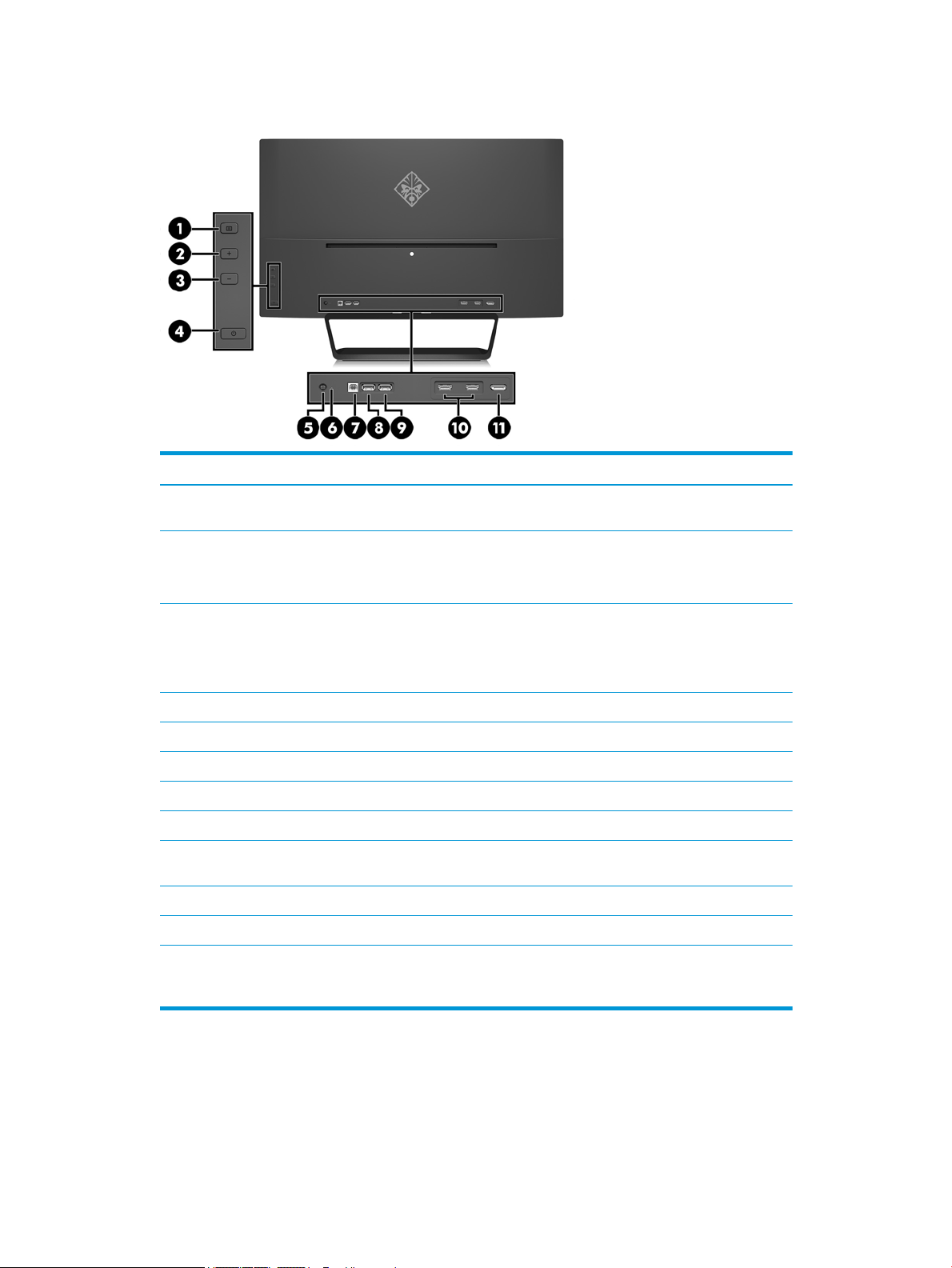
Side and Bottom Components on the Rear Panel
Item Component Function
1 Menu button Press to open the OSD menu, select a menu item from the OSD, or close the
OSD menu.
2 Plus button If the OSD menu is on, press to navigate forward through the OSD menu and
increase adjustment levels.
If the OSD menu is inactive, press to open the Quick View menu.
3 Minus button If the OSD menu is on, press to navigate backward through the OSD menu
and decrease adjustment levels.
If the OSD menu is inactive, press to advance to the next active input port
(HDMI, DisplayPort).
4 Power button When the monitor is o, press the button to turn on the monitor.
5 Power connector Connects an AC adapter.
6 Power LED Light indicates when the power is on.
7 USB 2.0 (upstream) Connects the USB hub cable from the source device to the monitor.
8 USB 2.0 (downstream) Connects optional USB devices to the monitor.
9 USB 2.0 charging
(downstream)
Connects optional USB devices to the monitor.
10 HDMI ports (2) Connect the HDMI cables from source devices to the monitor.
11 DisplayPort Connects the DisplayPort cable from the source device to the monitor.
NOTE: The USB 2.0 downstream with charging port also provides current to charge a device such as a smartphone or
tablet. You can make the charging current available even when the monitor power button is switched o by changing
the settings in the OSD. Open the OSD and select Power Control > USB Power > Enable.
Product features and components 3
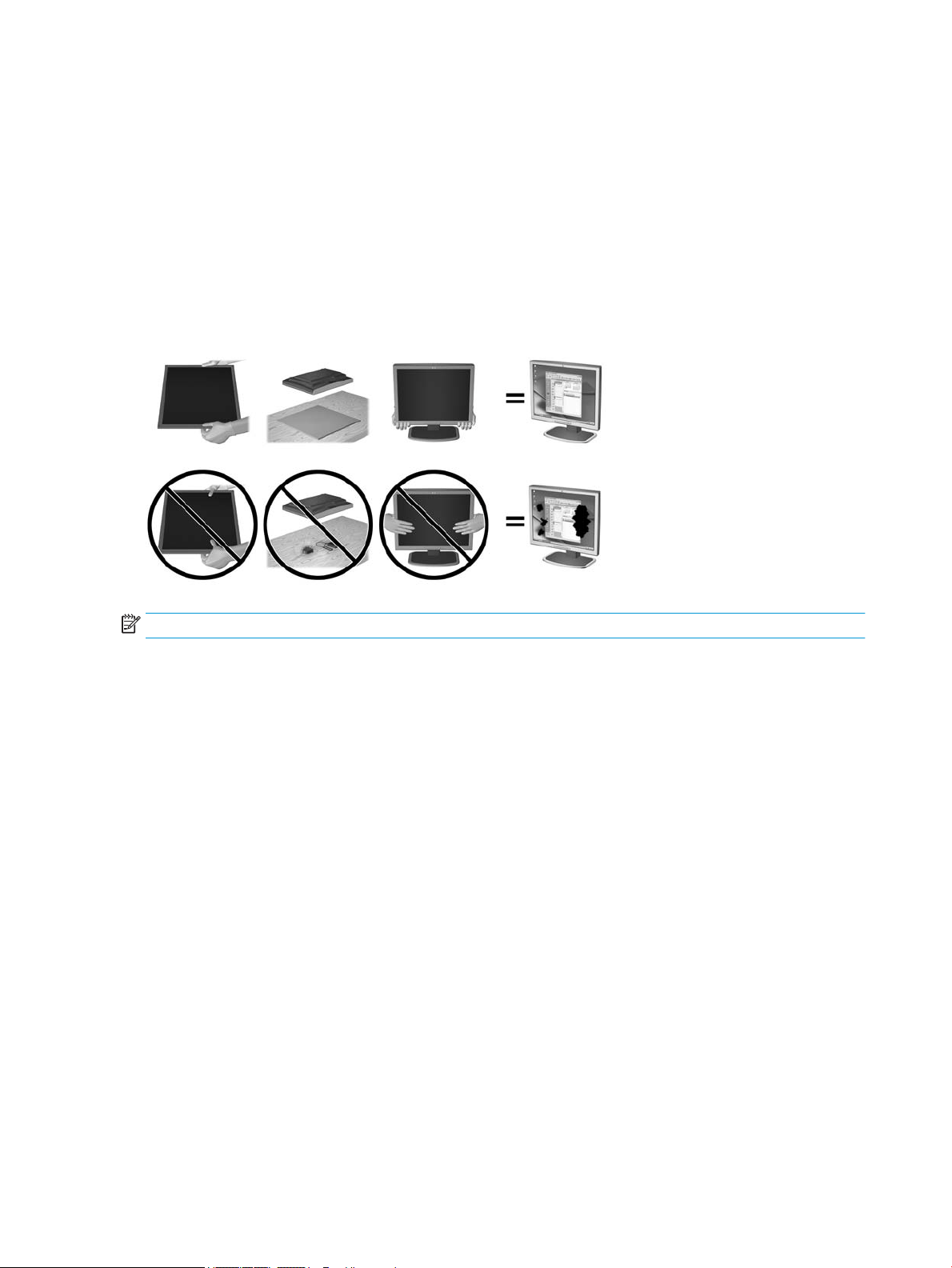
Setting up the monitor
Use caution when setting up the monitor
To prevent damage to the monitor, do not touch the surface of the LCD panel. Pressure on the panel may
cause non-uniformity of color or disorientation of the liquid crystals. If this occurs the screen will not recover
to its normal condition.
If installing a stand, lay the monitor face down on a at surface covered with a protective sheet foam or non-
abrasive cloth. This prevents the screen from getting scratched, defaced or broken as well as damage to the
front panel.
NOTE: Your monitor may look dierent from the monitor in this illustration.
4 Chapter 1 Getting Started
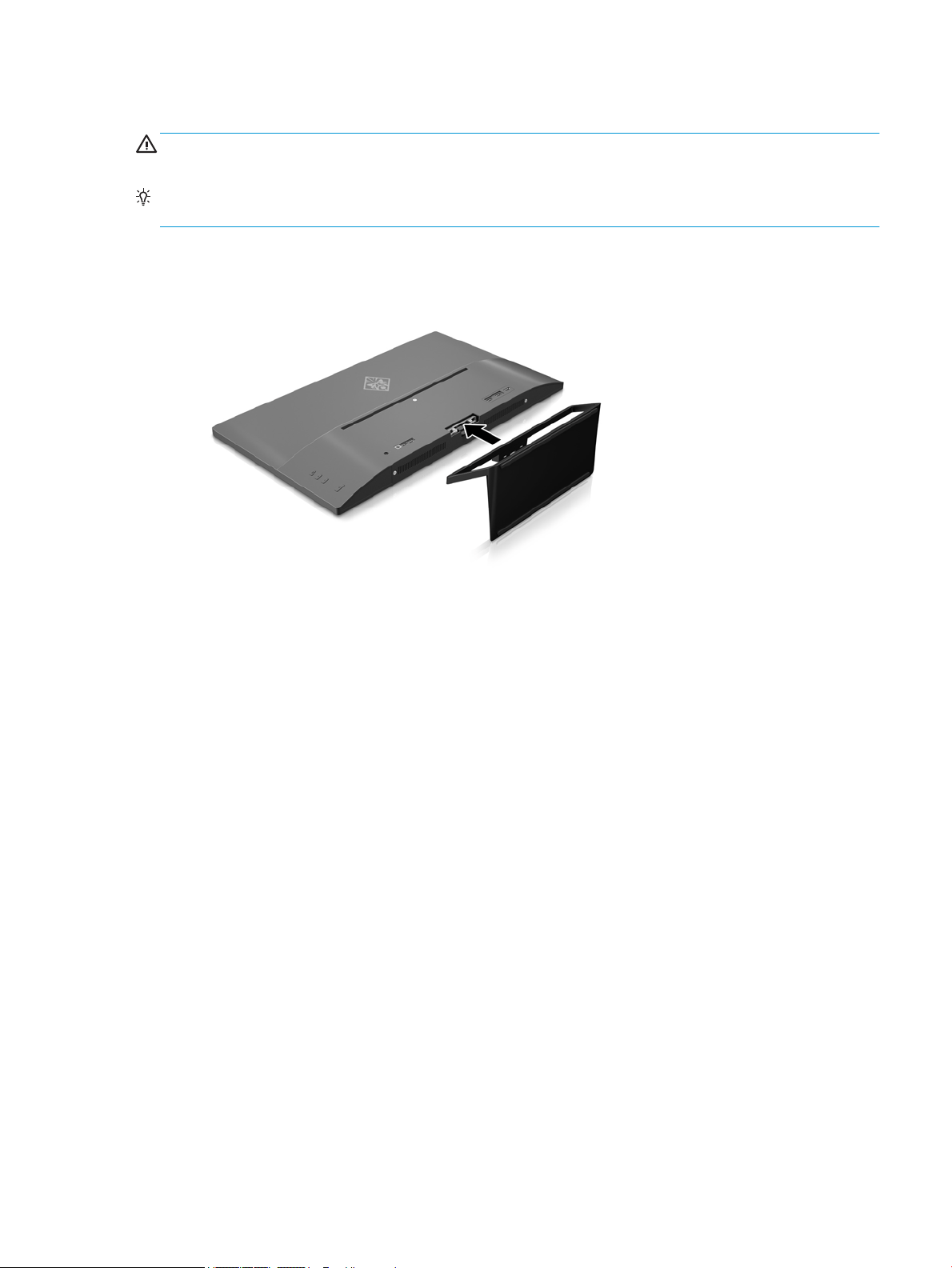
Attaching the monitor stand
CAUTION: The screen is fragile. Avoid touching or applying pressure to the screen; doing so can cause
damage.
TIP: Consider the placement of the display, because the bezel might cause interfering reections from
surrounding light and bright surfaces.
1. Lift the monitor from its box and place it face down on a at surface covered by a clean, dry cloth.
2. Attach the stand to the monitor by inserting the bracket at the top of the stand into the slot on the back
of the display head until the bracket clicks securely in place.
Setting up the monitor 5
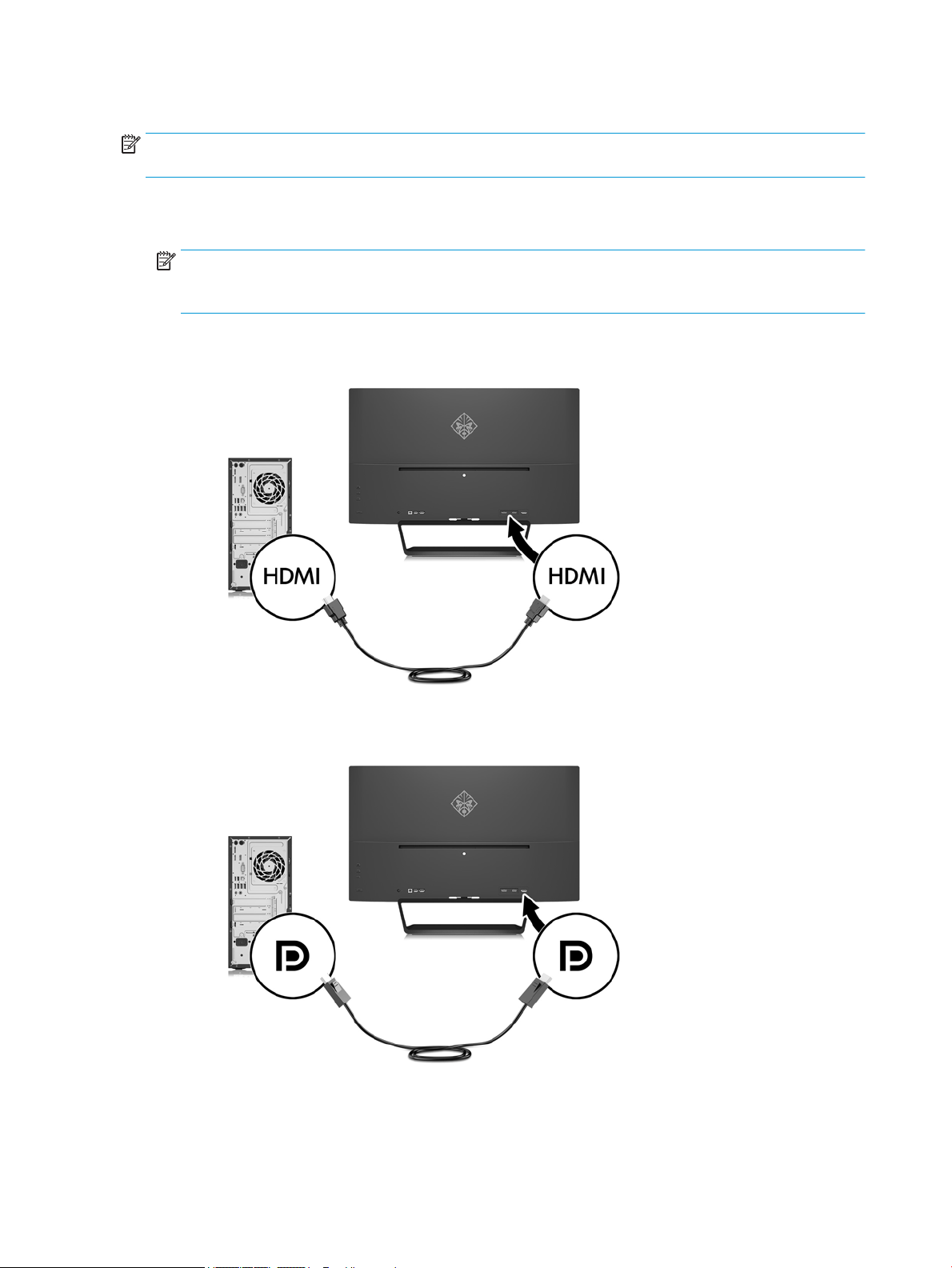
Connecting the cables
NOTE: The monitor ships with select cables. Not all cables shown in this section are included with the
monitor.
1. Place the monitor in a convenient, well-ventilated location near the computer.
2. Connect a video cable.
NOTE: The monitor will automatically determine which inputs have valid video signals. The inputs can
be selected by pressing the Minus button on the rear panel or through the on-screen display by pressing
the Menu button and selecting Input Control.
●
Connect an HDMI cable to the HDMI connector on the back of the monitor and the other end to the
source device.
●
Connect a DisplayPort cable to the DisplayPort connector on the rear of the monitor and the other
end to the DisplayPort connector on the source device.
6 Chapter 1 Getting Started
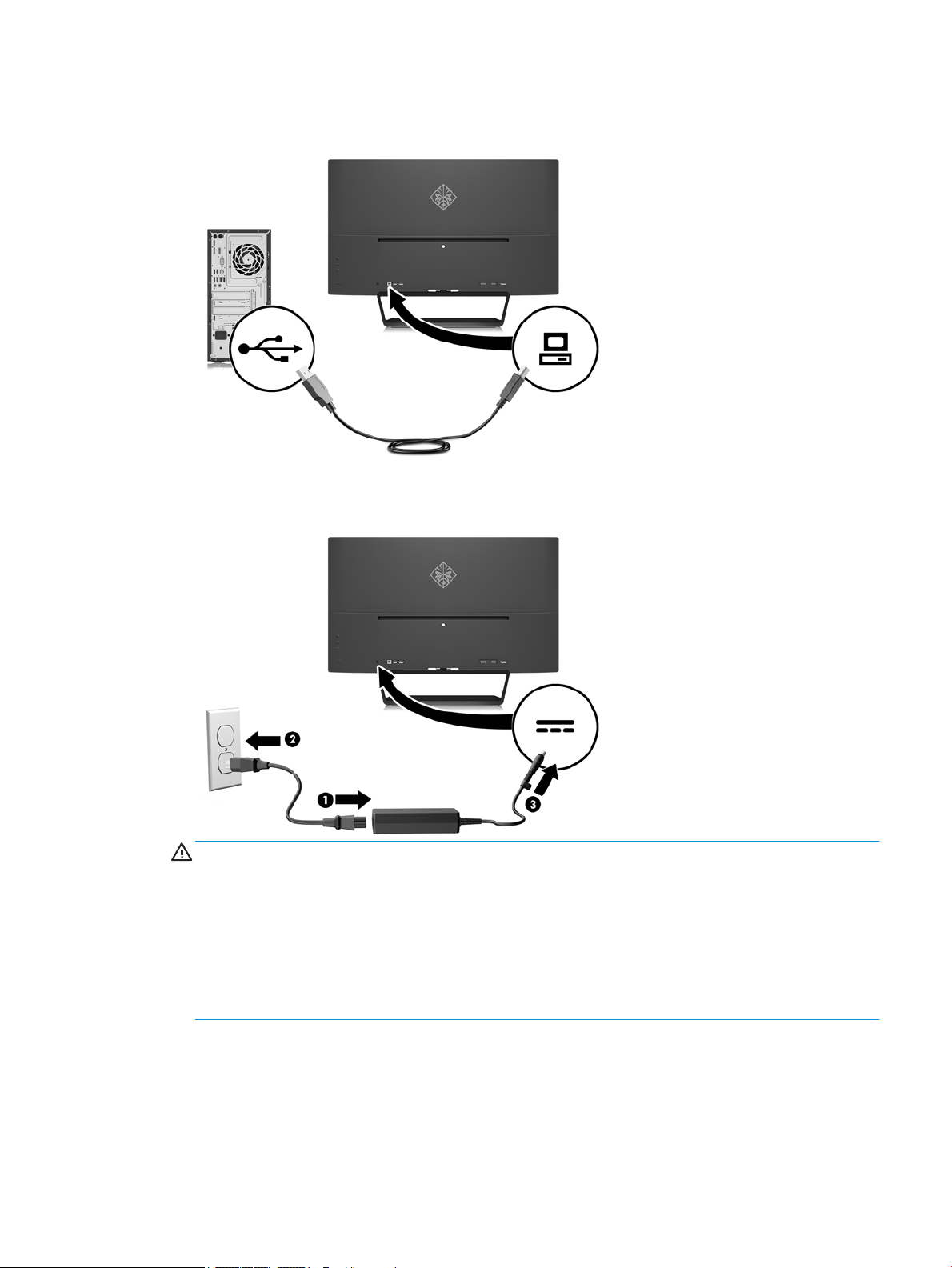
3. Connect a USB upstream cable to the USB upstream connector on the rear of the monitor and the other
end to a USB downstream connector on the source device.
4. Connect one end of the power cord to the power supply (1) and the other end to a grounded electrical
outlet (2), and then connect the round end of the power supply cord to the monitor (3).
WARNING! To reduce the risk of electric shock or damage to the equipment:
Do not disable the power cord grounding plug. The grounding plug is an important safety feature.
Plug the power cord into a grounded (earthed) electrical outlet that is easily accessible at all times.
Disconnect power from the equipment by unplugging the power cord from the electrical outlet.
For your safety, do not place anything on power cords or cables. Arrange them so that no one may
accidentally step on or trip over them. Do not pull on a cord or cable. When unplugging from the
electrical outlet, grasp the cord by the plug.
Setting up the monitor 7
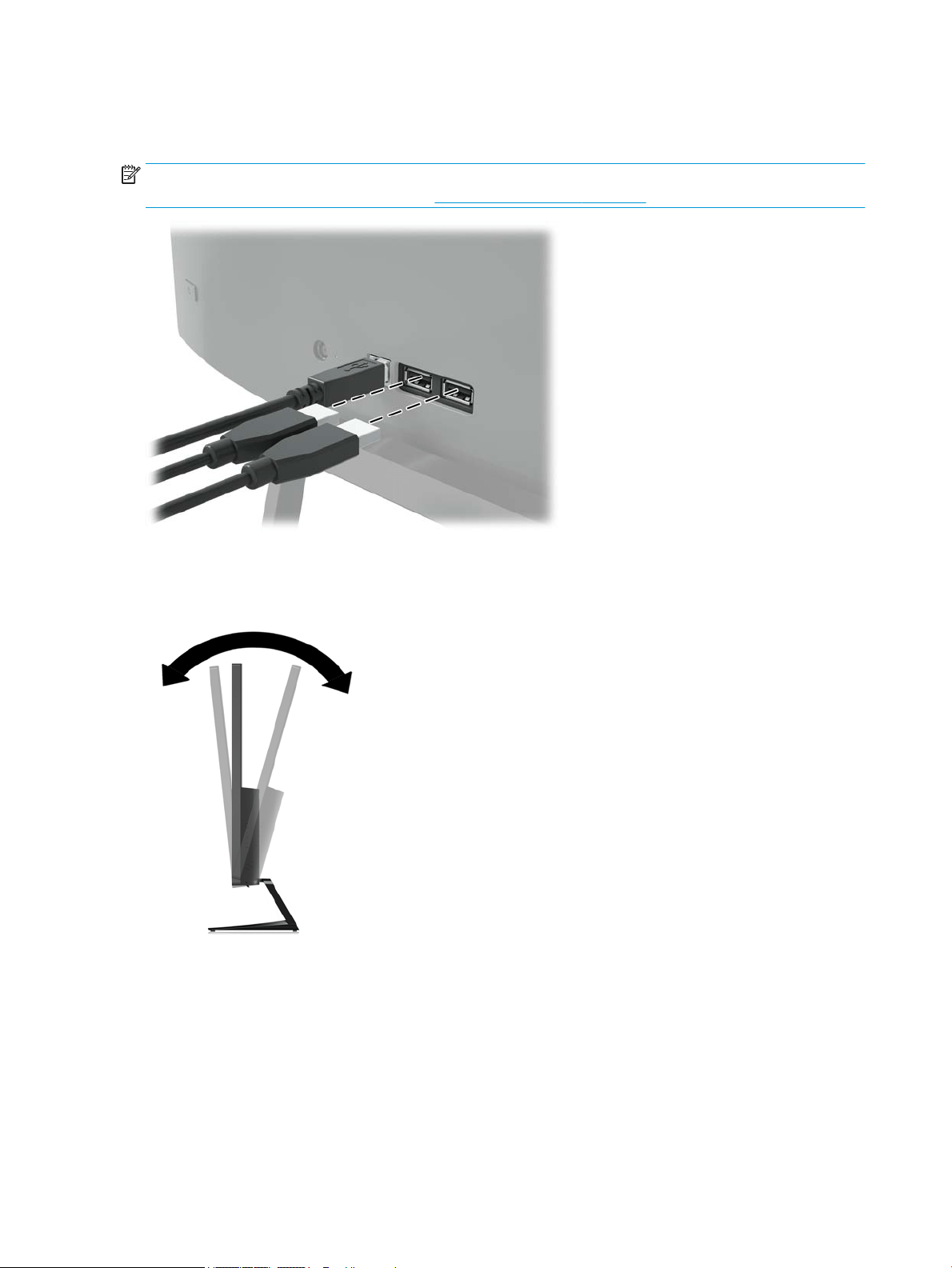
Connecting USB devices
There is one USB upstream port and two USB downstream ports on the rear of the monitor.
NOTE: You must connect the USB upstream cable from the source computer to the monitor to enable the
USB ports on the monitor. Refer to Step 3 in Connecting the cables on page 6.
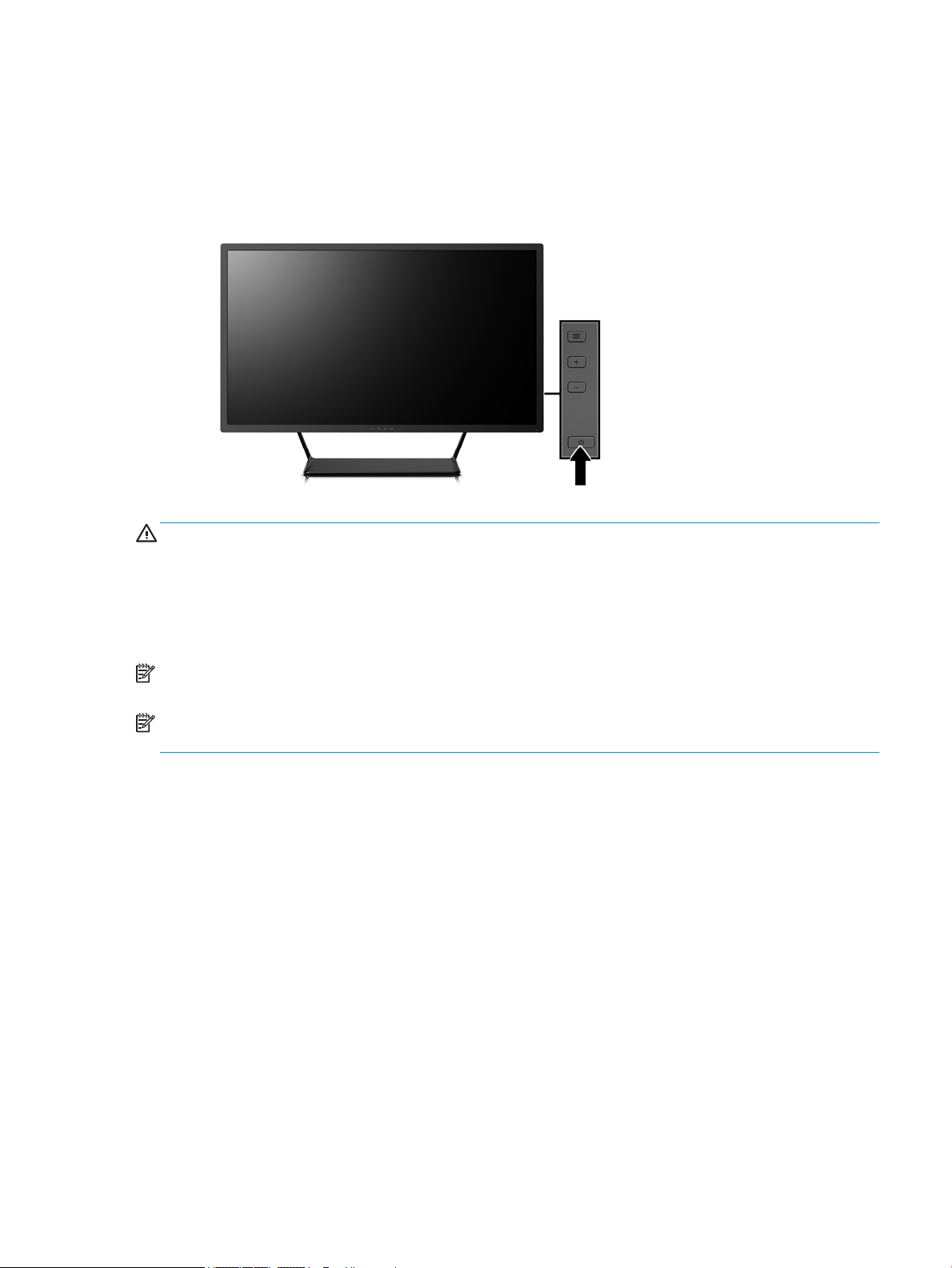
Adjusting the monitor
Tilt the monitor panel forward or backward to set it to a comfortable eye level.
8 Chapter 1 Getting Started
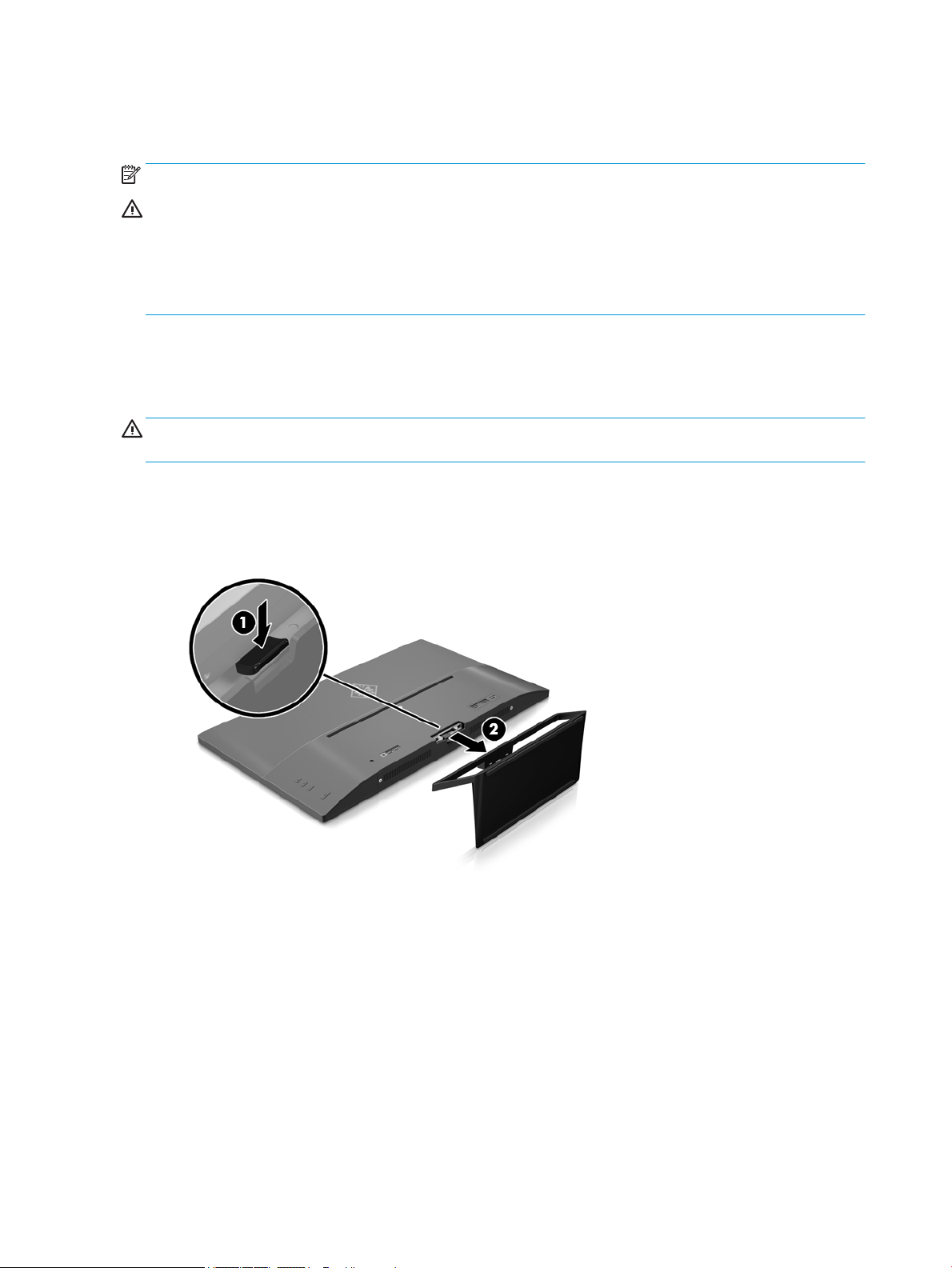
Turning on the monitor
1. Press the power button on the source device to turn it on.
2. Press the power button on the rear of the monitor to turn it on.
CAUTION: Burn-in image damage may occur on monitors that display the same static image on screen for a
prolonged period of time.* To avoid burn-in image damage on the monitor screen, you should always activate
a screen saver application or turn o the monitor when it is not in use for a prolonged period of time. Image
retention is a condition that may occur on all LCD screens. Monitors with a “burned-in image” are not covered
under the HP warranty.
* A prolonged period of time is 12 consecutive hours of non-use.
NOTE: If pressing the power button has no eect, the Power Button Lockout feature may be enabled. To
disable this feature, press and hold the monitor power button for 10 seconds.
NOTE: You can disable the power LED in the OSD menu. Press the Menu button on the rear of the monitor,
and then select Power Control > Power LED > O.
When the monitor is powered on, a Monitor Status message is displayed for ve seconds. The message shows
which input is the current active signal, the status of the auto-switch source setting (On or O; factory default
is On), the current preset display resolution, and the recommended preset display resolution.
The monitor automatically scans the signal inputs for an active input and uses that input for the display.
Setting up the monitor 9
Mounting the display head
The display head can be attached to a wall, swing arm, or other mounting xture.
NOTE: This apparatus is intended to be supported by UL or CSA Listed wall mount bracket.
CAUTION: This monitor supports the VESA industry standard 100 mm mounting holes. To attach a third-
party mounting solution to the display head, four 4 mm, 0.7 pitch, and 10 mm long screws are required.
Longer screws must not be used because they may damage the display head. It is important to verify that the
manufacturer’s mounting solution is compliant with the VESA standard and is rated to support the weight of
the display head. For best performance, it is important to use the power and video cables provided with the
monitor.
Removing the monitor stand
You can remove the display head from the stand to install the display head on a wall, a swing arm, or other
mounting xture.
CAUTION: Before beginning to disassemble the monitor, be sure the monitor is turned o and all cables are
disconnected.
1. Disconnect and remove all cables from the monitor.
2. Lay the monitor face down on a at surface covered by a clean, dry cloth.
3. Press down on the release latch (1) and slide the stand out of the slot on the display head (2).
10 Chapter 1 Getting Started
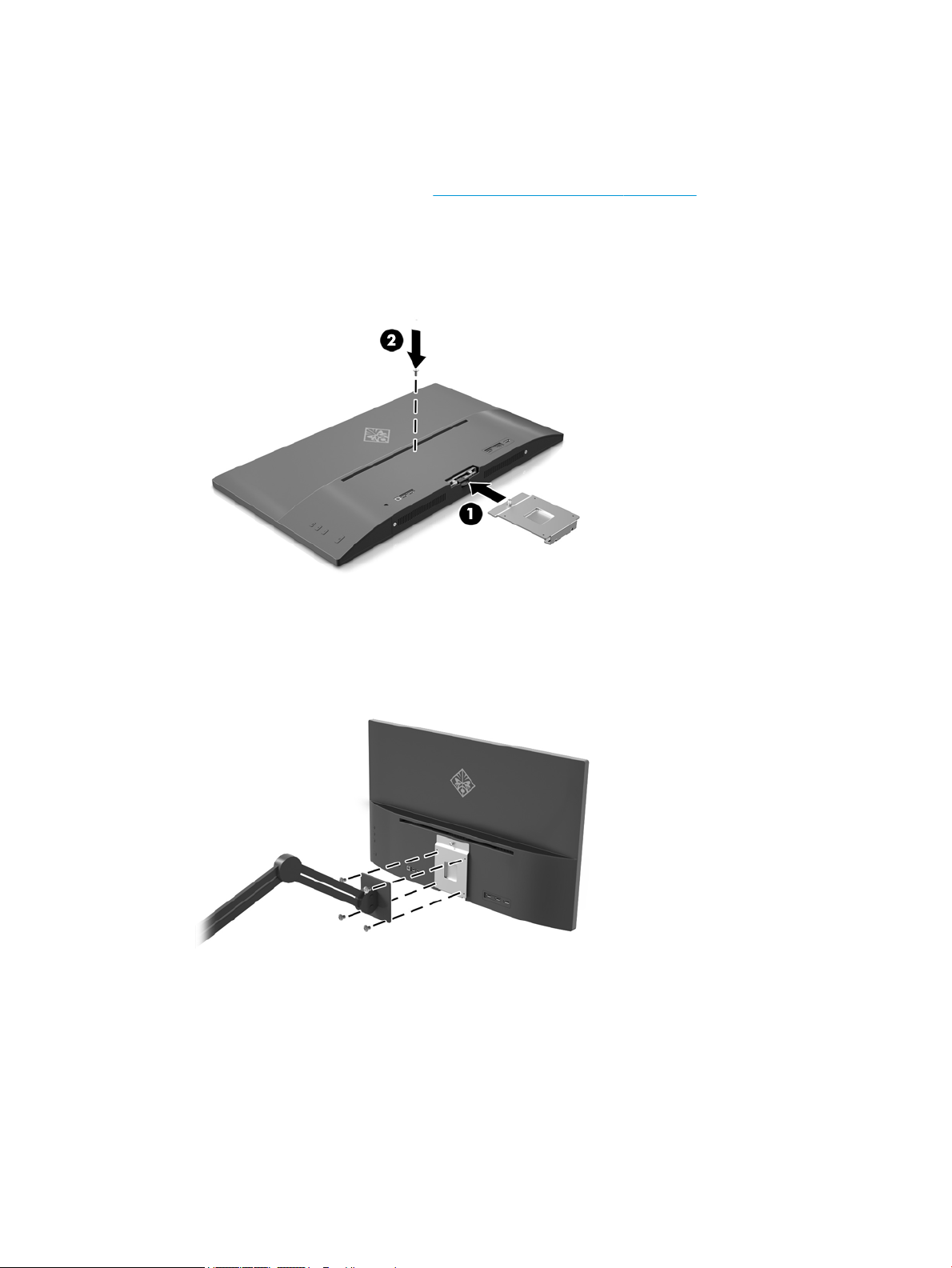
Attaching the VESA mounting bracket
A VESA mounting bracket is included with the monitor for use when attaching the display head to a wall,
swing arm, or other mounting xture.
1. Remove the monitor stand. Refer to Removing the monitor stand on page 10.
2. Remove the screw from the center of the rear of the display head.
3. Insert the tab at the bottom of the VESA bracket into the slot on the back of the display head until the
bracket clicks in place (1), and then secure the top of the bracket with the screw that was installed in the
center of the display head (2).
4. To attach the display head to a swing arm or other mounting device, insert four mounting screws
through the holes on the mounting device and into the screw holes on the VESA bracket that was
installed on the rear of the display head.
Setting up the monitor 11

2 Using the monitor
Software and utilities
The optical disc, if one is included with the monitor, contains les that you can install on the computer. If you
do not have an optical drive, you can download the les from http://www.hp.com/support.
●
an .INF (Information) le
●
ICM (Image Color Matching) les (one for each calibrated color space)
●
My Display software
The Information le
The .INF le denes monitor resources used by Windows® operating systems to ensure monitor compatibility
with the computer’s graphics adapter.
This monitor is Windows Plug and Play compatible and the monitor will work correctly without installing
the .INF le. Monitor Plug and Play compatibility requires that the computer’s graphic card is VESA DDC2–
compliant and that the monitor connects directly to the graphics card. Plug and Play does not work through
separate BNC type connectors or through distribution buers/boxes.
The Image Color Matching le
The .ICM les are data les that are used in conjunction with graphics programs to provide consistent color
matching from monitor screen to printer, or from scanner to monitor screen. This le is activated from within
graphics programs that support this feature.
NOTE: The ICM color prole is written in accordance with the International Color Consortium (ICC) Prole
Format specication.
Installing the .INF and .ICM les
After you determine that you need to update, you can install the .INF and .ICM les from the optical disc, if one
is included, or download them.
Installing from the optical disc (available in select regions)
To install the .INF and .ICM les on the computer from the optical disc, if one is provided:
1. Insert the optical disc in the computer optical drive. The optical disc menu is displayed.
2. View the HP Monitor Software Information le.
3. Select Install Monitor Driver Software.
4. Follow the on-screen instructions.
5. Ensure that the proper resolution and refresh rates appear in the Windows Display control panel.
NOTE: You may need to install the digitally signed monitor .INF and .ICM les manually from the optical disc,
if one is included with the monitor, in the event of an installation error.
12 Chapter 2 Using the monitor

Downloading from the Web
If you do not have a computer or source device with an optical drive, you can download the latest version
of .inf and .icm les from the HP monitors support website.
1. Go to http://www.hp.com/support.
2. Select Get software and drivers.
3. Follow the on-screen instructions to select your monitor and download the software.
Using My Display software
Use My Display software to choose preferences for optimum viewing. You can select settings for gaming,
movies, photo editing, or just working on documents and spreadsheets. You can also easily adjust settings
such as brightness, color, and contrast using My Display software.
Downloading the software
To download the My Display software, follow the instructions below.
1. Go to http://www.hp.com/support and select the appropriate country and language.
2. Select Get software and drivers, and then follow the on-screen instructions to select your monitor and
download the software.
Using the software
To open the My Display software:
1. Click the HP My Display icon on the taskbar.
Or
Click Windows Start on the taskbar.
2. Click All Programs.
3. Click HP My Display.
4. Select HP My Display.
For additional information, refer to the on-screen Help within the software.
Using the on-screen display (OSD) menu
Use the on-screen display (OSD) to adjust the screen image based on your viewing preferences. You can
access and make adjustments in the OSD using the buttons on the right side of the display or the buttons on
the remote control.
To access the OSD and make adjustments, do the following:
1. If the monitor is not already on, press the Power button to turn on the monitor.
2. To access the OSD menu, press the Menu button on the right side of the monitor.
3. To navigate through the OSD menu, press the + (Plus) button on the monitor’s side panel to scroll up, or
the – (Minus) button to scroll down.
Using My Display software 13

4. To select an item from the OSD menu, use the + or – buttons to scroll to and highlight your selection,
then press the Menu button to select that function.
5. Adjust the item using the + or – buttons to adjust the scale.
6. After adjusting the function, select Save and Return, or Cancel if you don’t want to save the setting,
then select Exit from the Main menu.
Main Menu Description
Brightness Adjusts the brightness level of the screen. The factory default range is 90.
Contrast Adjusts the contrast level of the screen. The factory default range is 80.
Input Control Selects the video input signal.
Color Control Selects and adjusts the screen color.
Image Control Adjusts the screen image.
Power Control Adjusts the power settings.
Menu Control Adjusts the on-screen display (OSD) controls.
Management Adjusts the DDC/CI settings and returns all OSD menu settings to the factory default settings.
Language Selects the language in which the OSD menu is displayed. The factory default is English.
Information Selects and displays important information about the monitor.
Exit Exits the OSD menu screen.
14 Chapter 2 Using the monitor

Selecting a faster response time for gaming
You may choose to set a faster response time.
1. Open the OSD menu.
2. Select Image Control and then select Response Time.
3. Select one of the following levels from the Response Time menu:
Level 1 (Default)
Level 2 (Fast)
Level 3 (Faster)
Level 4 (Fastest)
NOTE: The default response time for the monitor is 7 ms. The response time can be adjusted to as low
as 5 ms in the display menu. All performance specications represent the typical specications provided
by HP’s component manufacturers; actual performance may vary either higher or lower.
Using Auto-Sleep Mode
The display supports an OSD option called Auto-Sleep Mode that allows you to enable or disable a reduced
power state for the display. When Auto-Sleep Mode is enabled (enabled by default), the monitor will enter a
reduced power state when the host PC signals low power mode (absence of either horizontal or vertical sync
signal).
Upon entering this reduced power state sleep mode, the monitor screen is blanked, the backlight is turned o
and the power LED indicator turns amber. The monitor draws less than 0.5W of power when in this reduced
power mode. The monitor will wake from the sleep mode when the host PC sends an active signal to the
monitor (for example, if you activate the mouse or keyboard).
You can disable the Auto-Sleep Mode in the OSD. Press the Menu button on the rear to open the OSD. In the
OSD select Power Control > Auto-Sleep Mode > O.
Using Auto-Sleep Mode 15

3 Support and troubleshooting
Solving common problems
The following table lists possible problems, the possible cause of each problem, and the recommended
solutions.
Problem Possible Cause Solution
Screen is blank or video is
ashing.
Power cord is disconnected. Connect the power cord.
Power button is turned o. Press the rear panel power button.
NOTE: If pressing the power button has no eect, press and
hold the power button for 10 seconds to disable the power
button lockout feature.
Video cable is improperly connected. Connect the video cable properly. Refer to Connecting the
cables on page 6 for more information.
System is in sleep mode. Press any key on the keyboard or move the mouse to
inactivate the screen blanking utility.
Video card compatibility. Open the OSD menu and select the Input Control menu. Set
Auto-Switch Input to O and manually select the input.
Image appears blurred,
indistinct, or too dark.
Brightness is too low. Open the OSD menu and select Brightness to adjust the
brightness scale as needed.
Check Video Cable is
displayed on screen.
Monitor video cable is disconnected. Connect the appropriate video signal cable between the
computer and monitor. Be sure that the computer power is o
while connecting the video cable.
Input Signal Out of Range is
displayed on screen.
Video resolution and/or refresh rate
are set higher than what the monitor
supports.
Change the settings to a supported setting (see Preset display
resolutions on page 21).
The monitor is o but it did
not seem to enter into a low-
power sleep mode.
The monitor's power saving control is
disabled.
Open the OSD menu and select Power Control > Auto-Sleep
Mode and set auto-sleep to On.
OSD Lockout is displayed. The monitor's OSD Lockout function
is enabled.
Press and hold the Menu button on the rear panel for 10
seconds to disable the OSD Lockout function.
Power Button Lockout is
displayed.
The monitor's Power Button Lockout
function is enabled.
Press and hold the power button for 10 seconds to unlock the
power button function.
Button lockouts
Holding down the power button or Menu button for ten seconds will lock out the functionality of the buttons.
You can restore the functionality by holding the buttons down again for ten seconds. This functionality is only
available when the display is powered on, displaying an active signal, and the OSD is not active.
16 Chapter 3 Support and troubleshooting

Product support
For additional information on using your monitor, go to http://www.hp.com/support. Select the appropriate
support category, and then follow the on-screen instructions.
NOTE: The monitor user guide, reference material, and drivers are all available at this location.
Here you can:
●
Chat online with an HP technician
NOTE: When support chat is not available in a particular language, it is available in English.
●
Locate an HP service center
Preparing to call technical support
If you cannot solve a problem using the troubleshooting tips in this section, you may need to call technical
support. Have the following information available when you call:
●
Monitor model number
●
Monitor serial number
●
Purchase date on invoice
●
Conditions under which the problem occurred
●
Error messages received
●
Hardware conguration
●
Name and version of the hardware and software you are using
Product support 17
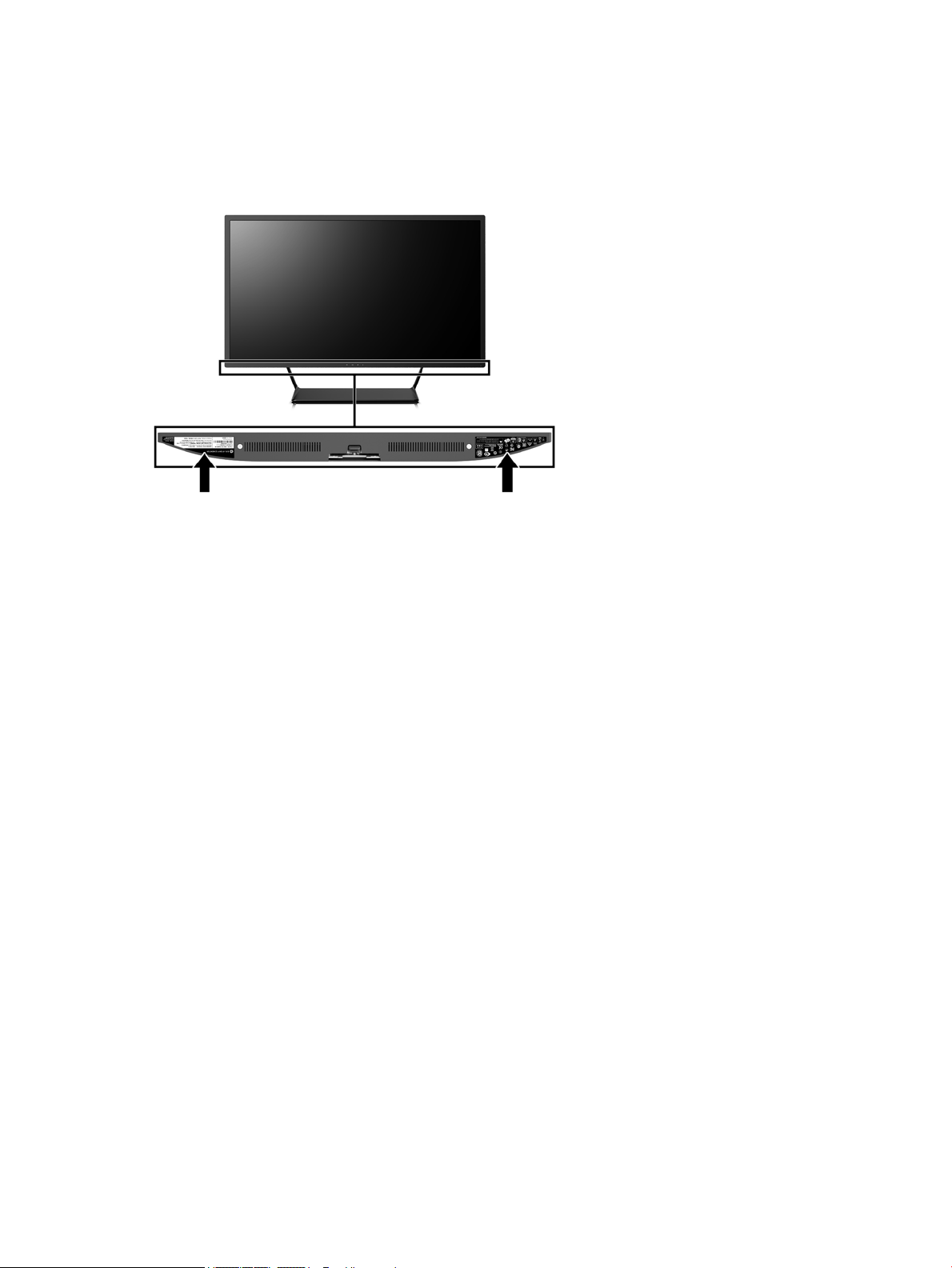
Locating the rating label
The rating label on the monitor provides the product number and serial number. You may need these
numbers when contacting HP about the monitor model. The rating label is located on the bottom of the
display head.
18 Chapter 3 Support and troubleshooting

4 Maintaining the monitor
Maintenance guidelines
To enhance the performance and extend the life of the monitor:
●
Do not open the monitor cabinet or attempt to service this product yourself. Adjust only those controls
that are covered in the operating instructions. If the monitor is not operating properly or has been
dropped or damaged, contact an authorized HP dealer, reseller, or service provider.
●
Use only a power source and connection appropriate for this monitor, as indicated on the label/back
plate of the monitor.
●
Be sure the total ampere rating of the products connected to the outlet does not exceed the current
rating of the electrical outlet, and the total ampere rating of the products connected to the cord does
not exceed the rating of the cord. Look on the power label to determine the ampere rating (AMPS or A)
for each device.
●
Install the monitor near an outlet that you can easily reach. Disconnect the monitor by grasping the plug
rmly and pulling it from the outlet. Never disconnect the monitor by pulling the cord.
●
Turn the monitor o when not in use. You can substantially increase the life expectancy of the monitor
by using a screen saver program and turning o the monitor when not in use.
NOTE: Monitors with a “burned-in image” are not covered under the HP warranty.
●
Slots and openings in the cabinet are provided for ventilation. These openings must not be blocked or
covered. Never push objects of any kind into cabinet slots or other openings.
●
Do not drop the monitor or place it on an unstable surface.
●
Do not allow anything to rest on the power cord. Do not walk on the cord.
●
Keep the monitor in a well-ventilated area, away from excessive light, heat or moisture.
●
When removing the monitor stand, you must lay the monitor face down on a soft area to prevent it from
getting scratched, defaced, or broken.
Cleaning the monitor
1. Turn o the monitor and unplug the power cord from the back of the unit.
2. Dust the monitor by wiping the screen and the cabinet with a soft, clean antistatic cloth.
3. For more diicult cleaning situations, use a 50/50 mix of water and Isopropyl alcohol.
CAUTION: Spray the cleaner onto a cloth and use the damp cloth to gently wipe the screen surface. Never
spray the cleaner directly on the screen surface. It may run behind the bezel and damage the electronics.
CAUTION: Do not use cleaners that contain any petroleum based materials such as benzene, thinner, or any
volatile substance to clean the monitor screen or cabinet. These chemicals may damage the monitor.
Shipping the monitor
Keep the original packing box in a storage area. You may need it later if you move or ship the monitor.
Maintenance guidelines 19

A Technical specications
NOTE: All specications represent the typical specications provided by HP's component manufacturers;
actual performance may vary either higher or lower.
For the latest specications or additional specications on this product, go to http://www.hp.com/go/
quickspecs/ and search for your specic display model to nd the model-specic QuickSpecs.
Specication Measurement
Display, wide-screen
Type
81.3 cm
AMVA+
32 in
Viewable image size 81.3 cm, diagonal 32 in, diagonal
Tilt -5° to 21°
Weight
Without stand
With stand
8.2 kg
9.8 kg
18.08 lb
21.61 lb
Dimensions (including stand)
Height
Depth
Width
52.2 cm
17.894 cm
73.99 cm
20.551 in
7.049 in
29.13 in
Maximum graphic resolution 2560 × 1440 (75 Hz)
Optimum graphic resolution 2560 × 1440 (60 Hz)
Text mode 720 × 400
Dot pitch 0.27675 mm
Pixels per inch 91.8 PPI
Horizontal frequency 24 kHz ~ 115 kHz
Vertical refresh rate 48 Hz ~ 75 Hz
Response time The default response time for the monitor is
7 ms. The response time can be adjusted to
as low as 5 ms in the display menu. All
performance specications represent the
typical specications provided by HP’s
component manufacturers; actual
performance may vary either higher or
lower.
Environmental requirements
Temperature
Operating temperature
Storage temperature
Relative humidity
5°C to 35°C
-20°C to 60°C
20% to 70%
41°F to 95°F
-4°F to 140°F
20 Appendix A Technical specications

Specication Measurement
Altitude
Operating
Storage
0 m to 5,000 m
0 m to 12 ,192 m
0 ft to 16,400 ft
0 ft to 40,000 ft
Power source 100 V ac to 240 V ac 50/60 Hz
Measured power consumption
Full power
Typical settings
Sleep
O
72 W
54 W
<0.5 W
<0.3 W
Input terminal Two HDMI connectors, one DisplayPort connector
Preset display resolutions
The display resolutions listed below are the most commonly used modes and are set as factory defaults. This
monitor automatically recognizes these preset modes and they will appear properly sized and centered on the
screen.
Preset Pixel format Horz freq (kHz) Vert freq (Hz)
1 640 × 480 31.469 59.94
2 720 × 400 31.469 70.087
3 800 × 600 37.879 60.317
4 1024 × 768 48.363 60.004
5 1280 × 720 45 60
6 1280 × 800 49.702 59.81
7 1280 × 1024 63.981 60.02
8 1440 × 900 55.935 59.887
9 1600 × 900 60 60
10 1680 × 1050 65.29 59.954
11 1920 × 1080 67.5 60
12 1920 × 1200 74.038 59.95
13 1600 × 1200 75 60
14 1920 × 1200 74.556 59.885
15 2560 × 1440 88.787 59.951
Preset Timing name Pixel format Horz freq (kHz) Vert freq (Hz)
1 480p 720 × 480 31.469 60
Preset display resolutions 21
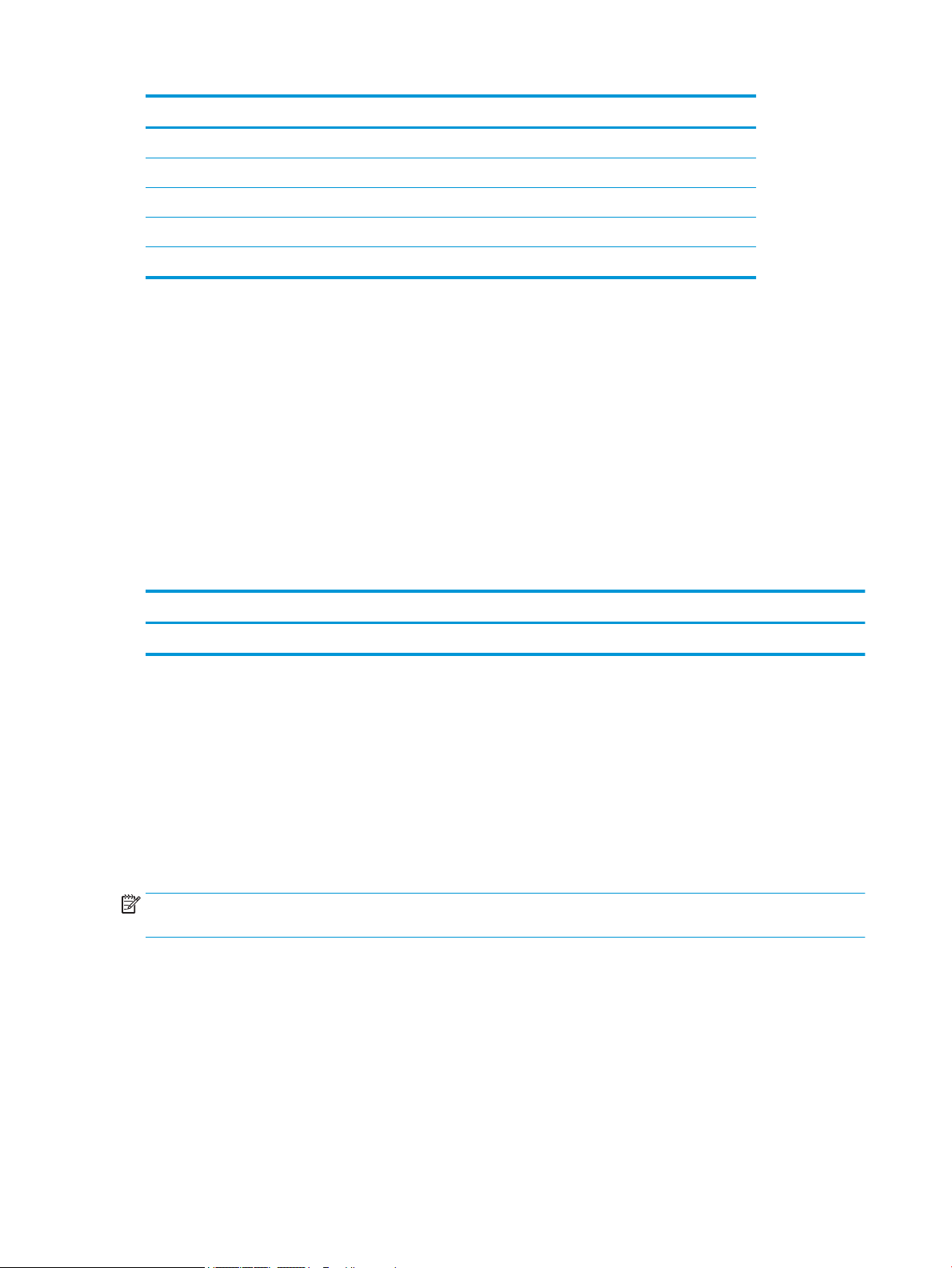
Preset Timing name Pixel format Horz freq (kHz) Vert freq (Hz)
2 576p 720 × 576 31.25 50
3 720p50 1280 × 720 37.5 50
4 720p60 1280 × 720 45 60
5 1080p60 1920 × 1080 67.5 60
6 1080p50 1920 × 1080 56.25 50
Entering user modes
The video controller signal may occasionally call for a mode that is not preset if:
●
You are not using a standard graphics adapter.
●
You are not using a preset mode.
If this occurs, you may need to readjust the parameters of the monitor screen by using the on-screen display.
Your changes can be made to any or all of these modes and saved in memory. The monitor automatically
stores the new setting, and then recognizes the new mode just as it does a preset mode. In addition to the
factory preset modes, there are at least 10 user modes that can be entered and stored.
Power adapter
Manufacturer Model number Power supply rating
Chicony TPC-CA57 19.5 V dc @ 4.62 A – 90 W
Energy saver feature
The monitor supports a reduced power state. The reduced power state will be entered into if the monitor
detects the absence of either the horizontal sync signal and/or the vertical sync signal. Upon detecting the
absence of these signals, the monitor screen is blanked, the backlight is turned o, and the power light turns
amber. When the monitor is in the reduced power state, the monitor will utilize <0.5 watts of power. There is
a brief warm-up period before the monitor will return to its normal operating state.
Refer to the computer manual for instructions on setting the energy saver mode (sometimes called power
management feature).
NOTE: The above power saver feature only works when connected to computers that have energy saver
modes.
By selecting the settings in the monitor's Sleep Timer utility, you can also program the monitor to enter into
the reduced power state at a predetermined time. When the monitor's Sleep Timer utility causes the monitor
to enter the reduced power state, the power light blinks amber.
22 Appendix A Technical specications
B Accessibility
HP designs, produces, and markets products and services that can be used by everyone, including people with
disabilities, either on a stand-alone basis or with appropriate assistive devices.
Supported assistive technologies
HP products support a wide variety of operating system assistive technologies and can be congured to work
with additional assistive technologies. Use the Search feature on your source device that is connected to the
monitor to locate more information about assistive features.
NOTE: For additional information about a particular assistive technology product, contact customer support
for that product.
Contacting support
We are constantly rening the accessibility of our products and services and welcome feedback from users. If
you have an issue with a product or would like to tell us about accessibility features that have helped you,
please contact us at (888) 259-5707, Monday through Friday, 6 a.m. to 9 p.m. Mountain Time. If you are deaf
or hard-of-hearing and use TRS/VRS/WebCapTel, contact us if you require technical support or have
accessibility questions by calling (877) 656-7058, Monday through Friday, 6 a.m. to 9 p.m. Mountain Time.
Supported assistive technologies 23