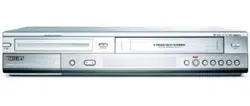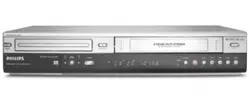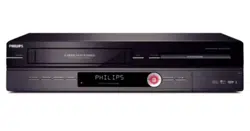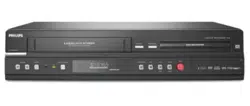
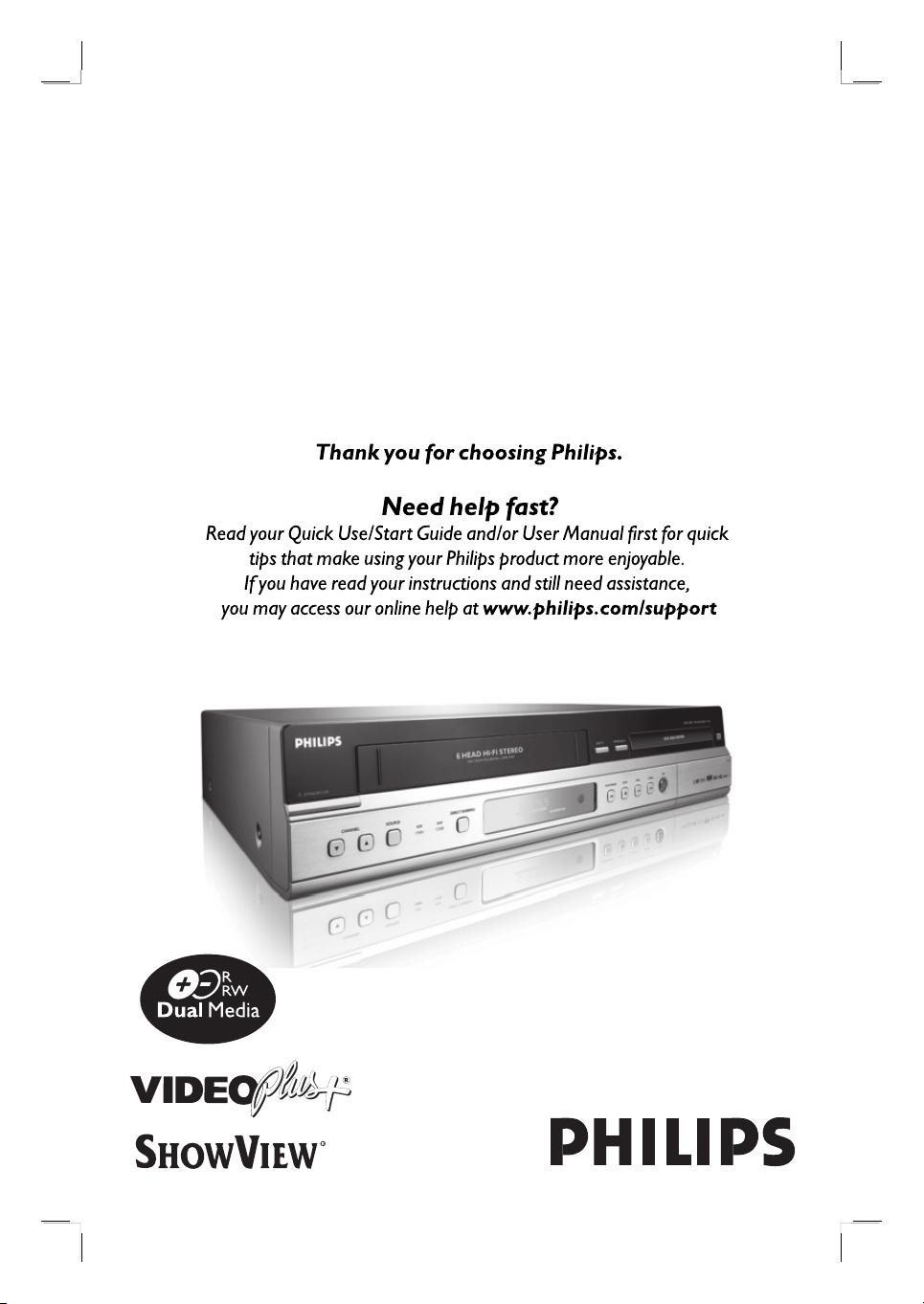
DVD Recorder / VCR
DVDR3430V
DVDR3432V
User Manual
2
Important notes for users in U.K.
Mains plug
This apparatus is tted with an approved 13
Amp plug. To change a fuse in this type of plug
proceed as follows:
1 Remove fuse cover and fuse.
2 Fix new fuse which should be a BS1362
5 Amp, A.S.T.A. or BSI approved type.
3 Re t the fuse cover.
If the tted plug is not suitable for your socket
outlets, it should be cut off and an appropriate
plug tted in its place.
If the mains plug contains a fuse, this should
have a value of 5 Amp. If a plug without a fuse
is used, the fuse at the distribution board
should not be greater than 5 Amp.
Note: The severed plug must be disposed off to
avoid a possible shock hazard should it be
inserted into a 13 Amp socket elsewhere.
How to connect a plug
The wires in the mains lead are coloured with
the following code: blue = neutral (N),
brown = live (L).
z
As these colours may not correspond with the
colour markings identifying the terminals in your
plug, proceed as follows:
– Connect the blue wire to the terminal
marked N or coloured black.
– Connect the brown wire to the terminal
marked L or coloured red.
– Do not connect either wire to the earth
terminal in the plug, marked E (or e) or
coloured green (or green and yellow).
Before replacing the plug cover, make certain
that the cord grip is clamped over the sheath of
the lead - not simply over the two wires.
Copyright in the U.K.
Recording and playback of material may require
consent. See Copyright Act 1956 and The
Performer’s Protection Acts 1958 to 1972.
For Customer Use:
Read carefully the information located at the
bottom or rear of your DVD Recorder and
enter below the Serial No. Retain this
information for future reference.
Model No. DVD/VCR RECORDER
DVDR3430V, DVDR3432V
Serial No. _______________
Norge
Typeskilt nnes på apparatens underside.
Observer: Nettbryteren er sekundert
innkoplet. Den innebygde netdelen er
derfor ikke frakoplet nettet så lenge
apparatet er tilsluttet nettkontakten.
For å redusere faren for brann eller elektrisk
støt, skal apparatet ikke utsettes for regn eller
fuktighet.
Italia
DICHIARAZIONE DI CONFORMITA’
Si dichiara che l’apparecchio DVDR3430V,
DVDR3432V, Philips risponde alle prescrizioni
dell’art. 2 comma 1 del D.M. 28 Agosto 1995 n.
548.
Fatto a Eindhoven
Philips Consumer Electronics
Philips, Glaslaan 2
5616 JB Eindhoven, The Netherlands
English
3
CAUTION
VISIBLE AND INVISIBLE LASER
RADIATION WHEN OPEN. AVOID
EXPOSURE TO BEAM
ADVARSEL
SYNLIG OG USYNLIG LASERSTRÅLING
VED ÅBNING UNDGÅ UDSÆTTELSE
FOR STRÅLING
VARNING
SYNLIG OCH OSYNLIG
LASERSTRÅLNING NÄR DENNA DEL ÄR
ÖPPNAD BETRAKTA EJ STRÅLEN
VARO!
AVATTAESSA OLET ALTTIINA
NÄKYVÄLLE JA NÄKYMÄTTÖMÄLLE
LASER SÄTEILYLLE. ÄLÄ KATSO
SÄTEESEEN
VORSICHT
SICHTBARE UND UNSICHTBARE
LASERSTRAHLUNG WENN
ABDECKUNG GEÖFFNET NICHT DEM
STRAHL AUSSETZEN
ATTENTION
RAYONNEMENT LASER VISIBLE ET
INVISIBLE EN CAS D’OUVERTURE
EXPOSITION DANGEREUSE AU
FAISCEAU
DK
Advarsel: Usynlig laserstråling ved åbning
når sikkerhedsafbrydere er ude af funktion.
Undgå utsættelse for stråling.
Bemærk: Netafbryderen er sekundært
indkoblet og ofbryder ikke strømmen fra
nettet. Den indbyggede netdel er derfor
tilsluttet til lysnettet så længe netstikket
sidder i stikkontakten.
S
Klass 1 laseraparat
Varning! Om apparaten används på annat
sätt än i denna bruksanvisning speci cerats,
kan användaren utsättas för osynlig
laserstrålning, som överskrider gränsen för
laserklass 1.
Observera! Stömbrytaren är sekundärt
kopplad och bryter inte strömmen från
nätet. Den inbyggda nätdelen är därför
ansluten till elnätet så länge stickproppen
sitter i vägguttaget.
SF
Luokan 1 laserlaite
Varoitus! Laitteen käyttäminen muulla kuin
tässä käyttöohjeessa mainitulla tavalla
saattaa altistaa käyttäjän
turvallisuusluokan 1 ylittävälle
näkymättömälle lasersäteilylle.
Oikeus muutoksiin varataan. Laite ei saa
olla alttiina tippu-ja roiskevedelle.
Huom. Toiminnanvalitsin on kytketty
toisiopuolelle, eikä se kytke laitetta irti
sähköverkosta. Sisäänrakennettu verkko-osa
on kytkettynä sähköverkkoon aina silloin,
kun pistoke on pistorasiassa.
Disposal of your old product
Your product is designed and manufactured with high quality materials
and components, which can be recycled and reused.
When this crossed-out wheeled bin symbol is attached to a product it
means the product is covered by the European Directive 2002/96/EC.
Please inform yourself about the local separate collection system for
electrical and electronic products.
Please act according to your local rules and do not dispose of your old products with
your normal household waste. The correct disposal of your old product will help
prevent potential negative consequences for the environment and human health.
4
English
5
This product incorporates copyright protec-
tion technology that is protected by US
patents. Use of this copyright protection
technology must be authorised by Macrovi-
sion, and is intended for home and other
limited viewing uses only unless otherwise
authorised by Macrovision. Reverse
engineering or disassembly is prohibited.
U.S. Patent Number 4,631,603; 4,819,098;
4,907,093; 5,315,448; and 6,516,132
Manufactured under license from Dolby
Laboratories. “Dolby” and the double-D
symbol are trademarks of Dolby Laboratories.
S
HOWVIEW
®
, VIDEO Plus+ are registered
trademark of Gemstar Development
Corporation. SHOWVIEW
®
is manufactured
under license from Gemstar Development
Corporation.
LASER
Type Semiconductor laser
InGaAlP (DVD)
AIGaAs (CD)
Wave length 658 nm (DVD)
90 nm (CD)
Output Power 30 mW (DVD+RW write)
1.0 mW (DVD read)
1.0 mW (CD read)
Beam divergence 84 degrees (DVD)
61 degrees (CD)
This product complies with the radio
interference requirements of the
European Community.
This product complies with
the requirements of the
following directives and
guidelines: 73/23/EEC +
89/336/EEC + 93/68/EEC
DivX
®
, DivX Certi ed, and associated
logos are trademarks of DivX, Inc. and
are used under license.

English
6
Table of Contents
General
Care and Safety Information ..........................................................................................8
Setup precautions .................................................................................................................................................8
Cleaning discs ........................................................................................................................................................8
About recycling .....................................................................................................................................................8
Product Information ...................................................................................................9-10
In troduc tion ...........................................................................................................................................................9
Accessories supplied ...........................................................................................................................................9
Region codes ..........................................................................................................................................................9
Copyright notice ...................................................................................................................................................9
Product features .................................................................................................................................................10
Possible simultaneous operations .................................................................................................................10
Product Overview
Main Unit ......................................................................................................................... 11
Remote Control ........................................................................................................12-14
Using the remote control ................................................................................................................................14
Connections
Step 1: Basic Recorder Connections .......................................................................15-17
Connecting the antenna cables ......................................................................................................................15
Connecting the video cables ...........................................................................................................................16
Connecting the audio cables ...........................................................................................................................17
Step 2: Optional Connections ..................................................................................18-19
Connecting to a Cable Box or Satellite Receiver .....................................................................................18
Connecting a DV camcorder ..........................................................................................................................19
Connecting another video device ..................................................................................................................19
Step 3: Installation and Setup ................................................................................. 20-22
Finding the correct viewing channel ............................................................................................................ 20
Setting the OSD language ............................................................................................................................... 20
Select the country of your residence ...........................................................................................................21
Setting the TV channel programmes ............................................................................................................21
Setting the date & time .................................................................................................................................... 22
Recording
Recording ................................................................................................................... 23-28
Recording media ................................................................................................................................................ 23
Recording settings ............................................................................................................................................24
RECORD settings ............................................................................................................................................. 25
Recording from various sources ............................................................................................................. 26-27
Instant time-off recording ............................................................................................................................... 28
Watching disc playback during VCR recording ......................................................................................... 28
Watching another source during recording .............................................................................................. 28
Timer Recording ....................................................................................................... 29-32
About timer recording ......................................................................................................................................29
Timer recording (SHOWVIEW
®
/ VIDEO Plus+ System) ..................................................................... 29-30
Timer recording (manually) ......................................................................................................................30-32
Changing/ Deleting a timer recording ..........................................................................................................32

English
7
Table of Contents
Dubbing
Direct Dubbing (Disc î Tape) .....................................................................................33
Dubbing from VCR to DVD ............................................................................................................................33
Dubbing from DVD to VCR ............................................................................................................................33
Playback
DVD Playback ............................................................................................................ 34-38
Playable discs ...................................................................................................................................................... 34
Starting disc playback .................................................................................................................................35-38
Additional Playback Features ................................................................................. 39-42
Changing to another title/chapter/track .....................................................................................................39
Pausing playback .................................................................................................................................................39
Searching forward/backward ..........................................................................................................................39
Using the TOOLS options ........................................................................................................................40-42
VCR Playback ..................................................................................................................43
Starting VCR playback ...................................................................................................................................... 43
Edit Recordings
Edit Recording - Recordable DVD .......................................................................... 44-51
About disc editing ............................................................................................................................................. 44
Accessing disc editing menu .....................................................................................................................44-46
Playing your recordings (DVD±R) on other DVD players .................................................................... 46
About title editing ..............................................................................................................................................47
Accessing title editing menu ..................................................................................................................... 47-48
About video editing ......................................................................................................................................... 49
Accessing video editing menu .................................................................................................................. 49-51
Others
DVD Setup Menu Options ....................................................................................... 52-59
Accessing the Setup Menu ...............................................................................................................................52
GENERAL settings .............................................................................................................................................53
PLAYBACK settings ...................................................................................................................................54-55
DVD settings ................................................................................................................................................55-56
CHANNEL SETUP settings ..................................................................................................................... 57-58
CLOCK settings .................................................................................................................................................59
Other Information ..........................................................................................................60
Installing the latest software .......................................................................................................................... 60
Speci cations .................................................................................................................. 61
Troubleshooting ........................................................................................................ 62- 65
Frequently Asked Questions ................................................................................... 66-67
Glossary ..................................................................................................................... 68-69
Display panel symbols/ messages .................................................................................70
TV System Guide .......................................................................................................71-72
English
8
Care and Safety Information
CAUTION!
High voltage! Do not open the
device. You run the risk of getting
an electric shock.
The machine does not contain any
user-serviceable parts. Please leave
all maintenance work to quali ed
personnel.
Setup precautions
Finding a suitable location
– Place the set on a at, hard and stable
surface. Do not place the set on a carpet.
– Do not place the set on top of other
equipment that might heat it up (e.g.,
receiver or ampli er).
– Do not put anything above or under
the set (e.g., CDs, magazines).
– Install this unit near the AC outlet and
where the AC power plug can be
reached easily.
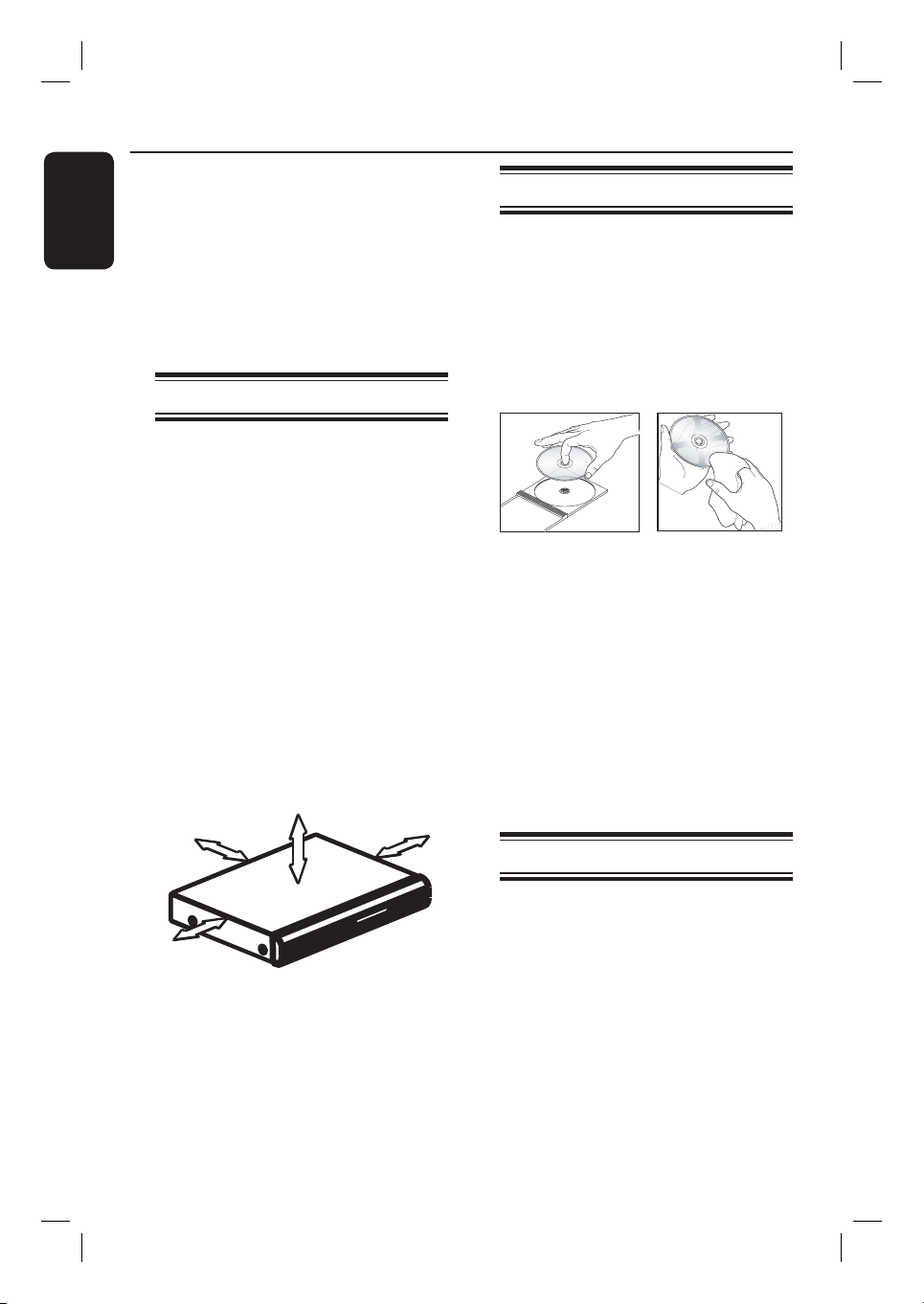
Space for ventilation
– Keep the distances 20 cm around
apparatus of ventilation openings. Do
not place the device on an unsteady base.
– The mains plug shall remain readily
operable.
10cm (4.5")
10cm (4.5")
5cm (2.3")
5cm (2.3")
Avoid high temperature, moisture,
water and dust
– Apparatus should not be exposed to
dripping or splashing.
– Do not place any object or items that
can damage the apparatus (e.g., liquid
lled objects, lighted candles).
Cleaning discs
Some problems occur (frozen picture,
sound disruptions, picture distortions)
because the disc in the apparatus is dirty.
To avoid these problems, discs should be
cleaned on a regular basis.
To clean a disc, use a micro bre cleaning
cloth and wipe the disc from centre to
the edge in straight line movement.
CAUTION!
Do not use solvents such as benzene,
thinner, commercially available cleaners,
or anti-static sprays for discs.
Since the optical unit (laser) of the
recorder operates at a higher power than
regular DVD or CD players, Cleaning CD
intended for DVD or CD players may
damage the optical unit (laser).
Therefore, refrain from using a Cleaning
CD.
About recycling
These operating instructions have been
printed on non-polluting paper. This
electronic equipment contains a large
number of materials that can be recycled.
If you are disposing off an old equipment,
please take it to a recycling centre. Please
observe the local regulations regarding
disposal of packaging materials, exhausted
batteries and old equipment.
English
9
Introduction
Your Philips DVD recorder comes with a
built-in VCR deck. It allows recording to
DVD±RW, DVD±R, DVD+R DL and
VHS tape. In addition, you can enjoy
playback of DVD discs and VHS tapes.
The DVD±R discs have to be nalised
before they can be played on other DVD
players.
Before you can start using this recorder,
complete the basic connections and
set-up in three simple steps.
Step 1: Basic recorder connections
Step 2: Optional connections for
other devices
Step 3: Basic installation and
set-up
Please take time to read this user manual
before using your recorder. It contains
important information and notes
regarding operations of the recorder.
Helpful Hints:
– If you have questions or problems occur
during operation, see chapter
‘Troubleshooting’.
– If you need further assistance, please call
the customer support service for your
country. The corresponding telephone
numbers and e-mail addresses are given in
the guarantee booklet.
– Refer to the type plate on the rear or
bottom of the product for identi cation and
supply ratings.
Accessories supplied
– Remote control and batteries
– RF coaxial cable
– Quick Start Guide
Region codes
DVD movies are usually not released at
the same time in all regions of the world,
thus all DVD players are programmed to
a speci c region code.
This device will only play
Region 2 DVDs or DVDs
manufactured to be played in
all regions (‘ALL’). DVDs from
other regions cannot be
played on this recorder.
Copyright notice
The making of unauthorised copies of
copy-protected material, including
computer programmes, les, broadcasts
and sound recordings, may be an
infringement of copyrights and constitute
a criminal offence. This equipment should
not be used for such purposes.
Product Information
ALL
2
English
10
Product features
This is a simple programming system for
recorders. To use it, enter the
programming number associated with
your television programme. You can nd
this number in your favourite listings
magazine.
Note: In the UK and Ireland the
ShowView system is called VIDEO Plus+
system and ShowView Programming
Number is called PlusCode Programming
Number.
i.Link is also known as ‘FireWire’ and
‘IEEE1394’. This connection is used for
transferring of high bandwidth digital
signals used by digital video (DV)
camcorders. It carries all audio and video
signals via a single cable.
Philips DVD recorders support ‘dual
media’ recording – the ability to create
recordings on + and - discs
(DVD+R/+RW, DVD+R DL, DVD-R/
-RW).
Direct Dubbing
The built-in VCR deck makes it simple to
copy your recordings from VHS tape to
DVD or from DVD to VHS tape with a
single press of a button.
Product Information (continued)
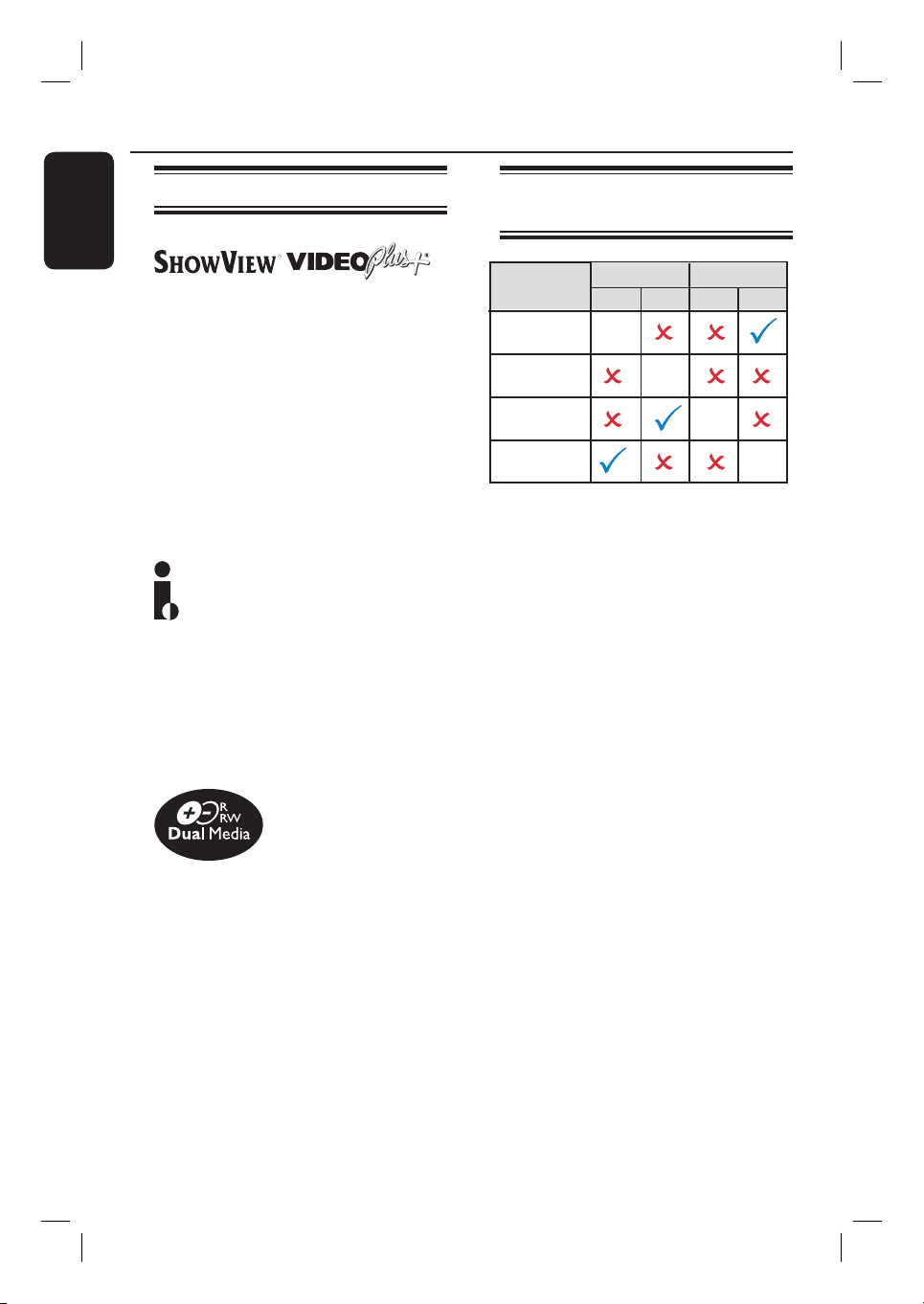
Possible simultaneous
operations
-
-
-
-
– When you play a DVD disc, only dubbing
from DVD disc to VCR is possible to
operate simultaneously.
– When you record to a DVD recordable
disc, no other operations can be carried
out simultaneously.
– When you play a VHS tape, only dubbing
from VCR to DVD is possible to operate
simultaneously.
– When you record to a VHS tape, only
DVD playback is possible to operate
simultaneously.
Play Record Play Record
DVD VCR
Current
Operation
Play DVD
Record on
DVD
Play VCR
Record on
VCR
English
11
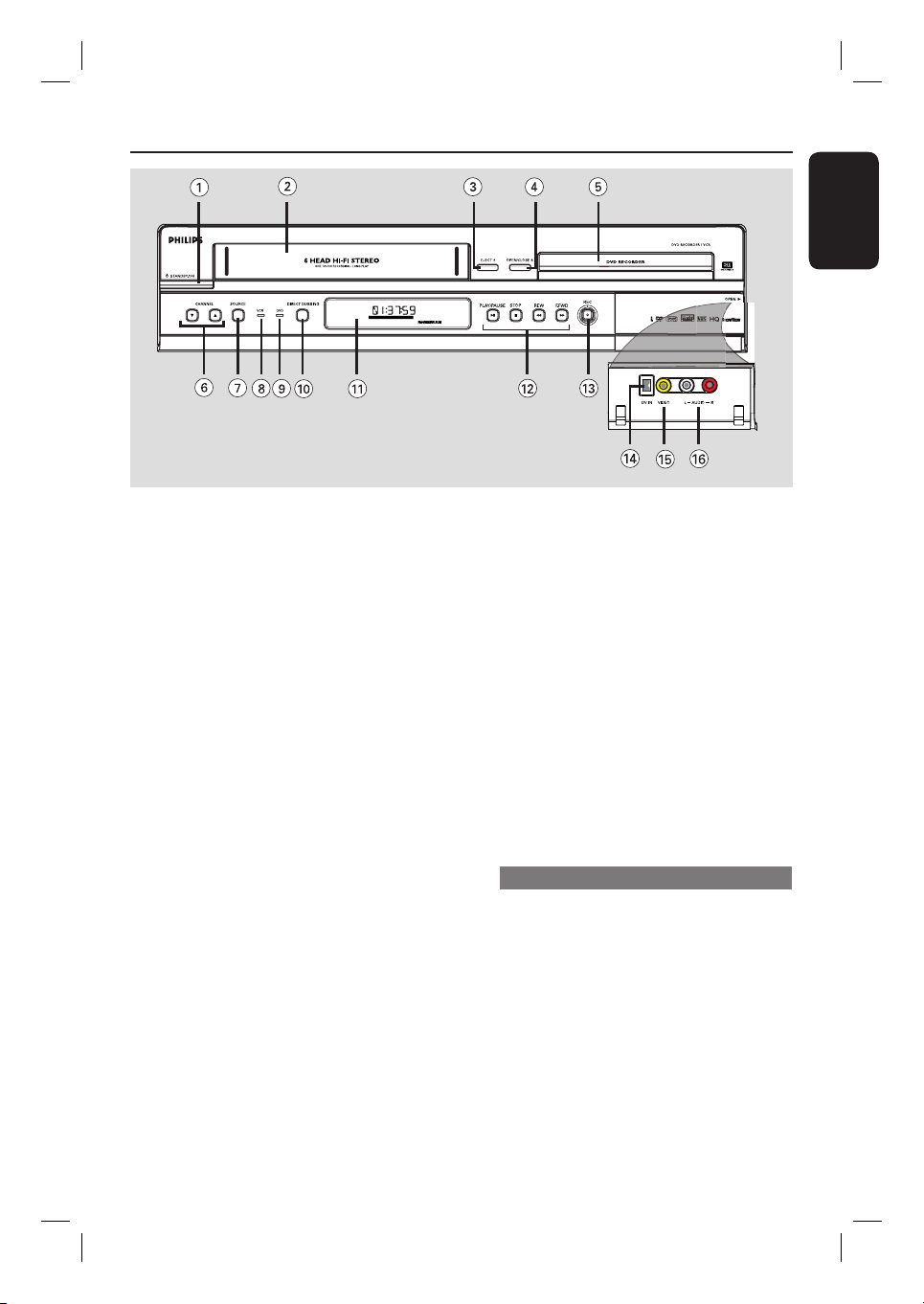
Main Unit
PREV
NEXT
a
STANDBY-ON 1
– Turns on the recorder or to standby
mode.
b
Tape deck
c
EJECT Z
– Ejects the VHS tape.
d
OPEN/CLOSE Z
– Opens/closes the disc tray.
e
Disc tray
f
CHANNEL V v
– While in tuner, selects the next or
previous TV channel.
g
SOURCE
– Selects the recorder’s input source
(EXT1, EXT2, TUNER, CAM1, DV).
h
VCR indicator
– Lights up while in VCR mode.
i
DVD indicator
– Lights up while in DVD mode.
j
DIRECT DUBBING
– Copies from a VHS tape to a recordable
DVD or vice-versa.
k
System display panel
– Shows information about the current
status of the recorder.
l
PLAY/PAUSE u
– Starts playback.
– Pauses the playback/recording/dubbing.
STOP x
– Stops playback/recording.
REW m /
F.FWD M (PREV / NEXT)
– Skips to the previous or next title/
chapter/track.
– Press and hold this button for fast
forward and backward search.
m
REC z
– Start recording the current TV channel
or the current video input source.
– Press repeatedly to set up a One Touch
Recording at 30, 60 or 90 minutes interval.
Sockets behind the ap
Flip down the door as indicated by the
OPEN B label at the right hand corner.
n
DV IN
– Input for digital camcorder or other
suitable devices using this connector.
o
VIDEO
– Video input for camcorder or video
recorder.
p
AUDIO L/R
– Audio input for camcorder or video
recorder.
English
12
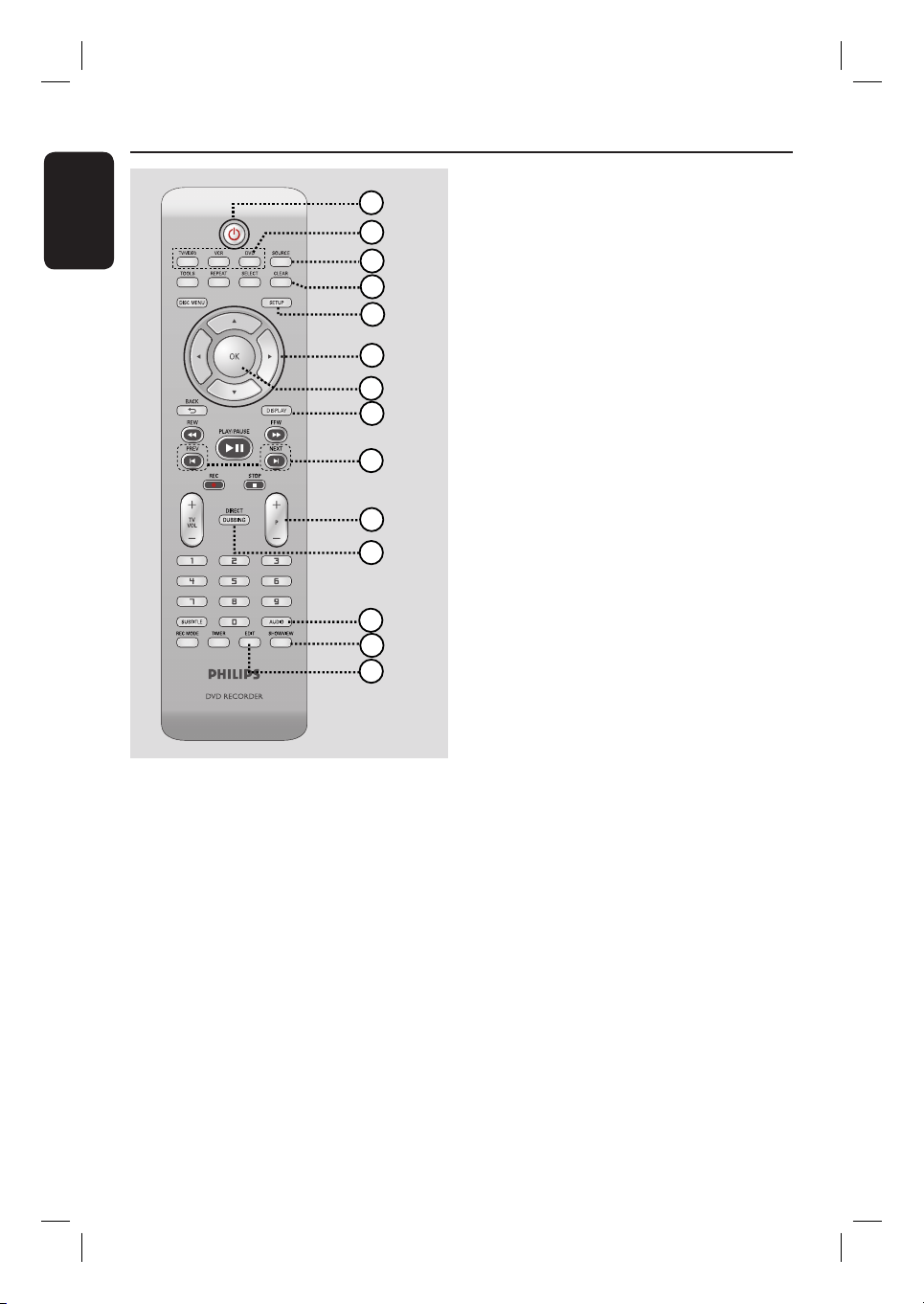
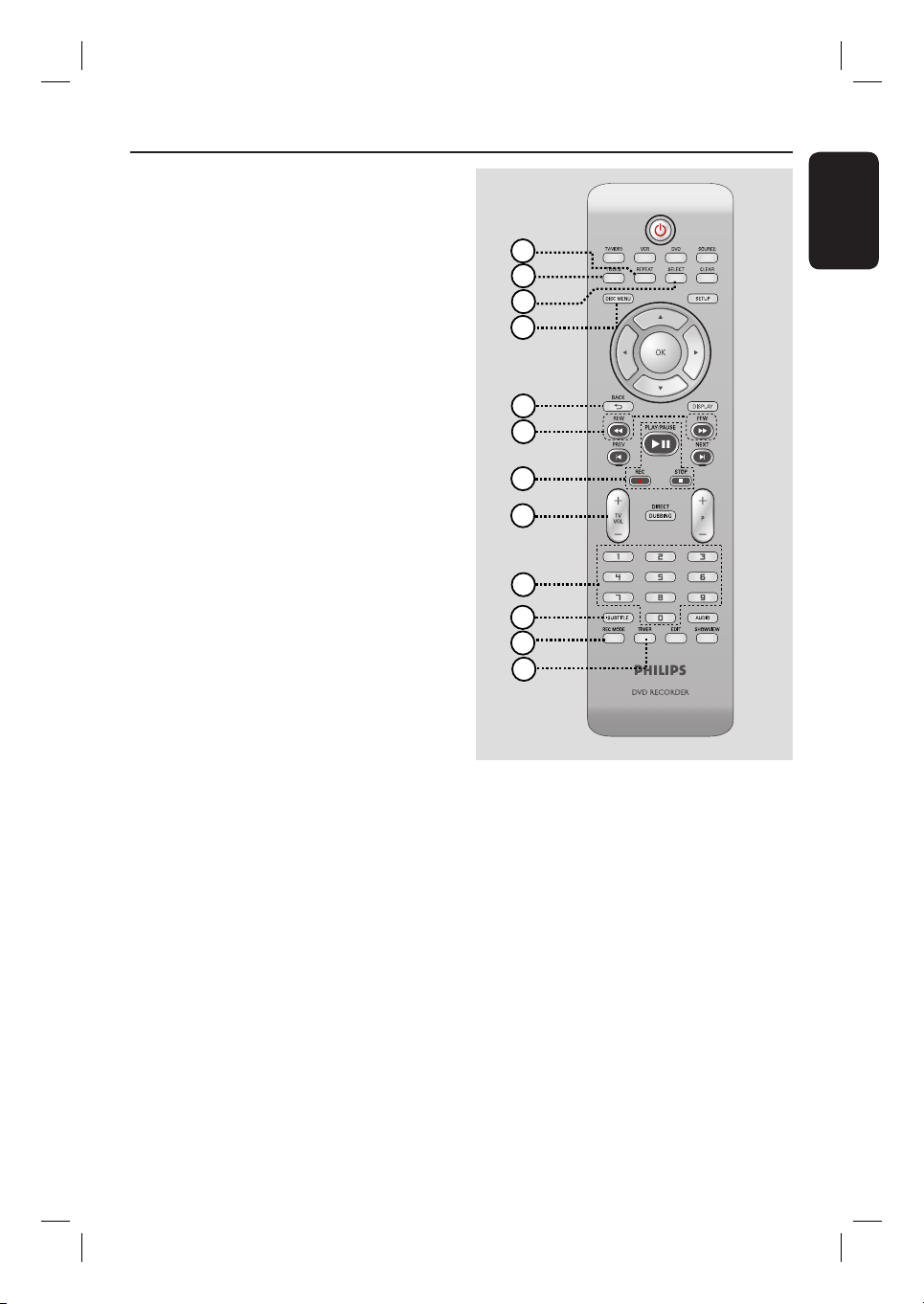
Remote Control
a
2
– Turns on the recorder or to standby
mode.
b
TV/VIDEO
– Switch between playback from additional
devices (connected via EXT2 AUX I/O
socket) and playback from the recorder.
DVD
– Switch to DVD mode.
VCR
– Switch to VCR mode.
c
SOURCE
– Selects the recorder’s input source
(EXT1, EXT2, TUNER, CAM1, DV).
1
2
3
4
5
6
7
8
9
10
11
12
13
14
d
CLEAR
– Clears a track/chapter/ le in the selection
playlist/copylist.
– Clears a timer entry.
– Resets tape counter to zero.
e
SETUP
– Enters/exits the system setup menu.
f
W X : Cursor buttons for moving to the
left or right, do a forward/reverse search.
ST : Cursor buttons for moving
up/down or changing the recorder’s TV
tuner channel.
g
OK
– Stores/con rms an entry.
h
DISPLAY
– Displays/removes the status bar.
i
PREV í/ NEXTë
– Skips to previous or next chapter/track/
index.
j
P +/-
– While in tuner, select the next or
previous TV channel.
– While in VCR mode, adjust the picture
quality (tracking).
k
DIRECT DUBBING
– Copies from a VHS tape to a recordable
DVD or vice-versa.
l
AUDIO
– Selects an audio language (DVD, VCD) or
an audio channel (CD, VHS).
m
SHOWVIEW
– Enters/exits the S
HOWVIEW menu.
VIDEO Plus+ (for UK only)
– Enters/exits the V
IDEO PLUS+ menu.
n
EDIT
– Enters/exits the video editing menu.
English
13
Remote Control (continued)
o
REPEAT
– Selects to repeat playback of title,
chapter, track or disc in DVD mode.
p
TOOLS
– Enters/exits the tools or disc/title editing
menu.
q
SELECT
– Selects a track/chapter/ le in the
programme menu.
r
DISC-MENU
– Accesses DVD disc menu or Index
Picture screen of a DVD±R/±RW.
– Accesses VCD disc menu when PBC is
turned on.
s
BACK2
– Returns to the previous menu of a video
CD (VCD).
t
REW m / FFW M
– Fast reverse or fast forward search.
u
PLAY/PAUSE u
– Starts playback.
– Pauses the playback/recording/dubbing.
REC z
– Start recording the current TV channel
or the current video input source.
– Press repeatedly to set up a One Touch
Recording at 30, 60 or 90 minutes
interval.
STOP
– Stops playback/recording/dubbing.
– Press and hold the button to open/ close
the disc tray.
v
TV VOL +/ -
– Adjusts the volume of the TV (Philips TV
only).
w
Numeric keypad
– Selects a chapter/track number to play.
– Selects the recorder’s preset TV tuner
channel.
x
SUBTITLE
– Selects a DVD subtitle language.
y
REC MODE
– Toggles between recording modes:
HQ, SP, SPP, LP, EP or SLP.
VCR: SP & LP
This determines the quality of recording
and the amount/length of time you can
record on a DVD±R/±RW.
z
TIMER
– Enters/exits the timer recording menu.
16
17
18
24
25
26
23
19
20
21
22
15
English
14
Remote Control (continued)
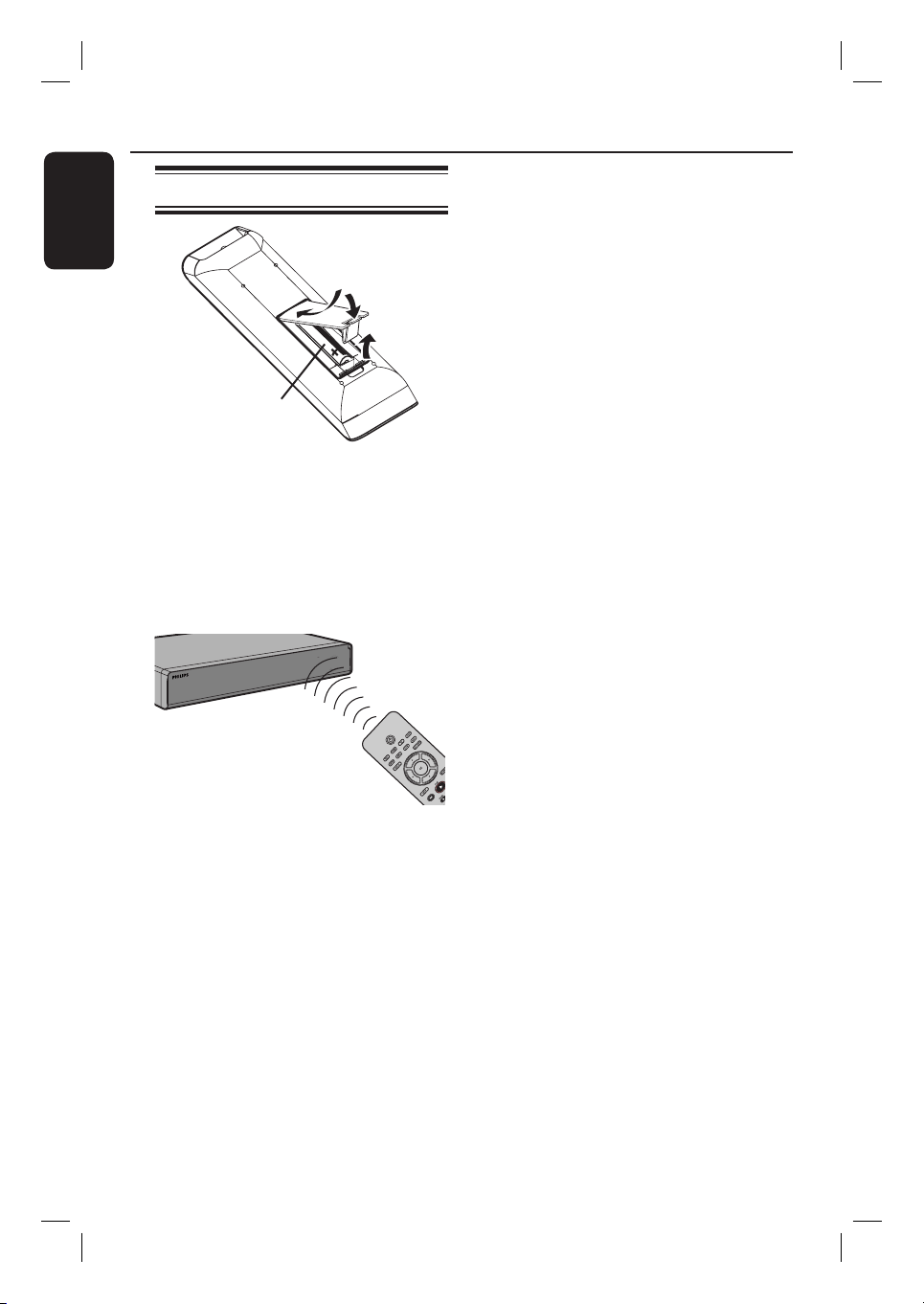
Using the remote control
A
Open the battery compartment.
B
Insert two batteries type R03 or AAA,
following the indications (+-) inside
the compartment.
C
Close the cover.
D
Point the remote control directly at the
remote sensor (iR) on the front panel.
E
Select the source you wish to control by
pressing the DVD, VCR or SOURCE
button on the remote control.
F
Then select the desired function (for
example m, M).
CAUTION!
– Remove batteries if they are
exhausted or if when the remote
control is not to be used for a long
time.
– Do not mix batteries (old and new
or carbon and alkaline, etc.).
– Batteries contain chemical
substances, so they should be
disposed of properly.
A
C
B
English
15
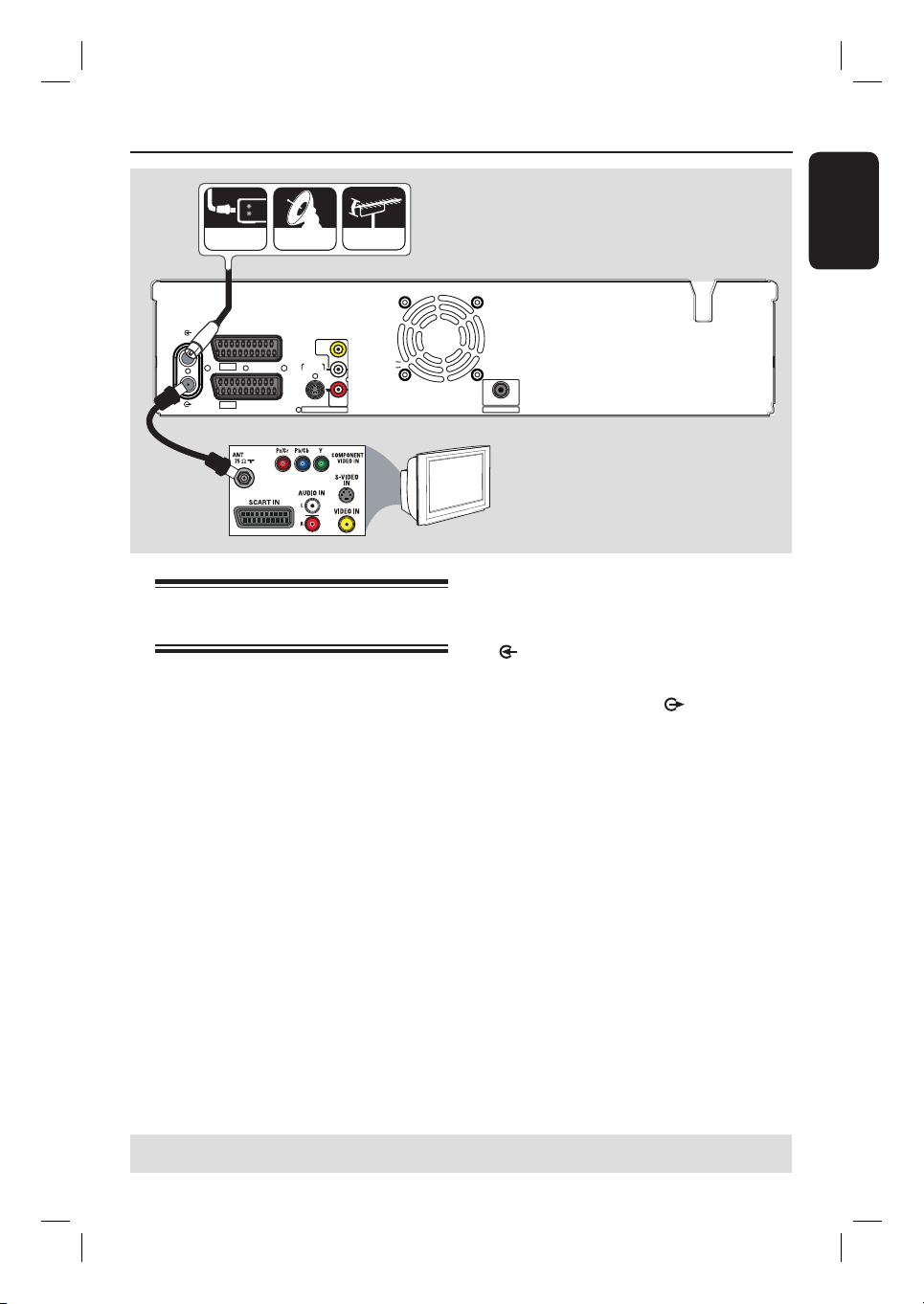
Step 1: Basic Recorder Connections
Connecting the antenna
cables
These connections enable you to watch
and record TV programmes using the
recorder. If the antenna signal is
connected via Cable Box or Satellite
Receiver, ensure that these devices are
turned on in order to watch or record
the cable programmes.
If you want to connect to a Cable
Box/Satellite Receiver, see the
chapter “Step 2 : Optional Connections
– Connecting to a Cable Box or Satellite
Receiver” for the complete connections
to your TV.
A
Connect the existing Antenna/Satellite
Receiver/Cable TV signal (labelled as RF
OUT or TO TV) to the ANTENNA-IN
socket on the recorder.
B
Use the supplied RF coaxial cable to
connect the TV-OUT socket on the
recorder to the antenna input socket (or
labelled as VHF/UHF RF IN) on your TV.
Helpful Hint:
– Depending on how you have currently
connected your TV channel (directly from an
off-air antenna or Cable box or VCR), you
may have to disconnect some of the cables
before you make the antenna connection.
TIPS: Before making or changing any connections, make sure that all the devices are disconnected
from the power outlet.
~
MAINS
TO TV - I
/
O
EXT1
AUX - I
/
O
EXT2
S-VIDEO
(Y/C)
AUDIO
AUDIO
COMPONENT
VIDEO
R
L
P
R
P
B
Y
AUDIO / VIDEO OUT
AUDIO / VIDEO OUT 1
VIDEO
(
CVBS
)
COAXIAL
DIGITAL AUDIO OUT
ANTENNA
TV
TV
A
B
cable satellite antenna
English
16
TIPS: Before making or changing any connections, make sure that all the devices are disconnected
from the power outlet.
Step 1: Basic Recorder Connections (continued)
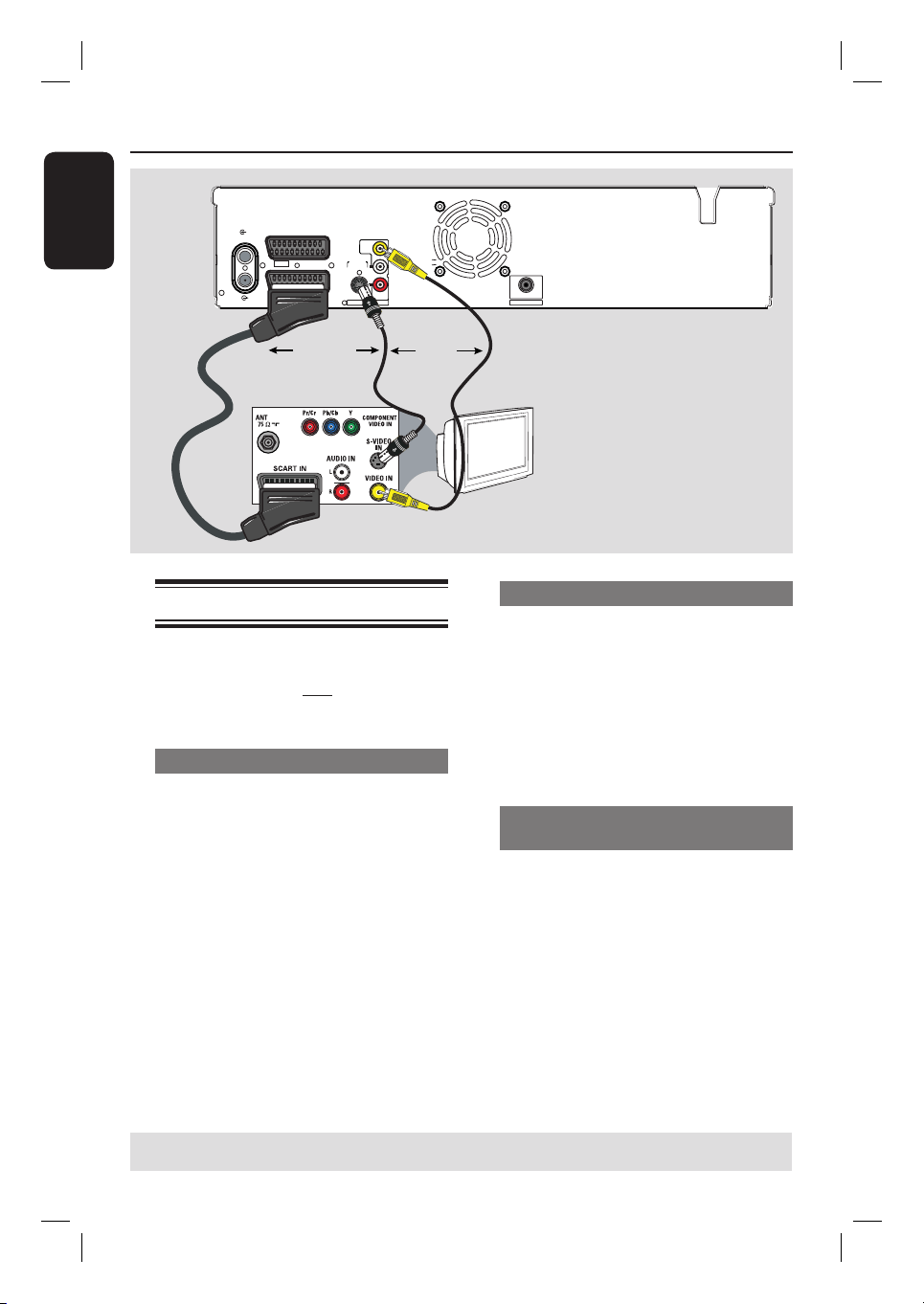
Connecting the video cables
This connection enables you to view the
disc playback from the recorder. You
only need to choose one of the options
below to make your video connection.
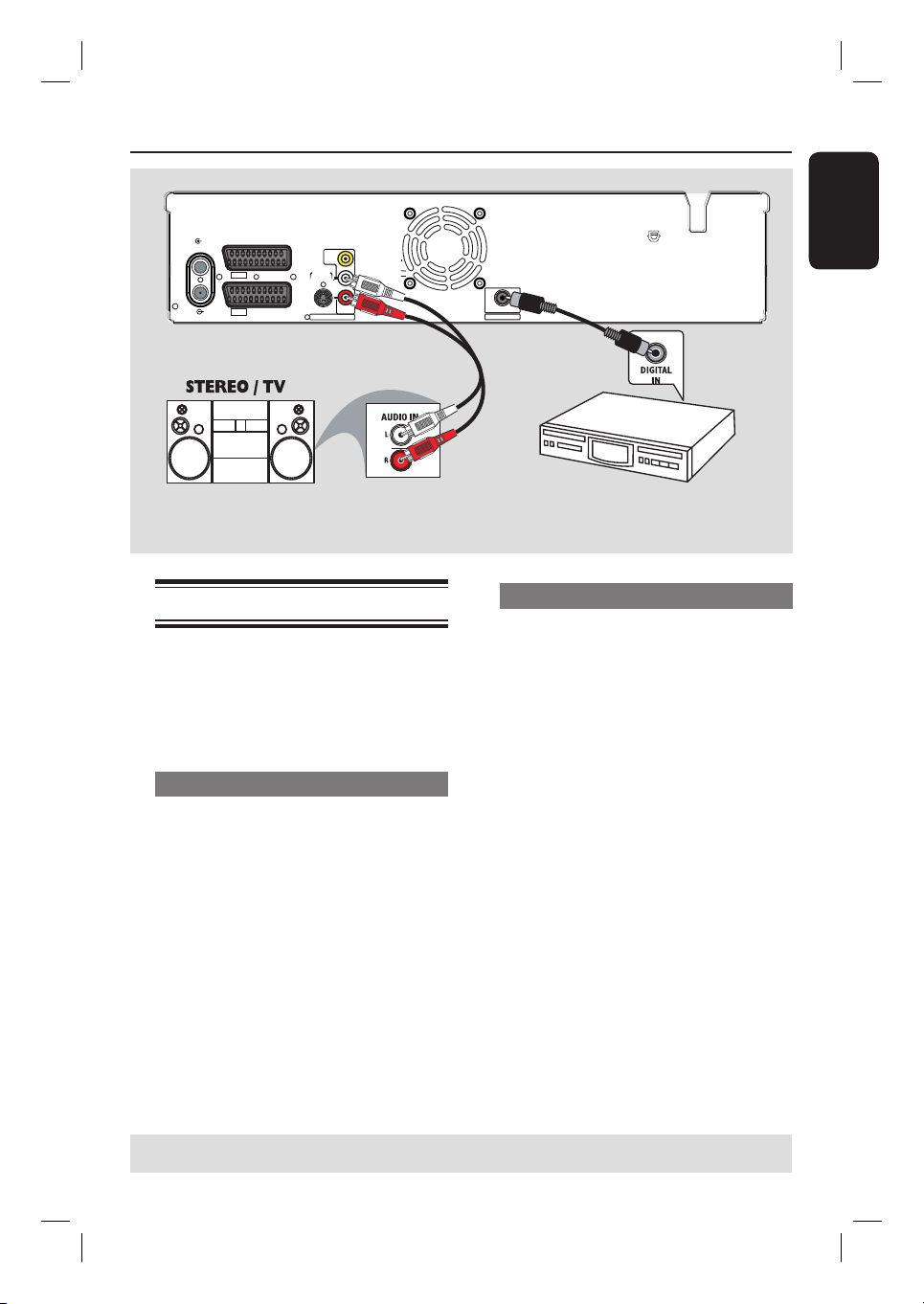
Option 1: Using a SCART cable
Use a SCART cable (not supplied) to
connect the EXT1 TO TV-I/O socket
on the recorder to the corresponding
SCART input socket on the TV.
Helpful Hints:
– If your TV has several SCART sockets,
select the SCART socket that is suitable for
both video output and video input.
– If your TV displays a selection for the
SCART socket, select ‘VCR’ as the source for
the SCART socket.
– The EXT2 AUX-I/O socket is intended
only for additional devices.
Option 2: Using an S-Video cable
Use an S-video cable (not supplied) to
connect the S-VIDEO OUTPUT
socket on the recorder to the S-Video
input socket (or labelled as Y/C or
S-VHS) on the TV.
Audio connection is required in order
to hear the sound, see next section
“Connecting the audio cables”.
Option 3: Using a Video (CVBS)
cable
Use a composite video cable (yellow end
- not supplied) to connect the
VIDEO(CVBS) OUTPUT socket on
the recorder to the video input socket
(or labelled as A/V In, Video In,
Composite or Baseband) on the TV.
Audio connection is required in order
to hear the sound, see next section
“Connecting the audio cables”.
~
MAINS
TO TV - I
/
O
EXT1
AUX - I
/
O
EXT2
S-VIDEO
(Y/C)
AUDIO
AUDIO
COMPONENT
VIDEO
R
L
P
R
P
B
Y
AUDIO / VIDEO OUT
AUDIO / VIDEO OUT 1
VIDEO
(
CVBS
)
COAXIAL
DIGITAL AUDIO OUT
ANTENNA
TV
TV
Option 1
Option 2
Option 3
OR
OR
English
17
Step 1: Basic Recorder Connections (continued)
TIPS: Before making or changing any connections, make sure that all the devices are disconnected
from the power outlet.
Connecting the audio cables
This connection enables you to listen to
the playback from the recorder.
However, this connection is not required
if the recorder is connected to the TV
using the SCART cable.
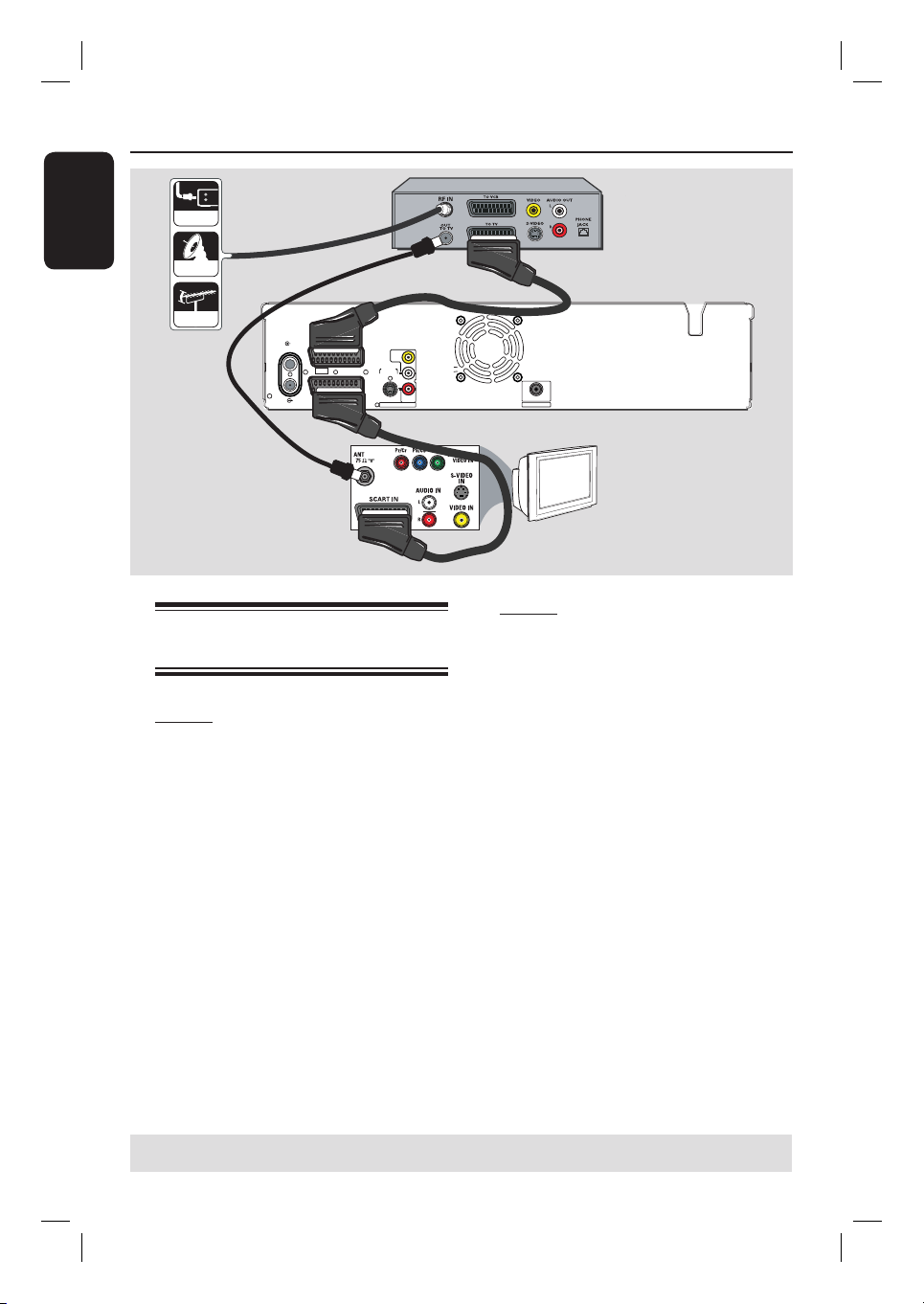
Option 1: Using an audio cable
You can connect the recorder to a two
channel stereo system (mini system, TV)
or receiver in order to enjoy the stereo
sound system.
Use an audio cable (red/white ends - not
supplied) to connect the AUDIO L/R
OUTPUT sockets to the audio input
sockets of the connected device.
~
MAINS
TO TV - I
/
O
EXT1
AUX - I
/
O
EXT2
S-VIDEO
(Y/C)
AUDIO
AUDIO
COMPONENT
VIDEO
R
L
P
R
P
B
Y
AUDIO / VIDEO OUT
AUDIO / VIDEO OUT 1
VIDEO
(
CVBS
)
COAXIAL
DIGITAL AUDIO OUT
ANTENNA
TV
Option 1
AV ampli er/
receiver
Option 2: Using a coaxial cable
You can connect the recorder to an AV
ampli er/receiver with a digital multi-
channel sound decoder in order to enjoy
multi-channel surround sound.
Use a coaxial cable to connect the
COAXIAL (DIGITAL AUDIO)
socket on the recorder to the digital
input socket on the ampli er/receiver.
Before you start operating, set the digital
audio output settings accordingly (see the
section “DVD Setup Menu Options –
PLAYBACK settings – Digital Audio
Output”).
If the setting does not match your
stereo’s capabilities, the stereo may
produce a strong, distorted sound or no
sound at all.
Option 2
English
18
Step 2: Optional Connections
Connecting to a Cable Box or
Satellite Receiver
Option 1
If your Cable Box/Satellite Receiver
has only an antenna output socket
(RF OUT or TO TV),
see “Step 1: Basic Recorder Connections
– Connecting the antenna cables” for the
complete connections to your TV.
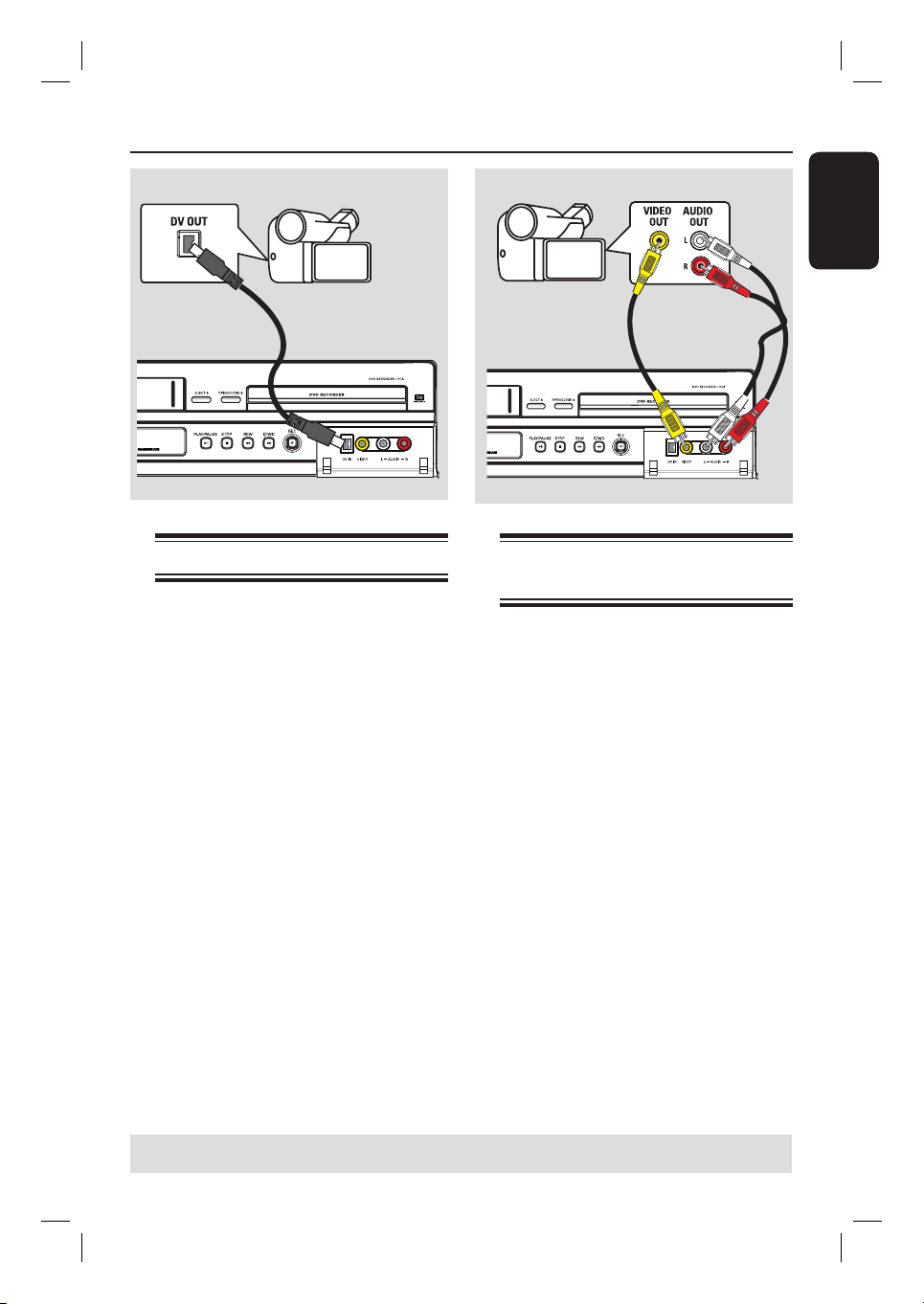
Option 2
If your Cable Box/Satellite Receiver
has a SCART output socket
A
Keep the existing antenna connection
from the Cable Box/Satellite Receiver to
your TV.
B
Use the SCART cable to connect the
EXT1 TO TV-I/O socket on the
recorder to the corresponding SCART
input socket on the TV.
C
Use another SCART cable to connect the
EXT2 AUX-I/O socket on the recorder
to the SCART output socket (or labelled
as TV OUT or TO TV) on the Cable
Box/Satellite Receiver.
To start playback, select the TV channel
directly on the Cable Box/Satellite
Receiver. To view picture from a
connected external device, press the
TV/VIDEO button on the remote
control.
TIPS: Refer to the respective connected device’s user manual for other possible connections.
B
C
~
MAINS
TO TV - I
/
O
EXT1
AUX - I
/
O
EXT2
S-VIDEO
(Y/C)
AUDIO
AUDIO
COMPONENT
VIDEO
R
L
P
R
P
B
Y
AUDIO / VIDEO OUT
AUDIO / VIDEO OUT 1
VIDEO
(
CVBS
)
COAXIAL
DIGITAL AUDIO OUT
ANTENNA
TV
TV
Rear of a Cable Box
or Satellite Receiver
(Example only)
cable
satellite
antenna
A
English
19
TIPS: Refer to the respective connected device’s user manual for other possible connections.
Step 2: Optional Connections (continued)
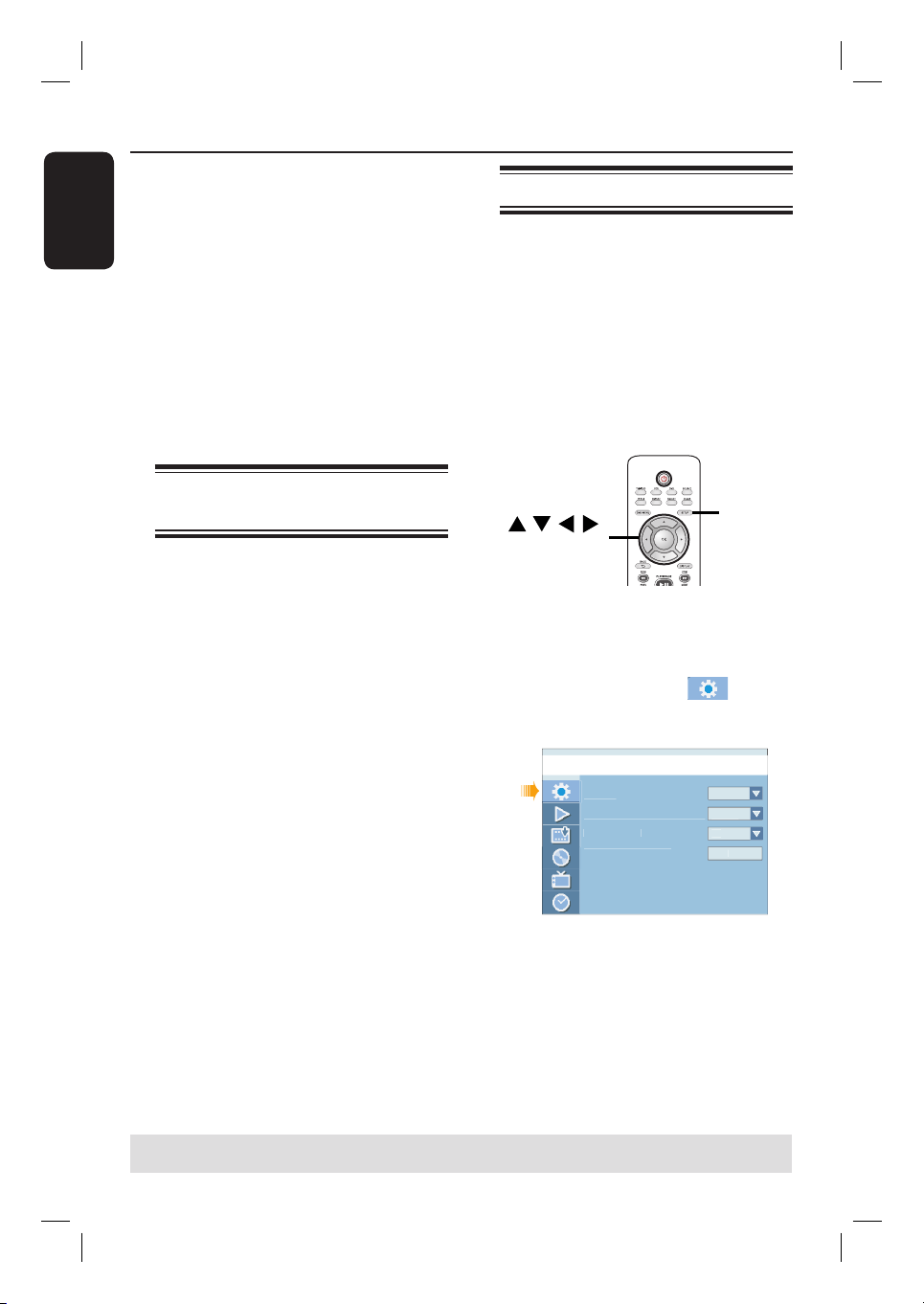
Connecting a DV camcorder
Use this if you have a Digital Video or
Digital 8 camcorder. The DV socket
conforms to the i.LINK standard.
Use an i.LINK 4-pin cable (not supplied)
to connect the DV IN socket at the
front panel of the recorder to the
appropriate DV OUT socket on the
camcorder.
Before you start operating, press
SOURCE on the remote control
repeatedly to select ‘DV’ as the input
channel.
Helpful hints:
– The DV IN socket does not support
connection to a Personal Computer.
– It is NOT possible to record from the
recorder to your camcorder via the DV IN
socket on your recorder.
Connecting another video
device
You can use the front sockets connection
to copy the playback from another video
device (for example, camcorder, VCR or
DVD player).
A
Use a video cable (not supplied) to
connect the VIDEO socket from the
front panel of the recorder to the Video
output socket of the connected video
device.
B
Use an audio cable (not supplied) to
connect the AUDIO L/R sockets to the
audio output sockets of the connected
video device.
Before you start operating, press
SOURCE on the remote control
repeatedly to select ‘CAM 1’ as the input
channel.
A
B
English
20
Step 3: Installation and Setup
Before you start...
When you completed the
connections and turn on the
recorder for the rst time, it is
advisable that you perform several
basic settings.
Please see the following pages on using
the system setup menu features to
programme TV channels, menu language
and system clock settings. This will
optimise the performance of this
recorder.
Finding the correct viewing
channel
A
Press STANDBY-ON on the recorder
to turn it on.
B
Turn on the TV and set it to the correct
video-in channel. You should see the blue
DVD background screen.
You may go to Channel 1 of your TV,
then press the Channel Down button on
your TV’s remote control until you see
the Video In channel.
You may press ° button repeatedly
on your TV’s remote control.
Usually this channel is between the
lowest and highest channels and may be
called FRONT, A/V IN, VIDEO. See your
TV manual for more details.
Setting the OSD language
Select the menu language for this
recorder’s on-screen display. The
language options are different depending
on your country or region. It may not
correspond to the illustrations shown on
the user manual.
Language settings can only be
changed when the disc stops playing
or there is no disc in the disc tray.
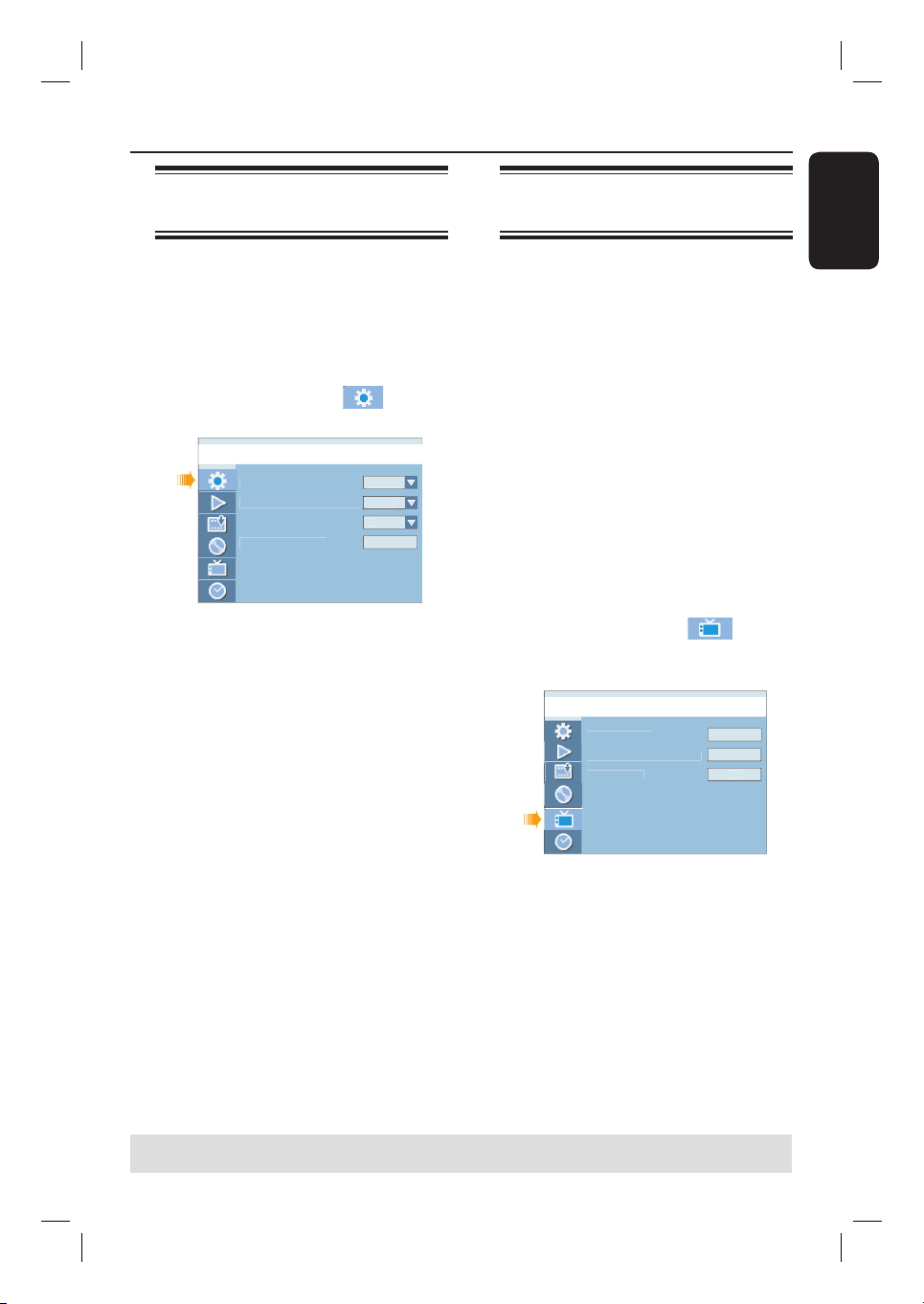
SETUP
OK
A
Press SETUP.
The system setup menu appears on
the TV.
B
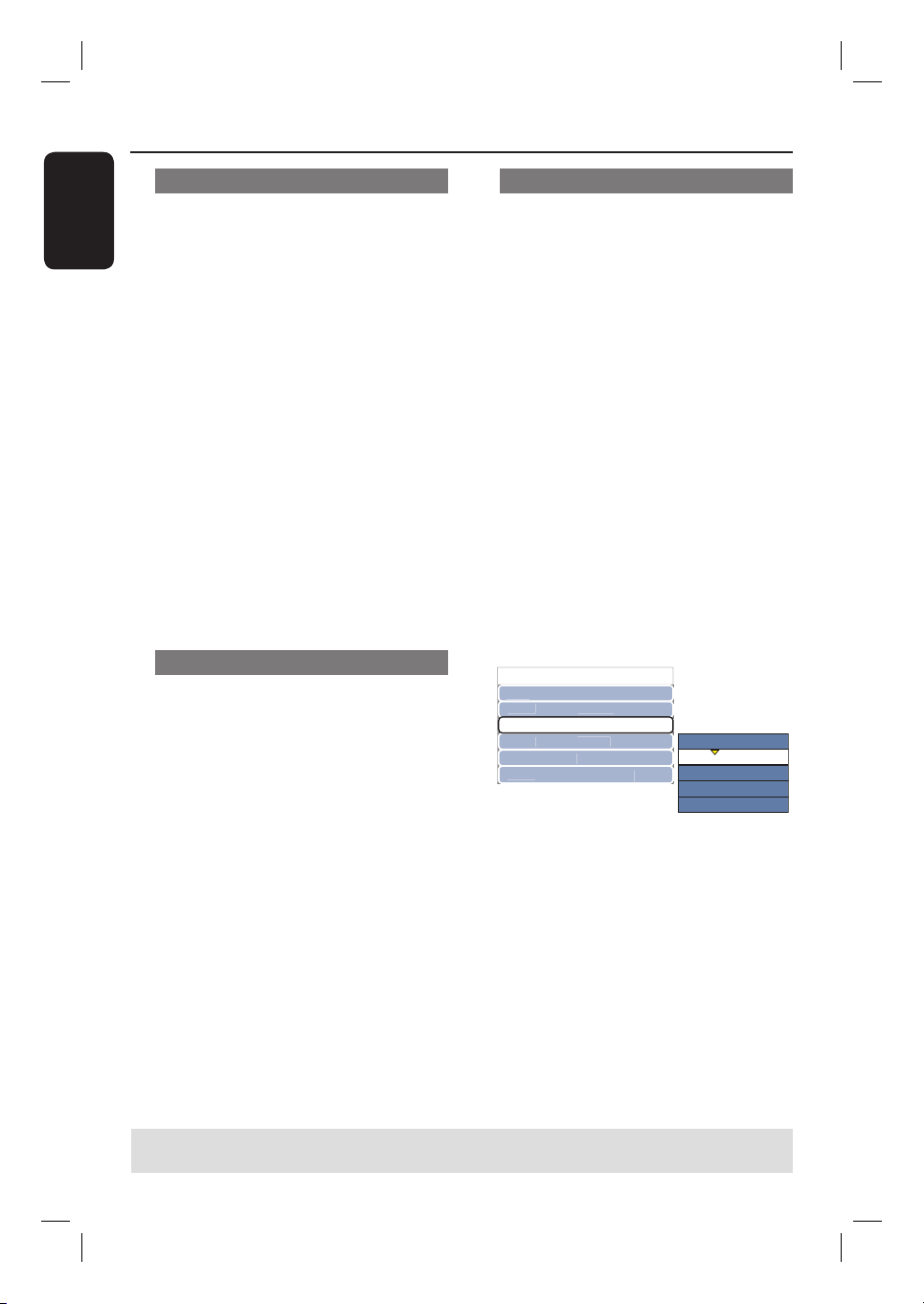
Use ST keys to highlight
{ Setup Menu - General } and press X
to access the menu.
Countr
y
On Screen Dis
p
la
y
Lan
g
ua
ge
Screen Save
r
Reset Menu Settin
g
s
Setu
p
Menu - Genera
l
German
y
En
g
lis
h
On
OK
C
Use ST keys to highlight { On Screen
Display Language } and press OK to
access its options.
D
Use ST keys to highlight the desired
language and press OK to con rm.
TIPS: Press X to access the options of an item in the menu.
Press SETUP to exit the menu.
English
21
Step 3: Installation and Setup (continued)
Select the country of your
residence
Select the country of your area for auto
channel tuning.
A
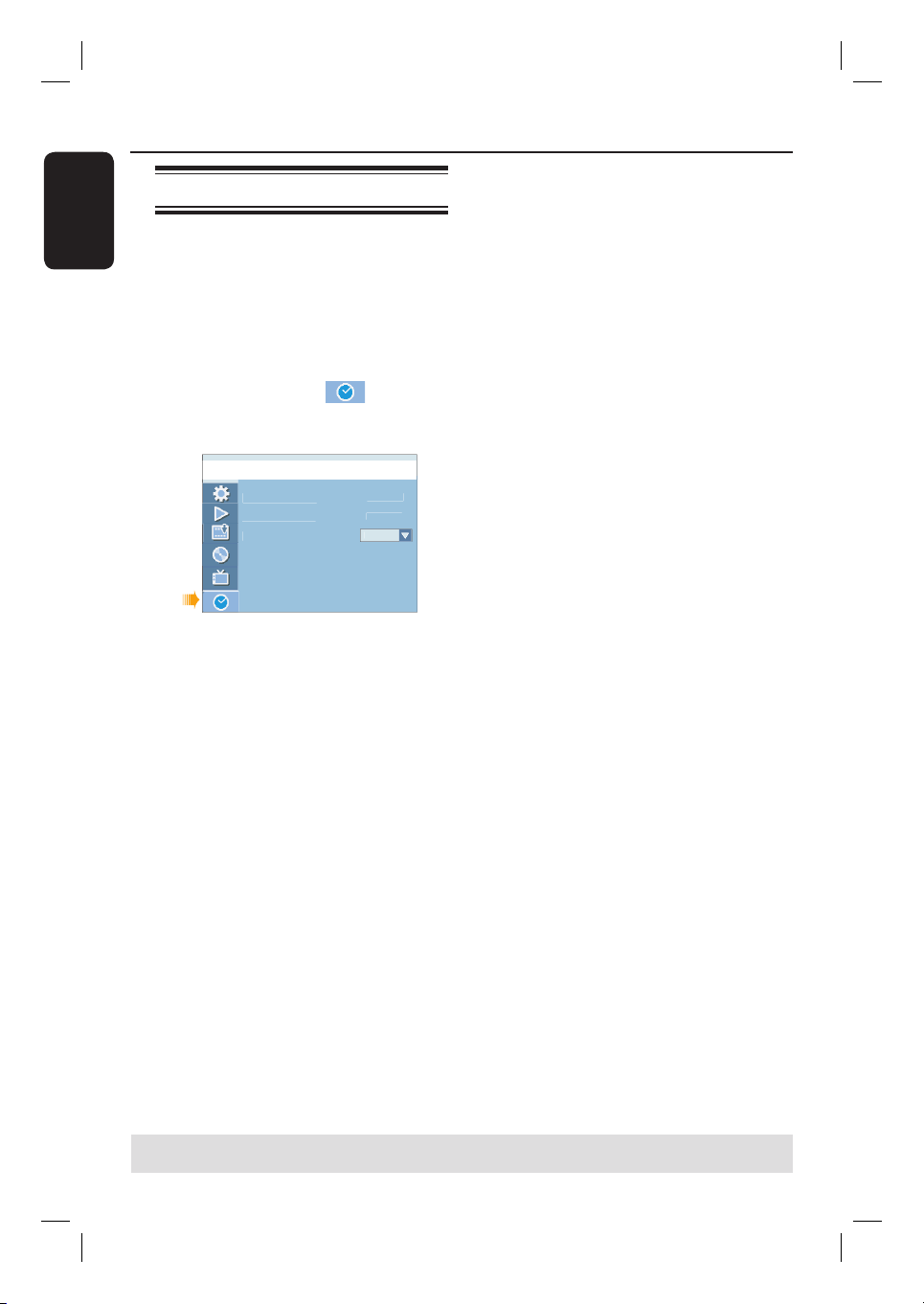
Press SETUP on the remote control.
The system setup menu appears on
the TV.
B
Use ST keys to highlight
{ Setup Menu - General } and press X.
Countr
y
On Screen Dis
p
la
y
Lan
g
ua
ge
Screen Save
r
Reset Menu Settin
g
s
Setu
p
Menu - Genera
l
German
y
En
g
lis
h
On
OK
C
Select { Country } and press OK.
D
Use ST keys to select the country of
your residence and press OK to con rm.
Setting the TV channel
programmes
Before the recorder is able to start
recording the TV channel programmes,
you need to search for the available TV
channels and store them in the recorder.
Language settings can only be
changed when the disc stops playing
or there is no disc in the disc tray.
Before you start ...
Make sure you have successfully made all
the required connections to the
recorder, the TV and Satellite Receiver/
Cable Box (if any) and turned them on.
A
Press SETUP on the remote control.
The system setup menu appears on
the TV.
B
Use ST keys to highlight
{ Setup Menu - Channel Setup } and
press X.
Setu
p
Menu - Channel Setu
p
Searc
h
E
d
i
t
Sor
t
Channel Searc
h
Modif
y
Channel Informatio
n
Sort Channels
C
Select { Channel Search } and press
OK.
The automatic TV channel search starts.
This process may take several minutes.
Once complete, the total number of
channels found and stored appears on the
TV.
To modify or sort the TV channels,
see the chapter “DVD Setup Menu
Options - CHANNEL SETUP settings”.
TIPS: Press X to access the options of an item in the menu.
Press SETUP to exit the menu.
English
22
Step 3: Installation and Setup (continued)
Setting the date & time
This recorder has an automatic date and
time setting feature. If the recorder has
not set the time and date correctly, you
can further adjust the clock settings
A
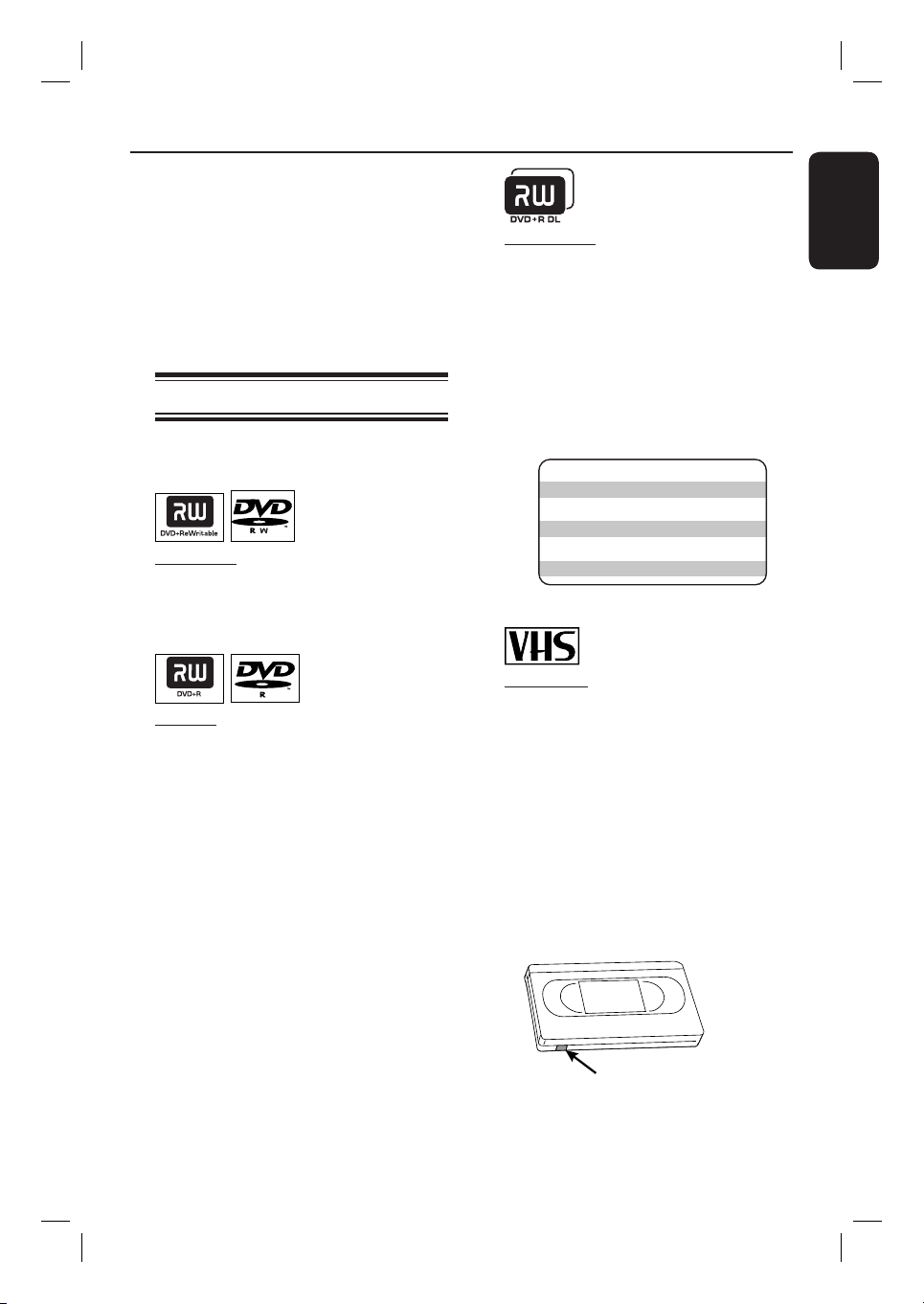
Press SETUP.
The system setup menu appears.
B
Use ST keys to select
{ Setup Menu - Clock } and press X to
con rm.
Setu
p
Menu - Clock
01
/
01
/
0
6
00
:
05
:
08
A
u
t
o
Date (dd / mm /
yy)
Time
(
hh : mm : ss
)
Date-Time Settin
g
C
Select { Date-Time Setting } and press
X.
Use ST keys to highlight { Manual }
and press OK.
D
Select { Date (dd/mm/yy) } and press
OK to edit the date elds.
Use ST keys to change number and
use WX keys to select different entry
elds, then press OK to con rm.
You can also use the numeric keypad
0-9 on the remote control to key in the
numbers.
E
Press OK to con rm.
F
To set { Time (hh:mm:ss) }, repeat
steps
D
~
E
.
The basic installation is complete.
TIPS: Press X to access the options of an item in the menu.
Press SETUP to exit the menu.
English
23
Recording
This recorder can be used to record TV
programme or copy the content from an
external device to a DVD recordable disc
or VHS tape. The storage capacity of the
disc and tape are depending on the
recording mode selected. This recorder
also incorporates timer recording
function with which you can prepare a
recording schedule before hand.
Recording media
The recording media for this recorder
are DVD±R/±RW/+R DL and VHS tape.
DVD±RW (DVD Rewritable)
– Discs that are rewritable can be used for
multiple recordings once the existing data
is erased.
DVD±R (DVD Recordable)
– Discs can only be used for a single
recording. Each new recording is always
added at the end of all previous
recordings as existing recordings cannot
be overwritten.
– Editing can be done on DVD±R discs as
long as they have not been nalised.
– To playback a DVD±R on other DVD
player, it must be nalised (see the
chapter “Editing/ Finalising Recording –
Playing your recordings (DVD±R) on
other DVD players”). After this is done,
no more data can be added to the disc.
DVD+R DL (DVD+R Double Layer)
– It contains the same usage as DVD+R, the
only difference is the capacity of 8.5 GB.
It offers two recordable layers on a single
DVD disc. The layers are accessible from
the same side of the disc, so recording
can occur completely uninterrupted.
Supported disc type and media
speeds
Disc
Media speeds
DVD+R 1x - 16x
DVD+RW 2.4x - 4x
DVD-R 1x - 16x
DVD-RW 2.4x - 4x
DVD+R DL 2.4x
VHS Tape
– VHS tapes have record safety tabs to
ensure that recordings will not be
accidentally erased. To prevent
recording, break off the tab. To allow
recording, cover the hole of the tab with
clear tape.
– Without the record safety tab, the VHS
tape will start playback once your insert
the VHS tape into the tape slot.
– The VCR automatically marks the tape
with an index signal at the point where
each recording begins.
Record Safety Tab
English
24
IMPORTANT!
Unrecordable contents
Contents with copy protection cannot be
recorded on this recorder. When the
recorder receives a copy guard signal,
recording will be paused.
Recording settings
The default recording settings allow you
to set the auto chapter markers,
preferred recording input source and
recording mode. Any changes made using
the remote control will only apply to the
current recording settings. The default
recording settings will remain unchanged
for the next recording.
A
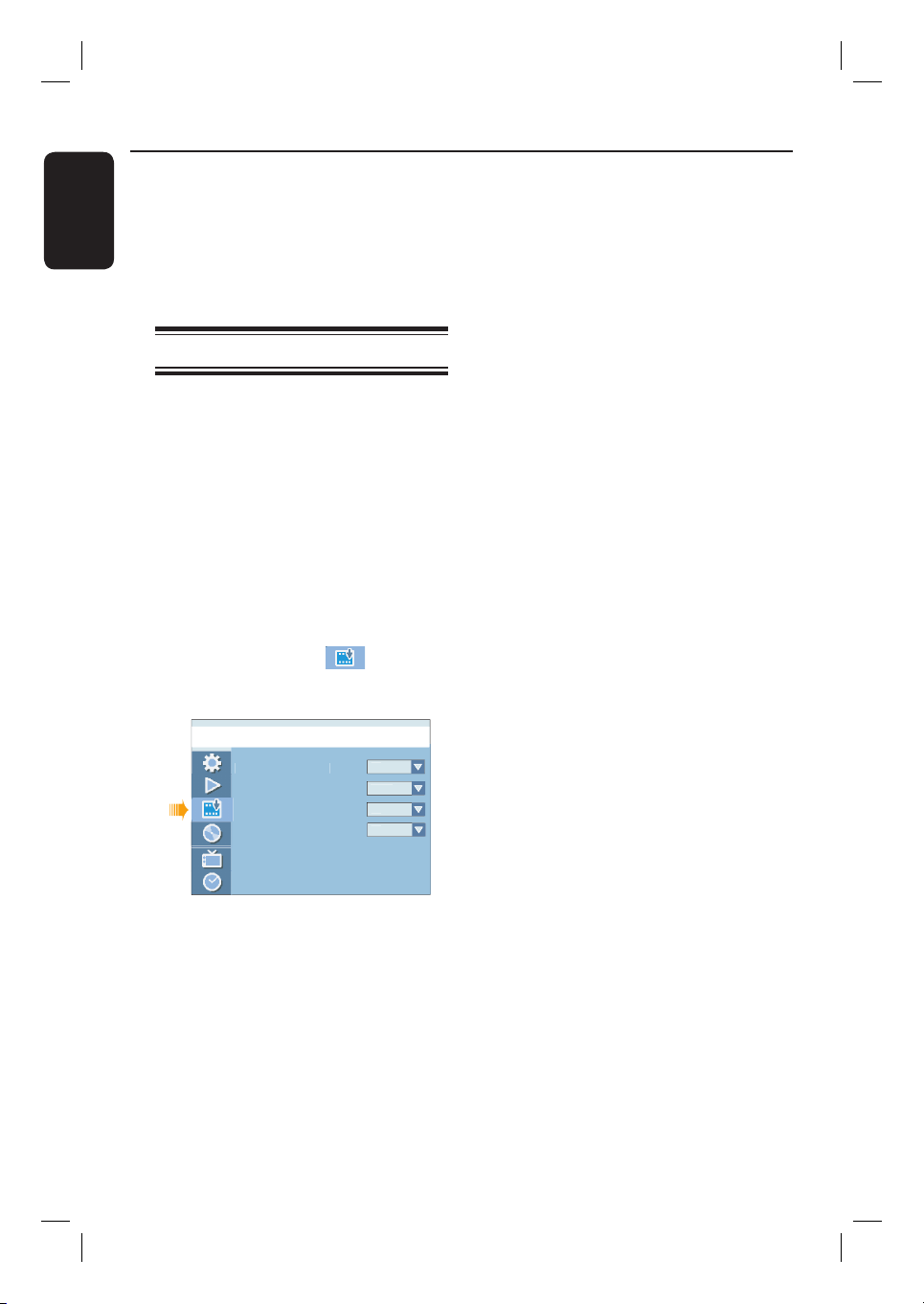
Press SETUP on the remote control.
The system setup menu appears on
the TV.
B
Use ST keys to select
{ Setup
Menu - Record } and press X to
con rm.
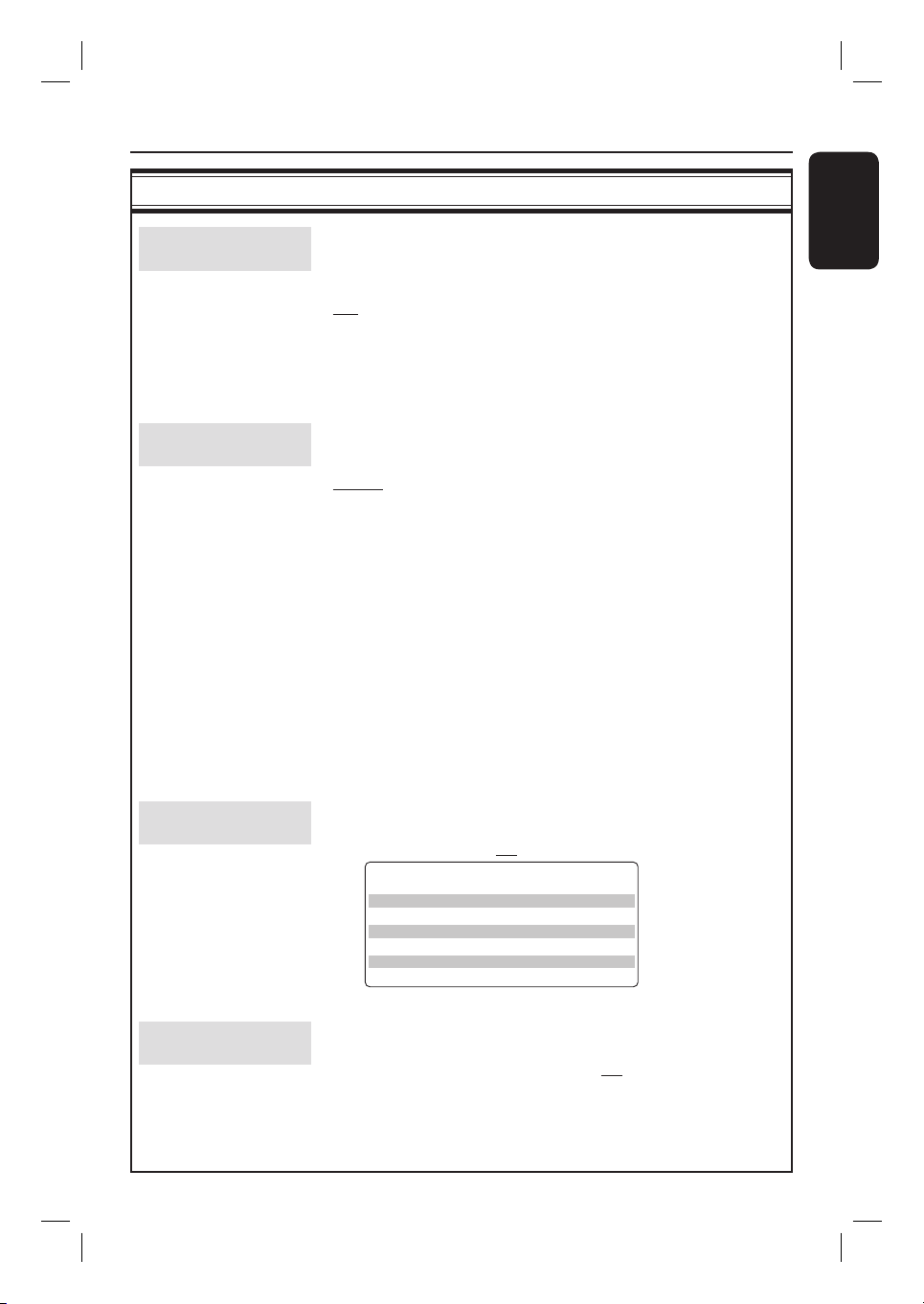
Setu
p
Menu - Recor
d
Auto Cha
p
ter Marke
r
S
y
stem Recordin
g
Sourc
e
DVD Default Recordin
g
Mod
e
VCR Default Recordin
g
Mod
e
On
T
u
n
er
S
P
S
P
C
Use ST keys to select the setting you
wish to change and press OK to con rm.
Instructions and explanations of the
options are provided in the following
pages.
D
To exit, press SETUP.
Recording (continued)
English
25
Recording (continued)
RECORD settings (underlined options are the factory default settings)
Auto Chapter
Marker
Automatically divides a recording (title) into chapters by inserting
chapter markers at a speci c interval. This enables you to access
a speci c point in the recording quickly.
{ On } – Chapter markers will automatically be
inserted within the title during recording at
every 5 ( ve) minutes interval.
{ Off } – No chapter marker will be inserted in the
recording.
Default Recording
Source
De ne your frequent source of recording. The recorder will
switch to the default source whenever it is turned on.
{ Tuner } – Input source from TV programmes.
{ CAM1 } – Input source from the device connected to
the V1DEO and AUDIO L/R sockets at the
front panel.
{ DV } – Input source from the device connected to
DV IN socket at the front panel.
{ EXT 1 } – Input source from the device connected to
the EXT1 TO TV-I/O SCART socket at the
rear panel.
{ EXT 2 } – Input source from the device connected to
the EXT2 AUX-I/O SCART socket at the
rear panel.
Note: To change the current recording source without changing the
default setting, you can press the SOURCE button on the remote
control.
DVD Default
Recording Mode
The recording mode de nes the picture quality of the DVD
recordings and the maximum recording time on a disc. The
factory default setting is SP.
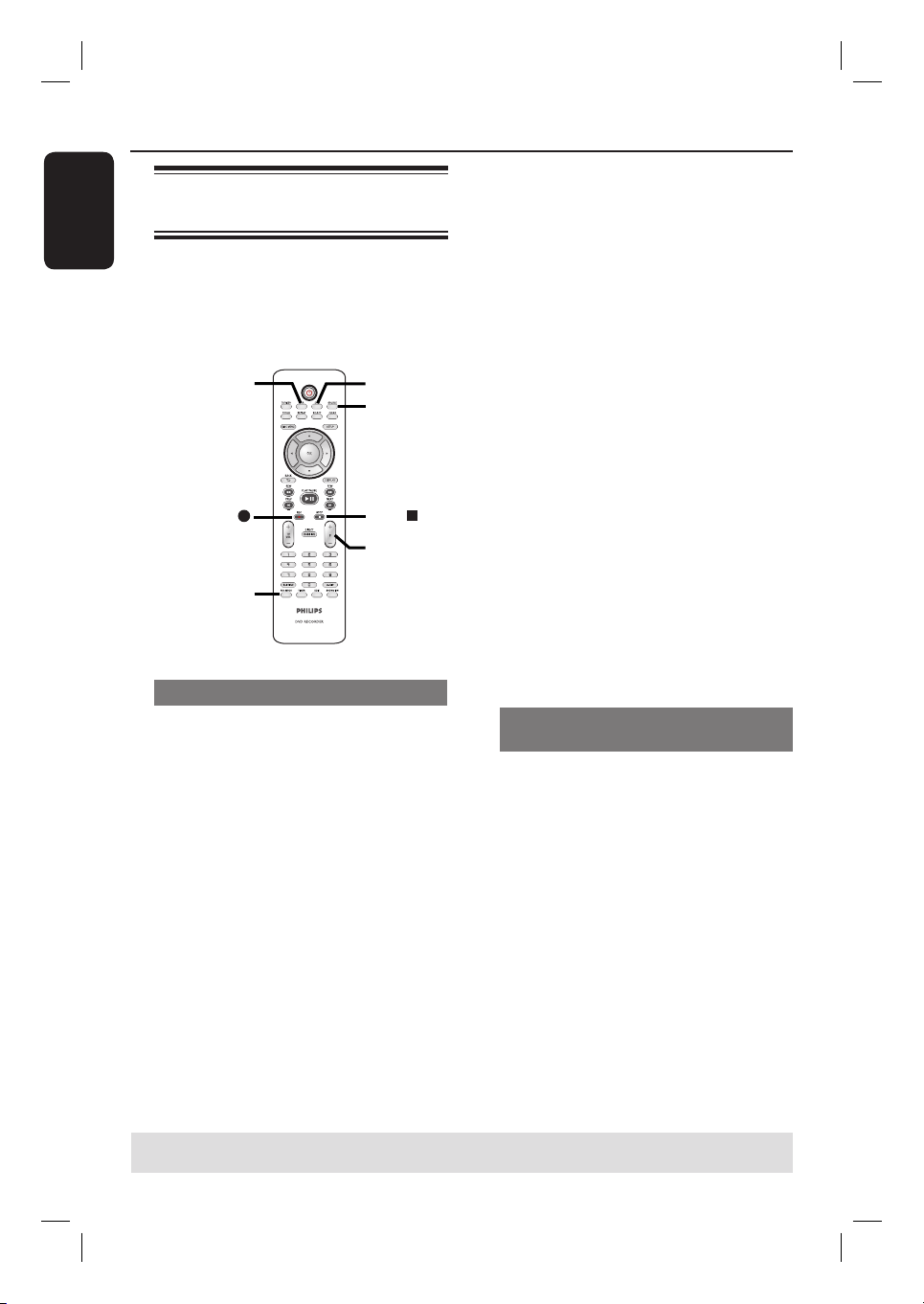
Maximum Recording
Time per Disc (hours)
Picture Quality
Record Mode
1
2
2.5
3
4
6
High Quality
Standard Play
Standard Play Plus
Long Play
Extended Play
Super Long Play
HQ
SP
SPP
LP
EP
SLP
VCR Default
Recording Mode
The recording mode de nes the picture quality of VCR
recordings and the maximum recording time on a VHS tape. The
available recording modes for VCR are SP and LP.
English
26
Recording (continued)
Recording from various
sources
This recorder has various external input
signal terminals that can be used to record
or playback, including Tuner input, S-Video
input, composite video input, DV input,
Scart input and stereo audio input.
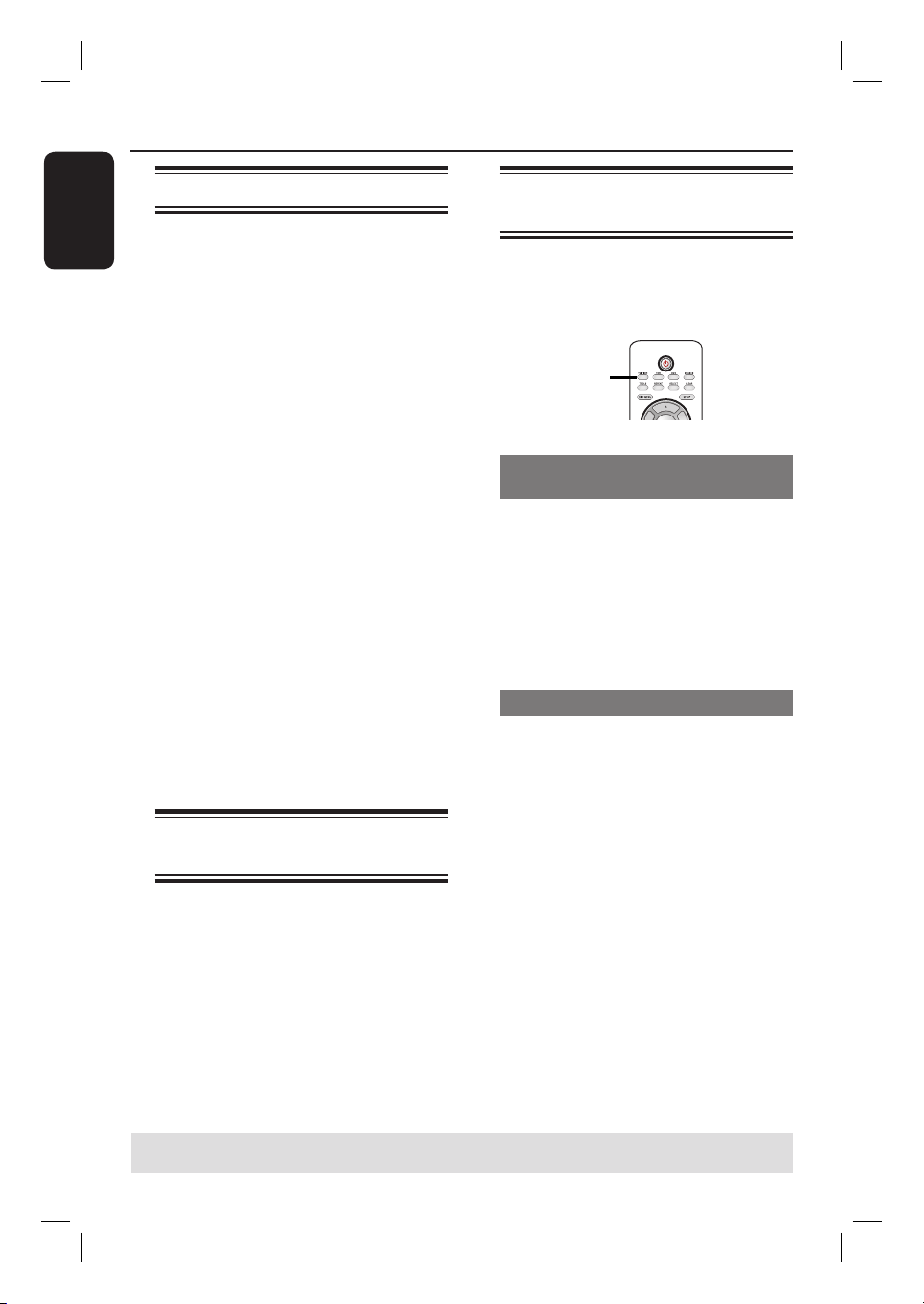
SOURCE
DVD
VCR
REC
REC
REC MODE
P +-
Recording TV programmes
A
Turn on the TV to the correct viewing
channel for the recorder (e.g. ‘EXT’, ‘0’,
‘AV’).
B
Press DVD or VCR to select the
destination of recording.
C
Insert a recordable DVD or VHS tape
into the recorder.
For VHS tape, locate the start point
position for recording.
D
Press SOURCE on the remote control
to select { Tuner }, then use P +/-
keys to select the TV channel you wish to
record.
E
Set a recording mode as necessary by
pressing REC MODE repeatedly.
F
Press REC z to start recording.
If the disc has contained some
recordings, the new recording will
automatically start after the last
recording on the disc.
For VHS tape, it will start recording
from the current stop position.
To pause the recording, press u. To
continue recording, press REC z.
You can use this function to avoid
recording commercials.
G
To stop the recording, press STOP x.
Otherwise, recording continues until
the disc or tape is full.
Helpful Hint:
– When recording onto a VHS tape, you can
change the recording channel when the
recording is in pause mode. However, you
cannot change a recording channel in the
DVD recording pause mode.
Recording from an external device
(Camcorder/ VCR/DVD Player)
Record video directly from an external
device.
A
Connect the external device to this
recorder. See the chapter “Step 2:
Optional Connections”.
B
Turn on the TV to the correct viewing
channel for the recorder (e.g. ‘EXT’, ‘0’,
‘AV’).
C
Press DVD or VCR to select the
destination of recording.
D
Insert a recordable DVD or VHS tape
into the recorder.
For VHS tape, locate the start point
position for recording.
TIPS: Ensure that there is suf cient space available on the recordable DVD or VHS tape before
recording. You have to nalise the DVD±R before it can be playback on other players.

English
27
Recording (continued)
TIPS: Ensure that there is suf cient space available on the recordable DVD or VHS tape before
recording. You have to nalise the DVD±R before it can be playback on other players.
E
Press SOURCE repeatedly to select the
correct input channel that matches the
connected socket of the device.
{ EXT 1 }
Input source from the device connected
to the EXT1 TO TV-I/O SCART socket
at the rear panel.
{ EXT 2 }
Input source from the device connected
to the EXT2 AUX-I/O SCART socket at
the rear panel.
{ CAM 1 }
Input source from the device connected
to the VIDEO and AUDIO L/R sockets at
the front panel.
F
Set a recording mode as necessary by
pressing REC MODE repeatedly.
G
Press REC z to start recording.
You can press REC z repeatedly to
increase the recording time in 30-minute
increments.
H
Start playback on the connected device.
To pause the recording, press u
once.
To continue recording, press REC z
again.
You can use this function to avoid any
unwanted recording.
I
To stop the recording, press STOP x.
Otherwise, recording continues until
the disc or tape is full.
Recording from an DV camcorder
Record video directly from a connected
DV camcorder to a DVD recordable disc.
A
Connect the DV camcorder to DV IN
socket at the front of the recorder.
B
Find the footage on the DV camcorder
where you want to start recording and
set the camcorder to pause mode.
C
Turn on the TV to the correct viewing
channel for the recorder (e.g. ‘EXT’, ‘0’,
‘AV’).
D
Press DVD or VCR to select the
destination of recording.
E
Insert a recordable DVD or VHS tape
into the recorder.
For VHS tape, locate the start point
position for recording.
F
Press SOURCE on the remote control
to select { DV }.
G
Press REC z to start recording and
press the PLAY button on the DV
camcorder to start playback.
To pause the recording, press u. To
continue recording, press REC z
again.
H
To stop the recording, press STOP x.
A new title/index will be created when
you begin another recording.
English
28
Recording (continued)
Instant time-off recording
This function allows you to make a
recording with a preset length easily
without using the timer programming.
A
Press P +- to select the programme
number to record, for example ‘P01’.
B
Press DVD or VCR to select the
destination of recording.
C
Insert a recordable DVD or VHS tape
into the recorder.
For VHS tape, locate the start point
position for recording.
D
Set a recording mode as necessary by
pressing REC MODE repeatedly.
E
Press REC z repeatedly to select the
recording time length. Each subsequent
press increases the recording time by 30
minutes.
F
The recorder will stop recording at the
designated end time and turn off to
standby mode automatically.
If you wish to stop the recording before
the scheduled time, press STOP x.
Watching disc playback
during VCR recording
If you wish to watch the DVD playback
during the VCR recording, press DVD to
switch to DVD mode and perform the
DVD playback. You cannot playback the
VCR during DVD recording.
Watching another source
during recording
While recording is in progress, you can
watch another TV channel or playback
from other audio/video device which is
connected to this recorder.
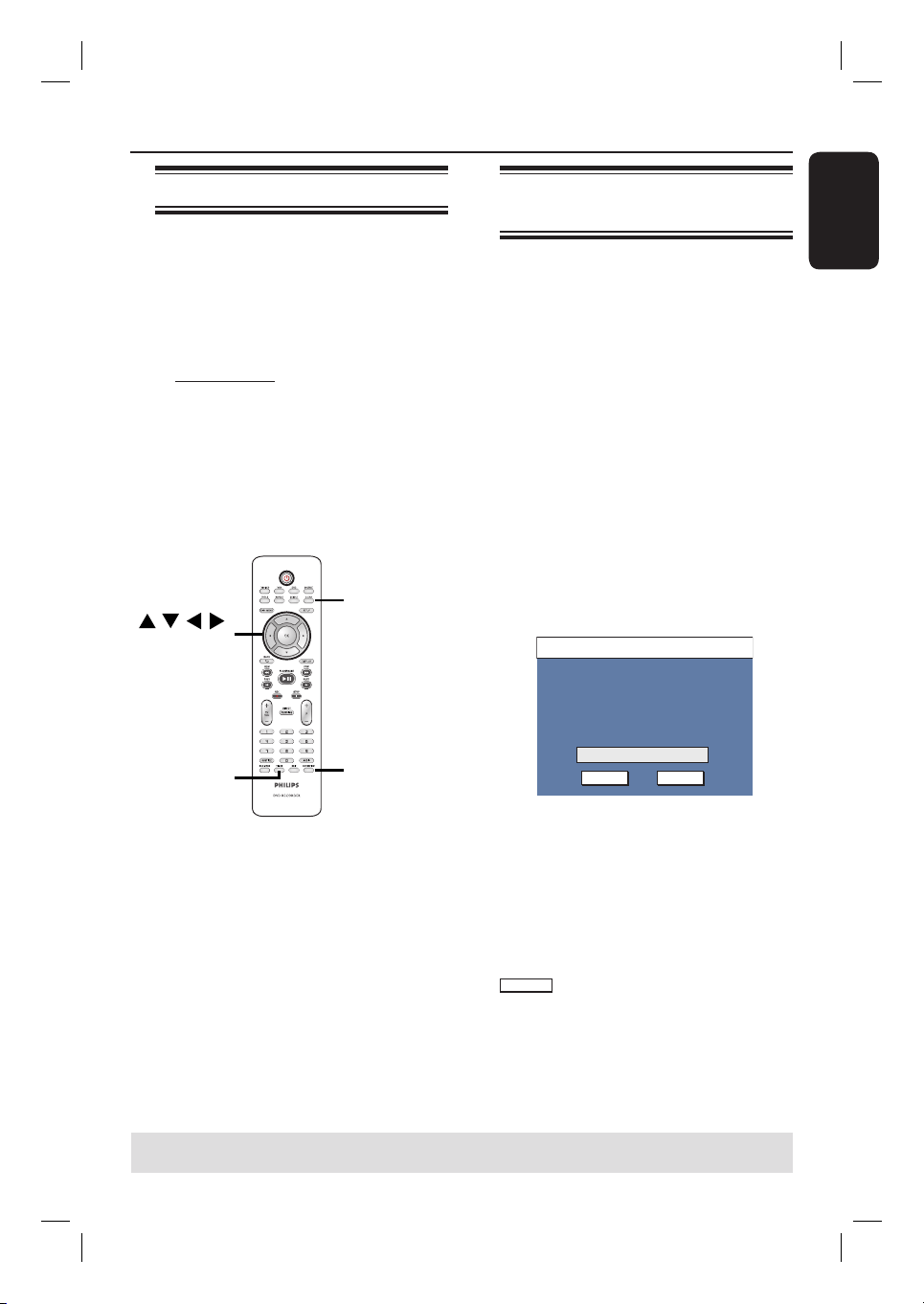
TV/VIDEO
Watching playback from another
device
This is only possible if the recorder
is connected to the TV using the
EXT1 TO TV-I/O socket.
Press TV/VIDEO to view the picture
from the device which is connected to
the EXT2 AUX-I/O socket of this DVD
recorder.
Watching another TV channel
If there is no device connected to the
EXT2 AUX-I/O socket, pressing
TV/VIDEO will switch to TV mode.
Use the TV’s remote control to change
the channels.
The message “TV/LOOP” will be
displayed on the recorder’s system
display panel.
To switch back to recorder mode, press
TV/VIDEO on the remote control.
Helpful Hint:
– Remember to switch the TV back to its
video input channel if you want to watch the
TV channel through the recorder or playback
the recorded disc.
TIPS: Ensure that there is suf cient space available on the recordable DVD or VHS tape before
recording. You have to nalise the DVD±R before it can be playback on other players.
English
29
Timer Recording
About timer recording
Use the timer recording to automatically
start and stop a recording at a later
date/time. The recorder will tune to the
right programme channel and begin
recording at the speci ed time.
With this recorder, you can schedule up
to 8 recordings at a time. During timer
recording, changing the recorder’s
channel is not possible.
There are two ways to programme
a timer recording
– Using the ShowView / VIDEO Plus+
system.
– Using manual timer schedule.
TIMER
OK
SHOWVIEW
CLEAR
About ‘VPS/PDC’
‘VPS’ (Video Programming System) or
‘PDC’ (Programme Delivery Control) is
used to control the start and duration of
TV channel recordings. If a TV
programme starts earlier or ends later
than was scheduled, the recorder will
then turn on and off at the correct time.
VPS/PDC is intended to record the entire
programme. To set a timer that is longer/
shorter than the VPS/PDC broadcast
time, you must switch off the VPS/PDC.
Timer recording (SHOWVIEW
®
/ VIDEO Plus+ System)
This is a simple timer programming
system. To use, enter the ShowView
programming number / VIDEO Plus+
PlusCode number associated with your
television programme. You can nd this
number in your TV listings magazine.
All the information needed by this
recorder for programming is contained in
the programming number.
A
Turn on the TV to the correct viewing
channel for the recorder (e.g. ‘EXT’, ‘0’,
‘AV’).
B
Press SHOWVIEW (or VIDEO
Plus+) on the remote control.
The SHOWVIEW
/ VIDEO Plus+ System
menu appears.
ShowView System
OK
CANCELCONFIRM
Enter the ShowView programming
number for the show you wish to
record.
C
Use the numeric keypad 0-9 to enter
the ShowView / PlusCode programming
number for the show you wish to record.
(e.g. : 5-312-4 or 5,312 4, key in ‘53124’).
To clear the programming number, press
CLEAR on the remote control.
To cancel the programme, move to
CANCEL
in the menu and press OK.
TIPS: Ensure that there is suf cient space available on the recordable DVD or VHS tape before
recording. You have to nalise the DVD±R before it can be playback on other players.
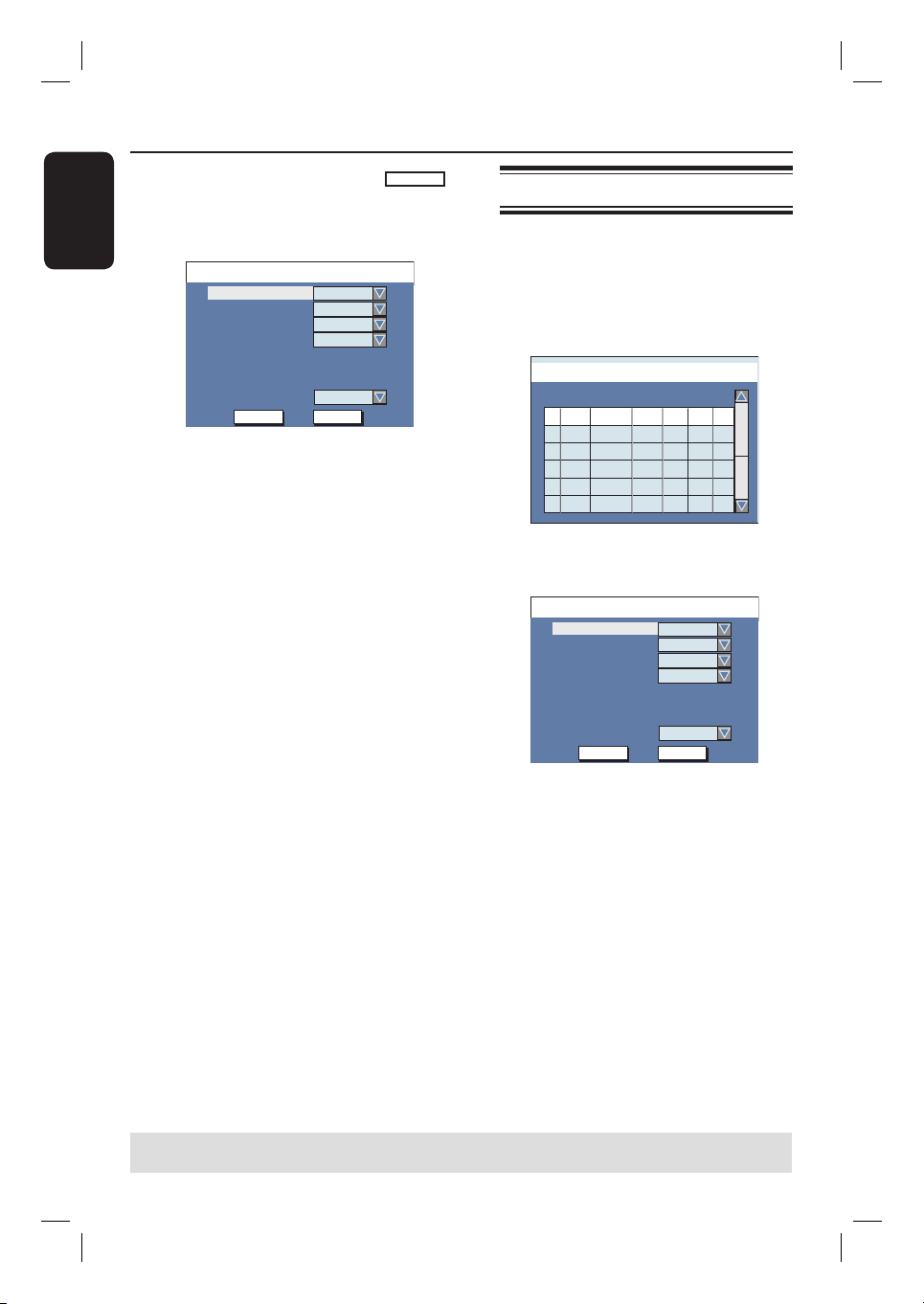
English
30
Timer Recording (continued)
D
To con rm your entry, move to
CONFIRM
in the menu and press OK.
The programme information will be
shown on the timer editor menu.
Timer Editor 09 : 05 : 56
OK
OK CANCEL
Date
Start
End
01 / 01 / 06
10 : 33
11 : 03
Source
Ch003
Rec Mode
SP
Mode
Once
VPS
Off
Dest.
DVD
Note: You may have to manually key in
channel number that is assigned to the
SHOWVIEW
®
/ VIDEO Plus+ code if it has
not been assigned to the programming
number. Follow the instructions on the
TV screen.
E
Press T to select { Dest. } in the menu
and press X.
F
Select the recording destination (DVD
or VCR) and press OK.
G
Press TIMER to exit the menu.
H
Insert a recordable DVD or VHS tape
into the recorder.
For VHS tape, locate the start point
position for recording.
I
Press STANDBY-ON to switch the
recorder to standby mode.
The ‘TIMER’ icon will light up on the
display panel if a timer recording is set.
If the recorder is not in standby mode,
a noti cation message will appear three
minutes before the recording begins.
The recorder will automatically power
off when the timer recording ends.
Timer recording (manually)
A
Turn on the TV to the correct viewing
channel for the recorder (e.g. ‘EXT’, ‘0’,
‘AV’).
B
Press TIMER on the remote control.
The timer schedule list appears.
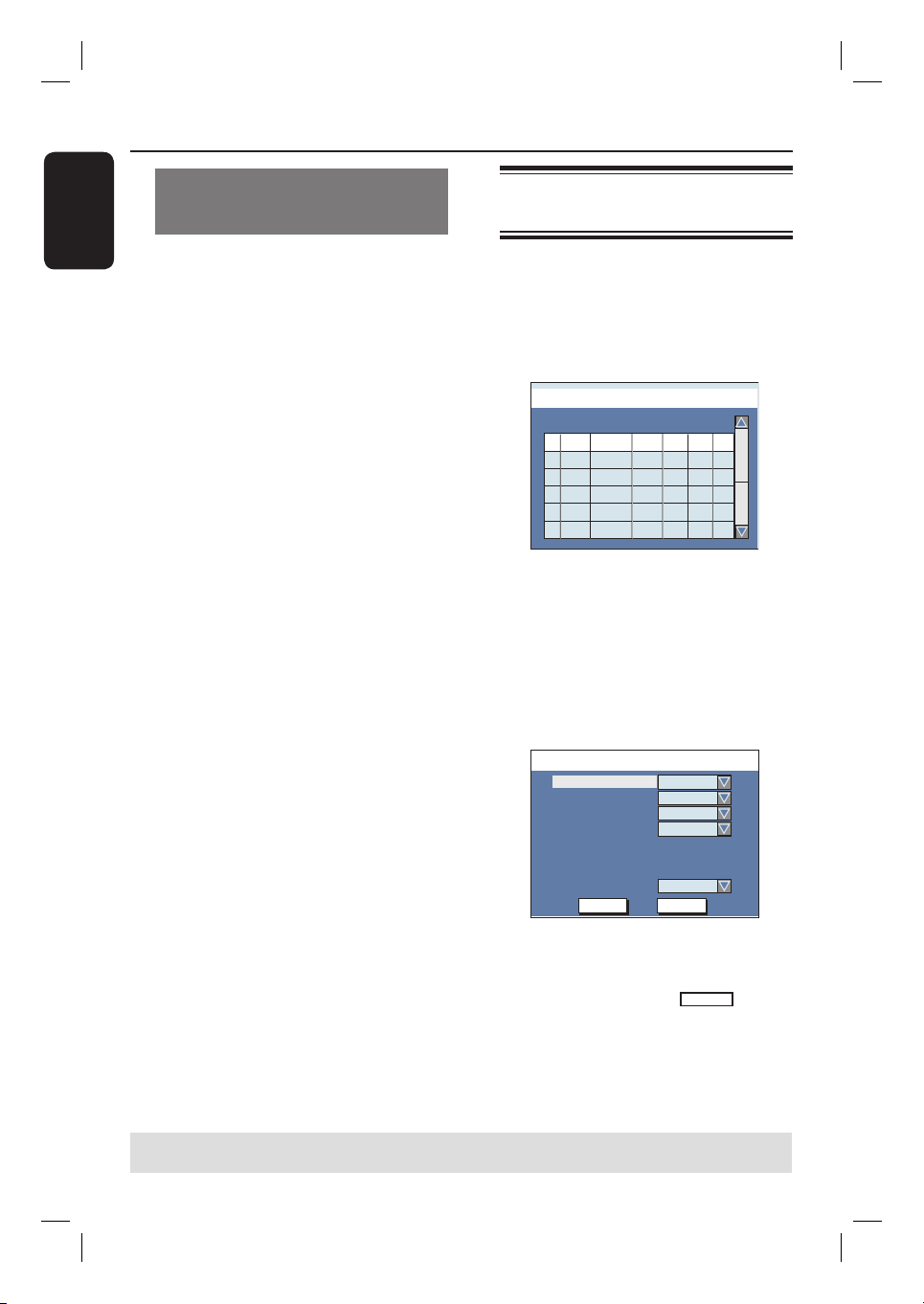
Timer Schedule 09 : 05 : 56
1
2
3
4
5
6
Source Rec Mode Date Start End VPS
CH003
SP
05/01/06
14.00 15.30
CH010
CH005
CH008
EP
SP
SP
25/01/06
30/01/06
31/01/06
02.00
17.00
12.30
06.30
18.15
14.00
On
Off
On
Off
C
Select an empty eld and press OK.
The timer editor menu appears.
Timer Editor 09 : 05 : 56
OK
OK CANCEL
Date
Start
End
01 / 01 / 06
10 : 33
11 : 03
Source
Ch003
Rec Mode
SP
Mode
Once
VPS
Off
Dest.
DVD
D
Use ST keys or the numeric keypad
0-9 to select or enter the recording
information, then press OK to con rm.
TIPS: Ensure that there is suf cient space available on the recordable DVD or VHS tape before
recording. You have to nalise the DVD±R before it can be playback on other players.

English
31
{ Source }
Select the TV channel or the correct
input source (EXT1, EXT2 or CAM1)
which you have used to connect the
external device.
{ Dest. }
Select the recording destination, DVD
or VCR.
{ Rec Mode }
Select the mode of recording.
See the chapter “Recording – RECORD
settings - Default Recording mode” for
more information.
{ Mode }
Select a desired repeat recording mode
(Once, Daily, Weekly, Mon-Fri, Mon-Sat
or Weekend).
{ Date }
Enter the date for recording (Day/Month/
Year).
{ Start }
Enter the start time of recording (hours :
minutes).
{ End }
Enter the end time of recording (hours :
minutes).
{ VPS/PDC }
Turn on or off the VPS/PDC setting.
Note: VPS/PDC setting is not available
for external receiver.
E
Use ST keys to select
OK
in the
menu and press OK.
The system will store the timer entry
and return to the timer schedule list.
To cancel the above timer setting, move
to
CANCEL
in the menu and press OK.
F
Press TIMER to exit the menu.
G
Insert a recordable DVD or VHS tape
into the recorder.
For VHS tape, locate the start point
position for recording.
H
Press STANDBY-ON to switch the
recorder to standby mode.
The ‘TIMER’ icon will light up on the
display panel if a timer recording is set.
If the recorder is not in standby mode,
a noti cation message will appear three
minutes before the recording begins.
The recorder will automatically power
off when the timer recording ends.
Helpful Hints:
– Set the timer recording one minute ahead
of the programme’s start time. This helps
ensure the entire programme is recorded as
the disc requires about 30 seconds to
prepare for recording.
– The interval time between two recording
schedules is at least 5 ( ve) minutes.
Otherwise, the very beginning of the later
programme may not be recorded.
– Only PAL/SECAM video signal is possible to
record to a VHS tape on this recorder.
Timer Recording (continued)
TIPS: Ensure that there is suf cient space available on the recordable DVD or VHS tape before
recording. You have to nalise the DVD±R before it can be playback on other players.
English
32
Setting a timer recording from
an external Cable Box/ Satellite
Receiver
If you have a Satellite Receiver/Cable Box
connected to this recorder via the
EXT2 AUX-I/O SCART connection (see
“Step 2: Optional Connections”), follow
the steps described below to programme
the recordings.
A
Select the channel you want to record on
the Satellite Receiver/Cable Box.
B
Programme the recording with the
required information. Follow the steps
A
~
H
of “Timer Recording (manually)”
on the previous page.
Note: In { Source } entry, select
{ EXT2 } as the input source for
recording.
C
Leave the Satellite Receiver/Cable Box
switched on for the recording.
Changing/ Deleting a timer
recording
A
Turn on the TV to the correct viewing
channel for the recorder (e.g. ‘EXT’, ‘0’,
‘AV’).
B
Press TIMER on the remote control.
The timer schedule list appears.
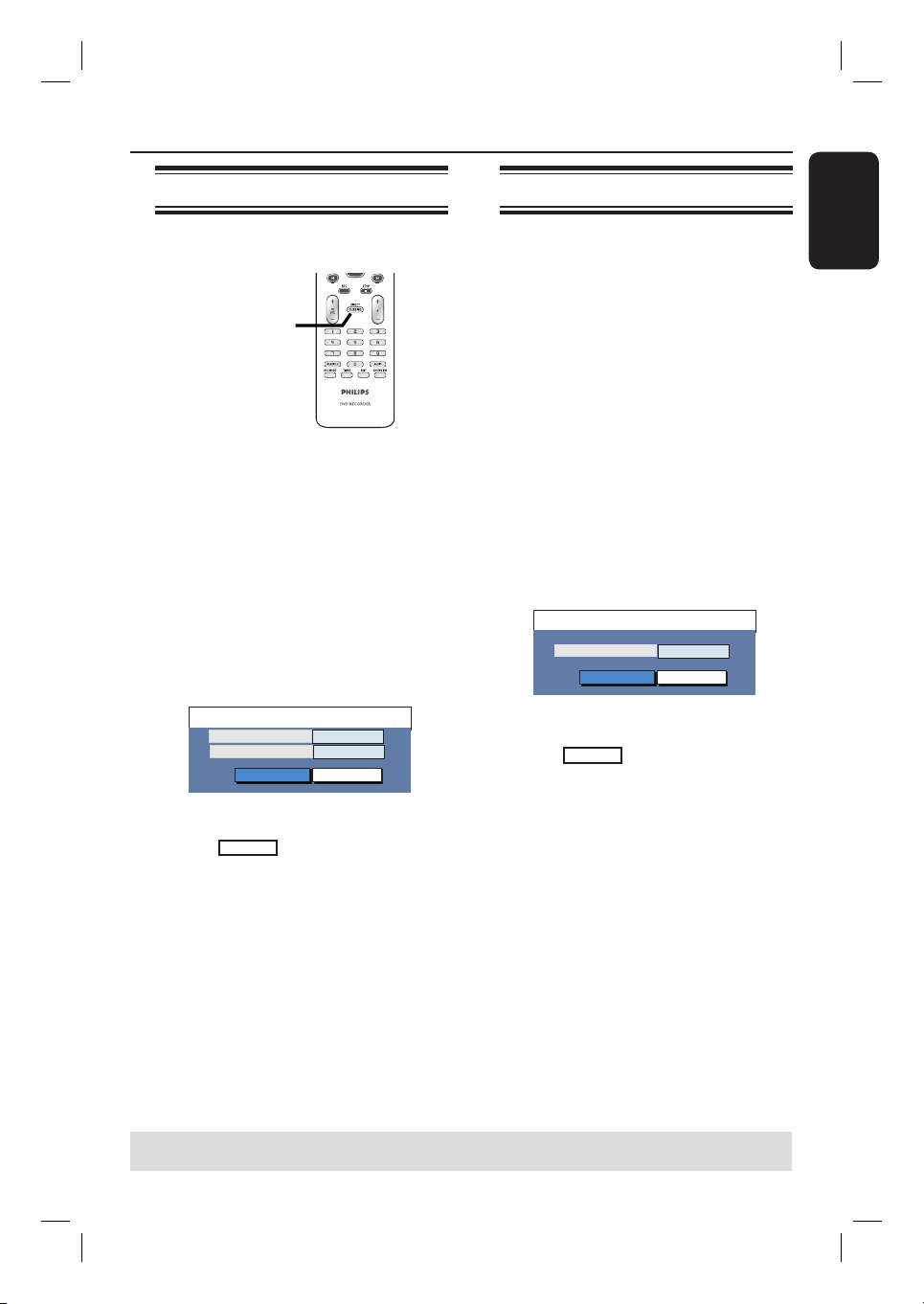
Timer Schedule 09 : 05 : 56
1
2
3
4
5
6
Source Rec Mode Date Start End VPS
CH003
SP
05/01/06
14.00 15.30
CH010
CH005
CH008
EP
SP
SP
25/01/06
30/01/06
31/01/06
02.00
17.00
12.30
06.30
18.15
14.00
On
Off
On
Off
C
Use ST keys to select a timer
programme which you want to change/
delete.
D
To delete the timer entry, press
CLEAR on the remote control.
E
To change the timer schedule, press
OK to enter the timer editor menu of
the selected timer programme.
Timer Editor 09 : 05 : 56
OK
OK CANCEL
Date
Start
End
01 / 01 / 06
10 : 33
11 : 03
Source
Ch003
Rec Mode
SP
Mode
Once
VPS
Off
Dest.
DVD
F
Select the entry eld and make the
necessary changes.
G
Once complete, move to
OK
in the
menu and press OK to save the changes.
H
Press TIMER to exit the menu.
Timer Recording (continued)
TIPS: Ensure that there is suf cient space available on the recordable DVD or VHS tape before
recording. You have to nalise the DVD±R before it can be playback on other players.
English
33
Dubbing from VCR to DVD
This allows you to archive your VHS
tapes to a recordable DVD.
DIRECT
DUBBING
A
Insert a recordable DVD.
B
Insert a prerecorded VHS tape.
C
Press VCR on the remote control.
D
Press u to start tape playback. Find
the place where you want to start
recording and press u again to pause
the playback.
E
Press DIRECT DUBBING on the
remote control.
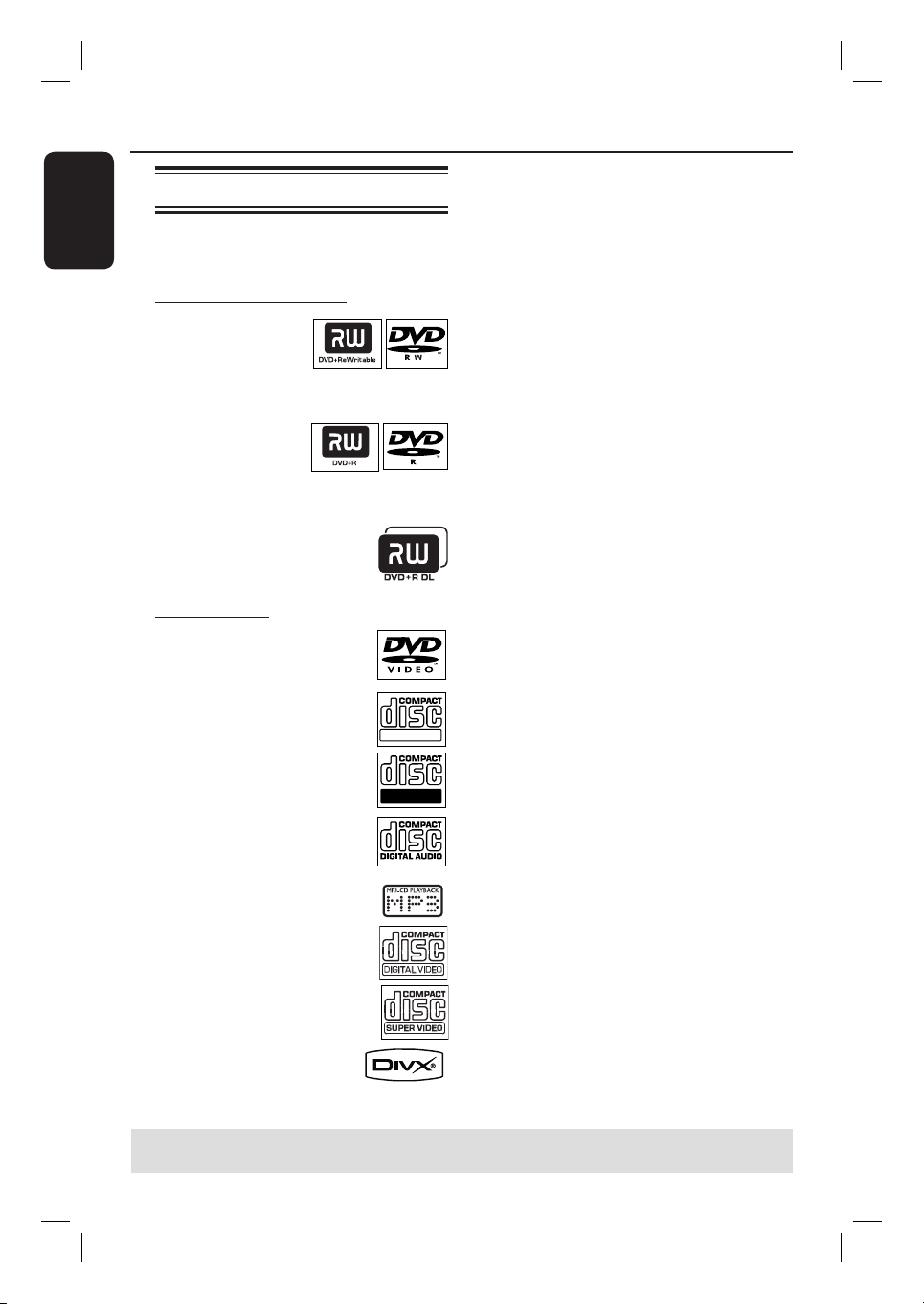
The dubbing menu appears.
Dubbing to DVD
OK
SP
Rec. Mode
OK Cancel
01:54
Remaining Time
F
Select the desired recording mode.
G
Move to
OK
in the menu and press
OK to start dubbing.
H
To stop the dubbing, press STOP x.
Otherwise, dubbing will stop
automatically when the VHS tape ends.
Direct Dubbing (Disc î Tape)
Dubbing from DVD to VCR
If the disc you are attempting to dub is
copy-protected, you will not be able to
copy the disc. It is not permitted to copy
Macrovision encoded DVDs.
A
Insert a blank VHS tape in the tape deck.
B
Insert the disc you want to copy in the
disc tray.
C
Press DVD on the remote control.
D
Press u to start disc playback. Find the
place where you want to start recording
and press u again to pause the
playback.
E
Press DIRECT DUBBING on the
remote control.
The dubbing menu appears.
Dubbing to VCR
OK
OK Cancel
SP
Rec. Mode
F
Select the desired recording mode.
G
Move to
OK
in the menu and press
OK to start dubbing.
H
To stop the dubbing, press STOP x.
You must stop the copy process
manually when the DVD movie ends.
Otherwise, the disc may replay and
record over and over again.
TIPS: Ensure that there is suf cient space available on the recordable DVD or VHS tape before
recording.
English
34
DVD Playback
Playable discs
Using this recorder, you can playback and
record on the following discs:
Recording and Playback
DVD±RW
(DVD Rewritable);
can be recorded on
over and over.
DVD±R
(DVD Recordable);
can be recorded
only once.
DVD+R DL
(DVD+R Double
Layer); same as DVD±R.
Playback only:
DVD Video (Digital Versatile
Disc)
CD-RW (CD-Rewritable)
Audio/ MP3/ JPEG contents
CD-R (CD-Recordable)
Audio/ MP3/ JPEG contents
Audio CD (Compact Disc
Digital Audio)
MP3/WMA-Disc
Video CD
(Formats 1.0, 1.1, 2.0)
Super Video CD
DivX Disc
(DivX 3.11, 4.x, 5.x, 6.x)
IMPORTANT!
– If the inhibit icon (Error) appears
on the TV screen when a button is
pressed, it means the function is not
available on the current disc or at
the current time.
– DVD discs and players are
designed with regional restrictions.
Before playing a disc, make sure the
disc is for the same region as your
player.
– Do not push on the disc tray or
put any objects other than discs on
the disc tray. It may cause the disc
player to malfunction.
ReWritable
Recordable
TIPS: Some discs cannot be played on this recorder due to the con guration and characteristics of
the disc, or due to the condition of recording and authoring software.

English
35
Starting disc playback
A
Press STANDBY-ON to turn on the
recorder.
B
Press DVD on the remote control.
The DVD indicator lights up.
C
Press OPEN/CLOSE ç at the front
panel.
The disc tray opens.
You can also hold down the STOP x
button on the remote control to open
and close the disc tray.
D
Place the disc onto the tray with the label
facing up, then press OPEN/CLOSEç.
For double-sided discs, load the side
as indicated on the label.
E
Turn on the TV to the correct viewing
channel for the recorder (e.g. ‘EXT’, ‘0’,
‘AV’).
F
Playback may start automatically.
Otherwise, press u to start playback.
If the pin code entry dialogue appears on
the TV, this means that the parental
control was activated for the inserted
disc. You have to enter your four-digit
pint code (see “DVD Setup Menu
Options – DVD Settings”).
For more playback features, see
“Additional Playback Features”.
Helpful Hints:
– If you want to return to tuner mode during
DVD playback, press SOURCE button.
– If you wish to watch the VCR playback,
press VCR to change to VCR mode before
starting playback the tape. If you press DVD
to watch the disc playback again, playback
resumes from the point where playback was
interrupted.
Playing a DVD video disc
The DVD disc is usually formatted with a
disc menu. You may have to make your
selection (e.g., subtitle or audio language)
within the disc menu.
A
Insert a DVD disc.
If the disc menu appears, use the
numeric keypad 0-9 to input your
selection or use ST keys to select a
play option and press OK to start
playback.
To access the disc menu
Press DISC MENU on the remote
control.
To select the previous or next
chapter
During playback, pressí or ë.
B
To stop playback, press STOP x.
Playing an audio CD
A
Insert an audio CD.
Playback starts automatically.
The track number and elapsed playing
time appear on the display panel.
B
To stop playback, press STOP x.
TIPS: Some discs cannot be played on this recorder due to the con guration and characteristics of
the disc, or due to the condition of recording and authoring software.
DVD Playback (continued)
English
36
Playing a (Super) Video CD
(Super) Video CDs may feature ‘PBC’
(Play Back Control). This allows you to
play the video CDs interactively by
following the menu on the display.
A
Insert a (Super) Video CD.
If the ‘PBC’ is on, the disc index
menu will appear on the TV
B
Use numeric keypad 0-9 to input your
selection or to select a play option.
To return to the previous menu, press
BACK2 on the remote control.
To turn on/off the Playback Control
mode, press TOOLS on the remote
control during playback to access the
VCD menu. Then use ST keys to select
{ PBC On } or { PBC Off }.
C
To stop playback, press STOP x.
Playing a DVD recordable disc
A
Insert a DVD recordable disc.
The Index Picture screen appears.
B
Use ST keys to select a title to play,
then press u.
C
To stop playback, press STOP x.
Helpful Hint:
– If the message ‘BLANK’ appears on the
display panel, this means that there are no
recordings on this disc.
Playing a DivX disc
This recorder supports the playback of
DivX movies which you can copy from
your computer onto a CD-R/RW,
DVD±R/±RW.
A
Insert a DivX disc.
The disc content menu appears.
If the DivX movie contains external
subtitles, you have to rst select the
subtitle le from the le list.
B
Press u to start playback.
During playback, you can press DISC
MENU to display the disc content menu.
To select another character set for
the subtitle le,
During playback, press TOOLS once to
show the disc content menu. Press
TOOLS again to access various settings
for the slide show playback.
File Pla
y
Western European
Standard
Central European
Cyrillic
Greek
T
ype
M
ode
C
haracte
r
A
ud
i
o
Tim
e
LANG
Vi
deo
N
o
rm
al
Standard Se
t
Stere
o
0:01:31
/
0:41:35
L
anguage
1
Use ST keys to select { Character }
and press X to access the options. Select
the preferred subtitle set and press OK
to con rm.
Helpful Hints:
– Subtitle les with the following le name
extensions (.srt, .smi, .sub, .sami) are
supported.
– It is normal to experience an occasional
pixelation during DivX playback due to poor
clarity of digital contents during internet
downloading.
DVD Playback (continued)
TIPS: Some discs cannot be played on this recorder due to the con guration and characteristics of
the disc, or due to the condition of recording and authoring software.
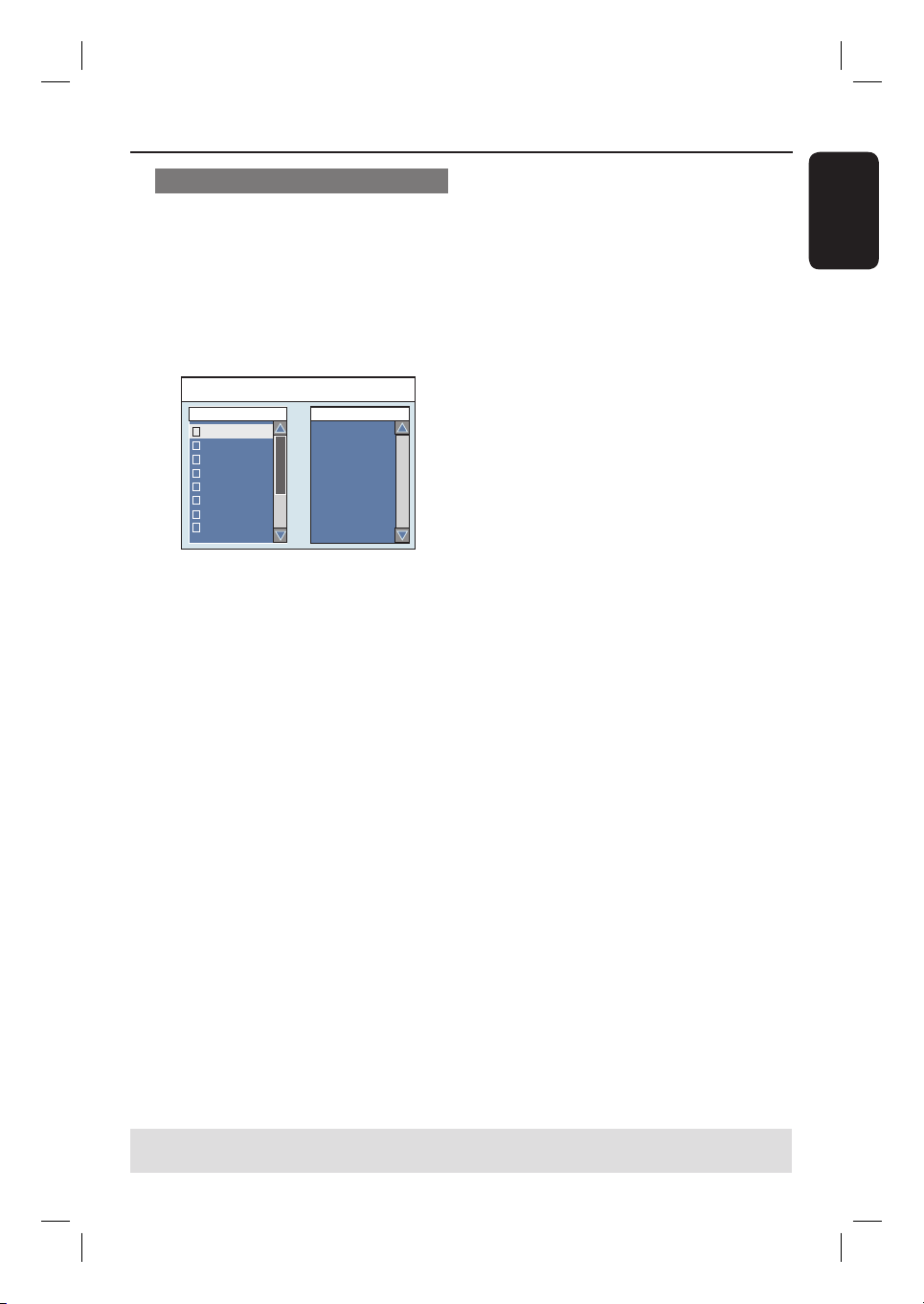
English
37
DVD Playback (continued)
Playing an MP3/WMA disc
MP3 (MPEG1 Audio Layer-3) les are
highly compressed music les. The MP3
format lets you store about ten times
more data (music, pictures) on a single
CD-ROM than a regular CD.
A
Insert an MP3/WMA CD.
The disc content menu appears.
Audio Stop 0:00:00 - 0:00:00
Directory Playlist
Bee Gees
Phil Collins
Bryan Adams
Collin Raye
Nat King Cole
UB40
Eric Clapton
Faith Hill
Note: It may require a longer time for
the recorder to display the disc content
menu on the TV due to the large number
of songs/pictures compiled into one disc.
B
Use ST keys to navigate within the
menu and press OK to access the folder/
album.
C
Use ST keys to select the track/ le to
play.
To move up to the previous level, press
BACK2.
D
To create a playlist, highlight the track/ le
and press SELECT.
The selected tracks/ les will appear
on the right screen.
To remove the track/ le from the
playlist, press CLEAR.
E
To start playback, move the cursor to the
right selection screen and press u.
F
During playback, you can press í/ë to
select the next/previous track.
G
To stop playback, press STOP x.
Helpful Hints:
– Only the rst session of a multi-session CD
will playback.
– This recorder does not support MP3PRO
audio format.
TIPS: Some discs cannot be played on this recorder due to the con guration and characteristics of
the disc, or due to the condition of recording and authoring software.
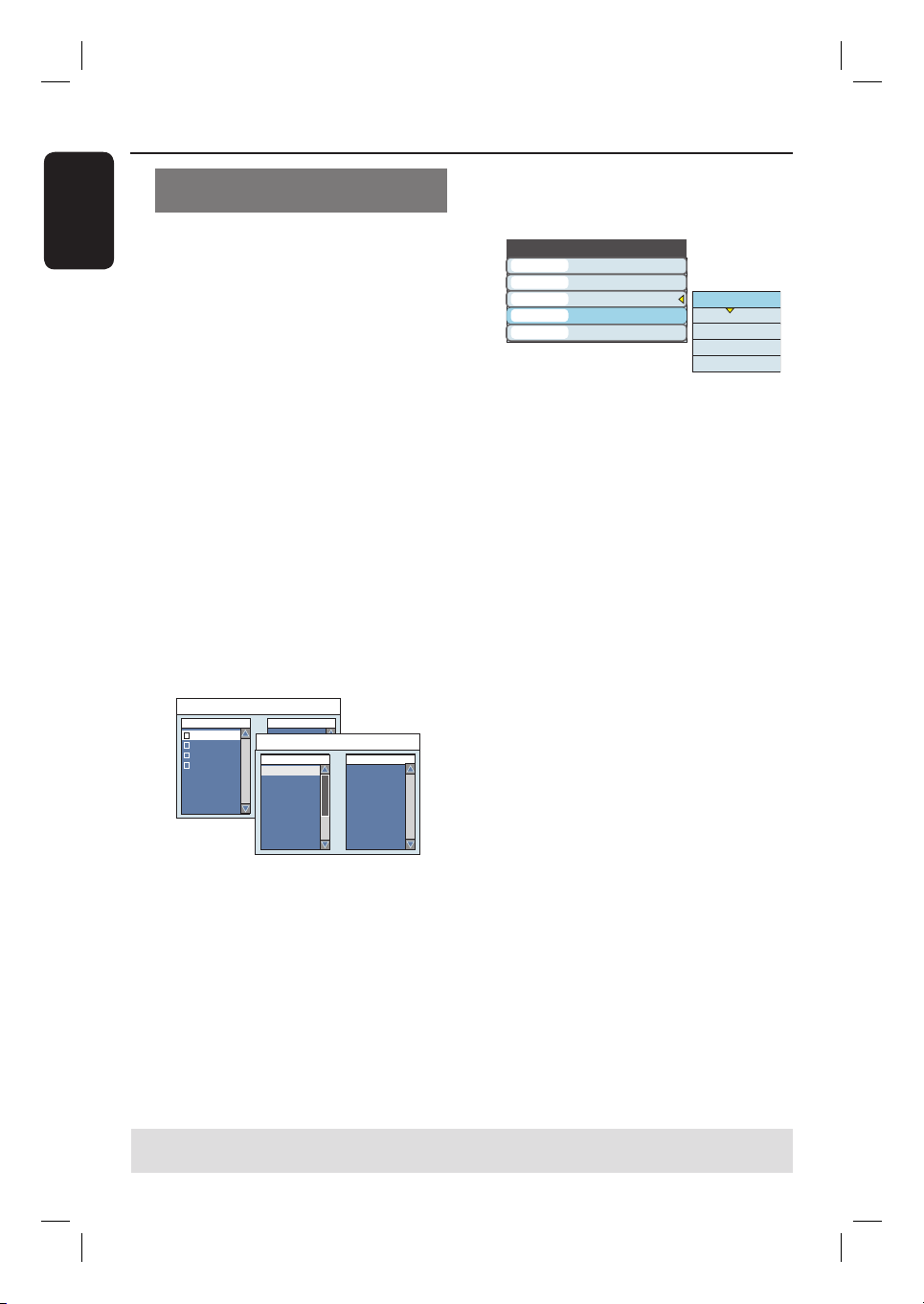
English
38
Playing a picture disc (or musical
slide show)
You can display JPEG pictures in the
selected roll automatically one after the
other.
A
Insert a JPEG picture disc (CD,
CD-R/RW, recordable DVD).
The disc content menu appears.
B
Use ST keys to navigate within the
menu and press OK to access the
folder/ album.
C
To create a playlist, highlight the track/ le
and press SELECT.
The selected tracks/ les will appear
on the right screen.
To remove the track/ le from the
playlist, press CLEAR.
D
You can select to playback from the
original disc content or from the playlist,
just use W X keys to move to the
correct screen before selecting the track/
le for playback.
PIC Normal
Directory Picture Playlist
Japan trip
Bryan Bday
My songs
Hot Hits
Program Stop
Directory
P1010001.JPG
P1010008.JPG
BUTTER-1.JPG
NATURE-1.JPG
BUTTER-1.JPG
P1022500.JPG
P1023000.JPG
MERLIO-1.JPG
1
2
3
4
5
6
7
8
..\Move up directory
Picture Playlist
If the disc contained MP3 music and
JPEG picture les, you can start a
musical slide show playback,
Select an MP3 le and press OK to start
the playback, then select a picture le in
the menu and press OK to start the
musical slide show playback.
E
During playback, you can press TOOLS
on the remote control to access various
settings for the slide show playback.
File Play
PIC
Normal
Top to bottom
Fitscreen
Clockwise 0
Type
Mode
Wipe
Zoom
Rotate
Top to bottom
Down to top
Left to right
Right to left
Extend center V.
F
To stop playback, press STOP x.
Playable JPEG picture disc
File format:
– The le extension has to be ‘.JPG,’
‘.JPE’ or ‘.JPEG.’
– It can only display DCF-standard still
pictures or JPEG pictures e.g. TIFF.
– It cannot playback moving pictures,
Motion JPEG, progressive JPEG, pictures
in non-JPEG formats and including
pictures associated with sound.
DVD Playback (continued)
TIPS: Some discs cannot be played on this recorder due to the con guration and characteristics of
the disc, or due to the condition of recording and authoring software.

English
39
Additional Playback Features
Changing to another title/
chapter/track
When a disc contains more than one
track, title or chapter, you can change to
a different track, title or chapter as
follows.
During playback,
Press ë (NEXT) to go to the next
chapter/track.
Pressí (PREV) to return to the start of
the previous chapter/track.
OR
Use the numeric keypad 0-9 to input
the title/chapter/track number.
OR
Press TOOLS to enter the le play
(DVD, VCD) menu and use ST keys to
select { Title } or { Chapter } and use
numeric keypad 0-9 to input the title/
chapter/track number.
Pausing playback
A
During playback, press u to pause
playback.
B
To resume normal playback, press
u again.
Searching forwards/
backwards
You can fast forward or fast reverse a
disc at two, four, sixteen or thirty two
times the normal playback speed.
A
During playback, press à (REW) or
á (FFW) to switch to the search
function.
The search status bar appears.
It displays the search speed.
The sound will be muted.
B
Press à (REW) or á (FFW) to cycle
through the search speeds.
C
To resume normal playback, press u.
TIPS: The operating features described here might not be possible for certain discs.
Always refer to the instructions supplied with the discs.
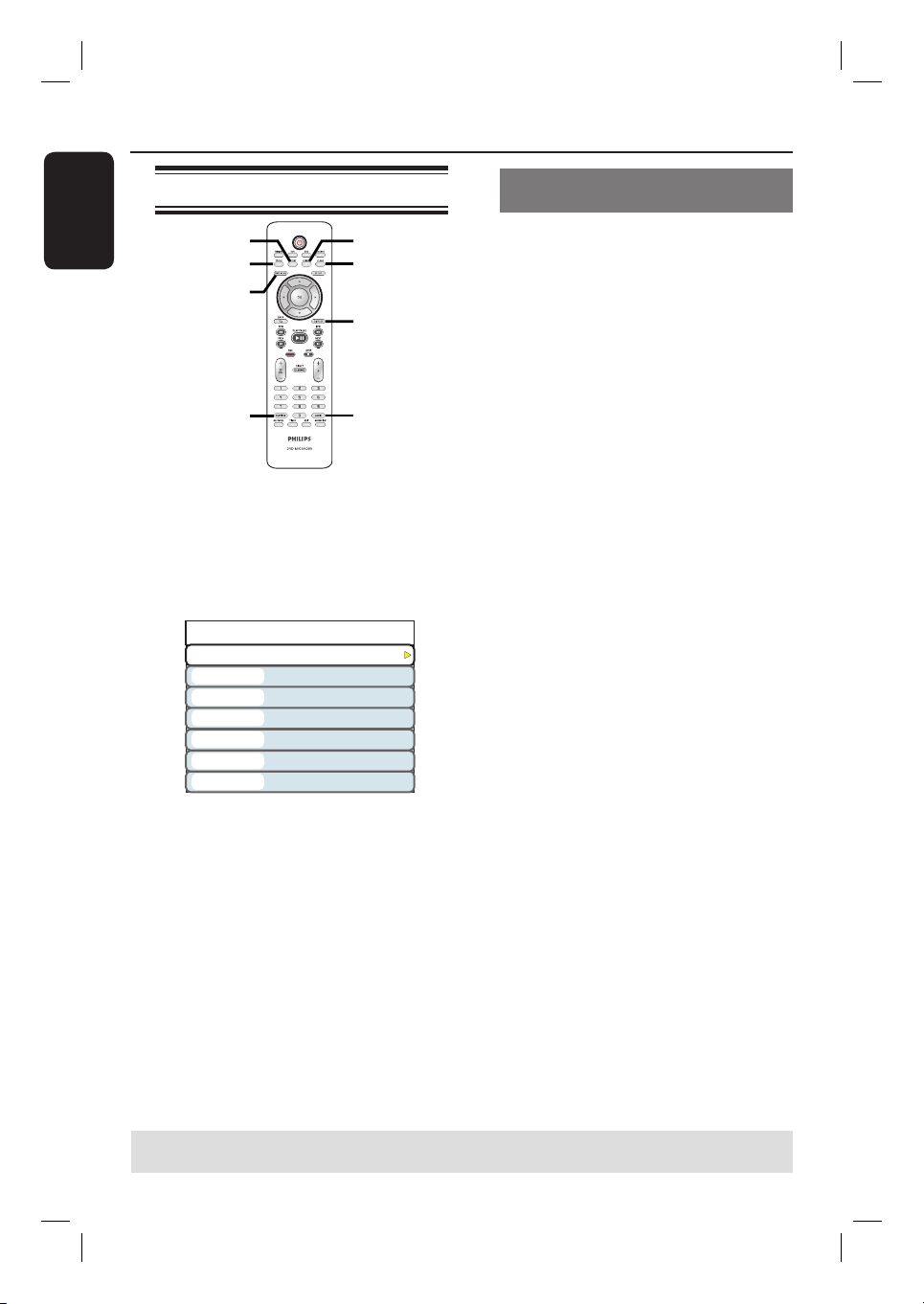
English
40
Using the TOOLS options
TOOLS
DISC MENU
SELECT
REPEAT
DISPLAY
AUDIO
SUBTITLE
CLEAR
Menu options displayed may differ
depending on the disc type.
A
During disc playback, press TOOLS on
the remote control.
The Tools menu appears.
DVD
00:22:03 / 01:30:26
Normal
01/02
03/12
01/02 - OTH
Off
01/03
00:22:03 / 01:30:26
Mode
Title
Chapter
Audio
Subtitle
Angle
Title
B
Use ST keys to select the setting you
want to adjust.
Instructions and explanations of the
options are provided in the following
pages.
If the selection in the menu is greyed
out, that means the feature is not
available or cannot be changed in the
current states.
Press DISPLAY on the remote control
to hide or show the DVD menu.
C
To exit, press TOOLS.
Selecting various repeat/ shuf e
functions
You can select various repeat play or
random play mode during playback.
During disc playback, press REPEAT
repeatedly to toggle through the options
on the disc.
Or,
A
During disc playback, press TOOLS on
the remote control.
The Tools menu appears.
B
Use ST keys to select { Mode } and
press OK.
C
Use ST keys to select one of the repeat
options.
{ Repeat A-B } (DVD/VCD)
Repeat the playback of a speci c segment
within a title/chapter/track. Press OK to
mark the start and end of the segment
you want to repeat.
{ Repeat Chapter }
Repeat playback of the current chapter
(DVD, DVD±R/±RW only).
{ Repeat Track/Title }
Repeat playback of the current track/title.
{ Repeat Directory }
Repeat playback of the current folder/
directory (MP3, JPEG, picture disc only).
{ Repeat Disc }
Repeat playback of the entire disc.
{ Shuf e }
Randomly playback all the tracks within
the disc (MP3/DivX/WMA and audio CD
only).
{ Normal }
Cancel the repeat or programmed modes
and return to normal playback.
D
To cancel repeat playback, press STOP
x or select { Normal } and press OK.
Additional Playback Features (continued)
TIPS: The operating features described here might not be possible for certain discs.
Always refer to the instructions supplied with the discs.

English
41
Creating a playlist
You can playback the contents of the disc
in the order you want by creating a
playlist.
A
During disc playback, press TOOLS on
the remote control.
The Tools menu appears.
B
Select { Mode } > { Program }.
The programme menu appears.
Edit Program Play List
Title Playlist
Title 01
Title 02
Title 03
Title 04
Title 05
Title 06
Title 07
Title 08
C
If the disc is recorded with Titles/Folders/
Albums, press OK to access the tracks/
les/chapters.
D
Use ST keys to select the track/ le/
chapter and press SELECT on the
remote control.
The selected track/ le/ title will
appear in the { Playlist } screen at the
right.
To remove from the playlist
E
Move to the right screen, select the item
to remove and press CLEAR on the
remote control.
F
To start playback from the playlist, move
to the right screen and press OK.
Playback will start from the selected
track/ le/ chapter according to the order
of the playlist.
G
To exit playlist play, press STOP x.
Changing the audio language
This operation works only on DVDs with
multiple soundtrack language or VCDs
with multiple audio channels.
During disc playback, press AUDIO
repeatedly to toggle through the audio
channels on the disc.
Or,
A
During disc playback, press TOOLS on
the remote control.
The Tools menu appears.
B
Use ST keys to select { Audio } and
press X to access its options.
C
Use ST keys to select the audio
language and press OK to con rm.
The languages may be numbered or
abbreviated, such as “En” for English.
If the language selected is not available
on the disc, the disc’s default setting for
language will be used instead.
Helpful Hint:
– Some DVDs allow soundtrack language
changes only via the DVD disc menu. To
access the Disc Menu, press DISC-MENU.
Additional Playback Features (continued)
TIPS: The operating features described here might not be possible for certain discs.
Always refer to the instructions supplied with the discs.

English
42
Additional Playback Features (continued)
Changing subtitle languages
This operation works only on DVDs with
multiple subtitle languages, you can change
the language you want while playback the
DVD.
During disc playback, press SUBTITLE
repeatedly to toggle through the language
options on the disc.
Or,
A
During disc playback, press TOOLS on
the remote control.
The Tools menu appears.
B
Use ST keys to select { Subtitle } and
press X to access its options.
C
Use ST keys to select the language and
press OK to con rm.
The languages may be numbered or
abbreviated, such as “En” for English.
If the language selected is not available
on the disc, the disc’s default setting
language will be used instead.
Helpful Hint:
– Some DVDs discs allow subtitle language
changes only via the DVD disc menu. To
access the disc menu, press DISC-MENU.
Switching camera angles
This option is only available with DVDs
that contain sequences recorded from
different camera angles. This allows you
to view the picture from different angles.
A
During disc playback, press TOOLS on
the remote control.
The Tools menu appears.
B
Use ST keys to select { Angle } and
press X to enter its options.
The camera angles available for
selection appears.
C
Use ST keys to select the camera angle
you want to switch to, and press OK to
con rm.
Searching by time
This option allows you to skip to a
speci c point on the current disc.
A
During disc playback, press TOOLS on
the remote control.
The Tools menu appears.
B
Use ST keys to select { Search } and
press X to time eld (hours : minutes :
seconds).
C
Use the numeric keypad 0-9 to enter
the time where playback should start and
press OK.
Playback skips to the time entered.
TIPS: The operating features described here might not be possible for certain discs.
Always refer to the instructions supplied with the discs.

English
43
Starting VCR playback
This VCR uses the VHS system.
A
Press STANDBY-ON to turn on the
recorder.
B
Press VCR on the remote control.
The VCR indicator lights up.
C
Insert a pre-recorded VHS tape into the
tape deck with the window side facing up
and the label side towards the front.
D
Playback will start automatically.
Otherwise, press u.
To pause playback
Press u.
To resume normal playback, press u.
For fast forward/backward search
Press à (REW) or á (FFW).
To resume normal playback, press u.
To search a speci c recording (using
index function)
Press PREV í/ NEXTë to search
the previous or next index marking
within the tape.
E
To stop playback, press STOP x.
F
To eject the VHS tape, press EJECT ç.
Helpful Hints:
– If you want to return to tuner mode during
VCR playback, press SOURCE button.
– If you wish to watch the disc playback,
press DVD to change to DVD mode before
starting playback the disc. If you press VCR
to watch the VCR playback again, playback
resumes from the point where playback was
interrupted.
– When playing back tapes recorded using
the S-VHS system, the playback image may
be distorted.
Reset tape counter
Press CLEAR on the remote control to
set the counter to “0:00:00”.
When you insert a VHS tape in the
recorder, the counter will automatically
reset to “0:00:00”.
Manual tracking
This recorder has automatic tracking
capability to reduce the picture and
sound interference of a poor quality VHS
tape. However, you may have to do a
manual tracking if these cannot be
completely lter out.
A
Press P +- on the remote control
until you get a better picture/sound
quality.
B
Press STOP x to con rm.
Tracking is automatically reset to
normal when the tape is ejected.
VCR Playback
TIPS: The operating features described here might not be possible for certain VHS tapes.
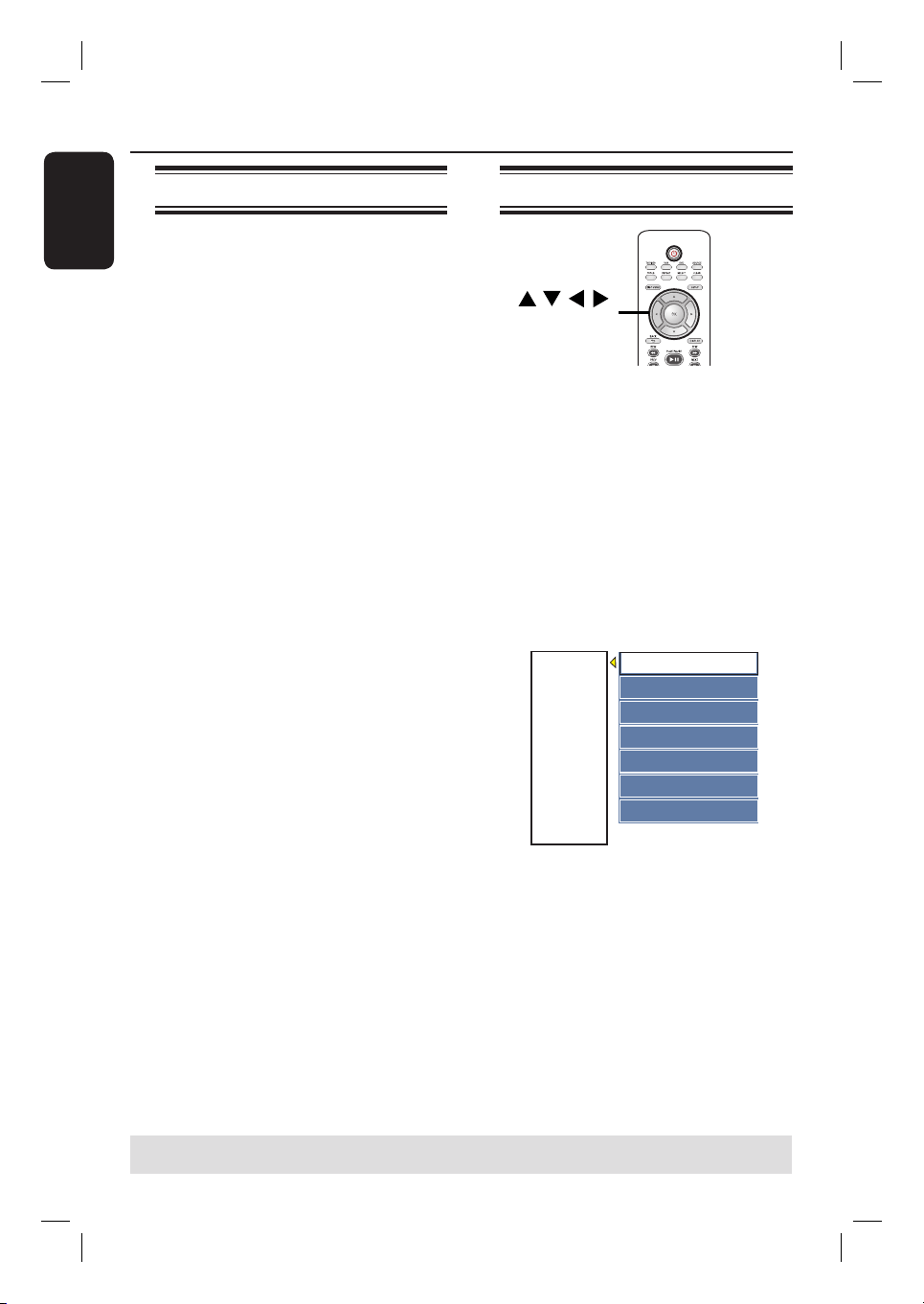
English
44
Edit Recordings - Recordable DVD
TIPS: No further recording and editing can be carried out on a full or nalised DVD±R.
Press W to go back to the previous menu. Press DISC MENU to exit.
About disc editing
This recorder offers various disc edit
options for various disc types. You can
change the disc content and settings of a
recorded DVD from the disc editing
menu. The edited contents may not be
available when you play the disc on an
another DVD player.
The displayed options in the disc editing
menu differ depending on the type of
disc.
{ Play }
Start playing from the beginning of the
disc.
{ Rename Disc }
Change the name of the disc.
{ Erase Disc } - DVD±RW only
Erase all the recordings on the disc.
{ Record New Title }
Start recording from the last empty title
on the disc.
{ Overwrite Disc } - DVD±RW only
Start a new recording from the beginning
of the disc, all the recorded content will
be overwritten.
{ Make Compatible } - DVD±RW only
To ensure the edited changes remain
when the disc is played back on another
DVD player. (e.g., hidden chapters to
remain hidden).
{ Lock/Unlock Disc } - DVD±RW only
Lock or unlock a disc to prevent
accidental erasure or changes being
made.
{ Finalise Disc } - DVD±R only
Finalise the disc to enable playback on
other DVD players. Further recording
and editing to the disc are not allowed. It
is not possible to un nalise the disc.
Accessing disc editing menu
OK
A
Insert a recorded disc into the recorder.
The Index Picture screen appears on
the TV.
B
Select the rst title on the disc, press and
hold S on the remote control.
The disc editing menu appears.
C
Press X on the remote control to display
the disc editing options.
The available editing options are
different for DVD±R and DVD±RW
discs.
Rename Disc
Erase Disc
Record New Title
Overwrite disc
Play
PAL
DVD
EDIT
Make Compatible
Lock Disc
D
Use ST keys to access different options
and OK to select.
Instructions and explanations of the
options are provided in the following
pages.
E
To exit from the disc editing menu, press
W once to exit from the disc editing
menu. Press T to return to the disc
Index Picture menu.
English
45
Edit Recordings - Recordable DVD (continued)
Rename disc
The original disc name is generated
automatically by the recorder. You can
change the disc name by following the
steps below.
A In disc editing menu, use ST keys to
select { Rename Disc } and press OK.
The keyboard screen appears.
B
Use W XST keys to highlight a
character on the keyboard and press OK
to select.
The maximum input is up to 20
characters.
You can use the following keys on the
keyboard screen to edit your input:
BkSp
: to remove the character to
the left of the cursor.
Delete
: to remove the character to
the right the cursor.
Space
: to create a space between
characters.
Caps
: to toggle between upper and
lower case characters.
Clear
: to clear the entry eld
completely.
C
To con rm your entry, select
OK
on
the keyboard and press OK.
The info panel is now updated.
To cancel the changes, select
EXIT
on
the keyboard and press OK.
Erase disc (DVD±RW only)
This erases the content of the
DVD±RW. Once the existing content is
erased, it can be used for recording.
A In disc editing menu, use ST keys to
select { Erase Disc } and press OK.
A warning message will appear.
B
Select
YES
in the menu to proceed or
NO
to abort, then press OK to
con rm.
Record new title
This function allows you to start a new
recording at the remaining empty space
in the DVD±RW.
A
In disc editing menu, use ST keys to
select { Record New Title } and press
OK.
B
Select the source you want to record
from and press REC z to start
recording.
Overwrite disc (DVD±RW only)
This function allows you to start a new
recording from the beginning of a
DVD±RW regardless of the contents of
the disc.
A
In disc editing menu, use ST keys to
select { Overwrite disc } and press OK.
B
Select the source you want to record
from and press REC z to start
recording.
TIPS: No further recording and editing can be carried out on a full or nalised DVD±R.
Press W to go back to the previous menu. Press DISC MENU to exit.

English
46
Make compatible (DVD±RW only)
The edited DVD±RW may still display
the original titles or hidden scenes when
played back on other DVD players. This
function enures that the edited changes
of the DVD±RW remain when played
back on other players.
In disc editing menu, use ST keys to
select { Make Compatible } and press
OK to con rm.
Helpful Hint:
– If the option {Compatible} is not available
for selection, it means that the disc is already
compatible.
Lock/Unlock disc (DVD±RW only)
You can choose to protect the recorded
DVD±RW in order to prevent accidental
loss of recordings.
A In disc editing menu, use ST keys to
select { Lock Disc } and press OK.
The disc is locked for this DVD
recorder only.
When the disc is locked, the option in
the disc editing menu will change to
{ Unlock Disc }.
B
If you want to overwrite or edit on the
protected disc, select { Unlock Disc }.
Playback your recordings
(DVD±R) on other DVD
players
It is necessary to nalise a DVD±R disc
before you can play it on another DVD
player. Otherwise, the DVD±R will only
playback on this recorder.
After a DVD±R disc has been
nalised, no further recordings or
editing can be made to it. Make sure
that you have completed all the
recordings and editing before
nalising the disc.
A In disc editing menu, use ST keys to
select { Finalise Disc } and press OK.
A warning message will appear.
B
Select
YES
in the menu and press OK
to start the process.
Finalisation will take a few minutes,
depending on the length of recordings.
Do not try to open the disc tray or
switch off the power as this may render
the disc unusable.
Otherwise, move to
NO
in the menu
and press OK to abort the operation.
Edit Recordings - Recordable DVD (continued)
TIPS: No further recording and editing can be carried out on a full or nalised DVD±R.
Press W to go back to the previous menu. Press DISC MENU to exit.
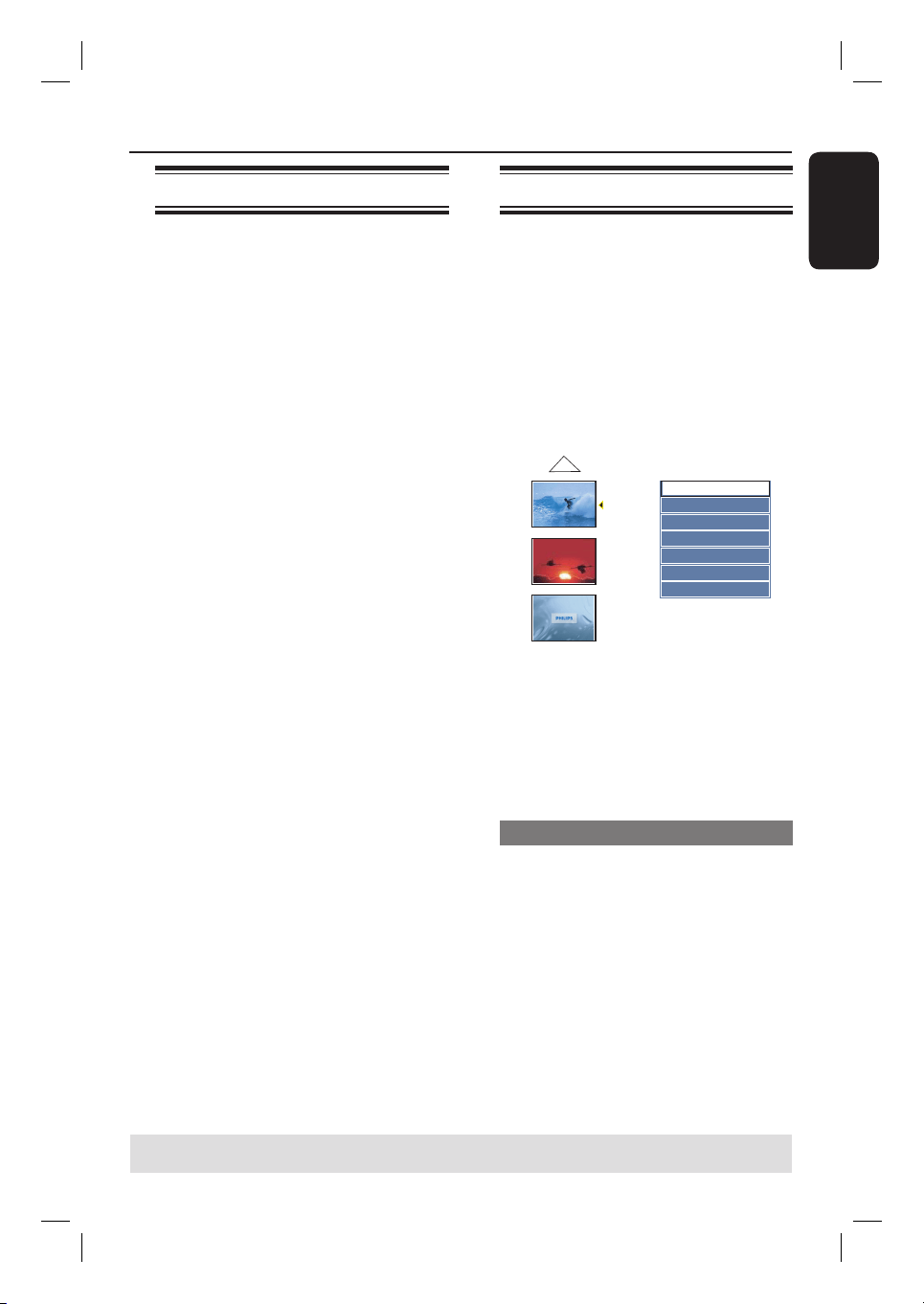
English
47
About title editing
You can change the individual title
information or delete a title (recording)
in a recorded DVD. If a DVD±R has been
nalised, it cannot be edited.
The displayed options in the title editing
menu differ depending on the type of
disc.
{ Play Title }
Start playing a recording.
{ Edit Title }
Access the video editing menu.
{ Rename Title }
Change the name of the recording.
{ Erase Title } - DVD±RW only
Delete the title (recording).
{ Overwrite Title } - DVD±RW only
Start a new recording, the existing title
(recording) will be overwritten.
{ Overwrite Disc } - DVD±RW only
Overwrite from the existing selected title
onwards to the end of the disc.
{ Append Title }
Insert a new recording to the last existing
recording.
Accessing title editing menu
A
Insert a recorded DVD into the
recorder.
The Index Picture screen appears on
the TV.
During playback, press DISC MENU to
access the Index Picture screen.
B
Use ST keys to highlight a title
(recording), and press X.
The title editing menu appears.
1. My movie
01 / 01 / 2006
01 : 31 : 53
HQ 00 : 05 : 59
2. Nature
03 / 02 / 2006
00 : 30 : 00
SP 01: 05 : 59
Empty Title
SP 01:30:50
Edit Title
Rename Title
Erase Title
Overwrite Title
Play Title
Overwrite Disc
Append Title
C
Use ST keys to access different options
and OK to select.
Instructions and explanation of the
options are provided in the following
pages.
D
To exit, press W.
Video editing
This feature allows access to the video
editing menu. See the chapter “Editing/
Finalising Recording – About video
editing” for more information.
In title editing menu, use ST keys to
select { Edit Title } and press OK.
The video editing menu appears.
The recorder will play the selected
title.
Edit Recordings - Recordable DVD (continued)
TIPS: No further recording and editing can be carried out on a full or nalised DVD±R.
Press W to go back to the previous menu. Press DISC MENU to exit.
English
48
Rename title
The original title name is generated
automatically by the recorder. You can
give a new name to the title by following
the steps below.
A
In title editing menu, use ST keys to
select { Rename Title } and press OK.
The keyboard screen appears.
B
Use W X ST keys to highlight a
character and press OK to select.
The maximum input is up to 9
characters.
You can use the following keys on the
keyboard screen to edit your input:
BkSp
: to remove the character to the
left of the cursor.
Delete
: to remove the character to the
right the cursor.
Space
: to create a space between
characters.
Caps
: to toggle between upper and
lower case characters.
Clear
: to clear the entry eld completely.
C
To con rm your entry, select
OK
on
the keyboard and press OK.
The info panel is now updated.
To cancel the changes, select
EXIT
on
the keyboard and press OK.
Erase title
You can delete a speci c title (recording)
from the disc. However, for DVD±Rs, the
deleted space cannot be used for further
recording.
A
In title editing menu, use ST keys to
select { Erase Title } and press OK.
A warning message will appear.
B
Select
YES
in the menu to proceed or
NO
to abort, then press OK.
Overwrite title (DVD±RW only)
This function allows you to record a new
title from the beginning of the current
title in the DVD±RW. The other titles
will not be affected.
A
In title editing menu, use ST keys to
select { Overwrite Title } and press OK.
B Select the source you want to record
from and press REC z to start
recording.
Overwrite from the selected title
You can select to overwrite only the
recordings from the selected title to the
end of the disc.
In video editing menu, use ST keys to
select { Overwrite Disc } and press OK
to con rm.
Append recording
This function allows you to append
recording to the last existing title.
A
In title editing menu, use ST keys to
select { Append Title } and press OK.
B
Press SOURCE to select the input
channel to append.
C
Press REC z to start append recording.
Warning! Once the recording has
started, any prior recording from the
point of the playback and onwards will be
overwritten.
D
To stop append recording, press
STOP x.
Edit Recordings - Recordable DVD (continued)
TIPS: No further recording and editing can be carried out on a full or nalised DVD±R.
Press W to go back to the previous menu. Press DISC MENU to exit.
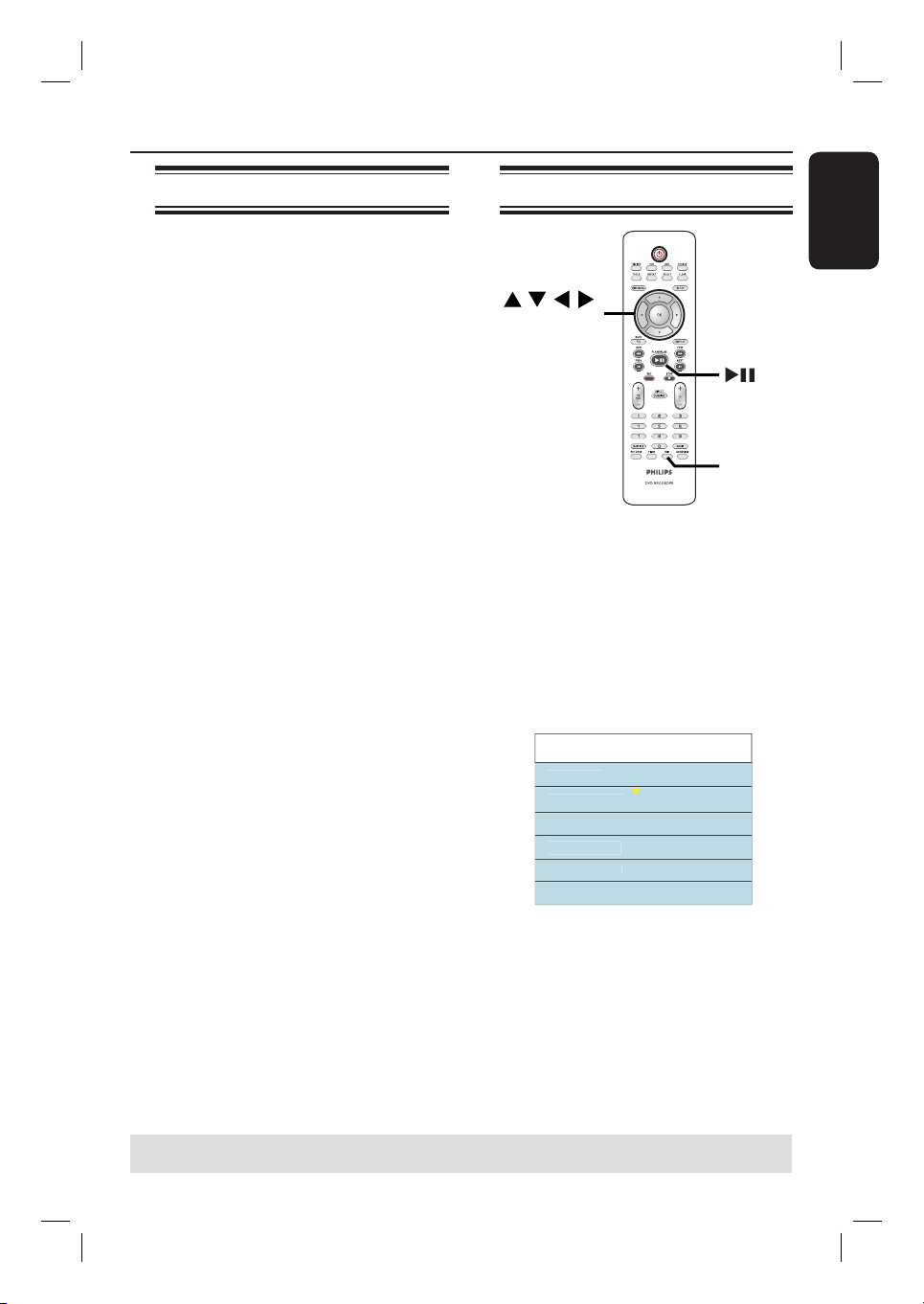
English
49
TIPS: No further recording and editing can be carried out on a full or nalised DVD±R.
Press W to go back to the previous menu.
Edit Recordings - Recordable DVD (continued)
About video editing
After a recording has been made, this
recorder allows you to edit the video
content. You can add/delete chapter
markers, hide unwanted scenes, change
the picture in the index picture screen
and split a title (recording) into two.
When you playback a recording in video
edit mode, the entire recording will be
played back including hidden scenes.
The edit functions available in the disc
editing menu are:
{ Title }
Select a title (recording) to play.
{ Chapter }
Select a chapter within the selected title.
{ Chapter Marker }
Insert a chapter marker in the recording
or erase a chapter marker to combine
two chapters.
{ Hide Chapter }
Hide the unwanted scene in the
recording.
{ Index Picture }
Select a scene in the recording as the
index picture screen.
{ Split Title } – DVD±RW only
Divide the recording into two separate
titles.
Accessing video editing menu
OK
EDIT
A
Insert a recorded DVD into the
recorder.
The Index Picture screen appears on
the TV.
B
Use ST keys to select a title (recording).
C
Press u to start playback.
D
Press EDIT on the remote control.
The video editing menu appears.
Edit Mode 0:03:28
Title 02
/
0
6
Cha
p
ter 01/10
Cha
p
ter Marke
r
Hide Cha
p
te
r
In
de
x Pi
c
t
u
r
e
S
p
lit Titl
e
E
Use ST keys to access different options
and press OK to select.
Instructions and explanations of the
options are provided in the following
pages.
F
To exit, press EDIT.
English
50
Selecting a title
This option shows the current title and
the total number of titles in the disc. It
also allows you to select a speci c title.
A
During playback, press EDIT to display
the video editing menu.
B
Use ST keys to select { Title } and
press OK.
C
Use the numeric keypad 0-9 to key in
a title and press OK.
The recorder will play the selected
title.
Selecting a chapter
This option shows the current chapter
and the total number of chapters in the
title. It also allows you to select a speci c
chapter within the title.
A
During playback, press EDIT to display
the video editing menu.
B
Use ST keys to select { Chapter } and
press OK.
C
Use the numeric keypad 0-9 to key in
the chapter and press OK.
The recorder will play the selected
chapter.
Creating chapter marker
You can create a chapter by inserting
chapter marker at any point within a title
during playback. This will allow you to
access a speci c point in the recording
easily or set a chapter you wish to hide.
Title
Chapter Chapter Chapter Chapter
chapter markers
A
During playback, press EDIT to display
the video editing menu.
B
Use ST keys to select
{ Chapter
Marker } and press OK.
C
Use ST keys to select one of the
options and press OK to con rm.
{ Insert Marker }
Select this to insert a new chapter
marker at the current point of playback.
{ Delete Marker }
Select this to delete the current chapter
marker (it refers to the closest marker
before the current point of playback).
The current chapter will then combine
with the chapter before it.
{ Delete All Markers }
Select this to delete all the chapter
markers in the current title.
Edit Recordings - Recordable DVD (continued)
TIPS: No further recording and editing can be carried out on a full or nalised DVD±R.
Press W to go back to the previous menu.

English
51
Edit Recordings - Recordable DVD (continued)
TIPS: No further recording and editing can be carried out on a full or nalised DVD±R.
Press W to go back to the previous menu.
Hiding/unhiding an unwanted
chapter
You can choose to hide certain scenes
from playback (e.g. skipping a commercial
scene) or make it visible again.
A
Create a chapter marker at the start and
end of the scene you want to hide. (See
previous page on “Creating Chapter
Marker”).
B
Select the chapter you want to hide and
start playback. (See previous page on
“Selecting a chapter”).
C
During playback, press EDIT to display
the video editing menu.
D
Use ST keys to select { Hide Chapter }
and press OK.
The current chapter will be hidden.
To unhide a chapter
A
Press EDIT on the remote control
during playback.
The video editing menu appears.
While in editing mode, the hidden
chapter/chapters will be played back.
B
Wait for the chapter you want to unhide
to occur or use à á keys on the
remote control to make a fast search.
C
Use ST keys to select { Unhide
Chapter } and press OK.
The current chapter will be visible
during playback.
Helpful Hints:
– All the hidden chapters will be played back
while in video editing mode.
– To locate a speci c frame during playback,
press u and the X key to forward search
to the frame that you want.
Changing Index Picture
The index picture is the picture of the
title you will see when the recorder loads
up the Index menu. Normally, the rst
frame of a recording is shown as the
title’s index picture.
A
During playback, press EDIT to display
the video editing menu, then use ST
keys to highlight { Index Picture }.
B
Press u to pause playback.
C
Press X to search for the desired frame
and press OK to select the current frame
as the index picture for the title.
Splitting a title (DVD±RW only)
You can divide the current title into two
new titles. Each of these titles is
characterised by its own index picture.
Warning! Once a title is divided, the
process cannot be reversed.
A
During playback, press EDIT to display
the video editing menu, then use ST
keys to highlight { Split Title }.
B
Press u to pause playback.
C
Press X to search for the desired frame,
and press OK to divide the title at the
current frame.
A new title will be shown at the Index
Picture screen.
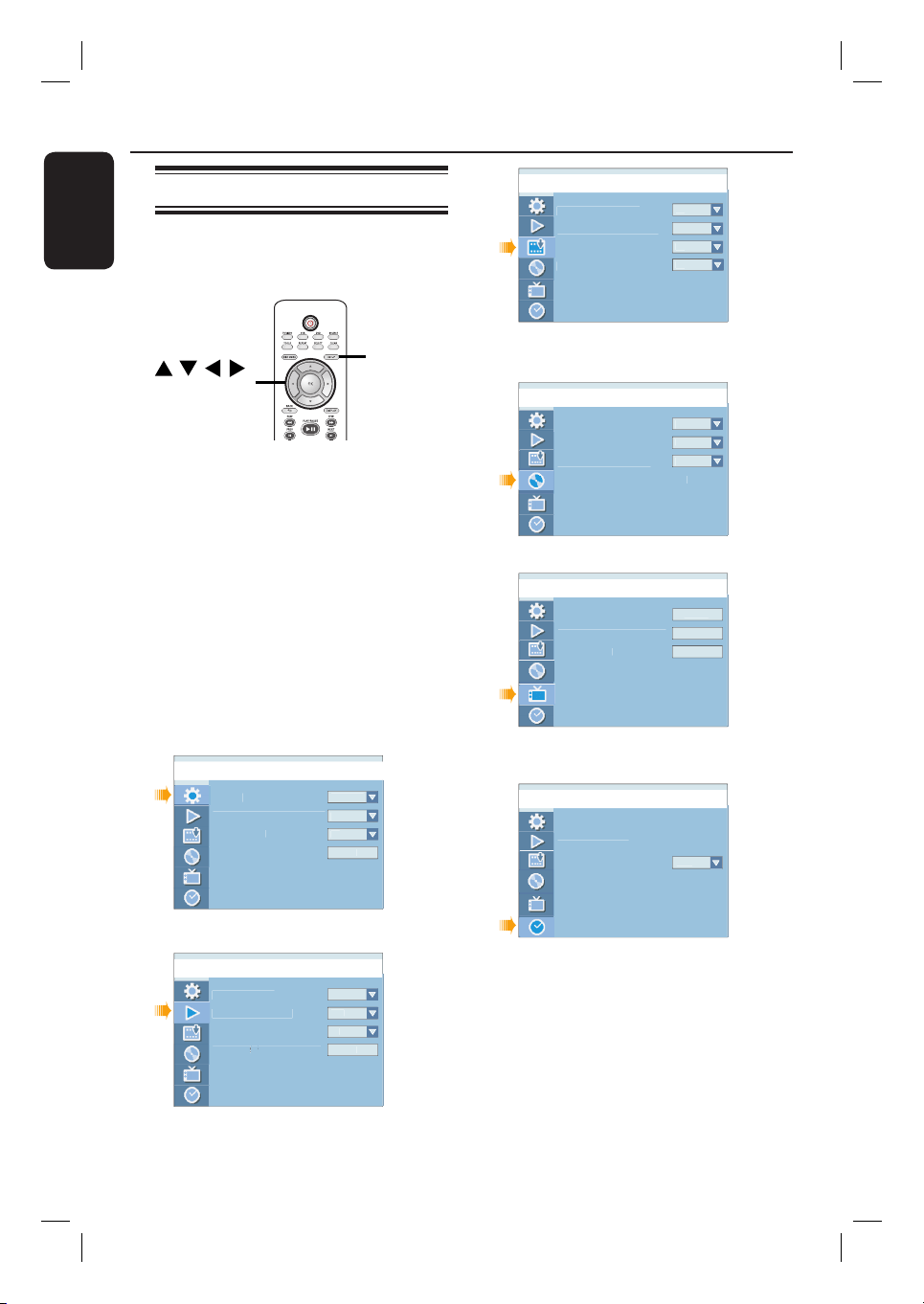
English
52
DVD Setup Menu Options
Accessing the Setup Menu
The system setup menu provides various
options for you to adjust the recorder to
suit your preferences.
SETUP
OK
A
Press SETUP on the remote control.
The system setup menu appears on
TV.
B
Use ST keys to highlight a menu item
and press X to access its options.
C
Use ST keys to highlight the setting you
wish to change and press OK to con rm
and go back to the previous menu item.
Instructions and explanations of the
options are provided in the following
pages.
D
To exit, press SETUP.
Countr
y
On Screen Dis
p
la
y
Lan
g
ua
ge
Screen Save
r
Reset Menu Settin
g
s
Setu
p
Menu - Genera
l
German
y
En
g
lis
h
On
OK
See this chapter – “GENERAL Settings”
TV As
p
ect Rati
o
Video Out
p
ut Forma
t
Di
g
ital Audio Out
p
u
t
Show DivX
®
X®
Registration Code
®
Setu
p
Menu - Pla
y
bac
k
4:
3
Letterbo
x
PAL
All
OK
See this chapter – “PLAYBACK Settings”
Setu
p
Menu - Recor
d
A
uto Cha
p
ter Marke
r
S
y
stem Recordin
g
Sourc
e
DVD Default Recordin
g
Mod
e
VCR Default Recordin
g
Mod
e
On
T
u
n
er
S
P
S
P
See Recording chapter – “RECORD
Settings”
Setu
p
Menu - DV
D
En
g
lis
h
O
f
f
En
g
lis
h
O
f
f
Default Disc Menu Lan
g
ua
ge
Default Subtitle Lan
g
ua
ge
Default Audio Lan
g
ua
ge
Parental Ratin
g
Level
See this chapter – “DVD Settings”
Setu
p
Menu - Channel Setu
p
Searc
h
E
d
i
t
Sor
t
Channel Searc
h
Modif
y
Channel Informatio
n
Sort Channels
See this chapter “CHANNEL SETUP
Settings”
Setu
p
Menu - Clock
01
/
01
/
0
6
00
:
05
:
08
A
u
t
o
Date (dd / mm /
yy)
Time
(
hh : mm : ss
)
Date-Time Settin
g
See this chapter “CLOCK Settings”
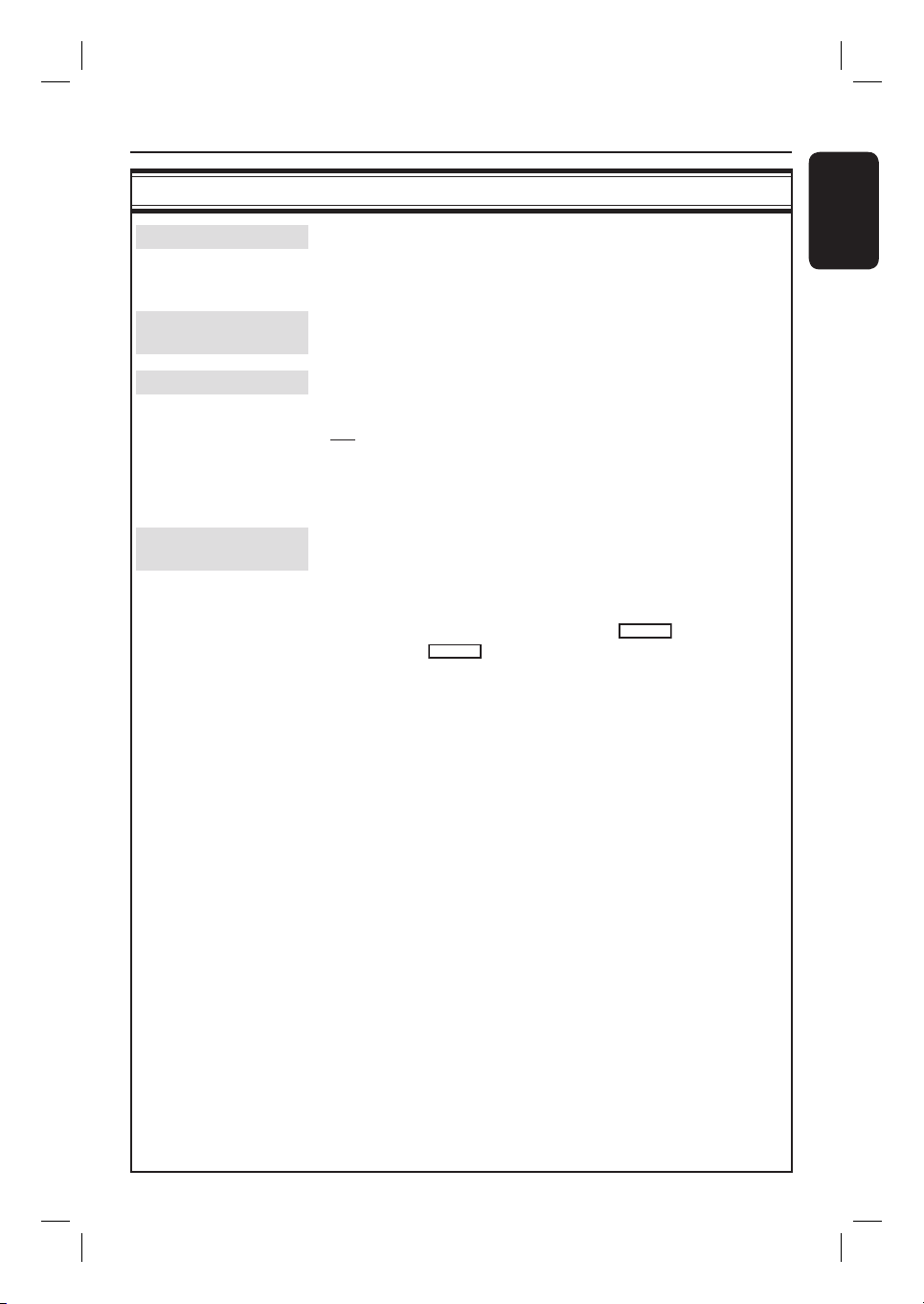
English
53
DVD Setup Menu Options (continued)
GENERAL settings (underlined options are the factory default settings)
Country
Select the country of your area for auto channel tuning. (See
section “Step 3: Installation and Setup - Select the country of your
residence”).
On Screen Display
Language
Select the menu language for this recorder on-screen display.
Screen Saver
The screen saver prevents damage to the TV screen by avoiding
exposure to a static image for too long.
{ On } – Switches to TV screen saver mode when
playback has been stopped or paused for
more than 15 minutes.
{ Off } – Turns off the screen saver function.
Reset Menu
Settings
Restore all the settings of this recorder, except for the PIN code.
Reset Menu Settings can only be changed when there is no
disc in the disc tray.
1) Press OK to con rm the default restore.
2) A warning message will appear. Select
OK
in the menu to
proceed or
CANCEL
to abort, then press OK to con rm.
English
54
PLAYBACK settings (underlined options are the factory default settings)
DVD Setup Menu Options (continued)
TV Aspect Ratio
Set the aspect ratio of the recorder according to the TV type you
have connected.
{ 16:9 } – Select this for wide screen TV
(frame ratio 16:9).
{ 4:3 Letterbox } – Select this for a ‘wide screen’ display
with black bands on the upper and
lower portions of the TV screen.
{ 4:3 Panscan } – Select this for a full-height
picture with both side trimmed.
Video Output
Format
The colour system of the DVD system, DVD and TV should
match. Only then will it be possible to play a DVD on this system.
Before changing the TV system, determine the colour system of
your TV.
{ NTSC } – Select this if the connected TV has the NTSC
colour system. It will change the video signal
of a PAL disc and output it to NTSC format.
{ PAL } – Select this if the connected TV has the PAL
colour system. It will change the video signal
of an NTSC disc and output it to PAL format.
Note: If a blank/distorted TV screen appears, wait for 15 seconds for the
auto recovery.
Digital Audio
Output
Adjust the digital output setting only if you have connected other
devices to the coaxial socket on the recorder.
{ ALL } – Select this if you have used the COAXIAL
socket on the recorder to connect to a
stereo receiver that has a built in multichannel
decoder.
{ LPCM } – Select this if the connected audio equipment
is not capable of decoding multichannel audio
Dolby Digital and MPEG-2 multi-channel
signals are converted to PCM (Pulse Code
Modulation).
English
55
DVD Setup Menu Options (continued)
PLAYBACK settings (underlined options are the factory default settings)
Show DivX®
Registration code
Display the DivX® VOD (Video On Demand) registration code
that allows you to rent and purchase videos using the DivX®
VOD service. For more information, visit us at
www.divx.com/vod.
1) Press X to display the registration code.
2) Use the registration code to purchase or rent videos from
DivX® VOD service at www.divx.com/vod. Follow the
instructions and copy the video from your computer onto a
CD-R/RW or recordable DVD disc for playback on this
recorder.
DVD settings (underlined options are the factory default settings)
Default Disc Menu
Language
Select the preferred disc menu language for DVD playback.
Default Subtitle
Language
Select the preferred subtitle language for DVD playback.
Default Audio
Language
Select the preferred audio language for DVD playback
.
Notes:
– If the selected audio/subtitle language is not available on the disc, the
disc’s default setting language will be used instead.
– For some DVDs, the subtitle/audio language can only be changed via the
DVD disc menu.
English
56
* * * *
Enter Password
OK
CANCELOK
DVD settings (underlined options are the factory default settings)
DVD Setup Menu Options (continued)
Parental Rating
Level
Some DVDs may have a parental level assigned to the complete
disc or to certain scenes on the disc. This feature lets you set a
playback limitation level.
1) Use ST keys to select { Parental Rating Level } and press
OK.
2) Use the numeric keypad 0-9 to enter your four-digit pin
code.
Note: When doing this for the rst time or if you forget your four-digit
pin code, enter the default password '3308'.
3) Move to
OK
in the menu and press OK on the remote
control. The set rating level menu appears.
4) Use ST keys to select the desired parental level, then move
to
OK
in the menu and press OK on the remote control
to con rm.
Notes:
–
The rating levels range from 1 to 8 and are country dependent.
DVDs
that are rated higher than the level you have selected will not play
unless you enter your four-digit pin code.
–
To disable parental controls and allow all discs to play, select { Off }.
– VCD, SVCD, CDs have no level indication, so parental control has no
effect on these type of discs. This also applies to most illegal DVDs.
– Some DVDs are not coded with a rating though the movie rating may
be printed on the disc cover. The rating level feature does not prohibit
playback of such discs.
To change/ reset the password
1) Use ST keys to select { Parental Rating Level } and press
OK.
2) Use the numeric keypad 0-9 to enter your four-digit pin
code.
3) Move to
OK
in the menu and press OK on the remote
control. The set rating level menu appears.
4) Move to
New
in the menu and press OK to access new
password menu.
5) Use the numeric keypad 0-9 to enter your new four-digit
pin code, then press T to select the next entry eld and enter
the same pin code a second time.
6) Move to
OK
in the menu and press OK to con rm.
Note: To abort the change, select
CANCEL
and press OK. { Off }.
Set Rating Level
New password
4. PG 13
5. PG R
4. PG 13
OK
New
OK
New password
Confirm password
* * * *
New Password
OK
CANCEL
OK
English
57
CHANNEL SETUP settings
Setu
p
Menu - Channel Setu
p
E
d
i
t
Sor
t
Channel Searc
h
Modif
y
Channel Informatio
n
Sort Channels
Searc
h
Channel Search
This option automatically scans all the receivable analogue local
TV channels and stores these channels on the recorder.
Press OK on the remote control to start the automatic TV
channel search process and replace all previously stored analogue
TV channels. This process may take several minutes.
Modify Channel
Information
Adjust a stored TV channel to your preference and improve the
reception and the sound quality of that TV channel.
1) Use ST keys to highlight
{ Modify Channel Information }
and press OK to view the channel menu.
2) Use ST keys to select one of the options and press OK.
{ Name } – Use the numeric keypad 0-9 to select the
channel preset number that you wish to
change.
– To rename the channel, press X.
– Use W X ST keys to highlight a character
in the keyboard screen and press OK to
select.
Note: The maximum input is up to 5 ( ve)
characters.
– Select
OK
on the keyboard to con rm
your entry or select
EXIT
to abort, then
press OK to exit.
{ Scan Mode } – Select TV channel search mode based on
channel allocation or frequency (Frequency,
Channel or S-Channel) and press OK to
con rm.
{ Frequency } – Show the frequency of the current TV
channel. If required, use W X keys to start
the automatic frequency search and press
OK to con rm.
{ TV System } – Use ST keys to select a suitable TV system
that produces the least distortion of picture
and sound, then press OK to con rm. (See
chapter “TV System Guide” at the back of
this manual for more information).
DVD Setup Menu Options (continued)
Channel
Frequency
TV System
NICAM
Audio
OK
Frequency
PAL B/G
Name
On
OK
DUAL A
Off
Skip
Fine-tune
585.26MHz
CANCEL
Decoder
No
Scan mode
P001/Ch003
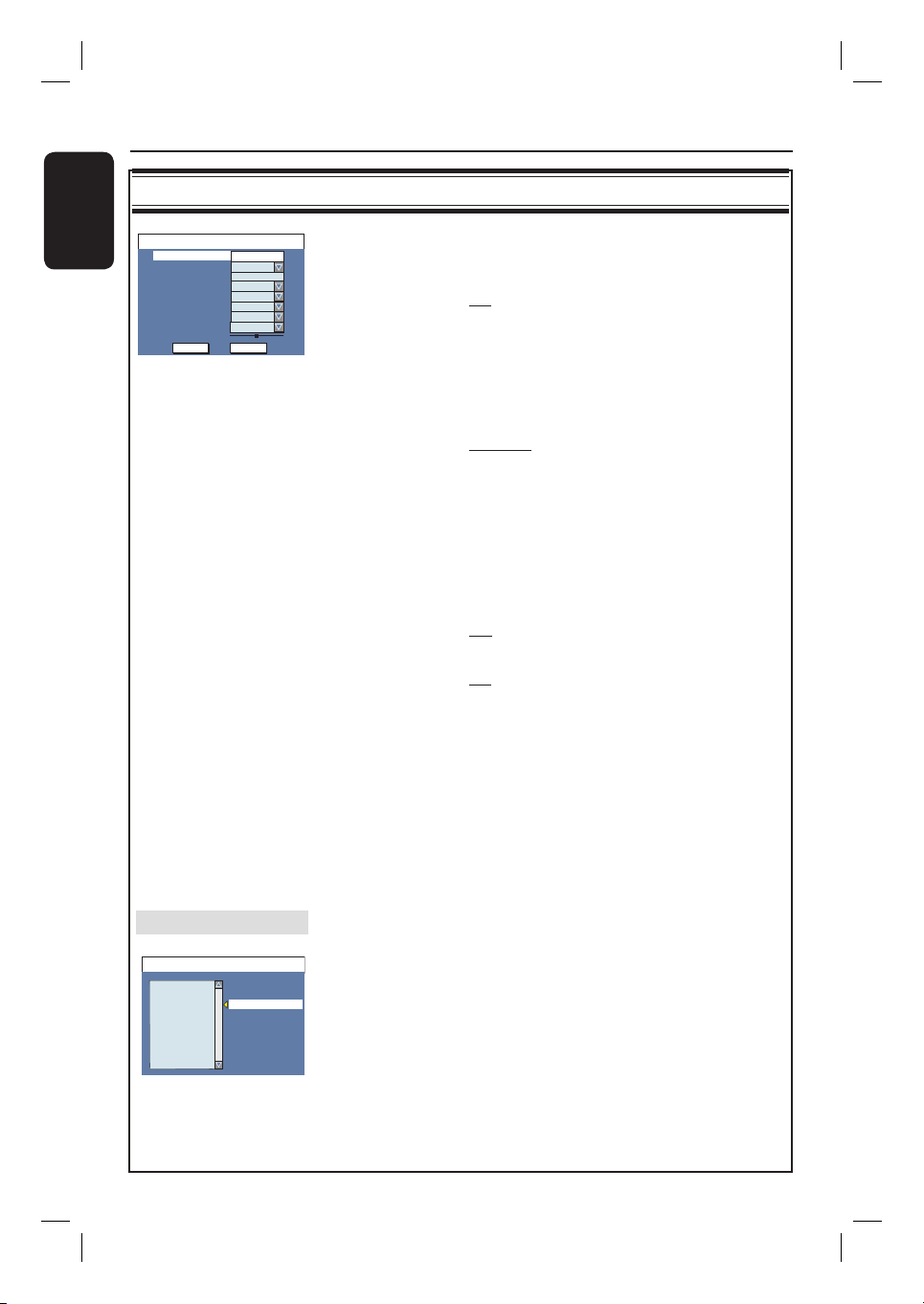
English
58
CHANNEL SETUP settings
{ NICAM } – NICAM is a digital sound transmission
system. It can transmit either one stereo
channel or two separate mono channels.
{ On } – Improve the sound transmission
of the TV channel.
{ Off } – Select this if the reception is poor
and the sound is distorted.
{ Audio } – For bilingual TV programmes, you can switch
between stereo (original) and additional
audio language.
{ DUAL A } – Original broadcast language.
{ DUAL B } – Additional audio language.
{ Decoder } – If the current TV channel is transmitted by
coded TV signals that can only be viewed
properly with a decoder which is connected
to the EXT2 AUX-I/O socket, you need to
activate the connected decoder.
{ On } – Select this to allocate the connected
decoder to this TV channel.
{ Off } – Turn off the decoder feature.
{ Skip } – Select this to set the channel to be skipped.
{ No } – The TV channel can be accessible
using the P + − on the remote
control.
{ Yes } – The TV channel can only be
accessible by pressing the
corresponding number button on
the remote control.
{ Fine-Tune } – Select this to ne-tune the TV channel
manually if the reception is poor. Use
W
X
keys to adjust the frequency and press OK
to con rm.
Sort Channels
Rearrange the stored TV channels.
1) Use ST keys to highlight { Sort Channels } and press OK
to show a list of TV channel programmes.
2) Use ST keys to highlight the channel you want to change
and press OK.
3) Use ST keys to shift the TV channel to the desired position
and press OK again. The selected channel will be inserted
before the current position.
Note: Press
BACK2
on the remote control to go back to the previous
menu.
Channel
Frequency
TV System
NICAM
Audio
OK
Frequency
PAL B/G
Name
On
OK
DUAL A
Off
Skip
Fine-tune
585.26MHz
CANCEL
Decoder
No
Scan mode
P001/Ch003
Sort Channels
P001
P002
P003
P004
P005
P006
P007
P008
BC020
SW006
CH008
CH004
CH006
CH010
CH012
CH005
Skip
Unskip
Unskip
Unskip
Skip
Unskip
Unskip
Unskip
P003 CH008 Unskip
DVD Setup Menu Options (continued)

English
59
CLOCK settings (underlined options are the factory default settings)
Date (dd/mm/yy)
Use ST keys to change the number and use W X keys to select
different entry elds, then press OK to con rm.
Time (hh/mm)
Use
ST
keys to change the number and use W
X keys to select
different entry elds, then press OK to con rm.
Date-Time Setting
Enable/disable the automatic setting of date and time.
This feature
is dependent on your local broadcaster.
{ Auto } – Select this to activate automatic setting of
date and time.
{ Manual } – Select this to manually set the date and time.
DVD Setup Menu Options (continued)

English
60
Other Information
Installing the latest software
The software installed in your recorder is
continuously being re ned for greater
stability and compatibility of the set.
Periodically, Philips will issue upgrades for
the software which you copy onto a CD
and install the software of your recorder.
Caution! Power supply must not be
interrupted during upgrade!
A
Get the version information of this
recorder by pressing the number keypad
‘0009’ and press OK on the remote
control.
Write down the information for your
current software version.
B
Visit the Philips website ‘www.philips.
com/support’ to check the availability of
the latest software upgrade. Download
the software to a CD-R.
Note: When checking for the latest
software upgrade, please also check for
any accompanying instructions on
installing the software.

English
61
Picture/Display
• Aspect ratio: 4:3, 16:9
• D/A converter: 10 bit, 54 MHz
• A/D converter: 10 bit, 27 MHz
Sound
• D/A converter: 24 bit, 192 kHz
• A/D converter: 24 bit, 96 kHz
Video Recording
• Recording system: PAL, SECAM
• Compression formats: MPEG2
• Recording modes:
High Quality : HQ
Standard Play : SP
Standard Play Plus : SPP
Long Play : LP
Extended Play : EP
Super Long Play : SLP
• Audio compression: Dolby Digital
Video Playback
• Disc playback media: CD, CD-R/-RW, DVD,
DVD-Video, DVD+R/+RW, DVD-R/-RW
SVCD, Video CD, DVD+R DL
• Compression formats: MPEG2, MPEG1,
MPEG4, DivX 3/4/5/6
• Video disc playback system: NTSC, PAL
• Video tape playback system: PAL, SECAM,
ME-SECAM, NTSC
Audio Playback
• Disc playback media: CD, CD-R/-RW,
MP3-CD, MP3-DVD, WMA
• Compression formats: Dolby Digital, DTS,
MP3, MPEG2 Multichannel, PCM
• MP3 bit rates: 32~256 kbps and VBR
Still Picture Playback
• Disc formats: DVD+R/+RW, DVD-R/-RW,
CD-R/RW
• Picture compression formats: JPEG
• Picture enhancement: Rotate, Zoom,
Slideshow with music playback
Storage Media
• Recording media: DVD+R, DVD+RW,
DVD-R, DVD-RW, DVD+R DL, VHS tape
Tuner/Reception/Transmission
• TV system: PAL, SECAM
• Aerial Input: 75 Ohm coaxial (IEC75)
Connectivity
Rear Connections:
• EXT 1 Scart
• EXT 2 Scart
• S-Video Out
• Video (CVBS) Out
• Audio left/right Out
• Digital audio out (coaxial)
• RF antenna in
• RF TV out
• Mains
Front Connections:
• i.LINK DV in (IEEE 1394 4-pin)
• Video In (CAM1)
• Audio left/right In
Convenience
• Programming/Timer Enhancements: Daily/
Weekly, Repeat Programme, Manual Timer,
One Touch Recording, SHOWVIEW
®
/VIDEO
P
LUS+
• Programmable events: 8
Power
• Power supply: 220–240V; ~50 Hz
• Consumption: 32 W (typical)
• Standby power consumption: < 5W
Cabinet
• Dimensions (wxhxd) : 435 x 100 x 344 mm
• Net Weight : 5.2 kg
Speci cations

English
62
Troubleshooting
Problem (General) Solution
WARNING
Under no circumstances should you try to repair the system yourself, as this
will invalidate the warranty. Do not open the system as there is a risk of
electric shock.
If a fault occurs, rst check the points listed below before taking the system for
repair. If you are unable to remedy a problem by following these hints, consult
your dealer or Philips for help.
No power.
Remote control does not
work.
No picture.
No sound.
No TV signal received
from the recorder.
– Press STANDBY-ON button on the front of the
recorder to turn on the system.
– Make sure the AC outlet has power.
– Aim the remote control directly at the sensor on the
front of the DVD recorder (not towards TV).
– Remove any obstacles between the recorder and the
remote control. Aim the remote control towards the
set at different angles and/or distances.
– Batteries are weak, replace the batteries.
– Press SOURCE on the remote control to select an input
source.
– Turn on your TV and set to the correct Video In
channel. Switch the TV channel until you see the DVD
screen. Read chapter “Step 3 - Installation and Setup –
Finding the correct viewing channel” for details.
– Check the video connection between the recorder and
the TV.
– Check the audio connections, the red and white
sockets. Read chapters “Getting Started - Connecting
the audio cables” for details.
– Set the Digital output correctly, based on the equipment
you connected to the DVD recorder. Read chapter
“DVD Setup Menu Options – PLAYBACK settings –
Digital Audio Output” for details.
– Have your antenna or cable TV signal checked.
– Install the TV channel. Read chapter “Step 3: Installation
and Setup - Setting the TV channel programmes” for
details.

English
63
Problem (General) Solution
Troubleshooting (continued)
TV channel is fuzzy or
distorted.
Unable to eject disc tray.
– Check the video connection between the DVD recorder
and the TV.
– You can further ne-tune the signal of the TV channel.
Read chapter on “DVD Setup Menu Options -
CHANNEL SETUP Settings - Modify Channel
Information”.
– Press P +/- to search for the same TV channel which
may have a clearer picture.
– Exit from any system or recording setup menu until you
see the Philips wallpaper on the screen.
– Press STOP to stop any playback or recording. Then
press OPEN/CLOSE to eject the disc tray.

English
64
Problem (Playback) Solution
Troubleshooting (continued)
Disc does not play.
Distorted sound coming
from a connected hi-
system or ampli er.
Unable to play DivX
movies.
The picture is distorted
or black and white during
playback.
There is picture or sound
interference with the TV
reception.
The message
‘UNKNOWN DISC’
appears.
– Insert the disc with the label facing up.
– Wrong region code. The DVD must be coded for ALL
regions or Region 2 in order to play on this DVD
recorder.
– There is no recording on the disc or wrong disc type.
Read chapter “DVD Playback - Playable discs” for
details.
– Make sure the disc is not scratched or warped. Clean
the disc or replace a new one.
– Check if the disc is defective by trying another disc.
– Do not connect any cables from the recorder to the
‘Phono’ input of your ampli er.
– If you are playing a DTS CD, you have to connect the
COAXIAL socket of this recorder to a Hi-Fi system or
ampli er.
– Ensure that the DivX le is encoded according to the
‘Home Theatre Pro le’ with the DivX encoder.
– Check that the DivX movie downloaded is a complete
le.
– The disc does not match with the TV colour system
standard (PAL/NTSC). Change the { Video Output
format } in { Setup Menu – General }.
– The disc is dirty, clean the disc.
– Sometimes a small amount of picture distortion may
appear. This is not a malfunction.
– For VCR, clean the video heads. If the condition
persists, the video heads may have to be replaced.
– Check if the VHS tape is defective by playing other VHS
tapes.
– Have your antenna or cable TV signal checked.
– Do not tie the cables of the connected devices together.
– Fine-tune your TV channel. Read chapter “Step 3:
Installation and Setup - Setting the TV channel
programmes” for details.
– This message may appear if you insert a disc that may
have encountered one of the following:
– Error during recording: The title may be missing.
– Error while changing the title/index picture: The original
title/index picture may be visible.
– Error while nalising or the disc has not been nalised.

English
65
Problem (Recording) Solution
Troubleshooting (continued)
The wrong TV channel
was decoded (recorded)
after you programmed a
recording using the
ShowView® / VIDEO
Plus+ system.
Picture is fuzzy and
brightness varies when
copying DVD Video discs
or prerecorded video
tapes.
Recordings are not
occurring as scheduled.
New recordings cannot be
made.
A DVD±R/±RW recorded
on this DVD recorder
does not playback on a
DVD player.
The picture on my
decoder appears to be
distorted during
recording.
The VHS tape is ejected
when you press REC
button.
1) Press SHOWVIEW (or VIDEO Plus+) on the remote
control, enter the programming or Plus code number of
the desired TV channel.
2) Press OK to con rm.
3) Check the channel number in the {Program #} input
eld. If this does not correspond to the desired TV
channel, select this entry eld and change the channel
number.
4) Press OK to con rm.
– This happens if you try to copy DVDs or video tapes
that have been copy-protected. Even though the picture
on the TV is ne, but the recording on the DVD
recordable disc is faulty. This interference is unavoidable
with copy-protected DVDs or video tapes.
– The DVD recordable disc has a limited recording
lifetime, please change a new disc for recording.
– The TV channel you want to record is not stored or
you selected the wrong programme number. Check TV
channels stored.
– If you adjust the clock after you set a timer recording,
you have to reset the timer recording.
– If the recorder cannot read the disc, you cannot record.
– You cannot use the recorder to duplicate copyrighted
materials (DVDs or videotapes) onto a DVD±R/±RW.
– A nalised DVD±R has been inserted. Change disc.
– If a recording is too short, it is possible that a DVD
player cannot detect it.
– You have to nalise the DVD±R. Refer to chapter
“Playing your recordings (DVD±R) on other DVD
players” for details.
– If you are recording a programme from your decoder
box, you can view the same programme by pressing the
TV/VIDEO on the recorder’s remote control.
– If the safety tab has been removed, cover the tab hole
with clear tape.
– Make sure the VHS tape is not at its end.
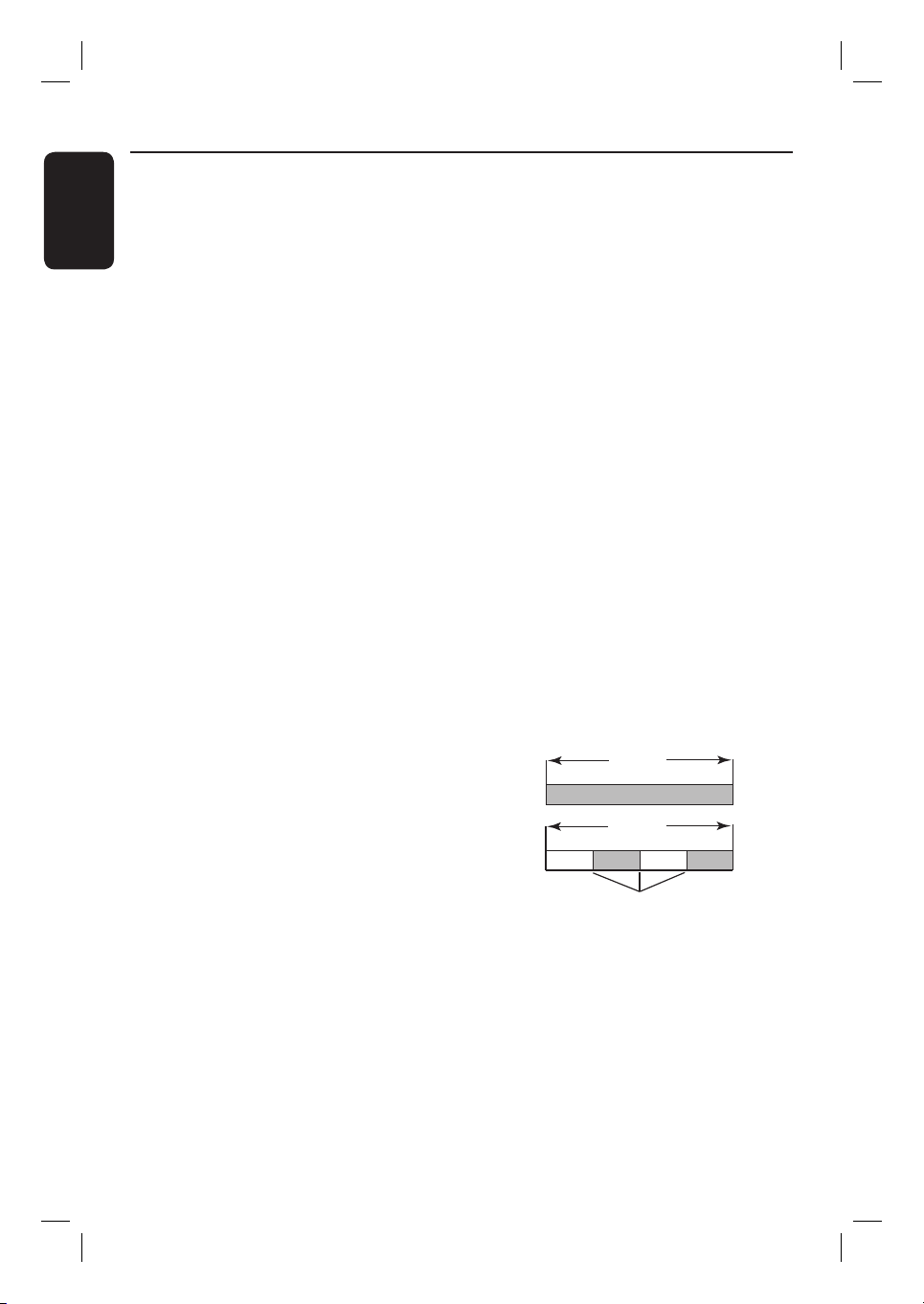
English
66
What kind of disc should I use for
recording?
You can only record on DVD±R,
DVD±RW or DVD+R DL discs DVD±R/
±RW is the most compatible recordable
DVD format in the market today. They
are fully compatible with most of the
existing DVD-Video players and DVD-
ROM drives in computers.
What is the capacity of a DVD±R/
+RW disc?
4.7GB, or equivalent to six CDs. You can
store only one hour of recordings on a
single disc at the highest quality (DVD
standard) and about 6 hours recording at
the lowest quality (VHS standard). The
recording mode indicates the number of
hours that will t on a single disc.
What is the difference between
DVD±R and DVD±RW?
DVD±R is “recordable” and DVD±RW is
“erasable” and “rewritable”. With a
DVD±R, you can record multiple
sessions on the same disc, but when the
disc is full, you cannot record any more
on the disc. The DVD±RW allows you to
record over the same disc repeatedly.
How do I check the remaining space
available on a recordable DVD disc?
In disc menu mode, press REC MODE on
the remote control repeatedly to display
the remaining recording time in different
recording mode.
What is DV?
Using DV, also known as i.LINK, you can
connect a DV-equipped camcorder to
this recorder using a single DV cable for
input and output of audio, video, data and
control signals.
– This recorder is only compatible with
DV-format (DVC-SD) camcorders.
Digital satellite tuners and Digital VHS
video recorders are not compatible.
– You cannot connect more than one
DV camcorder at a time to this recorder.
– You cannot control this recorder from
external equipment connected via the DV
IN socket.
Can I copy a VHS tape or DVD
from an external player?
Yes, but only if the VHS tape or DVD is
not copy protected.
What are Titles and Chapters?
A DVD disc contains Titles and Chapters,
which are similar to the Titles and
Chapters of a book. A Title is often a
complete movie and is broken down into
Chapters, or individual scenes from the
movies.
Title
Chapter
Title
Chapter Chapter Chapter Chapter
cha
p
ter markers
Programmes are recorded as a single
title, it may consist of one chapter or a
few chapters within a title, depending on
the recording settings.
Frequently Asked Questions

English
67
Frequently Asked Questions (continued)
How do I set up Titles and
Chapters?
The recorder automatically creates a new
Title every time you start a new
recording. You can then add Chapters to
these recordings manually or have them
automatically inserted at 5-minute
intervals.
What does “ nalising” a disc do?
Finalising a disc locks the disc so it can no
longer be recorded, only required for
DVD±R. It will then be compatible with
any DVD player. To close a disc without
nalising it, simply stop recording and
eject the disc. You will still be able to
record on the disc if there is room for
more recordings.
How good is the quality of the
recording?
There are a few quality levels to choose
from, ranging from “1 hour mode” (High
Quality) to “6 hours mode” (Super Long
Play). Press REC MODE button on the
remote control to choose the quality
level that best suits your purpose and the
length of material.
Maximum Recording
Time per Disc (hours)
Picture Quality
Record Mode
1
2
2.5
3
4
6
High Quality
Standard Play
Standard Play Plus
Long Play
Extended Play
Super Long Play
HQ
SP
SPP
LP
EP
SLP
What is ‘index’ for VHS tape?
When you make a recording to a VHS
tape, an index is automatically marked on
the tape when recording starts. These
index markings can help to locate a
speci c recording quickly and easily.

English
68
Analogue: Sound that has not been turned
into numbers. Analogue sound varies, while
digital sound has speci c numerical values.
These sockets send audio through two
channels, the left and right.
Aspect ratio: The ratio of vertical and
horizontal sizes of a displayed image. The
horizontal vs. vertical ratio of conventional
TVs. is 4:3, and that of wide-screens is 16:9.
AUDIO OUT Sockets: Red and white
sockets on the back of the system that send
audio to another system (TV, Stereo, etc).
Chapter: Sections of a picture or a music
piece on a DVD that are smaller than titles.
A title is composed of several chapters. Each
chapter is assigned a chapter number
enabling you to locate the chapter you want.
Digital: Sound that has been converted into
numerical values. Digital sound is available
when you use the DIGITAL AUDIO OUT
COAXIAL. These sockets send audio
through multiple channels, instead of just
two channels as analogue does.
Disc menu: A screen display prepared for
allowing selection of images, sounds,
subtitles, multi-angles, etc recorded on a
DVD.
DivX: The DivX code is a patent pending,
MPEG-4 based video compression
technology, developed by DivX Networks
Inc., that can shrink digital video to sizes
small enough to be transported over the
internet, while maintaining high visual quality.
Dolby Digital: A surround sound system
developed by Dolby Laboratories containing
up to six channels of digital audio (front left
and right, surround left and right, centre and
subwoofer).
DTS: Digital Theatre Systems. This is a
surround sound system, but it is different
from Dolby Digital. The formats were
developed by different companies.
Index Picture Screen: A screen that gives
an overview of a DVD±RW or DVD±R. An
Index Picture represents each recording.
JPEG: A very common digital still picture
format. A still-picture data compression
system proposed by the Joint Photographic
Expert Group, which features small decrease
in image quality in spite of its high
compression ratio.
MP3: A le format with a sound data
compression system. “MP3” is the
abbreviation of Motion Picture Experts
Group 1 (or MPEG-1) Audio Layer 3. By
using the MP3 format, one CD-R or CD-RW
can contain about 10 times more data then a
regular CD.
MPEG: Motion Picture Experts Group. A
collection of compression systems for digital
audio and video.
Multichannel: DVDs are formatted to have
each sound track constitute one sound eld.
Multichannel refers to a structure of sound
tracks having three or more channels.
PBC: Playback Control. Refers to the signal
recorded on video CDs or SVCDs for
controlling playback. By using menu screens
recorded on a Video CD or SVCD that
supports PBC, you can enjoy interactive
playback and searching.
PCM: Pulse Code Modulation. A digital
audio encoding system.
Glossary

English
69
Parental control: Limits disc play according
to the age of the users or the limitation level
in each country. The limitation varies from
disc to disc; when it is activated, playback will
be prohibited if the software’s level is higher
than the user-set level.
Region code: A system allowing discs to be
played only in the region designated. This
unit will only play discs that have compatible
region codes. You can nd the region code
of your unit by looking on the product label.
Some discs are compatible with more than
one region (or ALL regions).
S-Video: Produces a clear picture by
sending separate signals for the luminance
and the colour. You can use S-Video only if
your TV has an S-Video In socket.
Surround: A system for creating realistic
three dimensional sound elds full of realism
by arranging multiple speakers around the
listener.
Title: The longest section of a movie or
music feature on DVD. Each title is assigned
a title number, enabling you to locate the
title you want.
VIDEO OUT socket: Yellow socket on
the back of the DVD system that sends the
DVD picture video to a TV.
WMA : WMA is short for Windows Media
Audio and refers to an audio compression
technology developed by Microsoft
Corporation. WMA data can be encoded by
using Windows Media Player version 9 or
Windows Media Player for Windows XP.
Files are recognised by their le extension”.
wma” or “.WMA”.
Glossary (continued)

English
70
Display panel symbols/ messages
The following symbols/ messages may
appear on your recorder display:
00:00:00
Multi-function display/ text line
– Title/ track number
– Total/ elasped/remaining title/track time
– Disc/title name
– Additional information regarding the
disc
– TV channel number or source of video
– Clock (This is displayed in Standby
mode).
– TV programme title
BLANK
There are no recordings in the disc on
the tray.
FULL
Disc is full. There is no more storage
space for new recordings.
LOADING
Disc is being recognised by the recorder.
MENU
The setup menu, disc menu, title menu or
timer menu display is on.
NO DISC
No disc has been inserted. If a disc has
been inserted, then it is possible that the
disc cannot be read.
OPEN
Disc tray is opening or opened.
PHOTO
A picture disc has been inserted.
STARTUP
The recorder has been turned on.
REGION
When the DVD inserted is in a wrong
region code as the recorder.
STOP
When playback / recording is stopped.
X TIMER
A timer recording has been programmed
or is active.
UPDATE
The recorder is writing to the disc.
UNKNOWN
The recorder has encountered an error
in handling the disc inserted.
SET CLOCK
The system clock has to be set.
UNRECORDABLE DISC
The disc inserted cannot be used for
recording.
COPY PROTECT
The content is copy- protected.
FINALIZED DISC
The disc inserted has been nalised. No
further recordings can be made on the
disc.
RECORDING
A recording is in progress.

English
71

English
72
COUNTRY VHF UHF DVD REGIONS
AFGHANISTAN PAL/SECAM B
5
ALBANIA PAL B PAL G 2
ALGERIA PAL B PAL G 5
ANGOLA PAL I 5
ARGENTINA PAL N PAL N 4
AUSTRALIA PAL B PAL H 4
AUSTRIA PAL B PAL G 2
AZORES PAL B
BAHAMAS NTSC M 4
BAHRAIN PAL B PAL G 2
BANGLADESH PAL B 5
BARBADOS NTSC M 4
BELGIUM PAL B PAL H 2
BERMUDA NTSC M
BOLIVIA NTSC M NTSC M 4
BOTSWANA PAL I 5
BRAZIL PAL M PAL M 4
BRUNEI PAL B PAL B
BULGARIA 2
BURKINA FASO SECAM K1 5
BURMA NTSC M
BURUNDI SECAM K1 5
CAMBODIA NTSC M 3
CAMEROON PAL B PAL G 5
CANADA NTSC M NTSC M 1
CANARY ISLANDS PAL B 2
CHAD SECAM K1 5
CHILE NTSC M NTSC M 4
CHINA PAL D 6
COLOMBIA NTSC M NTSC M 4
COSTA RICA NTSC M NTSC M 4
CROATIA PAL B PAL G 2
CUBA NTSC M NTSC M 4
CYPRUS PAL B PAL G
CZECH REPUBLIC PAL D PAL K 2
DAHOMEY SECAM K1
DENMARK PAL B PAL G 2
DJIBOUTI SECAM B SECAM G 5
DOMINICAN REP NTSC M NTSC M 4
ECUADOR NTSC M NTSC M 4
EGYPT SECAM B/PAL B SECAM G/PAL G 2
EL SALVADOR NTSC M NTSC M 4
EQUAT. GUINEA PAL B 5
ESTONIA PAL B (was SECAM) PAL D 5
ETHIOPIA PAL B PAL G 5
FIJI PAL B
FINLAND PAL B PAL G 2
FRANCE SECAM L SECAM L 2
FRENCH POLYNESIA SECAM K1
GABON SECAM K1 5
GAMBIA PAL I 5
GERMANY PAL B PAL G 2
GHANA PAL B PAL G 5
GIBRALTAR PAL B PAL H 2
GREECE PAL B (was SECAM) PAL G 2
GREENLAND NTSC/PAL B 2
GUADELOUPE SECAM K1
GUAM NTSC M 1
GUATEMALA NTSC M NTSC M 4
GUINEA PAL K 5
GUYANA (FRENCH) SECAM K1 4
HONDURAS NTSC M NTSC M 4
PAL B PAL G
TV System Guide

English
73
COUNTRY VHF UHF DVD REGIONS
LIBYA SECAM B SECAM G 5
LITHUANIA PAL D (was SECAM) PAL K 5
LUXEMBOURG PAL B/SECAM L PAL G/SEC L 2
MADAGASCAR SECAM K1 5
MADEIRA PAL B
MALAGASY SECAM K1
MALAWI PAL B PAL G 5
MALAYSIA PAL B 3
MALI SECAM K1 5
MALTA PAL B PAL H 2
MARTINIQUE SECAM K1
MAURITANIA SECAM B 5
MAURITIUS SECAM B 5
MEXICO NTSC M NTSC M 4
MONACO SECAM L 2
MONGOLIA SECAM D 5
MOROCCO SECAM B 5
MOZAMBIQUE PAL B 5
NAMIBIA PAL I 5
NEPAL PAL B
NETHERLANDS PAL B PAL G 2
NETH. ANTILLES NTSC M NTSC M
NEW CALEDONIA SECAM K1
NEW GUINEA PAL B PAL G 4
NEW ZEALAND PAL B PAL G 4
NICARAGUA NTSC M NTSC M 4
NIGER SECAM K1 5
NIGERIA PAL B PAL G 5
NORWAY PAL B PAL G 2
OMAN PAL B PAL G 2
PAKISTAN PAL B 5
PANAMA NTSC M NTSC M 4
PARAGUAY PAL N PAL N 4
PERU NTSC M NTSC M 4
PHILIPPINES NTSC M NTSC M 3
POLAND PAL D PAL K 2
PORTUGAL PAL B PAL G 2
PUERTO RICO NTSC M NTSC M 1
QATAR PAL B 2
REUNION SECAM K1
RUMANIA PAL D PAL K 2
RUSSIA SECAM D SECAM K 5
RWANDA SECAM K1 5
SABAH/SAWARA PAL B
ST. KITTS NTSC M NTSC M
SAMOA (US) NTSC M 1
SAUDI ARABIA SECAM-B/PAL-B SECAM G 2
SENEGAL PAL 5
SEYCHELLES PAL B PAL G 5
SIERRA LEONE PAL B PAL G 5
SINGAPORE PAL B PAL G
SLOVAK REPUBLIC PAL PAL 2
SOMALIA PAL B PAL G 5
SOUTH AFRICA PAL I PAL I 2
SPAIN PAL B PAL G 2
SRI LANKA PAL B 5
SUDAN PAL B PAL G 5
SURINAM NTSC M NTSC M 4
SWAZILAND PAL B PAL G
SWEDEN PAL B PAL G 2
SWITZERLAND PAL B PAL G 2
SYRIA SECAM B 2
TV System Guide (continued)
74
English
CLASS 1
LASER PRODUCT
Meet Philips at the Internet
http://www.philips.com/support
3139 245 22162
Sgp-0624/05-1
DVDR3430V
DVDR3432V