www.lg.com
IPS LED COMPUTER
MONITOR
LED COMPUTER
MONITOR
*
OWNER'S MANUAL
* Disclaimer : LG LED Monitor applies LCD screen with LED backlights.
This product is a computer monitor and not for television purpose.
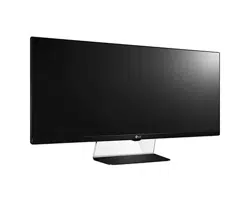
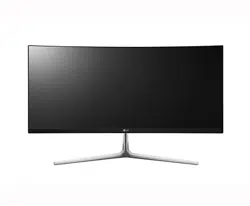
34UC87
34UC87M
Please read the safety information carefully
before using the product.
ENGLISH
2
TABLE OF CONTENTS
TABLE OF CONTENTS
3 LICENSE
4 ASSEMBLING AND PREPARING
4 Product Composition
5 Product and Button Description
5 - How to Use the Joystick Button
6 - Input Connector
7 Moving and Lifting the Monitor
8 Installing the Monitor
8 - Assembling the Stand
9 - Installing on a Table
9 - Adjusting the Stand Height
10 - Adjusting the Angle
11 - Tidying up Cables
11 - Using the Kensington Lock
12 - Installing on the Wall
14 USING THE MONITOR
14 Connecting to a PC
14 - HDMI Connection
15 - DisplayPort Connection
15 - Thunderbolt ( ) Connection
16 Connecting Peripherals
16 - USB Cable connection - PC
17 - Connecting Headphones
17 - IR Connection
18 INSTALLING THE LG MONITOR
SOFTWARE
20 USER SETTINGS
20 Activating the Main Menu
20 - Main Menu Features
21 User Settings
21 - Menu Settings
22 - Ratio
23 - Function
25 - PBP
26 - Picture
27 - Color
28 - Settings
29 - Reset
30 TROUBLESHOOTING
32 PRODUCT SPECIFICATION
33 Factory Support Mode (Preset Mode, HDMI/
DisplayPort/ Thunderbolt PC)
33 Power LED
34 PROPER POSTURE
34 Proper Posture for Using the Monitor
ENGLISH
3
LICENSE
LICENSE
Each model has different licenses. Visit www.lg.com for more information on the license.
The terms HDMI and HDMI High-Definition Multimedia Interface, and the HDMI logo
are trademarks or registered trademarks of HDMI Licensing LLC in the United States
and other countries.
VESA, VESA logo, DisplayPort compliance logo and DisplayPort compliance logo for
dual-mode source devices are all registered trademarks of the Video Electronics Stan-
dards Association.
MaxxAudio and additional MAXX trademarks are trademarks and/or registered trade-
marks of Waves Audio Ltd.
ENGLISH
4
ASSEMBLING AND PREPARING
ASSEMBLING AND PREPARING
Product Composition
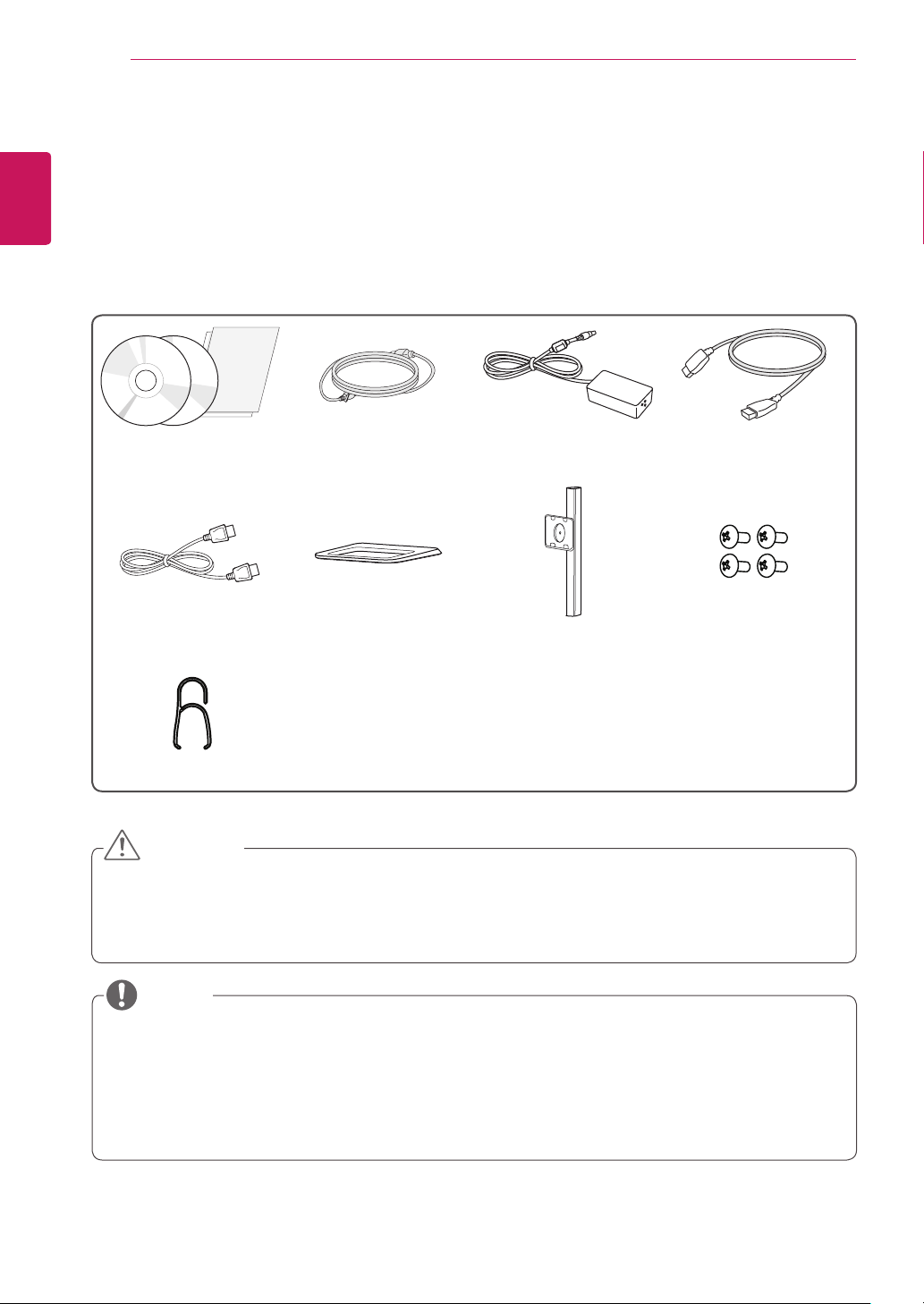
Please check whether all the components are included in the box before using the product. If there are any miss-
ing components, contact the retailer where you purchased the product. Note that the product and related compo-
nents may look different from those shown here.
CD (Owner's Manual /
Software / Guides) / Cards
Power cord AC/DC Adapter HDMI cable
DisplayPort Cable Stand Base Stand Body
4 Screws
(M4 x 10)
Cable Holder
y
Always use genuine LG components to ensure safety and product performance.
y
The product warranty will not cover damage or injury caused by the use of unauthorized components.
y
It is recommend that you use the supplied components.
y
If you use generic cables not certified by LG, the screen may not display or there may be image noises.
CAUTION
y
The components may look different from those illustrated here.
y
Without prior notice, all product information and specifications contained in this manual are subject to
change to improve the performance of the product.
y
To purchase optional accessories, visit an electronics store, an online shopping site, or contact the retailer from
which you purchased the product.
y
The power cord provided may differ, depending upon the region.
NOTE
ENGLISH
5
ASSEMBLING AND PREPARING
Product and Button Description
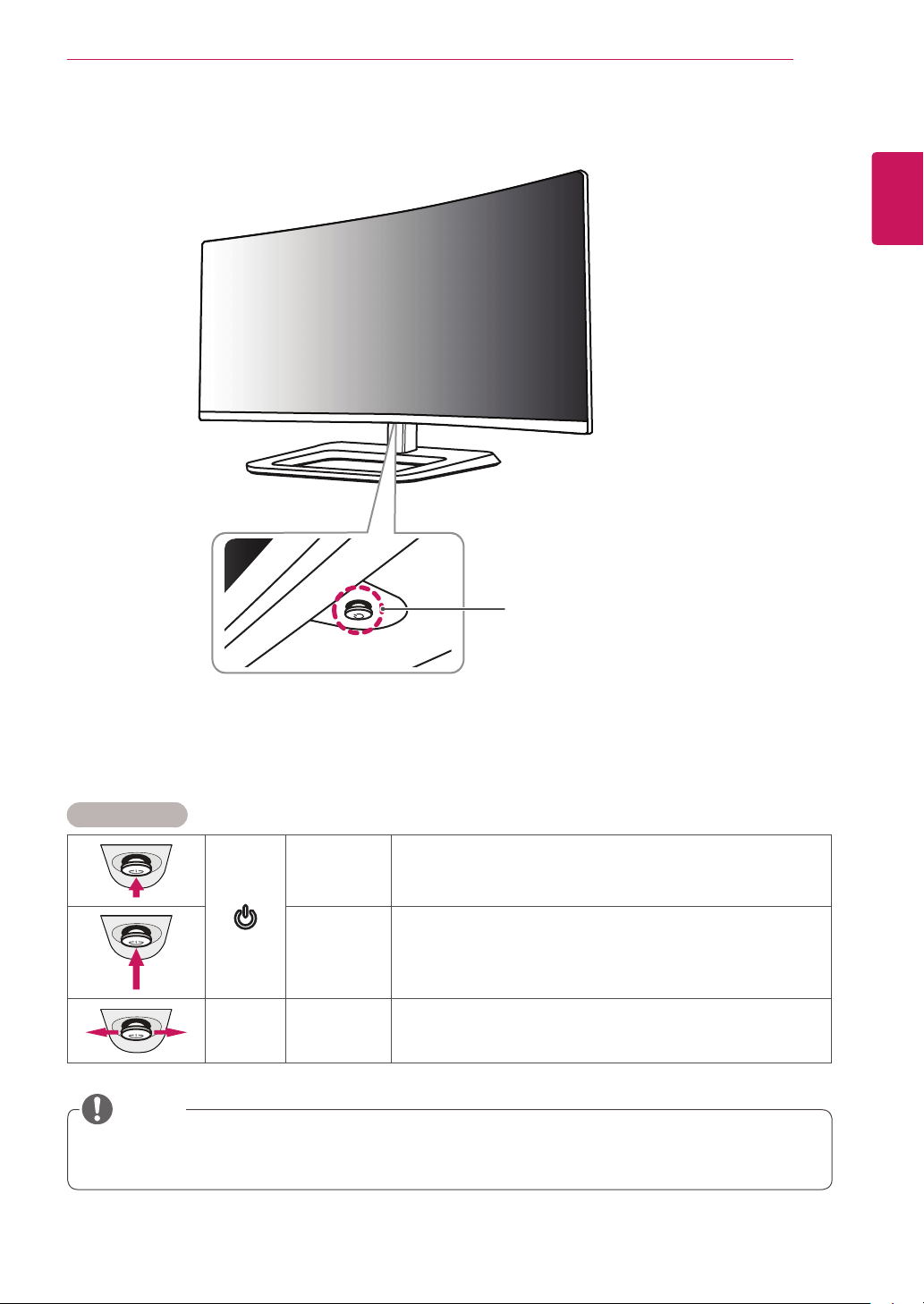
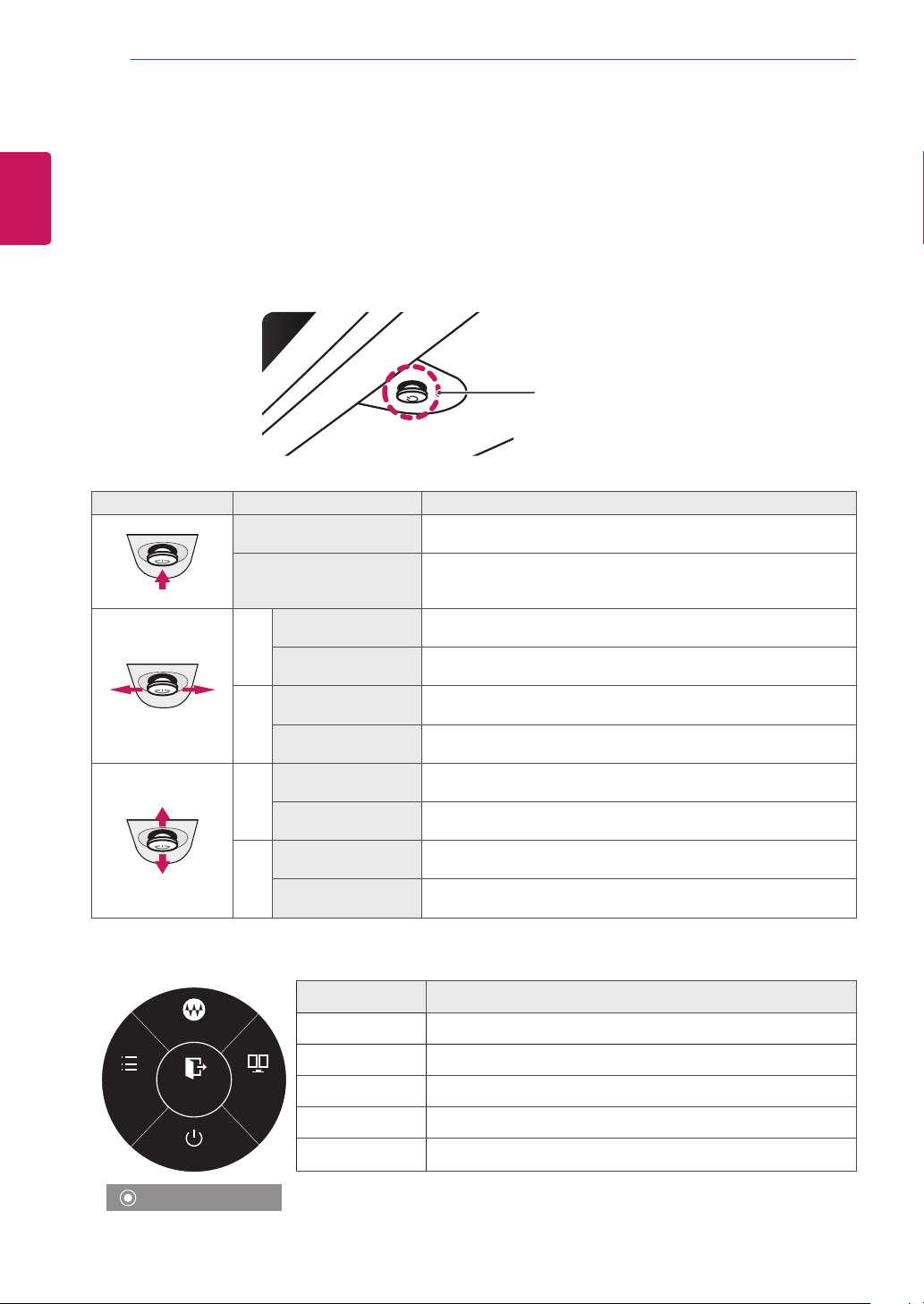
Joystick Button /
Power LED
y
On Power on
y
Off Power off
How to Use the Joystick Button
You can easily control the functions of the monitor by pressing the joystick button or moving it left/right with your
finger.
Basic Functions
Power on
Press the joystick button once with your finger to turn on the
monitor.
Power off
Press and hold the joystick button once with your finger to turn
off the monitor.
◄/►
Volume
Control
You can control the volume by moving the joystick button left/right.
y
The joystick button is located at the bottom of the monitor.
y
Before turning on the monitor, please make sure that the DC switch on the rear side of product is ON.
NOTE
ENGLISH
6
ASSEMBLING AND PREPARING
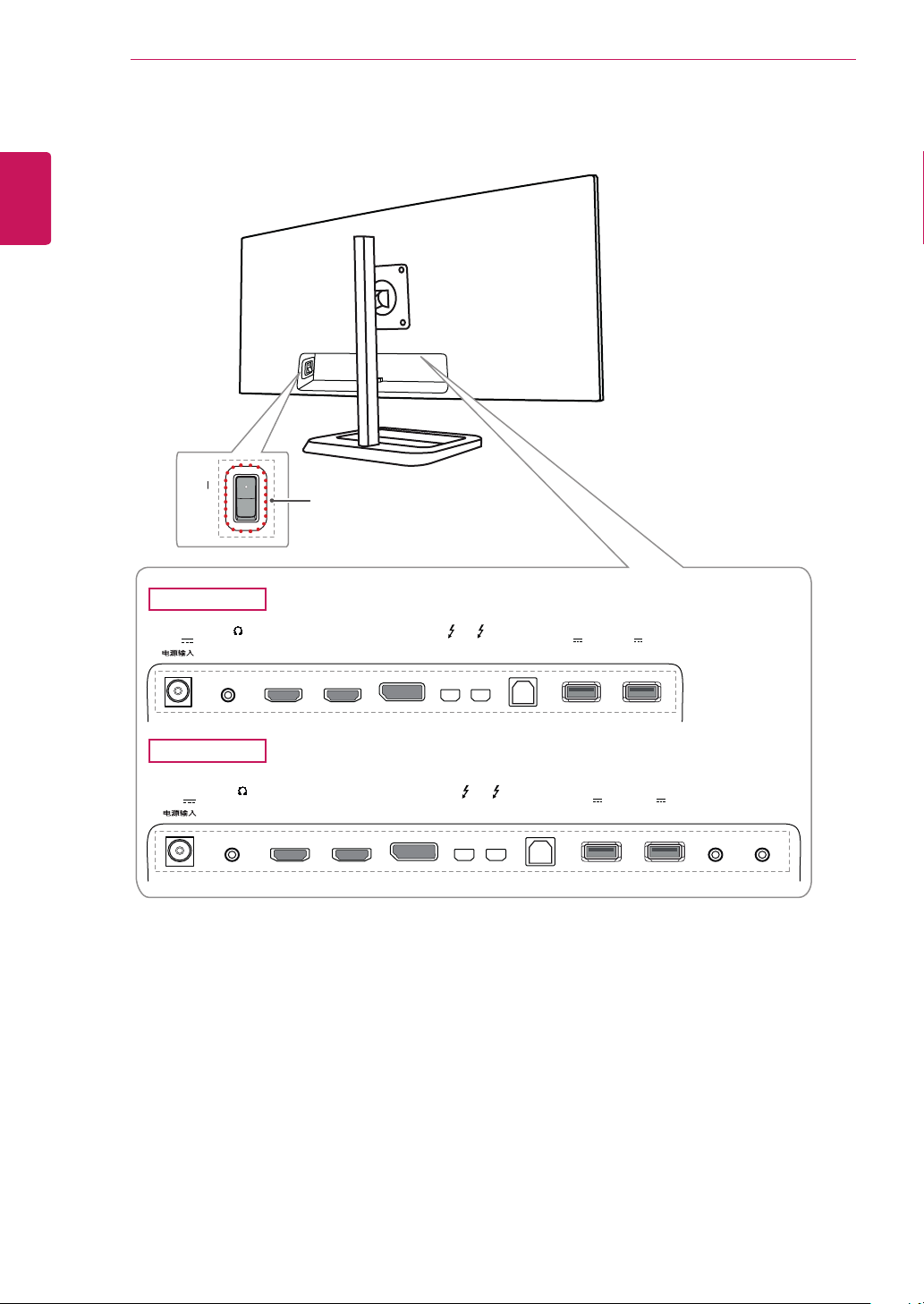
Input Connector
ON
USB IN 2
5 V 1.1 A
DC-IN
(19 V )
DP IN
HDMI IN 1
H/P
USB UP USB IN 1
5 V 1.1 A
HDMI IN 2
USB IN 2
5 V 1.1 A
DC-IN
(19 V )
DP IN
HDMI IN 1
H/P
USB UP IR IN IR OUTUSB IN 1
5 V 1.1 A
HDMI IN 2
34UC87
34UC87M
DC switch
ENGLISH
7
ASSEMBLING AND PREPARING
Moving and Lifting the
Monitor
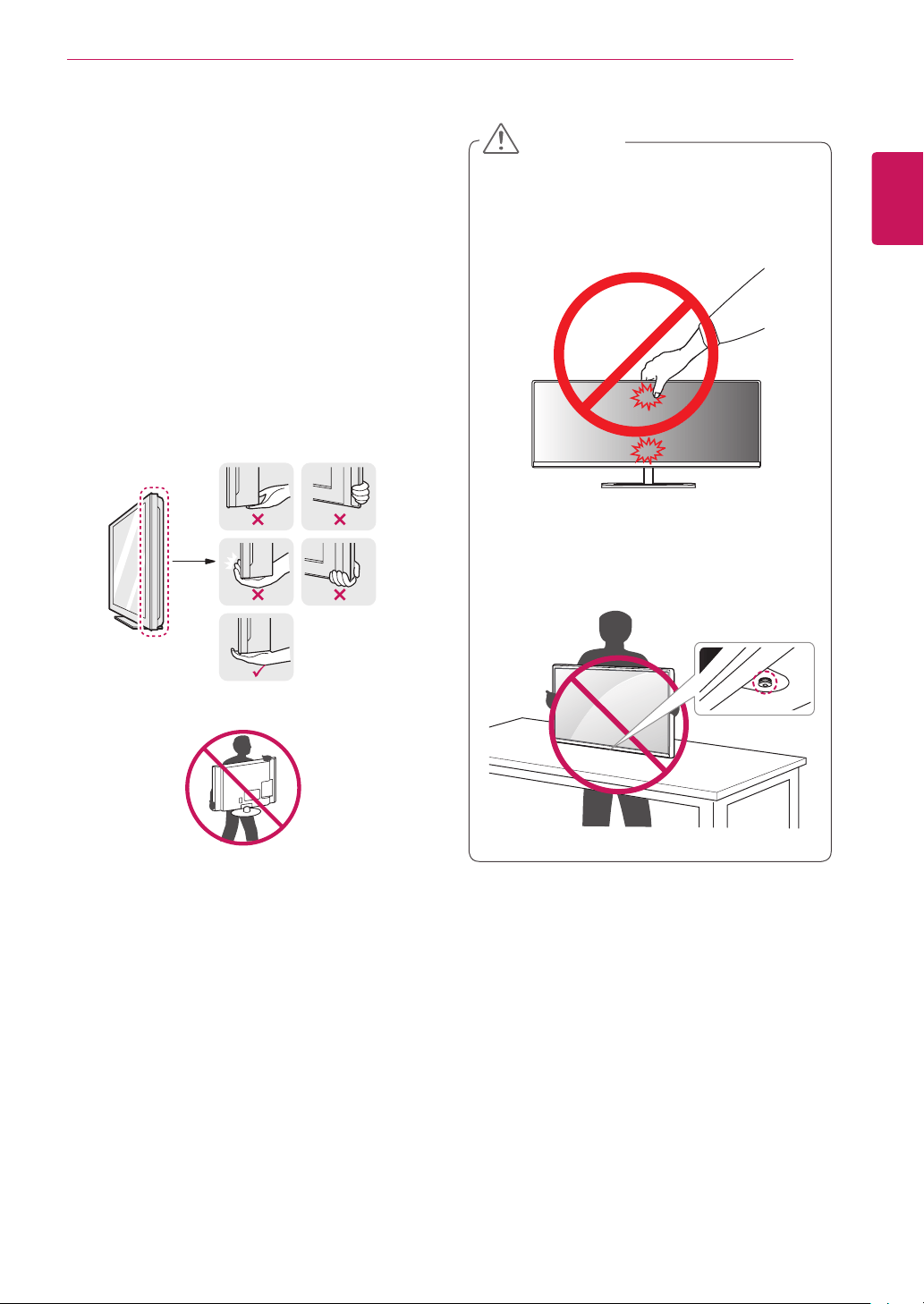
When moving or lifting the monitor, follow these
instructions to prevent the monitor from being
scratched or damaged and to ensure safe transporta-
tion, regardless of its shape or size.
y
Place the monitor in the original box or packing
material before attempting to move it.
y
Before moving or lifting the monitor, disconnect
the power cord and all other cables.
y
Hold the bottom and side of the monitor frame
firmly. Do not hold the panel itself.
y
When holding the monitor, the screen should face
toward you to prevent it from being scratched.
y
When transporting the monitor, do not expose
the monitor to shock or excessive vibration.
y
When moving the monitor, keep it upright and
never turn the monitor on its side or tilt it side-
ways.
y
Avoid touching the monitor screen as much as
possible.
-
This may result in damage to the screen or
some of the pixels used to create images.
y
If you use the monitor panel without the stand
base, its joystick button may cause the monitor
to become unstable and fall, resulting in damage
to the monitor or personal injury. In addition, this
may cause the joystick button to malfunction.
CAUTION
ENGLISH
8
ASSEMBLING AND PREPARING
Installing the Monitor
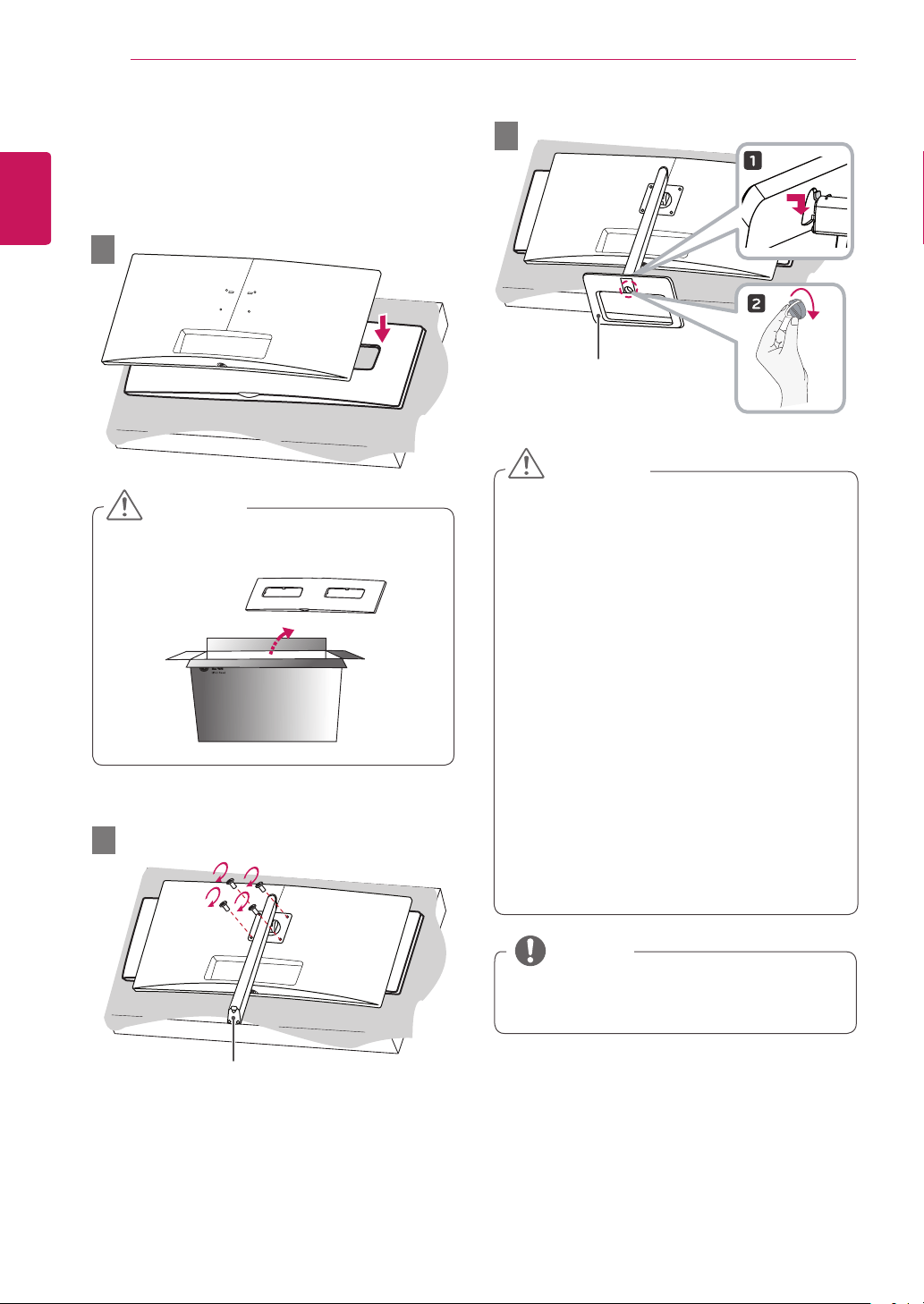
Assembling the Stand
y
To protect the screen, place the screen face down
on the screen pad which is inside the box.
CAUTION
y
You can disassemble the stand in the reverse
order of the assembly.
NOTE
1
2
Stand Body
3
Stand Base
y
Illustrations in this document represent typical
procedures, so they may look different from the
actual product.
y
Applying excessive force when tightening
screws may cause damage to the monitor.
Damage caused in this way will not be covered
by the product warranty.
y
When tightening the screws after mounting
the stand base onto the stand body, be sure to
hold the stand base with your hand. Otherwise,
the product may fall, causing personal injury or
damage to the product.
y
Do not carry the monitor upside down by just
holding the base. This may cause the monitor
to fall off the stand and could result in personal
injury.
y
When lifting or moving the monitor, do not
touch the monitor screen. The force applied to
the monitor screen may cause damage to it.
CAUTION
ENGLISH
9
ASSEMBLING AND PREPARING
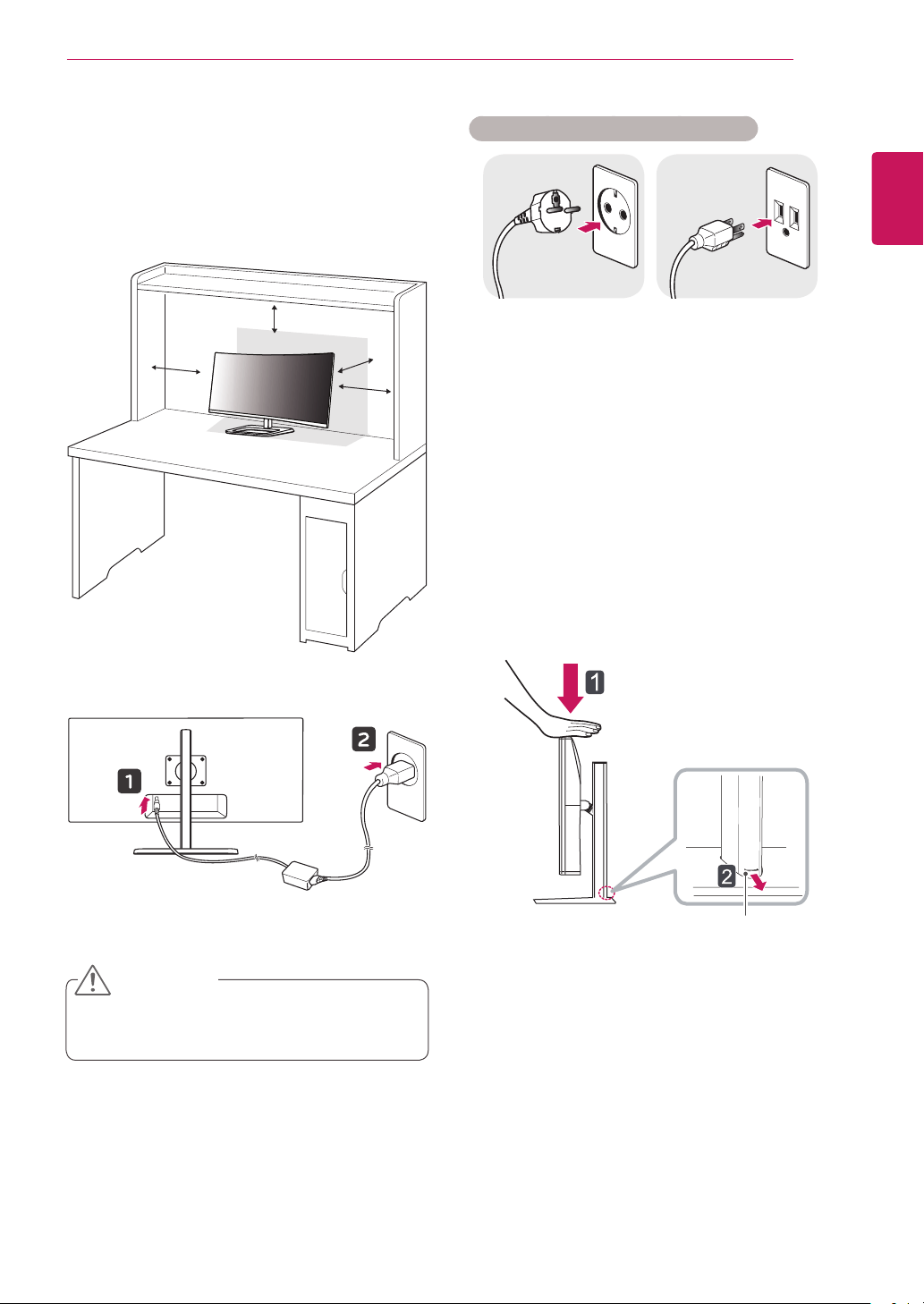
Installing on a Table
1
Lift the monitor and place it on the table in an
upright position. Place the monitor at least
10 cm away from the wall to ensure sufficient
ventilation.
10 cm
10 cm
10 cm
10 cm
2
Connect the power adapter to the monitor and
then plug the power cord into the wall outlet.
3
Press the joystick button on the bottom of the
monitor to turn on the monitor.
y
Unplug the power cord before moving or install-
ing the monitor. There is risk of electric shock.
CAUTION
Cautions When Connecting Power Cord
220 V 110 V
y
Make sure to use the power cord that is pro-
vided in the product package and connect it to a
grounded power outlet.
y
If you need another power cord, please contact
your local dealer or the nearest retail store.
Adjusting the Stand Height
1
Place the monitor mounted on the stand base in
an upright position.
2
Push the head downward and pull out the
locking pin.
Head
Locking pin
ENGLISH
10
ASSEMBLING AND PREPARING
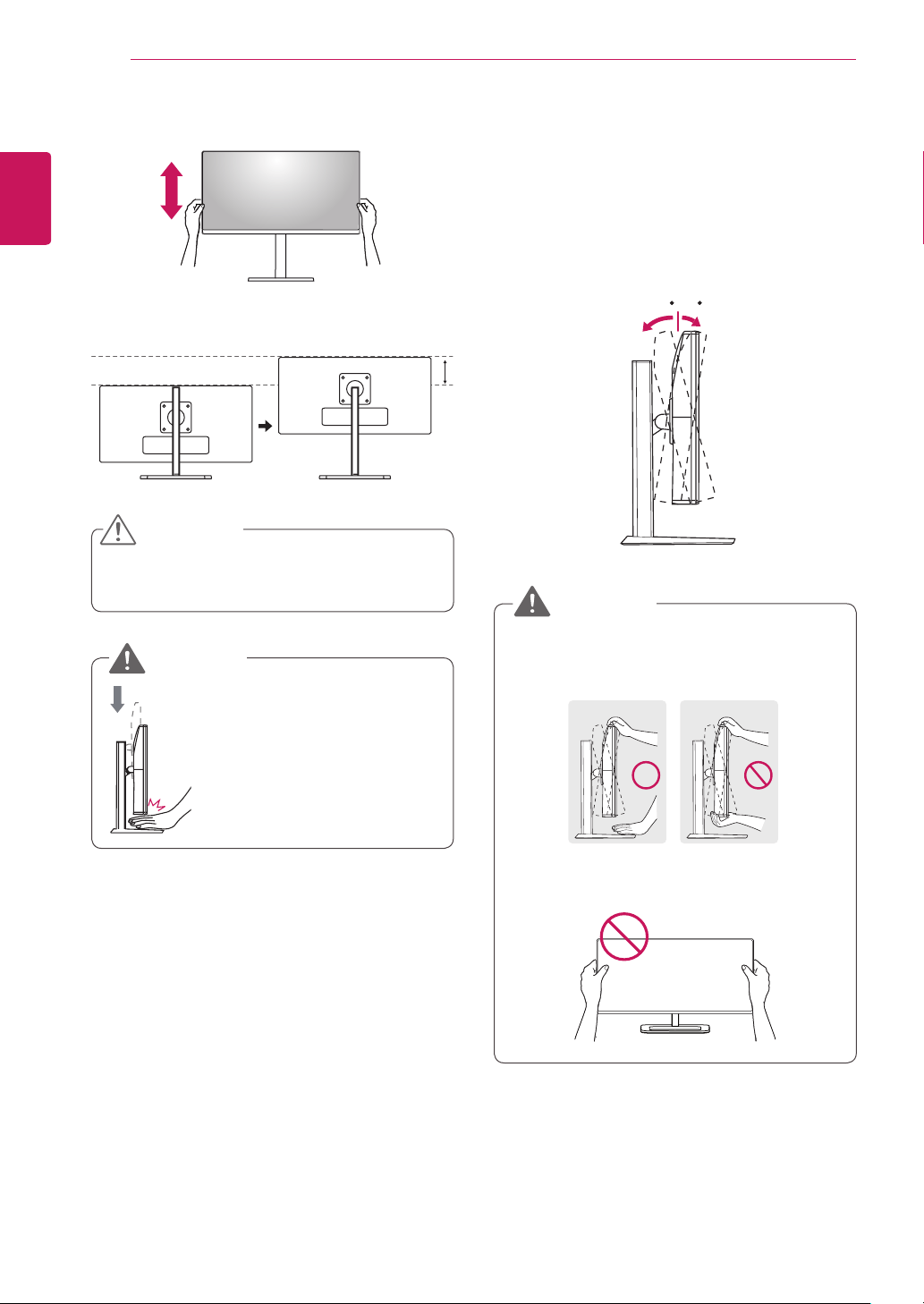
Adjusting the Angle
1
Place the monitor mounted on the stand base in
an upright position.
2
Adjust the angle of the screen. The angle of the
screen can be adjusted forward or backward from
-5° to 15° for a comfortable
viewing experience.
-515
FrontRear
y
To avoid injury to the fingers when adjusting the
screen, do not hold the lower part of the moni-
tor's frame as illustrated below.
-515
y
Be careful not to touch or press the screen area
when adjusting the angle of the monitor.
-515
WARNING
3
Handle the monitor with both hands for safety.
4
The height can be adjusted up to 140.0 mm.
140.0 mm
y
Once the pin is removed, it is not necessary to re-
insert it to adjust the height.
CAUTION
y
Do not put your fingers or hand
between the screen and the
base (chassis) when adjusting
the screen's height.
WARNING
ENGLISH
11
ASSEMBLING AND PREPARING
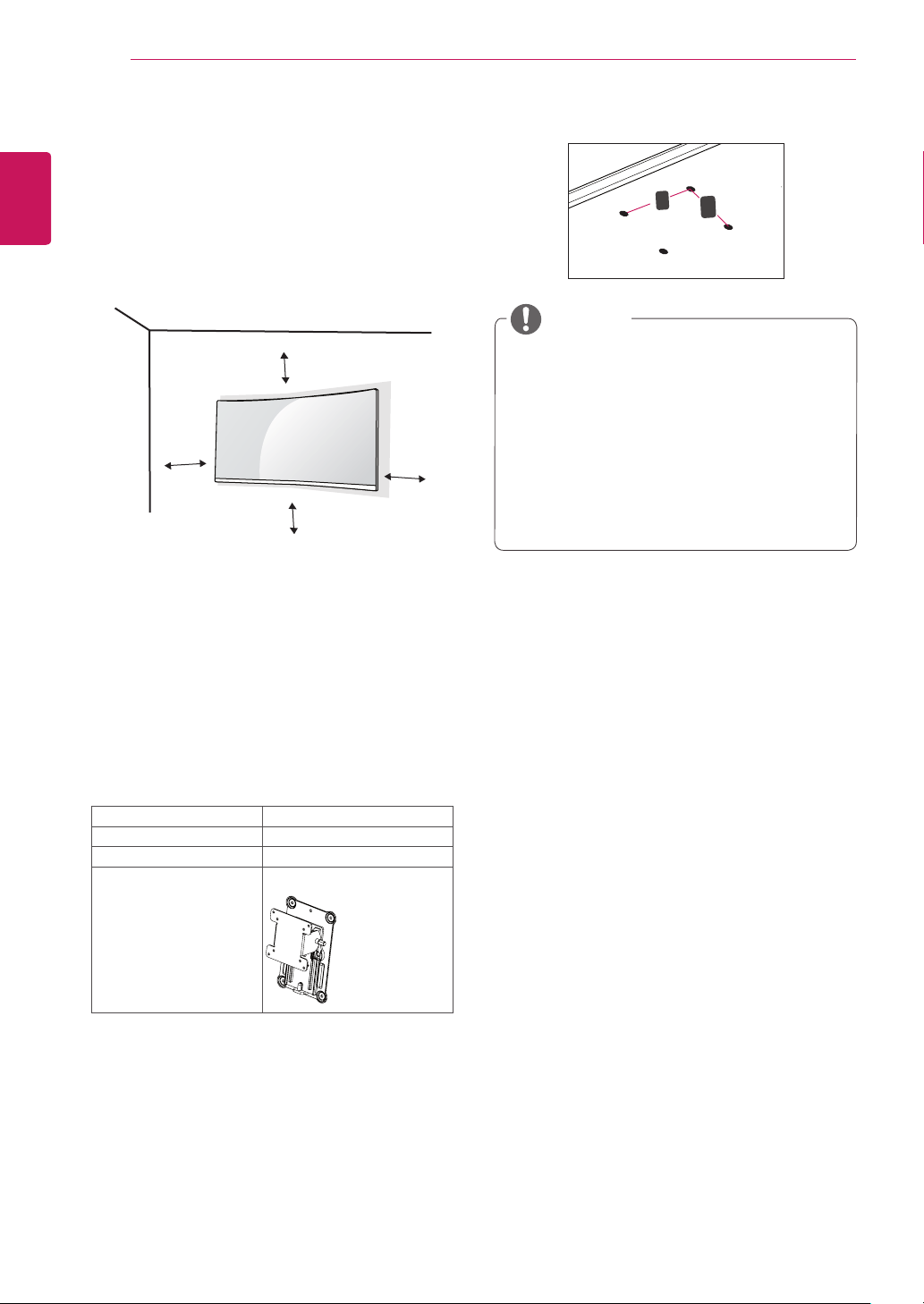
Using the Kensington Lock
The connector for the Kensington security system is
located at the bottom of the monitor.
For more information on installation and usage, refer
to the Kensington lock owner's manual or visit the
website at http://www.kensington.com.
Connect the monitor to a table using the Kensington
security system cable.
y
The Kensington security system is optional. You can
obtain optional accessories from most electronics
stores.
NOTE
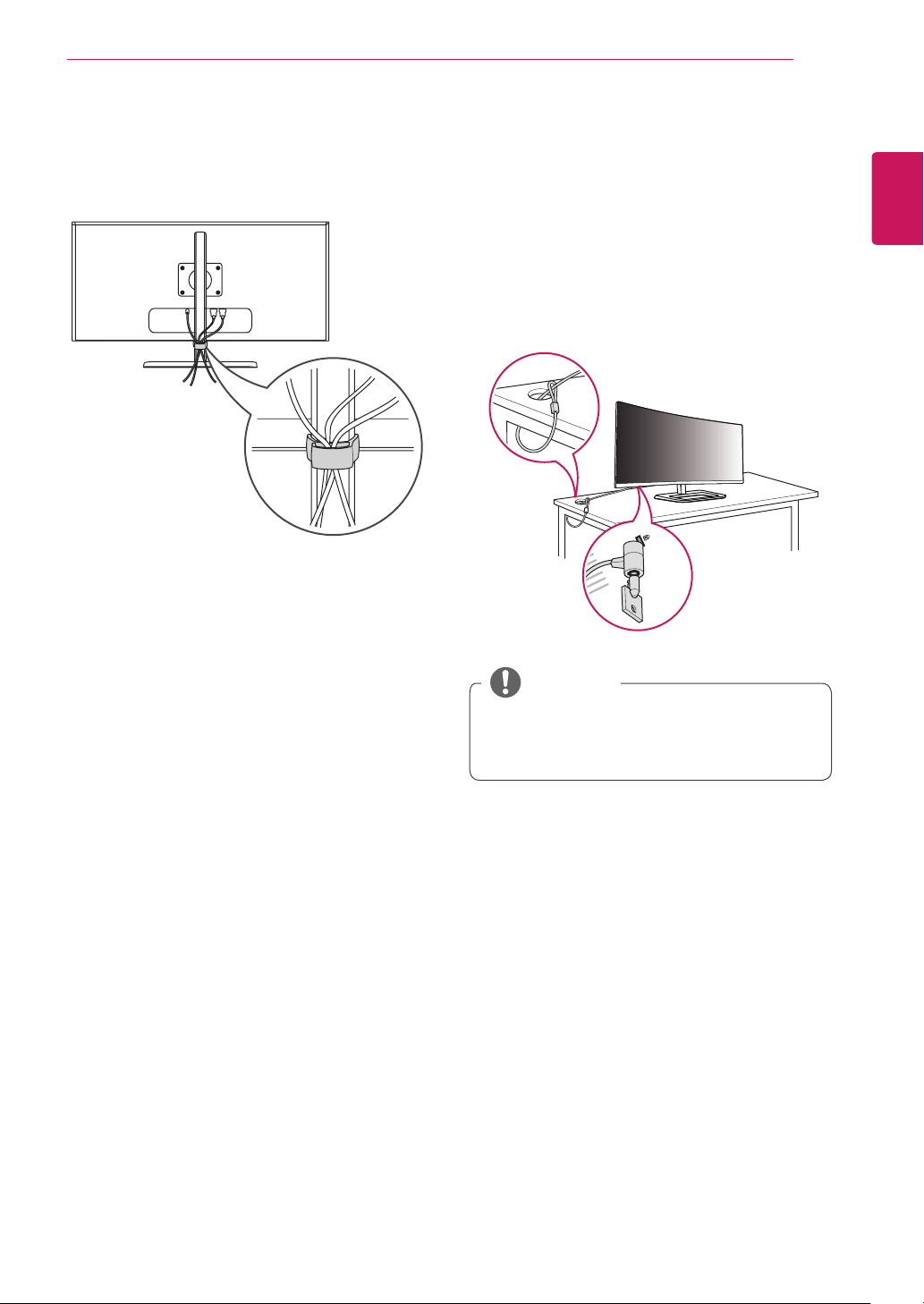
Tidying up Cables
Arrange the cables using the cable holder as shown in
the illustration.
ENGLISH
12
ASSEMBLING AND PREPARING
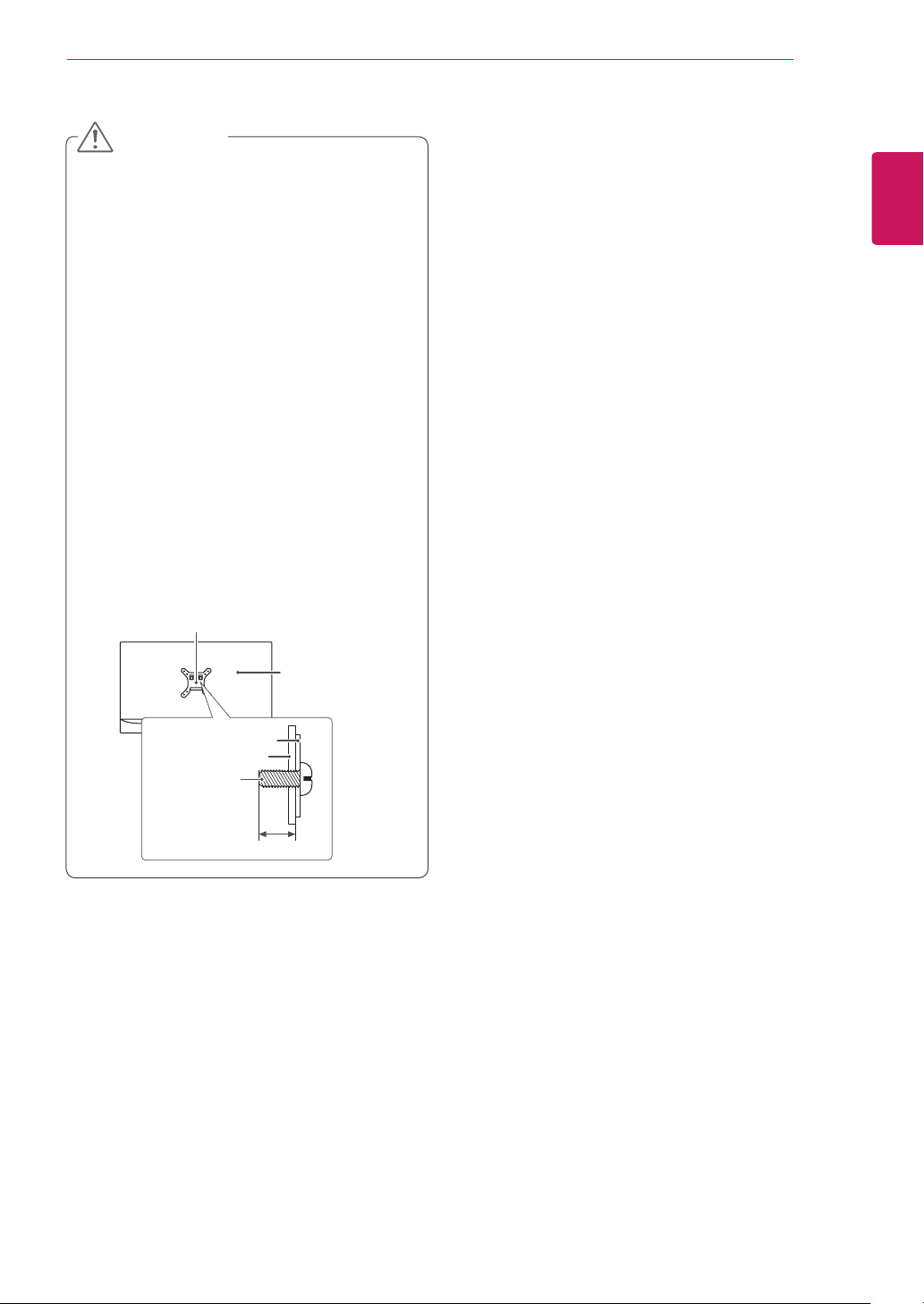
Installing on the Wall
Install the monitor at least 10 cm away from the wall
and leave about 10 cm of space at each side of the
monitor to ensure sufficient ventilation. Detailed in-
stallation instructions can be obtained from your local
retail store. Alternatively, refer to the manual for how
to install and set up a tilting wall mounting bracket.
10 cm
10 cm
10 cm
10 cm
To install the monitor to a wall, attach a wall mounting
bracket (optional) to the back of the monitor.
Make sure that the wall mounting bracket is securely
fixed to the monitor and to the wall.
1
If you use screws longer than the standard length,
it may damage the inside of the product.
2
A non-VESA standard screw may damage the
product and cause the monitor to fall. LG Elec-
tronics is not liable for any accidents relating to
the use of non-standard screws.
Wall Mount (A x B) 100 x 100
Stand Screw M4 x 10 mm
Required Screws 4
Wall Mount Plate
(Optional)
RW120
y
Wall Mount (A x B)
A
B
y
Use the screws specified by VESA standards.
y
The wall mount kit includes the installation guide and
all necessary parts.
y
The wall mounting bracket is optional. You can obtain
optional accessories from your local dealer.
y
The length of the screw may differ for each wall
mounting bracket. Be sure to use the proper length.
y
For more information, please refer to the user manual
for the wall mounting bracket.
NOTE
ENGLISH
13
ASSEMBLING AND PREPARING
y
Unplug the power cord before moving or installing
the monitor to avoid electric shock.
y
Installing the monitor on the ceiling or on a slanted
wall may result in the monitor falling off, which
could lead to injury. Use an authorized LG wall
mount and contact the local dealer or qualified
personnel.
y
Applying excessive force when tightening screws
may cause damage to the monitor. Damage caused
in this way will not be covered by the product war-
ranty.
y
To prevent injury, this apparatus must be securely
attached to the wall in accordance with the
instrallation instructions. (This only pertains to
Australia and New Zealand.)
y
Use the wall mounting bracket and screws that
conform to VESA standards. Damage caused by the
use or misuse of inappropriate components will not
be covered by the product warranty.
y
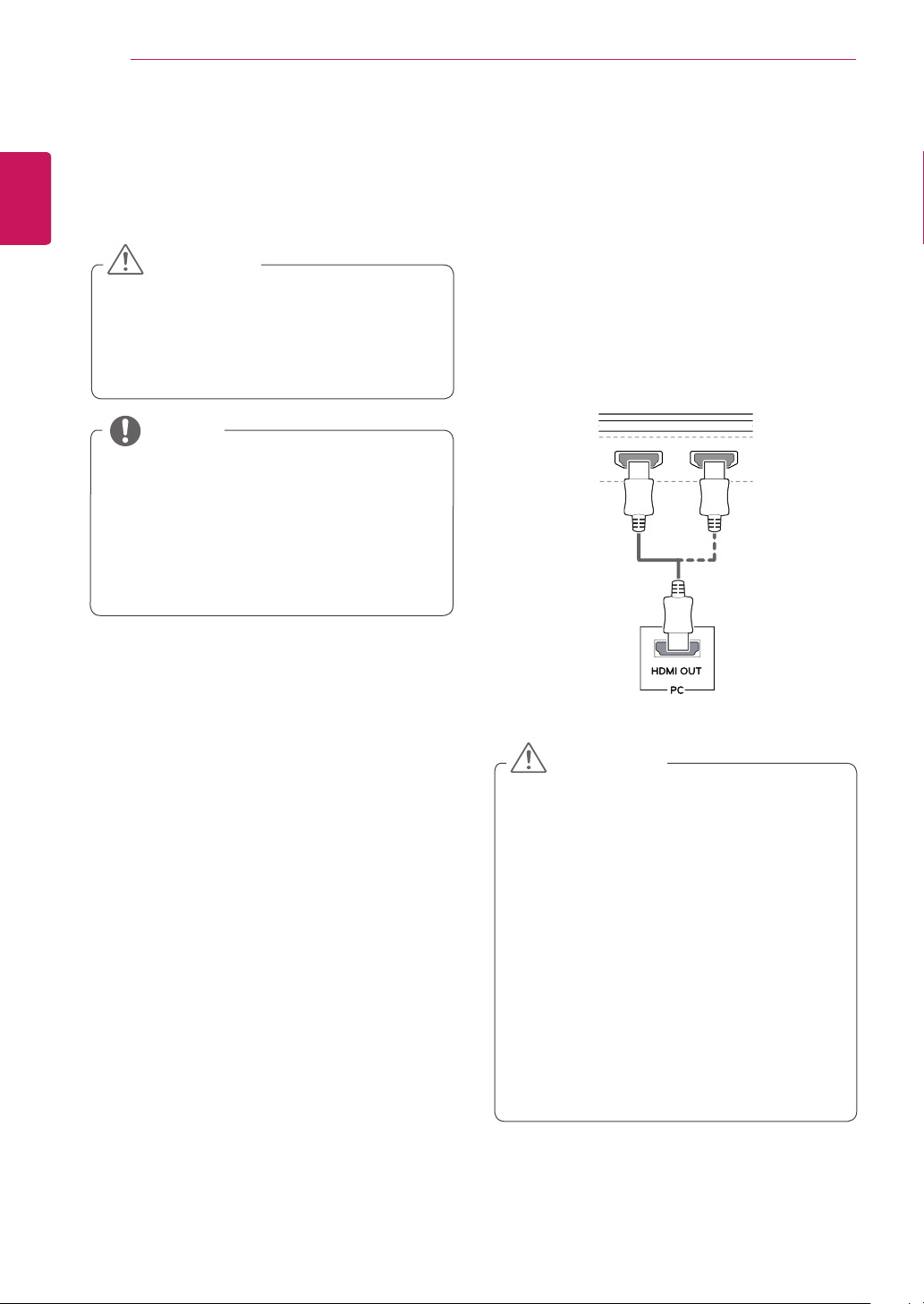
When measured from the back of the monitor, the
length of each installed screw must be 8 mm or less.
Wall Mount Plate
Back of the Monitor
Screw Dimen-
sions
: M4 x L10
Wall Mount Plate
Back of the Monitor
Max 8 mm
CAUTION
ENGLISH
14
USING THE MONITOR
USING THE MONITOR
Press the joystick button, go to Menu
→
Easy control
→
Input, and then select the input option.
y
Do not press the screen for a prolonged time.
This may cause image distortion.
y
Do not display a still image on the screen for a
prolonged time. This may cause image reten-
tion. Use a screensaver if possible.
CAUTION
y
When connecting the power cord to the outlet,
use a grounded (3-hole) power strip or a ground-
ed power outlet.
y
The monitor may flicker when turned on in an
area where the temperature is low. This is normal.
y
Sometimes red, green, or blue spots may appear
on the screen. This is normal.
NOTE
Connecting to a PC
y
This monitor supports the *Plug and Play feature.
* Plug and Play: A feature that allows you to add a de-
vice to your computer without having to reconfigure
anything or install any manual drivers.
HDMI Connection
Transmits digital video and audio signals from your PC
to the monitor. Connect your PC to the monitor using
the HDMI cable as shown in the illustration below.
HDMI IN 1 HDMI IN 2
HDMI IN 1 HDMI IN 2
H/P
DP IN
DP OUT
USB IN 2
5 V 1.1 A
USB UP
US
B
U
P
USB IN 1
5 V 1.1 A
USB IN 2
5 V 1.1 A
USB IN 1
5 V 1.1 A
y
Make sure to use the supplied HDMI cable of the
product. Otherwise, this may cause the device
to malfunction.
y
Connecting your PC to the monitor using the
HDMI cable may cause device compatibility is-
sues.
y
Using a DVI to HDMI / DP (DisplayPort) to HDMI
cable may cause compatibility issues.
y
Use a certified cable with the HDMI logo
attached. If you do not use a certified HDMI
cable, the screen may not display or a connec-
tion error may occur.
y
Recommended HDMI cable types
-
High-Speed HDMI
®
/
TM
Cable
-
High-Speed HDMI
®
/
TM
Cable with Ethernet
CAUTION

ENGLISH
15
USING THE MONITOR
DisplayPort Connection
Transmits digital video and audio signals from your PC
to the monitor. Connect the monitor to your PC using
the display port cable as shown in the illustration
below:
HDMI IN 1 HDMI IN 2
HDMI IN 1 HDMI IN 2
H/P
DP IN
DP OUT
USB IN 2
5 V 1.1 A
USB UP
US
B
U
P
USB IN 1
5 V 1.1 A
USB IN 2
5 V 1.1 A
USB IN 1
5 V 1.1 A
NOTE
y
There may be no video or audio output depend-
ing on the DP (DisplayPort) version of the PC.
y
Make sure to use the supplied DisplayPort cable
of the product. Otherwise, this may cause the
device to malfunction.
y
For using Mini DP to DP (Mini DisplayPort to Dis-
playPort) cable, it is recommended that you use
DisplayPort 1.2 cable.
Thunderbolt ( ) Connection
You can connect your high-resolution display or
high-performance data device to the monitor via a
Thunderbolt port. Connect your external device to
the monitor using the Thunderbolt cable as illustrated
below.
HDMI IN 1 HDMI IN 2
HDMI IN 1 HDMI IN 2
H/P
DP IN
DP OUT
USB IN 2
5 V 1.1 A
USB UP
US
B
U
P
USB IN 1
5 V 1.1 A
USB IN 2
5 V 1.1 A
USB IN 1
5 V 1.1 A
(sold separately)
y
The maximum data transmission rate of each
port is 20 Gb/s.
y
Make sure to use a Thunderbolt (
) certified
cable. Otherwise, this may cause the device to
malfunction.
y
Thunderbolt (
) is supported in such environ-
ments as Windows 7, Windows 8, and Mac
product.
y
In accordance with Mac, products may not sup-
port the recommended resolution or some fea-
tures. For more information, refer to the support
information card of the Mac which is provided
separately.
y
The ability to set up dual monitors using the
Thunderbolt (
) and daisy-chaining technology
depends on the performance of your video card.
NOTE
ENGLISH
16
USING THE MONITOR
Connecting Peripherals
USB Cable connection - PC
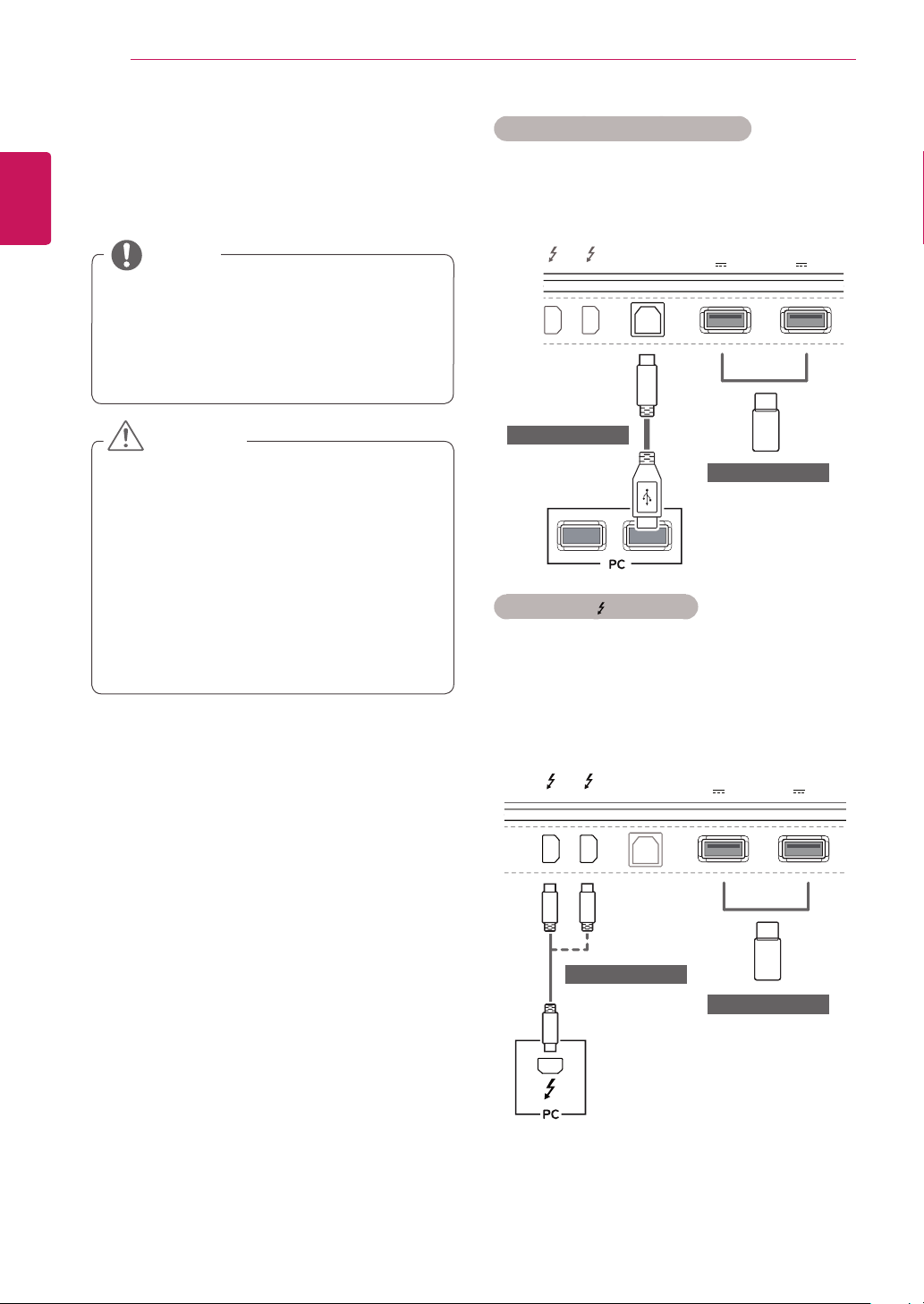
The USB port on the product functions as a USB hub.
y
Make sure to install the most recent Windows OS
service pack before using the product.
y
Peripheral devices are sold separately.
y
A keyboard, mouse, or USB device can be con-
nected to the USB port.
NOTE
Cautions When Using a USB Device
y
A USB device with an automatic recognition
program installed, or that uses its own driver,
may not be recognized.
y
Some USB devices may not be supported or may
not work properly.
y
It is recommended to use a USB hub or hard disk
drive with power supplied. (If the power sup-
ply is not adequate, the USB device may not be
recognized properly.)
CAUTION
HDMI/DP (DisplayPort) connection
To use USB 3.0, connect the A-B type USB 3.0 cable of
the product to the PC.
Peripheral devices connected to the USB IN port can
be controlled from the PC.
HDMI IN 1 HDMI IN 2
HDMI IN 1 HDMI IN 2
H/P
DP IN
DP OUT
USB IN 2
5 V 1.1 A
USB UP
US
B
U
P
USB IN 1
5 V 1.1 A
USB IN 2
5 V 1.1 A
USB IN 1
5 V 1.1 A
(sold separately)
(sold separately)
Thunderbolt ( ) connection
Peripheral devices connected to the USB IN port can
be controlled from the PC.
If you change the input on the menu while a device
is in connection via the Thunderbolt port, then the
device in connection via the USB port may not work
properly.
HDMI IN 1 HDMI IN 2
HDMI IN 1 HDMI IN 2
H/P
DP IN
DP OUT
USB IN 2
5 V 1.1 A
USB UP
US
B
U
P
USB IN 1
5 V 1.1 A
USB IN 2
5 V 1.1 A
USB IN 1
5 V 1.1 A
(sold separately)
(sold separately)
ENGLISH
17
USING THE MONITOR
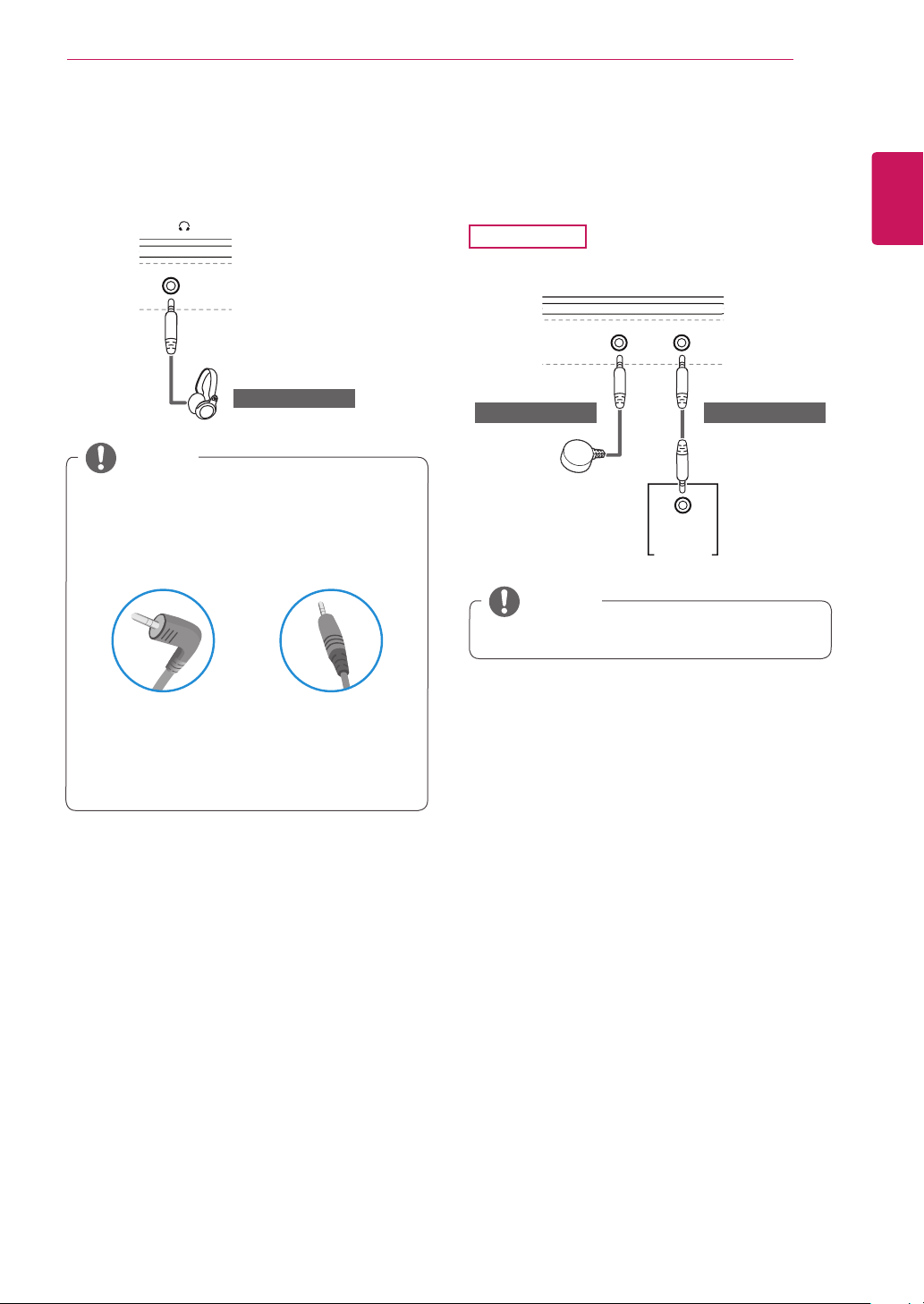
Connecting Headphones
Connect peripherals to the monitor via the head-
phones port. Connect as illustrated.
HDMI IN 1 HDMI IN 2
HDMI IN 1 HDMI IN 2
H/P
DP IN
DP OUT
USB IN 2
5 V 1.1 A
USB UP
US
B
U
P
USB IN 1
5 V 1.1 A
USB IN 2
5 V 1.1 A
USB IN 1
5 V 1.1 A
(sold separately)
y
Peripheral devices are sold separately.
y
If you use angled earphones, it may cause a prob-
lem with connecting another external device to
the monitor. Therefore, it is recommended to use
straight earphones.
Angled Straight
y
Depending on the audio settings of the PC and
external device, headphones and speaker func-
tions may be limited.
NOTE
IR Connection
Connect the IR sensor and stereo cable to the monitor
(34UC87M) via the IR Port. Connect as illustrated.
34UC87M
HDMI IN 1 HDMI IN 2
HDMI IN 1 HDMI IN 2
H/P
DP IN
DP OUT
USB IN 2
5 V 1.1 A
USB UP
US
B
U
P
USB IN 1
5 V 1.1 A
USB IN 2
5 V 1.1 A
USB IN 1
5 V 1.1 A
IR IN IR OUT
IR IN
34UC87M
(sold separately) (sold separately)
y
Make sure the power cable is disconnected.
NOTE
ENGLISH
18
INSTALLING THE LG MONITOR SOFTWARE
INSTALLING THE LG MONITOR SOFTWARE
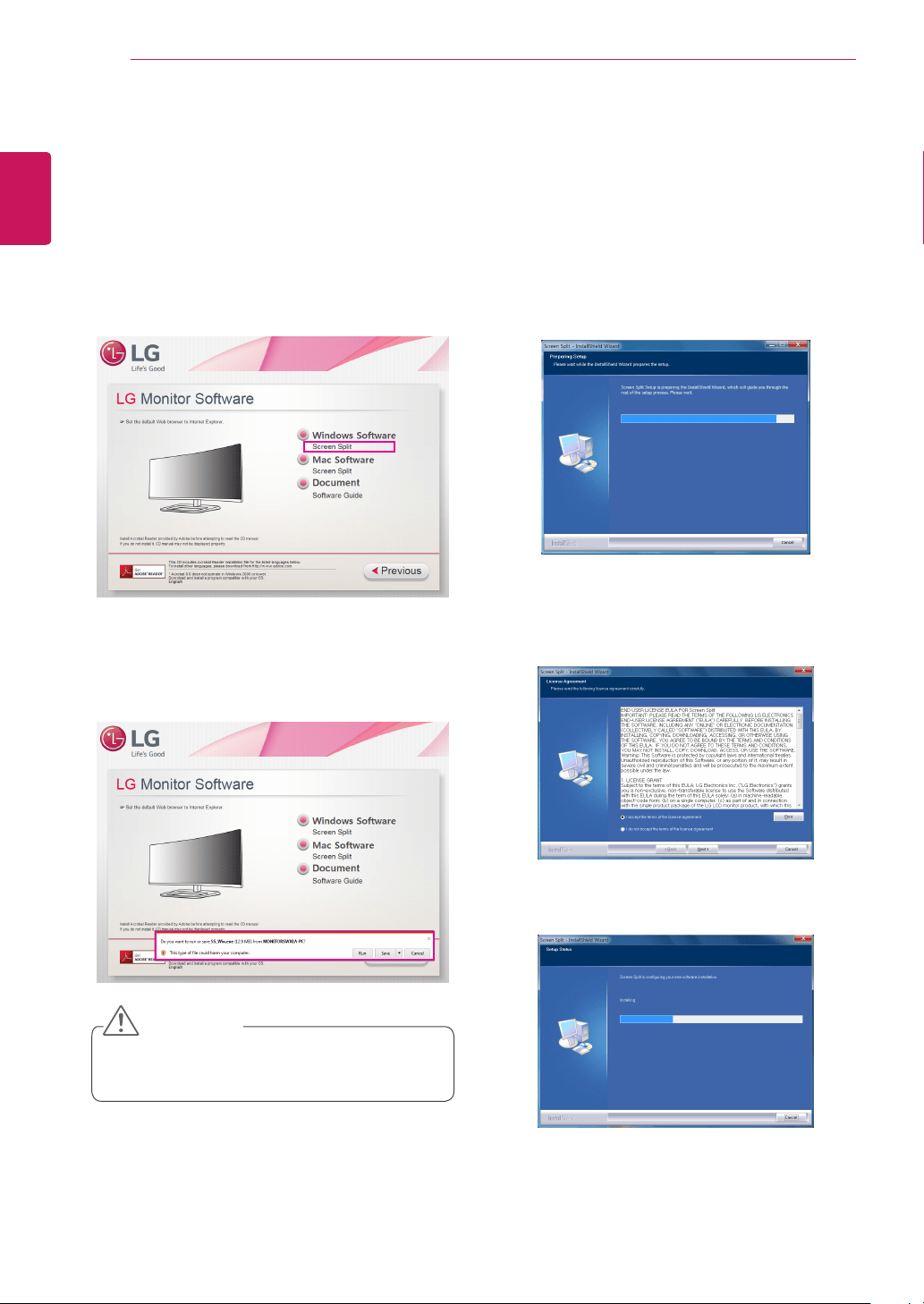
Insert the software CD included in the product packaging into your PC's CD drive and install the Screen Split.
The installation screen images are for reference only. The actual installation screen images may vary depending on
the model.
1
Set up Internet Explorer as the default web
browser.
2
Click Screen Split on the CD's main screen. When
the file download window appears, click Run. (Al-
though the screen below may differ depending
upon your operating system or Internet Explorer
version, the installation methods are the same.)
y
Windows 7 must be updated to Service Pack 1 or
higher.
CAUTION
3
Follow the instructions to proceed with the instal-
lation.
4
Check the I accept the terms of the agreement
checkbox on the License Agreement screen and
then click the Next button.
5
The Screen Split starts the installation as shown
below:
ENGLISH
19
INSTALLING THE LG MONITOR SOFTWARE
6
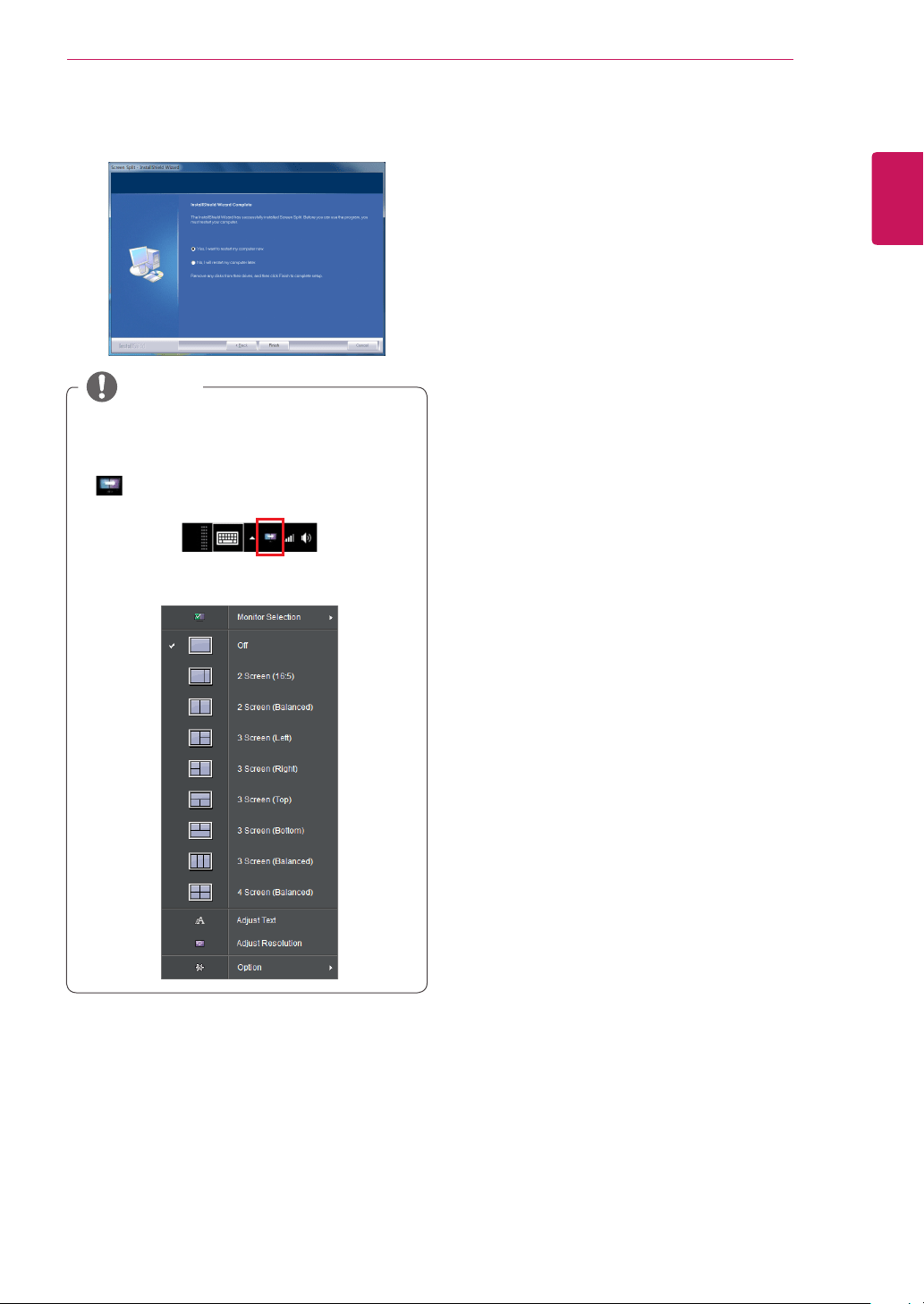
When the installation is complete, restart your
system.
y
Screen Split This program automatically splits
the program window as desired.
y
When you run Screen Split, the Screen Split icon
[
] appears in the system tray at the bottom
right of the PC screen.
y
Right-click the Screen Split icon and select the
desired layout.
NOTE
ENGLISH
20
USER SETTINGS
USER SETTINGS
Activating the Main Menu
1
Press the joystick button on the bottom of the monitor.
2
Move the joystick up/down (
▲
/
▼
) and left/right(
◄
/
►
) to set the options.
3
Press the joystick button once more to exit the main menu.
Joystick Button
Button Menu Status Description
Main menu disabled Enables the main menu.
Main menu enabled
Exits the main menu.
(Hold the button down to turn off the monitor. You can turn off the
monitor this way at any time, including when the OSD is on.)
◄
Main menu disabled Adjusts the monitor volume level.
Main menu enabled Enters the menu features.
►
Main menu disabled Adjusts the monitor volume level.
Main menu enabled Enters the PBP feature.
▲
Main menu disabled Enables the main menu.
Main menu enabled Enters the MaxxAudio feature.
▼
Main menu disabled Enables the main menu.
Main menu enabled Turns off the monitor.
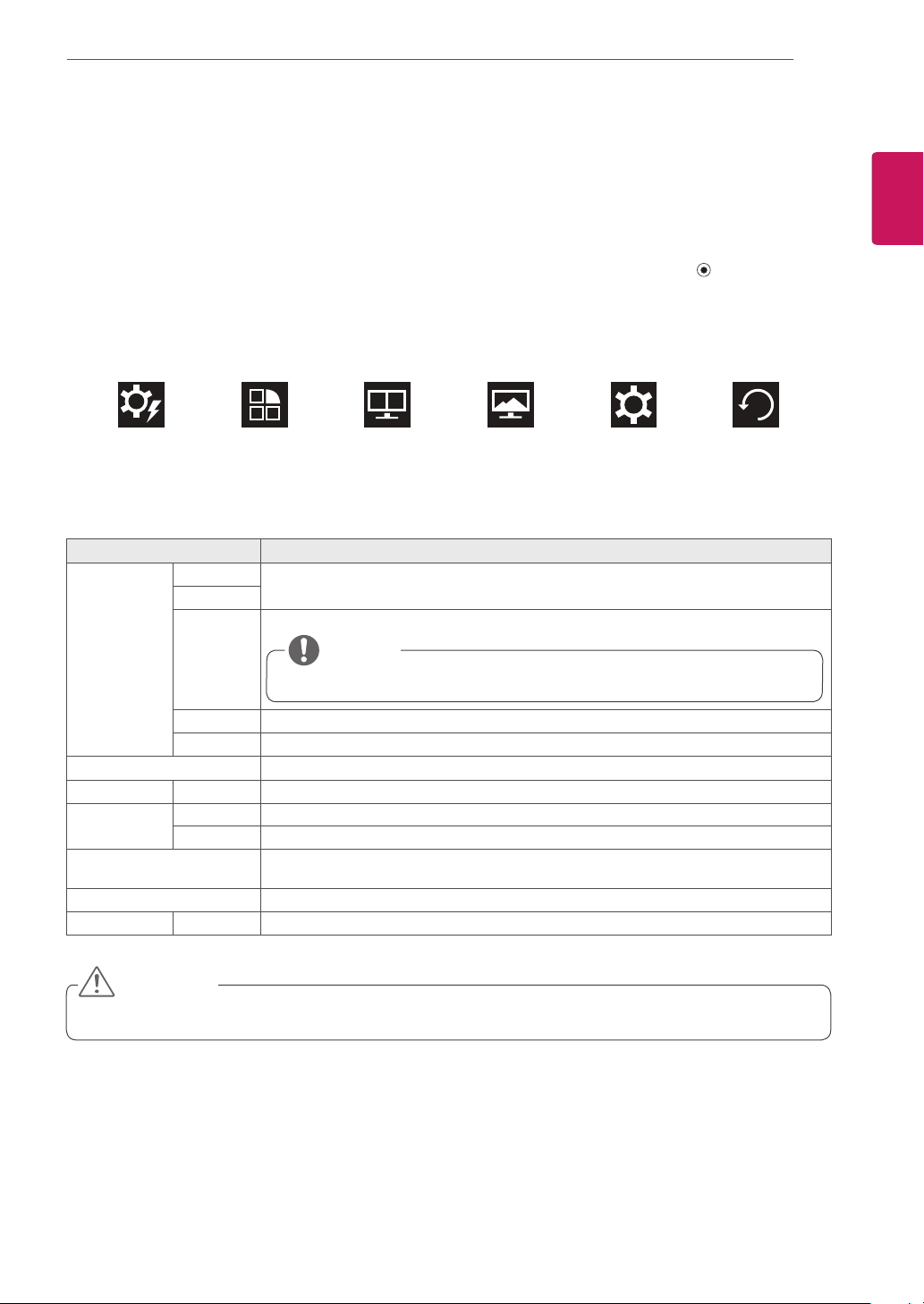
Main Menu Features
Long press: Monitor off
MaxxAudio
Exit
Menu PBP
Monitor off
Main Menu Description
Menu Configures the screen settings.
MaxxAudio Sets the sound quality.
PBP Displays the screens of two input modes on one monitor.
Monitor off Turns off the monitor.
Exit Exits the main menu.
ENGLISH
21
USER SETTINGS
User Settings
Menu Settings
1
To view the OSD menu, press the joystick button at the bottom of the monitor and then enter the Menu.
2
Configure the options by moving the joystick up/down/left/right.
3
To return to the upper menu or set other menu items, move the joystick to
◄
or pressing ( / OK) it.
4
If you want to exit the OSD menu, move the joystick to
◄
until you exit.
y
When you enter the menu, instructions on how to use the button will appear in the bottom right corner of the
screen.
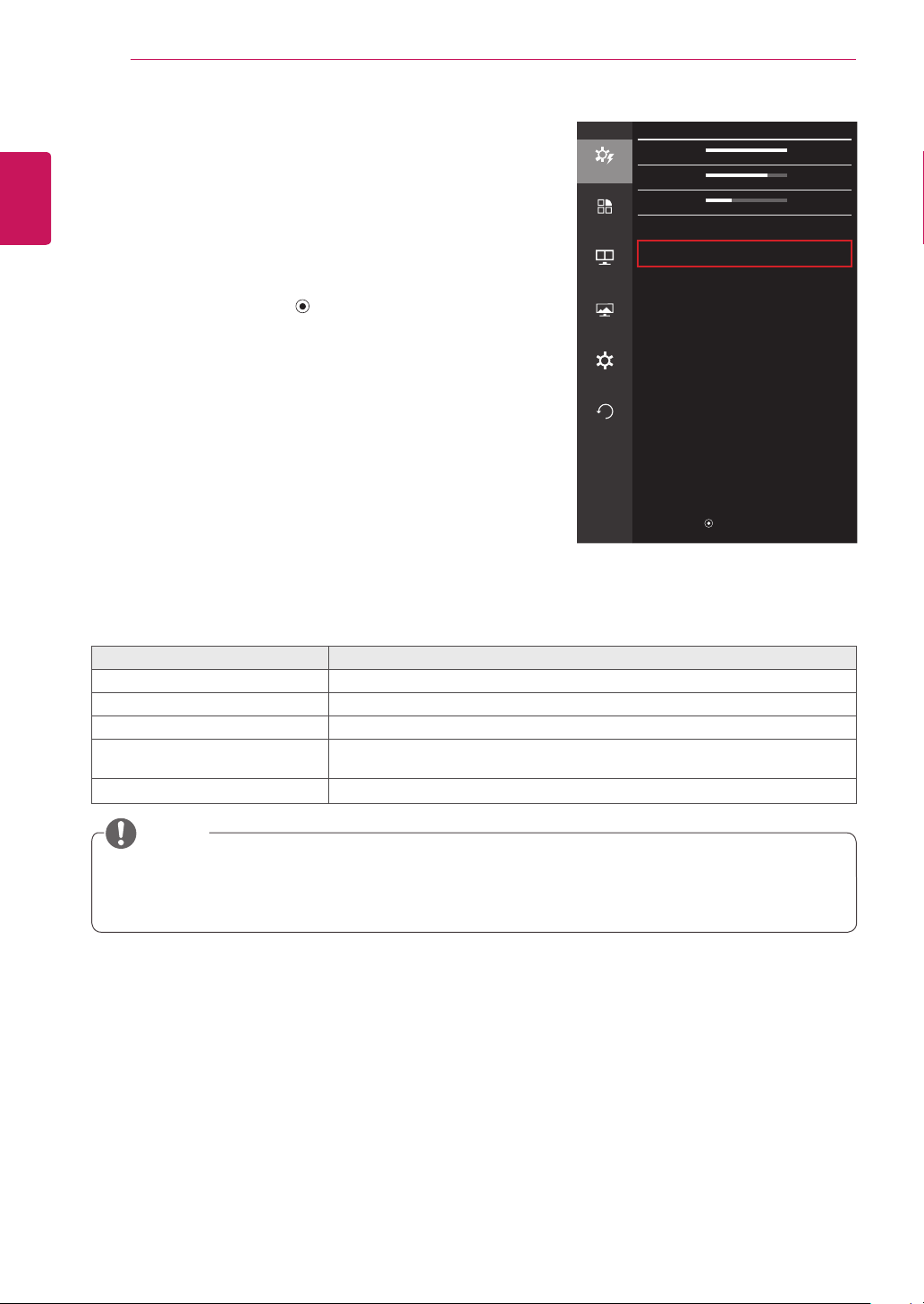
Easy control Function PBP Screen Settings Reset
Each option is described below.
Menu Description
Easy control Brightness
Adjusts the color contrast and brightness of the screen.
Contrast
Volume Adjusts the volume level.
y
You can adjust Mute/ Unmute by moving the joystick button to
▼
in the Volume menu.
NOTE
Input Selects the input mode.
Ratio Adjusts the aspect ratio of the screen.
Function Adjusts MaxxAudio, Reader Mode, Picture Mode, and SMART ENERGY SAVING.
PBP PBP Displays the screens of two input modes on one monitor.
Screen Picture Adjusts the Sharpness, Black Level, and Response Time of the screen.
Color Adjusts Gamma, Color Temperature, Red, Green, Blue, and Six Color.
Settings Adjusts Language, Power LED, Automatic Standby, DisplayPort 1.2, OSD Lock, and Set ID (only
34UC87M model).
Reset Restores the default settings.
◄
Exit Exits the OSD menu.
y
Your monitor’s OSD (On Screen Display) may differ slightly from that shown in this manual.
CAUTION
ENGLISH
22
USER SETTINGS
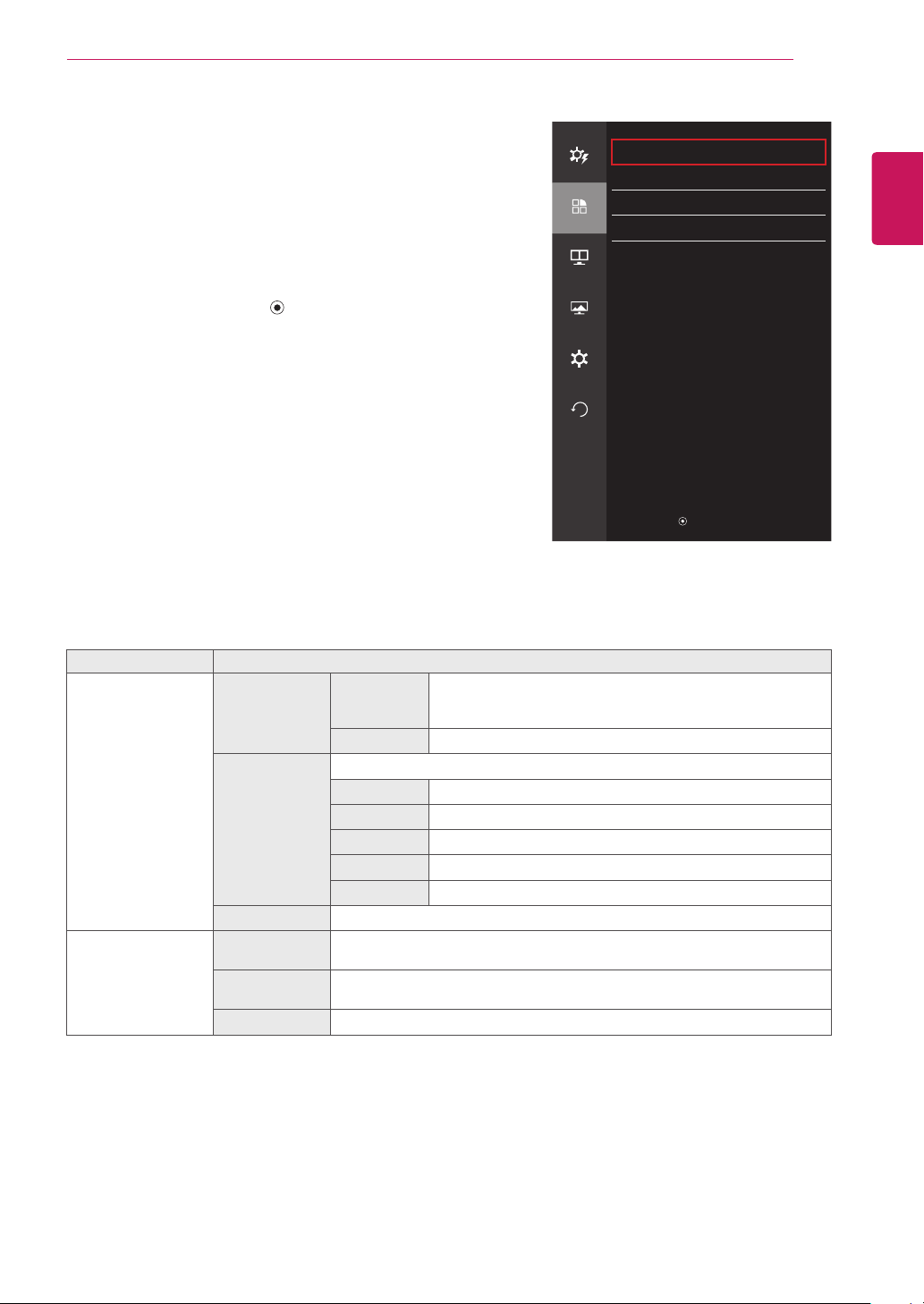
Ratio
1
To view the OSD menu, press the joystick button at the
bottom of the monitor and then enter the Menu.
2
Go to Easy control > Ratio by moving the joystick.
3
Configure the options following the instructions that appear in
the bottom right corner.
4
To return to the upper menu or set other menu items, move the
joystick to
◄
or pressing ( / OK) it.
5
If you want to exit the OSD menu, move the joystick to
◄
until
you exit.
Each option is described below.
Menu > Easy control > Ratio Description
Wide Displays the video in widescreen, regardless of the video signal input.
Original Displays video according to the aspect ratio of the video signal input.
Cinema 1 Enlarges the screen with an aspect ratio of 21:9. (at 1080p)
Cinema 2 Enlarges the screen with an aspect ratio of 21:9, including the black box at the bottom
for subtitles. (at 1080p)
1:1 The aspect ratio is not adjusted from the original.
y
The display may look the same for Wide, Original, and 1:1 options at the recommended resolution (3440 x
1440).
y
The ratio is disabled in the interlaced signal.
NOTE
Easy control
Easy control
Brightness
100
>
Contrast 70
>
Function
Volume
30
>
Input HDMI1
>
PBP
Ratio Wide
>
Screen
Settings
Reset
▲/▼
: Move
/
►
: OK
◄
: Back
ENGLISH
23
USER SETTINGS
Function
1
To view the OSD menu, press the joystick button at the
bottom of the monitor and then enter the Menu.
2
Go to Function by moving the joystick.
3
Configure the options following the instructions that appear in
the bottom right corner.
4
To return to the upper menu or set other menu items, move the
joystick to
◄
or pressing ( / OK) it.
5
If you want to exit the OSD menu, move the joystick to
◄
until
you exit.
Each option is described below.
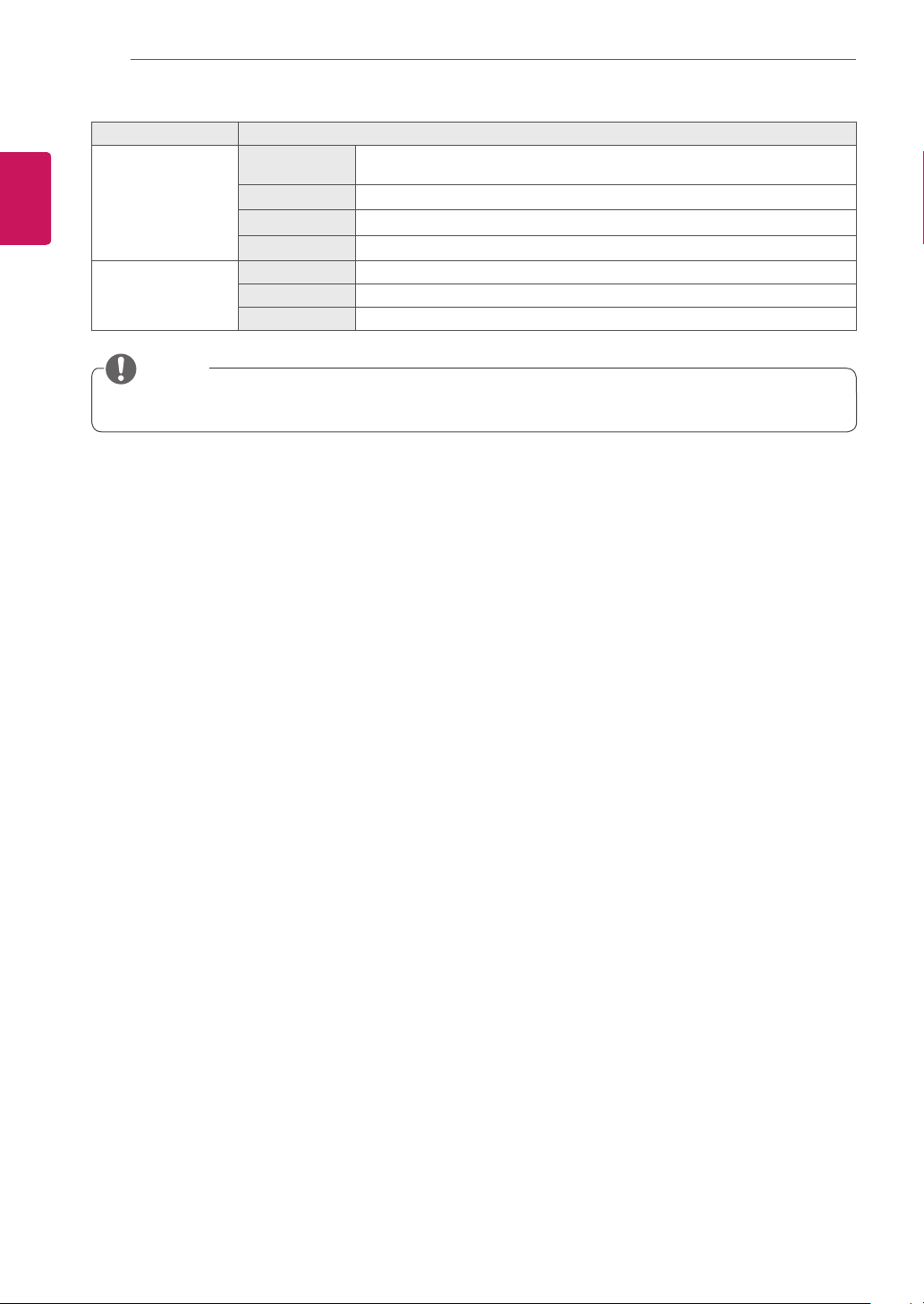
Menu > Function Description
MaxxAudio
(Move the joystick to
▲
in the main menu
to enter the function
directly.)
MaxxAudio On MaxxAudio® by Waves, recipient of a Technical GRAMMY Award®
is a suite of studio-quality sound tools for a superior listening
experience.
Off Disables the MaxxAudio function.
MaxxAudio
Settings
The user can set the sound quality manually.
MaxxBass Bass Enhancement.
MaxxTreble Treble Enhancement.
MaxxDialog Dialog Enhancement.
Maxx3D Enhances the three dimensional effect of the sound.
Reset Returns the sound quality to the default settings.
Midnight Mode Lets you enjoy rich and full sound at a low volume.
Reader Mode Reader 1 Optimizes the screen for browsing newspapers. You can brighten the screen in the
OSD menu.
Reader 2 Optimizes the screen for looking at cartoons. You can brighten the screen in the
OSD menu.
Reader Off Reader Mode is off.
Function
Easy control
MaxxAudio
>
Reader Mode Off
>
Function
Picture Mode Custom
>
SMART ENERGY SAVING Low
>
PBP
Screen
Settings
Reset
▲/▼
: Move
/
►
: OK
◄
: Back
ENGLISH
24
USER SETTINGS
Menu > Function Description
Picture Mode Custom Allows the user to adjust settings. You can adjust the color mode of the main
menu.
Photo Optimizes the screen for photos.
Cinema Optimizes the screen for videos.
Game Optimizes the screen for games.
SMART ENERGY
SAVING
High Saves energy using the high-efficiency SMART ENERGY SAVING feature.
Low Saves energy using the low-efficiency SMART ENERGY SAVING feature.
Off Disables the SMART ENERGY SAVING feature.
y
In the IR function, MaxxAudio is disabled when using the headphones.
NOTE
ENGLISH
25
USER SETTINGS
PBP
1
To view the OSD menu, press the joystick button at the
bottom of the monitor and then enter the Menu.
2
Go to PBP by moving the joystick.
3
Configure the options following the instructions that appear in
the bottom right corner.
4
To return to the upper menu or set other menu items, move the
joystick to
◄
or pressing ( / OK) it.
5
If you want to exit the OSD menu, move the joystick to
◄
until
you exit.
Each option is described below.
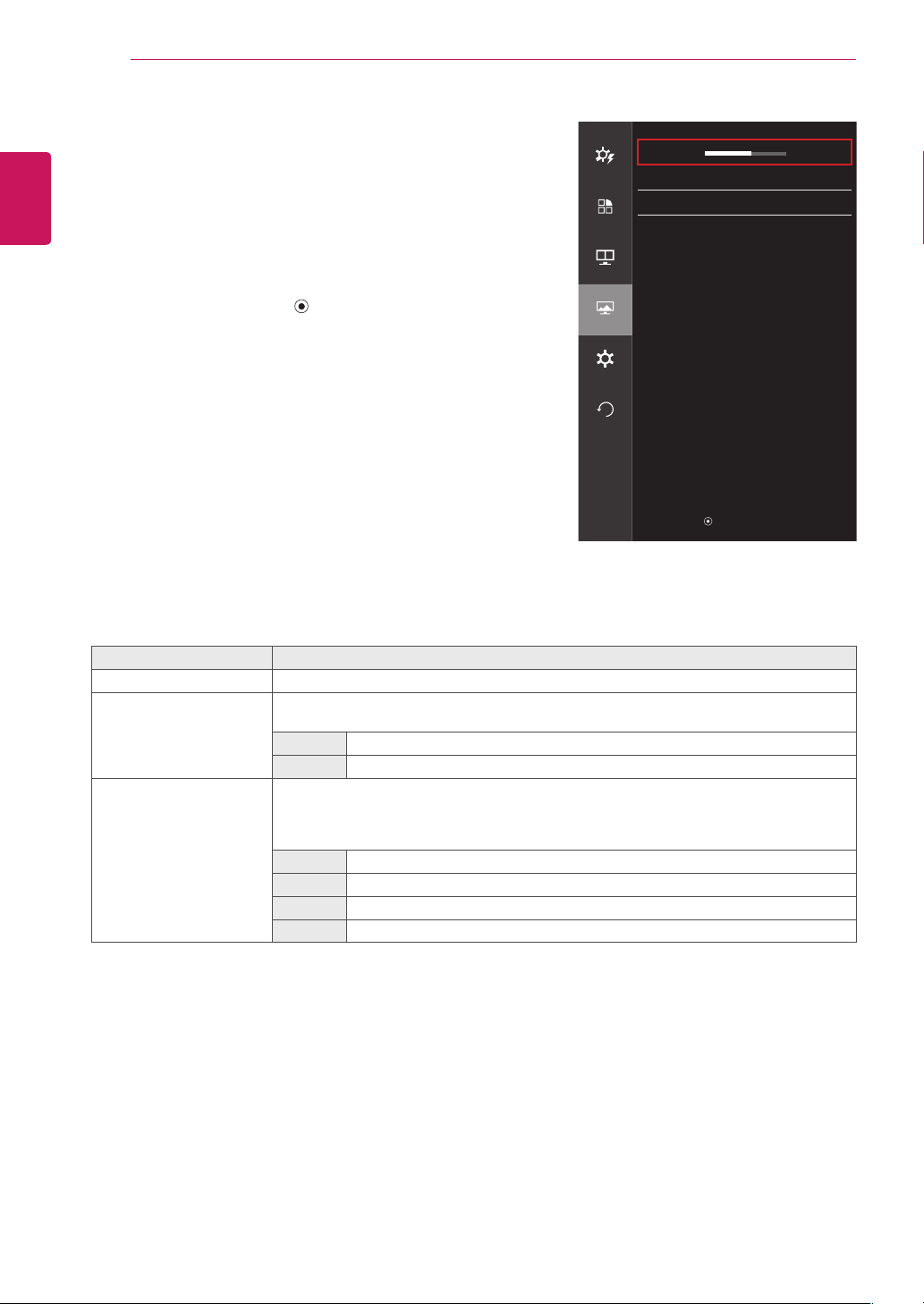
Menu > PBP Description
PBP Displays the screens of two input modes on one monitor.
PBP Connection
Sub Screen (Right)
HDMI 1 HDMI 2 DisplayPort
Thunderbolt ( )
Main Screen
(Left)
HDMI 1
- O X X
HDMI 2
O - X X
DisplayPort
O O - X
Thunderbolt ( )
O O X -
Input Main Selects the video signal input of the main screen.
Sub Selects the video signal input of the sub screen.
Audio Changes the audio output in PBP mode.
Swap Toggles between the main screen and sub screen in PBP mode.
Sub Full Converts the sub screen in PBP mode to wide screen.
Ratio Adjusts the aspect ratio of the main screen or sub screen.
Main Wide Displays the video to fit the PBP screen, regardless of the video
signal input.
Original Displays the video in the aspect ratio of the video signal input on
the PBP screen.
Sub Wide Displays the video to fit the PBP screen, regardless of the video
signal input.
Original Displays the video in the aspect ratio of the video signal input on
the PBP screen.
y
When the PBP mode is Off, Input, Audio, Swap, Sub Full, and Ratio menus are disabled.
The Main/Sub options for Ratio are disabled if there is no signal.
NOTE
PBP
Easy control
PBP Off
>
Input
>
Function
Audio HDMI1
>
Swap
PBP
Sub Full
Ratio
>
Screen
Settings
Reset
PBP Preview
HDMI1
▲/▼
: Move
/
►
: OK
◄
: Back
ENGLISH
26
USER SETTINGS
Picture
1
To view the OSD menu, press the joystick button at the
bottom of the monitor and then enter the Menu.
2
Go to Screen > Picture by moving the joystick.
3
Configure the options following the instructions that appear in
the bottom right corner.
4
To return to the upper menu or set other menu items, move the
joystick to
◄
or pressing ( / OK) it.
5
If you want to exit the OSD menu, move the joystick to
◄
until
you exit.
Each option is described below.
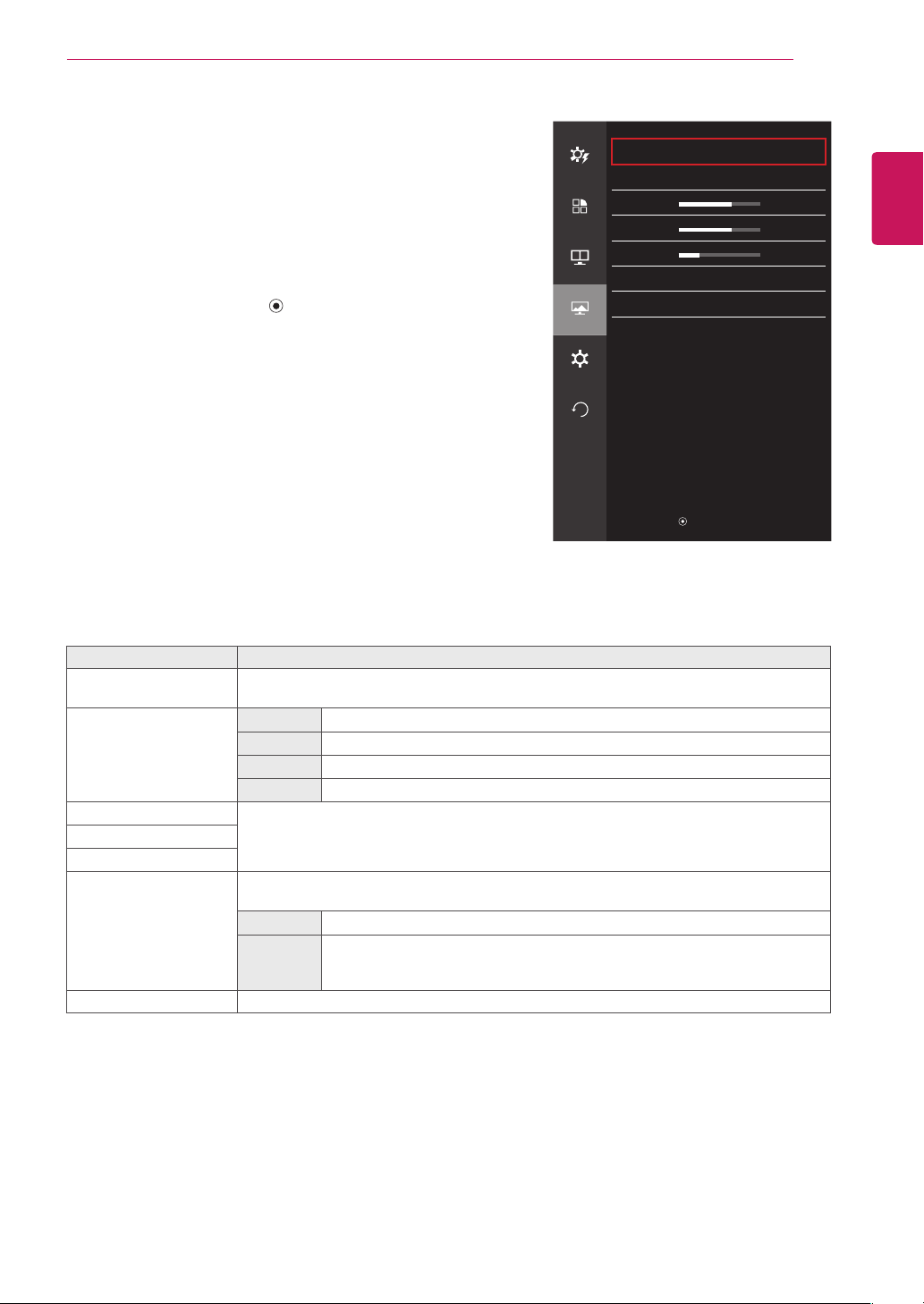
Menu > Screen > Picture Description
Sharpness Adjusts the sharpness of the screen.
Black Level Sets the offset level (for HDMI only).
• Offset: as a reference for a video signal, this is the darkest color the monitor can display.
High The picture of the screen gets brighter.
Low The picture of the screen gets darker.
Response Time Sets a response time for displayed pictures based on the speed of the screen.
For a normal environment, it is recommended that you use Middle. For a fast-moving picture,
use high.
Setting to High may cause image sticking.
High Sets the response time to High.
Middle Sets the response time to Middle.
Low Sets the response time to Low.
Off Does not use the response time improvement feature.
Picture
Easy control
Sharpness
5
>
Black Level High
>
Function
Response Time Middle
>
PBP
Screen
Settings
Reset
▲/▼
: Move
/
►
: OK
◄
: Back
ENGLISH
27
USER SETTINGS
Color
1
To view the OSD menu, press the joystick button at the
bottom of the monitor and then enter the Menu.
2
Go to Screen > Color by moving the joystick.
3
Configure the options following the instructions that appear in
the bottom right corner.
4
To return to the upper menu or set other menu items, move the
joystick to
◄
or pressing ( / OK) it.
5
If you want to exit the OSD menu, move the joystick to
◄
until
you exit.
Each option is described below.
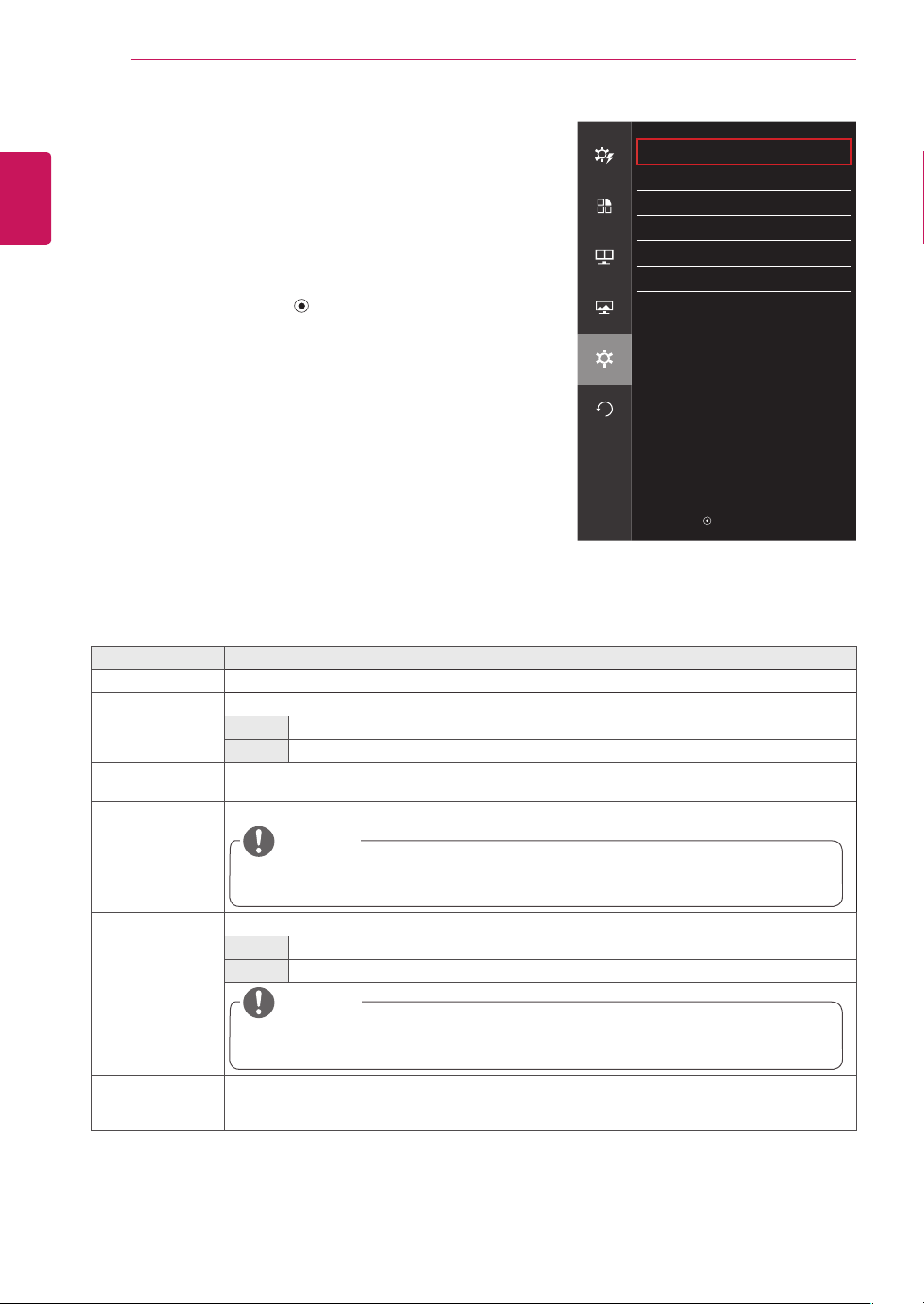
Menu > Screen > Color Description
Gamma Custom gamma settings: When using the gamma 0, gamma 1, and gamma 2 monitor settings,
higher gamma settings mean a brighter image is displayed and vice versa.
Color Temp Custom The user can adjust it to red, green, or blue by customization.
Warm Sets the screen color to a reddish tone.
Medium Sets the screen color to between a red and blue tone.
Cool Sets the screen color to a bluish tone.
Red You can customize the picture color using Red, Green, and Blue colors.
Green
Blue
Six Color Meets the user requirements for colors by adjusting the hue and saturation of the six colors (red,
green, blue, cyan, magenta, and yellow) and then saving the settings.
Hue Adjusts the tone of the screen colors.
Saturation Adjusts the saturation of the screen colors. The lower the value, the less saturated
and brighter the colors become. The higher the value, the more saturated and
darker the colors become.
Reset Returns color to the default settings.
Color
Easy control
Gamma Gamma 1
>
Color Temp Custom
>
Function
Red
50
>
Green 50
>
PBP
Blue
50
>
Six Color
>
Screen
Reset
>
Settings
Reset
▲/▼
: Move
/
►
: OK
◄
: Back
ENGLISH
28
USER SETTINGS
Settings
1
To view the OSD menu, press the joystick button at the
bottom of the monitor and then enter the Menu.
2
Go to Settings by moving the joystick.
3
Configure the options following the instructions that appear in
the bottom right corner.
4
To return to the upper menu or set other menu items, move the
joystick to
◄
or pressing ( / OK) it.
5
If you want to exit the OSD menu, move the joystick to
◄
until
you exit.
Each option is described below.
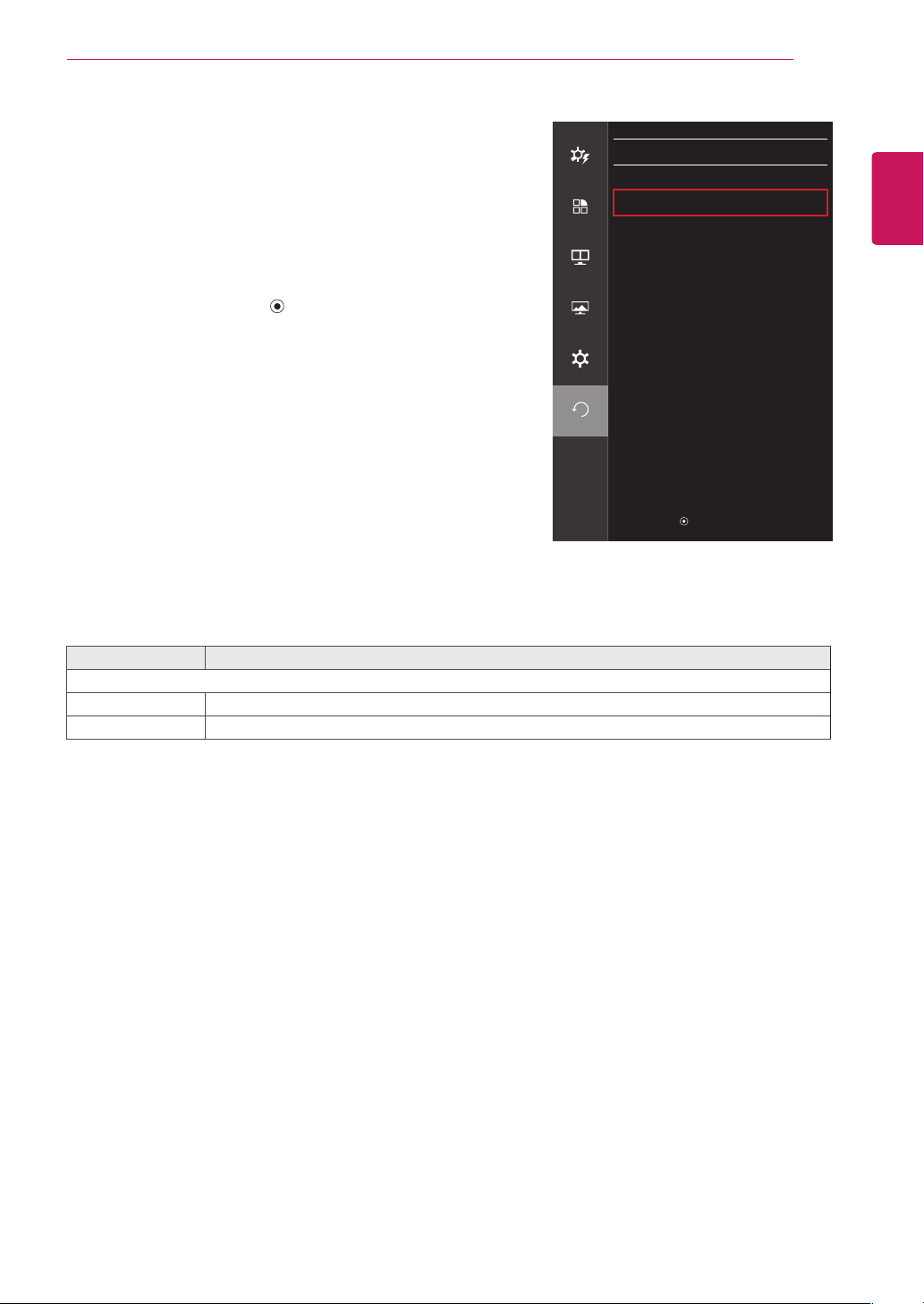
Menu > Settings Description
Language Sets the menu screen to the desired language.
Power LED Turns the power LED on the front of the monitor on or off.
On The power LED turns on automatically.
Off The power LED turns off.
Automatic
Standby
Feature that automatically turns off the monitor when there is no movement on the screen for a period
of time. You can set a timer for the auto-off function. (Off, 4 H, 6 H, and 8 H)
DisplayPort 1.2 Enables or disables DisplayPort 1.2.
y
Be sure to configure this option according to the DisplayPort version supported by your graphics
card. Set this option to Disable if your graphics card does not support DisplayPort 1.2.
NOTE
OSD Lock Prevents incorrect key input.
On Disables key input
Off Enables key input
y
All features are disabled except Brightness, Contrast, Volume, Input, OSD Lock in Settings, and the
Exit button.
NOTE
Set ID
(only 34UC87M
model)
You can assign a unique Set ID No. (name assignment) to each product when several products are
connected for display. Specify the number (1 to 6) using the button and exit. Use the assigned Set ID to
individually control each product using the Product Control Program.
Settings
Easy control
Language English
>
Power LED On
>
Function
Automatic Standby Off
>
DisplayPort 1.2 Disable
>
PBP
OSD Lock Off
>
Set ID 1
>
Screen
Settings
Reset
▲/▼
: Move
/
►
: OK
◄
: Back
ENGLISH
29
USER SETTINGS
Reset
1
To view the OSD menu, press the joystick button at the
bottom of the monitor and then enter the Menu.
2
Go to Reset by moving the joystick.
3
Configure the options following the instructions that appear in
the bottom right corner.
4
To return to the upper menu or set other menu items, move the
joystick to
◄
or pressing ( / OK) it.
5
If you want to exit the OSD menu, move the joystick to
◄
until
you exit.
Each option is described below.
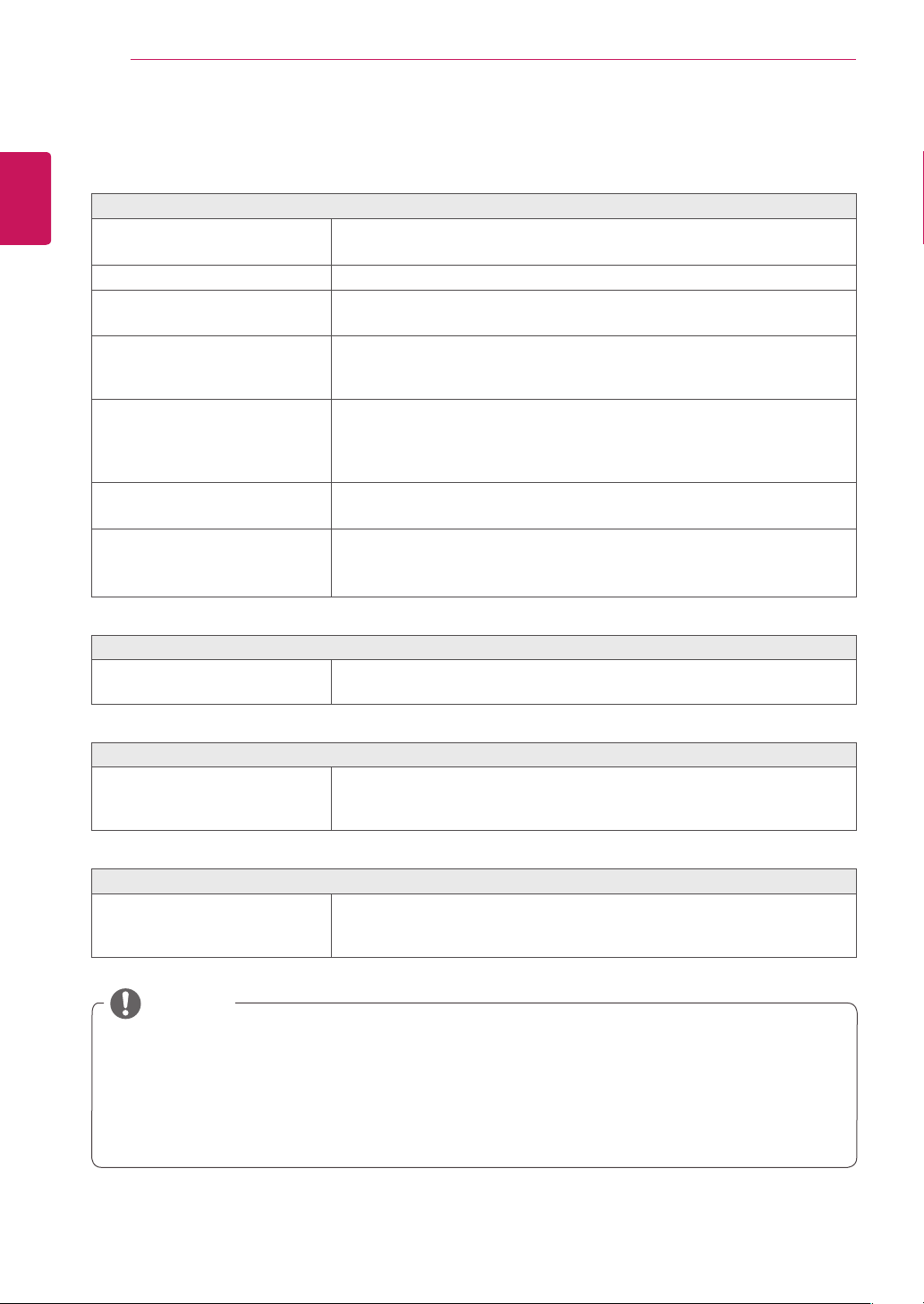
Menu > Reset Description
Do you want to reset your settings?
Reset Restores the default settings.
Cancel Cancel the reset.
Reset
Easy control
Do you want to reset your settings?
Reset
Function
Cancel
PBP
Screen
Settings
Reset
▲/▼
: Move
/
►
: OK
◄
: Back
ENGLISH
30
TROUBLESHOOTING
TROUBLESHOOTING
Nothing is displayed on the screen.
Is the monitor's power cord
plugged in?
y
Check if the power cord is correctly plugged into the power outlet.
Is the power LED on?
y
Check the power cable connection and press the power button.
Is the power on and the power
LED displaying white?
y
Check that the connected input is enabled (Menu - Input).
Is the power LED blinking?
y
If the monitor is in sleep mode, move the mouse or press any key on the
keyboard to switch the display on.
y
Check if the computer is turned on.
Is the OUT OF RANGE message
being displayed?
y
This occurs when signals transferred from the PC (video card) are out
of the horizontal or vertical frequency range of the monitor. Please see
the Product Specification section of this manual to set the appropriate
frequency.
Is the No Signal message being
displayed?
y
This is displayed when the signal cable between the PC and the monitor
is missing or disconnected. Check the cable and reconnect it.
The screen may not be displayed
properly when configuring
DisplayPort 1.2 in a Mac product.
y
DisplayPort 1.2 may not be supported depending upon the Mac
product. Please contact the manufacturer.
The OSD Lock message is being displayed.
Are some functions not available
when you press the Menu button?
y
The OSD is locked. Go to Menu > Settings and set OSD Lock to Off.
The screen retains an image.
Does image sticking occur even
when the monitor is turned off?
y
Displaying a still image for a prolonged time may cause damage to the
screen, resulting in the retention of the image.
y
To extend the lifetime of the monitor, use a screensaver.
Screen display is unstable and shaky / Images displayed on the monitor leave shadow trails.
Did you select the appropriate
resolution?
y
If the selected resolution is HDMI 1080i 60/50 Hz (interlaced), the screen
may be flickering. Change the resolution to 1080p or the recommended
resolution.
y
Vertical Frequency: In order to display an image, the screen must be refreshed dozens of times per second,
like a fluorescent lamp. The number of times the screen is refreshed per second is called
vertical frequency, or refresh rate, and is represented by Hz.
y
Horizontal Frequency: The time it takes to display one horizontal line is called the horizontal cycle. If 1 is di-
vided by the horizontal interval, the result is the number of horizontal lines displayed per second. This is called
horizontal frequency and is represented by kHz.
NOTE
ENGLISH
31
TROUBLESHOOTING
y
Check if the video card's resolution or frequency is within the range allowed by the monitor and set it to the
recommended (optimal) resolution in Control Panel > Display > Settings.
y
Not setting the video card to the recommended (optimal) resolution may result in blurred text, a dimmed
screen, a truncated display area, or misalignment of the display.
y
The setting methods may be different depending on the computer or operating system, and some resolutions
may not be available depending on the performance of the video card. If this is the case, contact the manufac-
turer of the computer or video card for assistance.
y
Some video cards may not support 3440 x 1440 resolution. If the resolution cannot be displayed, contact the
manufacturer of your video card.
NOTE
The display color is abnormal.
Does the display appear discol-
ored (16 colors)?
y
Set the color to 24 bit (true color) or higher. In Windows, go to Control
Panel > Display > Settings > Color Quality.
Does the display color appear
unstable or monochrome?
y
Check if the signal cable is connected properly. Reconnect the cable or
reinsert the PC's video card.
Are there spots on the screen?
y
When using the monitor, pixilated spots (red, green, blue, white, or black)
may appear on the screen. This is normal for an LCD screen. It is not an
error, nor is it related to the monitor's performance.
No sound from the headphone port.
Are images displayed using DP
(DisplayPort) or HDMI input with-
out sound?
y
Make sure that the headphone port connections are made properly.
y
Try increasing the volume with the joystick.
y
Set the audio output of the PC to the monitor you are using. On Microsoft
Windows, go to Control Panel > Hardware and Sound > Sound > set the
monitor as default device.
ENGLISH
32
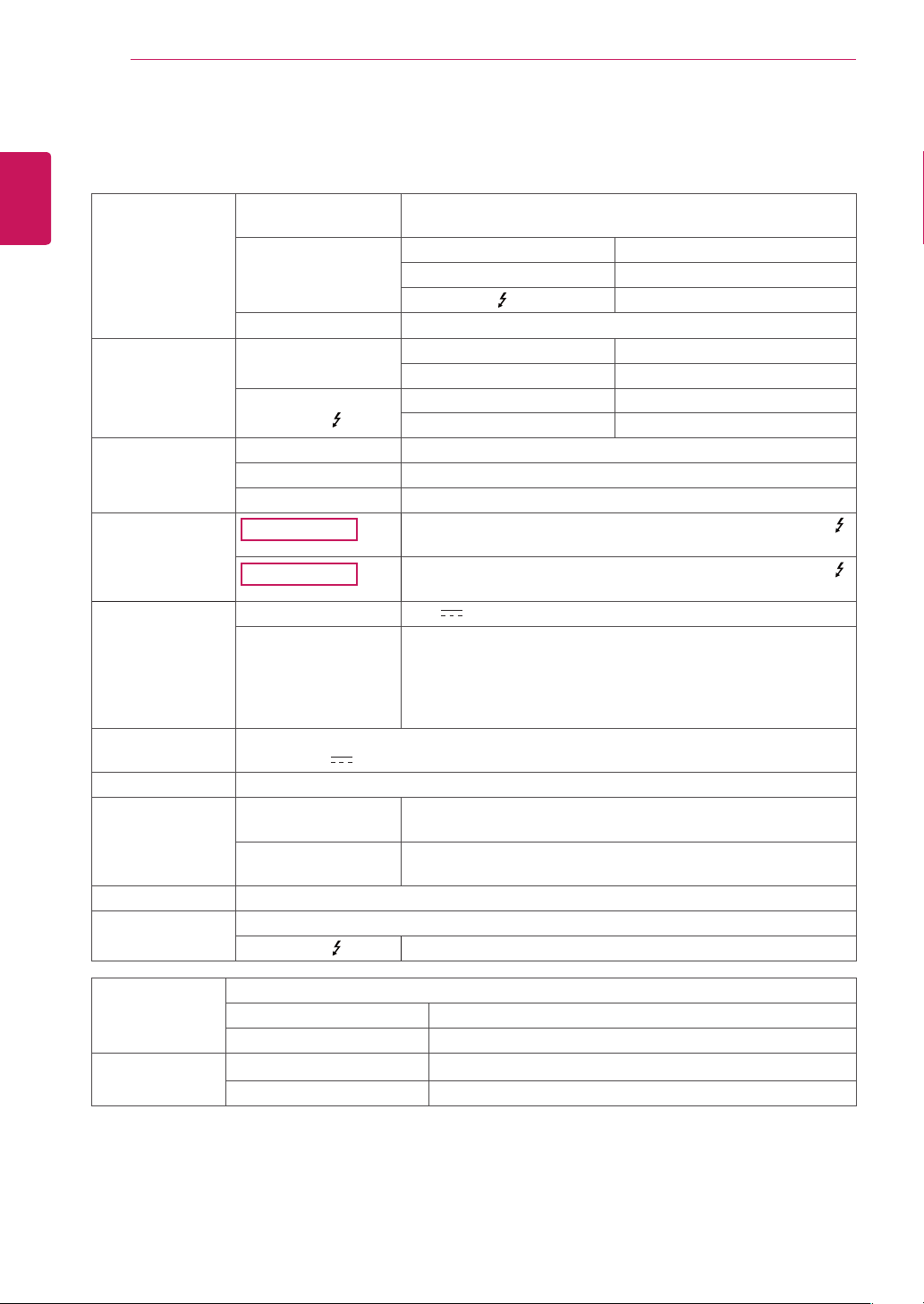
PRODUCT SPECIFICATION
PRODUCT SPECIFICATION
LCD Screen Type TFT (Thin Film Transistor)
LCD (Liquid Crystal Display) Screen
Color Depth HDMI 8-bit color is supported.
DP (DisplayPort) 10-bit color is supported.
Thunderbolt ( )
8-bit color is supported.
Pixel Pitch 0.2325 mm x 0.2325 mm
Resolution HDMI Max Resolution 3440 x 1440 @ 50 Hz
Recommended Resolution 3440 x 1440 @ 50 Hz
DP (DisplayPort)
Thunderbolt ( )
Max Resolution 3440 x 1440 @ 60 Hz
Recommended Resolution 3440 x 1440 @ 60 Hz
Video Signal Horizontal Frequency 30 kHz to 90 kHz
Vertical Frequency 56 Hz to 61 Hz
Synchronization Separate Sync.
Input Connector
34UC87
H/P OUT, HDMI IN 1, HDMI IN 2, DP (DisplayPort) IN, Thunderbolt ( ),
USB UP, USB IN 1, 2
34UC87M
H/P OUT, HDMI IN 1, HDMI IN 2, DP (DisplayPort) IN, Thunderbolt ( ),
USB UP, USB IN 1, 2, IR IN, IR OUT
Power Sources Power Rating 19 V 6.0 A
Power Consumption
(Typical)
Operating Mode: 80 W (Typical, USB excluded)
100 W (Max, USB included, Audio Output 50%)
Sleep Mode ≤ 1.2 W
Off Mode ≤ 0.5 W
Off Mode ≤ 0.3 W (DC switch is off.)
AC/DC Adapter LCAP31 type, manufactured by Lienchang
Output: 19 V 7.37 A
Stand Angle Forward/Backward: -5° to 15° (Head)
Environmental Con-
ditions
Operating Conditions Temperature 10°C to 35°C
Humidity 10% to 80%
Storing Conditions Temperature -20°C to 60°C
Humidity 5% to 90%
Audio Output 7 W + 7 W
Supported
Operating System
Win XP, Win Vista, Win 7, Win 8, Mac OS*
Thunderbolt ( )
Win 7, Win 8, Mac OS*
Dimensions Monitor Size (Width x Height x Depth)
With Stand 830.5 mm x 460.8 mm x 241.4 mm
Without Stand 830.5 mm x 370.3 mm x 79.8 mm
Weight (Without
Packaging)
With Stand 10.0 kg
Without Stand 8.0 kg
Specifications are subject to change without notice.
* In accordance with Mac, products may not support the recommended resolution or the some features.
(For more information, refer to the support information card of Mac which is provided separately.)
ENGLISH
33
PRODUCT SPECIFICATION
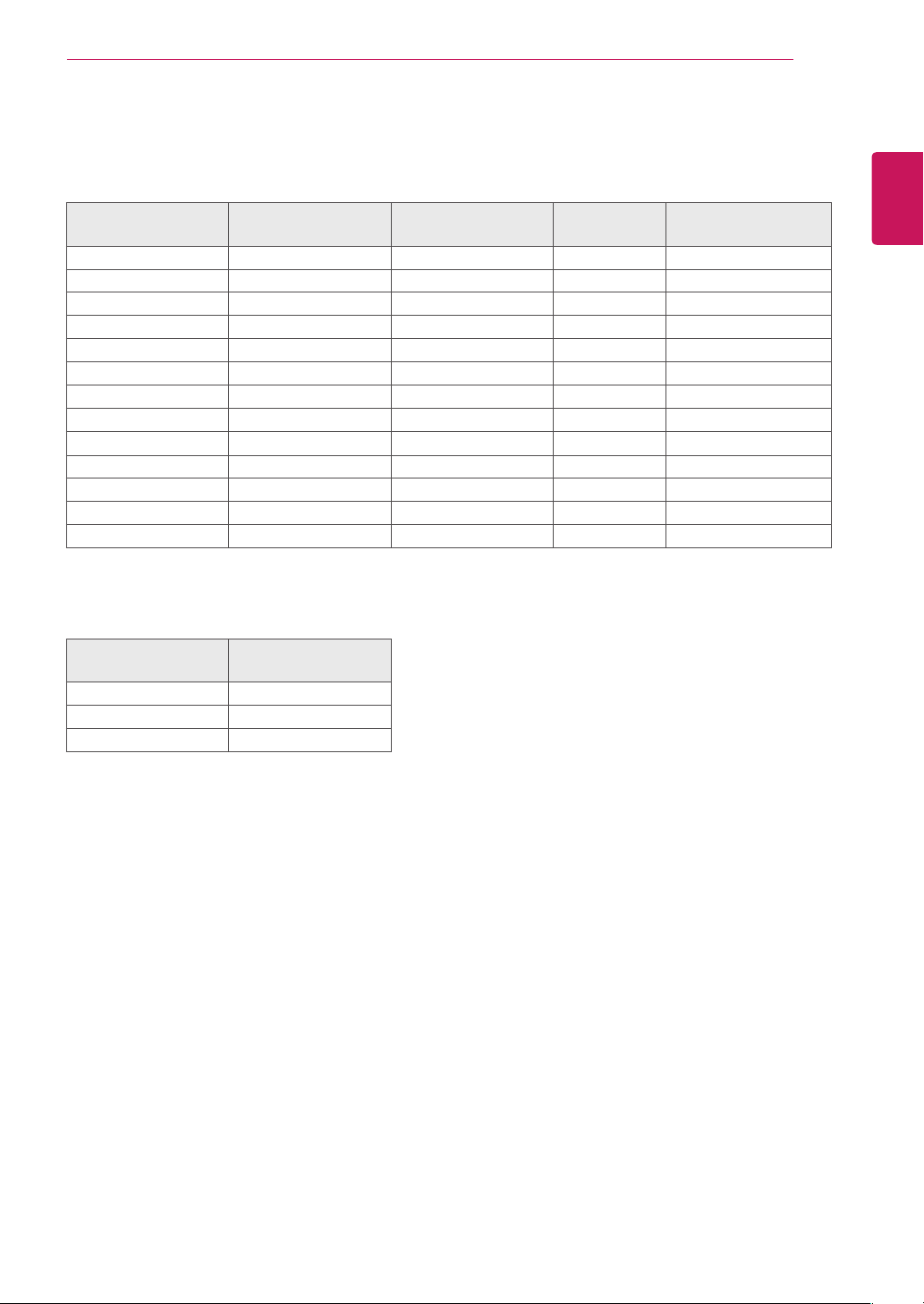
Factory Support Mode
(Preset Mode, HDMI/ DisplayPort/ Thunderbolt PC)
Preset Mode
Horizontal Frequency
(kHz)
Vertical Frequency (Hz) Polarity (H/V) Remarks
640 x 480 31.469 59.94 -/-
800 x 600 37.879 60.317 +/+
1024 x 768 48.363 60 -/-
1152 x 864 54.347 60.05 +/+
1280 x 720 45 60 +/+
1280 x 1024 63.981 60.02 +/+
1600 x 900 60 60 +/+
1680 x 1050 65.29 59.954 -/+
1920 x 1080 67.5 60 +/-
2560 x 1080 66.7 60 -/+
3440 x 1440 43.82 29.99 +/+
3440 x 1440 73.68 49.99 +/+
3440 x 1440 88.82 59.97 +/+ HDMI is not supported.
Power LED
Mode LED Color
On Mode White
Sleep Mode Flashing White
Off Mode Off
ENGLISH
34
PROPER POSTURE
PROPER POSTURE
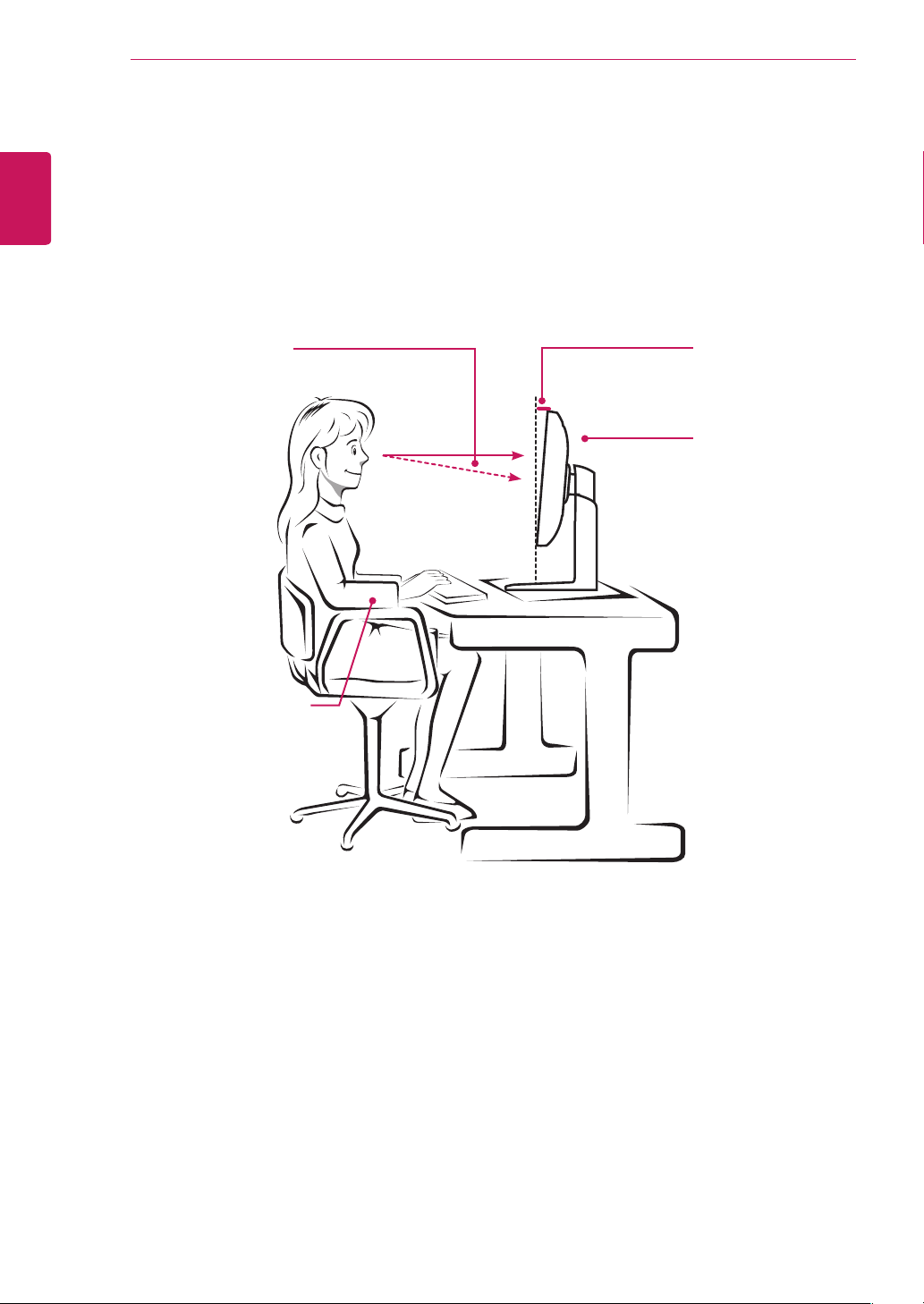
Proper Posture for Using the Monitor
Adjust the screen so that you can comfortably look at it at a slight downward angle from your natural eye level.
y
Take a break for approximately 10 minutes every hour to reduce any fatigue caused by prolonged
usage.
y
Adjust the stand angle from -5° to 15° to obtain the best view of the screen.
You should be looking
slightly down at the
screen.
Place your hands gently on
the keyboard, keeping your
arms bent at the elbows
and extended horizontally
in front of you.
Stand Angle
-5° to 15°
Adjust the position of
the screen to minimize
reflections.

This device meets the EMC requirements for
home appliances (Class B) and is intended for
home usage. This device can be used in all
regions. Read the owner's manual (CD) carefully
and keep it at hand. Please note that the label
attached to the product provides information for
technical support.
Model
Serial No.
ENERGY STAR is a set of power-saving
guidelines issued by the U.S.Environmental
Protection Agency (EPA).
Refer to ENERGY STAR.gov for more information
on the ENERGY STAR program.
As an ENERGY STAR Partner LGE
U. S. A., Inc. has determined that this
product meets the ENERGY STAR
guidelines for energy efficiency.