
English
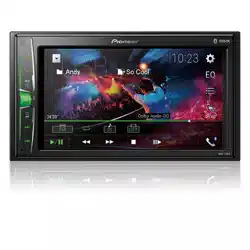
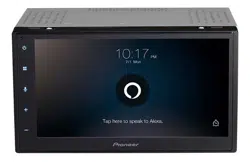
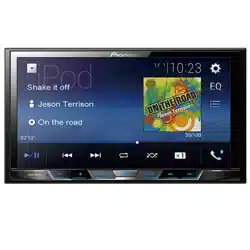
MVH-300EX
MVH-200EX
RDS AV RECEIVER
Important (Serial number)
The serial number is located on the bottom of this unit. For your own security and convenience, be
sure to record this number on the enclosed warranty card.
Operation Manual
English
- 2 -
Important
■Precaution ......................... 3
■Parts and controls............. 9
■Basic operation ............... 10
■Bluetooth......................... 13
■AV source ......................... 19
■Smartphone connection for
AV source ......................... 20
■Radio................................ 21
■Compressed files............. 22
■iPod® ................................ 26
■AUX .................................. 28
■Settings............................ 29
Displaying the setting screen ................................ 29
System settings........................................................... 29
Theme settings ........................................................... 34
Audio settings ............................................................. 34
Video settings.............................................................. 37
■Favorite menu.................. 38
■Other functions ............... 38
■Appendix ......................... 40
Contents
Thank you for buying this Pioneer
product.
Please read through these instructions
so you will know how to operate your
model properly. After you have finished
reading the instructions, keep this
document in a safe place for future
reference.
The screen shown in the examples may
differ from actual screens, which may be
changed without notice for
performance and function
improvements.
English
- 3 -
CAN ICES-3 B/NMB-3 B
WARNING
• This product contains chemicals known to the State of California and other governmental entities to
cause cancer and birth defects or other reproductive harm. Wash hands after handling.
• Slots and openings in the cabinet are provided for ventilation to ensure reliable operation of the
product, and to protect it from overheating. To prevent fire hazard, the openings should never be
blocked or covered with items (such as papers, floor mat, cloths).
Precaution
Information to user
–MODEL NO.: MVH-300EX, MVH-200EX
FCC ID: AJDK071
IC: 775E-K071
–This device complies with Part 15 of FCC Rules and Innovation, Science, and Economic
Development Canada Licence-exempt RRSs. Operation is subject to the following two conditions:
(1) this device may not cause interference, and (2) this device must accept any interference,
including interference that may cause undesired operation of this device.
–The Bluetooth antenna cannot be removed (or replaced) by user.
–This equipment complies with FCC/ISED radiation exposure limits set forth for an uncontrolled
environment and meets the FCC radio frequency (RF) Exposure Guidelines and RSS-102 of the ISED
radio frequency (RF) Exposure rules. This equipment has very low levels of RF energy that it deemed
to comply without maximum permissive exposure evaluation (MPE). But it is desirable that it should
be installed and operated keeping the radiator at least 20 cm or more away from person’s body
(excluding extremities: hands, wrists, feet and ankles).
–This transmitter must not be co-located or operated in conjunction with any other antenna or
transmitter.
–Alteration or modifications carried out without appropriate authorization may invalidate the user’s
right to operate the equipment.
–NOTE: This equipment has been tested and found to comply with the limits for a Class B digital
device, pursuant to Part 15 of the FCC Rules. These limits are designed to provide reasonable
protection against harmful interference in a residential installation. This equipment generates, uses
and can radiate radio frequency energy and, if not installed and used in accordance with the
instructions, may cause harmful interference to radio communications. However, there is no
guarantee that interference will not occur in a particular installation. If this equipment does cause
harmful interference to radio or television reception, which can be determined by turning the
equipment off and on, the user is encouraged to try to correct the interference by one or more of
the following measures:
– Reorient or relocate the receiving antenna.
– Increase the separation between the equipment and receiver.
– Connect the equipment into an outlet on a circuit different from that to which the receiver is
connected.
– Consult the dealer or an experienced radio/TV technician for help.
- 4 -
English
CAUTION
This product is evaluated in moderate and tropical climate condition under the Audio, video and
similar electronic apparatus - Safety requirements, IEC 60065.
Get the most out of your equipment by playing it at a safe level—a level that lets the sound come
through clearly without annoying blaring or distortion and, most importantly, without affecting your
sensitive hearing. Sound can be deceiving.
Over time, your hearing “comfort level” adapts to higher volumes of sound, so what sounds “normal”
can actually be loud and harmful to your hearing. Guard against this by setting your equipment at a
safe level BEFORE your hearing adapts.
▶ESTABLISH A SAFE LEVEL:
– Set your volume control at a low setting.
– Slowly increase the sound until you can hear it comfortably and clearly, without
distortion.
– Once you have established a comfortable sound level, set the dial and leave it
there.
▶BE SURE TO OBSERVE THE FOLLOWING GUIDELINES:
– Do not turn up the volume so high that you can’t hear what’s around you.
– Use caution or temporarily discontinue use in potentially hazardous situations.
– Do not use headphones while operating a motorized vehicle; the use of
headphones may create a traffic hazard and is illegal in many areas.
WARNING
• Do not attempt to install or service this product by yourself. Installation or servicing of this product by
persons without training and experience in electronic equipment and automotive accessories may
be dangerous and could expose you to the risk of electric shock, injury or other hazards.
• Do not allow this product to come into contact with liquids. Electrical shock could result. Also,
damage to the product, smoke, and overheating could result from contact with liquids.
• If liquid or foreign matter should get inside this product, park your vehicle in a safe place, turn the
ignition switch off (ACC OFF) immediately and consult your dealer or the nearest authorized Pioneer
Service Station. Do not use this product in this condition because doing so may result in a fire, electric
shock, or other failure.
• If you notice smoke, a strange noise or odor from this product, or any other abnormal signs on the
LCD screen, turn off the power immediately and consult your dealer or the nearest authorized
Pioneer Service Station. Using this product in this condition may result in permanent damage to the
system.
• Do not disassemble or modify this product, as there are high-voltage components inside which may
cause an electric shock. Be sure to consult your dealer or the nearest authorized Pioneer Service
Station for internal inspection, adjustments or repairs.
The Safety of Your Ears is in Your Hands
Important safety information

English
- 5 -
Before using this product, be sure to read and fully understand the following safety
information:
• Do not operate this product, any applications, or the rear view camera option (if
purchased) if doing so will divert your attention in any way from the safe operation of
your vehicle. Always observe safe driving rules and follow all existing traffic
regulations. If you experience difficulty in operating this product, pull over, park your
vehicle in a safe location and apply the parking brake before making the necessary
adjustments.
• Never set the volume of this product so high that you cannot hear outside traffic and
emergency vehicles.
• To promote safety, certain functions are disabled unless the vehicle is stopped and the
parking brake is applied.
• Keep this manual handy as a reference for operating procedures and safety
information.
• Do not install this product where it may (i) obstruct the driver’s vision, (ii) impair the
performance of any of the vehicle’s operating systems or safety features, including air
bags or hazard lamp buttons or (iii) impair the driver’s ability to safely operate the
vehicle.
• Please remember to fasten your seat belt at all times while operating your vehicle. If
you are ever in an accident, your injuries can be considerably more severe if your seat
belt is not properly buckled.
• Never use headphones while driving.
• Rear visibility systems (backup cameras) are required in certain new vehicles sold in
the U.S. and Canada. U.S. regulations began according to a two year phase-in on May
1, 2016, and both the U.S. and Canada require that all such vehicles manufactured on
or after May 1, 2018 have rear visibility systems. Owners of vehicles equipped with
compliant rear visibility systems should not install or use this product in a way
that alters or disables that system's compliance with applicable regulations. If
you are unsure whether your vehicle has a rear visibility system subject to the U.S. or
Canadian regulations, please contact the vehicle manufacturer or dealer.
If your vehicle has a compliant backup camera that displays the backup view through
the factory receiver, do not use the Pioneer receiver unless it is connected to and
displays the same view as the factory backup camera. Connection to the factory
backup camera will require an adaptor, sold separately. Not all vehicles may be able to
connect. Please check with a qualified professional installer for installation options
specific to your vehicle.
Certain functions (such as viewing of video image and certain touch panel key
operations) offered by this product could be dangerous (possibly resulting in serious
injury or death) and/or unlawful if used while driving. To prevent such functions from
being used while the vehicle is in motion, there is an interlock system that senses when
Parking brake interlock
- 6 -
English
the parking brake is set and when the vehicle is moving. If you attempt to use the
functions described above while driving, they will become disabled until you stop the
vehicle in a safe place, and (1) apply the parking brake, (2) release the parking brake, and
then (3) apply the parking brake again. Please keep the brake pedal pushed down
before releasing the parking brake.
WARNING
• LIGHT GREEN LEAD AT POWER CONNECTOR IS DESIGNED TO DETECT PARKED STATUS AND
MUST BE CONNECTED TO THE POWER SUPPLY SIDE OF THE PARKING BRAKE SWITCH.
IMPROPER CONNECTION OR USE OF THIS LEAD MAY VIOLATE APPLICABLE LAW AND MAY
RESULT IN SERIOUS INJURY OR DAMAGE.
• Do not take any steps to tamper with or disable the parking brake interlock system which is in
place for your protection. Tampering with or disabling the parking brake interlock system
could result in serious injury or death.
• To avoid the risk of damage and injury and the potential violation of applicable laws, this
product is not for use with a video image that is visible to the driver.
• In some countries the viewing of video image on a display inside a vehicle even by persons other
than the driver may be illegal. Where such regulations apply, they must be obeyed.
If you attempt to watch video image while driving, the warning “Viewing of front seat
video source while driving is strictly prohibited.” will appear on the screen. To watch
video image on this display, stop the vehicle in a safe place and apply the parking brake.
Please keep the brake pedal pushed down before releasing the parking brake.
The video output terminal (V OUT) is for connection of a display to enable passengers in
the rear seats to watch video images.
WARNING
NEVER install the rear display in a location that enables the driver to watch video images while driving.
Be sure to run the vehicle engine while using this product. Using this product without
running the engine can drain the battery.
WARNING
Do not install this product in a vehicle that does not have an ACC wire or circuitry available.
To ensure safe driving
When using a display connected to V OUT
To avoid battery exhaustion
English
- 7 -
With an optional rear view camera, you are able to use this product as an aid to keep an
eye on trailers, or backing into a tight parking spot.
WARNING
• SCREEN IMAGE MAY APPEAR REVERSED.
• USE INPUT ONLY FOR REVERSE OR MIRROR IMAGE REAR VIEW CAMERA. OTHER USE MAY RESULT IN
INJURY OR DAMAGE.
CAUTION
The rear view mode is to use this product as an aid to keep an eye on the trailers, or while backing up.
Do not use this function for entertainment purposes.
CAUTION
• To prevent data loss and damage to the storage device, never remove it from this product while data
is being transferred.
• Pioneer cannot guarantee compatibility with all USB mass storage devices and assumes no
responsibility for any loss of data on media players, iPhone®, smartphone, or other devices while
using this product.
After-sales service for Pioneer products
Visit us at the following site:
http://www.pioneerelectronics.com
http://www.pioneerelectronics.ca
Rear view camera
Handling the USB connector
Failure to operate
Please contact the dealer or distributor from which you purchased the product for after-sales service
(including warranty conditions) or any other information. In case the necessary information is not
available, please contact the companies listed below.
Please do not ship your product to the companies at the addresses listed below for repair without
making advance contact.
–USA&CANADA
Pioneer Electronics (USA) Inc.
CUSTOMER SUPPORT DIVISION
P.O. Box 1760 Long Beach, CA 90801-1760
800-421-1404
For warranty information, please see the Limited Warranty sheet included with your product.
Visit our website
- 8 -
English
1 Register your product.
2 Receive updates on the latest products and technologies.
3 Download owner’s manuals, order product catalogs, research new products, and
much more.
4 Receive notices of software upgrades and software updates.
• Do not expose the LCD screen to direct sunlight when this product is not used. This
may result in LCD screen malfunction due to the resulting high temperatures.
• When using a cellular phone, keep the antenna of the cellular phone away from the
LCD screen to prevent disruption of the video in the form of spots, colored stripes, etc.
• To protect the LCD screen from damage, be sure to touch the touch panel keys only
with your finger and do so gently.
• The information will be erased by disconnecting the yellow lead from the battery (or
removing the battery itself ).
• Some of the settings and recorded contents will not be reset.
This manual uses diagrams of actual screens to describe operations. However, the
screens on some units may not match those shown in this manual depending on the
model used.
Protecting the LCD panel and screen
Notes on internal memory
About this manual
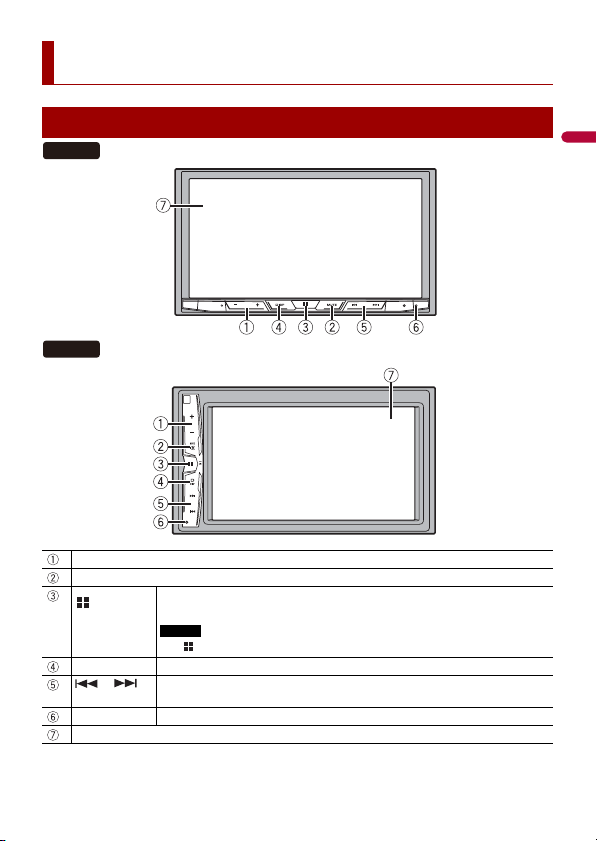
Meanings of symbols used in this manual
This indicates model names that are supported by the described operations.
This indicates to touch the appropriate soft key on the touch screen.
This indicates to touch and hold the appropriate soft key on the touch screen.
000EX
English
- 9 -
Parts and controls
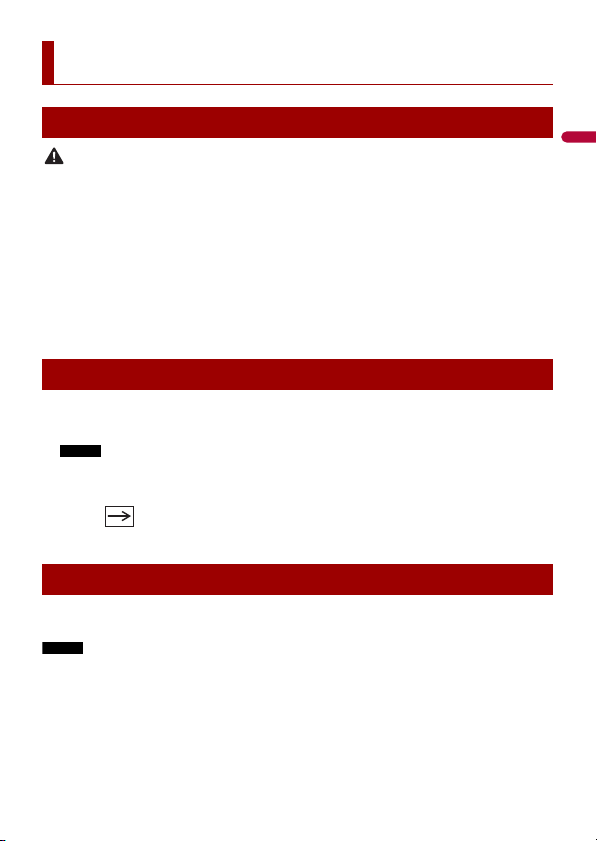
Main unit
VOL (+/-)
MUTE
Press to display the top menu screen.
Press and hold to power off. To power back on, press any button.
NOTE
The icon appears when the power is on (MVH-200EX).
DISP Press to turn the display on or off.
or Performs manual seek tuning, fast forwards, reverse and track search controls.
Press to answer or end a call.
RESET Press to reset the microprocessor (page 10).
LCD screen
300EX
200EX
- 10 -
English
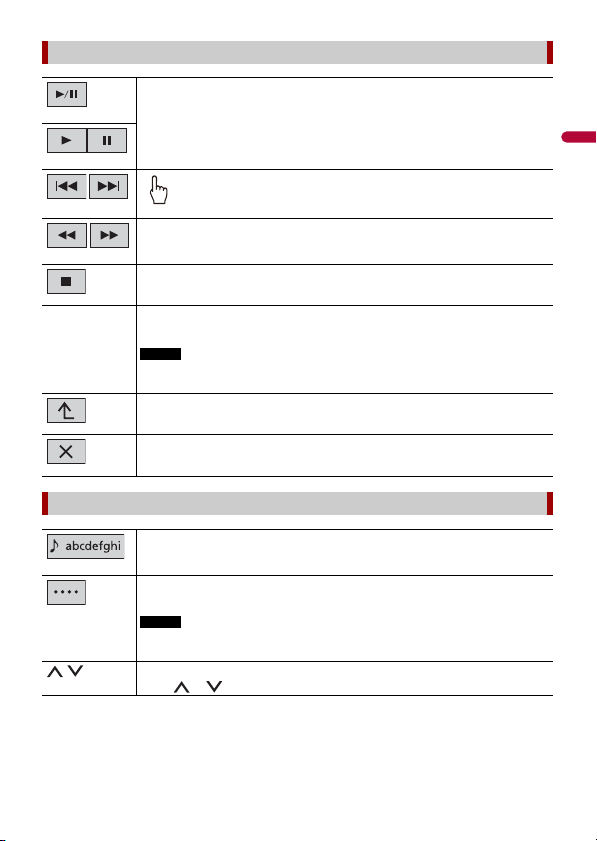
CAUTION
• Pressing the RESET button resets settings and recorded contents to the factory settings.
– Do not perform this operation when a device is connected to this product.
– Some of the settings and recorded contents will not be reset.
• The microprocessor must be reset under the following conditions:
– Prior to using this product for the first time after installation.
– If this product fails to operate properly.
– If there appears to be problems with the operation of the system.
1 Turn the ignition switch OFF.
2 Press RESET with a pen tip or other pointed tools.
Settings and recorded contents are reset to the factory settings.
1 Start the engine to boot up the system.
The [Select Program Language] screen appears.
NOTE
From the second time on, the screen shown will differ depending on the previous conditions.
2 Touch the language.
3 Touch .
The top menu screen appears.
You can operate this product by touching the keys on the screen directly with your
fingers.
NOTE
To protect the LCD screen from damage, be sure to touch the screen only with your finger gently.
Basic operation
Resetting the microprocessor
Starting up the unit
Using the touch panel
English
- 11 -
Common touch panel keys
Switches between playback and pause.
Skips files (or tracks) forward or backward.
Performs fast reverse or fast forward.
Touch again to change the playback speed.
Stops playback.
Te xt
information
When all characters are not displayed, the rests are automatically scrolled on
the display. The characters are displayed by touching the text information.
NOTE
This function is available only when you stop your vehicle in a safe place and apply
the parking brake.
Returns to the previous screen.
Close the screen.
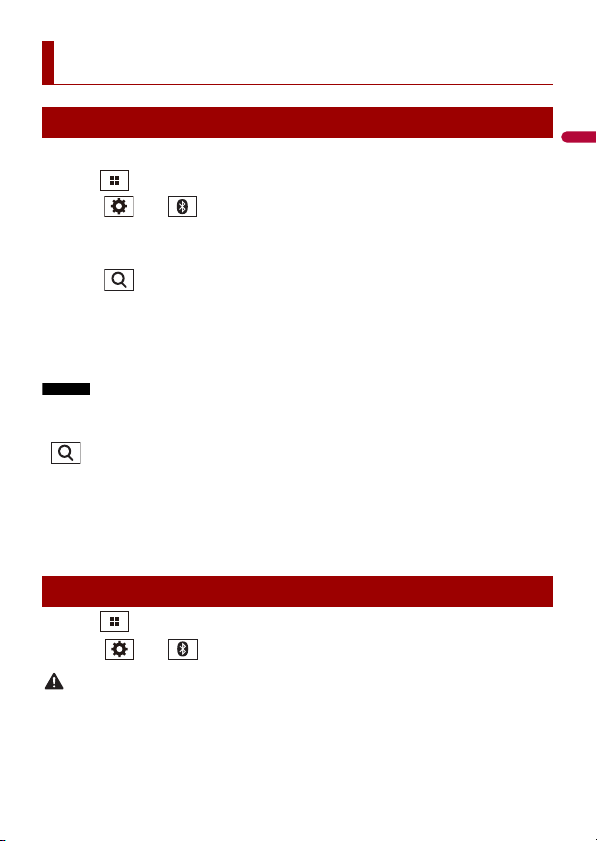
Operating list screens
Touching an item on the list allows you to narrow down the options and
proceed to the next operation.
Appears when all characters are not displayed on the display area.
If you touch the key, the rests are scrolled for display.
NOTE
This function is available only when you stop your vehicle in a safe place and apply
the parking brake.
Appears when items cannot be displayed on a single page.
Touch or to view any hidden items.
- 12 -
English
Operating the time bar
You can change the playback point by dragging the key.
NOTE
The time bar function may vary depending on the activating source.
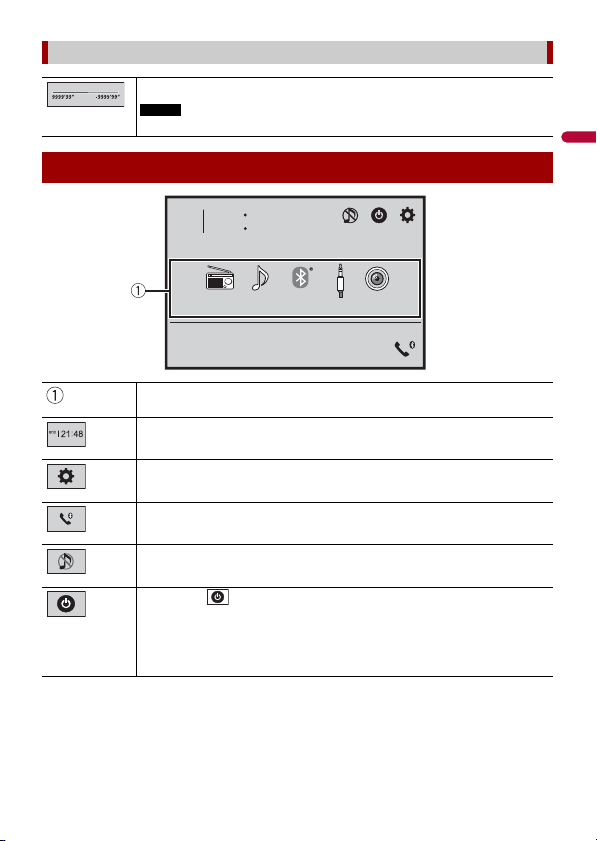
Top menu screen
Source icons
Setting the time and date (page 38)
Settings (page 29) and Favorite menu (page 38)
Hands-free phoning (page 15)
AV source off
If you select , you can turn off almost all functions.
The unit turns on by operating following functions:
• An incoming call is received (only for hands-free phoning via Bluetooth).
• A rear view camera image is input when the vehicle is in reverse.
• A button on this unit is pressed.
• The ignition switch is turned off (ACC OFF), then turned on (ACC ON).
4821
6/10
USBRadio
BluetoothAudio
Camera View
AUX
English
- 13 -
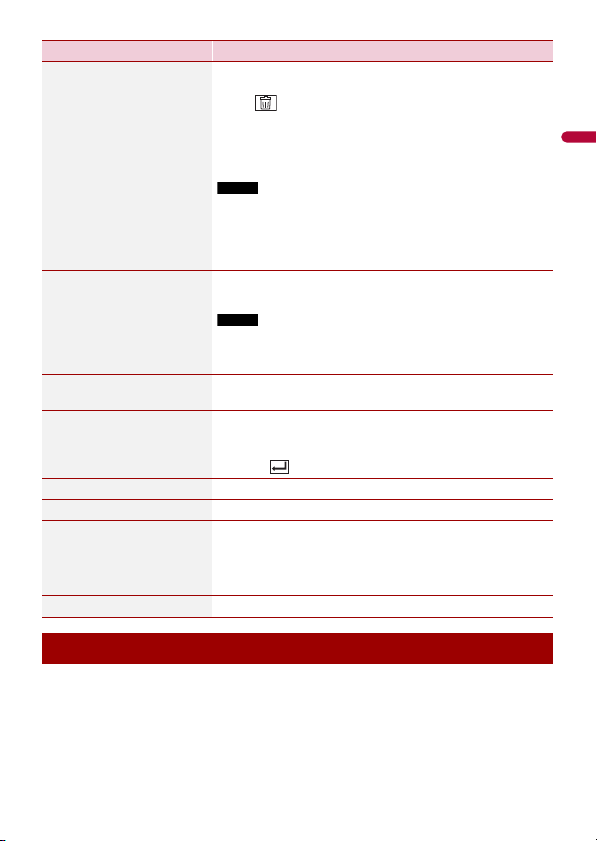
1 Turn on the Bluetooth function on the device.
2 Press .
3 Touch then .
The Bluetooth menu screen appears.
4 Touch [Connection].
5 Touch .
The unit starts to search for available devices, then displays them in the device list.
6 Touch the Bluetooth device name.
After the device is successfully registered, a Bluetooth connection is established by the
system. Once the connection is established, the device name is displayed on the list.
NOTES
• If three devices are already paired, [Memory Full] is displayed. Delete a paired device first (page 14).
• If your device supports SSP (Secure Simple Pairing), a six-digit number appears on the display of this
product. Touch [Yes] to pair the device.
• is invalid when the device is already connected, also is invalid during connecting or
disconnecting.
TIP
The Bluetooth connection can also be made by detecting this product from the Bluetooth device.
Before registration, make sure that [Visibility] in the [Bluetooth] menu is set to [On] (page 14). For
details on Bluetooth device operations, refer to the operating instructions supplied with the Bluetooth
device.
1 Press .
2 Touch then .
CAUTION
Never turn this product off and disconnect the device while the Bluetooth setting operation is being
processed.
Bluetooth
Bluetooth connection
Bluetooth settings
- 14 -
English
You can switch among the connected Bluetooth devices using the switch devices key in
the Bluetooth menu.
• You can register up to three Bluetooth devices on this product (page 13).
• The Bluetooth audio player can be switched to other Bluetooth devices on the
Bluetooth audio playback screen.
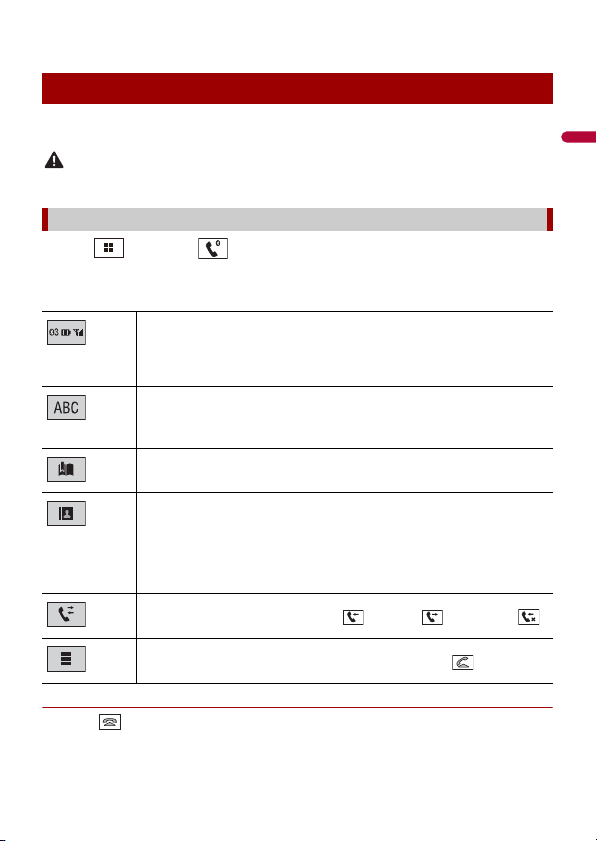
Menu Item Description
[Connection] Connect, disconnect, or delete registered Bluetooth device
manually.
Touch to delete registered device.
To connect a registered Bluetooth device manually, touch
the name of the device.
To disconnect the device, touch the name of the connected
device in the list.
NOTE
Connect the Bluetooth device manually in the following cases:
• Two or more Bluetooth devices are registered, and you want to
manually select the device to be used.
• You want to reconnect a disconnected Bluetooth device.
•
Connection cannot be established automatically for some reason.
[Auto Connect]
[On] [Off]
Select [On] to connect the last connected Bluetooth device
automatically.
NOTE
If two Bluetooth devices were connected the last time, the two
devices are connected to this product automatically in the order
that they are registered in the device list.
[Visibility]
[On] [Off]
Select [On] to make this product visible to the other device.
[PIN Code Input] Change the PIN code for Bluetooth connection.
The default PIN code is “0000”.
1 Touch [0] to [9] to input the pin code (up to 8 digits).
2 Touch .
[Device Information] Displaying the device name and address of this product.
[Bluetooth Memory Clear] Touch [Clear] then [OK] to clear the Bluetooth memory.
[BT Software Update] Updates the Bluetooth software version by connecting the
external memory.
TIP
This function is available when the source is off.
[BT Version Info] Displaying the Bluetooth version.
Switching the connected Bluetooth device
English
- 15 -
• Only one device can be connected as a hands-free phoning.
To use this function you need to connect your cellular phone to this product via
Bluetooth in advance (page 13).
CAUTION
For your safety, avoid talking on the phone as much as possible while driving.
1 Press , then touch .
The phone menu screen appears.
2 Touch one of the call icons on the phone menu screen.
▶To end the call
1 Touch .
Hands-free phoning
Making a phone call
The following items are displayed.
• Name of the current cellular phone
• List number of the current cellular phone
• Reception status of the current cellular phone
• Battery status of the current cellular phone
Initial searches the phone book.
Each time you press the button, English and system language may switch
depending on the system language setting.
Touch the list area to stop initial search.
Using preset dial list (page 16)
Using phone book
Select a contact from the phone book. Touch the desired name on the list then
select the phone number.
TIPS
• The contacts on your phone will be automatically transferred to this product.
• Update the phone book manually.
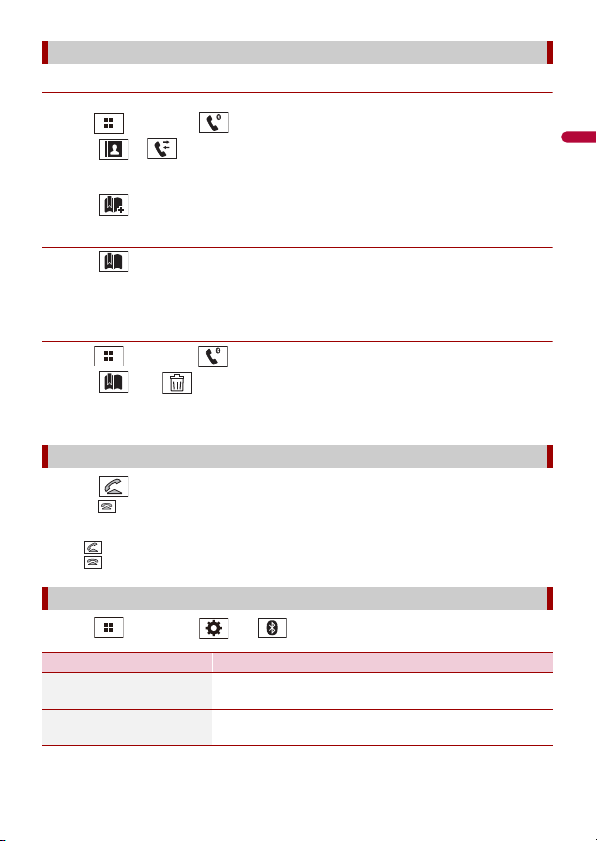
Using call history
Make a phone call from the received call , dialed call , or missed call .
Direct phone number input
Enter the number keys to enter the phone number then touch to make a call.
- 16 -
English
▶Registering a phone number
You can easily store up to six phone numbers per device as presets.
1 Press , then touch .
2 Touch or .
On the [Phone Book] screen, touch the desired name to display the contact’s phone
number.
3 Touch .
▶Dialing from the preset dial list
1 Touch .
2 Touch the desired entry on the list to make a call.
The dial screen appears and dialing starts.
▶Deleting a phone number
1 Press , then touch .
2 Touch then .
3 Touch [Yes].
1 Touch to answer the call.
Touch to end the call.
TIPS
• Touch while getting a call waiting, switch to the talking person.
• Touch while getting a call waiting to reject the call.
1 Press , then touch and .
Using the preset dial lists
Receiving a phone call
Phone settings
Menu Item Description
[Auto Answer]
[On] [Off]
Select [On] to answer an incoming call automatically.
[Ring Tone]
[On] [Off]
Select [On] if the ring tone does not come out from the car
speakers.
English
- 17 -
During a conversation, you can switch to private mode (talk directly on your cellular
phone).
1 Touch or to turn private mode on or off.
This product can be adjusted to the other party’s listening volume.
1 Touch to switch between the three volume levels.
▶General notes
• Connection to all cellular phones featuring Bluetooth wireless technology is not
guaranteed.
• The line-of-sight distance between this product and your cellular phone must be 10
meters or less when sending and receiving voice and data via Bluetooth technology.
• With some cellular phones, the ring sound may not be output from the speakers.
• If private mode is selected on the cellular phone, hands-free phoning may be disabled.
▶Registration and connection
• Cellular phone operations vary depending on the type of cellular phone. Refer to the
instruction manual that came with your cellular phone for detailed instructions.
• When phone book transfer does not work, disconnect your phone and then perform
pairing again from your phone to this product.
▶Making and receiving calls
• You may hear a noise in the following situations:
– When you answer the phone using the button on the phone.
– When the person on the other end of the line hangs up the phone.
• If the person on the other end of the line cannot hear the conversation due to an echo,
decrease the volume level for hands-free phoning.
• With some cellular phones, even after you press the accept button on the cellular
phone when a call comes in, hands-free phoning may not be performed.
• The registered name will appear if the phone number is already registered in the
phone book. When the same phone number is registered under different names, only
the phone number will be displayed.
[Invert Name] Select [Yes] to change the order of the first and last names
in the phone book.
Setting the private mode
Adjusting the other party’s listening volume
Notes for hands-free phoning
Menu Item Description
- 18 -
English
▶The received call and dialed number histories
• You cannot make a call to the entry of an unknown user (no phone number) in the
received call history.
• If calls are made by operating your cellular phone, no history data will be recorded in
this product.
▶Phone book transfers
• If there are more than 1 000 phone book entries on your cellular phone, not all entries
may download completely.
• Depending on the phone, this product may not display the phone book correctly.
• If the phone book in the phone contains image data, the phone book may not be
transferred correctly.
• Depending on the cellular phone, phone book transfer may not be available.
Before using the Bluetooth audio player, register and connect the device to this product
(page 13).
NOTES
• Depending on the Bluetooth audio player connected to this product, the available operations with
this product may be limited to the following two levels:
– A2DP (Advanced Audio Distribution Profile): Only playing back songs on your audio player is
possible.
– A2DP and AVRCP (Audio/Video Remote Control Profile): Playing back, pausing, selecting songs, etc.,
are possible.
• Depending on the Bluetooth device connected to this product, the available operations with this
product may be limited or differ from the descriptions in this manual.
• While you are listening to songs on your Bluetooth device, refrain from operating the phone function
as much as possible. If you try operating, the signal may cause noise for song playback.
• When you are talking on the Bluetooth device connected to this product via Bluetooth, it may pause
playback.
1 Press .
2 Touch then .
The system setting screen appears.
3 Touch [AV Source Settings].
4 Confirm that [Bluetooth Audio] is turned on.
5 Press .
6 Touch [Bluetooth Audio].
The Bluetooth audio playback screen appears.
Bluetooth audio
English
- 19 -
Description of Bluetooth audio playback screen
You can play or use the following sources with this product.
• Radio
• USB
The following sources can be played back or used by connecting an auxiliary device.
• iPod
• Bluetooth® audio
• AUX
1 Press .
2 Touch the source icon.
When you select , the AV source is turned off.
Basic operation
Track number indicator
Sets a repeat play range.
Plays files in random order.
Selects a file or folder from the list to playback.
NOTE
This function is available only when the AVRCP version of the Bluetooth device is
1.4 or higher.
Switches among the Bluetooth devices when the devices are connected to
this product via Bluetooth (page 14).
AV source
Supported AV source
Selecting a source
Source on the AV source selection screen
- 20 -
English
1 Touch on the AV Source screen.
2 Touch the s ource key.
When you select [Source OFF], the AV source is turned off.
When using a smartphone with this product, the settings are automatically configured
according to the device to be connected.
NOTES
• Operation methods may vary depending on the smartphone and its software version.
• Depending on the version of smartphone OS, it may not be compatible with this unit.
These are the methods to connect a smartphone to this product. The available sources
vary depending on the connection method.
• Connecting via Bluetooth (page 20)
Compatible smartphones
Compatibility with all smartphones is not guaranteed. For details about smartphone
compatibility with this product, refer to the information on our website.
The following sources are available when a smartphone is connected to the unit via
Bluetooth.
• Bluetooth audio
1 Connect a smartphone with this product via Bluetooth (page 13).
2 Press .
3 Touch compatible desired source.
Source on the source list
Smartphone connection for AV
source
Smartphone (Android™ device)
Connecting via Bluetooth
English
- 21 -
1 Press .
2 Touch [Radio].
The Radio screen appears.
Description of Radio screen
The BSM (best stations memory) function automatically stores the six strongest
broadcast frequencies under the preset channel keys [1] to [6].
NOTES
• Storing broadcast frequencies with BSM may replace those you have already saved.
• Previously stored broadcast frequencies may remain stored if the number of frequencies stored has
not reached the limit.
Radio
Starting procedure
Basic operation
Recalls the preset channel stored to a key from memory.
Stores the current broadcast frequency to a key.
Displays the preset channel list.
Select an item on the list ([1] to [6]) to switch to the preset channel.
Selects the FM1, FM2, FM3, or AM band.
Performs BSM (best stations memory) function (page 21).
Manual tuning
Seek tuning or non stop seek tuning
Releasing the key in a few seconds skips to the nearest station from the
current frequency. Keep holding the key for long seconds to perform,
performs non stop seek tuning.
Storing the strongest broadcast frequencies (BSM)
- 22 -
English
1 Touch to begin search.
While searching, the six strongest broadcast frequencies will be stored under the
preset channel keys in the order of their signal strength.
1 Touch [Cancel].
1 Press .
2 Touch then .
The system setting screen appears.
3 Touch [AV Source Settings].
4 Touch [Radio settings].
The menu items vary according to the source.
You can play compressed audio, compressed video, or still image files stored in an
external storage device.
1 Pull out the plug from the USB port of the USB cable.
2 Plug a USB storage device into the USB cable.
To cancel the storage process
Radio settings
Menu Item Description
[Local]
[Off]
FM: [Level1] [Level2] [Level3] [Level4]
AM: [Level1] [Level2]
Local seek tuning allows you to only tune into
radio stations with sufficiently strong signals.
NOTE
The FM [Level4] (AM [Level2]) setting allows reception
of only stations with the strongest signals.
Compressed files
Plugging/unplugging a USB storage device
Plugging a USB storage device
English
- 23 -
TIP
Connect the USB cable to the USB port on the rear panel of this product.
NOTES
• This product may not achieve optimum performance with some USB storage devices.
• Connection via a USB hub is not possible.
• A USB cable is required for connection.
1 Pull out the USB storage device from the USB cable.
NOTES
• Check that no data is being accessed before pulling out the USB storage device.
• Turn off (ACC OFF) the ignition switch before unplugging the USB storage device.
1 Plug the USB storage device into the USB cable (page 22).
TIP
If the USB is already set, select [USB] as the playing source.
TIP
You can set the screen size for the video and image files (page 39).
Description of Audio source screen
TIP
When you touch text information, all information is displayed by scrolling only when the parking brake
is applied.
Unplugging a USB storage device
Starting procedure
Basic operation
Audio source
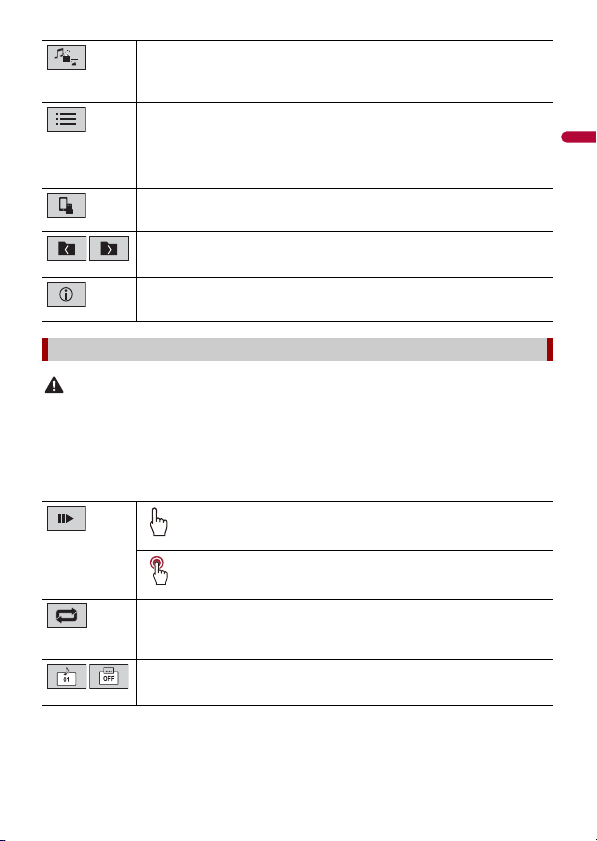
Sets a repeat play range for all files/the current folder/the current file.
Plays files or does not play in random order.
Displays the hidden function bar.
- 24 -
English
CAUTION
For safety reasons, video images cannot be viewed while your vehicle is in motion. To view video
images, stop in a safe place and apply the parking brake.
Description of Video source screen
TIP
Touch anywhere on the screen, the touch panel keys appear.
Switches the following media file types.
[Music]: Compressed audio files
[Video]: Compressed video files
[Photo]: Image files
Selects a file from the list.
Touch a file on the list to playback.
TIP
Touching a folder on the list shows its contents. You can play a file on the list by
touching it.
When you touch the memory select icon while connecting an Android device,
it switches between internal memory and external memory.
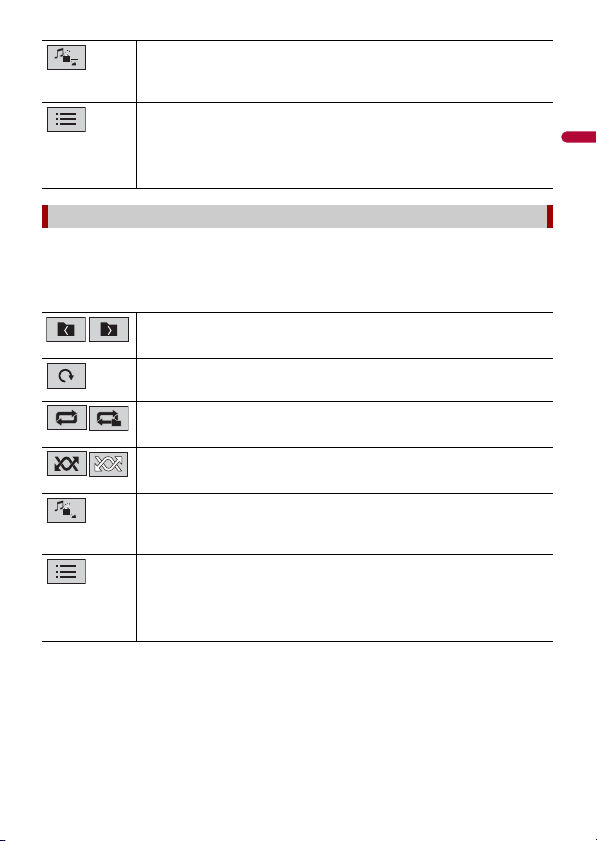
Selects the previous folder or the next folder.
Switches the current music information display.
Video source
Performs frame-by-frame playback.
Performs slow-motion playback.
Sets a repeat play range for all files/the current folder/the current file.
Switches the audio/subtitle language.
English
- 25 -
Description of Still image screen
TIP
Touch anywhere on the screen, the touch panel keys appear.
Switches the following media file types.
[Music]: Compressed audio files
[Video]: Compressed video files
[Photo]: Image files
Selects a file from the list.
Touch a file on the list to playback.
TIP
Touching a folder on the list shows its contents. You can play a file on the list by
touching it.
Still image source
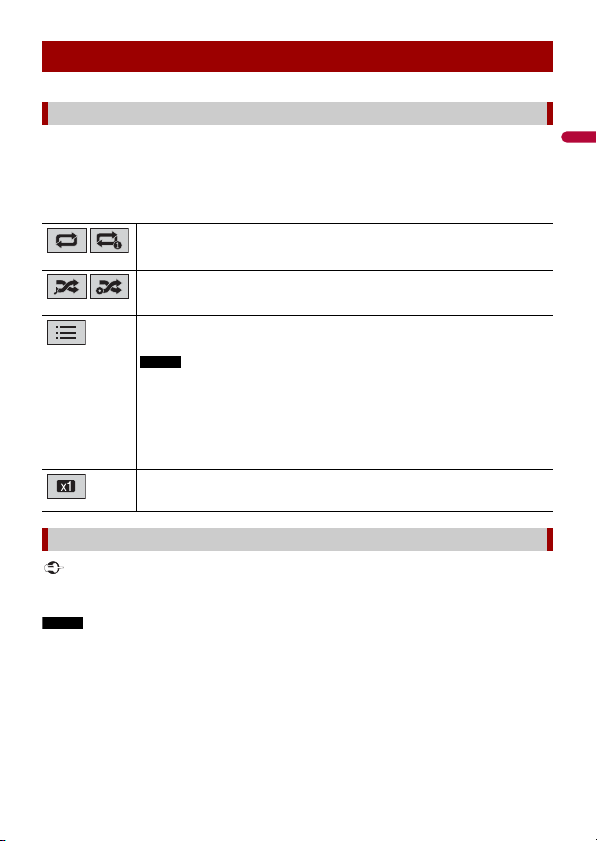
Selects the previous folder or the next folder.
Rotates the displayed picture 90° clockwise.
Sets a repeat play range for all files/the current folder.
Plays all files in the current repeat play range or does not play them in
random order.
Switches the following media file types.
[Music]: Compressed audio files
[Video]: Compressed video files
[Photo]: Image files
Selects a file from the list.
Touch a file on the list to playback.
TIP
Touching a folder on the list shows its contents. You can play a file on the list by
touching it.

- 26 -
English
When connecting an iPod/iPhone to this product, the settings are automatically
configured according to the device to be connected.
This product supports only the following iPod/iPhone models and iPod software
versions. Other may not work correctly.
• iPhone 7
• iPhone 7 Plus
• iPhone SE
• iPhone 6s
• iPhone 6s Plus
• iPhone 6
• iPhone 6 Plus
• iPhone 5s
• iPhone 5c
• iPhone 5
• iPod touch® (6th generation)
• iPod touch (5th generation)
• iPod nano® (7th generation)
The following connections are available.
• iPod/iPhone with a 30-pin connector
Connecting via CD-IU51 (sold separately)
• iPod/iPhone with a Lightning connector
Connecting via CD-IU52 (sold separately)
For details of connection, refer to the Installation Manual.
NOTES
• Depending on the generation or version of the iPod, some functions may not be available.
• Do not delete the Apple Music® app from your iPod, since some functions may not be available.
1 Connect your iPod/iPhone.
2 Press .
3 Touch [iPod].
iPod®
Setup for iPod
iPod/iPhone compatibility
Connecting your iPod
English
- 27 -
Description of Audio source screen
TIP
When you touch text information, all information is displayed by scrolling only when the parking brake
is applied.
Important
Apple Music Radio may not be available in your country or region. For details about Apple Music Radio,
visit the following site: http://www.apple.com/music/
NOTE
This function is only available when using the iPod function with an iPhone 7, iPhone 7 Plus, iPhone SE,
iPhone 6s, iPhone 6s Plus, iPhone 6, iPhone 6 Plus, iPhone 5s, iPhone 5c, iPhone 5 or iPod touch (5th
and 6th generation).
Description of Apple Music Radio screen
Basic operation
Audio source
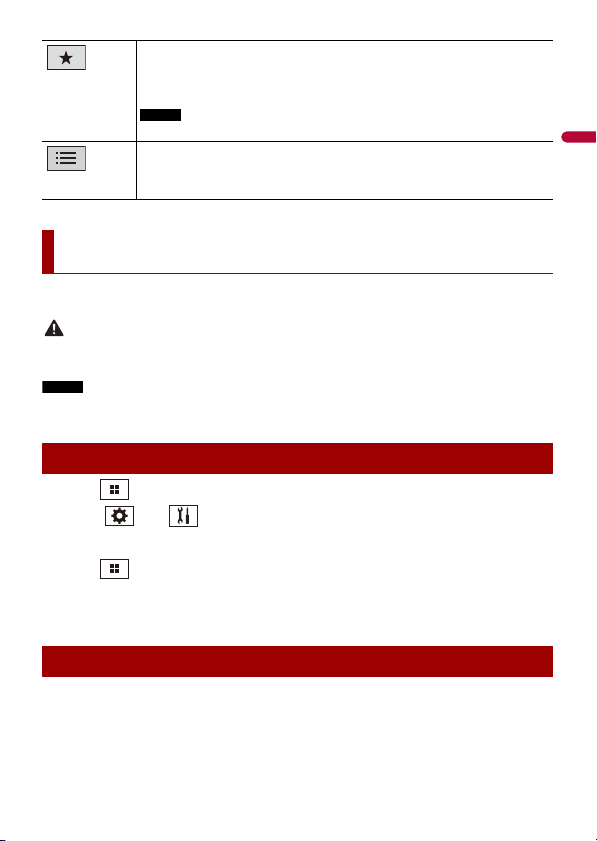
Sets a repeat play range for all in the selected list/the current song.
Plays songs within the selected list/album randomly.
Selects a song from the list.
Touch the category then the title of the list to playback of the selected list.
NOTE
Each time you connect an iPod/iPhone, it will require extra time to access your
playlist. If there are 10,000 songs on the iPod/iPhone, it will require almost one
hour to populate.
TIP
When you touch Apple Music Radio station in the list screen, Apple Music Radio
screen appears (page 27).
Changes the audiobook speed.
Normal—Fast—Slow
Apple Music® Radio source
- 28 -
English
The video image or sound can be played via the device connected to AUX input.
CAUTION
For safety reasons, video images cannot be viewed while your vehicle is in motion. To view video
images, stop in a safe place and apply the parking brake.
NOTE
A Mini-jack AV cable (CD-RM10) (sold separately) is required for connection. For details, refer to the
Installation Manual.
1 Press .
2 Touch then .
3 Confirm that [AUX Input] is turned on.
4 Press .
5 Touch [AUX].
The AUX screen appears.
Description of AUX screen
TIPS
• Touch anywhere on the screen, the touch panel keys appear.
Displays the pop-up menu for Apple Music Radio.
• Touch [Play More Like This] to play back songs similar to the current song.
• Touch [Play Less Like This] to set it not to play back the current song again.
• Touch [Add to iTunes Wish List] to add the current song to the iTunes® wish list.
NOTE
This function may not be used depending on your Apple Music account status.
Select Apple Music Radio station.
TIP
When you select a song, the audio source screen appears.
AUX
Starting procedure
Basic operation
English
- 29 -
• You can set the screen size for the video image (page 39).
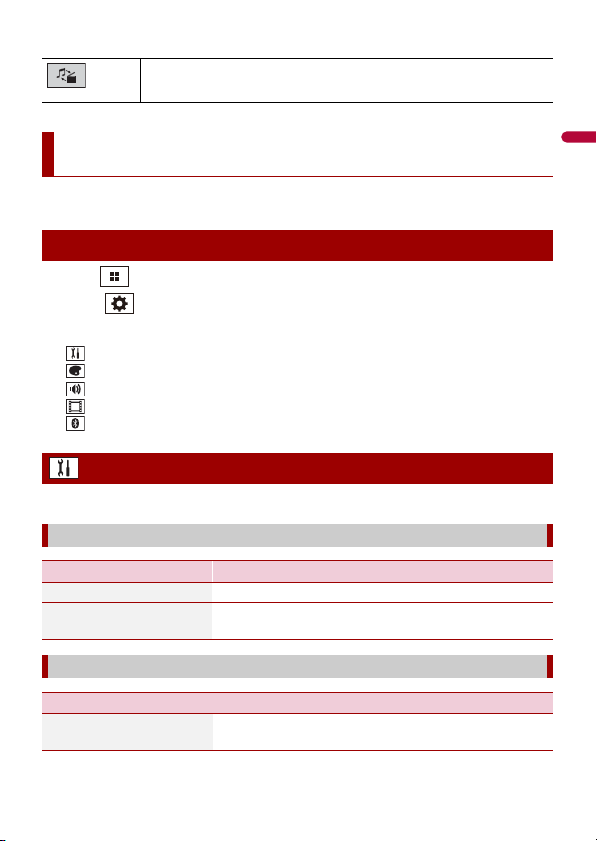
You can adjust various settings in the main menu.
1 Press .
2 Touch .
3 Touch one of the following categories, then select the options.
System settings (page 29)
Theme settings (page 34)
Audio settings (page 34)
Video settings (page 37)
Bluetooth settings (page 13)
The menu items vary according to the source.
Switches between the video input and audio input.
Settings
Displaying the setting screen
System settings
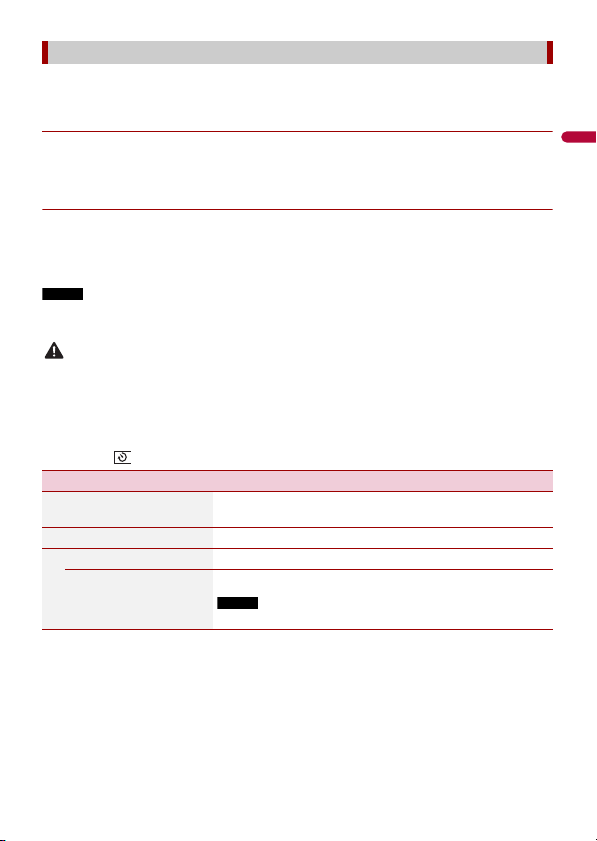
[AV Source Settings]
Menu Item Description
[Radio Settings] (page 22)
[Bluetooth Audio]
[On] [Off]
Setting Bluetooth audio source activation.
[AUX Input]
Menu Item Description
[AUX Input]
[On] [Off]
Set to [On] for AUX source (page 28).
- 30 -
English
A separately sold rear view camera (e.g. ND-BC8) is required for utilizing the rear view
camera function. (For details, consult your dealer.)
▶Rear view camera
This product features a function that automatically switches to the full-screen image of
the rear view camera installed on your vehicle when the shift lever is in the REVERSE (R)
position.
▶Camera for Camera View mode
Camera View can be displayed at all times. Note that with this setting, the camera image
is not resized to fit, and that a portion of what is seen by the camera is not viewable.
To display the camera image, touch [Camera View] on the AV source selection screen
(page 19).
NOTE
To set the rear view camera as the camera for Camera View mode, set [Back Camera Input] to [On]
(page 30).
CAUTION
Pioneer recommends the use of a camera which outputs mirror reversed images, otherwise the screen
image may appear reversed.
• Immediately verify whether the display changes to the rear view camera image when the shift lever is
moved to REVERSE (R) from another position.
• When the screen changes to full-screen rear view camera image during normal driving, switch to the
opposite setting in [Camera Polarity].
• If you touch while the camera image is displayed, the displayed image turns off temporarily.
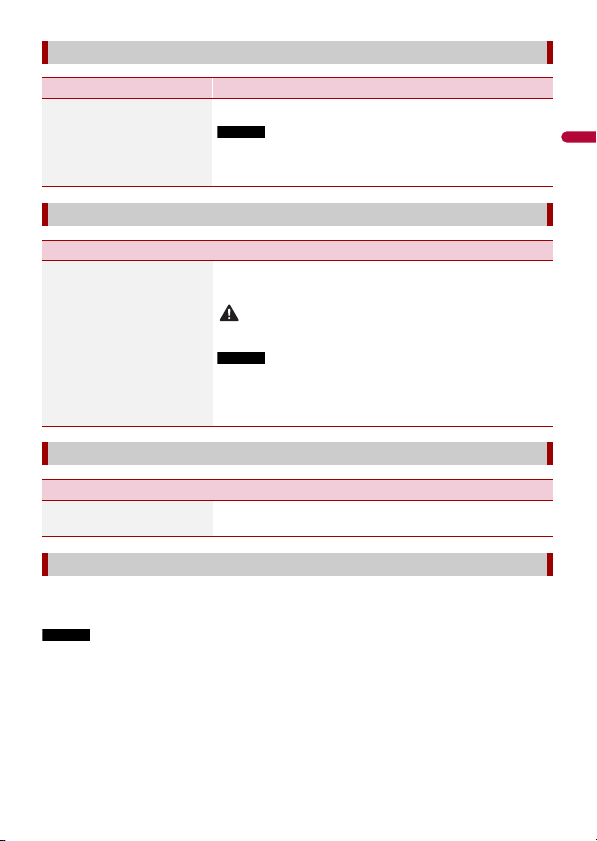
[Camera Settings]
Menu Item Description
[Back Camera Input]
[Off] [On]
Setting rear view camera activation.
[Camera Polarity] Setting the polarity of the rear view camera.
[Battery] The polarity of the connected lead is positive.
[Ground] The polarity of the connected lead is negative.
NOTE
This function is available when [Back Camera Input] is set to [On].
English
- 31 -
If you feel that the touch panel keys on the screen deviate from the actual positions that
respond to your touch, adjust the response positions of the touch panel screen.
NOTES
• Do not use sharp pointed tools such as ballpoint or mechanical pens. They may damage the screen.
• Do not turn off the engine while saving the adjusted position data.
• This setting is available only when you stop your vehicle in a safe place and apply the parking brake.
[System Language]
Menu Item Description
[System Language] Select the system language.
NOTES
• If the embedded language and the selected language setting are
not the same, the text information may not display properly.
• Some characters may not be displayed properly.
[Restore Settings]
Menu Item Description
[Restore Settings] Touch [Restore] to restore the settings to the default
settings.
CAUTION
Do not turn off the engine while restoring the settings.
NOTES
• This setting is available only when you stop your vehicle in a safe
place and apply the parking brake.
• The source is turned off and the Bluetooth connection is
disconnected before the process starts.
[Beep Tone]
Menu Item Description
[Beep Tone]
[On] [Off]
Select [Off] to disable the beep sound when the button is
pressed or the screen is touched.
[Touch Panel Calibration]
- 32 -
English
Menu Item Description
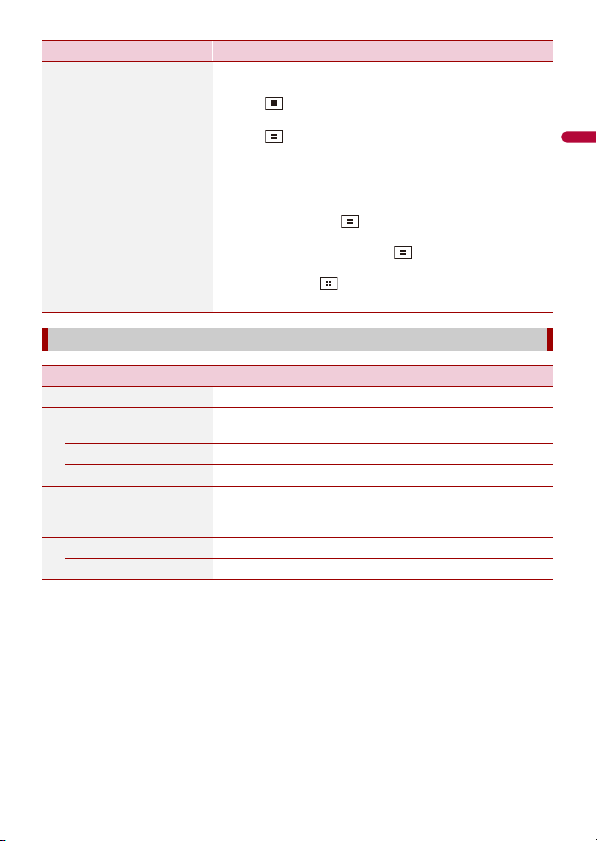
[Touch Panel Calibration] 1 Touch [Yes].
2 Touch four corners of the screen along the arrows.
3 Press .
The adjustment results are saved.
4 Press once again.
Proceed to 16-point adjustment.
5 Gently touch the center of the [+] mark displayed on
the screen.
The target indicates the order.
• When you press , the previous adjustment
position returns.
• When you press and hold , the adjustment is
canceled.
6 Press and hold .
The adjustment results are saved.
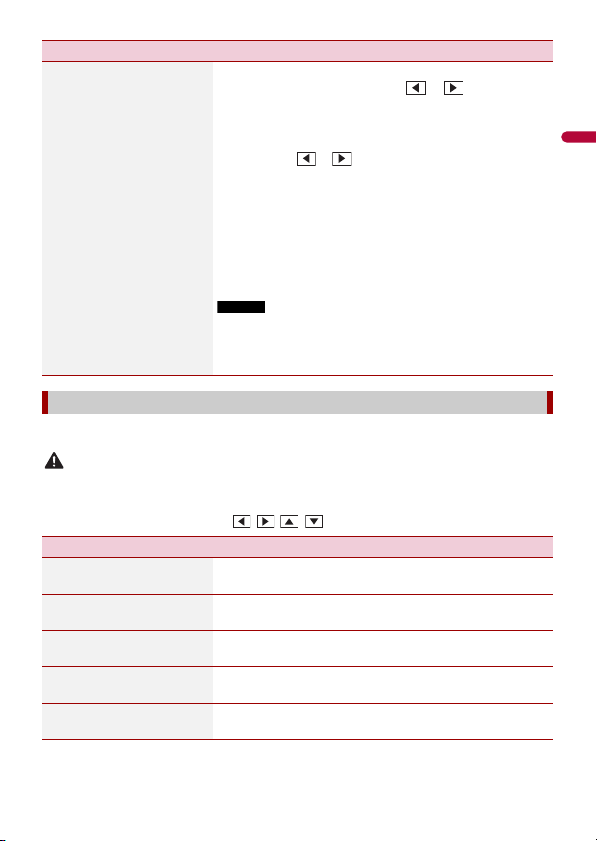
[Dimmer Settings]
Menu Item Description
[Dimmer Trigger] Setting the dimmer brightness.
[Auto] Switches the dimmer to on or off automatically according
to your vehicle’s headlight turning on or off.
[Manual] Switches the dimmer to on or off manually.
[Time] Switches the dimmer to on or off at the time you adjusted.
[Day/Night] Setting the dimmer duration by day or night.
You can use this function when [Manual] is set to [Dimmer
Trigger].
[Day] Turns the dimmer function to off.
[Night] Turns the dimmer function to on.
English
- 33 -
You can adjust the picture for each source and rear view camera.
CAUTION
For safety reasons, you cannot use some of these functions while your vehicle is in motion. To enable
these functions, you must stop in a safe place and apply the parking brake.
To adjust following menu, touch , , , to adjust.
[Dimmer Duration] Adjust the time that the dimmer is turned on or off by
dragging the cursors or touching or .
You can use this function when [Dimmer Trigger] is set to
[Time].
TIPS
• Each touch of or moves the cursor backward or forward
in the 15 minute width.
• When the cursors are placed on the same point, the dimmer
available time is 0 hours.
• When the cursor for off time setting is placed on the left end and
the cursor for on time setting is placed on the right end, the
dimmer available time is 0 hours.
• When the cursor for on time setting is placed on the left end and
the cursor for off time setting is placed on the right end, the
dimmer available time is 24 hours.
NOTES
• The time display of the dimmer duration adjusting bar depends
on the clock display setting (page 38).
• This setting is available only when you stop your vehicle in a safe
place and apply the parking brake.
[Picture Adjustment]
Menu Item Description
[Brightness]
[-24] to [+24]
Adjust the black intensity.
[Contrast]
[-24] to [+24]
Adjust the contrast.
[Color]*
[-24] to [+24]
Adjust the color saturation.
[Hue]*
[-24] to [+24]
Adjust the tone of color (which color is emphasized, red, or
green).
[Dimmer]
[+1] to [+48]
Adjust the brightness of the display.
Menu Item Description
- 34 -
English
* With some pictures, you cannot adjust [Hue] and [Color].
NOTES
• The adjustments of [Brightness], [Contrast], and [Dimmer] are stored separately when your vehicle's
headlights are off (daytime) and on (nighttime).
• [Brightness] and [Contrast] are switched automatically depending on the setting of [Dimmer
Settings].
• [Dimmer] can be changed the setting or the time to switch it to on or off (page 32).
• The picture adjustment may not be available with some rear view cameras.
• The setting contents can be memorized separately.
* You can preview the top menu screen or the AV operation screen by touching [Home] or [AV]
respectively.
The menu items vary according to the source. Some of the menu items become
unavailable when the volume is set to mute.
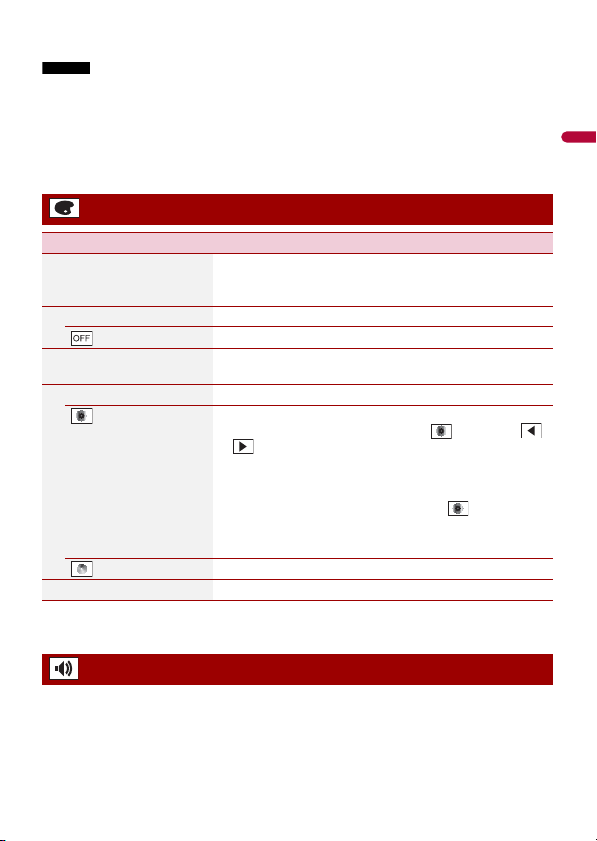
Theme settings
Menu Item Description
[Background]
[Home] [AV]
Select the wall paper from the preset items in this product.
The wall paper can be set from selections for the top menu
screen and AV operation screen.
Preset Display Select the desired preset background display.
(off) Hides the background display.
[Illumination]* Select an illumination color from the color list or create a
defined color.
Colored Keys Select the desired preset color.
(custom) Displays the screen to customize the illumination color.
To customize the defined color, touch then touch
or to adjust the brightness and the level of red, green
and blue to create favorite color.
To store the customized color in the memory, touch and
hold [Memo], and the customized color will be available at
the next illumination setting by pressing .
TIP
You can also adjust the color tone by dragging the color bar.
(rainbow) Shifts gradually between the preset colors in sequence.
[Theme]* Select the theme color.
Audio settings
English
- 35 -
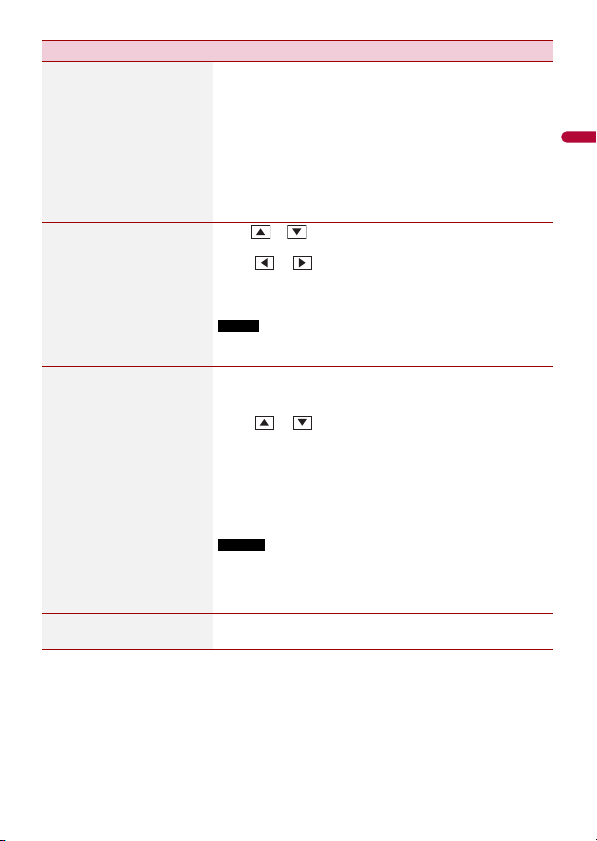
Menu Item Description
[Graphic EQ]
[Super Bass] [Powerful]
[Natural] [Vocal] [Flat]
[Custom1] [Custom2]
Select or customize the equalizer curve.
Select a curve that you want to use as the basis of customizing
then touch the frequency that you want to adjust.
TIPS
• If you make adjustments when a curve [Super Bass], [Powerful],
[Natural], [Vocal], or [Flat] is selected, the equalizer curve settings
will be changed to [Custom1] mandatorily.
• If you make adjustments when the [Custom2] curve is selected
for example, the [Custom2] curve will be updated.
•
[Custom1] and [Custom2] curves can be created common to all sources.
[Fader/Balance]
Touch or to adjust the front/rear speaker balance. Set
[Front] and [Rear] to [0] when using a dual speaker system.
Touch or to adjust the left/right speaker balance.
TIP
You can also set the value by dragging the point on the displayed table.
NOTE
Only the fader can be adjusted when [Rear] is selected as the
speaker mode.
[Source Level Adjuster]
[-4] to [+4]
Adjust the volume level of each source to prevent radical
changes in volume when switching between sources other
than FM.
Touch or to adjust the source volume after
comparing the FM tuner volume level with the level of the
source.
TIP
If you directly touch the area where the cursor can be moved, the
SLA (source level adjustment) setting will be changed to the value
of the touched point.
NOTES
• Settings are based on the FM tuner volume level, which remains
unchanged.
• This function is not available when the FM tuner is selected as
the AV source.
[Subwoofer]
[On] [Off]
Select enable or disable subwoofer output from this
product.
- 36 -
English
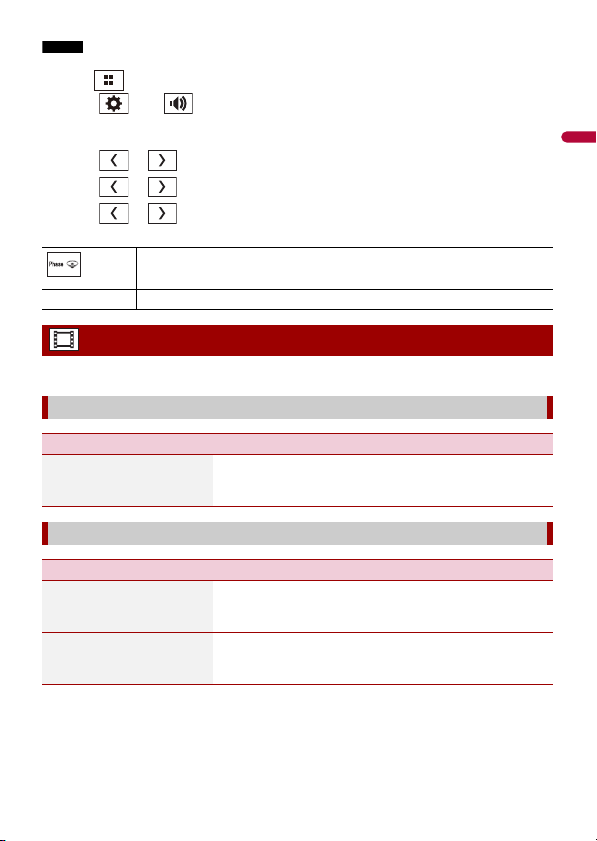
You can adjust the HPF or LPF cutoff frequency and the slope for each speaker.
The following speakers can be adjusted:
Front, Rear, Subwoofer.
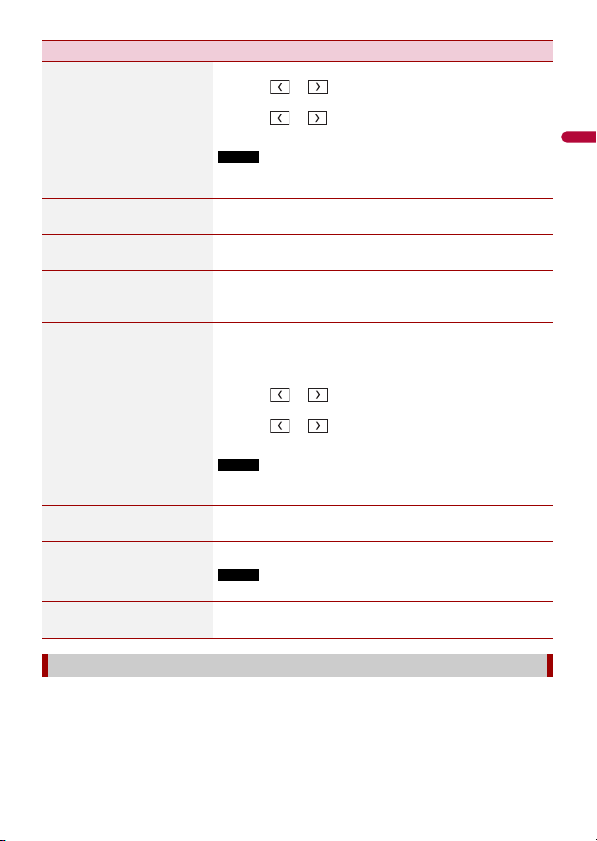
[Speaker Level]
[Front Left] [Front Right]
[Rear Left] [Rear Right]
[Subwoofer] [Listening
Position]
Adjust the speaker output level of the listening position.
1 Touch or to select the listening position then
select the output speaker.
2 Touch or to adjust the selected speaker output
level.
NOTE
For rear speaker, this function is available only when [Rear] is
selected in [Rear Speaker Output].
[Crossover] Select a speaker unit (filter) to adjust the HPF or LPF cutoff
frequency and the slope for each speaker unit (page 36).
[Subwoofer Settings] Select the subwoofer phase, LPF cut-off frequency and the
slope (page 36).
[Listening Position]
[Off] [Front-L] [Front-R]
[Front] [All]
Select a listening position that you want to make as the
center of sound effects.
[Time Alignment]
[Front Left] [Front Right]
[Rear Left] [Rear Right]
[Subwoofer] [Listening
Position]
Select or customize the time alignment settings to reflect
the distance between the listener’s position and each
speaker. You need to measure the distance between the
head of the listener and each speaker unit.
1 Touch or to select the listening position then
select the alignment speaker.
2 Touch or to input the distance between the
selected speaker and listening position.
NOTE
This function is available only when the listening position setting
is set to [Front Left] or [Front Right].
[BASS Boost]
[0] to [+6]
Adjust the bass boost level.
[Rear Speaker Output]
[Rear] [Subwoofer]
Select the rear speaker output.
NOTE
This function is available when the source is off.
[Loudness]
[Off] [Low] [Mid] [High]
Compensates for deficiencies in the low-frequency and
high-frequency ranges at low volume.
Adjusting the HPF or LPF cutoff frequency value
Menu Item Description
English
- 37 -
NOTE
[Subwoofer Settings] is available only when [Subwoofer] is [On].
1 Press .
2 Touch then .
3 Touch [Crossover] or [Subwoofer Settings].
4 Touch or to switch the speaker.
5 Touch or to set the cutoff position.
6 Touch or to set the cutoff slope.
The following items can also be set.
The menu items vary according to the source.
Switches the subwoofer phase between normal and reverse position.
LPF/HPF
Switches the LPF/HPF setting to [On] or [Off].
Video settings
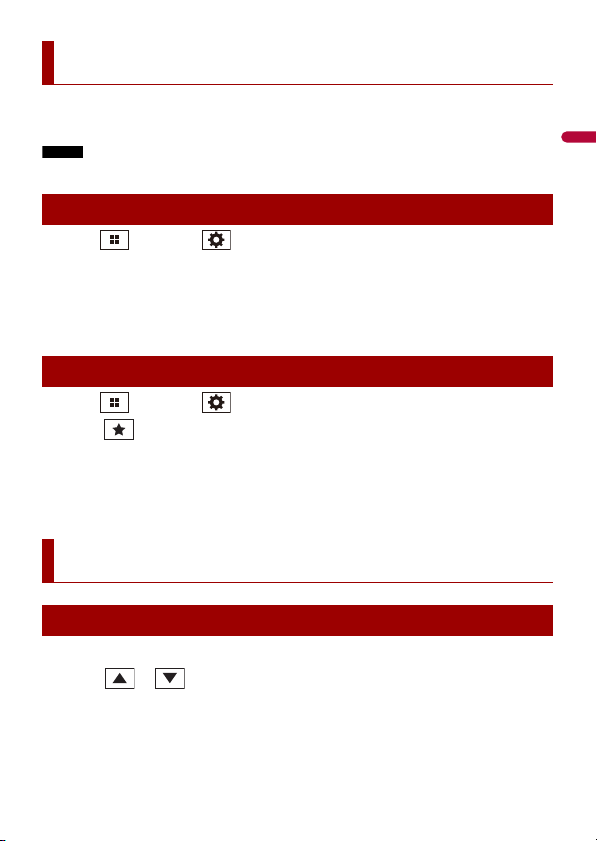
[Time Per Photo Slide]
Menu Item Description
[Time Per Photo Slide]
[5sec] [10sec] [15sec]
[Manual]
Select the interval of image file slideshows on this product.
[Video Signal Setting]
Menu Item Description
[AUX]
[Auto] [PAL] [NTSC] [PAL-
M] [PAL-N] [SECAM]
Select the suitable video signal setting when you connect
this product to an AUX equipment.
[Camera]
[Auto] [PAL] [NTSC] [PAL-
M] [PAL-N] [SECAM]
Select the suitable video signal setting when you connect
this product to a rear view camera.
- 38 -
English
Registering your favorite menu items in shortcuts allows you to quickly jump to the
registered menu screen by a simple touch on the [Favorites] screen.
NOTE
Up to 12 menu items can be registered in the favorite menu.
1 Press then touch .
2 Touch the star icon of the menu item.
The star icon for the selected menu is filled in.
TIP
To cancel the registration, touch the star icon in the menu column again.
1 Press then touch .
2 Touch .
3 To select, touch the menu item.
To remove, touch and hold the favorite menu column.
The selected menu item is removed from the [Favorites] screen.
1 Touch the current time on the screen.
2 Touch or to set the correct time and date.
You can operate the following items: Year, month, date, hour, minute.
TIPS
• You can change the time display format to [12hour] or [24hour].
Favorite menu
Creating a shortcut
Selecting/removing a shortcut
Other functions
Setting the time and date
English
- 39 -
• You can change the order of date display format: Day-month, Month-day.
You can set the screen mode for AV screen and image files.
1 Touch the screen display mode key.
2 Touch the desired mode.
TIPS
• Different settings can be stored for each video source.
• When a video is viewed in wide screen mode that does not match its original aspect ratio, it may
appear different.
• The video image will appear coarser when viewed in [Zoom] mode.
NOTE
Image files can be set to either [Normal] or [Trimming] in wide screen mode.
You can restore settings or recorded content to the default settings from [Restore
Settings] in the [System] menu (page 31).
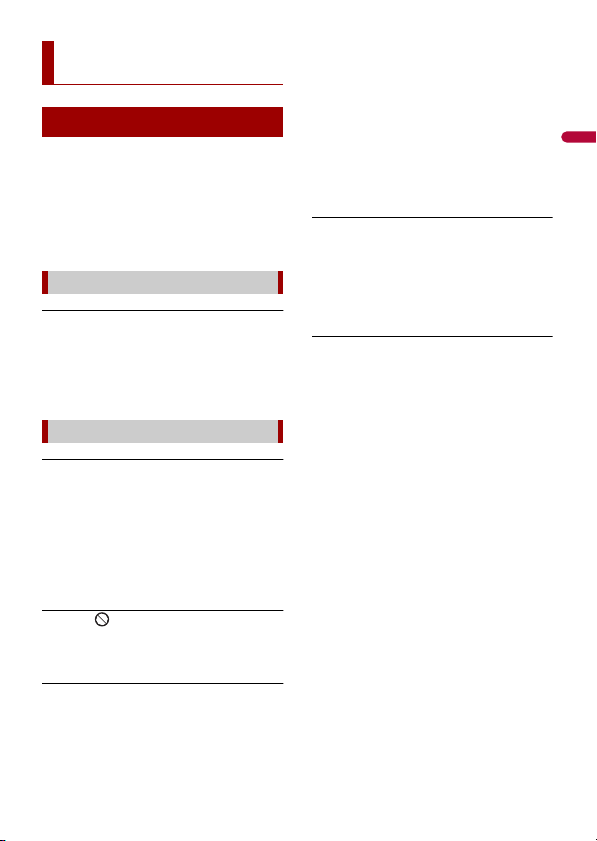
Changing the wide screen mode
Screen display mode key
[Full] Displays 16:9 images on the full screen without changing the ratio.
NOTE
Enlarges and displays images of USB sources keeping the ratio of the original
source image.
[Zoom] Displays the images enlarging them vertically.
[Normal] Displays images without changing the 4:3 aspect ratio.
NOTES
• For USB sources, 4:3 aspect ratio may not be displayed.
• Devices connected with USB MTP are not supported.
[Trimming] An image is displayed across the entire screen with the horizontal-to-vertical ratio
left as is. If the screen ratio differs from the image, the image may be displayed
partly cut off either at the top/bottom or sides.
NOTE
[Trimming] is for image files only.
Restoring this product to the default settings
English
- 40 -
If you have problems operating this
product, refer to this section. The most
common problems are listed below, along
with likely causes and solutions. If a
solution to your problem cannot be found
here, contact your dealer or the nearest
authorized Pioneer service facility.
A black screen is displayed, and
operation is not possible using the touch
panel keys.
→ Power off mode is on.
– Press any button on this product to
release the mode.
The screen is covered by a caution
message and the video cannot be shown.
→ The parking brake lead is not connected
or the parking brake is not applied.
– Connect the parking brake lead
correctly, and apply the parking brake.
→ The parking brake interlock is activated.
– Park your vehicle in a safe place and
apply the parking brake.
The icon is displayed, and operation is
impossible.
→ The operation is not compatible with
the video configuration.
iPod cannot be operated.
→ The iPod is frozen.
– Reconnect the iPod with the USB
interface cable for iPod/iPhone.
–Update the iPod software version.
→ An error has occurred.
– Reconnect the iPod with the USB
interface cable for iPod/iPhone.
– Park your vehicle in a safe place, and
then turn off the ignition switch (ACC
OFF). Subsequently, turn the ignition
switch to on (ACC ON) again.
–Update the iPod software version.
→ Cables are not connected correctly.
– Connect the cables correctly.
Sound from the iPod cannot be heard.
→ The audio output direction may switch
automatically when the Bluetooth and
USB connections are used at the same
time.
– Use the iPod to change the audio
output direction.
No back camera image when the vehicle
is in reverse.
→ The back camera input setting on the
receiver is set to Off.
– Change the back camera setting to On
in the settings menu. (Refer to the
System Settings section of this manual
to adjust.)
→ The camera input may be loose or not
connected.
– Check the connection and make sure
the male end of the camera is
connected to the brown input on the
back of the receiver. (Refer to the
installation manual.)
→ The reverse lead on the receiver may
not be connected to the proper wire at
the reverse lamp.
– Check the connection and make sure
that the violet/white lead of the
receiver is connected to the lead
whose voltage changes when the shift
lever is put in reverese. (Refer to the
installation manual.)
Appendix
Troubleshooting
Common problems
Problems with the AV screen
English
- 41 -
Black screen displayed when the vehicle
is in reverse, with no camera installed.
→ Back camera input is set to On.
–Turn the setting to Off in the settings
menu. (Refer to the System Settings
section of this manual to adjust.)
Back image displayed when vehicle is not
in reverse.
→ The camera polarity is not set properly
in the Camera settings menu.
– Review System Settings section of this
manual for steps to switch the camera
polarity. Park in a safe place, then
while keeping your foot firmly on the
brake, put the vehicle in reverse,
access the System Settings menu, and
change the camera polarity setting.
Put vehicle back in park. (Refer to the
System Settings section of this manual
to adjust.)
Dialing is impossible because the touch
panel keys for dialing are inactive.
→ Your phone is out of range for service.
– Retry after re-entering the range for
service.
→ The connection between the cellular
phone and this product cannot be
established.
– Perform the connection process.
→ Of the two cellular phones connected
to this product at the same time, if the
first phone is dialing, ringing or a call is
in progress, dialing cannot be
performed on the second phone.
– When the operation on the first of the
two cellular phones is completed, use
the switch devices key to switch to the
second phone and then dial.
When problems occur with this product, an
error message appears on the display.
Refer to the table below to identify the
problem, then take the suggested
corrective action. If the error persists,
record the error message and contact your
dealer or your nearest Pioneer service
center.
AMP Error
→ This product fails to operate or the
speaker connection is incorrect; the
protective circuit is activated.
– Check the speaker connection. If the
message fails to disappear even after
the engine is switched off/on, contact
your dealer or an authorized Pioneer
Service Station for assistance.
Error-02-9X/-DX
→ Communication failed.
– Turn the ignition switch OFF and back
ON.
– Disconnect the USB storage device.
– Change to a different source. Then,
return to the USB storage device.
Skipped
→ The connected USB storage device
contains DRM protected files.
– The protected files are skipped.
Protect
→ All the files on the connected USB
storage device are embedded with
DRM.
– Replace the USB storage device.
Problems with the phone screen
Error messages
Common
USB storage device
English
- 42 -
Error-02-6X
→ iPod failure.
– Disconnect the cable from the iPod.
Once the iPod’s main menu is
displayed, reconnect the iPod and
reset it.
Error-02-60
→ The iPod firmware version is old.
–Update the iPod version.
Error-10
→ The power failed for the Bluetooth
module of this product.
– Turn the ignition switch to OFF and
then to ON.
If the error message is still displayed after
performing the above action, please
contact your dealer or an authorized
Pioneer Service Station.
Common notes about the USB storage
device
• Do not leave the USB storage device in
any location with high temperatures.
• Depending on the kind of the USB
storage device you use, this product may
not recognize the storage device or files
may not be played back properly.
• The text information of some audio and
video files may not be correctly
displayed.
• File extensions must be used properly.
• There may be a slight delay when starting
playback of files on an USB storage
device with complex folder hierarchies.
• Operations may vary depending on the
kind of an USB storage device.
• It may not be possible to play some music
files from USB because of file
characteristics, file format, recorded
application, playback environment,
storage conditions, and so on.
USB storage device compatibility
• For details about USB storage device
compatibility with this product, refer to
Specifications (page 47).
• Protocol: bulk
• You cannot connect a USB storage device
to this product via a USB hub.
• Partitioned USB storage device is not
compatible with this product.
• Firmly secure the USB storage device
when driving. Do not let the USB storage
device fall onto the floor, where it may
become jammed under the brake or gas
pedal.
• There may be a slight delay when starting
playback of audio files encoded with
image data.
• Some USB storage devices connected to
this product may generate noise on the
radio.
• Do not connect anything other than the
USB storage device.
The sequence of audio files on USB storage
device.
For USB storage device, the sequence is
different from that of USB storage device.
Handling guidelines and supplemental
information
• This product is not compatible with the
Multi Media Card (MMC).
• Copyright protected files cannot be
played back.
iPod
Bluetooth
Detailed information
for playable media
Compatibility

English
- 43 -
Common notes about DivX files
Notes specific to DivX files
• Only DivX files downloaded from DivX
partner sites are guaranteed for proper
operation. Unauthorized DivX files may
not operate properly.
• This product corresponds to a DivX file
display of up to 1 590 minutes 43
seconds. Search operations beyond this
time limit are prohibited.
• For details on the DivX video versions
that can be played on this product, refer
to Specifications (page 47).
• For more details about DivX, visit the
following site: http://www.divx.com/
DivX subtitle files
• Srt format subtitle files with the
extension “.srt” can be used.
• Only one subtitle file can be used for each
DivX file. Multiple subtitle files cannot be
associated.
• Subtitle files that are named with the
same character string as the DivX file
before the extension are associated with
the DivX file. The character strings before
the extension must be exactly the same.
However, if there is only one DivX file and
one subtitle file in a single folder, the files
are associated even if the file names are
not the same.
• The subtitle file must be stored in the
same folder as the DivX file.
• Up to 255 subtitle files may be used. Any
more subtitle files will not be recognized.
• Up to 64 characters can be used for the
name of the subtitle file, including the
extension. If more than 64 characters are
used for the file name, the subtitle file
may not be recognized.
• The character code for the subtitle file
should comply with ISO-8859-1. Using
characters other than ISO-8859-1 may
cause the characters to be displayed
incorrectly.
• The subtitles may not be displayed
correctly if the displayed characters in the
subtitle file include control code.
• For materials that use a high transfer rate,
the subtitles and video may not be
completely synchronized.
• If multiple subtitles are programmed to
display within a very short time frame,
such as 0.1 seconds, the subtitles may not
be displayed at the correct time.
General
• Maximum playback time of audio file
stored on an USB storage device: 7.5 h
(450 minutes)
USB storage device
File system: FAT16/FAT32
Maximum number of directory: 8
Maximum number of folders: 1 500
Maximum number of files: 15 000
Playable file types: MP3, WMA, AAC, WAV,
DivX, MPEG-2, MPEG-4, JPEG, BMP
MP3 compatibility
• Ver. 2.x of ID3 tag is prioritized when both
Ver. 1.x and Ver. 2.x exist.
• This product is not compatible with the
following: MP3i (MP3 interactive), mp3
PRO, m3u playlist
• tag information can be displayed with
the language set by the system language
setting.
USB storage device
File extension: .mp3
Bit rate: 8, 16, 24, 32, 40, 48, 56, 64, 80, 96,
112, 128, 144, 160, 192, 224, 256, 320 kbps
(CBR), VBR
Sampling frequency: 16, 22.05, 24, 32, 44.1,
48 kHz
ID3 tag: ID3 tag Ver. 1.0, 1.1, 2.2, 2.3, 2.4
Media compatibility chart

English
- 44 -
WMA compatibility
• This product is not compatible with the
following: Windows Media™ Audio 9
Professional, Lossless, Voice
USB storage device
File extension: .wma
Bit rate: 8, 16, 24, 32, 40, 48, 56, 64, 80, 96,
112, 128, 144, 160, 192 kbps (CBR), VBR
Sampling frequency: 8, 11.025, 12, 16,
22.05, 24, 32, 44.1, 48 kHz
WAV compatibility
• The sampling frequency shown in the
display may be rounded.
USB storage device
File extension: .wav
Format: Linear PCM (LPCM)
Bit rate: Approx. 1.5 Mbps
Sampling frequency: 16, 22.05, 24, 32, 44.1,
48 kHz
AAC compatibility
• This product plays back only LC-AAC files
encoded by iTunes.
USB storage device
File extension: .aac, .adts, .mka, .m4a
Bit rate: 8, 16, 24, 32, 40, 48, 56, 64, 80, 96,
112, 128, 144, 160, 192, 224, 256, 320 kbps
(CBR), VBR
Sampling frequency: 8, 11.025, 12, 16,
22.05, 24, 32, 44.1, 48, 64, 88.2, 96 kHz
DivX compatibility
• This product is not compatible with the
following: DivX Ultra format, DivX files
without video data, DivX files encoded
with LPCM (Linear PCM) audio codec
• Some special operations may be
prohibited because of the composition of
DivX files.
Video files compatibility (USB)
• Files may not be played back properly
depending on the environment in which
the file was created or on the contents of
the file.
• This product is not compatible with
packet write data transfer.
• Folder selection sequence or other
operations may be altered, depending on
the encoding or writing software.
.avi
Format: MPEG-4/DivX
Compatible video codec: MPEG4 (part2)/
DivX (Home Theater Profile)
Maximum resolution: 720 pixels × 576
pixels
Maximum frame rate: 30 fps
• Files may not be able to be played back
depending on the bit rate.
.mpg/.mpeg
Format: MPEG-1 PS/MPEG-2 PS
Compatible video codec: MPEG-1/MPEG-2
Maximum resolution: 720 pixels x 576
pixels
Maximum frame rage: 30 fps
.divx
Format: MPEG-4/DivX
Compatible video codec: MPEG4 (part2)/
DivX (Home Theater Profile)
Maximum resolution: 720 pixels × 576
pixels
Maximum frame rate: 30 fps
• Files may not be able to be played back
depending on the bit rate.
Example of a hierarchy
NOTE
This product assigns folder numbers. The
user cannot assign folder numbers.
The Bluetooth® word mark and logos are
registered trademarks owned by the Bluetooth
SIG, Inc. and any use of such marks by PIONEER
CORPORATION is under license. Other
Bluetooth

English
- 45 -
trademarks and trade names are those of their
respective owners.
Windows Media is either a registered trademark
or trademark of Microsoft Corporation in the
United States and/or other countries.
• This product includes technology owned
by Microsoft Corporation and cannot be
used or distributed without a license
from Microsoft Licensing, Inc.
DivX® Home Theater Certified devices have been
tested for high-quality DivX Home Theater video
playback (including .avi, .divx). When you see
the DivX logo, you know you have the freedom
to play your favorite videos.
DivX®, DivX Certified® and associated logos are
trademarks of DivX, LLC and are used under
license.
This DivX Certified® device can play DivX® Home
Theater video files up to 576p (including .avi,
.divx).
Download free software at www.divx.com to
create, play and stream digital video.
AAC is short for Advanced Audio Coding
and refers to an audio compression
technology standard used with MPEG-2
and MPEG-4. Several applications can be
used to encode AAC files, but file formats
and extensions differ depending on the
application which is used to encode. This
unit plays back AAC files encoded by
iTunes.
• Pioneer accepts no responsibility for data
lost from an iPod, even if that data is lost
while using this product. Please back up
your iPod data regularly.
• Do not leave the iPod in direct sunlight
for extended amounts of time. Extended
exposure to direct sunlight can result in
iPod malfunction due to the resulting
high temperature.
• Do not leave the iPod in any location with
high temperatures.
• Firmly secure the iPod when driving. Do
not let the iPod fall onto the floor, where
it may become jammed under the brake
or gas pedal.
• For details, refer to the iPod manuals.
Use of the Made for Apple badge means
that an accessory has been designed to
connect specifically to the Apple
product(s) identified in the badge, and
has been certified by the developer to
meet Apple performance standards.
Apple is not responsible for the
operation of this device or its
compliance with safety and regulatory
standards.
Please note that the use of this
accessory with an Apple product may
affect wireless performance.
iPhone, iPod, iPod nano, iPod touch,
and Lightning are trademarks of Apple
Inc., registered in the U.S. and other
countries.
WMA
DivX
AAC
Detailed information
regarding connected iPod
devices
iPhone, iPod and Lightning®
English
- 46 -
iOS is a trademark on which Cisco holds
the trademark right in the US and certain
other countries.
iTunes is a trademark of Apple Inc.,
registered in the U.S. and other
countries.
Apple Music is a trademark of Apple
Inc., registered in the U.S. and other
countries.
Remember that use of this system for
commercial or public viewing purposes
may constitute an infringement on the
author’s rights as protected by the
Copyright Law.
Supply of this product only conveys a
license for private, non-commercial use
and does not convey a license nor imply
any right to use this product in any
commercial (i.e. revenue-generating) real
time broadcasting (terrestrial, satellite,
cable and/or any other media),
broadcasting/streaming via internet,
intranets and/or other networks or in other
electronic content distribution systems,
such as pay-audio or audio-on-demand
applications. An independent license for
such use is required. For details, please visit
http://www.mp3licensing.com.
• When the LCD screen is subjected to
direct sunlight for a long period of time, it
will become very hot, resulting in
possible damage to the LCD screen.
When not using this product, avoid
exposing it to direct sunlight as much as
possible.
• The LCD screen should be used within
the temperature ranges shown in
Specifications on page 47.
• Do not use the LCD screen at
temperatures higher or lower than the
operating temperature range, because
the LCD screen may not operate normally
and could be damaged.
• The LCD screen is exposed in order to
increase its visibility within the vehicle.
Please do not press strongly on it as this
may damage it.
• Do not push the LCD screen with
excessive force as this may scratch it.
• Never touch the LCD screen with
anything besides your finger when
operating the touch panel functions. The
LCD screen can scratch easily.
• If the LCD screen is near the vent of an air
conditioner, make sure that air from the
air conditioner is not blowing on it. Heat
from the heater may break the LCD
screen, and cool air from the cooler may
cause moisture to form inside this
product, resulting in possible damage.
iOS
iTunes
Apple Music
Notice regarding video
viewing
Notice regarding MP3
file usage
Using the LCD screen
correctly
Handling the LCD screen
Liquid crystal display (LCD)
screen

English
- 47 -
• Small black dots or white dots (bright
dots) may appear on the LCD screen.
These are due to the characteristics of the
LCD screen and do not indicate a
malfunction.
• The LCD screen will be difficult to see if it
is exposed to direct sunlight.
• When using a cellular phone, keep the
antenna of the cellular phone away from
the LCD screen to prevent disruption of
the video in the form of disturbances
such as spots or colored stripes.
• When removing dust from or cleaning
the LCD screen, first turn this product off
and then wipe the screen with a soft dry
cloth.
• When wiping the LCD screen, take care
not to scratch the surface. Do not use
harsh or abrasive chemical cleaners.
A light emitting diode is used inside the
display to illuminate the LCD screen.
• At low temperatures, using the LED
backlight may increase image lag and
degrade the image quality because of the
characteristics of the LCD screen. Image
quality will improve with an increase in
temperature.
• The product lifetime of the LED backlight
is more than 10 000 hours. However, it
may decrease if used in high
temperatures.
• If the LED backlight reaches the end of its
product lifetime, the screen will become
dimmer and the image will no longer be
visible. In that case, please consult your
dealer or the nearest authorized Pioneer
Service Station.
General
Rated power source:
14.4 V DC (10.8 V to 15.1 V allowable)
Grounding system:
Negative type
Maximum current consumption:
10.0 A
Dimensions (W × H × D):
D
Chassis:
178 mm × 100 mm × 159 mm (7 in. x 3-
7/8 in. x 6-1/4 in.)
Nose:
171 mm × 97 mm × 5 mm (6-3/4 in. ×
3-7/8 in. × 1/4 in.)
Weight:
1.4 kg (3.0 lbs)
Display
Screen size/aspect ratio:
(MVH-300EX)
6.94 inch wide/16:9 (effective display
area: 156.24 mm × 81.605 mm) (6-1/8 in.
× 3-1/4 in.)
(MVH-200EX)
6.2 inch wide/16:9 (effective display area:
137.52 mm × 77.232 mm) (5-3/8 in. × 3
in.)
Pixels:
1 152 000 (2 400 × 480)
Display method:
TFT Active matrix driving
Color system:
PAL/NTSC/PAL-M/PAL-N/SECAM
compatible
Durable temperature range:
-10 ˚C to +60 ˚C (14 ˚F to +140˚F) (Power
off)
Audio
Maximum power output:
• 50 W × 4 ch/4 Ω
• 50 W × 2 ch/4 Ω + 70 W × 1 ch/2 Ω (for
subwoofer)
Maintaining the LCD screen
LED (light-emitting diode)
backlight
Specifications

English
- 48 -
Continuous power output:
22 W × 4 (50 Hz to 15 kHz, 5 %THD, 4 Ω
LOAD, Both Channels Driven)
Load impedance:
4 Ω (4 Ω to 8 Ω [2 Ω for 1 ch] allowable)
Preout output level (max): 2.0 V
Equalizer (13-Band Graphic Equalizer):
Frequency:
50 Hz/80 Hz/125 Hz/200 Hz/315 Hz/
500 Hz/800 Hz/1.25 kHz/2 kHz/3.15
kHz/5 kHz/8 kHz/12.5 kHz
Gain: ±12 dB (2 dB/step)
HPF:
Frequency:
25 Hz/31.5 Hz/40 Hz/50 Hz/63 Hz/80
Hz/100 Hz/125 Hz/160 Hz/200 Hz/250
Hz
Slope:
-6 dB/oct, -12 dB/oct, -18 dB/oct, -24
dB/oct, OFF
Subwoofer/LPF:
Frequency:
25 Hz/31.5 Hz/40 Hz/50 Hz/63 Hz/80
Hz/100 Hz/125 Hz/160 Hz/200 Hz/250
Hz
Slope:
-6 dB/oct, -12 dB/oct, -18 dB/oct, -24
dB/oct, -30 dB/oct, -36 dB/oct, OFF
Gain:
+10 dB to -24 dB (1 dB/step)
Phase: Normal/Reverse
Time alignment:
0 to 140 step (1 inch/step)
Bass boost:
Gain: +12 dB to 0 dB
Speaker level:
+10 dB to -24 dB (1 dB/step)
USB
USB 1.1, USB 2.0 full speed, USB 2.0 high
speed
Max current supply: 1.0 A
USB Class:
MSC (Mass Storage Class), MTP (Media
Transfer Protocol)
File system: FAT16, FAT32
<USB audio>
MP3 decoding format:
MPEG-1 & 2 & 2.5 Audio Layer 3
WMA decoding format:
Ver. 7, 7.1, 8, 9, 9.1, 9.2 (2 ch audio)
(Windows Media Player)
AAC decoding format:
MPEG-4 AAC (iTunes encoded only) (Ver.
10.6 and earlier)
WAV signal format:
Linear PCM : wav
Sampling frequency:
Linear PCM:
16 kHz/22.05 kHz/24 kHz/32 kHz/44.1
kHz/48 kHz
<USB image>
JPEG decoding format:
.jpeg, .jpg, .jpe, .bmp
Pixel Sampling: 4:2:2, 4:2:0
Decode Size:
MAX: 8 192 (H) × 7 680 (W)
MIN: 32 (H) × 32 (W)
BMP decoding format: .bmp
Decode Size:
MAX: 1 920 (H) × 936 (W)
MIN: 32 (H) × 32 (W)
DivX decoding format:
Home Theater (Except ultra and HD) : avi,
divx
MPEG video decoding format:
MPEG1 (Low Level), MPEG2 (Main Level),
MPEG4 (part2) (Main Level)
Bluetooth
Version:
Bluetooth 3.0 certified
Output power:
+4 dBm Max. (Power class 2)
Frequency band:
2 400 MHz to 2 483.5 MHz
FM tuner
Frequency range:
87.9 MHz to 107.9 MHz
Usable sensitivity:
12 dBf (1.1 μV/75 Ω, mono, S/N: 30 dB)
Signal-to-noise ratio:
English
- 49 -
72 dB (IEC-A network)
AM tuner
Frequency range:
530 kHz to 1 710 kHz
Usable sensitivity:
28 μV (S/N: 20 dB)
Signal-to-noise ratio:
62 dB (IEC-A network)
CEA2006 Specifications
Power output:
14 W RMS × 4 Channels (4 Ω and 1 %
THD+N)
S/N ratio:
91 dBA (reference: 1 W into 4 Ω)
NOTE
Specifications and design are subject to possible
modifications without notice due to
improvements.
<
=
© 2018 PIONEER CORPORATION. All rights reserved.
<CRI1056-B> UC