User Guide

TOC i
Table of Contents
Get Started ................................................................................................................................ 1
Your Phone at a Glance ...................................................................................................... 1
Set Up Your Phone ............................................................................................................. 1
Battery and Charger............................................................................................................ 2
Activation and Service ........................................................................................................ 3
Create Your Account and Pick Your Plan .................................................................... 3
Activate Your Phone .................................................................................................... 3
Manage Your Account ................................................................................................. 3
Additional Information .................................................................................................. 4
Set Up Voicemail ................................................................................................................ 4
Phone Basics ............................................................................................................................. 5
Your Phone Overview ......................................................................................................... 5
Turn Your Phone On and Off .............................................................................................. 6
microSD Card .............................................................................................................. 6
Format Memory Card ................................................................................................... 7
Memory Info ................................................................................................................. 8
Your Home Menu ................................................................................................................ 8
Get to Know the Touchscreen ............................................................................................. 8
Navigate Through the Menus .............................................................................................. 9
Touchscreen Navigation .............................................................................................. 9
Back Up Within a Menu ............................................................................................... 9
Status Bar ..........................................................................................................................10
Enter Text With the On-screen Keyboard ...........................................................................12
Select a Text Input Mode ............................................................................................13
ABC Mode ..................................................................................................................13
Enter Numbers, Symbols, Emoticons, Smileys and Preset Messages ........................14
Voicemail ...........................................................................................................................14
Voicemail Notification .................................................................................................15
Retrieve Your Voicemail Messages ............................................................................15
Phone Calls ..............................................................................................................................17

TOC ii
Make Phone Calls ..............................................................................................................17
Dialing Options ...........................................................................................................17
Receive Phone Calls ..........................................................................................................18
Missed Call Notification ..............................................................................................19
Call Emergency Numbers ...........................................................................................19
In-Call Options ............................................................................................................20
Save a Phone Number ...............................................................................................21
Find a Phone Number .................................................................................................21
Dial and Save Phone Numbers With Pauses ..............................................................21
Abbreviated Dialing .....................................................................................................22
Dial From the Contacts List .........................................................................................22
Speed Dialing .............................................................................................................23
Plus (+) Code Dialing ..................................................................................................23
Caller ID .............................................................................................................................23
Call Waiting .......................................................................................................................23
Make a 3-Way Call.............................................................................................................24
Call Forwarding ..................................................................................................................24
History ...............................................................................................................................25
Recent History Options ...............................................................................................25
Make a Call From Recent History ...............................................................................25
Save a Number From Recent History .........................................................................26
Prepend a Number From Recent History ....................................................................26
Erase Recent History ..................................................................................................26
Contacts....................................................................................................................................28
Add a New Contacts Entry .................................................................................................28
Save a Phone Number .......................................................................................................28
Contacts Entry Options ......................................................................................................29
Edit a Contacts Entry .........................................................................................................29
Add a Number to a Contacts Entry .....................................................................................30
Edit a Contacts Entry‟s Numbers .......................................................................................30
Assign Speed Dial Numbers ..............................................................................................30
Select a Ringer Type for an Entry ......................................................................................31
Assign a Picture to an Entry ...............................................................................................32

TOC iii
Create a Group ..................................................................................................................32
Find Contacts Entries .........................................................................................................32
Secret Contacts Entries .....................................................................................................33
Hello UI ..............................................................................................................................34
Accounts and Messaging ..........................................................................................................36
Text and Multimedia Messaging.........................................................................................36
Compose Text/MMS ...................................................................................................36
Access Text/MMS .......................................................................................................37
Messaging Settings ....................................................................................................37
Social Networking ..............................................................................................................38
Apps and Entertainment ............................................................................................................39
Games, Ringtones, and More ............................................................................................39
Web and Data ...........................................................................................................................41
Get Started With Data Services .........................................................................................41
Navigate the Web .......................................................................................................42
Browser Menu ....................................................................................................................43
Camera and Video ....................................................................................................................44
Take Pictures .....................................................................................................................44
Assign Pictures ...........................................................................................................44
Camera Mode Options ................................................................................................45
Camera Settings .........................................................................................................46
Record Videos ...................................................................................................................47
Video Mode Options ...................................................................................................48
Video Settings ............................................................................................................48
Store Pictures and Videos..................................................................................................49
Send Pictures and Videos ..................................................................................................50
Send Pictures and Videos From the In Phone Folder or Memory Card .......................50
Send Pictures and Videos From Messaging ...............................................................51
Other Settings .............................................................................................................52
Tools .........................................................................................................................................53
Clock .................................................................................................................................53
Calendar ............................................................................................................................54
Add an Event to the Calendar .....................................................................................54

TOC iv
Event Alert Menu ........................................................................................................55
Erase Events ..............................................................................................................55
Bluetooth ...........................................................................................................................56
Turn Bluetooth On and Off ..........................................................................................56
Bluetooth Settings.......................................................................................................57
Pair Bluetooth Devices ...............................................................................................57
Send Items via Bluetooth ............................................................................................57
Wi-Fi ..................................................................................................................................58
Update Phone ....................................................................................................................58
Update Firmware ........................................................................................................59
Update the PRL ..........................................................................................................59
Update Profile .............................................................................................................59
Mass Storage.....................................................................................................................59
File Manager ...............................................................................................................59
Connect Your Phone to Your Computer ......................................................................61
Voice Service .....................................................................................................................61
Automatic Speech Recognition (ASR) ........................................................................62
Voice Reader ..............................................................................................................64
Voice Memos ..............................................................................................................64
Settings & Info ............................................................................................................65
Calculator ..........................................................................................................................66
Stopwatch ...................................................................................................................66
World Clock ................................................................................................................66
Unit Converter ............................................................................................................67
EZ Tip Calculator ........................................................................................................67
Notepad .............................................................................................................................67
Settings .....................................................................................................................................69
Display Settings .................................................................................................................69
Screen Savers ............................................................................................................69
Lockscreen Clock .......................................................................................................69
Brightness ..................................................................................................................69
Backlight .....................................................................................................................69
Picture ID ....................................................................................................................70

TOC v
Font Size ....................................................................................................................71
Power Save Mode ......................................................................................................72
Whisper Notification ....................................................................................................72
Volume ..............................................................................................................................72
Incoming Ringer .........................................................................................................72
Playback Volume ........................................................................................................72
Power Up/Down ..........................................................................................................73
Key Beeps ..................................................................................................................73
Ringers ..............................................................................................................................73
Incoming Calls ............................................................................................................73
Call Alerts ...................................................................................................................74
Voicemail ....................................................................................................................74
Messages ...................................................................................................................75
Alarm/Calendar ...........................................................................................................75
Power Up/Down ..........................................................................................................75
Vibration ............................................................................................................................75
Silence All ...................................................................................................................76
Text Entry ..........................................................................................................................76
Phone Info .........................................................................................................................76
Lock Phone ........................................................................................................................77
Parental Controls ...............................................................................................................78
Call Setup ..........................................................................................................................78
Auto-Answer Mode .....................................................................................................79
Airplane Mode ....................................................................................................................79
Data ...................................................................................................................................79
Headset Mode ...................................................................................................................80
Language (Idioma) .............................................................................................................80
Location .............................................................................................................................80
Reset/Delete ......................................................................................................................81
Accessibility .......................................................................................................................82
TTY ....................................................................................................................................83
Voice Service .....................................................................................................................84
Font Size ...........................................................................................................................84


Get Started 1
Get Started
This section gives you all the information you need to set up your phone and Virgin Mobile
service for the first time.
Your Phone at a Glance
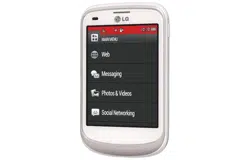
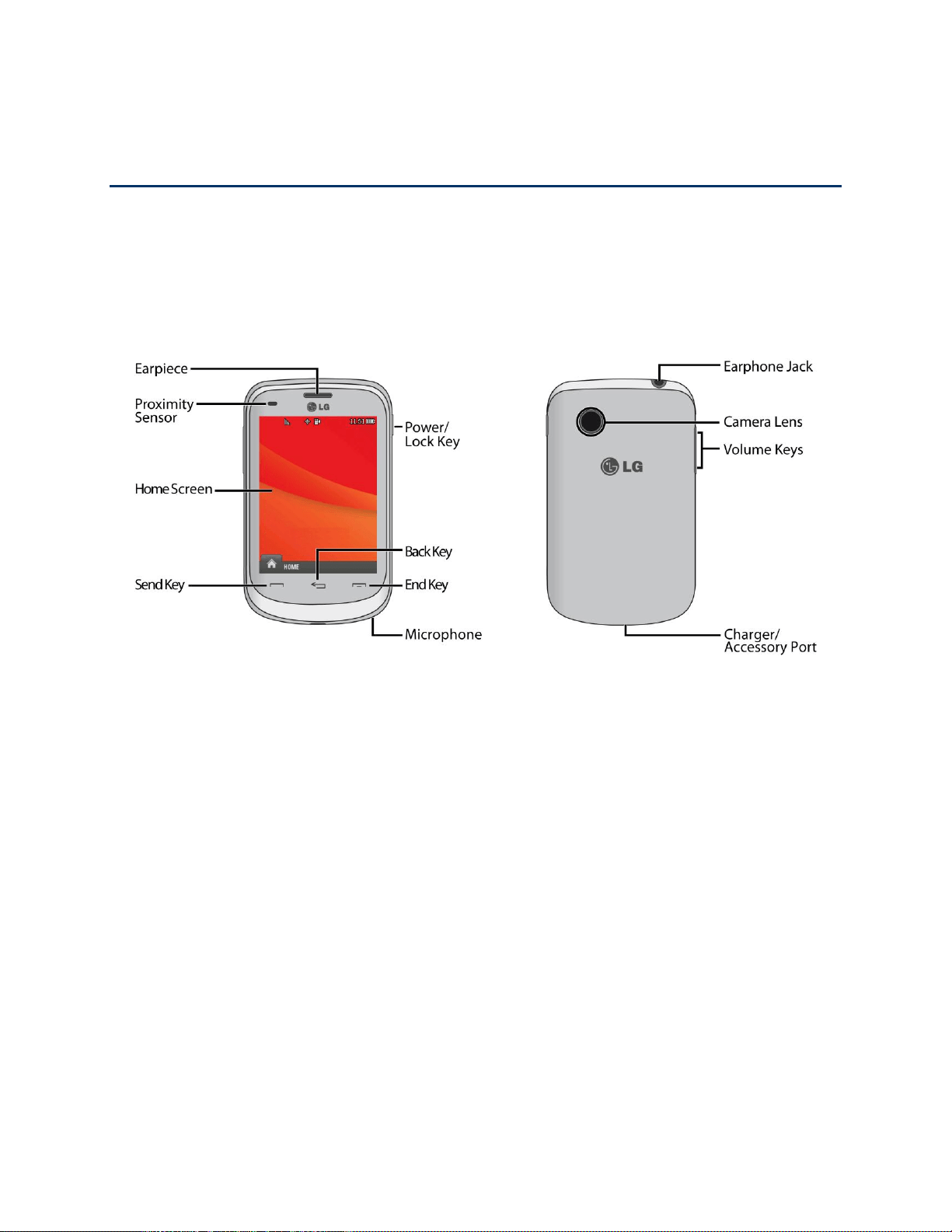
The following illustrations outline your phone's primary external features and buttons.
Set Up Your Phone
You must first install and charge the battery to begin setting up your phone.
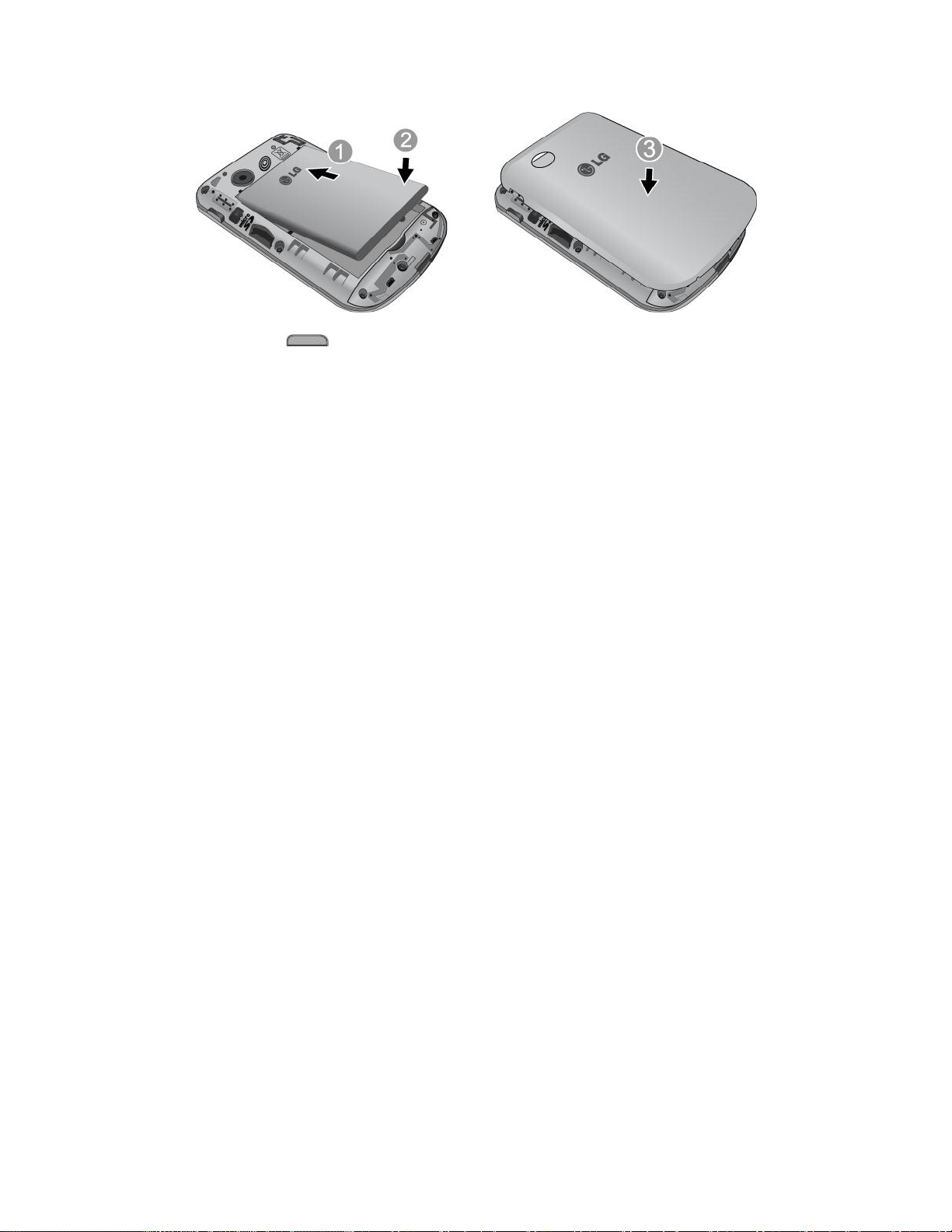
1. Install the battery
Remove the battery from its packaging.
Insert the battery into the battery compartment in the back of the phone. Make sure
the connectors align (see step 1 in the following illustration). Gently press down to
secure the battery (see step 2 in the following illustration).
Position the back cover over the battery compartment and press down until you hear
a click (see step 3 in the following illustration).
Get Started 2
2. Press and hold on the top right of the phone to turn the phone on.
If your phone is activated, it will turn on, search for Virgin Mobile service, and enter
standby mode.
If your phone is not yet activated, see Activate Your Phone for more information.
Battery and Charger
Your phone is equipped with a Lithium Ion (Li-Ion) battery. It allows you to recharge your battery
before it is fully drained.
WARNING: Use only Virgin Mobile-approved or LG-approved batteries and chargers with your
phone. The failure to use a Virgin Mobile-approved or LG-approved battery and charger may
increase the risk that your phone will overheat, catch fire, or explode, resulting in serious bodily
injury, death, or property damage.
Note: Long backlight settings, searching for service, vibrate mode, browser use, and other
variables may reduce the battery‟s talk and standby times.
Tip: Watch your phone‟s battery level indicator and charge the battery before it runs out of
power.
Note: Your phone‟s battery should have enough charge for your phone to turn on and find a
signal, set up your voicemail, and make a call. You should fully charge your battery as soon as
possible.
Charge the Battery
Keeping track of your battery‟s charge is important. If your battery level becomes too low, your
phone automatically turns off, and you will lose any information you were working on.
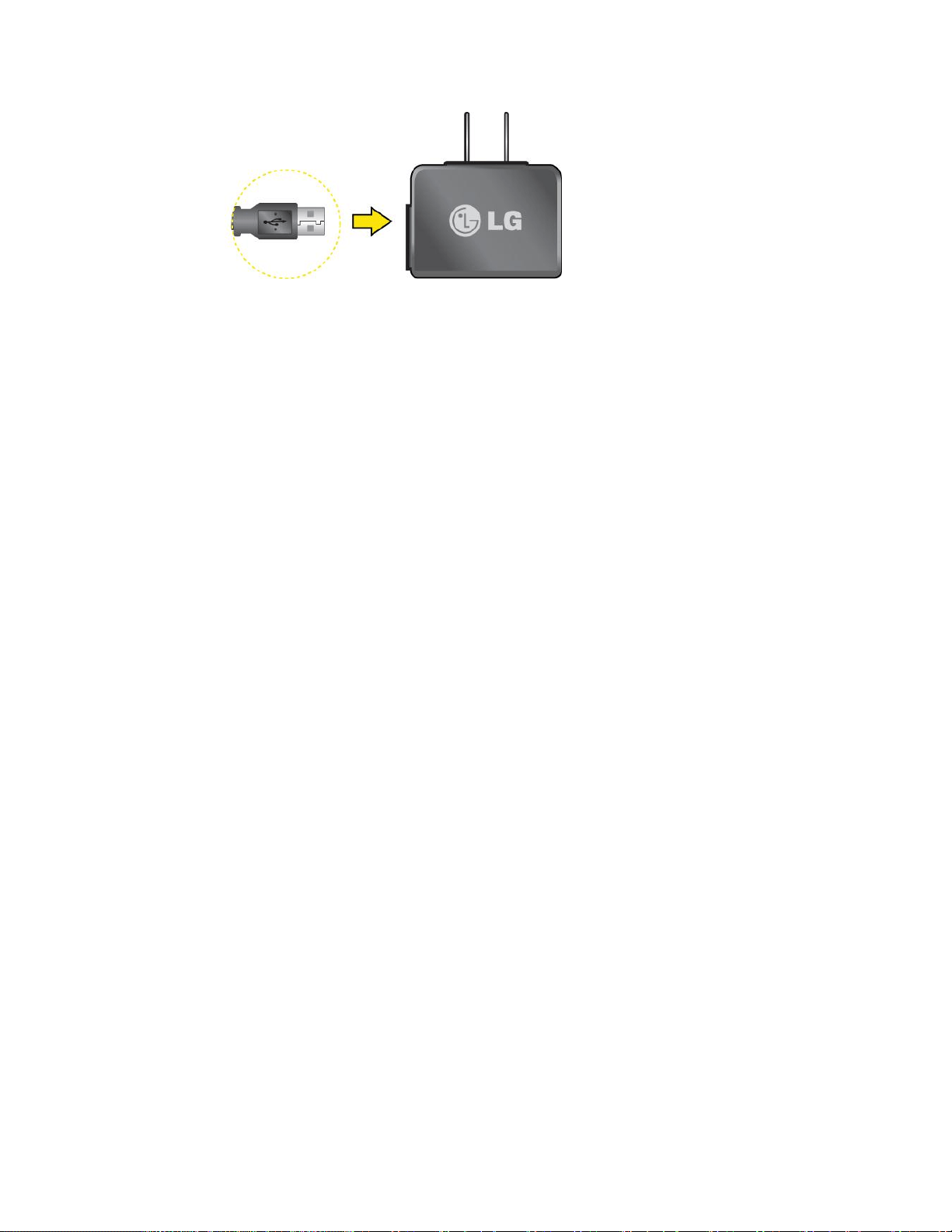
1. Connect the wall adapter and USB cable as shown.
Get Started 3
2. Plug the small end of the charger into the phone‟s Charger/Accessory Port and the other
end into an electrical outlet.
Note: Always unplug the charger from the wall socket after the phone is fully charged to save
unnecessary power consumption of the charger.
Activation and Service
Before using your phone, you must set up your service with Virgin Mobile. You will need your
phone‟s serial number (MEID), printed on a sticker inside the battery compartment.
Create Your Account and Pick Your Plan
Set up your Virgin Mobile account.
1. From your computer, visit virginmobileusa.com and click Activate.
2. Choose an activation option and click Next. Then enter your zip code and click Next.
3. When prompted, enter the serial number (MEID) printed on the sticker located on the
back of your phone in the battery compartment. This number can also be found on the
bottom panel of the phone‟s package.
4. Follow the remaining instructions to choose your plan and select a payment method.
5. Follow the activation instructions below and you‟ll be able to start using your phone.
Activate Your Phone
After setting up your account on virginmobileusa.com, simply turn your device on. Your device is
designed to activate automatically.
Manage Your Account
Access information about your account. You can:
● Check your minutes.
● Add money (Top-Up).
● Changes plans.

Get Started 4
● And more!
From Your Computer
■ Log in with your phone number and account PIN at virginmobileusa.com.
Additional Information
For more information about your Virgin Mobile account, as well as other Virgin Mobile services,
visit us at virginmobileusa.com.
Or, call us at 1-888-322-1122. We‟re here to serve you.
Set Up Voicemail
You should set up your voicemail and personal greeting as soon as your phone is activated.
Always use a password to protect against unauthorized access. Your phone automatically
transfers all unanswered calls to your voicemail, even if your phone is in use or turned off.
1. Touch > > Main Menu > Messaging > next to Voicemail.
2. Follow the system prompts to:
Create your password.
Record your name announcement.
Record your greeting.
Important: Voicemail Password – It is strongly recommended that you create a password
when setting up your voicemail to protect against unauthorized access. Without a password,
anyone who has access to your phone is able to access your voicemail messages.
For more information about voicemail, see Voicemail.
Phone Basics 5
Phone Basics
Your phone is packed with features that simplify your life and expand your ability to stay
connected to the people and information that are important to you. The topics in this section will
introduce the basic functions and features of your phone.
Your Phone Overview
The illustrations and descriptions below outline your phone‟s basic layout.
Key Functions
● Earpiece lets you hear the caller and automated prompts.
● Proximity Sensor detects how close an object is to the surface of the screen. This is
typically used to detect when your face is pressed up against the screen, such as during
a phone call.
● Home Screen displays all the information needed to operate your phone, such as the
call status, the date and time, and the signal and battery strength.
● Send Key reveals the dial pad on the screen. Hold down to activate Voice Command
while in standby mode.
● Microphone allows other callers to hear you clearly when you are speaking to them.
● End Key returns you to the Home screen.
● Back Key returns you to the previous menu when in a sub-menu. This key also allows
you to return to the previous screen when using the Browser.
● Power/Lock Key locks the screen. Press and hold to turn the phone on or off.

Phone Basics 6
● Charger/Accessory Port allows you to connect the phone charger or the USB cable
(included).
● Volume Keys allows you to adjust the ringer volume or adjust the voice volume during a
call.
● Camera Lens is used for picture taking and video recording. Keep clean for optimal
performance.
● Earphone Jack allows you to connect a stereo headset or an optional headset for
convenient, hands-free conversations.
Turn Your Phone On and Off
The instructions below explain how to turn your phone on and off.
Turn Your Phone On
■ Press and hold .
Once your phone is on, it may display “Looking for Service.” When your phone finds a signal,
it enters standby mode – the phone‟s idle state. At this point, you are ready to begin making and
receiving calls.
If your phone is unable to find a signal after 5 minutes of searching, a Power Save feature is
automatically activated. When a signal is found, your phone automatically returns to standby
mode.
In Power Save mode, your phone searches for a signal periodically without your intervention.
You can also initiate a search for Virgin Mobile service by pressing any key (when your phone is
turned on).
Tip: The Power Save feature conserves your battery power when you are in an area where
there is no signal.
Turn Your Phone Off
■ Press and hold for two seconds until you see the powering-down animation on the
screen.
microSD Card
Your phone is able to use a microSD™ (Secure Digital) memory card to expand the phone‟s
available memory space. It allows you to store more images, videos, and other files in your
phone.
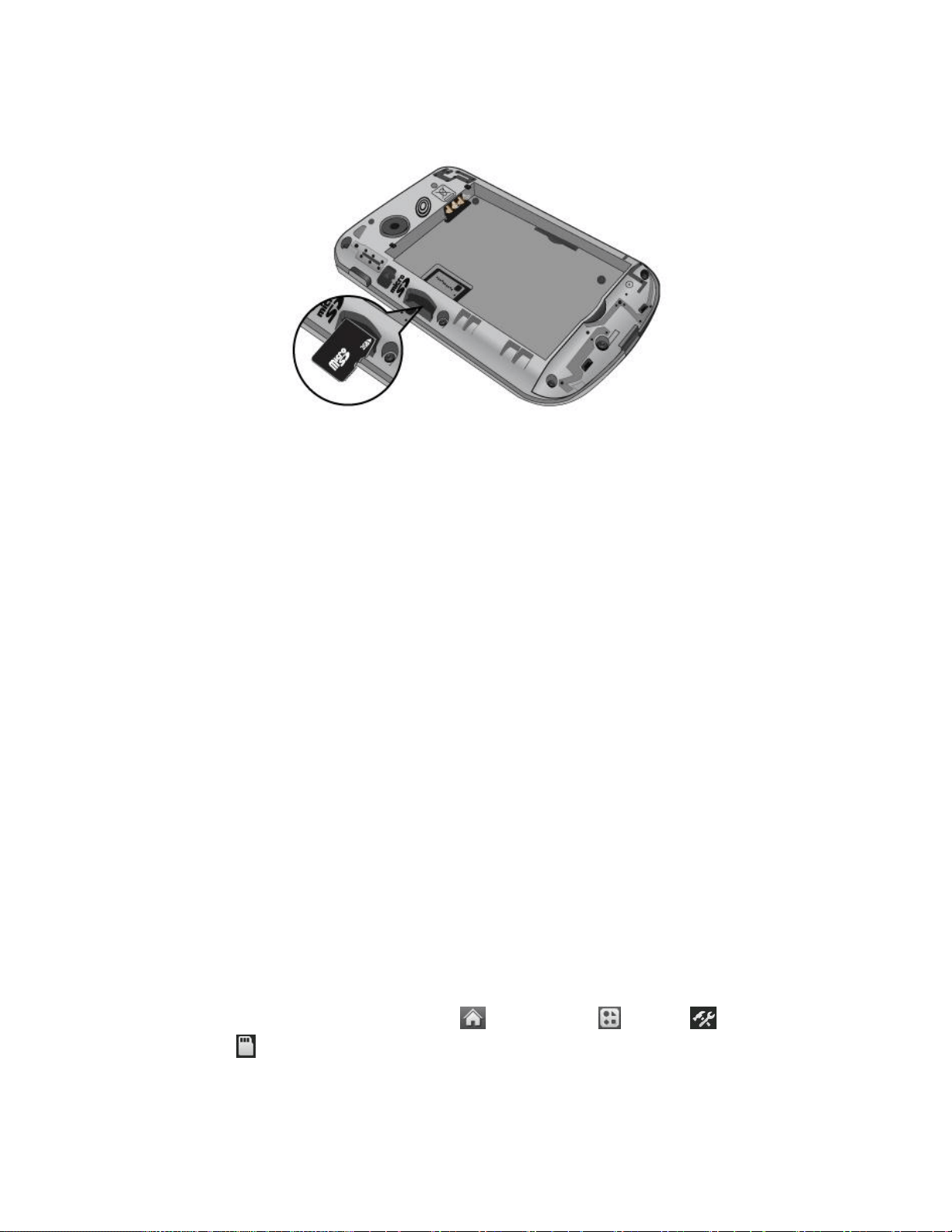
Phone Basics 7
Insert the microSD Card
1. Remove the back cover and locate the microSD™ slot (refer to the image above).
2. Insert the microSD™ card with the label side facing upwards and the gold contact area
downwards. Then gently push in until it clicks into the slot. If you insert the card in the
wrong direction, it may damage your phone or your card.
Note: Be sure to use only recommended microSD cards (up to 32GB). Using non-
recommended microSD cards could cause data loss and damage your phone.
Remove the microSD Card
1. Remove the back cover and locate the microSD™ card slot. Then gently pull the
exposed edge of the microSD™ card to remove it.
2. Replace the back cover.
Note: You can easily damage the microSD card and its adapter by improper operation. Please
be careful when inserting, removing, or handling them.
DO NOT remove a microSD card while files are being accessed or transferred. Doing so can
result in loss or damage of data.
Make sure your battery is fully charged before using the microSD card. Your data may become
damaged or unusable if the battery runs out while using the microSD card.
Format Memory Card
Formatting a microSD card (memory card) permanently removes all files stored on the card.
1. With the microSD card inserted, touch > Main Menu > Tools > Mass
Storage > Format Memory Card. A warning will be displayed.
2. If you are sure you wish to remove all the files from your microSD card, touch Yes.

Phone Basics 8
Memory Info
You can view how much memory is being used and is available on your microSD card.
■ With the microSD card inserted, touch > Main Menu > Tools > Mass
Storage > Memory Info. The used and available memory space will be displayed.
Note: The formatting procedure erases all the data on the microSD card, after which the files
CANNOT be retrieved. To prevent the loss of important data, please check the contents before
you format the card.
Your Home Menu
Your phone offers you the option of customizing the Home menu with the most frequently used
menus for direct access.
1. Touch to open the Home menu.
2. Touch Add . (Main menus are displayed.)
3. Touch to the right of a menu option to add that menu option to your Home menu. To
navigate to a specific submenu, touch a menu option repeatedly until you see the
submenu you want and touch .
4. When you finish selecting menus to add, touch Done.
Get to Know the Touchscreen
Your phone is equipped with a touchscreen for easy access to your favorite functions and
features. Touch key sensors are very sensitive and require only a light touch — you don’t need
to press them forcefully to use them. Pressing touch keys too hard may damage the touch
keypad.
● Use the tip of your finger to touch the center of a touch key. If you touch off-center it may
activate an adjacent key instead.
● The touchscreen is automatically locked when the backlight is off. To lock manually,
press .
● To unlock the touchscreen, press and hold .
WARNING: Don’t place anything heavy on the touchscreen. Be careful not to scratch the
touchscreen with sharp objects. Do not store your phone in extreme conditions (places that are
too humid, hot, or cold), or around chemicals, which may change the cosmetic or functional
features of your phone.
Phone Basics 9
Navigate Through the Menus
It's easy to navigate through your phone's menus using the touchscreen.
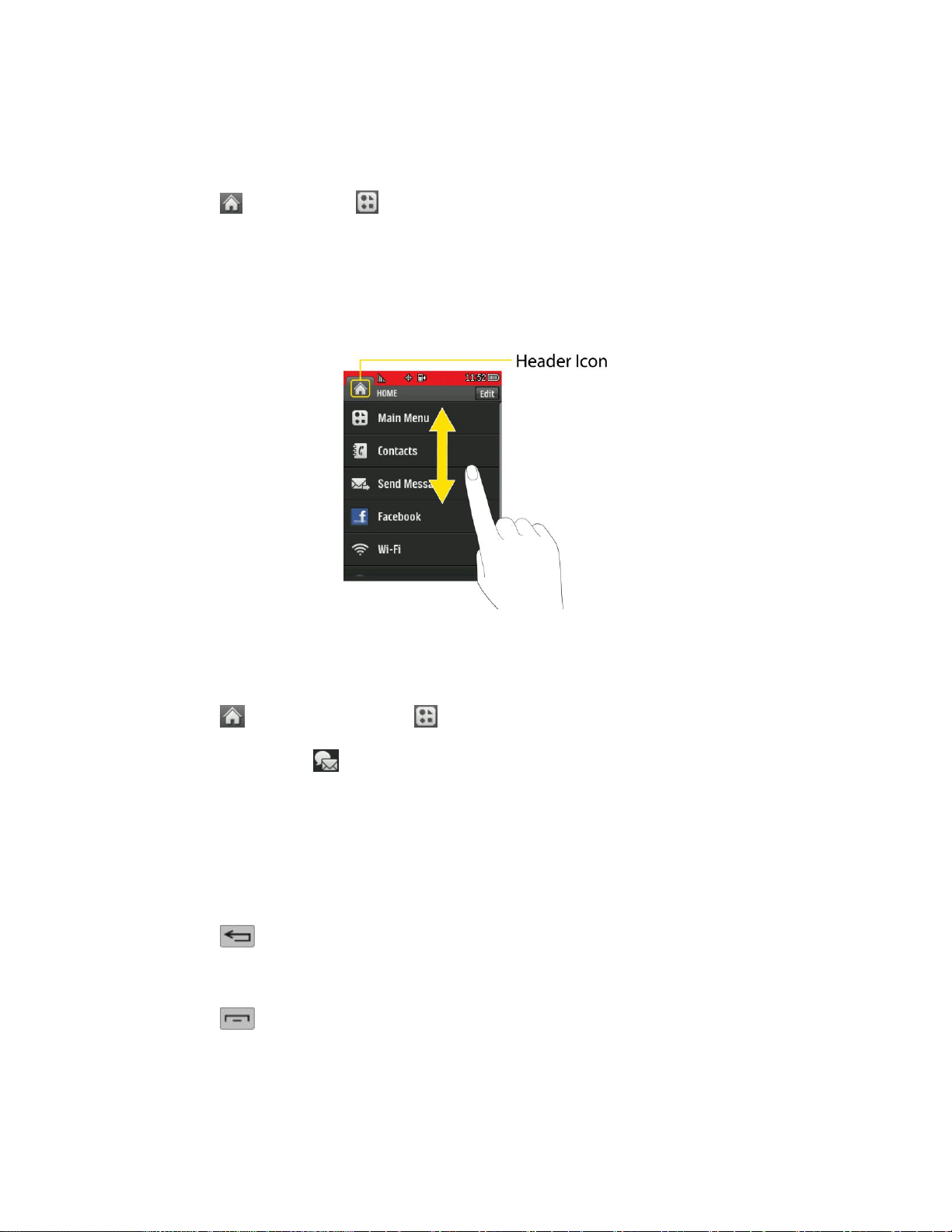
■ Touch > Main Menu to access menus.
Touchscreen Navigation
To scroll through lists, touch the screen and slide your finger up the screen as shown in the
following figure. The list will move up so more items are visible. To display the top of the list
again, slide the screen down.
To select an item, touch it on the menu.
For example, to view your text messages:
1. Touch and then Main Menu to access the main menu.
2. Touch Messaging .
3. Touch Messages (If you have any text messages, they are displayed).
Back Up Within a Menu
It's easy to go back to a previously accessed menu or return to standby mode. To go to the
previous menu:
■ Touch .
To return to standby mode:
■ Touch .
Phone Basics 10
Status Bar
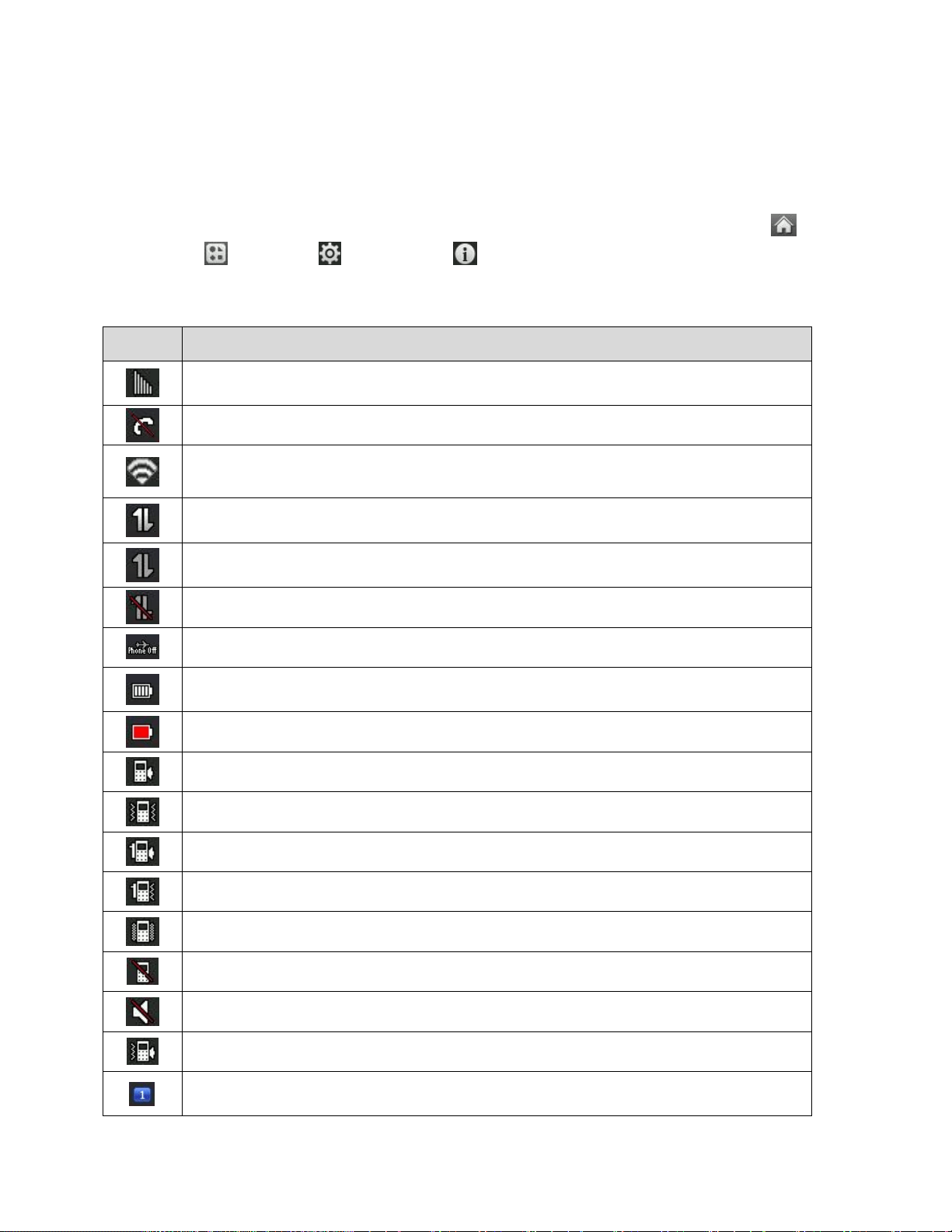
Your phone‟s Status Bar provides information about your phone‟s status and options. This list
identifies the symbols you‟ll see on your phone‟s Status Bar:
Tip: To view a list of your phone‟s icons and descriptions, from the Home screen touch >
Main Menu > Settings > Phone Info > Icon Glossary.
Status Icons
Icon
Status
1x Signal Strength – Shows your current 1xRTT signal strength. (the more bars
there are, the stronger the signal is)
No Service – Your phone cannot find a usable signal.
Wi-Fi Signal Strength – Shows your current Wi-Fi signal strength (the more
bars there are, the stronger the signal is)
1x Service Activated – Indicates that Virgin Mobile 1xRTT data service is
available. When active, the icon is animated.
1x Service Deactivated – Indicates that Virgin Mobile 1xRTT data service is
deactivated.
1x Service Unavailable – Data service is currently unavailable.
Airplane Mode – Indicates that the phone is in Airplane/ Mode.
Full Battery – Shows your current battery charge level. (Icon shown is fully
charged.)
Low Battery – Shows that the battery is low.
Ringer Only – Indicates that the ringer only is set for the call alert.
Vibrate Only – Indicates that the ringer volume is set to vibrate only.
1 Beep – Indicates that one beep is set for the call alert.
1 Beep & Vibrate – Indicates that one beep and vibration is set for the call alert.
Vibrate All – Indicates that the ringer volume is set to vibrate all.
Ringer Off – The ringer is set to off.
Silence All – Indicates all sounds are turned off.
Ringer & Vibrate – Indicates that the ringer and vibrate mode is set.
Bubble Icon – Indicates you have missed alerts such as voicemail, missed
calls, new messages, scheduled events, or other alerts.
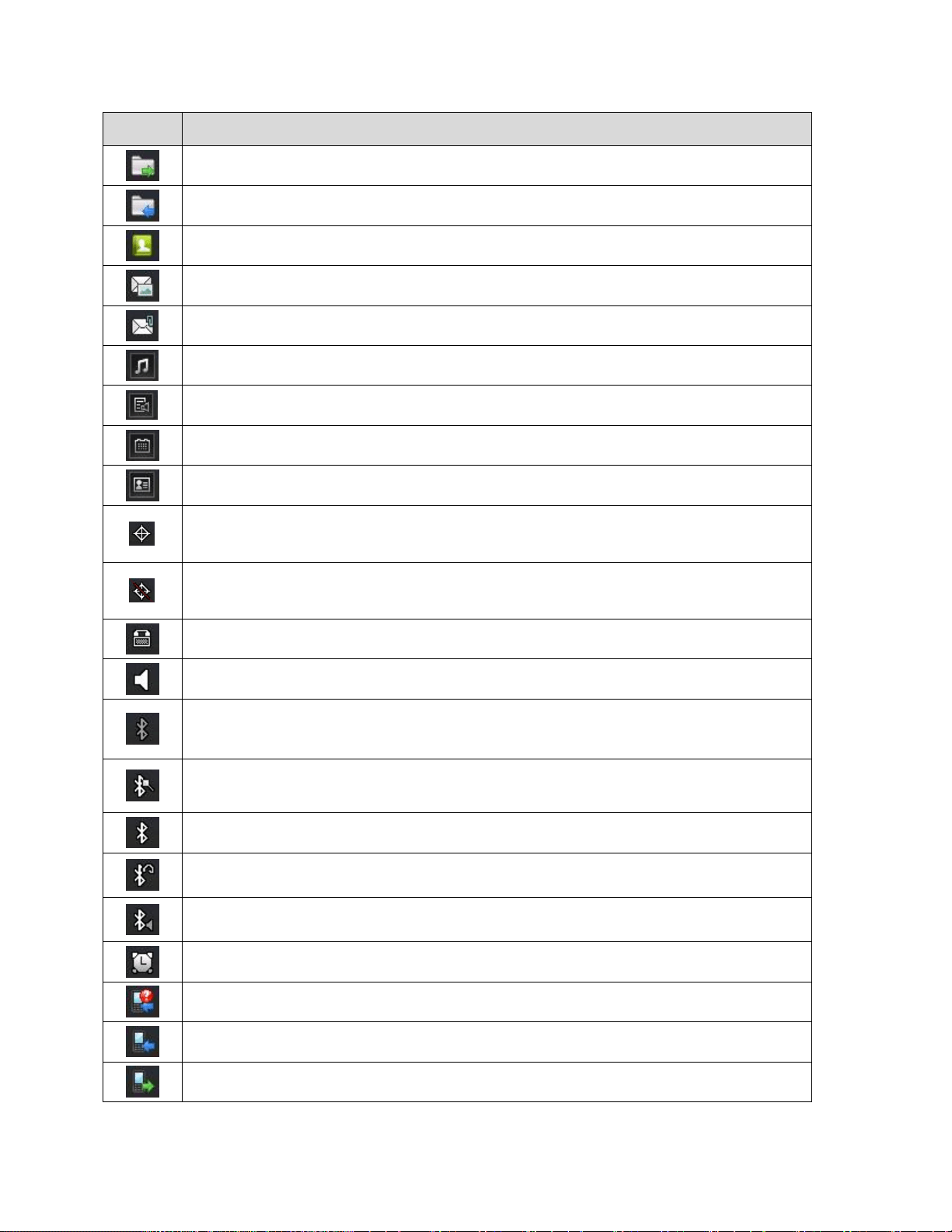
Phone Basics 11
Icon
Status
Sent Message – Indicates the message is sent.
Received Message – Indicates the message is received.
Recipient – Indicates the recipient field.
File Attachment – Indicates the file attachment field.
File Attached – Indicates a file is attached.
Audio file attached – Indicates an audio file is attached.
Voice file attached – Indicates a voice file is attached.
Calendar file attached – Indicates a calendar file is attached.
Contact file attached – Indicates a contact file is attached.
Location On – Your phone‟s location feature is on and available for location-
based services.
Location Off – Your phone‟s location feature is off. Your location is available
only for 9-1-1.
TTY – Indicates your phone is operating in TTY mode.
Speaker – Indicates that the speaker is activated.
Bluetooth Enabled (Hidden) – Indicates that the Bluetooth function is enabled
but hidden from other devices.
Bluetooth Enabled (Visible) – Indicates that the Bluetooth function is enabled
and is visible to other devices.
Bluetooth Connected – Indicates that the Bluetooth function is connected.
Bluetooth Connected (Mono/Stereo Headset) – Indicates that the Bluetooth
function is connected to a mono or stereo headset.
Bluetooth Connected (Stereo Speaker) – Indicates that the Bluetooth function
is connected to a stereo speaker.
Alarm Clock – Indicates that an alarm is activated.
Missed Calls – Indicates missed calls.
Incoming Calls – Indicates incoming calls.
Outgoing Calls – Indicates outgoing calls.
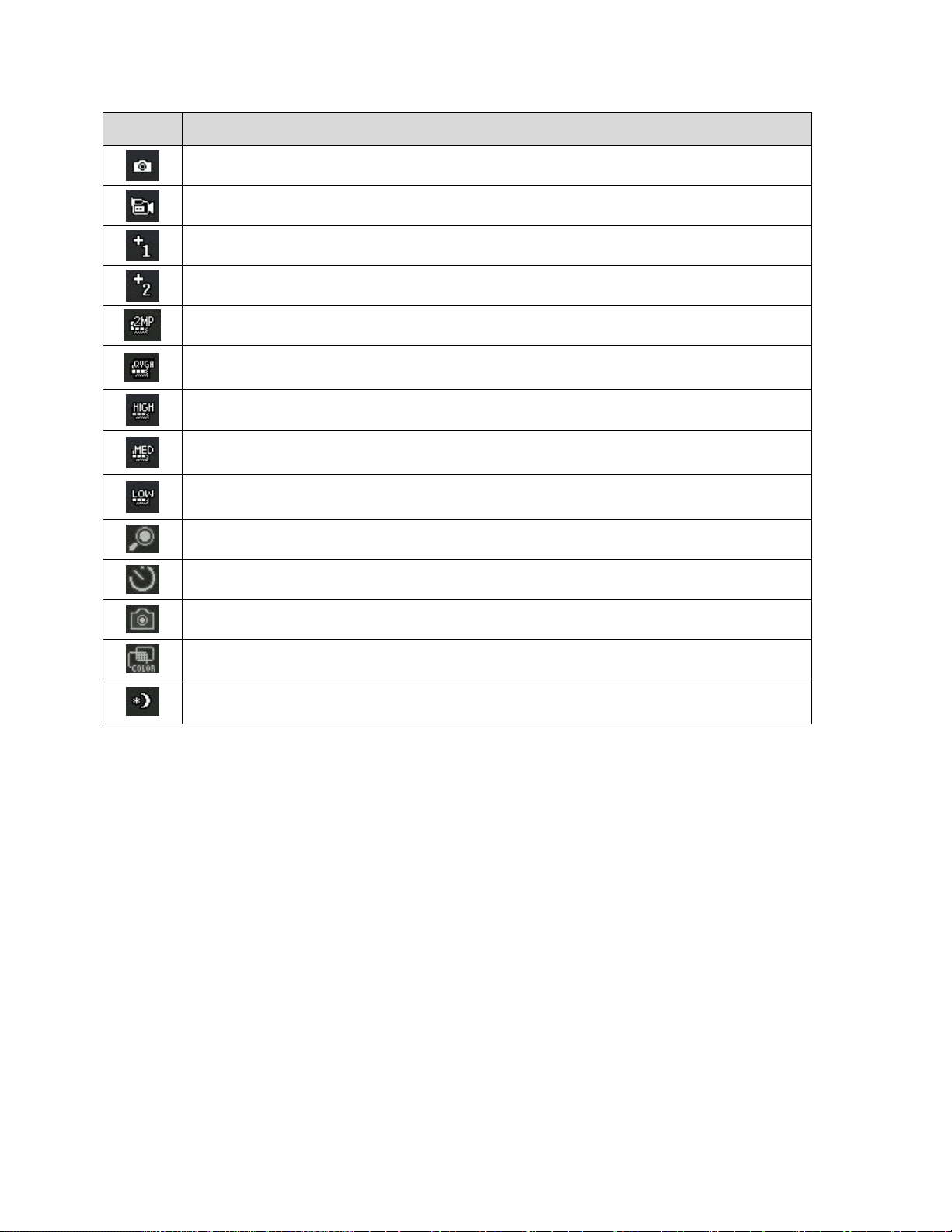
Phone Basics 12
Icon
Status
Camera/Picture – Indicates camera mode.
Camcorder/Video – Indicates camcorder mode.
1 Background Application – Indicates that one application is active.
2 Background Applications – Indicates that 2 applications are active.
Camera Resolution 2MP – Indicates that the camera resolution is set to 2M.
Camcorder Resolution QVGA – Indicates that the camcorder resolution is set
to QVGA.
Camera Resolution High – Indicates that the camera resolution is set to High.
Camera/Camcorder Resolution Med – Indicates that the camera/camcorder
resolution is set to Medium.
Camera/Camcorder Resolution Low – Indicates that the camera/camcorder
resolution is set to Low.
Zoom – Allows you to zoom in and out from Camera/Camcorder.
Self Timer – Allows you to activate the timer from Camera/Camcorder.
Capture – Allows you to capture a picture or video from Camera/Camcorder.
Color Tone – Allows you to adjust the color tone from Camera/Camcorder.
Night Mode Setting – Allows you to adjust night brightness for better quality
from Camera/Camcorder.
Enter Text With the On-screen Keyboard
Your phone provides convenient ways to enter letters, numbers, and symbols whenever you are
prompted to enter text (for example, when adding a Contacts entry or when using text
messaging).
Phone Basics 13
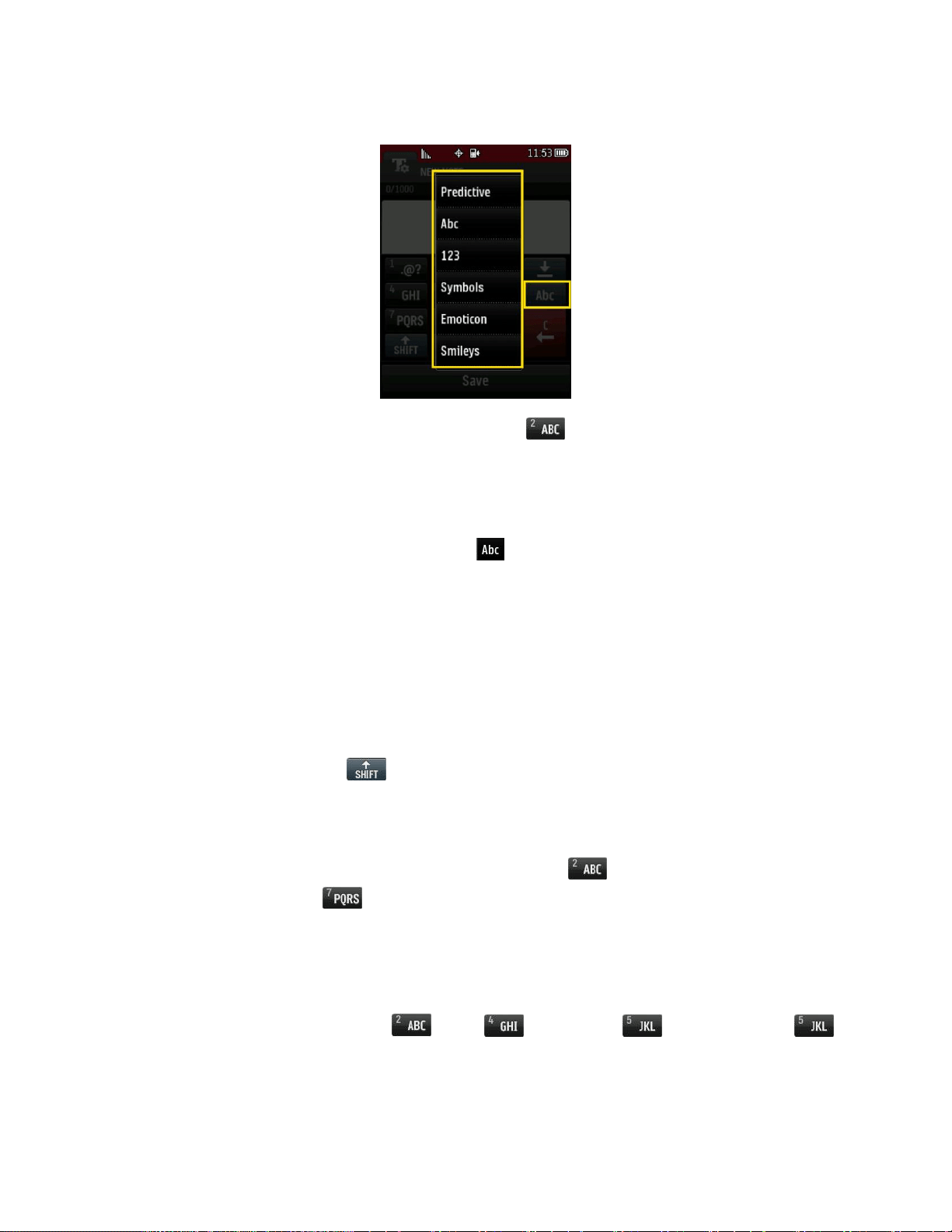
Select a Text Input Mode
1. From a screen where you can enter text, touch to change the text input mode.
2. Select one of the following options:
Predictive to enter text by predicting words when you begin typing.
Abc to use multi-touch entry – touch once for “a,” twice for “b”, three times for “c”,
four times for "2".
123 to enter numbers by touching the numbers on the keypad.
Symbols to enter symbols.
Emoticon to enter “emoticons.”
Smileys to enter smileys.
Tip: When entering text, touch to change letter capitalization (Abc > ABC > abc).
ABC Mode
In Abc mode, also known as multi-touch entry, you touch keys one, two, three, or four times to
enter the letters you see on the keypad. For example, touch once for “a,” twice for “b”, or
three times for “c”; or touch once for “p,” twice for “q,” three times for “r,” or four times for
“s.”
1. Select Abc mode. (See Select a Text Input Mode.)
2. Touch the corresponding keys repeatedly until the correct letter appears. (For example,
to enter the word “Bill,” touch twice, three times, three times, and
three times again.)

Phone Basics 14
If you make a mistake, touch to erase a single character. Touch and hold to
erase an entire word.
By default, the first letter of an entry is capitalized and the following letters are lowercased. You
can change the letter case using .
Enter Numbers, Symbols, Emoticons, Smileys and Preset
Messages
Use your phone's keypad to enter numbers, symbols, emoticons, smileys, or to choose from
preset messages.
To enter numbers:
■ Select the 123 mode and touch the appropriate key. (See Select a Text Input Mode.)
To enter symbols:
■ Select the Symbols mode. (See Select a Text Input Mode.) To enter a symbol, touch
the appropriate key indicated on the display.
To enter “emoticons” (graphics):
■ Select the Emoticon mode and touch the appropriate key. (See Select a Text Input
Mode.)
To enter smileys (text):
■ Select the Smileys mode and touch the appropriate key. (See Select a Text Input Mode.)
To enter preset messages:
1. Touch Preset Msgs at the top right corner of the screen.
2. Select the message you want by touching it.
Note: Preset messages make composing text messages easier by allowing you to enter quick
messages, such as “Meet me at,” or a customized message of your own. (For more information
on preset messages, please see Manage Preset Messages.)
Voicemail
Your phone automatically transfers all unanswered calls to your voicemail, even if your phone is
in use or turned off. You should set up your Virgin Mobile Voicemail and personal greeting as
soon as your phone is activated. Always use a password to protect against unauthorized access.
1. Touch to open the dial pad.
2. Touch and hold to dial your voicemail.

Phone Basics 15
3. Follow the system prompts to:
Create your password.
Record your name announcement.
Record your greeting.
Note: Voicemail Password - Virgin Mobile strongly recommends that you create a password
when setting up your voicemail to protect against unauthorized access. Without a password,
anyone who has access to your phone is able to access your voicemail messages.
Voicemail Notification
There are several ways your phone alerts you to a new voicemail message.
● By displaying a message on the screen.
● By sounding the assigned ringer type.
● By displaying a Voicemail bubble on the screen.
Note: Your phone accepts messages even when it is turned off. However, your phone notifies
you of new messages only when it is turned on and you are in a Virgin Mobile service area.
Retrieve Your Voicemail Messages
You can retrieve and review your messages directly from your wireless phone or from any other
touch-tone phone. To dial from your wireless phone, either speed dial your voicemail or use the
menu keys.
Using One-Touch Message Access
■ Touch , then touch and hold . (Your phone will dial your voicemail box.)
Using the Menus on Your Phone to Access Your Messages
1. Touch > Main Menu > Messaging .
2. Touch next to the Voicemail menu to listen to your messages.
Note: You are charged for airtime minutes when you are accessing your voicemail from your
wireless phone.
Using Another Phone to Access Messages
1. Dial your wireless phone number.
2. When your voicemail answers, touch .

Phone Basics 16
3. Enter your password.
Tip: When you call into voicemail, you first hear the header information (date, time, and sender
information) for the message. To skip directly to the message, press 4 during the header.
Phone Calls 17
Phone Calls
With the Virgin Mobile National Network and your phone, you can enjoy clear calling across the
country.
Make Phone Calls
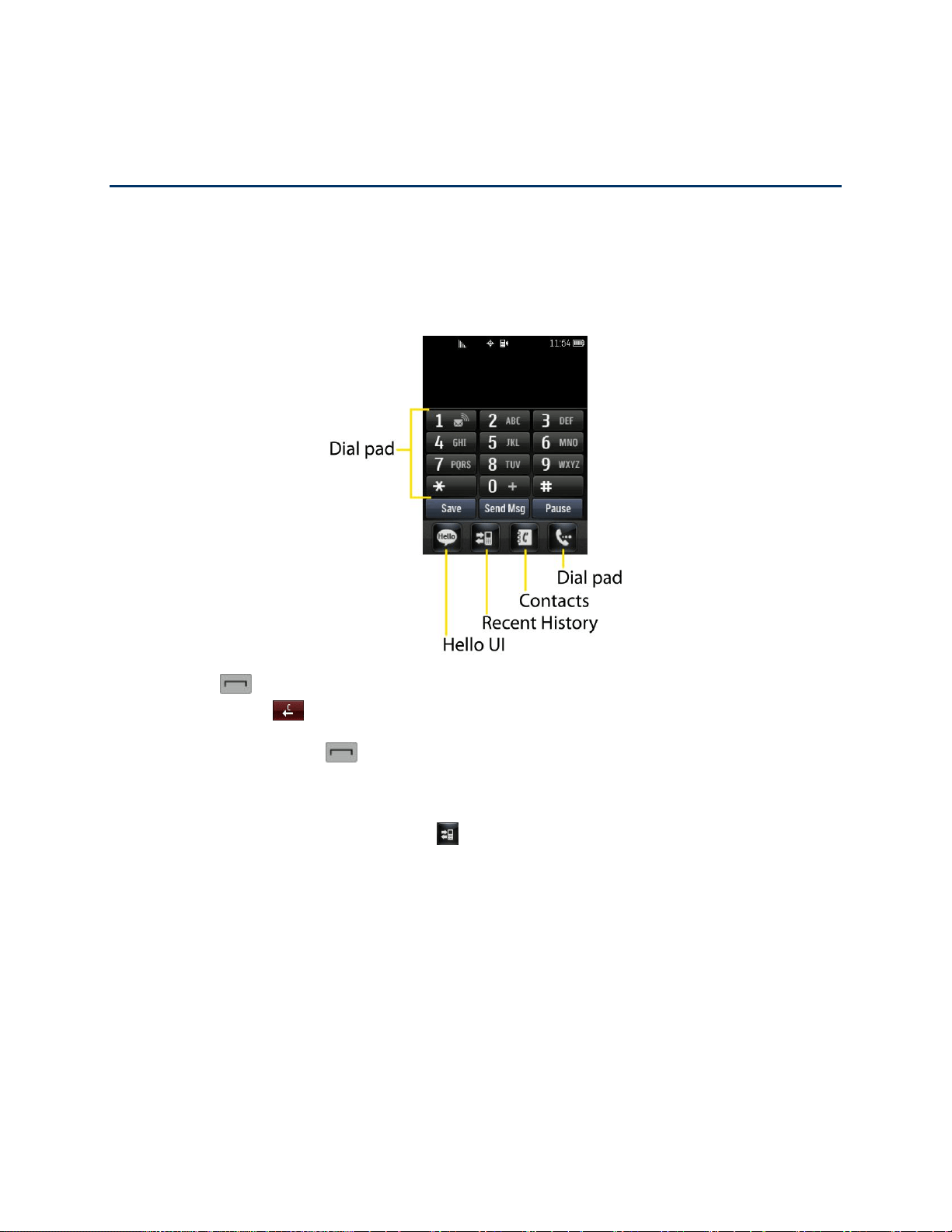
You can make calls on your phone using the on-screen dial pad.
1. Touch and enter a phone number using the dial pad. (If you make a mistake while
dialing, touch to erase the numbers.)
2. Touch Talk or touch .
3. To end the call, touch End Call.
Tip: To redial other recent numbers, touch , touch the desired number, and Call.
You can also place calls from your phone by speed dialing numbers from your Contacts.
Dialing Options
When you enter numbers you will see a variety of dialing options displayed on the phone‟s
screen.
To initiate an option, touch the corresponding key.
● Save: Enter a seven-digit or ten-digit number (phone number and area code) and touch
Save to save the phone number in your Contacts. See Save a Phone Number.

Phone Calls 18
● Contact Details: Displays Contacts details for numbers that are already saved in the
phone.
● Send Msg: Enter a seven-digit or ten-digit number and touch this to quickly send a
message to the number.
● Pause: Enter digits and touch this to enter a pause within a number string. See Dial and
Save Phone Numbers With Pauses
Tip: To speed dial a phone number, touch and hold the speed dial number. If the speed dial
number is two digits, enter the first digit, and then touch and hold the second digit. For
information on setting up speed dial numbers, see Assign Speed Dial Numbers.
Receive Phone Calls
The following instructions show you how to answer incoming calls, mute the ringer on incoming
calls, reject incoming calls, send calls directly to voicemail, or reject a call and send a text
instead.
Answer an Incoming Call
1. Make sure your phone is on. (If your phone is off, incoming calls go to voicemail.)
2. Touch Answer.
– or –
Touch and drag the toggle key to Answer.
Your phone notifies you of incoming calls in the following ways:
● The phone rings or vibrates.
● The status light flashes.
● The backlight illuminates.
● The screen displays an incoming call message.
If the incoming call is from a number stored in your Contacts, the entry‟s name is displayed. You
may also see the caller‟s phone number, if available.
Incoming Call Options
You also see the following options if your phone is on standby. To select an option, touch the
corresponding touch key.
● Silence to mute the ringer.
● Send to Voicemail to send the call to voicemail.

Phone Calls 19
● Ignore with Text to send a text message. You can send the preset message or write a
new one.
● Answer to answer the call.
Ending a Call
■ Touch or drag the toggle key to End Call.
Missed Call Notification
When you do not answer an incoming call, your screen displays the Missed Call log in a bubble
on the Home screen.
■ Touch the entry. To dial the phone number, touch Call. To send a message, touch Send
Msg.
Call Emergency Numbers
You can place emergency calls to 9-1-1, even if your account is restricted.
Note: When you place an emergency call, your phone automatically enters Emergency mode.
To call the 9-1-1 emergency number:
Touch and dial Talk.
During an emergency call, you will see a variety of options displayed on the screen.
To initiate an option, touch the following:
● My Phone# to display your phone number during an emergency call.
● Speaker to activate speakerphone mode. If you are in speakerphone mode, the option is
displayed as Speaker Off to deactivate.
● Dial Pad to display the dial pad.
● More to access the following options:
Phone Info to check the phone number, version, etc.
Cancel to close the pop-up menu.
To exit Emergency mode:
1. Touch End Call to end a 9-1-1 call.
2. Touch Exit to exit from the Emergency mode.

Phone Calls 20
Enhanced 9-1-1 (E911) Information
This phone features an embedded Global Positioning System (GPS) chip necessary for utilizing
E911 emergency location services where available.
When you place an emergency 9-1-1 call, the GPS feature of your phone seeks information to
calculate your approximate location. Depending on several variables, including availability and
access to satellite signals, it may take up to 30 seconds or more to determine and report your
approximate location.
Important: Always report your location to the 9-1-1 operator when placing an emergency call.
Some designated emergency call takers, known as Public Safety Answering Points (PSAPs)
may not be equipped to receive GPS location information from your phone.
In-Call Options
Several in-call features are available as options during a call. To select an option, touch the
corresponding touchkey. The following options may be available:
● Mute to mute the microphone. Touch Unmute to unmute the microphone.
● Speaker to activate speakerphone mode. If you are in speakerphone mode, the option is
displayed as Speaker Off to deactivate.
WARNING: Because of higher volume levels, do not place the phone near your ear during
speakerphone use.
● Dial Pad to display the dial pad.
● End Call to end the call.
● More to access the following options:
Save to save a phone number in your Contacts. See Save a Phone Number.
Contact Details to display the contact details (if the contact is saved in the Contacts).
Main Menu to display the phone‟s main menu.
3-Way Call to initiate a 3-way call.
Contacts to display your Contacts list.
Voice Memo to record the current conversation.
Phone Info to check the phone number, version, and other information.
Cancel to close the pop-up menu.

Phone Calls 21
Save a Phone Number
You can store 600 Contacts entries with up to seven phone numbers per Contact in your phone.
Each entry‟s name can contain 64 characters. Your phone automatically sorts the Contacts
entries alphabetically. For more information, see Contacts.
To save a number from standby mode:
1. Touch to display the dial pad.
2. Enter a phone number.
3. Touch Save.
4. Touch New Entry for a new contact or Existing Entry to add a number to an existing
contact.
5. Touch a label for the number (Mobile, Home, Work, Pager, Fax, or Other).
6. Touch the Enter Name field and enter the new contact name using the touch keypad.
– or –
Search an existing contact name and touch it to save the new number.
7. Touch Done to save the new entry.
Find a Phone Number
You can find a phone number by searching Contacts for entries by name.
1. Touch > . The Contacts list is displayed.
2. Touch and enter the first letter or letters of an entry. (The more letters you enter, the
more specific the search.) To display an entry, touch it.
3. To dial a number, touch Call or touch .
Dial and Save Phone Numbers With Pauses
You can dial or save phone numbers with pauses for use with automated systems, such as
voicemail or credit card billing numbers.
Note: You can have multiple pauses in a phone number.
To dial or save phone numbers with pauses:
1. Touch and enter the phone number.
2. Touch Pause.

Phone Calls 22
3. Enter additional numbers.
4. Touch Talk to dial the number.
– or –
Touch Save to save the number in your Contacts.
Abbreviated Dialing
Abbreviated Dialing is similar to speed dialing. You can use either of the following abbreviated
dialing features.
● Contacts Match – Retrieve any number saved in your Contacts by entering any
consecutive three digits of the number. Touch Talk to dial the retrieved number.
● Prepend – Prepend the first five or six digits (for example, the area code and prefix) to
any four or five digits you enter. Touch Talk to dial the resulting number.
To place a call using Contacts Match Abbreviated Dialing:
1. Touch and enter three to six digits of a Contacts entry‟s phone number. The
numbers in your Contacts list that contain matches will display.
2. Touch to display the details.
3. Touch the contact you want to call and then touch Talk.
To place a call using Prepend Abbreviated Dialing:
1. Touch and enter the last four or five digits of the phone number. The numbers in
your Contacts list that contain matches will display.
2. Touch to display the details.
3. Touch the number and touch Talk.
Dial From the Contacts List
You can dial a phone number directly from your Contacts list.
1. Touch > .
2. Touch the entry you want to call and touch Call.
3. If multiple numbers are saved in the Contact entry, touch Contact Details then the
number you wish to dial.

Phone Calls 23
Speed Dialing
You can store up to 98 numbers in your phone‟s speed dial memory. Dial speed dial entries
using one key touch for locations 2–9 or two key touches for locations 10–99.
To use One-Touch Dialing for speed dial locations 2–9:
■ Touch and hold the appropriate key for approximately two seconds. The display confirms
that you have dialed the number when it shows “Connecting...”.
To use Two-Touch Dialing for speed dial locations 10–99:
1. Touch the first digit.
2. Touch and hold the second digit for approximately two seconds. The display confirms
that you have dialed the number when it shows “Connecting...”.
Plus (+) Code Dialing
When placing international calls, Plus Code Dialing automatically enters the international access
code for your location (for example, 011 for international calls made from the U.S.).
1. Touch until you see a “+” on the display screen.
2. Dial the country code and phone number, and then touch Talk. The phone automatically
prepends the access code for international dialing, followed by the country code and
phone number.
Caller ID
Caller ID allows people to identify a caller before answering the phone by displaying the number
of the incoming call. If you do not want your number displayed when you make a call, follow
these steps.
1. Touch > .
2. Enter a phone number.
3. Touch Talk
To permanently block your number, call Virgin Mobile Customer Service.
Call Waiting
When you‟re on a call, Call Waiting alerts you to incoming calls by sounding two beeps. Your
phone‟s screen informs you that another call is coming in and displays the caller‟s phone
number (if it is available and you are in digital mode).
To respond to an incoming call while you‟re on a call:

Phone Calls 24
■ Touch . This puts the first caller on hold and answers the second call.
To switch back to the first caller:
■ Touch again.
Note: For those calls where you don‟t want to be interrupted, you can temporarily disable Call
Waiting by entering before placing your call. Call Waiting is automatically
reactivated once you end the call.
Make a 3-Way Call
With 3-Way Calling, you can talk to two people at the same time. When using this feature, the
normal airtime rates will be charged for each of the two calls.
1. Enter a number and touch .
2. Once you have established the connection, touch More > 3-Way Call.
3. From the options that appear at the top of your screen select a contact from your
Contact List, Recent History, or enter a number and touch Talk.
4. When you‟re connected to the second party, touch Join to begin your 3-way call.
If one of the people you called hangs up during your call, you and the remaining caller stay
connected. If you initiated the call and are the first to hang up, all callers are disconnected.
Call Forwarding
Call Forwarding lets you forward all your incoming calls to another phone number – even when
your phone is turned off. You can continue to make calls from your phone when you have
activated Call Forwarding.
To activate Call Forwarding:
1. Touch > .
2. Enter the area code and phone number to which you want your calls forwarded.
3. Touch Talk. You will see a message and hear a tone to confirm the activation of Call
Forwarding.
To deactivate Call Forwarding:
1. Touch > .
2. Touch Talk. You will see a message and hear a tone to confirm the deactivation.
Note: You are charged a higher rate for calls you have forwarded.

Phone Calls 25
History
Recent History is a list of the last 60 phone numbers (or Contacts entries) for calls you placed,
accepted, or missed. Recent History makes redialing a number fast and easy. It is continually
updated as your phone automatically adds new numbers to the beginning of the list and
removes the oldest entries from the bottom of the list.
Each entry contains the phone number (if it is available) and Contacts entry name (if the number
is in your Contacts). Duplicate calls (same number and type of call) may only appear once on
the list.
View Recent History
1. From standby mode, touch > .
2. Touch an entry.
Note: History records only calls that occur while the phone is turned on. If a call is received
while your phone is turned off, it will not be included in history. If you return a call from the
voicemail menu, it will not be included in your phone‟s history.
Recent History Options
Your Recent History menu options include calling, sending a message, viewing the history of a
caller, saving a number to contacts, and viewing contact details.
Touch a entry to access the following options:
● Call to dial the entry.
● Send Msg to send a message.
● History to view all the history of the caller or receiver.
● Save Contact to save the number if it is not already in your Contacts. (See Save a
Number From Recent History.)
● Contact Details to view the contact information (if the number has already been saved
to Contacts).
● Touch Delete at the top right corner of the screen to delete multiple or all Recent History
entries.
Make a Call From Recent History
The Recent History list lets you quickly place calls to recent incoming, outgoing, or missed
numbers.
1. From standby mode, touch > .

Phone Calls 26
2. Scroll through the History entries and touch to dial the entry.
Note: You cannot make calls from History to entries identified as No ID or Restricted.
Save a Number From Recent History
Your phone can store up to 600 Contacts entries. Contacts entries can store up to a total of
seven phone numbers, and each entry‟s name can contain 64 characters.
1. Touch a Recent History entry and then touch Save Contact.
2. Select New Entry to create a new Contacts entry for the number or Existing Entry to
save the number to an existing entry.
3. Touch the phone label to select it (Mobile, Home, Work, Pager, Fax, or Other).
4. Touch the Enter Name field and enter the new contact name using the touch keypad,
and then touch Done.
– or –
Search an existing contact name and touch it to save the new number.
5. Touch Done to save the new entry.
Note: You cannot save phone numbers already in your Contacts or from calls identified as No
ID, Restricted or Unavailable.
Prepend a Number From Recent History
If you need to make a call from Recent History and you are outside your local area code, you
can add the appropriate prefix by prepending the number.
1. From standby mode, touch > .
2. Touch a History entry and then touch History.
3. Touch an entry and then touch Prepend.
4. Enter the prefix and touch to call the number.
Erase Recent History
You can erase one or all of your history entries from the Recent History list.
1. From standby mode, touch > .
2. Touch Delete at the top right corner of the screen and select Delete Multiple or Delete
All.

Phone Calls 27
3. Touch Delete Multiple and select the entries you want to erase.
– or –
If you are certain you want to erase all the History entries, touch Delete All.

Contacts 28
Contacts
The Contacts application lets you add and edit contacts, assign speed dial numbers, assign
ringers and pictures to entries, and use Hello UI.
Add a New Contacts Entry
Your phone can store up to 600 Contacts entries. Contacts entries can store up to a total of 7
phone numbers, and each entry‟s name can contain 64 characters.
1. From standby mode, touch > Contacts .
2. Touch Add New > New Contact.
3. Touch the Enter Name field, enter the new contact name using the touch keypad and
then touch Done.
4. Touch the Add Number field, enter a phone number, and then touch Done.
5. Touch a phone label to select it (Mobile, Home, Work, Pager, Fax, or Other).
6. Scroll down to additional fields and enter or edit information as desired.
7. Touch Done to save the entry.
After saving the number, your phone displays the Contacts list. (See Contacts Entry Options.)
Save a Phone Number
You can save a phone number to Contacts directly from the phone dial pad.
To save a number from standby mode:
1. Touch to display the dial pad.
2. Enter a phone number.
3. Touch Save.
4. Touch New Entry for a new contact or Existing Entry to add a number to an existing
contact.
5. Touch a phone label to select it (Mobile, Home, Work, Pager, Fax, and Other).
6. Touch the Enter Name field, enter the new contact name using the touch keypad, and
then touch Done.
– or –

Contacts 29
Search an existing contact name and touch it to save the new number.
7. Touch Done to save the new entry.
Contacts Entry Options
Once you've stored a Contact entry, you can add details such as phone numbers, add email
addresses, URL, default ringers, postal address, or even the contact's birthday.
To display a Contacts entry:
1. From standby mode, touch > Contacts .
2. Touch an entry and then touch Contact Details.
3. Touch Edit at the top right corner of the screen. Touch one of the following available
fields to enter information.
Add Number to add a phone to the entry.
Add Email to add an email address to the entry.
Add URL to add a website‟s URL to the entry.
Default Ringer to assign a preprogrammed or downloaded ringer.
Default Vibrate Type to assign a vibration type for incoming calls from the contact.
Enter Address to add an address.
Enter Birthday to add a birthday.
Enter Memo to add a note or other information.
Enter Job Title to add a job title.
Enter Company to add a company.
No Secret/Secret to hide or unhide an entry‟s phone number(s).
Edit a Contacts Entry
Editing a Contact's entry is quick and easy.
1. Display a Contacts entry and touch Contact Details (see Contacts Entry Options.) then
touch Edit at the top right corner of the screen.
2. Highlight the information you wish to edit (Name, Ringer, etc.).
3. Add or edit the information and touch Done (if applicable).

Contacts 30
4. Touch Done to save your changes.
Add a Number to a Contacts Entry
You can add up to seven phone numbers to a Contact entry.
1. Display a Contacts entry and touch Contact Details. (See Contacts Entry Options.)
2. Touch Edit at the top right corner of the screen and then touch the Add Number field.
3. Enter the new phone number and touch Done.
Note: To add a pause, touch Pause and enter additional numbers.
4. Touch a label for the number.
5. Touch Done to save the new number.
Edit a Contacts Entry’s Numbers
Edit a contact entry's phone numbers using the edit option.
1. Display a Contacts entry and touch Contact Details (see Contacts Entry Options.) then
touch Edit at the top right corner of the screen.
2. Touch a number.
3. Touch to clear one digit at a time or touch and hold to erase the entire number.
4. Re-enter or edit the number and touch Done.
5. Touch Done to save the number.
Assign Speed Dial Numbers
Your phone can store up to 98 phone numbers in speed dial locations. (For details on how to
make calls using speed dial numbers, see Speed Dialing.)
To assign a speed dial number to an existing phone number:
1. From standby mode, touch > Contacts .
2. Touch More > Settings > Speed Numbers.
3. Touch an available speed dial location.
Note: To move below, touch the scroll thumb tag and drag to the desired location.
4. Touch a contact and select a phone number if necessary. A confirmation is displayed.
To replace an already in-use speed dial location with a new phone number:

Contacts 31
1. From standby mode, touch > Contacts .
2. Touch More > Settings > Speed Numbers.
3. Touch a speed dial location to replace.
Note: To move to far below quickly, touch the scroll thumb tag and drag to the desired location.
4. Touch Replace and select the new phone number. (A confirmation is displayed.)
Note: To delete the speed dial number assigned, touch the speed dial location and select
Remove.
Find Speed Dial Numbers
1. From standby mode, touch > Contacts .
2. Touch More > Settings > Speed Numbers.
3. Scroll through speed dial entries. Speed dial numbers are displayed in numeric order.
– or –
Enter the number of a speed dial location using your keypad.
4. To display an entry, touch it.
5. To dial the entry, touch Call.
Select a Ringer Type for an Entry
Assign a ringer type to a Contacts entry so you can identify the caller by the ringer type. (See
Ringers.)
1. Display a Contacts entry (see Contacts Entry Options) and touch Edit at the top right
corner of the screen.
2. Slide the screen up and touch the current ring type to display the Ringer menu.
3. Select a ringer menu, such as Default Ringer, Downloaded Ringers, Other Ringers,
No Ringer, My Videos, Voice Memo, My Audio or Assigned Media.
4. Scroll through available ringers. To preview a ringer, touch .
5. Touch a ringer to select it.
6. Touch Done to save the new ringer type.

Contacts 32
Assign a Picture to an Entry
Assign a picture to display each time a certain contact calls you.
1. Display a Contacts entry (see Contacts Entry Options) and touch Edit at the top right of
the screen.
2. Touch an entry‟s current image or placeholder to display the Picture ID menu.
3. Select an option, such as No Image, Take New Picture, My Photos, Downloaded
Images, or Assigned Media.
4. Touch a picture and touch Assign to assign it.
If you selected Take New Picture, the camera will launch so that you can take a new
picture. (See Take Pictures for details.)
If you selected My Photos, you may need to select In Phone or Memory Card to
find the picture you want to use.
5. Touch Done to save the assigned picture.
Create a Group
Create a group to send a message to the members of a group at the same time. Created groups
also will be shown in Contacts in alphabetical order.
1. From standby mode, touch > Contacts .
2. Touch Add New and select New Group.
3. Touch each member to assign to the group. When multiple phone numbers or email
addresses are saved for a Contacts entry, touch the phone number or email address you
wish to associate with that entry.
4. After selecting all members, touch Continue.
5. Touch the Enter Group Name field, enter a name for the new group, and then touch
Done.
6. Touch Done once more to save the group.
Find Contacts Entries
Use the search tool to find contact entries by name or by group.
Find Contacts by Name
1. From standby mode, touch > Contacts .

Contacts 33
2. Scroll through all of the entries.
– or –
To quickly move up or down the list alphabetically, touch and hold the thumb tab located
along the right side and drag to it to the desired letter.
– or –
Touch and enter the first letter or letters of a name (such as “dav” for “Dave”). The
more letters you enter, the more your search narrows.
3. To display an entry, touch it.
4. To dial the entry‟s default phone number, touch Call.
– or –
To close the entry display, touch the entry again.
Find Group Entries
1. From standby mode, touch > Contacts .
2. Scroll through the Contacts list. To display entries belonging to a group, touch the group
and then Group Details.
Secret Contacts Entries
You can designate a contact entry as Secret and, if you choose, hide it from the Contacts list.
When you set to hide secret contact entries, they will not be shown in the Contacts list.
To make an entry secret:
1. From standby mode, touch > Contacts .
2. Display a contact and then touch Contact Details.
3. Touch and slide the Secret switch to ON.
4. Touch to go back to Contacts list.
5. Touch More > Settings > Hide Secret.
6. Enter the lock code to hide the contact entries set as secret.
To make an hidden entries public:
Contacts 34
1. On the Contacts list, touch More > Settings > Show Secret.
2. Enter the lock code. The contact will reappear on your contacts list.
Hello UI
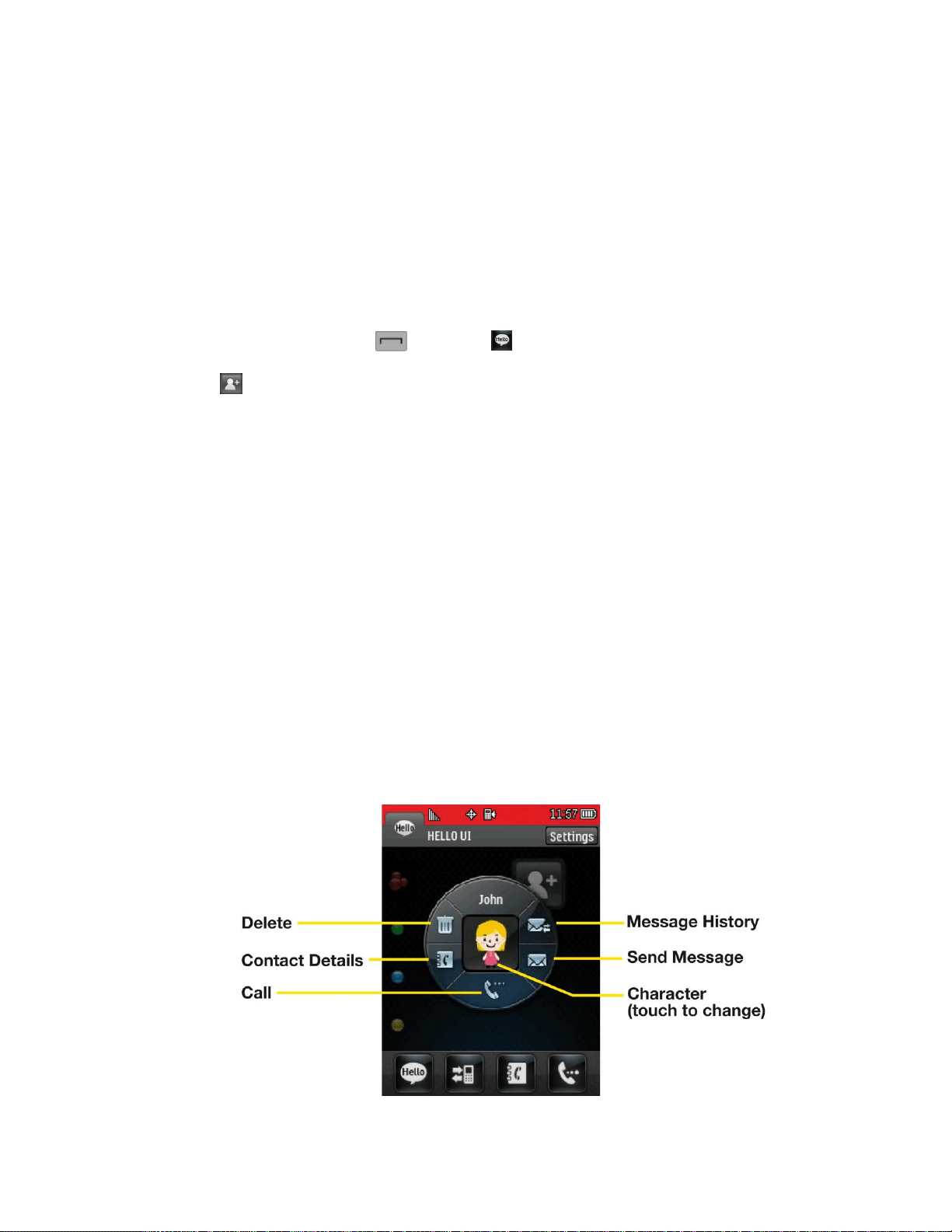
Add your favorite contacts to groups that you can access quickly with a few keystrokes. You can
create up to four groups with six members in each group.
Customize Hello UI
1. From standby mode, touch and touch .
2. Touch to add a contact.
3. Touch each contact you want to assign to the group.
4. After making your selections, touch Done.
To change to a seasonal theme:
1. While in the Hello UI screen, touch Settings at the top right corner of the screen and
touch Theme. The following options are available.
Touch and slide the Auto Theme button to ON to allow automatic updating to the
theme.
Touch Theme and use the arrows to scroll through the themes.
2. Touch Done.
Hello UI Contacts Options:
■ Touch a Contact on Hello UI.

Contacts 35
Send a Message to Selected Group Members
1. From standby mode, touch and touch .
2. Using your finger, draw a line around the group members you wish to include.
3. Touch the envelope icon (for example, -- the number on the icon shows how many
members were included).
4. Touch the text field to enter a message or use the preset messages, symbols, smileys,
or emoticons.
To type a message, use the touch keypad. (See Entering Text.)
To use a preset message, touch Preset Msgs in the upper right corner and then
touch a message to enter.
To enter a symbol, an emoticon, or a smiley:
• On the touch keypad: Touch Abc and select Symbols, Emoticons, or Smileys.
Touch a desired symbol, emoticon, or smiley. (See Enter Numbers, Symbols,
Emoticons, Smileys and Preset Messages.)
5. Touch Done.
6. To add attachments, touch Add Attachment for the available options.
7. Review your message and touch Send. You may select additional messaging options by
touching More to add subject, set the callback number, or save it as draft.
Note: If an attachment or subject is added to a text message, the message type will change to
MMS and you will be charged accordingly. (See Send Pictures and Videos From Messaging.)

Accounts and Messaging 36
Accounts and Messaging
With Virgin Mobile service and your phone's messaging capabilities, you can always stay in
touch through messaging, and social networking accounts.
Text and Multimedia Messaging
With your phone‟s messaging features, you can send and receive instant text messages (SMS),
or multimedia messages (MMS) that can include video and audio, between your wireless phone
and another messaging-ready phone. When you receive a new message, it will automatically
display a notification on your phone‟s screen.
In addition, text messaging includes a variety of preset messages, such as “Call me” and “I
have to work late” that make composing messages fast and easy. Use your phone to customize
your own preset messages (up to 100 characters).
Note: See your service plan for applicable charges for text messaging.
Compose Text/MMS
These instructions explain how to compose text and MMS on your phone.
1. Touch > Send Message .
2. Select an entry method:
New Addr to use the keypad enter a wireless phone number or email address of the
recipient directly.
Go to Contacts to select a recipient from your Contacts. (Qualifying Contacts entries
must contain a wireless phone number or an email address.)
3. Touch Continue when you have finished entering recipients. (You may include up to 40
recipients per message.)
4. Enter a message or use the preset messages, symbols, smileys, or emoticons.
To type a message, use your touch keypad to enter your message. (See Entering
Text.)
To use a preset message, touch Preset Msgs in the upper right corner and then
touch a message to enter.
To enter a symbol, an emoticon, or a smiley:

Accounts and Messaging 37
• On the touch keypad: touch Abc and select Symbols, Emoticons, or Smileys.
Touch a desired symbol, emoticon, or smiley. (See Enter Numbers, Symbols,
Emoticons, Smileys and Preset Messages.)
5. To add attachments, touch Add Attachment.
6. Review your message and touch Send. You may select additional messaging options by
touching More to add subject, set the callback number, or save it as draft.
Note: If an attachment is added to a text message, it will be automatically convert to MMS and
you will be charged accordingly. (See Send Pictures and Videos From Messaging.)
Access Text/MMS
Accessing text or MMS on your phone is as simple as touching the notification bubble on your
screen.
To read an text/multimedia message:
■ When you receive a text/MMS, you will see a notification bubble on your phone‟s status
bar. Touch the bubble to display the message bubbles on the home screen, then touch
the desired bubble to see the entire message.
To reply to a text/MMS:
1. While the message is open, touch Reply.
2. Follow steps 4-6 under Composing Text/MMS to complete and send your reply.
Messaging Settings
Messaging settings allow you to decide how you would like to be notified of new messages, to
create a signature with each sent message, and to create your own preset messages.
Callback Number
1. Touch > Main Menu > Messaging > Settings > Callback Number.
2. Select None, My Phone Number, or Other. (If you select Other, enter a number and
touch Save.)
Manage Preset Messages
Your phone is loaded with 20 preset messages to help make sending text messages easier.
Customize or delete these messages, such as “Where are you?” “Let‟s get lunch,” and “Meet
me at” to suit your needs, or add your own messages to the list. To edit or delete a preset
message:
1. Touch > Main Menu > Messaging > Settings > Preset Messages. You
will see the list of preset messages.

Accounts and Messaging 38
2. Touch a message you want to edit or delete.
3. Touch Edit, edit the message (see Entering Text), and touch Save.
– or –
Touch Delete to delete the message. Touch Cancel to cancel the deletion.
Note: To delete multiple messages, touch Delete on the top right corner of the screen when the
list of preset messages displays. Then select Delete Multiple or Delete All.
To add a new preset message:
1. Touch > Main Menu > Messaging > Settings > Preset Messages. You
will see the list of preset messages.
2. To add a new message, touch Add New.
3. Enter your message and touch Save. Your new message will be added to the beginning
of the list.
To Add a Customized Signature
You can add a customized signature to each message you send.
1. Touch > Main Menu > Messaging > Settings > Signature.
2. Select Custom. (If you do not wish to attach a signature, select None.)
3. Enter a signature and touch Save.
Social Networking
Stay in touch on the go with all your social networking accounts. Post updates on Facebook and
Twitter.
To access Facebook:
■ Touch > Main Menu > Social Networking > Facebook .
To access Twitter:
■ Touch > Main Menu > Social Networking > Twitter .

Apps and Entertainment 39
Apps and Entertainment
Take advantage of the applications and entertainment possibilities of your phone, including
downloading games, ringtones, screen savers, and more.
Games, Ringtones, and More
You have access to a dynamic variety of downloadable content, such as games, ringtones, and
other applications. (Additional charges may apply.) Follow the basic steps below to access and
download these items.
Access the Download Menus
1. Touch > Main Menu > My Stuff .
2. Select a download category (Games, Ringtones, Applications, or Ringback Tones),
and then select Get New if needed. The browser will start and take you to the
corresponding download menu.
Select an Item to Download
You can search for available items to download in a number of ways:
● Featured displays a selection of featured items.
● Categories allows you to narrow your search to a general category. There may be
several pages of available content in a list. Select All to view additional items.
● Search allows you to use your keypad to enter search criteria to locate an item. You
may enter an entire word or title or perform a partial-word search.
Download an Item
Once you‟ve chosen and highlighted an item, touch it to select it. You will see a summary page
for the item including its title, cost, and expiration date. Links allow you to view the Preview
page, to preview an item, Description page, which outlines the file size, description of the item,
the vendor, and its version, and the License Info page, which details the price, license type,
expiration, and terms of use.
To download a selected item:
1. From the information page, select Buy. The item will download automatically. When you
see the New Download screen, you have successfully downloaded the item to your
phone.

Apps and Entertainment 40
Note: If you have not previously purchased an item, you will be prompted to create your
purchasing profile.
2. Select an option to continue:
Select Listen/Run to listen to a ringtone, start a game or application. Your data
session will end, and you will be redirected to the appropriate phone menu screen.
Select Assign As to assign a ringtone to a phone function.
Select Shop to browse for other items to download.
Touch to quit the browser and return to the Home Screen.
For complete information and instructions on downloading Games, Ringtones, Applications,
and Ringback Tones, visit the Digital Lounge at virginmobileusa.com.

Web and Data 41
Web and Data
This section addresses your device‟s data connections and the built-in Web browser. Additional
data-related features can be found in Accounts and Messaging, Apps and Entertainment, and
Tools.
Get Started With Data Services
With your Virgin Mobile service, you are ready to start enjoying the advantages of data services.
This section will help you learn the basics of using your data services, including managing your
user name, launching a data connection, and navigating the Web with your phone.
Your User Name
When you buy your phone and sign up for service, you‟re automatically assigned a user name,
which is typically based on your name and a number, followed by “@virginmobilepcs.com". (For
example, the third John Smith to sign up for Virgin Mobile data services might have
jsmith003@virginmobileusa.com as his user name.)
When you use data services, your user name is submitted to identify you to the Nationwide
Virgin Mobile Network. Your user name will be automatically programmed into your phone. You
don‟t have to enter it.
Find Your User Name
If you aren‟t sure what your user name is, you can easily find it on your phone.
■ Touch > Main Menu > (slide the screen up) > Settings > Phone Info >
Phone#/User ID.
Update Your User Name
If you choose to change your user name and select a new one online, you must then update the
user name on your phone.
■ Touch > Main Menu > (slide the screen up) > Tools > Update Phone >
Update Profile. To cancel, touch Cancel before completing the update.
Launch a Web Connection
You can launch your Web connection by touching the Web icon on your phone's main menu
screen.
■ Touch > Main Menu > Web . Your data connection starts and you see the
VirginWeb
SM
home page.

Web and Data 42
While connecting, you may see an animation and a “Connecting” message.
Data Connection Status and Indicators
Your phone displays the current status of your data connection through indicators at the top of
the screen. The following symbols are used:
Your phone is on and is connected to the Virgin Mobile 1xRTT data network. When the
arrows are animated, data is being transferred (for example, when you are opening a
Web page) and you cannot receive calls. When the arrows are white, you are connected
to the network but data is not currently being transferred (for example, when you are
viewing a Web page that is completely open) and you can receive calls.
If you do not see an indicator, your phone does not have a current data connection. To launch a
connection, see Launch a Web Connection.
Navigate the Web
Navigating through menus and websites during a data session is easy once you‟ve learned a
few basics. Here are some tips for getting around:
Scrolling
As with other parts of your phone‟s menu, you‟ll have to scroll up and down to see everything on
some websites.
To scroll line by line through websites:
■ Touch and slide the screen up or down.
– or –
Touch and drag the scroll bar on the right of the screen.
Selecting
To select on-screen items:
■ Touch a link and it will take you to that Web page.
Links, which are displayed as underlined text, allow you to jump to Web pages, select special
functions, or even place phone calls.
To select links:
■ Touch the linked text on your phone.
Going Back
To go back one page:

Web and Data 43
■ Touch the on your phone.
Browser Menu
Although the home page offers a broad and convenient array of sites and services for you to
browse, not all sites are represented, and certain functions, such as going directly to specific
websites, are not available. For these and other functions, you will need to use the browser
menu. The browser menu offers additional options to expand your use of the Web on your
phone.
Open the Browser Menu
The browser menu may be opened anytime you have an active data session, from any page
you are viewing.
Options available under the browser menu include:
● Back to go back to the previous Web page.
● Forward to move to a previously viewed page (after having used Back option).
● Pages to open a new page or view other opened pages.
● Options to view your bookmarks, history, change your font size or other browser
settings.
● Zoom button provide for ability to zoom in and zoom out.
Go to a Specific Website
To go to a particular website by entering a URL (website address):
1. Touch the URL field.
2. Use your keyboard to enter a website address and touch .
Note: Not all websites are viewable on your phone.
Reset the Web Browser
If the Web browser seems to be malfunctioning or stops responding, you can usually fix the
problem by simply resetting the browser.
1. While using the browser, touch Options > Browser settings > Advanced > Reset
browser.
2. Touch the options you want to reset, then touch Reset selected items if you still wish to
continue.

Camera and Video 44
Camera and Video
You can use the camera or camcorder to take and share pictures and videos. Your device
comes with a 2.0 megapixel camera with an autofocus feature that lets you capture sharp
pictures and videos.
Take Pictures
Taking pictures with your phone‟s built-in camera is as simple as choosing a subject, pointing
the lens, and pressing a button.
1. Touch > Main Menu > Photos & Videos > Camera to activate camera
mode. Additional camera options are available through the camera mode options menu.
See Camera Mode Options for more information.
2. Using the phone‟s display screen as a viewfinder, aim the camera lens at your subject.
3. Touch Capture. Your phone automatically saves the picture to the default storage area.
To return to camera mode to take another picture, touch Camera.
4. Touch More for more options:
Send to send your picture in a message. (See Send Pictures and Videos.)
Assign to assign the picture as a:
• Main Screen to use the picture as a screen saver.
• Picture ID to display the picture for all incoming calls.
• Lock Screen to use the picture as a lock screen.
Delete to delete the picture you just took.
Go to Album to go to the In Phone folder or Memory Card folder (if available) to
review your saved pictures.
Take New Picture to return to camera mode to take another picture.
Assign Pictures
After taking a picture, assign it as a screensaver or as a picture ID for a Contacts entry.
1. Take a picture. (See steps 1–3 in Take Pictures.)
2. With the picture displayed, touch More > Assign, and select an option.
Main Screen to assign the picture as a screensaver.

Camera and Video 45
Picture ID to assign the picture as a Picture ID to a Contacts entry:
• Contacts with No Picture to assign the picture to all contacts that don‟t already
have an assigned picture ID
• One Contact to assign the picture to a particular contact
• Private/Unknown Numbers to assign the picture to incoming calls from
restricted or private numbers.
• Unsaved Numbers to assign the picture for incoming calls from unsaved
numbers.
Lock Screen to assign the picture as a wallpaper to your lock screen.
Tip: You can also assign pictures from the My Photos & Videos menu. See In Phone Folder and
microSD Card Options.
Camera Mode Options
While in Camera mode, your options include color tone, image controls, fun frames, and a self-
timer. In Camera mode, touch to display additional camera options:
● Color Tone to adjust the color tone. Select Normal, Black & White, Negative, or Sepia.
(The default setting is Normal.)
● Image Controls to select from the following options:
Brightness to select Auto or Manual brightness control. If you select Manual
brightness, move the scroll bar up (increase) or down (decrease) to select a setting.
White Balance to adjust white balance based on changing conditions. Select from
Auto, Tungsten, Fluorescent, Sunny, Cloudy, or Manual. If you select Manual,
move the scroll bar left (decrease) or right (increase).
● Fun Frames to take a picture in a fun frame. Touch a frame style at the bottom of the
screen to see how it will look full-screen; drag the screen left or right to see the next or
previous frame.
● Settings to select Resolution, Quality, Shutter Sound, Status Bar, Night Mode or
Auto Review. (See Camera Settings for details.)
● Self Timer to activate the camera‟s timer. (See Self Timer below.)
● Zoom to zoom in on a subject. (Not available at the highest resolution, see Zoom.)
● Go to Album to go to the In Phone folder or Memory Card folder (if available) to review
your saved pictures.
● Camcorder Mode to switch to video mode. (See Record Videos.)

Camera and Video 46
Self Timer
1. From Camera mode, touch > Self Timer.
- or –
From Camera mode, touch .
2. Touch the length of delay you want the timer to use (Off, 5 seconds, or 10 seconds).
3. Touch START when you are ready to start the timer. A countdown is displayed in the
middle of the screen.
To cancel the Self-timer after it has started:
■ Touch CANCEL.
Note: While the Self-timer is active, some of the touch keys are disabled.
Zoom
This feature allows you to zoom in on an object when you take a picture. Depending on your
resolution settings, you can adjust the zoom (15 levels).
1. From Camera mode, touch > Zoom.
- or -
From Camera mode, touch .
2. Move the gauge bar left (zoom out) or right (zoom in).
3. Touch Capture to take the picture. Your phone automatically saves the picture in your
default storage area.
Note: Zoom is not supported when the Resolution setting is 2MP (1600 x 1200).
Camera Settings
Customize the settings for your phone's camera.
1. From Camera mode, touch > Settings.
2. Touch an option:
Resolution to select a picture‟s file size (2MP, High, Med, or Low).
Quality to select the picture quality setting (Fine, Normal, or Economy).

Camera and Video 47
Shutter Sound to select a shutter sound (Shutter, Say Cheese, Ready 123, or
Smile).
Status Bar to show or hide the Status Bar (On or Off).
Night Mode to toggle the low-light setting (On or Off).
Auto Review to select the Auto Review setting (On, On(for 2 Seconds), On(for 5
Seconds) or Off).
Record Videos
In addition to taking pictures, you can record, view, and send videos with your phone‟s built-in
video camera.
1. Touch > Main Menu > Photos & Videos > Camcorder to activate video
mode. Additional video options are available through the video mode options menu. See
Video Mode Options.
2. Select Video Mail or Long Video.
Note: Video Mail can be at most 30 seconds in length or 600KB in size, otherwise, they cannot
be uploaded, sent, or posted. The length of a Long Video is dependent on both the quality
settings and storage type used (phone or memory card).
3. Using the phone‟s display screen as a viewfinder, aim the camera lens at your subject.
4. Touch Record.
To pause and then resume the recording, touch PAUSE > RESUME.
5. Touch Stop to stop recording. Your phone automatically saves the video in your default
storage area.
6. Touch More for additional options:
Play to play the video that was just recorded.
Assign to assign the video as a ringer.
Record New Video to return to camcorder mode.
Delete to delete the video that was just recorded.
Review My Videos to go to the In Phone folder or Memory Card folder (if available)
to review your saved videos.
Cancel to close the options menu.
- or -

Camera and Video 48
Send (only for Video Mail videos) to send the video. (See Send Pictures and Videos
From Messaging.)
Video Mode Options
While in Camcorder mode, you can choose from options such as color tone, image control,
brightness, and the self-timer. In Camcorder mode, touch to display additional camcorder
options:
● Color Tone to adjust the color tone from Normal, Black & White, Negative, and Sepia.
(The default setting is Normal.)
● Image Controls to select from the following options:
Brightness to select Auto or Manual brightness control. If you select Manual, move
the scroll bar up (increase) or down (decrease) to select a setting.
White Balance to adjust white balance based on the different lighting conditions.
Select from Auto, Tungsten, Fluorescent, Sunny, Cloudy, or Manual (10 levels).
● Settings to select Resolution, Quality, Cue Sound, Status Bar, Video Length or
Auto Review. (See Video Settings for details.)
● Self Timer to activate the camcorder‟s timer.
● Zoom to zoom in on a subject. (See Zoom.)
● Go to Album to go to the In Phone folder or Memory Card folder (if available) to review
your saved videos.
● Camera Mode to switch to camera mode. (See Take Pictures.)
Video Settings
Use the settings menu to quickly customize your phone's video settings.
1. From Camcorder mode, touch > Settings.
2. Touch an option.
Resolution to select a video‟s file size (QVGA, Med, or Low).
Quality to select the video quality setting (Fine, Normal, or Economy).
Cue Sound to select a cue sound (Cue 1, Cue 2, or Cue 3).
Status Bar to show or hide the Status Bar (On or Off).
Video Length to select a video length (Video Mail or Long Video).
Auto Review to select the Auto Review setting (On or Off).

Camera and Video 49
Store Pictures and Videos
Your phone‟s picture and video storage area is called My Photos & Videos. There are two
folders in My Photos & Videos:
● In Phone
● Memory Card
Storage Options
1. Touch > Main Menu > Photos & Videos > Other Settings > Auto-Save
to.
2. Select Memory Card or In Phone. The phone stores pictures to the In Phone folder if no
microSD card is installed.
In Phone Folder
Your phone‟s internal storage area is called the In Phone folder. From the In Phone folder, you
can view all the pictures and videos you have stored there, delete files, and access additional
options.
To review your stored pictures and videos in the In Phone folder:
1. Touch > Main Menu > Photos & Videos > My Photos & Videos > In
Phone.
2. Scroll through the pictures and videos and touch a picture or video to view it.
microSD Picture and Video Folders
You can save pictures and videos directly to the microSD card using your phone‟s pictures and
videos settings.
To review your stored pictures and videos on the microSD card:
1. Touch > Main Menu > Photos & Videos > My Photos & Videos >
Memory Card.
2. Scroll through the pictures and videos and touch a picture or video to view it.
In Phone Folder and microSD Card Options
After you open a picture or video in the In Phone folder or the Memory Card folder, touch
OPTIONS to display the following options:
● Select Multiple/ Select Single to select multiple or single pictures or videos to delete,
copy, or move.

Camera and Video 50
● Thumbnail to display pictures in thumbnail view.
● Play to play a selected video.
● Slide Show to view your pictures in slideshow mode.
● Assign to assign the picture as a screen saver or picture ID, or the video as a ringer.
● Delete to delete the picture or video.
Note: Deleting pictures will free up memory space in your phone to enable you to take more
pictures.
● Copy/Move to copy or move the picture or video to In Phone or Memory Card.
● Media Filter to display the following options:
All to display all media.
Pictures to display only pictures.
Videos to display only videos.
● Rename to rename a video.
● Camera/Camcorder Mode to go to camera or camcorder mode and take a picture or
record a video.
● Media Info to display information such as File Name, Model (pictures only), Taken,
Resolution, File Size, Quality (pictures only), and Location (for pictures only).
● Cancel to return to the previous menu.
Send Pictures and Videos
Once you have taken a picture or a video, you can use the messaging capabilities of your
phone to instantly share it with family and friends. You can send a picture to up to 40 people at
a time using their email addresses or their wireless phone numbers.
Send Pictures and Videos From the In Phone Folder or Memory
Card
You can send pictures and videos from either the In phone folder or from your memory card
(microSD).
1. Touch > Main Menu > Photos & Videos > My Photos & Videos > In
Phone or Memory Card.
2. Touch a picture or video to send.

Camera and Video 51
To select multiple picture and videos, touch OPTIONS > Select Multiple. Touch
pictures or videos as many as you want.
3. Touch Send > Contact.
4. Select a phone number or an email address:
Touch New Addr to enter a mobile phone number or an email address directly.
Touch Go to Contacts to open the Contacts list and select a mobile phone number
or an email address.
Note: To send to multiple contacts, select your first contact during step 4 and touch the contact
again in the „Compose Message‟ screen. Touch New Addr for direct input of a recipient or
touch Go to Contacts to select a recipient from your Contacts. Touch Continue when you have
finished entering recipients. (You may include up to 40 recipients per message.)
5. To include a text message, enter your message. (See Select a Text Input Mode.)
6. Touch More and select an option:
Add Subject to add a subject.
Save as Draft to save it as a draft.
7. Confirm your recipients and attached data.
8. Touch Send to send the message.
Send Pictures and Videos From Messaging
You can also send pictures and videos from your phone‟s Messaging menu.
1. Touch > Send Message .
2. Select New Addr or Go to Contacts and then touch Done.
New Addr to enter a wireless phone number or an email address directly.
Go to Contacts to select recipients from your Contacts.
3. Touch Add Attachment.
4. Touch Picture > OPTIONS > Take New Picture to take a new picture, or Video >
OPTIONS > Record New Video to record a new video.
In Phone to select a picture or video stored in the phone.
Memory Card to select a picture or video stored on the microSD card.

Camera and Video 52
5. To complete and send the message, touch Attach to select the picture or video, then
follow steps 5-8 in Send Pictures and Videos From the In Phone Folder or Memory Card.
Other Settings
The Other Settings menu allows you to view and configure your account information.
To access the settings and info menu:
1. Touch > Main Menu > Photos & Videos > Other Settings .
2. Touch an option:
Auto-Save to to select where to save the pictures and videos. (Memory Card or In
Phone)
Status Bar to choose whether to display the Status Bar in preview mode.
Location to choose whether to insert location info when you take a picture.
Slideshow Interval to select the time each picture will stay on-screen in a slideshow.

Tools 53
Tools
Learn how to use many of your phone's productivity-enhancing features.
Clock
Your phone comes with a built-in alarm clock that has multiple alarm capabilities.
1. Touch > Main Menu > (slide the screen up) > Tools > Clock > Alarm.
2. Touch Add New.
3. Touch and slide the alarm switch to ON.
4. Touch the time to set a time for the alarm.
Touch the digital clock (above the dial) to adjust the clock.
– or –
Touch and drag the hour and minute hands and then touch am/pm to select a time,
and then touch Done.
5. Touch Repeat to select a repetition type.
Touch Daily, Once, Weekly, Mon - Fri, or Sat & Sun.
6. Touch Sound/Vibration to select Always Sound & Vibrate, Always Sound, or Always
Vibrate.
7. Touch Alarm Bell to select a ringer type.
Select a ringer menu and touch a ringer.
8. Touch Volume to select a ringer volume.
Touch the bar at the volume level you want and then touch Done.
9. Touch Vibration Type to select a vibration type.
Touch the desired vibration type.
10. Touch Snooze to select a snooze interval time.
Select Snooze 5mins, Snooze 10mins, Snooze 15mins, Snooze 20mins, or
Snooze Off.
11. Touch Save to set the alarm.

Tools 54
Calendar
Your Calendar helps organize your time and reminds you of important events.
Add an Event to the Calendar
1. Touch > Main Menu > (slide the screen up) > Tools > Calendar .
2. Touch the day to which you would like to add an event and touch Add New. The current
day is the default.
3. Touch Time to select a time for the event. Slide the hour, minute, and am/pm wheel up
or down. Touch End and then set the end time and touch Done.
For an all-day event, touch All Day.
4. Touch Content to enter notes about the event.
Enter a note or memo and touch Save.
5. Touch Related person to select contacts related to the event.
After selecting related persons in the Contacts list touch Done.
6. Touch Alarm to set an alarm time.
Select None, On time, 5 minutes, 10 minutes, 1 hour, 1 day, or 2 days and touch
Done.
7. Touch Alarm Bell to select a ringer type.
Select a ringer menu and touch a ringer.
8. Touch Volume to select a ringer volume.
Touch the bar at the volume level you want and then touch Done.
9. Touch Location to enter a location.
Enter the event location and touch Save. (See Entering Text.)
10. Touch Set Repeat to select a repeating status.
Select None, Daily, Mon - Fri, Select Days, Weekly, Monthly, or Yearly and then
touch Done.
11. Touch Save to save the event.

Tools 55
Event Alert Menu
When your phone is turned on and you have an event alarm scheduled, your phone alerts you
and displays the event summary. There are several ways your phone can alert you to scheduled
events:
● By playing the assigned ringer type.
● By illuminating the backlight.
To silence the alarm and reset the schedule, unlock the screen (if necessary) and touch
Dismiss.
To select additional options, touch an option.
● Snooze to silence the alarm and schedule it to replay in 5 minutes.
● View to display the event detail screen.
View Events
1. Touch > Main Menu > (slide the screen up) > Tools > Calendar .
2. Touch the day for which you would like to view events.
Tip: In the calendar view, days with events scheduled are underlined.
3. Touch List or # Events. Your phone lists events in chronological order.
4. Touch an event to list its details.
Erase Events
You can erase a day's events as well as past events or all events on your phone's calendar.
Erasing a Day's Events
1. Touch > Main Menu > (slide the screen up) > Tools > Calendar .
2. Touch the day for which you would like to erase events and then touch List or # Events .
Tip: In calendar view, days with events scheduled are underlined.
3. Touch Delete at the top right of the screen and select Delete Today.
4. Select Delete or Cancel.
Note: If the day for which you are erasing events contains a repeating event, you will receive
the following prompt: “There are some recurring events. Do you want to delete?” Select Yes to
erase all occurrences or No to cancel the deletion of the repeating event.

Tools 56
Erase All Events
1. Touch > Main Menu > (slide the screen up) > Tools > Calendar >
Delete > Delete All. You will see an alert notifying you that all events will be erased.
2. Select Delete to erase all events or Cancel to return to the calendar view.
Bluetooth
Bluetooth is a short-range communications technology that allows you to connect wirelessly to a
number of Bluetooth devices, such as headsets and hands-free car kits, and Bluetooth-enabled
handhelds, computers, printers, and wireless phones. The Bluetooth communication range is
usually up to approximately 30 feet.
Turn Bluetooth On and Off
By default, your device‟s Bluetooth feature is set to Off. Turning Bluetooth on makes your phone
“discoverable” by other in-range Bluetooth devices.
To turn Bluetooth on:
1. Touch > Main Menu > (slide the screen up) > Tools > Bluetooth .
2. Touch and slide the Bluetooth switch to ON to enable Bluetooth.
To turn Bluetooth off:
1. Touch > Main Menu > (slide the screen up) > Tools > Bluetooth .
2. Touch and slide the Bluetooth switch to OFF to disable Bluetooth.
Bluetooth Status Indicators
The following icons show your Bluetooth connection status at a glance:
– Bluetooth is active (Hidden).
– Bluetooth is active (Visible).
– Bluetooth is connected.
– A Bluetooth mono or stereo headset is connected.
– A Bluetooth stereo speaker is connected.

Tools 57
Bluetooth Settings
You can set up many of the characteristics of your phone‟s Bluetooth service, including those
below.
● Entering or changing the name your phone uses for Bluetooth communication.
● Setting your phone‟s visibility (or “discoverability”) for other Bluetooth devices.
● Displaying your phone‟s Bluetooth address.
To access the Bluetooth Settings menu:
1. Touch > Main Menu > (slide the screen up) > Tools > Bluetooth .
2. Ensure that Bluetooth is turned on. (See To turn Bluetooth on:.)
3. Set your Bluetooth options.
Select Visibility > Hidden, Visible for 3 min, or Always visible to set your
Bluetooth visibility.
Select My Bluetooth Info to display your phone's Bluetooth profiles and address.
Touch Edit Name to rename your phone for Bluetooth.
Pair Bluetooth Devices
The Bluetooth pairing process allows you to establish trusted connections between your phone
and another Bluetooth device. When you pair devices, they share a passkey, allowing for fast,
secure connections while bypassing the discovery and authentication process.
To pair your phone with another Bluetooth device:
1. Touch > Main Menu > (slide the screen up) > Tools > Bluetooth > Add
New. Your phone will display a list of discovered in-range Bluetooth devices.
2. Touch a device, enter the passkey, and touch Save.
Note: Due to different specifications and features of other Bluetooth-compatible devices, display
and operations may be different, and functions such as transfer or exchange may not be
possible with all Bluetooth-compatible devices.
Send Items via Bluetooth
Depending on your paired devices‟ settings and capabilities, you may be able to send pictures,
Contacts information, or other items using a Bluetooth connection.
1. Touch > Main Menu > (slide the screen up) > Tools > Bluetooth >
Trusted Devices.

Tools 58
2. Touch a paired device to transfer to.
3. Touch an item and touch Done.
To select Contacts, pictures, or videos, select the category, scroll through the
available items, and touch items to send. When you are finished, touch Continue or
Done.
4. Touch Send to send the item(s).
Wi-Fi
To use Wi-Fi on your phone, you must connect to a wireless access point, or hotspot. Some
access points are open and you can simply connect to them without entering any information.
Others are hidden or implement other security features, so you must configure your phone to
connect to them.
Tip: Turn off Wi-Fi when you're not using it to extend the life of your battery.
Turn Wi-Fi On and Connect to a Network:
1. Touch > Main Menu > (slide the screen up) > Tools > Wi-Fi .
2. If Wi-Fi is off, touch Turn On to view available networks and scan for available Wi-Fi
networks.
A list of available Wi-Fi networks will be displayed. Secured networks are indicated
by a lock icon.
3. Tap a network to connect to it.
If the network is secured, you will be prompted to enter a password. (Ask your
network administrator for details.)
• Touch Add to manually add a Wi-Fi network.
• Touch Refresh to refresh the list of available networks.
• Touch Options to access Connection Logs, My MAC Address, and Wi-Fi
Sleep Setting.
Note: If you are outside the Wi-Fi coverage area, additional charges may apply. When the Wi-Fi
sleep setting is set to 'When Screen Turn off' and your phone goes into sleep mode when
connected to Wi-Fi, the Wi-Fi connection is automatically disabled.
Update Phone
The update phone option allows you to download and update the software in your phone
automatically.

Tools 59
Update Firmware
Only the internal software is updated when you use the Update Firmware tool. No Contacts
entries or other information saved to your phone will be deleted.
1. Touch > Main Menu > (slide the screen up) > Tools > Update Phone >
Update Firmware.
2. Follow the on-screen instructions.
Update the PRL
This option allows you to download and update the PRL (preferred roaming list) automatically.
1. Touch > Main Menu > (slide the screen up) > Tools > Update Phone >
Update PRL.
2. Follow the on-screen instructions.
Update Profile
If you have changed your user name and selected a new one online, you must then update the
user name on your phone.
■ Touch > Main Menu > (slide the screen up) > Tools > Update Phone >
Update Profile. To cancel, touch Cancel before completing the update.
Mass Storage
Your phone's mass storage capabilities allow you to use a microSD card to expand the phone's
available memory space.
File Manager
File Manager allows you to manage files such as pictures, videos, music, and applications
stored on the microSD™ card.
Access File Manager
■ Touch > Main Menu > (slide the screen up) > Tools > Mass Storage >
File Manager.
Open Files in File Manager
1. Touch > Main Menu > (slide the screen up) > Tools > Mass Storage >
File Manager.
2. Touch a folder.
3. Touch a file to open it, if the format is supported.

Tools 60
File Manager Options
When you open a folder, touch More. The following options are available.
● Create New Folder to create a new folder. Enter a new folder name and touch Save.
(See Create and Use Folders in the microSD Card.)
● Rename Current Folder to change the name of the current folder.
● Delete Current Folder to delete the current folder.
● Delete All to delete all files in the current folder.
● Folder Info to display information about the folder such as folder name, location, the
number of files, and the number of sub folders.
● Search to search for files in the current folder.
Note: Default folders cannot be deleted or renamed.
Create and Use Folders in the microSD Card
With your phone's mass storage capabilities and file manager tool, you can create and use
default folders for storing files in your microSD card.
To create folders in the microSD card:
1. With the microSD card inserted, touch > Main Menu > (slide the screen up) >
Tools > Mass Storage > File Manager.
2. Touch More and select Create New Folder. The phone will automatically create the
microSD‟s default folders: DCIM, MUSIC, BLUETOOTH, SOUND, brew.
3. Enter a folder name and touch Save.
To display your microSD card folders:
Compatible files stored in your microSD are accessible through your microSD card folders.
1. With the microSD card inserted, touch > Main Menu > (slide the screen up) >
Tools > Mass Storage > File Manager.
2. Touch a folder (for example DCIM, MUSIC, BLUETOOTH, SOUND or brew).
3. To view or play a file, touch it or the appropriate key.
Note: For information on file and folder options available through File Manager, see File
Manager.

Tools 61
Connect Your Phone to Your Computer
Before using your phone‟s mass storage capabilities, you need to prepare your phone‟s settings
to synchronize with your desktop or laptop computer. Once you have connected the phone to
the computer, you can transfer your data to or from the microSD card.
1. With the microSD card inserted, connect your phone to your computer using a
compatible USB cable.
2. The USB Connection menu should open automatically; select Connect To PC. If the
menu doesn‟t open, then touch > Main Menu > (slide the screen up) > Tools
> Mass Storage > Connect to PC.
3. Read the notice and touch Yes.
To remove the connection:
■ When you have finished transferring data, touch and touch Yes. After the message
that your device is disconnected, it is safe to remove the USB cable.
Important Connection Information
● No driver installation is required for Windows 2000/ ME/ Vista/7 users.
● To avoid loss of data, DO NOT remove the USB cable, the microSD card, or the battery
while files are being accessed or transferred.
● DO NOT use your computer to change or edit folder or file names on the microSD card,
and do not attempt to transfer large amounts of data from the computer to the microSD
card. Doing so may cause the microSD card to fail.
● DO NOT turn off or restart your computer, or put it into standby mode, while using a
mass storage device. Doing so will result in loss or damage of data.
● While you are connected to the computer, your phone‟s screen will display “Phone Off.”
You cannot make or receive calls.
● If you connect a mass storage device to a peripheral device, your device may not work
properly.
Voice Service
The Voice Services available on your phone include Automatic Speech Recognition (ASR)
capabilities and a Voice Memo tool that allows you to record notes to yourself, and to record
phone calls.

Tools 62
Automatic Speech Recognition (ASR)
You can use your phone‟s built-in automatic speech recognition (ASR) software to dial a phone
number in your Contacts or to launch phone functions. All you have to do is to talk into the
phone and ASR will recognize your voice and complete tasks by itself.
Activate ASR
■ Touch > Main Menu > (slide the screen up) > Tools > Voice Service >
Voice Command.
The screen displays seven voice command options and the phone prompts you to say the name
of the command you want to use. To complete your task, simply follow the voice prompts.
Available ASR commands include:
● Call [Name] [Type] / [Number] to call an entry in your Contacts list or a spoken phone
number. (See Make a Voice Call With ASR.)
● Send Msg to [Name] [Type] / [Number] to send a message to an entry in your
Contacts list or to a spoken phone number.
● Find [Name] [Type] to find a Contact entry.
● Go to [Menu] to jump directly to menu items or applications. (See Open Menus With
ASR.)
● Check [Item] to check your phone‟s status. (See Check Phone Status Using ASR.)
● Voice Command Training to train the Voice Command function for better voice
command recognition.
● Exit Voice Command to exit the Voice Command function.
Tip: Use ASR in a quiet environment so it can accurately recognize your commands.
Make a Voice Call With ASR
1. Touch > Main Menu > (slide the screen up) > Tools > Voice Service >
Voice Command.
2. After you hear “Please say a command”, say “Call”.
3. When you hear “Please say name & phone type or say number” say a name and phone
type or a phone number.
4. Your request will be repeated and you will be asked to verify. Say “Yes” to call the
number or person. Say “No” if you wish to cancel.

Tools 63
Tip: You can skip step 3 by saying a name and location after “Call” without pausing (for
example, “Call John Jones mobile”).
Note: If ASR does not recognize the name or number, it will find the most likely matches and
display a list of up to four names or numbers. You will hear “Did you say…” followed by the
name or number. You can confirm by saying “Yes.” Say “No” to skip to the next match.
Open Menus With ASR
You can jump directly to some of the menu items or applications by saying “Go to” followed by a
menu option.
1. Touch > Main Menu > (slide the screen up) > Tools > Voice Service >
Voice Command.
2. If you hear “Please say a command,” say “Go To.”
3. If you hear “Please choose,” say a menu name (for example, “Messaging”).
4. The phone opens the selected menu.
Check Phone Status Using ASR
You can use ASR to obtain information about Phone Status, Time, Signal Strength, and Battery.
1. Touch > Main Menu > (slide the screen up) > Tools > Voice Service >
Voice Command.
2. Say “Check.”
3. After you hear, "Please choose," say one of the options from the list above.
Voice Command Training
You can train ASR for better voice command recognition.
1. Touch > Main Menu > (slide the screen up) > Tools > Voice Service >
Voice Command.
2. Touch Voice Command Training.
Digit to train numbers.
Yes/No to train word-based commands.
Cancel to cancel and return to the Voice Command menu.

Tools 64
Voice Reader
The phone can read out the menus and alert you by voice if you turn the Voice Guide option on.
Set the voice reader options to view or hear the phone‟s status.
To activate the voice guide:
1. Touch > Main Menu > (slide the screen up) > Tools > Voice Service >
Voice Reader > Voice Guide.
2. Touch and slide each option's button to ON.
Alert to turn on the voice guide for alert.
Reader to turn on the voice guide for reader.
Voice Memos
Use your phone‟s Voice Memo feature to record brief memos to remind you of important events,
phone numbers, grocery list items, or to record a conversation during a phone call.
Record Voice Memos
1. Touch > Main Menu > (slide the screen up) > Tools > Voice Service >
Voice Memo > Record.
2. Begin recording.
To end the recording of your memo:
■ Touch Stop.
To record a conversation during a phone call:
■ During a call, touch More > Voice Memo. A minute counter is displayed on the top left
corner of the screen to indicate the amount of time recorded.
To end the recording of your conversation:
■ Touch the counter and the recording will stop.
Note: Your phone can store 30 voice memos with up to a total of 10 minutes for all memos.
Voice Memo Options
To play the voice memos you have recorded:
1. Touch > Main Menu > (slide the screen up) > Tools > Voice Service >
Voice Memo.

Tools 65
2. Touch the voice memo you wish to hear.
To choose voice memo options:
1. Touch > Main Menu > (slide the screen up) > Tools > Voice Service >
Voice Memo.
2. Find a voice memo and touch to choose from the voice memo options:
Send Message to send a message with the voice memo attached.
Set As to assign as a ringer to Contacts with Default Ringer, One Contact,
Unsaved Numbers, Private/Unknown, Voicemail, Messages, or Alarm/Calendar.
View Details to view the selected voice memo information.
Edit Title to edit the selected voice memo title.
Memory Info to view the memory status for voice memo. The total memory for voice
memo is 10 minutes.
Cancel to close the options menu.
Erase Voice Memos
To delete voice memos:
1. Touch > Main Menu > (slide the screen up) > Tools > Voice Service >
Voice Memo.
2. Touch Delete at the top right corner of the screen and select Delete Multiple or Delete
All.
Delete Multiple to delete more than one selected memo at a time.
Delete All to delete all voice memos.
Settings & Info
You can select an option of whether to hear the voice command and voice guide over the
phone's speaker or not, and you can also view the help document of Voice Service.
To hear the voice command and voice guide over phone's speaker:
1. Touch > Main Menu > (slide the screen up) > Tools > Voice Service >
Settings & Info.
2. Touch and slide the Set Speaker button to ON.

Tools 66
Calculator
Your phone comes with a calculator to help you quickly calculate equations.
1. Touch > Main Menu > (slide the screen up) > Tools > (slide the screen up) >
Calculator > Calculator.
2. Enter numbers using your keypad.
Touch to enter decimal points.
Touch to change the value from positive to negative. After entering a negative
number, touch .
Touch to clear all numbers.
3. Touch to calculate the total.
Stopwatch
Your phone comes with a stopwatch.
1. Touch > Main Menu > (slide the screen up) > Tools > Clock >
Stopwatch.
2. Touch Start to start the timer.
While measuring time, touch Lap to record lap times.
Touch Stop to stop the stopwatch.
World Clock
You can view the time in over 50 different locations.
1. Touch > Main Menu > (slide the screen up) > Tools > Clock > World
Clock.
2. Touch New City to display the map.
Note: You can search a city from the cities list. Touch , touch the search field and enter the
city name.
3. Touch or to scroll through continents and touch to select the continent.
Cities in the continent will be displayed.
4. Touch or to scroll through cities and touch .

Tools 67
– or –
Touch and drag the map to find a city, and touch .
Unit Converter
The Unit Converter tool converts currency, length, area, mass, volume, temperature, or velocity.
1. Touch > Main Menu > (slide the screen up) > Tools > (slide the screen up) >
Calculator > Unit Converter.
2. Select Currency, Length, Area, Mass, Volume, Temperature, or Velocity.
3. Select the known unit type and enter the value. The conversion is displayed
automatically.
Tip: While converting temperatures, touch the +/- key on the touch keypad to input negative
temperatures.
EZ Tip Calculator
The EZ Tip tool makes it easy to calculate a tip based on the total bill.
1. Touch > Main Menu > (slide the screen up) > Tools > (slide the screen up) >
Calculator > Ez Tip Calculator.
2. Touch the Total Bill field and enter the amount of the total bill.
3. Touch the Tip (%) field and enter a tip percentage. The EZ Tip Calculator instantly
calculates the correct tip.
4. If you‟re splitting the check, touch the Split field and enter the number of people in your
party. The EZ Tip Calculator calculates and displays the „per person‟ amount.
Notepad
Your phone comes with a notepad that you can use to compose and store reminders and notes
to help keep you organized.
To compose a note:
1. Touch > Main Menu > (slide the screen up) > Tools > (slide the screen up) >
Notepad > Add New.
2. Enter your note using the touch keypad and touch Save.
To read a saved note:

Tools 68
1. Touch > Main Menu > (slide the screen up) > Tools > (slide the screen up) >
Notepad .
2. Touch a note.
To delete a saved note:
1. Touch > Main Menu > (slide the screen up) > Tools > (slide the screen up) >
Notepad .
2. Touch a note.
3. Touch Delete (a confirmation will be displayed).
4. Touch Delete.
Note: To delete multiple or all notes, touch Delete at the top right corner of the Notepad entries
screen.

Settings 69
Settings
This section provides an overview of items you can change using your phone's Settings menus.
Display Settings
Adjusting your phone's display settings not only helps you see what you want, it can also help
increase battery life.
Screen Savers
Choose what you see on the display screen when in standby mode.
1. Touch > Main Menu > (slide the screen up) > Settings > Display >
Screen Savers > Main Screen or Lock Screen.
2. Select No Image, Preloaded, My Photos, Assigned Media, Downloaded Images, or
Take New Picture.
3. Touch an image to view it. While viewing an image, you can flick the screen left or right
to scroll through and view other available images.
4. Touch Assign to assign an image.
Lockscreen Clock
Choose which clock will be displayed when the phone is locked.
1. Touch > Main Menu > (slide the screen up) > Settings > Display >
Lockscreen Clock.
2. Select Off, Clock 1, Clock 2, or Clock 3.
Brightness
Adjust your screen‟s brightness to suit your surroundings.
1. Touch > Main Menu > (slide the screen up) > Settings > Display >
Brightness.
2. Touch a brightness level bar to select it and touch Done.
Backlight
Select how long the display screen and keypad remain backlit after you press any key.
1. Touch > Main Menu > (slide the screen up) > Settings > Display >
Backlight.

Settings 70
2. Select Backlight Dim or Backlight Off.
3. Touch a time setting.
Note: Long backlight settings reduce the battery‟s talk and standby times.
Picture ID
Assign a picture to display each time a certain contact calls you.
Assign a Picture to All Contacts that Don't Have an Assigned Picture ID
1. Touch > Main Menu > (slide the screen up) > Settings > Display >
Picture ID.
2. Touch Contacts > Contacts with No Picture.
3. Select an option: No Image, Take New Picture, My Photos, Downloaded Images, or
Assigned Media.
4. Touch a picture and touch Assign to assign it.
If you selected Take New Picture, the camera will launch so that you can take a new
picture. (See Take Pictures for details.)
If you selected My Photos, you may need to select In Phone or Memory Card to
find the picture you want to use.
5. Touch Done to save the assigned picture.
Assign a Picture to a Particular Contact
1. Touch > Main Menu > (slide the screen up) > Settings > Display >
Picture ID.
2. Touch Contacts > One Contact.
3. Select the contact to assign to.
4. Select an option: No Image, Take New Picture, My Photos, Downloaded Images, or
Assigned Media.
5. Touch a picture and touch Assign to assign it.
If you selected Take New Picture, the camera will launch so that you can take a new
picture. (See Take Pictures for details.)
If you selected My Photos, you may need to select In Phone or Memory Card to
find the picture you want to use.

Settings 71
6. Touch Done to save the assigned picture.
Assign a Picture for Incoming Calls from Unsaved Numbers
1. Touch > Main Menu > (slide the screen up) > Settings > Display >
Picture ID.
2. Touch Unsaved Numbers.
3. Select an option: No Image, Take New Picture, My Photos, Downloaded Images, or
Assigned Media.
4. Touch a picture and touch Assign to assign it.
If you selected Take New Picture, the camera will launch so that you can take a new
picture. (See Take Pictures for details.)
If you selected My Photos, you may need to select In Phone or Memory Card to
find the picture you want to use.
5. Touch Done to save the assigned picture.
Assign a Picture for Incoming Calls from Restricted or Private Numbers
1. Touch > Main Menu > (slide the screen up) > Settings > Display >
Picture ID.
2. Touch Private/Unknown.
3. Select an option: No Image, Take New Picture, My Photos, Downloaded Images, or
Assigned Media.
4. Touch a picture and touch Assign to assign it.
If you selected Take New Picture, the camera will launch so that you can take a new
picture. (See Take Pictures for details.)
If you selected My Photos, you may need to select In Phone or Memory Card to
find the picture you want to use.
5. Touch Done to save the assigned picture.
Font Size
Adjust the font you see when you are entering text (for example, when using the notepad or
when adding a Contacts entry).
1. Touch > Main Menu > (slide the screen up) > Settings > Display > Font
Size.

Settings 72
2. Select Messages, Browser, Notepad, or Applications.
3. Touch a size setting and Done.
Power Save Mode
1. Touch > Main Menu > (slide the screen up) > Settings > Display >
Power Save Mode.
2. Touch and slide the Power Save Mode setting to ON.
Whisper Notification
Set your phone to notify you with the whisper of new messages while you are operating the
phone. You can get new messages notification without interruption to what you are doing on the
phone.
1. Touch > Main Menu > (slide the screen up) > Settings > Display >
Whisper Notification.
2. Touch and slide the Whisper Notification button to ON.
Volume
Adjust your phone‟s volume settings to suit your needs and your environment.
Incoming Ringer
Adjust the volume of the ringer for incoming calls.
1. Touch > Main Menu > (slide the screen up) > Settings > Volume .
2. Select Incoming Ringer.
3. Touch a level bar to set the volume, or select Silence All , Vibrate All , Ringer
Off , or 1 Beep .
4. Toggle the VIBRATE setting. (Note: This toggle key is not available when Silence All or
Vibrate All is selected.)
5. Touch Done.
Tip: You can adjust the ringer volume in any screen (or the earpiece volume during a call) by
using the Volume Keys on the left side of your phone.
Playback Volume
Adjust the volume of Voice memo.
1. Touch > Main Menu > (slide the screen up) > Settings > Volume .

Settings 73
2. Select Playback Volume.
3. Touch a level bar to set the volume, or touch or repeatedly to reach the volume
level you want.
4. Touch Done.
Power Up/Down
You can choose whether or not your phone sounds while you are powering up or down.
1. Touch > Main Menu > (slide the screen up) > Settings > Volume >
Power Up/Down.
2. Toggle the Power Up/Down button between ON or OFF.
Key Beeps
Your phone offers a number of options for selecting the audible tones accompanying a keypress.
1. Touch > Main Menu > (slide the screen up) > Settings > Volume > Key
Beeps.
2. Select an option.
Tone Length to select a key tone length. (During a call, longer tone lengths may be
better for tone recognition when dialing voicemail or other automated systems.)
Tone Volume to select a keypress volume level.
Tone Type to select the sound of a keypress.
Ringers
Ringer settings help you identify incoming calls and messages. You can assign ringer types to
individual Contacts entries, types of calls, and types of messages.
Incoming Calls
Your phone provides a variety of ringer options that allow you to customize your ring and
volume settings. These options allow you to identify incoming calls by the ring.
1. Touch > Main Menu > (slide the screen up) > Settings > Ringers >
Incoming Calls.
2. Touch Contacts, Unsaved Numbers, or Private/ Unknown. For Contacts, touch the
following:
Contacts with Default Ringer: You can set a ringer type for calls from contacts with
default ringer.

Settings 74
One Contact: You can set a specific ringer type for calls from one specific contact.
3. Select a category, and then scroll through the available ringers. Touch to hear a
sample ringer.
4. Touch a ringer to assign it.
Assign Ringers to Contacts
1. Touch > Main Menu > (slide the screen up) > Settings > Ringers >
Incoming Calls > Contacts > One Contact.
2. Touch a contact entry.
3. Select a category, and then scroll through the available ringers. Touch to hear a
sample ringer.
4. Touch a ringer to assign it.
Get New Ringtones
A wide variety of new ringers are available from the Virgin Mobile Digital Lounge, and you can
access them right from your phone. (Additional charges may apply, but some are free.)
1. Touch > Main Menu > (slide the screen up) > My Stuff > Ringtones .
2. Select Get New > Enable. The browser will start and take you to the corresponding
download menu.
Call Alerts
Set your phone to alert you with an audible tone when you change service areas, once a minute
during a voice call, or when a call has been connected or dropped.
1. Touch > Main Menu > (slide the screen up) > Settings > Ringers > Call
Alerts.
2. Toggle the Beep Each Minute, Out of Service, Connect, or Signal Fade/Call Drop
buttons between ON and OFF.
Voicemail
You can select from a variety of ringers to alert you to voicemail messages.
1. Touch > Main Menu > (slide the screen up) > Settings > Ringers >
Voicemail.
2. Select a category and then scroll through the available ringers. Touch to hear a
sample ringer.

Settings 75
3. Touch a ringer to assign it.
Messages
You can select ringer types for your messages.
1. Touch > Main Menu > (slide the screen up) > Settings > Ringers >
Messages.
2. Select a category and then scroll through the available ringers. Touch to hear a
sample ringer.
3. Touch a ringer to assign it.
Alarm/Calendar
You can select ringer types for your alarm and calendar.
1. Touch > Main Menu > (slide the screen up) > Settings > Ringers >
Alarm/Calendar.
2. Select a category and then scroll through the available ringers. Touch to hear a
sample ringer.
3. Touch a ringer to assign it.
Power Up/Down
Select the ringer you hear when the phone is turned on or off.
1. Touch > Main Menu > (slide the screen up) > Settings > Ringers >
Power Up/Down.
2. Touch a ringer to assign it.
Vibration
You have the option of setting your phone to vibrate only, or to vibrate with a ringer.
To set your phone to vibrate instead of making any sounds:
■ Press the Volume Keys down until you see “Vibrate All” on the screen and touch Done.
To set your phone to vibrate in addition to any ringer settings:
1. Press the Volume Keys up or down until a Volume Level appears on the screen.
2. Touch and slide the VIBRATE setting to ON. (Note: This toggle key is not activated
when Silence All or Vibrate All is selected.)

Settings 76
To select the vibrate type:
1. Touch > Main Menu > (slide the screen up) > Settings > Vibration .
2. Select Incoming Calls, Voicemail, Messages, Alarm/ Calendar. For Incoming Calls,
you can assign to Contacts, Unsaved Numbers, and Private/Unknown.
3. Scroll through the available vibrate types. Touch to sample a vibrate type.
4. Touch a vibrate type to select it.
Silence All
The Silence All option allows you to mute all sounds without turning your phone off.
To activate Silence All:
■ Press the Volume Keys down until you see “Silence All” on the screen and then touch
Done.
To deactivate Silence All:
■ Press the Volume Keys up repeatedly to select a volume level.
Text Entry
You can specify more automated features in the predictive text entry mode. These options can
help streamline the text entry process by expanding the word database and completing the most
commonly used words for you.
1. Touch > Main Menu > (slide the screen up) > Settings > Text Entry .
2. Toggle the Word Complete, Next Word Complete, or Word Scan buttons between ON
and OFF.
Word Complete to set the phone to complete a word after entering a preset number
of characters.
Next Word Complete to set the phone to predict possible word candidates after you
have entered a preset number of characters.
Word Scan to automatically update the word database with new words from
incoming messages.
Phone Info
The Phone Info menu lets you access various phone information, such as your Phone #/User ID,
Icon Glossary, and Battery Status Version, Advanced.

Settings 77
Display Your Phone Number
Touch > Main Menu > Settings > Phone Info > Phone#/User ID. Your phone
number and other information about your phone and account will be displayed.
Lock Phone
You can customize your phone to meet your personal security needs by entering your lock code
to change the security settings.
Tip: If you can‟t recall your lock code, try using the last four digits of your wireless phone
number. If this doesn‟t work, call Virgin Mobile Customer Service at 1-888-211-4727.
When your phone is locked, you can only receive incoming calls or make calls to 9-1-1, Virgin
Mobile Customer Service, or special numbers. (See Parental Controls.)
Lock Your Phone
1. Touch > Main Menu > (slide the screen up) > Settings > Lock Phone
and enter your lock code. Please note that you will be asked if you want to change or
keep the default lock code the first time you access this menu.
2. Touch Lock Now.
Unlock Your Phone
1. From standby mode, touch Unlock.
2. Enter your lock code.
Change Lock Code
1. Touch > Main Menu > (slide the screen up) > Settings > Lock Phone
and then enter your lock code.
2. Touch Change Lock Code and then enter and reenter your new lock code.
Tip: To access the Change Lock Code menu, you can also touch > Main Menu > (slide
the screen up) > Settings > Reset/Delete and enter your lock code. Then select
Change Lock Code.
Call in Lock Mode
You can place calls to 9-1-1 and to your special numbers when in lock mode. (For information
on special numbers, see Parental Controls.)
■ To call an emergency number, special number, or Virgin Mobile Customer Service,
touch Dialer, enter the phone number, and touch Talk.

Settings 78
Parental Controls
Parental Controls give you a convenient way to manage wireless usage and access for
everyone on your account. Kids get stylish phones to keep connected with friends and family,
while you can control Internet access, texting, content purchases, voice calls and camera use.
To activate the Parental Control feature:
1. Touch > Main Menu > (slide the screen up) > Settings > Parental Controls
.
2. Touch and slide the Parental Control button to ON and then enter and re-enter a new
parental lock code.
3. Select Restriction. You will see a disclaimer.
4. Read the disclaimer and touch Continue.
5. Touch and slide the button to ON for each option you want to set below:
Voice Call to set call restrictions.
Messaging to restrict messaging.
Web to restrict Web access, including other applications using data network.
Camera/Camcorder to restrict camera and camcorder usage.
Force Location On to force the phone not to turn off the location mode.
Call Setup
Your phone's call setup options include setting your phone to auto-answer, as well as
abbreviated dialing and Contacts Match options.
To activate the Contacts Match feature:
1. Touch > Main Menu > (slide the screen up) > Settings > (slide the screen up)
> Call Setup .
2. Touch and slide the Contacts Match button to ON.
To activate the Prefix feature:
1. Touch > Main Menu > (slide the screen up) > Settings > (slide the screen up)
> Call Setup .
2. Touch and slide the Abbreviated Dialing button to ON.

Settings 79
3. Enter the first five- or six-digit prefix in the Prefix field and then touch OK.
To deactivate this feature, select Off during step 2 above.
Tip: To make an Abbreviated Dial call, see Abbreviated Dialing.
Note: Abbreviated Dialing does not apply to 9-1-1 or Virgin Mobile 411.
Auto-Answer Mode
Set your phone to automatically pick up incoming calls when connected to an optional hands-
free car kit.
1. Touch > Main Menu > (slide the screen up) > Settings > (slide the screen up)
> Call Setup > Auto-Answer.
2. Touch an option.
Off to disable Auto-Answer.
Headset to answer calls automatically when the phone is connected to an optional
headset. Remember, your phone will answer calls in Auto- Answer mode even if you
are not present.
Airplane Mode
Airplane Mode allows you to use many of your phone‟s features, such as Games, Notepad, and
Voice Memos, when you are in an airplane or in any other area where making or receiving calls
or data is prohibited. When you set your phone to Airplane Mode, it cannot send or receive any
calls or access online information.
1. Touch > Main Menu > (slide the screen up) > Settings > (slide the screen up)
> Airplane Mode .
2. Read the disclaimer and touch Continue.
3. Select On, Off, or On Power Up.
Data
You can disable data services without turning off your phone, however, you will not have access
to all data services, including Web. Disabling data services will avoid any charges associated
with these services. While signed out, you can still place or receive phone calls, check voicemail,
and use other voice services. You may enable data services again at any time.
To disable data services:

Settings 80
1. Touch > Main Menu > (slide the screen up) > Settings > (slide the screen up)
> Data > On/Off. You will see a message.
2. Touch Disable to confirm that you want to disable data services.
To enable data services:
1. Touch > Main Menu > (slide the screen up) > Settings > (slide the screen up)
> Data > On/Off. A message is displayed.
2. Touch Enable to enable data services.
Headset Mode
You can choose the headset mode between Normal mode and Discreet mode.
1. Touch > Main Menu > (slide the screen up) > Settings > (slide the screen up)
> Headset Mode .
2. Touch Normal or Discreet.
Language (Idioma)
You can choose to display your phone‟s on-screen menus in English or in Spanish.
1. Touch > Main Menu > (slide the screen up) > Settings > (slide the screen up)
> Language (Idioma) .
2. Touch English or Español.
Location
Your phone is equipped with a Location feature for use in connection with location-based
services.
The Location feature allows the network to detect your position. Turning Location off will hide
your location from everyone except 9-1-1.
Note: Turning Location on will allow the network to detect your position using GPS technology,
making some Virgin Mobile applications and services easier to use. Turning Location off will
disable the GPS location function for all purposes except 9-1-1, but will not hide your general
location based on the cell site serving your call. No application or service may use your location
without your request or permission. GPS-enhanced 9-1-1 is not available in all areas.
To enable or disable your phone‟s Location feature:

Settings 81
1. Touch > Main Menu > (slide the screen up) > Settings > (slide the screen up)
> Location . You will see the Location disclaimer.
2. Read the disclaimer and touch Continue.
3. Touch On or Off to change the existing Location setting.
When you turn the Location feature on, the phone displays the icon. When you turn Location
off, the phone displays the icon.
While in Airplane Mode, your phone‟s standby screen will display “Phone off”.
Reset/Delete
You can quickly erase all the content you have created or stored in your phone.
1. Touch > Main Menu > (slide the screen up) > Settings > (slide the screen up)
> Reset/Delete and enter your lock code.
2. Select Delete Stuff.
3. Touch an option.
Messages to delete all messages.
Call Logs to delete all call logs.
Browser Cookies and Cache to delete the browser‟s cookies and cache.
Downloaded Content to delete all the contents you have downloaded.
Contacts to delete all the contents of your Contacts list.
My Photos & Videos to delete all pictures and videos in My Photos & Videos.
Voice Memo to delete all voice memos.
Shortcuts to delete the menus you added on the home screen.
4. Touch Delete to confirm the deletion
Reset Settings
Resetting the phone to default settings restores all the factory defaults, including the ringer
types and display settings. The Contacts, Call History, Calendar, and Messaging are not
affected.
To reset default settings:

Settings 82
1. Touch > Main Menu > (slide the screen up) > Settings > (slide the screen up)
> Reset/Delete and enter your lock code.
2. Select Reset Settings. You will see a disclaimer.
3. Read the disclaimer and if you are certain that you would like to restore all the factory
settings, touch Reset.
Reset Phone
Resetting the phone restores all the factory defaults, including the ringer types and display
settings. The Contacts, history, Scheduler, and Messaging items will be deleted.
1. Touch > Main Menu > (slide the screen up) > Settings > (slide the screen up)
> Reset/Delete and enter your lock code.
2. Select Reset Phone.
3. If you are certain that you would like to restore all factory settings, touch Reset.
Change Lock Code
1. Touch > Main Menu > (slide the screen up) > Settings > (slide the screen up)
> Reset/Delete and enter your lock code.
2. Touch Change Lock Code and then enter and reenter your new lock code.
Tip: To access the Change Lock Code menu, you can also Touch > Main Menu > (slide
the screen up) > Settings > Lock Phone and enter your lock code. Then select Change
Lock Code.
Accessibility
Use the Accessibility settings to configure any accessibility plug-ins you have installed on your
phone.
Menu Readout
The phone can read out the menus.
1. Touch > Main Menu > (slide the screen up) > Accessibility > Menu readout
2. Touch between ON or OFF to change the setting.
Invert Color
Sets the color contrast for easier screen viewing.

Settings 83
1. Touch > Main Menu > (slide the screen up) > Accessibility > Invert Color
2. Touch between ON or OFF to change the setting.
TTY
A TTY (also known as a TDD or Text Telephone) is a telecommunications device that allows
people who are deaf, hard of hearing, or who have speech or language disabilities, to
communicate by telephone.
Your phone is compatible with select TTY devices. Please check with the manufacturer of your
TTY device to ensure that it is compatible with digital cell phones. Your phone and TTY device
will connect via a special cable that plugs into your phone‟s headset jack. If this cable was not
provided with your TTY device, contact your TTY device manufacturer to purchase the
connector cable.
When establishing your Virgin Mobile service, please call Virgin Mobile Customer Service via
the state Telecommunications Relay Service (TRS) by first dialing 7-1-1 and touching Talk.
Then provide the state TRS with this number: 866-727-4889.
To turn TTY Mode on or off:
1. Touch > Main Menu > (slide the screen up) > Settings > (slide the screen up)
> Accessibility > TTY. You will see an informational message.
2. Touch Continue.
3. Touch On to turn TTY mode on.
– or –
Touch Off to turn TTY mode off.
Note: In TTY Mode, your phone will display the TTY access icon when the TTY device is
plugged into the phone.
When enabled, TTY mode may impair the audio quality of non-TTY devices connected to the
headset jack.
WARNING: 9-1-1 Emergency Calling Virgin Mobile recommends that TTY users make
emergency calls by other means, including Telecommunications Relay Services (TRS), analog
cellular, and landline communications. Wireless TTY calls to 9-1-1 may be corrupted when
received by public safety answering points (PSAPs), rendering some communications
unintelligible. The problem encountered appears related to software used by PSAPs. This
matter has been brought to the attention of the FCC, and the wireless industry and the PSAP
community are currently working to resolve this.


Copyright Information 85
Copyright Information
© 2014 Virgin Mobile USA, L.P. All rights reserved. The Virgin Mobile name and signature and
the Virgin Mobile name and logo are registered trademarks of Virgin Enterprises Ltd. and used
under license by Virgin Mobile. Other marks are property of their respective owners.
All materials in this guide including, without limitation, the design, the text, and any marks are
the property of LG Electronics, Inc. Copyright © 2014 LG Electronics, Inc. ALL RIGHTS
RESERVED. LG and the LG logo are registered trademarks of LG Electronics, Inc. LG Aspire
TM
is a trademark of LG Electronics, Inc. The Bluetooth
®
word mark and logos are registered
trademarks owned by Bluetooth SIG, Inc. microSD™ is a trademark of SanDisk. Other
trademarks and trade names are those of their respective owners. Unless otherwise specified
herein, all accessories referenced herein are sold separately. All features, functionality, and
other product specifications are subject to change. Screen shots are simulated and subject to
change.
DivX Mobile
ABOUT DIVX VIDEO: DivX
®
is a digital video format created by DivX, LLC, a subsidiary of Rovi
Corporation. This is an official DivX Certified
®
device that has passed rigorous testing to verify
that it plays DivX video. Visit divx.com for more information and software tools to convert your
files into DivX videos.
ABOUT DIVX VIDEO-ON-DEMAND: This DivX Certified
®
device must be registered in order to
play purchased DivX Video on- Demand (VOD) movies. To obtain your registration code, locate
the DivX VOD section in your device setup menu. Go to vod.divx.com for more information on
how to complete your registration.
DivX Certified
®
to play DivX
®
video up to HD 720p, including premium content. DivX
®
, DivX
Certified
®
and associated logos are trademarks of Rovi Corporation or its subsidiaries and are
used under license.
Manufactured under license from Dolby Laboratories. Dolby and the
double-D symbol are trademarks of Dolby Laboratories.

Index 86
Index
Abbreviated Dialing, 22
ABC Mode, 13
Access Text/MMS, 37
Accessibility, 82
Activate Your Phone, 3
Activation and Service, 3
Add a New Contacts Entry, 28
Add a Number to a Contacts Entry, 30
Add an Event to the Calendar, 54
Additional Information, 4
Airplane Mode, 79
Alarm/Calendar, 75
Assign a Picture to an Entry, 32
Assign Pictures, 44
Assign Speed Dial Numbers, 30
Auto-Answer Mode, 79
Automatic Speech Recognition (ASR), 62
Back Up Within a Menu, 9
Backlight, 69
Battery and Charger, 2
Bluetooth, 56
Bluetooth Settings, 57
Brightness, 69
Browser Menu, 43
Calculator, 66
Calendar, 54
Call Alerts, 74
Call Emergency Numbers, 19
Call Forwarding, 24
Call Setup, 78
Call Waiting, 23
Caller ID, 23
Camera Mode Options, 45
Camera Settings, 46
Clock, 53
Compose Text/MMS, 36
Connect Your Phone to Your Computer, 61
Contacts Entry Options, 29
Create a Group, 32
Create Your Account and Pick Your Plan, 3
Data, 79
Dial and Save Phone Numbers With Pauses,
21
Dial From the Contacts List, 22
Dialing Options, 17
Display Settings, 69
Edit a Contacts Entry, 29
Edit a Contacts Entry‟s Numbers, 30
Enter Numbers, Symbols, Emoticons,
Smileys and Preset Messages, 14
Enter Text With the On-screen Keyboard,
12
Erase Events, 55
Erase Recent History, 26
Event Alert Menu, 55
EZ Tip Calculator, 67
File Manager, 59
Find a Phone Number, 21
Find Contacts Entries, 32
Font Size, 71, 84
Format Memory Card, 7
Games, Ringtones, and More, 39
Get Started With Data Services, 41
Get to Know the Touchscreen, 8
Headset Mode, 80
Hello UI, 34
History, 25
In-Call Options, 20
Incoming Calls, 73
Incoming Ringer, 72
Key Beeps, 73
Location, 80
Lock Phone, 77
Lockscreen Clock, 69
Make a 3-Way Call, 24
Make a Call From Recent History, 25
Make Phone Calls, 17
Manage Your Account, 3
Mass Storage, 59
Memory Info, 8

Index 87
Messages, 75
Messaging Settings, 37
microSD Card, 6
Missed Call Notification, 19
Navigate the Web, 42
Navigate Through the Menus, 9
Notepad, 67
Other Settings, 52
Pair Bluetooth Devices, 57
Parental Controls, 78
Phone Info, 76
Picture ID, 70
Playback Volume, 72
Plus (+) Code Dialing, 23
Power Save Mode, 72
Power Up/Down, 73, 75
Prepend a Number From Recent History, 26
Receive Phone Calls, 18
Recent History Options, 25
Record Videos, 47
Reset/Delete, 81
Retrieve Your Voicemail Messages, 15
Ringers, 73
Save a Number From Recent History, 26
Save a Phone Number, 21, 28
Screen Savers, 69
Secret Contacts Entries, 33
Select a Ringer Type for an Entry, 31
Select a Text Input Mode, 13
Send Items via Bluetooth, 57
Send Pictures and Videos, 50
Send Pictures and Videos From Messaging,
51
Send Pictures and Videos From the In
Phone Folder or Memory Card, 50
Set Up Voicemail, 4
Set Up Your Phone, 1
Settings & Info, 65
Silence All, 76
Social Networking, 38
Speed Dialing, 23
Status Bar, 10
Stopwatch, 66
Store Pictures and Videos, 49
Take Pictures, 44
Text and Multimedia Messaging, 36
Text Entry, 76
Touchscreen Navigation, 9
TTY, 83
Turn Bluetooth On and Off, 56
Turn Your Phone On and Off, 6
Unit Converter, 67
Update Firmware, 59
Update Phone, 58
Update Profile, 59
Update the PRL, 59
Vibration, 75
Video Mode Options, 48
Video Settings, 48
Voice Memos, 64
Voice Reader, 64
Voice Service, 61, 84
Voicemail, 14, 74
Voicemail Notification, 15
Volume, 72
Whisper Notification, 72
Wi-Fi, 58
World Clock, 66
Your Home Menu, 8
Your Phone at a Glance, 1
Your Phone Overview, 5