Spark Nano 7
User’s Guide
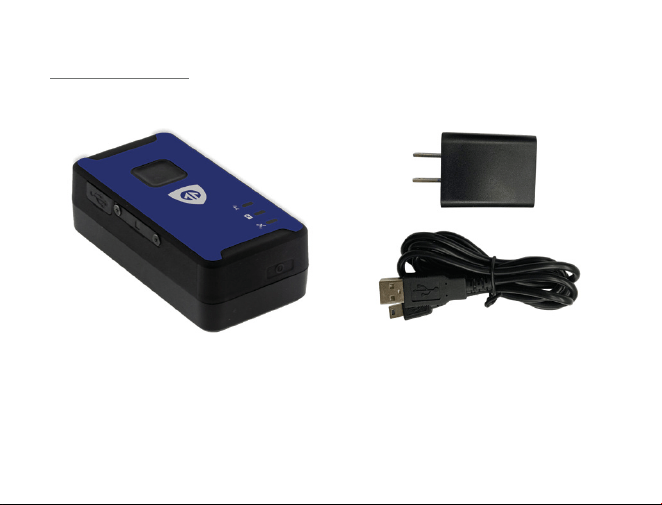
What’s Inside
Spark Nano 7
Wall Charger
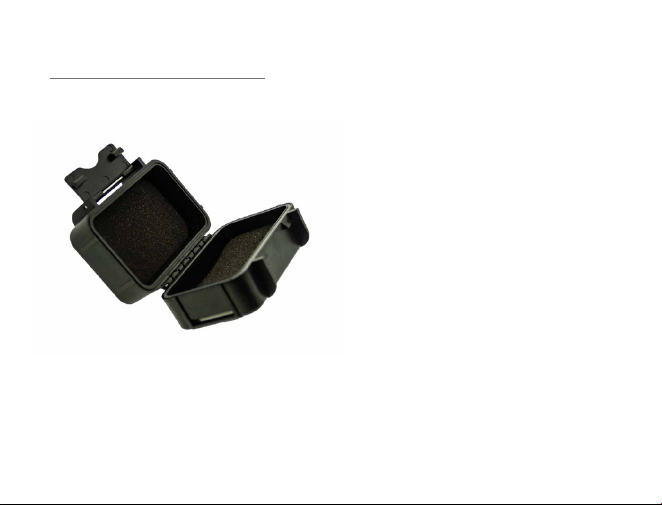
Optional Accessories
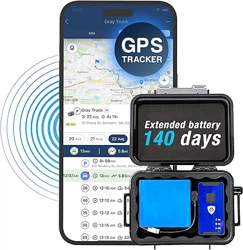
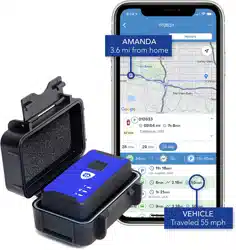
Weatherproof Magnetic GPS Box
Reduces the risk of physical damage to
your device
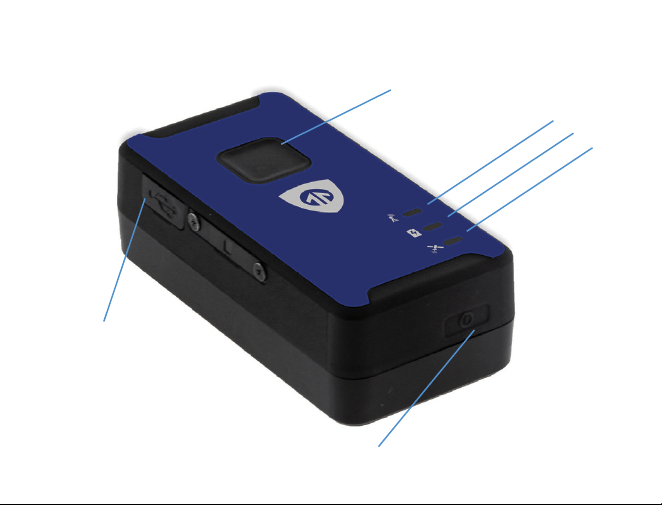
Spark Nano 7
1. Power Button
2. Charging Port
3. Panic Button
4. Cell LED (Green)
5. Power (Red)
6. GPS LED (Blue)
1
2
4
3
5
6
LED
Cell LED: Green Light
1. A fast flash indicates searching for network.
2. A slow flash indicates the device is registered on network.
3. When the the light is not lit, the device modem is not looking for
network.
Power LED: Red Light
1. A solid red power indicator means the charging cable is inserted and
the charging cycle is complete.
2. A fast blinking light when the charging cable is inserted means the
device is charging.
3. If you press the power key, the fast flash will also be seen during power
on and power off.
4. A slow blinking indicator is a low power alert.
5. The power light will not be on during normal device operation.
Note: If the device has not been charged for a long period of time, the
red power light may take a few moments to light up and start blinking. If

you have not charged the device for a long time and the light does not
light up when the device is plugged in, please allow at least 6 hours of
charge, and then try to power the device on.
GPS LED: Blue light
1. A fast flash indicates searching to get a GPS fix.
2. A intermittent solid blink will indicate it has a fix and is acquiring a
position.
3. A slow steady blink will indicate a potential problem getting a GPS fix.
Getting Started
You should have received an email containing your default login information;
this will be used to configure your device and view tracking information (which
will be covered later in this user’s guide).
The first step in using your Spark Nano 7 is to charge it. To charge, plug the AC
adapter into a wall outlet. Then, gently insert the mini-USB charging end into the
charging port of your device. Ensure the mini-USB ends are properly aligned.
Charge the Spark Nano for at least 5 hours before first use. When fully charged,
the red light will be solid (and then will stop glowing after a prolonged period of
remaining plugged in after it’s fully charged). When the device is done charging,
disconnect it from the charger and press the power button to turn the device
on. Make sure all the rubber port covers are securely in place before use.
It is important that the tracker have a clear view of the sky. Since the device is
motion-activated, it is not sufficient to leave it outside or on a windowsill for it to
register. It must be moving in order to register and report its location.
To power on the unit, hold down the power button for around 3 seconds, also
plugging the unit in to power will power it on. The power light will light up briefly
indicating power on. To power off the unit, hold down the power button for
around 3 seconds. You’ll see the power light begin to flicker indicating it will
power off soon.
Note: It can take up to a minute for the device to power down after the red
indicator light turns on.
Placing Your Device
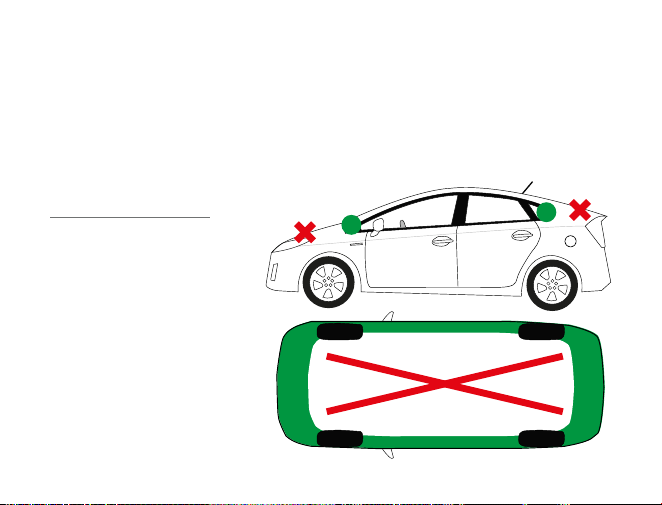
*Place in green zones for best results.
Your Spark Nano will always
give the most accurate
location data when it has
a clear view of the sky. It is
capable of transmitting and
receiving through materials
like glass, plastic, and cloth,
but is not able to transmit
through metals. Keep this in
mind when placing the device.
Avoid placing the device in the trunk of a vehicle. It may or may not report from a
glove compartment or underneath a seat. This interference can vary from vehicle to
vehicle, however, as all automobiles are constructed differently.
If you want to track covertly, the Weatherproof Magnetic GPS Box may be the best
solution for you. When placing the device beneath a vehicle, be sure that the side
with the LEDs is facing down, toward the ground, and that it is as near the edge of
the vehicle as possible.
Tracking Your Device
To track your Spark Nano, open a browser window and go to
www.BrickhouseSecurity.com. Hover your cursor over the Login tab on the top
right of the website and click on GPS Tracking. Enter your login information and
press the Submit button. The tracking page will appear, and the device’s last
reported location will be centered on the map. If you have multiple devices on
your account, the first 3 that were registered will be automatically selected and
appear on the map. Along the bottom of your screen will be your dashboard.
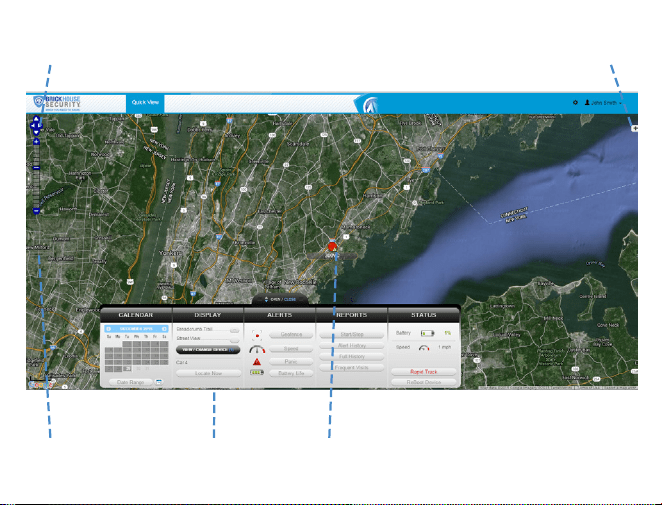
Navigation Arrows
Zoom Bar Dashboard Last Known Location
Change Map View

Tracking information is displayed using Google Earth Maps, so navigation
is similar to what most people have grown used to in using internet-based
mapping solutions. You can use the Navigation arrows and Zoom Bar to move
around the map, or drag the map using your mouse and zoom using a click-
wheel mouse.
At the bottom of the pop-up window are the Zoom, Street View, and Live
Tracker buttons.
• Zoom will perform the same task as using the Zoom bar on the left side of
the map; zooming in on the icon you have selected.
• Street View will open up a separate window displaying Google’s Street
View, if available.
The BrickHouse Security shield icon will appear where a tracker transmitted
most recently. Click on an icon to bring up a pop-up box. This will show your
tracker’s name, the distance it has traveled on this trip, what direction it was
moving in, speed, battery information, and start and stop locations. Start will
display the beginning location of the current trip, and the time it was recorded.
Stop will display the most recent location from the device, as well as the time
it was reported.
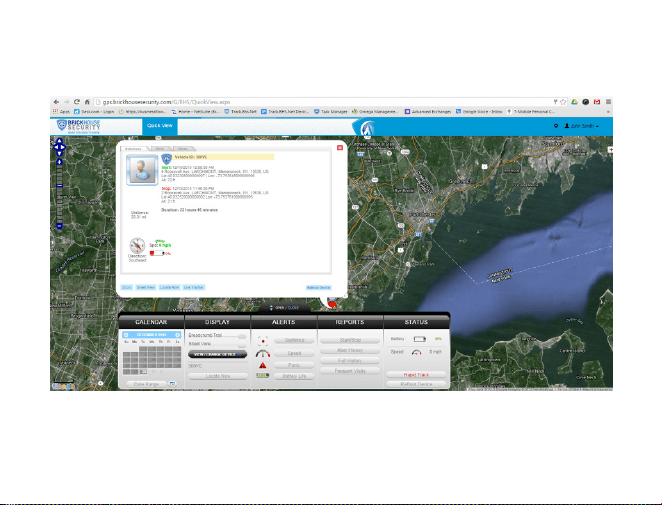

The More tab is not currently active. Future updates to the platform will utilize
this tab.
The GeoFence tab allows you to create quick geofences, based on the
location you are currently viewing and route the device was following. Use the
Circular GeoFence radio button to create a perimeter around the location you
have selected. Use the Route GeoFence radio button to create a boundary
that will follow your device’s entire trip.
Give the GeoFence a name in the GeoFence Name window, and add a short
description in the Description box (optional).
Use the Action drop down box to choose if you would like an alert created
when the device enters the chosen area, exits the area, or both. Use the
Radius box to choose how large the area will be. You can enter values below
a mile as decimals. For example: A half-mile radius geofence would be
entered as .5.

When you’re done, press the Create Geofence button to save.
The Alerts tab will display the most recent Geofence, Speed, Panic, or Power
alerts that have been triggered.
The Video Links tab is not currently active. Future updates will take advantage
of this tab.
Live Tracker will open up a separate window displaying your devices’
locations, and allows you to see past locations. Using the drop-down boxes
on the bottom right of the window, you can adjust how often your screen
refreshes and how many locations will appear on the screen. The counter on
the bottom left of the window displays how long it will be until your screen
refreshes. You can email a link to this page, allowing other users to view
your tracker’s location by click on the Share This icon in the upper right hand
corner of the window. When doing so, you may choose how long the link will
be active before expiring using the Link Expiration dropdown.

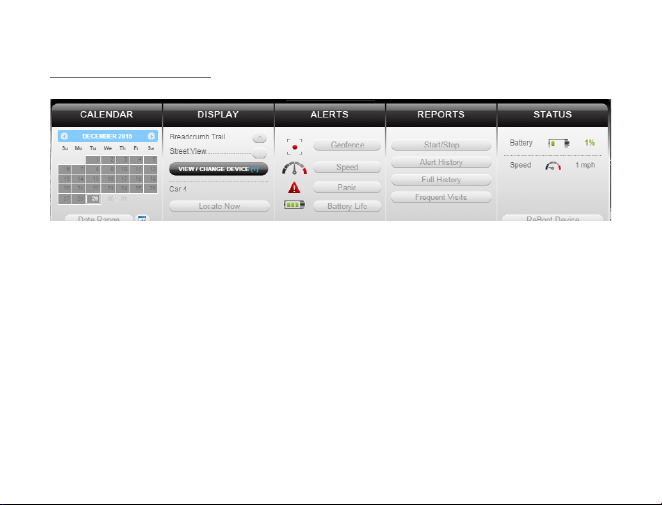
Using the Dashboard
The Calendar allows a user to choose from which dates information can
display. Any date that has tracking information will be highlighted. Simply
click on that date to display information. To choose multiple days, click on the
Date Range button, input a start and end date, and press Search. Press the
Current Date button to return to viewing the current day’s information. When
searching by date, all locates generated in the chosen timeframe will display
as breadcrumbs.
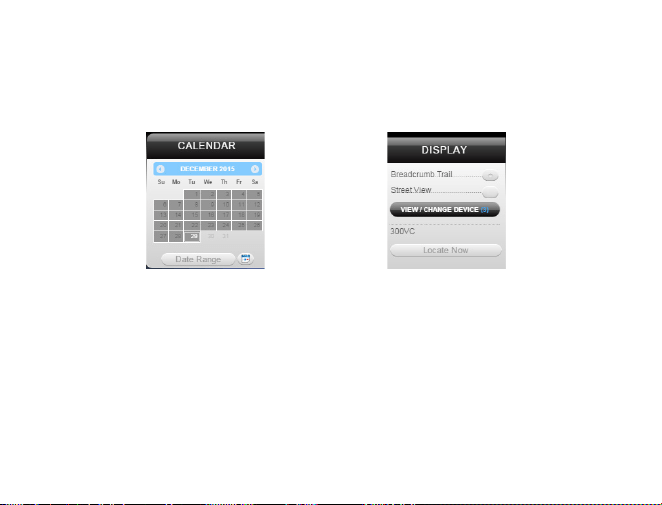
Under the Display section you can see a list of all devices currently displaying
information on the map. Click on the View/Change Device button to choose
which of your devices will display on the map. This button only serves a
purpose if there are multiple devices on your account.
Breadcrumb Trail will display all locations, or breadcrumbs, generated on the
date you currently have displayed, connected by a line. Click on any individual
breadcrumb to see detailed information. The BrickHouse Security shield icon
represents the start and stop of a trip, green circles mean the device was
moving with the arrow indicating direction, and red octagons indicate stops.
Click on the Street View button to open a Google Street View window from
the most recent location of the device. This function will only work if Google
Street View is available in that location.

The Alerts section lets you manage what kinds of alerts
your device will create and how you will be notified.
Click the Geofence button to manage your geofences. The Geofence Alert
Configuration tab lets you choose when and where alerts will be sent. Select
the device you would like to edit by checking the box next to it.
• Highlight which days you would like to configure by clicking on each. You
may choose to enter certain hours during which alerts will be active, or
leave these fields blank to have them sent all the time.
• Choose if duplicate alerts will not be created if the device stays inside or
outside a geofence for a certain period of time using the slider bar.
• Choose what icon will appear where a geofence alert was created using the
Alert Image dropdown box.
Enter Email Address allows you to choose where alert notifications will be
sent. Click on the + icon to add phone numbers you want to have texted.

In the Create New Geofence tab you can create geofences around any area
in different shapes. Navigate to the area on the map you would like to create
a geofence. Click on the Circle, Polygon, or Route button. It is suggested that
all geofences be in at least a .2 mile radius, or at least 1 city block around an
area to allow for GPS drift.
To create a circular geofence around an area, click on Circle and then click on the
spot on the map you want to create your geofence around. Hold down the left
mouse button and drag the cursor until your geofence is the size you want, and
release the mouse button.
The Polygon button allows you to create geofences in different shapes. Each point
you click on will be a corner of your perimeter.
A Route geofence will be straight lines. You must choose how far a device will need
to be away from the route before a report is generated.
Once you have created a geofence, assign it a name in the Geofence field and hit
Save. You may also choose to enter a short description for your geofence.

The Assign Geofence tab allows you to activate and deactivate geofences. Select
a device from the dropdown menu to see what geofences are currently active. Click
on an Assigned Geofence to view and edit its configuration. Click the Remove link
to deactivate a geofence. Hit Save once you have finished making changes.
Click on the check box for any available geofence to edit its configuration and press
the Save button to implement it.
The View Geofence tab allows you to view your geofences.
Click the Speed button on the dashboard to set up speed alerts. Simply select your
device and enter a speed which, when exceeded, will generate an alert. Choose
the days and times you would like the alert to be active, if you would like duplicate
alerts to be ignored, and enter an email address where you wish to receive your
notifications. If you would prefer to receive alert notifications via text message, click
on the + button and enter your phone information. Hit Save once you have finished
configuring your alerts.
Click the Panic button to set up panic alerts. Choose a device and whether you
would like to ignore duplicate alerts (not suggested for the panic feature), and

choose the icon you would like to appear on the map to denote a panic alert. If you
would like to receive emailed alerts, enter your email address into the Email Address
bar. If you would prefer to receive alerts via text message, press the + button
and enter your phone information. Hit Save once you have finished configuring
your alerts.
Click the Power button to set up low power alerts. Low power alerts will send you
an email or text message when the device’s power drops below a certain level.
Choose to receive alerts when your device’s battery drops below 10%, 25%, or
50% of its maximum capacity.
You can run 4 different types of report, listed below. To run one, click on one
of the buttons, choose the device you would like to run a report on from the
dropdown box, choose the dates you would like to run your report on in the
upper right corner, and press the magnifying glass search icon. You can export
any generated reports to Microsoft Excel by clicking on the export button in the
upper right corner of the window.
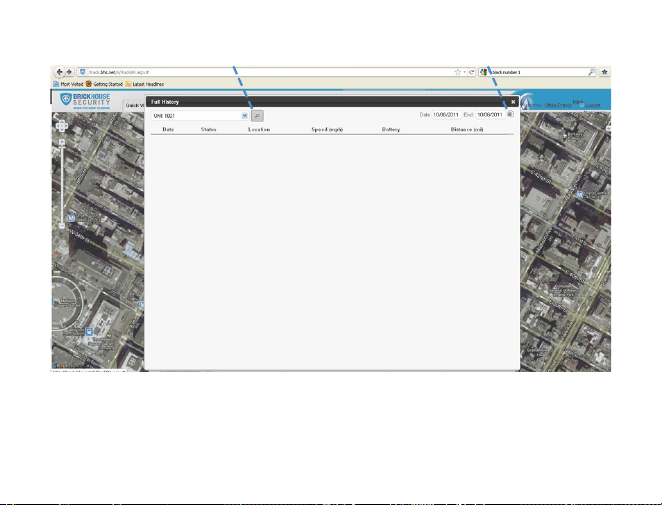
Export to ExcelSearch

Start/Stop reports will list trips between stopping points, with starting and ending
locations, as well as speed information, trip duration, stop time, and the distance
traveled.
The Alert History button will show you all alerts generated during the specified
time and where they occurred.
The Full History button includes individual locations information such as: location,
time of transmission, battery life, speed, and distance from its previous locations.
The Frequent Visits button will create a list of addresses that the device has
reported from and show how many times the device reported from that spot.
Changing Your Password
To change your password, click on the account name, which should appear in the
upper right corner of the browser window. Once complete, click on Quick View
to return to your tracking page.
Support
To review FAQs, as well as other support materials for your device and the
BrickHouse Security Tracking platform, click on the Help link in the upper right
corner of the screen.
Live support is available Monday through Friday between the hours of 9am
and 8pm EST. Saturday and Sunday Between the hours of 9am and 6pm
EST. at 1-800-654-7966 or email at support@brickhousesecurity.com.