Owners' Guide Televisions
Connection
Establishing a Wired Internet Connection
Connecting to a wired (Ethernet) network
Press  button to select
  icon to enter Network & Internet.
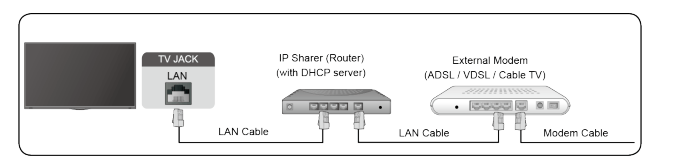
To get access to the Internet in a wired way, it is recommended to use a modem or router that supports Dynamic Host Configuration Protocol (DHCP). Modems and routers that support DHCP automatically provide the IP address, subnet mask, gateway, and DNS, so you don't have to enter them manually. Most home networks already have DHCP.
See the illustration below.
Establishing a Wireless Internet Connection
Connecting to a wireless network
Press  button to select
  icon, and select Network & Internet > Wi-Fi
To connect to an available wireless network, make sure that you have the wireless router’s SSID and password before attempting to connect.
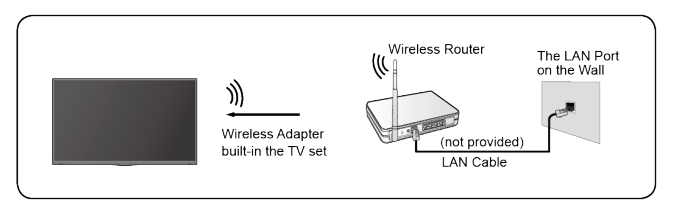
To get access to the Internet in a wireless way:
- Turn on your Wi-Fi.
- The list of networks will display automatically.
- Select a wireless network from the list, input the password.
- If the network connection does not appear in the list, select See all to display all the list, or select Add new network to input a Wi-Fi name, select the type of security mode, and enter password.
Connecting Bluetooth Devices
Connecting a Bluetooth device
To pair a Bluetooth device, such as Bluetooth headphones, speakers, keyboards, mouse or even moblie devices:
- Before pairing your Bluetooth devices, make sure they're in pairing mode and put devices within range of the TV. To put your Bluetooth devices in pairing mode, refer to the user manual of devices.
- Press
 button to select
  icon, and select Remotes & Accessories > Add accessory to put the TV in pairing mode. A list of available Bluetooth devices will be displayed.
- Select the desired device from the list, then follow the onscreen instructions. If you are prompted to enter a passcode, refer to the user manual of the device. After pairing is completed, the device is connected and is stored to the TV.
Note:
- You need to unpair a paired device first if the maximum number of paired devices was reached.
Listening to the TV through Bluetooth devices
- Pair the Bluetooth audio devices using the TV’s Bluetooth function. Refer to the user manual of your audio device such as Bluetooth speaker, sound bar and headphones for detailed connection steps and usage.
- Press
 button to select
  icon, select Sound > Audio Output, and then select the Bluetooth option to listen to the audio through bluetooth devices.
Note:
- Compatibility issues may occur depending on the Bluetooth device.
- The TV and Bluetooth device may disconnect depending on the distance between them.
Using HDMI&CEC
Use the TV's remote to control external devices that are connected to the TV by an HDMI cable. The external devices need to support HDMI&CEC function.
Connecting an external device through HDMI&CEC function
Press  button to select
  icon, and select Inputs > HDMI control.
- Set HDMI control to On.
- Connect an HDMI&CEC compliant device to the TV.
- Turn on the connected external device. The device is automatically connected to the TV. After connection is finished, you can access the menu of the connected device on your TV screen using your TV remote and control the device.
Enabling device auto power off
Press  button to select
  icon, and select Inputs > Device auto power off.
Set to On to turn off CEC compatible external devices when the TV is turned off.
Enabling TV auto power on
Press  button to select
  icon, and select Inputs > TV auto power on.
Set to On to turn on the TV when CEC compatible external devices is turned on.
Note:
- HDMI cables must be used to connect HDMI&CEC compatible devices to your TV.
- The HDMI&CEC feature of the connected device must be turned on.
- If you connect an HDMI device that is not HDMI&CEC compatible, all the HDMI&CEC control features do not work.
- Depending on the connected HDMI device, the HDMI&CEC control feature may not work.
- The HDMI&CEC feature are supported One Touch Play, Routing Control, System Standby, Device OSD Name Transfer, Remote Control Pass Through, Give Device Power Status, System Audio Control.
Connecting a Digital Audio System to Use eARC/ARC
If you’d like to use the Enhanced Audio Return Channel (eARC) / the Audio Return Channel (ARC) feature to have sound sent from the TV back down an HDMI cable to a digital sound system, you can connect to the HDMI (eARC/ARC) port of your TV.
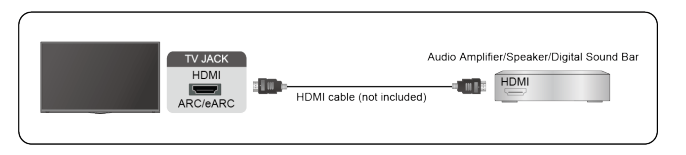
By using this feature, you will also be able to control the sound system with your TV remote instead of using multiple remotes for each device.
After the connection:
- Power on the sound system.
- Press
 button to select
  icon, and select Sound > Audio Output > eARC/ARC. If the device supports eARC function, first select Sound > eARC to set it to On.
Note:
- It works only when the TV is connected to the audio receiver that supports the eARC/ARC function.
- If the device has an Input Selector feature then make sure to change it to TV.
- When this port is used as the eARC/ARC function, it can be used as signal input when a DVD is connected to amplifier and the amplifier is connected to the TV at the same time. (Some amplifiers may not support series connection.)
Connecting an AV device, a PC or a Game Console with an HDMI cable
You can connect an AV device, a PC or a Game Console with an HDMI cable.
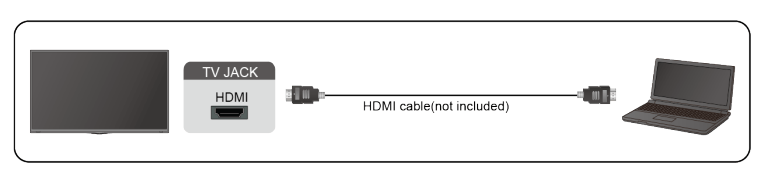
After the connection:
- Power on the device.
- Press
 button on your remote, select the corresponding HDMI as the input source.
Note:
- Refer to the "Quick Setup Guide" for more connection information.
- Some devices such as DVD player require HDMI signal to be set to output in the device's settings. Please consult your device user manual for instructions.
- If there is no sound from your TV, change the device's audio settings.
Connecting USB Devices
Connect the USB devices such as hard drives, USB sticks and digital cameras for browsing photos, listening to music.
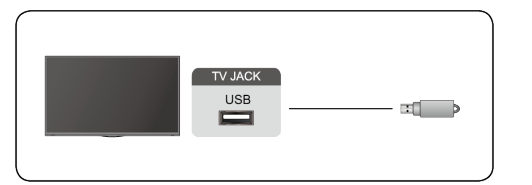
- Support the USB disk 4G, 8G, 16G, 32G, 64G, 128G and other common market size, and 8T hard drive is currently supported.
- Support format: NTFS, FAT32.
- Certain digital cameras may not be compatible with the TV.
Picture and Sound
Adjusting the Picture Quality
Using the backlight function
Press  button to select
  icon, and select Picture > Backlight.
You can change the overall brightness of the screen.
- Dynamic Backlight Control (or Local Dimming if support)
Enable the TV to automatically adjust the backlight by sections according to the changes in the image and increase the contrast.
- Backlight Level
- Adjust the bright you want images to appear, lower settings create darker images.
- Automatic Light Sensor
Enable the TV to automatically adjust the picture settings according to the amount of ambient light in you room.
- Light Sensor Shift
Adjust the lower point of the dynamic backlight adjustment scope. This is a money-saving feature because it reduces power consumption.
Note:
- Some functions above may not be applicable in some models/countries/regions.
Choosing a picture mode
Press  button to select
  icon, and select Picture > Picture Mode.
You can select the picture mode that provides the best viewing experience.
Low Blue Light
Theater Day and Theater Night are designed to reduce the level of blue light to protect your eyes.
Go to  >
>  Settings > Picture > Picture Mode, and select Theater Day/Theater Night.
To reduce the eye strain and protect eyes when you watch TV for a period of time, you are suggested to:
- Take regular and frequent breaks to avoid watching TV for a long period of time. Long time of watching may cause you eye fatigue. It is not recommended to watch TV for more than one hour.
- Look away from the TV screen and look at distance objects during the breaks for at least 10 minutes for eye care.
- Relax yourself during a break by doing eye exercises or outdoor activities.
- The best recommended viewing distance is 3 times the vertical height of the TV screen. Proper breaks and exercises are proved excellent help to relieve eye strain and fatigue.
Note:
- This feature may not be applicable in some models/countries/regions. Low blue light certification may vary by model.
- Low Blue Light can only be supported when the Color Temperature is set to Low.
Adjusting the picture quality for each picture mode
Press  button select
  icon, and select Picture > Contrast, Brightness, Color, Tint or Sharpness.
Choose a picture mode and then adjust the settings.
- Contrast
Adjust the Contrast level to increase or decrease how bright images appear.
- Brightness
Adjust the Brightness level to generate lighter or darker images.
- Color
Adjust the color intensity of the picture for a more vibrant image.
- Tint
Adjust the colors from a green to magenta tint to view the natural skin tones of people on the screen.
- Sharpness
Adjust how sharp or soft edges of images appear.
Changing the picture size
Press  button to select
  icon, and select Picture > Picture Size
You can adjust the Aspect Ratio to stretch or zoom in on your picture. You can choose from the following settings: Auto, Normal, Zoom, Wide, Direct, Dot-By-Dot, Panoramic or Cinema.
Applying the current picture settings to other input sources
Press  button to select
  icon, and select Picture > Apply Picture Settings.
Adjust current picture mode to apply to all sources (Including both external devices and OTT sources) or just current source.
Enabling smart scene function
Press  button to select
  icon, and select Picture > Smart Scene.
Set to On to enable your TV to recognize the scene in the content watching and enhance the picture quality on all input sources.
Note:
- Some specific application has explicit constraints that the content recognition is not allowed.
Configuring advanced picture settings
Press  button to select
  icon, and select Picture > Advanced Settings.
You can configure picture mode settings that provides the best viewing experience.
- Overscan
Change the video size settings to slightly crop the edges of the displayed image.
- Color Temperature
Adjust how warm (red) or cool (blue) the white areas of an image appears.
- Motion Enhancement
Reduce seeing afterimages that are left on the screen when viewing fast-moving objects.
If you select Custom, you can configure Blur Reduction and Judder Reduction manually.
- Motion Clearness
Improve how clear the picture appears when viewing.
- Noise Reduction
Improve how clear the picture appears by reducing noise.
- Digital Noise Reduction
Improve picture clarity by reducing video noise.
- HDMI Dynamic Range
Adjust the HDMI signal range to be more suitable for the content. (HDMI mode only)
- Active Contrast
Automatically darken dark areas and lighten light areas of images to see more details.
- FILMMAKER MODE Auto Detection
A picture quality mode, which can automatically switch according to the film source if you turn on.
- Enhanced Viewing Angle
Set to On to optimize your viewing angle, and you will enjoy a better watching experience.
- Color Space
Change the range of colors the TV displays.
Note:
- Some functions above may not be applicable in some models/countries/regions.
Configuring calibration settings
Press  button to select
  icon, and select Picture > Calibration settings.
Adjust the color space and Gamma to best suit the content you’re viewing.
- Color Tuner
Adjust the Color, Hue, Saturation and Brightness of color settings.
- White Balance
Adjust the intensity of red, green and blue lights to view the true colors of all images in the picture.
- Gamma
Adjust the Gamma to alter how the TV will respond to the grayscale content. In a dark room choose a Higher number like 2.2. In a brighter area select a Lower number like 2.0. In general, 2.4 is normally recommended.
- Gamma Calibration
Adjust selected Gamma curve.
- RGB Only
View images based on default settings or choose the color red, blue or green.
Note:
- Some functions above may not be applicable in some models/countries/regions.
Resetting the picture settings
Press  button to select
  icon, and select Picture > Reset.
Reset current picture settings back to the factory setting.
Game Mode Settings
Enabling game mode
Press  button to select
  icon, and select Picture > Picture Mode.
You can select the Game mode to optimize the TV's settings for you to enjoy a comfortable gaming experience with PC or game console connected to the TV.
In the Game Mode:
- Reducing input lag to make sure every press or click matches what's happening on the screen;
- Improving responsiveness to produce very little motion blur;
- Processing YUV 4:4:4 format signals precisely to present accurate image colors.
Note:
- This function may not be applicable in some input sources.
Enabling instant game response
Press  button to select
  icon, and select Picture > Advanced Settings > Instant Game Response.
You can enjoy a smooth viewing experience with external device connected to the TV when Instant Game Response is turned on.
Note:
- When Game mode is selected, Instant Game Response will not be switched off automatically.
Enabling FreeSync
Press  button to select
  icon, and select Picture > Advanced Settings > FreeSync.
You can enjoy a smooth viewing experience with external device connected to the TV when FreeSync is turned on.
Note:
- Some functions above may not be applicable in some models/countries/regions.
Adjusting the Sound Quality
Enabling system sounds
Press button to select
  icon, and select Sound > System Sounds.
Set to On to open the default system sound.
Choosing a sound mode
Press button to select
  icon, and select Sound > Sound Mode.
You can select a preset sound mode suitable for the content type or the listening environment.
Selecting speakers
Press  button to select
  icon, and select Sound > Audio Output.
Select the speakers that you want to have audio output.
Configuring WiSA Speaker
Press  button to select
  icon, and select Sound > WiSA Speaker.
Wireless audio transmission can be available with Dongle provided by WiSA Ready and sound system certified by WiSA Ready.
Enabling eARC
Press  button to select
  icon, and select Sound > eARC.
Connect an audio device that supports eARC via HDMI-eARC, and set eARC to On to enjoy premium sound quality.
Enabling TV speaker
Press  button to select
  icon, and select Sound > TV Speaker.
Turn on or off the TV speaker. If ARC or Bluetooth is selected in Audio Output, configuration here is unavailable.
Enabling TruBass HDX
Press  button to select
  icon, and select Sound > TruBass HDX.
Optimizes overall sound quality by increasing bass, making dialog clear and natural, and widening the sound field.
Enabling TruSurround: X
Press  button to select
  icon, and select Sound > TruSurround: X.
Provides surround sound experience with psycho-acoustic processing to place sounds beside, behind, and above the viewer. For best results use with Surround Sound.
Enabling Dialog Clarity
Press  button to select
  icon, and select Sound > Dialog Clarity.
Improve dialogue clarity.
Enabling TruVolume HD
Press  button to select
  icon, and select Sound > TruVolume HD.
Maintains consistent loudness levels from wide dynamic range programs, loud commercials, and channel or input changes.
Enabling Dolby Atmos
Press button to select
  icon, and select Sound > Dolby Atmos.
Set Dolby Atmos to On to enhance the richness of sound, and you can enjoy an immersive listening experience.
Enabling Wall Mount Setup
Press  button to select
  icon, and select Sound > Wall Mount Setup.
Automatically optimize the sound based on the position of the TV.
Configuring advanced sound settings
Press  button to select
  icon, and select Sound > Advanced Settings.
Tune the audio settings and quality of the TV.
- Balance
Adjust the left and right speaker strength to optimize audio for a specific location.
- Volume Level
Balance the sound volume of each source.
- Auto Volume Control
Activate to prevent the volume from changing when you switch TV channels.
- Digital Audio Out
Select the digital audio output format that best suits the audio device type.
Note:
- When using optical connection, PCM and Dolby Digital are suggested.
- If your external audio device does not support Dolby or DTS, PCM is suggested.
- Digital Audio Delay
Adjust the digital audio output delay time to sync sound from an external speaker with the images on the TV.
Note:
- Digital Audio Out and Digital Audio Delay functions are only applicable when Audio Output is set to ARC or when external audio players are connected via DIGITAL AUDIO OUT jack.
- Lip Sync
Synchronize the displayed image with the audio output.
- Equalizer
Boost the volume at different frequencies.
- Preferred Audio Language
Set the default audio output language for the type of digital broadcast content that you’re viewing.
- Headphone Mode
Change the way audio is sent through the type of device that’s connected to your TV Audio Out port.
Note:
- This function may not be applicable in some models/countries/regions.
- Headphone Volume
Independently adjust the volume of audio out devices.
Note:
- This function may not be applicable in some models/countries/regions.
Resetting the sound settings
Press  button to select
  icon, and select Sound > Reset.
Reset current audio settings to factory mode.
Accessibility and System
Accessibility
Press  button to select
  icon, and select Device Preferences > Accessibility.
Accessibility function provides menu options and audio description to aid the visually or hearing impaired.
- Captions
Displays and sets the closed captions. You can set display options and select caption style.
- Live TV Closed Captioning
• Displays and sets the TV closed captions.
• Closed Caption
• Analog Closed Caption
• Digital Closed Caption
• Digital Caption Style
- High contrast text
Improves contrast for visually impaired.
- Video Description
Enables broadcasted descriptive audio for visually impaired.
- Video Description Volume
Adjust the video description volume.
- Text to speech
Let you specify text-to-speech engine details and speech rate.
- Accessibility shortcut
When the shortcut is on, you can press both the back and down buttons for 3 seconds to start an accessibility feature.
- Services
This menu function contains some service applications, you can choose to open if you need it.
Using Parental Control
Press  button to select
  icon, and select Parental Control.
The Parental Control setting allows you to block content that is not appropriate for children to watch.
- Locks
Turning Parental Control On
1. Turn on Locks to enable the Parental Control function.
2. Create PIN window displays. Using the D-pad on your remote, create the password.
3. You will see other Parental Control settings change from a greyed out state to highlighted. When this occurs, begin adding other settings to the Scheduled Blocking, Channel Blocking, Program Blocking, Input Blocking, Change PIN and Reset features.
- Scheduled Blocking
Block certain channels, programs and inputs during certain periods of time.
- Channel Blocking
Block selected channels.
- Program Blocking
Block programs by ratings.
- Input Blocking
Block selected inputs.
- Change PIN
Change the PIN that you use to access Parental Control.
Note: If you forget your password, call the Consumer Electronics Care Centre.
- Reset
Reset Parental Control back to the factory setting.
Configuring Device Preferences Settings
Press  button to select
  icon, and select Device Preferences.
Date & time
- Automatic date & time
Set to On to use network-provided time.
You can also set the current time manually when Off is selected.
When Off is selected, the TV Network may not be working properly.
- Set date
Set the date.
- Set time
Set the time.
- Set time zone
Select your time zone.
- Use 24-hour format
Set the time to display in a 12 or 24-hour format.
Language
Adjust the default Language settings for the TV.
Keyboard
Adjust the default settings for the keyboard.
Storage
View the TV storage.
Home screen
- Customize channels
Add or delete the app channel row from the Home screen.
- Enable video previews
Enable or disable the video previews.
- Enable audio previews
Enable or disable the audio previews.
- Reorder apps/Reorder games
Rearrange the Apps screen.
- Android TV Home/Android TV Core Services
See the information of open source software licences.
Google Assistant
View permissions about accounts and limit the search results.
Chromecast Android Shell (Chromecast built-in)
Enable your app to stream video and audio to the TV.
Screen saver
Enable Screen saver when the TV is idle.
Location
Use different modes to access location information. Each mode uses different sources to estimate the TV's location.
Usage & Diagnostics
Help improve Android performance by automatically sending diagnostics information.
Security & restrictions
Supervise unknown sources for safety and check installed apps for harmful behaviour.
Reset
Reset to clear your personal setup and information.
About
View the version information, the status of network, and other information. You can also update the software version or change the TV's name.
- System update
Provide software updates to continuously enhance your TV and correct any issues that may impact your user experience; therefore, recommend you to keep your TV connected to the Internet to automatically receive updates when they are available.
- Device name
Choose a name for your TV. The name will be shown to devices that are available for sharing data.
Configuring Advanced System Settings
Press  button to select
  icon, and select Advanced System.
Timer
- Sleep Timer
Set the sleep timer to automatically turn the TV off within a specified time: off, 10 Minutes, 20 Minutes, 30 Minutes, 40 Minutes, 50 Minutes, 60 Minutes, 90 Minutes and 120 Minutes.
- Power On Timer Type
Set the type Off, Daily, Once.
- Power On Timer
Set the clock for the time you want the TV to turn on automatically.
- Power Off Timer Type
Set the type Off, Daily, Once.
- Power Off Timer
Set the clock for the time you want the TV to turn off automatically.
Setup Assistant
Use the Setup assistant for instructions to help you set up your TV.
Store Mode
Home Mode uses less energy. Select Store Mode if the TV will be on display in a retail setting. Store Mode effects E-Streamer and other demo functions.
Screenless Mode (only for models with Hands-free Voice Control)
Talk to the Google Assistant even when the screen is off.
In screenless Mode, the Google Assistant is always available to help even when the screen is not on. Just say "OK Google/Hey Google".
This feature will affect standby power consumption when it is set to On.
Note:
- The Google Assistant and some features are available on limited country/region/language.
Send Diagnostics and Usage
Allow to send the diagnostics and usage of the report.
Enhanced Viewing
You can set Automatic Content Recognition, Picture Mode Auto Adaptation and Sound Mode Auto Adaptation.
Note:
- To use Enhanced Viewing, connect your TV to network first.
- This function may not be applicable in some models/countries/regions.
Serial/IP Control Port
Our TV supports IP control feature within the local area network (LAN). TV can accept the speccompliant instructions issued by the device in the same local area network through the pre-defined network interface and command format, like shutdown, volume up/volume down, switch channels, etc.
Control4 Control Port
TV can be compatible with control 4 devices. Control and linkage between devices can be achieved through drivers and protocols provided by Control 4.
Note:
- This function may not be applicable in some models/countries/regions.
Power LED
Set the Power indicator light to stay On or Off when standby mode.
Note:
- This function may not be applicable in some models/countries/regions.
FAV/TV Button Customization
You can personalize FAV/TV remote button for quick access to customized input source.
Note:
- This function may not be applicable in some models/countries/regions.
Product Registration
Note:
The website and the QR code may be different in some countries/regions.
Remote Control Service
Remote Service features enable your TV to be controlled from the client server to let after-sales diagnose the problem of your TV and dealing with the problem online efficiently. To use this function:
- Turn on Remote Service.
- You can initiate a help request to call centres by hotline and provide PIN to the client server centre.
Note:
- This function may not be applicable in some models/countries/regions.
- Keep the network connected when the Remote Control Service is running.
E-Manual
Scan QR code to display E-Manual.
Mobile App Installation
Scan the Mobile App download QR code on screen to install the app on your smartphone to control your TV.
For more about RemoteNOW Download settings, Please refer to Installing Mobile App to Control your TV section in this manual.
Mobile Device Connection Tips
Follow the on-screen instructions to learn more about the Screen Sharing and the Content Sharing.
Clear Cache
Clear cache of applications and system.
Help
- System Message
View system message, including: Serial Number, Service Code, Software Version, etc.
Note:
• Serial Number may not be displayed depending on models/countries/regions.
- Support Information
View Support URL, Support Number.
- Signal Information
Perform self diagnosis to test Video Format, Audio Format, Color Depth, etc.
Troubleshooting
Picture Issues
When the TV has picture problems, these steps may help resolve the problem.
| Problem |
Possible Solutions |
| No picture, or black and white picture. |
- Unplug the TV power cord from AC outlet and re-plug after 60 seconds.
- Check that the Color Saturation is set to 50 or higher.
- Try different TV channels.
|
| The picture is distorted. |
- The compression of video content may cause picture distortions, especially in fast-moving pictures from sports programmes and action movies.
- If the signal reception is weak or poor, screen distortion may be visible but it is not a malfunction.
- Mobile phones used close to the TV (within 1m) may cause noise on analogue and digital channels.
|
| The picture is blurry or flickering, or cuts out momentarily. |
 > >  Settings > Picture > Sharpness. You can try to increase or decrease the Sharpness. Settings > Picture > Sharpness. You can try to increase or decrease the Sharpness.- If you use an external antenna, check the direction, position and connection of the antenna.
- Adjust the direction of your antenna, or reset or fine tune the channel.
|
| The picture appears red, purple, pink and other colors. |
 > >  Settings > Picture > Calibration Settings > White Balance. You can try to increase or decrease the White Balance. Settings > Picture > Calibration Settings > White Balance. You can try to increase or decrease the White Balance.
|
| Picture distorted or appear wavy. |
- Some electrical appliances may affect the TV. If you turn off the appliance and the interference goes away, then move it further away from TV.
- Insert the power plug of the TV into another power outlet.
|
Note:
- If the problem persists, check the signal strength or refer to the external device’s user manual.
Sound Issues
When the TV has a sound problem, these steps may help resolve the problem.
| Problem |
Possible Solutions |
| There is no sound or the sound is too low at maximum volume. |
- Check the volume control of the device (cable or satellite box, DVD, Bluray, etc.) connected to your T
|
| Picture is normal, but no sound. |
- Check the volume settings.
- Check if 'Mute' mode is set to on.
|
| The speakers are making an odd sound. |
- Make sure that the audio cable is connected to the correct audio output connector on the external device.
- For antenna or cable connections, check the signal information.
- A low signal level may cause sound distortions.
|
| Sound distorted or appears wavy. |
- Some electrical appliances may affect the TV. If you turn off the appliance and the interference goes away, then move it further away from TV.
- Insert the power plug of the TV set into another power outlet.
|
| Sound is blurry or cuts out momentarily. |
- If you use an external antenna, check the direction, position and connection of the antenna.
- Adjust the direction of your antenna or reset or fine tune the channel
|
Note:
- This product does not support decoding of DTS CD bitstreams. Playback of this format may produce undesirable noise.
Network Issues
When the TV has difficulties in connecting to the Internet, these steps may help resolve the problem.
| Problem |
Possible Solutions |
| The TV cannot connect to your network or apps. |
- Make sure the TV has a network connection.
- Contact your Internet service provider.
|
| The wireless network connection fails. |
- Make sure your wireless modem/router is on and connected to the Internet.
|
| The wireless network signal is too weak. |
- Position your wireless router, modem router, or access point in a central location. Avoid putting it in a corner.
|
External Device Connection Issues
When the TV has difficulties with external device connection, these steps may help resolve the problem.
| Problem |
Possible Solutions |
| I have connected an external source to my TV but I get no picture and/or sound. |
- Check whether the connection between the external device and your TV is correct.
- Make sure you have made the correct selection of input source.
|
| There is no signal or weak signal in the cable box. |
- If there is no signal occasionally, unplug cable from TV and re-plug after 60 seconds.
- If there is always no signal, or the signal cannot be restored after plugging and unplugging, you can try Menu > HDMI Format if you select HDMI as input, to confirm whether the signal can be recognized.
- Change to another HDMI port.
- Change to another HDMI cable.
|
| There is no sound. |
- Check if the Audio Out option in the menu is ARC/eARC, if not, you need to check whether the external power amplifier device is connected to the ARC port or optical port of the TV.
 > >  Settings > Sound > Advanced Settings > Digital Audio Out. You can try to select PCM, Dolby Digital, or Dolby Digital Plus. Settings > Sound > Advanced Settings > Digital Audio Out. You can try to select PCM, Dolby Digital, or Dolby Digital Plus.- Whether the power amplifier device port is connected correctly.
- If you select HDMI as input, you can try Menu > HDMI Format
|
| The remote control does not work. |
- Confirm that TV still has power and is operational.
- Change the new batteries in the remote control.
- Check if the batteries are correctly installed.
- If some buttons don't work, but the volume buttons can work normally, it seems there is a problem with the application.
|
Apps
When some apps aren't playing, these steps help resolve the problem.
| Problem |
Possible Solutions |
| Netflix can't be played. |
 > >  Settings > Apps > Netflix > Force stop, then reopen to try. Settings > Apps > Netflix > Force stop, then reopen to try.- You can try to reset to the factory settings.
|
| Disney plus can't be played. |
 > >  Settings > Apps > Disney plus > Force stop, then reopen to try. Settings > Apps > Disney plus > Force stop, then reopen to try. > >  Settings > Apps > Disney plus > Clear data, then reopen to try. Settings > Apps > Disney plus > Clear data, then reopen to try.- You can try to reset to the factory settings.
|
Media Files
When files aren't playing, these steps may help resolve the problem.
| Problem |
Possible Solutions |
| Some files can't be played. |
- Most files can be played back, but you might experience problems with corrupted files or files with high-bitrate, unsupported resolution, unsupported container or codec formats.
|
Voice Control Issues
When Alexa and Google Assistant aren't playing, these steps may help resolve the problem.
| Problem |
Possible Solutions |
| Alexa can't be played. |
- For more information about Alexa, refer to Smart Functions > Using Voice Control > Alexa in this manual.
|
| Google assistant can't be played. |
- You can try to log in Google account.
- If you receive "I don't understand" of the voice recognition, please change account or log out the account.
- After logging in to the Google account, the recognition language may be different. You need to log in to the Google account on the web page to set the voice language.
- For more information about Google Assistant, please refer to Smart Function > Using Voice Control > Google Assistant in this manual.
|
Other Issues
Use these steps to resolve other issues that may occur.
| Problem |
Possible Solutions |
| The TV is hot. |
- Watching TV for an extended period of time causes the panel to generate heat. The heat from the panel is dissipated through internal vents running along the top of the TV.
- After extended use, you may feel hot when touching it. This heat, however, is not a defect and does not affect the TV's functionality.
|
| The TV smells of plastic. |
- This smell is normal and will dissipate over time.
|
| The plastic cabinet makes a "clicking" type of sound. |
- The "clicking" sound can be caused when the temperature of the TV changes. This change causes the TV cabinet to expand or contract, which makes the sound. This is normal and the TV is OK.
|
| When I turn on my TV, there is a delay for a few seconds before the picture appears. Is this normal? |
- Yes, this is normal. The TV is initializing and searching for previous setting information.
|