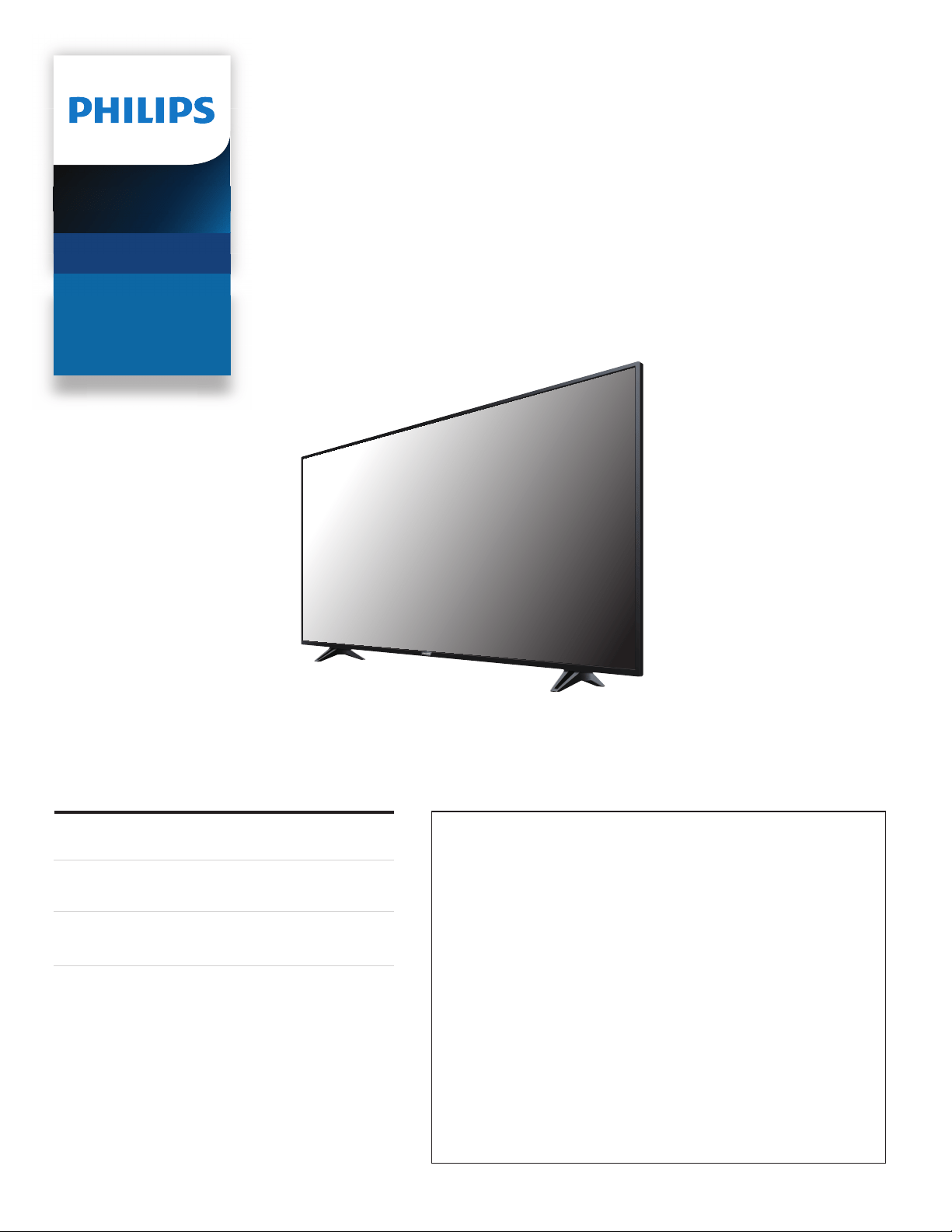
Telev isions
5000 series
65PFL5903
55PFL5903
50PFL5903
EN For further assistance, call the customer support service in your
country.
• To obtain assistance, contact Philips customer care center;
In the U.S.A., Canada, Puerto Rico, or the U.S. Virgin Islands
1 866 202 5960
Mexico city and Metropolitan area; 58 87 97 36
Interior de la republica; 01 800 839 19 89
ES Para obtener más información, llame al servicio de soporte al cliente
de su país.
• Para obtener asistencia, comuníquese con centro de atención al
cliente de Philips;
En los Estados Unidos, en Canadá, Puerto Rico o en las Islas Vírgenes
de los Estados Unidos; 1 866 202 5960
CDMX y Área metropolitana; 58 87 97 36
Interior de la republica; 01 800 839 19 89
FR Pour obtenir de l’aide supplémentaire, communiquez avec le centre
de service à la clientèle de votre pays.
• Pour obtenir de l’aide, communiquez avec le centre de service à la
clientèle Philips au;
Dans le États-Unis, au Canada, à Puerto Rico ou aux Îles Vierges
américaines; 1 866 202 5960
Mexico et Zone métropolitaine; 58 87 97 36
Interior de la republica; 01 800 839 19 89
Register your product and get support at
www.philips.com/welcome
EN
User manual
ES
Manual del usuario
FR
Manuel d’utilisation

Contents
1 Notice .................................................................................................................. 5
2 Getting started ...................................................................................... 8
Features
8
Included accessories
8
Symbols used in this User manual
8
Unpacking
9
Installing the stands
10
Lifting the TV set
12
Removing cardboard
12
Installing the remote control batteries
12
Remote control
13
Control panel
14
Terminals
14
Connecting antenna or cable / satellite / IPTV set-top
box
15
Plugging in the AC power cord
15
Selecting your connection quality
16
Connecting your devices
16
Initial setup
20
3 Use your TV ............................................................................................. 22
Switching on your TV and putting it in standby mode
22
Adjusting volume
22
Switching channels
22
Watching channels from an external device
23
Access the Home menu
23
Create a list of favorite channels
24
Changing picture format
24
TV screen information
25
Using options menu
26
USB
27
4 Getting more from your TV ............................................... 30
Picture and sound setup
31
TV settings
31
Picture
31
Sound
33
Features
34
Installation
34
Accessibility
36
Search for channels
38
Install channels
38
Channel settings
38
Channel installation
38
Child lock
39
Change PIN
40
Digital audio language
40
Mono/Stereo
40
Connect to network
41
Wireless setting
41
Wired setting
41
Network settings
42
Manual network settings
42
Connection test
44
Setting status
44
Home network
45
Wake-on-LAN(DIAL)
45
Net TV
45
Reset network settings
45
Update software
46
Preparing for the software upgrade
46
Downloading the software
46
USB upgrade
46
Network updates
47
Software settings
47
Software
47
Wireless screencasting
48
View photos, play music and watch videos using home
network
48
Net TV
51
Pandora operations
53
5 Useful tips ................................................................................................. 54
FAQ
54
Troubleshooting tips
55
6 Information ............................................................................................. 57
Glossary
57
Maintenance
57
7 Specifications ....................................................................................... 58
8 Warranty .................................................................................................... 59
License ........................................................................................ end of book
Ɣ
Displays and illustrations may differ depending on the product you purchase.
2 .English
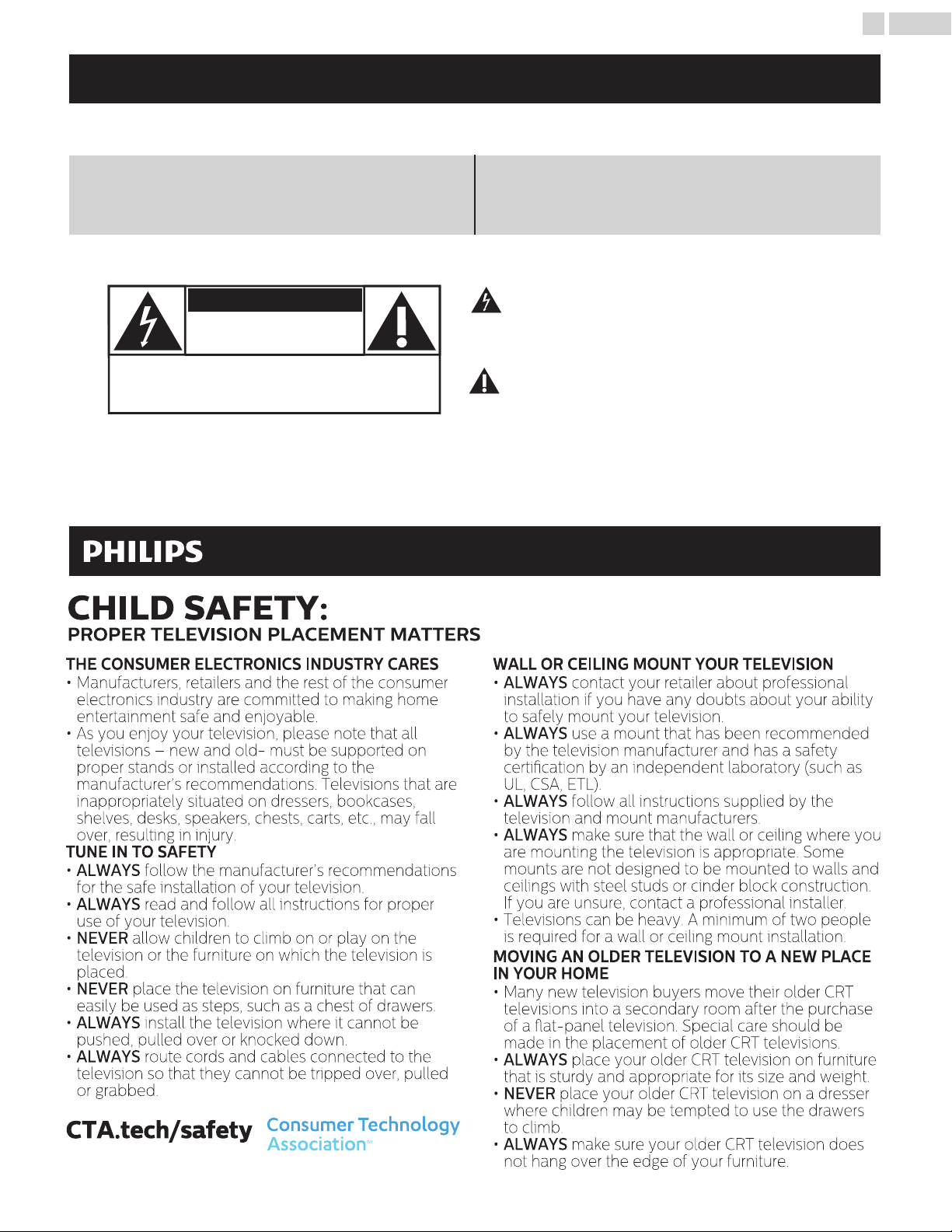
Know these safety symbols
The lightning ash with arrowhead symbol, within an
equilateral triangle, is intended to alert the user to the
presence of uninsulated “dangerous voltage” within
the apparatus’s enclosure that may be of sucient
magnitude to constitute a risk of electric shock to
persons.
The exclamation point within an equilateral triangle is
intended to alert the user to the presence of important
operating and maintenance (servicing) instructions in
the literature accompanying the apparatus.
CAUTION: TO REDUCE THE RISK OF ELECTRIC SHOCK, DO NOT
REMOVE COVER (OR BACK). NO USER-SERVICEABLE PARTS ARE
INSIDE. REFER SERVICING TO QUALIFIED SERVICE PERSONNEL.
RISK OF ELECTRIC SHOCK
DO NOT OPEN
The caution marking is located on the rear or bottom of the cabinet.
CAUTION
Registering your model with Philips makes you eligible for all of the valuable benefits listed below, so don't miss out.
Register online at www.philips.com/support to ensure:
Register online today at www.philips.com/support today
to get the most benets from your purchase.
*Product safety notication *Additional benets
By registering your product, you'll receive
notication - directly from the manufacturer - in
the rare case of a product recall or safety defect.
Registering your product guarantees that you'll
receive all of the privileges to which you're
entitled, including special money-saving oers.
WARNING: To reduce the risk of re or electric shock, do not expose this apparatus to rain or moisture.
Apparatus shall not be exposed to dripping or splashing and no objects lled with liquids,
such as vases, shall be placed on the apparatus.
CAUTION: To prevent electric shock, match wide blade of plug to wide slot, fully insert.
For fastest support visit us online for chat and self service
solutions at www.philips.com/support
CHILD SAFETY:
PROPER TELEVISION PLACEMENT MATTERS
THE CONSUMER ELECTRONICS INDUSTRY CARES
• Manufacturers, retailers and the rest of the consumer
electronics industry are committed to making home
entertainment safe and enjoyable.
• As you enjoy your television, please note that all
televisions – new and old- must be supported on
proper stands or installed according to the
manufacturer’s recommendations. Televisions that are
inappropriately situated on dressers, bookcases,
shelves, desks, speakers, chests, carts, etc., may fall
over, resulting in injury.
TUNE IN TO SAFETY
• ALWAYS follow the manufacturer’s recommendations
for the safe installation of your television.
• ALWAYS read and follow all instructions for proper
use of your television.
• NEVER allow children to climb on or play on the
television or the furniture on which the television is
placed.
• NEVER place the television on furniture that can
easily be used as steps, such as a chest of drawers.
• ALWAYS install the television where it cannot be
pushed, pulled over or knocked down.
• ALWAYS route cords and cables connected to the
television so that they cannot be tripped over, pulled
or grabbed.
WALL OR CEILING MOUNT YOUR TELEVISION
• ALWAYS contact your retailer about professional
installation if you have any doubts about your ability
to safely mount your television.
• ALWAYS use a mount that has been recommended
by the television manufacturer and has a safety
certication by an independent laboratory (such as
UL, CSA, ETL).
• ALWAYS follow all instructions supplied by the
television and mount manufacturers.
• ALWAYS make sure that the wall or ceiling where you
are mounting the television is appropriate. Some
mounts are not designed to be mounted to walls and
ceilings with steel studs or cinder block construction.
If you are unsure, contact a professional installer.
• Televisions can be heavy. A minimum of two people
is required for a wall or ceiling mount installation.
MOVING AN OLDER TELEVISION TO A NEW PLACE
IN YOUR HOME
• Many new television buyers move their older CRT
televisions into a secondary room after the purchase
of a at-panel television. Special care should be
made in the placement of older CRT televisions.
• ALWAYS place your older CRT television on furniture
that is sturdy and appropriate for its size and weight.
• NEVER place your older CRT television on a dresser
where children may be tempted to use the drawers
to climb.
• ALWAYS make sure your older CRT television does
not hang over the edge of your furniture.
3 .English
I
Important safety instructions
Read these instructions.
Keep these instructions.
Heed all warnings.
Follow all instructions.
Do not use this apparatus near water.
Clean only with dry cloth.
Do not block any ventilation openings. Install in
accordance with the manufacturer’s instructions.
Do not install near any heat sources such as
radiators, heat registers, stoves, or other apparatus
(including ampliers) that produce heat.
Do not defeat the safety purpose of the polarized
or grounding-type plug. A polarized plug has two
blades with one wider than the other. A grounding
type plug has two blades and a third grounding
prong. The wide blade or the third prong are
provided for your safety. If the provided plug does
not t into your outlet, consult an electrician for
replacement of the obsolete outlet.
Protect the power cord from being walked on or
pinched particularly at plugs, convenience
receptacles, and the point where they exit from
the apparatus.
Only use attachments / accessories specied by
the manufacturer.
Use only with the cart, stand,
tripod, bracket, or table specied
by the manufacturer, or sold with
the apparatus. When a cart is
used, use caution when moving
the cart / apparatus combination
to avoid injury from tip-over.
1.
2.
3.
4.
5.
6.
7.
8.
9.
10.
1 1.
12.
Unplug this apparatus during lightning storms or
when unused for long periods of time.
Refer all servicing to qualied service personnel.
Servicing is required when the apparatus has been
damaged in any way, such as power-supply cord
or plug is damaged, liquid has been spilled or
objects have fallen into the apparatus, the
apparatus has been exposed to rain or moisture,
does not operate normally, or has been dropped.
13.
14.
Note to the CATV system installer:
This reminder is provided to call the CATV system
installer’s attention to Article 820-40 of the NEC that
provides guidelines for proper grounding and, in
particular, species that the cable ground shall be
connected to the grounding system of the building,
as close to the point of cable entry as practical.
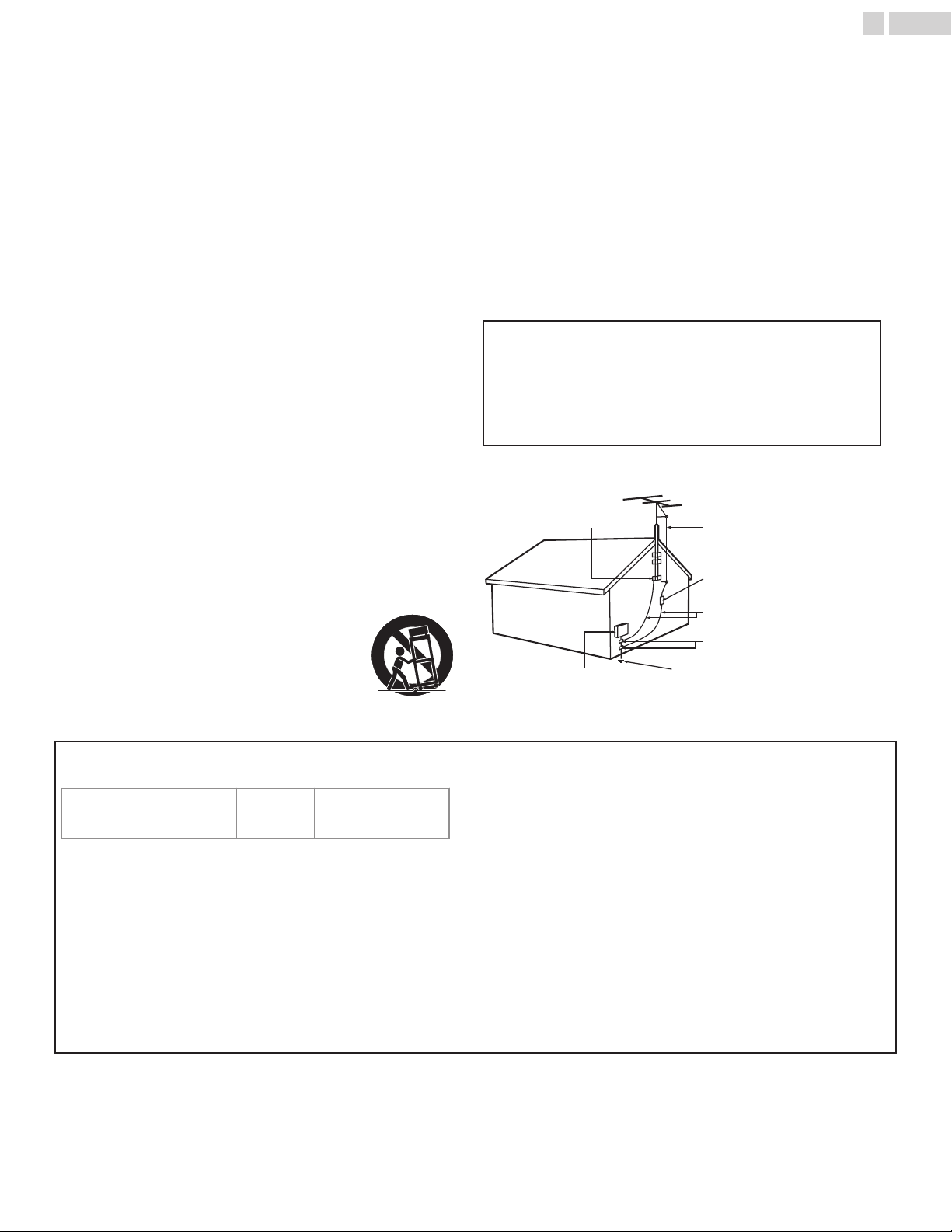
Example of antenna grounding as per NEC -
National Electric Code
ANTENNA LEAD IN WIRE
GROUND CLAMP
ANTENNA DISCHARGE UNIT
(NEC SECTION 810-20)
ELECTRIC SERVICE EQUIPMENT
GROUNDING CONDUCTORS
(NEC SECTION 810-21)
POWER SERVICE GROUNDING
ELECTRODE SYSTEM (NEC ART 250,
PART H)
GROUND CLAMPS
Wall mount bracket kit
Brand Model # Screw dimension
65PFL5903/F7
55PFL5903/F7
50PFL5903/F7
SANUS F80b M6 x 1.378” (35mm)
Ɣ
Your TV meets the VESA standard for wall mounting. Consult with
your local dealer for a wall mount bracket which is compatible with
your TV model.
Ɣ
The recommended wall mount bracket kit (sold separately) allows
the mounting of the TV on the wall.
Ɣ
For detailed information on installing the wall mount, refer to the
wall mount Instruction book.
Ɣ
Funai Corporation is not responsible for any damage to the
product or injury to yourself or others if you elect to install the TV
wall mount bracket or mount the TV onto the bracket.
Ɣ
The wall mount bracket must be installed by experts.
Funai Corporation is not liable for these types of accidents or
injuries noted below.
Ɣ
If installed onto a ceiling or slanted wall, the TV and wall mount
bracket may fall which could result in a severe injury.
Ɣ
Do not use screws that are longer or shorter than their specified
length. If screws too long are used this may cause mechanical or
electrical damage inside the TV set. If screws too short are used
this may cause the TV set to fall.
Ɣ
Do not fasten the screws by excessive force. This may damage the
product or cause the product to fall, leading to an injury.
Ɣ
For safety reasons use 2 people to mount the TV onto a wall
mounting bracket.
Ɣ
Do not mount the TV onto the wall mounting bracket while your
TV is plugged in or turned on. It may result in an electrical shock
injury.
When installing the unit on the wall, allow this much space.
Top
: 1 1.8 inches (30cm)
Left and right side
: 5.9 inches (15cm)
Bottom
: 3.9 inches (10cm)
4 .English
1 Notice
Trademarks are the property of Koninklijke Philips N.V. or their
respective owners.
Funai Corporation reserves the right to change products at any time
without being obliged to adjust earlier supplies accordingly.
The material in this Owner’s manual is believed adequate for the
intended use of the system. If the product or its individual modules or
procedures are used for purposes other than those specified herein,
confirmation of their validity and suitability must be obtained. Funai
Corporation warrants that the material itself does not infringe any
United States patents. No further warranty is expressed or implied.
Funai Corporation cannot be held responsible neither for any errors
in the content of this document nor for any problems as a result of the
content in this document. Errors reported to Funai Corporation will be
adapted and published on the Funai Corporation support website as
soon as possible.
Pixel characteristics
This LCD product has a high number of color pixels. Although it has
effective pixels of 99.999% or more, black dots or bright points of light
(red, green or blue) may appear constantly on the screen. This is a
structural property of the display (within common industry standards)
and is not a malfunction.
Warranty
No components are user serviceable. Do not open or remove covers
to the inside of the product. Repairs may only be done by service
centers and official repair shops. Failure to do so shall void any
warranty, stated or implied.
Any operation expressly prohibited in this manual, any adjustments
or assembly procedures not recommended or authorized in this
manual shall void the warranty.
Federal communications commission notice
This equipment has been tested and found to comply with the limits
for a Class B digital device, pursuant to part 15 of the FCC Rules.
These limits are designed to provide reasonable protection against
harmful interference in a residential installation. This equipment
generates, uses and can radiate radio frequency energy and, if not
installed and used in accordance with the instructions, may cause
harmful interference to radio communications. However, there is no
guarantee that interference will not occur in a particular installation.
If this equipment does cause harmful interference to radio or
television reception, which can be determined by turning the
equipment off and on, the user is encouraged to try to correct the
interference by one or more of the following measures:
Ɣ
Reorient or relocate the receiving antenna.
Ɣ
Increase the separation between the equipment and the receiver.
Ɣ
Connect the equipment into an outlet on a circuit different from that
to which the receiver is connected.
Ɣ
Consult the dealer or an experienced radio or television technician
for help.
Declaration of conformity
Trade name
: PHILIPS
Responsible party
: Funai Corporation, Inc.
Model
:
65PFL5903/F7, 55PFL5903/F7, 50PFL5903/F7
Address
: 21061 S. Western Ave. Suite 210,
Torrance, CA 90501, USA*
Telephone number
: 1 866 202 5960
*
This is not the mailing address for Open Source Software or
Customer service.
Modifications
This apparatus may generate or use radio frequency energy. Changes
or modifications to this apparatus may cause harmful interference.
Any modifications to the apparatus must be approved by Funai
Corporation.
The user could lose the authority to operate this apparatus if an
unauthorized change or modification is made.
Cables
Connections to this device must be made with shielded cables with
metallic RFI / EMI connector hoods to maintain compliance with FCC
Rules and regulations.
Canadian notice
CAN ICES-3 (B) / NMB-3 (B)
Analog and digital television receiving apparatus, Canada BETS-7 /
NTMR-7.
The following FCC/IC RSS applies to the wireless LAN
adapter included in this product.
FCC caution: Any changes or modifications not expressly
approved by the party responsible for compliance could void
the user’s authority to operate this equipment.
This transmitter must not be co-located or operated in
conjunction with any other antenna or transmitter.
FCC/IC RF Exposure Compliance
This equipment complies with FCC/IC radiation exposure limits
set forth for an uncontrolled environment and meets the FCC
radio frequency (RF) Exposure Guidelines and RSS-102 of the IC
radio frequency (RF) Exposure rules.
This equipment should be installed and operated keeping the
radiator at least 20cm or more away from your body.
This device complies with Part 15 of FCC Rules and Industry
Canada licence-exempt RSS standard(s). Operation is subject
to the following two conditions: (1) this device may not cause
interference, and (2) this device must accept any interference,
including interference that may cause undesired operation of
this device.
5150-5250 MHz band is restricted to indoor operations only.
High-power radars are allocated as primary users (i.e. priority
users) of the bands 5250-5350 MHz and 5650-5850 MHz and
that these radars could cause interference and/or damage to
LE-LAN devices.
Compliance with IC requirement RSS-210 A9.4.4
Data transmission is always initiated by software, which is the
passed down through the MAC, through the digital and analog
baseband, and finally to the RF chip. Several special packets
are initiated by the MAC. These are the only ways the digital
baseband portion will turn on the RF transmitter, which it then
turns off at the end of the packet. Therefore, the transmitter will
be on only while one of the aforementioned packets is being
transmitted. In other words, this device automatically
discontinue transmission in case of either absence of
information to transmit or operational failure.
5 .English
Positioning the TV
Ɣ
Large screen TVs are heavy. 2 people are required to carry and
handle a large screen TV.
Ɣ
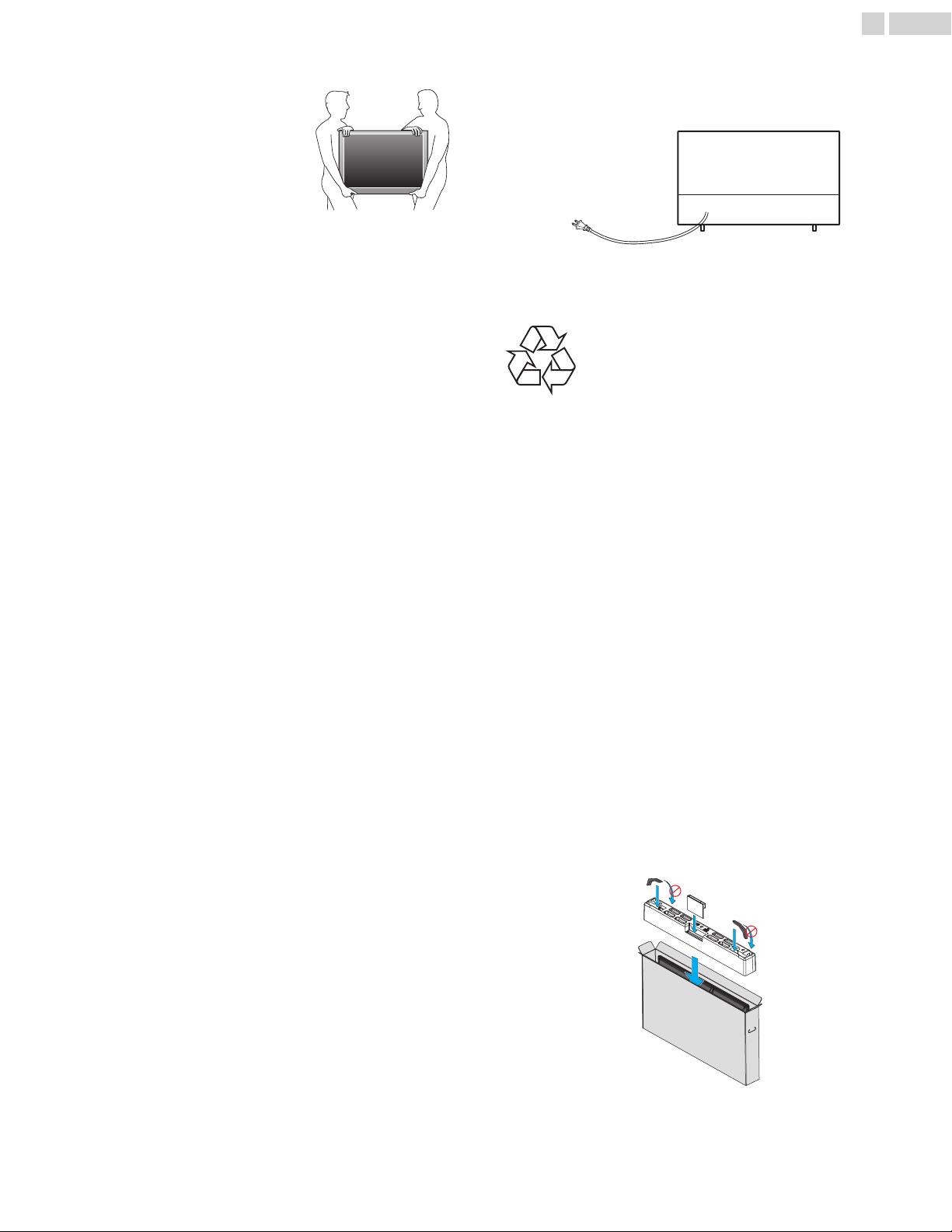
Make sure to hold the upper and bottom
frames of the unit firmly as illustrated.
Ɣ
Install the unit in a horizontal and stable
position.
Ɣ
Do not install the unit in direct sunlight or in
a place subject to dust or strong vibration.
Ɣ
Depending on the environment, the
temperature of this unit may increase
slightly. This is not a malfunction.
Ɣ
When installing this unit in a temperate environment, avoid a place
with rapid temperature changes.
–
Operating temperature: 41°F (5°C) to 104°F (40°C)
Ɣ
This unit should not be used in a tropical environment as it has not
been evaluated under such conditions.
Ɣ
No objects should be placed directly on or under this unit, especially
lighted candles or other flaming objects.
Ɣ
Depending on your external devices, noise or disturbance of the
picture and/or sound may be generated if the unit is placed too
close to them. In this case, please ensure enough space between
the external devices and the unit.
Ɣ
Do not insert the AC power cord into the power socket outlet before
all the connections are made.
Ɣ
Ensure that you always have easy access to the AC power cord and
outlet to disconnect the TV from the AC outlet.
Ɣ
Before you move the TV, disconnect attached cables to prevent
damage to connectors, especially the TV tuner.
Ɣ
Be sure to unplug the AC power plug from the AC outlet before
moving or carrying the unit.
Ɣ
When moving the TV and then setting it down, please be careful not
to pinch the AC power cord under the unit.
Ɣ
Do not place this unit in an area where it may be exposed to water,
oil or grease such as:
near a bathtub, basin, kitchen sink, washing tub, swimming pool,
kitchen exhaust fan, etc., or in a damp basement.
Regulatory notices
WARNING
: To prevent injury, this apparatus must be securely
attached to the furniture / wall in accordance with the
instructions. Tipping, shaking or rocking the unit may
cause injury / death.
WARNING
: Never place a TV in an unstable location. A TV may fall,
causing serious personal injury or death. Many injuries,
particularly to children, can be avoided by taking simple
precautions such as:
–
Using cabinets or stands recommended by the
manufacturer of the TV.
–
Only using furniture that can safely support the TV.
–
Ensuring the TV is not overhanging the edge of the
supporting furniture.
–
Not placing the TV on tall furniture (for example,
cupboards or bookcases) without anchoring both the
furniture and the TV to a suitable support.
–
Not placing the TV on cloth or other materials that may
be located between the TV and supporting furniture.
–
Educating the children about the dangers of climbing
on furniture to reach the TV or its controls.
If your existing TV is being retained and relocated, the same
considerations as above should be applied.
Do not place the unit on the furniture that is capable of being tilted
by a child and an adult leaning, pulling, standing or climbing on it. A
falling unit can cause serious injury or even death.
In order to avoid interruption of ventilation, this unit should not be
placed in built-in equipment such as a book cabinet, rack, etc., and
the vents of this unit should not be covered with anything such as a
tablecloth, curtain, newspaper, etc. Make sure that there is enough
ventilation space (4inches / 10cm or more) around this unit.
Press to turn the unit on and go into standby mode. To completely
turn off the unit, you must unplug the AC power plug from the AC
power outlet.
Disconnect the AC power plug to shut the unit off when trouble is
found or not in use. The AC plug shall remain readily available.
AC power plug
Never use a gas duster on this TV.
The gas trapped inside of this unit may cause ignition and explosion.
Environmental care
The packaging of this product is intended to be recycled.
Contact your local authorities for information about how to recycle
the packaging.
For product recycling information, please visit -
www.recycle.philips.com
End of life directives
Philips pays a lot of attention to produce environmental-friendly
products in green focal areas. Your new TV contains materials which
can be recycled and reused. At the end of its life, specialized
companies can dismantle the discarded TV to concentrate the
reusable materials and to minimize the amount of materials to be
disposed of. Please ensure you dispose of your old TV according to
local regulations.
Batteries usage
CAUTION
: Danger of explosion if battery is incorrectly replaced.
Replace only with the same or equivalent type.
WARNING
: Batteries (battery pack or battery installed) should not be
exposed to excessive heat such as sunshine, fire or the
like.
Ɣ
Do not mix old and new batteries.
Ɣ
Do not mix alkaline, standard (carbon-zinc) or rechargeable (ni-cad,
ni-mh,Li-ion, etc.) batteries.
Disposal of used batteries
The batteries included do not contain the heavy metals mercury and
cadmium, however in certain localities, disposing batteries with
household waste is not permitted. Please ensure you dispose of
batteries according to local regulations.
Preparing to move / ship the unit
Please pack the unit properly by following the diagram on the carton
(as noted below).
Ɣ
To avoid damage to the screen, do not pack the stand on the same
side as the TV screen, refer to the illustration above.
6 .English
Copyright
All other registered and unregistered trademarks are the property of
their respective owners.
The terms HDMI and HDMI High-
Definition Multimedia Interface, and
the HDMI Logo are trademarks or
registered trademarks of HDMI
Licensing Administrator, Inc. in the
United States and other countries.
Manufactured under license from
Dolby Laboratories. Dolby, Dolby
Vision, Dolby Audio, and the double-
D symbol are trademarks of Dolby
Laboratories.
Sonic Emotion and the Sonic
Emotion logo symbol are registered
trademarks of sonic emotion ag.
Netflix is available in certain
countries. Streaming membership
required. More information at
www.netflix.com.
VUDU™ is a trademark of VUDU, Inc.
YouTube and the YouTube logo are
trademarks of Google LLC.
PANDORA, the PANDORA logo, and
the Pandora trade dress are
trademarks or registered trademarks
of Pandora Media, Inc. Used with
permission.
Portions of this software are copyright © The FreeType Project
(www.freetype.org).
The American Academy of Pediatrics discourages television
viewing for children younger than two years of age.
Some apps are not pre-installed, internet connection is required for
download.
Some features may require an always-on broadband internet
connection, firmware update and/or a minimum bandwidth.
Internet services vary by location.
Funai Corporation Inc. / P&F MEXICANA, S.A.de C.V. do not warrant
access to the portal or to any of the services, content, software and
advertising. Funai Corporation Inc. / P&F MEXICANA, S.A. de C.V. or
third party content/service providers may, in their sole discretion,
add or remove access to any specific services, content, software and
advertising at any time. Although Funai Corporation Inc. / P&F
MEXICANA, S.A. de C.V. will strive to provide a good selection of
services, content or software, Funai Corporation Inc. / P&F
MEXICANA, S.A. de C.V. do not warrant continued access to any
specific services, and content or software.
Funai Corporation Inc. / P&F MEXICANA S.A. de C.V. do not warrant
wireless screencasting compatibility with all source devices such as
smartphones, tablets, laptops, etc. Due to large variability in
hardware, firmware, drivers, software and implementation of
wireless casting applications on these source devices. Although
Funai Corporation Inc. / P&F MEXICANA S.A. de C.V. will strive to
enhance compatibility and performance across a range of source
devices, Funai Corporation Inc. / P&F MEXICANA S.A. de C.V. do not
warrant compatibility with specific source devices.
7 .English
2 Getting started
Features
Ɣ
DTV / Analog TV / CATV
You can use your remote control to select channels which are broadcast in
digital format and conventional analog format. Also, cable and satellite
subscribers can access their TV channels.
Ɣ
Information display
You can display on the TV screen the title, contents (DTV only) and other
information on the current program.
Ɣ
Autoprogram
This unit automatically scans and memorizes channels available in your area,
eliminating difficult setup procedures.
Ɣ
Net TV
This unit lets you enjoy internet services. Use the remote control to browse
the Net TV pages. You can play movies and much more, all from your TV
screen.
Ɣ
Child lock
This feature allows you to block children’s access to inappropriate programs.
Ɣ
Closed caption decoder
Built-in closed caption decoder displays text for closed caption supported
programs.
Ɣ
MTS / SAP tuner
Audio can be selected from the remote control.
Ɣ
Auto standby
If there is no input signal and no operation for 15 minutes, the unit will go into
standby mode automatically.
Ɣ
Sleep timer
You can set the unit to go into standby mode after a specific amount of time.
Ɣ
Choices for on-screen language
Select your on-screen language: English, Spanish or French.
Ɣ
Stereo sound function
Ɣ
PLL frequency synthesized tuning
Provides free and easy channel selection and lets you tune directly to any
channel using the number and decimal point “•” keys on the remote control.
Ɣ
Various adjustments for picture and sound
Customizes picture quality suitable for your room and sets your sound
preference.
Ɣ
EasyLink via HDMI link
EasyLink allows your other HDMI link devices to be controlled by the HDMI
cable connected to your TV.
Ɣ
HDMI input
Ɣ
HDMI-DVI input
If your video device has a DVI output jack, use an HDMI-DVI conversion cable
to connect the unit.
Ɣ
Component video input
Ɣ
AV input
Audio and video input from an external device.
Ɣ
USB terminal
The picture, music and video files stored on a USB memory stick can be
played back on this unit.
Ɣ
Digital audio output
Ɣ
Headphone audio output
Headphone 3.5mm stereo jack for personal listening.
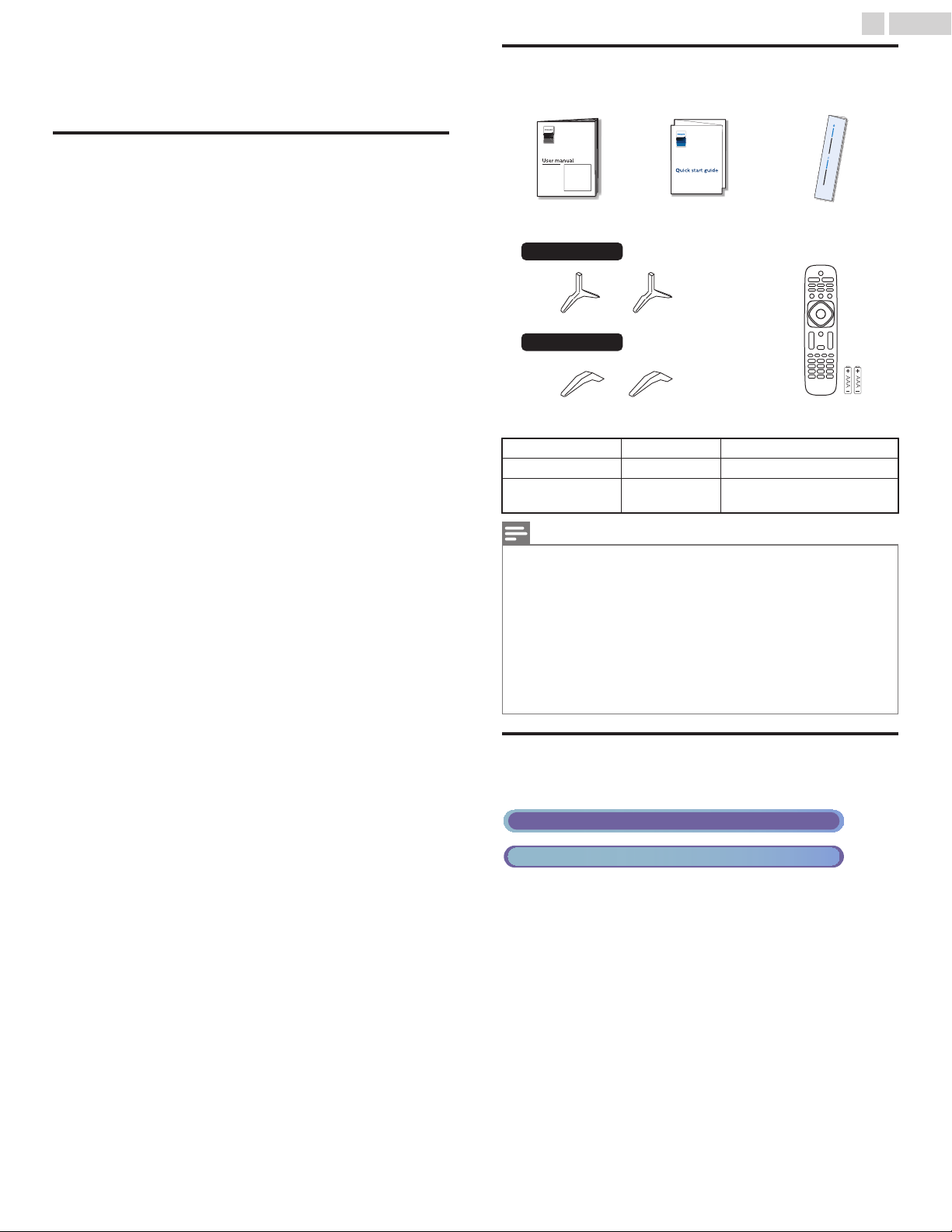
Included accessories
CAUTION: READ THIS FIRST
User manual Quick start guide Caution sheet
Remote control and
Batteries
(AAA, 1.5V x 2)
TV base and screws
65”
55” / 50”
Screws packed with this unit.
Model Quantity Size
65PFL5903 4 M4 x 0.709”(18mm)
55PFL5903
50PFL5903
4 M4 x 0.630”(16mm)
Note(s)
Ɣ
If you lose the screws, please purchase the above-mentioned phillips head
screws at your local store.
Ɣ
If you need to replace these accessories, please refer to the part name or
No. with the illustrations and call our toll free customer support line found
on the cover of this User manual.
When using a universal remote control to operate this unit.
Ɣ
Make sure the component code on your universal remote control is set to
our brand. Refer to the instruction book accompanying your remote control
for more details.
Ɣ
We do not guarantee 100% interoperability with all universal remote
controls.
Symbols used in this User manual
The following is the description for the symbols used in this User
manual. Description refers to:
Digital TV operation
Cable / NTSC (Analog) TV operation
Ɣ
If neither symbol appears, the operation is applicable to both.
8 .English
Continued on next page.
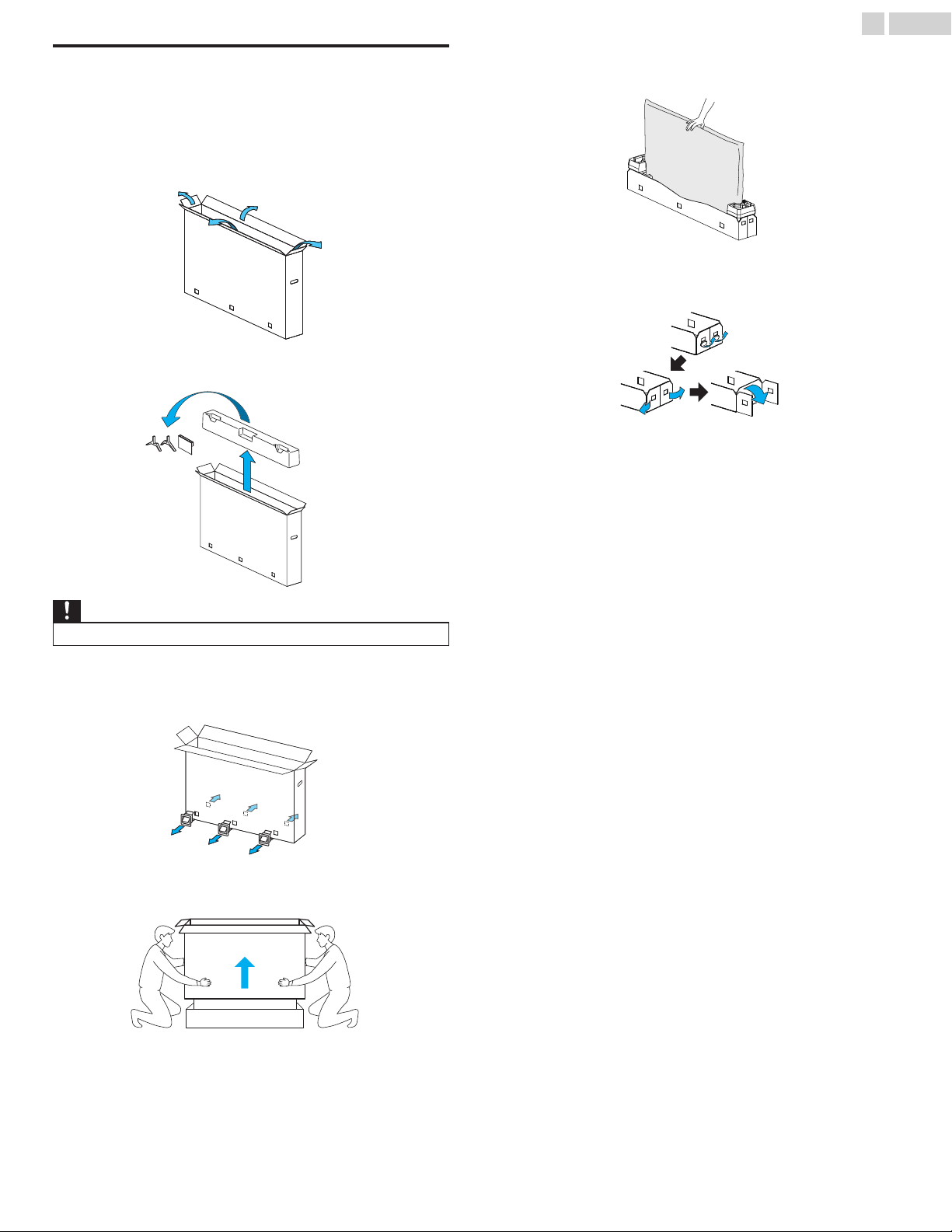
Unpacking
It is recommended that two or more people remove the TV set from
the box. Be careful not to injure your fingers and keep children away
during assembly.
(65PFL5903)
1
Open the top flaps of the box.
2
Remove all accessories.
Caution(s)
Ɣ
DO NOT take the TV set out of the box yet.
3
Remove the packing joints from the box.
4
Remove the outer slipbox with care.
5
Support the top of the TV set with a hand to prevent the TV from
falling.
6
Unhinge the retaining tabs and unfold the left and right side of
the bottom packaging.
9 .English
Continued on next page.
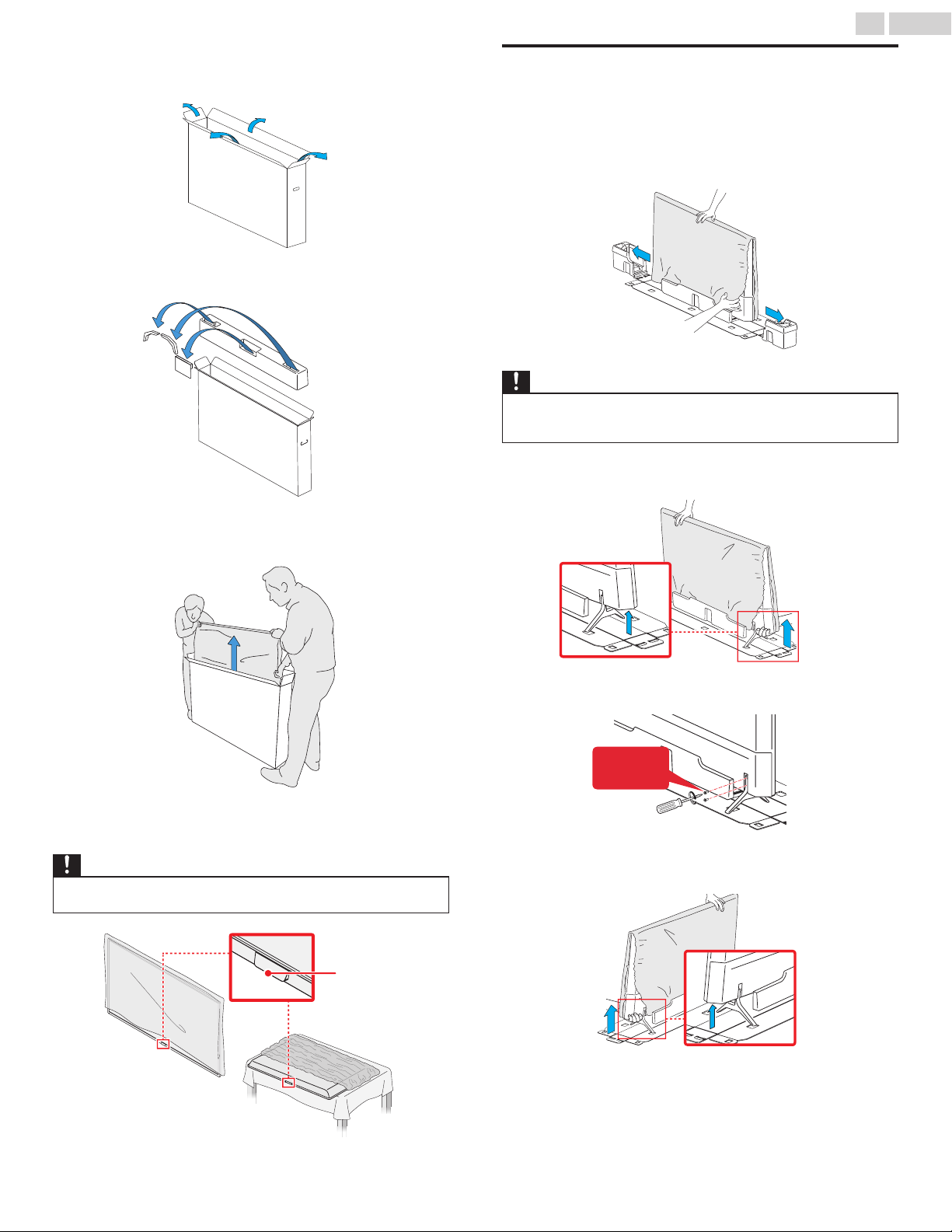
(55PFL5903, 50PFL5903)
1
Open the top flaps of the box.
2
Remove all accessories.
3
Prepare a table and cover the top of it with a table cloth, blanket
or such to avoid damage to the TV set. Support both sides of the
TV set and, move it onto the table.
4
Carefully lay the TV set, with the screen side down, on the table
so as not to deform or damage Decoration plate of the bottom
of the unit.
Caution(s)
Ɣ
To avoid damage, prevent the chin and the screen from contacting the work
table.
Chin
Installing the stands
(65PFL5903)
1
Remove both of the bottom polystyrene foam bases. Carefully
tear the plastic bag until the bottom corner of the TV is exposed.
Ɣ
Support the top of the TV set at all times to prevent the TV from
falling.
Caution(s)
Ɣ
Before installing the matching stand, remove the protective cardboard and
carefully peel away the film from the area so that it will not get stuck between
the unit and the stand.
2
Lift up one side of the TV approx. 1 inch (2.5 cm) and insert the
matching stand upward until it fits the main unit.
3
Fasten the matching stand to the TV with 2 screws (included).
2 screws
required
4
In the same manner as step 2, install the other stand.
10 .English
Continued on next page.
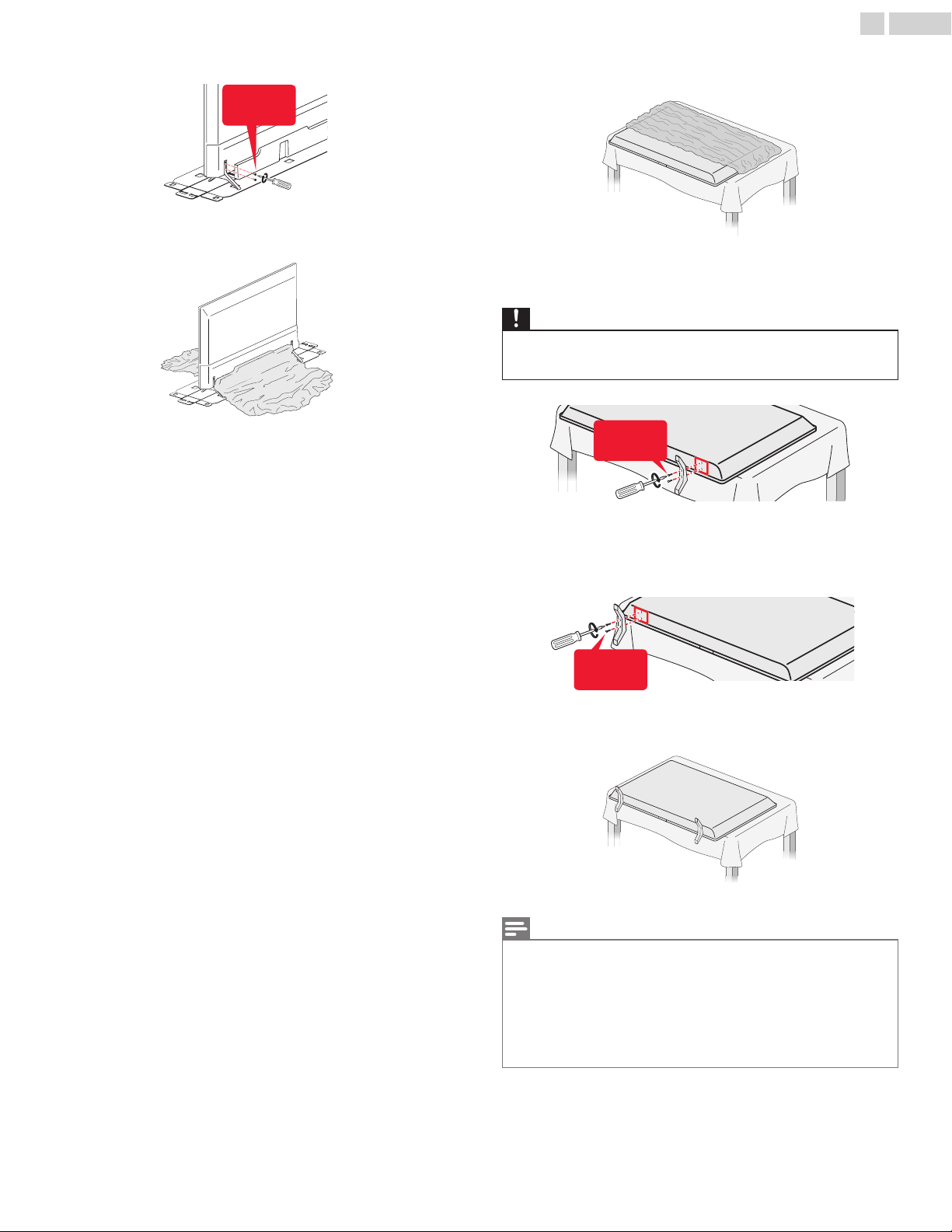
5
Fasten the other stand to the TV with 2 screws (included).
2 screws
required
6
Both stands should now be securely fastened.
(55PFL5903, 50PFL5903)
1
Remove the tape on the bottom of the TV set and the plastic bag.
2
Fasten the matching stand to the TV with 2 screws (included).
While fastening the screws, hold the stand to prevent it from
falling.
Caution(s)
Ɣ
Before installing the matching stand, remove the protective cardboard and
carefully peel away the film from the area so that it will not get stuck between
the unit and the stand.
2 screws
required
3
Fasten the other stand to the TV with 2 screws (included). While
fastening the screws, hold the stand to prevent it from falling.
2 screws
required
4
Both stands should now be securely fastened.
Note(s)
Ɣ
A wide open space is recommended for assembly.
Ɣ
A Phillips-head screwdriver is required to fasten the stands to the TV set.
Ɣ
When attaching the stand, ensure that all screws are tightly fastened. If the
stand is not properly attached, it could cause the unit to fall, resulting in
injuries as well as damage to the unit.
Ɣ
To remove the stand from this unit, unscrew the phillips-head screws by
reversing the procedure. Be careful not to drop the stand when you remove
it.
11 .English
Continued on next page.
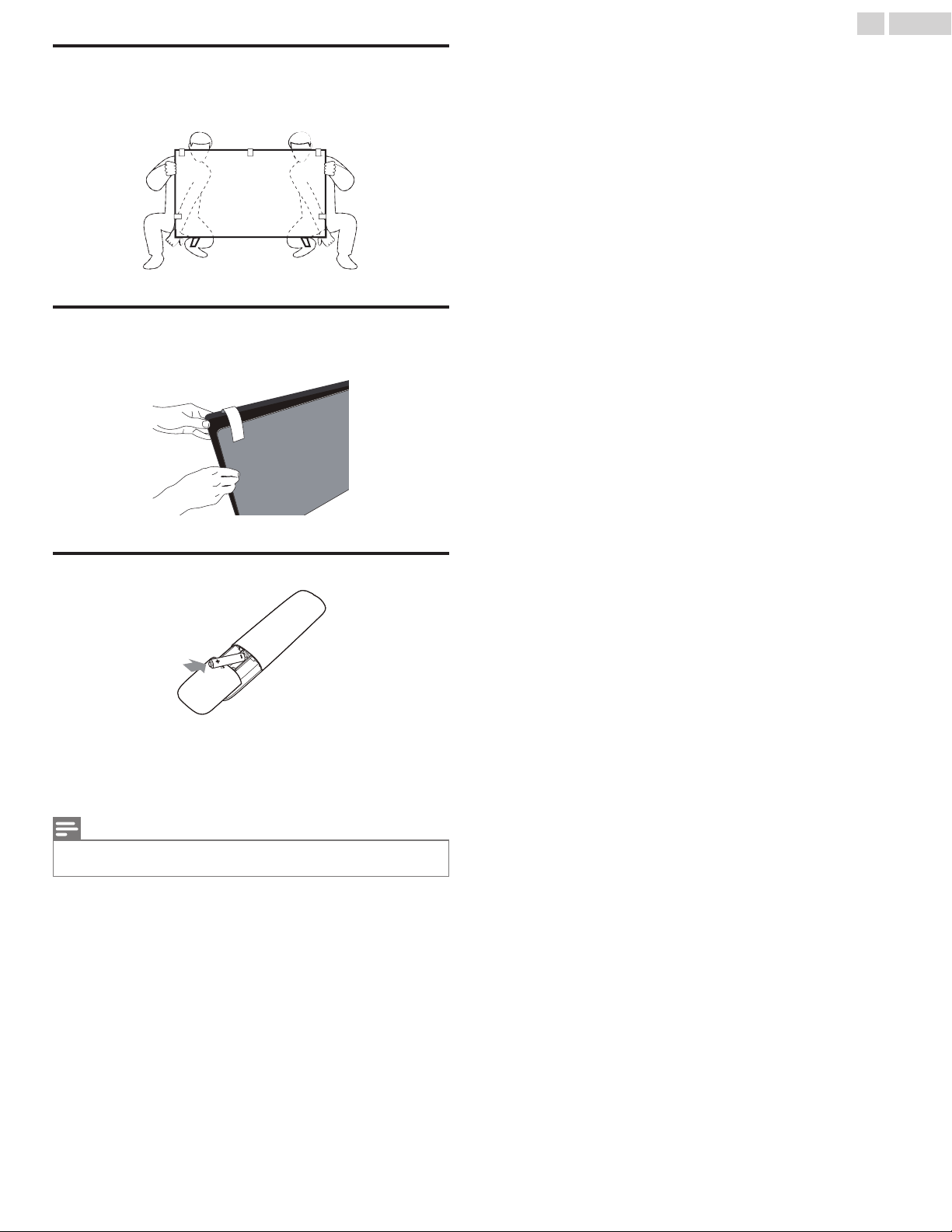
Lifting the TV set
Carefully lift the TV set as shown in the illustration and place it onto a
stable, level surface.
Removing cardboard
Remove the cardboard attached to the screen.
Installing the remote control batteries
1
Slide the battery cover off the back of the remote control.
2
Insert the two included batteries (AAA, 1.5V). Be sure the + and –
ends of the batteries line up with the markings inside the case.
3
Slide the cover back into position.
Note(s)
Ɣ
Remove the batteries if not using the remote control for an extended period
of time.
12 .English
Continued on next page.
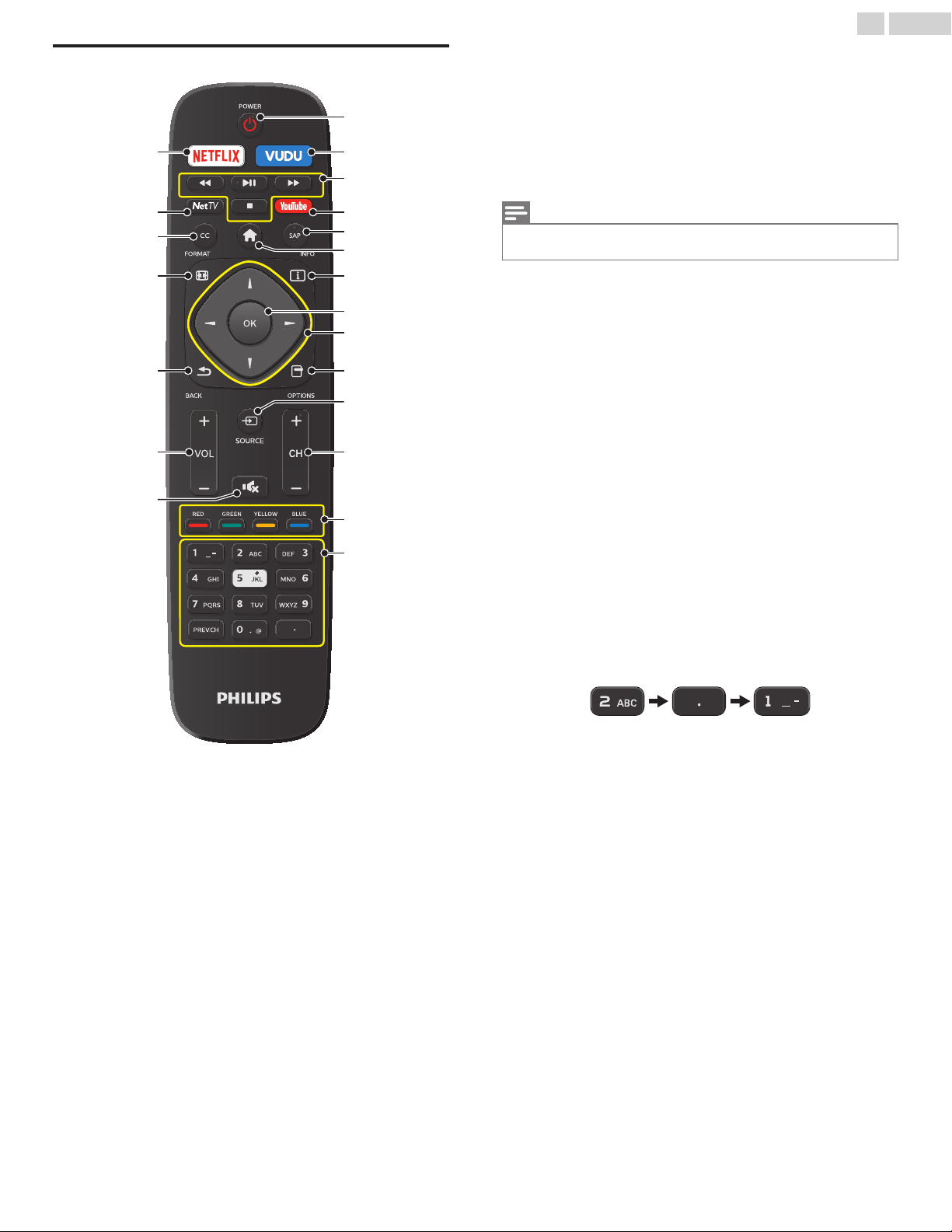
Remote control
q
r
u
t
s
p
o
b
a
c
d
g
e
h
l
m
n
j
k
f
i
(POWER)
Turns the TV on from standby or off to standby.
VUDU
Access directly to VUDU.
EasyLink buttons
/
: Searches backward or forward through the disc.
1
: Starts, pauses or resumes playback.
.
: Stops the disc playback.
Note(s)
Ɣ
Pause may not work properly on some devices even if they are EasyLink
(HDMI CEC) compliant.
YouTube
Access directly to YouTube.
SAP
Selects audio mode (MONO / STEREO / SAP) / audio language.
(Home)
Displays the main menu.
!
INFO
Displays information about the current program.
"
OK
Press to decide the command of setting when the Home menu is
displayed.
#
(NAVIGATION buttons)
Moves the cursor, selects the on-screen menu items.
$
OPTIONS
Displays a list of menu items applicable to the highlighted object
or screen.
%
SOURCE
Selects connected devices.
&
CH + / –
Selects a channel.
'
COLOR buttons
Works as direct access to user specified net apps.
(
0 - 9 (NUMBER buttons)
Used to enter a channel / program number.
• (DOT)
: Use with 0-9 to select digital channels.
For example, to enter 2.1, press
PREV.CH
: Returns to the previously viewed channel.
)
(MUTE)
Turns the sound on and off.
*
VOL + / –
Adjusts the volume.
+
BACK
Returns to the previous menu operation.
,
FORMAT
Adjusts the picture size on the TV screen.
-
CC
Selects closed caption settings (Off, On, CC w/mute).
.
NETTV
Access to Net TV menu directly.
/
NETFLIX
Access directly to Netflix.
13 .English
Continued on next page.
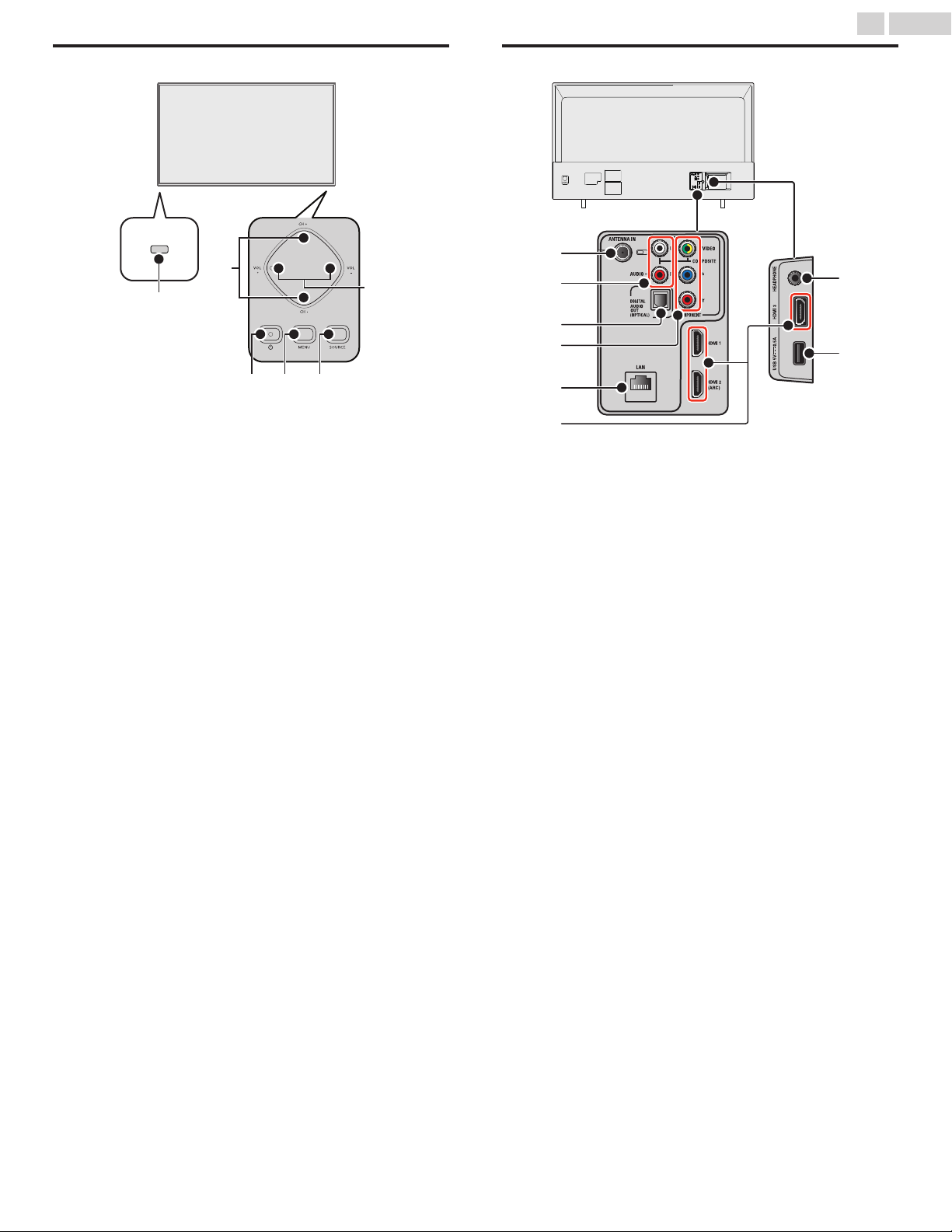
Control panel
f
cde
a
b
Remote control sensor
Receives IR signal from remote control.
CH + / –
Selects a channel. In the menu screen, moves the cursor
up (+) / down (–).
(POWER)
Turns the TV on or switches the TV into standby mode.
MENU
Opens the main on-screen menu.
SOURCE
Selects connected devices.
VOL + / –
Adjusts the volume. In the menu screen, moves the cursor
left (+) / right (–).
VOL +
: Volume up
VOL –
: Volume down
Terminals
m
n
g
k
h
j
l
i
!
75 ohm Cable / Antenna connection
Signal input from an antenna or Cable / Satellite set-top boxes.
"
Analog audio (L/R) input jacks
Connect analog audio signals from;
–
HDMI-DVI / Analog audio (L/R) jacks signal
–
Component video / Analog audio (L/R) jacks signal
–
Composite video / Analog audio (L/R) jacks signal
–
PC connection / Analog audio (L/R) jacks signal with stereo mini
3.5mm plug audio cable on PC
#
Digital audio output jack
Digital audio (S/PDIF) output to home theaters and other digital
audio systems.
$
Component (Y/Pb/Pr) / Composite video (VIDEO) input jack(s)
for VIDEO
Composite video input (VIDEO) jack is a shared jack with
component video input (Y) jack. Green / Yellow color orientation
depends on model.
%
Ethernet port
For internet connection using an Ethernet cable with an RJ-45
connector.
&
HDMI input jack(s)
Digital audio and video input from high definition digital devices
such as DVD / Blu-ray Disc™ players, cable / satellite set-top
boxes, PC’s, etc.
* For HDMI 2 only
In addition to normal HDMI and HDMI-DVI functionality, it
outputs TV audio to an HDMI-ARC-compliant device, such as
a home theater system.
'
Headphone audio output jack
Headphone 3.5mm stereo jack for personal listening.
(
USB terminal
Data input from USB memory stick only.
Do not connect any device to this terminal such as digital camera,
keyboard, mouse, etc.
14 .English
Continued on next page.
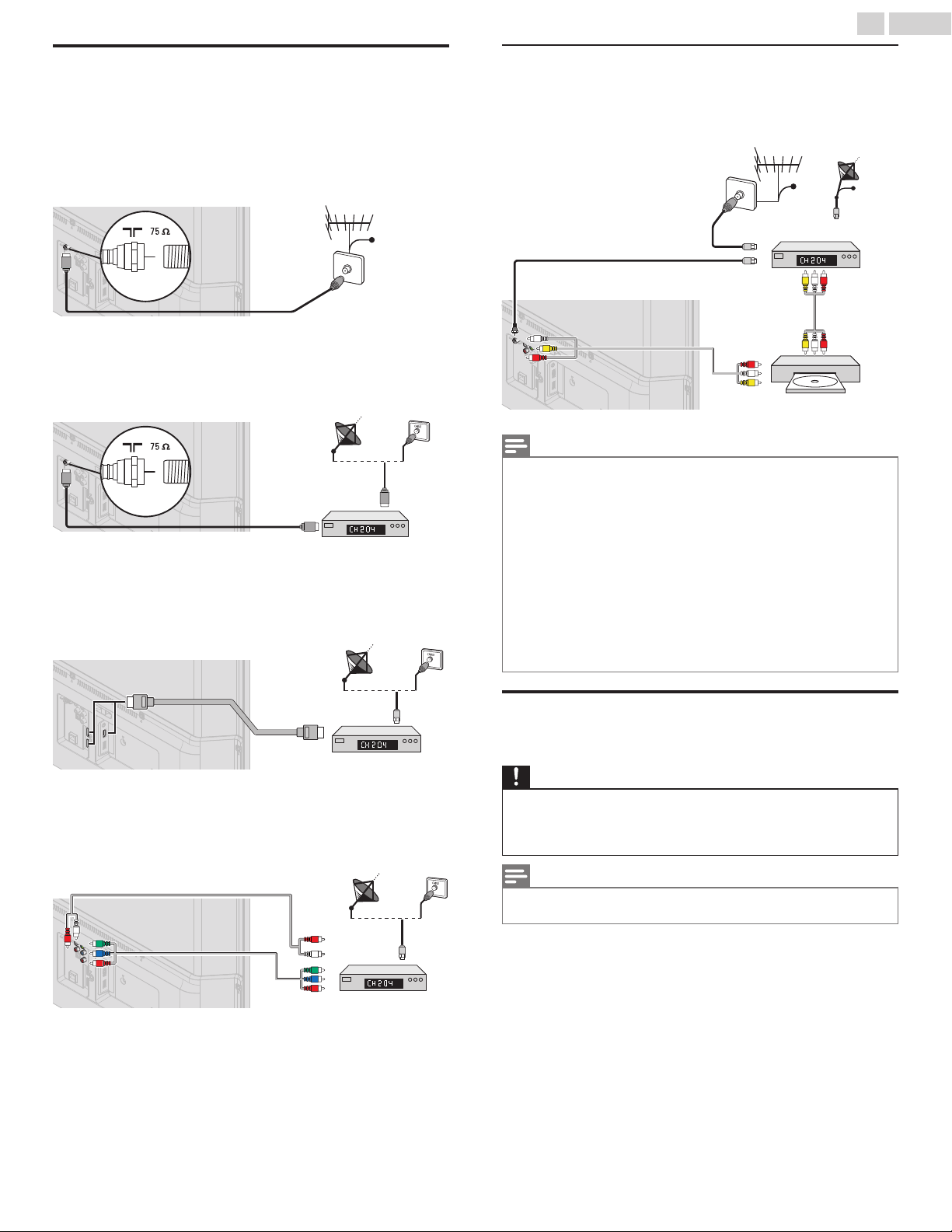
Connecting antenna or cable / satellite /
IPTV set-top box
Be sure your antenna or another device is connected properly before
plugging in the AC power cord.
If connecting to an antenna through an RF cable
Any DTV programs that are broadcast in your area can be received for
free through an antenna connection.
Cable
RF cable
Antenna
IN
OUT
If connecting cable / satellite / IPTV set-top box using an RF
cable
If the TV is connected to a cable / satellite set-top box via a coaxial
connection, set the TV to channel 3/4 or the channel specified by the
service provider.
RF cable
RF cable
Antenna
Set-top box
IN
IN
OUT
If connecting cable / satellite / IPTV set-top box using an
HDMI cable
If the TV is connected to a cable / satellite set-top box via an HDMI
cable, make sure you select the correct source by using SOURCE.
RF cable
HDMI cable
Set-top box
IN
IN
OUT
If connecting cable / satellite / IPTV set-top box using
component video input
If the TV is connected to a cable / satellite set-top box via component
video input, make sure you select the correct component video
source by using SOURCE.
RF cable
Audio (L/R) cables
Component
(Y/Pb/Pr) video cables
Set-top box
IN
IN
IN
OUT
OUT
Connecting a cable / satellite / IPTV set-top box, Blu-
ray Disc™ / DVD recorder via composite connectors
and analog audio
Do not place your recorder too close to the screen because some
recorders can be susceptible to harmful interference from the TV.
Cable
Cable
RF cable
RF cable
Video + Audio (L/R)
cables
Video +
Audio(L/R)
cables
Set-top box
Satellite
Blu-ray Disc™ /
DVD recorder
IN
IN
IN
IN
IN
OUT
OUT
OUT
Note(s)
Ɣ
If you have any question about the DTV’s antenna, visit
www.antennaweb.org for further information.
Ɣ
Depending on your antenna system, you may need different types of
combiners (mixers) or separators (splitters) for HDTV signal. The minimum
RF bandpass on these devices is 2,000MHz or 2GHz.
Ɣ
For your safety and to avoid damage to this unit, please unplug the RF
coaxial cable from the antenna input jack before moving the unit.
Ɣ
If you did use an antenna to receive analog TV, it should also work for DTV
reception. Outdoor or attic antennas will be more effective than a set-top
box or inside antenna.
Ɣ
To turn on your reception source easily between antenna and cable, install
an antenna selector.
Ɣ
If you are not receiving a signal from your cable service, contact the cable
provider.
Plugging in the AC power cord
Make sure that the AC power cord must be plugged to an AC outlet
after all the necessary connections are made.
Caution(s)
Ɣ
Connect the analog audio signal cables from the external device to the
analog audio L/R input jacks.
Ɣ
If you have an amplifier, connect the HDMI cable to the HDMI input via your
amplifier.
Note(s)
Ɣ
Each time you plug in the AC power cord, no operations will be performed
for several seconds. This is not a malfunction.
15 .English
Continued on next page.
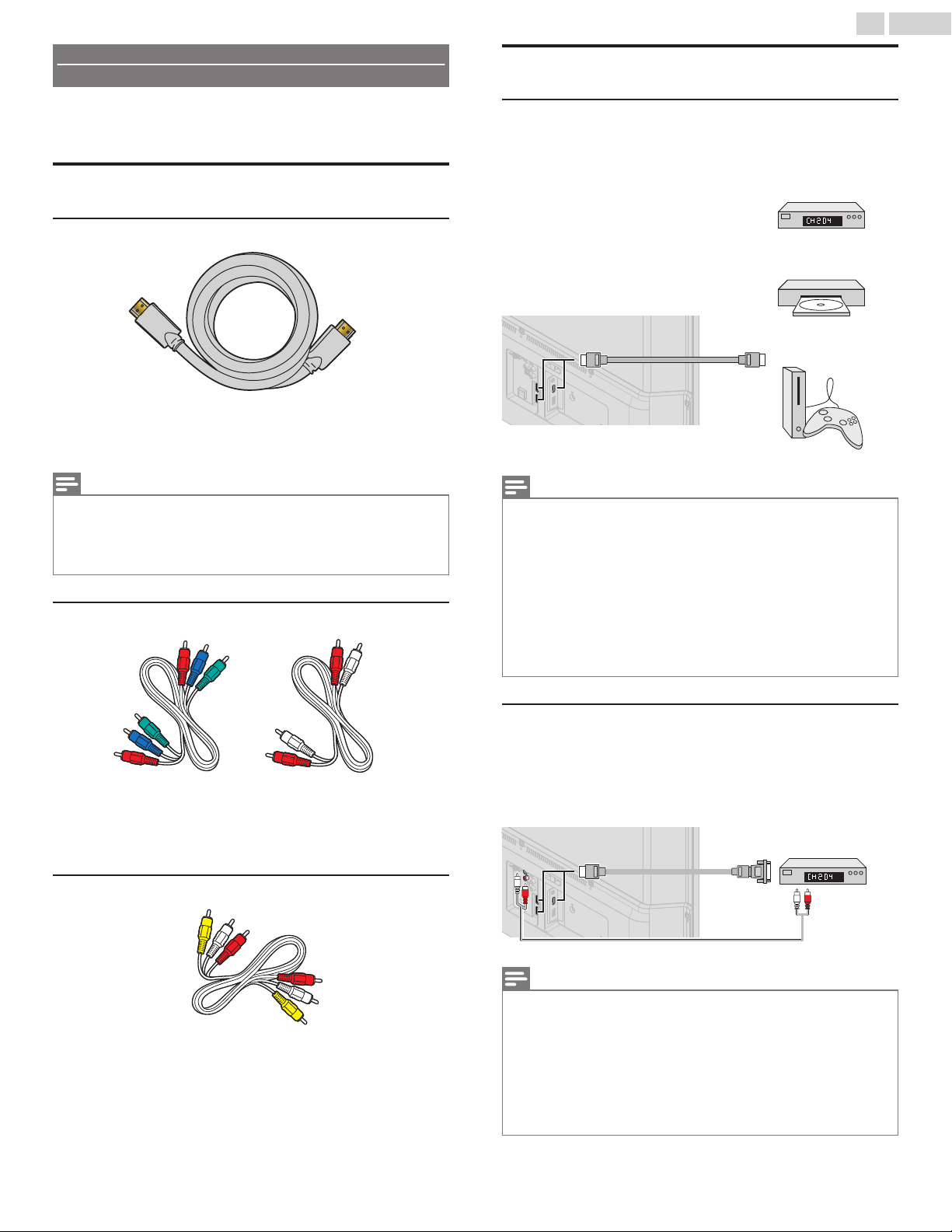
No included cables are used with these connections:
Ɣ
Please purchase the necessary cables at your local store.
Before you connect the AC power cord:
Be sure other devices are connected properly before plugging in the
AC power cord.
Selecting your connection quality
HDMI - Highest quality
Supports high-definition digital signals and gives highest picture and
sound quality. Video and audio signals are combined in one cable.
You must use HDMI for full high-definition video and to enable
EasyLink(HDMI CEC).
Note(s)
Ɣ
Philips HDMI supports HDCP (High-bandwidth Digital Contents Protection).
HDCP is a form of digital rights management that protects high-definition
content in Blu-ray Disc™ or DVDs.
Ɣ
The HDMI-ARC connector on the TV features HDMI-ARC functionality. This
allows output of TV audio to an HDMI-ARC-compliant device.
Component (Y Pb Pr) - High quality
Supports high-definition analog signals but gives lower picture quality
than HDMI. Component (Y/Pb/Pr) video cables combine red / green /
blue video cables with red / white audio (L/R) cables. Match the cable
colors when you connect to the TV.
Composite - Basic quality
For analog connections. Composite video / Audio analog cable
usually combine a yellow video cable with red / white audio (L/R)
cables. With this unit, yellow cable must be connected to Y (green)
jack on the component video input jacks.
Connecting your devices
HDMI digital connection
HDMI connection offers the highest picture quality.
HDMI (High-Definition Multimedia Interface) transports high-
definition digital video and multi-channel digital audio through a
single cable.
HDMI cable
Set-top box
Blu-ray Disc™ /
DVD player
HD game console
or
or
IN
OUT
Note(s)
Ɣ
If there are issues with picture/color and/or sound when connecting an
external device using the HDMI port, please try switching the HDMI mode.
(Refer to HDMI mode p.35)
Ɣ
Some HDMI cables and devices may not be compatible with the TV due to
different HDMI specifications.
Ɣ
Use an HDMI cable with the HDMI logo (a certified HDMI cable). High speed
HDMI cable is recommended for the better compatibility.
Ɣ
The unit accepts 480i / 480p / 720p / 1080i, 1080p, 2160p 24/30/60Hz of
video signals, 32kHz/ 44.1kHz and 48kHz of audio signals.
Ɣ
This unit accepts LPCM, AC-3, DD+ audio signal.
Ɣ
This unit accepts only signals in compliance with EIA861.
HDMI-DVI connection
This unit can be connected to a device that has a DVI terminal.
Use an HDMI-DVI conversion cable for this connection and it requires
audio cable for analog audio signal as well.
Audio (L/R) cables
HDMI-DVI conversion
cable
Cable receiver or
set-top box with the
DVI output jack
IN
IN
OUT
OUT
Note(s)
Ɣ
Some HDMI cables and devices may not be compatible with the TV due to
different HDMI specifications.
Ɣ
Use an HDMI cable with the HDMI logo (a certified HDMI cable). High speed
HDMI cable is recommended for the better compatibility.
Ɣ
The unit accepts 480i, 480p, 720p, 1080i, 1080p and 2160p video signals.
Ɣ
HDMI-DVI connection requires separate audio connections as well and the
audio signals are output as analog (L/R) audio.
Ɣ
DVI does not display 480i image which is not in compliance with EIA/
CEA-861/861B.
16 .English
Continued on next page.
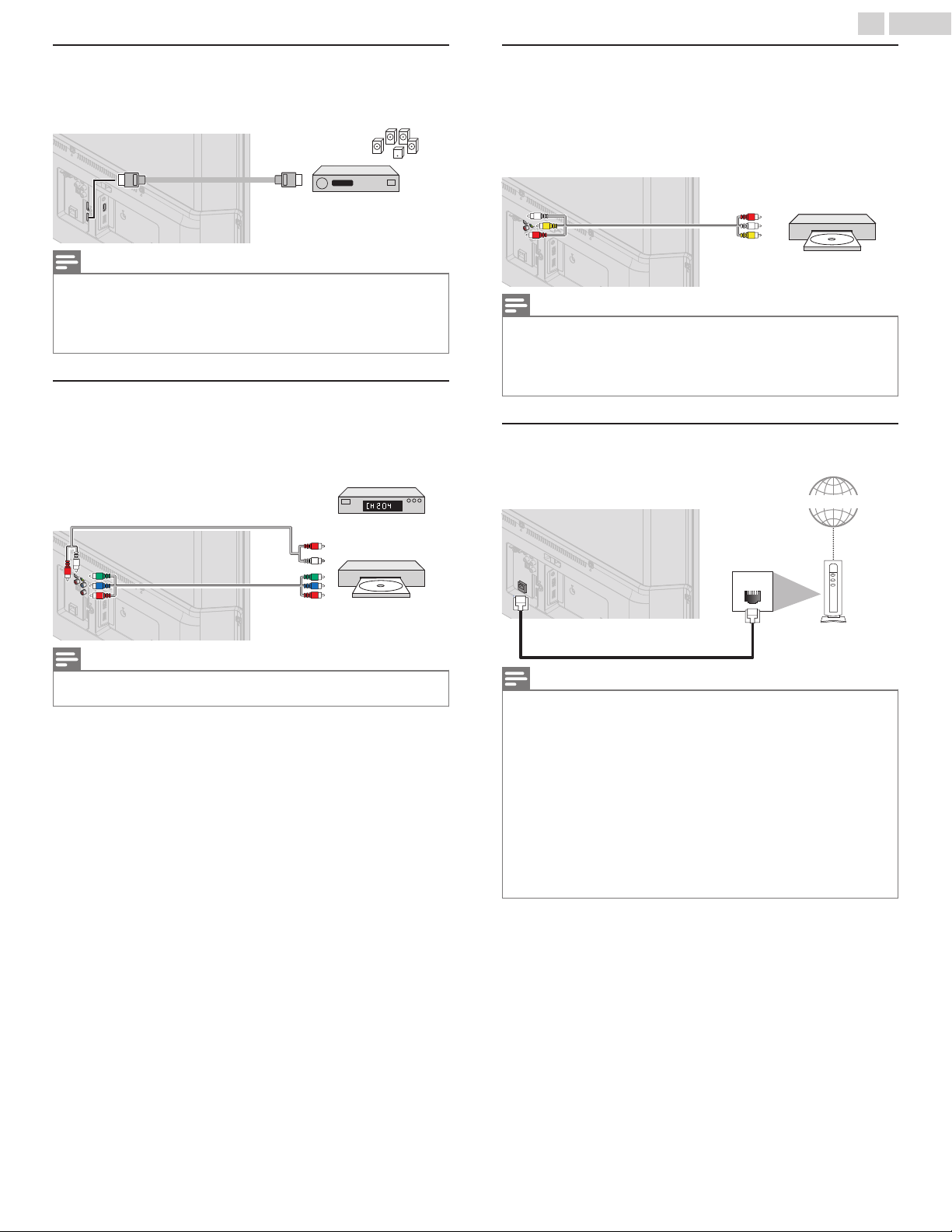
HDMI-ARC connection
HDMI-ARC allows you to use EasyLink to output TV audio directly to
a connected audio device, without the need for an additional digital
audio cable.
HDMI cable
Digital home theater
amplifier that supports
HDMI-ARC
HDMI 2 IN only OUT
Note(s)
Ɣ
The HDMI 2 connector is HDMI Audio Return Channel (ARC) compliant. Use
it to output digital audio to an HDMI home theater system.
Ɣ
Be sure that the device is HDMI CEC and ARC compliant and that the TV is
connected to the device using an HDMI cable attached to HDMI-ARC
connectors.
Component analog video connection
Component analog video connection offers better picture quality for
video devices connected to the unit.
If you connect to the unit’s component video (Y/Pb/Pr) input jacks,
connect analog audio cables to the analog audio (L/R) input jacks.
Audio (L/R) cables
Component
(Y/Pb/Pr) video cables
Set-top box
Blu-ray Disc™ /
DVD recorder
or
IN
IN
OUT
OUT
Note(s)
Ɣ
The unit accepts 480i, 480p, 720p, 1080i and 1080p of video signals for this
connection.
Composite analog video connection
Composite analog video connection offers standard picture quality
for video devices connected to the unit.
If you connect to the unit’s component / composite video (Y/VIDEO)
input jack (green), connect audio cables to the audio (L/R) input jacks.
When the audio is monaural, then only connect to the audio L input
jack.
Video + Audio (L/R)
cables
DVD player
IN OUT
Note(s)
Ɣ
With this unit, yellow cable must be connected to Y (green) jack on the
component video input jacks.
Ɣ
Whenever you connect to the composite video input jack (Y/VIDEO), you
must disconnect the component video input jacks (Pb and Pr). If you leave
those jacks connected, it may cause an unstable picture.
Connecting the TV to the internet using an Ethernet
cable
Internet
LAN
Ethernet cable
Network provisioning
equipment
Note(s)
Ɣ
Please purchase shielded Ethernet cables at your local store and use them
when you connect to network equipment.
Ɣ
After connecting an Ethernet cable, set up necessary network settings.
Connect to network p.41
Ɣ
Do not insert any cable other than an Ethernet cable to the Ethernet port to
avoid damaging the unit.
Ɣ
If your telecommunications equipment (modem, etc.) does not have
broadband router functions, connect a broadband router.
Ɣ
If your telecommunications equipment (modem, etc.) has broadband router
functions but there is no vacant port, then add a hub.
Ɣ
For a broadband router, use a router which supports 10BASE-T / 100BASE-
TX.
Ɣ
Do not connect your PC directly to the Ethernet port of this unit.
17 .English
Continued on next page.
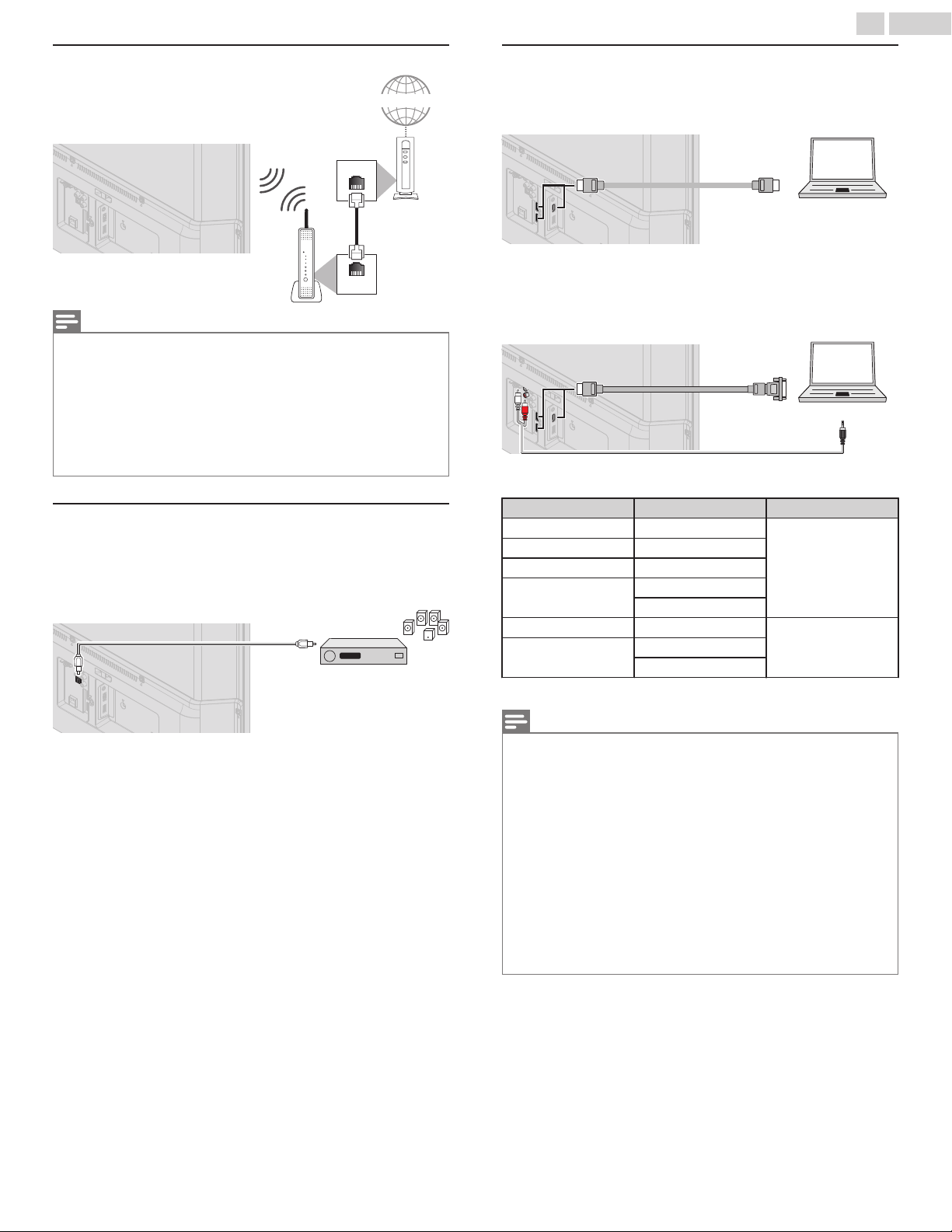
Connecting the TV to the internet using a wireless LAN
Internet
LAN
WLAN
Ethernet
cable
Network provisioning
equipment
Broadband router
Note(s)
Ɣ
After you make the wireless connection, set up the necessary network
settings. Connect to network p.41
Ɣ
Use a wireless LAN Access Point (AP) (e.g. broadband wireless router) which
supports
IEEE 802.1 1 a/b/g/n/ac. (n is recommended for stable operation of the
wireless network.)
Ɣ
This unit does not support Ad-hoc mode.
Ɣ
Other radio devices or obstacles may cause interference to the wireless
network connection.
Digital audio output connection
If you connect this unit to an external digital audio device, you can
enjoy multi-channel audio like 5.1ch digital broadcasting sound.
Use a digital audio optical cable to connect the unit to external digital
audio devices.
Digital audio optical cable
Digital home theater
amplifier
IN
OUT
PC connection
HDMI connection
This unit can be connected to your PC that has an HDMI terminal. Use
an HDMI cable for this digital connection.
HDMI cable
PC
IN OUT
HDMI-DVI connection
This unit can be connected to your PC that has a DVI terminal.
Use an HDMI-DVI conversion cable for this video digital connection
and it requires stereo mini 3.5mm plug audio cable for analog audio
signal as well.
PC
HDMI-DVI
conversion cable
Stereo mini 3.5 mm plug audio cable
IN
IN
OUT
OUT
The following PC-input video signals can be displayed:
Format Resolution Refresh rate
VGA 640 x 480
60Hz
SVGA 800 x 600
XGA 1,024 x 768
WXGA
1,280 x 768
1,360 x 768
FHD 1,920 x 1,080
24/30/60Hz
UHD
3,840 x 2,160
4,096 x 2,160
Other formats or non-standard signals will not be displayed correctly.
Note(s)
Ɣ
Please purchase a HDMI-DVI conversion cable that has a ferrite core.
Ɣ
The following operations may reduce noise.
–
Attach a ferrite core to the AC power cord of your PC.
–
Unplug the AC power cord and use the built-in battery of your portable /
laptop PC.
Ɣ
Some HDMI cables and devices may not be compatible with the TV due to
different HDMI specifications.
Ɣ
Use an HDMI cable with the HDMI logo (a certified HDMI cable). High speed
HDMI cable is recommended for the better compatibility.
Ɣ
The unit accepts 480i, 480p, 720p, 1080i, 1080p and 2160p video signals
only when using the HDMI connection and HDMI-DVI connection.
Ɣ
HDMI-DVI connection requires separate audio connections as well and the
audio signals are output as analog (L/R) audio.
Ɣ
DVI does not display 480i image which is not in compliance with EIA/
CEA-861/861B.
18 .English
Continued on next page.

USB memory stick
This unit offers easy playback of picture, music and video files.
Insert the USB memory stick into the USB terminal shown below.
For a complete list of file formats and specifications supported, refer
to USB Section p.27
Note(s)
Ɣ
The unit recognizes only a USB memory stick.
Ɣ
Do not use a USB hub or an extension cable to connect an external hard
disk drive to the unit. (Not supported.)
Ɣ
Always insert a USB memory stick directly to this unit.
Ɣ
A USB memory stick is not included with this unit.
Ɣ
We do not guarantee that all USB memory sticks can be supported by this
unit.
Ɣ
Be sure to keep a backup copy of the original files on your USB device before
you play them back on this unit. We have no responsibilities for damage or
loss of your USB stored data.
Ɣ
To protect your USB memory stick files from being erased place the write
protect sliding tab in the protect position (if available).
Ɣ
When you are ready to remove a USB memory stick, set the unit to go into
standby mode to avoid any damage to your data and the unit.
Ɣ
A USB memory stick that requires its own driver or the device with a special
system such as fingerprint recognition are not supported.
Ɣ
This unit is not allowed to use the USB memory stick which requires an
external power supply (500mA or more).
19 .English
Continued on next page.
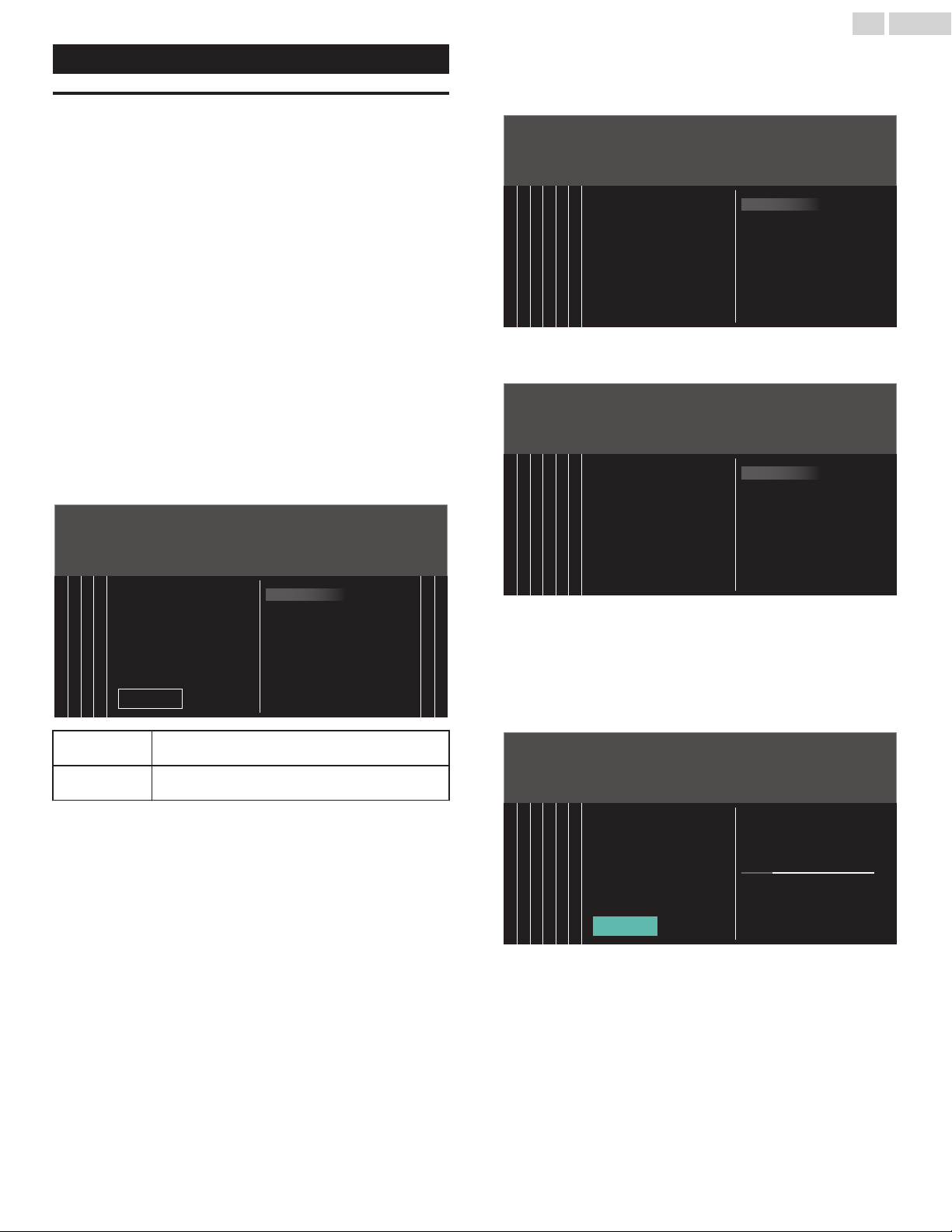
These operations are accessible by remote control.
Some may also be accessible by the main unit's control panel.
Initial setup
This section will guide you through the unit’s Initial setting which
includes selecting a language for your on-screen menu, country,
location and Autoprogram, which automatically scans and memorizes
viewable channels. You can also set the network connection in this
setting.
Before you begin:
Make sure the unit is connected to an antenna or cable.
1
After making all the necessary connections, press to turn on the
unit.
Ɣ
It may take a few moments to turn on the unit for the first time.
Ɣ
Initial setup menu appears automatically after the unit is turned
on.
2
Use to select the on-screen language, Voice guide, country,
TV placement and location in the middle of the TV screen, then
press OK.
Ɣ
You must set Home in location setting. Otherwise, Picture and
Sound settings you adjusted will not be memorized after the
unit goes into standby mode.
3
Use to select Skip or Next on network setup screen.
4
Use to select Wireless or Wired, then press OK.
12
34
756
Skip
Wired
Wireless
Installation
Select your connection type.
This TV can be connected to
your home network.
Wireless
If you have a wireless router, select Wireless to
connect to the internet.
Wired
If you connect with an Ethernet cable, select Wired
to connect to the internet.
Ɣ
If you have a router with easy connect function, select Wireless
and use
to select Easy Connect, then press OK.
Ɣ
When you select On in the selection screen for Software
update notification, A message will appear later if there is the
latest software on the network server.
5
Use to select the signal type.
Ɣ
If the TV is connected to a cable or satellite set-top box, select
the 2nd one and skip to step 7.
1234 756
Installation
Set-top box
Select "Set-top box" to set up a TV
signal from a cable TV box
or satellite TV receiver.
Antenna
Select "Antenna" to set up a TV
signal from a cable TV wall jack
or a standard TV antenna.
6
Use to select Antenna for TV channels or Cable for CATV
channels, then press OK.
1234 756
Installation
Skip
Cable
Antenna
Now select either Antenna or
Cable, using up/down key of the
remote control. Once you have
made your selection, press the
OK button to proceed.
Make sure that you have
attached your antenna or cable
signal into the jack on the back of
your TV labeled "ANTENNA IN".
–
When Antenna is selected, the TV detects antenna signals. It
searches for DTV and analog TV channels available in your
area.
–
When Cable is selected, the TV detects signals supplied by
cable. It searches for DTV, analog TV and cable channels
available in your area.
Ɣ
Auto programming will begin.
0
0
123
4
756
Installation
Stop
Total progress:
Analog channels found:
Digital channels found:
Please wait until you see the Auto
Programming complete message.
Digital channels will take longer
than Analog to nd and program.
Auto programming may take more
than 20 minutes to complete.
System searching. Please wait…
20 .English
Continued on next page.
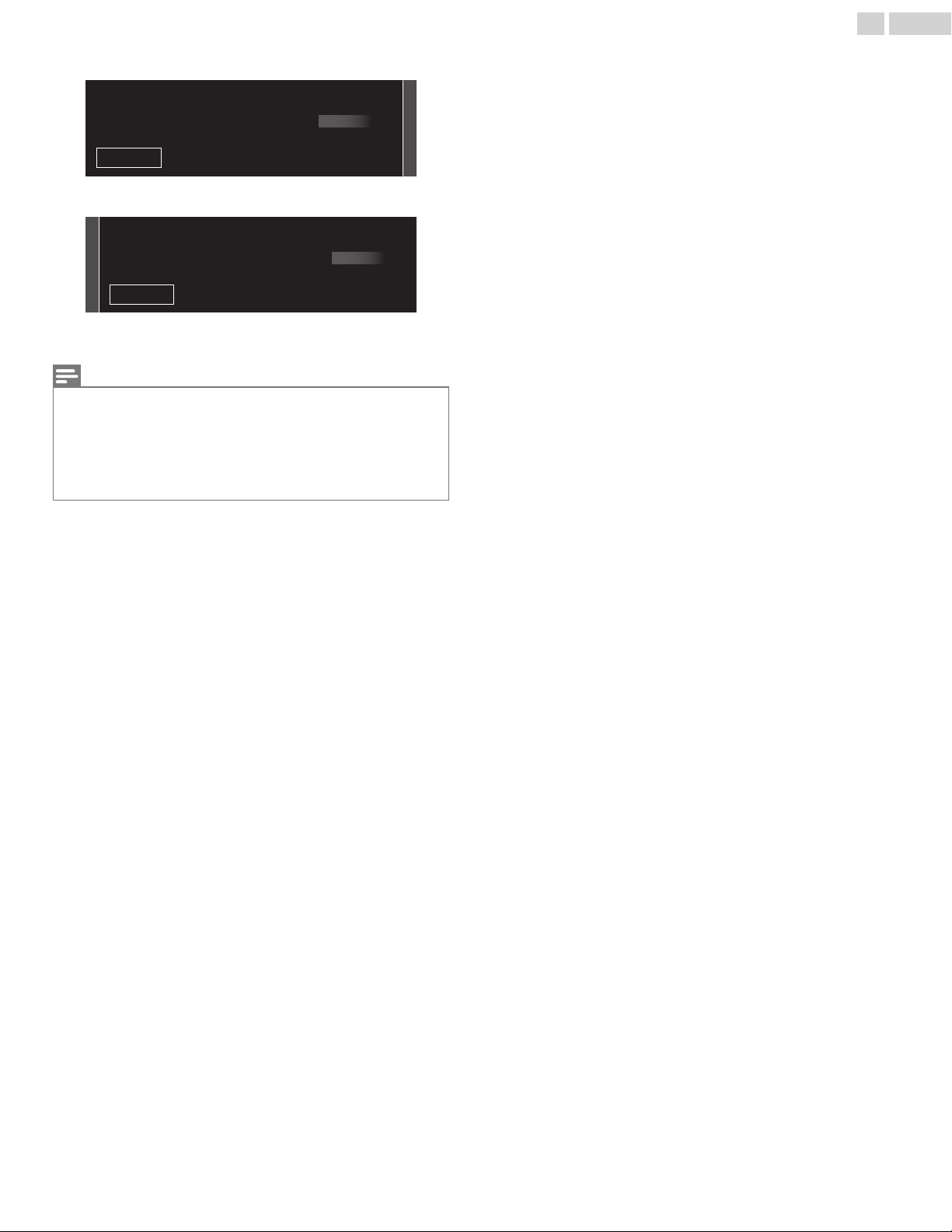
7
Use to select your preferred picture setting, then press OK.
21
Sports
Vivid
Standard
Skip
Please select your preferred picture mode.
8
Use to select your preferred sound setting, then press OK.
21
Sports
Vivid
Standard
Skip
Please select your preferred sound mode.
9
After Picture and sound setup is completed, a message will
appear if there is the latest software on the network server.
Note(s)
Ɣ
If you are not receiving a signal from your cable service, contact the cable
provider.
Ɣ
If you press
during Autoprogram, this setup of TV channels will be
cancelled.
Ɣ
The initial Autoprogram function can be executed for either Antenna or
Cable only once. When you change the connection (Antenna / Cable),
select Search for channels again. p.38
After an initial setup is completed...
Ɣ
If you want to scan the channels automatically again.
Search for channels p.38
Ɣ
If you want to change to another language.
Language p.34
Ɣ
If you want to change the country setting.
Country p.51
Ɣ
If you want to change the location setting.
Location p.35
Ɣ
If you want to change the network setting.
Connect to network p.41
Ɣ
If you want to restore the picture and sound setting.
Picture and sound setup p.31
21 .English
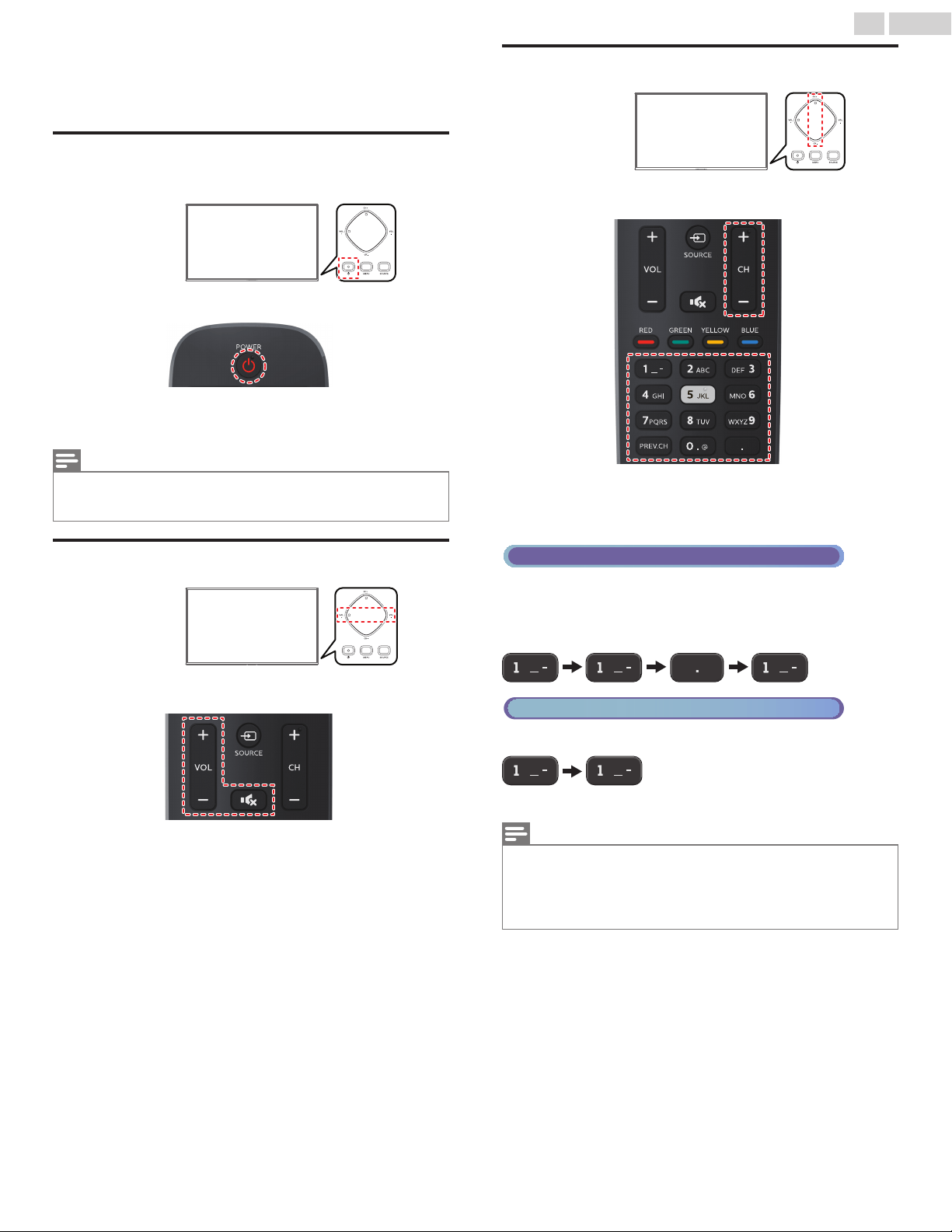
3 Use your TV
Switching on your TV and putting it in
standby mode
TV
Remote control
To turn the TV on from standby or off to standby
Ɣ
Press
on the TV or the remote control.
Note(s)
Ɣ
Energy consumption contributes to air and water pollution. When the AC
power cord is plugged in, your TV consumes energy with a very low standby
power consumption.
Adjusting volume
TV
Remote control
To decrease or increase volume
Ɣ
Press VOL + / – on the TV or the remote control.
VOL + : Volume up
VOL – : Volume down
To mute or unmute sound
Ɣ
Press
on the remote control to mute the sound.
Ɣ
Press
again or VOL + / – to recover the original sound.
Switching channels
TV
Remote control
To select channels by using CH + / –
Ɣ
Press CH + / – on the TV or the remote control.
To select channels by using the NUMBER buttons
Digital TV operation
Ɣ
For digital channels, press a number followed by a dot “•” and the
corresponding sub channel number.
–
When selecting digital channel 1 1. 1
Be sure to press • before entering the subchannel number.
Cable / NTSC (Analog) TV operation
–
When selecting cable or analog channel 1 1
Press PREV.CH to return to the previously viewed channel.
Note(s)
Ɣ
To select the non-memorized channels, use the NUMBER buttons.
Ɣ
Channel not available or No signal will appear on the TV screen after the
subchannel broadcast is over.
Ɣ
Audio only message will appear on the TV screen, when you receive only
sound signal.
22 .English
Continued on next page.
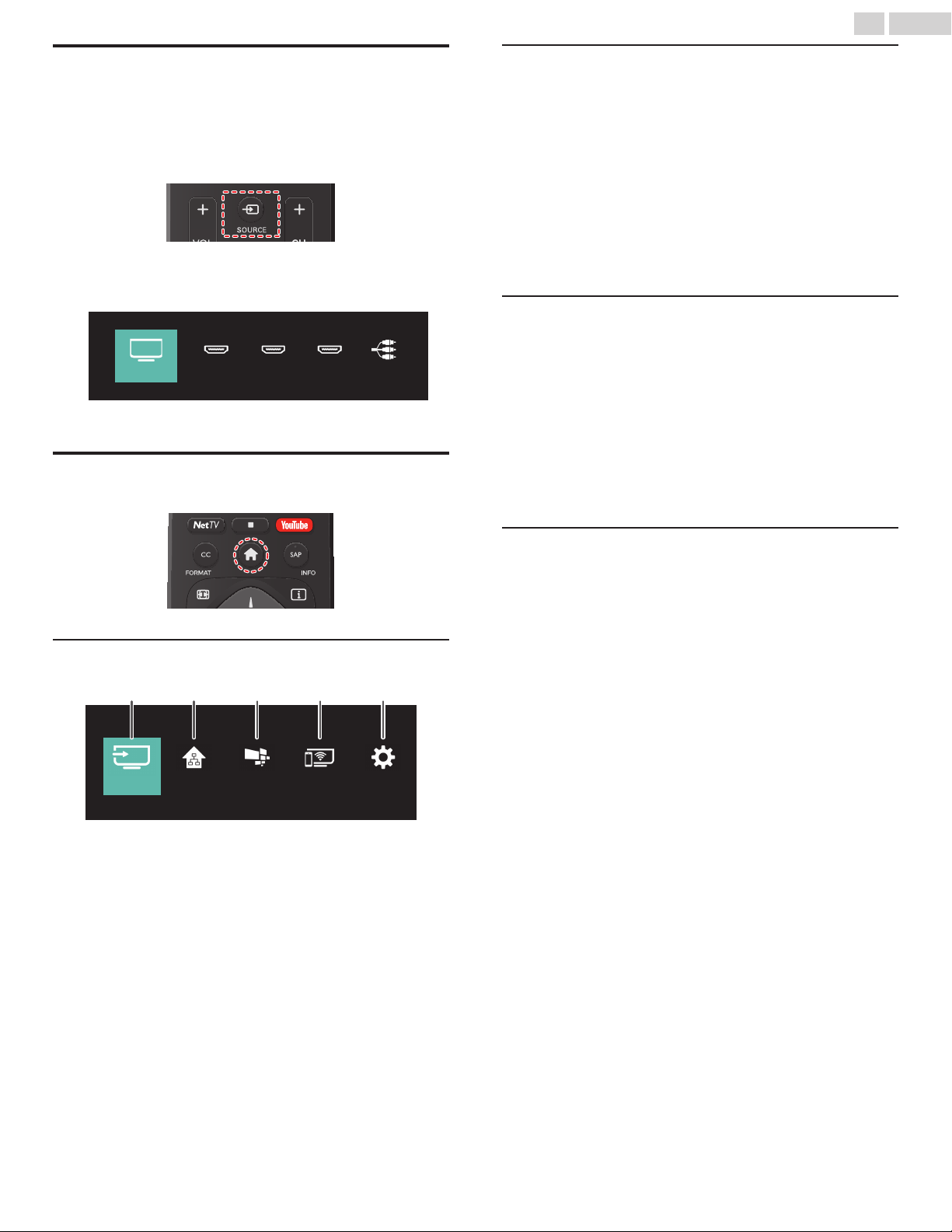
Watching channels from an external
device
Switching each input mode can easily switch with the remote control
between TV and external devices when they are connected to the
unit.
1
Turn on the set-top box or the connected device.
䐟 Press SOURCE and use to select the set-top box or the
connected device and wait a few seconds till the picture
appears.
HDMI3
HDMI2
HDMI1
Watch TV
Video
䐠 Use the remote control of the set-top box or the connected
device to select channels.
Access the Home menu
1
Press .
Guide to Home menu
Wireless
Screencasting
SetupNet TV
Source
Home Network
abcde
Source : To select TV source or connected
devices.
Home Network : Accesses home network menus.
Net TV : Accesses Net TV menus.
Wireless Screencasting : Accesses wireless screencasting
menus.
Setup : Accesses menus that allow you to
change picture, sound and other
TV settings.
Lock or unlock your device from the Home menu
This section describes how to lock or unlock specified device.
1
Press SOURCE on the remote control.
2
Use to select a device to lock or unlock.
3
Press OPTIONS on the remote control.
4
Use to select Lock or Unlock, then press OK.
Ɣ
If device lock is unlocked, Lock will be displayed. If device lock
is locked, Unlock will be displayed at the top right of the device
icons.
5
Enter your PIN. Change PIN p.40
Changing device type
You can change device icons displayed in the source list.
1
Press SOURCE on the remote control.
2
Use to select the desired device.
3
Press red button on the remote control.
4
Use to select the desired type, then press OK.
To reset the type
Ɣ
Press
OPTIONS on the remote control at step 3, then select
Original icon.
Scan connections
You can rescan TV connections and update the source list.
Before you begin:
You must set On in Master EasyLink. p.36
1
Press SOURCE on the remote control.
2
Use to move the cursor to any device.
3
Press OPTIONS on the remote control.
4
Use to select Scan connections, then press OK.
23 .English
Continued on next page.
Create a list of favorite channels
You can create lists of your preferred TV channels so that you can find
those channels easily.
1
Press OK while viewing a TV program.
2
Use to select the desired channel, then press yellow
button.
3
Use to select the desired favorite list (Favorites 1 - Favorites
4), then press OK to add or remove on the list of favorite channels.
Ɣ
/
indicates that the channel is added.
Ɣ
indicates that the channel is removed.
Ɣ
The channel will be marked with
$
icon.
Display the list of favorite channels
1
Press OK while viewing a TV program.
2
Use to select Favorites.
To change the favorite list
1
Press blue button.
2
Use to select the desired favorite list (Favorites 1 - Favorites
4).
To remove a channel from the favorite list
1
Select the desired channel, then press yellow button.
2
Use to select Yes, then press OK.
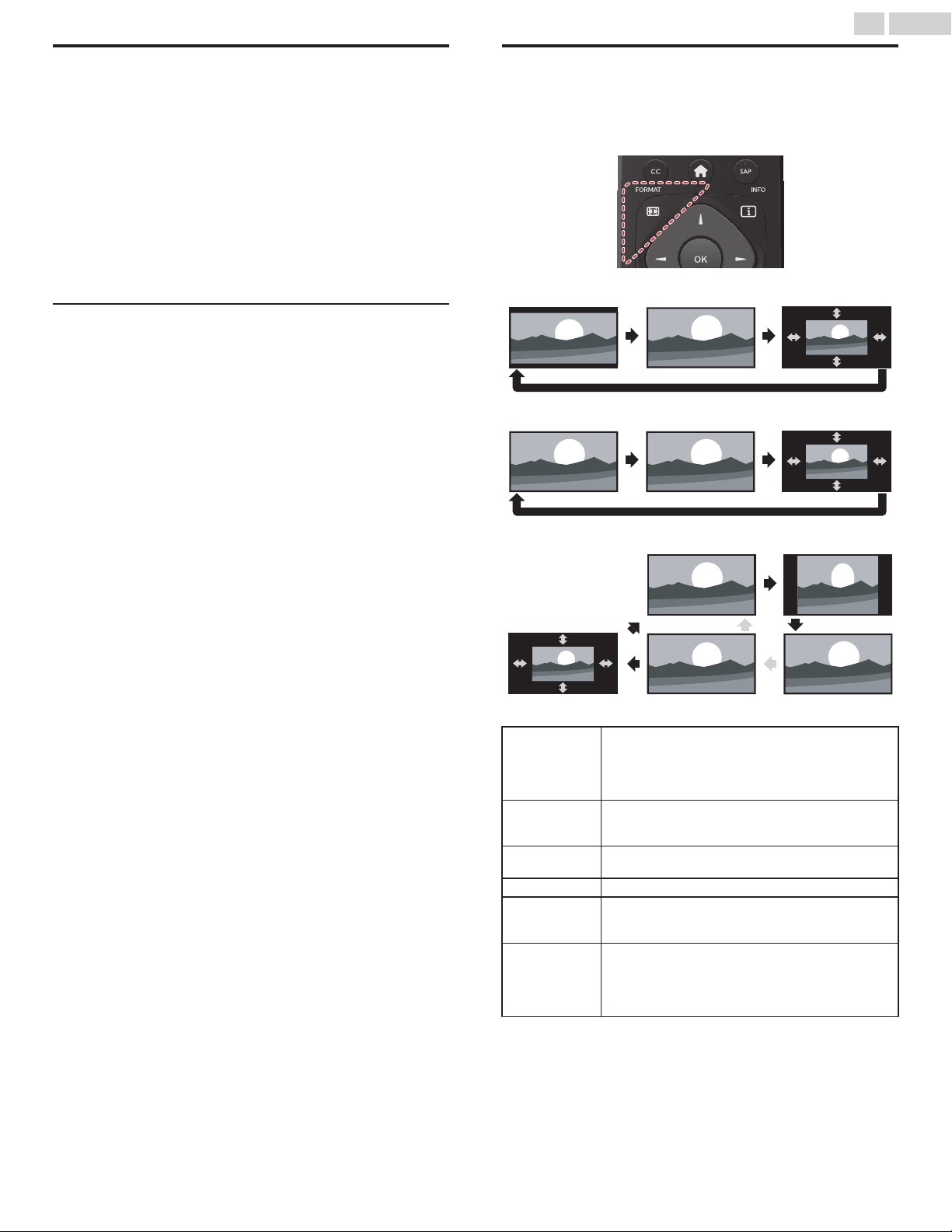
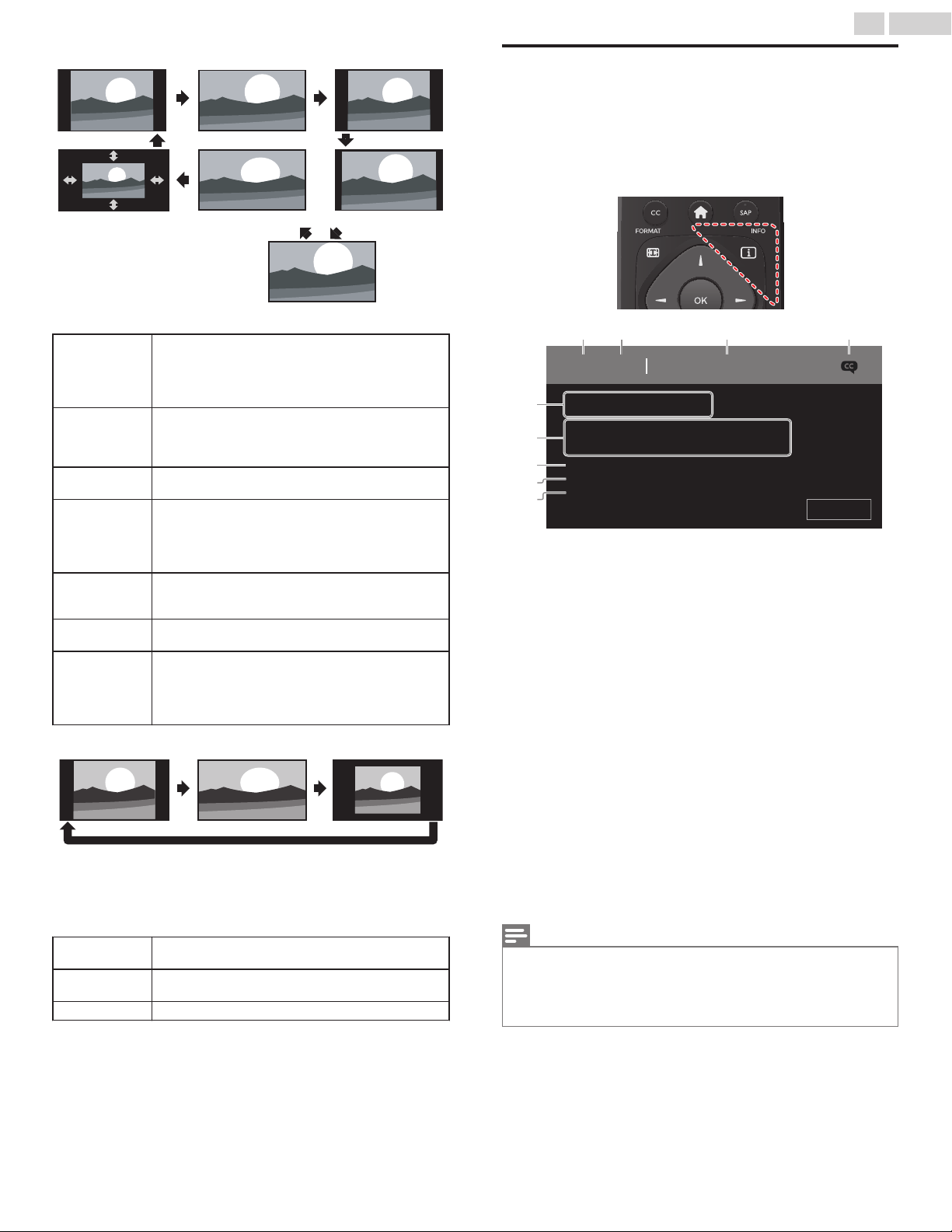
Changing picture format
Display modes can be selected when your TV receives a 16:9 or 4:3
video signal.
Three types of display modes can be selected for a PC input signal.
Press FORMAT repeatedly to switch the TV aspect ratio.
For 16:9 video signal (4096 x 2160p)
Full Unscaled
Manual Zoom
For 16:9 video signal (3840 x 2160p)
Full Unscaled
Manual Zoom
For 16:9 video signal (not 2160p)
Wide screen
4:3Automatic
Full
Manual Zoom
Automatic
Other than DTV and HDMI connected devices,
enlarges the picture to best fit the screen. DTV and
HDMI connected devices display the picture at its
original size.
The subtitles may remain visible.
4:3
Displays a 16:9 picture at a 4:3 size; the picture is
shortened horizontally. Sidebars appear on both
edges of the screen.
Wide screen
Displays a 16:9 picture that is stretched horizontally
and vertically.
Unscaled Displays a 16:9 picture at its original size.
Full
Displays a scaled 16:9 picture. Bars appear on both
the upper and lower portions of the screen
depending on the type of video signal.
Manual Zoom
Allows step by step vertical and horizontal
stretching of the picture size to suit your viewing
preferences. Manual zoom can distort the aspect
ratio of the image, to switch back to a normal mode
select Automatic / Normal.
24 .English
Continued on next page.
For 4:3 video signal
Wide screen
Movie expand 16:9
Movie expand 14:9
4:3Super zoomAutomatic
Manual Zoom
Automatic
Other than DTV and HDMI connected devices,
enlarges the picture to best fit the screen.
DTV and HDMI connected devices display the
picture at its original size. The subtitles may remain
visible.
Super zoom
Displays a 4:3 picture at a 16:9 size; the picture is
stretched horizontally and vertically and its left and
right edges are enlarged. This crops out some of
the top and bottom of the picture.
4:3
Displays a 4:3 picture at its original size.
Sidebars appear on both edges of the screen.
Movie expand
14:9
Displays a 4:3 picture at a 14:9 size; the picture is
stretched horizontally and vertically.
This crops out some of the top and bottom of the
picture. Sidebars appear on both edges of the
screen.
Movie expand
16:9
Displays a 4:3 picture at a 16:9 size; the picture is
stretched horizontally and vertically. This crops out
some of the top and bottom of the picture.
Wide screen
Displays a picture that is stretched out of
proportion to fill the screen.
Manual Zoom
Allows step by step vertical and horizontal
stretching of the picture size to suit your viewing
preferences. Manual zoom can distort the aspect
ratio of the image, to switch back to a normal mode
select Automatic / Normal.
For PC input signal
UnscaledWide screen4:3
Ɣ
This unit can also be connected to your PC that has a DVI terminal.
Use an HDMI-DVI conversion cable for this video connection and it
requires stereo mini 3.5mm plug audio cable for analog audio signal
as well.
Ɣ
Refer to 16:9 video signal on this page if the PC has HDMI output.
4:3
Displays a proportionately stretched picture.
Sidebars appear on both edges of the screen.
Wide screen
Displays a picture that is stretched out of
proportion to fill the screen.
Unscaled Displays a picture in its original size.
If the signal source has side or top-bottom bars inserted into the
picture, the picture format function will not eliminate them.
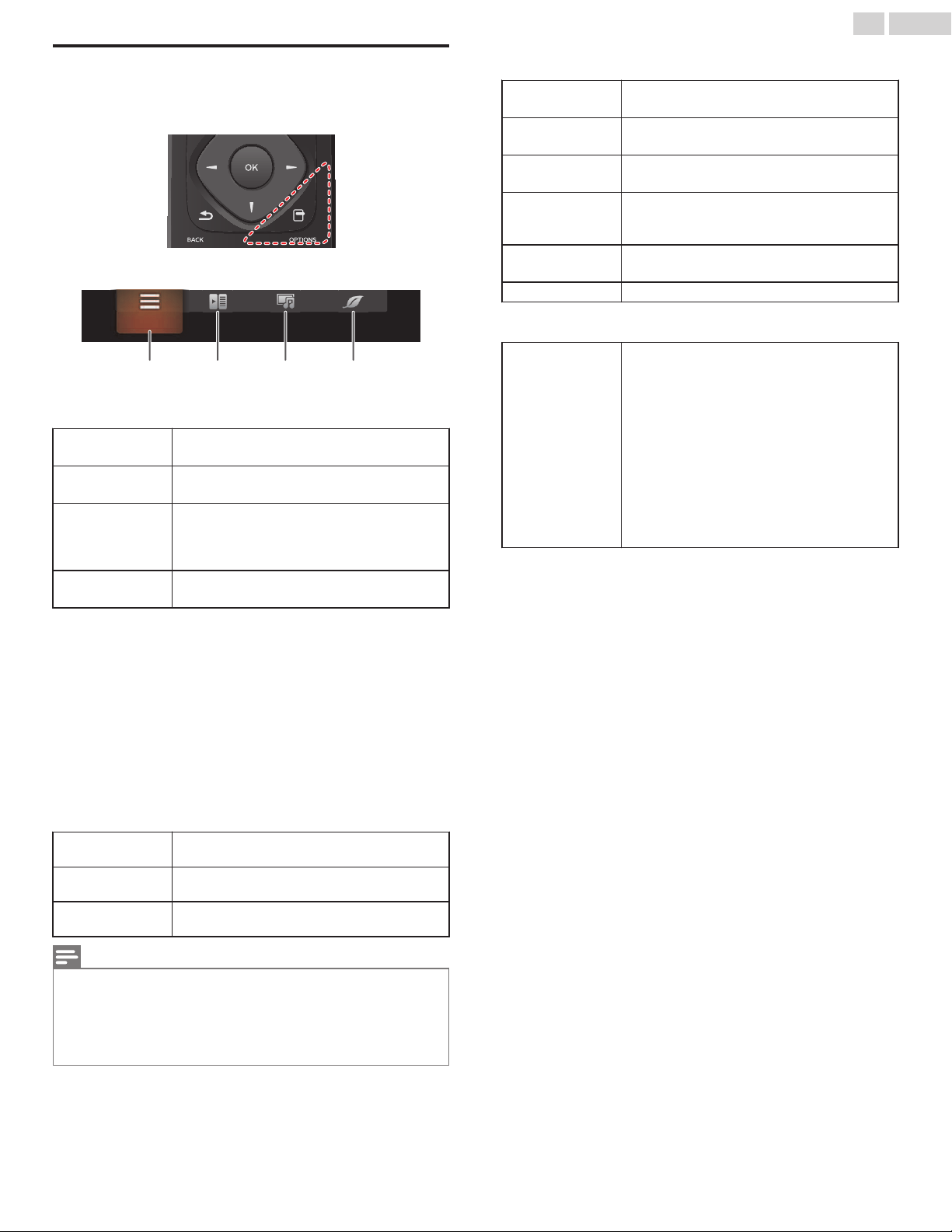
TV screen information
You can display the currently selected channel or other information
such as the aspect ratio on the TV screen.
In the digital mode, the detailed broadcasting information for the
current off-the-air channel such as program title and program guides
are displayed.
1
Press INFO.
e
f
g
i
h
ba c d
1
1.1 KABC
A Day of Memories
1080i
None
All
English
Stereo
Full
Sleeptimer:
Rating:
Favorites:
Audio language:
Sound mode:
Picture format:
Resolution:
English audio with description.
Close
Channel number / Input mode
Switching channels p.22
Watching channels from an external device p.23
Broadcast station
Program title (for DTV only)
CC (not available if Closed caption is set to Off)
Caption settings p.37
Program’s image aspect ratio
Changing picture format p.24
Audio language (DTV) / Audio mode (Analog TV)
Sound p.33
!
Favorites
Create a list of favorite channels p.24
"
Child lock rating
Child lock p.39
#
Remaining time on sleep timer
Sleeptimer p.34
2
Press INFO to hide the information.
Note(s)
Ɣ
While the program guide is displayed, the closed caption function is
interrupted.
Ɣ
The information display will automatically disappear in 5 seconds. This
information is for cable/antenna broadcasts only. Information for streaming
apps will vary on the app.
25 .English
Continued on next page.
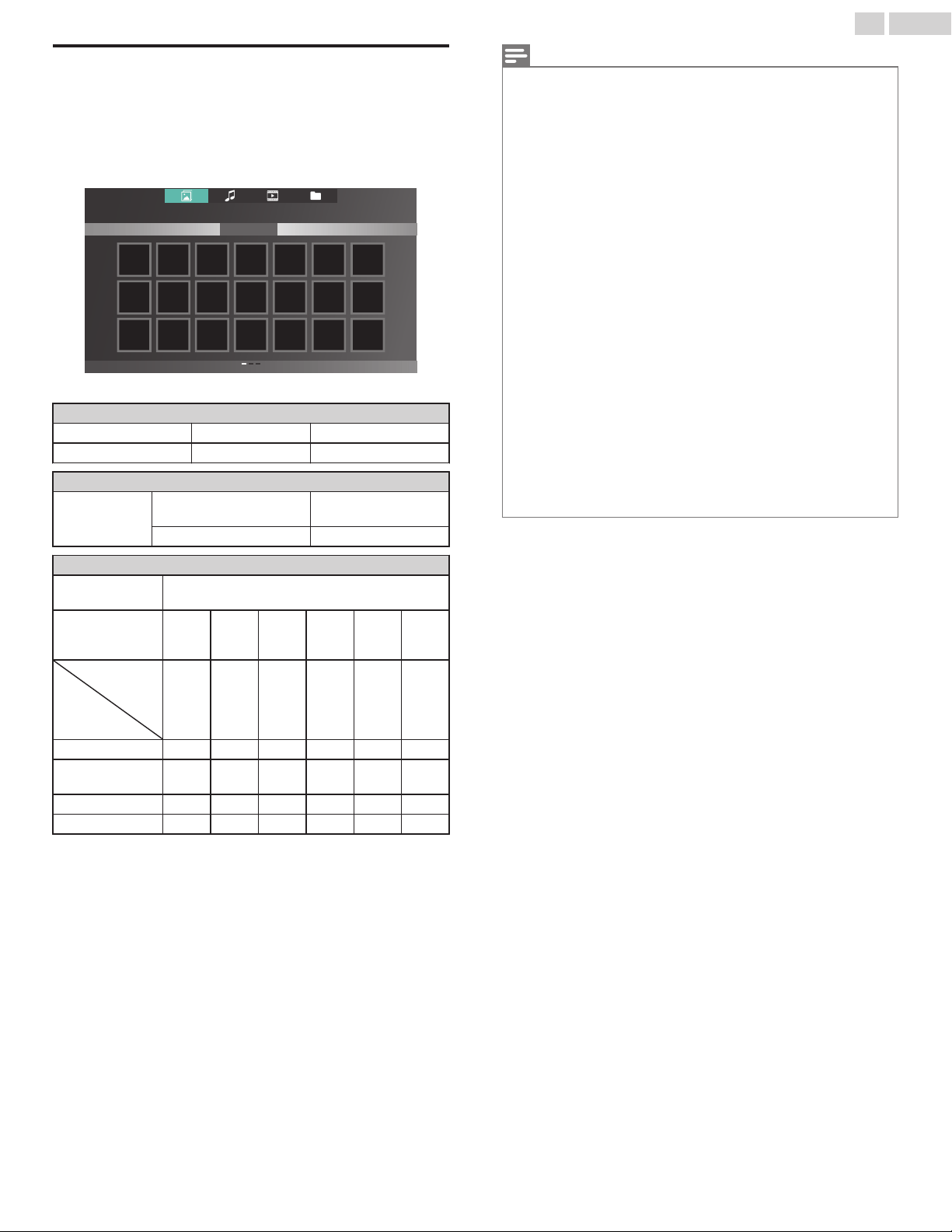
Using options menu
You can access to some TV settings directly by using OPTIONS.
1
Press OPTIONS to display options menu, then press OK.
2
Use to select a desired setting, then press OK.
a b c d
Options
Options
Following settings can be configured.
Voice guide toggle
To set Voice guide on or off.
Voice guide toggle p.36
Closed captions
To choose the Closed captions display setting.
Closed captions p.37
Digital audio
language
To Select the language according to your
preference.
(It differs depending on the program.)
Digital audio language p.40
Mono/Stereo
To Select an audio format.
Mono/Stereo p.40
Controls
If you have our brand products such as Blu-ray Disc™ player or
DVD recorder that are compatible with EasyLink functions,
connect them to this unit via an HDMI cable so you can simply
operate various items from this unit’s remote control.
Before you begin:
select a device connected to an HDMI connection. p.23
You must set On in Master EasyLink. p.36
Otherwise, LINK does not work even if you connected our brand
devices to this unit.
1
Press OPTIONS to display options menu.
2
Use to select Controls then press OK.
3
Use to select the desired item, then press OK.
Device-menu
Controls the menu of your connected EasyLink
device.
Device-contents
Controls the top menu of your DVD or Blu-ray
Disc™.
Device-favorite
Controls the pop-up menu of your Blu-ray
Disc™.
Note(s)
Ɣ
Some of EasyLink functions may not be available depending on your
EasyLink devices or discs.
Ɣ
You must connect this unit to our brand EasyLink devices and be sure its
EasyLink (HDMI CEC) setting is also set to On.
Ɣ
We do not guarantee 100% interoperability with other brands of HDMI link
compliant devices.
Picture and sound
Following settings can be configured.
Auto picture
To set predefined picture mode.
Picture p.31
Auto sound
To set predefined sound mode.
Sound p.33
Headphone
volume
To adjust headphone volume.
Sound p.33
TV speakers
To Select the audio output from the unit’s
speakers or not.
Sound p.33
Picture format
To switch the TV aspect ratio.
Changing picture format p.24
Setup To display setup menu.
ECO settings
Following settings can be configured.
Switch off timer
You can turn off the unit automatically when
there is no operation for specified time. In spite
of this setting, the unit goes into standby mode
automatically if there is no signal input and no
user operation for 15 minutes.
Press repeatedly to change the amount of
time (increases the time by 30 minutes up to
240 minutes).
Each press of will decrease the time by 30
minutes.
To cancel the timer, press repeatedly until “0”
is displayed.
26 .English
Continued on next page.
USB
Your TV is fitted with a USB connection that enables you to view
photos, listen to music or watch video files stored on a USB memory
stick.
1
Press SOURCE and use to select USB, then press OK.
2
Use to select the desired file, then press OK.
USB DISK 2016_12_24 folder_A folder_B folder_C
Photo
Photo
Ɣ
These recorded files must meet specifications shown below:
Picture (JPEG / Progressive JPEG)
JPEG Upper limit 4000x4000 pixels
Progressive JPEG Upper limit 1024x768 pixels
Music (MP3)
MP3
Sampling frequency
32 kHz or 44.1 kHz or 48
kHz
Constant bit rate 32 kbps - 320 kbps
Video (MPEG / VOB / AVI / MP4)
Maximum video
H.264, H.265/HEVC: 3840x2160@30fps,
MPEG: 1920x1080@60fps
Extension .avi
.mpg,
.mpeg
.ts,
.trp,
.tp
.vob .mp4 .mkv
Video
codec
Audio
codec
MPEG1,
MPEG2,
H.264
MPEG1,
MPEG2
MPEG1,
MPEG2,
H.264,
H.265/
HEVC
MPEG1,
MPEG2
MPEG1,
MPEG2,
H.264,
H.265/
HEVC
MPEG1,
MPEG2,
H.264,
H.265/
HEVC
Dolby Digital YES YES YES YES YES YES
MPEG1/2 audio
layer 1/2/3
YES YES YES YES NO YES
LPCM YES YES YES YES YES YES
AAC-LC YES YES YES YES YES YES
Note(s)
Ɣ
This unit accepts USB memory stick only. Other storage devices such as
external HDD by USB bus power will not work.
Ɣ
Do not use an extension cord and/or USB hub to connect devices to this
unit. Always directly insert the USB flash memory stick to this unit directly.
Ɣ
We cannot be held responsible if your USB memory stick is not supported,
nor will we accept any liability for damage or loss of stored data.
Ɣ
The USB memory stick is not included with this TV.
Ɣ
A maximum of 1,023 folders or files can be recognized.
Ɣ
A file name exceeding 256 characters or contains a dot character is not
supported on this TV.
Ɣ
A USB memory stick that required its own driver or the device with a special
system such as fingerprint recognition are not supported.
Ɣ
Be sure to keep a backup copy of the original files on your USB device before
you play them back on this unit. We have no responsibilities for damage or
loss of your USB stored data.
Ɣ
To avoid damaging the USB memory stick and the unit always turn off the
unit before you remove the USB memory stick.
Ɣ
This unit is not allowed to use the USB memory stick which requires external
power supply (500 mA or more).
Ɣ
This unit does not support MTP (Media Transfer Protocol) or the file other
than FAT16 and FAT32 file system. If the file is not supported, an error
message appears.
Ɣ
When the unit does not recognize the USB memory stick, try reconnecting
it.
Ɣ
Playing the files recorded with high bit rates, the images can be interrupted
in some occasions.
Ɣ
This unit does not support external subtitles.
Ɣ
This unit cannot play back a file which goes over the limit of file restriction
limit.
27 .English
Continued on next page.
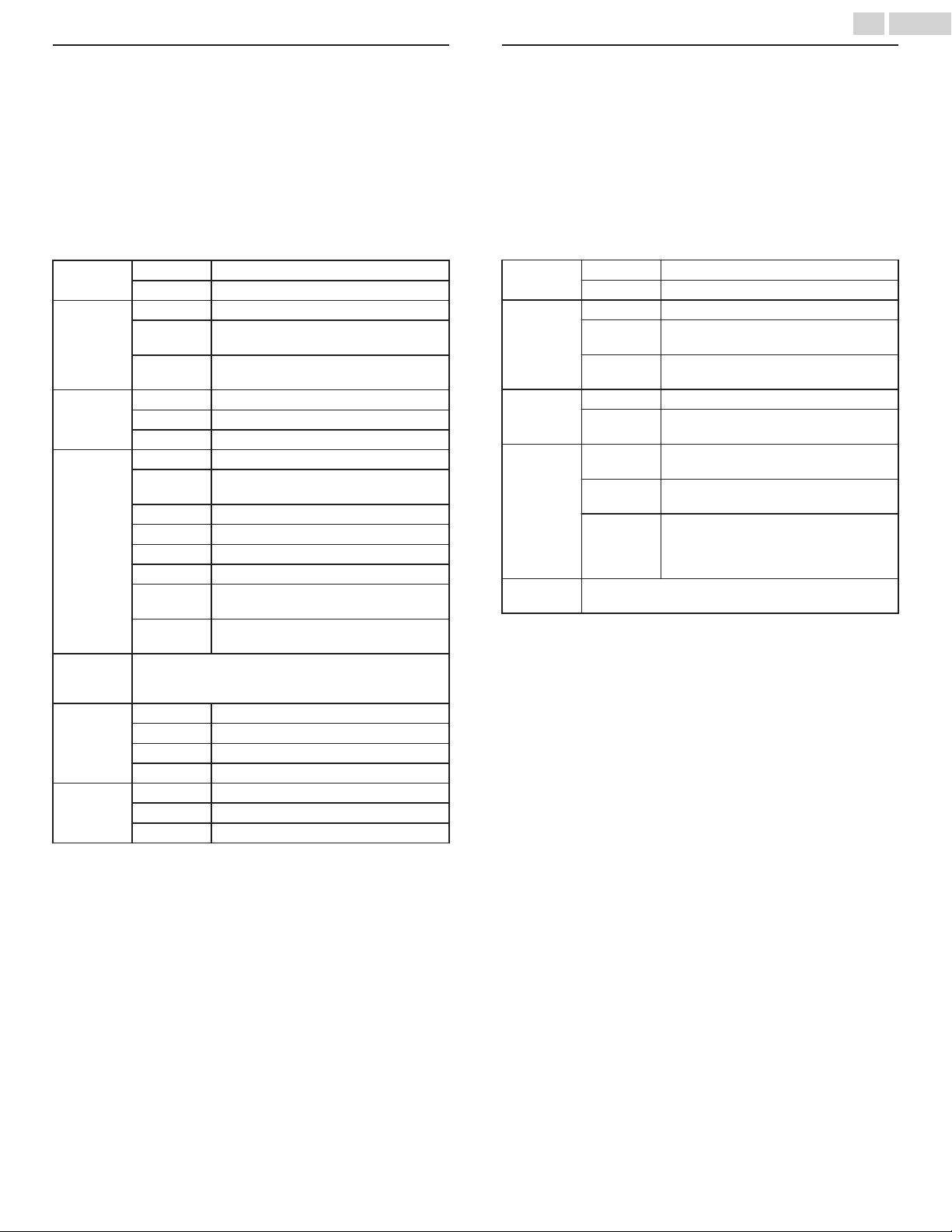
Viewing photos
1
Use to select Photo, then press OK.
2
Use to select the desired item, then press OK.
3
Press OK or 1 to start a slide show of the files.
Ɣ
Press OK or
1
to pause the slide show.
Ɣ
The
1
icon appears.
Ɣ
Press
or
to move between images.
Ɣ
Press
BACK or
.
to stop the slide show.
Ɣ
Press
OPTIONS to display the optional menu, then use
to select the desired item.
Voice guide
toggle
*1
Off Sets Voice guide to off.
On Sets Voice guide to on.
Repeat
*2
Off Sets repeat playback to off.
One
Sets repeat playback for a selected image
file.
All
Sets repeat playback for all image files in the
current folder.
Slide time
*2
Short Switches to the next image in 5 seconds.
Medium Switches to the next image in 10 seconds.
Long Switches to the next image in 15 seconds.
Transitions
*2
None No effect when switching images.
Dissolve
Overlaps the next image on the current
image.
Wipe right Pushes the current image out from left.
Wipe left Pushes the current image out from right.
Wipe up Pushes the current image out from bottom.
Wipe down Pushes the current image out from top.
Box in
The next image comes to the center from the
outside.
Box out
The next image goes to the outside from the
center.
Auto
picture
*2
Selects the picture mode according to your preference.
(Standard, Natural, Vivid, Sports, Movie, Game, Energy
saving and Internet video)
Rotate
*3
0 Displays an image in its original direction.
90 Rotates an image 90 degrees clockwise.
180 Rotates an image 180 degrees clockwise.
270 Rotates an image 270 degrees clockwise.
Zoom
*3
1X Displays an image in its original size.
2X Magnifies a current image by 2 times.
4X Magnifies a current image by 4 times.
*1 Voice guide toggle is available in slide show and pause mode.
*2 You can set Repeat, Slide time, Transitions and Auto picture
when images are in slide show.
*3 You can set Rotate and Zoom when slide show is in pause
mode.
Playing music
1
Use to select Music, then press OK.
2
Use to select the desired item, then press OK.
3
Press OK or 1 to play the selected files.
Ɣ
Press OK or
1
to pause, then press OK or
1
again to resume.
Ɣ
Press
to fast-forward search.
Ɣ
Press
to fast-backward search.
Ɣ
Press
.
to stop playback.
Ɣ
Press
OPTIONS to display the optional menu, then use
to select the desired item.
Voice guide
toggle
*
Off Sets Voice guide to off.
On Sets Voice guide to on.
Repeat
Off Sets repeat playback to off.
One
Sets repeat playback for a selected
music file.
All
Sets repeat playback for all music files in
the current folder.
Shuffle
Off Sets shuffle playback to Off.
On
Sets shuffle playback for all music files in
the current folder.
TV
Speakers
Off
The sound will not be output from the
unit's speakers.
On
The sound will be output from the unit's
speakers.
Speakers
EasyLink
You can control audio output from your
connected EasyLink compliant devices
with VOL + / – by using this unit's remote
control.
Auto sound
Selects the sound mode according to your preference.
(Standard, Vivid, Sports, Movie, Music and News)
* Voice guide toggle is available in slide show and pause mode.
28 .English
Continued on next page.
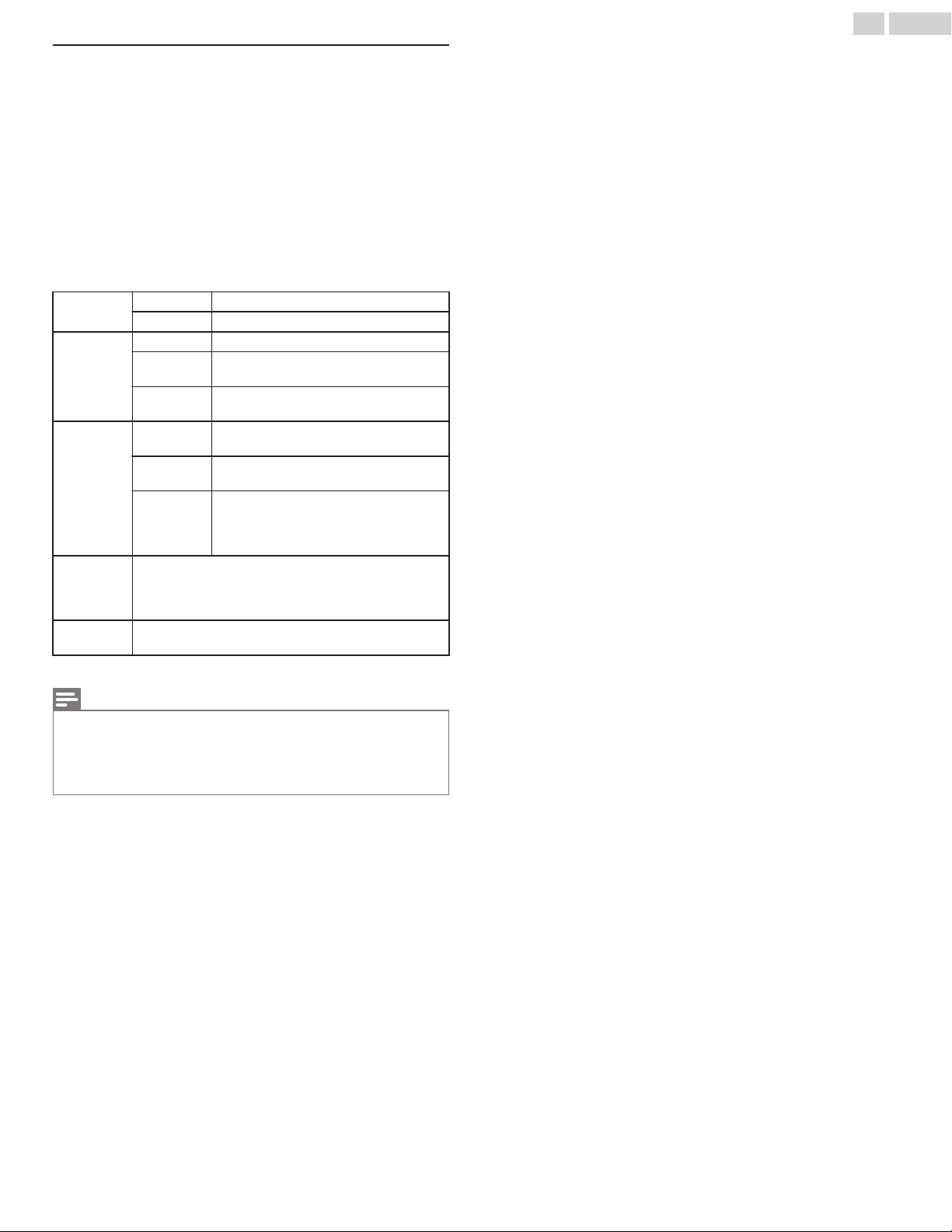
Playing movies
1
Use to select Movie, then press OK.
2
Use to select the desired item, then press OK.
3
Press OK or 1 to play the selected files.
Ɣ
Press OK or
1
to pause, then press OK or
1
again to resume.
Ɣ
Press
to fast-forward search.
Ɣ
Press
to fast-backward search.
Ɣ
Press
.
to stop playback.
Press 1 to resume from the point at which playback was
stopped. Press OK to play from the beginning of the file.
Ɣ
Press
OPTIONS to display the optional menu, then use
to select the desired item.
Voice guide
toggle
*
Off Sets Voice guide to off.
On Sets Voice guide to on.
Repeat
Off Sets repeat playback to off.
One
Sets repeat playback for a selected
video file.
All
Sets repeat playback for all video files in
the current folder.
TV speakers
Off
The sound will not be output from the
unit's speakers.
On
The sound will be output from the unit's
speakers.
Speakers
EasyLink
You can control audio output from your
connected EasyLink compliant devices
with VOL + / – by using this unit's remote
control.
Auto
picture
Selects the picture mode according to your
preference.
(Standard, Natural, Vivid, Sports, Movie, Game,
Energy saving and Internet video)
Auto sound
Selects the sound mode according to your preference.
(Standard, Vivid, Sports, Movie, Music and News)
* Voice guide toggle is available in slide show and pause mode.
Note(s)
Ɣ
The resume information will be kept even when the unit is Turned off.
Ɣ
If you play another file while the previously viewed file is being resumed,
the resume information of the previously viewed file will be deleted.
Ɣ
The file or the folder in resume stop mode will be highlighted in gray on List
or Thumbnails.
29 .English
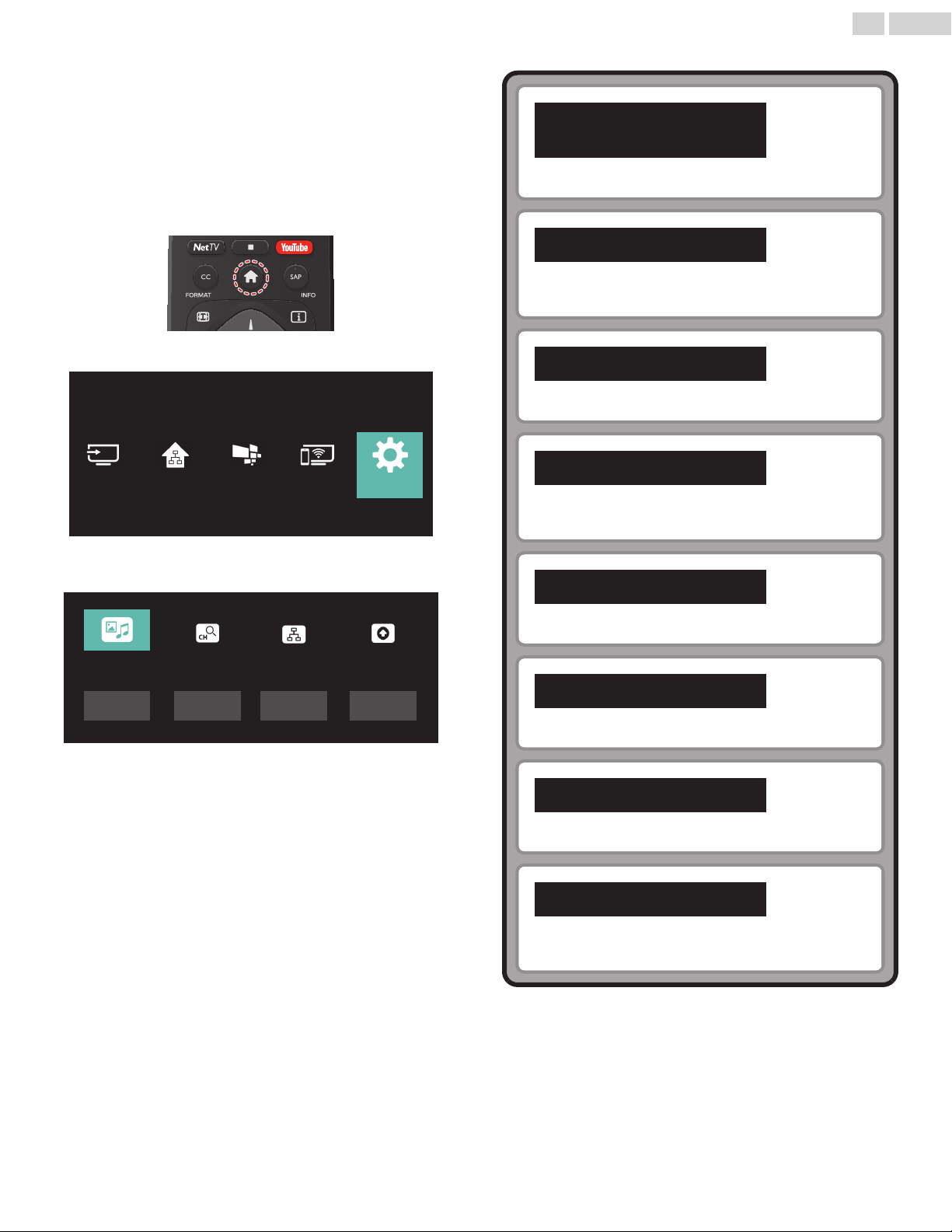
4 Getting more from your
TV
This section describes the overview of the Setup menu displayed
when you press and use to Select Setup.
The Setup menu consists of the function setting items below.
1
Press to display the Home menu.
2
Use to select Setup, then press OK.
Wireless
Screencasting
Setup
Net TVSource Home Network
3
Use to select the desired menu and an item, then press
OK.
To quickly set basic picture and sound settings, press OK
Software
settings
Network
settings
Channel
settings
TV
settings
Update
software
Connect to
network
Search for
channels
Picture and
sound setup
Picture and sound
setup
p.31
Guides you to get the best picture and sound settings.
TV settings
p.31
Accesses menus that allow you to change picture, sound
and TV usage settings.
Search for channels
p.38
Guides you through channel installation.
Channel settings
p.38
Accesses menus that allow you to change channel
settings.
Connect to network
p.41
Guides you through network installation.
Network settings
p.42
Accesses menus that allow you to network settings.
Update software
p.46
Guides you through an update of the TV software.
Software settings
p.47
Accesses menus that allow you to change software
settings.
30 .English
Continued on next page.
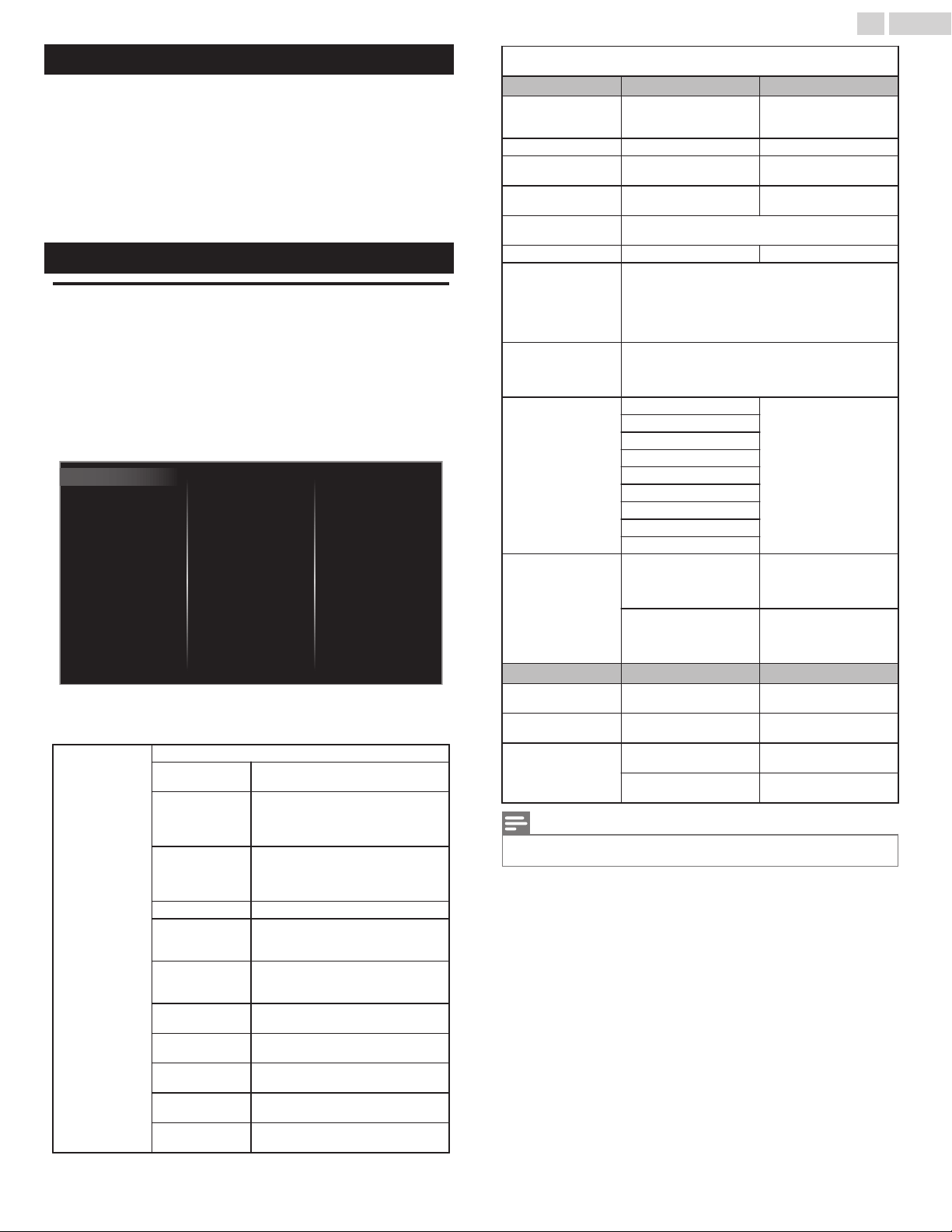
Picture and sound setup
Before you begin:
You must set Home in Location. p.35
Otherwise, personalized picture and sound settings will not be
memorized after the unit goes into standby mode.
1
Press and use to select Setup then press OK.
2
Use to select Picture and sound setup, then press OK.
3
Follow steps 7 to 8 in Initial setup p.21
TV settings
Picture
Before you begin:
You must set Home in Location. p.35
Otherwise, personalized picture and sound settings will not be
memorized after the unit goes into standby mode.
1
Press and use to select Setup then press OK.
2
Use to select TV settings, then press OK.
3
Use to select Picture, then press OK.
Accessibility
Mode selection
Picture format
Advanced settings
Pixel Precise Ultra HD
Sharpness
Tint
Color
Brightness
Contrast
Backlight
Auto picture
Installation
Features
Sound
Picture
Vertical position
Horizontal position
4
Use
to select the item you want to adjust, then press OK.
The following picture settings can be configured. Depending on the
format of the picture source, some picture settings are not available.
Auto picture
To set your TV to a predefined picture setting.
Personal
The customized settings you
defined using the Picture menu.
DOLBY VISION
Bright
When receiving Dolby Vision
video signal, the unit is set to a
picture quality suitable for
viewing in a bright environment.
DOLBY VISION
Dark
When receiving Dolby Vision
video signal, the unit is set to a
picture quality suitable for
viewing in a dark environment.
Standard For normal TV viewing.
Natural
Ideal picture mode for viewing
high quality content without any
picture enhancements.
Vivid
Enhanced picture contrast and
sharpness for viewing in a well-lit
room.
Sports
Brilliant picture settings for high
action.
Movie
Deep picture settings for a
cinematic experience.
Game
Optimized for PCs and game
consoles.
Energy saving
Eco TV settings for low power
consumption.
Internet video
Optimized for low bit-rate
internet video.
When you adjust the following settings, Personal picture will be set
automatically.
Cursor Cursor
Backlight
To reduce power
consumption and
brightness
To increase power
consumption and
brightness
Contrast To decrease contrast To increase contrast
Brightness
To decrease
brightness
To increase brightness
Color
To decrease color
intensity
To increase color
intensity
Tint
To adjust color hues, especially to make skin
tones appear more natural.
Sharpness To soften To sharpen
Pixel Precise Ultra
HD
Enters sub-menus to adjust the following
settings:
(Dynamic contrast, Color enhancement, Black
stretch, 120 PMR, 4K UHD Upscaling, Macro
Dimming, Noise reduction and MPEG artifact
reduction)
Advanced settings
Enters sub-menus to adjust the following
settings:
(Color alignment, Custom color management,
Gamma, Blue stretch and Film mode)
Picture format
Automatic
Changing picture
format p.24
Super zoom
4:3
Movie expand 14:9
Movie expand 16:9
Wide screen
Full
Manual Zoom
Unscaled
Mode selection
PC
To turn off image
enhancement features
which makes the TV to
act purely as a monitor
HDTV
To enable image
enhancement features
to improve picture
quality
Cursor Cursor
Horizontal
position
To move PC screen left
To move PC screen
right
Vertical position
To move PC screen
down
To move PC screen up
Dolby Vision
Notification
Off
To set Dolby Vision
Notification to off
On
To set Dolby Vision
Notification to on
Note(s)
Ɣ
The auto picture modes - DOLBY VISION Bright and DOLBY VISION Dark
are available only when Dolby Vision content is being played back.
31 .English
Continued on next page.
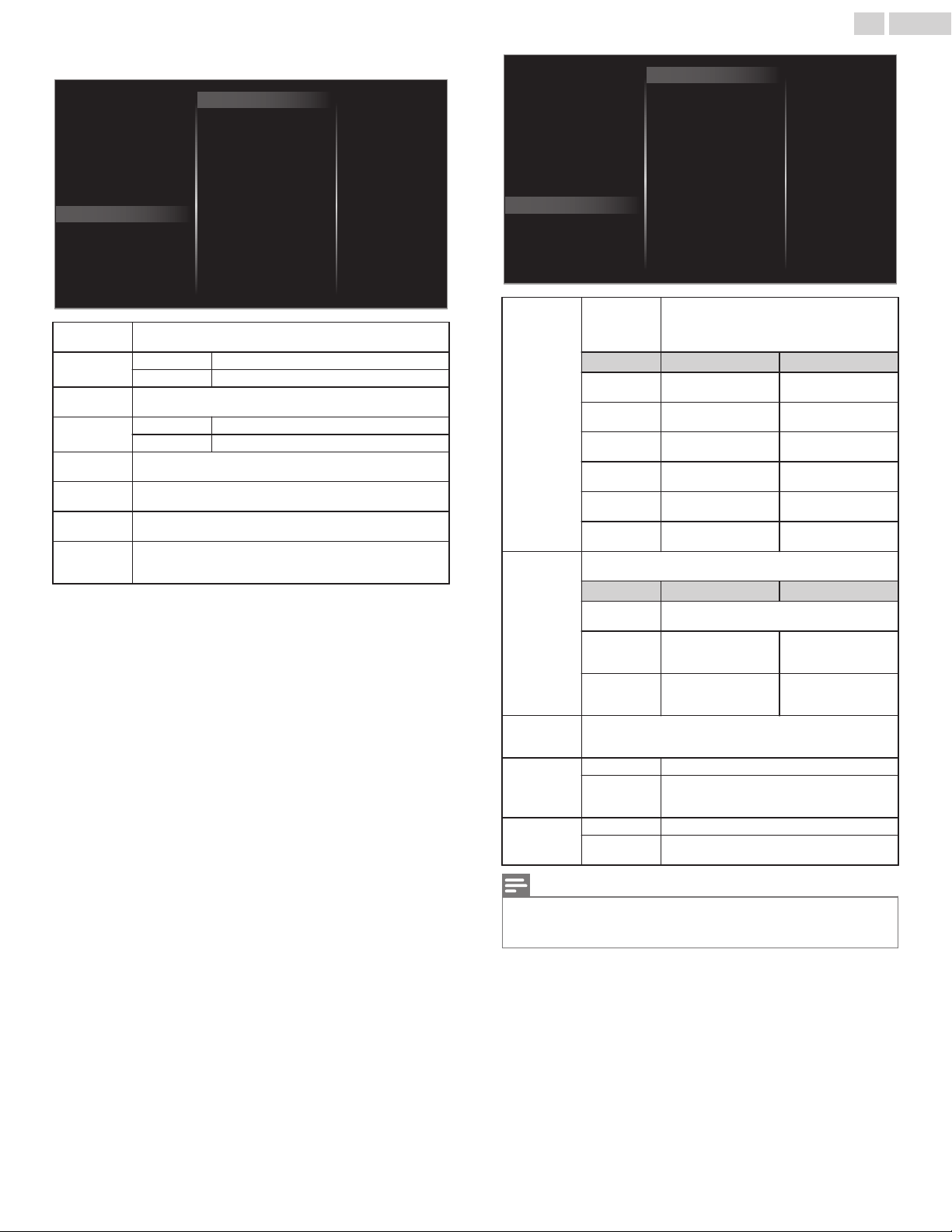
You may adjust picture quality and enhancement settings using
Pixel Precise Ultra HD and Advanced settings sub menus.
Color enhancement
MPEG artifact reduction
Dynamic contrast
4K UHD Upscaling
Black stretch
Noise reduction
Mode selection
Picture format
Advanced settings
Sharpness
Tint
Color
Brightness
Contrast
Backlight
Auto picture
Pixel Precise Ultra HD
Maximum
Medium
Minimum
O
120 PMR
Macro Dimming
Vertical position
Horizontal position
Dynamic
contrast
To select the desired setting, then press OK
(Off, Minimum, Medium and Maximum)
Color
enhancement
Off To set color enhancement to off
On To make colors more vivid and bright
Black
stretch
To select the desired setting, then press OK
(Off, Minimum, Medium and Maximum)
120 PMR
Off To set 120 PMR to Off
On To make the video appear smoother
4K UHD
Upscaling
To select the desired setting, then press OK
(Off, Minimum, Medium and Maximum)
Macro
Dimming
To select the desired setting, then press OK
(Off, Minimum, Medium and Maximum)
Noise
reduction
To select the desired setting, then press OK
(Off, Minimum, Medium and Maximum)
MPEG
artifact
reduction
To select the desired setting, then press OK
(Off, Minimum, Medium and Maximum)
Blue oset
Green oset
Red oset
Blue gain
Green gain
Red gain
Mode
Custom color management
Gamma
Film mode
Color alignment
Mode selection
Picture format
Advanced settings
Sharpness
Tint
Color
Brightness
Contrast
Backlight
Auto picture
Pixel Precise Ultra HD
Blue stretch
Vertical position
Horizontal position
Color
alignment
Mode
To set the color temperature to
Personal, Cool, Normal and Warm.
When you adjust the following settings,
Personal will be set automatically.
Cursor Cursor
Red gain
To decrease red
contrast
To increase red
contrast
Green gain
To decrease green
contrast
To increase green
contrast
Blue gain
To decrease blue
contrast
To increase blue
contrast
Red offset
To decrease red
brightness
To increase red
brightness
Green
offset
To decrease green
brightness
To increase green
brightness
Blue offset
To decrease blue
brightness
To increase blue
brightness
Custom color
management
To select the desired setting, then press OK
(Red, Yellow, Green, Cyan, Blue and Magenta)
Cursor Cursor
Tint
To adjust color hues, especially to make
skin tones appear more natural.
Saturation
To decrease color
with only selected
color
To increase color
with only selected
color
Brightness
To decrease
brightness with
only selected color
To increase
brightness with
only selected color
Gamma
To select the desired setting, then press OK
(Very Dark Room, Dark Room, Normal, Bright Room
and Very Bright Room)
Blue stretch
Off To set blue stretch to off
On
If you switch on blue stretch, the part of
the video signal without color turns
bluish.
Film mode
Off To set film mode to off
Auto
To optimize the picture recorded by the
original film
Note(s)
Ɣ
Mode selection is available only if
–
The external input modes are selected HDMI 1, HDMI 2 or HDMI 3.
–
The connected HDMI device is outputting a video signal.
32 .English
Continued on next page.
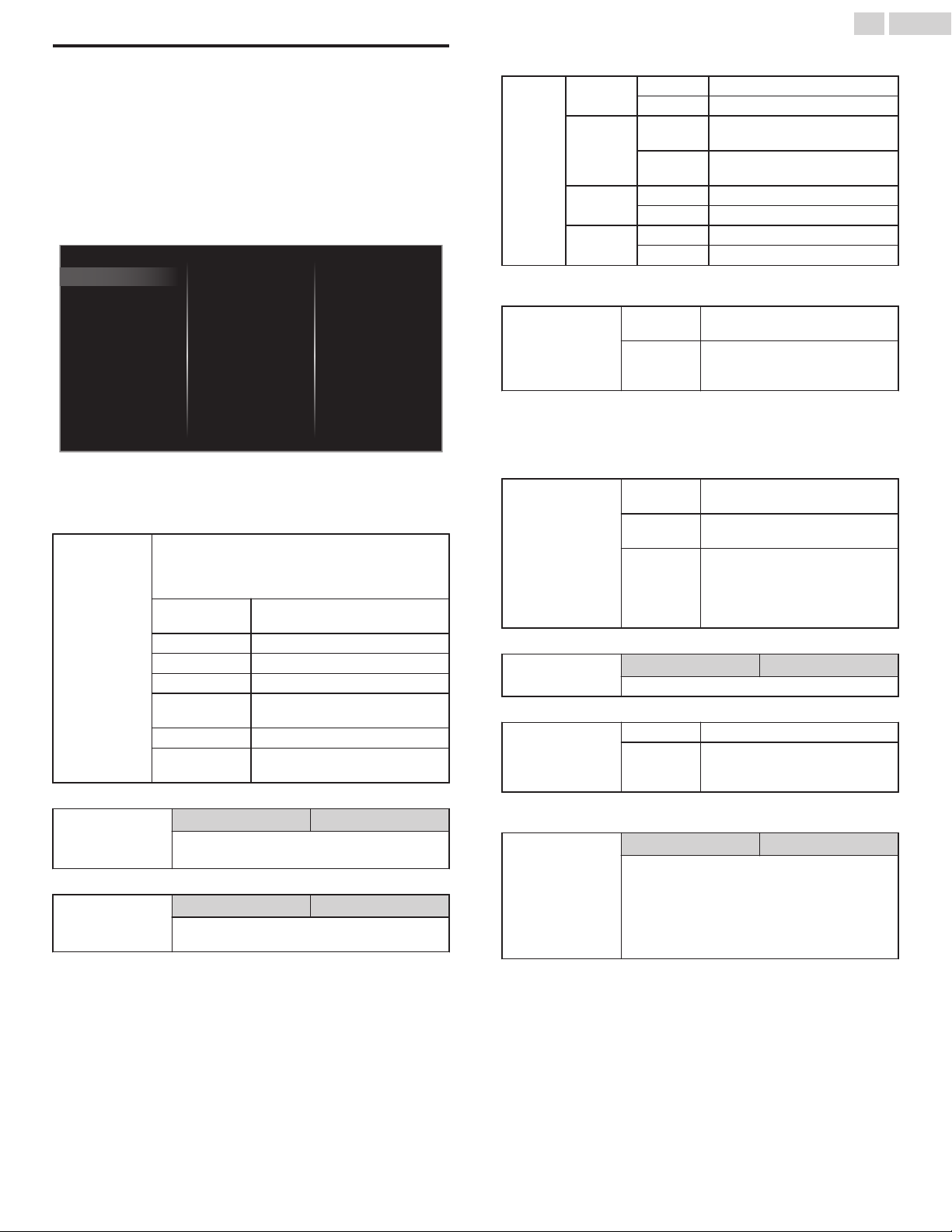
Sound
Before you begin:
You must set Home in Location. p.35
Otherwise, personalized picture and sound settings will not be
memorized after the unit goes into standby mode.
1
Press and use to select Setup then press OK.
2
Use to select TV settings, then press OK.
3
Use to select Sound, then press OK.
Delta volume
Digital output format
Headphone volume
TV speakers
Auto volume leveling
Sonic Emotion Premium
Balance
Equalizer
Auto sound
Installation
Features
Sound
Picture
Accessibility
4
Use to select the item you want to adjust, then press
OK.
The following sound settings can be configured. Depending on the
format of the broadcasting, some sound settings are not available.
Auto sound
To set your TV to a predefined sound setting.
When you adjust the following settings (Equalizer,
Sonic Emotion Premium and Auto volume
leveling), Personal sound will be set automatically.
Personal
The customized settings you
defined using the Sound menu.
Standard For normal TV viewing.
Vivid Enhanced sound.
Sports Clear sound for high action.
Movie
Powerful sound settings for a
cinematic experience.
Music Optimized for music playback.
News
Set the anchor's voice at a
comfortable volume.
Adjust the tonal quality for each frequency.
Equalizer
Cursor Cursor
To adjust each level of tonal quality
Press BACK to go back to the previous menu.
Adjust the speakers to suit your listening preference.
Balance
Cursor Cursor
To adjust the balance of the right and left
speakers
This selects sound modes for more spatial or surround sound
reproduction.
Sonic
Emotion
Premium
Sonic
Emotion
Off To set Sonic Emotion to off
On To set Sonic Emotion to on
Dialog
Enhancement
Off
To set Dialog Enhancement to
off
On
To set Dialog Enhancement to
on
Bass
Enhancement
Off To set Bass Enhancement to off
On To set Bass Enhancement to on
Absolute
3D Sound
Off To set Absolute 3D Sound to off
On To set Absolute 3D Sound to on
This function keeps a constant Loudness differential between the TV
commercials and the programs.
Auto volume
leveling
Off
To remove the Auto volume
leveling
On
To reduce volume differences
between the TV commercials
and the programs
You can select the audio output from the unit’s speakers or not. If your
amplifier is HDMI link function compatible and connected by an HDMI
cable to this unit, some sound operations such as volume up can be
changed by using this unit’s remote control. Make sure Master
EasyLink is set to On. p.36
TV speakers
Off
No output sound from the unit’s
speakers
On
To output sound from the unit’s
speakers
Speakers
EasyLink
To control audio output from
your connected EasyLink
compliant devices with VOL + / –
by using this unit's remote
control.
Adjust headphone volume.
Headphone
volume
Cursor Cursor
To decrease or increase volume
You can set the digital audio output format from SPDIF/ARC.
Digital output
format
PCM To output PCM format
Bitstream
To output audio in its native
format as Bitstream to connected
audio receiver
If a channel or input device is too loud or too soft, navigate to that
channel or input device.
Delta volume
Cursor Cursor
Provides the ability to set a custom volume
level for the current channel or input source.
If the source volume is too loud, set a negative
value (-1 to -12)
If the source volume is too soft, set a positive
value (+1 to +12)
33 .English
Continued on next page.
Features
1
Press and use to select Setup then press OK.
2
Use to select TV settings, then press OK.
3
Use to select Features, then press OK.
Sleeptimer
Installation
Features
Sound
Picture
Accessibility
4
Adjust the following items.
Sleeptimer
Sleep timer can set the unit to go into standby mode after an
incremental period of time.
1
Use to select Sleeptimer, then press OK.
2
Use repeatedly to change the amount of time
(increases the time by 5 minutes up to 180 minutes).
Ɣ
Each press of
will decrease the time by 5 minutes.
Ɣ
Press
INFO once to call up the display for checking the
remaining time.
Ɣ
To cancel the sleep timer, press
repeatedly until “0” is
displayed.
Installation
1
Press and use to select Setup then press OK.
2
Use to select TV settings, then press OK.
3
Use to select Installation, then press OK.
Installation
Features
Sound
Picture
Restore default settings
Preferences
Language
Accessibility
4
Adjust the following items.
Language
You can set the language for the on-screen display.
1
Use to select Language, then press OK.
Installation
Features
Sound
Picture
Español
Français
English
Restore default settings
Preferences
Language
Accessibility
2
Use to select English, Español or Français, then press OK.
Note(s)
Ɣ
If you need the English menu instead of the Spanish or French menu’s, press
.
Use
to select Configuración or Configuration, then press OK.
Use
to select Ajustes de TV or Réglages de la télévision, then press
OK.
Use
to select Instalación or Installation, then press OK.
Use
to select Idioma or Langue, then press OK.
Use
to select English, then press OK.
Press
to exit the Home menu.
34 .English
Continued on next page.
Preferences
You can set the unit to reduce the power consumption or adjust the
backlight brightness in Location setting.
EasyLink allows you to operate your connected EasyLink device.
Setting your location to home
Choosing Home gives you full flexibility to change predefined settings
for picture and sound.
1
Use to select Preferences, then press OK.
2
Use to select Location, then press OK.
TV placement
Location
HDMI mode
Home
Retail
Restore default settings
Preferences
Language
EasyLink
Retail Demo
3
Use to select Home, then press OK.
Retail
The unit will be set up with predefined settings for
retail displays. In this setting, you can set the
backlight brighter.
Home
The unit is set to maximize the energy efficiency for
home setting and it can be adjusted through a
choice of picture and sound quality selections
according to your preference.
Note(s)
Ɣ
You must set Home in the menu. Otherwise, personalized picture and sound
settings will not be memorized after the unit goes into standby mode.
HDMI mode
If there are issues with picture/color and/or sound when connecting
an external device using the HDMI port, please try switching the HDMI
mode following the instructions below.
1
Press and use to select Setup, then press OK.
2
Use to select TV settings, then press OK.
3
Use to select Installation, then press OK.
4
Use to select Preferences, then press OK.
5
Use to select HDMI mode, then press OK.
6
Use to select HDMI1, HDMI2 or HDMI3, then press OK.
7
Use to select 4K mode or 2K mode (Compatibility)
depending on the output capabilities of the external device, then
press OK.
Ɣ
When switching the HDMI configuration, the screen will black
out for a moment, then come back on.
Note(s)
Ɣ
The HDMI connector with HDMI mode set to 2K mode (Compatibility)
supports up to UHD 30P, while the HDMI connector with HDMI mode set
to 4K mode supports up to UHD 60P with HDR10 signal or Dolby Vision
signal.
Ɣ
Switching the HDMI mode may cause loss of HDMI CEC functionality in
certain cases.
TV placement
To apply the best settings for your TV, select wall mount or stand
mount.
1
Use to select Preferences, then press OK.
2
Use to select TV placement, then press OK.
3
Use to select Wall mounted or On a TV stand, then press
OK.
Retail Demo
When you set Location to Retail, E-sticker (Electronic Sticker) is
displayed. E-sticker can be turned off using procedure below.
1
Use to select Preferences, then press OK.
2
Use to select Retail Demo, then press OK.
3
Use to select Off, then press OK.
Use Philips EasyLink
Your TV supports Philips EasyLink, which enables one-touch play and
one-touch standby between EasyLink-compliant devices. Compliant
devices must be connected via an HDMI connector.
One-touch play
When you connect your TV to devices that support one-touch play,
you can control your TV and the devices with one remote control. For
example, when you press (Play) on your DVD remote control, your
TV automatically switches to the correct channel to show the DVD
content.
One-touch standby
When you connect your TV to devices that support standby, you can
use your TV remote control to put your TV and all connected HDMI
devices in standby mode. You can perform one-touch standby using
the remote control from any of the connected HDMI devices.
System audio control
When you connect your TV to HDMI CEC compliant devices, your TV
can switch automatically to play audio from the connected device. To
use one-touch audio, you must map the audio input from the
connected device to your TV. You can use the remote control from
the connected device to adjust the volume.
Remote control (RC) key forwarding
RC key forwarding allows you to control EasyLink-compliant devices
using your TV remote control.
HDMI-ARC (Audio Return Channel) (HDMI 2 only)
HDMI-ARC allows you to use Philips EasyLink to output TV audio
directly to a connected audio device, without the need for an
additional digital audio cable. Be sure that the device is HDMI CEC
and ARC compliant, and that the TV is connected to the device using
an HDMI cable attached to both HDMI-ARC connectors.
Note(s)
Ɣ
Philips does not guarantee 100% interoperability with all HDMI CEC devices.
Ɣ
The EasyLink-compliant device must be switched on and selected as the
source.
35 .English
Continued on next page.
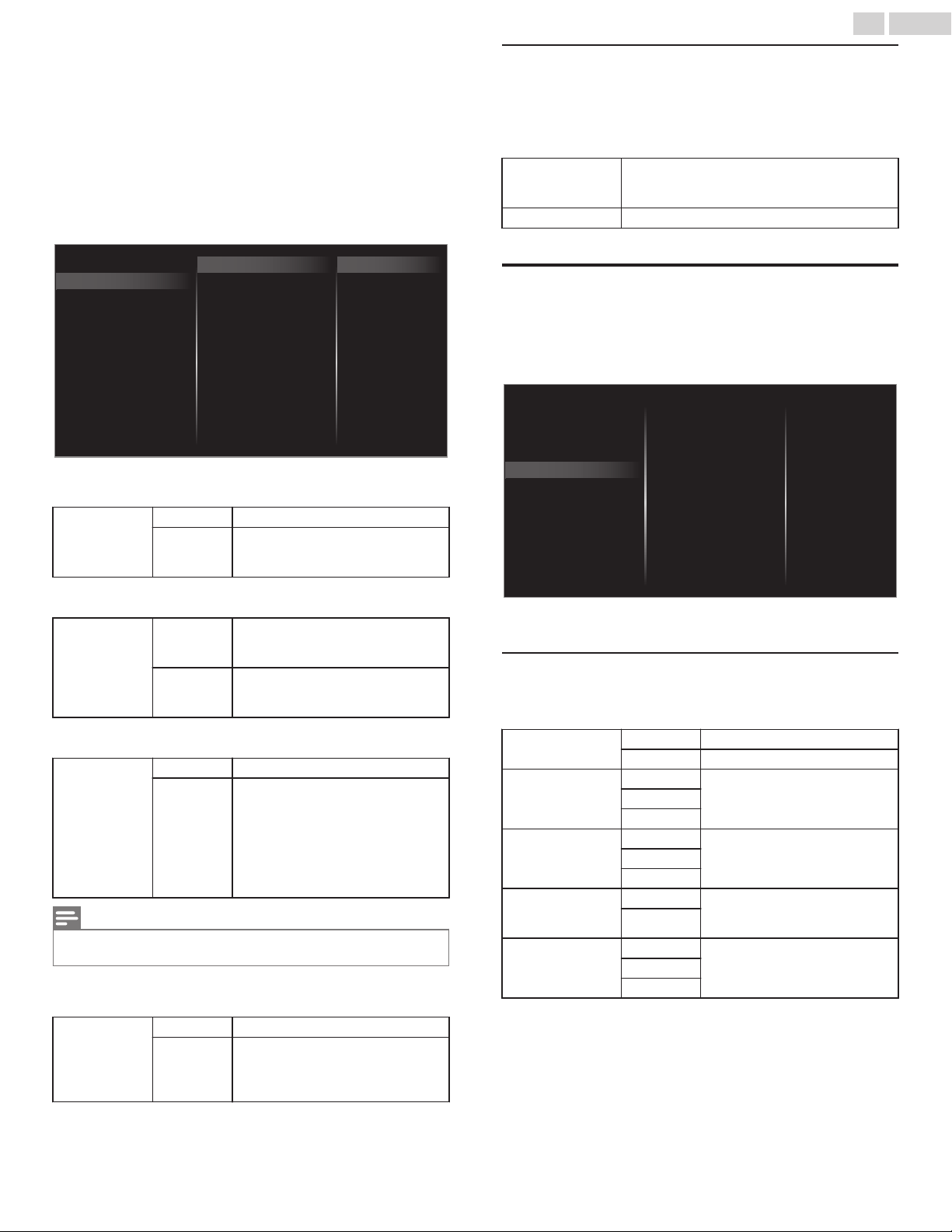
EasyLink (HDMI CEC)
This function allows you to operate the linked functions between our
brand devices with a EasyLink feature and this unit connecting
through an HDMI cable. You must connect this unit to our brand
EasyLink devices and be sure its EasyLink (HDMI CEC) setting is also
set to on.
1
Use to select Preferences, then press OK.
2
Use to select EasyLink, then press OK.
3
Use to select the item you want to adjust, then press
OK.
On
O
HDMI-ARC
RC key forwarding
Auto TV On
Master EasyLink
TV placement
EasyLink
Location
HDMI mode
Retail Demo
Set the Master EasyLink to On or Off. The following additional
settings will be grayed out when you set them to Off.
Master
EasyLink
Off Disables all EasyLink.
On
Selects if you have connected an
external device that is compatible
with the EasyLink function.
This unit will turn on when the power on signal is sent from your
connected EasyLink device.
Auto TV On
Off
This unit stays in Standby mode
even if you turn on your connected
EasyLink device.
On
This unit turns on automatically
when you turn on your connected
EasyLink device.
You can operate some functions such as disc playback or call up the
menu of the connected devices, by using this unit’s remote control.
RC key
forwarding
Off Disable RC key forwarding.
On
PLAY, PAUSE1 / STOP. /
FWD/ / REV0 / VOL + / – /
(MUTE) / OPTIONS / /
OK / BACK / the NUMBER
buttons can be used to control your
connected EasyLink devices by this
unit’s remote control.
Note(s)
Ɣ
Pause may not work properly on some devices even if they are EasyLink
(HDMI CEC) compliant.
HDMI-ARC allows you to use Philips EasyLink to output TV audio
directly to a connected audio device, without the need for an
additional digital audio cable.
HDMI-ARC
(HDMI 2 only)
Off Disable HDMI-ARC.
On
You can output TV audio through the
HDMI cable solely, provided both
the TV and device are HDMI-ARC
compliant.
Return your settings to default values
You can return settings to their default values.
1
Use to select Restore default settings, then press OK.
2
Use to select Reset AV settings or Reset all settings, then
press OK.
Reset AV settings
Return picture and sound settings to their
default values. The channel installation settings
are not affected.
Reset all settings Return all the settings to their default values.
Accessibility
1
Press and use to select Setup then press OK.
2
Use to select TV settings, then press OK.
3
Use to select Accessibility, then press OK.
Sound
Picture
Digital audio preferences
Caption settings
Installation
Features
Accessibility
Voice guide
4
Adjust the following items.
Voice guide
Lets you configure Voice guide and its settings.
1
Use to select Voice guide, then press OK.
Voice guide toggle
Off To set Voice guide to Off
On To set Voice guide to On
Speed
Fast
Set voice guide speed based on
your preference
Normal
Slow
Pitch
High
Set voice guide pitch based on
your preference
Normal
Low
Verbosity
Verbose Set voice guide explanation
verbosity based on your
preference
Succinct
Volume level
Loud
Set voice guide volume based on
your preference
Normal
Soft
36 .English
Continued on next page.
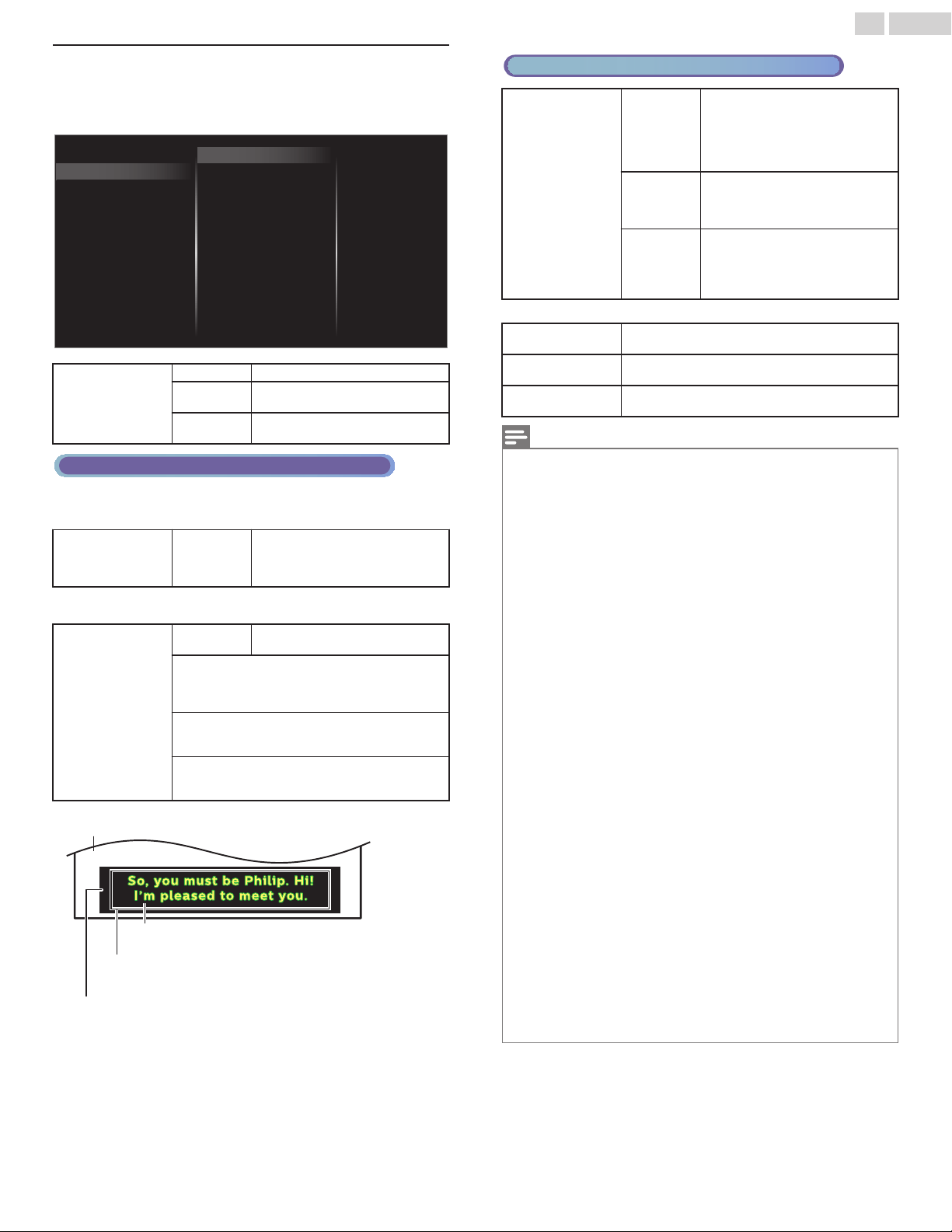
Caption settings
Closed captions displays the audio portion of the program as
superimposed text over the video.
1
Use to select Caption settings, then press OK.
CC w/ mute
On
O
Digital caption options
Digital caption service
Caption service
Closed captions
Digital audio preferences
Caption settings
Voice guide
Closed captions
Off Closed caption is not displayed.
On
Closed caption is always
displayed.
CC w/mute
Closed caption is displayed
when the sound is off.
Digital TV operation
In addition to the basic closed caption, DTV has its own closed caption
called digital caption service. Use this menu to change the settings for
digital caption service.
Digital caption
service
CS-1 to
CS-6
Select one of these before
changing any other item in
Caption settings menu. Choose
CS-1 under normal conditions.
You can choose the size, font, color, background and other
characteristics of the caption text.
Digital caption
options
Reset to
default
You can reset the status of digital
caption options.
You can change closed captioning font style,
size, color and transparency.
(Font style, Font size, Font color and Font
opacity)
You can change background color and
transparency of the displayed caption.
(Background color and Background opacity)
You can change edge color and type of the
displayed caption text.
(Edge color and Edge type)
Picture display
Text font
(Font style, Font size, Font color and Font opacity)
Text edge
(Edge color and Edge type)
Background
(Background color and Background opacity)
Ɣ
Review your setting choice made above by looking in the upper left
corner of the displayed setting box (not all selections show the
differences selected).
Cable / NTSC (Analog) TV operation
Caption service
CC-1 and
T-1
The primary closed captions and
text services. The closed captions
or text is displayed in the same
language as the program’s dialog
(up to 4 lines of script on the TV
screen).
CC-3 and
T-3
Serve as the preferred data
channels. The closed captions or
text is often a secondary
language.
CC-2, CC-4,
T-2 and T-4
Rarely available and
broadcasters use them only in
special conditions, such as when
CC-1 and CC-3 or T-1 and T-3 are
not available.
Ɣ
There are 3 display modes according to programs:
Paint-on
Displays characters on the TV screen
immediately.
Pop-on
Once characters are stored in memory, they are
displayed all at once.
Roll-up
Displays the characters continuously by
scrolling (max. 4 lines).
Note(s)
Ɣ
Digital caption service that you can switch differs depending on the
broadcast description.
Ɣ
Closed captioning service may not be controlled by this unit’s menu options
if you are watching television through an external cable or satellite set-top
box. In which case you will need to use the menu options on the external
set-top box to control closed captioning.
Ɣ
The captions do not always use correct spelling and grammar.
Ɣ
Not all TV programs and product commercials include closed caption
information. Refer to your area TV program listings for the TV channels and
times of closed caption shows. The captioned programs are usually noted
in the TV listings with service marks such as CC.
Ɣ
Not all captioning services are used by a TV channel during the transmission
of a closed caption program.
Ɣ
Closed caption will NOT be displayed when you are using an HDMI or a
component connection.
Ɣ
To show the closed caption on your TV screen, broadcast signal must
contain the closed caption data.
Ɣ
Not all TV programs and commercials have the closed caption or all types
of the closed caption.
Ɣ
Caption's and text may not exactly match the TV voice.
Ɣ
Changing channels may delay the closed caption for a few seconds.
Ɣ
Adjusting or muting the volume may delay the closed caption for a few
seconds.
Ɣ
Abbreviations, symbols and other grammatical shortcuts may be used in
order to keep pace with the on-screen action. This is not a malfunction.
Ɣ
The caption or text characters will not be displayed while the Main menu or
functions display is shown.
Ɣ
If a black box appears on the TV screen, this means that the closed caption
is set to the text mode. To clear the box, select CC-1, CC-2, CC-3 or CC-4.
Ɣ
If the unit receives poor quality television signals, the captions may contain
errors or there might be no captions at all. Some possible causes of poor
quality signals are:
–
Automobile ignition noise
–
Electric motor noise
–
Weak signal reception
–
Multiplex signal reception (ghosts or screen flutter)
–
Data dropout and pixelation (for DTV only)
Ɣ
The unit retains the closed caption setting if the power fails.
Ɣ
When the unit receives special effects playback signal (e.g. search, slow and
still) from a VCR’s video output channel (ch3 or ch4), the unit may not display
the correct caption or text.
Ɣ
The EUT setting that satisfies § 79.102 (e) is as follows:
–
Font: Mono-font
–
Character size: Large
37 .English
Continued on next page.
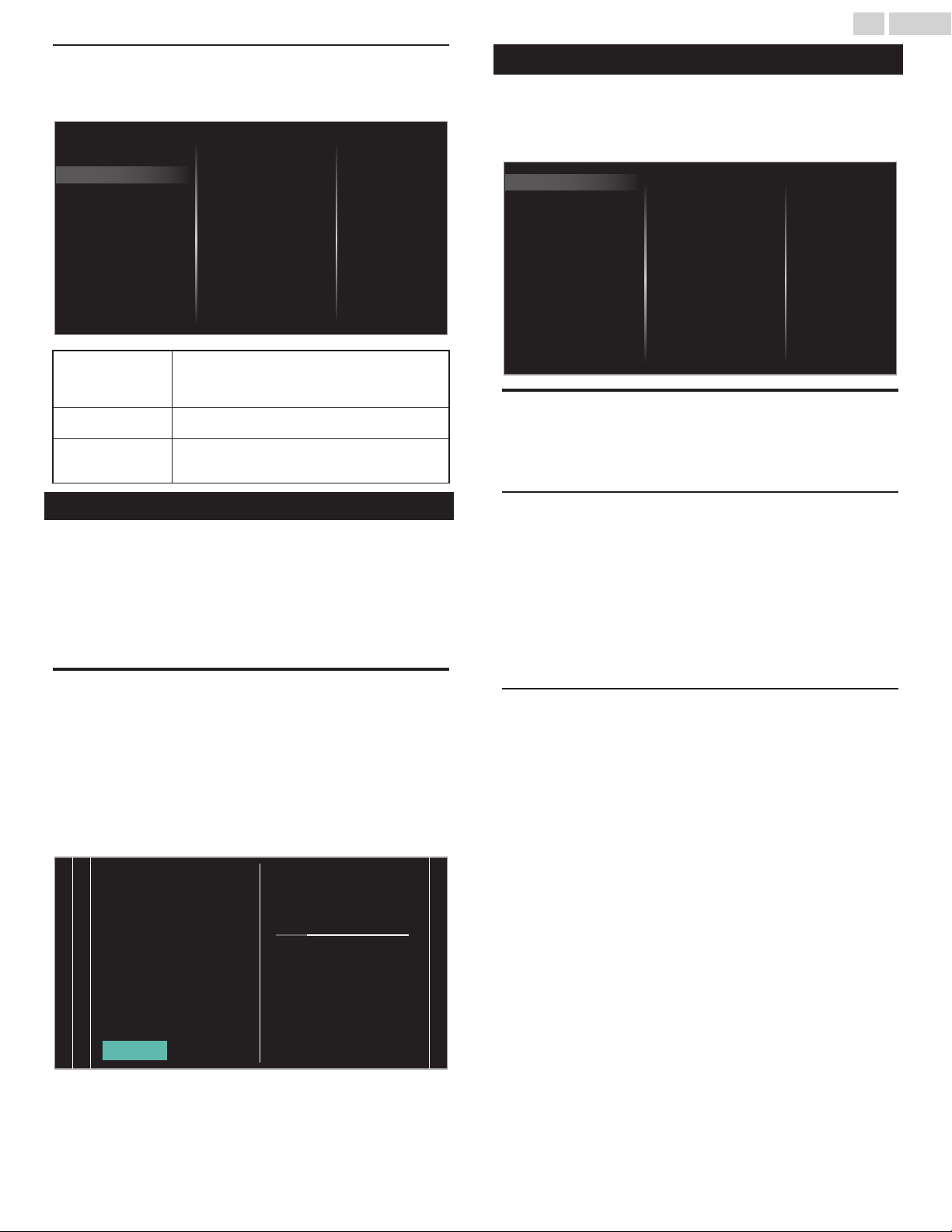
Digital audio preferences
You can set the interpretive broadcasting by an audio explanation.
1
Use to select Digital audio preferences, then press OK.
Primary audio selection criteria
Audio language
Audio accessibility
Digital audio preferences
Caption settings
Voice guide
Audio accessibility
To prioritize VI-Visually Impaired streaming or
HI-Hearing Impaired streaming: The setting for
handicapped users (Main audio, Visually
Impaired or Hearing Impaired).
Audio language
To set your preferred language in the audio
streaming (English, Spanish or French).
Primary audio
selection criteria
To set TV priority based on either of the above
settings: (Audio accessibility or Audio
language).
Search for channels
Be sure the RF cable is correctly connected to this unit and you are
registered with your cable TV provider when you install cable
channels.
1
Press and use to select Setup then press OK.
2
Use to select Search for channels, then press OK.
3
Use to select Start, then press OK.
Install channels
You can search and store all channels. If you move the unit to a
different area after the initial setting, it is recommended to perform
Autoprogramming.
4
Use to select Antenna or Cable, then press OK.
5
Press OK on Start.
Ɣ
When the scanning and memorizing of available channels is
completed, the lowest memorized channel will be displayed.
6
Follow the on-screen instructions to complete the installation.
0
0
12 34
Stop
Total progress:
Analog channels found:
Digital channels found:
complete.
more than 20 minutes to
Auto programming may take
wait...
System searching. Please
Channel settings
1
Press and use to select Setup then press OK.
2
Use to select Channel settings, then press OK.
3
Adjust the following items.
Uninstall channels
Installation mode
Mono/Stereo
Digital audio language
Change PIN
Child lock
Channel installation
Channel installation
Be sure the RF cable is correctly connected to this unit and you are
registered with your cable TV provider when you install cable
channels.
Installation mode
1
Use to select Channel installation, then press OK.
2
Use to select Installation mode, then press OK.
3
Use to select Antenna or Cable, then press OK.
Ɣ
When Antenna is selected, the TV detects antenna signals. It
searches for DTV and analog TV channels available in your area.
Ɣ
When Cable is selected, the TV detects signals supplied by
cable. It searches for DTV, analog TV and cable channels
available in your area.
Uninstall channels
The channels selected here can be skipped when selecting the
channels using CH + / –.
Those channels can still be selected with the NUMBER buttons.
1
Use to select Channel installation, then press OK.
2
Use to select Uninstall channels, then press OK.
3
Use to select the channel you want to remove, then press
OK.
Ɣ
The removed channels are not displayed on the list of favorite
channels.
Ɣ
To reactivate a removed channel, use
then press OK.
38 .English
Continued on next page.
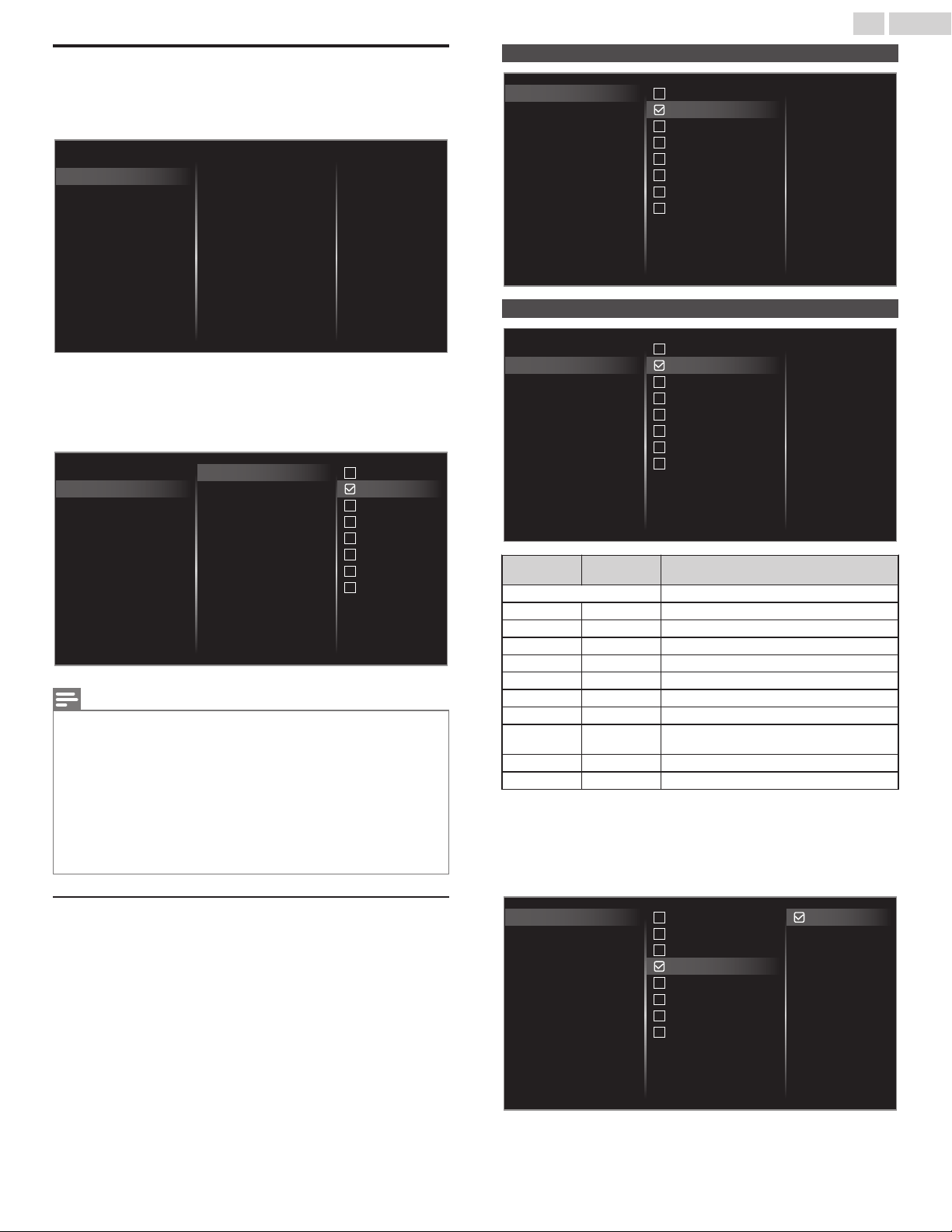
Child lock
You can prevent your children from watching certain programs or
certain channels by locking the TV controls and by using ratings.
1
Use to select Child lock, then press OK.
Mono/Stereo
Digital audio language
Change PIN
Child lock
Channel installation
Region ratings lock
Canadian French rating
Canadian English rating
Movie ratings lock
TV ratings lock
2
Use the NUMBER buttons to enter the 4-digit numbers for your
PIN code.
Ɣ
When you have not set up your PIN code, enter 0, 0, 0, 0.
Ɣ
When the PIN code is correct, Child lock menu is displayed.
See the following description for setting each item.
TV-MA
TV-14
TV-PG
TV-G
TV-Y7
TV-Y
None
All
Region ratings lock
Canadian French rating
Canadian English rating
Movie ratings lock
TV ratings lock
Mono/Stereo
Digital audio language
Change PIN
Child lock
Channel installation
Note(s)
Ɣ
When you select the higher rating and set it to
/
, the lower ratings will be
blocked automatically.
Ɣ
To remove all blocks place a check in the All box and then remove that
check to remove all blocks.
Ɣ
Region ratings lock will be available when the unit receives a digital
broadcast using the new rating system.
Ɣ
To block any inappropriate programs, set your limits in TV ratings lock,
Movie ratings lock and Region ratings lock.
Ɣ
For the United States, the unit may download the region ratings lock table,
if required.
Ɣ
The Canadian rating systems on this unit are based on CEA-766-A and
CRTC policy.
Setting TV and movie ratings
Movie ratings lock is the rating system created by MPAA. TV ratings
lock has controlled access to individual programs based on their age
ratings and content rating.
3
Use to select TV ratings lock or Movie ratings lock, then press
OK.
4
Use to select the desired rating, then press OK repeatedly to
switch between block and view.
Ɣ
/
indicates that the rating is locked (Blocked).
Ɣ
indicates that the sub rating is locked (Blocked).
Ɣ
indicates that the rating is not locked (Viewable).
TV ratings lock
TV-MA
TV-14
TV-PG
TV-G
TV-Y7
TV-Y
None
All
Region ratings lock
Canadian French rating
Canadian English rating
Movie ratings lock
TV ratings lock
Movie ratings lock
Region ratings lock
Canadian French rating
Canadian English rating
Movie ratings lock
TV ratings lock
X
NC-17
R
PG-13
PG
G
NR
All
US movie
ratings
US TV
ratings
Description
All All ratings locked including no rating
NR None No rating
– TV-Y Appropriate for all children
– TV-Y7 Appropriate for all children 7 and older
G TV-G General audience
PG TV-PG Parental guidance suggested
PG-13 – Unsuitable for children under 13
– TV-14 Unsuitable for children under 14
R –
Restricted under 17 requires
accompanying parent or adult guardian
NC-17 – No one under 17 admitted
X TV-MA Mature audience only
To set the sub ratings (displayed in the right column)
For TV ratings lock, you can further set the sub ratings to block specific
elements of programming. To set the sub ratings, follow the step
below.
Use to select the desired rating, then press OK repeatedly to
switch between / and .
TV-MA
TV-14
TV-PG
TV-G
TV-Y7
TV-Y
None
All
Region ratings lock
Canadian French rating
Canadian English rating
Movie ratings lock
TV ratings lock
Fantasy Violence
39 .English
Continued on next page.
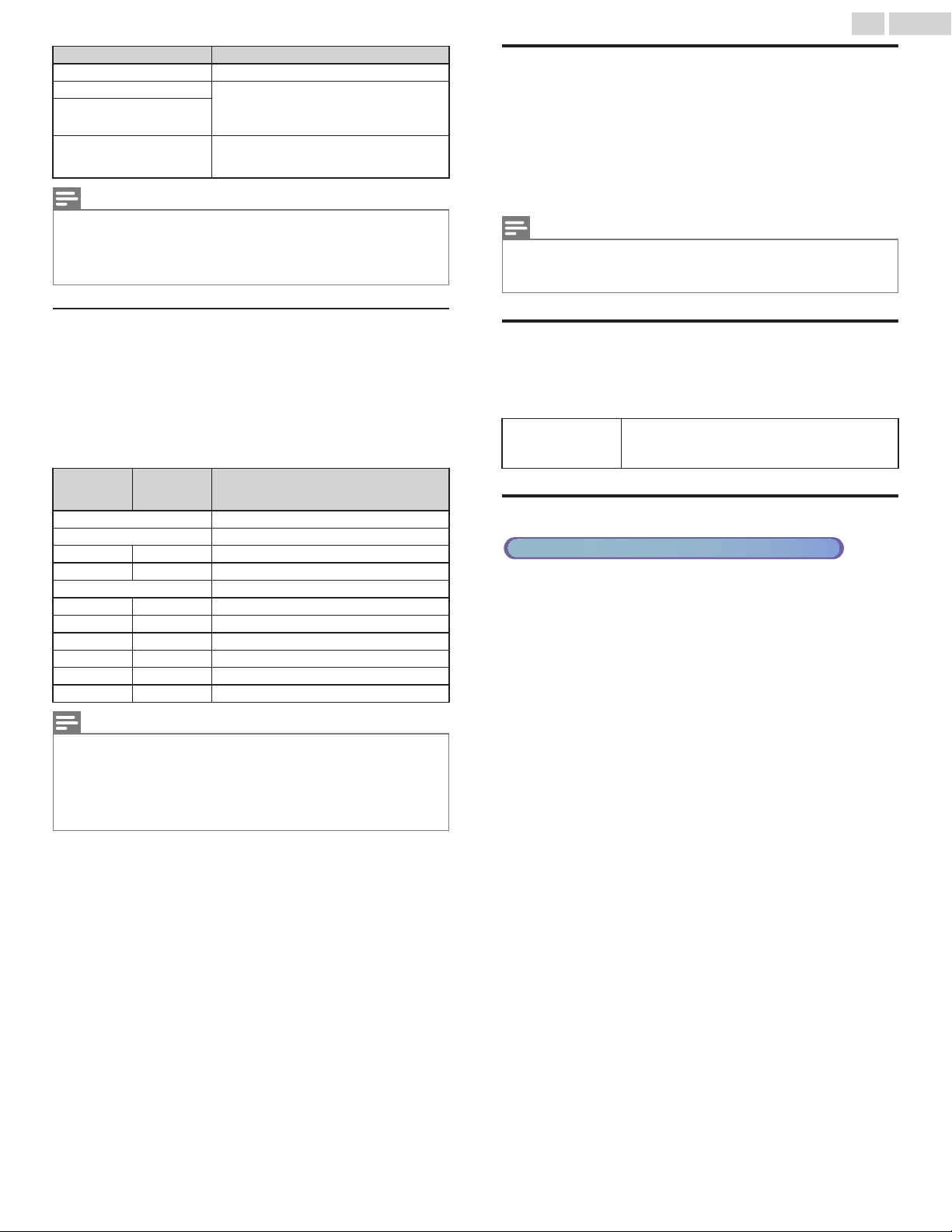
US TV ratings Sub rating
TV-Y7 Fantasy Violence
TV-PG Violence
Sex
Language
Dialog
TV-14
TV-MA
Violence
Sex
Language
Note(s)
Ɣ
Blocked sub rating's will appear beside the main rating category in TV
ratings lock menu.
Ɣ
You cannot block a sub rating if the main rating is set to
.
Ɣ
Changing the category to
/
or
automatically changes all its sub ratings to
the (
/
or
).
Canadian English or Canadian French ratings
You can select the rating for Canadian English or Canadian French
broadcasting.
3
Use to select Canadian English rating or Canadian French
rating, then press OK.
4
Use to select the desired rating, then press OK repeatedly to
switch between block and view.
Ɣ
/
indicates that the rating is locked (Blocked).
Ɣ
indicates that the rating is not locked (Viewable).
Canadian
English
rating
Canadian
French
rating
Description
All Locked all ratings
E Exempt program
C – For all children
C8+ – For all children 8 and older
G General audience
– 8 ans+ Unsuitable for ages under 8
PG – Parental guidance suggested
– 13 ans+ Unsuitable for ages under 13
14+ – Unsuitable for ages under 14
– 16 ans+ Unsuitable for ages under 16
18+ 18 ans+ Adult audience only
Note(s)
Ɣ
The V-Chip can block non rated programs as per “CEA-608-E sec. L.3”. If
the option to block NR, None or E programs are used in Movie ratings
lock, TV ratings lock, Canadian English rating or Canadian French rating
accordingly “unusual results may occur and the unit may not receive
emergency bulletins or other types of programming”: / Emergency bulletins
(Such as EAS messages, weather warnings and others) / Locally originated
programming / News / Political / Public service announcements /
Religious / Sports / Weather.
Change PIN
Although the default PIN code (0000) is supplied with the unit, you
can set your own PIN code.
1
Use to select Change PIN, then press OK.
2
Press the NUMBER buttons to enter the current 4-digit PIN code.
3
Press the NUMBER buttons to enter the new 4-digit PIN code.
Ɣ
Enter PIN code again to confirm.
Note(s)
Ɣ
Make sure new PIN code and confirm PIN code must be exactly the same.
If they are different, the space is cleared for reentering.
Ɣ
If you have forgotten your PIN code, enter 07 1 1 to reset the PIN code.
Digital audio language
You can select the audio language while your TV is receiving the digital
broadcasting.
1
Use to select Digital audio language, then press OK.
Digital audio
language
To select the language according to your
preference.
(It differs depending on the program.)
Mono/Stereo
Cable / NTSC (Analog) TV operation
You can select an audio format while your TV is receiving the analog
broadcasting.
1
Use to select Mono/Stereo, then press OK.
2
Use to select Mono, Stereo or SAP (Second Audio Program),
then press OK.
40 .English
Continued on next page.
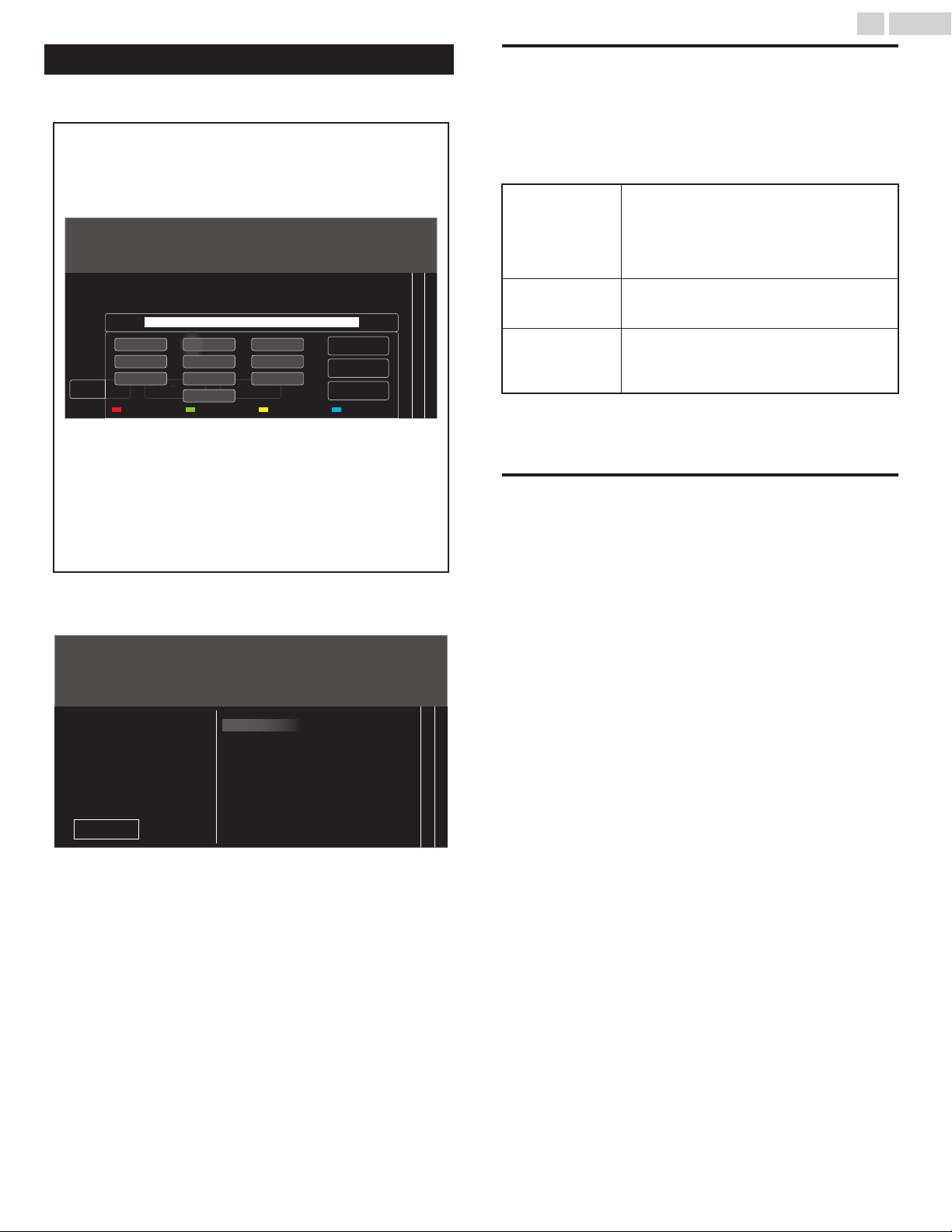
Connect to network
Setup network connection settings in order to use Net TV or network
upgrade functions.
Ɣ
The meanings of abbreviations are defined as below.
AP
: Wireless LAN access point
SSID
: Wireless network name
Ɣ
The key entry screen will appear when you select SSID, WEP /
others or proxy address.
312
Manual
Easy Connect
Pin code
If your router does not have an easy connect feature, select Manual and press OK.
If your router has an easy connect feature, select Easy Connect and press OK.
M
anua
l
E
asy Connect
o
de
o
Cancel
All clear
OK
Text
. , @ ’
g h i
p q r s
a b c
j k l
t u v
_ ? ! - d e f
m n o
w x y z
abc ABC 123+/; Clear
Network settings
Ɣ
Enter the key of the selected wireless network using
,
then press OK.
Clear
: Clear the entered number or word.
All clear
: Clear all the entered numbers or words.
abc
: Switch to the small letter mode.
ABC
: Switch to the capital letter mode.
123+/;
: Switch to the numeral and symbol mode.
Cancel
: Shows the cancellation display.
OK
: Set the entered number or word.
1
Press and use to select Setup then press OK.
2
Use to select Connect to network, then press OK.
312
Cancel
Wired
Wireless
Network settings
Select your connection type.
This TV can be connected to
your home network.
3
Adjust the following items.
Wireless setting
Select to use a wireless LAN to connect to the internet by a wireless
connection.
1
Use to select Wireless, then press OK.
2
Use to select the desired setting, then press OK, and follow
the on-screen instructions.
Easy Connect
Select this setting if your router has an easy
connect button. Start scanning for wireless
networks on the TV after pressing the easy
connect button on your router. If connection
test fails, refer to the router’s manual for more
details.
Scan
Search for wireless networks automatically and
select the wireless network name (SSID) from
the list.
Manual entry
Set up the connection to the wireless LAN
Access Point (AP) (e.g. wireless router)
manually by entering the wireless network
name (SSID).
* Easy Connect cannot be used when the security protocol is set to
WEP. Change the Access Point’s security mode from WEP to others
(recommended).
Wired setting
Select to use an Ethernet cable to connect to the internet by a wired
connection. Please purchase shielded Ethernet cables at your local
store and use it when you connect to network equipment.
1
Use to select Wired, then press OK.
Ɣ
Connection test will start automatically. p.44
41 .English
Continued on next page.
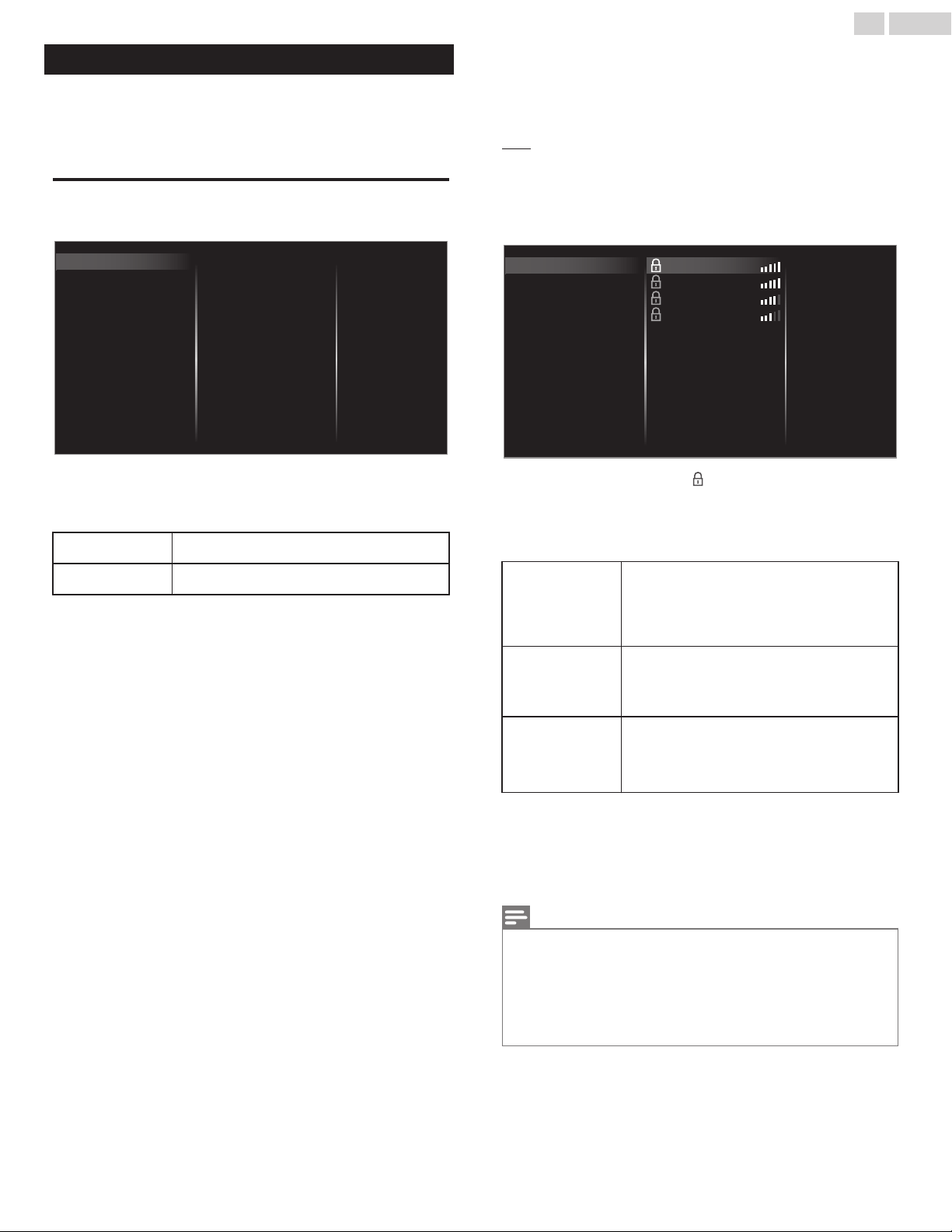
Network settings
1
Press and use to select Setup then press OK.
2
Use to select Network settings, then press OK.
3
Adjust the following items.
Manual network settings
1
Use to select Manual network settings, then press OK.
Proxy conguration
IP conguration
Wireless network setting
Network selection
Reset network settings
Net TV
Wake-on-LAN(DIAL)
Home network
Setting status
Connection test
Manual network settings
Network selection
2
Use to select Network selection, then press OK.
3
Use to select the desired setting, then press OK.
Wired
If you connect to an Ethernet cable, select
Wired to connect to the internet.
Wireless
If you have a router with easy connect function,
select Wireless to connect to the internet.
Wireless network setting
This menu is displayed only when you set Wireless in Network
selection. In order to use a wireless network, you must set up a
connection to the AP (e.g. wireless router).
2
Use to select Wireless network setting, then press OK.
Auto
Search for wireless networks automatically and select the SSID from
the list.
3
Use to select Auto, then press OK.
4
The list of wireless networks will be displayed. Use to select
the appropriate the SSID, then press OK.
Manually enter your SSID
Auto
Router 4
Router 3
Router 2
Router 1
Manual
Easy Connect
Pin code
Ɣ
If you select the SSID with , WEP
*2
/ others Key entry screen
will appear. Enter the WEP
*2
/ others key of the selected
wireless network using
, then press OK.
Ɣ
If you select the SSID has an easy connect, the easy connect
setting screen will appear. Use
to select a setting, then
press OK.
Easy Connect
Select this setting if your router has an easy
connect button. Start scanning for wireless
networks on the TV after pressing the easy
connect button on your router. If connection
test fails, try Easy Connect again.
*1
If it fails then
refer to the router’s manual for more details.
Pin code
Select this setting if your router has an easy
connect feature but does not have an easy
connect button. Enter the 8-digit PIN code
shown on your TV in the Router settings menu
via PC before Connect is selected.
Manual
If your wireless network with authentication
setting (WEP
*2
, others), WEP
*2
/ others Key
entry screen will appear. Enter the WEP
*2
/
others key of the selected wireless network
using , then press OK.
*1
Easy Connect cannot be used when the security protocol is set
to WEP. Change the Access Point’s security mode from WEP to
others (recommended).
*2
WEP is not recommended to be used due to its major security
flaws. Change the security protocol on the wireless router to
others (recommended) mode.
Confirmation message will appear. Select OK to complete the settings.
Note(s)
Ɣ
For a wireless network with authentication setting, key icon appears to the
right hand of the SSID.
Ɣ
Signal icon shows the strength of the signal.
Ɣ
WEP
*2
/ others key appears as asterisks on the confirmation screen.
Ɣ
The wireless LAN supports following specifications.
–
Wireless standards: IEEE 802.1 1 a/b/g/n/ac
–
Frequency spectrum: 2.4GHz / 5GHz
–
Security protocol: WEP
*2
/ others
42 .English
Continued on next page.
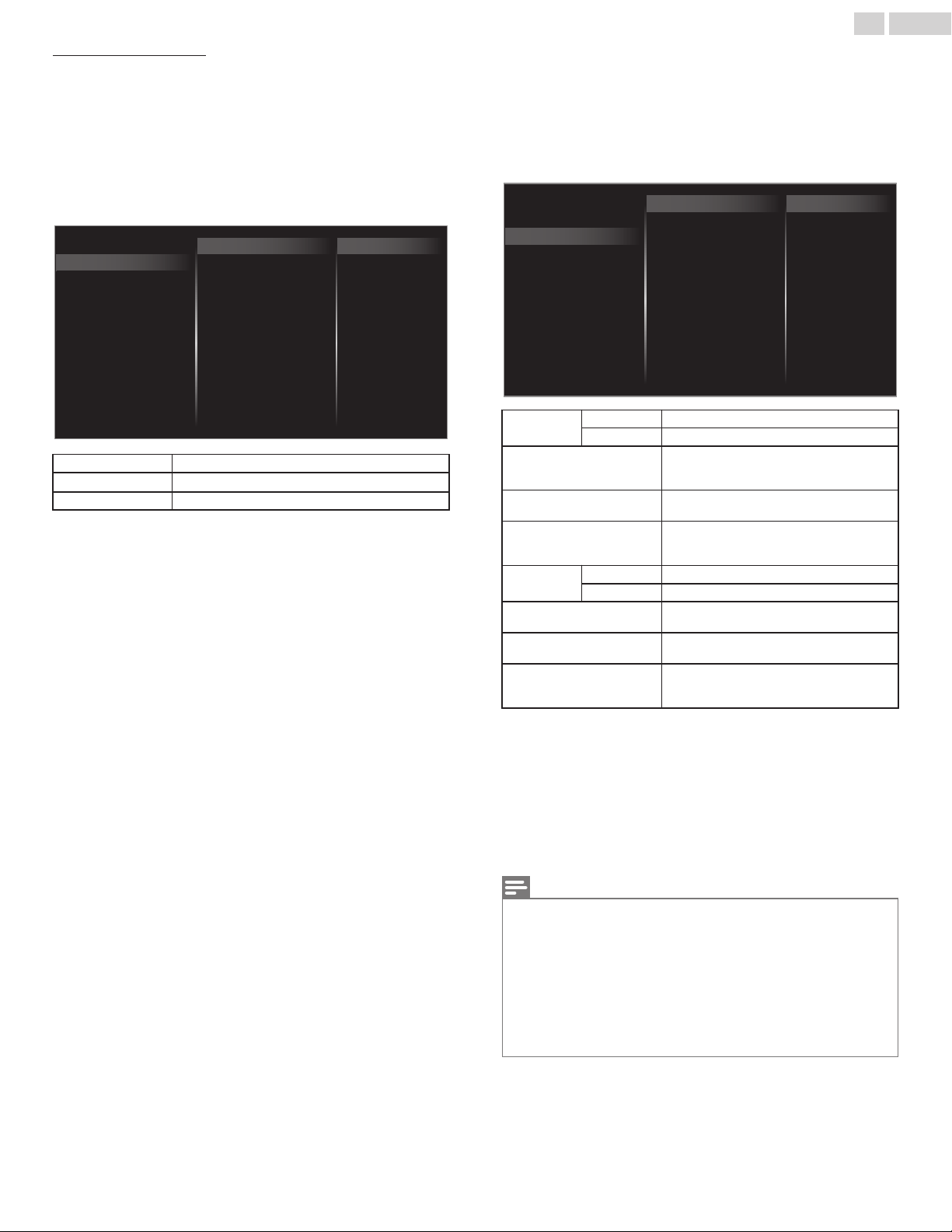
Manually enter your SSID
Set up the connection to the AP (e.g. wireless router) manually by
entering the SSID.
3
Use to select Manually enter your SSID, then press OK.
Ɣ
AP (e.g. wireless router) SSID entry screen will appear.
Enter the SSID using , then press OK.
4
Use to select the authentication setting of the selected
wireless network.
Ɣ
For a wireless network with authentication setting, select the
authentication setting, according to the security type of the
wireless network.
XXXXXXXXXXXXXX
WEP
None
Manually enter your SSID
Auto
Others
None Set the authentication setting to None.
WEP
Set the authentication setting to WEP
*
.
Others Set the authentication setting to Others.
Ɣ
For a wireless network without authentication setting, select None.
Ɣ
If you select WEP
*
or Others, WEP
*
/ others Key entry screen will
appear. Enter the WEP
*
/ others key of the selected wireless network
using
, then press OK.
Ɣ
Confirmation message will appear. Select Yes to complete the
settings.
*
WEP is not recommended to be used due to its major security flaws.
Change the security protocol on the wireless router to others
(recommended) mode.
IP configuration
In following cases, select IP configuration to set each setting as
necessary.
–
When connection test failed with the setting of Connection test.
–
When instructed by your Internet service provider to make specific
settings in accordance with your network environment.
2
Use to select IP configuration, then press OK.
3
Use to select a setting, then press OK.
Manual
Auto
MAC address
Secondary DNS
Primary DNS
DNS setting mode
Default gateway
Subnet mask
IP address
IP setting mode
Proxy conguration
IP conguration
Wireless network setting
Network selection
IP setting
mode
Auto Sets the IP setting automatically.
Manual Sets the IP setting manually.
IP address
*1, 3
A set of numbers which are assigned to
devices participating in a computer
network.
Subnet mask
*1, 3
A mask which is used to determine what
subnet an IP address belongs to.
Default gateway
*1, 3
IP address of the network device (such
as router) which provides internet
access.
DNS setting
mode
Auto Sets the DNS setting automatically.
Manual Sets the DNS setting manually.
Primary DNS
*2, 3
A server which handles the name and IP
address over the internet.
Secondary DNS
*2, 3
A server which handles the name and IP
address over the internet.
MAC address
An address which recognizes the
devices connecting to the network. It is
also called hardware address.
*1
Items can be selected only when IP setting mode is set to
Manual.
*2
Items can be selected only when DNS setting mode is set to
Manual.
*3
Use
or the NUMBER buttons to input numbers. When you
use
to input numbers, then press OK or input the triple digits
by using the NUMBER buttons, the cursor moves to the next
entry field. When you use
to input numbers, then press OK
or input the triple digits by using the NUMBER buttons at the
rightmost entry field, numbers will be stored and go back to the
previous menu.
Note(s)
Ɣ
The range of input numbers is between 0 and 255.
Ɣ
If you enter a number larger than 255, the number will automatically be 255.
Ɣ
The manually entered number will be saved even if you change the setting
to Auto.
Ɣ
If you want to enter 1 or 2 digit number in one cell, press OK to move on to
the next cell.
Ɣ
If the entered IP address or the default gateway or primary DNS number is
same as the default setting, IP address setting will be set to Auto. (The
manually entered number will be saved).
Ɣ
When IP address setting is set to Manual, the setting of DNS setting will
automatically be Manual and when IP address setting is set to Auto, you
can set either Auto or Manual for DNS setting.
43 .English
Continued on next page.
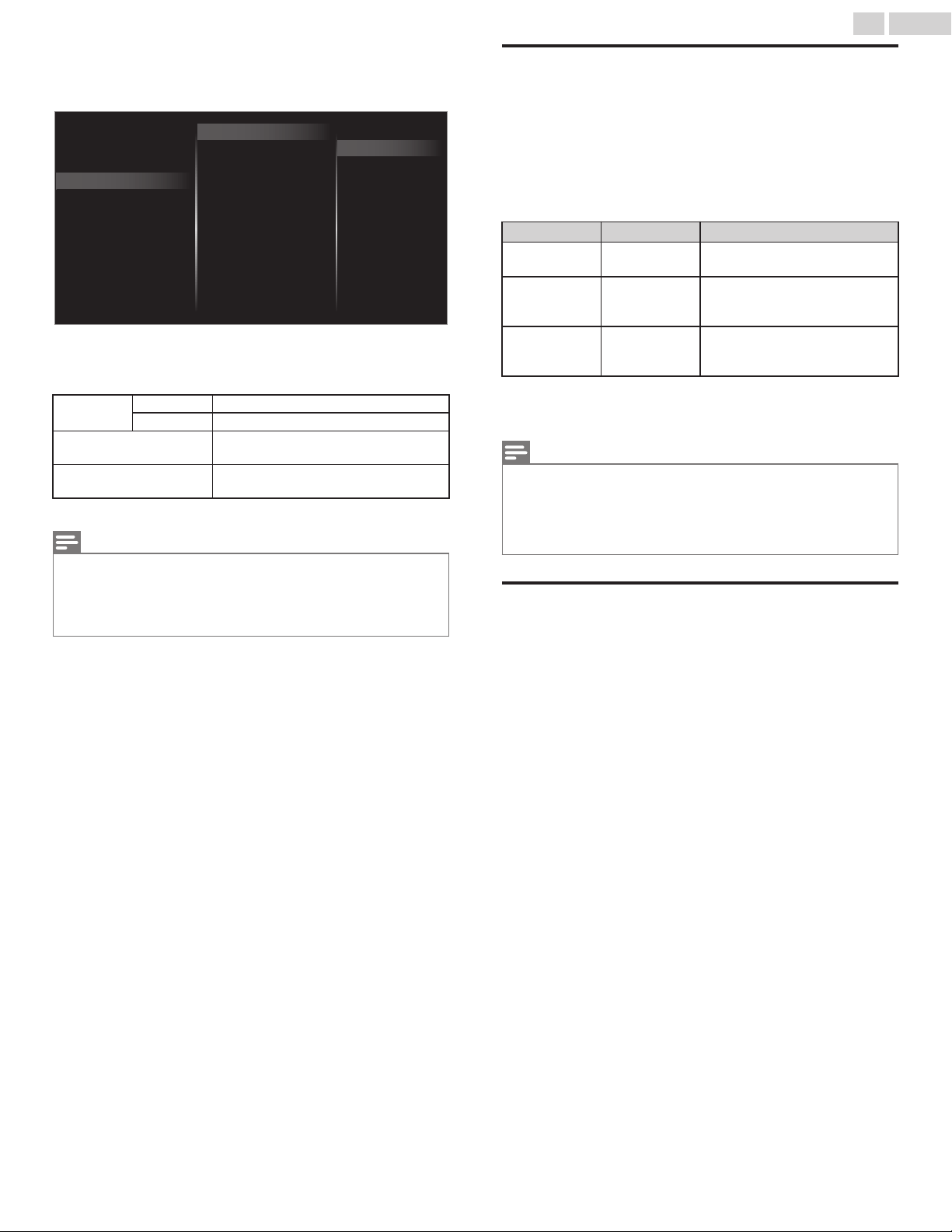
Proxy configuration
2
Use to select Proxy configuration, then press OK.
3
Use to select a setting, then press OK.
Do not useProxy setting
Proxy conguration
IP conguration
Wireless network setting
Network selection
Use
Proxy port
Proxy address
Ɣ
Do not use is selected for default settings.
Ɣ
If you need to change the proxy setting as instructed by your
internet service provider to set the designated proxy address
and port, select Use.
Proxy
setting
Do not use Does not use the proxy server.
Use Uses the proxy server.
Proxy address
*
Selects the number or word by using
, then press OK.
Proxy port
*
Use or the NUMBER buttons to
input numbers.
*
Items can be selected only when Proxy setting is set to Use.
Note(s)
Ɣ
The range of input numbers for the port number is between 0 and 65535.
(If you enter a number larger than 65535, it will be regarded as 65535.)
Ɣ
For proxy port, the selected ports may be blocked and not be able to use
depending on your network environment.
Ɣ
If the proxy address is entered with blank only, proxy server setting will be
set to Do not use.
Connection test
Perform the following steps to test your internet connection after you
have connected an Ethernet cable or entered network settings such
as IP address, DNS settings, etc. manually.
1
Use to select Connection test, then press OK.
Ɣ
Connection test will start automatically and the test result for
home network and internet will appear right after the
connection test finishes.
Ɣ
“Testing…” is displayed while the connection test is in progress.
Home network Internet Description
Pass Pass
Connection test is successfully
completed.
Fail -
Connection test for home
network failed. Check the
connection settings.
Pass Fail
Connection test for internet
failed. Check the connection
settings.
Ɣ
If the connection test for internet passes, speed test will start
automatically.
2
Press OK to go to the list on network status confirmation screen.
Note(s)
Ɣ
If the connection test for both home network and internet pass, you are
ready to use Net TV or network upgrade functions using the internet without
making any additional settings.
Ɣ
If the connection test fails, check if the Ethernet cable is connected to this
TV properly or if you have entered all the required details for the wireless
LAN connection properly.
Setting status
You can check the status of network settings.
1
Use to select Setting status, then press OK.
Ɣ
Network setting list will be displayed.
Ɣ
MAC address of this unit will be displayed in the list.
44 .English
Continued on next page.
Home network
You can turn your TV into a Digital Media Renderer (DMR), which can
play video, music and photo files stored on certified home media
servers connected to your home network.
1
Use to select Home network, then press OK.
2
Use to select the item you want to adjust, then press
OK.
Renderer
Off Disable DMR.
On
Enable this unit to play files using
DMC.
Renderer name
Change the display name of this TV to other
devices on the home network.
Wake-on-LAN(DIAL)
You can turn your TV on when you use remote control via IP.
1
Use to select Wake-on-LAN(DIAL), then press OK.
2
Use to select On or Off, then press OK.
Off To set Wake-on-LAN(DIAL) to off.
On To set Wake-on-LAN(DIAL) to on.
Net TV
Displays the deactivation settings for Net TV, Netflix ESN and Netflix
software version.
Netflix deactivation
Displays the deactivation setting for Netflix.
1
Use to select Net TV, then press OK.
2
Use to select Net TV deactivation, then press OK.
3
Use to select Netflix, then press OK.
4
Use to select the desired option, then press OK.
Yes Deactivate the connection to Netflix.
No Activate the connection to Netflix.
VUDU deactivation
Displays the deactivation setting for VUDU.
1
Use to select Net TV, then press OK.
2
Use to select Net TV deactivation, then press OK.
3
Use to select VUDU, then press OK.
4
Use to select the desired option, then press OK.
Yes Deactivate the connection to VUDU.
No Activate the connection to VUDU.
YouTube deactivation
Displays the deactivation setting for YouTube.
1
Use to select Net TV, then press OK.
2
Use to select Net TV deactivation, then press OK.
3
Use to select YouTube, then press OK.
4
Use to select the desired option, then press OK.
Yes Deactivate the connection to YouTube.
No Activate the connection to YouTube.
Netflix ESN
Displays the ESN information.
1
Use to select Net TV, then press OK.
2
Use to select Netflix ESN, then press OK.
Ɣ
Displays the ESN (Electronic Serial Number) to get any services
from Netflix.
Netflix software version
Displays the Netflix version.
1
Use to select Net TV, then press OK.
2
Use to select Netflix software version, then press OK.
Reset network settings
You can reset the status of network settings.
1
Use to select Reset network settings, then press OK.
2
Use to select the desired option, then press OK.
45 .English
Continued on next page.
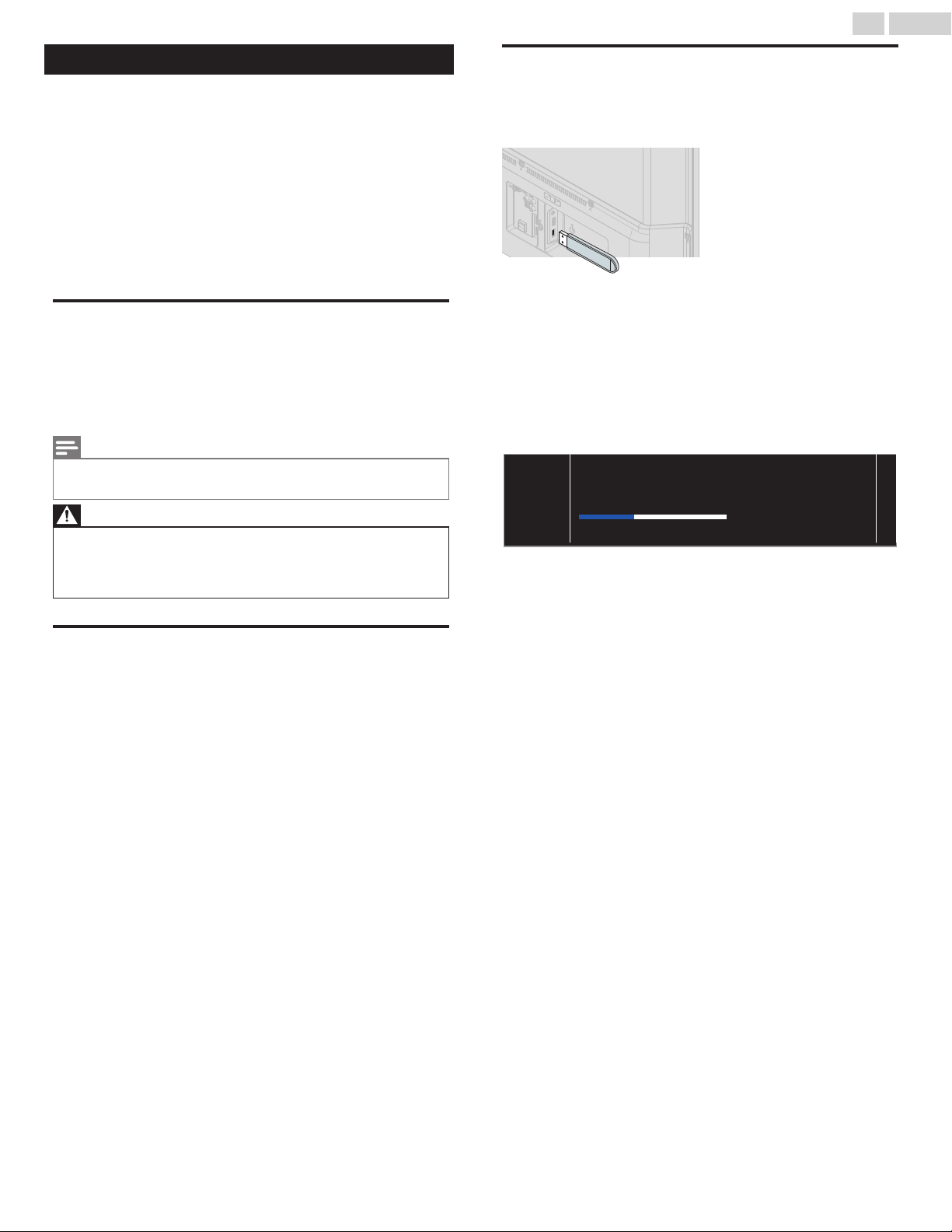
Update software
Philips continuously tries to improve its products and we strongly
recommend that you upgrade the TV software when upgrades are
available.
New software can be downloaded from our website at
www.philips.com/support using the model number of your TV to find
information.
You can update the software through these methods:
Ɣ
Update with USB memory stick
Ɣ
Update from digital broadcast Update notification p.47
This section describes how to upgrade the software by using USB
memory stick.
Preparing for the software upgrade
You require the following equipment:
–
A PC with web browsing capability
–
An archive utility that supports the ZIP-format
(e.g. WinZip for Windows or StuffIt for Mac OS)
–
An empty clean formatted USB memory stick
Note(s)
Ɣ
Only FAT / DOS-formatted portable memory is supported.
Ɣ
Use only software upgrades that can be found on the Philips web site.
Warning
Ɣ
When the software upgrade is running, don’t press any buttons.
Ɣ
Do not remove the USB memory stick during the software upgrade.
Ɣ
If an error occurs during the upgrade, retry the procedure or for further
assistance, please contact call center.
Downloading the software
Find information and software related to your TV and download the
latest software upgrade file to your PC.
Prepare a blank USB memory stick for software update. Access
www.philips.com/support and download the latest version software
to a blank USB memory stick using a PC by following the directions
described on the website.
Ɣ
Use a blank USB memory stick, download the software on your PC
and write the software in the root directory of the USB memory stick.
Ɣ
For more details on how to download the software, please refer to
the website.
USB upgrade
You can upgrade the software by using USB memory stick.
1
Connect your USB memory stick with the upgrade file to the USB
terminal on the side of your TV.
2
Press and use to select Setup then press OK.
3
Use to select Update software, then press OK.
4
Use to select USB, then press OK.
5
Use to select the desired update file, then press OK.
6
Use to select Yes, then press OK.
Ɣ
Read the on-screen instructions and confirm that you want to
continue with the installation.
Do not remove the USB storage device or turn the TV o
while upgrade is in progress.
Software update is in progress. Please wait.
7
When the software upgrade is completed, press to set the unit
into standby mode, then remove the USB memory stick.
8
Unplug the AC power cord for a few seconds from AC outlet and
plug it again.
9
Press again to turn the unit on.
Ɣ
The TV starts up with the new software.
Ɣ
For further assistance, please contact call center.
46 .English
Continued on next page.
Network updates
You can update the software by connecting the unit to the internet.
1
Press and use to select Setup then press OK.
2
Use to select Update software, then press OK.
3
Use to select Network, then press OK.
4
Use to select Yes, then press OK.
Ɣ
This unit will then start checking for the latest FirmWare
(software) version.
5
Confirmation message will appear.
Use to select Yes, then press OK.
Ɣ
The unit will start downloading the latest FirmWare (software)
version.
Ɣ
The unit will start updating the FirmWare (software) version.
Ɣ
It may take a while to complete the updating.
6
When the software update is complete, press to make sure the
unit goes to standby mode.
7
Unplug the AC power cord for a few seconds from AC outlet and
plug it again.
8
Press again to turn the unit on.
Ɣ
The TV starts up with the new software.
For further assistance, please contact call center.
Note(s)
Ɣ
In order to update software via the Internet, you must connect the unit to
the Internet and set up necessary settings.
Connect to network p.41
Network settings p.42
Ɣ
Please do not unplug the AC power cord or Ethernet cable while executing
the Network updates.
Ɣ
All settings will remain the same even if you update the software version.
Ɣ
The version of net service will also be updated if newer version of net service
is available when updating the firmware.
Ɣ
When you start up the TV or a net service after executing the software
update, a message may appear on the screen prompting for software
update again. In this case, please select Update to start USB update or
network update. For further assistance, please contact call center.
Software settings
Software
1
Press and use to select Setup then press OK.
2
Use to select Software settings, then press OK.
3
Use to select Software, then press OK.
Checking your current software version number
1
Use to select Software information, then press OK.
Ɣ
The version and a description of the current software is
displayed.
Update notification
You can download the latest software through the air and update this
unit automatically while the unit is in standby mode.
1
Use to select Update notification, then press OK.
2
Use to select the desired option, then press OK.
Off Disable auto-update for latest software.
On
A message will appear if there is the latest software
on the network server.
License
Displays the licenses of open source software used in this unit.
1
Use to select License, then press OK.
Ɣ
Licenses of open source software used in this unit are
displayed.
Digital rights management
This product contains technology subject to certain intellectual
property rights of Microsoft. Use or distribution of this technology
outside of this product is prohibited without the appropriate license(s)
from Microsoft.
1
Use to select Digital rights management, then press OK.
Ɣ
Digital rights management is displayed.
47 .English
Continued on next page.
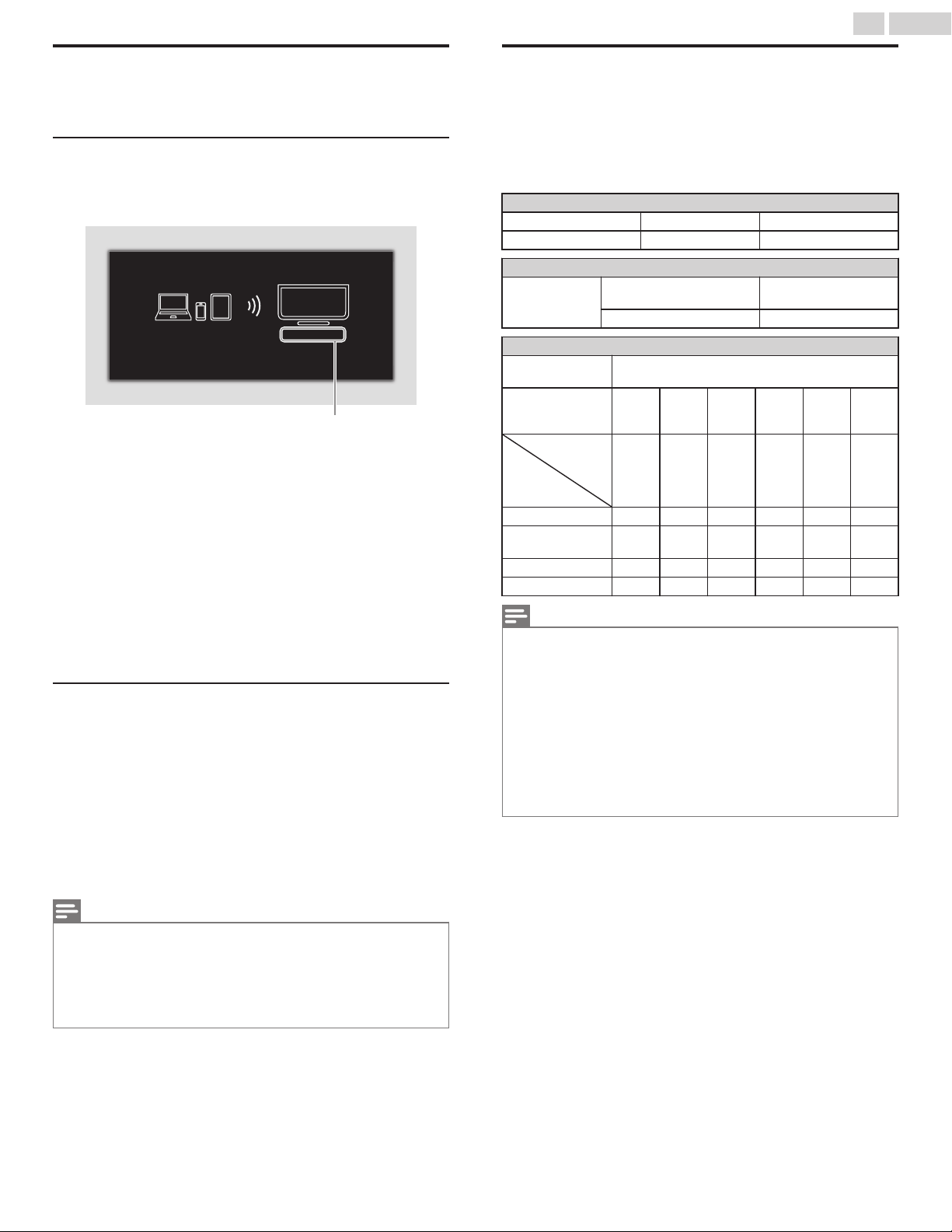
Wireless screencasting
You can wirelessly cast or mirror the screen of your Smartphone,
Tablet or PC to the TV directly using wireless screencasting.
Using wireless screencasting
1
Press and use to select Wireless Screencasting, then
press OK.
Ɣ
Wireless screencasting mode screen appears.
PHILIPS_Smart_TV
If you want to manage connected device history, please press "OPTIONS".
If you want to exit, please press "BACK" key.
Your TV name
The TV is now ready to accept a connection from your source device.
2
Activate wireless screencasting feature on your device.
Ɣ
For the operation of your device, please check the instruction
manual of the device.
Ɣ
Select Your TV name on your device if needed.
Ɣ
If PIN code is required on your device, please enter the 8-digit
code appearing in the left-hand side of the TV screen.
3
Once connected, the screen of your device will appear on your
TV screen.
Ɣ
Press
INFO to display your device name at the bottom of TV
screen.
Ɣ
Press
1
or OK to pause playback. Press
1
or OK again to
resume playback.
Using wireless screencasting device list
In wireless screencasting device list, you can find the connected
devices.
1
Press OPTIONS on remote when wireless screencasting mode
is on the TV screen.
Ɣ
Only the connected device names are listed.
Ɣ
It will be sorted from newest connection to oldest connection.
A maximum of 64 connections can be recognized.
Ɣ
If you would like to delete a listed connection, press
to
select the device name, then press OK first. Once the
confirmation message appears, please use
to select Yes,
then press OK.
Note(s)
Ɣ
Funai Corporation Inc. / P&F MEXICANA S.A. de C.V. do not warrant wireless
screencasting compatibility with all source devices such as smartphones,
tablets, laptops, etc. Due to large variability in hardware, firmware, drivers,
software and implementation of wireless casting applications on these
source devices. Although Funai Corporation Inc. / P&F MEXICANA S.A. de
C.V. will strive to enhance compatibility and performance across a range of
source devices, Funai Corporation Inc. / P&F MEXICANA S.A. de C.V. do not
warrant compatibility with specific source devices.
View photos, play music and watch
videos using home network
On your TV you can play video, music and photo files stored on home
network certified home media servers connected to your home
network. In order to use this feature, you must connect this unit to the
internet.
It is recommended that files to be played back in this unit are
recorded under the following specifications:
Picture (JPEG / Progressive JPEG)
JPEG Upper limit 4000x4000 pixels
Progressive JPEG Upper limit 1024x768 pixels
Music (MP3)
MP3
Sampling frequency
32 kHz or 44.1 kHz or 48
kHz
Constant bit rate 32 kbps - 320 kbps
Video (MPEG / VOB / AVI / MP4)
Maximum video
H.264, H.265/HEVC: 3840x2160@30fps,
MPEG: 1920x1080@60fps
Extension .avi
.mpg,
.mpeg
.ts,
.trp,
.tp
.vob .mp4 .mkv
Video
codec
Audio
codec
MPEG1,
MPEG2,
H.264
MPEG1,
MPEG2
MPEG1,
MPEG2,
H.264,
H.265/
HEVC
MPEG1,
MPEG2
MPEG1,
MPEG2,
H.264,
H.265/
HEVC
MPEG1,
MPEG2,
H.264,
H.265/
HEVC
Dolby Digital YES YES YES YES YES YES
MPEG1/2 audio
layer 1/2/3
YES YES YES YES NO YES
LPCM YES YES YES YES YES YES
AAC-LC YES YES YES YES YES YES
Note(s)
Ɣ
A maximum of 1,023 folders or files can be recognized.
Ɣ
For the home server list, maximum of 16 servers can be displayed.
Ɣ
The 10th and deeper hierarchies cannot be displayed.
Ɣ
Unplayable files in the home server will not be displayed in the file list.
Ɣ
For some files, playback is not available even if displayed in the file list.
Ɣ
In order to play back the contents in home servers, the player and the servers
must be connected to the same access point.
Ɣ
Compatibility and available playback function may differ depending on the
home server.
Ɣ
Video files with unsupported audio format will be skipped.
Ɣ
The quality of the playback picture or audio differs depending on your
network condition
48 .English
Continued on next page.
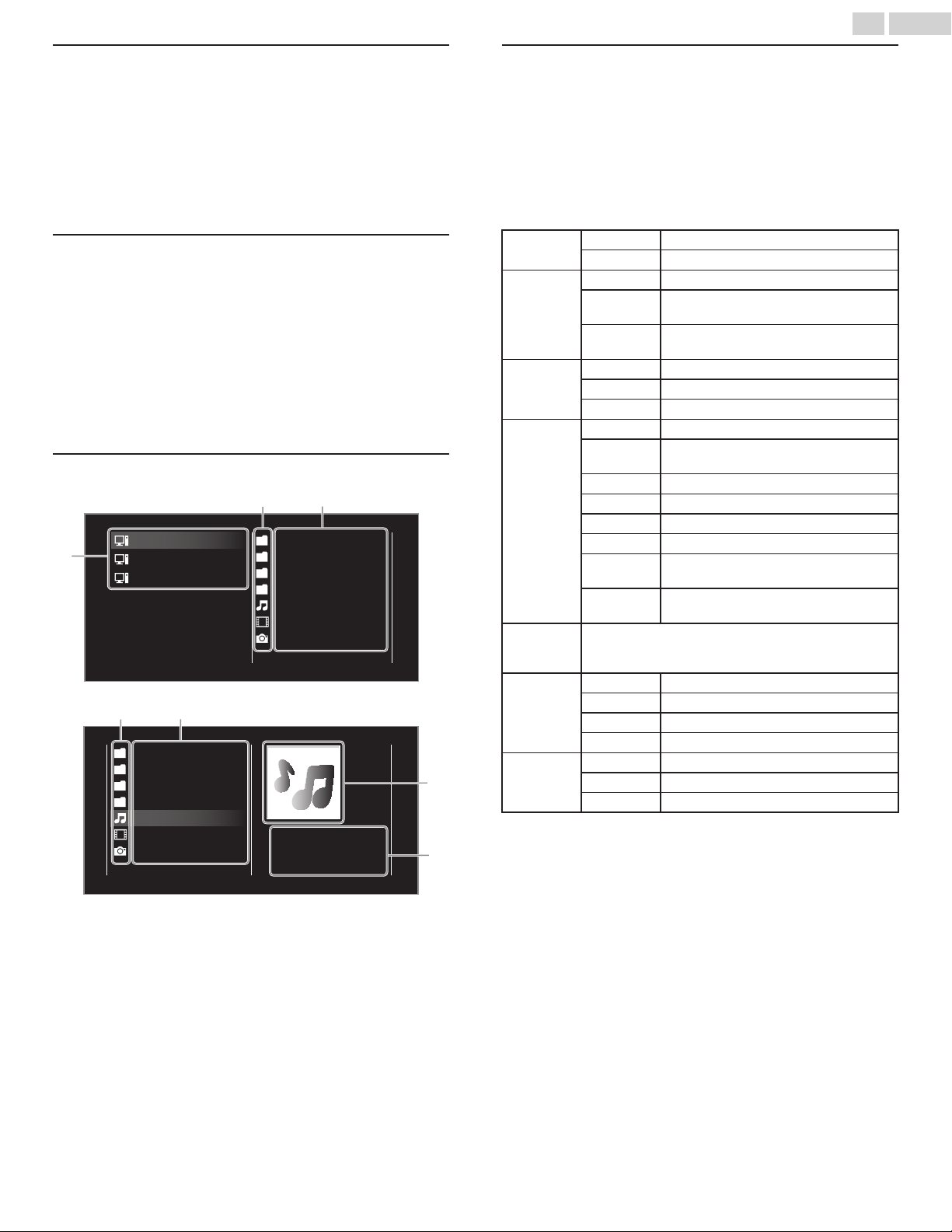
Before using home network
Follow the procedure below before using home network.
1
Connect this unit to the internet.
Connecting the TV to the internet using an Ethernet cable p.17 or
Connecting the TV to the internet using a wireless LAN p.18
Ɣ
Broadband internet connection of 8Mbps or faster is required.
2
Set up the necessary network connection settings.
Connect to network p.41
Using home network
1
Start home network media servers in your home network.
Ɣ
For details, refer to the instruction book of the home network
certified device.
2
Press on the remote control.
3
Use to select Home Network.
Ɣ
This unit will start loading the home server list.
4
After loading, home server list will appear. Select a home server
you want to access, then press OK.
Guide to home network
a
bc
Blue hills
Video10
Highway Blues
Folder
Video
Photos
Audio
Server 3
Server 2
Server 1
00:05:28
d
e
bc
Blue hills
Video10
Highway Blues
Highway Blues
Artist
Current folder
Folder
Video
Photos
Audio
Home server list
Folder / media icon
Group (folder) / file list
Image
Current file info
View your pictures using home network
1
Press to select a file or a folder.
2
Press OK or 1 to start a slide show of the files.
Ɣ
Press OK or
1
to pause the slide show.
The
1
icon appears.
Ɣ
Press
0
or
/
to move between images.
Ɣ
Press
BACK or
.
to stop the slide show.
Ɣ
Press
OPTIONS to display the optional menu, then use
to select the desired item.
Voice guide
toggle
*1
Off Sets Voice guide to off.
On Sets Voice guide to on.
Repeat
*2
Off Sets repeat playback to off.
One
Sets repeat playback for a selected image
file.
All
Sets repeat playback for all image files in the
current folder.
Slide time
*2
Short Switches to the next image in 5 seconds.
Medium Switches to the next image in 10 seconds.
Long Switches to the next image in 15 seconds.
Transitions
*2
None No effect when switching images.
Dissolve
Overlaps the next image on the current
image.
Wipe right Pushes the current image out from left.
Wipe left Pushes the current image out from right.
Wipe up Pushes the current image out from bottom.
Wipe down Pushes the current image out from top.
Box in
The next image comes to the center from the
outside.
Box out
The next image goes to the outside from the
center.
Auto
picture
*2
Selects the picture mode according to your preference.
(Standard, Natural, Vivid, Sports, Movie, Game, Energy
saving and Internet video)
Rotate
*3
0 Displays an image in its original direction.
90 Rotates an image 90 degrees clockwise.
180 Rotates an image 180 degrees clockwise.
270 Rotates an image 270 degrees clockwise.
Zoom
*3
1X Displays an image in its original size.
2X Magnifies a current image by 2 times.
4X Magnifies a current image by 4 times.
*1 Voice guide toggle is available in slide show and pause mode.
*2 You can set Repeat, Slide time, Transitions and Auto picture
when images are in slide show.
*3 You can set Rotate and Zoom when slide show is in pause
mode.
49 .English
Continued on next page.
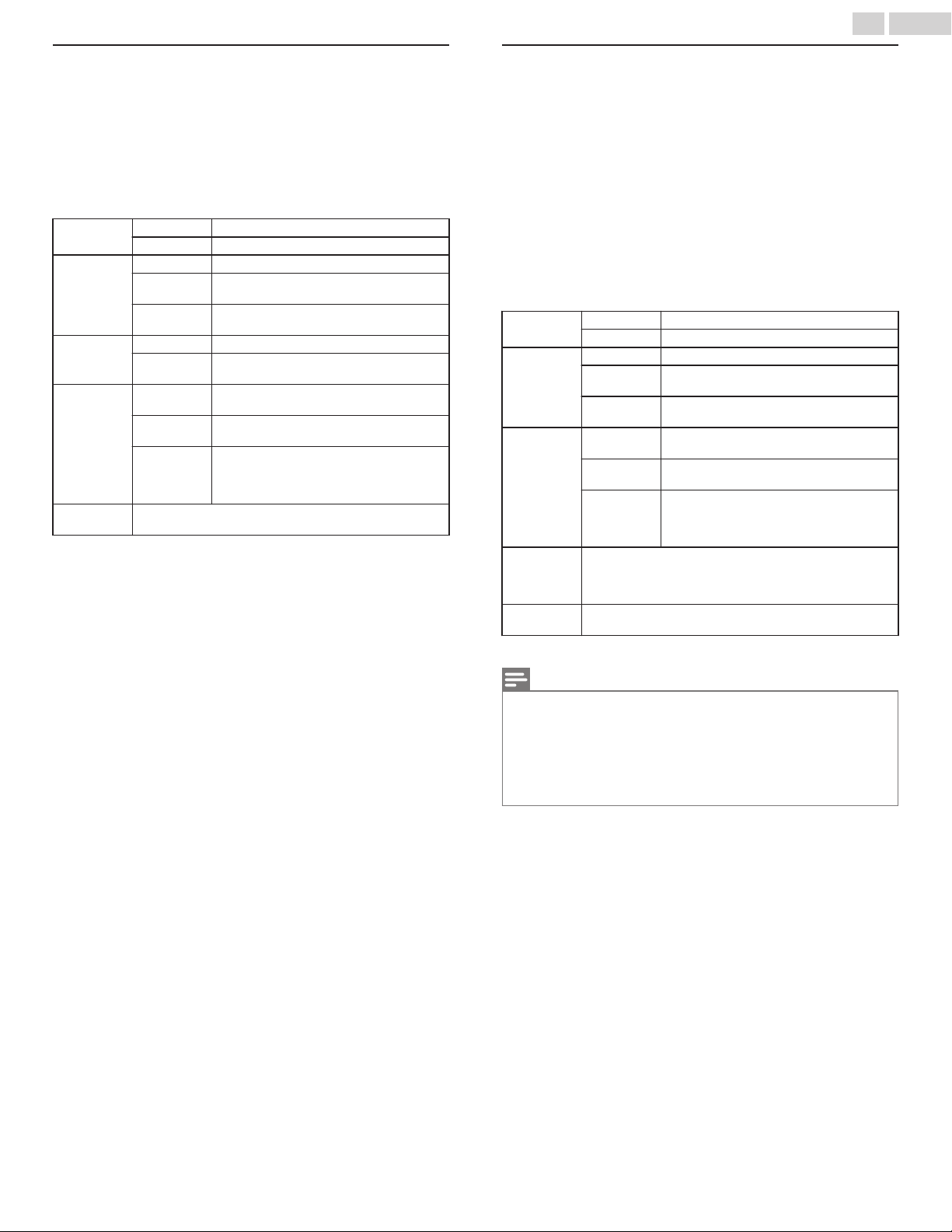
Listen to music using home network
1
Press to select a file or a folder.
2
Press OK or 1 to play the selected files.
Ɣ
Press OK or
1
to pause, press OK or
1
again to resume.
Ɣ
Press
/
to skip up the next file.
Ɣ
Press
0
to skip down the previous file.
Ɣ
Press
.
to stop playback.
Ɣ
Press
OPTIONS to display the optional menu, then use
to select the desired item.
Voice guide
toggle
*
Off Sets Voice guide to off.
On Sets Voice guide to on.
Repeat
Off Sets repeat playback to off.
One
Sets repeat playback for a selected
music file.
All
Sets repeat playback for all music files in
the current folder.
Shuffle
Off Sets shuffle playback to Off.
On
Sets shuffle playback for all music files in
the current folder.
TV
Speakers
Off
The sound will not be output from the
unit's speakers.
On
The sound will be output from the unit's
speakers.
Speakers
EasyLink
You can control audio output from your
connected EasyLink compliant devices
with VOL + / – by using this unit's remote
control.
Auto sound
Selects the sound mode according to your preference.
(Standard, Vivid, Sports, Movie, Music and News)
*
Voice guide toggle is available in slide show and pause mode.
Watch videos using home network
1
Press to select a file or a folder.
2
Press OK or 1 to play the selected files.
Ɣ
Press OK or
1
to pause, press OK or
1
again to resume.
Ɣ
Press
/
to fast-forward search.
Ɣ
Press
0
to fast-backward search.
Ɣ
Press
.
to stop playback.
Ɣ
Press
1
to resume from the point at which playback was
stopped. Press OK to play from the beginning of the file at which
playback was stopped.
Ɣ
Press CH + to play the next file.
Ɣ
Press CH - to play the current file at the beginning.
Press CH - twice within 5 seconds to play the previous file.
Ɣ
Press
OPTIONS to display the optional menu, then use
to select the desired item.
Voice guide
toggle
*
Off Sets Voice guide to off.
On Sets Voice guide to on.
Repeat
Off Sets repeat playback to off.
One
Sets repeat playback for a selected
video file.
All
Sets repeat playback for all video files in
the current folder.
TV speakers
Off
The sound will not be output from the
unit's speakers.
On
The sound will be output from the unit's
speakers.
Speakers
EasyLink
You can control audio output from your
connected EasyLink compliant devices
with VOL + / – by using this unit's remote
control.
Auto
picture
Selects the picture mode according to your
preference.
(Standard, Natural, Vivid, Sports, Movie, Game,
Energy saving and Internet video)
Auto sound
Selects the sound mode according to your preference.
(Standard, Vivid, Sports, Movie, Music and News)
*
Voice guide toggle is available in slide show and pause mode.
Note(s)
Ɣ
The resume information will be kept even when the unit is Turned off.
Ɣ
If you play another file while the previously viewed file is being resumed,
the resume information of the previously viewed file will be deleted.
Ɣ
The file or the folder in resume stop mode will be highlighted in gray on List
or Thumbnails.
Ɣ
This unit has been tested and confirmed compatible with the DLNA
standard, however compatibility cannot be guaranteed with all servers and
in all network setups.
50 .English
Continued on next page.
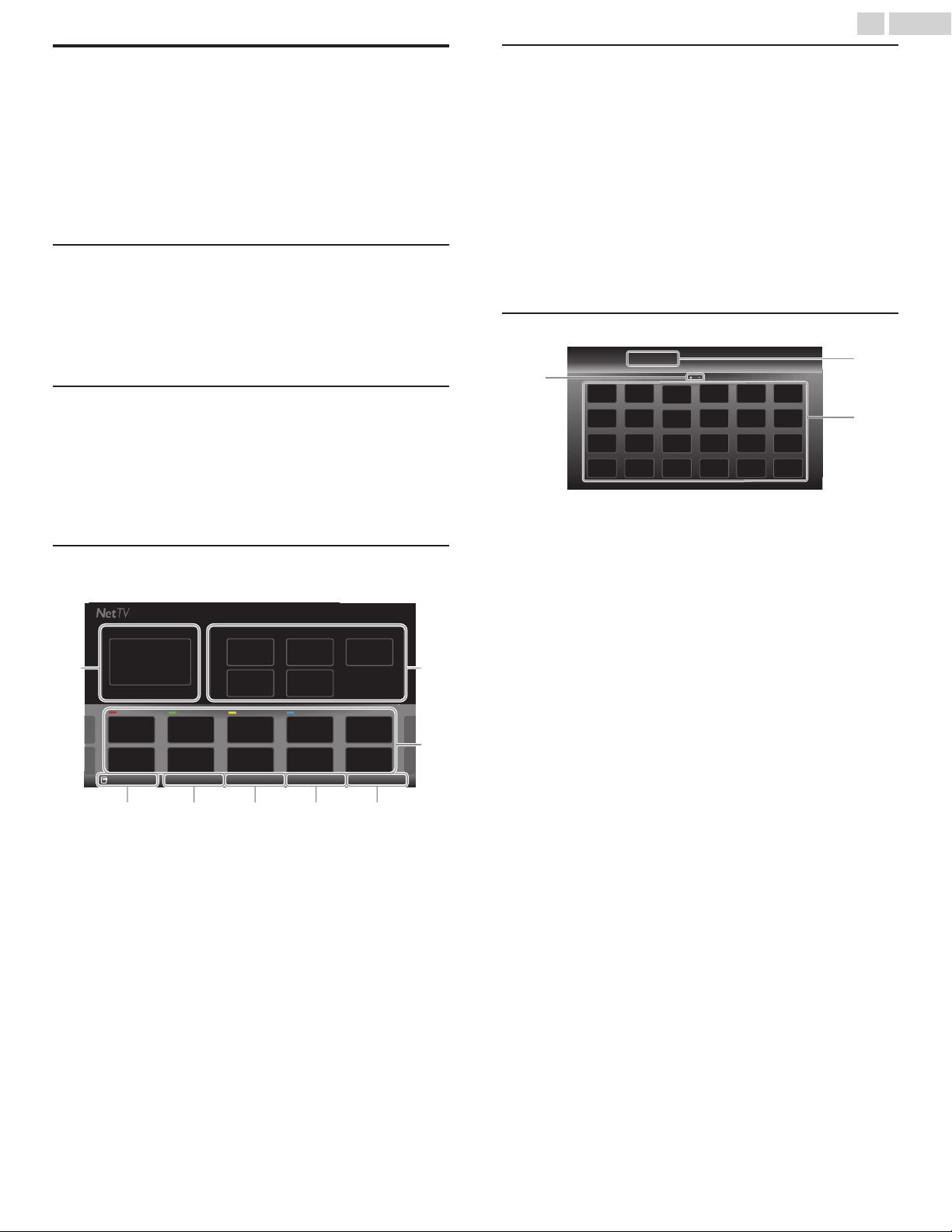
Net TV
Net TV offers internet services for your TV. Use the TV remote control
to browse the Net TV pages. You can play movies, listen to music and
much more, all from your TV screen.
–
Because Net TV is an online system, it can be modified over time
to better serve its purpose.
–
Some Net TV services can be added, changed or stopped after
some time.
–
You cannot download and save files or install plug-ins.
Before using Net TV
Follow the procedure below before using Net TV.
1
Connect this unit to the internet.
2
Set up the necessary network connection settings.
(Refer to Connect to network p.41)
Using Net TV
1
Press NETTV.
Ɣ
Net TV screen will appear, then use
to select service
icon.
Ɣ
For the first time only, Terms of Use screen will appear. After
confirming the content, use
to select Agree, then press
OK.
Guide to Net TV menu screen
Net TV start screen
Country: USA RefreshTerms of UseApp GalleryOption
Featured AppsNow on TV
RED GREEN YELLOW BLUE 1/3
a
d
b
c
e f g h
Now on TV : Displays the image of the input under
present tuning.
Featured Apps : Displays fixed net service icons.
Selected Apps : Displays movable net service icons.
Option : Remove or move App.
App Gallery : Displays unregistered net service icons.
Terms of Use : Displays a copy of net service.
!
Country : Selects what country you live in.
"
Refresh : Checks for updates for Apps.
After checking, if newly available Apps are
found, they will be added to My Apps or
App Gallery.
My Apps functions
Remove App
1
Use to select the desired App, then press OPTIONS.
2
Use to select Remove App, then press OK.
Ɣ
The selected App will be removed from My Apps list.
Move App
1
Use to select the desired App, then press OPTIONS.
2
Use to select Move App, then press OK.
Ɣ
The selected App icon will be smaller.
3
Use to the point you want to place, then press OK.
Guide to App Gallery
a
b
c
All
App Gallery
Category menu
: List of category menu.
Icon list
: Displays unregistered net service icons on My
Apps list.
Page guide
: Displays the order of pages. The current page
will be highlighted.
1
Press NETTV, then use to select App Gallery.
2
Use to select the desired App in My Apps list, then press
OK.
Ɣ
You can also choose from Category menu. Use
to
select All, then use
OK to select the desired category.
Ɣ
If you select Add, the selected App icon will be placed at the
end of My Apps list.
Ɣ
If you select Add and move, the selected App icon will be
smaller and use
to the point you want to place, then
press OK.
Even if you press BACK to cancel this function, the selected
App icon will be placed at the end of My Apps list.
51 .English
Continued on next page.
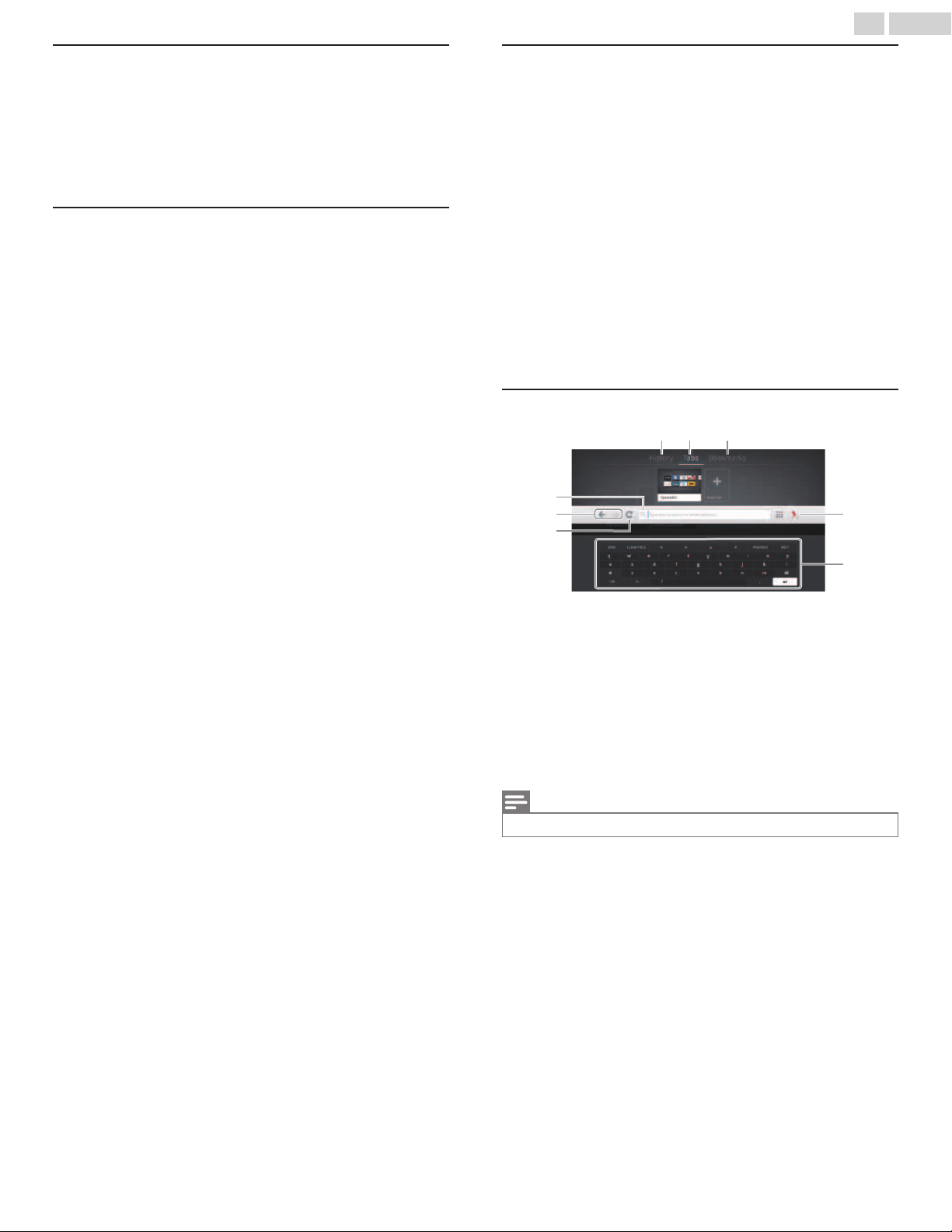
Changing picture settings during playback
1
Press OPTIONS and use to select TV settings, then press
OK.
2
Use to select Picture, then press OK.
3
Use
to select the item you want to adjust, then press OK.
Ɣ
For more details, refer to Picture p.31
Information on network services
For detailed information on 3rd party internet services, please visit the
service providers website:
Netflix
: http://www.netflix.com
VUDU
: http://www.vudu.com
For additional help, refer to the Frequently Asked Questions FAQs at
www.philips.com/support.
Select TV and enter your model number.
Using Vewd browser
The Vewd browser allows you to surf the Internet on your TV and
provides quick access to the search engine.
1
Press NETTV, then use to select the Vewd browser icon
in Featured Apps, then press OK.
Ɣ
The browser window will be displayed.
Ɣ
The EULA (End User License Agreement) will be displayed at
the first launch of the Vewd browser.
2
Use to navigate up to the URL address bar and place
your cursor there.
3
Press OK to bring up the virtual keyboard.
4
Type the search term or website address in the text field.
Ɣ
The search term or website address you have typed populates
in the URL bar window.
5
Use to select the Return key on the virtual keyboard ("
in the picture shown below), then press OK.
Guide to Vewd browser
a
h
g
e
d
f
b c
Browser history
Browser tabs
Bookmarks
URL address bar
Back button / Forward button
Refresh button
!
Main menu Icon
Selecting the icon and pressing OK will display the item list,
including settings for Zoom, Text Size, etc., and Help.
"
Virtual keyboard
Note(s)
Ɣ
Press
BACK to return to this main screen.
52 .English
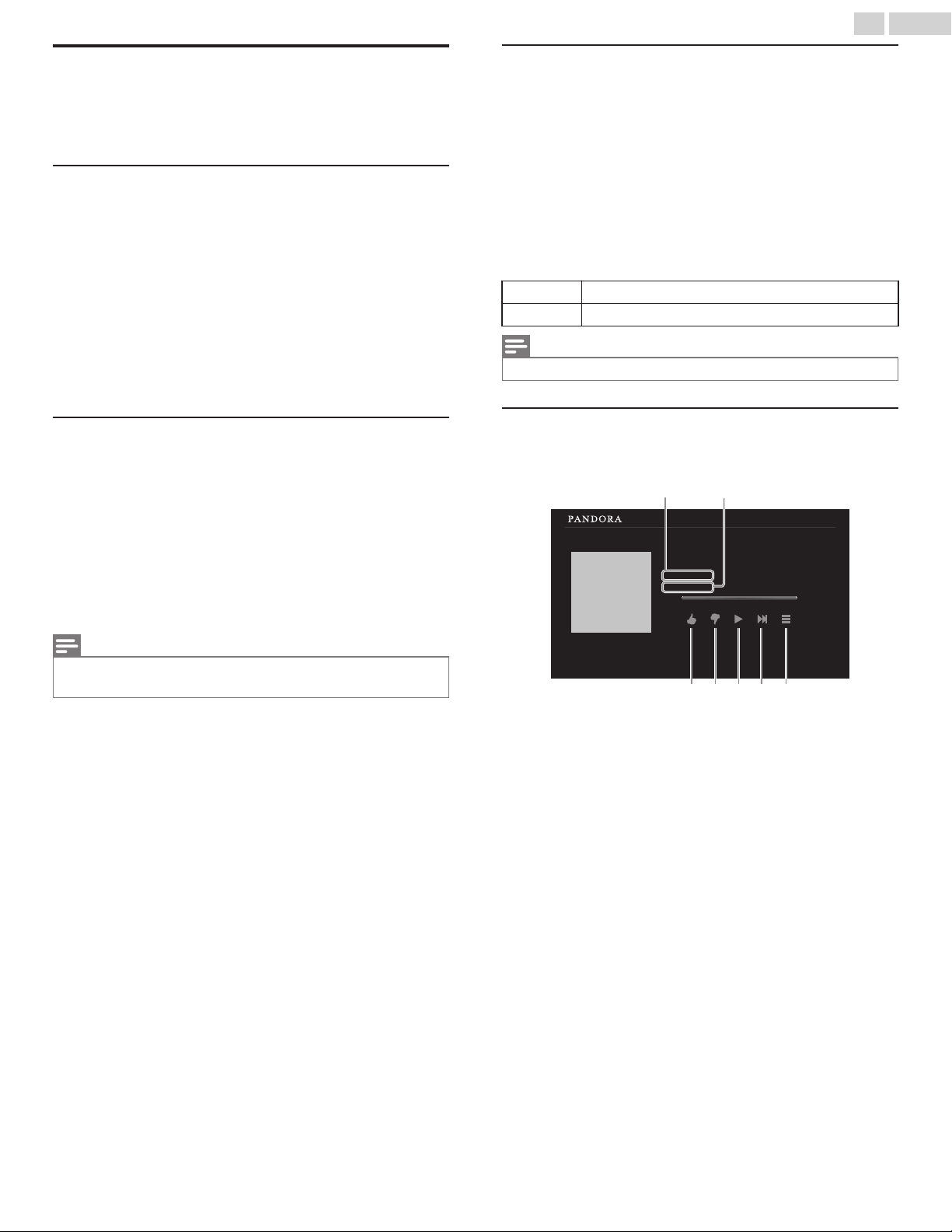
Pandora operations
With this unit, you can instantly listen to personalized radio stations
streamed over the internet from Pandora.
To learn more about Pandora, please visit www.pandora.com
Activating Pandora
In order to listen to internet radio streamed from Pandora via the
internet, you must create a Pandora account and activate this unit.
1
Press NETTV, then use to select PANDORA.
2
Use to select I am new to Pandora., then press OK.
3
Note the activation code and website address displayed on the
TV screen.
4
On your PC, visit the website address noted at step 4.
5
Follow directions on the website to create your account.
6
On this unit, select Go Back and press OK to complete activation.
Adding Pandora user accounts
You can add the Pandora user account.
1
Press NETTV, then use to select PANDORA.
2
Use to select I have a Pandora account., then press OK.
3
Enter your e-mail address, then press OK while OK is selected.
4
Enter a password, then press OK while OK is selected.
5
Use to select Sign In, then press OK.
Ɣ
Your account is added to the user list and player screen appears
on the TV screen.
Note(s)
Ɣ
Pandora is available only in the United States.
Ɣ
You can add up to 5 accounts.
Creating a new station
By entering your favorite artists or tracks, Pandora selects music and
creates a new station for you on the basis of the entered information.
1
On the station list screen, Use to select New Station,
then press OK.
2
Enter a name of your favorite artist or tracks, then press OK while
OK is selected.
Ɣ
Search result will appear on the right side of the TV screen.
Ɣ
If the selection screen with the result type appears, use
to
select the desired type, then press OK.
3
Use to select the desired station, then press OK to start the
playback.
/ 1
Resumes the playback / pause the playback.
Skips to the next track.
Note(s)
Ɣ
On the Tool Menu, you can delete or rename the currently selected station.
Guide to the player screen
On the player screen, you can set various options to the currently
playing track.
XXXXX
XXXXX
ABC
American Oldies Radio
4:52 0:00
on
by
c
ba
defg
Artist name : Displays artist name.
Album name : Displays album name.
%
: Give thumbs up to the currently playing
track. Pandora will play tracks similar to the
track.
&
: Give thumbs down to the currently playing
track. Pandora will skip and will not play the
track.
/ 1
: Resumes the playback / pause the
playback.
2
: Skips to the next track.
!
'
: Displays the Tool menu.
53 .English
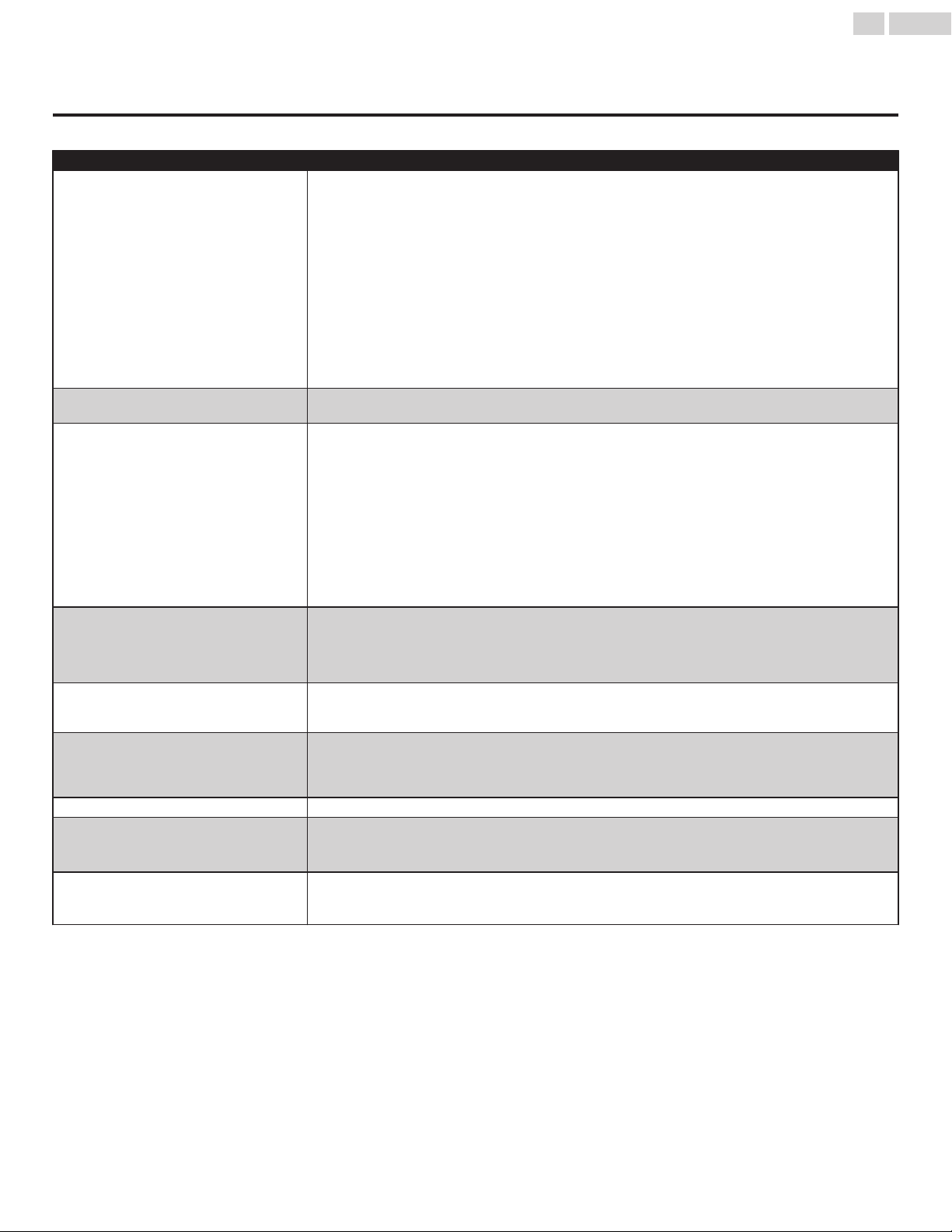
5 Useful tips
FAQ
Question Answer
My remote control does not work.
What should I do?
Ɣ
Check the antenna or cable connection to the main unit.
Ɣ
Check the batteries on the remote control.
Ɣ
Check if there is an obstacle between the infrared sensor window and the remote control.
Ɣ
Test the IR signal output use IR signal check. p.57
If okay, then possible infrared sensor trouble.
Ɣ
Aim the remote control directly at the infrared sensor window on the front of the unit.
Ɣ
Reduce the distance to the unit.
Ɣ
Re-insert or replace the AAA batteries with their polarities (+/–) as indicated on the remote control
battery area.
Ɣ
When there is an infrared-equipped device such as PC near this unit, it may interrupt the remote
control signal on this unit. Move the infrared-equipped device away from this unit, change the angle
of the device's infrared sensor or turn off the infrared communication function.
How come the initial setup appears every
time I turn on this unit?
Ɣ
Make sure to complete the initial setup before the unit goes into standby mode.
Why can I not watch some RF signal TV
programs?
Ɣ
Autoprogram must be completed when you set up the unit for the first time or move it to a location
where previously unavailable channels are broadcast.
Ɣ
Make sure auto programming has been completed. p.38
Ɣ
The selected channel may not be broadcasting.
Ɣ
When Auto programming is interrupted and not completed, some channels will not be received. Make
sure to complete the Autoprogram. p.38
Ɣ
The selected channel cannot be viewed by the Child lock setting. p.39
Ɣ
The unit requires some kind of antenna input. An indoor antenna (Digital or VHF / UHF), an external
antenna (Digital or VHF / UHF) or an RF coaxial cable from your wall cable or set-top box needs to
be plugged into the unit.
How come there is no image from the
connected external devices?
Ɣ
Check if the correct input mode is selected by pressing
SOURCE. p.23
Ɣ
Check the antenna, cable or other input connection to the unit.
Ɣ
When using the component video connection check that the green (Y), blue (Pb/Cb) and red (Pr/Cr)
connectors are connected to their corresponding colored jacks on the unit.
When I enter a channel number, why does
it change automatically?
Ɣ
Many digital channels have alternate channel numbers. The unit changes the numbers automatically
to the ones signifying the broadcasting station's channel number. These basic numbers used for the
previous analog broadcasts. (e.g., input digital ch# 30 automatically changes to digital ch# 8.1)
Why are captions not displayed entirely?
Or why are captions delayed behind the
dialog?
Ɣ
Closed captions that are delayed a few seconds behind the actual dialog are common for live
broadcasts. Most captioning production companies can display a dialog to maximum of 220 words
per minute. If a dialog exceeds that rate, selective editing is used to insure that the closed captions
remain up-to date with the current TV screen dialog.
How can I set the clock?
Ɣ
There is no clock function on this unit.
My PIN code no longer works, how can I
change the child lock setting?
Ɣ
Although the default PIN code (0000) is supplied with the unit, the PIN code will be required once
you set a PIN code in Child lock. p.39
When you forget your PIN code, enter 07 1 1 in Change PIN to reset the PIN code. p.40
When I start up the TV or a net service, a
message appears on the screen
prompting for software update again.
Ɣ
When you start up the TV or a net service after executing the software update, a message may appear
on the screen prompting for software update again. In this case, please select Update to start USB
update or network update. p.46
54 .English
Continued on next page.

Troubleshooting tips
If the unit does not perform properly when operated as instructed in this manual,
Please check the following Troubleshooting tips and all connections once before calling for service.
Power
No power
Ɣ
Make sure the AC power cord is plugged in.
Ɣ
Make sure that the AC outlet supplies the proper voltage, plug another
electrical appliance into the AC outlet to ensure that the AC outlet operates
normally.
Ɣ
If a power failure occurs, unplug the AC power cord for 1 minute to allow the
unit to reset itself.
Remote
Control buttons do not work.
Ɣ
Do NOT press more than one button at the same time.
Ɣ
Ensure that no buttons on the remote control are depressed and move
freely.
Universal remote control does not work properly.
Ɣ
Refer to the User manual of the universal remote control for the Philips code.
Picture
Power is on but no screen image.
Ɣ
Check whether the connection for the antenna, cable or set-top box is
connected correctly.
Ɣ
Check whether all the cables to the unit are connected to the correct output
jack on your separate device like Blu-ray Disc™ / DVD recorder.
Ɣ
Make sure that the selected input mode is connected to the working input
jack.
Ɣ
Check if your computer is NOT in sleep mode when the input mode on this
unit is in PC mode. Tap any key on the computer keyboard to wake it up.
Ɣ
Check if the correct input mode is selected by pressing
SOURCE.
No color
Ɣ
View other TV channels. The problem might be limited to the broadcasting
station.
Ɣ
Adjust Color in Picture settings. p.31
Picture poor
Ɣ
Adjust Contrast and Brightness in Picture settings. p.31
Ɣ
For the best picture quality, watch “High Definition” wide screen programs.
If the HD content is not available, watch “Standard Definition” programs
instead.
You see pixelation on the screen.
Ɣ
When the capabilities of the unit exceed the capabilities of the digital
broadcasting, the signal will be increased to match the capabilities of the
display on the unit. This may cause pixelation, noise or trash.
Unusual picture appears and the TV does not operate.
Ɣ
Press the power button first. If it does not solve, follow the procedure below.
䐟
Press the buttons on the remote control in the order shown below.
䐠 Unplug the AC power cord, then wait for 1 minute, and then plug it in
again.
Sound
No sound is heard when using the HDMI digital connection.
Ɣ
Some HDMI cables and devices may not be compatible with the TV due to
different HDMI specifications.
No sound, distorted sound or incorrect audio sound is heard when using the
HDMI-DVI connections.
Ɣ
Make sure that the analog audio signals from the HDMI-DVI device are
connected to the analog audio input L/R jacks.
Ɣ
When using Component analog video or Composite analog video, make
sure that the analog audio (L/R) connectors are mounted into the audio (L/
R) input jacks.
Sound intermittent or no sound.
Ɣ
Check if the audio cable is connected into the unit correctly.
You switch to a different input and the volume changes.
Ɣ
This unit will memorize the volume level from the last time you adjusted it.
Ɣ
If the volume of the sound from another device is higher or lower, then the
loudness will change.
Ɣ
Make sure Auto volume leveling is set to On. p.33
Picture & Sound
No sound with distorted picture occurs when using the HDMI digital
connection.
Ɣ
Some HDMI cables and devices may not be compatible with the TV due to
different HDMI specifications.
No picture or sound
Ɣ
Check if the power is on.
Ɣ
Check whether all the cables to the unit are connected to the correct output
jack on your separate device like Blu-ray Disc™ / DVD recorder.
Ɣ
View other TV channels. The problem might be limited to the broadcasting
station or weak signal strength.
Ɣ
Unplug the AC power cord and wait for about 1 minute, then plug the AC
power cord and turn on the unit again.
Ɣ
Check whether the connection of the antenna or cable / satellite set-top
box is connected correctly.
Ɣ
Make sure that the selected input mode is connected to the working input
jack.
Ɣ
Check if your computer is NOT in sleep mode when the input mode of this
unit is in PC mode. Tap any key on the keyboard to wake up your computer.
Ɣ
Make sure that the sound is not muted. Press
so that the volume bar and
current volume level will appear on the TV screen.
Ɣ
Make sure that the volume is NOT set to 0 or
. If so, use VOL + / – to adjust
to the desired volume.
Ɣ
Make sure that the headphone is NOT connected to the headphone audio
output jack.
Ɣ
Make sure that the TV speakers is NOT set to Off.
Ɣ
If there are issues with picture/color and/or sound when connecting an
external device using the HDMI port, please try switching the HDMI mode.
(Refer to HDMI mode p.35)
Adjusted Picture or Sound settings are not effective every time the unit is
turned on.
Ɣ
You must set Home in Location. p.35 (Otherwise, the settings you
adjusted will not be memorized after the unit goes into standby mode.)
You see a distorted picture or hear an unusual sound. (Analog TV - NTSC
signal)
Ɣ
You may be getting NTSC (Analog) TV signal (not HDTV signal) interference
from electrical appliances, automobiles, motorcycles or fluorescent lights.
Ɣ
Try moving the unit to another location to see if this is the cause of the
problem.
Ghosts, lines or streaks in picture.
Ɣ
Electrical interference from nearby appliances may affect picture quality.
Ɣ
View other TV channels. The problem might be limited to the broadcasting
station or weak signal strength.
Picture poor, sound intermittent or no sound
Ɣ
View other TV channels. The problem might be limited to the broadcasting
station or weak signal strength.
Child and rating lock
Forgotten PIN code.
Ɣ
Enter “07 1 1” to clear your password.
Screen
You switch to a different input and the screen size changes.
Ɣ
This unit will memorize the viewing mode from the last time you used the
particular input modes.
The display image does not cover the entire screen.
Ɣ
If you are using the unit as a PC monitor, make sure that Horizontal position
and Vertical position in Picture are set correctly. p.31
Ɣ
If you are watching TV or using the composite video, component video or
HDMI with 480i input, press
FORMAT repeatedly to switch to various
screen modes.
Different color marks on the TV screen
Ɣ
View other TV channels. The problem might be limited to the broadcasting
station, missing data or pixelation due to weak signal strength.
55 .English
Continued on next page.
Closed captions
Closed captions are displayed as a white box. No closed captions are
displayed in the closed captions-supported program.
Ɣ
Interference from buildings or weather conditions may cause closed
captions to be incomplete if watching analog TV signals.
Ɣ
Broadcasting station may shorten the program to insert advertisements.
The closed caption decoder cannot read the information of the shortened
program.
Black box is displayed on the TV screen.
Ɣ
The text mode is selected for caption. Select CC-1, CC-2, CC-3 or CC-4.
Software update
A message appears on the screen prompting for software update again.
Ɣ
When you start up the TV or a net service after executing the software
update, a message may appear on the screen prompting for software
update again. In this case, please select Update to start USB update or
network update. p.46
Network
Cannot connect to the network.
Ɣ
Check if the broadband router and/or modem is correctly connected.
Ɣ
Check if the Ethernet cable connection is properly made. Turn on the
broadband router and/or modem.
Ɣ
Check the network settings.
Sometimes video quality is poor when using the wireless LAN.
Ɣ
The wireless network connection quality varies depending on the distance
or obstacles (e.g. wall, basement, 2nd floor) between the TV wireless LAN
adapter and the wireless router (access point), from other wireless networks,
and brand and type of the wireless router (access point). When using the
wireless LAN of the TV, it is suggested to place the wireless router as close
as possible to the television.
Wireless LAN connection fails or wireless connection is poor.
Ɣ
Check the installation location of the TV and wireless router (access point).
Signal quality may be affected for the following reasons.
–
Interference of other wireless devices, microwaves, fluorescent lights, etc.,
are placed nearby.
–
There are floors or walls between the wireless router and TV.
–
If the problems continue even after checking the above, try making a
wired LAN connection.
Cannot use the wireless connection.
Ɣ
Check if the wireless LAN Access Point (AP) (e.g. wireless router) is oriented
properly or not placed too close between them.
Ɣ
Once you have activated the wireless connection please wait 30 seconds
for the connection to be established after turning on the unit, before trying
to access network features such as Net TV.
Cannot use Netflix feature.
Ɣ
Check if the network connection is properly made.
Ɣ
Visit http://www.netflix.com on your PC and become a Netflix member.
Ɣ
Some network services may not be available in your country.
Cannot add movies or TV episodes to the Instant Queue.
Ɣ
Visit www.netflix.com on your PC.
Even though the speed of the internet connection improves during
playback, the picture quality of Netflix streaming movie does not improve.
Ɣ
The picture quality does not change during playback. It differs depending
on the speed of internet connection at the time of loading.
Cannot use VUDU feature.
Ɣ
VUDU is available only in the United States and Mexico.
Ɣ
Check if the network connection is properly made.
Cannot rent or buy movies / TV episodes on VUDU.
Ɣ
You need to activate the VUDU account. For detailed information, please
visit the service providers website at http://www.vudu.com
Ɣ
Log into your account at http://my.vudu.com and check your payment
information.
The picture quality of a streaming movie (Netflix or VUDU) is poor.
Ɣ
Check the speed of your internet connection. You need speeds of at least
8 Mbps to this player for high quality uninterrupted playback.
Streaming movie (Netflix or VUDU) often stops or starts buffering during
playback.
Ɣ
Contact your internet service provider to troubleshoot your internet
connection for speed and line quality. Consistent line quality and speed are
very important for internet video playback.
Cannot connect to the network while my PC is connected to the network.
Ɣ
Check the content of your internet service contract to see if your internet
service provider prevents multiple terminals connecting at the same time.
Cannot use Easy Connect to connect to the access point.
Ɣ
Connect the unit to the access point using scan or manual entry mode. If
the access point’s security mode is set to WEP*, change the setting to others
(recommended), then try Easy connect again. (For access point
configuration, please consult its user manual or manufacturer.)
* WEP is not recommended to be used due to its major security flaws.
Change the security protocol on the wireless router to others
(recommended) mode.
Folder or files stored on home network media server are not displayed in
the file list or cannot be played back.
Ɣ
Check the setting on your home media server. (Refer to the user manual of
the home media server.)
Ɣ
Check the network connection and settings.
Cannot use Pandora feature.
Ɣ
Check if the network connection is properly made.
Ɣ
Pandora is available only in the United States.
Ɣ
You must create a Pandora account and activate this unit.
Activating Pandora p.53
Wireless Screencasting
Ɣ
Connectivity with all Wireless Screencasting compatible devices is not
guaranteed.
Ɣ
Devices that do not comply with Wireless Screencasting standards may
have compatibility issues.
Note(s)
Ɣ
The LCD screen is manufactured to provide many years of useful life.
Occasionally a few non active pixels may appear as a fixed point of blue,
green or red.
This is not to be considered a defect in the LCD screen.
Ɣ
Some functions are not available in specific modes, but this is not a
malfunction. Read the description in this manual for more details on correct
operations.
For additional troubleshooting, refer to the Frequently Asked
Questions or FAQs on www.philips.com/support.
56 .English
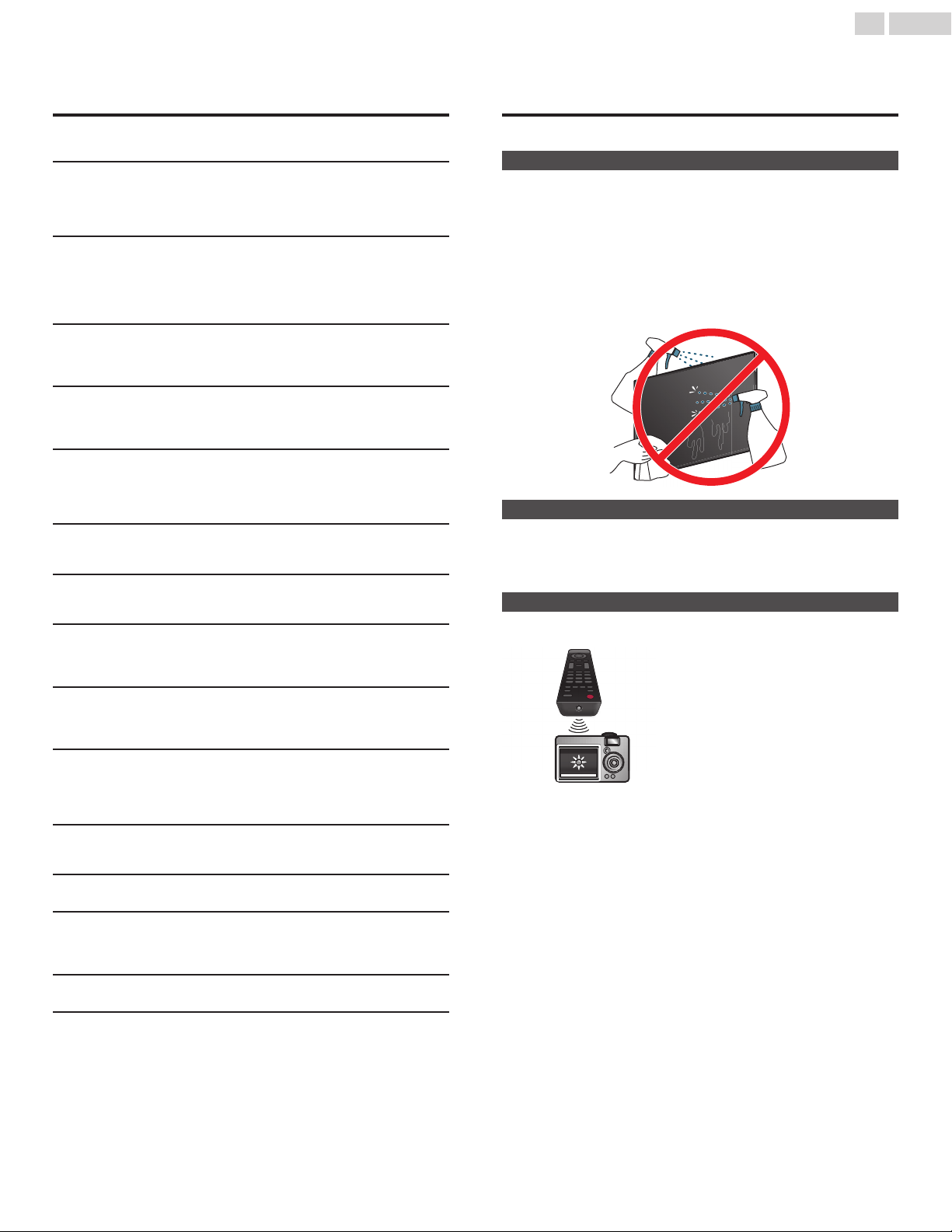
6 Information
Glossary
Analog TV (NTSC)
Acronym that stands for National Television Systems Committee and the
name of analog broadcasting standards.
Off the air analog TV signals are no longer being sent by major
broadcasting stations in the USA.
ARC (Audio Return Channel) (HDMI 2 only)
HDMI-ARC allows you to use Philips EasyLink to output TV audio directly
to a connected audio device, without the need for an additional digital
audio cable. Be sure that the device is HDMI CEC and ARC compliant, and
that the TV is connected to the device using an HDMI cable attached to
both HDMI-ARC connectors.
Aspect ratio
The width of a TV screen relative to its height. Conventional TVs are 4:3
(in other words, the TV screen is almost square); widescreen models are
16:9 (the TV screen is almost twice as wide as its height).
CEC (Consumer Electronics Control)
This allows you to operate the linked functions between our brand
devices with CEC feature and this unit. We do not guarantee 100%
interoperability with other brands of CEC compliant devices.
Component video
This is a Video signal format that conveys each of 3 principal colors of light
(red, blue and green) through different signal lines. This allows the viewers
to experience picture colors as original as it is. There are several signal
formats, including Y / Pb / Pr and Y / Cb / Cr.
Dolby Digital
The system developed by Dolby Laboratories to compress digital sound.
It offers stereo sound (2ch) or multi-channel audio.
DTV (ATSC)
Abbreviation that stands for Advanced Television Systems Committee
and the name of the digital broadcasting standards.
E-sticker
E-sticker is showing set features, technical information, etc on this TV set
that is displayed on the TV screen mainly used by TV retailers. Previously
the information was on a printed sticker that was put on the display.
HDMI (High-Definition Multimedia Interface)
Interface that supports all uncompressed, digital audio / video formats
including set-top box, Blu-ray Disc™ / DVD recorder or digital television,
over a single cable.
HDR
HDR stands for High Dynamic Range. By using additional data encoded
with the source signal, HDR capable products offer greater contrast
through an expansion of the range of the image’s color luminance. The
source, cable and display must all support HDR.
HDTV (High-Definition TV)
Ultimate digital format that produces high resolution and high picture
quality.
PIN code
A stored 4-digit number that allows access to parental control features.
SAP (Secondary Audio Program)
Second-audio channel delivered separately from the Main-audio
channel. This audio channel is used as an alternate in bilingual
broadcasting.
SDTV (Standard Definition TV)
Standard digital format that is similar to the analog TV picture quality.
Sonic Emotion Premium
Sonic Emotion Premium fills your surroundings with the right ambience,
clarifies voice, and details the sound stage, making your experience more
immersive and enjoyable.
Maintenance
Cleaning
Ɣ
Clean the front panel and other exterior surfaces of the unit with a
soft microfiber cloth or lens brush. Before cleaning the panel,
disconnect the AC power cord.
Ɣ
Never use a solvent or alcohol. Do not spray insecticide liquid near
the unit. Such chemicals may cause damage and discoloration to
the exposed surfaces.
Ɣ
Do not spray any liquids on the screen or other exterior surfaces of
this unit. If liquids enter the unit, they could cause shorts, electric
shocks or fire damage.
Servicing
Should your unit become inoperative, do not try to correct the
problem yourself. There are no user serviceable parts inside. Call our
toll free customer support line found on the cover of this User manual
to locate an authorized service center.
IR signal check
If the remote control is not working properly, you can use a digital or
cell phone camera to see if it is sending out an infrared signal.
e.g.) With a digital camera:
Point the digital camera towards the
remote control infrared diode at the front
of the remote control. Press and hold any
key on the remote control and look at the
camera display. If an infrared pulsating
light appears on the display, the remote
control is sending out an IR signal.
Note: Some cameras may have an IR filter
or dual camera cell phones may have an IR filter in one of the camera's
and both will not display the IR signal.
57 .English
7 Specifications
Model # 65PFL5903 55PFL5903 50PFL5903
Picture
Type UHD (Ultra HD) (3840 x 2160 pixels 60Hz)
Diagonal screen size / Aspect ratio 64.5”/ 16:9 54.6”/ 16:9 49.5”/ 16:9
Viewing angles 178° (V) by 178° (H)
Built-in digital / analog tuner ATSC (digital) / NTSC (analog)
Sound
Mono / Stereo Mono, Stereo, Sonic Emotion Premium
Power output (RMS watts) 10W x 2
Equalizer 5 band
Ease of use
Picture format
SD (4:3 source)
Automatic / Super zoom / 4:3 / Movie expand 14:9 / Movie expand 16:9 / Wide screen /
Manual Zoom
HD (16:9 source) Automatic / 4:3 / Wide screen / Full / Unscaled / Manual Zoom
UHD Full / Unscaled / Manual Zoom
Photo slide show JPEG, Progressive JPEG
Music playback MP3
Video playback MPEG1, MPEG2, H.264, H.265/HEVC
Channel
Channel coverage
Over-the-Air DTV (ATSC)
VHF: 2ӳ13
UHF: 14ӳ69 (Each channel may have e.g. 2.1ӳ2.9, 3.1ӳ3.9, etc)
Over-the-Air Analog (NTSC)
VHF: 2ӳ13
UHF: 14ӳ69
CATV (Analog NTSC)
2ӳ13, AӳW
W+1ӳW+94 (Analog W+1ӳW+84), A-5ӳA-1, 5A
Tuning system Channel frequency synthesized tuning system
Channel access
Direct access number keyboard, Programmable scan, Channel + (up) / - (down) and PREV.
CH (Previous channel)
Connectivity
Component video input
(Y/Pb/Pr)
1
Supporting video signals : 480i/p, 720p, 1080i/p @60Hz
Composite video input
(Shared Y green terminal with component video)
1
HDMI input
3 (selectable HDMI modes)
Supporting HDMI video signals : 480i/p, 720p, 1080i @60Hz, 1080p, 2160p @24/30/60Hz
Supporting HDMI digital audio signals : LPCM, AC3, DD+
Supporting PC-input video signal up to 4096 x 2160
Analog audio L/R input 1 (L audio / R audio)
PC input Via HDMI and HDMI-DVI + Analog audio L/R
USB 1
Wireless LAN Supporting wireless standards : IEEE 802.1 1a/b/g/n/ac (2.4GHz/5GHz)
Ethernet port 1
Digital audio output
1
Supporting Dolby Audio (Dolby Digital and Dolby Digital Plus)
Headphone output
1
1/8 inch (3.5mm)
Power
Power requirements 120Va +/– 10%, 60Hz +/– 0.5%
Temperature
Operating temperature 41 °F (5 °C) to 104 °F (40 °C)
Ɣ
Specifications are subject to change without prior notice.
58 .English

8 Warranty
This warranty gives you specific legal rights. You may have other rights which vary from state/province to state/province.
FUNAI CORPORATION, Inc. 21061 S. Western Ave. Suite 210, Torrance, CA 90501, USA
LIMITED WARRANTY
ONE (1) YEAR
WARRANTY COVERAGE:
This warranty obligation is limited to the terms as set forth below.
WHO IS COVERED:
This product warranty is issued to the original purchaser or the
person receiving the product as a gift against defects in materials
and workmanship as based on the date of original purchase
(“Warranty Period”) from an Authorized Dealer. The original sales
receipt showing the product name and the purchase date from an
authorized retailer is considered such proof.
WHAT IS COVERED:
This warranty covers new products if a defect in material or
workmanship occurs and a valid claim is received within the
Warranty Period. At its option, the company will either (1) repair the
product at no charge, using new or refurbished replacement parts, or
(2) exchange the product with a product that is new or which has
been manufactured from new, or serviceable used parts and is at
least functionally equivalent or most comparable to the original
product in current inventory, or (3) refund the original purchase price
of the product.
Replacement products or parts provided under this warranty are
covered against defects in materials and workmanship from the date
of the replacement or repair for ninety (90) days or for the remaining
portion of the original product’s warranty, whichever provides longer
coverage for you. When a product or part is exchanged, any
replacement item becomes your property and the replaced item
becomes company property. When a refund is given, your product
becomes company property.
Note: Any product sold and identied as refurbished or renewed
carries a ninety (90) day limited warranty.
Replacement product can only be sent if all warranty requirements
are met. Failure to follow all requirements can result in delay.
WHAT IS NOT COVERED - EXCLUSIONS AND LIMITATIONS:
This Limited Warranty applies only to new company manufactured
products that can be identied by the trademark, trade name, or
logo axed to it. This Limited Warranty does not apply to any
hardware product or any software, even if packaged or sold with the
product, as manufacturers, suppliers, or publishers may provide a
separate warranty for their own products packaged with the bundled
product.
The company is not liable for any damage to or loss of any programs,
data, or other information stored on any media contained within the
product, or other additional product or part not covered by this
warranty. Recovery or reinstallation of programs, data or other
information is not covered under this Limited Warranty.
This warranty does not apply (a) to damage caused by accident,
abuse, misuse, neglect, misapplication, or non-supplied product, (b)
to damage caused by service performed by anyone other than
company approved Authorized Service Location, (c) to a product or
a part that has been modied without written company permission,
or (d) if any serial number has been removed or defaced, or (e)
product, accessories or consumables sold “AS IS” without warranty
of any kind by including refurbished product sold “AS IS” by some
retailers.
This Limited Warranty does not cover:
• Shipping charges to return defective product.
• Labor charges for installation or setup of the product, adjustment
of customer controls on the product, and installation or repair of
antenna/signal source systems outside of the product.
• Product repair and/or part replacement because of improper
installation or maintenance, connections to improper voltage
supply, power line surge, lightning damage, retained images or
screen markings resulting from viewing xed stationary content
for extended periods, product cosmetic appearance items due to
normal wear and tear, unauthorized repair or other cause not
within the control of the company.
• Damage or claims for products not being available for use, or for
lost data or lost software.
• Damage from mishandled shipments or transit accidents when
returning product.
• A product that requires modication or adaptation to enable it to
operate in any country other than the country for which it was
designed, manufactured, approved and/or authorized, or repair
of products damaged by these modications.
• A product used for commercial or institutional purposes
(including but not limited to rental purposes).
• Product lost in shipment and no signature verication receipt can
be provided.
• Failure to operate per User manual.
TO OBTAIN ASSISTANCE…
Contact the Customer Care Center at:
1-866-202-5960
REPAIR OR REPLACEMENT AS PROVIDED UNDER THIS
WARRANTY IS THE EXCLUSIVE REMEDY FOR THE CONSUMER,
WITH THE ISSUING COMPANY NOT LIABLE FOR ANY INCIDENTAL
OR CONSEQUENTIAL DAMAGES FOR BREACH OF ANY EXPRESS
OR IMPLIED WARRANTY ON THIS PRODUCT. EXCEPT TO THE
EXTENT PROHIBITED BY APPLICABLE LAW, ANY IMPLIED
WARRANTY OF MERCHANTABILITY OR FITNESS FOR A
PARTICULAR PURPOSE ON THIS PRODUCT IS LIMITED IN
DURATION TO THE DURATION OF THIS WARRANTY.
Some states do not allow the exclusions or limitation of incidental or
consequential damages, or allow limitations on how long an implied
warranty lasts, so the above limitations or exclusions may not apply
to you.
59 .English

License
Funai Corporation, Inc. hereby offers to deliver, upon request, a copy
of the complete corresponding source code for the copyrighted open
source code packages, on an “AS IS” basis, used in this product for
which such offer is requested by the respective licenses. This offer is
valid up to three years after the product purchase to anyone in receipt
of this information. To obtain source code, please contact Funai
Corporation, Inc. You should write to Funai Service Corporation OSS
Request, 2425 Spiegel Drive, Groveport, OH 43125, USA. Funai
Corporation, Inc. disclaims any and all warranties and representations
with respect to such software and related source code including
quality, reliability, usability, and accuracy, and further disclaim all
express, implied, statutory or otherwise, including without limitation,
any implied warranties of title, non-infringement, merchantability, or
fitness for a particular purpose. Funai Corporation, Inc. shall not be
liable to make any corrections to the open source software or source
code or to provide any support or assistance with respect to it. Funai
Corporation, Inc. disclaims any and all liability arising out of or in
connection with the use of this software and/or source code.
60 .English

This product has been manufactured by and is sold
under the responsibility of Funai Corporation, Inc.,
and Funai Corporation, Inc. is the warrantor in relation
to this product.
The Philips trademark and the Philips Shield Emblem
are registered trademarks of Koninklijke Philips N.V.
used under license.
Funai Corporation, Inc.
21061 S. Western Ave. Suite 210, Torrance, CA 90501, USA
P&F Mexicana, S.A. de C.V.
Av. La Palma No. 6, Col. San Fernando La Herradura.
Huixquilucan, Edo. de México. C.P. 52787
AB78HUH-65UL / AB78PUG-65UL /
AB7RDUH-55UL / AB7UDUH-50UX
䖩䖩䖩䖩