www.philips.com/welcome
65BDL3000Q
V2.00
User Manual (English)
65BDL3000Q
ii
Safety Instructions
Warnings and Precautions
KNOW THESE SAFETY SYMBOLS
CAUTION: TO REDUCE THE RISK OF ELECTRIC SHOCK, DO
NOT REMOVE COVER (OR BACK). NO USER
SERVICEABLE PARTS INSIDE. REFER SERVICING TO
QUALIFIED SERVICE PERSONNEL.
This symbol indicates high voltage is present inside.
It is dangerous to make any kind of contact with any
inside part of this product.
This symbol alerts you that important literature
concerning operation and maintenance has been
included with this product.
CAUTION: FCC/CSA regulations state that any unauthorized
changes or modications to this equipment may void
the user’s authority to operate it.
CAUTION: To prevent electric shock, match the wide blade of plug
to the wide slot, and fully insert the plug.
TO PREVENT DAMAGE WHICH MAY RESULT IN FIRE OR ELECTRIC
SHOCK HAZARD, DO NOT EXPOSE THIS APPLIANCE TO RAIN
OR MOISTURE.
The Socket-outlet should be installed near the apparatus and be easily
accessible.
Read and follow these instructions
when connecting and using your Public
Information Display:
• Unplug the display if you are not going to use it for an extensive
period of time.
• Unplug the display if you need to clean it with a slightly damp cloth.
The screen many be wiped with a dry cloth when the power is off.
However, never use alcohol, solvents or ammonia-based liquids.
• Consult a service technician if the display does not operate normally
when you have followed the instructions in this manual.
• The casing cover should be opened only by qualied service
personnel.
• Keep the display out of direct sunlight and away from stoves or any
other heat sources.
• Remove any object that could fall into the vents or prevent proper
cooling of the display’s electronics.
• Do not block the ventilation holes on the cabinet.
• Keep the display dry. To avoid electric shock, do not expose it to
rain or excessive moisture.
• If turning off the display by detaching the power cable, wait for 6
seconds before re-attaching the power cable for normal operation.
• To avoid the risk of shock or permanent damage to the set do not
expose the display to rain or excessive moisture.
• When positioning the display, make sure the power plug and outlet
are easily accessible.
• IMPORTANT: Always activate a screen saver program during your
application. If a still image in high contrast remains on the screen for
an extended period of time, it may leave an ‘after-image’ or ‘ghost
image’ on the front of the screen. This is a well-known phenomenon
that is caused by the shortcomings inherent in LCD technology. In
most cases the afterimage will disappear gradually over a period
of time after the power has been switched off. Be aware that the
after-image symptom cannot be repaired and is not covered under
warranty.
65BDL3000Q
iii
Important Safety Instructions
1. Read these instructions.
2. Keep these instructions.
3. Heed all warnings.
4. Follow all instructions.
5. Do not use this apparatus near water.
6. Clean only with dry cloth.
7. Do not block any ventilation openings. Install in accordance with the
manufacturer’s instructions.
8. Do not install near any heat sources such as radiators, heat registers,
stoves, or other apparatus (including ampliers) that produce heat.
9. Do not defeat the safety purpose of the polarized or grounding-
type plug. A polarized plug has two blades with one wider than the
other. A grounding type plug has two blades and a third grounding
prong. The wide blade or the third prong are provided for your
safety. If the provided plug does not t into your outlet, consult an
electrician for replacement of the obsolete outlet.
10. Protect the power cord from being walked on or pinched
particularly at plugs, convenience receptacles, and the point where
they exit from the apparatus.
11. Only use attachments/accessories specied by the manufacturer.
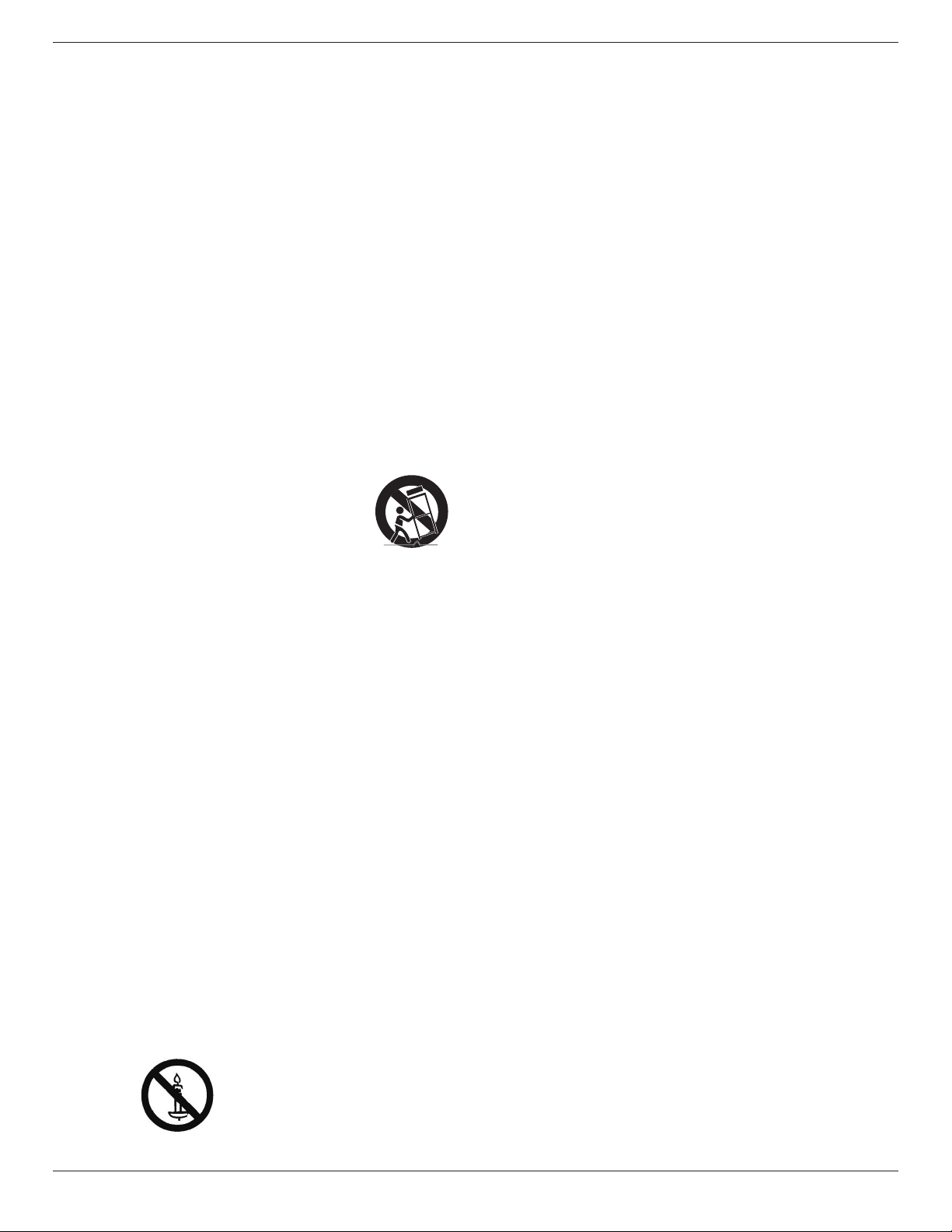
12. Use only with the cart, stand, tripod, bracket, or
table specied by the manufacturer, or sold with the
apparatus. When a cart is used, use caution when
moving the cart/apparatus combination to avoid
injury from tip-over.
13. Unplug this apparatus during lightning storms or when unused for
long periods of time.
14. Refer all servicing to qualied service personnel. Servicing is
required when the apparatus has been damaged in any way, such
as power-supply cord or plug is damaged, liquid has been spilled
or objects have fallen into the apparatus, the apparatus has been
exposed to rain or moisture, does not operate normally, or has
been dropped.
15. The batteries (batteries installed) shall not be exposed to excessive
heat such as sunshine, re or the like.
16. An all-pole MAINS SWITCH is used as the disconnect device, the
location on the apparatus and the function of the switch shall be
described, and the switch shall remain readily operable
WARNING: TO REDUCE THE RISK OF FIRE OR ELECTRIC
SHOCK, DO NOT EXPOSE THIS APPARATUS TO
RAIN OR MOISTURE.
WARNING: Apparatus shall not be exposed to dripping or splashing
and no objects lled with liquids, such as vases, shall be
placed on the apparatus.
WARNING: The batteries (batteries installed) shall not be exposed
to excessive heat such as sunshine, re or the like.
WARNING: The mains plug or appliance coupler is used as the
disconnect device,the disconnect device shall remain
readily operable.
WARNING: To prevent the spread of re, keep candles or other
open ames away from this product at all times.
WARNING: To prevent injury, this apparatus must be securely
attached to the oor/wall in accordance with the
installation instructions.
WARNING: The Class I apparatus shall be connected to a mains
socket outlet with a protective earthing connection.
WARNING
Never place a television set in an unstable location. A television set may
fall, causing serious personal injury or death. Many injuries, particularly to
children, can be avoided by taking simple precautions such as:
• Using cabinets or stands recommended by the manufacturer of the
television set.
• Only using furniture that can safely support the television set.
• Ensuring the television set is not overhanging the edge of the
supporting furniture.
• Not placing the television set on tall furniture (for example,
cupboards or bookcases) without anchoring both the furniture and
the television set to a suitable support.
• Not placing the television set on cloth or other materials that may
be located between the television set and supporting furniture.
• Educating children about the dangers of climbing on furniture to
reach the television set or its controls.
If your existing television set is being retained and relocated, the same
considerations as above should be applied.
CAUTION: These servicing instructions are for use by qualied
service personnel only. To reduce the risk of electric
shock,do not perform any servicing other than that
contained in the operating instructions unless you are
qualitied to do so.
CAUTION: Excessive sound pressure from earphones and
headphones can cause hearing loss. Adjustment of the
equalizer to maximum increases the earphone and
headphone output voltage and the sound pressure level.
Therefore, to protect your hearing, adjust the equalizer
to an appropriate level.
For UL/CUL application: For use only with UL Listed Wall Mount
Bracket with minimum weight/load: 24.8 Kg
For CB application: Unit without base weight: 24.8 Kg. The equipment
and its associated mounting means still remain secure during the test.
(Used wall mounting kit: 400x400 mm distance by using M6 screws of
10 mm long plus the thickness of the mounting bracket.
65BDL3000Q
iv
IMPORTANT INFORMATION
Ifatelevisionisnotpositionedinasufcientlystablelocation,itcan
bepotentiallyhazardousduetofalling.Manyinjuries,particularlyto
children,canbeavoidedbytakingsimpleprecautionssuchas:
• Using cabinets or stands recommended by the manufacturer of the
television.
• Only using furniture that can safely support the television.
• Ensuring the television is not overhanging the edge of the
supporting furniture.
• Not placing the television on tall furniture(for example, cupboards
or bookcases)without anchoring both the furniture and the
television to a suitable support.
• Not standing the televisions on cloth or other materials placed
between the television and supporting furniture.
• Educating children about the dangers of climbing on furniture to
reach the television or its controls.
Regulatory Information
CE Declaration of Conformity
This device complies with the requirements set out in the Council
Directive on the Approximation of the Laws of the Member States
relating to Electromagnetic Compatibility (2014/30/EU), Low-voltage
Directive (2014/35/EU) and RoHS directive (2011/65/EU).
This product has been tested and found to comply with the harmonized
standards for Information Technology Equipment, these harmonized
standards published under Directives of Ofcial Journal of the European
Union.
Warning:
This equipment is compliant with Class A of EN55032/CISPR 32. In a
residential environment this equipment may cause radio interference.
ESD Warnings
When user close to the monitor may cause the equipment discharge
and reboot to the display of main menu.
Federal Communications Commission (FCC)
Notice (U.S. Only)
Note: This equipment has been tested and found to
comply with the limits for a Class A digital
device, pursuant to part 15 of the FCC Rules. These
limits are designed to provide reasonable
protection against harmful interference when the
equipment is operated in a commercial
environment. This equipment generates, uses, and can
radiate radio frequency energy and, if
not installed and used in accordance with the
instruction manual, may cause harmful
interference to radio communications. Operation of
this equipment in a residential area is
likely to cause harmful interference in which case the
user will be required to correct the
interference at his own expense.
Changes or modications not expressly approved by
the party responsible for compliance could void the
user’s authority to operate the equipment.
Use only an RF shielded cable that was supplied with the display when
connecting this display to a computer device.
To prevent damage which may result in re or shock hazard, do not
expose this appliance to rain or excessive moisture.
This device complies with Part 15 of the FCC Rules. Operation is
subject to the following two conditions: (1) this device may not cause
harmful interference, and (2) this device must accept any interference
received, including interference that may cause undesired operation.
65BDL3000Q
v
Polish Center for Testing and Certication
Notice
The equipment should draw power from a socket with an attached
protection circuit (a three-prong socket). All equipment that works
together (computer, display, printer, and so on) should have the same
power supply source.
The phasing conductor of the room’s electrical installation should have
a reserve short-circuit protection device in the form of a fuse with a
nominal value no larger than 16 amperes (A).
To completely switch off the equipment, the power supply cable must
be removed from the power supply socket, which should be located
near the equipment and easily accessible.
A protection mark “B” conrms that the equipment is in compliance
with the protection usage requirements of standards PN-93/T-42107
and PN-89/E-06251.
Electric, Magnetic and Electronmagnetic
Fields (“EMF”)
1. We manufacture and sell many products targeted at consumers,
which, like any electronic apparatus, in general have the ability to
emit and receive electromagnetic signals.
2. One of our leading Business Principles is to take all necessary health
and safety measures for our products, to comply with all applicable
legal requirements and to stay well within the EMF standards
applicable at the time of producing the products.
3. We are committed to develop, produce and market products that
cause no adverse health effects.
4. We conrm that if its products are handled properly for their
intended use, they are safe to use according to scientic evidence
available today.
5. We play an active role in the development of international EMF and
safety standards, enabling us to anticipate further developments in
standardization for early integration in its products.
Information for U.K. only
WARNING – THIS APPLIANCE MUST BE EARTHED.
Important:
(A)
(B)
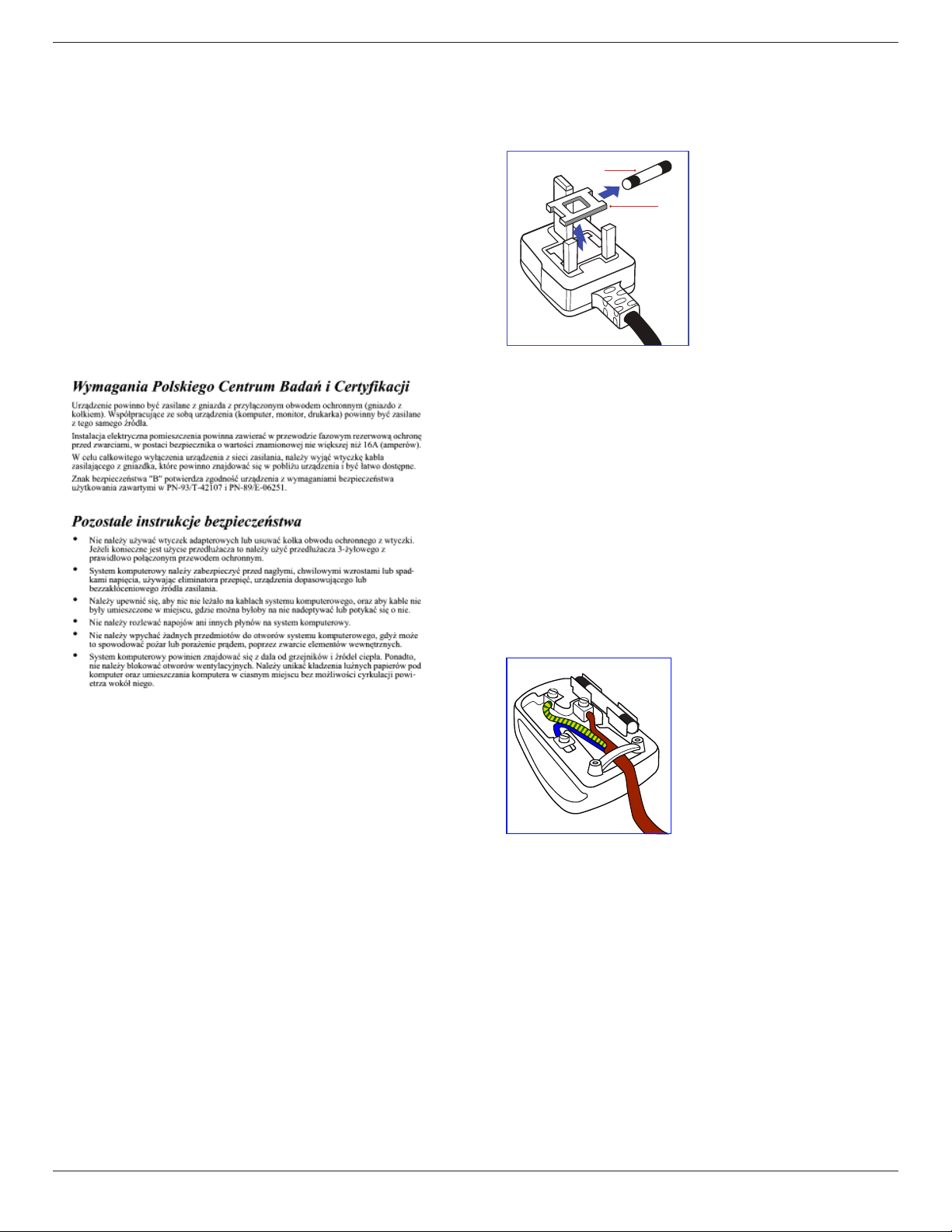
This apparatus is supplied with an approved moulded 13A plug. To
change a fuse in this type of plug proceed as follows:
1. Remove fuse cover and fuse.
2. Fit new fuse which should be a BS 1362 5A,A.S.T.A. or BSI approved
type.
3. Ret the fuse cover.
If the tted plug is not suitable for your socket outlets, it should be cut
off and an appropriate 3-pin plug tted in its place.
If the mains plug contains a fuse, this should have a value of 5A. If a plug
without a fuse is used, the fuse at the distribution board should not be
greater than 5A.
NOTE: The severed plug must be destroyed to avoid a possible shock
hazard should it be inserted into a 13A socket elsewhere.
How to connect a plug
The wires in the mains lead are coloured in accordance with the
following code:
BLUE – “NEUTRAL” (“N”)
BROWN – “LIVE” (“L”)
GREEN & YELLOW – “EARTH” (“E”)
1. The GREEN & YELLOW wire must be connected to the terminal in
the plug which is marked with the letter “E” or by the Earth symbol
or coloured GREEN or GREEN & YELLOW.
2. The BLUE wire must be connected to the terminal which is marked
with the letter “N” or coloured BLACK.
3. The BROWN wire must be connected to the terminal which
marked with the letter “L” or coloured RED.
Before replacing the plug cover, make certain that the cord grip is
clamped over the sheath of the lead – not simply over the three wires.
65BDL3000Q
vi
China RoHS
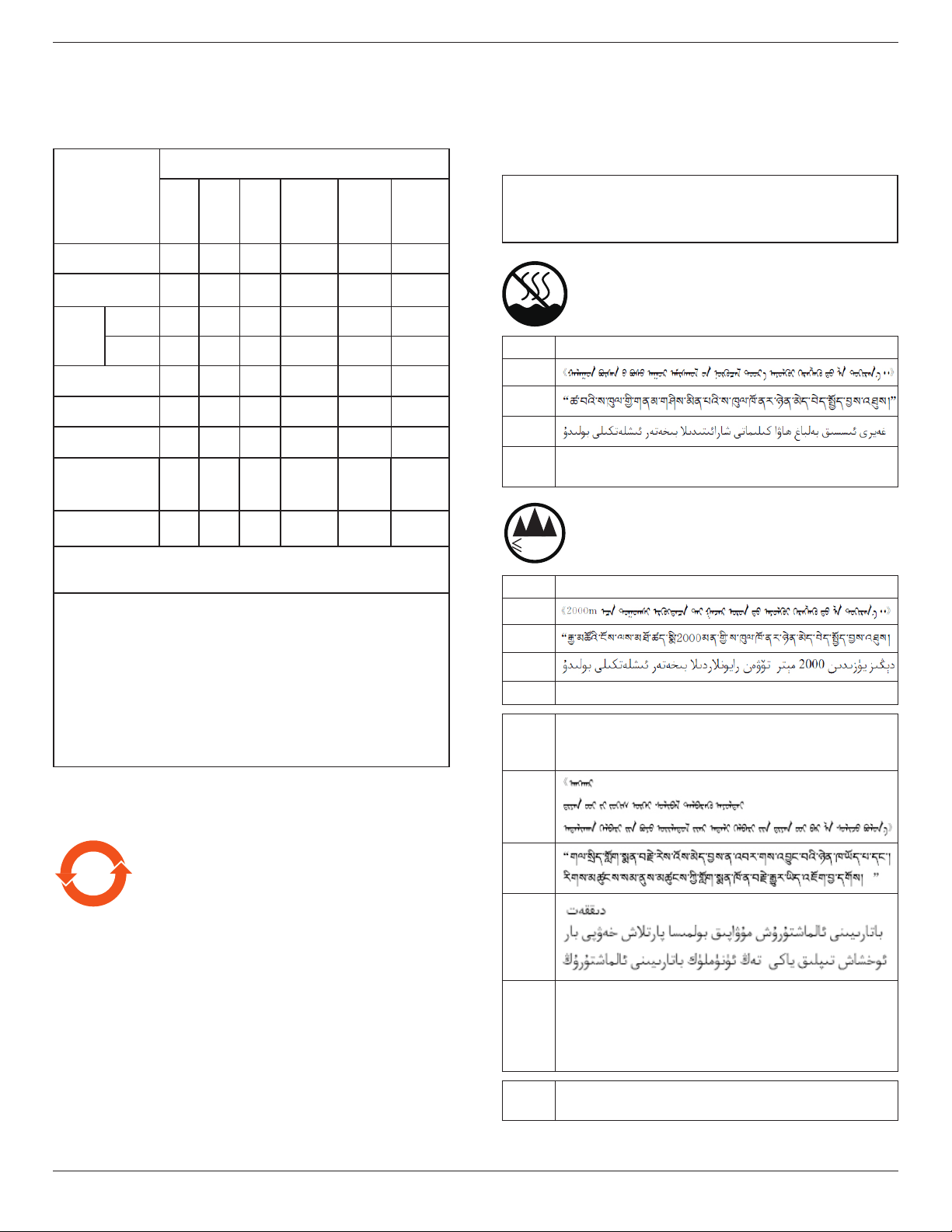
根 据 中 国 大 陆《 电子电气产品有害物质限制使用标识要求》,以 下 部
分列出了本产品中可能包含的有害物质的名称和含量。
零部件名称
有害物质
铅
(Pb)
汞
(Hg)
镉
(Cd)
六价铬
(Cr
(VI))
多溴
联苯
(PBB)
多溴二
苯醚
(PBDE)
塑料外框 O O O O O O
后壳 O O O O O O
LCD
panel
CCFL X X O O O O
LED X O O O O O
电路板组件* X O O O O O
底座 O O O O O O
电源线 X O O O O O
其他线材 X O O O O O
遥控器 X O O O O O
*:电路板组件包括印刷电路板及其构成的零部件,如电阻、
电容、集成电路、连接器等。
本表格依据SJ/T 11364的规定编制。
O: 表示该有害物质在该部件所有均质材料中的含量均在
GB/T 26572 标准规定的限量要求以下.
X: 表示该有害物质至少在该部件的某一均质材料中的含量超
出 GB/T 26572 标准规定的限量要求.
上表中打“X”的部件中,应功能需要,部分有害物质含量超
出GB/T 26572规定的限量要求,但是符合欧盟RoHS法规要求(
属于豁免部分)。
备注:上表仅做为范例,实际标示时应依照各产品的实际部件及
所含有害物质进行标示。
10
环保使用期限
在产品本体上标示的该标志表示环境保护使用期限为
10
年。
电子信息产品的环境保护使用期限是指电子信息产品中所含的有
毒有害物质或元素不会向外部泄漏或出现突然变异,并且电子信
息产品的用户在使用该电子信息产品时也不会对环境造成严重污
染或对人体、财产带来严重损害的期限。
在环境保护期限中,请按照使用说明书使用本产品。
本环境保护使用不覆盖易损件:电池。
《废弃电子产品回收处理管理条例》提示性说明
为了更好地关爱及保护地球,当用户不再需要此产品或产品寿命
终止时,请遵守国家废弃电器电子产品回收处理相关法律规定,
将其交给当地具有国家认可的回收处理资质的厂商进行回收处
理。
警告
此为 A 级产品。在生活环境中,该产品可能会造成无线电干扰。
在这种情况下,可能需要用户对干扰采取切实可行的措施。
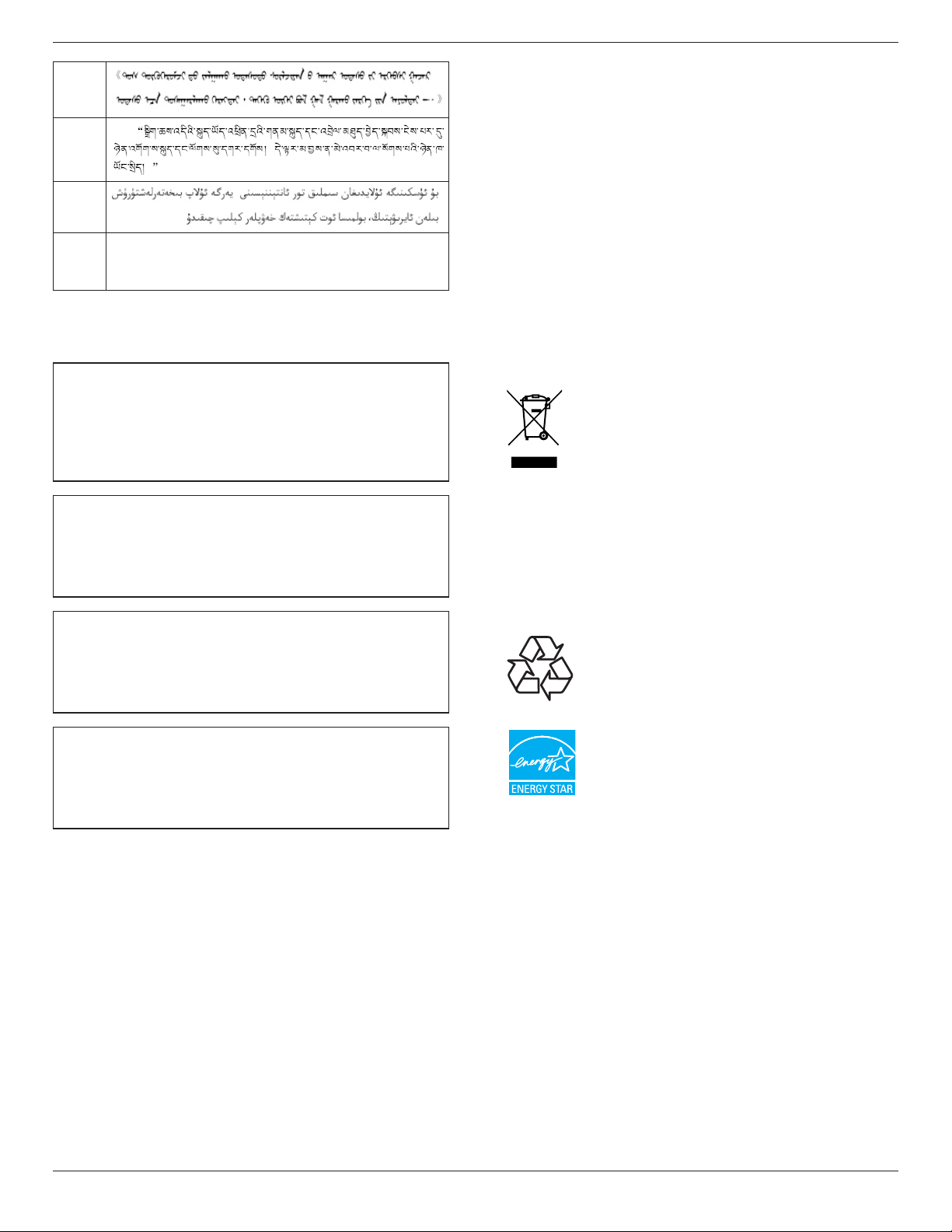
仅适用于非热带气候条件下安全使用 :
汉文仅适用于非热带气候条件下安全使用。
蒙古文
藏文
维文
壮文
Dan hab yungh youq gij dienheiq diuzgen mbouj dwg
diegndat haenx ancienz sawjyungh.
≤200
0
m
仅适用于海拔 2000m 以下地区安全使用 :
汉文仅适用于海拔 2000m 以下地区安全使用。
蒙古文
藏文
维文
壮文Hai dou gaxgonq, wngdang sien duenh denvasen bae.
汉文
“注意
如果电池更换不当会有爆炸危险
只能用同样类型或等效类型的电池来更换”
蒙古文
藏文
维文
壮文
“Louzsim
Danghnaeuz denyouz vuenh ndaej mbouj habdangq aiq miz
gij yungyiemj fatseng bauqcaq
Cijndaej yungh gij denyouz doengzyiengh loihhingz roxnaeuz
daengjyauq loihl haenx vuenh”
汉文
“接入本设备的有线网络天线必须与保护接地隔离 , 不
然可能会引起着火等危险 !”
65BDL3000Q
vii
蒙古文
藏文
维文
壮文
“Gij mizsienq vangjloz denhsen ciephaeuj bonj sezbi daeuj
haenx itdingh aeu caeuq gij ciepdieg baujhoh doxliz, mboujne
aiq miz gij yungyiemj dawzfeiz daengj!”
North Europe (Nordic Countries)
Information
Placering/Ventilation
VARNING:
FÖRSÄKRA DIG OM ATT HUVUDBRYTARE OCH UTTAG
ÄR LÄTÅTKOMLIGA, NÄR DU STÄLLER DIN UTRUSTNING
PÅPLATS.
Placering/Ventilation
ADVARSEL:
SØRG VED PLACERINGEN FOR, AT NETLEDNINGENS STIK OG
STIKKONTAKT ER NEMT TILGÆNGELIGE.
Paikka/Ilmankierto
VAROITUS:
SIJOITA LAITE SITEN, ETTÄ VERKKOJOHTO VOIDAAN
TARVITTAESSA HELPOSTI IRROTTAA PISTORASIASTA.
Plassering/Ventilasjon
ADVARSEL:
NÅR DETTE UTSTYRET PLASSERES, MÅ DU PASSE PÅ AT
KONTAKTENE FOR STØMTILFØRSEL ER LETTE Å NÅ.
Turkey RoHS:
Türkiye Cumhuriyeti: EEE Yönetmeliğine Uygundur.
Ukraine RoHS:
Обладнання відповідає вимогам Технічного регламенту щодо
обмеження використання деяких небезпечних речовин в
електричному та електронному обладнанні, затвердженого
постановою Кабінету Міністрів України від 3 грудня 2008 № 1057.
End-of-Life Disposal
Your new Public Information Display contains materials that can be
recycled and reused. Specialized companies can recycle your product to
increase the amount of reusable materials and to minimize the amount
to be disposed of.
Please nd out about the local regulations on how to dispose of your
old display from your local philips dealer.
(For customers in Canada and U.S.A.)
This product may contain lead and/or mercury. Dispose of in accordance
to local-state and federal regulations. For additional information on
recycling contact www.eia.org (Consumer Education Initiative)
Waste Electrical and Electronie Equipment-
WEEE
Attention users in European Union private households
This marking on the product or on its packaging
illustrates that, under European Directive 2012/19/
EU governing used electrical and electronic appliances,
this product may not be disposed of with normal
household waste. You are responsible for disposal of
this equipment through a designated waste electrical
and electronic equipment collection. To determine
the locations for dropping off such waste electrical
and electronic, contact your local government ofce,
the waste disposal organization that serves your
household or the store at which you purchased the
product.
End of Life Directives-Recycling
Your new Public Information Display contains several
materials that can be recycled for new users.
Please dispose of according to all Local, State, and
Federal laws.
As an ENERGY STAR Partner, we have determined
that this product meets the ENERGY STAR guidelines
for energy efciency.
Restriction on Hazardous Substances statement
(India)
This product complies with the “E-Waste (Management) Rules, 2016”
CHAPTER V, rule 16, sub-rule (1) . Whereas New Electrical and
Electronic Equipment and their components or consumables or parts or
spares do not contain Lead, Mercury, Cadmium, Hexavalent Chromium,
polybrominated biphenyls and polybrominated diphenyl ethers beyond
a maximum concentration value of 0.1% by weight in homogenous
materials for lead, mercury, hexavalent chromium, polybrominated
biphenyls and polybrominated diphenyl ethers and of 0.01% by weight
in homogenous materials for cadmium. except of exemptions set in
Schedule 2 of the Rule.
65BDL3000Q
viii
E-Waste Declaration for India
This symbol on the product or on its packaging
indicates that this product must not be disposed of
with your other household waste. Instead it is your
responsibility to dispose of your waste equipment
by handing it over to a designated collection point
for the recycling of waste electrical and electronic
equipment . The separate collection and recycling
of your waste equipment at the time of disposal
will help to conserve natural resources and ensure
that it is recycled in a manner that protects human
health and the environment. For more information
about E -waste please visit http://www.india.philips.
com/about/sustainability/recycling/index.page
and to know where you can drop off your waste
equipment for recycling in India please contact on
below given contact details.
Helpline number: 1800-425-6396 (Monday to Saturday, 9 a.m. to 5:30
pm)
Centralized E-waste collection center
Address: TPV Technology India Private Limited,
59, Maheswari Nagar, 1st Main Road, Mahadevapura Post,
Whiteeld Road
Bangalore, Karnataka, PIN: 560048, Tel: 080-3023-1000
E-mail: [email protected]
Batteries
ForEU:Thecrossed-outwheeledbinimplies
thatusedbatteriesshouldnotbeputtothe
general household waste! There is a separate
collectionsystemforusedbatteries,toallow
propertreatmentandrecyclinginaccordancewith
legislation.
Pleasecontactyourlocalauthorityfordetailson
thecollectionandrecyclingschemes.
ForSwitzerland:Theusedbatteryistobereturned
to the selling point.
Forothernon-EUcountries:Pleasecontactyour
localauthorityforcorrectmethodofdisposalof
theusedbattery.
AccordingtoEUdirective2006/66/EC,thebattery
can’tbedisposedimproperly.Thebatteryshallbe
separatedtocollectbylocalservice.
Após o uso, as pilhas
deverão ser entregues ao
estabelecimento comercial
ou
e/ou baterias
rede de assistência técnica
autorizada.
InformationforEAC
Monthandyearof
manufacturing
pleasereferinformationinRatinglabel.
Nameandlocationof
manufacturer
ООО“Профтехника”
Адрес:3-йПроездМарьинойрощи,
40/1офис1.Москва,127018,Россия
Importerandinformation Наименованиеорганизации:ООО
“Профтехника”
Адрес:3-йПроездМарьинойрощи,
40/1офис1.Москва,127018,Россия
Контактноелицо:НатальяАстафьева,
+74956402020
nat@profdisplays.ru

65BDL3000Q
ix
Table Of Contents
1. UnpackingandInstallation .......................................................1
1.1. Unpacking .........................................................................................1
1.2. Package Contents ........................................................................ 1
1.3. Installation Notes .........................................................................1
1.4. Mounting on a Wall ....................................................................2
1.4.1. VESA Grid ....................................................................2
2. Parts and Functions ...................................................................3
2.1. Control Panel ................................................................................. 3
2.2. Input/Output Terminals .............................................................4
2.3. Remote Control ........................................................................... 5
2.3.1. General functions .....................................................5
2.3.2. ID Remote Control .................................................6
2.3.3. Inserting the batteries in the remote
control.............................................................................7
2.3.4. Handling the remote control .............................7
2.3.5. Operating range of the remote control ......7
3. ConnectingExternalEquipment.............................................8
3.1. Connecting External Equipment (DVD/VCR/VCD) 8
3.1.1. Using COMPONENT video input ................. 8
3.1.2. Using Video Source input .....................................8
3.1.3. Using HDMI video input ......................................9
3.2. Connecting a PC .......................................................................... 9
3.2.1. Using VGA input ........................................................9
3.2.2. Using DVI input .........................................................9
3.2.3. Using HDMI input ................................................. 10
3.2.4. Using DisplayPort input ..................................... 10
3.3. Connecting Audio Equipment ...........................................10
3.3.1. Connecting external speakers........................10
3.3.2. Connecting an external audio device ........11
3.4. Connecting Multiple Displays in a Daisy-chain
Conguration .............................................................................. 11
3.4.1. Display control connection ..............................11
3.4.2. Digital video connection ....................................12
3.4.3. Analog video connection .................................. 12
3.5. IR connection .............................................................................. 13
3.6. IR Pass-through Connection ...............................................13
3.7. Wire-connecting to Network ........................................... 14
4. Operation ................................................................................. 15
4.1. Watch the Connected Video Source ............................15
4.2. Change Picture Format ......................................................... 15
4.3. Play multimedia les via Local Area Network ..........15
4.3.1. Set up the network .............................................. 15
4.3.2. How to use DLNA-DMP .................................15
4.3.3. How to use DLNA-DMR from PC ............16
4.4. Play multimedia les from USB device .........................16
4.5. Play options .................................................................................. 17
4.5.1. Playing music les ..................................................17
4.5.2. Playing movie les .................................................17
4.5.3. Playing photo les .................................................17
4.6. How to use Opera browser (HTML5) .......................17
5. Changeyoursettings ............................................................. 19
5.1. Settings ............................................................................................19
5.1.1. Picture .......................................................................... 19
5.1.2. Sound ...........................................................................20
5.1.3. Tiling ..............................................................................20
5.1.4. Network ..................................................................... 22
5.1.5. General settings ......................................................22
5.1.6. Advanced ...................................................................25
6. USBdevicecompatibility ....................................................... 26
7. InputMode ............................................................................... 27
8. PixelDefectPolicy .................................................................. 28
8.1. Pixels and Sub-Pixels ...............................................................28
8.2. Types of Pixel Defects + Dot Denition ....................28
8.3. Bright Dot Defects ...................................................................28
8.4. Dark Dot Defects.....................................................................29
8.5. Proximity of Pixel Defects ................................................... 29
8.6. Pixel Defect Tolerances .........................................................29
8.7. MURA .............................................................................................29
9. CleaningandTroubleshooting .............................................. 30
9.1. Cleaning ..........................................................................................30
9.2. Troubleshooting .........................................................................31
10. TechnicalSpecications ......................................................... 33
65BDL3000Q
1
1. Unpacking and Installation
1.1. Unpacking
• This product is packed in a carton, together with the standard accessories.
• Any other optional accessories will be packed separately.
• Due to the size and weight of this display it is recommended for two people to move it.
• After opening the carton, ensure that the contents are complete and in good condition.
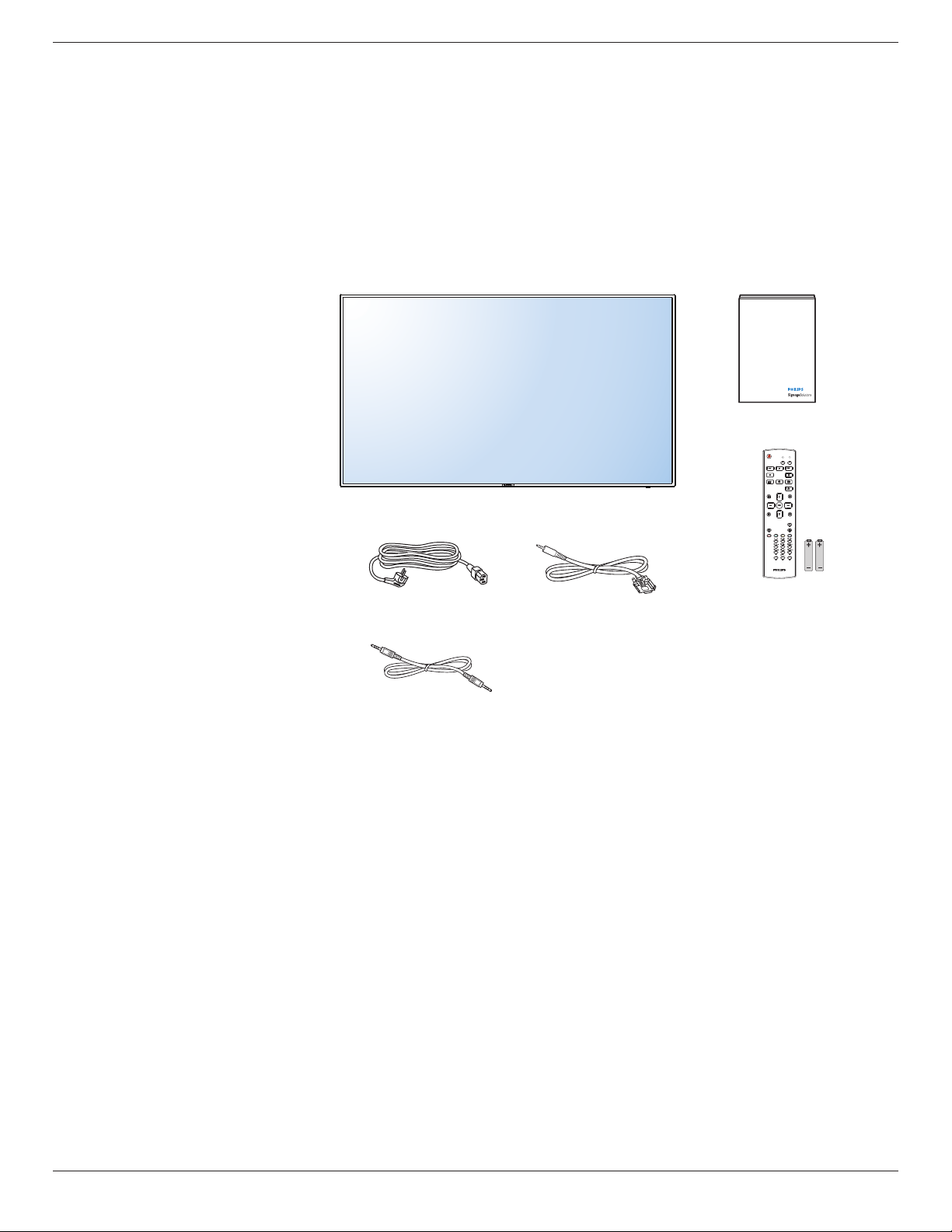
1.2. Package Contents
Please verify that you received the following items with your package content:
• LCD display
• Quick start guide
• Remote control with AAA batteries
• Power cord
• RS232 cable
• RS232 daisy chain cable
* The supplied power cord varies depending on destination.
Power Cord
Quick start guide
Remote Control
and AAA Batteries
RS232 Daisy Chain Cable
RS232 Cable
FORMAT
SOURCE
INFOLIST
OPTIONSADJUST
VOL
NORMAL
ID
ID SET ENTER
* Differences according to regions
Display design and accessories may differ from those illustrated above.
NOTES:
• For all other regions, apply a power cord that conforms to the AC voltage of the power socket and has been approved by and complies with the
safety regulations of the particular country.
• You might like to save the package box and packing material for shipping the display.
1.3. Installation Notes
• Due to the high power consumption, always use the plug exclusively designed for this product. If an extended line is required, please consult your
service agent.
• The product should be installed on a at surface to avoid tipping. The distance between the back of the product and the wall should be maintained
for proper ventilation. Avoid installing the product in the kitchen, bathroom or any other places with high humidity so as not to shorten the service life
of the electronic components.
• The product can normally operate only under 3000m in altitude. In installations at altitudes above 3000m, some abnormalities may be experienced.
65BDL3000Q
2
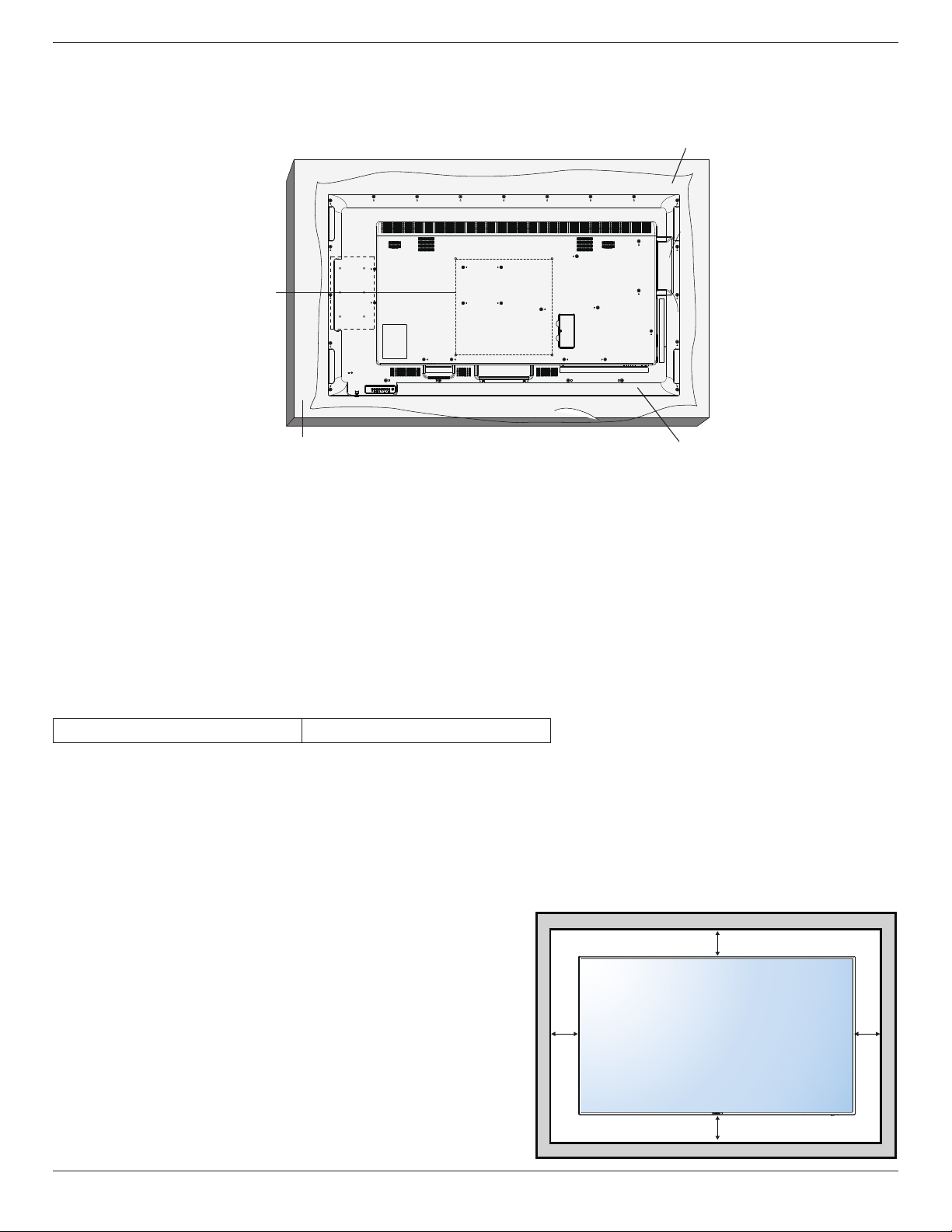
1.4. Mounting on a Wall
To mount this display to a wall, you will have to obtain a standard wall-mounting kit (commercially available). We recommend using a mounting interface
that complies with TUV-GS and/or UL1678 standard in North America.
Protective Sheet
VESA Grid
Tabletop standTable
1. Lay a protective sheet on a table, which was wrapped around the display when it was packaged, beneath the screen surface so as not to scratch the
screen face.
2. Ensure you have all accessories for mounting this display (wall mount, ceiling mount, table stand, etc).
3. Follow the instructions that come with the base mounting kit. Failure to follow correct mounting procedures could result in damage to the equipment
or injury to the user or installer. Product warranty does not cover damage caused by improper installation.
4. For the wall-mounting kit, use M6 mounting screws (having a length 10 mm longer than the thickness of the mounting bracket) and tighten them
securely.
5. Unit without base weight= 24.8 kg. The equipment and its associated mounting means still remain secure during the test. For use only with UL Listed
Wall Mount Bracket with minimum weight/load: 24.8 kg.
6. Portrait is not allowed
1.4.1. VESA Grid
65BDL3000Q
400(H) x 400(V) mm
Caution:
To prevent the display from falling:
• For wall or ceiling installation, we recommend installing the display with metal brackets which are commercially available. For detailed installation
instructions, refer to the guide received with the respective bracket.
• To lessen the probability of injury and damage resulting from fall of the display in case of earthquake or other natural disaster, be sure to consult the
bracket manufacturer for installation location.
Ventilation Requirements for enclosure locating
To allow heat to disperse, leave space between surrounding objects as shown in the
diagram below.
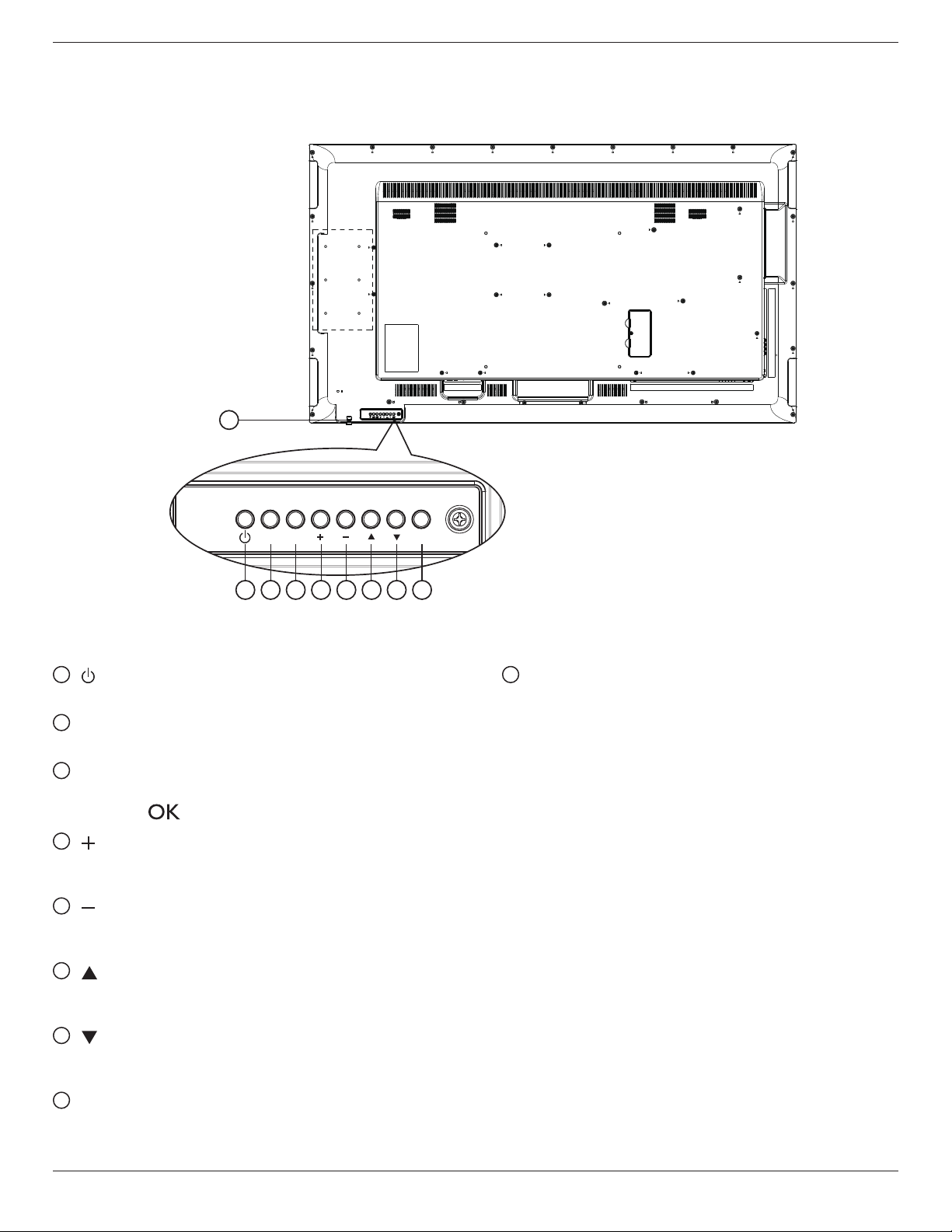
100 mm 100 mm
100 mm
100 mm
65BDL3000Q
3
2. Parts and Functions
2.1. Control Panel
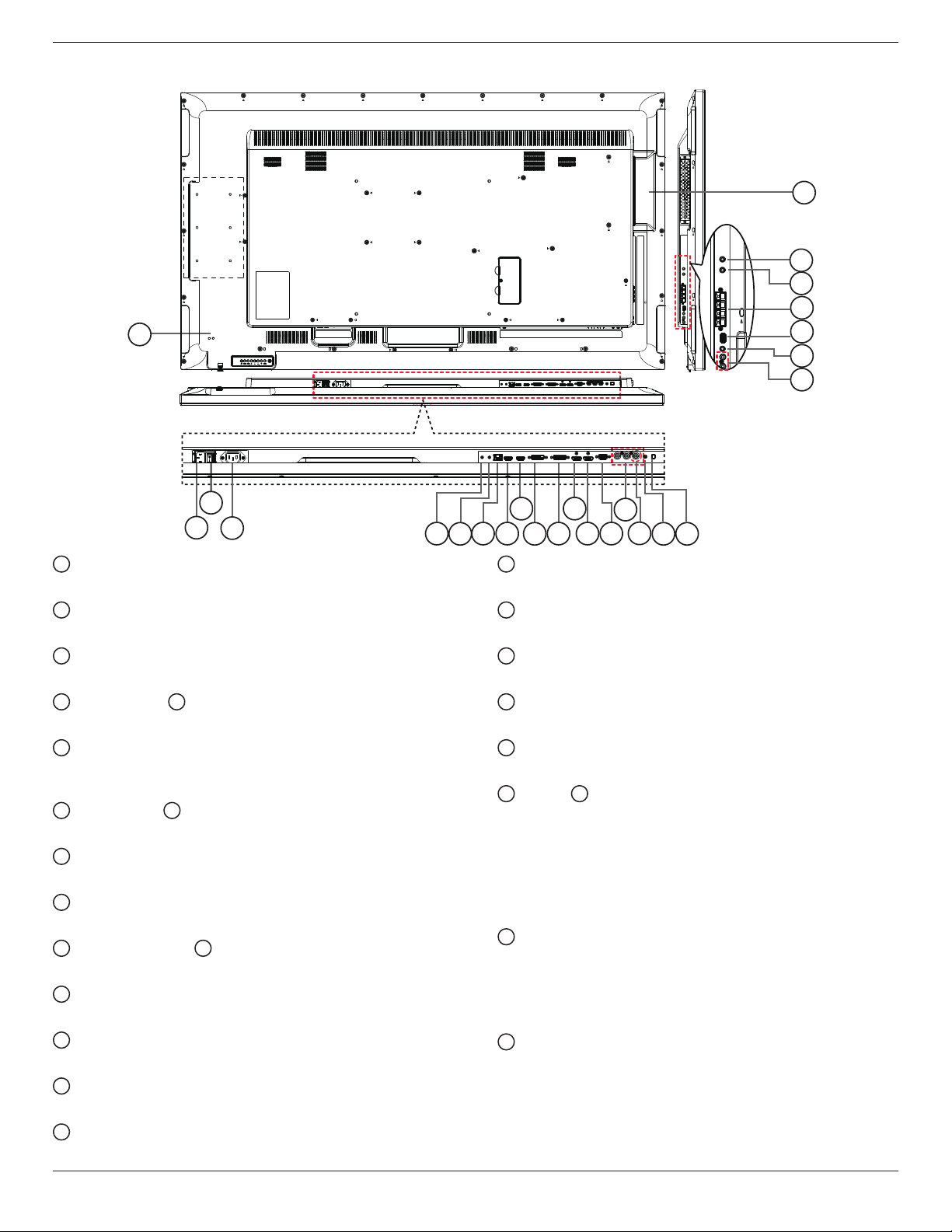
1 2 3 4 5 6 7 8
MUTE INPUT
MENU
9
1
[ ] button
Use this button to turn the display on or put the display to standby.
2
[MUTE] button
Switch the audio mute ON/OFF.
3
[INPUT] button
Choose the input source.
• Used as [ ] button in the On-Screen-Display menu.
4
[ ] button
Increase the adjustment while OSD menu is on, or increase the
audio output level while OSD menu is off.
5
[ ] button
Decrease the adjustment while OSD menu is on, or decrease the
audio output level while OSD menu is off.
6
[ ] button
Move the highlight bar up to adjust the selected item while OSD
menu is on.
7
[ ] button
Move the highlight bar down to adjust the selected item while OSD
menu is on.
8
[MENU] button
Return to previous menu while OSD menu is on, or to activate the
OSD menu when OSD menu is off.
9
Remote control sensor and power status indicator
• Receives command signals from the remote control.
• Indicates the operating status of the display without OPS:
- Lights green when the display is turned on
- Lights red when the display is in standby mode
- Lights amber when the display enters APM mode
- When {SCHEDULE} is enabled, the light blinks green and
red
- If the light blinks red, it indicates that a failure has been
detected
- Lights off when the main power of the display is turned off
65BDL3000Q
4
2.2. Input/Output Terminals
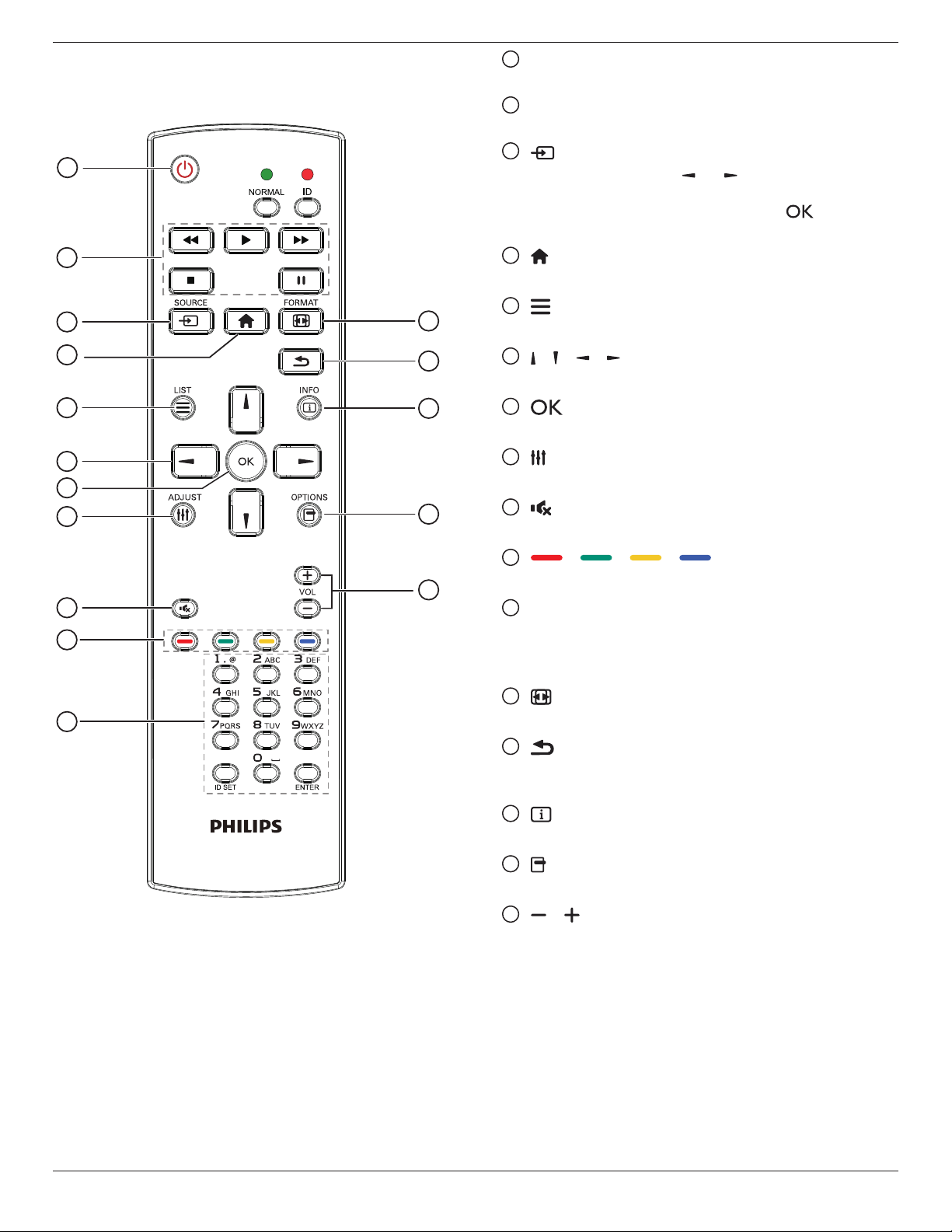
1
3
2
17
8
4 6
9
10
16
7
24
5
11
15
12 13
14
25
18
20
23
21
19
22
1
AC IN
AC power input from the wall outlet.
2
MAIN POWER SWITCH
Switch the main power on/off.
3
AC OUT
AC power supply to the AC IN jack of a media player.
4
RS232C IN /
5
RS232C OUT
RS232C network input / output for the loop-through function.
6
RJ-45
LAN control function for the use of remote control signal from
control center.
7
HDMI1 IN /
8
HDMI2 IN
HDMI video/audio input.
9
DVI IN
DVI-D video input.
10
DVI OUT / VGA OUT
DVI or VGA video output.
11
DisplayPort IN /
12
DisplayPort OUT
DisplayPort video input / output.
13
VGA IN (D-Sub)
VGA video input.
14
COMPONENT IN (BNC)
Component YPbPr video source input.
15
Y/CVBS
Video source input.
16
PC LINE IN
Audio input for VGA source (3.5mm stereo phone).
17
SPEAKER SWITCH
Internal speaker on/off switch.
18
AUDIO IN
Audio input from external AV device (RCA).
19
AUDIO OUT
Audio output to external AV device.
20
USB PORT
Connect your USB storage device.
21
SPEAKERS OUT
Audio output to external speakers.
22
IR IN /
23
IR OUT
IR signal input / output for the loop-through function.
NOTES:
• This display’s remote control sensor will stop working if the jack
[IR IN] is connected.
• To remotely control your A/V device via this display, refer to page
14 for or IR Pass Through connection..
24
OPS SLOT
Slot for installing the optional OPS module.
NOTES: We recommend to use Advantech ARK-DS220B-D6A1E
or Winmate OMIS-OPS modules. We’ll not guarantee other
OPS modules
25
SECURITY LOCK
Used for security and theft prevention.
65BDL3000Q
5
2.3. Remote Control
2.3.1. General functions
1
2
3
4
5
6
7
8
10
9
12
14
15
11
13
16
1
[POWER] button
Turn the display on or put the display to standby.
2
[PLAY] buttons
Control playback of media les.
3
[ ] SOURCE button
Choose input source. Press [ ] or [ ] button to choose from
USB
,
Network
,
HDMI 1
,
HDMI 2
,
DisplayPort
,
Card
OPS
,
DVI-D
,
YPbPr
,
AV
, or
VGA
. Press [ ] button to
conrm and exit.
4
[ ] HOME button
Access the OSD menu.
5
[ ] LIST button
No function.
6
[ ] [ ] [ ] [ ] NAVIGATION buttons
Navigate through menus and choose items.
7
[ ] button
Conrm an entry or selection.
8
[ ] ADJUST button
Access currently available options, picture and sound menus.
9
[ ] MUTE button
Press to turn the mute function on/off.
10
[ ] [ ] [ ] [ ] COLOR buttons
Choose tasks or options.
11
[Number/ ID SET/ ENTER] button
Enter text for network setting.
Press to set the display ID. Refer to 2.3.2. ID Remote Control
for more detail.
12
[ ] FORMAT button
Change picture format.
13
[ ] BACK button
Return to the previous menu page or exit from the previous
function.
14
[ ] INFO button
Display information about current activity.
15
[ ] OPTIONS button
Access currently available options, picture and sound menus.
16
[ ] [ ] VOLUME button
Adjust volume.
65BDL3000Q
6
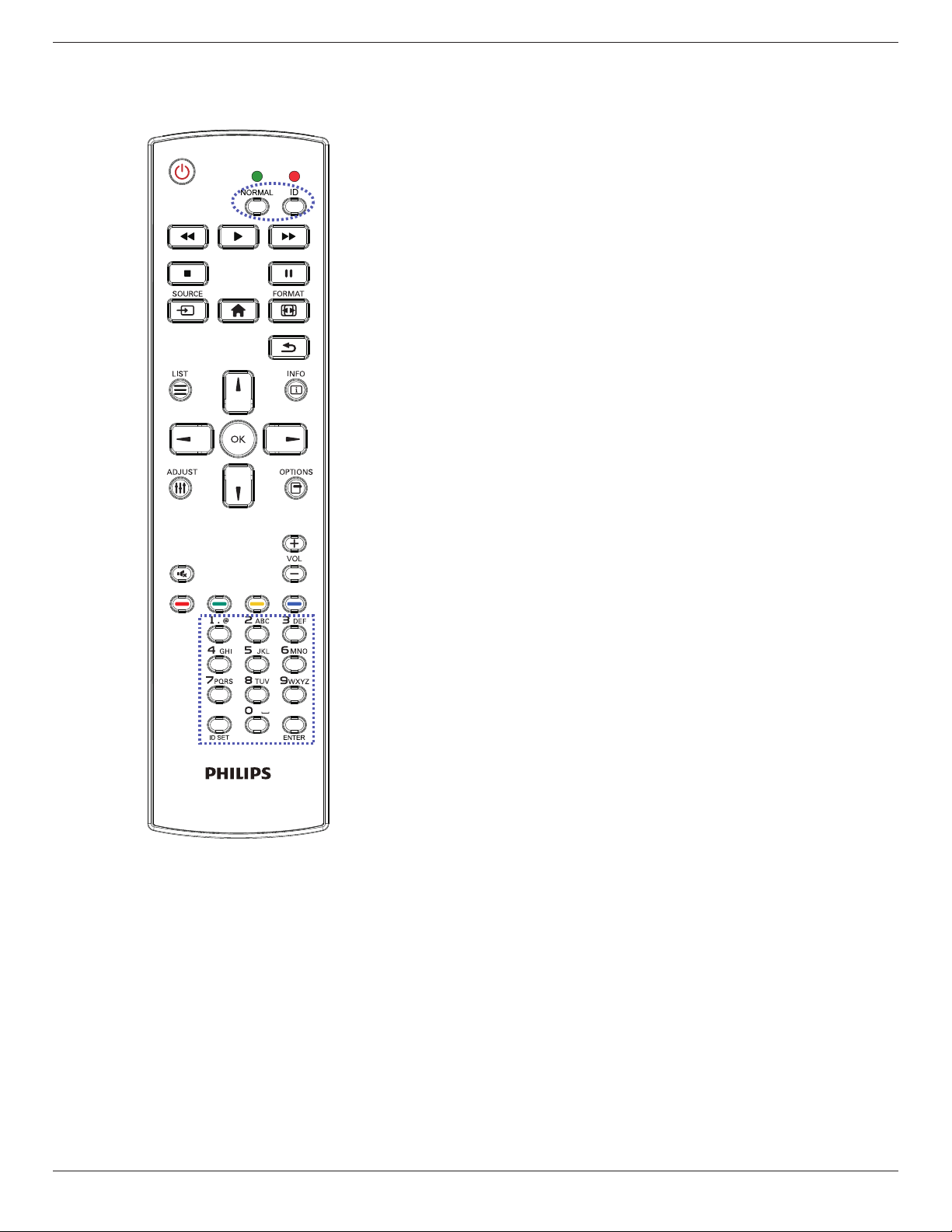
2.3.2. ID Remote Control
You can set the remote control ID when you want to use this remote
control on one of several different displays.
Press [ID] button. The red LED blinks twice.
1. Press [ID SET] button for more than 1 second to enter the ID
Mode. The red LED lights up.
Press the [ID SET] button again will exit the ID Mode. The red LED
lights off.
Press the digit numbers [0] ~ [9] to select the display you want to
control.
For example: press [0] and [1] for display No.1, press [1] and [1] for
display No.11.
The numbers available are from [01] ~ [255].
2. Not pressing any button within 10 seconds will exit the ID Mode.
3. If an error pressing of buttons other than the digits occured, wait
1 second after the red LED lights off and then lights up again, then
press the correct digits again.
4. Press [ENTER] button to conrm. The red LED blinks twice and
then lights off.
NOTE:
• Press [NORMAL] button. The green LED blinks twice, indicating the
display is in normal operation.
• It is necessary to set up the ID number for each display before
selecting its ID number.
65BDL3000Q
7
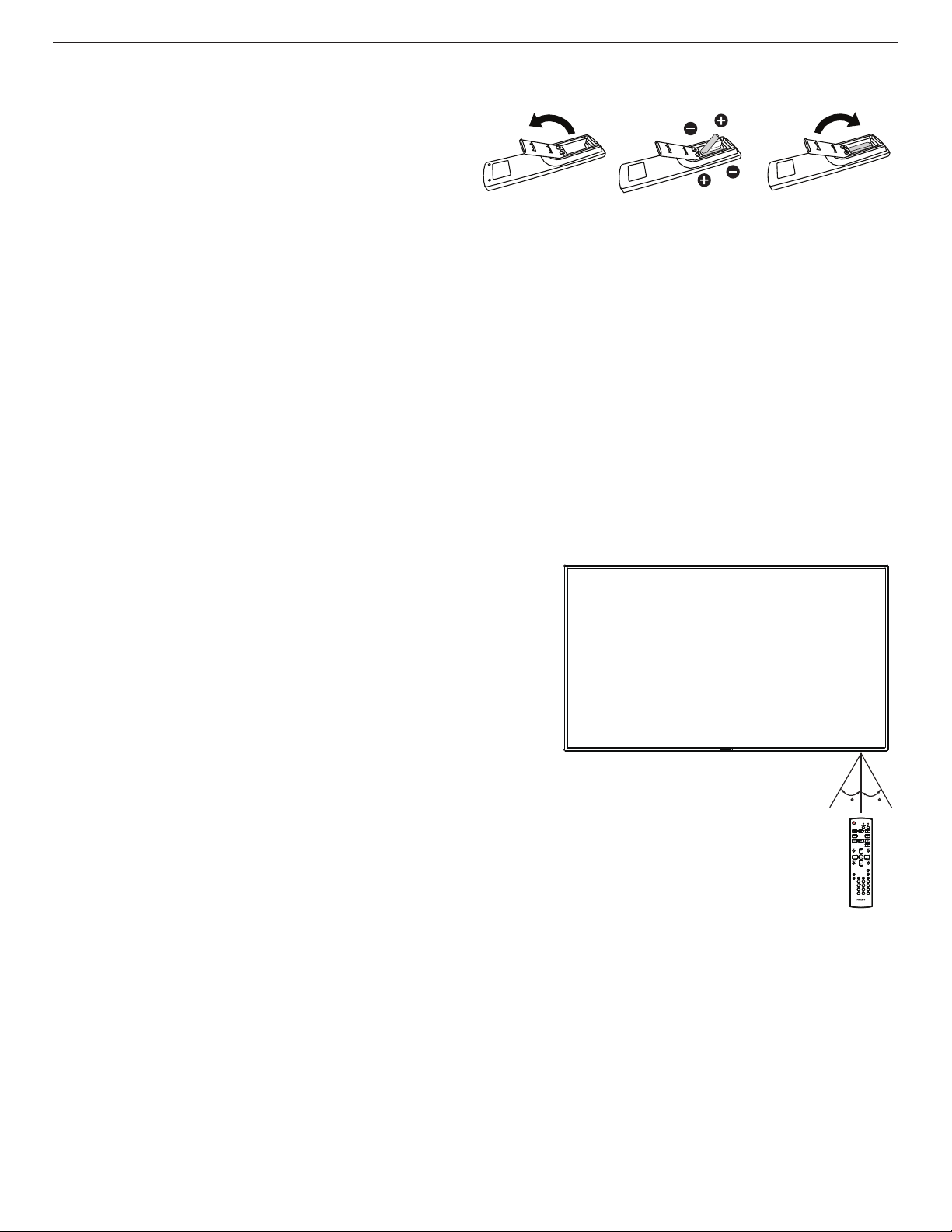
2.3.3. Inserting the batteries in the remote control
The remote control is powered by two 1.5V AAA batteries.
To install or replace batteries:
1. Press and then slide the cover to open it.
2. Align the batteries according to the (+) and (–) indications inside the
battery compartment.
3. Replace the cover.
Caution:
The incorrect use of batteries can result in leaks or bursting. Be sure to follow these instructions:
• Place “AAA” batteries matching the (+) and (–) signs on each battery to the (+) and (–) signs of the battery compartment.
• Do not mix battery types.
• Do not combine new batteries with used ones. It causes shorter life or leakage of batteries.
• Remove the dead batteries immediately to prevent them from liquid leaking in the battery compartment. Don’t touch exposed battery acid, as it can
damage your skin.
NOTE: If you do not intend to use the remote control for a long period, remove the batteries.
2.3.4. Handling the remote control
• Do not subject to strong shock.
• Do not allow water or other liquid to splash the remote control. If the remote control gets wet, wipe it dry immediately.
• Avoid exposure to heat and steam.
• Other than to install the batteries, do not open the remote control.
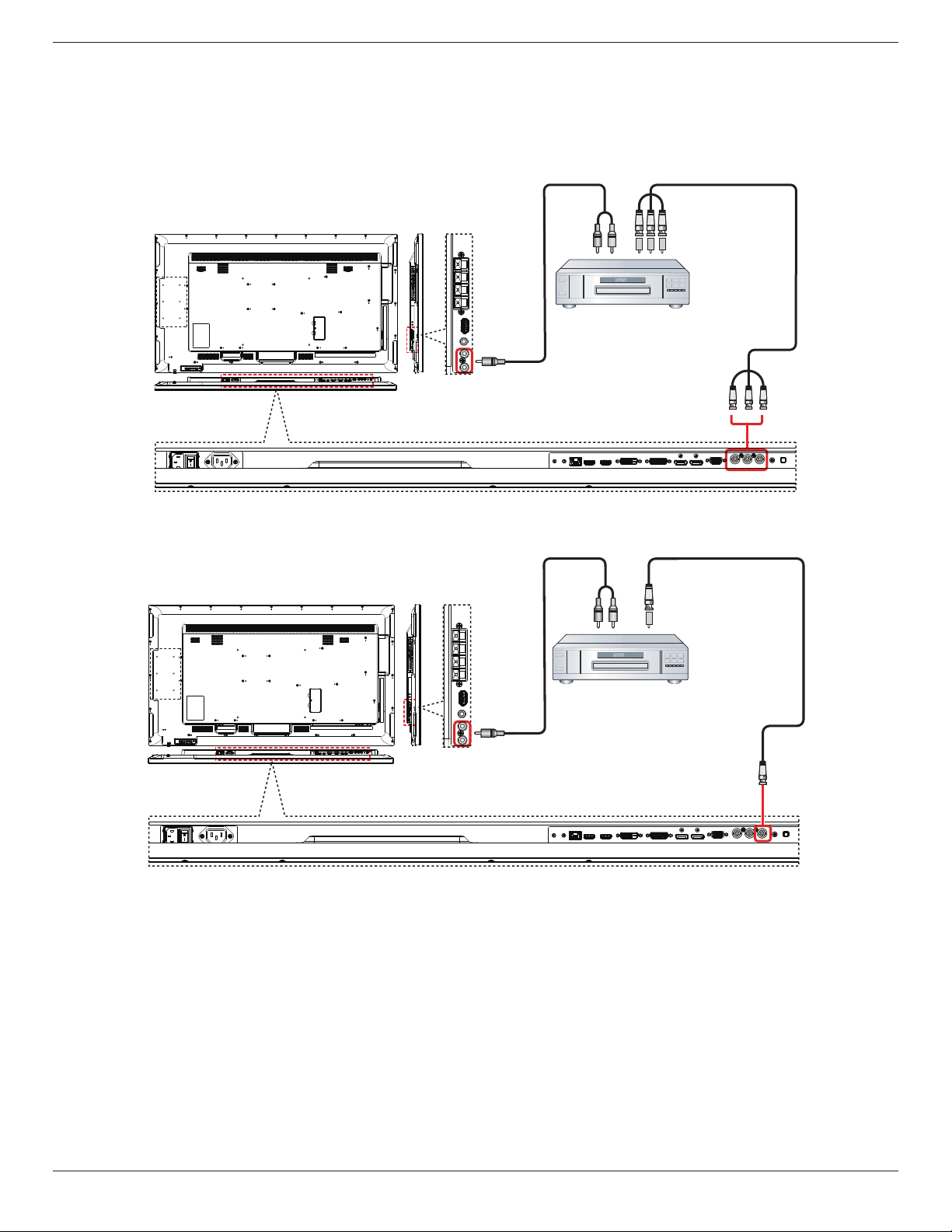
2.3.5. Operating range of the remote control
Point the top of the remote control toward the display’s remote control sensor when
pressing a button.
Use the remote control within a distance of less than 5m/16ft from the display’s sensor,
and a horizontal and vertical angle of less than 30 degrees.
NOTE: The remote control may not function properly when the remote control
sensor on the display is under direct sunlight or strong illumination, or when
there is an obstacle in the path of signal transmission.
30 30
65BDL3000Q
8
3. Connecting External Equipment
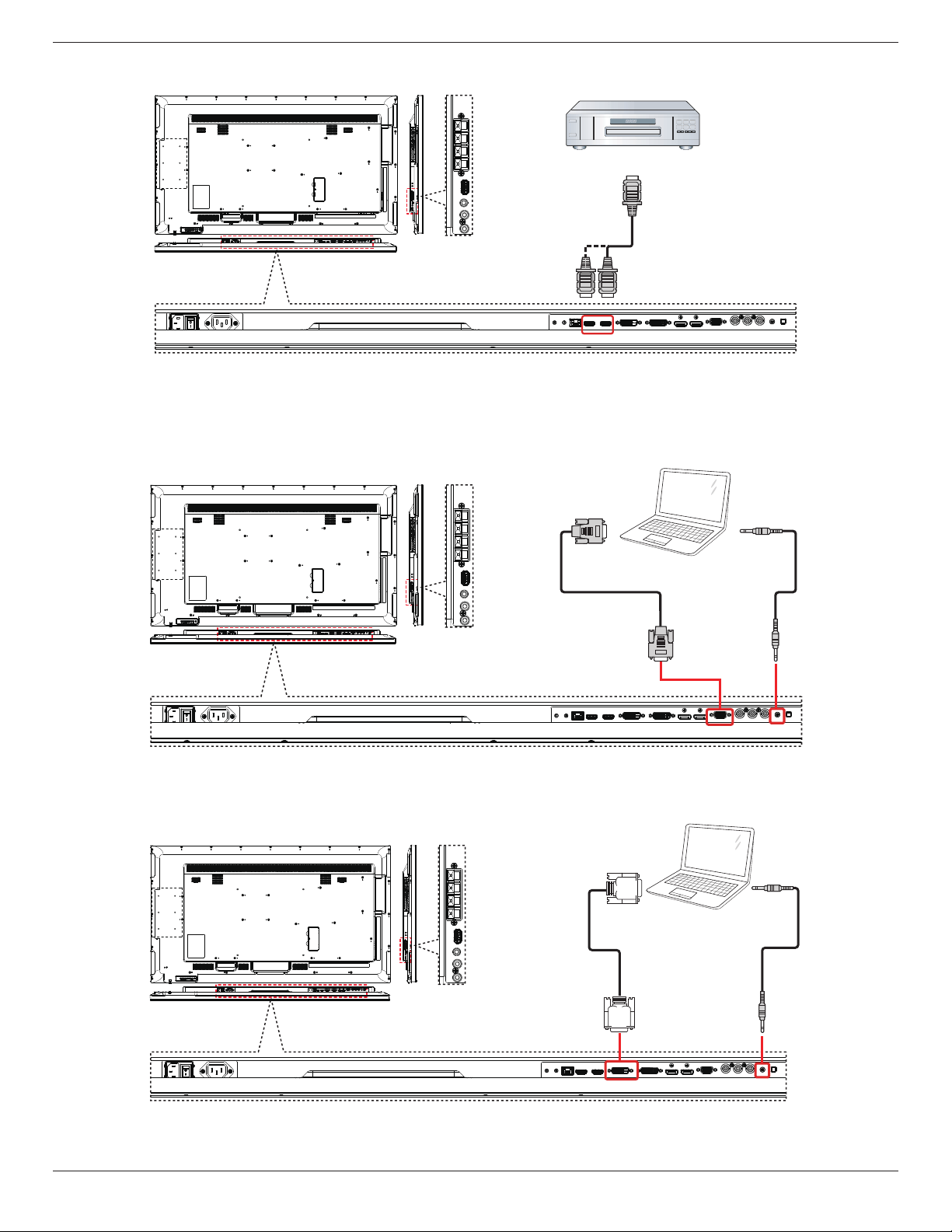
3.1. Connecting External Equipment (DVD/VCR/VCD)
3.1.1. Using COMPONENT video input
DVD / VCR / VCD
[AUDIO IN]
[COMPONENT IN]
(YPbPr)
COMPONENT Out
(YPbPr)
Audio Out
3.1.2. Using Video Source input
DVD / VCR / VCD
[Y/CVBS IN]
Y/CVBS Out
[AUDIO IN]
65BDL3000Q
9
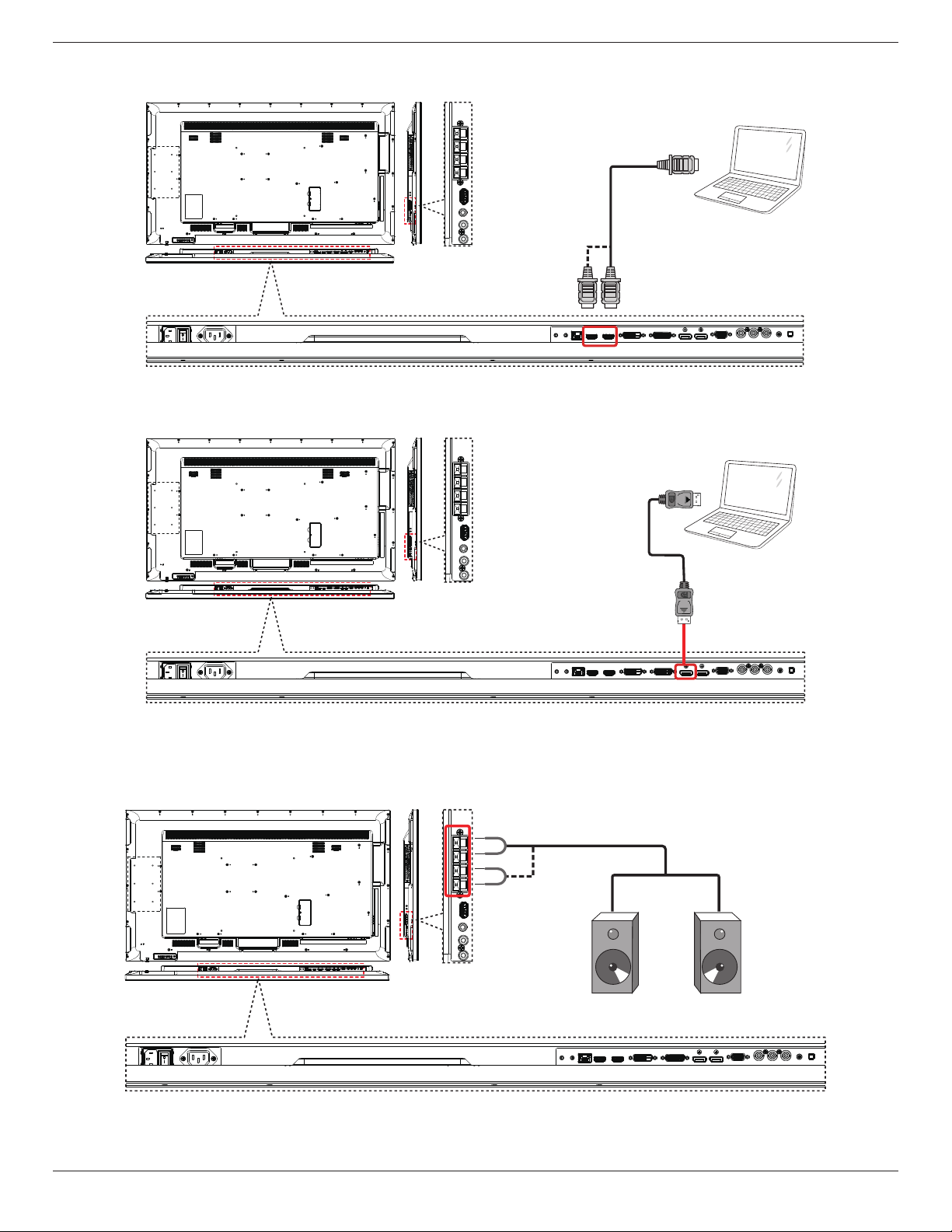
3.1.3. Using HDMI video input
DVD / VCR / VCD
HDMI Out
[HDMI IN]
3.2. Connecting a PC
3.2.1. Using VGA input
PC
[VGA IN]
[VGA AUDIO IN]
VGA Out
D-Sub 15 pin
Audio Out
3.2.2. Using DVI input
PC
[VGA AUDIO IN]
DVI Out
Audio Out
[DVI IN]
65BDL3000Q
10
3.2.3. Using HDMI input
PC
HDMI Out
[HDMI IN]
3.2.4. Using DisplayPort input
PC
DisplayPort Out
[DisplayPort IN]
3.3. Connecting Audio Equipment
3.3.1. Connecting external speakers
External speakers
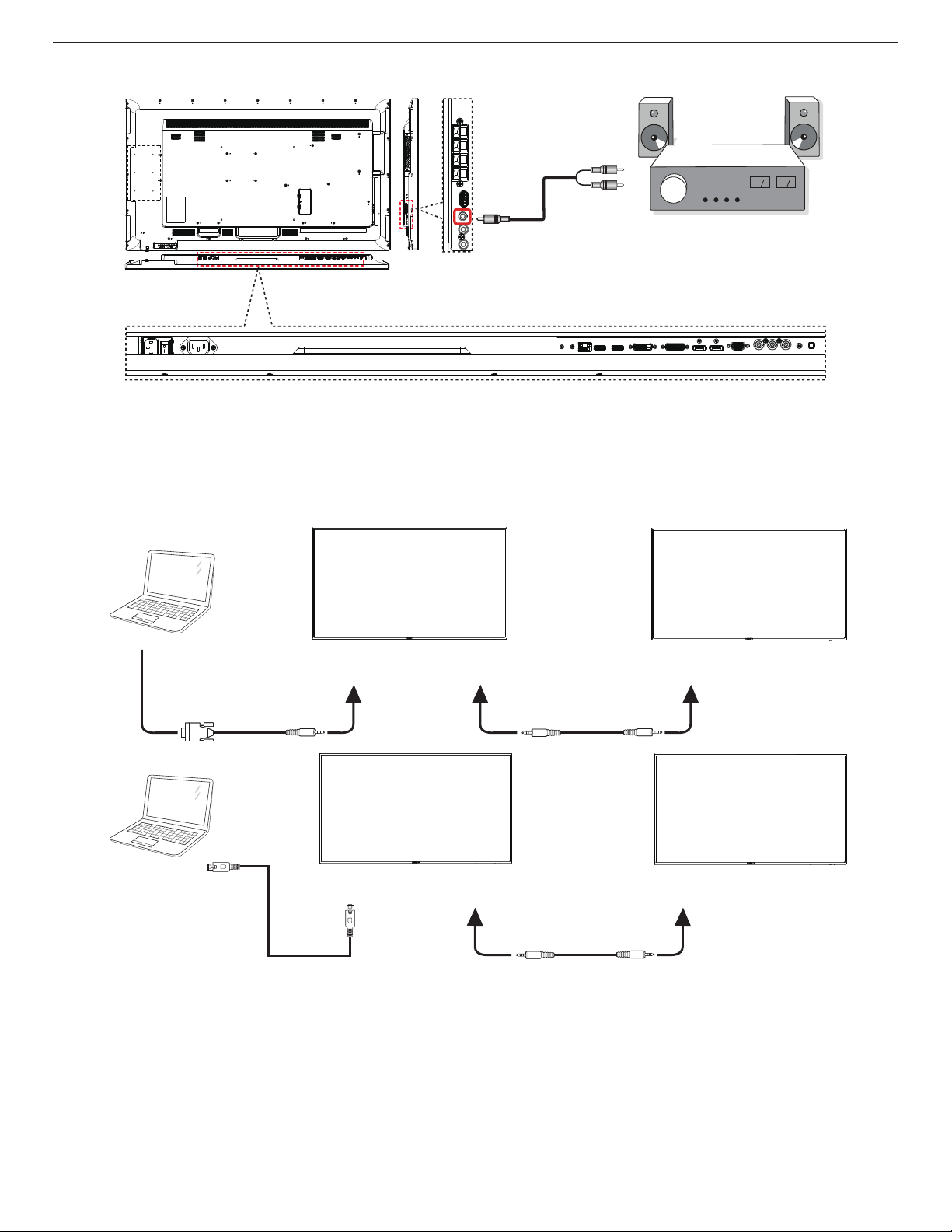
65BDL3000Q
11
3.3.2. Connecting an external audio device
Stereo Amplifier
[AUDIO OUT]
Audio In
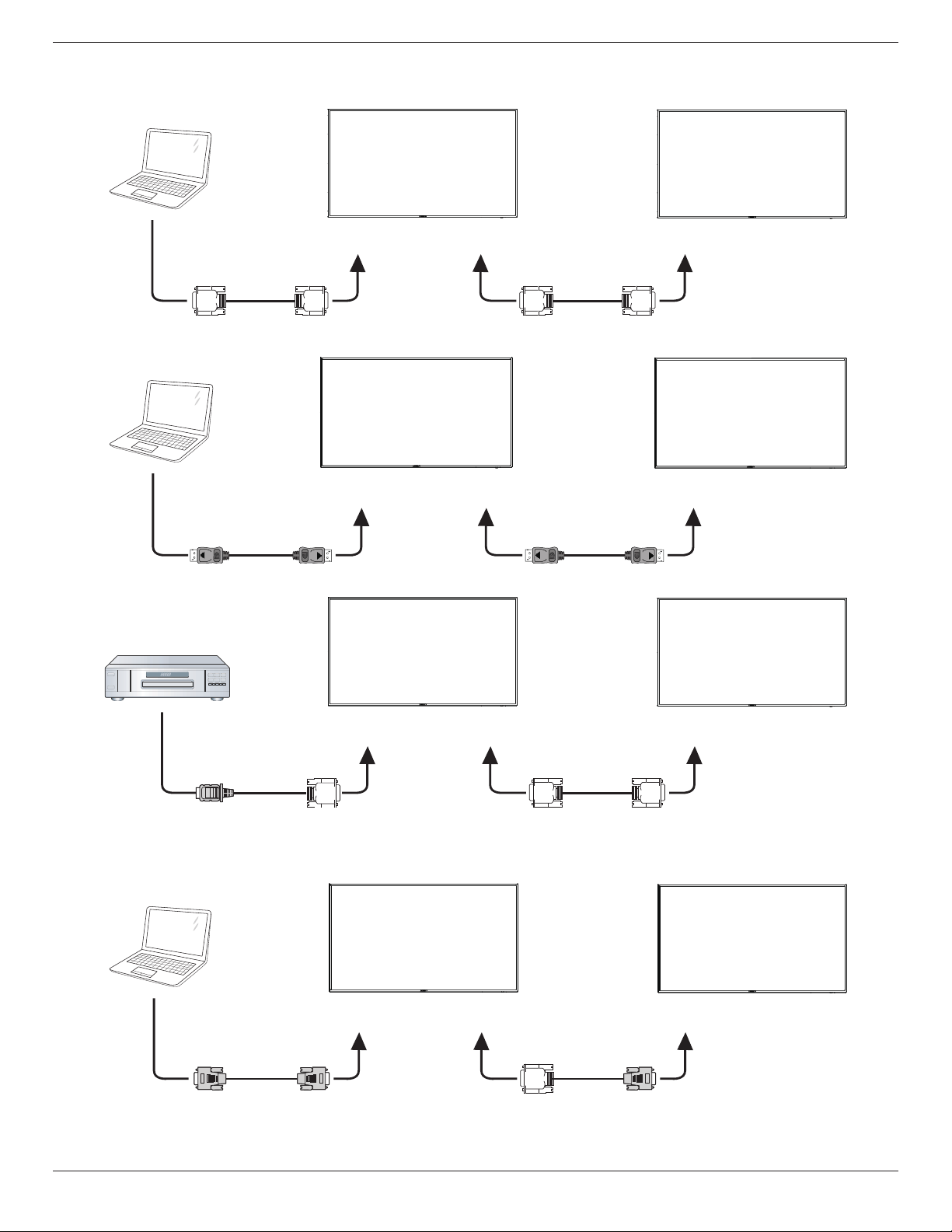
3.4. Connecting Multiple Displays in a Daisy-chain Configuration
You can interconnect multiple displays to create a daisy-chain conguration for applications such as a video wall.
3.4.1. Display control connection
Connect the [RS232C OUT] connector of DISPLAY 1 to the [RS232C IN] connector of DISPLAY 2.
DISPLAY 1
PC
DISPLAY 2
[RS-232C IN]
[RS-232C]
[RS-232C OUT] [RS-232C IN]
DISPLAY 1
PC
DISPLAY 2
[RJ-45] [RS-232C OUT] [RS-232C IN]
[RJ-45]
65BDL3000Q
12
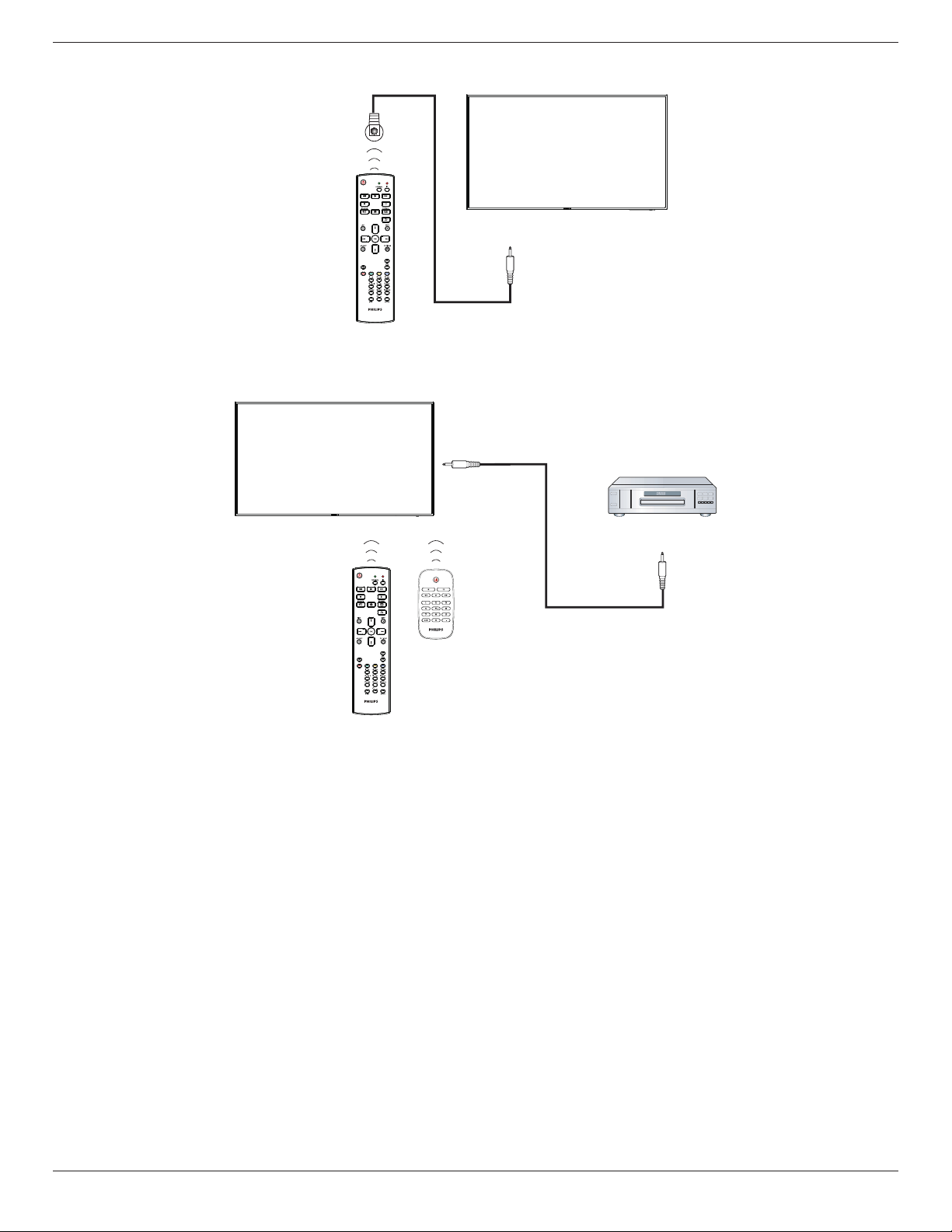
3.4.2. Digital video connection
Connect the [DVI OUT / VGA OUT] connector of DISPLAY 1 to the [DVI IN] connector of DISPLAY 2.
PC
[DVI IN]
[DVI]
[DVI/VGA OUT] [DVI IN]
DISPLAY 1 DISPLAY 2
Connect the [DP OUT] connector of DISPLAY 1 to the [DP IN] connector of DISPLAY 2.
PC
[DP IN]
[DP]
[DP OUT] [DP IN]
DISPLAY 1 DISPLAY 2
Connect the [DVI OUT ] connector of DISPLAY 1 to the [DVI IN] connector of DISPLAY 2.
DISPLAY 1 DISPLAY 2
[DVI IN]
[HDMI]
[DVI OUT] [DVI IN]
DVD / VCR / VCD
3.4.3. Analog video connection
Connect the [DVI OUT / VGA OUT] connector of DISPLAY 1 to the [VGA IN] connector of DISPLAY 2.
PC
DISPLAY 1 DISPLAY 2
[VGA IN]
[VGA]
[DVI/VGA OUT] [VGA IN]
65BDL3000Q
13
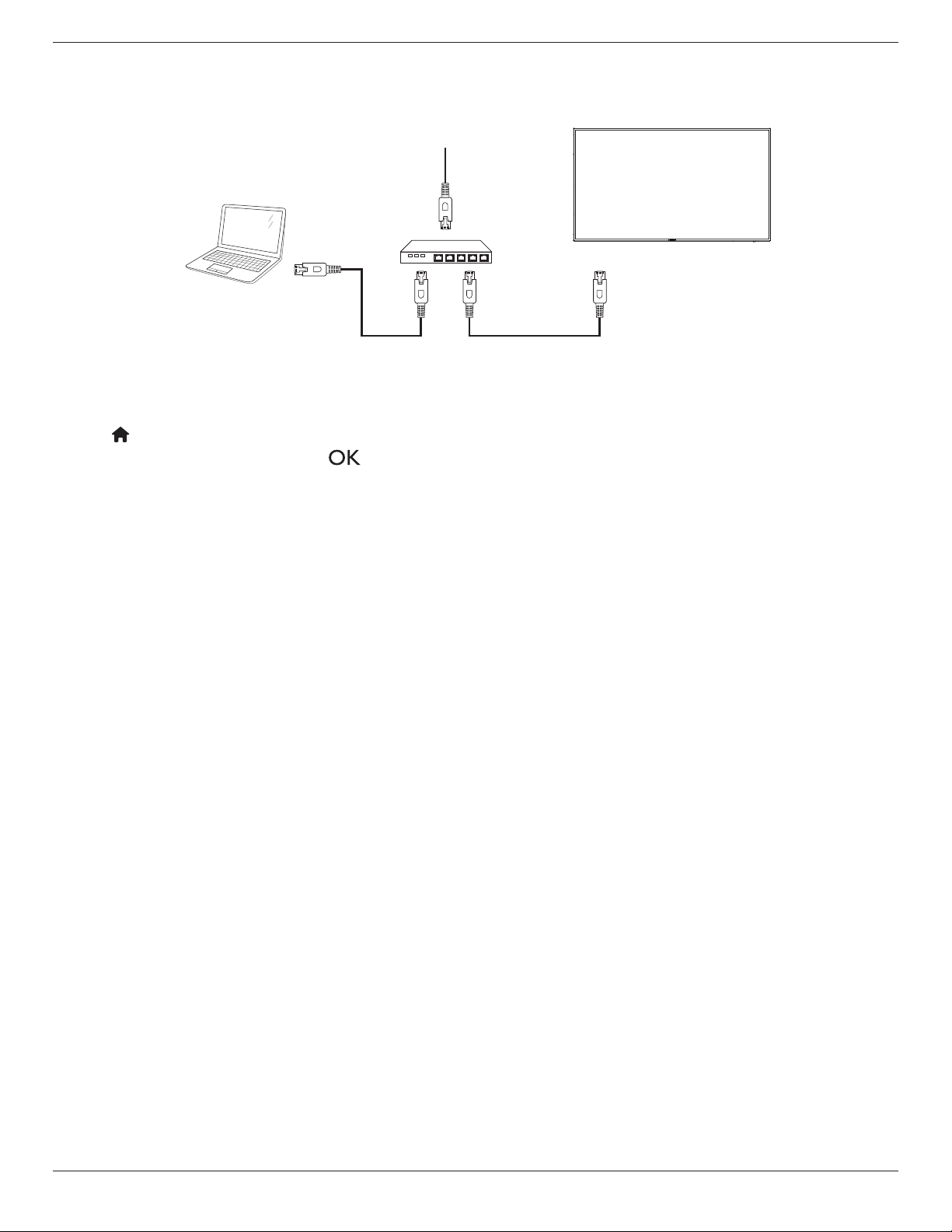
3.5. IR connection
[IR IN]
External
IR Receiver
NOTE: This display’s remote control sensor will stop working if the [IR IN] is connected.
3.6. IR Pass-through Connection
DVD / VCR / VCD
(DVD / VCR / VCD)
Remote Control
[IR OUT]
[IR IN]
65BDL3000Q
14
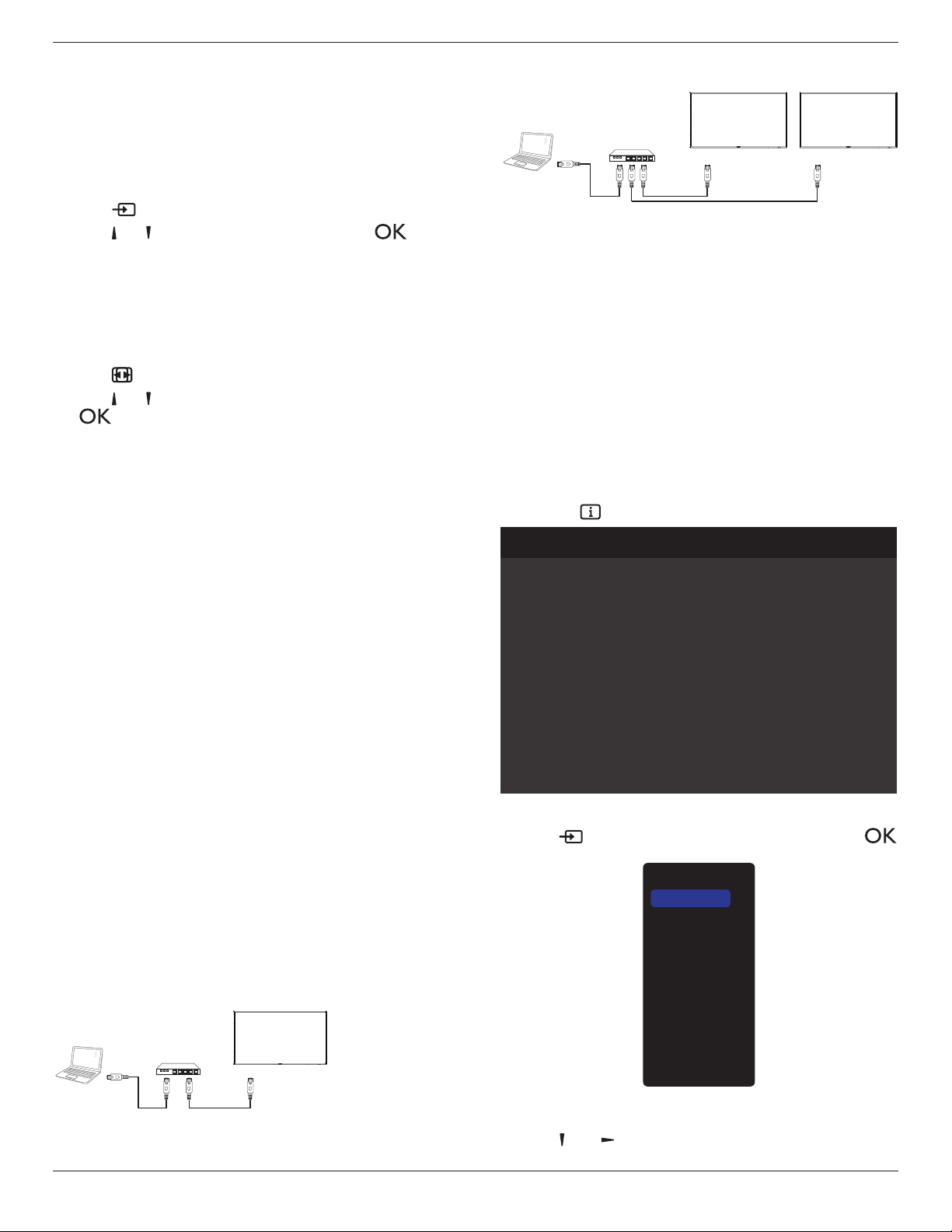
3.7. Wire-connecting to Network
If you connect this display to a home network, you can play photos, music and videos from your computer. See Play multimedia les via Local Area Network
(Page 15) for more detail.
PC
[RJ-45]
[RJ-45]
ROUTER
INTERNET
To setup the network:
1. Switch on the router and switch on its DHCP setting.
2. Connect the router to this display with an Ethernet cable.
3. Press [ ] HOME
button on the remote control, then select
Setup
.
4. Select
Connect to network
, then press [ ] button.
5. Follow the on-screen instructions to install the network.
6. Wait for this display to nd the network connection.
7. If you are prompted, agree to the “EndUserLicenceAgreement”.
NOTE: Connecting with a shielded CAT-5 Ethernet cable to comply with the EMC directive.
65BDL3000Q
15
4. Operation
NOTE: The control button described in this section is mainly on the
remote control unless specied otherwise.
4.1. Watch the Connected Video Source
See page 8 for external equipments connection.
1. Press
[ ] SOURCE button.
2. Press [ ]
or [ ] button to choose a device, then press [ ]
button.
4.2. Change Picture Format
You can change the picture format to suit the video source. Each video
source has its available picture formats.
The available picture formats depend on the video source:
1. Press [ ] FORMAT button.
2. Press [ ]
or [ ] button to choose a picture format, then press
[ ] button.
• {Autozoom}: Enlarge the picture to ll the screen.
Recommended for minimal screen distortion but not for HD or
PC.
• {Movieexpand16:9}: Scale 4:3 format to 16:9. Not
recommended for HD or PC.
• {Wide screen}: Shows wide screen format content unstretched.
Not recommended for HD or PC.
• {Unscaled}: Provide maximum detail for PC. Only available
when PC mode is selected in the {Picture} menu.
• {4:3}: Display the classic 4:3 format.
• {Customzoom}: Choose to apply customize zoom settings in
the Picture and edges submenu
4.3. Play multimedia files via Local Area
Network
To play les via Local Area Network, you will need:
• A wired home network, connected with a Universal Plug and Play
(uPnP) router.
• Optional: A LAN cable that connects your display to your home
network.
• A media server running on your computer.
• Appropriate settings on your computer rewall to allow you to run
the media server.
4.3.1. Set up the network
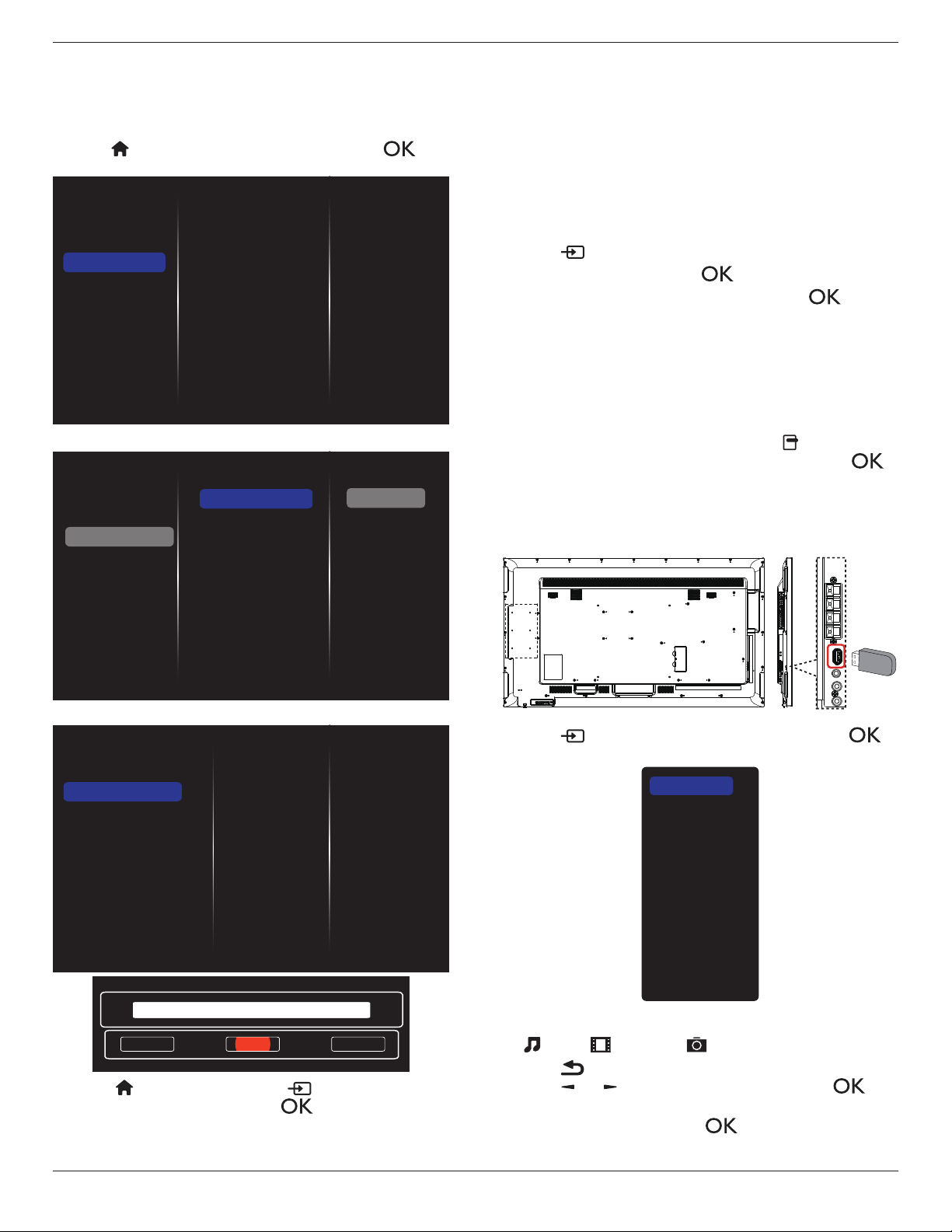
1. Connect your display and the computer to the same home network.
See illustration below to connect your display to a network.
2. Switch on your computer and the router.
• Singledisplaysetup:
PC
[RJ-45]
[RJ-45]
ROUTER
• Multipledisplaysetup:
PC
[RJ-45]
[RJ-45] [RJ-45]
ROUTER
DISPLAY 1
DISPLAY 2
NOTE: If the apparatus does not return to DLNA mode due to
external electrical disturbances (e.g. electrostatic discharge), user
intervention is required.
Set up media sharing
1. Install a media server on your computer to share media les. These
are some media servers:
• For PC: Windows Media Player 11 (or higher) or TVersity
• For Mac: Twonky
2. Switch on media sharing on your computer using the media server.
For more information on how to set up the media server, refer to
the website of the media server.
4.3.2. How to use DLNA-DMP
Ensure you have connected to the network.
You can press button to display the connection of the network.
Picture format
Picture style
Sound style
Smart power
Volume
Monitor group
Monitor ID
Model name
SWVersion
Serial no
Temperature
Network configuration
IP address
Netmask
Gateway
Network name
Ethernet MAC address
Wide screen
Standard
Personal
Off
0
1
1
65BDL3000Q
1.51
25°C
DHCP & Auto IP
192.168.1.116
255.255.255.0
192.168.1.1
65BDL3000Q
FF:FF:FF:FF:FF:FF:
HDMI 1 1080p60 26/09/2014 Friday 09:32:00
Play les from display
1. Press [ ] SOURCE button, choose Network, and press [
] button.
USB
Network
Internet
SmartCMS
HDMI 1
HDMI 2
Display Port
Card OPS
DVI-D
YPbPr
AV
VGA
2. Now, you can see all the PC’s connected to the same router on the
screen. Choose the right one.
3. Press [ ] and [ ] to choose the directory and les to play.
65BDL3000Q
16
4. You can connect up to 4 displays to the same PC and play same
media stream.
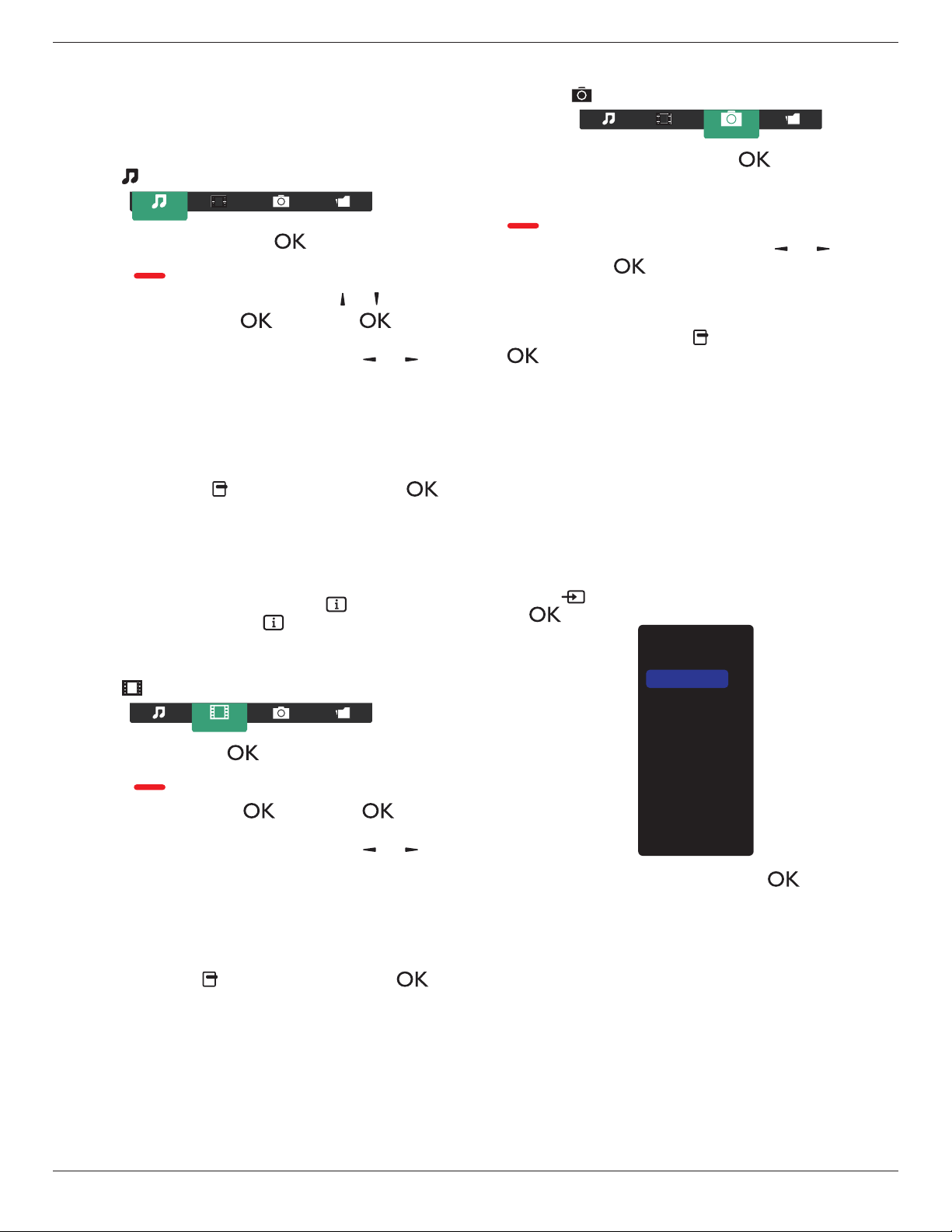
4.3.3. How to use DLNA-DMR from PC
1. Press [ ] HOME button, choose Network and press [ ]
button.
Picture
Sound
Tiling
Network
General settings
Advanced
Network settings
Digital Media Rendere...
Network name
Clear Internet memory
2. Set
Digital Media Renderer DMR
as
ON
.
Network settings
Digital Media Rendere...
Network name
Clear Internet memory
Picture
Sound
Tiling
Network
General settings
Advanced
Off
On
3. Set the name of your display.
Network settings
Digital Media Renderer - D...
Network name
Clear Internet memory
Cancel
Done Clear
65BDL3000Q
4. Press [ ] HOME button, and press [ ]
SOURCE
button.
Then, choose
Network
and press [ ] button.
5. On your PC, go to
Network and Sharing Center
, and click
Choose homegroup and sharing options
.
6. Check the media formats. Then, click
Choose media
streaming options....
.
7. Go to
Advanced sharing settings
, and check
Turn on
network discovery
.
8. Now, go to the directory of your media les. Choose the media
le by right click. On the submenu from
Play To
, You can nd all
displays connected to your network. Choose the display, and click
the media le to play..
Play les
1. Press [ ] SOURCE button.
2. Choose
Network
, and press [ ] button.
3. Choose a le from the content browser, and press [ ] button
to start playing.
4. Press the [PLAY]buttons on the remote control to control playing.
Tips:
• Choose the top bar to lter your les by type.
• Choose
Sort
to arrange the les by album name, artist, or other
elds.
• To clear the list of ofine media servers, press [ ] OPTIONS
button. Then, choose
Clear ofine servers
and press [ ]
button.
4.4. Play multimedia files from USB device
1. Connect your USB device to the USB port on the display.
USB
2. Press [ ]
SOURCE
button, choose
USB
, and press [ ]
button.
USB
Network
Internet
SmartCMS
HDMI 1
HDMI 2
Display Port
Card OPS
DVI-D
YPbPr
AV
VGA
3. The connected USB device is detected automatically for all its
playable les, which will be automatically sorted into 3 types:
Music
,
Movie
, and
Photo
.
4. Press [ ] BACK button to go up to the top layer in the screen.
Press [ ]
or [ ] button to choose the le type. Press [ ]
button to enter its play list.
5. Choose the le you want. Press [ ] button to start playing.
6. Follow the on-screen instruction to control the play option.
65BDL3000Q
17
7. Press [PLAY]buttons (
H F G I J
) to control playing.
4.5. Play options
4.5.1. Playing music files
1. Choose
Music
in the top bar.
Music
2. Choose one music track, and press [ ] button.
• To play all the tracks in a folder, choose one music le. Then,
press [ ] to
Play All
.
• To skip to the next or previous track, press [ ] or [ ] button.
• To pause the track, press [ ] button. Press [ ] button
again to resume playback.
•
To skip backward or forward 10 seconds, press [ ] or [ ]
button.
• To search backward or forward, press [
G
]
or
[
J
] button,
press repeatedly to toggle between different speeds.
• To stop the music, press [
H
] button.
Music options
While you play music, press [ ] OPTIONS button, then press [ ]
button to choose an option:
• {Shufe}: Enable or disable random play of tracks.
• {Repeat}: Choose {Repeat} to play a track or an album repeatedly,
or choose {Playonce} to play a track once.
NOTE: To view information about a song (for example, title, artist or
duration), choose the song, then press [ ] INFO button. To
hide the information, press [ ] INFO button again.
4.5.2. Playing movie files
1. Choose
Movie
in the top bar.
Movie
2. Choose a video, and press [ ] button.
• To play all the videos in a folder, choose one video le. Then,
press [ ] to
Play All
.
• To pause the video, press [ ] button. Press [ ] button
again to resume playback.
•
To skip backward or forward 10 seconds, press [ ] or [ ]
button.
• To search backward or forward, press [
G
]
or
[
J
] button,
press repeatedly to toggle between different speeds.
• To stop the video, press [
H
] button.
Movie options
While playing video, press [ ] OPTIONS button, then press [ ]
button to choose an option:
• {Subtitles}: Choose the available subtitle settings.
• {Subtitlelanguage}: Choose the language for subtitles if available.
• {Shufe}: Enable or disable random play of video les.
• {Repeat}: Choose {Repeat} to play the video le repeatedly or
{Play once} to play the video le once.
• {Status}: To view information about a video (for example, played
position, duration, title, or date).
4.5.3. Playing photo files
1. Choose
Photo
in the top bar.
Photo
2. Choose a photo thumbnail, then press ] button.
Start a slideshow
If there are multiple photos in a folder, choose a photo. Then, press
[ ] to
Play All
.
•
To skip to the previous or next photo, press [ ] or [ ] button,
and then press [ ] button.
• To stop the slideshow, press [
H
] button.
Slideshow options
While you play a slideshow, press [ ] OPTIONS button, then press
[ ] button to choose an option:
• {Shufe}: Enable or disable random display of pictures in the
slideshow.
• {Repeat}: Choose {Repeat} to watch a slideshow repeatedly or
{Playonce} to watch once.
• {SlideshowTime}: Choose the displaying time for each photo in the
slideshow.
• {Slideshow Transitions}: Choose the transition from one photo to
the next.
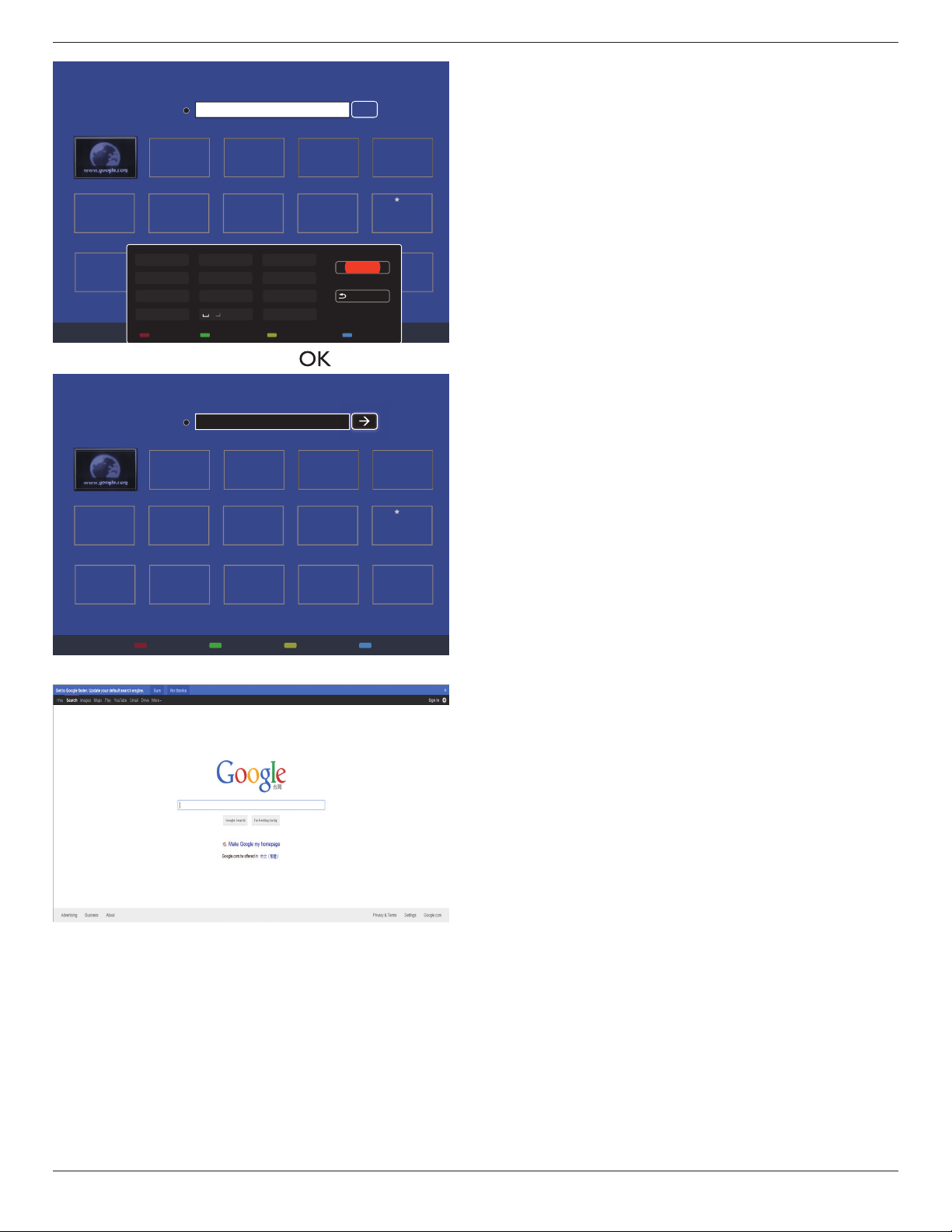
4.6. How to use Opera browser (HTML5)
Please check the LAN wire to make sure the network is connected.
1. Press [ ]
SOURCE
button, and choose
Internet
and press
[ ] button.
USB
Network
Internet
SmartCMS
HDMI 1
HDMI 2
Display Port
Card OPS
DVI-D
YPbPr
AV
VGA
2. Move the cursor to URL address bar. Press [ ] button and it
will pop out the on-screen keyboard. You can move the cursor to
enter the URL address. After nishing the URL address, choose
Done
.
65BDL3000Q
18
History
Bookmark
Web Address:
X
Internet
www.google.com
http://
w
w
w
w
w
w
w
w
w
w
w
w
w
w
w
w
w
w
w
w
w
w
w
w
w
w
w
w
w
w
w
w
w
w
w
w
w
w
w
w
w
w
w
w
w
w
w
w
w
w
w
w
w
w
w
w
w
w
w
w
w
w
w
w
w
w
w
w
w
w
w
w
w
w
w
w
w
w
w
w
w
w
w
w
w
w
w
w
w
w
w
w
w
w
w
w
w
w
w
w
w
w
w
w
w
w
w
w
w
w
w
w
w
w
w
w
w
w
w
w
w
w
w
w
w
w
w
w
w
w
w
w
w
w
w
w
w
w
w
w
w
w
w
w
w
w
w
w
w
w
w
w
w
w
w
w
w
w
w
w
w
w
w
w
w
w
w
w
w
w
w
w
w
w
w
w
w
w
w
w
w
w
w
w
w
w
w
w
w
w
w
w
w
w
w
w
w
w
w
w
w
w
w
w
w
w
w
w
w
w
w
w
w
w
w
w
w
w
w
w
w
w
w
w
w
w
w
w
w
w
w
w
w
w
w
w
w
w
w
w
w
w
w
w
w
w
w
w
w
w
w
w
w
w
w
w
w
w
w
w
w
w
w
w
w
w
w
w
w
w
w
w
w
w
w
w
w
w
w
w
w
w
w
w
w
w
w
w
w
w
w
w
w
w
w
w
w
w
w
w
w
w
w
w
w
w
w
w
w
w
w
w
w
w
w
w
w
w
w
w
w
w
w
w
w
w
w
w
w
w
w
w
w
w
w
w
w
w
w
w
w
ww
w
w
w
w
w
w
w
w
w
w
w
w
w
w
w
w
w
w
w
w
w
w
w
w
w
w
w
w
w
w
w
w
w
w
w
w
w
w
w
w
w
w
w
w
w
w
w
w
w
w
w
w
w
w
w
w
w
w
w
w
w
w
w
w
w
w
w
w
w
w
w
w
w
w
w
w
w
w
w
w
w
w
w
w
w
w
w
w
w
w
w
w
w
w
w
w
w
w
w
w
w
w
w
w
w
w
w
w
w
w
w
w
w
w
w
w
w
w
w
w
w
w
w
w
w
w
w
w
w
w
w
w
w
w
w
w
w
w
w
w
w
w
w
w
w
w
w
w
w
w
w
w
w
w
w
w
w
w
w
w
w
w
w
w
w
w
w
w
w
w
w
w
w
w
.
.
.
.
g
g
g
g
g
g
g
g
g
g
g
g
g
g
g
g
g
g
g
g
g
g
g
g
g
g
g
g
g
g
g
g
g
g
g
g
g
g
g
g
g
g
g
g
g
g
g
g
g
g
g
g
g
g
g
g
g
g
g
g
g
g
g
g
g
g
g
g
g
g
g
g
g
g
g
g
g
g
g
g
g
g
g
g
g
g
g
g
g
g
g
g
g
g
g
g
g
g
g
g
g
g
g
g
g
g
g
g
g
g
g
g
g
g
g
g
g
g
g
g
g
g
g
g
g
g
g
g
g
g
g
g
g
g
o
o
o
o
o
o
o
o
o
o
o
o
o
o
o
o
o
o
o
o
o
o
o
o
o
o
o
o
o
o
o
o
o
o
o
o
o
o
o
o
o
o
o
o
o
o
o
o
o
o
o
o
o
o
o
o
o
o
o
o
o
o
o
o
o
o
o
o
o
o
o
o
o
o
o
o
o
o
o
o
o
o
o
o
o
o
o
o
o
o
o
o
o
o
o
o
o
o
o
o
o
o
o
o
o
o
o
o
o
o
o
o
o
o
o
o
o
o
o
o
o
o
o
o
o
o
o
o
o
o
o
o
o
o
o
o
o
o
o
o
o
o
o
o
o
o
o
o
o
o
o
o
o
o
o
o
o
o
o
o
o
o
o
o
o
o
o
o
o
o
o
o
o
o
o
o
o
o
o
o
o
o
o
o
o
o
o
o
o
o
o
o
o
o
o
o
o
o
o
o
o
o
o
o
o
o
o
o
o
o
o
o
o
o
o
o
o
o
o
o
o
o
o
o
o
o
o
o
o
o
o
o
o
o
o
o
o
o
o
o
o
o
o
o
o
o
o
o
o
o
o
o
o
o
o
o
o
o
o
o
o
o
o
o
o
o
o
o
o
o
o
o
o
o
o
o
o
o
o
o
o
o
o
o
o
o
o
o
o
o
o
o
o
o
o
o
o
o
o
o
o
o
o
o
o
o
o
o
o
o
o
o
o
o
g
g
g
g
g
g
g
g
g
g
g
g
g
g
g
g
g
g
g
g
g
g
g
g
g
g
g
g
g
g
g
g
g
g
g
g
g
g
g
g
g
g
g
g
g
g
g
g
g
g
g
g
g
g
g
g
g
g
g
g
g
g
g
g
g
g
g
g
g
g
g
g
g
g
g
g
g
g
g
g
g
g
g
g
g
g
g
g
g
g
g
g
g
g
g
g
g
g
g
g
g
g
g
g
g
g
g
g
g
g
g
g
g
l
l
l
l
l
l
l
l
l
l
l
l
l
l
l
l
l
l
l
l
l
l
l
l
l
l
l
l
l
l
l
l
l
l
l
l
l
l
l
l
l
l
l
l
l
l
l
l
l
l
l
l
l
l
l
l
l
l
l
l
l
l
l
l
l
l
l
l
l
l
l
l
l
l
l
l
l
e
e
e
e
e
e
e
e
e
e
e
e
e
e
e
e
e
e
e
ee
e
e
e
e
e
e
e
e
e
e
e
e
e
e
e
e
e
e
e
e
e
e
e
e
e
e
e
e
e
e
e
e
e
e
e
e
e
e
e
e
e
e
e
e
e
e
e
e
e
e
e
e
e
e
e
e
e
e
e
e
e
e
e
e
e
e
e
e
e
e
e
e
e
e
e
e
e
e
e
e
e
e
e
e
e
e
e
e
e
e
e
e
e
e
e
e
e
e
e
e
e
e
e
e
e
e
e
e
e
e
e
e
e
e
e
e
e
e
e
e
e
e
e
e
e
e
.
.
..
c
c
c
c
c
c
c
c
c
c
c
c
c
c
c
c
c
c
c
c
c
c
c
c
c
c
c
c
c
c
c
c
c
c
c
c
c
c
c
c
c
c
c
c
c
c
c
c
c
c
c
c
c
c
c
c
c
c
c
c
c
c
c
c
c
c
c
c
c
c
c
c
c
c
c
c
c
c
c
c
c
c
c
c
c
c
c
c
c
c
c
c
c
c
c
c
c
c
c
c
c
c
c
c
c
c
o
o
o
o
o
o
o
o
o
o
o
o
o
o
o
o
o
o
o
o
o
oo
o
o
o
o
o
o
o
o
o
o
o
o
o
o
o
o
o
o
o
o
o
o
o
o
o
o
o
o
o
o
o
o
o
o
o
o
o
o
o
o
o
o
o
o
o
o
o
o
o
o
o
o
o
o
o
o
o
o
o
o
o
o
o
o
o
o
o
m
m
m
m
m
m
m
m
m
m
m
m
m
m
m
m
m
m
m
m
m
m
m
m
m
m
m
m
m
m
m
m
m
m
m
m
m
m
m
m
m
m
m
m
m
m
m
m
m
m
m
m
m
m
m
m
m
m
m
m
m
m
m
m
m
m
m
m
m
m
m
m
m
m
m
m
m
m
m
m
m
m
m
m
m
m
m
m
m
m
m
m
m
m
m
m
m
m
m
m
m
m
m
m
m
m
m
m
m
m
m
m
m
m
m
m
m
m
Done
Hide
. , @ ‘
g h i
p q r s
a b c
j k l
t u v
? ! -
<
d e f
m n o
w x y z
abc ABC 123 www Backspace
3. Move the cursor to “
” icon and press [ ] button.
History
Bookmark
Web Address:
X
Internet
www.google.com
http://www.google.com
w
w
w
w
w
w
w
w
w
w
w
w
w
w
w
w
w
w
w
w
w
w
w
w
w
w
w
w
w
w
w
w
w
w
w
w
w
w
w
w
w
w
w
w
w
w
w
w
w
w
w
w
w
w
w
w
w
w
w
w
w
w
w
w
w
w
w
w
w
w
w
w
w
w
w
w
w
w
w
w
w
w
w
w
w
w
w
w
w
w
w
w
w
w
w
w
w
w
w
w
w
w
w
w
w
w
w
w
w
w
w
w
w
w
w
w
w
w
w
w
w
w
w
w
w
w
w
w
w
w
w
w
w
w
w
w
w
w
w
w
w
w
w
w
w
w
w
w
w
w
w
w
w
w
w
w
w
w
w
w
w
w
w
w
w
w
w
w
w
w
w
w
w
w
w
w
w
w
w
w
w
w
w
w
w
w
w
w
w
w
w
w
w
w
w
w
w
w
w
w
w
w
w
w
w
w
w
w
w
w
w
w
w
w
w
w
w
w
w
w
w
w
w
w
w
w
w
w
w
w
w
w
w
w
w
w
w
w
w
w
w
w
w
w
w
w
w
w
w
w
w
w
w
w
w
w
w
w
w
w
w
w
w
w
w
w
w
w
w
w
w
w
w
w
w
w
w
w
w
w
w
w
w
w
w
w
w
w
w
w
w
w
w
w
w
w
w
w
w
w
w
w
w
w
w
w
w
w
w
w
w
w
w
w
w
w
w
w
w
w
w
w
w
w
w
w
w
w
w
w
w
w
w
w
w
w
w
w
w
w
w
ww
w
w
w
w
w
w
w
w
w
w
w
w
w
w
w
w
w
w
w
w
w
w
w
w
w
w
w
w
w
w
w
w
w
w
w
w
w
w
w
w
w
w
w
w
w
w
w
w
w
w
w
w
w
w
w
w
w
w
w
w
w
w
w
w
w
w
w
w
w
w
w
w
w
w
w
w
w
w
w
w
w
w
w
w
w
w
w
w
w
w
w
w
w
w
w
w
w
w
w
w
w
w
w
w
w
w
w
w
w
w
w
w
w
w
w
w
w
w
w
w
w
w
w
w
w
w
w
w
w
w
w
w
w
w
w
w
w
w
w
w
w
w
w
w
w
w
w
w
w
w
w
w
w
w
w
w
w
w
w
w
w
w
w
w
w
w
w
w
w
w
w
w
w
w
.
.
.
.
g
g
g
g
g
g
g
g
g
g
g
g
g
g
g
g
g
g
g
g
g
g
g
g
g
g
g
g
g
g
g
g
g
g
g
g
g
g
g
g
g
g
g
g
g
g
g
g
g
g
g
g
g
g
g
g
g
g
g
g
g
g
g
g
g
g
g
g
g
g
g
g
g
g
g
g
g
g
g
g
g
g
g
g
g
g
g
g
g
g
g
g
g
g
g
g
g
g
g
g
g
g
g
g
g
g
g
g
g
g
g
g
g
g
g
g
g
g
g
g
g
g
g
g
g
g
g
g
g
g
g
g
g
g
o
o
o
o
o
o
o
o
o
o
o
o
o
o
o
o
o
o
o
o
o
o
o
o
o
o
o
o
o
o
o
o
o
o
o
o
o
o
o
o
o
o
o
o
o
o
o
o
o
o
o
o
o
o
o
o
o
o
o
o
o
o
o
o
o
o
o
o
o
o
o
o
o
o
o
o
o
o
o
o
o
o
o
o
o
o
o
o
o
o
o
o
o
o
o
o
o
o
o
o
o
o
o
o
o
o
o
o
o
o
o
o
o
o
o
o
o
o
o
o
o
o
o
o
o
o
o
o
o
o
o
o
o
o
o
o
o
o
o
o
o
o
o
o
o
o
o
o
o
o
o
o
o
o
o
o
o
o
o
o
o
o
o
o
o
o
o
o
o
o
o
o
o
o
o
o
o
o
o
o
o
o
o
o
o
o
o
o
o
o
o
o
o
o
o
o
o
o
o
o
o
o
o
o
o
o
o
o
o
o
o
o
o
o
o
o
o
o
o
o
o
o
o
o
o
o
o
o
o
o
o
o
o
o
o
o
o
o
o
o
o
o
o
o
o
o
o
o
o
o
o
o
o
o
o
o
o
o
o
o
o
o
o
o
o
o
o
o
o
o
o
o
o
o
o
o
o
o
o
o
o
o
o
o
o
o
o
o
o
o
o
o
o
o
o
o
o
o
o
o
o
o
o
o
o
o
o
o
o
o
o
o
o
o
g
g
g
g
g
g
g
g
g
g
g
g
g
g
g
g
g
g
g
g
g
g
g
g
g
g
g
g
g
g
g
g
g
g
g
g
g
g
g
g
g
g
g
g
g
g
g
g
g
g
g
g
g
g
g
g
g
g
g
g
g
g
g
g
g
g
g
g
g
g
g
g
g
g
g
g
g
g
g
g
g
g
g
g
g
g
g
g
g
g
g
g
g
g
g
g
g
g
g
g
g
g
g
g
g
g
g
g
g
g
g
g
g
l
l
l
l
l
l
l
l
l
l
l
l
l
l
l
l
l
l
l
l
l
l
l
l
l
l
l
l
l
l
l
l
l
l
l
l
l
l
l
l
l
l
l
l
l
l
l
l
l
l
l
l
l
l
l
l
l
l
l
l
l
l
l
l
l
l
l
l
l
l
l
l
l
l
l
l
l
e
e
e
e
e
e
e
e
e
e
e
e
e
e
e
e
e
e
e
ee
e
e
e
e
e
e
e
e
e
e
e
e
e
e
e
e
e
e
e
e
e
e
e
e
e
e
e
e
e
e
e
e
e
e
e
e
e
e
e
e
e
e
e
e
e
e
e
e
e
e
e
e
e
e
e
e
e
e
e
e
e
e
e
e
e
e
e
e
e
e
e
e
e
e
e
e
e
e
e
e
e
e
e
e
e
e
e
e
e
e
e
e
e
e
e
e
e
e
e
e
e
e
e
e
e
e
e
e
e
e
e
e
e
e
e
e
e
e
e
e
e
e
e
e
e
e
.
.
..
c
c
c
c
c
c
c
c
c
c
c
c
c
c
c
c
c
c
c
c
c
c
c
c
c
c
c
c
c
c
c
c
c
c
c
c
c
c
c
c
c
c
c
c
c
c
c
c
c
c
c
c
c
c
c
c
c
c
c
c
c
c
c
c
c
c
c
c
c
c
c
c
c
c
c
c
c
c
c
c
c
c
c
c
c
c
c
c
c
c
c
c
c
c
c
c
c
c
c
c
c
c
c
c
c
c
o
o
o
o
o
o
o
o
o
o
o
o
o
o
o
o
o
o
o
o
o
oo
o
o
o
o
o
o
o
o
o
o
o
o
o
o
o
o
o
o
o
o
o
o
o
o
o
o
o
o
o
o
o
o
o
o
o
o
o
o
o
o
o
o
o
o
o
o
o
o
o
o
o
o
o
o
o
o
o
o
o
o
o
o
o
o
o
o
o
m
m
m
m
m
m
m
m
m
m
m
m
m
m
m
m
m
m
m
m
m
m
m
m
m
m
m
m
m
m
m
m
m
m
m
m
m
m
m
m
m
m
m
m
m
m
m
m
m
m
m
m
m
m
m
m
m
m
m
m
m
m
m
m
m
m
m
m
m
m
m
m
m
m
m
m
m
m
m
m
m
m
m
m
m
m
m
m
m
m
m
m
m
m
m
m
m
m
m
m
m
m
m
m
m
m
m
m
m
m
m
m
m
m
m
m
m
m
4. Now, you can see the web page.
NOTES:
• The Opera browser does not support FLASH format.
• The browser is not a video source. It will not stay at the browser
screen after you restart the display.
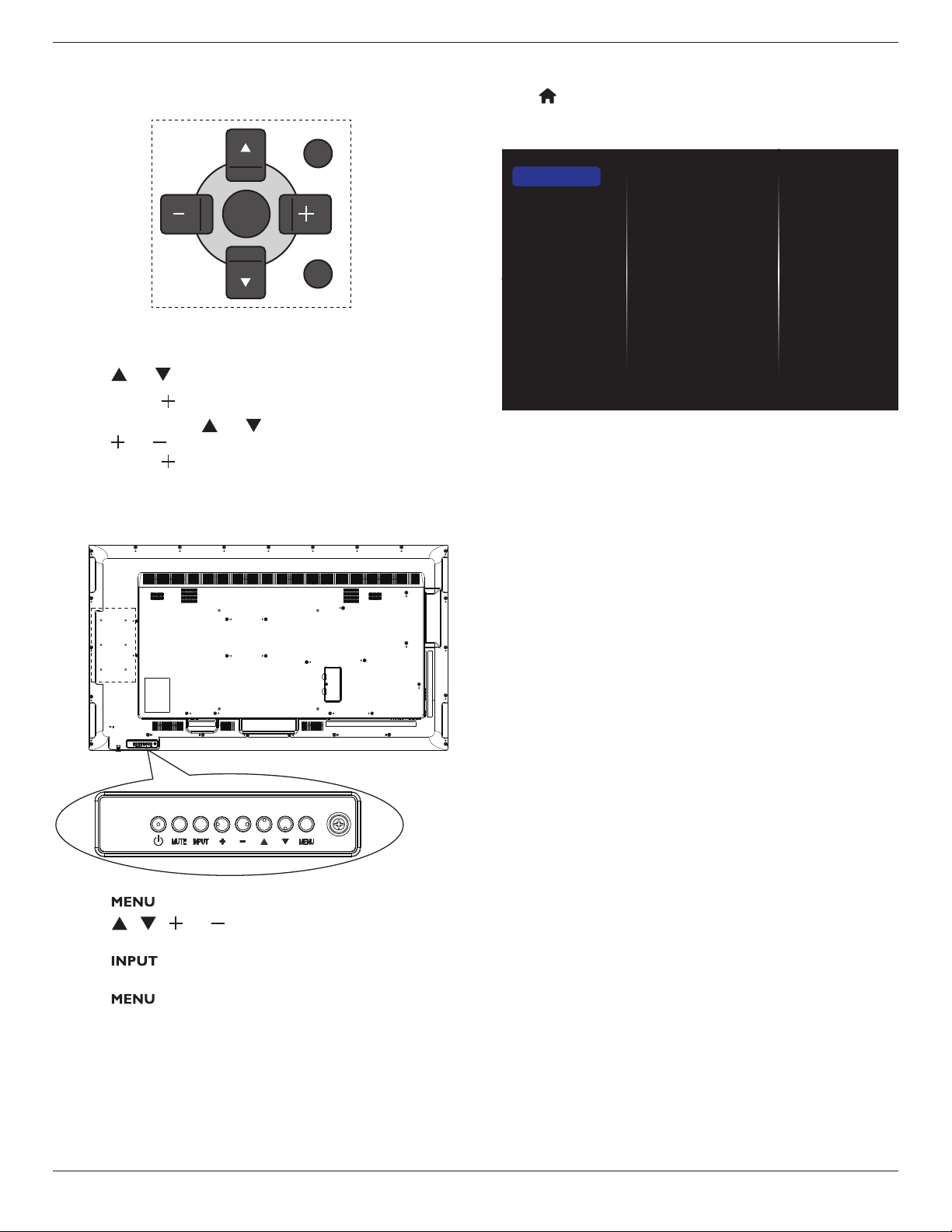
65BDL3000Q
19
5. Change your settings
Using the remote control:
EXIT
MENU
SET
1. Press [MENU] button on the remote control to display the OSD
menu.
2. Press [ ] or [ ] button to choose the item you want to adjust.
3. Press [SET] or [ ] button to enter the submenu.
4. In the submenu, press [ ] or [ ] button to toggle among items,
press [ ] or [ ] button to adjust settings. If there is a submenu,
press [SET] or [ ] button to enter the submenu.
5. Press [EXIT] button to return to the previous menu, or press
[MENU] button to exit the OSD menu.
Using the display’s control buttons
1. Press [ ] button to display the OSD menu.
2. Press [ ] [ ] [ ] or [ ] button to choose menu item or adjust
its value.
3. Press [ ] button to conrm menu selection and enter its
submenu.
4. Press [ ] button to exit the OSD menu.
5.1. Settings
Press [ ] HOME button.
5.1.1. Picture
menu
Picture style
Backlight
Colour
Sharpness
Noise reduction
MPEG artifact reducti...
Picture enhancement
Advanced
Scan mode
Format and edges
HDMI input range
Picture reset
Picture
Sound
Tiling
Network
General settings
Advanced
Picture style
Choose a predened picture setting.
Backlight
Adjust the brightness of this display’s backlight.
Colour
Adjust the colour saturation of the picture.
Sharpness
Adjust the sharpness of the picture.
Noise reduction
Choose the amount of noise reduction for the picture.
MPEG artifact reduction
Smoothen transitions and haziness in the digital picture.
Picture enhancement
Fine-tune each pixel to match surrounding pixels and produce a brilliant,
high-denition image.
• {Advanced sharpness}: Enable superior sharpness, especially on
lines and contours in the picture.
• {Dynamiccontrast}: Dynamically enhance the details in the
dark, medium and light areas of the picture.
• {Colourenhancement}: Dynamically enhance the vividness and
details of colours.
Advanced
Access advanced settings such as gamma, tint, video contrast and so on.
• {Gamma}: Adjust the non-linear setting for picture luminance
and contrast.
• {Tint}: Change the colour balance.
• {Customtint}: Customise colour balance setting. Only available
if {Tint}
{Custom} is chosen.
• {Video contrast}: Adjust video contrast.
• {Brightness}: Adjust screen brightness.
• {Hue}: Adjust screen hue.
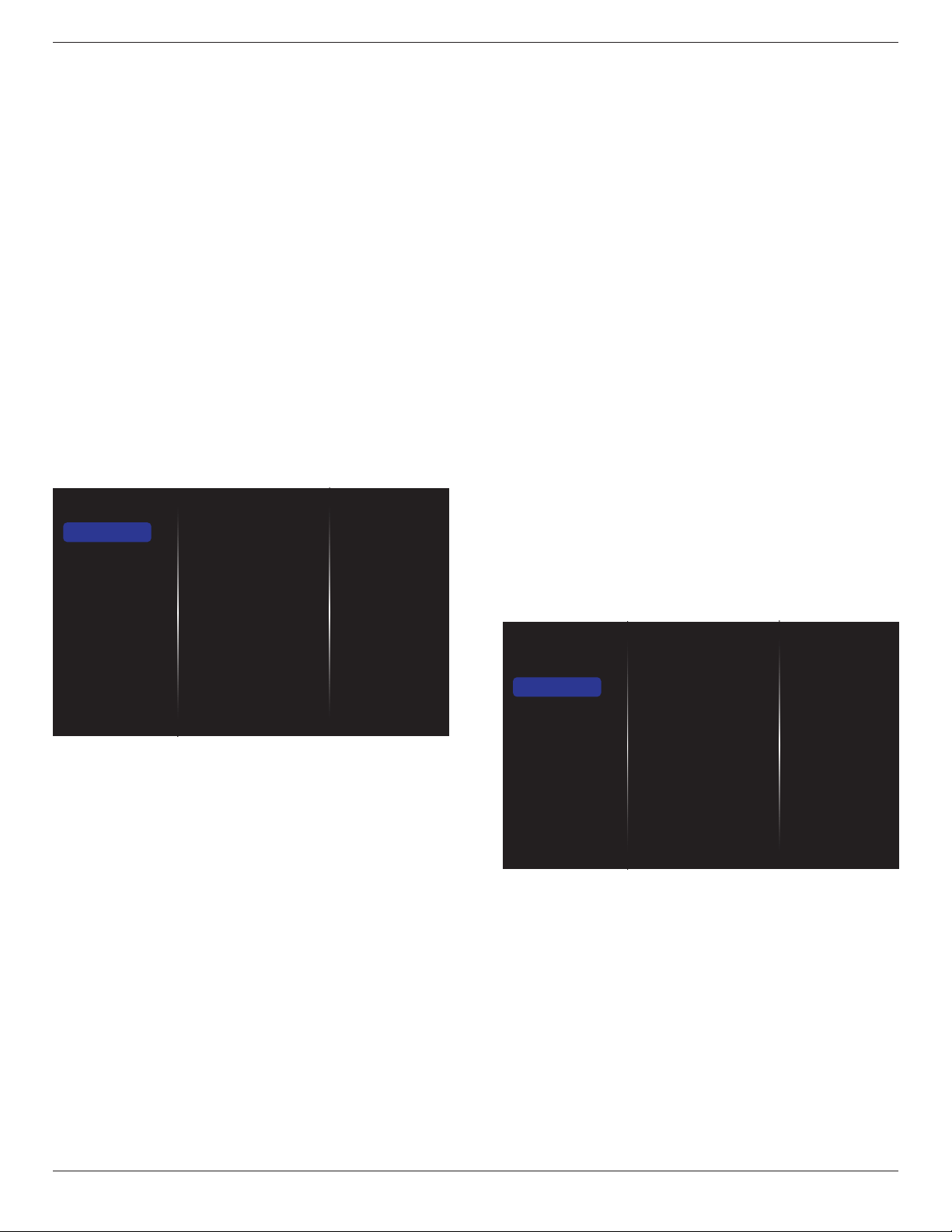
65BDL3000Q
20
Scan mode
Change the display area of the image.
Format and edges
• {Pictureformat}: Change the picture format.
• {Zoom}: Expands the horizontal and vertical sizes of the image
simultaneously.
• {H Zoom}: Expands the horizontal size of the image only.
• {V Zoom}: Expands the vertical size of the image only.
Note: Zoom, H Zoom and V Zoom are functional only when the
Picture format setting is set to Custom Zoom.
See page 15 for the descriptions about
Picture format
.
HDMI input range
HDMI video format color ranges
• {Auto}: Automatically HDMI video format color ranges.
• {Limit}: Chose HDMI video format Limit range.
• {Full}: Chose HDMI video format Full range.
Picture reset
Reset all your picture settings to the factory defaults.
5.1.2. Sound
Sound style
Bass
Treble
Balance
Volume
Minimum volume
Maximum volume
Surround mode
Audio out (line out)
Advanced
Sync. Volume
Sound reset
Picture
Sound
Tiling
Network
General settings
Advanced
Sound style
Access predened sound settings.
Bass
Adjust to increase or decrease lower-pitched sounds.
Treble
Adjust to increase or decrease higher-pitched sounds.
Balance
Adjust to emphasize left or right audio output balance.
Volume
Adjust to increase or decrease the volume.
Minimum volume
Set the Minimum volume.
Maximum volume
Set the Maximum volume.
Surround mode
Set surround effects for audio performance.
Audio out (line out)
Adjust audio output volume.
Advanced
Access advanced settings to enhance your audio experience.
• {Autovolumeleveling}: Enable the reduction of sudden volume
changes.
• {Speakersettings}: Turn on or off the internal speakers.
• {Clear sound}: Enhance sound quality.
• {Audiooutformat}: Choose the type of audio output through
the digital audio output connector. (HDMI only)
• {Audiooutdelay}: Automatically sync the image on this display
to the audio from a connected home theatre.
• {Audio out offset}: Adjust the setting for audio output delay.
Available if {Audiooutdelay} is switched on.
Sync. Volume
Choose to {On} or {Off} the Sync. Volume function. Set {On} to
synchronize the volume of internal speaker and line-out. Set {Off} to
adjust the volume of internal speaker and line-out, respectively.
Sound reset
Reset to default setting.
Card OPS audio
Choose to set OPS audio output format.
The options are: {Auto}, {Analog}, {Digital}
NOTE: When the user select Card OPS source, this item will be
appear in OSD menu.
5.1.3. Tiling
Enable
H monitors
V monitors
Position
Frame comp.
Frame comp. H
Frame comp. V
Switch on delay
RS232-Routing
Auto ID
Picture
Sound
Tiling
Network
General settings
Advanced
With this function you can create a single large-screen matrix (video
wall) that consists of up to 100 sets of this display (up to 10-sets on the
verticaland10-setsonthehorizontalsides).
Enable
Choose to {On} or {Off} the Tiling function. If {On}, the display will
apply the settings in {Hmonitors}, {Vmonitors}, {Position}, and
{Framecomp.}.
H monitors
Adjust displays on the horizontal side.
V monitors
Adjust displays on the vertical side.
Position
Adjust the position of this display in the screen matrix.
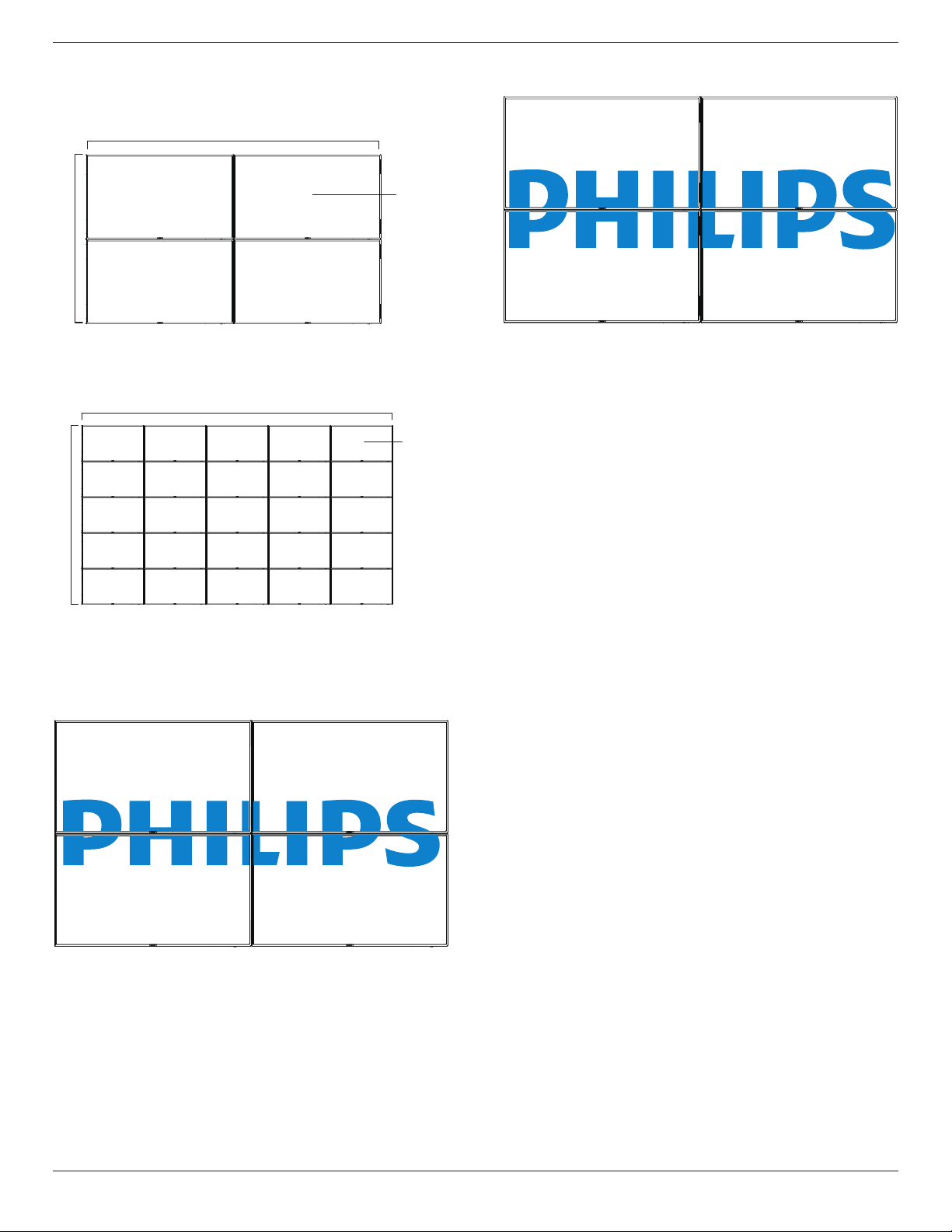
65BDL3000Q
21
Example:2x2screenmatrix(4displays)
H monitors = 2 displays
V monitors = 2 displays
1 2
3 4
H monitors
V monitors
Position
Example:5x5screenmatrix(25displays)
H monitors = 5 displays
V monitors = 5 displays
1 2
6 7
3 4
8 9
5
10
11 12 13 14 15
16 17 18 19 20
21 22 23 24 25
H monitors
V monitors
Position
Frame comp.
Choose to turn the frame compensation function on or off. If selected
{On}, the display will adjust the image to compensate for the width of
the display bezels in order to accurately display the image.
{On}
{Off}
Frame comp.H
Adjust the horizontal frame compensation.
Frame comp.V
Adjust the vertical frame compensation.
Switch on delay
Adjust the power-on delaying time (in seconds) allows a sequential
powering-on for each display by their ID number when multiple displays
are connected.
RS232-Routing
Select control port.
• {RS232}: Select RS232 Control.
• {LAN(RJ-45)}: Select LAN control.
• {IR}
Select the operation mode of the remote control when multiple
displays are connected via an RS232C connection.
• {IR Control}
• {Normal}
All displays can be operated normally by the remote control unit.
• {Primary}
Designate this display as the primary display for remote control
operation. Only this display can be operated by the remote control.
• {Secondary}
Designate this display as the secondary display. This display can not be
operated by the remote control, and will only receive the control signal
from the primary display via the RS232C connection.
• {ControlMonitor-ID}
Select the ID number for the IR control the display via the RS232C
connection.
Auto ID
The setup function enables setting up {Monitor ID} of connected
machine according to {H monitors} settings.
Example: H monitors sets as 4
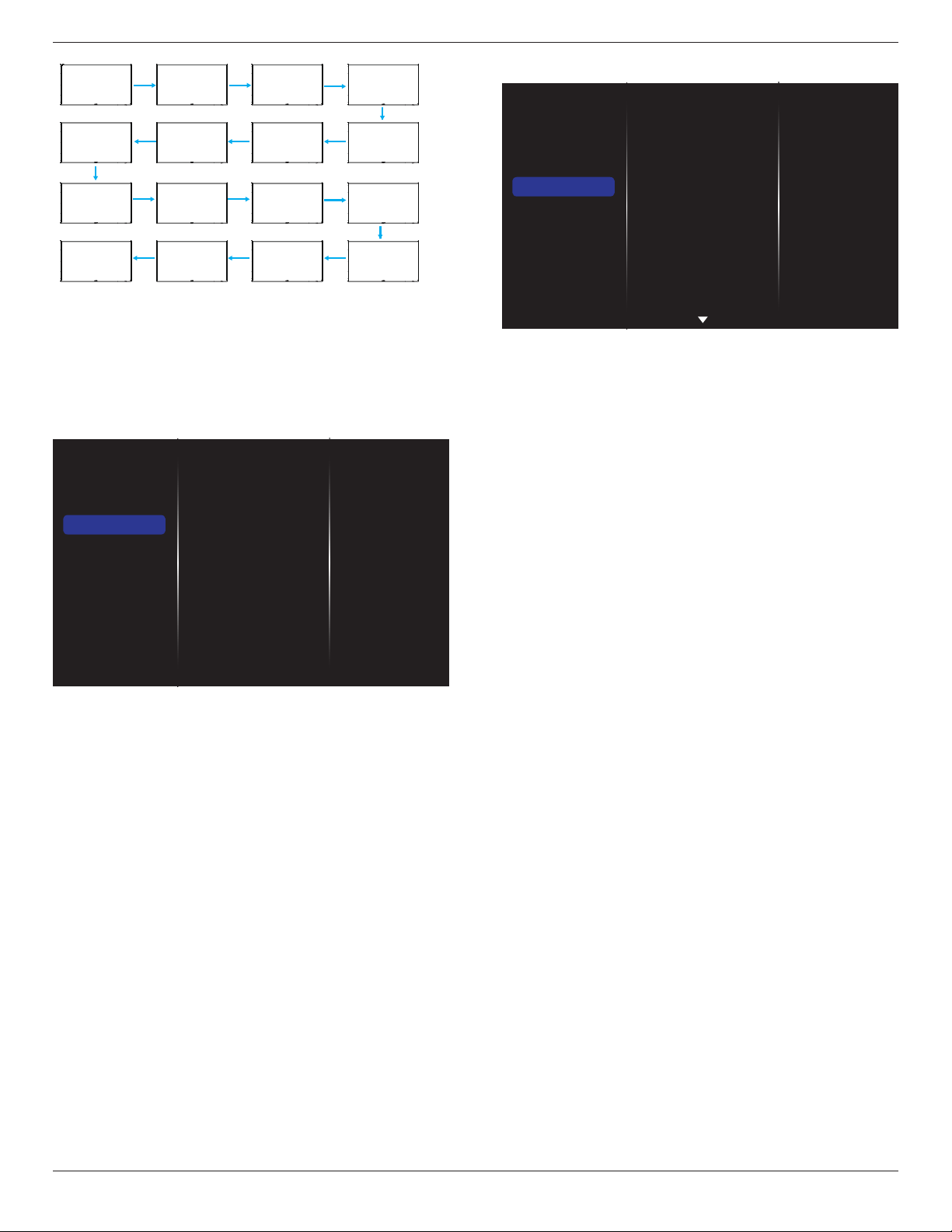
65BDL3000Q
22
1 2
5 6
3
4
7 8
9 10 11 12
13 14 15 16
Note: To use this function, serial connect all machines with RS-232 cable
and set their Network control port to RS-232 too.
Note: To use this function for DP 1.2 connectivity, the maximum
resolution only support to 1920x1080/60Hz @ 4sets. For 4Kx2K/30Hz
resolution only support to 2 sets connectivity.
5.1.4. Network
Picture
Sound
Tiling
Network
General settings
Advanced
Network settings
Digital Media Rendere...
Network name
Clear Internet memory
Network settings
• {Network conguration}: Choose how this display should assign
addresses to the network resources.
The user can choose {DHCP&AutoIP} (suggested) or {Static IP}.
• {Network type}: Choose Wired (default) to set the network type.
Digital Media Renderer - DMR
Receive multimedia les from the connected device by your network.
Network name
In the multiple-display connection, you can rename each display for easy
identication.
Use the on-screen keyboard or the remote control keypad to enter the
name.
Clear Internet memory
Clear all the cookies, bookmarks, history list and text used for auto ll.
5.1.5. General settings
Picture
Sound
Tiling
Network
General settings
Advanced
Menu language
Monitor Group
Monitor ID
Eco mode
Auto search
Clock
Scheduling
Sleep timer
OneWire
Local KB lock
RC lock
Menu language
Choose language used for OSD menus.
Monitor group
Adjust the group range between 1 to 255. The default setting is 255.
Monitor ID
Adjust the ID number for controlling the display via the RS232C
connection. Each display must have a unique ID number when multiple
sets of this display are connected. Monitor ID number range is between
1 to 255. The default setting is 1.
Eco mode
Set this display to reduce the power consumption automatically.
NOTES: Factory default setting is “low power standby”, but user could
not reset it to default after setting Eco mode to”Normal” by “Factory
reset” in MENU. However, user can still change the ECO mode back to
“low power standby” manually.
Auto search
Choose to let this display detect and display available signal sources
automatically.
Clock
Set the current date and time for the display’s internal clock.
NOTES:
The Daylight saving time denition and behavior:
The current implementation of daylight saving is a reminder tool for
the customer which doesn’t know how to adjust the clock for daylight
saving on and off. It does not adjust the real time clock automatically.
Problem is that there are no stable rules per region, or country when to
adjust the clock. To solve this the user must be able to set the daylight
saving start en stop date. When daylight saving correction is on (user
selectable) then the real time clock should be adjusted at the moment
in time set in the daylight saving on and off date. At daylight start date
the clock should be put forward 1 hour at 2 o’clock. At daylight stop
date the clock should be put back 1 hour at 2 o’clock.
The existing daylight on/off menu item should be replaced with the
following menu structure:
Menu item {Daylightsaving} opens submenu containing the following
items:
• Menu item {Daylightsavingstartdate} Selection item {1st,2nd,3rd,
4th,last} Sunday of selection item {1-12month}
• Menu item {Daylightsavingstopdate} Selection item {1st,2nd,3rd,
4th,last} Sunday of selection item {1-12month}
• Menu item {Correctiontime} Selection item {0.5,1.0,1.5,2.0} hour
• Menu item {Daylightsaving} Selection item {on,off}
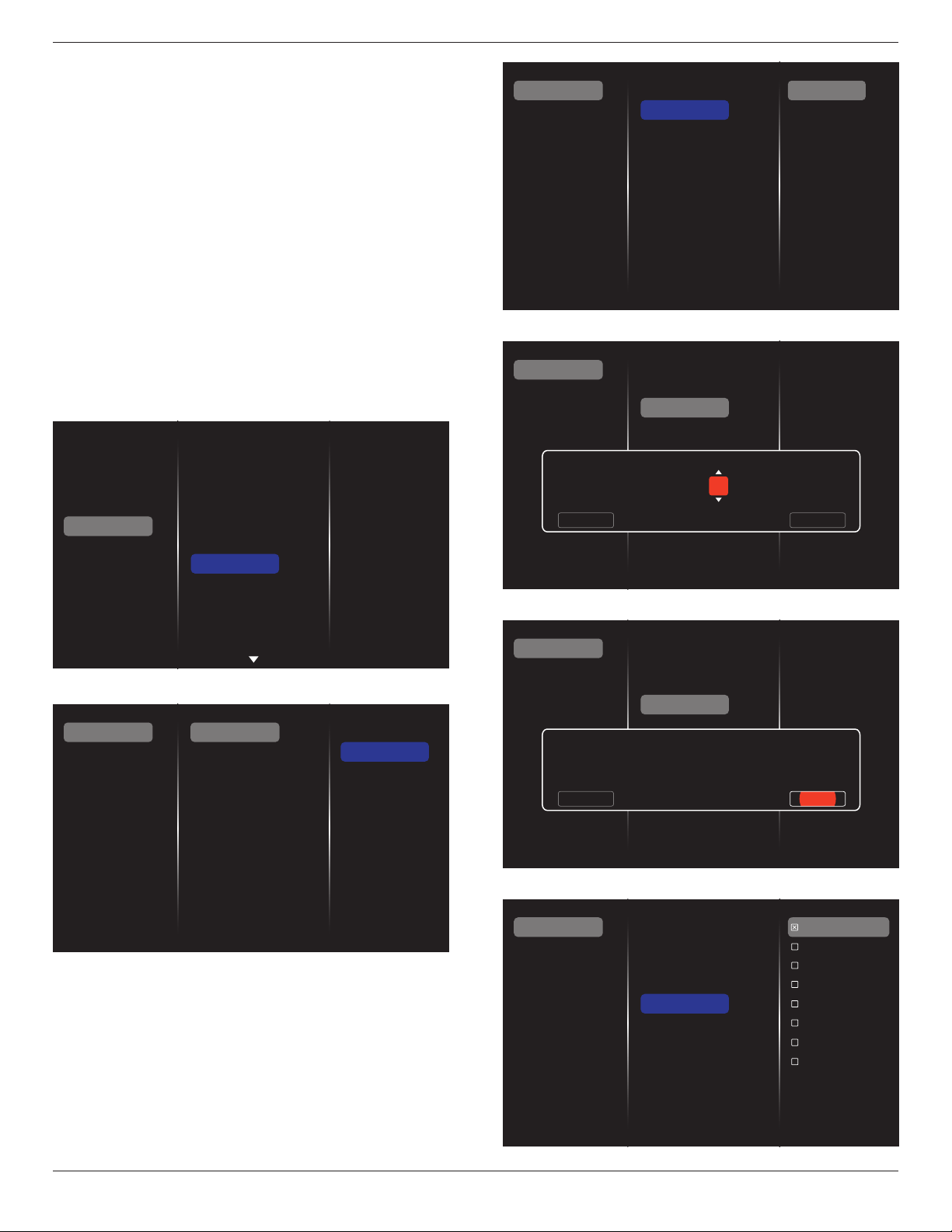
65BDL3000Q
23
when “daylight saving” is “on” the real time clock would have been
adjusted automatically for winter and summer time when passing the
critical moment in time (eg April 5, 2015, 02.00 o’clock: time will be set
1 hour later or October 25, 2015, 02.00 o’clock: time will be set 1 hour
earlier).
Scheduling
This function allows you to program up to 7 different scheduled time
intervals for this display to activate.
You can set:
• Which input source the display will use for each scheduled
activation period.
• The time for the display to turn on and turn off.
• The days in a week for the display to activate.
NOTES:
• We recommend you to set up current date and time in the {Clock}
menu before using this function.
• After changing the {Clock} option in the {General settings} menu,
you need to set this {Scheduling} again.
Picture
Sound
Tiling
Network
General settings
Advanced
Menu language
Monitor Group
Monitor ID
Eco mode
Auto search
Clock
Scheduling
Sleep timer
OneWire
Local KB lock
RC lock
1. There are 7 schedule can be set. Go to
Status
and choose
On
.
Status
Source
On time
Off time
Repeat modes
Playlist setting
Off
On
Schedule 1
Schedule 2
Schedule 3
Schedule 4
Schedule 5
Schedule 6
Schedule 7
2. Go to
Source
and choose input source. If {Source}
{USB}
is chosen. You need to set playliist. If {Source}
{BROWSER} is
chosen. You need to set URL address.
NOTE: If {Source}
{Autoplay} is chosen. You need to create a
folder named “
philips
”
in the root directory of the USB and
put the les (pictures or videos) you want to display in the
folder.
Status
Source
On time
Off time
Repeat modes
Playlist setting
Schedule 1
Schedule 2
Schedule 3
Schedule 4
Schedule 5
Schedule 6
Schedule 7
Slideshow durations
USB playlist
HDMI 1
HDMI 2
DisplayPort
Card OPS
DVI-D
YPbPr
AV
VGA
Internet
SmartCMS
3. Set
On time
.
Status
Source
On time
Off time
Repeat modes
Playlist setting
Schedule 1
Schedule 2
Schedule 3
Schedule 4
Schedule 5
Schedule 6
Schedule 7
On time
Cancel Done
00 : 00
4. Set
Off time
.
Status
Source
On time
Off time
Repeat modes
Playlist setting
Schedule 1
Schedule 2
Schedule 3
Schedule 4
Schedule 5
Schedule 6
Schedule 7
Off time
Cancel
14 : 00
Done
5. Go to
Repeat modes
and choose.
Status
Source
On time
Off time
Repeat modes
Playlist setting
Schedule 1
Schedule 2
Schedule 3
Schedule 4
Schedule 5
Schedule 6
Schedule 7
No repeat
Every Sunday
Every Monday
Every Tuesday
Every Wednesday
Every Thursday
Every Friday
Every Saturday
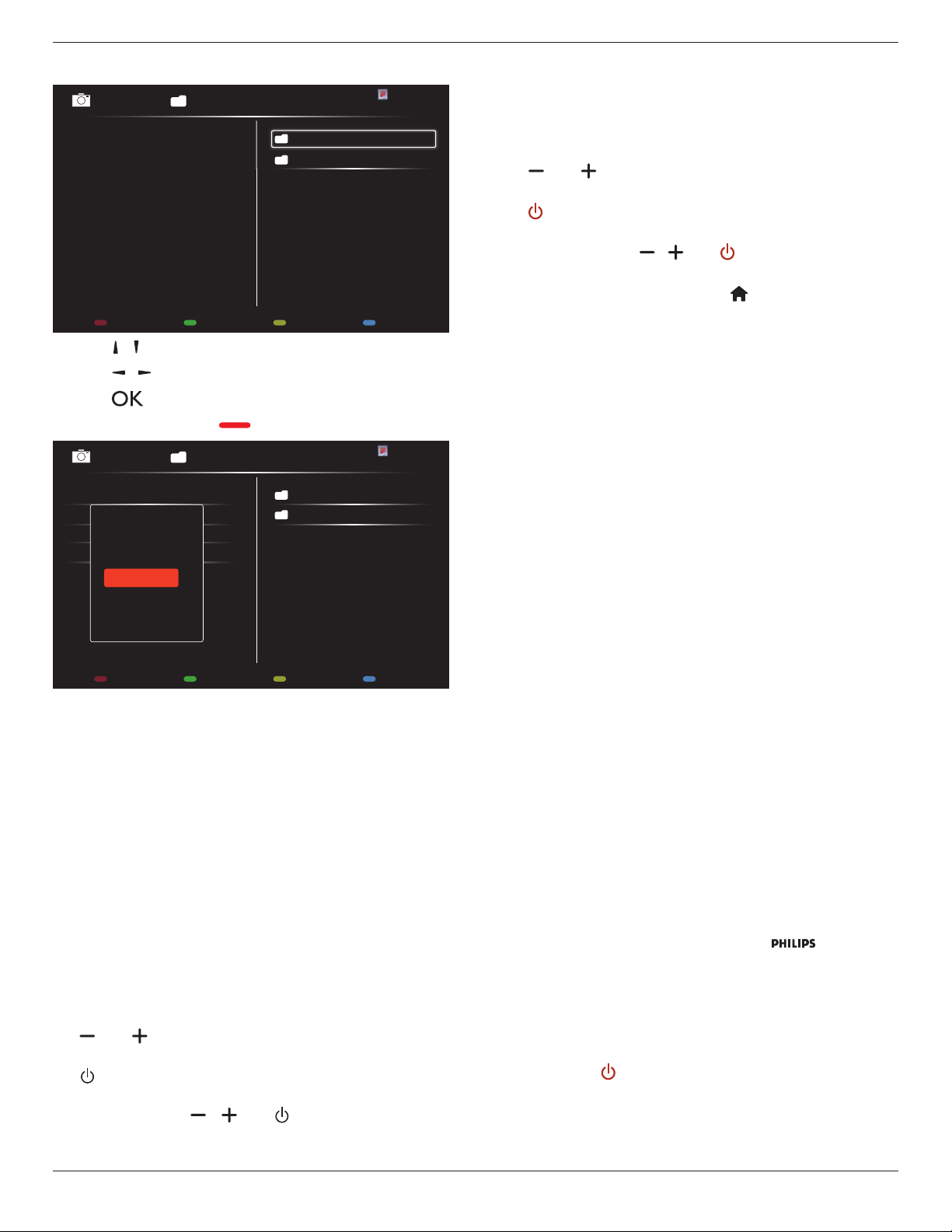
65BDL3000Q
24
6. If {Source}
{USB} is chosen. Go to
Playlist setting
.
0001/0002
Options Exit
Photo
Photo
Video
- Press [ ] [ ] buttons to choose les.
- Press [ ] [ ] buttons to switch Playlist and File Manager.
- Press [ ] button to set or clear the playlist.
7. To save the playlist, press [ ] and choose
Save list
.
0004/0004
Options Exit
Photo
Photo
[..]
Movie.avi
\media\photo
Photo1.jpg
Photo2.jpg
Photo3.jpg
Sort
Recursive Parser
Media Type
Save list
NOTES:
• Each Playlist supports up to 30 les.
• Playlist will not be cleared after {Factorysettings}. You have to
manually remove the les or delete usb_schedulinglist.txt in the
USB.
Sleep timer
Switch off this display after a specied time.
OneWire
Connect and control your HDMI-CEC compliant devices through HDMI
port to this display with the same remote control.
Local KB lock
Choose to enable or disable the keyboard (control buttons) function of
the display.
• {Unlock}: Enable the keyboard function.
• {Lockall}: Lock all keyboard function.
• {Lockbutvolume}: Disable all the keyboard function except the
[ ] and [ ] button.
• {Lockbutpower}: Disable all the keyboard function except the
[ ] button.
• {Lockallexpectvolumeandpower}: Disable all the keyboard
function except the [ ], [ ] and [ ] button:
RC lock
Choose to enable or disable the button function of the remote control.
• {Unlock}: Enable the keyboard function.
• {Lockall}: Lock all keyboard function.
• {Lockbutvolume}: Disable all the keyboard function except the
[ ] and [ ] button.
• {Lockbutpower}: Disable all the keyboard function except the
[ ] POWER button.
• {Lockallexpectvolumeandpower}: Disable all the keyboard
function except the [ ] [ ] and [ ] POWER button:
NOTE: To disable the lock function from
Local KB lock
or
RC lock
item, press buttons [ ] and 1 9 9 8 on the
remote control.
Pixel shift
For video input sources, you may choose {On} to move the screen
image automatically to protect the display from “burn-in” or “after-image”
symptoms 30 seconds after not operating the display.
Smart power
Choose a backlight level to optimise dynamic power consumption and
picture contrast.
The options are: {Off}, {Standard}, {Medium}, {High}.
Wake on lan
Choose {On} and you can turn on the display by network.
Switch on state
Choose the display status used for the next time you connect the
power cord.
• {On} - The display will turn on when the power cord is connected
to a wall outlet.
• {Standby} - The display will remain Standby when the power cord is
connected to a wall outlet.
• {Last status} - The display will return to the previous power status
(on/off/standby) when removing and replacing the power cord.
Light sensor
Choose {On} and the display will automatically adjust backlight.
Human sensor
Set the display to turn on backlight if it does sensor human and turn off
backlight after an amount of the specied.
The options are :{Off, 10 ~ 60} minutes. Only available when you plug
in CRD41.
Power LED Light
Choose {Off} to turn off the indicator.
Logo
Choose {Off} and the display will not display the logo when
you switch on.
Advanced power management
Choose {On}. Then, when no signal, the display will automatically turn
off.
Source notication
When you press [ ] POWER button to turn on the display from
standby mode or change the input signal, the information OSD is
displayed on the upper left corner of the screen.
Choose {Off} to turn off this function.
65BDL3000Q
25
DisplayPort Ver.
Set the DisplayPort version to 1.1a or 1.2, this setting is only valid on
DisplayPort input and output,
1.1a: Switch DisplayPort Ver. to 1.1a(default), the DisplayPort output is
the clone of the DisplayPort input.
1.2: Switch DisplayPort Ver. to 1.2 to support MST(Multi-Stream
Transport)
NOTE:
• If the display is black screen or abnormal under DisplayPort
source, please switch to 1.1a and turn AC off and on.
• For DP daisy chain application, please select the same DP
version in all PD.
• HDCP 1.3 Support.
Factory settings
Reset all your customized settings to the factory defaults.
5.1.6. Advanced
Picture
Sound
Tiling
Network
General settings
Advanced
Jitter clean
EQ boost
USB copying
Jitter clean
Turn on/off Jitter cleaning function for HDMI and DVI signal quality
enhancement. The default setting is on.
EQ boost
Adjust digital signal EQ boost.
USB copying
Copy user logo “Welcomelogo.png” to internal memory .
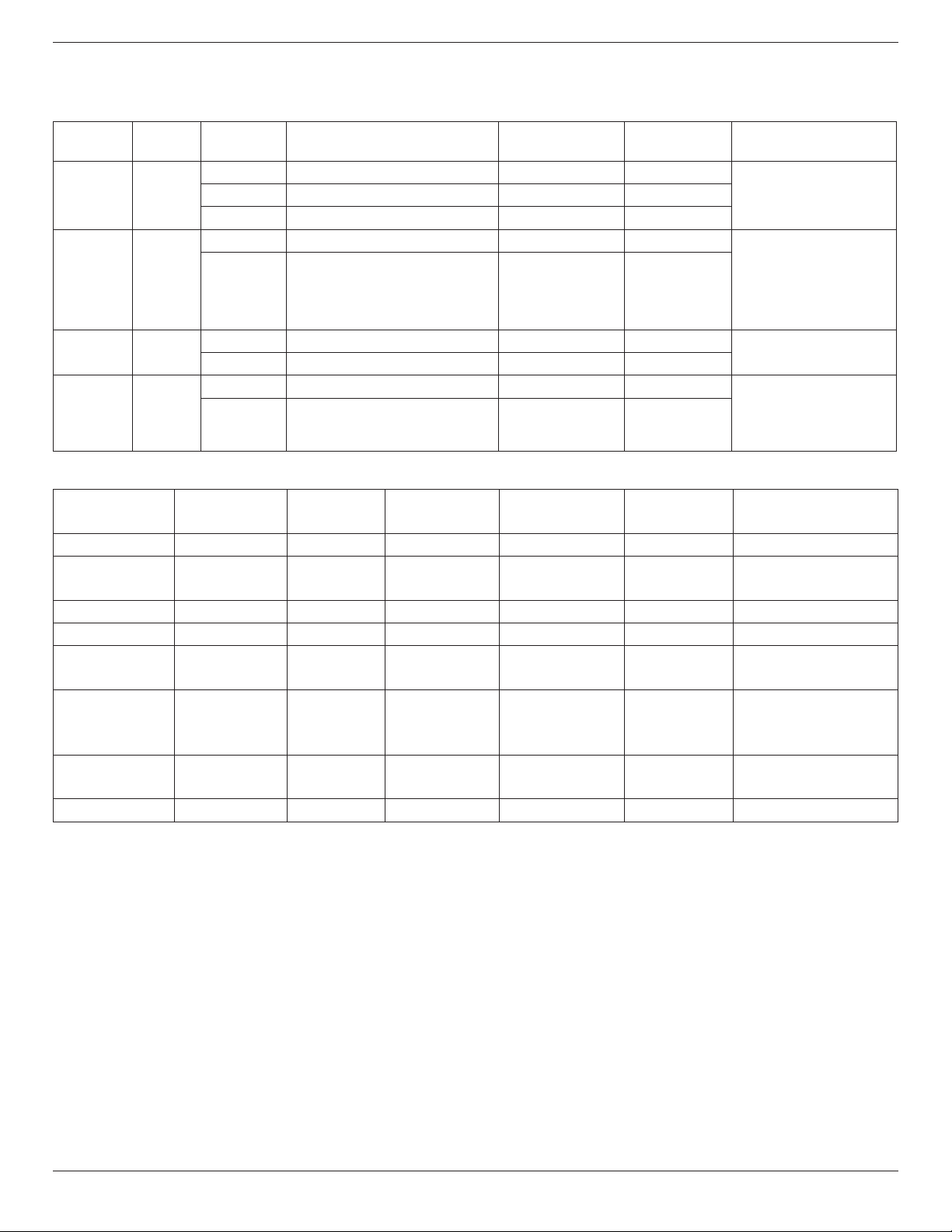
65BDL3000Q
26
6. USB device compatibility
USB Video Subtitle Formats (for language subtitles, etc.)
File
Extensions
Container Video codec Maximum resolution Max.Frame Rate (fps)
Max.Bit Rate
(Mbps)
Audio codec
.mpg
mpeg
.vob
PS
MPEG-1 1920x1080 25p,30p,50i,60i 30
MPEG-1(L1&L2),
MPEG-1,2,2.5 L3,
AAC/HE-AAC(v1&v2),
MPEG-2 1920x1080 25p,30p,50i,60i 30
H.264 1920x1080 25p,30p,50p,60p,60i 30
.ts TS
MPEG-2 1920x1080 25p,30p,50i,60i 30
MPEG-1(L1&L2),
MPEG-1,2,2.5 L3,
AAC/HE-AAC (v1&v2),
AC3,E-AC3,
Dolby Pulse
H.264 1920x1080 25p,30p,50p,60p,60i 30
.mp4 MP4
MPEG-4 ASP 1920x1080 25p,30p,50i,60i 30
AAC/HE-AAC(v1&v2),
H.264 1920x1080 30
.mkv
.mk3d
MKV
MPEG-4 ASP 1920x1080 25p,30p,50i,60i 30
MPEG-1(L1&L2),
MPEG-1,2,2.5 L3,
AC3,E-AC3, WMA,
H.264 1920x1080 30
USB Multimedia Formats
File Extensions Container Video codec
Maximum
resolution
Frequency
(kHz)
Max.Bit Rate
(Mbps)
Audio codec
.mp3 MP3 - - 32 384 MPEG-1,2,2.5 L3
.wma
.asf
WMA
(V2 up to V9.2)
- -
32
44.1
192 WMA
.wma WMA Pro - - 96 768 WMA,WMA Pro
.wav(PC) LPCM - - 192 768 LPCM
.aif(mac)
.aiff(mac)
LPCM - - 192 768 LPCM
.aac
.mp4
.m4a
AAC - - 48 1024 AAC,HE-AAC(v1&v2)
.pls
.m3u
Playlists - - - - -
.m4a M4A - - 48 1024 AAC,HE-AAC(v1&v2)
NOTES:
• Sound or video may not work if the contents have a standard bit rate/frame rate above the compatible Frame/sec listed in the table above.
• Video content with a Bit rate or Frame rate larger than the rate specied in the table above can cause choppy video during playback.
65BDL3000Q
27
7. Input Mode
VGA Resolution:
Standard
Resolution
Active Resolution
Refresh Rate Pixel Rate Aspect Ratio Stand for Mode
H Pixels V Lines
VGA 640 480
60 Hz 25.175 MHz
4:3 Video Graphic Array72 Hz 31.5 MHz
75 Hz 31.5 MHz
WVGA 720 400 70 Hz 33.75 MHz 16:9 Wide Video Graphic Array
SVGA 800 600
60 Hz 40 MHz
4:3 Super VGA
75 Hz 49.5 MHz
XGA 1024 768
60 Hz 65 MHz
4:3 Extended Graphic Array
75 Hz 78.75 MHz
WXGA 1280 768 60 Hz 79.5 MHz 5:3 Wide XGA
WXGA 1280 800 60 Hz 79.5 MHz 16:10 Wide XGA
SXGA 1280 1024 60 Hz 108 MHz 5:4 Super XGA
WXGA 1360 768 60 Hz 85.5 MHz 16:9 Wide XGA
UXGA 1600 1200 60 Hz 162 MHz 4:3 Ultra XGA
HD1080 1920 1080 60 Hz 148.5 MHz 16:9 HD1080
SDTV Resolution:
Standard
Resolution
Active Resolution
Refresh Rate Pixel Rate Aspect Ratio Stand for Mode
H Pixels V Lines
480i
720 480
29.97 Hz 13.5 MHz
4:3 Modied NTSC Standard
480p 59.94 Hz 27 MHz
576i
720 576
25 Hz 13.5 MHz
4:3 Modied PAL Standard
576p 50 Hz 27 MHz
HDTV Resolution:
Standard
Resolution
Active Resolution
Refresh Rate Pixel Rate Aspect Ratio Stand for Mode
H Pixels V Lines
720p 1280 720
50 Hz
74.25 MHz 16:9 Normally DVB Mode
60 Hz
1080i 1920 1080
25 Hz
74.25 MHz 16:9 Normally ATSC Mode
30 Hz
1080p 1920 1080
50 Hz
148.5 MHz 16:9 Normally ATSC Mode
60 Hz
• The PC text quality is optimum in HD 1080 mode (1920 x 1080, 60Hz).
• Your PC display screen might appear different depending on the manufacturer (and your particular version of Windows).
• Check your PC instruction book for information about connecting your PC to a display.
• If a vertical and horizontal frequency-select mode exists, select 60Hz (vertical) and 31.5KHz (horizontal). In some cases, abnormal signals (such as
stripes) might appear on the screen when the PC power is turned off (or if the PC is disconnected). If so, press the [INPUT] button to enter the
video mode. Also, make sure that the PC is connected.
• When horizontal synchronous signals seem irregular in RGB mode, check PC power saving mode or cable connections.
• The display settings table complies to the IBM/VESA standards, and based on the analog input.
• The DVI support mode is regarded as same to the PC support mode.
• The best timing for the vertical frequency to each mode is 60Hz.
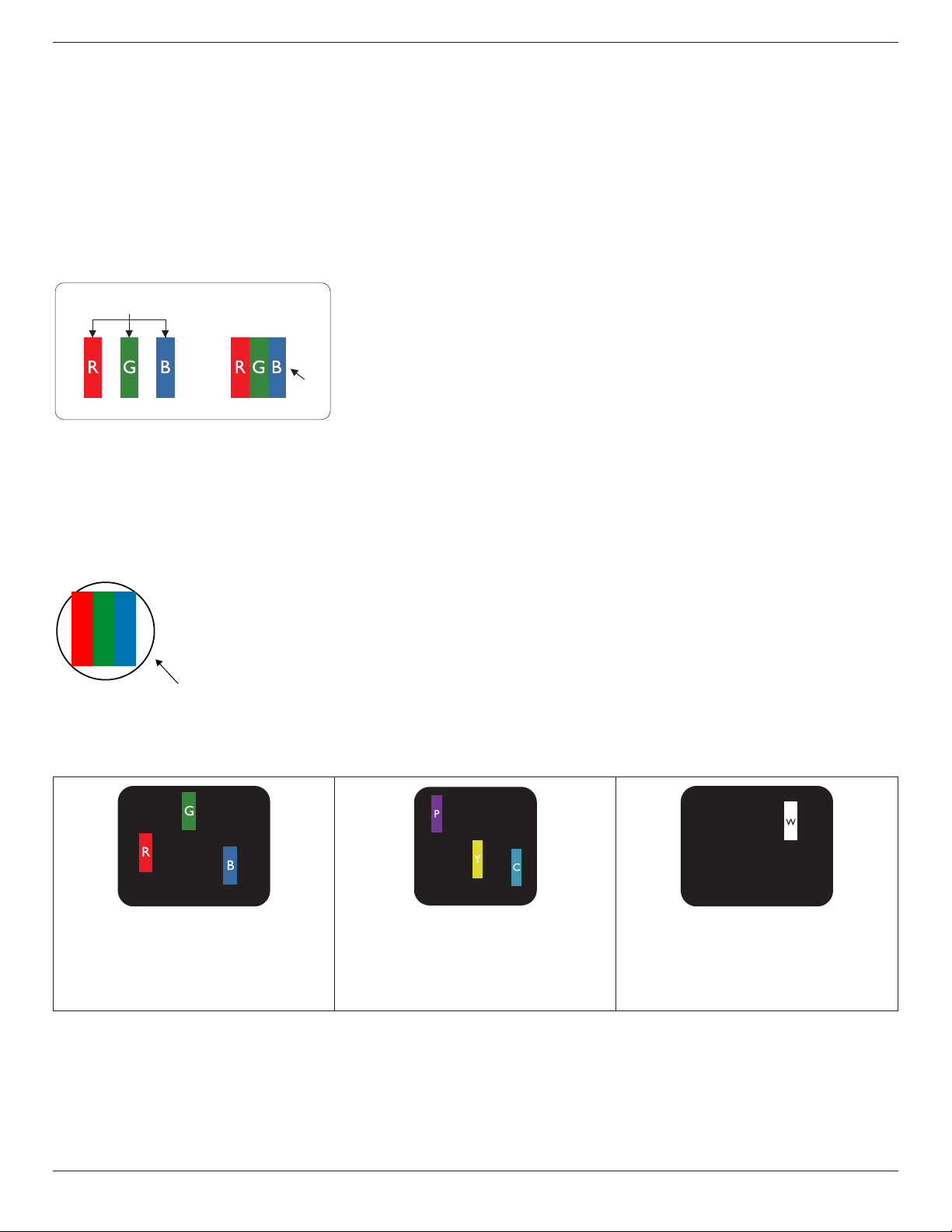
65BDL3000Q
28
8. Pixel Defect Policy
We strive to deliver the highest quality products and use some of the industry’s most advanced manufacturing processes whilst practicing stringent quality
control. However, pixel or sub-pixel defects on the PDP / TFT panels used in Plasma- & LCD- displays are sometimes unavoidable. No manufacturer can
guarantee that all panels will be free from pixel defects, but Philips guarantees that any Plasma- & LCD- displays with an unacceptable number of defects
will be repaired during the warranty period in line with your local guarantee conditions.
This notice explains the different types of pixel defects and denes the acceptable defect level for the LCD screen. In order to qualify for repair under
warranty, the number of pixel defects must exceed a certain level as shown in the reference table. If the LCD screen is within specication a warranty
exchange / claim back will be refused. Additionally, because some types or combinations of pixel defects are more noticeable than others, Philips sets even
higher quality standards for those.
8.1. Pixels and Sub-Pixels
subpixel
pixel
A pixel, or picture element, is composed of three sub-pixels in the primary colors of red, green and
blue. Many pixels together form an image. When all sub-pixels of a pixel are lit, the three colored
sub-pixels together appear as a single white pixel. When all are dark, the three colored sub-pixels
together appear as a single black pixel. Other combinations of lit and dark sub-pixels appear as
single pixels of other colors.
8.2. Types of Pixel Defects + Dot Definition
Pixel and sub-pixel defects appear on the screen in different ways. There are three categories of pixel defects and several types of sub-pixel defects within
each category.
Dot denition = What is a defective “Dot”? :
One or more defective, adjacent sub-pixel are dened as one “dot”. The no. of defective sub-pixels are not relevant to dene a defective dot. This means
that a defective dot can consist of one, two or three defective sub-pixels which can be dark or lit.
RR G B
One dot = One Pixel; consists of three sub-pixels of Red, Green, and Blue.
8.3. Bright Dot Defects
Bright dot defects appear as pixels or sub-pixels that are always lit or “on”. These are the examples of bright dot defects:
One lit red, green or blue sub pixel Two adjacent lit sub pixels:
Red + Blue = Purple
Red + Green = Yellow
Green + Blue = Cyan (Light Blue)
Three adjacent lit sub pixels (one white pixel)
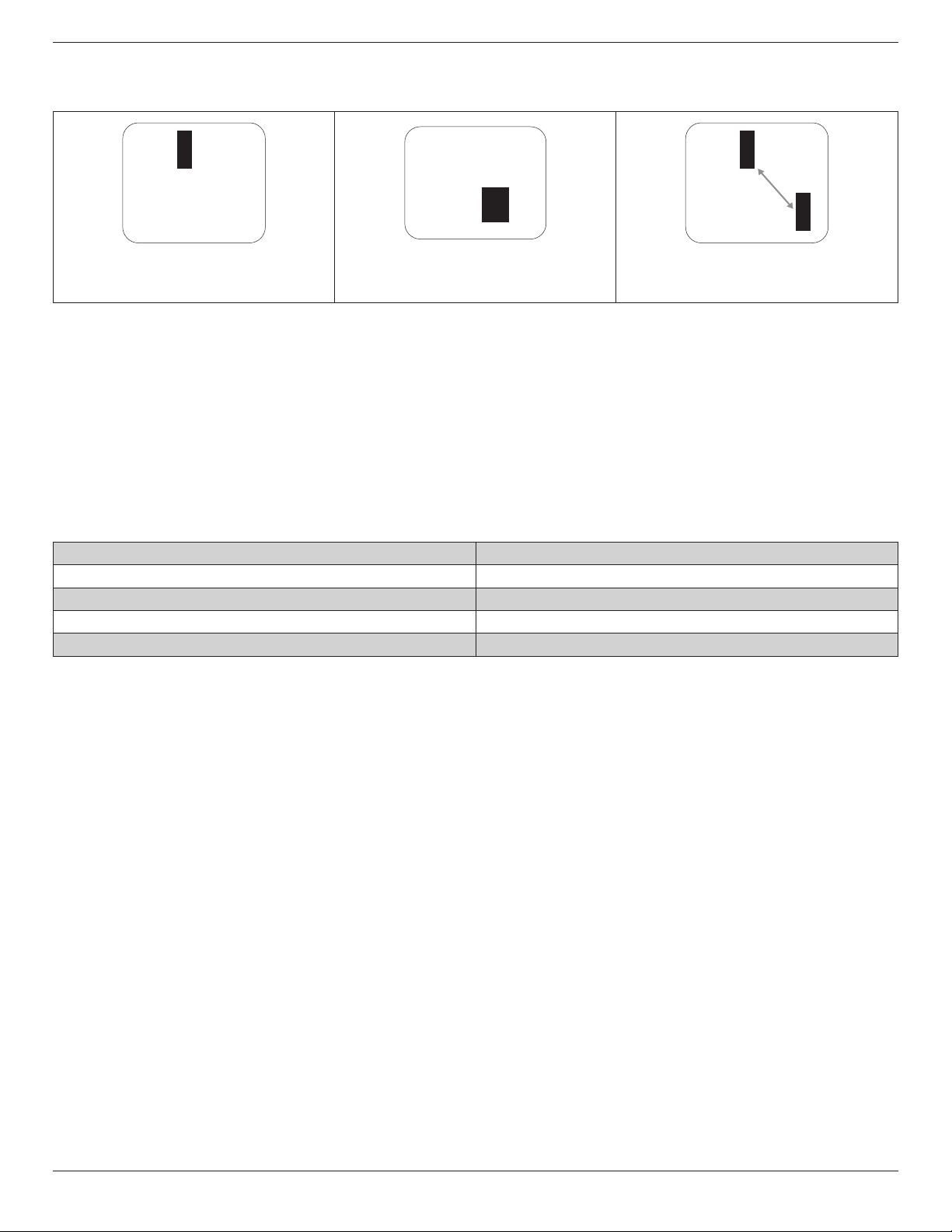
65BDL3000Q
29
8.4. Dark Dot Defects
Black dot defects appear as pixels or sub-pixels that are always dark or “off”. These are the examples of black dot defects:
One dark dot Two adjacent dark dots = 1 pair of dark dots Two dark dots, specications denes the
minimum distance between dark dots
8.5. Proximity of Pixel Defects
Because pixel and sub-pixels defects of the same type that are nearby one another may be more noticeable, Philips also species tolerances for the
proximity of pixel defects. In the table below you can nd specications about:
• Allowed amount of adjacent dark dots = (adjacent dark dots =1 pair of dark dots)
• Minimum distance between dark dots
• Total no. of all defective dots
8.6. Pixel Defect Tolerances
In order to qualify for repair due to pixel defects during the warranty period, a PDP / TFT panel in a Philips Plasma / LCD- display must have pixel or sub-
pixel defects exceeding the tolerances listed in the following table.
BRIGHT DOT EFFECT ACCEPTABLE LEVEL
1 lit sub pixel 2
BLACK DOT EFFECT ACCEPTABLE LEVEL
1 dark sub pixel 10
TOTAL DOT DEFECTS OF ALL TYPES 12
NOTE: * 1 or 2 adjacent sub pixel defects = 1 dot defect
8.7. MURA
Dark spots or patches may occasionally appear on some liquid crystal display (LCD) panels. This is known within the industry as Mura, which is a Japanese
term for “unevenness.” It is used to describe an irregular pattern or area in which uneven screen uniformity appears under certain conditions. Mura is a
result of the deterioration of the liquid crystal alignment layer and is most commonly caused by long-term operation under high ambient temperatures. It
is an industry- wide phenomenon and Mura is not repairable. It is also not covered by our warranty terms.
Mura has been around since the introduction of LCD technology and with screens getting bigger and in operation 24/7, many displays are running in low
light conditions. This all adds to the possibility of Mura affecting displays.
HOW TO SPOT MURA
There are many symptoms of Mura and also multiple causes. Several of these are listed below:
• Impurities or foreign particles in the crystal matrix
• Uneven distribution of LCD matrix during manufacturing
• Non-uniform luminance distribution of the backlight
• Panel assembly induced stress
• Flaws within the LCD cells
• Thermal induced stress - high temperature operation over long periods of time
HOW TO AVOID MURA
Although we can not guarantee the complete eradication of Mura every time, in general the appearance of Mura can be minimized by these methods:
• Lower the backlight brightness
• Use a screen saver
• Reduce the ambient temperature around the unit

65BDL3000Q
30
9. Cleaning and Troubleshooting
9.1. Cleaning
Caution When Using the Display
• Do not bring your hands, face or objects close to the ventilation holes of the display. The top of the display is usually very hot due to the high
temperature of exhaust air being released through the ventilation holes. Burns or personal injuries may occur if any body parts are brought too
close. Placing any object near the top of the display could also result in heat related damage to the object as well as the display itself.
• Be sure to disconnect all cables before moving the display. Moving the display with its cables attached may damage the cables and thus cause re
or electric shock.
• Disconnect the power plug from the wall outlet as a safety precaution before carrying out any type of cleaning or maintenance procedure.
Front Panel Cleaning Instructions
• The front of the display has been specially treated. Wipe the surface gently using only a cleaning cloth or a soft, lint-free cloth.
• If the surface becomes dirty, soak a soft, lint-free cloth in a mild detergent solution. Wring the cloth to remove excess liquid. Wipe the surface of
the display to remove dirt. Then use a dry cloth of the same type to dry.
• Do not scratch or hit the surface of the panel with ngers or hard objects of any kind.
• Do not use volatile substances such as insert sprays, solvents and thinners.
Cabinet Cleaning Instructions
• If the cabinet becomes dirty, wipe the cabinet with a soft, dry cloth.
• If the cabinet is extremely dirty, soak a lint-free cloth in a mild detergent solution. Wring the cloth to remove as much moisture as possible. Wipe
the cabinet. Use another dry cloth to wipe over until the surface is dry.
• Do not allow any water or detergent to come into contact with the surface of the display. If water or moisture gets inside the unit, operating
problems, electrical and shock hazards may result.
• Do not scratch or hit the cabinet with ngers or hard objects of any kind.
• Do not use volatile substances such as insert sprays, solvents and thinners on the cabinet.
• Do not place anything made from rubber or PVC near the cabinet for any extended periods of time.
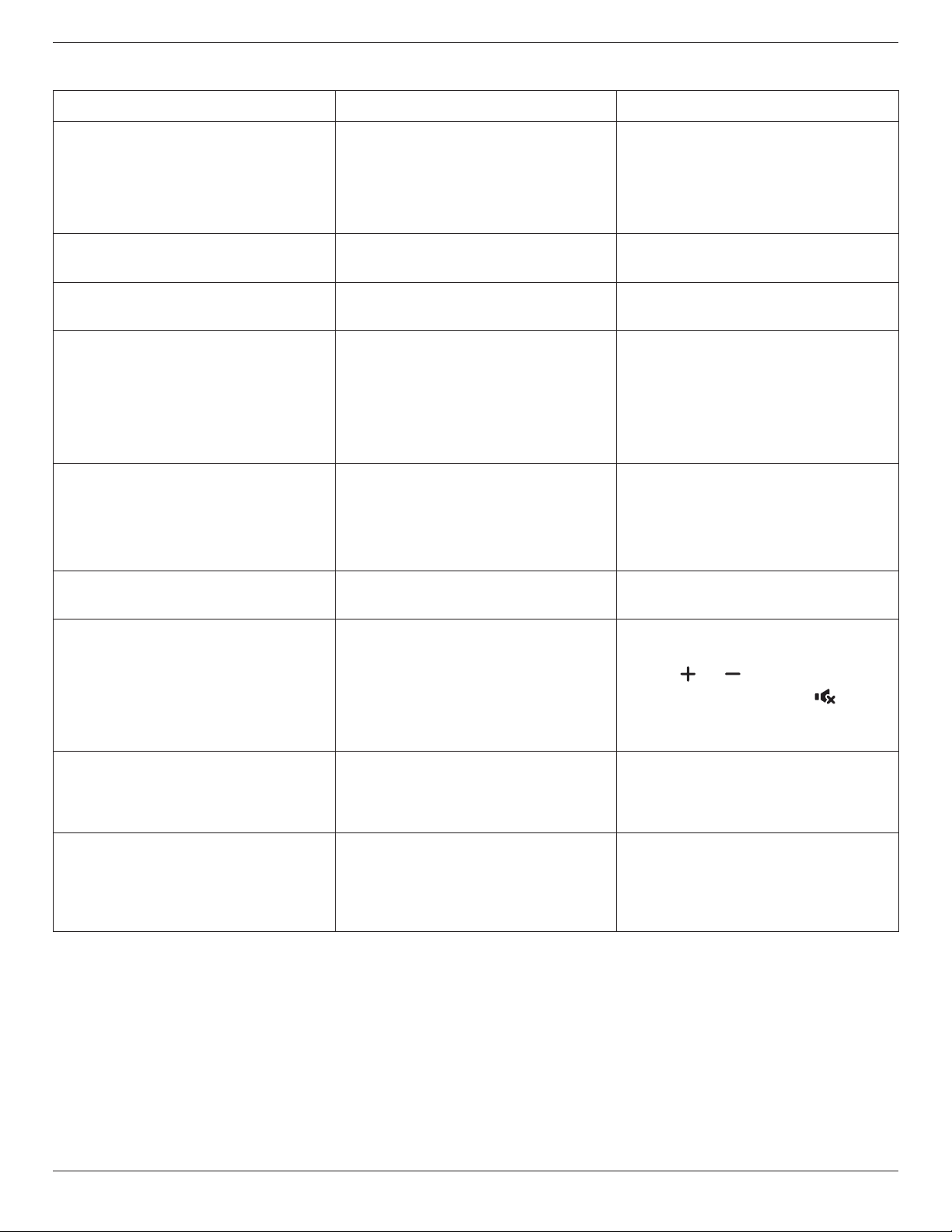
65BDL3000Q
31
9.2. Troubleshooting
Symptom PossibleCause Remedy
Nopictureisdisplayed 1. The power cord is disconnected.
2. The main power switch on the back of the
display is not switched on.
3. The selected input has no connection.
4. The display is in standby mode.
1. Plug in the power cord.
2. Make sure the power switch is switched on.
3. Connect a signal connection to the display.
Interferencedisplayedonthedisplayoraudible
noise is heard
Caused by surrounding electrical appliances or
uorescent lights.
Move the display to another location to see is the
interference is reduced.
Colorisabnormal The signal cable is not connected properly. Make sure that the signal cable is attached rmly
to the back of the display.
Pictureisdistortedwithabnormalpatterns 1. The signal cable is not connected properly.
2. The input signal is beyond the capabilities of
the display.
1. Make sure that the signal cable is attached
rmly.
2. Check the video signal source to see if it
is beyond the range of the display. Please
verify its specications with this display’s
specication section.
Displayimagedoesn’tllupthefullsizeofthe
screen
1. The zoom mode is not set correctly.
2. Scan Mode may be set incorrectly to
underscan.
3. If the image exceeds the screen size, Scan
Mode may need to be set to Underscan.
Use the Zoom mode or Custom zoom function
in the Screen menu to ne tune display geometry
and time frequency parameter.
Canhearsound,butnopicture Improperly connected source signal cable. Make sure that both video inputs and sound
inputs are correctly connected.
Canseepicturebutnosoundisheard 1. Improperly connected source signal cable.
2. Volume is turned all the way down.
3. {Mute} is turned on.
4. No external speaker connected.
1. Make sure that both video inputs and sound
inputs are correctly connected.
2. Press [ ] or [ ] button to hear sound.
3. Switch MUTE off by using the [ ] button.
4. Connect external speakers and adjust the
volume to a suitable level.
Somepictureelementsdonotlightup Some pixels of the display may not turn on. This display is manufactured using an extremely
high level of precision technology: however,
sometimes some pixels of the display may not
display. This is not a malfunction.
After-Imagescanstillbeseenonthedisplay
afterthedisplayispoweredoff.(Examples
ofstillpicturesincludelogos,videogames,
computerimages,andimagesdisplayedin4:3
normalmode)
A still picture is displayed for an over extended
period of time
Do not allow a still image to be displayed for
an extended period of time as this can cause a
permanent after-image to remain on the display.
65BDL3000Q
32
Howtosetupthesettingsinthemenuto
controlallthemonitorsatthesametimeand
individuallyviaRC?
Daisy chained by RS232 and no IR cable 1. The rst display sets as “Primary” on OSD
(Advanced option/IR control item), others set as
“Secondary”.
2. The setup OSD will show on Top-Left of display.
(Toggle MENU will show again if it disappear)
3. Default setting: ID NO: 0, GP NO: 0, this setting
can control all displays by IR.
The “+”, “-” can change “ID NO” to control
signal display by “Monitor ID”.
The “UP”, “DOWN” can change “GP NO” to
control multi-display by “Group ID”.
*The rst display always be controlled by IR.
HowistheRCworking? Daisy chain : no RS232 connected and IR cable No need setting, just to connect with IR cables
and control by IR.
*This way has out-of-synchronizm phenomenon.
Suggest to use above setting with RS-232 cable.
65BDL3000Q
33
10. Technical Specifications
Display:
Item Specications
Screen Size (Active Area) 1428.48 (H)x 803.52 (V) [mm](64.5’’ diagonal)
Aspect Ratio 16:9
Number of pixels 1920 (H) x 1080 (V)
Pixel pitch 0.744 (H) x 0.744 (V) [mm]
Displayable colors 16.7M colors
Brightness (typical) 350 cd/m
2
Contrast ratio (typical) 4000:1
Viewing angle 178 degrees
In/Out Terminals:
Item Specications
Speaker Output Internal Speakers
External Speakers
10W (L) + 10W (R) [RMS]/8Ω
1 Way 1 Speaker System
82 dB/W/M/160 Hz ~ 13 KHz
Audio Output 3.5mm phone jack x 1 0.5V [rms] (Normal) / 2 Channel (L+R)
Audio Input RCA Jack x 2
3.5mm phone jack x 1
0.5V [rms] (Normal) / 2 Channel (L+R)
RS232C 2.5mm Phone jack x 2 RS232C in/RS232C out
RJ-45 RJ-45 Jack x 1 (8 pin) 10/100 LAN Port
HDMI Input
HDMI Jack x 2
(Type A) (18 pin)
Digital RGB: TMDS (Video + Audio)
MAX:
Video - 720p, 1080p, 1920 x 1080/60 Hz (WUXGA)
Audio - 48 KHz/ 2 Channel (L+R)
Supports LPCM only
DVI-D Input DVI-D jack Digital RGB: TMDS (Video)
VGA Input D-Sub Jack x 1 (15 pin) Analog RGB: 0.7V [p-p] (75Ω), H/CS/V: TTL (2.2kΩ), SOG: 1V [p-p] (75Ω)
MAX: 720p, 1080p, 1920 x 1080/60 Hz (WUXGA)
DVI-I (DVI-D & VGA)
Output
DVI-I Jack x 1 (29 pin) Digital RGB: TMDS (Video)
Analog RGB: 0.7V [p-p] (75Ω), H/CS/V: TTL (2.2kΩ), SOG: 1V [p-p] (75Ω)
MAX: 720p, 1080p, 1920 x 1080/60 Hz (WUXGA)
Component Input BNC Jack x 3 Y: 1V [p-p] (75Ω), Pb: 0.7V [p-p] (75Ω), Pr: 0.7V [p-p] (75Ω)
MAX: 480i, 576i, 480p, 576p, 720p, 1080i, 1080p
Video Input BNC x 1 (Share with
Component_Y)
Composite 1V [p-p] (75Ω)
Displayport in/out Displayport Jack x 2
(20 pin)
Digital RGB: TMDS (Video + Audio)
MAX:
Video - 720p, 1080p, 1920 x 1080/60 Hz (WUXGA)
Audio - 48 KHz/ 2 Channel (L+R)
Supports LPCM only
65BDL3000Q
34
General:
Item Specications
Power Input 100 - 240V~, 50 - 60Hz, 5.5A
Power Output 100 - 240V~, 50 - 60Hz, 2.5A
Power Consumption (Max) 313 W
Power Consumption (typ.) 176 W
Power Consumption (Standby & Off) <0.5 W (RS232 in active)
Dimensions (Without Stand) [W x H x D] 1458.7 x 834.7 x 81.6 mm
Weight (Without Stand) 24.8 Kg
Gross Weight (Without Stand) 39.3 Kg
Product Fiche :
Item Specications
Energy Efciency Class B
Visible Screen Size 163.9 cm / 64.5 inch
On Mode Power Consumption (W) 186 W
Annual Energy Consumption (kWh) 272 kWh
Standby Power Consumption (W) 0.50 W
Off Mode Power Consumption (W) 0.50 W
Display Resolution (Pixels) 1920 x 1080p
Network Standby (W) 16W
Environmental Condition:
Item Specications
Temperature Operational 0 ~ 40°C
Storage -20 ~ 60°C
Humidity Operational 20 ~ 80% RH (No condensation)
Storage 5 ~ 95% RH (No condensation)
Altitude Operational 0 ~ 3,000 m
Storage / Shipment 0 ~ 9,000 m
Internal Speaker:
Item Specications
Type 1 Way 1 Speaker
Input 10 W (RMS)
Impedance 8Ω
Output Sound Pressure 82 dB/W/M
Frequency Response 160 Hz ~ 13 KHz

2016©KoninklijkePhilipsN.V.Allrightsreserved.
PhilipsandthePhilipsShieldEmblemareregisteredtrademarksof
KoninklijkePhilipsN.V.andareusedunderlicensefrom
KoninklijkePhilipsN.V.
Specicationsaresubjecttochangewithoutnotice.