User manual

i
Table of contents
Special features
1
Getting started
2
Front view
3
Back view
4
Assemble your device
5
Remove the back cover
5
Install a SIM card and memory card
5
Install the battery
7
Replace the back cover
7
Charge the battery
8
Start using your device
10
Use the Setup Wizard
10
Lock or unlock your device
11
Add a Google account
11
Add a Samsung account
12
Add an email account
12
Transfer data from your old device
12
Set up your voicemail
13
Navigation
14
Common options
15
Home screen
16
Customize your Home screen
17
Status bar
23
Notification panel
25
USC_J327R4_EN_UM_TN_RJ1_112818_FINAL

ii
Multi window
27
Enter text
29
Emergency mode
32
Apps
35
Using apps
36
Access apps
36
Add an apps shortcut
36
Search for apps
36
Galaxy Essentials
37
Uninstall or disable apps
37
Sort apps
37
Create and use folders
38
App settings
39
Samsung apps
41
Calculator
41
Calendar
42
Camera and video
45
Clock
50
Contacts
54
Email
61
Galaxy Apps
64
Galaxy Wearable
65
Gallery
66
Internet
71
Messages
75
My Files
78
Phone
80
Samsung Notes
91
Samsung+
93
Google apps
95

iii
Chrome
95
Drive
95
Duo
95
Gmail
95
Google
95
Maps
96
Photos
96
Play Movies & TV
96
Play Music
96
Play Store
96
YouTube
97
Carrier apps
98
City ID
98
Mobile Hotspot
98
Tone Room Deluxe
98
USCC Protect
98
Your Navigator Deluxe
98
Settings
99
Access Settings
100
Search for Settings
100
Connections
101
Wi-Fi
101
Bluetooth
104
Data usage
106
Airplane mode
107
Mobile hotspot
108
Tethering
110
Mobile networks
111
Location
111
Nearby device scanning
113

iv
Connect to a printer
113
Virtual Private Networks
114
Sounds and vibration
116
Sound mode
116
Vibrations
116
Volume
117
Ringtone
118
Notification sounds
118
Do not disturb
119
System sounds
119
Key-tap feedback
120
Sound quality and effects
120
Notifications
121
Manage notifications
121
Smart alert
121
Display
122
Screen off settings
122
Screen brightness
122
Font and screen zoom
123
One-handed mode
123
Device maintenance
124
Quick optimization
124
Battery
124
Storage
125
Memory
127
Language and input
127
Date and time
131
Report diagnostic information
132
Reset
132
Factory data reset
133

v
Auto restart
136
Software update
136
Lock screen and security
137
Screen lock types
137
Clock and information
138
Google Play Protect
138
Find My Mobile
139
Security update
139
Install unknown apps
140
Secure Folder
140
App permission monitor
140
Secure startup
140
Encrypt SD card
141
View passwords
141
Security update service
142
Device administration
142
Credential storage
143
Advanced security settings
143
Accounts
145
Samsung Cloud
145
Add an account
145
Backup and restore
147
Google settings
148
Accessibility
149
Vision
149
Hearing
150
Dexterity and interaction
151
More accessibility settings
152
Accessibility services
152
Other settings
153

vi
Help
153
Device assistance app
153
Dual messenger
154
About phone
154
Getting help
155
Videos
155
Smart Simulator
155
Tips
155
Samsung Care
155
Legal information
156
Intellectual property
157
Open source software
158
Disclaimer of warranties; exclusion of
liability
158
Modification of software
159
Restricting children’s access to your mobile
device
160
Samsung Electronics America, Inc.
160

1
Special features
Direct Share
Share content with specific people directly.
See Direct share on page 60.
Media volume limiter
Limit the maximum output of the device’s
volume. See Media volume limiter on
page 117.
Multi window
Multitask by using two applications at the
same time. See Multi window on page 27.
Speci
al features
3
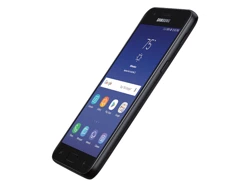
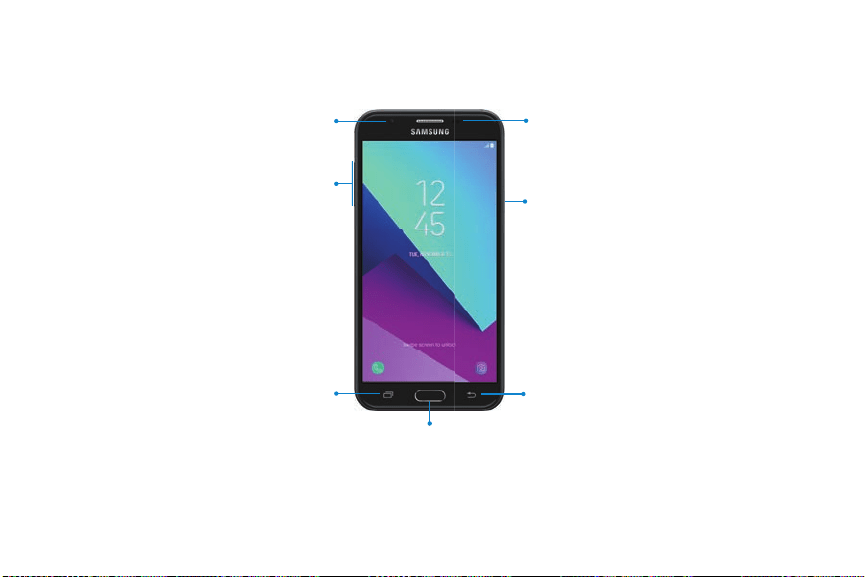
Front view
Proximity
sensor
Power key
Front camera
Volume keys
Recent apps
Back
Home key
Devices andsoftware are constantly evolving —the illustrations yousee here are forreference only.
Getting started
4
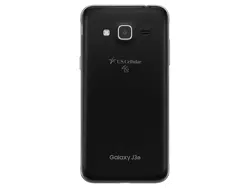
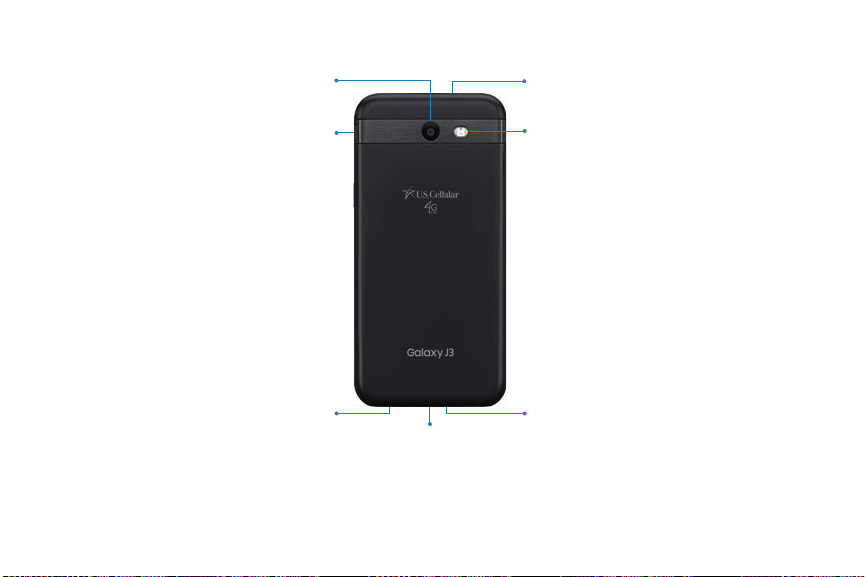
Back view
Flash
Microphone
Rear camera
USB charger/Accessory port
Speaker
Headset jack
Microphone
Devices andsoftware are constantly evolving —the illustrations yousee here are forreference only.
Getting started
5
Assemble your device
Learn about your mobile device hardware, assembly
procedures, and how to get started using your new
device.
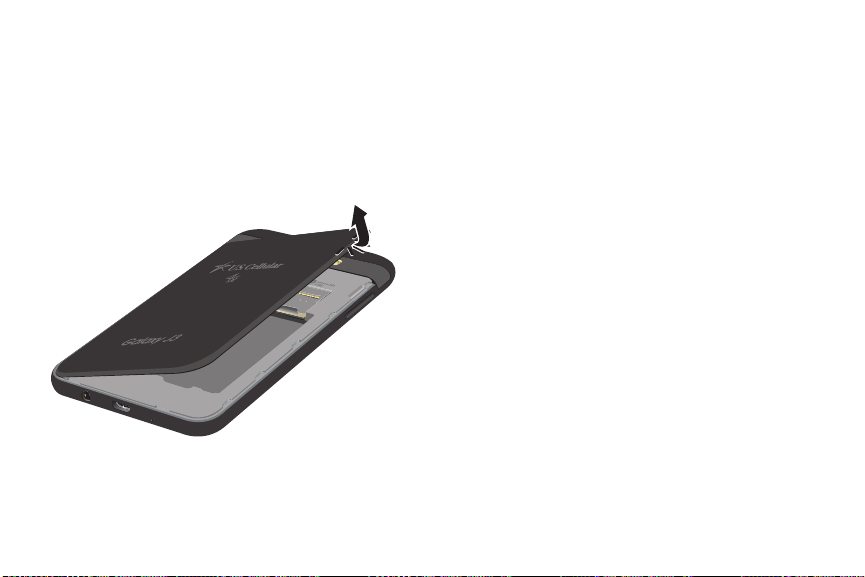
Remove the back cover
u Lift the cover up and to the left of the device.
Install a SIM card and
memory card
When you subscribe to a cellular network, you are
provided with a SIM card. You may be able to use
your previous SIM card.
You can install an optional microSD
™
memory card
(not included) to add more memory space to your
device. A memory card can be installed at any time.
It is not necessary to install it prior to using the
device.
Getting started
6
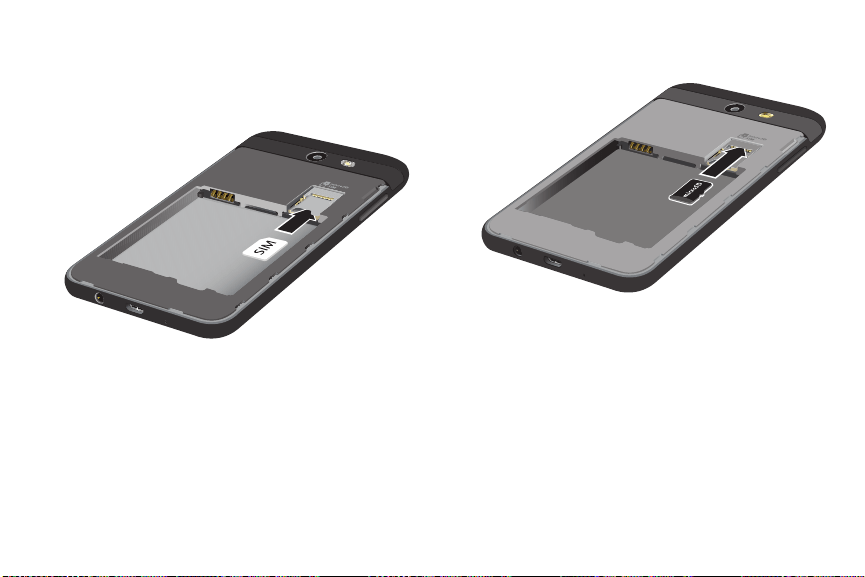
1. Ca
refully slide the SIM card into the SIM card
slot. Make sure that the card’s gold contacts face
down into th
e device and that the card is
positioned as shown.
2. Slide the memory card into the slot with the gold
contacts facing down.
Getting started
7
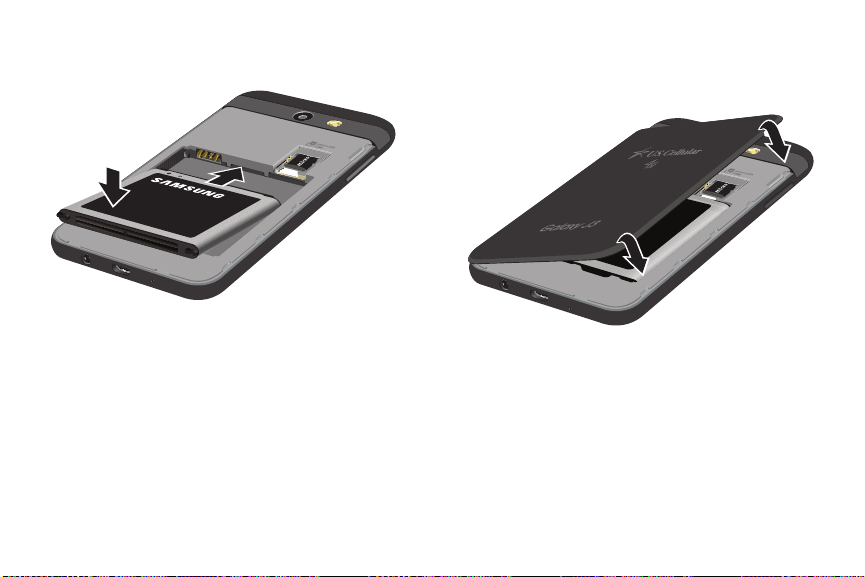
Install the battery
The battery is installed in the back of the device.
1. Insert the battery into the opening on the back of
the device, making sure the connectors align.
2. Gently press down to secure the battery.
Replace the back cover
The back cover should be replaced before using the
device.
1. Place the back cover onto the back of the device
and press down.
2. Press along the edge of the back cover until you
have a secure seal.
Getting started
8
Charge the battery
You
r device is powered by a rechargeable battery.
A charger (charging head and USB cable) is included
with the device for charging the battery from any
standard outlet.
The battery comes partially charged. You can use the
device while charging.
Note: Use only charging devices and batteries that
are approved by Samsung. Samsung charging devices
and batteries are designed for your device to
maximize battery life. Using other charging devices
and batteries may void your warranty and may cause
damage.
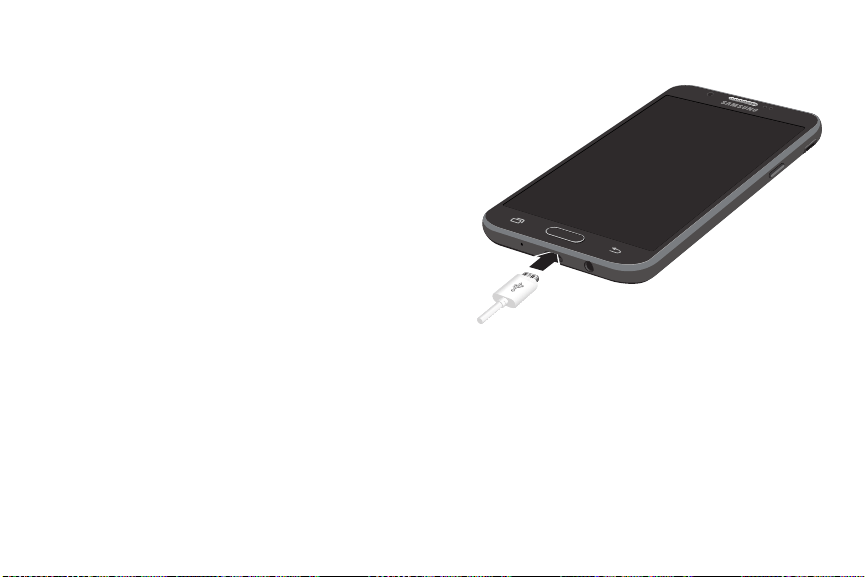
1. Insert the USB cable into the USB
charger/Accessory port.
2. Connect the USB cable to the charging head, and
then plug the charging head into a standard
outlet.
3. Unplug the charging head from the outlet and
remove the USB cable from the device when
charging is complete.
Getting started

9
While charging, the device and the charger may
become hot and stop charging. This usually does not
affect the device’s lifespan or performance and is in
the device’s normal range of operation.
Disconnect the charger from the device and wait for
the device to cool down. For more information, visit
samsung.com/us/support/answer/ANS00076952.
Getting started

10
Start using your device
The instructions below explain how to turn your
device on or off.
To turn the device on:
u Press and hold the Power key until the device
turns on.
To turn the device off:
1. Press and hold the Power key.
2. Tap Power off, and confirm when prompted.
Use the Setup Wizard
The first time you turn your device on, the Setup
Wizard guides you through the basics of setting up
your device.
Follow the prompts to choose a default language,
connect to a Wi-Fi
®
network, set up accounts, choose
location services, learn about your device’s features,
and more.
Getting started

11
Lock or unlock your device
Use your device’s screen lock features to secure your
device. By default, the device locks automatically
when the screen times out.
To lock the device:
u Press the Power key.
To unlock the device:
u Press the Power key, and then drag your finger
across the screen.
The default Screen lock on your device is Swipe.
To choose a secure screen lock, see Set a secure
screen lock on page 137.
Add a Google account
Your new device uses your Google
™
account to fully
utilize its Android
™
features.
1.
From
Settings, tap Cloud and accounts >
Accounts.
2.
Tap
Add account > Google.
Note: When you sign in to a Google account, Factory
Reset Protection (FRP) is activated. FRP requires your
Google account information when resetting to
factory settings. For more information, see Factory
reset protection on page 135.
Getting started

12
Add a Samsung account
Create a Samsung account for access to Samsung
content and apps on your device.
1.
From
Settings, tap Cloud and accounts >
Accounts.
2.
Tap
Add account > Samsung account.
Note: To quickly access your Samsung account, tap
Settings > Samsung account.
Add an email account
View and manage all of your email accounts.
1.
From
Settings, tap Cloud and accounts >
Accounts.
2.
Tap
Add account > Email.
Transfer data from your
old device
Use Smart Switch
™
to transfer contacts, photos, and
other content from your old device.
For more information, visit samsung.com/us/support/
owners/app/smart-switch
.
T
o use Smart Switch:
1.
From
Settings, tap Cloud and accounts >
Smart Switch.
2. Follow the prompts and select the content to
transfer.
Visit samsung.com/smartswitch for more information.
Getting started


14
Navigation
Please note that a touchscreen responds best to a
light touch from the pad of your finger or a
capacitive stylus. Using excessive force or a metallic
object on the touchscreen may damage the tempered
glass surface and void the warranty.
Tap
Lightly tap items to select or launch them.
l Tap the keyboard to enter characters or text.
l Tap an item to select it.
l Tap an app shortcut to launch the app.
Double-tap
Lightly tap items twice to select or launch them.
l Double-tap an image to zoom in or out.
Touch and hold
Touch and hold items to activate them.
l Touch and hold a field to display a pop-up menu of
options.
Swipe
Lightly drag your finger vertically or horizontally
across the screen.
l Swipe the screen to unlock the device.
l Swipe the screen to scroll through the
Home screens or menu options.
Drag
Touch and hold an item, and then move it to a new
location.
l Drag an app shortcut to add it to a Home screen.
l Drag a widget to place it in a new location.
Getting started
Pinch and spread
Pinch the screen using your thumb and forefinger or
spread by moving your fingers apart.
l Pinch the screen to zoom out while viewing a
picture or a web page.
l Spread your fingers on the screen to zoom in
while viewing a picture or a web page.
Common options
The device uses basic command options to perform
common actions.
l
More options: Tap to view more menu options
for a screen.
l
Delete: Tap to select items to delete.
l
Share: Tap to select items to share, and then
choose a sharing method.
l
Edit: Tap to customize the screen.
l
On/Off: Tap to turn the option on ( ) or off
(
).
l
Menu: Tap to view available options for
the field.
Getting started 15
16
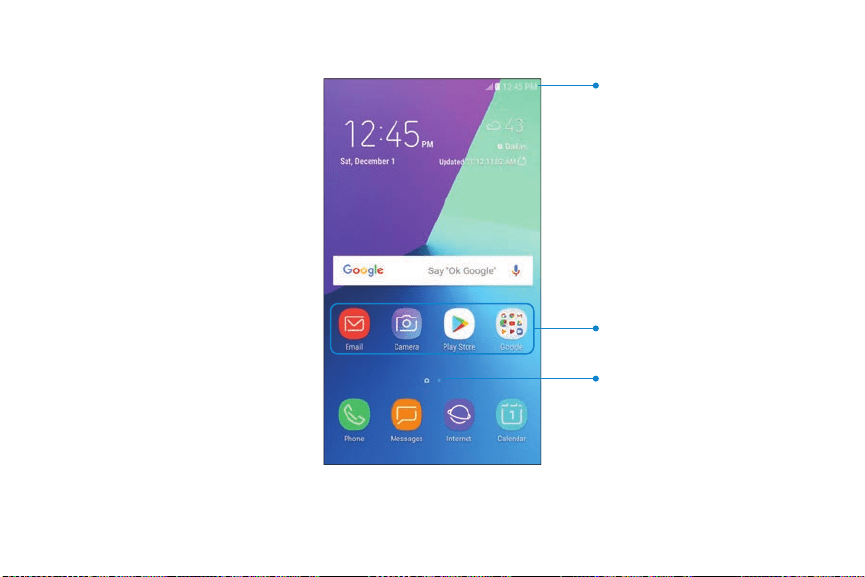
Home screen
Status bar
Home screen indicator
App shortcuts
Devices andsoftware are constantly evolving —the illustrations yousee here are forreference only.
Getting started

17
Customize your
Home screen
Your device has multiple Home screens to hold app
shortcuts and widgets. You can add, remove, change
the order of screens, as well as choose a different
main Home screen.
1. From a Home screen, pinch the screen.
2. Use these options to manage screens:
• To align shortcuts into a line at the top
of a screen, tap
Align top.
• To align shortcuts into a line at the bottom
of a screen, tap
Align bottom.
•
To remove a Home screen, tap
Remove.
• To set a screen as the main Home screen, tap
Main. This screen is displayed when you
press the Home key.
• To change the order of screens, touch and
hold a screen, and then drag it to a new
position.
• To add a screen, swipe to the end of the
screens, and then tap
Add.
Getting started

18
App shortcuts
You can use app shortcuts to launch an app from any
Home screen.
1. From Apps, touch and hold an app shortcut to
open the options menu.
2.
Tap
Add to Home.
To remove a shortcut:
1. Touch and hold an app shortcut to open the
options menu.
2.
Tap
Remove from Home.
• Removing a shortcut does not delete the app,
it just removes the shortcut from a Home
screen.
To move a shortcut from one Home screen to
another:
1. Touch and hold an app shortcut to release it.
2. Drag the app shortcut to a new Home screen, and
then release it.
Use folders
You can organize App shortcuts in folders on an
Apps list screen and Home screen.
For more information, see Create and use folders on
page 38.
Getting started

19
Wallpapers
Change the look of the Home and Lock screens with
wallpaper. You can display a favorite picture or
choose from preloaded wallpapers.
1. From a Home screen, pinch the screen.
2. Tap Wallpapers to customize.
3. Tap an image to choose it.
4. Tap Set as wallpaper, and confirm when
prompted.
Themes
Set the theme to be applied to your Home and Lock
screens, wallpapers, and app icons.
1. From a Home screen, pinch the screen.
2. Tap Themes to customize.
• Tap a theme to preview and download it to
My themes.
3. Tap View all to see downloaded themes.
4. Tap a theme, and then tap Apply to apply the
selected theme.
Getting started

20
Icons
Apply custom icons to replace built-in app icons.
1. From a Home screen, pinch the screen.
2. Tap Wallpapers > Icons to customize.
3. Tap an icon set to preview and download it to
My icons.
• Tap View all to see downloaded icons.
4. Tap an icon, and then tap Apply to apply the
selected icon set.
Icon frames
You can show icons with shaded frames to make
them stand out on the Home screen and Apps list
screen.
1.
From
Settings, tap Display > Icon frames and
choose one of the following options:
• Icons only: Show icons only.
• Icons with frames: Show frames around icons.
2. Tap Done, and confirm when prompted.
Getting started

21
Widgets
Widgets are simple application extensions that run
on a Home screen.
To add a widget to a Home screen:
1. From a Home screen, pinch the screen.
2. Tap Widgets.
3. Touch and hold a widget, drag it to a
Home screen, and release it.
To remove a widget from a Home screen:
1. From a Home screen, touch and hold a widget to
open the options menu.
2.
Tap
Remove from Home screen.
Home screen settings
Customize your Home and Apps screens.
1. From a Home screen, pinch the screen.
2. Tap Home screen settings to customize:
• H
ome screen layout: Set your device to have
separate Home and Apps screens, or only a
Home screen where all apps are located.
• Home screen grid: Choose a dimension option
to determine how icons are arranged on the
Home screen.
• Apps screen grid: Choose a dimension option
to determine how icons are arranged on the
Apps screen.
• Apps button: Add a button to the Home screen
for easy access to the Apps screen.
• App icon badges: Select how to show icon
badges when apps receive notifications.
Getting started

22
•
Ad
d apps to Home screen: Automatically add
newly downloaded apps to the Home screen.
• Quick-open notification panel: Enable this
feature to open the Notification panel from
the Home screen by swiping down.
• Portrait mode only: Prevent the Home screen
from rotating to Landscape mode.
• Hide apps: Select apps to hide.
• About Home screen: View version information.
Easy mode
Switch between the default screen layout and a
simpler layout. The Easy mode layout has larger text
and icons, making for a more straightforward visual
experience.
1.
From
Settings, tap Display > Easy mode.
2. Tap Easy mode to enable this feature.
3. Tap Done to confirm.
To disable Easy mode:
1.
From
Settings, tap Display > Easy mode >
Standard mode.
2. Tap Done to exit Easy mode.
Getting started
23
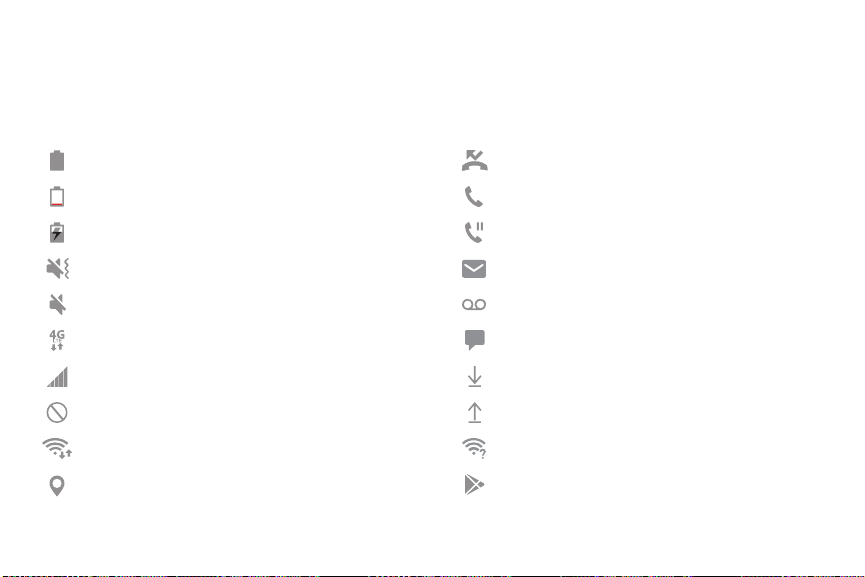
Status bar
The Status bar provides device information on the right side and notification alerts on the left.
Status icons
Battery full
Battery low
Battery charging
Vibrate mode
Mute mode
4G LTE
™
active
Signal strength
Network not available
Wi-Fi active
Location service active
Notif
ication icons
Missed call
Call in progress
Call on hold
New email
New voicemail
New message
File download in progress
File upload in progress
Wi-Fi available
App updates available
Getti
ng started

24
Status bar display
Configure display options for the Status bar.
u
From Settings, tap Display > Status bar for the
following options:
l Tap Show recent notifications only to display
only the three most recent notification icons
on the Status bar.
l Tap Show battery percentage to display the
battery charge percentage next to the battery
icon on the Status bar.
Getting started
25
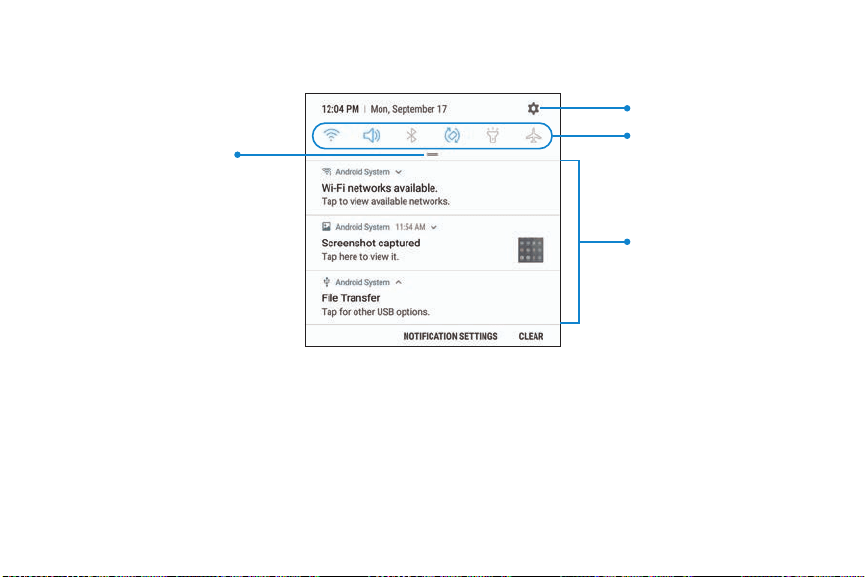
Notification panel
Devices andsoftware are constantly evolving —the illustrations yousee here are forreference only.
Getting started
Settings
Quick settings
Notification cards
View all

26
View the Notification panel
You can access the Notification panel from any
screen.
1. Drag the Status bar down to display the
Notification panel.
2. Swipe down the list to see notification details.
• To open an item, tap it.
• To clear a single notification, drag the
notification left or right.
• To clear all notifications, tap Clear.
3. Drag upward from the bottom of the screen or
tap
Back to close the Notification panel.
Quick settings
The Notification panel also provides quick access to
device functions, allowing you to quickly turn them
on or off.
1. Drag the Status bar down to display the
Notification panel.
2.
Drag
View all downward.
• Tap a setting to turn it on or off.
•
Tap
More options to reorder Quick settings
or to change the button layout.
3.
Drag
View all upward to close Quick settings.
Getting started
27
Multi window
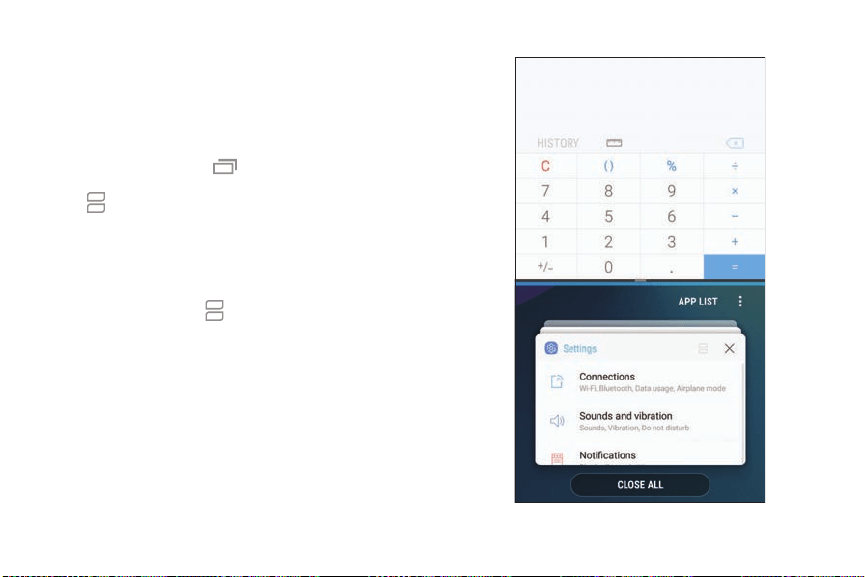
Multitask by using two apps at the same time. Apps
that support Multi window
™
can be displayed
together on a split screen. You can switch between
the apps and adjust the size of their windows.
1.
From any screen, tap
Recent apps.
2.
Tap
Multi window in the title bar to launch an
app in split screen view.
• Recently opened apps are displayed in the
lower window. Apps that support Multi
window have the
Multi window icon in their
title bar.
• If there are no recently opened apps that
support Multi window, or if you want to launch
a different app, tap App list.
3. Tap an app in the lower window to add it to the
split screen view.
Getting started

28
Window controls
The Window controls modify the way app windows
are displayed in split screen view.
u Tap the middle of the window border for the
following options:
l
Add app pair on Home screen: Add the
open pair of apps as a shortcut to the
Home screen.
l
Switch windows: Swap the two windows.
l
Close app: Close the selected app.
Split screen view action
The Recent apps key can be configured to switch
between full screen view and split screen view.
u
From Settings, tap Advanced features >
Multi window, and then tap On/Off to enable
Split screen view action.
l To change the current app from full screen
view to split screen view, touch and hold
Recent apps.
l While in split screen view, touch and hold
Recent apps to close the app on the
bottom.
Getting started
29
Enter text
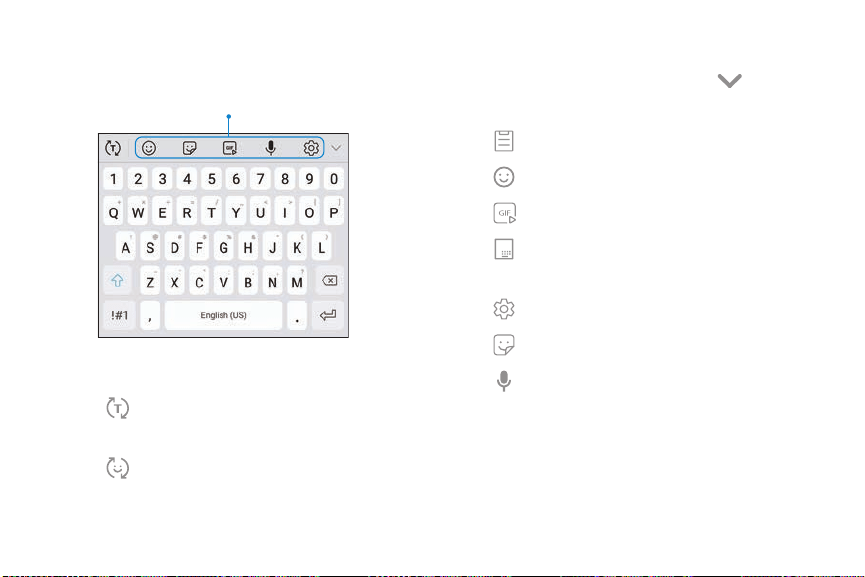
Text can be entered using a keyboard or your voice.
Toolbar functions
u Tap a field to display the Samsung keyboard.
l
Tap
Show predictive text to view suggested
words while you type.
l
Tap Show toolbar functions to view all
keyboard options.
Toolbar functions
The toolbar provides additional helpful functions.
u
From the Samsung keyboard, tap Expand
toolbar for the following options:
l
Clipboard: Access the clipboard.
l
Emojis: Insert an emoji.
l
GIF keyboard: Add animated GIFs.
l
One-handed keyboard: Change the
keyboard layout for use with one hand.
l
Settings: Access keyboard settings.
l
Stickers: Add illustrated stickers.
l
Voice input: Use Google Voice
™
typing.
Getting started
30
Configure the Samsung keyboard
Set customized options for the Samsung keyboard.
u
From the Samsung keyboard, tap Settings for
the following options:
l Languages and types: Set the keyboard type
and choose which languages are available on
the keyboard.
– To switch between languages, slide the
Space bar sideways.
l Smart typing: Use predictive text and
auto-correction features to prevent common
typing mistakes. Type by swiping between
letters.
l Keyboard layout and feedback: Customize the
appearance and function of the keyboard.
l Reset to default settings: Return keyboard to
original settings and clear personalized data.
l About Samsung keyboard: View version and
legal information for the Samsung keyboard.
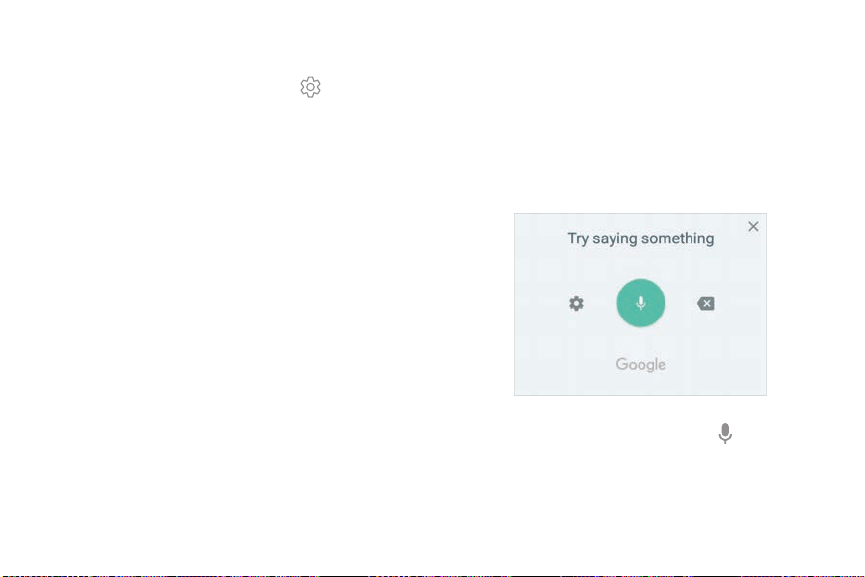
Use Google Voice typing
Instead of typing, enter text by speaking.
1.
From the Samsung keyboard, tap
Voice input.
2. Tap the screen and speak your text.
Getting started

31
Configure Google Voice typing
Set customized options for Google voice typing.
1.
From the Samsung keyboard, tap
Voice input.
2.
Tap
Settings for options.
• Languages: Choose the language for the
keyboard.
• Offline speech recognition: Download
languages for offline Google voice typing.
• Block offensive words: Hide potentially
offensive words with asterisks.
Getting started

32
Emergency mode
Use Emergency mode to access helpful emergency
features and conserve your device’s power during an
emergency situation.
To save battery power, Emergency mode:
l Restricts application usage to only essential
applications and those you select.
l Turns off connectivity features and Mobile data
when the screen is off.
Activate Emergency mode
To activate Emergency mode:
1. Press and hold the Power key.
2. Tap Emergency mode.
• When accessing for the first time, read and
accept the terms and conditions.
3. Tap Turn on.
Getting started

33
Emergency mode features
While in Emergency mode, only the following apps
and features are available on the Home screen:
l Flashlight: Use the device’s flash as a steady
source of light.
l Emergency alarm: Sound an audible siren.
l Share my location: Send your location information
to your emergency contacts.
l Phone: Launch the call screen.
l Internet: Launch the web browser.
l
Add:
–
Email: Launch the Email app.
–
Maps: Launch Google Maps
™
.
l
Battery charge: Display estimated battery
charge remaining.
l Estimated usage time remaining: Display
estimated standby time that can be reached
ba
sed on current battery charge and usage.
l
Emergency call: Dial the emergency telephone
number (for example, 911). This kind of call can be
made even without activated cellular service.
l
More options:
–
Turn off Emergency mode: Disable Emergency
mode and return to standard mode.
–
Remove: Choose apps to remove from the
screen.
–
Manage emergency contacts: Manage your
medical profile and ICE (In Case of Emergency)
group contacts.
–
Settings: Configure the available settings.
Only a limited number of settings are enabled
in Emergency mode.
Ge
tting started

34
Turn off Emergency mode
When emergency mode is turned off, the device
returns to standard mode.
1. Press and hold the Power key.
2. Tap Emergency mode.
Note: When Emergency mode is activated, Locating
method is set to Battery saving. After Emergency
mode is turned off, check your location settings.
For more information, see Location on page 111.
Getting started

36
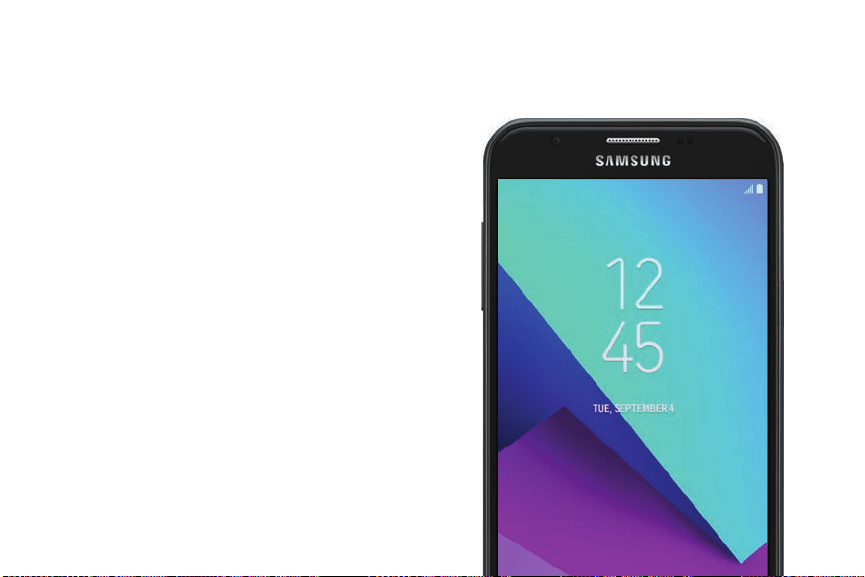
Using apps
The Apps list displays all preloaded and downloaded
apps. You can uninstall or disable apps from this list.
Access apps
Access and launch all apps from the Apps list.
1. From a Home screen, swipe up or down to
access Apps.
2. Tap an app’s shortcut to launch it.
• To return to the main Home screen press
the Home key.
Add an apps shortcut
In addition to swiping to access apps, you can add an
Apps button to the Home screen.
1.
From Apps, tap
More options > Home screen
settings > Apps button.
2. Tap Show Apps button > Apply.
Search for apps
If you are not sure exactly where to find a certain
setting, you can use the Search feature.
1.
From Apps, tap
Search phone.
2. Enter a word or words in the Search phone field.
As you type, apps that match are displayed on
the screen.
3. Tap an entry to go to that app.
l To customize the Finder search settings, tap
More options > Settings.
Apps

37
Galaxy Essentials
View and download Samsung apps that are
optimized for use with Galaxy devices.
u
From Apps, tap More options > Galaxy
Essentials.
Uninstall or disable apps
Uninstall or disable apps you have download.
u From Apps, touch and hold an app to open the
options menu.
l To uninstall an app, tap Uninstall.
l To disable an app, tap Disable.
Note: Some preloaded apps can only be disabled,
not uninstalled. Apps that are disabled are turned off
and hidden from view.
Sort apps
App shortcuts can be listed alphabetically or in your
own custom order.
u
From Apps, tap More options > Sort.
l Custom order: Arrange apps manually.
– To remove empty spaces between apps, tap
More options > Clean up pages.
l Alphabetical order: Sort apps alphabetically.
Apps

38
Create and use folders
Create a folder to organize App shortcuts on an
Apps list screen.
1. From Apps, touch and hold an app shortcut, and
then drag it on top of another app shortcut until
it is highlighted.
2. Release the app shortcut to create the folder.
• Enter folder name: Name the folder.
•
Palette:
Change the folder color.
•
Add apps: Place more apps in the folder.
Tap apps to select them, and then tap Add.
3.
Tap
Back to close the folder.
Copy a folder to a Home screen
Create a folder and copy it to a Home screen.
1. From Apps, touch and hold a folder to open the
options menu.
2.
Tap
Add to Home.
Delete a folder
When you delete a folder, the app shortcuts are
returned to the Apps list screen.
1. From Apps, touch and hold a folder to delete.
2.
Tap
Delete folder, and confirm when
prompted.
Apps

39
App settings
Manage your downloaded and preloaded apps.
1.
From
Settings, tap Apps.
2.
Tap
Menu to set which apps to view, and then
choose All apps, Enabled, or Disabled.
3.
Tap
More options for the following options:
• Sort by size/name: Sort the apps by size
or name.
• Default apps: Choose or change apps that are
used by default for certain features, like email
or browsing the Internet.
• App permissions: Control which apps have
permissions to use certain features of your
device.
• Show/Hide system apps: Show or hide system
(background) apps.
• Special access: Select which apps can have
special access permissions to features on your
device.
• Reset app preferences: Reset options that
have been changed. Existing app data is not
deleted.
4. Tap an app to view and update information about
the app. The following options may be displayed:
• Uninstall/Disable: Uninstall or disable the app.
Some preloaded apps can only be disabled,
not uninstalled.
• Force stop: Stop an app that is not working
correctly.
• Mobile data: View mobile data usage.
• Battery: View battery usage since the last full
charge.
• Storage: Manage the app’s storage usage.
• Memory: View memory usage.
Apps

40
• Notifications: Configure notifications from
the app.
• Permissions: View permissions granted to the
app for access to your device’s information.
• Set as default: Set the app as a default for a
certain category of apps.
Note: Options vary by app.
Apps

41
Samsung apps
The following apps come pre-installed or downloaded
over-the-air to your device.
Calculator
The Calculator provides basic and advanced
arithmetic functions.
u
From Apps, tap Calculator.
View calculator history
View and clear your calculator history.
u
From Apps, tap Calculator > History.
l To return to the calculator, tap Keypad.
l To clear the calculator history, tap
Clear history.
Convert units of measurement
Quickly convert units of measurement using the unit
converter.
1.
From Apps, tap
Calculator > Unit converter.
2. Select a category and use the drop-down menus
to choose units of measurement.
3. Enter a numeric value to view the conversion.
Scientific calculator
The Calculator app also provides advanced arithmetic
functions.
u
From Apps, tap Calculator, and turn the device
to landscape view.
l
If
Auto rotate is not enabled, tap
Scientific
calculator.
Apps

42
Calendar
Manage your events and tasks.
Add calendars
Ad
d existing calendars to the Calendar app.
1.
From Apps, tap Calendar >
More options.
2.
Ta
p Manage calendars > Add account, and
select an account type.
3. Enter your account information and follow the
pr
ompts.
Calendar view
The
re are several ways the calendar can be viewed.
1.
From Apps, tap
Calendar > View, and then tap
an option:
• Y
ear:
Display all twelve months of this year.
Swipe across the screen to display
another year.
• M
onth: Display the current month. Swipe
across the screen to display another month.
Events and tasks are also displayed.
• Week: Display the current week. Swipe across
the screen to display another week.
• Day: Display today’s schedule by hour. Swipe
across the screen to display another day.
• Tasks: Display all tasks.
2. Tap Today to return to the current date.
Apps

43
Create an event
Use your Calendar to create events.
1.
From Apps, tap
Calendar > Add to add an
event.
2. Enter details for the event, and then tap Save.
Share an event
Share events from your Calendar.
1.
From Apps, tap
Calendar, tap an event, and
tap again to edit it.
2. Tap Share, choose a sharing method, and follow
the prompts.
Delete an event
Delete events from your Calendar.
1.
From Apps, tap
Calendar, tap an event, and
tap again to edit it.
2. Tap Delete, and confirm when prompted.
Create a task
Use your Calendar to create tasks. Tasks are items
you add to the calendar to be accomplished on a
certain day. A task displays as a checklist item and is
removed once you mark the task as complete.
1.
From Apps, tap
Calendar > View > Tasks.
2.
Tap
Add to add a task.
3. Enter details for the task, and then tap Save.
Delete a task
Delete tasks from your Calendar.
1.
From Apps, tap
Calendar, and tap a day on the
calendar to view the tasks for the day, or tap
View > Tasks.
2.
Tap the
Checkbox by the task to mark it as
complete and remove it from the calendar.
• To delete a task, tap the task to open it, tap
Delete, and confirm when prompted.
Apps

44
Calendar settings
Use Calendar settings to customize your calendar.
1.
From Apps, tap
Calendar > More options >
Settings.
2. Tap an option and follow the prompts.
Apps
45
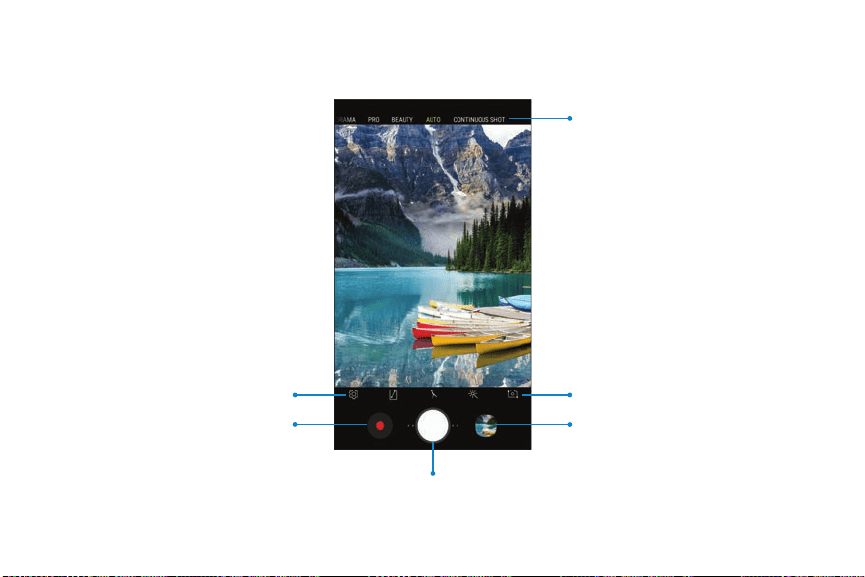
Camera and video
Gallery
Take a picture
Record vi
deo
Switch cameras
Settings
Shooting modes
Devices andsoftware are constantly evolving —the illustrations yousee here are forreference only.
Apps
46
Take pictures
Take pictures with your device’s front or rear camera.
1.
From Apps, tap
Camera.
2. Use the display screen as a viewfinder.
• To focus the shot, tap the screen. When you
tap the screen, a brightness scale is displayed.
Slide the light bulb to adjust the brightness.
• Swipe right or left to change the shooting
mode.
• To quickly switch between the front and rear
cameras, swipe the screen up or down.
•
To change a camera setting, tap
Settings.
3.
Tap
Take a picture.
Record videos
Record high-quality videos using your device.
1.
From Apps, tap
Camera and aim the camera
at your subject.
2.
Tap
Record to begin recording a video.
• To take a picture while recording, tap
Capture.
•
To temporarily stop recording, tap
Pause.
To continue recording, tap
Resume.
3.
Tap
Stop when you are finished recording.
Apps

47
Configure shooting mode
Allow the camera to determine the ideal mode for
your pictures or choose from several shooting modes.
u
From Apps, tap Camera, and swipe to the right
or left to see the available shooting modes. To
view, enable, and reorganize shooting modes,
touch and hold a shooting mode.
Rear camera
l Panorama: Create a linear image by taking
pictures in either a horizontal or vertical
direction.
l Pro: Manually adjust the ISO sensitivity,
exposure value, white balance, and color tone
while taking pictures.
l Beauty: Automatically airbrush out minor
imperfections when you take pictures of
people.
l Auto: Allow the camera to determine the ideal
mode for the picture.
l Continuous shot: Touch and hold the Camera
button pictures to take continuously.
l Sports: Take clearer pictures of fast moving
subjects.
Front camera
l Selfie: Take selfie shots and apply various
effects, such as an airbrushed effect.
Apps

48
Camera settings
Use the icons on the main camera screen and the
settings menu to configure your camera’s settings.
u
From Apps, tap Camera > Settings.
Rear camera
l Picture size: Select a resolution. Selecting a
higher resolution for higher quality requires
more memory.
l Video size: Select a resolution. Selecting a
higher resolution for higher quality requires
more memory.
l Timer: Take time-delayed pictures or videos.
Front camera
l Picture size: Select a resolution. Selecting a
higher resolution for higher quality requires
more memory.
l Video size: Select a resolution. Selecting a
higher resolution for higher quality requires
more memory.
l Save pictures as previewed: Save self-portraits
or self-recordings as viewed on the camera
screen, not as flipped images.
l Shooting methods:
– Tap screen: Tap the screen to take selfies.
– Show palm: Hold your hand out with your
palm facing the camera to have your
picture taken in a few seconds.
Common
l Edit camera modes: Enable, disable, and
rearrange shooting modes.
l Grid lines: Display viewfinder grid lines to help
compose a picture or video.
l Location tags: Attach a GPS location tag to the
picture.
Apps

49
l Review pictures: Review pictures after
takingthem.
l Quick launch: Press the Power key twice in
quick succession to open the camera.
l Storage location: Select a memory location.
– A memory card (not included) must be
installed to view Storage location. For more
information, see Install a SIM card and
memory card on page 5.
l Floating Camera button: Add an extra camera
button that you can move anywhere on the
screen in Auto and Selfie modes.
l Press Volume key to: Use the Volume key to
take pictures, record video, zoom, or control
system volume.
l Reset settings: Reset the camera settings.
Apps

50
Clock
The Clock app offers features for keeping track of
time and setting alarms.
u
From Apps, tap Clock, and tap a tab to use a
feature.
Alarm
Use the Alarm tab to set one-time or recurring
alarms, and choose options for how to be notified.
1.
From Apps, tap
Clock > Add alarm.
2. Tap the following items to configure an alarm:
• Date: Choose the day for this alarm.
• Time: Set a time for the alarm.
• Repeat: Choose when to repeat the alarm.
• Alarm name: Enter a name for the alarm.
• Snooze: Allow snoozing. Set interval and
repeat values for the alarm while snoozing.
• Alarm sound: Choose a sound to play for the
alarm, and drag the slider to set the volume of
the alarm.
• Vibration: Choose whether the alarm uses
vibration alert.
• Read time aloud: Read the time aloud when
the alarm rings.
3. Tap Save to save the alarm.
Turn off alarm
At the set alarm time, the phone sounds the alarm
and/or vibrates.
1. To stop an alarm, tap Dismiss, or swipe
Dismiss to the left or right.
2. To postpone the alarm, tap Snooze.
Apps

51
Delete an alarm
You can delete an alarm that you created.
1.
From Apps, tap
Clock, and find the alarm in
the alarm list (under Alarm), and then touch and
hold it to select it.
2. Tap Delete.
World clock
The World clock lets you keep track of the current
time in multiple cities around the globe.
1.
From Apps, tap
Clock > World clock.
2.
Tap
Add city.
3. Tap Search and enter the name of the city.
4. Tap the city name in the list, and then tap Add.
• To remove a city, touch and hold it, and tap
Delete.
Apps

52
Time zone converter
Set a time in a city on your World clock list to see
what the local times would be in the other listed
cities.
1.
From Apps, tap
Clock > World clock.
2.
Tap
Time zone converter.
3.
Tap Menu to choose a different city.
• To add a city to the list, tap Add city.
4. Swipe the hours, minutes, and period (AM or PM)
on the clock to set a time. Local times for the
other cities listed are automatically updated.
• To return the clock to the current time,
tap Reset.
Stopwatch
The Stopwatch lets you time events down to a
hundredth of a second.
1.
From Apps, tap
Clock > Stopwatch.
2. Tap Start to begin timing.
• To keep track of lap times, tap Lap.
3. Tap Stop to end timing.
• To continue timing after stopping the clock,
tap Resume.
• To reset the Stopwatch to zero, tap Reset.
Apps

53
Timer
The Timer provides a countdown timer for up to
99 hours, 59 minutes, and 59 seconds.
1.
From Apps, tap
Clock > Timer.
2. Use the keypad and tap Hours, Minutes, and
Seconds to set the length of the Timer.
3. Tap Start to begin the Timer.
• To temporarily stop the Timer, tap Pause. To
continue timing after pausing, tap Resume.
• To stop and reset the Timer, tap Cancel.
Apps
54
Contacts
Store and manage your contacts. You can
synchronize with personal accounts added to your
device. For more information, see Add an account on
page 145.
Note: The Contacts app and the Contacts tab in the
Phone app have different options and functions.
Add a contact
Use the following procedure to add a new contact.
1.
From Apps, tap
Contacts > Create contact,
and then tap contact fields to enter information.
• Choose a storage account for the contact. You
can store the contact on the device or sync it
with an account.
•
Tap
Contact photo to assign a picture or an
animated GIF to the new contact.
• Enter a name and other contact information.
–
Tap
Add field to enter additional
entries.
–
Tap
Remove field to remove an entry.
–
Tap View more for additional fields.
– Tap the label to the right of an entry to
choose a label for the field (for example,
Home or Work).
• Tap Scan business card to import contact
information from a business card through the
device’s camera.
2. Tap Save.
Apps
55
Edit a contact
When editing a contact, you can tap a field and
change or delete information, or you can add more
fields to the contact’s list of information.
1.
From Apps, tap
Contacts, and then tap a
contact.
2.
Tap
Details > Edit.
3. Tap any of the fields to add, change, or delete
information.
4. Tap Save.
Share a contact
Share a contact by using various sharing methods.
1.
From Apps, tap
Contacts, and then tap a
contact.
2.
Tap
Details > Share.
3. Tap either vCard file (VCF) or Text.
4. Choose a sharing method and follow the
prompts.
Import contacts
Your device can import contacts from an installed
memory card (not included).
1.
From Apps, tap
Contacts > More options >
Manage contacts.
2. Tap Import/Export contacts.
3. Tap Import and follow the prompts.
Apps
56
Export contacts
Manually back up contacts to an installed memory
card (not included).
1.
From Apps, tap
Contacts > More options >
Manage contacts.
2. Tap Import/Export contacts.
3. Tap Export and follow the prompts.
Link or unlink contacts
Consolidate contact information from multiple
sources into one contact by linking entries into a
single contact.
1.
From Apps, tap
Contacts, and then tap the
contact to select it.
2.
Tap
Details > More options > Link contacts.
3. Tap contacts to choose them.
4. Tap Link.
To unlink contacts:
1.
From Apps, tap
Contacts, and then tap the
contact to select it.
2.
Tap
Details > More options > Manage linked
contacts.
3. Tap Unlink beside contacts to unlink them from
the main contact.
Apps

57
Favorites
When you mark contacts as favorites, they are easily
accessible from other apps.
1.
From Apps, tap
Contacts, and then tap a
contact.
2.
Tap
Details.
3.
Tap Add to Favorites to mark the contact as a
favorite. The star brightens
.
• To remove the contact from Favorites, tap
Remove from Favorites. The star then
dims
.
Delete contacts
Delete a single contact or multiple contacts.
1.
From Apps, tap
Contacts, and then touch and
hold a contact to select it.
• You can also tap other contacts to select them
for deletion.
2. Tap Delete, and confirm when prompted.
Apps

58
Groups
You can use groups to organize your contacts.
Create a group
Create your own contact groups.
1.
From Apps, tap
Contacts > Groups.
2. Tap Create, and then tap fields to enter
information about the group:
• Group name: Enter a name for the new group.
• Group ringtone: Customize the sounds for
the group.
• Add member: Select contacts to add to the
new group, and then tap Done.
3. Tap Save.
Add or remove group contacts
Add more contacts to a group, or remove contacts.
u
From Apps, tap Contacts > Groups, and then
tap a group.
l To remove a contact, touch and hold a contact
to select it, and then tap Remove.
l To add a contact, tap Edit > Add member, and
then tap the contacts you want to add. When
finished, tap Done > Save.
Send a message to a group
Send a text message to members of a group.
1.
From Apps, tap
Contacts > Groups, and then
tap a group.
2.
Tap
More options > Send message.
Apps

59
Send an email to a group
Send an email to members of a group.
1.
From Apps, tap
Contacts > Groups, and then
tap a group.
2.
Tap
More options > Send email.
3. Tap contacts to select them, or tap the All
checkbox at the top of the screen to select all,
and then tap Done.
• Only group members that have an email
address in their records are displayed.
4. Choose an email account and follow the prompts.
Delete a group
Delete a group you have created.
1.
From Apps, tap
Contacts > Groups, and then
tap a group.
2.
Tap
More options > Delete.
• To only delete the group, tap Group only.
• To delete the group and the contacts in the
group, tap Group and members.
Apps

60
Contacts settings
These settings allow you to modify settings
associated with using the Contacts app.
1.
From Apps, tap
Contacts > More options >
Settings.
2. Tap an option and follow the prompts.
Direct share
Share content directly with your contacts from within
any app. Once enabled, your frequent contacts are
displayed in the Share window.
u
From Apps, tap Settings > Advanced features >
Direct share, and tap On/Off to enable.
Apps
61
Email
View and manage all of your email accounts in one
app. To add an email account, see Add an email
account on page 12.
Create and send an email
Learn how to create and send email messages.
1.
From Apps, tap Samsung folder >
Email >
Compose new email.
• Different email account may have
additional steps and options.
2. Tap the To field to add an email address or tap
Add from Contacts to select a recipient from
your contacts.
• When adding multiple recipients, separate
them with a semicolon (;) after each. More
recipients can be added at any time before
the message is sent.
• If adding a recipient from your Contacts, tap
the contact to place a checkmark, and then
tap Done. The contact is displayed in the
recipients field.
•
Tap
Show additional fields to add Cc and
Bcc fields.
3. Tap the Subject and Message fields to enter text.
• Tap Attach to add files, images, audio, and
more to your email.
•
Tap
More options for additional email
options.
4. Review your message and tap Send.
Apps

62
Manage the inbox
There are several tools available from the Inbox
screen.
u
From Apps, tap Samsung folder > Email.
l Tap a message to read and reply or forward it.
l Tap Search to search for key words in your
email inbox.
l Tap Edit for additional message options.
l Tap Sort to customize how messages display.
View multiple email accounts
You can view email you receive for multiple accounts,
or you can view email accounts individually.
1.
From Apps, tap Samsung folder >
Email.
2.
Tap
Mailbox at the top left of the screen to
choose a different view:
• [Account name]: View email for only one
email account.
• All accounts: View all email in a combined
inbox.
Apps

63
Remove email accounts
Email accounts can be removed from your device.
1.
From Apps, tap Samsung folder >
Email.
2.
Tap
Mailbox > Settings.
3. Tap the account you want to remove.
4. Tap Remove, and confirm when prompted.
Email settings
Modify settings associated with using the Email app.
1.
From Apps, tap Samsung folder >
Email.
2.
Tap
Mailbox > Settings.
• Under General, tap an option, and then follow
the prompts.
• Tap an account to configure specific settings
for only that account.
Apps

64
Galaxy Apps
Find and download premium apps that are exclusive
to Galaxy devices. A Samsung account is required to
download from Galaxy Apps.
u
From Apps, tap Samsung folder > Galaxy Apps.
Apps


66
Gallery
View, edit, and manage pictures and videos.
The following categories allow you to organize your
content:
l Pictures: View pictures and videos in the order
they were saved. Content is organized by date.
l Albums: Create custom albums to organize your
pictures and videos.
l Stories: Create custom collections of related
pictures and videos and share them with your
contacts.
l Shared: Sign in to your Samsung account to share
pictures and videos with your friends and family
through Samsung Social.
View pictures
Pictures stored on your device are viewable in the
Gallery app.
1.
From Apps, tap
Gallery > Pictures.
2. Tap a picture to view it. Swipe left or right to
view other pictures or videos.
• To mark the picture as a favorite, tap
Favorite. The picture is added to
Favorites under the Albums tab.
•
To access the following features, tap
More
options:
– Details: View and edit information about
the picture.
– Set as wallpaper: Set the picture as
wallpaper.
– Show date and location tags: See date and
location tags when viewing your pictures.
Apps

67
–
Prin
t: Send the picture to a connected
printer.
– Open in Photo Editor Pro: Edit the picture in
Photo Editor Pro.
Edit pictures
Edit pictures stored on your device.
1.
From Apps, t
ap
Gallery > Pictures.
2. Tap a picture to view it.
•
Transform: Rotate, flip, crop, or make other
changes to the overall appearance of the
picture.
•
Effects: Add color effects.
•
Stickers: Overlay illustrated or animated
stickers.
•
Draw: Add handwritten text or hand drawn
content.
Apps

68
Play video
Play videos stored on your device.
1.
From Apps, tap
Gallery > Pictures.
2. Tap a video to view it. Swipe left or right to view
other pictures or videos.
•
To mark the video as a favorite, tap
Favorite.
The video is added to Favorites under the
Albums tab.
•
To access the following features, tap
More
options:
– Details: View and edit information about
the video.
– Show date and location tags: See date and
location tags when viewing your videos.
3.
Tap
Play video to play the video.
Edit video
Edit videos stored on your device.
1.
From Apps, tap
Gallery > Pictures.
2. Tap a video to view it.
3.
Tap
Edit to cut segments of the video.
4. Tap Save, and then confirm when prompted.
Apps

69
Share pictures and videos
Share pictures and videos from the Gallery app.
1.
From Apps, tap
Gallery > Pictures.
2.
Tap
More options > Share, and then tap pictures
and videos to select them.
3. Tap Share, and then choose an app or connection
to use for sharing your selection. Follow the
prompts.
Delete pictures and videos
Delete pictures and videos stored on your device.
1.
From Apps, tap
Gallery.
2.
Tap
More options > Edit.
3. Tap pictures and videos to select them, or tap the
All checkbox at the top of the screen to select all
pictures and videos.
4. Tap Delete, and confirm when prompted.
Apps

70
Take a screenshot
Capture an image of your screen. It will automatically
create a Screenshots album in the Gallery app.
u From any screen, press and hold the Power and
Volume down keys.
Apps
71
Internet
Access the Internet with a fully-featured web
browser. For more information, visit samsung.com/us/
support/owners/app/samsung-internet
.
1.
From Apps, tap Samsung folder >
Internet.
2. Tap the address field, enter the web address, and
then tap Go on the keyboard.
•
Add to Bookmarks: Add the current web
page to bookmarks.
•
Refresh: Refresh or reload the current
web page.
•
Back or Back: Return to the
previous page.
•
Forward: Go forward to a recent page.
•
Home: Display your Internet Home screen.
•
Bookmarks: Manage bookmarked pages,
saved pages, and history.
•
Tabs: Manage open tabs. The number on
the icon indicates the number of tabs that are
currently open.
Quick menu
Access common features of your browser.
u
Tap Quick menu for the following options:
l
Share: Share the web page with others.
l
New tab: Open a new tab.
l
Turn on Night mode: Switch to Night mode.
l
Webpage text size: Change the text size.
l
Close: Close the Quick menu.
l
Settings: Change Quick menu options.
Apps

72
Browser tabs
Use tabs to view multiple web pages at the same
time.
1.
From Apps, tap Samsung folder >
Internet.
2.
Tap
Tabs > New tab.
•
To close a tab, tap
Close tab.
Bookmarks
The Bookmarks page stores Bookmarks, Saved
pages, and History.
Save a Bookmark
Bookmarking a web page saves the web address so
that you can access it quickly.
1.
From Apps, tap Samsung folder >
Internet.
2.
Tap
Add to Bookmarks.
Open a Bookmark
Quickly launch a web page from the Bookmarks
page.
1.
From Apps, tap Samsung folder >
Internet.
2.
Tap
Bookmarks > Bookmarks.
3. Tap a bookmark entry.
Save a web page
Saving a web page stores its content on your device
so that you can access it offline.
1.
From Apps, tap Samsung folder >
Internet.
2.
Tap
More options > Save webpage.
Apps

73
Open a saved web page
View a web page that has been saved.
1.
From Apps, tap Samsung folder >
Internet.
2.
Tap
Bookmarks > Saved pages.
3. Tap a saved page.
View history
To view a list of recently visited web pages:
u
Tap Bookmarks > History.
Share pages
Web pages can be shared with your contacts.
1.
From Apps, tap Samsung folder >
Internet.
2.
Tap
More options > Share, and follow the
prompts.
Secret mode
Pages viewed in Secret mode are not listed in your
browser history or search history, and leave no traces
(such as cookies) on your device. Secret tabs are a
darker shade than the normal tab windows.
Any downloaded files remain on your device after
you close the secret tab.
1.
From Apps, tap Samsung folder >
Internet.
2.
Tap
Tabs > Turn on secret mode.
3. Tap Set password to protect your Secret mode
data with a password.
– or –
Tap Don’t use password.
To turn off Secret mode:
1.
From Apps, tap Samsung folder >
Internet.
2.
Tap
Tabs > Turn off secret mode.
Apps

74
Internet settings
Modify settings associated with using the
Internet app.
1.
From Apps, tap Samsung folder >
Internet.
2.
Tap
More options > Settings.
3. Tap an option and follow the prompts.
Apps
75
Messages
Learn how to send and receive text messages (SMS)
and multimedia messages (MMS).
1.
From Apps, tap
Messages > Compose.
2. Tap contacts, if desired, and then tap Compose.
• Tap the Recipient field to manually enter a
recipient. You can also select the recipient
based on Groups or recent calls.
• Enter additional recipients by separating each
entry with a semicolon (;) and then using the
previous procedure. More recipients can be
added at any time before the message is sent.
3. Tap the Enter message field to enter a message.
•
Attach: Add images, audio, and more to
your message.
•
Emoticon: Choose an available emoticon
from the list and add it into your message at
the cursor location.
4. Review the message and tap Send.
Note: If you exit a message before you send it, the
message is automatically saved as a draft.
Apps

76
Send SOS messages
Send a message with your location to designated
contacts when you are in an emergency situation.
1.
From
Settings, tap Advanced features > Send
SOS messages, and then tap On/Off to enable
this feature.
2. Tap Send messages to > Add and add recipients
by creating new contacts or selecting from
Contacts.
• To include a picture from your front and rear
camera, tap Attach pictures.
• To include a five-second audio recording in
your SOS message, tap Attach audio recording.
3. Press the Power key quickly three times to send
an SOS message.
View Messages
u
From Apps, tap Messages, and then tap a
message to view it.
l To play an audio or video attachment, tap
Play.
l To scroll through the list of messages, swipe
up or down.
Delete messages
1.
From Apps, tap
Messages > More options >
Edit.
2. Tap each message you want to delete.
3. Tap Delete, and confirm when prompted.
Apps
77
Message search
Search through your messages by using the search
feature.
1.
From Apps, tap
Messages > Search.
2. Enter a word or phrase to search for, and then
tap
Search on the keyboard.
Messages settings
Configure the settings for text and multimedia
messages.
u
From Apps, tap Messages > More options >
Settings.
Emergency alerts
Emergency alerts notify you of imminent threats and
other situations. There is no charge for receiving an
Emergency alert message.
1.
From Apps, tap
Messages > More options >
Settings.
2. Tap Emergency alert settings to customize
notifications for emergency alerts.
Apps

78
My Files
View and manage files stored on your device,
including images, videos, music, and sound clips.
1.
From Apps, tap Samsung folder >
My Files.
2. Tap a category to view the relevant files or
folders.
3. Tap a file or folder to open it.
File groups
Files stored in the device are organized into the
following groups:
l Recent files: View recently accessed files.
–
This option displays if one or more files have
been accessed recently.
l Categories: View your files based on the file type.
l Phone: View folders and files located on the
device and optional memory card (not included).
l Cloud: View files saved on your cloud accounts.
–
Cloud drives vary depending on the services
you sign in to.
Apps

79
My Files options
Use My Files options to search, edit, clear file history,
and more.
u
From Apps, tap Samsung folder > My Files.
The following options are available:
l
Search: Search for a file or folder.
l
More options:
– Get m
ore space: View storage information
for your device.
– Settings: View settings for the app.
Apps
80
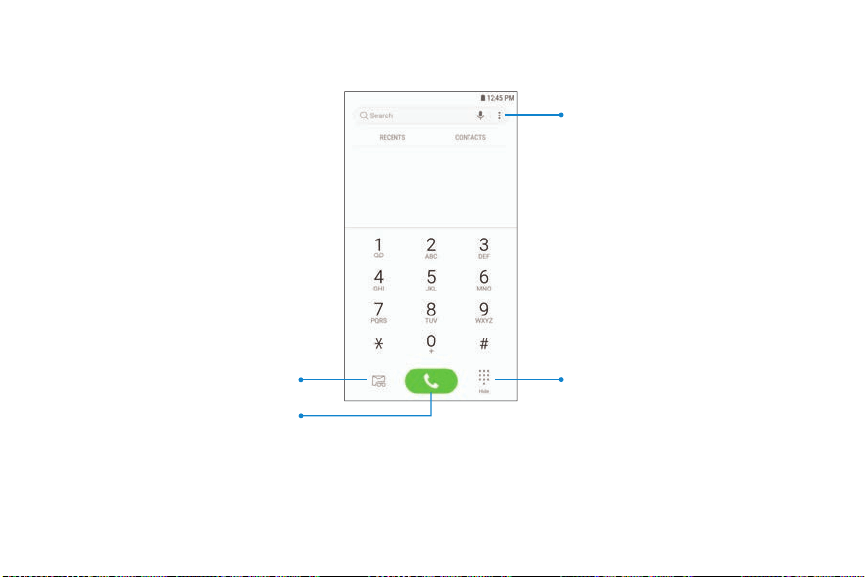
Phone
More options
Hide the keyboard
Voicema
il
Call
Devices andsoftware are constantly evolving —the illustrations yousee here are forreference only.
Apps
81
Make a call
Make a call from a Home screen.
1.
From a Home screen, tap
Phone.
2. Enter a number on the keypad and tap
Call.
•
Tap
Keypad if the keypad is not
displayed.
Enable swipe to call
Swipe a contact or number to the right to make a
call.
1.
From
Settings, tap Advanced features >
Swipe to call or send messages.
2. Tap On/Off to enable this feature.
Make a call from Recents
All incoming, outgoing, and missed calls are recorded
in the Call log.
1.
From a Home screen, tap
Phone.
2. Tap Recents to display a list of recent calls.
3.
Tap a contact, and then tap
Call.
Make a call from Contacts
Call a contact from the Contacts app.
1.
From Apps, tap
Contacts.
2. Swipe your finger across a contact to the right to
call the contact.
Apps

82
Direct calls
Call the contact whose call log, message, or contact
details are currently on the screen by bringing the
device close to your ear.
u
From Settings, tap Advanced features >
Direct call, and tap On/Off to enable.
Answer a call
When a call is received, the phone rings and the
caller’s phone number or name is displayed. If you
are using an app, a pop-up screen is displayed for the
incoming call.
u
On the incoming call screen, drag Answer to
the right to answer the call.
– or –
On the incoming call pop-up screen, tap
Answer to answer the call.
Decline a call
You can choose to decline an incoming call. If you are
using an app, a pop-up screen is displayed for the
incoming call.
u
On the incoming call screen, drag Decline to
the left to reject the call and send it to your
voicemail.
– or –
On the incoming pop-up screen, tap
Decline to
reject the call and send it to your voicemail.
Apps

83
Decline with a message
You can choose to decline an incoming call with a
text message response.
u On the incoming call screen, drag Send message
upward and select a message.
– or –
On the incoming call pop-up screen, tap
Send message and select a message.
End a call
u
Tap End when you are ready to end your call.
Actions while on a call
You can adjust call volume, switch to a headset or
speaker, and even multitask while on a call.
Adjust the call volume
u Press the Volume keys to increase or decrease
the volume.
– or –
Tap
Extra volume to quickly add more volume
to the incoming audio.
Apps

84
Switch to headset or speaker
Listen to the call using the speaker or through a
Bluetooth
®
headset (not included).
u
Tap Speaker to hear the caller using the
speaker.
– or –
Tap
Bluetooth to hear the caller using a
Bluetooth headset.
Multitask
If you exit the call screen to use another app, your
active call is indicated in the Status bar.
To return to the call screen:
u Drag the Status bar down to display the
Notification panel and tap the call.
To end a call while multitasking:
u Drag the Status bar down to display the
Notification panel, and then tap
End call.
Apps

85
Call log
The numbers of the calls you have dialed, received, or
missed are stored in the Call log.
1.
From a Home screen, tap
Phone.
2. Tap Recents. A list of recent calls is displayed.
If the caller is in your Contacts list, the caller’s
name is displayed.
Save a contact from a recent call
Use recent call information to create a contact or
update your Contacts list.
1.
From a Home screen, tap
Phone.
2. Tap Recents.
3. Tap the call that contains the information that
you want to save to your Contacts list.
4.
Tap
Details.
5. Tap Create contact.
– or –
If you want to replace the number for an existing
contact, tap Update existing.
Apps
86
Delete call records
To delete Call log entries:
1.
From a Home screen, tap
Phone.
2. Tap Recents.
3. Touch and hold the call you want to delete from
the Call log.
4. Tap Delete.
Block a number
By adding a caller to your Block list, future calls from
this number are sent directly to your voicemail, and
messages are not received.
1.
From a Home screen, tap
Phone.
2. Tap Recents.
3. Tap the caller you want to add to the Block list.
4.
Tap
Details > Block number, and confirm when
prompted.
You can also modify your Block list in Settings:
u
From a Home screen, tap Phone > More
options > Settings > Block numbers.
Apps

87
Speed dial
You can assign a shortcut number to a contact for
speed dialing their default number.
1.
From a Home screen, tap
Phone.
•
Tap
Keypad if the keypad is not displayed.
2.
Tap
More options > Speed dial numbers. The
Speed dial screen displays the reserved speed
dial numbers.
3. Tap an unassigned number.
•
Tap
Menu to select a different Speed dial
number than the next one in sequence.
• Number 1 is reserved for Voicemail.
4.
Type in a name or number, or tap
Add from
Contacts to assign a contact to the number.
• The selected contact is displayed in the Speed
dial number box.
Make a call with Speed dial
You can make a call using Speed dial.
1.
From a Home screen, tap
Phone.
•
Tap
Keypad if the keypad is not displayed.
2. Touch and hold the Speed dial number.
• If the Speed dial number is more than one
digit long, enter the first digits, and then hold
the last digit.
Apps

88
Remove a Speed dial number
You can remove an assigned Speed dial number.
1.
From a Home screen, tap
Phone.
•
Tap
Keypad if the keypad is not displayed.
2.
Tap
More options > Speed dial numbers.
3.
Tap
Remove by the contact you want to
remove from Speed dial.
Emergency calls
You can dial the emergency telephone number in
your region regardless of the phone’s cellular service
status. If your phone is not activated, you can only
make an emergency call.
1.
From a Home screen, tap
Phone.
2. Enter the emergency telephone number (911 in
North America) and tap
Call.
3. Complete your call. During this type of call, you
have access to most in-call features.
Apps

89
Make an emergency call from a
locked screen
The emergency telephone number can be dialed even
if the phone is locked, allowing anyone to use your
phone to call for help in an emergency. When
accessed from a locked screen, only the emergency
calling feature is accessible to the caller. The rest of
the phone remains secured.
1.
Drag
Phone upward to open the call screen.
2. Tap Emergency call to display the Emergency
dialer.
3. Enter the emergency telephone number (911 in
North America) and tap
Call.
4. Complete your call. During this type of call, you
have access to most in-call features.
Voicemail
Use your phone’s voicemail feature.
For information on setting up voicemail, see Set up
your voicemail on page 13.
1.
From a Home screen, tap
Phone.
2.
Tap
Voicemail.
3. Follow the voice prompts from the voicemail
center.
Apps
90
Optional calling services
If available with your mobile service plan, the
following calling services are supported.
Place a multi-party call
If your service plan supports this feature, you can
make another call while a call is in progress.
1.
From the active call, tap
Add call to dial the
second call.
2.
Dial the new number and tap
Call. When the
call is answered:
• Tap the On hold number to switch between the
two calls.
•
Tap
Merge to hear both callers at once
(multi-conferencing).
Phone settings
These settings allow you to modify settings
associated with the Phone app.
1.
From a Home screen, tap
Phone > More
options > Settings.
2. Tap an option and follow the prompts.
TTY mode
A teletypewriter (TTY) is a telecommunications device
that allows people who are deaf, hard of hearing, or
who have speech or language disabilities to
communicate by telephone.
1.
From a Home screen, tap
Phone > More
options > Settings.
2. Tap More settings > TTY mode.
3. Tap TTY OFF, TTY FULL, TTY HCO, or TTY VCO.
Apps

91
Samsung Notes
Use Samsung Notes to write and save notes. For
more i
nformation, visit
samsung.com/us/support/
owners/app/samsung-notes
.
1.
F
rom A
pps, tap
Samsung Notes.
2.
Tap
Create and type a note. Available options
include:
l Text: Use the keyboard to type text.
l Pen: Use your finger to write text.
l Brush: Create a drawing.
l
Attach: Insert an image or voice file.
l
More options > Turn on/off Rich text: Use
enhanced text formatting.
3. Tap Save whe
n finished.
Edit notes
Make edits to notes you create.
1.
From Apps, tap
Samsung Notes.
2. Tap a note to view it.
3. Tap Edit to make changes.
4. Tap Save.
Browse notes
Browse notes you create.
u
From Apps, tap Samsung Notes.
l Browse note entries by swiping up or down.
l
To se
arch for a note, tap
Search.
Apps

92
Notes options
You can edit, share, or manage notes.
1.
From Apps, tap
Samsung Notes.
2.
Tap
More options for the following options:
• Edit: Select notes to share, delete, or move.
• Sort: Change the way notes are organized.
• List/Grid view: Switch between List view and
Grid view.
Apps

93
Samsung+
Samsung+ allows you to access live customer
support, view device diagnostics, and learn about
your registered Samsung devices. For support, visit
samsung.com/us/samsung-plus.
1.
From Apps, tap Samsung folder >
Samsung+.
2. Follow the prompts to log in with either a
Samsung account or a Google Account.
Plus help
The plus icon is at the bottom of every screen to
provide you quick access to the help you need.
1.
From Apps, tap Samsung folder >
Samsung+.
2.
Tap
Plus for the following options:
• Search: Enter keywords to find the
information you need.
• Community: View community boards where
you can ask questions and give answers to
other Samsung users.
• Text chat: Chat with an automated support
system by texting.
• Call us: Start a phone call with customer
service.
• Video chat: Start a video call with customer
service.
Apps

94
Quick tabs
The app will open to your Home page. Swipe left and
right across the tabs to view Help topics.
l Home: Register your Samsung devices and view
customized cards.
l Diagnostics: View storage, connection speed, and
battery levels for your device.
l Learn: View Articles about your device to help you
get the most out of it.
l Community: View community boards where you
can ask questions and give answers to other
Samsung users.
l Get help: View quick links to call, video, and
community support for your device.
Apps
95
Google apps
Enjoy these apps from Google. Certain apps require a
Google Account. Visit google.com to learn more.
Chrome
Browse the Internet with Chrome
™
and
bring your open tabs, bookmarks, and
address bar data from your computer to
your mobile device.
Visit support.google.com/chrome to learn
more.
Drive
Open, view, rename, and share files saved
to your Google Drive
™
cloud account.
Visit support.google.com/drive to learn
more.
Duo
Make one-to-one video calls.
Visit support.google.com/duo to learn more.
Gmail
Send and receive email with Google’s web-
based email service.
Visit support.google.com/mail to learn more.
Google
Find online content with tools that learn
what interests you. Turn on your
personalized feed to receive customized
content.
Apps
96
Maps
Get directions and other location-based
information. You must enable location
services to use Google Maps
™
. For more
information, see Location on page 111.
Visit support.google.com/maps to learn
more.
Photos
Store and back up your photos and videos
automatically to your Google Account with
Google Photos
™
.
Visit support.google.com/photos to learn
more.
Play Movies & TV
Watch movies and TV shows purchased
from Google Play. You can also view videos
saved on your device.
Visit play.google.com/store/movies to learn
more.
Play Music
Play music and audio files on your device.
Visit support.google.com/music to learn
more.
Play Store
Find new apps, movies and TV shows,
music, books, magazines, and games in the
Google Play
™
store.
Visit support.google.com/play to learn more.
Apps

98
Carrier apps
Pre-installed apps may vary according to your plan.
Contact your service provider for additional
information.
City ID
See the city and state of incoming calls
with this enhanced caller ID feature. City ID
provides over 20,000 cities in North
America, giving you an important tool to
help identify unknown callers and more
effectively manage your communications.
Mobile Hotspot
Use your device as a mobile hotspot,
sharing data with other devices through a
Wi-Fi connection.
Tone Room Deluxe
Access the latest content from your
favorite artists for ringtones.
USCC Protect
Secure your personal information, get live
technical support, and optimize device
performance.
Your Navigator
Deluxe
Obtain turn-by-turn driving directions
(including voice guided turn-by-turn
directions) with GPS accuracy. Search for
any destination (including gas stations,
ATMs, restaurants, and more). View
detailed maps of any location.
Apps
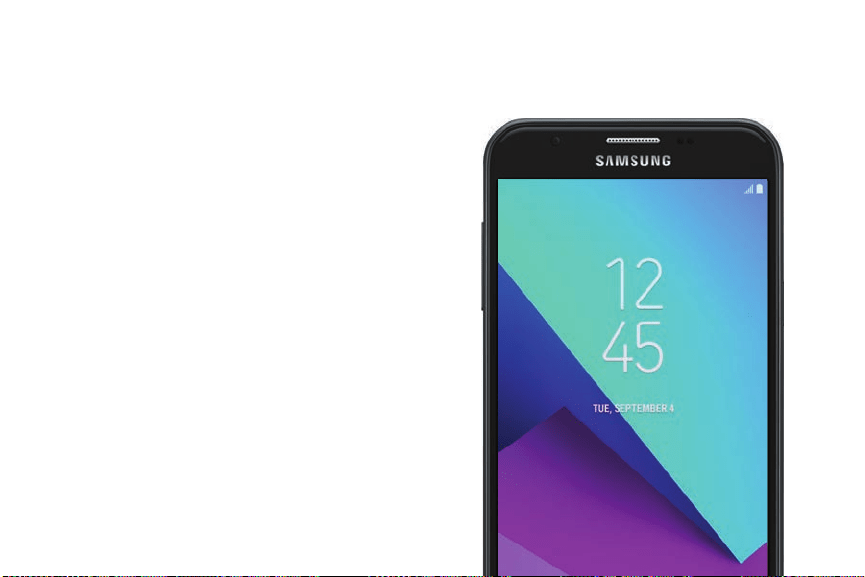

10
0
Access Settings
There are a couple of ways to access your device
settings.
u From a Home screen, swipe up to access
Apps, and then tap
Settings.
– or –
Drag down from the Status bar to display the
Notification panel, and then tap
Settings.
Search for Settings
If you are not sure exactly where to find a certain
setting, you can use the Search feature.
1.
From
Settings, tap Search.
2. Enter a word or words in the Search field. As you
type, settings that match display on the screen.
3. Tap an entry to go to that setting.
Settings

101
Connections
Manage connections between your device and a
variety of networks and other devices.
Wi-Fi
Connect your device to a Wi-Fi network.
1.
From
Settings, tap Connections > Wi-Fi, and
then tap On/Off to turn on Wi-Fi.
• When Wi-Fi is turned on, your device
automatically scans for available networks
and displays them.
2. Tap the network you want to connect to.
• When you select an open network, you are
automatically connected to the network.
Otherwise, enter a password to connect.
Manually connect to a Wi-Fi network
Connect your device to a Wi-Fi network that is
hidden.
1.
From
Settings, tap Connections > Wi-Fi, and
then tap On/Off to turn on Wi-Fi.
2.
Tap
Add network at the bottom of the list.
3. Enter information about the Wi-Fi network:
• Network name: Enter the network name.
• Security: Select a security option and enter
your password.
• Auto reconnect: Connect to this network
automatically.
• Show advanced options: Add advanced
options, such as IP settings and Proxy settings.
4. Tap Connect.
Settings

10
2
Wi-Fi preferences
Customize advanced Wi-Fi services.
1.
From
Settings, tap Connections > Wi-Fi, and
then tap On/Off to turn on Wi-Fi.
2. Tap Advanced.
• Switch to mobile data: Connect automatically
to a mobile network connection when the
Wi-Fi connection is unstable. When the Wi-Fi
signal is strong, it switches back to Wi-Fi.
• Turn on Wi-Fi automatically: Enable Wi-Fi in
frequently used locations.
• Network notification: Receive notifications
when open networks in range are detected.
• Manage networks: View your saved Wi-Fi
networks.
• Wi-Fi control history: View devices that have
turned your Wi-Fi on or off.
• WPS push button: Connect to a Wi-Fi network
by pressing the WPS button on a router.
• WPS PIN entry: Connect to a Wi-Fi network by
entering your WPS PIN.
• Install network certificates: Install
authentication certificates.
• MAC address: View your device’s MAC address,
which is required when connecting to some
secured networks (not configurable).
• IP address: View your device’s IP address
(not configurable).
Settings

10
3
Wi-Fi Direct
Wi-Fi Direct uses Wi-Fi capability to share data
between devices. A Wi-Fi network connection is not
required.
1.
From
Settings, tap Connections > Wi-Fi, and
then tap On/Off to turn on Wi-Fi.
2. Tap Wi-Fi Direct.
• Your device scans for discoverable Wi-Fi Direct
devices.
3. Tap a device, and then follow the prompts to
connect.
Share files with Wi-Fi Direct
Share files with another device using Wi-Fi Direct.
1.
From an app, tap
Share.
– or –
Tap
More options > Share.
2. Tap Wi-Fi Direct and follow the prompts.
Receive files with Wi-Fi Direct
When another device attempts to send a file to your
device using Wi-Fi Direct, your device begins
downloading the file.
u To open the file, drag down the Status bar and
tap File received.
Settings

10
4
Disconnect from Wi-Fi Direct
Disconnect your device from a Wi-Fi Direct device.
1.
From
Settings, tap Connections > Wi-Fi >
Wi-Fi Direct.
2. Tap a device to disconnect it.
Bluetooth
Bluetooth allows you to pair your device to another
Bluetooth-enabled device. Once a pairing is created,
the devices continue to recognize their partnership
and exchange information without having to re-enter
a passcode.
1.
From
Settings, tap Connections > Bluetooth,
and then tap On/Off to turn on Bluetooth.
• Your device scans for discoverable Bluetooth
devices. To scan again, tap Scan.
2. Tap a device, and follow the prompts to connect.
Settings

10
5
Rename a paired device
Rename a paired device to make it easier to
recognize.
1.
From
Settings, tap Connections > Bluetooth,
and then tap On/Off to turn on Bluetooth.
2.
Tap
Settings next to the previously paired
device, and then tap Rename.
3. Enter a new name, and tap Rename.
Share files with Bluetooth
Use Bluetooth to transfer information to a paired
device.
1.
From an app, tap
Share.
– or –
Tap
More options > Share.
2. Tap Bluetooth and follow the prompts.
Receive files with Bluetooth
When another device attempts to send a file to your
device using Bluetooth, you will see a request to
accept the file.
1. Tap Accept.
2. To open the file, drag down the Status bar and
tap File received.
Unpair from a Bluetooth device
When you unpair from a Bluetooth device, the two
devices no longer recognize each other. To connect
again, you have to pair the devices.
1.
From
Settings, tap Connections > Bluetooth,
and then tap On/Off to turn on Bluetooth.
2.
Tap
Settings next to the paired device, and
then tap Unpair to delete the paired device.
Settings

10
6
Data usage
View your current mobile and Wi-Fi data usage.
u
From Settings, tap Connections > Data usage.
Enable Data saver
Prevent selected apps from sending or receiving data
in the background.
1.
From
Settings, tap Connections > Data usage >
Data saver.
2. Tap On/Off to turn Data saver on.
• To allow some apps to have unrestricted data
usage, tap Allow app while Data saver on, and
tap On/Off next to each app to specify
restrictions.
Monitor mobile data
Enable mobile data to access the Internet through
your mobile network.
u
From Settings, tap Connections > Data usage.
The following options are available:
l Mobile data: Enable mobile data services.
l Mobile data usage: Monitor mobile data usage
by app.
l Billing cycle and data warning: Set the day of
the month to start the bill cycle for your
device.
Settings

10
7
Monitor Wi-Fi data
View your Wi-Fi data usage and set restrictions for
Wi-Fi networks.
u
From Settings, tap Connections > Data usage.
The following options are available:
l Wi-Fi data usage: View data usage over Wi-Fi
connections.
l Restrict networks: Select networks to prevent
apps that are running in the background from
using them.
Airplane mode
Airplane mode disconnects your device from all
networks and turns off connectivity features.
1.
From
Settings, tap Connections > Airplane
mode.
2. Tap On/Off to enable this feature.
Settings

10
8
Mobile hotspot
Activate Mobile hotspot to allow other devices to use
your device’s Internet connection.
1.
From
Settings, tap Connections > Mobile
hotspot and tethering > Mobile hotspot.
2. Tap On/Off to turn on Mobile hotspot.
3. Activate Wi-Fi on the target device.
4. Scan for Wi-Fi hotspots and select your device’s
Mobile hotspot.
5. Enter your device’s Mobile hotspot password on
the target device.
Change the mobile hotspot password
Change your Mobile Hotspot password.
1.
From
Settings, tap Connections > Mobile
hotspot and tethering > Mobile hotspot.
2. Tap the password and enter a new password.
3. Tap Save.
Settings

109
Allowed devices list
Control which devices can connect to your Mobile
hotspot.
1.
From
Settings, tap Connections > Mobile
hotspot and tethering > Mobile hotspot.
2.
Tap
More options > Allowed devices, and then
tap Add to enter the other device’s Device name
and MAC address.
3. Tap Add to add the device.
• To restrict connections to your Allowed
devices list, tap Allowed devices only.
Configure mobile hotspot settings
Manage your security and connecting settings.
1.
From
Settings, tap Connections > Mobile
hotspot and tethering > Mobile hotspot.
2.
Tap
More options > Configure mobile hotspot
for the following settings:
• Network name: View and change the name of
your Mobile hotspot.
• Broadcast network name (SSID): Make your
device visible to others.
• Security: Choose the security level for your
Mobile hotspot.
• Password: If you choose a security level that
uses a password, you can view or change it.
• Show advanced options: Configure additional
Mobile hotspot settings.
Settings

11
0
Timeout settings
Automatically turn off Mobile hotspot if there are no
connected devices.
1.
From
Settings, tap Connections > Mobile
hotspot and tethering > Mobile hotspot.
2.
Tap
More options > Timeout settings, and then
select an interval.
Tethering
You can use tethering to share your device’s Internet
connection with a computer.
1.
From
Settings, tap Connections > Mobile
hotspot and tethering.
2. Tap an option:
• Tap Bluetooth tethering to share your device’s
Internet connection using Bluetooth.
• Connect the computer to the device using a
USB cable, and then tap USB tethering.
Settings

11
1
Mobile networks
Control your device’s access to networks and mobile
data service.
u
From Settings, tap Connections > Mobile
networks.
l Data roaming: Enable data usage while
roaming on other mobile networks.
l Network mode: Change the network mode.
l System select: Change the CDMA roaming
mode.
l Access Point Names: Choose or add APNs.
l Network operators: Choose available and
preferred networks.
Location
Some apps may require one or more location services
be turned on for full functionality.
1.
From
Settings, tap Connections > Location.
2. Tap On/Off to turn on Location services.
3. Tap Locating method to select how your location
is determined:
• High accuracy: Uses GPS, Wi-Fi, and mobile
networks.
• Battery saving: Uses Wi-Fi and mobile
networks (no GPS).
• Phone only: Uses GPS only.
Settings

11
2
4. T
ap Improve accuracy to use other connections
for determining your location:
• Wi-Fi scanning: Allow apps and services to
scan for Wi-Fi networks automatically, even
when Wi-Fi is turned off.
• Bluetooth scanning: Allow apps to scan for
and connect to nearby devices automatically
through Bluetooth, even when Bluetooth is
turned off.
Recent location requests
Apps that have requested your location are listed
under Recent location requests.
1.
From
Settings, tap Connections > Location.
2. Tap On/Off to turn on Location services.
3. Tap an entry under Recent location requests to
view the app’s settings.
Location services
Location services store and use your device’s most
recent location data. Google apps can use this data
to improve your search results based on places that
you have visited.
1.
From
Settings, tap Connections > Location.
2. Tap an entry under Location services to use as a
location service.
Settings

11
3
Nearby device scanning
Scan for nearby devices to connect to and set them
up easily. You receive a notification when there are
available devices to connect to.
1.
From
Settings, tap Connections > More
connection settings > Nearby device scanning.
2. Tap On/Off to enable the feature.
Connect to a printer
Connect your device to a printer on the same Wi-Fi
network.
1.
From
Settings, tap Connections > More
connection settings > Printing.
2.
Tap
Add service and follow the prompts to
add a print service.
3.
Tap the print service, and then tap
More
options > Add printer.
Settings

11
4
Virtual Private Networks
Set up and manage your Virtual Private Networks
(VPNs). You must set a secured screen lock before
setting up a VPN. For more information, see Set a
secure screen lock on page 137.
1.
From
Settings, tap Connections > More
connection settings > VPN.
2. Tap Add VPN and follow the prompts to set up
your VPN.
Manage a VPN
Use the VPN settings menu to edit or delete a VPN
connection.
1.
Tap
Settings > Connections > More connection
settings > VPN.
2.
Tap
Settings next to a VPN.
3. Edit the VPN and tap Save.
– or –
Tap Delete to delete the VPN.
Settings

115
Connect to a VPN
Once you have set up a VPN connection, connecting
to and disconnecting from a VPN is easy.
1.
From
Settings, tap Connections > More
connection settings > VPN.
2. Tap a VPN, enter your log in information, and tap
Connect.
l To disconnect, tap the VPN, and then tap
Disconnect.
Settings

11
6
Sounds and vibration
Configure the sounds and vibrations used to indicate
notifications, screen touches, and other interactions.
Sound mode
Switch between sound modes, while preserving the
individual sound settings you have made.
u
From Settings, tap Sounds and vibration >
Sound mode, and then choose a mode:
l Sound: Use the sounds, vibrations, and volume
levels you have chosen in Sound settings for
notifications and alerts.
l Vibrate: Use vibration only for notifications
and alerts.
l Mute: Set your device to make no sounds.
– Temporary mute: Set a time limit for
muting the device.
Easy mute
Mute sounds and videos by covering the screen or
turning over the device.
u
From Settings, tap Advanced features > Easy
mute, and tap On/Off to enable.
Vibrations
Configure your device’s vibrations.
1.
From
Settings, tap Sounds and vibration.
2. Tap options to customize:
• Vibrate while ringing: Set your device to
vibrate in addition to ringing when you receive
a call.
• Vibration pattern: Choose from preset
vibration patterns.
Settings

11
7
Volume
Set the volume level for call ringtones, notifications,
and other audio.
u
From Settings, tap Sounds and vibration >
Volume, and drag the sliders.
Note: You can also use the Volume key to adjust
the volume. Tap
More to customize all volume
options.
Use Volume keys for media
Set the default of the Volume key to control the
media volume.
1.
From
Settings, tap Sounds and vibration.
2. Tap Use Volume keys for media to enable this
feature.
Media volume limiter
Limit the maximum output of the device’s volume
while using headphones or Bluetooth speakers
(not included).
1.
From
Settings, tap Sounds and vibration >
Volume.
2.
Tap
More options > Media volume limiter.
3. Tap On/Off to enable this feature.
l To set the maximum output volume, drag the
Custom volume limit slider.
l To require a PIN to make changes to the
volume setting, tap Set volume limit PIN.
Settings

11
8
Ringtone
Choose from preset ringtones or add your own.
1.
From
Settings, tap Sounds and vibration >
Ringtone.
2. Tap a ringtone to hear a preview and select it.
– or –
Tap Add to use an audio file as a ringtone.
Notification sounds
Customize notification sounds for certain apps or
choose a default for all notifications.
u
From Settings, tap Sounds and vibration >
Notification sounds and tap a sound to choose it.
Settings

11
9
Do not disturb
Set your device to mute all or some notifications and
sounds during specific time periods.
u
From Settings, tap Sounds and vibration >
Do not disturb and configure the following:
l Turn on now: Enable this option.
l Turn on as scheduled: Configure Days and
Set schedule to set up a regular schedule.
l Allow exceptions: Customize which
notifications are allowed while your device is
in Do not disturb mode.
l App rules: Manage rules set by apps.
l Hide visual notifications: Select options for
preventing visual notifications for apps
silenced by Do not disturb.
System sounds
Set various other system sound options.
u
From Settings, tap Sounds and vibration for
the following options:
l Touch sounds: Play tones when you touch or
tap the screen to make selections.
l Screen lock sounds: Play a sound when you
unlock the screen.
l Emergency tone: Set the emergency tone to
alert, vibrate, or silent.
l Charging sound: Play a sound when a charger
is connected.
Settings

12
0
Key-tap feedback
Play tones when keys are tapped.
u
From Settings, tap Sounds and vibration, and
tap an option to customize:
l Dialing keypad tones: Play a tone when the
dialing keypad is tapped.
l Keyboard sound: Play a sound when the
Samsung keyboard is tapped.
Sound quality and effects
Choose from advanced sound options to customize
your audio experience.
u
From Settings, tap Sounds and vibration >
Sound quality and effects. The following options
are available:
l Equalizer: Choose an audio preset that is
customized to different genres of music.
l Advanced/Basic: Manually adjust various
sound qualities.
l Surround: Recreate the richness of surround
sound.
l Tube Amp Pro: Simulate the soft timbre of a
tube amplifier.
l Concert hall: Simulate the reverb of a
concert hall.
l Adapt Sound: Customize your sound settings.
Settings

121
Notifications
Select which apps you want to receive alerts from.
Alerts include notifications, sounds, and vibrations.
Manage notifications
Allow or block notifications from apps and services.
u
From Settings, tap Notifications.
l To customize App icon badges, tap App icon
badges.
l To enable notifications, tap All apps, or tap
On/Off next to an app.
l To configure additional notification settings,
tap Advanced.
l To customize individual notification settings,
tap an app or service.
Smart alert
Set the device to vibrate when you pick it up to notify
you about missed calls and messages.
u
From Settings, tap Advanced features >
Smart alert, and tap On/Off to enable.
Settings

122
Display
Configure your display’s brightness, screen timeout
delay, and other settings.
Screen off settings
Customize when the screen turns off.
1.
From
Settings, tap Display.
2. Tap an option to customize:
• Screen timeout: Turn the screen off after a set
amount of time.
– Note: Prolonged display of non-moving
images, excluding Always on Display, may
result in permanent ghost-like afterimages
or degraded image quality. Turn off the
display screen when not in use.
• Screen saver: Display colors or images after
the screen has turned off or while charging.
Screen brightness
Adjust the screen brightness to suit your
surroundings or personal preference. You may also
want to adjust screen brightness to conserve battery
power.
1.
From
Settings, tap Display.
2. Customize options under Brightness:
• Drag the Brightness slider to set a custom
brightness level.
• Tap Outdoor mode to increase the screen
brightness for 15 minutes for greater visibility
when outdoors.
Settings

Se
ttings 123
Font and screen zoom
You can set the screen zoom level and the font size
and style.
1.
From
Settings, tap Display > Font and screen
zoom for the following options:
• Drag the Screen zoom slider to adjust the
zoom level.
• Drag the Font size slider to adjust the size
of text.
•
Tap a font to select it, or tap
Download
fonts to find new fonts from Galaxy Apps.
2. Tap Done to set the screen zoom and font.
One-handed mode
Change the screen layout to accommodate operating
your device with one hand.
1.
From
Settings, tap Advanced features >
One-handed mode.
2. Tap On/Off to enable the following:
• Gesture: Swipe up diagonally from either
bottom corner to reduce the display size.
• Button: Press the Home key three times in
quick succession to reduce the display size.
• Show keys on screen: Display the Home, Back,
and Recents keys on the screen.

124
Device maintenance
View the status of your device’s battery, storage, and
memory. You can also automatically optimize your
device’s system resources.
Quick optimization
The quick optimization feature improves device
performance through the following actions:
l Identifying apps that use excessive battery power
and clearing unneeded items from memory.
l Deleting unnecessary files and closing apps
running in the background.
l Scanning for malware.
To use the quick optimization feature:
1.
From
Settings, tap Device maintenance.
2. Tap Optimize now.
Battery
View how battery power is used for device activities.
u
From Settings, tap Device maintenance >
Battery for options:
l Battery usage: View power usage by item.
l Power saving mode: Select a power mode to
extend battery life.
l App power monitor: View power usage by app.
l Unmonitored apps: Select apps to exclude
from being put to sleep by the App power
monitor.
l Always sleeping apps: Select apps to put to
sleep immediately when not being used.
l
More options > Advanced settings: Configure
advanced battery settings and notifications.
Settings

12
5
Storage
View the device memory and usage. Mount, unmount,
or format an optional memory card (not included).
u
From Settings, tap Device maintenance >
Storage.
l To increase available memory, tap Clean now.
Memory card (SD card)
Once an optional memory card (not included) has
been installed in your device, the card memory is
displayed in the Storage setting.
For more information, see Install a SIM card and
memory card on page 5.
Mount a memory card
When you install an optional memory card, it is
automatically mounted (connected to the device) and
prepared for use. However, should you unmount the
card without removing it from the device, you need to
mount it before it can be accessed.
1.
From
Settings, tap Device maintenance >
Storage.
2.
Tap
More options > Storage settings.
3. Under Portable storage, tap your SD card, and
then tap Mount.
Settings

12
6
Remove a memory card
To prevent damage to information stored on the
memory card, unmount the card before removing it
from the device.
1.
From
Settings, tap Device maintenance >
Storage.
2.
Tap
More options > Storage settings.
3. Under Portable storage, tap your SD card, and
then tap Unmount.
4. Remove your memory card from the device.
Format a memory card
When formatting an SD card, you should back up your
music and photo files that are stored on the card
because formatting the SD card deletes all the
stored data.
1.
From
Settings, tap Device maintenance >
Storage.
2.
Tap
More options > Storage settings.
3. Under Portable storage, tap your SD card, tap
Format, and then follow the prompts.
Settings
12
7
Memory
Check the amount of available memory. You can
close background apps and reduce the amount of
memory you are using to speed up your device.
1.
From
Settings, tap Device maintenance >
Memory.
• The used and available memory are shown.
2. To free up as much memory as possible, tap
Clean now and follow the prompts.
• The selected apps and services in the list will
be closed.
Language and input
Configure your device’s language and input settings.
Change the device language
You can add languages to your list and organize
them according to preference. If an app does not
support your default language, then it will move to
the next supported language in your list.
1.
From
Settings, tap General management >
Language and input > Language.
2.
Tap
Add language, and select a language
from the list.
3. Tap Set as default to change the device
language.
• To switch to another language on the list, drag
Move next to the desired language to the
top of the list, and then tap Done.
Settings

12
8
Default keyboard
You can select a default keyboard for your device’s
menus and keyboards. Additional keyboards can be
downloaded from the Google Play store.
1.
From
Settings, tap General management >
Language and input.
2. Tap Default keyboard, and select a keyboard.
Google Voice typing
Speak rather than type your text entries using
Google voice typing.
1.
From
Settings, tap General management >
Language and input.
2. Tap On-screen keyboard > Google voice typing.
• Languages: Select languages for Google voice
typing.
• Voice Match: Train Google Assistant to
recognize your voice when you say
“Ok Google”.
• Hands-free: Allow requests with the device
locked.
• Speech output: Select options for spoken
feedback.
Settings

12
9
• O
ffline speech recognition: Download and
install speech recognition engines, allowing
you to use voice input while not connected to
the network.
• Block offensive words: Hide search results
that contain offensive words.
• Bluetooth headset: Records audio through a
Bluetooth headset, if available.
Manage on-screen keyboards
Enable or disable on-screen keyboards.
1.
From
Settings, tap General management >
Language and input.
2.
Tap On-screen keyboard >
Manage keyboards.
3. Tap each keyboard to enable or disable.
Physical keyboards
Customize options when you have a physical
keyboard connected to your device (sold separately).
1.
From
Settings, tap General management >
Language and input.
2. Tap Physical keyboard, and then choose an
option:
• Show on-screen keyboard: Show the on-screen
keyboard while a physical keyboard is also
being used.
• Keyboard shortcuts: Show explanations of the
keyboard shortcuts on the screen.
Settings

13
0
Autofill service
Save time entering information using autofill
services.
1.
From
Settings, tap General Management >
Language and input.
2. Tap Autofill service and select your preferred
service.
Text-to-speech
Configure your Text-to-Speech (TTS) options. TTS is
used for various accessibility features, such as Voice
Assistant.
u
From Settings, tap General management >
Language and input > Text-to-speech for options:
l Preferred engine: Choose either the
Samsung or Google Text-to-speech engine.
Tap
Settings for options.
l Use system language: Set the default speech
language.
l Speech rate: Set the speed at which the text is
spoken.
l Pitch: Set the pitch of the speech.
l Play: Tap to play a short demonstration of
speech synthesis.
l Reset: Reset the speech rate and pitch.
Settings

13
1
Pointer speed
Configure pointer speed for an optional mouse or
trackpad (not included).
1.
From
Settings, tap General management >
Language and input.
2. Under Pointer speed, drag the slider to the right
to go faster or to the left to go slower.
Date and time
By default, your device receives date and time
information from the wireless network. Outside of
network coverage, you can set the date and time
manually.
u
From Settings, tap General management >
Date and time. The following options are
available:
l Automatic date and time: Receive date and
time updates from your wireless network.
When Automatic date and time is disabled, the
following options are available:
– Select time zone: Choose a new time zone.
– Set date: Enter the current date.
– Set time: Enter the current time.
l Use 24-hour format: Set the format for
displaying time.
Settings

13
2
Report diagnostic
information
This feature sends diagnostic information about your
device when you are having technical problems.
1.
From
Settings, tap General management >
Report diagnostic information.
2. Read and accept the consent information to
enable this feature.
Reset
Reset device and network settings. You can also
reset your device to its factory defaults.
Reset settings
You can reset your device to its factory default
settings, which resets everything except the security,
language, and account settings. Personal data is not
affected.
1.
From
Settings, tap General management >
Reset > Reset settings.
2. Tap Reset settings, and confirm when prompted.
Settings

133
Reset network settings
You can reset Wi-Fi, mobile data, and Bluetooth
settings with Reset network settings.
1.
From
Settings, tap General management >
Reset > Reset network settings.
2. Tap Reset settings, and confirm when prompted.
Factory data reset
You can reset your device to factory defaults, erasing
all data from your device.
This action permanently erases ALL data from the
device, including Google or other account settings,
system and application data and settings,
downloaded applications, as well as your music,
photos, videos, and other files. Any data stored on an
external SD card is not affected.
Note: When you sign in to a Google Account on your
device, Factory Reset Protection is activated. This
protects your device in the event it is lost or stolen.
If you reset your device to factory default settings
with the Factory Reset Protection (FRP) feature
activated, you must enter the user name and
password for a registered Google Account to regain
access to the device. You will not be able to access
the device without the correct credentials.
Settings

13
4
If
you reset your Google Account password, it can
take 24 hours for the password reset to sync with all
devices registered to the account.
Before resetting your device:
1. Verify that the information you want to keep has
transferred to your storage area.
2. Log in to your Google Account and confirm your
user name and password.
Note: Performing a Factory data reset on your device
prevents it from accessing an encrypted SD card.
Before initiating a Factory data reset, make sure to
decrypt the installed SD card first.
To reset your device:
1.
From
Settings, tap General management >
Reset > Factory data reset.
2. Tap Reset and follow the prompts to perform the
reset.
3. When the device restarts, follow the prompts to
set up your device.
Settings

135
Factory reset protection
When you sign in to a Google Account on your device,
Factory Reset Protection is activated. Factory Reset
Protection (FRP) prevents other people from using
your device if it is reset to factory settings without
your permission. For example, if your device is lost or
stolen and a factory data reset is performed, only
someone with your Google Account username and
password can use the device.
You will not be able to access the device after a
factory data reset if you do not have your Google
Account username and password.
Caution: Before shipping your device back to
Samsung or taking it to your nearest Samsung-
authorized service center, remove your Google
Account before performing a factory data reset. For
more information, visit samsung.com/us/support/frp.
Enable factory reset protection
Adding a Google Account to your device
automatically activates the FRP security feature.
Disable factory reset protection
To disable FRP, remove all Google Accounts from the
device.
1.
From
Settings, tap Cloud and accounts >
Accounts > [Google account].
2. Tap Remove account.
Settings

13
6
Auto restart
Optimize your device by restarting it automatically at
set times. Any unsaved data will be lost when the
device restarts.
1.
From
Settings, tap General management >
Reset > Auto restart.
2. Tap On/Off to activate Auto restart, and then set
the following parameters:
• Time: Set the time of day to restart your
device.
• Day: Select the day of the week to
automatically restart your device.
Software update
Check for and install available software updates for
your device.
u
From Settings, tap Software update for the
following options:
l Download updates manually: Check for
software updates.
l Download updates automatically: Update
software automatically.
l Scheduled software updates: Install software
updates at a time you set.
l Last update information: View information
about the last software update.
Settings

137
Lock screen and
security
Secu
re your device and protect your data with Lock
screen and security settings.
Screen lock types
The various Screen lock types offer high, medium, or
no security. Choose from the following: Swipe,
Pattern, PIN, Password, and None.
Set a secure screen lock
It is recommended that you secure your device using
a secure screen lock (Pattern, PIN, or Password).
1.
From
Settings, tap Lock screen > Screen lock
type and tap a secure screen lock (Pattern, PIN,
or Password).
2. Tap O
n/Off to enable showing notifications on
the lock screen. The following options are
available:
• Hid
e content: Enable to hide the content of
notifications.
• Notification icons only: Enable to hide
notification details and show only the icon.
• Transparency: Adjust the transparency of
notifications.
• Auto-reverse text color: Reverse the color of
notification text automatically based on the
background color.
3. Tap Done when finished.
4. Configure the following screen lock options:
l Smart Lock: Unlock your device automatically
when trusted locations or other devices have
been detected. A secure screen lock is
required for this feature.
Settings

13
8
l Secure lock settings: Customize your secure
lock settings. A secure screen lock is required
for this feature.
Clock and information
Configure features for the Lock screen.
u
From Settings, tap Lock screen for options:
l Clock style: Set the type and color of the clock
on the Lock screen.
l Roaming clock: Change to digital clocks
showing both local and home time zones when
roaming.
l FaceWidgets: Enable widgets on the Lock
screen to get quick access to useful
information.
l Contact information: Show your contact
information, such as your phone number or
email address.
l Notifications: Select which notifications to
display on the Lock screen.
l App shortcuts: Select which apps to open from
the Lock screen.
l About Lock screen: Learn more about the
Lock screen feature.
Google Play Protect
Configure app safety checks from Google Play.
1.
From
Settings, tap Security > Google Play
Protect.
2. Tap options to customize security.
Settings

13
9
Find My Mobile
Protect your device from loss or theft allowing your
device to be locked, tracked, and for your data to be
deleted remotely. For more information, visit
samsung.com/us/support/owners/app/find-my-mobile.
You must sign up for a Samsung account and enable
Google location service to use Find My Mobile.
To access your device remotely, visit
findmymobile.samsung.com.
1.
From
Settings, tap Security > Find My Mobile.
2. Enter your Samsung account password or, if you
are not logged in to your Samsung account, tap
Add account and follow the prompts. The
following options are available:
l Remote controls: Activate or deactivate
Remote controls, which allows you to access
your device remotely.
l Google location service: Activate or deactivate
Google location service. This service must be
on in order to find your device.
l Send last location: Allow your device to send
its last location to the Find My Mobile server
when the battery falls below a certain level.
Security update
Check the date of the last security software update.
u
From Settings, tap Security > Security update
to see if the latest security update is installed.
Settings

140
Install unknown apps
Allow selected apps to install unknown third-party
apps.
1.
From
Settings, tap Security > Install unknown
apps.
2. Tap an app.
3. Tap Allow from this source to enable apps to be
installed using this app.
Secure Folder
Lock your private content and apps to enhance
security. You must sign in to your Samsung account
in order to use Secure Folder. You must also set a
secure lock for your device.
u
From Settings, tap Security > Secure Folder
and follow the prompts to secure content on your
device.
App permission monitor
Get notified when permissions you select are being
used by apps running in the background.
1.
From
Settings, tap Security > App permission
monitor.
2. Tap On/Off next to the apps you want to be
notified about when they use certain
permissions.
Secure startup
Protect your device by requiring a numeric PIN,
pattern, or password to be entered before it starts
up. You must have a secured screen lock for this
option to be available.
u
From Settings, tap Security > Secure startup
and select an option.
Settings

141
Encrypt SD card
Protect your optional memory card (not included) by
encrypting its data.
1.
From
Settings, tap Security > Encrypt SD card.
2. Tap Encrypt SD card and follow the prompts to
encrypt all data on your memory card.
Note: Performing a Factory data reset on your device
prevents it from accessing an encrypted SD card.
Before initiating a Factory data reset, make sure to
decrypt the installed SD card first.
Decrypt SD card
If an optional memory card (not included) has been
encrypted by the device, it can be decrypted. This
option is only available if the memory card was
encrypted by this device.
1.
From
Settings, tap Security > Decrypt SD card.
2. Tap Decrypt SD card and follow the prompts to
decrypt all data on your memory card.
View passwords
Display password characters briefly as you type
them.
u
From Settings, tap Security > Other security
settings > Make passwords visible to enable the
feature.
Settings

142
Security update service
Automatically receive security updates.
u
From Settings, tap Security > Other security
settings for the following Security update service
options:
l Security policy updates: Automatically or
manually check for security policy updates.
– Automatic updates can also be limited to
only when your device is connected to a
Wi-Fi network.
l Send security reports: Use Wi-Fi to send
security reports to Samsung for threat
analysis.
Device administration
Manage your device administrators and application
installation privileges.
1.
From
Settings, tap Security > Other security
settings > Device admin apps.
2. Tap an option to enable it as a device
administrator.
Settings

143
Credential storage
Manage your security certificates. You can disable or
remove certificates.
u
From Settings, tap Security > Other security
settings for the following options:
l Storage type: Select a storage location for
credential contents.
l View security certificates: Display certificates
in your device’s ROM and other certificates you
have installed.
l User certificates: View user certificates.
l Install from device storage: Install a new
certificate from storage.
l Clear credentials: Erase the credential
contents from the device and reset the
password.
Advanced security
settings
Use these options to configure advanced security
settings.
u
From Settings, tap Security > Other security
settings for the following advanced options:
l Trust agents: Perform selected actions when
trusted devices are connected.
– This option is only displayed when a lock
screen is enabled. For more information,
see Set a secure screen lock on page 137.
l Pin windows: Pin an app on your device screen,
preventing access to other features of your
device.
l Usage data access: View the applications that
can access your device’s usage history.
Settings

144
l Notification access: View the applications that
can access notifications you receive on your
device.
l Do not disturb permission: View which apps
have permission to change the Do not disturb
settings.
Settings

145
Accounts
Set up and manage accounts, including your Google
Account, Samsung account, email, and social
networking accounts.
Samsung Cloud
Keep your data safe by backing up and restoring your
device. You can also sync your data from multiple
devices. For more information, visit samsung.com/
us/support/owners/app/samsung-cloud
.
1.
F
rom
Settings, tap Cloud and accounts >
Samsung Cloud.
l If a Samsung account has not been added,
follow the prompts to add one.
2. Once a Samsung account is configured, you
can view and manage items stored in the
SamsungCloud.
Add an account
You can add and manage all your email, social
networking, and picture and video sharing accounts.
1.
From
Settings, tap Cloud and accounts >
Accounts >
Add account.
2. Tap one of the account types.
3. Follow the prompts to enter your credentials and
set up the account.
l Tap Auto sync data to enable automatic
updates to your accounts.
Settings

146
Account settings
Each account has its own set of settings. In addition,
you can configure common settings for all accounts
of the same type.
Account settings and available features vary
between account types and service providers.
Contact your service provider for more information
on your account’s settings.
1.
From
Settings, tap Cloud and accounts >
Accounts > [Account type].
2. Tap an account to configure that account’s sync
settings.
3. Tap other available options for the account type.
Remove an account
You can remove accounts from your device.
1.
From
Settings, tap Cloud and accounts >
Accounts > [Account type].
2. Tap the account and then tap Remove account.
Settings

147
Backup and restore
Configure your device to backup data to your
personal accounts.
Samsung account
Enable backup of your information to your Samsung
account.
u
From Settings, tap Cloud and accounts >
Backup and restore for options:
l Back up data: Configure your Samsung
account to back up your data.
l Restore data: Use your Samsung account to
restore your backup data.
Google account
Enable backup of your information to your Google
account.
u
From Settings, tap Cloud and accounts >
Backup and restore for options:
l Back up my data: Enable back up of
application data, Wi-Fi passwords, and other
settings to Google servers.
l Backup account: Select a Google Account to
be used as your backup account.
l Automatic restore: Enable automatic
restoration of settings from Google servers.
Settings

148
External storage transfer
Back up your data to an SD card or USB storage
device, or restore backup data using Smart Switch.
For more information, see Transfer data from your old
device on page 12.
u
From Settings, tap Cloud and accounts >
Backup and restore > External storage transfer.
Google settings
Configure your device’s Google settings. Available
options depend on your Google account.
u
From Settings, tap Google, and select an
option to customize.
Settings

149
Accessibility
Accessibility services are special features that make
using the device easier for those with certain
physical disabilities.
For more information about Accessibility for
Samsungproducts, please contact us at
accessibility@sea.samsung.com.
Vision
You can turn on Accessibility features to assist with
visual aspects of the device.
u
From Settings, tap Accessibility > Vision and
tap an option:
l Dark screen: Keep the screen turned off at all
times for privacy.
l Rapid key input: Release your finger to enter
selection instead of double tapping.
l Font and screen zoom: Configure the screen
zoom level and font size and style.
l High contrast fonts: Adjust the color and
outline of fonts to increase the contrast with
the background.
l High contrast keyboard: Adjust the size of the
Samsung keyboard and change its colors to
increase the contrast between the keys and
the background.
l Show button shapes: Show buttons with
shaded backgrounds to make them stand out.
l Magnifier window: Magnify content shown on
the screen.
l Magnification: Use exaggerated gestures such
as triple-tapping, double pinching, and
dragging two fingers across the screen.
l Large mouse/touchpad pointer: Enable a large
pointer for a connected mouse or touchpad.
Settings

15
0
l Remove animations: Remove certain screen
effects if you have sensitivity to animation or
screen movement.
l Color inversion: Reverse the display of colors
from white text on a black background to
black text on a white background.
l Color correction: Adjust the color of the screen
if you are color blind or have difficulty reading
the display because of the screen color.
Hearing
You can turn on Accessibility features to assist with
audio aspects of the device.
u
From Settings, tap Accessibility > Hearing and
tap an option:
l Flash notification: Set the camera light or
screen to blink whenever you receive a
notification.
l Mute all sounds: Turn off all notifications and
audio for privacy.
l Hearing aids: Improve the sound quality for
use with hearing aids.
l Samsung subtitles (CC): Use Samsung subtitles
with multimedia files when available.
l Google subtitles (CC): Use Google subtitles
with multimedia files when available.
Settings

15
1
l Left/right sound balance: Use the slider to set
the left and right balance when using a stereo
device.
l Mono audio: Switch audio from stereo to mono
for use with one earphone.
Dexterity and interaction
You can turn on Accessibility features to assist with
dexterity and interaction aspects of the device.
u
From Settings, tap Accessibility > Dexterity
and interaction and tap an option:
l Assistant menu: Improve the device
accessibility for users with reduced dexterity.
l Touch and hold delay: Select a time interval
for this action.
l Click after pointer stops: Automatically click
on an item after the pointer stops over it.
l Interaction control: Customize interactable or
non-interactable areas, hardkeys, and the
keyboard.
Settings

15
2
More accessibility settings
Customize additional accessibility features for your
device.
u
From Settings, tap Accessibility and tap an
option:
l Text-to-speech: Set your preferred TTS engine
and options. For more information, see Text-to-
speech on page 130.
l Direction lock: Unlock the screen by swiping in
a series of directions.
l Direct access: Open your accessibility settings
by pressing the Volume up key and the Power
key together.
l Accessibility shortcut: Quickly enable
accessibility features using the Volume keys.
l Notification reminder: Beep at set intervals to
remind you of any unread notifications.
l Answering and ending calls: Select shortcuts
for answering and ending calls.
l Single tap mode: Dismiss or snooze alarms,
calendar events, and timer alerts, and answer
or reject incoming calls with a single tap.
Accessibility services
Additional accessibility apps may be downloaded
from the Google Play store.
1.
From
Settings, tap Accessibility.
2. Other installed accessibility services may be
listed and configured under Services.
Settings

153
Other settings
Configure features on your device that make it easier
to use.
Help
View the user manual on your device.
u
From Settings, tap Help.
Device assistance app
Device assistance app helps you by gathering
information from the screen currently shown.
1.
Tap
Settings > Apps > More options > Default
apps > Device assistance app.
2. Tap an option to customize:
• Device assistance app: Select your default
assistance app.
• Analyze on-screen text: Analyze text shown on
the screen to provide related content.
• Analyze on-screen images: Take and analyze
images of the screen.
Settings

15
4
Dual messenger
Use two separate accounts for the same app.
1.
From
Settings, tap Advanced features >
Dual messenger.
2. Tap On/Off next to supported apps to enable the
feature for each app.
About phone
View information about your device, including current
status, legal information, hardware and software
versions, and more.
1.
From
Settings, tap About phone, and then
view your phone number, model number, serial
number, and IMEI information.
2. Tap additional items to view more information
about your device.
Settings


15
6
Legal information
READ THIS INFORMATION BEFORE USING YOUR
MOBILE DEVICE.
Arbitration Agreement - This Product is subject to a
binding arbitration agreement between you and
SAMSUNG ELECTRONICS AMERICA, INC. (“Samsung”).
You can opt out of the agreement within 30 calendar
days of the first consumer purchase by emailing
optout@sea.samsung.com or calling 1-800-SAMSUNG
(726-7864) and providing the applicable information.
For complete terms and conditions that bind you and
Samsung, refer to the “Arbitration Agreement”
section of the Terms & Conditions, included with the
Product.
Find legal information online
The full Arbitration Agreement, Standard Limited
Warranty, End User License Agreement (EULA), and
Health & Safety Information for your device are
available online.
Arbitration Agreement, Standard Limited Warranty,
and Health & Safety Information:
Phone:
l English: samsung.com/us/Legal/Phone-HSGuide
l Spanish: samsung.com/us/Legal/Phone-HSGuide-SP
Tablet:
l English: samsung.com/us/Legal/Tablet-HSGuide
l Spanish: samsung.com/us/Legal/Tablet-HSGuide-SP
Legal information

157
End User License Agreement:
l English: samsung.com/us/Legal/SamsungLegal-
EULA4
l Spanish: samsung.com/us/Legal/SamsungLegal-
EULA4/#SPANISH
Find legal information on the mobile device
The full Arbitration Agreement, Standard Limited
Warranty, End User License Agreement (EULA) and
Health & Safety Information are also available on the
device, in the Samsung legal section of Settings. The
location depends on the device, and is usually in the
“About device” or “About phone” section, for
example:
l Settings > About phone or About device or
About tablet > Legal information > Samsung legal
l Or, use the Search feature to search for “Legal”.
Intellectual property
All Intellectual Property, as defined below, owned by
or which is otherwise the property of Samsung or its
respective suppliers relating to the SAMSUNG mobile
device, including but not limited to, accessories,
parts, or software relating thereto (the “mobile
device”), is proprietary to Samsung and protected
under federal laws, state laws, and international
treaty provisions. Intellectual Property includes, but
is not limited to, inventions (patentable or
unpatentable), patents, trade secrets, copyrights,
software, computer programs, and related
documentation and other works of authorship.
Legal information

158
You may not infringe or otherwise violate the rights
secured by the Intellectual Property. Moreover, you
agree that you will not (and will not attempt to)
modify, prepare derivative works of, reverse
engineer, decompile, disassemble, or otherwise
attempt to create source code from the software. No
title to or ownership in the Intellectual Property is
transferred to you. All applicable rights of the
Intellectual Property shall remain with SAMSUNG and
its suppliers.
Open source software
Some software components of this product, including
but not limited to ‘PowerTOP’ and ‘e2fsprogs’,
incorporate source code covered under GNU General
Public License (GPL), GNU Lesser General Public
License (LGPL), OpenSSL License, BSD License and
other open source licenses. To obtain the source
code covered under the open source licenses, please
visit: opensource.samsung.com
Disclaimer of
warranties; exclusion
of liability
The information below explains that a user accepts
this Product as sold, including the hardware and
software components as created and packaged for
sale. If the user changes these parameters through a
unique modification, Samsung will not be held
responsible for damages or issues that result from
these end-user changes.
Except as set forth in the Standard Limited Warranty
that accompanies the Product, the purchaser takes
the product “as is”, and Samsung makes no express
or implied warranty of any kind whatsoever with
respect to the Product, including but not limited
to the:
Legal information

159
l merchantability of the Product or its fitness for
any particular purpose or use;
l design, condition or quality of the Product;
l performance of the Product;
l workmanship of the Product or the components
contained therein; or
l compliance of the Product with the requirements
of any law, rule, specification or contract
pertaining thereto.
Nothing contained in the User Manual shall be
construed to create an express or implied warranty
of any kind whatsoever with respect to the Product.
In addition, Samsung shall not be liable for any
damages of any kind resulting from the purchase or
use of the Product or arising from the breach of the
express warranty, including incidental, special or
consequential damages, or loss of anticipated profits
or benefits.
Modification of
software
Samsung is not liable for performance issues or
incompatibilities caused by your editing of registry
settings, or your modification of Operating System
(OS) software.
Using custom OS software may cause your device and
applications to work improperly. Your carrier may not
permit users to download certain software, such as
custom OS.
Legal information

16
0
Restricting children’s
access to your mobile
device
Your device is not a toy. Do not allow children to play
with it because they could hurt themselves and
others, damage the device, or make calls that
increase your device bill. Keep the device and all its
parts and accessories out of the reach of small
children.
Samsung Electronics
America, Inc.
Address:
85 Challenger Road
Ridgefield Park
New Jersey 07660
Phone: 1-800-SAMSUNG (726-7864)
Internet: samsung.com
©2018 Samsung Electronics America, Inc. Samsung,
Samsung Galaxy, Multi Window, and Smart Switch are
all trademarks of Samsung Electronics Co., Ltd.
Other marks are the property of their respective
owners.
Manufactured under license from Dolby Laboratories.
Dolby, Dolby Atmos, and the double-D symbol are
trademarks of Dolby Laboratories.
Legal information

161
Some multimedia (audio/video) files contain Digital
Rights Management (DRM) technology to verify you
have the right to use the files. Preloaded apps on
your device may not be compatible with
DRM-protected files.
Screen images are simulated. Appearance of device
may vary.
The actual available capacity of the internal memory
is less than the specified capacity because the
operating system and default applications occupy
part of the memory. The available capacity may
change when you upgrade the device.
Please check with your service provider to verify
qualifying services/features.
Legal information