
Owner’s
Instructions
SyncMaster 450Nb
SyncMaster 450b
SyncMaster 550s
Color Monior
Owner’s
Instructions
450BEDel1.book Page i Tuesday, January 25, 2000 2:39 PM
1
Before connecting the AC power cord
to an outlet, make sure the voltage
designation on your monitor
corresponds to the local electrical
supply.
2
Never insert anything metallic into the
monitor openings. Doing so may
create the danger of electric shock.
3
To avoid electric shock, never touch
the inside of the monitor. Only a
qualified technician should open the
monitor’s case.
4
Never use your monitor if the power
cord has been damaged. Do not allow
anything to rest on the power cord,
and keep the cord away from areas
where people can trip over it.
5
Be sure to hold the plug, not the cord,
when disconnecting the monitor from
an electric socket.
6
Openings in the monitor cabinet are
provided for ventilation. To prevent
overheating, these openings should
not be blocked or covered. Also, avoid
using the monitor on a bed, sofa, rug,
or other soft surface. Doing so may
block the ventilation openings in the
bottom of the cabinet. If you put the
monitor in a bookcase or some other
enclosed space, be sure to provide
adequate ventilation.
7
Put your monitor in a location with low
humidity and a minimum of dust.
8
Do not expose the monitor to rain or
use it near water (in kitchens, near
swimming pools, etc.). If the monitor
accidentally gets wet, unplug it and
contact an authorized dealer
immediately. You can clean the
monitor with a damp cloth when
necessary, but be sure to unplug the
monitor first.
9
Place the monitor on a solid surface
and treat it carefully. The screen is
made of glass and can be damaged if
dropped, hit or scratched.
10
Locate your monitor near an easily
accessible AC outlet.
11
If your monitor does not operate
normally – in particular, if there are
any unusual sounds or smells coming
from it – unplug it immediately and
contact an authorized dealer or service
center.
12
High temperatures can cause
problems. Don’t use your monitor in
direct sunlight, and keep it away from
heaters, stoves, fireplaces, and other
sources of heat.
13
Unplug the monitor when it is going to
be left unused for an extended period
of time.
14
Unplug your monitor from the AC
outlet before any service.
CAUTION
RISK OF ELECRIC SHOCK
DO NOT OPEN
CAUTION:
TO REDUCE THE RISK OF ELECTRIC SHOCK,
DO NOT REMOVE COVER (OR BACK).
NO-USER-SERVICEABLE PARTS INSIDE.
REFER SERVICING TO QUALIFIED SERVICE PERSONNEL.
Safety Instructions
450BEDel1.book Page ii Tuesday, January 25, 2000 2:39 PM
1
EnglishFrançais EnglishEspañol
Safety Instructions. . . . . . . . . . . . . . . . . . . . . . . . . . . . . . . . . . . . . . . . . . . . . . . . . . . . . . . . . . . . . . . . . . . ii
Your New Monitor. . . . . . . . . . . . . . . . . . . . . . . . . . . . . . . . . . . . . . . . . . . . . . . . . . . . . . . . . . . . . . . . . . . 1
Operation . . . . . . . . . . . . . . . . . . . . . . . . . . . . . . . . . . . . . . . . . . . . . . . . . . . . . . . . . . . . . . . . . . . . . . . . . . 2
Connecting Your Monitor . . . . . . . . . . . . . . . . . . . . . . . . . . . . . . . . . . . . . . . . . . . . . . . . . . . . . . . . . . 2
The Front Panel . . . . . . . . . . . . . . . . . . . . . . . . . . . . . . . . . . . . . . . . . . . . . . . . . . . . . . . . . . . . . . . . . 2
Monitor Control Buttons . . . . . . . . . . . . . . . . . . . . . . . . . . . . . . . . . . . . . . . . . . . . . . . . . . . . . . . . . . 3
Troubleshooting . . . . . . . . . . . . . . . . . . . . . . . . . . . . . . . . . . . . . . . . . . . . . . . . . . . . . . . . . . . . . . . . . . . . . 5
PowerSaver . . . . . . . . . . . . . . . . . . . . . . . . . . . . . . . . . . . . . . . . . . . . . . . . . . . . . . . . . . . . . . . . . . . . . . . . 5
Specifications . . . . . . . . . . . . . . . . . . . . . . . . . . . . . . . . . . . . . . . . . . . . . . . . . . . . . . . . . . . . . . . . . . . . . . 6
Display Modes. . . . . . . . . . . . . . . . . . . . . . . . . . . . . . . . . . . . . . . . . . . . . . . . . . . . . . . . . . . . . . . . . . . . . . 6
Your New Monitor
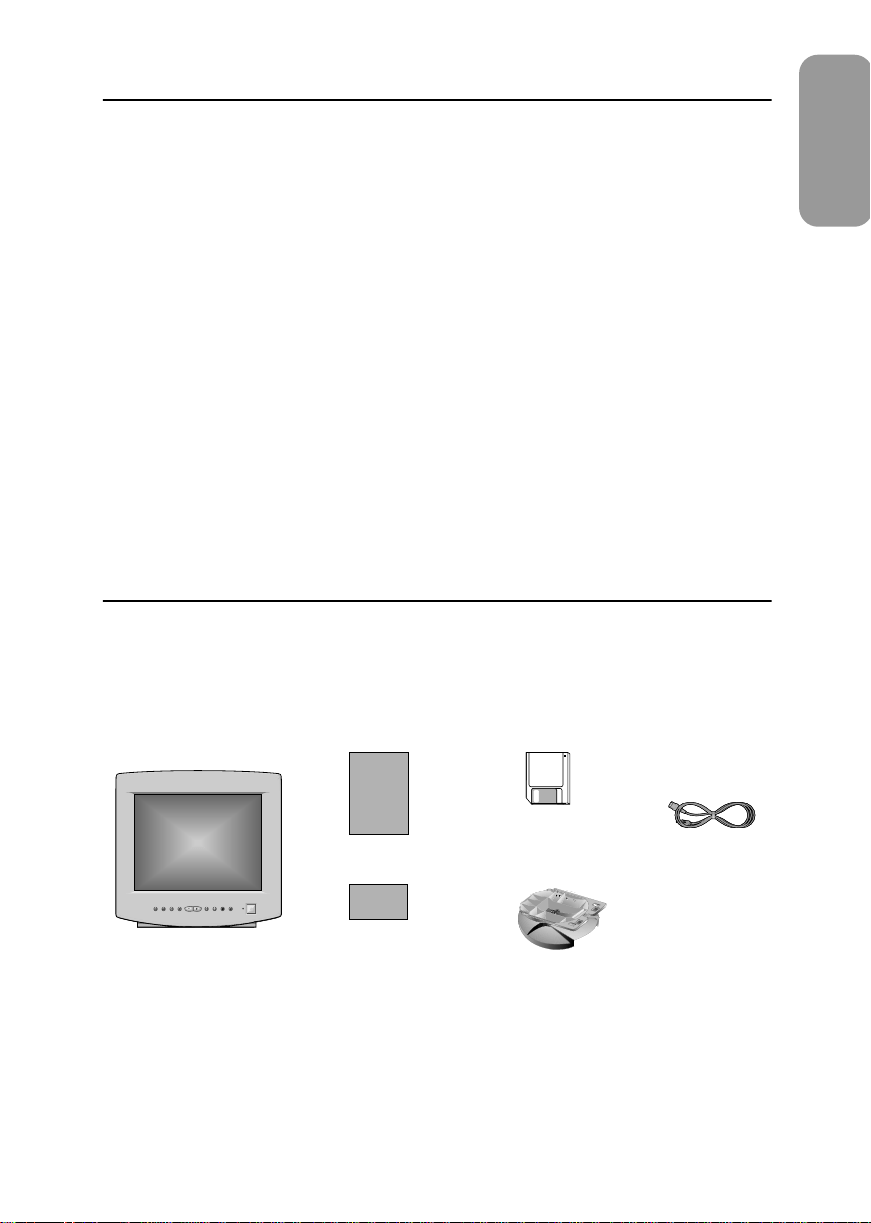
Please make sure the following items are included with your monitor. If any items are missing, contact
your dealer.
Monitor
This manual
Power cord
Warranty card
(not available in all locations)
User’s
Manual
Warranty
Display Driver Diskette
(not available in all
locations)
Stand
Contents
450BEDel1.book Page 1 Tuesday, January 25, 2000 2:39 PM
2
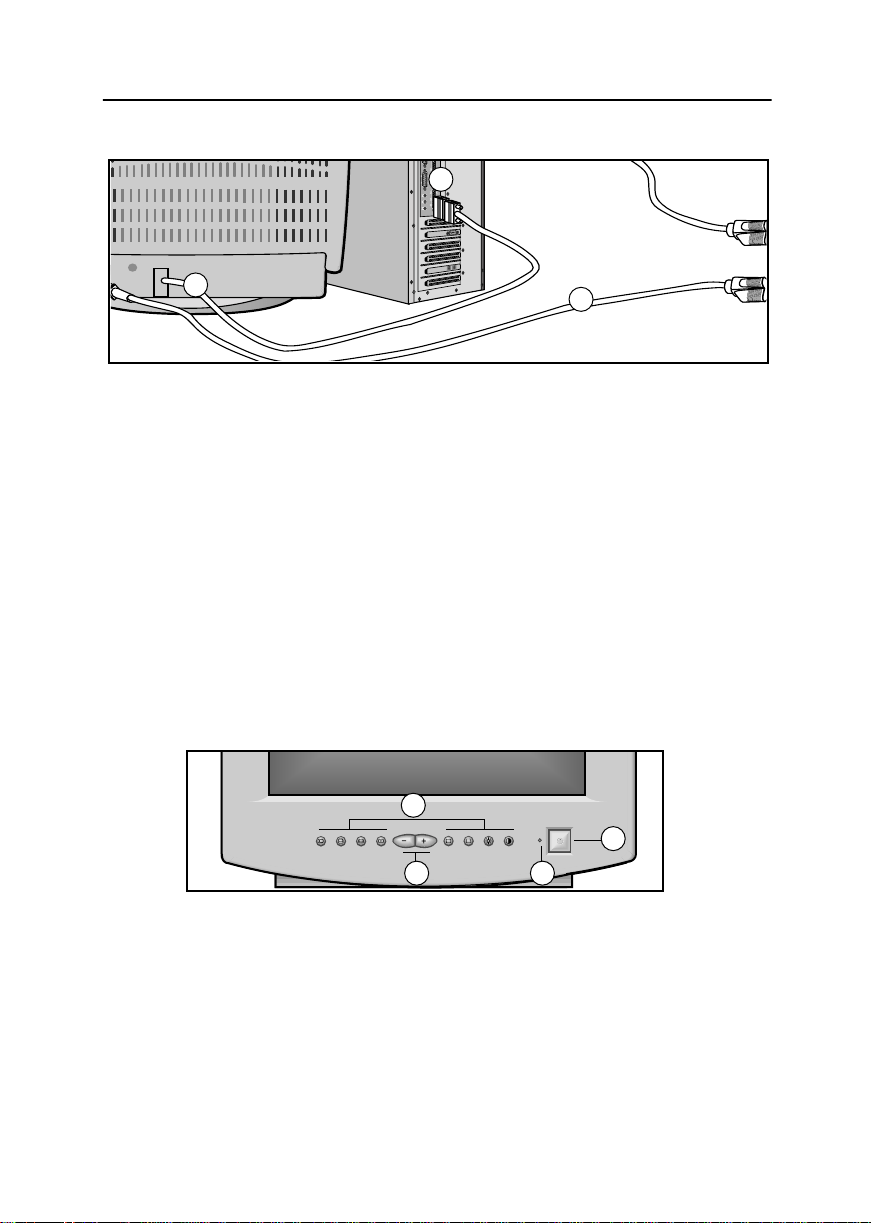
Connecting Your Monitor
1
Turn off your computer and unplug the
power cord.
2
Signal cable
Connect the end of the signal cable to
your computer’s video port. If you are
using a Macintosh computer, connect
the cable to a Macintosh adapter, and
set the pins on your adapter (adapter
not included). A PC-compatible
computer does not need an adapter.
3
Power port
Connect the power cord for your
monitor to the power port on the back
of the monitor.
4
Power cords
Plug the power cord for the monitor
and the power cord for your computer
into a nearby outlet.
5
Turn on your computer and monitor.
If your monitor displays an image,
installation is complete.
6
Install the monitor driver
•
Insert the provided diskette into the
A drive.
•
Double click the “install.exe” file.
The Front Panel
1
Monitor control buttons
All adjustments to the image display
are made using these control buttons,
including control of the screen display
area shape and the display image.
2
Adjustment buttons
The decrease ( – ) button lowers the
value of the selected function. The
increase ( + ) button raises the value of
the selected function.
3
Power indicator
This light glows green during normal
operation. It also blinks when a
function button is pressed, or while a
function setting is being automatically
saved.
4
Power button
Turns the monitor on and off.
2
3
4
4
3
1
2
Operation
450BEDel1.book Page 2 Tuesday, January 25, 2000 2:39 PM
3
EnglishEspañolDeutschItaliano EnglishPortuguese
Operation
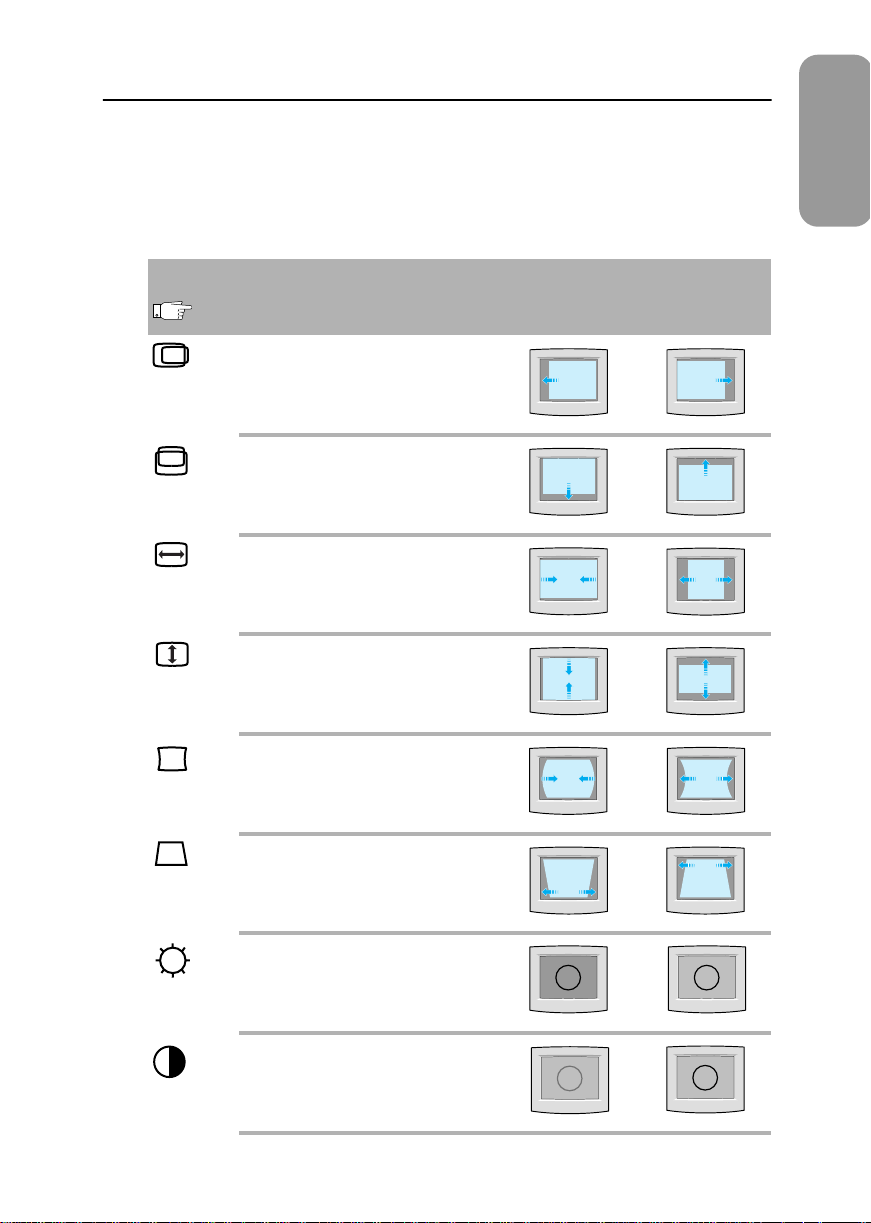
Monitor Control Buttons
1
Press the desired control button once. (Some controls require that two buttons be pressed
simultaneously.) See the following tables for descriptions of button functions.
2
Use the adjustment buttons (+, –) to increase or decrease the adjustment. The power
indicator light blinks rapidly when a maximum setting is reached.
Button
Control Adjustment Effect
Press Once
–
+
Horizontal Position
Horizontal screen position.
– moves screen left
+ moves screen right
Vertical Position
Vertical screen position.
– moves screen down
+ moves screen up
Horizontal Size
Horizontal screen size.
– decreases size of screen image
+ increases size of screen image
Vertical Size
Vertical screen size
– decrease size of screen image
+ increases size of screen image
Pincushion
Straightness of vertical edges.
– curves image inward
+ curves image outward
Trapezoid
Width of top & bottom of screen.
– widens bottom of screen image
+ widens top of screen image
Brightness
Background brightness of screen.
– decreases brightness of screen
+ increases brightness of screen
Contrast
Contrast of screen image.
– decreases contrast of screen image
+ increases contrast of screen image
S
S
S
S
450BEDel1.book Page 3 Tuesday, January 25, 2000 2:39 PM
4
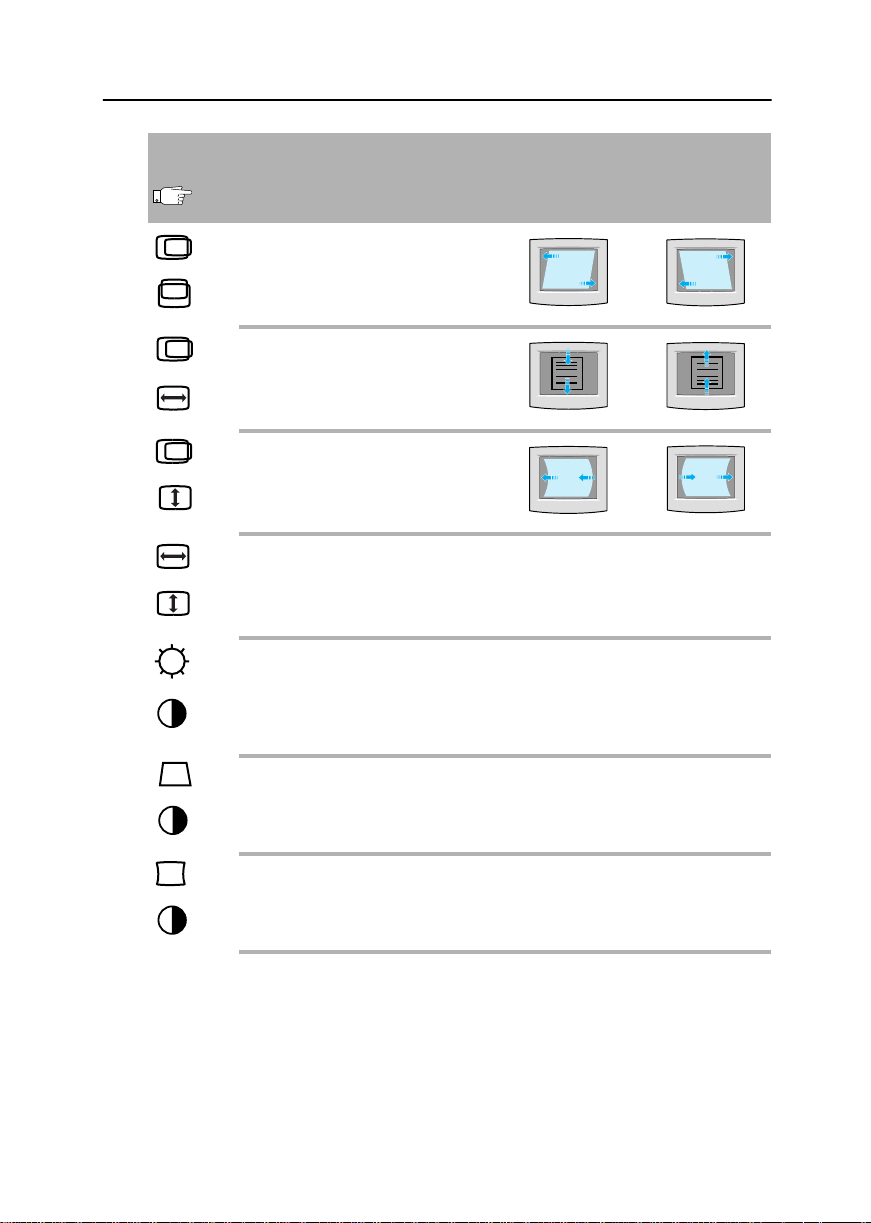
Note:
When you are finished adjusting your monitor using the control buttons, the power indicator light
will blink once as the monitor automatically saves your changes.
Buttons
Control Adjustment Effect
Press both & Hold for 3 seconds
–
+
Parallelogram
Skews screen image.
– skews to left
+ skews to right
V-linearity
Compression of image on screen.
– compresses bottom of screen
+ compresses top of screen
Pinbalance
Curves of vertical lines.
– curves lines to left
+ curves lines to right
V-moiré
Corrects for moiré pattern on screen.
– Vertical moiré correction off
+ Vertical moiré correction on
Degauss
Removes color distortion caused by magnetic fields.
Press brightness and contrast buttons once.
Do not use more than once in 30 minutes.
Recall
Returns monitor controls to original settings.
Press and hold trapezoid and contrast buttons for 3 seconds.
User Delete
Resets data in monitor’s memory.
Press and hold pincushion and contrast buttons for at least 5 seconds.
AND
AND
AND
AND
AND
AND
AND
Operation
450BEDel1.book Page 4 Tuesday, January 25, 2000 2:39 PM
5
EnglishEspañolDeutschItaliano EnglishPortuguese
Before calling for service, check the information in this section to see if you can solve the problem
yourself. If you do need assistance, please call the phone number on the warranty card, the phone
number on the back cover of this manual, or contact your dealer.
There is no screen image.
■
Check to see that both the monitor and the computer are plugged in and turned on (page 2).
Screen image area is lightened but no image appears.
■
Check the signal cable connection between the computer and the monitor (page 2).
The screen image is too light or too dark.
■
Adjust the brightness or contrast settings (page 3).
The screen image is too large or too small.
■
Adjust the size settings (page 3).
The colors are distorted with dark or shadowed areas.
■
Activate the degauss feature (page 4).
The power indicator light blinks every 0.5 or 1 seconds.
■
The monitor is using its power management system (see “PowerSaver” on page 5 ).
There is no screen image and the power indicator light blinks every 0.25 seconds.
■
The input signal frequency is over or under the synchronization range of the monitor, see
“Specifications” on page 6.
You need the monitor driver software.
■
Download the driver from the internet at http://www.samsungelectronics.com/support/
downloads/monitor/index.html
PowerSaver
This monitor has a built-in power management system called PowerSaver. This system saves energy by
switching your monitor into a low-power mode when it has not been used for a certain amount of time.
The monitor automatically returns to normal operation when you move the computer’s mouse or press a
key on the keyboard. For energy conservation, turn your monitor OFF when it is not needed, or when
leaving it unattended for long periods. The PowerSaver system operates with a VESA DPMS compliant
video card installed in your computer. Use a software utility installed on your computer to set up this
feature.
Note:
This monitor is EPA ENERGY STAR
®
compliant and NUTEK compliant when used with a
computer equipped with VESA DPMS functionality.
State
Normal
operation
Power saving function modes EPA/NUTEK
Standby mode
Suspend mode
Position A1
Power-off mode
Position A2
Power Indicator Green Green Blinking
(0.5 sec. interval)
Green Blinking
(0.5 sec. interval)
Green Blinking
(1 sec. interval)
Power Consumption 75W (maximum)
65W (nominal)
50W (nominal) Less than 15W Less than 3W
Troubleshooting
450BEDel1.book Page 5 Tuesday, January 25, 2000 2:39 PM
6
Design and specifications are subject to change without notice.
Display Modes
Specification Models: SyncMaster 450Nb / 450b / 550s
Picture Tube
■
450Nb / 450b :
14” (36 cm), 33.5 cm viewable
■
550s :
15” (38 cm) Full square type (35 cm viewable)
■
90˚ deflection
■
Dot pitch : 0.24 mm (H) / 0.14 mm (V)
■
Silica-coated with anti-electrostatic properties
■
Medium-short persistence phosphor
Synchronization
■
Horizontal:
■
Vertical:
450Nb / 450b:
30 - 55 kHz
450Nb / 450b:
50 - 120 Hz
550s:
30 - 61 kHz
550s:
50 - 120 Hz
Display Colors
■
Unlimited
Maximum Resolution
■
1024 dots
■
768 lines
Active Display
■
Horizontal:
■
Vertical:
450Nb / 450b:
10.0 ± 0.16 in (255 ± 4 mm)
450Nb/ 450b:
7.5 ± 0.16 in (191 ± 4 mm)
550s:
10.5 ± 0.16 in (267 ± 4 mm)
550s:
7.9 ± 0.16 in (200 ± 4 mm)
Input Signal, Terminated
■
Video:
■
Sync.:
Analog 0.7 Vpp positive at 75 ohms
Separate sync, TTL level, positive or negative
Maximum Pixel Clock
■
450Nb /
450b
:
65 MHz
■
550s
:
80 MHz
Power Supply
■
AC 100 - 240 V ± 10%, 60 Hz / 50 Hz ± 3 Hz
Power Consumption
■
75 W maximum (65W Nominal)
Dimensions / Weight
(WxDxH)
■
Unit:
450Nb / 450b :
13.70 x 14.65 x 14.49 in / 23.4 Ibs (348 x 372 x 368 mm /10.6 kg)
550s :
14.25 x 15.12 x 15.12 in / 26.5 Ibs (362 x 384 x 384 mm /12.0 kg)
■
Carton:
450Nb / 450b :
16.61 x 18.11 x 15.35 in / 26.9 Ibs (422 x 460 x 390 mm /12.2 kg)
550s :
17.87 x 19.57 x 17.52 in /31.5 Ibs (454 x 497 x 445 mm /14.3 kg)
Environmental
Considerations
■
Operating Temperature: 32˚F - 104˚F (0˚C - 40˚C)
Humidity:10% - 80%
■
Storage temperature: -4˚F - 113˚F (-20˚C - 45˚C)
Humidity:5% - 95%
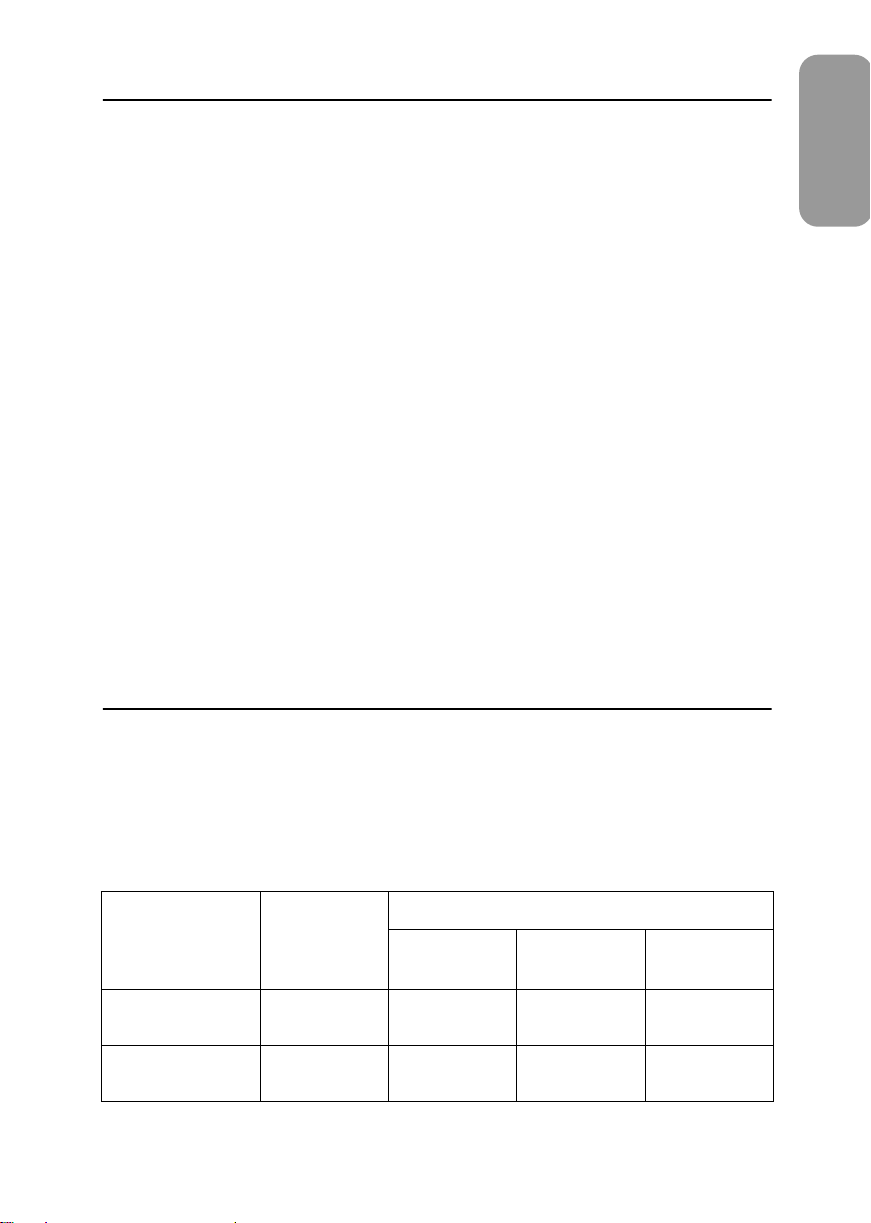
Display Mode
Horizontal
Frequency
(kHz)
Vertical
Frequency
(Hz)
Pixel
Clock
(MHz)
Sync
Polarity
(H/V)
IBM, VGA2, 720 x 400
IBM, VGA2, 640 x 480
VESA, 640 x 480
VESA, 640 x 480
VESA, 800 x 600
VESA, 800 x 600
VESA, 1024 x 768 (
450Nb/450b
)
VESA, 1024 x 768 (
550s
)
31.469
31.469
37.500
43.269
46.875
53.674
48.363
60.023
70.087
59.940
75.000
85.008
75.000
85.061
60.004
75.029
28.322
25.175
31.500
36.000
49.500
56.250
65.000
78.750
–/+
– / –
– / –
– / –
+/+
+/+
– / –
+/+
Specifications
450BEDel1.book Page 6 Tuesday, January 25, 2000 2:39 PM