
GSA-4165B
Super
Multi
DVD
Drive
English Deutsch Fran ais Italiano Espa ol Portugu s
i
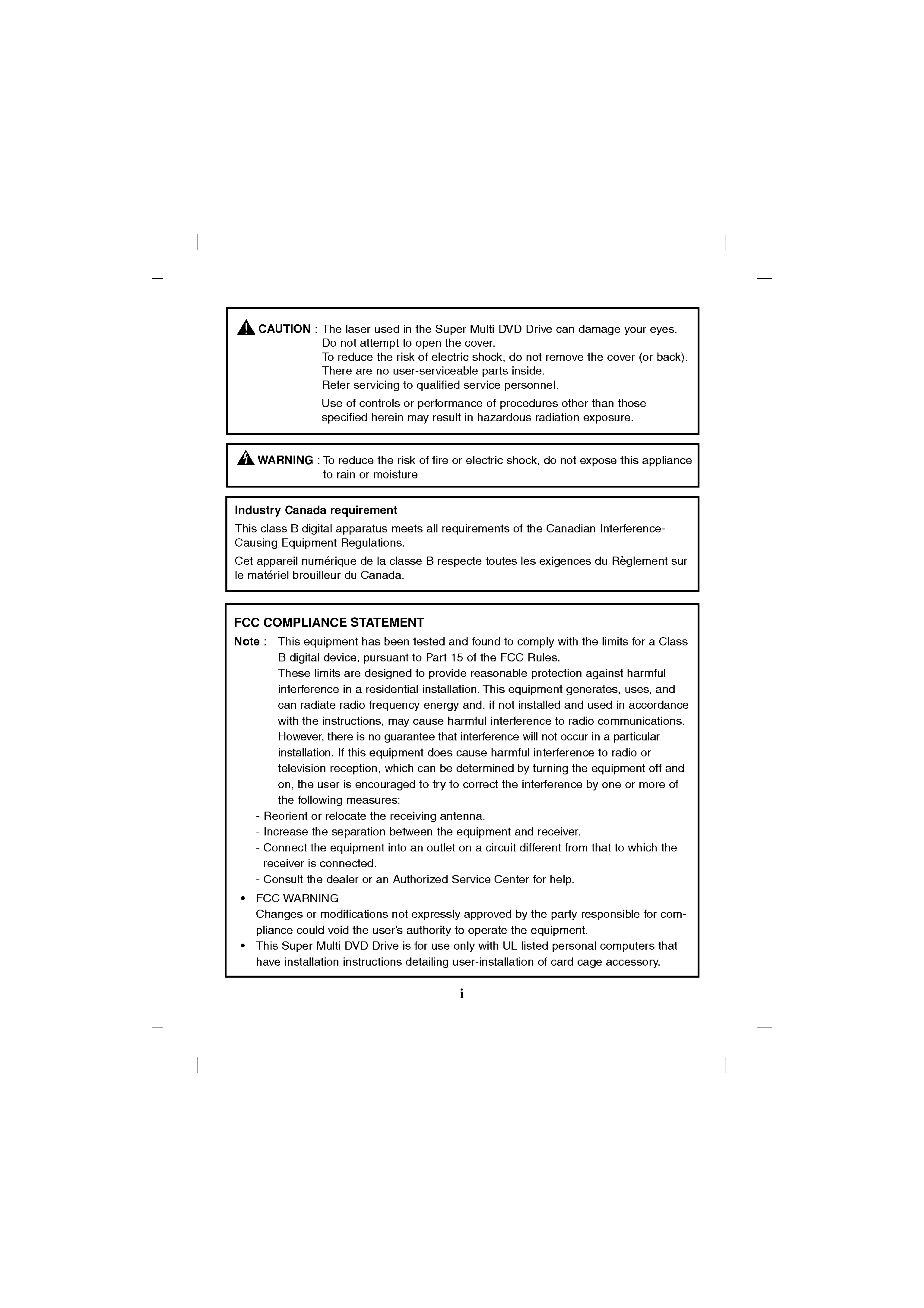
CAUTION
:
The
laser
used
in
the
Super
Multi
DVD
Drive
can
damage
your
eyes.
Do
not
attempt
to
open
the
cover.
To
reduce
the
risk
of
electric
shock,
do
not
remove
the
cover
(or
back).
There
are
no
user-serviceable
parts
inside.
Refer
servicing
to
qualified
service
personnel.
Use
of
controls
or
performance
of
procedures
other
than
those
specified
herein
may
result
in
hazardous
radiation
exposure.
WARNING
:To
reduce
the
risk
of
fire
or
electric
shock,
do
not
expose
this
appliance
to
rain
or
moisture
Industry
Canada
requirement
This
class
B
digital
apparatus
meets
all
requirements
of
the
Canadian
Interference-
Causing
Equipment
Regulations.
Cet
appareil
numerique
de
la
classe
B
respecte
toutes
les
exigences
du
Reglement
sur
le
materiel
brouilleur
du
Canada.
FCC
COMPLIANCE
STATEMENT
Note
:
This
equipment
has
been
tested
and
found
to
comply
with
the
limits
for
a
Class
B
digital
device,
pursuant
to
Part
15
of
the
FCC
Rules.
These
limits
are
designed
to
provide
reasonable
protection
against
harmful
interference
in
a
residential
installation.
This
equipment
generates,
uses,
and
can
radiate
radio
frequency
energy
and,
if
not
installed
and
used
in
accordance
with
the
instructions,
may
cause
harmful
interference
to
radio
communications.
However,
there
is
no
guarantee
that
interference
will
not
occur
in
a
particular
installation.
If
this
equipment
does
cause
harmful
interference
to
radio
or
television
reception,
which
can
be
determined
by
turning
the
equipment
off
and
on,
the
user
is
encouraged
to
try
to
correct
the
interference
by
one
or
more
of
the
following
measures:
-
Reorient
or
relocate
the
receiving
antenna.
-
Increase
the
separation
between
the
equipment
and
receiver.
-
Connect
the
equipment
into
an
outlet
on a
circuit
different
from
that
to
which
the
receiver
is
connected.
-
Consult
the
dealer
or
an
Authorized
Service
Center
for
help.
?
FCC
WARNING
Changes
or
modifications
not
expressly
approved
by
the
party
responsible
for
com-
pliance
could
void
the
user's
authority
to
operate
the
equipment.
?
This
Super
Multi
DVD
Drive
is
for
use
only
with
UL
listed
personal
computers
that
have
installation
instructions
detailing
user-installation
of
card
cage
accessory.
ii
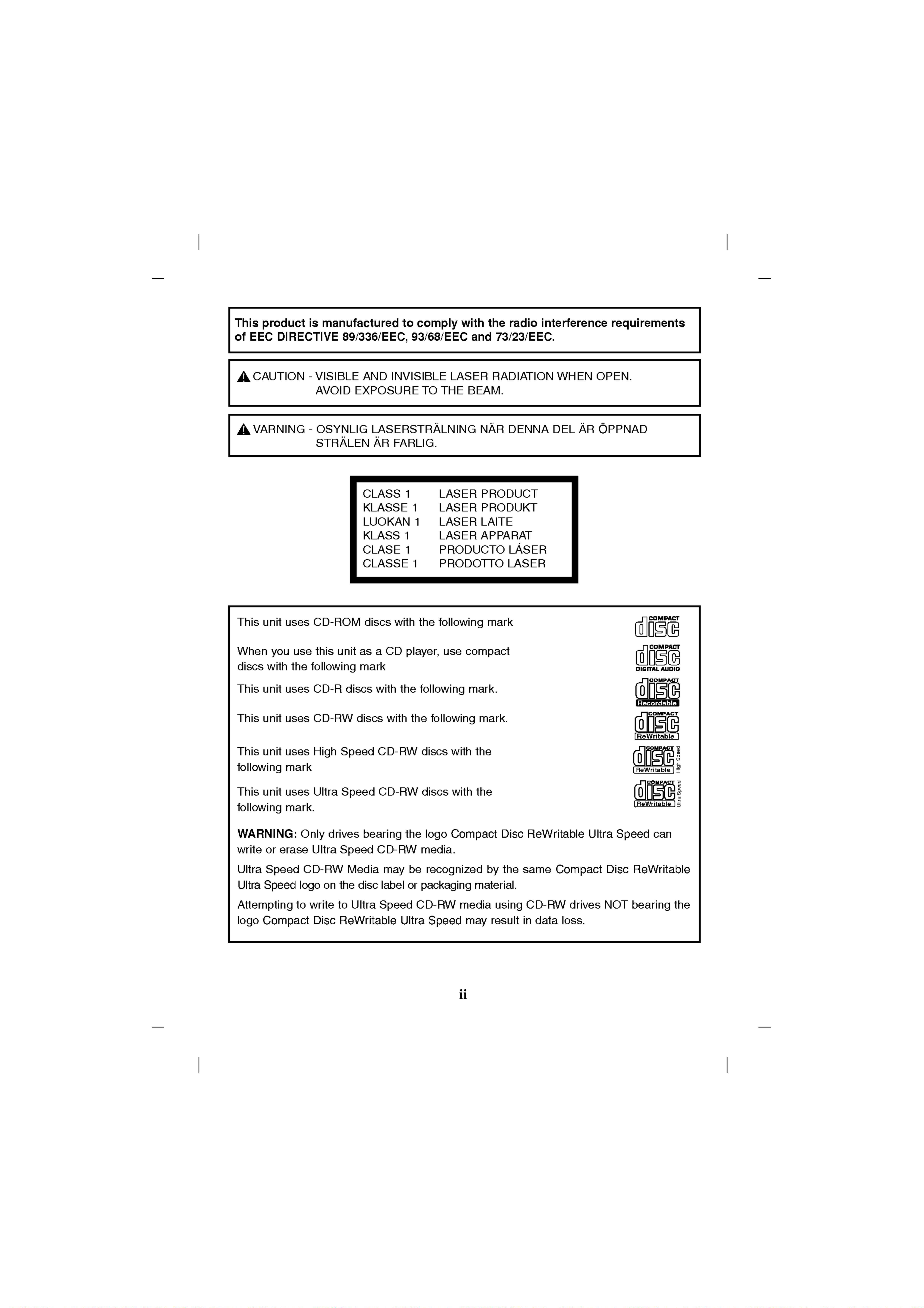
This
unit
uses
CD-ROM
discs
with
the
following
mark
When
you
use
this unit
as
a
CD
player,
use
compact
discs
with
the
following
mark
This
unit
uses
CD-R
discs
with
the
following
mark.
This
unit
uses
CD-RW
discs
with
the
following
mark.
This
unit
uses
High
Speed
CD-RW
discs
with
the
following
mark
This
unit
uses
Ultra
Speed
CD-RW
discs
with
the
following
mark.
WARNING:
Only
drives
bearing
the
logo
Compact
Disc
ReWritable
Ultra
Speed
can
write
or
erase
Ultra
Speed
CD-RW
media.
Ultra
Speed
CD-RW
Media
may
be
recognized
by
the
same
Compact
Disc
ReWritable
Ultra
Speed
logo
on
the
disc
label
or
packaging
material.
Attempting
to
write
to
Ultra
Speed
CD-RW
media
using
CD-RW
drives
NOT
bearing
the
logo
Compact
Disc
ReWritable
Ultra
Speed
may
result
in
data
loss.
ReWritable
ReWritable
High Speed
ReWritable
Ultra Speed
This
product
is
manufactured
to
comply
with the
radio
interference
requirements
of
EEC
DIRECTIVE
89/336/EEC,
93/68/EEC
and
73/23/EEC.
CAUTION
-
VISIBLE
AND
INVISIBLE
LASER
RADIATION
WHEN
OPEN.
AVOID
EXPOSURE
TO
THE
BEAM.
VARNING
-
OSYNLIG
LASERSTRALNING
NAR
DENNA
DEL
AR
OPPNAD
STRALEN
AR
FARLIG.
CLASS
1
LASER
PRODUCT
KLASSE
1
LASER
PRODUKT
LUOKAN
1
LASER
LAITE
KLASS
1
LASER
APPARAT
CLASE
1
PRODUCTO
LASER
CLASSE
1
PRODOTTO
LASER

Contents
Features
Features...........................................................1
ImportantPrecautions................................................2
SystemEnvironment.................................................2
LocationandFunctionofControls......................................3
InstallingtheDrive..................................................4
DeviceDrivers......................................................7
HowtoUsetheDiscs................................................8
Troubleshooting.....................................................9
Specifications.....................................................10
?
Enhanced-IDE
(ATAPI)
interface.
?
Power
tray
loading
and
ejection
of
disc.
(The
disc
can
also
be
ejected
manually.)
?
Combination
CD-R/RW,
DVD-R/RW,
DVD-R
DL,
DVD+R/RW,
DVD+R
DL,
DVD-RAM
Drive
functions
into
one
drive.
?
Supports
Region
playback
control
Phase
II.
?
Supports
Windows
2000
Professional,
ME,
XP
Home
Edition,
XP
Professional.
?
Automatic
buffer
underrun
error
prevention technology.
Package
Items
Microsoft
and
Windows
are
trademarks
registered
in
the
United States
and
other
countries
by
the
Microsoft
Corporation.
The
company
names
and
product
names
written
in
this
manual
are
trademarks
or
registered
trademarks
of
the
respective
companies.
Item
Quantity
-
Internal
Super
Multi
DVD
Drive
1
-
Recording
&
Authoring
Software
[Nero,
InCD,
Power
Producer
Gold,
MPEG-2
Software
(PowerDVD)]
1
-
Manual
for
Super
Multi
DVD
Drive
1

Follow
these
precautions
when
handling
the
drive
or
discs.
?
Please
take
notice
that
the
manufacturer
of
this
equipment
does
not
offer
any
warranty
against
data
loss
due
to
inappropriate
installation
or
handling,
or
direct
or
indirect
damages.
?
Please
take
notice
that
the
manufacturer
will
bear
no
responsibility
for
direct
or
indirect
damages
caused
by
the
use
of
this
product
or
its
malfunction.
?
Please
take
notice
that
the
manufacturer
will
bear
no
responsibility
for
damage
to
data
caused
by
this
product.
?
Please
backup
(copy)
all
impor
tant
data
as a
protection
against
data
loss.
?
Avoid
placing
the
drive
in
a
location
subject
to:
-
high
humidity,
high
temperature,
excessive
dust,
mechanical
vibration,
direct
sunlight
We
recommend
using
the
drive
in
a
horizontal
or
vertical
position.
Do
not
use
it
in
tilted
position.
?
Don't
move
the
drive
suddenly
from
a
cold
place
to
a
warm
one
or
raise
the
room
temperature
suddenly.
Condensation
may
occur,
causing
abnormal
operation.
?
Make
sure
to
remove
the
disc
before
moving
the
drive.
The
disc
may
become
damaged,
causing
data
loss.
?
Be
careful
to
prevent
foreign
objects,
such
as
liquids
or
metal,
from
entering
the
drive.
In
case
a
foreign
object
enters
the
drive,
please
consult the
dealer
where
the
drive
was
purchased.
?
Don't
interrupt
the
electric
power
while
the
drive
is
operating.
?
When
connecting
two
IDE
devices
to
the
Primary
or
Secondary
connectors,
make
sure
that
the
two
devices
are
not
configured
as
both
Master,
or
both
Slave.
If
they
are
both
set
the
same,
Windows
may
fail
to
run
or
recognize
the
drives.
?
The
total
length
of
the
IDE
cable
should
be
no
more
than
18
inches
(about
45
cm).
Important
Precautions
System
Environment
Computer
This
unit
can
be
operated
in
the
system
environment
explained
here.
Pentium
4
2.4GHz
or
Higher
with
IBM
PC
or
Compatible.
512MB
or
greater.
128MB
or
greater.
20GB
or
more
free
space.
(The
free
space
needed
for
writing
depends
on
the
quantity
of
data.)
Enhanced-IDE
interface
(as
Primary
Slave,
Secondary
Master
or
Slave)
5.25-inch
half-height
bay
required
+5V/+12V
power
socket
required
Windows
2000
Professional/ME/XP(Home
Edition/
Professional),
Direct
X
9.0
or
Higher
is
required
CD-R
:
LG,
Mitsubishi
Kagaku
Media,
Verbatim,
Taiyo
Yuden,
TDK
or
SKC
discs
are
recommended.
CD-RW
:
LG,
Ricoh,
Mitsubishi
Kagaku
Media,
Verbatim
discs
are
recommended.
DVD-R
:
Maxell,
Mitsubishi
Kagaku
Media,
Taiyo
Yuden
are
recommended.
DVD-RW
:JVC,
Mitsubishi
Kagaku
Media
are
recommended.
DVD+R
:
Mitsubishi
Kagaku
Media,
Verbatim
are
recommended.
DVD+RW
:
Mitsubishi
Kagaku
Media,
Verbatim
are
recommended.
DVD-RAM
:
Maxell,
Panasonic
are
recommended.
DVD±R
DL
:
Mitsubishi
Kagaku
Media,
Verbatim
is
recommended.
System
requirements
VGA
Card
Memory
Hard
disk
Interface
Drive
bay
Powe
r
Software
Required
OS
CD-R,
CD-RW,
DVD-R,
DVD-RW,
DVD+R,
DVD+RW,
DVD-RAM,
DVD±R
DL
discs
CPU
Memory
*
Compatibility
problem
in
write/read
function
may
occur
with
media
depending
on
the
media
manufacturing
quality.

3
Occasionally
CD-R
and
CD-RW
discs
written
by
a
CD-R/RW
drive
cannot
be
read
by
other
CD
drives*.
These
unreadable
discs
may
need
to
be
read
using
the
CD-R/RW
drive
they
were
created
with
*
The
disc
written
using
the
CD-R/RW
drive
might
not
be
readable
by
CD-ROMs
other
than
Multi-read
compatible
(UDF
compatible)
CD-ROMs
Multiread
compatible
(UDF
compatible)
CD-ROMs
are:
1.
CD-ROMs
that
can
read
low
reflectance.
2.
CD-ROMs
that
support
Packet
Write.
Please
note:
Certain
software
(i.e.
particularly
those
including
Video
playback)
may
require
a
considerably
increased
specification
PC
to
give
acceptable
results.
While
this
Super
Multi
DVD
Drive
can
read
DVD-video
discs,
decoding
them
to
display
on
your
pc's
monitor
requires
separate
MPEG
decoding
that
is
done
by
separate
hardware
(either
an
MPEG
decoder
card
or
MPEG
decoding
done
by
your
video
card),
or
separate
software
that
you
install
to
do
MPEG
decoding.
For
further
details,
refer
to
the
documentation
that
comes
with
MPEG
software.
Software
Install
the
supplied
CD/DVD
Recording
Authoring
Software
before
using
this
unit.
*
Please
uninstall
any
previous
CD
burning
software
you
may
have
loaded
on
your
PC
in
order
to
prevent
possible
compatibility
issues.
Once
you
have
installed
the
supplied
software,
you
may
(if
you
wish)
begin
to
reinstall
previous
software,
taking
note
for
errors.
Location
and
Function
of
Controls
Front
Panel
1.
Digital
Audio
Output
Connector
This
connector
is
not
supported.
2.
Analog
Audio
Output
Connector
3.
Jumper
Connector
This
jumper
determines
whether
the
drive
is
config-
ured
as
a
master
or
slave.
Changing
the
master-slave
configuration
takes
effect
after
power-on
reset.
4.
IDE
Interface
Connector
Connect
to
the
IDE
(Integrated
Device
Electronics)
Interface
using
a
40-pin
flat
IDE
cable.
NOTE
:
Do
not
connect
or
disconnect
the
cable
when
the
power
is
on,
as
this
could
cause
a
short
circuit
and
damage
the
system.
Always
turn
the
power
OFF
when
connecting
or
disconnecting
this
cable.
5.
Power
Connector
Rear
Panel
AUDIO
OUT
SELECT
IDE
INT
ERFACE
CONNECTOR
INPUT
DC
39
40
12
5V
GND
12V
RGNDL
C.SEL
SLAVE
MASTER
123
4 5
1.
Disc
Tray
2.
Emergency
Eject
Hole
3.
Stop/Eject
Button
4.
Drive
activity
indicators
The
LED
used
to
indicate
the
operation
of
DVD
Writable/CD-RW
Drive.
1
23
4

4
Before
installing
the
drive,
please
note
the
following
points.
You
will
need
the
following:
?
A
screw
driver
of
a
suitable
size
to
fit
the
securing
screws
for
the
drive
unit.
?
The
manual
for
the
computer,
so
you
can
find
the
mounting
positions
for
the
IDE
controller
cable.
Tu
rn
off
all
peripheral
appliances
of
the
computer
and
the
computer
itself,
and
dis-
connect
their
power
cords
from
the
wall
sockets.
Discharge
any
static
electricity
on
your
person
by
touching
the
computer
covers,
etc.
Removing
the
Computer
Cover
Make
sure
all
peripheral
devices
of
the
computer
and
the
computer
itself
are
turned
off,
and
then
remove
the
cover.
Refer
to
the
manual
for
the
computer
for
details
about
removing
the
cover.
NOTE
:
There
may
be
sharp
edges
inside
the
computer
so
take
care
to
avoid
injury.
Mounting
the
Drive
1.
Remove
the
51/4′′
drive
bay
panel
from
the
computer.
Refer
to
the
manual
for
the
computer
for
details.
2.
Insert
the
drive
unit
into
the
bay.
Do
not
apply
excessive
pressure
to
the
cables
inside
the
computer.
3.
Secure
the
drive
with
the
screws.
If
there
is
not
enough
space
behind
the
drive,
con-
nect
the
IDE
and
other
cables
before
securing
the
drive.
NOTE
:
This
is
a
general
installation
guide.
If
your
PC
hardware
appears
different,
please
consult
your
hardware
manual
for
installing
peripheral
devices.
Jumper
Setup
Before
installation,
set
the
jumper
connector
on
the
rear
panel.
The
drive
can
be
connected
as
the
Master
or
Slave
on
an
EIDE
(ATAPI)
interface.
When
several
(up
to
four)
EIDE
devices
are
connected,
each
must
be
set
in
a
unique
way.
Specific
knowledge
of
hardware
and
software
is
necessary
to
install
the
drive.
Installing
the
Drive
RE
ADWR
TE
RE
ADWR
TE
NOTE
:
If
two
peripheral
devices
with
the
same
settings
are
both
connected
to
the
Primary
or
to
the
Secondary
EIDE
bus,
the
host
computer
may
fail
to
run
or
may
malfunction.
Careful
attention
is
necessary.
AUDIO
OUT
SELECT
IDE
INTERFACE
CONNECTOR
INPUT
DC
39
40
1
2
5V
GND
12V
RGNDL
CSEL
SLAVE
MASTER
MA:
Master
SL:
Slave
CS:
Cable
Select
(CSEL)

5
NOTE
:
Only
one
jumper
should
be
installed
on
the
jumper
connector.
If
more
than
one
jumper
is
installed,
the
drive
may
malfunction
or
be
damaged.
Master/Slave
setting
is
determined
by
jumper
installation
on
the
Jumper
Connector.
The
following
table
shows
the
possible
jumper
settings.
If
you
use
CSEL
setting,
the
MASTER/SLAVE
setting
will
be
made
automatically,
depending
on
the
hardware
configuration.
For
more
details
refer
to
the
manual
of
your
computer.
PC
Connection
The
Super
Multi
DVD
Drive
connects
to
the
motherboard
of
the host
computer
using
an
IDE
interface
cable.
You
may
connect
the
Super
Multi
DVD
Drive
as
a
Slave
or
Master
device,
depending
on
your
computer.
To
Install
as
a
Master
Drive
To
install
the
drive
as
a
Master,
the
jumper
can
be
left
as
supplied
from
the
factory.
NOTE
:
A
hard
disk
is
normally
installed
as
the
Primary
Master
on
the
EIDE
(ATAPI)
interface.
Other
EIDE
peripheral
devices
such
as
hard
drives
and
Super
Multi
DVD
Drives
are
then
set
differently.
Name
Function
Drive
set
as
Master
Drive
set
as
Slave
Drive
mode
set
by
CSEL
on
the host
IDE
interface
MA
(Master)
SL
(Slave)
CS
(Cable
Select)
C
SS
L
M
A
Primary
connector
Secondary
connector
Master
drive
(Super
Multi
DVD
Drive)
(Jumper
left
as
Master)
Motherboard
-OR-
DIGTAL
ANALOG
NTERFACE
POWER
DR
CSM
SLA
GL
G9
1 +5
+2GND
0
2
AUDIO
AUDO
Master
drive
(Booting
hard
disk)
Primary
connector
Secondary
connector
Master
drive
(Super
Multi
DVD
Drive)
(Jumper
left
as
Master)
Slave
drive
(Other
IDE
drive)
DGITA
ANALOG
NTERFACE
POWER
DR
CSM
SLA
GL
39
+5
+12
GND
40
2
AUDIO
AUDO
DGTAL
ANALOG
E
POWER
D
R
CS
SL
G
+5
+
12
GND
2
AUDO
AUDIO
Master
drive
(Booting
hard
disk)

6
To
Install
as
a
Slave
Drive
To
install
the
drive
as a
Slave,
change
the
jumper
setting
on
the
rear
panel
to
SL.
Connecting
the
Power
Connector
Connect
the
power
cable
from
the
computer's
power
supply
to
the
socket
on
the
drive
unit,
fitting
the
connector
firmly
into
the
power
in
connector.
If
there
is
no
spare
power
cable
available
in
the
computer,
you
will
have
to
purchase
a
splitter
cable
of
a
suitable
type.
Connecting
the
Interface
Connector
Connect
the
40-pin
IDE
cable
to
the
back
of
the
Super
Multi
DVD
Drive,
making
sure
the
coloured
(red)
stripe
on
the
IDE
cable
is
connected
to
pin
1
on
the
Super
Multi
DVD
drive
(Pin
1
is
closest
to
the
Power
Connector).
Slave
drive
(Super
Multi
DVD
Drive)
(Jumper
set
to
Slave)
Master
drive
(Booting
hard
disk)
-OR-
DGITA
ANALOG
E
POWER
D
C
S
GL
G
1 +5
+12
GD
2
AUDIO
AUDO
Primary
connector
Secondary
connector
Master
drive
(Other
IDE
drive)
Slave
drive
(Super
Multi
DVD
Drive)
(Jumper
set
to
Slave)
DIGTA
ANALOG
NTERFACE
POWER
DR
CSM
SLA
GL
G
9
1 +5
+1
2
GND
0
2
AUDIO
AUDO
DGITAL
ANALOG
POWER
D
R
C
SL
GL
G
1 +5
+12GND
2
AUDO
AUDIO
Master
drive
(Booting
hard
disk)
AUDIO
OUT
SELECT
IDE
INTERFACE
CONNECTOR
INPUT
DC
39
40
12
5V
GND
12V
RGNDL
C.SEL
SLAVE
MASTER
5V
GND
12V
CD
INPUT
Beveled
edge
up
NOTE
:
Improper
connection
may
damage
the
drive
and
void
the
warranty.
Generally,
the
power
connector
can
only
fit
one
way.
AUDIO
OUT
SELECT
IDE
INTERFACE
CONNECTO
R
INPUT
DC
39
40
1
2
5V
GND
12V
R
GND
L
C.SEL
SLAVE
MASTER
Pin1
Red-edge
NOTE
:
Generally,
the
IDE
connector
is
keyed
and
will
only
fit
one
way.

7
Device
Drivers
Connecting
the
Sound
Card
If
the
computer
is
using
a
sound
card,
the
drive
is
connected
to
the
sound
card
with
an
audio
cable.
The
supplied
analog
audio
cable
fits
most
sound
cards
or
one
can
be
purchased
at
a
local
computer
store.
When
using
Windows
2000
Professional/Me/XP
Home
Edition/XP
Professional,
no
special
device
driver
is
required.
Your
system,
upon
Power
On
and
bootup
after
installing
and
connecting
the
new
Super
Multi
DVD
Drive,
will
recognize
and
load
native
software
drivers
automatically.
Please
consult
the
following
internet
sites:
http://www.lgservice.com
(then
choose
your
country
from
the
list)
For
Windows
2000/ME/XP
Users
In
order
to
ensure
normal
drive
operation,
please
check
the
following:
?
The
drive
is
displayed
in
Windows
ME
:
[Control
Panel]-[System]-[Device
Manager]-[CD-ROM]
Windows
2000/XP
:
[Control
Panel]-[System]-[Hardware]-[Device
Manager]-
[DVD/CD-ROM-drives]
?
32-bit
is
displayed
in
[Control
Panel]-[System]-[Performance]
If
the
drive
is
not
recognized
by
your
computer,
please
check
the
following
items.
?
If
an
indicator
is
displayed
on
the
IDE
controller
in
[Control
Panel]-[System]-
[Device
Manager]-[Hard
Disk
Controller],
you
will
need
to
contact
your
PC's
manufacturer
or
the
motherboard's
manufacturer
and
get
the
appropriate
IDE
controller
driver.
Run
Add
New
Hardware
in
Control
Panel
to
let
PC
search
again
for
new
device.
Replacing
the
Computer
Cover
When
the
installation
of
the
drive
unit
is
complete,
replace
the
computer
cover
Refer
to
the
manual
for
the
sound
card
for
detailed
information
regarding
this
connection.
RGNDL
C.SEL
SLAVE
MASTER
39
40
5V
GND
12V
AUDIOOUT
SELECT
IDE
INTERFACE
CONNECTOR
CD
INPUT
12
L
AUDIO
OUT
SELECT
IDE
IN
39
40
R
GND
L
C.SEL
SLAVE
MASTER
marking
L-R
Sound
card

8
How
to
Use
the
Discs
When
using
CD-ROM
discs,
CD-R
discs,
DVD
discs
or
CD-RW
discs,
don't
attach
any
stickers
or
labels
to
the
discs.
It
could
cause
read
and
write
errors,
but
data
on
the
disc
may
be
lost
due
to
damage
to
the
disc
itself.
DO
NOT
use
non-standard
discs.
NON-standard
discs
may
not
play
or
store
data
properly.
The
Discs
in
this unit
operate
at
a
very
high
speed!
DO
NOT
use
damaged,
cracked
or
warped
discs.
The
drive's
optical
unit
may
be
damaged
if
they
break.
Emergency
Eject
This
drive
has
a
feature
that
allows the
CD
to
be
ejected
manually
if
this
becomes
necessary
such
as
failure
of
the
drive
or
a
power
outage.
NOTE:
Don't
use
this
feature
except
in
an
emergency.
1)
Turn
the
power
to
OFF.
2)
Poke
a
fine-tipped
object
(such
as
a
straightened
heavy
duty
paper
clip)
into
the
small hole
above
the
eject
button.
The
front
door
will
pop
open
and
the
disk
tray
will
come
partway
out.
3)
Pull
the
front
door
to
open
it
all
the
way,
then
grip
the
disc
tray
between
thumb
and
forefinger
and
gently
pull
it
straight
out.
*
If
you
cannot
get
a
good
grip
on
the
disc
tray
with
your
fingers,
use
a
steel
binder
clip
or
spring
clamp
to
pull
it
out.
NOTE:
This
feature
is
a
last
measure
to
be
used
only
in
an
emergency.
Using
it
excessively
will
cause
malfunction.

Before
Requesting
Service
Before
calling
for
service,
check
this
list.
?
The
drive
doesn't
have
power.
?
Is
the
power
supply
cable
from
the host
computer
plugged
in?
?
Is
the
Power
Connector
to
the
drive
securely
attached?
?
The
system
doesn't
start.
?
Are
the
Primary
and
Secondary
connections
and
the
Master
and
Slave
settings
correct?
?
Is
the
total
length
of
the
IDE
cable
18
inches
or
less?
?
Is
each
connector
completely
attached?
Other
connections
may
have
been
knocked
lose
while
installing
the
drive.
?
Cannot
Read
or
Write
Discs.
?
Is
the
condition
of
everything
else
in
the
system
(CPU,
hard
disc,
and
others)
as
it
should
be?
(See
system
environment
page
2.)
?
Does
the
CD-R,
DVD
or
CD-RW
disc
have
dirt
or
scratches?
?
Did
a
screen
saver
or
other
application
operate
while
writing
to
the disc?
?
Is
there
enough
free
space
on
the
CD-R/RW,
DVD-R/RW,
DVD+R/RW
and
DVD-RAM
disc?
?
Does
writing
fail
even
using
the
simulation
test?
?
Is
the
disc
loaded
in
the
drive
with
the
read/write
surface
facing
the
right
direction?
7(label
up)
?
Is
the
drive
installed
in
the
correct
orientation?
?Was
the
drive
or
disc
moved
from
a
low
temperature
environment
to
a
high
tempera-
ture
environment?
(There
is
a
possibility
of
condensation
on
the
lens
in
the
drive
or
on
the
surface
of
the
disc.)
When
you
call
for
service,
be
prepared
to
give
as
much
information
as
possible
of
your
system,
environment,
and
the
specific
problem.
(What
happened?
When?
How
long?
What
was
going
on?
Were
there
any
error
messages
displayed?
etc.)
Please
Note:
Since
this
product
supports
Region
Playback
Control
Phase
II,
a
certain
MPEG
decoder
card
or
Software
without
regional
code
setting
may
cause
this
drive
not
to
read
DVD-ROM
discs.
This
Drive
enables
you
to
change
the
regional
code
up
to
5
times.
Troubleshooting

10
Specifications
The
drive's
appearance
and
specifications
may
change
without
prior
notice.
CD/DVD/CD-RW
DVD-ROM(Single/Dual),
DVD-RW,
DVD-R,
DVD-R
Dual
layer,
DVD+RW,
DVD+R,
DVD+R
Double
layer,
DVD-
RAM,
CD-Digital
Audio
&
CD-Extra,
CD-Plus,
CD-ROM,
CD-ROM
XA-Ready,
CD-I
FMV,
CD-TEXT,
CD-Bridge,
CD-R,
CD-RW,
Photo-CD
(Single
&
Multi-Session),
Video
CD,
DVD-VIDEO
12cm/
8cm
(8cm
disc
can
be
used
only
with
drive
placed
horizontally.)
E-IDE/ATAPI
Write
:
(CD-R)
:4X,
8X,
16X, 24X,
32X,
40X,
48X
(CD-RW)
:
4X,
10X,
16X,
24X,
32X
(DVD-R)
:2X,
4X, 8X,
16X
(DVD-RW)
:
1X,
2X, 4X,
6X
(DVD+R)
:
2.4X,
4X, 8X,
12X,
16X
(DVD+RW)
:
2.4X,
4X,
8X
(DVD-RAM):
2X, 3X,
5X(Ver.2.2)
(DVD+R
DL):
2.4X,
4X,
6X
(DVD-R
DL):
2X,
4X
Horizontal/Vertical
CD-ROM
:
7200
Kbytes/s
(48X
max)
DVD-ROM
:
22160
Kbytes/s
(16X
max)
16.6
Mbytes/s (PIO
Mode
4),
(MULTI-DMA
Mode
2)
33.3
Mbytes/s
(Ultra-DMA
Mode
2)
CD-ROM:
125msec
(Typical)
DVD-ROM
:
145msec
(Typical)
DVD-RAM
:
175msec
(Typical)
2
Mbytes
100000
Power
On
Hours
(Duty
Cycle
10%)
0.7
Vrms
at
10
kohm(Typical)
Temperature:5°C
to
45
°C
Humidity:
15%
to
85%
R.H.
Temperature:
-30
°C
to
60
°C
Humidity:
10%
to
90%
R.H.
5.75"x1.63"x7.27"
(146
x
41.3
x
184.6
mm)-without
front
bezel
Less
than
1.98lbs.(0.9Kg)
DC
5V,
DC
12V
Items
General
Supported
Discs
Disc
Diameter
Host
Interface
Read/Write
Speed
Mounting
direction
Performance
Data
transfer
rate
*Sustained
*Burst(ATAPI)
Average
Access
Time
(1/3
Stroke)
Buffer
capacity
MTBF
Audio
Output
Line
Output
Environmental
When
operating
When
not
operating
Dimensions Dimensions
&
Mass
(WxHxD)
Weight
Electrical
Power
Level
Read
:
(CD-ROM/R)
:
48X
max
(CD-RW)
:
40X
max
(CD-DA(DAE))
:
40X
max
(8cm
CD)
:
16X
max
(DVD-ROM)(Single/Dual)
:16X/12X
max
(DVD+/-RW)
:
8X
max
(DVD+/-R)
:
10X
max
(DVD-VIDEO)
:
8X
max
(DVD-RAM)
:
2X/3X/5X
max
(Ver.2.2)
(DVD±R
DL):
8X
max

Caution!
The
disc
rotates
at
high
speed
in
the
drive
unit.
Use
of
worn,
damaged,
or
non-standard
CD-ROM
discs
can
adversely
affect
the
drive
and
cause
the
disc
to
shatter
or
crush
while
in
use.
Disc
crush
can
only
occur
when
you
use
a
damaged
CD-ROM
disc
in
the
drive.
It
is
an
extremely
rare
occurrence,
but
there
are
steps
which
can
be
taken
to
prevent
it.
Always
check
your
discs
before
inserting
them
into
the
drive.
1.
Take
care
not
to
use
worn,
cracked,
damaged,
warped
or
poor
quality
CD-ROMs,
as
this
may
cause
damage
to
your
drive.
2.
Check
the
clear
plastic
on
the
center
of
the
disc,
cracks
here
are
the
main
cause
of
disc
crush.
3.
Do
not
play
CD-ROMs
which
are
a
non-standard
(I.e.
non-circular)shape,
such
as
heart
shaped
discs,
or
discs
in
the
shape
of
a
business
card.
How
can
you
keep
your
discs
from
becoming
damaged?
1.
When
not
in
use,
remove
discs
from
the
drive.
2.
Keep
discs
in
the
packaging
supplied
with
them
and
out
of
direct
sunlight
and
away
from
heat
sources.
Excessive
vibration
or
a
sudden
jolt
to
the
drive
during
operation
may
cause
a
malfunction.
Avoid
exposing
the
drive
to
sudden
changes
in
temperature
as
it
may
cause
condensation
to
collect
inside
the
drive.
Copyright
ⓒ
2005
LG
Electronics
U.S.A.
Inc.
1000
Sylvan
Ave.
Englewood
Cliffs
NJ
07632
U.S.A.
or
http://www.lgeus.com
LG
Electronics
Canada
Inc.
550
MATHESON
Blvd.
East
Mississauga.
Ontario
L4Z4G3
Canada
LG
Electronics
Deutschland
GMBH
Jakob-Kaiser-Straße
12,
D-47877
Willich,
Germany
LG
Electronics
U. K.
Ltd.
LG
House,
250
Bath
Road,
Slough
Berkshire
SL1
4DX
United
Kingdom
Goldstar
France
E.U.R.L
Paris
Nord
II
22,
Avenue
des
Nations-B.P.50372
VILLEPINTE
95945
ROISSY
CDG
CEDEX
France
LG
Electronics
Italia
S.P.A.
Centro
Direzione
"IL
Quadrate"
Via
Modigliani,
20090
Segrate
(MI)
Italy
LG
Electronics
Espana
Complejo Europa
Empressaries
(Edif.Bruselas)
Ctra.
N-VI
28230
Las
Rozas
Madrid
Spain
LG
Electronics
Australia
Pty
Ltd.
23,
pike
st
Rydalmere
NSW
2116
or
http://www.lge.com.au
ⓒ2005
Made
by
P/NO.
3828HM1062B
Ver.
A
Worldwide
support
;
http://www.LGservice.com
Worldwide
corporate
site
:
http://www.LGE.com
USA
support
(backup
site)
:
http://www.LGEservice.com
USA
corporate
site
:
http://www.LGEus.com






