
www.lg.com
Copyright ⓒ 2019 LG Electronics Inc. All Rights Reserved.
Please read this manual carefully before operating
your set and retain it for future reference.
OWNER’S MANUAL
MEDICAL
MONITOR
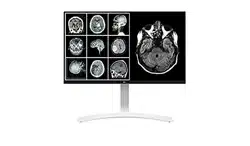
27HJ712C
ENGLISH
2
Please note that this information is for proper use and safety of the equipment. The following symbols may indicate a
hazardous situation in which, if not heeded, may result in serious injury or even death to the user or others, or damage
to the equipment.
WARNING
Indicates warning and safety instructions. If not adhered to, it could result in death or serious
injury to the user or others.
CAUTION
Indicates a hazardous situation which, if not heeded, may result in minor or moderate injury
to the user or others, or damage to the equipment.
For users in the United States
United State federal law restricts this equipment to be used by or on the order of a physician.
For users in other countries
This equipment is to be used by or on the order of a licensed person under the related laws for each country.
WARNING
To avoid the risk of electric shock, this equipment must only be connected to a supply mains with protective earth.
Do not modify this equipment without authorization of the manufacturer.
Intended use
This Medical Monitor is intended to provide color displays and images from various medical imaging systems.
EC REP
Authorized representative in the European community.
LG Electronics European Shared Service Center B.V.
Krijgsman 1, 1186 DM Amstelveen, The Netherlands
Tel: +31-20-456-3132
LG Electronics Inc.
77, Sanho-daero, Gumi-si, Gyeongsangbuk-do, 39381, Republic of Korea
Tel: +82-1544-8777
ENGLISH
3
SAFETY INFORMATION
Safety Standard
Medical Device Classification
Classification by protection type against Electric
Shock
Class Ⅰ equipment
Mode of operation Continuous Operation
Environment of Use
This equipment is not suitable for use in the presence of
flammable anesthetic or oxygen.
Regulations
Safety and Electromagnetic Compatibility Information
This equipment has been tested and found to comply with the limits for medical devices in IEC 60601-1-2. These limits
are designed to provide reasonable protection against harmful interference in a typical medical installation.
This equipment generates, uses and can radiate radio frequency energy. If not installed and used in accordance with the
instructions, it may cause harmful interference to other devices in the vicinity.
However, there is no guarantee that interference will not occur in a particular installation. If this equipment does
cause harmful interference to other devices, which can be determined by turning the equipment off and on, the user is
encouraged to try to correct the interference by one or more of the following measures.
Reorient or relocate the equipment.
Increase the separation between the equipment.
Connect the equipment into an outlet on a circuit different from that to which the other devices are connected.
Contact manufacturer or authorized agent for help.
Radio Frequency compliance
FCC (For USA)
FCC NOTICE
This device complies with part 15 of the FCC Rules. Operation is subject to the following two conditions: (1) This device
may not cause harmful interference, and (2) this device must accept any interference received, including interference
that may cause undesired operation.
ENGLISH
4
FCC CAUTION
Changes or modifications not expressly approved by the party responsible for compliance could void the user’s authority
to operate the equipment. This transmitter must not be co-located or operated in conjunction with any other antenna
or transmitter.
FCC WARNING
This equipment may generate or use radio frequency energy changes or modifications to this equipment may cause
harmful interference unless the modifications are expressly approved in the instruction manual.
The user could lose the authority to operate this equipment if an unauthorized change or modification is made.
Note: This equipment has been tested and found to comply with the limits for a Class A digital device, pursuant to part
15 of the FCC Rules. These limits are designed to provide reasonable protection against harmful interference when the
equipment is operated in a commercial environment.
This equipment generates, uses, and can radiate radio frequency energy and, if not installed and used in accordance of
this equipment in a residential area is likely to cause harmful interference in which cause the user will be required to
correct the interference at his own expense.
For Europe
DECLARATION OF CONFORMITY
The complete Declaration of Conformity may be requested through the following postal address:
LG Electronics European Shared Service Center B.V., Krijgsman 1, 1186 DM Amstelveen, The Netherlands
or can be requested at our dedicated DoC website: http://www.lg.com/global/support/cedoc/cedoc#
Electro-Magnetic Compatibility Information
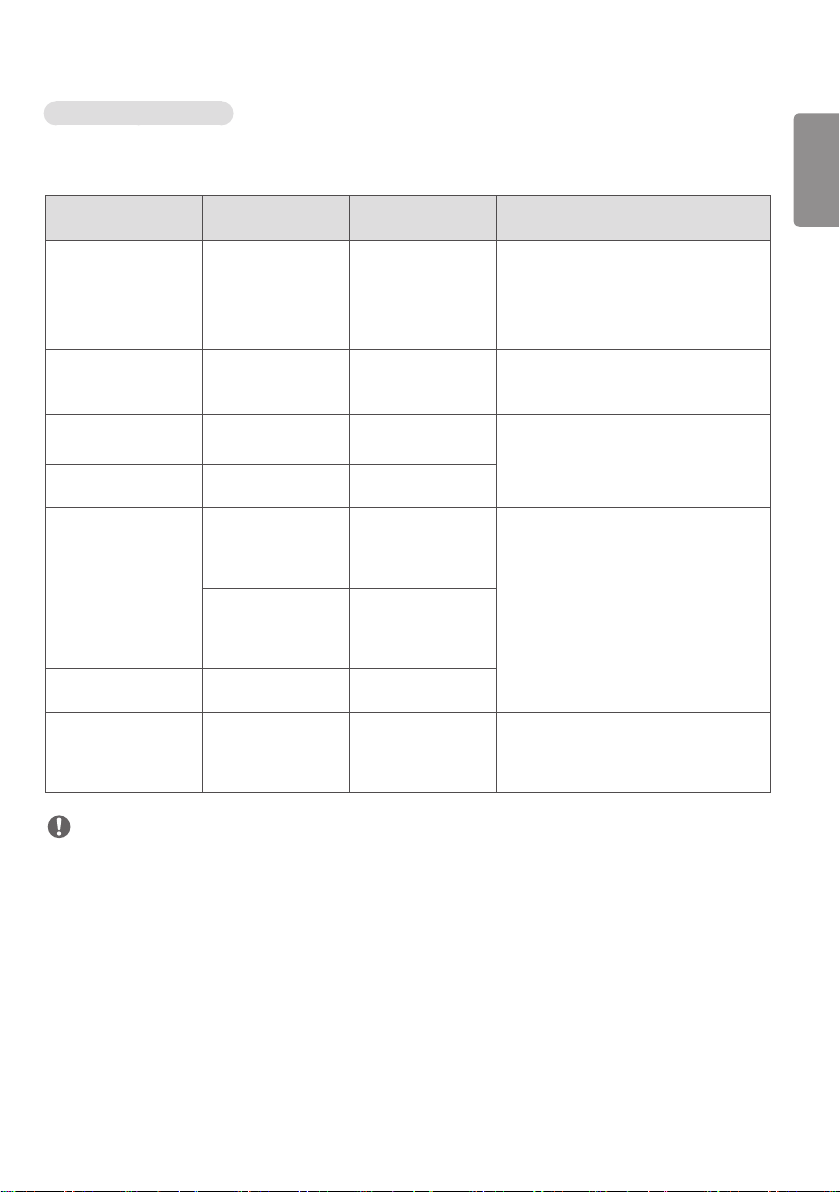
Electro-Magnetic Emissions
This EUT is intended for use in the electromagnetic environment specified below.
The customer or the user of the EUT should assure that it is used in such an environment.
Immunity Test Compliance Electromagnetic Environment – Guidance
RF Emissions CISPR 11 Group 1
The EUT uses RF energy only for its internal function.
Therefore, its RF emissions are very low and are not likely to cause
any interference in nearby electronic equipment.
RF Emissions CISPR 11 Class A
The EUT is suitable for use in all establishments, including domestic
establishments and those directly connected to the public low-
voltage power supply network that supplies buildings used for
domestic purposes.
Harmonic emissions IEC
61000-3-2
A
Voltage fluctuations/
Flicker emissions
IEC 61000-3-3
Complies
ENGLISH
5
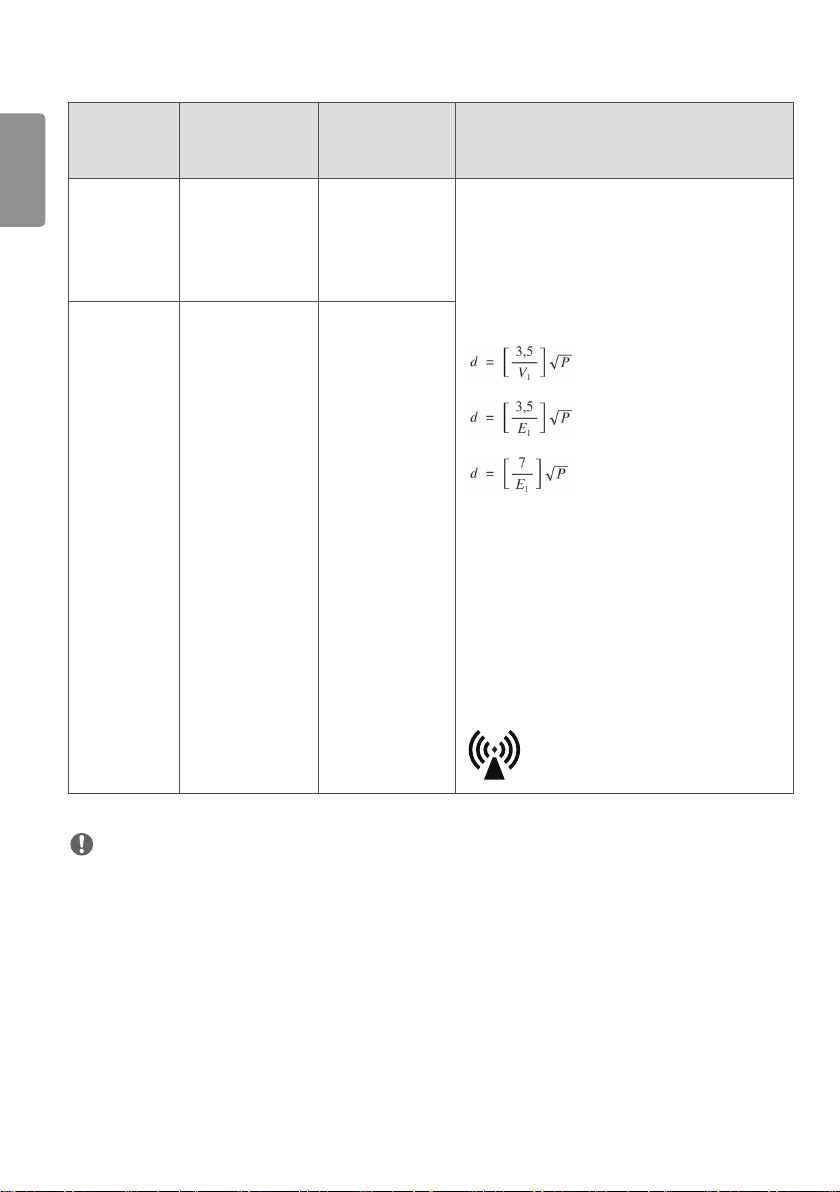
Electro-Magnetic Immunity
This EUT is intended for use in the electromagnetic environment specified below.
The customer or the user of the EUT should assure that it is used in such an environment.
Immunity Test
IEC 60601-1-2
Test Level
Compliance
Level
Electromagnetic Environment – Guidance
Electrostatic discharge
(ESD)
IEC 61000-4-2
± 8 kV contact
± 2 kV, ± 4 kV,
± 8 kV, ± 15 kV air
± 8 kV contact
± 15 kV air
Floors should be wood, concrete or ceramic
tile. If floors are covered with synthetic
material, the relative
humidity should be at least 30%.
Electrical fast transient/
burst
IEC 61000-4-4
± 2 kV
100 kHz repetition
frequency
± 2 kV
100 kHz repetition
frequency
Mains power quality should be that of a
typical commercial or hospital environment.
Surge Line-to-line
IEC 61000-4-5
± 0,5 kV, ± 1 kV ± 1 kV
Mains power quality should be that of a
typical commercial or hospital environment.
Surge Line-to-ground
IEC 61000-4-5
± 0,5 kV, ± 1 kV,
± 2 kV
± 2 kV
Voltage dips
IEC 61000-4-11
0 % U
T
; 0,5 cycle
At 0°, 45°, 90°, 135°,
180°, 225°, 270° and
315°
0 % U
T
; 0,5 cycle
At 0°, 45°, 90°, 135°,
180°, 225°, 270° and
315°
Mains power quality should be that of a
typical commercial or hospital environment.
If the user of the EUT image intensifier
requires continued operation during power
mains interruptions, it is recommended
that the EUT image intensifier be powered
from an uninterruptible power supply or a
battery.
0 % U
T
; 1 cycle
and
70 % U
T
; 25/30 cycles
Single phase: at 0°
0 % U
T
; 1 cycle
and
70 % U
T
; 25/30 cycles
Single phase: at 0°
Voltage interruptions
IEC 61000-4-11
0 % U
T
; 250/300 cycle 0 % U
T
; 250/300 cycle
RATED power frequency
magnetic fields
(50/60Hz)
IEC 61000-4-8
30 A/m 30 A/m Power frequency magnetic fields should
be at levels characteristic of a typical
location in a typical commercial or hospital
environment.
NOTE
U
T
is the A.C mains voltage prior to application of the test level.
ENGLISH
6
Immunity Test
IEC 60601-1-2
Test Level
Compliance
Level
Electromagnetic Environment – Guidance
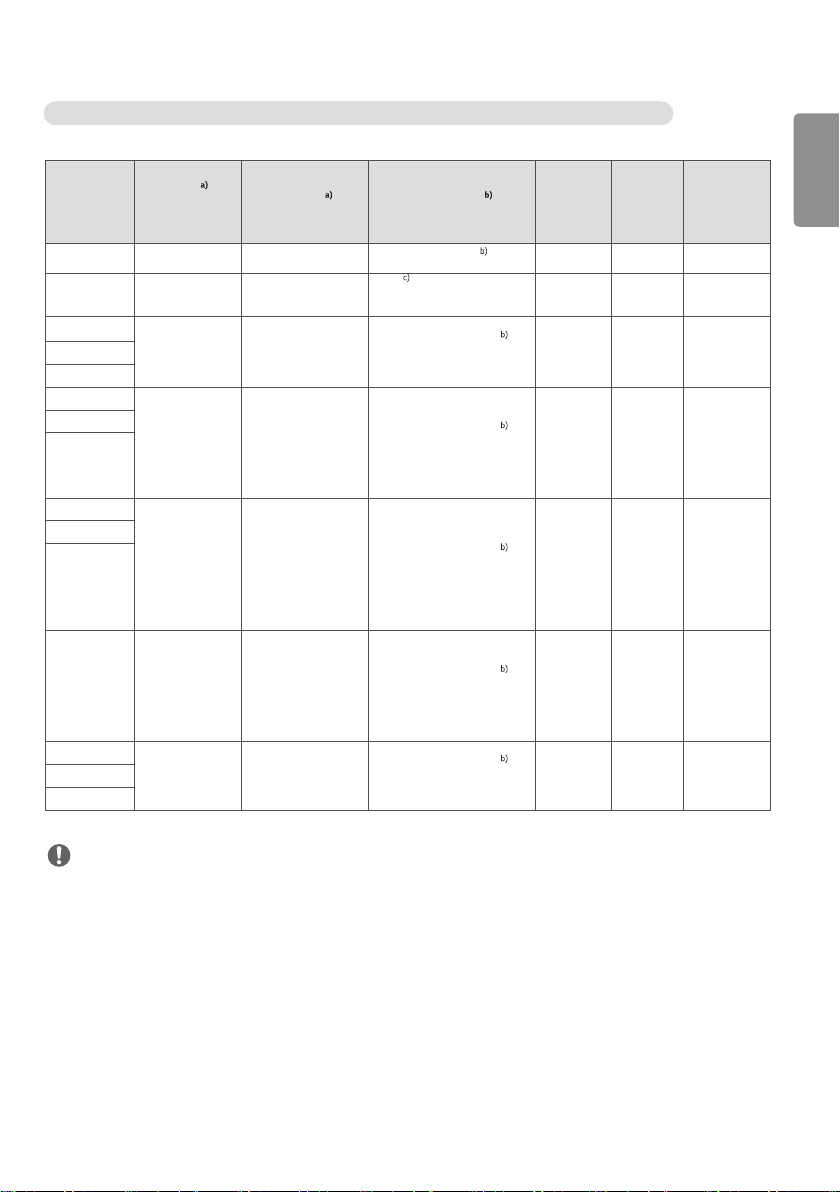
Conducted
disturbances
induced by RF
fields
IEC 61000-4-6
3 V
0,15 MHz – 80 MHz
6 V in ISM bands
between 0,15 MHz
and 80 MHz
80 % AM at 1 kHz
3 V
0,15 MHz – 80 MHz
6 V in ISM bands
between 0,15 MHz
and 80 MHz
80 % AM at 1 kHz
Portable and mobile RF communications equipment
should be used no closer to any part of the EUT,
including cables, than the recommended separation
distance calculated from the equation applicable to
the frequency of the transmitter.
Recommended separation distance:
Where P is the maximum output power rating of the
transmitter in watts(W) according to the transmitter
manufacturer and d is the recommended separation
distance in meters(M).
Field strengths from fixed RF transmitters as
determined by an electromagnetic site survey, should
be less than the compliance level in each frequency
range.
Interference may occur in the vicinity of equipment
marked with the following symbol:
Radiated RF EM
fields
IEC 61000-4-3
3 V/m
80 MHz – 2,7 GHz
80 % AM at 1 kHz
3 V/m
80 MHz – 2,7 GHz
80 % AM at 1 kHz
NOTE
At 80 MHz and 800 MHz, the higher frequency range applies.
These guidelines may not apply in all situations. Electromagnetic propagation is affected by absorption and reflection
from structures, objects and people.
1 Field strengths from fixed transmitters, such as base stations for radio (cellular/cordless) telephones and land
mobile radios, amateur radio, AM and FM radio broadcast and TV broadcast cannot be predicted theoretically with
accuracy. To assess the electromagnetic environment due to fixed RF transmitters, an electromagnetic site survey
should be considered. If the measured field strength in the location in which the EUT is used exceeds the applicable
RF compliance level above, the EUT should be observed to verify normal operation. If abnormal performance is
observed, additional measures may be necessary, such as re-orienting or relocating the EUT.
2 Over the frequency range 150 kHz to 80 MHz, field strengths should be less than [V1] V/m.
ENGLISH
7
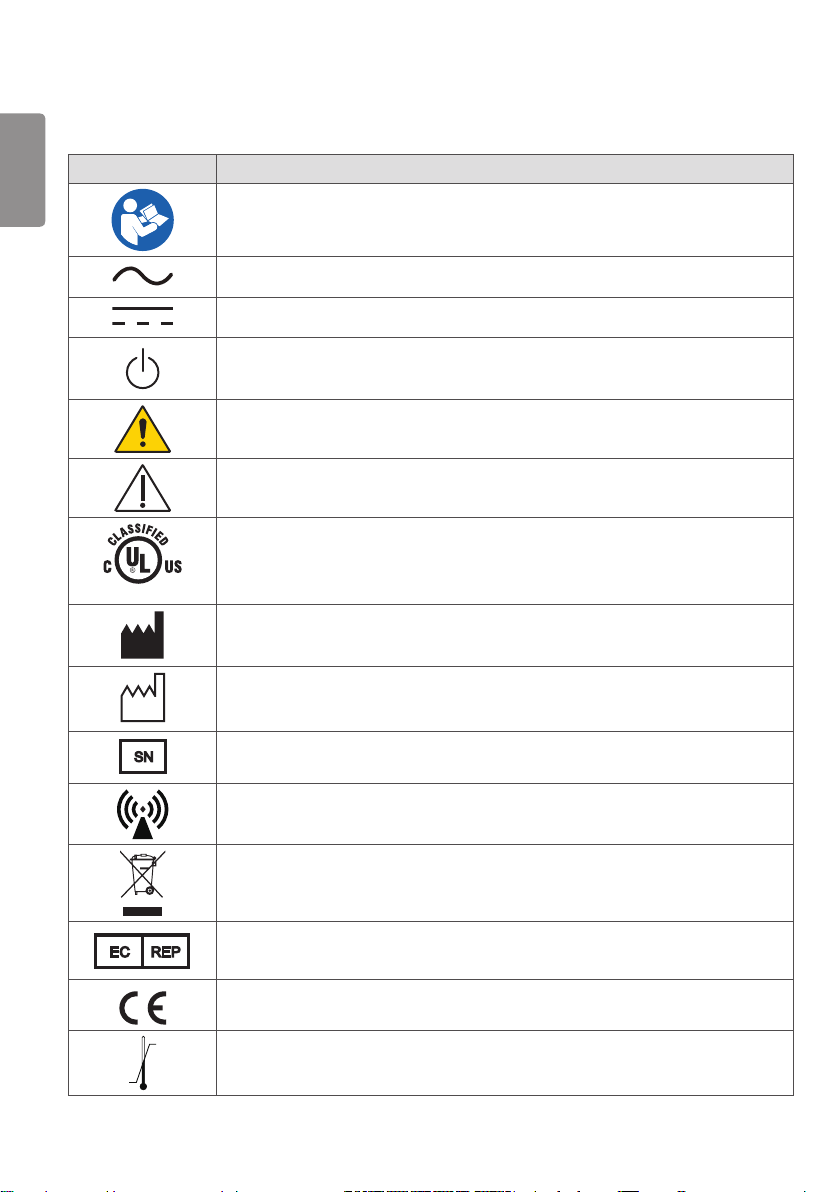
Test specifications for ENCLOSURE PORT IMMUNITY to RF wireless communications equipment
Test
frequency
(MHz)
Band
(MHz)
Service
Modulation
Maximum
power
(W)
Distance
(m)
IMMUNITY
TEST
LEVEL
(V/m)
385 380 –390 TETRA 400
Pulse modulation 18 Hz
1,8 0,3 27
450 430 – 470
GMRS 460,
FRS 460
FM ± 5 kHz deviation
1 kHz sine
2 0,3 28
710
704 – 787
LTE Band 13,
17
Pulse modulation
217 Hz
0,2 0,3 9
745
780
810
800 – 960
GSM 800/900,
TETRA 800,
iDEN 820,
CDMA 850,
LTE Band 5
Pulse modulation
18 Hz
2 0,3 28
870
930
1 720
1 700 – 1 990
GSM 1800;
CDMA 1900;
GSM 1900;
DECT;
LTE Band 1, 3,
4, 25; UMTS
Pulse modulation
217 Hz
2 0,3 28
1 845
1 970
2 450 2 400 – 2 570
Bluetooth,
WLAN,
802.11 b/g/n,
RFID 2450,
LTE Band 7
Pulse modulation
217 Hz
2 0,3 28
5 240
5 100 – 5 800
WLAN 802.11
a/n
Pulse modulation
217 Hz
0,2 0,3 95 500
5 785
NOTE
If necessary to achieve the IMMUNITY TEST LEVEL, the distance between the transmitting antenna and the ME
EQUIPMENT or ME SYSTEM may be reduced to 1 m. The 1 m test distance is permitted by IEC 61000-4-3.
a) For some services, only the uplink frequencies are included.
b) The carrier shall be modulated using a 50 % duty cycle square wave signal.
c) As an alternative to FM modulation, 50 % pulse modulation at 18 Hz may be used because while it does not
represent actual modulation, it would be worst case.
ENGLISH
8
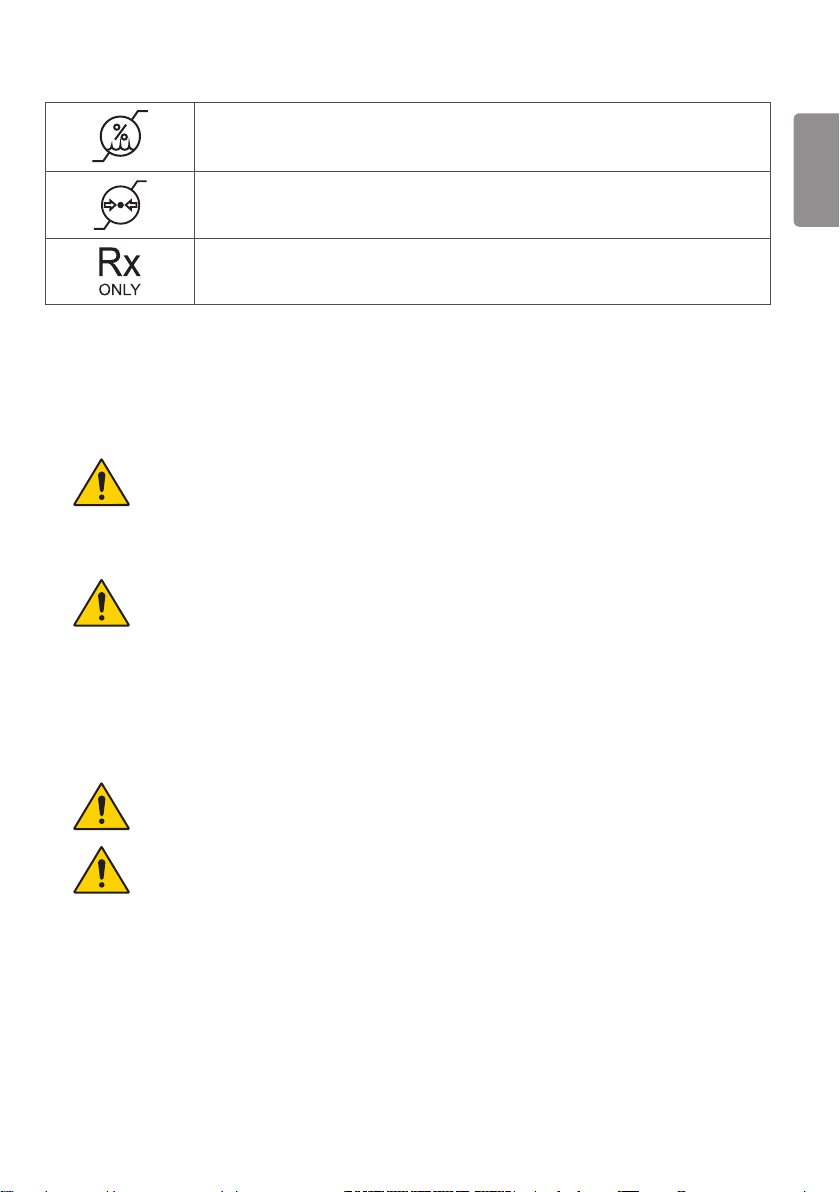
Symbols
Symbols Descriptions
Refer to instruction manual/ booklet
Alternate current
Direct current
Standby symbol
Warning
Caution
E486403
UL classified mark of medical equipment with respect to electrical shock, fire and mechanical
hazards only in accordance with ANSI/AAMI ES60601-1 (2005) + AMD 1 (2012), CAN/
CSA-C22.2 No. 60601-1 (2014)
Manufacturer
Date of manufacture
SN
Serial number
Non-ionizing radiation
WEEE: Waste Electrical and Electronic Equipment
EC REP
Authorized representative in the European community.
CE Marking
Temperature limit
ENGLISH
9
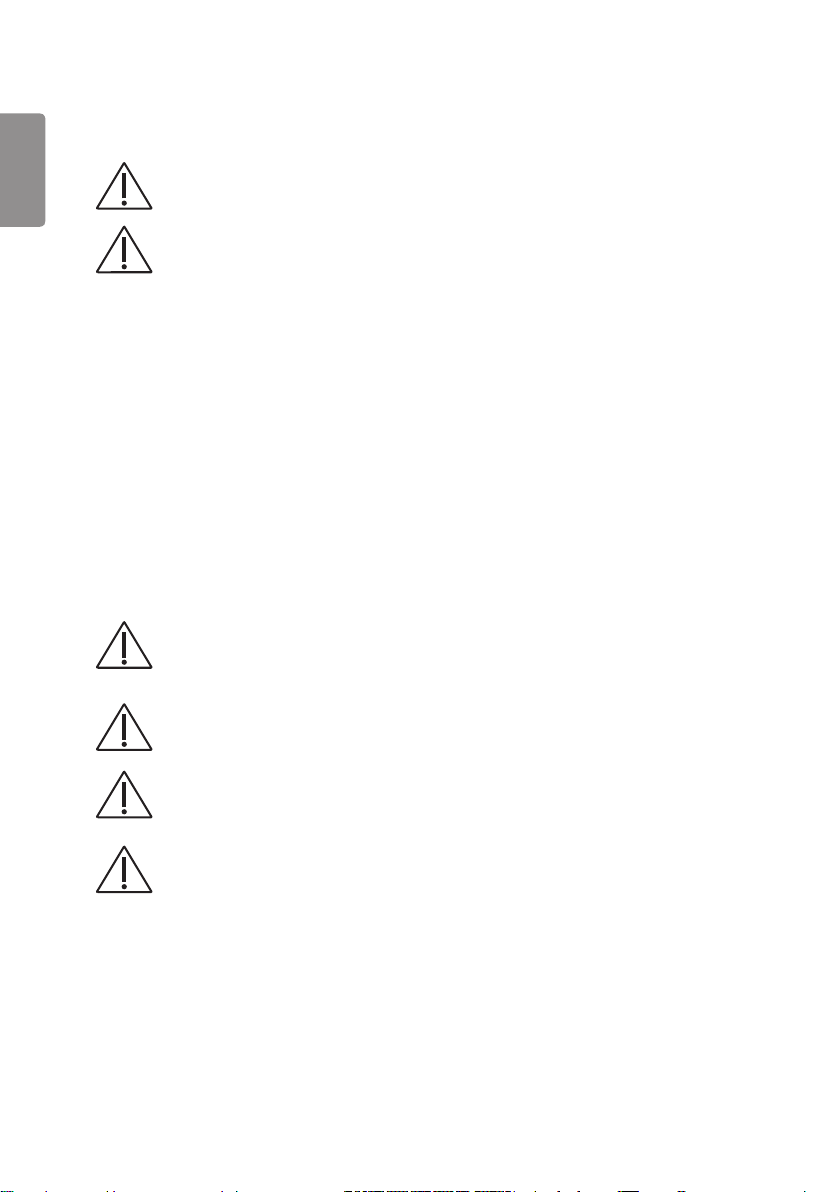
Humidity limitation
Pressure limitation
For the customers in the U.S.A. Caution
Federal law (United States of America) restricts this device to sale by or on the order of a
licensed healthcare practitioner.
Warning
WARNING: To avoid the risk of electric shock, this equipment must only be connected to a supply mains with
protective earth.
Connection
Do not connect the monitor with anything other than specified.
Otherwise, it may result in fire or electric shock.
To avoid the risk of electric shock, this monitor must only be connected to supply mains with
protective earth.
Handling
Always be sure to keep checking the condition of the system and the patient to ensure they are
normal during the use of the monitor. If any problem is found, take appropriate measures, such as
stopping the operation of the monitor, as required.
Never disassemble or modify the monitor as it may result in fire or electric shock.
Also, since the monitor incorporates parts that may cause electric shocks and other hazardous
parts, touching them may cause death or serious injury.
Do not hit or drop the monitor. The monitor may be damaged if it receives a strong jolt, which may
result in fire or electric shock if the monitor is used without being repaired.
The operator must not touch connectors of the monitor and the patient simultaneously.
The product has lower breaking capacity type. So do not install at the building power system
prospective short-circuit current exceeding 35 A.
ENGLISH
10
Caution
Do not install the ME Equipment in a location without easy disconnect accessibility.
Environment of Use and Storage
Do not install the monitor in a location with the conditions listed below.
Otherwise, it may result in failure or malfunction, cause fire or injury.
Close to facilities where water is used.
Where it will be exposed to direct sunlight.
Close to air-conditioner or ventilation equipment.
Close to heat source such as a heater.
Prone to vibration
Unsecure location place.
Dusty environment.
Saline or sulfurous environment.
High temperature or humidity.
Freezing or condensation.
Do not place the storage case in a location with the conditions listed below.
Where the cable of the monitor unit will be strongly pulled when the monitor is put into the
case, otherwise, the cable may be damaged, resulting in fire or electric shock.
Where someone might get their foot caught in the cable of the monitor.
Handling
For safety reasons, be sure to turn off the power when monitor is not used.
This monitor is contraindicated for pregnant woman.
MANUFACTURER will make available on request circuit diagrams, component part lists,
descriptions, calibration instructions, or other information that will assist SERVICE PERSONNEL to
repair those parts of ME EQUIPMENT.
Location of Cables
Make sure all cables are located so that they cannot be stepped on, tripped over, or otherwise
subjected to damage or stress.
If the monitor is defective, do not disassemble the monitor randomly. Maintenance of the monitor
should be done by a manufacturer.
ENGLISH
11
SAFETY PRECAUTIONS
The Safety Precautions are intended to prevent unexpected danger or harm by helping the user to use the product
safely and for its intended purpose.
WARNING
Failure to follow the instructions may result in serious injury or even death.
CAUTION
Failure to follow the instructions may result in minor injury to people or damage to the
product.
Precautions When Installing the Product
WARNING
Do not place the product close to heat sources such as radiators, fires, stoves, etc.
Be careful when disinfecting the product, as some disinfectants may cause fire.
Do not install the product in a damp or dusty area.
If the product emits smoke, strange odors or sounds, disconnect the power cord and contact the manufacturer.
Do not leave the power or signal cable, etc. in walkways.
Do not install the product onto a wall close to sources of oil or oil mist.
If the product has been dropped or its case is damaged, turn off the power and unplug the power cord from the
power outlet.
CAUTION
Ensure that the product is installed at least 100 mm away from the wall for good ventilation to prevent deformation
of the product or a fire due to the increase in the internal temperature.
Keep the product away from direct sunlight.
Do not install the product close to hot objects, such as lights.
Make sure the air vents are not blocked by a tablecloth or curtain.
Do not install the product near magnetic field generating equipment, such as transformers or high-voltage power
lines.
Installing the product in locations that do not meet the general conditions may seriously damage the product’s picture
quality, life cycle and appearance. Please check with our service engineer before installing in such locations.
Locations that do not meet the general conditions: places where the product is not intended for use, such as those
where fine dust or oil mist is generated, places where chemicals are used, places where the temperature is too high or
low, places where the humidity is too high, or places where the product is likely to be used for a long period of time (e.g.
airports or train stations).
ENGLISH
12
Precautions for the AC/DC Adaptor and Power
WARNING
If water or a foreign substance enters the product (power cord or AC/DC adaptor), disconnect the power cord
immediately and contact the manufacturer.
Always connect the power cord to a grounded outlet.
Do not touch the power plug or AC/DC adaptor with wet hands. If the pins of the plug are wet or dusty, clean and dry
them before use.
Insert the power plug securely so that it does not come loose. Do not use the product if the power outlet is loose.
Make sure the power cord is fully inserted into the AC/DC adaptor.
Do not insert any conductive objects into the device connection end of the power cord, while the power cord is
inserted into the wall outlet. Avoid touching the power plug immediately after pulling from the wall outlet.
Be sure to use the power cords and AC/DC adaptors provided or ones approved by LG Electronics, Inc.
Use the product at the rated voltage only.
Disconnect the power cable when not using the product for long periods.
Always pull by the plug when unplugging the power cord. Do not bend the power cord with excessive force.
Take care not to step on or place heavy objects (electronic appliances, clothing, etc.) on the power cord or AC/DC
adaptor. Be careful not to damage the power cord or AC/DC adaptor with sharp objects.
Never disassemble, repair or modify the power cord or AC/DC adaptor.
To turn off the main power, remove the power cord, which should be positioned so it is easy to access for operation.
If the product is connected to an AC wall outlet, it will not be disconnected from the AC power source even if you
turn off the switch.
CAUTION
Do not remove the power cord when the product is in use.
Be sure to keep the outlet, AC/DC adaptor and pins of the power plug clean from dust, etc.
Do not turn the monitor on or off by plugging in or unplugging the power plug from the power outlet. (Do not use the
power plug as a switch.)
Keep the power cord away from heating devices.
Precautions When Transporting the Product
WARNING
Before moving the product, disconnect the power cord and all other connected cables.
When carrying the product, make sure the screen faces forward and hold it firmly in both hands.
ENGLISH
13
CAUTION
Do not discard the delivery box with the original packaging. Put the product in the box when carrying.
When moving or unpacking the product, make sure that two or more people safely lift it because it is heavy. Using the
product after it has fallen may result in electric shock or fire. Contact the manufacturer.
Precautions When Using the Product
WARNING
Do not disassemble, repair or modify the product by yourself. If the product needs to be checked, reset or repaired,
contact the manufacturer.
Do not allow water to enter the product and keep the product dry at all times.
If there is a gas leak, do not touch the power outlet. Open the windows for ventilation.
Do not impact the front or sides of the screen with a hard object, such as a metal object. Do not scratch the screen.
If liquid or a foreign object falls into the product, switch the product off and unplug it from the wall outlet. Contact
the manufacturer.
Stop using the product if no image appears on the screen or no sound is heard. Switch the product off immediately.
Unplug the product from the power outlet and contact the manufacturer.
Do not use the product in any environment with excessively high temperatures or humidity.
Do not use high-voltage electrical products near the product. This may result in product malfunction due to electric
shock. (e.g. electrical mosquito swatter)
CAUTION
Do not use or store the product near inflammables.
Take a break to protect your health and vision when using the product for long periods of time.
Do not push hard against the screen surface or scratch it with your hands or sharp objects, such as a nail, pencil or
pen.
Keep the product clean.
Refer to the Owner’s Manual and set the product to the correct resolution and frequency. Otherwise, you may
experience blurred vision.
Do not leave the product where it can get wet. Do not place anything containing liquid on top of the product, such as
a flower vase.
Because the LCD requires high technology consisting of hundreds of pixels, pixelated spots (red, green, white or
black) may appear on the screen during use. This is normal for an LCD screen and not an error, nor is it related to the
monitor’s performance.
Given the nature of the viewing angle, the brightness and color of the LCD may vary between the left and right or top
and bottom, depending on the viewing position. This is normal for an LCD screen and not an error, nor is it related to
the monitor’s performance.

ENGLISH
14
Precautions for Connecting to Other Medical Devices
Take the following precautions before using this product or connecting it to other medical devices.
Stop using this device for medical purposes if you experience interruptions or discomfort in executing medical
activities.
Quick movements, shaking and the focus of the video displayed on the monitor, its distance from the user, the user’s
point of view, the user’s physical fitness and other factors may cause discomfort (eye fatigue, dizziness, vomiting,
nausea, etc.).
Before using the product, check that the image of the connected device displays properly on the screen of this
product.
Recommendation for Using Multiple Units
Electronic products may fail unexpectedly. If using the monitor for medical, emergency or any other critical use, we
strongly recommend that you use multiple monitors or have a spare monitor ready.
Precautions When Cleaning the Product
The medical LCD monitor’s front protective panel may become damaged when using solvents such as thinner or
benzene, acidic, alkaline or corrosive detergents, chemical cleaning fibers, etc. and the finish material on the surface.
Unplug the power cord before cleaning.
Never spray water directly onto the monitor or use thinner or benzene solvents, acidic, alkaline or corrosive
detergents, or cleaning or sterilizing chemical cleaning fibers, etc. as they may damage the product.
To clean the product, unplug the power cord and wipe it gently with a soft cloth. Do not spray with water or wipe
with a wet cloth. When cleaning the product or the screen, do not use cleansers, automobile or industrial thinners,
abrasives or wax, benzene, alcohol, etc., as this may damage the product.
To clean the front frame, spray water onto a soft cloth two to four times and wipe in one direction only.
Do not rub the product with a stained cloth using more force than necessary. This may scratch the surface of the
product.
Do not allow the product to remain in contact with rubber or vinyl resin for extended periods. The surface finish may
deteriorate or the coating may peel off.
If you do not clean the product, dust will accumulate inside and may create a fire hazard or malfunction.
Image Sticking Precautions
Displaying a still image for a prolonged period may damage the screen, resulting in image sticking. Most third-party
products have the same issue. Damage resulting from long-term static images is not covered by product warranty.
ENGLISH
15
LICENSE
Each model has different licenses. Visit www.lg.com for more information on the license.
The terms HDMI and HDMI High-Definition Multimedia Interface, and the HDMI
logo are trademarks or registered trademarks of HDMI Licensing LLC in the United
States and other countries.
VESA, VESA logo, DisplayPort compliance logo and DisplayPort compliance logo for
dual-mode source devices are all registered trademarks of the Video Electronics
Standards Association.
The SuperSpeed USB Trident logo is a registered trademark of USB Implementers
Forum, Inc.
ENGLISH
16
PRODUCT SPECIFICATIONS
The product specifications are subject to change without prior notice for product improvements.
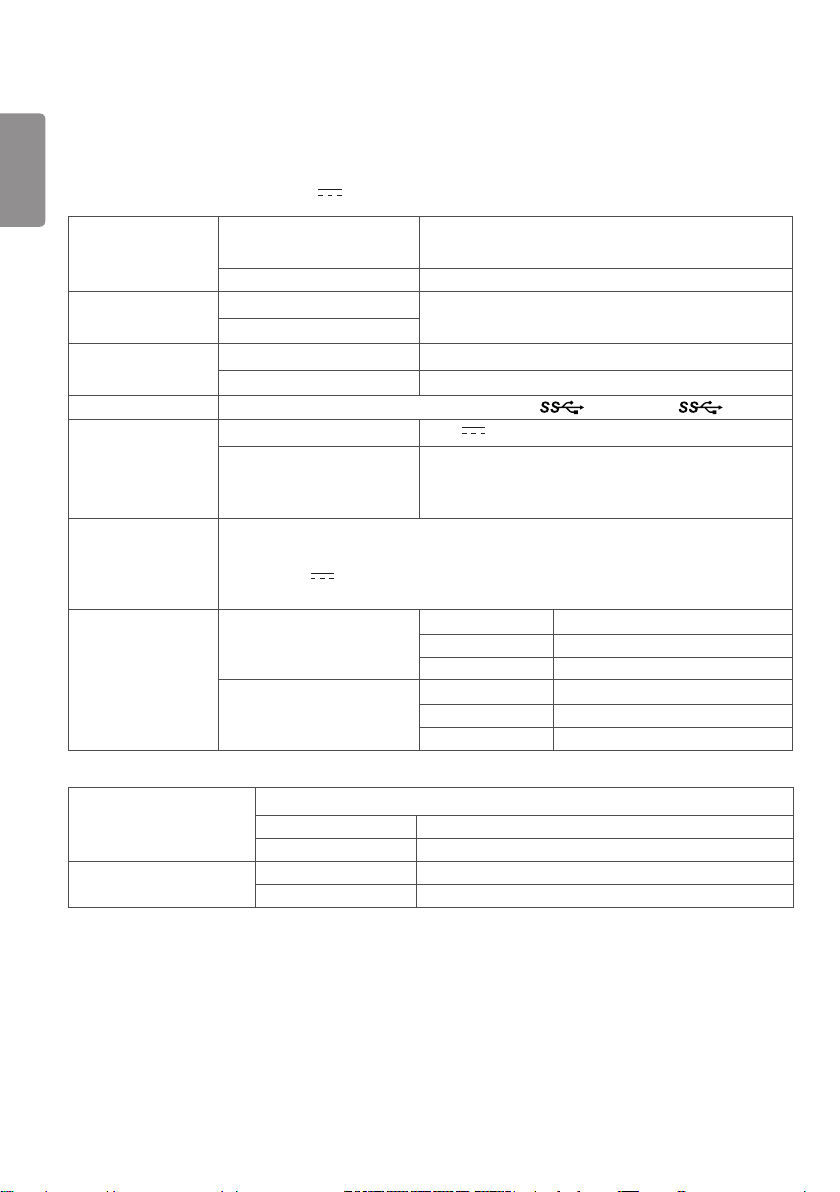
“ ~ ” refers to alternating current (AC), “ ” refers to direct current (DC).
LCD Screen Type TFT (Thin Film Transistor)
LCD (Liquid Crystal Display) Screen
Pixel Pitch 0.1554 mm x 0.1554 mm
Resolution Maximum resolution
3840 x 2160 @ 60 Hz
Recommended resolution
Video signal Horizontal frequency 30 kHz to 135 kHz
Vertical frequency 56 Hz to 61 Hz
Input Connectors
HDMI IN1, HDMI IN2, DP(DisplayPort) IN, H/P, USB ( ) 1, 2, USB UP ( )
Power Source Power Rating 19 V 3.42 A
Power consumption Max 65 W
AC/DC Adaptor DA-65J19 type, manufactured by Asian Power Devices Inc. (APD)
Input: 100-240 V~ 50-60 Hz, 1.5-0.7 A
Output: 19 V 3.42 A
Class I
Environmental
Conditions
Operating Conditions Temperature 0 °C to 40 °C
Humidity 0 % to 80 %
Pressure 700 hPa to 1060 hPa
Storing Conditions Temperature -20 °C to 60 °C
Humidity 0 % to 85 %
Pressure 500 hPa to 1060 hPa
Dimensions (mm) Monitor Size (Width x Height x Depth)
With Stand 615.0 x 425.2 x 222.6
Without Stand 615.0 x 365.1 x 42.7
Weight (without packaging)
(kg)
With Stand 6.2
Without Stand 4.7


ENGLISH
18
ON CLEANING
Recommended Cleaning Chemicals
Isopropanol 100%
Ethanol 70%
Cidex® OPA
0.9% NaCl solution
How to Use Cleaner
Prior to cleaning, turn off the monitor and remove the power cable.
Soak a soft cloth in a recommended cleaner, then lightly rub the screen with no more than 1 N of force.
The cleaner could cause serious damage if it leaks inside the monitor while cleaning.
Do not clean the screen’s LCD panel as it may be damaged. Clean the other parts of the monitor.
Do not use benzene, thinner, acids or alkaline cleaners or other such solvents.
Cleaning guidelines for displays must only be carried out by medical professionals (doctors or nurses) and must not
be handled by patients.

ENGLISH
19
ASSEMBLY AND PREPARING
Product Composition
Please check whether all the components are included in the box before using the product. If there are any missing
components, contact the retailer where you purchased the product. Note that the product and related components
may look different from those shown here.
CD (Owner’s Manual/Software)/
Regulatory Manual/Cards
Power Cord AC/DC Adaptor
or
HDMI Cable
A-B type USB 3.0 Cable
DisplayPort Cable Cable Holder
Stand Base
Stand Body
ENGLISH
20
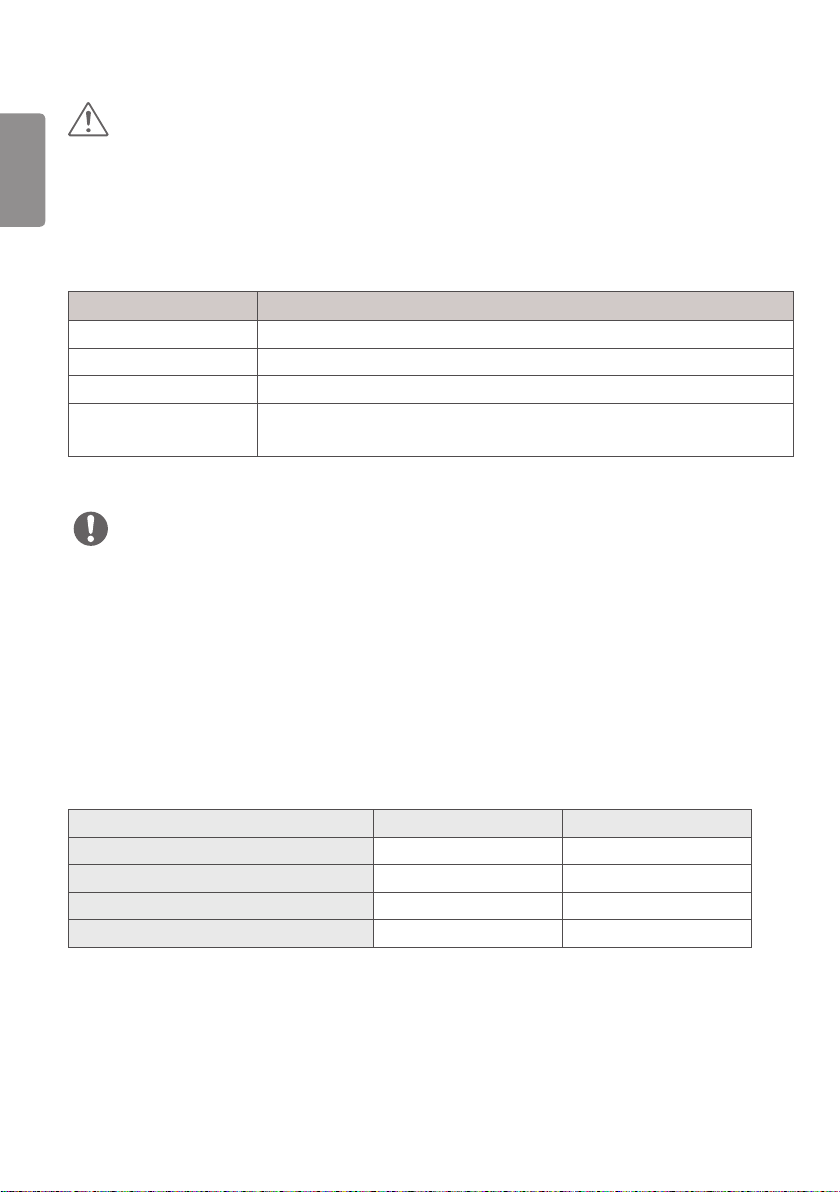
CAUTION
Always use genuine LG components to ensure safety and product performance.
The product warranty will not cover damage or injury caused by the use of unauthorized components.
It is recommend that use the supplied components.
If you use generic cables not certified by LG, the screen may not display or there may be image noises.
Need to use the authorized components about the below accessories. Unauthorized components may be cause of the
damage and malfunction of the product.
Component Standard
HDMI Cable Support HDMI 2.0 version, UL, Impedance 100ohm
DisplayPort Cable Support DISPLAYPORT 1.2a version, UL, Impedance 100ohm
USB 3.0 Cable Support USB 3.0, UL
Power Cord US – Approved Medical grade regulation
Others – Approved country safety regulation
The AC/DC adaptors and etc. except the upper components need to be used only supplied by manufacturer.
NOTE
The components may look different from those illustrated here.
Without prior notice, all product information and specifications contained in this manual are subject to change to
improve the performance of the product.
To purchase optional accessories, visit an electronics store or an online shopping site, or contact the retailer from
which you purchased the product.
The power cord provided may differ depending upon the region.
Supported Drivers and Software
Check the drivers and software supported by your product and refer to the manuals on the CD enclosed in the product
package.
Drivers and Software Installation Priority 27HJ712C
Monitor Driver Recommended O
OnScreen Control Optional O
Dual Controller Optional O
True Color Pro Optional O
Required and Recommended: You can download and install the latest version from the enclosed CD or from the LGE
website (www.lg.com).
Optional: You can download and install the latest version from the LGE website (www.lg.com).
ENGLISH
21
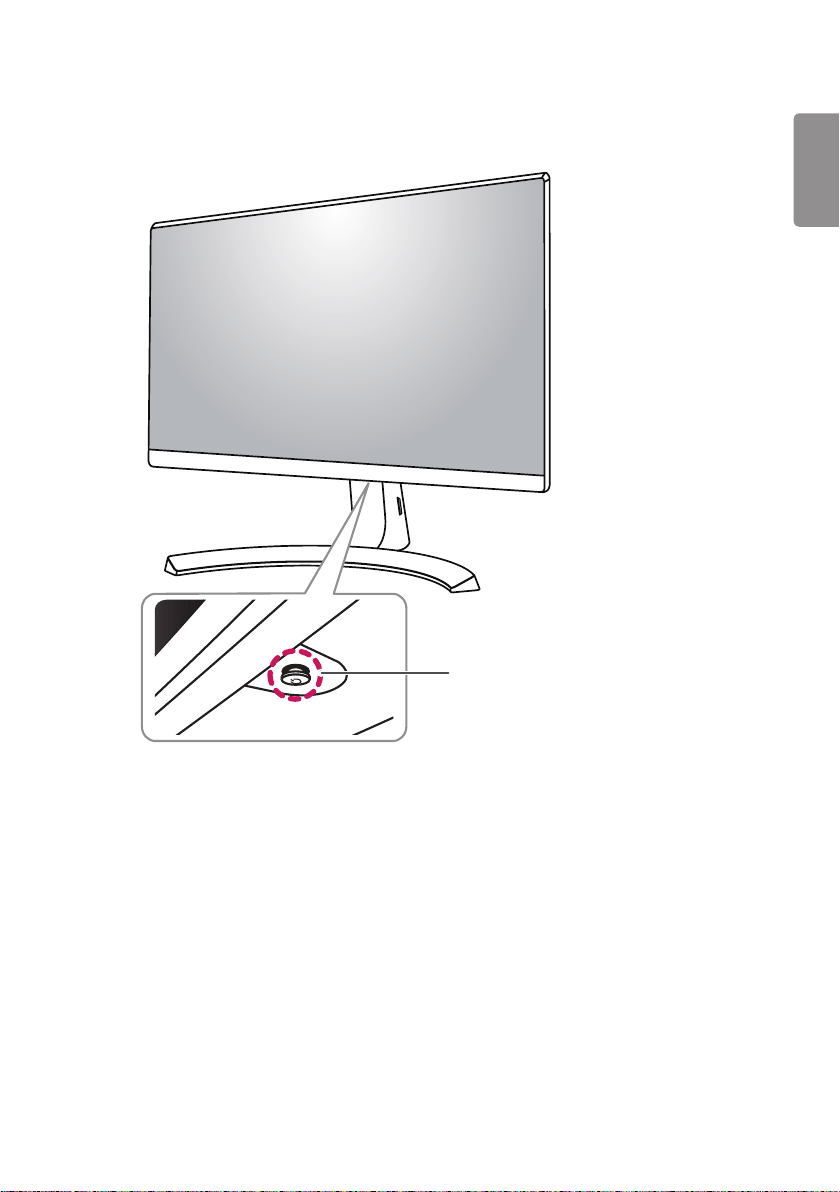
Component and Button Description
Joystick Button
Power LED
On: Power is on
Off: Power is off
ENGLISH
22
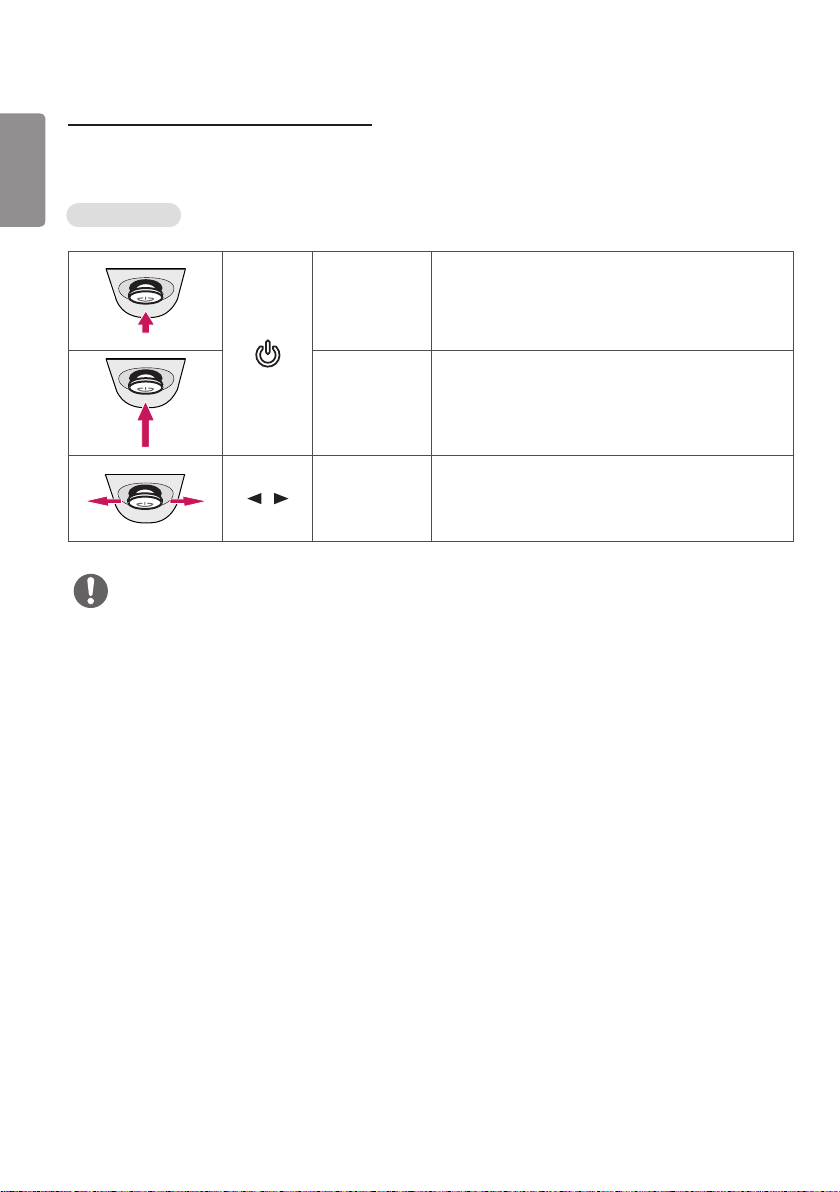
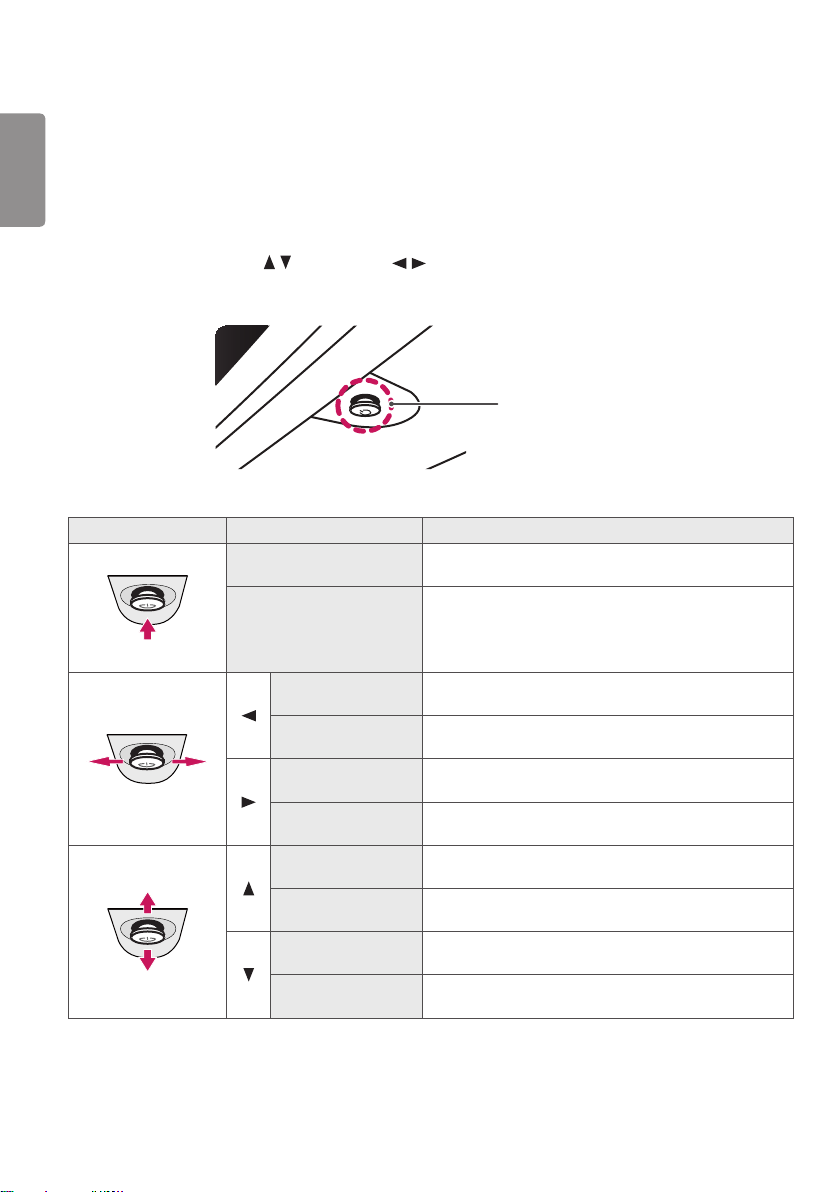
How to Use the Joystick Button
You can easily control the functions of the monitor by pressing the joystick button or moving it left/right with your
finger.
Basic Functions
Power on
Press the joystick button once with your finger to turn on
the monitor.
Power off
Press and hold the joystick button once with your finger
to turn off the monitor.
/ Volume Control
You can control the volume by moving the joystick button
left/right.
NOTE
The joystick button is located at the bottom of the monitor.
ENGLISH
23
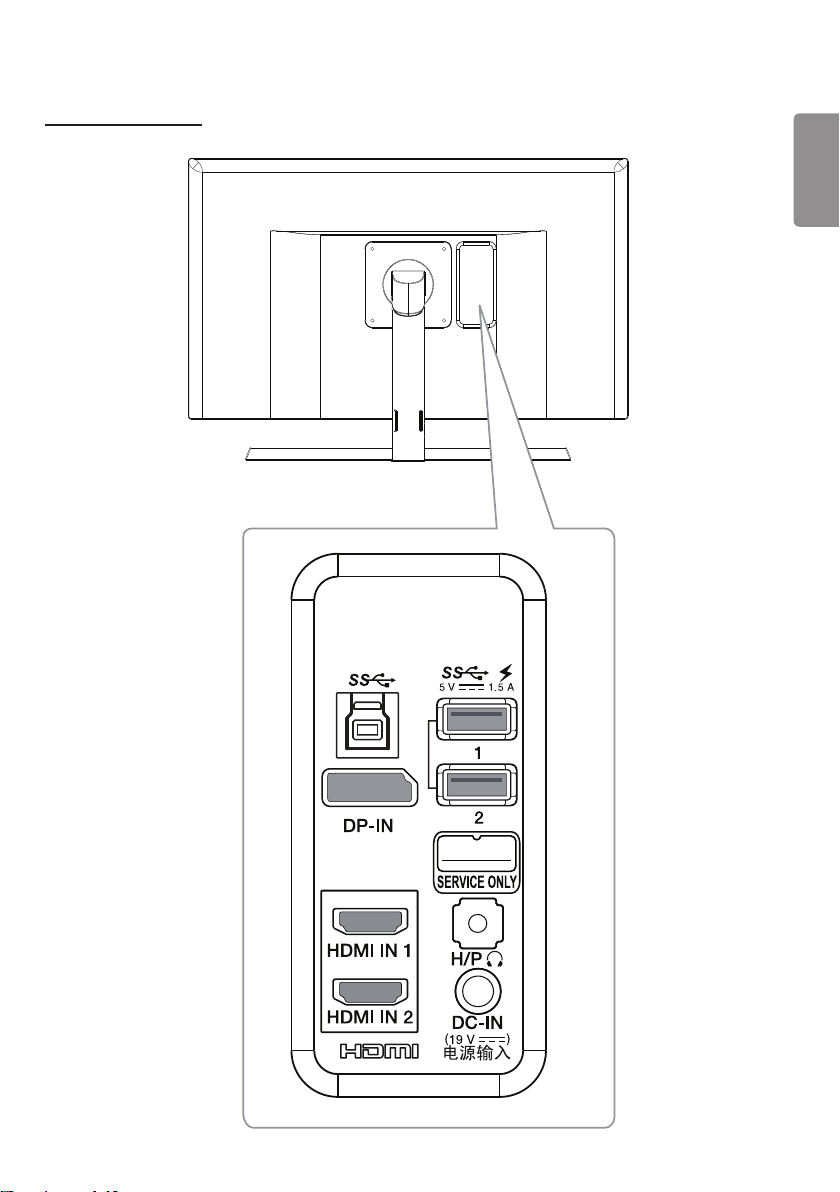
Input Connector
DO NOT USE
ENGLISH
24
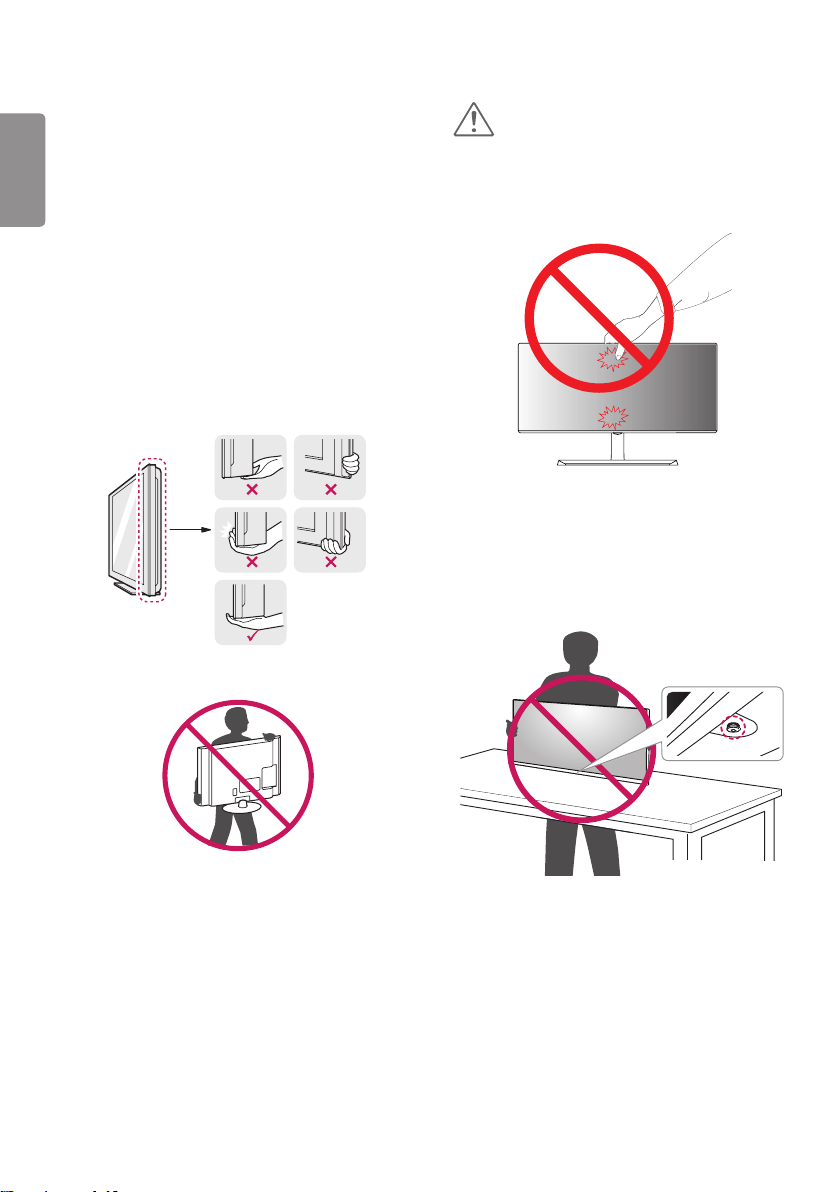
Moving and Lifting the
Monitor
When moving or lifting the monitor, follow
these instructions to prevent the monitor from
being scratched or damaged and to ensure safe
transportation regardless of its shape or size.
It is advisable to place the monitor in the original box
or packing material before attempting to move it.
Before moving or lifting the monitor, disconnect the
power cord and all cables.
Hold the bottom and side of the monitor frame firmly.
Do not hold the panel itself.
When holding the monitor, the screen should face
away from you to prevent it being scratched.
When moving the monitor, avoid any strong shock or
vibrations to the product.
When moving the monitor, keep it upright, never turn
the monitor on its side or tilt it sideways.
CAUTION
As far as possible, avoid touching the monitor screen.
- This may result in damage to the screen or some of
the pixels used to create images.
If you use the monitor panel without the stand base,
its joystick button may cause the monitor to become
unstable and fall, resulting in damage to the monitor
or human injury. In addition, this may cause the
joystick button to malfunction.
ENGLISH
25
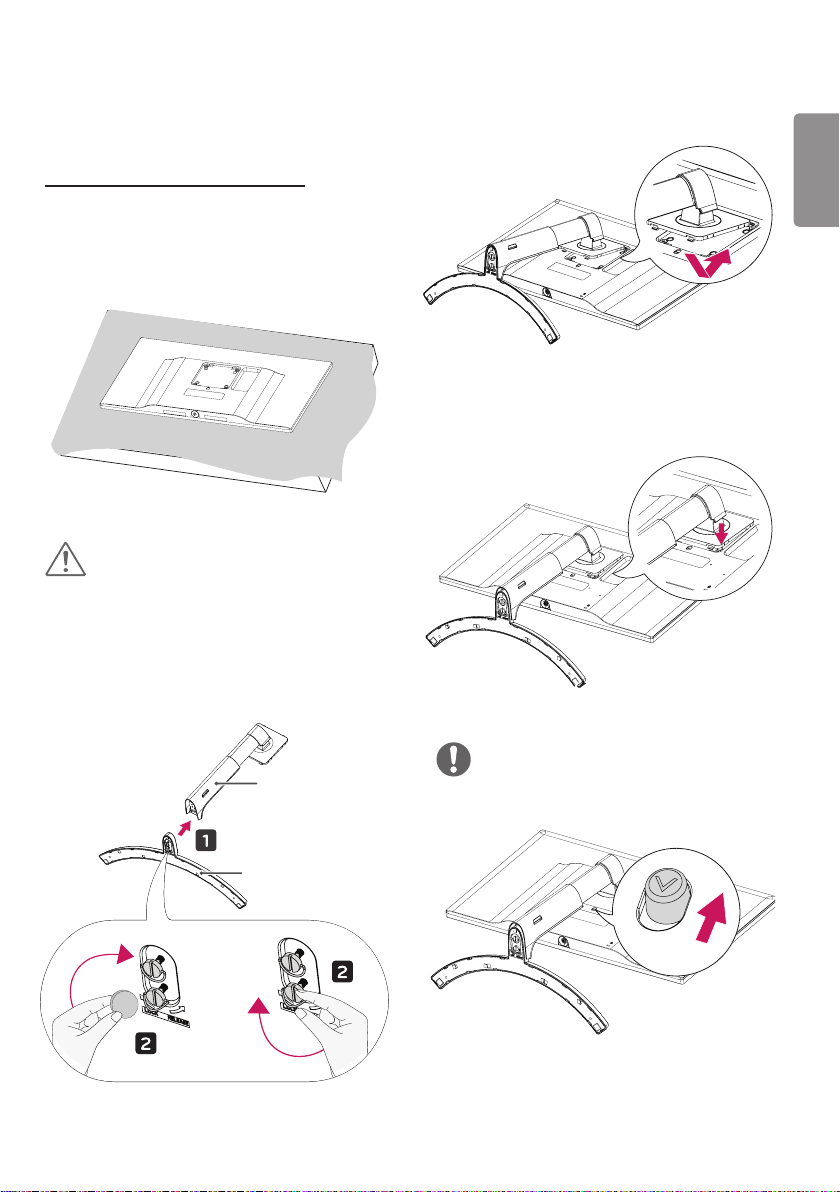
Installing the Monitor
Assembling the Stand base
Illustrations in this document represent typical
procedures, so they may look different from the
actual product.
1
CAUTION
To protect the screen from scratches, cover the
surface with a soft cloth.
2
Stand Body
Stand Base
or
3
4
NOTE
Press the stand until the button reaches the top.
ENGLISH
26
CAUTION
Illustrations in this document represent typical
procedures, so they may look different from the
actual product.
Do not apply foreign substances (oils, lubricants, etc.)
to the screw parts when assembling the product.
(Doing so may damage the product.)
Applying excessive force when tightening screws may
cause damage to the monitor. Damage caused in this
way will not be covered by the product warranty.
Do not carry the monitor upside down by just holding
the base. This may cause the monitor to fall off the
stand and could result in personal injury.
When lifting or moving the monitor, do not touch
the monitor screen. The force applied to the monitor
screen may cause damage to it.
NOTE
You can disassemble the stand in the reverse order of
the assembly.
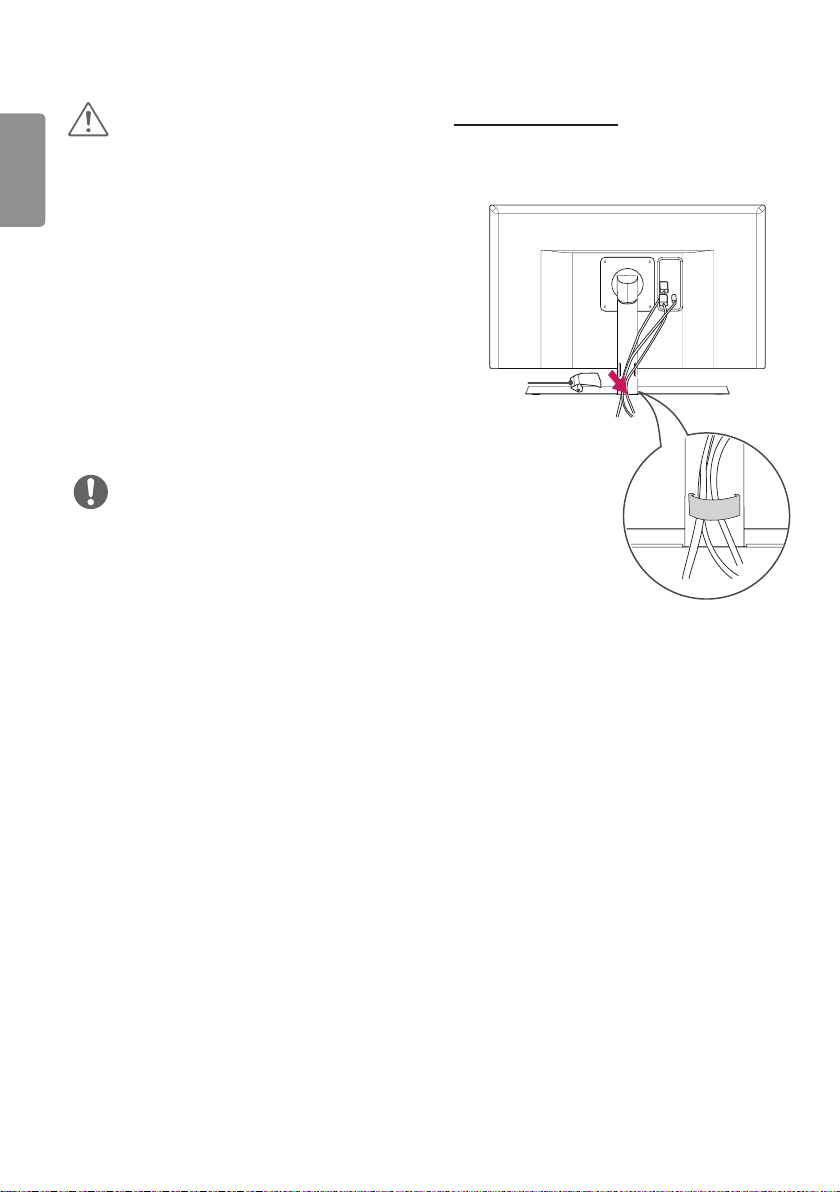
Arranging Cables
Arrange the cables using the cable holder as shown in
the illustration.
Cable
Holder
ENGLISH
27
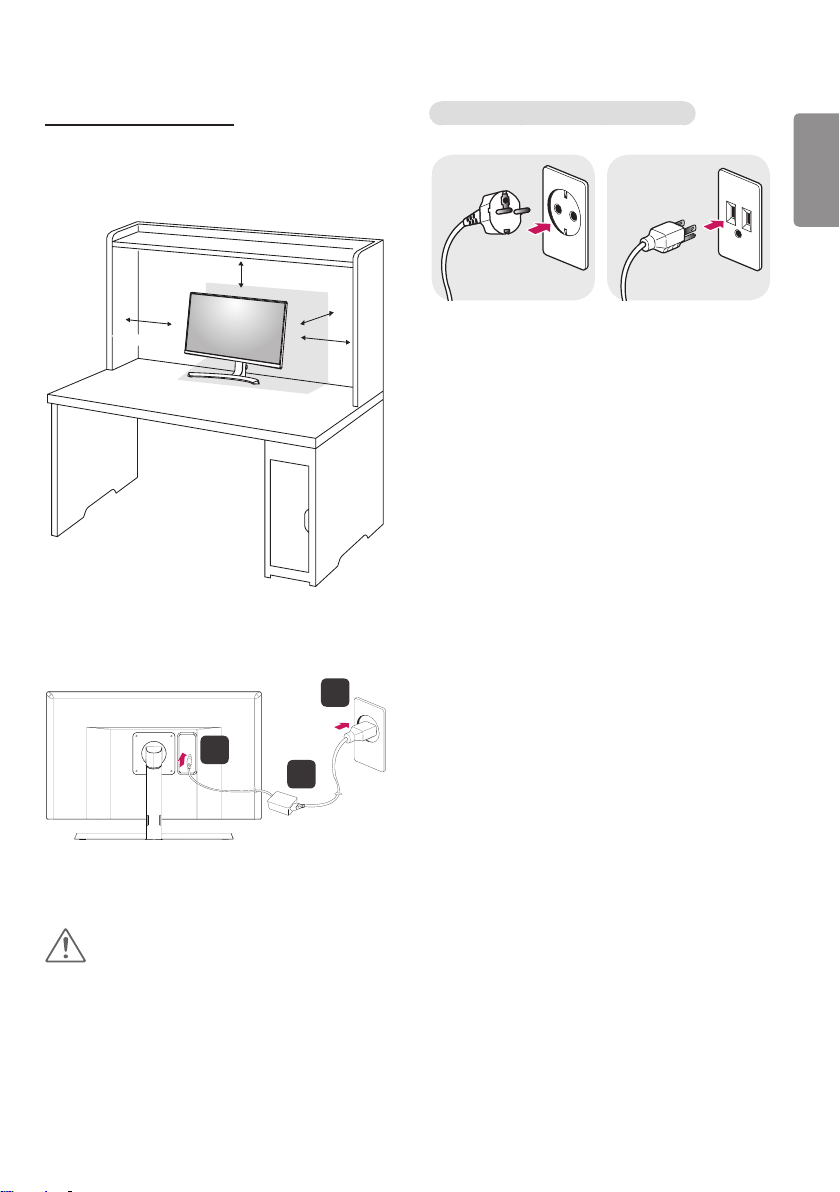
Installing on a Table
1 Lift the monitor and place it on the table in an
upright position. Place at least 100 mm away from
the wall to ensure sufficient ventilation.
100 mm
100 mm
100 mm
100 mm
2 Connect the power adapter to the monitor and then
plug the power cord into the wall outlet.
1
3
2
3 Press the joystick button on the bottom of the
monitor to turn on the monitor.
CAUTION
Unplug the power cord prior to moving or installing
the monitor. There is risk of electric shock.
Cautions When Connecting Power Cord
100-240 V ~
Make sure to use the power cord that is provided in
the product package and connect it to a grounded
power outlet.
If you need another power cord, please contact your
local dealer or the nearest retail store.
ENGLISH
28
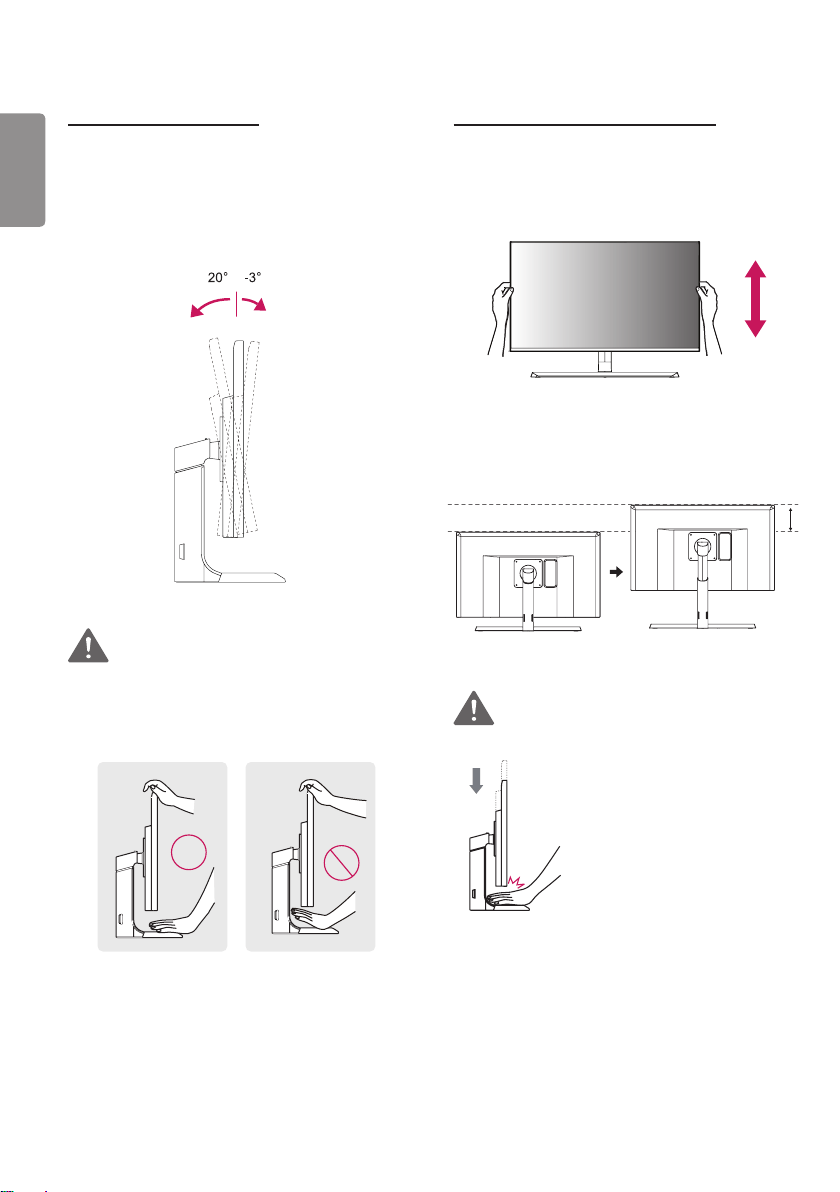
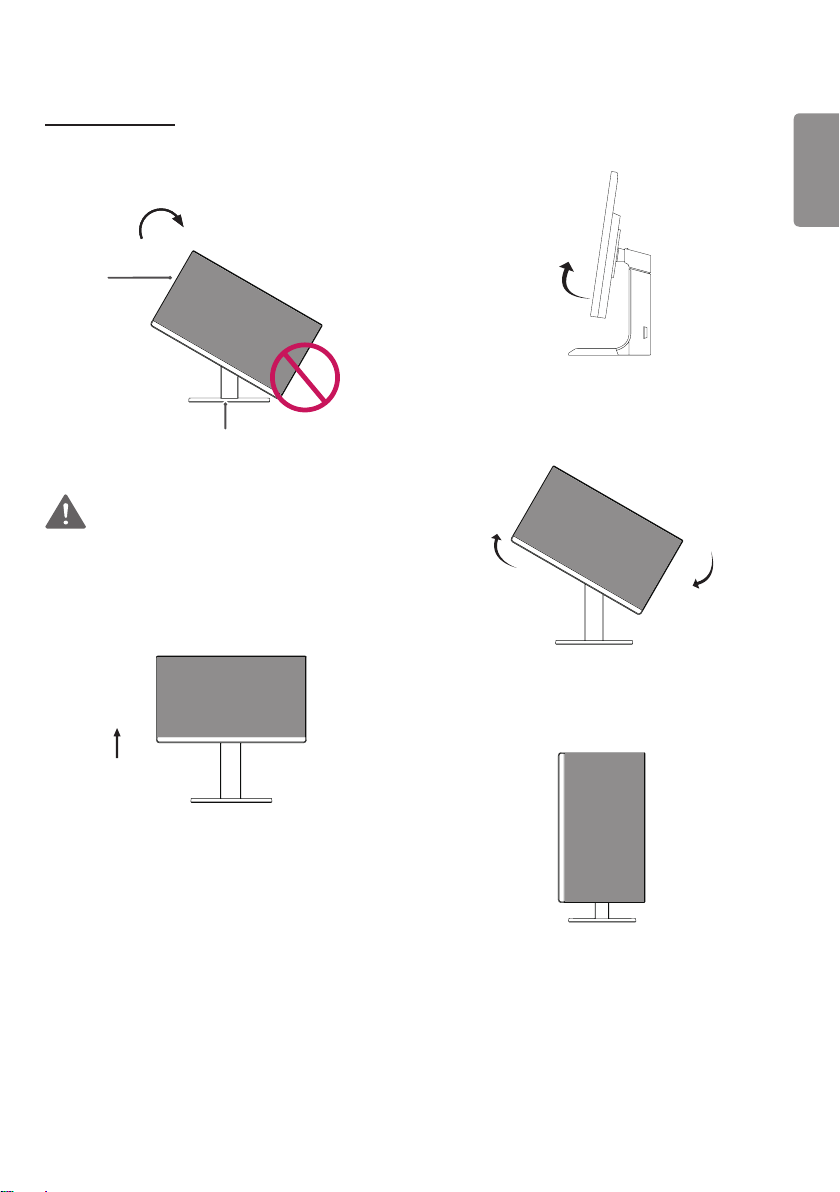
Adjusting the Angle
1 Place the monitor in an upright position, mounted
on the stand base.
2 Adjust the angle of the screen. The angle of the
screen can be adjusted forwards or backwards for a
comfortable viewing experience.
Front
Rear
WARNING
To avoid injury to the fingers when adjusting the
screen, do not hold the lower part of the monitor’s
frame as illustrated below.
Adjusting the Stand Height
1 Place the monitor mounted on the stand base in an
upright position.
2 Handle the monitor with both hands for safety.
3 The height can be adjusted up to 110.0 mm.
110.0 mm
WARNING
Do not put your fingers or hand
between the screen and the
base (chassis) when adjusting
the screen’s height.
ENGLISH
29
Pivot Feature
The pivot feature allows the monitor to rotate 90°
clockwise.
Stand
Head
WARNING
To avoid scratching the stand base, make sure that
when rotating the monitor using the pivot feature,
the stand does not make contact with the monitor.
1 Raise the monitor to the maximum height.
2 Adjust the angle of the monitor in the direction of
the arrow as shown in the figure.
3 Rotate the monitor clockwise as shown in the
figure.
4 Complete the installation by rotating the monitor
90° as shown below.
ENGLISH
30
NOTE
Auto Pivot feature of the display is not supported.
The screen can be rotated easily using the screen
pivot shortcut key provided with your Windows
operating system. Note that some Windows versions
and some graphics card drivers may use different
settings for the screen pivot key or may not support
the pivot key at all.
Windows screen pivot shortcut keys
-
-
-
-
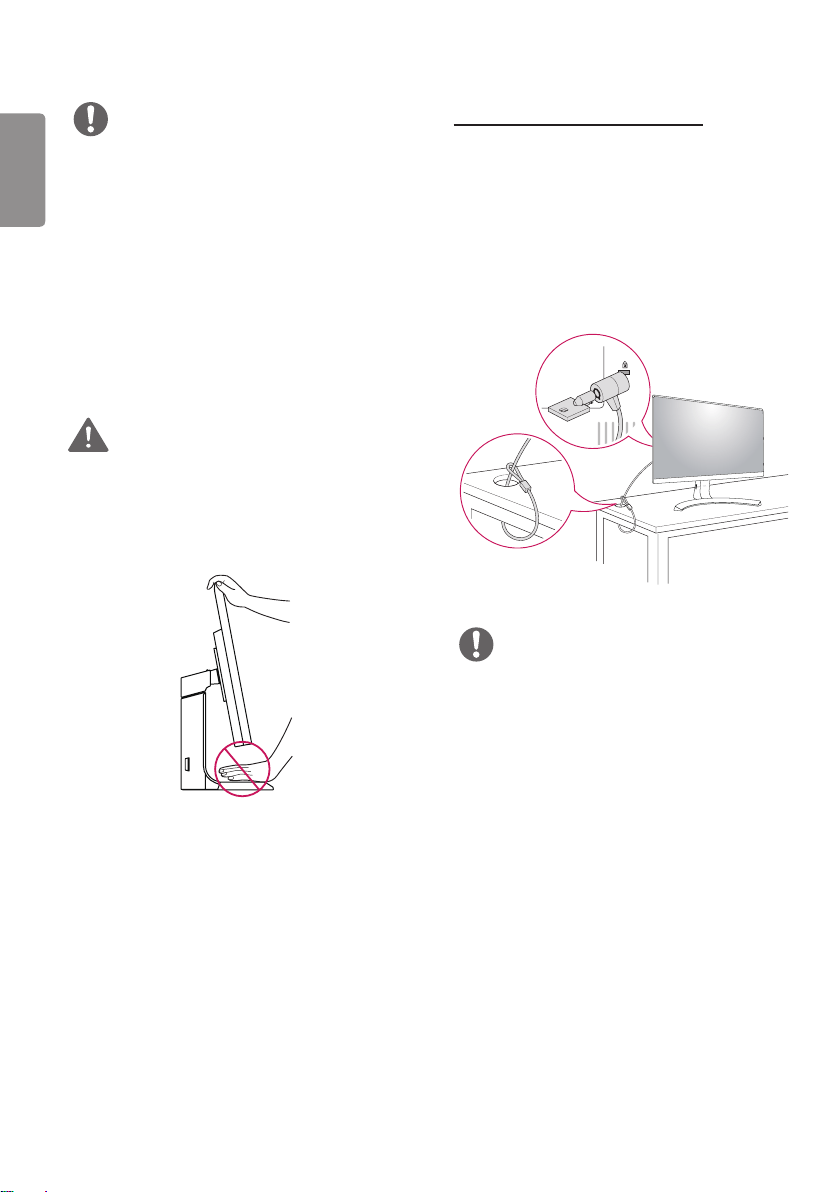
WARNING
Take care when rotating the monitor if the cable is
connected.
To avoid injury when rotating the display, do not place
your fingers between the display and the stand base.
Using the Kensington lock
The Kensington security system connector is located at
the back of the Monitor set.
For more information on installation and usage, refer to
the Kensington lock owner's manual or visit the website
at http://www.kensington.com.
Connect the Kensington security system cable between
the Monitor set and a table.
NOTE
The Kensington security system is optional. You can
obtain optional accessories from most electronics
stores.
ENGLISH
31
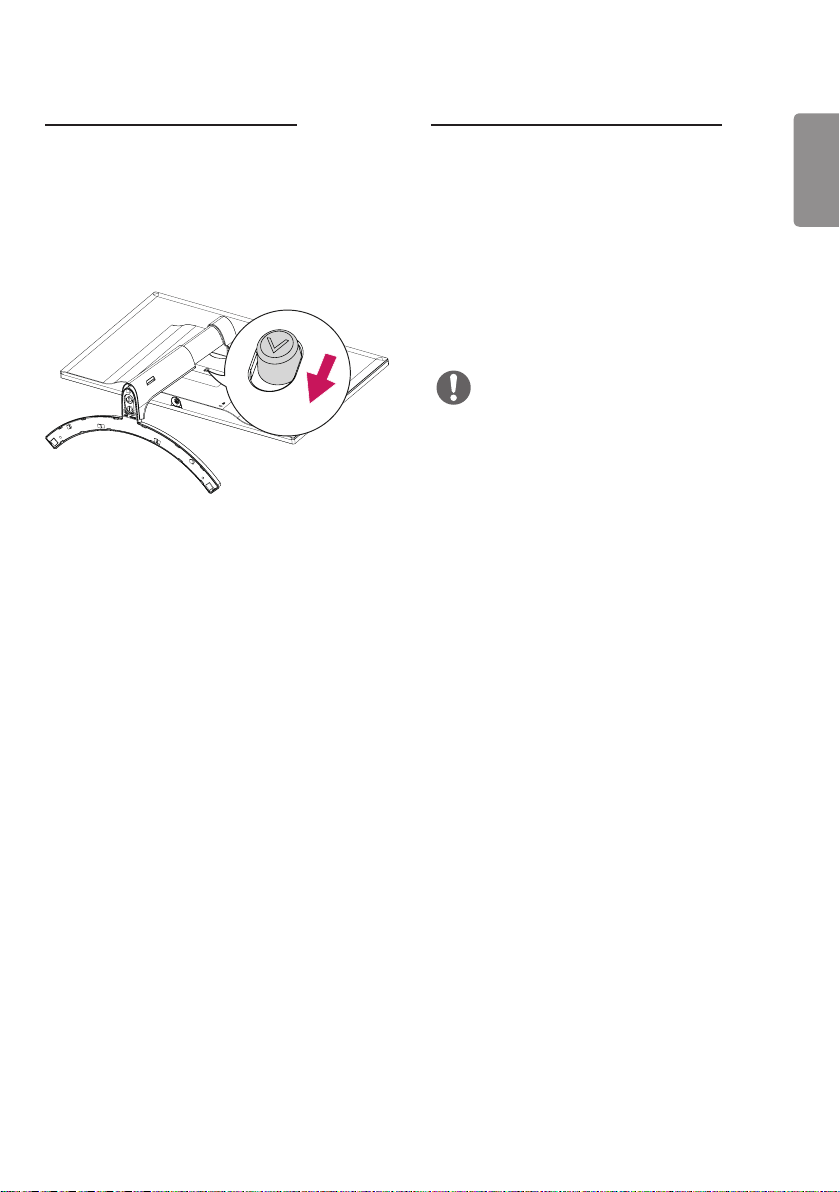
Detaching the Stand Body
1 Place the monitor’s screen face down. To protect
the screen from scratches, cover the surface with a
soft cloth.
2 Remove the stand from the monitor by pressing
the button on the bottom center of the back of the
monitor.
Installing the wall mount plate
This monitor supports the specification of the standard
wall mount plate or compatible device.
1 Place the screen face down. To protect the screen
from scratches, cover the surface with a soft cloth.
2 Using a screwdriver, remove the four screws at the
back of the monitor.
3 Place the wall mount plate onto the monitor and
align it with the screw holes.
4 Tighten the four screws to fix the plate to the
monitor using a screwdriver.
NOTE
The wall mount plate is sold separately.
For more information on installation, refer to the wall
mount plate's installation guide.
Be careful not to use excessive force when mounting
the wall mount plate, as this can damage the
monitor's screen.
ENGLISH
32
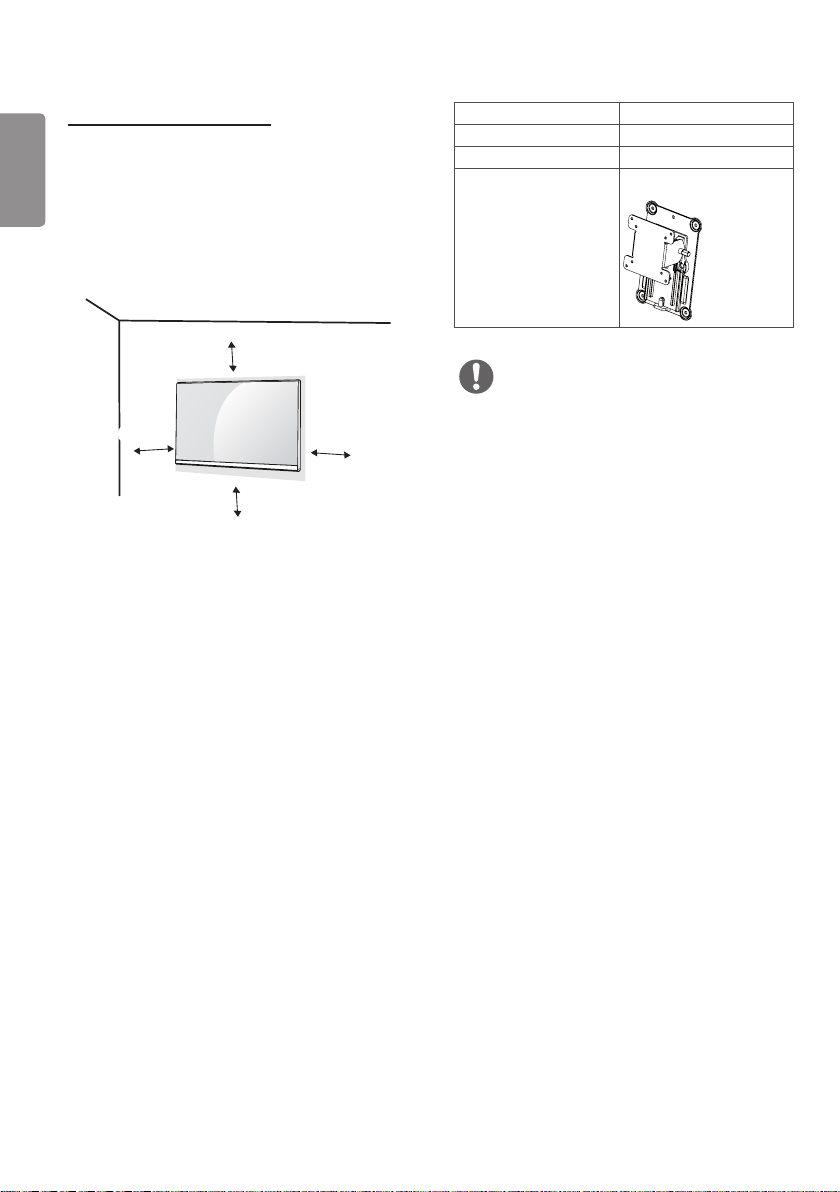
Installing on the Wall
Install the monitor at least 100 mm away from the
wall and leave about 100 mm of space at each side of
the monitor to ensure sufficient ventilation. Detailed
installation instructions can be obtained from your local
retail store. Alternatively, please refer to the manual
for how to install and set up a tilting wall mounting
bracket.
100 mm
100 mm
100 mm
100 mm
To install the monitor to a wall, attach a wall mounting
bracket (optional) to the back of the monitor.
Make sure that the wall mounting bracket is securely
fixed to the monitor and to the wall.
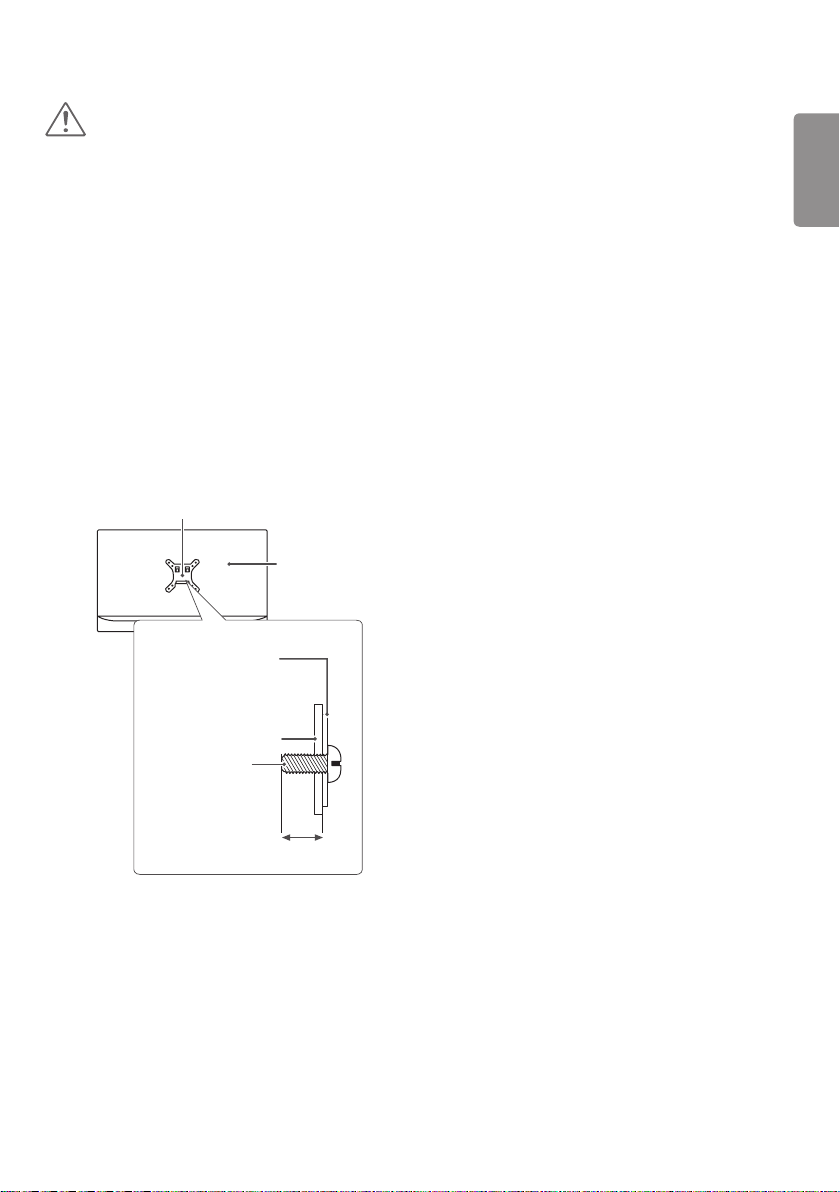
1 If you use screw longer than standard, the monitor
might be damaged internally.
2 If you use improper screw, the product might be
damaged and drop from mounted position. In this
case, LG Electronics is not responsible for it.
Wall Mount (mm)
100 x 100
Standard screw
M4 x L10
Number of screws
4
Wall Mount Plate
(Optional)
RW120
NOTE
Use the screws specified by the VESA standard.
The wall mount kit includes the installation guide and
all necessary parts.
The wall mounting bracket is optional. The accessories
can be purchased at your local retail store.
The length of the screw may differ for each wall
mounting bracket. Ensure the correct length screw
is used.
For more information, please refer to the user manual
for the wall mounting bracket.
ENGLISH
33
CAUTION
Unplug the power cord before moving or installing the
monitor to avoid electric shocks.
Installing the monitor on the ceiling or on a slanted
wall may result in the monitor falling off, which
could lead to injury. Please use the genuine LG wall
mounting bracket. For more information, contact your
local retail store or a qualified installer.
Applying excessive force when fastening screws may
cause damage to the monitor. Damage caused in this
way will not be covered by the product warranty.
Use the wall mounting bracket and screws that
confirm to the VESA standard. Damage caused by the
use or misuse of inappropriate components will not
be covered by the product warranty.
Screw length from outer surface of back cover should
be under 8 mm.
Wall mount plate
Back of the
Monitor
Screw Dimensions:
M4 x L10
Wall mount plate
Back of the Monitor
Max. 8 mm
ENGLISH
34
USING THE MONITOR
Connecting to a PC
This monitor supports the *Plug and Play feature.
* Plug and Play: A feature that allows you to add
a device to your computer without having to
reconfigure anything or install any manual drivers.
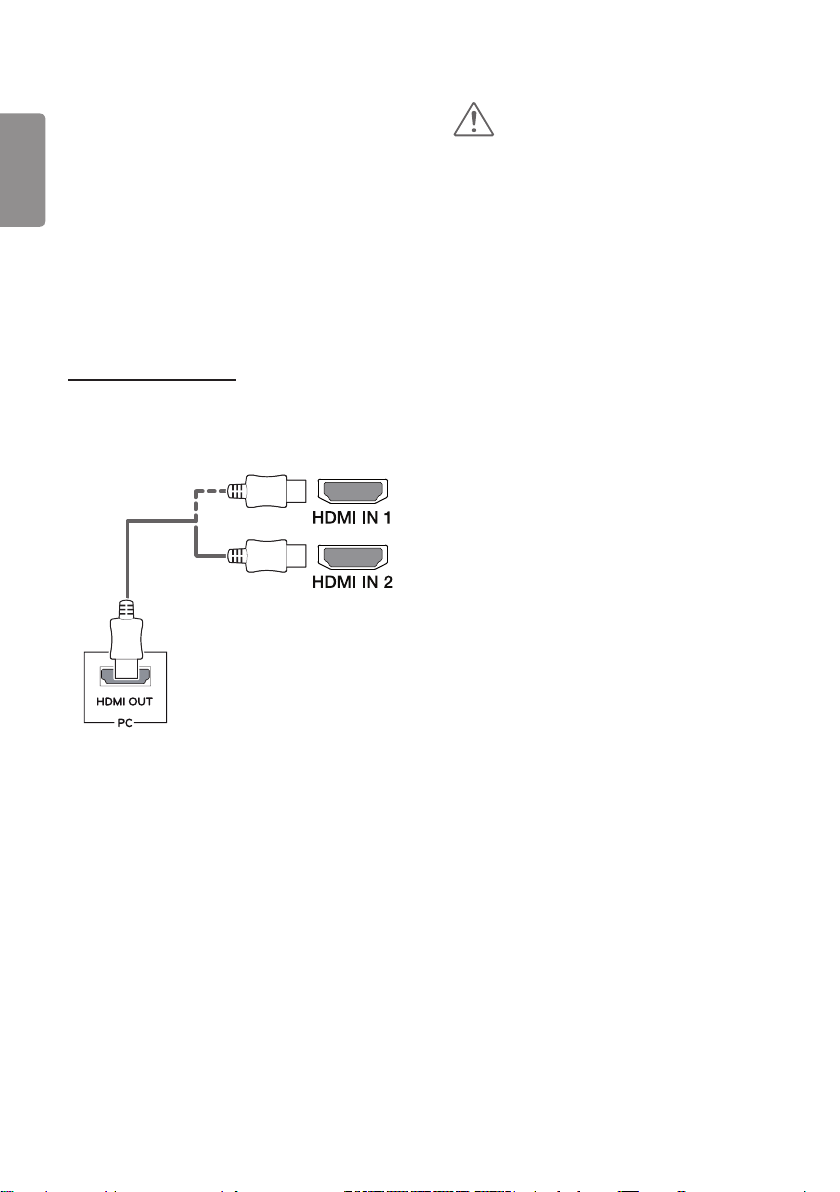
HDMI connection
Transmits digital video and audio signals from your PC
to the monitor. Connect your PC to the monitor using
the HDMI cable as shown in the illustration below.
CAUTION
Make sure to use the supplied HDMI cable of the
product. Otherwise, this may cause the device to
malfunction.
Connecting your PC to the monitor using the HDMI
cable may cause device compatibility issues.
Using a DVI to HDMI / DP (DisplayPort) to HDMI
cable may cause compatibility issues.
Use a certified cable with the HDMI logo attached. If
you do not use a certified HDMI cable, the screen may
not display or a connection error may occur.
Recommended HDMI cable types
- High-Speed HDMI
®
/
TM
Cable
- High-Speed HDMI
®
/
TM
Cable with Ethernet
ENGLISH
35
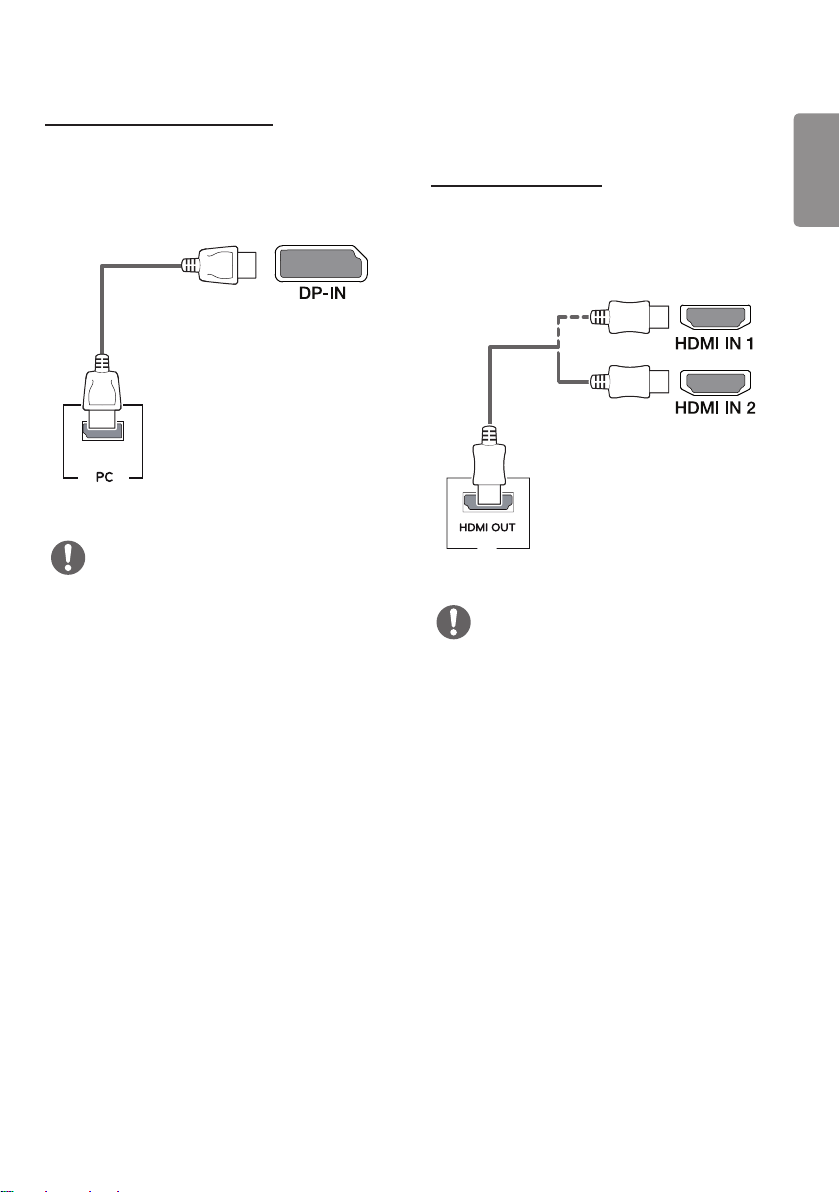
DisplayPort Connection
Transmits digital video and audio signals from your PC
to the monitor. Connect the monitor to your PC using
the DisplayPort cable as shown in the illustration below.
DP OUT
NOTE
There may be no video or audio output depending on
the DP (DisplayPort) version of the PC.
Make sure to use the supplied DisplayPort cable of
the product. Otherwise, this may cause the device to
malfunction.
If you use generic cables not certified by LG, the
screen may not display or there may be image noises.
Connecting AV Devices
HDMI Connection
HDMI transmits digital video and audio signals from
your AV device to the monitor. Connect your AV device
to the monitor using the HDMI cable as shown in the
illustration below.
AV
NOTE
Make sure to use the supplied HDMI cable of the
product. Otherwise, this may cause the device to
malfunction.
Using a DVI to HDMI / DP (DisplayPort) to HDMI
cable may cause compatibility issues.
Use a certified cable with the HDMI logo attached. If
you do not use a certified HDMI cable, the screen may
not display or a connection error may occur.
Recommended HDMI cable types
- High-Speed HDMI
®
/
TM
Cable
- High-Speed HDMI
®
/
TM
Cable with Ethernet
ENGLISH
36
Connecting Peripherals
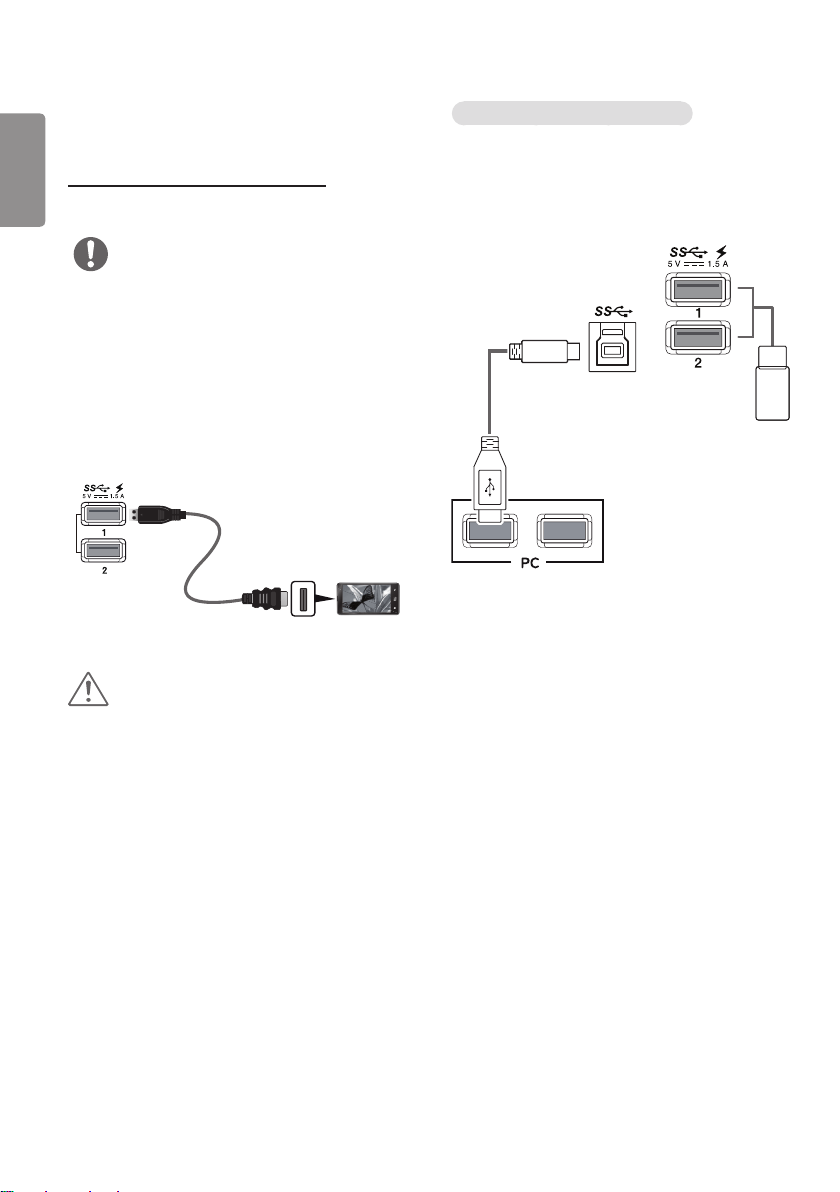
USB Cable connection - PC
The USB port on the product functions as a USB hub.
NOTE
Make sure to install the most recent Windows OS
service pack before using the product.
Peripheral devices are sold separately.
A keyboard, mouse, or USB device can be connected
to the USB port.
Go to General >Quick Charge to set Quick Charge
to On or Off.
The charging speed may vary depending on the device.
(sold separately)
CAUTION
Cautions When Using a USB Device
A USB device with an automatic recognition program
installed, or that uses its own driver, may not be
recognized.
Some USB devices may not be supported or may not
work properly.
It is recommended to use a USB hub or hard disk
drive with power supplied. (If the power supply is
not adequate, the USB device may not be recognized
properly.)
HDMI/DP (DisplayPort) connection
To use USB 3.0, connect the A-B type USB 3.0 cable of
the product to the PC.
Peripheral devices connected to the USB IN port can be
controlled from the PC.
(sold
separately)
ENGLISH
37
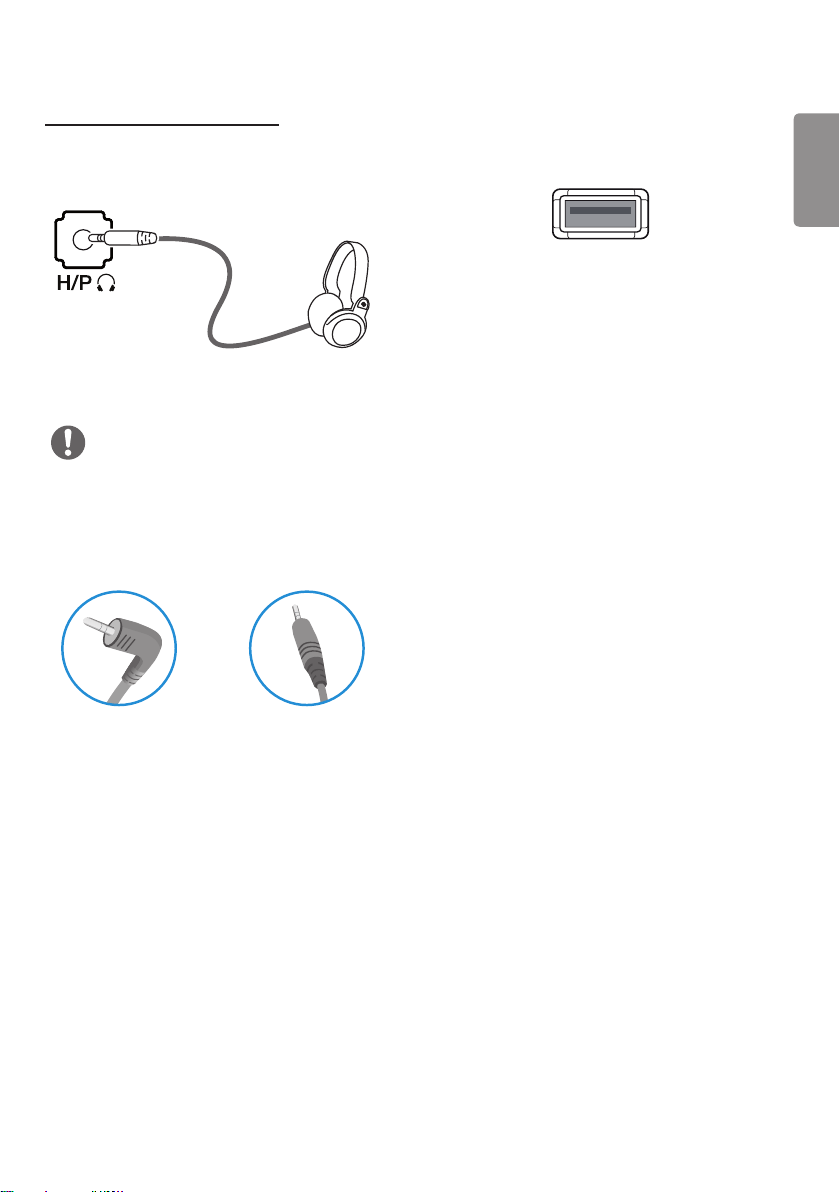
Connecting Headphones
Connect peripherals to the monitor via the headphones
port. Connect as illustrated.
(sold separately)
NOTE
Peripheral devices are sold separately.
If you use angled earphones, it may cause a problem
with connecting another external device to the
monitor. Therefore, it is recommended to use straight
earphones.
Angled Straight
Depending on the audio settings of the PC and
external device, headphones and speaker functions
may be limited.
Service only port
The port is used only for “Service”.
SERVICE ONLY
ENGLISH
38
USER SETTINGS
Activating the Main Menu
1 Press the joystick button on the bottom of the monitor.
2 Move the joystick up/down ( / ), and left/right ( / ) to set the options.
3 Press the joystick button once more to exit the main menu.
Joystick Button
Button Menu Status Description
Main menu disabled Enables the main menu.
Main menu enabled
Exits the main menu.
(Holding down the button to turn off the monitor. You can
turn off the monitor this way at any time, including when
the OSD is on.)
Main menu disabled Adjusts the monitor volume level.
Main menu enabled Enters the Menu features.
Main menu disabled Adjusts the monitor volume level.
Main menu enabled Enters the Input feature.
Main menu disabled Enables the main menu.
Main menu enabled Enters the Picture Mode feature.
Main menu disabled Enables the main menu.
Main menu enabled Turns off the monitor.
ENGLISH
39
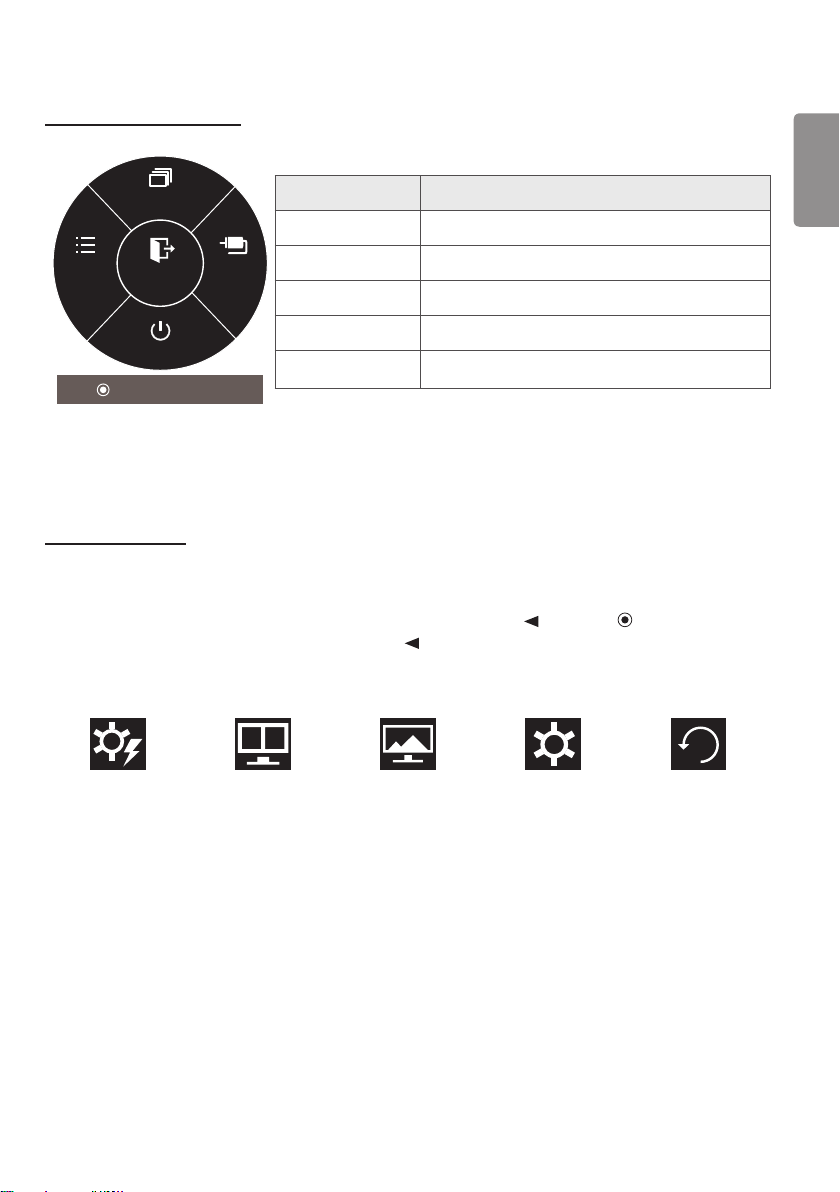
Main Menu Features
Long Press: Monitor off
Picture Mode
Menu Input
Monitor off
Exit
Main Menu Description
Menu Configures the screen settings.
Picture Mode Optimizes the screen for picture mode.
Input Sets input mode.
Monitor off Turns off the monitor.
Exit Exits the main menu.
User Settings
Menu Settings
1 To view the OSD menu, press the joystick button at the bottom of the monitor and then enter the Menu.
2 Configure the options by moving the joystick up/down/left/right.
3 To return to the upper menu or set other menu items, move the joystick to or pressing ( /Ok) it.
4 If you want to exit the OSD menu, move the joystick to until you exit.
When you enter the menu, instructions on how to use the button will appear in the bottom right corner of the
screen.
Quick Settings PBP Picture General Reset

ENGLISH
40
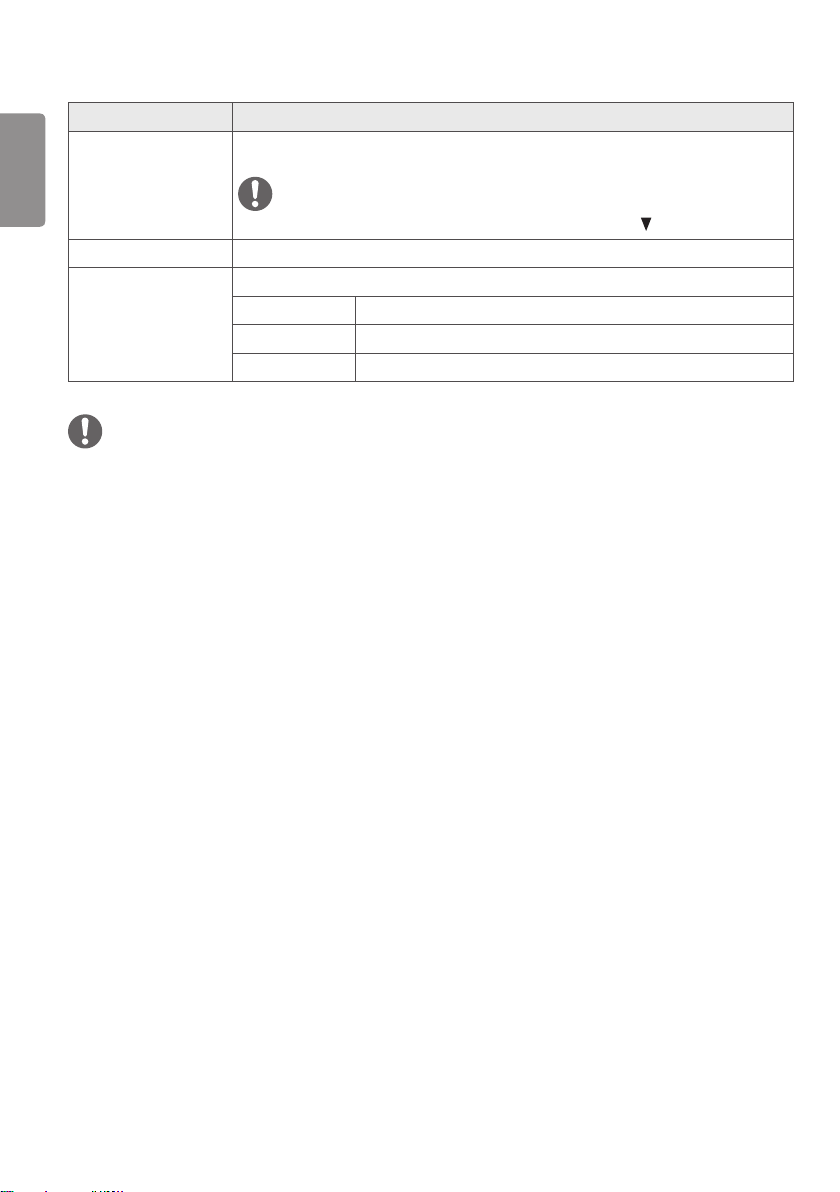
Each option is described below.
Menu Description
Quick Settings Brightness
Adjusts the color contrast and brightness of the screen.
Contrast
Volume Adjusts the volume level.
NOTE
You can adjust Mute/ Unmute by moving the joystick button to in the
Volume menu.
Input Selects the input mode.
Ratio Adjusts the aspect ratio of the screen.
PBP PBP Displays the screens of two input modes on one monitor.
Picture Picture Mode Changes the picture mode to the one optimized for a given feature.
Picture Adjust Adjusts the Brightness Stabilization, SUPER RESOLUTION+, Sharpness, Black
Level, HDMI ULTRA HD Deep Color, DFC, Response Time, Black Stabilizer, and
Uniformity.
Color Adjust Adjusts the Gamma, Color Temp, and Six Color.
General Sets Language, SMART ENERGY SAVING, Power LED, Automatic Standby,
DisplayPort 1.2, Quick Charge, Buzzer, and OSD Lock.
Reset Restores the default settings.
Exit Exits the OSD menu.
CAUTION
Your monitor’s OSD (On Screen Display) may differ slightly from that shown in this manual.

ENGLISH
41
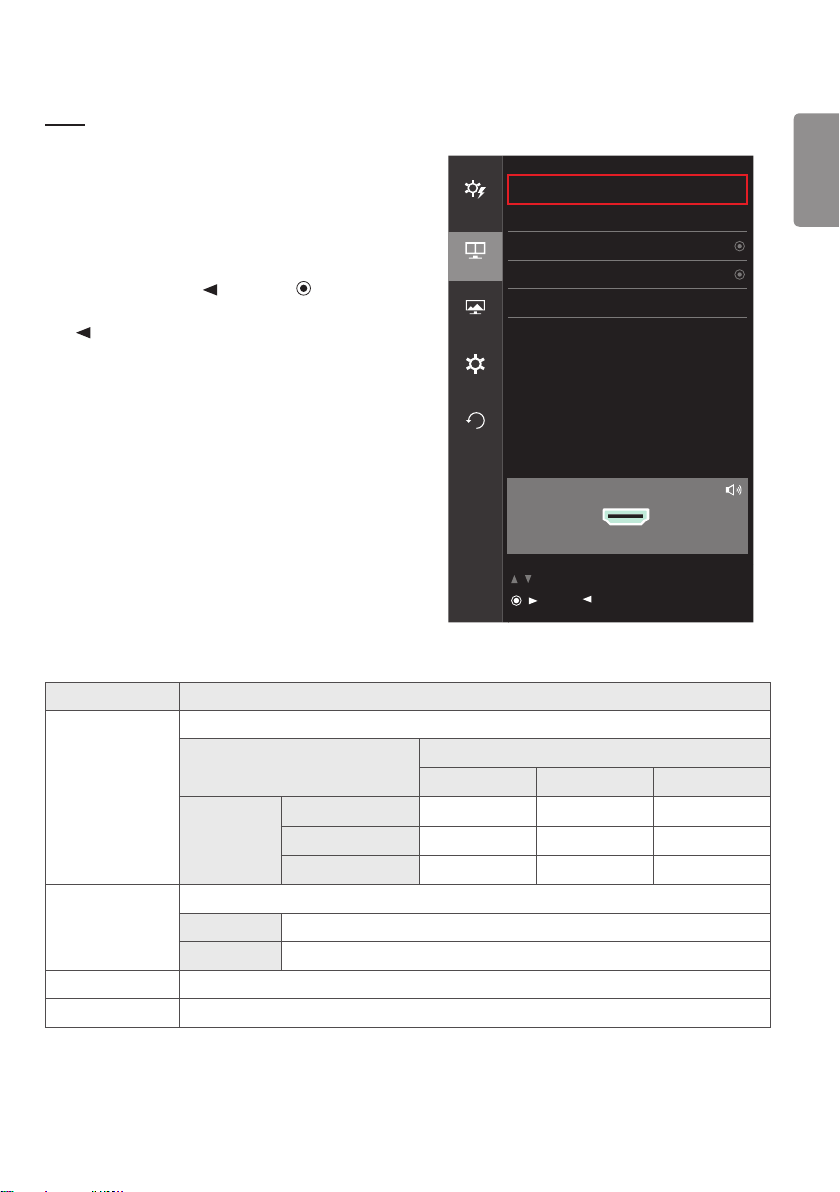
Quick Settings
1 To view the OSD menu, press the joystick button at the
bottom of the monitor and then enter the Menu.
2 Go to Quick Settings by moving the joystick.
3 Configure the options following the instructions that
appear in the bottom right corner.
4 To return to the upper menu or set other menu items,
move the joystick to or pressing ( /Ok) it.
5 If you want to exit the OSD menu, move the joystick to
until you exit .
Quick Settings
Quick
Settings
Brightness 100 >
Contrast 70 >
PBP
Volume 30 >
Input HDMI 1 >
Picture
Ratio Wide >
General
Reset
/ : Move
/ : Ok
: Back
Each option is described below.
Menu > Quick Settings Description
Brightness Adjusts the brightness of the screen.
NOTE
You can adjust the Brightness Stabilization to On/ Off by pressing the button in the
Brightness menu.
When the Brightness Stabilization is On, Brightness menus becomes disabled.
When the Brightness Stabilization is On, SMART ENERGY SAVING and DFC menus
become disabled.
When Picture Mode is set as DICOM, or Gamma is set as DICOM Gamma Curve, the
Brightness adjustment function is deactivated.
Contrast Adjusts the color contrast of the screen.
ENGLISH
42
Menu > Quick Settings Description
Volume Adjusts the volume level.
NOTE
You can adjust Mute/ Unmute by moving the joystick button to in the Volume menu.
Input Selects the input mode.
Ratio Adjusts the aspect ratio of the screen.
Wide Displays the video in widescreen, regardless of the video signal input.
Original Displays video according to the aspect ratio of the video signal input.
1:1 The aspect ratio is not adjusted from the original.
NOTE
The display may look the same for Wide, Original, and 1:1 options at the recommended resolution (3840 x 2160).
The ratio is disabled in the interlaced signal.
ENGLISH
43
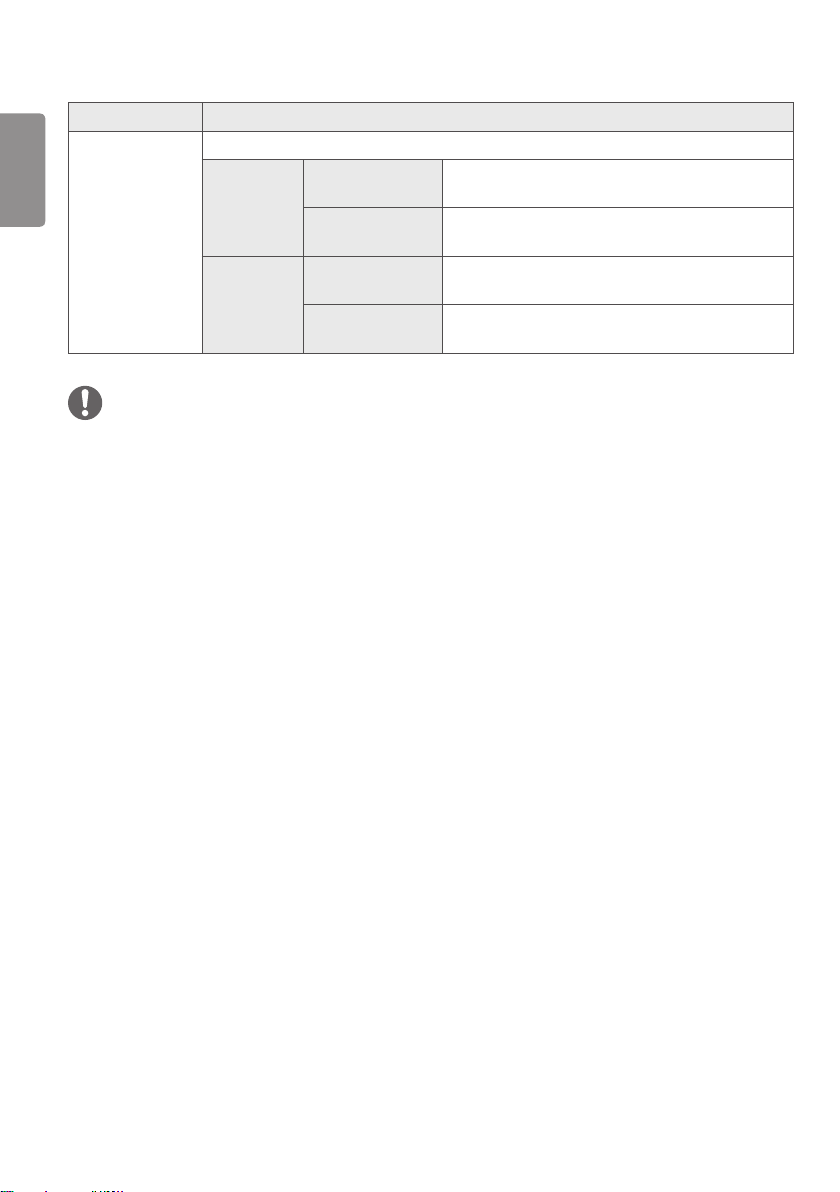
PBP
1 To view the OSD menu, press the joystick button at the
bottom of the monitor and then enter the Menu.
2 Go to PBP by moving the joystick.
3 Configure the options following the instructions that
appear in the bottom right corner.
4 To return to the upper menu or set other menu items,
move the joystick to or pressing ( /Ok) it.
5 If you want to exit the OSD menu, move the joystick to
until you exit .
PBP
Quick
Settings
Sub Off >
Sound Out Main >
PBP
Swap
Sub Full
Picture
Ratio >
General
Reset
PBP Preview
HDMI1
/ : Move
/ : Ok
: Back
Each option is described below.
Menu > PBP Description
Sub Displays the screens of two input modes on one monitor.
PBP Connection
Sub Screen (Right)
HDMI 1 HDMI 2 DisplayPort
Main Screen
(Left)
HDMI 1 X X O
HDMI 2 X X O
DisplayPort O O X
Sound Out Changes the audio output in PBP mode.
Main Selects the input for Main.
Sub Selects the input for Sub.
Swap Toggles between the main screen and sub screen in PBP mode.
Sub Full Converts the sub screen in PBP mode to wide screen.
ENGLISH
44
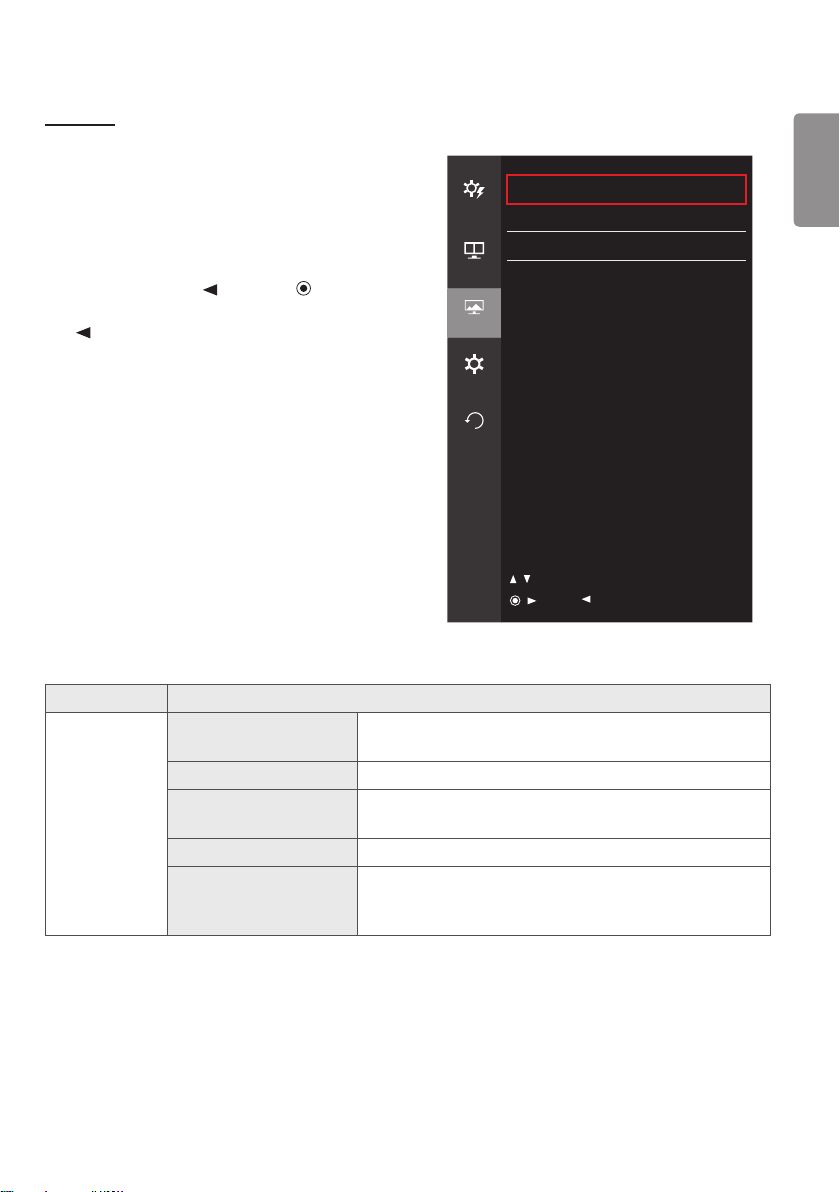
Menu > PBP Description
Ratio Adjusts the aspect ratio of the main screen or sub screen.
Main Wide Displays the video to fit the PBP screen, regardless of
the video signal input.
Original Displays the video in the aspect ratio of the video signal
input on the PBP screen.
Sub Wide Displays the video to fit the PBP screen, regardless of
the video signal input.
Original Displays the video in the aspect ratio of the video signal
input on the PBP screen.
NOTE
When the Sub mode is Off, Sound Out, Swap, Sub Full, and Ratio menus become disabled. The Main / Sub options
for Ratio become disabled if there is no signal.
The optimal resolution for PBP mode is set automatically when PBP mode is set.
ENGLISH
45
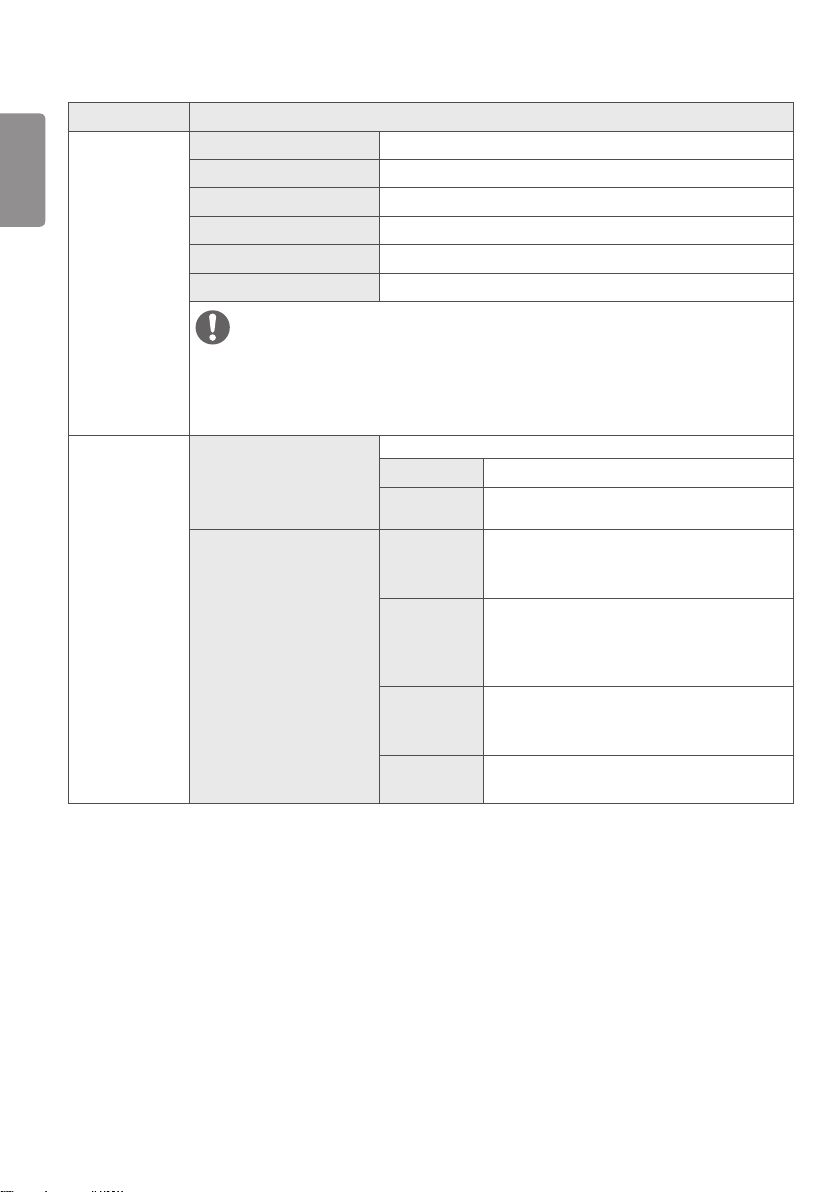
Picture
1 To view the OSD menu, press the joystick button at the
bottom of the monitor and then enter the Menu.
2 Go to Picture by moving the joystick.
3 Configure the options following the instructions that
appear in the bottom right corner.
4 To return to the upper menu or set other menu items,
move the joystick to or pressing ( /Ok) it.
5 If you want to exit the OSD menu, move the joystick to
until you exit .
Picture
Quick
Settings
Picture Mode DICOM >
Picture Adjust >
PBP
Color Adjust >
Picture
General
Reset
/ : Move
/ : Ok
: Back
Each option is described below.
Menu > Picture Description
Picture Mode Custom Allows the user to adjust each element. The color mode of the
main menu can be adjusted.
Mono Mono (black and white) color mode.
Reader Optimizes the screen for viewing documents. You can brighten
the screen in the OSD menu.
sRGB A standard RGB color space for the monitor and printer.
Color Weakness This mode is for users who cannot distinguish between red and
green. It enables users with color weakness to easily distinguish
between the two colors.
ENGLISH
46
Menu > Picture Description
Picture Mode EBU A standard TV PAL color space for broadcasting.
REC709 A standard HDTV color space for broadcasting.
SMPTE-C A standard TV NTSC color space for broadcasting.
DICOM A mode optimized for viewing medical images.
Calibration 1 Adjusts to the last calibrated screen.
Calibration 2 Adjusts to the previously calibrated screen.
NOTE
If the Picture Mode is changed in the DP (DisplayPort) input, the screen may flicker or the
resolution of your PC screen may be affected.
Calibration 2: Installation of TRUE COLOR PRO and proceeding Calibration will enable this
menu.
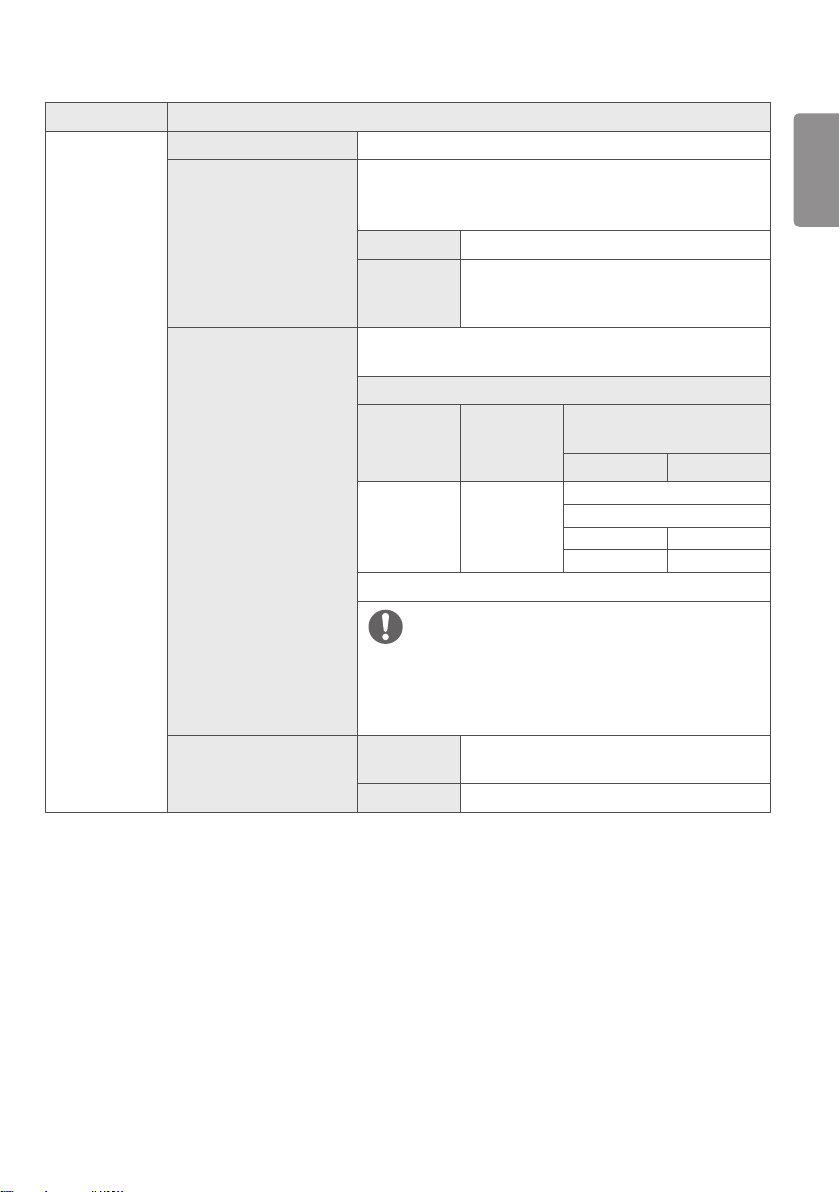
Picture Adjust
Brightness Stabilization Maintains the brightness configured for medical environments.
On
Adjusts the brightness automatically.
Off
Deactivates the function, and allows the user to
configure the brightness.
SUPER RESOLUTION+ High Optimized picture quality is displayed when a
user wants crystal clear images. It is effective for
high quality video or game.
Middle The optimized picture quality is displayed when a
user wants images between low and high modes
for comfortable viewing. It is effective for UCC
or SD video.
Low The optimized picture quality is displayed when
a user wants smooth and natural images. It is
effective for slow-moving pictures or still images.
Off Select this option for everyday viewing. SUPER
RESOLUTION+ is turned off in this mode.
ENGLISH
47
Menu > Picture Description
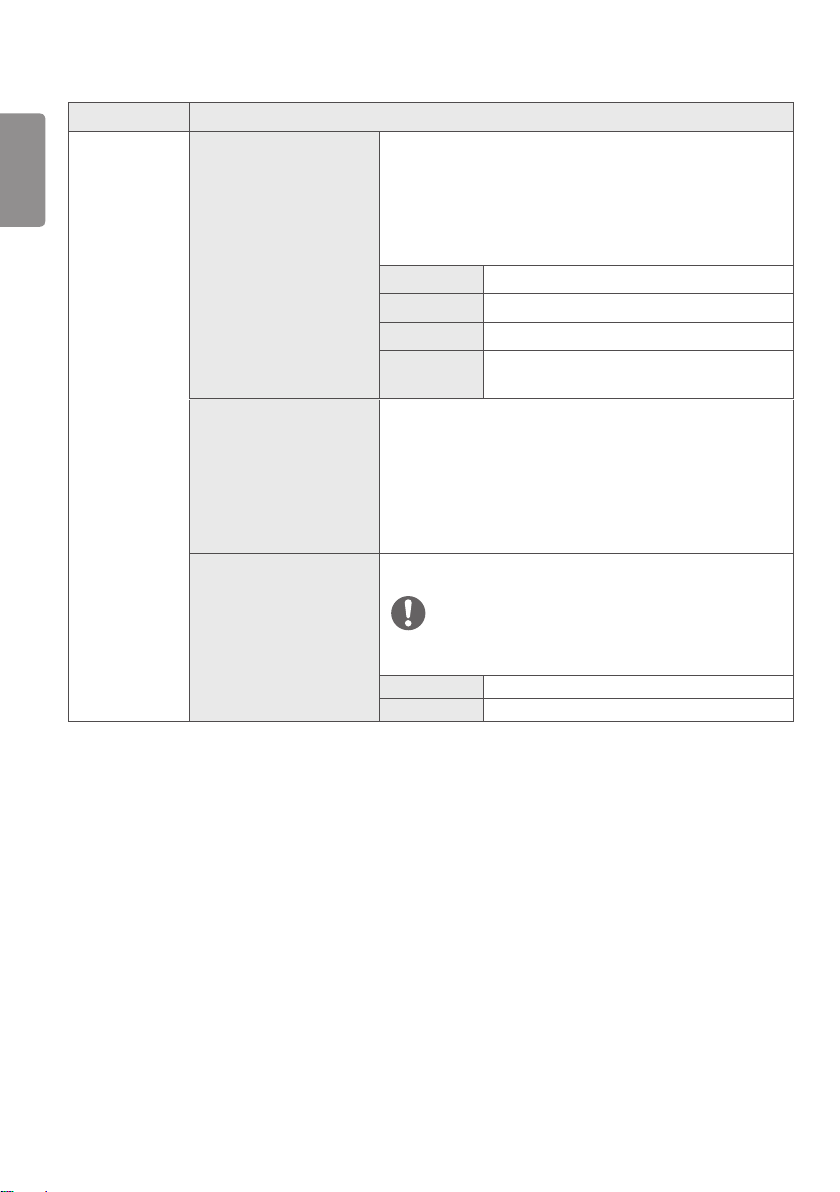
Picture Adjust Sharpness Adjusts the sharpness of the screen.
Black Level Sets the offset level (for HDMI only).
Offset: as a reference for a video signal, this is the darkest color
the monitor can display.
High Keeps the current contrast ratio of the screen.
Low Lowers the black levels and raises the white
levels from the current contrast ratio of the
screen.
HDMI ULTRA HD Deep
Color
Provides sharper images when connected to a device supporting
ULTRA HD Deep Color.
4K@ 60 Hz Support Format
1)
Resolution
Frame
rate(Hz)
Color Depth / Chroma
Sampling
8 bit 10 bit
3840 x 2160
59.94
60.00
YCbCr 4:2:0
YCbCr 4:2:2
YCbCr 4:4:4 -
RGB 4:4:4 -
1) Supported when HDMI ULTRA HD Deep Color is set to On.
NOTE
If the connected device does not support ULTRA HD Deep Color,
the feature may not work properly.
If a problem occurs, set the HDMI ULTRA HD Deep Color
option to Off.
DFC On Adjusts the brightness automatically according
to the screen.
Off Disables the DFC.
ENGLISH
48
Menu > Picture Description
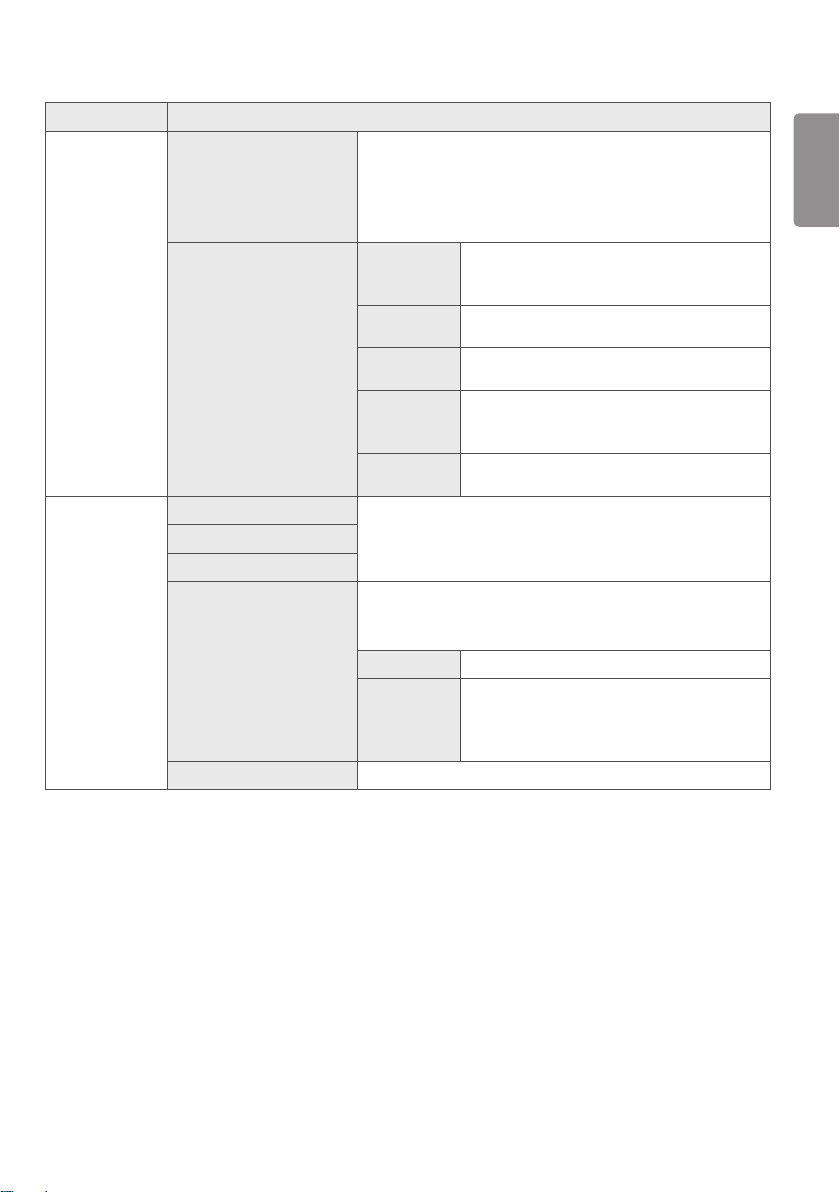
Picture Adjust Response Time Sets a response time for displayed pictures based on the speed of
the screen.
For a normal environment, it is recommended that you use
Middle. For a fast-moving picture, it is recommended that you
use High.
Setting to High may cause image sticking.
High Sets the response time to High.
Middle Sets the response time to Middle.
Low Sets the response time to Low.
Off Does not use the response time improvement
feature.
Black Stabilizer You can control the black contrast to have better visibility in dark
scenes.
Increasing the Black Stabilizer value brightens the low gray level
area on the screen. (You can easily distinguish objects on dark
game screens.)
Reducing the Black Stabilizer value darkens the low gray level
area and increases the dynamic contrast on the screen.
Uniformity Adjusts the uniformity of screen brightness.
NOTE
• Enabling Uniformity may reduce the overall brightness of the
image.
On Enables the Uniformity feature.
Off Disables the Uniformity feature.
ENGLISH
49
Menu > Picture Description
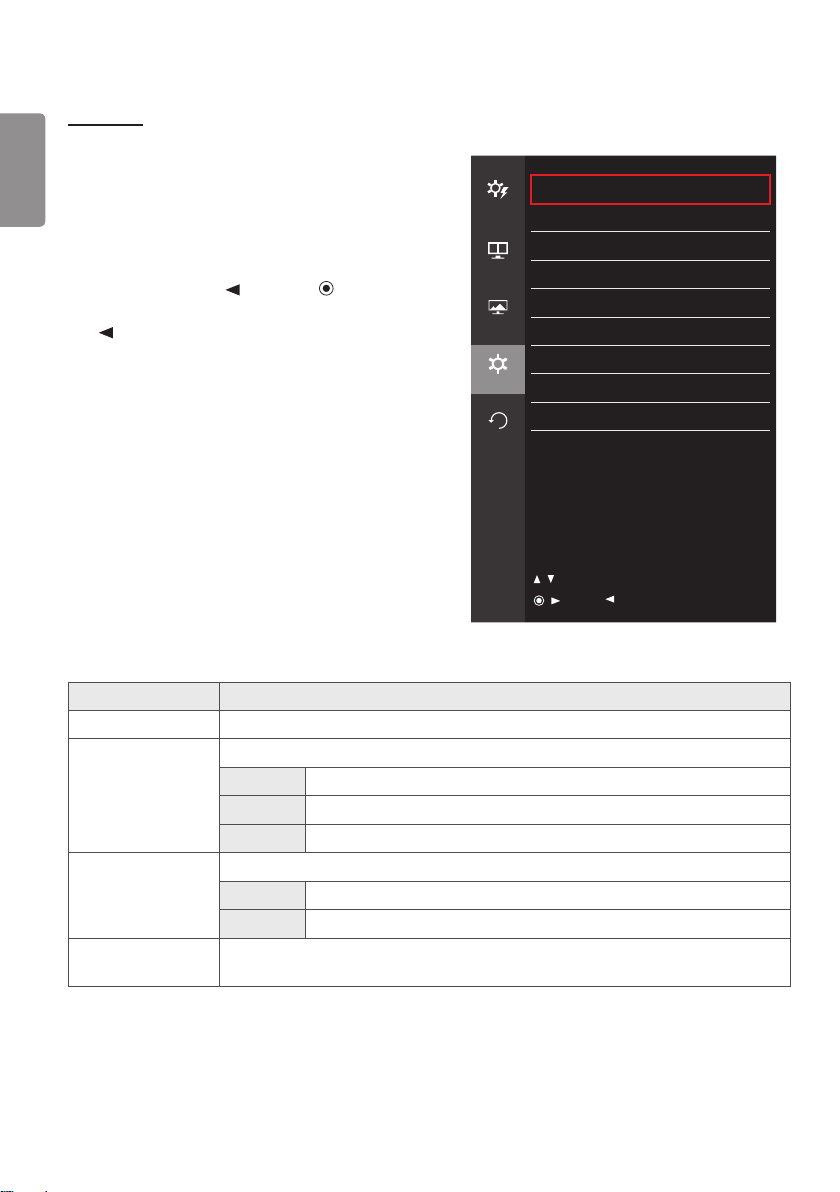
Color Adjust Gamma Custom gamma settings: Gamma 1.8, Gamma 2.0, Gamma 2.2,
Gamma 2.4, Gamma 2.6, DICOM Gamma Curve, Off.
The higher the gamma value, the darker the image becomes.
Likewise, the lower the gamma value, the lighter the image
becomes.
Color Temp
Manual Adjusts the color temperature in 500K
increments. (Note that 9300K is supported
rather than 9500K.)
Custom The user can customize the red, green and blue
color.
6500K Sets the picture color to the color temperature
of a reddish 6500K.
8500K Sets the picture color to the color temperatures
of 8500K, setting to a color between red and
blue.
9300K Sets the picture color to the color temperature
of a bluish 9300K.
Color Adjust Red
You can customize the picture color using red, green and blue.Green
Blue
Six Color Fulfills your color requirements by adjusting the hue and
saturation of the six colors (red, green, blue, cyan, magenta and
yellow). The settings are then saved.
Hue
Adjusts the tone of the screen colors.
Saturation
Adjusts the saturation of the screen colors. The
lower the value, the less saturated and brighter
the colors become. The higher the value, the
more saturated and darker the colors become.
Reset Returns the colors to the default settings.
ENGLISH
50
General
1 To view the OSD menu, press the joystick button at the
bottom of the monitor and then enter the Menu.
2 Go to General by moving the joystick.
3 Configure the options following the instructions that
appear in the bottom right corner.
4 To return to the upper menu or set other menu items,
move the joystick to or pressing ( /Ok) it.
5 If you want to exit the OSD menu, move the joystick to
until you exit .
General
Quick
Settings
Language English >
SMART ENERGY SAVING Off >
PBP
Power LED Off >
Automatic Standby Off >
Picture
DisplayPort 1.2 Enable >
Quick Charge Off >
General
Buzzer On >
OSD Lock Off >
Reset
Information >
/ : Move
/ : Ok
: Back
Each option is described below.
Menu > General Description
Language Sets the menu screen to the desired language.
SMART ENERGY
SAVING
Conserve energy by using luminance compensation algorithm.
High Saves energy using the high-efficiency SMART ENERGY SAVING feature.
Low Saves energy using the low-efficiency SMART ENERGY SAVING feature.
Off Disables the SMART ENERGY SAVING feature.
Power LED Turns the power LED on the front of the monitor On or Off.
On The power LED turns on automatically.
Off The power LED turns off.
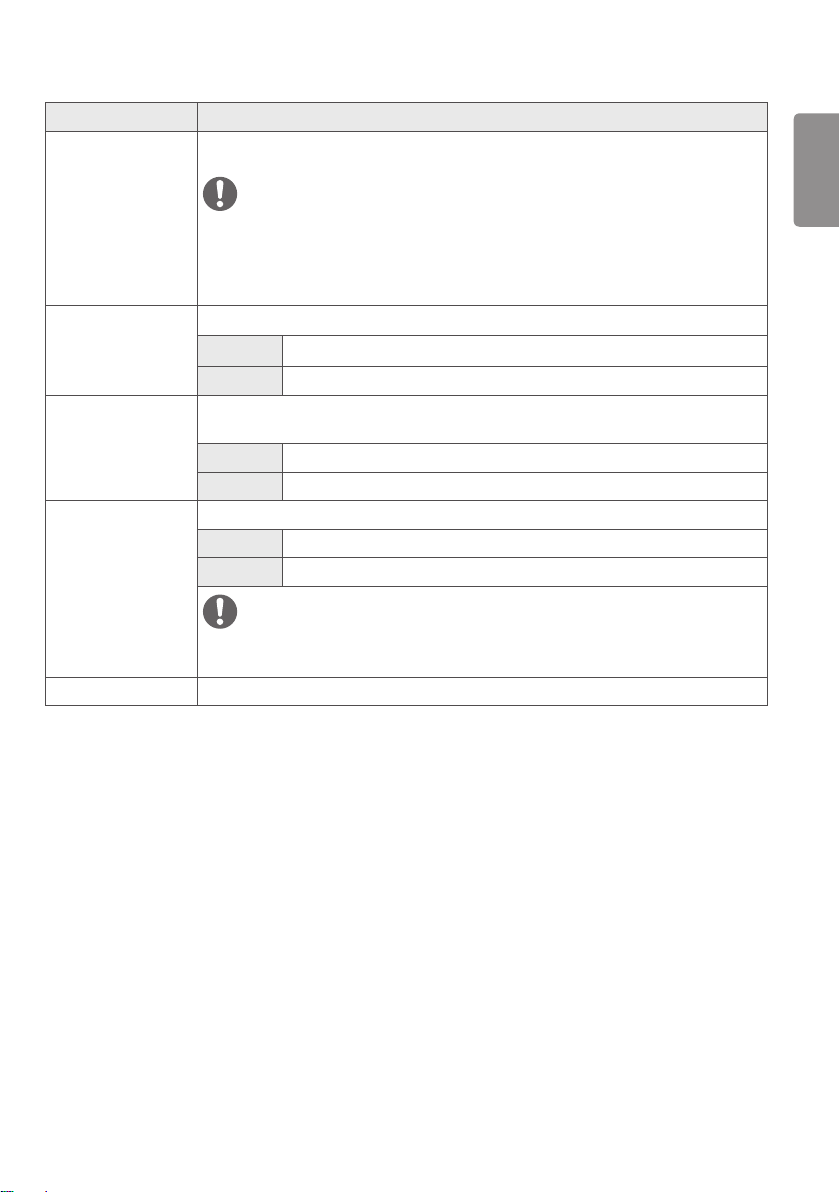
Automatic Standby Feature that automatically turns off the monitor when there is no movement on the screen
for a period of time. You can set a timer for the auto-off function. (Off, 4 H, 6 H, and 8 H)
ENGLISH
51
Menu > General Description
DisplayPort 1.2 Enables or disables DisplayPort 1.2.
NOTE
Be sure to configure this option according to the DisplayPort version supported by your
graphics card.
Set this option to Disable if your graphics card does not support DisplayPort 1.2.
When DisplayPort 1.2 is disabled, you cannot use the 10-bit output of your video card.
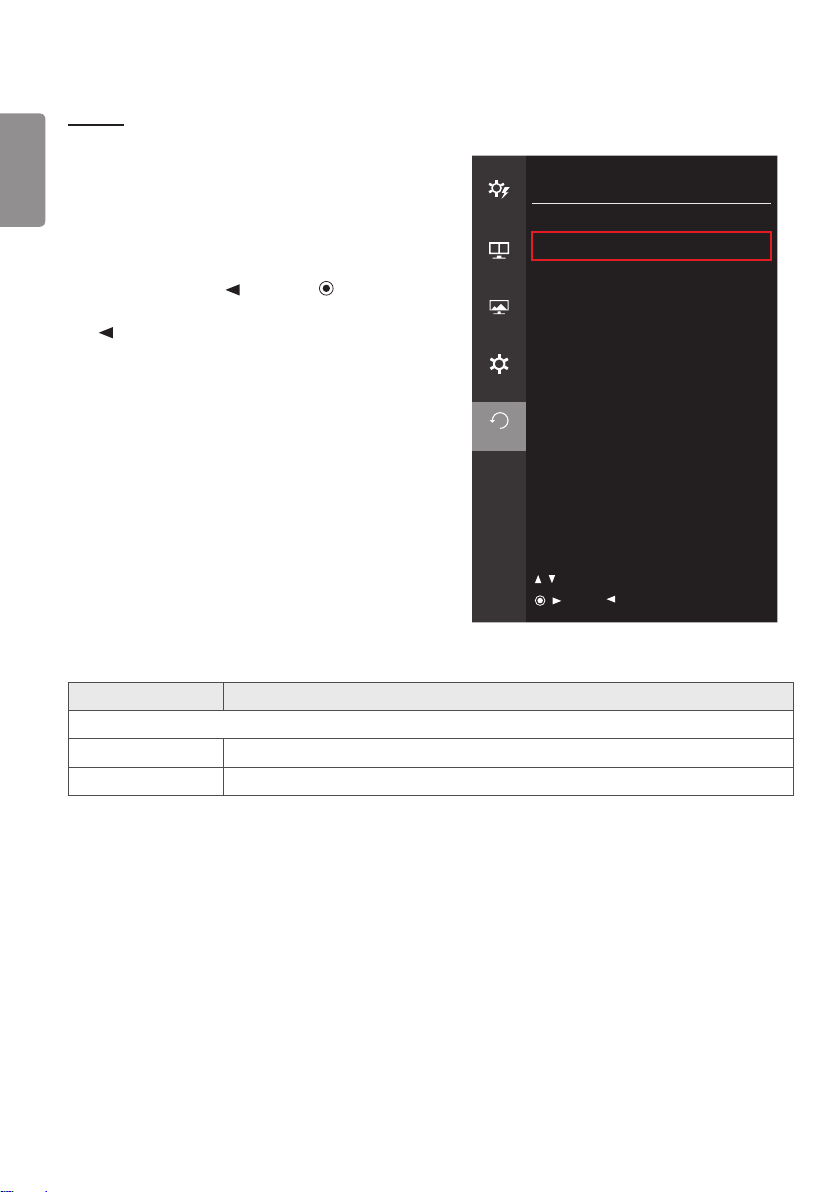
Quick Charge Quick Charge is a feature that rapidly charges the device connected to the USB 3.0 port.
On Enables Quick Charge.
Off Disables Quick Charge.
Buzzer This feature lets you set the sound generated from Buzzer when your monitor powers on
to On or Off.
On Enables your monitor's Buzzer.
Off Disables your monitor's Buzzer.
OSD Lock This feature disables the configuration and adjustment of menus.
On Enables OSD Lock.
Off Disables OSD Lock.
NOTE
All features are disabled except Brightness, Contrast, Volume, Input in Quick Settings,
and OSD Lock, Information in General.
Information Displays the Total Power On Time, Serial Number and Resolution information.
ENGLISH
52
Reset
1 To view the OSD menu, press the joystick button at the
bottom of the monitor and then enter the Menu.
2 Go to Reset by moving the joystick.
3 Configure the options following the instructions that
appear in the bottom right corner.
4 To return to the upper menu or set other menu items,
move the joystick to or pressing ( /Ok) it.
5 If you want to exit the OSD menu, move the joystick to
until you exit .
Reset
Quick
Settings
Do you want to reset your settings?
Reset
PBP
Cancel
Picture
General
Reset
/ : Move
/ : Ok
: Back
Each option is described below.
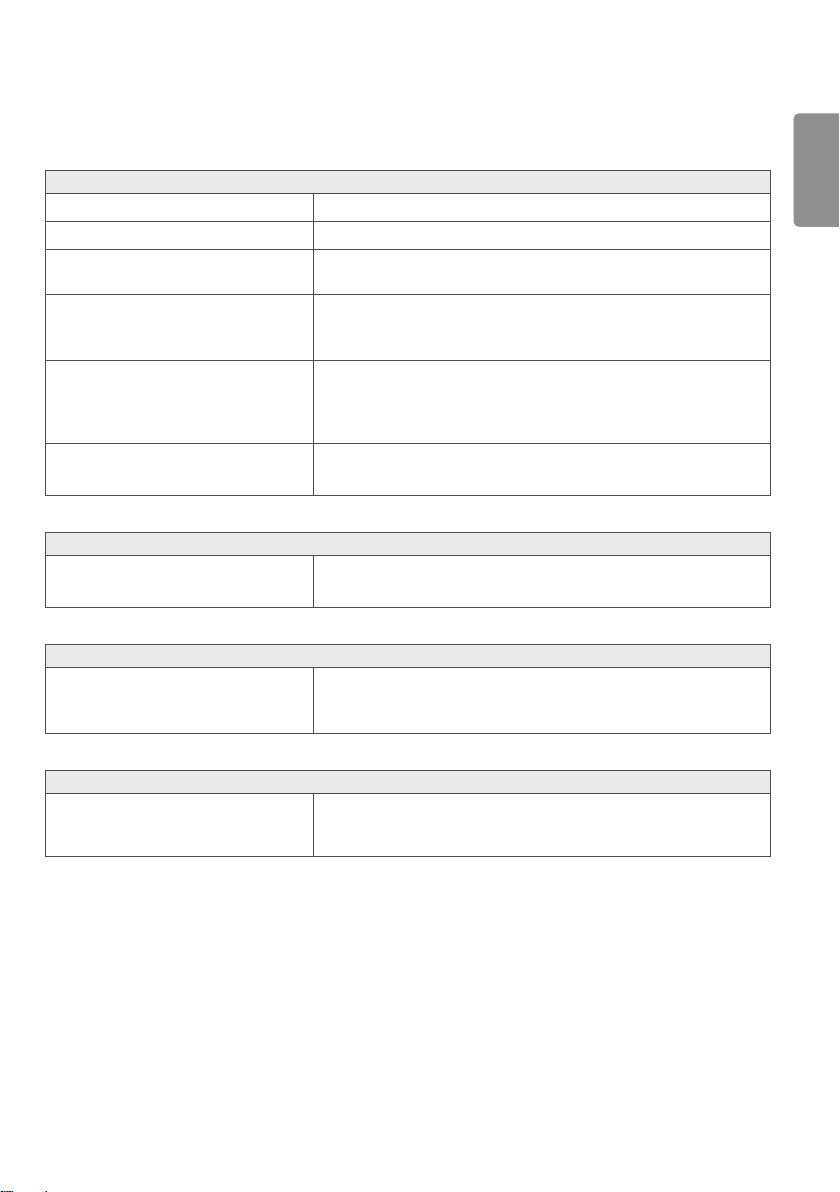
Menu > Reset Description
Do you want to reset your settings?
Reset Restores the default settings.
Cancel Cancel the reset.
ENGLISH
53
TROUBLESHOOTING
Nothing is displayed on the screen.
Is the monitor's power cord plugged in? Check if the power cord is correctly plugged into the power outlet.
Is the power LED on? Check the power cable connection and press the power button.
Is the power on and the power LED
displaying white?
Check that the connected input is enabled (Menu > Quick Settings >
Input).
Is the power LED blinking? If the monitor is in sleep mode, move the mouse, or press any key on
the keyboard, to switch the display on.
Check if the computer is turned on.
Is the OUT OF RANGE message being
displayed?
This occurs when signals transferred from the PC (graphics card)
are out of the horizontal or vertical frequency range of the monitor.
Please see the Product Specification section of this manual to set the
appropriate frequency.
Is the No Signal message being
displayed?
This is displayed when the signal cable between the PC and the monitor
is missing or disconnected. Check the cable and reconnect it.
The OSD Lock message is being displayed.
Are some functions not available when
you press the Menu button?
The OSD is locked. Go to Menu > General and set OSD Lock to Off.
The screen retains an image.
Does image sticking occur even when the
monitor is turned off?
Displaying a still image for a prolonged time may cause damage to the
screen, resulting in the retention of the image.
To extend the lifetime of the monitor, use a screensaver.
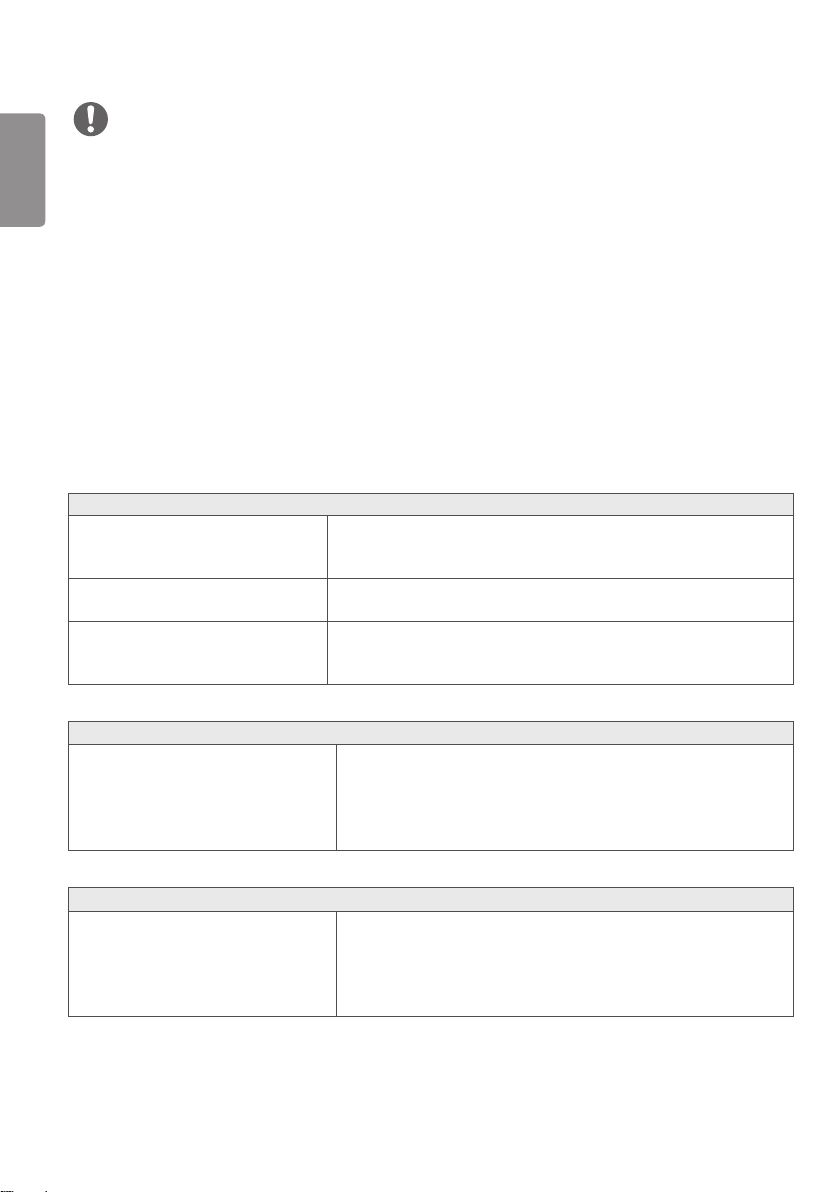
Screen display is unstable and shaky. / Images displayed on the monitor leave shadow trails.
Did you select the appropriate resolution? If the selected resolution is HDMI 1080i 60/50 Hz (interlaced), the
screen may be flickering. Change the resolution to 1080p or the
recommended resolution.
ENGLISH
54
NOTE
Vertical Frequency: In order to display an image, the screen must be refreshed dozens of times per second, like a
fluorescent lamp. The number of times the screen is refreshed per second is called vertical frequency, or refresh rate,
and is represented by Hz.
Horizontal Frequency: The time it takes to display one horizontal line is called the horizontal cycle. If 1 is divided by
the horizontal interval, the result is the number of horizontal lines displayed per second. This is called horizontal
frequency and is represented by kHz.
Check if the graphics card’s resolution or frequency is within the range allowed by the monitor and set it to the
recommended (optimal) resolution Control Panel > Display > Settings in Windows. (The settings may differ
depending on the operating system (OS) you use.)
Not setting the graphics card to the recommended (optimal) resolution may result in blurred text, a dimmed screen, a
truncated display area or misalignment of the display.
The setting methods may be different depending on the computer or operating system, and some resolutions may
not be available depending on the performance of the graphics card. If this is the case, contact the manufacturer of
the computer or graphics card for assistance.
Some graphics cards may not support 3840 x 2160 resolution. If the resolution cannot be displayed, contact the
manufacturer of your graphics card.
The display color is abnormal.
Does the display appear discolored (16
colors)?
Set the color to 24 bit (true color) or higher. In Windows, go to Control
Panel > Display > Settings > Color Quality. (The settings may differ
depending on the operating system (OS) you use.)
Does the display color appear unstable
or monochrome?
Check if the signal cable is connected properly. Reconnect the cable or
reinsert the PC's graphics card.
Are there spots on the screen? When using the monitor, pixilated spots (red, green, blue, white, or black)
may appear on the screen. This is normal for an LCD screen. It is not an
error, nor is it related to the monitor's performance.
Do you see an "Unrecognized monitor, Plug and Play (VESA DDC) monitor found" message?
Have you installed the display driver? Be sure to install the display driver from the display driver CD (or
diskette) that comes with your display. Or, you can also download the
driver from our web site: http://www.lg.com.
Make sure to check if the graphics card supports Plug and Play
function.
No sound from the headphone port or speaker.
Are images displayed using DisplayPort or
HDMI input without sound?
Try increasing the volume using the button on the monitor.
Set the audio output of the PC to the monitor you are using. On
Microsoft Windows, go to Control Panel > Hardware and Sound >
Sound > set the monitor as default device. (The settings may differ
depending on the operating system (OS) you use.)
ENGLISH
55
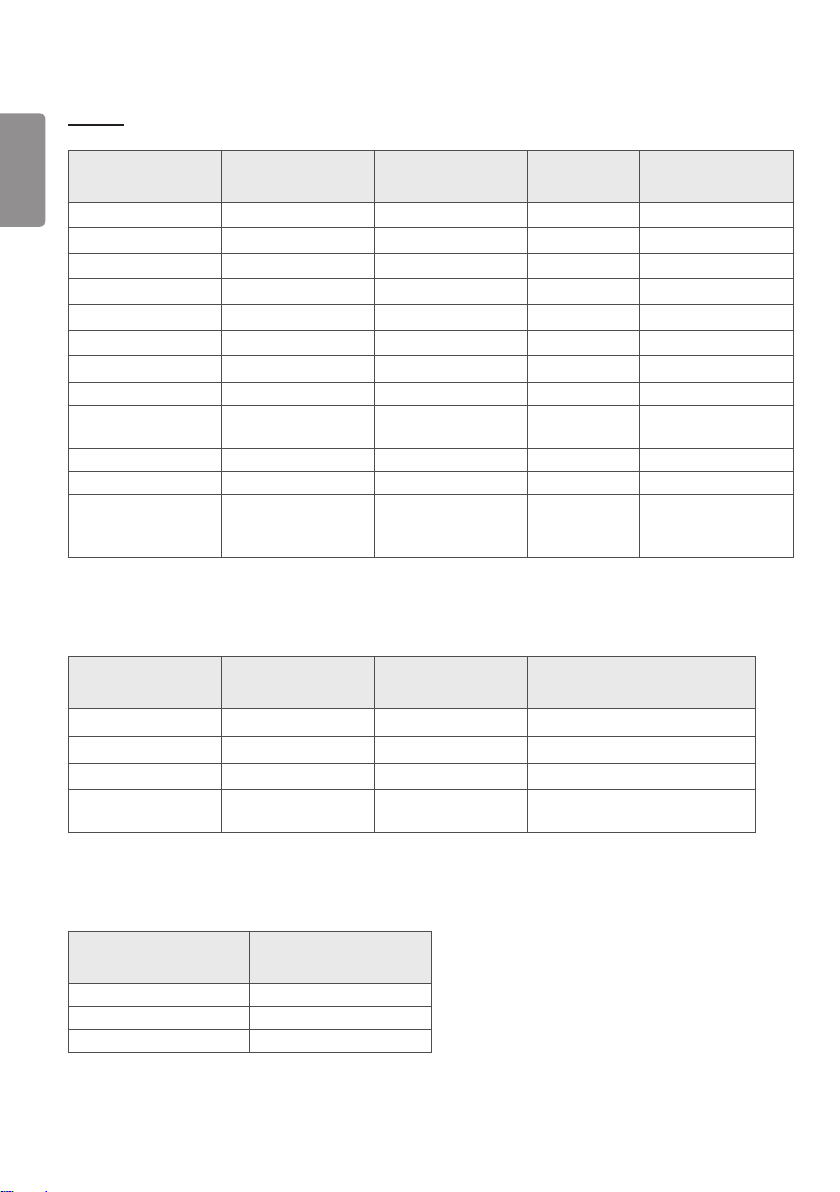
PRODUCT SPECIFICATION
Specifications are subject to change without notice.
Factory Support Mode
DisplayPort
Preset Mode
Horizontal Frequency
(kHz)
Vertical Frequency
(Hz)
Polarity (H/V) Remarks
640 x 480 31.469 59.94 -/-
800 x 600 37.879 60.317 +/+
1024 x 768 48.363 60 -/-
1152 x 864 54.347 60.05 +/+
1280 x 720 45 60 +/+
1280 x 1024 63.981 60.02 +/+
1600 x 900 60 60 +/+
1920 x 1080 67.5 60 +/-
1920 x 2160 133.32 60 +/-
Recommended
resolution for PBP
2560 x 1440 88.79 59.95 +/-
3840 x 2160 66.66 30 +/-
3840 x 2160 133.32 60 +/-
ENGLISH
56
HDMI
Preset Mode
Horizontal Frequency
(kHz)
Vertical Frequency
(Hz)
Polarity (H/V) Remarks
640 x 480 31.469 59.94 -/-
800 x 600 37.879 60.317 +/+
1024 x 768 48.363 60 -/-
1152 x 864 54.347 60.05 +/+
1280 x 720 45 60 +/+
1280 x 1024 63.981 60.02 +/+
1600 x 900 60 60 +/+
1920 x 1080 67.5 60 +/-
1920 x 2160 133.29 60 +/-
Recommended
resolution for PBP
2560 x 1440 88.79 59.95 +/-
3840 x 2160 67.5 30 +/-
3840 x 2160 135 60 +/-
When the HDMI
ULTRA HD Deep Color
is set to On
HDMI Timing (Video)
Preset mode
Horizontal Frequency
(kHz)
Vertical Frequency
(Hz)
Remarks
480p 31.5 60
720p 45.0 60
1080p 67.5 60
2160p 135 60
When the HDMI ULTRA HD Deep
Color is set to On
Power LED
Mode LED Color
On Mode White
Sleep Mode Flashing White
Off Mode Off
To obtain the source code under GPL, LGPL, MPL, and other
open source licenses, that is contained in this product, please
visit http://opensource.lge.com.
In addition to the source code, all referred license terms,
warranty disclaimers and copyright notices are available for
download.
LG Electronics will also provide open source code to you
on CD-ROM for a charge covering the cost of performing
such distribution (such as the cost of media, shipping, and
handling) upon email request to opensour[email protected]. This
offer is valid for three (3) years from the date on which you
purchased the product.
WARNING: This equipment is compliant with Class A of
CISPR 32. In a residential environment this equipment may
cause radio interference.
Read the Owner's Manual (CD) carefully and keep it at
hand. Please note that the label attached to the product
provides information for product support.
Model
Serial No.






