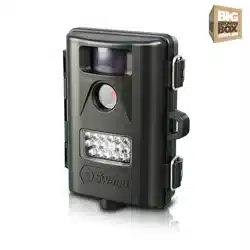
Swann SWVID-OBC140-GL OutbackCam Portable Photo and Video Recorder

Product's Documents

Below are documents related to this product, you can read online or download:
INSTRUCTION MANUAL OutbackCam

Overview

Please take a moment to familiarize yourself with your new Swann OutbackCam.

Front

Bottom

Back

Battery Pack

Mounting Strap

USB Cable

Batteries and Storage Media

Let's learn how to install batteries and storage media in your OutbackCam.

First, release the bottom cover of the OutbackCam by twisting the locking screw anti-clockwise, and then follow the instructions below.

Always switch off the OutbackCam before inserting or removing batteries or memory cards.

Install batteries

For optimal battery life in cold weather climates, we recommend using lithium batteries. Do not use rechargeable batteries.

  1. Push the battery compartment cover to open it.
  2. Insert 2 fresh "AA" alkaline or lithium batteries into each battery slot. Follow the polarity (+ and -) markings shown on the metal backing under the battery compartment cover.
  3. Close the battery compartment cover by firmly pushing it down until it clicks shut.

Install storage media

The OutbackCam has no internal memory; instead photos and videos are stored on a SD memory card (up to 32GB supported).

To ensure smooth performance and plenty of space for recording important moments, we recommend using a fast memory card (class 4 or higher), with at least 8 GB of capacity, from a wellknown manufacturer.

  • Insert an SD memory card into the SD card slot, with the gold-coloured contacts facing up towards the front of the OutbackCam until it clicks into place.

The SD card only fits into the slot one way. Do not force it in.

Battery Pack

Enclosed in an integrated cradle, the Battery Pack provides your OutbackCam the extra juice to help it stay powered for even longer - great for long-term observations in the field.

Install batteries

  1. Release the latch on the sides of the Battery Pack, and then gently separate the battery pack from the OutbackCam.
  2. Open the battery cover, and then insert four fresh "AA" alkaline or lithium batteries into the battery compartment by following the polarity (+ and -) markings shown inside.
  3. Close the battery compartment cover.
  4. Reattach the Battery Pack to the OutbackCam via the connector socket, and then engage and lock side latches to secure them together.

Mounting Strap

The included mounting strap allows you to the strap the OutbackCam to a tree or timber post.

  • Simply thread the strap through the slots on the back of the Battery Pack cradle, then around a suitable object like a tree, and through the strap buckle. Pull the strap to tighten.

Basics

Let's learn how to use your OutbackCam.

Turning on the OutbackCam for the first time

  • Set the ON/OFF switch to ON. The status light blinks five times to indicate the OutbackCam is ready to monitor and capture motion triggered events.
  • The LCD screen only turns on when the OutbackCam is in preview mode. Press the OK button to go into preview mode. The status light illuminates to indicate the OutbackCam is in preview mode.

Preview mode

  • When you first enter preview mode, the screen momentarily displays information about the capacity and amount of available storage on your SD card.
  • You can access the menu to configure OutbackCam settings, browse and review captured photos and videos via the playback screen, and take quick snapshots or videos manually.
  • To exit preview mode and start monitoring immediately, press the OK button for 5 seconds.
  • The OutbackCam automatically exits preview mode if there is no button press for 60 seconds (except when the menu is displayed).
  • If a recording is in progress, you have to wait until the OutbackCam has stopped recording before you can enter preview mode.

Video/Photo mode

  • Set the Video/Photo switch to the desired mode for capturing motion events.
  • You can configure settings such as the quality and amount of video recorded, and the size and number of photos taken for a motion event, via the menu.
  • The OutbackCam can also capture pictures while it is recording a video, and vice-versa. To do this, turn on the Camera + Video setting in the menu.
  • In preview mode, you can manually take a snapshot or record what's on the camera screen. Press the OK button to take a quick snapshot or to begin recording. To stop recording, just press the OK button again.

Playback screen

  • In preview mode, you can view photos, play videos and delete files on the SD card by pressing the Up button to display the Playback screen.
  • Review your collection of captured photos and videos by pressing the Left or Right button.
  • Playback a selected video by pressing the OK button. To stop playback, press the Menu button.
  • Delete a single file, or the entire collection of photos and videos by pressing the Menu button, and then selecting Delete. You can also format the SD card by selecting Format.
  • Note that deleted files cannot be recovered. Be sure to transfer valuable photos and videos to a computer before proceeding.
  • To exit the Playback screen, press the Up button.

Menu screen

  • In preview mode, press the Menu button to display the camera menu.
  • Use the Up/Down/Left/Right buttons to navigate the menu or change settings, and the OK button to select a menu option or confirm a setting.
  • To exit the menu, press the Menu button.
  • For more information on available OutbackCam settings, see Menu.

Connect to a computer

  • Using the included USB cable, you can copy videos and photos on your SD memory card in the OutbackCam to your computer.
  • To connect, make sure the OutbackCam is switched off, then plug one end of the USB cable into the USB port on the OutbackCam and the other end into an available USB port on your computer.

Connect to a television

  • You can connect the OutbackCam to your television to watch video recordings and show off photos directly on a large screen using an appropriate AV cable via the TV OUT port on the bottom of the OutbackCam.
  • The OutbackCam screen turns off when the OutbackCam is connected to your television.
  • Be sure to change the video input source on your television to match the video source connection from the OutbackCam.

Let's explore the camera settings available in the menu so you can get the most out of your OutbackCam.

OptionTo do this...
Camera IDAssign a 4-digit numerical ID for the OutbackCam, which will appear on your photos. This setting is useful if you own more than one OutbackCam and placed them in different locations
Camera + VideoSelect whether also to capture photos or videos when the camera is in Video or Photo mode. (i.e., combination mode)
Multi-ShotSelect how many consecutive shots (commonly known as continuous or burst shooting) to take when an event occurs.
Image SizeSelect the photo resolution in megapixels. If you print large photos and want to maintain fine detail, set this option to the highest megapixel.
Video SizeSelect the video quality of your recordings. Higher resolution settings produce better quality videos but will consume more memory storage.
Video FrameAdjust the video frame rate of recordings. The higher the frame rate, the smoother the motion in the video, but will consume more memory storage.
Digital ZoomGet nearer to the action on the screen with up to 4 times digital zoom. You need to toggle the Photo/Video mode switch for this setting to take effect.
Video LengthSet the duration of each video recording from 5 to 60 seconds. Note that the longer the video, the more space will be used on the SD card as well as more battery consumption
PIR SensitivityAdjust the motion detection sensitivity level (Low/Middle/High). Try out different sensitivity levels to find one that’s optimal for your OutbackCam's particular location.
TimerCreate a schedule for the OutbackCam. This option is useful when you want the OutbackCam to operate only during particular times of the day
Time LapseDisable the infrared motion sensor and instead set the camera to take photos or videos at regular time intervals. For example if you want to capture the scene every half an hour, you should set the time interval (in HH:MM:SS) to 00:30:00. Time lapse mode can be used to observe wildlife behaviour and activity such as nesting over a period of time.
DelayThe minimum amount of time that must elapse after a motion event is captured before the OutbackCam can be triggered again. Longer delays (e.g., 15 - 30 seconds) improve battery life and prevent the OutbackCam from taking too many pictures of the same things.
Audio RecordingSelect whether to turn on or off sound recording with the built-in microphone.
TV OutSelect the appropriate TV video standard (NTSC or PAL) if you are outputting the monitor screen to your television via the TV Out port.
StampImprint the time and date on the bottom of your photos so you can quickly tell when they were captured.
FrequencySelect the AC power frequency in your area. Some devices (such as TV screens) flicker if this is not set correctly. For the USA and Canada, set this to 60Hz. For Australia and the UK, set this to 50Hz.
LanguageSelect the menu language.
Time/DateSet the time and date. Be sure the OutbackCam has the correct time and date, so captured events are accurately time stamped and the time lapse feature activates the OutbackCam at the right time.
Camera SoundTurn on or off the OutbackCam button press sounds.
SD Cycle RecordingIf there is not enough space on your SD memory card during an ongoing recording, the OutbackCam will record over the oldest files already stored on your SD card first.
Camera PasswordCreate a password for your OutbackCam to prevent any unauthorized operation. You will need to switch the OutbackCam off, then on again for this setting to take effect.
Trigger Logs

Turn this on if you want the OutbackCam to only log the times and dates it was triggered. The OutbackCam does not capture any photo or video during motion events, conserving battery life, which is useful if you just want to conduct an initial survey of a particular observation area for an extended time.

You can view the log file by opening the text file named "Snap" on the SD memory card.

ResetRestore OutbackCam settings back to their original default configuration.
AboutView the OutbackCam's firmware version

Reference file: Swann SWVID-OBC140-GL OutbackCam Portable Photo and Video Recorder

Specifications

Indexed Terms: Outdoor Camera

Swann SWVID-OBC140-GL Questions and Answers

Questions and Answers

Related Products