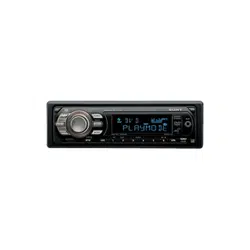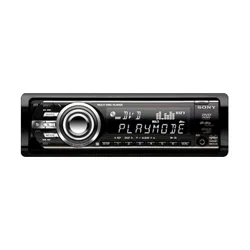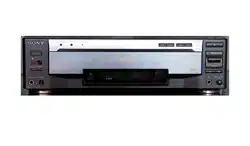
MEX-R1
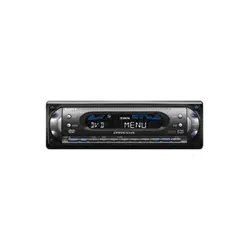
MEX-R5
Operating Instructions
Manual de instrucciones
2-581-681-23 (1)
Multi Disc Player
For installation and connections, see the supplied installation/connections manual.
Para obtener información sobre la instalación y las conexiones, consulte el manual
de instalación/conexiones suministrado.
GB
ES
CT
© 2005 Sony Corporation
Multi Disc Player
2
Warning
To prevent fire or shock hazard, do not
expose the unit to rain or moisture.
To avoid electrical shock, do not open the
cabinet. Refer servicing to qualified
personnel only.
CAUTION
The use of optical instruments with this product
will increase eye hazard. As the laser beam used
in this CD/DVD player is harmful to eyes, do not
attempt to disassemble the cabinet.
Refer servicing to qualified personnel only.
CAUTION
RADIATION WHEN OPEN AND INTERLOCKS DEFEATED.
DO NOT VIEW DIRECTLY WITH OPTICAL INSTRUMENTS.
:
CLASS 1M VISIBLE/INVISIBLE LASER
This label is located on the bottom of the
chassis.
This label is located on the drive unit’s internal
chassis.
Warning if your car’s ignition has no
ACC position
After turning the ignition off, be sure to press
and hold (OFF) on the unit until the display
disappears.
Otherwise, the display does not turn off and
this causes battery drain.

3
Table of Contents
Welcome! . . . . . . . . . . . . . . . . . . . . . . . . . . . 4
Precautions . . . . . . . . . . . . . . . . . . . . . . . . . . 5
Playable discs . . . . . . . . . . . . . . . . . . . . . . . . 5
Getting Started
Resetting the unit. . . . . . . . . . . . . . . . . . . . . . 8
Setting the clock . . . . . . . . . . . . . . . . . . . . . . 8
DEMO mode . . . . . . . . . . . . . . . . . . . . . . . . . 8
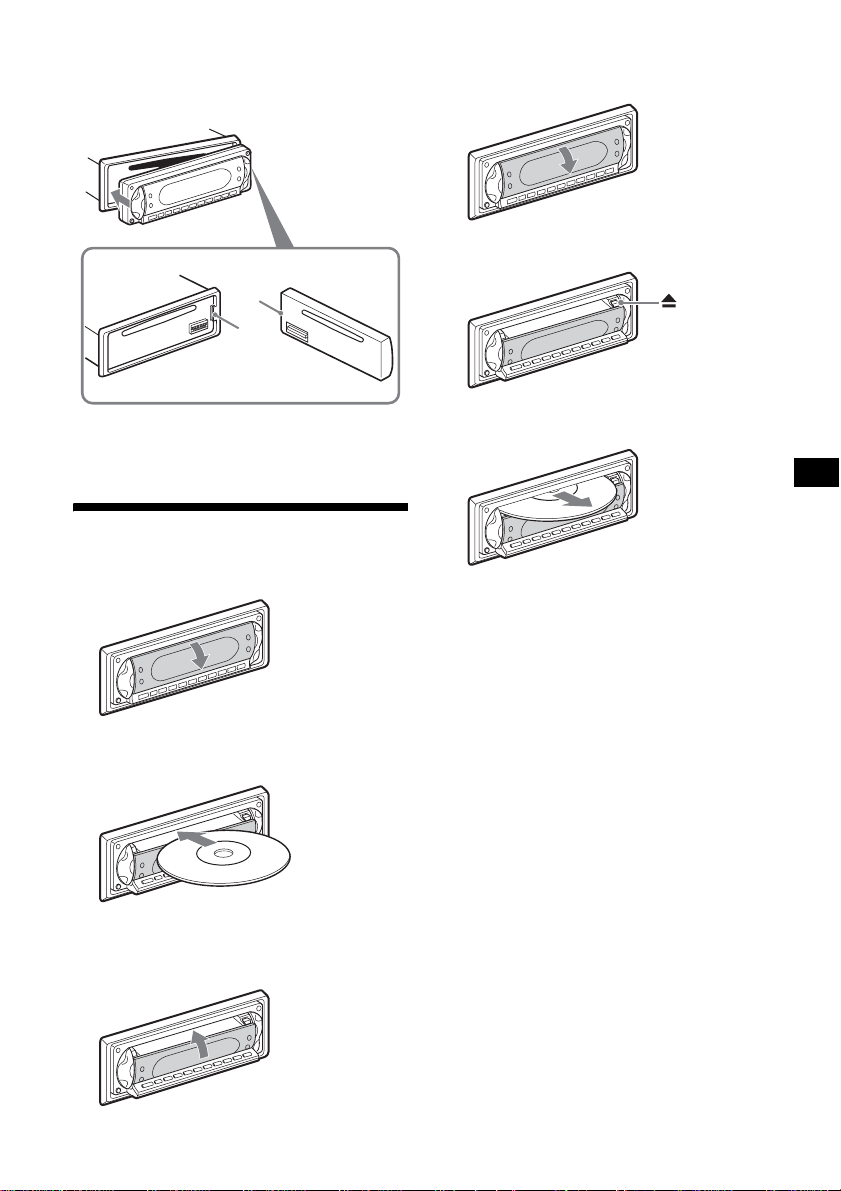
Detaching the front panel . . . . . . . . . . . . . . . 8
Inserting the disc in the unit . . . . . . . . . . . . . 9
Location of controls and basic
operations . . . . . . . . . . . . . . . . . . . . . . . . 10
Menu displays . . . . . . . . . . . . . . . . . . . . . . . 13
Player
Playing discs . . . . . . . . . . . . . . . . . . . . . . . . 15
Resuming playback
— Resume play. . . . . . . . . . . . . . . . . . . . 17
Viewing the disc information
— Time/text information . . . . . . . . . . . . 17
Searching a specific point on a disc
— Scan . . . . . . . . . . . . . . . . . . . . . . . . . . 18
Using the menus on DVDs . . . . . . . . . . . . . 19
Using PBC functions
— PBC (Playback control). . . . . . . . . . . 19
Playing in various modes
— Repeat play/Shuffle play/
Search play . . . . . . . . . . . . . . . . . . . . . . . 20
Various DVD operations
Changing the audio channels. . . . . . . . . . . . 22
Changing the angles . . . . . . . . . . . . . . . . . . 23
Displaying the subtitles . . . . . . . . . . . . . . . . 24
Magnifying pictures. . . . . . . . . . . . . . . . . . . 24
Changing the picture quality
— Picture EQ . . . . . . . . . . . . . . . . . . . . . 25
Locking discs
— Parental control . . . . . . . . . . . . . . . . . 26
Settings and Adjustments
Using the Setup menu . . . . . . . . . . . . . . . . . 28
Setting the display language or sound track
— Language setup . . . . . . . . . . . . . . . . . 29
Setting the screen
— Screen setup. . . . . . . . . . . . . . . . . . . . 30
Custom settings
— Custom setup . . . . . . . . . . . . . . . . . . . 31
Audio settings
— Audio setup . . . . . . . . . . . . . . . . . . . . 32
Radio
Storing automatically
— BTM . . . . . . . . . . . . . . . . . . . . . . . . . 33
Storing manually. . . . . . . . . . . . . . . . . . . . . 33
Receiving the stored stations . . . . . . . . . . . 33
Tuning automatically . . . . . . . . . . . . . . . . . 33
Receiving a station through a list
— list-up. . . . . . . . . . . . . . . . . . . . . . . . . 33
Other functions
Adjusting the sound characteristics . . . . . . 34
Adjusting the equalizer curve
— EQ7 Tune . . . . . . . . . . . . . . . . . . . . . 34
Labelling a station/disc. . . . . . . . . . . . . . . . 35
Adjusting unit menu items
— SYSTEM MENU . . . . . . . . . . . . . . . 35
Using optional equipment. . . . . . . . . . . . . . 37
Switching the front/rear output
— Zone × Zone . . . . . . . . . . . . . . . . . . . 39
Additional Information
Maintenance . . . . . . . . . . . . . . . . . . . . . . . . 39
Removing the unit. . . . . . . . . . . . . . . . . . . . 40
Notes on discs. . . . . . . . . . . . . . . . . . . . . . . 41
About MP3 files . . . . . . . . . . . . . . . . . . . . . 41
Note on wireless transmission
(MEX-R5 only) . . . . . . . . . . . . . . . . . . . 41
Specifications . . . . . . . . . . . . . . . . . . . . . . . 42
Troubleshooting . . . . . . . . . . . . . . . . . . . . . 43
Error displays/Messages . . . . . . . . . . . . . . . 46
Glossary . . . . . . . . . . . . . . . . . . . . . . . . . . . 47
Language code list . . . . . . . . . . . . . . . . . . . 49
Index . . . . . . . . . . . . . . . . . . . . . . . . . . . . . . 50
4
Welcome!
Thank you for purchasing this Sony Multi Disc
Player. Before operating this unit, read this
manual thoroughly and retain it for future
reference.
FEATURING:
• DVD, CD, VCD playback compatibility
–Compatible with various disc formats, such as
DVD-R/-RW, DVD+R/DVD+RW, etc.
DVD-RW: compatible with Video mode and
VR mode (various editing available)
DVD+RW: compatible with +VR mode
(various editing available)
–Plays back up to 1,000 tracks*
1
recorded on
DVD-R/-RW, DVD+R/+RW or CD-R/-RW in
MP3 file format
• 2 video outputs (front and rear)*
2
, 1
Zone × Zone audio output*
3
, and 1
digital output provided
• Wireless transmission*
4
: without
complicated connections, audio/video signals
can be transmitted to the optional monitor
XVM-F65WL.
• Zone × Zone: You can listen to the radio, or
music from a CD/MD changer (if connected) in
the front, and simultaneously output DVD to
the rear.
• Picture EQ: You can select desired picture
tone from preset settings according to the car
interior/ambient light.
• DVD level adjustment: balances the output
level differences between PCM, Dolby Digital
and DTS, and the volume level differences
between disc and source.
• EQ7: You can select an equalizer curve for 7
music types.
• DSO (Dynamic Soundstage Organizer):
creates a more ambient sound field, using
virtual speaker synthesis, to enhance the sound
of speakers, even if they are installed low in the
door.
• Optional CD/MD units (both changers and
players)*
5
.
*1 Depends on track length
*2 1 front video output for MEX-R5
*3 MEX-R1 only
*4 MEX-R5 only
*5 This unit works with Sony products only.
About this manual
• Instructions in this manual describe the
controls on the card remote commander. You
can also use the controls on the unit if they have
the same or similar names to those on the card
remote commander.
• In this manual, “DVD” is used as the general
term for DVD-R/-RW and DVD+R/+RW.
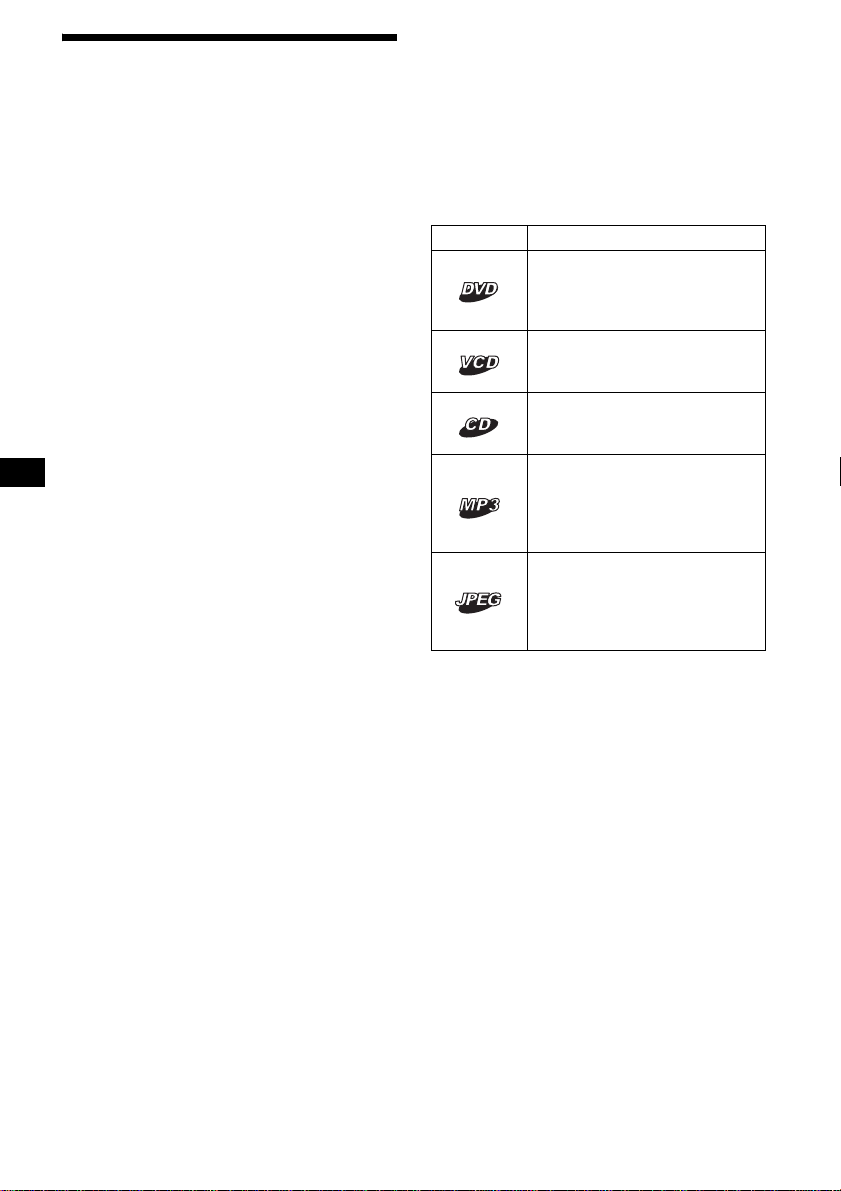
• The meaning of the icons used in this manual is
described below:
Icon Meaning
Functions available for DVD
VIDEOs, DVD-Rs/DVD-RWs,
or DVD+Rs/DVD+RWs in
Video mode
Functions available for Video
CDs or CD-Rs/CD-RWs in video
CD format
Functions available for music
CDs or CD-Rs/CD-RWs in
music CD format
Functions available for files in
MP3 format stored on CD-
ROMs/CD-Rs/CD-RWs/DVD-
Rs/DVD-RWs/DVD+Rs/
DVD+RWs
Functions available for files in
JPEG format stored on CD-
ROMs/CD-Rs/CD-RWs/DVD-
Rs/DVD-RWs/DVD+Rs/
DVD+RWs
5
Precautions
• Do not use the custom functions while driving,
or perform any other function which could
divert your attention from the road.
• If your car has been parked in direct sunlight,
allow the unit to cool off before operating it.
• Power aerial will extend automatically while
the unit is operating.
On safety
• Comply with the Traffic Laws in your country.
• For your safety, the monitor connected to the
FRONT VIDEO OUT turns off automatically
when the parking brake is not applied.
Moisture condensation
On a rainy day or in a very damp area, moisture
condensation may occur inside the lenses and
display of the unit. Should this occur, the unit
will not operate properly. In such a case, remove
the disc and wait for about an hour until the
moisture has evaporated.
To maintain high sound quality
Be careful not to splash juice or other soft drinks
onto the unit or discs.
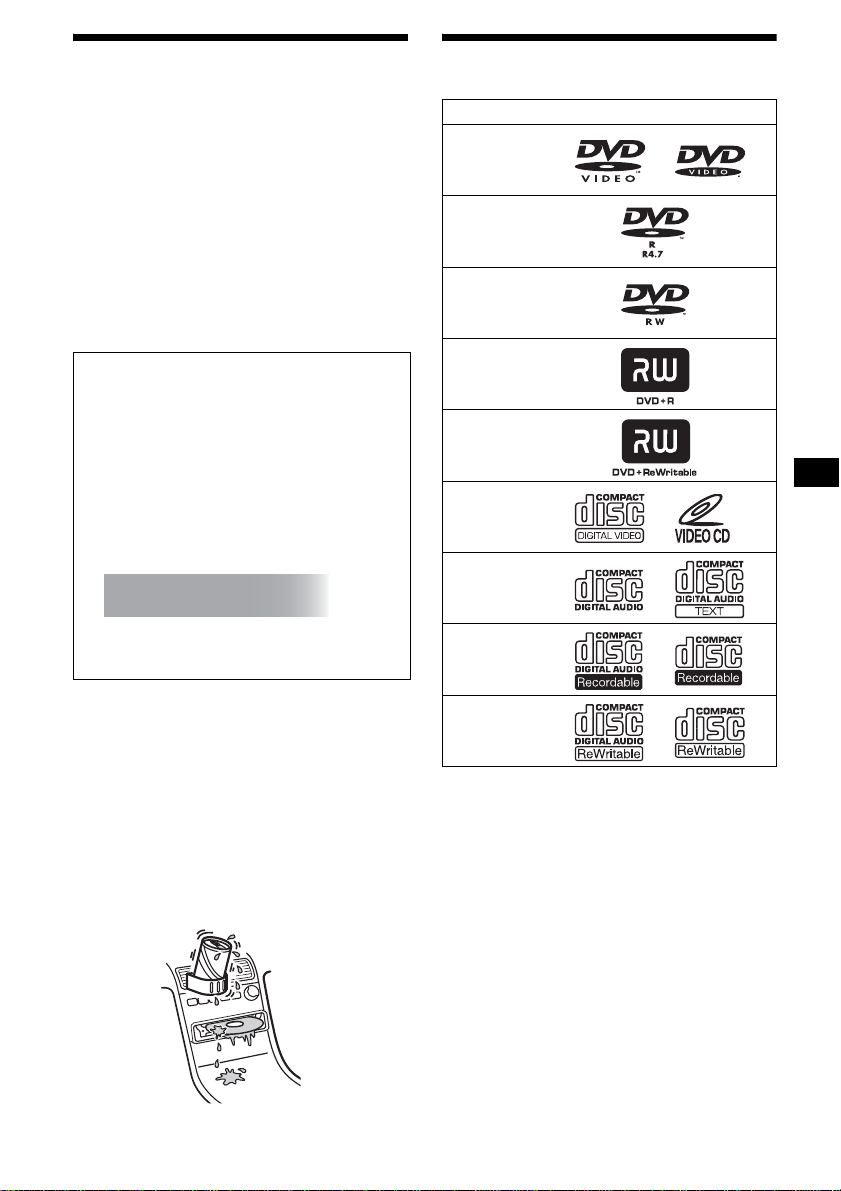
Playable discs
* Discs that are not finalized cannot be played.
“DVD VIDEO,” “DVD-R,” “DVD-RW,”
“DVD+R,” and “DVD+RW” are trademarks.
DVD
A DVD contains both audio and visual data. A 12
cm disc can hold 7 times the amount of data
contained in a CD-ROM, which equals to 4
consecutive hours of playing time (8 hours for
double-sided discs). DVDs are divided into 4
types: single sided single layer, single sided
double layer, double sided single layer, and
double sided double layer.
Preventing an accident
The pictures appear only after you park the car
and set the parking brake.
When the car starts moving, the pictures
coming from the FRONT VIDEO OUT
automatically disappear after displaying the
following caution.
The monitor connected to the REAR VIDEO
OUT is available while the car is in motion.
The pictures on the screen are turned off, but
CD/MP3 sound can be heard.
Do not operate the unit or watch the monitor
while driving.
For your safety,
the video is blocked.
Format of discs
continue to next page t
DVD VIDEO
DVD-R*
(MP3/JPEG)
DVD-RW*
Video mode/VR mode
(MP3/JPEG)
DVD+R*
(MP3/JPEG)
DVD+RW*
(MP3/JPEG)
Video CD
Audio CD
CD-R*
(MP3/JPEG)
CD-RW*
(MP3/JPEG)

6
Video CD (VCD)
A Video CD can contain both audio and visual
data on a disc the same size as a regular Audio
CD. The playing time is 74 minutes for a
standard 12 cm CD.
Audio CD
An Audio CD containing audio data. The playing
time is 74 minutes for a standard 12 cm CD.
CD-Recordable (CD-R)
With a CD-R, you can edit audio data. You can
write information on a CD-R only once.
CD-Rewritable (CD-RW)
With a CD-RW, you can edit audio data. You can
write information on a CD-RW again and again.
CD-Extra
A CD-Extra has two sections (sessions) for audio
and data respectively. You can only play the
section of audio on this unit.
Notes
• For customers in the region code 3 areas
This unit conforms to the PAL colour system. A disc
recorded in a colour system other than PAL, such as
NTSC or SECAM, cannot be played.
• For customers in the region code 4 areas
This unit conforms to the NTSC colour system. A
disc recorded in a colour system other than NTSC,
such as PAL or SECAM, cannot be played.
• You can play DVD-Rs/DVD-RWs, DVD+Rs/
DVD+RWs and CD-Rs/CD-RWs designed for audio
with this unit. However, depending on the recorded
conditions, you cannot play some discs.
• You cannot play CD-Rs/CD-RWs, DVD-Rs/DVD-
RWs or DVD+Rs/DVD+RWs that are not finalized.
• Discs created in Packet Write format cannot be
played.
• Recordable discs may not play back correctly if the
ambient temperature is high.
• The discs listed below cannot be played on this unit:
– 8 cm discs
– CD-ROM (the data other than the MP3 or JPEG
files)
– CD-G
–Photo-CD
– VSD (Video single disc)
– DVD-ROM (the data other than the MP3 or JPEG
files)
– DVD-RAM
–DVD-Audio
– DVD+R DL (Dual Layer)
– Active-Audio (Data)
– CD-Extra (Data)
– Mixed CD
– SVCD (Super Video CD)
–CDV
– SACD (Super Audio CD)
Note on transparent discs
12 cm discs containing of only an inner 8 cm
data portion (the rest is transparent) cannot be
played on this unit.
Music discs encoded with
copyright protection
This unit is designed to play back discs that
conform to the Compact Disc (CD) standard.
Recently, various music discs encoded with
copyright protection are marketed by some
record companies. Please be aware that among
those discs, there are some that do not conform to
the CD standard and may not be playable and
recordable by this product.
7
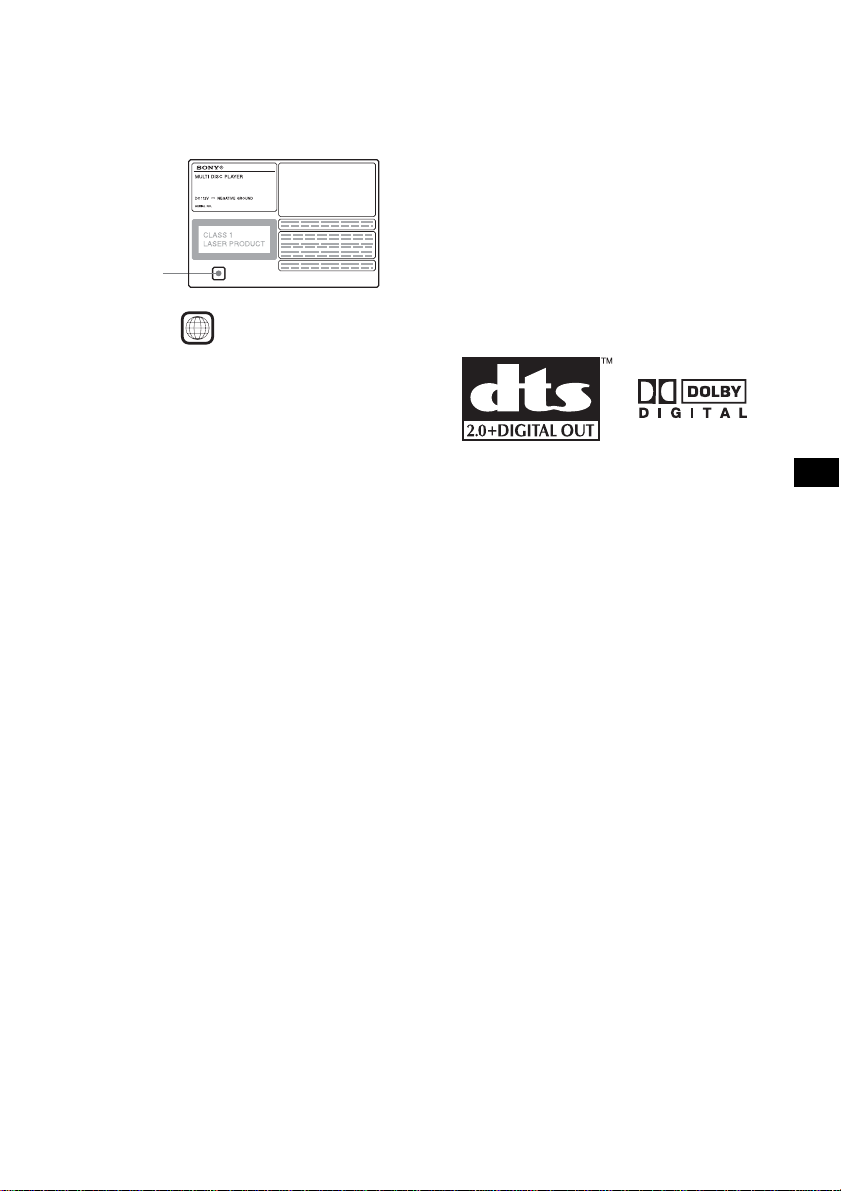
Region code
This system is used to protect software
copyrights.
The region code is located on the bottom of the
unit, and only DVDs labelled with an identical
region code can be played on this unit.
DVDs labelled can be also played on this
unit.
If you try to play any other DVD, the message
“Cannot play this disc.” will appear on the
monitor screen. Depending on the DVD, no
region code may be labelled even though playing
the DVD is prohibited by area restrictions.
Note on playback operations of
DVDs and VCDs
Some playback operations of DVDs and VCDs
may be intentionally set by software producers.
Since this unit plays DVDs and VCDs according
to the disc contents the software producers
designed, some playback features may not be
available. Also, refer to the instructions supplied
with the DVDs or VCDs.
Copyrights
This product incorporates copyright protection
technology that is protected by U.S. patents and
other intellectual property rights. Use of this
copyright protection technology must be
authorized by Macrovision, and is intended for
home and other limited viewing uses only unless
otherwise authorized by Macrovision. Reverse
engineering or disassembly is prohibited.
Manufactured under license from Dolby
Laboratories.
“Dolby” and the double-D symbol are
trademarks of Dolby Laboratories.
“DTS” and “DTS 2.0 + Digital Out” are
trademarks of Digital Theater Systems, Inc.
Region code
ALL
8
Getting Started
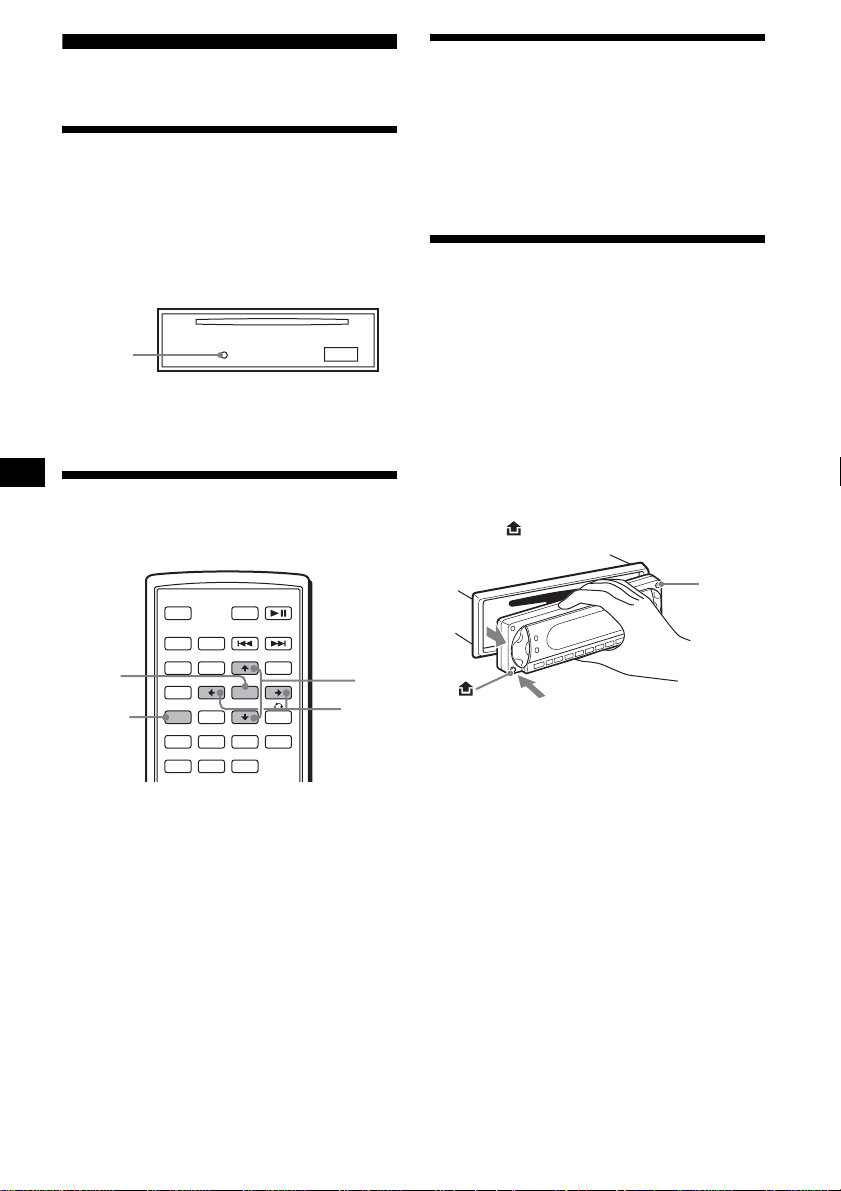
Resetting the unit
Before operating the unit for the first time, or
after replacing the car battery or changing the
connections, you must reset the unit.
Detach the front panel and press the RESET
button with a pointed object, such as a ballpoint
pen.
Note
Pressing the RESET button will erase the clock setting
and some stored contents.
Setting the clock
The clock uses a 24-hour digital indication.
1 Press (SYSTEM MENU).
The setup display appears.
2 Press M/m repeatedly until “CLOCK-
ADJ” appears.
3 Press (ENTER).
The hour indication flashes.
4 Press M/m to set the hour and minute.
To move the digital indication, press </,.
5 Press (ENTER).
The clock starts.
To display the clock during playback/reception,
set “CLOCK-ON” (page 36).
DEMO mode
When the unit is turned off, the clock is
displayed first, then demonstration (DEMO)
mode starts the demonstration display.
To cancel the DEMO mode, set “DEMO-OFF”
in setup (page 36) while the unit is turned off.
Detaching the front panel
You can detach the front panel of this unit to
prevent theft.
Caution alarm
If you turn the ignition switch to the OFF
position without detaching the front panel, the
caution alarm will sound for a few seconds.
The alarm will only sound if the built-in
amplifier is used.
1 Press (OFF).
The unit is turned off.
2 Press , then pull it off towards you.
Notes
• Do not drop or put excessive pressure on the front
panel and display window.
• Do not subject the front panel to heat/high
temperature or moisture. Avoid leaving it in a parked
car or on a dashboard/rear tray.
Tip
When carrying the front panel, use the supplied front
panel case.
RESET
button
SRC
MODE
ATT DVD
SOUND
TOP MENU
MENU
SETUP
ENTER
SYSTEM
MENU
LIST
EQZ
×
Z DSO EQ7
PICTURE
AUDIO
SUBTITLE
ANGLE
OFF
+
–
ENTER
SYSTEM
MENU
M/m
</,
(OFF)
9
Attaching the front panel
Engage part A of the front panel with part B of
the unit, as illustrated, and push the left side into
position until it clicks.
Note
Do not put anything on the inner surface of the front
panel.
Inserting the disc in the unit
1 Open the shutter.
2 Insert the disc with the playback side
down.
Playback starts. (Depending on the disc, press
DVD u to start playback.)
3 Close the shutter.
Ejecting the disc
1 Open the shutter.
2 Press Z.
The disc is ejected.
Note
While inserting or ejecting the disc, do not close the
shutter. The disc may be caught and damaged.
Tip
The disc can be played with the shutter open or
closed.
B
A
x
10
Location of controls and basic operations
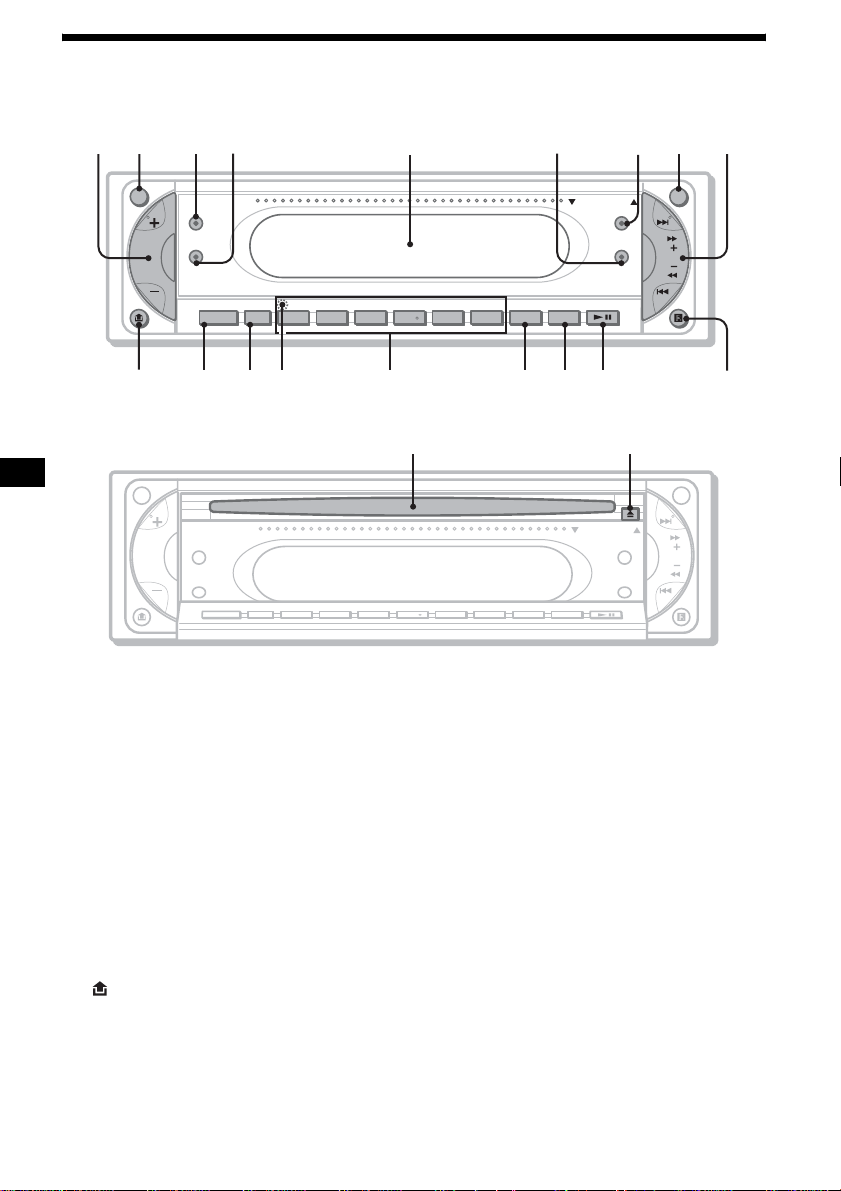
Main unit
OPEN/CLOSE shutter opened
Refer to the pages listed for details.
a Volume +/– button 34
b ATT (attenuate) button
c Z×Z (Zone × Zone) button
d SOUND button
e Display window
f EQ7 (equalizer) button
g DSO button
h OFF button 8
i SEEK +/– button
Radio:
To tune in stations automatically (press); find
a station manually (press and hold).
DVD/CD:
To skip chapters/tracks (press); fast-forward/
reverse a chapter/track (press and hold).
j (front panel release) button 8
k SOURCE button 39
l MODE button
m RESET button (located behind the front
panel) 8
n Number buttons
Radio:
To receive stored stations (press); store
stations (press and hold).
CD/MD*
1
:
(1): REP 20, 37
(2): SHUF 20, 37
(3)/(4): ALBM –/+*
2
To skip albums (press); skip albums
continuously (press and hold).
o DSPL button
p SCRL button
To scroll the display items.
q DVD u (play/pause) button
r Receptor for the card remote
commander
s Disc slot 9
t Z (eject) button 9
*1 When an MD changer is connected.
*2 When an MP3/JPEG is played and a changer is not
connected. If the changer is connected, the
operation is different, see page 37.
SEEK
MEX-R1
MEX-R5
ATT OFF
SOUND
DSO
OPEN/CLOSE
EQ7
SOURCE MODE
DVD
SCRL
SHUFREP ALBM +
-
DSPL
654321
12 34 6 78 9
q
j
q
h
q
g
q
f
q
d
q
s
q
a
0
5
q
k
Z
×
Z
Z
×
Z
SEEK
ATT OFF
SOUND
DSO
OPEN/CLOSE
EQ7
SCRL
DVDSHUFREP ALBM +
-
DSPL
654321
SOURCE MODE
ql w;
11
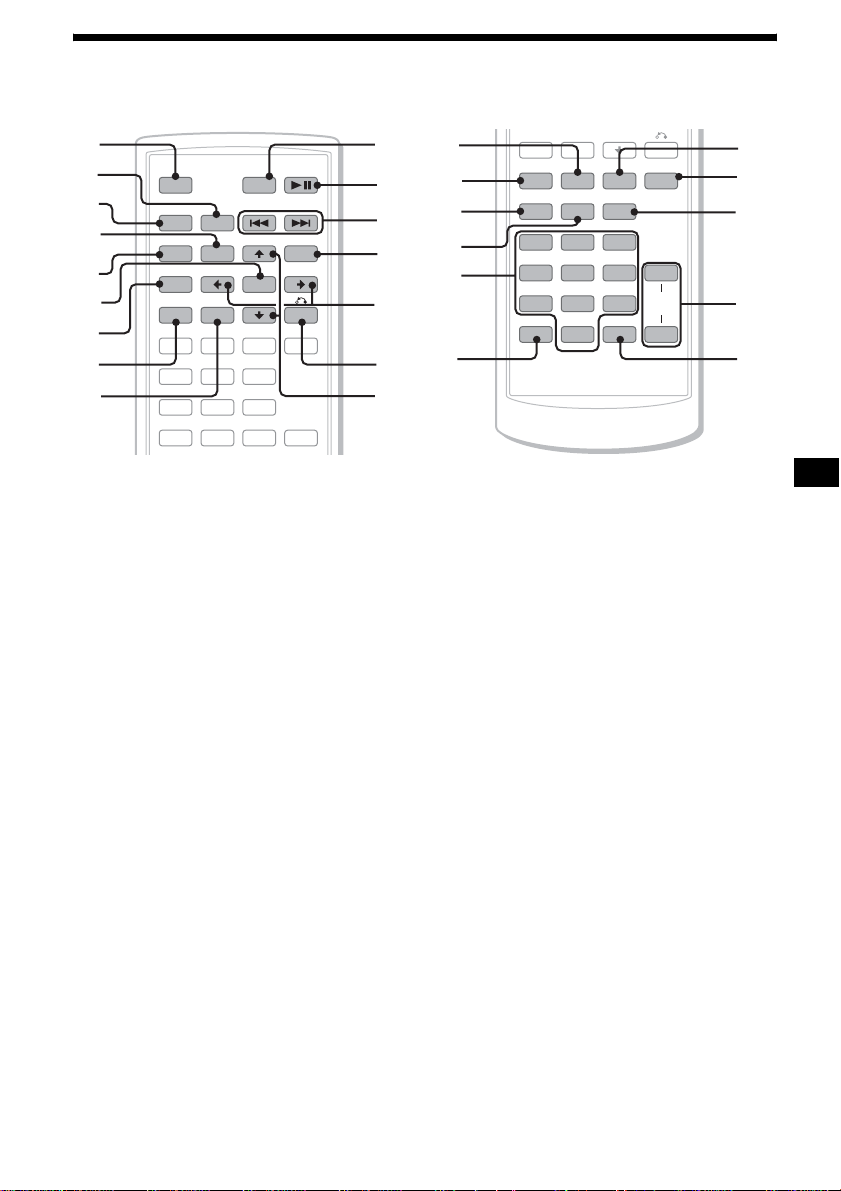
Card remote commander RM-X702
a OFF button 15, 17, 19
To power off/stop the source.
b MODE button 33, 37
To select the radio band (FM/AM)/select the
unit*
1
.
c SRC (SOURCE) button
To power on/change the source (Radio/DVD/
CD/MD*
2
/AUX*
3
).
d TOP MENU button 19
To display the top menu on a DVD.
e SOUND button 34
To select sound items.
f ENTER button
To complete a setting.
g SETUP button
To display the Setup menu and Play mode
menu.
h SYSTEM MENU button
To enter the unit menu.
i LIST button 33, 37
To list up.
j ATT (attenuate) button
To attenuate the sound. To cancel, press
again.
k DVD u (play/pause) button 9, 15, 16,
17
To start/pause playback.
l ./> (previous/next; reverse/fast-
forward; station tuning) buttons
m MENU button 19
To display the menu on a disc.
n </, (cursor) buttons
To move the cursor, or turn the pages.
o O (RETURN) button 19, 28, 29
To return to the previous display, or previous
operation.
p M/m (cursor) buttons
To move the cursor.
q PICTURE EQ button 25
To select the picture quality.
r Z×Z (Zone × Zone) button 39
To switch the front/rear output.
s AUDIO button 22
To change the audio output.
t SUBTITLE button 24
To change the subtitle language.
u Number buttons
SRC
MODE
ATT DVD
SOUND
TOP MENU
MENU
SETUP
ENTER
SYSTEM
MENU
LIST
EQZ
×
Z DSO EQ7
PICTURE
AUDIO
SUBTITLE
ANGLE
123
456
OFF
+
–
+
0
qa
qd
qf
qg
qh
qs
1
2
3
4
5
6
7
8
9
SYSTEM
MENU
LIST
EQZ
×
Z DSO EQ7
PICTURE
AUDIO
SUBTITLE
ANGLE
CLEAR
123
456
789
0
DSPL
–
VOL
+
–
wd
wf
wj
wh
wg
qj
qk
ql
w;
wa
ws
continue to next page t

12
v CLEAR button 21
To cancel entered numbers.
w DSO button 4
To select the DSO mode (1, 2, 3 or OFF).
The larger the number, the more enhanced
the effect.
x EQ7 (equalizer) button
To select an equalizer type (XPLOD,
VOCAL, CLUB, JAZZ, NEW AGE, ROCK,
CUSTOM or OFF).
y ANGLE button 23
To change the viewing angle.
z VOL (volume) +/– button
To adjust the volume.
wj DSPL button 15, 17, 18, 35
To change display items.
*1 When a CD/MD changer is connected.
*2 When an MD changer is connected.
*3 When an optional Sony portable device is
connected.
Note
If the unit is turned off and the display disappears, it
cannot be operated with the card remote commander
unless (SOURCE) on the main unit is pressed, or a
disc is inserted to activate the unit first.
Tip
For details on how to replace the battery, see
“Replacing the lithium battery of the card remote
commander” on page 39.
13
Menu displays
Use the menus of this unit to adjust the various
functions and settings for playback.
The displaying menu differs depending on the
status of the unit.
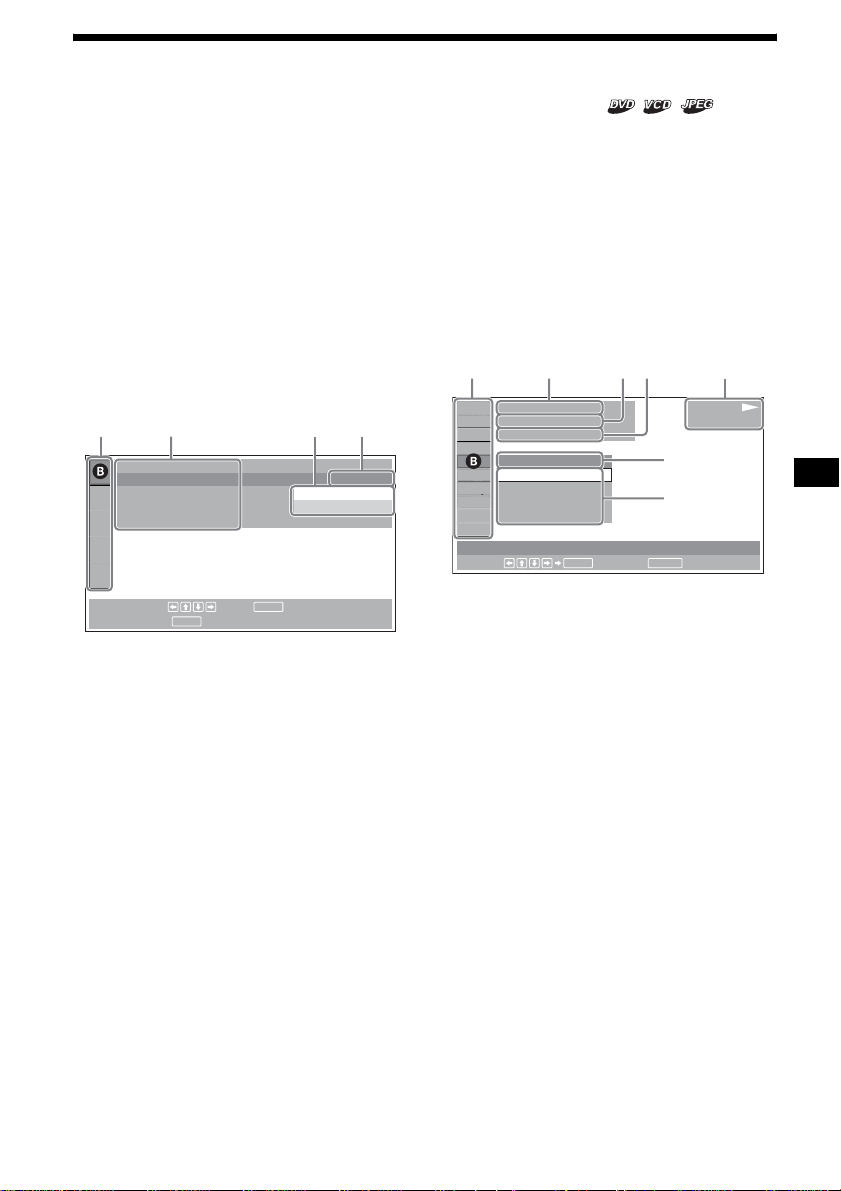
Setup menu
Appears when pressing (SETUP) while
playback is stopped.
To select the item
Press </M/m/,, then press (ENTER).
To turn off the Setup menu
Press (SETUP).
Example: When “LANGUAGE SETUP” is
selected.
A Setup items
B Selected item
C Setting items
D Options
E Current setting
Play mode menu
Appears when pressing (SETUP) during
playback.
To select the item
Press </M/m/,, then press (ENTER).
To turn off the Play mode menu
Press (SETUP).
Note
The items on the menu, and the operation procedures
differ depending on the disc.
Example: When playing a DVD
A Play mode items
B Selected item
C Title number*
1
/Total title number*
1
D Chapter number*
2
/Total chapter number*
2
E Elapsed playback time
F Playback status (NPLAY, XPAUSE, etc.)/
Disc format
G Current setting
H Options
*1 Displays the track number for VCDs, album number
for JPEG files. When playing VCD with the PBC
function on, no indication is displayed.
*2 Displays the image number for JPEG files.
Notes
• While playing back CD/MP3, the Play mode menu
cannot be displayed.
• While playing back JPEG files, (SETUP) is active
only when the image is fully displayed.
LANGUAGE SETUP
OSD :
MENU :
AUDIO :
SUBTITLE :
ENTER
SETUP
To set, press , then .
To quit, press .
ENGLISH
JAPANESE
ENGLISH
ENGLISH
AC DE
continue to next page t
12
(
67
)
018
(
034
)
T 1:35:55
1;ENGLISH
OFF
1:ENGLISH
2:FRENCH
3:SPANISH
PLAY
DVDVIDEO
SUBTITLE
Select :
ENTER RETURN
Cancel
ACDEF
G
H
14
Operation message
Menu operations differ depending on the item
selected, and the buttons to be used appear on the
bottom of the menu display to assist your
operations.
Tip
“Operation not possible” appears when the function is
not available.
Setup items
LANGUAGE SETUP (page 29)
Switches the languages.
SCREEN SETUP (page 30)
Selects the screen modes.
CUSTOM SETUP (page 31)
Sets the playback operations.
AUDIO SETUP (page 32)
Adjusts the output sound.
RESET (page 29)
Resets all setup items.
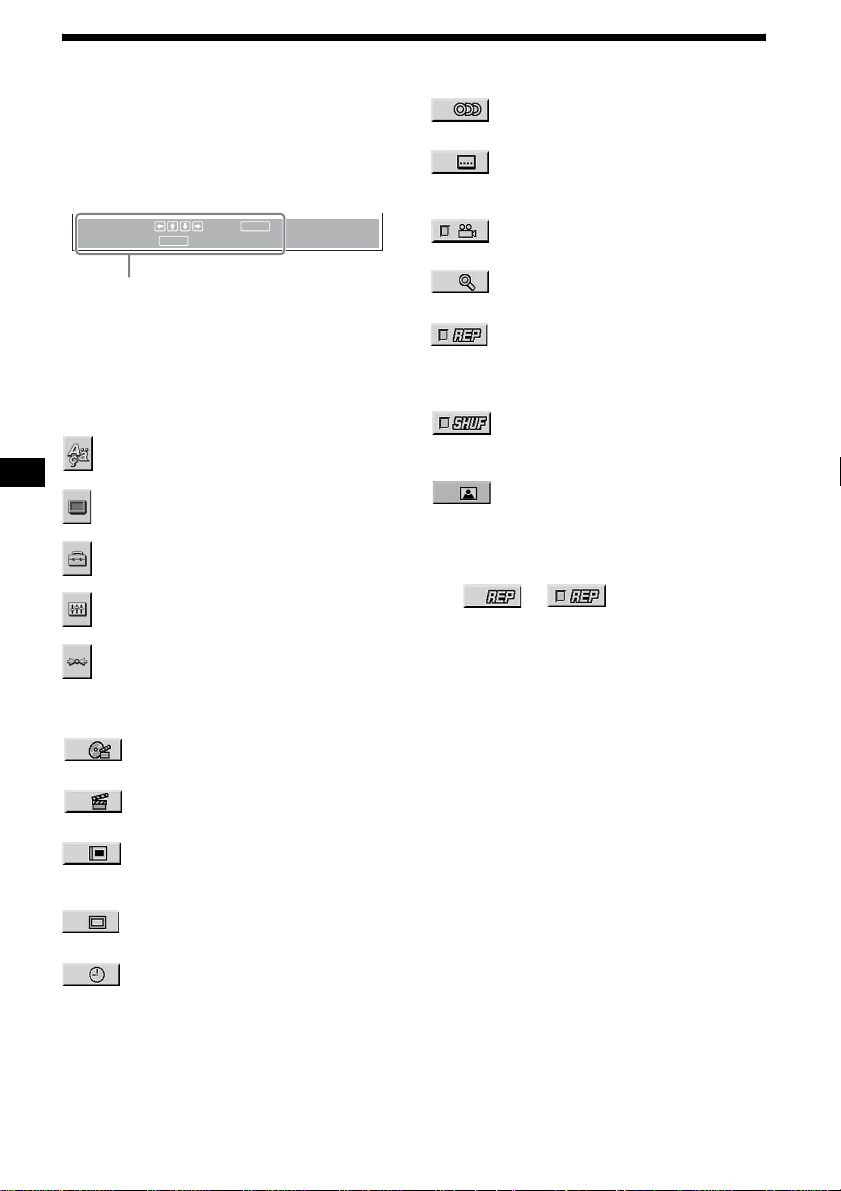
Play mode items
TITLE, TRACK (page 21)
Selects the title, or track to be played.
CHAPTER (page 21)
Selects the chapter to be played.
ALBUM (JPEG) (page 21)
Selects the image album to be
displayed.
IMAGE (page 21)
Selects the image to be displayed.
TIME/TEXT (page 17, 21)
Checks the elapsed time and the
remaining playback time.
Inputs the time code for picture
searching.
Displays DVD text.
AUDIO (page 22)
Changes the audio setting.
SUBTITLE (page 24)
Displays the subtitles.
Changes the subtitle language.
ANGLE (page 23)
Changes the angle.
CENTER ZOOM (page 24)
Magnifies the picture.
REPEAT (page 20)
Plays the entire disc (all titles/all tracks/
all albums) repeatedly, or one chapter/
track/album repeatedly.
SHUFFLE (page 20)
Plays titles/chapters/tracks in random
order.
PICTURE EQ (page 25)
Selects the picture quality.
Tip
When “REPEAT” or “SHUFFLE” is activated, or
“ANGLE” is available, its check-box lights up in green
(e.g. ). However, you may not
be able to change the angle depending on the scene,
even if the check-box is lit in green.
ENTER
SETUP
ENTER
SETUP
To set, press , then .
To quit, press .
Selected item name and/or
operation massages appear.
t
15
Player
Playing discs
Depending on the disc, some operations may be
different or restricted.
Refer to the operating instructions supplied with
your disc.
1 Turn on your monitor, then select the
input source on your monitor
corresponding to this unit.
2 Insert a disc.
Playback starts automatically. (Depending on
the disc, press DVD u to start playback.)
A menu may appear on the screen when a
DVD or VCD is inserted.
For details on these menus, see page 19 for
DVDs, and page 19 for VCDs.
When “MP3/JPEG” on “CUSTOM SETUP” is
set to “JPEG,” a slide show starts automatically if
JPEG files are on the disc (page 31).
Each time you press </,, the image rotates
every 90º.
Notes
• If a large-size image is rotated, it may take longer to
display.
• A JPEG file is designed to be optimally displayed at
640 x 480 pixels. A file in another size may not be
displayed correctly, or picture shift (to the left or
right) may occur.
• Progressive JPEG files cannot be displayed.
When the disc is inserted
Press DVD u to start playback.
To stop playback/to turn off the unit
Press (OFF).
Tip
You cannot insert a disc while the unit is turned off.
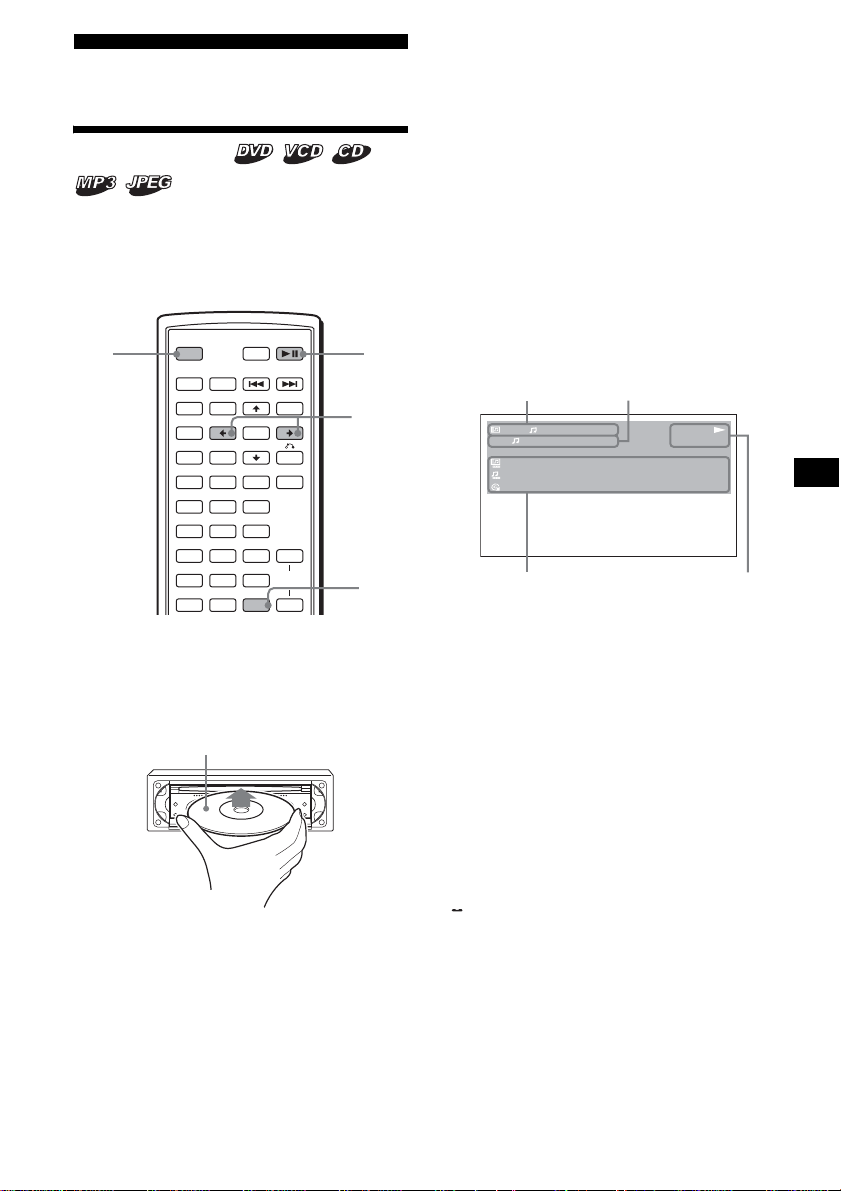
Display items on the CD/MP3
playback
A Album number*
1
/Track number/
Elapsed playback time
B Playback mode/Bit rate*
1
*
2
C Disc name*
3
/Album name*
1
/Track name/
ID3 tag information*
1
D Playback status (NPLAY, XPAUSE, etc.)/
Disc format
*1 Appears only when MP3 files are played.
*2 No indication when VBR (Variable bit rate) is
applied.
*3 “NO DISC NAME” or “NO TRACK NAME” appears
when the disc or track has no name.
To scroll the text information
Press (DSPL).
Note
“ ” appears in place of the letters other than the
alphabet and numbers.
Notes on DVDs with a DTS sound track
DTS audio signal is output at all times; a loud noise
may come out from the speakers if you connect the
unit to the audio equipment without a DTS decoder.
This may cause damage to the speakers, or affect
your hearing.
SRC
MODE
ATT DVD
SOUND
TOP MENU
MENU
SETUP
ENTER
SYSTEM
MENU
LIST
EQZ
×
Z DSO EQ7
PICTURE
AUDIO
SUBTITLE
ANGLE
CLEAR
123
456
789
0
DSPL
OFF
+
–
VOL
+
–
OFF DVD
u
DSPL
</,
Playback side down
continue to next page t
1
1
MP3
PLAY
0:42
:
:
:
ALBUM NAME 001
TRACK NAME 001
ID3 INFORMATION
REP
160k
A
C
B
D

16
Playback order of MP3 files
Notes
• The playback order may differ depending on the
writing software.
• The unit can play up to 1,000 tracks and 256
albums. Tracks beyond the first 1,000 and albums
beyond the first 256 cannot be recognized.
Tips
• If you add numbers (01, 02, 03, etc.) to the front of
the track names, the tracks in each folder will be
played in numerical order.
• Since a disc with many trees takes longer to start
playback, it is recommended that you create albums
of no more than two tree levels.
• For details on MP3 files, see “About MP3 files” on
page 41.
Additional operations
* Available only when MP3 or JPEG files are played.
Folder
(album)
MP3 file
(track)
MP3
To Operation
Pause Press DVD u
Resume play after
pause
Press DVD u
Go to the next chapter,
track, or scene in
continuous play mode
Press > (,)
Go back to the
previous chapter,
track, or scene in
continuous play mode
Press . (<)
Go to the next album Press M*
Go to the previous
album
Press m*
Stop play and remove
the disc
Press Z after opening
the shutter of the unit
(page 9)
SRC
MODE
ATT DVD
SOUND
TOP MENU
MENU
SETUP
ENTER
SYSTEM
MENU
LIST
EQZ
×
Z DSO EQ7
PICTURE
AUDIO
SUBTITLE
ANGLE
OFF
+
–
./>
M/m
</,
DVD
u
17
Resuming playback
— Resume play
The unit stores the point where you stopped
playback for up to 20 discs, and starts resuming
playback even after the unit is turned off, or the
disc being played is ejected.
1 During playback, press (OFF) to stop.
2 Press DVD u to resume playback.
Playback starts from the point stopped in
step 1.
To play from the beginning
After setting “MULTI-DISC RESUME” in
“CUSTOM SETUP” to “OFF” (page 31), press
Z to eject the disc, then insert the disc again.
Select the desired chapter on the DVD menu or
the Top menu depending on the disc.
Notes
• MP3 playback will start from the beginning of the last
track that was played.
• To use resume playback, make sure that “MULTI-
DISC RESUME” in “CUSTOM SETUP” is set to
“ON” (page 31).
• When storing a resume point for the 21st disc, the
stored resume point for the 1st disc is cleared
automatically.
• Resume playback is cancelled when the setting for
the parental controls is changed.
• Depending on the disc or scene, you cannot use the
resume playback.
• If parental control is applied, the resume playback
will not work. In this case, playback starts from the
beginning of the disc when it is inserted.
Tip
When CD, MP3 files, or JPEG files are played, the unit
temporarily stores the resume point for the disc being
played. Once the unit is turned off or the disc is
ejected, the stored resume point for the disc is
cleared.
Viewing the disc information
— Time/text information
You can check the playing time and remaining
time of the current title, chapter, or track. You
can also check text information, such as name of
title, chapter, file, etc.
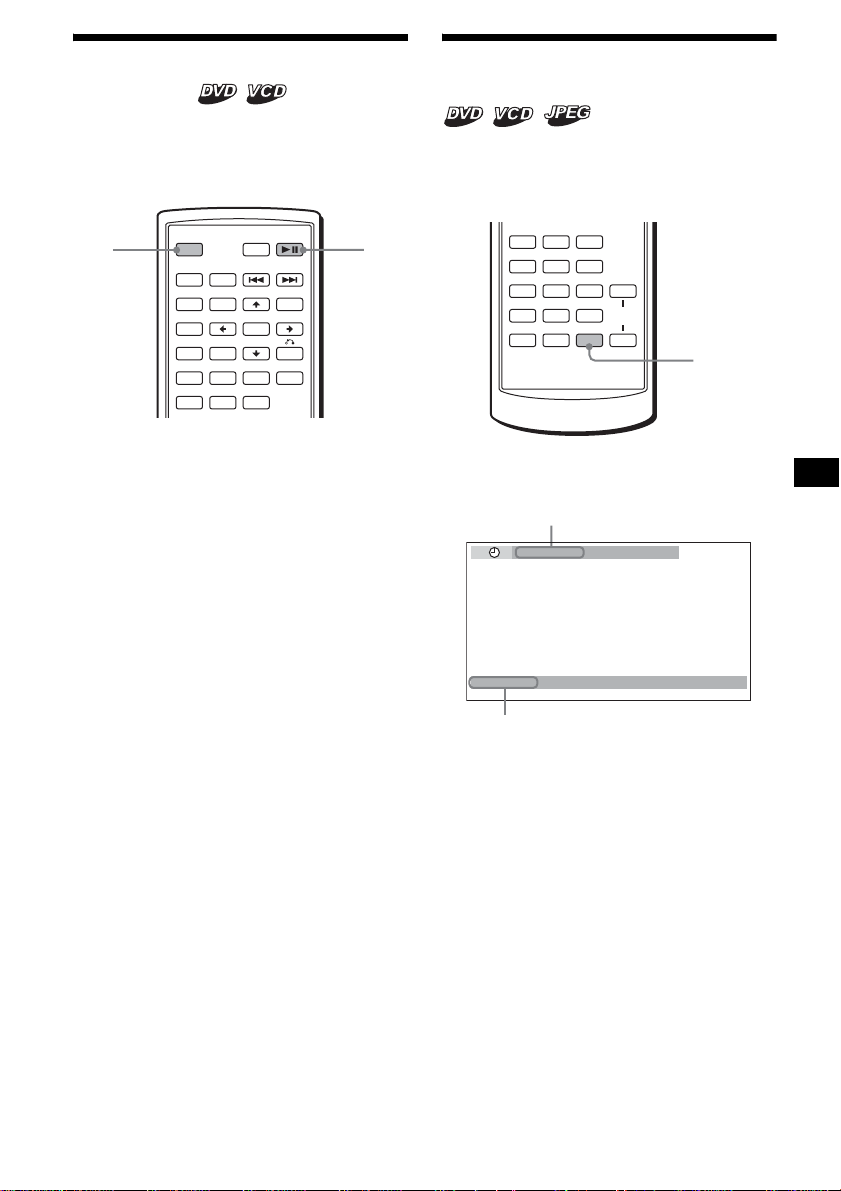
1 During playback, press (DSPL).
The current playback information appears.
SRC
MODE
ATT DVD
SOUND
TOP MENU
MENU
SETUP
ENTER
SYSTEM
MENU
LIST
EQZ
×
Z DSO EQ7
PICTURE
AUDIO
SUBTITLE
ANGLE
OFF
+
–
OFF
DVD
u
continue to next page t
AUDIO
SUBTITLE
ANGLE
CLEAR
123
456
789
0
DSPL
VOL
+
–
DSPL
T 1:01:57
NO TEXT
Text information*
* “NO TEXT” appears when there is no text
information.
Time information
18
2 Press (DSPL) repeatedly to switch the
time information.
Time information differs depending on the
disc as follows:
DVD:
“T
**
:
**
:
**
” - Elapsed playing time of
the current title
“T-
**
:
**
:
**
” - Remaining time of the
current title
“C
**
:
**
:
**
” - Elapsed playing time of
the current chapter
“C-
**
:
**
:
**
” - Remaining time of the
current chapter
VCD (without PBC functions):
“T
**
:
**
” - Elapsed playing time of the
current track
“T-
**
:
**
” - Remaining time of the current
track
“D
**
:
**
” - Elapsed playing time of the
current disc
“D-
**
:
**
” - Remaining time of the current
disc
JPEG:
Album number
Image number
Searching a specific point on
a disc
— Scan
You can quickly locate a specific point on a disc
by monitoring the picture.
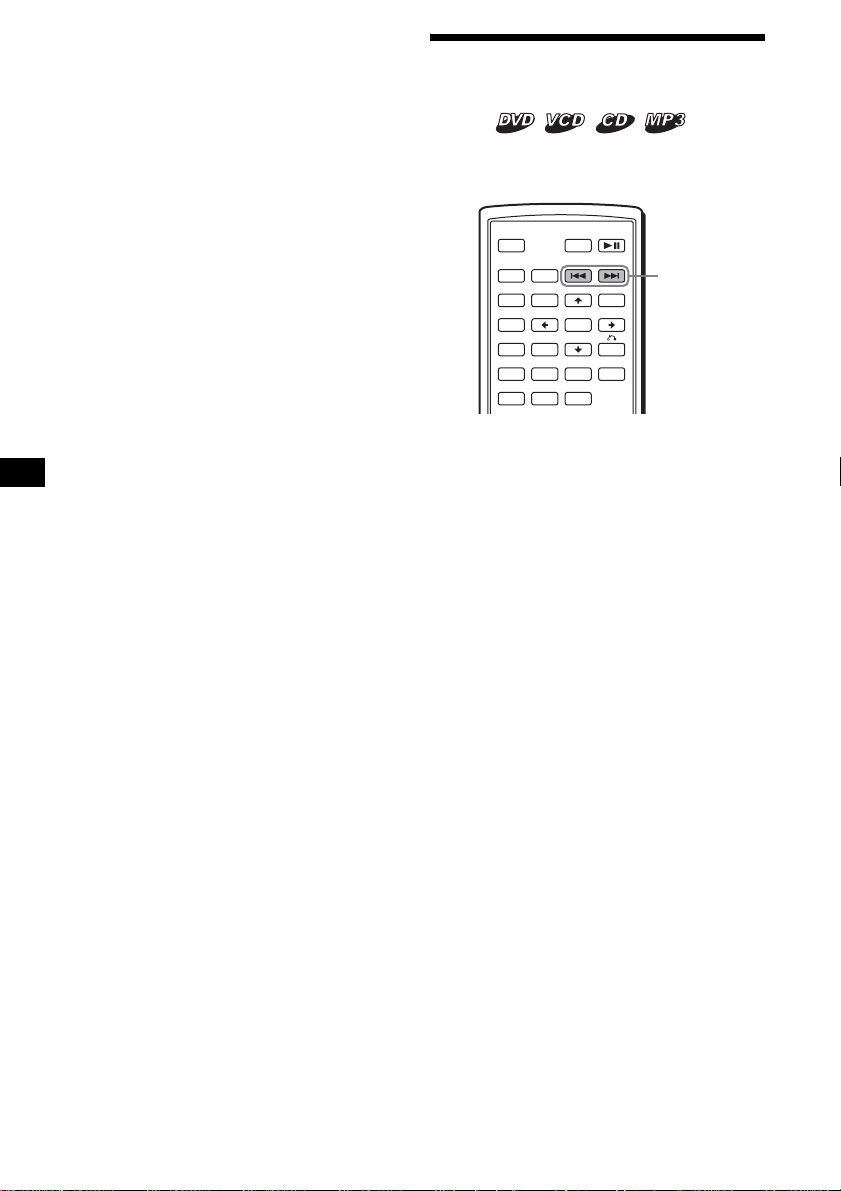
During playback, press and hold ./
>, and release at the desired point.
If you press and hold the button, searching speed
increases.
Note
While searching, audio is not output, and subtitles are
not displayed.
SRC
MODE
ATT DVD
SOUND
TOP MENU
MENU
SETUP
ENTER
SYSTEM
MENU
LIST
EQZ
×
Z DSO EQ7
PICTURE
AUDIO
SUBTITLE
ANGLE
OFF
+
–
./>
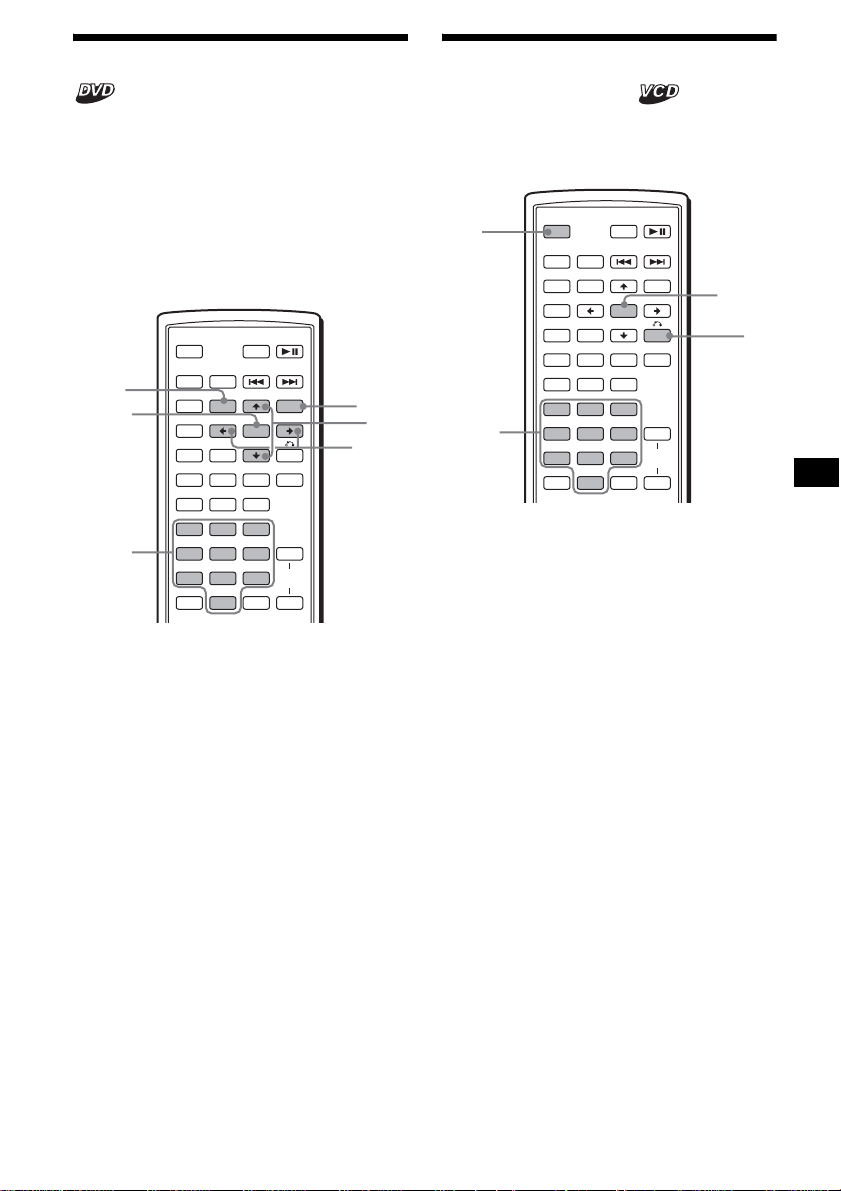
19
Using the menus on DVDs
With some DVDs, you can use their original
menu(s), such as the Top menu or DVD menu.
If the DVD contains several titles of tracks and
scenes, you can use the Top menu to select the
desired title, and start playing.
If the DVD contains more comprehensive menu
items, such as the audio and subtitle languages,
titles, chapters, etc., you can use the DVD menu
to select the desired item, and start playing.
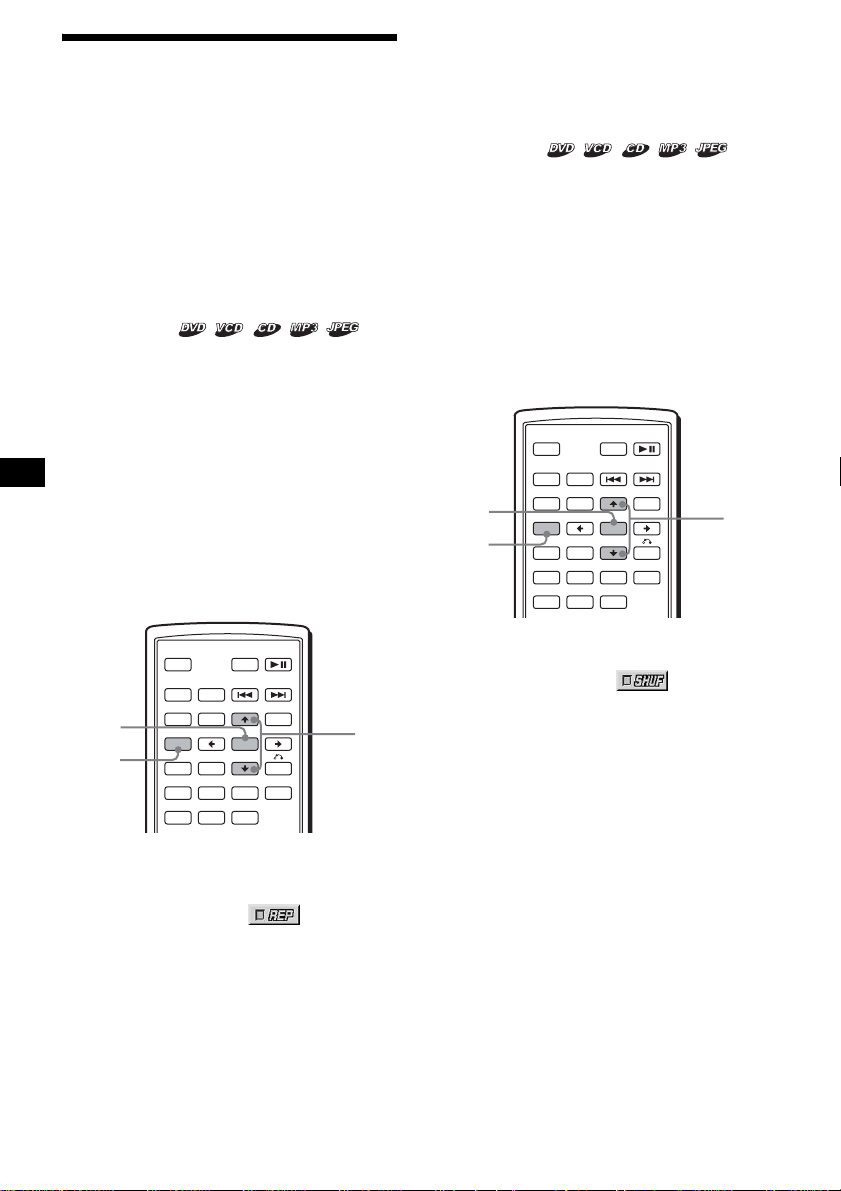
1 During DVD playback, press
(TOP MENU) or (MENU).
The DVD menu or Top menu appears.
The contents of the menu differ depending on
the disc.
2 Press </M/m/,, or the number
buttons to select the desired item,
then press (ENTER).
Note
The items on the menu, and the operation procedures
differ depending on the disc.
Using PBC functions
— PBC (Playback control)
The PBC menu assists your operation
interactively while a PBC compatible VCD is
played.
1 Start playing a PBC compatible VCD.
The PBC menu appears.
2 Press the number buttons to select the
desired item, then press (ENTER).
3 Follow the instructions in the menu for
interactive operations.
To return to the previous display
Press O.
Playing without the PBC function
1 During playback, press (OFF).
2 Press the number buttons to select the
desired item, then press (ENTER).
“Play without PBC” appears and playback
starts.
The PBC menu does not appear during
playback.
Notes
• The items on the menu, and the operation
procedures differ depending on the disc.
• During PBC playback, the track number, playback
time, etc., are not displayed in the Play mode menu.
Tip
To resume PBC playback, stop playback by pressing
(OFF), then press DVD u. PBC playback starts.
SRC
MODE
ATT DVD
SOUND
TOP MENU
MENU
SETUP
ENTER
SYSTEM
MENU
LIST
EQZ
×
Z DSO EQ7
PICTURE
AUDIO
SUBTITLE
ANGLE
CLEAR
123
456
789
0
DSPL
OFF
+
–
VOL
+
–
ENTER
M/m
</,
MENU
TOP
MENU
Number
buttons
SRC
MODE
ATT DVD
SOUND
TOP MENU
MENU
SETUP
ENTER
SYSTEM
MENU
LIST
EQZ
×
Z DSO EQ7
PICTURE
AUDIO
SUBTITLE
ANGLE
CLEAR
123
456
789
0
DSPL
OFF
+
–
VOL
+
–
ENTER
O
OFF
Number
buttons
20
Playing in various modes
— Repeat play/Shuffle play/Search play
You can set the following play modes:
• Repeat play (page 20)
• Shuffle play (page 20)
• Search play (page 21)
Notes
• The selected play mode is cancelled when the disc
being played is ejected or the unit is turned off.
• When playing a VCD with the PBC function on,
Repeat play or Shuffle play is not available.
Playing repeatedly
— Repeat play
The unit can repeat a title, chapter, or track when
the item being played reaches the end.
The following repeat options are available:
• TITLE (Title Repeat) - to repeat the current
title.
• CHAPTER (Chapter Repeat) - to repeat the
current chapter.
• TRACK (Track Repeat) - to repeat the current
track/image.
• ALBUM (Album Repeat) - to repeat the tracks/
images in the current album.
Note
When setting Repeat play for CD/MP3, operate with
the main unit by pressing (1) (REP) repeatedly.
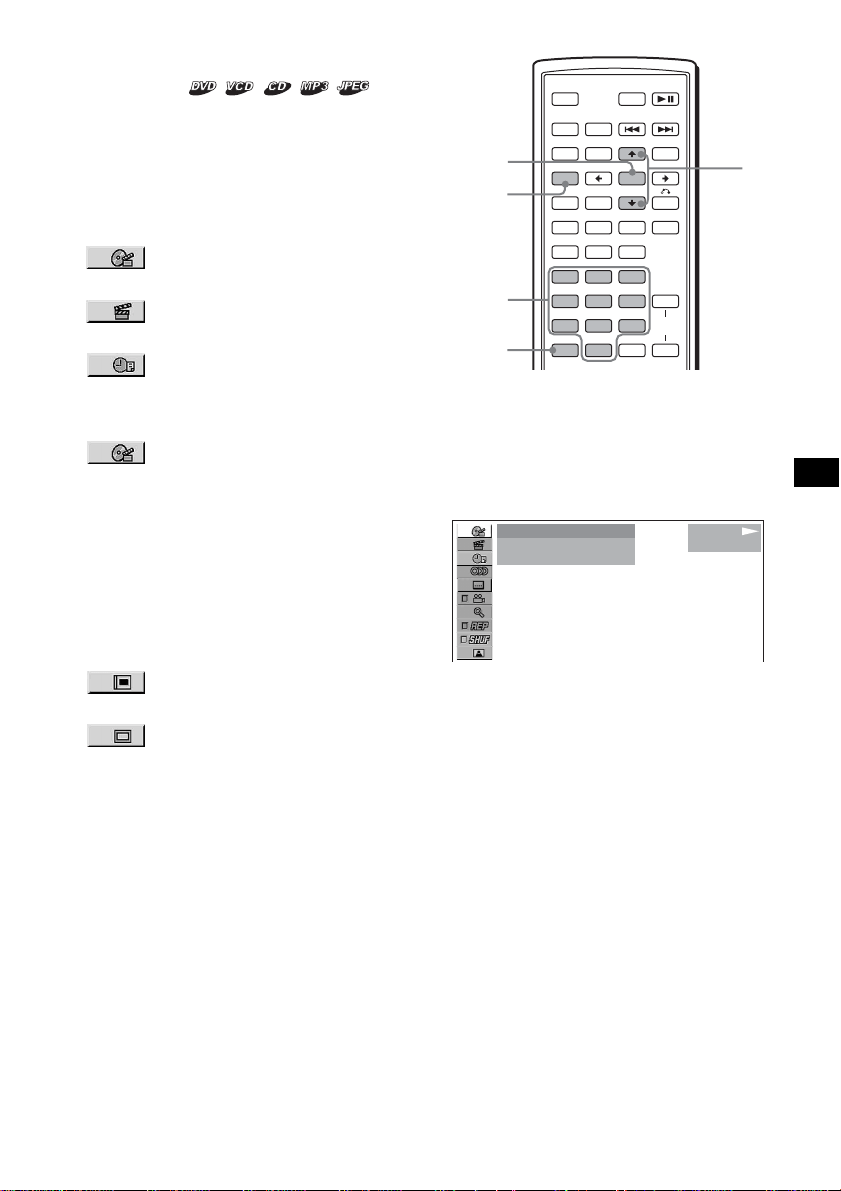
1 During playback, press (SETUP).
The Play mode menu appears.
2 Press M/m to select (REPEAT),
then press (ENTER).
The Play mode options appear.
3 Press M/m to select the desired option,
then press (ENTER).
Repeat play starts.
To return to normal play
Select “OFF” in step 3.
To turn off the Play mode menu
Press (SETUP).
Tips
• The repeat options differ depending on the disc.
• You can also set Repeat play by pressing (1) (REP)
on the main unit repeatedly.
Playing in random order
— Shuffle play
The unit can play titles, chapters or tracks in
random order.
The following shuffle options are available:
• TITLE (Title Shuffle) - to play chapters in the
current title in random order.
• DISC (Disc Shuffle) - to play tracks/images in
the current disc in random order.
• ALBUM (Album Shuffle) - to play tracks/
images in the current album in random order.
Note
When setting Shuffle play for CD/MP3, operate with
the main unit by pressing (2) (SHUF) repeatedly.
1 During playback, press (SETUP).
2 Press M/m to select
(SHUFFLE), then press (ENTER).
The Play mode options appear.
3 Press M/m to select the desired option,
then press (ENTER).
Shuffle play starts.
To return to normal play
Select “OFF” in step 3.
To turn off the Play mode menu
Press (SETUP).
Notes
• Title shuffle play for DVD will be cancelled after it is
played once.
• Title shuffle play for DVD will be cancelled if . or
> is pressed during playback.
Tips
• The shuffle options differ depending on the disc.
• You can also set Shuffle play by pressing (2)
(SHUF) on the main unit repeatedly.
SRC
MODE
ATT DVD
SOUND
TOP MENU
MENU
SETUP
ENTER
SYSTEM
MENU
LIST
EQZ
×
Z DSO EQ7
PICTURE
AUDIO
SUBTITLE
ANGLE
OFF
+
–
ENTER
SETUP
M/m
SRC
MODE
ATT DVD
SOUND
TOP MENU
MENU
SETUP
ENTER
SYSTEM
MENU
LIST
EQZ
×
Z DSO EQ7
PICTURE
AUDIO
SUBTITLE
ANGLE
OFF
+
–
ENTER
SETUP
M/m
21
Starting playback from a selected
point
— Search play
You can quickly locate a desired point by
specifying the title, chapter, elapsed time of the
title (using the time code), or track.
The following search options are available
depending on the disc:
DVD:
• TITLE starts playing from the
selected title.
• CHAPTER starts playing from the
selected chapter.
• TIME/TEXT starts playing from the
point according to the input time code.
VCD:
• TRACK starts playing from the
selected track.
CD:
• TRACK starts playing from the selected track.
MP3:
• TRACK starts playing from the selected track.
JPEG:
• ALBUM starts playing from the
selected album.
• IMAGE starts playing from the
selected image.
Note
When locating a track for CD/MP3, press the number
buttons to enter track number, then press (ENTER).
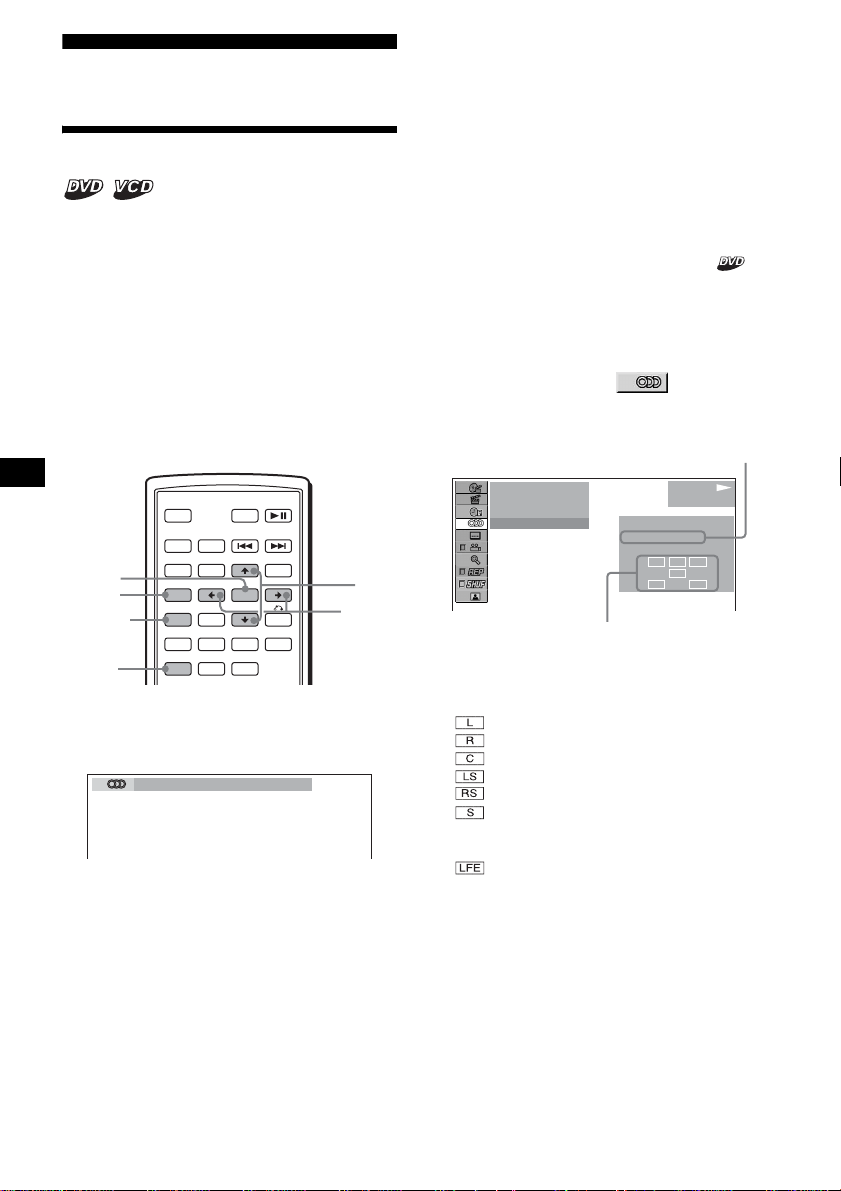
1 During playback, press (SETUP).
The Play mode menu appears.
2 Press M/m to select the desired search
item, then press (ENTER).
The search items differ depending on the disc.
The number in parentheses indicates the total
number of items selected.
3 Press the number buttons to enter title
number, chapter number, track
number, or the elapsed time of the
title.
For example, to find a desired point at 2
hours, 10 minutes, and 20 seconds after the
beginning, just enter “2:10:20.”
To clear the numbers already input, press
(CLEAR).
4 Press (ENTER).
Playback starts from the selected point.
To turn off the Play mode menu
Press (SETUP).
SRC
MODE
ATT DVD
SOUND
TOP MENU
MENU
SETUP
ENTER
SYSTEM
MENU
LIST
EQZ
×
Z DSO EQ7
PICTURE
AUDIO
SUBTITLE
ANGLE
CLEAR
123
456
789
0
DSPL
OFF
+
–
VOL
+
–
ENTER
SETUP
M/m
CLEAR
Number
buttons
12
(
67
)
018
(
034
)
T 1:35:55
1
PLAY
DVDVIDEO
22
Various DVD operations
Changing the audio channels
When playing a DVD recorded in multiple audio
formats (PCM, Dolby Digital, or DTS), you can
change the audio format. If the DVD is recorded
with multilingual tracks, you can also change the
language.
With VCDs, you can select the sound from the
right or left channel and listen to the sound of the
selected channel through both the right and left
speakers. For example, when playing a disc
containing a song with the vocals on the right
channel and the instruments on the left channel,
you can hear the instruments from both speakers
by selecting the left channel.
During playback, press (AUDIO)
repeatedly to select the desired audio
channels.
Audio sound settings differ depending on the
disc as follows:
DVD:
The audio language switches among the
available languages.
When 4 digits appear, input the language code
corresponding to the desired language
(page 49).
When the same language is displayed two or
more times, the DVD is recorded in multiple
audio formats.
VCD:
STEREO*: Standard stereo sound
1/L: Left channel sound (monaural)
2/R: Right channel sound (monaural)
* The default setting
Note
You may not be able to change the audio channels
depending on disc.
Tip
You can also change the settings by selecting
“AUDIO” in the Play mode menu (page 13).
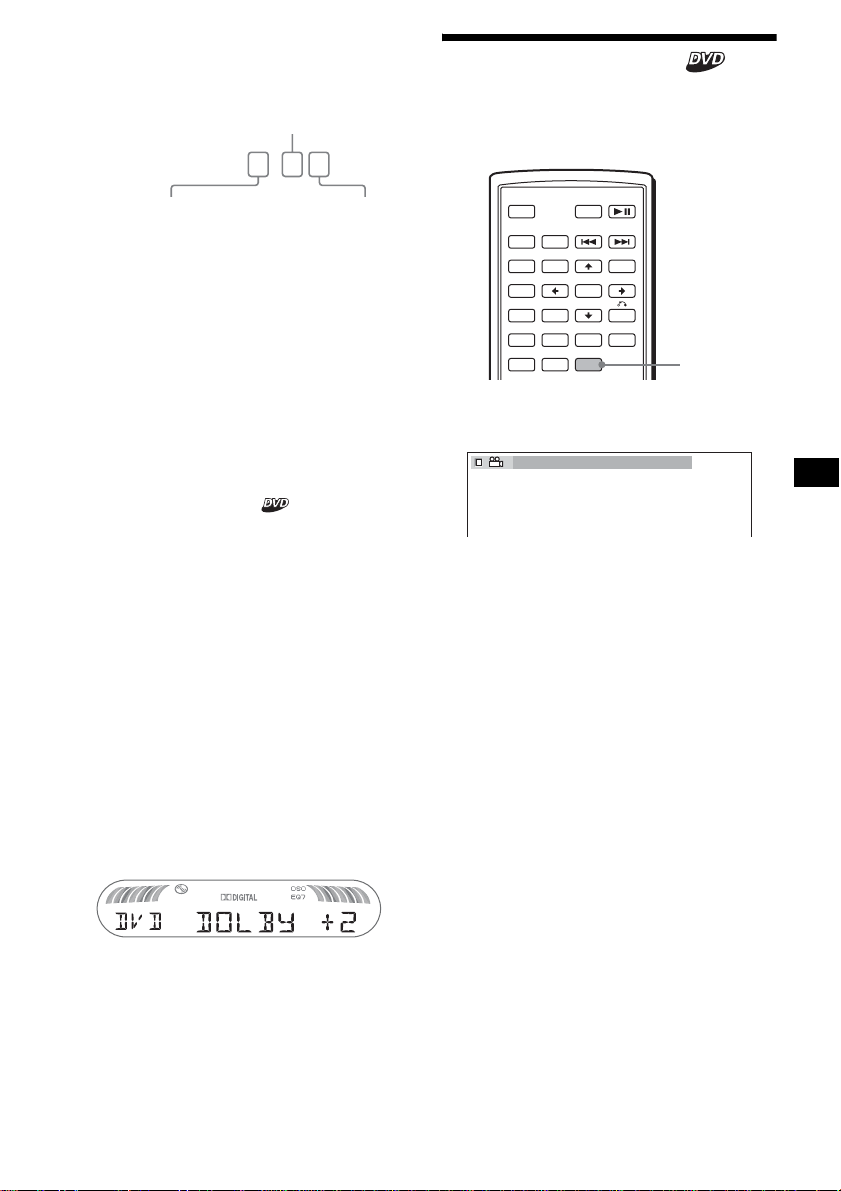
Checking the program format
You can check the number of channels and
component position on the DVD being played.
1 During playback, press (SETUP).
The Play mode menu appears.
2 Press
M/m
to select (AUDIO),
then press (ENTER).
The program format appears.
The letters in the program format display
represent the following sound components
and its positions:
: Front (left)
: Front (right)
: Centre
: Rear (left)
: Rear (right)
: Rear (monaural): The rear component
of the Dolby Surround processed signal
and the Dolby Digital signal
: Low Frequency Effect signal
SRC
MODE
ATT DVD
SOUND
TOP MENU
MENU
SETUP
ENTER
SYSTEM
MENU
LIST
EQZ
×
Z DSO EQ7
PICTURE
AUDIO
SUBTITLE
ANGLE
OFF
+
–
SETUP
M/m
AUDIO
SYSTEM
MENU
ENTER
</,
1:ENGLISH DolbyD
L C
LFE
LS
R
RS
12
(
67
)
018
(
034
)
T 01:35:55
1: ENGLISH
PROGRAMFORMAT
DOLBY DIGITAL
3 / 2. 1
PLAY
DVDVIDEO
Current audio format*
1
Current program format*
2
23
When “DOLBY DIGITAL” is applied, the
program format name and channel numbers
appear as follows:
Example: Dolby Digital 5.1 ch
*1 “PCM,” “DTS,” or “DOLBY DIGITAL” appears
depending on the disc.
*2 Appears only when the “DOLBY DIGITAL” format is
applied.
To turn off the Play mode menu
Press (SETUP).
Tip
For Dolby Digital and DTS, “LFE” is always enclosed
in a solid line regardless of the LFE signal component
being output.
Adjusting the audio output level
— DVD level adjustment
The audio output level for DVD video differs
depending on the recorded audio format (PCM,
Dolby Digital, or DTS). You can adjust the
output level of PCM, Dolby Digital or DTS
separately to reduce the volume level differences
between disc and source.
1 Press (SYSTEM MENU).
2 Press M/m repeatedly to select “DVD
LVL,” then press (ENTER).
3 Press , to set to “ADJ-ON,” then
press (ENTER).
4 Press </, to select “DOLBY,” “DTS”
or “PCM.”
5 Press M/m to adjust the output level,
then press (ENTER).
Note
You can adjust the output level only when a disc is
inserted in the unit.
Tip
The output level is adjustable from –6 dB to +6 dB.
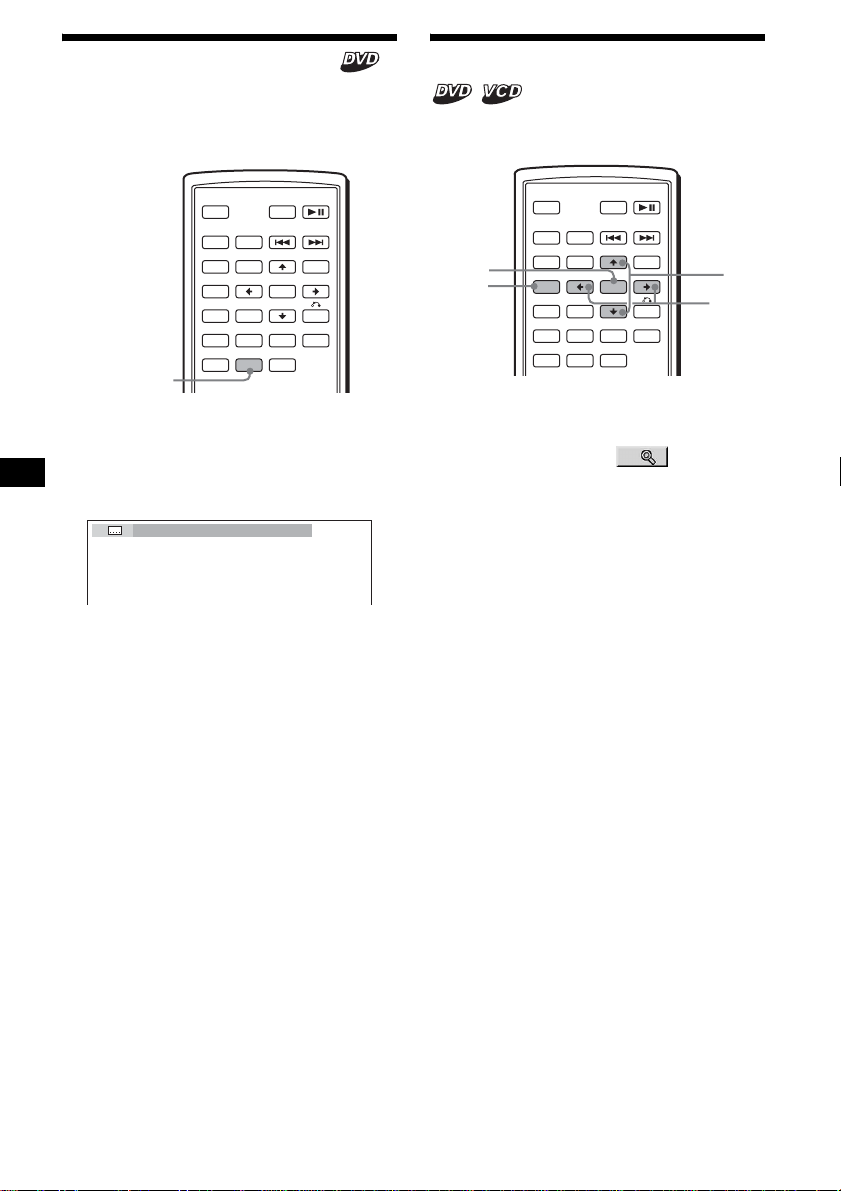
Changing the angles
You can change the viewing angle if various
angles (multi-angles) for a scene are recorded on
a DVD.
Press (ANGLE) repeatedly to select the
desired angle number.
The angle changes.
Note
Depending on the DVD, you may not be able to
change the angles, even if multi-angles are recorded.
Tip
You can also change the viewing angle by selecting
“ANGLE” in the Play mode menu (page 13).
DOLBY DIGITAL
3 / 2 . 1
LFE component × 1
Rear component × 2
Front component × 2 +
Center component × 1
SRC
MODE
ATT DVD
SOUND
TOP MENU
MENU
SETUP
ENTER
SYSTEM
MENU
LIST
EQZ
×
Z DSO EQ7
PICTURE
AUDIO
SUBTITLE
ANGLE
OFF
+
–
ANGLE
2
(
2
)
24
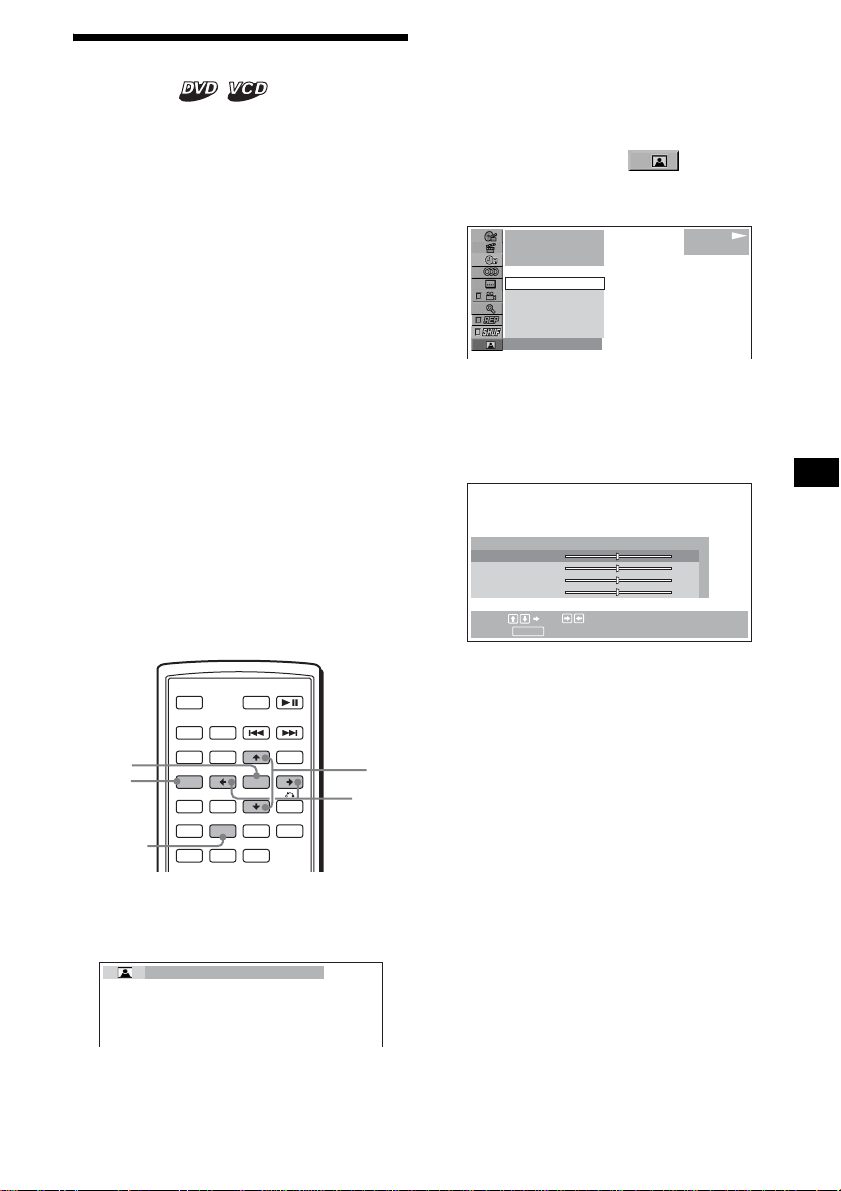
Displaying the subtitles
You can turn the subtitles on or off, or change the
subtitle language if more are recorded on the
DVD.
1 During playback, press (SUBTITLE).
The subtitle language appears.
2 Press (SUBTITLE) repeatedly to select
the desired language.
Available languages will vary, depending on
the disc.
When 4 digits appear, input the language code
corresponding to the desired language
(page 49).
To turn off the subtitles
Press (SUBTITLE) repeatedly to select “OFF.”
Note
Depending on the DVD, you may not be able to
change (or turn off) the subtitles, even if multilingual
subtitles are recorded.
Tip
You can also change the subtitle language by
selecting “SUBTITLE” on the Play mode menu
(page 13), or the DVD menu (page 19).
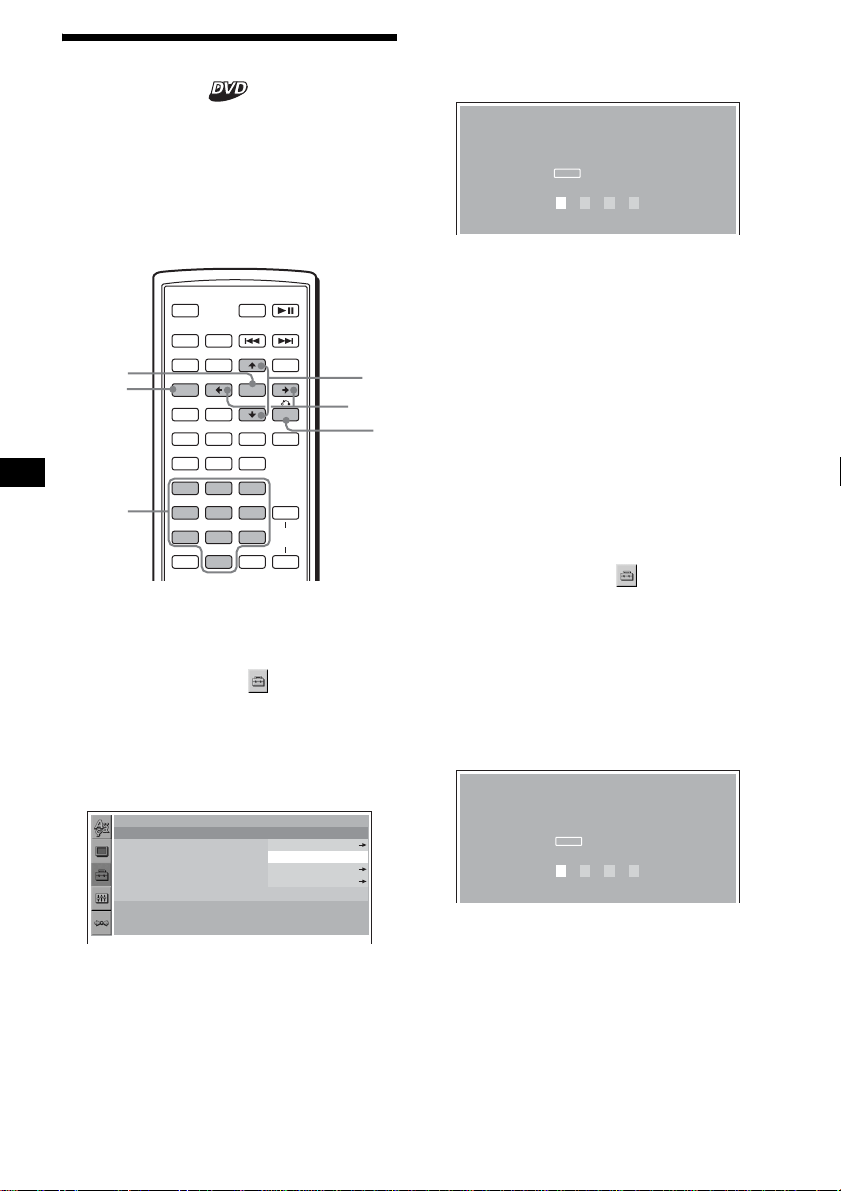
Magnifying pictures
You can magnify pictures.
1 During playback, press (SETUP).
The Play mode menu appears.
2 Press M/m to select (CENTER
ZOOM), then press (ENTER).
The current option appears.
3 Press M/m to select the desired option
(ZOOM×1, ×2*, ×4*), then press
(ENTER).
The picture is magnified.
* The picture becomes grainy.
To shift the frame position
After magnifying the picture, press </M/m/,.
To restore the original scale
Select “ZOOM×1” in step 3.
To turn off the Play mode menu
Press (SETUP).
Notes
• Depending on the DVD, you may not be able to
change the magnification.
• If you resume playback, the picture returns to its
original scale.
SRC
MODE
ATT DVD
SOUND
TOP MENU
MENU
SETUP
ENTER
SYSTEM
MENU
LIST
EQZ
×
Z DSO EQ7
PICTURE
AUDIO
SUBTITLE
ANGLE
OFF
+
–
SUBTITLE
1:ENGLISH
SRC
MODE
ATT DVD
SOUND
TOP MENU
MENU
SETUP
ENTER
SYSTEM
MENU
LIST
EQZ
×
Z DSO EQ7
PICTURE
AUDIO
SUBTITLE
ANGLE
OFF
+
–
ENTER
SETUP
M/m
</,
25
Changing the picture quality
— Picture EQ
You can select picture quality suitable for the
interior brightness of the car.
You can set “PICTURE EQ” to “LIGHT OFF,”
“LIGHT ON,” or “AUTO” in “CUSTOM
SETUP” (page 31). The options (below) for each
setting differ. If you set “PICTURE EQ” to
“AUTO,” the available options switch
automatically depending on whether the light is
on or off.
The following setting options are available.
• NORMAL - normal picture quality.
•Daytime*
1
- suitable in a bright place.
•Sunset*
1
- suitable when it gets little dark.
• Shine*
1
- suitable in a very bright place (e.g.
when sunlight reflects on the monitor).
•Night*
2
- darkens the monitor to not distract
your driving at night.
• Midnight*
2
- darkens the monitor more than the
“Night” setting.
• Theater*
2
- brightens the monitor; suitable
when you want to enjoy a bright monitor at
night.
• CUSTOM - user-adjustable settings.
*1 Available when “PICTURE EQ” in “CUSTOM
SETUP” is set to “LIGHT OFF,” or “AUTO” and the
light is off.
*2 Available when “PICTURE EQ” in “CUSTOM
SETUP” is set to “LIGHT ON,” or “AUTO” and the
light is on.
During playback, press (PICTURE EQ)
repeatedly to select the desired
setting.
Tip
You can also change the picture quality by selecting
“PICTURE EQ” in Play mode menu (page 13).
Adjusting the custom settings
You can store your own user-adjustable settings
for different picture tones.
1 During playback, press (SETUP).
The Play mode menu appears.
2 Press M/m to select (PICTURE
EQ), then press (ENTER).
The setting items appear.
3 Press M/m to select “CUSTOM,” then
press (ENTER).
4 Press M/m to select the setting item,
then press </, to adjust the level.
5 Press (ENTER).
Tip
Adjustments for “LIGHT OFF” and “LIGHT ON” can be
stored separately.
SRC
MODE
ATT DVD
SOUND
TOP MENU
MENU
SETUP
ENTER
SYSTEM
MENU
LIST
EQZ
×
Z DSO EQ7
PICTURE
AUDIO
SUBTITLE
ANGLE
OFF
+
–
ENTER
SETUP
M/m
</,
PICTURE
EQ
Daytime
1
001
002:35
PLAY
DVDVIDEO
Daytime
Sunset
Shine
CUSTOM
NORMAL
NORMAL
Select: Set:
Cancel:
RETURN
Color
Bright
Contrast
Tint
0
0
0
0
USER CUSTOM SETUP
26
Locking discs
— Parental control
You can lock a disc, or set playback restrictions
according to a predetermined level such as
viewer age. Restricted playback scenes are
blocked or replaced with different scenes when a
parental control compatible DVD is played.
Setting the parental control on
1 Press (SETUP) while playback is
stopped.
The set up menu appears.
2 Press M/m to select (CUSTOM
SETUP), then press (ENTER).
The setting items appear.
3 Press M/m to select “PARENTAL
CONTROL,” then press (ENTER).
The parental control options appear.
4 Press M/m to select “ON t,” then
press (ENTER).
The password setting display appears.
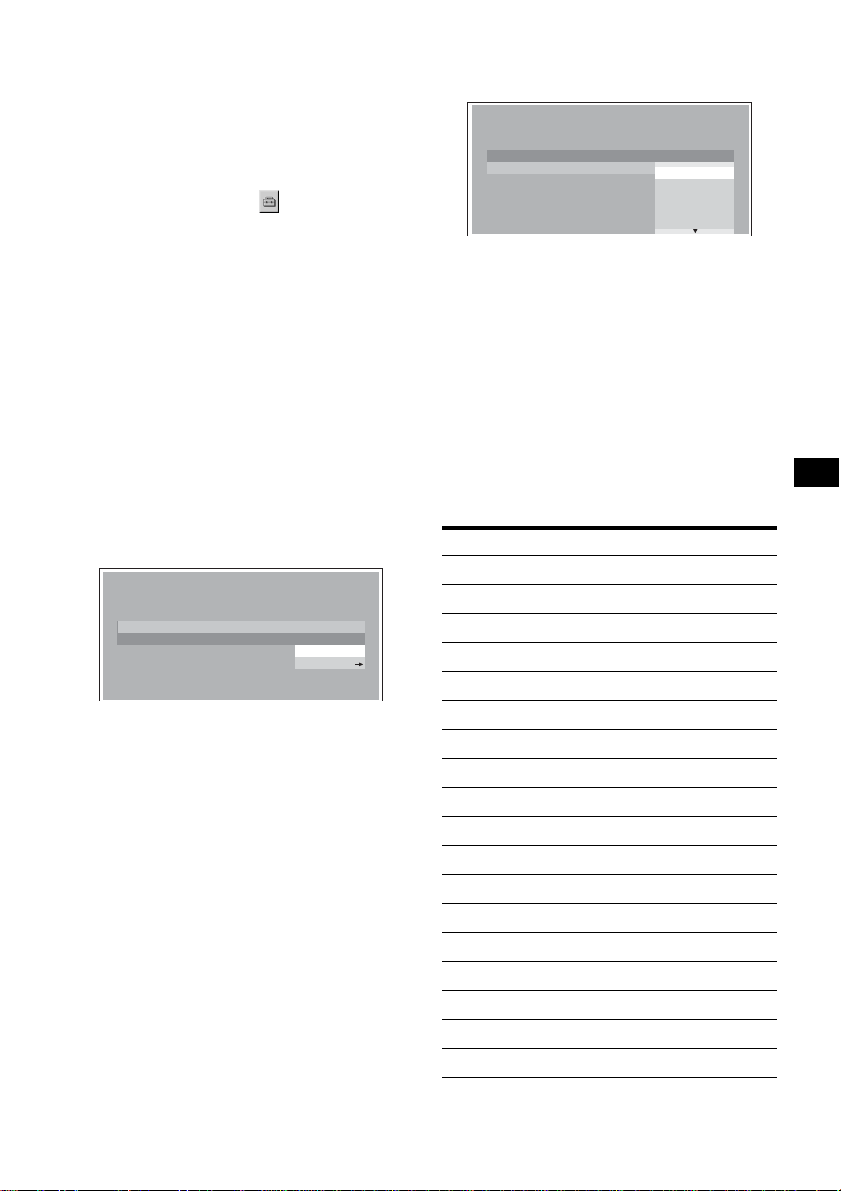
5 Press the number buttons to enter
your password, then press (ENTER).
The conformation display appears.
6 To confirm, press the number buttons
to enter your password again, then
press (ENTER).
Parental control is set.
To turn off the Setup menu
Press (SETUP).
Setting the parental control off
1 Press (SETUP) while playback is
stopped.
The set up menu appears.
2 Press M/m to select (CUSTOM
SETUP), then press (ENTER).
The setting items appear.
3 Press M/m to select “PARENTAL
CONTROL,” then press (ENTER).
The parental control options appear.
4 Press M/m to select “OFF t,” then
press (ENTER).
The display to enter your password appears.
5 Press the number buttons to enter
your password, then press (ENTER).
“Parental control is canceled” appears.
If a wrong number is entered, press < to
move the cursor and enter the number again.
SRC
MODE
ATT DVD
SOUND
TOP MENU
MENU
SETUP
ENTER
SYSTEM
MENU
LIST
EQZ
×
Z DSO EQ7
PICTURE
AUDIO
SUBTITLE
ANGLE
CLEAR
123
456
789
0
DSPL
OFF
+
–
VOL
+
–
ENTER
SETUP
M/m
</,
O
Number
buttons
CUSTOM SETUP
PARENTAL CONTROL :
MUTI–DISC RESUME :
MP3/JPEG :
SLIDE SHOW TIME :
PLAY LIST PLAY :
PICTURE EQ :
OFF
ON
OFF
PLAYER
PASSWORD
AUTO
PARENTAL CONTROL
Enter a new 4–digit password,
then press .
ENTER
PASSWORD
PARENTAL CONTROL
Enter password,
then press .
ENTER
PASSWORD
27
Changing the area and its movie
rating level
You can set the restriction levels depending on
the area and its movie ratings.
1 Press (SETUP) while playback is
stopped.
The set up menu appears.
2 Press M/m to select (CUSTOM
SETUP), then press (ENTER).
The setting items appear.
3 Press M/m to select “PARENTAL
CONTROL,” then press (ENTER).
The parental control options appear.
4 Press M/m to select “PLAYER t,” then
press (ENTER).
When the parental control is already set to on,
the display to enter your password appears.
To change the settings, enter your password
number, then press (ENTER).
If a wrong number is entered, press < to
move the cursor and enter the number again.
5 Press M/m to select “STANDARD,”
then press (ENTER).
The standard options appear.
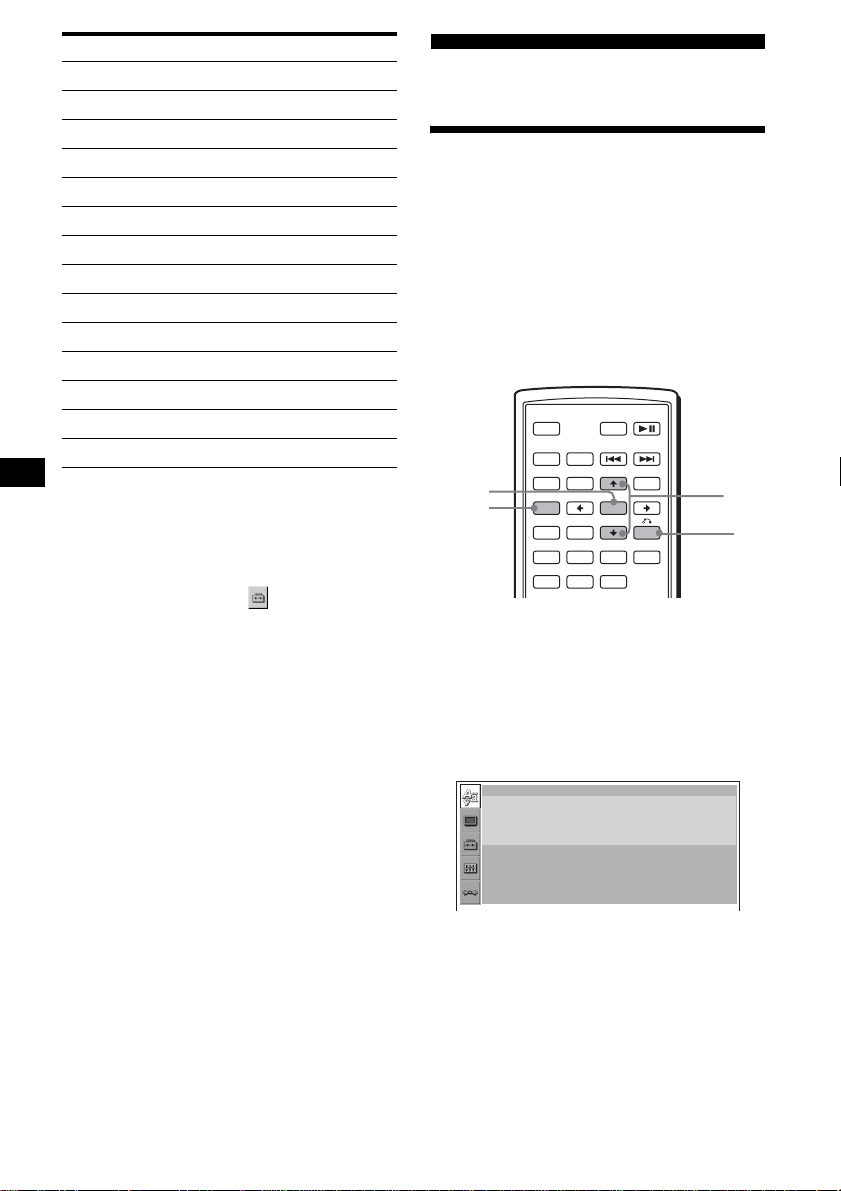
6 Press M/m to select the desired area to
apply its movie ratings, then press
(ENTER).
The area is selected.
When you want to select the standard on the
“Area code list” (page 27), select “OTHERS
t,” then enter its code number using the
number buttons.
7 Press M/m to select “LEVEL,” then
press (ENTER).
The rating options appear.
The lower the number, the stricter the
restriction level.
8 Press M/m to select the desired rating,
then press (ENTER).
Parental control setting is complete.
To turn off the Setup menu
Press (SETUP).
Note
When you play discs which do not have the parental
control, playback cannot be restricted on this unit.
Area code list
CUSTOM SETUP
LEVEL :
STANDARD :
8:
USA
USA
OTHER
Standard Code number
Argentina 2044
Australia 2047
Austria 2046
Belgium 2057
Brazil 2070
Canada 2079
Chile 2090
China 2092
Denmark 2115
Finland 2165
France 2174
Germany 2109
India 2248
Indonesia 2238
Italy 2254
Japan 2276
Korea 2304
Malaysia 2363
continue to next page t
NC17
R
PG13
8:
7:
6:
5:
4:
CUSTOM SETUP
LEVEL :
STANDARD :
8:
28
Changing the password
1 Press (SETUP) while playback is
stopped.
The Setup menu appears.
2 Press M/m to select (CUSTOM
SETUP), then press (ENTER).
The setting items appear.
3 Press M/m to select “PARENTAL
CONTROL,” then press (ENTER).
The parental control options appear.
4 Press M/m to select “PASSWORD t,”
then press (ENTER).
The display to enter your password appears.
5 Press the number buttons to enter
your 4-digit password, then press
(ENTER).
When a wrong number is entered, press < to
move the cursor and enter the number again.
6 Press the number buttons to enter a
new 4-digit password, then press
(ENTER).
7 To confirm, press the number button
to enter your new 4-digit password
again, then press (ENTER).
To return to the previous display
Press O.
To turn off the Setup menu
Press (SETUP).
Settings and Adjustments
Using the Setup menu
By using the Setup menu, you can make various
adjustments to items, such as picture and sound.
You can also set a language for the subtitle and
the on-screen display, among other things. For
details on each setup items, see pages from 29 to
32.
Note
Playback settings stored in the disc take priority over
the Setup menu settings, and not all the functions
described may work.
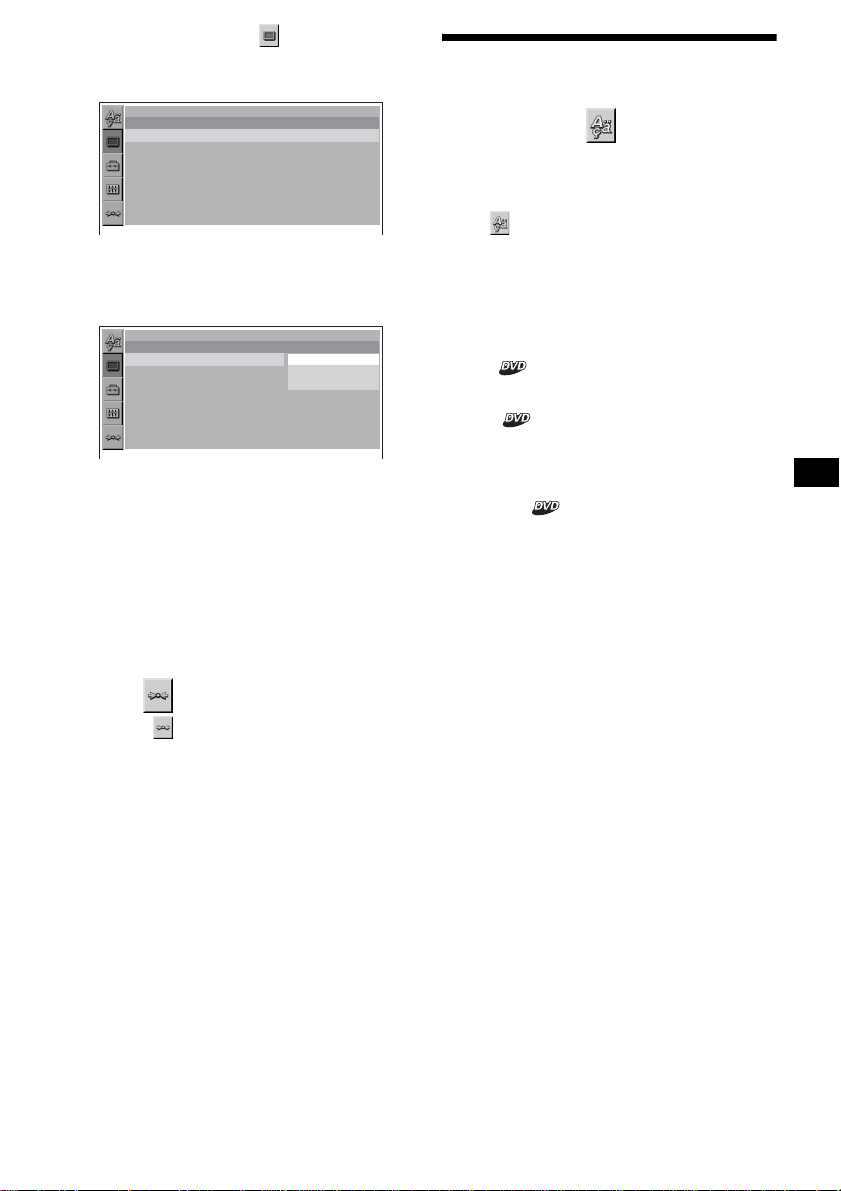
Basic operation
Example: When you want to change the aspect
ratio (“MONITOR TYPE”) to “4:3 PAN SCAN.”
1 Press (SETUP) while playback is
stopped.
The Setup menu appears.
Mexico 2362
Netherlands 2376
New Zealand 2390
Norway 2379
Pakistan 2427
Philippines 2424
Portugal 2436
Russia 2489
Singapore 2501
Spain 2149
Sweden 2499
Switzerland 2086
Thailand 2528
United Kingdom 2184
Standard Code number
SRC
MODE
ATT DVD
SOUND
TOP MENU
MENU
SETUP
ENTER
SYSTEM
MENU
LIST
EQZ
×
Z DSO EQ7
PICTURE
AUDIO
SUBTITLE
ANGLE
OFF
+
–
ENTER
SETUP
M/m
O
LANGUAGE SETUP
OSD :
MENU :
AUDIO :
SUBTITLE
:
ENGLISH
ENGLISH
ORIGINAL
AUDIO FOLLOW
29
2 Press M/m to select (SCREEN
SETUP), then press (ENTER).
The setup display appears.
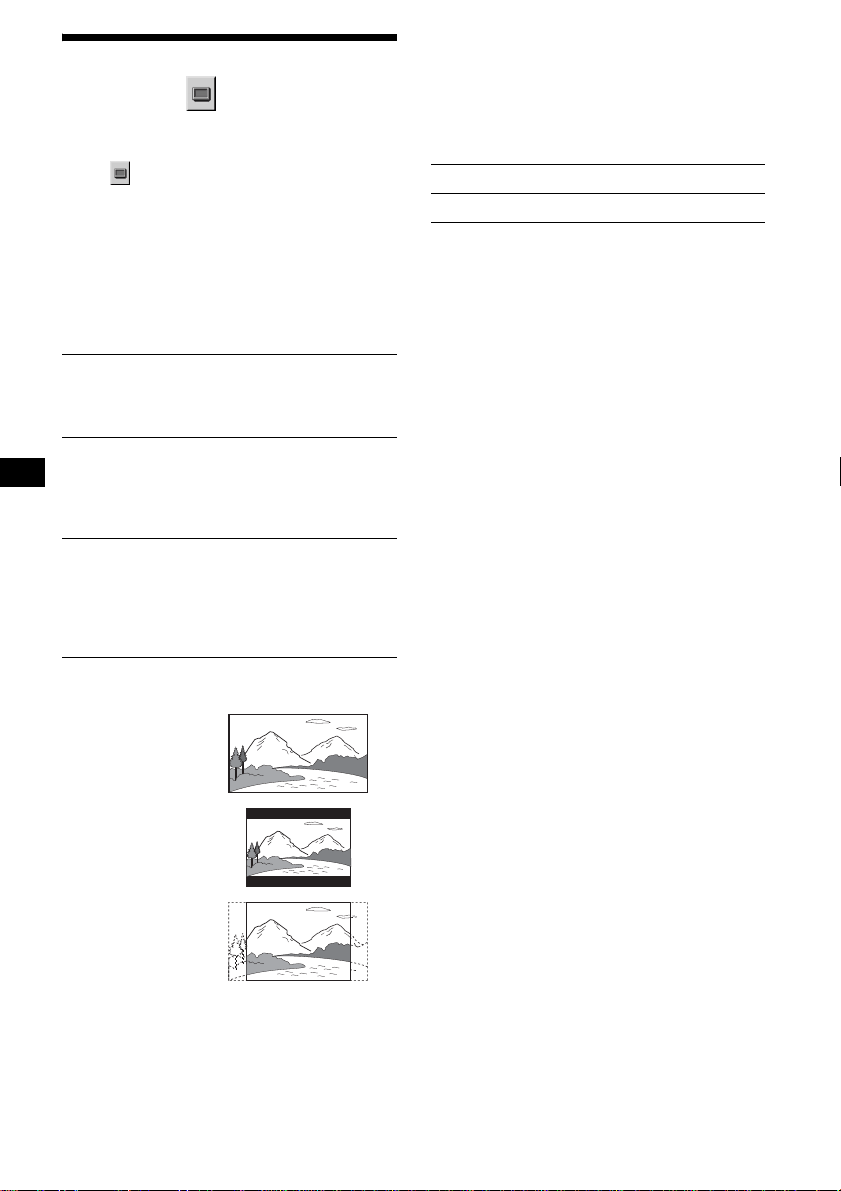
3 Press M/m to select “MONITOR TYPE,”
then press (ENTER).
The monitor type options appear.
4 Press M/m to select “4:3 PAN SCAN,”
then press (ENTER).
The setting is applied and setup is complete.
To return to the previous display
Press O.
To turn off the Setup menu
Press (SETUP).
To reset all the setting items
— Reset
1 Select (RESET) in step 2, then
press (ENTER).
2 Press M to select “YES,” then press
(ENTER).
All the settings* on the Setup menu return to
the default settings.
* Excluding parental control settings.
To cancel resetting
Select “NO” in step 2.
Note
Do not turn off the unit while resetting the Setup menu
item as it takes a few seconds to complete.
Setting the display language
or sound track
— Language setup
“LANGUAGE SETUP” allows you to set the
desired language for the on-screen display or
sound track accordingly.
Select (LANGUAGE SETUP) in the Setup
menu, then select the desired setting item.
For details on the setup procedures, see “Using
the Setup menu” on page 28.
OSD (On-Screen Display)
Switches the display language on the screen.
MENU
Switches the language for the menu on the disc.
AUDIO
Switches the language of the sound track.
When you select “ORIGINAL,” the language
given priority in the disc is selected.
SUBTITLE
Switches the language of the subtitle recorded on
the disc.
When you select “AUDIO FOLLOW,” the
language for the subtitles changes according to
the language you selected for the sound track.
Note
When you select a language in “MENU,” “SUBTITLE,”
or “AUDIO” that is not recorded on the disc, one of the
recorded languages will be automatically selected.
Tip
If you select “OTHERS t” in “MENU,” “SUBTITLE,” or
“AUDIO,” select and enter a language code from
“Language code list” (page 49) using the number
buttons.
SCPEEN SETUP
MONITOR TYPE :
SCREEN SAVER :
16:9
ON
16:9
16:9
4:3 LETTER BOX
4:3 PAN SCAN
SCPEEN SETUP
MONITOR TYPE :
SCREEN SAVER :
30
Setting the screen
— Screen setup
“SCREEN SETUP” allows you to adjust the
setting for the connected monitor.
Select (SCREEN SETUP) in the Setup
menu, then select the desired setting item.
For details on the setup procedures, see “Using
the Setup menu” on page 28.
Setting items with “*” in the tables below are the
default settings.
MONITOR TYPE
Selects the aspect ratio of the connected monitor
(4:3 standard or wide).
Note
Depending on the DVD, “4:3 LETTER BOX” may be
selected automatically instead of “4:3 PAN SCAN,”
and vice versa.
SCREEN SAVER
Turns the screen saver on and off. The screen
saver image appears when you leave the system
in stop mode for 5 minutes. The screen saver will
help prevent your display device from becoming
damaged (afterimage). Press DVD u to turn
off the screen saver.
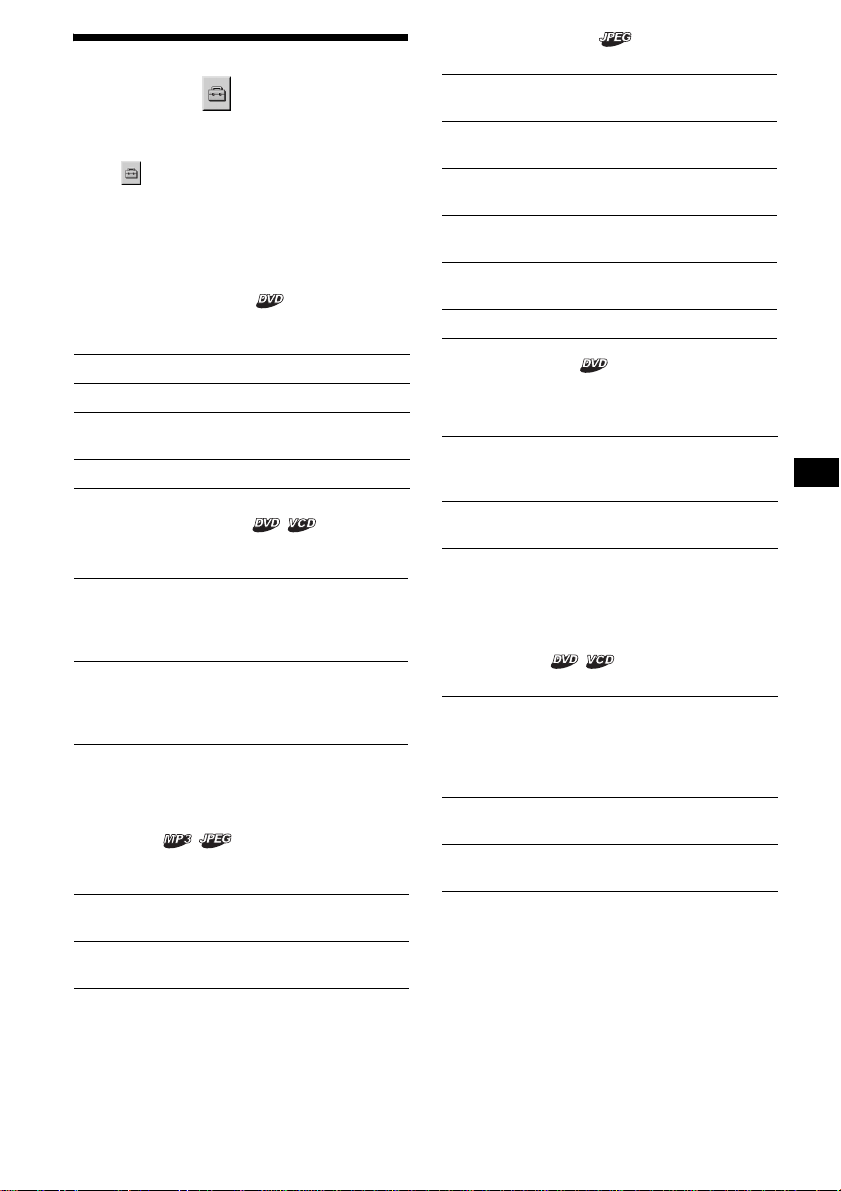
16:9* Displays the wide picture.
Select this when you connect a
wide-screen monitor or a monitor
with a wide mode function.
4:3
LETTER
BOX
Displays a wide picture with
bands on the upper and lower
portions of the screen.
Select this when you connect a
4:3 screen monitor.
4:3
PAN SCAN
Displays a wide picture on the
entire screen and automatically
cuts off the portions that do not
fit.
Select this when you connect a
4:3 screen monitor.
4:3 PAN SCAN
4:3 LETTER BOX
16:9
ON Turns on the screen saver.
OFF* Turns off the screen saver.
31
Custom settings
— Custom setup
“CUSTOM SETUP” allows you to set the
playback conditions of this unit.
Select (CUSTOM SETUP) in the Setup
menu, then select the desired setting item.
For details on the setup procedures, see “Using
the Setup menu” on page 28.
Setting items with “*” in the tables below are the
default settings.
PARENTAL CONTROL
Sets the playback restrictions so that the unit will
not play inappropriate discs or scenes (page 26).
MULTI-DISC RESUME
Stores resume playback points for up to 20
different discs.
Note
If parental control is applied, the resume playback will
not work. In this case, playback starts from the
beginning of the disc when it is inserted.
MP3/JPEG
Sets the priority when MP3 files and JPEG files
are on the same disc.
SLIDE SHOW TIME
Sets the time for displaying images on the disc.
PLAY LIST PLAY
Sets priority between the originally recorded
titles or the edited play list on a DVD-RW in VR
mode.
Notes
• Play list playback is available only for a DVD-RW in
VR mode.
• When there is no play list created on a disc, the
originally recorded titles are played.
PICTURE EQ
Selects to display the picture quality options.
ON t Sets the parental control on.
OFF t* Sets the parental control off.
PLAYER t Sets the restriction standard
and its level.
PASSWORD t Sets a new 4-digit password.
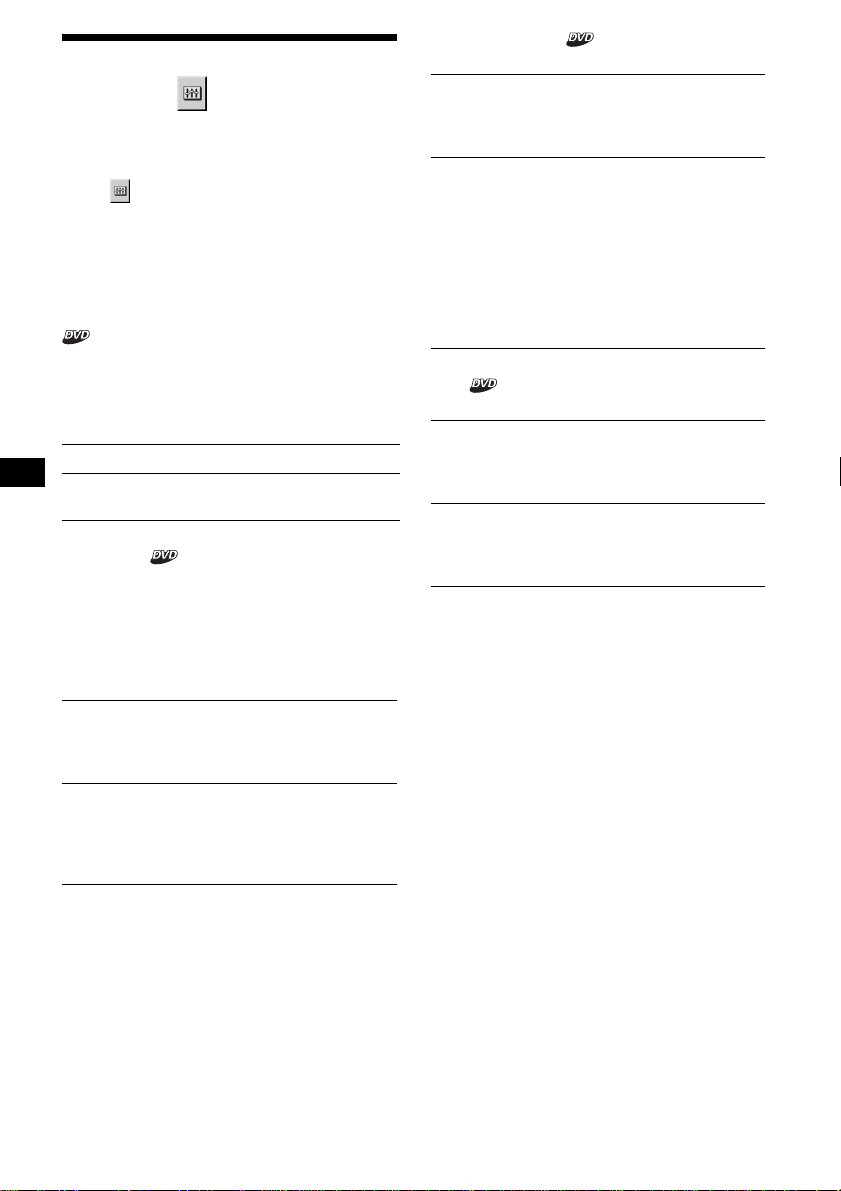
ON* Stores the resume settings in
memory for up to 20 discs. (The
settings remain in memory even
if you select “OFF.”)
OFF Cancels storing the resume
settings in memory. Playback
restarts at the resume point only
for the current disc in the unit.
MP3* Takes priority over JPEG files when
playing.
JPEG Takes priority over MP3 files when
playing.
5sec Switches the images every 5
seconds.
10sec* Switches the images every 10
seconds.
20sec Switches the images every 20
seconds.
40sec Switches the images every 40
seconds.
60sec Switches the images every 60
seconds.
FIXED Cancels switching images.
ORIGINAL* Takes priority over play list
edited from the originally
recorded titles.
PLAY LIST Takes priority over originally
recorded titles.
AUTO* Switches the options
depending on whether the
light is on or off. (Available
only when the illumination
control lead is connected.)
LIGHT OFF Displays the options for
daytime use.
LIGHT ON Displays the options for
nighttime use.
32
Audio settings
— Audio setup
“AUDIO SETUP” allows you to adjust the sound
according to playback conditions and connected
equipment.
Select (AUDIO SETUP) in the Setup menu,
then select the desired setting item.
For details on the setup procedures, see “Using
the Setup menu” on page 28.
The setting items with “*” in the tables below are
the default settings.
AUDIO DRC (Dynamic Range Control)
Makes the sound clear when the volume is turned
down when playing a DVD that conforms to
“AUDIO DRC.”
This setting affects the outputs of FRONT/REAR
AUDIO OUT.
DOWNMIX
Switches the method for mixing down to 2
channels when you play a DVD which has rear
sound elements (channels) or is recorded in
Dolby Digital format. For details on the rear
signal components, see “Checking the program
format” on page 22. This setting affects the
output of FRONT/REAR AUDIO OUT.
DOLBY DIGITAL
Selects the type of Dolby Digital signal.
DTS
Selects whether or not to output DTS signals.
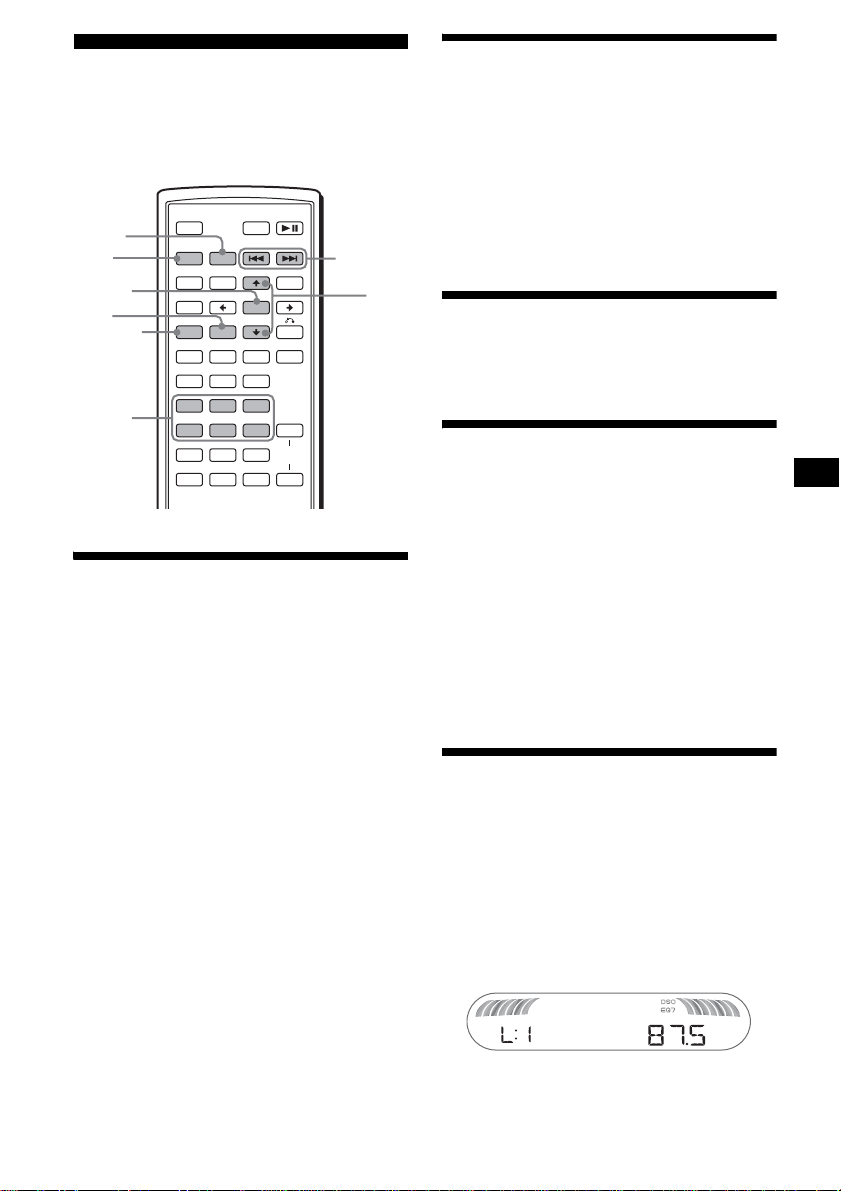
STANDARD* Normally select this position.
WIDE
RANGE
Gives you the feeling of being at
a live performance.
SURROUND Select this when the unit is
connected to an audio
component that conforms to
Dolby Surround (Pro Logic).
NORMAL* Select this when the unit is
connected to an audio
component that does not
conform to Dolby Surround
(Pro Logic).
DOLBY
DIGITAL*
Select this when the unit is
connected to an audio
component with a built-in
Dolby Digital decoder.
DOWNMIX
PCM
Select this when the unit is
connected to an audio
component lacking a built-in
Dolby Digital decoder. You can
select whether the signals
conform to Dolby Surround
(Pro Logic) or not by making
adjustments to the
“DOWNMIX” item in “AUDIO
SETUP” (page 32).
ON* Select this when the unit is
connected to an audio
component with a built-in DTS
decoder.
OFF Select this when the unit is
connected to an audio
component lacking a built-in
DTS decoder.
33
Radio
Caution
When tuning in stations while driving, use Best
Tuning Memory (BTM) to prevent an accident.
Storing automatically
— BTM
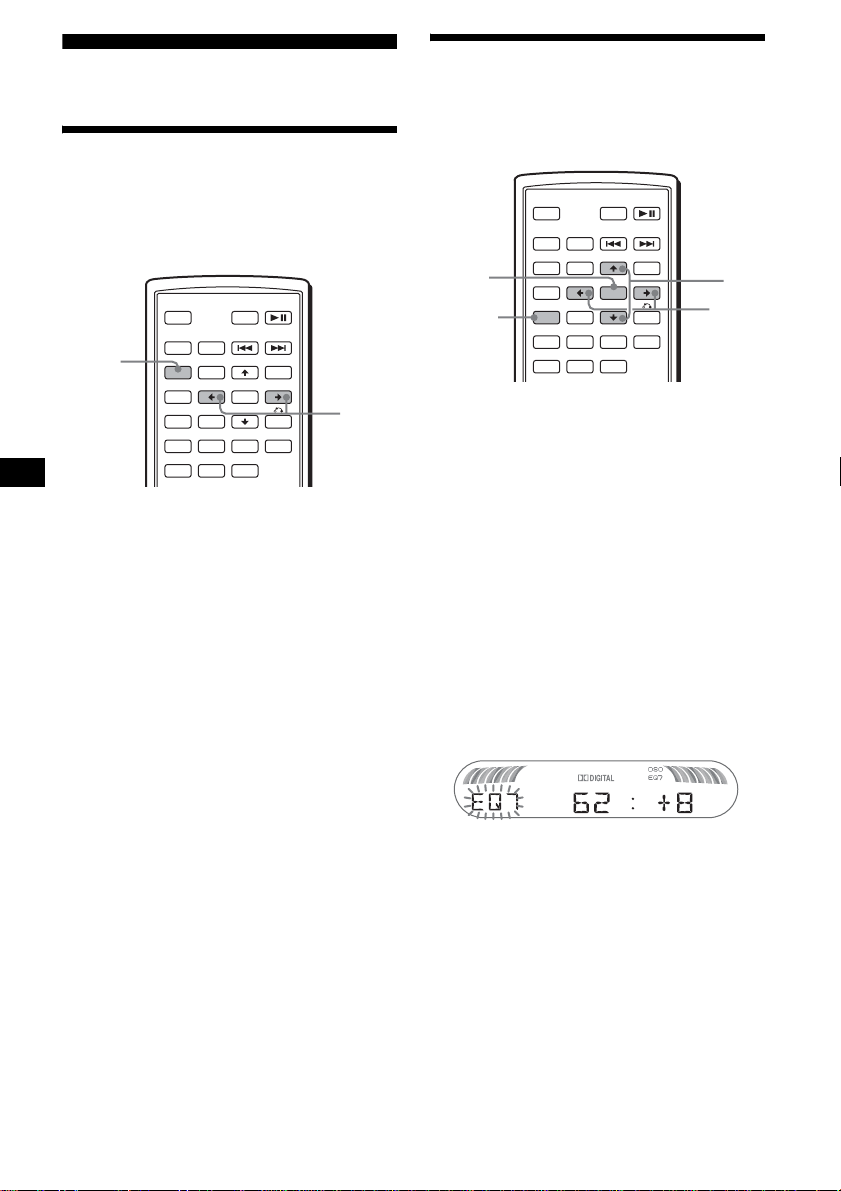
1 Press (SRC) (SOURCE) repeatedly
until “TUNER” appears.
To change the band, press (MODE)
repeatedly. You can select from FM1, FM2,
FM3, AM1 or AM2.
2 Press (SYSTEM MENU), then press M/m
repeatedly until “BTM” appears.
3 Press (ENTER).
The unit stores stations in order of frequency
on the number buttons ((1) to (6)).
A beep sounds when a setting is stored.
Storing manually
While receiving the station that you
want to store, press and hold a
number button ((1) to (6)) until
“MEM” appears.
The number button indication appears in the
display.
Note
If you try to store another station on the same number
button, the previous stored station will be replaced.
Receiving the stored stations
Select the band, then press a number
button ((1) to (6)) or M/m.
Tuning automatically
Select the band, then press ./>
to search for the station.
Scanning stops when the unit receives a
station. Repeat this procedure until the
desired station is received.
Tip
If you know the frequency of the station you want to
listen to, press and hold ./> to locate the
approximate frequency, then press ./>
repeatedly to fine adjust to the desired frequency
(manual tuning).
With the main unit
To search for the station, press (SEEK) +/–.
Receiving a station through a
list
— list-up
You can list up the frequency.
1 Select the band, then press (LIST).
The frequency appears.
2 Press M/m repeatedly until the desired
station appears.
3 Press (ENTER) to receive the station.
SRC
MODE
ATT DVD
SOUND
TOP MENU
MENU
SETUP
ENTER
SYSTEM
MENU
LI ST
EQZ
×
Z DSO EQ7
PICTURE
AUDIO
SUBTITLE
ANGLE
CLEAR
123
456
789
0
OFF
+
–
VOL
+
–
DSPL
MODE
SRC
ENTER
LIST
SYSTEM
MENU
M/m
./>
Number
buttons
34
Other functions
Adjusting the sound
characteristics
You can adjust the bass, treble, balance, fader
and subwoofer volume.
1 Select a source, then press (SOUND)
repeatedly to select the desired item.
The item changes as follows:
BAS (bass) t TRE (treble) t
BAL (left-right) t FAD (front-rear) t
SUB (subwoofer volume)*
* “ ∞” is displayed at the lowest setting, and can be
adjusted up to 20 steps.
2 Press </, repeatedly to adjust the
selected item.
After 3 seconds, the setting is complete and
the display returns to normal play/reception
mode.
Note
Adjust within 3 seconds of selecting the item.
With the main unit
In step 2, to adjust the selected item, press the volume
+/– button.
Adjusting the equalizer curve
— EQ7 Tune
You can adjust and store the equalizer settings
for different tone ranges.
1 Select a source, then press
(SYSTEM MENU).
2 Press M/m repeatedly until “EQ7
TUNE” appears, then press (ENTER).
3 Press </, repeatedly to select the
desired equalizer type, then press
(ENTER).
4 Press </, repeatedly to select the
desired frequency.
The frequency changes as follows:
62Hz y 157Hz y 396Hz y 1kHz y
2.5kHz y 6.3kHz y 16kHz
5 Press M/m repeatedly to adjust the
desired volume level.
The volume level is adjustable in 1 dB steps,
from –10 dB to +10 dB.
Repeat steps 4 and 5 to adjust the equalizer
curve.
To restore the factory-set equalizer curve,
press and hold (ENTER).
6 Press (ENTER).
The setting is complete and the display
returns to normal play/reception mode.
SRC
MODE
ATT DVD
SOUND
TOP MENU
MENU
SETUP
ENTER
SYSTEM
MENU
LIST
EQZ
×
Z DSO EQ7
PICTURE
AUDIO
SUBTITLE
ANGLE
OFF
+
–
SOUND
</,
SRC
MODE
ATT DVD
SOUND
TOP MENU
MENU
SETUP
ENTER
SYSTEM
MENU
LIST
EQZ
×
Z DSO EQ7
PICTURE
AUDIO
SUBTITLE
ANGLE
OFF
+
–
ENTER
SYSTEM
MENU
M/m
</,

35
Labelling a station/disc
When you receive a station, or play a disc in a
CD changer with the CUSTOM FILE function,
you can label each station/disc with a custom
name up to 8 characters (Station Memo/Disc
Memo).
If you label a station/disc, the name appears on
the list (page 33 or 37).
1 While receiving a station or playing a
disc that you want to label, press
(SYSTEM MENU).
2 Press M/m repeatedly until
“NAMEEDIT” appears, then press
(ENTER).
3 Press M/m repeatedly until the desired
character appears.
The character changes as follows:
A y B y C ... y 0 y 1 y 2 ... y +
y – y ... y (blank space) y A
To move the digital indication, press the </
,.
Repeat this operation until the entire name is
entered.
4 Press (ENTER).
The labelling is complete and the display
returns to normal reception/play mode.
To display the name, press (DSPL) during
reception/playback.
Tips
• To correct or erase a character, overwrite or enter
“.”
• The Disc Memo always takes priority over any
prerecorded title.
• You can label a disc on the unit if a changer with the
CUSTOM FILE function is connected.
• “REP-TRACK” and all shuffle play are suspended
until the labelling is complete.
Deleting the custom name
1 Select the unit that has stored the
custom name you want to delete, then
press (SYSTEM MENU).
2 Press M/m repeatedly until “NAME
DEL” appears, then press (ENTER).
The stored name will appear.
3 Press M/m repeatedly to select the
name you want to delete.
4 Press and hold (ENTER).
The name is deleted. Repeat step 3 and 4 if
you want to delete other names.
5 Press (SYSTEM MENU) twice.
The unit returns to normal reception/play
mode.
Adjusting unit menu items
— SYSTEM MENU
1 Press (SYSTEM MENU).
2 Press M/m repeatedly until the desired
item appears.
3 Press </, to select the desired
setting (example: “ON” or “OFF”).
4 Press (ENTER).
The setting is complete and the display
returns to normal play/reception mode.
Note
Displayed items will differ, depending on the source
and setting.
Tip
You can easily switch among categories by pressing
and holding M/m.
continue to next page t
SRC
MODE
ATT DVD
SOUND
TOP MENU
MENU
SETUP
ENTER
SYSTEM
MENU
LIST
EQZ
×
Z DSO EQ7
PICTURE
AUDIO
SUBTITLE
ANGLE
OFF
+
–
ENTER
SYSTEM
MENU
M/m
</,
36
The following items can be set (follow the page
reference for details):
“
z” indicates the default settings.
SET (Setup)
DSPL (Display)
P/M (Play Mode)
SND (Sound)
EDIT
*1 When the unit is turned off.
*2 The default setting differs, depending on the
model:
PAL: Asian model
NTSC: Latin American model
*3 MEX-R5 only.
*4 When the illumination control lead is connected.
*5 When the unit is turned on.
*6 When a disc is played back.
*7 When auxiliary equipment is connected and
played.
CLOCK-ADJ (Clock Adjust) (page 8)
BEEP
To set “ON” (z) or “OFF.”
RM (Rotary Commander)
To change the operative direction of the rotary
commander controls.
–“NORM” (
z): to use the rotary commander in
the factory-set position.
– “REV”: when you mount the rotary
commander on the right side of the steering
column.
AUX-A*
1
(AUX Audio)
To turn the AUX source display “ON” (
z) or
“OFF” (page 38).
PAL/NTSC*
1
*
2
To change the TV colour system to PAL or
NTSC.
WL*
1
*
3
(Wireless)
–“CH1” (
z), “CH2,” “CH3,” “CH4”: to avoid
interference with the wireless transmission.
–“OFF”: to turn off the wireless transmission.
CLOCK (Clock Information)
To display the clock and the display items at the
same time.
–“ON”: to display at the same time.
–“OFF” (
z): to not display at the same time.
DIM (Dimmer)
To change the brightness of the display.
–“AT” (
z): to dim the display automatically
when you turn the lights on.*
4
–“ON”: to dim the display.
–“OFF”: to deactivate the dimmer.
CONTRAST
To adjust the contrast of the main unit display.
The contrast level is adjustable in 7 steps.
M.DSPL*
5
(Motion Display)
To select the Motion Display mode.
–“SA” (
z): to show moving patterns and
spectrum analyzer.
–“ON”: to show moving patterns.
–“OFF”: to deactivate the Motion Display.
DEMO*
1
(Demonstration)
To set “ON” (
z) or “OFF” (page 8).
A.SCRL (Auto Scroll)
To scroll long displayed items automatically
when the disc/album is changed.
–“ON”: to scroll.
–“OFF” (
z): to not scroll.
LOCAL (Local seek mode)
–“ON”: to only tune into stations with stronger
signals.
–“OFF” (
z): to tune normal reception.
MONO (Monaural mode)
To improve poor FM reception, select monaural
reception mode.
–“ON”: to hear stereo broadcasts in monaural.
–“OFF” (
z): to hear stereo broadcast in stereo.
EQ7 TUNE (page 34)
HPF (High Pass Filter)
To select the front/rear speaker cut-off
frequency: “OFF” (
z), “78HZ” or “125HZ.”
LPF (Low Pass Filter)
To select the subwoofer cut-off frequency:
“OFF” (
z), “125HZ” or “78HZ.”
LOUD (Loudness)
To enhance bass and treble at lower volume.
–“ON”: to reinforce bass and treble.
–“OFF” (
z): to not reinforce bass and treble.
DVD LVL*
6
(DVD level) (page 23)
To set the audio output level according to the
recorded DVD audio format.
AUX LVL*
7
(Auxiliary level)
To adjust the volume level for each connected
auxiliary equipment. This setting negates the
need to adjust the volume level between sources.
NAMEEDIT (page 35)
NAME DEL (page 35)
BTM (page 33)
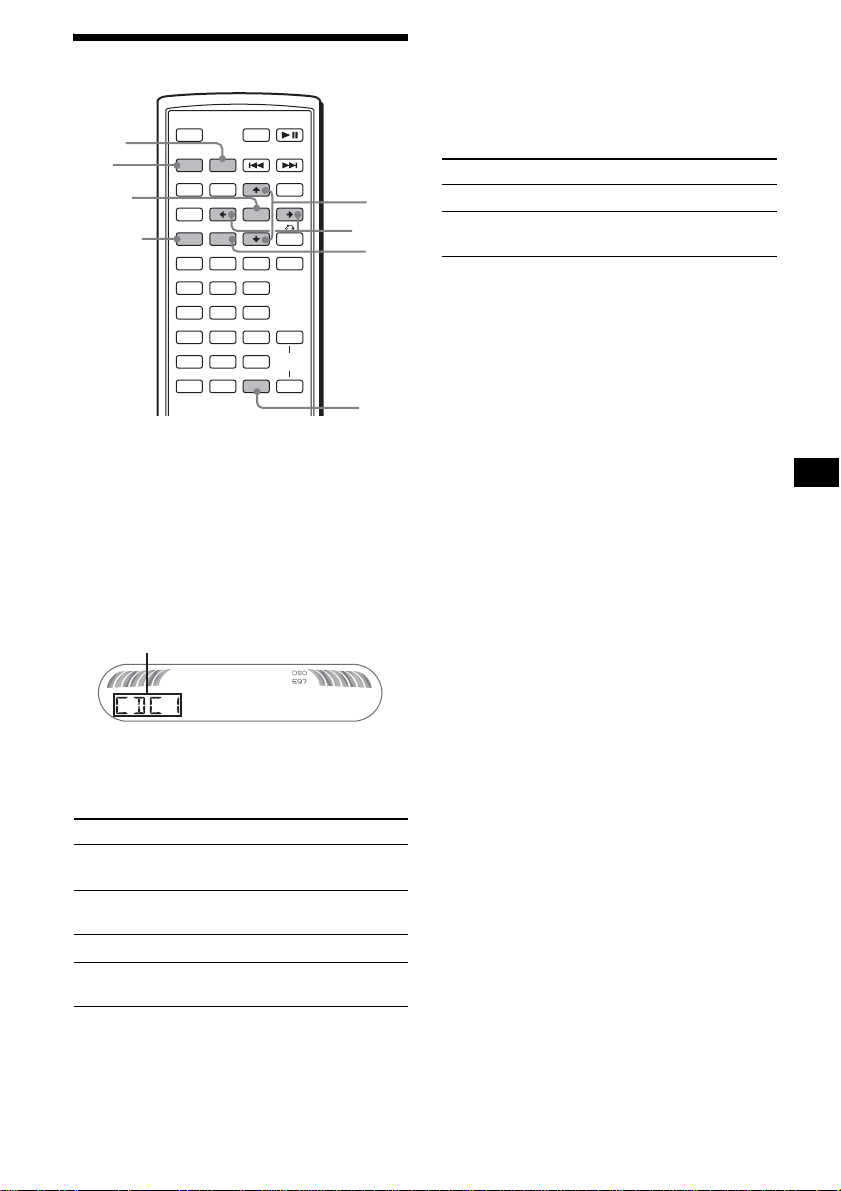
37
Using optional equipment
CD/MD changer
Selecting the changer
1 Press (SRC) (SOURCE) repeatedly
until “CDC1” or “MDC1” appears.
2 Press (MODE) repeatedly until the
desired changer appears.
Playback starts.
Skipping albums and discs
During playback, press M/m.
With the main unit
To skip discs, press (3) (ALBM –) or (4) (ALBM +).
To skip albums, press and hold (3) (ALBM –) or (4)
(ALBM +).
Repeat and shuffle play
(With the main unit)
During playback, press (1) (REP) or
(2) (SHUF) repeatedly until the
desired setting appears.
* When one or more CD/MD changers are connected.
To return to normal play mode, select “REP-
OFF” or “SHUF-OFF.”
Locating a disc by name — list-up
You can select a disc from the list when
connecting a CD changer with the CUSTOM
FILE function or an MD changer.
If you assign a name to a disc, the name appears
on the list.
1 During playback, press (LIST).
The disc number and disc name will appear.
2 Press M/m repeatedly until the desired
disc appears.
3 Press (ENTER) to play the disc.
To skip Press M/m
album and release (hold for a
moment).
album
continuously
within 2 seconds of first
releasing.
discs repeatedly.
discs
continuously
then, press again within 2
seconds and hold.
SRC
MODE
ATT DVD
SOUND
TOP MENU
MENU
SETUP
ENTER
SYSTEM
MENU
LIST
EQZ
×
Z DSO EQ7
PICTURE
AUDIO
SUBTITLE
ANGLE
CLEAR
123
456
789
0
DSPL
OFF
+
–
VOL
+
–
MODE
SRC
ENTER
DSPL
LIST
SYSTEM
MENU
M/m
</,
Unit number of CD/MD changer
Select To play
REP-DISC* disc repeatedly.
SHUF-
CHGR*
tracks in the changer in random
order.
continue to next page t
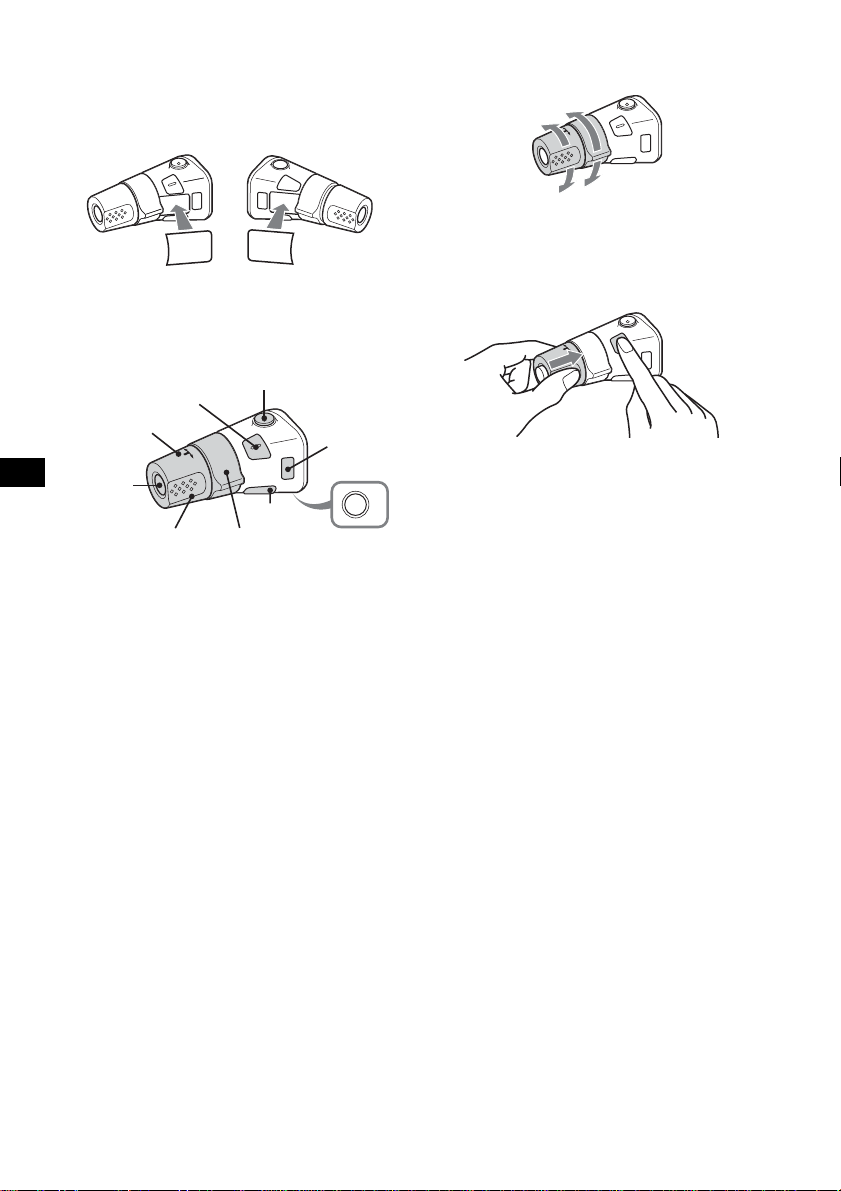
38
Rotary commander RM-X4S
Attaching the label
Attach the indication label depending on how
you mount the rotary commander.
Location of controls
The corresponding buttons on the rotary
commander control the same functions as those
on the main unit or the card remote commander.
The following controls on the rotary commander
require a different operation from the main unit
or the card remote commander.
• PRESET/DISC control
To select preset stations; control CD, the same
as (3)/(4) (ALBM –/+) on the main unit or M/
m on the card remote commander (push in and
rotate).
• VOL (volume) control
The same as the volume +/– buttons (rotate).
• SEEK/AMS control
The same as (SEEK) +/– on the main unit or
./> on the card remote commander
(rotate, or rotate and hold).
Changing the operative direction
The operative direction of the controls is factory-
set as shown below.
If you need to mount the rotary commander on
the right hand side of the steering column, you
can reverse the operative direction.
While pushing the VOL control, press
and hold (SOUND).
Tip
You can also change the operative direction of these
controls in the menu (page 36).
Auxiliary audio equipment
You can connect optional Sony portable devices
to the BUS AUDIO IN/AUX IN terminal on the
unit. If the changer or other device is not
connected to the terminal, the unit allows you to
listen to the portable device on your car speakers.
Note
When connecting a portable device, be sure BUS
CONTROL IN is not connected. If a device is
connected to BUS CONTROL IN, “AUX” cannot be
selected with (SRC) (SOURCE).
Tip
When connecting both a portable device and a
changer, use the optional AUX-IN selector.
Selecting auxiliary equipment
Press (SRC) (SOURCE) repeatedly
until “AUX” appears.
Operate by the portable device itself.
To adjust the volume level of auxiliary
equipment, see “AUX LVL” on page 36.
SO
U
N
D
D
S
PL
M
O
D
E
S
O
U
N
D
D
S
P
L
M
O
D
E
OFF
ATT
SOUND
SOURCE
DSPL
MODE
OFF
VOL
SEEK/AMS
PRESET/
DISC
To increase
To decrease
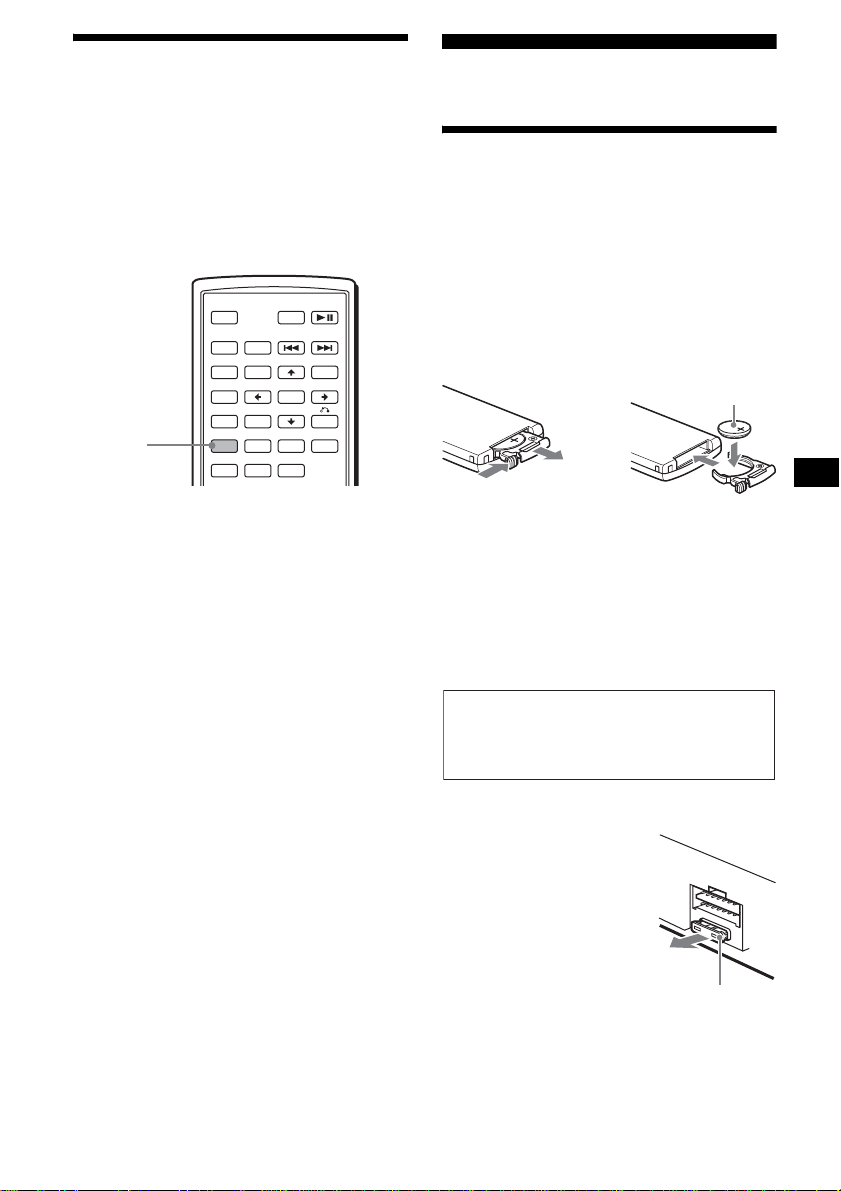
39
Switching the front/rear
output
— Zone × Zone
You can set to have DVD audio/video output to
the rear monitor, and output another source to the
front.
This function is convenient when you want to
enjoy radio, music playback, etc, in the front, and
DVD playback in the rear.
1 Press (ZxZ).
2 Press (SOURCE) on the main unit to
switch the source of the front.
Operate the front with the main unit, and the
rear (DVD) with the card remote commander.
To return to normal status
Press (ZxZ).
Notes
• While Zone × Zone is activated, the following buttons
on the card remote commander become inactive:
(ATT), (SRC) (SOURCE), (MODE), (VOL) +/–,
(SYSTEM MENU), (LIST), (SOUND), (DSO), (EQ7).
• Zone × Zone is not cancelled even if the disc is
ejected, and it will be activated when a disc is
inserted again.
Additional Information
Maintenance
Replacing the lithium battery of the card
remote commander
Under normal conditions, the battery will last
approximately 1 year. (The service life may be
shorter, depending on the conditions of use.)
When the battery becomes weak, the range of the
card remote commander becomes shorter.
Replace the battery with a new CR2025 lithium
battery. Use of any other battery may present a
risk of fire or explosion.
Notes on the lithium battery
• Keep the lithium battery out of the reach of children.
Should the battery be swallowed, immediately
consult a doctor.
• Wipe the battery with a dry cloth to assure a good
contact.
• Be sure to observe the correct polarity when
installing the battery.
• Do not hold the battery with metallic tweezers,
otherwise a short-circuit may occur.
Fuse replacement
When replacing the fuse, be
sure to use one matching the
amperage rating stated on the
original fuse. If the fuse
blows, check the power
connection and replace the
fuse. If the fuse blows again
after replacement, there may
be an internal malfunction. In
such a case, consult your
nearest Sony dealer.
SRC
MODE
ATT DVD
SOUND
TOP MENU
MENU
SETUP
ENTER
SYSTEM
MENU
LIST
EQZ
×
Z DSO EQ7
PICTURE
AUDIO
SUBTITLE
ANGLE
OFF
+
–
Z
×
Z
continue to next page t
1
2
c
+ side up
WARNING
Battery may explode if mistreated.
Do not recharge, disassemble, or dispose of
in fire.
Fuse (10A)
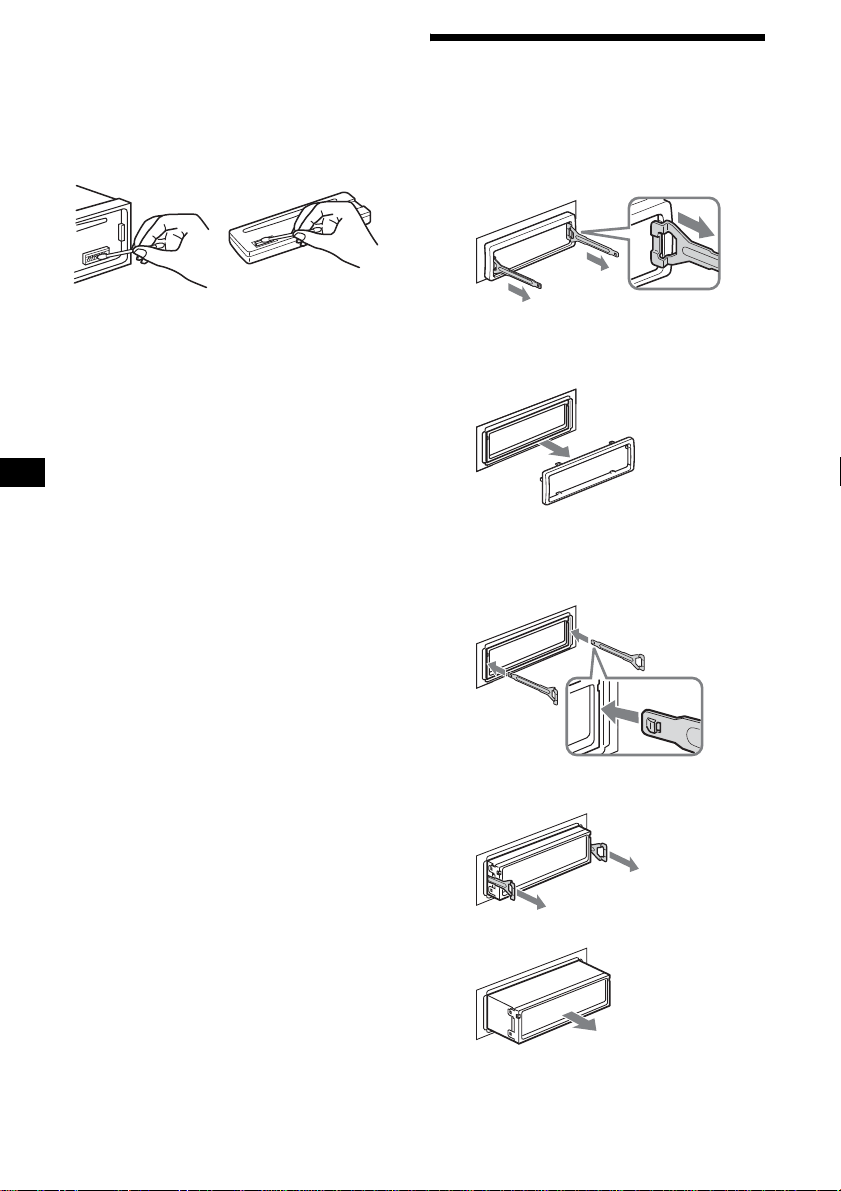
40
Cleaning the connectors
The unit may not function properly if the
connectors between the unit and the front panel
are not clean. In order to prevent this, detach the
front panel (page 8) and clean the connectors
with a cotton swab dipped in alcohol. Do not
apply too much force. Otherwise, the connectors
may be damaged.
Notes
• For safety, turn off the ignition before cleaning the
connectors, and remove the key from the ignition
switch.
• Never touch the connectors directly with your fingers
or with any metal device.
Removing the unit
1 Remove the protection collar.
1Detach the front panel (page 8).
2Engage the release keys together
with the protection collar.
3Pull out the release keys to remove
the protection collar.
2 Remove the unit.
1Insert both release keys
simultaneously until they click.
2Pull the release keys to unseat the
unit.
3Slide the unit out of the mounting.
Main unit Back of the front panel
Orient the release
keys as shown.
Hook facing
inwards.
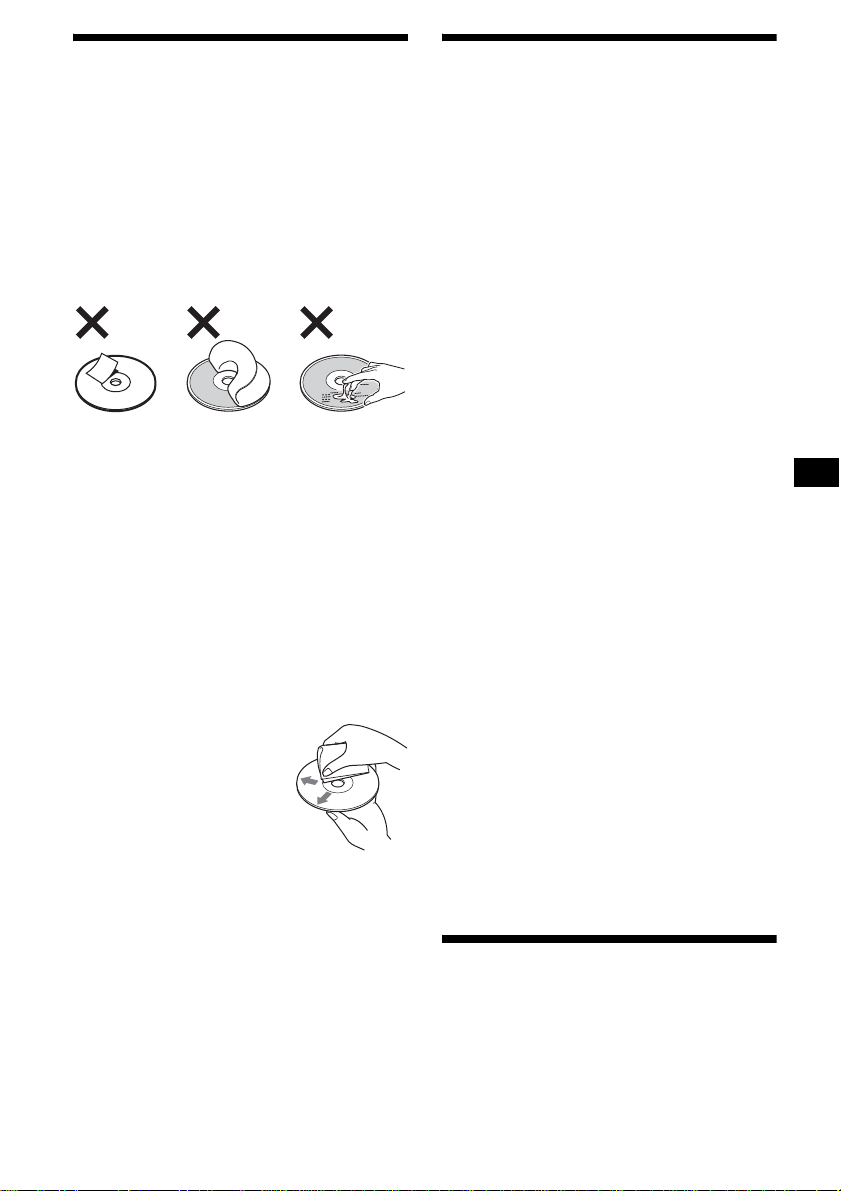
41
Notes on discs
• To keep a disc clean, do not touch its surface.
Handle the disc by its edge.
• Keep your discs in their cases or disc
magazines when not in use.
• Do not subject discs to heat/high temperature.
Avoid leaving them in a parked car or on a
dashboard/rear tray.
• Do not attach labels, or use discs with sticky
ink/residue. Such discs may stop spinning
when used, causing a malfunction, or may ruin
the disc.
• Do not use any discs with labels or stickers
attached.
The following malfunctions may result from
using such discs:
–Inability to eject a disc (due to a label or
sticker peeling off and jamming the eject
mechanism).
–Inability to read audio data correctly (e.g.,
playback skipping, or no playback) due to
heat shrinking of a sticker or label causing a
disc to warp.
• Discs with non-standard shapes (e.g., heart,
square, star) cannot be played on this unit.
Attempting to do so may damage the unit. Do
not use such discs.
• You cannot play 8 cm discs.
• Before playing, clean the
discs with a commercially
available cleaning cloth. Wipe
each disc from the centre out.
Do not use solvents such as
benzine, thinner,
commercially available
cleaners, or antistatic spray
intended for analogue discs.
Note on DualDiscs
A DualDisc is a two sided disc product which
mates DVD recorded material on one side with
digital audio material on the other side. However,
since the audio material side does not conform to
the Compact Disc (CD) standard, playback on
this product is not guaranteed.
About MP3 files
MP3, which stands for MPEG-1 Audio Layer-3,
is a music file compression format standard. It
compresses audio CD data to approximately 1/10
of its original size.
• The unit is compatible with the following
standards.
For CD
–ISO 9660 level 1/level 2 format, Joliet/Romeo
in the expansion format
–Multi Session
For DVD
–UDF Bridge format (combined UDF and ISO
9660)
For CD/DVD
–ID3 tag version 1.0, 1.1, 2.2, 2.3 and 2.4
• The maximum number of:
–folders (albums): 256 (including root and
empty folders).
–MP3 files (tracks) and folders contained in a
disc: 1,000 (if a folder/file names contain
many characters, this number may become
less than 1,000).
–displayable characters for a folder/file name
is 128; ID3 tag is 126 characters.
Notes
• Be sure to finalize the disc before using on the unit.
• When naming an MP3 file, be sure to add the file
expansion “.mp3” to the file name.
• If you play a high-bit-rate MP3, such as 320 kbps,
sound may be intermittent.
• During playback of a VBR (variable bit rate) MP3 file
or fast-forward/reverse, elapsed playing time may
not display accurately.
• When the disc is recorded in Multi Session, only the
first track of the first session format is recognized
and played (any other format is skipped). The
priority of the format is CD-DA and MP3.
– When the first track is a CD-DA, only CD-DA of the
first session is played.
– When the first track is not a CD-DA or MP3
session is played. If the disc has no data in any of
these formats, “NO MUSIC” is displayed.
• The unit cannot play back Multi Border recorded
MP3.
• MP3 files not recorded at 44.1 kHz or 48 kHz
sampling rate and 64 to 320 kbps bit rate cannot be
played.
Note on wireless
transmission (MEX-R5 only)
The unit transmits audio/video at FM 2.4 GHz.
Simultaneous use with other 2.4 GHz equipment
may cause image interference or audio noise.
This is not a malfunction, but a result of
equipment sharing the same operating frequency.

42
Specifications
System
Laser Semiconductor laser
Signal format system PAL/NTSC switchable
DVD/CD Player section*
Signal-to-noise ratio 120 dB
Frequency response 10 – 20,000 Hz
Wow and flutter Below measurable limit
Harmonic distortion (DVD)
0.01%
Wow and flutter Less than detected value
(±0.001 % W PEAK)
* Measured from the AUDIO OUT jacks.
When you play PCM sound tracks with a 96 kHz
sampling frequency, the output signals from the
DIGITAL OUT jack are converted to 96 kHz
sampling frequency.
Tuner section
FM
Tuning range Asian model:
87.5 – 108.0 MHz (at 50
kHz step)
Latin American model:
87.5 – 107.9 MHz (at 200
kHz step)
Aerial terminal External aerial connector
Intermediate frequency 10.7 MHz/450 kHz
Usable sensitivity 9 dBf
Selectivity 75 dB at 400 kHz
Signal-to-noise ratio 67 dB (stereo), 69 dB
(mono)
Harmonic distortion at 1 kHz
0.5 % (stereo),
0.3 % (mono)
Separation 35 dB at 1 kHz
Frequency response 30 – 15,000 Hz
AM
Tuning range Asian model:
531 – 1,602 kHz (at 9kHz
step)
Latin American model:
530 – 1,710 kHz (at 10kHz
step)
Aerial terminal External aerial connector
Intermediate frequency 10.7 MHz/450 kHz
Sensitivity 30 µV
Power amplifier section
Outputs Speaker outputs (sure seal
connectors)
Speaker impedance 4 – 8 ohms
Maximum power output 52 W × 4 (at 4 ohms)
Wireless AV section (MEX-R5 only)
Transmission frequencies 2,414, 2,432, 2,450,
2,468 MHz
Modulation method FM modulation
RF output power –1.2 dBm
General
Outputs Front audio/video output
terminals
Rear audio (Z×Z)/video
output terminals (MEX-R1
only)
Rear audio output terminal
Subwoofer output terminal
(mono)
Optical digital output
terminal
Power aerial relay control
terminal
Power amplifier control
terminal
Inputs Telephone ATT control
terminal
Illumination control
terminal
BUS control input terminal
BUS audio input/AUX IN
terminal
Parking break control
terminal
Remote controller input
terminal
Aerial input terminal
Tone controls Bass: ±8 dB at 100 Hz
Treble: ±8 dB at 10 kHz
Loudness +8 dB at 100 Hz
+2 dB at 10 kHz
Power requirements 12 V DC car battery
(negative earth)
Dimensions Approx. 178 × 50 × 182 mm
(w/h/d)
Mounting dimensions Approx. 182 × 53 × 161 mm
(w/h/d)
Mass Approx. 1.3 kg
Supplied accessories Card remote commander
RM-X702
Parts for installation and
connections (1 set)
Front panel case (1)
43
Optional accessories Overhead Monitor
XVM-R70
Headrest Monitor
XVM-H65
Mobile Monitor
XVM-F65 (for MEX-R1)
Mobile Monitor
XVM-F65WL
(for MEX-R5)
CD changer (10 discs)
CDX-757MX, CDX-656X
MD changer (6 discs)
MDX-66XLP
Source selector
XA-C30
AUX-IN selector
XA-300
Optical audio cable
RC-104
MPEG Layer-3 audio coding technology and
patents licensed from Fraunhofer IIS and
Thomson.
Note
This unit cannot be connected to a digital preamplifier
or an equalizer which is Sony BUS system compatible.
Design and specifications are subject to change
without notice.
Troubleshooting
The following checklist will help you remedy
problems you may encounter with your unit.
Before going through the checklist below, check
the connection and operating procedures.
US and foreign patents licensed from Dolby
Laboratories.
• Lead-free solder is used for soldering certain
parts. (more than 80 %)
• Halogenated flame retardants are not used in the
certain printed wiring boards.
• Halogenated flame retardants are not used in
cabinets.
• VOC (Volatile Organic Compound)-free vegetable
oil based ink is used for printing the carton.
• Packaging cushions do not use polystyrene foam.
General
No power is being supplied to the unit.
• The power connection has not been made
correctly.
t Check the connection. If everything is in
order, check the fuse.
• The car does not have an ACC position.
t Insert a disc to turn on the unit.
• If the unit is turned off and the display
disappears, it cannot be operated with the
remote commander.
t Turn on the unit.
The power aerial does not extend.
The power aerial does not have a relay box.
Stored stations and correct time are erased.
The fuse has blown.
Makes noise when the position of the
ignition key is switched.
The leads are not matched correctly with the
car’s accessory power connector.
The display disappears from/does not
appear in the display window.
• The dimmer is set to “DIM-ON” (page 36).
• The display disappears if you press and hold
(OFF).
t Press and hold (OFF) again until the
display appears.
• The connectors are dirty (page 40).
DSO does not function.
Depending on the type of car interior or type
of music, DSO may not have a desirable
effect.
Depending on the connected monitor, the unit
may take a few seconds to turn off after
turning the ignition switch to the OFF
position. This is not a malfunction.
continue to next page t
44
Image interference or audio noise occurs
during wireless transmission. (MEX-R5
only)
• The unit transmits audio/video at FM 2.4
GHz. Simultaneous use with other 2.4 GHz
equipment may cause image interference or
audio noise.
t Change the channel (page 36). If there is
no improvement, stop using the other
equipment. Wireless transmission of the
unit can also be turned off if necessary
(page 36).
• The transmitter is not positioned correctly.
t Position the optional monitor XVM-
F65WL closer to the unit.
t Position the transmitter higher than the
unit to prevent obstruction by the seat or
passenger.
t Place the transmitter in a stable place,
otherwise its position and angle may
change.
• Installing the rear monitor in front of the
second row is recommended.
• Cancel the Zone × Zone function and use the
car speakers if audio noise is strong.
• Interference or audio noise may temporarily
occur during driving as a result of obstacles
outside the car.
Picture
There is no picture/picture noise appears.
• A connection has not been made correctly.
• Check the connection to the connected
equipment, and set the input selector of the
equipment to the source corresponding to
this unit.
• The disc is dirty, flawed, or deteriorated.
• The unit is installed at an angle of more than
45°.
• The unit is not installed in a sturdy part of
the car.
• The monitor is connected to the FRONT
AUDIO/VIDEO OUT, and the parking cord
(Light green) is not connected to the parking
brake switch cord, or the parking brake is not
applied.
• The colour system setting is incorrect.
t Set the colour system to “PAL” or
“NTSC” according to the connected
monitor.
Picture does not fit in the screen.
The aspect ratio is fixed on the DVD.
Sound
There is no sound/sound skips/sound
cracks.
• A connection has not been made correctly.
• Check the connection to the connected
equipment, and set the input selector of the
equipment to the source corresponding to
this unit.
• The disc is dirty, flawed, or deteriorated.
• The unit is installed at an angle of more than
45°.
• The unit is not installed in a sturdy part of
the car.
• The MP3 file sampling rate is not 44.1 kHz
or 48 kHz.
• The MP3 file bit rate is not 64 to 320 kbps.
• The unit is in pause playback mode, or
scanning.
• The unit is in fast-forward mode, or in fast-
reverse mode.
• The settings for the outputs are not made
correctly.
• Adjust DVD output level (page 23).
• The volume is too low.
• The ATT function is activated, or the
Telephone ATT function (when the interface
cable of a car telephone is connected to the
ATT lead) is activated.
• The position of the fader control (FAD) is
not set for a 2-speaker system.
• The CD changer is incompatible with the
disc format (MP3).
t Play back with a Sony MP3 compatible
CD changer, or this unit.
Sound is noisy.
Keep cords and cables away from each other.
45
Operation
The remote does not function.
• There are obstacles between the remote and
the unit, or the remote receptor.
• The distance between the card remote
commander and the unit is too far.
• The card remote commander is not pointed
at the remote sensor, or the receptor on the
unit properly.
• The batteries in the card remote commander
are weak.
The operation buttons do not function.
The disc will not eject.
Press the RESET button (page 8).
No beep sound.
The beep sound is cancelled (page 36).
The contents of the memory have been
erased.
• The RESET button has been pressed.
t Store again into the memory.
• The power connecting lead or battery has
been disconnected.
• The power connecting lead is not connected
properly.
The display items do not scroll.
• For discs with very many characters, those
may not scroll.
• “A.SCRL” is set to off.
t Set “A.SCRL-ON” (page 36) or press
(SCRL) on the main unit.
“MS” or “MD” does not appear on the
source display when both the optional MGS-
X1 and MD changer are connected.
This unit recognizes MGS-X1 as an MD unit.
t Press (SRC) (SOURCE) until “MS” or
“MD” appears, then press (MODE)
repeatedly.
The disc cannot be loaded.
• Another disc is already loaded.
• The ignition key switch of the car is set to the
OFF position.
The unit does not start playing.
• The disc is inserted upside down.
t Insert the disc with the playback surface
down.
• The disc inserted is not applicable.
• The DVD inserted is not applicable due to
the region code.
• Moisture has condensed inside the unit.
• The DVD-R, DVD-RW, DVD+R,
DVD+RW, CD-R, or CD-RW inserted is not
finalized.
You cannot select a source.
Zone × Zone is activated.
t Press (ZxZ) to deactivate Zone × Zone.
MP3 files cannot be played.
• Recording was not performed according to
the ISO 9660 level 1 or level 2 format, or the
Joliet or Romeo in the expansion format.
• The MP3 file does not have the extension
“.mp3.”
• Files are not stored in MP3 format.
• The unit cannot play files stored in MP3PRO
format.
• The unit cannot play files stored in a format
other than the MPEG1 Audio Layer 3.
• Both MP3 and JPEG files are stored on the
disc.
t Set “MP3/JPEG” in “CUSTOM SETUP”
to “MP3” (page 31).
MP3 files take longer to play back than
others.
The following discs take a longer time to start
playback.
–a disc recorded with a complicated tree
structure.
–a disc recorded in Multi Session.
– a disc to which data can be added.
The JPEG files cannot be played.
• JPEG files do not have the extension “.jpg.”
• Files are not stored in JPEG format.
• Both MP3 and JPEG files are stored on the
disc.
t Set “MP3/JPEG” in “CUSTOM SETUP”
to “JPEG” (page 31).
The title of the MP3 audio album or track is
not correctly displayed.
The player can only display numbers and
alphabet. Other characters are displayed as
“.”
The disc does not start playing from the
beginning.
Resume play has taken effect (page 17).
Playback stops automatically.
While playing discs with an auto pause signal,
the unit stops playback at the auto pause
signal.
You cannot perform certain functions.
Depending on the disc, you may not be able to
perform operations such as Stop, Search,
Repeat play, or Shuffle play. For details, see
the operating manual supplied with the disc.
The language for the sound track cannot be
changed.
• Use the DVD menu instead of the direct
selection button on the card remote
commander (page 19).
• Multilingual tracks are not recorded on the
DVD being played.
• The DVD prohibits the changing of the
language for the sound track.
continue to next page t
46
Error displays/Messages
The following indications appear when a
malfunction occurs in the unit.
The subtitle language cannot be changed or
turned off.
• Use the DVD menu instead of the direct
selection button on the card remote
commander (page 19).
• Multilingual subtitles are not recorded on the
DVD being played.
• The DVD prohibits the changing of the
subtitles.
The angles cannot be changed.
• Use the DVD menu instead of the direct
selection button on the card remote
commander (page 19).
• Multi-angles are not recorded on the DVD
being played.
• The DVD prohibits changing of the angles.
Radio reception
The stations cannot be received.
The sound is hampered by noises.
• Connect a power aerial control lead (blue) or
accessory power supply lead (red) to the
power supply lead of a car’s aerial booster
(only when your car has built-in FM/AM
aerial in the rear/side glass).
• Check the connection of the car aerial.
• The auto aerial will not go up.
t Check the connection of the power aerial
control lead.
• Check the frequency.
• When the DSO mode is on, the sound is
sometimes hampered by noises.
t Set the DSO mode to “OFF” (page 12).
Preset tuning is not possible.
• Store the correct frequency in the memory.
• The broadcast signal is too weak.
Automatic tuning is not possible.
• The local seek mode is set to “ON.”
t Set “LOCAL” to “OFF” (page 36).
• The broadcast signal is too weak.
t Perform manual tuning.
During FM reception, the “ST” indication
flashes.
• Tune in the frequency accurately.
• The broadcast signal is too weak.
t Set “MONO” to “ON” (page 36).
An FM programme broadcast in stereo is
heard in monaural.
The unit is in monaural reception mode.
t Set “MONO” to “OFF” (page 36).
On the main unit
BLANK*
1
Tracks have not been recorded on the MD.*
2
t Play an MD with recorded tracks.
ERROR*
1
• The disc is dirty or inserted upside down.*
2
t Clean or insert the disc correctly.
• The disc cannot play because of some
problem.
t Insert another disc.
• The disc is not compatible with this unit.
t Insert a compatible disc.
FAILURE
The speaker/amplifier connection is incorrect.
t See the supplied installation/connections
manual to check the connection.
LOAD
The changer is loading the disc.
t Wait until loading is complete.
L.SEEK +/–
The local seek mode is on during automatic
tuning.
NO DATA
All custom names have been deleted, or none
are stored.
NO DISC
The disc is not inserted in the CD/MD
changer.
t Insert discs in the changer.
NO ID3
ID3 tag information is not written in the MP3
file.
NO MAG
The disc magazine is not inserted in the CD
changer.
t Insert the magazine in the changer.
NO MUSIC
The disc is not a music file.
t Insert a music CD in this unit or MP3
playable changer.
NO NAME
A track/album/disc name is not written in the
track.
NOT READ
The disc information has not been read by the
unit.
t Load the disc, then select it on the list.
47
*1 If an error occurs during playback of a CD or MD,
the disc number of the CD or MD does not appear
in the display.
*2 The disc number of the disc causing the error
appears in the display.
If these solutions do not help improve the
situation, consult your nearest Sony dealer.
If you take the unit to be repaired because of disc
playback trouble, bring the disc that was used at the
time the problem began.
Glossary
Chapter
Sections of a picture or a music feature that are
smaller than titles. A title is composed of several
chapters. Depending on the disc, no chapters
may be recorded.
Dolby Digital
Digital audio compression technology developed
by Dolby Laboratories. This technology
conforms to 5.1-channel surround sound. The
rear channel is stereo and there is a discrete
subwoofer channel in this format. Dolby Digital
provides the same 5.1 discrete channels of high
quality digital audio found in Dolby Digital
cinema audio systems. Good channel separation
is realized because all of the channel data are
recorded discretely and little deterioration is
realized because all channel data processing is
digital.
DTS
Digital audio compression technology that
Digital Theater Systems, Inc. developed. This
technology conforms to 5.1-channel surround
sound. The rear channel is stereo and there is a
discrete subwoofer channel in this format. DTS
provides the same 5.1 discrete channels of high
quality digital audio.
Good channel separation is realized because all
of the channel data is recorded discretely and
little deterioration is realized because all channel
data processing is digital.
NOTREADY
The lid of the MD changer is open or the MDs
are not inserted properly.
t Close the lid or insert the MDs properly.
OFFSET
There may be an internal malfunction.
t Check the connection. If the error
indication remains on in the display,
consult your nearest Sony dealer.
READ
The unit is reading all track and album
information on the disc.
t Wait until reading is complete and
playback starts automatically. Depending
on the disc structure, it may take more than
a minute.
RESET
The unit and CD/MD changer cannot be
operated because of some problem.
t Press the RESET button (page 8).
“” or “”
During fast-forward or reverse, you have
reached the beginning or the end of the disc
and you cannot go any further.
“”
The character cannot be displayed with the
unit.
On the monitor
Cannot play this disc.
• The disc is not compatible with this unit.
• The DVD is prohibited for playback due to
the different region code.
No MP3 or JPEG file
The disc contains no MP3/JPEG file.
Read error
• The unit cannot read the data due to some
problem.
• The data is damaged or corrupted.
Please Press RESET.
The unit cannot operate due to some problem.
t Press the RESET button.
continue to next page t

48
DVD VIDEO
A disc that contains up to 8 hours of moving
pictures even though its diameter is the same as a
CD.
The data capacity of a single-layer and single-
sided DVD is 4.7 GB (Giga Byte), which is 7
times that of a CD. The data capacity of a
double-layer and single-sided DVD is 8.5 GB, a
single-layer and double-sided DVD is 9.4 GB,
and double-layer and double-sided DVD is
17 GB.
The picture data uses the MPEG 2 format, one of
the worldwide standards of digital compression
technology. The picture data is compressed to
about 1/40 (average) of its original size. The
DVD also uses a variable rate coding technology
that changes the data to be allocated according to
the status of the picture. Audio information is
recorded in a multi-channel format, such as
Dolby Digital, allowing you to enjoy a more real
audio presence.
Furthermore, various advanced functions such as
the multi-angle, multilingual, and Parental
Control functions are provided with the DVD.
DVD-RW
A DVD-RW is a recordable and rewritable disc
with the same size as the DVD VIDEO. The
DVD-RW can be recorded in two different
modes: VR mode and Video mode. VR (Video
Recording) mode enables various programming
and editing functions, some of which are limited
in the case of Video mode. Video mode complies
with DVD VIDEO format and can be played on
other DVD players while a DVD-RW recorded in
VR mode can only be played on DVD-RW
compliant players. The “DVD-RW” appearing in
this manual, and the on-screen displays refer to
DVD-RWs in VR mode.
DVD+RW
A DVD+RW is a recordable and rewritable disc.
DVD+RWs use a recording format that is
comparable to the DVD VIDEO format.
Film based software, Video based
software
DVDs can be classified as Film based or Video
based software. Film based DVDs contain the
same images (24 frames per second) that are
shown at movie theaters. Video based DVDs,
such as television dramas or sit-coms, displays
images at 30 frames (or 60 fields) per second.
JPEG (Joint Photographic Expert Group)
Under the auspices of the International
Organization for Standardization (ISO), JPEG is
defined as a universal standard format for digital
compression and decompression of still images
for use in computer related systems. Usually, the
compression rate is variable before visible
degradation occurs. Still images are compressed
about 1/10 to 1/100 original size.
Title
The longest section of a picture or music feature
on a DVD, movie, etc., in video software, or the
entire album in audio software.
Track
Sections of a picture or a music feature on a CD
or VIDEO CD (the length of a song).

49
Language code list
The language spellings conform to the ISO 639: 1988 (E/F) standard.
Code Language Code Language Code Language Code Language
1027 Afar
1028 Abkhazian
1032 Afrikaans
1039 Amharic
1044 Arabic
1045 Assamese
1051 Aymara
1052 Azerbaijani
1053 Bashkir
1057 Byelorussian
1059 Bulgarian
1060 Bihari
1061 Bislama
1066 Bengali;
Bangla
1067 Tibetan
1070 Breton
1079 Catalan
1093 Corsican
1097 Czech
1103 Welsh
1105 Danish
1109 German
1130 Bhutani
1142 Greek
1144 English
1145 Esperanto
1149 Spanish
1150 Estonian
1151 Basque
1157 Persian
1165 Finnish
1166 Fiji
1171 Faroese
1174 French
1181 Frisian
1183 Irish
1186 Scots Gaelic
1194 Galician
1196 Guarani
1203 Gujarati
1209 Hausa
1217 Hindi
1226 Croatian
1229 Hungarian
1233 Armenian
1235 Interlingua
1239 Interlingue
1245 Inupiak
1248 Indonesian
1253 Icelandic
1254 Italian
1257 Hebrew
1261 Japanese
1269 Yiddish
1283 Javanese
1287 Georgian
1297 Kazakh
1298 Greenlandic
1299 Cambodian
1300 Kannada
1301 Korean
1305 Kashmiri
1307 Kurdish
1311 Kirghiz
1313 Latin
1326 Lingala
1327 Laothian
1332 Lithuanian
1334 Latvian;
Lettish
1345 Malagasy
1347 Maori
1349 Macedonian
1350 Malayalam
1352 Mongolian
1353 Moldavian
1356 Marathi
1357 Malay
1358 Maltese
1363 Burmese
1365 Nauru
1369 Nepali
1376 Dutch
1379 Norwegian
1393 Occitan
1403 (Afan)Oromo
1408 Oriya
1417 Punjabi
1428 Polish
1435 Pashto; Pushto
1436 Portuguese
1463 Quechua
1481 Rhaeto-
Romance
1482 Kirundi
1483 Romanian
1489 Russian
1491 Kinyarwanda
1495 Sanskrit
1498 Sindhi
1501 Sangho
1502 Serbo-
Croatian
1503 Singhalese
1505 Slovak
1506 Slovenian
1507 Samoan
1508 Shona
1509 Somali
1511 Albanian
1512 Serbian
1513 Siswati
1514 Sesotho
1515 Sundanese
1516 Swedish
1517 Swahili
1521 Tamil
1525 Telugu
1527 Tajik
1528 Thai
1529 Tigrinya
1531 Turkmen
1532 Tagalog
1534 Setswana
1535 Tonga
1538 Turkish
1539 Tsonga
1540 Tatar
1543 Twi
1557 Ukrainian
1564 Urdu
1572 Uzbek
1581 Vietnamese
1587 Volapük
1613 Wolof
1632 Xhosa
1665 Yoruba
1684 Chinese
1697 Zulu
1703 Not specified

50
Index
Numeric
16:9 30
4:3 LETTER BOX 30
4:3 PAN SCAN 30
A
Album (ALBUM) 21
Angle (ANGLE) 23
Area code list 27
Audio (AUDIO) 22, 29
Audio setup (AUDIO SETUP)
32
Auto Scroll (A.SCRL) 36
Auxiliary audio (AUX-A) 36, 38
Auxiliary level (AUX LVL) 36
B
Balance (BAL) 34
Bass (BAS) 34
Beep (BEEP) 36
Best Tuning Memory (BTM) 33
C
Card remote commander 11
CD/MD changer 37
Chapter (CHAPTER) 21
Clock Adjust (CLOCK-ADJ) 8
Clock Information (CLOCK) 36
Contrast (CONTRAST) 36
Custom setup (CUSTOM
SETUP) 31
D
Demonstration (DEMO) 8, 36
Dimmer (DIM) 36
Disc name
Delete (NAME DEL) 35
Edit (NAMEEDIT) 35
Display item
CD/MP3 playback 15
Play mode menu 13
Setup menu 13, 28
Dolby Digital (DOLBY
DIGITAL) 32
Downmix (DOWNMIX) 32
DRC (Dynamic Range Control)
(AUDIO DRC) 32
DTS 32
DVD level (DVD LVL) 23, 36
DVD menu 19, 29
Dynamic Soundstage Organizer
(DSO) 4, 12
E
Equalizer (EQ7) 12, 34
F
Fader (FAD) 34
Fuse 39
H
High Pass Filter (HPF) 36
I
Image (IMAGE) 21
J
JPEG (MP3/JPEG) 31
L
Language code list 49
Language setup (LANGUAGE
SETUP) 29
List-up 33, 37
Lithium battery 39
Local seek mode (LOCAL) 36
Locating
Fast forward 16
Fast reverse 16
Scan 18
Loudness (LOUD) 36
Low Pass Filter (LPF) 36
M
Monaural mode (MONO) 36
Monitor type (MONITOR
TYPE) 30
Motion Display (M.DSPL) 36
MP3 (MP3/JPEG) 31
O
OSD 29
P
Parental control (PARENTAL
CONTROL) 26, 31
PBC (Playback control) 19
Picture EQ (PICTURE EQ) 25,
31
Play list play (PLAY LIST
PLAY) 31
Play mode menu 13
Playable discs 5
Program format 22
R
Radio 33
Region code 7
Repeat play (REPEAT)
Album 20
Chapter 20
Disc 37
Title 20
Track 20
Reset (RESET) 29
RESET button 8
Resume play (MULTI-DISC
RESUME) 17, 31
Rotary commander (RM) 36, 38
S
Screen saver (SCREEN SAVER)
30
Screen setup (SCREEN SETUP)
30
Search play 21
Setup menu 13, 28
Shuffle play (SHUFFLE)
Album 20
Changer 37
Disc 20
Title 20
Slide show time (SLIDE SHOW
TIME) 31
Station name
Delete (NAME DEL) 35
Edit (NAMEEDIT) 35
Subtitle (SUBTITLE) 24, 29
Subwoofer (SUB) 34
T
Time/text information (TIME/
TEXT) 17
Title (TITLE) 21
Top menu 19
Track (TRACK) 21
Treble (TRE) 34
W
Wireless (WL) 36
Z
Zone × Zone (Z×Z) 39
Zoom (CENTER ZOOM) 24

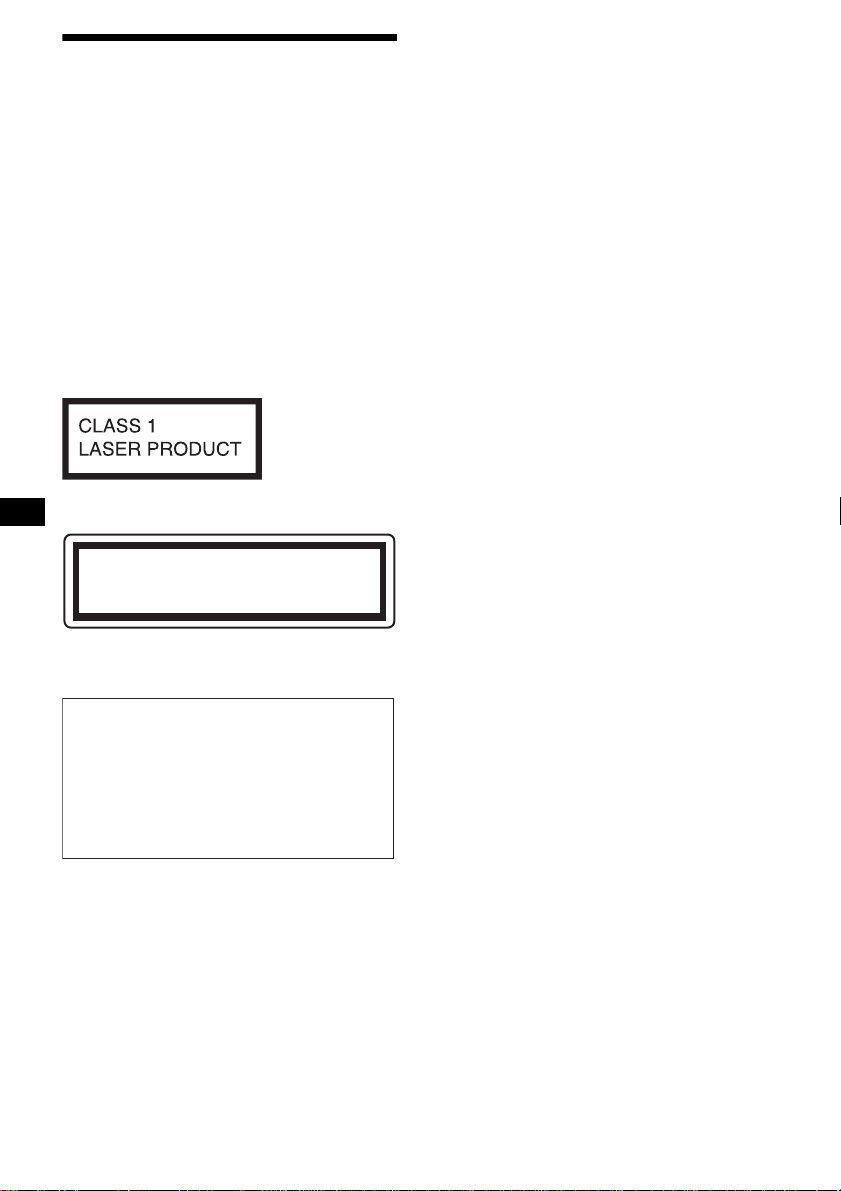
2
Advertencia
Para evitar el riesgo de incendio o
electrocución, no exponga la unidad a la
lluvia ni a la humedad.
Para evitar recibir descargas eléctricas,
no abra el aparato. Solicite asistencia
técnica únicamente a personal
especializado.
PRECAUCIÓN
El uso de instrumentos ópticos con este producto
aumenta el riesgo de sufrir daños oculares. No
intente desmontar la carcasa, puesto que el haz
láser utilizado en este reproductor de CD/DVD
es perjudicial para los ojos.
Solicite asistencia técnica únicamente a personal
especializado.
COFETEL
Este equipo opera a titulo secundario,
consecuentemente, debe aceptar interferencias
perjudiciales incluyendo equipos de la misma
clase y puede no causar interferencias a sistemas
operando a titulo primario.
CAUTION
RADIATION WHEN OPEN AND INTERLOCKS DEFEATED.
DO NOT VIEW DIRECTLY WITH OPTICAL INSTRUMENTS.
:
CLASS 1M VISIBLE/INVISIBLE LASER
Esta etiqueta está situada en la parte inferior del
chasis.
Esta etiqueta está situada en el chasis interno de
la unidad de activación.
Advertencia: si el encendido del
automóvil no dispone de una posición
ACC
Tras apagar el motor, mantenga presionado
(OFF) en la unidad hasta que se apague la
pantalla.
Si no lo hace, la pantalla no se desactiva y se
desgasta la batería.

3
Tabla de contenido
Bienvenido. . . . . . . . . . . . . . . . . . . . . . . . . . . 4
Precauciones . . . . . . . . . . . . . . . . . . . . . . . . . 5
Discos que se pueden reproducir. . . . . . . . . . 6
Procedimientos iniciales
Restauración de la unidad . . . . . . . . . . . . . . . 8
Ajuste del reloj . . . . . . . . . . . . . . . . . . . . . . . 8
Modo DEMO. . . . . . . . . . . . . . . . . . . . . . . . . 8
Extracción del panel frontal. . . . . . . . . . . . . . 8
Inserción del disco en la unidad . . . . . . . . . . 9
Ubicación de los controles y operaciones
básicas. . . . . . . . . . . . . . . . . . . . . . . . . . . 10
Pantallas de menú . . . . . . . . . . . . . . . . . . . . 13
Reproductor
Reproducción de discos. . . . . . . . . . . . . . . . 15
Reanudación de la reproducción
— Reanudación de la reproducción . . . . 17
Visualización de la información del disco
— Información de tiempo/texto . . . . . . . 18
Búsqueda de un punto determinado de un disco
— Exploración . . . . . . . . . . . . . . . . . . . . 19
Uso de los menús del DVD . . . . . . . . . . . . . 19
Uso de las funciones PBC
— PBC (control de reproducción) . . . . . 20
Reproducción en diversos modos
— Reproducción repetida/
reproducción aleatoria/
reproducción con búsqueda . . . . . . . . . . 21
Diversas operaciones con DVD
Cambio de los canales de audio. . . . . . . . . . 23
Cambio de los ángulos. . . . . . . . . . . . . . . . . 25
Visualización de los subtítulos . . . . . . . . . . 25
Ampliación de imágenes . . . . . . . . . . . . . . . 26
Cambio de la calidad de imagen
— Ecualizador de imagen. . . . . . . . . . . . 26
Bloqueo de discos
— Control de bloqueo. . . . . . . . . . . . . . . 27
Ajustes
Uso del menú Configuración. . . . . . . . . . . . 30
Ajuste del idioma de la pantalla o pista de
sonido
— Configuración de idioma . . . . . . . . . . 31
Ajuste de la pantalla
— Configuración de pantalla . . . . . . . . . 32
Ajustes personalizados
— Configuración personalizada . . . . . . . 33
Ajustes de audio
— Configuración de audio . . . . . . . . . . . 34
Radio
Almacenamiento automático
— BTM . . . . . . . . . . . . . . . . . . . . . . . . . 35
Almacenamiento manual . . . . . . . . . . . . . . 36
Recepción de las emisoras almacenadas. . . 36
Sintonización automática . . . . . . . . . . . . . . 36
Recepción de emisoras mediante una lista
— Listado. . . . . . . . . . . . . . . . . . . . . . . . 36
Otras funciones
Ajuste de las características de sonido . . . . 37
Ajuste de la curva del ecualizador
— EQ7 Tune . . . . . . . . . . . . . . . . . . . . . 37
Etiquetado de una emisora o un disco . . . . 38
Ajuste de elementos de menú individuales
— SYSTEM MENU . . . . . . . . . . . . . . . 38
Uso del equipo opcional . . . . . . . . . . . . . . . 40
Cambio entre las salidas frontal y posterior
— Zone × Zone . . . . . . . . . . . . . . . . . . . 42
Información complementaria
Mantenimiento . . . . . . . . . . . . . . . . . . . . . . 42
Extracción de la unidad. . . . . . . . . . . . . . . . 43
Notas sobre los discos. . . . . . . . . . . . . . . . . 43
Acerca de los archivos MP3 . . . . . . . . . . . . 44
Nota sobre la transmisión inalámbrica
(MEX-R5 solamente). . . . . . . . . . . . . . . 44
Especificaciones . . . . . . . . . . . . . . . . . . . . . 45
Solución de problemas . . . . . . . . . . . . . . . . 46
Mensajes/indicaciones de error. . . . . . . . . . 50
Glosario. . . . . . . . . . . . . . . . . . . . . . . . . . . . 51
Lista de códigos de idiomas . . . . . . . . . . . . 53
Índice . . . . . . . . . . . . . . . . . . . . . . . . . . . . . 54
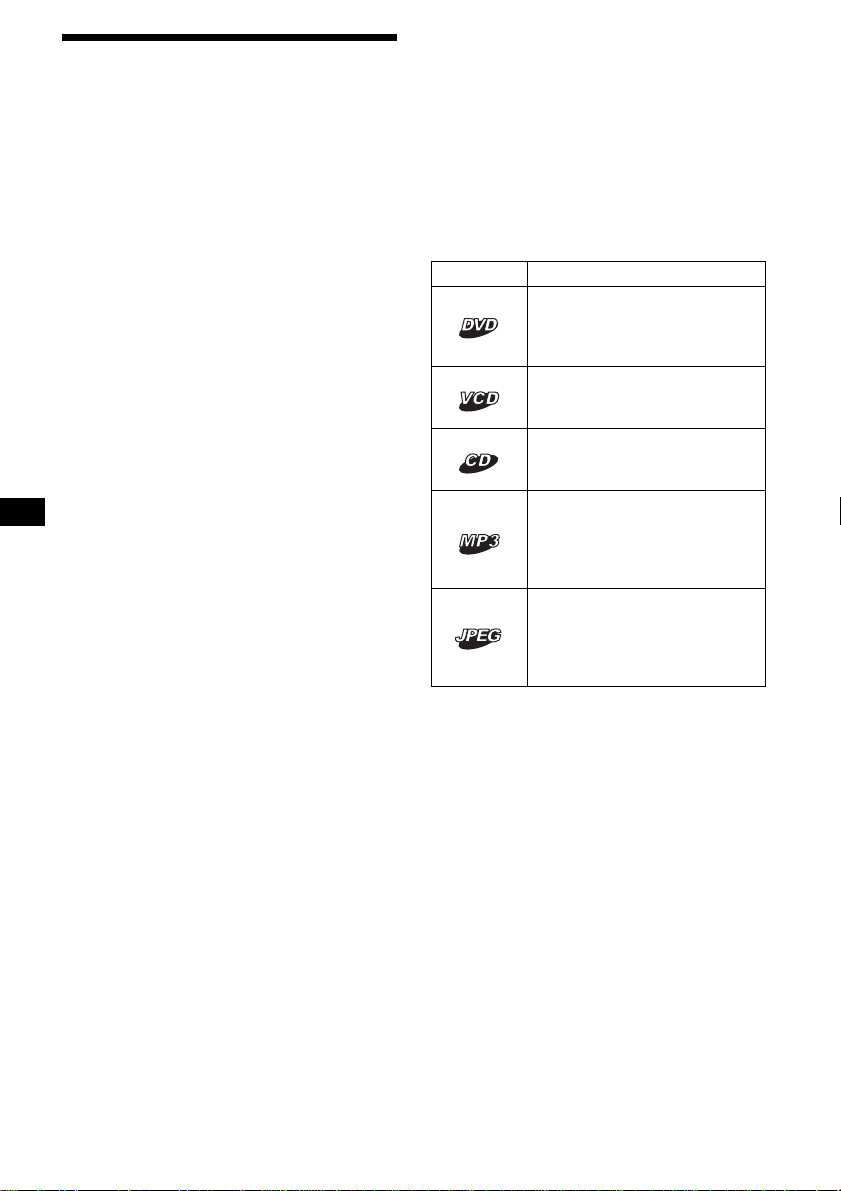
4
Bienvenido
Gracias por adquirir este reproductor múltiple de
discos Sony. Antes de poner en funcionamiento
esta unidad, lea este manual detenidamente y
guárdelo para consultarlo en el futuro.
CARACTERÍSTICAS:
• Compatibilidad para reproducir discos
DVD, CD y VCD
–Compatibilidad con diversos formatos de
discos, como DVD-R/-RW, DVD+R/
DVD+RW, etc.
DVD-RW: compatible con los modos Video y
VR (posibilidad de diversas opciones de
edición)
DVD+RW: compatible con el modo +VR
(posibilidad de diversas opciones de edición)
–Capacidad de reproducción de hasta 1 000
pistas*
1
grabadas en discos DVD-R/-RW,
DVD+R/+RW o CD-R/-RW en formato de
archivo MP3
• Incluye 2 salidas de video (frontal y
posterior)*
2
, 1 salida de audio Zone ×
Zone*
3
y 1 salida digital
• Transmisión inalámbrica*
4
: sin conexiones
complejas, las señales de audio o video se
pueden transmitir al monitor opcional
XVM-F65WL.
• Zone × Zone: permite escuchar la radio o
música de un cambiador de CD/MD (en caso
de que esté conectado) en la parte frontal y
emitir un DVD en la posterior al mismo tiempo.
• Ecualizador de imagen: permite
seleccionar el tono de imagen deseado de los
ajustes predeterminados en función de la
iluminación del interior del vehículo o de la
iluminación ambiente.
• Ajuste del nivel de DVD: permite equilibrar
las diferencias de nivel de salida de PCM,
Dolby Digital y DTS, así como las diferencias
de volumen entre el disco y la fuente.
• EQ7: permite seleccionar una curva del
ecualizador para 7 tipos de música.
• DSO (Organizador de sonido de baja
frecuencia dinámico): permite crear un campo
de sonido más ambiental, utilizando una
síntesis de altavoces virtuales para mejorar el
sonido de los altavoces, incluso si éstos están
instalados en una posición baja en la puerta.
• Unidades opcionales de CD/MD
(cambiadores y reproductores)*
5
.
*1 En función de la duración de las pistas
*2 1 salida de video frontal 1 para MEX-R5
*3 MEX-R1 solamente
*4 MEX-R5 solamente
*5 Esta unidad funciona solamente con productos
Sony.
Acerca de este manual
• Las instrucciones que se incluyen en este
manual describen los controles del control
remoto de tarjeta. También puede utilizar los
controles de la unidad si poseen los mismos
nombres o nombres similares a los del control
remoto de tarjeta.
• En este manual, “DVD” se utiliza como
término general para DVD-R/-RW y DVD+R/
+RW.
• El significado de los íconos utilizados en este
manual se describe a continuación:
Ícono Significado
Funciones disponibles para DVD
VIDEO, DVD-R/DVD-RW o
DVD+R/DVD+RW en modo
Video
Funciones disponibles para
Video CD o CD-R/CD-RW en
formato de CD de video
Funciones disponibles para CD
de música o CD-R/CD-RW en
formato de CD de música
Funciones disponibles para
archivos en formato MP3
almacenados en CD-ROM/CD-
R/CD-RW/DVD-R/DVD-RW/
DVD+R/DVD+RW
Funciones disponibles para
archivos en formato JPEG
almacenados en CD-ROM/CD-
R/CD-RW/DVD-R/DVD-RW/
DVD+R/DVD+RW
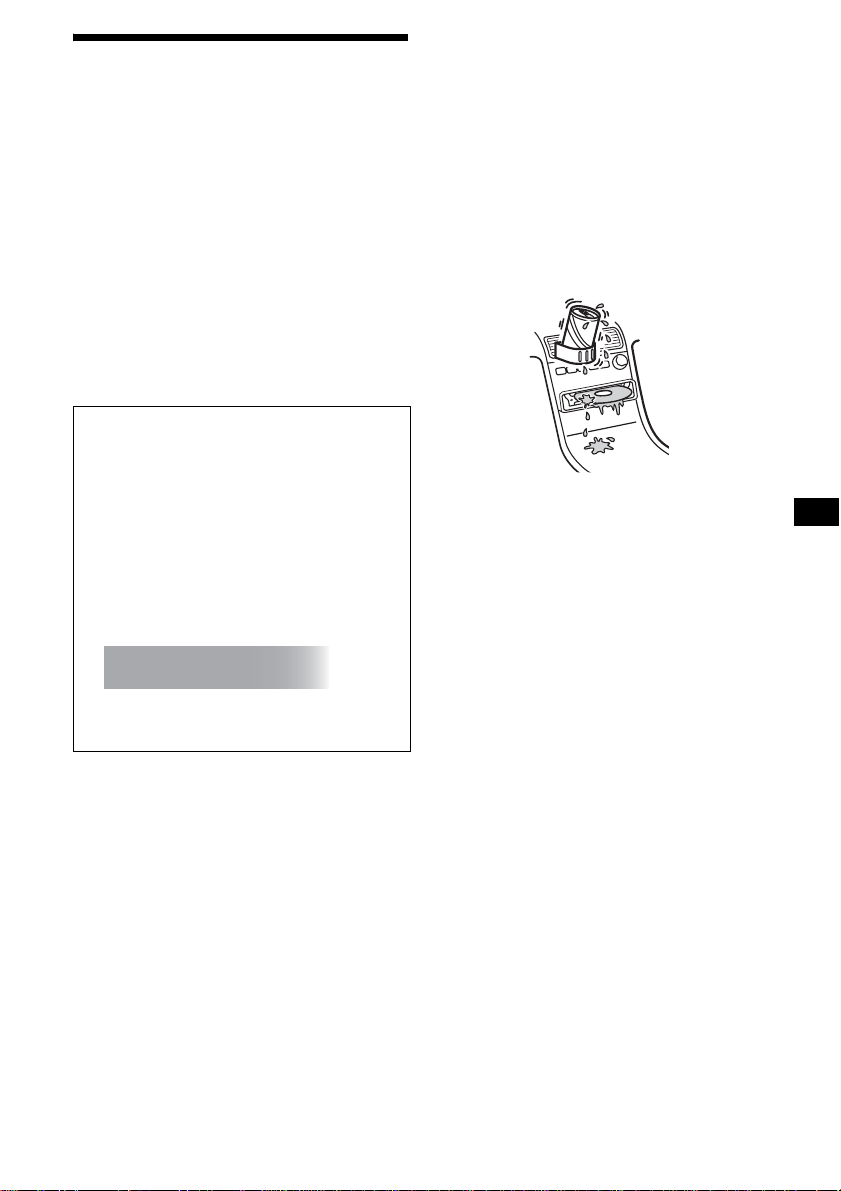
5
Precauciones
• No utilice las funciones personalizadas
mientras maneja, ni realice ninguna otra
función que pudiese distraer su atención de la
carretera.
• Si estaciona el automóvil bajo la luz directa del
sol, deje que la unidad se enfríe antes de usarla.
• La antena aérea motorizada se extenderá
automáticamente mientras la unidad se
encuentre en funcionamiento.
Seguridad
• Respete las leyes de tránsito de su país.
• Por razones de seguridad, el monitor conectado
a FRONT VIDEO OUT se apaga
automáticamente cuando no se utiliza el freno
de mano.
Condensación de humedad
En días lluviosos o en zonas muy húmedas, es
posible que se condense humedad en el interior
de las lentes y la pantalla de la unidad. Si esto
ocurre, la unidad no funcionará correctamente.
En tal caso, extraiga el disco y espere una hora
aproximadamente hasta que se haya evaporado la
humedad.
Para mantener una alta calidad de
sonido
Asegúrese de no derramar jugos ni refrescos
sobre la unidad o los discos.
Prevención de accidentes
Las imágenes aparecen sólo después de
estacionar el auto y utilizar el freno de mano.
Cuando el auto comienza a moverse, las
imágenes provenientes de FRONT VIDEO
OUT desaparecen automáticamente después de
mostrar la siguiente advertencia.
El monitor conectado a la toma REAR VIDEO
OUT podrá utilizarse mientras el auto se
encuentre en movimiento.
Las imágenes de la pantalla se apagarán,
aunque podrá escuchar el sonido de CD/MP3.
No opere la unidad ni mire el monitor mientras
maneje.
For your safety,
the video is blocked.
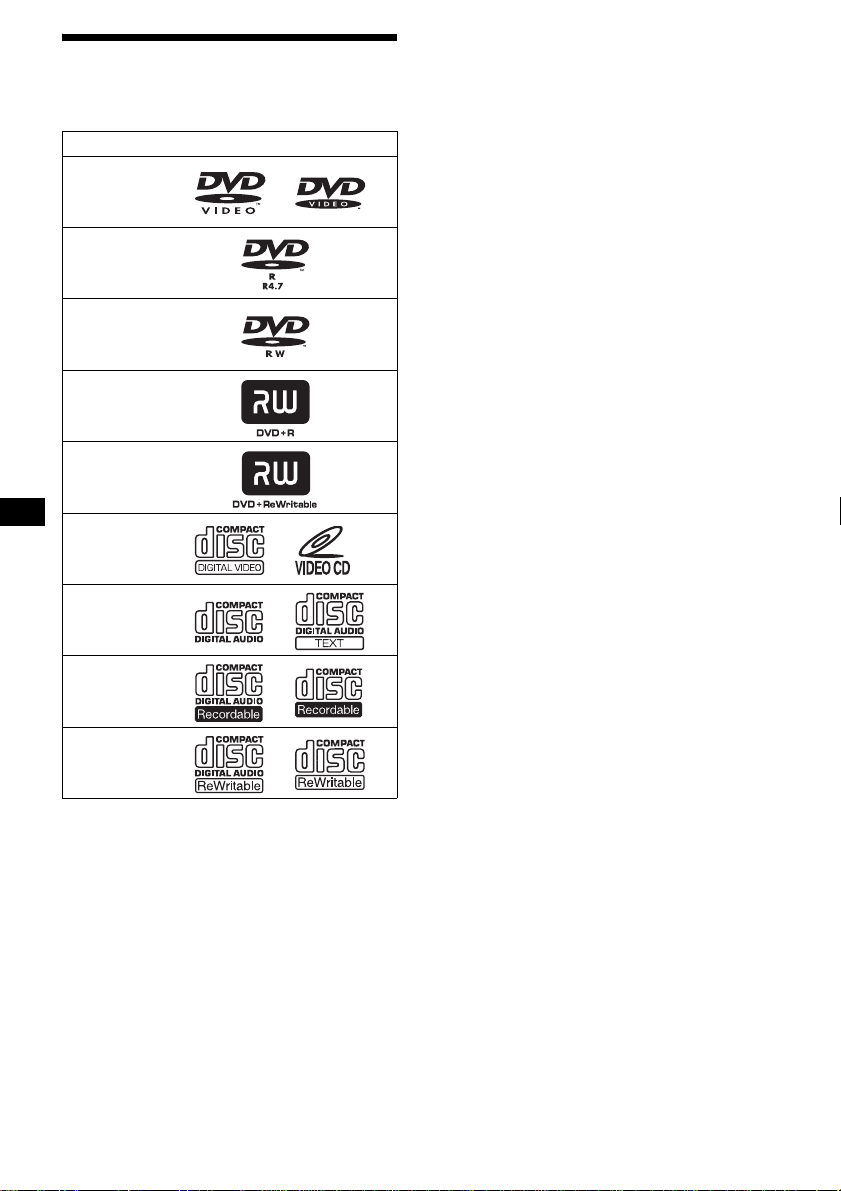
6
Discos que se pueden
reproducir
* No es posible reproducir discos que no estén
finalizados.
“DVD VIDEO”, “DVD-R”, “DVD-RW”,
“DVD+R” y “DVD+RW” son marcas
comerciales.
DVD
Los discos DVD contienen tanto datos de audio
como visuales. Un disco de 12 cm puede
contener hasta 7 veces la cantidad de datos de un
CD-ROM, lo que representa 4 horas consecutivas
de tiempo de reproducción (8 horas en el caso de
discos de doble cara). Los DVD se dividen en 4
tipos: una cara de una capa, una cara de doble
capa, dos caras de una capa y dos caras de doble
capa.
Video CD (VCD)
Un Video CD puede contener datos tanto de
audio como visuales en un disco del mismo
tamaño que un Audio CD común. El tiempo de
reproducción es de 74 minutos para un CD
estándar de 12 cm.
CD de audio
Un CD de audio contiene datos de audio. El
tiempo de reproducción es de 74 minutos para un
CD estándar de 12 cm.
CD-Grabable (CD-R)
Con un CD-R se pueden editar datos de audio. Se
puede escribir información en un CD-R sólo una
vez.
CD-Reescribible (CD-RW)
Con un CD-RW se pueden editar datos de audio
y se puede escribir información en el CD-RW
una y otra vez.
CD-Extra
Un CD-Extra posee dos secciones (sesiones)
para audio y datos respectivamente. En esta
unidad sólo se puede reproducir la sección de
audio.
Notas
• Para los clientes de las áreas correspondientes al
código de región 3
Esta unidad está adaptada para el sistema de color
PAL. No puede reproducir un disco grabado en un
sistema de color que no sea PAL, como NTSC o
SECAM.
• Para los clientes de las áreas correspondientes al
código de región 4
Esta unidad está adaptada al sistema de color
NTSC. No puede reproducir un disco grabado en un
sistema de color que no sea NTSC, como PAL o
SECAM.
• Esta unidad permite reproducir discos DVD-R/DVD-
RW, DVD+R/DVD+RW y CD-R/CD-RW diseñados
para audio. Sin embargo, es posible que no pueda
reproducir algunos discos debido a las condiciones
de grabación.
• No es posible reproducir discos CD-R/CD-RW, DVD-
R/DVD-RW o DVD+R/DVD+RW que no estén
finalizados.
• No es posible reproducir discos creados en formato
Packet Write.
• Es posible que los discos grabados no se
reproduzcan correctamente con una temperatura
ambiente muy alta.
Formato de discos
DVD VIDEO
DVD-R*
(MP3/JPEG)
DVD-RW*
modo Video/modo VR
(MP3/JPEG)
DVD+R*
(MP3/JPEG)
DVD+RW*
(MP3/JPEG)
Video CD
CD de audio
CD-R*
(MP3/JPEG)
CD-RW*
(MP3/JPEG)
7
• No es posible reproducir en esta unidad los
siguientes discos:
– Discos de 8 cm
– CD-ROM (datos que no sean los de archivos MP3
o JPEG)
– CD-G
–Photo-CD
– VSD (disco simple de video)
– DVD-ROM (datos que no sean los de archivos
MP3 o JPEG)
–DVD-RAM
– DVD-Audio
– DVD+R DL (Doble capa)
– Active-Audio (Datos)
– CD-Extra (Datos)
– Mixed CD
– SVCD (Super video CD)
–CDV
– SACD (Super Audio CD)
Nota sobre discos transparentes
No es posible reproducir en esta unidad discos de
12 cm que contengan sólo una porción interior de
8 cm con datos (el resto es transparente).
Discos de música codificados con
protección de los derechos de
autor
La unidad se diseñó para reproducir discos que
cumplen con el estándar Compact Disc (CD).
Desde hace poco tiempo, algunas compañías
discográficas comercializan discos de música
codificados con protección de derechos de autor.
Tenga en cuenta que, entre estos discos, algunos
no cumplen con el estándar CD, por lo que no
podrán reproducirse ni grabarse con este
producto.
Código de región
Este sistema se utiliza para proteger los derechos
de autor del software.
El código de región se encuentra en la parte
inferior de la unidad y ésta sólo reproducirá los
DVD etiquetados con códigos de región
idénticos.
Los DVD con la etiqueta también pueden
reproducirse en esta unidad.
Si intenta reproducir cualquier otro DVD,
aparecerá en la pantalla el mensaje: “Cannot play
this disc.” (No se puede reproducir este disco). Es
posible que algunos DVD no presenten la
etiqueta de indicación del código de región,
aunque su reproducción esté prohibida por
límites de zona.
Nota sobre operaciones de
reproducción de discos DVD y VCD
Es posible que ciertas operaciones de
reproducción de discos DVD y VCD estén
expresamente determinadas por los fabricantes
de software. Puesto que esta unidad reproduce
discos DVD y VCD en función del contenido
diseñado por los fabricantes de software, ciertas
funciones de reproducción pueden no estar
disponibles. Consulte también las instrucciones
suministradas con los discos DVD o VCD.
Derechos de autor
Este producto incorpora tecnología de protección
de derechos de autor (copyright) amparada por
patentes de EE.UU. y otros derechos de
propiedad intelectual. El uso de dicha tecnología
debe contar con la autorización de Macrovision y
es únicamente para uso doméstico y otros usos
de visualización limitados, a menos que
Macrovision autorice lo contrario. Está prohibida
la ingeniería inversa o el desmontaje de la
unidad.
Fabricado bajo licencia de Dolby Laboratories.
“Dolby” y el símbolo de la doble D son marcas
comerciales de Dolby Laboratories.
“DTS” y “DTS 2.0 + Digital Out” son marcas
comerciales de Digital Theater Systems, Inc.
Código de
región
ALL
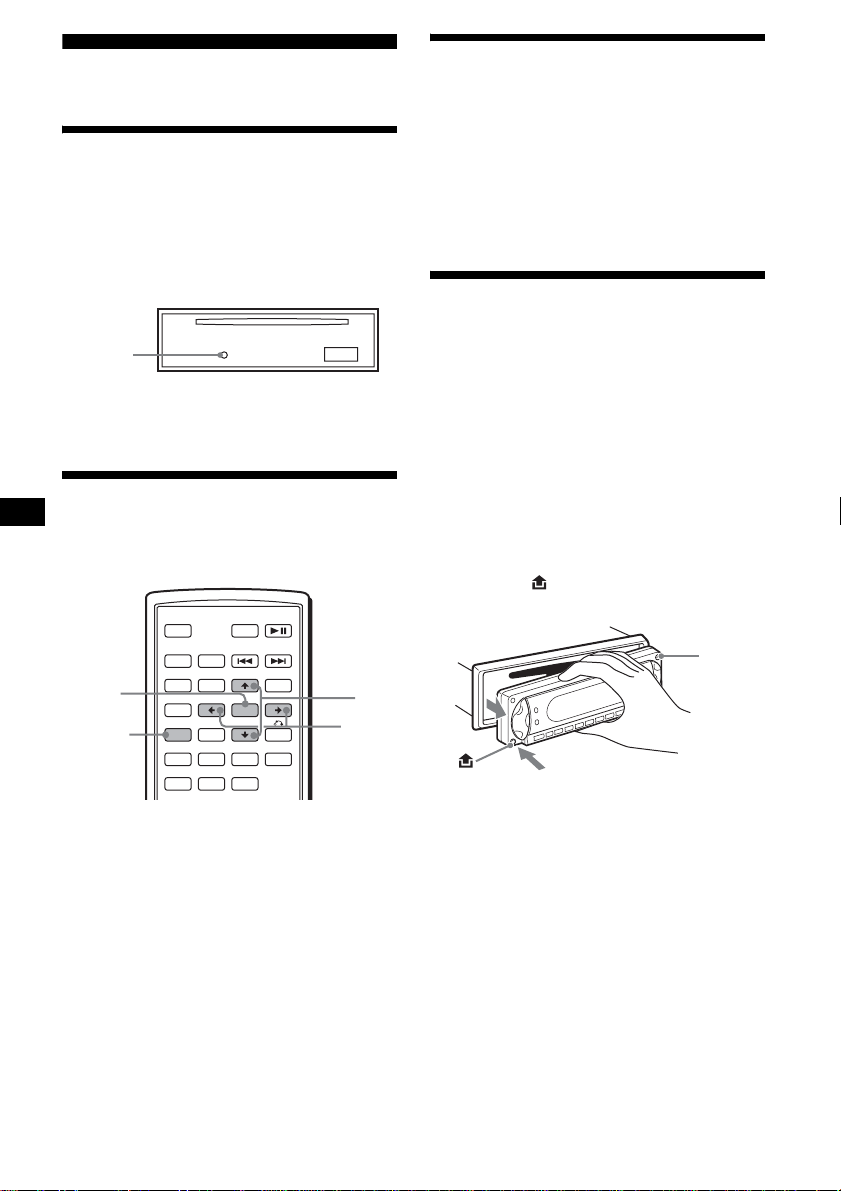
8
Procedimientos iniciales
Restauración de la unidad
Antes de utilizar la unidad por primera vez, o
después de reemplazar la batería del automóvil o
de cambiar las conexiones, debe restaurarla.
Extraiga el panel frontal y presione el botón
RESET con un objeto puntiagudo, como un
bolígrafo.
Nota
Al presionar el botón RESET, se borra el ajuste del
reloj y algunos contenidos almacenados.
Ajuste del reloj
El reloj emplea una indicación digital de 24
horas.
1 Presione (SYSTEM MENU).
Aparece la pantalla de ajustes.
2 Presione M/m varias veces hasta que
aparezca “CLOCK-ADJ”.
3 Presione (ENTER).
La indicación de la hora parpadea.
4 Presione M/m para ajustar la hora y los
minutos.
Para desplazar la indicación digital, presione
</,.
5 Presione (ENTER).
El reloj se pone en funcionamiento.
Para visualizar el reloj durante la reproducción o
recepción, ajuste “CLOCK-ON” (página 39).
Modo DEMO
Cuando la unidad está apagada, primero se
muestra el reloj y, a continuación, el modo de
demostración (DEMO) inicia la pantalla
respectiva.
Para cancelar el modo DEMO, ajuste “DEMO-
OFF” en la configuración (página 39) mientras la
unidad está apagada.
Extracción del panel frontal
Puede extraer el panel frontal de la unidad para
evitar que la roben.
Alarma de precaución
Si gira el interruptor de encendido hasta la
posición OFF sin haber extraído el panel frontal,
la alarma de precaución sonará durante unos
segundos.
La alarma sonará únicamente si se utiliza el
amplificador integrado.
1 Presione (OFF).
La unidad se apaga.
2 Presione , luego extráigalo tirando
hacia usted.
Notas
• No deje caer ni ejerza excesiva presión sobre el
panel frontal y la pantalla.
• No someta el panel frontal al calor ni a temperaturas
altas o excesiva humedad. Evite dejarlo en un
automóvil estacionado o sobre el tablero o la
bandeja trasera.
Sugerencia
Al transportar el panel frontal, utilice el estuche
suministrado.
Botón
RESET
SRC
MODE
ATT DVD
SOUND
TOP MENU
MENU
SETUP
ENTER
SYSTEM
MENU
LIST
EQZ
×
Z DSO EQ7
PICTURE
AUDIO
SUBTITLE
ANGLE
OFF
+
–
ENTER
SYSTEM
MENU
M/m
</,
(OFF)
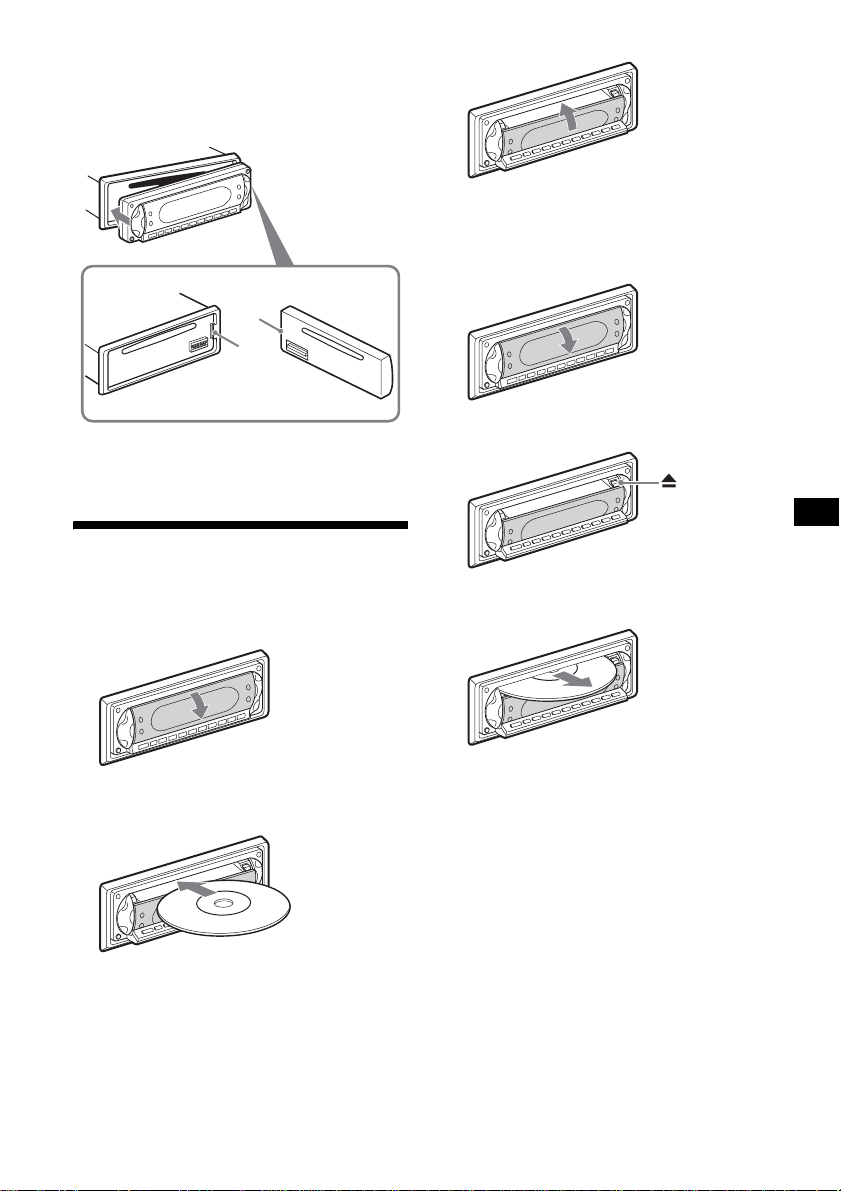
9
Colocación del panel frontal
Fije la parte A del panel frontal con la parte B
de la unidad, como se muestra en la ilustración y
presione el lado izquierdo en su posición hasta
escuchar un clic.
Nota
No coloque nada sobre la superficie interior del panel
frontal.
Inserción del disco en la
unidad
1 Abra la bandeja.
2 Inserte el disco con la cara de
reproducción hacia abajo.
Se inicia la reproducción. (En función del
disco, presione DVD u para iniciar la
reproducción.)
3 Cierre la bandeja.
Expulsión del disco
1 Abra la bandeja.
2 Presione Z.
El disco se expulsa.
Nota
No cierre la bandeja mientras inserta o expulsa el
disco. El disco puede atorarse y dañarse.
Sugerencia
Se puede reproducir el disco con la bandeja cerrada o
abierta.
B
A
x
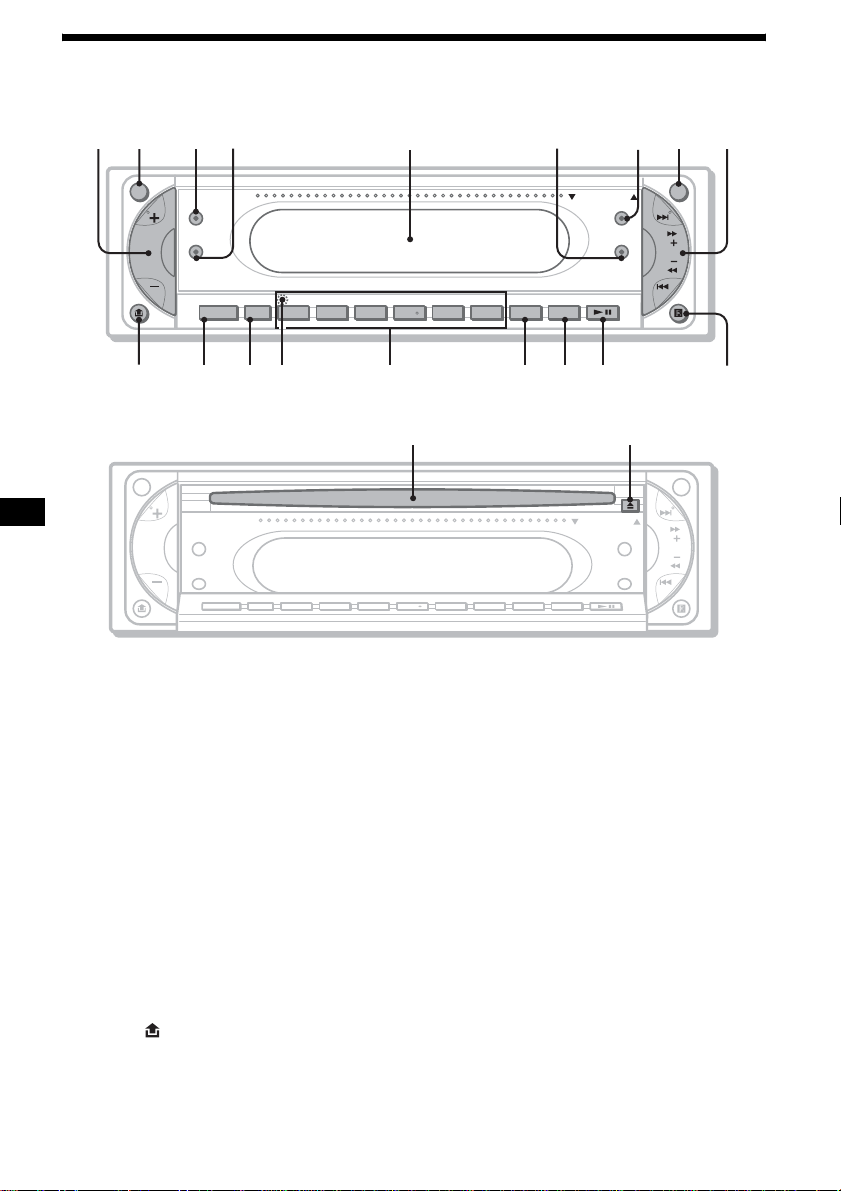
10
Ubicación de los controles y operaciones básicas
Unidad principal
Bandeja OPEN/CLOSE abierta
Consulte las páginas indicadas para obtener
información detallada.
a Botón de volumen +/– 37
b Botón ATT (atenuación)
c Botón Z×Z (Zone × Zone)
d Botón SOUND
e Pantalla
f Botón EQ7 (ecualizador)
g Botón DSO
h Botón OFF 8
i Botón SEEK +/–
Radio:
Para sintonizar emisoras automáticamente
(presionar); para localizar una emisora
manualmente (mantener presionado).
DVD/CD:
Para saltar capítulos o pistas (presionar);
para avanzar rápidamente o rebobinar un
capítulo o pista (mantener presionado).
j Botón (liberación del panel frontal)
8
k Botón SOURCE 42
l Botón MODE
m Botón RESET (ubicado detrás del panel
frontal) 8
n Botones numéricos
Radio:
Para recibir las emisoras almacenadas
(presionar); para almacenar emisoras
(mantener presionado).
CD/MD*
1
:
(1): REP 21, 40
(2): SHUF 21, 40
(3)/(4): ALBM –/+*
2
Para omitir álbumes (presionar); para omitir
álbumes continuamente (mantener
presionado).
o Botón DSPL
p Botón SCRL
Para desplazar los elementos de la pantalla.
q Botón DVD u (reproducir/pausa)
r Receptor del control remoto de tarjeta
s Ranura del disco 9
t Botón Z (expulsar) 9
*1 Si se conecta un cambiador de MD.
*2 Cuando se reproduce un archivo MP3/JPEG y no
se conecta un cambiador. Si se conecta el
cambiador, la operación es diferente. Consulte la
página 40.
SEEK
MEX-R1
MEX-R5
ATT OFF
SOUND
DSO
OPEN/CLOSE
EQ7
SOURCE MODE
DVD
SCRL
SHUFREP ALBM +
-
DSPL
654321
12 34 6 78 9
q
j
q
h
q
g
q
f
q
d
q
s
q
a
0
5
q
k
Z
×
Z
Z
×
Z
SEEK
ATT OFF
SOUND
DSO
OPEN/CLOSE
EQ7
SCRL
DVDSHUFREP ALBM +
-
DSPL
654321
SOURCE MODE
ql w;
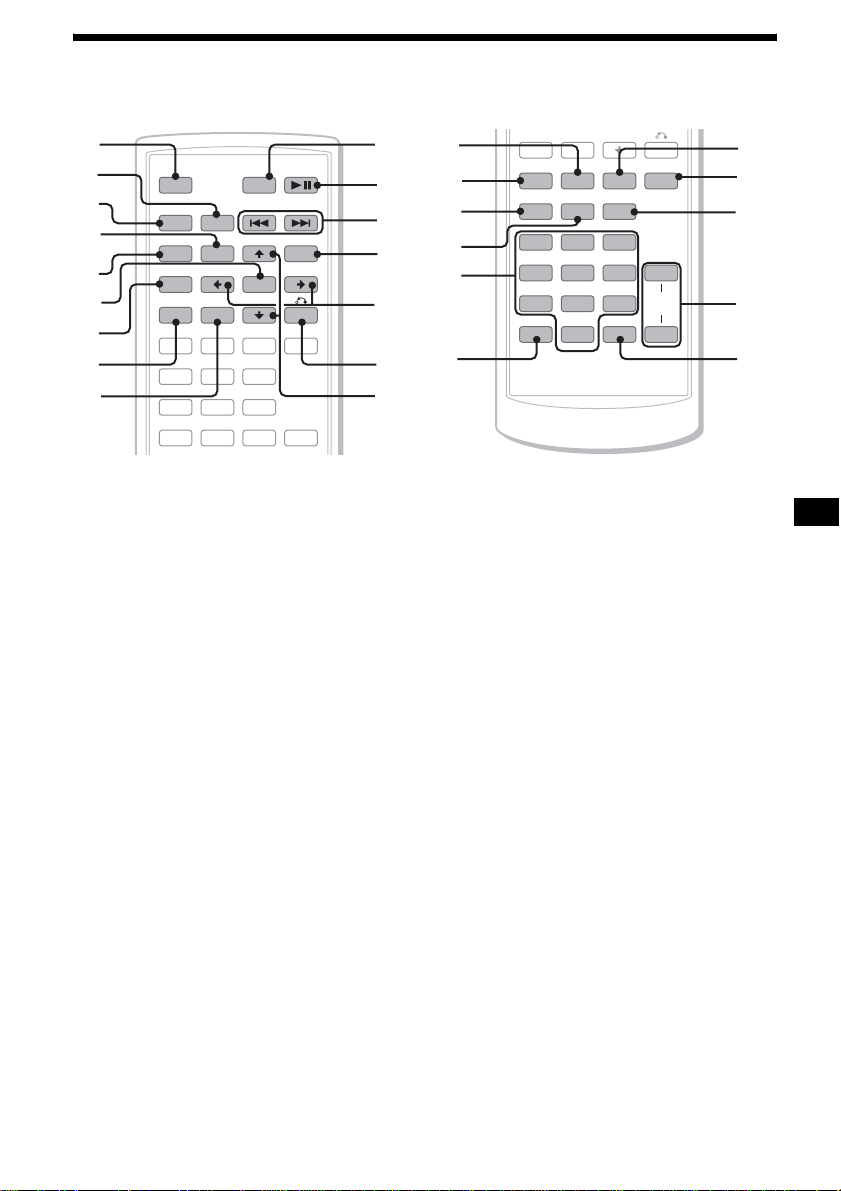
11
Control remoto de tarjeta RM-X702
a Botón OFF 15, 17, 20
Para apagar o detener la fuente.
b Botón MODE 35, 40
Para seleccionar la banda de radio (FM/AM)
o seleccionar la unidad*
1
.
c Botón SRC (SOURCE)
Para encender o cambiar la fuente (Radio/
DVD/CD/MD*
2
/AUX*
3
).
d Botón TOP MENU 19
Para mostrar el menú superior de un DVD.
e Botón SOUND 37
Para seleccionar elementos de sonido.
f Botón ENTER
Para realizar un ajuste.
g Botón SETUP
Para visualizar el menú Configuración y el
menú Modo de reproducción.
h Botón SYSTEM MENU
Para acceder al menú de la unidad.
i Botón LIST 36, 40
Para mostrar una lista.
j Botón ATT (atenuación)
Para atenuar el sonido. Para cancelar esta
función, vuelva a presionarlo.
k Botón DVD u (reproducir/pausa) 9,
15, 16, 17
Para iniciar o insertar una pausa en la
reproducción.
l Botones ./> (anterior/siguiente;
rebobinado/avance rápido;
sintonización de emisoras)
m Botón MENU 19
Para visualizar el menú de un disco.
n Botones </, (cursor)
Para mover el cursor o cambiar de página.
o Botón O (RETURN) 20, 30, 31
Para volver a la pantalla o a la operación
anterior.
p Botones M/m (cursor)
Para mover el cursor.
q Botón PICTURE EQ 27
Para seleccionar la calidad de imagen.
r Botón Z×Z (Zone × Zone) 42
Para cambiar entre la salida frontal y la
posterior.
s Botón AUDIO 23
Para cambiar la salida de audio.
t Botón SUBTITLE 25
Para cambiar el idioma de los subtítulos.
u Botones numéricos
SRC
MODE
ATT DVD
SOUND
TOP MENU
MENU
SETUP
ENTER
SYSTEM
MENU
LIST
EQZ
×
Z DSO EQ7
PICTURE
AUDIO
SUBTITLE
ANGLE
123
456
OFF
+
–
+
0
qa
qd
qf
qg
qh
qs
1
2
3
4
5
6
7
8
9
SYSTEM
MENU
LIST
EQZ
×
Z DSO EQ7
PICTURE
AUDIO
SUBTITLE
ANGLE
CLEAR
123
456
789
0
DSPL
–
VOL
+
–
wd
wf
wj
wh
wg
qj
qk
ql
w;
wa
ws
continúa en la página siguiente t

12
v Botón CLEAR 23
Para cancelar los números ingresados.
w Botón DSO 4
Para seleccionar el modo DSO (1, 2, 3 u
OFF). Cuanto mayor sea el número, mejor
será el efecto.
x Botón EQ7 (ecualizador)
Para seleccionar un tipo de ecualizador
(XPLOD, VOCAL, CLUB, JAZZ, NEW
AGE, ROCK, CUSTOM u OFF).
y Botón ANGLE 25
Para cambiar el ángulo de visualización.
z Botón VOL (volumen) +/–
Para ajustar el volumen.
wj Botón DSPL 16, 18, 38
Para cambiar los elementos en pantalla.
*1 Si se conecta un cambiador de CD/MD.
*2 Si se conecta un cambiador de MD.
*3 Si se conecta un dispositivo portátil de Sony
opcional.
Nota
Si la unidad está apagada y desaparece la pantalla,
no se podrá operar con el control remoto de tarjeta
salvo que se presione (SOURCE) en la unidad
principal o primero se inserte un disco para activar la
unidad.
Sugerencia
Si desea obtener información adicional sobre cómo
sustituir la pila, consulte “Sustitución de la pila de litio
del control remoto de tarjeta” en la página 42.
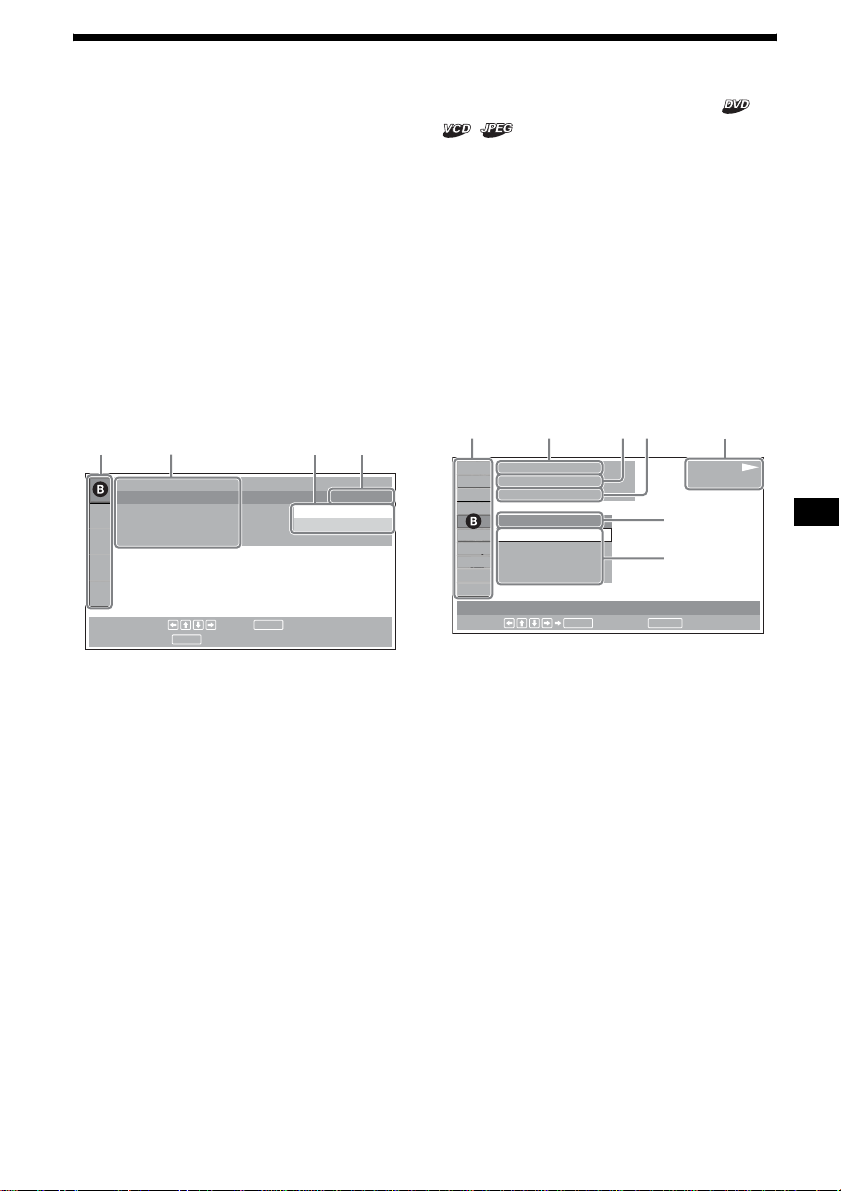
13
Pantallas de menú
Utilice los menús de esta unidad para ajustar las
diversas funciones y ajustes de reproducción.
El menú que se muestra difiere según el estado
de la unidad.
Menú Configuración
Aparecerá cuando presione (SETUP) mientras
se detiene la reproducción.
Para seleccionar un elemento
Presione </M/m/, y luego presione
(ENTER).
Para cerrar el menú Configuración
Presione (SETUP).
Ejemplo: Cuando selecciona “LANGUAGE
SETUP”.
A Elementos de ajuste
B Elemento seleccionado
C Elementos de ajuste
D Opciones
E Configuración actual
Menú Modo de reproducción
Aparecerá cuando presione (SETUP) durante la
reproducción.
Para seleccionar un elemento
Presione </M/m/, y luego presione
(ENTER).
Para cerrar el menú Modo de
reproducción
Presione (SETUP).
Nota
Los elementos del menú y los procedimientos de
operación varían según el disco.
Ejemplo: Al reproducir un DVD
A Elementos del Modo de reproducción
B Elemento seleccionado
C Número de título*
1
/Número total de títulos*
1
D Número de capítulo*
2
/Número total de
capítulos*
2
E Tiempo de reproducción transcurrido
F Estado de reproducción (NPLAY, XPAUSE,
etc.)/Formato del disco
G Configuración actual
H Opciones
*1 Muestra el número de pista en el caso de discos
VCD y el número de álbum en el caso de archivos
JPEG. Cuando reproduzca un VCD con la función
PBC activada, no aparecerá ninguna indicación.
*2 Muestra el número de imagen en el caso de
archivos JPEG.
Notas
• Cuando reproduzca CD/MP3, no se podrá visualizar
el menú Modo de reproducción.
• Cuando reproduzca archivos JPEG, (SETUP) estará
activo sólo cuando la imagen se muestre
completamente.
LANGUAGE SETUP
OSD :
MENU :
AUDIO :
SUBTITLE :
ENTER
SETUP
To set, press , then .
To quit, press .
ENGLISH
JAPANESE
ENGLISH
ENGLISH
AC DE
continúa en la página siguiente t
12
(
67
)
018
(
034
)
T 1:35:55
1;ENGLISH
OFF
1:ENGLISH
2:FRENCH
3:SPANISH
PLAY
DVDVIDEO
SUBTITLE
Select :
ENTER RETURN
Cancel
ACDEF
G
H
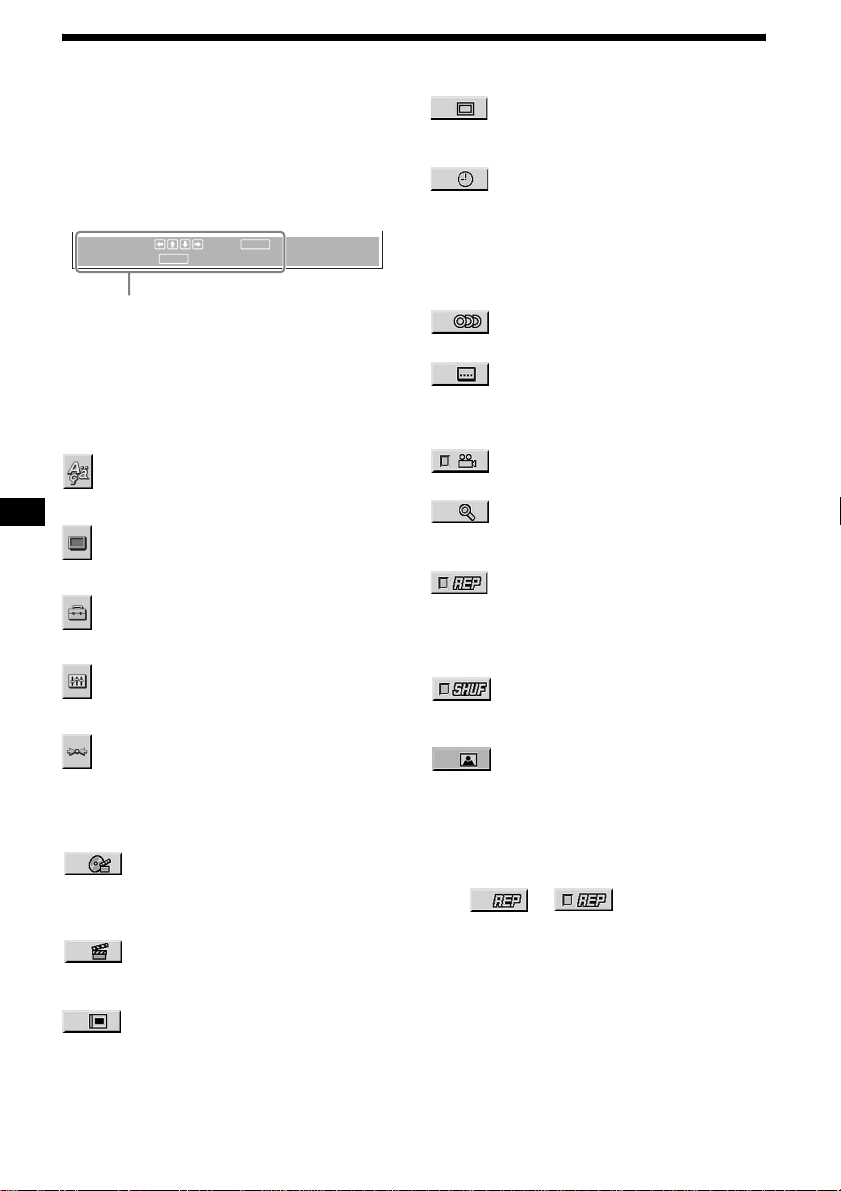
14
Mensaje de operación
Las operaciones del menú varían según el
elemento seleccionado y los botones que se
utilizarán aparecen en la parte inferior de la
pantalla de menú para asistirlo con las
operaciones.
Sugerencia
Aparecerá el mensaje “Operation not possible”
(Operación imposible) si la función no está disponible.
Elementos de ajuste
LANGUAGE SETUP (ajuste de
idioma) (página 31)
Cambia el idioma.
SCREEN SETUP (ajuste pantalla)
(página 32)
Selecciona los modos de pantalla.
CUSTOM SETUP (ajuste
personalizado) (página 33)
Ajusta las operaciones de reproducción.
AUDIO SETUP (ajuste audio)
(página 34)
Ajusta el sonido de salida.
RESET (página 31)
Restaura todos los elementos de ajuste.
Elementos del Modo de
reproducción
TITLE, TRACK (título, pista)
(página 22)
Selecciona el título o la pista que se va a
reproducir.
CHAPTER (capítulo) (página 22)
Selecciona el capítulo que se va a
reproducir.
ALBUM (álbum) (JPEG)
(página 22)
Selecciona el álbum de imágenes que se
va a mostrar.
IMAGE (imagen) (página 22)
Selecciona la imagen que se va a
mostrar.
TIME/TEXT (tiempo/texto)
(página 18, 22)
Comprueba el tiempo transcurrido y el
restante de reproducción.
Ingresa el código de tiempo para la
búsqueda de imágenes.
Muestra el texto del DVD.
AUDIO (página 23)
Cambia el valor de audio.
SUBTITLE (subtítulos)
(página 25)
Muestra los subtítulos.
Cambia el idioma de los subtítulos.
ANGLE (ángulo) (página 25)
Cambia el ángulo.
CENTER ZOOM (ampliar)
(página 26)
Amplía la imagen.
REPEAT (repetición) (página 21)
Reproduce el disco completo (todos los
títulos/pistas/álbumes) en forma
repetida o un capítulo/pista/álbum en
forma repetida.
SHUFFLE (aleatoria) (página 21)
Reproduce los títulos, capítulos o pistas
en orden aleatorio.
PICTURE EQ (ecualizador de
imagen) (página 26)
Selecciona la calidad de imagen.
Sugerencia
Cuando esté activado “REPEAT” o “SHUFFLE”, o si
está disponible “ANGLE”, la casilla de verificación
correspondiente se iluminará en verde
(p. ej. ). Sin embargo, es
posible que no pueda cambiar el ángulo en algunas
escenas aunque la casilla de verificación esté
iluminada en verde.
ENTER
SETUP
ENTER
SETUP
To set, press , then .
To quit, press .
Aparecerá el nombre del elemento
seleccionado y/o los mensajes de operación.
t
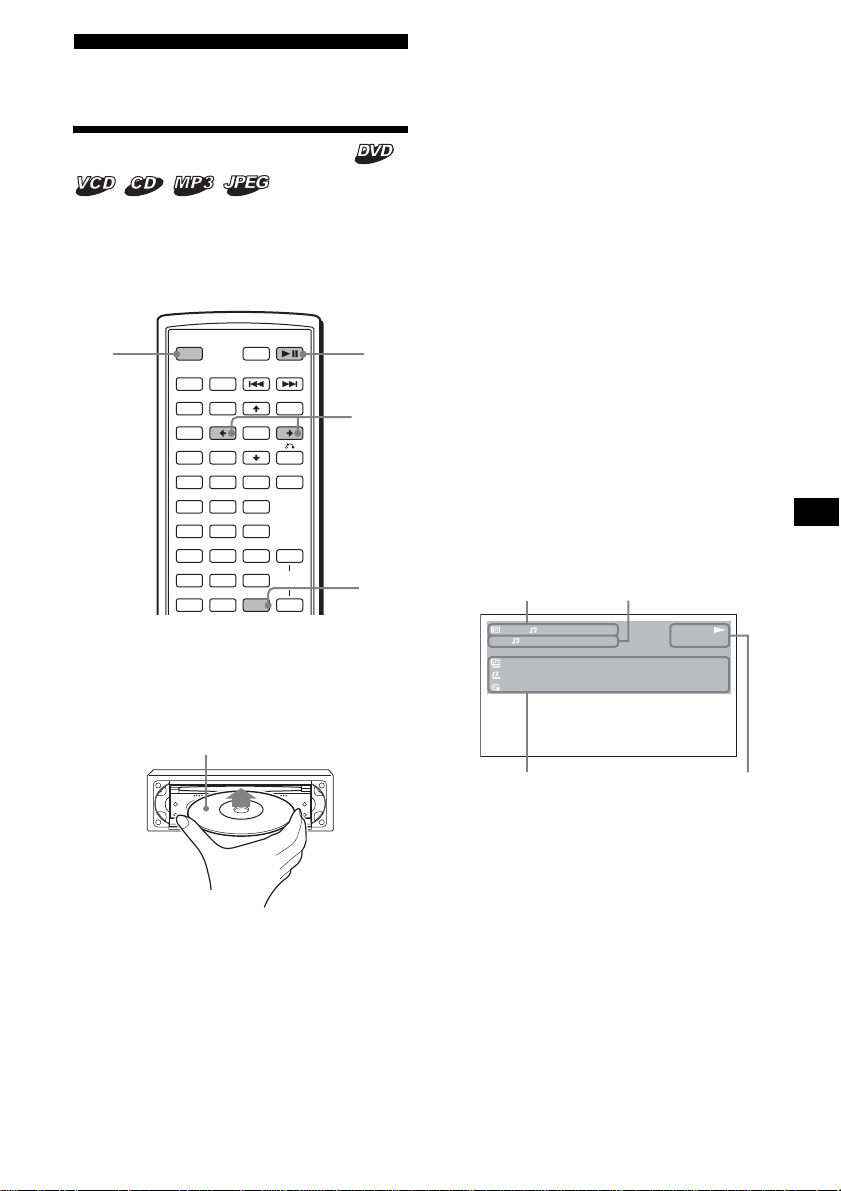
15
Reproductor
Reproducción de discos
Dependiendo del disco, es posible que algunas
operaciones sean diferentes o estén prohibidas.
Consulte las instrucciones de uso suministradas
con el disco.
1 Encienda el monitor y seleccione la
fuente de entrada del monitor que
corresponda a esta unidad.
2 Introduzca un disco.
La reproducción se iniciará automáticamente.
(En función del disco, presione DVD u
para iniciar la reproducción.)
Es posible que aparezca un menú en la
pantalla cuando se inserta un DVD o un VCD.
Si desea obtener más información sobre estos
menús, consulte la página 19 para DVD y la
página 20 para VCD.
Si la opción “MP3/JPEG” de “CUSTOM
SETUP” está ajustada en “JPEG”, la
presentación de diapositivas se iniciará
automáticamente cuando el disco contenga
archivos JPEG (página 33).
Cada vez que presione </,, la imagen gira
cada 90º.
Notas
• Si se gira una imagen de gran tamaño, es posible
que ésta demore más tiempo en visualizarse.
• Los archivos JPEG están diseñados para una
visualización óptima con una resolución de 640 x
480 píxeles. Es posible que los archivos de tamaño
distinto no se visualicen correctamente o que las
imágenes aparezcan desplazadas (hacia la
izquierda o la derecha).
• No es posible visualizar archivos JPEG progresivos.
Una vez insertado el disco
Presione DVD u para iniciar la reproducción.
Para detener la reproducción o apagar la
unidad
Presione (OFF).
Sugerencia
No se puede insertar un disco si la unidad está
apagada.
Elementos de la pantalla durante la
reproducción de CD/MP3
A Número de álbum*
1
/Número de pista/
Tiempo de reproducción transcurrido
B Modo de reproducción/Velocidad de bits*
1
*
2
C Nombre del disco*
3
/Nombre del álbum*
1
/
Nombre de la pista/Información del indicador
ID3*
1
D Estado de reproducción (NPLAY, XPAUSE,
etc.)/Formato del disco
*1 Aparece solamente cuando se reproducen
archivos MP3.
*2 Si se aplica VBR (velocidad de bits variable), no
aparecerá ninguna indicación.
*3 Si el disco o la pista no tienen nombre, aparecerá
“NO DISC NAME” o “NO TRACK NAME”.
SRC
MODE
ATT DVD
SOUND
TOP MENU
MENU
SETUP
ENTER
SYSTEM
MENU
LIST
EQZ
×
Z DSO EQ7
PICTURE
AUDIO
SUBTITLE
ANGLE
CLEAR
123
456
789
0
DSPL
OFF
+
–
VOL
+
–
OFF DVD
u
DSPL
</,
La cara de reproducción hacia abajo
continúa en la página siguiente t
1
1
MP3
PLAY
0:42
:
:
:
ALBUM NAME 001
TRACK NAME 001
ID3 INFORMATION
REP
160k
A
C
B
D
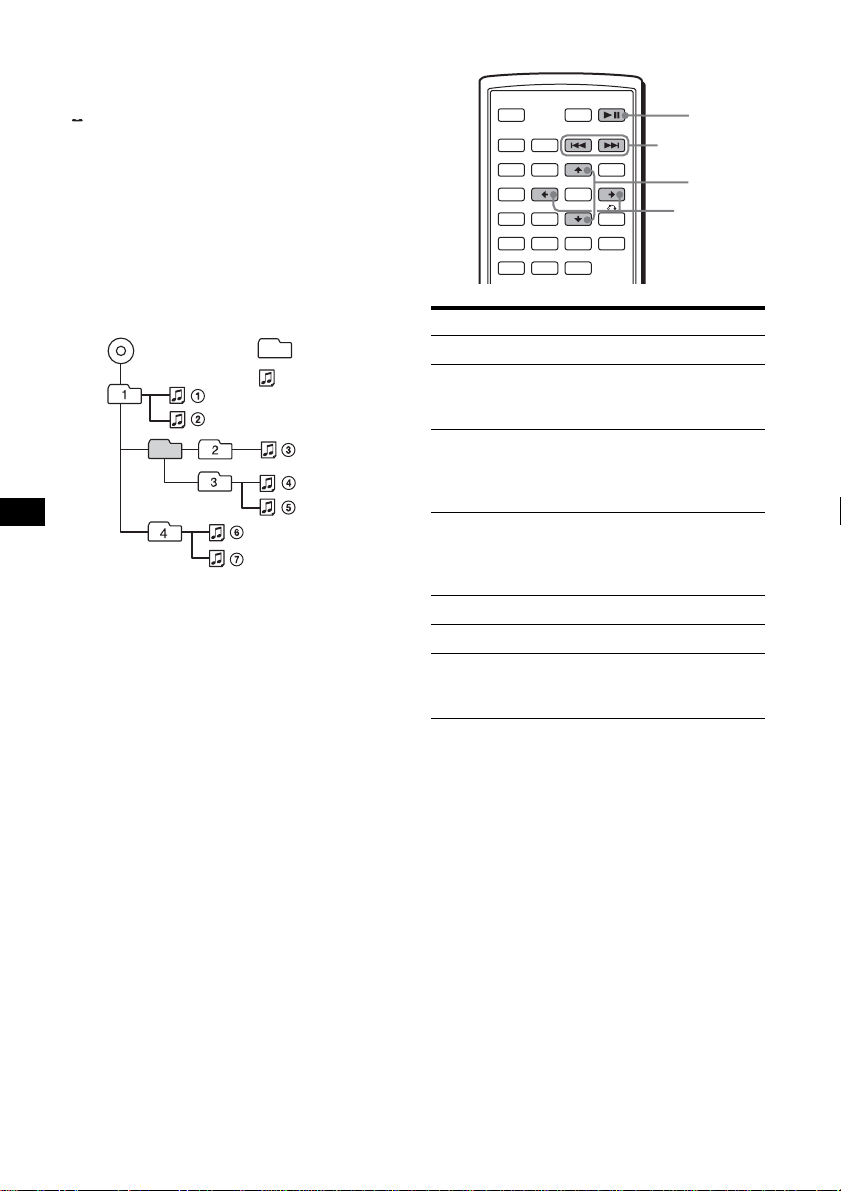
16
Para desplazarse por la información del
texto
Presione (DSPL).
Nota
“ ” aparece en lugar de los caracteres que no
pertenezcan al alfabeto ni sean números.
Notas sobre discos DVD con pista de sonido DTS
La señal de audio DTS se emite en todo momento, y
es posible que se emita un ruido fuerte desde los
altavoces si conecta la unidad al equipo de audio sin
un decodificador DTS. Esto podría dañar los altavoces
o sus oídos.
Orden de reproducción de los
archivos MP3
Notas
• El orden de reproducción puede variar según el
software de escritura.
• La unidad puede reproducir hasta 1 000 pistas y
256 álbumes. Las pistas que superen las 1 000
primeras o los álbumes que superen los 256
primeros no se reconocerán.
Sugerencias
• Si añade números (01, 02, 03, etc.) delante de los
nombres de las pistas, las pistas de cada carpeta se
reproducirán por orden numérico.
• Dado que la reproducción de un disco con muchos
árboles demora más para iniciarse, se recomienda
no crear álbumes que contengan más de dos
niveles de árboles.
• Para obtener más información acerca de los
archivos MP3, consulte “Acerca de los archivos
MP3” en la página 44.
Operaciones adicionales
* Sólo disponible cuando se reproducen archivos
MP3 o JPEG.
Carpeta
(álbum)
Archivo MP3
(pista)
MP3
Para Operación
Insertar una pausa Presione DVD u
Reanudar la
reproducción después
de la pausa
Presione DVD u
Pasar al capítulo, pista
o escena siguiente en
el modo de
reproducción continua
Presione > (,)
Retroceder al capítulo,
pista o escena anterior
en el modo de
reproducción continua
Presione . (<)
Ir al siguiente álbum Presione M*
Ir al álbum anterior Presione m*
Detener la
reproducción y extraer
el disco
Presione Z tras abrir
la bandeja de la unidad
(página 9)
SRC
MODE
ATT DVD
SOUND
TOP MENU
MENU
SETUP
ENTER
SYSTEM
MENU
LIST
EQZ
×
Z DSO EQ7
PICTURE
AUDIO
SUBTITLE
ANGLE
OFF
+
–
./>
M/m
</,
DVD
u
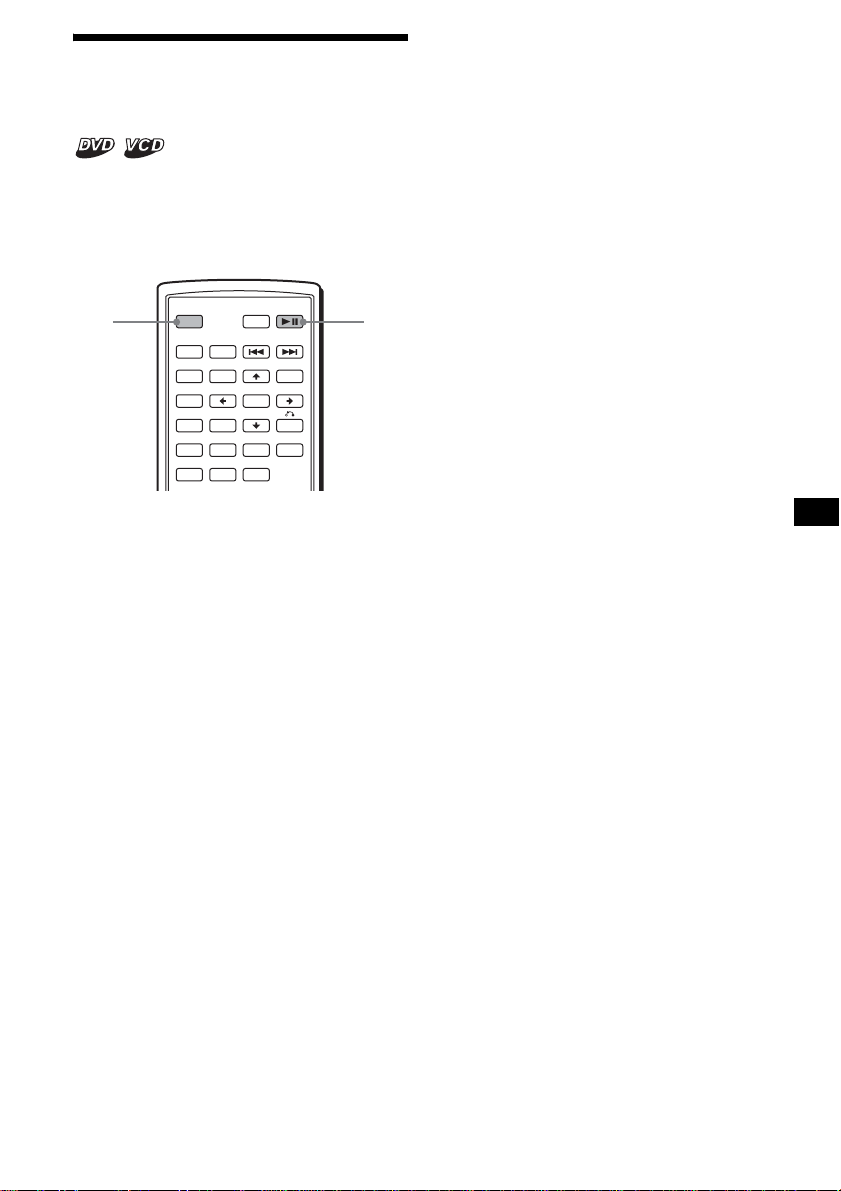
17
Reanudación de la
reproducción
— Reanudación de la reproducción
La unidad memoriza el punto en el que se detuvo
la reproducción hasta un máximo de 20 discos y
reanuda la reproducción aún después de apagar la
unidad o de expulsar el disco que se está
reproduciendo.
1 Durante la reproducción, presione
(OFF) para detenerla.
2 Presione DVD u para reanudar la
reproducción.
La reproducción se inicia desde el punto en el
que se detuvo en el paso 1.
Para reproducir un disco desde el
principio
Después de ajustar la opción “MULTI-DISC
RESUME” de “CUSTOM SETUP” en “OFF”
(página 33), presione Z para expulsar el disco y
luego vuelva a insertarlo.
En función del disco, seleccione el capítulo que
desee en el menú del DVD o el menú superior.
Notas
• La reproducción de archivos MP3 se iniciará desde
el principio de la última pista reproducida.
• Para utilizar la función de reanudación de
reproducción, asegúrese de que la opción “MULTI-
DISC RESUME” de “CUSTOM SETUP” esté
ajustada en “ON” (página 33).
• Al almacenar el punto de reanudación de
reproducción del disco número 21, se borra
automáticamente el punto de reanudación
correspondiente al primer disco.
• La reanudación de reproducción se cancela cuando
se cambia el ajuste del control de bloqueo.
• Dependiendo del disco o la escena, no podrá utilizar
la función de reanudación de reproducción.
• Si se aplica el control de bloqueo, la reanudación de
la reproducción no funcionará. En tal caso, la
reproducción se iniciará desde el principio del disco
cuando se inserte.
Sugerencia
Cuando se reproducen CD, archivos MP3 o archivos
JPEG, la unidad memoriza temporalmente el punto de
reanudación del disco que se está reproduciendo.
Cuando se apaga la unidad o se expulsa el disco, el
punto de reanudación memorizado del disco se borra.
SRC
MODE
ATT DVD
SOUND
TOP MENU
MENU
SETUP
ENTER
SYSTEM
MENU
LIST
EQZ
×
Z DSO EQ7
PICTURE
AUDIO
SUBTITLE
ANGLE
OFF
+
–
OFF
DVD
u
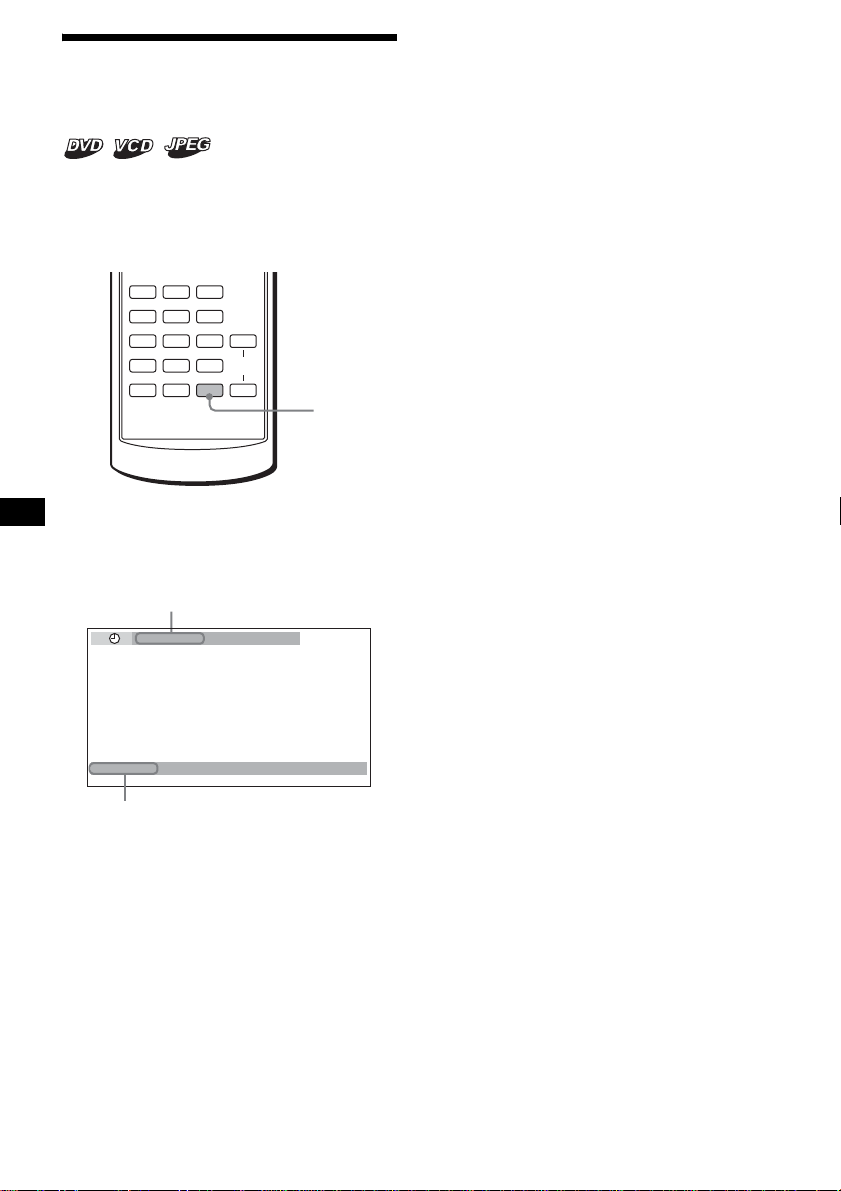
18
Visualización de la
información del disco
— Información de tiempo/texto
Puede comprobar el tiempo de reproducción y el
tiempo restante del título, capítulo o pista
actuales. Asimismo, puede comprobar la
información de texto, como el nombre del título,
capítulo, archivo, etc.
1 Durante la reproducción, presione
(DSPL).
Aparecerá la información de reproducción
actual.
2 Presione (DSPL) varias veces para
cambiar la información de tiempo.
La información de tiempo varía según el
disco de la siguiente manera:
DVD:
“T
**
:
**
:
**
” - Tiempo de reproducción
transcurrido del título actual
“T-
**
:
**
:
**
” - Tiempo restante del título
actual
“C
**
:
**
:
**
” - Tiempo de reproducción
transcurrido del capítulo actual
“C-
**
:
**
:
**
” - Tiempo restante del
capítulo actual
VCD (sin funciones PBC):
“T
**
:
**
” - Tiempo de reproducción
transcurrido de la pista actual
“T-
**
:
**
” - Tiempo restante de la pista
actual
“D
**
:
**
” - Tiempo de reproducción
transcurrido del disco actual
“D-
**
:
**
” - Tiempo restante del disco
actual
JPEG:
Número de álbum
Número de imagen
AUDIO
SUBTITLE
ANGLE
CLEAR
123
456
789
0
DSPL
VOL
+
–
DSPL
T 1:01:57
NO TEXT
Información de texto*
* Cuando no exista ninguna información de
texto, aparecerá “NO TEXT”.
Información de tiempo
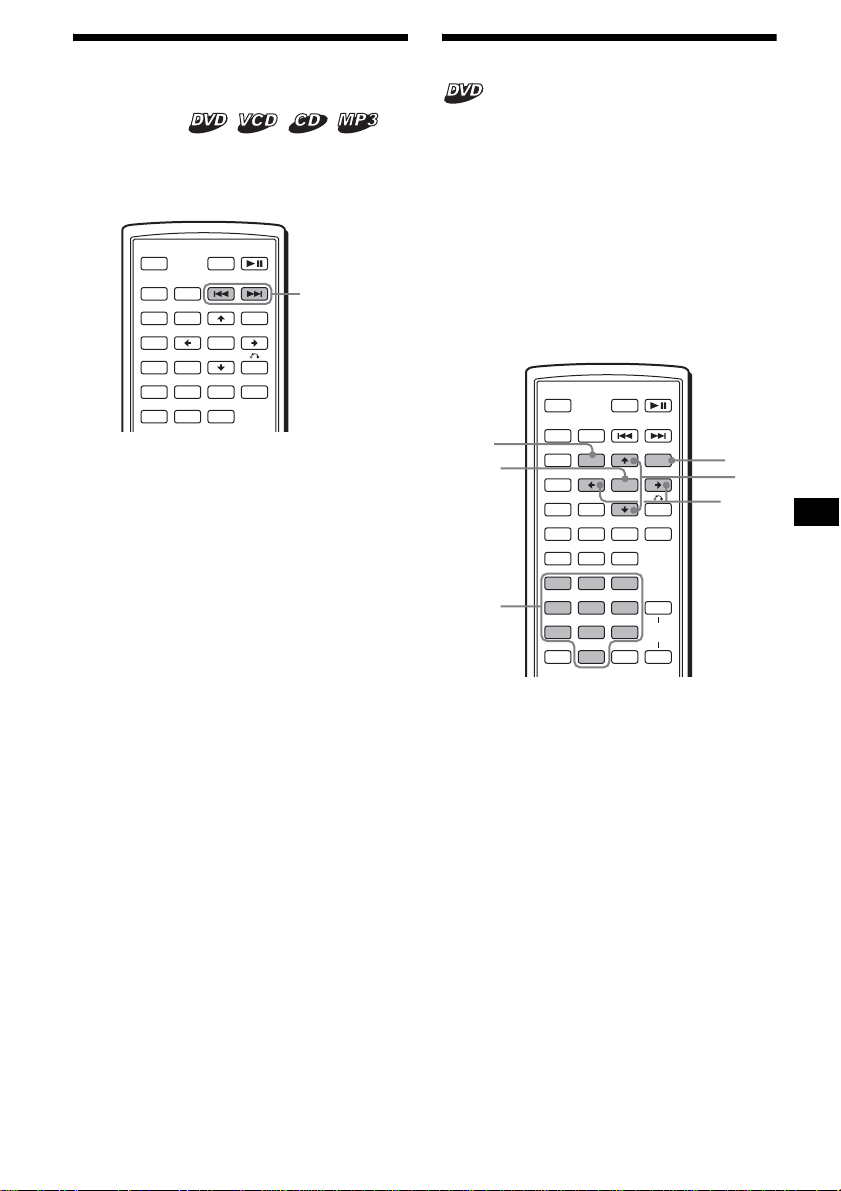
19
Búsqueda de un punto
determinado de un disco
— Exploración
Puede localizar con rapidez un punto
determinado de un disco mediante la supervisión
de las imágenes.
Durante la reproducción, mantenga
presionado ./> y suéltelo en el
punto deseado.
Si mantiene presionado el botón, la velocidad de
búsqueda aumentará.
Nota
Durante la búsqueda, no se emitirá ningún sonido ni
se visualizarán los subtítulos.
Uso de los menús del DVD
Con algunos DVD se pueden utilizar los menús
originales, como el menú superior o el menú del
DVD.
Si el DVD contiene varios títulos de pistas y
escenas, puede utilizar el menú superior para
seleccionar el título que desea y comenzar la
reproducción.
Si el DVD incluye un menú más completo con
elementos como los idiomas del audio y de los
subtítulos, títulos, capítulos, etc., puede utilizar
el menú del DVD para seleccionar el elemento
que desea y comenzar la reproducción.
1 Durante la reproducción de un DVD,
presione (TOP MENU) o (MENU).
Aparecerá el menú DVD o el menú superior.
El contenido del menú varía según el disco.
2 Presione </M/m/, o los botones
numéricos para seleccionar el
elemento que desea y luego presione
(ENTER).
Nota
Los elementos del menú y los procedimientos de
operación varían según el disco.
SRC
MODE
ATT DVD
SOUND
TOP MENU
MENU
SETUP
ENTER
SYSTEM
MENU
LIST
EQZ
×
Z DSO EQ7
PICTURE
AUDIO
SUBTITLE
ANGLE
OFF
+
–
./>
SRC
MODE
ATT DVD
SOUND
TOP MENU
MENU
SETUP
ENTER
SYSTEM
MENU
LIST
EQZ
×
Z DSO EQ7
PICTURE
AUDIO
SUBTITLE
ANGLE
CLEAR
123
456
789
0
DSPL
OFF
+
–
VOL
+
–
ENTER
M/m
</,
MENU
TOP
MENU
Botones
numéricos
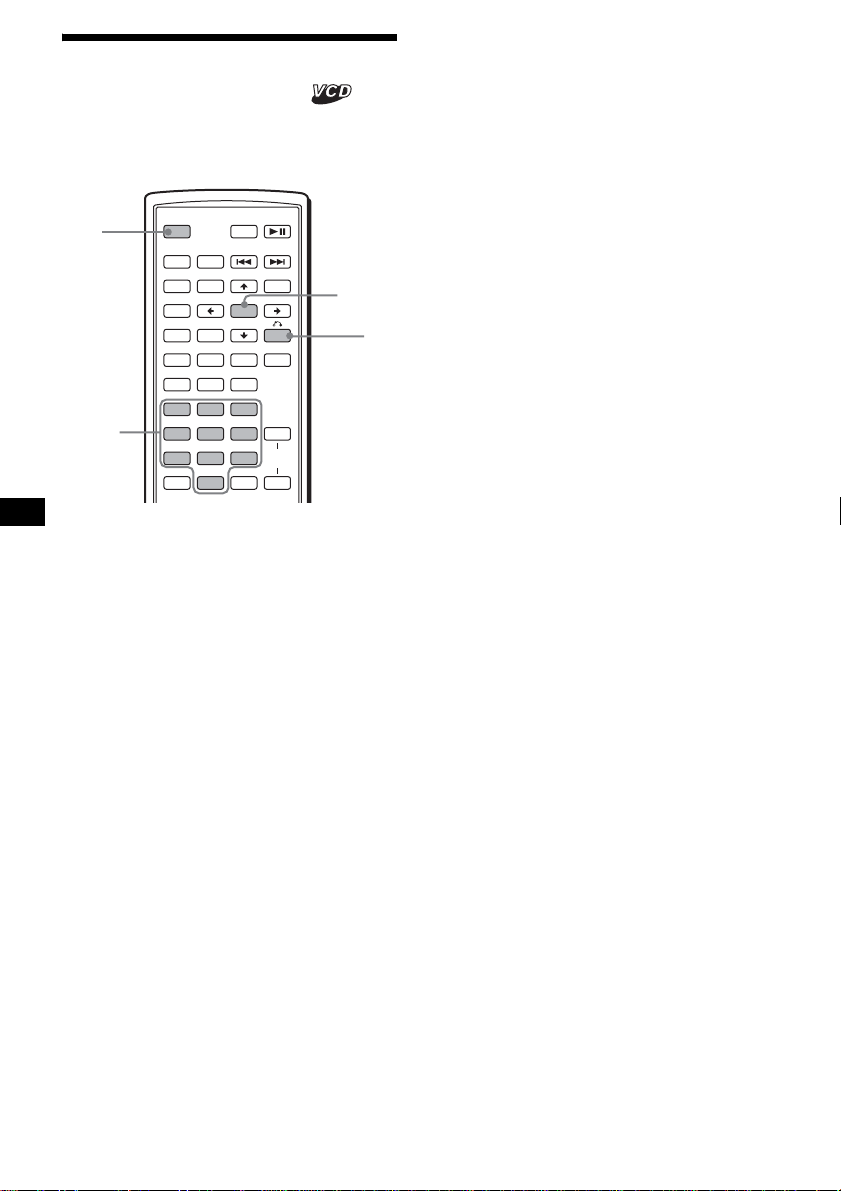
20
Uso de las funciones PBC
— PBC (control de reproducción)
El menú PBC lo asiste con las operaciones en
forma interactiva cuando se reproduce un VCD
con funciones PBC.
1 Inicie la reproducción de un VCD
compatible con las funciones PBC.
Aparecerá el menú PBC.
2 Presione los botones numéricos para
seleccionar el elemento deseado y, a
continuación, presione (ENTER).
3 Siga las instrucciones del menú para
llevar a cabo las operaciones
interactivas.
Para volver a la pantalla anterior
Presione O.
Reproducción sin la función PBC
1 Durante la reproducción, presione
(OFF).
2 Presione los botones numéricos para
seleccionar el elemento deseado y, a
continuación, presione (ENTER).
Aparecerá “Play without PBC”
(Reproducción sin PBC) y se iniciará la
reproducción.
El menú PBC no aparece durante la
reproducción.
Notas
• Los elementos del menú y los procedimientos de
operación varían según el disco.
• Durante la reproducción PBC, el número de pista, el
tiempo de reproducción y otros elementos no
aparecerán en el menú Modo de reproducción.
Sugerencia
Para reanudar la reproducción PBC, presione (OFF)
para detener la reproducción y, a continuación,
presione DVD u. Se iniciará la reproducción PBC.
SRC
MODE
ATT DVD
SOUND
TOP MENU
MENU
SETUP
ENTER
SYSTEM
MENU
LIST
EQZ
×
Z DSO EQ7
PICTURE
AUDIO
SUBTITLE
ANGLE
CLEAR
123
456
789
0
DSPL
OFF
+
–
VOL
+
–
ENTER
O
OFF
Botones
numéricos
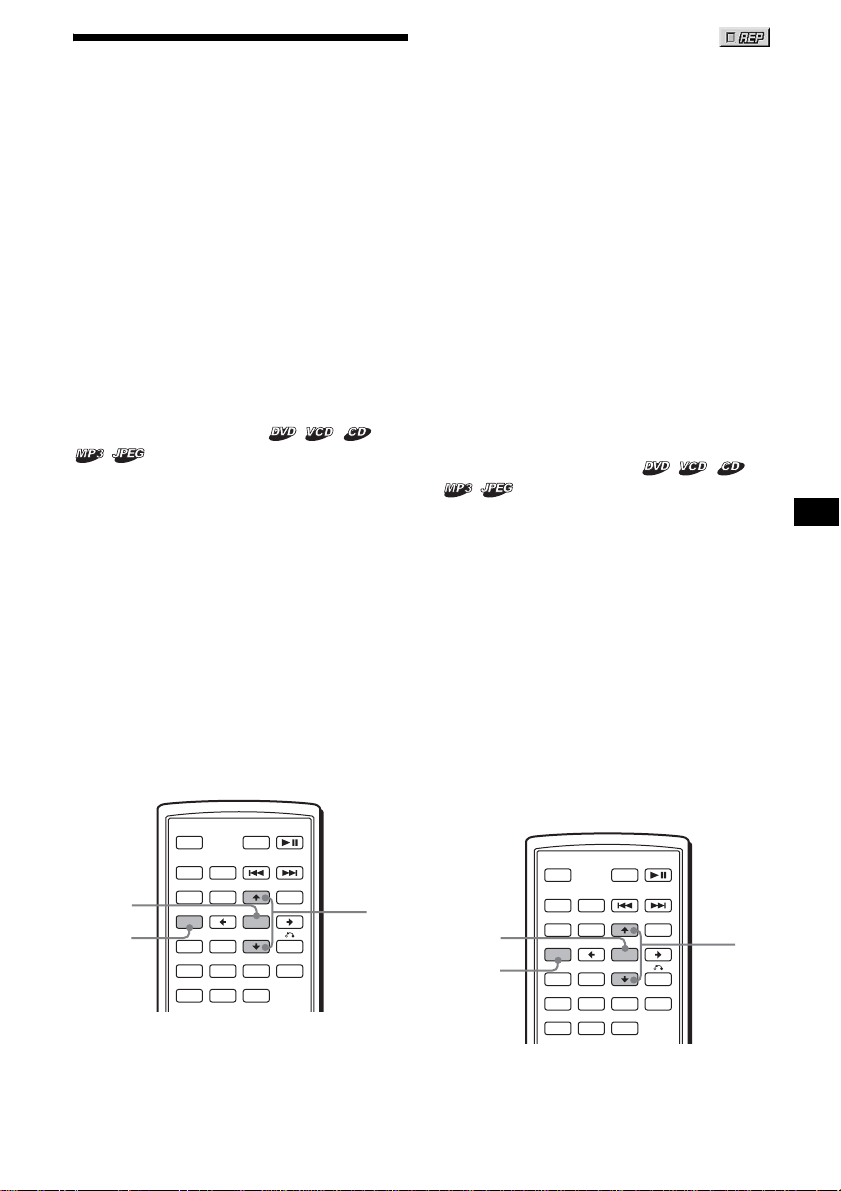
21
Reproducción en diversos
modos
— Reproducción repetida/reproducción
aleatoria/reproducción con búsqueda
Puede establecer los siguientes modos de
reproducción:
• Reproducción repetida (página 21)
• Reproducción aleatoria (página 21)
• Reproducción con búsqueda (página 22)
Notas
• El modo de reproducción seleccionado se cancela si
se expulsa el disco que se está reproduciendo o si
se apaga la unidad.
• Cuando se reproduzca un VCD con la función PBC
activada, la reproducción repetida y la aleatoria no
estarán disponibles.
Reproducción repetida
— Reproducción repetida
La unidad puede repetir un título, capítulo o pista
cuando el elemento que se está reproduciendo
llega al final.
Están disponibles las siguientes funciones de
repetición:
• TITLE (Repetición de títulos) - para repetir el
título actual.
• CHAPTER (Repetición de capítulos) - para
repetir el capítulo actual.
• TRACK (Repetición de pistas) - para repetir la
pista o imagen actual.
• ALBUM (Repetición de álbumes) - para repetir
las pistas o imágenes del álbum actual.
Nota
Cuando ajuste la reproducción repetida para CD/MP3,
utilice la unidad principal; para ello, presione (1)
(REP) varias veces.
1 Durante la reproducción, presione
(SETUP).
Aparecerá el menú Modo de reproducción.
2 Presione M/m para seleccionar
(REPEAT) y, a continuación, presione
(ENTER).
Aparecerán las opciones del Modo de
reproducción.
3 Presione M/m para seleccionar la
opción que desea y, a continuación,
presione (ENTER).
Se inicia la reproducción repetida.
Para volver a la reproducción normal
Seleccione “OFF” en el paso 3.
Para cerrar el menú Modo de
reproducción
Presione (SETUP).
Sugerencias
• Las opciones de repetición varían según el disco.
• Si lo desea, para ajustar la reproducción repetida,
también puede presionar (1) (REP) varias veces en
la unidad principal.
Reproducción en orden aleatorio
— Reproducción aleatoria
La unidad puede reproducir títulos, capítulos o
pistas en orden aleatorio.
Están disponibles las siguientes opciones de
reproducción aleatoria:
• TITLE (Reproducción aleatoria de títulos) -
para reproducir los capítulos del título actual en
orden aleatorio.
• DISC (Reproducción aleatoria de discos) - para
reproducir las pistas o imágenes del disco
actual en orden aleatorio.
• ALBUM (Reproducción aleatoria de álbumes)
- para reproducir las pistas o imágenes del
álbum actual en orden aleatorio.
Nota
Cuando ajuste la reproducción aleatoria para CD/
MP3, utilice la unidad principal; para ello, presione
(2) (SHUF) varias veces.
SRC
MODE
ATT DVD
SOUND
TOP MENU
MENU
SETUP
ENTER
SYSTEM
MENU
LIST
EQZ
×
Z DSO EQ7
PICTURE
AUDIO
SUBTITLE
ANGLE
OFF
+
–
ENTER
SETUP
M/m
continúa en la página siguiente t
SRC
MODE
ATT DVD
SOUND
TOP MENU
MENU
SETUP
ENTER
SYSTEM
MENU
LIST
EQZ
×
Z DSO EQ7
PICTURE
AUDIO
SUBTITLE
ANGLE
OFF
+
–
ENTER
SETUP
M/m
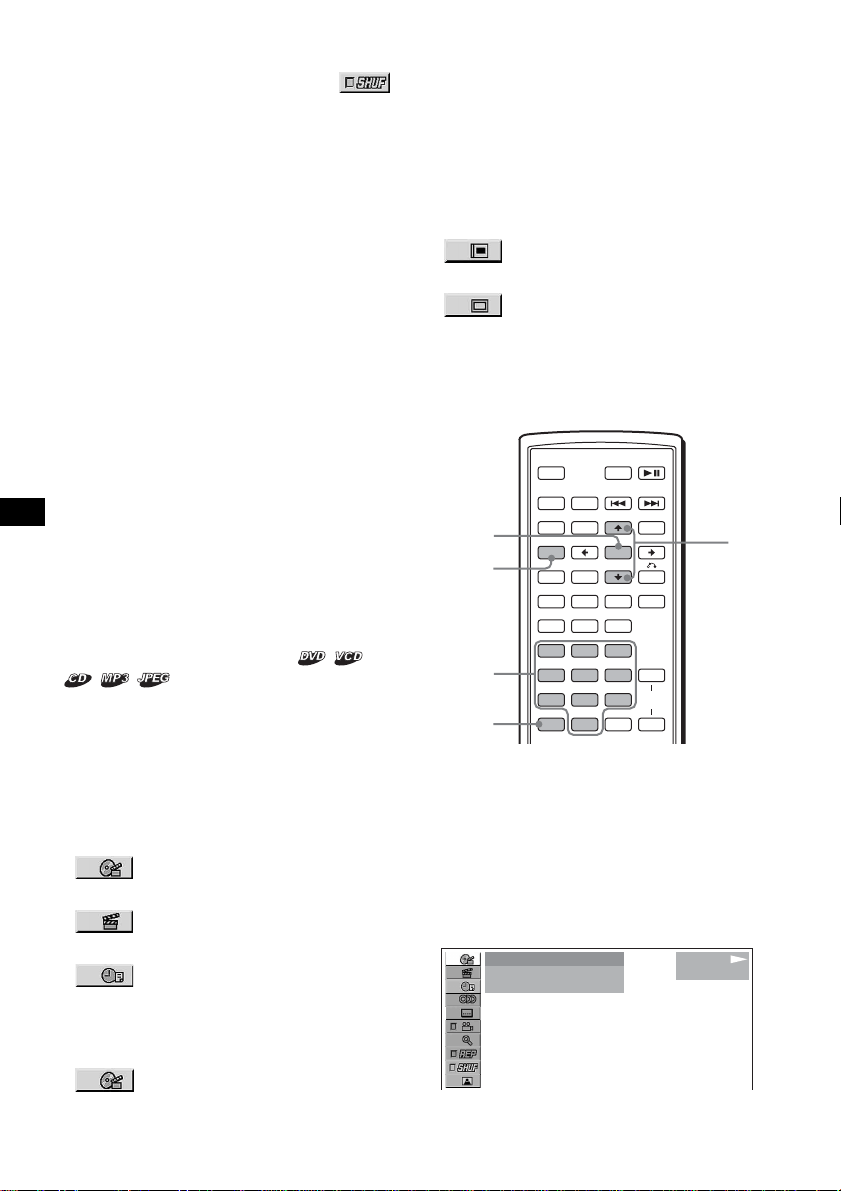
22
1 Durante la reproducción, presione
(SETUP).
2 Presione M/m para seleccionar
(SHUFFLE) y, a continuación, presione
(ENTER).
Aparecerán las opciones del Modo de
reproducción.
3 Presione M/m para seleccionar la
opción que desea y, a continuación,
presione (ENTER).
Se inicia la reproducción aleatoria.
Para volver a la reproducción normal
Seleccione “OFF” en el paso 3.
Para cerrar el menú Modo de
reproducción
Presione (SETUP).
Notas
• La reproducción aleatoria de títulos para DVD se
cancelará después de reproducirse una vez.
• La reproducción aleatoria de títulos para DVD se
cancelará si se presiona . o > durante la
reproducción.
Sugerencias
• Las opciones de reproducción aleatoria varían
según el disco.
• Si lo desea, para ajustar la reproducción aleatoria,
también puede presionar (2) (SHUF) varias veces
en la unidad principal.
Inicio de la reproducción desde un
punto seleccionado
— Reproducción con búsqueda
Puede localizar con rapidez un punto deseado al
especificar el título, capítulo, tiempo transcurrido
del título (mediante el código de tiempo) o la
pista.
En función del disco, dispondrá de las siguientes
opciones de búsqueda:
DVD:
• TITLE inicia la reproducción a partir
del título seleccionado.
• CHAPTER inicia la reproducción a
partir del capítulo seleccionado.
• TIME/TEXT inicia la reproducción a
partir del punto correspondiente al código de
tiempo ingresado.
VCD:
• TRACK inicia la reproducción a
partir de la pista seleccionada.
CD:
• TRACK inicia la reproducción a partir de la
pista seleccionada.
MP3:
• TRACK inicia la reproducción a partir de la
pista seleccionada.
JPEG:
• ALBUM inicia la reproducción a
partir del álbum seleccionado.
• IMAGE inicia la reproducción a
partir de la imagen seleccionada.
Nota
Para localizar una pista de CD/MP3, presione los
botones numéricos para ingresar el número de pista y,
a continuación, presione (ENTER).
1 Durante la reproducción, presione
(SETUP).
Aparecerá el menú Modo de reproducción.
2 Presione M/m para seleccionar el
elemento de búsqueda que desea y, a
continuación, presione (ENTER).
Los elementos de búsqueda varían según el
disco.
El número entre paréntesis indica el total de
elementos seleccionados.
SRC
MODE
ATT DVD
SOUND
TOP MENU
MENU
SETUP
ENTER
SYSTEM
MENU
LIST
EQZ
×
Z DSO EQ7
PICTURE
AUDIO
SUBTITLE
ANGLE
CLEAR
123
456
789
0
DSPL
OFF
+
–
VOL
+
–
ENTER
SETUP
M/m
CLEAR
Botones
numéricos
12
(
67
)
018
(
034
)
T 1:35:55
1
PLAY
DVDVIDEO
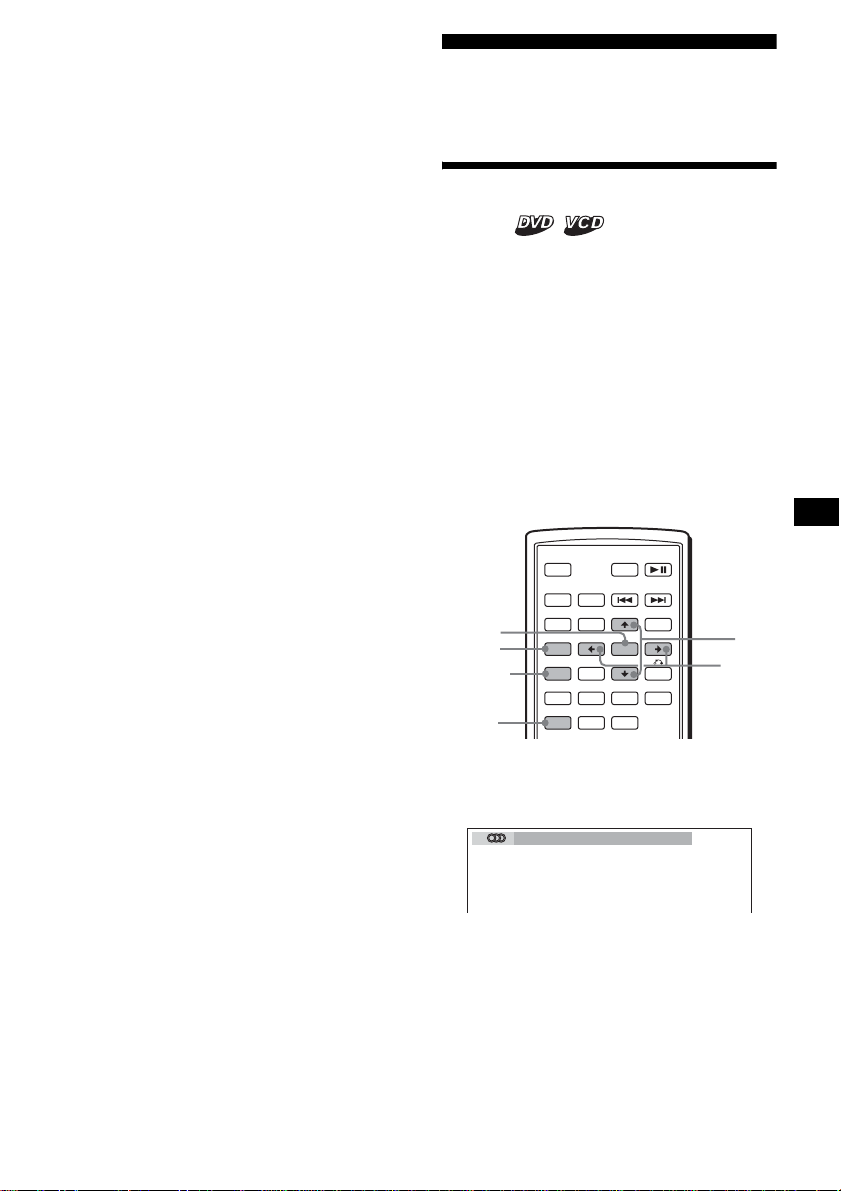
23
3 Presione los botones numéricos para
introducir el número del título, número
del capítulo, número de pista o tiempo
transcurrido del título.
Por ejemplo, para buscar el punto deseado a
las 2 horas, 10 minutos y 20 segundos desde
el principio, basta con ingresar “2:10:20”.
Para borrar los números ya introducidos,
presione (CLEAR).
4 Presione (ENTER).
Comenzará la reproducción desde el punto
seleccionado.
Para cerrar el menú Modo de
reproducción
Presione (SETUP).
Diversas operaciones
con DVD
Cambio de los canales de
audio
Al reproducir un DVD grabado en múltiples
formatos de audio (PCM, Dolby Digital o DTS),
podrá cambiar el formato de audio. Si el DVD
está grabado con pistas en varios idiomas,
también podrá cambiar el idioma.
Con los VCD, puede seleccionar el sonido del
canal derecho o izquierdo y escuchar el sonido
del canal seleccionado a través de los altavoces
derecho e izquierdo. Por ejemplo, al reproducir
un disco que contenga una canción con el sonido
vocal en el canal derecho y el instrumental en el
izquierdo, es posible seleccionar el canal
izquierdo y escuchar el instrumental por ambos
altavoces.
Durante la reproducción, presione
(AUDIO) varias veces para seleccionar
los canales de audio que desea.
Los ajustes del sonido de audio varían según
el disco de la siguiente manera:
DVD:
El idioma del audio cambia entre los idiomas
disponibles.
Si aparecen 4 dígitos, introduzca el código de
idioma correspondiente al idioma que desea
(página 53).
continúa en la página siguiente t
SRC
MODE
ATT DVD
SOUND
TOP MENU
MENU
SETUP
ENTER
SYSTEM
MENU
LIST
EQZ
×
Z DSO EQ7
PICTURE
AUDIO
SUBTITLE
ANGLE
OFF
+
–
SETUP
M/m
AUDIO
SYSTEM
MENU
ENTER
</,
1:ENGLISH DolbyD
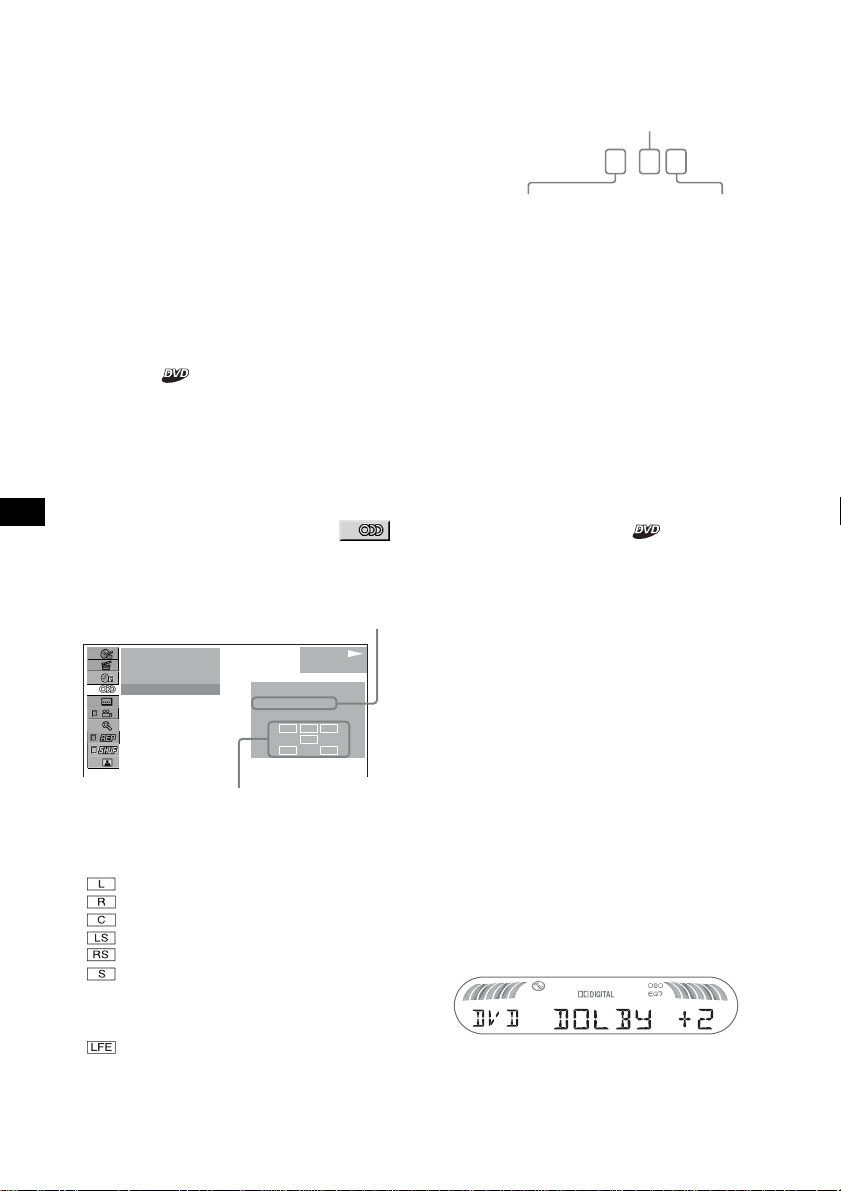
24
Si el mismo idioma aparece dos o más veces,
significa que el DVD está grabado en varios
formatos de audio.
VCD:
STEREO*: sonido estéreo estándar
1/L: sonido del canal izquierdo (monoaural)
2/R: sonido del canal derecho (monoaural)
* El ajuste predeterminado
Nota
Es posible que no pueda cambiar los canales de
audio con algunos discos.
Sugerencia
También puede cambiar los ajustes seleccionando
“AUDIO” en el menú Modo de reproducción
(página 13).
Comprobación del formato de
programa
Puede comprobar el número de canales y la
posición de los componentes del DVD que se
está reproduciendo.
1 Durante la reproducción, presione
(SETUP).
Aparecerá el menú Modo de reproducción.
2 Presione
M/
m para seleccionar
(AUDIO) y, a continuación, presione
(ENTER).
Aparecerá el formato de programa.
Las letras de la pantalla de formato de
programa representan los siguientes
componentes de sonido y sus posiciones:
: Frontal (izquierdo)
: Frontal (derecho)
: Central
: Posterior (izquierdo)
: Posterior (derecho)
: Posterior (monoaural): componente
posterior de la señal estéreo procesada
con Dolby Surround y de la señal
Dolby Digital
: Señal de efecto de baja frecuencia
Si se aplica “DOLBY DIGITAL”, el nombre
del formato de programa y los números de
canal aparecen como se indica a continuación:
Ejemplo: Dolby Digital (5.1 canales)
*1 “PCM”, “DTS” o “DOLBY DIGITAL” aparece según
el disco.
*2 Aparece solamente cuando se aplica el formato
“DOLBY DIGITAL”.
Para cerrar el menú Modo de
reproducción
Presione (SETUP).
Sugerencia
En Dolby Digital y DTS, la indicación “LFE” siempre
aparece dentro de una línea continua
independientemente del componente de señal LFE
emitida.
Ajuste del nivel de salida de audio
— Ajuste del nivel de DVD
El nivel de salida de audio de discos DVD
VIDEO difiere en función del formato de audio
empleado para la grabación (PCM, Dolby Digital
o DTS). Es posible ajustar el nivel de salida de
PCM, Dolby Digital o DTS en forma
independiente para reducir las diferencias de
nivel de volumen entre el disco y la fuente.
1 Presione (SYSTEM MENU).
2 Presione M/m varias veces para
seleccionar “DVD LVL” y, a
continuación, presione (ENTER).
3 Presione , para ajustarlo en “ADJ-
ON” y, a continuación, presione
(ENTER).
4 Presione </, para seleccionar
“DOLBY”, “DTS” o “PCM”.
5 Presione M/m para ajustar el nivel de
salida y, a continuación, presione
(ENTER).
Nota
Sólo podrá ajustar el nivel de salida si insertó un disco
en la unidad.
Sugerencia
El nivel de salida puede ajustarse de –6 dB a +6 dB.
L C
LFE
LS
R
RS
12
(
67
)
018
(
034
)
T 01:35:55
1: ENGLISH
PROGRAMFORMAT
DOLBY DIGITAL
3 / 2. 1
PLAY
DVDVIDEO
Formato de audio actual*
1
Formato de programa actual*
2
DOLBY DIGITAL
3 / 2 . 1
Componente LFE
(efecto de baja
frecuencia) × 1
Componente posterior × 2
Componente frontal × 2 +
Componente central × 1
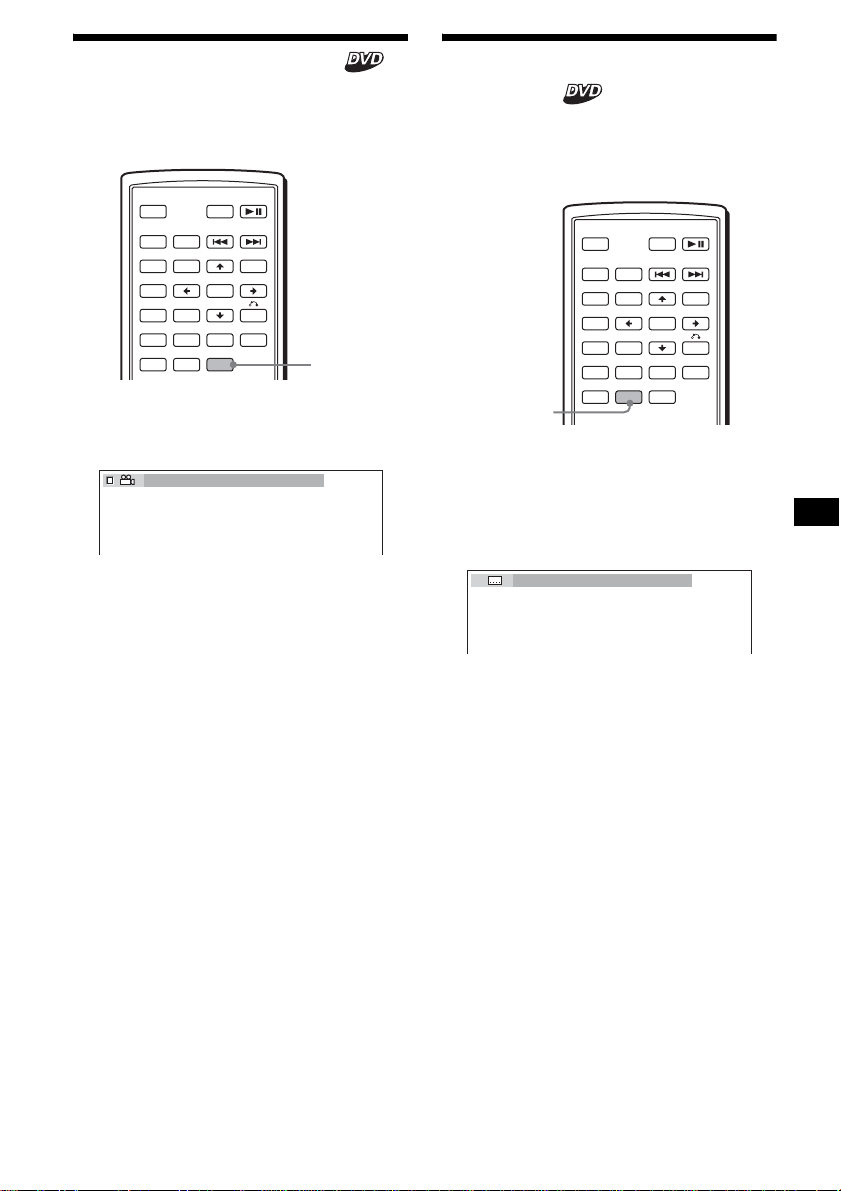
25
Cambio de los ángulos
Si el DVD contiene distintos ángulos
(multiángulos) para una escena, podrá cambiar el
ángulo de visualización.
Presione (ANGLE) varias veces para
seleccionar el número de ángulo que
desea.
El ángulo cambia.
Nota
En función del DVD, es posible que no pueda cambiar
los ángulos aunque haya varios ángulos grabados.
Sugerencia
También puede cambiar el ángulo de visualización
seleccionando “ANGLE” en el menú Modo de
reproducción (página 13).
Visualización de los
subtítulos
Puede activar o desactivar los subtítulos o
cambiar el idioma de los subtítulos si el DVD
tiene grabados los subtítulos en varios idiomas.
1 Durante la reproducción, presione
(SUBTITLE).
Aparecerá el idioma de los subtítulos.
2 Presione (SUBTITLE) varias veces para
seleccionar el idioma que desea.
Los idiomas disponibles varían según el
disco.
Si aparecen 4 dígitos, introduzca el código de
idioma correspondiente al idioma que desea
(página 53).
Para desactivar los subtítulos
Presione (SUBTITLE) varias veces para
seleccionar “OFF”.
Nota
En función del DVD, es posible que no pueda cambiar
(o desactivar) los subtítulos aunque los tenga
grabados en varios idiomas.
Sugerencia
También puede cambiar el idioma de los subtítulos
seleccionando “SUBTITLE” en el menú Modo de
reproducción (página 13) o en el menú del DVD
(página 19).
SRC
MODE
ATT DVD
SOUND
TOP MENU
MENU
SETUP
ENTER
SYSTEM
MENU
LIST
EQZ
×
Z DSO EQ7
PICTURE
AUDIO
SUBTITLE
ANGLE
OFF
+
–
ANGLE
2
(
2
)
SRC
MODE
ATT DVD
SOUND
TOP MENU
MENU
SETUP
ENTER
SYSTEM
MENU
LIST
EQZ
×
Z DSO EQ7
PICTURE
AUDIO
SUBTITLE
ANGLE
OFF
+
–
SUBTITLE
1:ENGLISH
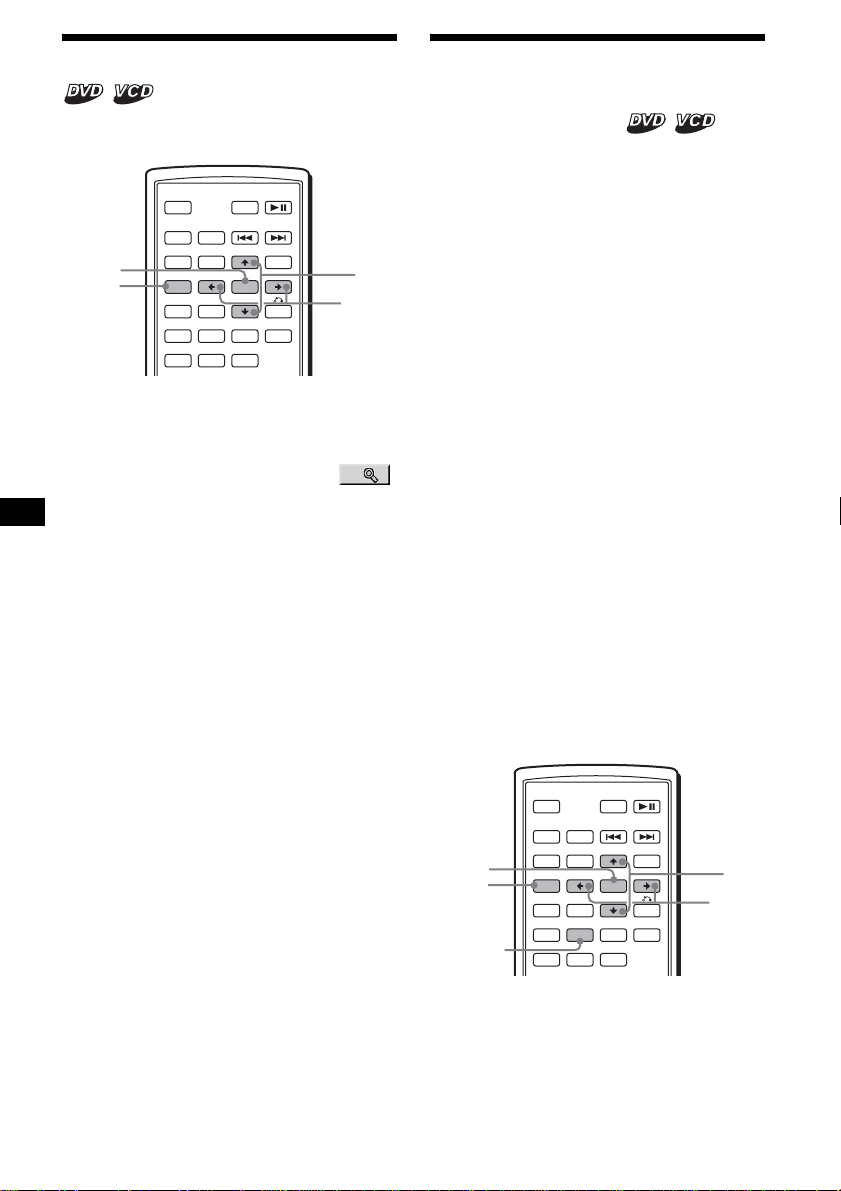
26
Ampliación de imágenes
Puede aumentar el tamaño de las imágenes.
1 Durante la reproducción, presione
(SETUP).
Aparecerá el menú Modo de reproducción.
2 Presione M/m para seleccionar
(CENTER ZOOM) y, a continuación,
presione (ENTER).
Aparecerá la opción actual.
3 Presione M/m para seleccionar la
opción que desea (ZOOM×1, ×2*, ×4*)
y, a continuación, presione (ENTER).
La imagen se amplía.
* La imagen aparece granulada.
Para desplazar la posición del marco
Tras ampliar la imagen, presione </M/m/,.
Para restaurar la escala original
Seleccione “ZOOM×1” en el paso 3.
Para cerrar el menú Modo de
reproducción
Presione (SETUP).
Notas
• En algunos DVD, es posible que no pueda cambiar
el tamaño.
• Si reanuda la reproducción, la imagen regresará a
su escala original.
Cambio de la calidad de
imagen
— Ecualizador de imagen
Puede seleccionar la calidad de imagen adecuada
al brillo del interior del vehículo.
Puede ajustar “PICTURE EQ” de “CUSTOM
SETUP” en “LIGHT OFF”, “LIGHT ON” o
“AUTO” (página 34). Las opciones (a
continuación) varían en función del ajuste. Si
ajusta “PICTURE EQ” en “AUTO”, las opciones
disponibles cambiarán en forma automática en
función de si la luz está encendida o apagada.
Están disponibles las siguientes opciones de
ajuste:
• NORMAL - calidad de imagen normal.
• Daytime*
1
- adecuada para lugares brillantes.
•Sunset*
1
- adecuada para cuando empieza a
oscurecer.
• Shine*
1
- adecuada para lugares muy brillantes
(por ejemplo, cuando la luz del sol se refleja en
el monitor).
• Night*
2
- oscurece el monitor para que no le
distraiga al manejar de noche.
• Midnight*
2
- oscurece el monitor más que la
opción “Night”.
• Theater*
2
- aumenta el brillo del monitor;
adecuada si desea que el monitor tenga mucho
brillo de noche.
• CUSTOM - ajustes configurables por parte del
usuario.
*1 Disponible cuando “PICTURE EQ” de “CUSTOM
SETUP” está ajustado en “LIGHT OFF” o “AUTO” y
la luz está apagada.
*2 Disponible cuando “PICTURE EQ” de “CUSTOM
SETUP” está ajustado en “LIGHT ON” o “AUTO” y
la luz está encendida.
SRC
MODE
ATT DVD
SOUND
TOP MENU
MENU
SETUP
ENTER
SYSTEM
MENU
LIST
EQZ
×
Z DSO EQ7
PICTURE
AUDIO
SUBTITLE
ANGLE
OFF
+
–
ENTER
SETUP
M/m
</,
SRC
MODE
ATT DVD
SOUND
TOP MENU
MENU
SETUP
ENTER
SYSTEM
MENU
LIST
EQZ
×
Z DSO EQ7
PICTURE
AUDIO
SUBTITLE
ANGLE
OFF
+
–
ENTER
SETUP
M/m
</,
PICTURE
EQ
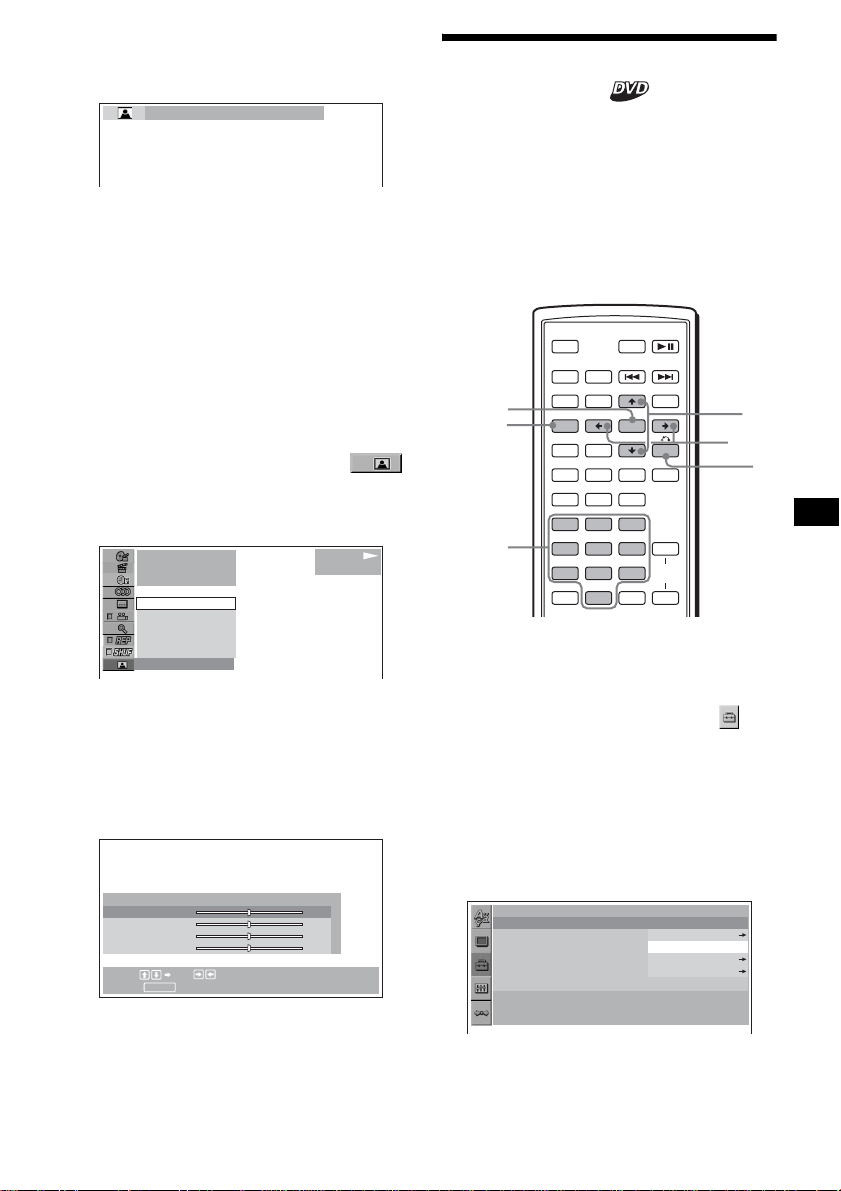
27
Durante la reproducción, presione
(PICTURE EQ) varias veces para
seleccionar el ajuste que desea.
Sugerencia
También puede cambiar la calidad de imagen
seleccionando “PICTURE EQ” en el menú Modo de
reproducción (página 13).
Configuración de los ajustes
personalizados
Puede almacenar sus propios ajustes
personalizados para distintos tonos de imagen.
1 Durante la reproducción, presione
(SETUP).
Aparecerá el menú Modo de reproducción.
2 Presione M/m para seleccionar
(PICTURE EQ) y, a continuación,
presione (ENTER).
Aparecen los elementos de ajuste.
3 Presione M/m para seleccionar
“CUSTOM” y, a continuación, presione
(ENTER).
4 Presione M/m para seleccionar el
elemento de ajuste y, a continuación,
presione </, para ajustar el nivel.
5 Presione (ENTER).
Sugerencia
Los ajustes correspondientes a “LIGHT OFF” y
“LIGHT ON” pueden almacenarse por separado.
Bloqueo de discos
— Control de bloqueo
Puede bloquear un disco o establecer
restricciones de reproducción según niveles
predeterminados como, por ejemplo, la edad de
los usuarios. Las escenas de reproducción
prohibida se bloquean o reemplazan con escenas
diferentes cuando se reproduce un DVD con
control de bloqueo.
Activación del control de bloqueo
1 Presione (SETUP) con la reproducción
detenida.
Aparecerá el menú de ajuste.
2 Presione M/m para seleccionar
(CUSTOM SETUP) y, a continuación,
presione (ENTER).
Aparecen los elementos de ajuste.
3 Presione M/m para seleccionar
“PARENTAL CONTROL” y, a
continuación, presione (ENTER).
Aparecerán las opciones de control de
bloqueo.
Daytime
1
001
002:35
PLAY
DVDVIDEO
Daytime
Sunset
Shine
CUSTOM
NORMAL
NORMAL
Select: Set:
Cancel:
RETURN
Color
Bright
Contrast
Tint
0
0
0
0
USER CUSTOM SETUP
continúa en la página siguiente t
SRC
MODE
ATT DVD
SOUND
TOP MENU
MENU
SETUP
ENTER
SYSTEM
MENU
LIST
EQZ
×
Z DSO EQ7
PICTURE
AUDIO
SUBTITLE
ANGLE
CLEAR
123
456
789
0
DSPL
OFF
+
–
VOL
+
–
ENTER
SETUP
M/m
</,
O
Botones
numéricos
CUSTOM SETUP
PARENTAL CONTROL :
MUTI–DISC RESUME :
MP3/JPEG :
SLIDE SHOW TIME :
PLAY LIST PLAY :
PICTURE EQ :
OFF
ON
OFF
PLAYER
PASSWORD
AUTO
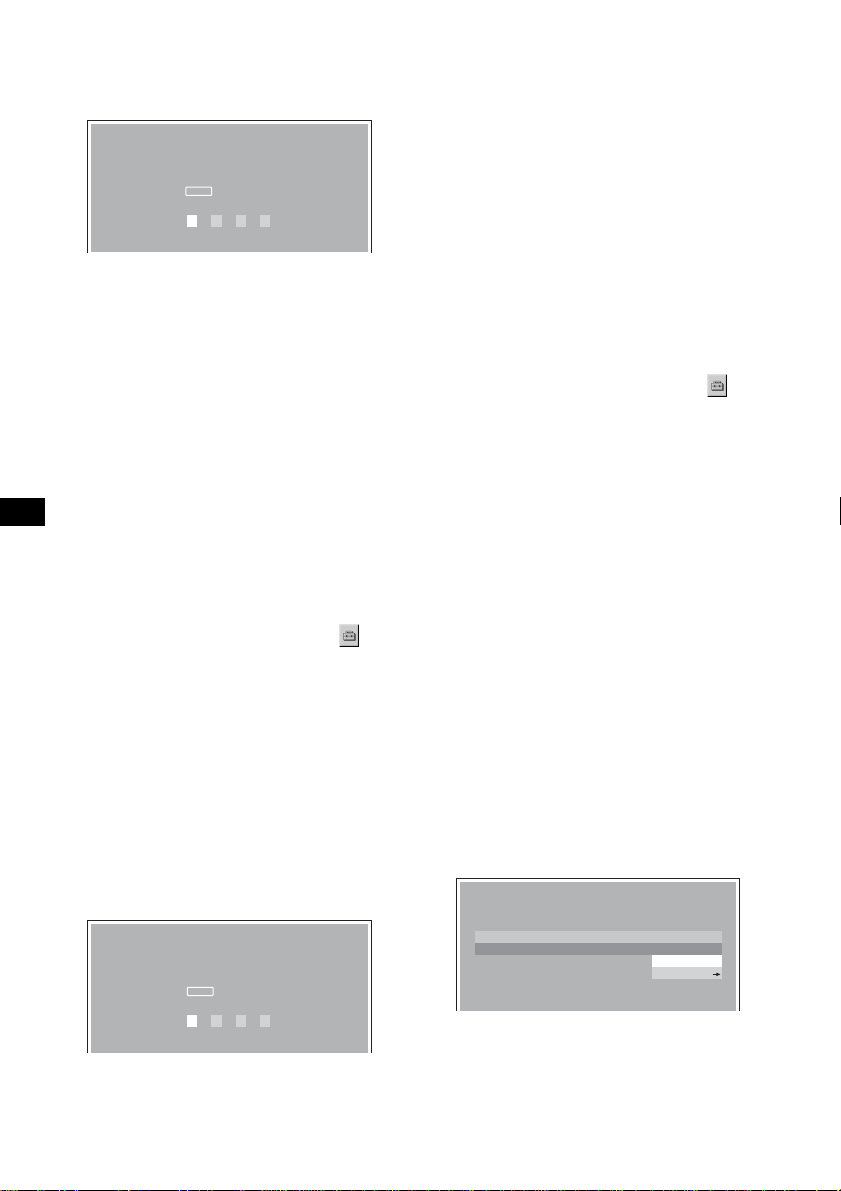
28
4 Presione M/m para seleccionar
“ON t” y, a continuación, presione
(ENTER).
Aparecerá la pantalla de ajuste de contraseña.
5 Presione los botones numéricos para
introducir la contraseña y presione
(ENTER).
Aparecerá la pantalla de confirmación.
6 Para confirmar, presione los botones
numéricos para volver a ingresar la
contraseña y luego presione (ENTER).
El control de bloqueo está establecido.
Para cerrar el menú Configuración
Presione (SETUP).
Desactivación del control de
bloqueo
1 Presione (SETUP) con la reproducción
detenida.
Aparecerá el menú de ajuste.
2 Presione M/m para seleccionar
(CUSTOM SETUP) y, a continuación,
presione (ENTER).
Aparecen los elementos de ajuste.
3 Presione M/m para seleccionar
“PARENTAL CONTROL” y, a
continuación, presione (ENTER).
Aparecerán las opciones de control de
bloqueo.
4 Presione M/m para seleccionar “OFF
t” y, a continuación, presione
(ENTER).
Aparecerá la pantalla para que introduzca la
contraseña.
5 Presione los botones numéricos para
ingresar la contraseña y, a
continuación, presione (ENTER).
Aparecerá el mensaje “Parental control is
canceled” (El control de bloqueo se canceló).
Si introduce un número incorrecto, presione
< para mover el cursor y vuelva a introducir
el número.
Cambio de área y del nivel de
clasificación de películas
Puede establecer niveles de restricción según el
área y las clasificaciones de las películas.
1 Presione (SETUP) con la reproducción
detenida.
Aparecerá el menú de ajuste.
2 Presione M/m para seleccionar
(CUSTOM SETUP) y, a continuación,
presione (ENTER).
Aparecen los elementos de ajuste.
3 Presione M/m para seleccionar
“PARENTAL CONTROL” y, a
continuación, presione (ENTER).
Aparecerán las opciones de control de
bloqueo.
4 Presione M/m para seleccionar
“PLAYER t” y, a continuación,
presione (ENTER).
Cuando el control de bloqueo ya esté
activado, aparecerá la pantalla para introducir
la contraseña.
Para cambiar los ajustes, introduzca el
número de la contraseña y presione
(ENTER).
Si introduce un número incorrecto, presione
< para mover el cursor y vuelva a introducir
el número.
5 Presione M/m para seleccionar
“STANDARD” y presione (ENTER).
Aparecerán las opciones estándar.
PARENTAL CONTROL
Enter a new 4–digit password,
then press .
ENTER
PASSWORD
PARENTAL CONTROL
Enter password,
then press .
ENTER
PASSWORD
CUSTOM SETUP
LEVEL :
STANDARD :
8:
USA
USA
OTHER
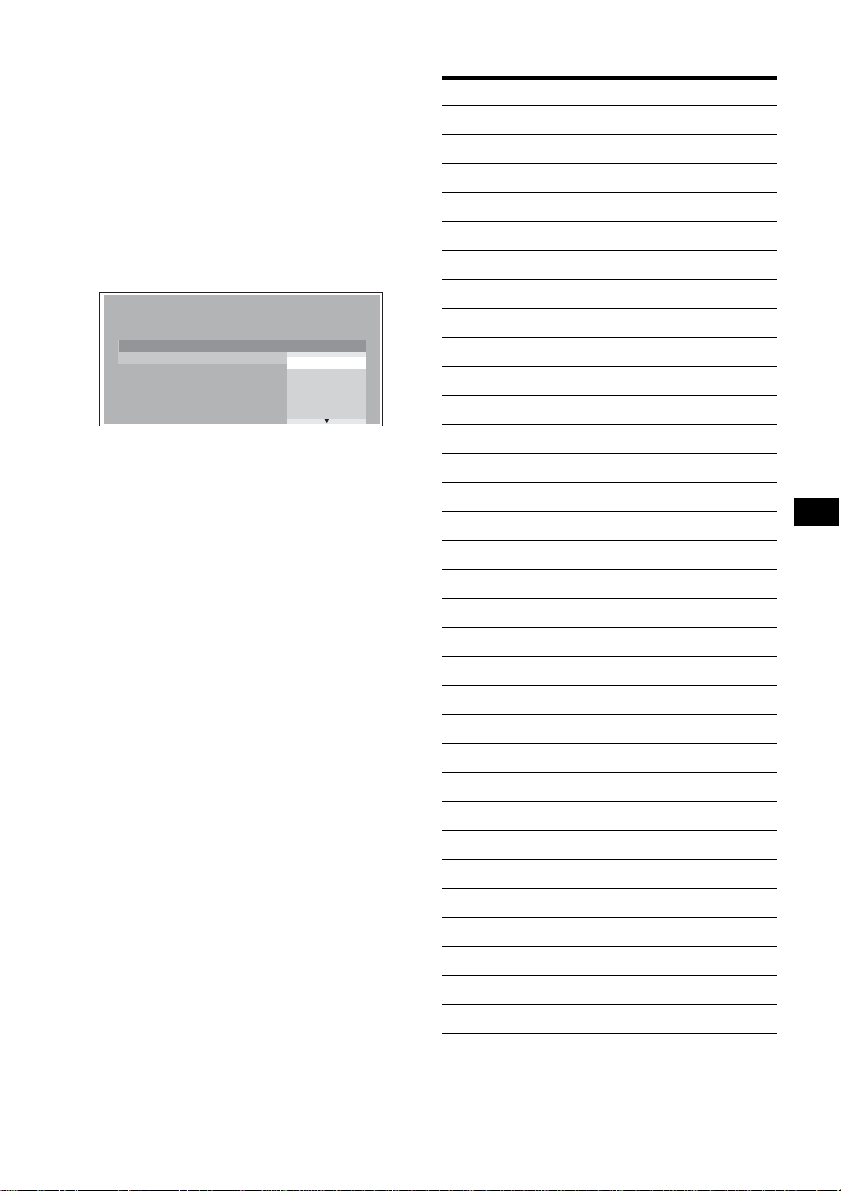
29
6 Presione M/m para seleccionar el área
que desea a fin de aplicar su
clasificación de película y, a
continuación, presione (ENTER).
El área queda seleccionada.
Si desea seleccionar la opción estándar en la
“Lista de código de área” (página 29),
seleccione “OTHERS t” y luego introduzca
el número de código mediante los botones
numéricos.
7 Presione M/m para seleccionar
“LEVEL” y luego presione (ENTER).
Aparecerán las opciones de clasificación.
Mientras menor sea el número, más estricto
será el nivel de restricción.
8 Presione M/m para seleccionar la
clasificación que desea y presione
(ENTER).
El ajuste de control de bloqueo se completó.
Para cerrar el menú Configuración
Presione (SETUP).
Nota
Si reproduce discos que no poseen la opción de
control de bloqueo, no podrá limitar la reproducción en
esta unidad.
Lista de códigos de área
NC17
R
PG13
8:
7:
6:
5:
4:
CUSTOM SETUP
LEVEL :
STANDARD :
8:
Estándar Número de código
Alemania 2109
Argentina 2044
Australia 2047
Austria 2046
Bélgica 2057
Brasil 2070
Canadá 2079
Chile 2090
China 2092
Corea 2304
Dinamarca 2115
España 2149
Filipinas 2424
Finlandia 2165
Francia 2174
India 2248
Indonesia 2238
Italia 2254
Japón 2276
Malasia 2363
México 2362
Noruega 2379
Nueva Zelanda 2390
Países Bajos 2376
Pakistán 2427
Portugal 2436
Reino Unido 2184
Rusia 2489
Singapur 2501
Suecia 2499
Suiza 2086
Tailandia 2528
continúa en la página siguiente t
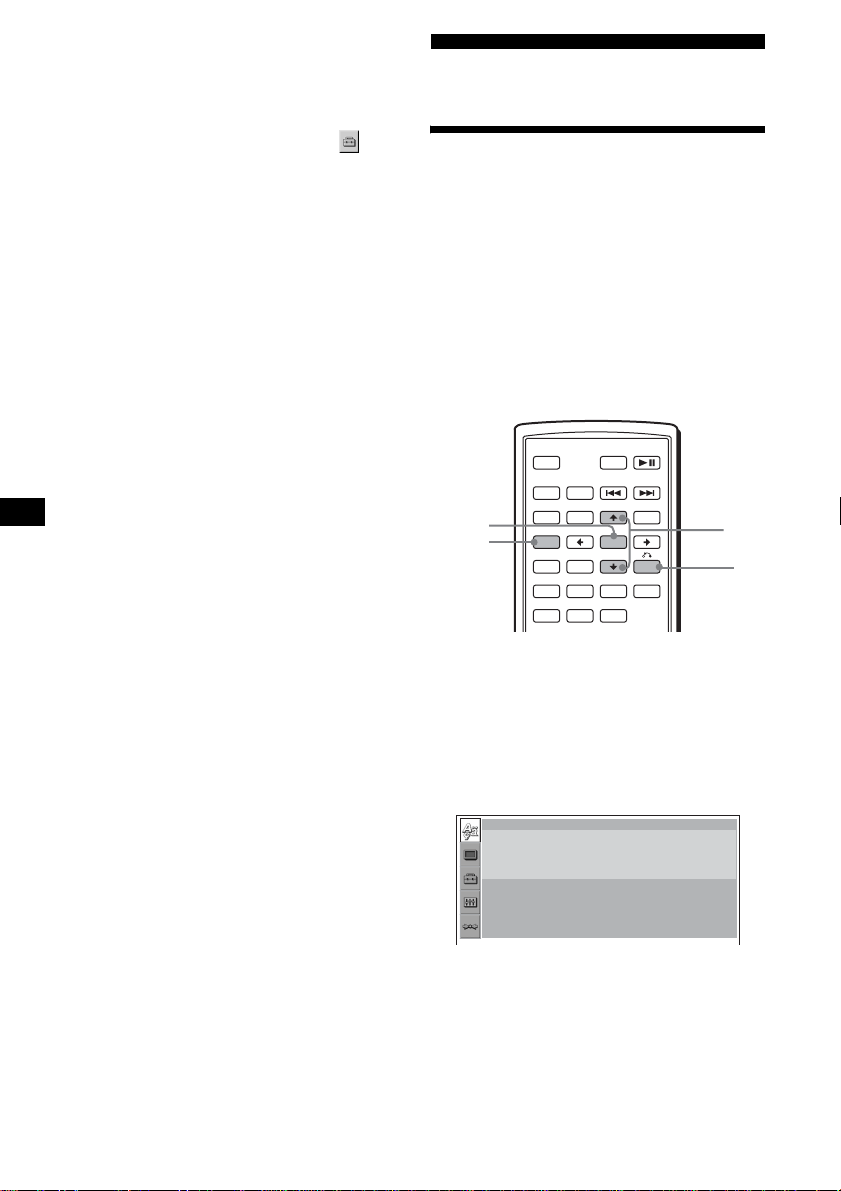
30
Cambio de la contraseña
1 Presione (SETUP) con la reproducción
detenida.
Aparecerá el menú Configuración.
2 Presione M/m para seleccionar
(CUSTOM SETUP) y, a continuación,
presione (ENTER).
Aparecen los elementos de ajuste.
3 Presione M/m para seleccionar
“PARENTAL CONTROL” y, a
continuación, presione (ENTER).
Aparecerán las opciones de control de
bloqueo.
4 Presione M/m para seleccionar
“PASSWORD t” y, a continuación,
presione (ENTER).
Aparecerá la pantalla para que introduzca la
contraseña.
5 Presione los botones numéricos para
introducir la contraseña de 4 dígitos y,
a continuación, presione (ENTER).
Si introduce un número incorrecto, presione
< para mover el cursor y vuelva a introducir
el número.
6 Presione los botones numéricos para
introducir una nueva contraseña de 4
dígitos y, a continuación, presione
(ENTER).
7 Para confirmar, presione los botones
numéricos para volver a introducir la
nueva contraseña de 4 dígitos y luego
presione (ENTER).
Para volver a la pantalla anterior
Presione O.
Para cerrar el menú Configuración
Presione (SETUP).
Ajustes
Uso del menú Configuración
Al utilizar el menú Configuración, puede realizar
diversos ajustes en los elementos, como las
imágenes y el sonido. También puede establecer
el idioma de los subtítulos y la visualización en
pantalla, entre otras cosas. Si desea obtener más
información acerca de cada elemento de ajuste,
consulte las páginas de la 31 a la 34.
Nota
Los ajustes de reproducción almacenados en el disco
tienen prioridad sobre los ajustes del menú
Configuración y es posible que no todas las funciones
descritas funcionen.
Operaciones básicas
Ejemplo: Si desea cambiar el formato
(“MONITOR TYPE”) a “4:3 PAN SCAN”.
1 Presione (SETUP) con la reproducción
detenida.
Aparecerá el menú Configuración.
SRC
MODE
ATT DVD
SOUND
TOP MENU
MENU
SETUP
ENTER
SYSTEM
MENU
LIST
EQZ
×
Z DSO EQ7
PICTURE
AUDIO
SUBTITLE
ANGLE
OFF
+
–
ENTER
SETUP
M/m
O
LANGUAGE SETUP
OSD :
MENU :
AUDIO :
SUBTITLE
:
ENGLISH
ENGLISH
ORIGINAL
AUDIO FOLLOW
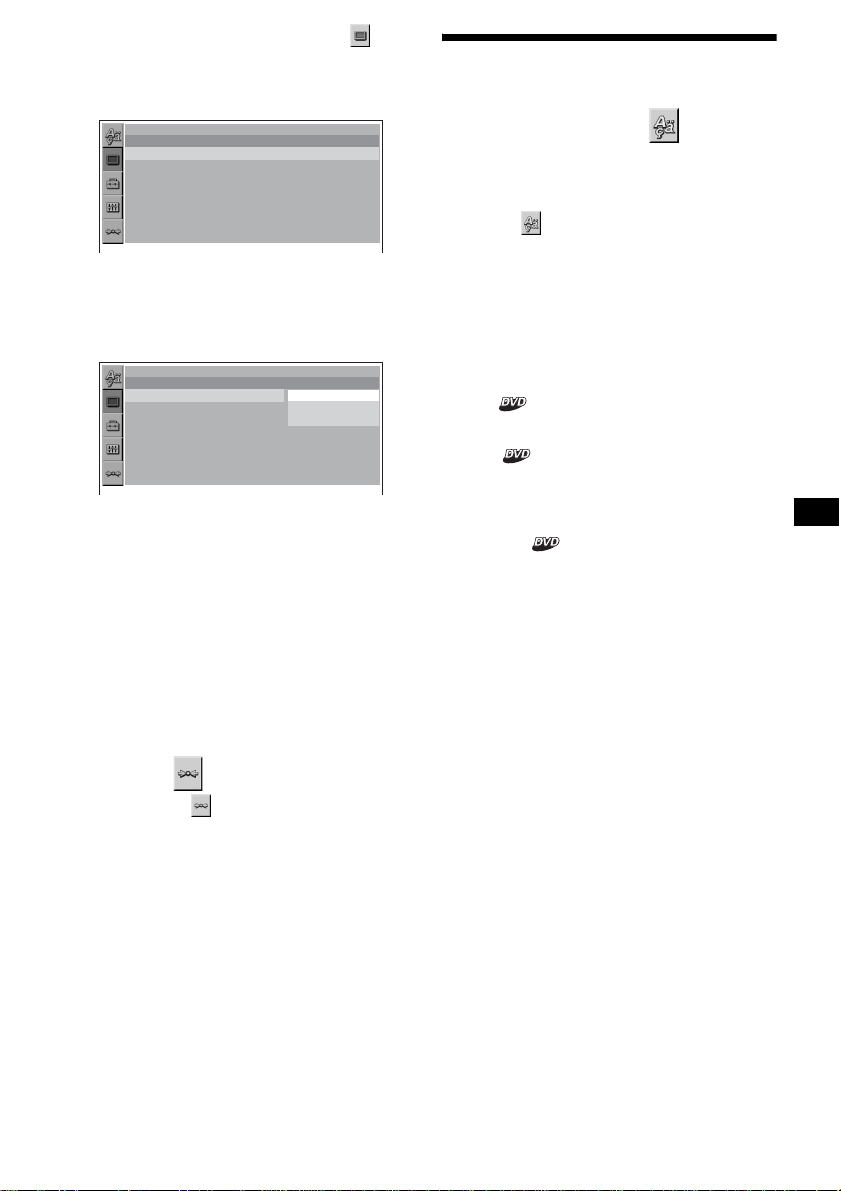
31
2 Presione M/m para seleccionar
(SCREEN SETUP) y, a continuación,
presione (ENTER).
Aparecerá la pantalla de ajustes.
3 Presione M/m para seleccionar
“MONITOR TYPE” y, a continuación,
presione (ENTER).
Aparecerán las opciones del tipo de monitor.
4 Presione M/m para seleccionar “4:3
PAN SCAN” y, a continuación,
presione (ENTER).
El ajuste se aplica y finaliza la configuración.
Para volver a la pantalla anterior
Presione O.
Para cerrar el menú Configuración
Presione (SETUP).
Para restaurar todos los elementos
de ajuste
— Restaurar
1 Seleccione (RESET) en el paso 2 y,
a continuación, presione (ENTER).
2 Presione M para seleccionar “YES” y,
a continuación, presione (ENTER).
Todos los ajustes* del menú Configuración
regresan a los valores predeterminados.
* Sin contar los ajustes de control de bloqueo.
Para cancelar la restauración
Seleccione “NO” en el paso 2.
Nota
No apague la unidad mientras restaura el elemento
del menú Configuración ya que esta acción demora
unos segundos para completarse.
Ajuste del idioma de la
pantalla o pista de sonido
— Configuración de idioma
“LANGUAGE SETUP” (ajuste de idioma)
permite ajustar el idioma que desea para las
indicaciones en pantalla o la pista de sonido.
Seleccione (LANGUAGE SETUP) del menú
Configuración y, a continuación, seleccione el
elemento de ajuste que desea.
Si desea obtener más información acerca de los
procedimientos de ajuste, consulte “Uso del
menú Configuración” en la página 30.
OSD (Indicación en pantalla)
Cambia el idioma de las indicaciones en pantalla.
MENU
Cambia el idioma del menú del disco.
AUDIO
Cambia el idioma de la pista de sonido.
Si elige “ORIGINAL”, se seleccionará el idioma
que tenga prioridad en el disco.
SUBTITLE
Cambia el idioma de los subtítulos grabados en
el disco.
Si selecciona “AUDIO FOLLOW” (seguir el
audio), el idioma de los subtítulos cambiará de
acuerdo con el idioma seleccionado para la pista
de sonido.
Nota
Cuando en “MENU”, “SUBTITLE” o “AUDIO”
seleccione un idioma que no está grabado en el disco,
se seleccionará automáticamente uno de los idiomas
grabados.
Sugerencia
Si selecciona “OTHERS t” en “MENU”, “SUBTITLE”
o “AUDIO”, seleccione e ingrese el código de idioma
de “Lista de códigos de idiomas” (página 53) con los
botones numéricos.
SCPEEN SETUP
MONITOR TYPE :
SCREEN SAVER :
16:9
ON
16:9
16:9
4:3 LETTER BOX
4:3 PAN SCAN
SCPEEN SETUP
MONITOR TYPE :
SCREEN SAVER :

32
Ajuste de la pantalla
— Configuración de pantalla
“SCREEN SETUP” (ajuste pantalla) permite
ajustar los valores del monitor conectado.
Seleccione (SCREEN SETUP) del menú
Configuración y, a continuación, seleccione el
elemento de ajuste que desea.
Si desea obtener más información acerca de los
procedimientos de ajuste, consulte “Uso del
menú Configuración” en la página 30.
Los elementos de ajuste marcados con “*” de las
tablas siguientes constituyen los ajustes
predeterminados.
MONITOR TYPE (tipo monitor)
Selecciona la relación de aspecto del monitor
conectado (4:3 estándar o panorámico).
Nota
Con algunos discos DVD, es posible que “4:3 LETTER
BOX” se seleccione automáticamente en lugar de “4:3
PAN SCAN” o viceversa.
SCREEN SAVER (protector de pantalla)
Activa o desactiva el protector de pantalla. La
imagen del protector de pantalla aparecerá
cuando deje el sistema en modo de parada
durante 5 minutos. Éste evita que su dispositivo
de visualización se dañe (imagen secundaria).
Presione DVD u para desactivar el protector
de pantalla.
16:9* Muestra la imagen panorámica.
Seleccione este elemento cuando
conecte un monitor de pantalla
panorámica o uno con una
función de modo panorámico.
4:3
LETTER
BOX (tipo
buzón)
Muestra una imagen panorámica
con bandas en la parte superior e
inferior de la pantalla.
Seleccione este elemento cuando
conecte un monitor con pantalla
4:3.
4:3
PAN SCAN
(exploración
PAN)
Muestra una imagen panorámica
en toda la pantalla y corta
automáticamente las partes que
no se adapten a ésta.
Seleccione este elemento cuando
conecte un monitor con pantalla
4:3.
ON Activa el protector de pantalla.
OFF* Desactiva el protector de
pantalla.
4:3 PAN SCAN
(exploración PAN)
4:3 LETTER BOX
(tipo buzón)
16:9
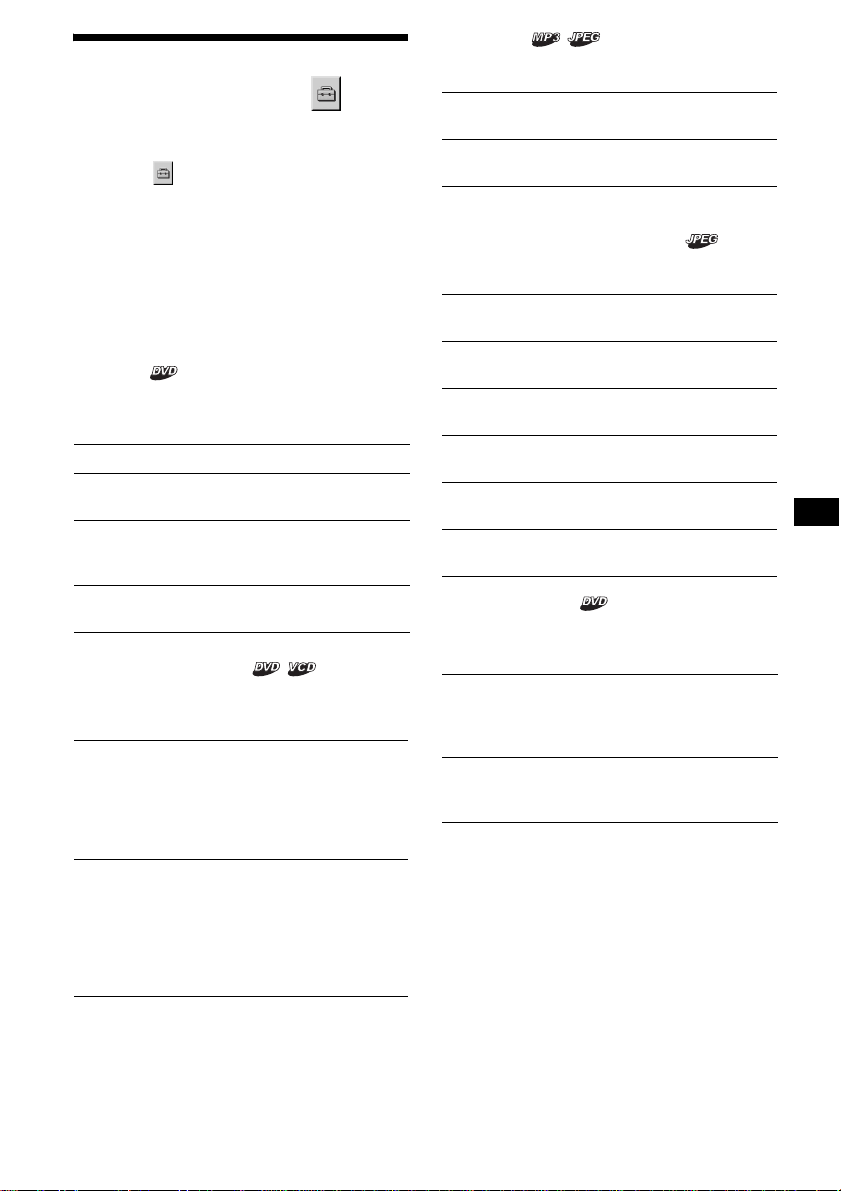
33
Ajustes personalizados
— Configuración personalizada
“CUSTOM SETUP” permite ajustar las
condiciones de reproducción de esta unidad.
Seleccione (CUSTOM SETUP) en el menú
Configuración y, a continuación, seleccione el
elemento que desee ajustar.
Si desea obtener más información acerca de los
procedimientos de ajuste, consulte “Uso del
menú Configuración” en la página 30.
Los elementos de ajuste marcados con “*” de las
tablas siguientes constituyen los ajustes
predeterminados.
PARENTAL CONTROL (control de
bloqueo)
Ajusta las restricciones de reproducción de
manera que la unidad no reproduzca discos o
escenas no apropiadas (página 27).
MULTI-DISC RESUME
Almacena los puntos de reanudación de
reproducción para un máximo de 20 discos
diferentes.
Nota
Si se aplica el control de bloqueo, la reanudación de la
reproducción no funcionará. En tal caso, la
reproducción se iniciará desde el principio del disco
cuando se inserte.
MP3/JPEG
Ajusta la prioridad cuando el mismo disco
incluye archivos MP3 y JPEG.
SLIDE SHOW TIME (Tiempo de
presentación de diapositivas)
Establece el horario para emitir las imágenes del
disco.
PLAY LIST PLAY
Ajusta la prioridad entre los títulos grabados
originalmente o la lista de reproducción editada
en un DVD-RW en modo VR.
Notas
• La reproducción de listas de reproducción sólo está
disponible para discos DVD-RW en modo VR.
• Si un disco no tiene ninguna lista de reproducción
creada, se reproducirán los títulos grabados
originalmente.
ON t Activa el control de bloqueo.
OFF t* Desactiva el control de
bloqueo.
PLAYER t
(Reproductor)
Ajusta la norma de
restricción y el nivel
correspondiente.
PASSWORD t
(Contraseña)
Define una nueva contraseña
de 4 dígitos.
ON* Almacena en la memoria los
ajustes de restauración para un
máximo de 20 discos. (Los
ajustes permanecen en la
memoria aún si selecciona
“OFF”.)
OFF Cancela el almacenamiento en la
memoria de los ajustes de
reanudación. La reproducción se
reinicia en el punto de
reanudación sólo para el disco
que se encuentra actualmente en
la unidad.
MP3* Prevalece sobre los archivos JPEG
durante la reproducción.
JPEG Prevalece sobre los archivos MP3
durante la reproducción.
5sec Cambia las imágenes cada 5
segundos.
10sec* Cambia las imágenes cada 10
segundos.
20sec Cambia las imágenes cada 20
segundos.
40sec Cambia las imágenes cada 40
segundos.
60sec Cambia las imágenes cada 60
segundos.
FIXED
(Fija)
Cancela el cambio de imágenes.
ORIGINAL* Tiene prioridad sobre la lista
de reproducción editada a
partir de los títulos grabados
originalmente.
PLAY LIST Tiene prioridad sobre los
títulos grabados
originalmente.
continúa en la página siguiente t
34
PICTURE EQ
Selecciona la visualización de las opciones de
calidad de imagen.
Ajustes de audio
— Configuración de audio
“AUDIO SETUP” permite ajustar el sonido
según las condiciones de reproducción y el
equipo conectado.
Seleccione (AUDIO SETUP) en el menú
Configuración y, a continuación, elija el
elemento que desee ajustar.
Si desea obtener más información acerca de los
procedimientos de ajuste, consulte “Uso del
menú Configuración” en la página 30.
Los elementos de ajuste marcados con “*” de las
tablas siguientes constituyen los ajustes
predeterminados.
AUDIO DRC (Control de gama dinámica)
Produce un sonido nítido cuando se baja el
volumen al reproducir un DVD que se ajuste a
“AUDIO DRC”.
Este ajuste afecta las salidas de FRONT/REAR
AUDIO OUT (Salida de audio frontal y
posterior).
DOWNMIX (mezcla)
Cambia el método de mezcla de 2 canales
cuando reproduce un DVD con elementos de
sonido posteriores (canales) o cuando está
grabado en formato Dolby Digital. Si desea
obtener más información acerca de los
componentes de señales posteriores, consulte
“Comprobación del formato de programa” en la
página 24. Este ajuste afecta a la salida de
FRONT/REAR AUDIO OUT.
AUTO* Cambia las opciones en
función de si la luz está
encendida o apagada.
(Disponible sólo si está
conectado el cable de control
de la iluminación.)
LIGHT OFF Muestra las opciones que se
pueden utilizar con la luz del
día.
LIGHT ON Muestra las opciones que se
pueden utilizar de noche.
STANDARD*
(Estándar)
Normalmente, seleccione esta
posición.
WIDE
RANGE
(gama amplia)
Produce la sensación de asistir a
una actuación en directo.
SURROUND Seleccione esta opción cuando
la unidad esté conectada a un
componente de audio
compatible con Dolby Surround
(Pro Logic).
NORMAL* Seleccione esta opción cuando
la unidad esté conectada a un
componente de audio que no
sea compatible con Dolby
Surround (Pro Logic).

35
DOLBY DIGITAL
Selecciona el tipo de señal Dolby Digital.
DTS
Selecciona si se emitirán o no señales DTS.
Radio
Precaución
Para sintonizar emisoras mientras maneja, utilice
la función Memoria de la mejor sintonía (BTM)
para evitar accidentes.
Almacenamiento automático
— BTM
1 Presione (SRC) (SOURCE) varias
veces hasta que aparezca “TUNER”.
Para cambiar de banda, presione (MODE)
varias veces. Puede seleccionar entre FM1,
FM2, FM3, AM1 o AM2.
2 Presione (SYSTEM MENU) y, a
continuación,
M/m
varias veces hasta
que aparezca “BTM”.
3 Presione (ENTER).
La unidad almacena las emisoras por orden
de frecuencia en los botones numéricos
(del (1) al (6)).
La unidad emite un pitido al almacenar un
ajuste.
DOLBY
DIGITAL*
Seleccione esta opción cuando
la unidad esté conectada a un
componente de audio con
decodificador Dolby Digital
integrado.
DOWNMIX
PCM
Seleccione esta opción cuando
la unidad esté conectada a un
componente de audio sin
decodificador Dolby Digital
integrado. Puede seleccionar si
las señales con compatibles con
Dolby Surround (Pro Logic) o
no; para ello, ajuste el elemento
“DOWNMIX” de “AUDIO
SETUP” (página 34).
ON* Seleccione esta opción cuando
la unidad esté conectada a un
componente de audio con
decodificador DTS integrado.
OFF Seleccione esta opción cuando
la unidad esté conectada a un
componente de audio sin
decodificador DTS integrado.
SRC
MODE
ATT DVD
SOUND
TOP MENU
MENU
SETUP
ENTER
SYSTEM
MENU
LI ST
EQZ
×
Z DSO EQ7
PICTURE
AUDIO
SUBTITLE
ANGLE
CLEAR
123
456
789
0
OFF
+
–
VOL
+
–
DSPL
MODE
SRC
ENTER
LIST
SYSTEM
MENU
M/m
./>
Botones
numéricos
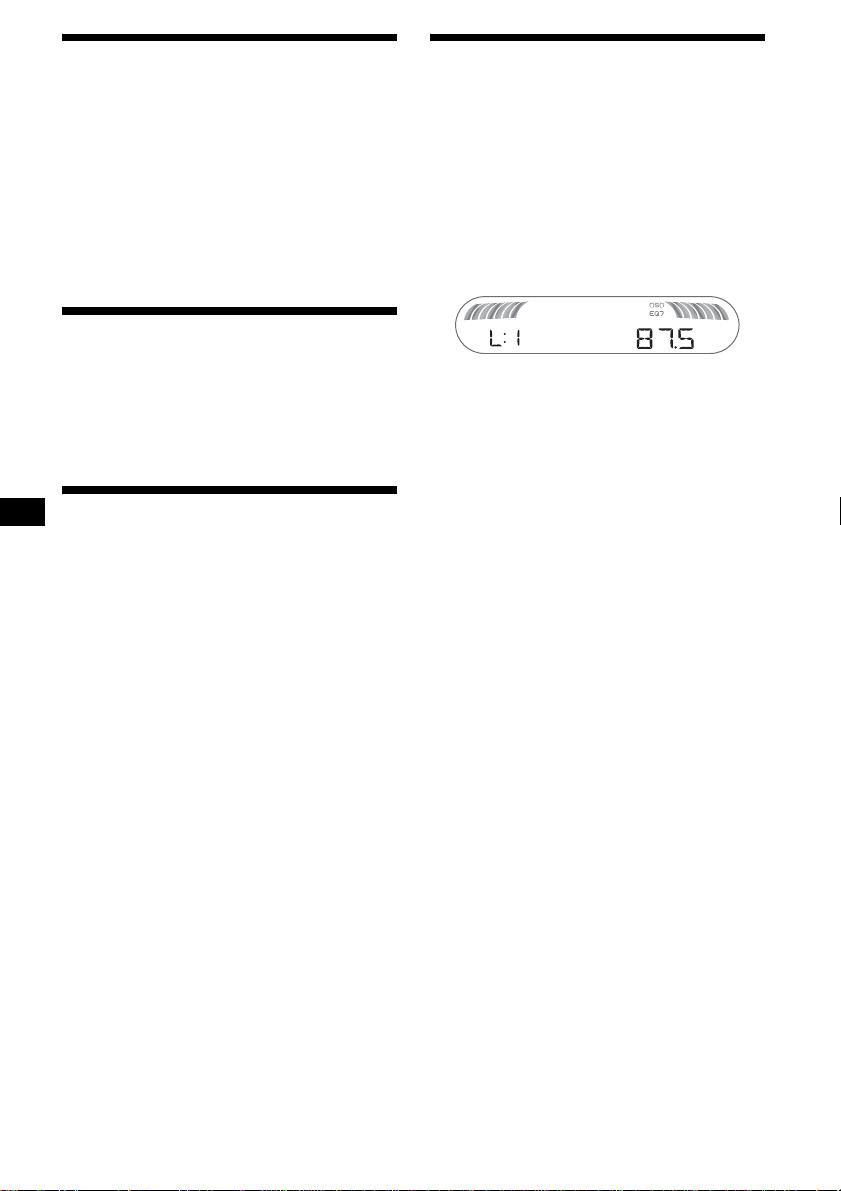
36
Almacenamiento manual
Mientras recibe la emisora que desea
almacenar, mantenga presionado un
botón numérico (del (1) al (6)) hasta
que aparezca “MEM”.
La indicación de botón numérico aparece en
pantalla.
Nota
Si intenta almacenar otra emisora en el mismo botón
numérico, se reemplazará la que estaba almacenada
previamente.
Recepción de las emisoras
almacenadas
Seleccione la banda y, a continuación,
presione un botón numérico (del (1)
al (6)) o M/m.
Sintonización automática
Seleccione la banda y, a continuación,
presione ./> para buscar la
emisora.
La búsqueda se detiene cuando la unidad
recibe una emisora. Repita este
procedimiento hasta recibir la emisora
deseada.
Sugerencia
Si conoce la frecuencia de la emisora que desea
escuchar, mantenga presionado ./> para
localizar la frecuencia aproximada y, a continuación,
presione ./> varias veces para ajustar la
frecuencia deseada con mayor precisión
(sintonización manual).
Con la unidad principal
Para buscar la emisora, presione (SEEK) +/–.
Recepción de emisoras
mediante una lista
— Listado
Puede visualizar un listado de las frecuencias.
1 Seleccione la banda y, a continuación,
presione (LIST).
Aparecerán las frecuencias.
2 Presione M/m varias veces hasta que
aparezca la emisora deseada.
3 Presione (ENTER) para sintonizar la
emisora.
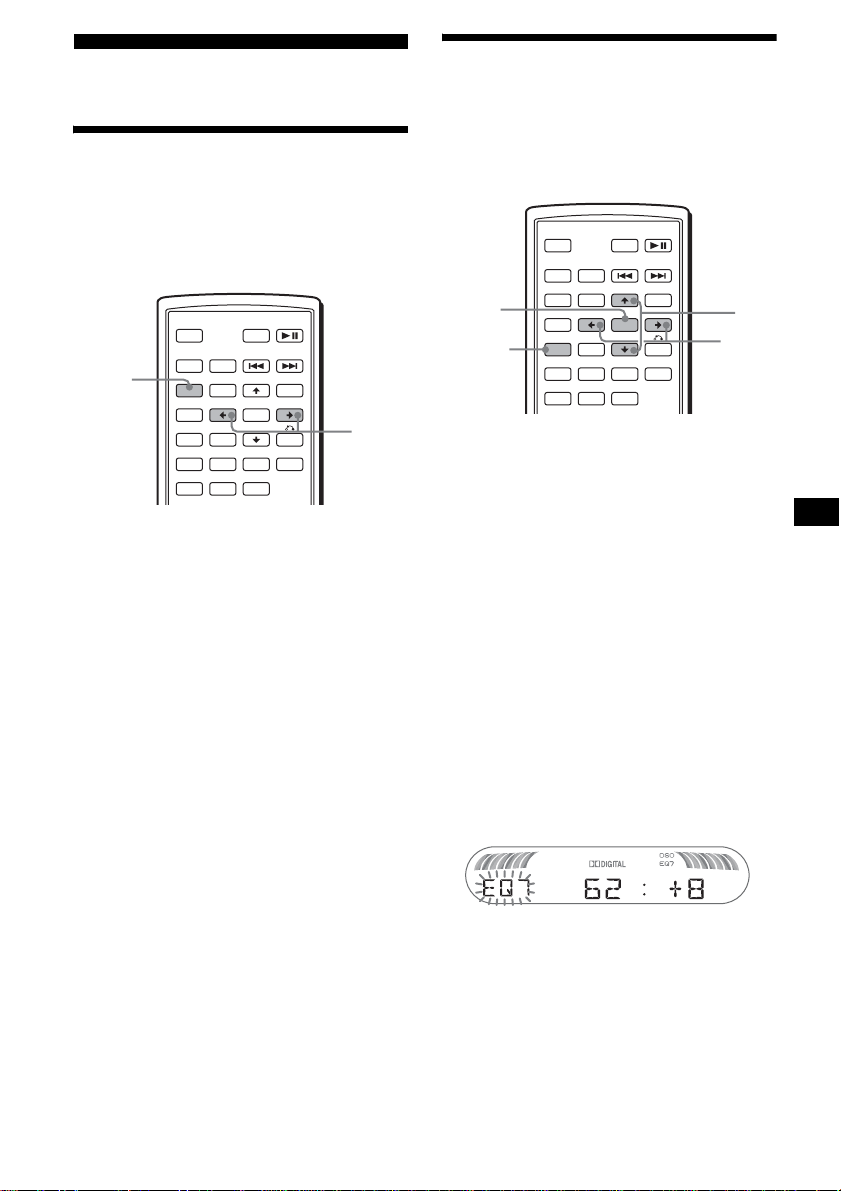
37
Otras funciones
Ajuste de las características
de sonido
Puede ajustar los graves, agudos, el balance, el
equilibrio y el volumen del altavoz potenciador
de graves.
1 Seleccione una fuente y, a
continuación, presione (SOUND)
varias veces para seleccionar el
elemento que desee.
El elemento cambia de la manera siguiente:
BAS (graves) t TRE (agudos) t
BAL (izquierdo-derecho) t
FAD (frontal-posterior) t
SUB (volumen del altavoz potenciador de
graves)*
* “ ∞” aparecerá con el valor más bajo. Este
elemento puede ajustarse en un máximo de 20
pasos.
2 Presione </, varias veces para
ajustar el elemento seleccionado.
Después de 3 segundos, se completa el ajuste
y la pantalla vuelve al modo de recepción/
reproducción normal.
Nota
Realice el ajuste a los 3 segundos de seleccionar el
elemento.
Con la unidad principal
En el paso 2, para ajustar el elemento seleccionado,
presione el botón de volumen +/–.
Ajuste de la curva del
ecualizador
— EQ7 Tune
Puede definir y almacenar los ajustes del
ecualizador para distintos rangos de tono.
1 Seleccione una fuente y, a
continuación, presione
(SYSTEM MENU).
2 Presione M/m varias veces hasta que
aparezca “EQ7 TUNE” y, a
continuación, presione (ENTER).
3 Presione </, varias veces para
seleccionar el tipo de ecualizador que
desee y, a continuación, presione
(ENTER).
4 Presione </, varias veces para
seleccionar la frecuencia que desee.
La frecuencia cambia de la manera siguiente:
62Hz y 157Hz y 396Hz y 1kHz y
2.5kHz y 6.3kHz y 16kHz
5 Presione M/m varias veces para
ajustar el nivel de volumen que desee.
El nivel de volumen puede ajustarse en
intervalos de 1 dB, entre –10 dB y +10 dB.
Repita los pasos 4 y 5 para ajustar la curva del
ecualizador.
Para restaurar la curva de ecualizador
ajustada en fábrica, mantenga presionado
(ENTER).
6 Presione (ENTER).
El ajuste finaliza y la pantalla regresa al modo
de reproducción/recepción normal.
SRC
MODE
ATT DVD
SOUND
TOP MENU
MENU
SETUP
ENTER
SYSTEM
MENU
LIST
EQZ
×
Z DSO EQ7
PICTURE
AUDIO
SUBTITLE
ANGLE
OFF
+
–
SOUND
</,
SRC
MODE
ATT DVD
SOUND
TOP MENU
MENU
SETUP
ENTER
SYSTEM
MENU
LIST
EQZ
×
Z DSO EQ7
PICTURE
AUDIO
SUBTITLE
ANGLE
OFF
+
–
ENTER
SYSTEM
MENU
M/m
</,
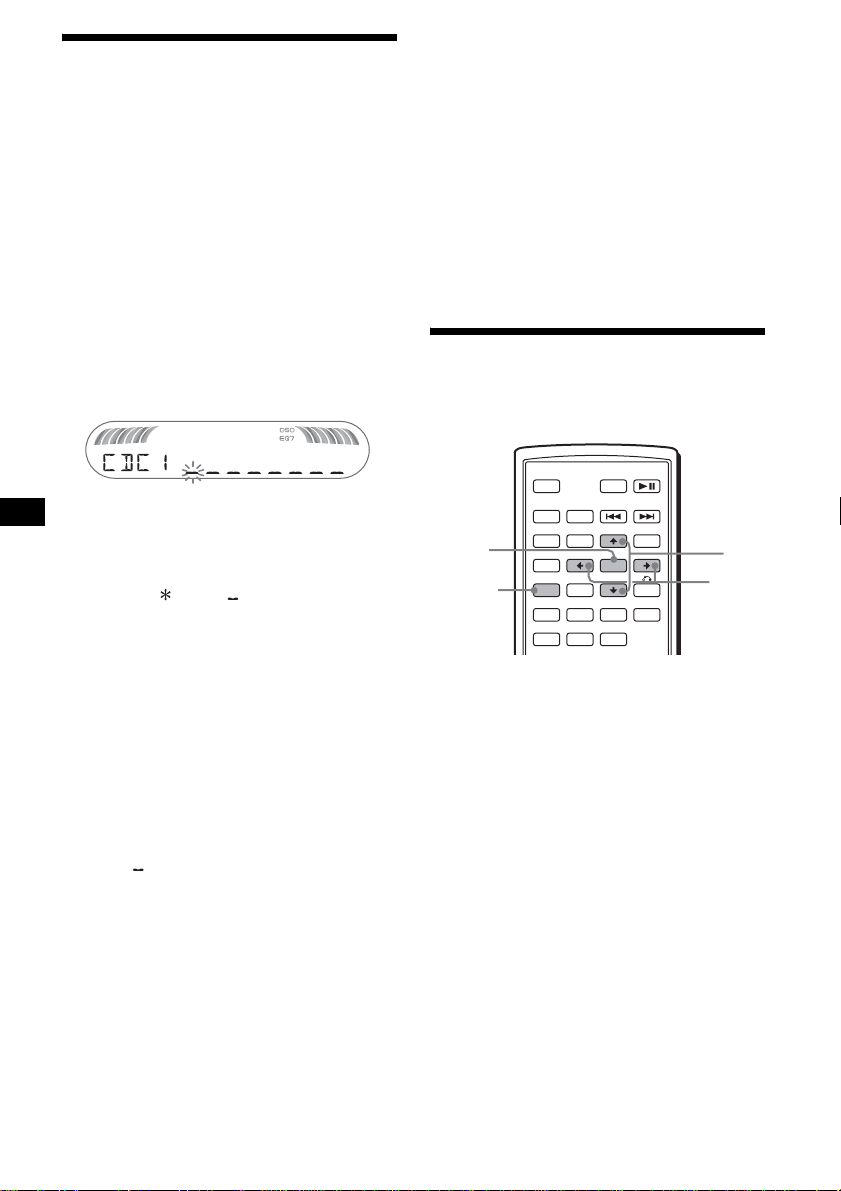
38
Etiquetado de una emisora o
un disco
Cuando sintoniza una emisora o reproduce un
disco en un cambiador de CD con la función
CUSTOM FILE, puede etiquetar cada emisora/
disco con un nombre personalizado de hasta 8
caracteres (Memorando de emisoras/Memorando
del disco).
Si etiqueta una emisora o un disco, el nombre
aparece en la lista (página 36 o 40).
1 Mientras escucha una emisora o
reproduce un disco que desea
etiquetar, presione (SYSTEM MENU).
2 Presione M/m varias veces hasta que
aparezca “NAMEEDIT” y, a
continuación, presione (ENTER).
3 Presione M/m varias veces hasta que
aparezca el carácter deseado.
El carácter cambia de la manera siguiente:
A y B y C ... y 0 y 1 y 2 ... y +
y – y ... y (espacio en blanco)
y A
Para desplazar la indicación digital, presione
</,.
Repita esta operación hasta que se ingrese el
nombre completo.
4 Presione (ENTER).
Finaliza el etiquetado y la pantalla regresa al
modo de recepción/reproducción normal.
Para mostrar el nombre, presione (DSPL)
durante la recepción o reproducción.
Sugerencias
• Para corregir o borrar un carácter, sobrescriba o
ingrese “ ”.
• El Memorando del disco siempre prevalece sobre
cualquier título pregrabado.
• Puede etiquetar un disco en la unidad si se conectó
un cambiador con la función CUSTOM FILE.
• Se suspende “REP-TRACK” y toda reproducción
aleatoria hasta que finalice el etiquetado.
Eliminación del nombre personalizado
1 Seleccione la unidad donde se guardó
el nombre personalizado que desea
eliminar y, a continuación, presione
(SYSTEM MENU).
2 Presione M/m varias veces hasta que
aparezca “NAME DEL” y, a
continuación, presione (ENTER).
Aparecerá el nombre almacenado.
3 Presione M/m varias veces para
seleccionar el nombre que desea
eliminar.
4 Mantenga presionado (ENTER).
Se elimina el nombre. Si desea eliminar otros
nombres, repita los pasos 3 y 4.
5 Presione (SYSTEM MENU) dos veces.
La unidad vuelve al modo de recepción/
reproducción normal.
Ajuste de elementos de
menú individuales
— SYSTEM MENU
1 Presione (SYSTEM MENU).
2 Presione M/m varias veces hasta que
aparezca el elemento deseado.
3 Presione </, para seleccionar el
ajuste que desee (ejemplo: “ON” u
“OFF”).
4 Presione (ENTER).
El ajuste finaliza y la pantalla regresa al modo
de reproducción/recepción normal.
Nota
Los elementos que se muestran en pantalla variarán
en función de la fuente y del ajuste.
Sugerencia
Puede cambiar fácilmente las categorías; para ello,
mantenga presionado M/m.
SRC
MODE
ATT DVD
SOUND
TOP MENU
MENU
SETUP
ENTER
SYSTEM
MENU
LIST
EQZ
×
Z DSO EQ7
PICTURE
AUDIO
SUBTITLE
ANGLE
OFF
+
–
ENTER
SYSTEM
MENU
M/m
</,
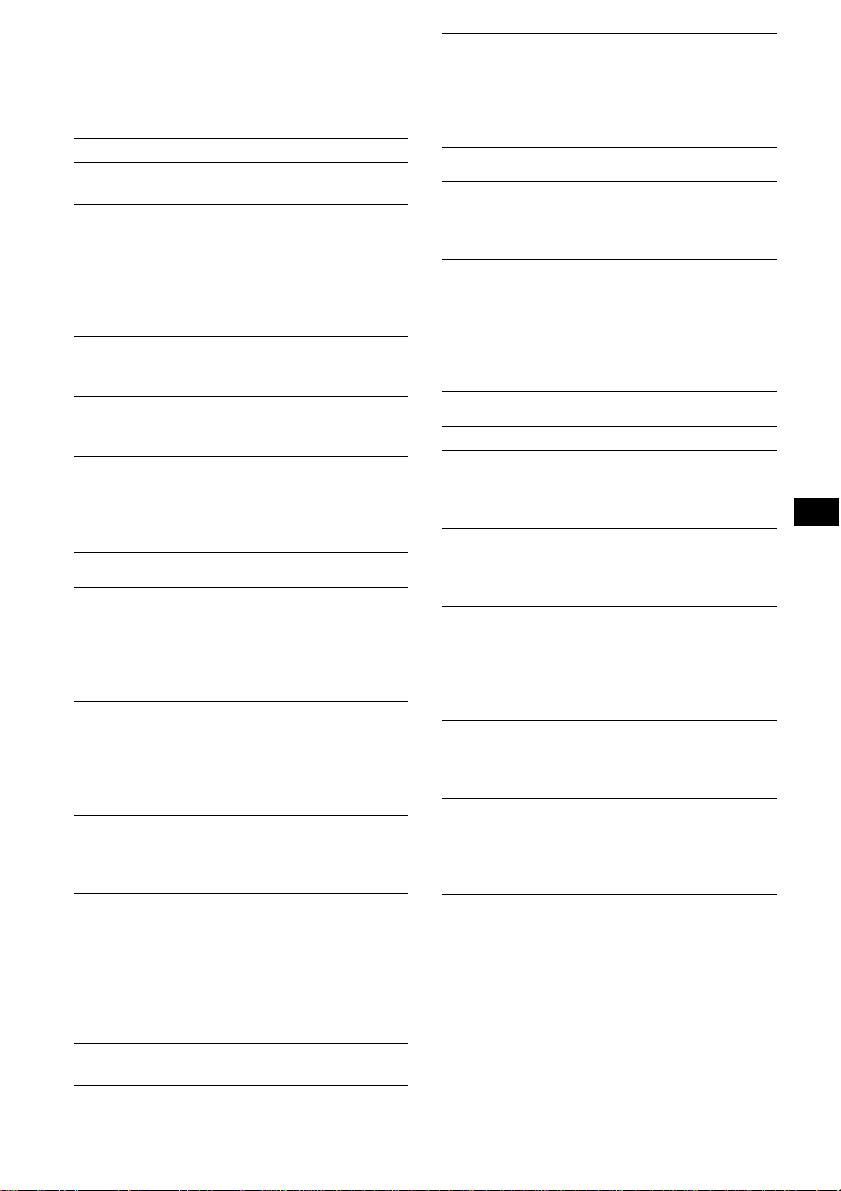
39
Se pueden ajustar los elementos siguientes
(consulte la referencia de página para obtener
más información):
“
z” indica el ajuste predeterminado.
SET (Configuración)
DSPL (Pantalla)
P/M (Modo de reproducción)
SND (Sonido)
CLOCK-ADJ (Ajuste del reloj) (página 8)
BEEP
Para ajustar “ON” (
z) u “OFF”.
RM (Mando rotatorio)
Para cambiar la dirección de funcionamiento de
los controles del mando rotatorio.
–“NORM” (
z): para usar el mando rotatorio en
la posición ajustada en fábrica.
–“REV”: cuando monte el mando rotatorio del
lado derecho de la columna de dirección.
AUX-A*
1
(Audio auxiliar)
Para ajustar la visualización de la fuente AUX
en “ON” (
z) u “OFF” (página 41).
PAL/NTSC*
1
*
2
Para cambiar el sistema de televisión en color a
PAL o NTSC.
WL*
1
*
3
(Inalámbrico)
–“CH1” (
z), “CH2”, “CH3”, “CH4”: para evitar
interferencias con la transmisión inalámbrica.
–“OFF”: para desactivar la transmisión
inalámbrica.
CLOCK (Información del reloj)
Para mostrar el reloj y los elementos de
visualización al mismo tiempo.
–“ON”: para que se muestren al mismo tiempo.
–“OFF” (
z): para que no se muestren al mismo
tiempo.
DIM (Atenuador)
Para cambiar el brillo de la pantalla.
–“AT” (
z): para que la pantalla se atenúe
automáticamente al encender la luz.*
4
–“ON”: para atenuar la pantalla.
–“OFF”: para desactivar el atenuador.
CONTRAST
Para ajustar el contraste de la pantalla de la
unidad principal.
El nivel de contraste puede ajustarse en 7 pasos.
M.DSPL*
5
(Desplazamiento de indicaciones)
Para seleccionar el modo de indicador de
movimiento.
–“SA” (
z): para mostrar patrones en
movimiento y el analizador de espectro.
–“ON”: para mostrar patrones en movimiento.
–“OFF”: para desactivar el indicador de
movimiento.
DEMO*
1
(Demostración)
Para ajustar “ON” (
z) u “OFF” (página 8).
A.SCRL (Desplazamiento automático)
Para desplazar automáticamente los elementos
de la pantalla cuando se cambia de disco o
álbum.
–“ON”: para que se desplacen.
–“OFF” (
z): para que no se desplacen.
LOCAL (Modo de búsqueda local)
–“ON”: para que se sintonicen solamente las
emisoras de señal más intensa.
–“OFF” (
z): para ajustar la recepción normal.
MONO (Modo monoaural)
Para mejorar una recepción de FM defectuosa,
seleccione el modo de recepción monoaural.
–“ON”: para escuchar las emisiones estéreo en
monoaural.
–“OFF” (
z): para escuchar las emisiones
estéreo en estéreo.
EQ7 TUNE (página 37)
HPF (Filtro de paso alto)
Para seleccionar la frecuencia de corte de los
altavoces frontales y posteriores: “OFF” (
z),
“78HZ” o “125HZ”.
LPF (Filtro de paso bajo)
Para seleccionar la frecuencia de corte del
altavoz potenciador de graves: “OFF” (
z),
“125HZ” o “78HZ”.
LOUD (Sonoridad)
Para potenciar los graves y agudos con un
volumen bajo.
–“ON”: para reforzar los graves y agudos.
–“OFF” (
z): para no reforzar los graves y
agudos.
DVD LVL*
6
(Nivel de DVD) (página 24)
Para ajustar el nivel de salida de audio en
función del formato de audio grabado en el
DVD.
AUX LVL*
7
(Nivel auxiliar)
Para ajustar el nivel de volumen de cada equipo
auxiliar conectado. Este ajuste elimina la
necesidad de ajustar el nivel de volumen entre
fuentes.
continúa en la página siguiente t
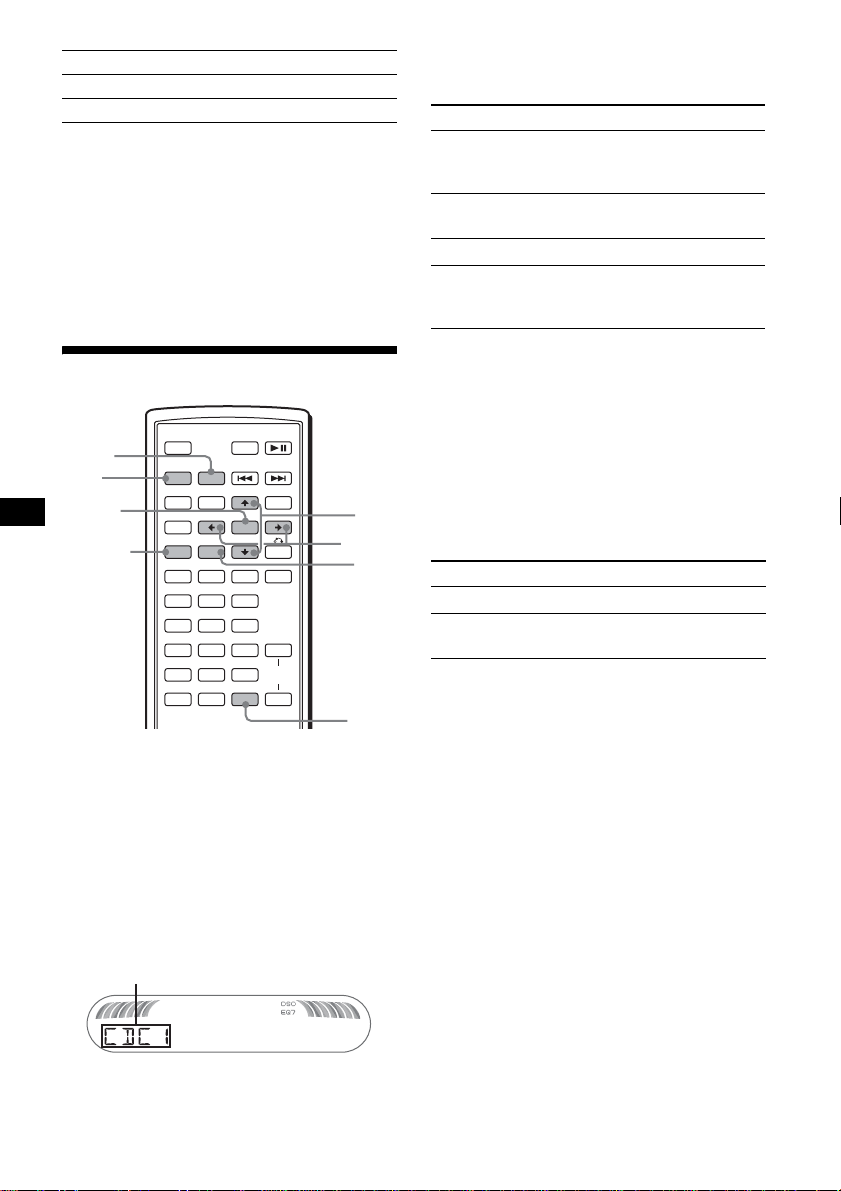
40
EDIT
*1 Cuando la unidad está apagada.
*2 El ajuste predeterminado variará en función del
modelo:
PAL: modelo asiático
NTSC: modelo latinoamericano
*3 MEX-R5 solamente
*4 Cuando está conectado el cable de control de la
iluminación.
*5 Cuando la unidad está encendida.
*6 Cuando se reproduce un disco.
*7 Cuando se conecta y ejecuta un equipo auxiliar.
Uso del equipo opcional
Cambiador de CD/MD
Selección del cambiador
1 Presione (SRC) (SOURCE) varias
veces hasta que aparezca “CDC1” o
“MDC1”.
2 Presione (MODE) varias veces hasta
que aparezca el cambiador deseado.
Se inicia la reproducción.
Omisión de álbumes y discos
Durante la reproducción, presione
M/m.
Con la unidad principal
Para omitir discos, presione (3) (ALBM –) o (4)
(ALBM +).
Para omitir álbumes, mantenga presionado (3)
(ALBM –) o (4) (ALBM +).
Reproducción repetida y aleatoria
(Con la unidad principal)
Durante la reproducción, presione (1)
(REP) o (2) (SHUF) varias veces hasta
que aparezca el ajuste deseado.
* Si se conectó uno o más cambiadores de CD/MD.
Para regresar al modo de reproducción normal,
seleccione “REP-OFF” o “SHUF-OFF”.
Ubicación de discos por nombre
— Listado
Puede seleccionar un disco de la lista al conectar
un cambiador de CD con la función CUSTOM
FILE o un cambiador de MD.
Si asigna un nombre al disco, el nombre aparece
en la lista.
1 Durante la reproducción, presione
(LIST).
Aparece el número y el nombre del disco.
2 Presione M/m varias veces hasta que
aparezca el disco deseado.
3 Presione (ENTER) para reproducir el
disco.
NAMEEDIT (página 38)
NAME DEL (página 38)
BTM (página 35)
SRC
MODE
ATT DVD
SOUND
TOP MENU
MENU
SETUP
ENTER
SYSTEM
MENU
LIST
EQZ
×
Z DSO EQ7
PICTURE
AUDIO
SUBTITLE
ANGLE
CLEAR
123
456
789
0
DSPL
OFF
+
–
VOL
+
–
MODE
SRC
ENTER
DSPL
LIST
SYSTEM
MENU
M/m
</,
Número de unidad del cambiador de CD/MD
Para omitir Presione M/m
un álbum y suéltelo (manténgalo
presionado durante un
momento).
un álbum
continuamente
a los 2 segundos de haberlo
soltado por primera vez.
discos varias veces.
discos
continuamente
a continuación, vuelva a
presionarlo a los 2 segundos y
manténgalo presionado.
Seleccione Para reproducir
REP-DISC* un disco varias veces.
SHUF-
CHGR*
las pistas del cambiador en
orden aleatorio.
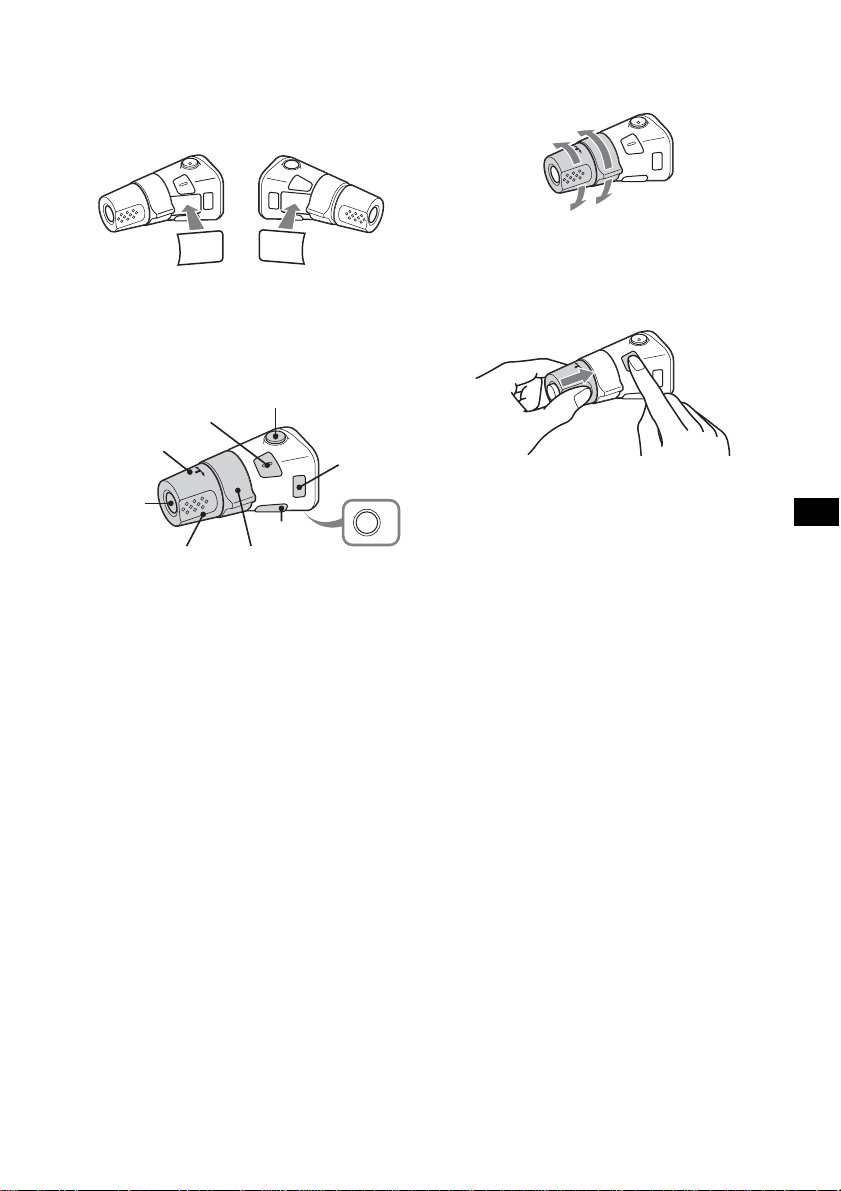
41
Mando rotatorio RM-X4S
Colocación de la etiqueta
Coloque la etiqueta de indicación según el modo
en que instale el mando rotatorio.
Ubicación de los controles
Los botones correspondientes en el mando
rotatorio controlan las mismas funciones que los
de la unidad principal o el control remoto de
tarjeta.
Sin embargo, los controles siguientes presentan
unas funciones diferentes a las de la unidad
principal o el control remoto de tarjeta.
• Control PRESET/DISC
Para seleccionar emisoras predefinidas;
controlar CD, de igual manera que con (3)/
(4) (ALBM –/+) de la unidad principal o M/m
del control remoto de tarjeta (presionar y girar).
• Control VOL (volumen)
Funciona de igual manera que los botones de
volumen +/– (girar).
• Control SEEK/AMS
Funciona de igual manera que (SEEK) +/– de
la unidad principal o ./> del control
remoto de tarjeta (girar o girar y mantener en
esa posición).
Cambio del sentido de funcionamiento
El sentido de funcionamiento de los controles
está ajustado de fábrica como se muestra a
continuación.
Si necesita instalar el mando rotatorio en el lado
derecho de la columna de la dirección, puede
invertir el sentido de funcionamiento.
Mientras presione el control VOL,
mantenga presionado (SOUND).
Sugerencia
También puede cambiar el sentido de funcionamiento
de estos controles en el menú (página 39).
Equipo de audio auxiliar
Puede conectar dispositivos portátiles de Sony
opcionales al terminal BUS AUDIO IN/AUX IN
de la unidad. Si el cambiador u otro dispositivo
no está conectado al terminal, la unidad permitirá
escuchar el dispositivo portátil a través de los
altavoces del vehículo.
Nota
Cuando conecte un dispositivo portátil, asegúrese de
que BUS CONTROL IN no esté conectado. Si se
conecta un dispositivo a BUS CONTROL IN, “AUX” no
se podrá seleccionar con (SRC) (SOURCE).
Sugerencia
Cuando conecte un dispositivo portátil y un
cambiador, utilice el selector opcional AUX-IN.
Selección del equipo auxiliar
Presione (SRC) (SOURCE) varias
veces hasta que aparezca “AUX”.
Realice las operaciones correspondientes
desde el dispositivo portátil.
Para ajustar el nivel de volumen del equipo
auxiliar, consulte “AUX LVL” en la página 39.
SO
U
ND
D
S
PL
M
O
D
E
S
O
U
N
D
D
S
P
L
M
O
D
E
OFF
ATT
SOUND
SOURCE
DSPL
MODE
OFF
VOL
SEEK/AMS
PRESET/
DISC
Para aumentar
Para disminuir
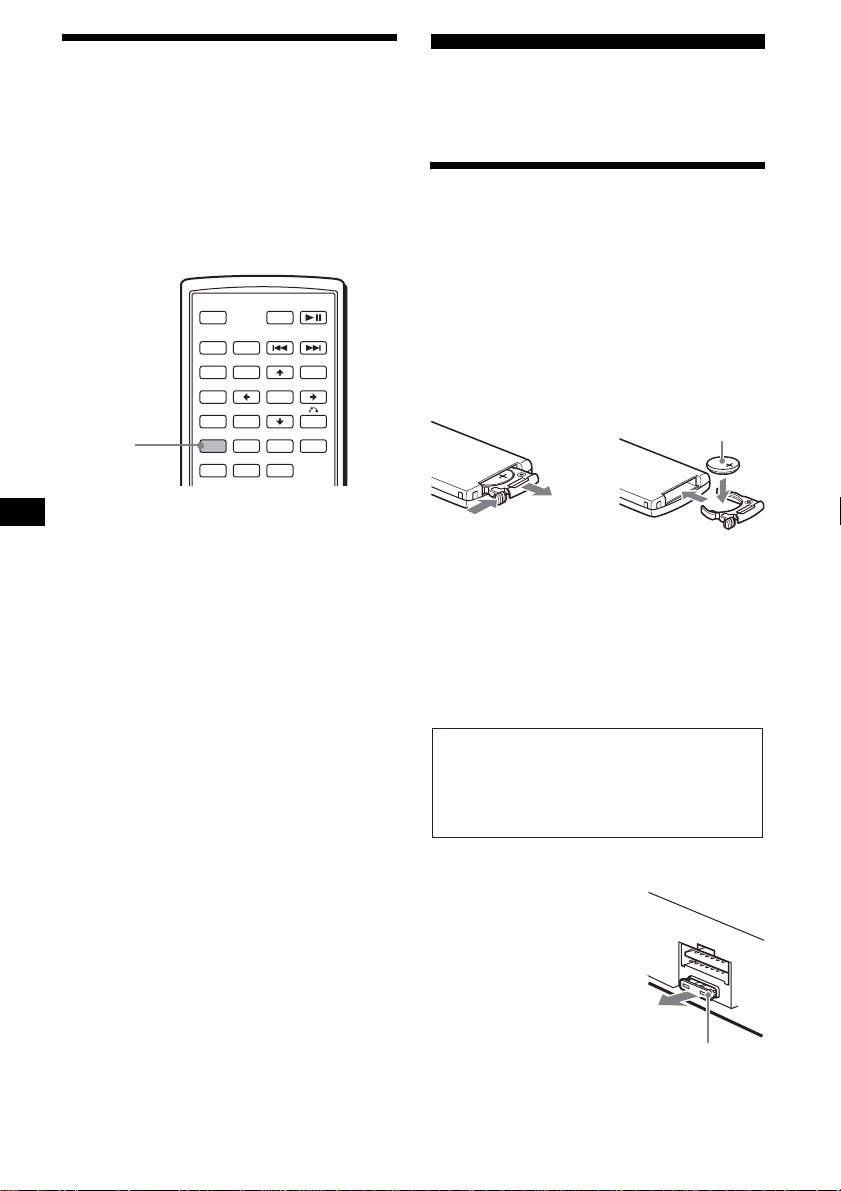
42
Cambio entre las salidas
frontal y posterior
— Zone × Zone
Puede ajustar que se emita audio/video de un
DVD en el monitor posterior y otra fuente
distinta en la parte frontal.
Esta función resulta de utilidad si desea escuchar
la radio, reproducir música, etc. en la parte
frontal y reproducir un DVD en la posterior.
1 Presione (ZxZ).
2 Presione (SOURCE) en la unidad
principal para cambiar la fuente de la
parte frontal.
Controle la parte frontal con la unidad
principal y la posterior (DVD) con el control
remoto de tarjeta.
Para volver al estado normal
Presione (ZxZ).
Notas
• Cuando Zone × Zone esté activado, los siguientes
botones del control remoto de tarjeta no podrán
utilizarse: (ATT), (SRC) (SOURCE), (MODE),
(VOL) +/–, (SYSTEM MENU), (LIST), (SOUND),
(DSO) y (EQ7).
• Zone × Zone no se cancelará aunque se expulse el
disco, y se activará cuando vuelva a insertar uno.
Información
complementaria
Mantenimiento
Sustitución de la pila de litio del control
remoto de tarjeta
En condiciones normales, la pila dura
aproximadamente 1 año. (La duración puede ser
menor en función de las condiciones de uso.)
El alcance del control remoto de tarjeta
disminuye a medida que se agota la pila.
Sustitúyala por una pila de litio CR2025 nueva.
El uso de cualquier otra pila podría provocar un
incendio o una explosión.
Notas sobre la pila de litio
• Mantenga la pila de litio fuera del alcance de los
niños. Si se ingiriese, póngase en contacto
inmediatamente con un médico.
• Limpie la pila con un paño seco para garantizar un
contacto óptimo.
• Asegúrese de observar la polaridad correcta al
instalarla.
• No agarre la pila con pinzas metálicas, ya que
puede producirse un cortocircuito.
Sustitución del fusible
Al sustituir el fusible,
asegúrese de utilizar uno cuyo
amperaje coincida con el
especificado en el original. Si
el fusible se funde, verifique
la conexión de alimentación y
sustitúyalo. Si el fusible
vuelve a fundirse después de
sustituirlo, es posible que
exista alguna falla de
funcionamiento interno. En
tal caso, consulte con el distribuidor Sony más
cercano.
SRC
MODE
ATT DVD
SOUND
TOP MENU
MENU
SETUP
ENTER
SYSTEM
MENU
LIST
EQZ
×
Z DSO EQ7
PICTURE
AUDIO
SUBTITLE
ANGLE
OFF
+
–
Z
×
Z
1
2
c
Lado + hacia arriba
ADVERTENCIA
La pila puede explotar si no se emplea
adecuadamente.
No recargue la pila; tampoco la desmonte ni
la arroje al fuego.
Fusible (10 A)
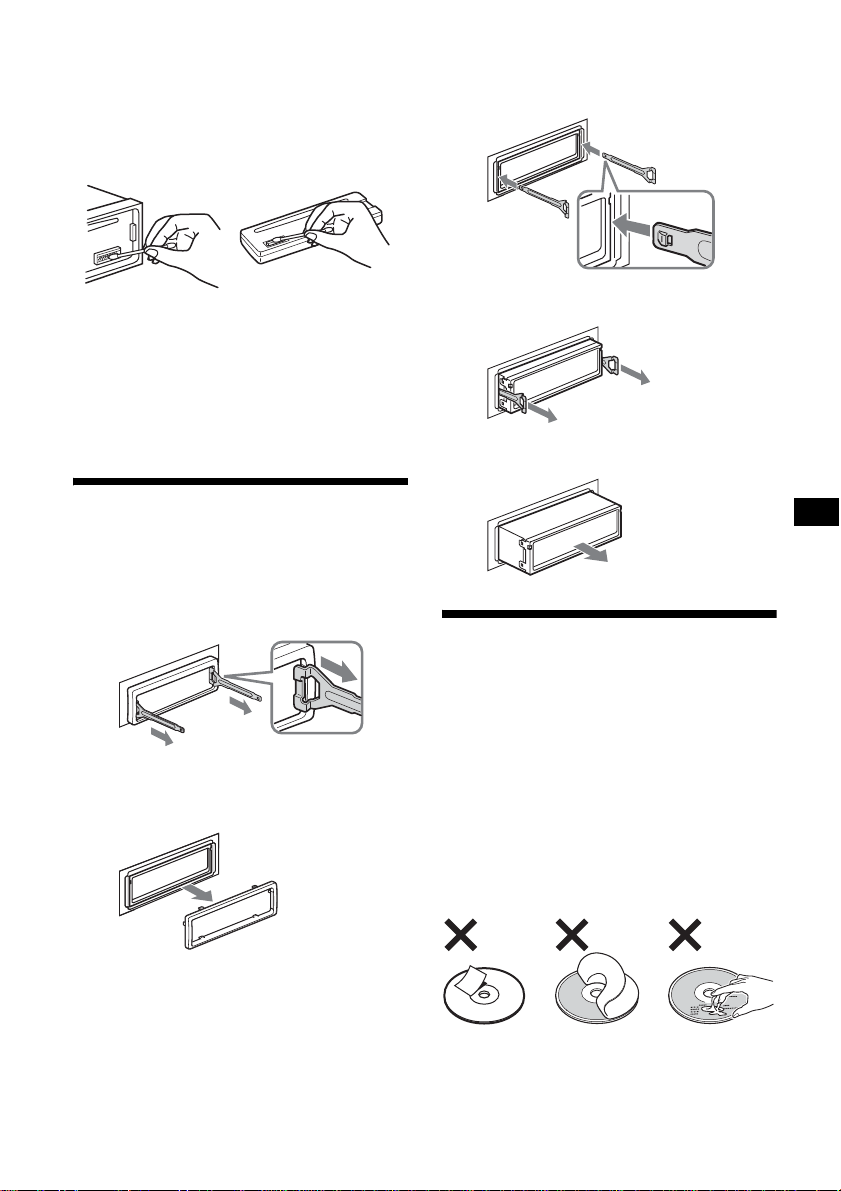
43
Limpieza de los conectores
Es posible que la unidad no funcione
correctamente si los conectores entre ésta y el
panel frontal están sucios. Para prevenir esta
situación, extraiga el panel frontal (página 8) y
limpie los conectores con un hisopo de algodón
humedecido en alcohol. No aplique demasiada
fuerza, ya que podría dañar los conectores.
Notas
• Por razones de seguridad, apague el motor antes de
limpiar los conectores y extraiga la llave del
interruptor de encendido.
• No toque nunca los conectores directamente con los
dedos ni con ningún dispositivo metálico.
Extracción de la unidad
1 Extraiga el marco de protección.
1 Extraiga el panel frontal (página 8).
2 Fije las llaves de liberación al marco
de protección.
3 Tire de las llaves de liberación para
extraer el marco de protección.
2 Extraiga la unidad.
1 Inserte las dos llaves de liberación
simultáneamente hasta escuchar un
clic.
2 Tire de las llaves de liberación para
extraer la unidad.
3 Deslice la unidad para extraerla del
marco.
Notas sobre los discos
• Para mantener los discos limpios, no toque su
superficie. Tómelos por los bordes.
• Guarde los discos en sus cajas o en los
cargadores de discos cuando no los use.
• No someta los discos al calor ni a altas
temperaturas. Evite dejarlos en un automóvil
estacionado o sobre el tablero o la bandeja
trasera.
• No adhiera etiquetas ni utilice discos con
residuos de pegamento o tinta. Tales discos
pueden dejar de girar durante el uso, lo que
provocaría una falla de funcionamiento o
podría dañarlo.
Unidad principal Parte posterior del
panel frontal
Oriente las llaves de liberación
como se indica en la ilustración.
continúa en la página siguiente t
El gancho
debe mirar
hacia adentro.
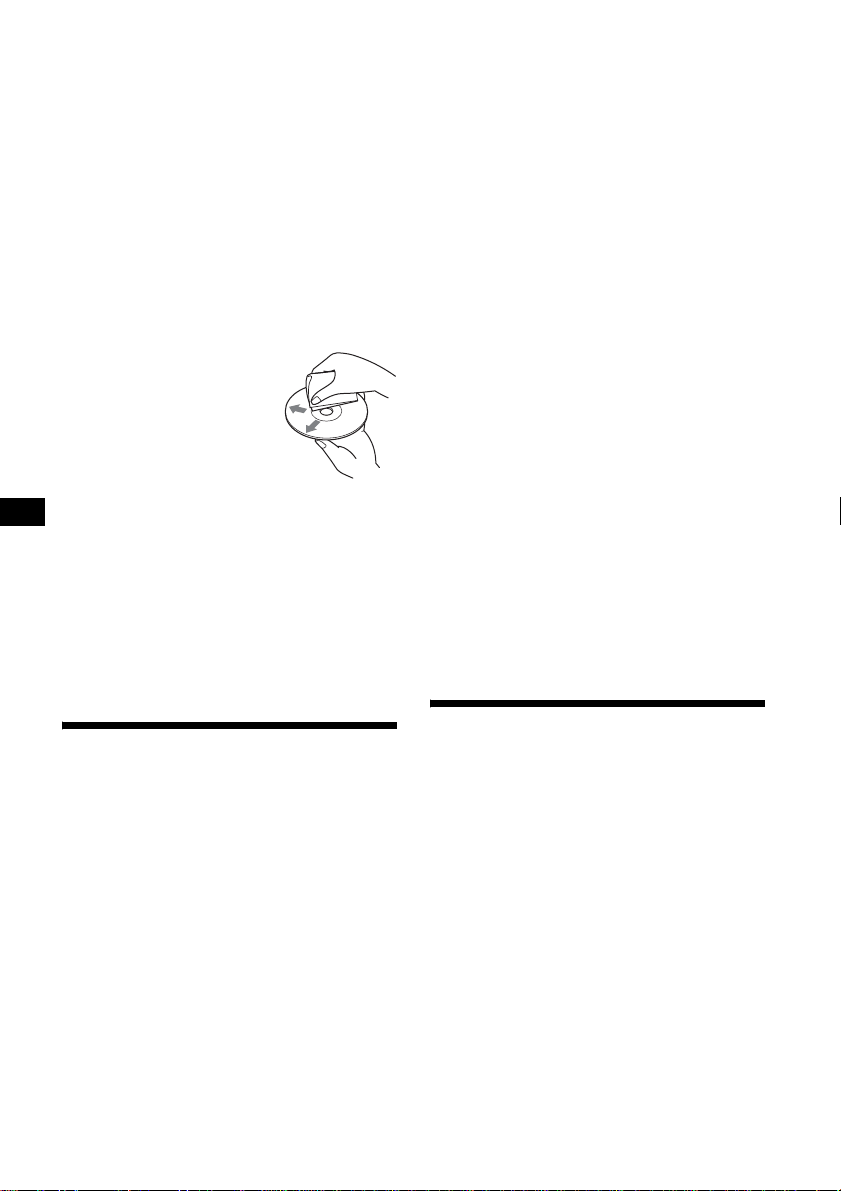
44
• No use discos con etiquetas o autoadhesivos.
Su uso puede producir las siguientes fallas de
funcionamiento:
–Imposibilidad de expulsar el disco (dado que
se despegó la etiqueta o el autoadhesivo y se
obstruye el mecanismo de expulsión).
–Imposibilidad de leer los datos de audio
correctamente (por ejemplo, se interrumpe la
reproducción o simplemente no la hay)
debido a que el calor contrae el autoadhesivo
o la etiqueta y hace que el disco se deforme.
• No se pueden reproducir en esta unidad discos
con formas no estandarizadas (por ejemplo,
formas de corazón, cuadrado o estrella). Si lo
intenta, puede dañar la unidad. No use este tipo
de discos.
• No se pueden reproducir discos de 8 cm.
• Antes de reproducir los
discos, límpielos con un paño
de limpieza disponible en el
mercado. Hágalo desde el
centro hacia los bordes. No
utilice disolventes como
bencina, diluyentes,
productos de limpieza
comerciales ni aerosoles
antiestáticos para discos analógicos.
Nota sobre discos DualDisc
Un DualDisc es un disco de dos caras que
combina material grabado en DVD en una cara
con material de audio digital en la otra cara. Sin
embargo, como le lado del material de audio no
cumple con la norma Compact Disc (CD), no es
seguro que la reproducción pueda hacerse en este
producto.
Acerca de los archivos MP3
MP3, que significa MPEG-1 Audio Layer-3, es
un formato estandarizado que permite comprimir
archivos de música. Comprime los datos de CD
de audio a aproximadamente 1/10 de su tamaño
original.
• La unidad es compatible con los siguientes
estándares:
Para CD
–ISO 9660 de formato de nivel 1/nivel 2,
Joliet/Romeo en cuanto al formato de
expansión
–Multi Session
Para DVD
–Formato UDF Bridge (combina UDF e ISO
9660)
Para CD/DVD
–Versión del indicador ID3 1.0, 1.1, 2.2, 2.3 y
2.4
• Cantidad máxima de:
– carpetas (álbumes): 256 (incluidas la carpeta
raíz y las carpetas vacías).
– archivos MP3 (pistas) y carpetas contenidas
en un disco: 1 000 (si un nombre de archivo o
carpeta contiene muchos caracteres, este
número puede ser inferior a 1 000).
– caracteres que se pueden visualizar de un
nombre de carpeta o archivo: 128; para el
indicador ID3: 126 caracteres.
Notas
• Asegúrese de finalizar el disco antes de utilizarlo en
la unidad.
• Al asignar un nombre a un archivo MP3, asegúrese
de añadir la extensión “.mp3” al nombre de archivo.
• Si reproduce un archivo MP3 de alta tasa de bits,
como 320 kbps, el sonido puede ser discontinuo.
• Durante la reproducción de un archivo MP3 de VBR
(tasa de bits variable) o al avanzar o retroceder
rápidamente, es posible que el tiempo de
reproducción transcurrido no se muestre con
precisión.
• Si el disco se grabó en Multi Session, sólo se
reconoce y reproduce la primera pista del formato
de la primera sesión (cualquier otro formato se
omite). La prioridad del formato es CD-DA y MP3.
– Cuando la primera pista es un CD-DA, sólo se
reproduce el CD-DA de la primera sesión.
– Cuando la primera pista no es un CD-DA, se
reproduce una sesión de MP3. Si el disco no
contiene datos en ninguno de estos formatos,
aparece “NO MUSIC”.
• La unidad no puede reproducir archivos MP3
grabados con Multi Border.
• Los archivos MP3 que no se grabaron con una
frecuencia de muestreo de 44,1 kHz o 48 kHz y una
velocidad de bits de 64 a 320 kbps no se podrán
reproducir.
Nota sobre la transmisión
inalámbrica (MEX-R5
solamente)
La unidad transmite audio o video con una
frecuencia FM de 2,4 GHz. La utilización
simultánea con otro equipo de 2,4 GHz puede
causar interferencias en la imagen o ruidos en el
sonido. No se trata de un fallo de
funcionamiento, si no que se debe a que el
equipo comparte la misma frecuencia operativa.

45
Especificaciones
Sistema
Láser Láser semiconductor
Sistema de formato de señal
Intercambiable entre PAL y
NTSC
Sección del reproductor de DVD/CD*
Relación señal-ruido 120 dB
Respuesta de frecuencia de 10 a 20 000 Hz
Fluctuación y trémolo Inferior al límite medible
Distorsión armónica (DVD)
0,01 %
Fluctuación y trémolo Inferior al valor detectado
(±0,001 % W PEAK)
* Medido desde las tomas AUDIO OUT.
Cuando reproduce pistas con sonido PCM con una
frecuencia de muestreo de 96 kHz, las señales de
salida de la toma DIGITAL OUT (salida digital) se
convierten a una frecuencia de muestreo de 96 kHz.
Sección del sintonizador
FM
Rango de sintonización Modelo asiático:
de 87,5 a 108,0 MHz (a
intervalos de 50 kHz)
Modelo latinoamericano:
de 87,5 a 107,9 MHz (a
intervalos de 200 kHz)
Terminal de la antena aérea
Conector de antena aérea
Frecuencia intermedia 10,7 MHz/450 kHz
Sensibilidad útil 9 dBf
Selectividad 75 dB a 400 kHz
Relación señal-ruido 67 dB (estéreo), 69 dB
(mono)
Distorsión armónica a 1 kHz
0,5 % (estéreo),
0,3 % (mono)
Separación 35 dB a 1 kHz
Respuesta de frecuencia de 30 a 15 000 Hz
AM
Rango de sintonización Modelo asiático:
de 531 a 1 602 kHz (a
intervalos de 9 kHz)
Modelo latinoamericano:
de 530 a 1 710 kHz (a
intervalos de 10 kHz)
Terminal de la antena aérea
Conector de antena aérea
Frecuencia intermedia 10,7 MHz/450 kHz
Sensibilidad 30 µV
Sección del amplificador de potencia
Salidas Salidas de altavoz
(conectores de sellado
seguro)
Impedancia de altavoz de 4 a 8 Ω
Salida máxima de potencia
52 W × 4 (a 4 Ω)
Sección AV inalámbrica (MEX-R5
solamente)
Frecuencias de transmisión
2 414, 2 432, 2 450,
2 468 MHz
Método de modulación Modulación FM
Potencia de salida de RF –1,2 dBm
Generales
Salidas Terminales de salida de
audio/video frontales
Terminales de salida de
audio (Z×Z)/video
posteriores (MEX-R1
solamente)
Terminal de salida de audio
posterior
Terminal de salida de
altavoz potenciador de
graves (mono)
Terminal de salida digital
óptica
Terminal de control del relé
de la antena motorizada
Terminal de control del
amplificador de potencia
Entradas Terminal de control ATT
para teléfono
Terminal de control de
iluminación
Terminal de entrada de
control BUS
Terminal de entrada de
audio BUS/AUX IN
Terminal de control del
freno de mano
Terminal de entrada del
control remoto
Terminal de entrada de
antena
Controles de tono Graves: ±8 dB a 100 Hz
Agudos: ±8 dB a 10 kHz
Sonoridad +8 dB a 100 Hz
+2 dB a 10 kHz
Requisitos de alimentación
Batería de automóvil de cc
de 12 V (tierra negativa)
Dimensiones Aprox. 178 × 50 × 182 mm
(an/al/prf)
Dimensiones de montaje Aprox. 182 × 53 × 161 mm
(an/al/prf)
Peso Aprox. 1,3 kg
Accesorios suministrados Control remoto de tarjeta
RM-X702
Componentes de instalación
y conexiones (1 juego)
Estuche para el panel frontal
(1)
continúa en la página siguiente t
46
Accesorios opcionales Monitor suspendido
XVM-R70
Monitor para reposacabezas
XVM-H65
Monitor móvil
XVM-F65 (para MEX-R1)
Monitor móvil
XVM-F65WL
(para MEX-R5)
Cambiador de CD
(10 discos)
CDX-757MX, CDX-656X
Cambiador de MD
(6 discos)
MDX-66XLP
Selector de fuente
XA-C30
Selector AUX-IN
XA-300
Cable de audio óptico
RC-104
Tecnología de codificación de audio MPEG
Layer-3 y patentes bajo licencia de Fraunhofer
IIS y Thomson.
Nota
Esta unidad no puede conectarse a un
preamplificador digital ni a un ecualizador que sea
compatible con el sistema BUS de Sony.
El diseño y las especificaciones están sujetos a
cambios sin previo aviso.
Solución de problemas
La siguiente lista de comprobación le ayudará a
solucionar los problemas que puedan producirse
con la unidad.
Antes de consultarla, revise los procedimientos
de conexión y de funcionamiento.
Patentes de los EE.UU. y otros países usados con
licencia de Dolb
y
Laboratories.
• Se ha utilizado soldadura sin plomo para soldar
ciertos componentes. (más del 80 %)
• Ciertas placas del circuito impreso no contienen
retardantes de llama halogenados.
• Las carcasas no contienen retardantes de llama
halogenados.
• Impreso con tinta de aceites vegetales, libre de
COV (Compuestos Orgánicos Volátiles).
• No se ha utilizado goma esponjosa de poliestireno
para el material de relleno y protección.
Generales
La unidad no recibe alimentación.
• No se realizó correctamente la conexión
eléctrica.
t Revise la conexión. Si todo está en orden,
compruebe el fusible.
• El auto no tiene una posición ACC.
t Inserte un disco para encender la unidad.
• Si la unidad está apagada y la pantalla
desaparece, no se puede operar con el control
remoto.
t Encienda la unidad.
La antena motorizada no se extiende.
La antena motorizada no tiene una caja de relé.
Las emisoras almacenadas y la hora
correcta se borraron.
El fusible se fundió.
Se escucha ruido cuando se cambia la
posición de la llave de encendido.
Los cables no coinciden correctamente con el
conector de alimentación auxiliar del
automóvil.
Las indicaciones desaparecen de la
pantalla o no aparecen en ella.
• El atenuador está ajustado en “DIM-ON”
(página 39).
• La pantalla se apaga si mantiene presionado
(OFF).
t Mantenga presionado (OFF)
nuevamente hasta que se ilumine la
pantalla.
• Los conectores están sucios (página 43).
La función DSO no está disponible.
Según el tipo de interior del automóvil o el
tipo de música, DSO puede no producir el
efecto deseado.
Según el monitor conectado, la unidad
puede tardar unos segundos en
desconectarse después de girar el
interruptor de encendido hasta la posición
OFF. No se trata de una falla de
funcionamiento.
47
Se producen interferencias en la imagen o
ruido en el sonido durante la transmisión
inalámbrica (MEX-R5 solamente).
• La unidad transmite audio o video con una
frecuencia FM de 2,4 GHz. La utilización
simultánea con otro equipo de 2,4 GHz
puede causar interferencias en la imagen o
ruidos en el sonido.
t Cambie de canal (página 39). Si no se
experimenta mejoría, deje de utilizar el
otro equipo. Asimismo, es posible
desactivar la transmisión inalámbrica de
la unidad si fuera necesario (página 39).
• El transmisor no está colocado
correctamente.
t Coloque el monitor opcional
XVM-F65WL más cerca de la unidad.
t Coloque el transmisor a mayor altura que
la unidad para evitar que el asiento o el
pasajero obstruyan la transmisión.
t Coloque el transmisor en un lugar
estable, ya que de lo contrario la posición
y ángulo del mismo pueden variar.
• Es recomendable instalar el monitor
posterior delante de la segunda fila.
• Si el ruido del sonido es fuerte, cancele la
función Zone × Zone y utilice los altavoces
del automóvil.
• Es posible que se produzcan temporalmente
interferencias o ruido en el sonido durante la
conducción como consecuencia de
obstáculos en el exterior del automóvil.
Imagen
No hay imagen o se produce un ruido en la
imagen.
• No se realizó correctamente la conexión.
• Verifique la conexión al equipo enchufado y
ajuste el selector de entrada del equipo en la
fuente correspondiente a esta unidad.
• El disco está sucio, defectuoso o deteriorado.
• La unidad está instalada en un ángulo
superior a 45º.
• La unidad no está instalada en una parte
firme del auto.
• El monitor está conectado a FRONT
AUDIO/VIDEO OUT, y el cable del freno
(color verde claro) no está conectado al cable
de conmutación del freno de mano o no se
aplicó el freno de mano.
• El ajuste del sistema de color no es correcto.
t Ajuste el sistema de color en “PAL” o
“NTSC” en función del monitor
conectado.
La imagen no se ajusta a la pantalla.
El formato en el DVD es fijo.
Sonido
No hay sonido, se producen saltos en el
sonido o el sonido se distorsiona.
• No se realizó correctamente la conexión.
• Verifique la conexión al equipo enchufado y
ajuste el selector de entrada del equipo en la
fuente correspondiente a esta unidad.
• El disco está sucio, defectuoso o deteriorado.
• La unidad está instalada en un ángulo
superior a 45º.
• La unidad no está instalada en una parte
firme del auto.
• La frecuencia de muestreo del archivo MP3
no es de 44,1 kHz ni 48 kHz.
• La velocidad de bits del archivo MP3 file no
se encuentra dentro del rango de 64 a 320
kbps.
• La unidad se encuentra en modo de pausa de
reproducción o exploración.
• La unidad está en modo de avance rápido o
en modo de retroceso rápido.
• Los ajustes de las salidas no se realizaron
correctamente.
• Ajuste el nivel de salida del DVD
(página 24).
• El volumen es demasiado bajo.
• La función ATT está activada o la función
ATT de teléfono (cuando se conecta el cable
de interfaz de un teléfono para auto al cable
ATT) está activada.
• La posición del control de equilibrio (FAD)
no está ajustada para un sistema de 2
altavoces.
• El cambiador de CD no es compatible con el
formato del disco (MP3).
t Reproduzca con un cambiador de CD de
Sony compatible con MP3 o con esta
unidad.
El sonido se escucha con ruido.
Mantenga los cables alejados entre sí.
continúa en la página siguiente t
48
Funcionamiento
El control remoto no funciona.
• Hay obstáculos entre el control remoto y la
unidad o el receptor remoto.
• El control remoto de tarjeta y la unidad están
demasiado separados.
• No se orienta correctamente el control
remoto de tarjeta hacia el sensor remoto o
hacia el receptor de la unidad.
• Las pilas del control remoto de tarjeta
disponen de poca energía.
Los botones de operación no funcionan.
El disco no se expulsa.
Presione el botón RESET (página 8).
No se escuchan pitidos.
El sonido de los pitidos está cancelado
(página 39).
El contenido de la memoria se borró.
• Presionó el botón RESET.
t Vuelva a almacenar los datos en la
memoria.
• Se desconectó el cable de conexión de
alimentación o la pila.
• El cable de conexión de la alimentación no
está conectado correctamente.
Los elementos de la pantalla no se
desplazan.
• En el caso de discos con muchos caracteres,
es posible que éstos no se desplacen.
• “A.SCRL” está desactivado.
t Ajuste “A.SCRL-ON” (página 39) o
presione (SCRL) en la unidad principal.
“MS” o “MD” no aparecen en la pantalla de
origen cuando se conectan el MGS-X1 y el
cambiador MD opcionales.
Esta unidad reconoce MGS-X1 como una
unidad de MD.
t Presione (SRC) (SOURCE) hasta que
aparezca “MS” o “MD” y, a continuación,
presione (MODE) varias veces.
No es posible insertar el disco.
• Ya hay un disco insertado.
• El interruptor de la llave de encendido del
automóvil se ajustó en la posición OFF.
La unidad no inicia la reproducción.
• El disco se insertó al revés.
t Inserte el disco con la superficie de
reproducción hacia abajo.
• El disco que se insertó no es compatible.
• El DVD que se insertó no es compatible
debido al código de región.
• Se condensó humedad dentro de la unidad.
• El DVD-R, DVD-RW, DVD+R, DVD+RW,
CD-R o CD-RW insertado no está finalizado.
No se puede seleccionar una fuente.
Zone × Zone está activado.
t Presione (ZxZ) para desactivar Zone ×
Zone.
No es posible reproducir archivos MP3.
• La grabación no se realizó conforme al
formato Nivel 1 o Nivel 2 de ISO 9660, o las
normas Joliet o Romeo en cuanto al formato
de expansión.
• El archivo MP3 no tiene la extensión
“.mp3”.
• Los archivos no se almacenaron en formato
MP3.
• La unidad no puede reproducir archivos
almacenados en formato MP3PRO.
• La unidad no puede reproducir archivos
almacenados en un formato que no sea
MPEG1 Audio Layer 3.
• El disco contiene archivos MP3 y JPEG.
t Ajuste “MP3/JPEG” de “CUSTOM
SETUP” (ajuste personalizado) en la
posición “MP3” (página 33).
Los archivos MP3 demoran más tiempo en
reproducirse que los demás.
El inicio de la reproducción de los siguientes
discos demora algo más de tiempo.
–disco grabado con una estructura de árbol
complicada.
–disco grabado en Multi Session.
–disco al que es posible añadir datos.
No es posible reproducir archivos JPEG.
• Los archivos JPEG no tienen la extensión
“.jpg”.
• Los archivos no se almacenaron en formato
JPEG.
• El disco contiene archivos MP3 y JPEG.
t Ajuste “MP3/JPEG” de “CUSTOM
SETUP” (ajuste personalizado) en la
posición “JPEG” (página 33).
El título del álbum MP3 audio o la pista no
se muestra correctamente.
El reproductor sólo puede mostrar números y
caracteres alfabéticos. Los demás caracteres se
muestran como “ ”.
El disco no comienza a reproducirse desde
el principio.
Se activó la reanudación de reproducción
(página 17).
La reproducción se detiene
automáticamente.
Si se reproducen discos con una señal de pausa
automática, la unidad detiene la reproducción
en el punto de la señal de pausa automática.
No es posible realizar ciertas funciones.
Según el disco, es posible que no pueda
realizar las siguientes operaciones: Detener,
Buscar, Reproducción repetida o
Reproducción aleatoria. Para obtener más
información, consulte el manual de
operaciones que se entrega con el disco.
49
No es posible cambiar el idioma de la pista
de sonido.
• Utilice el menú DVD en lugar del botón de
selección directa del control remoto de
tarjeta (página 19).
• El DVD en reproducción no dispone de
pistas grabadas en varios idiomas.
• El DVD prohibe el cambio del idioma para la
pista de sonido.
El idioma de subtítulos no se puede
cambiar ni desactivar.
• Utilice el menú DVD en lugar del botón de
selección directa del control remoto de
tarjeta (página 19).
• El DVD en reproducción no dispone de
subtítulos grabados en varios idiomas.
• El DVD no permite el cambio de los
subtítulos.
No es posible cambiar los ángulos.
• Utilice el menú DVD en lugar del botón de
selección directa del control remoto de
tarjeta (página 19).
• En el DVD que se está reproduciendo no hay
diversos ángulos grabados.
• El DVD prohibe el cambio de los ángulos.
Recepción de radio
No es posible recibir las emisoras.
Hay ruidos que obstaculizan el sonido.
• Conecte un cable de control de antena
motorizada (azul) o un cable de fuente de
alimentación auxiliar (rojo) al cable de
suministro de alimentación del amplificador
de antena del automóvil (sólo si el automóvil
dispone de una antena FM/AM incorporada
en el cristal posterior o lateral).
• Revise la conexión de la antena del
automóvil.
• La antena automática no se extiende.
t Revise la conexión del cable de control
de la antena motorizada.
• Revise la frecuencia.
• Cuando el modo DSO está activado, el
sonido se escucha ocasionalmente con ruido.
t Ajuste el modo DSO en “OFF”
(página 12).
No es posible utilizar la sintonización
programada.
• Almacene la frecuencia correcta en la
memoria.
• La señal de emisión es demasiado débil.
No es posible utilizar la sintonización
automática.
• El modo de búsqueda local está ajustado en
“ON”.
t Ajuste “LOCAL” en “OFF” (página 39).
• La señal de emisión es demasiado débil.
t Use la sintonización manual.
Durante la recepción de FM, la indicación
“ST” parpadea.
• Sintonice la frecuencia con precisión.
• La señal de emisión es demasiado débil.
t Ajuste “MONO” en “ON” (página 39).
Un programa de FM emitido en estéreo se
escucha en monoaural.
La unidad se encuentra en el modo de
recepción monoaural.
t Ajuste “MONO” en “OFF” (página 39).
50
Mensajes/indicaciones de
error
Las siguientes indicaciones aparecen cuando se
produce una falla en la unidad.
*1 Si se produce un error durante la reproducción de
un CD o MD, el número de disco del CD o MD no
aparece en pantalla.
*2 La pantalla muestra el número del disco que causa
el error.
En la unidad principal
BLANK*
1
No hay pistas grabadas en el MD.*
2
t Reproduzca un MD que tenga pistas
grabadas.
ERROR*
1
• El disco está sucio o se insertó al revés.*
2
t Límpielo o insértelo correctamente.
• El disco no se reproduce debido a algún
problema.
t Inserte otro disco.
• El disco no es compatible con esta unidad.
t Inserte un disco compatible.
FAILURE
La conexión del altavoz/amplificador no es
correcta.
t Consulte el manual de instalación/
conexiones suministrado para comprobar la
conexión.
LOAD
El cambiador está cargando el disco.
t Espere hasta que finalice.
L.SEEK +/–
El modo de búsqueda local está activado
durante la sintonización automática.
NO DATA
Se eliminaron todos los nombres
personalizados o no se guardó ninguno.
NO DISC
El disco no está insertado en el cambiador de
CD/MD.
t Inserte los discos en el cambiador.
NO ID3
No se grabó la información del indicador ID3
en el archivo MP3.
NO MAG
El cargador de discos no está insertado en el
cambiador de CD.
t Inserte el cargador en el cambiador.
NO MUSIC
El disco no es un archivo de música.
t Inserte un CD de música en esta unidad o
en un cambiador con capacidad para
reproducir MP3.
NO NAME
No se grabó un nombre de pista/álbum/disco
en la pista.
NOT READ
La unidad no puede leer la información del
disco.
t Cargue el disco y, a continuación,
selecciónelo en la lista.
NOTREADY
La tapa del cambiador de MD está abierta o
los MD no están insertados correctamente.
t Cierre la tapa o inserte los MD
correctamente.
OFFSET
Es posible que se haya producido una falla
interna.
t Revise la conexión. Si el indicador de error
permanece en pantalla, póngase en
contacto con el distribuidor Sony más
cercano.
READ
La unidad está leyendo toda la información de
pistas y de álbumes del disco.
t Espere hasta que finalice la lectura y se
inicie la reproducción automáticamente. Es
posible que demore más de un minuto en
función de la estructura del disco.
RESET
La unidad y el cambiador de CD/MD no
pueden utilizarse debido a algún problema.
t Presione el botón RESET (página 8).
“” o “”
Durante la operación de avance o retroceso
rápido, llegó al principio o al final del disco,
por lo que no es posible continuar.
“”
No se puede mostrar el carácter con la unidad.
51
Si estas soluciones no ayudan a mejorar la
situación, póngase en contacto con el distribuidor
Sony más cercano.
Si lleva la unidad para repararla a causa de
problemas en la reproducción de discos, lleve el
disco que se utilizó cuando se produjo el problema.
Glosario
Capítulo
Secciones de un elemento de imagen o de música
más pequeñas que los títulos. Un título se
compone de varios capítulos. Es posible que
algunos discos no tengan capítulos grabados.
Dolby Digital
Tecnología de compresión de audio digital
desarrollada por Dolby Laboratories. Esta
tecnología admite el sonido envolvente de 5.1
canales. El canal posterior es estéreo y se incluye
un canal potenciador de graves independiente en
este formato. Dolby Digital proporciona los
mismos canales independientes 5.1 de audio
digital de alta calidad presentes en los sistemas
de audio cinematográfico Dolby Digital. Se
obtiene una óptima separación entre canales, ya
que todos los datos de canal se graban por
separado, siendo mínimo el deterioro gracias a
que el procesamiento de todos los datos de canal
es digital.
DTS
Tecnología de compresión de audio digital
desarrollada por Digital Theater Systems, Inc.
Esta tecnología admite el sonido envolvente de
5.1 canales. El canal posterior es estéreo y se
incluye un canal potenciador de graves
independiente en este formato. DTS proporciona
los mismos 5.1 canales independientes de sonido
digital de alta calidad.
Se obtiene una óptima separación entre canales,
ya que todos los datos de canal se graban por
separado, siendo mínimo el deterioro gracias a
que el procesamiento de todos los datos de canal
es digital.
En el monitor
Cannot play this disc.
• El disco no es compatible con esta unidad.
• No es posible reproducir el DVD debido a
que el código de región es diferente.
No MP3 or JPEG file
El disco no contiene archivos MP3/JPEG.
Read error
• La unidad no puede leer los datos debido a
algún problema.
• Se dañaron o perdieron los datos.
Please Press RESET.
La unidad no puede operar debido a algún
problema.
t Presione el botón RESET.
continúa en la página siguiente t

52
DVD VIDEO
Disco que contiene hasta 8 horas de imágenes en
movimiento, aunque su diámetro es igual que el
de un CD.
La capacidad para almacenar datos de un DVD
de una sola capa de una sola cara es de 4,7 GB
(Giga Byte), 7 veces la capacidad de un CD. La
capacidad para almacenar datos de un DVD de
doble capa de una sola cara es de 8,5 GB, la de
un DVD de una sola capa de dos caras es de 9,4
GB, y la de un DVD de doble capa y de dos caras
es de 17 GB.
Los datos de imagen emplean el formato MPEG
2, una de las normas mundiales de tecnología de
compresión digital. Los datos de imagen se
comprimen a casi 1/40 (promedio) de su tamaño
original. El DVD también emplea una tecnología
de codificado de tasa variable que cambia los
datos que se asignarán conforme al estado de la
imagen. La información de audio se almacena en
un formato de varios canales, como Dolby
Digital, que permite disfrutar de un sonido más
real.
Además, el DVD proporciona diversas funciones
avanzadas, como la de múltiples ángulos,
multilingües y de control de bloqueo.
DVD-RW
Un DVD-RW es un disco que se puede grabar y
reescribir con el mismo tamaño como el DVD
VIDEO. Es posible grabar el DVD-RW en dos
formatos distintos: Modo VR y modo Video. El
modo VR (grabación de video) habilita diversas
funciones de programación y edición, algunas de
las cuales están limitadas en el caso del modo
Video. El modo Video cumple con los requisitos
de formato DVD VIDEO y se puede reproducir
en otros reproductores de DVD, mientras que un
DVD-RW grabado en modo VR, sólo se puede
reproducir en reproductores que cumplan con la
norma DVD-RW. Cuando aparece “DVD-RW”
en este manual y en las pantallas se hace
referencia a los DVD-RW en modo VR.
DVD+RW
Un DVD+RW es un disco que se puede regrabar
y reescribir. Los discos DVD+RW utilizan un
formato de grabación parecido al formato DVD
VIDEO.
JPEG (Joint Photographic Expert Group
o Grupo Conjunto de Expertos en
Fotografía)
Conforme a la Organización Internacional para la
Estandarización o International Organization for
Standardization (ISO), JPEG se define como un
formato estándar universal para compresión y
descompresión digital de imágenes fijas para
utilizar en sistemas relacionados con
computadoras. Por lo general, la tasa de
compresión es variable antes de que se produzca
un deterioro visible. Las imágenes fijas se
comprimen aproximadamente de 1/10 a 1/100
del tamaño original.
Pista
Secciones de una imagen o una pieza musical en
un CD o VIDEO CD (longitud equivalente a una
canción).
Software basado en cine, software
basado en video
Es posible clasificar a los DVD como software
basado en cine o en video. Los DVD basados en
cine contienen las mismas imágenes (24
fotogramas por segundo) que se muestran en las
salas de cine. Los DVD basados en video, como
por ejemplo las telenovelas o comedias,
muestran imágenes a 30 fotogramas (o 60
campos) por segundo.
Título
La sección más larga de una imagen o de música
de los discos DVD, películas, etc., en software de
video o el álbum completo en software de audio.

53
Lista de códigos de idiomas
La ortografía de los idiomas cumple la norma ISO 639: 1988 (E/F).
Código de idioma Código de idioma Código de idioma Código de idioma
1027 Afar
1028 Abkhazian
1032 Afrikaans
1039 Amharic
1044 Arabic
1045 Assamese
1051 Aymara
1052 Azerbaijani
1053 Bashkir
1057 Byelorussian
1059 Bulgarian
1060 Bihari
1061 Bislama
1066 Bengali;
Bangla
1067 Tibetan
1070 Breton
1079 Catalan
1093 Corsican
1097 Czech
1103 Welsh
1105 Danish
1109 German
1130 Bhutani
1142 Greek
1144 English
1145 Esperanto
1149 Spanish
1150 Estonian
1151 Basque
1157 Persian
1165 Finnish
1166 Fiji
1171 Faroese
1174 French
1181 Frisian
1183 Irish
1186 Scots Gaelic
1194 Galician
1196 Guarani
1203 Gujarati
1209 Hausa
1217 Hindi
1226 Croatian
1229 Hungarian
1233 Armenian
1235 Interlingua
1239 Interlingue
1245 Inupiak
1248 Indonesian
1253 Icelandic
1254 Italian
1257 Hebrew
1261 Japanese
1269 Yiddish
1283 Javanese
1287 Georgian
1297 Kazakh
1298 Greenlandic
1299 Cambodian
1300 Kannada
1301 Korean
1305 Kashmiri
1307 Kurdish
1311 Kirghiz
1313 Latin
1326 Lingala
1327 Laothian
1332 Lithuanian
1334 Latvian;
Lettish
1345 Malagasy
1347 Maori
1349 Macedonian
1350 Malayalam
1352 Mongolian
1353 Moldavian
1356 Marathi
1357 Malay
1358 Maltese
1363 Burmese
1365 Nauru
1369 Nepali
1376 Dutch
1379 Norwegian
1393 Occitan
1403 (Afan)Oromo
1408 Oriya
1417 Punjabi
1428 Polish
1435 Pashto; Pushto
1436 Portuguese
1463 Quechua
1481 Rhaeto-
Romance
1482 Kirundi
1483 Romanian
1489 Russian
1491 Kinyarwanda
1495 Sanskrit
1498 Sindhi
1501 Sangho
1502 Serbo-
Croatian
1503 Singhalese
1505 Slovak
1506 Slovenian
1507 Samoan
1508 Shona
1509 Somali
1511 Albanian
1512 Serbian
1513 Siswati
1514 Sesotho
1515 Sundanese
1516 Swedish
1517 Swahili
1521 Tamil
1525 Telugu
1527 Tajik
1528 Thai
1529 Tigrinya
1531 Turkmen
1532 Tagalog
1534 Setswana
1535 Tonga
1538 Turkish
1539 Tsonga
1540 Tatar
1543 Twi
1557 Ukrainian
1564 Urdu
1572 Uzbek
1581 Vietnamese
1587 Volapük
1613 Wolof
1632 Xhosa
1665 Yoruba
1684 Chinese
1697 Zulu
1703 Sin especificar

54
Índice
Numérico
16:9 32
4:3 LETTER BOX (tipo buzón)
32
4:3 PAN SCAN (exploración
PAN) 32
A
Agudos (TRE) 37
Ajuste de audio (AUDIO
SETUP) 34
Ajuste de idioma (LANGUAGE
SETUP) 31
Ajuste de la pantalla (SCREEN
SETUP) 32
Ajuste del reloj (CLOCK-ADJ) 8
Álbum (ALBUM) 22
Altavoz potenciador de graves
(SUB) 37
Ángulo (ANGLE) 25
Atenuador (DIM) 39
Audio (AUDIO) 23, 31
Audio auxiliar (AUX-A) 39, 41
B
Balance (BAL) 37
Botón RESET 8
C
Cambiador de CD/MD 40
Capítulo (CHAPTER) 22
Código de región 7
Configuración personalizada
(CUSTOM SETUP) 33
Contraste (CONTRAST) 39
Control de bloqueo
(PARENTAL CONTROL)
27, 33
Control remoto de tarjeta 11
D
Demostración (DEMO) 8, 39
Desplazamiento automático
(A.SCRL) 39
Desplazamiento de indicaciones
(M.DSPL) 39
Discos que se pueden reproducir
6
Dolby Digital (DOLBY
DIGITAL) 35
DRC (Control de gama
dinámica) (AUDIO DRC) 34
DTS 35
E
Ecualizador (EQ7) 12, 37
Ecualizador de imagen
(PICTURE EQ) 26, 34
Elemento de la pantalla
Menú Configuración 13, 30
Menú Modo de reproducción
13
Reproducción de CD/MP3 15
Equilibrio (FAD) 37
F
Filtro de paso alto (HPF) 39
Filtro de paso bajo (LPF) 39
Formato de programa 24
Fusible 42
G
Graves (BAS) 37
I
Imagen (IMAGE) 22
Inalámbrico (WL) 39
Información de tiempo/texto
(TIME/TEXT) 18
Información del reloj (CLOCK)
39
J
JPEG (MP3/JPEG) 33
L
Lista de códigos de área 29
Lista de códigos de idiomas 53
Listado 36, 40
Localización
Avance rápido 16
Exploración 19
Retroceso rápido 16
M
Mando rotatorio (RM) 39, 41
Memoria de la mejor sintonía
(BTM) 35
Menú Configuración 13, 30
Menú del DVD 19, 31
Menú Modo de reproducción 13
Menú superior 19
Mezcla (DOWNMIX) 34
Modo de búsqueda local
(LOCAL) 39
Modo monoaural (MONO) 39
MP3 (MP3/JPEG) 33
N
Nivel auxiliar (AUX LVL) 39
Nivel de DVD (DVD LVL) 24,
39
Nombre de la emisora
Editar (NAMEEDIT) 38
Eliminar (NAME DEL) 38
Nombre del disco
Editar (NAMEEDIT) 38
Eliminar (NAME DEL) 38
O
Organizador de sonido de baja
frecuencia dinámico (DSO) 4,
12
OSD 31
P
PBC (control de reproducción)
20
Pila de litio 42
Pista (TRACK) 22
Pitido (BEEP) 39
Protector de pantalla (SCREEN
SAVER) 32
R
Radio 35
Reanudar la reproducción
(MULTI-DISC RESUME) 17,
33
Reproducción aleatoria
(SHUFFLE)
Álbum 21
Cambiador 40
Disco 21
Título 21
Reproducción con búsqueda 22
Reproducción de lista de
reproducción (PLAY LIST
PLAY) 33
Reproducción repetida
(REPEAT)
Álbum 21
Capítulo 21
Disco 40
Pista 21
Título 21
Restaurar (RESET) 31

2
警告
為防止火災或電擊,請勿將本機放在雨水所
及或潮濕的地方。
切勿打開機殼,以免觸電。 維修只可由合格
的專業技術人員進行。
小心
使用本機中的光學儀器將增加對眼睛的傷
害。 該 CD/DVD 播放機使用的雷射光束對眼睛
有害,因此不要試圖拆開機殼。
維修只可由合格的專業技術人員進行。
關於無線傳輸的注意事項
(僅限於 MEX-R5)
本裝置可以用 FM 2.4 GHz 傳輸音頻 / 視頻。
本裝置與其他2.4 GHz的設備同時使用可能會
引起影像的干擾或音頻的雜訊。這不是故障,
而是設備共用同一個工作頻率而引起的結
果。
• 短距離低功率射頻電機之主要技術指標
– 工作頻率範圍:2400 - 2483.5 M
Hz
– 有效發射功率 (EIRP):≤ 10 mW
– 雜散發射功率:≤ -36 dBm/100
kHz
(30 MHz - 1 GHz)
≤ -30 dBm/100 kHz
(1 GHz - 12.75 GHz)
– 載頻容限:± 75 kHz
• 不得擅自變更發射頻率、加大發射功率(包
括額外加裝射頻功率放大器),不得擅自外
接天線或改用其它發射天線;
• 使用時不得對各種合法的無線電通信業務產
生有害干擾;經發現有干擾現象時,應立即
停用,並改善至無干擾時方得繼續使用;
• 低功率射頻電機須忍受各種無線電通信或工
業、科學及醫療用設備之輻射性干擾;
• 不得在飛機和機場附近使用。
低功率電波輻射性電機管理辦法
第十二條
經型式認證合格之低功率射頻電機,非經許
可,公司、商號或使用者均不得擅自變更頻
率、加大功率或變更原設計之特性及功能。
第十四條
低功率射頻電機之使用不得影響飛航安全及
干擾合法通信;經發現有干擾現象時,應立
即停用,並改善至無干擾時方得繼續使用。
前項合法通信,指依電信法規定作業之無線
電通信。低功率射頻電機須忍受合法通信或
工業、科學及醫療用電波輻射性電機設備之
干擾。
CAUTION
RADIATION WHEN OPEN AND INTERLOCKS DEFEATED.
DO NOT VIEW DIRECTLY WITH OPTICAL INSTRUMENTS.
:
CLASS 1M VISIBLE/INVISIBLE LASER

3
目錄
鳴謝惠顧! ..........................4
使用前注意事項 ......................5
可播放光碟 ..........................5
開始使用之前
復原本機 ............................8
設定時鐘 ............................8
DEMO 模式 ...........................8
拆卸前面板 ..........................8
將光碟插入本機 ......................9
控制器位置和基本操作 ...............10
選單顯示 ...........................13
播放機
播放光碟 ...........................15
重續播放
— 重續播放 ......................17
查看光碟資訊
— 時間 / 文字資訊 ................17
搜尋光碟上的指定點
— 掃描 ..........................18
使用 DVD 中的選單 ...................19
使用 PBC 功能
— PBC (播放控制) ..............19
以不同的模式播放
— 重複播放 / 隨機播放 /
搜尋播放 ........................20
多種 DVD 操作
更改聲道 ...........................22
改變角度 ...........................23
顯示字幕 ...........................24
放大影像 ..........................24
改變影像品質
— 影像 EQ .......................25
鎖定光碟
— 視聽者控制 ....................26
設定和調整
使用設定選單 .......................28
設定顯示語言或聲音軌跡
— 語言設定 ......................29
設定螢幕
— 螢幕設定 ......................30
個人設定
— 個人設定 ......................31
音頻設定
— 音頻設定 ......................32
收音機
自動儲存
— BTM .......................... 32
手動儲存 .......................... 32
接收已儲存的電臺 .................. 33
自動調諧 .......................... 33
通過列表接收電臺
— 列表.......................... 33
其他功能
調節聲音特性 ...................... 33
調節均衡曲線
— EQ7 調諧...................... 34
標註電臺 / 光碟 .................... 34
調節裝置選單項目
— SYSTEM MENU .................. 35
使用選購設備 ...................... 36
切換前面 / 背面輸出
— Zone × Zone .................. 38
附加資訊
保養 .............................. 38
拆卸本機 .......................... 39
光碟注意事項 ...................... 39
關於 MP3 檔案 ...................... 40
關於無線傳輸的注意事項
(僅限於 MEX-R5)................. 40
規格 .............................. 41
故障排除 .......................... 42
出錯顯示 / 資訊 .................... 45
術語 .............................. 46
語言代碼列表 ...................... 47
索引 .............................. 48
4
鳴謝惠顧!
感謝您惠購 Sony 多光碟播放機。在操作本機
之前,請詳細閲讀本說明書並妥善保管以備
將來參考。
特色:
• DVD,CD,VCD 播放相容
–與多種光碟格式相容,如 DVD-R/-RW、
DVD+R/DVD+RW 等
DVD-RW:與視頻模式和 VR 模式相容(可進
行多種編輯)
DVD+RW:與 +VR 模式相容 (可進行多種編
輯)
–播放以 MP3 檔案格式錄製在 DVD-R/-RW、
DVD+R/+RW 或 CD-R/-RW 上的多達 1000 個曲
目 *
1
• 提供 2 路視頻輸出 (正面和背面) *
2
,1 路
Zone × Zone 音頻輸出 *
3
和 1 路數位輸出
• 無線傳輸*
4
:音頻/視頻訊號可傳輸到選購的
監視器 XVM-F65WL,且無需複雜的連接。
• Zone × Zone:您可以聽收音機或來自前面
的 CD/MD 換碟機 (如果連接)的音樂,並同
時將 DVD 輸出至背面。
• 影像 EQ :根據汽車内部 / 周圍亮度而定,您
可以從預設設定中選擇想要的影像色調。
• DVD 電平調整 :平衡 PCM、Dolby Digital 和
DTS 之間的輸出電平差異,以及平衡光碟和
音源之間的音量電平差異。
• EQ7 :您可以為 7 種音樂類型選擇均衡曲線。
• DSO(動態攝影棚管理器):採用虛擬揚聲器
合成創建更具現場環境的聲場,即使揚聲器
安裝在門上較低的位置,也可以增強揚聲器
聲音。
• 選購的 CD/MD 裝置 (換碟機和播放機
均可) *
5
。
*1 視曲目長度而定
*2 MEX-R5 為一路正面視頻輸出
*3 僅限於 MEX-R1
*4 僅限於 MEX-R5
*5 本機僅與 Sony 產品一起使用。
關於本手冊
• 本使用說明書描述了卡片式遙控器上的控制
鍵。如果本機上的控制鍵和卡片式遙控器上
的控制鍵名稱相同或相似,您也可以使用本
機上的控制鍵。
• 在本手冊中,“DVD”作爲用於 DVD-R/-RW 和
DVD+R/+RW 的一般項目使用。
• 本手冊中使用的圖示涵義描述如下:
圖示 涵義
視頻模式中可用於DVD VIDEO、
DVD-R/DVD-RW 或 DVD+R/DVD+RW
的各項功能
視頻 CD 格式中可用於視頻 CD
或 CD-R/CD-RW 的各項功能
音樂 CD 格式中可用於音樂 CD
或 CD-R/CD-RW 的各項功能
可用於以 MP3 格式儲存在 CD-
ROM/CD-R/CD-RW/DVD-R/DVD-
RW/DVD+R/DVD+RW 上的檔案的
各項功能
可用於以 JPEG 格式儲存在 CD-
ROM/CD-R/CD-RW/DVD-R/DVD-
RW/DVD+R/DVD+RW 上的檔案的
各項功能
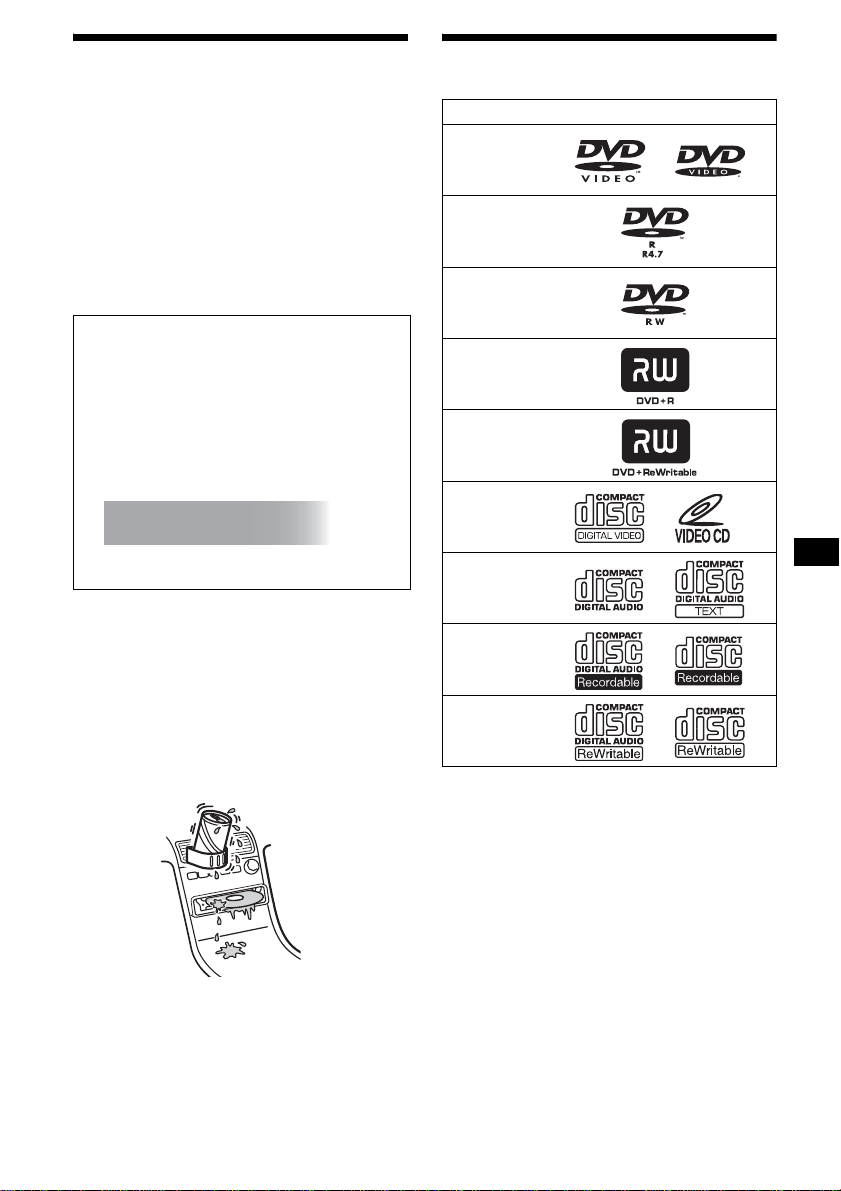
5
使用前注意事項
• 在駕駛中切勿使用自訂功能,或操作其他可
能分散您對路況注意力的功能。
• 倘若您的汽車停在直射陽光下,則在操作前
必須先使本機充分冷卻。
• 本機工作時,電動天線將自動伸出。
關於安全
• 請遵守貴國或地區的交通法規。
• 爲了您的安全,如果未實施停車煞車,則連
接在 FRONT VIDEO OUT 的監視器將自動關
閉。
關於濕氣凝結
在雨天或非常潮濕的地區,本機的透鏡和顯
示幕内會產生濕氣凝結。一旦如此,本機將無
法正常運行。此時,請將光碟取出,並等待約
一小時,直至濕氣蒸發。
為保持高品質聲音
時刻當心,切勿將果汁或其它飲料濺在本機
或光碟上。
可播放光碟
* 無法播放沒有最終化的光碟。
“DVD VIDEO”、“DVD-R”、“DVD-RW”、
“DVD+R”和 “DVD+RW”是商標。
DVD
一盤 DVD 含有音頻和影像資料。12 cm 光碟可
容納 CD-ROM 中所含資料總量的 7 倍,相當於
連續 4 個小時的播放時間 (雙面光碟為 8 小
時)。DVD 分爲 4 種類型:單面單層,單面雙
層,雙面單層,以及雙面雙層。
防止意外事故
本影像只有當您停車後並設定了停車煞車才
會出現。
當汽車開始起動時,在顯示下列警告後,來
自 FRONT VIDEO OUT 的影像將自動消失。
當汽車處於運動狀態時,連接到 REAR VIDEO
OUT 的監視器有效。
螢幕上的影像關閉,但可以聽到 CD/MP3 聲
音。
駕駛時切勿操作本機或觀看監視器。
For your safety,
the video is blocked.
光碟格式
續下頁 t
DVD VIDEO
DVD-R*
(MP3/JPEG)
DVD-RW*
視頻模式 /VR 模式
(MP3/JPEG)
DVD+R*
(MP3/JPEG)
DVD+RW*
(MP3/JPEG)
視頻 CD
音頻 CD
CD-R*
(MP3/JPEG)
CD-RW*
(MP3/JPEG)

6
視頻 CD (VCD)
視頻 CD 可以在與常規音頻 CD 相同大小的光碟
上同時含有音頻和影像資料。標準 12 cm CD
的播放時間為 74 分鐘。
音頻 CD
含有音頻資料的音頻 CD。標準 12 cm CD 的播
放時間為 74 分鐘。
可錄 CD (CD-R)
使用 CD-R,您可以編輯音頻資料。您可以在
CD-R 上寫入一次資訊。
可重寫 CD (CD-RW)
使用 CD-RW,您可以編輯音頻資料。您僅能在
CD-RW 上反覆寫入資訊。
CD-Extra
CD-Extra 分別有音頻和資料兩個部分 (話
路)。您只能在本機上播放音頻部分。
註
• 致地區代碼 3 區域的客戶
本機符合 PAL 彩色制式。無法播放以非 PAL 彩色制式
錄製的光碟,如 NTSC 或 SECAM。
• 致地區代碼 4 區域的客戶
本機符合 NTSC 彩色制式。無法播放以非 NTSC 彩色制
式錄製的光碟,如 PAL 或 SECAM。
• 您可以用本機播放設計用於音頻的 DVD-R/DVD-RW、
DVD+R/DVD+RW 和 CD-R/CD-RW。但是,視錄製的情況而
定,您無法播放某些光碟。
• 您無法播放沒有最終化的 CD-R/CD-RW、DVD-R/DVD-RW
或 DVD+R/DVD+RW。
• 無法播放以 Packet Write 格式製作的光碟。
• 如果周圍溫度很高,則可能無法正確播放可錄製光
碟。
• 以下列出的光碟無法在本機上播放:
– 8 cm 光碟
– CD-ROM (MP3 或 JPEG 檔案以外的資料)
– CD-G
– Photo-CD
– VSD (視頻單光碟)
– DVD-ROM (MP3 或 JPEG 檔案以外的資料)
– DVD-RAM
– DVD-Audio
– DVD+R DL (雙層)
– Active-Audio (資料)
– CD-Extra (資料)
– Mixed CD
– SVCD (Super Video CD)
– CDV
– SACD (Super Audio CD)
有關透明光碟的注意事項
本機不能播放只含有内圈 8 cm 資料部分 (其
餘為透明)的 12 cm 光碟。
採用版權保護編碼的音樂光碟
本機是專爲播放符合 Compact Disc (CD)標
準光碟而設計。近來,許多唱片公司都推出各
種採用版權保護編碼的音樂光碟。請注意,這
些光碟中可能會有不符合 CD 標準的光碟,並
且可能無法使用本產品播放和錄製。

7
地區代碼
本系統用於軟體版權保護。
地區代碼位於本機的底部,只有標有相同地
區代碼的 DVD 才能在本機上播放。
標有 的 DVD 也可以在本機上播放。
如果您試圖播放任何其他 DVD,則監視器螢幕
上將出現“Cannot play this disc.”訊息。
視 DVD 而定,有些受到地區限制而禁止播放的
DVD 可能並未標有地區代碼。
DVD 和 VCD 播放操作的注意事項
有些 DVD 和 VCD 的播放操作方法可能受到軟體
製作者的特別規定。由於本機是根據軟體製
作者設計的光碟內容播放 DVD 和 VCD 的,所以
一些播放功能可能無效。此外,請參閱 DVD 或
VCD 附帶的使用說明書。
版權
本產品含有版權保護技術,該技術受美國專
利和其他知識產權保護。使用此版權保護技
術時,必須獲得 Macrovision 公司的許可,
且僅供家庭和其他限制性觀看,除非獲得
Macrovision 公司的允許。禁止逆向設計或
拆卸。
由 Dolby Laboratories 授權製造。
「杜比」、「Dolby」與雙 D 記號是 Dolby
Laboratories 的商標。
“DTS”和 “DTS 2.0 + Digital Out”均為
Digital Theater Systems, Inc. 的商標。
地區代碼
ALL
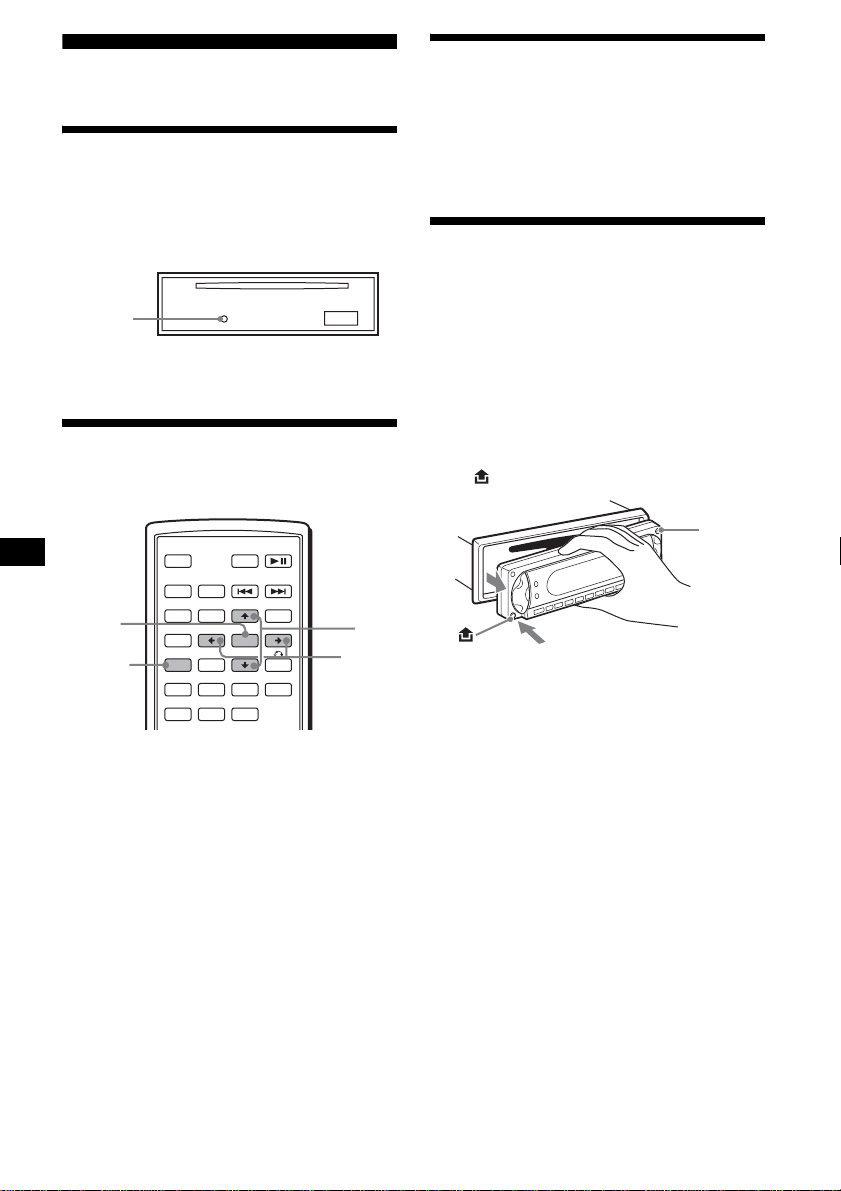
8
開始使用之前
復原本機
在第一次使用本機前,或更換汽車電池或改
變連接後,必須使本機復原。
卸下前面板,並用帶尖頭的物体,如原子筆
等,按下 RESET 按鈕。
註
按 RESET 按鈕,將消除時鐘設定和某些已儲存的內容。
設定時鐘
時鐘採用 24 小時制數字顯示。
1 按 (SYSTEM MENU)。
出現設定顯示畫面。
2 反覆按 M/m,直至出現 “CLOCK-ADJ”。
3 按 (ENTER)。
小時指示閃爍。
4 按 M/m 設定小時和分鐘。
若要移動數字指示,則按 </,。
5 按 (ENTER)。
時鐘開始走時。
若要在播放 / 接受過程中顯示時鐘,則設定
“CLOCK-ON”(第 35 頁)。
DEMO 模式
關機時,首先顯示時鐘,然後示範(DEMO)模
式開始示範顯示。
若要取消 DEMO 模式,則當關機時在設置中設
定 “DEMO-OFF”(第 35 頁)。
拆卸前面板
您可以拆下本機的前面板以防止本機被盜。
報警
若您未拆除前面板即把點火開關旋轉至 OFF
檔,報警器將發出數秒鐘的報警聲。
如果使用內建放大器,報警器將只發出一聲
報警聲。
1 按 (OFF)。
本機關閉。
2 按 ,然後將前面板朝自己方向拉出。
註
• 切勿摔落或猛按前面板及顯示窗。
• 切勿使前面板受熱 / 高溫或受潮。避免將前面板遺留
在停泊的車廂內或儀表盤 / 後托架上。
提示
攜帶前面板時,請將它放在附帶的前面板盒內攜帶。
RESET
按鈕
SRC
MODE
ATT DVD
SOUND
TOP MENU
MENU
SETUP
ENTER
SYSTEM
MENU
LIST
EQZ
×
Z DSO EQ7
PICTURE
AUDIO
SUBTITLE
ANGLE
OFF
+
–
ENTER
SYSTEM
MENU
M/m
</,
(OFF)
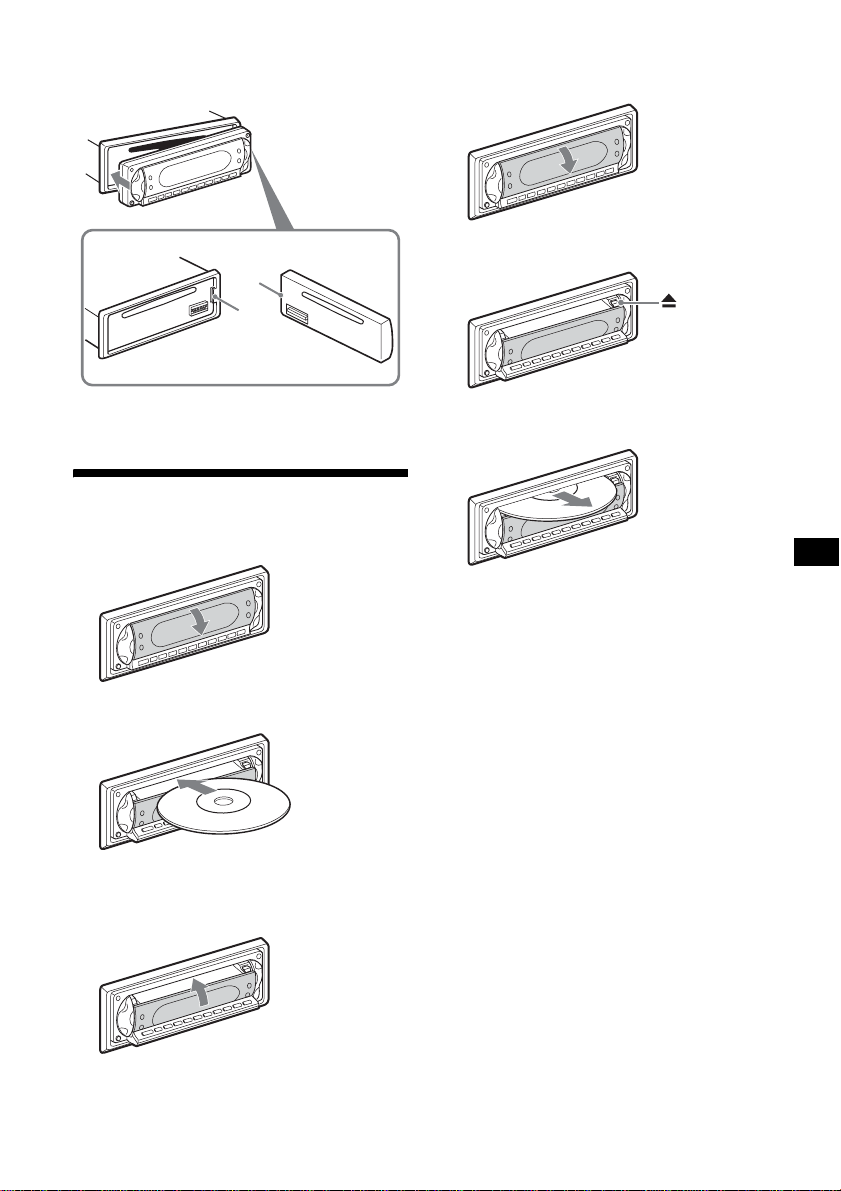
9
安裝前面板
如圖所示將前面板的A 部分與本機的 B 部分
嚙合,然後推進左端直至聽到喀嗒聲。
註
切勿在前面板內表面放任何東西。
將光碟插入本機
1 打開百葉艙門。
2 將光碟播放面朝下插入。
播放開始。(視光碟而定,按 DVD u 開始
播放。)
3 關閉百葉艙門。
退出光碟
1 打開百葉艙門。
2 按 Z。
光碟退出。
註
插入或退出光碟時,切勿關閉百葉艙門。光碟可能被卡
住並損壞。
提示
光碟可以在百葉艙門打開或關閉時播放。
B
A
x
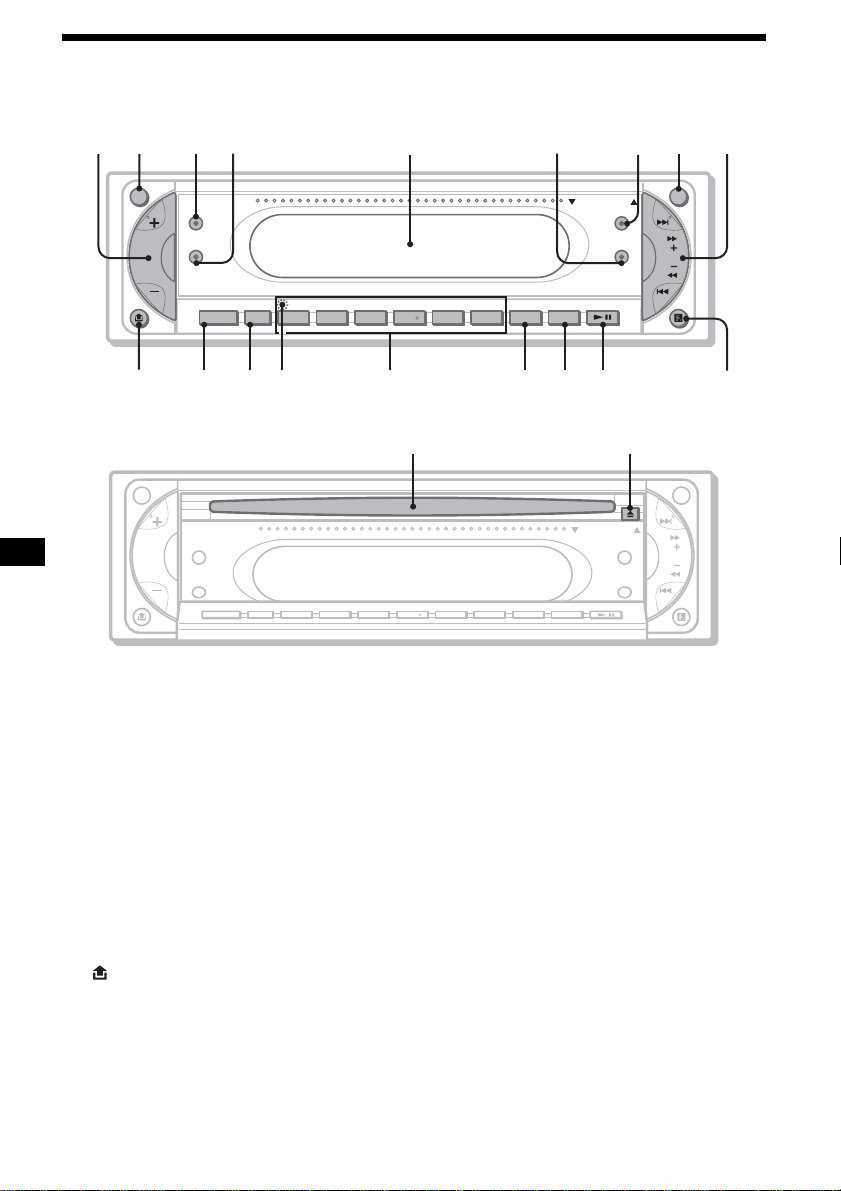
10
控制器位置和基本操作
主機
OPEN/CLOSE 百葉艙門打開時
詳細說明,請參見列出頁。
a 音量 +/- 按鈕 33
b ATT (降低)按鈕
c Z×Z (Zone × Zone)按鈕
d SOUND 按鈕
e 顯示窗
f EQ7 (均衡器)按鈕
g DSO 按鈕
h OFF 按鈕 8
i SEEK +/- 按鈕
收音機:
自動調入電臺(按);手動搜台(按住)。
DVD/CD:
跳過章 / 軌跡(按);快進 / 後退章 / 軌
跡 (按住)。
j (前面板釋放)按鈕 8
k SOURCE 按鈕 38
l MODE 按鈕
m RESET 按鈕 (位於前面板後面) 8
n 數字按鈕
收音機:
接收已儲存的電臺 (按);儲存電臺
(按住)。
CD/MD*
1
:
(1): REP 20, 37
(2): SHUF 20, 37
(3)/(4): ALBM -/+*
2
跳過文件夾 (按);連續跳過文件夾
(按住)。
o DSPL 按鈕
p SCRL 按鈕
滾動顯示項目。
q DVD u (播放 / 暫停)按鈕
r 卡片式遙控器接收器
s 光碟槽 9
t Z (退出)按鈕 9
*1 連接了 MD 換碟機時。
*2 播放 MP3/JPEG 且未連接換碟機時。如果連接了換碟
機,操作則不同,請參見第 36 頁。
SEEK
MEX-R1
MEX-R5
ATT OFF
SOUND
DSO
OPEN/CLOSE
EQ7
SOURCE MODE
DVD
SCRL
SHUFREP ALBM +
-
DSPL
654321
12 34 6 78 9
qjqhqgqfqdqsqa0
5
qk
Z
×
Z
Z
×
Z
SEEK
ATT OFF
SOUND
DSO
OPEN/CLOSE
EQ7
SCRL
DVDSHUFREP ALBM +
-
DSPL
654321
SOURCE MODE
ql w;
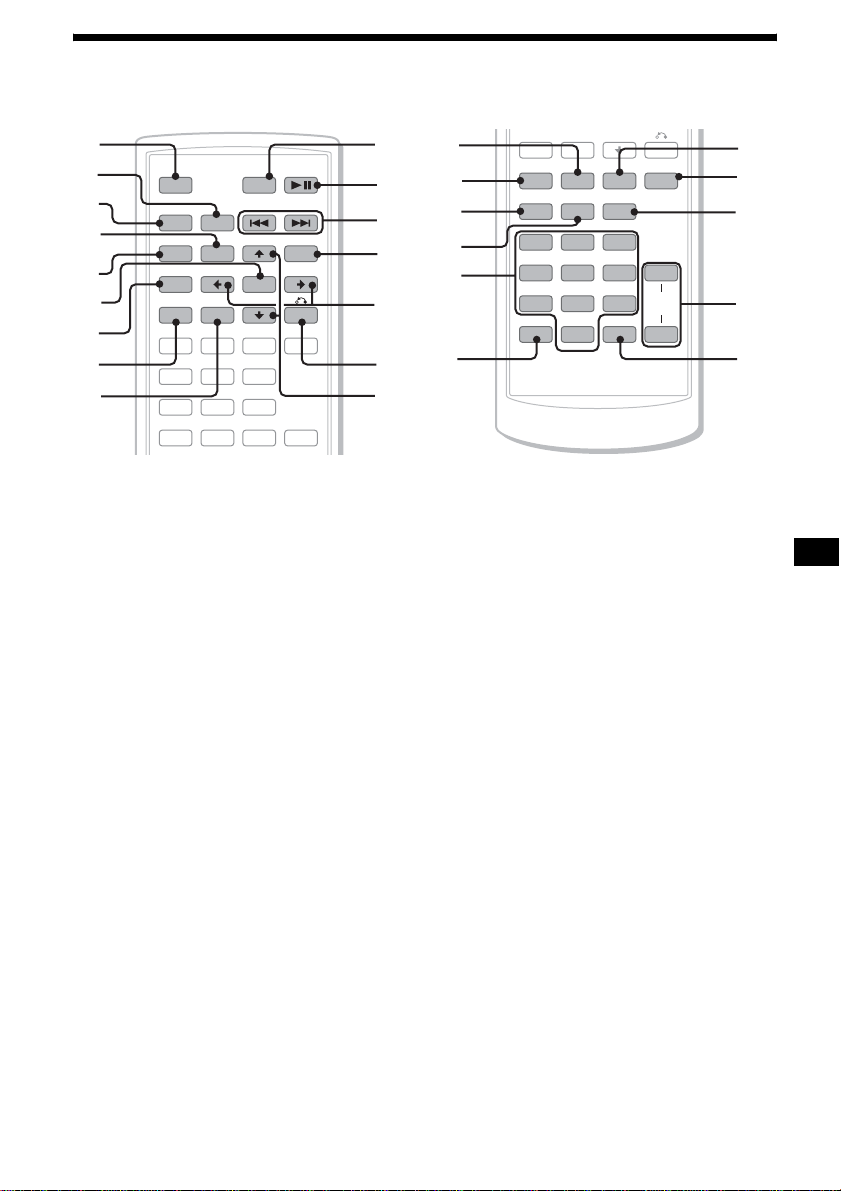
11
卡片式遙控器 RM-X702
a OFF 按鈕 15, 17, 19
關閉電源 / 停止音源。
b MODE 按鈕 32, 36
選擇無線電波段(FM/AM)/ 選擇裝置 *
1
。
c SRC (SOURCE)按鈕
打開電源 / 改變音源 (收音機 /DVD/CD/
MD*
2
/AUX*
3
)。
d TOP MENU 按鈕 19
顯示 DVD 中的頂部選單。
e SOUND 按鈕 33
選擇聲音項目。
f ENTER 按鈕
完成設定。
g SETUP 按鈕
顯示設定選單和播放模式選單。
h SYSTEM MENU 按鈕
進入裝置選單。
i LIST 按鈕 33, 37
列表。
j ATT (降低)按鈕
降低聲音。若要取消,則再按一次。
k DVD u (播放 / 暫停)按鈕 9, 15,
16, 17
開始 / 暫停播放。
l
.
/
>
(前一個/下一個;後退/快進;
電臺調諧)按鈕
m MENU 按鈕 19
顯示光碟中的選單。
n </, (指針)按鈕
移動指針,或翻頁。
o O (RETURN)按鈕 19, 28, 29
返回前一個顯示,或前一個操作。
p M/m (指針)按鈕
移動指針。
q PICTURE EQ 按鈕 25
選擇影像品質。
r Z×Z (Zone × Zone)按鈕 38
切換前面 / 背面輸出。
s AUDIO 按鈕 22
更改音頻輸出。
t SUBTITLE 按鈕 24
更改字幕語言。
u 數字按鈕
SRC
MODE
ATT DVD
SOUND
TOP MENU
MENU
SETUP
ENTER
SYSTEM
MENU
LIST
EQZ
×
Z DSO EQ7
PICTURE
AUDIO
SUBTITLE
ANGLE
123
456
OFF
+
–
+
0
qa
qd
qf
qg
qh
qs
1
2
3
4
5
6
7
8
9
SYSTEM
MENU
LIST
EQZ
×
Z DSO EQ7
PICTURE
AUDIO
SUBTITLE
ANGLE
CLEAR
123
456
789
0
DSPL
–
VOL
+
–
wd
wf
wj
wh
wg
qj
qk
ql
w;
wa
ws
續下頁 t

12
v CLEAR 按鈕 21
取消輸入的數字。
w DSO 按鈕 4
選擇 DSO 模式(1,2,3 或 OFF)。數字越
大,增強的效果越大。
x EQ7 (均衡器)按鈕
選擇均衡器類型 (XPLOD,VOCAL,CLUB,
JAZZ,NEW AGE,ROCK,CUSTOM 或 OFF)。
y ANGLE 按鈕 23
改變視角。
z VOL (音量)+/- 按鈕
調節音量。
wj DSPL 按鈕 15, 17, 18, 34
改變顯示項目。
*1 連接了 CD/MD 換碟機時。
*2 連接了 MD 換碟機時。
*3 連接了選購的 Sony 便攜式設備時。
註
如果本機關閉且顯示消失,除非先按主機上的
(SOURCE) 或裝入光碟激活本機,否則無法用卡片式遙
控器操作。
提示
有關如何更換電池的詳細資訊,請參見第 38 頁 “更換
卡片式遙控器的鋰電池”。
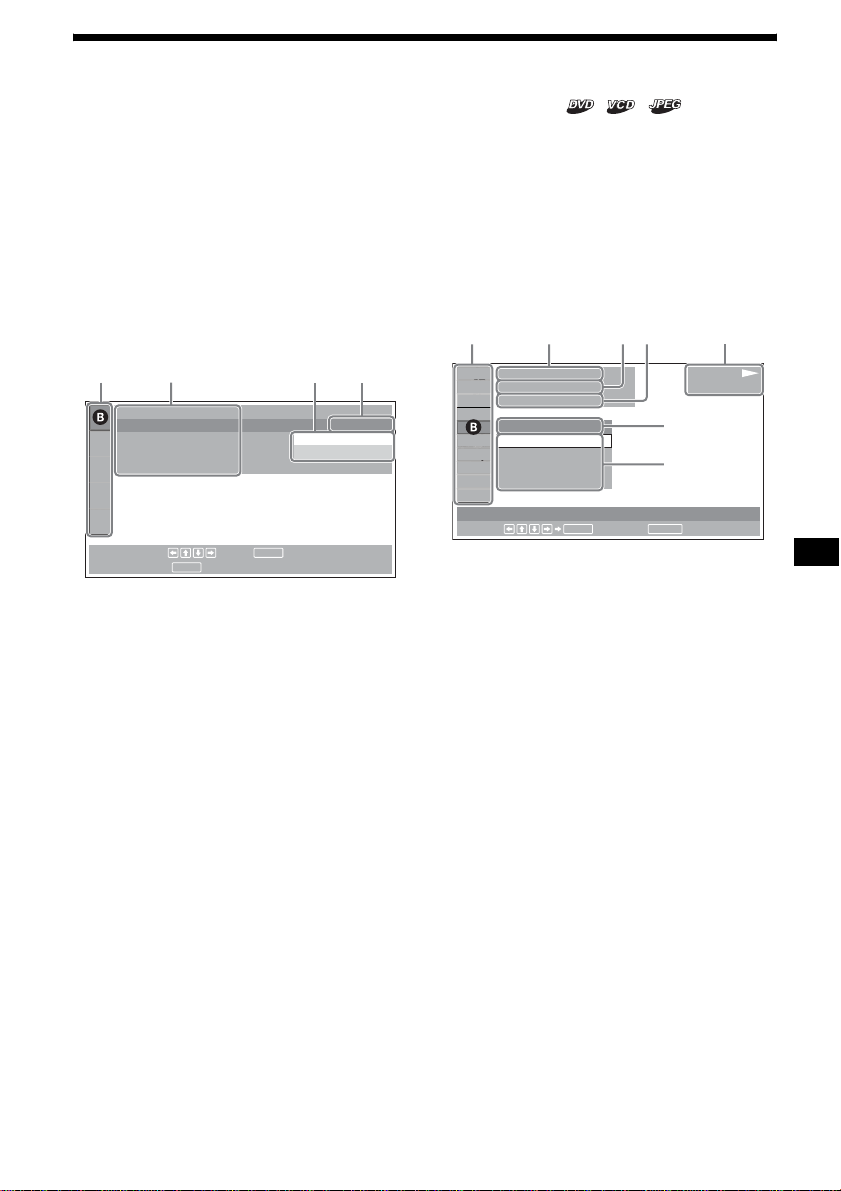
13
選單顯示
使用本機的選單可調節各種功能和播放設
定。
顯示的選單將視本機的狀態而各不相同。
設定選單
在播放停止時按 (SETUP) 即可出現。
若要選擇項目
按 </M/m/,,然後按 (ENTER)。
若要關閉設定選單
按 (SETUP)。
例如:選擇了 “LANGUAGE SETUP”時。
A 設定項目
B 所選擇項目
C 正在設定的項目
D 選項
E 當前設定
播放模式選單
在播放過程中按 (SETUP) 時出現。
若要選擇項目
按 </M/m/,,然後按 (ENTER)。
若要關閉播放模式選單
按 (SETUP)。
註
選單中的項目,以及操作過程視光碟而各有不同。
例如:播放 DVD 時
A 播放模式項目
B 所選擇項目
C 標題號 *
1
/ 總標題數 *
1
D 章號 *
2
/ 總章數 *
2
E 已播放時間
F 播放狀態 (NPLAY, XPAUSE,等)/
光碟格式
G 當前設定
H 選項
*1 顯示 VCD 的軌跡號,JPEG 檔案的文件夾號。當 PBC 功
能開啓時播放 VCD,沒有指示顯示。
*2 顯示 JPEG 檔案的影像數。
註
• 播放 CD/MP3 時,無法顯示播放模式選單。
• 播放JPEG檔案時,僅當影像完全顯示後(SETUP)起作
用。
LANGUAGE SETUP
OSD :
MENU :
AUDIO :
SUBTITLE :
ENTER
SETUP
To set, press , then .
To quit, press .
ENGLISH
JAPANESE
ENGLISH
ENGLISH
AC DE
續下頁 t
12
(
67
)
018
(
034
)
T 1:35:55
1;ENGLISH
OFF
1:ENGLISH
2:FRENCH
3:SPANISH
PLAY
DVDVIDEO
SUBTITLE
Select :
ENTER RETURN
Cancel
ACDEF
G
H
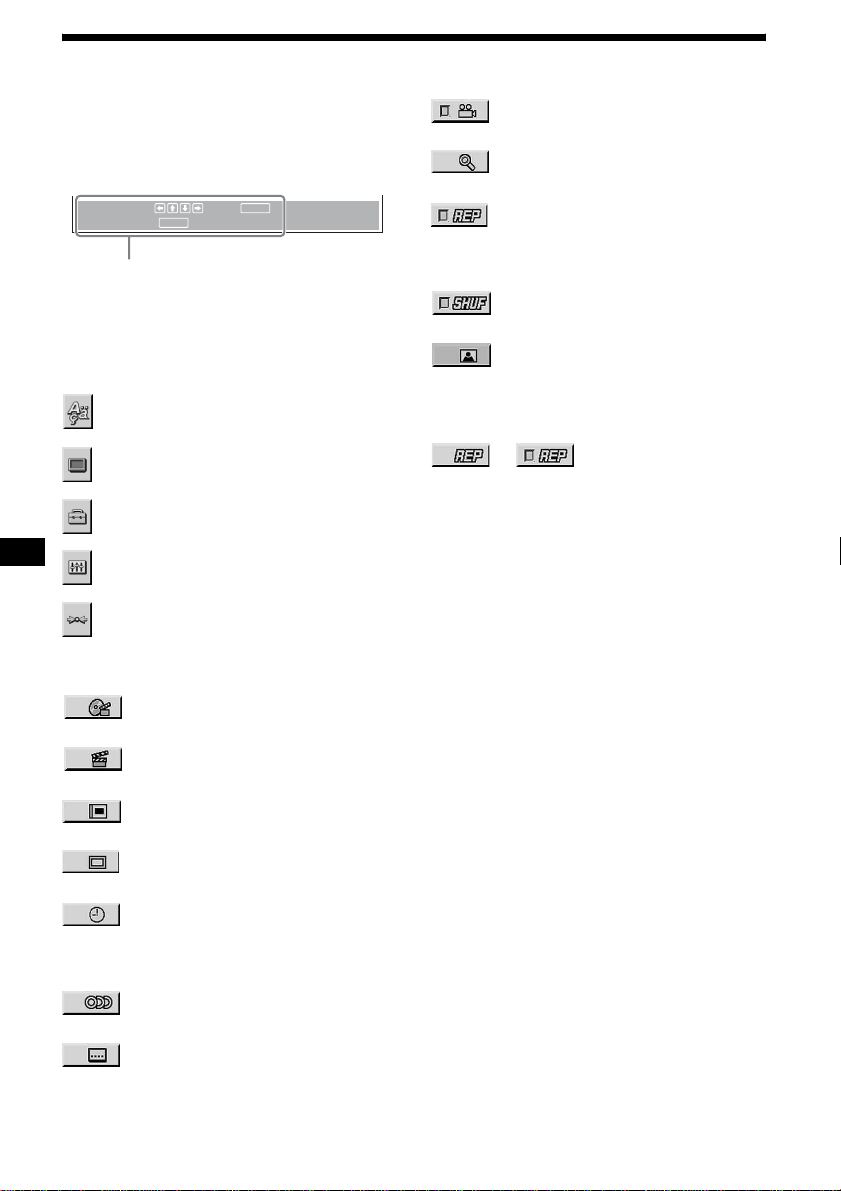
14
操作信息
選單操作將視所選擇的項目而各有不同,在
選單顯示的底部出現要使用的按鈕,可以幫
助您進行操作。
提示
當此功能無效時出現 “Operation not possible”。
設定項目
LANGUAGE SETUP (第 29 頁)
切換語言。
SCREEN SETUP (第 30 頁)
選擇畫面模式。
CUSTOM SETUP (第 31 頁)
設定播放操作。
AUDIO SETUP (第 32 頁)
調節輸出聲音。
RESET (第 29 頁)
復原全部設定項目。
播放模式項目
TITLE,TRACK (第 21 頁)
選擇要播放的標題或軌跡。
CHAPTER (第 21 頁)
選擇要播放的章。
ALBUM(JPEG)(第21頁)
選擇要顯示的影像文件夾。
IMAGE (第 21 頁)
選擇要顯示的影像。
TIME/TEXT (第 17,21 頁)
查看已播放時間和剩餘播放時間。
輸入影像搜尋的時間代碼。
顯示 DVD 文字。
AUDIO (第 22 頁)
更改音頻設定。
SUBTITLE (第 24 頁)
顯示字幕。
更改字幕語言。
ANGLE(第23頁)
更改角度。
CENTER ZOOM (第 24 頁)
放大影像。
REPEAT (第 20 頁)
反覆播放整盤光碟(所有標題 / 所有
軌跡 / 所有文件夾),或反覆播放一
個章 / 軌跡 / 文件夾。
SHUFFLE (第 20 頁)
以隨機順序播放標題 / 章 / 樂曲。
PICTURE EQ (第 25 頁)
選擇影像品質。
提示
當開啓 “REPEAT”或“SHUFFLE”功能時,或“ANGLE”
功能有效時,該功能的核取方塊以綠色亮起 (如,
)。但是,視場面而定,即使核
取方塊以綠色亮起,您可能也無法改變角度。
ENTER
SETUP
ENTER
SETUP
To set, press , then .
To quit, press .
出現所選擇項目的名稱和 / 或操作信息。
t
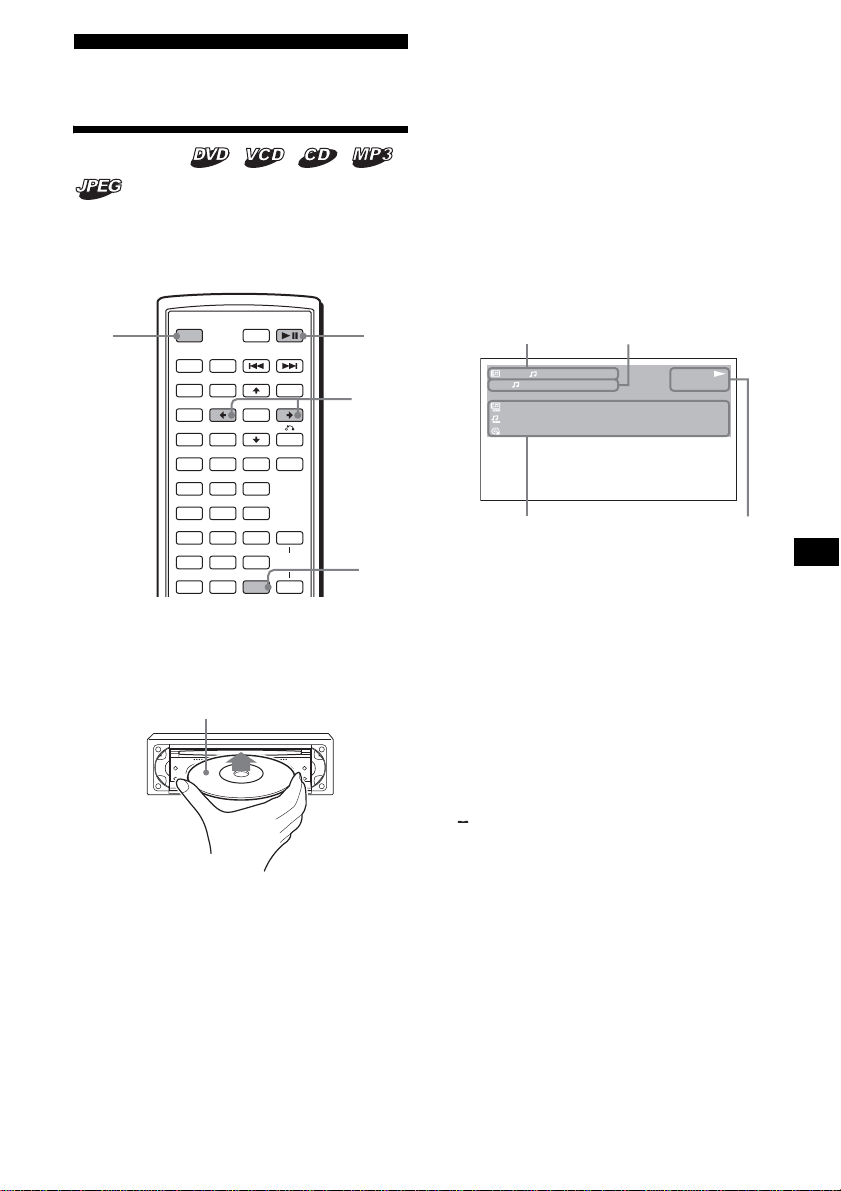
15
播放機
播放光碟
視光碟而定,有些操作可能不相同或受到限
制。
請參閱光碟附帶的使用說明書。
1 關閉監視器,然後在您的監視器上選擇符
合本機的輸入源。
2 插入光碟。
播放自動開始。(視光碟而定,按 DVD u
開始播放。)
當插入 DVD 或 VCD 時螢幕上可能會出現一
個選單。
關於這些選單的詳細說明,有關 DVD 請參
見第 19 頁,有關 VCD 請參見第 19 頁。
當 “CUSTOM SETUP”中的 “MP3/JPEG”設定
為 “JPEG”時,如果光碟中有 JPEG 檔案,則
將自動開始幻燈片播放 (第 31 頁)。
每按一次 </,,影像將旋轉 90°。
註
• 如果旋轉大尺寸影像,則可能花更長時間顯示。
• JPEG 檔案設計用於以 640 x 480 像素最佳顯示。其他
尺寸的檔案可能無法正確顯示,或者產生影像移動
(向左或右)。
• 無法顯示 JPEG 檔案。
當光碟已經插入時
按DVD u 開始播放。
若要停止播放 / 關機
按 (OFF)。
提示
在本機關閉時您無法插入光碟。
在 CD/MP3 播放中顯示項目
A 文件夾號 *
1
/ 軌跡號 / 已播放時間
B 播放模式 / 比特率 *
1
*
2
C 光碟名稱 *
3
/ 文件夾名稱 *
1
/ 軌跡名稱 /ID3
標記資訊 *
1
D 播放狀態(NPLAY,XPAUSE,等)/ 光碟
格式
*1 僅在播放 MP3 檔案時出現。
*2 使用 VBR (可變比特率)時沒有指示。
*3 當光碟或軌跡沒有名稱時,出現 “NO DISC NAME”
或 “NO TRACK NAME”。
若要捲動顯示文字資訊
按 (DSPL)。
註
“ ”出現,以代替除字母和數字以外的文字。
關於帶 DTS 聲音軌跡的 DVD
DTS 音頻訊號任何時候都會輸出;如果您將本機連接到
沒有 DTS 解碼器的音頻裝置,則可能會從揚聲器傳出很
大的噪音。這樣可能會造成揚聲器損壞,或影響您的聽
力。
SRC
MODE
ATT DVD
SOUND
TOP MENU
MENU
SETUP
ENTER
SYSTEM
MENU
LIST
EQZ
×
Z DSO EQ7
PICTURE
AUDIO
SUBTITLE
ANGLE
CLEAR
123
456
789
0
DSPL
OFF
+
–
VOL
+
–
OFF DVD
u
DSPL
</,
播放面朝下
續下頁 t
1
1
MP3
PLAY
0:42
:
:
:
ALBUM NAME 001
TRACK NAME 001
ID3 INFORMATION
REP
160k
A
C
B
D
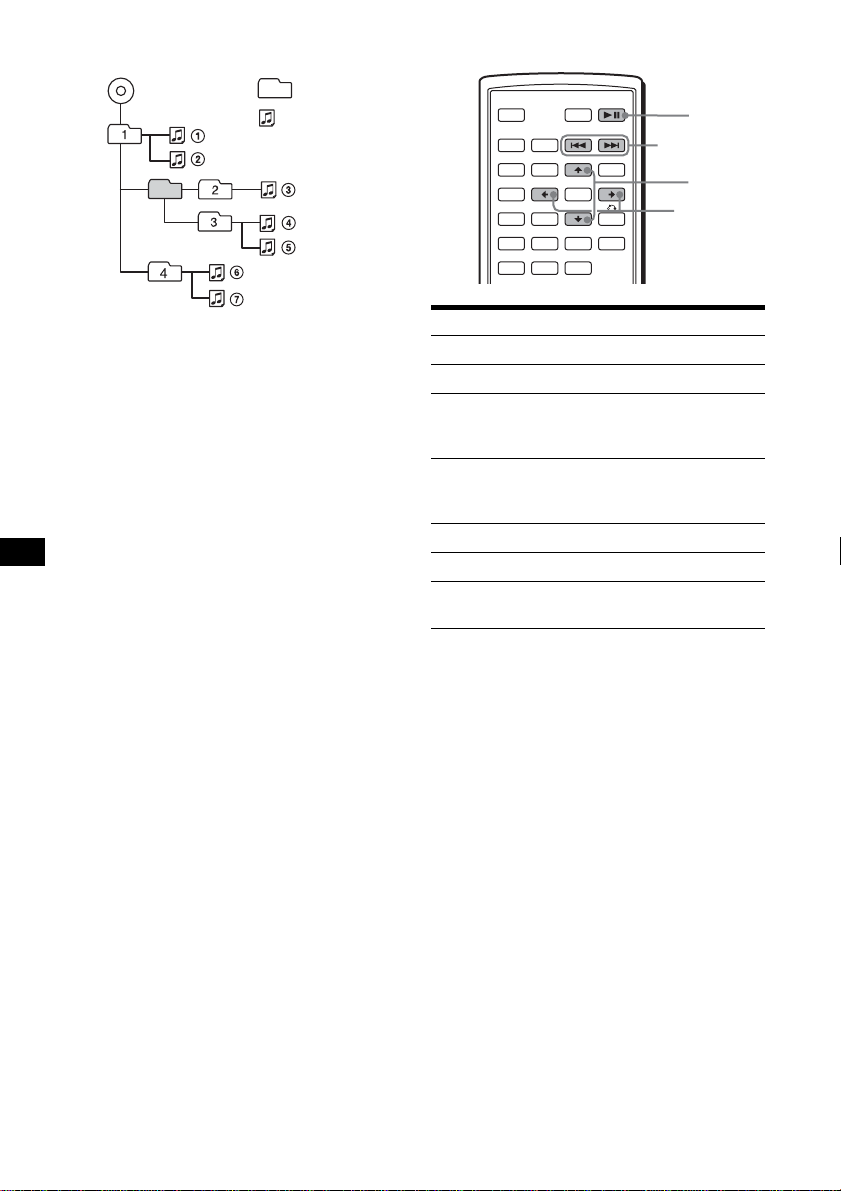
16
MP3 檔案的播放順序
註
• 播放順序可能視寫入軟體而異。
• 本機最多能播放 1000 個軌跡和 256 個文件夾。無法識
別最初的 1000 以外的軌跡和最初的 256 個以外的文件
夾。
提示
• 如果您在軌跡名稱前增加數字 (01、02、03 等),每
個資料夾中的軌跡將以該數字順序播放。
• 由於包含多樹級光碟的開始播放時間較長,建議您製
作的文件夾不要超過兩個樹級。
• 關於MP3檔案的詳細資訊,請參見第40頁“關於 MP3 檔
案”。
附加操作
* 只有當播放 MP3 或 JPEG 檔案時有效。
資料夾
(文件夾)
MP3 檔案
(軌跡)
MP3
若要 操作
暫停 按 DVD u
暫停後恢復播放 按 DVD u
在連續播放模式中進
到下一章、下一個軌
跡或場面
按 > (,)
在連續播放模式中回
到前一章、前一個軌
跡或場面
按 . (<)
進到下一個文件夾 按 M*
進到前一個文件夾 按 m*
停止播放並取出光碟 打開本機的百葉艙門
後,按 Z (第 9 頁)
SRC
MODE
ATT DVD
SOUND
TOP MENU
MENU
SETUP
ENTER
SYSTEM
MENU
LIST
EQZ
×
Z DSO EQ7
PICTURE
AUDIO
SUBTITLE
ANGLE
OFF
+
–
./>
M/m
</,
DVD
u
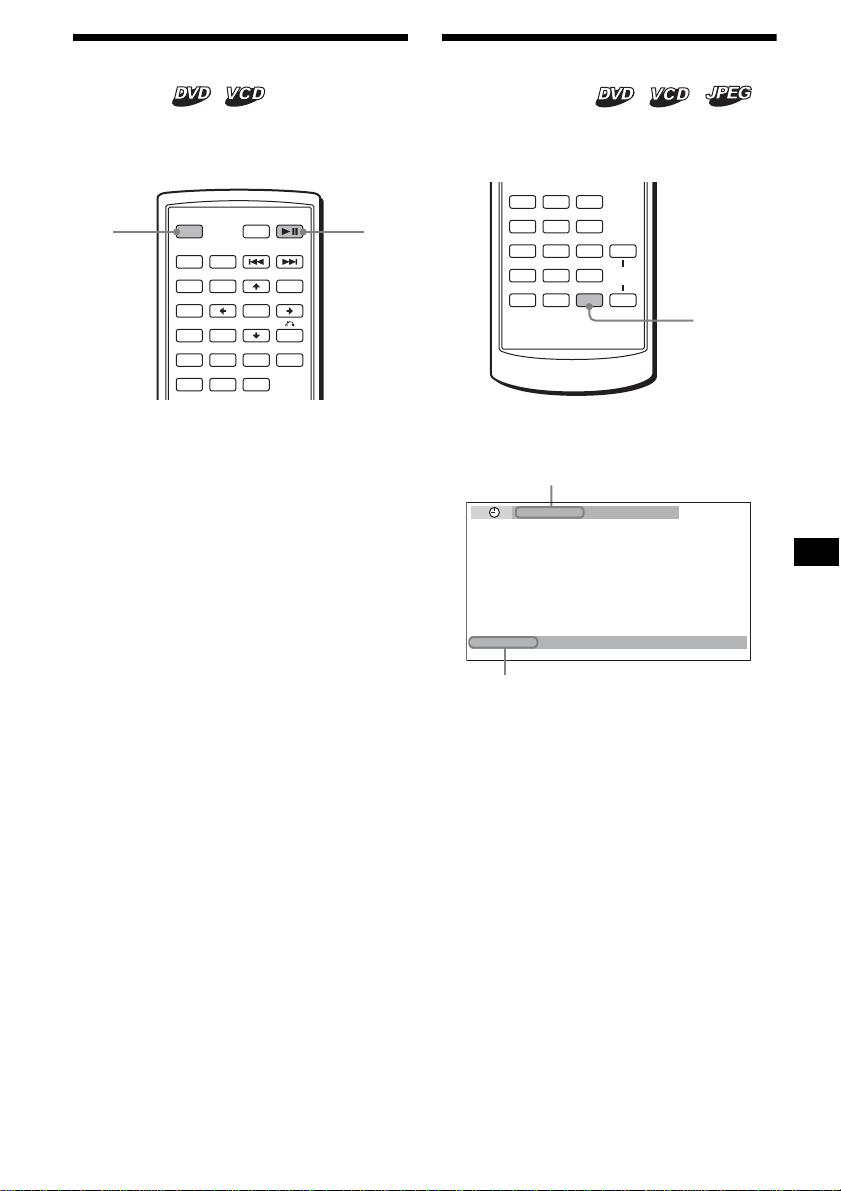
17
重續播放
— 重續播放
本機最多能儲存 20 盤光碟的停播點,即使關
機後或者退出正在播放的光碟後,也能開始
重續播放。
1 在播放過程中按 (OFF) 停止播放。
2 按DVD u 重續播放。
播放從步驟 1 中的停止點開始。
若要從頭播放
將 “CUSTOM SETUP”中的 “MULTI-DISC
RESUME”設定為“OFF”之後(第 31 頁),按
Z 退出光碟,然後重新插入光碟。
視光碟而定,選擇 DVD 選單或頂部選單上想要
的章。
註
• MP3 從上一個播放軌跡的開頭開始播放。
• 若要使用重續播放,請確認 “CUSTOM SETUP”中的
“MULTI-DISC RESUME”設定為 “ON”(第 31 頁)。
• 當儲存第 21 盤光碟的重續點時,已有的第 1 盤光碟的
重續點將被自動清除。
• 當更改視聽者控制設定時,重續播放則被取消。
• 視光碟或場面而定,您無法使用重續播放。
• 如果使用視聽著控制,則重續播放無效。若是這樣,
則插入光碟時,從光碟的開頭開始播放。
提示
當播放 CD、MP3 檔案或 JPEG 檔案時,本機則臨時儲存
所播放光碟的重續點。一旦關機或退出光碟,此光碟所
儲存的重續點即被清除。
查看光碟資訊
— 時間 / 文字資訊
您可以查看當前標題、章、或軌跡的播放時間
和剩餘時間。您也可以查看文字資訊,如標題
名稱、章、檔案等。
1 在播放過程中按 (DSPL)。
出現當前播放資訊。
SRC
MODE
ATT DVD
SOUND
TOP MENU
MENU
SETUP
ENTER
SYSTEM
MENU
LIST
EQZ
×
Z DSO EQ7
PICTURE
AUDIO
SUBTITLE
ANGLE
OFF
+
–
OFF
DVD
u
續下頁 t
AUDIO
SUBTITLE
ANGLE
CLEAR
123
456
789
0
DSPL
VOL
+
–
DSPL
T 1:01:57
NO TEXT
文字資訊 *
* 當沒有文字資訊時,出現 “NO TEXT”。
時間資訊
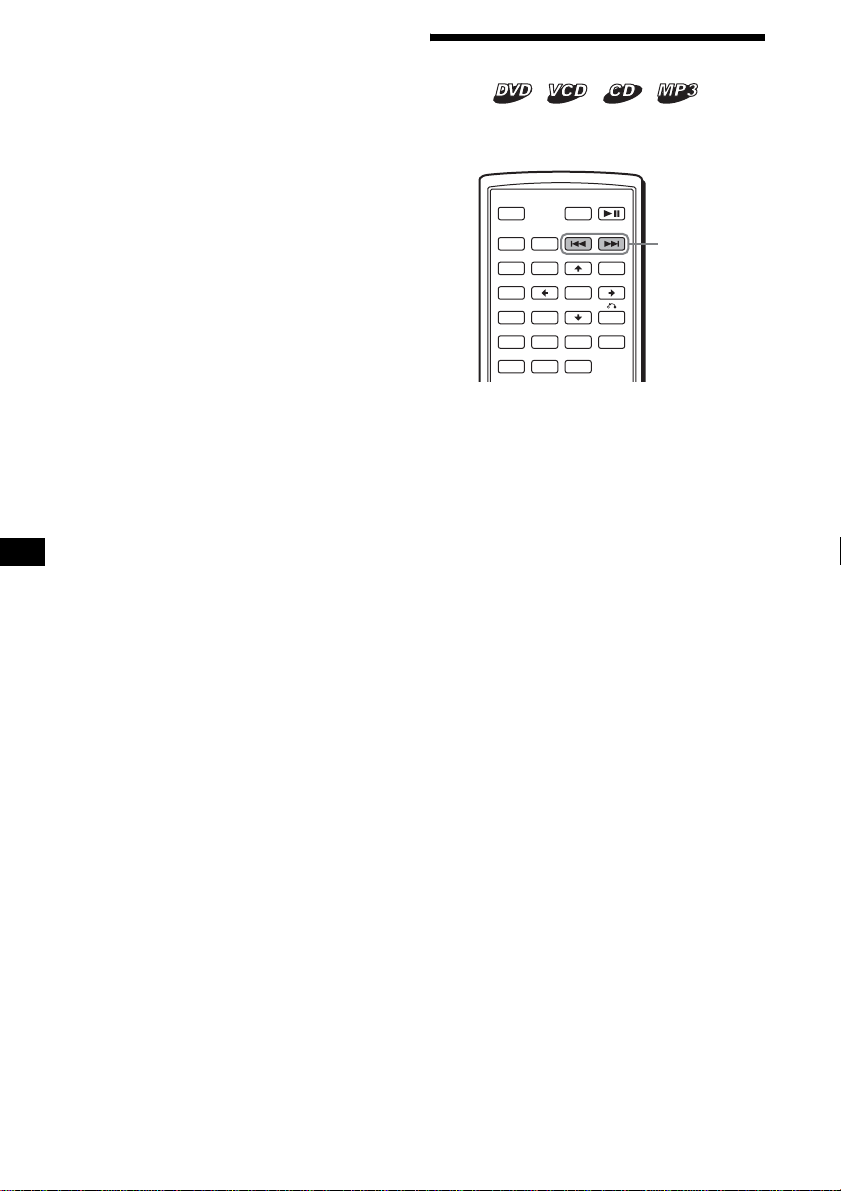
18
2 反覆按 (DSPL) 切換時間資訊。
如下所示,時間資訊視光碟而異:
DVD:
“T
**
:
**
:
**
”- 當前標題的已播放時
間
“T-
**
:
**
:
**
”- 當前標題的剩餘播放
時間
“C
**
:
**
:
**
”- 當前章的已播放時間
“C-
**
:
**
:
**
”- 當前章的剩餘播放時
間
VCD (沒有 PBC 功能):
“T
**
:
**
” - 當前軌跡的已播放時間
“T-
**
:
**
” - 當前軌跡的剩餘播放時間
“D
**
:
**
” - 當前光碟的已播放時間
“D-
**
:
**
” - 當前光碟的剩餘播放時間
JPEG:
文件夾號
影像號
搜尋光碟上的指定點
— 掃描
通過監視影像您可以快速查找光碟上的指定
點。
播放過程中,按住 ./> 不放,並在
想要的點釋放。
如果您按住此按鈕不放,搜尋速度將加快。
註
搜尋時,不輸出音頻,且不顯示字幕。
SRC
MODE
ATT DVD
SOUND
TOP MENU
MENU
SETUP
ENTER
SYSTEM
MENU
LIST
EQZ
×
Z DSO EQ7
PICTURE
AUDIO
SUBTITLE
ANGLE
OFF
+
–
./>
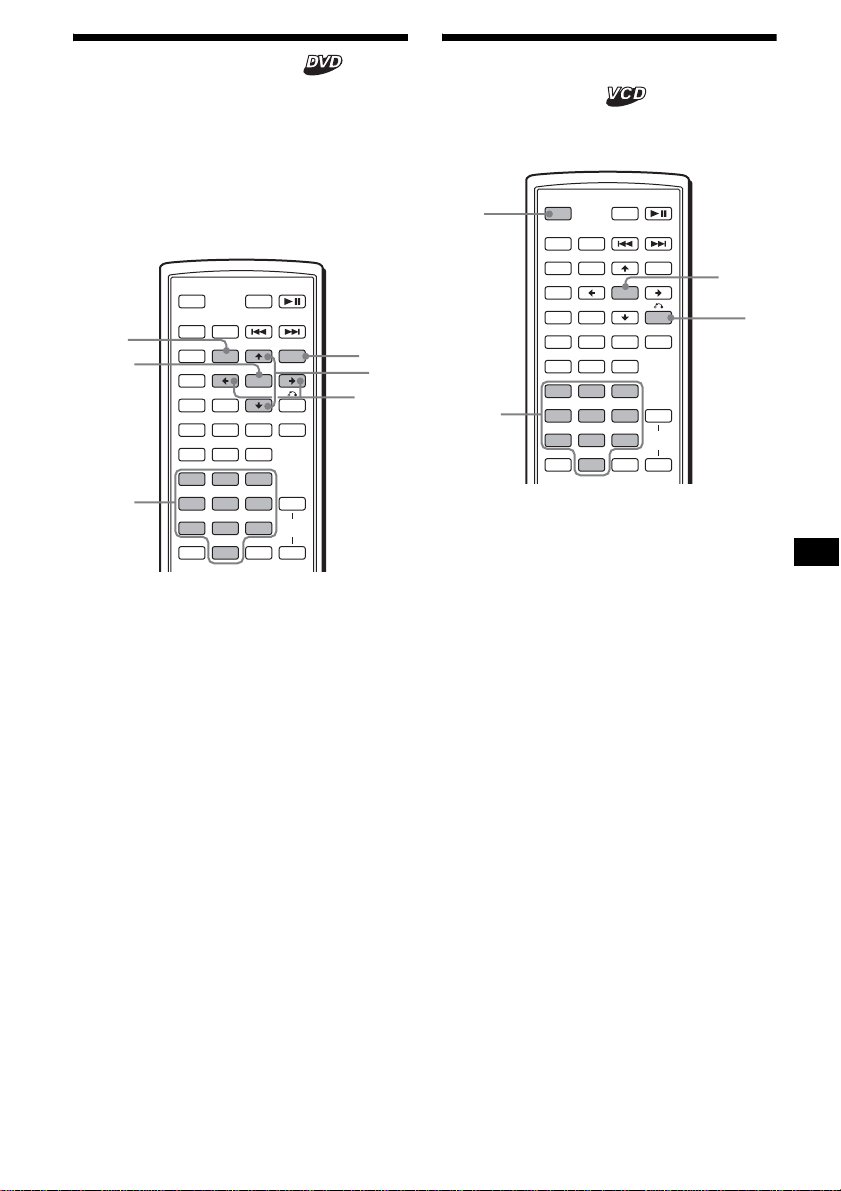
19
使用 DVD 中的選單
對於有些 DVD,您可以使用原來的選單,如頂
部選單和 DVD 選單。
如果 DVD 含有若干軌跡和場面的標題,則您可
以使用頂部選單來選擇想要的標題,然後開
始播放。
如果 DVD 含有更詳盡的選單項目,如音頻和字
幕語言、標題、章等,您可以使用 DVD 選單來
選擇想要的項目,然後開始播放。
1 在 DVD 播放過程中,按 (TOP MENU) 或
(MENU)。
出現 DVD 選單或頂部選單。
選單的內容視光碟而異。
2 按 </M/m/, 或數字按鈕選擇想要的項
目,然後按 (ENTER)。
註
選單中的項目,以及操作過程視光碟而各有不同。
使用 PBC 功能
— PBC (播放控制)
在播放 PBC 相容 VCD 時,PBC 選單可以幫助您
進行交互式操作。
1 開始播放 PBC 相容 VCD。
出現 PBC 選單。
2 按數字按鈕選擇想要的項目,然後按
(ENTER)。
3 按照選單的指示進行交互操作。
要返回至先前的顯示
按 O。
不使用 PBC 功能播放
1 在播放過程中按 (OFF)。
2 按數字按鈕選擇想要的項目,然後按
(ENTER)。
出現 “Play without PBC”並開始播放。
在播放過程中不出現 PBC 選單。
註
• 選單中的項目,以及操作過程視光碟而各有不同。
• PBC播放過程中,播放模式選單中不顯示軌跡號、播放
時間等。
提示
若要重續 PBC 播放,則按 (OFF) 停止播放,然後按 DVD
u。PBC 播放開始。
SRC
MODE
ATT DVD
SOUND
TOP MENU
MENU
SETUP
ENTER
SYSTEM
MENU
LIST
EQZ
×
Z DSO EQ7
PICTURE
AUDIO
SUBTITLE
ANGLE
CLEAR
123
456
789
0
DSPL
OFF
+
–
VOL
+
–
ENTER
M/m
</,
MENU
TOP
MENU
數字按鈕
SRC
MODE
ATT DVD
SOUND
TOP MENU
MENU
SETUP
ENTER
SYSTEM
MENU
LIST
EQZ
×
Z DSO EQ7
PICTURE
AUDIO
SUBTITLE
ANGLE
CLEAR
123
456
789
0
DSPL
OFF
+
–
VOL
+
–
ENTER
O
OFF
數字按鈕
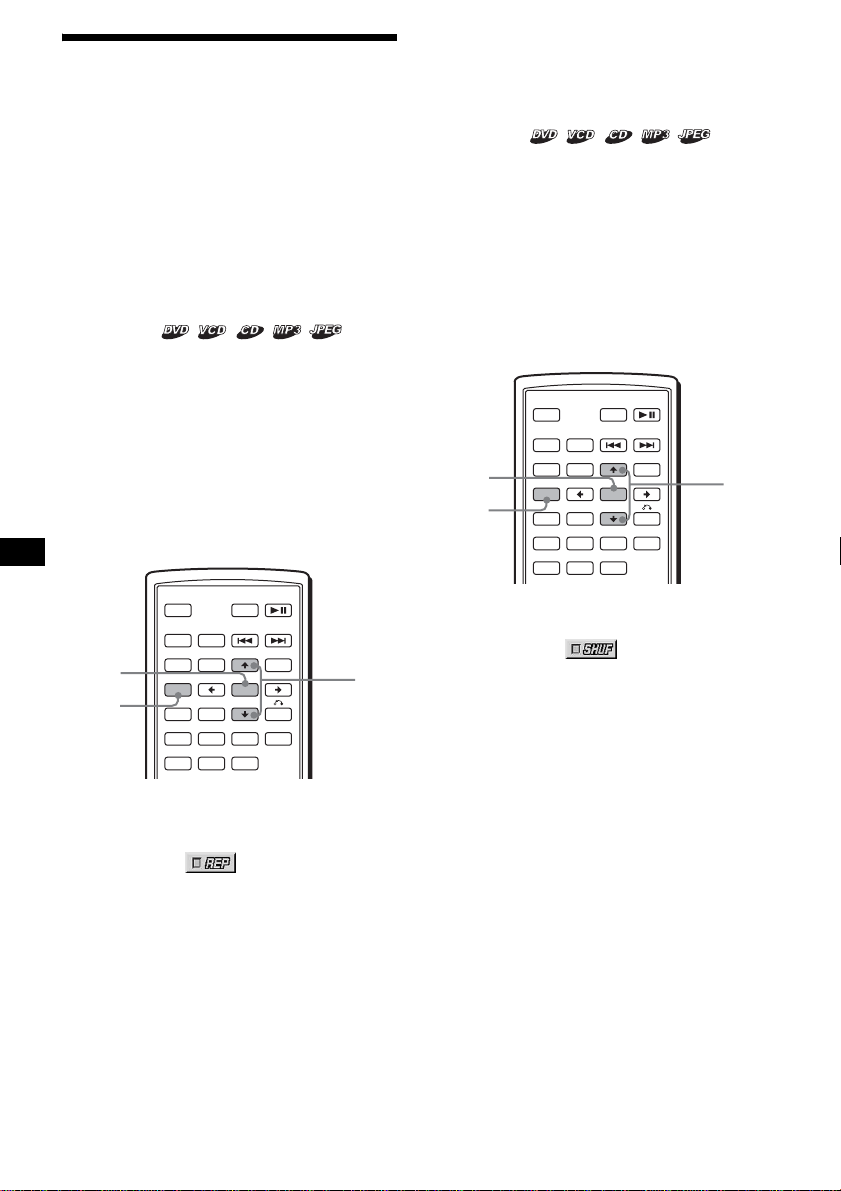
20
以不同的模式播放
— 重複播放 / 隨機播放 / 搜尋播放
您可以設定以下播放模式:
• 重複播放(第20頁)
• 隨機播放(第20頁)
• 搜尋播放(第21頁)
註
• 退出正在播放的光碟或關機時,所選擇的播放模式就
將取消。
• PBC 功能開啓時播放 VCD,則重複播放或隨機播放無
效。
反覆播放
— 重複播放
當正在播放的項目到達結尾時,本機可以重
複標題、章或軌跡。
可以使用以下重複選項:
• TITLE (標題重複) - 重複當前標題。
• CHAPTER (章重複) - 重複當前章。
• TRACK(軌跡重複)- 重複當前軌跡 / 影像。
• ALBUM(文件夾重複)- 重複當前文件夾中的
軌跡 / 影像。
註
設定 CD/MP3 重複播放時,反覆按 (1)(REP) 通過主機操
作。
1 在播放過程中按 (SETUP)。
出現播放模式選單。
2 按 M/m 選擇 (REPEAT),然後按
(ENTER)。
出現播放模式選項。
3 按 M/m 選擇想要的選項,然後按
(ENTER)。
重複播放開始。
若要恢復正常播放
在步驟 3 中選擇 “OFF”。
若要關閉播放模式選單
按 (SETUP)。
提示
• 重複選項視光碟而異。
• 反覆按主機上的 (1)(REP),您也可以設定重複播放。
以隨機順序播放
— 隨機播放
本機可以以隨機順序播放標題、章或軌跡。
可以使用以下隨機選項:
• TITLE(標題隨機)- 以隨機順序播放當前標
題中的章。
• DISC (光碟隨機) - 以隨機順序播放當前光
碟上的軌跡 / 影像。
• ALBUM(文件夾隨機)- 以隨機順序播放當前
文件夾中的軌跡 / 影像。
註
設定 CD/MP3 隨機播放時,反覆按 (2)(SHUF) 通過主機
操作。
1 在播放過程中按 (SETUP)。
2 按 M/m 選擇 (SHUFFLE),然後按
(ENTER)。
出現播放模式選項。
3 按 M/m 選擇想要的選項,然後按
(ENTER)。
隨機播放開始。
若要恢復正常播放
在步驟 3 中選擇 “OFF”。
若要關閉播放模式選單
按 (SETUP)。
註
• 播放一次後,DVD 標題隨機播放將取消。
• 如果在播放過程中按 . 或 >,則 DVD 標題隨機播
放將取消。
提示
• 隨機選項視光碟而異。
• 反覆按主機上的 (2)(SHUF),您也可以設定隨機播
放。
SRC
MODE
ATT DVD
SOUND
TOP MENU
MENU
SETUP
ENTER
SYSTEM
MENU
LIST
EQZ
×
Z DSO EQ7
PICTURE
AUDIO
SUBTITLE
ANGLE
OFF
+
–
ENTER
SETUP
M/m
SRC
MODE
ATT DVD
SOUND
TOP MENU
MENU
SETUP
ENTER
SYSTEM
MENU
LIST
EQZ
×
Z DSO EQ7
PICTURE
AUDIO
SUBTITLE
ANGLE
OFF
+
–
ENTER
SETUP
M/m
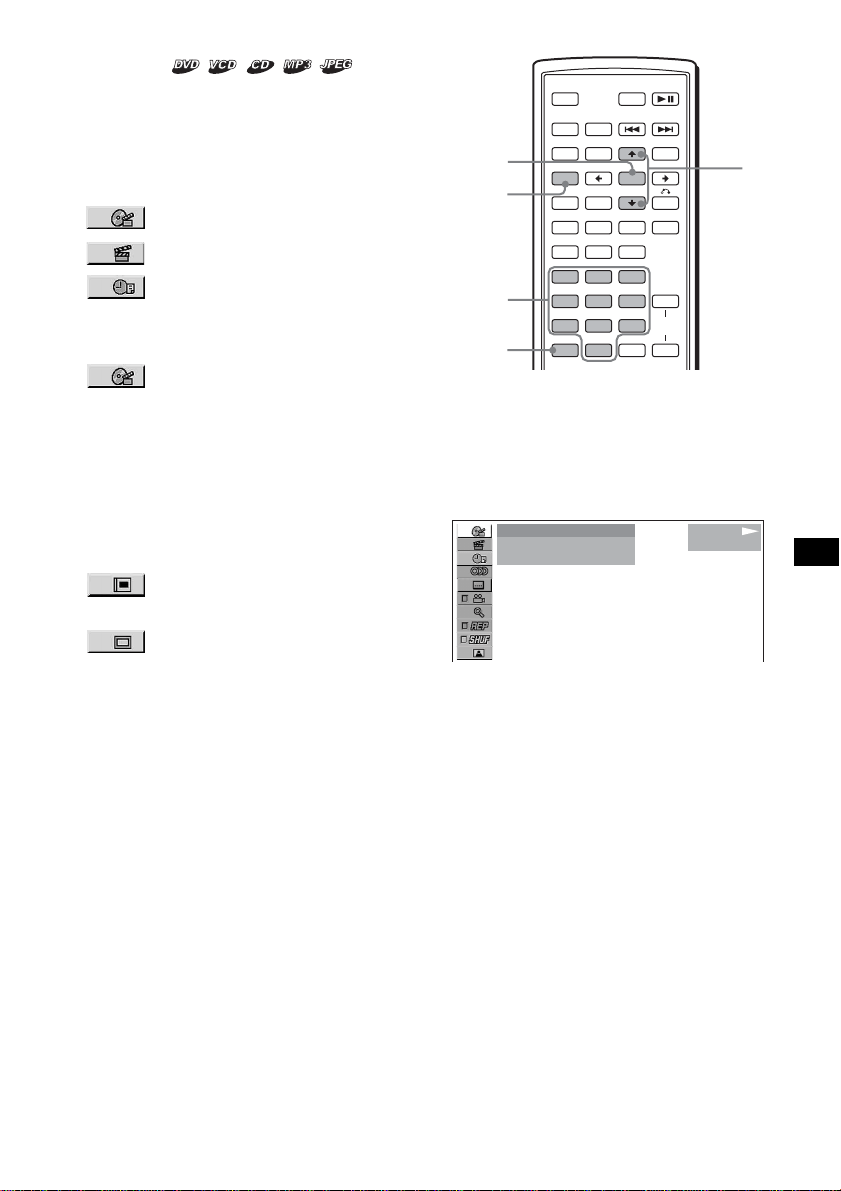
21
從所選擇的點開始播放
— 搜尋播放
通過指定標題、章、標題已播放時間 (使用
時間代碼)或軌跡,您可以快速查找想要的
點。
視光碟而定,可以使用以下搜尋選項:
DVD:
• TITLE 從所選擇的標題開始播放。
• CHAPTER 從所選擇的章開始播放。
• TIME/TEXT 根據輸入的時間代碼,從
此點開始播放。
VCD:
• 從所選擇的軌跡開始 TRACK 播放。
CD:
• 從所選擇的軌跡開始 TRACK 播放。
MP3:
• 從所選擇的軌跡開始 TRACK 播放。
JPEG:
• 從所選擇的文件夾開始 ALBUM 播
放。
• 從所選擇的影像開始 IMAGE 播放。
註
當查找 CD/MP3 軌跡時,按數字按鈕輸入軌跡號,然後
按 (ENTER)。
1 在播放過程中按 (SETUP)。
出現播放模式選單。
2 按 M/m 選擇想要的搜尋項目,然後按
(ENTER)。
搜尋項目視光碟而異。
括號內數字是指所選擇項目的總數。
3 按數字按鈕輸入標題號、章號、軌跡號,
或者標題的已播放時間。
例如,要尋找開始後 2 小時 10 分鐘 20 秒
的想要的點,只要輸入 “2:10:20”。
若要清除已經輸入的數字,按 (CLEAR)。
4 按 (ENTER)。
從所選擇的點開始播放。
若要關閉播放模式選單
按 (SETUP)。
SRC
MODE
ATT DVD
SOUND
TOP MENU
MENU
SETUP
ENTER
SYSTEM
MENU
LIST
EQZ
×
Z DSO EQ7
PICTURE
AUDIO
SUBTITLE
ANGLE
CLEAR
123
456
789
0
DSPL
OFF
+
–
VOL
+
–
ENTER
SETUP
M/m
CLEAR
數字按鈕
12
(
67
)
018
(
034
)
T 1:35:55
1
PLAY
DVDVIDEO
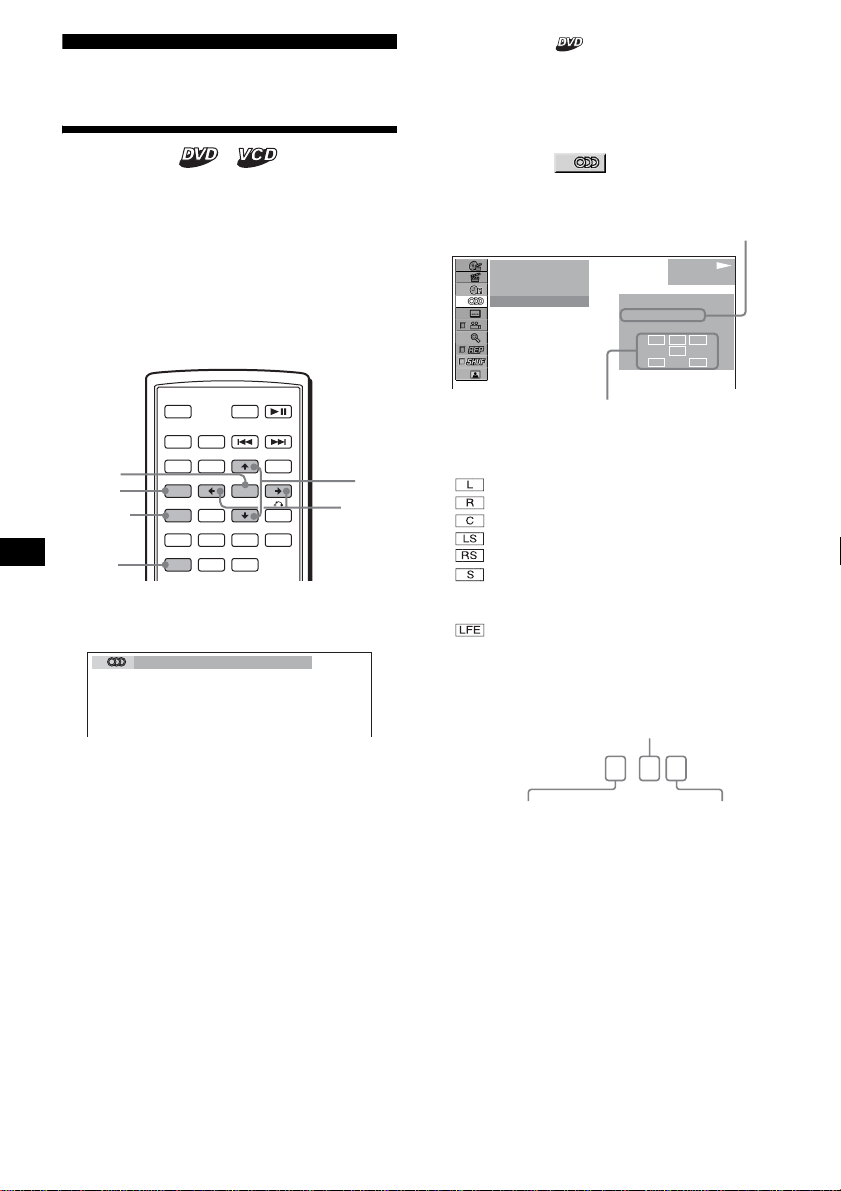
22
多種 DVD 操作
更改聲道
當播放以多種音頻格式(PCM、Dolby Digital
或 DTS)錄製的 DVD時,您可以改變音頻格式。
如果 DVD 以多語言軌跡錄製,您也可以改變語
言。
對於 VCD,您可以選擇左聲道或右聲道的聲
音,並通過左右揚聲器收聽所選擇聲道的聲
音。例如,當播放的光碟上歌曲為右聲道錄製
了歌唱聲,左聲道錄製了樂器聲,您可以選擇
左聲道從兩個揚聲器中收聽樂器聲。
在播放過程中,反覆按 (AUDIO) 選擇所需
要的聲道。
如下所示,音頻聲音設定視光碟而異:
DVD:
聲音語言在可使用語言之中進行切換。
當出現 4 位數字時,則輸入與想要語言相
對應的語言代碼 (第 47 頁)。
當相同語言顯示兩次或兩次以上時,這說
明該 DVD 是以多音頻格式錄製的。
VCD:
STEREO*:標準立體聲聲音
1/L:左聲道聲音 (單聲道)
2/R:右聲道聲音 (單聲道)
* 預設設定
註
視光碟而定,您可能無法改變聲道。
提示
您也可以在播放模式選單中選擇 “AUDIO”來更改設定
(第 13 頁)。
查看節目格式
您可以查看正在播放的DVD中的聲道數量和分
量位置。
1 在播放過程中按 (SETUP)。
出現播放模式選單。
2 按
M/
m 選擇 (AUDIO),然後按
(ENTER)。
出現節目格式。
節目格式中顯示的文字表示以下聲音分量
和位置:
:前置(左)
:前置(右)
:中置
:後置(左)
:後置(右)
: 後置(單聲道):經 Dolby Surround
處理的訊號和Dolby Digital訊號的
後置分量
: 低頻效果訊號
當套用“DOLBY DIGITAL”時,如下出現節
目格式名稱和聲道數量:
例如:Dolby Digital 5.1 ch
*1 視光碟而定,出現 “PCM”、“DTS”或 “DOLBY
DIGITAL”。
*2 只有當套用 “DOLBY DIGITAL”格式時出現。
若要關閉播放模式選單
按 (SETUP)。
提示
對於 Dolby Digital 和 DTS,無論是否輸出 LFE 訊號分
量 “LFE”都始終被實線包圍。
SRC
MODE
ATT DVD
SOUND
TOP MENU
MENU
SETUP
ENTER
SYSTEM
MENU
LIST
EQZ
×
Z DSO EQ7
PICTURE
AUDIO
SUBTITLE
ANGLE
OFF
+
–
SETUP
M/m
AUDIO
SYSTEM
MENU
ENTER
</,
1:ENGLISH DolbyD
L C
LFE
LS
R
RS
12
(
67
)
018
(
034
)
T 01:35:55
1: ENGLISH
PROGRAMFORMAT
DOLBY DIGITAL
3 / 2. 1
PLAY
DVDVIDEO
當前音頻格式 *
1
當前節目格式 *
2
DOLBY DIGITAL
3 / 2 . 1
LFE 分量 × 1
後置分量 × 2
前置分量 × 2 +
中置分量 × 1
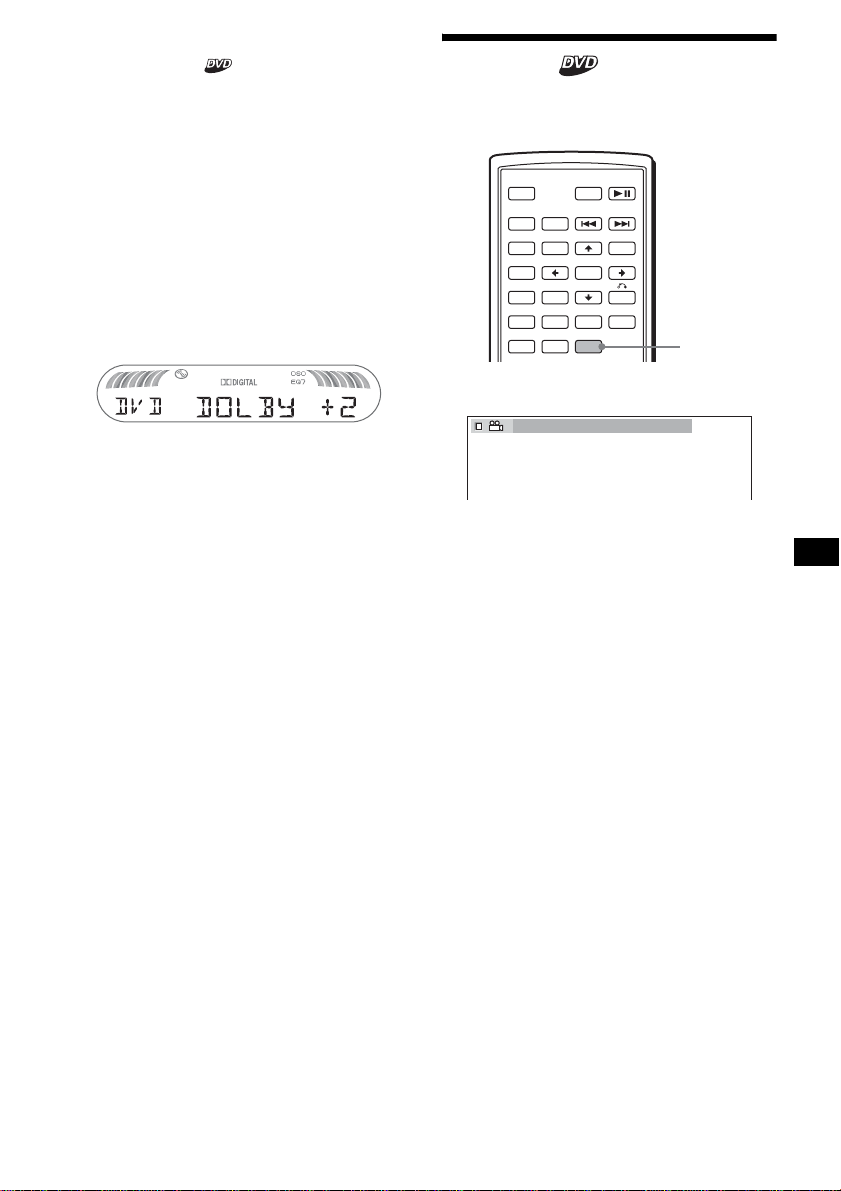
23
調節音頻輸出電平
- DVD 電平調節
DVD 視頻的音頻輸出電平視錄製的音頻格式
(PCM,Dolby Digital 或 DTS)而異。您可以
分開調節 PCM、Dolby Digital 或 DTS 的輸出
電平,減小光碟和音源間的音量電平差異。
1 按 (SYSTEM MENU)。
2 反覆按 M/m 選擇 “DVD LVL”,然後按
(ENTER)。
3 按 , 設定“ADJ-ON”,然後按 (ENTER)。
4 按 </, 選擇 “DOLBY”、“DTS”或
“PCM”。
5 按 M/m 調節輸出電平,然後按 (ENTER)。
註
僅當光碟插入本機時,您可以調節輸出電平。
提示
輸出電平在 –6 dB 至 +6 dB 之間可調。
改變角度
如果 DVD 上的場面錄製了多種角度 (多角
度),則您可以改變視角。
反覆按 (ANGLE) 選擇想要的角度數。
角度將發生改變。
註
視DVD而定,即使以多角度錄製,您可能無法改變角度。
提示
您也可以在播放模式選單中選擇 “ANGLE”來改變觀看
角度 (第 13 頁)。
SRC
MODE
ATT DVD
SOUND
TOP MENU
MENU
SETUP
ENTER
SYSTEM
MENU
LIST
EQZ
×
Z DSO EQ7
PICTURE
AUDIO
SUBTITLE
ANGLE
OFF
+
–
ANGLE
2
(
2
)
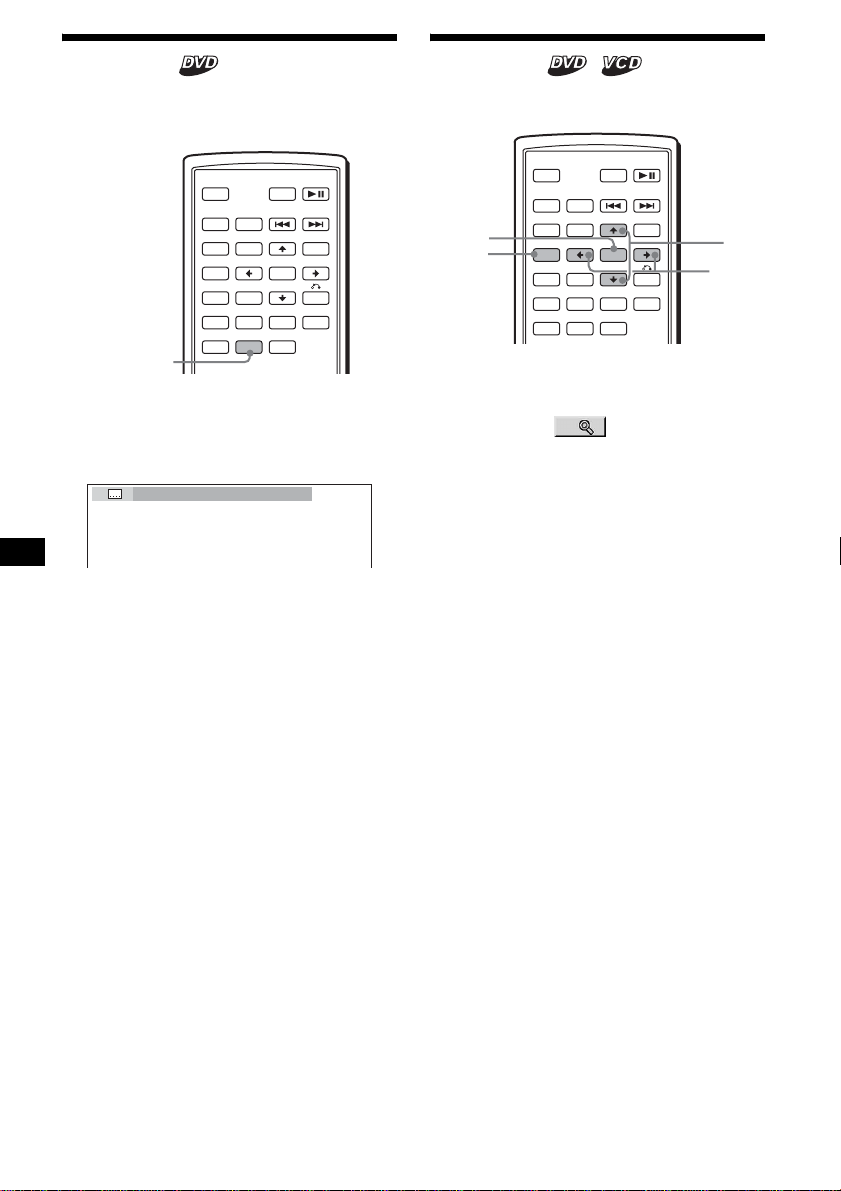
24
顯示字幕
您可以開啓或關閉字幕,如果 DVD 中錄製了多
種語言的字幕,則可以改變字幕語言。
1 在播放過程中按 (SUBTITLE)。
出現字幕語言。
2 反覆按 (SUBTITLE) 選擇需要的語言。
可使用的語言視光碟而異。
當出現 4 位數字時,則輸入與想要語言相
對應的語言代碼 (第 47 頁)。
若要關閉字幕
反覆按 (SUBTITLE) 選擇 “OFF”。
註
視 DVD 而定,即使錄製了多語言字幕,您可能無法改變
(或關閉)字幕。
提示
您也可以在播放模式選單 (第 13 頁)或 DVD 選單
(第 19 頁)中選擇 “SUBTITLE”來改變字幕語言。
放大影像
您可以放大影像。
1 在播放過程中按 (SETUP)。
出現播放模式選單。
2 按 M/m 選擇 (CENTER ZOOM),然後
按 (ENTER)。
出現當前選項。
3 按 M/m 選擇想要的選項 (ZOOM×1, ×2*,
×4*),然後按 (ENTER)。
影像被放大。
* 影像變成顆粒狀。
若要移動幀的位置
放大影像後,按 </M/m/,。
若要恢復原來的比例
在步驟 3 中選擇 “ZOOM×1”。
若要關閉播放模式選單
按 (SETUP)。
註
• 視 DVD 而定,您可能無法改變放大倍數。
• 如果您重續播放,影像將返回至原來的比例。
SRC
MODE
ATT DVD
SOUND
TOP MENU
MENU
SETUP
ENTER
SYSTEM
MENU
LIST
EQZ
×
Z DSO EQ7
PICTURE
AUDIO
SUBTITLE
ANGLE
OFF
+
–
SUBTITLE
1:ENGLISH
SRC
MODE
ATT DVD
SOUND
TOP MENU
MENU
SETUP
ENTER
SYSTEM
MENU
LIST
EQZ
×
Z DSO EQ7
PICTURE
AUDIO
SUBTITLE
ANGLE
OFF
+
–
ENTER
SETUP
M/m
</,
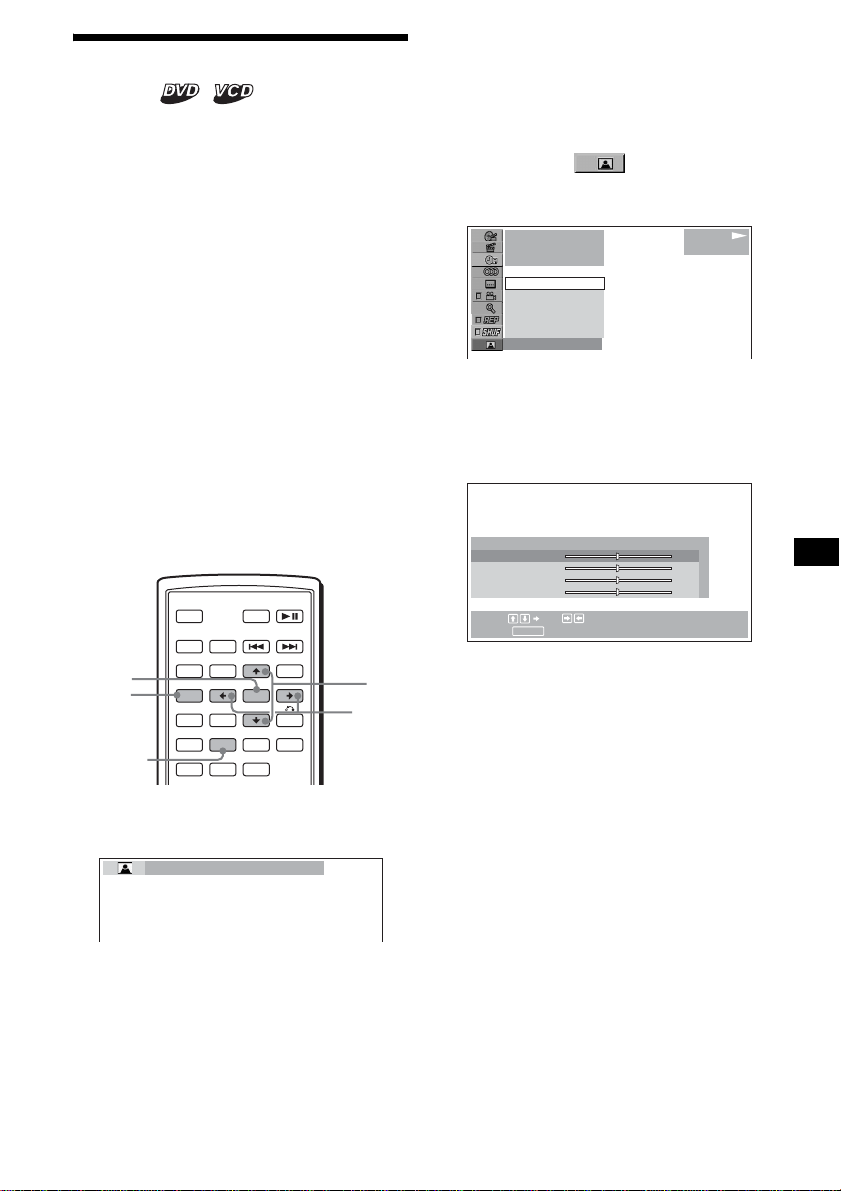
25
改變影像品質
— 影像 EQ
您可以選擇適合汽車內部亮度的影像品質。
您可以將 “CUSTOM SETUP”中的 “PICTURE
EQ”設定為 “LIGHT OFF”、“LIGHT ON”或
“AUTO”(第 31 頁)。各個設定選項 (以
下)不同。如果您將 “PICTURE EQ”設定為
“AUTO”,則可使用的選項根據汽車照明打開
或關閉而自動切換。
可以使用以下設定選項。
• NORMAL - 正常影像品質。
• Daytime*
1
- 適合於明亮的地方。
• Sunset*
1
- 適合光線有點暗時。
• Shine*
1
- 適合於非常明亮的地方(如,光線
反射在監視器上時)。
• Night*
2
-監視器變暗,而不是在夜晚分散您
駕車的注意力。
• Midnight*
2
- 使監視器比 “Night”設定更
暗。
• Theater*
2
- 使監視器變亮;適合於您想在
夜晚觀看明亮的監視器。
• CUSTOM - 使用者可調節的設定。
*1 當 “CUSTOM SETUP”中的 “PICTURE EQ”設定為
“LIGHT OFF”或“AUTO”,且汽車照明關閉時有效。
*2 當 “CUSTOM SETUP”中的 “PICTURE EQ”設定為
“LIGHT ON”或 “AUTO”,且汽車照明打開時有效。
在播放過程中,反覆按 (PICTURE EQ) 選擇
所需要的設定。
提示
您也可以通過選擇播放模式選單中的“PICTURE EQ”改
變影像品質 (第 13 頁)。
調節個人設定
您可以儲存您自己的使用者 - 不同影像色調的
可調節設定。
1 在播放過程中按 (SETUP)。
出現播放模式選單。
2 按 M/m 選擇 (PICTURE EQ),然後
按 (ENTER)。
出現設定項目。
3 按 M/m 選擇 “CUSTOM”,然後按
(ENTER)。
4 按 M/m 選擇設定項目,然後按 </,
調節電平。
5 按 (ENTER)。
提示
“LIGHT OFF”和“LIGHT ON”的調節可以被分開儲存。
SRC
MODE
ATT DVD
SOUND
TOP MENU
MENU
SETUP
ENTER
SYSTEM
MENU
LIST
EQZ
×
Z DSO EQ7
PICTURE
AUDIO
SUBTITLE
ANGLE
OFF
+
–
ENTER
SETUP
M/m
</,
PICTURE
EQ
Daytime
1
001
002:35
PLAY
DVDVIDEO
Daytime
Sunset
Shine
CUSTOM
NORMAL
NORMAL
Select: Set:
Cancel:
RETURN
Color
Bright
Contrast
Tint
0
0
0
0
USER CUSTOM SETUP
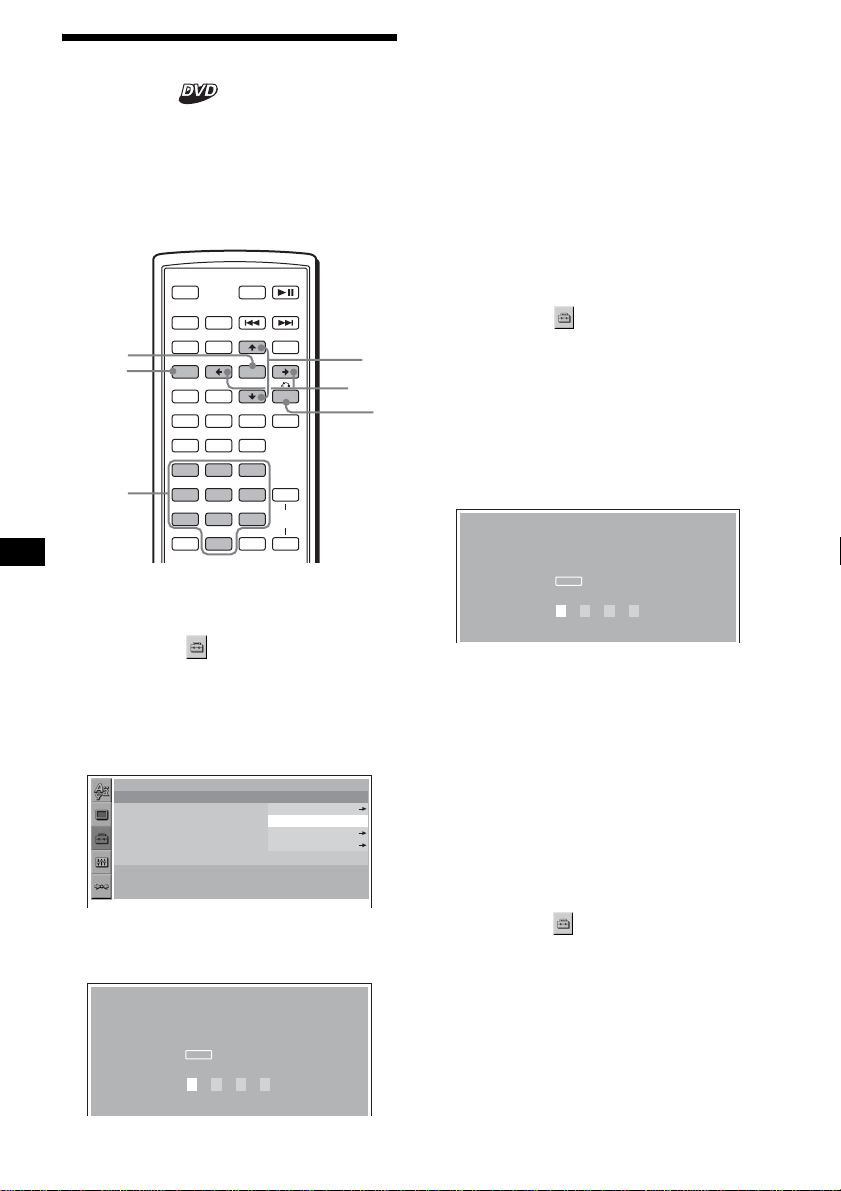
26
鎖定光碟
— 視聽者控制
您可以鎖定光碟,或根據預先確定的等級(如
觀看者的年齡)來設定播放限制。當播放視聽
者控制功能相容 DVD 時,受到播放限制的場面
被阻擋,或被其它場面所替換。
設定視聽者控制功能為開啓
1 在播放停止時按 (SETUP)。
出現設定選單。
2 按 M/m 選擇 (CUSTOM SETUP),然後按
(ENTER)。
出現設定項目。
3 按 M/m 選擇“PARENTAL CONTROL”,然後
按 (ENTER)。
出現視聽者控制選項。
4 按 M/m 選擇“ON t”,然後按 (ENTER)。
出現密碼設定顯示。
5 按數字按鈕輸入您的密碼,然後按
(ENTER)。
出現確認顯示。
6 若要確認,按數字按鈕再次輸入您的密
碼,然後按 (ENTER)。
視聽者控制設定完成。
若要關閉設定選單
按 (SETUP)。
設定視聽者控制功能為關閉
1 在播放停止時按 (SETUP)。
出現設定選單。
2 按 M/m 選擇 (CUSTOM SETUP),然後按
(ENTER)。
出現設定項目。
3 按 M/m 選擇“PARENTAL CONTROL”,然後
按 (ENTER)。
出現視聽者控制選項。
4 按 M/m 選擇 “OFF t”,然後按
(ENTER)。
出現輸入密碼顯示。
5 按數字按鈕輸入您的密碼,然後按
(ENTER)。
出現“Parental control is canceled”。
如果輸入了錯誤的數字,按 < 移動指針並
重新輸入數字。
更改地區和該地區的電影收視率等級
您可以根據地區和該地區的電影收視率設定
限制等級。
1 在播放停止時按 (SETUP)。
出現設定選單。
2 按 M/m 選擇 (CUSTOM SETUP),然後按
(ENTER)。
出現設定項目。
3 按 M/m 選擇“PARENTAL CONTROL”,然後
按 (ENTER)。
出現視聽者控制選項。
SRC
MODE
ATT DVD
SOUND
TOP MENU
MENU
SETUP
ENTER
SYSTEM
MENU
LIST
EQZ
×
Z DSO EQ7
PICTURE
AUDIO
SUBTITLE
ANGLE
CLEAR
123
456
789
0
DSPL
OFF
+
–
VOL
+
–
ENTER
SETUP
M/m
</,
O
數字按鈕
CUSTOM SETUP
PARENTAL CONTROL :
MUTI–DISC RESUME :
MP3/JPEG :
SLIDE SHOW TIME :
PLAY LIST PLAY :
PICTURE EQ :
OFF
ON
OFF
PLAYER
PASSWORD
AUTO
PARENTAL CONTROL
Enter a new 4–digit password,
then press .
ENTER
PASSWORD
PARENTAL CONTROL
Enter password,
then press .
ENTER
PASSWORD
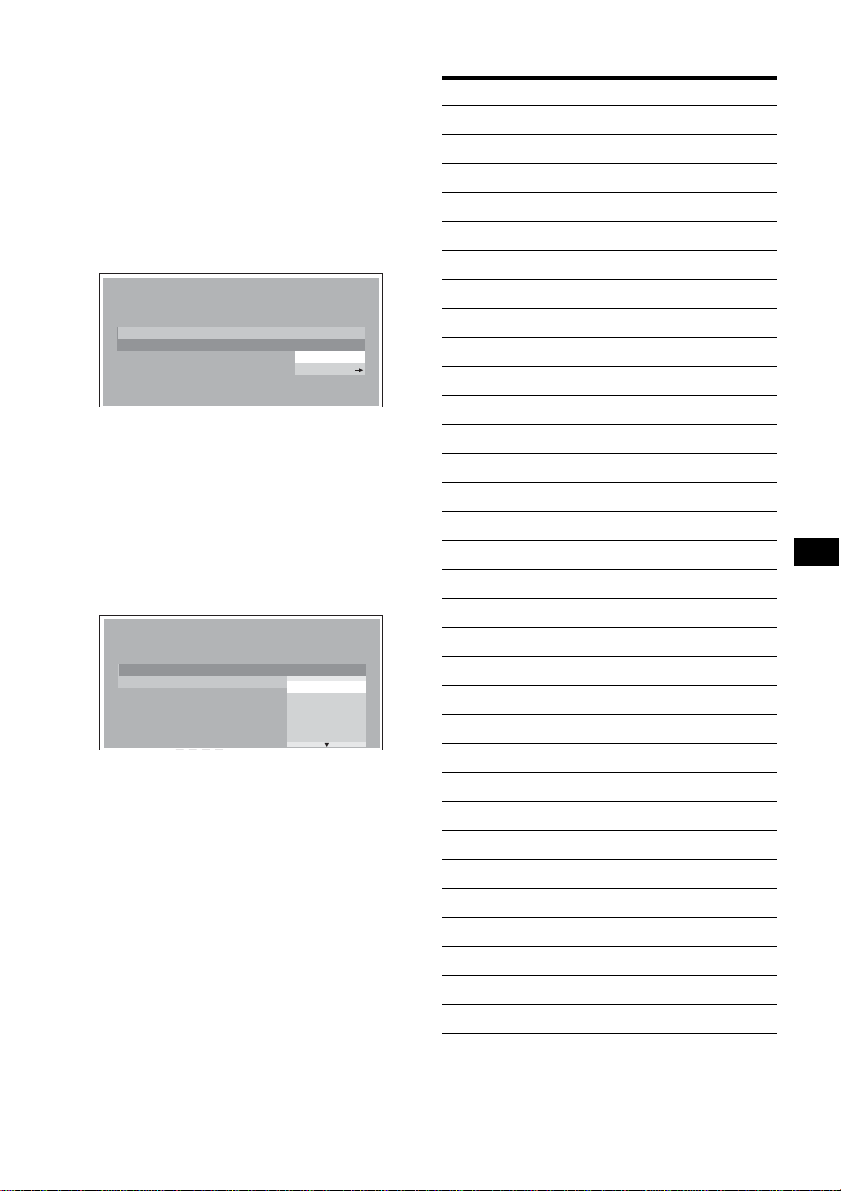
27
4 按 M/m 選擇 “PLAYER t”,然後按
(ENTER)。
當視聽者控制已經設定為開啓時,出現要
求您輸入密碼的顯示畫面。
若要更改設定,則輸入您的密碼,然後按
(ENTER)。
如果輸入了錯誤的數字,按 < 移動指針並
重新輸入數字。
5 按 M/m 選擇 “STANDARD”,然後按
(ENTER)。
出現標準選項。
6 按 M/m 選擇想要的地區,以套用該地區電
影收視率,然後按 (ENTER)。
區域選擇完畢。
如果您想要在“地區代碼列表”(第 27 頁)
中選擇該標準,則選擇 “OTHERS t”, 然
後使用數字按鈕輸入該地區標準的代碼
號。
7 按 M/m 選擇“LEVEL”,然後按 (ENTER)。
出現收視率選項。
數字越小,限制等級越嚴格。
8 按 M/m 選擇想要的收視率,然後按
(ENTER)。
視聽者控制設定完成。
若要關閉設定選單
按 (SETUP)。
註
當您播放沒有視聽者控制功能的光碟時,則無法限制本
機播放。
地區代碼列表
CUSTOM SETUP
LEVEL :
STANDARD :
8:
USA
USA
OTHER
NC17
R
PG13
8:
7:
6:
5:
4:
CUSTOM SETUP
LEVEL :
STANDARD :
8:
標準 代碼號
阿根廷 2044
奧地利 2046
澳大利亞 2047
巴基斯坦 2427
巴西 2070
比利時 2057
丹麥 2115
德國 2109
俄羅斯 2489
法國 2174
菲律賓 2424
芬蘭 2165
荷蘭 2376
韓國 2304
加拿大 2079
馬來西亞 2363
墨西哥 2362
紐西蘭 2390
挪威 2379
葡萄牙 2436
日本 2276
瑞典 2499
瑞士 2086
泰國 2528
西班牙 2149
新加坡 2501
義大利 2254
印度 2248
印度尼西亞 2238
英國 2184
智利 2090
中國 2092
續下頁 t
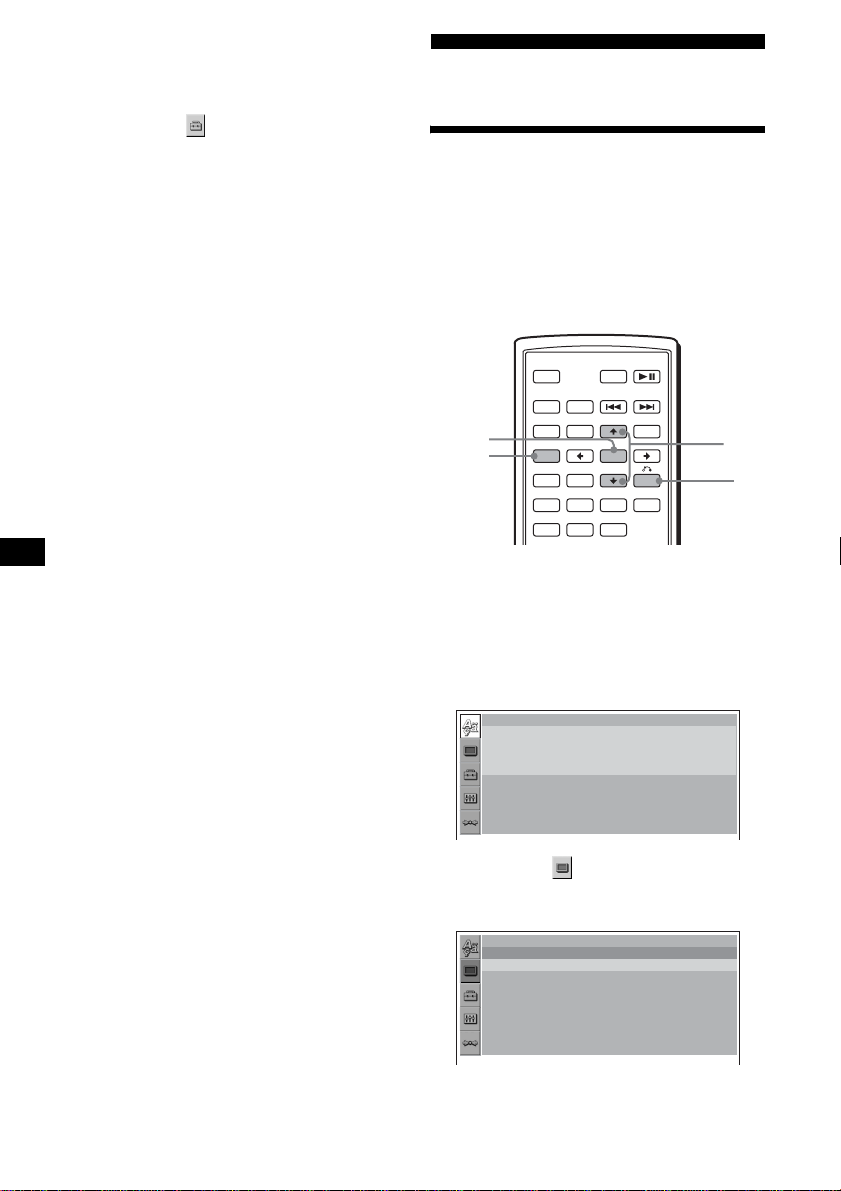
28
更改密碼
1 在播放停止時按 (SETUP)。
出現設定選單。
2 按 M/m 選擇 (CUSTOM SETUP),然後按
(ENTER)。
出現設定項目。
3 按 M/m 選擇“PARENTAL CONTROL”,然後
按 (ENTER)。
出現視聽者控制選項。
4 按 M/m 選擇 “PASSWORD t”,然後按
(ENTER)。
出現輸入密碼顯示畫面。
5 按數字按鈕輸入您的 4 位數密碼,然後按
(ENTER)。
如果輸入了錯誤的數字,按 < 移動指針並
重新輸入數字。
6 按數字按鈕輸入新的 4 位數密碼,然後按
(ENTER)。
7 若要確認,按數字按鈕再次輸入您的4位數
密碼,然後按 (ENTER)。
要返回至先前的顯示
按 O。
若要關閉設定選單
按 (SETUP)。
設定和調整
使用設定選單
使用設定選單,可對影像和聲音等項目進行
多種調整。除了其它設定,您也可以設定字幕
和畫面顯示語言。關於每個設定項目的詳細
說明,參見第 29 頁至第 32 頁。
註
光碟內存儲的播放設置優先級比設定選單設置更高,且
並非描述的所有功能都有效。
基本操作
例如:當您想要將縱橫比(“MONITOR TYPE”)
更改為 “4:3 PAN SCAN”時。
1 在播放停止時按 (SETUP)。
出現設定選單。
2 按 M/m 選擇 (SCREEN SETUP),然後按
(ENTER)。
出現設定顯示畫面。
SRC
MODE
ATT DVD
SOUND
TOP MENU
MENU
SETUP
ENTER
SYSTEM
MENU
LIST
EQZ
×
Z DSO EQ7
PICTURE
AUDIO
SUBTITLE
ANGLE
OFF
+
–
ENTER
SETUP
M/m
O
LANGUAGE SETUP
OSD :
MENU :
AUDIO :
SUBTITLE
:
ENGLISH
ENGLISH
ORIGINAL
AUDIO FOLLOW
SCPEEN SETUP
MONITOR TYPE :
SCREEN SAVER :
16:9
ON
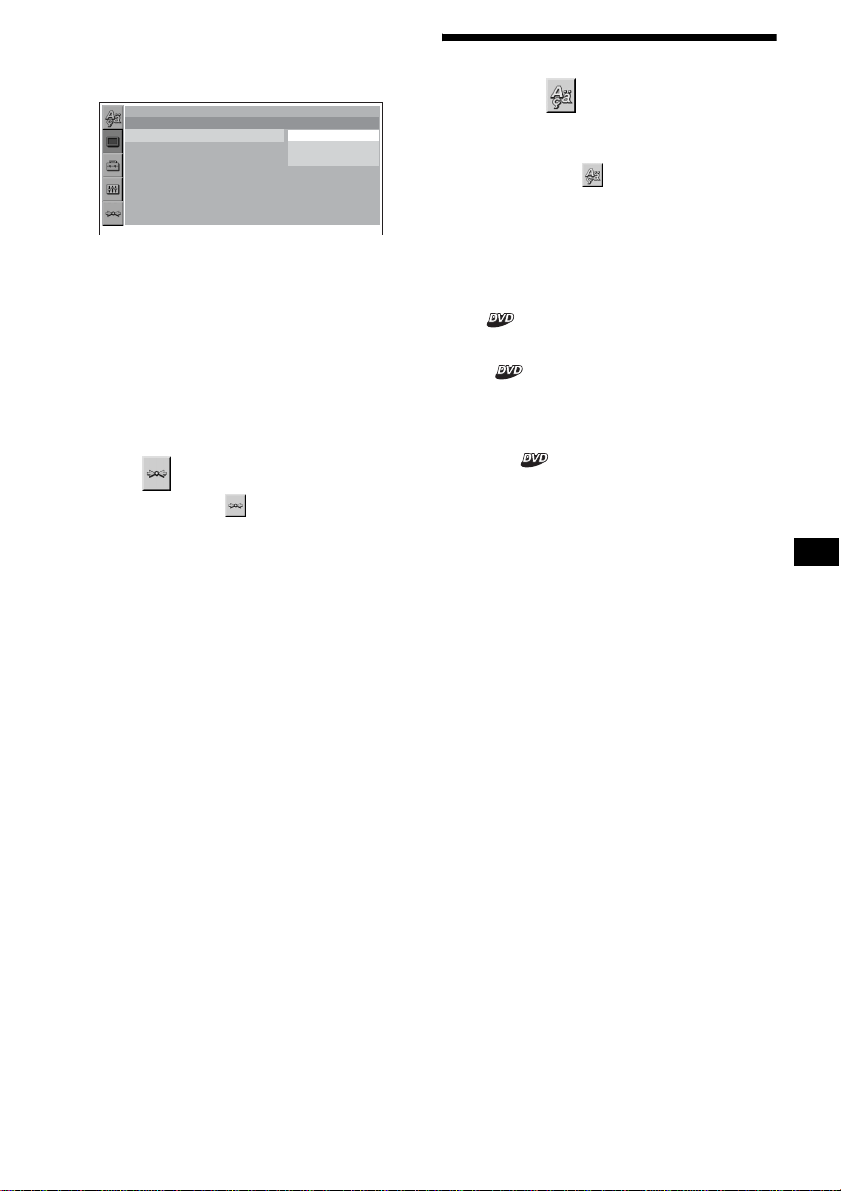
29
3 按 M/m 選擇 “MONITOR TYPE”,然後按
(ENTER)。
出現監視器類型選項。
4 按 M/m 選擇 “4:3 PAN SCAN”,然後按
(ENTER)。
套用設定後,設定即完成。
要返回至先前的顯示
按 O。
若要關閉設定選單
按 (SETUP)。
若要復原全部設定項目
— 復原
1 在步驟 2 中選擇 (RESET),然後按
(ENTER)。
2 按 M 選擇 “YES”,然後按 (ENTER)。
設定選單中所有設定*均返回至預設設定。
* 不包括視聽者控制設定。
若要取消復原
在步驟 2 中選擇 “NO”。
註
復原設定選單項目需要幾秒鐘才能完成,因此在復原過
程中切勿關機。
設定顯示語言或聲音軌跡
— 語言設定
“LANGUAGE SETUP”可以為畫面顯示或聲音軌
跡設定所需要的語言。
在設定選單中選擇 (LANGUAGE SETUP),然
後選擇所需要的設定項目。
有關設定步驟的詳細說明,請參見第28頁“使
用設定選單”。
OSD (畫面顯示語言)
切換畫面上顯示的語言。
MENU
切換光碟上的選單語言。
AUDIO
切換聲音軌跡語言。
當選擇 “ORIGINAL”時,將選擇光碟優先設
定的語言。
SUBTITLE
切換錄製在光碟上的字幕語言。
當選擇 “AUDIO FOLLOW”時,字幕語言根據
您選擇的聲音軌跡語言而改變。
註
當您在 “MENU” 、“SUBTITLE”或 “AUDIO”中選擇了
一種未錄製在光碟上的語言時,本機會自動選擇其中一
種已錄製的語言。
提示
如果您在 “MENU” 、“SUBTITLE”或 “AUDIO”中選擇
“OTHERS t”,請用數字鍵從 “語言代碼列表”
(第 47 頁)中選擇並輸入語言代碼。
16:9
16:9
4:3 LETTER BOX
4:3 PAN SCAN
SCPEEN SETUP
MONITOR TYPE :
SCREEN SAVER :
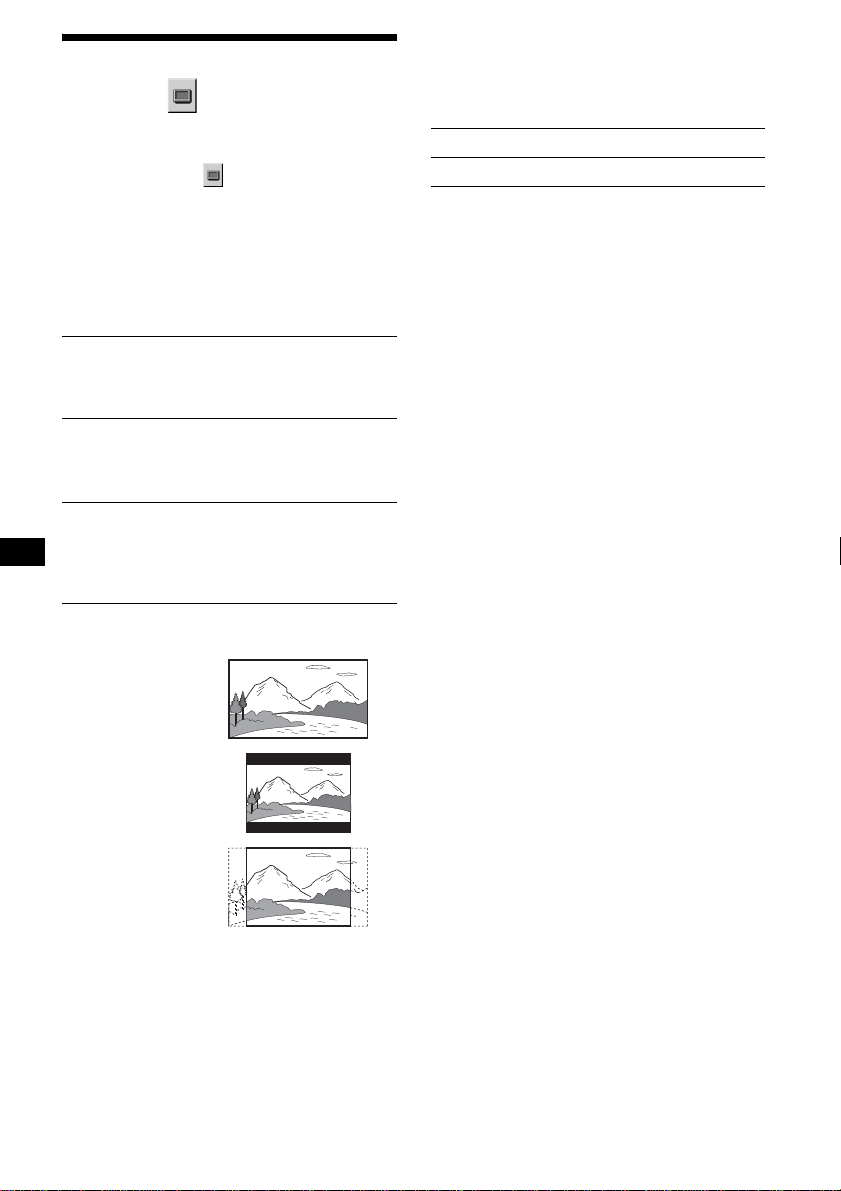
30
設定螢幕
— 螢幕設定
“SCREEN SETUP”用於調節所連接監視器的設
定。
在設定選單中選擇 (SCREEN SETUP),然後
選擇所需要的設定項目。
有關設定步驟的詳細說明,請參見第28頁“使
用設定選單”。
下表中有 “*”的設定項目為預設設定。
MONITOR TYPE
選擇所連接監視器的縱橫比 (標準 4:3 或寬
螢幕)。
註
視 DVD 而定,有些 DVD 可能自動選擇“4:3 LETTER BOX”
以代替 “4:3 PAN SCAN”,反之亦然。
SCREEN SAVER
打開並關閉螢幕節能。如果本系統處於停止
模式 5 分鐘,則出現螢幕節能影像。螢幕節能
能幫助防止顯示設備受損 (餘像) 。按 DVD
u 關閉螢幕節能。
16:9* 顯示寬螢幕影像。
當您連接寬螢幕監視器或帶寬
螢幕模式功能的監視器時,請
選擇此項。
4:3
LETTER BOX
顯示寬螢幕影像時,螢幕頂部
和底部有黑帶。
與 4:3 螢幕監視器連接時選擇
此項。
4:3
PAN SCAN
在整個螢幕上顯示一個寬影
像,並自動切除超出螢幕部
分。
與 4:3 螢幕監視器連接時選擇
此項。
4:3 PAN SCAN
4:3 LETTER BOX
16:9
ON 打開螢幕節能。
OFF* 關閉螢幕節能。
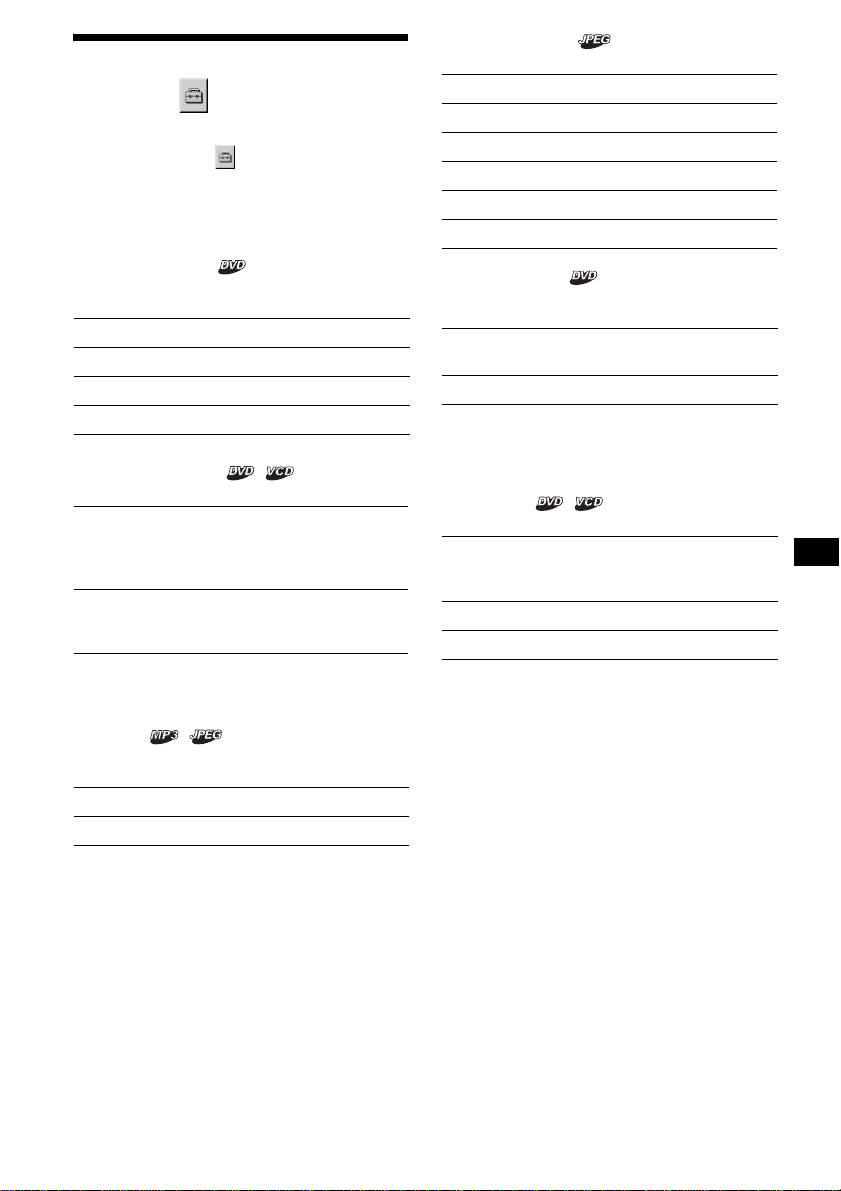
31
個人設定
— 個人設定
“CUSTOM SETUP”用於設定本機的播放狀況。
在設定選單中選擇 (CUSTOM SETUP),然後
選擇所需要的設定項目。
有關設定步驟的詳細說明,請參見第28頁“使
用設定選單”。
下表中有 “*”的設定項目為預設設定。
PARENTAL CONTROL
設定播放限制,使本機不播放不適合的光碟
或場面 (第 26 頁)。
MULTI-DISC RESUME
最多儲存 20 盤不同光碟的重續播放點。
註
如果使用視聽著控制,則重續播放無效。若是這樣,則
插入光碟時,從光碟的開頭開始播放。
MP3/JPEG
如果 MP3 檔案和 JPEG 檔案在同一盤光碟中,
設定優先權。
SLIDE SHOW TIME
設定光碟上影像顯示的時間。
PLAY LIST PLAY
設定 VR 模式的 DVD-RW 上最初錄製的標題與已
編輯的播放目錄之間的優先權。
註
• 播放目錄播放僅適用於 VR 模式的 DVD-RW。
• 如果光碟上沒有建立播放目錄,則播放最初錄製的標
題。
PICTURE EQ
選擇此項顯示影像品質選項。
ON t 設定視聽者控制功能為開啓。
OFF t* 設定視聽者控制功能為關閉。
PLAYER t 設定限制標準和限制等級。
PASSWORD t 設定新的 4 位數密碼。
ON* 記憶體中最多儲存 20 盤光碟的
重續播放設定。(即使您選擇
“OFF”,這些設定仍保留在記
憶體中。)
OFF 取消儲存在記憶體中的重續設
定。僅在本機內當前光碟重續
播放點重新開始播放。
MP3* 播放時優先於 JPEG 檔案。
JPEG 播放時優先於 MP3 檔案。
5sec 每 5 秒鐘切換影像。
10sec* 每 10 秒鐘切換影像。
20sec 每 20 秒鐘切換影像。
40sec 每 40 秒鐘切換影像。
60sec 每 60 秒鐘切換影像。
FIXED 取消切換影像。
ORIGINAL* 最初錄製的標題優先於編
輯的播放目錄。
PLAY LIST 優先於最初錄製的標題。
AUTO* 根據汽車照明打開或關閉
切換選項。(僅當連接了照
明控制導線時有效。)
LIGHT OFF 顯示白天使用的選項。
LIGHT ON 顯示夜晚使用的選項。

32
音頻設定
— 音頻設定
“AUDIO SETUP”使您可以根據播放條件和所
連接的裝置調節聲音。
在設定選單中選擇 (AUDIO SETUP),然後
選擇所需要的設定項目。
有關設定步驟的詳細說明,請參見第28頁“使
用設定選單”。
下表中有 “*”的設定項目為預設設定。
AUDIO DRC (動態範圍控制)
當播放符合 “AUDIO DRC”的 DVD 時將音量調
低,使聲音清晰。
此設定會影響
FRONT/REAR AUDIO OUT
的輸出。
DOWNMIX
當播放帶有後置聲音元素(聲道)或以 Dolby
Digital 格式錄製的 DVD 時,將合併的方式切
換至 2 聲道。關於後置訊號分量的詳細說明,
請參見第 22 頁 “查看節目格式”。此設定會
影響 FRONT/REAR AUDIO OUT 的輸出。
DOLBY DIGITAL
選擇 Dolby Digital 訊號類型。
DTS
選擇是否輸出 DTS 訊號。
收音機
警告
當在駕車過程中要調諧電臺時,須使用最佳
調諧記憶功能 (BTM),以免發生事故。
自動儲存
— BTM
1 反覆按 (SRC) (SOURCE),直至出現
“TUNER”。
若要改變波段,則反覆按 (MODE)。您可
以從 FM1、FM2、FM3、AM1 或 AM2 中選擇。
2 按 (SYSTEM MENU),然後反覆按 M/m,直
至出現 “BTM”。
3 按 (ENTER)。
本機以頻率順序將電臺儲存在數字按鈕上
((1) 至 (6))。
當設定存儲完畢時,本機發出一聲提示
音。
手動儲存
接收您要儲存的電臺時,按住一個數字按
鈕((1) 至 (6))不放,直至出現“MEM”。
數字按鈕指示即在顯示幕上出現。
註
若您試圖在已儲存有電臺的數字按鈕上儲存另一個電
臺,則以前存入的電臺將被替換。
STANDARD* 通常選擇此位置。
WIDE RANGE 給您帶來身臨其境的感覺。
SURROUND 當本機連接到符合 Dolby
Surround (Pro Logic)音頻
部件時選擇此項。
NORMAL* 當本機連接到不符合 Dolby
Surround (Pro Logic)音頻
部件時選擇此項。
DOLBY
DIGITAL*
當本機連接到帶內建 Dolby
Digital 解碼器的音頻部件時
選擇此項。
DOWNMIX PCM 當本機連接到缺少內建
Dolby Digital 解碼器的音頻
部件時選擇此項。您可以通過
調節 “AUDIO SETUP”中 的
“DOWNMIX”項目,選擇符合或
不符合 Dolby Surround (Pro
Logic)的訊號 (第 32 頁)。
ON* 當本機連接到帶內置 DTS 解碼
器的音頻部件時選擇此項。
OFF 當本機連接到帶內建 DTS 解碼
器的音頻部件時選擇此項。
SRC
MODE
ATT DVD
SOUND
TOP MENU
MENU
SETUP
ENTER
SYSTEM
MENU
LI ST
EQZ
×
Z DSO EQ7
PICTURE
AUDIO
SUBTITLE
ANGLE
CLEAR
123
456
789
0
OFF
+
–
VOL
+
–
DSPL
MODE
SRC
ENTER
LIST
SYSTEM
MENU
M/m
./>
數字按鈕
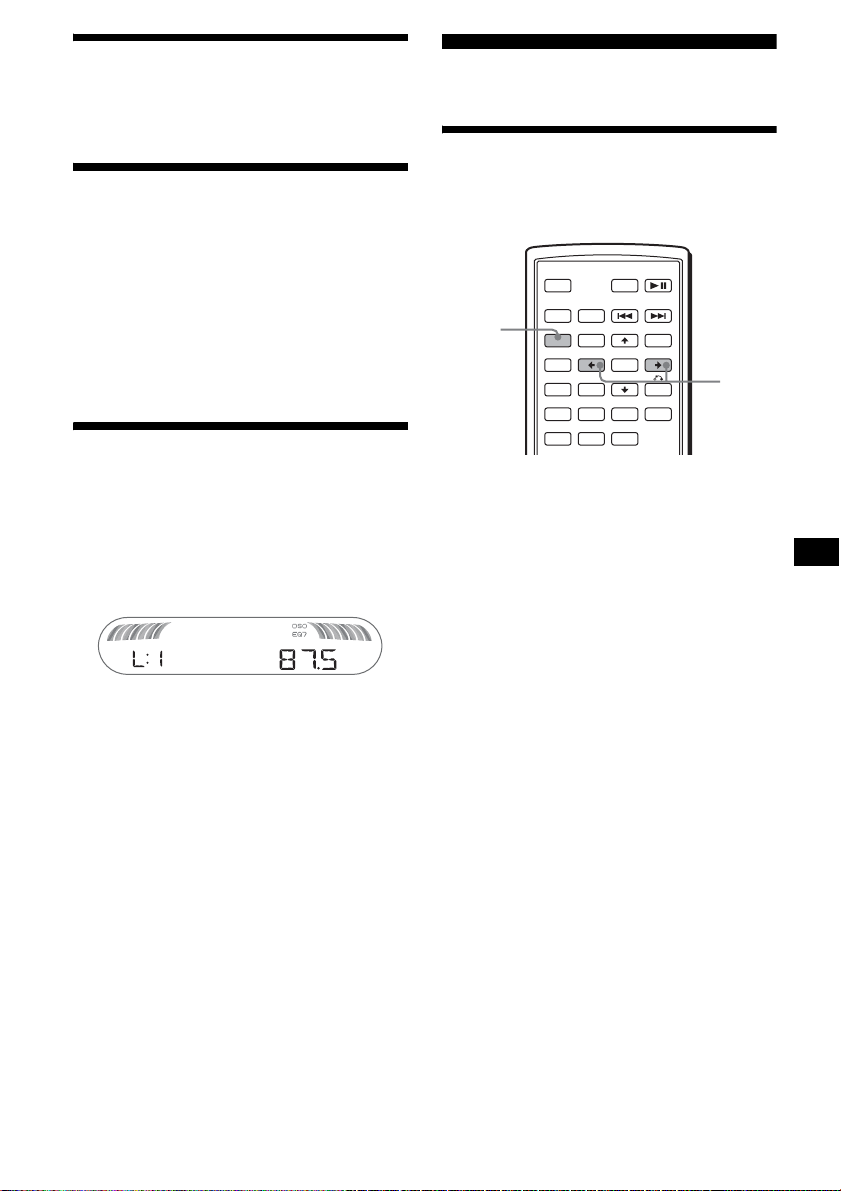
33
接收已儲存的電臺
選擇波段,然後按一個數字按鈕 ((1) 至
(6))或 M/m。
自動調諧
選擇波段,然後按 ./> 搜尋電臺。
當本機接收到一個電臺時,掃描即停止。
如此反覆操作直至接收到所要的電臺。
提示
若您知道所要收聽的電臺頻率,請按住 ./> 不放
找到近似頻率,然後反覆按 ./> 按鈕精確調節到
所要的頻率 (手動調諧)。
用主機操作
若要搜尋電臺,則按 (SEEK) +/-。
通過列表接收電臺
— 列表
您可以列出頻率列表。
1 選擇波段,然後按 (LIST)。
顯示頻率。
2 反覆按 M/m,直至出現想要的電臺。
3 按 (ENTER) 接收此電臺。
其他功能
調節聲音特性
您可以調節低音,高音,平衡,音量衰減和超
低音揚聲器音量。
1 選擇一個音源,然後反覆按 (SOUND),選
擇所需要的項目。
項目如下改變:
BAS (低音) t TRE (高音) t
BAL (左-右) t FAD (前-後) t
SUB (超低音揚聲器音量) *
* 最低設定時顯示 “ ∞”,並最多能調節 20 級。
2 反覆按 </,,調節選擇的項目。
3 秒鐘後,設定完成,顯示返回正常播放 /
接收模式。
註
選擇了項目之後,須在 3 秒內進行調節。
用主機操作
在步驟 2 中,若要調節選擇的項目,則按音量 +/- 按鈕。
SRC
MODE
ATT DVD
SOUND
TOP MENU
MENU
SETUP
ENTER
SYSTEM
MENU
LIST
EQZ
×
Z DSO EQ7
PICTURE
AUDIO
SUBTITLE
ANGLE
OFF
+
–
SOUND
</,
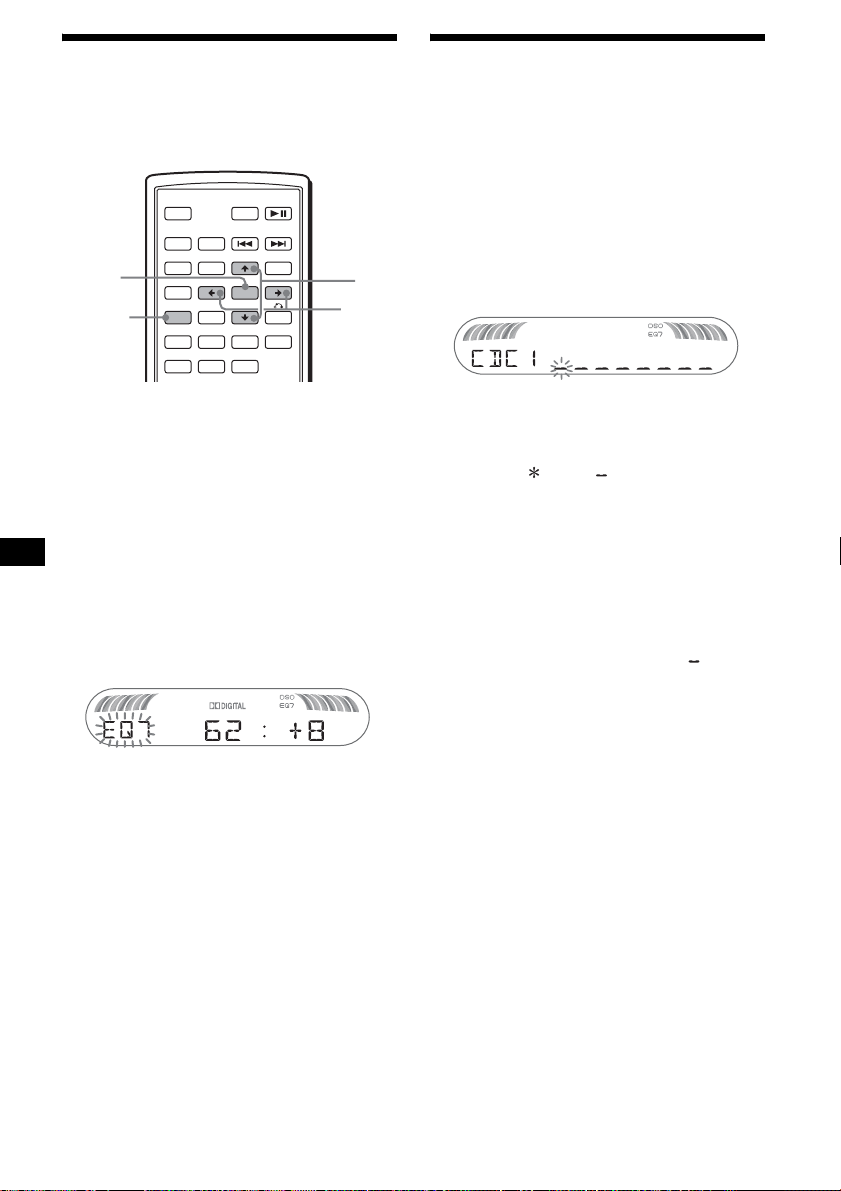
34
調節均衡曲線
— EQ7 調諧
您可以調節和儲存不同音調範圍的均衡器設
定。
1 選擇一個音源,然後按 (SYSTEM MENU)。
2 反覆按 M/m,直至出現 “EQ7 TUNE”,然
後按 (ENTER)。
3 反覆按 </, 選擇所要的均衡器類型,然
後按 (ENTER)。
4 反覆按 </,,選擇所需要的頻率。
頻率如下改變:
62Hz y 157Hz y 396Hz y 1kHz y
2.5kHz y 6.3kHz y 16kHz
5 反覆按 M/m 調節想要的音量電平。
音量電平以 1 dB 為遞級,從 -10 dB 至
+10 dB 進行調節。
重複步驟 4 和步驟 5 調節均衡曲線。
若要復原至出廠設定的均衡曲線,請按住
(ENTER)。
6 按 (ENTER)。
設定完成,顯示返回正常播放 / 接收模式。
標註電臺 / 光碟
當您接收電臺或播放具有CUSTOM FILE功能的
CD 換碟機中的光碟時,您可以對每個電臺 /光
碟標註最多 8 個字元的自訂名稱(電臺記憶 /
光碟記憶)。
如果您標註電臺 / 光碟,則該名稱將出現在列
表中 (第 33 頁或第 37 頁)。
1 當正在接收或播放您要標註的電臺或光碟
時,按 (SYSTEM MENU)。
2 反覆按 M/m,直至出現 “NAMEEDIT”,然
後按 (ENTER)。
3 反覆按 M/m,直至出現想要的字元。
字元如下改變:
A y B y C ... y 0 y 1 y 2 ... y +
y – y ... y (空格)y A
若要移動數字指示,則按 </,。
如此反覆操作直至輸入整個名稱。
4 按 (ENTER)。
標註完成,顯示返回正常接收 / 播放模式。
若要顯示名稱,則在接收 / 播放過程中按
(DSPL)。
提示
• 若要修改或消除字元,則覆蓋或輸入 “ ”。
• 光碟記憶始終優先於任何其他預先錄製的標題。
• 如果連接了具有 CUSTOM FILE 功能的換碟機,則您可
以在本機上標註光碟。
• “REP-TRACK”和所有隨機播放將暫停至標註完成。
刪除自訂名稱
1 選擇已儲存您要刪除的自訂名稱的裝置,
然後按 (SYSTEM MENU)。
2 反覆按 M/m,直至出現 “NAME DEL”,然
後按 (ENTER)。
出現儲存的名稱。
3 反覆按 M/m 選擇想要刪除的名稱。
4 按住 (ENTER)。
該名稱被刪除。若要刪除其他名稱,請重
複步驟 3 和步驟 4 的操作。
5 按兩次 (SYSTEM MENU)。
本機返回到正常接收 / 播放模式。
SRC
MODE
ATT DVD
SOUND
TOP MENU
MENU
SETUP
ENTER
SYSTEM
MENU
LIST
EQZ
×
Z DSO EQ7
PICTURE
AUDIO
SUBTITLE
ANGLE
OFF
+
–
ENTER
SYSTEM
MENU
M/m
</,
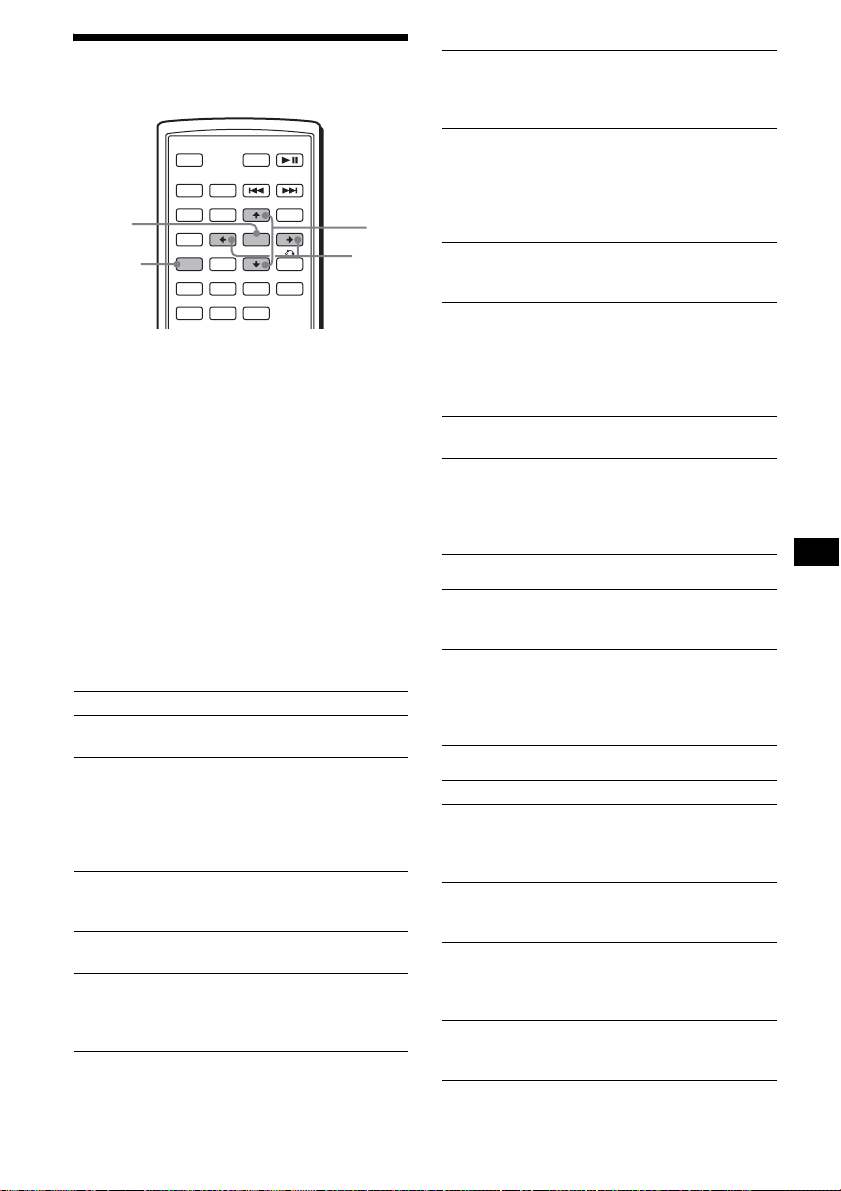
35
調節裝置選單項目
— SYSTEM MENU
1 按 (SYSTEM MENU)。
2 反覆按 M/m,直至出現需要的項目。
3 按 </, 選擇想要的設定 (例如:“ON”
或 “OFF”)。
4 按 (ENTER)。
設定完成,顯示返回正常播放 / 接收模式。
註
顯示的項目視音源和設定而異。
提示
按住 M/m,就可在各種類別中輕鬆地進行切換。
以下項目可以設定 (詳細步驟請參見參考
頁):
“
z”表示預設設定。
SET (設定)
DSPL (顯示)
P/M (播放模式)
SND (聲音)
CLOCK-ADJ (時鐘調節)(第 8 頁)
BEEP
設定 “ON”(
z
)或 “OFF”。
RM (旋轉式控制器)
改變旋轉式遙控器的操作方向。
–“NORM”(
z
):按工廠設定位置使用旋轉
式控制器。
–“REV”:當您將旋轉式控制器安裝在汽車
方向盤軸的右側時。
AUX-A*
1
(AUX 音頻)
將 AUX 音源顯示轉換為 “ON”(
z
)或
“OFF”(第37頁)。
PAL/NTSC*
1
*
2
將電視機彩色系統改變為 PAL 或 NTSC。
WL*
1
*
3
(無線)
–“CH1”(
z
)、“CH2”、“CH3”、“CH4”:
避免對無線傳輸的干擾。
–“OFF”:關閉無線傳輸。
SRC
MODE
ATT DVD
SOUND
TOP MENU
MENU
SETUP
ENTER
SYSTEM
MENU
LIST
EQZ
×
Z DSO EQ7
PICTURE
AUDIO
SUBTITLE
ANGLE
OFF
+
–
ENTER
SYSTEM
MENU
M/m
</,
CLOCK (時鐘資訊)
同時顯示時鐘和顯示項目。
–“ON”:同時顯示。
–“OFF”(
z
):不同時顯示。
DIM (調光器)
改變顯示幕亮度。
–“AT”(
z
):打開汽車照明時,顯示幕自
動變暗。 *
4
–“ON”:使顯示幕變暗。
–“OFF”:關閉調光器。
CONTRAST
調節主機顯示幕的對比度。
對比度等級分 7 級調節。
M.DSPL*
5
(動作顯示)
選擇動作顯示模式。
–“SA”(
z
):顯示運動圖樣和頻譜分析圖
形。
–“ON”:顯示運動圖樣。
–“OFF”:關閉動作顯示。
DEMO*
1
(示範)
設定 “ON”(
z
)或 “OFF”(第 8 頁)。
A.SCRL (自動滾動)
更改了光碟 / 文件夾時,自動滾動顯示較長
的項目。
–“ON”:滾動。
–“OFF”(
z
):不滾動。
LOCAL (本地搜尋模式)
–“ON”:只調入訊號較強的電臺。
–“OFF”(
z
):調入正常接收。
MONO (單聲道模式)
改善訊號弱的 FM 接收,選擇單聲道接收模
式。
–“ON”:以單聲道收聽立體聲廣播。
–“OFF”(
z
):以立體聲收聽立體聲廣播。
EQ7 TUNE (第 34 頁)
HPF (高通濾波
器)
選擇前置 / 後置揚聲器截止頻率:“OFF”
(
z
),“78HZ”或 “125HZ”。
LPF (低通濾波器)
選擇超低音揚聲器截止頻率:“OFF”(
z
),
“125HZ”或 “78HZ”。
LOUD (響度)
增強低音時的低音和高音。
–“ON”:增強低音和高音。
–“OFF”(
z
):不增強低音和高音。
DVD LVL*
6
(DVD 電平)(第 23 頁)
根據錄製的 DVD 音頻格式,設定音頻輸出電
平。
續下頁 t
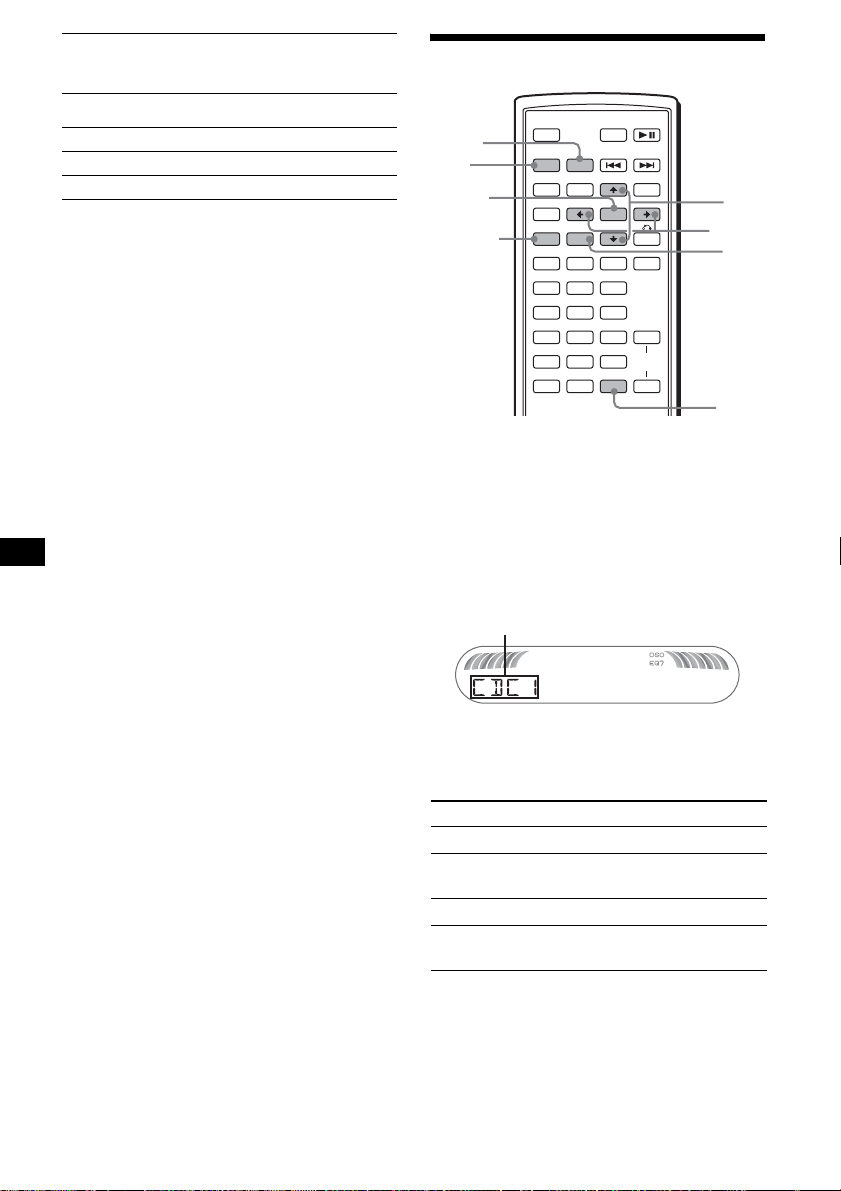
36
EDIT
*1 本機關閉時。
*2 預設設定視機型而異:
PAL:亞洲機型
NTSC:拉丁美洲機型
*3 僅限於 MEX-R5
*4 連接了照明控制導線時。
*5 本機打開時。
*6 光碟播放時。
*7 連接並播放輔助設備時。
使用選購設備
CD/MD 換碟機
選擇換碟機
1 反覆按 (SRC)(SOURCE),直至出現“CDC1”
或 “MDC1”。
2 反覆按 (MODE),直至出現想要的換碟機。
播放開始。
跳過文件夾和光碟
在播放過程中按 M/m。
用主機操作
若要跳過光碟,則按 (3)(ALBM -) 或 (4)(ALBM +)。
若要跳過文件夾,則按住(3)(ALBM -)或(4)(ALBM +)。
AUX LVL*
7
(輔助電平)
調節每個連接的輔助設備的音量電平。此設
定無需調節音源間的音量電平。
NAMEEDIT (第 34 頁)
NAME DEL (第 34 頁)
BTM (第 32 頁)
跳過 按 M/m
文件夾 並釋放 (保持片刻)。
連續跳過文
件夾
第一次釋放的 2 秒鐘內。
光碟 反覆。
連續跳過光碟 然後,在 2 秒鐘內再按下並保
持不放。
SRC
MODE
ATT DVD
SOUND
TOP MENU
MENU
SETUP
ENTER
SYSTEM
MENU
LIST
EQZ
×
Z DSO EQ7
PICTURE
AUDIO
SUBTITLE
ANGLE
CLEAR
123
456
789
0
DSPL
OFF
+
–
VOL
+
–
MODE
SRC
ENTER
DSPL
LIST
SYSTEM
MENU
M/m
</,
CD/MD 換碟機的裝置編號
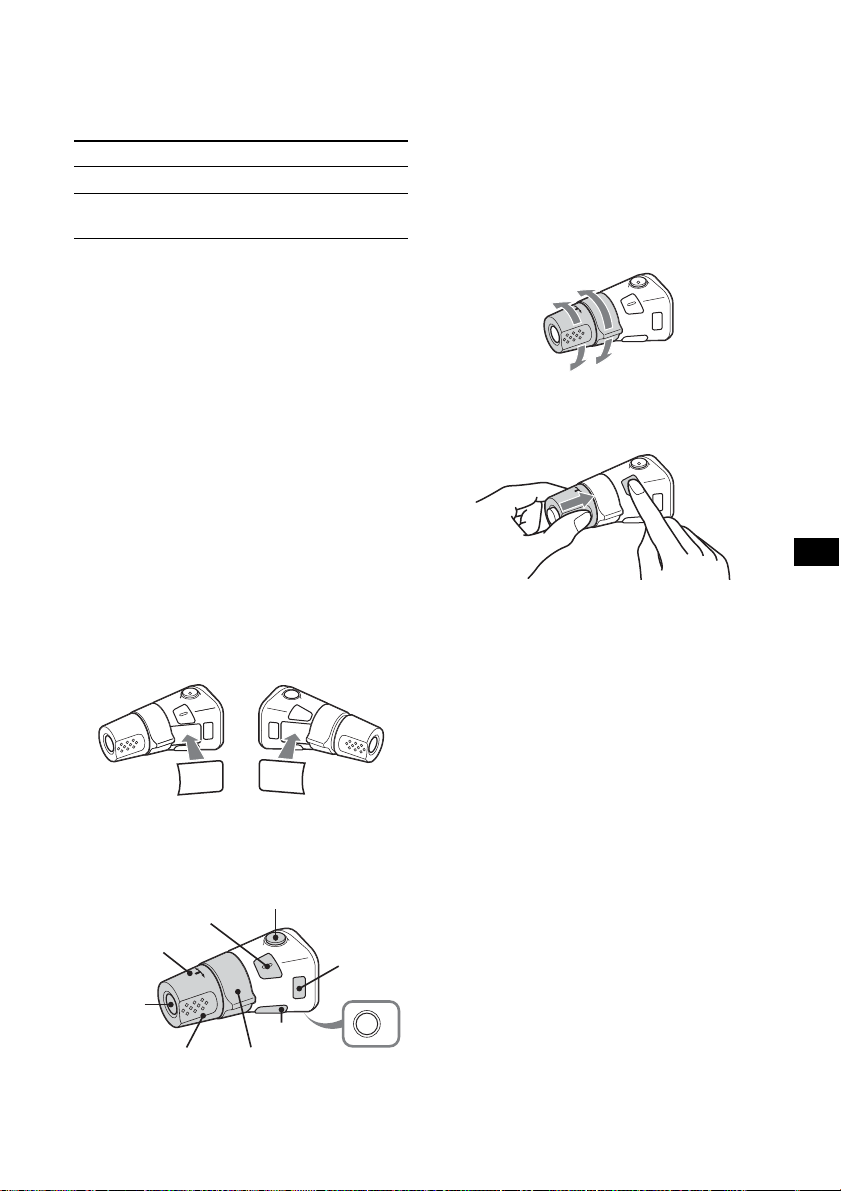
37
重複並隨機播放
(用主機操作)
播放過程中,反覆按 (1)(REP) 或
(2)(SHUF),直至出現想要的設定。
* 連接了一台或多台 CD/MD 換碟機時。
若要返回正常播放模式,則選擇 “REP-OFF”
或 “SHUF-OFF”。
通過名稱找出光碟 — 列表
當連接了有 CUSTOM FILE 功能的 CD 換碟機或
MD 換碟機時,您可以從列表中選擇一盤光碟。
如果您為光碟標註了名稱,則名稱出現在列
表上。
1 在播放過程中按 (LIST)。
出現光碟號和光碟名稱。
2 反覆按 M/m,直至出現想要的光碟。
3 按 (ENTER) 播放此光碟。
旋轉式控制器 RM-X4S
貼標籤
根據您安裝旋轉式控制器的方法貼指示標
籤。
控制器位置
旋轉式遙控器上與主機或卡片式遙控器上的
對應的按鈕控制相同的功能。
旋轉式遙控器上的以下控制器需要與主機或
卡片式遙控器不同的操作。
• PRESET/DISC 控制器
選擇預設電臺;控制 CD,與主機上的 (3)/
(4)(ALBM -/+)或卡片式遙控器上的M/m 相
同 (推入並旋轉)。
• VOL (音量)控制器
與音量 +/- 按鈕相同 (旋轉)。
• SEEK/AMS 控制器
與主機上的 (SEEK) +/- 或卡片式遙控器上
的 ./> 相同 (旋轉,或旋轉並保
持)。
改變操作方向
控制器如下圖所示的操作方向為出廠設定。
若需要將旋轉式控制器安裝在汽車方向盤軸
的右側,您可以將控制器的操作方向反置。
推 VOL 控制器時,按住 (SOUND)。
提示
您也可以在選單中改變這些控制器的操作方向
(第 35 頁)。
輔助音頻設備
您可以將選購的 Sony 便攜式設備連接到本機
的 BUS AUDIO IN/AUX IN 端子。如果換碟機或
其他設備未連接到此端子,則本機讓您通過
汽車揚聲器聆聽便攜式設備。
註
當連接便攜式設備時,確保 BUS CONTROL IN 未連接。
如果設備連接到 BUS CONTROL IN,則無法用 (SRC)
(SOURCE) 選擇 “AUX”。
提示
當同時連接便攜式設備和換碟機時,請使用選購的 AUX-
IN 選擇器。
選擇輔助設備
反覆按 (SRC)(SOURCE),直至出現
“AUX”。
通過便攜式設備本身操作。
若要調節輔助設備的音量電平,請參見
第 36 頁上的 “AUX LVL”。
選擇 播放
REP-DISC*
重複播放光碟。
SHUF-CHGR*
以隨機順序播放換碟機中的
軌跡。
S
O
U
N
D
D
SP
L
M
O
D
E
S
O
U
N
D
D
S
P
L
M
O
D
E
OFF
ATT
SOUND
SOURCE
DSPL
MODE
OFF
VOL
SEEK/AMS
PRESET/
DISC
增加
減小
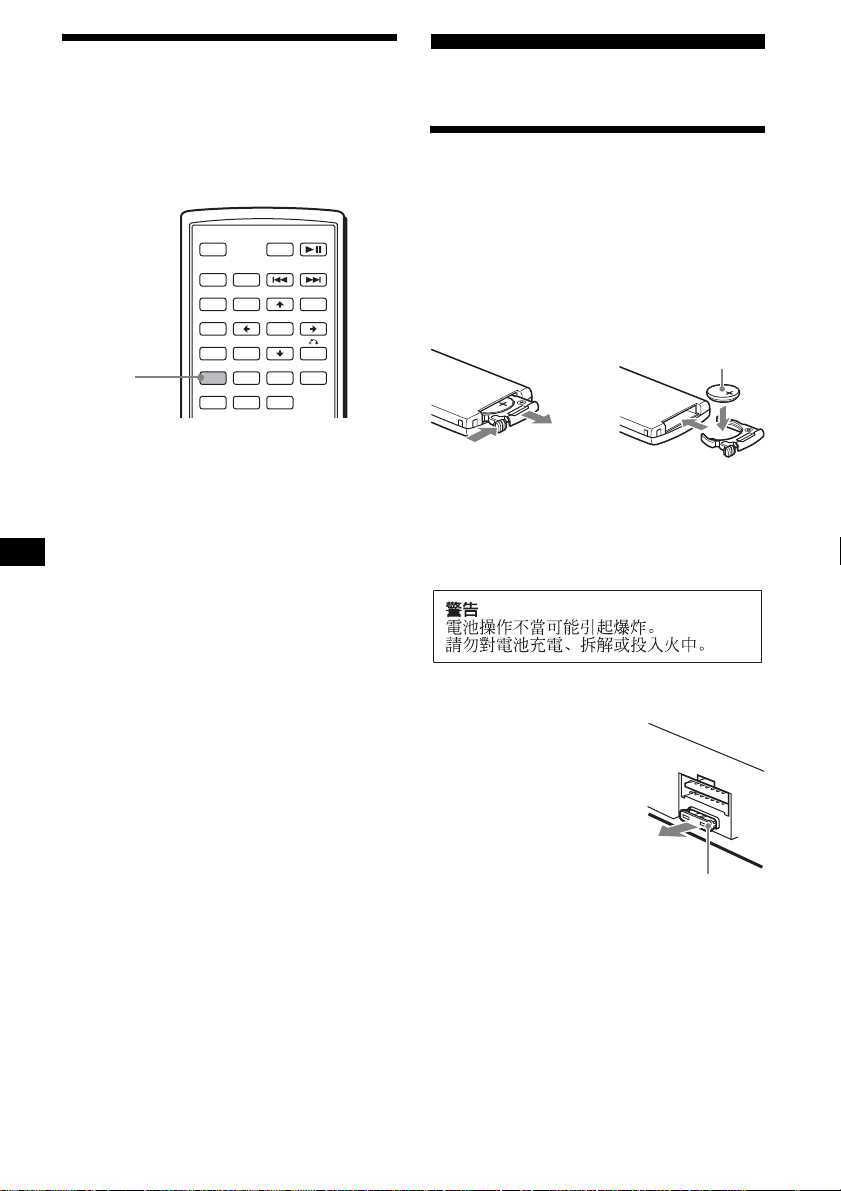
38
切換前面 / 背面輸出
— Zone × Zone
您可以設定將 DVD 音頻 / 視頻輸出至背面監視
器,並將另一個音源輸出至前面監視器。
此功能便於您想在前面收聽收音機、音樂播
放等,在背面進行 DVD 播放。
1 按 (ZxZ)。
2 按主機上的(SOURCE),切換前面的音源。
用主機操作前面,用卡片式遙控器操作背
面 (DVD)。
恢復正常狀態
按 (ZxZ)。
註
• 當啓動了 Zone × Zone 時,以下卡片式遙控器上的按
鈕不起作用:(ATT), (SRC)(SOURCE), (MODE),
(VOL) +/–,(SYSTEM MENU),(LIST),(SOUND),
(DSO), (EQ7)。
• 即使光碟退出,Zone × Zone也不會被取消,且再次插
入光碟時,Zone × Zone 也啓動。
附加資訊
保養
更換卡片式遙控器的鋰電池
一般情況下,電池能維持大約 1 年的時間。
(使用壽命可能會變短,這取決於電池的使用
狀況。)
當電池的電力變弱時,卡片式遙控器的操作
距離將變短。此時,請更換一個新的 CR2025
鋰電池。使用其他電池可能有引起火災或爆
炸的危險。
鋰電池的注意事項
• 鋰電池應放在兒童不易觸及的地方。萬一誤吞了電
池,請立即找醫生。
• 用乾布擦拭電池,以保持接觸良好。
• 安裝電池時,必須保証極性正確。
• 別用金屬鑷子去夾電池,否則會引起短路。
更換保險絲
更換保險絲時,必須確保所
使用的保險絲與原保險絲的
安培數相同。若保險絲燒
斷,請檢查電源連接並更換
保險絲。若保險絲更換後又
被燒斷,則可能是內部故
障。此時,請向最近的 Sony
經銷商諮詢。
SRC
MODE
ATT DVD
SOUND
TOP MENU
MENU
SETUP
ENTER
SYSTEM
MENU
LIST
EQZ
×
Z DSO EQ7
PICTURE
AUDIO
SUBTITLE
ANGLE
OFF
+
–
Z
×
Z
1
2
c
+ 極面朝上
保險絲(10A)
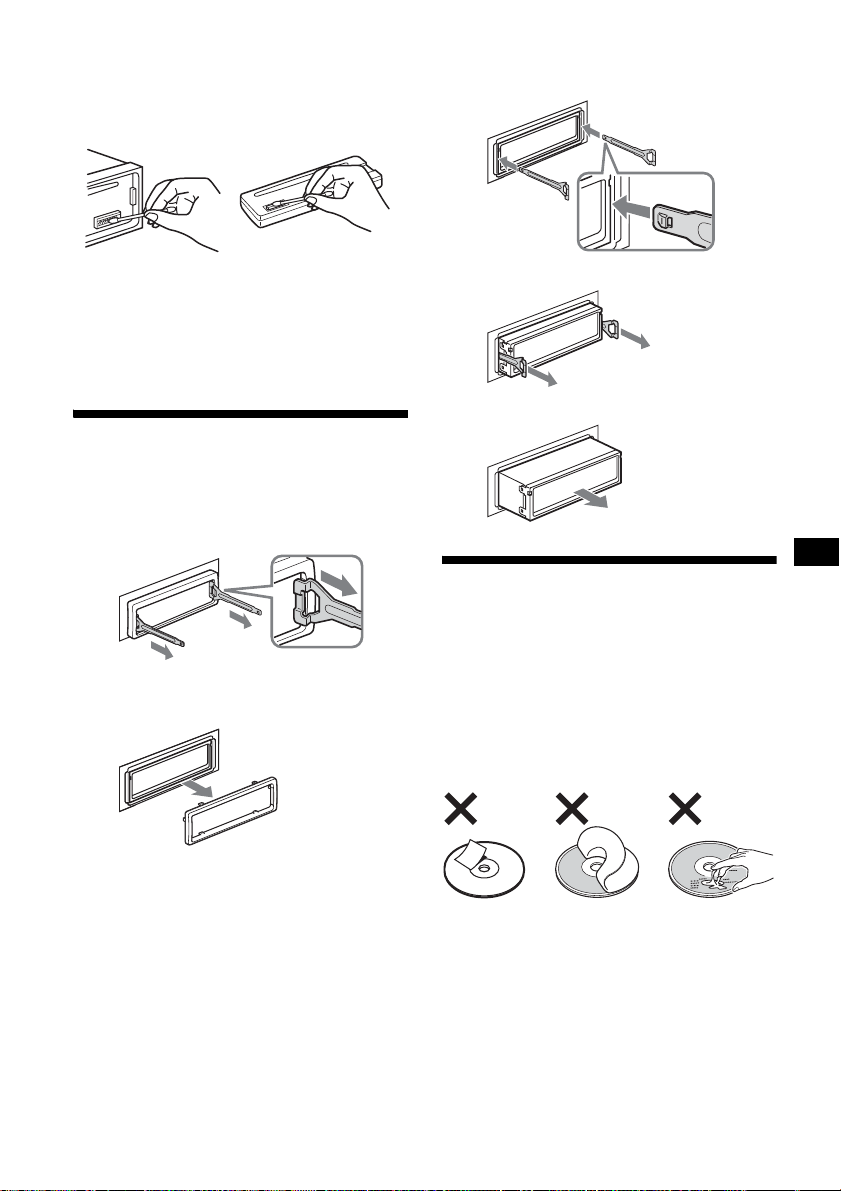
39
清潔連接器
若本機與前面板之間的連接器不乾淨,則本
機可能不能正常工作。為防止這種情況發生,
請卸下前面板(第 8 頁),然後用蘸有酒精的
棉籤清潔連接器。切勿施加太大的力量。否
則,可能損壞連接器。
註
• 為了安全起見,在清潔連接器之前,應關閉點火裝置
並從點火開關上取出鑰匙。
• 千万不要用手指或任何金屬工具直接觸摸連接器。
拆卸本機
1 拆卸保護環。
1 拆卸前面板 (第 8 頁)。
2 將開鎖鑰匙與保護環嚙合。
3 拉出開鎖鑰匙以拆下保護環。
2 取出裝置。
1 將兩把開鎖鑰匙同時插入,直至聽到喀
嗒聲。
2 拉出開鎖鑰匙,使裝置脫離原位。
3 將本機從安裝位置滑出。
光碟注意事項
• 為保持光碟清潔,切勿接觸表面。拿光碟時
請持其邊緣。
• 不使用時請將光碟裝入光碟盒或光碟匣內。
• 切勿使光碟受到熱源 / 高溫的影響。避免將
光碟遺留在停泊的車廂內或儀表盤 / 後托架
上。
• 切勿貼標籤,或使用帶有黏性墨水 / 殘留物
的光碟。這類光碟在使用時會停止轉動,從
而造成故障或毀壞光碟。
• 切勿使用任何貼有標籤或粘紙的光碟。
使用此類光碟將引起如下故障:
–不能退出光碟 (因為標籤或粘紙脫落並堵
塞彈出裝置)。
–不能正確讀取聲音資料 (例如,跳躍播放
或不播放) ,因為熱源使粘紙或標籤皺縮
造成光碟彎曲。
• 本機不能播放非標準形狀的光碟 (如,心
型,正方形,星型)。若試圖播放此類光碟,
則可能損壞本機。切勿使用此類光碟。
主機 前面板的背部
如圖所示定位開鎖
鑰匙。
掛鉤朝裡。
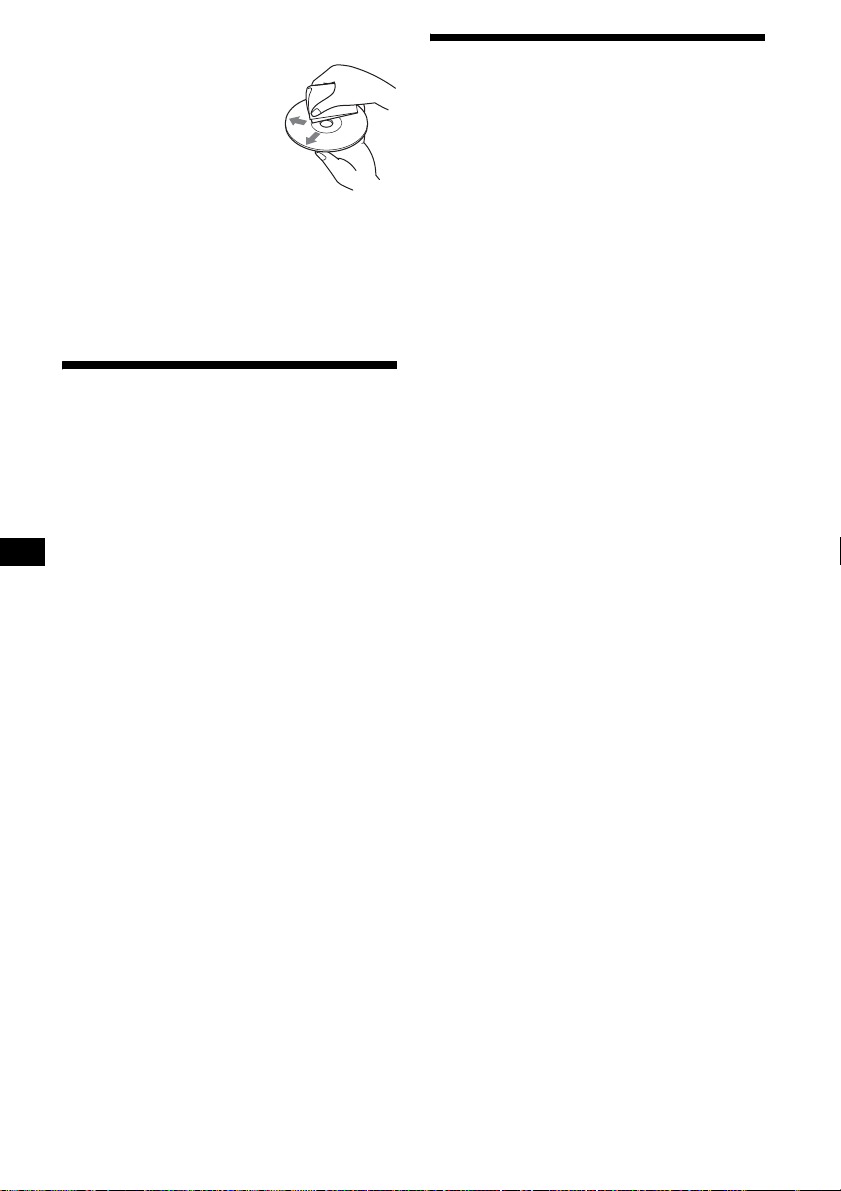
40
• 本機不能播放 8 cm 光碟。
• 在播放之前,請使用商用清
潔布清潔光碟。從光碟的中
心向外擦拭。切勿使用酒
精、稀釋劑、市售的清潔劑
或用於留聲機唱片的抗靜電
噴霧劑等溶劑。
有關 DualDisc 的注意事項
DualDisc 為雙面光碟產品,一面錄製 DVD 資
料,另一面錄製數位音訊資料。然而,由於
DualDisc 的音訊資料錄製面不符合 Compact
Disc (CD) 標準,因此不保證能在本產品上播
放。
關於 MP3 檔案
MP3 表示 MPEG-1 Audio Layer-3,是一項音樂
檔案壓縮格式標準。此格式將音頻 CD 資料壓
縮到原大小的 1/10 左右。
• 本機與以下標準相容。
對於 CD
–ISO 9660 level 1/level 2 格式,Joliet/
Romeo 擴展格式
–Multi Session
對於 DVD
–UDF Bridge 格式(結合了 UDF 和 ISO 9660)
對於 CD/DVD
–ID3 標記 1.0,1.1,2.2,2.3 和 2.4 版
• 最大數量:
–資料夾(文件夾):256(包括根目錄資料
夾和空資料夾)。
–光碟中含有的 MP3 檔案(軌跡)和資料夾:
1000 (如果資料夾 / 檔案名稱包含許多字
元,該數量可能小於 1000)。
–可顯示的資料夾 / 檔案名稱的字元數為
128 ; ID3 標記為 126 個字元。
註
• 在本機上使用之前,必須最終化光碟。
• 命名 MP3 檔案時,必須在檔案名稱後加上檔案副檔名
“.mp3”。
• 如果播放如 320 kbps 等高比特率 MP3,則聲音可能會
斷斷續續。
• 在 VBR(可變比特率)MP3 檔案播放過程中或快進 / 後
退過程中,已播放時間可能不會精確顯示。
• 當光碟以 Multi Session 錄製時,只有第一個區段格
式的第一個軌跡被識別並播放 (任何其他格式被跳
過)。格式的優先權為 CD-DA 和 MP3。
– 當第一個軌跡為 CD-DA 時,只播放第一個區段的 CD-
DA。
– 當第一個軌跡不是 CD-DA 時,則播放 MP3 區段。如果
光碟中沒有這些格式的資料,則顯示“NO MUSIC”。
• 本機不能播放錄製了 MP3 的 Multi Border。
• 本機不能播放不是以44.1 kHz或48 kHz採樣率和64至
320 kbps 比特率錄製的 MP3 檔案。
關於無線傳輸的注意事項
(僅限於 MEX-R5)
本裝置可以用 FM 2.4 GHz 傳輸音頻 / 視頻。
本裝置與其他2.4 GHz的設備同時使用可能會
引起影像的干擾或音頻的雜訊。這不是故障,
而是設備共用同一個工作頻率而引起的結
果。

41
規格
系統
雷射 半導體雷射
訊號格式系統 PAL/NTSC 可切換
DVD/CD 播放機部分 *
信噪比 120 dB
頻率響應 10 - 20000 Hz
抖晃率 低於可測限制
諧波失真 (DVD) 0.01 %
抖晃率 低於檢測值 (± 0.001 %
W PEAK)
* 從 AUDIO OUT 插孔測量。
當播放採樣頻率為 96 kHz 的 PCM 音軌時,DIGITAL
OUT 插孔的輸出訊號被轉換為 96 kHz 採樣頻率。
調諧器部分
FM
調諧範圍 亞洲機型:
87.5 - 108.0 MHz
(以 50 kHz 為一級)
拉丁美洲機型:
87.5 - 107.9 MHz
(以 200 kHz 為一級)
天線端子 外接天線連接器
中頻 10.7 MHz/450 kHz
可用靈敏度 9 dBf
選擇度 400 kHz 時為 75 dB
信噪比 67 dB (立體聲),
69 dB (單聲道)
1 kHz 時諧波失真 0.5 % (立體聲),
0.3 % (單聲道)
分離度 1 kHz 時 35 dB
頻率響應 30 - 15000 Hz
AM
調諧範圍 亞洲機型:
531 - 1602 kHz
(以 9 kHz 為一級)
拉丁美洲機型:
530 - 1710 kHz
(以 10 kHz 為一級)
天線端子 外接天線連接器
中頻 10.7 MHz/450 kHz
靈敏度 30μV
功率放大器部分
輸出 揚聲器輸出 (可靠的絕緣
連接器)
揚聲器阻抗 4 - 8 Ω
最大功率輸出 52 W × 4 (4 Ω時)
無線 AV 部分 (僅限於 MEX-R5)
傳輸頻率 2414、2432、2450、
2468 MHz
調製方法 FM 調製
RF 輸出功率 -1.2 dBm
一般
輸出 前音頻 / 視頻輸出端子
後音頻 (Z×Z)/ 視頻輸
出端子 (僅限於 MEX-R1)
後音頻輸出端子
超低音揚聲器輸出端子
(單聲道)
選購的數碼輸出端子
電動天線繼電控制端子
功率放大器控制端子
輸入 電話 ATT 控制端子
照明控制端子
BUS 控制輸入端子
BUS 音頻輸入 /AUX IN 端
子
停車煞車控制端子
遙控器輸入端子
天線輸入端子
音調控制 低音:100 Hz 時± 8 dB
高音:10 kHz 時± 8 dB
響度 100 Hz 時 + 8 dB
10 kHz 時 + 2 dB
電源要求 12 V DC 汽車電池
(負接地)
尺寸 約 178 × 50 × 182 mm
(寬/高/深)
安裝尺寸 約 182 × 53 × 161 mm
(寬/高/深)
質量 約 1.3 kg
提供的附件 卡片式遙控器
RM-X702
安裝和連接用配件
(一套)
前面板盒 (1)
選購的附件 架空監視器
XVM-R70
靠頭監視器
XVM-H65
移動式監視器
XVM-F65 (對 MEX-R1)
移動式監視器
XVM-F65WL (對 MEX-R5)
CD 換碟機 (10 碟式)
CDX-757MX,CDX-656X
MD 換碟機 (6 碟式)
MDX-66XLP
音源選擇器
XA-C30
AUX-IN 選擇器
XA-300
光學音頻電纜
RC-104
續下頁 t
42
MPEG Layer-3 音頻編碼技術和專利由
Fraunhofer IIS 和 Thomson 授權。
註
本機不能連接至數位前置放大器或與 Sony BUS 系統相
容的均衡器。
設計和規格若有變更,恕不另行通知。
故障排除
下列檢查表有助於解決您使用本機時可能遇
到的問題。
在使用下面的檢查表之前,請檢查連接和操
作步驟是否正確。
• 某些部件的焊接使用無鉛焊料。(80% 以上)
• 某些電路板没有使用鹵化阻燃劑。
• 機身沒有使用鹵化阻燃劑。
• 紙板箱印刷採用非 VOC(揮發性有機混合物)蔬菜油
油墨。
• 包裝襯墊不使用聚苯乙烯保麗龍。
一般
裝置無供電。
• 未進行正確的電源連接。
t 檢查連接。若一切正常,則請檢查保
險絲。
• 汽車不具有 ACC 位置。
t 插入光碟開機。
• 如果本機關閉且顯示消失,則本機無法用
遙控器操作。
t 打開本機。
電動天線未伸出。
電動天線未裝繼電器。
儲存的電臺及正確走時被消除。
保險絲已熔斷。
開關發動器鑰匙時產生噪音。
導線與汽車附件電源連接器未正確匹配。
顯示從顯示視窗消失或不出現在顯示視窗中。
• 調光器設定為 “DIM-ON”(第 35 頁)。
• 如果按住 (OFF),顯示消失。
t 再次按住 (OFF),直至出現顯示。
• 連接器髒了 (第 39 頁)。
DSO 不起作用。
根據汽車內部類型和音樂類型,DSO 功能
不一定能得到滿意的效果。
視所連接的監視器而定,點火開關調到OFF
位置以後,本裝置可能需要幾秒鐘才關
閉。這不是故障。
43
無線傳輸過程中發生的影像干擾和音頻雜訊。
(僅限於 MEX-R5)
• 本裝置可以用 FM 2.4 GHz 傳輸音頻 / 視
頻。本裝置與其他 2.4 GHz 的設備同時使
用可能會引起影像的干擾或音頻的雜訊。
t
請更換頻道(第 35 頁)。若無改善,請
停止使用其它設備。必要時,也可以關
閉本裝置的無線傳輸(第35頁)。
• 傳輸器放置位置不正確。
t 將選購的監視器XVM-F65WL更靠近本裝
置放置。
t 將傳送器放在比本裝置高的位置,防
止座位或乘客的阻擋。
t 將傳送器放在一個穩定的地方,否則
其位置和角度可能會改變。
• 建議將後監視器安裝在第二排的前方。
• 如果音頻雜訊較強,請取消 Zone × Zone
功能並使用汽車揚聲器。
• 駕駛過程中可能會因車外障礙物暫時引發
干擾或音頻雜訊。
影像
無影像 / 影像有干擾。
• 未進行正確連接。
• 請檢查至所連接裝置之間的連接,將設備
的輸入選擇器設定至與本機相應的音源。
• 光碟髒、有裂紋或損壞。
• 本機安裝角度大於 45°。
• 本機未安裝在汽車上較堅固的位置。
• 監視器連接在 FRONT AUDIO/VIDEO OUT,
停車導線 (淡綠色)沒有連接到停車煞
車開關導線,或者未採取停車煞車。
• 彩色系統設定不正確。
t 根據連接的監視器,將彩色系統設定
至 “PAL”或 “NTSC”。
影像不適合螢幕。
DVD 中的縱橫比是固定的。
聲音
沒有聲音 / 跳音 / 聲音爆裂。
• 未進行正確連接。
• 請檢查至所連接裝置之間的連接,將設備
的輸入選擇器設定至與本機相應的音源。
• 光碟髒、有裂紋或損壞。
• 本機安裝角度大於 45° £
• 本機未安裝在汽車上較堅固的位置。
• MP3 檔案採樣率不是 44.1 kHz 或 48 kHz。
• MP3 檔案比特率不是 64 至 320 kbps。
• 本機處於暫停播放模式,或正在掃描。
• 本機處於快進或快倒模式。
• 未正確進行輸出設定。
• 調節DVD輸出電平(第23頁)。
• 音量太低。
• 啓動了 ATT 功能,或啓動了電話 ATT 功能
(當汽車電話的介面電纜連接至 ATT 導線
時)。
• 衰減控制器 (FAD)的位置未設定為 2 揚
聲器系統。
• CD 換碟機與光碟格式 (MP3)不相容。
t 請使用與 Sony MP3 相容的 CD 換碟機或
本機進行播放。
聲音嘈雜。
電線和電纜之間請保持距離。
操作
遙控器不工作。
• 遙控器與本機或遙控接收器之間有阻礙
物。
• 卡片式遙控器與本機之間距離太遠。
• 卡片式遙控器未完全對準本機上的遙控感
應器或接收器。
• 卡片式遙控器中的電池電力不足。
操作按鈕無效。
光碟不排出。
按 RESET 按鈕 (第 8 頁)。
無提示音。
提示音功能被取消 (第 35 頁)。
記憶內容已被消除。
• 已按下 RESET 按鈕。
t 再將設定存入記憶中。
• 電源連接線或電池已被斷開。
• 電源連接導線未被正確連接。
顯示項目不滾動。
• 對於有許多字元的光碟,可能無法滾動顯
示。
•“A.SCRL”設定為關閉。
t 設定“A.SCRL-ON”(第 35 頁)或按本
機上的 (SCRL)。
當同時連接選購的 MGS-X1 和 MD 換碟機時,音
源顯示幕上不顯示 “MS”或 “MD”。
本機將 MGS-X1 識別為一台 MD 裝置。
t 按 (SRC)(SOURCE),直至出現 “MS”或
“MD”,然後反覆按 (MODE)。
續下頁 t
44
無法裝入光碟。
• 已裝入另外的光碟。
• 汽車點火鑰匙開關設定在 OFF 位置。
本機沒有開始播放。
• 光碟插反了。
t 將光碟播放面朝下插入。
• 插入的光碟無法使用。
• 由於地區代碼的原因,插入的 DVD 不能使
用。
• 本機內部有濕氣凝結。
• 插入的 DVD-R,DVD-RW,DVD+R,DVD+RW,
CD-R 或 CD-RW 沒有最終化。
您無法選擇音源。
啓動了 Zone × Zone。
t 按 (ZxZ) 關閉 Zone × Zone。
無法播放 MP3 檔案。
• 未依照 ISO 9660 level 1 或 level 2 格
式,或擴展格式中的 Joliet 或 Romeo 進
行錄製。
• MP3 檔案沒有 “.mp3”副檔名。
• 檔案未以 MP3 格式儲存。
• 本機無法播放以MP3PRO格式儲存的檔案。
• 本機無法播放以 MPEG1 Audio Layer 3 之
外的格式儲存的檔案。
• 光碟中同時儲存有 MP3 和 JPEG 檔案。
t 將 “CUSTOM SETUP”中的 “MP3/
JPEG”設定為 “MP3”(第 31 頁)。
MP3 檔案的開始播放時間較其他檔案長。
以下光碟要花費較長時間才能開始播放。
–以複雜的樹形架構錄製的光碟。
–以 Multi Session 錄製的光碟。
–能增加資料的光碟。
無法播放 JPEG 檔案。
• JPEG 檔案沒有擴展名 “.jpg”。
• 檔案未以 JPEG 格式儲存。
• 光碟中同時儲存有 MP3 和 JPEG 檔案。
t 將 “CUSTOM SETUP”中的 “MP3/
JPEG”設定為 “JPEG”(第 31 頁)。
無法正確顯示 MP3 音頻文件夾或軌跡的標題。
播放機只能顯示數字和字母。其他字元均
顯示為 “ ”。
光碟未從起始處開始播放。
受重續播放影響 (第 17 頁)。
播放自動停止。
播放帶自動暫停訊號的光碟時,本機在自
動暫停訊號處停止播放。
您無法執行某些功能。
視光碟而定,您可能無法進行某些操作,
如停止、搜尋、重複播放或隨機播放。詳
細說明,請參見隨光碟附送的使用手冊。
無法改變音頻軌跡的語言。
• 請使用 DVD 選單,以代替在卡片式遙控器
上的直接選擇按鈕 (第 19 頁)。
• 正在播放的 DVD 上未錄製多語言軌跡。
• 該 DVD 禁止改變聲音軌跡的語言。
無法改變或關閉字幕語言。
• 請使用 DVD 選單,以代替在卡片式遙控器
上的直接選擇按鈕 (第 19 頁)。
• 播放的 DVD 未錄製多語言字幕。
• 該 DVD 禁止改變字幕。
無法改變角度。
• 請使用 DVD 選單,以代替在卡片式遙控器
上的直接選擇按鈕 (第 19 頁)。
• 正在播放的 DVD 未錄製多角度。
• 該 DVD 禁止改變角度。
無線電接收
無法接收電臺。
有噪音干擾。
• 請將電動天線控制導線 (藍色)或附件
電源導線 (紅色)連接至汽車天線升壓
器的電源導線 (當您的汽車僅在後 / 側
玻璃內有內建 FM/AM 天線時)。
• 檢查汽車天線的連接。
• 自動天線不能上升。
t 檢查電動天線控制導線的連接。
• 檢查頻率。
• DSO 模式開啓時,聲音有時會受到噪音的
影響。
t 將 DSO 模式設定為“OFF”(第 12 頁)。
不能預設調諧。
• 將正確的頻率儲存在記憶體內。
• 廣播訊號太弱。
不能自動調諧。
• 本地搜尋模式設定在 “ON”。
t 將 “LOCAL”設定為 “OFF”
(第 35 頁)。
• 廣播訊號太弱。
t 進行手動調諧。
FM 接收時,“ST”指示閃爍。
• 精確地調諧電臺頻率。
• 廣播訊號太弱。
t 將 “MONO”設定為 “ON”
(第 35 頁)。
以單聲道收聽立體聲 FM 廣播節目。
本機處在單聲道接收模式。
t 將 “MONO”設定為 “OFF”
(第 35 頁)。
45
出錯顯示 / 資訊
當本機發生故障時出現以下指示。
*1 如果CD 或MD播放出現錯誤,則CD或MD的光碟號不顯
示在顯示幕上。
*2 造成錯誤的光碟號碼出現在顯示幕上。
如果這些解答仍無法助您改善情況,請向距
您最近的 Sony 經銷商諮詢。
如果因為光碟播放故障而將本機送修,請帶
好出現問題時所使用的光碟。
用主機操作
BLANK*
1
MD 上沒有錄製軌跡。 *
2
t 播放錄製有軌跡的 MD。
ERROR*
1
• 光碟髒了或上下裝反了。 *
2
t 將光碟擦拭乾淨或正確地裝入光碟。
• 由於某些原因,光碟無法播放。
t 插入另一盤光碟。
• 光碟與本機不相容。
t 插入相容的光碟。
FAILURE
揚聲器 / 放大器連接不正確。
t 請參見提供的安裝 / 連接手冊進行連接
檢查。
LOAD
換碟機正在裝入光碟。
t 請等至裝載完成。
L.SEEK +/-
在自動調諧時,本地搜尋模式為開啓狀
態。
NO DATA
所有自訂名稱已被刪除,或一個也未儲
存。
NO DISC
CD/MD 換碟機內未裝入光碟。
t 將光碟插入換碟機。
NO ID3
MP3 檔案中未寫 ID3 標記資訊。
NO MAG
光碟匣未插入 CD 換碟機。
t 將光碟匣插入換碟機。
NO MUSIC
此光碟不是音樂檔案。
t 將音樂 CD 裝入本機或可播放 MP3 的換碟
機中。
NO NAME
軌跡中未寫入軌跡 / 文件夾 / 光碟名稱。
NOT READ
本機未讀取光碟資訊。
t 裝入光碟,然後在列表中選擇此光碟。
NOTREADY
MD 換碟機的蓋子被打開或 MD 未被正確裝
入。
t 關上蓋子或正確裝入 MD。
OFFSET
可能發生內部故障。
t 檢查連接。如果此出錯指示仍然顯示在
顯示幕中,請聯繫當地的 Sony 經銷商。
READ
本機正在讀取光碟上所有軌跡和文件夾資
訊。
t 請等待至讀取完成並自動開始播放。視
光碟的結構而定,可能要花一分多鐘。
RESET
因某些原因本機和 CD/MD 換碟機不能工
作。
t 按RESET按鈕(第8頁)。
“”或“”
快進或後退過程中,您已到達光碟的開頭
或結尾,無法再繼續向前。
“”
本機無法顯示字元。
監視器上
Cannot play this disc.
• 光碟與本機不相容。
• DVD 由於地區代碼不同而禁止播放。
No MP3 or JPEG file
光碟中不含 MP3/JPEG 檔案。
Read error
• 由於某些原因,本機無法讀取資料。
• 資料損壞或受到破壞。
Please Press RESET.
由於某些原因,本機無法操作。
t 按 RESET 按鈕。

46
術語
標題
視頻軟體中 DVD、電影等最長的影像或音樂部
分,或音頻軟體的整個文件夾。
Dolby Digital
由 Dolby Laboratories 開發的數位音頻壓縮
技術。此技術適用於 5.1 聲道環繞聲。在此格
式中,後置聲道為立體聲,並有獨立的超低音
揚聲器聲道。Dolby Digital 提供與 Dolby
Digital 影院音頻系統相同的高品質數位音頻
5.1 獨立聲道。因為全部聲道資料獨立錄製,
並以數位形式處理,所以能實現良好的聲道
分離,失真較少。
DTS
數位音頻壓縮技術為 Digital Theater
Systems,Inc. 開發。該技術符合 5.1 聲道環
繞聲。在此格式中,後置聲道為立體聲,並有
獨立的超低音揚聲器聲道。DTS 提供相同的高
品質數位音頻 5.1 獨立聲道。
因為全部聲道資料獨立錄製,並以數位形式
處理,所以能實現良好的聲道分離,失真較
少。
DVD VIDEO
雖然與普通 CD 直徑相同,但能包含最長 8 小
時動畫的光碟。
單層單面 DVD 的資料容量為 4.7 GB (千兆字
節),是 CD 的 7 倍。雙層單面 DVD 的資料容
量為 8.5 GB,單層雙面 DVD 為 9.4 GB,雙層
雙面 DVD 為 17 GB。
影像資料採用數位壓縮技術的世界標準之一
MPEG 2 格式。影像資料被壓縮為原資料量的
1/40 (平均)。DVD 還採用了根據影像狀況而
改變資料分配量的可變速率編碼技術。音頻
資料以多聲道方式錄製,如 Dolby Digital,
使您欣賞到更逼真的現場音響。
另外,DVD 還具有各種進階功能,如多角度、
多語言和視聽者控制等。
DVD-RW
DVD-RW 是和 DVD VIDEO 有相同尺寸的可錄可
寫光碟。DVD-RW 可以以兩種不同模式錄製 :
VR 模式和視頻模式。VR (視頻錄製)模式可
以啓用各種編序和編輯功能,在視頻模式下
有些功能有所限制。視頻模式與 DVD VIDEO 格
式相符且能在其他DVD 播放機上播放,而以 VR
模式錄製的 DVD-RW 只能在與 DVD-RW 相容的播
放機上播放。本手冊或螢幕顯示的“DVD-RW”
指 VR 模式的 DVD-RW。
DVD+RW
DVD+RW 是可錄可寫光碟。DVD+RW 使用與 DVD
VIDEO 格式同等的錄製格式。
軌跡
CD 或 VIDEO CD (歌曲長度)上一段影像或音
樂。
基於電影的軟體,和基於視頻的軟體
DVD 可以分為基於電影或基於視頻的軟體。基
於電影的DVD包括的影像同電影院觀看到的相
同 (每秒 24 幀)。電視劇或連續劇等基於視
頻的 DVD 以每秒 30 幀(或 60 半幀)顯示影像。
JPEG (Joint Photographic Expert Group)
在國際標準化組織(ISO)的支持下,將 JPEG
定義為靜止影像的數位壓縮和解壓的通用標
準格式,在相關系統的電腦中使用。通常,在
發生顯著減小之前壓縮率是可以變化的。靜
止影像被壓縮為原大小的 1/10 至 1/100。
章
比標題小的影像或專題音樂部分。一個標題
包括幾個章。視光碟而定,某些光碟可能沒有
錄製章。

47
語言代碼列表
語言拼寫符合 ISO 639:1988 (E/F)標準。
代碼 語言 代碼 語言 代碼 語言 代碼 語言
1027 Afar
1028 Abkhazian
1032 Afrikaans
1039 Amharic
1044 Arabic
1045 Assamese
1051 Aymara
1052 Azerbaijani
1053 Bashkir
1057 Byelorussian
1059 Bulgarian
1060 Bihari
1061 Bislama
1066 Bengali;
Bangla
1067 Tibetan
1070 Breton
1079 Catalan
1093 Corsican
1097 Czech
1103 Welsh
1105 Danish
1109 German
1130 Bhutani
1142 Greek
1144 English
1145 Esperanto
1149 Spanish
1150 Estonian
1151 Basque
1157 Persian
1165 Finnish
1166 Fiji
1171 Faroese
1174 French
1181 Frisian
1183 Irish
1186 Scots Gaelic
1194 Galician
1196 Guarani
1203 Gujarati
1209 Hausa
1217 Hindi
1226 Croatian
1229 Hungarian
1233 Armenian
1235 Interlingua
1239 Interlingue
1245 Inupiak
1248 Indonesian
1253 Icelandic
1254 Italian
1257 Hebrew
1261 Japanese
1269 Yiddish
1283 Javanese
1287 Georgian
1297 Kazakh
1298 Greenlandic
1299 Cambodian
1300 Kannada
1301 Korean
1305 Kashmiri
1307 Kurdish
1311 Kirghiz
1313 Latin
1326 Lingala
1327 Laothian
1332 Lithuanian
1334 Latvian;
Lettish
1345 Malagasy
1347 Maori
1349 Macedonian
1350 Malayalam
1352 Mongolian
1353 Moldavian
1356 Marathi
1357 Malay
1358 Maltese
1363 Burmese
1365 Nauru
1369 Nepali
1376 Dutch
1379 Norwegian
1393 Occitan
1403 (Afan)Oromo
1408 Oriya
1417 Punjabi
1428 Polish
1435 Pashto; Pushto
1436 Portuguese
1463 Quechua
1481 Rhaeto-
Romance
1482 Kirundi
1483 Romanian
1489 Russian
1491 Kinyarwanda
1495 Sanskrit
1498 Sindhi
1501 Sangho
1502 Serbo-
Croatian
1503 Singhalese
1505 Slovak
1506 Slovenian
1507 Samoan
1508 Shona
1509 Somali
1511 Albanian
1512 Serbian
1513 Siswati
1514 Sesotho
1515 Sundanese
1516 Swedish
1517 Swahili
1521 Tamil
1525 Telugu
1527 Tajik
1528 Thai
1529 Tigrinya
1531 Turkmen
1532 Tagalog
1534 Setswana
1535 Tonga
1538 Turkish
1539 Tsonga
1540 Tatar
1543 Twi
1557 Ukrainian
1564 Urdu
1572 Uzbek
1581 Vietnamese
1587 Volapük
1613 Wolof
1632 Xhosa
1665 Yoruba
1684 Chinese
1697 Zulu
1703 未指定

Sony Corporation Printed in Korea
索引
數字
16:9 30
4:3 LETTER BOX 30
4:3 PAN SCAN 30
B
保險絲 38
本地搜尋模式 (LOCAL) 35
標題 (TITLE) 21
播放模式選單 13
播放目錄播放 (PLAY LIST
PLAY) 31
C
查找
快進 16
快退 16
掃描 18
CD/MD 換碟機 36
超低音揚聲器 (SUB) 33
重複播放 (REPEAT)
標題 20
光碟 37
軌跡 20
文件夾 20
章 20
重續播放 (MULTI-DISC
RESURE) 17, 31
D
單聲道模式 (MONO) 35
電臺名稱
編輯 (NAMEEDIT) 34
刪除 (NAME DEL) 34
頂部選單 19
地區代碼 7
地區代碼列表 27
低通濾波器 (LPF) 35
低音 (BAS) 33
Dolby Digital (DOLBY
DIGITAL) 32
動態攝影棚管理器 (DSO) 4,
12
動作顯示 (M.DSPL) 35
DRC(動態範圍控制)(AUDIO
DRC) 32
DTS 32
對比度 (CONTRAST) 35
DVD 電平 (DVD LVL) 23, 35
DVD 選單 19, 29
F
放大 (CENTER ZOOM) 24
復原 (RESET) 29
輔助電平 (AUX LVL) 36
輔助音頻 (AUX-A) 35, 37
G
高通濾波器 (HPF) 35
高音 (TRE) 33
個人設定 (CUSTOM SETUP) 31
光碟名稱
編輯 (NAMEEDIT) 34
刪除 (NAME DEL) 34
軌跡 (TRACK) 21
H
幻燈片放映時間(SLIDE SHOW
TIME) 31
J
監視器類型 (MONITOR TYPE)
30
角度 (ANGLE) 23
節目格式 22
JPEG (MP3/JPEG) 31
均衡器 (EQ7) 12, 34
K
卡片式遙控器 11
可播放光碟 5
L
鋰電池 38
列表 33, 37
M
MP3 (MP3/JPEG) 31
O
OSD 29
P
PBC (播放控制) 19
平衡 (BAL) 33
R
RESET 按鈕 8
S
設定選單 13, 28
聲道合併 (DOWNMIX) 32
示範 (DEMO) 8, 35
時間 / 文字資訊 (TIME/
TEXT) 17
視聽者控制 (PARENTAL
CONTROL) 26, 31
時鐘調節 (CLOCK-ADJ) 8
時鐘資訊 (CLOCK) 35
搜尋播放 21
收音機 32
隨機播放 (SHUFFLE)
標題 20
光碟 20
換碟機 37
文件夾 20
T
調光器 (DIM) 35
提示音 (BEEP) 35
W
文件夾 (ALBUM) 21
無線 (WL) 35
X
響度 (LOUD) 35
旋轉式控制器 (RM) 35, 37
Y
顯示項目
播放模式選單 13
CD/MP3 播放 15
設定選單 13, 28
音量衰減 (FAD) 33
音頻 (AUDIO) 22, 29
音頻設定 (AUDIO SETUP) 32
影像 (IMAGE) 21
影像 EQ (PICTURE EQ) 25, 31
螢幕節能 (SCREEN SAVER) 30
螢幕設定 (SCREEN SETUP) 30
語言代碼列表 47
語言設定 (LANGUAGE SETUP)
29
Z
章 (CHAPTER) 21
自動滾動 (A.SCRL) 35
字幕 (SUBTITLE) 24, 29
Zone × Zone (Z×Z) 38
最佳調諧記憶功能 (BTM) 32