Setup and Configuration Guides
Does the Arctis Pro Wireless work with Xbox ONE?
Yes…but not the same way as on PS4. The issue is that Xbox does not support standard USB
audio, so getting chat to work requires a different setup. Here’s how to do it:
Connect the optical audio cable from the Xbox’s S/PDIF jack to the GameDAC. This
supplies your game audio (including surround sound).
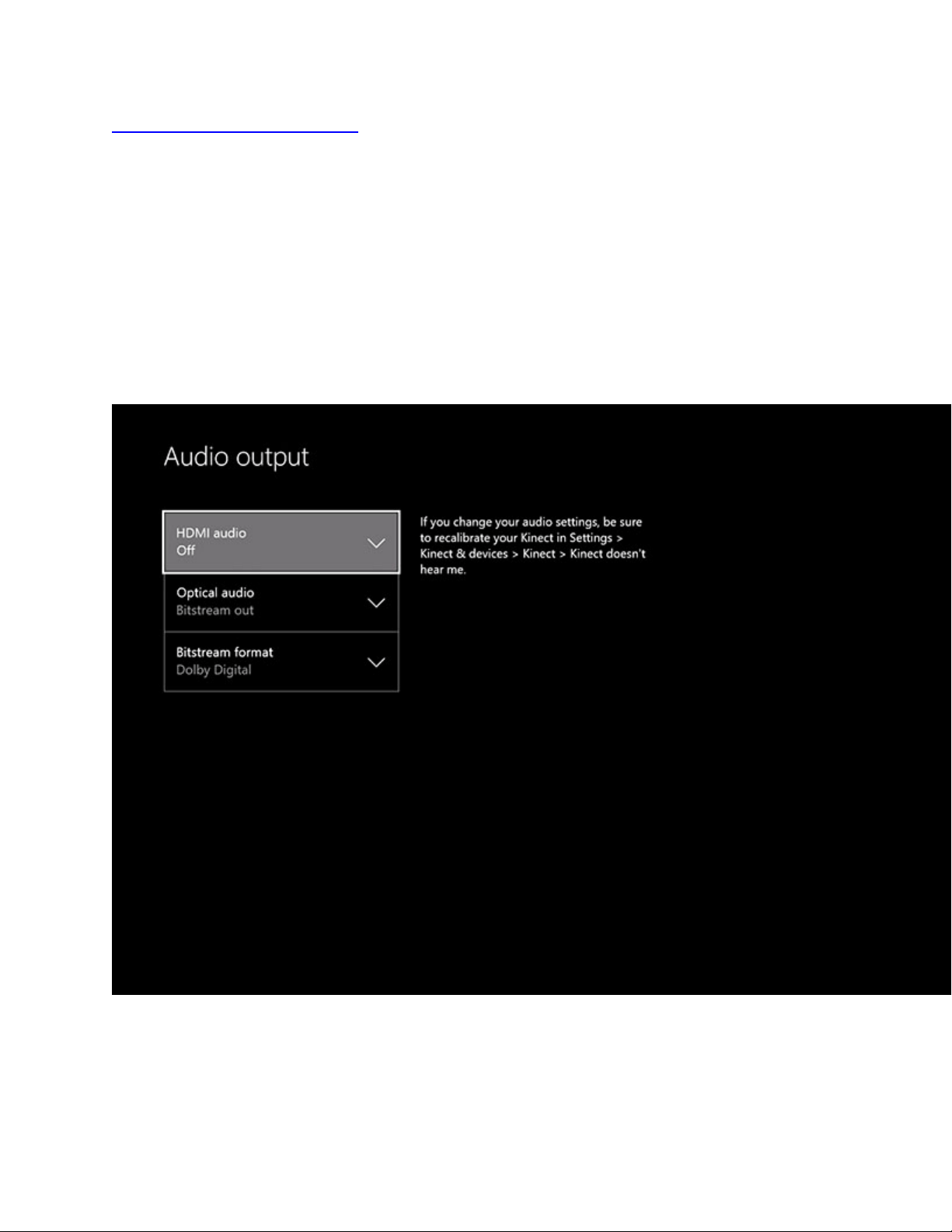
In your Xbox go to Settings -> Display and sound -> Audio Output
1. Set the Optical audio to ‘Bitstream out’, and the Bitstream format to ‘Dolby Digital’
2. Connect the USB audio cable from the GameDAC to the Xbox or to a nearby PC if you
would like to use that for chat (see below)
3. Set the GameDAC to its PS4 input (Input -> PS4)

4. For chat you can use the Xbox app from a variety of sources:
iOS: https://t.co/4jXxF2CQs2
Android:
https://play.google.com/store/apps/details?id=com.microsoft.xboxone.smartglass.beta
Windows: https://www.microsoft.com/en-us/store/p/xbox/9wzdncrfjbd8?rtc=1
1. Pair the Arctis Pro Wireless’ Bluetooth to the PC or mobile device with the chat app:
2. With the headset on, press and hold the Bluetooth button for 6 seconds until the blue
LED starts blinking rapidly
3. Go into your device’s Bluetooth settings and search for available devices. Select Arctis
Pro Wireless.
4. Your chat will be mixed with the game audio, and your mic will transmit via the Xbox
app to your teammates. You can set your game volume and Bluetooth volume
independently via the OLED screen.
Arctis Pro + GameDAC Setup(PC)
Products
Arctis Pro + GameDAC
Michael P
Updated 4 days ago
Let's take a look at what comes in the box:
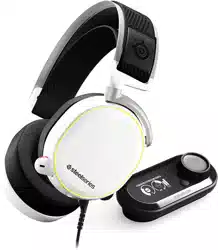
The Arctis Pro plus GameDAC comes with: The GameDAC, USB cable, main headset cable,
mobile adapter, optical cable, and a pop filter for your mic.
Setup:
To connect to a PC you'll need the main cable and the USB cable

1.) Connect the USB cable from the micro USB jack on the back of the game DAC to your PC
2.) On the main headset cable locate the end with the diagonal lines and connect that to the
headset jack on the left side of the GameDAC
3.) Connect the other end of the cable to the Arctis Pro headset
4.) On the GameDAC push and hold the main knob until the menu appears.
5.) Select “Input” and choose PC for features like chat mix and surround sound, or select “High
Res” to listen to high res audio.
6.) In your sound settings click “Playback” and set your GameDAC as your Default Device.
7.) In your sound settings click “Playback” and set your GameDAC as your Default
Communications Device.
8.) In your sound settings click “Recording Devices” and set your GameDAC as your Default
Input Device.
9.) For further customization and features such as Discord integration, please
download SteelSeries Engine.
My Arctis microphone is too quiet
Products
Arctis 3 Arctis 5 Arctis 7
Brian Fallon
Updated 6 hours ago
**Edit 3/31/17:

If you are having an issue with low mic level on Arctis 7 make sure you update SteelSeries Engine
to 3.9.13 or greater. An issue was addressed that prevented the mic level adjustment from
providing full volume range.
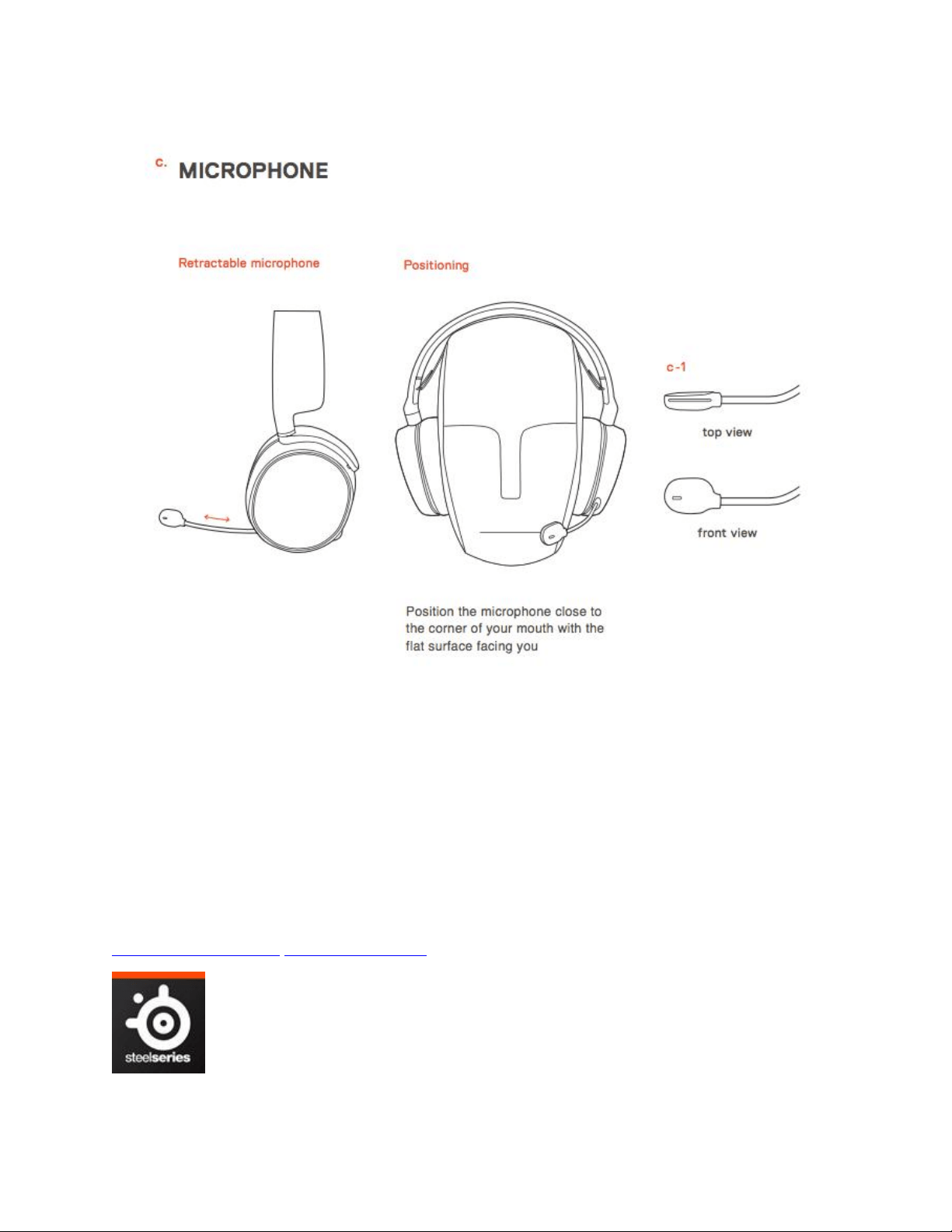
When users have an issue with the Arctis ClearCast mic it’s most often due to poor
positioning. The microphone is highly directional, so it must be placed properly to achieve the
best sound quality and maximize the noise cancelation.
First, make sure that the flat side of the microphone is aimed at your face. Then position the
head of the microphone near the corner of your mouth no more than 1.5” away. See the
diagram for a graphical representation.

Updated 2 months ago
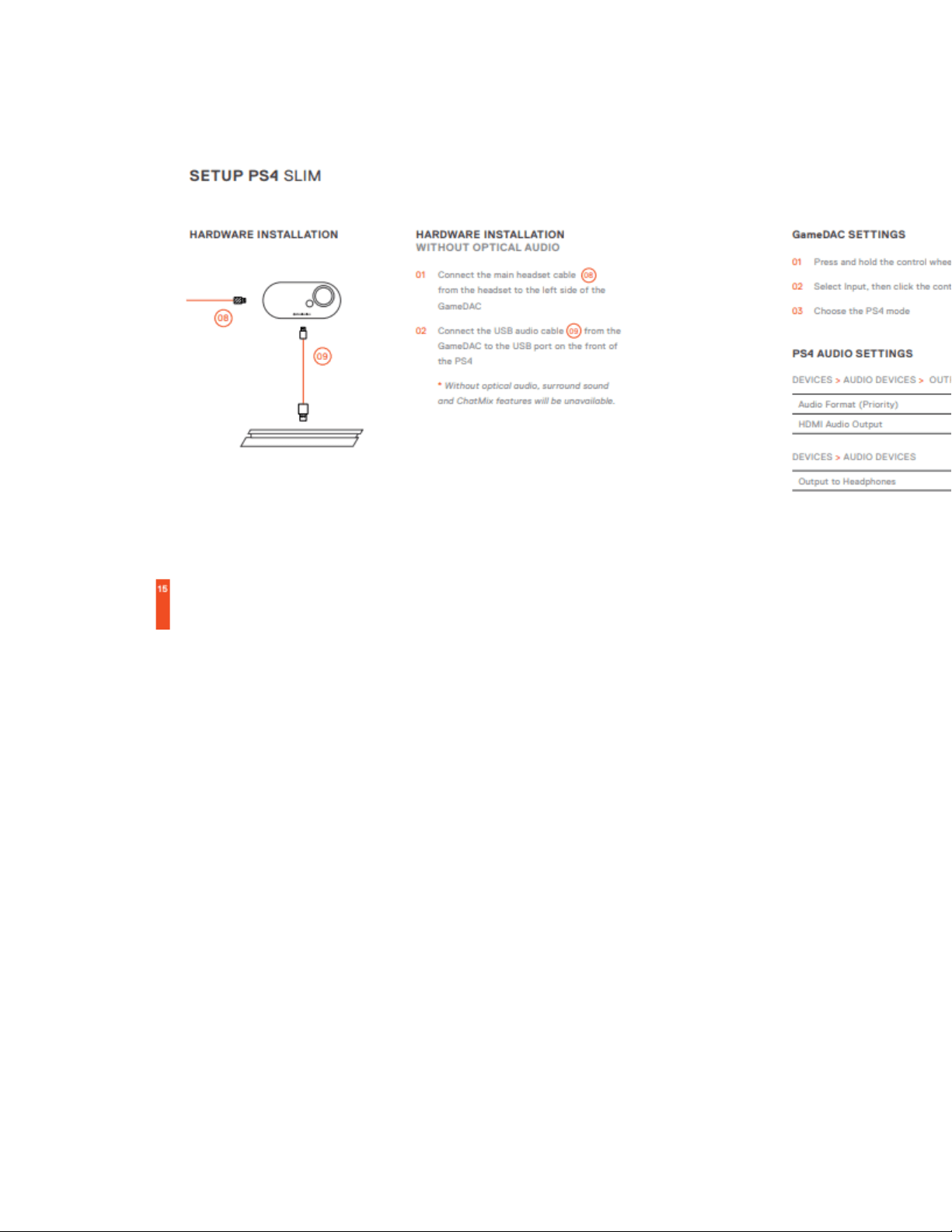
Yes, you can use your Arctis Pro Wireless or Arctis Pro + GameDAC with a PS4 Slim, but will
need some way of connecting to optical audio in order to use all of the product’s features such
as surround sound and ChatMix.
There are generally two ways to do this. First, check if your TV has an optical audio output. If it
does, you can connect an HDMI cable from the PS4 to the TV, then connect the optical output
of the TV to the Wireless transmitter or GameDAC. You will also connect the USB cable to the
PS4.
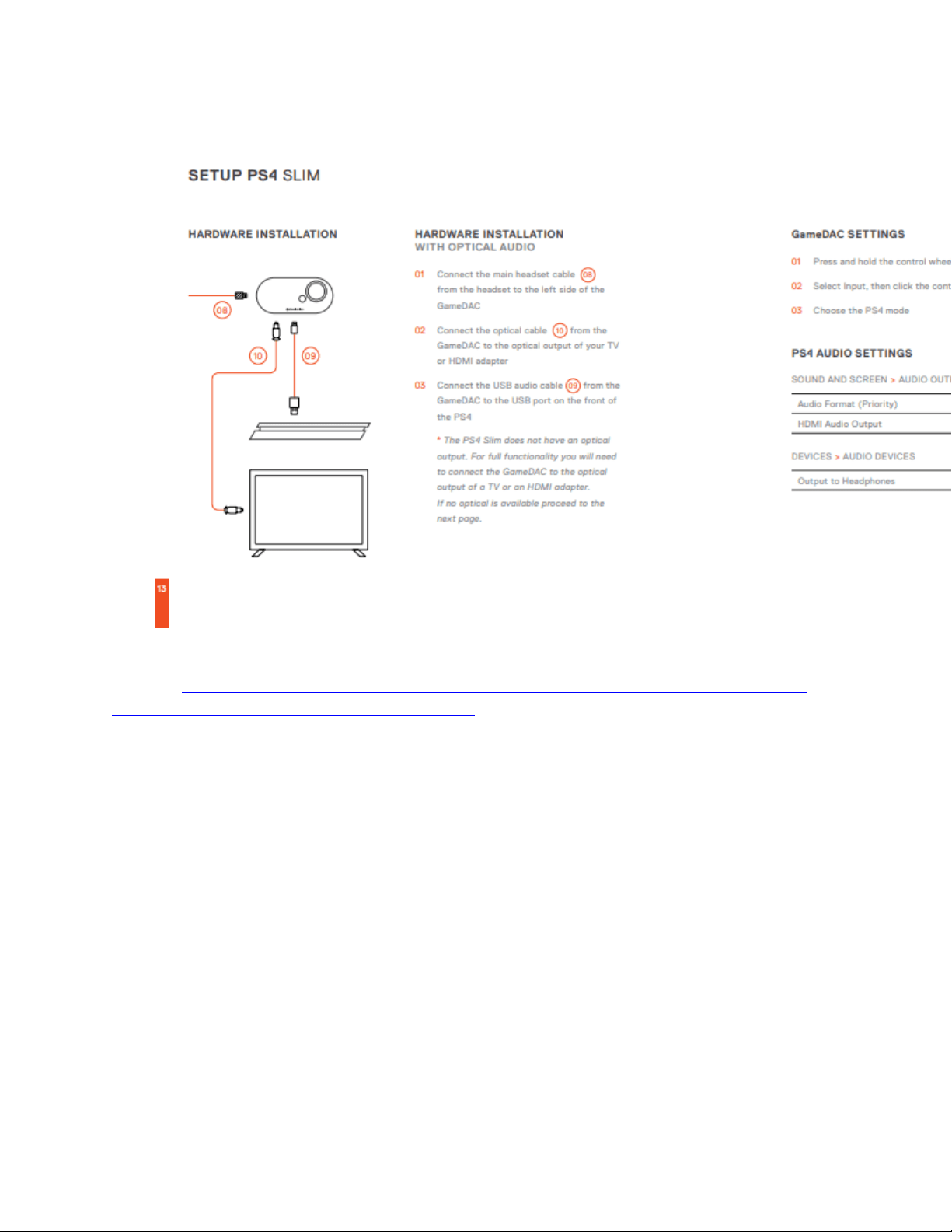
If your TV does not have an optical audio output you can use an HDMI Audio Extractor, (such as
this one: https://www.jtechdigital.com/j-tech-digital-premium-quality-hdmi-to-hdmi-audio-
spdif-rca-stereo-audio-extractor-converter.html). With this device you will connect HDMI from
your PS4 to the audio extractor, then connect an HDMI from the extractor to your TV for
video. Next, connect an optical cable from the extractor to the Arctis Pro Wireless base station
or GameDAC.
You can forego using optical audio and simply connect USB to the PS4, but you will not be able
to use surround sound or ChatMix features. If using this setup you will also need to set the
Wireless transmitter or GameDAC to their PC modes. This setup will provide basic audio, but is
not the recommended solution.
Should I adjust the GameDAC volume or the Arctis Pro headset?
Products

Arctis Pro + GameDAC
Michael P
Updated 6 days ago
Both the GameDAC and the Arctis Pro headset do have independent volume controls. Which
one you choose to be your main source of adjustment is somewhat up to personal
preference. But the method that will maximize the product’s audio quality is to turn the
headset up all the way and then use the GameDAC to dial in the right volume setting.
How can I make my Arctis Pro + GameDAC louder?
Products
Arctis Pro + GameDAC
Michael P
Updated 2 months ago
Out of the box the maximum output of the GameDAC is limited to meet certain countries’
regulatory requirements for hearing protection. But the GameDAC features a setting to defeat
this limiter and make use of its full power:
1. Press and hold the main knob on the GameDAC to enter the menu
2. Select Audio
3. Navigate to ‘Gain’
-If you don't see the gain option on your GameDAC upgrade to the latest firmware
by installing SteelSeries Engine.
4. Switch the Gain setting from Low (default) to High

The GameDAC output will then be 6 dB louder.
How can I make my Arctis Pro Wireless louder?
Products
Arctis Pro Wireless
Michael P
Updated 9 days ago
Out of the box the maximum output of the Arctis Pro Wireless is limited to meet certain
countries’ regulatory requirements for hearing protection. But the transmitter base station
features a setting to defeat this limiter and make use of its full power:
1. Press the main knob to enter the main menu
2. Scroll down to Options and select
3. Scroll down to Vol Limiter and select
4. Switch the Vol Limiter setting from Yes (default) to No