Additional information on this product and
answers to frequently asked questions can be
found at our Customer Support Website.
Puede encontrar más información sobre este
producto y respuestas a las preguntas más
frecuentes en nuestro sitio Web de atención al
cliente.
http://www.sony.net/
Printed on 70% or more recycled paper.
Impreso en papel reciclado en un 70% o más.
2011 Sony Corporation
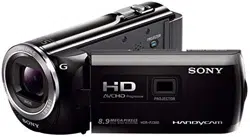
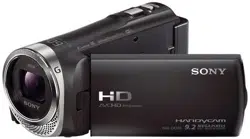
HDR-CX130/CX160/CX180
US/ES
Printed in China
Operating Guide US
Guía de operaciones ES
Digital HD Video
Camera Recorder
4-271-482-13(1)
2
US
Owner’s Record
The model and serial numbers are located
on the bottom. Record the serial number
in the space provided below. Refer to these
numbers whenever you call upon your Sony
dealer regarding this product.
Model No. HDR-
Serial No.
Model No. AC-
Serial No.
WARNING
To reduce fire or shock hazard, do not
expose the unit to rain or moisture.
Do not expose the batteries to
excessive heat such as sunshine, fire or
the like.
This symbol is intended
to alert the user to the
presence of uninsulated
“dangerous voltage” within
the product’s enclosure
that may be of sufficient
magnitude to constitute
a risk of electric shock to
persons.
This symbol is intended
to alert the user to the
presence of important
operating and maintenance
(servicing) instructions in
the literature accompanying
the appliance.

3
US
US
IMPORTANT SAFETY INSTRUCTIONS
SAVE THESE INSTRUCTIONS.
DANGER - TO REDUCE THE RISK OF FIRE
OR ELECTRIC SHOCK,
CAREFULLY FOLLOW THESE
INSTRUCTIONS.
Read these instructions.
Keep these instructions.
Heed all warnings.
Follow all instructions.
Do not use this apparatus near water.
Clean only with dry cloth.
Do not block any ventilation openings. Install in accordance with the manufacturer’s
instructions.
Do not install near any heat sources such as radiators, heat registers, stoves, or other
apparatus (including amplifiers) that produce heat.
Do not defeat the safety purpose of the polarized or grounding-type plug. A polarized plug
has two blades with one wider than the other. A grounding type plug has two blades and a
third grounding prong. The wide blade or the third prong are provided for your safety. If
the provided plug does not fit into your outlet, consult an electrician for replacement of the
obsolete outlet.
Protect the power cord from being walked on or pinched particularly at plugs, convenience
receptacles, and the point where they exit from the apparatus.
Only use attachments/accessories specified by the manufacturer.
Use only with the cart, stand, tripod, bracket, or table specified by the manufacturer, or
sold with the apparatus. When a cart is used, use caution when moving the cart/apparatus
combination to avoid injury from tip-over.
Unplug this apparatus during lightning storms or when unused for long periods of time.
Refer all servicing to qualified service personnel. Servicing is required when the apparatus
has been damaged in any way, such as power-supply cord or plug is damaged, liquid has
been spilled or objects have fallen into the apparatus, the apparatus has been exposed to
rain or moisture, does not operate normally, or has been dropped.
If the shape of the plug does not fit the power outlet, use an attachment plug adaptor of the
proper configuration for the power outlet.

4
US
Representative plug of power supply cord of countries/regions around the world.
A Type
(American
Type)
B Type
(British Type)
BF Type
(British Type)
B3 Type
(British Type)
C Type
(CEE Type)
SE Type
(CEE Type)
O Type
(Ocean Type)
The representative supply voltage and plug type are described in this chart.
Depend on an area, Different type of plug and supply voltage are used.
Attention: Power cord meeting demands from each country shall be used.
For only the United States
Use a UL Listed, 1.5-3 m (5-10 ft.), Type SPT-2 or NISPT-2, AWG no. 18 power supply
cord, rated for 125 V 7 A, with a NEMA 1-15P plug rated for 125 V 15 A.”
Europe
Countries/regions Voltage Frequency (Hz) Plug type
Austria 230 50 C
Belgium 230 50 C
Czech 220 50 C
Denmark 230 50 C
Finland 230 50 C
France 230 50 C
Germany 230 50 C
Greece 220 50 C
Hungary 220 50 C
Iceland 230 50 C
Ireland 230 50 C/BF
Italy 220 50 C
Luxemburg 230 50 C
Netherlands 230 50 C
Norway 230 50 C
Poland 220 50 C
Portugal 230 50 C
Romania 220 50 C
Russia 220 50 C
Slovak 220 50 C
Spain 127/230 50 C
Sweden 230 50 C
Switzerland 230 50 C
UK 240 50 BF
Asia
Countries/regions Voltage Frequency (Hz) Plug type
China 220 50 A
Hong Kong 200/220 50 BF
India 230/240 50 C
Indonesia 127/230 50 C
Japan 100 50/60 A
Korea (rep) 220 60 C
Malaysia 240 50 BF
Philippines 220/230 60 A/C
Singapore 230 50 BF
Taiwan 110 60 A
Thailand 220 50 C/BF

5
US
Countries/regions Voltage Frequency (Hz) Plug type
Vietnam 220 50 A/C
Oceania
Countries/regions Voltage Frequency (Hz) Plug type
Australia 240 50 O
New Zealand 230/240 50 O
North America
Countries/regions Voltage Frequency (Hz) Plug type
Canada 120 60 A
USA 120 60 A
Central America
Countries/regions Voltage Frequency (Hz) Plug type
Bahamas 120/240 60 A
Costa Rica 110 60 A
Cuba 110/220 60 A/C
Dominican (rep) 110 60 A
El Salvador 110 60 A
Guatemala 120 60 A
Honduras 110 60 A
Jamaica 110 50 A
Mexico 120/127 60 A
Nicaragua 120/240 60 A
Panama 110/220 60 A
South America
Countries/regions Voltage Frequency (Hz) Plug type
Argentina 220 50 C/BF/O
Brazil 127/220 60 A/C
Chile 220 50 C
Colombia 120 60 A
Peru 220 60 A/C
Venezuela 120 60 A
Middle East
Countries/regions Voltage Frequency (Hz) Plug type
Iran 220 50 C/BF
Iraq 220 50 C/BF
Israel 230 50 C
Saudi Arabia 127/220 50 A/C/BF
Turkey 220 50 C
UAE 240 50 C/BF
Africa
Countries/regions Voltage Frequency (Hz) Plug type
Algeria 127/220 50 C
Congo (dem) 220 50 C
Egypt 220 50 C
Ethiopia 220 50 C
Kenya 240 50 C/BF
Nigeria 230 50 C/BF
South Africa 220/230 50 C/BF
Tanzania 230 50 C/BF
Tunisia 220 50 C

6
US
Read this first
Before operating the unit, please read this
manual thoroughly, and retain it for future
reference.
CAUTION
Battery pack
If the battery pack is mishandled, the
battery pack can burst, cause a fire or even
chemical burns. Observe the following
cautions.
Do not disassemble.
Do not crush and do not expose the battery
pack to any shock or force such as hammering,
dropping or stepping on it.
Do not short circuit and do not allow metal
objects to come into contact with the battery
terminals.
Do not expose to high temperature above 60°C
(140°F) such as in direct sunlight or in a car
parked in the sun.
Do not incinerate or dispose of in fire.
Do not handle damaged or leaking lithium ion
batteries.
Be sure to charge the battery pack using a
genuine Sony battery charger or a device that
can charge the battery pack.
Keep the battery pack out of the reach of small
children.
Keep the battery pack dry.
Replace only with the same or equivalent type
recommended by Sony.
Dispose of used battery packs promptly as
described in the instructions.
Replace the battery with the specified type
only. Otherwise, fire or injury may result.
AC Adaptor
Do not use the AC Adaptor placed in a
narrow space, such as between a wall and
furniture.
Use the nearby wall outlet (wall socket)
when using the AC Adaptor. Disconnect
the AC Adaptor from the wall outlet (wall
socket) immediately if any malfunction
occurs while using your camcorder.
Even if your camcorder is turned off, AC
power source (mains) is still supplied to
it while connected to the wall outlet (wall
socket) via the AC Adaptor.
Note on the power cord (mains lead)
The power cord (mains lead) is designed
specifically for use with this camcorder
only, and should not be used with other
electrical equipment.
For customers in the U.S.A. and CANADA
RECYCLING LITHIUM-ION BATTERIES
Lithium-Ion batteries are
recyclable.
You can help preserve our
environment by returning
your used rechargeable
batteries to the collection and
recycling location nearest you.
For more information
regarding recycling of
rechargeable batteries, call toll
free 1-800-822- 8837, or visit
http://www.rbrc.org/
Caution: Do not handle
damaged or leaking Lithium-
Ion batteries.

7
US
Battery pack
This device complies with Part 15 of the
FCC Rules. Operation is subject to the
following two conditions: (1) This device
may not cause harmful interference, and
(2) this device must accept any interference
received, including interference that may
cause undesired operation.
This Class B digital apparatus complies
with Canadian ICES-003.
For the customers in the U.S.A.
UL is an internationally recognized safety
organization.
The UL Mark on the product means it has
been UL Listed.
If you have any questions about this
product, you may call:
Sony Customer Information Center 1-800-
222-SONY (7669).
The number below is for the FCC related
matters only.
Regulatory Information
Declaration of Conformity
Trade Name: SONY
Model No.: HDR-CX130, HDR-CX160
Responsible Party: Sony Electronics Inc.
Address: 16530 Via Esprillo, San Diego,
CA 92127 U.S.A.
Telephone No.: 858-942-2230
This device complies with Part 15 of the
FCC Rules. Operation is subject to the
following two conditions: (1) This device
may not cause harmful interference,
and (2) this device must accept any
interference received, including
interference that may cause undesired
operation.
CAUTION
You are cautioned that any changes or
modifications not expressly approved in
this manual could void your authority to
operate this equipment.
Note
This equipment has been tested and found
to comply with the limits for a Class B
digital device, pursuant to Part 15 of the
FCC Rules.
These limits are designed to provide
reasonable protection against harmful
interference in a residential installation.
This equipment generates, uses, and
can radiate radio frequency energy and,
if not installed and used in accordance
with the instructions, may cause harmful
interference to radio communications.
However, there is no guarantee that
interference will not occur in a particular
installation. If this equipment does cause
harmful interference to radio or television
reception, which can be determined by
turning the equipment off and on, the
user is encouraged to try to correct the
interference by one or more of the following
measures:
Reorient or relocate the receiving antenna.
Increase the separation between the
equipment and receiver.
Connect the equipment into an outlet on
a circuit different from that to which the
receiver is connected.
Consult the dealer or an experienced radio/
TV technician for help.
The supplied interface cable must be used
with the equipment in order to comply with
the limits for a digital device pursuant to
Subpart B of Part 15 of FCC Rules.
8
US
Supplied items
The numbers in ( ) are the supplied
quantity.
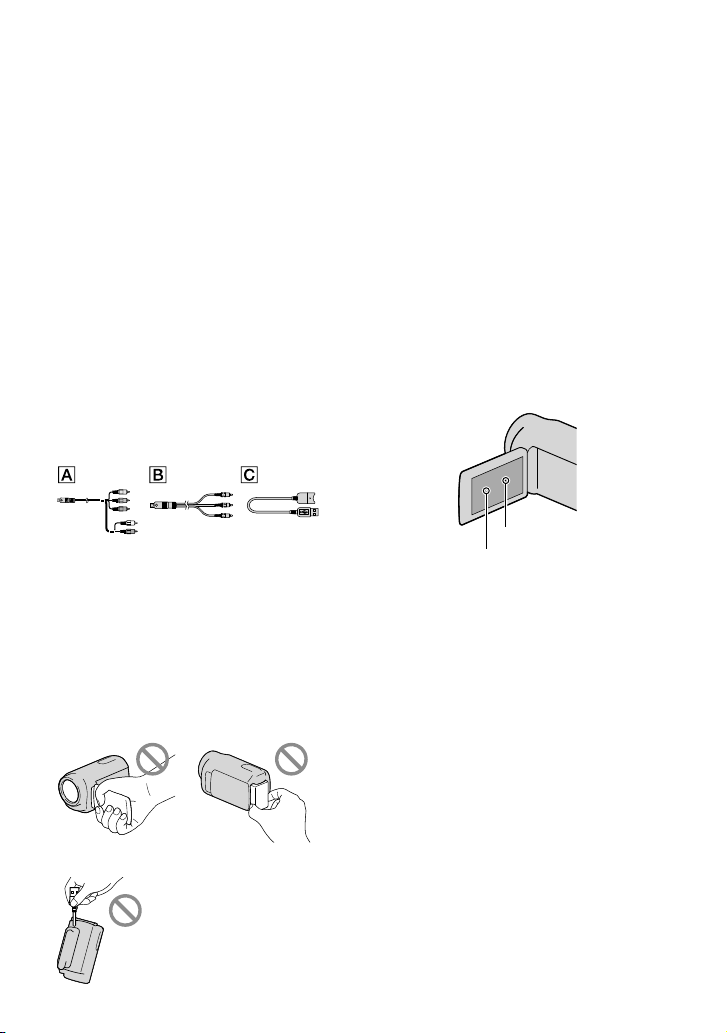
AC Adaptor (1)
Power cord (Mains lead) (1)
Component A/V cable (1)
A/V connecting cable (1)
USB connection support cable (1)
Use this cable when the Built-in USB Cable
of the camcorder (p. 14) is too short for
connection.
Rechargeable battery pack NP-FV50 (1)
CD-ROM “Handycam” Application
Software (1) (p. 37)
“PMB” (software, including “PMB Help”)
“Handycam” Handbook (PDF)
“Operating Guide” (This manual) (1)
This camcorder has a built-in software
application called “PMB Portable” (p. 40).
See page 21 for the memory card you can use
with this camcorder.
Using the camcorder
Do not hold the camcorder by the following
parts, and also do not hold the camcorder by
the jack covers.
LCD Screen Battery pack
Built-in USB Cable
The camcorder is not dustproofed, dripproofed
or waterproofed. See “Precautions” (p. 64).
Menu items, LCD panel, and lens
A menu item that is grayed out is not available
under the current recording or playback
conditions.
The LCD screen is manufactured using
extremely high-precision technology, so over
99.99% of the pixels are operational for effective
use. However, there may be some tiny black
points and/or bright points (white, red, blue,
or green in color) that appear constantly on the
LCD screen. These points are normal results of
the manufacturing process and do not affect the
recording in any way.
Exposing the LCD screen or the lens to direct
sunlight for long periods of time may cause
malfunctions.
Do not aim at the sun. Doing so might cause
your camcorder to malfunction. Take images
of the sun only in low light conditions, such as
at dusk.
About language setting
The on-screen displays in each local language
are used for illustrating the operating
procedures. Change the screen language before
u
sing th
e camcorder if necessary (p. 19).
On recording
To ensure stable operation of the memory
card, it is recommended to format the memory
card with your camcorder before the first
use. formatting the memory card will erase
all the data stored on it and the data will be
irrecoverable. Save your important data on your
PC etc.
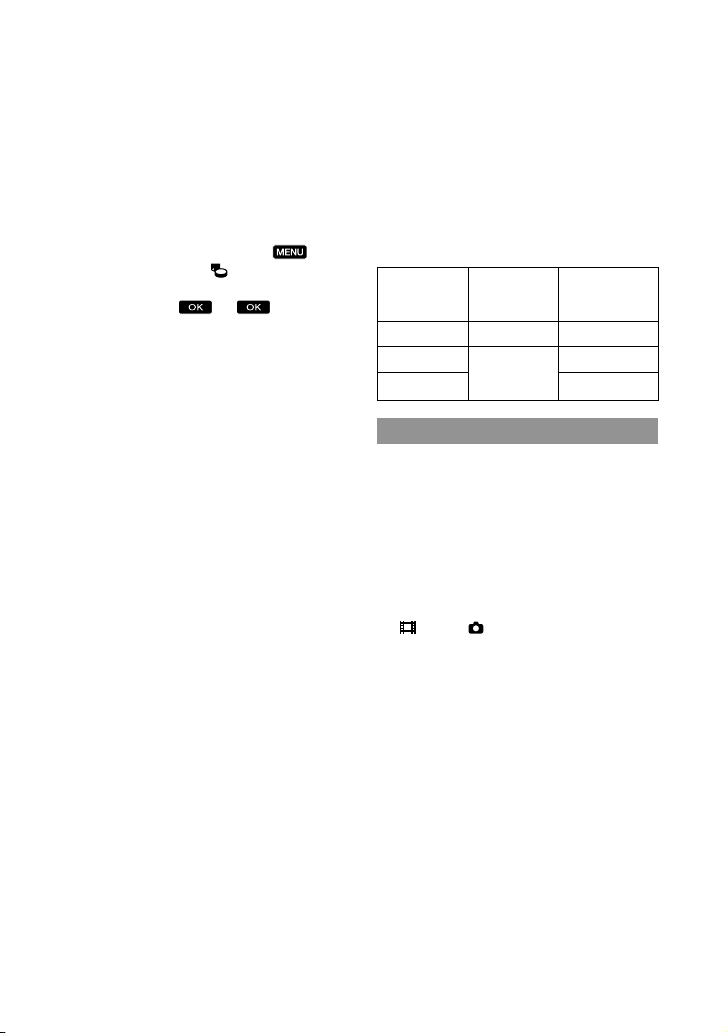
Black points
White, red, blue or green points

9
US
Before starting to record, test the recording
function to make sure the image and sound are
recorded without any problems.
Compensation for the contents of recordings
cannot be provided, even if recording or
playback is not possible due to a malfunction of
the camcorder, recording media, etc.
TV color systems differ depending on the
country/region. To view your recordings on a
TV, you need a NTSC system-based TV.
Television programs, films, video tapes,
and other materials may be copyrighted.
Unauthorized recording of such materials may
be contrary to the copyright laws.
Use the camcorder in accordance with local
regulations.
Notes on playing back
You may not be able to play back normally
images recorded on your camcorder with other
devices. Also, you may not be able to play back
images recorded on other devices with your
camcorder.
Standard (STD) image quality movies recorded
on SD memory cards cannot be played on AV
equipment of other manufacturers.
DVD media recorded with HD image
quality (high definition)
DVD media recorded with high definition
image quality (HD) can be played back with
devices that are compatible with the AVCHD
standard. You cannot play discs recorded with
high definition image quality (HD) with DVD
players/recorders as they are not compatible
with the AVCHD format. If you insert a disc
recorded with the AVCHD format (high
definition image quality (HD)) into a DVD
player/recorder, you may not be able to eject
the disc.
Save all your recorded image data
To prevent your image data from being lost,
save all your recorded images on external media
periodically. To save images on your computer,
see page 36, and to save images on external
devices, see page 43.
The type of discs or media on which the images
can be saved depend on the [
REC Mode]
selected when the images were recorded.
Movies recorded with [60p Quality
] can
be saved using external media (p. 45). Movies
recorded with [Highest Quality
] can be
saved on external media or on Blu-ray discs.
Notes on battery pack/AC Adaptor
Be sure to remove the battery pack or the AC
Adaptor after turning off the camcorder.
Disconnect the AC Adaptor from the
camcorder, holding both the camcorder and the
DC plug.
Note on the camcorder/battery pack
temperature
When the temperature of the camcorder
or battery pack becomes extremely high or
extremely low, you may not be able to record
or play back on the camcorder, due to the
protection features of the camcorder being
activated in such situations. In this case, an
indicator appears on the LCD screen.
When the camcoder is connected to a
computer or accessories
Do not try to format the recording media of the
camcorder using a computer. If you do so, your
camcorder may not operate correctly.
When connecting the camcorder to another
device with communication cables, be sure to
insert the connector plug in the correct way.
Pushing the plug forcibly into the terminal
will damage the terminal and may result in a
malfunction of the camcorder.
When the camcorder is connected to other
devices through a USB connection and the
power of the camcorder is turned on, do not
close the LCD panel. The image data that has
been recorded may be lost.
10
US
If you cannot record/play back images,
perform [Format]
If you repeat recording/deleting images for
a long time, fragmentation of data occurs on
the recording media. Images cannot be saved
or recorded. In such a case, save your images
on some type of external media first, and
then perform [Format] by touching
(MENU) [Setup] [
(Media Settings)]
[Format] the desired medium (HDR-
CX160/CX180)
.
Notes on optional accessories
We recommend using genuine Sony accessories.
Genuine Sony accessories may not be available
in some countries/regions.
About this manual, illustrations and
on-screen displays
The example images used in this manual for
illustration purposes are captured using a
digital still camera, and therefore may appear
different from images and screen indicators that
actually appear on your camcorder. And, the
illustrations of your camcorder and its screen
indication are exaggerated or simplified for
understandability.
In this manual, the internal memory (HDR-
CX160/CX180) and the memory card are called
“recording media.”
In this manual, the DVD disc recorded with
high definition image quality (HD) is called
AVCHD recording disc.
Design and specifications of your camcorder
and accessories are subject to change without
notice.
Confirm the model name of your
camcorder
The model name is shown in this manual when
there is a difference in specification between
models. Confirm the model name on the
bottom of your camcorder.
The main differences in specification of this
series are as follows.
Recording
media
Capacity
of internal
recording media
HDR-CX130 Memory card —
HDR-CX160 Internal
memory +
memory card
16 GB
HDR-CX180 32 GB
Notes on use
Do not do any of the following. Otherwise, the
recording media may be damaged, recorded
images may be impossible to play back or may
be lost, or other malfunctions could occur.
ejecting the memory card when the access
l
amp (p
. 22) is lit or flashing
removing the battery pack or AC Adaptor
from the camcorder, or applying mechanical
shock or vibration to the camcorder when the
(Movie)/ (Photo) lamps (p. 24) or the
access lamp (p. 22) are lit or flashing
When using a shoulder belt (sold separately), do
not crash the camcorder against an object.

11
Table of contents
US
Table of contents
IMPORTANT SAFETY INSTRUCTIONS . . . . . . . . . . . . . . . . . . . . . . . . . . . . . . . . . . . . . . . . . . . . . . . . . . . . . . . . . . . 3
Read this first . . . . . . . . . . . . . . . . . . . . . . . . . . . . . . . . . . . . . . . . . . . . . . . . . . . . . . . . . . . . . . . . . . . . . . . . . . . . . . . . . . . . . . . 6
Getting started
Step 1: Charging the battery pack . . . . . . . . . . . . . . . . . . . . . . . . . . . . . . . . . . . . . . . . . . . . . . . . . . . . . . . . . . . . 13
Charging the battery pack abroad . . . . . . . . . . . . . . . . . . . . . . . . . . . . . . . . . . . . . . . . . . . . . . . . . . 16
Step 2: Turning the power on, and setting the date and time . . . . . . . . . . . . . . . . . . . . . . . . . . 17
Changing the language setting . . . . . . . . . . . . . . . . . . . . . . . . . . . . . . . . . . . . . . . . . . . . . . . . . . . . . . 19
Step 3: Preparing the recording media . . . . . . . . . . . . . . . . . . . . . . . . . . . . . . . . . . . . . . . . . . . . . . . . . . . . . . 20
To check the recording media settings . . . . . . . . . . . . . . . . . . . . . . . . . . . . . . . . . . . . . . . . . . . . . 20
Copying movies and photos (HDR-CX160/CX180) . . . . . . . . . . . . . . . . . . . . . . . . . . . . . . . 22
Recording/Playback
Recording . . . . . . . . . . . . . . . . . . . . . . . . . . . . . . . . . . . . . . . . . . . . . . . . . . . . . . . . . . . . . . . . . . . . . . . . . . . . . . . . . . . . . . . . . . 23
Selecting the recording mode . . . . . . . . . . . . . . . . . . . . . . . . . . . . . . . . . . . . . . . . . . . . . . . . . . . . . . . 27
Playback on the camcorder . . . . . . . . . . . . . . . . . . . . . . . . . . . . . . . . . . . . . . . . . . . . . . . . . . . . . . . . . . . . . . . . . . . . 28
Performing Highlight Playback . . . . . . . . . . . . . . . . . . . . . . . . . . . . . . . . . . . . . . . . . . . . . . . . . . . . . . 31
Playing images on a TV . . . . . . . . . . . . . . . . . . . . . . . . . . . . . . . . . . . . . . . . . . . . . . . . . . . . . . . . . . . . . . . . . . . . . . . . . 32
Advanced operations
Deleting movies and photos. . . . . . . . . . . . . . . . . . . . . . . . . . . . . . . . . . . . . . . . . . . . . . . . . . . . . . . . . . . . . . . . . . . 35
Saving movies and photos with a computer
Useful functions available if you connect the camcorder to a computer . . . . . . . . . . . . . 36
Preparing a computer . . . . . . . . . . . . . . . . . . . . . . . . . . . . . . . . . . . . . . . . . . . . . . . . . . . . . . . . . . . . . . . . . . . . . . . . . . . 37
When using a Macintosh . . . . . . . . . . . . . . . . . . . . . . . . . . . . . . . . . . . . . . . . . . . . . . . . . . . . . . . . . . . . . . 37
Starting PMB (Picture Motion Browser) . . . . . . . . . . . . . . . . . . . . . . . . . . . . . . . . . . . . . . . . . . . . . . . . . . . . . . 40
Uploading images to a network service . . . . . . . . . . . . . . . . . . . . . . . . . . . . . . . . . . . . . . . . . . . . . . . . . . . . . 40

12
US
Saving images with an external device
Selecting a method for saving images with an external device . . . . . . . . . . . . . . . . . . . . . . . . 43
Saving images on an external media device . . . . . . . . . . . . . . . . . . . . . . . . . . . . . . . . . . . . . . . . . . . . . . . 45
Creating a disc with the DVD writer, DVDirect Express . . . . . . . . . . . . . . . . . . . . . . . . . . . . . . . . . . . 48
Creating a high definition image quality (HD) disc with a DVD writer, etc., other
than DVDirect Express . . . . . . . . . . . . . . . . . . . . . . . . . . . . . . . . . . . . . . . . . . . . . . . . . . . . . . . . . . . . . . . . . . . . . . . . . . 51
Creating a standard definition image quality (STD) disc with a recorder, etc. . . . . . . . 52
Customizing your camcorder
Using menus . . . . . . . . . . . . . . . . . . . . . . . . . . . . . . . . . . . . . . . . . . . . . . . . . . . . . . . . . . . . . . . . . . . . . . . . . . . . . . . . . . . . . . 54
Getting detailed information from the “Handycam” Handbook . . . . . . . . . . . . . . . . . . . . . . . . 58
Additional information
Troubleshooting . . . . . . . . . . . . . . . . . . . . . . . . . . . . . . . . . . . . . . . . . . . . . . . . . . . . . . . . . . . . . . . . . . . . . . . . . . . . . . 59
Recording time of movies/number of recordable photos . . . . . . . . . . . . . . . . . . . . . . . . . . . . . . . 61
Precautions . . . . . . . . . . . . . . . . . . . . . . . . . . . . . . . . . . . . . . . . . . . . . . . . . . . . . . . . . . . . . . . . . . . . . . . . . . . . . . . . . . . . . . . . 64
Specifications . . . . . . . . . . . . . . . . . . . . . . . . . . . . . . . . . . . . . . . . . . . . . . . . . . . . . . . . . . . . . . . . . . . . . . . . . . . . . . . . . . . . . 66
Quick reference
Screen indicators . . . . . . . . . . . . . . . . . . . . . . . . . . . . . . . . . . . . . . . . . . . . . . . . . . . . . . . . . . . . . . . . . . . . . . . . . . . . . . . . . 69
Parts and controls . . . . . . . . . . . . . . . . . . . . . . . . . . . . . . . . . . . . . . . . . . . . . . . . . . . . . . . . . . . . . . . . . . . . . . . . . . . . . . . . 70
Index . . . . . . . . . . . . . . . . . . . . . . . . . . . . . . . . . . . . . . . . . . . . . . . . . . . . . . . . . . . . . . . . . . . . . . . . . . . . . . . . . . . . . . . . . . . . . . . . 72
13
US
Getting started
Getting started
Step 1: Charging the battery pack
You can charge the “InfoLITHIUM” battery pack (V series) after attaching it to your
camcorder.
Notes
You cannot attach any “InfoLITHIUM” battery pack other than the V series to your camcorder.
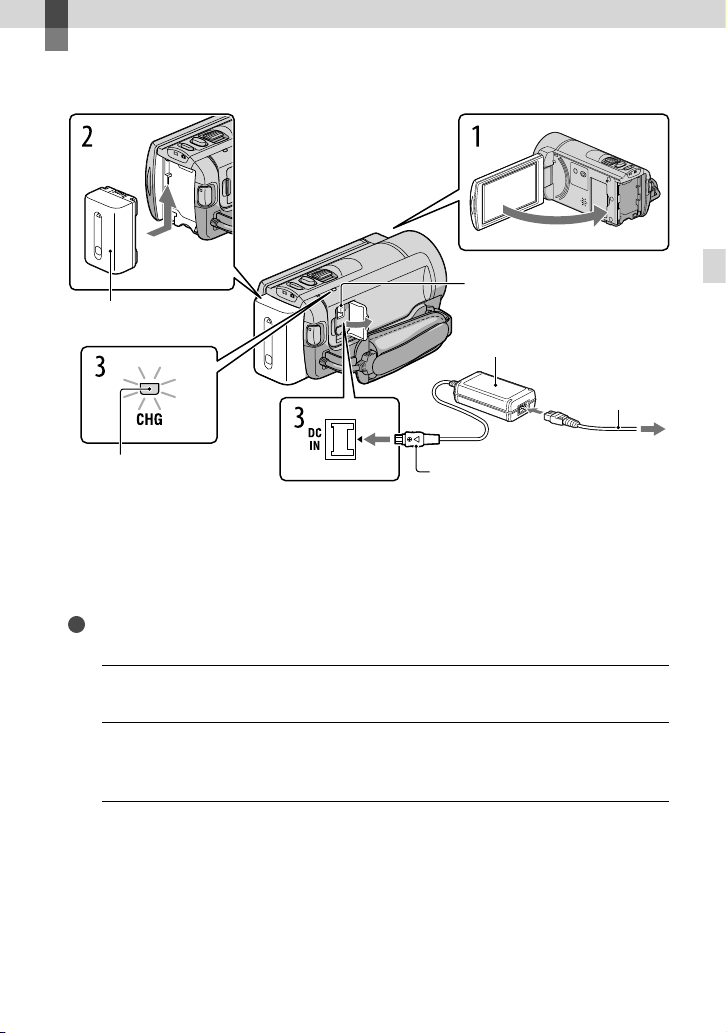
1
Turn off your camcorder by closing the LCD screen.
2
Attach the battery pack by sliding it in the direction of the arrow until it
clicks.
3
Connect the AC Adaptor and the power cord (mains lead) to your
camcorder and the wall outlet (wall socket).
The CHG (charge) lamp lights up and charging starts. The CHG (charge) lamp turns off
when the battery pack is fully charged.
Battery pack
CHG (charge) lamp
DC IN jack
To the wall outlet
(wall socket)
AC Adaptor
DC plug
Power cord
(Mains lead)
Align the mark on the DC plug
with that on the DC IN jack.
14
US
4
When the battery is charged, disconnect the AC Adaptor from the DC IN
jack of your camcorder.
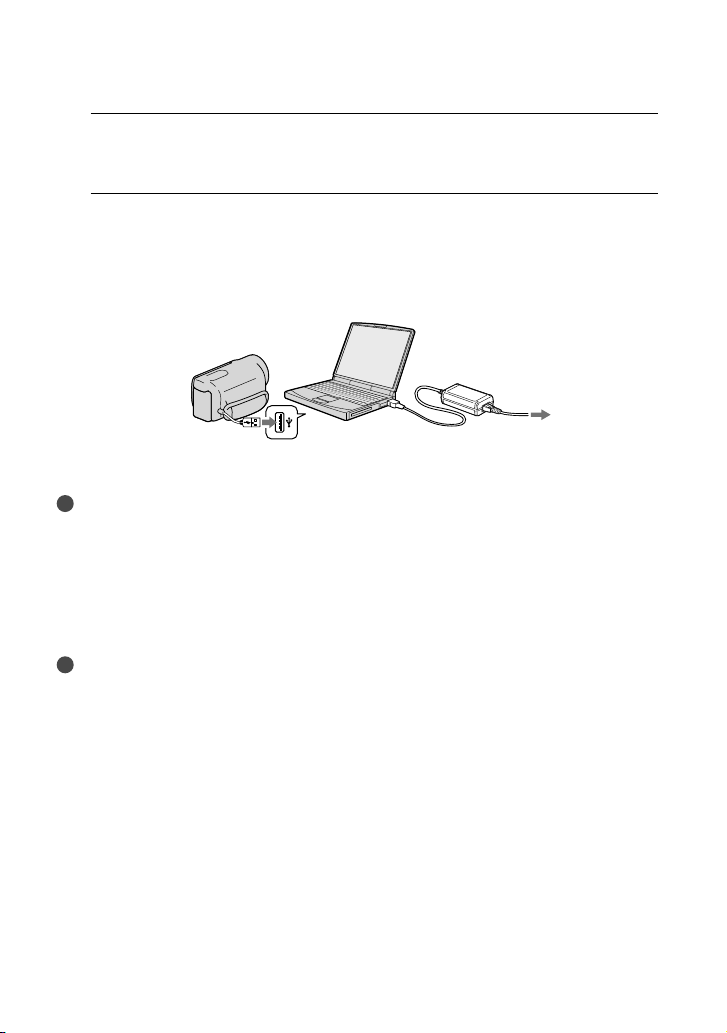
To charge the battery using your computer
This method is useful when the AC Adaptor is not available.
Turn off the camcorder and attach the battery pack to the camcorder.
Conn
ect the camcorder to a running computer using the Built-in USB Cable.
When the battery is fully charged, disconnect the camcorder from the computer (p. 39).
Notes
Operation with all computers is not assured.
If you connect the camcorder to a laptop computer that is not connected to a power source, the battery
of the laptop computer will continue to use up its charge. Do not leave the camcorder connected to a
computer in this manner.
Charging with a personally assembled computer, with a converted computer, or through a USB hub are
not guaranteed. The camcorder may not function correctly depending on the USB device which is used
with the computer.
Tips
You can charge the battery by connecting the Built-in USB Cable to a wall outlet (wall socket) using an
AC-U501AD/AC-U50AG USB charger/AC Adaptor (sold separately). You cannot use a Sony CP-AH2R
or CP-AL portable power supply device (sold separately) to charge the camcorder.
The USB charger/AC Adaptor may not be available in some countries/regions.
The CHG (charge) lamp may not light up when the remaining battery power is too low. In such a case,
charge the battery using the supplied AC adaptor.
To the wall outlet
(wall socket)
15
US
Getting started
Charging time
Approximate time (min.) required when you fully charge a fully discharged battery pack.
Battery pack
Charging time
AC Adaptor
Built-in USB Cable
*
NP-FV50 (supplied) 155 315
NP-FV70 195 600
NP-FV100 390 1050
The charging times shown in the table above are measured when charging the camcorder at a
temperature of 25
C (77 °F). It is recommended that you charge the battery in a temperature range of 10
C to 30 C (50 °F to 86 °F).
* The charging times are measured without using the USB Connection support cable.
Tips
See page 61 on recording and playing time.
When your camcorder is on, you can check the approximate amount of remaining battery power with the
remaining battery indicator at the upper right on the LCD screen.
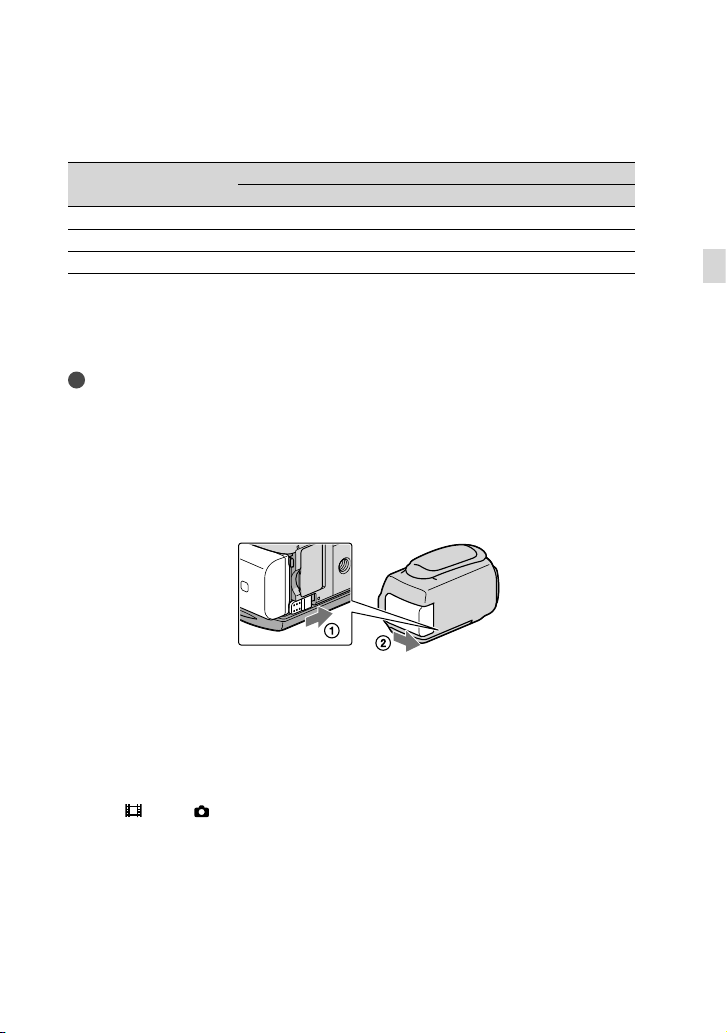
To remove the battery pack
Close the LCD screen. Slide the BATT (battery) release lever () and remove the battery
pack ().
To use a wall outlet (wall socket) as a power source
Make the same connections as “Step 1: Charging the battery pack” (p. 13). Even if the battery
pack is attached, the battery pack is not discharged.
Notes on the battery pack
When you remove the battery pack or disconnect the AC Adaptor, turn the camcorder off and make sure
that the
(Movie)/ (Photo) lamps (p. 24), the access lamp (p. 22) are turned off.
The CHG (charge) lamp flashes during charging under the following conditions:
The battery pack is not attached correctly.
The battery pack is damaged.
The temperature of the battery pack is low.
Remove the battery pack from your camcorder and put it in a warm place.
The temperature of the battery pack is high.
Remove the battery pack from your camcorder and put it in a cool place.

16
US
We do not recommend using an NP-FV30, which only allows short recording and playback times, with
your camcorder.
In the default setting, the power turns off automatically if you leave your camcorder without any
operation for about 5 minutes, to save battery power ([A. Shut Off]).
Notes on the AC Adaptor
Use the nearby wall outlet (wall socket) when using the AC Adaptor. Disconnect the AC Adaptor from
the wall outlet (wall socket) immediately if any malfunction occurs while using your camcorder.
Do not use the AC Adaptor placed in a narrow space, such as between a wall and furniture.
Do not short-circuit the DC plug of the AC Adaptor or battery terminal with any metallic objects. This
may cause a malfunction.
Charging the battery pack abroad
You can charge the battery pack in any countries/regions using the AC Adaptor supplied with
your camcorder within the AC 100 V - 240 V, 50 Hz/60 Hz range.
Do not use an electronic voltage transformer.
17
US
Getting started
Step 2: Turning the power on, and setting the
date and time
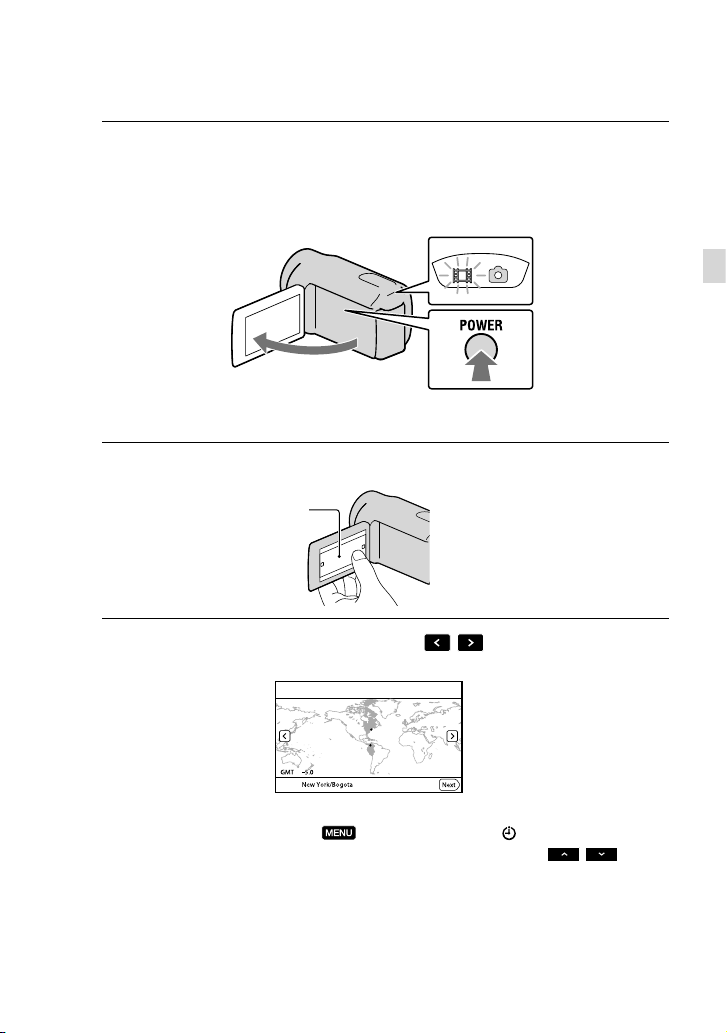
1
Open the LCD screen of your camcorder.
Your camcorder is turned on.
To turn on your camcorder when the LCD screen is open, press POWER.
2
Select the desired language, then touch [Next].
3
Select the desired geographical area with
/ , then touch [Next].
To set the date and time again, touch (MENU) [Setup] [ (Clock Settings)] [Date
& Time Setting] [Date & Time]. When an item is not on the screen, touch
/ until
the item appears.
Touch the button on the
LCD screen
MODE lamp
POWER button
18
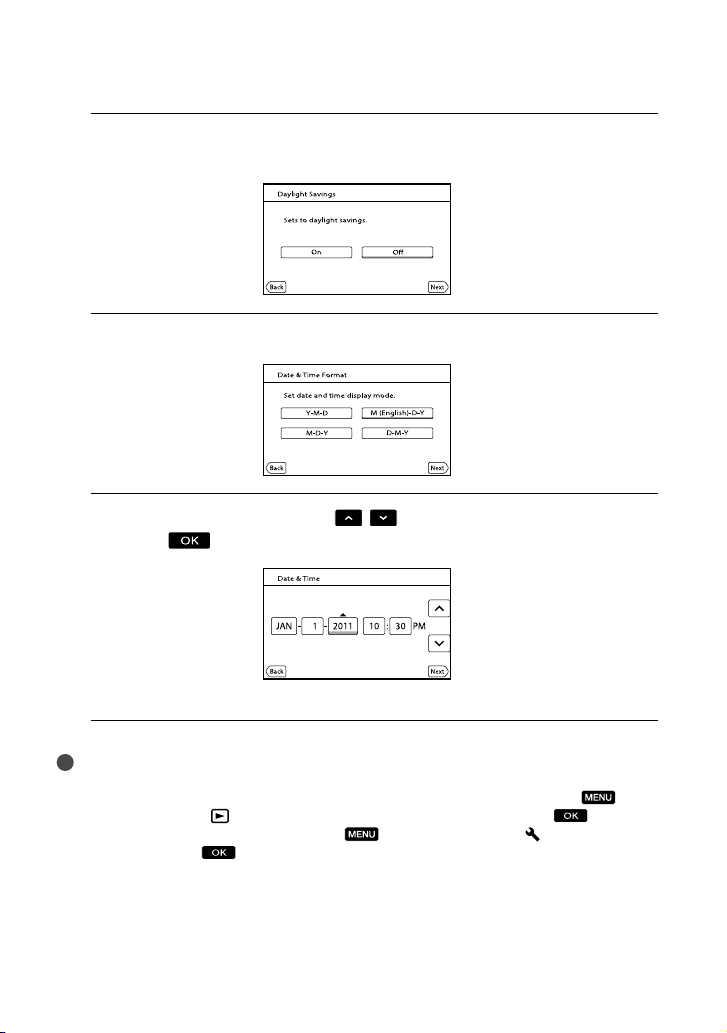
US
4
Set [Daylight Savings] or [Summer Time], then touch [Next].
If you set [Daylight Savings] or [Summer Time] to [On], the clock advances 1 hour.
5
Select the date format, then touch [Next].
6
Select the date and time, touch
/ to set the value, then touch
[Next]
.
The clock starts.
Notes
The date and time does not appear during recording, but they are automatically recorded on the
recording media, and can be displayed during playback. To display the date and time, touch
(MENU) [Setup] [
(Playback Settings)] [Data Code] [Date/Time] .
You can turn off the operation beeps by touching
(MENU) [Setup] [ (General Settings)]
[Beep] [Off]
.
If the button you touch does not react correctly, calibrate the touch panel.
19
US
Getting started
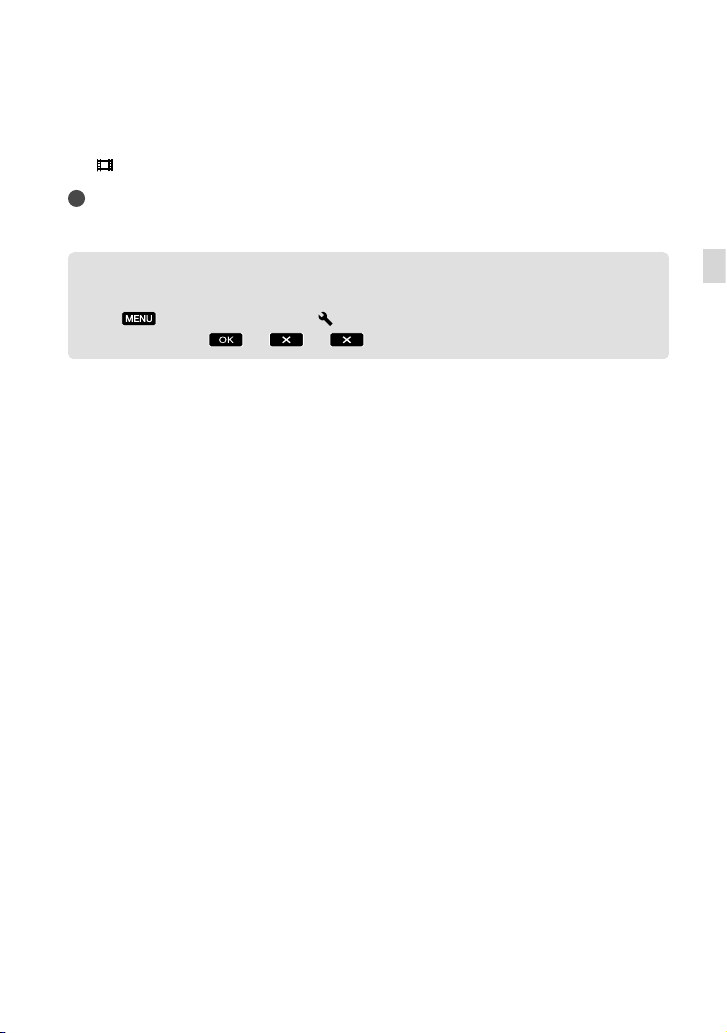
To turn off the power
Close the LCD screen.
The
(Movie) lamp flashes for a few seconds and the camcorder is turned off.
Tips
You can turn off the camcorder also by pressing POWER.
When [Power On By LCD] is set to [Off], turn off your camcorder by pressing POWER.
Changing the language setting
You can change the on-screen displays to show messages in a specified language.
Touch
(MENU) [Setup] [ (General Settings)] [Language Setting] a
desired language
.
20
US
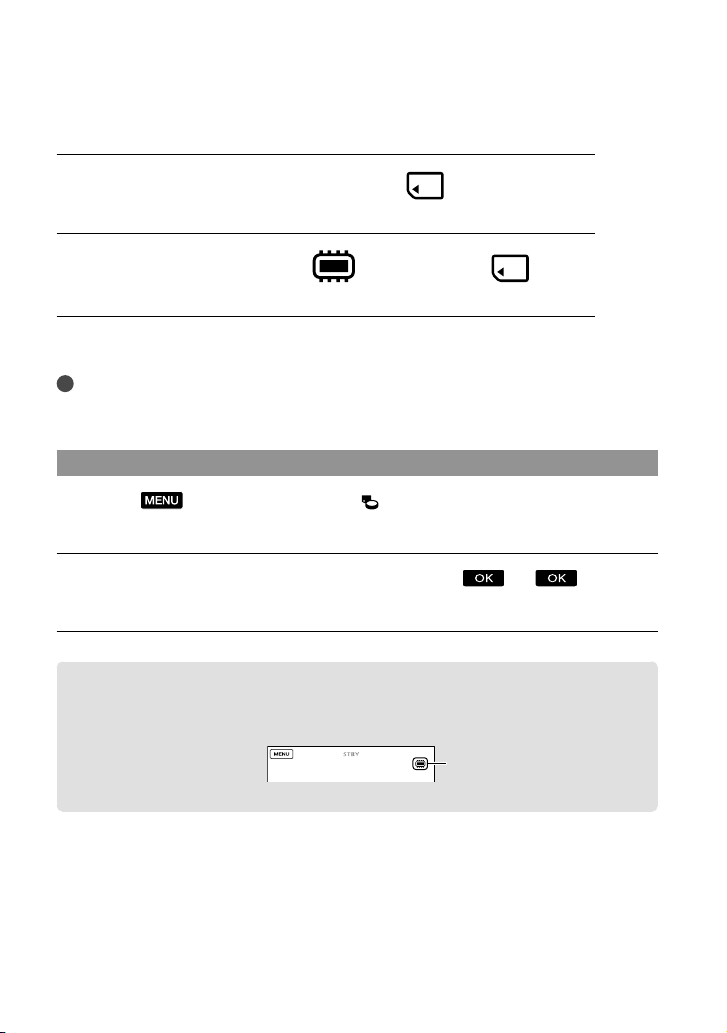
Step 3: Preparing the recording media
The recording media that can be used differs depending on your camcorder. The following
icons are displayed on the screen of your camcorder.
HDR-CX130
Memory card
HDR-CX160/CX180
*
Internal memory Memory card
* In the default setting, both movies and photos are recorded on this recording media. You can perform
recording, playback and editing operations on the selected medium.
Tips
See page 62 for the recordable time of movies.
See page 63 for the number of recordable photos.
Selecting recording media (HDR-CX160/CX180)
Touch (MENU) [Setup] [ (Media Settings)] [Media Select].
The [Media Select] screen appears.
Touch the desired recording medium, then touch .
Both movies and photos are recorded on the selected medium.
To check the recording media settings
In either movie recording mode or photo recording mode, the media icon of the selected
recording media is displayed at the top right corner of the screen.
The icon displayed may vary depending on your model.
Recording media icon

21
US
Getting started
Inserting a memory card
Notes
Set the recording medium to [Memory Card] to record movies and/or photos on a memory card
(HDR-CX160/CX180).
Types of memory card you can use with your camcorder
SD Speed Class Described in this
manual
“Memory Stick PRO
Duo” media (Mark2)
—
“Memory Stick PRO
Duo” media
“Memory Stick PRO-
HG Duo” media
SD memory card
Class 4 or faster SD card
SDHC memory card
SDXC memory card
Operation with all memory cards is not assured.
“Memory Stick PRO Duo” media, half the size of “Memory Stick”, or standard size SD cards can be used
for this camcorder.
Do not attach a label or the like on memory card or memory card adaptor. Doing so may cause a
malfunction.
“Memory Stick PRO Duo” media of up to 32 GB and SD cards of up to 64 GB have been verified to
operate with your camcorder.
Notes
A MultiMediaCard cannot be used with this camcorder.
Movies recorded on SDXC memory cards cannot be imported to or played back on computers or AV
devices not supporting the exFAT* file system by connecting the camcorder to these devices with the
USB cable. Confirm in advance that the connecting equipment is supporting the exFAT system. If you
connect an equipment not supporting the exFAT system and the format screen appears, do not perform
the format. All the data recorded will be lost.
* The exFAT is a file system that is used for SDXC memory cards.
22
US
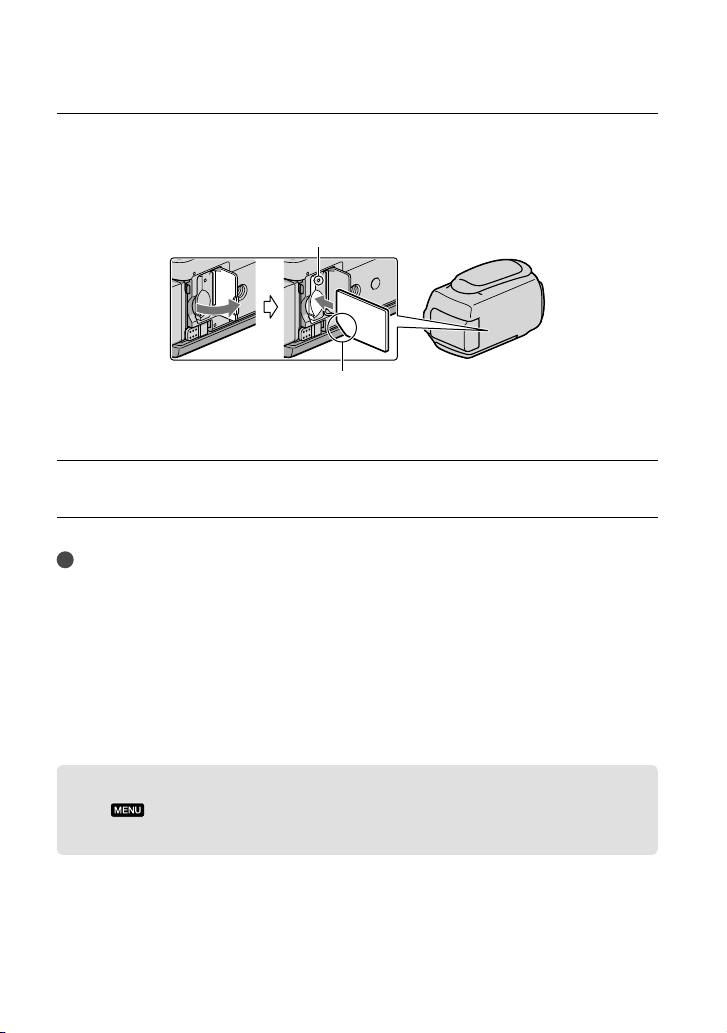
Open the cover, and insert the memory card with the notched edge in the
direction as illustrated until it clicks.
Close the cover after inserting the memory card.
The [Preparing image database file. Please wait.] screen appears if you insert a new
memory card. Wait until the screen disappears.
Close the cover.
Notes
If [Failed to create a new Image Database File. It may be possible that there is not enough free space.] is
displayed, format the memory card.
Confirm the direction of the memory card. If you forcibly insert the memory card in the wrong direction,
the memory card, memory card slot, or image data may be damaged.
Do not open the cover during recording.
When inserting or ejecting the memory card, be careful so that the memory card does not pop out and
drop.
To eject the memory card
Open the cover and lightly push the memory card in once.
Copying movies and photos (HDR-CX160/CX180)
Touch (MENU) [Edit/Copy] [Copy], then follow the instructions that appear
on the screen.
Access lamp
Note the direction of notched corner.
23
US
Recording/Playback
Recording/Playback
Recording
In the default setting, movies and photos are recorded on the following media. Movies are
recorded with high definition image quality (HD).
HDR-CX130: Memory card
HDR-CX160/CX180: Internal recording media
Tips
To change the recording media, see page 20 (HDR-CX160/CX180).
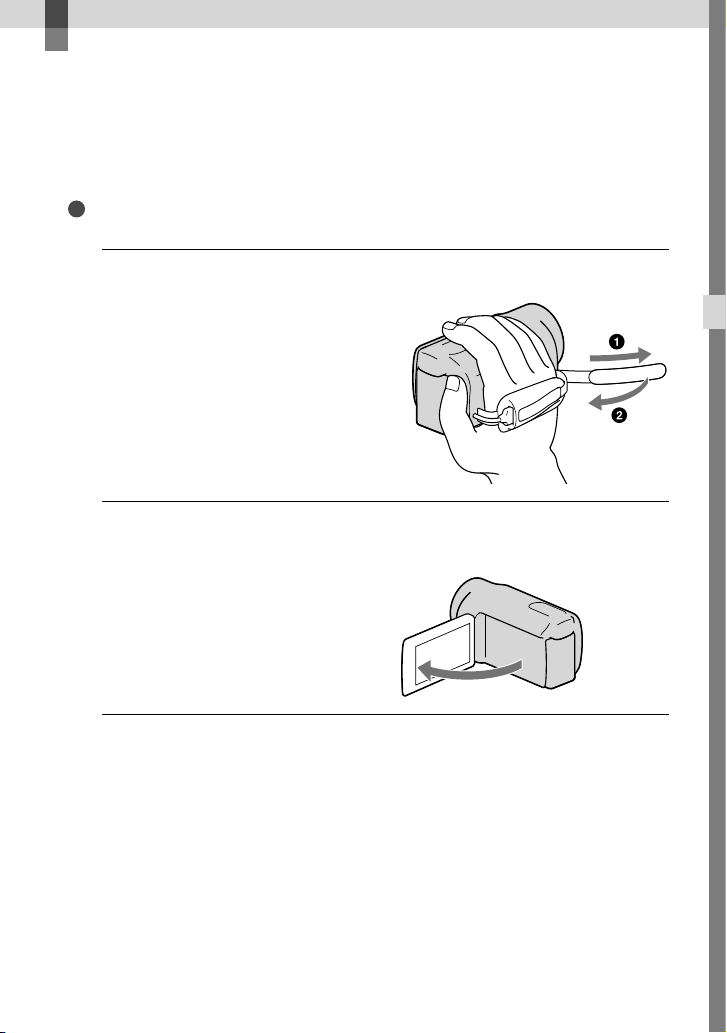
1
Fasten the grip belt.
2
Open the LCD screen of your camcorder.
Your camcorder is turned on and the lens cover is opened.
24
US
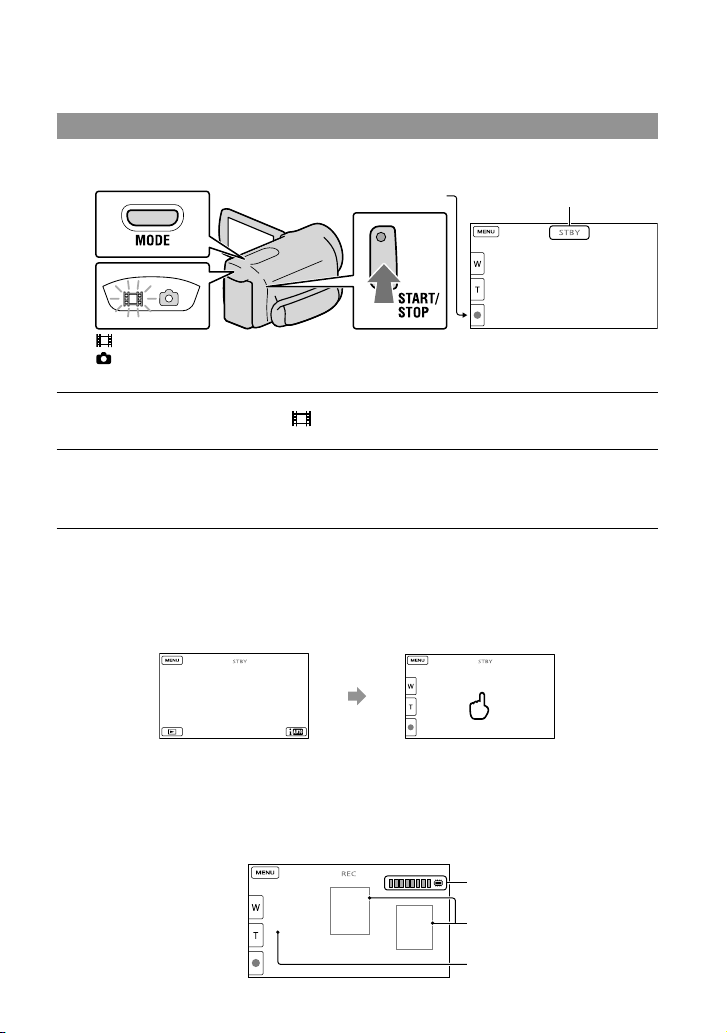
Recording movies
Press MODE to turn on the (Movie) lamp.
Press START/STOP to start recording.
To stop recording, press START/STOP again.
To display items on the LCD screen again
Touch anywhere on the screen except the buttons on the LCD screen so that you can use
items. You can change the settings using the [Display Setting] menu.
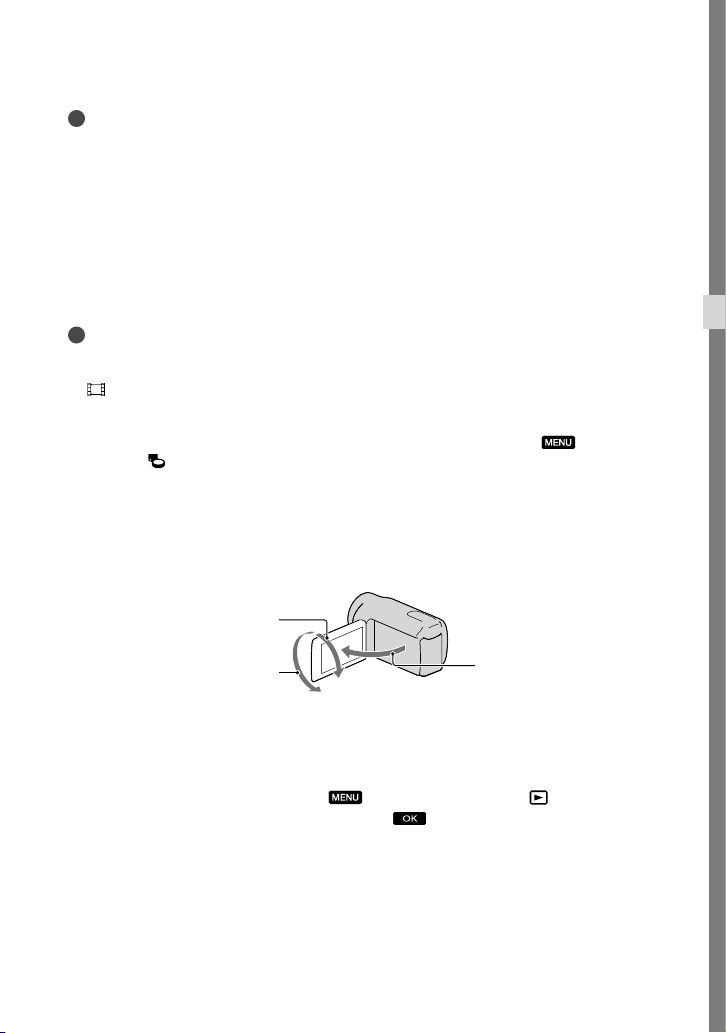
To capture smiles
In the default setting, a photo is automatically recorded when the camcorder detects the smile
of a person during movie recording (Smile Shutter). When the camcorder detects faces during
movie recording, image quality is automatically adjusted ([Face Detection]).
MODE button
(Movie): When recording a movie
(Photo): When recording a photo
[STBY] [REC]
START/STOP button
Face Detection frame (White)
Smile Detection frame
(Orange)
Capturing a photo
about 4sec
after
25
US
Recording/Playback
Notes
If you close the LCD screen while recording movies, the camcorder stops recording.
The maximum continuous recordable time of movies is about 13 hours.
When a movie file exceeds 2 GB, the next movie file is created automatically.
It will take several seconds until you can start recording after you turn on the camcorder. You cannot
operate your camcorder during this time.
The following states will be indicated if data is still being written onto the recording media after recording
has finished. During this time, do not apply shock or vibration to the camcorder, or remove the battery or
AC Adaptor.
A
ccess la
mp (p. 22) is lit or flashing
The media icon in the upper right of the LCD screen is flashing
Tips
See page 62 on the recordable time of movies.
You can record photos during movie recording by pressing PHOTO fully (Dual Rec).
[
SteadyShot] is set to [Active] in the default setting.
You can specify the priority face by touching it.
You can capture photos from recorded movies.
You can check the recordable time, estimated remaining capacity, etc., by touching
(MENU)
[Setup] [
(Media Settings)] [Media Info].
The LCD screen of your camcorder can display recording images across the entire screen (full pixel
display). However, this may cause slight trimming of the top, bottom, right and left edges of images when
played back on a TV which is not compatible with full pixel display. In this case, set [Guide Frame] to
[On], and record images using the outer frame displayed on the screen as a guide.
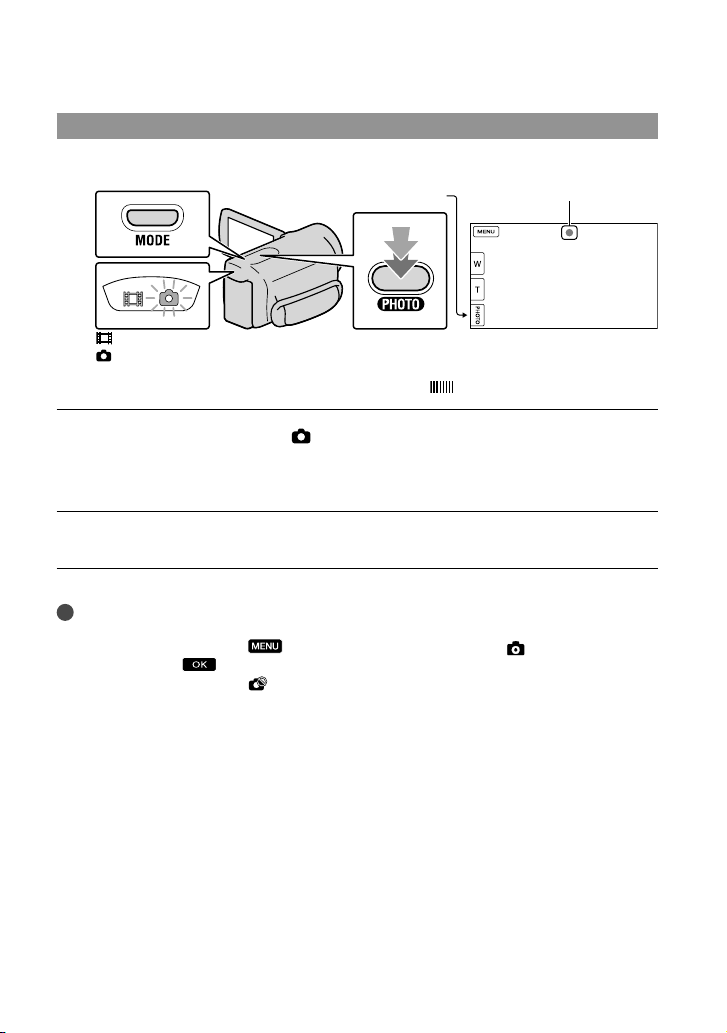
To adjust the angle of the LCD panel, first open the LCD panel 90 degrees to the camcorder (), and
then adjust the angle ().
Data code during recording
The recording date, time and condition are recorded automatically on the recording media.
They are not displayed during recording. However, you can check them as [Data Code]
during playback. To display them, touch
(MENU) [Setup] [ (Playback
Settings)] [Data Code] a desired setting
.
90 degrees (max.)
180 degrees (max.)
90 degrees to the
camcorder
26
US
Shooting photos
When disappears, the photo is recorded.
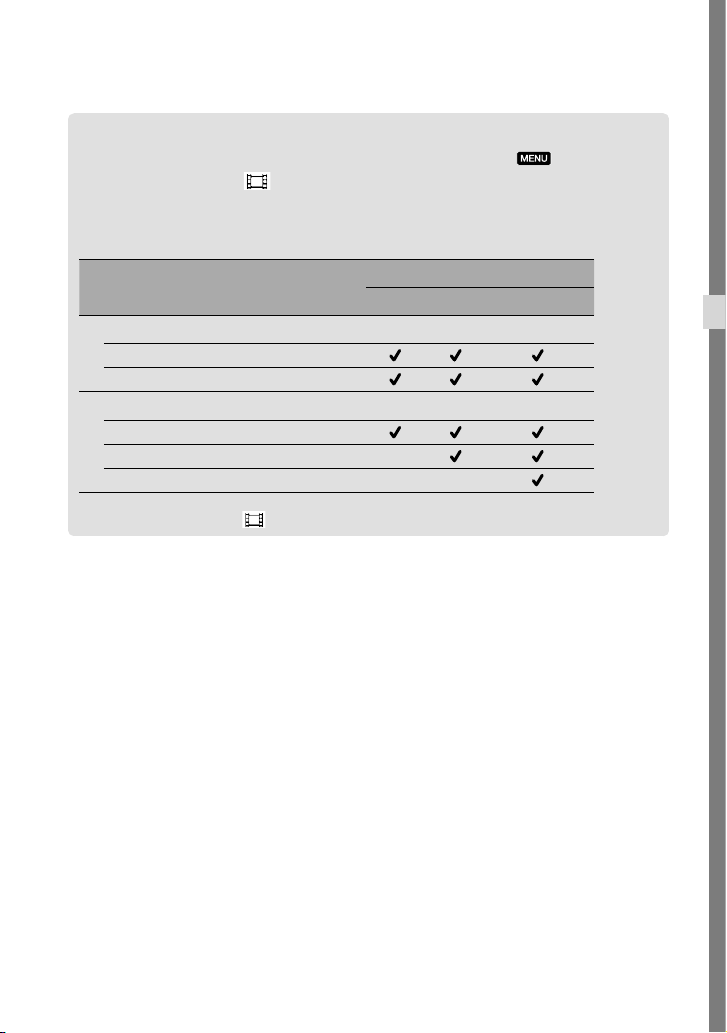
Press MODE to turn on the (Photo) lamp.
The LCD screen display switches for photo recording mode, and the screen aspect ratio
becomes 4:3.
Press PHOTO lightly to adjust the focus, then press it fully.
Tips
See page 63 on the recordable number of photos.
To change the image size, touch
(MENU) [Image Quality/Size] [ Image Size]
a desired setting
.
You cannot record photos while
is displayed.
MODE button
(Movie): When recording a movie
(Photo): When recording a photo
Flashes Lights up
PHOTO button
27
US
Recording/Playback
Selecting the recording mode
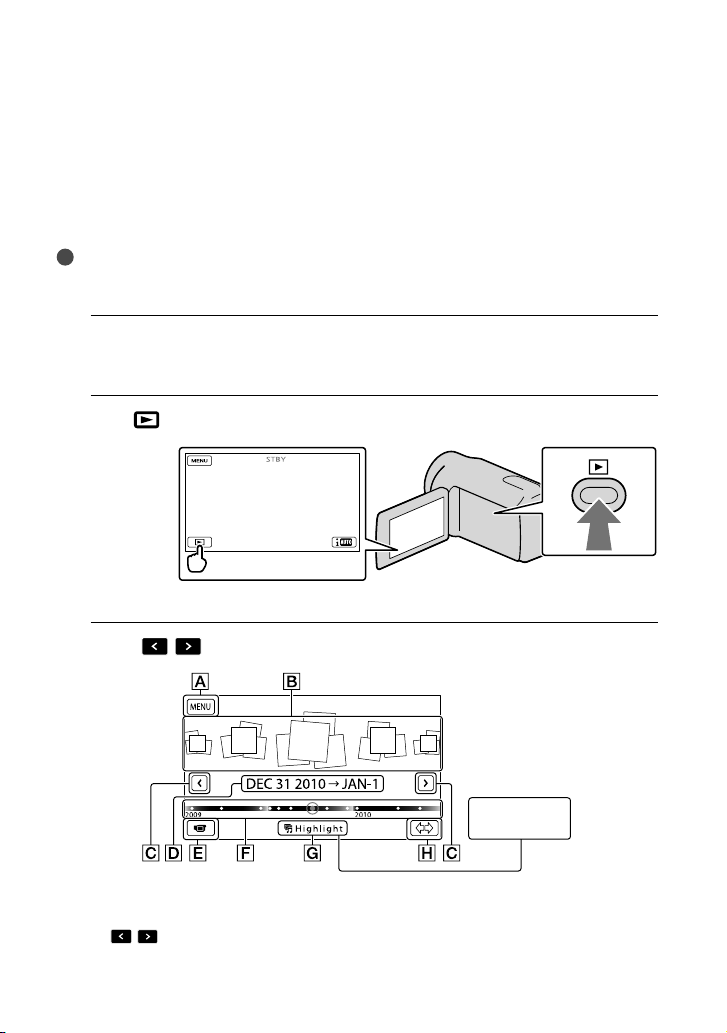
You can change the quality of the image that you record by touching (MENU)
[Image Quality/Size] [
REC Mode].
The types of media that images can be saved on will depend on the recording mode
selected.
For details on a save operation using the external devices, see page 43.
Types of media
Recording mode
PS
*
FX FH/HQ/LP
On this camcorder
Internal recording media
Memory card
On external devices
External media (USB storage devices)
Blu-ray discs —
AVCHD recording discs — —
* [PS] can be set only when [ Frame Rate] is set to [60p].
28
US
Playback on the camcorder
You can enjoy the playback of images with powerful sound through the stereo speakers built
into the camcorder.
In the default setting, movies and photos that are recorded on the following recording media
are played.
HDR-CX130: Memory card
HDR-CX160/CX180: Internal recording media
Tips
To change the recording media, see page 20 (HDR-CX160/CX180).
The camcorder displays recorded images as an event automatically based on the date and time.
1
Open the LCD screen of your camcorder.
Your camcorder is turned on and the lens cover is opened.
2
Press
(View Images).
The Event View screen appears after some seconds.
3
Touch
/ to select the desired event ().
To the MENU screen
Events
/ : To the previous/next event
Event name
Highlight
Playback
button
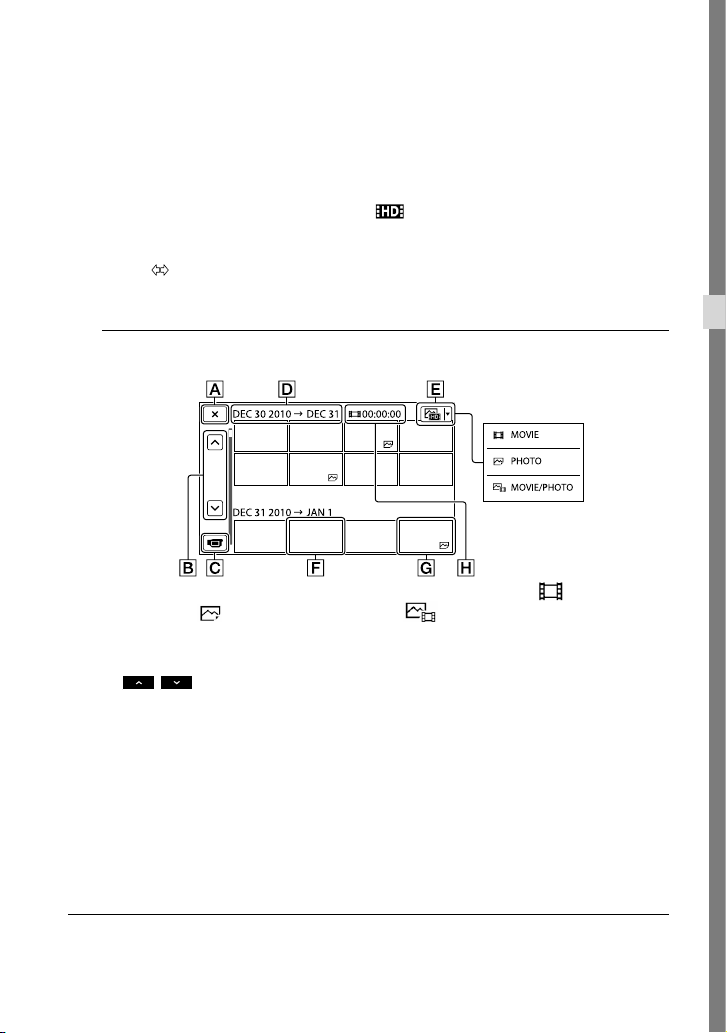
29
US
Recording/Playback
Change to the movie/photo recording mode
Time-line bar
Highlight Playback button
*
Change Event Scale button
* Appears only when the image quality is set to [ HD Quality].
The Event Index screen appears when you touch the event that is displayed on the center.
You can also choose an event by touching on the time-line bar.
Touch
(Change Event Scale) on the bottom right of the screen so that you can change the time
range of the time-line bar from one and a half years to three months, which changes the number of
the events that can be displayed on the time-line bar.
4
Touch an image you want to view.
Touch to select the image type to be displayed in the index from [ MOVIE]
(movies only), [
PHOTO] (photos only), or [ MOVIE/PHOTO] (movies and
photos mixed).
To go back to the Event View screen
/ : Displays the previous/next page (Touching and holding the button
scrolls the index screen.)
Change to the movie/photo recording mode
Event title
Switch Image Type button
Movie
Photo
Total playing time of movies in the event (total number of photos if photos only)
appears with the movie or photo that was most recently played or recorded. If you touch the
movie or photo with , you can continue playback from the previous time.
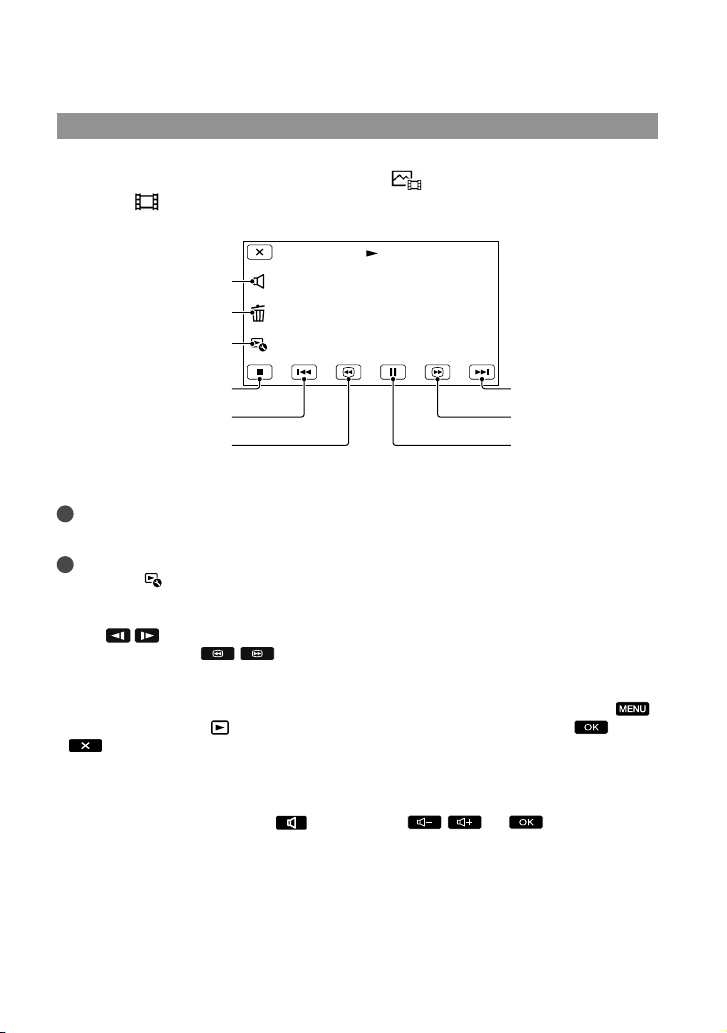
30
US
Operating the camcorder while playing a movie
You can use the functions shown in the figure below while the camcorder is playing a movie.
The figure below will be displayed when you select [
MOVIE/PHOTO] (the default
setting) or [
MOVIE] by touching the Switch Image Type button on the Event Index
screen.
* These buttons can be used only when the camcorder is playing a movie.
Notes
You may not be able to play back the images with other devices than camcorder.
Tips
Touching the
button on the playback screen displays functions you can currently use, and allows you
to use those functions easily.
When playback from the selected image reaches the last image, the screen returns to the INDEX screen.
Touch
/ during pause to play back movies slowly.
As you repeat touching
/ during playback, movies are played as fast as about 5 times
about 10 times about 30 times about 60 times.
The recording date, time, and shooting conditions are recorded automatically during recording. This
information is not displayed during recording, but you can display it during playback by touching
(MENU) [Setup] [
(Playback Settings)] [Data Code] a desired setting
.
In the default setting, a protected demonstration movie is pre-recorded (HDR-CX160/CX180).
To adjust the sound volume of movies
While playing back movies, touch adjust with / .
To pause*/play
To fast-forward
*
Delete
Next
To fast-reverse
*
To stop*
Previous
Volume adjustment
Context
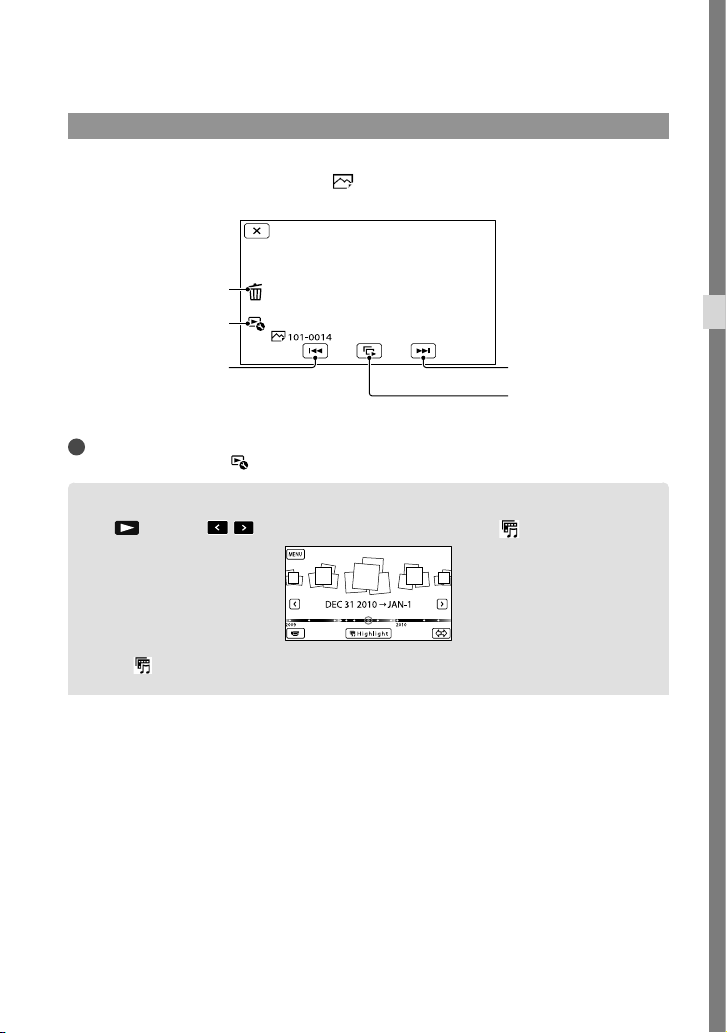
31
US
Recording/Playback
Viewing photos
You can use the functions shown in the figure below while you are viewing photos. The figure
below will be displayed when you select [
PHOTO] by touching the Switch Image Type
button on the Event Index screen.
Tips
To repeat Slideshow, touch
[Slideshow Set].
Performing Highlight Playback
Press Touch / to select the desired event, then touch [ Highlight].
Touch [ Scenario Save] on the screen after the Highlight Playback is finished so that you can save
the Highlight Playback scenario.
To start/stop slide show
Next
Previous
Delete
Context
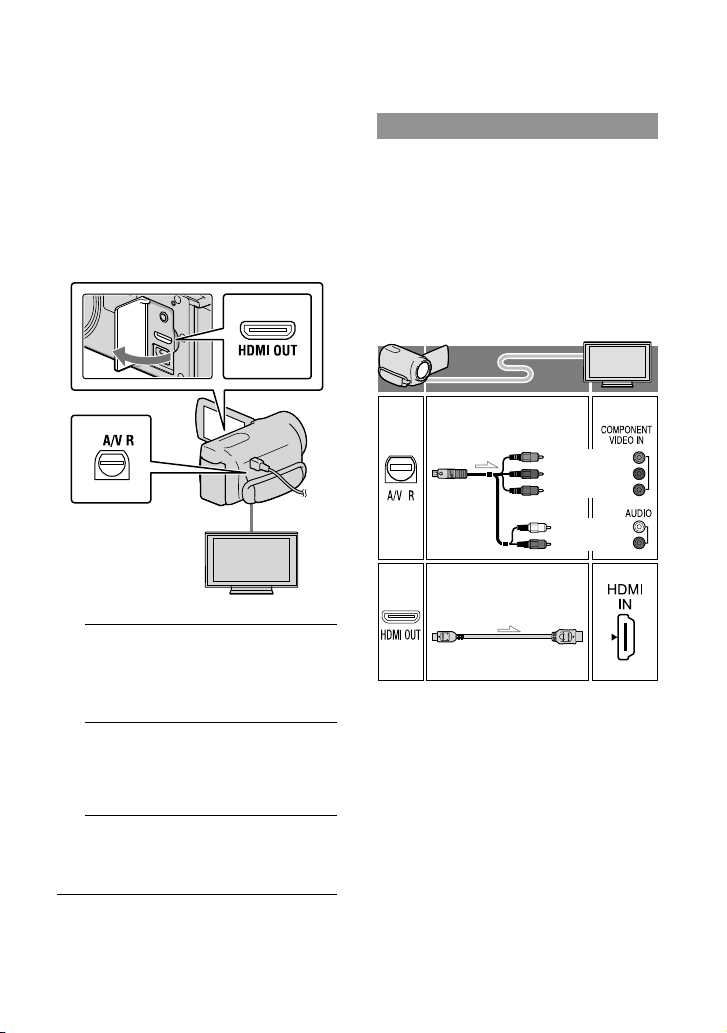
32
US
Playing images on a TV
Connection methods and the image
quality (high definition (HD) or standard
definition (STD)) viewed on the TV screen
differ depending on what type of TV is
connected, and the connectors used.
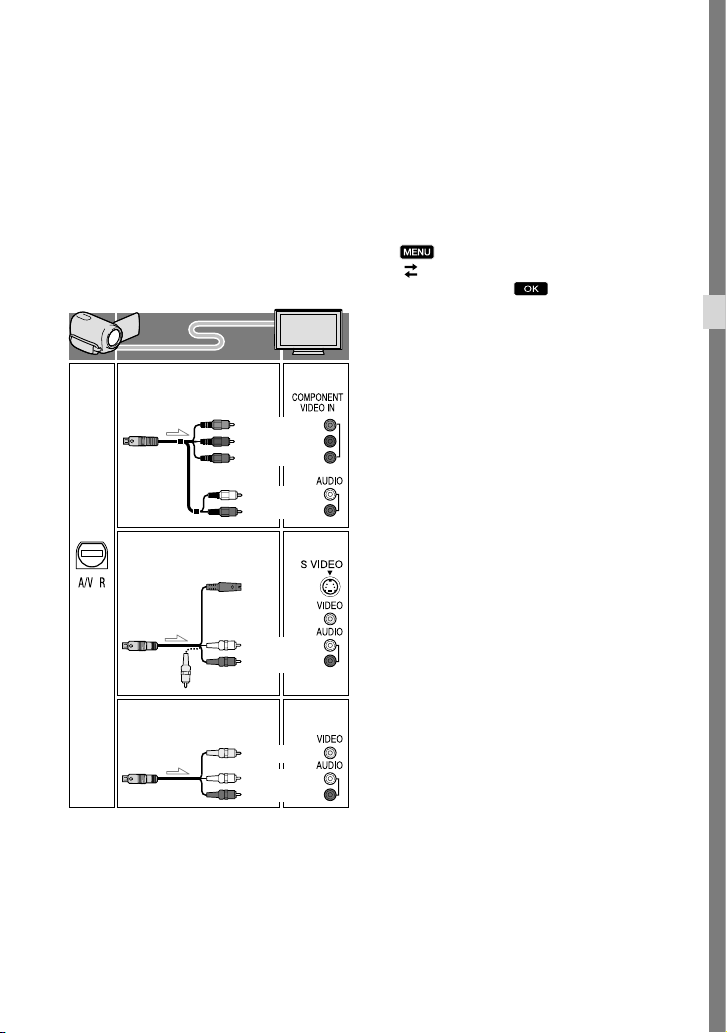
Output connectors on the camcorder
1
Switch the input on the TV to the
connected jack.
Refer to the instruction manuals of the TV.
2
Connect the camcorder to a TV.
Use the supplied AC Adaptor as the power
source (p. 15).
3
Play a movie or a photo on the
camcorder (p. 28).
List of connection
Connecting to a high definition TV
When the recording quality is high
definition image quality (HD), the movies
are played back in high definition image
quality (HD). When the recoding quality is
standard image quality (STD), the movies
are played back in standard definition
image quality (STD).
HDMI OUT jack
A/V Remote
Connector
(Green) Y
(Blue)
PB/CB
(Red)
PR/CR
(White)
(Red)
Component A/V Cable
(supplied)
HDMI Cable
(sold separately)
33
US
Recording/Playback
Connecting to a non-high-definition
16:9 (wide) or 4:3 TV
When movies are recorded with high
definition image quality (HD), they are
played back in standard definition image
quality (STD). When movies are recoded
with standard image quality (STD), they are
played back in standard definition image
quality (STD).
When you connect with component
A/V cable
If you connect only component video plugs,
audio signals are not output. Connect the white
and red plugs to output audio signals.
Select the [Component] setting for the
component input jack you are using. Touch
(MENU) [Setup]
[
(Connection)] [Component]
a desired setting
to make the setting.
When you connect with HDMI cable
Use an HDMI cable with the HDMI logo.
Use an HDMI mini connector on one end
(for the camcorder), and a plug suitable for
connecting your TV on the other end.
Copyright-protected images are not output
from the HDMI OUT jack of your camcorder.
Some TVs may not function correctly (e.g., no
sound or image) with this connection.
Do not connect the camcorder HDMI OUT
jack to an external device HDMI OUT jack, as
malfunction may result.
To set the aspect ratio according to the
connected TV (16:9/4:3)
Set [TV Type] to [16:9] or [4:3] according to
your TV.
When you connect with A/V
connecting cable with S-Video
When the S VIDEO plug (S VIDEO channel)
is connected, audio signals are not output. To
output audio signals, connect the white and red
plugs to the audio input jack of your TV.
This connection produces higher resolution
images compared with the A/V connecting
cable.
When your TV is monaural (When your
TV has only one audio input jack)
Connect the yellow plug of the A/V connecting
cable to the video input jack and connect the
white (left channel) or red (right channel) plug
to the audio input jack of your TV or VCR.
(Green) Y
(Blue)
PB/CB
(Red)
PR/CR
(White)
(Red)
(Yellow)
(White)
(Red)
(White)
(Red)
(Yellow)
Component A/V Cable
(supplied)
A/V connecting cable with
S VIDEO (sold separately)
A/V connecting cable
(supplied)

34
US
When connecting to your TV via a VCR
Connect your camcorder to the LINE IN input
on the VCR using the A/V connecting cable. Set
the input selector on the VCR to LINE (VIDEO
1, VIDEO 2, etc.).
Notes
When you play back standard definition image
quality (STD) movies on a 4:3 TV that is not
compatible with the 16:9 signal, record movies
with 4:3 aspect ratio. Touch
(MENU)
[Image Quality/Size] [
Wide Mode]
[4:3]
.
When the A/V connecting cable is used to
output movies, movies are output with standard
definition image quality (STD).
Tips
If you connect your camcorder to the TV using
more than one type of cable to output images,
the order of priority of the TV input jacks is as
follows:
HDMI component S VIDEO video
HDMI (High Definition Multimedia Interface)
is an interface to send both video/audio signals.
The HDMI OUT jack outputs high quality
images and digital audio.
On “Photo TV HD”
This camcorder is compatible with the
“Photo TV HD” standard. “Photo TV
HD” allows for highly-detailed, photo-like
depiction of subtle textures and colors.
By connecting Sony’s Photo TV HD-
compatible devices using an HDMI cable
*
or the component AV cable
**, a whole
new world of photos can be enjoyed in
breathtaking full HD quality.
* The TV will automatically switch to the
appropriate mode when [
PHOTO] is
selected with the Switch Image Type button.
** Setup of the TV will be necessary. Please refer
to the instructions of your Photo TV HD-
compatible TV for details.
35
US
Advanced operations
Advanced operations
Deleting movies and
photos
You can free media space by deleting
movies and photos from recording media.
Notes
You cannot restore images once they are
deleted. Save important movies and photos in
advance.
Do not remove the battery pack or the AC
Adaptor from your camcorder while deleting
the images. It may damage the recording media.
Do not eject the memory card while deleting
images from the memory card.
You cannot delete protected movies and photos.
Undo the protection of the movies and photos
to delete them, before you try to delete them.
The demonstration movie on your camcorder is
protected (HDR-CX160/CX180).
If you delete movies/photos that are included
in saved scenarios, the scenarios will also be
deleted.
Tips
If you start playing back an image by selecting it
from the Event Index screen, you can delete the
image using
on the playback screen.
To delete all images recorded in the recording
media, and recover all the recordable space of
the media, format the media.
Reduced-size images which enable you to view
many images at the same time on an index
screen are called “thumbnails.”
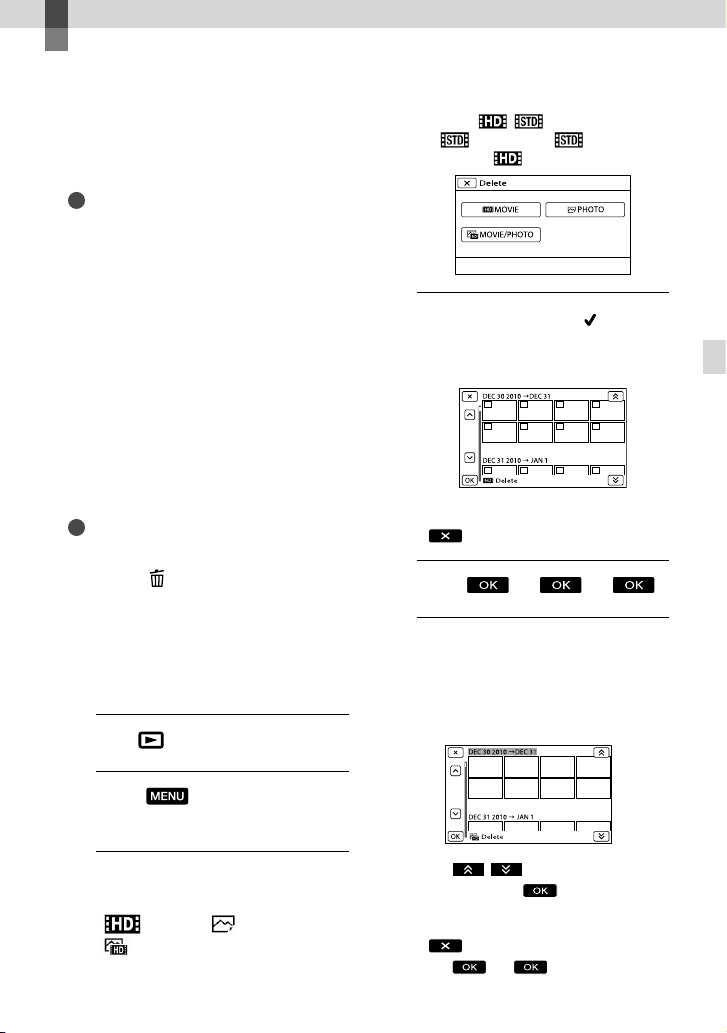
1
Press (View Images) (p. 28).
2
Touch (MENU) [Edit/
Copy] [Delete].
3
To select and delete movies,
touch
[Multiple Images]
[ MOVIE]/[ PHOTO]/
[ MOVIE/PHOTO].
When [ / Setting] is set to
[
STD Quality], appears
instead of
.
4
Touch and display the mark
on the movies or photos to be
deleted.
Touch and hold the desired thumbnail so
that you can confirm the image. Touch
to return to the previous screen.
5
Touch .
To delete all movies/photos in an event
at one time
In step 3, touch [All In Event].
Touch / to select the desired
event, then touch
.
Touch and hold the desired thumbnail so
that you can confirm the image. Touch
to return to the previous screen.
Touch .
36
US
Saving movies and photos with a computer
Useful functions available if you connect the
camcorder to a computer
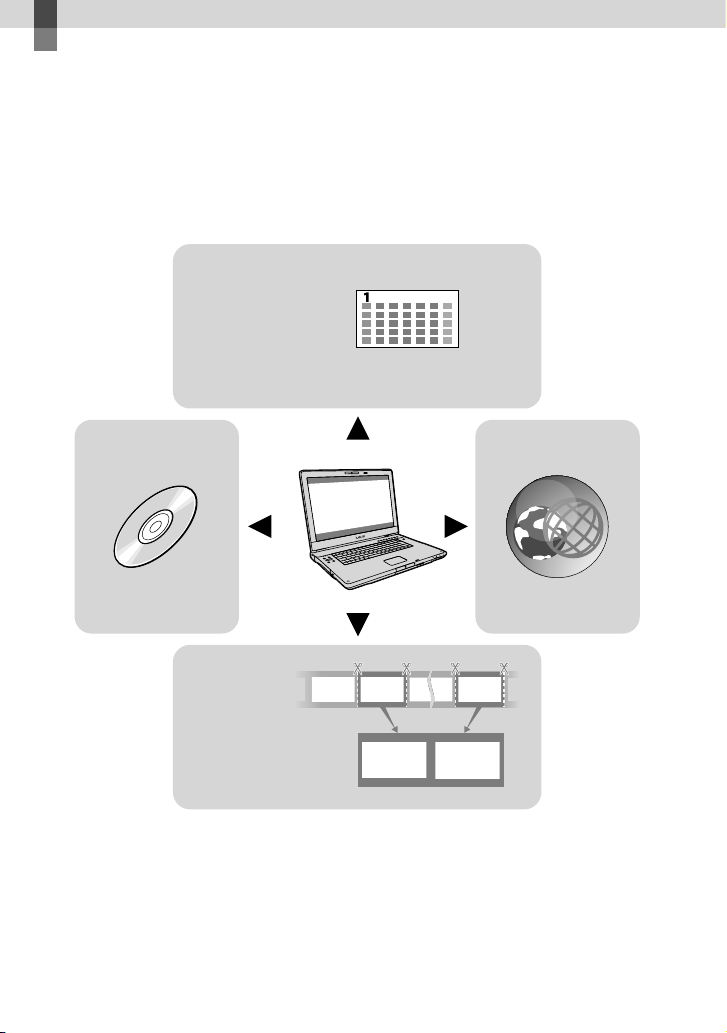
Editing and managing images on your computer (Windows)
The software PMB stored in the CD-ROM (supplied) includes functions that enable you to do
more with the images recorded with the camcorder.
Easy uploading when away from home (Windows, Macintosh)
With PMB Portable, which is pre-installed on the camcorder, you can play back or upload
your images to the Web by connecting your camcorder to a computer away from home.
View
Edit
Save on a disc Upload
Calendar
DVD/Blu-ray
Joining image files
Network services
37
US
Saving movies and photos with a computer
Preparing a computer
Step 1 Checking the computer
system
Windows
OS*
1
Microsoft Windows XP SP3*
2
/Windows Vista
SP2
*
3
/Windows 7
CPU
*
4
Intel Core Duo 1.66 GHz or faster, or Intel
Core 2 Duo 1.66 GHz or faster (Intel Core
2 Duo 2.26 GHz or faster is required when
processing FX or FH movies, and Intel Core
2 Duo 2.40 GHz or faster is required when
processing PS movies.)
However, Intel Pentium III 1 GHz or faster is
sufficient for the following operations:
Importing the movies and photos to the
computer
One Touch Disc Burn
Creating a Blu-ray disc/AVCHD
recording
disc/DVD-video (Intel Core Duo 1.66 GHz
or faster is required when creating a DVD
video by converting high definition image
quality (HD) to standard definition image
quality (STD).)
Copying a disc
Processing only the movies with standard
definition image quality (STD)
Application
PMB/PMB Portable/Music Transfer
Memory
For Windows XP: 512 MB or more (1 GB or
more is recommended.)
However, 256 MB or more is sufficient for
processing only the movies with standard
definition image quality (STD).
For Windows Vista/Windows 7: 1 GB or
more
Hard disk
Disk volume required for installation:
Approximately 500 MB (10 GB or more
may be necessary when creating AVCHD
recording discs. 50 GB maximum may be
necessary when creating Blu-ray discs.)
Display
Minimum 1,024 × 768 dots
Others
USB port (this must be provided as standard,
Hi-Speed USB (USB 2.0 compatible)), Blu-
ray disc/DVD burner (CD-ROM drive is
necessary for installation) Either NTFS or
exFAT file system is recommended as the
hard disk file system.
Macintosh
OS
PMB Portable: Mac OS X
*
5
(v10.5-v10.6)
Music Transfer: Mac OS X
*
5
(v10.4-v10.6)
*
1
Standard installation is required. Operation is
not assured if the OS has been upgraded or in a
multi-boot environment.
*
2
64-bit editions and Starter (Edition) are not
supported. Windows Image Mastering API
(IMAPI) Ver.2.0 or newer is required to use disc
creation function, etc.
*
3
Starter (Edition) is not supported.
*
4
Faster processor is recommended.
*
5
Macintosh computer with an Intel processor
Notes
Operation with all computer environments is
not assured.
When using a Macintosh
The supplied software “PMB” is not
supported by Macintosh computers. To
import the movies and photos to the
computer, please contact Apple Inc.
Step 2 Installing the supplied
software “PMB”
Install “PMB” before connecting your
camcorder to a computer.
38
US
Notes
If a version of “PMB” under 5.0.00 has been
installed on your computer, you may be unable
to use some functions of those “PMB” when
installing the “PMB” from the supplied CD-
ROM. Also, “PMB Launcher” is installed from
the supplied CD-ROM and you can start “PMB”
or other software by using the “PMB Launcher.”
Double-click the “PMB Launcher” short-cut
icon on the computer screen to start “PMB
Launcher.”
Confirm that your camcorder is
not connected to the computer.
Turn on the computer.
Log on as an Administrator for
installation.
Close all applications running on the
computer before installing the software.
Place the supplied CD-ROM in
the disc drive of your computer.
The installation screen appears.
If the screen does not appear, click
[Start] [Computer] (in Windows
XP, [My Computer]), then double-click
[SONYPMB (E:)] (CD-ROM)
*.
* Drive names (such as (E:)) may vary
depending on the computer.
Click [Install].
Select the country or region.
Select the language for the
application to be installed, then
proceed to the next screen.
Read the terms of the license
agreement carefully. If you agree
to the terms, change
to , and
then click [Next] [Install].
Follow the instructions that
appear on the computer screen
to continue the installation.
You may be required to install some
other applications included on the disc at
the same time. If the installation display
appears, follow the instructions that appear
on the screen.
When you are required to restart the
computer, follow the instructions that
appear on the screen and restart it.
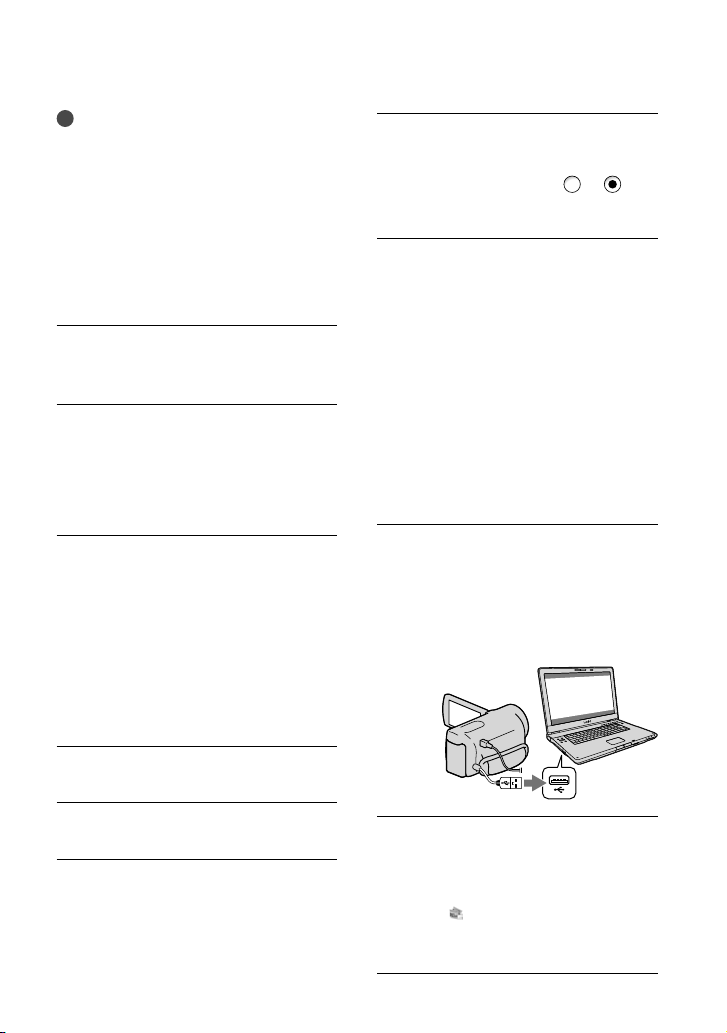
Connect the camcorder to the computer
when you are instructed to do so.
Connect the camcorder to the
computer using the Built-in USB
Cable, then touch [USB Connect]
on the LCD screen of the
camcorder.
When the installation is
completed, remove the CD-ROM
from the computer.
Click (PMB icon) that appears on the
desktop of the computer to start up the
software.

39
US
Saving movies and photos with a computer
Notes
To create discs or use other functions on
Windows XP, Image Mastering API v2.0 for
Windows XP should be installed. If Image
Mastering API v2.0 for Windows XP has not
been installed yet, select it from required
programs on the installation screen and install
it following the procedures displayed. (The
computer must be connected to the internet
for the installation.) You may install Image
Mastering API v2.0 for Windows XP in
response to the message displayed when you try
to start those functions.
Operation is not guaranteed if you read or write
video data from or to the camcorder using
software other than the supplied “PMB.” For the
information on the compatibility of the software
you are using, consult the manufacturer of the
software.
To disconnect your camcorder from the
computer
Click the icon at the bottom right of the
desktop of the computer [Safely remove
USB Mass Storage Device].
Touch [Cancel] [Yes] on the camcorder
screen.
Disconnect the USB cable.
If you are using Windows 7, the
icon may
not appear on the desktop of the computer. In
this case, you can disconnect the camcorder
from your computer without following the
procedures described above.
Notes
Do not format the internal recording media of
the camcorder using a computer. If you do this,
the camcorder will not operate correctly.
Do not insert AVCHD recording discs that have
been created using the “PMB” software to DVD
players or recorders, as these devices do not
support the AVCHD standard. If you do, you
may not be able to remove the disc from these
devices.
This camcorder captures high definition footage
in the AVCHD format. Using the enclosed
PC software, high definition footage can be
copied onto DVD media. However, DVD media
containing AVCHD footage should not be used
with DVD based players or recorders, as the
DVD player/recorder may fail to eject the media
and may erase its contents without warning.
When you access the camcorder from the
computer, use the supplied software “PMB” or
the pre-installed software “PMB Portable.” Do
not modify the files or folders on the camcorder
from the computer. The image files may be
damaged or may not be played back.
Operation is not guaranteed, if you operate the
data on the camcorder from the computer.
The camcorder automatically divides an image
file that exceeds 2 GB or larger and saves the
parts as separate files. All image files may be
shown as separate files on a computer, however,
the files will be handled properly by the import
function of the camcorder or the “PMB”
software, and also by the playback function of
the “PMB Portable” software.
Use the supplied “PMB” software when you
import long movies or edited images from
the camcorder to a computer. If you use other
software, the images may not be imported
correctly.
When you delete image files, follow the steps
on page 35.
You can create a Blu-ray disc by using a
computer with a Blu-ray disc burner. Install the
BD Add-on Software for “PMB.”
40
US
Starting PMB (Picture
Motion Browser)
1
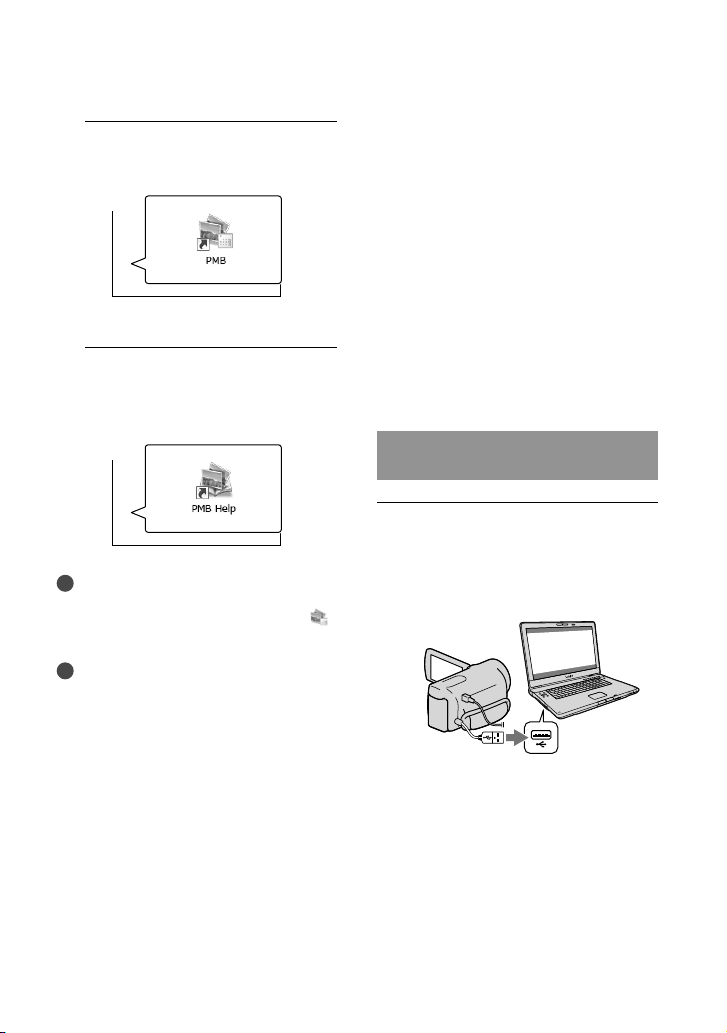
Double-click the “PMB” short-cut
icon on the computer screen.
The PMB software starts up.
2
Double-click the “PMB Help”
short-cut icon on the computer
screen to see how to use “PMB.”
Notes
If the icon is not displayed on the computer
screen, click [Start] [All Programs] [
PMB] the desired item.
Tips
Double-click “PMB Launcher” on the desktop
of the computer. This allows you to start the
desired function (application) by selecting one
from a list of “PMB” functions.
Uploading images to a
network service
The application software “PMB Portable”
is pre-installed in the camcorder. You can
enjoy the following functions using the
“PMB Portable.”
Uploading images to network services such as
blogs with ease
Uploading by a network connected computer
while away from home
Register network services (such as blogs) to use
frequently
Click the [Help] button on the upper right
of the computer screen after the “PMB
Portable” software starts up, and then you
can view the details on how to use the
software.
Starting up “PMB Portable”
(Windows)
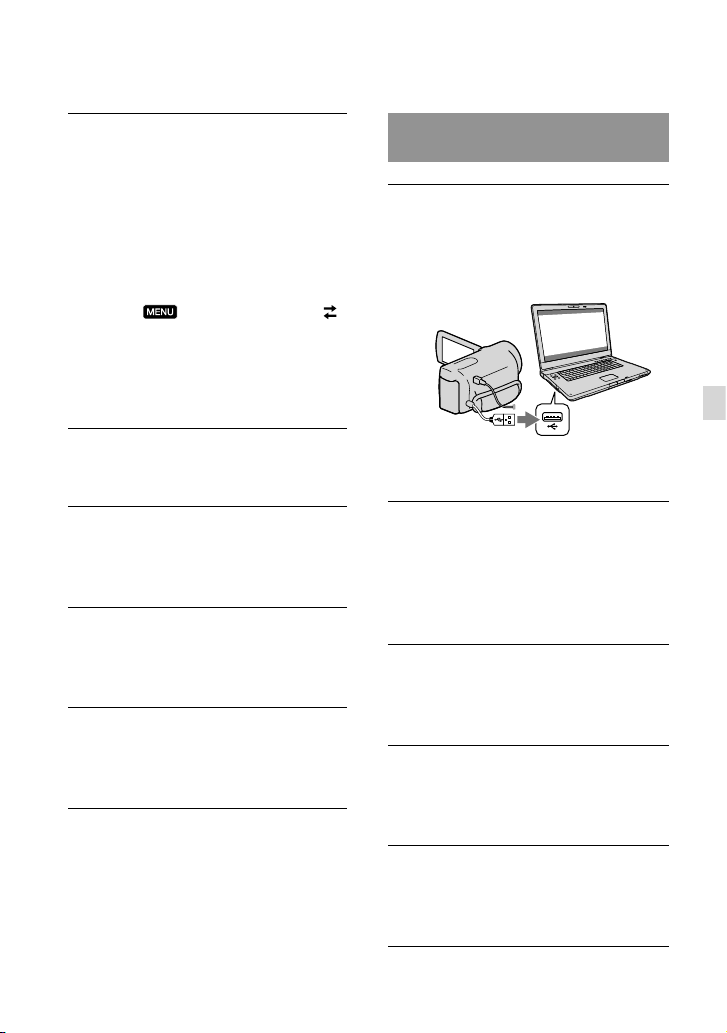
Turn on your camcorder, then
connect the camcorder to the
computer using the Built-in USB
Cable.
The [USB Select] screen appears on the
camcorder screen.
41
US
Saving movies and photos with a computer
Starting up “PMB Portable”
(Macintosh)
Turn on your camcorder, then
connect the camcorder to the
computer using the Built-in USB
Cable.
The [USB Select] screen appears on the
camcorder screen.
Touch [USB Connect] on the
camcorder screen.
When the computer recognizes the
camcorder, the [PMBPORTABLE] icon
appears on the computer screen
Click “PMBP_Mac” in the
[PMBPORTABLE] folder.
The area select screen appears.
Select [Region] and [Country/
Area] and click [OK].
The license agreement screen appears.
Read the agreement well and
click [I Agree].
“PMB Portable” starts up.
Touch [USB Connect] on the
camcorder screen.
When using Windows 7: The Device
Stage
* window opens.
When using Windows XP/Windows
Vista: The AutoPlay wizard is
displayed.
If the[USB Select] screen does not appear,
touch
(MENU) [Setup] [
(Connection)] [USB Connect].
* “Device Stage” is a menu of Windows 7,
that is used to manage devices (camcorder,
camera, etc.) that are connected to the
computer.
Click “PMB Portable.”
The license agreement screen appears.
Select the desired language and
click [OK].
The area select screen appears.
Select [Region] and [Country/
Area] and click [OK].
The license agreement screen appears.
Read the agreement well and
click [I Agree].
“PMB Portable” starts up.

42
US
Notes
When using “PMB Portable,” make sure to
connect the camcorder to the network.
S
et [USB LUN S
etting] to [Multi] (p. 57).
If the “PMB Portable” does not start up, set
[US
B Conn
ect Setting] to [Mass Storage] (p. 57)
and try reconnecting.
If the AutoPlay wizard does not appear when
you are using Windows XP or Windows Vista,
click [Start] [Computer] (in Windows XP,
[My Computer]) [PMBPORTABLE], then
double click [PMBP_Win.exe].
If the “Device Stage” does not start up when you
are using Windows 7, click [Start], then double
click the camera icon for this camcorder the
medium icon on which the desired images are
stored [APPLICATION] [PMBP_MTP.
exe].
If you are using Windows 7, the Device Stage
start-up window (which does not contain the
information about the specific device) may
appear, depending on the computer settings.
In such a case, follow the instructions on the
screen and download the latest information
about the system.
If you are using Windows 7, the [USB Connect
Setting] (USB transfer mode) will be changed to
[Mass Storage] automatically when you start up
“PMB Portable.”
When you upload images via Internet, as in the
case of with the camcorder, cache files may be
stored in the computer you are using depending
on the service provider to upload the image to.
If a problem occurs to “PMB Portable” or if you
wrongly delete the software, you can download
the “PMB Portable” installer from the Web to
repair.
Notes on “PMB Portable”
You can download the URLs of some
websites from a server administered by
Sony (hereinafter referred to as the “Sony
server”) using “PMB Portable.”
You must agree to the following in order to
utilize the image uploading service (herein
after referred to as “the service”) provided
by various websites including those using
“PMB Portable.”
Depending on the website, registration
and fees may be required for use of the
service. Use the service in accordance
with the terms stipulated by the website.
The service can be suspended or altered
without notice by the website organizer.
In these, as well as other cases, Sony
shall not be liable in any way for any loss,
damages or trouble between you and a
third party which arose from the use of
the service.
You will be redirected to the websites by
the Sony server. However, you may not
be able to access the websites for some
reason such as server maintenance.
If Sony decides to terminate server
operation, it will be announced in
advance on Sony’s website, etc.
Such information as URL address of
the site you are redirected to from the
Sony server may be recorded in order
to improve products and services Sony
offers in the future. However, personal
information will not be recorded.
43
US
Saving images with an external device
Saving images with an external device
Selecting a method for saving images with an
external device
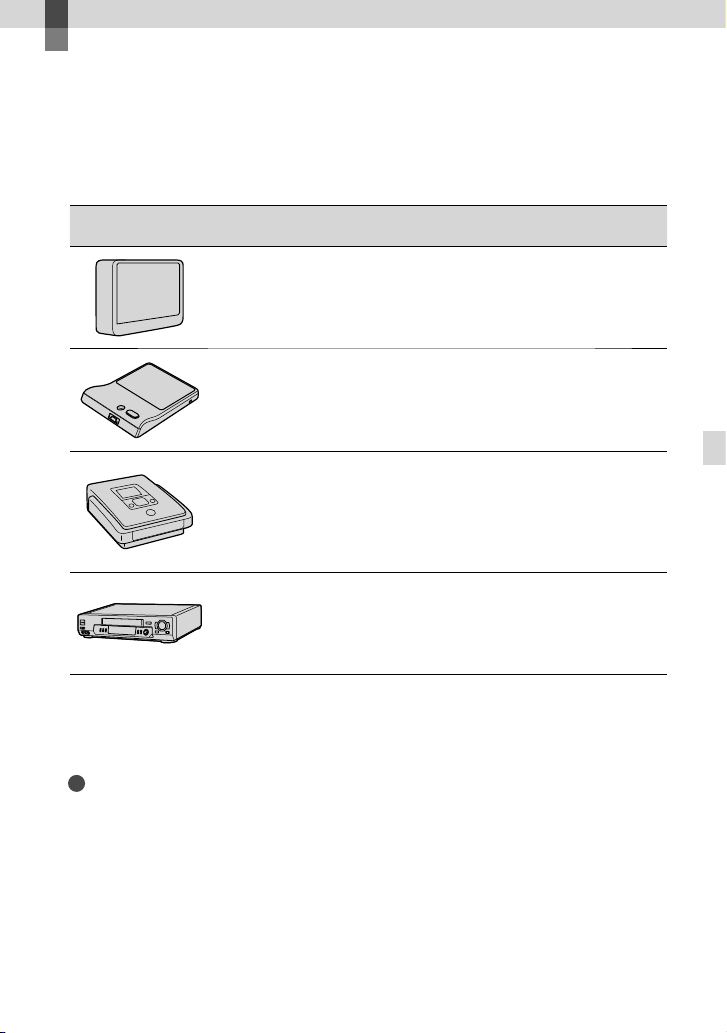
You can save high definition image quality (HD) movies using an external device. Select the
method to be used according to the device.
External devices Connecting cable Page
External media device
Saving images on an external
media device with high
definition image quality (HD).
USB Adapter cable
VMC-UAM1 (sold
separately)
45
DVDirect Express DVD writer
Saving images on a DVD disc
with high definition image
quality (HD).
Built-in USB cable of
the DVDirect Express
48
DVD writer other than
DVDirect Express
Saving images on a DVD disc
with high definition image
quality (HD) or with standard
definition image quality (STD).
Built-in USB Cable
51
Hard disk recorder, etc.
Saving images on a DVD disc
with standard definition image
quality (STD).
A/V connecting cable
(supplied)
52
Movies that are recorded with standard definition image quality (STD)
Use the A/V connecting cable to connect the camcorder to an external device in which images
are saved.
Notes
The AVCHD recording disc can be played back only on AVCHD format compatible devices.
Discs with high definition image quality (HD) images recorded should not be used in DVD players/
recorders. Because DVD players/recorders are not compatible with the AVCHD format, DVD players/
recorders may fail to eject the disc.
Delete the demonstration movie when copying or creating discs. If it is not deleted, the camcorder may
not operate correctly. However, you cannot recover the demonstration movie once you delete it.

44
US
The types of media on which images are saved
Refer to “Selecting the recording mode” on page 27.
The devices on which the created disc can be played back
DVD disc with high definition image quality (HD)
AVCHD format playback devices, such as a Sony Blu-ray disc player or a PlayStation
3.
DVD disc with standard definition image quality (STD)
Ordinary DVD playback devices, such as a DVD player.
Notes
Always maintain your PlayStation
3 to use the latest version of the PlayStation
3 system software.
The PlayStation
3 may not be available in some countries/regions.

45
US
Saving images with an external device
Saving images on an
external media device
You can save movies and photos on an
external media device (USB storage
devices), such as an external hard disk
drive. You can also play back images on the
camcorder or another playback device.
Notes
For this operation, you need the USB Adaptor
Cable VMC-UAM1 (sold separately).
The USB Adaptor Cable VMC-UAM1 may not
be available in some countries/regions.
Connect your camcorder to the wall outlet (wall
s
ock
et) using the supplied AC Adaptor (p. 15).
Refer to the instruction manual supplied with
the external media device.
Tips
You can import images saved on the external
media device to your computer by using the
supplied software “PMB.”
Functions available after saving images
on an external media device
playback of images through the camcorder
(p. 47)
importing images to “PMB”
Devices that cannot be used as an
external media device
You cannot use the following devices as an
external media device.
media devices with a capacity exceeding 2 TB
ordinary disc drive such as CD or DVD drive
media devices connected via a USB hub
media devices with built-in USB hub
card reader
Notes
You may not be able to use external media
devices with a code function.
The FAT file system is available for your
camcorder. If the storage medium of the
external device was formatted for the NTFS file
system, etc., format the external media device
using the camcorder before use. The format
screen appears when an external media device
is connected to your camcorder. Make sure that
important data has not previously been saved
on the external media device before you format
it using the camcorder.
Operation is not assured with every device
satisfying requirements for operating.
For details on available external media devices,
go to the Sony support website in your
country/region.
1
Connect the AC Adaptor and the
power cord (mains lead) to the
DC IN jack of your camcorder and
the wall outlet (wall socket).
2
If the external medium device
has the AC power cable, connect
it to the wall outlet (wall socket).
3
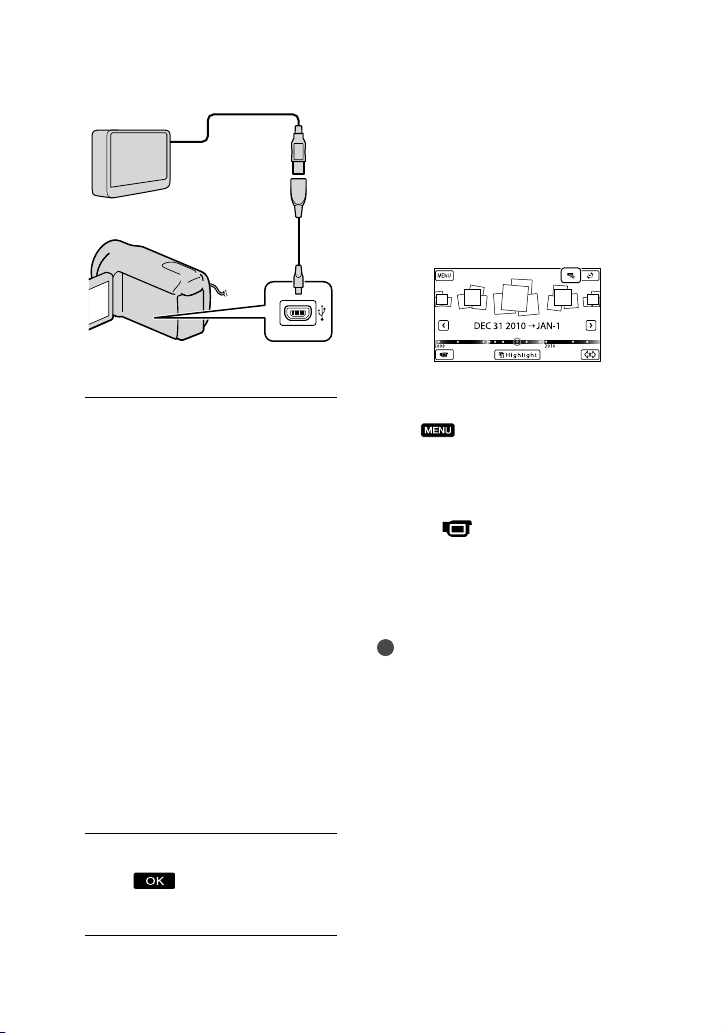
Connect the USB Adaptor Cable
to the external media device.
4
Connect the USB Adaptor Cable
to the (USB) jack of your
camcorder.
Make sure not to disconnect the USB
cable while [Preparing image database
file. Please wait.] is displayed on the
LCD screen. If [Repair Img. DB F.] is
displayed on the camcorder screen,
touch
.
46
US
You cannot use the Built-in USB Cable for
this type of connection.
5
Connect the external media
device and touch [Copy.] on the
camcorder screen.
HDR-CX130:
Movies and photos that are stored
in the memory card (inserted in the
camcorder), and that have not yet been
saved on to external media device
can be saved on the connected media
device at this time.
HDR-CX160/CX180:
Movies and photos that are stored on
one of the camcorder’s recording media
selected in [Media Select], and that
have not yet been saved on external
media device can be saved on the
connected media device at this time.
This operation is available only when there
are newly recorded images.
6
After operation is completed,
touch on the camcorder
screen.
When connecting an external media
device
The images saved in the external media
device are displayed on the LCD screen.
When an external media device is
connected, the USB icon will appear on the
Event View screen, etc.
You can make menu settings of the external
media device such as deleting images.
Touch
(MENU) [Edit/Copy] on
Event View.
To disconnect the external media
device
Touch while the camcorder is in
the playback standby mode ([Event
View] or Event Index is displayed) of the
external media device.
Di
sconnect the USB Adaptor Cable.
Notes
The number of scenes you can save on the
external media device are as follows. However,
even if the external media device has free space,
you cannot save scenes exceeding the following
number.
High definition image quality (HD) movies:
Max. 3,999
Standard definition image quality (STD)
movies: Max. 9,999
Photos: Max. 40,000
The number of scenes may be smaller
depending on the type of images recorded.
USB Adaptor
Cable
VMC-UAM1
(sold separately)
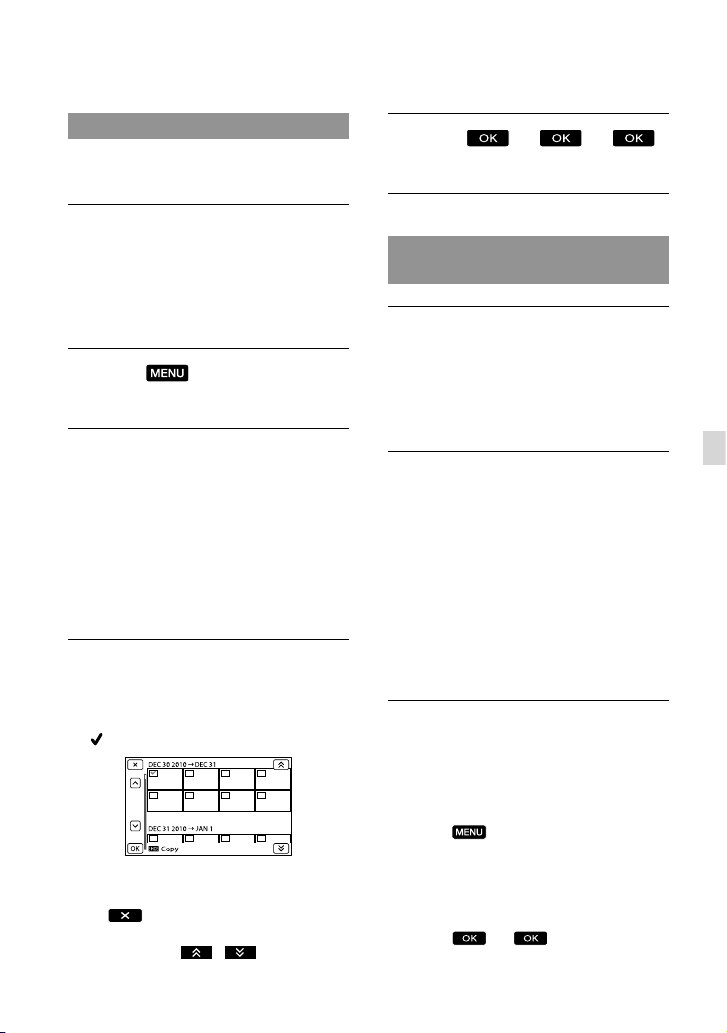
47
US
Saving images with an external device
Saving desired movies and photos
You can save desired images in the
camcorder to the external media device.
Connect the camcorder to the
external media device and touch
[Play without copying.].
Event View of the external medium is
displayed.
Touch
(MENU) [Edit/
Copy] [Copy] .
Follow the instructions that
appear on the screen to select
the recording media (HDR-
CX160/CX180), image selection
methods and type of the image.
You cannot copy images from an
external media device to the internal
recording medium on the camcorder.
When you selected [Multiple
Images], touch the image to be
saved.
appears.
Press and hold the image down on the
LCD screen to confirm the image. Touch
to return to the previous screen.
If you select [All In Event], select the event
to copy with
/ . You cannot
select multiple events.
Touch
on the camcorder screen.
Playing back images in the external
media device on the camcorder
Connect the camcorder to the
external media device and touch
[Play without copying.].
Event View of the external media device
is displayed.
Select the image you want to
view and play back the image
(p. 28).
You can also view images on a TV
connected to your camcorder (p. 32).
You can play back the high definition
image quality (HD) movies on your
computer using [Player for AVCHD].
Start [Player for AVCHD], and select the
drive where the external media device is
connected with [Settings].
To perform [Direct Copy] manually
You can perform [Direct Copy] manually
while the camcorder is connected to an
external media device.
T
ouch
(MENU) [Edit/Copy]
[Direct Copy] on the [Event View]
screen of the external media device.
T
ouch [Copy images that have not been
copie
d.].
T
ouch
.

48
US
Notes
If your camcorder does not recognize the
external media device, try the following
operations.
Reconnect the USB Adaptor Cable to your
camcorder.
If the external media device has the AC power
cord (mains lead), connect it to the wall outlet
(wall socket).
Creating a disc with
the DVD writer,
DVDirect Express
You can create a disc or play back the
images on a created disc by using the DVD
writer, DVDirect Express (sold separately).
Refer also to the instruction manual
supplied with the DVD writer.
Notes
Connect your camcorder to the wall outlet (wall
socket) using the supplied AC Adaptor for this
o
perat
ion (p. 15).
DVDirect Express is referred to as “DVD
writer” in this section.
Discs that can be used
12 cm DVD-R
12 cm DVD+R
The device does not support two-layered
discs.
1
Connect the AC Adaptor and the
power cord (mains lead) to the
DC IN jack of your camcorder
and the wall outlet (wall socket)
(p. 15).
2
Turn on your camcorder, and
connect the DVD writer to the
(USB) jack of your camcorder
with the USB cable of the DVD
writer.
You cannot use the Built-in USB Cable
for this type of connection.
49
US
Saving images with an external device
3
Insert an unused disc into the
DVD writer, and close the disc
tray.
4
Press (DISC BURN) on the DVD
writer.
HDR-CX130
Movies that are stored in the memory
card (inserted in the camcorder), and that
have not yet been saved on any disc can be
saved on the disc at this time.
HDR-CX160/CX180
Movies that are stored on one of the
camcorder’s recording media selected in
[Media Select], and that have not yet been
saved on any discs can be saved on the disc
at this time.
When there are unsaved high definition
(HD) and standard definition (STD)
image quality movies, they will be saved
on individual discs according to the image
quality.
If the files you want to copy do not fit
onto one disc, replace the disc in the DVD
writer with an unused one and repeat the
operation.
5
After the operation is completed,
touch (the
tray opens) remove the
disc touch on the
camcorder screen.
6
Touch , then disconnect the
USB cable.
Tips
If the total memory size of movies to be burnt
by the DISC BURN operation exceeds that of
the disc, disc creation stops when the limit is
reached. The last movie on the disc may be
cut off.
Performing [DISC BURN OPTION]
Perform this operation in the following
cases:
When copying a desired image
When creating multiple copies of the same
disc
Connect the camcorder to the
DVD writer and touch [DISC
BURN OPTION].
Select the recording media
containing the movie(s) you want
to save (HDR-CX160/CX180) and
touch [Next].
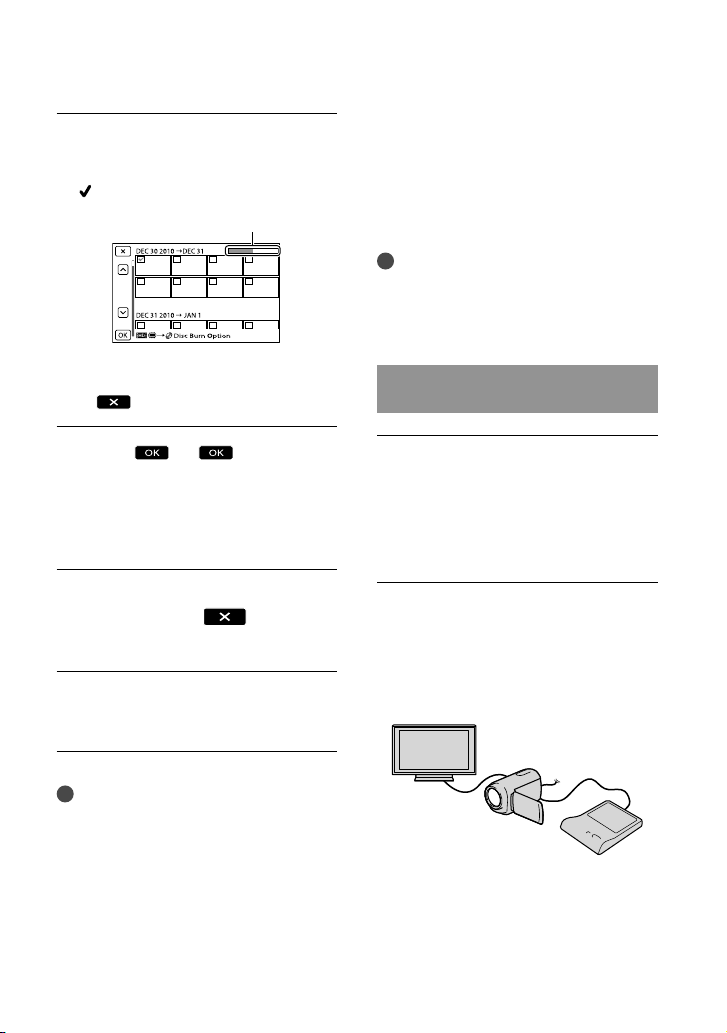
50
US
Touch the movie you want to
burn on the disc.
appears.
Touch and hold the desired thumbnail so
that you can confirm the image. Touch
to return to the previous screen.
Touch
on the
camcorder screen.
To create another disc of the same
contents, insert a new disc and touch
[CREATE SAME DISC].
After the operation is completed,
touch [Exit.]
on the
camcorder screen.
Disconnect the USB cable from
your camcorder.
Notes
Do not do any of the following when creating
a disc.
Turn off the camcorder
Disconnect the USB cable or the AC Adaptor
Subject the camcorder to mechanical shock
or vibration
Eject the memory card from the camcorder
Play the created disc to make sure copying was
performed correctly before deleting the movies
on your camcorder.
If [Failed.] or [DISC BURN failed.] appears on
the screen, insert another disc into the DVD
writer and perform the DISC BURN operation
again.
Tips
Disc creation time to copy movies to the limit
of the disc is about 20 to 60 minutes. It may take
more time depending on the recording mode or
the number of scenes.
Playing back a disc on the DVD
writer
Connect the AC Adaptor and the
power cord (mains lead) to the
DC IN jack of your camcorder
and the wall outlet (wall socket)
(p. 15).
Turn on your camcorder, and
connect the DVD writer to the
(USB) jack of your camcorder
with the USB cable of the DVD
writer.
You can play back movies on the TV
screen by connecting the camcorder to a
TV (p.
32).
Remaining Disc capacity
51
US
Saving images with an external device
Insert a created disc into the DVD
writer.
The movies on the disc appear on the
index screen on the camcorder.
Press the play button on the DVD
writer.
You can also operate by the camcorder
screen.
After the operation is completed,
touch
on the camcorder
screen and remove the disc when
the tray is open.
Touch
and disconnect the
USB cable.
Creating a high
definition image
quality (HD) disc with a
DVD writer, etc., other
than DVDirect Express
Use the USB cable to connect your
camcorder to a disc creation device, which
is compatible with high definition image
quality (HD) movies, such as a Sony DVD
writer. Refer also to the instruction manuals
supplied with the device to be connected.
Notes
Connect your camcorder to the wall outlet (wall
socket) using the supplied AC Adaptor for this
o
perat
ion (p. 15).
Sony DVD writer may not be available in some
countries/regions.
Always maintain the firmware of the Sony
DVDirect (DVD writer) to its latest version.
For details, see the following website.
http://sony.storagesupport.com/
1
Connect the AC Adaptor and the
power cord (mains lead) to the
DC IN jack of your camcorder
and the wall outlet (wall socket)
(p. 15).
2
Turn on your camcorder, and
connect a DVD writer, etc. to your
camcorder with the Built-in USB
Cable.

52
US
The [USB Select] screen appears on the
camcorder screen.
If the [USB Select] screen does not appear,
touch
(MENU) [Setup]
[
(Connection)] [USB Connect].
3
Touch [USB Connect] on the
camcorder screen.
The displayed recording media differ
depending on the model.
4
Record movies on the connected
device.
For details, refer to the instruction
manuals supplied with the device to be
connected.
5
After the operation is completed,
touch on the
camcorder screen.
6
Disconnect the USB cable.
Creating a standard
definition image
quality (STD) disc with
a recorder, etc.
You can copy images played back on your
camcorder on a disc or video cassette,
by connecting your camcorder to a disc
recorder, a Sony DVD writer, etc., other
than DVDirect Express, with the A/V
connecting cable. Connect the device in
either way of or . Refer also to the
instruction manuals supplied with the
devices to be connected.
Notes
Connect your camcorder to the wall outlet (wall
socket) using the supplied AC Adaptor for this
o
perat
ion (p. 15).
Sony DVD writer may not be available in some
countries/regions.
High definition image quality (HD) movies
will be copied with standard definition image
quality (STD).
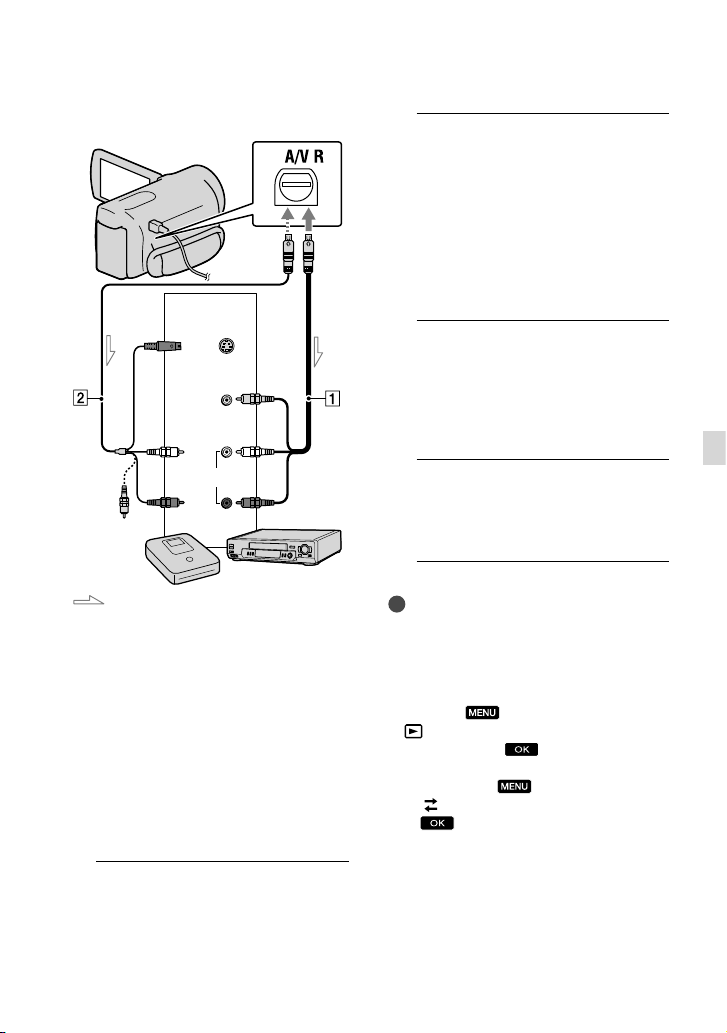
53
US
Saving images with an external device
A/V connecting cable (supplied)
A/V connecting cable with S VIDEO
(sold separat
ely)
By using this cable, higher quality
images can be produced than with an
A/V connecting cable. Connect the white
and red plug (left/right audio) and the S
VIDEO plug (S VIDEO channel) of the
A/V connecting cable with an S VIDEO
cable. If you connect the S VIDEO plug
only, you will hear no sound. The yellow
plug (video) connection is not necessary.
1
Insert the recording media in the
recording device.
If your recording device has an input
selector, set it to the input mode.
2
Connect your camcorder to the
recording device (a disc recorder,
etc.) with the A/V connecting
cable (supplied) or an A/V
connecting cable with S VIDEO
(sold separately).
Connect your camcorder to the input jacks
of the recording device.
3
Start playback on your
camcorder, and record it on the
recording device.
Refer to the instruction manuals supplied
with your recording device for details.
4
When dubbing is finished, stop
the recording device, and then
your camcorder.
Notes
Since copying is performed via analog data
transfer, the image quality may deteriorate.
You cannot copy images to recorders connected
with an HDMI cable.
To copy date/time information and camera
data, touch
(MENU) [Setup]
[
(Playback Settings)] [Data Code] a
desired setting
.
When the screen size of display devices (TV,
etc.) is 4:3, touch
(MENU) [Setup]
[
(Connection)] [TV Type] [4:3]
.
When you connect a monaural device, connect
the yellow plug of the A/V connecting cable
to the video input jack, and the white (left
channel) or the red (right channel) plug to the
audio input jack on the device.
Input
S VIDEO
VIDEO
(Yellow)
(White)
AUDIO
Signal flow
(Yellow)
A/V Remote Connector
(Red)
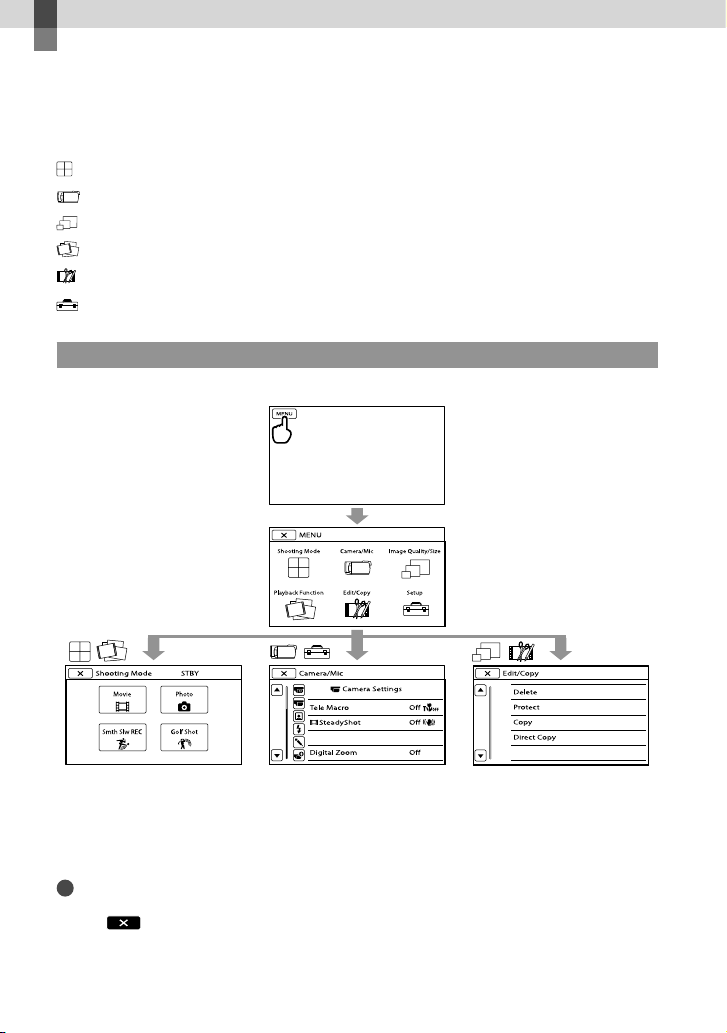
54
US
Customizing your camcorder
Using menus
You can enjoy using your camcorder more by making good use of menu operations.
The camcorder has various menu items under each of 6 menu categories.
Shooting Mode (Items for selecting a shooting mode) p. 55
Camera/Mic (Items for customized shooting) p. 55
Image Quality/Size (Items for setting up image quality or size) p. 56
Playback Function (Items for playback) p. 56
Edit/Copy (Items for editing) p. 56
Setup (Other setup items) p. 56
Operating menus
Follow the procedures explained below to set the menu items.
The [Camera/Mic] and [Setup] menus have sub-categories. Touch the sub-category icon, and
the screen changes to other sub-category menus.
Grayed out menu items or settings are not available.
Notes
You may not be able to set some menu items, depending on the recording or playback conditions.
Touch
to finish setting the menu or to return to the previous menu screen.
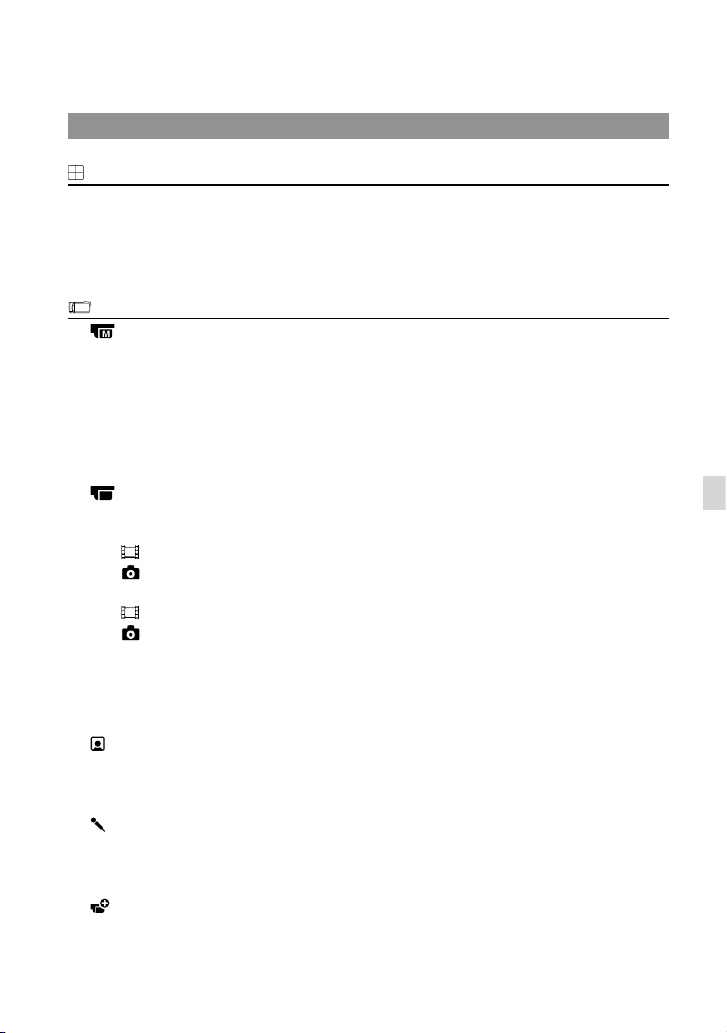
55
US
Customizing your camcorder
Menu lists
Shooting Mode
Movie .......................................... Records movies.
Photo ........................................... Shoots photos.
Smth Slw REC ...........................Records fast moving subjects in slow-motion.
Golf Shot .................................... Divides two seconds of fast movement into frames which are then
recorded as a movie and photos.
Camera/Mic
(Manual Settings)
White Balance ................. Adjusts the color balance to the brightness of the recording environment.
Spot Meter/Fcs ............... Adjusts the brightness and focus for the selected subject simultaneously.
Spot Meter ....................... Adjusts the brightness of images to a subject you touch on the screen.
Spot Focus .......................Focuses on a subject you touch on the screen.
Exposure ........................... Adjusts the brightness of movies and photos.
Focus..................................Focuses manually.
Low Lux .............................Records bright color images in the dim.
(Camera Settings)
Scene Selection .............Selects an appropriate recording setting according to the type of scene,
such as night view or beach.
Fader ..........................Fades scenes in or out.
Self-Timer ................. Sets the self-timer when your camcorder is in photo recording mode.
Tele Macro........................Shoots a subject in focus with the background out of focus.
SteadyShot .............. Sets the SteadyShot function when recording movies.
SteadyShot ..............Sets the SteadyShot function when shooting photos.
Digital Zoom ...................Sets the maximum zoom level of the digital zoom that exceeds the zoom
level of the zoom.
Conversion Lens ............Sets the type of an attached conversion lens (sold separately). Optimizes
the SteadyShot function and focus according to the attached lens.
Auto Back Light ..............Adjusts the exposure for backlit subjects automatically.
(Face)
Face Detection ...............Adjusts the image quality of the face(s) automatically.
Smile Shutter .................. Automatically takes a shot whenever a smile is detected.
Smile Sensitivity ............Sets the smile detection sensitivity using the smile shutter function.
(Microphone)
Blt-in Zoom Mic ............. Records movies with vivid sound appropriate to the zoom position.
Wind Noise Reduct. ......Reduces wind noise.
Micref Level .....................Sets the microphone level.
(Shooting Assist)
Guide Frame....................Displays the frame to make sure the subject is horizontal or vertical.
Display Setting ...............Sets the duration that icons or indicators are displayed on the LCD screen.
56
US
Image Quality/Size
REC Mode .......................... Sets the mode to record movies. When recording fast moving subject, a
high image quality is recommended.
Frame Rate ........................ Sets the frame rate to record movies.
/ Setting................. Sets image quality for recording, playback, or editing movies.
Wide Mode ........................Sets the horizontal to vertical ratio when recording movies with standard
definition image quality (STD).
x.v.Color .............................. Records wider range of colors.
Image Size .........................Sets the photo size.
Playback Function
Event View .................................Shows the Event View display.
Highlight Movie ......................Starts Highlight Playback.
Scenario ...............................Starts playing Highlight Scenario that has been saved.
Edit/Copy
Delete..........................................Deletes movies or photos.
Protect ........................................Protects movies or photos to avoid deleting.
Copy* .......................................... Copies images back and forth between the selected internal recording
medium and the inserted memory card.
Direct Copy ............................... Copies images stored on the internal recording medium or on a memory
card to some type of external media.
Setup
(Media Settings)
Media Select* .................Sets the type of media to be used for recording movies or photos (p. 20).
Media Inf
o ........................Displays information on the recording media, such as free space.
Format ...............................Deletes all data on the internal recording media or a memory card.
Repair Img. DB F. ............ Repairs the image database file on the internal recording media or a
m
emor
y card (p. 60).
File Number .....................Sets how to assign the file number.
(Playback Settings)
Data Code ........................ Sets the date and time.
Volume .............................. A
dju
sts the volume of playback sound (p. 30).
Download Music ...........Download music files that can be played with Highlight Playback.
Empty Music ...................Deletes music files.
(Connection)
TV Type ............................. Conv
erts the signal depending on the TV connected (p. 32).
Component .....................Select this option when you connect your camcorder to a TV with the
compo
nent input jack (p. 33).
HDMI Resolution ........... Selects the output image resolution when connecting your camcorder to a
TV with an HDMI cable (sold separately).
CTRL FOR HDMI ............. Sets whether or not the TV’s Remote Commander is to be used when
the camcorder is connected to a “BRAVIA” Sync compatible TV with the
HDMI cable (sold separately).

57
US
Customizing your camcorder
USB Connect ...................Selects which type of media on the camcorder is to be used when the
camcorder is connected to an external device via USB.
USB Connect Setting ...Sets the connection mode when the camcorder is connected to a computer
or a USB device.
USB LUN Setting ............ Sets the camcorder to improve the compatibility of a USB connection by
restricting some USB functions.
Disc Burn ..........................Allows you to save images onto discs by a single press of a button.
(General Settings)
Beep ...................................Sets whether the camcorder sounds operation beeps or not.
LCD Brightness .............. Adjusts the brightness of the LCD screen.
A. Shut Off ........................C
han
ges the [A. Shut Off] setting (p. 16).
Power On By LCD .......... Sets whether or not the camcorder is turned on and off when you open
and close the LCD screen.
Language Setting .........S
ets the display language (p. 19).
Calibration ....................... Calibrates the touch panel.
Battery Info ...................... Displays the battery information.
Demo Mode .................... Sets whether the demonstration appears or not.
(Clock Settings)
Date & Time Setting ..... Sets the [D
ate & Time Format], [Summer Time], or [Date & Time] (p. 17).
Area Setting .................... Adju
sts for a time difference without stopping the clock (p. 17).
* HDR-CX160/CX180

58
US
Getting detailed
information from the
“Handycam” Handbook
The “Handycam” Handbook is a user guide
designed to be read on a computer screen.
The “Handycam” Handbook is intended to
be read when you want to know more about
operating your camcorder.
1
To install the “Handycam”
Handbook on a Windows
computer, place the supplied
CD-ROM in the disc drive of your
computer.
The installation screen appears.
If the screen does not appear, click
[Start] [Computer] (in Windows
XP, [My Computer]), then double- click
[SONYPMB(E:)](CD- ROM)
* [install.
exe].
* Drive names (such as (E:)) may vary
depinding on the computer.
2
Click [Handbook].
3
Click the desired language
and the model name of your
camcorder [Install], and follow
the on- screen instructions to
install “Handycam” Handbook.
The model name of your camcorder is
printed on the bottom surface.
To view the “Handycam” Handbook,
double-click the short-cut icon on the
computer screen.
When using a Macintosh, open the [Handbook]
– [US] folder in the CD-ROM, then copy
[Handbook.pdf].
You need Adobe Reader to read “Handycam”
Handbook. If it is not installed on your
computer, you can download it from the Adobe
Systems web page:
http://www.adobe.com/
Refer to “PMB Help” for details on the supplied
s
oft
ware “PMB” (p. 37).
59
US
Additional information
Additional information
Troubleshooting
If you run into any problems using your
camcorder, follow the steps below.
Check the list (p. 59 to 61), and
inspect your camcorder.
Remove the power source, attach
the power source again after about 1
minute, and turn the camcorder on.
Press RESET (p. 70) using a pointed
object, and turn the camcorder on.
If you press RESET, all settings,
including the clock setting, are reset.
Contact your Sony dealer or local
authorized Sony service facility.
Your camcorder may be required to initialize
or change the current internal memory (HDR-
CX160/CX180) of your camcorder, depending
on the problem. In the event of this, the data
stored on the internal memory will be deleted.
Be sure to save the data on the internal memory
on other media (backup) before sending your
camcorder for repair. We will not compensate
you for any loss of internal memory data.
During repair, we may check a minimum
amount of data stored on the internal memory
in order to investigate the problem. However,
your Sony dealer will neither copy nor retain
your data.
S
ee th
e “Handycam” Handbook (p. 58) for
details on the symptoms of your camcorder,
a
nd “PMB H
elp” (p. 40) on connecting your
camcorder to a computer.
The power does not turn on.
Attach a charged battery pack to the
camcorder (p. 13).
Connect the plug of the AC Adaptor to the
wa
ll ou
tlet (wall socket) (p. 15).
The camcorder does not operate even
when the power is set to on.
It takes a few seconds for your camcorder to
be ready to shoot after the power is turned on.
This is not a malfunction.
Disconnect the AC Adaptor from the wall
outlet (wall socket) or remove the battery
pack, then reconnect it after about 1 minute.
If your camcorder still does not work, press
RES
ET (p.
70) using a pointed object. (If you
press RESET, all settings, including the clock
setting, are reset.)
The temperature of your camcorder is
extremely high. Turn off the camcorder and
leave it for a while in a cool place.
The temperature of your camcorder is
extremely low. Leave the camcorder with the
power turned on. If you still cannot operate
your camcorder, turn off the camcorder and
take it to a warm place. Leave the camcorder
there for a while, then turn on the camcorder.
Your camcorder gets warm.
Your camcorder may become warm during
operation. This is not a malfunction.
The power abruptly turns off.
Use the AC Adaptor (p. 15).
Turn on the power again.
Char
ge the battery pack (p. 13).
Pressing START/STOP or PHOTO does not
record images.
Press MODE to turn on the (Movie) or
(Photo) lamp.
Your camcorder is recording the image you
have just shot on the recording media. You
cannot make any new recordings during this
period.
The recording media is full. Delete
unn
ecessary images (p. 35).
Total number of movie scenes or photos has
exceeded the recordable capacity of your
c
amcorder (p. 62). Delete unnecessary images
(p. 35).
60
US
The recording stops.
The temperature of your camcorder is
extremely high/low. Turn off your camcorder
and leave it for a while in a cool/warm place.
“PMB” cannot be installed.
Check the computer environment or
installation procedure required to install
“PMB” (p.
37).
“PMB” does not work correctly.
Quit “PMB” and restart your computer.
The camcorder is not recognized by the
computer.
Disconnect devices from the USB jack of the
computer other than the keyboard, mouse,
and your camcorder.
Disconnect the USB cable from the computer
and your camcorder, and restart the computer,
then connect the computer and your
camcorder again in an orderly manner.
When both the built-in USB cable and other
USB cable (that is connected to the USB port
on the camcorder) are connected to external
devices at the same time, disconnect the one
that is not connected to a computer.
Self-diagnosis display/Warning
indicators
If indicators appear on the LCD screen,
check the following.
If the problem persists even after you
have tried to fix a couple of times, contact
your Sony dealer or local authorized Sony
service facility. In this case, when you
contact them, give them all the numbers of
the error code beginning with C or E.
C:04:
The battery pack is not an “InfoLITHIUM”
battery pack V series. Use an “InfoLITHIUM”
batt
ery pack (V series) (p. 13).
Connect the DC plug of the AC Adaptor to
y
our ca
mcorder securely (p. 13).
C:06:
The battery pack temperature is high. Change
the battery pack or place it in a cool place.
C:13: / C:32:
Remove the power source. Reconnect it and
operate your camcorder again.
E::
Follow the steps from on page 59.
Battery power is low.
The battery pack temperature is high. Change
the battery pack or place it in a cool place.
No memory card is inserted (p. 21).
When the indicator flashes, there is not
enough free space for recording images. Delete
unn
ecess
ary images (p. 35), or format the
memory card after storing the images on other
media.
The Image Database File is damaged. Check
the data base file by touching
(MENU)
[Setup] [
(Media Settings)]
[Repair Img. DB F.] the recording medium
(HDR-CX160/CX180).
The memory card is damaged. Format the
memory card with your camcorder (p. 56).
61
US
Additional information
Incompatible memory card is inserted (p. 21).
The memory card is write-protected.
Access to the memory card was restricted on
another device.
The camcorder is unsteady. Hold the camcorder
steady with both hands. However, note that
the camera-shake warning indicator does not
disappear.
The recording media is full. Delete unnecessary
images (
p. 35).
Photos cannot be recorded during processing.
Wait for a while, then record.
When [
REC Mode] is set to [Highest
Quality
] or [60p Quality ], you cannot
capture photos while recording movies.
Recording time of
movies/number of
recordable photos
“HD” stands for high definition image
quality, and “STD” stands for standard
image quality.
Expected time of recording and
playback with each battery pack
Recording time
Approximate time available when you use a
fully charged battery pack.
(unit: minute)
Battery pack Continuous
recording time
Typical recording
time
Image quality HD STD HD STD
NP-FV50
(supplied)
150 165 75 80
NP-FV70 315 345 155 170
NP-FV100 625 680 310 340
Each recording time is measured when the
camcorder is recording high definition image
quality (HD) movies with [
REC Mode] set
to [Standard
].
Typical recording time shows the time when
you repeat recording start/stop, switching the
MODE lamp, and zooming.
Times measured when using the camcorder at
25
C (77 °F). 10 C to 30 C (50 °F to 86 °F) is
recommended.
The recording and playback time will be
shorter when you use your camcorder in low
temperatures.
The recording and playback time will be shorter
depending on the conditions under which you
use your camcorder.
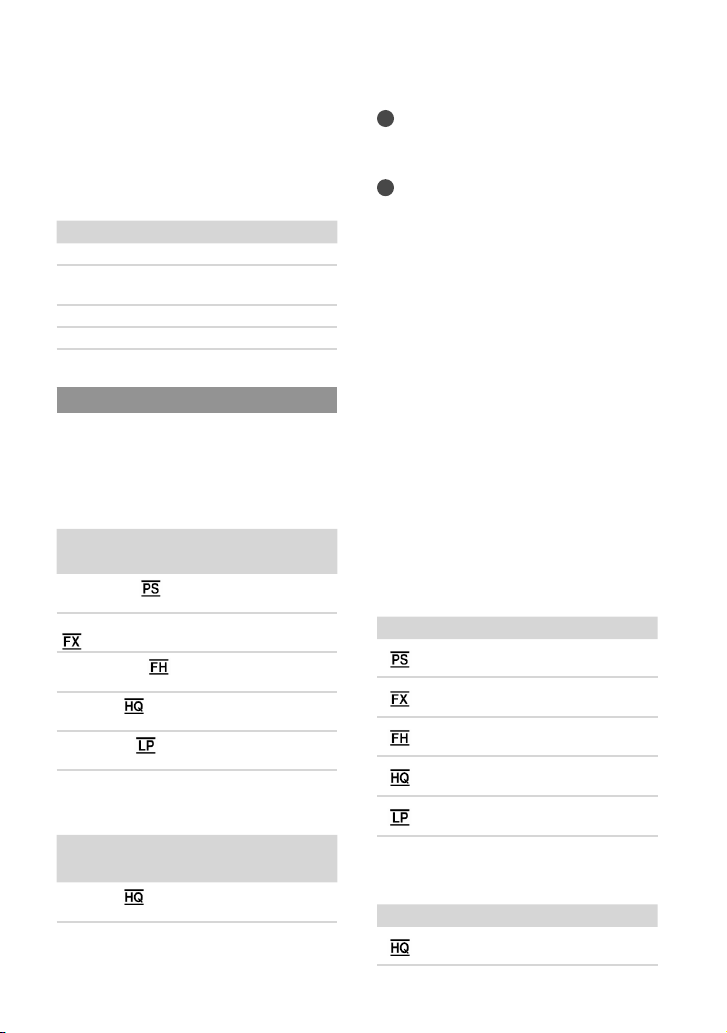
62
US
Notes
The number in ( ) is the minimum recordable
time.
Tips
You can record movies of a maximum of 3,999
scenes with high definition image quality (HD),
and 9,999 scenes with standard definition image
quality (STD).
The maximum continuous recording time of
movies is approximately 13 hours.
If you want to record up to the maximum
recording time indicated in the table, you need
to delete the demonstration movie on your
camcorder (HDR-CX160/CX180).
Your camcorder uses the VBR (Variable Bit
Rate) format to automatically adjust image
quality to suit the recording scene. This
technology causes fluctuations in the recording
time of the media. Movies containing quickly
moving and complex images are recorded at
a higher bit-rate, and this reduces the overall
recording time.
Memory card
High definition image quality (HD)
(unit: minute)
2 GB 4 GB 8 GB 16 GB 32 GB
9
(9)
15
(15)
35
(35)
75
(75)
150
(150)
10
(10)
20
(20)
40
(40)
90
(90)
180
(180)
10
(10)
30
(30)
60
(60)
120
(120)
245
(245)
25
(15)
50
(40)
105
(80)
215
(165)
440
(330)
45
(35)
90
(75)
190
(155)
380
(310)
770
(630)
Standard definition image quality (STD)
(unit: minute)
2 GB 4 GB 8 GB 16 GB 32 GB
25
(25)
55
(50)
110
(100)
225
(210)
460
(420)
Playing time
Approximate time available when you use a
fully charged battery pack.
(unit: minute)
Battery pack
Image quality HD STD
NP-FV50
(supplied)
240 280
NP-FV70 490 565
NP-FV100 980 1120
Expected recording time of movies
Internal recording media
HDR-CX160/CX180
High definition image quality (HD) in h (hour) and m
(minute)
Recording mode Recording time
HDR-CX160 HDR-CX180
[60p Quality
]
1 h 15 m
(1 h 15 m)
2 h 35 m
(2 h 35 m)
[Highest Quality
]
1 h 30 m
(1 h 30 m)
3 h 5 m
(3 h 5 m)
[High Quality
]
2 h 5 m
(2 h 5 m)
4 h 15 m
(4 h 15 m)
[Standard
]
3 h 40 m
(2 h 45 m)
7 h 35 m
(5 h 45 m)
[Long Time
]
6 h 25 m
(5 h 15 m)
13 h 15 m
(10 h 50 m)
Standard definition image quality (STD) in h (hour) and
m (minute)
Recording mode Recording time
HDR-CX160 HDR-CX180
[Standard
]
3 h 50 m
(3 h 30 m)
7 h 55 m
(7 h 15 m)
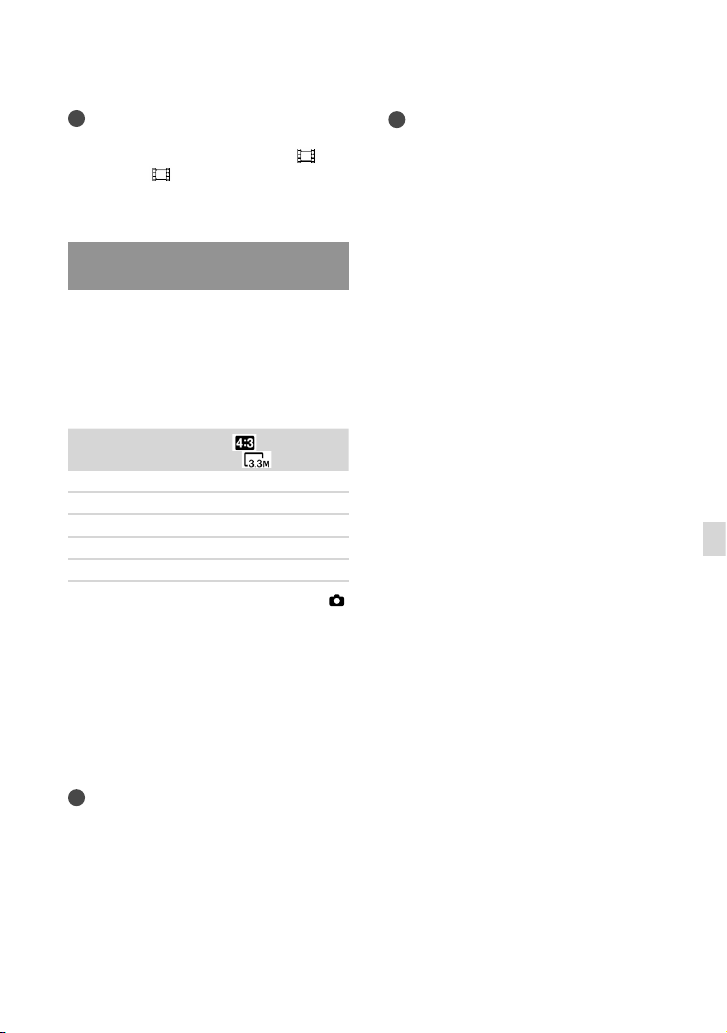
63
US
Additional information
Notes
The recordable time may vary depending on the
recording and subject conditions and [
REC
Mode] and [
Frame Rate] (p. 56).
The number in ( ) is the minimum recordable
time.
Expected number of recordable
photos
Internal recording media (HDR-CX160/
CX180)
You can record the maximum 40,000
photos.
Memory card
3.3M
2 GB 1300
4 GB 2600
8 GB 5300
16 GB 10500
32 GB 21000
The selected image size is effective when the
(Photo) lamp is lit.
The number of recordable photos of memory
card shown is for the maximum image size
of your camcorder. The actual number of
recordable photos is displayed on the LCD
s
creen d
uring recording (p. 69).
The number of recordable photos of memory
card may vary depending on the recording
conditions.
Notes
The unique pixel array of Sony’s ClearVid and
the image processing system (BIONZ) allow
still image resolution equivalent to the sizes
described.
Tips
You can also use memory card with a capacity
of under 1 GB for recording photos.
The following list shows the bit-rate, pixels and
aspect ratio of each recording mode (movie +
audio, etc.).
High definition image quality (HD):
PS: Max. 28 Mbps 1,920 1,080 pixels/16:9
FX: Max. 24 Mbps 1,920 1,080 pixels/16:9
FH: Approx. 17 Mbps (average) 1,920 1,080
pixels/16:9
HQ: Approx. 9 Mbps (average) 1,440 1,080
pixels/16:9
LP: Approx. 5 Mbps (average) 1,440 1,080
pixels/16:9
Standard definition image quality (STD):
HQ: Approx. 9 Mbps (average) 720 480
pixels/16:9, 4:3
The photo recording pixels and the aspect ratio.
Photo recording mode:
2,112 1,584 dots/4:3
2,112 1,188 dots/16:9
1,600 1,200 dots/4:3
640 480 dots/4:3
Dual recording:
2,304 1,296 dots/16:9
1,728 1,296 dots/4:3
Capturing a photo from a movie:
1,920 1,080 dots/16:9
640 360 dots/16:9
640 480 dots/4:3

64
US
Precautions
On use and care
Do not use or store the camcorder and
accessories in the following locations:
Anywhere extremely hot, cold or humid.
Never leave them exposed to temperatures
a
bov
e 60
C (140 °F), such as under direct
sunlight, near heaters or in a car parked in
the sun. They may malfunction or become
deformed.
Near strong magnetic fields or mechanical
vibration. The camcorder may malfunction.
Near strong radio waves or radiation. The
camcorder may not be able to record properly.
Near AM receivers and video equipment.
Noise may occur.
On a sandy beach or anywhere dusty. If
sand or dust gets in your camcorder, it may
malfunction. Sometimes this malfunction
cannot be repaired.
Operate your camcorder on DC 6.8 V/7.2 V
(battery pack) or DC 8.4 V (AC Adaptor).
For DC or AC operation, use the accessories
recommended in these operating instructions.
Do not let your camcorder get wet, for example,
from rain or sea water. If your camcorder
gets wet, it may malfunction. Sometimes this
malfunction cannot be repaired.
If any solid object or liquid gets inside the
casing, unplug your camcorder and have it
checked by a Sony dealer before operating it
any further.
Avoid rough handling, disassembling,
modifying, physical shock, or impact such
as hammering, dropping or stepping on the
product. Be particularly careful of the lens.
Keep the camcorder turning off when you are
not using your camcorder.
Do not wrap your camcorder with a towel, for
example, and operate it. Doing so might cause
heat to build up inside.
When disconnecting the power cord (mains
lead), pull it by the plug and not the cord (lead).
Do not damage the power cord (mains lead)
such as by placing anything heavy on it.
Do not use a deformed or damaged battery
pack.
Keep metal contacts clean.
If the battery electrolytic liquid has leaked:
Consult your local authorized Sony service
facility.
Wash off any liquid that may have contacted
your skin.
If any liquid gets in your eyes, wash with
plenty of water and consult a doctor.
When not using your camcorder for a
long time
To keep your camcorder in optimum state for a
long time, turn it on and let it run by recording
and playing back images about once a month.
Use up the battery pack completely before
storing it.
LCD screen
Do not exert excessive pressure on the LCD
screen, as it may cause damage.
If your camcorder is used in a cold place, a
residual image may appear on the LCD screen.
This is not a malfunction.
While using your camcorder, the back of
t
he LCD s
creen may heat up. This is not a
malfunction.
To clean the LCD screen
If fingerprints or dust make the LCD screen
dirty, it is recommended that you use a soft
cloth to clean it.
On handling the casing
If the casing is soiled, clean the camcorder body
with a soft cloth lightly moistened with water,
and then wipe the casing with a dry soft cloth.
Avoid the following to avoid damage to the
finish:
Using chemicals such as thinner, benzine,
alcohol, chemical cloths, repellent, insecticide
and sunscreen
Handling the camcorder with above
substances on your hands
Leaving the casing in contact with rubber or
vinyl objects for a long period of time

65
US
Additional information
About care and storage of the lens
Wipe the surface of the lens clean with a soft
cloth in the following instances:
When there are fingerprints on the lens
surface
In hot or humid locations
When the lens is exposed to salty air such as
at the seaside
Store in a well-ventilated location subject to
little dirt or dust.
To prevent mold, periodically clean the lens as
described above.
On charging the pre-installed
rechargeable battery
Your camcorder has a pre-installed rechargeable
battery to retain the date, time, and other settings
even when the camcorder is turned off. The pre-
installed rechargeable battery is always charged
while your camcorder is connected to the wall
outlet (wall socket) via the AC Adaptor or while
the battery pack is attached. The rechargeable
battery will be fully discharged in about 3 months
if you do not use your camcorder at all. Use
your camcorder after charging the pre-installed
rechargeable battery. However, even if the pre-
installed rechargeable battery is not charged, the
camcorder operation will not be affected as long
as you are not recording the date.
Procedures
Connect your camcorder to a wall outlet (wall
socket) using the supplied AC Adaptor, and leave
it with the LCD screen closed for more than 24
hours.
Note on disposal/transfer of the
camcorder (HDR-CX160/CX180)
Even if you delete all movies and still images, or
perform [Format], data on the internal recording
media may not be completely erased.
When you transfer the camcorder, it is
recommended that you perform [Empty]
(See “Getting detailed information from the
“Handycam” Handbook” on page 58.) to prevent
the recovery of your data. Also, when you dispose
of the camcorder, it is recommended that you
destroy the actual body of the camcorder.
Note on disposal/transfer of memory
card
Even if you delete data in the memory card or
format the memory card on your camcorder or
a computer, you may not delete data from the
memory card completely. When you give the
memory card to somebody, it is recommended
that you delete data completely using data
deletion software on a computer. Also, when you
dispose of the memory card, it is recommended
that you destroy the actual body of the memory
card.

66
US
Specifications
System
Signal format: NTSC color, EIA standards
HDTV 1080/60i, 1080/60p specification
Movie recording format
HD: MPEG-4 AVC/H.264 AVCHD format
compatible (1080 60p/original format)
STD: MPEG2-PS
Audio recording system
Dolby Digital 2ch
Dolby Digital Stereo Creator
Photo file format
DCF Ver.2.0 Compatible
Exif Ver.2.3 Compatible
MPF Baseline Compatible
Recording media (Movie/Photo)
Internal memory
HDR-CX160: 16
GB
HDR-CX180: 32 GB
“Memory Stick PRO Duo” media
SD card (Class 4 or faster)
W
hen me
asuring media capacity, 1 GB equals
1 billion bytes, a portion of which is used for
system management and/or application files.
The capacity that a user can use is below.
HDR-CX160:
a
ppr
oximately 15.9 GB
HDR-CX180:
appr
oximately 31.9 GB
Image device: 4.5 mm (1/4 type) CMOS sensor
Recording pixels (photo, 4:3):
Max. 3.3 mega (2
112
1 584) pixels*
1
Gross: Approx. 4 200 000 pixels
Effective (movie, 16:9)
*
2
:
Approx. 1 490 000 pixels
Effective (photo, 16:9):
Appr
ox. 1 250 000 pixels
Effective (photo, 4:3):
Appr
ox. 1 670 000 pixels
Lens: G lens
30
(Optical)*
2
, 42 (Extended)*
3
, 350
(Digital)
Filt
er diameter: 37 mm (1 1/2 in.)
F1.8 ~ 3.4
Focal length:
f=2.1 mm ~ 63.0
mm (3/32 in. ~ 2 1/2 in.)
When converted to a 35 mm still camera
For movies
*
2
: 29.8 mm ~ 894 mm (1 3/16 in.
~ 35 1/4 in.) (16:9)
For photos: 29.8 mm ~ 894 mm (1 3/16 in. ~
35 1/4 in.) (4:3)
Color temperature: [Auto], [One Push], [Indoor]
(3 200
K), [Outdoor] (5 800 K)
Minimum illumination
11 lx (lux) (in default setting, shutter speed 1/60
second)
3 lx (lux) ([Low Lux] is set to [On], shutter speed
1/30 second)
*
1
The unique pixel array of Sony’s ClearVid
and the image processing system
(BIONZ) allow still image resolution
equivalent to the sizes described.
*
2
[ SteadyShot] is set to [Standard] or
[Off].
*
3
[ SteadyShot] is set to [Active].
Input/Output connectors
A/V Remote Connector: Component/video and
audio output jack
HDMI OUT jack: HDMI mini connector
USB jack: mini-AB/Type A (Built-in USB)
HDR-CX160/CX180:
MIC input jack: Stereo minijack ( 3.5
mm)
LCD screen
Picture: 7.5 cm (3.0 type, aspect ratio 16:9)
Total number of pixels: 230 400 (960
240)
General
Power requirements: DC 6.8 V/7.2 V (battery
pack) DC 8.4 V (AC Adaptor)
USB Charging: DC 5 V 500 mA
Average power consumption:
During camera recording using LCD screen
at normal brightness:
HD: 2.5
W STD: 2.3
W
Operating temperature: 0
C to 40 C (32 °F to
104 °F)
Stora
ge temperature: –20
C to + 60 C (‒4 °F to
+140 °F)
Dimensions (approx.)
52.5 mm
57 mm 113.5 mm (2 1/8 in. ×
2 1/4 in. × 4 1/2 in.) (w/h/d) including the
projecting parts
52.5 mm
57 mm 123.5 mm (2 1/8 in.
× 2 1/4 in. × 4 7/8 in.) (w/h/d) including
the projecting parts, and the supplied
rechargeable battery pack attached
Mass (approx.)
HDR-CX130:
250 g (8.8
oz) main unit only
300 g (10.6 oz) including the supplied
rechargeable battery pack

67
US
Additional information
HDR-CX160:
250 g (8.8 oz) main unit only
300 g (10.6 oz) including the supplied
rechargeable battery pack
HDR-CX180:
250
g (8.8
oz) main unit only
300 g (10.6 oz) including the supplied
rechargeable battery pack
AC Adaptor AC-L200C/AC-L200D
Power requirements: AC 100 V - 240 V,
50 Hz/60 Hz
Curren
t consumption: 0.35 A - 0.18 A
Power consumption: 18 W
Output voltage: DC 8.4 V
*
Operating temperature: 0 C to 40 C (32 °F to
104 °F)
Stora
ge temperature: –20
C to + 60 C (‒4 °F to
+140 °F)
Dimension
s (approx.): 48 mm
29 mm 81 mm
(1 15/16 in.
1 3/16 in. 3 1/4 in.) (w/h/d)
excluding the projecting parts
Mass (a
pprox.): 170 g (6.0 oz) excluding the
power cord (mains lead)
* See the label on the AC Adaptor for other
specifications.
Rechargeable battery pack NP-FV50
Maximum output voltage: DC 8.4 V
Output voltage: DC 6.8 V
Maximum charge voltage: DC 8.4 V
Maximum charge current: 2.1 A
Capacity
Typica
l: 7.0 Wh (1 030 mAh)
Minimum: 6.6 Wh (980 mAh)
Type: Li-ion
Design and specifications of your camcorder and
accessories are subject to change without notice.
Manufactured under license from Dolby
Laboratories.
On trademarks
“Handycam” and are
registered trademarks of Sony Corporation.
“AVCHD” and “AVCHD” logotype are
trademarks of Panasonic Corporation and Sony
Corporation.
“Memory Stick,” “ ,” “Memory Stick Duo,”
“
,” “Memory Stick PRO
Duo,” “
,” “Memory
Stick PRO-HG Duo,” “
,”
“MagicGate,” “
,” “MagicGate
Memory Stick” and “MagicGate Memory Stick
Duo” are trademarks or registered trademarks of
Sony Corporation.
“InfoLITHIUM” is a trademark of Sony
Corporation.
“x.v.Color” is a trademark of Sony Corporation.
“BIONZ” is a trademark of Sony Corporation.
“BRAVIA” is a registered trademark of Sony
Corporation.
“DVDirect” is a trademark of Sony
Corporation.
Blu-ray Disc
and Blu-ray are trademarks of
the Blu-ray Disc Association.
Dolby and the double-D symbol are trademarks
of Dolby Laboratories.
HDMI, the HDMI logo and High-Definition
Multimedia Interface are trademarks or
registered trademarks of HDMI Licensing LLC
in the United States and other countries.
Microsoft, Windows, Windows Vista, and
DirectX are either registered trademarks or
trademarks of Microsoft Corporation in the
United States and/or other countries.
Macintosh and Mac OS are registered
trademarks of Apple Inc. in the U.S. and other
countries.
Intel, Intel Core, and Pentium are trademarks
or registered trademarks of Intel Corporation
or its subsidiaries in the United States and other
countries.
“
” and “PlayStation” are registered
trademarks of Sony Computer Entertainment
Inc.
Adobe, the Adobe logo, and Adobe Acrobat
are either registered trademarks or trademarks
of Adobe Systems Incorporated in the United
States and/or other countries.
SDXC logo is a trademark of SD-3C, LLC.
MultiMediaCard is a trademark of
MultiMediaCard Association.

68
US
All other product names mentioned herein may
be the trademarks or registered trademarks of
their respective companies. Furthermore,
and
are not mentioned in each case in this manual.
Add further enjoyment with your PlayStation 3
by downloading the application for PlayStation 3
from PlayStation Store (where available.)
The application for PlayStation 3 requires
PlayStation Network account and application
download.
Accessible in areas where the PlayStation Store is
available.
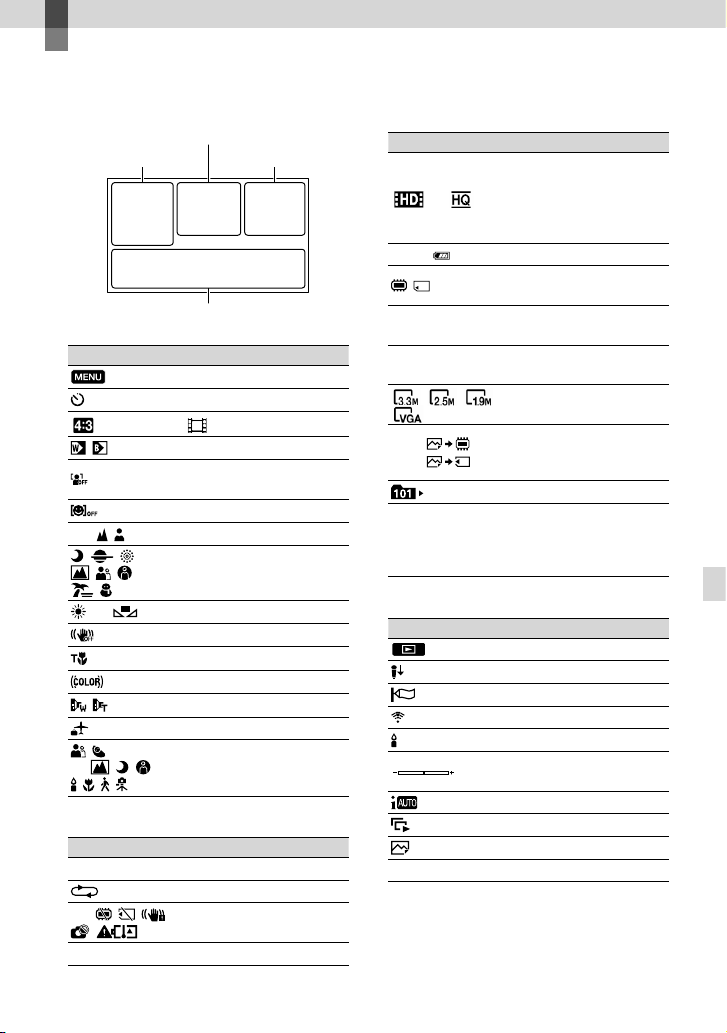
69
US
Quick reference
Quick reference
Screen indicators
Left
Indicator Meaning
MENU button
Self-timer recording
Wide Mode
Fader
[Face Detection] set to
[Off]
[Smile Shutter] set to [Off]
Manual focus
Scene Selection
White Balance
SteadyShot off
Tele Macro
x.v.Color
Conversion Lens
Destination
Intelligent Auto (face
detection/scene detection/
camera-shake detection)
Center
Indicator Meaning
[STBY]/[REC] Recording status
Slide show set
Warning
Playback mode
Right
Indicator Meaning
60i
Recording image
quality (HD/STD),
frame rate(60p/60i) and
recording mode (PS/FX/
FH/HQ/LP)
60min
Remaining battery
Recording/playback/
editing media
0:00:00
Counter (hour:minute:
second)
00Min
Estimated recording
remaining time
Photo size
9999
9999
Approximate number of
recordable photos and
photo size
Playback folder
100/112
Current playing movie or
photo/Number of total
recorded movies or photo
Bottom
Indicator Meaning
View Images button
Micref Level low
Wind Noise Reduct.
Blt-in Zoom Mic
Low Lux
Spot Meter/Fcs / Spot
Meter / Exposure
Intelligent Auto
Slide show button
101-0005
Data file name
Protected image
Indicators and their positions are approximate
and may differ from what you actually see.
Some indicators may not appear, depending on
your camcorder model.
Left
Right
Center
Bottom
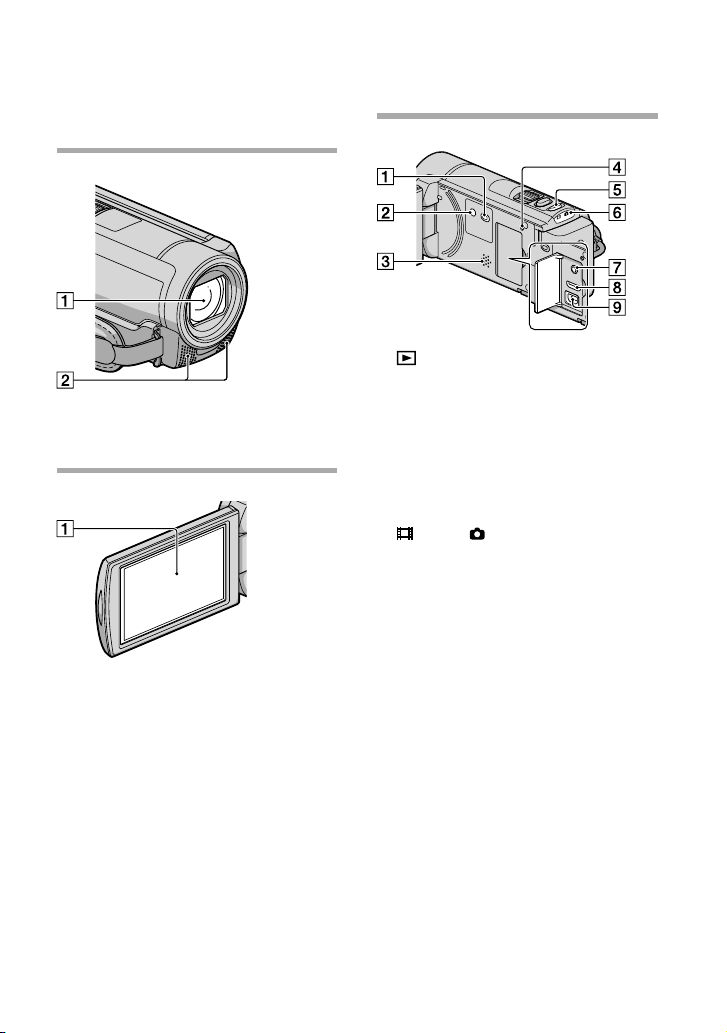
70
US
Parts and controls
Figures in ( ) are reference pages.
Lens (G lens)
Built-in microphone
LCD screen/Touch panel
If you rotate the LCD panel 180 degrees, you
can close the LCD panel with the LCD screen
facing out. This is convenient during playback
operations.
(View Images) button (28)
POWER button (17)
Speaker
RESET button
Press RESET using a pointed object.
Press RESET to initialize all the settings
including the clock setting.
MODE button (24)
(Movie)/ (Photo) lamps (24)
MIC (PLUG IN POWER) jack (HDR-CX160/
CX180)
HDMI OUT jack (32)
(USB) jack (45, 48)
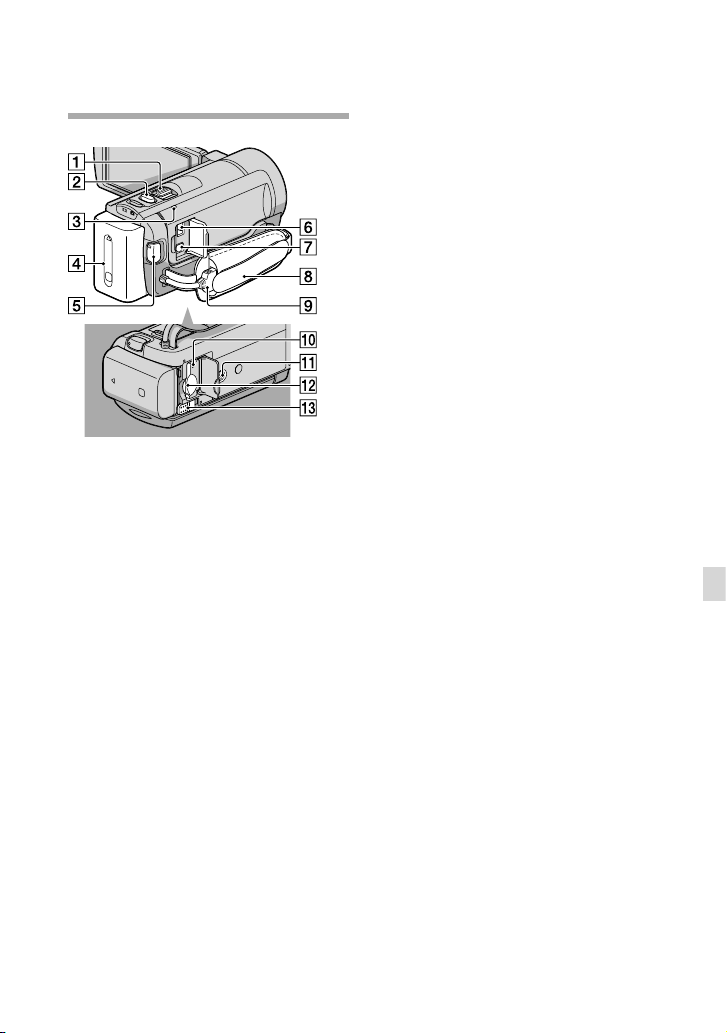
71
US
Quick reference
Power zoom lever
PHOTO button (26)
CHG (charge) lamp (13)
Battery pack (13)
START/STOP button (24)
DC IN jack (13)
A/V Remote Connector (32)
Grip belt (23)
Built-in USB Cable (14)
Memory card access lamp (22)
While the lamp is lit or flashing, the
camcorder is reading or writing data.
Tripod receptacle
Memory card slot (22)
BATT (battery) release lever (15)

72
US
You will find the menu lists
on pages 55 to 57.
Index
Media Select ................................20
Media Settings .............................20
Memory card ...............................21
“Memory Stick” media ...............21
“Memory Stick PRO-HG Duo”
media ............................................21
“Memory Stick PRO Duo”
media ............................................21
Menus ...........................................55
Movies ....................................24, 30
P
Photos ....................................26, 31
Playing..........................................28
PMB (Picture Motion
Browser) .......................................40
Power on ......................................17
Precautions ..................................64
PS ..................................................27
R
Recording ....................................23
Recording and playback time ...61
Recording media.........................20
Recording time of movies/
number of recordable photos ....61
Repair ...........................................59
RESET ..........................................70
S
Saving images in external
media ............................................45
Screen indicators ........................69
Self-diagnosis display .................60
Setting the date and time ...........17
Software .......................................37
Specifications ..............................66
Supplied items ...............................8
T
Thumbnail ...................................35
Tripod...........................................71
Troubleshooting ..........................59
Turning the power on ................17
TV .................................................32
U
USB cable ...............................48, 51
V
VBR ..............................................62
W
Wall outlet (wall socket) ............13
Warning indicators .....................60
Windows ......................................37
A
A/V connecting cable...........33, 53
B
Battery pack .................................13
Built-in USB Cable .................8, 14
C
Care ..............................................64
Charging the battery pack .........13
Charging the battery pack
abroad ..........................................16
Clock Set ......................................17
Computer.....................................37
Computer system ........................37
Connection ..................................32
Copy .............................................22
D
Data Code ....................................18
Date/Time ....................................18
Delete ...........................................35
Disc recorder ...............................52
DVDirect Express .......................48
DVD writer............................48, 51
E
Event Index ..................................28
External media ............................45
F
Fully charged ...............................13
H
“Handycam” Handbook .............58
Highlight Playback .....................31
I
Install ............................................37
L
Language Setting ........................19
M
Macintosh ....................................37
Maintenance ................................64

73
US
Quick reference
2
ES
Lea este apartado en
primer lugar
Antes de utilizar la unidad, lea
detenidamente este manual y consérvelo
para futuras consultas.
Nombre del producto: Videocámara Digital
Modelo: HDR-CX130
ADVERTENCIA
Para reducir el riesgo de incendios o
electrocución, no exponga la unidad a la
lluvia ni a la humedad.
No exponga las pilas a fuentes de calor
excesivo, como la luz solar directa, el fuego
o similares.
PRECAUCIÓN
Batería
Si la batería se manipula indebidamente,
puede explotar y causar un incendio o
provocarle quemaduras químicas. Tenga en
cuenta las siguientes precauciones.
No desmonte el producto.
No aplaste ni exponga la batería a impactos tales
como golpes o caídas, ni la deje caer o la pise.
No provoque un cortocircuito en la batería
ni permita que objetos metálicos entren en
contacto con sus terminales.
No exponga la batería a temperaturas superiores
a 60 °C como a la luz solar directa, o en el
interior de un automóvil estacionado al sol.
No la incinere ni la arroje al fuego.
No manipule baterías de iones de litio dañadas
o que presenten fugas.
Asegúrese de cargar la batería con un
cargador de baterías original de Sony o con un
dispositivo que pueda cargarla.
Mantenga la batería fuera del alcance de niños
pequeños.
Mantenga la batería seca.
Sustitúyala únicamente por otra del mismo tipo
o equivalente recomendada por Sony.
Deshágase de la baterías usada lo antes posible
según el procedimiento que se describe en las
instrucciones.
Sustituya la batería únicamente por otra del
tipo especificado. De lo contrario, es posible
que se produzcan incendios o lesiones.
Adaptador de alimentación de ca
No utilice el adaptador de alimentación
de ca colocado en un espacio angosto, tal
como entre una pared y los muebles.
Si utiliza el adaptador de alimentación de
ca conéctelo a un tomacorriente de pared
cercano. Si se produce alguna falla de
funcionamiento al utilizar la videocámara,
desconecte el adaptador de alimentación de
ca del tomacorriente de inmediato.
Aunque la videocámara esté apagada,
seguirá recibiendo adaptador de
alimentación de ca (corriente doméstica)
mientras esté conectada a la toma de pared
mediante el adaptador de alimentación de
ca
Nota sobre el cable de alimentación
El cable de alimentación está diseñado
específicamente para utilizarse sólo con esta
videocámara, y no se debe usar con otros
equipos eléctricos.
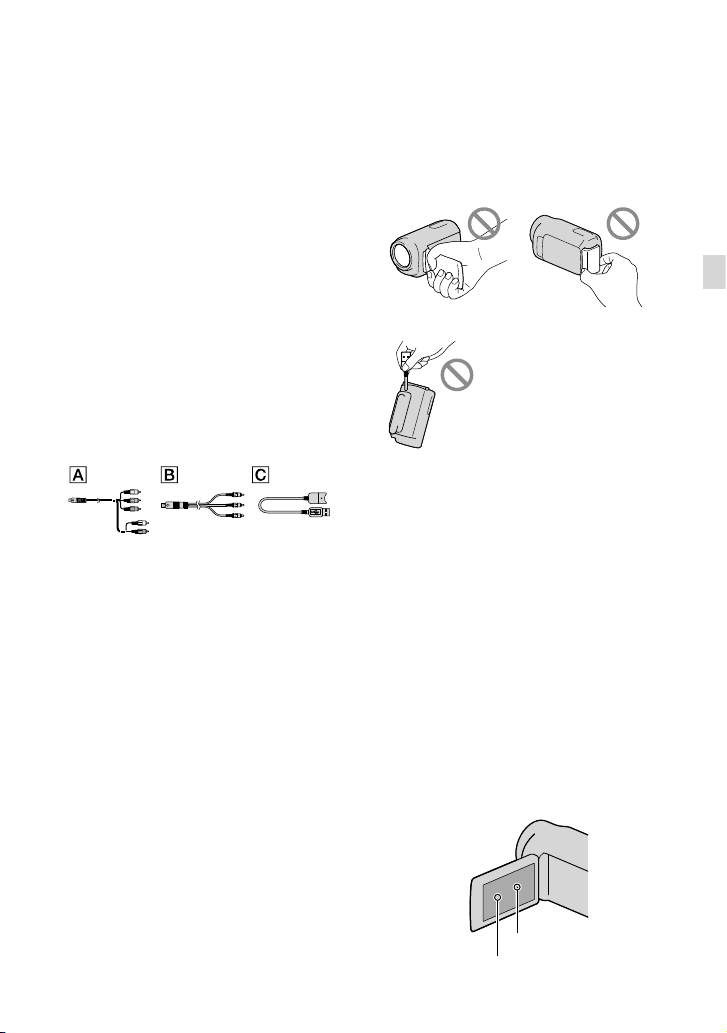
3
ES
Elementos suministrados
Los números entre ( ) indican la cantidad
suministrada.
Adaptador de alimentación de ca (1)
Cable de alimentación (1)
Cable de A/V de componente (1)
Cable de conexión de A/V (1)
Cable de soporte de conexión USB (1)
Use este cable si el cable USB incorporado de la
videocámara (pág. 10) es demasiado corto para
la conexión.
Batería recargable NP-FV50 (1)
CD-ROM “Handycam” Application
Software (1) (pág. 35)
“PMB” (software, incluye la “Ayuda de PMB”)
Guía práctica de “Handycam” (PDF)
“Guía de operaciones” (Este manual) (1)
Esta videocámara tiene una aplicación de
software incorporada llamada “PMB Portable”
(pág.
38).
Consulte la página 17 para conocer los tipos
de tarjeta de memoria que puede usar con esta
videocámara.
Uso de la videocámara
No sujete la videocámara por las partes
siguientes ni por las tapas de las tomas.
Pantalla de cristal líquido Batería
Cable USB incorporado
La videocámara no está protegida contra el
polvo, las salpicaduras ni el agua. Consulte las
“Pre
cauciones” (pág. 63).
Elementos del menú, panel de cristal
líquido y objetivo
Los elementos de menú que aparezcan atenuados
no estarán disponibles en las condiciones de
grabación o reproducción actuales.
La pantalla de cristal líquido se ha fabricado
con tecnología de alta precisión, lo que hace que
más del 99,99% de los píxeles sean operativos
para uso efectivo. Sin embargo, es posible que
aparezcan constantemente algunos pequeños
puntos negros o brillantes (blancos, rojos,
azules o verdes) en la pantalla de cristal líquido.
Estos puntos son el resultado normal del
proceso de fabricación y no afectan en modo
alguno a la grabación.
Puntos negros
Puntos blancos, rojos, azules o verdes
ES

4
ES
La exposición de la pantalla de cristal líquido
o del objetivo a la luz solar directa durante
períodos prolongados puede provocar fallas de
funcionamiento.
No apunte directamente al sol. Si lo hace, puede
ocasionar fallas en la unidad. Tome fotografías
del sol sólo en condiciones de baja intensidad,
como al atardecer.
Acerca del ajuste de idioma
Para ilustrar los procedimientos operativos
se utilizan indicaciones en pantalla en cada
idioma local. Si es necesario, cambie el idioma
de la pantalla antes de utilizar la videocámara
(p
ág.
15).
Acerca de la grabación
Para asegurar el funcionamiento estable
de la tarjeta de memoria, es recomendable
formatearla con la videocámara antes del
primer uso. Al hacerlo, se borrarán todos
los datos almacenados en ella y no podrá
recuperarlos. Guarde los datos importantes en
su computadora u otro soporte.
Antes de comenzar a grabar, pruebe las
funciones de grabación para asegurarse de que
la imagen y el sonido se graben sin problemas.
No es posible compensar el contenido de
las grabaciones, aun si la grabación o la
reproducción no son posibles a causa de una
falla de funcionamiento de la videocámara, de
los soportes de grabación, etc.
Los sistemas de televisión en color varían en
función del país o la región. Si desea ver su
grabación en un televisor, necesita un televisor
con sistema NTSC.
Los programas de televisión, películas, cintas de
video y demás materiales pueden estar sujetos a
derechos de autor. La grabación no autorizada
de tales materiales puede ir en contra de las
leyes sobre los derechos de autor.
Use la videocámara según las normas locales.
Notas acerca de la reproducción
Es posible que no pueda reproducir
normalmente en otros dispositivos imágenes
grabadas con la videocámara. También,
es posible que no pueda reproducir en la
videocámara imágenes grabadas con otros
dispositivos.
Las películas con calidad de imagen estándar
(STD) grabadas en tarjetas de memoria SD no
pueden reproducirse en equipos AV de otros
fabricantes.
DVD grabados con calidad de imagen
HD (alta definición)
Los soportes DVD media grabados con calidad
de imagen de alta definición (HD) pueden
reproducirse con dispositivos compatibles con
el estándar AVCHD. No es posible reproducir
discos grabados con calidad de imagen de
alta definición (HD) usando reproductores/
grabadoras de DVD que no sean compatibles
con el formato AVCHD. Si inserta un disco
grabado con el formato AVCHD (calidad
de imagen de alta definición (HD)) en un
reproductor o una grabadora de DVD, es
posible que no pueda expulsar el disco.
Guarde todos los datos de imagen
grabados
Para evitar que se pierdan sus datos de imagen,
guarde periódicamente todas las imágenes
grabadas en soportes externos. Para guardar
imágenes en la computadora, consulte la página
33, y para guardar imágenes en dispositivos
externos, consulte la página 41.
Los tipos de discos o soportes en los cuales se
pueden guardar imágenes dependen del ajuste
de [
Modo grabación] que se seleccionó al
grabar las imágenes. Las películas grabadas con
[Calidad 60p
] se pueden guardar utilizando
un soporte externo (pág. 43). Las películas
grabadas con [Calidad superior
] se pueden
guardar utilizando un soporte externo o en
discos Blu-ray.

5
ES
Notas sobre la batería/Adaptador de
alimentación de ca
Asegúrese de retirar la batería o el adaptador
de alimentación de ca luego de apagar la
videocámara.
Desconecte el adaptador de alimentación de ca
de la videocámara, sujetando la videocámara y
la clavija de cc
Nota sobre la temperatura de la
videocámara y la batería
Cuando la temperatura de la videocámara
o la batería sea demasiado alta o baja, es
posible que no se pueda grabar ni reproducir
en la videocámara. Esto se debe a que en
estas condiciones se activan las funciones de
protección de la videocámara. En este caso,
aparecerá un indicador en la pantalla de cristal
líquido.
Si la videocámara se conecta a una
computadora o accesorios
No intente formatear el soporte de grabación
de la videocámara mediante una computadora.
Si lo hace, es posible que la videocámara no
funcione correctamente.
Cuando conecte la videocámara a otro
dispositivo mediante cables de comunicación,
asegúrese de insertar la clavija del conector en
la dirección correcta. Si inserta la clavija a la
fuerza en el terminal, dañará el terminal, lo que
podría ocasionar una falla de funcionamiento
en la videocámara.
Cuando la videocámara esté conectada a otros
dispositivos mediante una conexión USB y esté
encendida, no cierre el panel de cristal líquido.
Si lo hace, podría perder los datos de imágenes
que se grabaron.
Si no puede grabar o reproducir
imágenes, ejecute [Formatear]
Si graba o elimina imágenes repetidamente
durante mucho tiempo, los datos del soporte de
grabación se fragmentarán. Las imágenes no se
pueden guardar ni grabar. En ese caso, guarde
primero las imágenes en algún tipo de soporte
externo y luego ejecute [Formatear] tocando
(MENU) [Configuración]
[
(Ajustes de soporte)] [Formatear]
el soporte deseado (HDR-CX160/CX180)
.
Notas sobre los accesorios opcionales
Recomendamos el uso de accesorios Sony
originales.
Es posible que los accesorios originales de
Sony no estén disponibles en algunos países o
regiones.
Acerca de este manual, ilustraciones e
indicaciones en pantalla
Las imágenes de ejemplo que se usan en este
manual con fines ilustrativos fueron capturadas
usando una cámara digital de imágenes fijas
y, por lo tanto, pueden lucir diferentes a
las imágenes e indicadores en pantalla que
aparecen realmente en la videocámara. Además,
las ilustraciones de la videocámara y las
indicaciones en pantalla se muestran exageradas
o simplificadas para facilitar su comprensión.
En este manual, la memoria interna (HDR-
CX160/CX180) y la tarjeta de memoria se
denominan “soportes de grabación”.
En este manual, el disco DVD grabado con
calidad de imagen de alta definición (HD)
recibe el nombre de disco de grabaciónAVCHD.
El diseño y las especificaciones de la
videocámara y los accesorios están sujetos a
modificaciones sin previo aviso.
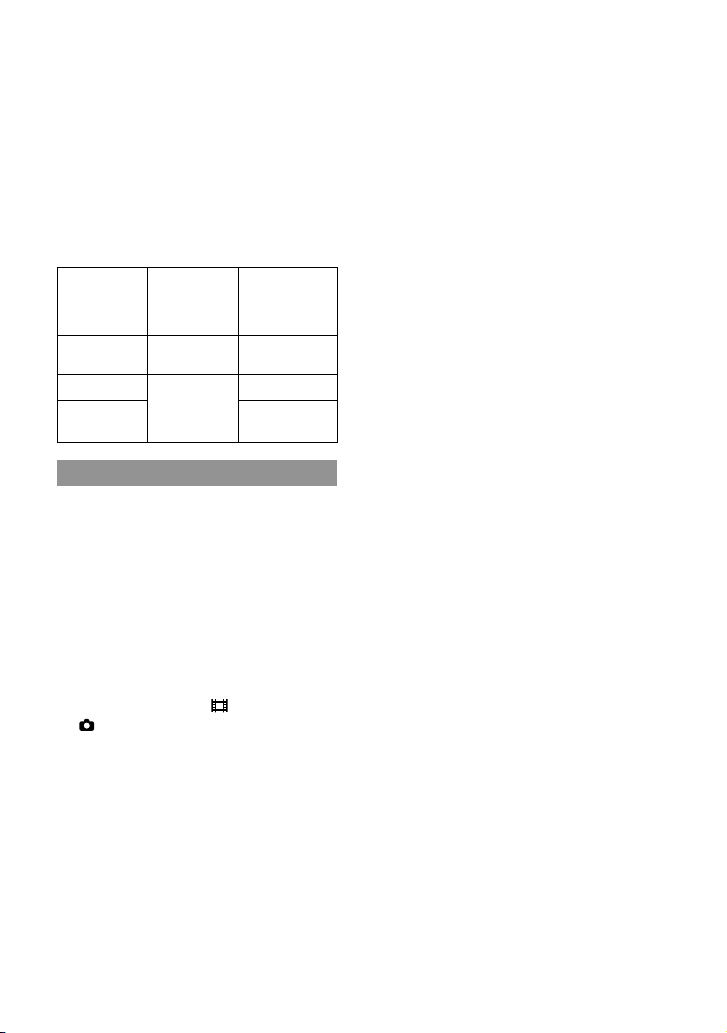
6
ES
Confirme el nombre de modelo de su
videocámara
El nombre de modelo aparece en este manual si
existe alguna diferencia en las especificaciones
entre los modelos. Confirme el nombre de
modelo en la parte inferior de su videocámara.
Las principales diferencias en las
especificaciones de esta serie son las siguientes.
Soportes de
grabación
Capacidad
del soporte
de grabación
interno
HDR-CX130
Tarjeta de
memoria
—
HDR-CX160 Memoria
interna +
tarjeta de
memoria
16 GB
HDR-CX180 32 GB
Notas acerca del uso
No realice ninguna de las siguientes acciones
o podría dañar el soporte de grabación, ser
incapaz de reproducir las imágenes grabadas
o perderlas, u ocasionar otras fallas de
funcionamiento.
expulsar la tarjeta de memoria cuando el
in
dicador de acces
o (pág. 18) está encendido
o parpadeando
extraer la batería o el adaptador de
alimentación de ca de la videocámara, o
someter la videocámara a golpes o vibraciones
cuando los indicadores
(Película)/
(Foto) (pág. 20) o el indicador de acceso
(pág. 18) están encendidos o parpadeando
Al usar una correa de hombros (se vende por
separado), procure no golpear la videocámara
contra otros objetos.

7
Índice
ES
Índice
Lea este apartado en primer lugar . . . . . . . . . . . . . . . . . . . . . . . . . . . . . . . . . . . . . . . . . . . . . . . . . . . . . . . . . . . . . 2
Procedimientos iniciales
Paso 1: Carga de la batería . . . . . . . . . . . . . . . . . . . . . . . . . . . . . . . . . . . . . . . . . . . . . . . . . . . . . . . . . . . . . . . . . . . . . . . 9
Carga de la batería en el extranjero . . . . . . . . . . . . . . . . . . . . . . . . . . . . . . . . . . . . . . . . . . . . . . . . . 12
Paso 2: Encendido y ajuste de la fecha y la hora . . . . . . . . . . . . . . . . . . . . . . . . . . . . . . . . . . . . . . . . . . . 13
Cambio del ajuste de idioma . . . . . . . . . . . . . . . . . . . . . . . . . . . . . . . . . . . . . . . . . . . . . . . . . . . . . . . . . 15
Paso 3: Preparación del soporte de grabación . . . . . . . . . . . . . . . . . . . . . . . . . . . . . . . . . . . . . . . . . . . . . 16
Para comprobar los ajustes del soporte de grabación . . . . . . . . . . . . . . . . . . . . . . . . . . 16
Copiar películas y fotos (HDR-CX160/CX180) . . . . . . . . . . . . . . . . . . . . . . . . . . . . . . . . . . . . . 18
Grabación/reproducción
Grabación . . . . . . . . . . . . . . . . . . . . . . . . . . . . . . . . . . . . . . . . . . . . . . . . . . . . . . . . . . . . . . . . . . . . . . . . . . . . . . . . . . . . . . . . . . 19
Selección del modo de grabación . . . . . . . . . . . . . . . . . . . . . . . . . . . . . . . . . . . . . . . . . . . . . . . . . . . 23
Reproducción en la videocámara . . . . . . . . . . . . . . . . . . . . . . . . . . . . . . . . . . . . . . . . . . . . . . . . . . . . . . . . . . . . . 24
Uso de la Reproducción de selección . . . . . . . . . . . . . . . . . . . . . . . . . . . . . . . . . . . . . . . . . . . . . . . 27
Reproducción de imágenes en un televisor . . . . . . . . . . . . . . . . . . . . . . . . . . . . . . . . . . . . . . . . . . . . . . . . 28
Funciones avanzadas
Eliminación de películas y fotos . . . . . . . . . . . . . . . . . . . . . . . . . . . . . . . . . . . . . . . . . . . . . . . . . . . . . . . . . . . . . . . 31
Almacenamiento de películas y fotos con una
computadora
Funciones útiles disponibles si conecta la videocámara a una computadora . . . . . . . 33
Preparación de una computadora . . . . . . . . . . . . . . . . . . . . . . . . . . . . . . . . . . . . . . . . . . . . . . . . . . . . . . . . . . . . 34
Al usar una computadora Macintosh . . . . . . . . . . . . . . . . . . . . . . . . . . . . . . . . . . . . . . . . . . . . . . . 34
Inicio de PMB (Picture Motion Browser) . . . . . . . . . . . . . . . . . . . . . . . . . . . . . . . . . . . . . . . . . . . . . . . . . . . . . 37
Carga de imágenes a un servicio de red . . . . . . . . . . . . . . . . . . . . . . . . . . . . . . . . . . . . . . . . . . . . . . . . . . . . . 38

8
ES
Almacenamiento de imágenes en un dispositivo externo
Selección de un método para guardar imágenes con un dispositivo externo. . . . . . . 41
Almacenamiento de imágenes en un dispositivo de soporte externo . . . . . . . . . . . . . . . . 43
Creación de un disco con la grabadora de DVD, DVDirect Express . . . . . . . . . . . . . . . . . . . . 47
Creación de un disco con calidad de imagen de alta definición (HD)
mediante una grabadora de DVD, etc., que no es DVDirect Express . . . . . . . . . . . . . . . . . . 50
Creación de un disco con calidad de imagen de definición estándar (STD)
mediante una grabadora, etc. . . . . . . . . . . . . . . . . . . . . . . . . . . . . . . . . . . . . . . . . . . . . . . . . . . . . . . . . . . . . . . . . . 51
Personalización de la videocámara
Uso de los menús . . . . . . . . . . . . . . . . . . . . . . . . . . . . . . . . . . . . . . . . . . . . . . . . . . . . . . . . . . . . . . . . . . . . . . . . . . . . . . . . 53
Obtención de información detallada con la Guía práctica de “Handycam” . . . . . . . . . . 57
Información complementaria
Solución de problemas . . . . . . . . . . . . . . . . . . . . . . . . . . . . . . . . . . . . . . . . . . . . . . . . . . . . . . . . . . . . . . . . . . . . . 58
Tiempo de grabación de películas/número de fotos que puede grabar . . . . . . . . . . . . . . 61
Precauciones . . . . . . . . . . . . . . . . . . . . . . . . . . . . . . . . . . . . . . . . . . . . . . . . . . . . . . . . . . . . . . . . . . . . . . . . . . . . . . . . . . . . . . 63
Especificaciones . . . . . . . . . . . . . . . . . . . . . . . . . . . . . . . . . . . . . . . . . . . . . . . . . . . . . . . . . . . . . . . . . . . . . . . . . . . . . . . . . . 65
Referencia rápida
Indicadores de la pantalla . . . . . . . . . . . . . . . . . . . . . . . . . . . . . . . . . . . . . . . . . . . . . . . . . . . . . . . . . . . . . . . . . . . . . . 68
Piezas y controles . . . . . . . . . . . . . . . . . . . . . . . . . . . . . . . . . . . . . . . . . . . . . . . . . . . . . . . . . . . . . . . . . . . . . . . . . . . . . . . . 69
Índice . . . . . . . . . . . . . . . . . . . . . . . . . . . . . . . . . . . . . . . . . . . . . . . . . . . . . . . . . . . . . . . . . . . . . . . . . . . . . . . . . . . . . . . . . . . . . . . 71
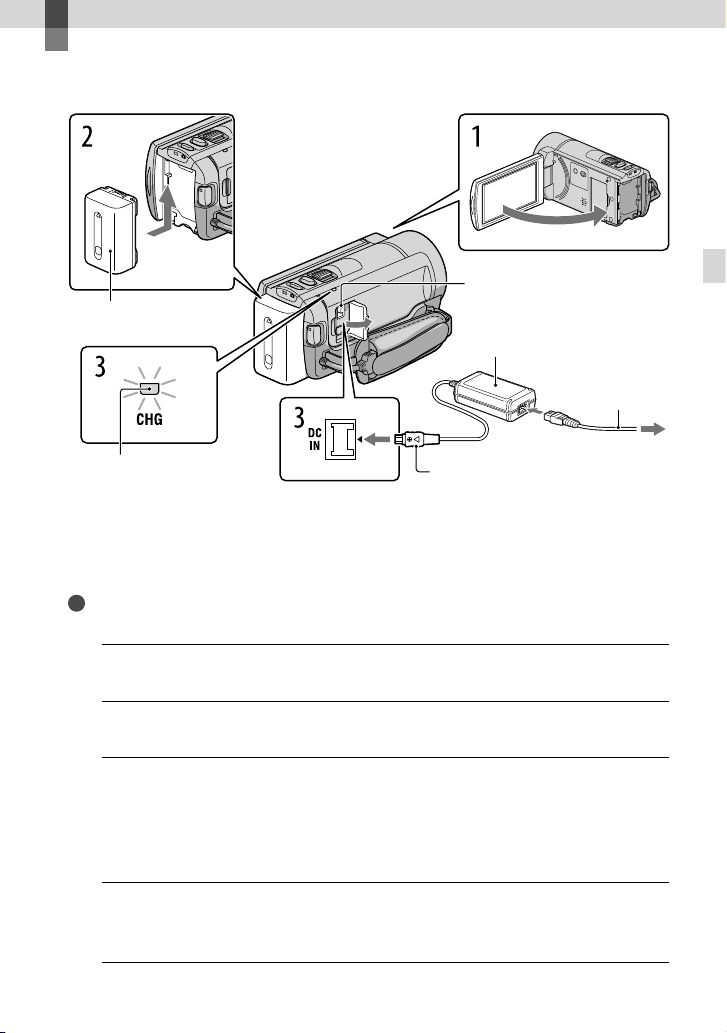
9
ES
Procedimientos iniciales
Procedimientos iniciales
Paso 1: Carga de la batería
Puede cargar la batería “InfoLITHIUM” (serie V) después de instalarla en la videocámara.
Notas
No puede instalar ninguna batería “InfoLITHIUM” que no sea de la serie V en la videocámara.
1
Para apagar la videocámara, cierre la pantalla de cristal líquido.
2
Instale la batería en la dirección que indica la flecha hasta que oiga un clic.
3
Conecte el adaptador de alimentación de ca y el cable de alimentación a
la videocámara y al tomacorriente de pared.
El indicador CHG (carga) se enciende y se inicia el proceso de carga. El indicador CHG
(carga) se apaga cuando la batería está totalmente cargada.
4
Cuando la batería esté cargada, desconecte el adaptador de alimentación
de ca de la toma DC IN de la videocámara.
Batería
Indicador CHG (carga)
Toma DC IN
Al tomacorriente de pared
Adaptador de
alimentación de ca
Clavija de cc
Cable de
alimentación
Alinee la marca de la clavija de cc
con la marca de la toma DC IN.
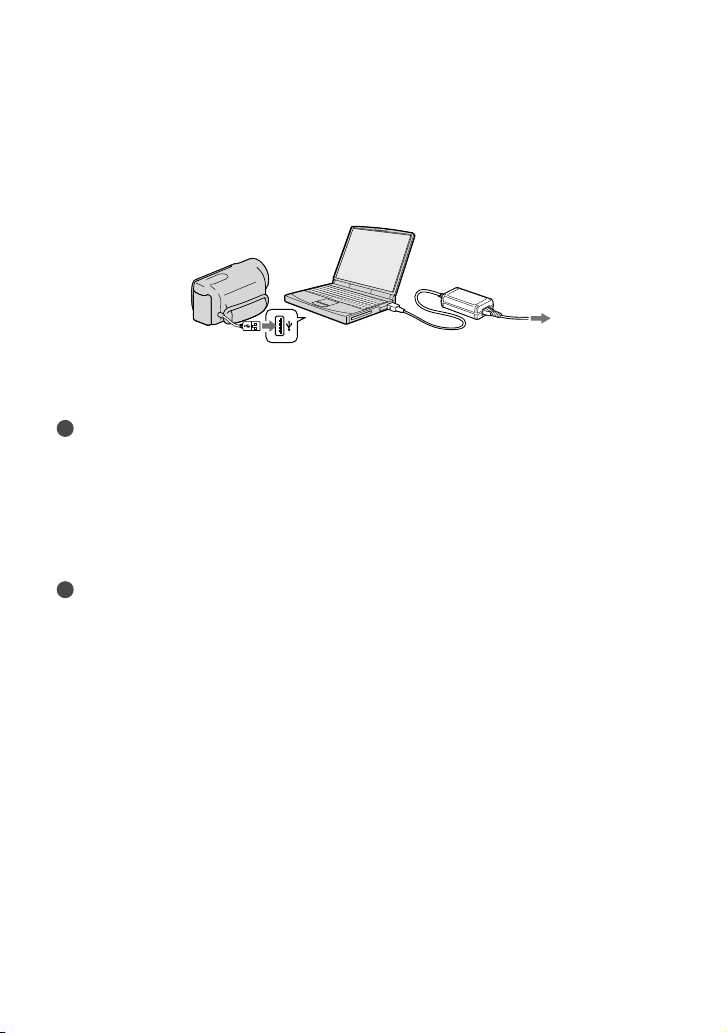
10
ES
Para cargar la batería usando la computadora
Este método es útil cuando el adaptador de alimentación de ca no está disponible.
Apague la videocámara e instale la batería.
Con
ecte la videocámara a una computadora que esté funcionando mediante el cable USB
incor
porado.
Cuando la batería se haya cargado completamente, desconecte la videocámara de la
computadora (pág. 36).
Notas
No se asegura la operación con todas las computadoras.
Si conecta la videocámara a una computadora portátil que no está conectada a una fuente de
alimentación, la batería de la computadora portátil seguirá consumiendo su carga. No deje la
videocámara conectada a una computadora de esta manera.
No se garantiza la carga si utiliza una computadora ensamblada personalmente, una computadora
reacondicionada o un concentrador USB. Es posible que la videocámara no funcione adecuadamente
según el dispositivo USB que se utilice con la computadora.
Sugerencias
Puede cargar la batería conectando el cable USB incorporado a un tomacorriente de pared utilizando un
cargador USB/adaptador de alimentación de ca AC-U501AD/AC-U50AG (se vende por separado). No
puede usar un dispositivo de suministro alimentación portátil CP-AH2R o CP-AL de Sony (se vende por
separado) para cargar la videocámara.
Es posible que el cargador USB/adaptador de alimentación de ca no estén disponibles en algunos países
o regiones.
Es posible que el indicador CHG (carga) no se ilumine si la batería restante es demasiado baja. En ese
caso, cargue la batería utilizando el adaptador de alimentación de ca
Al tomacorriente de pared
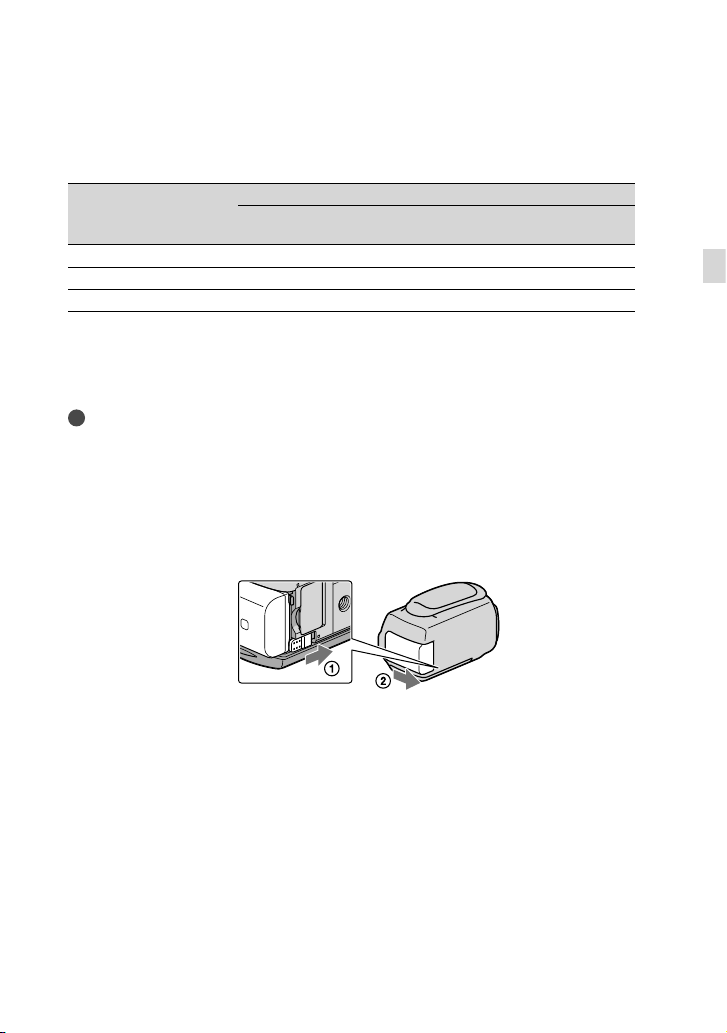
11
ES
Procedimientos iniciales
Tiempo de carga
Tiempo aproximado (min) necesario para cargar completamente una batería totalmente
descargada.
Batería
Tiempo de carga
Adaptador de alimentación
de ca
Cable USB incorporado
*
NP-FV50 (suministrada) 155 315
NP-FV70 195 600
NP-FV100 390 1050
El tiempo de carga que aparece en la tabla anterior se mide al cargar la videocámara a una temperatura
de 25
C
Se recomienda que cargue la batería a una temperatura de un rango de 10
C a 30 C
* El tiempo de carga se mide sin utilizar el cable de soporte de conexión USB.
Sugerencias
Consulte la página 61 para obtener información sobre los tiempos de reproducción y grabación.
Con la videocámara encendida, puede comprobar el tiempo restante aproximado de la batería a través del
indicador de batería restante situado en la esquina superior derecha de la pantalla de cristal líquido.
Para extraer la batería
Cierre la pantalla de cristal líquido. Deslice la palanca de liberación de BATT (batería) () y
retire la batería ().
Para usar un tomacorriente de pared como fuente de alimentación
Realice las mismas conexiones que se indican en “Paso 1: Carga de la batería” (pág. 9).
Aunque la batería esté instalada, no se descargará.

12
ES
Notas sobre la batería
Antes de extraer la batería o desconectar el adaptador de alimentación de ca apague la videocámara y
compruebe que los indicadores
(Película)/ (Foto) (pág. 20) y el indicador de acceso (pág. 18) estén
apagados.
El indicador CHG (carga) parpadea durante la carga en las condiciones siguientes:
La batería no está conectada correctamente.
La batería está dañada.
La temperatura de la batería es baja.
Extraiga la batería de la videocámara y póngala en un lugar cálido.
La temperatura de la batería es alta.
Extraiga la batería de la videocámara y póngala en un lugar frío.
No recomendamos el uso de una batería NP-FV30 en esta videocámara, ya que sólo permite tiempos de
grabación y reproducción cortos.
En el ajuste predeterminado, la alimentación se apaga automáticamente si no utiliza la videocámara
durante unos 5 minuto a fin de ahorrar energía de la batería ([Apagado auto]).
Notas acerca del adaptador de alimentación de ca
Cuando utilice el adaptador de alimentación de ca use el tomacorriente de pared más cercano. Si se
produce alguna falla de funcionamiento mientras utiliza la videocámara, desconecte inmediatamente el
adaptador de alimentación de ca del tomacorriente de pared.
No coloque el adaptador de alimentación de ca en lugares estrechos, como por ejemplo entre una pared
y un mueble.
No provoque un cortocircuito en la clavija de cc del adaptador de alimentación de ca ni en el terminal de
la batería con ningún objeto metálico. Si lo hace, puede ocasionar una falla de funcionamiento.
Carga de la batería en el extranjero
Puede cargar la batería en cualquier país o región con el adaptador de alimentación de
ca suministrado con la videocámara dentro de un rango de ca de entre 100 V y 240 V
50 Hz/60 Hz
No utilice un transformador de voltaje electrónico.
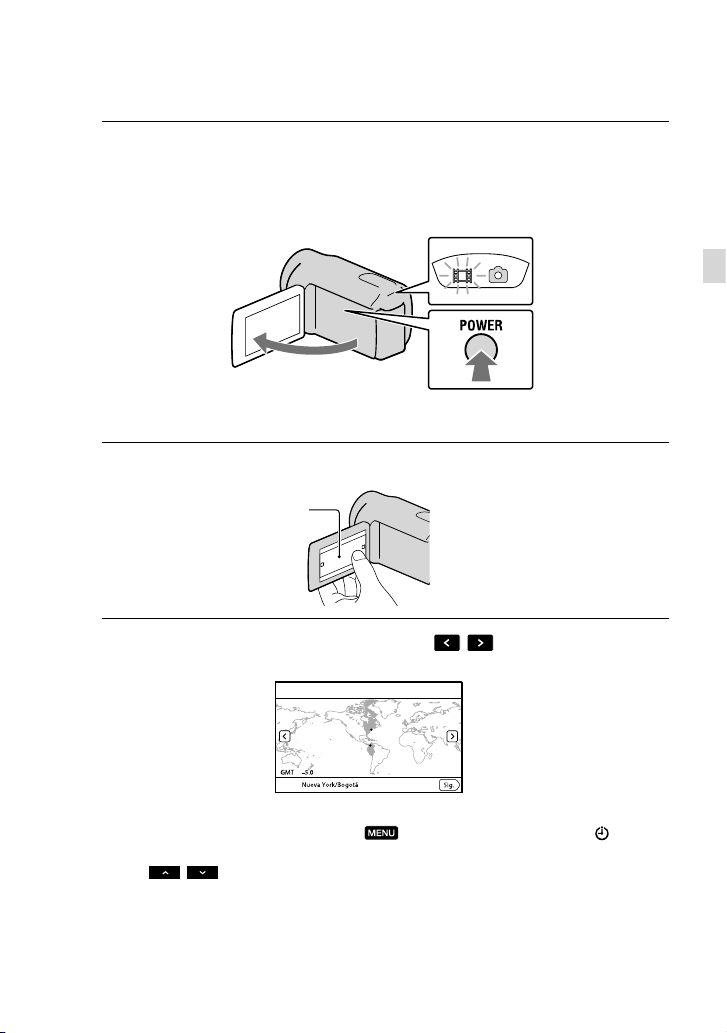
13
ES
Procedimientos iniciales
Paso 2: Encendido y ajuste de la fecha y la hora
1
Abra la pantalla de cristal líquido de la videocámara.
La videocámara se enciende.
Para encender la videocámara cuando la pantalla de cristal líquido está abierta, presione POWER.
2
Seleccione el idioma deseado y toque [Sig.].
3
Seleccione la zona geográfica deseada con
/ y luego toque [Sig.].
Para volver a ajustar la fecha y la hora, toque (MENU) [Configuración] [ (Ajustes
del reloj)] [Config.fecha y hora] [Fecha y hora]. Si un elemento no aparece en la pantalla,
toque
/ hasta que aparezca.
Toque el botón que
aparece en la pantalla de
cristal líquido
Indicador MODE
Botón POWER
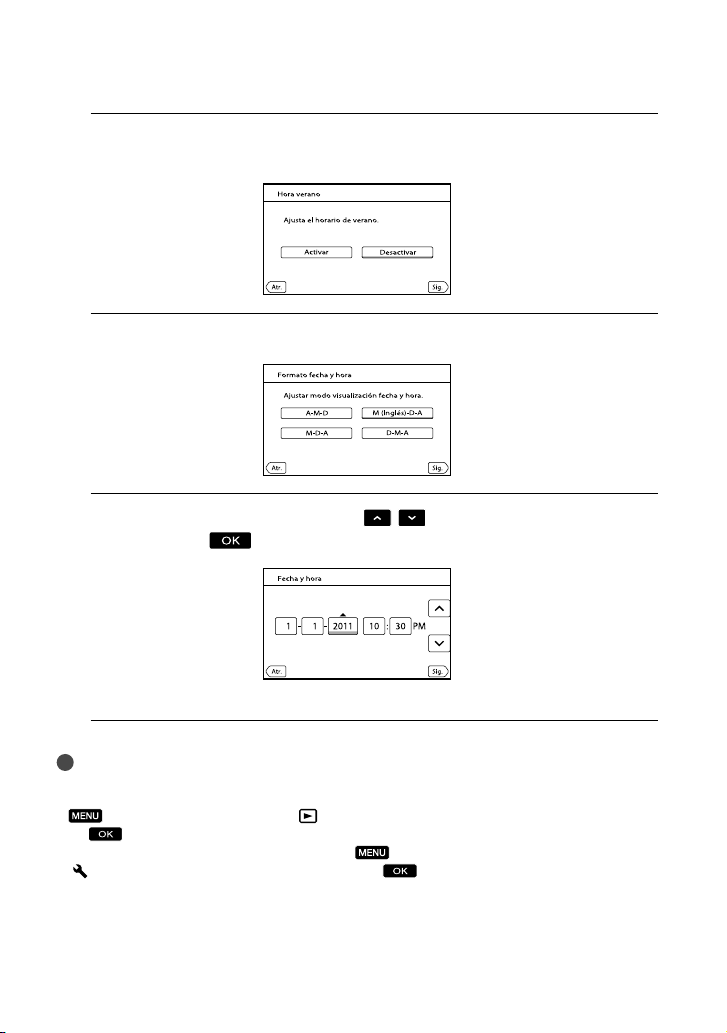
14
ES
4
Ajuste [Hora verano] y, luego, toque [Sig.].
Si ajusta [Hora verano] en [Activar], el reloj avanza 1 hora.
5
Seleccione el formato de fecha y toque [Sig.].
6
Seleccione la hora y la fecha, toque
/ para ajustar el valor y, luego,
toque [Sig.]
.
El reloj empezará a funcionar.
Notas
La fecha y la hora no aparecen durante la grabación, aunque se graban automáticamente en el soporte
de grabación y se pueden mostrar durante la reproducción. Para mostrar la fecha y la hora, toque
(MENU) [Configuración] [ (Ajustes reproducción)] [Código datos] [Fecha/hora]
.
Puede apagar los pitidos de funcionamiento si toca
(MENU) [Configuración]
[
(Ajustes generales)] [Pitido] [Desactivar] .
Si el botón que toca no reacciona correctamente, debería calibrar el panel táctil.
15
ES
Procedimientos iniciales
Para apagar la videocámara
Cierre la pantalla de cristal líquido.
El indicador
(Película) parpadea durante varios segundos y la videocámara se apaga.
Sugerencias
También puede apagar la videocámara si presiona POWER.
Si [Encendido con LCD] está ajustado en [Desactivar], apague la videocámara presionando POWER.
Cambio del ajuste de idioma
Puede ajustar la videocámara para ver los mensajes de la pantalla en un idioma específico.
Toque
(MENU) [Configuración] [ (Ajustes generales)] [Language Setting]
el idioma deseado
.
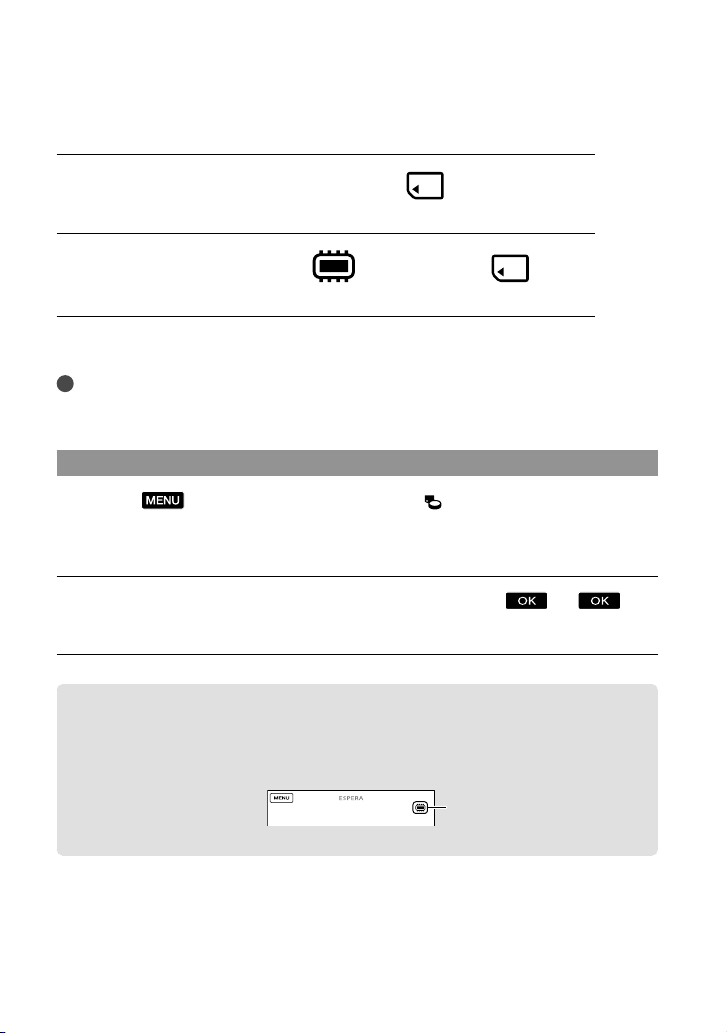
16
ES
Paso 3: Preparación del soporte de grabación
El soporte de grabación que puede utilizarse difiere según la videocámara. Los siguientes
iconos aparecen en la pantalla de la videocámara.
HDR-CX130
Tarjeta de memoria
HDR-CX160/CX180
*
Memoria interna Tarjeta de memoria
* En el ajuste predeterminado, tanto películas como fotos se graban en este soporte de grabación. Puede
realizar operaciones de grabación, reproducción y edición en el soporte seleccionado.
Sugerencias
Consulte la página 61 para conocer el tiempo de grabación de las películas.
Consulte la página 62 para conocer el número de fotos que puede guardar.
Selección del soporte de grabación (HDR-CX160/CX180)
Toque (MENU) [Configuración] [ (Ajustes de soporte)]
[Selección soporte].
Aparecerá la pantalla [Selección soporte].
Toque el soporte de grabación deseado y, luego, toque .
La películas y fotos se graban en el soporte seleccionado.
Para comprobar los ajustes del soporte de grabación
En el modo de grabación de películas o en el modo de grabación de fotos, el icono de
soporte de grabación seleccionado de grabación seleccionado aparece en la esquina
superior derecha de la pantalla.
El icono que se muestra puede variar según su modelo.
Icono de soporte de
grabación
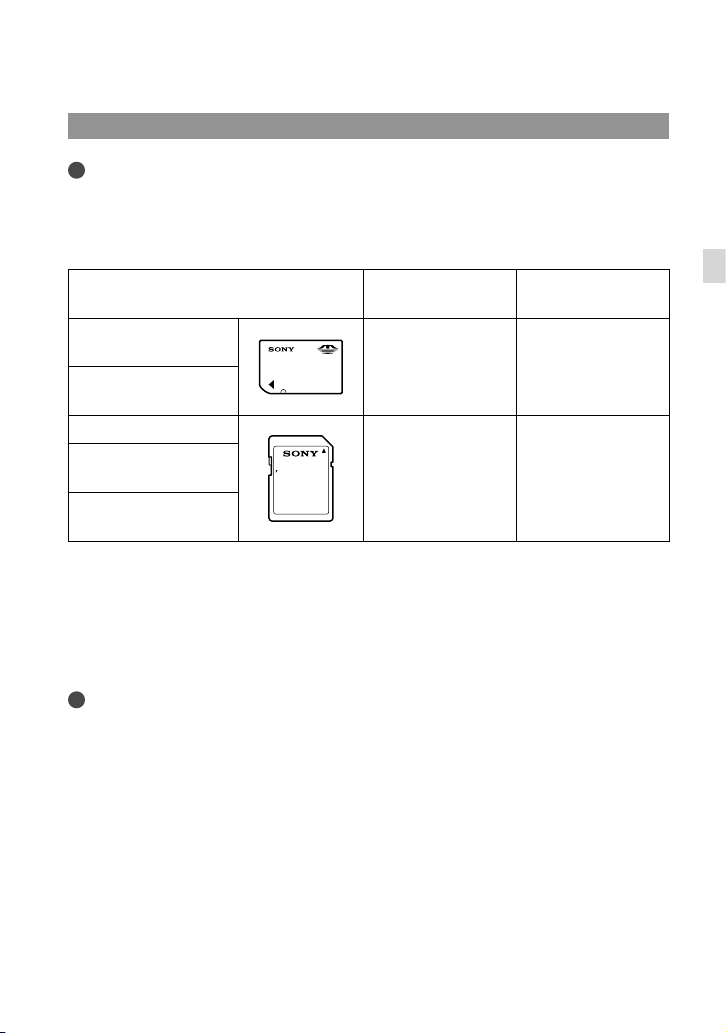
17
ES
Procedimientos iniciales
Inserción de una tarjeta de memoria
Notas
Ajuste el soporte de grabación en [Tarjeta memoria] para grabar películas y/o fotos en una tarjeta de
memoria (HDR-CX160/CX180).
Tipos de tarjeta de memoria que puede usar con esta videocámara
Clase de velocidad
de SD
Descrito en este
manual
“Memory Stick PRO
Duo” (Mark2)
—
“Memory Stick PRO
Duo”
“Memory Stick
P
R
O
-
HG Duo”
Tarjeta de memoria SD
Class 4 o superior Tarjeta SD
Tarjeta de memoria
SDHC
Tarjeta de memoria
SDXC
No se asegura la operación con todas las tarjetas de memoria.
En esta videocámara se pueden usar soportes “Memory Stick PRO Duo”, “Memory Stick” de tamaño
medio o tarjetas SD de tamaño estándar.
No adhiera etiquetas ni adhesivos similares en una tarjeta de memoria ni en un adaptador para tarjeta de
memoria. Si lo hace, puede ocasionar una falla de funcionamiento.
S
e ha com
probado que los soportes “Memory Stick PRO Duo” de hasta 32 GB y las tarjetas SD de hasta
64 GB funcionan con la videocámara.
Notas
Esta videocámara no es compatible con tarjetas MultiMediaCard.
Las películas grabadas en tarjetas de memoria SDXC no se pueden importar a las computadoras ni
reproducirse en ellas, ni en los dispositivos AV que no sean compatibles con el sistema de archivos
exFAT* conectando la videocámara a estos dispositivos mediante el cable USB. Confirme de antemano
que el equipo de conexión sea compatible con el sistema exFAT. Si conecta un equipo que no es
compatible con el sistema exFAT y aparece la pantalla de formateo, no realice el formateo. Si lo hace,
perderá todos los datos grabados.
* exFAT es un sistema de archivos que se usa para tarjetas de memoria SDXC.
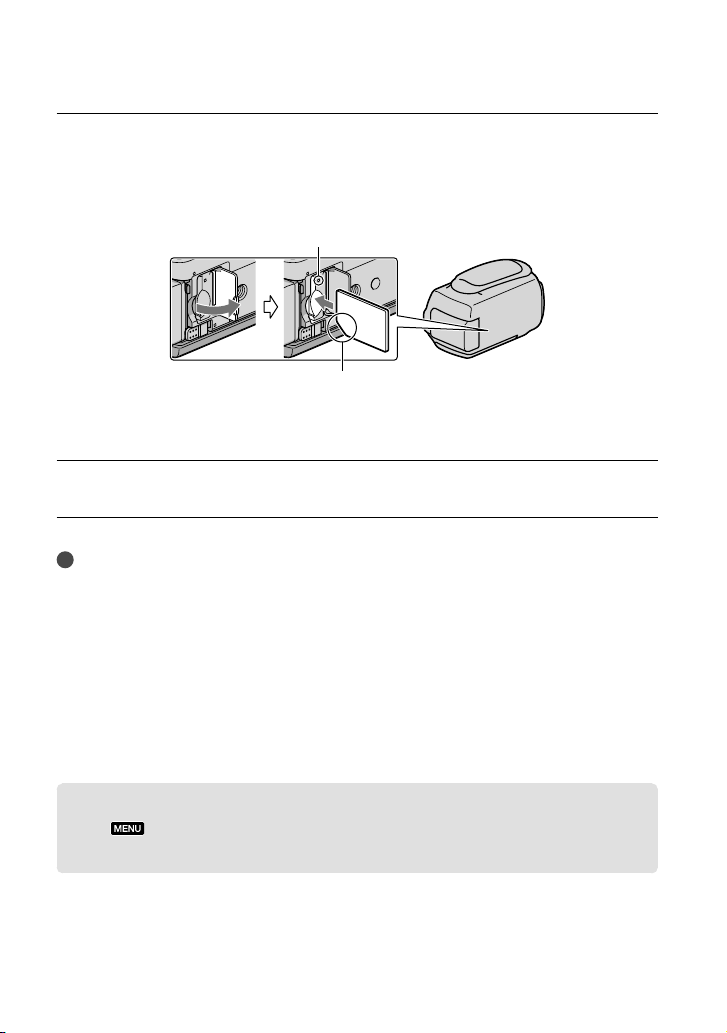
18
ES
Abra la tapa e inserte la tarjeta de memoria con el borde biselado en la
dirección que se muestra en la imagen hasta que encaje.
Cierre la tapa después de insertar la tarjeta de memoria.
Aparece la pantalla [Preparando archivo base datos imagen. Espere por favor.] si inserta
una nueva tarjeta de memoria. Espere hasta que la pantalla desaparezca.
Cierre la tapa.
Notas
Si aparece [Error al crear un nuevo archivo de base de datos de imágenes. Es posible que no exista
suficiente espacio libre.], formatee la tarjeta de memoria.
Confirme la dirección de la tarjeta de memoria. Si inserta la tarjeta de memoria forzadamente en la
dirección incorrecta, es posible que se dañe la tarjeta de memoria, la ranura para la tarjeta de memoria o
los datos de imagen.
No abra la tapa durante la grabación.
Al insertar o expulsar la tarjeta de memoria, tenga cuidado de que la tarjeta de memoria no salga
impulsada y se caiga.
Para expulsar la tarjeta de memoria
Abra la tapa y presione ligeramente la tarjeta de memoria hacia dentro una vez.
Copiar películas y fotos (HDR-CX160/CX180)
Toque (MENU) [Editar/Copiar] [Copiar] y siga las instrucciones que aparecen
en la pantalla.
Indicador de acceso
Observe la dirección de la esquina biselada.
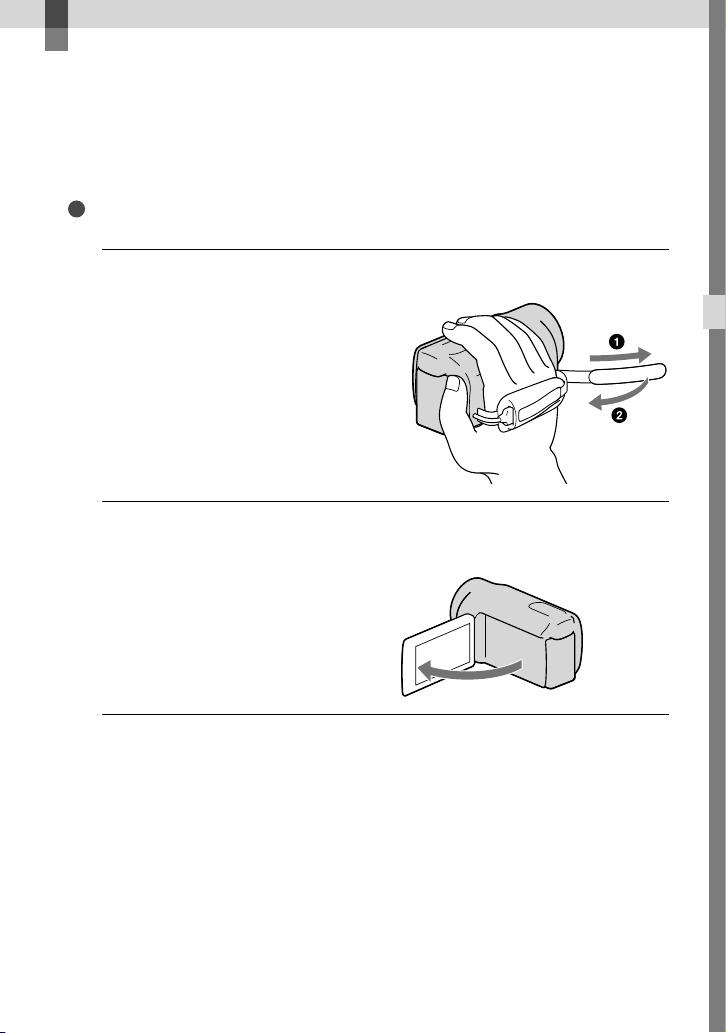
19
ES
Grabación/reproducción
Grabación/reproducción
Grabación
En el ajuste predeterminado, las películas y fotos se graban en los siguientes soportes. Las
películas se graban con calidad de imagen de alta definición (HD).
HDR-CX130: tarjeta de memoria
HDR-CX160/CX180: soportes de grabación internos
Sugerencias
Para cambiar los soportes de grabación, consulte la página 16 (HDR-CX160/CX180).
1
Ajuste la correa de sujeción.
2
Abra la pantalla de cristal líquido de la videocámara.
Se abre la tapa del objetivo y se enciende la videocámara.
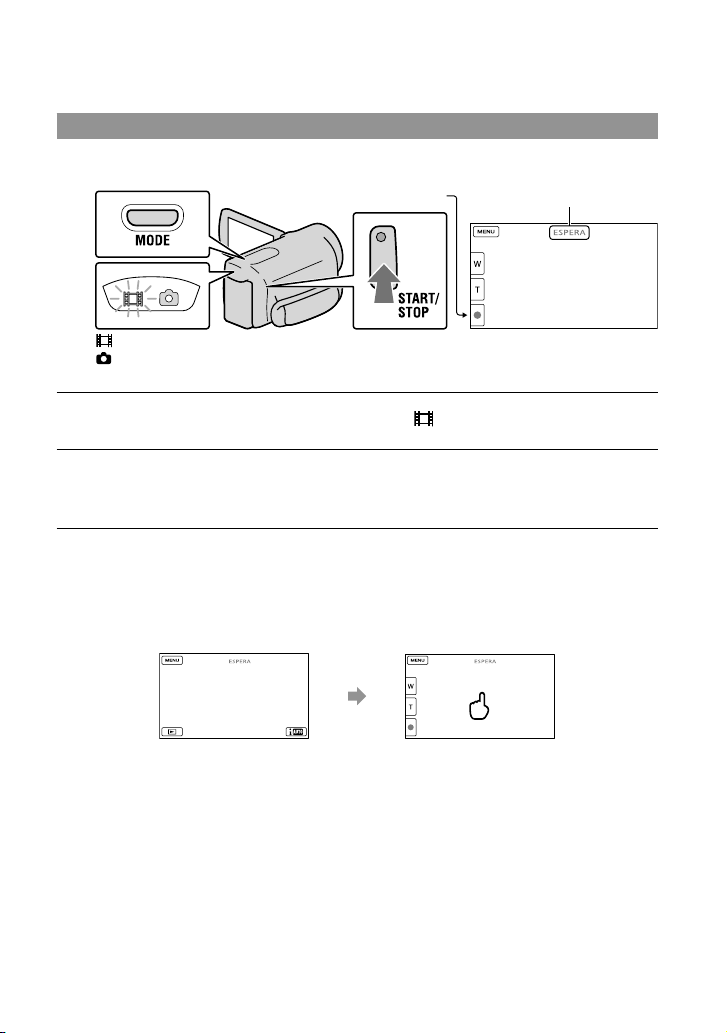
20
ES
Grabación de películas
Presione MODE para encender el indicador (Película).
Presione START/STOP para iniciar la grabación.
Para detener la grabación, presione START/STOP de nuevo.
Para volver a mostrar los elementos en la pantalla de cristal líquido
Toque cualquier área de la pantalla, excepto los botones de la pantalla de cristal líquido, para
que pueda usar elementos. Puede cambiar los ajustes utilizando el menú [Ajuste pantalla].
Botón MODE
(Película): Durante la grabación de una película
(Foto): Durante la grabación de una foto
[ESPERA] [GRAB.]
Botón START/STOP
unos 4
segundo
después
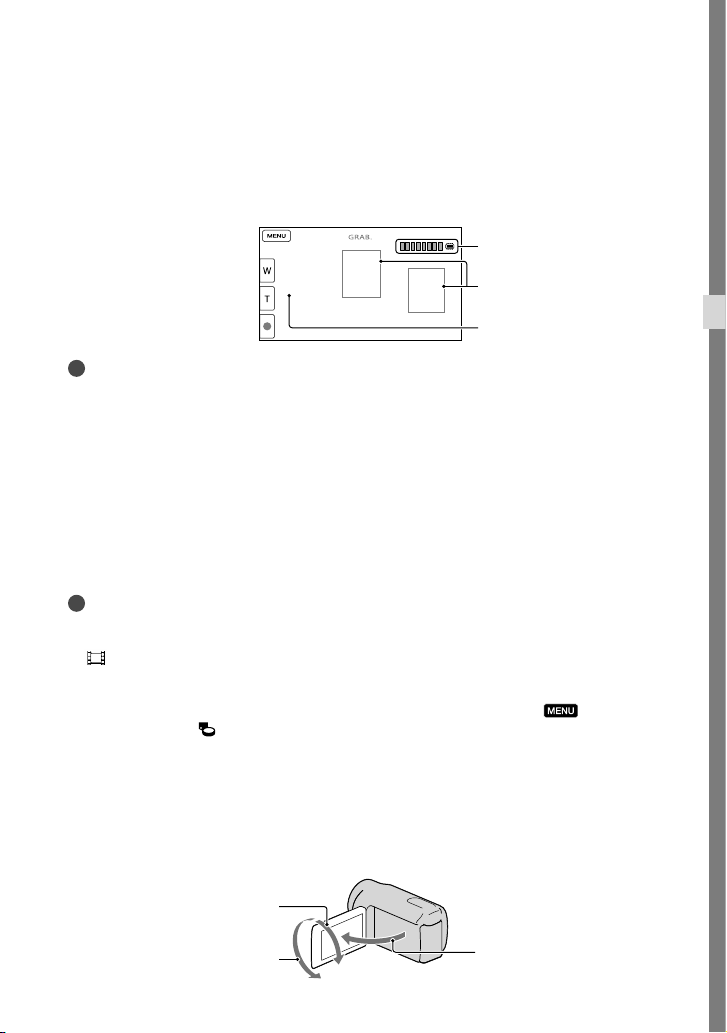
21
ES
Grabación/reproducción
Para capturar sonrisas
En el ajuste predeterminado, se graba automáticamente una foto cuando la videocámara
detecta la sonrisa de una persona durante la grabación de una película (Captador de sonrisas).
Cuando la videocámara detecta caras durante la grabación de películas, la calidad de imagen
se ajusta automáticamente ([Detección de rostro]).
Notas
Si cierra la pantalla de cristal líquido mientras graba películas, se detendrá la grabación.
El tiemp
o máximo de grabación continua de películas es de aproximadamente 13 hora.
Cuando un archivo de película supera los 2 GB el siguiente archivo de película se crea automáticamente.
Tras encender la videocámara, esta tardará varios segundo antes de poder comenzar a grabar. Durante
este tiempo, no podrá utilizar la videocámara.
Los siguientes estados se indicarán si todavía se están escribiendo datos en el soporte de grabación
después de que ha finalizado la grabación. Durante este tiempo, no someta la videocámara a golpes ni a
vibraciones, ni tampoco extraiga la batería o el adaptador de alimentación de ca
E
l indicado
r de acceso (pág. 18) está encendido o parpadeando
El icono de soporte que aparece en la parte superior derecha de la pantalla de cristal líquido está
parpadeando
Sugerencias
Consulte la página 61 para conocer el tiempo de grabación de las películas.
Para capturar fotos durante la grabación de una película, presione PHOTO completamente (Dual Rec).
[
SteadyShot] está definido en [Activo] en el ajuste predeterminado.
Para especificar la prioridad de cara, tóquela.
Puede capturar fotos a partir de películas grabadas.
Puede comprobar el tiempo de grabación, capacidad restante estimada, etc., si toca
(MENU)
[Configuración] [
(Ajustes de soporte)] [Info soporte].
La pantalla de cristal líquido de la videocámara puede mostrar imágenes de grabación en toda la
pantalla (visualización de píxeles completos). Sin embargo, esto puede ocasionar un leve recorte de los
bordes superior, inferior, derecho e izquierdo de las imágenes al reproducirlas en un televisor que no es
compatible con la visualización de píxeles completos. En este caso, ajuste [Guía fotográfica] en [Activar],
y grabe imágenes usando como guía el marco externo que se muestra en la pantalla.
Para ajustar el ángulo del panel de cristal líquido, primero abra el panel de cristal líquido 90 grados con
respecto a la videocámara () y ajuste el ángulo ().
90 grados (máx.)
180 grados (máx.)
90 grados respecto a la
videocámara
Marco de detección de cara
(Blanco)
Marco de detección de sonrisa
(Naranjo)
Captura de una foto
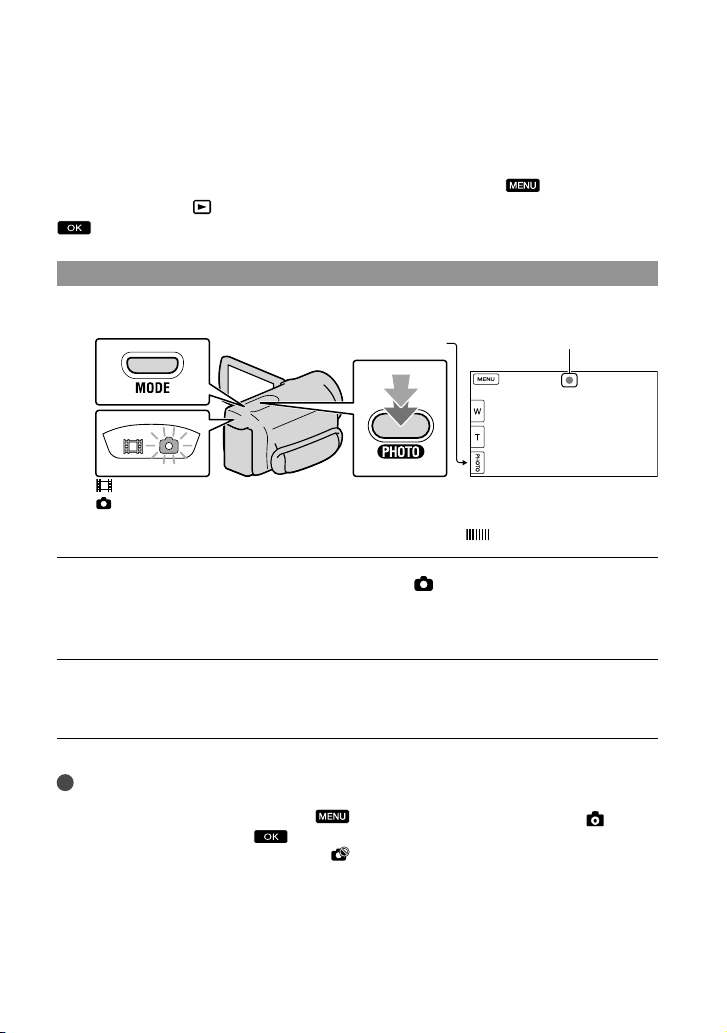
22
ES
Código de datos durante la grabación
La fecha, la hora y las condiciones de grabación se graban automáticamente en el soporte de
grabación, pero no se muestran durante la grabación. No obstante, es posible consultarlos
como [Código datos] durante la reproducción. Para mostrarlos, toque
(MENU)
[Configuración] [
(Ajustes reproducción)] [Código datos] el ajuste deseado
.
Captura de fotos
Cuando desaparece, se graba la foto.
Presione MODE para encender el indicador (Foto).
La pantalla de cristal líquido cambia para el modo de grabación de fotos y la relación de
aspecto de la pantalla cambia a 4:3.
Presione PHOTO levemente para ajustar el enfoque y luego presiónelo
completamente.
Sugerencias
Consulte la página 62 para conocer la cantidad de fotos que puede guardar.
Para cambiar el tamaño de la imagen, toque
(MENU) [Calidad img/Tamaño] [ Tamaño
imagen] el ajuste deseado
.
No es posible grabar fotos mientras se muestra
.
Botón MODE
(Película): Durante la grabación de una película
(Foto): Durante la grabación de una foto
Parpadea Se enciende
Botón PHOTO
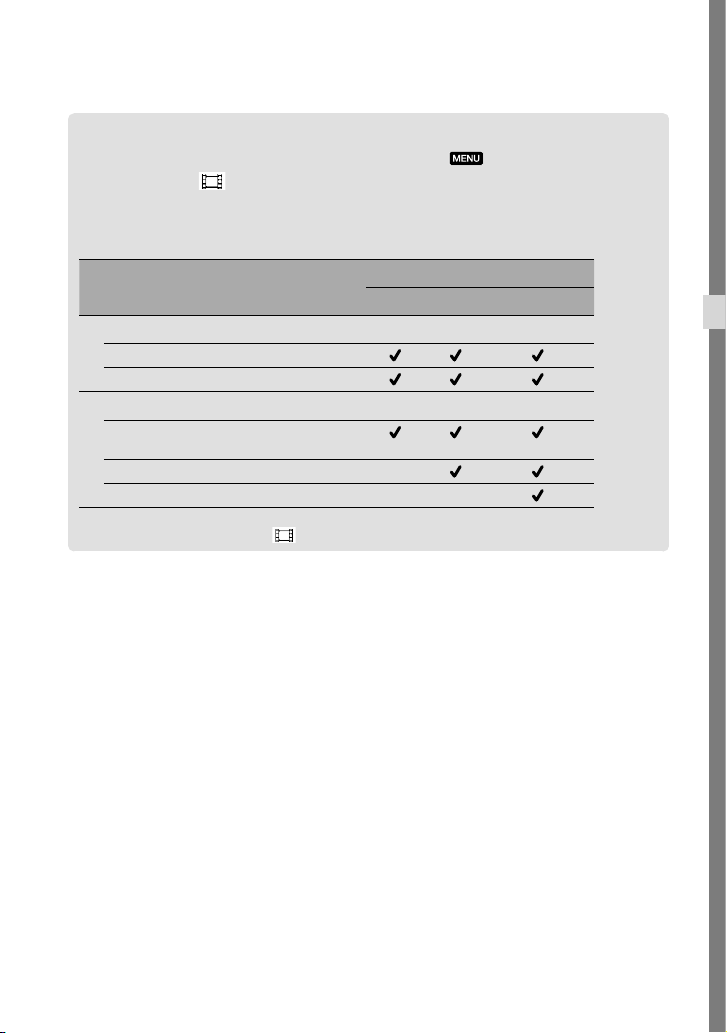
23
ES
Grabación/reproducción
Selección del modo de grabación
Puede cambiar la calidad de la imagen que graba tocando (MENU) [Calidad
img/Tamaño] [
Modo grabación].
Los tipos de soporte en los que se pueden guardar imágenes dependen del modo de
grabación seleccionado.
Para obtener detalles sobre cómo guardar en dispositivos externos, consulte la página 41.
Tipos de soporte
Modo de grabación
PS
*
FX FH/HQ/LP
En esta videocámara
Soportes de grabación internos
Tarjeta de memoria
En dispositivos externos
Soportes externos (dispositivos de
almacenamiento USB)
Blu-ray discos —
AVCHD discos de grabación — —
* [PS] sólo se puede usar cuando [ Imág. p. segundo] está ajustado en [60p].
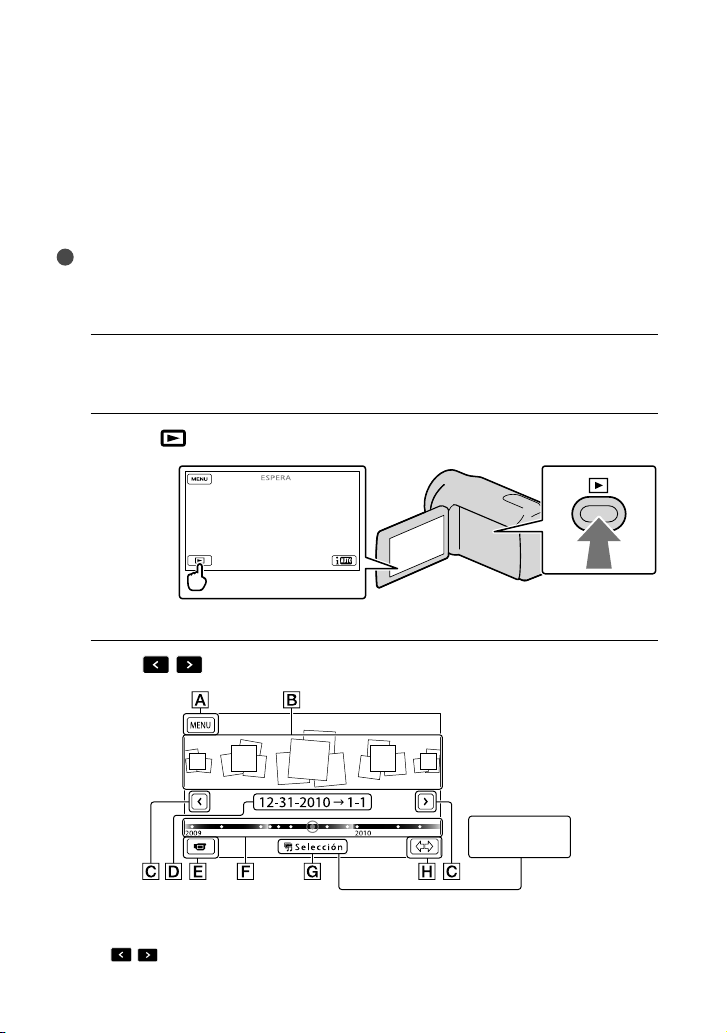
24
ES
Reproducción en la videocámara
Puede disfrutar la reproducción de imágenes con un sonido potente mediante los altavoces
estéreo incorporados en la videocámara.
En el ajuste predeterminado, se reproducen las películas y fotos que están grabadas en los
siguientes soportes de grabación.
HDR-CX130: tarjeta de memoria
HDR-CX160/CX180: soportes de grabación internos
Sugerencias
Para cambiar los soportes de grabación, consulte la página 16 (HDR-CX160/CX180).
La videocámara muestra las imágenes grabadas como un evento de manera automática, según la fecha y
hora.
1
Abra la pantalla de cristal líquido de la videocámara.
Se abre la tapa del objetivo y se enciende la videocámara.
2
Presione
(Ver Imágenes).
Aparece la pantalla Visualización de eventos después de algunos segundos.
3
Toque
/ para seleccionar el evento deseado ().
Para ir a la pantalla MENU
Eventos
/ : al evento anterior/siguiente
Botón
Reproducción
de selección
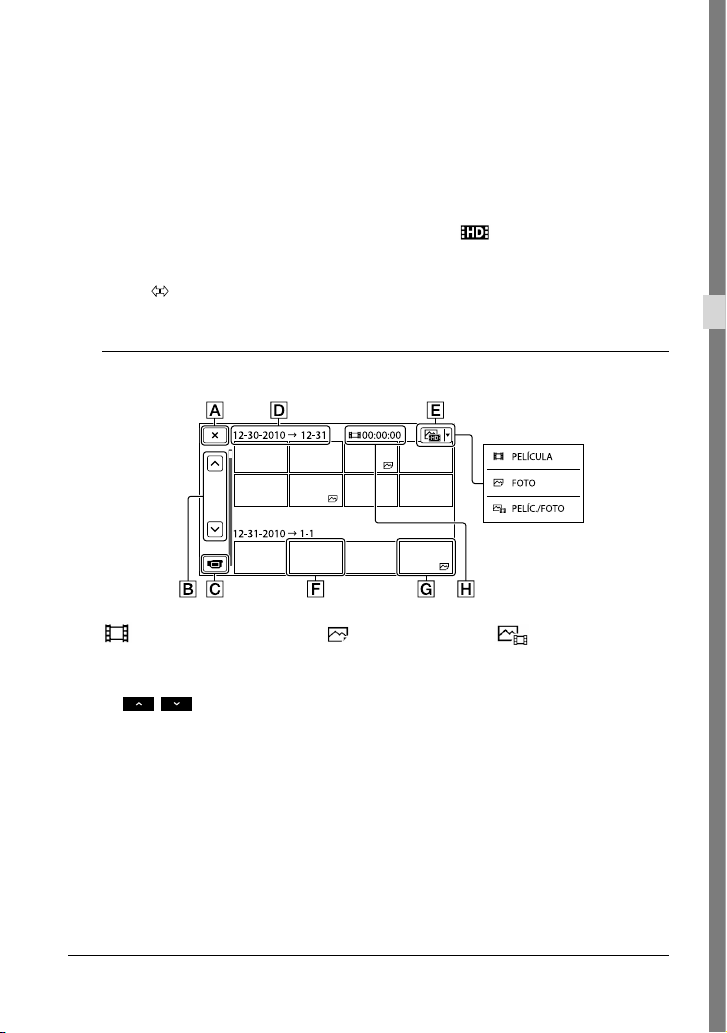
25
ES
Grabación/reproducción
Nombre del evento
Cambiar al modo de grabación de película/foto
Barra de línea de tiempo
Botón Reproducción de selección
*
Botón Cambiar escala de evento
* Aparece sólo cuando la calidad de la imagen está ajustada en [ Calidad HD].
Aparece la pantalla Índice de eventos cuando toca el evento que se muestra en el centro.
También puede seleccionar un evento si toca en la barra de línea de tiempo.
Toque
(Cambiar escala de evento) en la parte inferior derecha de la pantalla para que pueda
cambiar el rango de tiempo de la barra de línea de tiempo desde un año y medio a tres meses, lo
cual cambia el número de eventos que pueden aparecer en la barra de línea de tiempo.
4
Toque la imagen que desea ver.
Toque para seleccionar el tipo de imagen que desea mostrar en el índice desde
[
PELÍCULA] (solo películas), [ FOTO] (solo fotos) o [ PELÍC./FOTO]
(películas y fotos mezcladas).
Para volver a la pantalla Visualización de eventos
/ : muestra la página anterior/siguiente (si mantiene presionado el botón, se
desplaza la pantalla de índice).
Cambiar al modo de grabación de película/foto
Título de evento
Botón Cambiar tipo de imagen
Película
Foto
Tiempo total de reproducción de películas en el evento (número total de fotos si sólo
hay fotos).
aparece junto con la película o foto que se reprodujo o se grabó más recientemente. Si toca la
película o foto con , puede continuar la reproducción desde el momento anterior.
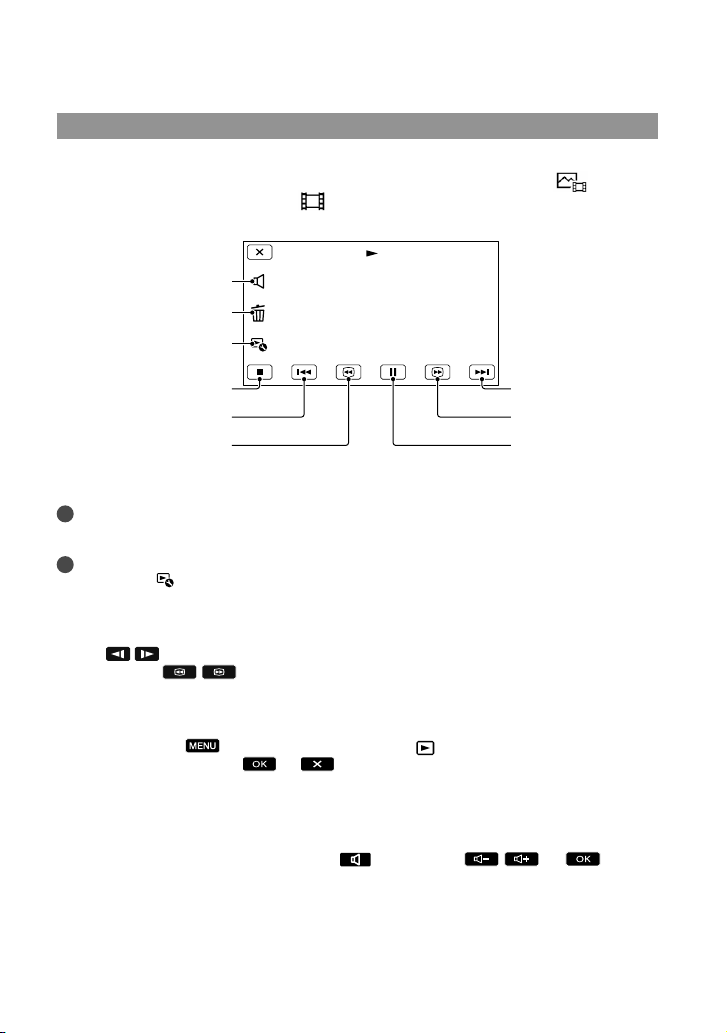
26
ES
Funcionamiento de la videocámara durante la reproducción de una película
Puede usar las funciones que se muestran en la figura siguiente mientras la videocámara está
reproduciendo una película. La figura a continuación aparecerá si selecciona [
PELÍC./
FOTO] (el ajuste predeterminado) o [
PELÍCULA] si toca el botón Cambiar tipo de
imagen en la pantalla Índice de eventos.
* Estos botones se pueden utilizar sólo cuando la videocámara está reproduciendo una película.
Notas
Es posible que no se puedan reproducir las imágenes con otros dispositivos además de la videocámara.
Sugerencias
Si toca el botón
en la pantalla de reproducción, se muestran las funciones que puede usar actualmente,
lo cual le permite utilizar estas funciones con facilidad.
Cuando la reproducción desde la imagen seleccionada llega a la última imagen, vuelve a mostrarse la
pantalla INDEX.
Toque
/ durante la pausa para reproducir la película a cámara lenta.
Si sigue tocando
/ durante la reproducción, las películas se reproducen con un aumento de
velocidad de aproximadamente 5 veces 10 veces 30 veces 60 veces.
La fecha y la hora de grabación y las condiciones de filmación se guardan automáticamente durante
la grabación. Esta información no aparece durante la grabación, pero puede mostrarse durante la
reproducción si toca
(MENU) [Configuración] [ (Ajustes reproducción)] [Código
datos] el ajuste deseado
.
En el ajuste predeterminado, hay una película de demostración protegida que se encuentra pregrabada
(HDR-CX160/CX180).
Para ajustar el volumen del sonido de las películas
Durante la reproducción de películas, toque ajuste con / .
Pausar*/reproducir
Avance rápido
*
Borrar
Siguiente
Rebobinado rápido
*
Detener*
Anterior
Ajuste del volumen
Contexto
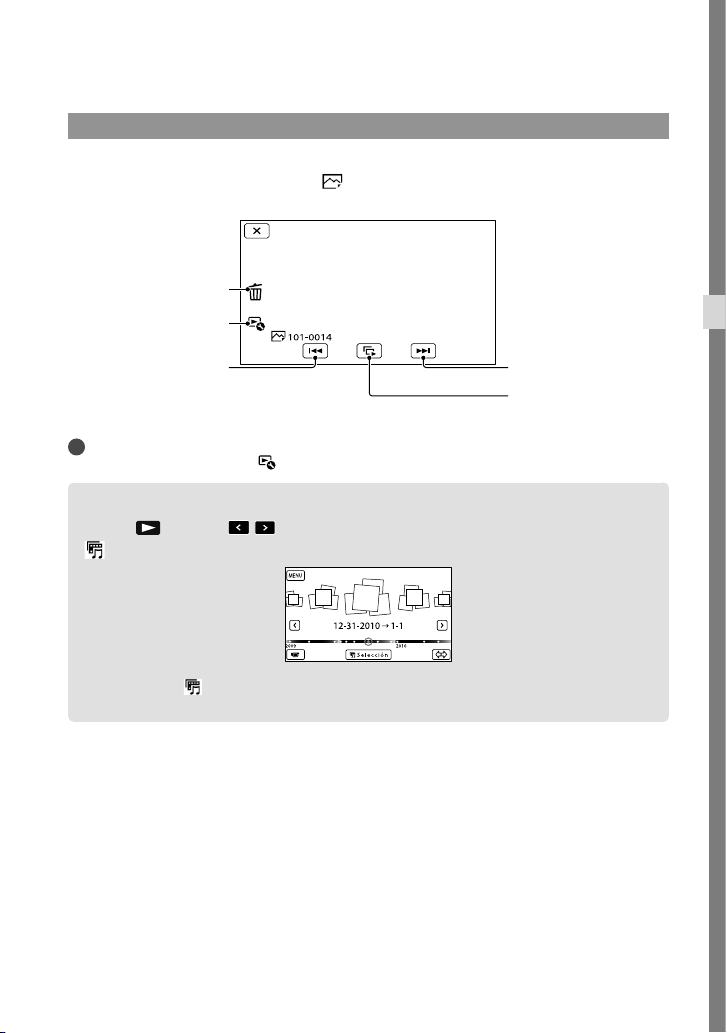
27
ES
Grabación/reproducción
Visualización de fotos
Puede utilizar las funciones que se muestran en la figura siguiente mientras ve fotos. La figura
a continuación aparecerá si selecciona [
FOTO] tocando el botón Cambiar tipo de imagen
en la pantalla Índice de eventos.
Sugerencias
Para repetir Diapositivas, toque
[Ajus. pase diapo.].
Uso de la Reproducción de selección
Presione Toque / para seleccionar el evento deseado y, a continuación, toque
[
Selección].
Toque [Guardar escenario] en la pantalla una vez que haya finalizado la Reproducción de
selección para que pueda guardar el escenario de Reproducción de selección.
Inicio/detención
de presentación de
diapositivas
Siguiente
Anterior
Borrar
Contexto
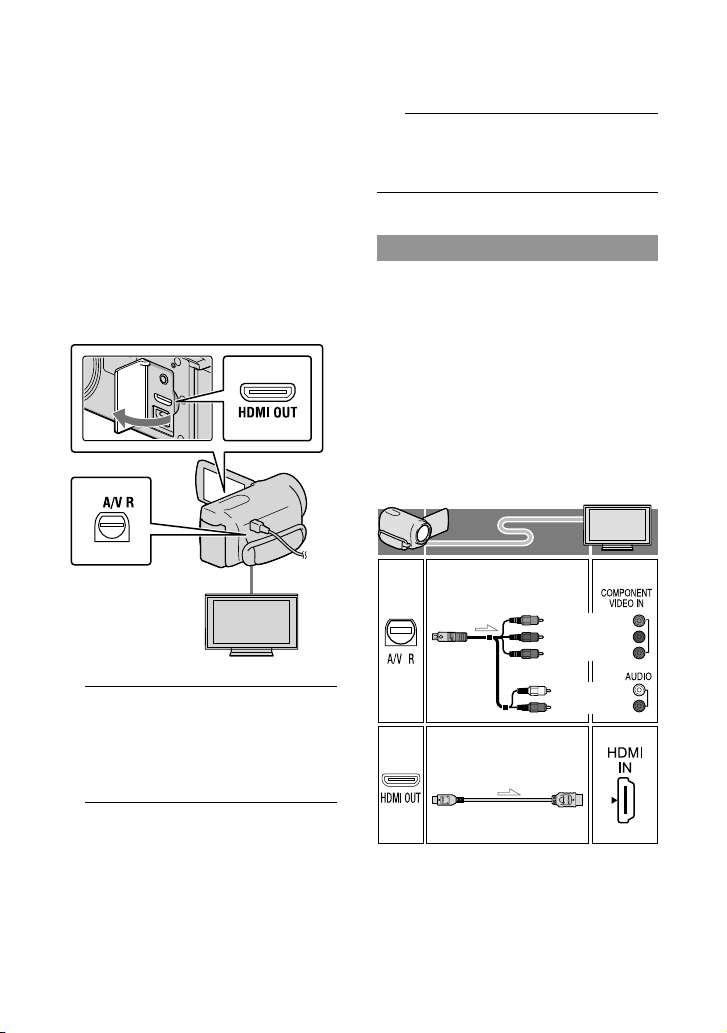
28
ES
Reproducción de
imágenes en un
televisor
Los métodos de conexión y la calidad de la
imagen (alta definición (HD) o definición
estándar (STD)) que se visualiza en un
televisor dependen del tipo de televisor
conectado y de los conectores utilizados.
Conectores de salida de la videocámara
1
Cambie la entrada en el televisor
según la toma conectada.
Consulte los manuales de instrucciones
del televisor.
2
Conecte la videocámara a un
televisor.
Utilice el adaptador de alimentación de ca
suministrado como fuente de alimentación
(pág.
11).
3
Reproducir una película o una
foto en la videocámara (pág. 24).
Lista de conexión
Conexión a un televisor de alta
definición
Cuando la calidad de grabación es calidad
de imagen de alta definición (HD), las
películas se reproducen con calidad de
imagen de alta definición (HD). Cuando la
calidad de grabación es calidad de imagen
estándar (STD), las películas se reproducen
con calidad de imagen de definición
estándar (STD).
Toma HDMI OUT
Conector remoto
de A/V
(verde) Y
(azul)
PB/CB
(rojo)
PR/CR
(blanco)
(rojo)
Cable de A/V de
componente (suministrado)
Cable HDMI
(se vende por separado)
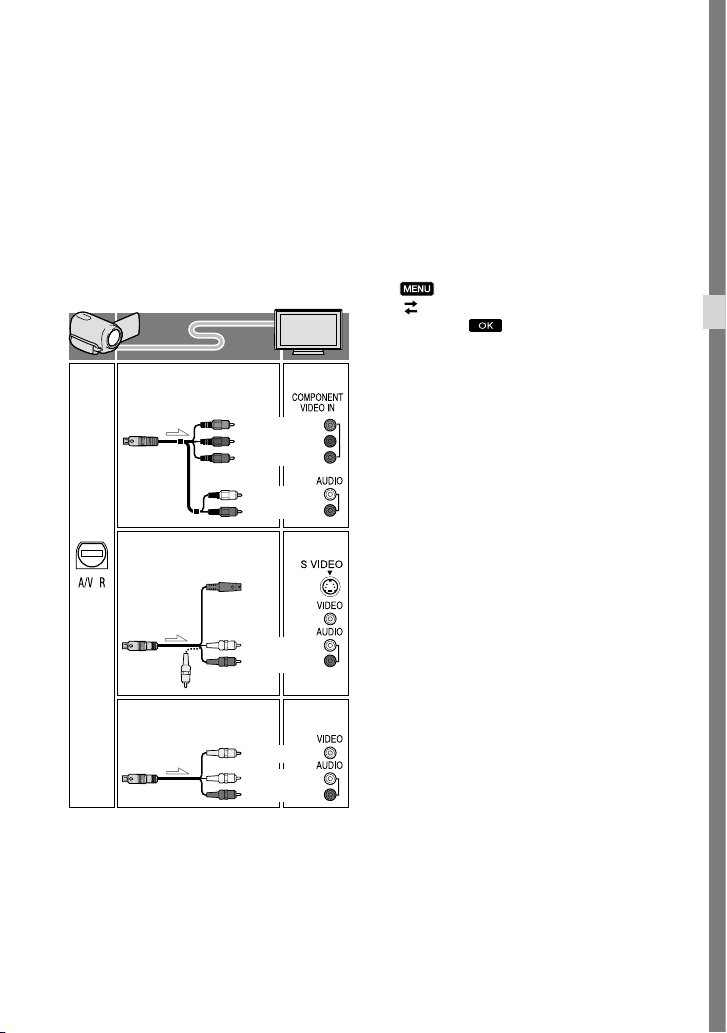
29
ES
Grabación/reproducción
Conexión a un televisor que no sea de
alta definición 16:9 (panorámico) o 4:3
Si las películas se graban con calidad
de imagen de alta definición (HD), se
reproducen con calidad de imagen de
definición estándar (STD). Si las películas
se graban con calidad de imagen estándar
(STD), se reproducen con calidad de
imagen de definición estándar (STD).
Cuando use el cable de A/V de
componente
Si conecta únicamente las clavijas de video
de componente, no se emitirán las señales de
audio. Conecte las clavijas blanca y roja para
que se emitan las señales de audio.
Seleccione el ajuste [Componente]
correspondiente a la toma de entrada
de componente que está usando. Toque
(MENU) [Configuración]
[
(Conexión)] [Componente] el ajuste
deseado
para realizar el ajuste.
Cuando use el cable HDMI
Utilice un cable HDMI con el logotipo HDMI.
Utilice un mini conector HDMI en un extremo
(para la videocámara), y una clavija adecuada
para conectar el televisor en el otro extremo.
Las imágenes con protección de derechos de
autor no se emiten desde la toma HDMI OUT
de la videocámara.
Es posible que algunos televisores no funcionen
correctamente (por ejemplo, que no se emita
sonido o imagen) con este tipo de conexión.
No conecte la toma HDMI OUT de la videocámara
a la toma HDMI OUT de un dispositivo externo o
puede ocasionar una falla de funcionamiento.
Para ajustar el formato según el
televisor conectado (16:9/4:3)
Ajuste [Tipo de TV] en [16:9] o en [4:3] según
el televisor que vaya a utilizar.
Cuando use el cable de conexión de
A/V con S-Video
Cuando la clavija S VIDEO (canal S VIDEO)
está conectada, no se emiten las señales de
audio. Para emitir las señales de audio, conecte
las clavijas blanca y roja a la toma de entrada de
audio del televisor.
Esta conexión produce imágenes de una mayor
resolución en comparación con el cable de
conexión de A/V.
(verde) Y
(azul)
PB/CB
(rojo)
PR/CR
(blanco)
(rojo)
(amarillo)
(blanco)
(rojo)
(blanco)
(rojo)
(amarillo)
Cable de A/V de
componente (suministrado)
Cable de conexión de A/V
con S VIDEO (se vende por
separado)
Cable de conexión de A/V
(suministrado)

30
ES
Si el televisor es monoaural (si el
televisor sólo dispone de una toma de
entrada de audio)
Conecte la clavija amarilla del cable de conexión
de A/V a la toma de entrada de video y conecte
la clavija blanca (canal izquierdo) o la clavija
roja (canal derecho) a la toma de entrada de
audio del televisor o la videograbadora.
Al conectar el televisor a través de una
videograbadora
Conecte la videocámara a la toma de entrada de
línea de la videograbadora mediante el cable de
conexión de A/V. Ajuste el selector de entrada
de la videograbadora en LINE (VIDEO 1,
VIDEO 2, etc.).
Notas
Si va a reproducir películas de calidad de
imagen de definición estándar (STD) en un
televisor 4:3 que no es compatible con la señal
16:9, grabe las películas en formato 4:3. Toque
(MENU) [Calidad img/Tamaño]
[
Modo panorámico] [4:3] .
Si utiliza el cable de conexión de A/V para
emitir películas, éstas se transmiten con calidad
de imagen de definición estándar (STD).
Sugerencias
Si conecta la videocámara al televisor utilizando
más de un tipo de cable para emitir imágenes, el
orden de prioridad de las tomas de entrada del
televisor es el siguiente:
HDMI componente S VIDEO video
HDMI (High Definition Multimedia Interface)
es una interfaz que envía señales de audio y
video. La toma HDMI OUT emite imágenes de
alta calidad y audio digital.
Acerca de “Photo TV HD”
Esta videocámara es compatible con el
estándar “Photo TV HD”. “Photo TV HD”
es un formato que permite reproducir
imágenes con un alto nivel de detalle, con
una sutil representación de las texturas y los
colores, que hace que parezcan fotografías.
Al conectar dispositivos compatibles con
Photo TV HD de Sony utilizando un
cable HDMI
* o el cable de componente
de AV
**, podrá disfrutar de un mundo
completamente nuevo de fotografías con
una impresionante calidad HD.
* El televisor cambiará automáticamente al
modo adecuado cuando seleccione [
FOTO] con el botón Cambiar tipo de imagen.
** Es necesario configurar el televisor. Para
obtener más información, consulte las
instrucciones del televisor compatible con
Photo TV HD.
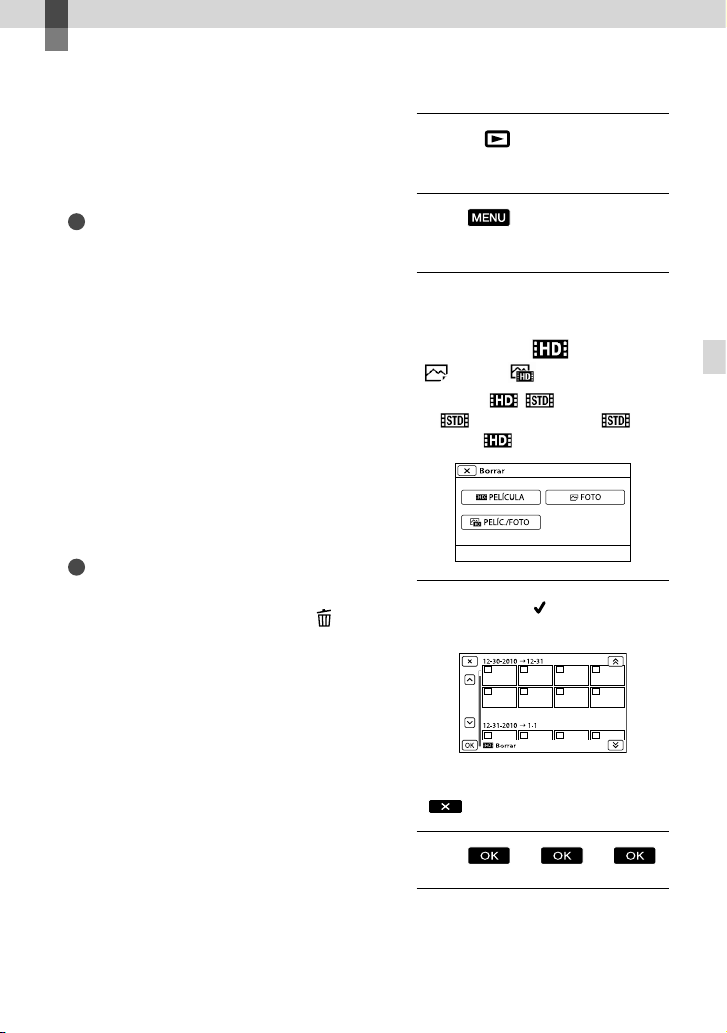
31
ES
Funciones avanzadas
Funciones avanzadas
Eliminación de
películas y fotos
Puede liberar espacio en el soporte de
grabación si elimina películas y fotos
almacenadas en él.
Notas
Una vez eliminadas, las imágenes no se
pueden restaurar. Guarde las películas y fotos
importantes de antemano.
No extraiga la batería ni el adaptador de
alimentación de ca de la videocámara durante
la eliminación de imágenes. Si lo hace, podría
dañar el soporte de grabación.
No expulse la tarjeta de memoria mientras
elimina imágenes contenidas en ella.
No es posible eliminar películas y fotos
protegidas. Desactive la protección de las
películas y fotos antes de intentar eliminarlas.
La película de demostración de la videocámara
se encuentra protegida (HDR-CX160/CX180).
Si borra todas las pelìculas/fotos que se incluyen
en los escenarios guardados, los escenarios se
borrarán también.
Sugerencias
Si inicia la reproducción de una imagen al
seleccionarla desde la pantalla Índice de
eventos, puede eliminar la imagen usando
en
la pantalla de reproducción.
Para eliminar las imágenes almacenadas en el
soporte de grabación y recuperar todo el espacio
disponible en el soporte, formatee el soporte.
Las imágenes de tamaño reducido que
permiten ver varias imágenes al mismo tiempo
en una pantalla de índice se conocen como
“miniaturas”.
1
Presione (Ver Imágenes)
(pág. 24).
2
Toque
(MENU) [Editar/
Copiar] [Borrar].
3
Para seleccionar y eliminar
películas,
toque
[Múltiples
imágenes] [
PELÍCULA]/
[
FOTO]/[ PELÍC./FOTO].
Si [Ajuste / ] está ajustado en
[
Calidad STD], aparece en
lugar de
.
4
Toque la marca en las películas
o fotos que desea eliminar.
Mantenga presionada la miniatura que desea
para que pueda confirmar la imagen. Toque
para volver a la pantalla anterior.
5
Toque .
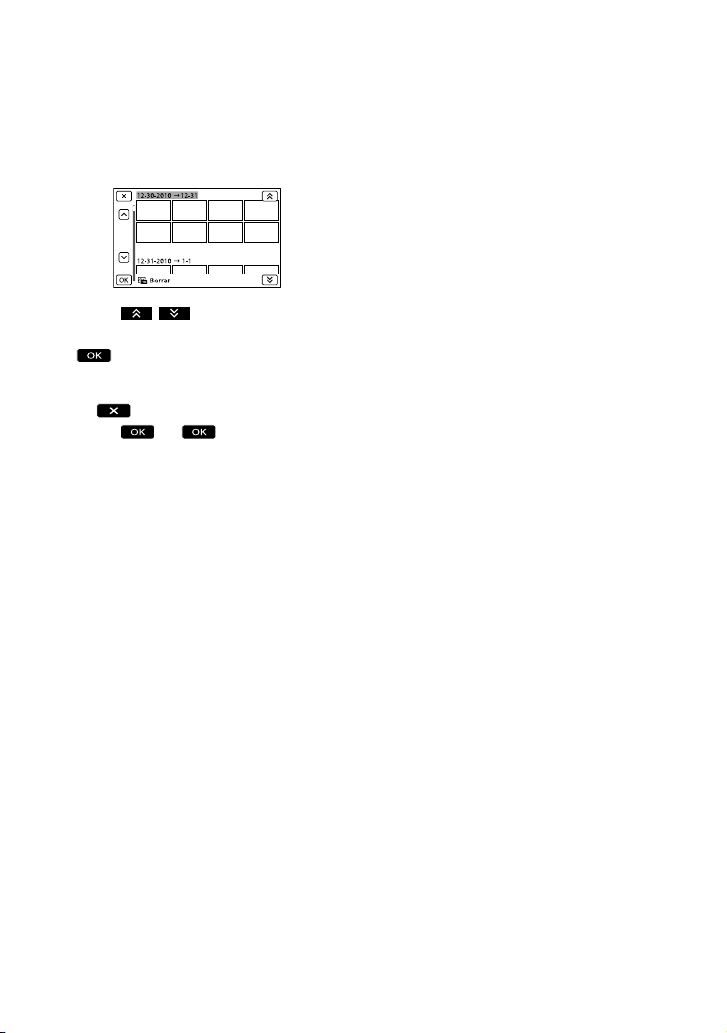
32
ES
Para eliminar todas las películas/fotos
de un evento a la vez
En el paso 3, toque [Todo en evento].
Toque / para seleccionar el
evento deseado y, a continuación, toque
.
Mantenga presionada la miniatura que desea
para que pueda confirmar la imagen. Toque
para volver a la pantalla anterior.
Toque .
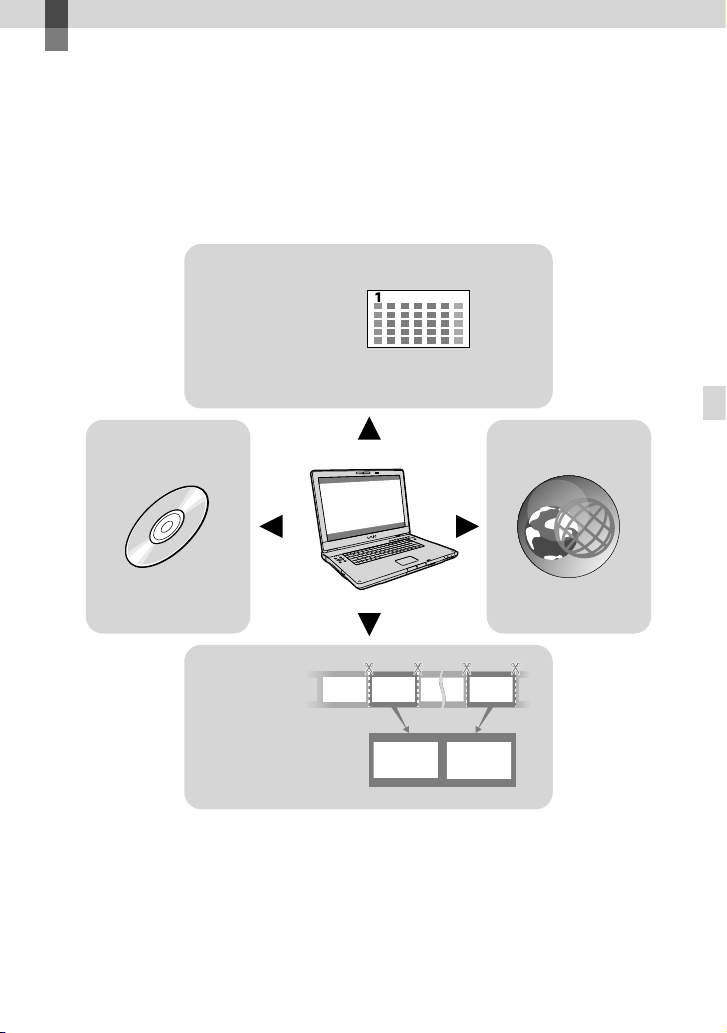
33
ES
Almacenamiento de películas y fotos con una computadora
Almacenamiento de películas y fotos con una computadora
Funciones útiles disponibles si conecta la
videocámara a una computadora
Editar y administrar imágenes en su computadora (Windows)
El software PMB que viene en el CD-ROM (suministrado) incluye funciones que le permiten
realizar más operaciones con las imágenes grabadas con la videocámara.
Carga sencilla mientras está lejos de casa (Windows, Macintosh)
El software PMB Portable, que se encuentra preinstalado en la videocámara, le permite
reproducir o cargar imágenes a Internet mientras se encuentra lejos de casa si conecta la
videocámara a una computadora.
Ver
Editar
Guardar en un
disco
Cargar
Calendario
DVD/Blu-ray
Unir archivos de imágenes
Servicios de red
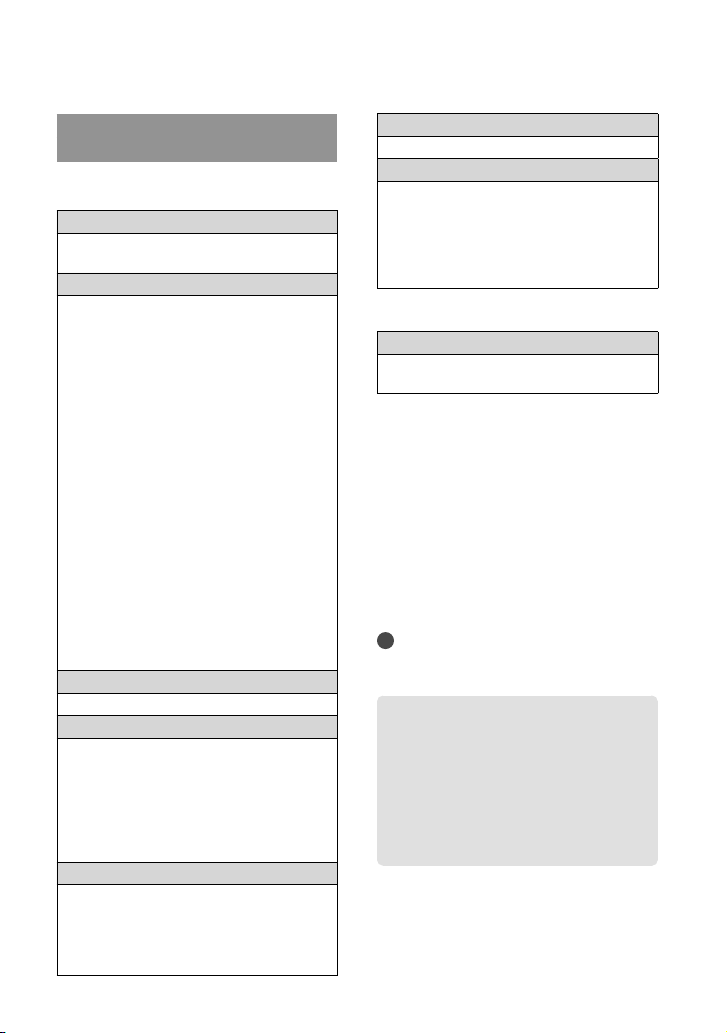
34
ES
Preparación de una
computadora
Paso 1 Comprobación del sistema
de computadora
Windows
Sistema operativo*
1
Microsoft Windows XP SP3*
2
/Windows Vista
SP2
*
3
/Windows 7
CPU
*
4
Intel Core Duo 1,66 GHz o superior, o Intel
Core 2 Duo 1,66 GHz o superior (se necesita
Intel Core 2 Duo 2,26 GHz o superior para
procesar películas FX o FH, y se necesita
Intel Core 2 Duo 2,40 GHz o superior para
procesar películas PS).
Sin embargo, Intel Pentium III de 1 GHz
o superior es suficiente para realizar las
siguientes operaciones:
Importación de películas y fotos a la
computadora
One Touch Disc Burn
Creación de un disco Blu-ray/disco de
grabación AVCHD/video DVD (se requiere
Intel Core Duo de 1,66 GHz o superior
si crea un video DVD convirtiéndolo de
calidad de imagen de alta definición (HD)
a calidad de imagen de definición estándar
(STD).)
Copia de un disco
Procesamiento sólo de películas con calidad
de imagen de definición estándar (STD)
Aplicación
PMB/PMB Portable/Music Transfer
Memoria
Para Win
dows XP: 512 MB o más (se
recomienda 1 GB o más).
Sin embargo, 256 MB o más es suficiente
para el procesamiento sólo de películas con
calidad de imagen de definición estándar
(STD).
P
ara Win
dows Vista/Windows 7: 1 GB o más
Disco duro
Volumen de disco que se requiere para la
insta
lación: 500 MB aproximadamente
(puede necesitar 10 GB o más al crear discos
con formato AVCHD. 50 GB cómo máximo
se puede necesitar al crear discos Blu-ray).
Pantalla
Mínimo 1 024 × 768 puntos
Otros
Puerto USB (se debe proporcionar como
estándar, Hi-Speed USB (compatible con
USB 2.0)), disco Blu-ray/grabadora de DVD
(se necesita una unidad de CD-ROM para la
instalación). Se recomienda usar el sistema de
archivos NTFS o exFAT para el disco duro.
Macintosh
Sistema operativo
PMB Portable: Mac OS X
*
5
(v10.5-v10.6)
Music Transfer: Mac OS X
*
5
(v10.4-v10.6)
*
1
Se requiere una instalación estándar. La
operación no está asegurada si se actualiza el
sistema operativo o si se realiza en un entorno
de inicio múltiple.
*
2
No se admiten ediciones de 64 bits y Starter
(Edition). Windows Image Mastering API
(IMAPI) Se requiere la versión 2,0 o superior
para usar la función de creación de discos, etc.
*
3
Starter (Edition) no es compatible.
*
4
Se recomiendan procesadores más rápidos.
*
5
Computadora Macintosh con un procesador
Intel.
Notas
No se asegura la operación con todos los
entornos de computadora.
Al usar una computadora
Macintosh
El software “PMB” suministrado no
es compatible con computadoras
Macintosh. Para importar películas y
fotos a la computadora, póngase en
contacto con Apple Inc.
35
ES
Almacenamiento de películas y fotos con una computadora
Paso 2 Instalación del software
“PMB” suministrado
Instale “PMB” antes de conectar la
videocámara a una computadora.
Notas
Si tiene instalada en su computadora una
versión de “PMB” inferior a 5,0,00, es posible
que no pueda acceder a algunas funciones
de “PMB” si instala la aplicación desde el
CD
-RO
M suministrado. Además, “PMB
Launcher” se instala desde el CD-ROM
suministrado y le permite iniciar “PMB” u otro
software al usar “PMB Launcher”. Haga doble
clic en el icono de acceso directo de “PMB
Launcher” en la pantalla de la computadora
para iniciar “PMB Launcher”.
Confirme que la videocámara no
esté conectada a la computadora.
Encienda la computadora.
Inicie sesión como administrador para
realizar la instalación.
Cierre todas las aplicaciones que se estén
ejecutando en la computadora antes de
instalar el software.
Ponga el CD-ROM suministrado
en la unidad de disco de su
computadora.
Aparecerá la pantalla de instalación.
Si la pantalla no aparece, haga clic en
[Inicio] [Equipo] (en Windows XP,
[Mi PC]) y luego haga doble clic en
[SONYPMB (E:)] (CD-ROM)
*.
* Los nombres de las unidades (como por
ejemplo (E:)) pueden variar según la
computadora.
Haga clic en [Instalación].
Seleccione el país o región.
Seleccione el idioma a instalar la
aplicación y luego continúe con
la siguiente pantalla.
Lea atentamente los términos del
acuerdo de licencia. Si está de
acuerdo con los términos, cambie
a y haga clic en [Siguiente ]
[Instalar].
Siga las instrucciones que
aparecen en la pantalla de la
computadora para continuar con
la instalación.
Es posible que también deba instalar otras
aplicaciones que vienen en el disco al
mismo tiempo. Si aparece la pantalla de
instalación, siga las instrucciones que se
indican en la pantalla.
Cuando se le solicite reiniciar la
computadora, siga las instrucciones que
aparecen en la pantalla y reiníciela.
Conecte la videocámara a la computadora
cuando se le indique que lo haga.
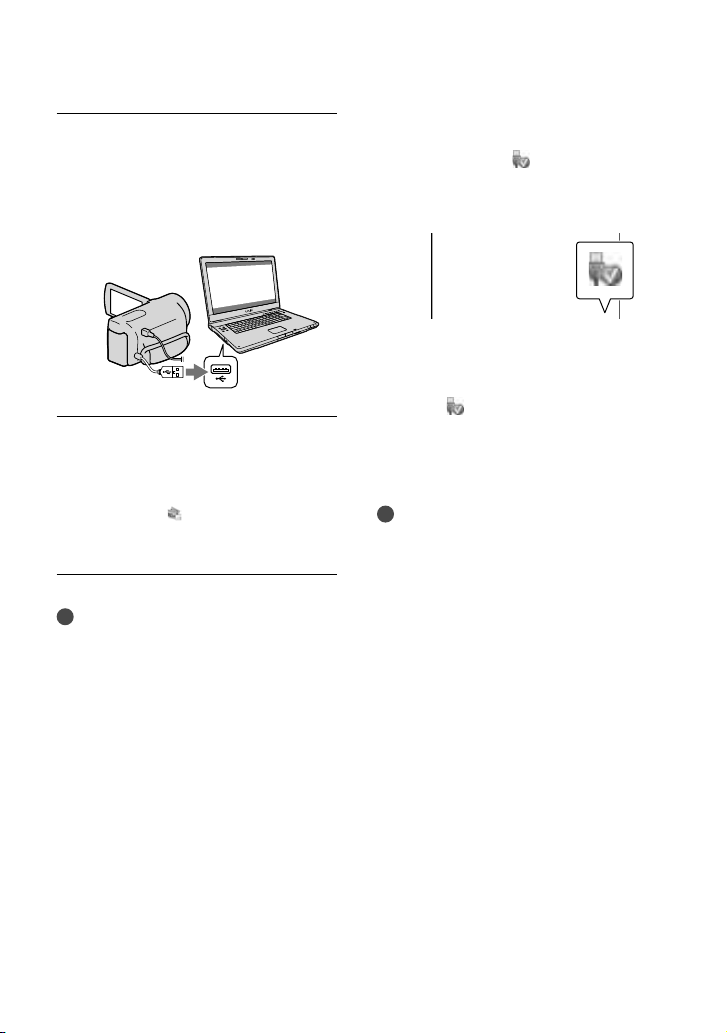
36
ES
Conecte la videocámara a la
computadora usando el cable
USB incorporado y toque
[Conexión USB] en la pantalla
LCD de la videocámara.
Cuando finalice la instalación,
extraiga el CD-ROM de la
computadora.
Haga clic en (icono de PMB) que
se encuentra en el escritorio de la
computadora para iniciar el software.
Notas
Para crear discos o usar otras funciones
en Windows XP, se debe instalar Image
Mastering API versión 2,0 para Windows XP.
Si la aplicación Image Mastering API versión
2,0 para Windows XP no está instalada aún,
selecciónela entre los programas requeridos en
la pantalla de instalación e instálela siguiendo
los procedimientos indicados. (La computadora
debe estar conectada a Internet para realizar la
instalación.) Puede instalar Image Mastering
API versión 2,0 para Windows XP en respuesta
al mensaje que aparece cuando intenta iniciar
esas funciones.
No se garantiza el funcionamiento si lee o escribe
datos de video desde o hacia la computadora
usando otro programa de software en lugar
de “PMB”. Para obtener información sobre la
compatibilidad del software que está usando,
consulte al fabricante del software.
Para desconectar la videocámara de la
computadora
Haga clic en el icono en la parte inferior
derecha del escritorio de la computadora
[Extracción segura de Dispositivo de
almacenamiento masivo USB].
Toque [Cancelar] [Sí] en la pantalla de la
videocámara.
Desconecte el cable USB.
Si está usando Windows 7, es posible que
el icono
no aparezca en el escritorio
de la computadora. Si no aparece,
puede desconectar la videocámara de la
computadora sin seguir los procedimientos
descritos anteriormente.
Notas
No intente formatear el soporte de grabación
interno de la videocámara mediante una
computadora. Si lo hace, la videocámara no
funcionará correctamente.
No inserte discos de grabación AVCHD que
se hayan creado usando el software “PMB” en
reproductores o grabadoras de DVD, ya que
estos dispositivos no son compatibles con el
estándar AVCHD. Si lo hace, es posible que no
pueda extraer el disco de estos dispositivos.
Esta videocámara captura imágenes de alta
definición en formato AVCHD. Si utiliza el
software para PC incluido en la computadora,
podrá copiar imágenes de alta definición en
soportes DVD. Sin embargo, los soportes DVD
que contengan imágenes en formato AVCHD no
deben usarse con reproductores o grabadoras de
DVD, ya que es posible que los reproductores/
grabadoras de DVD no puedan expulsar el
soporte y borren su contenido sin previo aviso.
Cuando acceda a la videocámara desde
la computadora, use el software “PMB”
suministrado o el software “PMB Portable”
preinstalado. No modifique los archivos ni las
carpetas de la videocámara en la computadora.
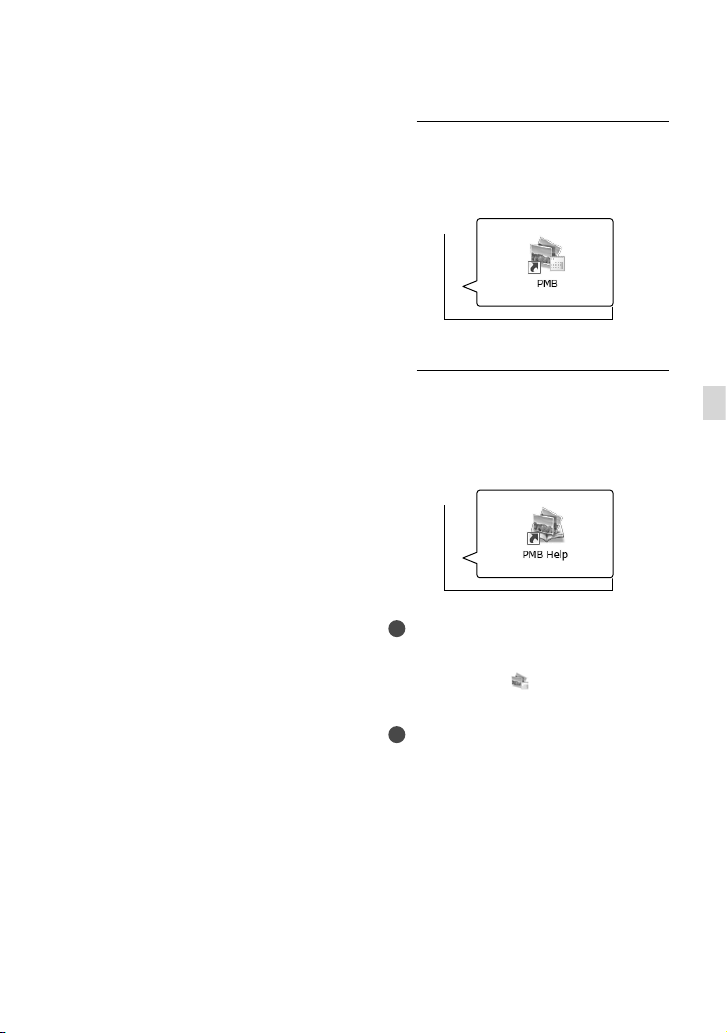
37
ES
Almacenamiento de películas y fotos con una computadora
Inicio de PMB (Picture
Motion Browser)
1
Haga doble clic en el icono de
acceso directo de “PMB” en la
pantalla de la computadora.
Se inicia el software PMB.
2
Haga doble clic en el icono de
acceso directo “Ayuda de PMB” en
la computadora para ver cómo
utilizar “PMB”.
Notas
Si no aparece el icono en la pantalla de la
computadora, haga clic en [Inicio] [Todos
los programas] [
PMB] el elemento
deseado.
Sugerencias
Haga doble clic en “PMB Launcher” en el
escritorio de la computadora. Esto le permite
iniciar la función (aplicación) deseada
al seleccionar una opción en una lista de
funciones de “PMB”.
De lo contrario, es posible que los archivos
de imágenes se dañen o que no puedan
reproducirse.
No se garantiza el funcionamiento si manipula los
datos de la videocámara usando la computadora.
La videocámara divide automáticamente un
archivo de imagen si tiene un tamaño superior a
2 GB y gua
rda las partes en archivos separados.
Todos los archivos de imagen se pueden ver
como archivos separados en una computadora;
sin embargo, se manejarán correctamente con
la función de importación de la videocámara o
con el software “PMB”, así como también con
la función de reproducción del software “PMB
Portable”.
Utilice el software “PMB” suministrado al
importar películas largas o imágenes editadas
desde la videocámara a una computadora. Si
utiliza otro software, es posible que las imágenes
no se importen correctamente.
Cuando elimine archivos de imagen, siga los
pasos que aparecen en la página 31.
Puede crear un disco Blu-ray al usar una
computadora con una grabadora de discos
Blu-ray. Instale Software Complementario de
BD para “PMB”.
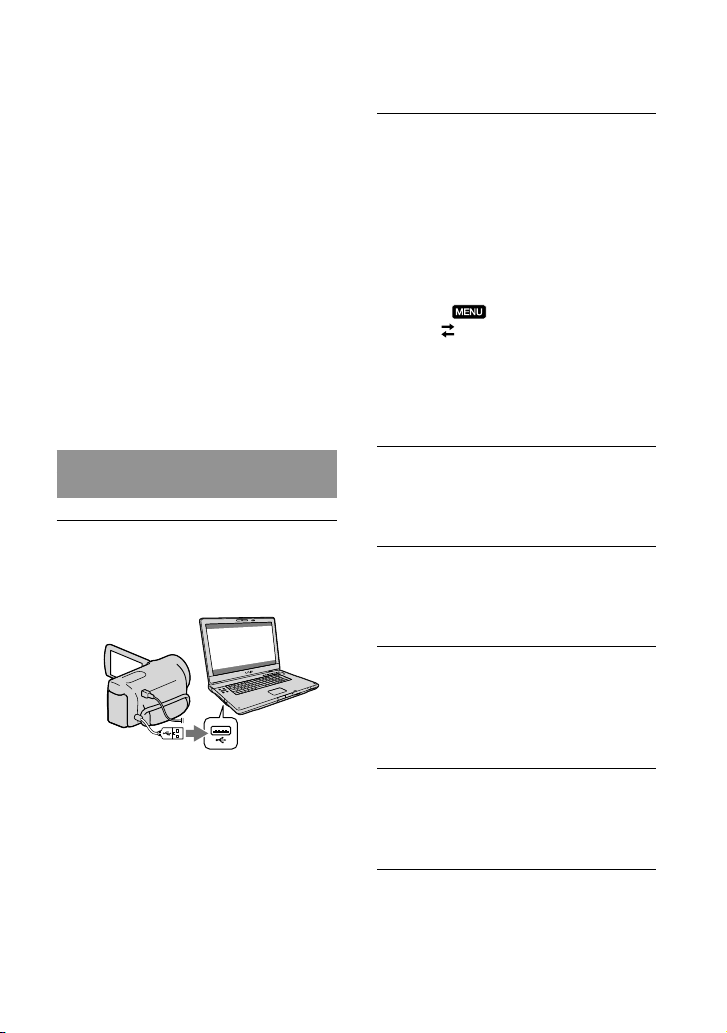
38
ES
Toque [Conexión USB] en la
pantalla de la videocámara.
Si utiliza Windows 7: Se abre la
ventana Device Stage
*.
Si utiliza Windows XP/Windows Vista:
Aparece el asistente de reproducción
automática.
Si la pantalla [Selección USB] no aparece,
toque
(MENU) [Configuración]
[
(Conexión)] [Conexión USB].
* “Device Stage” es un menú de Windows
7 que se utiliza para administrar los
dispositivos (videocámaras, cámaras
fotográficas, etc.) conectados a la
computadora.
Haga clic en “PMB Portable”.
Aparece la pantalla del acuerdo de
licencia.
Seleccione el idioma deseado y
haga clic en [Aceptar].
Aparece la pantalla de selección de área.
Seleccione [Región] y [País/Área]
y haga clic en [Aceptar].
Aparece la pantalla del acuerdo de
licencia.
Lea atentamente el acuerdo y
haga clic en [Acepto].
Se inicia el software “PMB Portable”.
Carga de imágenes a
un servicio de red
El software de aplicación “PMB Portable”
está preinstalado en la videocámara. “PMB
Portable” le ofrece las siguientes funciones.
Cargar imágenes de manera sencilla a servicios
de red, como blogs
Cargar imágenes a través de una computadora
conectada a Internet cuando se encuentra lejos
de casa
Registrar servicios de red (como blogs) para
usarlos frecuentemente
Haga clic en el botón [Ayuda] que se
encuentra en la parte superior derecha de
la pantalla de la computadora, después de
que se inicia el software “PMB Portable”, y
podrá obtener información detallada sobre
el uso del software.
Para iniciar “PMB Portable”
(Windows)
Encienda la videocámara y
conéctela a la computadora
usando el cable USB incorporado.
La pantalla [Selección USB] aparece en la
pantalla de la videocámara.
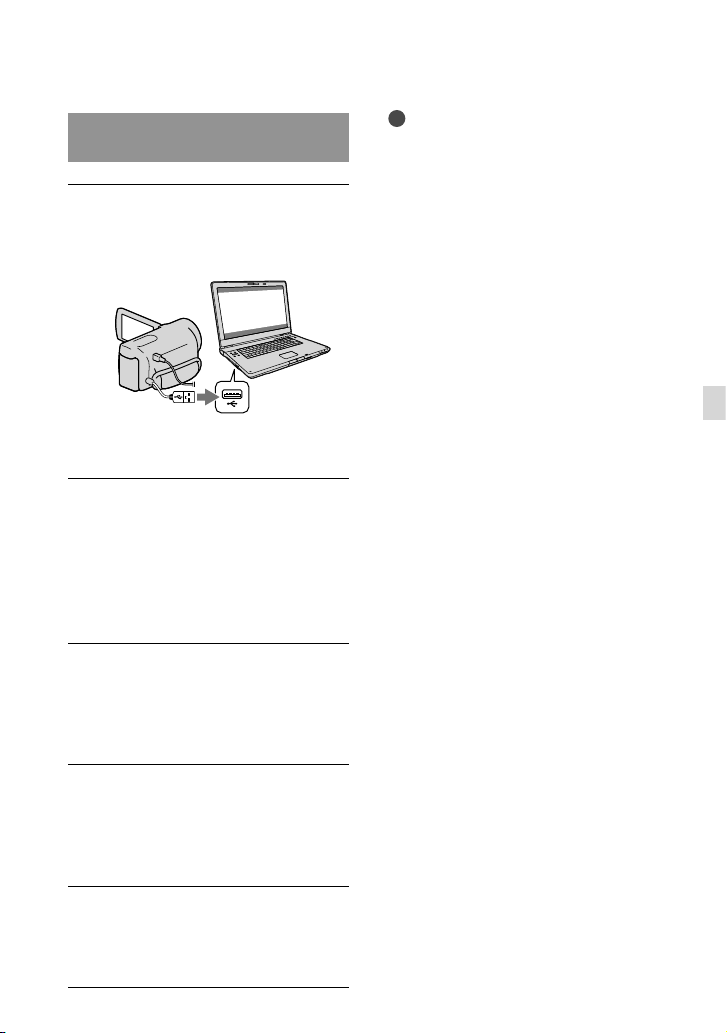
39
ES
Almacenamiento de películas y fotos con una computadora
Para iniciar “PMB Portable”
(Macintosh)
Encienda la videocámara y
conéctela a la computadora
usando el cable USB incorporado.
La pantalla [Selección USB] aparece en la
pantalla de la videocámara.
Toque [Conexión USB] en la
pantalla de la videocámara.
Cuando la computadora reconoce
la videocámara, aparece el icono
[PMBPORTABLE] en la pantalla de la
computadora.
Haga clic en “PMBP_Mac” en la
carpeta [PMBPORTABLE].
Aparece la pantalla de selección de
área.
Seleccione [Región] y [País/Área]
y haga clic en [Aceptar].
Aparece la pantalla del acuerdo de
licencia.
Lea atentamente el acuerdo y
haga clic en [Acepto].
Se inicia el software “PMB Portable”.
Notas
Al usar “PMB Portable”, asegúrese de conectar
la videocámara a la red.
A
jus
te [Ajuste USB LUN] en [Multi] (pág. 56).
Si “PMB Portable” no se inicia, ajuste [Ajuste
co
nexión US
B] en [Mass Storage] (pág. 56) e
intente conectarse nuevamente.
Si el asistente de reproducción automática
no aparece cuando está usando Windows
XP o Windows Vista, haga clic en [Inicio]
[Equipo] (en Windows XP, [Mi PC])
[PMBPORTABLE] y haga doble clic en
[PMBP_Win.exe].
Si “Device Stage” no se inicia y está usando
Windows 7, haga clic en [Inicio] y, a
continuación, haga doble clic en el icono de
cámara correspondiente a esta videocámara
el icono del soporte donde están almacenadas
las imágenes que desea [APPLICATION]
[PMBP_MTP.exe].
Si usa Windows 7, es posible que aparezca
la ventana de inicio de Device Stage (que no
contiene información sobre el dispositivo
específico), según los ajustes de la computadora.
En tal caso, siga las instrucciones que aparecen
en la pantalla y descargue la información más
reciente del sistema.
Si usa Windows 7, el ajuste [Ajuste conexión
USB] (modo de transferencia USB) cambiará
automáticamente a [Mass Storage] cuando
inicie “PMB Portable”.
Al cargar imágenes a través de Internet, por
ejemplo, con la videocámara, es posible que
se almacenen archivos de memoria caché en
la computadora que está usando dependiendo
del proveedor de servicio que usa para cargar
la imagen.
Si tiene problemas con “PMB Portable” o si
elimina el software por equivocación, puede
descargar el instalador de “PMB Portable” desde
Internet para repararlo.

40
ES
Notas sobre “PMB Portable”
Puede descargar las URL de algunos sitios
Web desde un servidor administrado
por Sony (en adelante, llamado “servidor
Sony”) usando “PMB Portable”.
Debe aceptar las siguientes condiciones para
utilizar el servicio de carga de imágenes (en
adelante llamado “el servicio”) proporcionado
por diversos sitios Web, incluyendo aquellos
que usan “PMB Portable”.
Dependiendo del sitio Web, es posible
que deba registrarse y que se apliquen
cargos por usar el servicio. Utilice el
servicio de acuerdo con las condiciones
estipuladas por el sitio Web.
El servicio puede ser suspendido o
modificado sin aviso por el organizador
del sitio Web. En tal caso, como en otros,
Sony no será responsable bajo ninguna
circunstancia por la pérdida, daños o
problemas entre usted y un tercero que
surjan a raíz del uso del servicio.
El servidor de Sony lo redirigirá a los
sitios Web. Sin embargo, es posible que
no pueda acceder a ellos por alguna
razón, como por ejemplo, si el servidor
está en mantenimiento.
Si Sony decide poner término a la
operación del servidor, dicha decisión se
informará por adelantado en el sitio Web
de Sony, etc.
Es posible que registremos información,
como la dirección URL del sitio al que
está siendo redirigido desde el servidor
de Sony, a fin de mejorar los productos y
servicios que Sony ofrezca en el futuro.
Sin embargo, no recopilaremos ninguna
información personal.
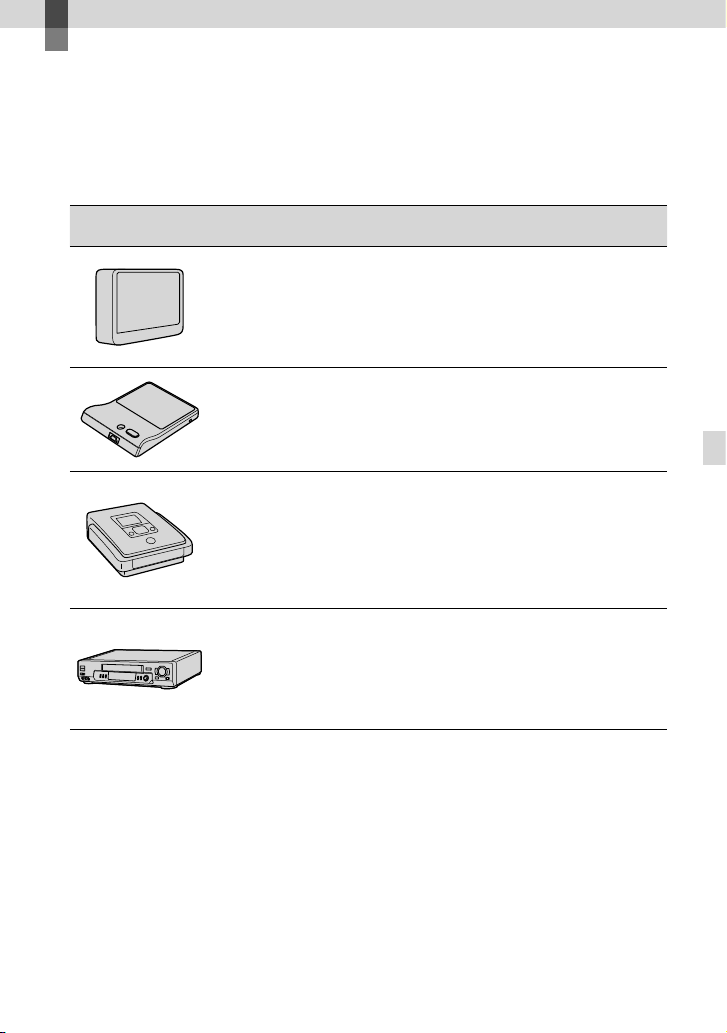
41
ES
Almacenamiento de imágenes en un dispositivo externo
Almacenamiento de imágenes en un dispositivo externo
Selección de un método para guardar imágenes
con un dispositivo externo
Puede guardar películas con calidad de imagen de alta definición (HD) utilizando un
dispositivo externo. Seleccione el método que desea usar según el dispositivo.
Dispositivos externos Conexión del cable Página
Dispositivo de soporte
externo
Almacenamiento de imágenes
en un dispositivo de soporte
externo con calidad de imagen
de alta definición (HD).
Cable adaptador USB
VMC-UAM1 (se vende
por separado)
43
Grabadora de DVD DVDirect
Express
Almacenamiento de imágenes
en un disco DVD con calidad de
imagen de alta definición (HD).
Cable USB
incorporado de
DVDirect Express
47
Grabadora de DVD, que no
sea DVDirect Express
Almacenamiento de imágenes
en un disco DVD con calidad de
imagen de alta definición (HD)
o con calidad de imagen de
definición estándar (STD).
Cable USB
incorporado
50
Grabadora de disco duro,
etc.
Almacenamiento de imágenes
en un disco DVD con calidad de
imagen de definición estándar
(STD).
Cable de conexión de
A/V (suministrado)
51
Películas grabadas con calidad de imagen de definición estándar (STD)
Utilice el cable de conexión de A/V para conectar la videocámara a un dispositivo externo en
el cual se almacenan imágenes.

42
ES
Notas
El disco de grabación AVCHD puede reproducirse solamente en dispositivos compatibles con el formato
AVCHD.
Los discos con imágenes grabadas con calidad de imagen de alta definición (HD) no deben usarse en
reproductores o grabadoras de DVD. Debido a que los dispositivos de reproducción/grabación de DVD
no son compatibles con el formato AVCHD, DVD es posible que no puedan expulsar el disco.
Elimine la película de demostración cuando copie o cree discos. Si no la elimina, es posible que la
videocámara no funcione correctamente. Sin embargo, una vez que elimine la película de demostración,
no podrá recuperarla.
Tipos de soporte donde se almacenan imágenes
Consulte “Selección del modo de grabación” en la página 23.
Dispositivos en los que se puede reproducir el disco creado
DVD con calidad de imagen de alta definición (HD)
Dispositivos de reproducción de formato AVCHD, como un reproductor de discos Blu-ray de
Sony o PlayStation
3.
DVD con calidad de imagen de definición estándar (STD)
Dispositivos de reproducción de DVD comunes, como un reproductor de DVD.
Notas
Siempre mantenga su PlayStation
3 actualizado con la versión más reciente del software del sistema de
PlayStation
3.
Es posible que PlayStation
3 no esté disponible en algunos países o regiones.

43
ES
Almacenamiento de imágenes en un dispositivo externo
Almacenamiento
de imágenes en un
dispositivo de soporte
externo
Puede guardar películas y fotos en
dispositivos de soporte externos
(dispositivos de almacenamiento USB),
como una unidad de disco duro externo.
También puede reproducir imágenes en
la videocámara o en otro dispositivo de
reproducción.
Notas
Para esta operación, necesita un cable adaptador
USB VMC-UAM1 (se vende por separado).
Es posible que el cable adaptador USB VMC-
UAM1 no esté disponible en algunos países o
regiones.
Conecte la videocámara al tomacorriente de
pared mediante el adaptador de alimentación de
c
a suministrado (pág. 11).
Consulte los manuales de instrucciones
suministrados con el dispositivo de soporte
externo.
Sugerencias
Puede importar las imágenes guardadas en el
dispositivo de soporte externo a su computadora
utilizando el software “PMB” suministrado.
Funciones disponibles después de
guardar imágenes en un dispositivo de
soporte externo
reproducción de imágenes mediante la
videocámara (pág. 46)
importación de imágenes hacia “PMB”
Dispositivos que no se pueden utilizar
como dispositivo de soporte externo
No puede usar los siguientes dispositivos como
dispositivo de soporte externo.
dispositivos de soporte con una capacidad
superior a 2 TB
unidad de disco común, como una unidad de
CD o DVD
dispositivos de soporte conectados mediante
un concentrador USB
dispositivos de soporte con concentrador USB
incorporado
lector de tarjeta
Notas
Es posible que no pueda usar dispositivos de
soporte externos con código de función.
La videocámara es compatible con el sistema de
archivos FAT. Si el soporte de almacenamiento
del dispositivo externo se formateó para el
sistema de archivos NTFS, etc., formatéelo con
la videocámara antes de usarlo. La pantalla de
formato aparece cuando conecta el dispositivo
de soporte externo a la videocámara. Antes de
formatear el dispositivo de soporte externo con
la videocámara, asegúrese de que no tenga datos
importantes almacenados.
No se garantiza el funcionamiento con todos
los dispositivos que cumplan los requisitos de
funcionamiento.
Para obtener más detalles sobre los soportes
externos disponibles, visite el sitio Web de soporte
de Sony correspondiente a su país o región.
1
Conecte el adaptador de
alimentación de ca y el cable
de alimentación a la toma
DC IN de la videocámara y al
tomacorriente de pared.
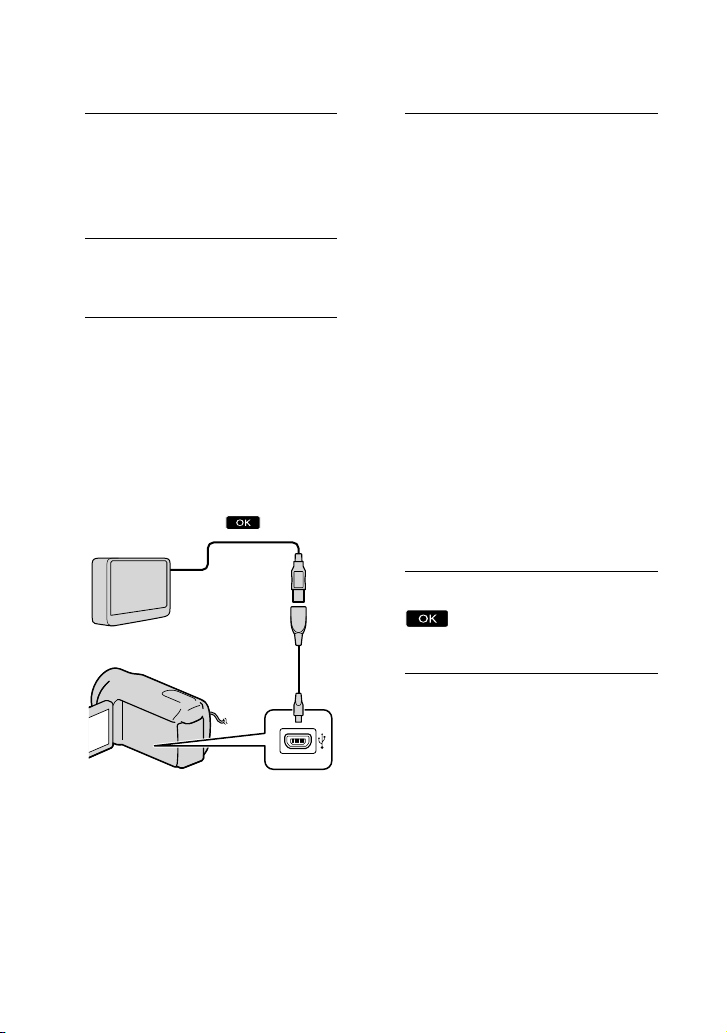
44
ES
2
Si el dispositivo de soporte
externo tiene un cable de
alimentación de ca conéctelo al
tomacorriente de pared.
3
Conecte el cable adaptador USB
al dispositivo de soporte externo.
4
Conecte el cable adaptador
USB a la toma (USB) de la
videocámara.
Asegúrese de no desconectar el cable
USB mientras [Preparando archivo base
datos imagen. Espere por favor.] aparece
en la pantalla de cristal líquido. Si [Rep.
arch.b.dat.im.] aparece en la pantalla de
la videocámara, toque
.
No puede utilizar el cable USB
incorporado para este tipo de conexión.
5
Conecte el dispositivo de soporte
externo y toque [Copiar.] en la
pantalla de la videocámara.
HDR-CX130:
Las películas y fotos que están
almacenadas en la tarjeta de memoria
(inserta en la videocámara), y que aún
no se han guardado en el dispositivo de
soporte externo se pueden guardar en
él en este momento.
HDR-CX160/CX180:
Las películas y fotos que están
almacenadas en uno de los soportes
de grabación de la videocámara
seleccionados en [Selección soporte],
y que aún no se han guardado en
el dispositivo de soporte externo se
pueden guardar en él en este momento.
Esta operación sólo está disponible si hay
imágenes nuevas grabadas.
6
Al finalizar la operación, toque
en la pantalla de la
videocámara.
Cable adaptador
USB
VMC-UAM1
(se vende por
separado)
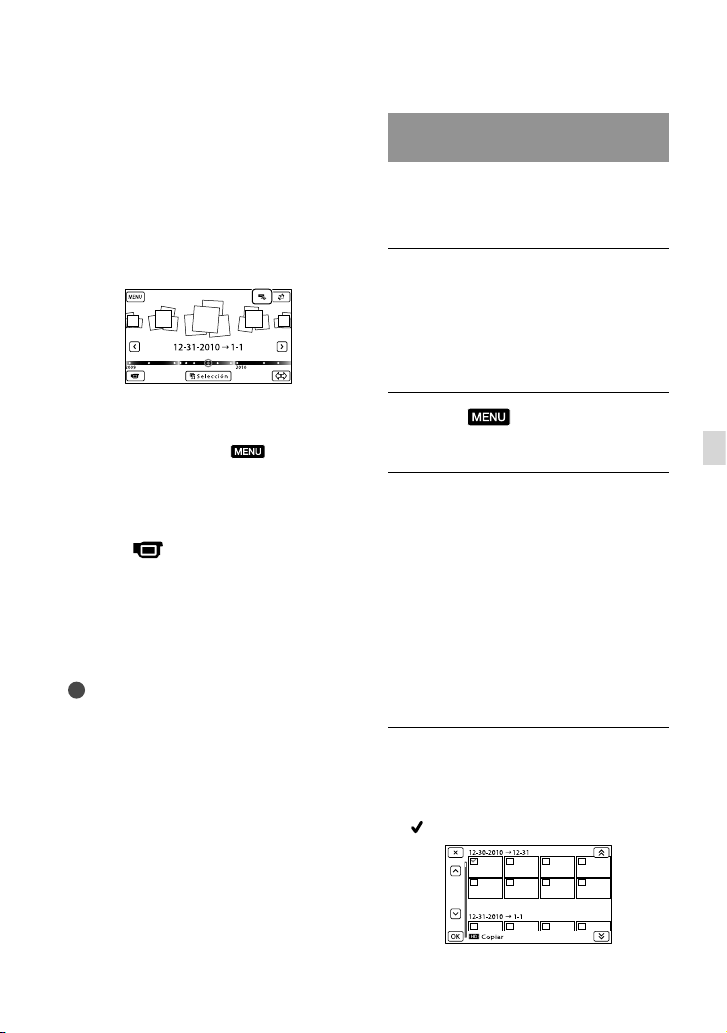
45
ES
Almacenamiento de imágenes en un dispositivo externo
Al conectar un dispositivo de soporte
externo
Las imágenes guardadas en el dispositivo de
soporte externo se muestran en la pantalla
de cristal líquido. Cuando hay un dispositivo
de soporte externo conectado, el icono
USB aparece en la pantalla Visualización de
eventos.
Puede realizar ajustes con el menú del
dispositivo de soporte externo, como
eliminar imágenes. Toque
(MENU)
[Editar/Copiar] en Visualización de eventos.
Desconexión de un dispositivo de
soporte externo
Toque mientras la videocámara
está en modo de espera de reproducción
(aparece [Visualización eventos] o el
Índice de eventos) del dispositivo de
soporte externo.
D
esconecte el cable adaptador USB.
Notas
A continuación se indica la cantidad de escenas
que puede guardar en el dispositivo de soporte
externo. Sin embargo, aunque el dispositivo de
soporte externo tenga espacio libre, no puede
guardar escenas que superen el siguiente número.
Películas con calidad de imagen de alta
def
inición (HD): Máx. 3
999
Películas con calidad de imagen de definición
están
dar (STD): Máx. 9 999
Fotos: Máx. 40 000
La cantidad de escenas puede ser menor
dependiendo del tipo de imágenes grabadas.
Almacenamiento de las películas y
fotos deseadas
Puede guardar las imágenes deseadas de la
videocámara en el dispositivo de soporte
externo.
Conecte la videocámara al
dispositivo de soporte externo y
toque [Reproducir sin copiar.].
Aparece la pantalla Visualización de
eventos del soporte externo.
Toque
(MENU) [Editar/
Copiar] [Copiar].
Siga las instrucciones que
aparecen en pantalla para
seleccionar el soporte de
grabación (HDR-CX160/CX180),
los métodos de selección de
imágenes y el tipo de imagen.
No puede copiar imágenes desde
un dispositivo de soporte externo al
soporte de grabación interno de la
videocámara.
Si seleccionó [Múltiples
imágenes], toque la imagen que
desea guardar.
aparece.
46
ES
Mantenga presionada la imagen en la
pantalla de cristal liquido para confirmar
la selección. Toque
para volver a la
pantalla anterior.
Si selecciona [Todo en evento], seleccione
el evento que desea copiar con
/
. No puede seleccionar varios
eventos.
Toque
en la pantalla de la videocámara.
Reproducción de imágenes del
dispositivo de soporte externo en
la videocámara
Conecte la videocámara al
dispositivo de soporte externo y
toque [Reproducir sin copiar.].
Aparece la pantalla Visualización de
eventos del dispositivo de soporte externo.
Seleccione la imagen que desea
ver y reprodúz
cala (pág. 24).
También puede ver imágenes en un televisor
conectado a la videocámara (pág. 28).
Puede reproducir las películas con calidad
de imagen de alta definición (HD) en la
computadora usando [Player for AVCHD].
Inicie [Player for AVCHD] y seleccione la
unidad donde está conectado el dispositivo
de soporte externo con [Configuración].
Ejecución de [Copia directa] de forma
manual
Puede ejecutar [Copia directa]
manualmente mientras la videocámara
está conectada a un dispositivo de soporte
externo.
T
oque
(MENU) [Editar/
Copiar] [Copia directa] en la
pantalla [Visualización eventos] del
dispositivo de soporte externo.
T
oque [Copie imágenes que no se han
copi
ado.].
T
oque
.
Notas
Si la videocámara no reconoce el dispositivo de
soporte externo, intente lo siguiente.
Vuelva a conectar el cable adaptador USB a la
videocámara.
Si el dispositivo de soporte externo tiene
un cable de alimentación de ca conéctelo al
tomacorriente de pared.
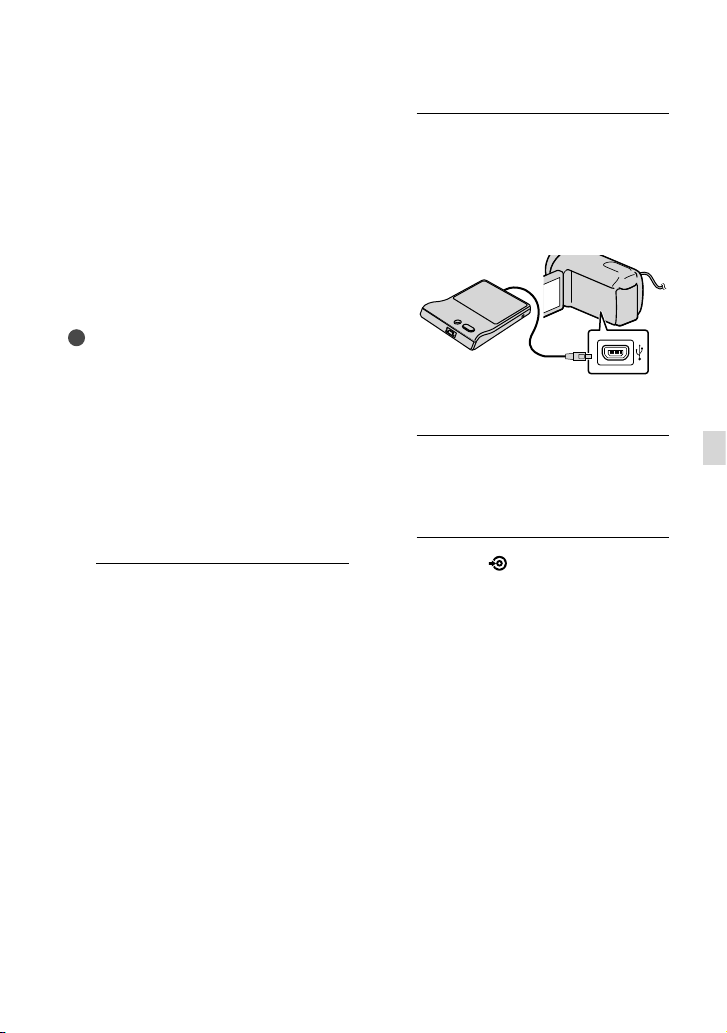
47
ES
Almacenamiento de imágenes en un dispositivo externo
Creación de un disco
con la grabadora de
DVD, DVDirect Express
Puede crear un disco o reproducir las
imágenes de un disco creado usando la
grabadora de DVD, DVDirect Express (se
vende por separado).
Consulte también los manuales de
instrucciones suministrados con la
grabadora de DVD.
Notas
Conecte la videocámara al tomacorriente de
pared usando el adaptador de alimentación de
c
a suminis
trado para esta operación (pág. 11).
En esta sección, DVDirect Express recibe el
nombre de “grabadora de DVD”.
Discos que se pueden utilizar
DVD-R de 12 cm
DVD+R de 12 cm
El dispositivo no es compatible con discos de
doble capa.
1
Conecte el adaptador de
alimentación de ca y el cable
de alimentación a la toma
DC IN de la videocámara y al
tomacorriente de pared (pág. 11).
2
Encienda la videocámara
y conecte la grabadora de
DVD en la toma (USB) de la
videocámara con el cable USB de
la grabadora de DVD.
No puede utilizar el cable USB
incorporado para este tipo de conexión.
3
Inserte un disco no utilizado
anteriormente en la grabadora de
DVD y cierre la bandeja de discos.
4
Presione (DISC BURN) en la
grabadora de DVD.
HDR-CX130
Las películas que están almacenadas
en la tarjeta de memoria (inserta en
la videocámara), y que aún no se han
guardado en un disco se pueden guardar
en él en este momento.
HDR-CX160/CX180
Las películas que están almacenadas en
uno de los soportes de grabación de la
videocámara seleccionados en [Selección
soporte] y que aún no se han guardado en
un disco, se pueden guardar en un disco
ahora.
Si hay películas con calidad de imagen
de alta definición (HD) y con calidad
de imagen de definición estándar (STD)
sin guardar, se guardarán en discos
individuales según la calidad de la imagen.
48
ES
Si los archivos que desea copiar no caben
en un disco, reemplace el disco que está en
la grabadora de DVD por uno sin utilizar y
repita la operación.
5
Al finalizar la operación, toque
(la bandeja
se abre) extraiga el disco
toque
en la pantalla de la
videocámara.
6
Toque
y, a continuación,
desconecte el cable USB.
Sugerencias
Si el tamaño de memoria total de las películas
que desea grabar mediante la operación DISC
BURN supera el tamaño del disco, la creación
del disco se detiene al alcanzar el límite de
tamaño. Es posible que la última película del
disco quede incompleta.
Ejecución de [OPC. GRAB. DISCO]
Lleve a cabo esta operación en los
siguientes casos:
Al copiar una imagen deseada
Al crear varias copias del mismo disco
Conecte la videocámara a la
grabadora de DVD y toque [OPC.
GRAB. DISCO].
Seleccione el soporte de
grabación que contiene las
películas que desea guardar (HDR-
CX160/CX180) y toque [Sig.].
Toque la película que desea
grabar en el disco.
aparece.
Mantenga presionada la miniatura que
desea para que pueda confirmar la imagen.
Toque
para volver a la pantalla
anterior.
Toque
en la
pantalla de la videocámara.
Para crear otro disco con el mismo
contenido, inserte un disco nuevo y
toque [CREAR UN DISCO IGUAL].
Al finalizar la operación, toque
[Salir.]
en la pantalla de
la videocámara.
Desconecte el cable USB de la
videocámara.
Notas
No realice ninguna de las acciones siguientes
mientras crea un disco.
Apagar la videocámara
Desconectar el cable USB o el adaptador de
alimentación de ca
Someter la videocámara a golpes o vibraciones
Extraer la tarjeta de memoria de la
videocámara
Capacidad restante del disco
49
ES
Almacenamiento de imágenes en un dispositivo externo
Reproduzca el disco creado para asegurarse de
que la copia se realizó correctamente antes de
eliminar las películas de la videocámara.
Si en la pantalla aparece [Se produjo un error.]
o [Error al ejecutar GRABAR EN DISCO.],
inserte otro disco en la grabadora de DVD y
vuelva a ejecutar la operación DISC BURN.
Sugerencias
El tiempo de creación del disco para copiar
películas hasta completar la capacidad total
del disco es de entre 20 y 60 min (minuto)
Es posible que el proceso tarde más tiempo
dependiendo del modo de grabación y de la
cantidad de escenas.
Reproducción de un disco en la
grabadora de DVD
Conecte el adaptador de
alimentación de ca y el cable
de alimentación a la toma
DC IN de la videocámara y al
tomacorr
iente de pared (pág. 11).
Encienda la videocámara
y conecte la grabadora de
DVD en la toma (USB) de la
videocámara con el cable USB de
la grabadora de DVD.
Puede reproducir películas en la pantalla
del televisor si conecta la videocámara a un
telev
isor (pág. 28).
Inserte un disco creado en la
grabadora de DVD.
Las películas del disco aparecen en la
pantalla de índice de la videocámara.
Presione el botón reproducción
de la grabadora de DVD.
También puede operar la reproducción
mediante la videocámara.
Después de completar la
operación, toque
en la
pantalla de la videocámara
y extraiga el disco cuando la
bandeja se abra.
Toque
y desconecte el
cable USB.
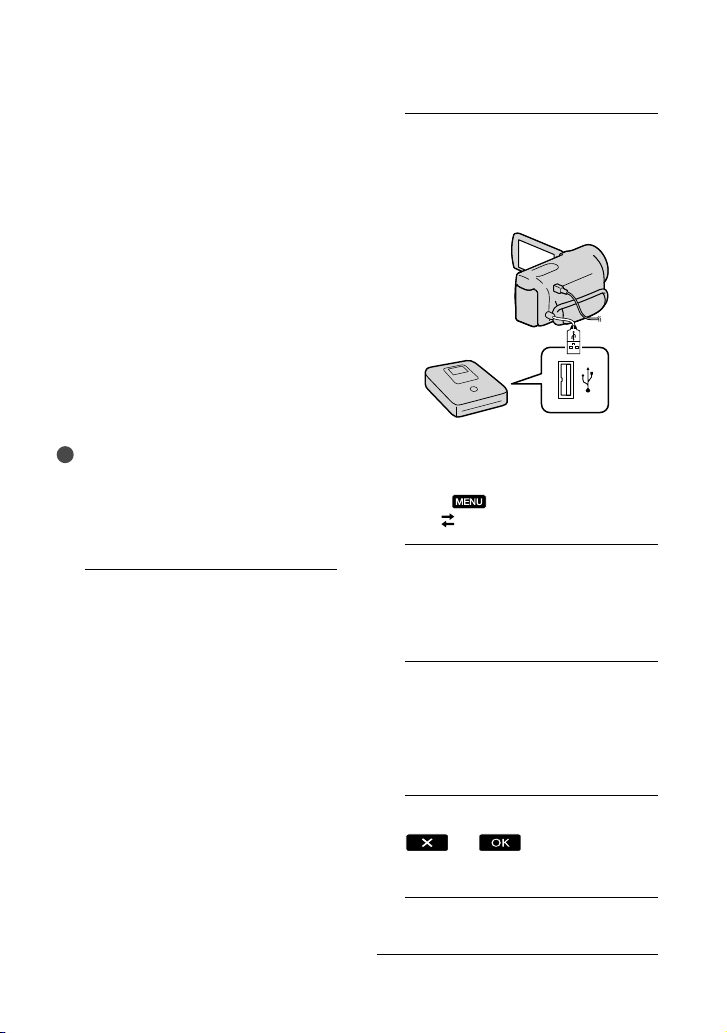
50
ES
Creación de un disco
con calidad de imagen
de alta definición
(HD) mediante
una grabadora de
DVD, etc., que no es
DVDirect Express
Utilice el cable USB para conectar la
videocámara a un dispositivo de creación
de discos que sea compatible con películas
con calidad de imagen de alta definición
(HD), como por ejemplo, una grabadora
de DVD de Sony. Consulte además el
manual de instrucciones suministrado del
dispositivo que conecte.
Notas
Conecte la videocámara al tomacorriente de
pared usando el adaptador de alimentación de
c
a suminis
trado para esta operación (pág. 11).
Es posible que la grabadora de DVD Sony no
esté disponible en algunos países o regiones.
1
Conecte el adaptador de
alimentación de ca y el cable
de alimentación a la toma
DC IN de la videocámara y al
tomacorriente de pared (pág. 11).
2
Encienda la videocámara y
conecte una grabadora de DVD,
etc. a la videocámara con el cable
USB incorporado.
La pantalla [Selección USB] aparece en
la pantalla de la videocámara.
Si la pantalla [Selección USB] no aparece,
toque
(MENU) [Configuración]
[
(Conexión)] [Conexión USB].
3
Toque [Conexión USB] en la
pantalla de la videocámara.
Los soportes de grabación que aparecen
difieren dependiendo del modelo.
4
Grabe las películas en el
dispositivo conectado.
Para obtener más detalles, consulte el
manual de instrucciones suministrado de
los dispositivos que conecte.
5
Al finalizar la operación, toque
en la pantalla de
la videocámara.
6
Desconecte el cable USB.
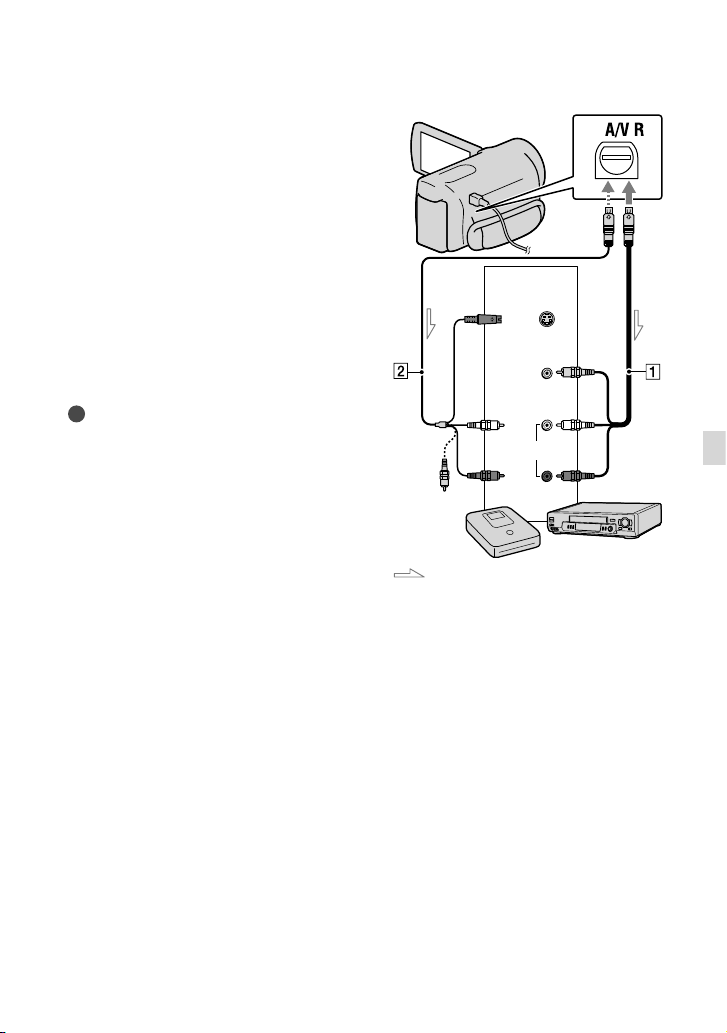
51
ES
Almacenamiento de imágenes en un dispositivo externo
Creación de un disco
con calidad de imagen
de definición estándar
(STD) mediante una
grabadora, etc.
Puede copiar imágenes reproducidas en la
videocámara en un disco o videocasete si
conecta la videocámara a una grabadora de
discos, una grabadora de DVD Sony, etc.,
que no sea DVDirect Express, con el cable
de conexión de A/V. Conecte el dispositivo
de la manera o . Consulte además el
manual de instrucciones suministrado de
los dispositivos que conecte.
Notas
Conecte la videocámara al tomacorriente de
pared usando el adaptador de alimentación de
c
a suminis
trado para esta operación (pág. 11).
Es posible que la grabadora de DVD Sony no
esté disponible en algunos países o regiones.
Las películas con calidad de imagen de alta
definición (HD) se copian con calidad de
imagen de definición estándar (STD).
Cable de conexión de A/V
(suministrado)
Cable de conexión de A/V con S VIDEO
(se vende por separado
)
Si usa este cable, puede producir imágenes
de mejor calidad que con un cable de
conexión de A/V. Conecte las clavijas
blanca y roja (audio izquierdo/derecho)
y la clavija de S VIDEO (canal S VIDEO)
del cable de conexión de A/V con un cable
de S VIDEO. Si conecta sólo la clavija
de S VIDEO, no escuchará el sonido. No
es necesario conectar la clavija amarilla
(video).
Entrada
S VIDEO
VIDEO
(amarillo)
(blanco)
AUDIO
Flujo de señales
(amarillo)
Conector remoto de A/V
(rojo)
52
ES
1
Introduzca el soporte de
grabación en el dispositivo de
grabación.
Si el dispositivo de grabación tiene un
selector de entrada, ajústelo en el modo
de entrada.
2
Conecte la videocámara al
dispositivo de grabación
(grabadora de discos, etc.) con
un cable de conexión de A/V
(suministrado) o un cable de
conexión de A/V con S VIDEO
(se vende por separado).
Conecte la videocámara a las tomas de
entrada del dispositivo de grabación.
3
Inicie la reproducción en la
videocámara y grabe en el
dispositivo de grabación.
Para obtener más información, consulte los
manuales de instrucciones suministrados
con el dispositivo de grabación.
4
Cuando haya finalizado la
copia, detenga el dispositivo
de grabación y, a continuación,
detenga la videocámara.
Notas
Debido a que la copia se realiza a través de la
transferencia de datos analógica, es posible que
la calidad de imagen se deteriore.
No es posible realizar copias de imágenes en
grabadoras conectadas con un cable HDMI.
Para copiar información de fecha y hora y
datos de la cámara, toque
(MENU)
[Configuración] [
(Ajustes
reproducción)] [Código datos] el ajuste
deseado
.
Si el tamaño de la pantalla del dispositivo de
visualización (TV, etc.) es 4:3, toque
(MENU) [Configuración]
[
(Conexión)] [Tipo de TV] [4:3]
.
Si conecta la videocámara a un dispositivo
monoaural, introduzca la clavija amarilla del
cable de conexión de A/V en la toma de entrada
de video, y la clavija blanca (canal izquierdo) o
la rojo (canal derecho) en la toma de entrada de
audio del dispositivo.
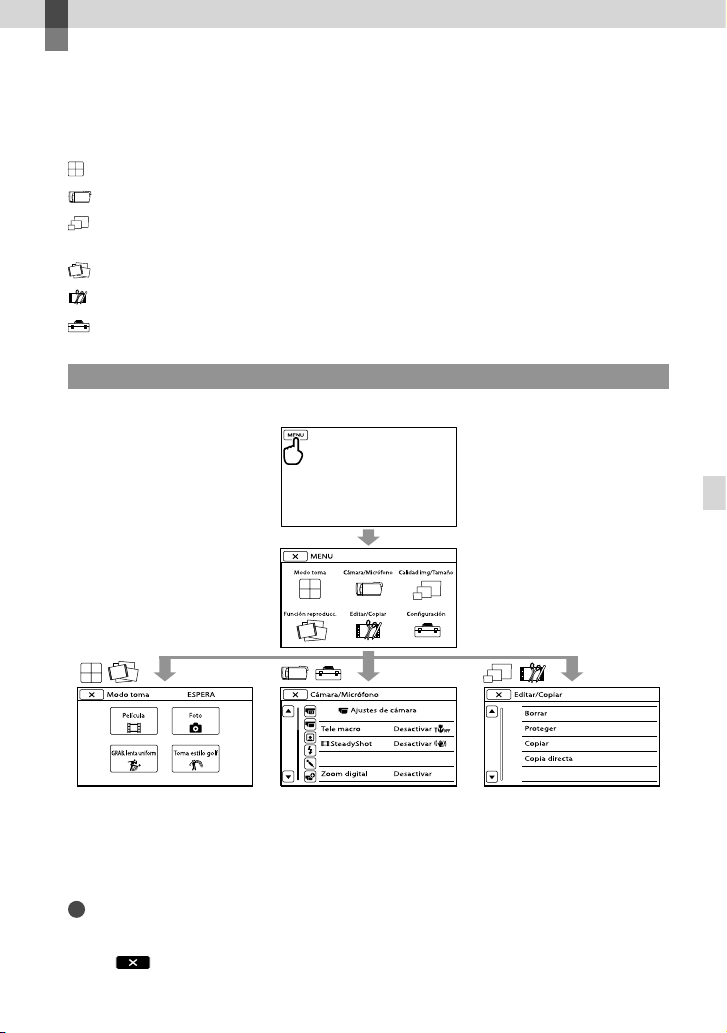
53
ES
Personalización de la videocámara
Personalización de la videocámara
Uso de los menús
Puede disfrutar más su videocámara al hacer un buen uso de las funciones del menú
La videocámara posee diversos elementos de menú bajo cada una de las 6 categorías de menú.
Modo toma (Elementos para seleccionar un modo de captura) pág. 54
Cámara/Micrófono (Elementos para toma de imágenes personalizada) pág. 54
Calidad img/Tamaño (Elementos para ajustar la calidad y tamaño de la imagen)
pág. 55
Función reproducc. (Elementos para la reproducción) pág. 55
Editar/Copiar (Elementos para la edición) pág. 55
Configuración (Otros elementos de ajuste) pág. 55
Menús de funcionamiento
Siga los procedimientos que se explican a continuación para ajustar los elementos del menú.
Los menús [Cámara/Micrófono] y [Configuración] tienen subcategorías. Toque el icono de
subcategoría para que la pantalla muestre otros menús de subcategorías.
Los elementos de menú o ajustes atenuados no están disponibles.
Notas
Según las condiciones de grabación o reproducción, es posible que no se puedan ajustar algunos elementos de
menú.
Toque
para finalizar el ajuste del menú o para volver a la pantalla de menú anterior.
54
ES
Listas de menú
Modo toma
Película .......................................Graba películas.
Foto ..............................................Captura fotos.
GRAB. lenta uniform .............. Graba motivos que se mueven a gran velocidad en cámara lenta.
Toma estilo golf .......................Divide 2 segundo de movimiento rápido en cuadros que luego se graban
como película y fotos.
Cámara/Micrófono
(Ajustes manuales)
Balance blancos ............. Ajusta el balance cromático según el brillo del entorno de grabación.
Medidor/Enfoq punt .... Ajusta simultáneamente el brillo y el enfoque del motivo seleccionado.
Medidor puntual ...........Ajusta el brillo de las imágenes a un motivo que toque en la pantalla.
Enfoque puntual ...........Enfoca un motivo que toque en la pantalla.
Exposición .......................Ajusta el brillo de películas y fotos.
Enfoque ............................ Enfoca manualmente.
Low Lux .............................Graba imágenes de color brillante en condiciones de poca iluminación.
(Ajustes de cámara)
Selección escena ........... Selecciona un ajuste de grabación adecuado de acuerdo al tipo de escena,
como por ejemplo una vista nocturna o una playa.
Desvanecedor ........ Escenas fundidas.
Temporizad.
auto. ............................ Ajus
ta el disparador automático cuando la videocámara se encuentra en el
modo de grabación de fotos.
Tele macro .......................Graba un motivo enfocado con el fondo desenfocado.
SteadyShot .............. Ajusta la función SteadyShot al grabar películas.
SteadyShot ..............Ajusta la función SteadyShot al capturar fotos.
Zoom digital ...................Ajusta el nivel máximo del zoom digital que excede el nivel del zoom.
Objetivo convers. .......... Ajusta el tipo de objetivo de conversión instalado (se vende por separado).
Optimiza la función SteadyShot y el enfoque según el objetivo instalado.
Contraluz automática ... Ajusta automáticamente la exposición para motivos a contraluz.
(Cara)
Detección de rostro ...... Ajusta la calidad de imagen de las caras automáticamente.
Captador de sonrisas ... Automáticamente toma una fotografía cuando se detecta una sonrisa.
Sensib. detecc sonris ... A
jus
ta la sensibilidad de la detección de sonrisas mediante la función
Captura de sonrisas.
(Micrófono)
Micróf. zoom integr. .....Graba películas con sonido intenso de acuerdo con la posición del zoom.
Reducc. ruido viento .... Reduce el ruido del viento.
Nivel referencia mic ...... Ajusta el nivel del micrófono.
55
ES
Personalización de la videocámara
(Asistencia de toma)
Guía fotográfica .............Muestra el marco para que pueda asegurarse de que el motivo aparezca
horizontal o vertical.
Ajuste pantalla ............... Ajusta el tiempo que los iconos o indicadores se muestran en la pantalla de
cristal líquido.
Calidad img/Tamaño
Modo grabación..............Ajusta el modo para grabar películas. Al grabar motivos que se mueven a
gran velocidad, se recomienda usar una alta calidad de imagen.
Imág. p. segundo ............Define la velocidad de cuadros para grabar películas.
Ajuste
/ ..................Ajusta la calidad de imagen para grabar, reproducir o editar películas.
Modo panorámico..........Ajusta el formato horizontal a vertical al grabar películas con calidad de
imagen de definición estándar (STD).
x.v.Color .............................. Graba una gama más amplia de colores.
Tamaño imagen ..............Ajusta el tamaño de la foto.
Función reproducc.
Visualización eventos ............Muestra la pantalla Visualización de eventos.
Película Selección ...................Inicia la Reproducción de selección.
Escenario ............................. Inicia la reproducción del Escenario de selección guardado.
Editar/Copiar
Borrar ..........................................Elimina películas o fotos.
Proteger ..................................... Protege películas o fotos para evitar que se eliminen.
Copiar*........................................Copia imágenes desde el soporte de grabación interno seleccionado y la
tarjeta de memoria insertada y viceversa.
Copia directa ............................ Copia imágenes almacenadas en el soporte de grabación interno o en una
tarjeta de memoria a algún tipo de soporte externo.
Configuración
(Ajustes de soporte)
Selección soporte* .......Define el tipo de soporte que se usará para grabar películas o fotos
(pág.
16).
Info soporte .....................Muestra información sobre el soporte de grabación, como por ejemplo, el
espacio libre.
Formatear ........................Elimina todos los datos del soporte de grabación interno o de una tarjeta
de memoria.
Rep.arch.b.dat.im. .........Repara el archivo de base de datos de imágenes existente en el soporte de
g
rabació
n interno o en una tarjeta de memoria (pág. 60).
Número archivo ............. Ajusta cómo asignar el número de archivo.
(Ajustes reproducción)
Código datos .................. Ajusta la fecha y la hora.
Ajuste de volumen ....... A
jus
ta el volumen del sonido de reproducción (pág. 26).
Descargar música ..........Descarga archivos de música que se pueden reproducir con Reproducción
de selección.
Vaciar música ..................Elimina archivos de música.

56
ES
(Conexión)
Tipo de TV ........................ Conv
ierte la señal según el televisor conectado (pág. 28).
Componente ...................Seleccione esta opción cuando conecte la videocámara a un televisor con
la tom
a de entrada de componente (pág. 29).
Resolución HDMI ...........Selecciona la resolución de la imagen de salida cuando conecta la
videocámara a un televisor con un cable HDMI (se vende por separado).
CTRL. PARA HDMI ..........Define si se usa o no el control remoto del televisor cuando se conecta la
videocámara a un televisor “BRAVIA” Sync compatible con el cable HDMI
(se vende por separado).
Conexión USB ................. Selecciona qué tipo de soporte de la videocámara se usará cuando la
videocámara esté conectada a un dispositivo externo mediante USB.
Ajuste conexión USB ....Define el modo de conexión cuando la videocámara está conectada a una
computadora o a un dispositivo USB.
Ajuste USB LUN ..............Ajusta la videocámara para mejorar la compatibilidad de una conexión
USB restringiendo algunas funciones de USB.
Grabar en disco .............. Permite grabar imágenes en discos con solo presionar un botón.
(Ajustes generales)
Pitido .................................Define si los pitidos de funcionamiento de la videocámara suenan o no.
Luminosidad LCD ..........Ajusta el brillo de la pantalla de cristal líquido.
Apagado auto ................C
amb
ia el ajuste de [Apagado auto] (pág. 12).
Encendido con LCD ......Define si la videocámara se enciende o no cuando abre y cierra la pantalla
de cristal líquido.
Language Setting .........D
efine el idioma de la pantalla (pág. 15).
Calibración.......................Calibra el panel táctil.
Información batería......Muestra información de la batería.
Modo demostración ....Define si la demostración aparece o no.
(Ajustes del reloj)
Config.fecha y hora ......Ajus
ta [Formato fecha y hora], [Hora verano], o [Fecha y hora] (pág. 13).
Configuración área .......Ajus
tar una diferencia horaria sin detener el reloj (pág. 13).
* HDR-CX160/CX180

57
ES
Personalización de la videocámara
Obtención de
información detallada
con la Guía práctica de
“Handycam”
Guía práctica de “Handycam” es una guía
para el usuario diseñada para leerse en la
pantalla de una computadora. Puede leer
la Guía práctica de “Handycam” cuando
desee obtener más información acerca del
funcionamiento de la videocámara.
1
Para instalar la Guía práctica de
“Handycam” en una computadora
Windows, coloque el CD-ROM
suministrado en la unidad de
disco de la computadora.
Aparecerá la pantalla de instalación.
Si la pantalla no aparece, haga clic en
[Inicio] [Equipo] (en Windows XP,
[Mi PC]) y, a continuación, haga doble
clic en [SONYPMB(E:)](CD- ROM)
*
[install.exe].
* Los nombres de las unidades (como por
ejemplo (E:)) pueden variar según la
computadora.
2
Haga clic en [Guía práctica].
3
Haga clic en el idioma deseado
y en el nombre del modelo de la
videocámara [Instalación], y
siga las instrucciones en pantalla
para instalar Guía práctica de
“Handycam”.
El nombre de modelo de la videocámara
está impreso en su superficie inferior.
Para ver la Guía práctica de “Handycam”,
haga doble clic en el icono de acceso directo
de la pantalla de la computadora.
Si usa una computadora Macintosh, abra la
carpeta [Handbook] – [ESUS] en el CD-ROM y
copie [Handbook.pdf].
Necesita Adobe Reader para leer Guía práctica
de “Handycam”. Si no está instalado en la
computadora, puede descargarlo de la página
Web de Adobe Systems:
http://www.adobe.com/
Consulte “Ayuda de PMB” para obtener detalles
s
obr
e el software “PMB” suministrado (pág. 35).
58
ES
Información complementaria
Solución de
problemas
Si se presenta algún problema mientras
usa su videocámara, siga los pasos que se
indican a continuación.
Revise la lista (pág. 58 a 60) e
inspeccione su videocámara.
Desconecte la fuente de
alimentación, vuelva a conectarla
después de aproximadamente 1
minuto y encienda la videocámara.
Presione RESET (pág. 70) con un
objeto puntiagudo y encienda la
videocámara.
Al presionar RESET, se restablecen
todos los ajustes, incluido el del reloj.
Póngase en contacto con su distribuidor
Sony o con un centro de servicio técnico
local autorizado de Sony.
Según el problema, es posible que sea necesario
inicializar o cambiar la memoria interna actual
(HDR-CX160/CX180) de la videocámara.
En este caso, se eliminarán todos los datos
almacenados en esa memoria interna. Antes
de enviar la videocámara a reparación,
asegúrese de guardar los datos almacenados
en la memoria interna en otro soporte (copia
de seguridad). No recibirá compensación por
la pérdida de los datos almacenados en la
memoria interna.
Durante la reparación, es posible que se deba
revisar una cantidad mínima de los datos
almacenados en la memoria interna con el
fin de investigar el problema. No obstante, el
distribuidor Sony no copiará ni conservará los
datos.
Consulte la Guía práctica de “Handycam”
(pág. 57) para obtener detalles sobre los
síntomas de la videocámara y la “Ayuda de
PMB
” (pág
. 37) para obtener detalles sobre la
conexión de la videocámara a la computadora.
La videocámara no se enciende.
Instale una batería cargada en la videocámara
(pág. 9).
Conecte el enchufe del adaptador de
alimentación de ca al tomacorriente de pared
(p
ág. 11).
La videocámara no funciona aunque la
alimentación esté encendida.
Después de encenderse, la videocámara
tarda algunos instantes en estar lista para
tomar imágenes. No se trata de una falla de
funcionamiento.
Desconecte el adaptador de alimentación de ca
del tomacorriente de pared o extraiga la batería
y vuelva a realizar la conexión transcurrido
aproximadamente 1 min (minuto). Si la
videocámara aún no funciona, presione
R
ESE
T (pág. 70) con un objeto puntiagudo.
(Al presionar RESET, se restablecen todos los
ajustes, incluido el del reloj).
La temperatura de la videocámara es
extremadamente alta. Apague la videocámara
y déjela reposar un momento en un lugar frío.
La temperatura de la videocámara es
extremadamente baja. Deje la videocámara
encendida. Si aún no funciona, apáguela y
colóquela en un lugar cálido. Déjela reposar
unos momentos y luego enciéndala.
La videocámara se calienta.
Es posible que la videocámara se caliente
durante el funcionamiento. No se trata de una
falla de funcionamiento.
59
ES
Información complementaria
La alimentación se desconecta
repentinamente.
Utilice el adaptador de alimentación de ca
(pág. 11).
Encienda la videocámara nuevamente.
C
argue l
a batería (pág. 9).
Las imágenes no se graban al presionar
START/STOP o PHOTO.
Presione MODE para encender el indicador
(Película) o (Foto).
La videocámara está grabando en el soporte de
grabación la imagen que acaba de tomar. No
se pueden realizar nuevas grabaciones durante
este período.
El soporte de grabación está lleno. Elimine las
im
ágen
es innecesarias (pág. 31).
El número total de escenas de película o
fotos supera la capacidad de grabación de la
v
ideoc
ámara (pág. 61). Elimine las imágenes
innecesa
rias (pág. 31).
La grabación se detiene.
La temperatura de la videocámara es
extremadamente alta o baja. Apague la
videocámara y déjela reposar un momento en
un lugar frío o cálido.
“PMB” no se puede instalar.
Compruebe el entorno de la computadora o el
procedimiento de instalación necesario para
insta
lar “PMB” (pág. 34).
“PMB” no funciona correctamente.
Cierre “PMB” y reinicie la computadora.
La computadora no reconoce la
videocámara.
Desconecte de la toma USB de la computadora
cualquier dispositivo que no sea el teclado, el
mouse y la videocámara.
Desconecte el cable USB de la computadora y
de la videocámara y reinicie la computadora;
luego, conecte la computadora y la
videocámara nuevamente en el orden correcto.
Si hay un cable USB incorporado y otro cable
USB (que está conectado al puerto USB de
la videocámara) conectados a dispositivos
externos al mismo tiempo, desconecte el que
no esté conectado a la computadora.
Visualización de autodiagnóstico/
Indicadores de advertencia
Si en la pantalla de cristal líquido aparecen
indicadores, compruebe lo siguiente.
Si el problema persiste aun después de
intentar solucionarlo varias veces, póngase
en contacto con su distribuidor Sony o
con un centro de servicio técnico local
autorizado de Sony. En este caso, cuando
se ponga en contacto con ellos, infórmeles
todos los números del código de error que
comienza con C o E.
C:04:
La batería no es una batería “InfoLITHIUM”
serie V. Utilice una batería “InfoLITHIUM”
(serie V) (p
ág. 9).
Conecte firmemente el enchufe de cc del
adaptador de alimentación de ca de la
v
ideocámara (pág. 9).
C:06:
La temperatura de la batería está muy alta.
Cambie la batería o colóquela en un lugar frío.
C:13: / C:32:
Desconecte la fuente de alimentación.
Conéctela de nuevo y vuelva a poner en
funcionamiento la videocámara.
60
ES
E::
Siga los pasos de en la página 58.
La batería está baja.
La temperatura de la batería está muy alta.
Cambie la batería o colóquela en un lugar frío.
No se insertó ninguna tarjeta de memoria
(pág. 17).
Cuando el indicador parpadea, significa que
no hay espacio libre suficiente para grabar
imágenes. Elimine las imágenes innecesarias
(p
ág.
31) o formatee la tarjeta de memoria
después de almacenar las imágenes en otro
soporte.
El archivo de base de datos de imágenes
está dañado. Compruebe el archivo de
base de datos tocando
(MENU)
[Configuración] [
(Ajustes de soporte)]
[Rep.arch.b.dat.im.] el soporte de
grabación (HDR-CX160/CX180).
La tarjeta de memoria está dañada. Formatee
la tarjeta de memoria con la videocámara
(pág.
55).
Se insertó una tarjeta de memoria
incompatible (pág. 17).
La tarjeta de memoria está protegida contra
escritura.
Se restringió el acceso a la tarjeta de memoria
en otro dispositivo.
La videocámara se encuentra en posición
inestable. Sostenga la videocámara de forma
estable con ambas manos. No obstante, tenga
en cuenta que el indicador de advertencia de
vibración de la cámara no desaparecerá.
El soporte de grabación está lleno. Elimine las
imágenes innecesarias (
pág. 31).
No es posible grabar fotos durante el
procesamiento. Espere un momento y, a
continuación, grabe.
Si [
Modo grabación] está ajustado en
[Calidad superior
] o [Calidad 60p ], no
puede capturar fotos mientras graba películas.
61
ES
Información complementaria
Tiempo de grabación
de películas/número
de fotos que puede
grabar
“HD” significa calidad de imagen de alta
definición y “STD” significa calidad de
imagen estándar.
Tiempo esperado de grabación y
reproducción con cada batería
Tiempo de grabación
Tiempo aproximado disponible cuando
utiliza una batería completamente cargada.
(unidad: minuto)
Batería Tiempo de
grabación continua
Tiempo de
grabación normal
Calidad de
imagen
HD STD HD STD
NP-FV50
(suministrada)
150 165 75 80
NP-FV70 315 345 155 170
NP-FV100 625 680 310 340
Los tiempos de grabación están medidos con la
videocámara grabando películas con calidad de
imagen de alta definición (HD) con [
Modo
grabación] ajustado en [Estándar
].
El tiempo de grabación normal indica el tiempo
de grabación al repetir las operaciones de
inicio/parada, al cambiar el indicador MODE y
al utilizar el zoom.
Medición de tiempos cuando se utiliza la
v
ideoc
ámara a una temperatura de 25
C Se
recomienda una temperatura de 10
C a 30 C
El tiempo de grabación y de reproducción será
más corto cuando utilice la videocámara a bajas
temperaturas.
En función de las condiciones en las que utilice
la videocámara, es posible que el tiempo de
grabación y reproducción se vea reducido.
Tiempo de reproducción
Tiempo aproximado disponible cuando
utiliza una batería completamente cargada.
(unidad: minuto)
Batería
Calidad de imagen HD STD
NP-FV50
(suministrada)
240 280
NP-FV70 490 565
NP-FV100 980 1120
Tiempo de grabación esperado
para películas
Soportes de grabación internos
HDR-CX160/CX180
Calidad de imagen de alta definición (HD) en h (hora) y
min (minuto)
Modo de grabación Tiempo de grabación
HDR-CX160 HDR-CX180
[Calidad 60p
]
1 h 15 min
(1 h 15 min)
2 h 35 min
(2 h 35 min)
[Calidad superior
]
1 h 30 min
(1 h 30 min)
3 h 5 min
(3 h 5 min)
[Alta calidad ]
2 h 5 min
(2 h 5 min)
4 h 15 min
(4 h 15 min)
[Estándar ]
3 h 40 min
(2 h 45 min)
7 h 35 min
(5 h 45 min)
[Larga duración ]
6 h 25 min
(5 h 15 min)
13 h 15
min
(10 h 50 min)
Calidad de imagen de definición estándar (STD) en h
(hora) y min (minuto)
Modo de grabación Tiempo de grabación
HDR-CX160 HDR-CX180
[Estándar
]
3 h 50 min
(3 h 30 min)
7 h 55 min
(7 h 15 min)
Notas
Los números entre paréntesis ( ) indican el
tiempo mínimo de grabación.
62
ES
Sugerencias
Puede grabar películas con un máximo de
3 999 escen
as con calidad de imagen de alta
definición (HD), y 9 999 escenas con calidad de
imagen de definición estándar (STD).
El tiempo máximo de grabación continua de
pelícu
las es de aproximadamente 13 hora.
Si desea grabar hasta el tiempo máximo de
grabación indicado en la tabla, debe eliminar
la película de demostración de la videocámara
(HDR-CX160/CX180).
La videocámara utiliza el formato VBR
(Velocidad de bits variable) para adecuar
automáticamente la calidad de imagen a la
escena que se está grabando. Esta tecnología
provoca fluctuaciones en el tiempo de grabación
del soporte. Las películas que contengan
movimientos rápidos o imágenes complejas se
grabarán a una velocidad de bits mayor y ello
reducirá el tiempo de grabación total.
Tarjeta de memoria
Calidad de imagen de alta definición (HD)
(unidad: minuto)
2 GB 4 GB 8 GB 16 GB 32 GB
9
(9)
15
(15)
35
(35)
75
(75)
150
(150)
10
(10)
20
(20)
40
(40)
90
(90)
180
(180)
10
(10)
30
(30)
60
(60)
120
(120)
245
(245)
25
(15)
50
(40)
105
(80)
215
(165)
440
(330)
45
(35)
90
(75)
190
(155)
380
(310)
770
(630)
Calidad de imagen de definición estándar (STD)
(unidad: minuto)
2 GB 4 GB 8 GB 16 GB 32 GB
25
(25)
55
(50)
110
(100)
225
(210)
460
(420)
Notas
El tiempo disponible para grabación puede
variar según las condiciones de grabación y del
motivo y [
Modo grabación] y [ Imág. p.
segundo] (pág. 55).
Los números entre paréntesis ( ) indican el
tiempo mínimo de grabación.
Número esperado de fotos que
puede grabar
Soportes de grabación internos (HDR-
CX160/CX180)
Puede grabar un máximo de 40 000 fotos.
Tarjeta de memoria
3,3M
2 GB 1300
4 GB 2600
8 GB 5300
16 GB 10500
32 GB 21000
El tamaño de imagen seleccionado es efectivo
mientras el indicador
(Foto) está encendido.
El número indicado de fotos que se pueden
grabar en la tarjeta de memoria corresponde al
tamaño máximo de imagen de la videocámara.
El número real de fotos que puede grabar
aparece en la pantalla de cristal líquido durante
l
a grab
ación (pág. 68).
El número de fotos que se puede grabar en
la tarjeta de memoria varía en función de las
condiciones de grabación.
Notas
La exclusiva matriz de píxeles del sensor
ClearVid de Sony y el sistema de procesamiento
de imágenes (BIONZ) permiten una resolución
para las imágenes equivalente a los tamaños
descritos.

63
ES
Información complementaria
Precauciones
Uso y cuidados
No utilice ni almacene la videocámara y los
accesorios en los siguientes lugares:
En lugares extremadamente cálidos, fríos
o húmedos. Nunca los deje expuestos a
t
empera
turas superiores a 60
C como, por
ejemplo, bajo la luz solar directa, cerca de
calefactores o en un automóvil estacionado
bajo el sol, ya que podrían deformarse o sufrir
fallas de funcionamiento.
Cerca de campos magnéticos intensos o
vibraciones mecánicas. La videocámara
podría sufrir fallas de funcionamiento.
Cerca de ondas radiofónicas potentes o
radiaciones. Es posible que la videocámara no
pueda grabar correctamente.
Cerca de receptores de AM y de equipos de
video. Es posible que se produzcan ruidos.
En una playa o cualquier lugar con
mucho polvo. Si entra arena o polvo en la
videocámara, pueden causar una falla de
funcionamiento. En ocasiones, esta falla de
funcionamiento puede resultar irreparable.
A
liment
e la videocámara con cc de 6,8 V/
7,2 V (batería) o cc de 8,4 V (adaptador de
alimentación de ca)
Para alimentar la videocámara con cc o ca
utilice los accesorios recomendados en este
manual de instrucciones.
No permita que la videocámara se moje; por
ejemplo, bajo la lluvia o por el agua del mar.
Si la videocámara se moja, podría sufrir fallas
de funcionamiento. En ocasiones, esta falla de
funcionamiento puede resultar irreparable.
Si dentro de la videocámara entra algún objeto
o líquido, desconéctela y haga que la revise un
distribuidor de Sony antes de volver a utilizarla.
Evite manipular, desmontar o modificar la
videocámara bruscamente y exponerla a
golpes o impactos como martillazos, caídas o
pisotones. Sea especialmente cuidadoso con el
objetivo.
Mantenga la videocámara apagada cuando no la
esté utilizando.
No utilice la videocámara envuelta en
una toalla, por ejemplo. Si lo hace, puede
recalentarse internamente.
Sugerencias
También puede utilizar una tarjeta de memoria
con una ca
pacidad inferior a 1 GB para grabar
fotos.
La siguiente lista muestra la velocidad de bits,
píxeles y relación de aspecto de cada modo de
grabación (película + audio, etc.).
Calidad de imagen de alta definición (HD):
PS: M
áx. 28 Mb
ps 1 920 1 080
píxeles/16:9
FX: Máx. 24 Mbps 1 920 1 080
píxeles/16:9
FH: Aprox. 17 Mbps (promedio)
1 920
1 080 píxeles/16:9
H
Q: Aprox. 9 Mbps (promedio)
1 440
1 080 píxeles/16:9
LP
: Aprox. 5 Mbps (promedio)
1 440
1 080
píxeles/16:9
Calidad de imagen de definición estándar
(STD):
H
Q: Apr
ox. 9 Mbps (promedio)
720 480 píx
eles/16:9, 4:3
Los píxeles de grabación de fotos y el formato.
Modo de grabación de fotos:
2
112
1 584
puntos/4:3
2 112 1 188
puntos/16:9
1 600 1 200
puntos/4:3
640 480 puntos/4:3
G
rabación dual:
2 304
1 296 puntos/16:9
1
728 1 296
puntos/4:3
Captura de una foto desde una película:
1 920
1 080
puntos/16:9
640 360 puntos/16:9
640
480 puntos/4:3

64
ES
Cuando desconecte el cable de alimentación,
tire del enchufe y nunca del cable.
Procure no dañar el cable de alimentación al
colocar un objeto pesado sobre él.
No use la batería si está deformada o dañada.
Mantenga limpios los contactos metálicos.
Si se producen fugas del líquido electrolítico
de la pila:
Póngase en contacto con un centro de servicio
técnico local autorizado de Sony.
Límpiese con agua cualquier líquido que haya
entrado en contacto con su piel.
Si le entra líquido en los ojos, láveselos con
agua abundante y acuda a un médico.
Cuando no utilice la videocámara
durante un tiempo prolongado
Para mantener la videocámara en óptimo estado
durante mucho tiempo, enciéndala y déjela
funcionar grabando y reproduciendo imágenes
aproximadamente una vez al mes.
Agote la batería completamente antes de
guardarla.
Pantalla de cristal líquido
No ejerza excesiva presión sobre la pantalla de
cristal líquido porque puede dañarla.
Cuando utilice la videocámara en un lugar frío,
es posible que en la pantalla de cristal líquido
aparezca una imagen residual. No se trata de
una falla de funcionamiento.
Mientras utiliza la videocámara, la parte
posterior de la pantalla de cristal líquido se
p
uede calentar. No se trata de una falla de
funcionamiento.
Para limpiar la pantalla de cristal líquido
Si la pantalla de cristal líquido se ensucia de
huellas dactilares o polvo, se recomienda el uso
de un paño suave para limpiarla.
Manipulación de la unidad
Si la unidad está sucia, limpie el cuerpo de la
videocámara con un paño suave ligeramente
humedecido con agua y, a continuación, limpie
la unidad con un paño suave y seco.
No realice ninguna de las acciones siguientes
para evitar dañar el acabado:
Usar productos químicos como diluyentes,
bencina, alcohol, paños con productos
químicos, repelentes, insecticidas y pantallas
solares
Utilizar la videocámara con las sustancias
mencionadas en las manos
Dejar la unidad en contacto con objetos de
goma o vinilo durante un tiempo prolongado
Cuidado y almacenamiento del
objetivo
Frote la superficie del objetivo con un paño
suave en los casos siguientes:
Cuando haya huellas dactilares en la
superficie del objetivo
En lugares cálidos o húmedos
Cuando el objetivo esté expuesto al aire salado
como, por ejemplo, a orillas del mar
Guárdelo en un lugar bien ventilado donde no
haya suciedad ni mucho polvo.
Para evitar la aparición de moho, limpie el
objetivo periódicamente como se ha descrito
anteriormente.
Carga de la pila recargable preinstalada
La videocámara contiene una batería recargable
preinstalada para conservar la fecha, la hora
y otros ajustes aunque esté apagada. La pila
recargable preinstalada siempre se carga mientras
la videocámara está conectada al tomacorriente
de pared a través del adaptador de alimentación
de ca o cuando tiene la batería insertada. La
batería recargable se descargará completamente
transcurridos aproximadamente 3 meses si
no utiliza la videocámara en absoluto. Utilice
la videocámara después de cargar la batería
recargable preinstalada. Sin embargo, aunque no
esté cargada, el funcionamiento de la videocámara
no se verá afectado, siempre que no se esté
grabando la fecha.
Procedimientos
Conecte la videocámara al tomacorriente de
pared mediante el adaptador de alimentación de
ca suministrado y déjela con la pantalla de cristal
líquido cerrada durante más de 24 hora

65
ES
Información complementaria
Especificaciones
Sistema
Formato de señal: Color NTSC, estándar EIA
Especificación 1080/60i, 1080/60p de HDTV
Formato de grabación de películas
HD: compatible con el formato MPEG-4
AVC/H.264 AVCHD (1080 60p/formato
original)
STD: MPEG2-PS
Sistema de grabación de audio
2 canales Dolby Digital
Dolby Digital Stereo Creator
Formato de archivo de foto
Compatible con DCF Ver.2,0
Compatible con Exif Ver.2,3
Compatible con MPF Baseline
Soporte de grabación (película/foto)
Memoria interna
HDR-CX160: 16 GB
HDR-CX180: 32 GB
“Memory Stick PRO Duo”
Tarjeta SD (Clase 4 o superior)
En el cálculo de la capacidad de un soporte,
1 GB equivale a mil millones de bytes, de los
cuales se utiliza una porción para la gestión
de sistemas o archivos de aplicación.
La capacidad que el usuario puede utilizar se
indica a continuación.
HDR-CX160:
a
pro
ximadamente 15,9 GB
HDR-CX180:
apro
ximadamente 31,9 GB
Dispositivo de imagen: Sensor CMOS de 4,5 mm
(tipo 1/4)
Píxeles de grabación (foto, 4:3):
Máx. 3,3 m
egapíxeles (2 112
1 584)*
1
Bruto: Aprox. 4 200 000 píxeles
Efectivo (película, 16:9)
*
2
:
Aprox. 1 490 000 píxeles
Efectivo (foto, 16:9):
Apro
x. 1 250 000 píxeles
Efectivo (foto, 4:3):
Apro
x. 1 670 000 píxeles
Objetivo: Objetivo G
30
(Óptico)
*
2
, 42 (Extendido)
*
3
,
350
(Digital)
Diámetro de filtro: 37 mm
F1,8 ~ 3,4
Distancia focal:
f=2,1 mm ~ 63,0
mm
Si se convierte en una cámara de imágenes
fijas de 35 mm
Nota sobre la eliminación o
transferencia de la videocámara (HDR-
CX160/CX180)
Aunque elimine todas las películas e imágenes
fijas, o ejecute [Formatear], es posible que los
datos del soporte de grabación interno no se
borren completamente.
Si transfiere la videocámara, es recomendable
que ejecute [Vaciar] (Consulte “Obtención de
información detallada con la Guía práctica de
“Handycam”” en la página 57.) para impedir que
otra persona recupere sus datos. Además, cuando
deseche la videocámara, se recomienda que
destruya el cuerpo real del aparato.
Nota sobre la eliminación o
transferencia de la tarjeta de memoria
Aunque borre los datos de la tarjeta de memoria
o la formatee en su videocámara o en una
computadora, es posible que no borre los
datos completamente. Si le entrega la tarjeta
de memoria a otra persona, es recomendable
eliminar los datos completamente usando
el software de eliminación de datos en una
computadora. Además, cuando deseche la tarjeta
de memoria, se recomienda que destruya el
cuerpo real de la tarjeta.

66
ES
Para películas
*
2
: 29,8 mm ~ 894 mm (16:9)
Para fotos: 29,8 mm ~ 894 mm (4:3)
Temperatura de color: [Auto], [Pulsación única],
[Inter
ior] (3 200 K), [Exterior] (5 800 K)
Iluminación mínima
11 lx (lux) (en el ajuste predeterminado, velocidad
de o
bturació
n 1/60 segundo)
3 lx (lux) ([Low Lux] está ajustado en [Activar],
velocid
ad de obturación de 1/30 segundo)
*
1
La exclusiva matriz de píxeles del
sensor ClearVid de Sony y el sistema de
procesamiento de imágenes (BIONZ)
permiten una resolución para las
imágenes equivalente a los tamaños
descritos.
*
2
[ SteadyShot] está ajustado en
[Estándar] o [Desactivar].
*
3
[ SteadyShot] está ajustado en
[Activo].
Conectores de entrada/salida
Conector remoto de A/V: Toma de salida de
componente/audio y video
Toma HDMI OUT: Conector HDMI mini
Toma USB: mini-AB/Tipo A (USB incorporado)
HDR-CX160/CX180:
Toma de entrada MIC: Minitoma
estereofónica (
3,5 mm)
Pantalla de cristal líquido
Imagen: 7,5 cm (tipo 3,0, relación de aspecto de
16:9)
Número t
otal de píxeles: 230 400 (960
240)
General
Requisitos de alimentación: cc de 6,8 V/7,2 V
(batería) cc de 8,4 V (adaptador de
alimentación de ca)
USB Car
ga: cc de 5 V 500 mA
Consumo de energía promedio:
Durante la grabación con la pantalla de cristal
líquido en el ajuste de brillo normal:
HD: 2,5
W STD: 2,3
W
Temperatura de funcionamiento: 0
C a 40 C
Temperatura de almacenamiento: –20
C a
+60
C
Dimensiones (aprox.)
52,5 mm
57 mm 113,5 mm (an/al/prf),
incluidas las partes salientes
52,5 mm
57 mm 123,5 mm (an/al/prf),
incluidas las partes salientes y con la batería
recargable suministrada instalada
Peso (aprox.)
HDR-CX130:
250 g (unidad p
rincipal solamente)
300 g (incluida la batería recargable
suministrada)
HDR-CX160:
250
g (unidad p
rincipal solamente)
300 g (incluida la batería recargable
suministrada)
HDR-CX180:
250
g (unidad p
rincipal solamente)
300 g (incluida la batería recargable
suministrada)
Adaptador de alimentación de ca
AC-L200C/AC-L200D
Requisitos de alimentación: ca de 100 V - 240 V
50 Hz/60 Hz
Consumo actual: 0,35 A - 0,18 A
Consumo de energía: 18 W
Voltaje de salida: cc de 8,4 V
1,7 A (refiérase a la etiqueta del adaptador
suministrado)
Tempera
tura de funcionamiento: 0
C a 40 C
Temperatura de almacenamiento: –20
C a
+60
C
Dimensiones (aprox.): 48 mm
29 mm 81 mm
(an/al/prf) sin incluir las partes salientes
Peso (ap
rox.): 170 g (excluido el cable de
alimentación)
Batería recargable NP-FV50
Voltaje máximo de salida: cc de 8,4 V
Voltaje de salida: cc de 6,8 V
Voltaje máximo de carga: cc de 8,4 V
Corriente máxima de carga: 2,1 A
Capacidad
Norm
al: 7,0 Wh (1 030 mAh)
Mínimo: 6,6 Wh (980 mAh)
Tipo: Iones de litio
El diseño y las especificaciones de la videocámara
y los accesorios están sujetos a modificaciones sin
previo aviso.
Fabricado bajo licencia de Dolby Laboratories.
67
ES
Información complementaria
Marcas comerciales
“Handycam” y son marcas
comerciales registradas de Sony Corporation.
“AVCHD” y el logotipo “AVCHD” son marcas
comerciales de Panasonic Corporation y Sony
Corporation.
“Memory Stick”, “
”, “Memory Stick Duo”,
“
”, “Memory Stick PRO
Duo”, “
”, “Memory
Stick PRO-HG Duo”, “
”,
“MagicGate”, “
”, “MagicGate
Memory Stick” y “MagicGate Memory Stick
Duo” son marcas comerciales o marcas
comerciales registradas de Sony Corporation.
“InfoLITHIUM” es una marca comercial de
Sony Corporation.
“x.v.Color” es una marca comercial de Sony
Corporation.
“BIONZ” es una marca comercial de Sony
Corporation.
“BRAVIA” es una marca comercial registrada de
Sony Corporation.
“DVDirect” es una marca comercial de Sony
Corporation.
Blu-ray Disc
y Blu-ray son marcas
comerciales de Blu-ray Disc Association.
Dolby y el símbolo de double-D son marcas
comerciales de Dolby Laboratories.
HDMI, el logotipo de HDMI y High-Definition
Multimedia Interface son marcas comerciales
registradas o marcas comerciales de HDMI
Licensing LLC en los Estados Unidos y/o en
otros países.
Microsoft, Windows, Windows Vista y DirectX
son marcas comerciales registradas o marcas
comerciales de Microsoft Corporation en los
Estados Unidos y/o en otros países.
Macintosh y Mac OS son marcas comerciales
registradas de Apple Inc. en los Estados Unidos
y en otros países.
Intel, Intel Core y Pentium son marcas
comerciales o marcas comerciales registradas
de Intel Corporation o sus subsidiarias en los
Estados Unidos y en otros países.
“
” y “PlayStation” son marcas comerciales
registradas de Sony Computer Entertainment
Inc.
Adobe, el logotipo de Adobe y Adobe Acrobat
son marcas comerciales registradas o marcas
comerciales de Adobe Systems Incorporated en
los Estados Unidos y/o en otros países.
El logotipo de SDXC es una marca comercial de
SD-3C, LLC.
MultiMediaCard es una marca comercial de
MultiMediaCard Association.
Todos los demás nombres de productos
mencionados en este manual pueden ser marcas
comerciales o marcas comerciales registradas de
sus respectivas compañías. Además,
y no se
incluyen en forma expresa en todos los casos en
este manual.
Aumente la diversión con su PlayStation 3
descargando la aplicación para PlayStation 3
desde PlayStation Store (donde esté disponible).
Para usar la aplicación para PlayStation 3 es
necesario tener una cuenta de PlayStation
Network y descargar la aplicación.
Disponible en áreas donde PlayStation Store esté
disponible.
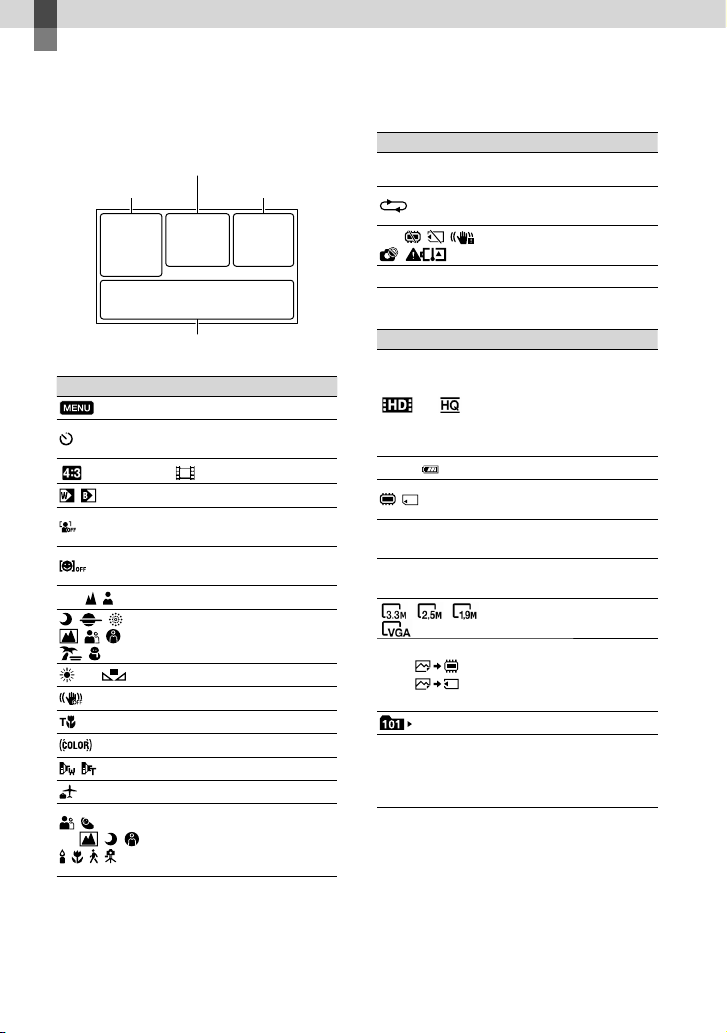
68
ES
Referencia rápida
Indicadores de la
pantalla
Izquierda
Indicador Significado
Botón MENU
Grabación con disparador
automático
Modo panorámico
Desvanecedor
[Detección de rostro]
ajustado en [Desactivar]
[Captador de sonrisas]
ajustado en [Desactivar]
Enfoque manual
Selección escena
Balance blancos
SteadyShot desactivado
Tele macro
x.v.Color
Objetivo convers.
Destino
Auto inteligente (detección
de cara/detección de
escena/detección de
vibración de la cámara)
Central
Indicador Significado
[ESPERA]/
[GRAB.]
Estado de la grabación
Presentación de
diapositivas ajustada
Advertencia
Modo de reproducción
Derecha
Indicador Significado
60i
Calidad de grabación de
la imagen (HD/STD),
velocidad de cuadros
(60p/60i) y modo de
grabación (PS/FX/FH/
HQ/LP)
60min
Batería restante
Soporte de grabación/
reproducción/edición
0:00:00
Contador (hora:minuto:
segundo)
00Min
Tiempo de grabación
restante previsto
Tamaño de la imagen
9999
9999
Número aproximado
de imágenes que puede
grabar y tamaño de la
imagen
Carpeta de reproducción
100/112
Película o imagen en
reproducción/número
total de películas o
imágenes grabadas
Izquierda
Derecha
Central
Parte inferior
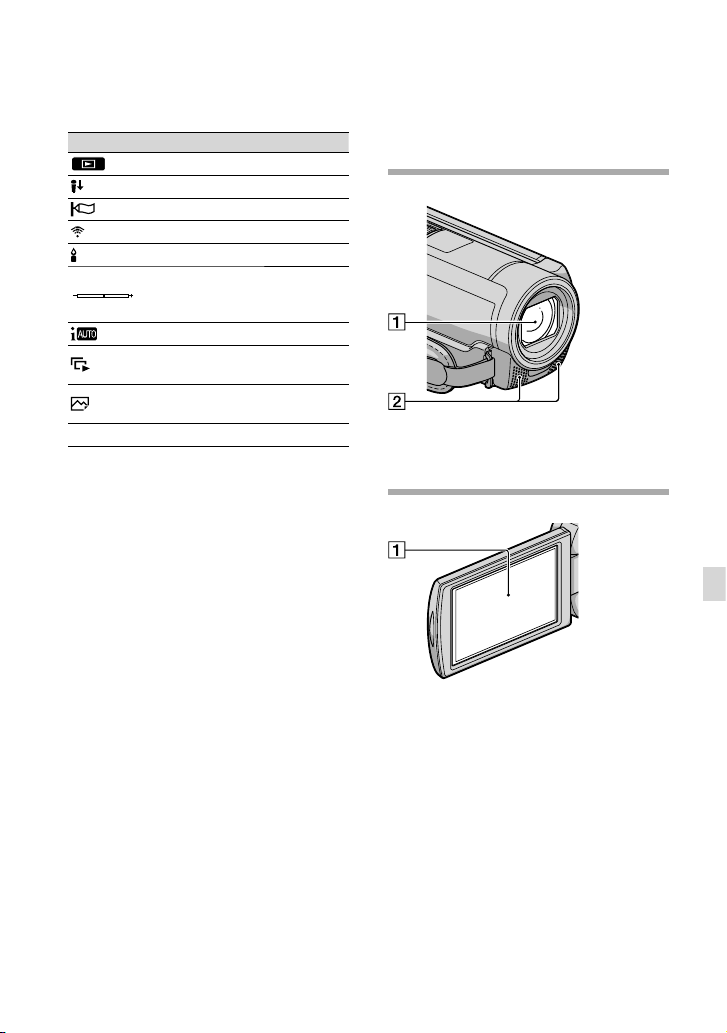
69
ES
Referencia rápida
Parte inferior
Indicador Significado
Botón Ver Imágenes
Nivel referencia mic bajo
Reducc. ruido viento
Micróf. zoom integr.
Low Lux
Medidor/Enfoq punt /
Medidor puntual /
Exposición
Auto inteligente
Botón de presentación de
diapositivas
101-0005
Nombre del archivo de
datos
Imagen protegida
Los indicadores y sus posiciones son
aproximados y pueden variar respecto de su
apariencia real.
Según el modelo de la videocámara, es posible
que algunos indicadores no aparezcan.
Piezas y controles
Los números entre ( ) corresponden a las
páginas de referencia.
Objetivo (objetivo G)
Micrófono incorporado
Pantalla de cristal líquido/panel táctil
Si gira el panel de cristal líquido en 180
grado, podrá cerrarlo con la pantalla de
cristal líquido mirando hacia fuera. Este
procedimiento resulta conveniente para las
operaciones de reproducción.
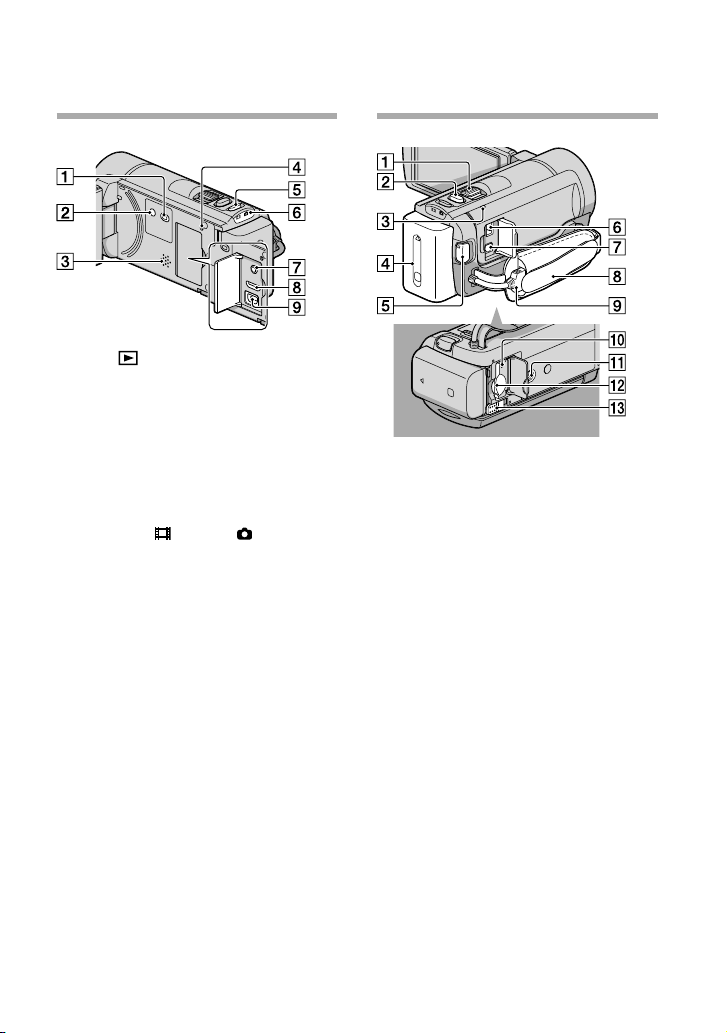
70
ES
Botón (Ver Imágenes) (24)
Botón POWER (13)
Altavoz
Botón RESET
Presione RESET con un objeto puntiagudo.
Presione RESET para inicializar todos los
ajustes, incluido el del reloj.
Botón MODE (20)
Indicadores (Película)/ (Foto) (20)
Toma MIC (PLUG IN POWER)
(HDR-CX160/CX180)
Toma HDMI OUT (28)
Toma (USB) (44, 47)
Palanca del zoom motorizado
Botón PHOTO (22)
Indicador CHG (carga) (9)
Batería (9)
Botón START/STOP (20)
Toma DC IN (9)
Conector remoto de A/V (28)
Correa de sujeción (19)
Cable USB incorporado (10)
Indicador de acceso de la tarjeta de
memoria (18)
Si el indicador está encendido o parpadeando,
significa que la videocámara está leyendo o
escribiendo datos.
Receptáculo del trípode
Ranura para tarjeta de memoria (18)
Palanca BATT (liberación de la batería)
(11)

71
ES
Referencia rápida
Encontrará las listas de
menús en las páginas
54 a 56.
Índice
I
Indicadores de advertencia .......59
Indicadores de la pantalla ..........68
Índice de eventos ........................24
Instalar .........................................35
L
Language Setting ........................15
M
Macintosh ....................................34
Mantenimiento ...........................63
“Memory Stick” ...........................17
“Memory Stick PRO Duo”.........17
“Memory Stick PRO-HG
Duo” .............................................17
Menús ...........................................54
Miniatura .....................................31
P
Películas .................................20, 26
PMB (Picture Motion
Browser) .......................................37
Precauciones ................................63
PS ..................................................23
R
Reparación ...................................58
Reproducción ..............................24
Reproducción de selección ........27
RESET ..........................................70
S
Selección soporte ........................16
Sistema de computadora ...........34
Software .......................................35
Solución de problemas ...............58
Soporte externo ..........................43
Soportes de grabación ................16
T
Tarjeta de memoria ....................17
Televisor .......................................28
Tiempo de grabación y
reproducción ...............................61
Tiempo de grabación de
películas/número de fotos que
puede grabar ................................61
Tomacorriente de pared ...............9
Totalmente cargada ......................9
Trípode .........................................70
V
VBR ..............................................61
Visualización de
autodiagnóstico...........................59
W
Windows ......................................34
A
Ajuste de la fecha y la hora ........13
Ajustes de soporte .......................16
Ajustes del reloj ...........................13
Almacenamiento de imágenes
en soportes externos...................43
B
Batería ............................................9
Borrar ...........................................31
C
Cable de conexión de A/V...29, 51
Cable USB ..............................47, 50
Cable USB incorporado .........3, 10
Carga de la batería ........................9
Carga de la batería en el
extranjero .....................................12
Código datos ...............................14
Conexión .....................................28
Copia ............................................18
Copiar ..........................................18
Cuidados ......................................63
D
DVDirect Express .......................47
E
Elementos suministrados ............3
Encendido....................................13
Equipo ..........................................34
Especificaciones ..........................65
F
Fecha/hora ...................................14
Fotos .......................................22, 27
G
Grabación ....................................19
Grabadora de discos ...................51
Grabadora de DVD ..............47, 50
Guía práctica de “Handycam” ...57