RQT9655-1P
until
2012/03/09
Owner’s Manual
Thank you for purchasing this product.
For optimum performance and safety, please read these instructions carefully.
Please keep this manual for future reference.
If you have any questions, contact:
U.S.A. and Puerto Rico: 1-800-211-PANA (7262)
Canada: 1-800-561-5505
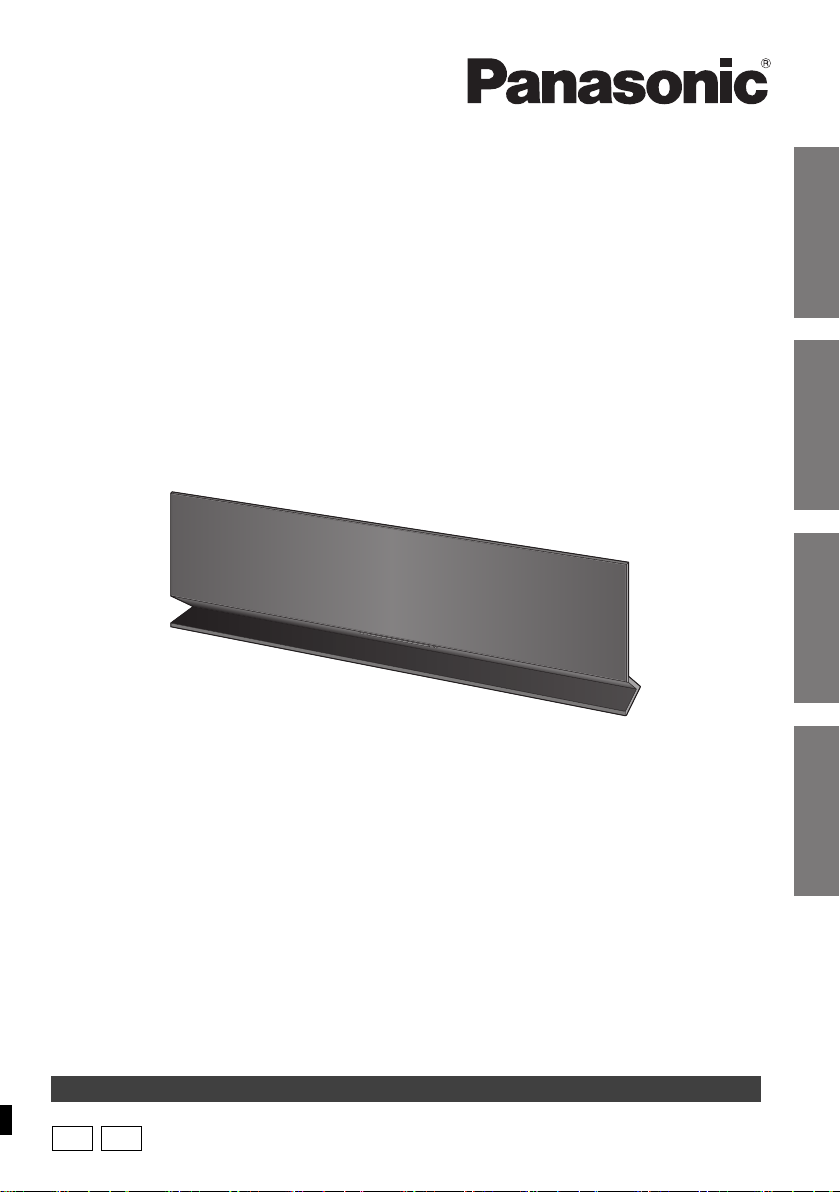
Compact Stereo System
Model No. SC-AP01
La referencia rápida en español se puede encontrar en la página 15 - 17.
P
PC
Getting started
Reference Network settings
Operations
SC-AP01PPC~RQT9655.book 1 ページ 2012年3月2日 金曜日 午後7時57分
2
RQT9655
IMPORTANT SAFETY INSTRUCTIONS
Unit
≥ To reduce the risk of fire, electric shock or product
damage,
– Do not expose this unit to rain, moisture, dripping or
splashing.
– Do not place objects filled with liquids, such as vases,
on this unit.
– Use only the recommended accessories.
– Do not remove covers.
– Do not repair this unit by yourself. Refer servicing to
qualified service personnel.
AC adaptor
≥ Install this unit so that the AC adaptor can be unplugged
from the socket outlet immediately if any problem
occurs.
Unit
≥ Do not place sources of naked flames, such as lighted
candles, on this unit.
Placement
≥ To reduce the risk of fire, electric shock or product
damage,
– Do not install or place this unit in a bookcase, built-in
cabinet or in another confined space. Ensure this unit
is well ventilated.
– Do not obstruct this unit’s ventilation openings with
newspapers, tablecloths, curtains, and similar items.
AC adaptor
This AC adaptor operates on AC between 100 V and
240 V.
But
≥ In the U.S.A. and Canada, the AC adaptor must be
connected to a 120 V AC power supply only.
≥ When connecting to an AC supply outside of the U.S.A.
or Canada, use a plug adaptor to suit the AC outlet
configuration.
WARNING CAUTION
Product Identification Marking is located on the bottom
of the unit.
SC-AP01PPC~RQT9655.book 2 ページ 2012年3月2日 金曜日 午後7時57分
Getting started
3
RQT9655
Unit care
Pull out the AC adaptor from the outlet before
maintenance.
∫ Clean this unit with a soft, dry cloth
≥ When the unit is very dirty, wring a cloth
moistened in water tightly to wipe the dirt, and
then wipe it with a dry cloth.
≥ When cleaning the speaker covers, use a fine
cloth. Do not use tissues or other materials
(towels, etc.) that can fall apart. Small grains may
get stuck inside the speaker cover.
≥ Never use alcohol, paint thinner or benzine to
clean this unit.
≥ Before using a chemically treated cloth, carefully
read the instructions that came with the cloth.
∫ To dispose or transfer this unit
The unit may keep the user settings information in
the unit. If you discard this unit either by disposal or
transfer, then follow the procedure to return all the
settings to the factory presets to delete the user
settings. (> 13, “To return all settings to the factory
preset”)
≥ The operation history may be recorded in the
memory of this unit.
Licenses
Table of contents
IMPORTANT SAFETY INSTRUCTIONS............ 2
Getting started
Unit care............................................................. 3
Licenses............................................................. 3
Accessory .......................................................... 3
About this product ............................................ 4
Control reference guide.................................... 4
Connections ......................................................5
Network settings
Network settings ...............................................6
Operations
Using AirPlay with this unit’s speakers .......... 9
Using the remote control app ........................10
Others............................................................... 12
Reference
Troubleshooting .............................................. 13
Specifications.................................................. 14
Limited Warranty (ONLY FOR U.S.A. AND
PUERTO RICO)............................................. 18
Limited Warranty (ONLY FOR CANADA).......19
Accessory
AirPlay, the AirPlay logo, iPad, iPhone, and iPod touch
are trademarks of Apple Inc., registered in the U.S. and
other countries.
The Wi-Fi CERTIFIED Logo is a certification mark of
the Wi-Fi Alliance.
The Wi-Fi Protected Setup Mark is a mark of the Wi-Fi
Alliance.
“Wi-Fi”, “Wi-Fi Protected Setup”, “WPA” and “WPA2”
are marks or registered marks of the Wi-Fi Alliance.
Spanish Quick Reference /
Referencia rápida en español
Conexiones.....................................................15
Ajustes de red ................................................15
Uso de AirPlay con los altavoces
de esta unidad .............................................17
Check the supplied accessory before using this
unit.
∏ 1 AC adaptor
(RFEA228C-AG)
≥ Product numbers provided in this Owner’s Manual are
correct as of February 2012. These may be subject to
change.
SC-AP01PPC~RQT9655.book 3 ページ 2012年3月2日 金曜日 午後7時57分
4
RQT9655
About this product
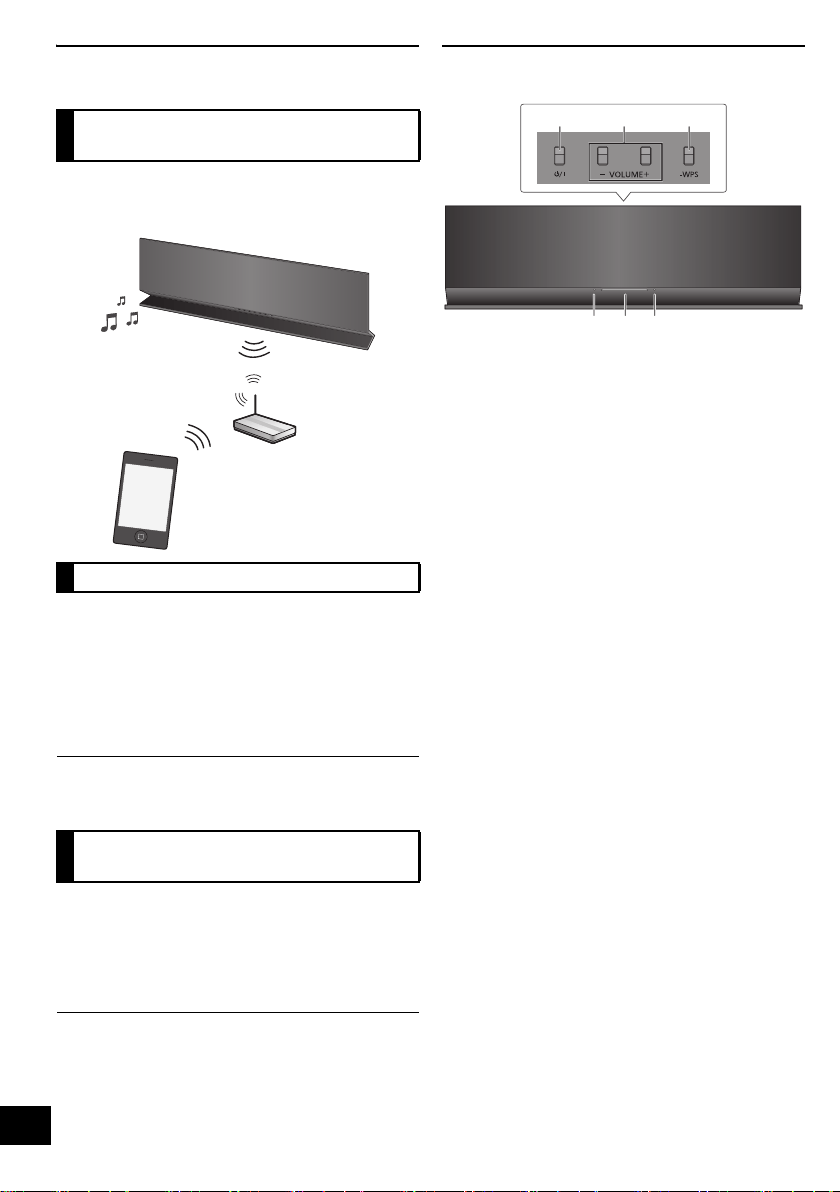
With this product, you can wirelessly stream music
from the compatible device (> below) to this unit’s
speakers.
AirPlay works with;
≥ iOS 4.2 or later
jiPod touch (2nd, 3rd, and 4th generation),
jiPhone 4S, iPhone 4, iPhone 3GS,
jiPad 2, iPad
≥ iTunes 10.2 or later
jMac / PC
(as of February 2012)
≥ Please be aware that Panasonic accepts no
responsibility for the loss of data and/or information.
It is possible to adjust the volume, turn this unit on
or switch it to standby mode, and adjust various
other features from the screen of your iPhone or
iPod touch.
Install this specific application onto your iPhone or
iPod touch to use this unit. (> 10)
≥ This application is specially made for iPhone and iPod
touch.
Control reference guide
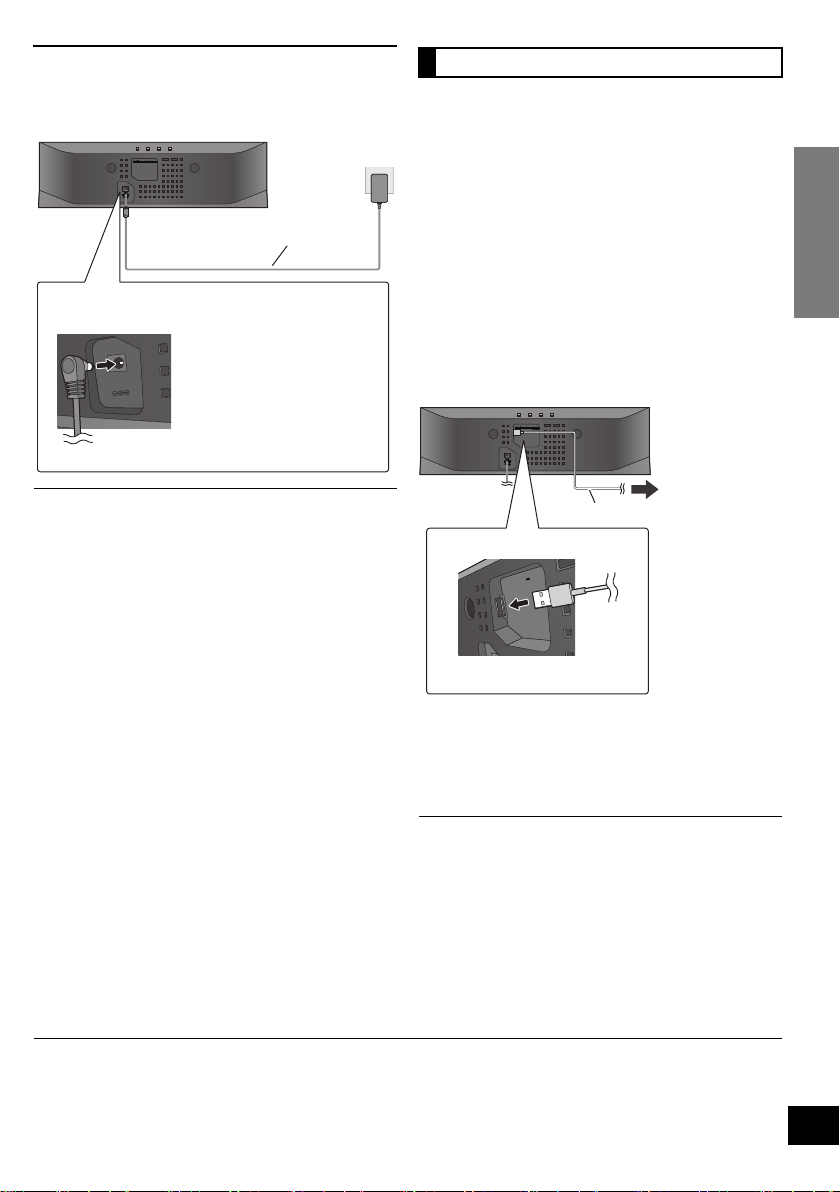
1 Standby/on switch [Í/I]
Press to switch the unit from on to standby mode or
vice versa.
In standby mode, the unit is still consuming a small
amount of power.
2 Adjust the volume
3 WPS pairing button
4 Power on indicator
5Wi-Fi
®
status indicator
6 Operation indicator
Listening to music with
AirPlay
Compatible devices
Operations with the remote
control app
VOLUM E
231
564
SC-AP01PPC~RQT9655.book 4 ページ 2012年3月2日 金曜日 午後7時57分
Getting started
5
RQT9655
Connections
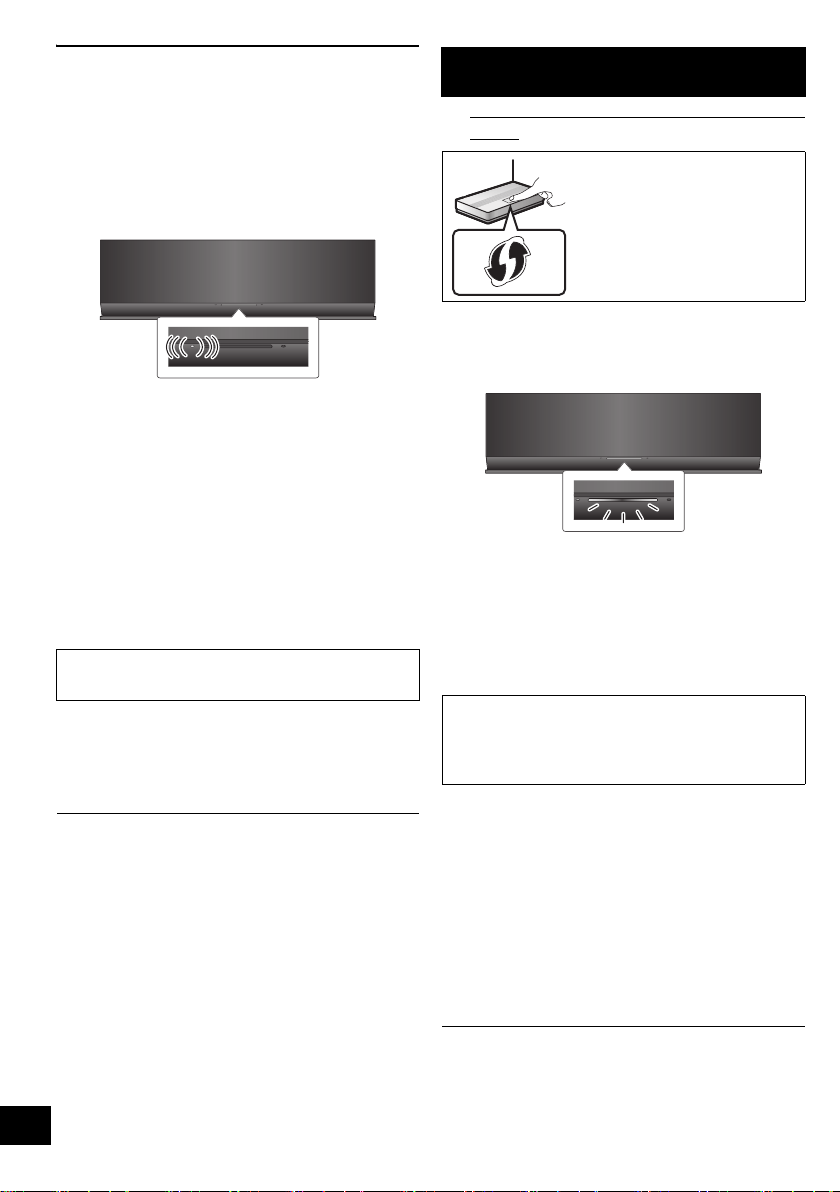
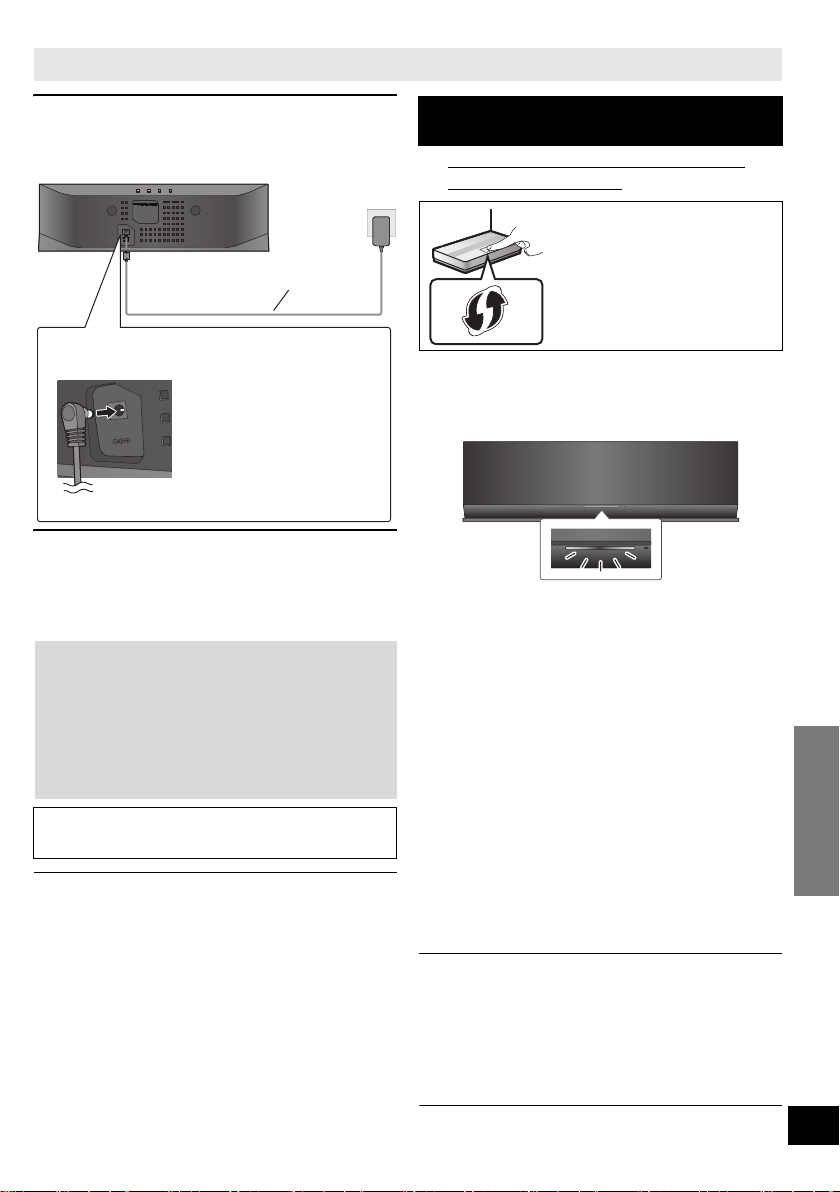
Connect the AC adaptor to the household AC
outlet.
≥ Do not use any other AC adaptors except the supplied
one.
≥ These speakers do not have magnetic shielding. Do not
place them near a television, personal computer or other
devices easily influenced by magnetism.
≥ When moving this unit, be sure to remove the USB cable
and turn this unit to standby mode.
When this unit is turned on and a portable music
player that is compatible to USB charging is
connected to this unit’s USB port, charging will start
automatically.
≥ It is not possible to play back the music on the
connected device from this unit’s speakers or
operate the device from this unit through this
connection.
≥ Refer to the operating instructions of the device
for details about charging.
Preparation
Turn this unit on.
1 Connect the compatible device to this unit
with an appropriate USB cable.
≥ Refer to the connected device to check if the
device is fully charged.
2 Once fully charged, remove the USB
cable from this unit.
≥ There is no charging during standby mode.
≥ This unit is capable of charging up to a load of 2.1 A.
≥ When fully charged, this unit will not stop the charging
automatically. Remove the USB cable from this unit once
the connected device is fully charged.
*1: The USB cable is not supplied with this unit. Use the USB cable that is supplied with the compatible device. If a USB
cable is not supplied with the device, be sure to use an appropriate USB cable.
Refer to the operating instructions of the device for details about the appropriate USB cable.
DC IN 12V
This system consumes a small amount of AC
power (> 14) even when turned off.
≥ When leaving the product
unused for a long time, turn off
the unit and pull the AC
adaptor out of the household
AC outlet for power saving.
AC adaptor (supplied)
(DC IN 12 V)
Charging from the USB port
DC OUT/SORTIE C.C.
5V 2.1A MAX
To the
compatible
device
USB cable*
1
(DC OUT 5 V, 2.1 A MAX)
SC-AP01PPC~RQT9655.book 5 ページ 2012年3月2日 金曜日 午後7時57分
6
RQT9655
Network settings
To use the AirPlay function, this unit must join the
same wireless network as the compatible device.
(> 4)
1 Press [Í/I] to turn the unit on.
≥ Only the power on indicator lights when the wireless
network is not set.
2 Check which type of wireless network
router you are using.
∫ “Method 1” :
If your wireless network router supports WPS
(Wi-Fi Protected Setup
TM
).
∫ “Method 2” :
If your wireless network router does not support
WPS (Wi-Fi Protected Setup
TM
).
≥ Refer to the operating instructions of the wireless
network router for details.
≥ When performing the network settings, place this unit
close to the wireless router.
≥ Simultaneous use with other 2.4 GHz devices, such as
microwaves, cordless telephones, etc., may result in
connection interruptions.
≥ Immediately after this unit is turned on, the network
setup may take longer to start.
≥ This unit cannot join a wireless network using WEP
security settings with
“Method 1”. Use “Method 2” to join
the wireless network.
≥ To cancel the setting in the middle, press [Í/I] to turn off
the unit.
≥ For up-to-date compatibility information on your Wireless
router refer to
http://panasonic.jp/support/global/cs/
(This site is in English only.)
∫ Using the WPS Push Button Configuration
(PBC)
1 Press and hold [– WPS] on the unit for
more than 2 seconds.
≥ Complete step 2 within 2 mins.
2 Press the WPS button on the wireless
router.
3 The unit’s settings are completed when
the Wi-Fi
®
status indicator stops blinking
after about 2 minutes and lights blue.
4 To use AirPlay, turn to page 9.
≥ To use the WPS PIN code, refer to the notes on page 8.
≥ To edit this system’s name, it is necessary to use
“Method 2”. (> 8, “Additional settings”)
If you do not know which type of wireless network
router you are using, use “Method 2”.
Lights red
Method 1
If your wireless network router supports WPS.
The WPS identifier mark.
WPS Push Button
Configuration (PBC)
compatible wireless router may
have this mark.
The Wi-Fi
®
status indicator turns off if the
connection was not made within the set time limit.
Try the setting again. If the Wi-Fi
®
status indicator
still turns off, try “Method 2”.
Blinks blue
SC-AP01PPC~RQT9655.book 6 ページ 2012年3月2日 金曜日 午後7時57分
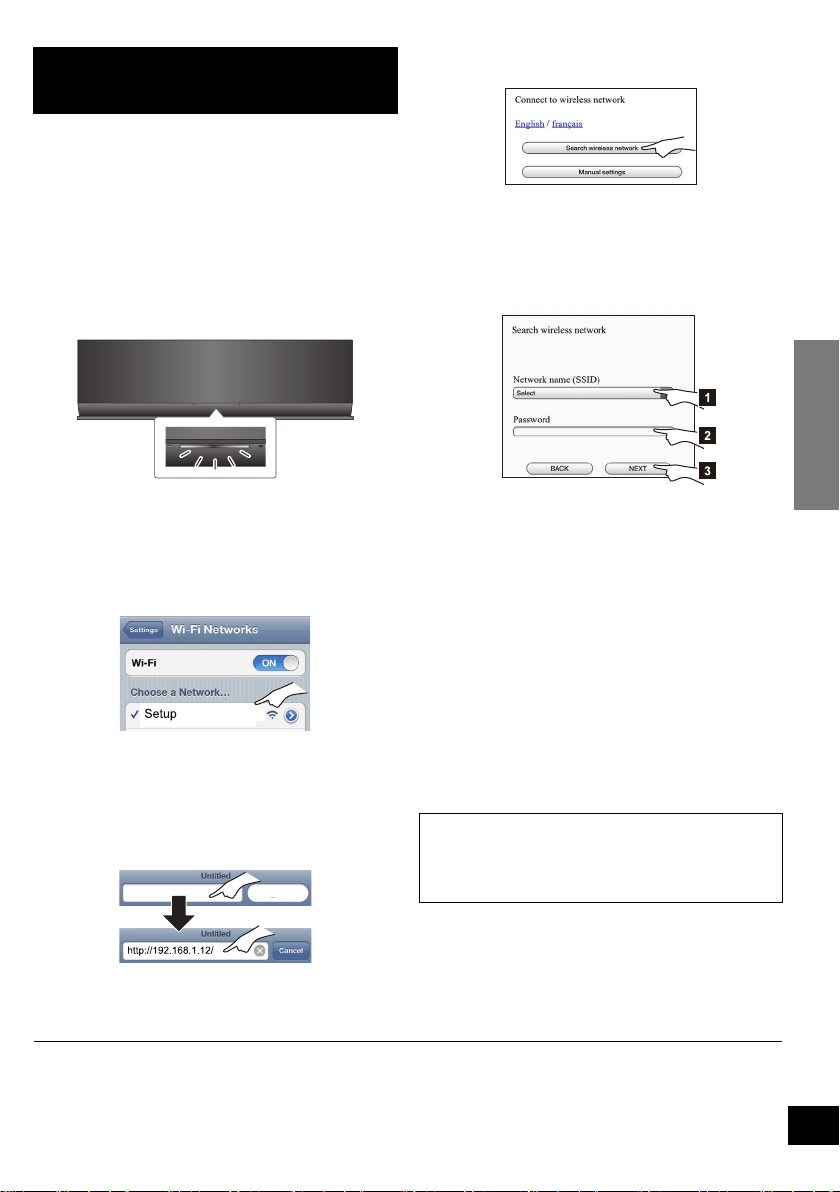
Network settings
7
RQT9655
With this method, you will access this unit’s
wireless network settings from the Internet browser
of your compatible device.
≥ The following explanations are based on an iPhone.
Preparation
≥ Turn on your iPhone.
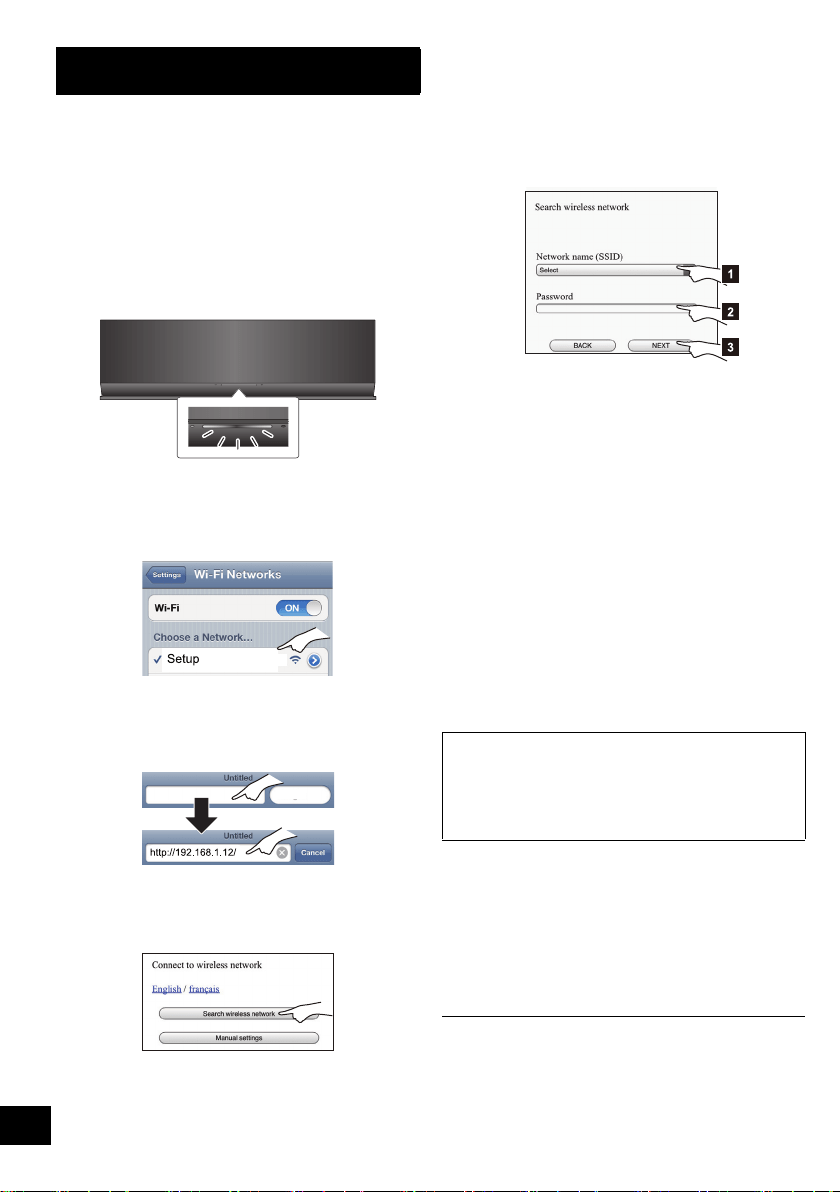
1 Press and hold both [VOLUME i] and
[– WPS] on this unit for more than 2
seconds.
≥ If the indicator blinks blue, turn the unit off and on
and repeat step 1.
2 Connect your iPhone to this unit’s wireless
network named
“Setup _ _ _ _ _ _”.*
1, 2
≥ Once “Setup _ _ _ _ _ _” is selected, continue to
step 3.
3 Start “Safari” on your iPhone and type
“http://192.168.1.12/” into the URL
address field and display the page.
{. This unit’s setup window is displayed.
4 Select “Search wireless network”.
5 Select and input the details.
≥ Check your home wireless network name
(Network name (SSID)) and password for
this network. This can often be found on the
wireless router itself.
6 Select “JOIN” to apply the settings.
{. In the pop-up screen, select “OK” to continue.
– Select “CANCEL” to return to the setup window.
{. The Wi-Fi
®
status indicator blinks blue.
– You can now close the Safari browser.
7 The unit’s settings are completed when
the Wi-Fi
®
status indicator stops blinking
after about 2 minutes and lights blue.
8 Make sure to connect your iPhone back to
your home wireless network.*
4
9 To use AirPlay, turn to page 9.
*1: “ _ ” stands for a digit that is unique to each set.
*2: Make sure that DHCP is enabled for the network setting on the iPhone.
*3: If you have set your wireless network to be invisible, select “BACK” and refer to “Alternative settings”. (> 8)
*4: To use the AirPlay function, connect the iPhone to the wireless network selected in step 5. (> above)
Method 2
If your wireless network router does not support
WPS.
Blinks purple
_ _ _ _ _ _
[1] Select your home wireless network
name.*
3
[2] Type the password.
[3] Select “NEXT”.
If the Wi-Fi
®
status indicator turns off, turn the unit
off and on again, check the wireless network
password and other settings and start again from
step 1.
SC-AP01PPC~RQT9655.book 7 ページ 2012年3月2日 金曜日 午後7時57分

8
RQT9655
≥ The below settings are the alternative or
additional settings for “Method 2”. (> 7)
≥ Enable Java and Cookies in your browser settings.
≥ This unit can also be set using the WPS PIN code.
Replace step 2 of “Method 1” with the following steps.
(Before starting, refer to the wireless network router’s
operating instructions for details on how to enter the PIN
code.)
1 While the Wi-Fi
®
status indicator blinks blue, press
and hold [– WPS] again.
{. The Wi-Fi
®
status indicator blinks purple.
Continue to the next step.
2 Enter the PIN code “64428147” into the wireless
router.
Advanced network settings
Alternative settings
Instead of steps 4 and 5:
Select “Manual settings”.
1 Type your home wireless network name
into the “Network name (SSID)” field.
2 Select the encryption method from the
“Security system” drop down list.
3 Type the password into the “Password” field
and then select “NEXT”.
Additional settings
After step 5 and before step 6:
If your home wireless network has been setup
to use specific IP Addresses, Subnet Mask,
Default Gateway, Primary DNS, etc.
Select “Advanced network settings”.
{. Input the required addresses into each field and
select “OK”.
≥ To change the settings back to DHCP, select “ON”
from the “DHCP” drop down list.
If you want to change the name of this unit.
Select “Edit STEREO SYSTEM name”.
{. Only ASCII characters can be used.
{. Type a new name into the “STEREO SYSTEM
name” field and select “OK”.
SC-AP01PPC~RQT9655.book 8 ページ 2012年3月2日 金曜日 午後7時57分
Operations
Network settings
9
RQT9655
Using AirPlay with this unit’s speakers
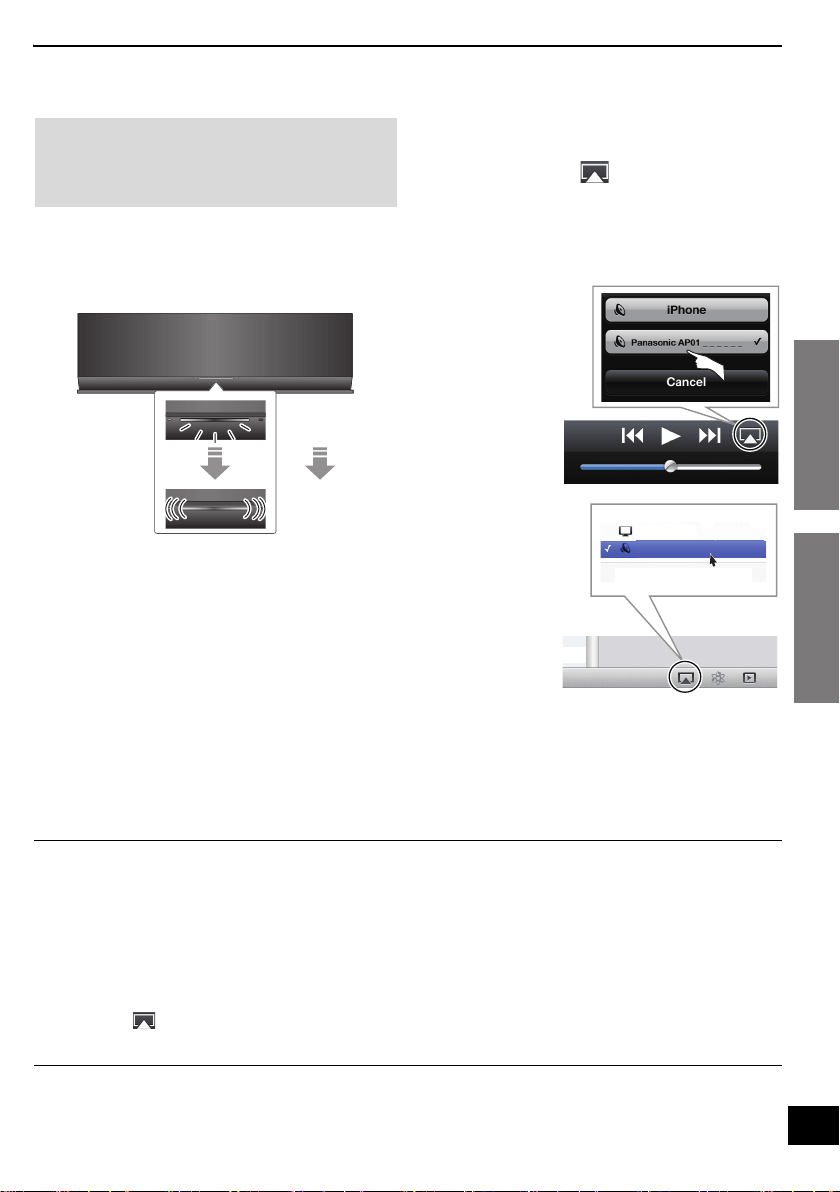
1 Turn the unit on.
≥ Check that the Wi-Fi
®
status indicator lights
blue.
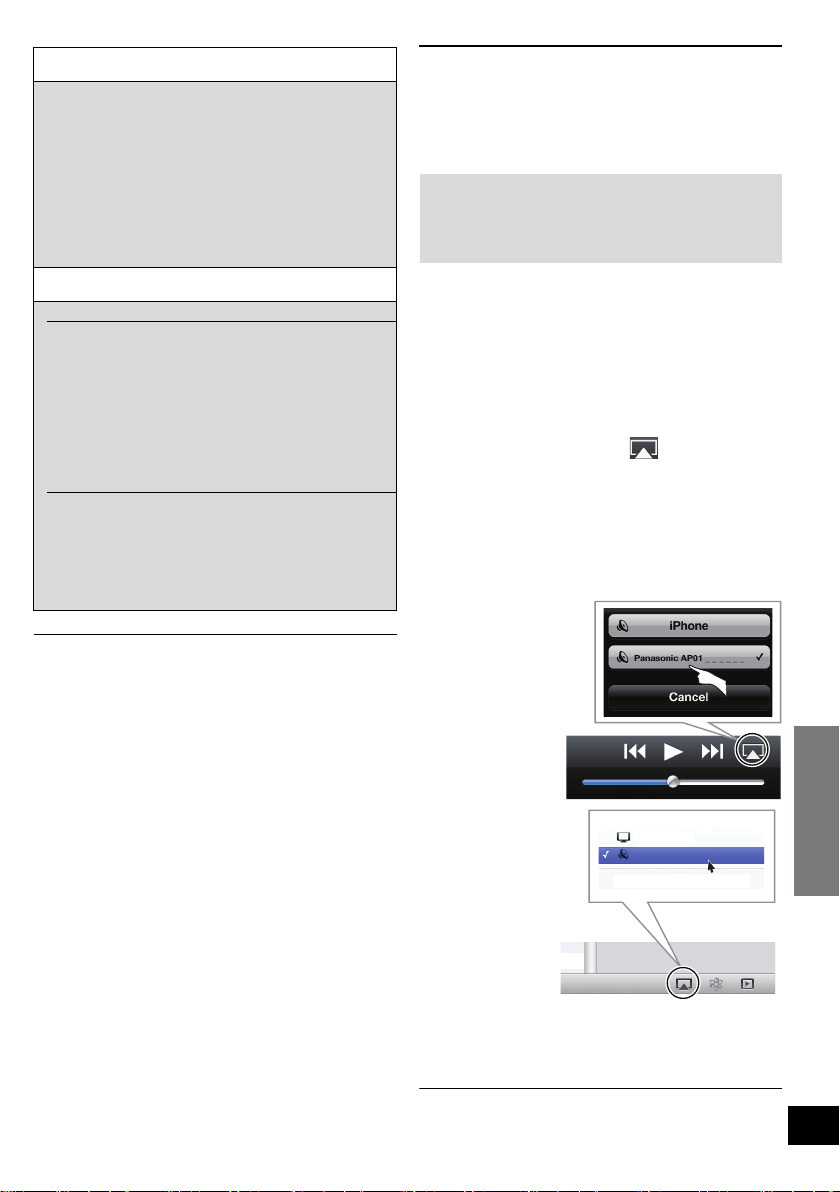
[
≥ If it continues to blink red, check the wireless
network settings. (> 6)
2 iOS device:
Start the “Music” (or iPod) app.
Mac/PC:
Start “iTunes”.
≥ If the Music app on your iOS device is used,
select the audio file you want to play.
3 Select “Panasonic AP01 _ _ _ _ _ _”*
1, 2
from the AirPlay icon at the bottom
right-hand corner of the display.
{. Check the volume settings before starting the
playback. (When AirPlay is used for the first time,
the volume may be output at the maximum setting.)
4 Start play.
≥ The playback will start with a slight delay.
≥ This unit can be set to turn on automatically when this unit is selected as the output speakers. (> 11)
≥ Volume changes on the iOS device or iTunes will be applied to this unit. (Refer to the iTunes Help for the required
settings in iTunes.)
≥ With some iOS and iTunes versions, it may not be possible to restart the AirPlay playback if the unit is turned off during
the AirPlay playback.
In this case, select a different device from the AirPlay icon of the Music app or iTunes and then re-select this unit as the
output speakers.
≥ AirPlay will not work when playing back videos on iTunes.
≥ If the AirPlay icon is not displayed even if Wi-Fi
®
status indicator lights blue, try restarting the wireless network
router.
*1: “ _ ” stands for a digit that is unique to each set.
*2: If you have not changed the name, this unit will be displayed as “Panasonic AP01 _ _ _ _ _ _”.
The name that is displayed for this unit can be changed from the “Edit STEREO SYSTEM name” settings in
“Method 2”. (> 8, “Additional settings”)
Preparation
≥ Complete the network settings. (> 6)
≥ Connect the iOS device or Mac/PC to the same
home wireless network as this unit.
Blinks red
Lights blue
e.g., iPhone iOS 5.0
(When held vertically)
Computer
Multiple Speakers...
Panasonic AP01
_ _ _ _ _ _
e.g., iTunes 10.5
(Bottom right)
SC-AP01PPC~RQT9655.book 9 ページ 2012年3月2日 金曜日 午後7時57分
10
RQT9655
Using the remote control app
By installing the remote control app “Panasonic Stereo System Remote 2012” onto your iPhone or
iPod touch, it is possible to adjust the volume, turn the unit on and off, and adjust various other
features of this unit.
≥The following operations and settings cannot be performed from a computer.
Visit the following website for details on how to operate the remote control app “Panasonic Stereo
System Remote 2012”:
http://panasonic.jp/support/global/cs/
(This site is in English only.)
≥ This application is specially made for iPhone and iPod touch.
≥ Some operations and settings can only be performed by using the remote control app.
≥ Refer to the operating instructions of the iPhone or iPod touch for details about its operations.
Preparation
Connect the iPhone or iPod touch to the Internet.
1 On the iPhone or iPod touch:
Start the “App Store” app.
2 Select “Search” and search for
“Panasonic Stereo System Remote
2012”.
3 Select “Panasonic Stereo System
Remote 2012” and install it onto your iOS
device.
≥ The remote control app icon named
“StereoRemote” is added to your home
screen.
Preparation
≥ Complete the network settings. (> 6)
≥ Turn the unit on.
jCheck that the Wi-Fi
®
status indicator lights
blue. (> 4)
If it continues to blink red, check the wireless
network settings. (> 6)
≥ Turn on the iPhone or iPod touch.
(Make sure that the iPhone or iPod touch is
connected to the same wireless network as this
unit.)
1 On the iPhone or iPod touch:
Start the “StereoRemote” app.
2 If the “Device List” is displayed, select
“Panasonic AP01 _ _ _ _ _ _”.*
1, 2
{. A menu screen is displayed.
– The operation indicator (> 4) blinks green.
*1: “ _ ” stands for a digit that is unique to each set.
*2: If you have not changed the name, this unit will be displayed as “Panasonic AP01 _ _ _ _ _ _”.
The name that is displayed for this unit can be changed from the “Edit STEREO SYSTEM name” settings in
“Method 2”. (> 8, “Additional settings”)
Installing the app Operations from the remote
control app
SC-AP01PPC~RQT9655.book 10 ページ 2012年3月2日 金曜日 午後7時57分

Operations
11
RQT9655
The following operations can be performed from
the “Sound” screen.
∫ The preset equalizer
“HEAVY” (heavy), “SOFT” (soft), “CLEAR” (clear),
“VOCAL” (vocal) or “FLAT” (flat/off).
≥ The factory preset is “HEAVY”.
∫ Bass and Treble (BASS, TREBLE)
Adjust the level (j4 to i4).
∫ Dynamic Bass (D.BASS)
“ON” or “OFF”.
≥ The factory preset is “ON”.
∫ Direct-vocal surround (D.SURROUND)
“LEVEL 1”, “LEVEL 2” or “OFF”.
≥ The factory preset is “OFF”.
∫ Muting the sound (MUTE)
The sound is temporarily muted.
∫ Adjusting the volume (VOL)
Move the volume bar to adjust the volume of this
unit.
≥ You may experience a reduction in sound quality when
these effects are used with some sources. If this occurs,
turn the sound effects off.
The following operations can be performed from
the “Controller” screen.
∫ Turn this unit on or off (Í)
≥ To turn this unit on, “NET STANDBY” must be set to
“ON”. (> below)
∫ Automatic standby (AUTO OFF)
This unit can be set to turn off automatically if there
is no sound output and no operation for 30 minutes.
≥ As a factory preset, this function is turned on. To
deactivate this function, select “OFF”.
≥ Unless automatic standby is deactivated, this function
will work every time this unit is turned on.
≥ This setting can only be performed from the remote
control app.
∫ Network standby (NET STANDBY)
This unit can turn on automatically from standby
mode when this unit is selected as the AirPlay
speakers.
≥ As a factory preset, this function is turned off. To activate
this function, select “ON”.
≥ The factory preset is “OFF”. If this function is set to “ON”
the standby power consumption will increase.
≥ This setting can only be performed from the remote
control app.
Sound adjustment Other adjustment
SC-AP01PPC~RQT9655.book 11 ページ 2012年3月2日 金曜日 午後7時57分
12
RQT9655
Others
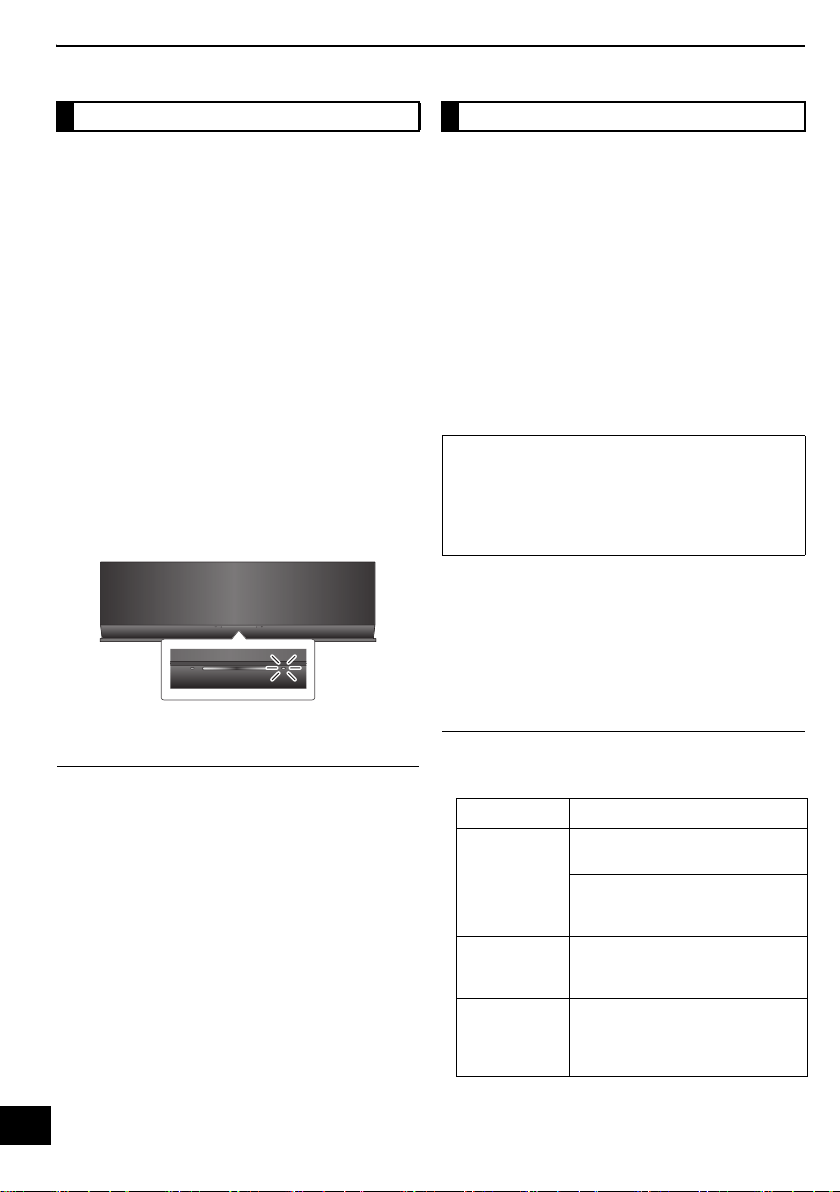
To check the Wi-Fi
®
signal strength where the unit
is located.
Preparation
≥ Turn the unit on.
≥ Connect this unit to the wireless network. (> 6)
1 If this unit is in use, stop the AirPlay
playback to this unit.
≥ Wait for at least 15 seconds before
proceeding to step 2.
2 Press and hold both [– VOLUME] and
[VOLUME i] on this unit for more than 2
seconds.
3 The operation indicator lights and then
blinks a set number of times.
Count the number of times the indicator
blinks.
≥ A stable connection is available when the
operation indicator blinks 3 times.
≥ Change the position or angle of your wireless network
router or the unit in the following cases:
– The operation indicator only blinks 2 times or 1 time.
– The sound is interrupted.
Occasionally, Panasonic may release updated
software for this unit that may add or improve the
way a feature operates. These updates are
available free of charge.
Preparation
≥ Turn the unit on.
≥ Connect this unit to the wireless network. (> 6)
jMake sure that the wireless network is
connected to the Internet.
1 Press and hold both [– VOLUME] and
[– WPS] on this unit for more than 2
seconds.
{. The operation indicator (> 4) blinks.
{. After the update has finished, the operation
indicator (> 4) lights.
2 Disconnect the AC adaptor and reconnect
it after 3 minutes.
≥ Downloading will require several minutes. It may
take longer or may not work properly depending on
the connection environment.
≥ If the update is unsuccessful, the operation indicator will
blink in a specific sequence.
Wi-Fi
®
signal strength Software update
DO NOT DISCONNECT the AC adaptor while
this unit is updating.
≥ During the update process, no other operations can be
performed.
≥ If the update is unsuccessful, the operation indicator
will blink in a specific sequence. (> below)
No. of blinks Problems and solutions
3
The software download has failed.
Please try again later.
The server cannot be found. Make
sure that the wireless network is
connected to the Internet.
2
This unit cannot connect to the
network. Check the network
connection.
1
The update has failed. Turn this unit
off and remove the AC adaptor.
Reconnect the AC adaptor and try
again.
SC-AP01PPC~RQT9655.book 12 ページ 2012年3月2日 金曜日 午後7時57分
Operations
Reference
13
RQT9655
Troubleshooting
Before requesting service, make the following
checks. If you are in doubt about some of the check
points, or if the solutions indicated in the following
guide do not solve the problem, refer to “Customer
Services Directory (United States and Puerto Rico)”
on page 18 if you reside in the U.S.A. or Puerto
Rico, or refer to “Limited Warranty (ONLY FOR
CANADA)” on page 19 if you reside in Canada.
Do you have the latest software installed?
≥ Occasionally, Panasonic may release updated software
for this unit that may add or improve the way a feature
operates. (> 12)
Humming heard during play.
≥ An AC power supply cord or fluorescent light is near the
cords. Keep other appliances and cords away from this
unit’s cables.
The power on indicator blinks red.
≥ The unit has been left unused for about 30 minutes and
will shut down in a minute. Press any button to cancel it.
(> 11)
Cannot connect to the network.
≥ Confirm the network connection and settings. (> 6)
≥ Your wireless network might be set to be invisible. In this
case select “Manual settings” in “Method 2”. (> 7)
≥ This unit cannot join a wireless network using WEP
security settings with the WPS methods (“Method 1”).
Use “Method 2” to join the wireless network. (> 7)
≥ Make sure that the multicast function on the wireless
network router is set to on (enabled).
My wireless network router is WPS PBC
compatible, but the pairing does not work.
≥ If the network is set to be invisible, the push button
configuration does not work. In this case, either make
the wireless network visible while you set up the network
for this unit or use “Method 2”. (> 7)
The Wi-Fi
®
status indicator continues to blink
red.
≥ The Wi-Fi
®
status indicator will blink red when this unit is
connecting to the wireless network. Once it is connected
to the wireless network it will light blue.
If it continues to blink red, check the wireless network
settings. (> 6)
Cannot connect to the unit.
≥ Make sure that this unit is on the same wireless network
as the device you are trying to use. (> 6)
≥ If “NET STANDBY” is set to “OFF”, the AirPlay
compatible device cannot be connected when this unit is
off.
≥ Set “NET STANDBY” to “OFF” (> 11), turn off the Wi-Fi
®
setting on the AirPlay compatible device, and then turn
this unit off and on. Reconnect the compatible device to
the Wi-Fi
®
network and then select this unit as the
AirPlay speakers again.
Playback does not start.
The sound is interrupted.
≥ Simultaneous use with other 2.4 GHz devices, such as
microwaves, cordless telephones, etc., may result in
connection interruptions. Increase the distance between
this unit and these devices.
≥ Do not place this unit inside a metal cabinet, for it might
block the Wi-Fi
®
signal.
≥ Place this unit closer to the wireless network router.
≥ If several wireless devices are simultaneously using the
same wireless network as this unit, try turning off the
other devices or reducing their wireless network usage.
≥ With some iOS and iTunes versions, it may not be
possible to restart the AirPlay playback if the unit is
turned off during the AirPlay playback.
In this case, select a different device from the AirPlay
icon of the Music app or iTunes and then re-select this
unit as the output speakers. (> 9)
≥ If the playback stops, check the playback status on the
iOS device or iTunes.
≥ If play does not start (even though the Wi-Fi
®
status
indicator lights blue and the AirPlay icon is
displayed), restart the wireless network router, turn the
Wi-Fi
®
connection on the iOS device or Mac/PC off and
on, and then make sure that your home wireless network
is selected.
To return all settings to the factory preset
When the following situations occur, reset the
memory:
≥ There is no response when buttons are pressed.
≥ You want to clear and reset the memory contents.
1 Disconnect the AC adaptor. (Wait for at least
3 minutes before proceeding to step 2.)
2 While pressing and holding down [Í/I] on the
main unit, reconnect the AC adaptor.
≥ The operation indicator (> 4) blinks 4
times.
3 Release [Í/I].
All the settings are returned to the factory preset. You will
need to reset the memory items.
Common problems
Network
AirPlay operations
SC-AP01PPC~RQT9655.book 13 ページ 2012年3月2日 金曜日 午後7時57分

14
RQT9655
Specifications
∫ GENERAL ∫ AMPLIFIER SECTION
∫ SPEAKER SYSTEM SECTION
∫ Wi-Fi / AirPlay SECTION
∫ TERMINAL SECTION
≥ Specifications are subject to change without notice.
Mass and dimensions are approximate.
≥ Total harmonic distortion is measured by a digital
spectrum analyzer.
General
Main set rating
DC 12 V, 20 W
System
Power consumption
(With USB port charging)
Approx. 22 W
Power consumption in standby mode
(When “NET STANDBY” is “OFF”)
Approx. 0.15 W
Power consumption in standby mode
(When “NET STANDBY” is “ON”)
Approx. 3.7 W
AC Adaptor
Input
AC 100 V to 240 V, 50/60 Hz
Output
DC 12 V, 3 A
Dimensions (WkHkD)
430 mmk128 mmk59 mm
(16
15
/16qk5
1
/32qk2
5
/16q)
Mass (Weight)
Approx. 1 kg (2.2 lbs)
Operating temperature range
0 oCtor40 oC(r32
o
F to r104
o
F)
Operating humidity range
20 % to 80 % RH (no condensation)
Output power:
RMS Output Power Stereo mode
Front Ch (both ch driven)
5 W per channel (6 ≠),1kHz,10%THD
Total RMS Stereo mode power
10 W
FTC Output Power Stereo mode
Front Ch (both ch driven)
3.5 W per channel (6 ≠),
60 Hz to 20 kHz, 1 % THD
Total FTC Stereo mode power
7W
Type
1 way, 1 speaker system (Bass Reflex)
Speaker unit(s)
Full range
4cm(1
9
/16q) Cone typek2
Impedance 6 ≠
Wi-Fi
WLAN Standards
IEEE802.11b/g
Frequency range
2.4 GHz band
Security
WEP, WPA
TM
, WPA2
TM
WPS version
Version 2.0 (WEP not support)
USB Port
USB port power
DC OUT 5 V, 2.1 A Max (charging only)
SC-AP01PPC~RQT9655.book 14 ページ 2012年3月2日 金曜日 午後7時57分
Reference
15
RQT9655
Conexiones
Conecte el adaptador de CA a la toma doméstica
de CA.
Ajustes de red
Para utilizar la función AirPlay, esta unidad debe
conectarse a la misma red inalámbrica que el
dispositivo compatible.
≥ Al realizar los ajustes de red, ubique la unidad cerca del
router inalámbrico.
≥ El uso simultáneo de un microondas o de un teléfono
inalámbrico u otros dispositivos de 2,4 GHz puede causar
interrupciones en la conexión.
≥ Inmediatamente después de encender esta unidad, el ajuste
de la red puede tardar más en arrancar.
≥ Esta unidad no se puede conectar a una red inalámbrica al
utilizar ajustes de seguridad WEP con “Método 1”. Utilizar
“Método 2” para conectarse a la red inalámbrica.
≥ Para cancelar este ajuste a la mitad, pulse [Í/I] para apagar
la unidad.
≥ Para obtener información actualizada sobre compatibilidad
de su router inalámbrico, consulte
http://panasonic.jp/support/global/cs/
(Este sitio está solamente en inglés).
∫ Uso de la configuración del botón de
comando WPS (PBC)
1 Pulse y mantenga pulsado [– WPS] en
este aparato durante más de 2 segundos.
≥ Complete el paso 2 en 2 minutos.
2 Presione el botón WPS del router
inalámbrico.
{. Cuando se establece un enlace el indicador de estado
Wi-Fi
®
parpadea rápidamente.
3 Cuando termina la configuración, el indicador
de estado Wi-Fi
®
se ilumina de color azul.
(Continúa en la página 17, “Uso de AirPlay con los
altavoces de esta unidad”)
≥ Para editar el nombre del sistema, es necesario utilizar
“Método 2”.
≥ El indicador de estado Wi-Fi
®
se apaga si la conexión no se
realizó dentro del límite de tiempo establecido. Pruebe de
nuevo el ajuste. Si el indicador de estado Wi-Fi
®
todavía
parpadea de color rojo, pruebe “Método 2”.
*1: WPS significa “Wi-Fi Protected Setup”.
Spanish Quick Reference / Referencia rápida en español
Preparación
≥
Encienda la unidad.
≥ Con esta unidad, existen dos métodos para
configurar la conexión. Determine el tipo de router
inalámbrico que está utilizando y siga el método
que se ajuste a su dispositivo.
jConsulte las instrucciones de funcionamiento del
router inalámbrico para obtener más detalles.
Si desconoce el tipo de router inalámbrico que está
utilizando, utilice “Método 2”.
DC IN 12V
Esta unidad consume poca corriente CA (> 14)
incluso cuando se encuentra apagada.
≥ Cuando no se va a usar el
producto durante un período
largo, apague la unidad y saque
el adaptador de CA de la toma
doméstica de CA para ahorrar
energía.
Adaptador de CA (incluído)
(DC IN 12 V)
Método 1
Si su router inalámbrico admite WPS*
1
.
El router inalámbrico
compatible con el botón de
comando WPS (PBC) puede
tener esta marca.
Parpadea en
azul
SC-AP01PPC~RQT9655.book 15 ページ 2012年3月2日 金曜日 午後7時57分
16
RQT9655
Con este método, podrá acceder a los ajustes de
red inalámbrica de esta unidad desde el navegador
Web de su dispositivo compatible.
≥ Las imágenes y explicaciones corresponden a un iPhone.
Preparación
≥ Encienda su iPhone.
1 Mantenga pulsado [VOLUME i] y
[– WPS] en este aparato durante más de
2 segundos.
2 Conecte su iPhone a la red inalámbrica
de esta unidad llamada
“Setup _ _ _ _ _ _”*
2, 3
.
3 Inicie “Safari” en su iPhone e ingrese
“http://192.168.1.12/” en el campo de
dirección URL y visualice la página.
{. Se visualizará esta ventana de configuración de la
unidad.
4 Seleccione “Search wireless network”.
5 Seleccione e ingrese los detalles.
≥ Verifique el nombre de la red inalámbrica
doméstica (Network name (SSID)) y
contraseña para esta red. A menudo, se
puede encontrar en el router inalámbrico
mismo.
6 Seleccione “JOIN” para aplicar los
ajustes.
{. En la pantalla emergente, seleccione “OK” para
continuar.
– Seleccione “CANCEL” para regresar a la ventana de
configuración.
{. El indicador de estado Wi-Fi
®
parpadea en azul.
– Ahora puede cerrar el navegador Safari.
7 Cuando termina la configuración, el
indicador de estado Wi-Fi
®
se ilumina de
color azul.
8 Vuelva a conectar su iPhone a su red
inalámbrica doméstica.
(Continúa en la página 17, “Uso de AirPlay con los
altavoces de esta unidad”)
*1: WPS significa “Wi-Fi Protected Setup”.
*2: “ _ ” representa un dígito que es único para cada set.
*3: Asegúrese de que DHCP esté activado para el ajuste de
red en el iPhone.
*4: Si configuró su red inalámbrica como invisible, seleccione
“BACK” y consulte “Ajustes alternativos”. (> 17)
Método 2
Si su router inalámbrico no admite WPS*
1
.
Parpadea de
color morado
_ _ _ _ _ _
[1] Seleccione su nombre de red
inalámbrica doméstica.*
4
[2] Ingrese la contraseña.
[3] Seleccione “NEXT”.
Si el indicador de estado Wi-Fi
®
se apaga,
apague la unidad y vuelva a encenderla, revise la
contraseña de la red inalámbrica y otras
configuraciones y vuelva a comenzar desde el
paso 1.
SC-AP01PPC~RQT9655.book 16 ページ 2012年3月2日 金曜日 午後7時57分
Reference
17
RQT9655
≥ Habilite Java y Cookies en los ajustes del navegador.
≥ Para cancelar este ajuste a la mitad, pulse [Í/I] para apagar
la unidad.
Uso de AirPlay con los
altavoces de esta unidad
Cuando esta unidad se encuentre en la misma red
que el dispositivo compatible, puede seleccionar
dicha unidad como los altavoces.
1 Inicie “Music” (o “iPod”) app de su
dispositivo iOS o “iTunes” de su Mac/
PC.
≥ Si se utiliza el Music app de su dispositivo iOS,
seleccione el archivo que quiere reproducir.
2
Seleccione “Panasonic AP01 _ _ _ _ _ _”*
1
desde el ícono AirPlay en la esquina
inferior derecha del visualizador.
{. Verifique los ajustes de volumen antes de
comenzar la reproducción. (Cuando se use AirPlay
por primera vez, el volumen debe reproducirse al
máximo).
≥ Si no ha cambiado el nombre, esta unidad se
visualizará como “Panasonic AP01 _ _ _ _ _ _”.
3 Inicie la reproducción.
*1: “ _ ” representa un dígito que es único para cada set.
Ajustes alternativos
En lugar de los pasos 4 y 5:
Seleccione “Manual settings”.
1 Ingrese su nombre de red inalámbrica
doméstica dentro del campo “Network name
(SSID)”.
2 Seleccione el método de cifrado desde la
lista despegable “Security system”.
3 Ingrese la contraseña dentro del campo
“Password” y luego seleccione “NEXT”.
Ajustes adicionales
Déspues del paso 5 y antes del paso 6:
Si su red inalámbrica doméstica ha sido
configurada para utilizar específicamente
Direcciones IP, Máscara de Subred, Acceso
por defecto, DNS Primario, etc.
Seleccione “Advanced network settings”.
{. Introduzca las direcciones requeridas dentro de cada
campo y seleccione “OK”.
≥ Para volver a los ajustes a DHCP, seleccione “ON” de la
lista despegable “DHCP”.
Si desea cambiar el nombre de esta unidad que
se visualiza como altavoces AirPlay.
Seleccione “Edit STEREO SYSTEM name”.
{. Solo se pueden usar caracteres ASCII.
{. Ingrese un nuevo nombre dentro del campo “STEREO
SYSTEM name” y seleccione “OK”.
Preparación
≥ Conecte esta unidad a la misma red que el
dispositivo compatible. (> 15)
≥ Encienda el dispositivo compatible.
Ej., iPhone iOS 5.0
Computer
Multiple Speakers...
Panasonic AP01
_ _ _ _ _ _
Ej., iTunes 10.5
SC-AP01PPC~RQT9655.book 17 ページ 2012年3月2日 金曜日 午後7時57分
18
RQT9655
Limited Warranty
(ONLY FOR U.S.A. AND PUERTO RICO)
Panasonic Consumer Marketing Company of North America,
Division of Panasonic Corporation of North America
One Panasonic Way, Secaucus, New Jersey 07094
Panasonic Home Audio Products Limited Warranty
Limited Warranty Coverage
(For USA and Puerto Rico Only)
If your product does not work properly because of a defect in materials or
workmanship, Panasonic Consumer Marketing Company of North America
(referred to as “the warrantor”) will, for the length of the period indicated on
the chart below, which starts with the date of original purchase (“warranty
period”), at its option either (a) repair your product with new or refurbished
parts, (b) replace it with a new or a refurbished equivalent value product, or (c)
refund your purchase price. The decision to repair, replace or refund will be
made by the warrantor.
During the “Labor” warranty period there will be no charge for labor. During
the “Parts” warranty period, there will be no charge for parts. This Limited
Warranty excludes both parts and labor for non-rechargeable batteries,
antennas, and cosmetic parts (cabinet). This warranty only applies to products
purchased and serviced in the United States or Puerto Rico. This warranty is
extended only to the original purchaser of a new product which was not sold
“as is”.
Carry-In or Mail-In Service
To find a service center please visit http://www.panasonic.com/help or call
1-800-211-PANA (7262).
When shipping the unit, carefully pack, include all supplied accessories listed
in the Owner’s Manual, and send it prepaid, adequately insured and packed
well in a carton box. When shipping Lithium Ion batteries please visit our Web
Site at www.panasonic.com/BatteryHandling
as Panasonic is committed to
providing the most up to date information. Include a letter detailing the
complaint, a return address and provide a daytime phone number where you
can be reached. A valid registered receipt is required under the Limited
Warranty.
IF REPAIR IS NEEDED DURING THE WARRANTY PERIOD, THE
PURCHASER WILL BE REQUIRED TO FURNISH A SALES RECEIPT/
PROOF OF PURCHASE INDICATING DATE OF PURCHASE, AMOUNT
PAID AND PLACE OF PURCHASE. CUSTOMER WILL BE CHARGED
FOR THE REPAIR OF ANY UNIT RECEIVED WITHOUT SUCH PROOF
OF PURCHASE.
Limited Warranty Limits And Exclusions
This warranty ONLY COVERS failures due to defects in materials or
workmanship, and DOES NOT COVER normal wear and tear or cosmetic
damage. The warranty ALSO DOES NOT COVER damages which occurred
in shipment, or failures which are caused by products not supplied by the
warrantor, or failures which result from accidents, misuse, abuse, neglect,
mishandling, misapplication, alteration, faulty installation,
set-up adjustments, misadjustment of consumer controls, improper
maintenance, power line surge, lightning damage, modification, introduction
of sand, humidity or liquids, commercial use such as hotel, office, restaurant,
or other business or rental use of the product, or service by anyone other than
a Factory Service Center or other Authorized Servicer, or damage that is
attributable to acts of God.
THERE ARE NO EXPRESS WARRANTIES EXCEPT AS LISTED UNDER
“LIMITED WARRANTY COVERAGE”.
THE WARRANTOR IS NOT LIABLE FOR INCIDENTAL OR
CONSEQUENTIAL DAMAGES RESULTING FROM THE USE OF THIS
PRODUCT, OR ARISING OUT OF ANY BREACH OF THIS WARRANTY.
(As examples, this excludes damages for lost time, travel to and from the
servicer, loss of or damage to media or images, data or other memory or
recorded content. The items listed are not exclusive, but for illustration only.)
ALL EXPRESS AND IMPLIED WARRANTIES, INCLUDING THE
WARRANTY OF MERCHANTABILITY, ARE LIMITED TO THE PERIOD
OF THE LIMITED WARRANTY.
Some states do not allow the exclusion or limitation of incidental or
consequential damages, or limitations on how long an implied warranty lasts,
so the exclusions may not apply to you.
This warranty gives you specific legal rights and you may also have other
rights which vary from state to state. If a problem with this product develops
during or after the warranty period, you may contact your dealer or Service
Center. If the problem is not handled to your satisfaction, then write to the
warrantor’s Consumer Affairs Department at the addresses listed for the
warrantor.
PARTS AND SERVICE, WHICH ARE NOT COVERED BY THIS LIMITED
WARRANTY, ARE YOUR RESPONSIBILITY.
As of January 2012
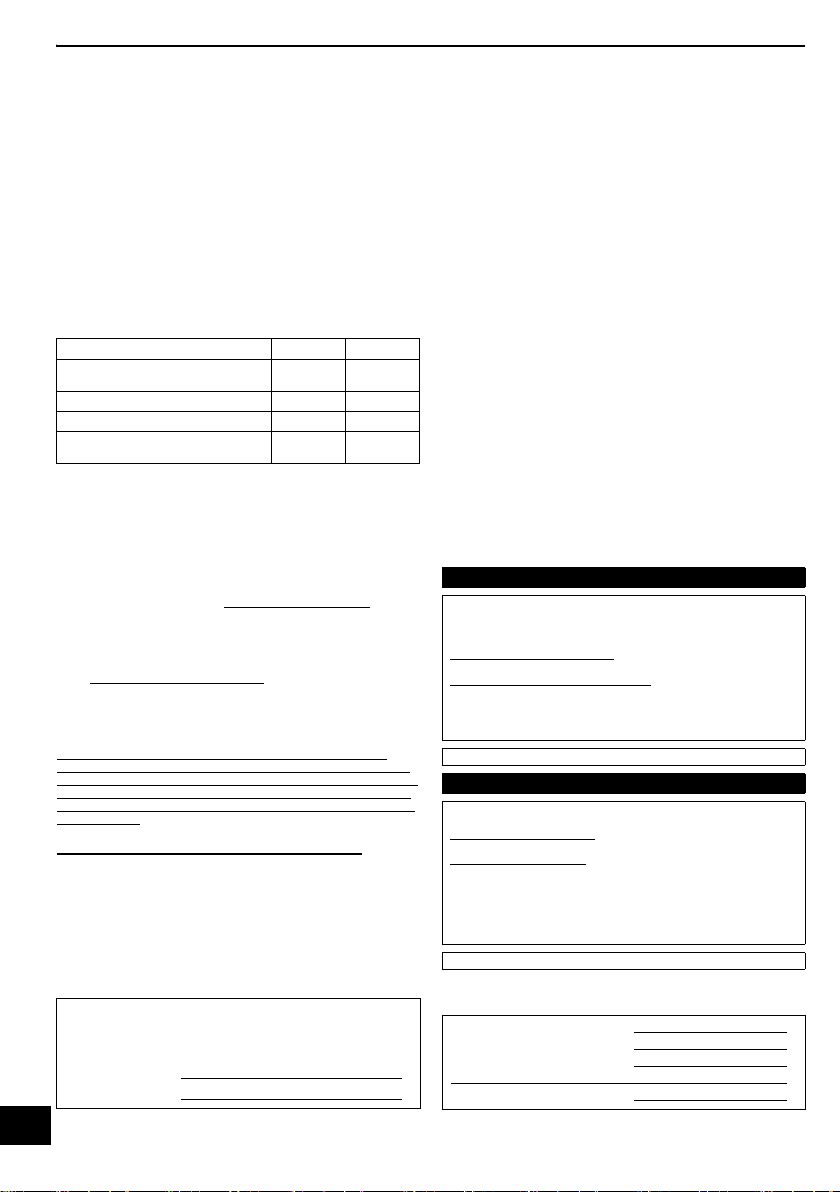
Product or Part Name Parts Labor
Audio Products
(except items below)
1 year 1 year
DVD Home Theater System 1 year 1 year
Home Theater Audio System 1 year 1 year
SD Memory Cards, Rechargeable Battery
Packs (defective exchange)
90 days Not
Applicable
Customer Services Directory (United States and Puerto Rico)
Obtain Product Information and Operating Assistance; locate your
nearest Dealer or Service Center; purchase Parts and
Accessories; or make Customer Service and Literature requests
by visiting our Web Site at:
http://www.panasonic.com/help
or, contact us via the web at:
http://www.panasonic.com/contactinfo
You may also contact us directly at:
1-800-211-PANA (7262)
Monday-Friday 9am-9pm,
Saturday-Sunday 10am-7pm EST
For hearing or speech impaired TTY users, TTY: 1-877-833-8855
Accessory Purchases (United States and Puerto Rico)
Purchase Parts, Accessories and Instruction Books online for all
Panasonic Products by visiting our Web Site at:
http://www.pstc.panasonic.com
Or, send your request by E-mail to:
You may also contact us directly at:
1-800-332-5368 (Phone) 1-800-237-9080 (Fax Only)
(Monday-Friday 9am-9pm EST)
Panasonic National Parts Center
20421 84th Ave. S., Kent, WA 98032
(We accept Visa, MasterCard, Discover Card, American Express)
For hearing or speech impaired TTY users, TTY: 1-866-605-1277
The model number and serial number of this product can be found
on either the back or the bottom of the unit.
Please note them in the space provided below and keep for future
reference.
MODEL NUMBER
SC-AP01
SERIAL NUMBER
User memo:
DATE OF PURCHASE
DEALER NAME
DEALER ADDRESS
TELEPHONE NUMBER
SC-AP01PPC~RQT9655.book 18 ページ 2012年3月2日 金曜日 午後7時57分

Reference
19
RQT9655
Limited Warranty (
ONLY FOR
CANADA)
Panasonic Canada Inc.
5770 Ambler Drive, Mississauga, Ontario L4W 2T3
PANASONIC PRODUCT - LIMITED WARRANTY
EXCHANGE PROGRAM
Panasonic Canada Inc. warrants this product to be free from defects in material and workmanship under normal use and
for a period as stated below from the date of original purchase agrees to, at its option either (a) repair your product with
new or refurbished parts, (b) replace it with a new or a refurbished equivalent value product, or (c) refund your purchase
price. The decision to repair, replace or refund will be made by Panasonic Canada Inc.
This warranty is given only to the original purchaser, or the person for whom it was purchased as a gift, of a Panasonic
brand product mentioned above sold by an authorized Panasonic dealer in Canada and purchased and used in Canada,
which product was not sold “as is”, and which product was delivered to you in new condition in the original packaging.
IN ORDER TO BE ELIGIBLE TO RECEIVE WARRANTY SERVICE HEREUNDER, A PURCHASE RECEIPT OR
OTHER PROOF OF DATE OF ORIGINAL PURCHASE, SHOWING AMOUNT PAID AND PLACE OF PURCHASE
IS
REQUIRED
LIMITATIONS AND EXCLUSIONS
This warranty ONLY COVERS failures due to defects in materials or workmanship, and DOES NOT COVER normal wear
and tear or cosmetic damage. The warranty ALSO DOES NOT COVER damages which occurred in shipment, or failures
which are caused by products not supplied by Panasonic Canada Inc., or failures which result from accidents, misuse,
abuse, neglect, mishandling, misapplication, alteration, faulty installation, set-up adjustments, misadjustment of consumer
controls, improper maintenance, power line surge, lightning damage, modification, introduction of sand, humidity or
liquids, commercial use such as hotel, office, restaurant, or other business or rental use of the product, or service by
anyone other than an Authorized Servicer, or damage that is attributable to acts of God.
Dry cell batteries are also excluded from coverage under this warranty.
THIS EXPRESS, LIMITED WARRANTY IS IN LIEU OF ALL OTHER WARRANTIES, EXPRESS OR IMPLIED,
INCLUDING ANY IMPLIED WARRANTIES OF MERCHANTABILITY AND FITNESS FOR A PARTICULAR PURPOSE. IN
NO EVENT WILL PANASONIC CANADA INC. BE LIABLE FOR ANY SPECIAL, INDIRECT OR CONSEQUENTIAL
DAMAGES RESULTING FROM THE USE OF THIS PRODUCT OR ARISING OUT OF ANY BREACH OF ANY
EXPRESS OR IMPLIED WARRANTY. (As examples, this warranty excludes damages for lost time, travel to and from the
Authorized Servicer, loss of or damage to media or images, data or other memory or recorded content. This list of items is
not exhaustive, but for illustration only.)
In certain instances, some jurisdictions do not allow the exclusion or limitation of incidental or consequential damages, or
the exclusion of implied warranties, so the above limitations and exclusions may not be applicable. This warranty gives
you specific legal rights and you may have other rights which vary depending on your province or territory.
CONTACT INFORMATION
Panasonic Portable / Clock Radio (without Tape, CD, MD)
Panasonic Audio Product
Panasonic DVD Product
Accessories including rechargeable batteries
One (1) year
One (1) year
One (1) year
Ninety (90) days
For product information and operation assistance, please contact:
Our Customer Care Centre: Telephone #:
Fax #:
Email link:
1-800-561-5505
(905) 238-2360
“Support
# contact us # email” on www.panasonic.ca
For defective product exchange within the warranty period, please contact the original dealer or our Customer Care
Centre.
SC-AP01PPC~RQT9655.book 19 ページ 2012年3月2日 金曜日 午後7時57分
-If you see this symbol-
Information on Disposal in other Countries
outside the European Union
This symbol is only valid in the
European Union.
If you wish to discard this product,
please contact your local
authorities or dealer and ask for
the correct method of disposal.
THE FOLLOWING APPLIES IN THE U.S.A.
AND CANADA
This device complies with Part 15 of FCC Rules, RSS-
Gen and RSS-210 of IC Rules.
Operation is subject to the following two conditions:
(1) This device may not cause interference, and
(2) this device must accept any interference, including
interference that may cause undesired operation of this
device.
This transmitter must not be co-located or operated in
conjunction with any other antenna or transmitter.
This equipment complies with FCC/IC radiation exposure
limits set forth for an uncontrolled environment and meets
the FCC radio frequency (RF) Exposure Guidelines in
Supplement C to OET65 and RSS-102 of the IC radio
frequency (RF) Exposure rules. This equipment has very
low levels of RF energy that it deemed to comply without
maximum permissive exposure evaluation (MPE). But it
is desirable that it should be installed and operated
keeping the radiator at least 20 cm (7
7
/8q) or more away
from person’s body (excluding extremities: hands, wrists,
feet and ankles).
THE FOLLOWING APPLIES ONLY IN THE
U.S.A.
FCC Note:
This equipment has been tested and found to comply
with the limits for a Class B digital device, pursuant to
Part 15 of the FCC Rules.
These limits are designed to provide reasonable
protection against harmful interference in a residential
installation. This equipment generates, uses and can
radiate radio frequency energy and, if not installed and
used in accordance with the instructions, may cause
harmful interference to radio communications. However,
there is no guarantee that interference will not occur in a
particular installation. If this equipment does cause
harmful interference to radio or television reception,
which can be determined by turning the equipment off
and on, the user is encouraged to try to correct the
interference by one or more of the following measures:
≥ Reorient or relocate the receiving antenna.
≥ Increase the separation between the equipment and
receiver.
≥ Connect the equipment into an outlet on a circuit
different from that to which the receiver is connected.
≥ Consult the dealer or an experienced radio/TV
technician for help.
Any unauthorized changes or modifications to this
equipment would void the user’s authority to operate this
device.
This device complies with Part 15 of the FCC Rules.
Operation is subject to the following two conditions:
(1) This device may not cause harmful interference, and
(2) this device must accept any interference received,
including interference that may cause undesired
operation.
Responsible Party:
Panasonic Corporation of North America
One Panasonic Way
Secaucus, NJ 07094
Support Contact:
Panasonic Consumer Marketing
Company of North America
Telephone No.: 1-800-211-PANA (7262)
Panasonic Consumer Marketing
Company of North America,
Division of Panasonic Corporation of
North America
One Panasonic Way, Secaucus,
New Jersey 07094
http://www.panasonic.com
C Panasonic Corporation 2012
Printed in Malaysia
Panasonic Canada Inc.
5770 Ambler Drive
Mississauga, Ontario
L4W 2T3
www.panasonic.ca
RQT9655-1P
F0212AC1032
pr
SC-AP01PPC~RQT9655.book 20 ページ 2012年3月2日 金曜日 午後7時57分