
User Guide
Everything you need to know
about your Lively Mobile.

Welcome to the GreatCall® Family!
Thank you for choosing the Lively® Mobile. Your all-new mobile urgent response
device features 5Star® medical alert service. With 5Star, you’ll have immediate,
dependable access to our IAED-Certied Agents who are trained to provide help in
uncertain or unsafe situations—24 hours a day, 7 days a week.
This helpful User Guide contains everything you need to know about your Lively
Mobile. And if you have any questions or need assistance, our award-winning, 100%
U.S.-based customer service team stands ready to assist you.
Best Regards,
Your friends at GreatCall

Table of Contents
I
Contents
Section 1: Getting Started .................................................................. 1
Key Items in Your Lively Mobile Box ..........................................................................................3
Your Lively Mobile ...........................................................................................................................4
Activating Your Lively Mobile ...................................................................................................... 8
Section 2: Charging ...........................................................................13
The Charging Dock ....................................................................................................................... 14
Using the Charging Dock ........................................................................................................... 16
When to Charge Your Lively Mobile ....................................................................................... 20
About the Battery Indicator ...................................................................................................... 21
Section 3: Using Your Lively Mobile .................................................23
Turning on Your Lively Mobile ................................................................................................. 24
Turning o Your Lively Mobile ................................................................................................. 25
When to Use Your Lively Mobile .............................................................................................. 26

Table of Contents
II
Where to Use Your Lively Mobile ............................................................................................. 27
Calling 5Star Service .................................................................................................................... 28
Calling 9-1-1 in an Emergency ................................................................................................. 30
Answering Incoming Calls ......................................................................................................... 31
Connecting with Urgent Care .................................................................................................. 33
About the Service Indicator ...................................................................................................... 34
Attaching Accessories ................................................................................................................. 35
Section 4: Fall Detection ................................................................... 39
Fall Detection ................................................................................................................................. 40
How Fall Detection Works .......................................................................................................... 41
Conrming Fall Detection is Enabled .................................................................................... 42
Wearing Your Lively Mobile with Fall Detection ................................................................ 43
What Happens in the Event of a Fall ...................................................................................... 44
Section 5: Managing Your Account .................................................. 45
MyGreatCall .................................................................................................................................... 46
Personal Emergency Prole ...................................................................................................... 47

Table of Contents
III
Sending a Test Call to Your Lively Mobile ............................................................................. 49
Sending a Tone to Find a Misplaced Lively Mobile ........................................................... 50
Locating Your Lively Mobile Using GreatCall Link ............................................................. 51
Just in Case Notes ......................................................................................................................... 52
Billing Information ....................................................................................................................... 53
Legal ...................................................................................................55
Terms and Conditions ................................................................................................................. 55
Optional Services .......................................................................................................................... 62
Monthly Charges ........................................................................................................................... 63
30-Day Return Policy ................................................................................................................... 63
Health and Safety Information ................................................................................................ 64

Getting Started
IV

Getting Started
1
Section 1: Getting Started
Topics
• Key Items in Your Lively Mobile Box
• Your Lively Mobile
• Activating Your Lively Mobile
Getting Started
2
MODEL : SW100 FCC ID : 2AA27-SW100
QUALCOMM CDMA
MODEL : SW100 FCC ID : 2AA27-SW100
QUALCOMM CDMA
MODEL : SW100 FCC ID : 2AA27-SW100
QUALCOMM CDMA
Lively Mobile
Charging Dock
MODEL : SW100 FCC ID : 2AA27-SW100
QUALCOMM CDMA
MODEL : SW100 FCC ID : 2AA27-SW100
QUALCOMM CDMA
MODEL : SW100 FCC ID : 2AA27-SW100
QUALCOMM CDMA
Magnetic Lanyard
MODEL : SW100 FCC ID : 2AA27-SW100
QUALCOMM CDMA
MODEL : SW100 FCC ID : 2AA27-SW100
QUALCOMM CDMA
MODEL : SW100 FCC ID : 2AA27-SW100
QUALCOMM CDMA
Accessory Clip
MODEL : SW100 FCC ID : 2AA27-SW100
QUALCOMM CDMA
MODEL : SW100 FCC ID : 2AA27-SW100
QUALCOMM CDMA
MODEL : SW100 FCC ID : 2AA27-SW100
QUALCOMM CDMA

Getting Started
3
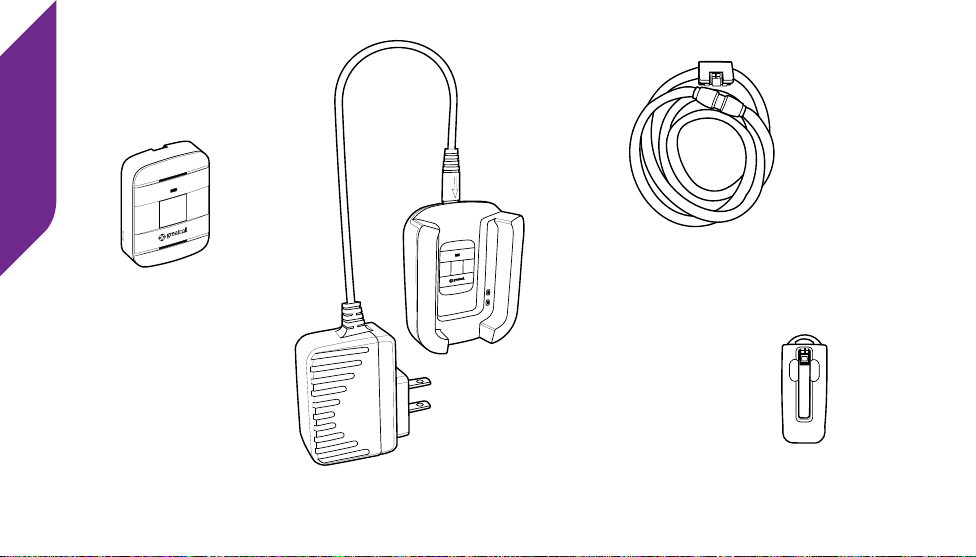
Key Items in Your Lively Mobile Box
• Lively Mobile – One-button Urgent Response device
• Charging Dock – Easy, drop-in design means no fumbling with cords
• Magnetic Lanyard – Wear your Lively Mobile around your neck, safely
• Accessory Clip – Attach to your pocket, keys or where convenient
• User Guide – Everything you need to know about your Lively Mobile
i
INFO
Additional accessories are available for your Lively Mobile. Please visit us online
at GreatCall.com/Accessories for more information.
Getting Started
4
Your Lively Mobile
MODEL : SW100 FCC ID : 2AA27-SW100
QUALCOMM CDMA
MODEL : SW100 FCC ID : 2AA27-SW100
QUALCOMM CDMA
MODEL : SW100 FCC ID : 2AA27-SW100
QUALCOMM CDMA
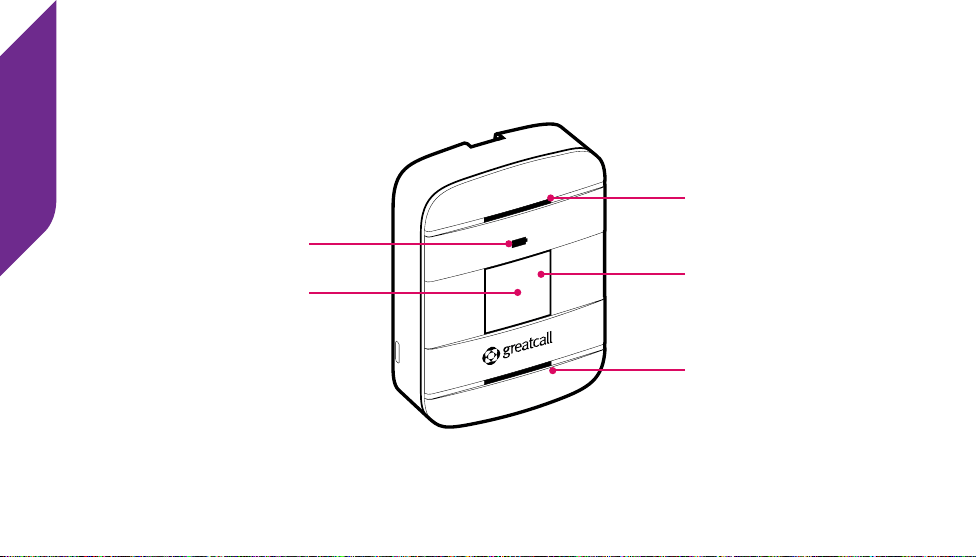
Speaker
Battery Indicator
Call Button
Service Indicator
Microphone

Getting Started
5
• Speaker – Integrated into the device, so you can hear the 5Star Agent or 9-1-1
Operator directly through the device
• Battery Indicator – Indicates when the battery is low, and shows that it is charging
when in the Charging Dock
• Call Button – Allows you to call 5Star Service or 9-1-1
• Service Indicator – The Call Button will glow white indicating that your device is
ready to use
• Microphone – Integrated into the device, so you can speak directly to the 5Star
Agent or 9-1-1 Operator directly through the device
Getting Started
6
MODEL : SW100 FCC ID : 2AA27-SW100
QUALCOMM CDMA
MODEL : SW100 FCC ID : 2AA27-SW100
QUALCOMM CDMA
MODEL : SW100 FCC ID : 2AA27-SW100
QUALCOMM CDMA
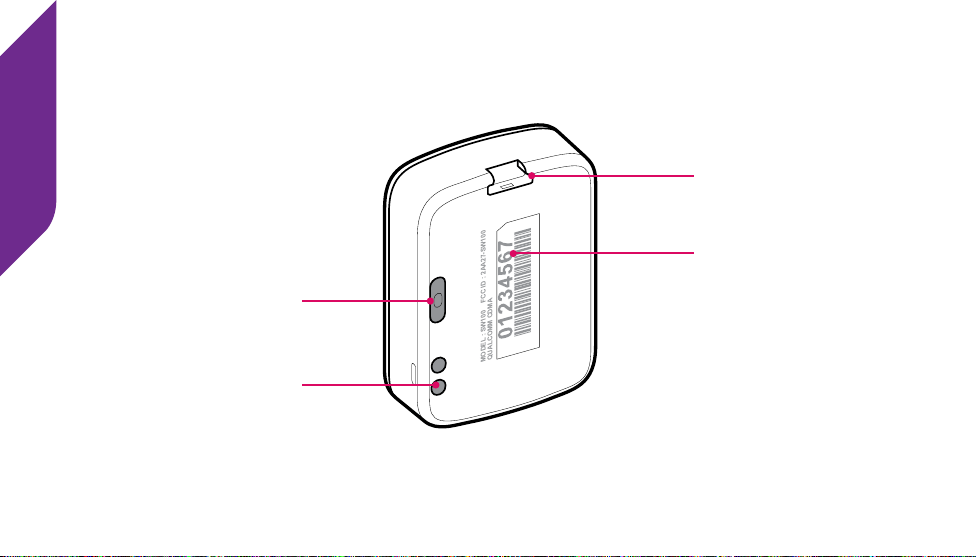
Charging Contacts
Accessory Slot
Power Button
Serial Number

Getting Started
7
• Accessory Slot – Allows you to attach accessories
• Serial Number – This number is used for activating your device
• Power Button – Turns the Lively Mobile on and o
• Charging Contacts – Allows charging with the supplied Charging Dock
i
INFO
By design, there is no volume control. If you are in a location where the device’s
sounds may be disruptive, you may want to turn o your device. Make sure to
turn it back on afterward so that it is ready for any unsafe situation you may
encounter. If you are in a noisy area, you may need to move the device closer to
your ear or to your mouth when connected to 5Star or 9-1-1.

Getting Started
8
Activating Your Lively Mobile
Depending on where your Lively Mobile was purchased, your device may already be
activated. The following three easy steps will guide you in powering on your Lively
Mobile for the rst time.
IMPORTANT!
Please do not turn on or charge your Lively Mobile until instructed to do so. If
you turn it on prior to setting up your account, the device may fail to activate. If
the device fails to activate, power o and start with STEP 1.
Getting Started
9
Determine where your Lively Mobile was purchased
STEP 1
If you purchased your Lively Mobile directly from GreatCall or rstSTREET, your device
is already activated and you may skip to STEP 3 to power on your device.
If you purchased your Lively Mobile from any other retailer, such as Amazon.com,
Best Buy, Fry’s Electronics, Rite-Aid, Sears, or Walmart, your device is not yet activated
and you will need to continue to STEP 2.
OR

Getting Started
10
Go online or call to activate your account
STEP 2
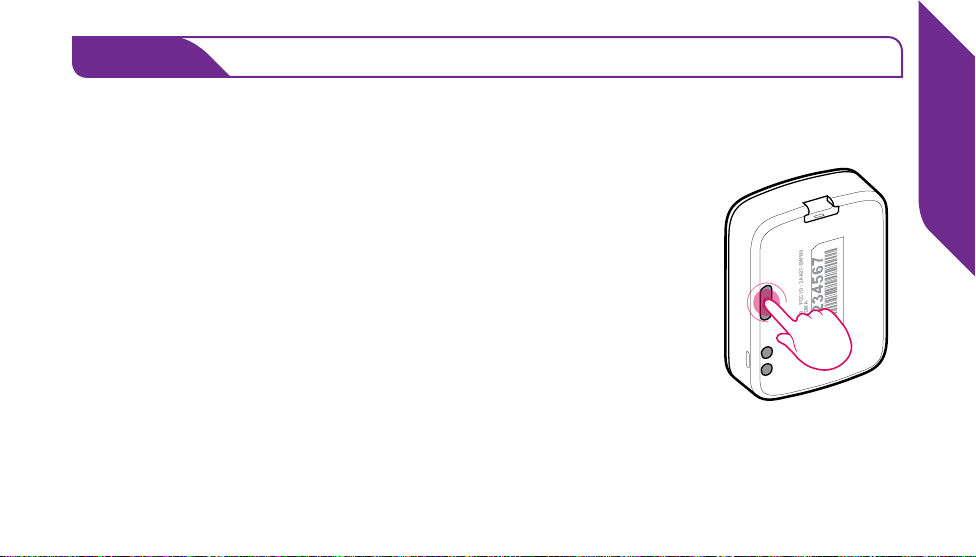
If you are new to GreatCall, go online at GreatCall.com/Activate to activate your
account. You will be asked to enter in your Lively Mobile Serial Number which can
be found on the back of your device or on the side of the retail box.
If you do not have Internet access, you can call our Activation Line at (888) 900-1369.
If your Lively Mobile is already activated and you have questions about your device
or service, please call Customer Service at (800) 463-5412.
OR
Getting Started
11
Power on your Lively Mobile to complete set up
STEP 3
• Press the Power Button and place your device into the
Charging Dock.
• After a few moments you will hear “Setting up device,
please wait”. This process may take several minutes.
• Once complete you will hear “Welcome to 5Star” and the
Service Indicator behind the Call Button will begin ashing
white, indicating that the device is working properly.
• You will receive an automated test call on your Lively Mobile
that will conrm functionality. Once you hear the device
ringing, press and release the Call Button to answer.
Your Lively Mobile is now activated and ready to use!
MODEL : SW100 FCC ID : 2AA27-SW100
QUALCOMM CDMA
MODEL : SW100 FCC ID : 2AA27-SW100
QUALCOMM CDMA
MODEL : SW100 FCC ID : 2AA27-SW100
QUALCOMM CDMA

Getting Started
12
IMPORTANT!
Your device is not ready for use until you hear “Welcome to 5Star” and the Service
Indicator located behind the Call Button is ashing white.
If you hear a voice prompt saying “Unable to activate. See User Guide,” please
make sure that you have followed all activation steps as described in “Activating
Your Lively Mobile” on page 8.
i
INFO
Your Lively Mobile may not be fully charged after powering on for the rst time.
Please refer to “Section 2: Charging” on page 13 on how to charge your device.

Charging
13
Section 2: Charging
Topics
• The Charging Dock
• Using the Charging Dock
• When to Charge Your Lively Mobile
• About the Battery Indicator

Charging
14
The Charging Dock
We’ve included a Charging Dock to make it easy for you to always have your Lively
Mobile fully charged and ready to go.
The following will guide you through how to
set up and use the Charging Dock with your device.
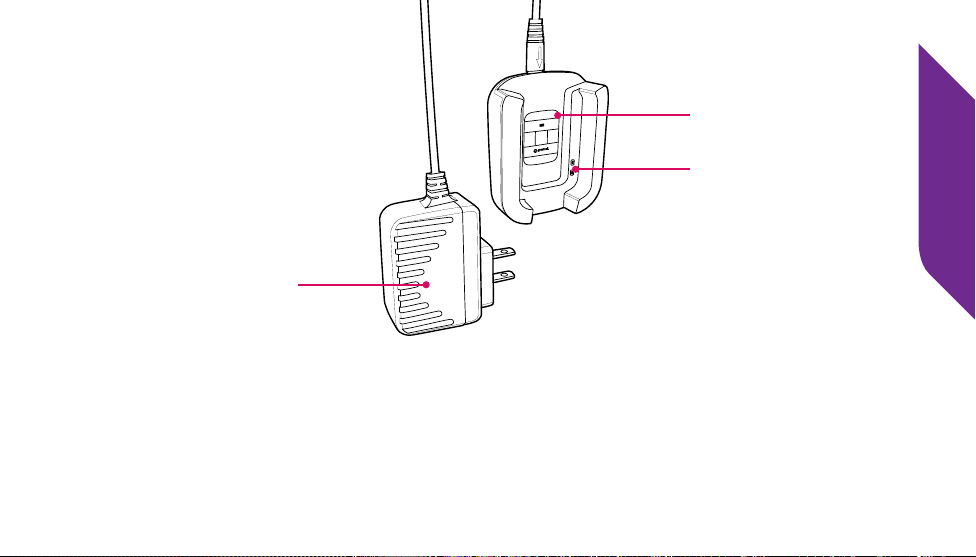
1. Determine where you would like to place your Charging Dock. DO NOT PLACE
THE CHARGING DOCK IN A LOCATION WHERE IT COULD GET WET.
2. Plug the Power Cord into a compatible wall outlet.
IMPORTANT!
Do not place the Charging Dock in areas where it can get wet. If your device
happens to get wet, please be sure to dry it before placing it into the Charging
Dock. Failure to do so may cause an electrical shock or re hazard. The Lively
Mobile is rated to be submerged in up to 3.3 feet of water for up to 30 minutes.
Charging
15
• Power Cord – Provides power to the Charging Dock from a wall outlet
• Position Guide – Shows you how to position the Lively Mobile
• Charging Contacts – Allows charging of your Lively Mobile when docked
MODEL : SW100 FCC ID : 2AA27-SW100
QUALCOMM CDMA
MODEL : SW100 FCC ID : 2AA27-SW100
QUALCOMM CDMA
MODEL : SW100 FCC ID : 2AA27-SW100
QUALCOMM CDMA
Position Guide
Power Cord
Charging Contacts
Charging
16
Using the Charging Dock
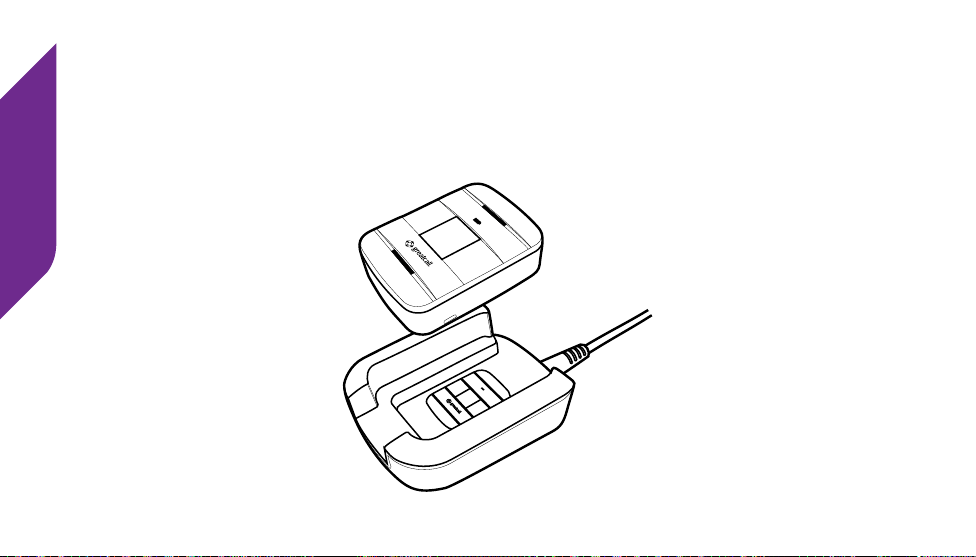
1. Align the Lively Mobile with the Charging Dock so that it is oriented in the same
way as displayed in the Position Guide on the Charging Dock.
MODEL : SW100 FCC ID : 2AA27-SW100
QUALCOMM CDMA
MODEL : SW100 FCC ID : 2AA27-SW100
QUALCOMM CDMA
MODEL : SW100 FCC ID : 2AA27-SW100
QUALCOMM CDMA
Charging
17
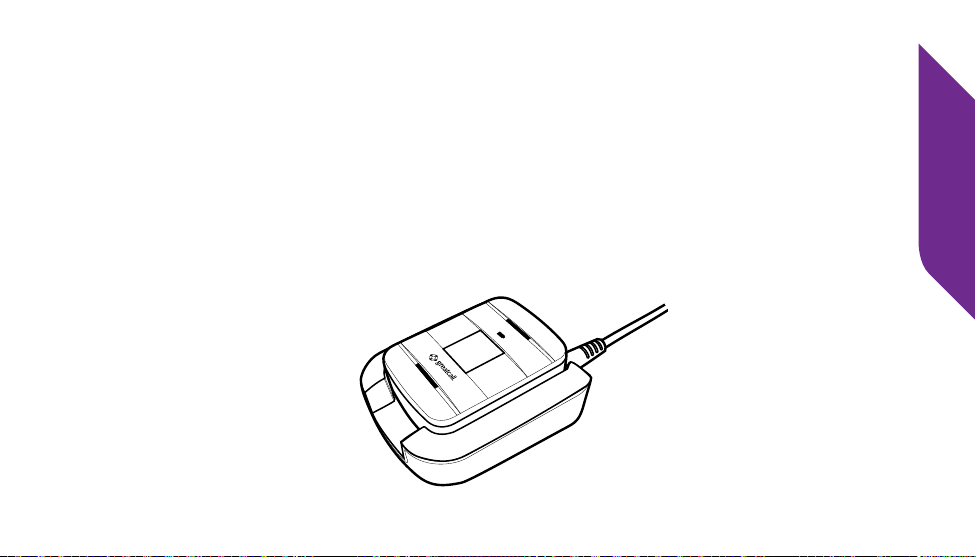
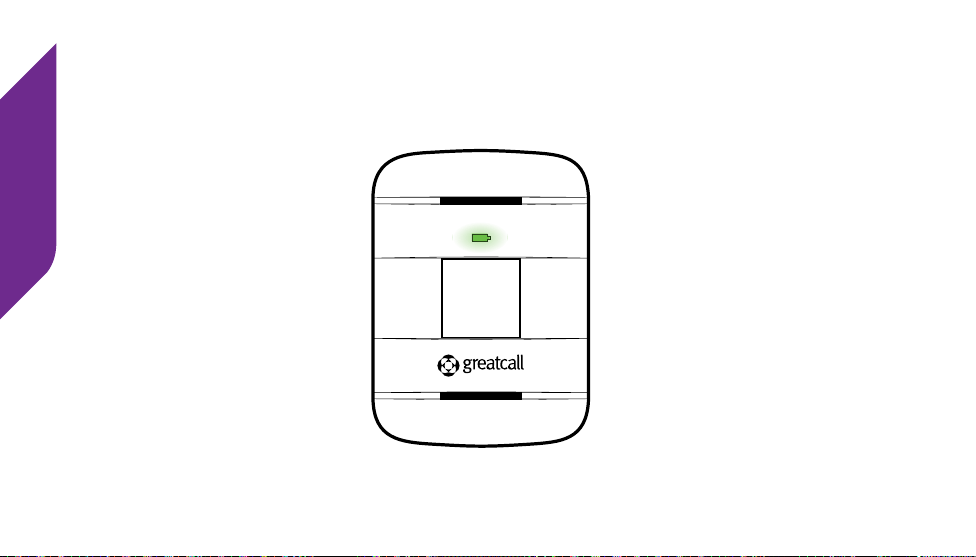
2. Lower your Lively Mobile in the Charging Dock until the Charging Contacts on
both the device and the Charging Dock make contact. You will hear a tone from
the Speaker indicating that the device is placed properly and charging.
MODEL : SW100 FCC ID : 2AA27-SW100
QUALCOMM CDMA
MODEL : SW100 FCC ID : 2AA27-SW100
QUALCOMM CDMA
MODEL : SW100 FCC ID : 2AA27-SW100
QUALCOMM CDMA
Charging
18
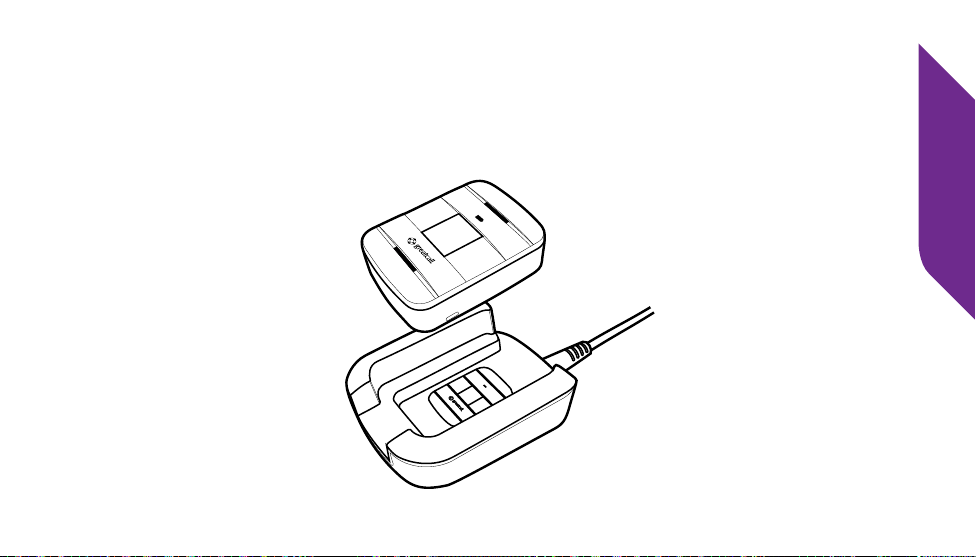
3. The Battery Indicator will ash green during the charging process. Once fully
charged, the Battery Indicator will remain solid green.
MODEL : SW100 FCC ID : 2AA27-SW100
QUALCOMM CDMA
MODEL : SW100 FCC ID : 2AA27-SW100
QUALCOMM CDMA
MODEL : SW100 FCC ID : 2AA27-SW100
QUALCOMM CDMA
Charging
19
4. To remove your Lively Mobile from the Charging Dock, simply grasp the device
and lift it up and away from the Charging Dock. You will hear a tone from the
Speaker indicating that it is no longer charging. Unless additional charging is
required, the Battery Indicator will turn o to save power.
MODEL : SW100 FCC ID : 2AA27-SW100
QUALCOMM CDMA
MODEL : SW100 FCC ID : 2AA27-SW100
QUALCOMM CDMA
MODEL : SW100 FCC ID : 2AA27-SW100
QUALCOMM CDMA

Charging
20
When to Charge Your Lively Mobile
Always place your Lively Mobile in the Charging Dock when you’re not using it so
that it is always ready when you need it. We recommend charging each night when
you go to bed.
When the battery is low, the Battery Indicator will ash red and you will hear a tone
reminding you to charge. The tone will repeat more frequently as the battery level
decreases further. If the battery loses all of its charge, the device will power o. The
Lively Mobile will power back on shortly after being placed back into the Charging
Dock.
i
INFO
To protect the battery, the Lively Mobile will automatically stop charging if
the device temperature drops below 32°F or rises above 113°F. Charging will
automatically resume when the device temperature returns to normal levels.
Charging
21
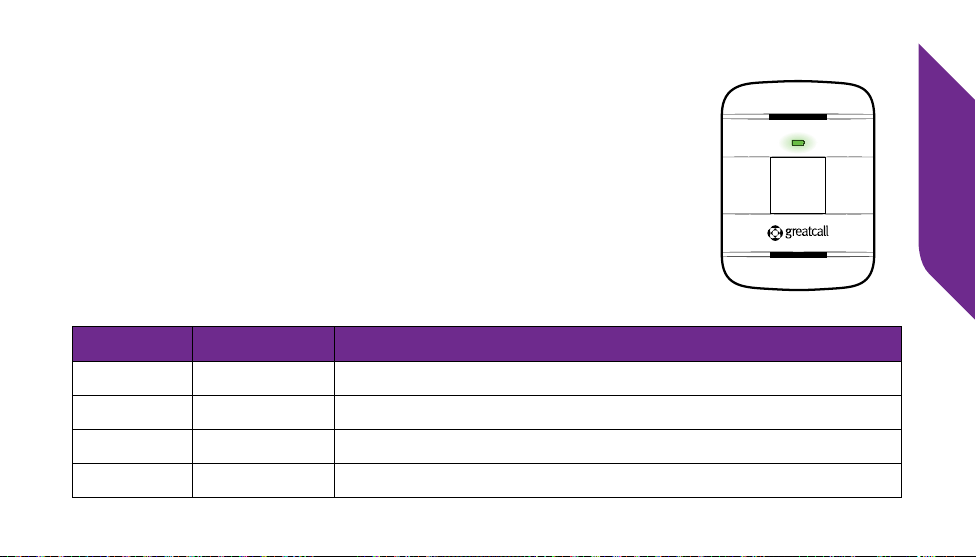
About the Battery Indicator
The Battery Indicator is located above the Call Button on your
Lively Mobile. The Battery Indicator lets you know the status
of your device’s battery level.
Refer to the table below for the common light patterns you
will see from the Battery Indicator.
Color Pattern Meaning
Green Solid Battery is fully charged and ready to use
Green Flashing Battery is charging
Red Flashing Battery is low and needs to be charged
O N/A Battery does not require charging or the device is o
MODEL : SW100 FCC ID : 2AA27-SW100
QUALCOMM CDMA
MODEL : SW100 FCC ID : 2AA27-SW100
QUALCOMM CDMA
MODEL : SW100 FCC ID : 2AA27-SW100
QUALCOMM CDMA

Charging
22

Using Your Lively Mobile
23
Section 3: Using Your Lively Mobile
Topics
• Turning on Your Lively Mobile
• Turning o Your Lively Mobile
• When to Use Your Lively Mobile
• Where to Use Your Lively Mobile
• Calling 5Star
• Calling 9-1-1 in an Emergency
• Answering Incoming Calls
• Connecting with Urgent Care
• About the Service Indicator
• Attaching Accessories

Using Your Lively Mobile
24
Turning on Your Lively Mobile
Press the Power Button briey. The Service Indicator will turn white and the Battery
Indicator will turn green. Alternatively, placing your Lively Mobile into the Charging
Dock will also turn on your device if it was previously turned o.
After a few moments, you will hear a tone and a voice prompt of “Welcome to 5Star.”
The Service Indicator in the middle of the Call Button will begin ashing white
indicating that the device is powered on and ready to use.
The Battery Indicator will be o to save power if the device does not require charging.
If the Battery Indicator is ashing red, the battery level is low—place the device in
the Charging Dock as soon as possible.

Using Your Lively Mobile
25
Turning o Your Lively Mobile
Press and hold the Power Button until you hear a tone and voice prompt of “Powering
o.” The Service Indicator and Battery Indicator will turn solid red for a few seconds
indicating that the device is turning o.
Your Lively Mobile is completely o when both of these indicators turn o.
i
INFO
We recommend keeping your Lively Mobile powered on at all times, as well as
charging it every night, so you can always have immediate access to help in an
uncertain or unsafe situation.

Using Your Lively Mobile
26
When to Use Your Lively Mobile
Potential emergency situations:
• You’re having trouble breathing.
• You have a weird tingling in your arm and you are not sure what to do.
• You slipped and fell in the shower.
General assistance or cautious situations:
• You locked yourself out of your house without the keys.
• You are driving and are lost.
• You heard a strange noise on your roof.
• You think someone is in your house.
Though we have listed typical use scenarios, if you’re ever in doubt call 5Star Service
and a highly-trained 5Star Agent will assist you.

Using Your Lively Mobile
27
Where to Use Your Lively Mobile
Your device is completely mobile and is powered by America’s most reliable
nationwide coverage. You can use your Lively Mobile at home or on the go, wherever
you have cellular service.
The Lively Mobile is also waterproof so you don’t have to worry about using it in the
shower, while washing the dishes or during that unexpected rain.
IMPORTANT!
Coverage and service are not available everywhere. You will not be able to make
5Star or 9-1-1 calls when cellular service is not available.
The Lively Mobile is rated to be submerged in up to 3.3 feet of water for up to
30 minutes. In the event your device becomes wet be sure to dry it as soon as
possible, especially before placing into the Charging Dock.

Using Your Lively Mobile
28
Calling 5Star Service
Your Lively Mobile comes with 24/7 access to 5Star Service. Trained in CPR and other
emergency procedures, IAED-Certied 5Star Agents will conrm your location using
patented GPS technology, evaluate your situation and get you the help you need.
*IAED = International Academies of Emergency Dispatch
To Call 5Star:
1. Press the Call Button briey. You will hear a voice prompt of “Calling 5Star,” and
you will be greeted by a 5Star Agent.
2. While speaking with the Agent, hold your Lively Mobile at a comfortable
distance, at least one inch away from your mouth, and speak normally into the
Microphone.
3. To end the call, rmly press and release the Call Button. You will hear a tone and
a voice prompt of “Call ended.”

Using Your Lively Mobile
29
If Your Call to 5Star Requires 9-1-1 Assistance
If you call 5Star and the 5Star Agent determines that you need emergency assistance,
the Agent will connect you directly to 9-1-1 emergency services.
5Star Agents may provide emergency services or 9-1-1 Operators with information
from your Personal Emergency Prole, such as your medications, allergies and
personal contact numbers.
IMPORTANT!
To ensure our 5Star Agents always have your latest information, please regularly
check your Personal Emergency Prole available at MyGreatCall.com. See
“MyGreatCall” on page 46 for more information on how to manage your
Personal Emergency Prole.

Using Your Lively Mobile
30
Calling 9-1-1 in an Emergency
In addition to your 24/7 access to 5Star, your Lively Mobile can also call 9-1-1 directly
if you experience a critical emergency.
To Call 9-1-1:
1. Press and hold the Call Button until you hear a tone and a voice prompt of
“Calling 9-1-1 now.”
2. To end the call, press and release the Call Button. You will hear a tone and a voice
prompt of “Call ended.”
If the person you were speaking with hangs up rst, your Lively Mobile will
automatically end the call without the need to press the Call Button.

Using Your Lively Mobile
31
Answering Incoming Calls
There are a few scenarios when you may receive an incoming call on your device:
• After a 9-1-1 call, the 9-1-1 Operator will have the ability to call you back.
• After a 9-1-1 call, a 5Star Agent may contact you to see if you need further
assistance.
• You call 5Star and hang up immediately.
• You call 5Star and somehow get disconnected.
• You perform a “Test Call” from your MyGreatCall.com account page.
• After activating your service for the rst time you will receive a Test Call to conrm
functionality.

Using Your Lively Mobile
32
When there is an incoming call, your Lively Mobile will ring with an audible tone:
1. To answer, rmly press and release the Call Button and speak clearly into the
Microphone located at the bottom of the device.
2. To end the call, press and release the Call Button. You will hear a tone and a voice
prompt of “Call ended.”
If the person you were speaking with hangs up rst, your Lively Mobile will
automatically end the call without the need to press the Call Button.
i
INFO
The Lively Mobile can only receive incoming calls from 9-1-1 Operators or 5Star
Agents.

Using Your Lively Mobile
33
Connecting with Urgent Care
With certain GreatCall Health & Safety Packages, you have access to Urgent Care.
Urgent Care provides you with unlimited health advice from experienced, registered
nurses in English or Spanish, 24-hours a day, 7-days a week.
To access a live nurse:
1. Press and release the Call Button. You will hear a voice prompt of “Calling 5Star,”
and you will be greeted by a 5Star Agent.
2. Ask to be connected to “Urgent Care”.
3. The Agent may ask you a few questions to ensure you do not need emergency
assistance before connecting you to a nurse.
Using Your Lively Mobile
34
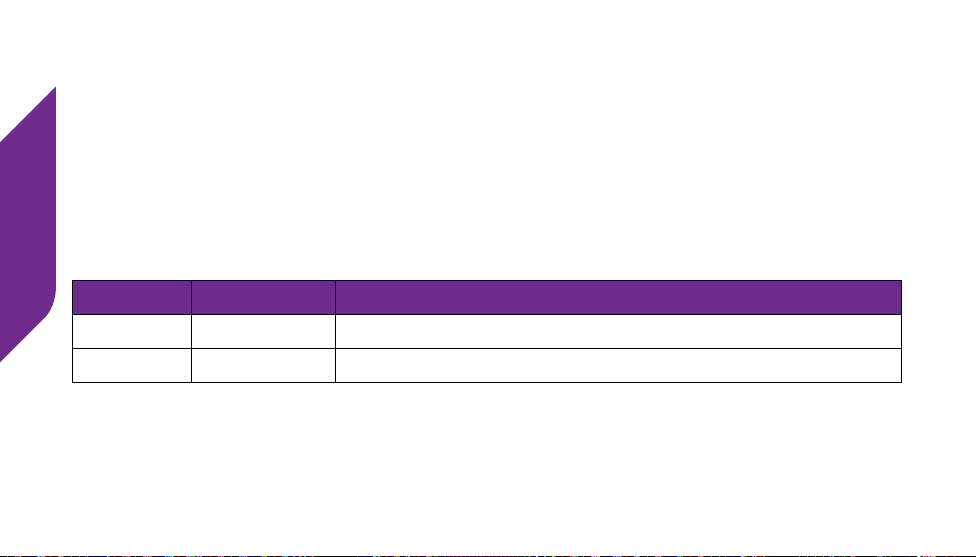
About the Service Indicator
The Call Button will glow to indicate the status of your cellular service. This Service
Indicator will let you know whether or not you have cellular coverage and if the
device is powered on and ready to use.
Refer to the table below for the common light patterns you will see from the Service
Indicator.
Color Pattern Meaning
White Flashing Good cellular coverage and ready to use
Red Flashing No cellular coverage, try another location
Using Your Lively Mobile
35
Attaching Accessories
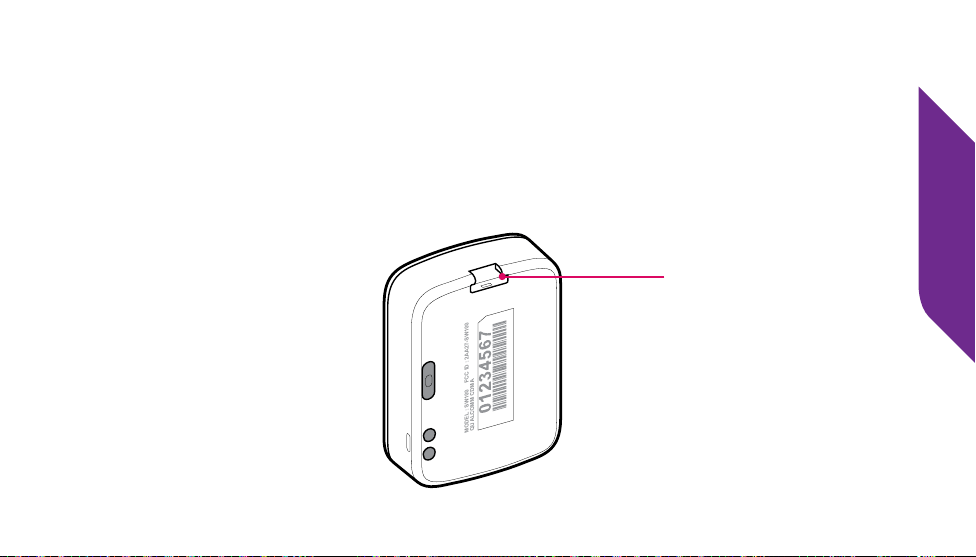
The Accessory Slot can be used to attach accessories designed specically for your
Lively Mobile, such as the included Accessory Clip and Magnetic Lanyard. To attach
a compatible accessory, slide the accessory directly from behind into the Accessory
Slot until it “clicks” into place. To remove the accessory, gently push the latch on the
accessory.
MODEL : SW100 FCC ID : 2AA27-SW100
QUALCOMM CDMA
MODEL : SW100 FCC ID : 2AA27-SW100
QUALCOMM CDMA
MODEL : SW100 FCC ID : 2AA27-SW100
QUALCOMM CDMA
Accessory Slot
Using Your Lively Mobile
36
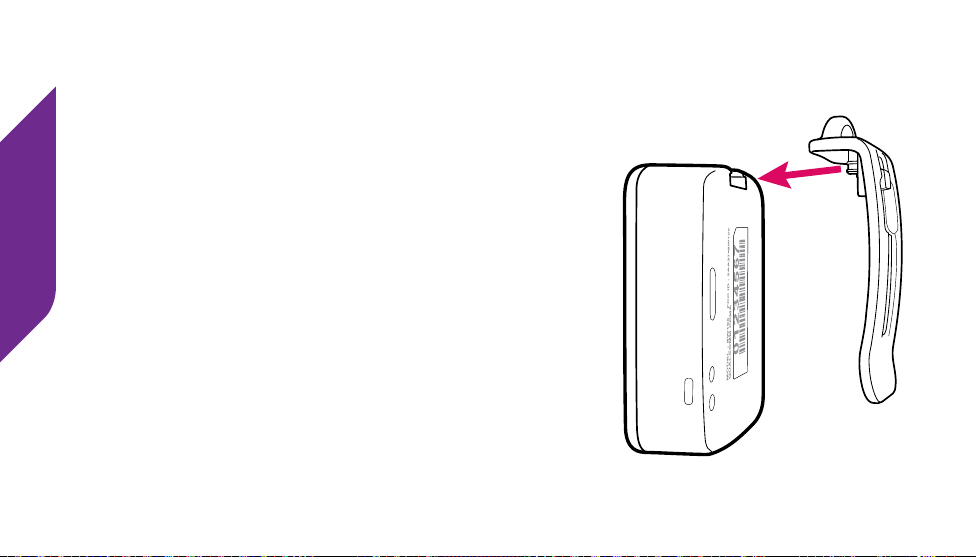
Accessory Clip
The included Accessory Clip allows you to attach
your Lively Mobile to things like your purse, belt or
pocket. Additionally, there is a loop at the top of the
Accessory Clip that allows you to attach your device
to a set of keys.
To attach the Accessory Clip, position the clip as
shown facing the back of the device. Slide the latch
into the Accessory Slot until it snaps into place.
Using Your Lively Mobile
37
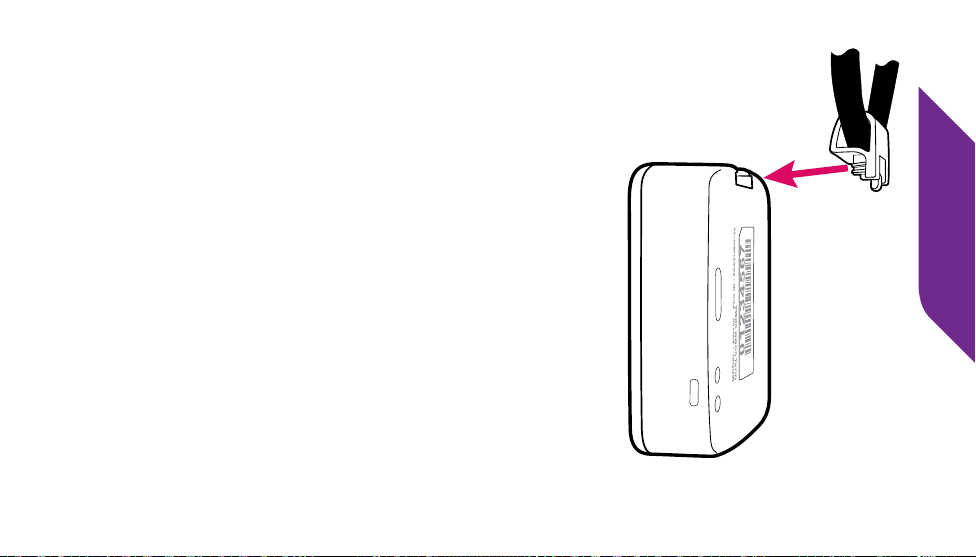
Magnetic Lanyard
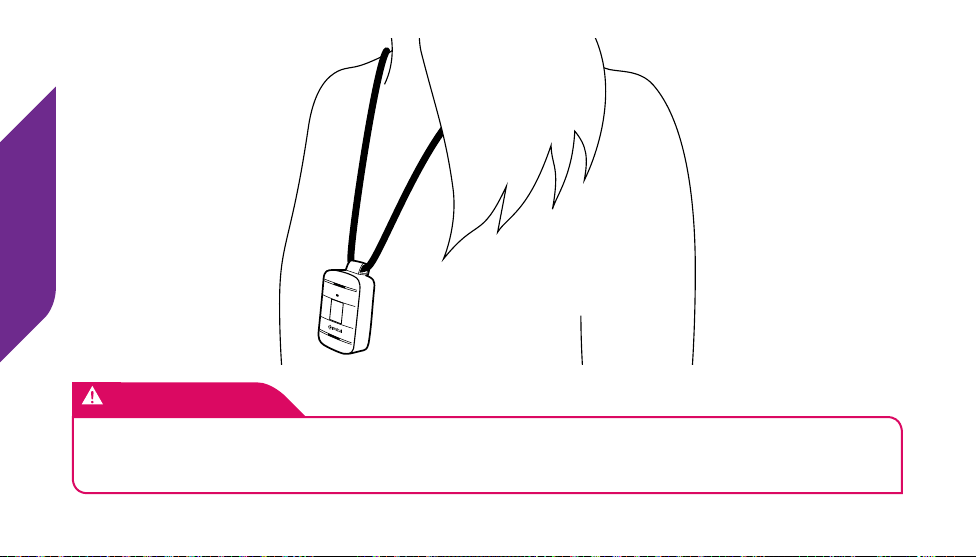
The included Magnetic Lanyard allows you to wear
your Lively Mobile around your neck.
To attach the Magnet Lanyard, position the clip as
shown facing the back of the device. Slide the latch
into the Accessory Slot until it snaps into place.
The Magnetic Lanyard features a magnetic clasp for
easy fastening around your neck. To unfasten, simply
hold the lanyard from each side of the magnetic
clasp and pull apart. To fasten, align the magnetic
clasp ends until they snap together.
Using Your Lively Mobile
38
IMPORTANT!
If you are subscribed to Fall Detection Service, the Lively Mobile must be used
with the Magnetic Lanyard around your neck to accurately detect a fall.

Fall Detection
39
Section 4: Fall Detection
Topics
• Fall Detection
• How Fall Detection Works
• Conrming Fall Detection is Enabled
• Wearing Your Lively Mobile with Fall Detection
• What Happens in the Event of a Fall

Fall Detection
40
Fall Detection
Using patented algorithms and the built-in accelerometer, your Lively Mobile can
evaluate sudden changes in your body movement, in relation to your physical
activity and posture, to identify falls.
The Fall Detection algorithm has been calibrated for use with the Magnetic Lanyard
while worn around your neck. Because the accuracy of Fall Detection depends on the
device’s orientation on your body, the Magnetic Lanyard is required to be used at all
times. Using a Fall Detection-enabled Lively Mobile without the Magnetic Lanyard is
not recommended and will negatively impact the accuracy of Fall Detection.
i
INFO
The Fall Detection service is only available on the Ultimate Health & Safety Package.
If you are interested in the additional protection of Fall Detection, please call us at
(800) 463-5412.

Fall Detection
41
How Fall Detection Works
1. If a fall is detected and you are unable to press the Call Button on your Lively
Mobile, the device will automatically call 5Star Service.
2. You will be connected with a 5Star Agent.
3. The 5Star Agent will conrm your location, evaluate the situation, and get you
the help you need.
Fall Detection
42
Conrming Fall Detection is Enabled
Fall Detection is ready to use if when powering on your Lively Mobile you hear
“Welcome to 5Star, Fall Detection enabled.”
If you hear “Welcome to 5Star, Fall Detection not enabled” when powering on your
Lively Mobile, you are not protected by Fall Detection service.
IMPORTANT!
The Fall Detection service is not enabled unless you hear “Welcome to 5Star, Fall
Detection enabled,” when you turn on your Lively Mobile.
If you do not hear this and you believe it may be a mistake, please contact
Customer Service at (800) 463-5412.
Fall Detection
43
Wearing Your Lively Mobile with Fall Detection
Ensure you have attached the included Magnetic Lanyard to your Lively Mobile. See
“Attaching Accessories” on page 35 on how to attach the Magnetic Lanyard to
your device. Once attached, unfasten the magnetic clasp by pulling the two sides
apart. Place the lanyard around your neck and align both ends of the magnetic clasp
until they snap together.
Fall Detection only works accurately when your Lively Mobile is worn around your
neck using the Magnetic Lanyard. Using your Lively Mobile without the Magnetic
Lanyard is not recommended and will negatively impact the accuracy of the Fall
Detection service.
IMPORTANT!
The Magnetic Lanyard is designed specically to work with your Lively Mobile
and must be used to accurately detect a fall.

Fall Detection
44
What Happens in the Event of a Fall
If your Lively Mobile detects a fall, it will play an audio message “Fall detected. Calling
5Star. Press button to cancel.” You will have the opportunity to cancel the call for a
few seconds after this message.
• If you did not fall or do not need assistance, press the Call Button immediately to
cancel the call. You will hear an audio message, “Call canceled”.
• If you do not cancel the call within a few seconds, your Lively Mobile will
automatically call 5Star.
If you fall and DO NOT hear “Fall detected. Calling 5Star. Press button to cancel,” press
the Call Button to immediately connect you to 5Star Urgent Response.
The Fall Detection service does not work when your Lively Mobile is powered o.

Managing Your Account
45
Section 5: Managing Your Account
Topics
• MyGreatCall
• Personal Emergency Prole
• Sending a Test Call to Your Lively Mobile
• Sending a Tone to Find a Misplaced Lively Mobile
• Locating Your Lively Mobile Using GreatCall Link
• Just In Case Notes
• Billing Information

Managing Your Account
46
MyGreatCall
MyGreatCall allows you to easily and securely manage your 5Star account and
Personal Emergency Prole online. If you haven’t set up a MyGreatCall account yet,
you will need to register by navigating to MyGreatCall.com on your computer’s web
browser and following the easy instructions.
Once registered, you can go to MyGreatCall.com any time to:
• Manage your Personal Emergency Prole
• Send a “Test Call” to your Lively Mobile
• Send a tone to nd your misplaced Lively Mobile
• Locate your Lively Mobile on a map using GreatCall Link
• Manage “Just in Case” notes
• Manage your billing information

Managing Your Account
47
Personal Emergency Prole
Your Personal Emergency Prole (PEP) provides our 5Star Agents with important
information that will be critical in assisting you in uncertain or unsafe situations.
The more information you provide, the better we can assist you. You can start with
basic information and return later to MyGreatCall.com to easily update or add more
information. It is a good idea to periodically review your information to be certain
it’s still accurate.
Typical information you provide will include:
• Your name, phone numbers, gender, date of birth and your primary language
• Locations you frequently visit
• Emergency contacts—people we can notify in case of an emergency

Managing Your Account
48
• Medical information such as medications, doctors, hospitals, medical and
physical conditions
• Vehicles that you drive, including make, model, color and license plate number
If you do not have access to MyGreatCall.com, you will be able to provide us with
your PEP details securely by fax or mail. A PEP form will be included in your Lively
Mobile Welcome Kit, which you will receive in the mail within a few weeks after you
activated your service.
i
INFO
The 5Star Service and Personal Emergency Prole are limited to one user per
subscription and cannot be shared with another person. The prole information
you provide is personal to you and could be critical in assisting you in an
emergency.

Managing Your Account
49
Sending a Test Call to Your Lively Mobile
You can conrm that your Lively Mobile is functioning properly by using the
automated “Test Call” feature within MyGreatCall.com.
Make sure you have your Lively Mobile in-hand before initiating a Test Call so that
you can answer when it rings. Please be patient as the Test Call can take several
minutes before your Lively Mobile will begin ringing.
When your Lively Mobile begins to ring, press and release the Call Button to answer.
The call will automatically end once the Test Call message has completed.
i
INFO
If you press the Call Button to make a test call, please wait on the line for a
friendly 5Star Agent to answer and advise them that you are making a test call.

Managing Your Account
50
Sending a Tone to Find a Misplaced Lively Mobile
If you have lost or misplaced your Lively Mobile, a special tone can be played to help
you nd it. Simply use the “Ping My 5Star” feature found on MyGreatCall.com to
send a distinctive tone to your Lively Mobile. The “Ping My 5Star” tone will play for a
limited time and then stop.
If you nd your Lively Mobile while the special tone is playing, press and release the
Call Button to stop the tone.

Managing Your Account
51
Locating Your Lively Mobile Using GreatCall Link
With select GreatCall Health & Safety Packages you can view the last known location
of your Lively Mobile on a map by using GreatCall Link found at MyGreatCall.com.
Not only will you be able to use an interactive map to locate your device, you can
also allow family to connect with your device and view key information through
their smartphone.
The GreatCall Link smartphone app allows your family to:
• Get notications when you press the button to contact 5Star
• Get directions to the last known location of your Lively Mobile
• Identify the battery level and whether your Lively Mobile is powered on or o
• View a summary of your daily activities based on the known locations set up in
your Personal Emergency Prole

Managing Your Account
52
Just in Case Notes
“Just in Case Notes” can be used to share a variety of notes for 5Star Agents such as
future events, names of people you’ll be with and hearing or speech conditions. This
information will be visible to 5Star Agents to better assist you during your calls.
Once logged into MyGreatCall.com you will be able to review your notes, add more
notes, and edit or delete existing notes.

Managing Your Account
53
Billing Information
To conveniently help you manage your billing information, you can access
MyGreatCall.com to update your billing address and credit card information, as well
as review your payment history. This is particularly useful if you know the credit card
you have on le is about to expire and you want to avoid any disruptions to your
5Star Service.

Managing Your Account
54

Legal
55
Legal
Terms and Conditions
Welcome to the GreatCall family!
Thank you for using our products and services (“Services”). These terms and conditions apply to your use of 5Star Services on your Lively Mobile device.
Lively Wearable terms and conditions dier and can be found at https://www.greatcall.com/legal/lively-wearable-terms-conditions.
BY USING OUR SERVICES, YOU ARE AGREEING TO THESE TERMS. PLEASE READ THEM CAREFULLY. THEY CONTAIN IMPORTANT INFORMATION ABOUT
YOUR RIGHTS AND OBLIGATIONS, AS WELL AS LIMITATIONS AND EXCLUSIONS THAT MAY APPLY TO YOU, INCLUDING AN ARBITRATION AGREEMENT THAT
WAIVES YOUR RIGHT TO A JURY TRIAL, A CLASS ACTION WAIVER, A CHOICE OF LAW PROVISION, AND A FORUM SELECTION CLAUSE.
Our Services vary, so additional terms may be included with certain additional Services. Those additional terms become part of your agreement with us if
you use those services. If you do not agree to the terms, do not use our Services.
How 5Star Service Works
5Star Service is only available in the United States. 5Star IS NOT A SUBSTITUTE FOR 9-1-1, and in fact, if 5Star conferences in 9-1-1 emergency services on your
behalf, there could be a delay in reaching 9-1-1 emergency services. The service will only work if your account is current on payment and if your device is
charged, turned on, has network access, and the 5Star Service is enabled. 5Star Service may not be available in remote or enclosed areas. You agree that once
you enroll in 5Star Service, we will be able to track your approximate location whenever your device is turned on and that we can provide this information
to third party service providers and/or emergency contacts that you designate in case of an emergency or service incident. However, we cannot guarantee
that we can track your exact location and in some cases, we may only be able to provide the information provided in your personal prole. We will only use
your location information for providing 5Star Service.
Your Use of 5Star
You promise not to use 5Star Service for any fraudulent, unlawful, or abusive purpose, or in any way that interferes with our provision of services to our other
customers. If you do any of these things, you agree you will be responsible for any amount anyone else claims from us, plus any expenses, resulting from
your actions. You are solely responsible for maintaining the content and accuracy of your Personal Emergency Prole with 5Star.

Legal
56
Your Responsibility To Pay For 5Star Service
You are responsible to pay for your 5Star service on time and (unless the law provides otherwise) in full. If you purchase a year of service in advance and stop
your service in the middle of the annual period, we will refund you the remaining months of the 5Star Service. You are also responsible for directly paying all
charges for services provided to you by others (such as emergency service providers).
Your Responsibility To Tell Us Right Away About Disputed Charges
If you object to any fees or charges for services, you must tell us in writing within 60 days after the fee or charge is incurred, (unless the law does not allow a
limit or the law requires a longer period), or you are waiving the dispute.
Your Responsibility To Pay For Taxes And Government Fees
You promise to pay all federal, state and local taxes, and other fees and service charges that we are required by law to collect and remit to the government
on the Services we provide to you. These charges may change from time to time without advance notice.
Your Responsibility For Others Who Use Your 5Star Service
You are solely responsible for any use of 5Star Service associated with your device, even if you are not the one using it, and even if you later claim the use was
not authorized. You are also solely responsible for the services requested by you, or by anyone using the service through 5Star on your behalf. You agree that
our agent may share your information with any authorized person calling the service on your behalf.
Ending Your 5Star Service
You can cancel your 5Star Service at any time. All you have to do is call us and tell us you want to cancel service. We will cancel the service immediately and
you will not be charged for any future months.
Reactivating Or Changing Your 5Star Service
We will only accept requests from you (or from someone we believe is your authorized agent) to activate, cancel, or reactivate your 5Star Service. If we do any
of these things, you agree to pay any charges associated with these requests. We will attempt to retrieve your previously stored Personal Emergency Prole
if you reactivate your 5Star Service, but we cannot guarantee our ability to retrieve it.
Usage Limits
We may place usage limits for any 5Star Service. If we place usage limits for a 5Star service, and you then use the Service more than allowed by the limit, we
will charge you at our then current rates for your usage in excess of the limit amount. You agree that we may use any credit or debit card or other payment
account of yours that we have on le for payment of such charges.

Legal
57
Your Interactions With 5Star Agents
We may record and monitor conversations between you and our agents, emergency service providers, the police, or other third parties. Please note that our
agents may also remain on the line if they conference in a third party to assist in completing a service request. Please understand that 5Star is not required
to release any audio or physical records that are created as part of the 5Star Service without a subpoena (unless otherwise required by law). We will do our
best to accommodate you if English is not your rst language and you require translation services, but we cannot guarantee the availability or competence
of a third party translator.
Connection To Other Service Providers
Our agents may link, conference or transfer you to other service providers such as the police, re department, ambulance service, 9-1-1 emergency services
or towing service. We’ll use reasonable eorts to contact appropriate service providers for help when you ask for it, but we can’t promise that any service
providers will respond in a timely manner or at all. Furthermore, we can’t promise we will provide the best service provider or guarantee any level of service
from such service provider. The laws in some places require an emergency situation to be conrmed before emergency service providers will provide
service. We will not contact emergency service providers in these locations in response to your call if we cannot hear your request for assistance or otherwise
conrm that an emergency exists. We will attempt to have an agent contact you after you have completed a 9-1-1 call to make sure that you do not need
additional assistance but cannot guarantee this service in all cases or for all devices.
About The Software
5Star Service requires software on your device that we may need or want to change from time to time. We may do this remotely, or through a third party
service provider without notifying you rst. You do not own the device software or acquire any rights to use or modify the device software on your own.
End User acknowledges that except as required by law, it shall acquire no proprietary interest in the number (MDN) or SIM (Subscriber Identity Module)
assigned by GreatCall for its use. End User acknowledges that any intellectual property or software in the SIM not provided by GreatCall or End User is the
property of the supplier of wireless services to GreatCall, and such supplier may change or update the software or other data in the SIM card or the software
in the Equipment over the air and utilize any capacity in the SIM card for administrative, network, business and/or commercial purposes.
This device may include copyrighted software stored in semiconductor memories or other media. Any copyrighted software contained in this product may
not be modied, reverse-engineered, decompiled, analyzed, distributed, reproduced or otherwise used in any manner without the express, written consent
of the copyright owner, except as specically required by mandatory applicable laws or any applicable third party software license terms. The purchase of
this product does not grant any license under any intellectual property rights of any software provider, except for the normal, non-exclusive, royalty-free
license to use this device that arises by operation of law in the sale of the product. All other rights are expressly reserved.

Legal
58
Our Right To Terminate Or Suspend Your 5Star Service
We may terminate your 5Star Service without cause, in which case we will give you notice 30 days prior to the eective date of termination after which your
account will be deactivated and your service will terminate. This means that we can decide to cease providing the 5Star Service to you at any time and for
any reason, even for reasons unrelated to you or your account with us. In such a case, we will refund any amounts you have paid in advance. Also, we may
terminate your service without prior notice to you for any good cause. This means, for example, we can terminate your service immediately if you breach
any part of this agreement, you fail to pay amounts that are due to us, you interfere with our eorts to provide service, interfere with our business, or if your
5Star Service or wireless phone number is used for illegal or improper purposes. You don’t have any right to have 5Star Service reactivated, even if you cure
any of these problems. Whether we allow you to have service again will be entirely up to us. We can suspend your 5Star Service for any reason. We can also
suspend it for network or system maintenance or improvement, or if there’s network congestion, or if we suspect your service is being used for any purpose
that would allow us to terminate it.
Your Privacy
Some of our key privacy practices are outlined in this section. For a complete description of our privacy practices, please refer to our Privacy Statement. We
may update our Privacy Statement from time to time and the updates are available at www.greatcall.com, or you can contact us to request a copy.
We may collect information about you in several dierent ways: from information you provide to us, from your use of the 5Star Service, from calls or emails
between us, from location based services, and from third party data providers. We will collect information about your location on a periodic or regular basis.
The information we may get about you includes your contact and billing information (including your credit card number), registration information, your
physical locations, and information that helps us customize our services (including your medical condition and medications). You agree that we can, subject
to applicable law, use this information to provide 5Star location based services, manage your account, conduct analysis and research, comply with legal
requirements, prevent fraud or misuse of the 5Star Service, and protect our rights or property or the safety of you or others.
Warranty
While we strive to ensure that the service is provided without interruption and is accurate and reliable, we, and our suppliers, make no representation or
warranty, either expressly or tacitly, for the accuracy, reliability, completeness, correctness or otherwise with respect to the service and we assume no liability
or responsibility of any kind for omissions or errors in the service. Use of the service is at your own risk. We assume no liability for or relating to the delay,
failure, interruption or corruption of any voice, call quality, or data transmitted on a device while using 5Star.
TO THE FULLEST EXTENT PERMITTED BY LAW, WE, OUR SUPPLIERS AND OUR THIRD PARTY CONTENT AND SERVICE PROVIDERS DISCLAIM ALL
WARRANTIES, EXPRESS OR IMPLIED, STATUTORY OR OTHERWISE, INCLUDING BUT NOT LIMITED TO THE IMPLIED WARRANTIES OF MERCHANTABILITY,
NON-INFRINGEMENT OR THIRD PARTIES’ RIGHTS, AND FITNESS FOR PARTICULAR PURPOSE, AND FREEDOM FROM COMPUTER VIRUS. SPECIFICALLY, WE,
OUR AFFILIATES, OUR SUPPLIERS AND OUR THIRD PARTY CONTENT AND SERVICE PROVIDERS MAKE NO REPRESENTATIONS OR WARRANTIES ABOUT THE

Legal
59
ACCURACY, RELIABILITY, COMPLETENESS INCLUDING ERRORS OR OMISSIONS, CURRENTNESS OR TIMELINESS OF CONTENT, SOFTWARE, TEXT, GRAPHICS,
LINKS, OR COMMUNICATIONS PROVIDED ON OR THROUGH THE USE OF THE SERVICE.
Limitations of Liability
You and GreatCall are each waiving important rights. Unless forbidden by law in a particular instance, we each agree as follows: (1) we are not liable for the
actions or inactions of any service provider we contact for you, or for our inability to contact any service provider in any particular situation, (2) we and our
suppliers are not liable to you for any injuries to persons or property arising out of or relating to your use of the 5Star Service, (3) our maximum liability to
you under any theory (including but not limited to fraud, misrepresentation, breach of contract, personal injury, or products liability) is limited to an amount
equal to the portion of the charges to you for the services relating to the period of service during which such damages occur, (4) unless otherwise provided
in this agreement, your maximum liability to us under any theory (including but not limited to fraud, misrepresentation, breach of contract, personal injury,
or products liability) is limited to any charges due and owing by you to us, (5) neither you nor we can recover punitive damages, treble, consequential,
indirect, or special damages, or attorney’s fees. You and we agree not to make, and to waive to the fullest extent allowed by law, any claim for damages
other than direct, compensatory damages as limited in this agreement, (6) no one is liable to you for dropped calls or interrupted service, or for problems
caused by or contributed to by you, by any third party, by buildings, hills, tunnels, network congestion, weather, or any other things we do not control, (7)
notwithstanding anything else in this agreement, you agree to excuse any non-performance by us or any service provider caused in whole or in part by an
act or omission of a third party, or by any equipment failure, act of god, natural disaster, strike, equipment or facility shortage, or other causes beyond the
control of us or our service providers, (8) you agree that neither we nor any service provider who sends you data or information through 5Star is liable for
any errors, defects, problems, or mistakes in that data or information, and (9) you agree that the limitations of liability and indemnities in this agreement
will survive even after the agreement has ended. These limitations of liability apply not only to you, but to anyone using the 5Star Service on your behalf,
to anyone making a claim on your behalf, and to any claims made by your family, employees, customers, or others arising out of or relating to your 5Star
Service. Some states don’t allow an exclusion or limitation of incidental or consequential damages or certain other damages, so some of the limitations
above may not apply in some situations.
The supplier of wireless services to GreatCall shall have no liability whatsoever for your losses, claims or damages for any cause whatsoever, including but not
limited to any failure or disruption of wireless services provided hereunder, regardless of the form of action, whether in contract, tort or otherwise. You shall
not be deemed a third-party beneciary of any contract between GreatCall and GreatCall’s supplier of wireless services.
The Services accessible through the device belong to GreatCall or third parties and may be protected by intellectual property laws. The Services are
provided solely for your personal use and not for commercial use. You may not alter, copy, transmit or distribute any content or Services accessible through
or displayed by the device.
The content or services of third party providers may be suspended or discontinued at any time, and the third party providers do not guarantee that any

Legal
60
content or service will remain available for any period of time. Such content and services may utilize networks and transmission equipment outside the
control of GreatCall or the third party providers and GreatCall and the third party providers disclaim liability for any interruption or suspension of such
content or service provided through the device.
UNDER NO CIRCUMSTANCES WILL WE, OUR AFFILIATES, OUR SUPPLIERS OR ANY THIRD PARTY PROVIDERS BE LIABLE, WHETHER UNDER CONTRACT OR
TORT OR UNDER ANY OTHER BASIS, FOR ANY DIRECT, INDIRECT, INCIDENTAL, SPECIAL OR CONSEQUENTIAL DAMAGES ARISING FROM, OR IN CONNECTION
WITH, THE INFORMATION CONTAINED IN, OR AS A RESULT OF THE USE OF ANY CONTENT OR SERVICE BY YOU OR ANY OTHER, EVEN IF WE, OUR AFFILIATES,
OUR SUPPLIERS, OR SUCH THIRD PARTIES HAVE BEEN ADVISED OF THE POSSIBILITY OF SUCH DAMAGES. TO THE EXTENT SOME JURISDICTIONS DO NOT
ALLOW THE EXCLUSION OF IMPLIED WARRANTIES OR THE LIMITATION OF LEGAL RIGHTS OF THE CONSUMER, IT IS POSSIBLE THAT THESE EXCLUSIONS AND
LIMITATIONS MAY NOT APPLY IN SUCH JURISDICTIONS.
How We Will Resolve Disputes
Arbitration Agreement, Class Action Waiver and Forum Selection Clause
If you and we have a disagreement related to 5Star Service or the validity of these terms of conditions of use, we’ll try to resolve it by talking with each other.
If we can’t resolve it that way, we both agree to use condential binding arbitration, not lawsuits (except for small claims court cases) to resolve the dispute.
We agree that any controversy or claim between us will be settled by one neutral arbitrator before the American Arbitration Association (“AAA”). There’s no
judge or jury in arbitration, arbitration procedures are simpler and more limited than rules applicable in court, and review is limited. But you are entitled
to a fair hearing and the arbitrator’s decisions are as enforceable as any court order. Arbitration shall be subject to the Federal Arbitration Act and not any
state arbitration law. As modied by these terms of conditions of use, the arbitration will be governed by the AAA’s arbitration rules (collectively “Rules and
Procedures”). We further agree that: (a) the arbitration shall be held at a location determined by AAA pursuant to the Rules and Procedures (provided that
such location is reasonably convenient for you), or at such other location as may be mutually agreed upon by you and us; (b) ANY CLAIMS BROUGHT BY YOU
OR US MUST BE BROUGHT IN OUR INDIVIDUAL CAPACITY, AND NOT AS A PLAINTIFF OR CLASS MEMBER IN ANY PURPORTED CLASS OR REPRESENTATIVE
PROCEEDING; (c) THE ARBITRATOR MAY NOT CONSOLIDATE MORE THAN ONE PERSON’S CLAIMS, AND MAY NOT OTHERWISE PRESIDE OVER ANY FORM OF
A REPRESENTATIVE OR CLASS PROCEEDING, (d) in the event that you are able to demonstrate that the costs of arbitration will be prohibitive as compared
to costs of litigation, we will pay as much of your ling and hearing fees in connection with the arbitration as the arbitrator deems necessary to prevent
the arbitration from being cost-prohibitive as compared to the cost of litigation, (e) we also reserve the right in our sole and exclusive discretion to assume
responsibility for all of the costs of the arbitration; (f) the arbitrator shall honor claims of privilege and privacy recognized at law; and (g) a decision by the
arbitrator (including any nding of fact and/or conclusion of law) against either you or us shall be condential unless otherwise required to be disclosed by
law or by any administrative body and may not be collaterally used against either of them in existing or subsequent litigation or arbitration involving any
other person/customer.

Legal
61
With the exception of subparts (b) and (c) in the paragraph above (prohibiting arbitration on a class or collective basis), if any part of this arbitration provision
is deemed to be invalid, unenforceable or illegal, or otherwise conicts with the Rules and Procedures, then the balance of this arbitration provision shall
remain in eect and shall be construed in accordance with its terms as if the invalid, unenforceable, illegal or conicting provision were not contained in
these terms of conditions of use. If, however, either subpart (b) or (c) is found to be invalid, unenforceable or illegal, then the entirety of this arbitration
provision shall be null and void, and neither you nor we shall be entitled to arbitration.
In the event this agreement to arbitrate is held unenforceable, or in the event AAA refuses to arbitrate the dispute, all controversies, disputes, demands,
counts, claims, or causes of action between you and us shall be exclusively brought in the state or federal courts located in San Diego County, California.
Further, in the event either you or we bring an action in a court seeking provisional interim equitable relief pending resolution of an arbitration, such
provisional interim relief must be exclusively sought in the state or federal courts located in San Diego County, California.
For more information on AAA, its Rules and Procedures, and how to le an arbitration claim, you may call AAA at 800-778-7879, write the AAA at 1633
Broadway, 10th Floor, New York, New York 10019, or visit the AAA website at http://www.adr.org.
Governing Law
To the fullest extent permitted by law, and except as explicitly provided otherwise, this agreement and any disputes arising out of or relating to it will be
governed by the laws of the state of California, in accordance with the Federal Arbitration Act, without regard to its conict of law principles, and by any
applicable taris, wherever led.
Our Relationship With You
This agreement does not create any duciary relationships between you and us. It doesn’t create any relationship of principal and agent, partnership, or
employer and employee, either.
We Can Assign This Agreement
We can assign this agreement or your obligations to pay under it in whole or in part to anyone we choose. You cannot assign this agreement or your
obligations to anyone else without our prior written consent.
This Is The Entire Agreement
This agreement is the entire agreement between you and us with respect to 5Star Service. It supersedes all other agreements or representations, oral or
written, between us, past or present, and may not be amended except in a writing signed by GreatCall. If any part of this agreement is considered invalid,
the rest of it will remain enforceable. No waiver of any part of this agreement, or of any breach of it, in any one instance will require us to waive any other
instance or breach. In some circumstances we might decide to provide you service voluntarily even if you would not otherwise qualify. This will not be a
waiver or require us to do so again.

Legal
62
Optional Services
IF YOU ARE ENROLLED IN ANY OF THE OPTIONAL SERVICES BELOW, YOU AGREE TO BE BOUND BY THESE TERMS IF YOU USE THE SERVICES. IF YOU
DO NOT AGREE TO THE TERMS RELATED TO THE OPTIONAL SERVICE, THEN DO NOT USE THE SERVICE.
Ending Optional Service
You can cancel any or all of your optional service at any time. All you have to do is call us and tell us you want to cancel the service. We will cancel the service
immediately and you will not be charged for any future months.
Fall Detection
GreatCall Fall Detection is an optional enhancement service that works in conjunction with your 5Star Service and a GreatCall Splash or Lively Mobile. The
service is designed to be used with a Magnetic Lanyard that we provide to you (sent to you separately if you purchased a GreatCall Splash and included with
the Lively Mobile). The service works best when the device is worn around the neck. Using patented and clinically validated algorithms, the service detects
falls and alerts 5Star Service that you need help. You will have an opportunity to cancel the call to 5Star Service if you do not need assistance. We cannot
guarantee that the service will always accurately determine a fall.
What is Urgent Care Through 5Star
Urgent Care, brought to you in partnership with FONEMED®, is not a substitute for dialing 9-1-1 and should not be used in a case of emergency. FONEMED’s
registered nurses oer advice regarding health care decisions, but they do not prescribe medications or make diagnoses. We are not liable for any act or
omission, including negligence, of any FONEMED employee. We are not a health care provider and do not provide health care services. You should seek the
advice of your physician if you have any questions about medical treatment.
What is GreatCall Link
GreatCall Link is an optional service that allows you to authorize contacts to have access to information about your 5Star enabled device and service. The
information authorized contacts may access includes your current location, your “zone” locations for the past 7 days, your 5Star enabled device’s power
status, and up to 30 days of logged calls to 5Star Urgent Response. Authorized contacts may access this information through the GreatCall Link smartphone
or web app. You may add or remove authorized contacts at any time through the GreatCall Link web app at link.greatcall.com.
How GreatCall Link Works
5Star-enabled devices send a GPS location x a few times per hour. Buildings, mountains, and valleys can interfere with the accuracy of GPS xes. Once a
5Star call is initiated, the device (if able) starts sending us a location x every 30 seconds. This allows us to provide high quality emergency response service.
“Zones” are created around addresses listed in the Personal Emergency Prole. These zones are used in the Daily Activities screen, and to alert your

Legal
63
authorized contacts via push notications (in the smartphone app) when the 5Star enabled device changes location.
You can update addresses and other location information in the Personal Emergency Prole by clicking “Edit Emergency Prole” in the 5Star prole menu.
Location xes and zone accuracy improve as our system learns about the 5Star user’s zones and activity patterns. There may be some incorrect notications
sent during the rst couple weeks of use, as the system builds information around the 5Star user’s zones.
Product Replacement
If your GreatCall phone or device gets lost, is stolen or if it breaks, we’ll send you another one. Product Replacement is included with the Ultimate Health &
Safety Package or can be purchased a la carte for $4 per month for the Jitterbug Flip or Jitterbug Smart, or $3 per month for the GreatCall Splash or Lively
Mobile.
Monthly Charges
To subscribe to the 5Star Service, you will be charged a recurring monthly service fee plus any applicable taxes. Remember, you can use your Lively Mobile
as much as needed but GreatCall may place usage limits in cases of abuse of the service. There is a fee associated with activating your service and there may
be a fee when re-activating.
30-Day Return Policy
If for any reason you are not completely satised with your service or the Lively Mobile, you can return your device within 30 days of purchase and we will
refund the full price of the device and applicable sales taxes. If you paid a rst-month service charge or an activation fee, we’ll refund those, as well.
How To Return Your Lively Mobile:
1. Call GreatCall Customer Service at 1-800-463-5412.
2. You will receive a return authorization number, address and instructions for return. If your Lively Mobile was purchased from a retail location, it must be
returned to that location and is subject to that store’s return policy.
3. The Lively Mobile must be in “like new” condition in its original box with all components and materials to be eligible for a refund.
Shipping charges are not refundable. You will be charged a $10 restocking fee.

Legal
64
Health and Safety Information
GreatCall recommends that you read all of the Health and Safety information concerning your Lively Mobile.
Visit www.greatcall.com/legal/5star-fcc-compliance to view or print this information.
FCC Part 15.19 Statement
This device complies with Part 15 of the FCC Rules. Operation is subject to the following two conditions: (1) this device may not cause harmful interference,
and (2) this device must accept any interference received, including interference that may cause undesired operation.
FCC Part 15.105 Statement
This equipment has been tested and found to comply with the limits for a Class B digital device, pursuant to part 15 of the FCC Rules. These limits are
designed to provide reasonable protection against harmful interference in a residential installation. This equipment generates, uses and can radiate radio
frequency energy and, if not installed and used in accordance with the instructions, may cause harmful interference to radio communications. However,
there is no guarantee that interference will not occur in a particular installation. If this equipment does cause harmful interference to radio or television
reception, which can be determined by turning the equipment o and on, the user is encouraged to try to correct the interference by one or more of the
following measures:
• Reorient or relocate the receiving antenna.
• Increase the separation between the equipment and receiver.
• Connect the equipment into an outlet on a circuit dierent from that to which the receiver is connected.
• Consult the dealer or an experienced radio/TV technician for help.
FCC Part 15.21 Statement
Any changes or modications not expressly approved by the party responsible for compliance could void the user’s authority to operate this equipment.
Body-worn Operation
This device was tested for typical body-worn operation with the back of the device kept 2mm from the body. All accessories included with this device
comply with FCC RF exposure requirements. Third party belt-clips, holsters and similar accessories containing metallic components may not comply with
exposure requirements. Body-worn accessories that cannot maintain 2mm separation distance between the user’s body and the antenna of the device, and
have not been tested for typical body-worn operation, may not comply with FCC RF exposure limits and should be avoided.

Legal
65
Implantable Medical Devices
A minimum separation of six (6) inches should be maintained between a handheld wireless mobile device and an implantable medical device, such as a
pacemaker or implantable cardioverter debrillator, to avoid potential interference with the device.
Persons who have such devices:
• Should ALWAYS keep the mobile device more than six (6) inches from their implantable medical device when the mobile device is turned ON
• Should not carry the mobile device in a breast pocket
• Should use the ear opposite the implantable medical device to minimize the potential for interference
• Should turn the mobile device OFF immediately if there is any reason to suspect that interference is taking place
• Should read and follow the directions from the manufacturer of your implantable medical device. If you have any questions about using your wireless
mobile device with an implantable medical device, consult your health care provider.
For more information see: https://www.fcc.gov/engineering-technology/electromagnetic-compatibility-division/radio-frequency-safety/faq/rf-safety.
Changes or modications not expressly approved by the party responsible for compliance could void the users authority to operate the equipment.
5Star is not a substitute for 9-1-1. In the event of a critical emergency, always contact 9-1-1 immediately.
By subscribing to the 5Star system, you accept, without limitation or qualication, the ”Terms and Conditions” on page 55.
Last Modied: 20 September 2017
WARNING: This product can expose you to chemicals including lead, which is known to the State of California to cause cancer and birth defects or
other reproductive harm. For more information go to www.P65Warnings.ca.gov.
!

Legal
66

GreatCall®, GreatCall Link™, Lively®, and 5Star® are the trademarks and service marks of GreatCall,Inc. Copyright ©2017 GreatCall, Inc.