
How-To Guide
pms226pms1235pms2603 pms298
Model SPH-a310 and SPH-a310ZRA/Dual Band Tri-Mode/Part # GH68-32505A
greatcall.com
HowTo_GC_Guide_Cover_R1.indd 1-2 10/13/10 12:11 PM

Welcome to the GreatCall
®
Family.
Thank you for choosing the Jitterbug
®
. At GreatCall, we’ve made it easy for you to stay
connected to friends and family with the simplicity of the Jitterbug, our service
professionals, and our innovative Apps designed to keep you connected, safe and
healthy. This helpful guide contains all the information you need to start using your new
cell phone. And if you have any questions or need assistance, you can count on us to be
here for you.
Best Regards,
Your friends at GreatCall.
Magenta - pms 226
Cyan - pms 298
Violet - pms 2603
Orange - pms 143
1008301_GreatCall_jB_HowToGuide_R6.indd 1 10/13/10 12:11 PM

Table of Contents
2 Table of Contents
Table of Contents
Table of Contents I
Table Of Contents
Section 1: Getting Started ....................................................................... 1
How To Use This Guide .................................................................................................. 2
Key Items In The Jitterbug Box ....................................................................................... 3
Using The Battery .......................................................................................................... 4
Installing And Removing The Battery ............................................................................. 4
• ToInstallTheBattery ............................................................................................. 4
• ToRemoveTheBattery .......................................................................................... 5
Charging The Battery ..................................................................................................... 6
• UsingTheBatteryCharger ..................................................................................... 6
Battery Level Indicator .................................................................................................. 7
The Front Of Your Jitterbug ............................................................................................. 8
The Back Of Your Jitterbug ........................................................................................... 10
The Inside Of Your Jitterbug ......................................................................................... 12
How To Read The Inside Display .................................................................................. 14
Using Your Jitterbug For The First Time ......................................................................... 16
• TurningYourJitterbugOn .................................................................................... 16
• YourMainScreen ................................................................................................ 17
1008301_GreatCall_jB_HowToGuide_R6.indd 2-3 10/13/10 12:11 PM

Table of Contents
II Table of Contents
Table of Contents
Table of Contents III
• ReceivingACallWhenYourJitterbugIsOpen ....................................................... 42
Ending A Call .............................................................................................................. 42
Ignoring A Call ............................................................................................................ 43
• ToIgnoreACallWhenYourJitterbugIsClosed ..................................................... 43
• ToIgnoreACallWhenYourJitterbugIsOpen ....................................................... 43
VibrateMode .............................................................................................................. 44
Adjusting The Ringer Volume ....................................................................................... 44
AdjustingTheEarpieceSpeakerVolume ...................................................................... 46
CallWaiting ................................................................................................................ 47
Section 3: Phone Book ..........................................................................51
Adding, Changing And Deleting Numbers .................................................................... 52
• Option1:UseTheOperator ................................................................................. 53
• Option2:Usingwww.MyGreatCall.com ............................................................... 54
– CreateANewMemberAccount ..................................................................... 54
• Option3:OnYourJitterbug ................................................................................. 56
– Adding A Contact Directly On Your Jitterbug ................................................... 56
– ModifyingAContactDirectlyOnYourJitterbug .............................................. 58
– Deleting A Contact Directly On Your Jitterbug ................................................. 60
• MakingYourFirstCall .......................................................................................... 21
• ToTurnYourJitterbugOff ..................................................................................... 22
Personalize Your Jitterbug ........................................................................................... 23
Operator Assistance .................................................................................................... 25
• ToCallAnOperator ............................................................................................. 26
GettingMoreInformation ............................................................................................ 27
GreatCallCustomerService ......................................................................................... 28
Emergency911Service ............................................................................................... 29
• ToMakeAnEmergencyCall ................................................................................. 29
Section 2: Placing And Receiving Calls ..................................................33
Placing A Call .............................................................................................................. 34
• DialingManually ................................................................................................. 34
• UsingAnOperatorToMakeACall ........................................................................ 35
• UsingYourPhoneBookToMakeACall ................................................................ 36
Speakerphone ............................................................................................................ 38
Receiving A Call .......................................................................................................... 40
• IndicatorsOfAnIncomingCallWhenYourJitterbugIsClosed .............................. 40
• ReceivingACallWhenYourJitterbugIsClosed..................................................... 41
1008301_GreatCall_jB_HowToGuide_R6.indd 4-5 10/13/10 12:11 PM

Table of Contents
IV Table of Contents
Table of Contents
Table of Contents V
SettingUpVoiceMail .................................................................................................. 84
ChangingYourVoiceMailGreeting .............................................................................. 85
LettingYouKnowThatYouHaveVoiceMailMessages ................................................. 86
ListeningToVoiceMailMessages ................................................................................ 87
ListeningToSavedVoiceMailMessages ..................................................................... 88
Section 8: Jitterbug SimpleText ............................................................. 91
UsingJitterbugSimpleTextService .............................................................................. 92
ReceiveANewTextMessage ....................................................................................... 93
ReadANewTextMessage ........................................................................................... 94
ReplyToATextMessage .............................................................................................. 95
SavingAndDeletingTextMessages............................................................................. 97
• SavingTextMessages ......................................................................................... 97
• DeletingTextMessages ....................................................................................... 99
– Deleting A New Text Immediately After Reading ............................................. 99
– DeletingAnOldTextFromYourSavedMessages ......................................... 102
SendingANewTextMessage .................................................................................... 103
ModesForCreatingYourOwnTextMessage .............................................................. 107
– 123Mode .................................................................................................. 107
Section 4: Call History ........................................................................... 63
UsingCallHistoryToSeeRecentCalls ......................................................................... 64
• ToReviewCallHistory ......................................................................................... 64
ReturningMissedCallsAndRedialing ......................................................................... 66
Section 5: Settings ................................................................................69
UsingYourSettings ..................................................................................................... 70
• SelectingTheColorOfTheInsideDisplay ............................................................ 71
• ChangingRingTones .............................................................................................. 73
• TurningTheStart-UpJitterbugJingleOnAndOff .................................................. 75
– Turning The Jingle Off .................................................................................... 75
– Turning The Jingle On .................................................................................... 76
• Bluetooth
®
.......................................................................................................... 77
Section 6: Voice Dial .............................................................................. 79
Using Voice Dial .......................................................................................................... 80
Section 7: Voice Mail ............................................................................. 83
1008301_GreatCall_jB_HowToGuide_R6.indd 6-7 10/13/10 12:11 PM

Table of Contents
VI Table of Contents
Table of Contents
Table of Contents VII
– ABCMode .................................................................................................. 108
– Abc-SMode ................................................................................................ 108
– Abc-WMode ............................................................................................... 109
– abcMode ................................................................................................... 109
Section 9: Bluetooth ............................................................................111
About Bluetooth ....................................................................................................... 112
UsingYourJitterbugWithTheSamsungWEP470PremiumBluetoothHeadset .......... 114
Turning The Bluetooth Feature On Your Jitterbug On And Off ...................................... 114
• TurningTheBluetoothFeatureOn ..................................................................... 114
• TurningTheBluetoothFeatureOff ..................................................................... 116
SettingYourSamsungWEP470PremiumBluetoothHeadsetToPairingMode ........... 117
SettingYourJitterbugToPairingMode ....................................................................... 119
AnsweringACallWhenPairedWithYourBluetoothHeadset ...................................... 123
EndingACallWhenPairedWithYourBluetoothHeadset ........................................... 123
• ToEndACallWhenYourJitterbugIsOpen ......................................................... 123
• ToEndACallWhenYourJitterbugIsClosed ....................................................... 123
Bluetooth Battery Life ............................................................................................... 124
Health And Safety Information .............................................................127
The Fine Print .......................................................................................173
Index ....................................................................................................188
1008301_GreatCall_jB_HowToGuide_R6.indd 8-9 10/13/10 12:11 PM

Section1
VIIIGettingStarted
Section1
GettingStarted1
Section 1
Getting Started
This section explains how to start using your Jitterbug phone.
Topics
• HowToUseThisGuide
• KeyItemsInTheJitterbugBox
• UsingTheBattery
• InstallingAndRemovingTheBattery
• ChargingTheBattery
• BatteryLevelIndicator
• TheFrontOfYourJitterbug
• TheBackOfYourJitterbug
For more information about GreatCall, visit us online at www.GreatCall.com.
• TheInsideOfYourJitterbug
• HowToReadTheInsideDisplay
• UsingYourJitterbugForTheFirstTime
• PersonalizeYourJitterbug
• OperatorAssistance
• GettingMoreInformation
• GreatCallCustomerService
• Emergency911Service
1008301_GreatCall_jB_HowToGuide_R6.indd 10-11 10/13/10 12:11 PM

Section1
2GettingStarted
Section1
GettingStarted3
Key Items In The Jitterbug Box
TheJitterbugboxyoureceivedincludeseverythingyouneedtogetstarted:
1. Jitterbug cell phone.
2. Rechargeable Battery – snaps into the back of your Jitterbug.
3. Battery Charger – to charge your battery.
1
How To Use This Guide
This “How-To Guide” is divided into 9 sections that describe the features of your
Jitterbugandhowtousetheminafewsimplesteps.Werecommendthatyoureadthe
entire guide and keep it handy for easy reference.
You can also skip directly to the section you’re looking for by using the Table of Contents
on page I, the purple side tabs on each page or the Index on page 188.
Throughout this guide, we have included the following illustrations, images and symbols
tohighlightusefulinformation:
Afewfeaturesinthisguidemightbetrickyforarsttimecellphoneuser.Ifyouneed
assistance, please give us a call anytime, 24 hours a day, seven days a week, at
1-800-733-6632 or visit www.GreatCall.com.
2 3
1008301_GreatCall_jB_HowToGuide_R6.indd 12-13 10/13/10 12:11 PM

Section1
4GettingStarted
Section1
GettingStarted5
Using The Battery
TheJitterbugRechargeableBatteryisdesignedtodeliveranefcientchargetoyour
Jitterbug for up to 10 to 12 days of standby time.
Installing And Removing The Battery
To Install The Battery:
1.Slidetheroundedendofthebatteryintothebackofyour
Jitterbug, lining up the gold contacts on the battery with the
gold contacts inside the phone.
2. Press the top of the battery down until it snaps into place.
To Remove The Battery:
1. If the phone is on, turn it off by opening your Jitterbug and holding down the
button until the Jitterbug logo appears. The phone will then turn off.
2. Turn the phone over and press the battery release
button .
3. Lift the battery
2
up and away from your Jitterbug by
using the slots on each side.
The Jitterbug Rechargeable Battery must be fully charged before using the
phoneforthersttime.Werecommendaninitialchargeofupto12hours.
Failure to do so may damage your battery. If you use your Jitterbug without
charging the battery, and it is critically low, it will turn itself off.
1
1008301_GreatCall_jB_HowToGuide_R6.indd 14-15 10/13/10 12:11 PM

Section1
6GettingStarted
Section1
GettingStarted7
Charging The Battery
Your Jitterbug can be charged with the included Battery Charger or with the Car Charger
that can be purchased by visiting www.GreatCall.com/accessories.
Using The Battery Charger:
1. A Battery Charger is included in the box with your Jitterbug.
2. Plug the large end of the Battery Charger into a standard
wall outlet (110/220 VAC).
3. Plug the smaller end with the black arrow indicator facing up into the
Power Connector. You’ll see a “Charging” message on the Outside Display.
4.Whenthebatteryisfullycharged,you’llseea“Charging Completed” message on
theOutsideDisplay.PleasereferenceSection1,page9formoreinformationonthe
Outside Display.
Battery Level Indicator
Jitterbug phones remind you to charge your battery. Reminders appear on the Inside
Displaywiththefollowingmessages:
• Battery Low – a low battery alert and a message will tell you that your battery is
beginning to get low.
• Battery Critical – a low battery alert and a message will appear when the battery has
approximately 15% of battery life remaining.
JitterbugbatterieshavebeendesignedspecicallyfortheJitterbugphone.
Using other batteries could damage your Jitterbug and may void your warranty.
You can easily check the remaining charge on the Jitterbug battery by
navigating to the Phone Info menu and pressing the
button to view.
PleasereferenceSection1,page18formoreinformationonPhone Info.
Black arrow
indicator
facing up.
1008301_GreatCall_jB_HowToGuide_R6.indd 16-17 10/13/10 12:11 PM

Section1
8GettingStarted
Section1
GettingStarted9
The Front Of Your Jitterbug
1. Internal Antenna
2. Volume Button
3. Power Connector and
Accessory Connector
4. Outside Display
5. Light Signal
1. Internal Antenna – connects with the cellular network so you can use your Jitterbug.
2. Volume Button – adjusts the ringer volume or the earpiece speaker volume during a
call. (To silence the ringer during an incoming call, press the volume button.)
3. Power Connector and Accessory Connector – links the Battery Charger and several
accessories to your Jitterbug.
4. Outside Display – indicates when you have an incoming call or message.
5. Light Signal – the area around the volume button will light up for incoming calls or
whenthephoneisfullycharged.ThefollowinglistoutlinestheLightSignalsandwhat
eachonemeans:
•TheLightSignalisonwhen the battery is completely charged.
•TheLightSignalashescontinuallytoindicatethefollowing:
•Amissedcall
•AmissedTextMessage
•AnewVoiceMail
1008301_GreatCall_jB_HowToGuide_R6.indd 18-19 10/13/10 12:11 PM

Section1
10GettingStarted
Section1
GettingStarted11
The Back Of Your Jitterbug
1. Battery Release
Button
2. Rechargeable
Battery
3. Lanyard Connector
1. Battery Release Button – depresses to release the battery.
2. Rechargeable Battery – delivers power to make your Jitterbug function.
3. Lanyard Connector – makes it easy to attach a lanyard or wrist strap to carry
your Jitterbug.
To purchase a Jitterbug lanyard or any other Jitterbug accessory, visit us online
at www.GreatCall.com/accessories.
1008301_GreatCall_jB_HowToGuide_R6.indd 20-21 10/13/10 12:11 PM

Section1
12GettingStarted
Section1
GettingStarted13
The Inside Of Your Jitterbug
1. Earpiece Speaker
2. Inside Display
3. Up/Down Button
4. Speakerphone Button
5.
Button
6. Power Connector and
Accessory Connector
7. Patented
Ear Cushion
8. Power Button
9.
Button
10. Microphone
1. Earpiece Speaker – to hear the caller loud and clear.
2. Inside Display – shows all the information you need to operate your Jitterbug.
3.
Up/Down Button – for navigating between screens on the Inside Display.
4. Speakerphone Button – for sharing conversations with others nearby.
5.
Button – allows you to answer “Yes” to questions or commands on the Inside Display.
6. Power Connector and Accessory Connector – links the Battery Charger and some accessories to
your Jitterbug.
7. Patented Ear Cushion – fits comfortably around your ear while reducing unwanted noise.
8. Power Button – turns your Jitterbug on and off.
9.
Button – allows you to answer “No” to questions or commands on the Inside Display.
10. Microphone – picks up the sound of your voice for calls and Voice Dialing.
1008301_GreatCall_jB_HowToGuide_R6.indd 22-23 10/13/10 12:11 PM

Section1
14GettingStarted
Section1
GettingStarted15
How To Read The Inside Display
Throughout this guide, the screen on the inside of your Jitterbug is referred to as the
Inside Display. The following diagram explains the areas of the Inside Display and how
to use them, using the Phone Book as an example.
1. Feature Area
2. Detail Area
3. Action Line
1. Feature Area–thetopoftheInsideDisplayistheFeatureArea.Itidentiesthe
feature you are using. For example, when you are in the Phone Book, you will see
“PHONE BOOK” in the Feature Area.
2. Detail Area – the middle of the Inside Display provides the details of each feature. For
example, information such as detailed entries from your Phone Book, will appear in
this area.
3. Action Line – the bottom of the Inside Display is the Action Line where
questions or commands are displayed. You can respond by pressing
the
or buttons.
4. Additional Entries Exist – the small arrows at the top and bottom of the Inside
Display indicate when entries are available before or after the current screen. Use the
“Up/Down”
button to scroll through entries.
4. Additional
Entries Exist
If you are ever not sure what to do, simply press or buttons to
answer the question at the bottom of the Action Line.
1008301_GreatCall_jB_HowToGuide_R6.indd 24-25 10/13/10 12:11 PM

Section1
16GettingStarted
Section1
GettingStarted17
Using Your Jitterbug For The First Time
Turning Your Jitterbug On:
1. Open your Jitterbug.
2. Press the
button in the upper right corner of the keypad until your Jitterbug
turns on and the Jitterbug logo appears on the Inside Display.
3.Whenyouhearadialtone,yourJitterbughasserviceandisreadytouse.Ifa
connection is not possible, a “No Service” message will appear on the Outside
Display and a dial tone will not be heard.
Your Main Screen:
For your convenience, each time you turn your Jitterbug on, you
will see the Main Screenasshowinthefollowingdiagram:
The Main Screen will display your Jitterbug phone
number at the top of the screen as shown in the
following screen as, “My # 800-733-6632.”
The Main Screen is where you access the features on your
Jitterbug. Your Jitterbug is designed with the following four
featuresinstalledinyourphone:
1. Phone Book – store up to 50 of the names and numbers that you call most often.
Operators can even set-up the Phone Book for you. PleasereferenceSection3,
page 51 for more information.
1008301_GreatCall_jB_HowToGuide_R6.indd 26-27 10/13/10 12:11 PM

Section1
18GettingStarted
Section1
GettingStarted19
2. Call History – an easy way to review your last ten incoming, outgoing and missed
calls,listedwiththemostrecentrst. PleasereferenceSection4,page63for
more information.
3. Phone Info – gives you the following important points of information about your Jitterbug.
•Myphonenumber
•Batterylife
•Signalstrength
•Approximateminutesusedpermonth
4. Settings – the following items can be changed from within the Settings feature.
•ColoroftheInsideDisplay
•RingTones
•TheJitterbugstart-upJingle
•Bluetooth
PleasereferenceSection5,page69formoreinformation.
You can easily access all of your features within the Main Screen using three simple
buttons located at the top of the keypad.
• Usethe“Up/Down”
button to scroll through the features of the Main Screen.
• Whenthefeatureyouwanttoselectishighlightedingrayinthemiddleofthe
Inside Display, press the
button to select that feature.
• The
button enables you to answer “No” to questions in the Action Line and
return to a previous screen. If you make a mistake while dialing a number or typing
aTextMessage,youcanalwayspressthe
button to back up and delete what
you entered.
1008301_GreatCall_jB_HowToGuide_R6.indd 28-29 10/13/10 12:11 PM

Section1
20GettingStarted
Section1
GettingStarted21
For your ease-of-use, you can change the start-up screen of your Jitterbug.
Forexample,youmaynditeasiertohaveyourJitterbugstartdirectlyinyour
Phone Book each time you turn your Jitterbug on. You have three options to
choosefromasyourstart-upscreen:
1. Main Screen – your new Jitterbug comes with this turned on.
2. Phone Book – please see page 51 to learn more about your Phone Book.
3. Voice Dial – see page 79 to learn more about Voice Dial.
To change your start-up screen, please give us a call anytime, 24 hours a day,
seven days a week, at 1-800-733-6632 or visit us at www.GreatCall.com.
Making Your First Call:
1. You can make a call directly from your Main Screen at any time by using your keypad.
Simplyenterthetendigitphonenumberandpressthe
button to dial.
2. You will see “Calling...” on the Inside Display followed by
“Connected”conrmingyouareconnected–asdisplayed
on the following screen.
3. Whenyourcallisnished,pressthe
button or close
your Jitterbug to end the call.
4. You can also make a call directly from your Phone Book.
StartingfromtheMain Screen, use the “Up/Down”
button
to scroll to the “Phone Book” and press the
button.When
youndthedesirednameandnumber,pressthe
button
again to make the call.
Tolearnmoreaboutplacingandreceivingcalls,pleasereferenceSection2,page33.
1008301_GreatCall_jB_HowToGuide_R6.indd 30-31 10/13/10 12:12 PM

Section1
22GettingStarted
Section1
GettingStarted23
To Turn Your Jitterbug Off:
1. Press and hold the button in the upper right corner of the keypad until the
Jitterbug logo appears in the Inside Display.
2. Your Jitterbug will then turn off.
Personalize Your Jitterbug
In addition to these four features that come with your new Jitterbug, the following
additional services and features are available to make the most of your Jitterbug
experience:
Voice Mail – callers can leave messages for you when you are unavailable to answer
your Jitterbug. PleasereferenceSection7,page83formoreinformation.
Jitterbug SimpleText – enables you to communicate short messages to friends and
family. PleasereferenceSection8,page91formoreinformation.
Call Waiting–ifanothercallcomesinwhenyouareonacall,youwillbenotiedbyan
audible tone and may switch over to the new call. PleasereferenceSection2,page47
for more information.
International Dialing–ifyouexpecttomakecallsbeyondtheU.S.orCanada,consider
adding our convenient International Calling option to your account. Please reference
Section1,page30formoreinformation.
WerecommendkeepingyourJitterbugonatalltimesandchargingit
overnight so you can always stay connected.
1008301_GreatCall_jB_HowToGuide_R6.indd 32-33 10/13/10 12:12 PM

Section1
24GettingStarted
Section1
GettingStarted25
Voice Dial – this free service enables you to retrieve a name that has been stored into
your Phone Book by speaking the exact name into the microphone. Please reference
Section6,page79formoreinformation.
MyCalendar–JitterbugMyCalendarisafreeservicethathelpsyoukeeptrackof
important dates, appointments, birthdays and more right on your phone. Please
reference www.GreatCall.com for more details on this service.
You can personalize your Jitterbug with only the features and additional services that
you want. Please call us at 1–800–733–6632. We’llbegladtoassistyou.
Our offerings of additional services and features will continue to grow as we
are aways thinking of new ways to add value to your GreatCall experience. Be
sure to visit us online to check for the latest GreatCall services at
www.GreatCall.com/personalize.
Operator Assistance
LiveOperatorsareavailable24hoursaday,sevendaysaweek,andcanhelpyou:
1. Update and manage your Phone Book.
2. Look up a residential, business or government phone number.
3.ConnectyoutoanynumberintheU.S.orCanada.
4. Place calls to anyone in your Phone Book.
5.Addeventsandappointmentstoyourcalendar(ifMyCalendarisenabled).
1008301_GreatCall_jB_HowToGuide_R6.indd 34-35 10/13/10 12:12 PM

Section1
26GettingStarted
Section1
GettingStarted27
To Call An Operator:
1. Open your Jitterbug.
2. Press the
button on the keypad.
3. Press the
button to place the call.
MinutesareusedwhilespeakingwiththeOperatorandforthelengthofany
call they connect for you. If the Operator performs one of the convenient items
listedabove,anadditionalveminuteswillbedeductedfromyouraccountfor
theservice.Mostwirelesscarrierschargeover$1forsimilarservices;wekeep
itsimplebydeductingonlyveminutes.
Getting More Information
GreatCall customers have access to two unique websites that are easy to navigate and
explore – www.GreatCall.com and www.MyGreatCall.com.
The main GreatCall website – www.GreatCall.com – is the place for more information
about the company, to read about new services available, to shop for Jitterbug
accessories or get answers to frequently asked questions.
GreatCall customers have exclusive access to www.MyGreatCall.com where you can
update your Phone Book, view your monthly minutes used, review your monthly bill
andupdateyourprole.Formoreinformationonwww.MyGreatCall.com please
referenceSection3,page51.
1008301_GreatCall_jB_HowToGuide_R6.indd 36-37 10/13/10 12:12 PM

Section1
28GettingStarted
Section1
GettingStarted29
GreatCall Customer Service
Useanyofthesewaystocontactus:
• Sendusanemailat:customerservice@Jitterbug.com
• Callustoll–freeat:1–800–733–6632
• Writetousat:
GreatCall Customer Service
P.O. Box 4428
Carlsbad, CA 92018
Emergency 911 Service
To Make An Emergency Call:
1. Open your Jitterbug and make sure it’s on.
2. Dial 9–1–1 using the keypad.
3. Answer “CALL?” by pressing the
button.
1008301_GreatCall_jB_HowToGuide_R6.indd 38-39 10/13/10 12:12 PM

Section1
30GettingStarted
Section1
GettingStarted31
IfyouexpecttomakecallsbeyondtheU.S.orCanada,considerour
convenient International Calling option. Add the International Calling option
to your account and you’ll be speaking to the world in no time! To dial
internationally, you may need to access the + symbol before entering in the
country code and phone number. To access the + symbol, please hold down
the
button until the + symbol appears on the Internal Display.
1008301_GreatCall_jB_HowToGuide_R6.indd 40-41 10/13/10 12:12 PM

Section2
32 Placing And Receiving Calls
Section2
Placing And Receiving Calls 33
Section 2
Placing And Receiving Calls
This section explains how to use the calling and answering features on your Jitterbug.
Topics
• PlacingACall
• Speakerphone
• ReceivingACall
• EndingACall
• IgnoringACall
• VibrateMode
• AdjustingTheRingerVolume
• AdjustingTheEarpieceSpeakerVolume
• CallWaiting
For more information about GreatCall, visit us online at www.GreatCall.com.
1008301_GreatCall_jB_HowToGuide_R6.indd 42-43 10/13/10 12:12 PM

Section2
34 Placing And Receiving Calls
Section2
Placing And Receiving Calls 35
Placing A Call
Dialing Manually:
You can dial a phone number directly from almost every screen on your Jitterbug.
1. Open your Jitterbug. You will hear a dial tone to indicate that there is service available. If service
is not available, there will be no dial tone and you will see “No Service” on the Outside Display.
2. Dial the full ten digit number using your keypad. You may be required to dial the number
“1”rstbeforeplacingacallinsomeareas.
3. Press the
button to place the call when you see “CALL?”
If you accidentally press a wrong button, press the
button to back up and delete the last number.
For your ease of use, there are three screens where you cannot dial a phone
number:(1)whentypingaTextMessage,(2)whenenteringanewnameand
number into your Phone Book using your keypad and (3) when using Voice Dial.
Using An Operator To Make A Call:
A live Operator can connect you to anyone in your Phone Book or to any number in the
U.S.orCanada.
1. Press the
button on your keypad.
2. Press the
button when you see “CALL?” at the bottom of the Inside Display.
3. “Calling Operator” will appear on the Inside Display followed by the words
“Connected...”
4. Tell the Operator the name of the person in your Phone Book you want to call or tell
them the ten digit number you want to call.
5.Whenthecallisnished,pressthe
button or simply close your Jitterbug to end the call.
1008301_GreatCall_jB_HowToGuide_R6.indd 44-45 10/13/10 12:12 PM

Section2
36 Placing And Receiving Calls
Section2
Placing And Receiving Calls 37
Using Your Phone Book To Make A Call:
To place a call to a number in your Phone Book:
1.StartingfromtheMain Screen, use the “Up/Down”
button and scroll to the “Phone Book”
until it appears highlighted in gray in the middle of the Inside Display.
2. Press the
button to view your “Phone Book.”
3. Your Phone Bookwillalwaysstartwiththerstnameand
number you’ve entered in the Phone Book, as indicated by
the number “1” in the top right corner of the Inside Display.
You can manage the order of the names and numbers of
your Phone Book at www.MyGreatCall.com. Please reference
Section3,page54tolearnmoreabout www.MyGreatCall.com.
4. You can scroll through the names and numbers in your Phone Book by pressing the
“Up/Down”
button.
5.Whenyoundthedesirednameandnumber,pressthe button to make the call.
6. You will see “Calling...” on the Inside Display followed by
“Connected”toconrmyouareconnected,asshown.
7.Whenyou’renishedwiththecall,pressthe
button or
close your Jitterbug to end the call.
WhileinthePhone Book, you can dial any phone
numberyouneedbyusingthekeypad.Simplydialthe
number you wish to call and press the
button to
connect.
1008301_GreatCall_jB_HowToGuide_R6.indd 46-47 10/13/10 12:12 PM

Section2
38 Placing And Receiving Calls
Section2
Placing And Receiving Calls 39
Speakerphone
The Speakerphone provides you the convenience to make a call without holding the
phone to your ear.
1. To turn your Speakerphone on, press the “Speakerphone”
button on the top
left corner of your keypad.
2. You will hear an audible beep indicating that your Speakerphone is now on.
3.WiththeSpeakerphone on, you can manually dial phone numbers, use your Phone
Book and other features.
4.WiththeSpeakerphone you do not need to hold the phone to your ear. Depending on
your surroundings, you can enjoy a conversation using your Speakerphone up to two
feet from your Jitterbug.
5. To turn off your Speakerphone, press the “Speakerphone”
button on the top
left corner of your keypad.
If you choose to turn the Speakerphone off during a call, your conversation will not
end. The audio will be transferred to the earpiece speaker that you hold to your ear.
If you close your Jitterbug during a conversation while using the
Speakerphone, the call will end and the Speakerphone will be turned off.
1008301_GreatCall_jB_HowToGuide_R6.indd 48-49 10/13/10 12:12 PM

Section2
40 Placing And Receiving Calls
Section2
Placing And Receiving Calls 41
Receiving A Call
Your Jitterbug rings or vibrates (depending on how you set the ringer volume level) to
indicate an incoming call. Additionally, there are other indications of incoming calls.
Indicators Of An Incoming Call When Your Jitterbug Is Open:
• TheLightSignalonthefrontofyourJitterbugashes.
• Thenameorphonenumberofthepersoncallingwillappear
on the Outside Display.
• Ifthecaller’snumberisstoredinyourPhone Book then the
name and number will appear on the Inside Display, as shown.
• Ifthecallercannotbeidentied,youmaynotseethephone
number or you may see “Unavailable” or “Restricted.”
WerecommendkeepingyourJitterbugonatalltimesandchargingitovernight
so you can always be connected.
Receiving A Call When Your Jitterbug Is Closed:
1. If the caller’s name and number are stored in your Phone Book
or the caller ID is recognized, either the name or the phone
number appears on the Outside Display, as shown.
2. Open your Jitterbug when you hear it ring. The Ring Tone
will stop when the phone is opened.
3. A “Connected” message will appear on the Inside Display
and the caller’s voice can be heard through the earpiece speaker.
1008301_GreatCall_jB_HowToGuide_R6.indd 50-51 10/13/10 12:12 PM

Section2
42 Placing And Receiving Calls
Section2
Placing And Receiving Calls 43
Receiving A Call When Your Jitterbug Is Open:
1.Whenthe“ANSWER?” question appears on the Inside Display press the button
to connect.
2. A “Connected” message will appear on the Inside Display and the caller’s voice will
be heard through the earpiece speaker.
Ending A Call
To end a call, press the button or close your Jitterbug.
Ignoring A Call
To Ignore A Call When Your Jitterbug Is Closed:
Whenthephoneisringingyoucanpressthevolume button to mute the ringer.
If Voice Mail is active, the caller will be directed to your Voice Mail. If Voice Mail is not
active, callers will get a message that you are not available.
To Ignore A Call When Your Jitterbug Is Open:
You can send a caller directly to your Voice Mail by pressing the button when
you see “ANSWER?” at the bottom of the Inside Display. This will give an unavailable
message if you do not have Voice Mail.
To ignore an incoming call while you are already on a call, press the
button.
YourJitterbugwillcontinuetoringuntil:
•Youanswerthecall
•Thecallingpartyhangsup
•Youmutetheringer
•ThecallissenttoVoice Mail
1008301_GreatCall_jB_HowToGuide_R6.indd 52-53 10/13/10 12:12 PM

Section2
44 Placing And Receiving Calls
Section2
Placing And Receiving Calls 45
Vibrate Mode
Turn the ringer off by opening your Jitterbug and pressing the volume button on the
outside of the phone until “Vibrate” appears on the Inside Display. Your Jitterbug will be
set to vibrate to alert you of incoming calls.
Adjusting The Ringer Volume
1.OpenyourJitterbugandconrmit’son.
2. Press the volume
button on the outside of the phone below
the Outside Display. Press the top of the button to increase the
volume and the bottom of the button to decrease the volume,
asshown.Theavailableoptionsare:
The selected volume will appear in a message on the Inside Display.
The ringer can be silenced by pressing the volume button down until “Vibrate”
appears on the Inside Display. Your Jitterbug will now only vibrate to alert you
of incoming calls. This can come in handy at a movie, a library or any other
location where a ringer may be a distraction.
•Max
•High
•Medium
•Low
•Vibrate
1008301_GreatCall_jB_HowToGuide_R6.indd 54-55 10/13/10 12:12 PM

Section2
46 Placing And Receiving Calls
Section2
Placing And Receiving Calls 47
Adjusting The Earpiece Speaker Volume
Whenyou’reonacall,pressthevolume button up or down until the sound reaches a
comfortable level.
Your Jitterbug has three volume options for your earpiece speaker that you can adjust
while on a call asshownbelow:
•High
•Medium
•Low
Call Waiting
CallWaitingisafeaturethatallowsyoutoacceptasecondcallifyouarealreadyona
call with another person. The phone does not come with this helpful feature enabled,
but if you would like to turn it on, simply call us at 1-800-733-6632.ACallWaitingsignal
alerts you that there is a second caller waiting. The following steps outline how to use
CallWaitingonyourJitterbug:
1.WhenasecondpersoncallsyourJitterbugwhileyouarealreadyonacallwithsomeone
else, you will hear an audible beep and a message will appear on the Inside Display to
notify you of a second incoming call.
2. To answer the second incoming call, press the
button. You will switch to the
secondcallerandtherstcallerwillbeputonholdandwillremainontheotherline.
3. To switch between the two callers, press the
button. The Inside Display will
indicate the name and number of the person you are connected with.
4. To end a call at anytime, simply press the
button.
1008301_GreatCall_jB_HowToGuide_R6.indd 56-57 10/13/10 12:12 PM
Section2
48 Placing And Receiving Calls
Section2
Placing And Receiving Calls 49
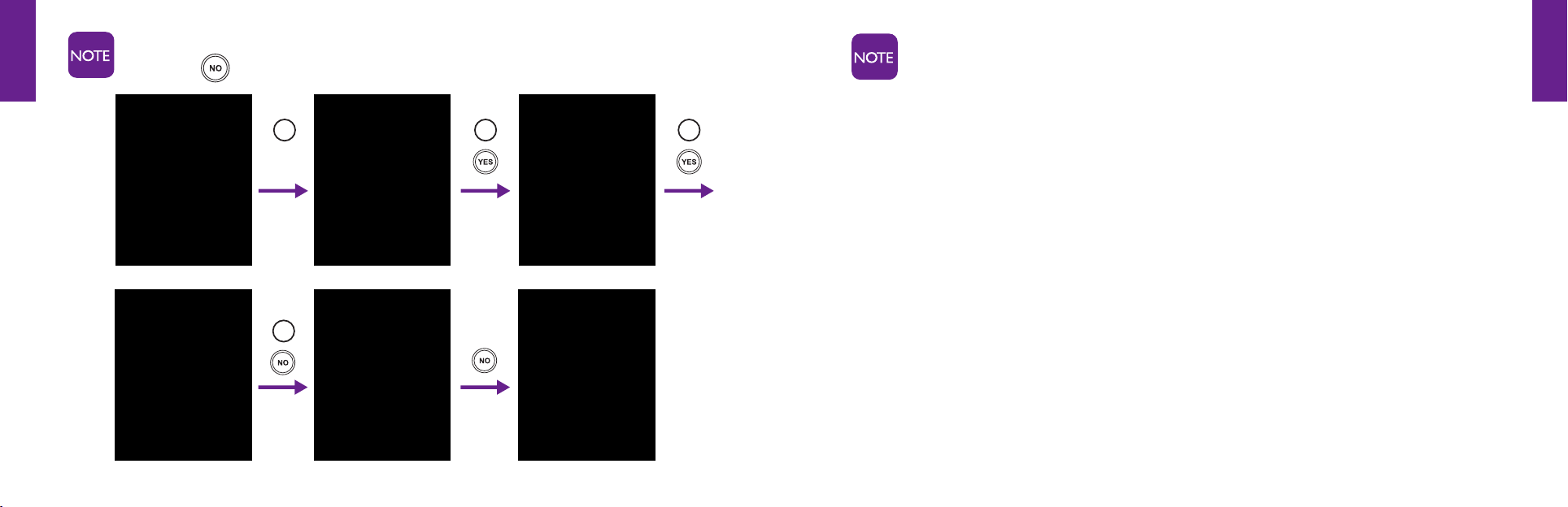
To ignore an incoming call while you are already on a call with someone else, simply
press the
button. The second caller will go directly to your Voice Mail (if enabled).
4
1 2 3
ThissectiononlyappliesifyouhaveenabledCallWaiting.Thefeatureisnot
automatically enabled, but is available free if you are interested in using it.
ToenableCallWaiting,pleasecallusat1–800–733–6632.
1008301_GreatCall_jB_HowToGuide_R6.indd 58-59 10/13/10 12:12 PM

Section3
50 Phone Book
Section3
Phone Book 51
Section 3
Phone Book
This section explains how to use your Phone Book tosaveandndthenamesand
numbers of people you call frequently.
Topics
• Adding,ChangingAndDeletingNumbers
For more information about GreatCall visit us online at www.GreatCall.com.
1008301_GreatCall_jB_HowToGuide_R6.indd 60-61 10/13/10 12:12 PM

Section3
52 Phone Book
Section3
Phone Book 53
Adding, Changing And Deleting Numbers
Your Jitterbug allows you to store up to 50 names and numbers of the people you call on
a regular basis.
You can manage your Phone Book by adding, changing or deleting names and numbers.
There are three ways to manage your Phone Book:
1. Call the Operator by pressing the
button on your keypad.
2. Use the internet at www.MyGreatCall.com.
3. Use the keypad on your Jitterbug.
OPTION 1: Use The Operator
1.Simplypressthe button on your keypad.
2. Press the
button. A “Calling...” message will appear on the Inside Display,
followed by the message “Connected to Operator.”
3.WhentheOperatoranswers,lettheOperatorknowthenameandnumberyouwantto
add, change or delete.
4. To end the call, press the
button or close your Jitterbug.
1008301_GreatCall_jB_HowToGuide_R6.indd 62-63 10/13/10 12:12 PM

Section3
54 Phone Book
Section3
Phone Book 55
OPTION 2: Using www.MyGreatCall.com
Create A New Member Account:
Ifthisisyourrsttimevisitingwww.MyGreatCall.com, you will need to register you
account.SimplyhaveyourGreatCallphonenumberhandyandbepreparedtoenter
your address and email address. Then just follow the instructions on-screen to set up
your account.
After setting up your account, you will be able to enter phone numbers online. All phone
numbers you enter will automatically appear on your Jitterbug within 4 hours.
MyGreatCall.comisahelpfultoolthatmakesiteasytomanageyouraccountonline,at
your convenience.
HerearesomehelpfulthingsyoucandoonMyGreatCall.com:
1.Updateyourpersonalprole.
2. Check your minute usage.
3. Add new services to your account.
4. Edit your services.
5. Update your Phone Book and calendar entries.
YoucanvisitMyGreatCall.comanytimetolearnaboutnewofferingsforyourJitterbug
phone and keep your account up to date.
1008301_GreatCall_jB_HowToGuide_R6.indd 64-65 10/13/10 12:12 PM

Section3
56 Phone Book
Section3
Phone Book 57
OPTION 3: On Your Jitterbug
Adding A Contact Directly On Your Jitterbug:
1.StartingfromtheMain Screen, use the “Up/Down” button and scroll to the “Phone Book”
until it appears highlighted in gray in the middle of the Inside Display.
2. Press the
button to view your “Phone Book.”
3. Using the “Up/Down”
button, scroll to “EDIT PHONE BOOK” and press the button.
4. Using the “Up/Down”
button, scroll to “Add” until it appears highlighted in gray in
the middle of the Inside Display.
5. Press the
button to select the item “Add.”
6. Using the keypad, enter the name of the contact you would like to create. If you
accidentally press a wrong button, just press the button to back up and delete
the incorrect entry.
7. Press the
button when you are done.
8. Using the keypad, enter the phone number for the new contact. If you make a
mistake while typing, use the
button to backspace.
9. Press the
button when you are done.
10. “SUCCESSFULLY ADDED” will appear, letting you know the new contact has
been added.
11. Press the
buttontwotimestoreturntotheMainScreen.
1008301_GreatCall_jB_HowToGuide_R6.indd 66-67 10/13/10 12:12 PM

Section3
58 Phone Book
Section3
Phone Book 59
Modifying A Contact Directly On Your Jitterbug:
1.StartingfromtheMain Screen, use the “Up/Down” button and scroll to the
“Phone Book” until it appears highlighted in gray in the middle of the Inside Display.
2. Press the
button to select the item “Phone Book.”
3. Using the “Up/Down”
button, scroll to “EDIT PHONE BOOK” and press the
button.
4. Using the “Up/Down”
button, scroll to “Modify” until it appears highlighted in
gray in the middle of the Inside Display.
5. Press the
button to select the item “Modify.”
6. Using the “Up/Down”
button, scroll to the contact you would like to change.
7. Press the
button to select the contact you would like to change.
8. To change the contact’s name, use the button to delete the necessary letters.
Use the keypad to re–enter the name.
9. Press the
button when you are done.
10. To change the contact’s number, use the
button to delete the necessary
numbers. Use the keypad to re–enter the numbers.
11. Press the
button when you are done.
12. “Successfully Modied”willappear,lettingyouknowthecontacthasbeenmodied.
13. Press the
button two times to return to the Main Screen.
1008301_GreatCall_jB_HowToGuide_R6.indd 68-69 10/13/10 12:12 PM

Section3
60 Phone Book
Section3
Phone Book 61
Deleting A Contact Directly On Your Jitterbug :
1.StartingfromtheMain Screen, use the “Up/Down” button and scroll to the
“Phone Book” until it appears highlighted in gray in the middle of the Inside Display.
2. Press the
button to select the “Phone Book” feature.
3. Using the “Up/Down”
button, scroll to “EDIT PHONE BOOK” and press the button.
4. Using the “Up/Down”
button, scroll to “Delete” until it appears highlighted in gray
in the middle of the Inside Display.
5. Press the
button to select “Delete.”
6. Using the “Up/Down”
button, scroll to the contact you would like to delete.
7. Press the
button to delete the contact.
8. Press the
buttontoconrmdeletingthecontact.
9. “Successfully Deleted” will appear, letting you know the contact has been removed.
10. Press the
button two times to return to the Main Screen.
1008301_GreatCall_jB_HowToGuide_R6.indd 70-71 10/13/10 12:12 PM

Section4
62 Call History
Section4
Call History 63
Section 4
Call History
This section explains how to review and return your missed calls.
Topics
• UsingCallHistoryToSeeRecentCalls
• ReturningMissedCallsAndRedialing
For more information about GreatCall, visit us online at www.GreatCall.com.
1008301_GreatCall_jB_HowToGuide_R6.indd 72-73 10/13/10 12:12 PM

Section4
64 Call History
Section4
Call History 65
Using Call History To See Recent Calls
Your Jitterbug keeps a list of your ten most recent outgoing, incoming and missed calls.
To Review Call History:
1.StartingfromtheMain Screen, use the “Up/Down” button and scroll to “Call History”
until it appears highlighted in gray in the middle of the Inside Display.
2. Press the
button to select “Call History.”
3.TherstnumberyouwillseeinyourCall History will be your most recent phone call.
4. Using the “Up/Down”
button, scroll down to view your Call History in sequence
according to the time of occurrence.
If a call matches a number from your Phone Book, the name and number of
that person will appear on the Inside Display.
5. As you scroll through your Call History you will see the following information on the
InsideDisplay:
• Feature Area – you will see “CALL HISTORY” indicating that you are in your Call History.
• Detail Area–youwillseethefollowingmessages:
•“Missed” if you received a call and missed it
•“Incoming” if you received a call and answered
•“Outgoing” if you placed a call
In the middle of the Inside Display you will see the time, date and phone
number for each call.
• Action Line – you will see “CALL?”
1008301_GreatCall_jB_HowToGuide_R6.indd 74-75 10/13/10 12:12 PM

Section4
66 Call History
Section4
Call History 67
Returning Missed Calls And Redialing
You can use Call History to directly return missed calls and redial both incoming and
outgoing calls.
1.StartingfromtheMain Screen, use the “Up/Down”
button and scroll to “Call History”
until it appears highlighted in gray in the middle of the Inside Display.
2. Press the
button to select “Call History.”
3. Using the “Up/Down”
button, scroll up and down to see your Call History.
4.Selectthecallyouwouldliketoreturn.
5. Press the
button to return the call.
6. Press the
button or close your Jitterbug to end the call.
7. “Call Ended” will appear, letting you know the call has concluded.
Call Historyincludestenphonenumberswiththemostrecentcalllistedrst.
1008301_GreatCall_jB_HowToGuide_R6.indd 76-77 10/13/10 12:12 PM

Section5
68Settings
Section5
Settings69
Section 5
Settings
This section explains how to change the Settings on your Jitterbug.
Topics
• UsingYourSettings
For more information about GreatCall, visit us online at www.GreatCall.com.
1008301_GreatCall_jB_HowToGuide_R6.indd 78-79 10/13/10 12:12 PM

Section5
70Settings
Section5
Settings71
Using Your Settings
1. To access Settings, start in the Main Screen and press the “Up/Down” button to scroll
to “Settings” until it appears highlighted in gray in the middle of the Inside Display.
2. Press the
button to select “Settings.”
The following items can be changed from within the Settingsfeature:
1. Colors
2. Ring Tones
3. Jingle
4. Bluetooth headset and devices
Selecting The Color Of The Inside Display:
YourJitterbughasvecoloroptionsfortheInsideDisplay:
1. Red – your new Jitterbug will come set to the color Red.
2. Blue
3. Green
4. Gray
5. Black
FollowthesestepstochangethecolorofyourInsideDisplay:
1.StartingfromwithintheSettings feature, use the “Up/Down”
button to scroll
through all of the available options within “Settings.”
2. Press the
button once the “Color” option is highlighted in gray in the middle of
the Inside Display.
3. Use the “Up/Down”
button to scroll through all of the “Color” options.
1008301_GreatCall_jB_HowToGuide_R6.indd 80-81 10/13/10 12:12 PM

Section5
72Settings
Section5
Settings73
Whenyouscrollthroughthecoloroptions,you will notice that the screen will
change color according to the color selection highlighted in gray in the middle
of the Inside Display.
4. Press the
button once the desired color you would like appears highlighted in
gray in the middle of the Inside Display.
5. A checkmark will appear to the left of that color selection indicating that your color
setting has been changed and you will be returned to the Settings menu.
Changing Ring Tones:
Ring Tones are the sounds your Jitterbug makes when it rings. Your Jitterbug has seven
RingToneoptionsforyoutochoosefrom:
1. Alert – your new Jitterbug will come set to the “Alert” Ring Tone.
2.Buttery
3. Espresso
4. Harp
5. Jitterbug
6.MusicBox
7. Telephone
1008301_GreatCall_jB_HowToGuide_R6.indd 82-83 10/13/10 12:12 PM

Section5
74Settings
Section5
Settings75
1.StartingfromwithintheSettings feature, use the “Up/Down”
button to scroll
through all of the available options within Settings.
2. Press the
button once the “Ring Tones” option is highlighted in gray in the
middle of the Inside Display.
3. You will notice that the “Alert” Ring Tone has a checkmark next to it indicating that
this is your current default Ring Tone.
4. Use the “Up/Down”
button to scroll through all of the Ring Tones options. You
will hear the sound of each Ring Tone once it is in the middle of the Inside Display
highlighted in gray.
5. Press the
button once you hear the Ring Tone you like best. A checkmark will
appear to the left of that Ring Tone selection indicating that your Ring Tone setting has
been changed and you will be returned to the Settings menu.
Turning The Start-Up Jitterbug Jingle On And Off:
Your new Jitterbug will come with the Jitterbug Jingle set to “ON.” Each time you turn on
your phone the Jitterbug Jingle will play.
Turning The Jingle Off:
1.StartingfromMain Screen, use the “Up/Down” button to scroll to
“Settings” and press the
button.
2. Use the “Up/Down”
button to scroll through Settings and press the button
once “Jingle ON” is highlighted in gray in the middle of the Inside Display.
3. The screen will read “Jingle OFF” indicating that you have successfully turned
off the Jingle.
1008301_GreatCall_jB_HowToGuide_R6.indd 84-85 10/13/10 12:12 PM

Section5
76Settings
Section5
Settings77
Turning The Jingle On:
1.StartingfromMain Screen, use the “Up/Down” button to scroll to
“Settings” and press the
button.
2. Use the “Up/Down”
button to scroll through Settings and press the button
once “Jingle OFF” is highlighted in gray in the middle of the Inside Display.
3. The screen will read “Jingle ON” indicating that you have successfully turned
on the Jingle.
Bluetooth:
This setting allows your Jitterbug to utilize wireless headsets, hands-free speakers, as
well as other Bluetooth compatible devices.
In order to use Bluetooth accessories with your Jitterbug, you must go through a
Bluetooth set-up process called “Pairing.”
Tolearnmoreaboutthisprocess,pleasereferenceSection9,page117formore
information on Bluetooth and “Pairing.”
1008301_GreatCall_jB_HowToGuide_R6.indd 86-87 10/13/10 12:12 PM

Section6
78 Voice Dial
Section6
Voice Dial 79
Section 6
Voice Dial
This section explains how to use Voice Dial on your Jitterbug to call a contact in your
Phone Book.
Topics
• UsingVoiceDial
For more information about GreatCall, visit us online at www.GreatCall.com.
1008301_GreatCall_jB_HowToGuide_R6.indd 88-89 10/13/10 12:12 PM

Section6
80 Voice Dial
Section6
Voice Dial 81
Using Voice Dial
1. StartingfromtheMain Screen, use the “Up/Down” button and scroll to
“Voice Dial” until it appears highlighted in gray in the middle of the Inside Display.
2. Press the
button to select “Voice Dial.”
3. You will hear an audible prompt to “Say the name” and then a short beep. After the
beep, say the name exactly as it appears in your Phone Book.
4. If Voice Dialrecognizesthenameitwillaskforconrmationbyasking
“Did you say ______?”Conrmbysaying“Yes” after the beep.
5. If Voice Dial is unsure it will ask “Did you say ______?” followed by a beep.
6.Say“Yes”toconrm;say“No” to hear the next name.
7. Voice Dial will dial the number of the person whose name you selected.
8. Press the
button or close your Jitterbug to end the call.
9. “Call Ended” will appear, letting you know the call has concluded.
10. Press the
button to return to the Main Screen.
If Voice Dialisunabletondthename,pressthe button to retry, or the
button to exit to the Main Screen.
To ensure a successful Voice Dialexperience,remembertheseimportanttips:
•Waitforthesystembeepbeforespeaking
•Speakclearlyandinyournormalvoice
•SaythenameexactlyasitappearsinyourPhone Book
•MakesureeachPhone Book entry is unique in its description
If you want your Jitterbug to be in Voice Dial mode as soon as you open it, call
ourOperatorstosetitupasyourstart-upscreen.Simplypress
button on
your keypad to call our Operators.
1008301_GreatCall_jB_HowToGuide_R6.indd 90-91 10/13/10 12:12 PM

Section7
82VoiceMail
Section7
VoiceMail83
Section 7
Voice Mail
This section explains how to use and manage Voice Mail on your Jitterbug.
Topics
• SettingUpVoiceMail
• ChangingYourVoiceMailGreeting
• LettingYouKnowThatYouHaveVoiceMailMessages
• ListeningToVoiceMailMessages
• ListeningToSavedVoiceMailMessages
For more information about GreatCall, visit us online at www.GreatCall.com.
1008301_GreatCall_jB_HowToGuide_R6.indd 92-93 10/13/10 12:12 PM

Section7
84VoiceMail
Section7
VoiceMail85
Setting Up Voice Mail
This section only applies if you have purchased Voice Mail with your GreatCall
service. To purchase Voice Mail service for your Jitterbug, please call us at
1–800–733–6632.
Follow these steps to set-up Voice Mail:
1.StartingfromtheMain Screen, use the “Up/Down”
button and scroll to “Voice Mail”
until it appears highlighted in gray in the middle of the Inside Display.
2. Press the
button to dial the GreatCall Voice Mail system.
3. YourJitterbugwillknowitisyourrsttimesetting-upVoice Mail. You will be guided
through your Voice Mailset-upthersttimeyouconnect.Followtheinstructions,
pressing the
and buttons as prompted.
Changing Your Voice Mail Greeting
1.StartingfromtheMain Screen, use the “Up/Down” button and scroll to “Voice Mail”
until it appears highlighted in gray in the middle of the Inside Display.
2. Press the
button to select the item, “Voice Mail” and listen to the prompts.
The system will play your saved messages.
3. To exit your Voice Mail, simply close your Jitterbug at any time.
1008301_GreatCall_jB_HowToGuide_R6.indd 94-95 10/13/10 12:12 PM

Section7
86VoiceMail
Section7
VoiceMail87
Letting You Know That You Have Voice Mail Messages
Ifyoumissacallandthecallerleavesyouamessage,yourJitterbugwillnotifyyouby:
1. Displaying “New Voice Mail” on the Outside Display.
2. Displaying “You have a new voice message.” on the Inside
Display, as shown.
3.TheLightSignalwillashevery15secondsuntilyourJitterbug
is opened.
4.Anaudiblealertwillplayonceeveryveminutesforupto30
minutes or until your Jitterbug is opened.
If you don’t listen to the Voice Mail,analertwillsoundeveryveminutes
until 30 minutes has elapsed to remind you there is a message. To turn off the
audible alert, open your Jitterbug and listen to your Voice Mail.
Listening To Voice Mail Messages
• IfyouhaveanewVoice Mail message, your Jitterbug will notify you by
displaying “You have a new voice message” on the Inside Display and “LISTEN?”
in the Action Line.
• Pressthe
button to listen to your message.
• Simplylistentothepromptsandfollowalongtosaveordeleteyourmessages.
Once a message is deleted, there is no way to retrieve it.
1008301_GreatCall_jB_HowToGuide_R6.indd 96-97 10/13/10 12:12 PM

Section7
88VoiceMail
Section7
VoiceMail89
Listening To Saved Voice Mail Messages
1. StartingfromtheMain Screen, use the “Up/Down” button and scroll to
“Voice Mail” until it appears highlighted in gray in the middle of the Inside Display.
2. Press the
button to select “Voice Mail” and listen to the prompts. The GreatCall
system will play your saved messages.
3. To exit your Voice Mail, simply close your Jitterbug at any time.
1008301_GreatCall_jB_HowToGuide_R6.indd 98-99 10/13/10 12:12 PM

Section8
90JitterbugSimpleText
Section8
JitterbugSimpleText91
Section 8
Jitterbug
SimpleText
ThissectionexplainshowtousetheJitterbugSimpleTextservice.
Topics
• UsingJitterbugSimpleTextService
• ReceiveANewTextMessage
• ReadANewTextMessage
• ReplyToATextMessage
• SavingAndDeletingTextMessages
• SendingANewTextMessage
For more information about GreatCall, visit us online at www.GreatCall.com.
1008301_GreatCall_jB_HowToGuide_R6.indd 100-101 10/13/10 12:12 PM

Section8
92JitterbugSimpleText
Section8
JitterbugSimpleText93
Using Jitterbug
SimpleText Service
ThissectionappliesifyouhaveaskedforSimpleTextwithyourGreatCall
service.TogetSimpleTextforyourJitterbug,pleasecallusat1–800–733–
6632.
We’vecreatedaneasytouseTextMessagingservicethatallowsyoutodothefollowing:
• ReceiveanewTextMessage
• ReadanewTextMessage
• ReplytoaTextMessage
• SaveTextMessages
• DeleteoldTextMessages
• SendanewTextMessage
Receive A New Text Message
WhenyoureceiveanewTextMessage,youwillbenotiedinthreeways:
1.TheLightSignalonthefrontofyourJitterbugwillashevery15secondsuntilyour
Jitterbug is opened.
2. The words “New Text Message” will appear on the Outside Display. This message
will stay on your Outside Display until your Jitterbug is opened.
3. Anaudiblealertwillplayeveryveminutesuntil30minuteshaselapsed.Toturnoffthe
audiblealertopenyourJitterbugandreadtheTextMessage.
1008301_GreatCall_jB_HowToGuide_R6.indd 102-103 10/13/10 12:12 PM

Section8
94JitterbugSimpleText
Section8
JitterbugSimpleText95
Read A New Text Message
AfterreceivingnoticationofanewTextMessage,followthesethreestepstoread
themessage:
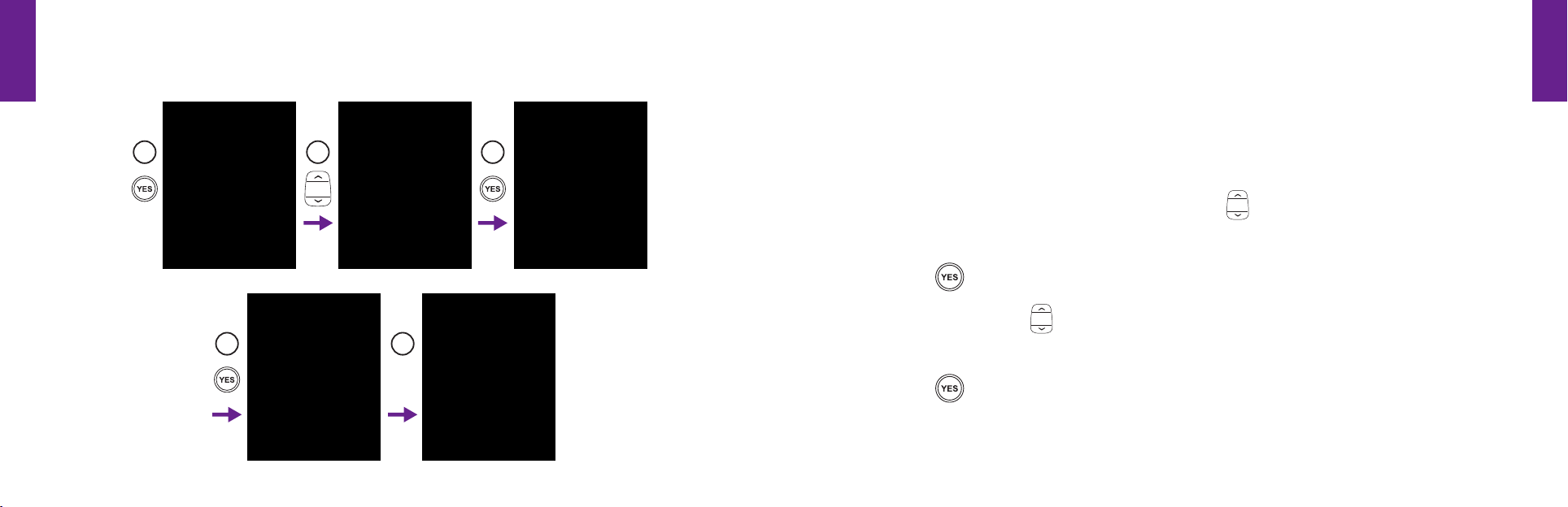
1. ToreadtheTextMessage,openyourJitterbug.Youwillseethe
words “You have a new text message.” on the Inside Display
and the word “VIEW?” on the Action Line, as shown.
2. Press the
buttontoviewtheTextMessage.
3. Press the “Up/Down”
buttontoreadtheentireTextMessage.
Reply To A Text Message
OnceyouhavereadtheTextMessage,youhavetheoptiontoreplytoit,saveitforfuture
reference or delete it.
1.WhenreadingaTextMessageyou’vereceived,youwillseetheword“REPLY?” on
the Action Line. Press the
button to reply.
2.TousetheJitterbugLibraryofpre-writtenTextMessages,pressthe“Up/Down”
buttontoscrollthroughandndthedesiredmessage.
3. If you want to create your own message, use the “Up/Down”
button to scroll to
“CREATE YOUR OWN MESSAGE.” Press the
button and use the keypad to type
your message.
4. Press the
buttontosendyourTextMessage.Youwillseethewords
“Sending Message” on the Inside Display.
1008301_GreatCall_jB_HowToGuide_R6.indd 104-105 10/13/10 12:12 PM
Section8
96JitterbugSimpleText
Section8
JitterbugSimpleText97
5.Whenthemessagehasbeensent,youwillseethewords“Message Successfully
Sent” on the Inside Display.
54
1 32
Saving And Deleting Text Messages
Saving Text Messages:
TheJitterbugSimpleTextservicewillautomaticallysaveallofyourTextMessages.Follow
thesesixstepstoviewyoursavedmessages:
1.StartingfromtheMain Screen, use the “Up/Down”
button and scroll to
“Text Messages” until it appears highlighted in gray in the middle of the Inside Display.
2. Press the
button to select “Text Messages.”
3. Using the “Up/Down”
button, scroll to “Read” until it appears highlighted in gray
in the middle of the Inside Display.
4. Press the
button to select “Read.”
1008301_GreatCall_jB_HowToGuide_R6.indd 106-107 10/13/10 12:12 PM

Section8
98JitterbugSimpleText
Section8
JitterbugSimpleText99
5. Using the “Up/Down”
button,scrolltotheTextMessageyouwouldliketoread.
6. Press the
buttontoreadtheentireTextMessage.
Jitterbug
SimpleTextautomaticallysavesthemessagesyou’vereceived“From”
others as well as the messages you’ve “Sent”toothers.Whenviewingyour
savedmessaged,youarenotiedbetween“From” and “Sent” at the top of
the screen.
Deleting Text Messages:
YourJitterbugallowsyoutodeleteTextMessagesintwoways:
• Deleteanewtextimmediatelyafterreading
• Deleteanoldtextfromyoursavedmessages
Deleting A New Text Immediately After Reading:
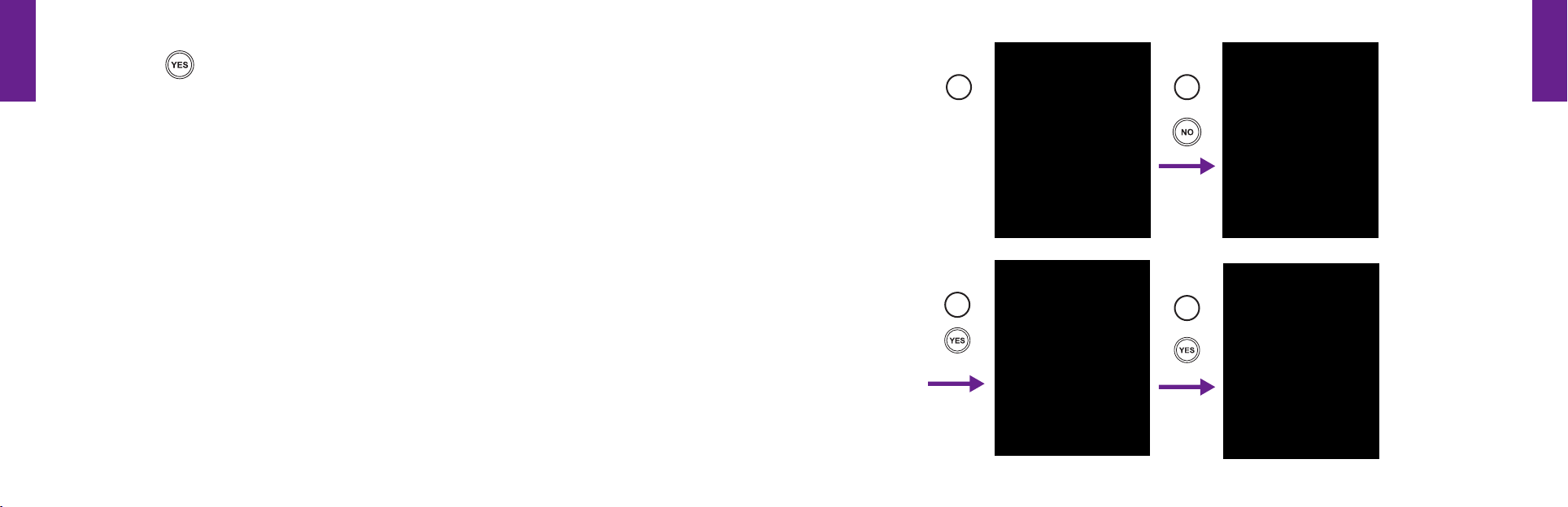
1.Afteryou’vereadaTextMessage,youwillbeaskedtoreplytoit.
2. If you want to delete the message without replying, press the
button
when asked to reply.
3. You will now be asked to delete the message. Press the
button to delete
the message.
1008301_GreatCall_jB_HowToGuide_R6.indd 108-109 10/13/10 12:12 PM
Section8
100JitterbugSimpleText
Section8
JitterbugSimpleText101
4.Youwillthenbeaskedtoconrmthatyouwanttodeletethemessage.Press
the
buttonagaintoconrmdeletion.
5. “Message Successfully Deleted” will appear on the Inside Display and you
will be returned to your saved messages.
2
4
3
1
1008301_GreatCall_jB_HowToGuide_R6.indd 110-111 10/13/10 12:12 PM

Section8
102JitterbugSimpleText
Section8
JitterbugSimpleText103
Deleting An Old Text Message From Your Saved Messages:
1. StartingfromtheMain Screen, use the “Up/Down” button and scroll to
“Text Messages” until it appears highlighted in gray in the middle of the Inside Display.
2. Press the
button to select “Text Messages.”
3. Using the “Up/Down”
button, scroll to “Delete” until it appears
highlighted in gray in the middle of the Inside Display.
4. Press the
button to select “Delete.”
5. Using the “Up/Down”
button,scrolltotheTextMessageyouwanttodelete.
6. Press the
buttontodeletetheTextMessageyou’veselected.
7.Youwillthenbeaskedtoconrmthatyouwanttodeletethemessage.Press
the
buttonagaintoconrmdeletion.
8. “Message Successfully Deleted” will appear on the Inside Display and you
will be returned to your saved messages.
IfyouchoosenottodeleteaTextMessage,justpressthe button to return
to the previous screen.
Sending A New Text Message
1.StartingfromtheMain Screen, use the “Up/Down” button and scroll to “Text Messages”
until it appears highlighted in gray in the middle of the Inside Display.
2. Press the
button to select “Text Messages.”
3. Using the “Up/Down”
button, scroll to “Send” until it appears highlighted in gray
in the middle of the Inside Display.
4. Press the
button to select the item “Send”.
1008301_GreatCall_jB_HowToGuide_R6.indd 112-113 10/13/10 12:12 PM

Section8
104JitterbugSimpleText
Section8
JitterbugSimpleText105
5. Press the
button to “CREATE YOUR OWN MESSAGE.” or press the“Up/Down”
buttontoscrollthorughtheJitterbugLibraryofpre-writtenTextMessages.Press
the
buttononceyoundthedesiredTextMessageyouwanttosend.
6. Press the
button when you are done typing your message. You will automatically go to your
Phone Book. Use the “Up/Down”
button to scroll through your contacts. Press the button
whenthecontacttowhomyouwishtosendtheTextMessageisinthemiddleofyour
Inside Display.
If you do not have the contact in your Phone Book, use the “Up/Down” button
to scroll to the “ENTER NUMBER” option. Press the
button and enter the phone
number using the keypad. Once you have entered the number, simply press the
button to send your message.
7. After you press the
button, you will see the words “Sending Message” on the
Inside Display.
8.Whenthemessagehasbeensent,youwillseethewords“Message Successfully Sent” on
the Inside Display.
1008301_GreatCall_jB_HowToGuide_R6.indd 114-115 10/13/10 12:12 PM

Section8
106JitterbugSimpleText
Section8
JitterbugSimpleText107
ThetablebelowexplainshowtocreateacustomTextMessageusingthenumberkeys
onthekeypadtoenterletters:
Keyboard Function
Enters the number “0” character in any Text Message entry mode
Add a space
Press repeatedly to cycle through the 123, ABC, Abc-S, Abc-W
and abc Modes
Move back a space and delete a character
Press repeatedly to enter characters:
. , – ’ @ : ! ? / 1 cycle through the characters
Modes For Creating Your Own Text Message
Therearevemodestocreateacustomtextmessageusingthenumberkeysonthe
keypad to enter letters, numbers and symbols.
123 Mode
GreatCallLocksyouintothenumber–entrymode.Toenter123Mode,
press the
buttonuntilyousee“123”appearinthetopright
corner of the Inside Display. Then press the desired number
or numbers.
1008301_GreatCall_jB_HowToGuide_R6.indd 116-117 10/13/10 12:12 PM

Section8
108JitterbugSimpleText
Section8
JitterbugSimpleText109
ABC Mode
InABCModeeveryletterwillbecapitalized.ToenterABCMode,
press the
buttonuntilyousee“ABC”appearinthetopright
corner of the Inside Display.
Abc-S Mode
InAbc-SModetherstletterofeachsentenceiscapitalized.Toenter
Abc-SMode,pressthe
buttonuntilyousee“Abc-S”appearinthetopright
corner of the Inside Display.
Abc-W Mode
InAbc-WModetherstletterofeachsentenceiscapitalized.To
enterAbc-WMode,pressthe
buttonuntilyousee“Abc-W”
appear in the top right corner of the Inside Display.
abc Mode
InabcModeeveryletterwillbelowercase.ToenterabcMode,
press the
buttonuntilyousee“abc”appearinthetop
right corner of the Inside Display.
1008301_GreatCall_jB_HowToGuide_R6.indd 118-119 10/13/10 12:12 PM

Section9
110 Bluetooth
Section9
Bluetooth 111
Section 9
Bluetooth
®
This section explains how to use a Bluetooth device with your Jitterbug phone.
Topics
• AboutBluetooth
• UsingYourJitterbugWithTheSamsungWEP470PremiumBluetoothHeadset
• TurningTheBluetoothFeatureOnYourJitterbugOnAndOff
• SettingYourSamsungWEP470PremiumBluetoothHeadsetToPairingMode
• SettingYourJitterbugToPairingMode
• AnsweringACallWhenPairedWithYourBluetoothHeadset
• EndingACallWhenPairedWithYourBluetoothHeadset
• BluetoothBatteryLife
For more information about GreatCall, visit us online at www.GreatCall.com.
1008301_GreatCall_jB_HowToGuide_R6.indd 120-121 10/13/10 12:12 PM

Section9
112 Bluetooth
Section9
Bluetooth 113
About Bluetooth
Bluetooth is a technology that allows you to talk on your cell phone without using your
hands.Inordertouseit,yousimplymust“pair”yourJitterbugsothatitisconnected,
without wires, to a Bluetooth device, as described on the following pages.
For your convenience, your new Jitterbug is equipped to utilize Bluetooth wireless
headsets, hands-free speakers, and other Bluetooth compatible devices.
TherearemanybenetstousingBluetooth devices. Along with improving ease-of-use and
safety by eliminating wires, Bluetooth also offers you plenty of alternative advantages,
such as having the ability to talk hands-free while your Jitterbug is in your pocket or
purse.
WorkingtogetherwithSamsung,GreatCallhassimpliedtheBluetoothexperience.We
have tested and carefully selected a high quality Bluetooth headset that is easy to use - the
SamsungWEP470PremiumBluetooth headset.
There are many other Bluetooth headsets available for purchase that
are equipped to work with your Jitterbug. However, for your ease of use,
we recommend theSamsungWEP470PremiumBluetooth headset.
This Bluetooth headset is available for purchase through GreatCall at
www.GreatCall.com/accessories or by calling 1–800–733–6632.
WeatGreatCallhavecarefullyoutlinedeasytofollowinstructionsonhowto
set-up and use theSamsungWEP470PremiumBluetooth headset with your
Jitterbug. In addition, when you purchase this Bluetooth headset from GreatCall, it
will come with easy to follow instructions.
1008301_GreatCall_jB_HowToGuide_R6.indd 122-123 10/13/10 12:12 PM

Section9
114 Bluetooth
Section9
Bluetooth 115
Using Your Jitterbug With The Samsung WEP 470 Premium
Bluetooth Headset
TherearethreestepstosetupyourJitterbugwiththeSamsungWEP470Premium
Bluetooth headset:
1. Turning the Bluetooth feature on your Jitterbug On and Off.
2.SettingyourSamsungWEP470PremiumBluetooth headset to Pairing Mode.
3.SettingyourJitterbugtoPairing Mode.
Turning The Bluetooth Feature On Your Jitterbug On And Off
Turning The Bluetooth Feature On:
The following procedure is applicable to all Bluetooth compatible devices. You must have
yourJitterbugsetto“Bluetooth ON” to use any Bluetooth device.
1.StartingfromtheMain Screen of your Jitterbug, scroll through the options using the
“Up/Down”
button until “Settings” is highlighted in gray in the middle of the Inside Display.
2. Press the
button on your Jitterbug to select the “Settings.”
3.Scrollthroughthe“Settings” options using the “Up/Down”
button until “Bluetooth” is
highlighted in gray in the middle of the Inside Display.
4. Press the
button to select the “Bluetooth” option.
5.Scrollthroughthe“Bluetooth” options using the “Up/Down”
button until “Bluetooth OFF”
is highlighted in gray in the middle of the Inside Display.
6. Press the
button to turn “Bluetooth ON.” You will now see the words “Bluetooth ON”
highlighted in gray in the middle of the Inside Display.
7. WhenyourJitterbugissetwith“Bluetooth ON,” you will see the Bluetooth symbol in
the top right corner of the Main Screen.
1008301_GreatCall_jB_HowToGuide_R6.indd 124-125 10/13/10 12:12 PM

Section9
116 Bluetooth
Section9
Bluetooth 117
If you are not going to be using your Bluetooth headset, be sure to keep your
Jitterbugsetto“Bluetooth OFF.”TheJitterbugbatterylifeisshortenedwhen
the Bluetooth setting is turned on.
Turning The Bluetooth Feature Off:
1. Use the “Up/Down” button on your Jitterbug to scroll through all of the available
options within Settings.
2. Press the
button on your Jitterbug once the “Bluetooth ON” option is highlighted
in gray in the middle of the Inside Display.
3. The screen will then read “Bluetooth OFF” indicating that you have successfully
turned off your Bluetooth.
4.WhenyourJitterbugissetwiththe“Bluetooth OFF,” you will notice that the Bluetooth
symbol is no longer in the top right corner of the Main Screen.
Setting Your Samsung WEP 470 Premium Bluetooth Headset To Pairing
Mode
TherststepinsettingupanyBluetooth device is called “Pairing.” This step is required
because there are no wires to link your Jitterbug to your Bluetooth device. “Pairing”
happens when your Jitterbug and your Bluetooth device agree to communicate with
one another. By “Pairing,” your Jitterbug recognizes your Bluetooth device and the two
devices automatically accept communication from each other.
BesuretoturnonyourSamsungWEP470PremiumBluetoothheadsetbeforeentering
Pairing Mode. To turn on the device, simply move the switch on the side of the headset to
the“on”position-youwillseetheorangeareadisappearwhentheheadsetison.Whenthe
device is on, to begin pairing, press and hold the “Answer/End”
button in the middle
of your Bluetooth headset for several seconds until the blue indicator light turns on and
stays lit after blinking. This indicates that your headset is now in Pairing Mode.
1008301_GreatCall_jB_HowToGuide_R6.indd 126-127 10/13/10 12:12 PM

Section9
118 Bluetooth
Section9
Bluetooth 119
Please ensure you turn off your Bluetooth if you wish to receive calls from your
Jitterbug handset and not your Bluetooth headset. You are unable to turn
off your Bluetooth while on a call. Please reference page 116 for details on
turning off your Bluetooth.
WhenyourBluetooth is on and available for
your use, you will notice a white Bluetooth icon,
similar to the one on the right, appear at the top
right corner of your Main Screen.
Setting Your Jitterbug To Pairing Mode
1.Startingfromthe Main Screen of your Jitterbug, use the “Up/Down” button and scroll
to “Settings” until it appears highlighted in gray in the middle of the Inside Display.
2. Press the
button on your Jitterbug to select “Settings.”
3. Use the “Up/Down”
button and scroll to “Bluetooth” until it appears highlighted
in gray in the middle of the Inside Display of your Jitterbug.
4. Press the
button to select the “Bluetooth” feature on your Jitterbug.
5. Use the “Up/Down”
button and scroll to “Pair” until it appears highlighted in
gray in the middle of the Inside Display of your Jitterbug.
6. Press the
button to select the “Pair” feature on your Jitterbug.
7. “Follow pairing instructions on Bluetooth device” will appear on the
Inside Display of your Jitterbug.
1008301_GreatCall_jB_HowToGuide_R6.indd 128-129 10/13/10 12:12 PM

Section9
120 Bluetooth
Section9
Bluetooth 121
8. Press the
button on your Jitterbug to begin searching for the Bluetooth headset.
Please wait while your Jitterbug searches for the Bluetooth headset. During this
time, “Searching” will appear on the Inside Display.
9.IfyouareusingtheSamsungWEP470,usethe“Up/Down”
button and scroll through
the options until “Samsung WEP 470” is highlighted in gray in the middle of the Inside
Display of your Jitterbug.
10. Press the
button on your Jitterbug to select the “Samsung WEP 470.”
11.YouwillthenbeaskedtoenterthePINnumberfortheSamsungWEP470.Enterthe
following numbers and press the
button.
PIN number = 0000
12. You will see the message “Pairing Device Samsung WEP 470” on the Inside Display
of your Jitterbug.
13.WhenyourJitterbugissuccessfullypairedwithyourSamsungWEP470Premium
Bluetooth headset, you will see the message “Samsung WEP 470 is now Paired”
on the Inside Display of your Jitterbug followed by the message “Samsung WEP 470
Connected” and a chime sound notifying you that your Jitterbug is now connected
withyourSamsungWEP470PremiumBluetooth headset.
14. Your Jitterbug is now “Paired” with your SamsungWEP470PremiumBluetooth
headset and ready to make and receive calls.
1008301_GreatCall_jB_HowToGuide_R6.indd 130-131 10/13/10 12:12 PM

Section9
122 Bluetooth
Section9
Bluetooth 123
You will notice different Bluetooth icons on your Jitterbug Main Screen that
indicate when your Bluetoothisavailabletouse:
•Gray – Bluetooth is on, but not
paired with your Jitterbug.
•White–Bluetooth is on, paired
with your Jitterbug and available
for you to use.
Answering A Call When Paired With Your Bluetooth Headset
Press the “Answer/End” button on the Bluetooth headset.
Ending A Call When Paired With Your Bluetooth Headset
To End A Call When Your Jitterbug Is Open:
There are two ways to end a call while using a Bluetoothheadset:
1. Press the “Answer/End”
button on the Bluetooth headset.
2. Press the
button on your Jitterbug.
To End A Call When Your Jitterbug Is Closed:
Simplypressthe“Answer/End” button on the Bluetooth headset.
1008301_GreatCall_jB_HowToGuide_R6.indd 132-133 10/13/10 12:12 PM

Section9
124 Bluetooth
Section9
Bluetooth 125
Bluetooth Battery Life
WhileyourBluetooth is on, the Jitterbug battery is drained faster than normal. To
conserve battery life, turn your Jitterbug’s Bluetooth off when not in use. Please refer to
page 116 for more information on disabling Bluetooth.
1008301_GreatCall_jB_HowToGuide_R6.indd 134-135 10/13/10 12:12 PM

HealthandSafetyInformation
126HealthandSafetyInformation
HealthandSafetyInformation
HealthandSafetyInformation127
Health And Safety Information
This section outlines the safety precautions associated with using your Jitterbug. These
safety precautions should be followed to safely use your Jitterbug.
Topics
• HealthAndSafetyInformation
• SamsungMobileProducts
And Recycling
• UlCertiedTravelAdapter
• ConsumerInformationOn
WirelessPhones
• RoadSafety
• ResponsibleListening
• OperatingEnvironment
• UsingyourJitterbugNearOther
Electronic Devices
• FCCHearing–AidCompatibility(HAC)
RegulationsForWirelessDevices
• PotentiallyExplosiveEnvironments
• EmergencyCalls
• FCCNoticeAndCautions
• OtherImportantSafetyInformation
• ProductPerformance
• AvailabilityOfVariousFeatures/Ring
Tones
• BatteryStandbyAndTalkTime
• BatteryPrecautions
• CareAndMaintenance
1008301_GreatCall_jB_HowToGuide_R6.indd 136-137 10/13/10 12:12 PM

HealthandSafetyInformation
128HealthandSafetyInformation
HealthandSafetyInformation
HealthandSafetyInformation129
Health And Safety Information
Exposure To Radio Frequency (RF) Signals
Certication Information (SAR)
Your Jitterbug is a radio transmitter and receiver. It is designed and manufactured
not to exceed the exposure limits for radio frequency (RF) energy set by the Federal
CommunicationsCommission(FCC)oftheU.S.government.
These FCC exposure limits are derived from the recommendations of two expert
organizations,theNationalCounselonRadiationProtectionandMeasurement(NCRP)
and the Institute of Electrical and Electronics Engineers (IEEE).
Inbothcases,therecommendationsweredevelopedbyscienticandengineering
experts drawn from industry, government and academia after extensive reviews of the
scienticliteraturerelatedtothebiologicaleffectsofRFenergy.
The exposure limit set by the FCC for wireless mobile phones employs a unit of
measurementknownastheSpecicAbsorptionRate(SAR).TheSARisameasureof
the rate of absorption of RF energy by the human body expressed in units of watts per
kilogram(W/kg).TheFCCrequireswirelessphonestocomplywithasafetylimitof1.6
wattsperkilogram(1.6W/kg).
The FCC exposure limit incorporates a substantial margin of safety to give additional
protection to the public and to account for any variations in measurements.
SARtestsareconductedusingstandardoperatingpositionsacceptedbytheFCCwith
thephonetransmittingatitshighestcertiedpowerlevelinalltestedfrequencybands.
AlthoughtheSARisdeterminedatthehighestcertiedpowerlevel,theactualSARlevel
of the phone while operating can be well below the maximum value. This is because the
phone is designed to operate at multiple power levels to use as little power as possible
to reach the network. In general, the closer you are to a wireless base station antenna,
the lower the power output.
Before a new model phone is available for sale to the public, it must be tested and
certiedtotheFCCtoensurethatitdoesnotexceedtheexposurelimitestablishedby
the FCC. Tests for each model phone are performed in positions and locations (e.g. at
1008301_GreatCall_jB_HowToGuide_R6.indd 138-139 10/13/10 12:12 PM

HealthandSafetyInformation
130HealthandSafetyInformation
HealthandSafetyInformation
HealthandSafetyInformation131
the ear and worn on the body) as required by the FCC.
For body worn operation, this phone has been tested and meets FCC RF exposure
guidelines when used with an accessory that contains no metal and that positions the
handset is positioned a minimum of 1.5 cm from the body.
Use of other accessories may not ensure compliance with FCC RF exposure guidelines.
The FCC has granted an Equipment Authorization for this mobile phone with all reported
SARlevelsevaluatedasincompliancewiththeFCCRFexposureguidelines.The
maximumSARvaluesforthismodelphoneasreportedtotheFCCare:
• 1.05W/kgCDMAHeadSAR
• 1.02W/kgCDMABodySAR
• 1.19W/kgPCSHeadSAR
• 1.30W/kgPCSBodySAR
SARinformationonthisandothermodelphonescanbeviewedonlineat
www.fcc.gov/oet/ea.Tondinformationthatpertainstoaparticularmodelphone,this
site uses the phone FCC ID number which is usually printed somewhere on the case of
the phone.
Sometimesitmaybenecessarytoremovethebatterypacktondthenumber.Once
you have the FCC ID number for a particular phone, follow the instructions on the
websiteanditshouldprovidevaluesfortypicalormaximumSARforaparticularphone.
AdditionalproductspecicSARinformationcanalsobeobtainedat
www.fcc.gov/cgb/sar.
Samsung
®
Mobile Products And Recycling
SamsungcaresfortheenvironmentandencouragesitscustomerstorecycleSamsung
mobilephonesandgenuineSamsungaccessories.
Goto:fun.samsungmobileusa.com/recycling/index.jsp for more information.
UL Certied Travel Adapter
The Travel Adapter for this phone has met applicable UL safety requirements. Please
adhere to the following safety instructions per UL guidelines.
1008301_GreatCall_jB_HowToGuide_R6.indd 140-141 10/13/10 12:12 PM

HealthandSafetyInformation
132HealthandSafetyInformation
HealthandSafetyInformation
HealthandSafetyInformation133
FAILURETOFOLLOWTHEINSTRUCTIONSOUTLINEDMAYLEADTOSERIOUSPERSONAL
INJURYANDPOSSIBLEPROPERTYDAMAGE.
IMPORTANTSAFETYINSTRUCTIONS–SAVETHESEINSTRUCTIONS.
DANGER–TOREDUCETHERISKOFFIREORELECTRICSHOCK,CAREFULLYFOLLOWTHESE
INSTRUCTIONS.
FORCONNECTIONTOAPOWERSOURCENOTINNORTHAMERICA,USEANATTACHMENT
PLUGADAPTOROFTHEPROPERCONFIGURATIONFORTHEPOWEROUTLET.THISPOWER
UNITISINTENDEDTOBECORRECTLYORIENTATEDINAVERTICALORHORIZONTALOR
FLOORMOUNTPOSITION.
Consumer Information On Wireless Phones
TheU.S.FoodandDrugAdministration(FDA)haspublishedaseriesofQuestionsand
Answers for consumers relating to radio frequency (RF) exposure from wireless phones.
TheFDApublicationincludesthefollowinginformation:
What kinds of phones are the subject of this update?
The term wireless phone refers here to hand–held wireless phones with built–in
antennas,oftencalled“cell,”“mobile”or“PCS”phones.Thesetypesofwireless
phones can expose the user to measurable radio frequency energy (RF) because of the
short distance between the phone and the user’s head. These RF exposures are limited
by Federal Communications Commission safety guidelines that were developed with the
advice of FDA and other federal health and safety agencies.
Whenthephoneislocatedatgreaterdistancesfromtheuser,theexposuretoRFis
drastically lower because a person’s RF exposure decreases rapidly with increasing
distancefromthesource.Theso–called“cordlessphones,”whichhaveabaseunit
connected to the telephone wiring in a house, typically operate at far lower power levels
and thus produce RF exposures well within the FCC’s compliance limits.
Do wireless phones pose a health hazard?
Theavailablescienticevidencedoesnotshowthatanyhealthproblemsareassociated
1008301_GreatCall_jB_HowToGuide_R6.indd 142-143 10/13/10 12:12 PM

HealthandSafetyInformation
134HealthandSafetyInformation
HealthandSafetyInformation
HealthandSafetyInformation135
with using wireless phones. There is no proof, however, that wireless phones are
absolutelysafe.Wirelessphonesemitlowlevelsofradiofrequencyenergy(RF)inthe
microwave range while being used. They also emit very low levels of RF when in the
stand–bymode.WhereashighlevelsofRFcanproducehealtheffects(byheating
tissue), exposure to low level RF that does not produce heating effects causes no
knownadversehealtheffects.ManystudiesoflowlevelRFexposureshavenotfound
anybiologicaleffects.Somestudieshavesuggestedthatsomebiologicaleffectsmay
occur,butsuchndingshavenotbeenconrmedbyadditionalresearch.Insomecases,
otherresearchershavehaddifcultyinreproducingthosestudiesorindeterminingthe
reasons for inconsistent results.
What is FDA’s role concerning the safety of wireless phones?
Under the law, FDA does not review the safety of radiation–emitting consumer products
such as wireless phones before they can be sold, as it does with new drugs or medical
devices. However, the agency has authority to take action if wireless phones are shown
to emit radio frequency energy (RF) at a level that is hazardous to the user. In such a case,
FDA could require the manufacturers of wireless phones to notify users of the health
hazard and to repair, replace or recall the phones so that the hazard no longer exists.
AlthoughtheexistingscienticdatadonotjustifyFDAregulatoryactions,FDAhasurged
thewirelessphoneindustrytotakeanumberofsteps,includingthefollowing:
• SupportneededresearchintopossiblebiologicaleffectsofRFofthetypeemittedby
wireless phones.
• DesignwirelessphonesinawaythatminimizesanyRFexposuretotheuserthatis
not necessary for device function.
• Cooperateinprovidingusersofwirelessphoneswiththebestpossibleinformation
on possible effects of wireless phone use on human health.
FDA belongs to an interagency working group of the federal agencies that have
responsibility for different aspects of RF safety to ensure coordinated efforts at the
federallevel.Thefollowingagenciesbelongtothisworkinggroup:
• NationalInstituteforOccupationalSafetyandHealth
• EnvironmentalProtectionAgency
• FederalCommunicationsCommission
• OccupationalSafetyandHealthAdministration
• NationalTelecommunicationsandInformationAdministration
The National Institutes of Health participates in some interagency working group
1008301_GreatCall_jB_HowToGuide_R6.indd 144-145 10/13/10 12:12 PM

HealthandSafetyInformation
136HealthandSafetyInformation
HealthandSafetyInformation
HealthandSafetyInformation137
activities, as well.
FDA shares regulatory responsibilities for wireless phones with the Federal
CommunicationsCommission(FCC).AllphonesthataresoldintheUnitedStatesmust
comply with FCC safety guidelines that limit RF exposure. FCC relies on FDA and other
health agencies for safety questions about wireless phones.
FCCalsoregulatesthebasestationsthatthewirelessphonenetworksrelyupon.While
these base stations operate at higher power than do the wireless phones themselves,
the RF exposures that people get from these base stations are typically thousands of
times lower than those they can get from wireless phones.
Base stations are thus not the primary subject of the safety questions discussed in
this document.
What are the results of the research done already?
Theresearchdonethusfarhasproducedconictingresultsandmanystudieshave
sufferedfromawsintheirresearchmethods.Animalexperimentsinvestigatingthe
effects of radio frequency energy (RF) exposures characteristic of wireless phones have
yieldedconictingresultsthatoftencannotberepeatedinotherlaboratories.Afew
animal studies, however, have suggested that low levels of RF could accelerate the
development of cancer in laboratory animals. However, many of the studies that showed
increased tumor development used animals that had been genetically engineered or
treated with cancer–causing chemicals so as to be pre–disposed to develop cancer in
absence of RF exposure. Other studies exposed the animals to RF for up to 22 hours per
day. These conditions are not similar to the conditions under which people use wireless
phones, so we don’t know with certainty what the results of such studies mean for
human health.
Three large epidemiology studies have been published since December 2000. Between
them, the studies investigated any possible association between the use of wireless
phones and primary brain cancer, glioma, meningioma or acoustic neuroma, tumors of
the brain or salivary gland, leukemia or other cancers. None of the studies demonstrated
the existence of any harmful health effects from wireless phones RF exposures.
However, none of the studies can answer questions about long–term exposures, since
the average period of phone use in these studies was around three years.
1008301_GreatCall_jB_HowToGuide_R6.indd 146-147 10/13/10 12:12 PM

HealthandSafetyInformation
138HealthandSafetyInformation
HealthandSafetyInformation
HealthandSafetyInformation139
What research is needed to decide whether RF exposure from wireless
phones poses a health risk?
A combination of laboratory studies and epidemiological studies of people actually
using wireless phones would provide some of the data that are needed. Lifetime animal
exposure studies could be completed in a few years. However, very large numbers of
animals would be needed to provide reliable proof of a cancer promoting effect if one
exists. Epidemiological studies can provide data that is directly applicable to human
populations, but ten or more years’ follow–up may be needed to provide answers about
some health effects, such as cancer.
This is because the interval between the time of exposure to a cancer–causing agent
and the time tumors develop if they do may be many, many years. The interpretation
ofepidemiologicalstudiesishamperedbydifcultiesinmeasuringactualRFexposure
duringday–to–dayuseofwirelessphones.Manyfactorsaffectthismeasurement,such
as the angle at which the phone is held or which model of phone is used.
What is FDA doing to nd out more about the possible health effects of
wireless phone RF?
TheFDAisworkingwiththeU.S.NationalToxicologyProgramandgroupsofinvestigators
around the world to ensure that high priority animal studies are conducted to address
important questions about the effects of exposure to radio frequency energy (RF).
TheFDAhasbeenaleadingparticipantintheWorldHealthOrganizationinternational
ElectromagneticFields(EMF)Projectsinceitsinceptionin1996.Aninuentialresult
of this work has been the development of a detailed agenda of research needs that
has driven the establishment of new research programs around the world. The Project
hasalsohelpeddevelopaseriesofpublicinformationdocumentsonEMFissues.The
FDA and Cellular Telecommunications and Internet Association (CTIA) have a formal
Cooperative Research and Development Agreement (CRADA) to do research on wireless
phonesafety.TheFDAprovidesthescienticoversight,obtaininginputfromexpertsin
government, industry and academic organizations. CTIA–funded research is conducted
through contracts to independent investigators. The initial research will include both
laboratory studies and studies of wireless phone users. The CRADA will also include
1008301_GreatCall_jB_HowToGuide_R6.indd 148-149 10/13/10 12:12 PM

HealthandSafetyInformation
140HealthandSafetyInformation
HealthandSafetyInformation
HealthandSafetyInformation141
a broad assessment of additional research needs in the context of the latest research
developments around the world.
What steps can I take to reduce my exposure to radio frequency energy
from my wireless phone?
If there is a risk from these products, and at this point we do not know that there is, it is
probably very small. But if you are concerned about avoiding even potential risks, you
can take a few simple steps to minimize your exposure to radio frequency energy (RF).
Sincetimeisakeyfactorinhowmuchexposureapersonreceives,reducingtheamount
of time spent using a wireless phone will reduce RF exposure.
• Ifyoumustconductextendedconversationsbywirelessphoneeveryday,youcould
place more distance between your body and the source of the RF, since the exposure
level drops off dramatically with distance. For example, you could use a headset and
carry the wireless phone away from your body or use a wireless phone connected to a
remote antenna.
Again,thescienticdataavailabledoesnotconrmdonotdemonstratethatwireless
phones are harmful. But if you are concerned about the RF exposure from these
products, you can use measures like those described above to reduce your RF exposure
from wireless phone use.
What about children using wireless phones?
Thescienticevidencedoesnotshowadangertousersofwirelessphones,including
children and teenagers. If you want to take steps to lower exposure to radio frequency
energy (RF), the measures described above would apply to children and teenagers using
wireless phones. Reducing the time of wireless phone use and increasing the distance
between the user and the RF source will reduce RF exposure.
Somegroupssponsoredbyothernationalgovernmentshaveadvisedthatchildrenbe
discouraged from using wireless phones. For example, the government in the United
KingdomdistributedleaetscontainingsucharecommendationinDecember2000.
They noted that no evidence exists that using a wireless phone causes brain tumors
or other ill effects. Their recommendation to limit wireless phone use by children
wasstrictlyprecautionary;itTheFDAandCellularTelecommunicationsandInternet
Association (CTIA) have a formal Cooperative Research and Development Agreement
1008301_GreatCall_jB_HowToGuide_R6.indd 150-151 10/13/10 12:12 PM

HealthandSafetyInformation
142HealthandSafetyInformation
HealthandSafetyInformation
HealthandSafetyInformation143
(CRADA)todoresearchonwirelessphonesafety.FDAprovidesthescienticoversight,
obtaining input from experts in government, industry and academic organizations.
CTIA–funded research is conducted through contracts to independent investigators. The
initial research will include both laboratory studies and studies of wireless phone users.
The CRADA will also include a broad assessment of additional research needs in the
context of the latest research developments around the world.
What steps can I take to reduce my exposure to radio frequency energy
from my wireless phone?
Again,thescienticdataavailabledoesnotconrmthatwirelessphonesareharmful.But
if you are concerned about the RF exposure from these products, you can use measures
like those described above to reduce your RF exposure from wireless phone use.
Do hands–free kits for wireless phones reduce risks from exposure to RF
emissions?
SincetherearenoknownrisksfromexposuretoRFemissionsfromwirelessphones,
there is no reason to believe that hands–free kits reduce risks. Hands–free kits can
be used with wireless phones for convenience and comfort. These systems reduce the
absorption of RF energy in the head because the phone, which is the source of the
RF emissions, will not be placed against the head. On the other hand, if the phone is
mounted against the waist or other part of the body during use, then that part of the
bodywillabsorbmoreRFenergy.WirelessphonesmarketedintheU.S.arerequired
to meet safety requirements regardless of whether they are used against the head or
againstthebody.Eithercongurationshouldresultincompliancewiththesafetylimit.
Do wireless phone accessories that claim to shield the head from RF
radiation work?
SincetherearenoknownrisksfromexposuretoRFemissionsfromwirelessphones,
there is no reason to believe that accessories that claim to shield the head from those
emissionsreducerisks.SomeproductsthatclaimtoshieldtheuserfromRFabsorption
use special phone cases, while others involve nothing more than a metallic accessory
attachedtothephone.Studieshaveshownthattheseproductsgenerallydonotworkas
advertised.Unlike“hand–free”kits,theseso–called“shields”mayinterferewithproper
operation of the phone. The phone may be forced to boost its power to compensate,
leading to an increase in RF absorption. In February 2002, the Federal Trade Commission
1008301_GreatCall_jB_HowToGuide_R6.indd 152-153 10/13/10 12:12 PM

HealthandSafetyInformation
144HealthandSafetyInformation
HealthandSafetyInformation
HealthandSafetyInformation145
(FTC) charged two companies that sold devices that claimed to protect wireless phone users
from radiation with making false and unsubstantiated claims. According to the FTC, these
defendants lacked a reasonable basis to substantiate their claim.
What about wireless phone interference with medical equipment?
Radio frequency energy (RF) from wireless phones can interact with some electronic
devices. For this reason, The FDA helped develop a detailed test method to measure
electromagneticinterference(EMI)ofimplantedcardiacpacemakersanddebrillators
from wireless telephones. This test method is now part of a standard sponsored by
theAssociationfortheAdvancementofMedicalInstrumentation(AAMI).Thenal
draft, a joint effort by FDA, medical device manufacturers and many other groups, was
completed in late 2000. This standard will allow manufacturers to ensure that cardiac
pacemakersanddebrillatorsaresafefromwirelessphoneEMI.TheFDAhastested
wireless phones and helped develop a voluntary standard sponsored by the Institute
ofElectricalandElectronicEngineers(IEEE).Thisstandardspeciestestmethodsand
performance requirements for hearing aids and wireless phones so that no interference
occurs when a person uses a compatible phone and a compatible hearing aid at the
same time. This standard was approved by the IEEE in 2000.
The FDA continues to monitor the use of wireless phones for possible interactions with
othermedicaldevices.Shouldharmfulinterferencebefoundtooccur,TheFDAwill
conduct testing to assess the interference and work to resolve the problem.
Additional information on the safety of RF exposures from various sources can be
obtainedfromthefollowingorganizations(Updated12/1/2006):
• FCCRFSafetyProgram:www.fcc.gov/oet/rfsafety
• EnvironmentalProtectionAgency(EPA):www.epa.gov/radiation
• OccupationalSafetyandHealthAdministration’s(OSHA):
www.osha.gov/SLTC/radiofrequencyradiation
• NationalInstituteforOccupationalSafetyandHealth(NIOSH):
www.cdc.gov/niosh
• WorldHealthOrganization(WHO):www.who.int/peh–emf
• InternationalCommissiononNon–IonizingRadiationProtection:www.icnirp.de
• NationalRadiationProtectionBoard(UK): www.hpa.org.uk/radiation
• USFoodandDrugAdministration:www.fda.gov/cellphones
1008301_GreatCall_jB_HowToGuide_R6.indd 154-155 10/13/10 12:12 PM

HealthandSafetyInformation
146HealthandSafetyInformation
HealthandSafetyInformation
HealthandSafetyInformation147
Road Safety
Your wireless phone gives you the powerful ability to communicate by voice, almost
anywhere,anytime.Butanimportantresponsibilityaccompaniesthebenetsof
wireless phones, one that every user must uphold.
Whendrivingacar,drivingisyourrstresponsibility.Whenusingyourwirelessphone
behindthewheelofacar,practicegoodcommonsenseandrememberthefollowingtips:
1. Get to know your wireless phone and its features, such as speed dial and redial. If
available, these features help you to place your call without taking your attention off
the road.
2. Whenavailable,useahands–freedevice.Ifpossible,addanadditionallayerof
convenience and safety to your wireless phone with one of the many hands–free
accessories available today.
3. Position your wireless phone within easy reach. Be able to access your wireless
phone without removing your eyes from the road. If you get an incoming call at an
inconvenienttime,letyourVoiceMailansweritforyou.
4. Letthepersonyouarespeakingwithknowyouaredriving;ifnecessary,suspendthe
callinheavytrafcorhazardousweatherconditions.Rain,sleet,snow,iceandeven
heavytrafccanbehazardous.
5. Donottakenotesorlookupphonenumberswhiledriving.Jottingdowna“todo”
listorippingthroughyouraddressbooktakesattentionawayfromyourprimary
responsibility, driving safely.
6. Dialsensiblyandassessthetrafc;ifpossible,placecallswhenyouarenotmoving
orbeforepullingintotrafc.Trytoplancallswhenyourcarwillbestationary.Ifyou
need to make a call while moving, dial only a few numbers, check the road and your
mirrors, then continue.
7. Donotengageinstressfuloremotionalconversationsthatmaybedistracting.Make
people you are talking with aware you are driving and suspend conversations that
have the potential to divert your attention from the road.
8. Use your wireless phone to call for help. Dial 9–1–1 or other local emergency number
inthecaseofre,trafcaccidentormedicalemergencies.
9. Use your wireless phone to help others in emergencies. If you see an auto accident,
crime in progress or other serious emergency where lives are in danger, call 9–1–1 or
other local emergency number, as you would want others to do for you.
10. Call roadside assistance or a special non–emergency wireless assistance number
when necessary. If you see a broken–down vehicle posing no serious hazard, a
1008301_GreatCall_jB_HowToGuide_R6.indd 156-157 10/13/10 12:12 PM

HealthandSafetyInformation
148HealthandSafetyInformation
HealthandSafetyInformation
HealthandSafetyInformation149
brokentrafcsignal,aminortrafcaccidentwherenooneappearsinjured,or
a vehicle you know to be stolen, call roadside assistance or other special non–
emergency number.
“The wireless industry reminds you to use your Jitterbug safely when driving.”
For more information, please call 1–888–901–SAFE, or visit our web–site www.ctia.org.
If you are using a handset other than a standard numeric keypad,
please call 1–888–901–7233.
Provided by the Cellular Telecommunications & Internet Association.
Responsible Listening
Avoid potential hearing loss. Damage to hearing occurs when a person is exposed to
loud sounds over time. The risk of hearing loss increases as sound is played louder and
for longer durations. Prolonged exposure to loud sounds (including music) is the most
commoncauseofpreventablehearingloss.Somescienticresearchsuggeststhat
using portable audio devices, such as portable music players and cellular telephones, at
high volume settings for long durations may lead to permanent noise–induced hearing
loss. This includes the use of headphones (including headsets, earbuds and Bluetooth
or other wireless devices). Exposure to very loud sounds has also been associated in
some studies with tinnitus (a ringing in the ear), hypersensitivity to sound and distorted
hearing. Individual susceptibility to noise–induced hearing loss and potential hearing
problem varies. Additionally, the amount of sound produced by a portable audio device
varies depending on the nature of the sound, the device settings and the headphones
that are used. As a result, there is no single volume setting that is appropriate for
everyone or for every combination of sound, settings and equipment.
You should follow some commonsense recommendations when using any portable
audiodevice:
• Setthevolumeinaquietenvironmentandselectthelowestvolumeatwhichyoucan
hear adequately.
• Whenusingheadphones,turnthevolumedownifyoucannothearthepeoplespeaking
near you or if the person sitting next to you can hear what you are listening to.
1008301_GreatCall_jB_HowToGuide_R6.indd 158-159 10/13/10 12:12 PM

HealthandSafetyInformation
150HealthandSafetyInformation
HealthandSafetyInformation
HealthandSafetyInformation151
• Donotturnthevolumeuptoblockoutnoisysurroundings.Ifyouchoosetolisten
to your portable device in a noisy environment, use noise–cancelling headphones
to block out background environmental noise. By blocking background environment
noise, noise cancelling headphones should allow you to hear the music at lower
volumes than when using earbuds.
• Limittheamountoftimeyoulisten.Asthevolumeincreases,lesstimeisrequired
before your hearing could be affected.
• Avoidusingheadphonesafterexposuretoextremelyloudnoises,suchasrock
concerts, that might cause temporary hearing loss. Temporary hearing loss might
cause unsafe volumes to sound normal.
• Donotlistenatanyvolumethatcausesyoudiscomfort.Ifyouexperienceringingin
yourears,hearmufedspeechorexperienceanytemporaryhearingdifcultyafter
listening to your portable audio device, discontinue use and consult your doctor.
Youcanobtainadditionalinformationonthissubjectfromthefollowingsources:
American Academy of Audiology
11730PlazaAmericanDrive,Suite300
Reston, VA 20190
Voice:1–800–222–2336
Email:info@audiology.org
Internet:www.audiology.org
National Institute on Deafness and Other Communication Disorders
National Institutes of Health
31CenterDrive,MSC2320
Bethesda,MD20892–2320
Voice:1–301–496–7243
Email:nidc[email protected]
Internet:www.cdc.gov/niosh/topics/noise
NationalInstituteforOccupationalSafetyandHealth
Hubert H. Humphrey Bldg.
200IndependenceAve.,SWWashington,DC20201
Voice:1–800–35–NIOSH(1–800–356–4647)
Internet:www.cdc.gov/niosh/topics/noise
1008301_GreatCall_jB_HowToGuide_R6.indd 160-161 10/13/10 12:12 PM

HealthandSafetyInformation
152HealthandSafetyInformation
HealthandSafetyInformation
HealthandSafetyInformation153
Operating Environment
Remember to follow any special regulations in any area and always switch your Jitterbug
off whenever it is forbidden to use it or when it may cause interference or danger.
Whenconnectingthephoneoranyaccessorytoanotherdevice,readitsuser’sguidefor
detailed safety instructions. Do not connect incompatible products.
As with other mobile radio transmitting equipment, users are advised that for
the satisfactory operation of the equipment and for the safety of personnel, it is
recommended that the equipment should only be used in the normal operating position
(held to your ear with the antenna pointing over your shoulder if you are using an
external antenna).
Using Your Jitterbug Near Other Electronic Devices
Mostmodernelectronicequipmentisshieldedfromradiofrequency(RF)signals.
However, certain electronic equipment may not be shielded against the RF signals from
your wireless phone. Consult the manufacturer to discuss alternatives.
Implantable Medical Devices
A minimum separation of six (6) inches should be maintained between a handheld
wireless phone and an implantable medical device, such as a pacemaker or implantable
cardioverterdebrillator,toavoidpotentialinterferencewiththedevice.
Persons who have implanted medical devices:
• ShouldALWAYSkeepthephonemorethansix(6)inchesfromtheirimplantable
medical device when the phone is turned ON.
• Shouldnotcarrythephoneinabreastpocket.
• Shouldusetheearoppositetheimplantablemedicaldevicetominimizethe
potential for interference.
• ShouldturnthephoneOFFimmediatelyifthereisanyreasontosuspectthat
interference is taking place.
• Shouldreadandfollowthedirectionsfromthemanufacturerofyourimplantable
medical device. If you have any questions about using your wireless phone with such
a device, consult your health care provider.
Formoreinformationvisit:www.fcc.gov/oet/rfsafety
1008301_GreatCall_jB_HowToGuide_R6.indd 162-163 10/13/10 12:12 PM

HealthandSafetyInformation
154HealthandSafetyInformation
HealthandSafetyInformation
HealthandSafetyInformation155
FCC Hearing–Aid Compatibility (HAC) Regulations For Wireless Devices
OnJuly10,2003,theU.S.FederalCommunicationsCommission(FCC)ReportandOrder
inWTDocket01–309modiedtheexceptionofwirelessphonesundertheHearingAid
Compatibility Act of 1988 (HAC Act) to require digital wireless phones be compatible
with hearing–aids.
The intent of the HAC Act is to ensure reasonable access to telecommunications services
for persons with hearing disabilities.
Whilesomewirelessphonesareusednearsomehearingdevices(hearingaidsand
cochlearimplants),usersmaydetectabuzzing,hummingorwhiningnoise.Some
hearing devices are more immune than others to this interference noise and phones
also vary in the amount of interference they generate.
The wireless telephone industry has developed a rating system for wireless phones,
toassisthearingdeviceusersndphonesthatmaybecompatiblewiththeirhearing
devices. Not all phones have been rated. Phones that are rated have the rating on their
box or a label located on the box.
The ratings are not guarantees. Results will vary depending on the user’s hearing device
and hearing loss. If your hearing device happens to be vulnerable to interference, you
may not be able to use a rated phone successfully. Trying out the phone with your
hearing device is the best way to evaluate it for your personal needs.
M–Ratings–phonesratedM3orM4meetFCCrequirementsandarelikelytogenerate
lessinterferencetohearingdevicesthanphonesthatarenotlabeled.M4isthebetter/
higher of the two ratings.
T–Ratings – phones rated T3 or T4 meet FCC requirements and are likely to generate less
interference to hearing devices than phones that are not labeled. T4 is the better/higher
of the two ratings.
Hearing devices may also be rated. Your hearing device manufacturer or hearing health
professionalmayhelpyoundthisrating.Higherratingsmeanthatthehearingdevice
is relatively immune to interference noise. The hearing aid and wireless phone rating
values are then added together. A sum of 5 is considered acceptable for normal use. A
1008301_GreatCall_jB_HowToGuide_R6.indd 164-165 10/13/10 12:12 PM

HealthandSafetyInformation
156HealthandSafetyInformation
HealthandSafetyInformation
HealthandSafetyInformation157
sum of 6 is considered for best use.
Intheaboveexample,ifahearingaidmeetstheM2levelratingandthewirelessphone
meetstheM3levelrating,thesumofthetwovaluesequalM5.ThisissynonymousforT
ratings.Thisshouldprovidethehearingaiduserwith“normalusage”whileusingtheir
hearingaidwiththeparticularwirelessphone.“Normalusage”inthiscontextisdened
asasignalqualitythatisacceptablefornormaloperation.TheMmarkisintendedto
be synonymous with the U mark. The T mark is intended to be synonymous with the UT
mark.TheMandTmarksarerecommendedbytheAllianceforTelecommunications
IndustriesSolutions(ATIS).TheUandUTmarksarereferencedinSection20.19ofthe
FCC Rules.
The HAC rating and measurement procedure are described in the American National
StandardsInstitute(ANSI)C63.19standard.
Other Medical Devices
If you use any other personal medical devices, consult the manufacturer of your device to
determine if it is adequately shielded from external RF energy. Your physician may be able
toassistyouinobtainingthisinformation.SwitchyourJitterbugOFFinhealthcarefacilities
when any regulations posted in these areas instruct you to do so. Hospitals or health care
facilities may be using equipment that could be sensitive to external RF energy.
Vehicles
RF signals may affect improperly installed or inadequately shielded electronic systems
in motor vehicles. Check with the manufacturer or its representative regarding your
vehicle. You should also consult the manufacturer of any equipment that has been
added to your vehicle.
Posted facilities
SwitchyourJitterbugOFFinanyfacilitywherepostednoticesrequireyoutodoso.
1008301_GreatCall_jB_HowToGuide_R6.indd 166-167 10/13/10 12:12 PM

HealthandSafetyInformation
158HealthandSafetyInformation
HealthandSafetyInformation
HealthandSafetyInformation159
Potentially Explosive Environments
SwitchyourJitterbugOFFwheninanyareawithapotentiallyexplosiveatmosphereand
obeyallsignsandinstructions.Sparksinsuchareascouldcauseanexplosionorre
resulting in bodily injury or even death.
Users are advised to switch the phone OFF while at a refueling point (service station).
Users are reminded of the need to observe restrictions on the use of radio equipment
in fuel depots (fuel storage and distribution areas), chemical plants or where blasting
operations are in progress.
Areas with a potentially explosive atmosphere are often but not always clearly marked.
They include below deck on boats, chemical transfer or storage facilities, vehicles using
liqueedpetroleumgas(suchaspropaneorbutane),areaswheretheaircontains
chemicals or particles (such as grain, dust or metal powders) and any other area where
you would normally be advised to turn OFF your vehicle engine.
Emergency Calls
The Jitterbug, like any wireless phone, operates using radio signals, wireless and
landline networks as well as user–programmed functions, which cannot guarantee
connection in all conditions. Therefore, you should never rely solely on any wireless
phone for essential communications (medical emergencies, for example).
Remember, to make or receive any calls, the phone must be switched on and in a service
area with adequate signal strength. Emergency calls may not be possible on all wireless
phone networks or when certain network services and/or phone features are in use.
Check with local service providers.
To make an emergency call:
1. If your Jitterbug is not on, turn it on.
2. Key in the emergency number for your present location (for example, 911 or other
ofcialemergencynumber).Emergencynumbersvarybylocation.
3. Press the
key.
1008301_GreatCall_jB_HowToGuide_R6.indd 168-169 10/13/10 12:12 PM

HealthandSafetyInformation
160HealthandSafetyInformation
HealthandSafetyInformation
HealthandSafetyInformation161
Ifcertainfeaturesareinuse(callbarring,forexample),youmayrstneedtodeactivate
those features before you can make an emergency call. Consult this document and your
local cellular service provider.
Whenmakinganemergencycall,remembertogiveallthenecessaryinformation
as accurately as possible. Remember that your Jitterbug may be the only means of
communication at the scene of an accident. Do not cut off the call until given permission
to do so.
Restricting children’s access to your Jitterbug
Your Jitterbug is not a toy. Children should not be allowed to play with it because they
could hurt themselves and others, damage the phone or make calls that increase your
phone bill.
FCC Notice And Cautions
FCC Notice
The phone may cause TV or radio interference if used in close proximity to receiving equipment.
The FCC can require you to stop using the phone if such interference cannot be eliminated.
Vehiclesusingliqueedpetroleumgas(suchaspropaneorbutane)mustcomplywiththe
NationalFireProtectionStandard(NFPA–58).Foracopyofthisstandard,contact:
National Fire Protection Association
Attn:PublicationSalesDivision
One Batterymarch Park
Quincy,MA02269
Cautions
AnychangesormodicationstoyourJitterbugnotexpresslyapprovedinthisdocument
could void your warranty for this equipment and void your authority to operate this
equipment. Only use approved batteries, antennas and chargers. The use of any
unauthorized accessories may be dangerous and void the phone warranty if said
accessories cause damage or a defect to the phone.
Although your Jitterbug is quite sturdy, it is a complex piece of equipment and can be
broken. Avoid dropping, hitting, bending or sitting on it.
1008301_GreatCall_jB_HowToGuide_R6.indd 170-171 10/13/10 12:12 PM

HealthandSafetyInformation
162HealthandSafetyInformation
HealthandSafetyInformation
HealthandSafetyInformation163
Other Important Safety Information
• Onlyqualiedpersonnelshouldservicethephoneorinstallthephoneinavehicle.
Faulty installation or service may be dangerous and may invalidate any warranty
applicable to the device.
• Checkregularlythatallwirelessphoneequipmentinyourvehicleismountedand
operating properly.
• Donotstoreorcarryammableliquids,gasesorexplosivematerialsinthesame
compartment as the phone, its parts or accessories.
• Forvehiclesequippedwithanairbag,rememberthatanairbaginateswithgreat
force. Do not place objects, including both installed or portable wireless equipment
in the area over the air bag or in the air bag deployment area. If wireless equipment is
improperlyinstalledandtheairbaginates,seriousinjurycouldresult.
• SwitchyourJitterbugoffbeforeboardinganaircraft.Theuseofwirelessphonein
aircraft is illegal and may be dangerous to the aircraft’s operation.
• Failuretoobservetheseinstructionsmayleadtothesuspensionordenialof
telephone services to the offender or legal action, or both.
Product Performance
Getting The Most Out Of Your Signal Reception
The quality of each call you make or receive depends on the signal strength in your area.
Your Jitterbug informs you of the current signal strength by displaying a number of bars
next to the signal strength icon. The more bars displayed, the stronger the signal.
If you’re inside a building, being near a window may give you better reception.
Understanding The Power Save Feature
IfyourJitterbugisunabletondasignalaftersearching,aPowerSavefeatureis
automatically activated. If your Jitterbug is active, it periodically rechecks service
availability or you can check it yourself by pressing any key.
AnytimethePowerSavefeatureisactivated,amessagedisplaysonthescreen.Whena
signal is found, your Jitterbug returns to standby mode.
1008301_GreatCall_jB_HowToGuide_R6.indd 172-173 10/13/10 12:12 PM

HealthandSafetyInformation
164HealthandSafetyInformation
HealthandSafetyInformation
HealthandSafetyInformation165
Understanding How Your Jitterbug Operates
YourJitterbugisbasicallyaradiotransmitterandreceiver.Whenit’sturnedon,it
receivesandtransmitsradiofrequency(RF)signals.WhenyouuseyourJitterbug,the
system handling your call controls the power level. This power can range from 0.006
watts to 0.2 watts in digital mode.
Maintaining Your Jitterbug’s Peak Performance
For the best care of your Jitterbug, only authorized personnel should service your
Jitterbug and accessories. Faulty service may void the warranty.
There are several simple guidelines to operating your Jitterbug properly and maintaining
safe, satisfactory service.
• ToensurethattheHearingAidCompatibilityratingforyourJitterbugismaintained,
secondarytransmitterssuchasBluetoothandWLANcomponentsmustbedisabled
during a call.
• IfyourJitterbugisequippedwithanexternalantenna,holdthephonewiththe
antenna raised, fully–extended and over your shoulder.
• Donothold,bendortwistthephone’santenna,ifapplicable.
• Donotusethephoneiftheantennaisdamaged.
• IfyourJitterbugisequippedwithaninternalantenna,obstructingtheinternal
antenna could inhibit call performance.
• Speakdirectlyintothephone’sreceiver.
• AvoidexposingyourJitterbugandaccessoriestorainorliquidspills.Ifyour
Jitterbug does get wet, immediately turn the power off and remove the battery. If it is
inoperable, call us for service.
Availability Of Various Features/Ring Tones
Manyservicesandfeaturesarenetworkdependentandmayrequireadditional
subscription and/or usage charges. Not all features are available for purchase or use in all
areas. Downloadable Ring Tones may be available at an additional cost. Other conditions
andrestrictionsmayapply.Seeyourserviceproviderforadditionalinformation.
1008301_GreatCall_jB_HowToGuide_R6.indd 174-175 10/13/10 12:12 PM

HealthandSafetyInformation
166HealthandSafetyInformation
HealthandSafetyInformation
HealthandSafetyInformation167
Battery Standby And Talk Time
Standbyandtalktimeswillvarydependingonphoneusagepatternsandconditions.
Batterypowerconsumptiondependsonfactorssuchasnetworkconguration,signal
strength, operating temperature, features selected, frequency of calls and voice, data
and other application usage patterns.
Battery Precautions
• Avoiddroppingthecellphone.Droppingit,especiallyonahardsurface,can
potentially cause damage to the phone and battery. If you suspect damage to the
phone or battery, take it to a service center for inspection.
• Neveruseanychargerorbatterythatisdamagedinanyway.
• Donotmodifyorremanufacturethebatteryasthiscouldresultinserioussafetyhazards.
• Ifyouusethephonenearthenetwork’sbasestation,ituseslesspower;talkand
standby time are greatly affected by the signal strength on the cellular network and
the parameters set by the network operator.
• Followbatteryusage,storageandchargingguidelinesfoundintheuser’sguide.
• Batterychargingtimedependsontheremainingbatterychargeandthetypeof
battery and charger used. The battery can be charged and discharged hundreds of
times,butitwillgraduallywearout.Whentheoperationtime(talktimeandstandby
time) is noticeably shorter than normal, it is time to buy a new battery.
• Ifleftunused,afullychargedbatterywilldischargeitselfovertime.
• UseonlySamsung–approvedbatteriesandrechargeyourbatteryonlywith
Samsung–approvedchargers.Whenachargerisnotinuse,disconnectitfromthe
power source. Do not leave the battery connected to a charger for more than a week,
since overcharging may shorten its life.
• Donotuseincompatiblecellphonebatteriesandchargers.Somewebsitesand
second–hand dealers, not associated with reputable manufacturers and carriers,
might be selling incompatible or even counterfeit batteries and chargers. Consumers
should purchase manufacturer or carrier recommended products and accessories.
If unsure about whether a replacement battery or charger is compatible, contact the
manufacturer of the battery or charger.
• Misuseoruseofincompatiblephones,batteriesandchargingdevicescouldresult
indamagetotheequipmentandapossibleriskofre,explosion,leakageorother
serious hazards.
• Extremetemperatureswillaffectthechargingcapacityofyourbattery,itmayrequire
1008301_GreatCall_jB_HowToGuide_R6.indd 176-177 10/13/10 12:12 PM

HealthandSafetyInformation
168HealthandSafetyInformation
HealthandSafetyInformation
HealthandSafetyInformation169
coolingorwarmingrst.
• Donotleavethebatteryinhotorcoldplaces,suchasinacarinsummerorwinter
conditions, as you will reduce the capacity and lifetime of the battery. Always try
to keep the battery at room temperature. A phone with a hot or cold battery may
temporarily not work, even when the battery is fully charged. Li–ion batteries are
particularly affected by temperatures below 0 °C (32 °F).
• Donotplacethephoneinareasthatmaygetveryhot,suchasonornearacooking
surface, cooking appliance, iron or radiator.
• DonotgetyourJitterbugorbatterywet.Eventhoughtheywilldryandappearto
operate normally, the circuitry could slowly corrode and pose a safety hazard.
• Donotshort–circuitthebattery.Accidentalshort–circuitingcanoccurwhena
metallic object (coin, clip or pen) causes a direct connection between the + and –
terminals of the battery (metal strips on the battery), for example when you carry
asparebatteryinapocketorbag.Short–circuitingtheterminalsmaydamagethe
battery or the object causing the short–circuiting.
• Donotpermitabatteryoutofthephonetocomeincontactwithmetalobjects,such
as coins, keys or jewelry.
• Donotcrush,punctureorputahighdegreeofpressureonthebatteryasthiscan
cause an internal short–circuit, resulting in overheating.
• Disposeofusedbatteriesinaccordancewithlocalregulations.Insomeareas,the
disposal of batteries in household or business trash may be prohibited. For safe
disposaloptionsforLi–Ionbatteries,contactyournearestSamsungauthorized
servicecenter.Alwaysrecycle.Donotdisposeofbatteriesinare.
www.samsung.com
Care And Maintenance
Your Jitterbug is a product of superior design and craftsmanship and should be treated
withcare.Thesuggestionsbelowwillhelpyoufulllanywarrantyobligationsandallow
you to enjoy this product for many years.
• Keepthephoneandallitspartsandaccessoriesoutofthereachofsmallchildren.
• Keepthephonedry.Precipitation,humidityandliquidscontainmineralsthatwill
corrode electronic circuits.
• Donotusethephonewithawethand.Doingsomaycauseanelectricshocktoyou
or damage to the phone.
• Donotuseorstorethephoneindusty,dirtyareas,asitsmovingpartsmay
1008301_GreatCall_jB_HowToGuide_R6.indd 178-179 10/13/10 12:12 PM

HealthandSafetyInformation
170HealthandSafetyInformation
HealthandSafetyInformation
HealthandSafetyInformation171
be damaged.
• Donotstorethephoneinhotareas.Hightemperaturescanshortenthelifeof
electronic devices, damage batteries, and warp or melt certain plastics.
• Donotstorethephoneincoldareas.Whenthephonewarmsuptoitsnormal
operating temperature, moisture can form inside the phone, which may damage the
phone’s electronic circuit boards.
• Donotdrop,knockorshakethephone.Roughhandlingcanbreakinternal
circuit boards.
• Donotuseharshchemicals,cleaningsolventsorstrongdetergentstocleanthe
phone.Wipeitwithasoftclothslightlydampenedinamildsoap–and–water
solution.
• Donotpaintthephone.Paintcanclogthedevice’smovingpartsandprevent
proper operation.
• Donotputthephoneinoronheatingdevices,suchasamicrowaveoven,astoveor
a radiator. The phone may explode when overheated.
• IfyourJitterbugisequippedwithanexternalantenna,useonlythesuppliedoran
approvedreplacementantenna.Unauthorizedantennasormodiedaccessoriesmay
damage the phone and violate regulations governing radio devices.
• Ifthephone,battery,chargeroranyaccessoryisnotworkingproperly,takeittoyour
nearestqualiedservicefacility.Thepersonneltherewillassistyou,andifnecessary,
arrange for service.
1008301_GreatCall_jB_HowToGuide_R6.indd 180-181 10/13/10 12:12 PM

The Fine Print
172 The Fine Print
The Fine Print
The Fine Print 173
The Fine Print
Topics
• IntellectualProperty
• DisclaimerOfWarranties(ExclusionofLiability)
• StandardLimitedWarranty
For more information about GreatCall,
visit us online at www.GreatCall.com.
1008301_GreatCall_jB_HowToGuide_R6.indd 182-183 10/13/10 12:12 PM

The Fine Print
174 The Fine Print
The Fine Print
The Fine Print 175
Intellectual Property
AllIntellectualProperty,asdenedbelow,ownedbyorwhichisotherwisetheproperty
ofSAMSUNGandGreatCall,ortheirrespectivesuppliersrelatingtotheCellular
Phone, including but not limited to, accessories, parts, or software relating thereto
(the“PhoneSystem”),isproprietarytoSAMSUNGandGreatCallandtheirrespective
suppliers and is protected under federal laws, state laws and international treaty
provisions. Intellectual Property includes, but is not limited to, inventions (patentable
or unpatentable), patents, trade secrets, copyrights, software, computer programs and
related documentation and other works of authorship. You may not infringe or otherwise
violatetherightssecuredbytheIntellectualProperty.Moreover,youagreethatyou
will not (and will not attempt to) modify, prepare derivative works of, reverse engineer,
decompile, disassemble, or otherwise attempt to create source code from the software.
No title to or ownership in the Intellectual Property is transferred to you. All applicable
rightsoftheIntellectualPropertyshallremainwithSAMSUNG,GreatCallandtheir
respective suppliers.
GreatCall, Inc. Headquarters:
12680 High Bluff Drive
Suite310
SanDiego,CA92130
Tel:1–858–720–7500
Customer Service Center:
P.O. Box 4428
Carlsbad, CA 92018
Tel:1–800–733–6632
Internet Address:
www.GreatCall.com
Copyright ©2010 GreatCall, Inc. Jitterbug and GreatCall are registered trademarks
of GreatCall, Inc.
1008301_GreatCall_jB_HowToGuide_R6.indd 184-185 10/13/10 12:12 PM

The Fine Print
176 The Fine Print The Fine Print 177
SAMSUNG Telecommunications America (STA), LLC
1301 East Lookout Drive
Richardson, Texas 75082
Tel:1–858–SAMSUNG
Internet Address:
www.samsungmobileusa.com
Copyright©2009SAMSUNGTelecommunicationsAmerica,LLC.SAMSUNGisa
registeredtrademarkofSAMSUNGElectronicsAmerica,Inc.anditsrelatedentities.
RSA
®
isaregisteredTrademarkRSASecurity,Inc.
The Fine Print
Disclaimer Of Warranties; Exclusion Of Liability
EXCEPTASSETFORTHINTHEEXPRESSWARRANTYCONTAINEDONTHEWARRANTY
PAGEENCLOSEDWITHTHEPRODUCT,THEPURCHASERTAKESTHEPRODUCT“AS
IS,”ANDNEITHERSAMSUNG®NORGREATCALLMAKESANYEXPRESSORIMPLIED
WARRANTYOFANYKINDWHATSOEVERWITHRESPECTTOTHEPRODUCT,INCLUDING
BUTNOTLIMITEDTOTHEMERCHANTABILITYOFTHEPRODUCTORITSFITNESSFORANY
PARTICULARPURPOSEORUSE;THEDESIGN,CONDITIONORQUALITYOFTHEPRODUCT;
THEPERFORMANCEOFTHEPRODUCT;THEWORKMANSHIPOFTHEPRODUCTORTHE
COMPONENTSCONTAINEDTHEREIN;ORCOMPLIANCEOFTHEPRODUCTWITHTHE
REQUIREMENTSOFANYLAW,RULE,SPECIFICATIONSORCONTRACTPERTAININGTHERETO.
NOTHINGCONTAINEDINTHEINSTRUCTIONMANUALSHALLBECONSTRUEDTOCREATE
ANEXPRESSORIMPLIEDWARRANTYOFANYKINDWHATSOEVERWITHRESPECTTOTHE
PRODUCT.INADDITION,NEITHERSAMSUNGNORGREATCALLSHALLBELIABLEFORANY
DAMAGESOFANYKINDRESULTINGFROMTHEPURCHASEORUSEOFTHEPRODUCT
ORARISINGFROMTHEBREACHOFTHEEXPRESSWARRANTY,INCLUDINGINCIDENTAL,
SPECIALORCONSEQUENTIALDAMAGESORLOSSOFANTICIPATEDPROFITSORBENEFITS.
1008301_GreatCall_jB_HowToGuide_R6.indd 186-187 10/13/10 12:12 PM

The Fine Print
178 The Fine Print
The Fine Print
The Fine Print 179
Standard Limited Warranty
What is covered and for how long?
Samsung Telecommunications America, Inc.
(“SAMSUNG”)warrantstotheoriginalpurchaser(“Purchaser”)thatSAMSUNG’sphones
andaccessories(“Products”)arefreefromdefectsinmaterialandworkmanshipunder
normal use and service for the period commencing upon the date of purchase and
continuingforthefollowingspeciedperiodoftimeafterthatdate:
Phone
1 Year
Batteries
1 Year
Leather Case
90 Days
Other Phone Accessories
1 Year
What is not covered?
ThisLimitedWarrantyisconditioneduponproperuseofProductbyPurchaser.This
LimitedWarrantydoesnotcover:(a)defectsordamageresultingfromaccident,misuse,
abuse,neglect,unusualphysical,electricalorelectromechanicalstress,ormodication
ofanypartofProduct,includingantenna,orcosmeticdamage;(b)equipmentthathas
theserialnumberremovedormadeillegible;(c)anyplasticsurfacesorotherexternally
exposedpartsthatarescratchedordamagedduetonormaluse;(d)malfunctions
resulting from the use of Product in conjunction with accessories, products, or
ancillary/peripheralequipmentnotfurnishedorapprovedbySAMSUNG;(e)defectsor
damagefromimpropertesting,operation,maintenance,installation,oradjustment;
(f) installation, maintenance, and service of Product, or (g) Product used or purchased
outsidetheUnitedStatesorCanada.
ThisLimitedWarrantycoversbatteriesonlyifbatterycapacityfallsbelow80%ofrated
capacityorthebatteryleaks.ThisLimitedWarrantydoesnotcoveranybatteryif(i)the
1008301_GreatCall_jB_HowToGuide_R6.indd 188-189 10/13/10 12:12 PM

The Fine Print
180 The Fine Print
The Fine Print
The Fine Print 181
batteryhasbeenchargedbyabatterychargernotspeciedorapprovedbySAMSUNG
for charging the battery, (ii) any of the seals on the battery are broken or show evidence
oftamperingor(iii)thebatteryhasbeenusedinequipmentotherthantheSAMSUNG
phoneforwhichitisspecied.
What are SAMSUNG’s obligations?
Duringtheapplicablewarrantyperiod,SAMSUNGwillrepairorreplace,atSAMSUNG’s
sole option, without charge to Purchaser, any defective component part of Product.
ToobtainserviceunderthisLimitedWarranty,PurchasermustreturnProducttoan
authorized phone service facility in an adequate container for shipping, accompanied
by Purchaser’s sales receipt or comparable substitute proof of sale showing the date
of purchase, the serial number of Product and the seller’s name and address. To
obtainassistanceonwheretodelivertheProduct,callSamsungCustomerServiceat
1–888–987–4357.Uponreceipt,SAMSUNGwillpromptlyrepairorreplacethedefective
Product.SAMSUNGmay,atSAMSUNG’ssoleoption,userebuilt,reconditionedornew
parts or components when repairing any Product or replace Product with a rebuilt,
reconditioned or new Product. Repaired/replaced leather cases, pouches and holsters
will be warranted for a period of 90 days. All other repaired/replaced Product will be
warrantedforaperiodequaltotheremainderoftheoriginalLimitedWarrantyonthe
original Product or for 90 days, whichever is longer. All replaced parts, components,
boardsandequipmentshallbecomethepropertyofSAMSUNG.IfSAMSUNGdetermines
thatanyProductisnotcoveredbythisLimitedWarranty,Purchasermustpayallparts,
shipping and labor charges for the repair or return of such Product.
What are the limits on SAMSUNG’s warranty/liability?
EXCEPTASSETFORTHINTHEEXPRESSWARRANTYCONTAINEDHEREIN,PURCHASERTAKES
THEPRODUCT“ASIS,”ANDSAMSUNGMAKESNOWARRANTYORREPRESENTATIONAND
THEREARENOCONDITIONS,EXPRESSORIMPLIED,STATUTORYOROTHERWISE,OFANY
KINDWHATSOEVERWITHRESPECTTOTHEPRODUCT,INCLUDINGBUTNOTLIMITEDTO:
• THEMERCHANTABILITYOFTHEPRODUCTORITSFITNESSFORANYPARTICULAR
PURPOSEORUSE.
• WARRANTIESOFTITLEORNON-INFRINGEMENT,DESIGN,CONDITION,QUALITY,OR
PERFORMANCEOFTHEPRODUCT.
• THEWORKMANSHIPOFTHEPRODUCTORTHECOMPONENTSCONTAINEDTHEREIN.
1008301_GreatCall_jB_HowToGuide_R6.indd 190-191 10/13/10 12:12 PM

The Fine Print
182 The Fine Print
The Fine Print
The Fine Print 183
• COMPLIANCEOFTHEPRODUCTWITHTHEREQUIREMENTSOFANYLAW,RULE,
SPECIFICATIONORCONTRACTPERTAININGTHERETO.
NOTHINGCONTAINEDINTHEINSTRUCTIONMANUALSHALLBECONSTRUEDTOCREATE
ANEXPRESSWARRANTYOFANYKINDWHATSOEVERWITHRESPECTTOTHEPRODUCT.
ALLIMPLIEDWARRANTIESANDCONDITIONSTHATMAYARISEBYOPERATIONOFLAW,
INCLUDINGIFAPPLICABLETHEIMPLIEDWARRANTIESOFMERCHANTABILITYANDFITNESS
FORAPARTICULARPURPOSE,AREHEREBYLIMITEDTOTHESAMEDURATIONOFTIMEAS
THEEXPRESSWRITTENWARRANTYSTATEDHEREIN.SOMESTATES/PROVINCESDONOT
ALLOWLIMITATIONSONHOWLONGAWARRANTYLASTS,SOTHEABOVELIMITATIONMAY
NOTAPPLYTOYOU.INADDITION,SAMSUNGSHALLNOTBELIABLEFORANYDAMAGES
OFANYKINDRESULTINGFROMTHEPURCHASE,USE,ORMISUSEOF,ORINABILITYTO
USETHEPRODUCTORARISINGDIRECTLYORINDIRECTLYFROMTHEUSEORLOSSOF
USEOFTHEPRODUCTORFROMTHEBREACHOFTHEEXPRESSWARRANTY,INCLUDING
INCIDENTAL,SPECIAL,CONSEQUENTIALORSIMILARDAMAGESORLOSSOFANTICIPATED
PROFITSORBENEFITSORFORDAMAGESARISINGFROMANYTORT(INCLUDING
NEGLIGENCEORGROSSNEGLIGENCE)ORFAULTCOMMITTEDBYSAMSUNG,ITSAGENTS
OREMPLOYEES,ORFORANYBREACHOFCONTRACTORFORANYCLAIMBROUGHT
AGAINSTPURCHASERBYANYOTHERPARTY.SOMESTATES/PROVINCESDONOTALLOW
THEEXCLUSIONORLIMITATIONOFINCIDENTALORCONSEQUENTIALDAMAGES,SOTHE
ABOVELIMITATIONOREXCLUSIONMAYNOTAPPLYTOYOU.THISWARRANTYGIVES
YOUSPECIFICLEGALRIGHTSANDYOUMAYALSOHAVEOTHERRIGHTS,WHICHVARY
FROMSTATETOSTATE/PROVINCETOPROVINCE.THISLIMITEDWARRANTYSHALLNOT
EXTENDTOANYONEOTHERTHANTHEORIGINALPURCHASEROFTHISPRODUCTAND
STATESPURCHASER’SEXCLUSIVEREMEDY.IFANYPORTIONOFTHISLIMITEDWARRANTY
ISHELDILLEGALORUNENFORCEABLEBYREASONOFANYLAW,SUCHPARTIAL
ILLEGALITYORUNENFORCEABILITYSHALLNOTAFFECTTHEENFORCEABILITYFORTHE
REMAINDEROFTHISLIMITEDWARRANTYWHICHPURCHASERACKNOWLEDGESISAND
WILLALWAYSBECONSTRUEDTOBELIMITEDBYITSTERMSORASLIMITEDASTHELAW
PERMITS.THEPARTIESUNDERSTANDTHATTHEPURCHASERMAYUSETHIRD–PARTY
SOFTWAREOREQUIPMENTINCONJUNCTIONWITHTHEPRODUCT.SAMSUNGMAKES
NOWARRANTIESORREPRESENTATIONSANDTHEREARENOCONDITIONS,EXPRESSOR
IMPLIED,STATUTORYOROTHERWISE,ASTOTHEQUALITY,CAPABILITIES,OPERATIONS,
PERFORMANCEORSUITABILITYOFANYTHIRD–PARTYSOFTWAREOREQUIPMENT,
WHETHERSUCHTHIRD–PARTYSOFTWAREOREQUIPMENTISINCLUDEDWITHTHE
PRODUCTDISTRIBUTEDBYSAMSUNGOROTHERWISE,INCLUDINGTHEABILITYTO
INTEGRATEANYSUCHSOFTWAREOREQUIPMENTWITHTHEPRODUCT.THEQUALITY,
CAPABILITIES,OPERATIONS,PERFORMANCEANDSUITABILITYOFANYSUCHTHIRD–PARTY
1008301_GreatCall_jB_HowToGuide_R6.indd 192-193 10/13/10 12:12 PM

The Fine Print
184 The Fine Print
The Fine Print
The Fine Print 185
SOFTWAREOREQUIPMENTLIESOLELYWITHTHEPURCHASERANDTHEDIRECTVENDOR,
OWNERORSUPPLIEROFSUCHTHIRD–PARTYSOFTWAREOREQUIPMENT,ASTHECASE
MAYBE.
ThisLimitedWarrantyallocatesriskofProductfailurebetweenPurchaserand
SAMSUNG,andSAMSUNG’sProductpricingreectsthisallocationofrisk
andthelimitationsofliabilitycontainedinthisLimitedWarranty.Theagents,
employees,distributors,anddealersofSAMSUNGarenotauthorizedtomake
modicationstothisLimitedWarranty,ormakeadditionalwarrantiesbinding
onSAMSUNG.Accordingly,additionalstatementssuchasdealeradvertisingor
presentation,whetheroralorwritten,donotconstitutewarrantiesbySAMSUNG
and should not be relied upon.
Samsung Telecommunications America, LLC
1301 East Lookout Drive
Richardson, Texas 75082
Phone:1–800–SAMSUNG
Phone:1–888–987–HELP (4357)
Copyright©2009SAMSUNGTelecommunicationsAmerica,LLC.SAMSUNGisa
registeredtrademarkofSAMSUNGElectronicsAmerica,Inc.anditsrelatedentities.
1008301_GreatCall_jB_HowToGuide_R6.indd 194-195 10/13/10 12:12 PM

The Fine Print
186 The Fine Print
The Fine Print
The Fine Print 187
No reproduction in whole or in part allowed without prior written approval.
Specicationsandavailabilitysubjecttochangewithoutnotice.
CDMA Technology Is Licensed By QUALCOMM Incorporated
underoneormoreofthefollowingpatents:
4,901,307 5,109,390 5,267,262 5,416,797 5,506,865
5,544,196 5,657,420 5,101,501 5,267,261 5,414,796
5,504,773 5,535,239 5,600,754 5,778,338 5,228,054
5,337,338 5,710,784 5,056,109 5,568,483 5,659,569
5,490,165 5,511,073
Printed in Korea.
1008301_GreatCall_jB_HowToGuide_R6.indd 196-197 10/13/10 12:12 PM

Index
188 Index
Index
Index 189
Index
A
Adding A Contact Directly On Your Jitterbug ................................................................. 56
Adding, Changing And Deleting Numbers .................................................................... 52
AdditionalServicesAndFeatures ................................................................................ 23
B
Battery Level Indicator ................................................................................................. 7
The Back Of Your Jitterbug ........................................................................................... 10
Bluetooth ...............................................................................................................111
About Bluetooth ................................................................................................... 112
UsingYourJitterbugWithTheSamsungWEP470PremiumBluetoothHeadset ...... 114
Turning The Bluetooth Feature On Your Jitterbug On And Off .................................. 114
Turning The Bluetooth Feature On...................................................................... ... 114
Turning The Bluetooth Feature Off...................................................................... ... 114
SettingYourSamsungWEP470PremiumBluetoothHeadsetToPairingMode ...... 117
SettingYourJitterbugToPairingMode .................................................................. 119
AnsweringACallWhenPairedWithYourBluetoothHeadset ................................. 123
EndingACallWhenPairedWithYourBluetoothHeadset ...................................... 123
ToEndACallWhenYourJitterbugIsOpen ............................................................. 123
ToEndACallWhenYourJitterbugIsClosed .......................................................... 123
Bluetooth Battery Life ............................................................................................... 124
C
Call History ................................................................................................................63
UsingCallHistoryToSeeRecentCalls ..................................................................... 64
To Review Call History ............................................................................................. 64
ReturningMissedCallsAndRedialing .................................................................... 66
Charging The Battery ..................................................................................................... 6
CreateANewMemberAccount.................................................................................... 54
D
Deleting A Contact Directly On Your Jitterbug ............................................................... 63
DeletingTextMessages ............................................................................................. 103
DialingManually ......................................................................................................... 34
1008301_GreatCall_jB_HowToGuide_R6.indd 198-199 10/13/10 12:12 PM

Index
190 Index
Index
Index 191
E
Ending A Call .............................................................................................................. 42
F
The Fine Print ...........................................................................................................173
The Front Of Your Jitterbug ............................................................................................. 8
G
Getting Started ............................................................................................................1
How To Use This Guide ............................................................................................. 2
Key Items In The Jitterbug Box ................................................................................... 3
Using The Battery ..................................................................................................... 4
Installing And Removing The Battery ......................................................................... 4
To Install The Battery ................................................................................................ 4
To Remove The Battery ............................................................................................. 5
Charging The Battery ................................................................................................ 6
Using The Battery Charger ........................................................................................ 6
Battery Level Indicator .............................................................................................. 7
The Front Of Your Jitterbug.........................................................................................8
The Back Of Your Jitterbug. ..................................................................................... 10
The Inside Of Your Jitterbug .................................................................................... 12
How To Read The Inside Display .............................................................................. 14
Using Your Jitterbug For The First Time .................................................................... 16
Turning Your Jitterbug On ........................................................................................ 16
YourMainScreen ................................................................................................... 17
MakingYourFirstCall ............................................................................................. 21
To Turn Your Jitterbug Off ........................................................................................ 22
Personalize Your Jitterbug........................................................................................23
Operator Assistance................................................................................................25
To Call An Operator ................................................................................................. 26
GettingMoreInformation ....................................................................................... 27
GreatCallCustomerService .................................................................................... 28
Emergency911Service .......................................................................................... 29
ToMakeAnEmergencyCall .................................................................................... 29
H
Health And Safety Information .................................................................................127
1008301_GreatCall_jB_HowToGuide_R6.indd 200-201 10/13/10 12:12 PM

Index
192 Index
Index
Index 193
I
How To Read The Inside Display .................................................................................. 14
Ignoring A Call ............................................................................................................ 43
Installing And Removing The Battery ............................................................................. 4
The Inside Of Your Jitterbug ......................................................................................... 12
ToIgnoreACallWhenYourJitterbugIsClosed ............................................................. 43
ToIgnoreACallWhenYourJitterbugIsOpen ............................................................... 43
J
Jitterbug SimpleText ..................................................................................................91
UsingTextMessagingService ................................................................................. 92
ReceiveANewTextMessage .................................................................................. 93
ReadANewTextMessage ...................................................................................... 94
ReplyToATextMessage ......................................................................................... 95
SavingAndDeletingTextMessages ........................................................................ 97
SavingTextMessages ............................................................................................ 97
DeletingTextMessages ........................................................................................ 107
SendingANewTextMessage ............................................................................... 103
ModesForCreatingYourOwnTextMessage .......................................................... 107
M
ReturningMissedCallsAndRedialing ......................................................................... 66
MainScreen ............................................................................................................... 17
O
Operator Assistance .................................................................................................... 25
Using an Operator ....................................................................................................... 26
P
Personalize Your Jitterbug ........................................................................................... 23
Phone Book ...............................................................................................................51
Adding, Changing And Deleting Numbers ............................................................... 52
Option1:UseTheOperator .................................................................................... 53
Option2:Usingwww.MyGreatCall.com ................................................................... 54
CreateANewMemberAccount ............................................................................... 54
Option3:OnYourJitterbug ..................................................................................... 56
Adding A Contact Directly On Your Jitterbug ............................................................ 56
1008301_GreatCall_jB_HowToGuide_R6.indd 202-203 10/13/10 12:12 PM

Index
194 Index
Index
Index 195
ModifyingAContactDirectlyOnYourJitterbug ............................................................. 58
Deleting A Contact Directly On Your Jitterbug ............................................................... 60
Placing And Receiving Calls .......................................................................................33
Placing A Call ......................................................................................................... 34
DialingManually .................................................................................................... 34
UsingAnOperatorToMakeACall ........................................................................... 35
UsingYourPhoneBookToMakeACall ................................................................... 36
Speakerphone ....................................................................................................... 38
Receiving A Call ...................................................................................................... 40
IndicatorsOfAnIncomingCallWhenYourJitterbugIsOpen .................................... 40
ReceivingACallWhenYourJitterbugIsClosed ........................................................ 41
ReceivingACallWhenYourJitterbugIsOpen .......................................................... 42
Ending A Call .......................................................................................................... 42
Ignoring A Call ........................................................................................................ 43
ToIgnoreACallWhenYourJitterbugIsClosed ........................................................ 43
ToIgnoreACallWhenYourJitterbugIsOpen ........................................................... 43
VibrateMode ......................................................................................................... 44
Adjusting The Ringer Volume .................................................................................. 44
AdjustingTheEarpieceSpeakerVolume ................................................................. 46
CallWaiting ............................................................................................................ 47
R
Receiving A Call .......................................................................................................... 40
Receiving A Call when Your Jitterbug Is Open ............................................................... 41
ReceiveANewTextMessage ....................................................................................... 93
ReadANewTextMessage ........................................................................................... 94
ReplyToATextMessage .............................................................................................. 95
S
Speakerphone ...........................................................................................................38
Settings .....................................................................................................................69
UsingYourSettings ................................................................................................ 70
SelectingTheColorOfTheInsideDisplay ............................................................... 71
Changing Ring Tones .............................................................................................. 73
TurningTheStart-UpJitterbugJingleOnAndOff ...................................................... 75
Bluetooth ............................................................................................................... 77
SavingAndDeletingTextMessages............................................................................. 97
SavingTextMessages ................................................................................................. 97
1008301_GreatCall_jB_HowToGuide_R6.indd 204-205 10/13/10 12:12 PM

Index
196 Index
Index
Index 197
SendingANewTextMessage .................................................................................... 103
Standard Limited Warranty ......................................................................................178
V
Voice Dial...................................................................................................................79
Using Voice Dial ..................................................................................................... 80
Voice Mail ..................................................................................................................83
SettingUpVoiceMail ............................................................................................. 84
ChangingYourVoiceMailGreeting ......................................................................... 85
LettingYouKnowThatYouHaveVoiceMailMessages ............................................. 86
ListeningToVoiceMailMessages ........................................................................... 87
ListeningToSavedVoiceMailMessages ................................................................. 88
VibrateMode .............................................................................................................. 44
W
Websites:
www.GreatCall.com ................................................................................................ 27
www.MyGreatCall.com ........................................................................................... 27
Standard Limited Warranty ......................................................................................178
1008301_GreatCall_jB_HowToGuide_R6.indd 206-207 10/13/10 12:12 PM

Other charges and restrictions may apply. Coverage and service is not available everywhere. Jitterbug and GreatCall are registered trademarks of GreatCall, Inc.
Samsung Telecommunications America, LLC (“Samsung”). Samsung is a registered trademark of Samsung Electronics America, Inc. and/or its related entities.
Copyright ©2010 GreatCall, Inc.
GH68-32505A
HowTo_GC_Guide_Cover_R1.indd 3-4 10/13/10 12:11 PM