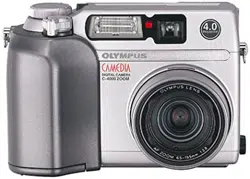
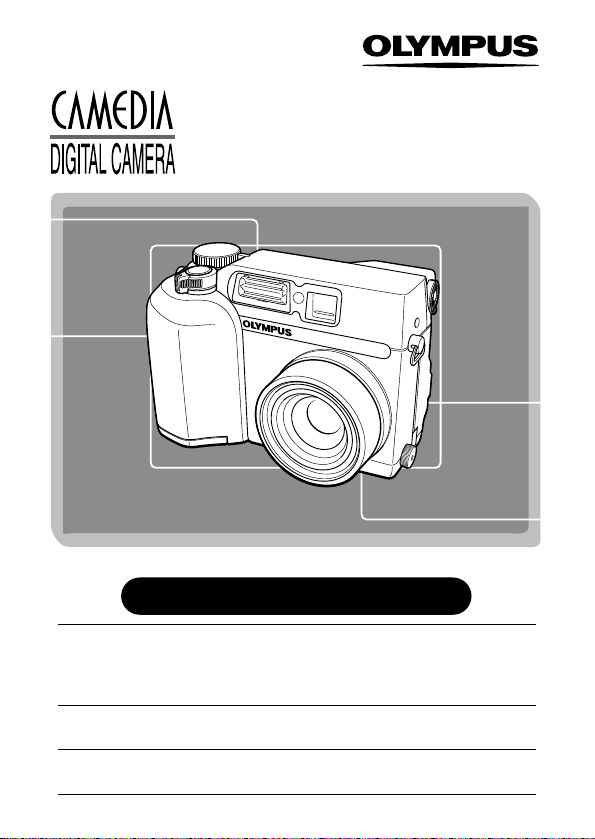
C-4000 ZOOM
Thank you for purchasing an Olympus digital camera. Before you
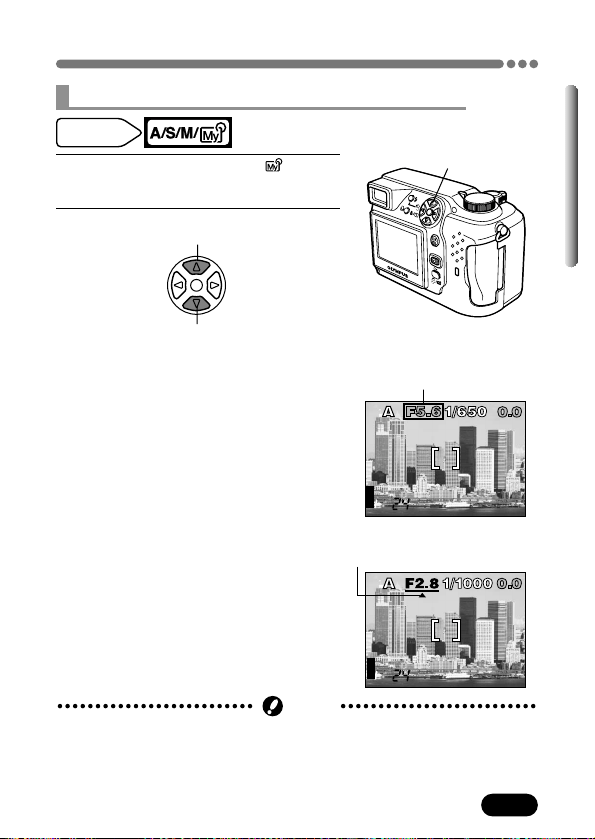
start to use your new camera, please read these instructions
carefully to enjoy optimum performance and a longer service life.
Keep this manual in a safe place for future reference.
We recommend that you take test shots to get accustomed to
your camera before taking important photographs.
The images and illustrations in this manual may differ from their
real versions.
REFERENCE MANUAL
2
For customers in Europe
“CE” mark indicates that this product complies with the European
requirements for safety, health, environment and customer
protection. “CE” mark cameras are intended for sales in Europe.
For customers in North and South America
Trademarks
• IBM is a registered trademark of International Business Machines
Corporation.
• Microsoft and Windows are registered trademarks of Microsoft Corporation.
• Macintosh is a trademark of Apple Computer Inc.
• All other company and product names are registered trademarks and/or
trademarks of their respective owners.
• The standards for camera file systems referred to in this manual are the
“Design Rule for Camera File System/DCF” standards stipulated by the
Japan Electronics and Information Technology Industries Association
(JEITA).
For customers in USA
Declaration of Conformity
Model Number : C-4000 ZOOM
Trade Name : OLYMPUS
Responsible Party : Olympus America Inc.
Address : 2 Corporate Center Drive, Melville, New York
11747-3157 U.S.A.
Telephone Number : 1-631-844-5000
Tested To Comply With FCC Standards
FOR HOME OR OFFICE USE
This device complies with Part 15 of the FCC rules. Operation is subject
to the following two conditions:
(1) This device may not cause harmful interference.
(2) This device must accept any interference received, including
interference that may cause undesired operation.
For customers in Canada
This Class B digital apparatus meets all requirements of the Canadian
Interference-Causing Equipment Regulations.
3
Contents ..........................................................................P. 4
Chapter 1
Getting started P. 18
Chapter 2
Quick-start guide P. 32
Chapter 3
Using the menus P. 38
Chapter 4
Shooting basics P. 47
Chapter 5
Advanced shooting P. 82
Chapter 6
Adjusting image quality and exposure P. 102
Chapter 7
Playback P. 117
Chapter 8
Useful functions P. 143
Chapter 9
Print setting P. 167
Chapter 10
Using optional accessories P. 177
Chapter 11
Miscellaneous P. 181

4
Contents
Names of parts ............................................................................10
Camera 10
Monitor indications — Shooting information 12
Monitor indications — Playback information 14
Still picture playback information 14
Movie playback information 15
Monitor indications
— Memory gauge & battery check 16
Memory gauge 16
Battery check 16
How to use this manual ................................................................17
Getting started 18
Attaching the strap ................................................................18
Loading the batteries ..............................................................19
Selecting optional batteries or AC adapter 20
Card basics ..........................................................................23
Inserting/removing the card 24
Power on/off ........................................................................25
Monitor appearance 25
Card check 26
Date/time setting ..................................................................27
Selecting a language..............................................................30
Adjusting the diopter..............................................................31
Holding the camera................................................................31
Chapter 1
Chapter 2
Quick-start guide 32
Taking still pictures ............................................................32
Recording movies ............................................................33
Viewing still pictures ........................................................34
Playing back movies ........................................................35
Protecting pictures ..........................................................36
Erasing pictures ................................................................37
5
Using the menus 38
What are the menus? ............................................................38
How to use the menu ............................................................39
Modes & short cut menus ......................................................41
Tabs & MODE MENU functions (shooting) ..............................42
Tabs & MODE MENU functions (playback) ............................45
Shooting basics 47
Shooting mode setting — Mode dial........................................47
mode setting 47
mode setting 48
Shooting modes 49
Aperture setting — Aperture priority shooting 53
Shutter speed setting — Shutter priority shooting 54
Aperture & Shutter speed setting — Manual shooting 55
Using My Mode 56
How to use the shutter button ................................................57
Focusing ..............................................................................58
Auto focus 58
When Auto focus does not work
— Subjects that are difficult to focus on 58
Focus lock — Focusing on subjects that are
not in the center of the frame 59
AF MODE — Changing the focus range 60
FULLTIME AF — Continuous focusing on moving subjects 61
AF AREA — Changing the position of
the AF target mark 62
Manual focus 63
Taking still pictures ..............................66
Taking still pictures while using the viewfinder 66
Taking still pictures while using the monitor 68
Recording movies ............................................................71
Chapter 3
Chapter 4
Contents
6
Zoom — Telephoto/Wide-angle shooting ..............................73
Digital zoom 74
Flash shooting ......................................................................75
Auto-flash 75
Red-eye reduction flash 75
Fill-in flash 75
Flash off 76
Slow Synchronization SLOW1, SLOW2, SLOW 76
Using the slow synchronization flash SLOW 78
Using the flash 78
Flash intensity control 81
Advanced shooting 82
Metering modes — Metering the subject brightness ..................82
Spot metering — Selecting the metering area 82
Multi-metering — Metering the exposure of more than
one point in the frame 83
AE lock — Locking the exposure ......................................86
Macro mode shooting — Taking close-up pictures ..............89
Super macro mode ..........................................................90
Self-timer shooting ............................................................91
Sequential shooting................................................................92
Sequential shooting & AF sequential shooting 92
Auto bracketing — Shooting pictures sequentially with a
different exposure for each frame BKT 93
Panorama shooting ................................................................96
Taking two-in-one pictures 2 IN 1............................................98
FUNCTION — Taking black & white or sepia-toned pictures....100
AEL
Chapter 4
Chapter 5
Contents
Adjusting image quality and exposure 102
Record mode ......................................................................102
Selecting record modes 102
3:2 106
ENLARGE SIZE 106
ISO sensitivity ......................................................................107
Exposure compensation ........................................................108
White balance ....................................................................109
AUTO (auto white balance) 110
PRESET (preset white balance) 110
(One-Touch white balance) 111
White balance adjustment 112
Sharpness............................................................................113
Contrast ..............................................................................114
Saturation............................................................................115
Noise reduction ..................................................................116
7
Chapter 6
Contents
Playback 117
Playing back still pictures ......................................................117
Single-frame playback 117
Quick View 118
Slide-show ..........................................................................119
Playing back movies — MOVIE PLAY ....................................120
MOVIE PLAYBACK 122
INDEX 124
EDIT 126
Close-up playback ..............................................................129
Index display ......................................................................130
Selecting the number of pictures 131
Editing still pictures ..............................................................132
Resizing pictures 132
Trimming pictures 133
Chapter 7

8
Useful functions 143
All reset — Saving the camera’s settings ..............................143
Custom button......................................................................145
Setting the custom button 146
Using the custom button 147
Shortcut ..............................................................................148
Setting the shortcut menu 149
Using the shortcut menu 150
MY MODE SETUP ........................................................151
Information display INFO ....................................................155
Monitor brightness adjustment ........................................156
Beep sound adjustment ..................................................156
Histogram display ..........................................................157
Rec View ............................................................................158
Power on/off display setting ................................................159
Screen setup ........................................................................160
File name ............................................................................162
Pixel Mapping ....................................................................164
Measurement units: m/ft (meters/feet) ..................................165
Video output selection ..........................................................166
Chapter 8
Contents
Protect ................................................................................136
Erasing pictures ..........................................................137
Single-frame erase 137
All-frame erase 138
Formatting cards ............................................................139
Playback on a TV ................................................................140
Picture rotation 142
Chapter 7
9
Miscellaneous 181
Troubleshooting....................................................................181
User maintenance ................................................................188
After use 188
Cleaning the camera 188
Error codes..........................................................................189
Menu maps ........................................................................191
Menu functions & factory default settings ............................199
Modes & Shooting functions..................................................201
Specifications ......................................................................204
Glossary of terms ................................................................206
Index ..................................................................................210
Chapter 11
Contents
Using optional accessories 177
External flash ......................................................................177
Using the FL-40 external flash 177
Using commercially available external flashes 178
Compatible commercially available external flashes 180
Chapter 10
Print setting 167
How to print pictures ............................................................167
All-frame print reserve ....................................................169
Single-frame print reserve ................................................170
Trimming setting ..................................................................173
Resetting print reserve ..........................................................176
Chapter 9
10
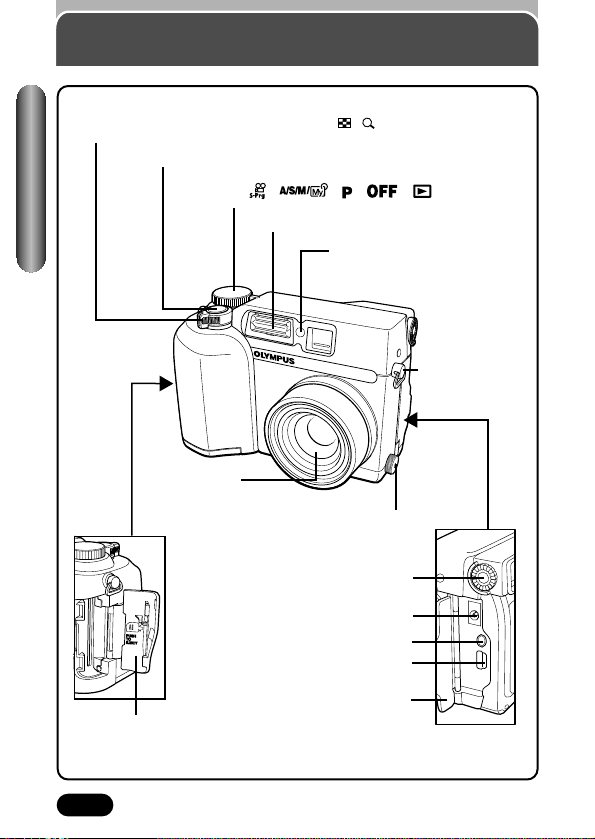
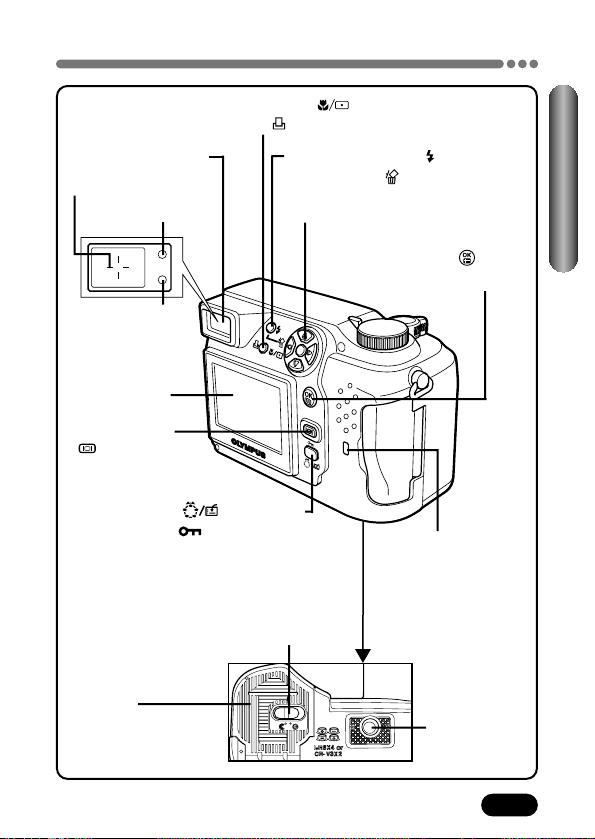
Flash (P. 75)
Self-timer lamp (P. 91)
Card cover
(P. 24)
Strap eyelet
(P. 18)
Lens
VIDEO OUT jack (P. 140)
Connector cover (P. 140)
USB connector
DC-IN jack (P. 21)
Camera
Mode dial ( , , , , ) (P. 47, 117)
Zoom lever (W/T) (P. 73)
Index display/Close-up playback lever ( / ) (P. 129, 130)
Shutter button (P. 57)
5-pin external flash socket (P. 177)
● Unscrew to remove the cover before
connecting the bracket cable.
Diopter adjustment dial (P. 31)
Names of parts
Quick View
11
Camera (Cont.)
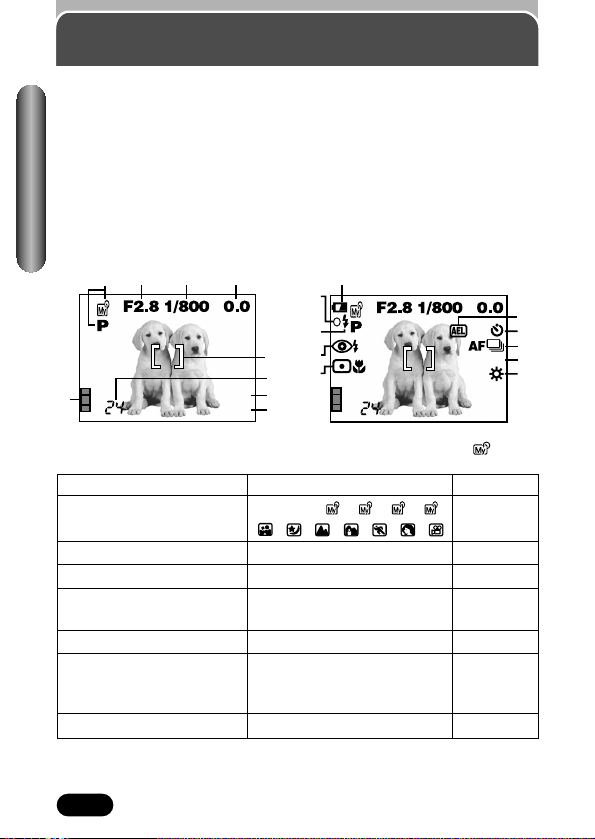
AF target mark (P. 31)
Orange lamp (P. 79)
Green lamp (P. 58)
Battery
compartment
cover (P. 19)
Battery compartment lock (P. 19)
Tripod socket
Names of parts
Macro/Spot button ( ) (P. 82, 89)
Print button ( ) (P. 169)
Flash mode button ( ) (P. 78)
Erase button ( ) (P. 37, 137)
Viewfinder (P. 31)
Card access lamp
(P. 67)
Monitor (P. 12)
Arrow pad (
ÑñÉí) (P. 39, 117)
Custom button ( ) (P. 47, 145)
Protect button ( ) (P. 136)
Rotation button (P. 142)
OK/Menu button ( ) (P. 38)
Manual focus button (P. 63)
Monitor button
( ) (P. 69)
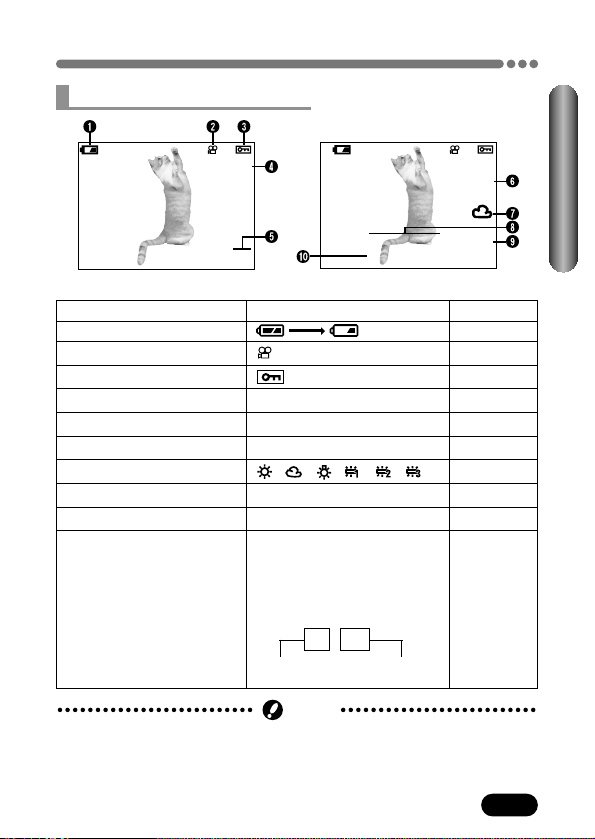
12
Monitor indications
— Shooting information
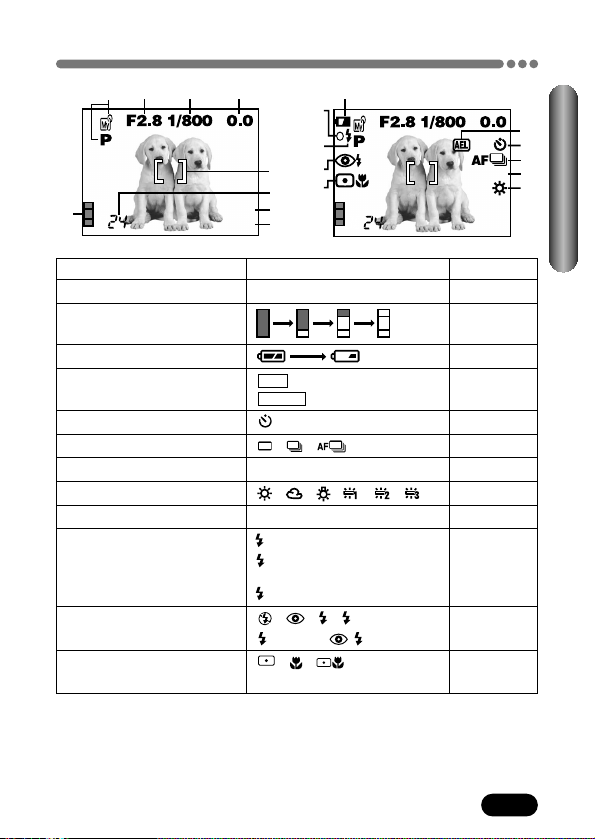
The INFO setting on the menu allows you to select how much information to
display.
~ Information display (P. 115)
The indications vary depending on the shooting mode.*
*The illustrations show examples of
indications displayed in the 1 mode.
Names of parts
When INFO is set to OFF: The
information below is displayed
constantly in the shooting mode. (After
operating the buttons or closing the
menu, the information which appears
in the ON mode (illustrated to the right)
is displayed for approx. 1 second, then
disappears.)
When INFO is set to ON: The
information below is displayed
constantly in the shooting mode.
12 3 4
5
6
7
8
9
1
HQ
2288x1712
^
0
@
!
%
#
$
&
*
(
1
HQ
2288x1712
ISO100
SLOW1
Items Indications Ref. page
1 Shooting mode P, A, S, M, , , , , P. 47
, , , , , ,
2 Aperture value F2.8 – F11 P. 53, 55
3 Shutter speed 16 – 1/1000 P. 54, 55
4 Exposure compensation –2.0 – +2.0 P. 108
Exposure differential –3.0 – +3.0 P. 56
5 AF target mark – P. 62
6 Number of storable 24 P. 69, 71,
still pictures 103
Seconds remaining 24"
7 Record mode TIFF/SHQ/HQ/SQ1/SQ2 P. 102
4
3
2
1
13
Monitor indications — Shooting information (Cont.)
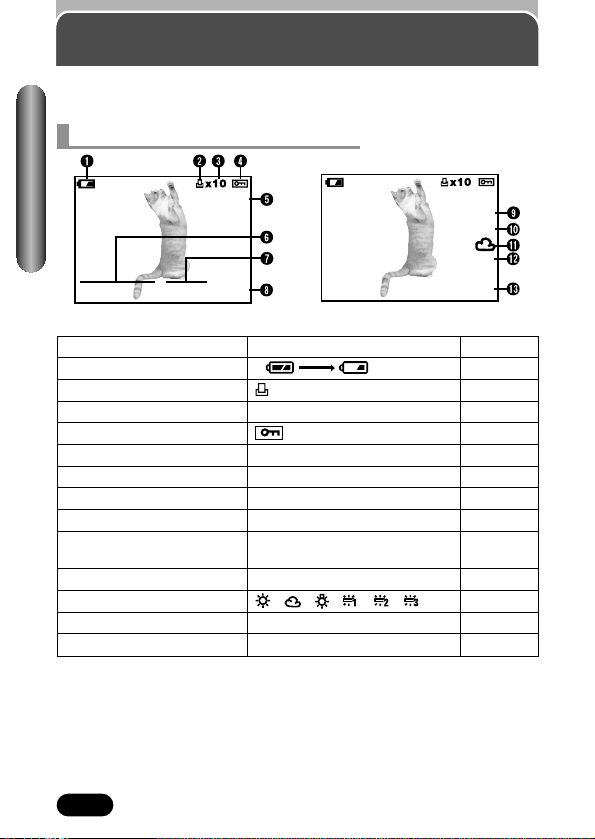
Items Indications Ref. page
8 Number of pixels 2288 x 1712, etc. P. 103
9 Memory gauge P. 16
0 Battery check P. 16
! AE lock AEL P. 84, 87
AE memory MEMO P. 88
@ Self-timer P. 91
# Drive mode , , , BKT P. 92
$ ISO ISO100, ISO200, ISO400 P. 107
% White balance , , , , , P. 110
^ Green lamp O P. 58
& Flash stand-by Lights. P. 80
Camera movement Blinks.
warning
Flash charge Blinks.
* Flash mode , , , SLOW1, P. 75
SLOW2, SLOW1
( Spot metering/ , , P. 82, 89
Macro mode
Names of parts
12 3 4
5
6
7
8
9
1
HQ
2288x1712
^
0
@
!
%
#
$
&
*
(
1
HQ
2288x1712
ISO100
SLOW1
14
Items Indications Ref. page
1 Battery check P. 16
2 Print reserve P. 171
3 Number of prints x2 – x10 P. 171
4 Protect P. 136
5 Record mode TIFF, SHQ, HQ, SQ1, SQ2 P. 102
6 Date ’02. 09. 12 P. 27
7 Time 12:30 P. 27
8 Frame number 20 –
9 Number of pixels 2288x1712, etc. P. 103
(resolution setting)
0 Exposure compensation –2.0 – +2.0 P. 108
! White balance , , , , , P. 110
@ ISO ISO100, ISO200, ISO400 P. 107
# File number 100 – 0020 P. 162
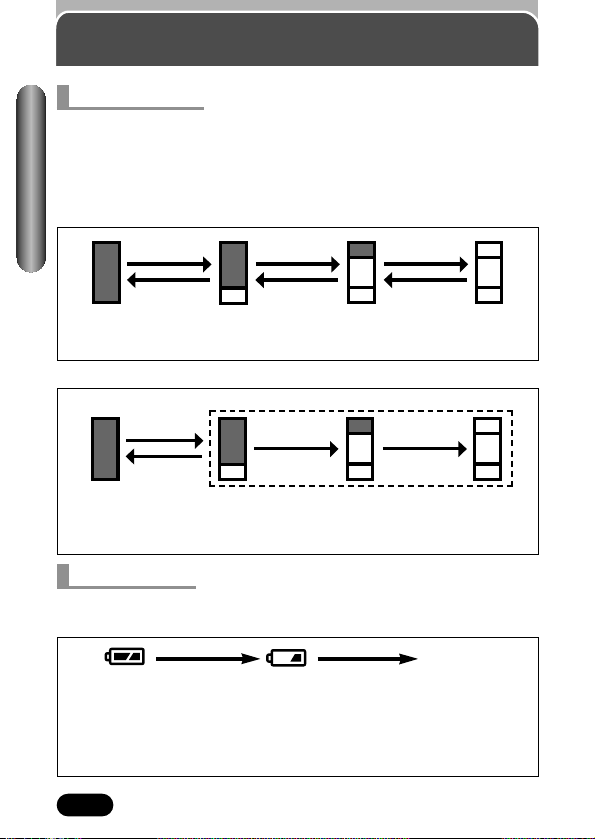
Monitor indications
— Playback information
INFO setting on the menu allows you to select how much information to
display.
~ Information display (P. 115)
Still picture playback information
Names of parts
When INFO is set to OFF When INFO is set to ON
’02.09.12 12:30 20
HQ
HQ
SIZE: 2288x1712
+2.0
ISO100
’02.09.12 12:30
FILE: 100–0020
15
Monitor indications — Playback information (Cont.)
Items Indications Ref. page
1 Battery check P. 16
2 Movie mark P. 35
3 Protect P. 136
4 Record mode HQ, SQ P. 102
5 Frame number 20 –
6 Number of pixels 320x240, etc. P. 103
7 White balance , , , , , P. 110
8 Date ’02. 09. 12 P. 27
9 Time 12:30 P. 27
0 File number FILE:100 – 0020 P. 163
Recording time 0"/15" P. 71
During movie playback, the
recording time appears as
follows:
● The indications that appear on a movie picture that has been selected and
displayed from the index display are different from those that appear when
the movie picture is displayed using the movie play function (P. 117, 120).
Note
Total recording
time
0" / 15"
Playing time
Names of parts
When INFO is set to OFF When INFO is set to ON
Movie playback information
20
HQ
HQ
SIZE: 320x240
’02.09.12 12:30
FILE: 100–0020
16
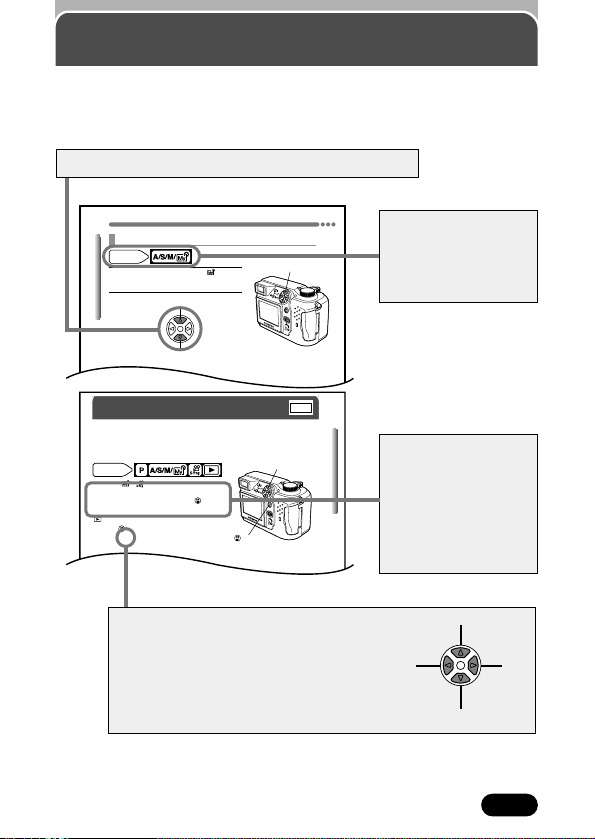
Monitor indications
— Memory gauge & battery check
If the remaining battery power is low, the battery check indication changes as
follows when the camera is turned on or while the camera is in use.
Battery check
Lights.
(green)
Remaining power
level: high
Lights.
(red)
Remaining power level:
low. Replace with new
batteries.
No indication
(The green lamp and
orange lamp next to the
viewfinder blink.)
Remaining power level:
exhausted. BATTERY
EMPTY is displayed.
Replace with new batteries.
Memory gauge
The memory gauge lights when you take a picture. When the gauge is lit, the
camera is storing a picture on the SmartMedia card. The memory gauge
indication changes as shown below depending on the shooting status. When
the memory gauge is full, wait until the light goes out before you take any
more shots.
When taking still pictures
Before shooting
(Gauge is off)
One picture
taken
(Lit)
More than
two taken
(Lit)
No more pictures
can be taken
(Fully Lit)
Shoot. Shoot. Shoot.
Wait.Wait.
Wait.
When recording movies
During shooting (Gauge lit).
● Shooting is not possible until the light goes out completely.
● Movie recording finishes automatically when the memory
gauge is fully lit.
Shoot.
If you continue shooting
Wait.
Before shooting
(Gauge is off)
Names of parts
17
Chapter 4
Shooting mode setting — Mode dial (Cont.)
1
Select S from “A/S/M/ mode
setting”. See P. 48.
2
To set a faster shutter speed,
press
Ñ.
To set a slower shutter speed,
press
ñ.
Mode dial
setting
Shutter speed setting — Shutter priority shooting
Ññ buttons
Chapter 8
Information display
Lets you select the amount of shooting information displayed in the shooting
or playback mode. When it is set to OFF, only a small amount of information
is displayed. For details on each piece of information displayed, see pages 12
to 15.
Mode dial
setting
P A/S/M/ :
In the top menu, select MODE MENU T
SETUP T INFO T ON. Press . Press
again to cancel the menu.
:
Press to display the top menu.
Pressing
É turns INFO on.
~ “How to use the menu” (P. 39)
Ébutton
button
INFO
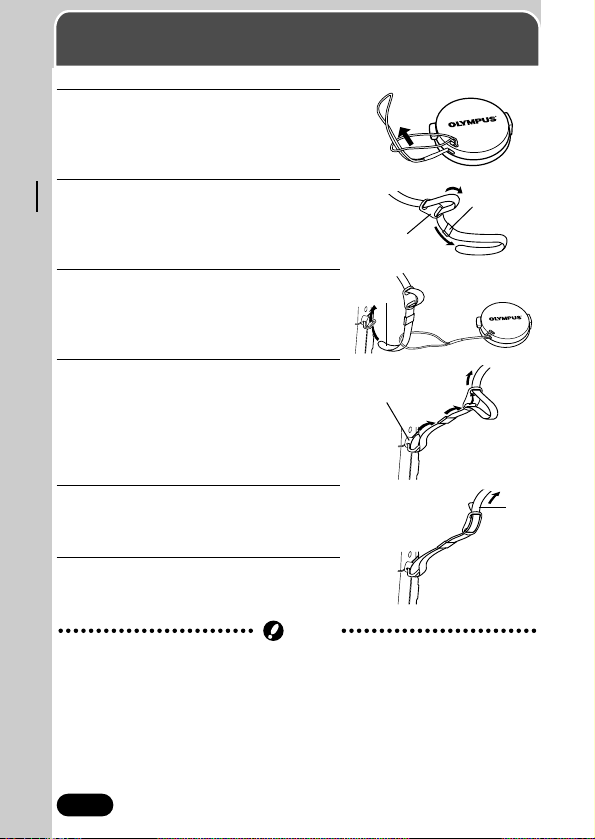
How to use this manual
The instructions in this manual use a series of numbers for each operating
procedure and button/dial illustration. Follow these numbers in order when
operating the camera.
If a button is shown in black, press it as part of the step.
Ñ, ñ, É and í used in instructions
correspond to the buttons on the arrow pad
as shown.
Ñ
ñ
É
í
● This sample page is only for your reference. It may differ from the actual page in
this manual.
How to use the menu
is shown here. Set the
functions in the menus
in the order of these
arrows. Before using
the menus, read
“Using the menus”,
Chapter 3 for details.
Show the modes that
the function can be
used with. You can set
the mode dial to any of
the positions shown.
18
1
Attach the string to the lens cap: Pull
the string loop through the hole in the
lens cap. Put the other end of the
string through the string loop.
2
Loosen the strap in both stoppers. Pull
out the ends of the strap from each
stopper, then pull them out of each
ring.
3
Thread one end of the strap A through
the string loop (attached to the lens cap
in step 1). Then, thread it through the
camera’s strap eyelet.
4
Thread the end of the strap back
through the ring and stopper as
indicated by the arrows.
5
When you have a length that you like,
pull on the strap in the stopper
B to
make sure it is securely fastened.
6
Attach the strap to the other strap eyelet
following steps 3 – 5.
Attaching the strap
Strap eyelet
● Be careful with the strap when you carry the camera, as the strap can easily
catch on stray objects, causing serious damage.
● Attach the strap correctly as shown so that the camera does not fall off. If
the strap is attached incorrectly and the camera falls off the strap, Olympus
is not responsible for any damages.
Note
A
Ring
B
Chapter 1
Getting started
Stopper
19
Chapter 1
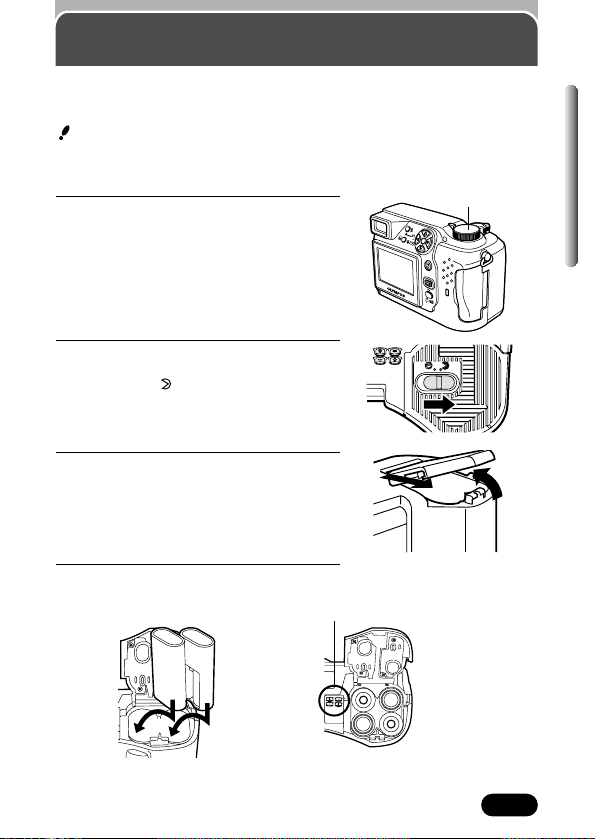
1
Make sure the camera is turned off (i.e.
the mode dial is set to OFF).
2
Slide the battery compartment lock on
the battery compartment cover in the
direction of .
3
Slide the battery compartment cover in
the direction of the arrow (
A
) with
your fingertip and open it (
B
).
● Do not use your fingernail, as this could
result in injury.
4
Insert the batteries in the direction
shown in the illustration.
Loading the batteries
This camera uses 2 CR-V3 lithium battery packs or 4 AA (R6) NiMH batteries,
NiCd batteries, alkaline batteries or lithium batteries.
Important:
● CR-V3 lithium battery packs cannot be re-charged.
● Do not peel the label on a CR-V3 lithium battery pack.
When using AA
(R6) batteries
When using
CR-V3 lithium
battery packs
Battery alignment
Mode dial
A
B
20
Chapter 1
Loading the batteries (Cont.)
● If the camera is left for 1 hour with the batteries removed, all the internal
settings will revert to the default settings.
● If the terminals inside the battery compartment are dirty, it will noticeably
shorten the life of the batteries. Do not touch the inside of the battery
compartment as this may cause the terminals to become dirty.
Note
The following types of battery or AC adapter can be used. Choose the power
source best suited to the situation.
Lithium battery pack
Since the CR-V3 lithium battery pack has an exceptionally long service life, it
is convenient when traveling. The CR-V3 lithium battery pack cannot be
recharged.
Rechargeable batteries
Olympus NiMH batteries are rechargeable and economical. In addition, the
low-temperature resistance makes them a good choice for cold areas.
Selecting optional batteries or AC adapter
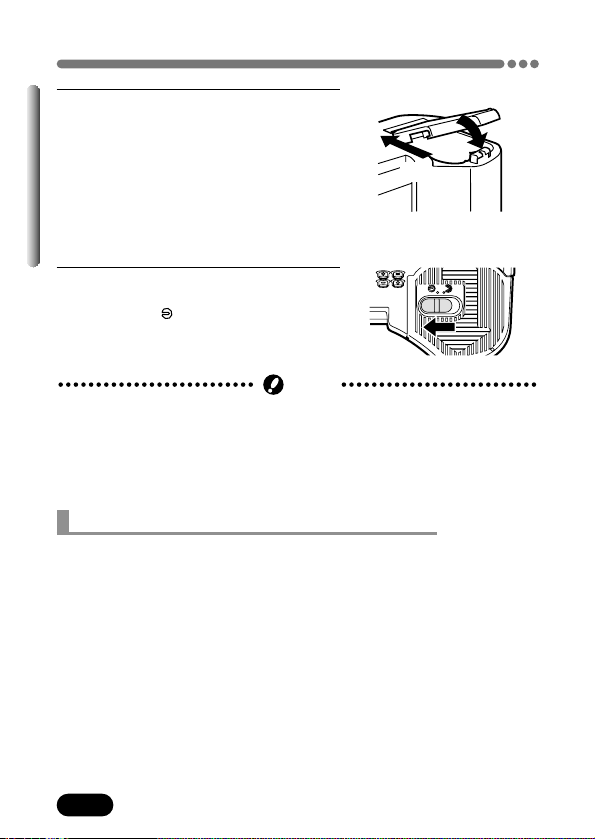
5
Close the battery compartment cover,
then press it down (
C
) and slide it in
the opposite direction of the arrow
printed on it (
D
).
● When pressing the battery compartment
cover shut, be sure to press the center
of the cover, as it may be difficult to
close properly by pressing the edge.
● Make sure the cover is completely
closed.
6
Slide the battery compartment lock on
the battery compartment cover in the
direction of .
C
D
21
Chapter 1
Loading the batteries (Cont.)
AA (R6) alkaline batteries
When you need batteries in a hurry, you can use AA (R6) alkaline batteries,
which are easy to obtain anywhere. However, the number of pictures that you
can store in the camera may vary considerably with AA alkaline batteries,
depending on the battery manufacturer, camera shooting conditions, etc. Use
this type of battery only when you have no other choices available. Turn off
the monitor whenever possible to save power.
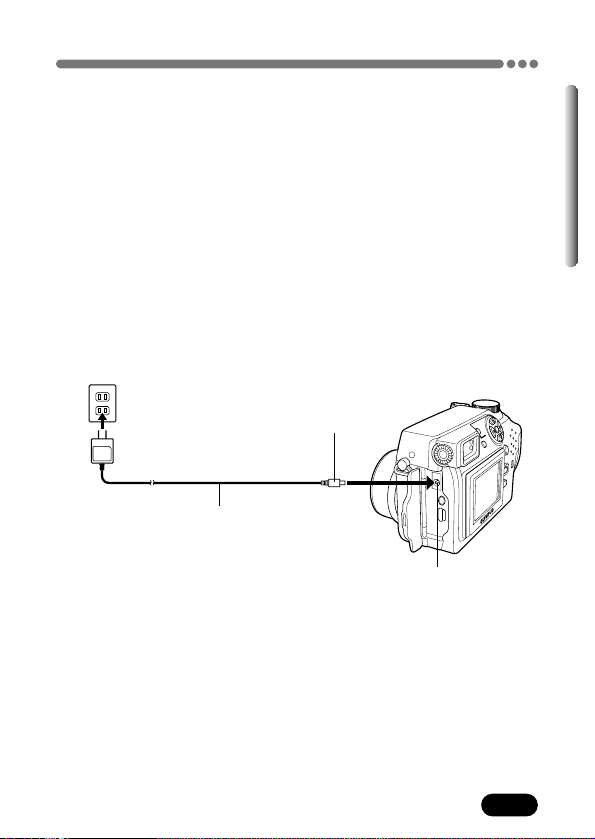
AC adapter
An optional Olympus CAMEDIA-brand AC adapter allows you to power your
digital camera from a common AC wall outlet. Be sure to use the specified AC
adapter. An AC adapter is useful for time-consuming tasks such as image
downloads.
Use an AC adapter designed to operate on the AC voltage in the area the
camera is being used.
Consult your nearest Olympus dealer or Service center for details.
Power plug
AC adapter
AC wall outlet
DC-IN jack (Black)
Connection cord plug

22
Chapter 1
Loading the batteries (Cont.)
● Manganese (zinc-carbon) batteries cannot be used.
● The lives of battery packs may vary according to the type of battery,
manufacturer, camera shooting conditions, etc.
● If the battery power runs out while the camera is connected to a PC, image
data will be corrupted. It is recommended that you use the optional AC
adapter when transferring images to a PC. Do not disconnect or connect
the AC adapter while the camera is communicating with the PC.
● Power is consumed continuously during the conditions described below.
This could reduce the number of pictures that can be taken.
•When the monitor is turned on.
•Repeated auto-focus by depressing the shutter button halfway.
•Repeated power zoom adjustments.
•When the Fulltime AF mode is turned on.
•When the monitor is in the playback mode for an extended period of time.
•When communicating with a PC.
● Carefully read the “GENERAL PRECAUTIONS” included in the package
and the AC adapter’s instructions before use.
● When using an AC adapter, power is supplied to the camera by the AC
adapter even if batteries are loaded in the camera. The AC adapter does
not charge batteries that may be in the camera; it only provides power to
the camera.
● Do not remove or load batteries and/or do not disconnect or connect the AC
adapter while the camera is turned on. Doing so could damage the
camera’s settings or functions.
Note
23
Chapter 1
Card basics
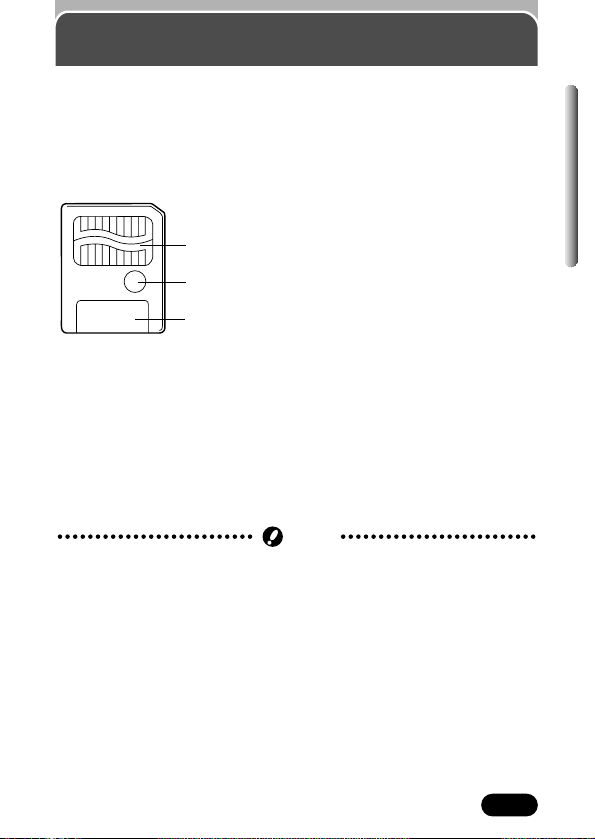
This camera uses SmartMedia to record pictures. This reference manual
uses the term “card” when referring to SmartMedia.
What is SmartMedia?
Images recorded and stored on SmartMedia can easily be deleted,
overwritten, and/or edited on a PC.
Compatible SmartMedia cards
● Provided 16 MB standard card
● Optional Olympus CAMEDIA-brand cards (4 MB – 128 MB; all cards except
2MB)
● Commercially-available 3 V (3.3 V) cards (4 MB – 128 MB; all cards except
2MB)
1 Contact area
Comes into contact with the camera’s signal
read contact.
2 Write-protect area
Attach the provided write-protect seal when you
want to protect your data from accidental
erasure or overwriting. Do not attach the write-
protect seal if you want to record images on a
card.
3 Index area
Use the provided index label to indicate the
card’s contents.
1
2
3
● 2 MB cards cannot be used.
● Commercially-available 5 V cards cannot be used.
● This camera may not recognize a non-Olympus card (such as 3 V (3.3 V))
or a card that was formatted on another device (such as PC, etc.). Before
use, be sure to format the card on this camera (P. 26, 139).
● Operating temperature: 0°C to 55°C (32°F to 131°F); Storage temperature:
–20°C to 65°C (–4°F to 149°F); Humidity: up to 95 %
● Put the card into its anti-electrostatic case for storage or transportation.
● Do not bend, drop, or apply any physical shock to the card.
● Read the provided card instruction manual carefully before use.
● Do not touch the contact area of the card.
Note
24
Chapter 1
Card basics (Cont.)
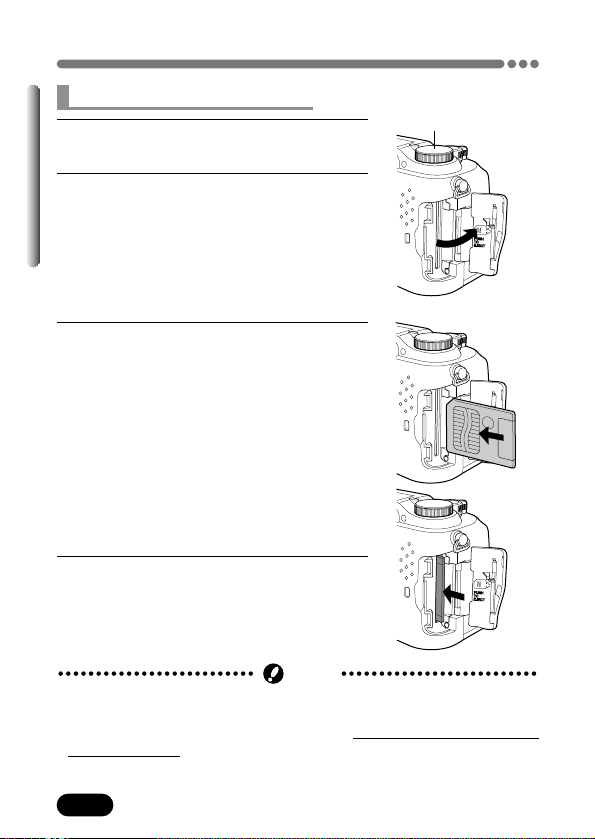
1
Make sure the camera is turned off (i.e. the
mode dial is set to OFF).
2
Open the card cover.
3
Inserting the card
Insert the card fully with the contact area
facing towards the monitor side. Insert
until you feel it locked into place.
● Hold the card in a straight orientation to the
card slot. Do not attempt to insert the card at
an angle.
● Note the orientation of the card. If it is
inserted incorrectly, it may become jammed.
Removing the card
Push in the card lightly to unlock it, then
pull it out.
4
Close the card cover securely until it
clicks.
Inserting/removing the card
● Never open the card cover, eject the card, remove the batteries, or
disconnect the optional AC adapter while the camera is in use or the
camera is communicating with a computer. Doing so could destr
oy all
data on the card.
● Destroyed data cannot be restored.
Note
Mode dial
25
Chapter 1
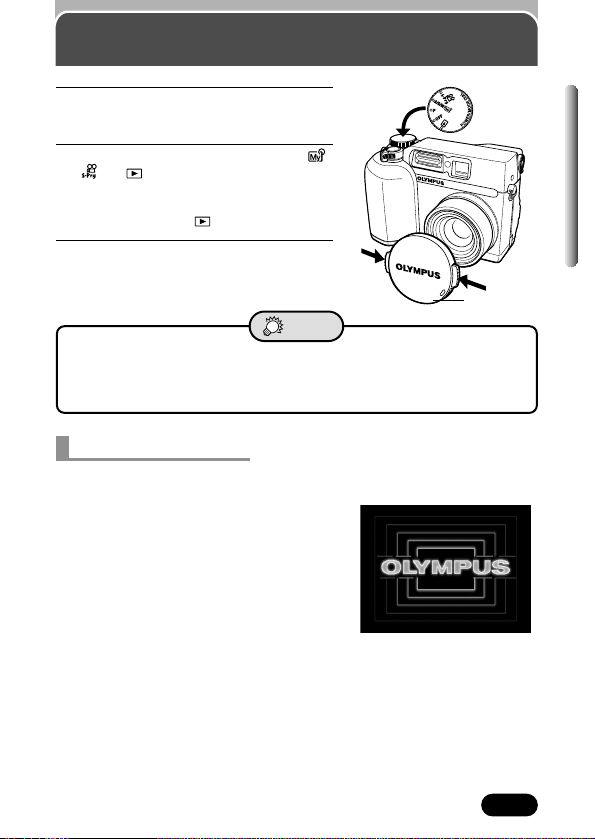
1
Before turning the camera on, press
the tabs on the lens cap to remove it.
2
Set the mode dial to P, A/S/M/ ,
or .
● The camera turns on.
● The lens moves out when the mode
dial is not set to .
.
3
Set the mode dial to OFF.
● The power turns off.
Power on/off
Lens cap
● To save battery power, the camera automatically enters the Sleep mode
after about 3 minutes of non-operation. The camera activates again as
soon as you touch the zoom lever or mode dial, etc.
TIPS
Monitor appearance
When the power is turned on/off, a
startup/shutdown image is displayed on the
monitor.
You can select your favorite image for this
function (P. 160).
Startup/Shutdown image
(factory default setting)
Mode dial
26
Chapter 1
Power on/off (Cont.)
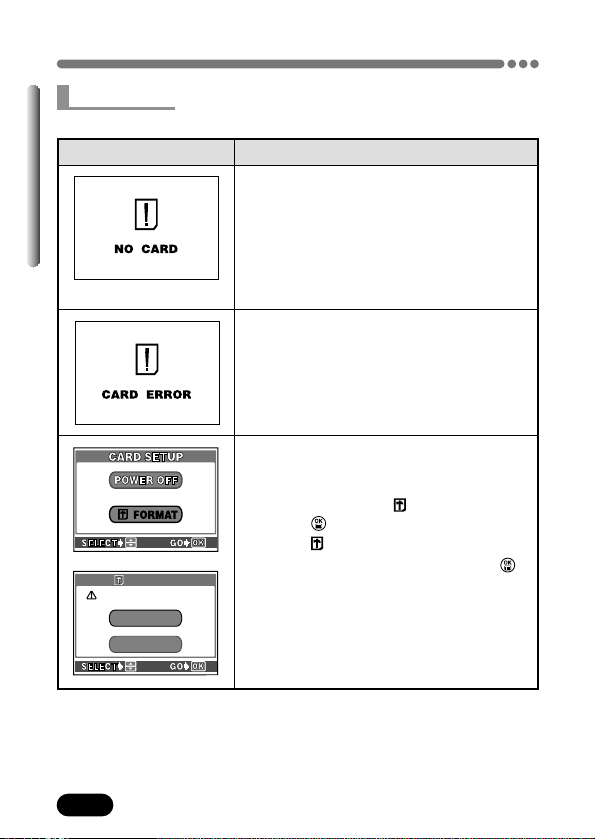
When the power is turned on, the camera checks the card automatically.
Indications TIPS
There is no card in the camera or the card
is not locked into place.
T Insert a card. If a card is already inserted,
remove it and insert it again.
There is a problem with the card.
T Use a different card.
The card cannot record, play back or erase
pictures.
T Format the card.
1 Press ñ to select FORMAT, then
press .
● The FORMAT screen appears.
2 Press Ñ to select YES, then press
to start formatting.
● When formatting is complete, the
camera is ready for shooting.
● Formatting erases all data saved on the
card.
FORMAT
YES
NONO
CAUTION ERASING ALL
Card check
27
Chapter 1
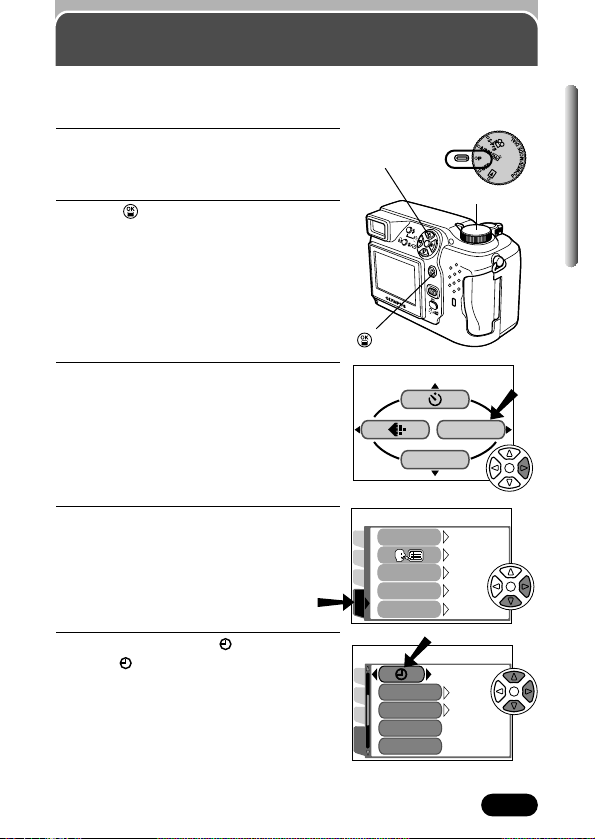
1
Set the mode dial to P.
● Be sure to take off the lens cap before
you turn the camera on (P. 25).
2
Press .
● The monitor turns on automatically and
the top menu appears.
3
Press í on the arrow pad to select
MODE MENU.
4
Press ñ to select SETUP, then press
í.
● The items in the SETUP menu appear.
5
Press Ññ to select , then press í.
● The screen appears.
Date/time setting
It is possible to set the date/time of the camera’s built-in clock. Since the date
and time is saved with recorded pictures, be sure to set it correctly.
Mode dial
Arrow pad
button
DRIVE
MODE MENU
SETUP
CAM
CARD
PIC
ENGLISHENGLISH
ONON
1
1
ONON
PW ON SETUPPW ON SETUP
ALL RESET
REC VIEW
PW OFF SETUPPW OFF SETUP
SETUP
CAM
CARD
PIC
VIDEO OUT
CUSTOM BUTTONCUSTOM BUTTON
m/ftm/ft
’02.01.01
00:00
m
NTSCNTSC
SHORT CUT
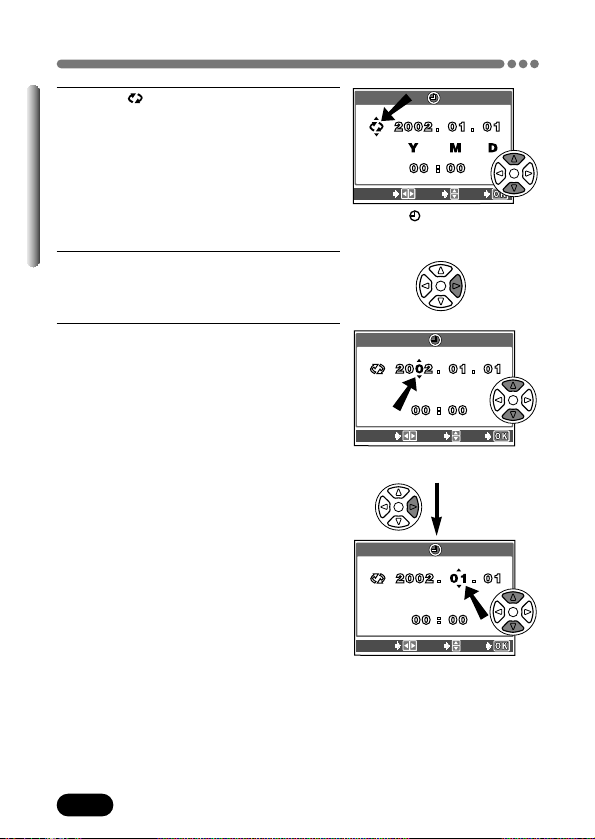
28
Chapter 1
Date/time setting (Cont.)
6
When is selected on the screen,
press
Ññ to select the date format.
● Select any one of the following formats:
D-M-Y (Day/Month/Year)
M-D-Y (Month/Day/Year)
Y-M-D (Year/Month/Day)
● This step and the following steps show the
procedure used when the date and time
settings are set to Y-M-D.
7
Press í to move to the year (Y)
setting.
8
Press Ññ to set the year. When the
year is set, press
í to move to the
month (M) setting.
● Repeat this procedure until the date and
time are completely set.
● To move back to the previous setting,
press
É.
● The camera can only display the time in
“number of hours”, or what is commonly
known as military time. Consequently, 2
p.m. would be 14:00 hours, or 12:00 hours
+ 2:00 hours =14:00 hours.
SELECT
SET
GO
SELECT
SET
GO
The first two digits of the year
cannot be changed.
screen
SELECT
SET
GO
29
Chapter 1
Date/time setting (Cont.)
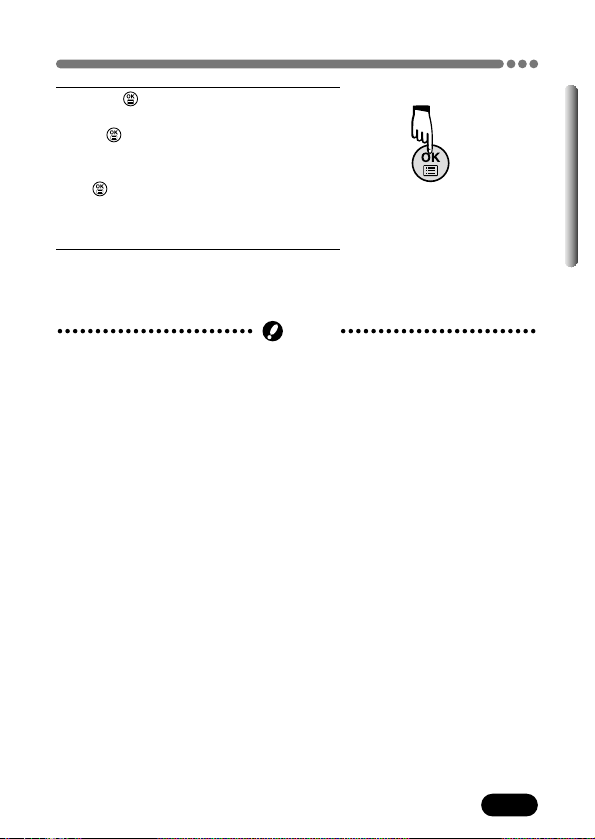
9
Press .
● The camera returns to the SETUP menu.
● If is pressed again, the menu will
disappear.
● For a more accurate setting, do not press
until the time is actually at 00 seconds.
The camera’s built-in clock starts when
you press this button.
10
To turn the camera off, set the mode
dial to OFF.
● The lens retracts.
● The current settings stay the same even when the power is turned off,
unless they are readjusted.
● The date setting will be canceled if the camera is left with no batteries for
approximately 1 hour. If this happens, you will need to set the date again.
Note
30
Chapter 1
Selecting a language
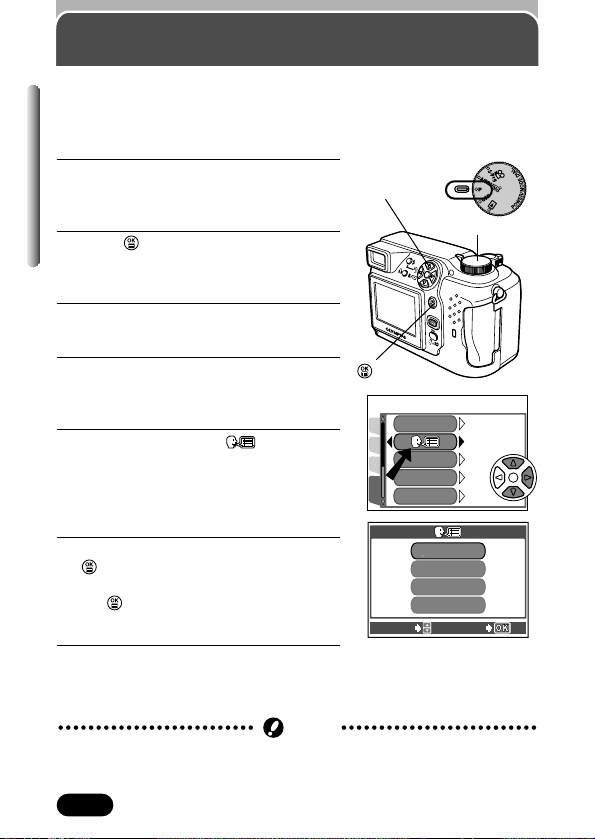
1
Set the mode dial to P.
● Be sure to take the lens cap off before
you turn the camera on (P. 27).
2
Press .
● The monitor turns on automatically and
the top menu appears.
3
Press í on the arrow pad to select
MODE MENU.
4
Press ñ to select SETUP, then press
í.
● The items in the SETUP menu appear.
5
Press Ññ to select , then press
í.
● The available languages are displayed.
● Languages vary depending on the area of
purchase.
6
Press Ññ to select a language. Press
.
● The camera returns to the SETUP menu.
● If is pressed again, the menu will
disappear.
7
To turn the camera off, set the mode
dial to OFF.
Factory default setting: ENGLISH
Select a language for on-screen display. This reference manual shows the
English on-screen display in illustrations and explanations.
Available languages vary depending on the area where you purchased this
camera.
● The current settings are retained even when the power is turned off, unless
they are readjusted.
Note
Mode dial
Arrow pad
button
SETUP
CAM
CARD
PIC
ENGLISHENGLISH
ONON
PW ON SETUPPW ON SETUP
ALL RESET
REC VIEW
PW OFF SETUPPW OFF SETUP
ONON
1
1
ENGLISH
FRANÇAIS
DEUTSCH
ESPAÑOL
SELECT
GO
31
Chapter 1
Adjusting the diopter
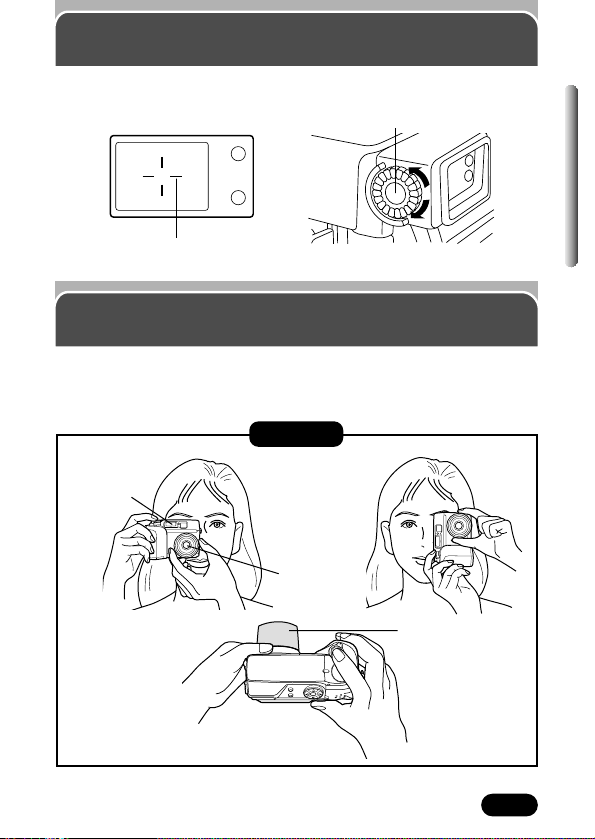
Hold the camera firmly with both hands while keeping your elbows at your
sides to prevent the camera from moving. Keep your fingers and the strap
away from the lens and flash.
Correct
Horizontal grip Vertical grip
Lens
Do not hold this part
of the lens.
Top view
Holding the camera
Flash
Turn the diopter adjustment dial to see the AF target mark clearly.
Viewfinder
AF target mark
Diopter adjustment dial
32
Chapter 2
Quick-start guide
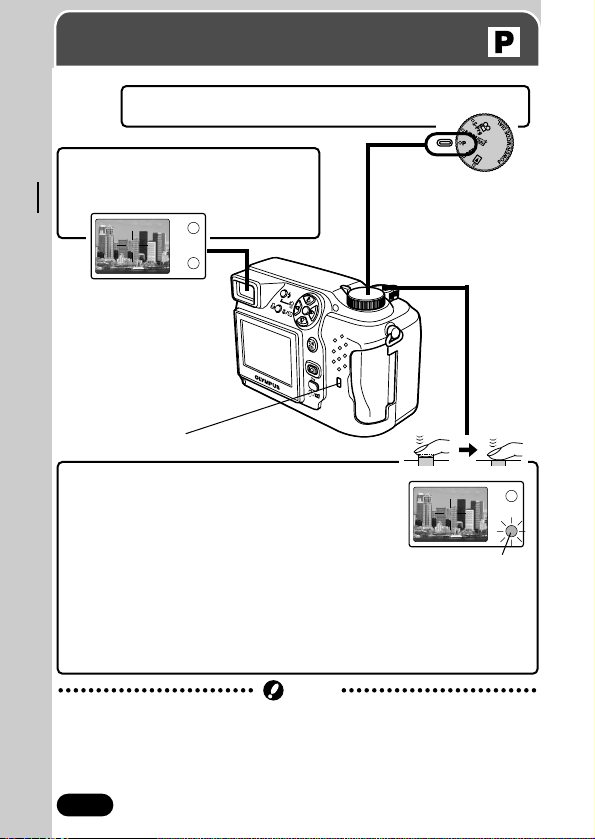
Point the camera towards a
subject while viewing through the
viewfinder.
2
To focus on the subject, press the shutter
button halfway, slowly and gently.
● When the subject is in focus, the green lamp lights
steadily.
~ “How to use the shutter button”
(P. 57)
To start shooting, press the shutter button gently all the way
(fully).
● When the orange lamp lights, the flash fires automatically when required.
● The card access lamp blinks and the camera begins storing pictures on
the card.
Taking still pictures
Remove the lens cap and set the mode dial to P.
1
3
4
Card access lamp
● Never open the card cover, eject the card, remove the batteries, or
disconnect an optional AC adapter when the card access lamp is blinking.
Doing so could destroy stored pictures and prevent storage of pictures you
have just taken.
Note
Green lamp
33
Chapter 2
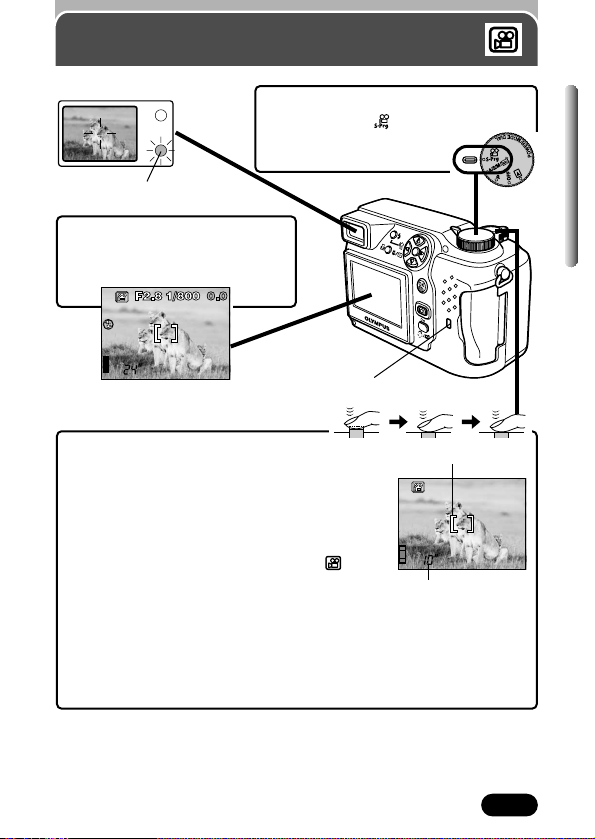
Press the shutter button halfway.
● When the subject is in focus, the green lamp
blinks once.
Press the shutter button all the way to start
recording.
● During movie recording, the orange lamp next
to the viewfinder is illuminated and lights
in red on the monitor.
Press the shutter button all the way again to stop recording.
● The card access lamp blinks and the camera starts writing the movie to
the card.
● If the displayed seconds remaining reach “0”, shooting finishes
automatically and the camera starts writing the movie to the card (P. 71).
3
4
5
Recording movies
Seconds remaining
Remove the lens cap and set the
mode dial to
.
● The monitor
turns on.
1
Point the camera towards a
subject while viewing with the
monitor.
2
HQHQ
320x240320x240
AF target mark
Card access lamp
Green lamp
Viewfinder
34
Chapter 2
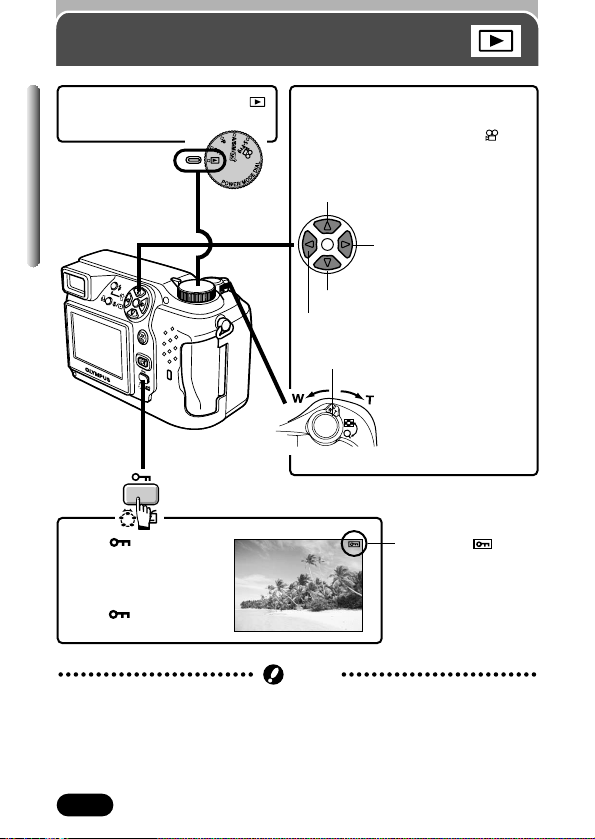
Display the desired pictures
using the arrow pad.
● Pictures indicated by are
movie frames.
~ “Playing back
movies” on page 120.
2
Jumps to the picture 10 frames behind.
Displays the next picture.
Displays the previous picture.
Jumps to the picture 10 frames ahead.
Viewing still pictures
Set the mode dial to
(playback mode).
1
Zoom lever
Turning the zoom
lever towards
T:
Enlarges the
picture (P. 129).
W:
Displays multiple
pictures at the
same time (P. 130).
● If the camera is not operated for over 3 minutes when the monitor is on, the
monitor turns off automatically. To turn the monitor on again, press any
button.
Note
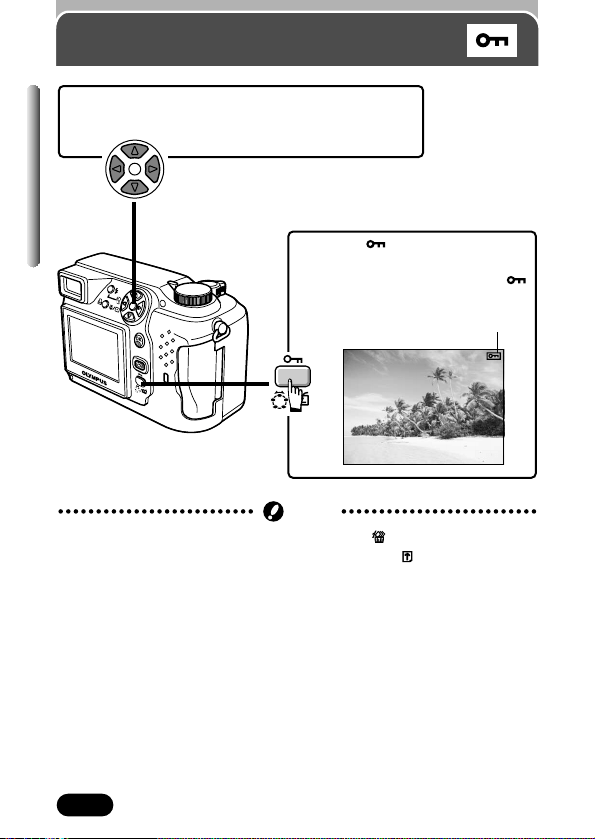
Press to avoid
accidentally erasing
images.
To cancel protection,
press again (P. 136).
HQ
Protect mark
35
Chapter 2
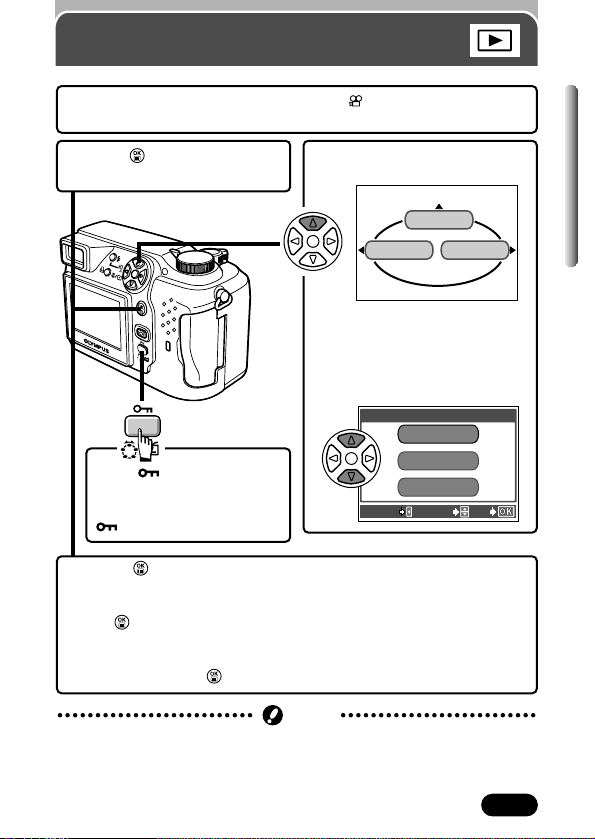
Press Ñ on the arrow pad to
select MOVIE PLAY.
Press
Ññ to select MOVIE
PLAYBACK on the MOVIE
PLAY screen.
● To exit the MOVIE PLAY
screen, press
É.
3
Playing back movies
MODE MENU
MOVIE PLAY
INFO
MOVIE PLAMOVIE PLAY
CANCEL SELECT
GO
MOVIE PLAYBACK
INDEX
EDIT
Display the movie frame (picture with ) you want to play back.
~ See steps 1 and 2 on page 34.
1
4
Press to start playback.
● When playback finishes, the screen returns to the beginning of the
movie.
● If is pressed again when the movie playback is finished, the
MOVIE PLAYBACK screen appears. To exit the movie playback
mode and return to the MOVIE PLAY screen, press
Ññ to select
EXIT, then press .
5
Press .
● The top menu appears.
2
Press to avoid
accidentally erasing images.
To cancel protection, press
again (P. 136).
● The card access lamp blinks while movie data is being accessed. This may
take a few seconds.
Note
36
Chapter 2
Protecting pictures
Display the picture you want to protect by using
the arrow pad.
~ See steps 1 and 2 on page 34.
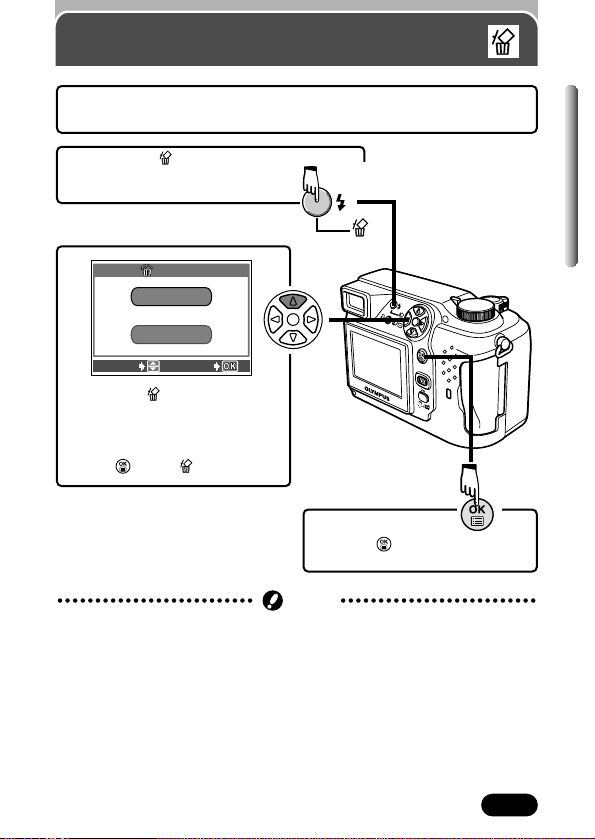
1
Press . The picture is now
protected.
● To cancel protection, press
again.
2
Displayed when a picture is protected.
HQ
● Protected pictures cannot be deleted with the ALL ERASE (all-frame
erase) function, but they can be deleted with the FORMAT (format)
function.
● Protection cannot be applied to pictures stored on a card with a write-
protect adhesive seal.
Note
37
Chapter 2
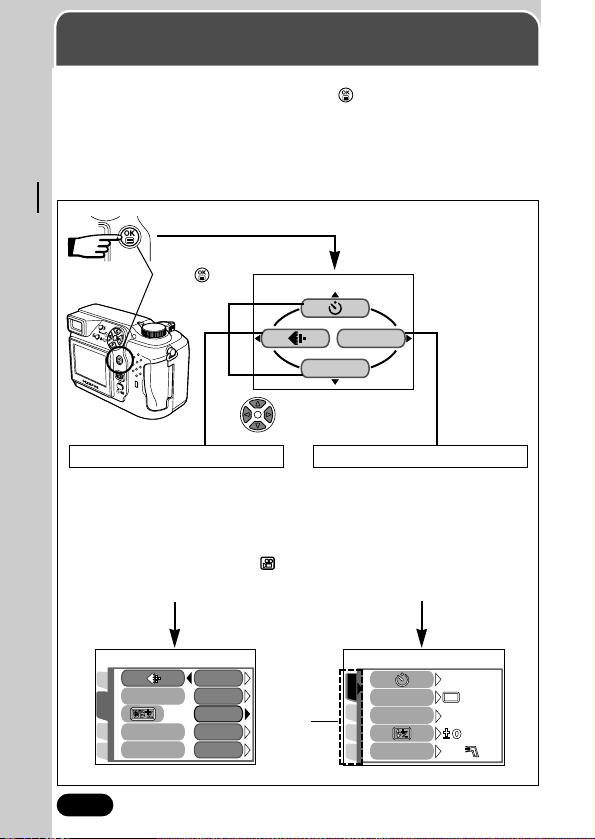
When the ERASE screen
appears, press
Ñ to select YES.
● To cancel erasure, press ñ on
the arrow pad to select NO, and
press or the button.
3
Erasing pictures
ERASE
YES
N ON O
SELECT GO
Display the picture you want to erase. ~ steps 1 and 2 on page
34.
1
Press the (erase) button.
2
Press to erase the picture.
4
● Protected pictures cannot be erased.
● Make sure the card is not write-protected. If the card is write-protected, you
will not be able to erase pictures.
Note
38
Chapter 3
Using the menus
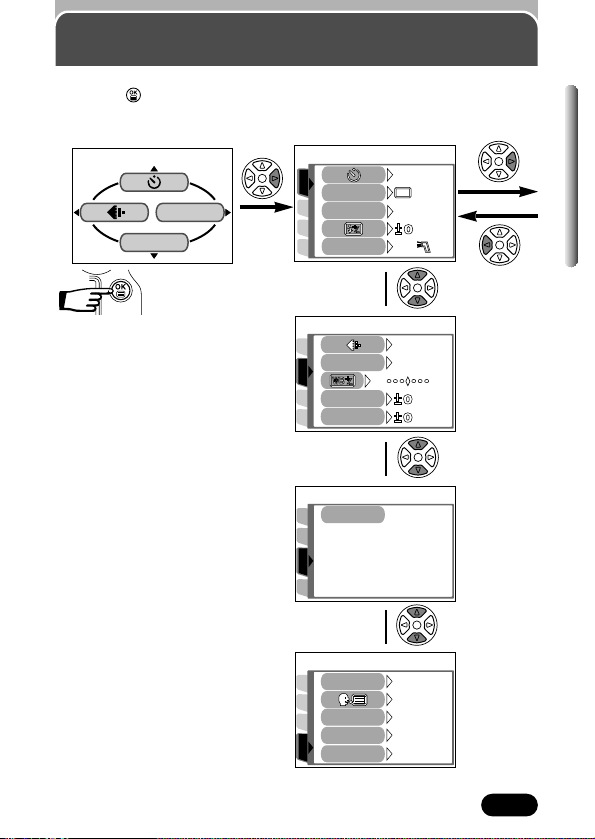
What are the menus?
When you turn on the camera and press the (OK/Menu) button, the menu
that appears on the monitor is generally called “the top menu”. Many
functions of this camera are accessed using the menus. Below, we explain
how the camera’s menus work, using examples of menus displayed in the P
mode. The top menu varies depending on the mode.
~ Modes & shortcut
menus (P. 41)
Press .
DRIVE
MODE MENU
PICTURE
CAM
SET
CARD
WB
CONTRASTCONTRAST
SHARPNESS
HQ
SQ1
SQ2
TIFF
SHQ
PICSET
CARD
DRIVE
ISO
OFF
AUTO
IN+
CAMERA
FLASH
The top menu appears.
Use the arrow pad to
display the menus.
Short cut menus MODE MENU
● Take you directly to each item’s
setting screen.
● Display operational buttons at the
bottom of the screen, and let you
select items by pressing
Ññ.
● The short cut menus can be replaced
in any shooting mode except .
~ “Setting the shortcut menu”
(P. 149)
● Lets you set various functions such as
the white balance, etc.
● Contains menu items. These are
grouped according to function under 4
tabs.
● Select the CAMERA, PICTURE,
CARD or SETUP tab by pressing
Ññ. The menu for the selected tab
menu appears.
Tab
39
Chapter 3
How to use the menu
1
Press to display the top
menu. Press
í.
2
Press Ññ to select a tab and
press
í.
DRIVE
MODE MENU
PICTURE
CAM
SET
CARD
AUTO
HQ
WB
CONTRASTCONTRAST
SHARPNESS
BLUEBLUEREDRED
PICSET
CARD
DRIVE
ISO
OFF
AUTO
IN+
CAMERA
FLASH
CAM
SET
PIC
CARD SETUPCARD SETUP
CARD
SETUP
CAM
CARD
PIC
ENGLISHENGLISH
ONON
PW ON SETUPPW ON SETUP
ALL RESET
REC VIEW
PW OFF SETUPPW OFF SETUP
ONON
1
1
P top menu
CAM: CAMERA
Functions for shooting: selecting
drive modes, using digital zoom,
etc.
PIC: PICTURE
Functions for adjusting images:
selecting record modes, adjusting
white balance, etc.
CARD: CARD
Card functions, such as
formatting.
SET: SETUP
Functions for changing camera
settings: date and time, shortcut
settings, etc.
CAMERA tab
PICTURE tab
CARD tab
SETUP tab
Pressing É
returns to the
tab selection.
¥
˙
¥
˙
¥
˙
40
Chapter 3
How to use the menu (Cont.)
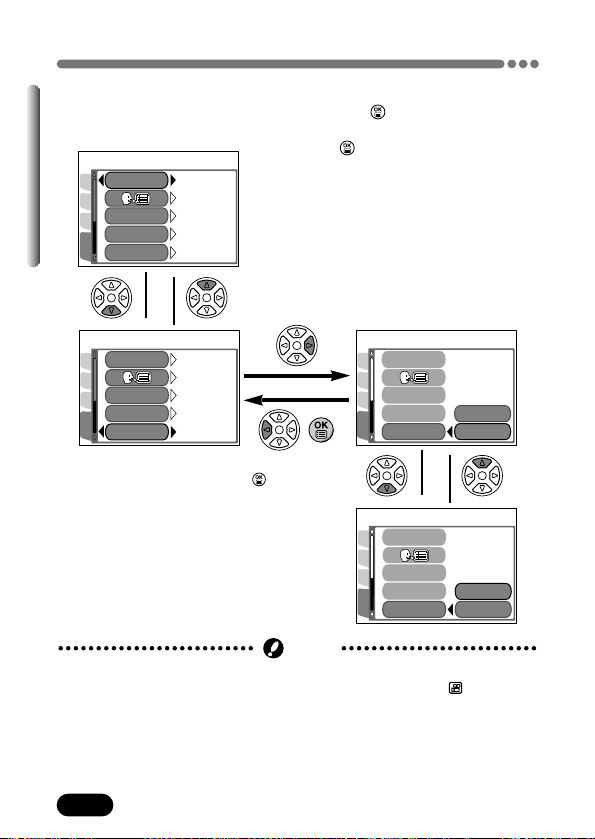
3
Press Ññ to select an item
and press
í.
4
Press Ññ to select the setting.
Press to save the setting.
● To go back to shooting, press
.
SETUP
CAM
CARD
PIC
ENGLISHENGLISH
ONON
PW ON SETUPPW ON SETUP
ALL RESET
REC VIEW
PW OFF SETUPPW OFF SETUP
ONON
1
1
SETUP
CAM
CARD
PIC
ENGLISHENGLISH
ONON
1
1
ONON
PW ON SETUPPW ON SETUP
ALL RESET
REC VIEW
PW OFF SETUPPW OFF SETUP
SETUP
CAM
CARD
PIC
OFF
ON
PW ON SETUPPW ON SETUP
ALL RESET
REC VIEW
PW OFF SETUPPW OFF SETUP
SETUP
CAM
CARD
PIC
OFF
ON
PW ON SETUPPW ON SETUP
ALL RESET
REC VIEW
PW OFF SETUPPW OFF SETUP
¥
˙
¥
˙
The green frame moves to the
selected item.
Pressing
É or
returns to the
item selection.
● Not all items can be selected. The items that can be selected depend on the
status of the camera and the settings. For example, in the mode, you
cannot select 2 in 1 in the CAMERA tab category.
● If you press the shutter button to take a picture while the menu is displayed,
you can take pictures with the currently selected settings.
● If you want to save the settings after the camera is turned off, set ALL
RESET to OFF. ~ “All reset — Saving the camera’s settings” ( P. 143)
Note
41
Chapter 3
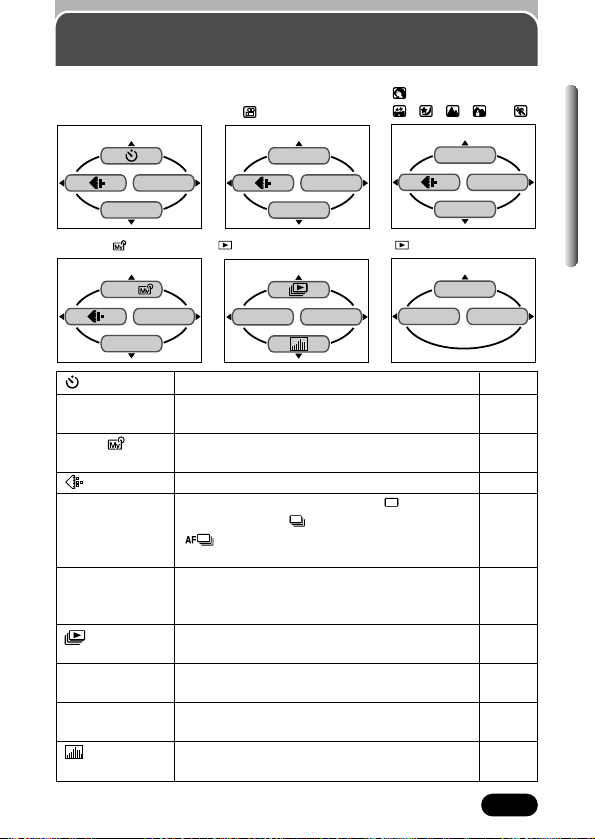
Modes & Shortcut Menus
DRIVE
MODE MENU
P
top menu
MODE MENU
DIGITAL ZOOM
SCENE SELECT
MODE MENU
SCENE SELECT
DRIVE
MODE MENU
A/S/M/
DRIVE
MODE MENU
INFO
top menu (for still pictures)
MODE MENU
MOVIE PLAY
INFO
top menu (for movies)
Sets self-timer shooting. P. 91
SCENE SELECT Jumps to the virtual dial screen. You can select P. 47
a shooting mode.
A/S/M/
Jumps to the virtual dial screen. You can select P. 48
a shooting mode.
Sets the record mode. P. 102
DRIVE Selects a sequential mode from (single- P. 92
frame shooting), (sequential shooting),
(AF sequential shooting) or BKT (auto
bracketing).
DIGITAL ZOOM The maximum optical zoom (3x) can be P. 74
extended even more by the 3.5x digital zoom,
making possible up to approx. 10x zoom.
Runs through all saved pictures one after P. 119
another.
MOVIE PLAY Plays back movies. You can also make P. 120
indexes of still-shots from movies.
INFO Changes the amount of shooting P. 155
information displayed on the monitor.
Displays a histogram showing the luminance P. 157
distribution of recorded pictures.
top menu (same as in
, , ,
,
or )
A/S/M/ top menu
(movie) top menu
42
Chapter 3
Tabs & MODE MENU functions
(shooting)
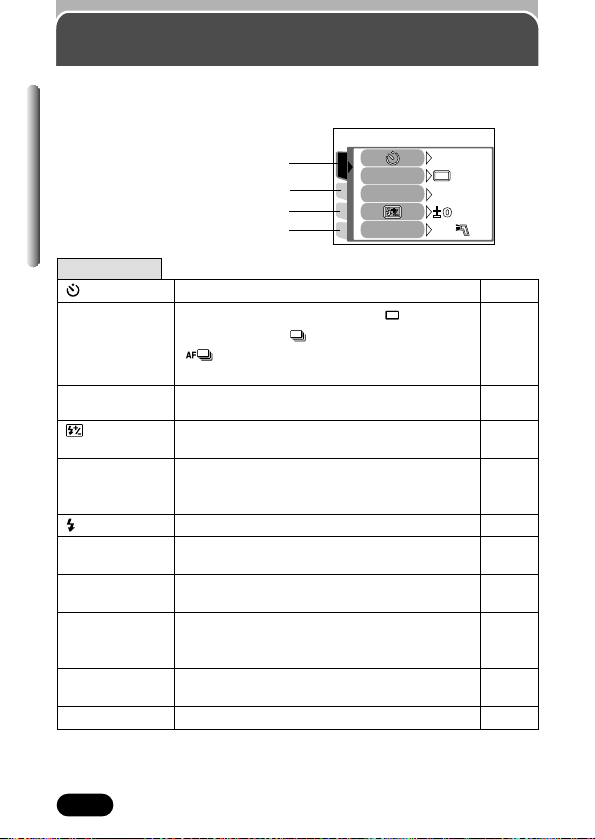
CAMERA tab
PICSET
CARD
DRIVE
ISO
OFF
AUTO
IN+
CAMERA
FLASH
In the shooting mode, the MODE MENU has 4 tabs. Press Ññ to select a
tab and display the associated menu items.
Sets self-timer shooting. P. 91
DRIVE Selects a sequential mode from (single- P. 92
frame shooting), (sequential shooting),
(AF sequential shooting) or BKT (auto
bracketing).
ISO Selects ISO sensitivity from P. 107
AUTO/100/200/400.
Adjusts the flash intensity for different shooting P. 81
conditions.
FLASH When using an external flash, you can choose P. 177
whether to use it with the built-in flash or
by itself.
SLOW Adjusts the flash for slow shutter speeds. P. 76
NOISE Reduces the noise on images during long P. 116
REDUCTION exposures.
MULTI Decides the best exposure by metering up to P. 83
METERING 8 different spots in the image.
DIGITAL ZOOM The maximum optical zoom (3x) can be P. 74
extended even more by the 3.5x digital zoom,
making possible up to approx. 10x zoom.
FULLTIME AF Keeps the image in focus at all times without P. 61
having to press the shutter button halfway.
AF MODE Selects the auto focus method (iESP or SPOT). P. 60
CAMERA tab
CARD tab
SETUP tab
PICTURE tab
43
Chapter 3
Tabs & MODE MENU functions (shooting) (Cont.)
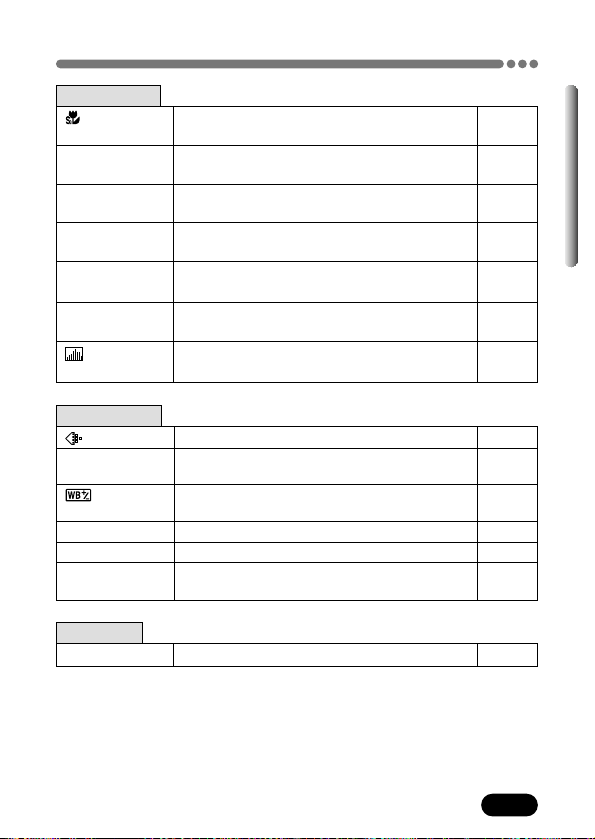
CARD tab
CARD SETUP Formats cards. P. 139
PICTURE tab
Sets the record mode resolution. P. 102
WB Sets the appropriate white balance according P. 109
to the light source.
Lets you make fine changes to the white P. 112
balance manually.
SHARPNESS Adjusts the sharpness of images. P. 113
CONTRAST Adjusts the contrast of images. P. 114
SATURATION Adjusts the level of color depth without P. 115
changing tint.
CAMERA tab
Lets you shoot from as close as 2 cm to your P. 90
subject (super macro mode).
PANORAMA Allows panorama pictures to be taken with P. 96
Olympus CAMEDIA-brand cards.
2 IN 1 Combines two pictures taken in succession P. 98
and stores them as a single picture.
FUNCTION Lets you shoot pictures in black & white or P. 100
sepia tone.
AF AREA Lets you change the position of the AF target P. 62
mark using the arrow pad.
INFO Changes the amount of shooting information P. 155
displayed on the monitor.
Displays a histogram showing the brightness P. 157
and contrast of the subject in your monitor.
44
Chapter 3
Tabs & MODE MENU functions (shooting) (Cont.)
SETUP tab
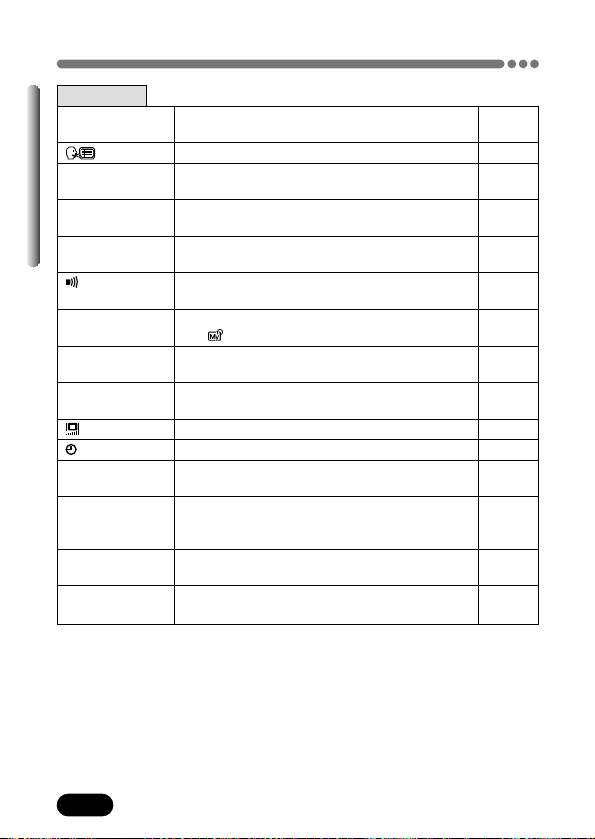
ALL RESET Selects whether to keep the current camera P.143
settings when you turn off the power.
Selects a language for on-screen display. P. 30
PW ON SETUP Sets the picture displayed on the monitor when P. 159
the power is turned on.
PW OFF SETUP Sets the picture displayed on the monitor when P. 159
the power is turned off.
REC VIEW Selects whether to display images while P. 158
saving them to a card.
Sets the beep sound (used for warnings. etc.) P. 156
to OFF/LOW/HIGH.
MY MODE Customizes settings, which are activated in P. 151
SETUP the mode.
FILE NAME Chooses how to name files and folders of P. 162
images to be saved.
PIXEL Checks the CCD and image processing P. 164
MAPPING circuit for errors.
Adjusts the brightness of the monitor. P. 156
Sets the date and time. P. 27
m/ft Sets the measurement units (m/ft) used during P. 165
manual focus.
VIDEO OUT Selects NTSC or PAL according to your TV’s P. 166
video signal type. TV video signal type differs
depending on the region.
SHORT CUT Lets you assign frequently-used functions as P. 148
shortcut menus on the top menu.
CUSTOM Lets you assign a frequently used function P. 145
BUTTON to the camera’s custom button.
45
Chapter 3
Tabs & MODE MENU functions
(playback)
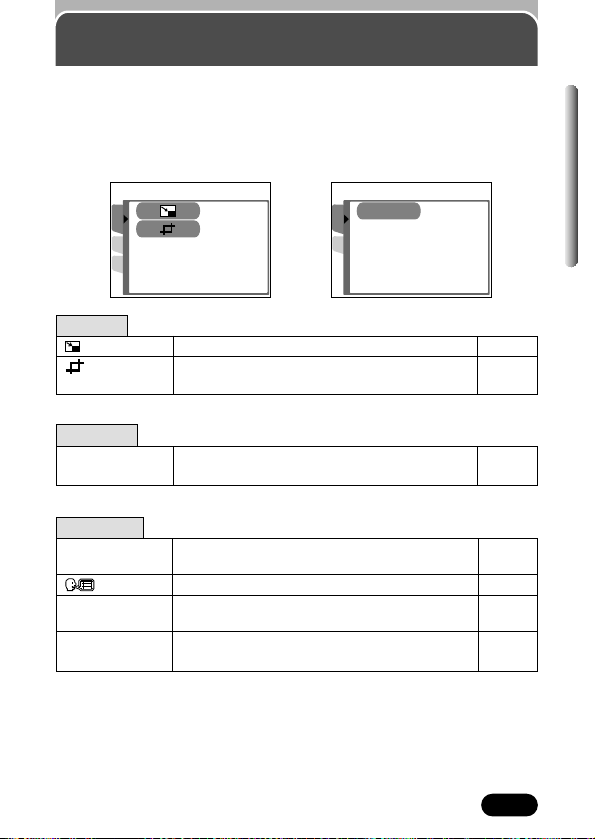
When a still picture is played back, the MODE MENU has 3 tabs. When a
movie is played back, the MODE MENU has 2 tabs. Press
Ññ to select a
tab and display the associated menu items. The EDIT tab is not available
during movie playback.
CARD
SET
CARD SETUPCARD SETUP
EDIT
SET
CARD
During movie playbackDuring still picture playback
EDIT tab
Makes the file size smaller. P. 132
Enlarges a part of a picture and saves it as P. 133
a new picture.
CARD tab
CARD SETUP Formats cards (FORMAT), or erases all P. 139
images in the card (ALL ERASE).
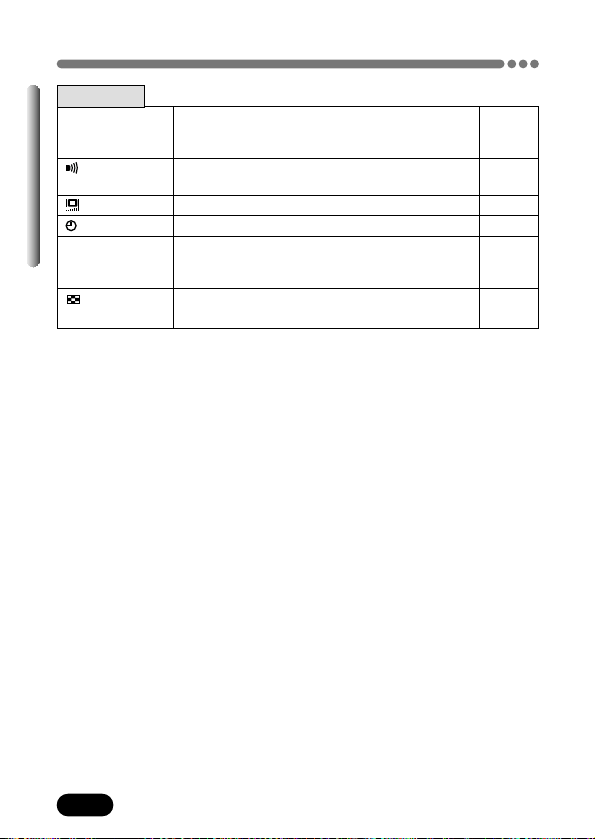
SETUP tab
ALL RESET Selects whether to keep the current camera P. 143
settings when you turn off the power.
Selects a language for on-screen display. P. 30
PW ON SETUP Sets the picture displayed on the monitor when P. 159
the power is turned on.
PW OFF SETUP Sets the picture displayed on the monitor when P. 159
the power is turned off.
46
Chapter 3
Tabs & MODE MENU functions (playback) (Cont.)
SCREEN Registers a stored picture so that you can P. 160
SETUP select it in PW ON SETUP and/or PW OFF
SETUP.
Sets the beep sound (used for warnings. etc.) P. 156
to OFF/LOW/HIGH.
Adjusts the brightness of the monitor. P. 156
Sets the date and time. P. 27
VIDEO OUT Selects NTSC or PAL according to your TV’s P. 166
video signal type. TV video signal type differs
depending on the region.
Selects the number of frames in the index P. 131
display.
SETUP tab
47
Chapter 4
Shooting basics
Shooting mode setting — Mode dial
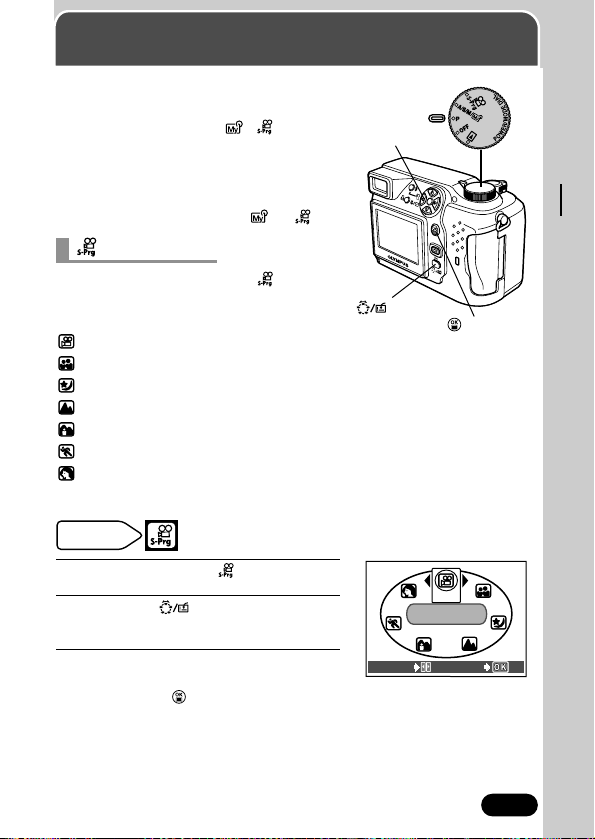
Set the mode dial to any of the following
positions.
Shooting mode: P, A/S/M/ ,
● Always remove the lens cap before turning
on the camera since the lens automatically
extends when the camera turns on.
● The monitor automatically turns on when
the mode dial is set to A/S/M/ or .
Mode dial
Éí buttons
When the mode dial is set to , you can
select any of the following shooting modes.
Shooting mode:
(Movie record),
(Self-Portrait shooting),
(Night scene shooting),
(Landscape+Scene shooting),
(Landscape+Portrait shooting),
(Sports shooting),
(Portrait shooting, factory default setting).
~ “Shooting modes” (P. 49)
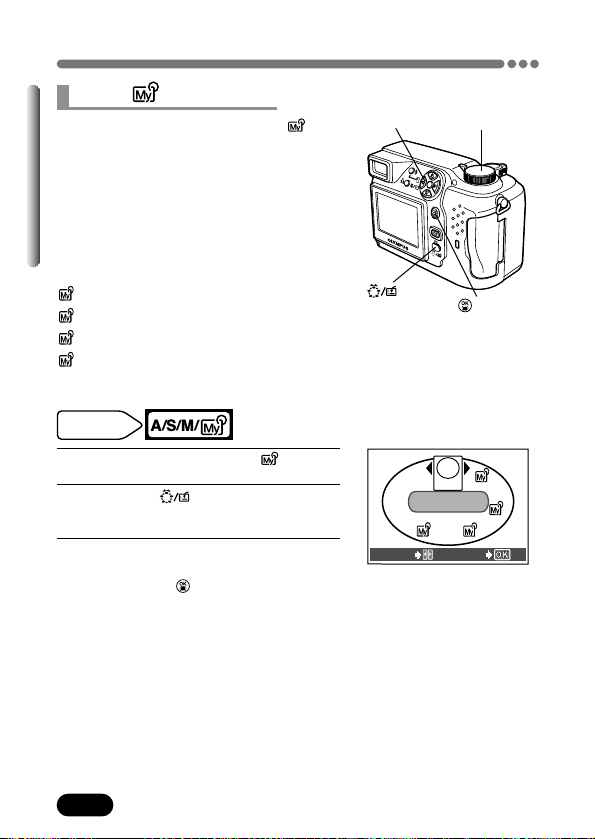
mode setting
1
Set the mode dial to .
2
Press the (custom) button to
display the virtual dial screen.
3
Press Éí repeatedly until the desired
mode is displayed in the center of the
screen. Press .
● The virtual dial screen disappears.
Mode dial
setting
button
button
SELECT
GO
MOVIEMOVIE
MODE
Virtual dial screen
48
Chapter 4
Shooting mode setting — Mode dial (Cont.)
When the mode dial is set to A/S/M/ , you
can select any of the following shooting
modes.
Shooting mode:
A (Aperture priority shooting, factory default
setting),
S (Shutter priority shooting),
M (Manual shooting),
(My Mode shooting 1),
(My Mode shooting 2),
(My Mode shooting 3),
(My Mode shooting 4).
~ “Shooting modes” (P. 49)
4
3
2
1
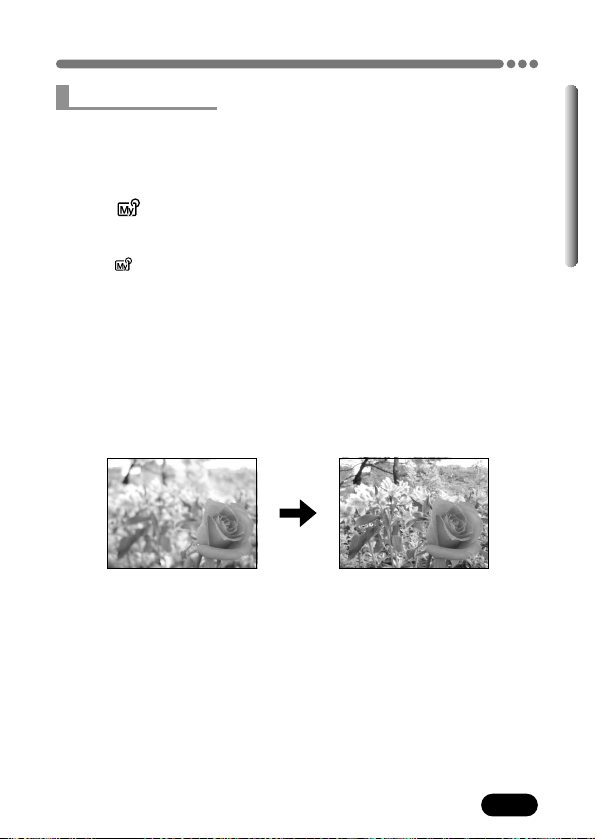
A/S/M/ mode setting
1
Set the mode dial to A/S/M/ .
2
Press the (custom) button to
display the virtual dial screen.
3
Press Éí repeatedly until the desired
mode is displayed in the center of the
screen. Press .
● The virtual dial screen disappears.
Mode dial
setting
Mode dial
Éí buttons
button
button
SELECT
GO
APERTURE
PRIORITY
MODE
A
S
M
1
2
3
4
Virtual dial screen
49
Chapter 4
Shooting mode setting — Mode dial (Cont.)
Shooting modes
P Program shooting
Allows you to take still pictures. The camera sets aperture and shutter speed.
Other functions, such as flash modes and drive modes, can be adjusted
manually.
A/S/M/ Aperture priority/Shutter priority/Manual/My mode
shooting
For details on which shooting modes are selectable when the mode dial is set
to A/S/M/ , refer to the previous page.
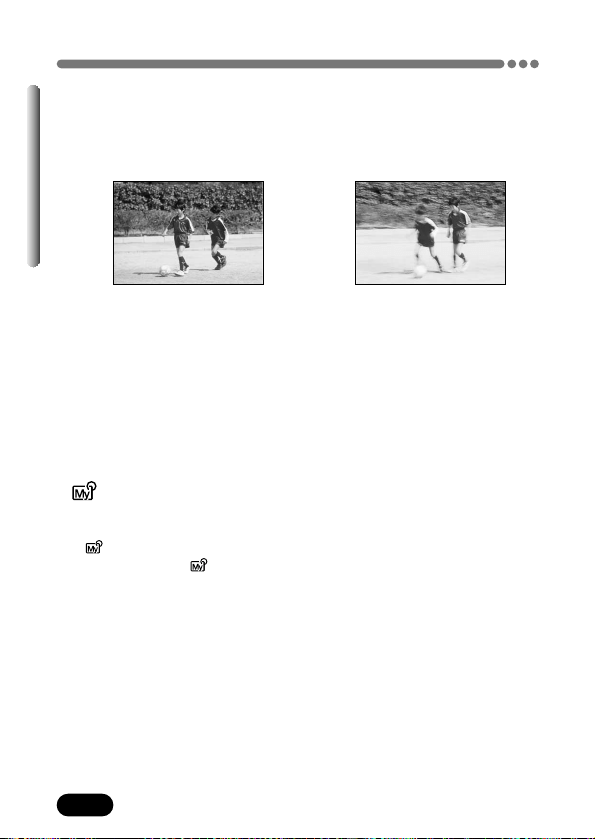
●A Aperture priority shooting
Allows you to set the aperture manually. The camera sets the shutter speed
automatically. By decreasing the aperture value (F-number), the camera will
focus within a smaller range, producing a picture with a blurred background.
Increasing the value forces the camera to focus over a wider range in the
forward and backward directions, resulting in a picture in which both the
subject and the background are in focus.
~ “Aperture setting” (P. 53)
Aperture (F-number) is decreased. Aperture (F-number) is increased.
50
Chapter 4
Shooting mode setting — Mode dial (Cont.)
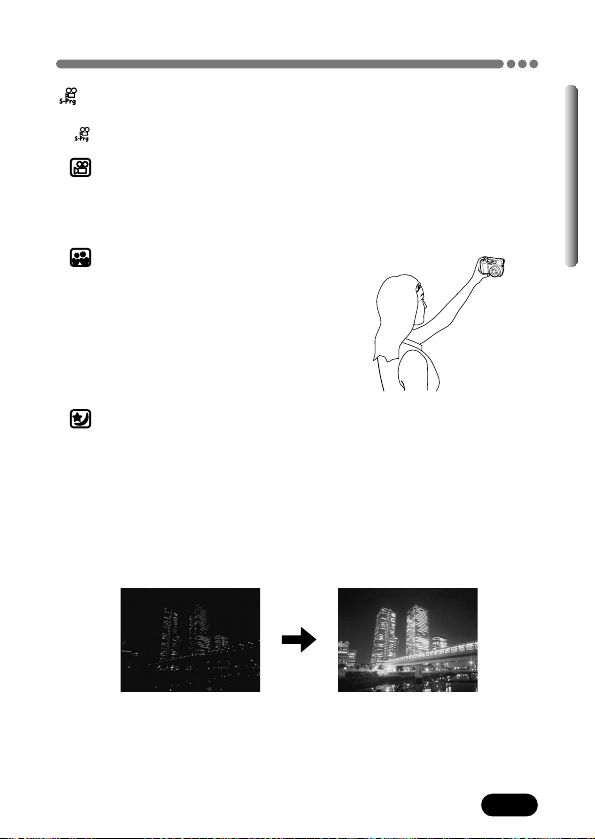
●S Shutter priority shooting
Allows you to set the shutter speed manually. The camera sets the aperture
automatically. Set the shutter speed according to the subject and the type of
effect you want.
~ “Shutter speed setting” (P. 54)
●M Manual shooting
Allows you to set the aperture and shutter speed manually. To check the
exposure, refer to the exposure differential. This mode gives you more
creative control, allowing you to make the settings you need to get the type of
picture you want, regardless of optimum exposure.
~ “Aperture & shutter speed setting” (P. 55)
● My Mode
Your favorite settings can be saved in MY MODE SETUP (in the menu’s
SETUP). Customized settings are activated when the power is turned on in
the mode. Settings such as aperture value, zoom position, etc. can be
customized. In the mode, you can select exposure mode (shooting
mode) from P, A, S, M or S-Prg. Settings can be specified with the camera’s
setting menus.
In MY MODE SETUP, you can create and save up to 4 different My Mode
settings. Items in the short cut menu can be different from those in the P or
S-Prg mode short cut menus.
~ “MY MODE SETUP” (P. 151)
Setting the shutter speed higher lets you
capture fast-moving action without blur. The
subject will be clear and sharp, as if it is not
moving.
Setting the shutter speed lower blurs a
moving subject, giving the impression
of movement.
51
Chapter 4
Shooting mode setting — Mode dial (Cont.)
Movie record/Scene program shooting
For details on which shooting modes are selectable when the mode dial is set
to , refer to P. 47.
● Movie record
Allows you to record movies. The camera sets the aperture and shutter speed
automatically. Exposure is locked when the shutter button is pressed halfway.
You cannot record movies with sound.
● Self-Portrait shooting
Enables you to take a picture of yourself
while holding the camera. Point the lens
towards you and take a shot. The focus is
locked on you (shooter). The camera
automatically selects the optimal settings for
this type of shooting condition. Zooming is
not possible.
● Night Scene shooting
Suitable for shooting pictures in the evening or at night. The camera sets a
slower shutter speed than is used in normal shooting. For example, if you
take a picture of a street at night in the P mode, the lack of brightness will
result in a dark picture with only the sparkle of lights such as street lamps
appearing. In the Night Scene shooting mode, the true appearance of the
street can be captured. The camera automatically selects the optimal settings
for this type of shooting condition. Since the shutter speed is slow, make sure
you stabilize the camera by using a tripod.
52
Chapter 4
Shooting mode setting — Mode dial (Cont.)
● Landscape+Scene shooting
Suitable for taking pictures of landscapes and other outdoor landscape
scenes. Both the foreground and the background are in focus. Since blues
and greens are reproduced vividly in this mode, the Landscape-Scene mode
is excellent for shooting natural scenery. The camera automatically sets the
optimal shooting conditions.
● Landscape+Portrait shooting
Suitable for taking photos both your subject and the background. The picture
is taken with the background as well as the subject in the foreground in focus.
The camera automatically sets the optimal shooting conditions.
● Sports shooting
Suitable for capturing fast-moving action (such as sports) without blurring.
The camera automatically sets the optimal shooting conditions.
● Portrait shooting
Suitable for shooting a portrait-style image of a person. This mode features
an in-focus subject against a blurred background. The camera automatically
sets the optimal shooting conditions.
53
Chapter 4
Shooting mode setting — Mode dial (Cont.)
1
Select A from “A/S/M/ mode
setting”. See P. 48.
2
If the aperture value is displayed in red
The aperture you have set is unsuitable for
the conditions.
appears. T Press ñ to decrease the
aperture value.
appears. T Press Ñ to increase the
aperture value.
Aperture value range: f2.8-f11
To increase the aperture value
(F-number), press
Ñ.
To decrease the aperture value
(F-number), press ñ.
Green:
The aperture setting will provide
optimum exposure
.
Red:
The aperture setting is unsuitable
for optimum exposure.
HQ
2288x1712
HQ
2288x1712
Mode dial
setting
● When the flash is set to the auto-flash mode, the shutter speed is fixed at
1/30 sec. in the maximum wide-angle, or 1/100 sec. in the maximum
telephoto, and can never go slower.
Note
Aperture setting — Aperture priority shooting
Ññ buttons
54
Chapter 4
Shooting mode setting — Mode dial (Cont.)
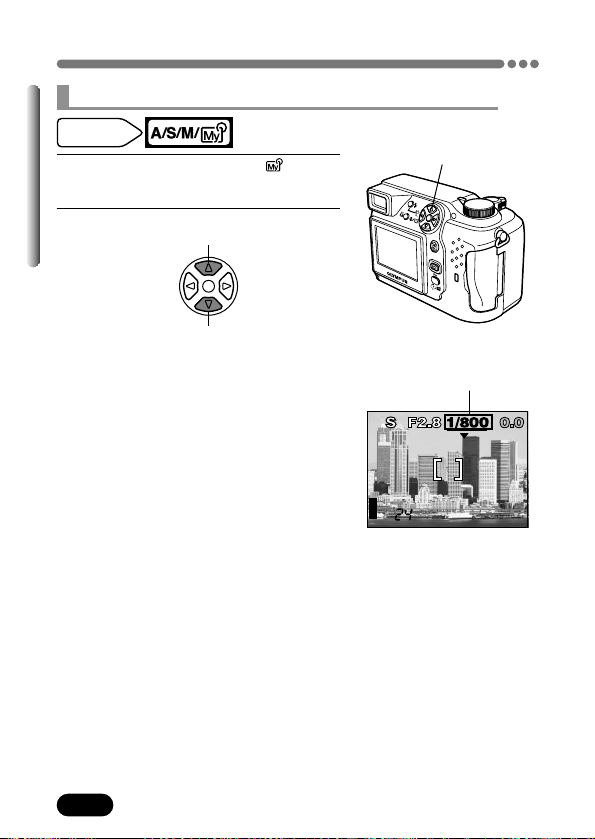
1
Select S from “A/S/M/ mode
setting”. See P. 48.
2
To set a faster shutter speed,
press
Ñ.
To set a slower shutter speed,
press
ñ.
If the shutter speed is displayed in red
The shutter speed you have set is unsuitable
for the conditions.
appears. T Press ñ to set the shutter
speed slower.
appears. T Press Ñ to set the shutter
speed faster.
Shutter speed range: 4 to 1/1000 sec.
Shutter speed
HQ
2288x1712
Mode dial
setting
Shutter speed setting — Shutter priority shooting
Ññ buttons
55
Chapter 4
Shooting mode setting — Mode dial (Cont.)
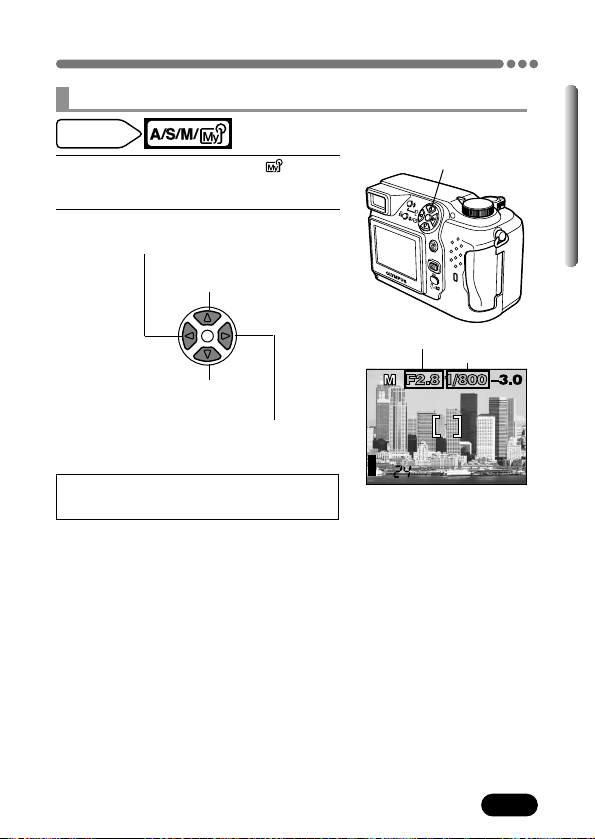
1
Select M from “A/S/M/ mode
setting”. See P. 48.
2
To set a faster shutter
speed, press
Ñ.
To set a slower shutter
speed, press ñ.
To increase the aperture value
(F-number), press É.
To decrease the aperture value
(F-number), press í.
F-number: f2.8 – f11
Shutter speed: 8 to 1/1000 sec.
Mode dial
setting
Aperture & Shutter speed setting — Manual shooting
ÑñÉí buttons
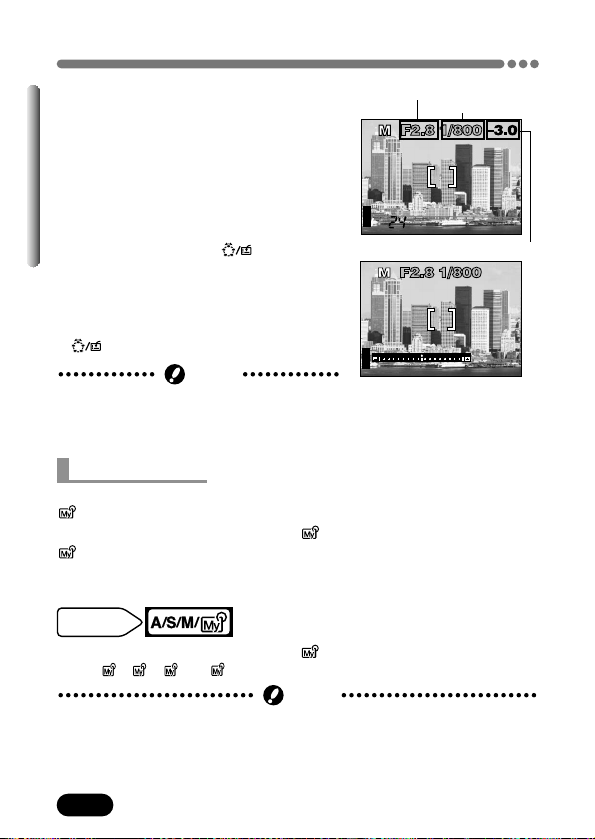
HQ
2288x1712
Aperture (F-number)
Shutter speed
56
Chapter 4
Shooting mode setting — Mode dial (Cont.)
HQ
2288x1712
Exposure differential
● The difference (ranging from –3.0 to +3.0)
between the exposure determined by the
currently selected aperture and shutter
speed compared to the exposure level
considered optimal by the camera appears
in the upper right-hand corner.
● When the exposure differential is set to less
than –3.0 or more than +3.0, the exposure
differential appears in red.
● When you press the button, the
screen at right appears with the bar
indicating current exposure settings.
Pressing the shutter button halfway shows
how much the current exposure is different
from the correct exposure. (Only when the
button is set to AE LOCK.)
Aperture (F-number)
Shutter speed
Exposure differential
● To avoid camera movement, we
recommend use of a tripod for any effect
which uses a slow shutter speed.
Note
When the bar is displayed
When using My Mode, the shooting mode you selected with the menus in the
mode is activated. You can also save the shooting mode or function
settings you are currently using in the mode. If you set the mode dial to
again, the camera will activate these stored settings. In MY MODE
SETUP, you can create and save up to 4 different My Mode settings.
~ “MY
MODE SETUP” (P. 151)
Follow steps 1 through 3 in “A/S/M/ mode setting” (P. 48). In step 3
select , , or .
4
3
2
1
Mode dial
setting
Using My Mode
● Although the settings you are using can be saved, the zoom position you
are currently using will not be saved.
Note
HQ
57
Chapter 4
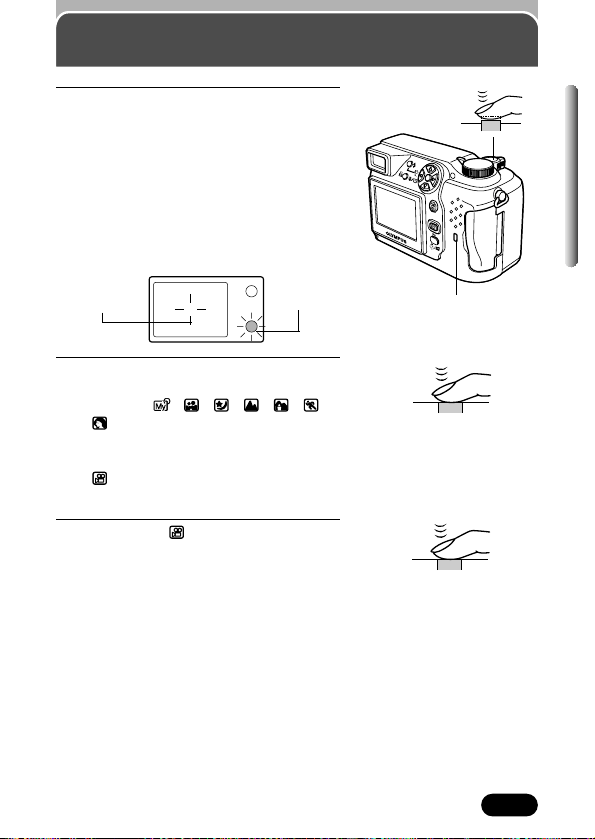
1
Point the camera towards the subject.
Place the AF target mark on the
subject while viewing through the
viewfinder.
Press the shutter button gently
(halfway).
● When the focus and brightness (exposure)
are locked, the green lamp next to the
viewfinder lights steadily.
2
Press the shutter button all the way.
● Shooting starts and the green lamp blinks.
● P, A/S/M/ , , , , , or
mode: The camera starts storing your
pictures on the card. While pictures are
being stored, the card access lamp blinks.
● mode: The camera starts recording a
movie and the orange lamp lights.
3
ONLY for the (movie record) mode:
To stop recording, press the shutter
button all the way again.
● The card access lamp blinks and the
camera starts storing the movie on the
card. You cannot record another movie
until the card access lamp stops blinking,
How to use the shutter button
Viewfinder
AF target
mark
Green lamp
Card access lamp
Shutter button
58
Chapter 4
Focusing
When you place the AF target mark on a
subject and press the shutter button halfway,
the green lamp lights up. This means that
focusing is being performed automatically.
If the green lamp blinks, focusing is not
correct. If this happens, use Manual focus
(P. 63) or Focus lock (P. 59).
Auto focus
Viewfinder
AF target
mark
Green lamp
Shutter button
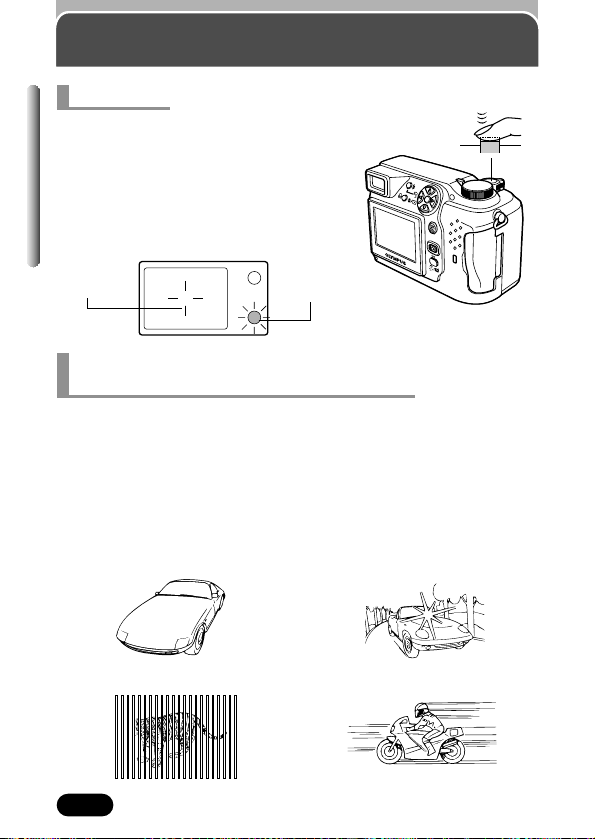
1 Subjects with low contrast 2 Subjects in excessively bright
light in the center of the frame
Under certain types of conditions auto focus may not work properly. If you run
into problems, try the procedure below.
Conditions
1, 2 and 5
Auto focus may not work properly. The green lamp may blink.
Conditions
3 and 4
Auto focus may not work properly even when the green lamp lights when you
press the shutter button down halfway.
When Auto focus does not work
— Subjects that are difficult to focus on
3 Subjects at different distances 4 Fast-moving subjects
59
Chapter 4
Focusing (Cont.)
Position the AF target mark in the viewfinder on an object that is the same
distance from the camera as the subject, then half-press the shutter button to
lock focus, while keeping your finger half-pressed on the shutter button, frame
the picture you want to shoot, and then fully press the shutter button (P. 59).
Hold the camera vertically, half-press
the shutter button and hold it down to
lock the focus. Re-position the camera
horizontally, compose the picture and
then fully press the shutter button to
take the picture (P. 59)
.
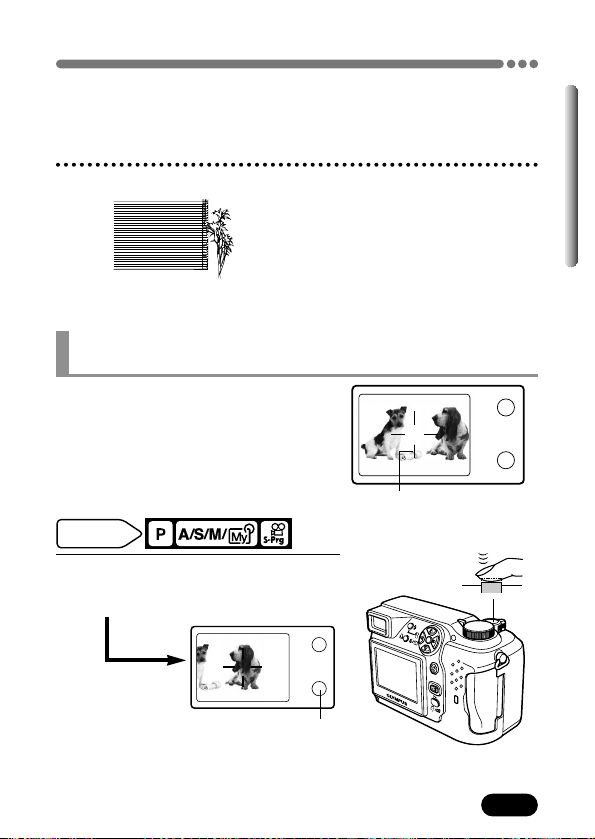
5 Subjects with no vertical lines
If the subject of your composition is not within
the AF target mark and focusing is not
possible (as illustrated to the right), try the
following:
Focus lock — Focusing on subjects that are not in the
center of the frame
1
Position the AF target mark over the
subject. Press the shutter button
halfway to lock the focus.
Mode dial
setting
Shutter button
AF target mark
Green lamp
Brightness
(exposure) is also
locked and the
green lamp lights.

60
Chapter 4
Focusing (Cont.)
2
Compose your picture (point the
camera towards the subject) while
keeping the shutter button pressed
halfway.
3
Press the shutter button all the way.
● The green lamp blinks.
T Focus and exposure are not locked. Release your finger from the
shutter button and position your subject again. Repeat step 1 until the
green lamp lights up without blinking.
● The frame in which you focus on a subject is different from the frame in
which you meter the light.
T Use AE lock (P. 86).
TIPS
Allows you to select the focus range of your subject.
iESP : Focus selection is based on the entire picture on the screen. Even
when the subject is not in the center of the screen, focusing is
possible.
SPOT : Focus selection is based on the picture within the AF target mark.
iESP
SPOT
AF MODE — Changing the focus range
61
Chapter 4
Focusing (Cont.)
In the top menu, select MODE MENU T
CAMERA T AF MODE T iESP or SPOT.
Press . Press again to cancel the menu.
~ “How to use the menu” (P. 39)
Factory default setting: iESP
Mode dial
setting
● AF MODE is not available in the mode.
Note
FULLTIME AF — A reliable time-saving way to focus
1
In the top menu, select MODE MENU
T CAMERA T FULLTIME AF T ON.
Press . Press again to cancel the
menu.
~ “How to use the menu”
(P. 39)
2
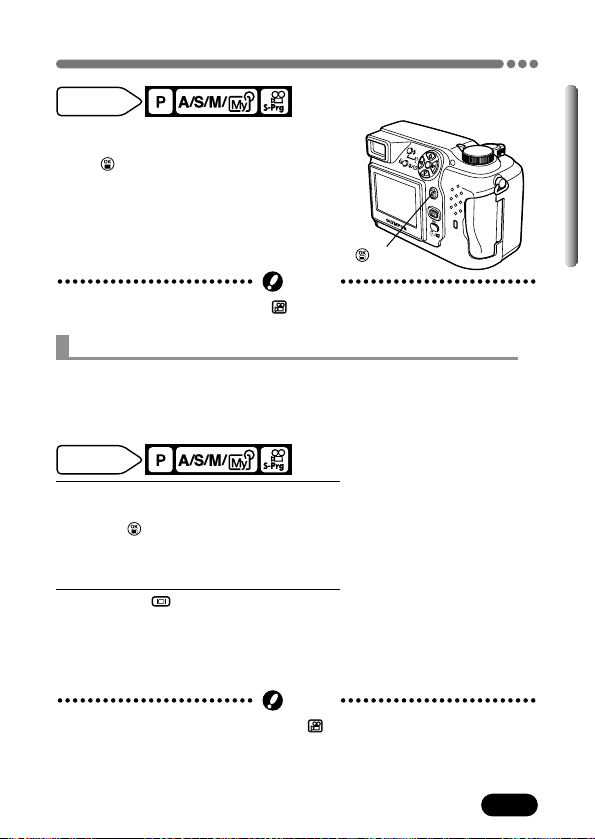
Press the (monitor) button to turn
on the monitor.
● If the monitor is not on, Fulltime AF does
not function.
Factory default setting: OFF
FULLTIME AF keeps the image on the monitor in focus at all times, without
having to press the shutter button halfway. This function reduces focusing
time. When OFF is selected, images cannot be focused unless the shutter
button is pressed halfway.
Mode dial
setting
● FULLTIME AF is not available in the mode. However, the Fulltime AF
function is always on.
● Battery life is shorter when Fulltime AF is used.
Note
button
62
Chapter 4
Focusing (Cont.)
SELECT
AF AREA
CANCEL
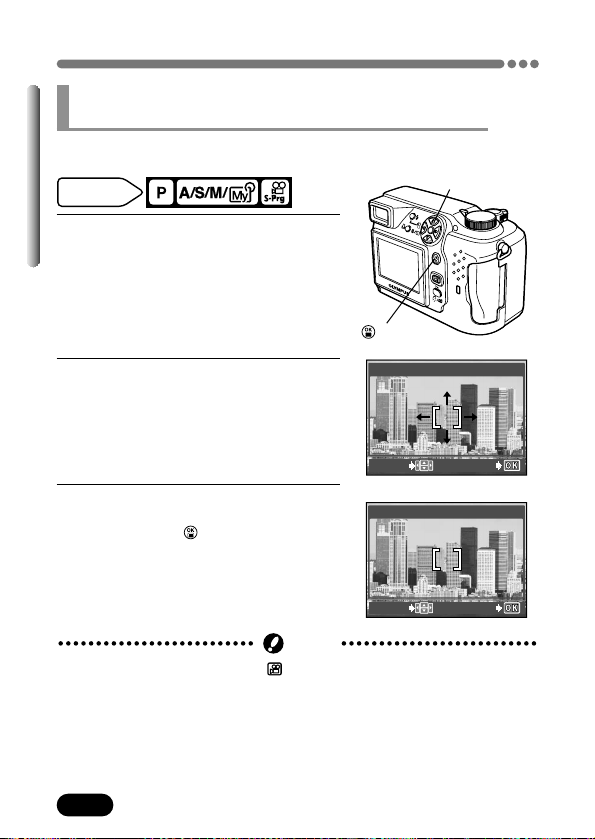
1
In the top menu, select MODE MENU
T CAMERA T AF AREA. Press
í.
~ “How to use the menu” (P. 39)
● AF target mark position select screen
appears.
2
Press the arrow pad to move the AF
target mark to the area you want to
focus on.
● You can move the AF target mark
vertically and horizontally from the
screen’s center.
3
Shoot.
● To restore the AF target mark to the default
position, press . The AF target mark is
placed at the screen’s center.
Allows you to select the area you want to focus on by changing the position of
the AF target mark.
Mode dial
setting
Arrow pad
AF AREA
— Changing the position of the AF target mark
● AF AREA is not available in the mode.
Note
button
SELECT
AF AREA
CANCEL
63
Chapter 4
Focusing (Cont.)
0.8m
2m
3m
5m
Manual focus
If Auto focus is unable to lock, use manual focus.
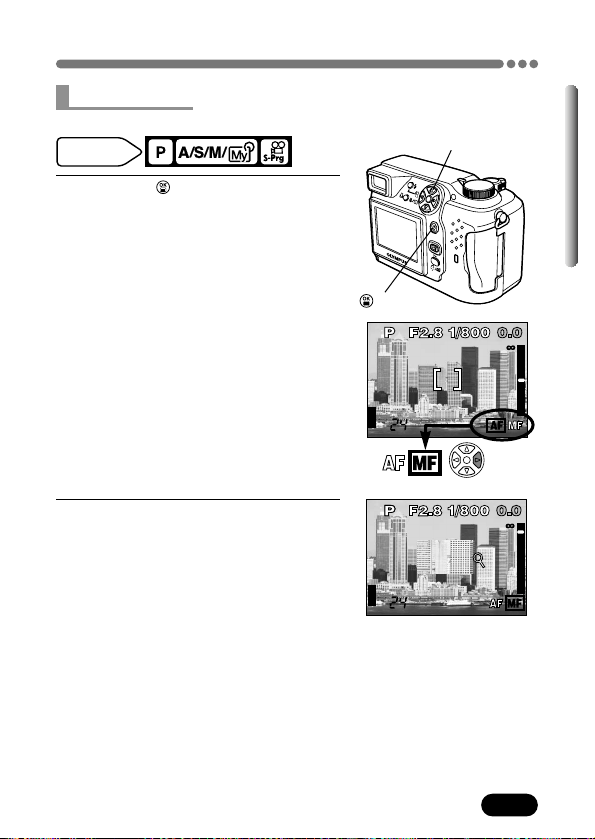
1
Hold down for more than 1 second.
When the focus distance selection
screen appears on the monitor, press
í to select MF.
2
Press Ññ to select the focus
distance.
● During operation, you can enlarge the
area you are focusing on. This lets check
the image area that the camera actually
records. The lengths shown are for
reference only. When the length indicator
is moved to less than 0.8 m (2.6 ft), the bar
display automatically switches to the 20
cm (7.8") – 80 cm (31") bar display.
Mode dial
setting
ÑñÉíbuttons
0.8m
2m
3m
5m
button
64
Chapter 4
Focusing (Cont.)
0.8m
2m
3m
5m
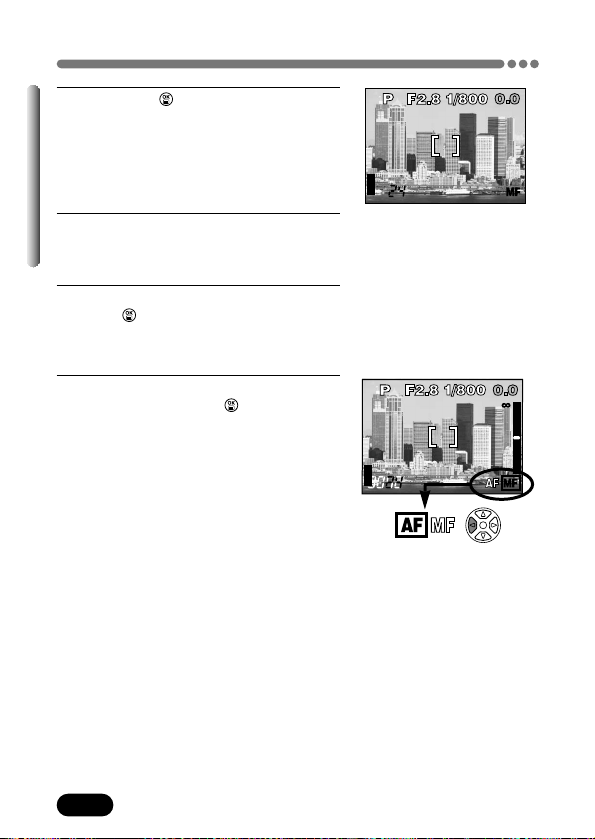
3
Hold down for more than 1 second
to save the setting.
● MF appears in red.
4
Shoot.
● Focus is locked at the distance you have
set.
5
To cancel the saved MF setting, hold
down again for more than 1 second
to display the focus distance selection
screen.
6
To return to the AF mode, press É to
select AF, then press .
HQ
65
Chapter 4
Focusing (Cont.)
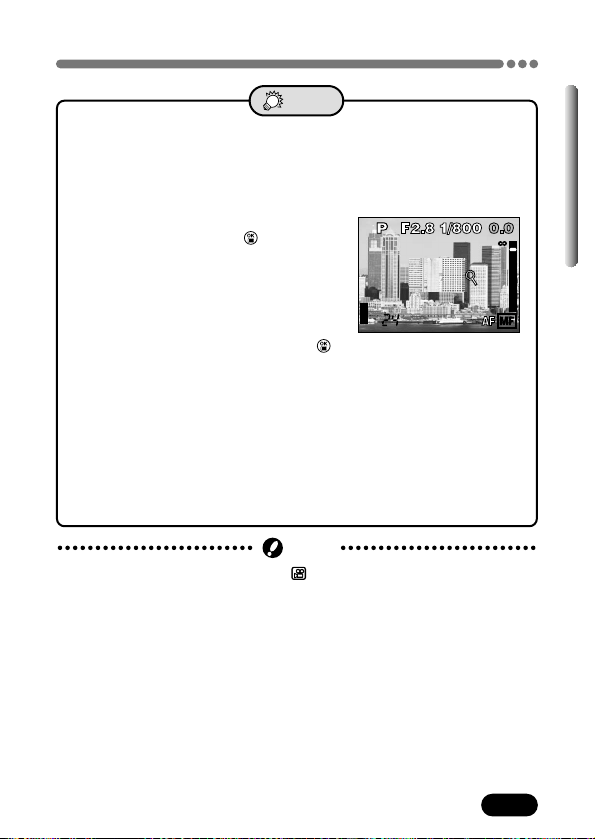
● How to shoot while keeping the same focus distance at all times
T The MF can be locked at the same length as when you perform focus
lock.
1 Focus on anything within the AF target mark. Press the shutter
button halfway to lock focus.
2 Without letting go of the shutter
button, hold down . The focus
distance screen appears. On the
screen, MF is selected and the
focus distance is the same as when
you performed focus lock.
Since the area you are focusing on
is enlarged while you hold down ,
you can check the image area that
the camera actually records.
● Although MF is selected and the length indicator reaches the top of
the bar, focusing is not possible at
∞.
T Adjust by moving
Ññ slightly while watching the monitor.
● Although the focus distance is saved, the picture goes out of focus.
T If the zoom lever is pressed after manual focus setting, the saved
focus distance may be changed. Try setting again.
TIPS
● Manual focus is not available in the mode.
Note
0.8m
2m
3m
5m
66
Chapter 4
Mode dial
setting
Taking still pictures
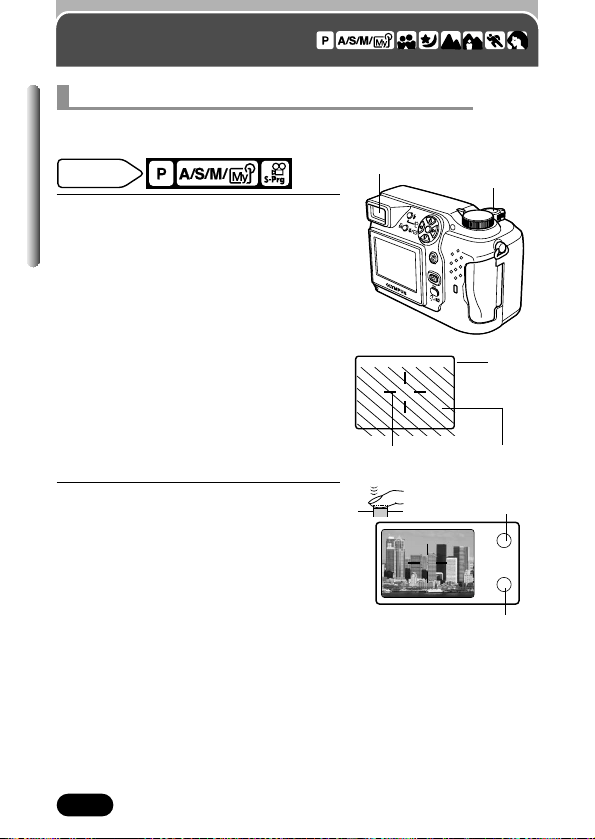
The camera actually records a wider area than the picture you composed
while viewing through the viewfinder.
Taking still pictures while using the viewfinder
1
Point the camera towards a subject
while viewing through the viewfinder.
Place the subject on the AF target
mark.
● The picture area moves lower in the
viewfinder as you get closer to the subject.
If this happens, use the monitor (P. 68).
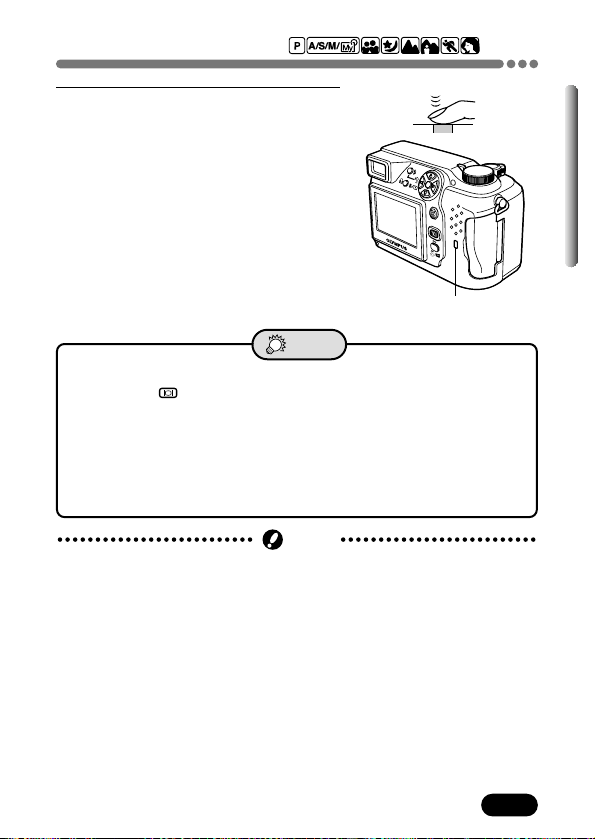
2
Press the shutter button halfway.
● When focus and exposure (brightness) are
locked, the green lamp lights.
● If the orange lamp lights, the flash fires
automatically.
~ “Flash shooting” (P. 75).
Shutter button
Viewfinder
Viewfinder
Picture
frame
Picture area at
close distance
AF target mark
Orange lamp
Green lamp
67
Chapter 4
Taking still pictures (Cont.)
3
Press the shutter button all the way.
● The green lamp next to the viewfinder
blinks. When the green lamp stops
blinking, you can take another shot.
● The card access lamp blinks while pictures
are being stored on the card.
● Number of still pictures that can be stored
on a 16 MB card T
HQ record mode (2288 x 1712):
Approx. 16
SQ2 record mode (640 x 480
NORMAL): Approx. 165
Card access lamp
● How to shoot using the monitor
T Press the (monitor) button (P. 69). The monitor turns on.
● The green lamp blinks.
T Depending on the subject, focus and exposure (brightness) may not
be locked (P. 58).
● How to automatically check the picture you have just taken
T Set REC VIEW to ON. The picture can be displayed on the monitor
(P. 158).
TIPS
● Press the shutter button gently using the ball of your finger. If it is pressed
hard, the camera may move and pictures may come out blurred.
● Recorded pictures will be saved in the card regardless of whether the
camera is turned off or the batteries are replaced or removed.
● Never open the card cover, eject the card, remove the batteries, or pull the
plug when the card access lamp is blinking. Doing so could destroy stored
pictures and prevent storage of pictures you have just taken.
Note
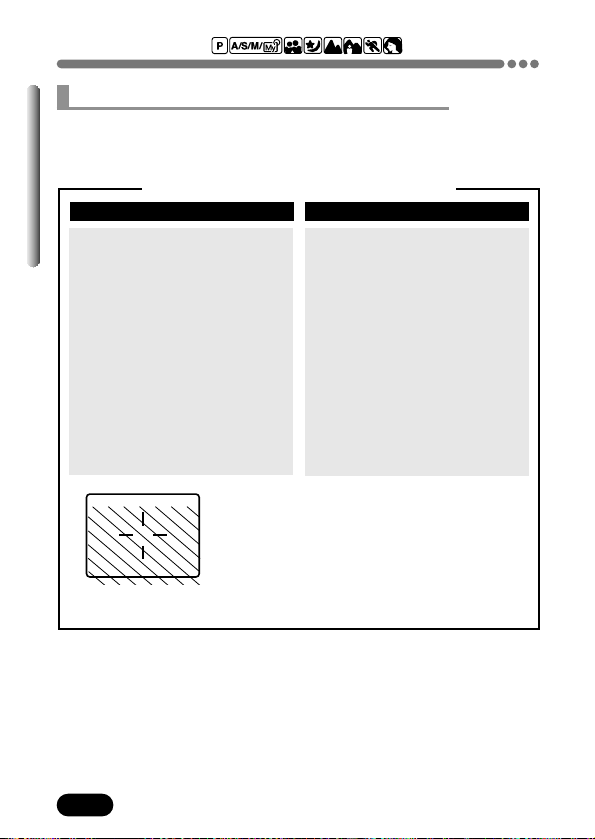
68
Chapter 4
Taking still pictures (Cont.)
Taking still pictures while using the monitor
With the monitor, you can shoot while checking the picture area that the
camera actually records. It is also possible to check information such as
memory gauge, aperture or shutter speed, etc.
Comparison of the viewfinder & monitor
Viewfinder Monitor
Advantage:
Camera movement does not
occur easily and subjects can be
seen clearly even in bright places.
Little battery power is used.
Disadvantage:
When close to a subject, the
image in the viewfinder is a little
different from the picture that the
camera actually records.
Tips:
Use the viewfinder for general
snapshots (landscape pictures,
casual shots, etc.) or when taking
several pictures in a row.
Advantage:
You can check the picture area
that the camera actually records.
Disadvantage:
Camera movement can occur
easily and subjects may be
difficult to see in bright/dark
places. The monitor uses more
battery power than the viewfinder.
Tips:
Use the monitor when you need
to know the exact area the
camera records, or to shoot a
subject 80 cm (2.6 ft) or closer
(macro shooting).
● The camera records a wider area than the
image in the viewfinder.
● As you get closer to the subject, the actual
image recorded becomes lower than the one in
the viewfinder (see left).
Viewfinder
Striped area: Picture that the
camera actually records.
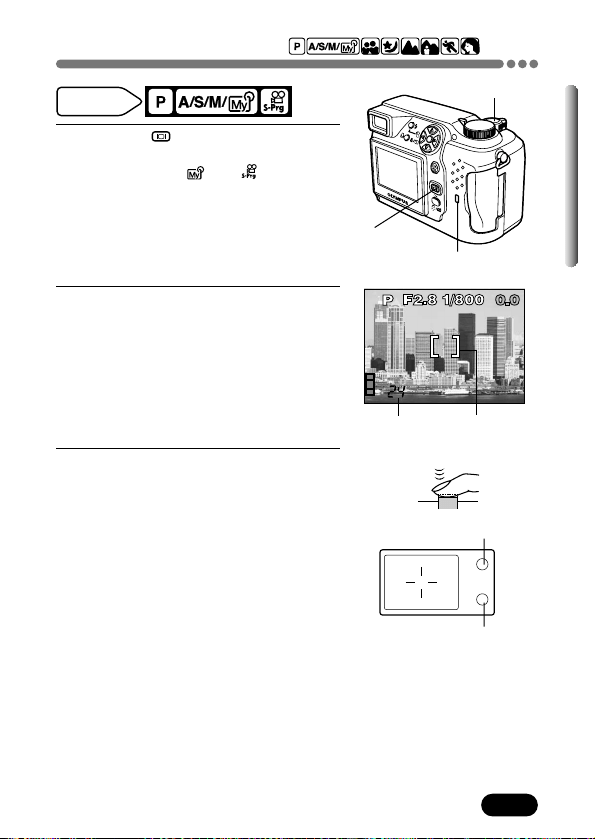
69
Chapter 4
Taking still pictures (Cont.)
HQ
2288x1712
1
Press the (monitor) button to turn
on the monitor.
● In the A/S/M/ or mode, the
monitor turns on automatically.
2
Point the camera towards a subject
while viewing with the monitor. Place
the subject on the AF target mark.
3
Press the shutter button halfway.
● When focus and exposure (brightness) are
locked, the green lamp lights.
● If the orange lamp lights, the flash fires
automatically.
~ “Flash shooting”
(P. 75)
Mode dial
setting
Shutter button
Monitor button
Card access lamp
Number of
storable pictures
AF target mark
Viewfinder
Orange lamp
Green lamp
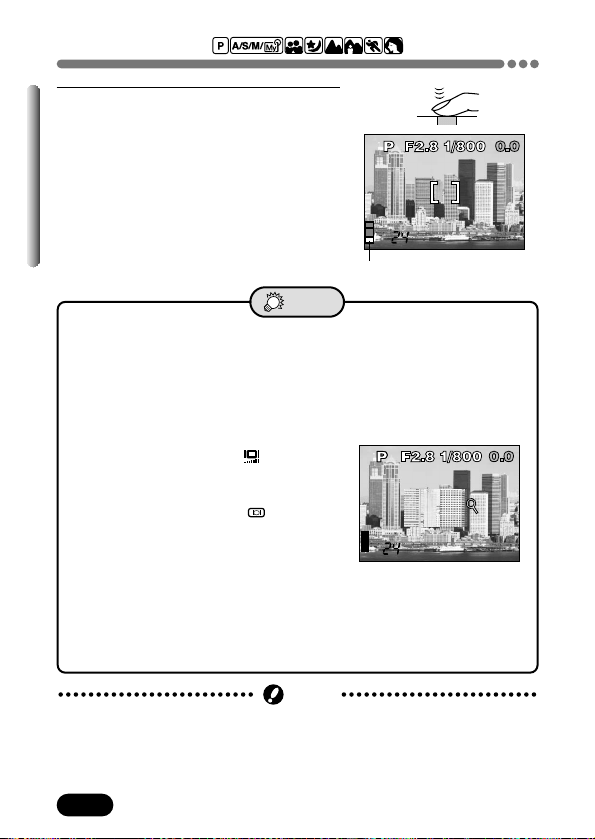
70
Chapter 4
Taking still pictures (Cont.)
4
Press the shutter button all the way.
● The bottom of the memory gauge lights,
the card access lamp blinks, and the
camera begins storing pictures on the
card.
Memory gauge
● The monitor does not turn on.
T If the camera is not used for over 3 minutes, the monitor turns off. If you
operate the shutter button or zoom lever, the monitor turns on again.
● Vertical lines on the monitor screen make it hard to see the image.
T Bright light (such as direct sunlight) may cause vertical lines to appear
on the monitor screen. In this case, use the viewfinder.
● How to brighten/darken the monitor
T Adjust the brightness in (P. 156).
● How to check the area the camera is
focusing on
T If you hold down the (monitor)
button while pressing the shutter button
halfway, the area you are focusing on
is enlarged (as illustrated). When using
the digital zoom, this is not available.
● Camera movement is less noticeable when using the viewfinder
rather than the monitor.
● Also read the “TIPS” on “Taking still pictures while using the
viewfinder” (P. 67).
TIPS
HQ
2288x1712
● The monitor consumes more battery power than the viewfinder.
● If you point the lens towards a bright subject, smear (lines like beams of
light) may appear on the monitor image. This does not affect recorded
images.
Note
HQ
2288x1712
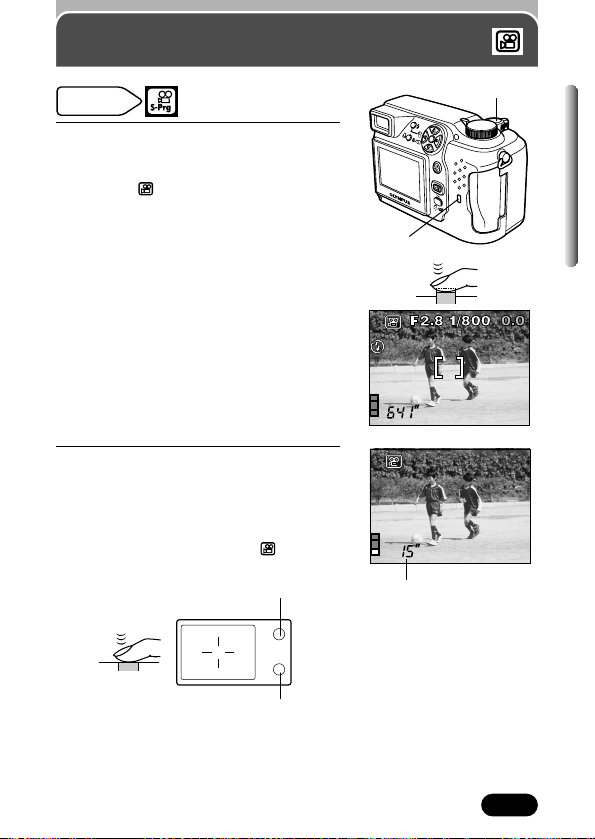
71
Chapter 4
1
Point the camera towards a subject,
and place the subject on the AF target.
● The monitor turns on automatically.
● In the mode, the total recording
time is shown. Total recording time
depends on the memory capacity of the
card.
2
Press the shutter button all the way to
start recording.
● The number of seconds remaining
appear.
● The orange lamp lights up.
● During movie recording, lights in
red.
Recording movies
Seconds remaining*
* The displayed seconds
remaining shows the time you
can shoot after pressing the
shutter button.
Mode dial
setting
HQ
320x240
Shutter button
Card access lamp
Viewfinder
Green lamp
Orange lamp

72
Chapter 4
Recording movies (Cont.)
3
Press the shutter button all the way to
stop recording.
● The card access lamp blinks and the
camera begins storing the movie on the
card.
● When the card access lamp stops
blinking, the camera has finished writing
the movie to the card. If there is any
space left on the card, the number of
seconds remaining is displayed. You
can start shooting another movie.
● When the remaining time displayed has
been used up, shooting stops
automatically and the camera starts
writing the movie to the card. This will
happen regardless of whether or not
you press the shutter button to stop
shooting.
● Shooting is not possible.
T You cannot record another movie as long as the card access lamp is
blinking.
T Shooting is not possible while the camera is saving pictures to the
card. When the memory gauge goes off, you can take another shot.
TIPS
● During movie recording, the flash cannot be used.
Note
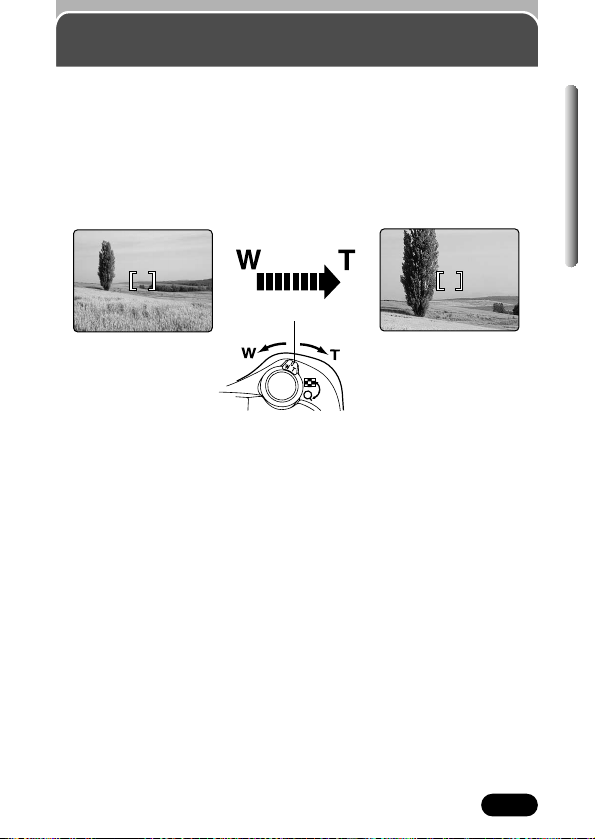
73
Chapter 4
Telephoto/Wide-angle shooting is possible at up to 3x magnification (optical
zoom limit, equivalent to 32 mm - 96 mm on a 35 mm camera). By combining
the digital zoom with the 3x optical zoom, zoom magnification can be
extended to a maximum of approx. 10x (during still picture shooting).
Zoom in on a subject
(telephoto)
Press the zoom lever toward T to
zoom in.
Shoot a wider view picture
(wide-angle)
Press the zoom lever toward W
to zoom out.
Zoom — Telephoto/Wide-angle
shooting
Zoom lever
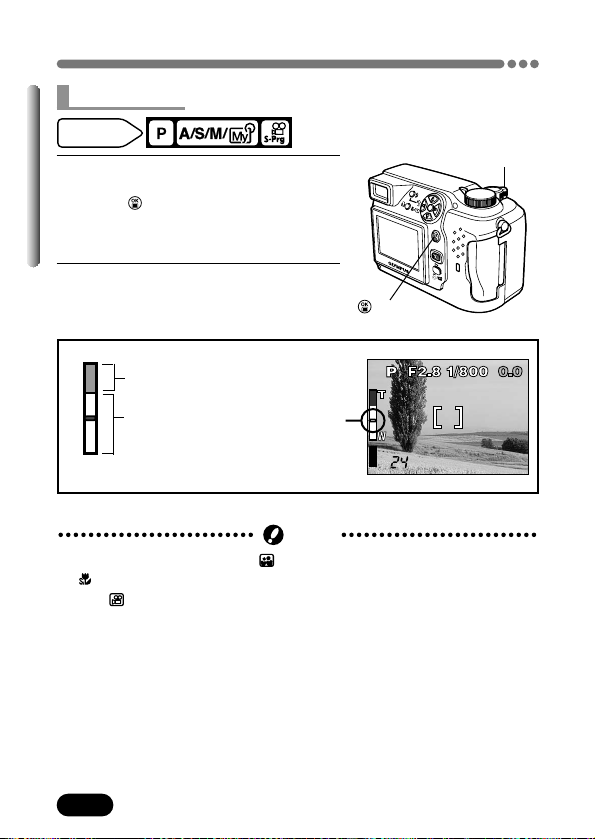
74
Chapter 4
Zoom — Telephoto/Wide-angle shooting (Cont.)
button
● Zooming is not possible in the mode.
●If is set to ON, zooming is not possible.
● In the mode, digital zoom magnification is 2.5x.
● Images captured with the digital zoom may appear grainy.
● Camera movement is likely to happen at higher magnifications. Stabilize the
camera with a tripod, etc. to avoid camera movement.
Note
Digital zoom ON
The cursor
moves on the
zoom indicator
according to
the zoom
magnification.
Factory default setting: OFF
Indicates digital zoom
Indicates optical zoom
HQ
2288x1712
Zoom area
1
In the top menu, select MODE MENU
T CAMERA T DIGITAL ZOOM T ON.
Press . Press again to cancel the
menu.
~ “How to use the menu” (P. 39)
2
Press the zoom lever towards T.
● The zoom bar appears.
Mode dial
setting
Digital zoom
Zoom lever
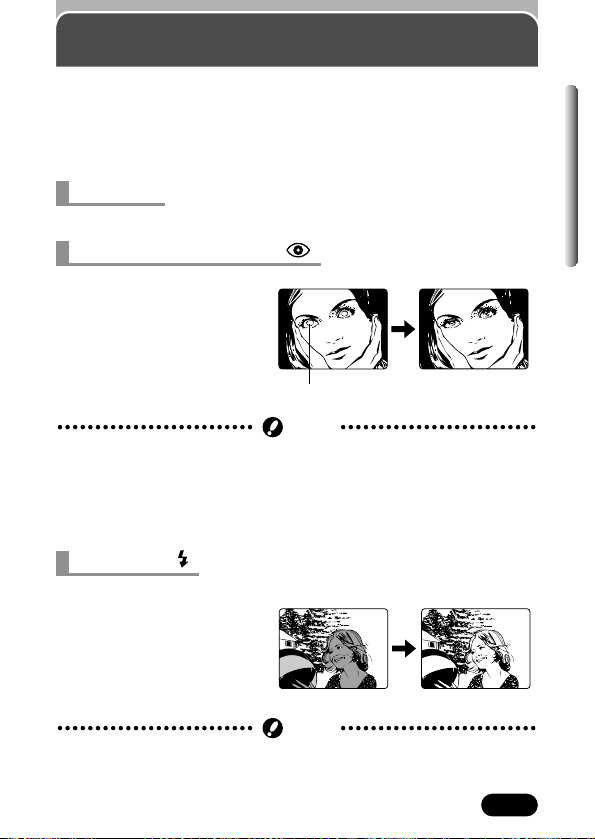
75
Chapter 4
You can select a flash mode appropriate to the lightning conditions and the
effect you want to achieve. You can also adjust the amount of light emitted
using the flash intensity control (P. 81).
The flash modes are as follows:
Automatically fires in low-light and backlight conditions.
This mode significantly reduces
the phenomenon of “red-eye”
by emitting about 10 pre-
flashes before firing the regular
flash. This mode works the
same as the auto-flash except
for the pre-flashes.
Flash shooting
The subject’s eyes
appear red.
The flash fires regardless of
available light. This mode is
useful for eliminating shadows
on the subject’s face or for
correcting the color shift
produced by artificial lighting
(especially fluorescent light).
Auto-flash
Red-eye reduction flash
● After the pre-flash, it takes about 1 second before the shutter is released,
so do not move the camera and hold it firmly after the pre-flash.
● Effectiveness may be limited if the subject is not looking directly at the
preflashes, or if the shooting range is too far. Individual physical
characteristics may also limit effectiveness.
Note
Fill-in flash
● Fill-in flash may not have the desired effect under excessively bright light.
Note
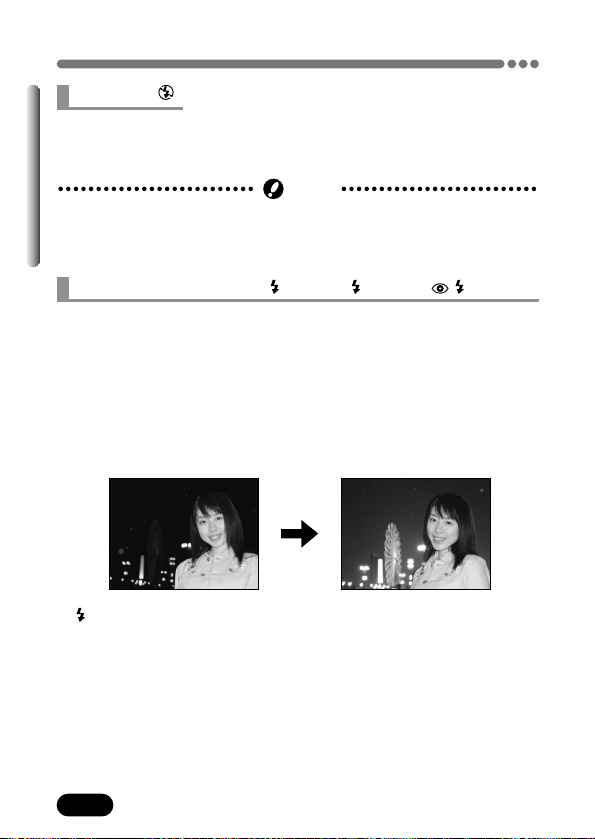
76
Chapter 4
Flash shooting (Cont.)
Flash off
● Since a slow shutter speed is automatically selected in low-light situations
when in the flash off mode, the use of a tripod is recommended to prevent
your pictures from being blurred by camera movement.
Note
The flash does not fire even in low-light conditions. Use this mode in
situations where flash photography is not desired or is prohibited, or when
you want to shoot a natural-looking twilight or night scene.
SLOW1 (factory default setting):
1st curtain (front curtain)
Usually, regardless of the shutter speed, the flash fires right after the shutter
fully opens.
The Slow Synchronization flash is designed for slow shutter speeds.
Normally, when shooting with a flash, shutter speeds cannot go below a
certain level to prevent camera movement. But when shooting a night scene
background, fast shutter speeds can make the background too dark. Slow
Synchronization flash allows both a slow shutter speed for the background
and a flash for the subject. Since the shutter speed is slow, make sure you
stabilize the camera by using a tripod. Otherwise, camera movement may
cause the image to be blurred.
Shutter speed: 4 to 1/1000 sec.
Slow synchronization
SLOW1 SLOW2 SLOW
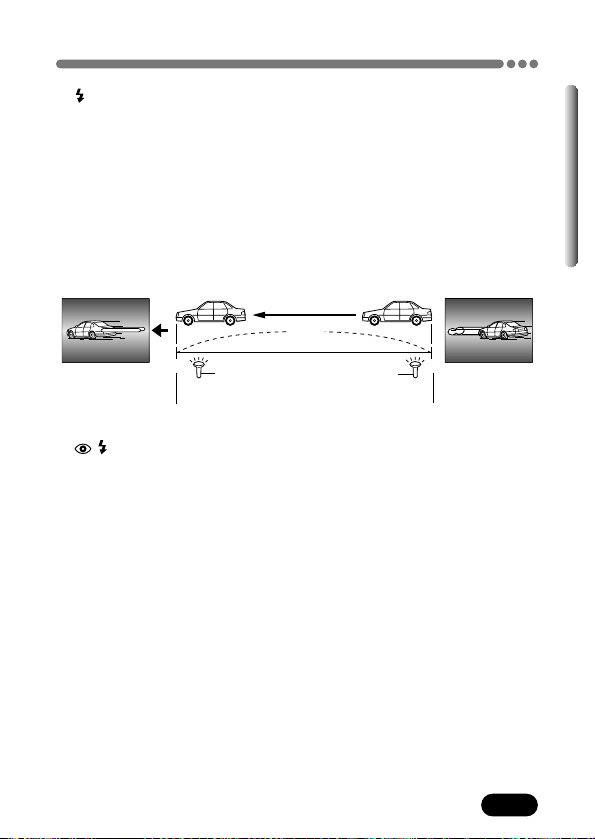
77
Chapter 4
Flash shooting (Cont.)
SLOW:
1st curtain with red-eye reduction
This is for when you want to use Slow Synchronization yet also reduce red-
eye. For instance, when shooting a person against a brightly lit night
background. A normal flash might make the person’s eyes red, but 1st curtain
with red-eye reduction lets you capture the background correctly and reduce
red-eye at the same time.
2nd curtain with red-eye reduction is not available.
When the shutter speed is set to 4 sec.
40
4 sec.
Shutter closes
Shutter fully opens
2nd curtain
flash fires
1st curtain
flash fires
(front curtain)(rear curtain)
SLOW2:
2nd curtain (rear curtain)
In contrast to 1st curtain, 2nd curtain fires the flash just before the shutter
closes. Changing the flash timing can create interesting effects in your
picture, such as expressing the movement of a car by showing the taillights
streaming backwards. The slower the shutter speed, the better the effects
turn out.
Slowest possible shutter speed depends on the shooting mode:
M mode : 16 sec.
P/A/S mode : 4 sec. (depending on the ISO setting.)
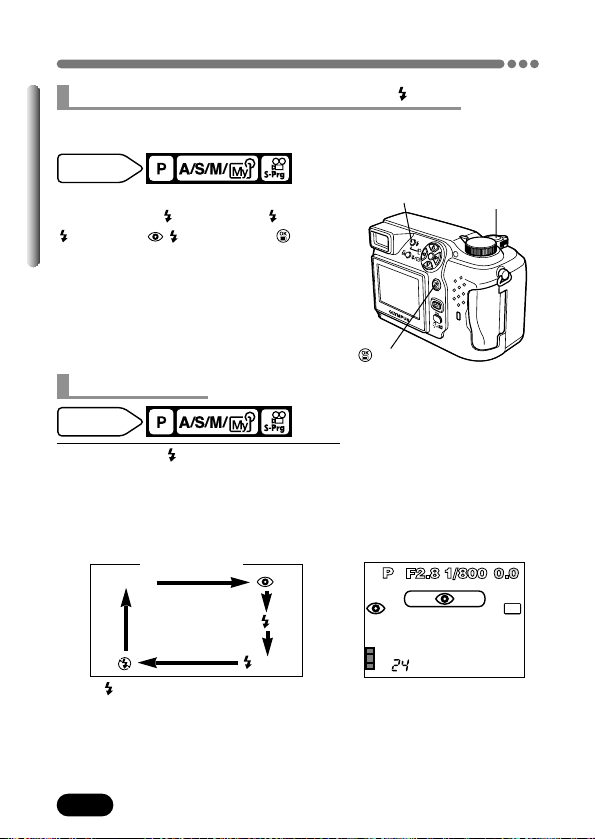
78
Chapter 4
Flash shooting (Cont.)
Using the slow synchronization flash
SLOW
In the top menu, select MODE MENU T
CAMERA T SLOW T SLOW1,
SLOW2 or SLOW. Press . Press
again to cancel the menu.
~ “How to use
the menu” (P. 39)
Use the menu to select one of the 3 Slow synchronization flash modes
(P. 76).
Mode dial
setting
1
Press the (flash mode) button
repeatedly until the desired flash mode
indication appears.
● The monitor turns on automatically.
● The flash mode changes as follows (if all
modes are available):
● If is not pressed within 2 seconds after
the selection screen is displayed, the
selection screen disappears.
Mode dial
setting
Using the flash
Shutter button
Auto-flash
SLOW
When selecting
Flash mode button
HQ
2288x1712
button
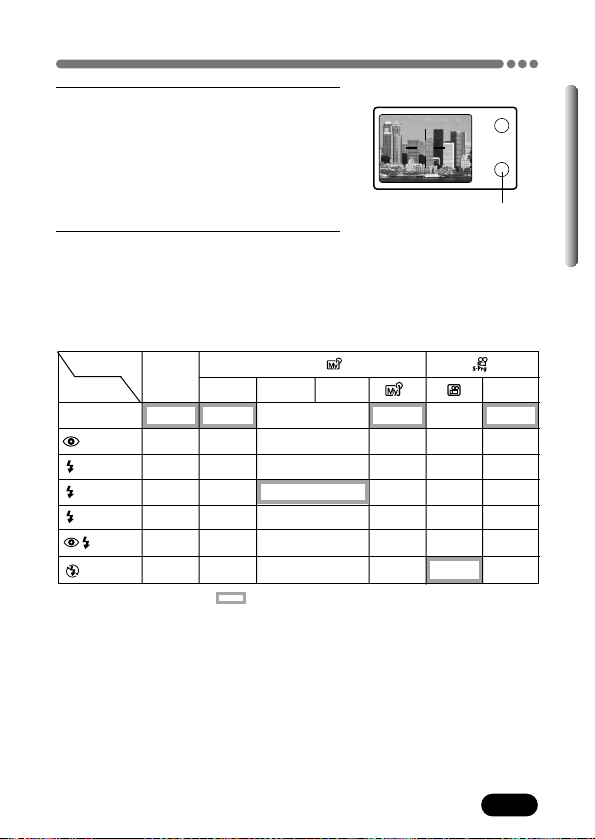
79
Chapter 4
Flash shooting (Cont.)
2
Press the shutter button halfway.
● When the flash is ready to fire, the orange
lamp lights.
3
Press the shutter button all the way.
● The flash fires.
Flash working range
W (max.): Approx. 0.8 m – 3.6 m (2.6 ft – 11.8 ft)
T (max.): Approx. 0.2 m – 3.6 m (0.6 ft – 11.8 ft)
: Available, – : Not available : Factory default setting
* The factory default setting and the available settings differ depending on which shooting
mode is selected. See the P, A, S, M or S-Prg column.
Viewfinder
Orange lamp
–
–
Mode
Flash
Auto-flash
SLOW1
SLOW2
SLOW
A
P
–
–
–
S
M
S-Prg
A/S/M/
*
–
–
–
80
Chapter 4
Flash shooting (Cont.)
● The flash does not fire.
T Flash does not fire in the following situations:
When shooting a bright subject, in the movie record mode, in the
mode (P. 90), during sequential shooting ( *, *, BKT) (P. 92),
when FUNCTION is set to WHITE BOARD/BLACK BOARD (P. 100),
during Panorama shooting (P. 96).
*Red-eye reduction flash and 1st curtain with red-eye reduction flash are not
available.
● The orange lamp or the (flash stand-by) mark blinks.
T The flash is charging. Remove your finger from the shutter button.
When the mark stops blinking, press it again.
● Camera movement warning (auto, red-eye reduction, fill-in)
When the orange lamp or (camera shake warning) lights, the shutter
speed locks at its current level. This helps prevent camera movement
problems (shutter speeds that are too slow can cause blur). However, if
the zoom magnification is increased, the camera will increase the locked
shutter speed accordingly.
Zoom position & shutter speed
W (max.): 1/30 sec., T (max.): 1/100 sec.
TIPS
● The flash may not give you the optimum result in macro mode, especially
with wide-angle shooting. Check the image on the monitor.
● If a conversion lens is attached to the camera, the flash is disabled.
Note
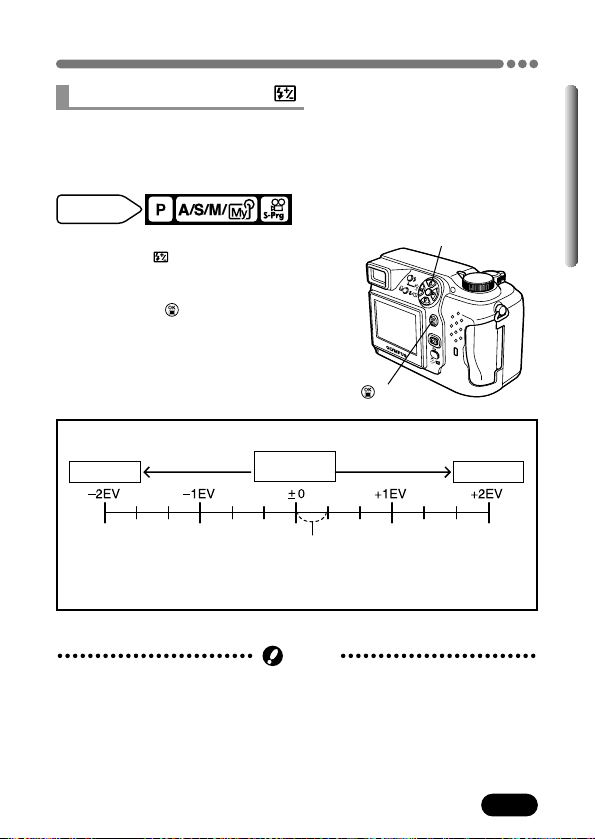
81
Chapter 4
Flash shooting (Cont.)
+1/3EV
Less bright
Normal flash
intensity
More bright
You can adjust the amount of light emitted by the flash.
In some situations, you may get better results by adjusting light emission.
Examples include small subjects, distant backgrounds, or situations when
increased contrast is desired.
In the top menu, select MODE MENU T
CAMERA T . To increase the light
emission, press
Ñ. To decrease the light
emission, press
ñ. To complete the
setting, press .
~ “How to use the
menu” (P. 39)
Factory default setting: ±0
Ñ: Light emission is increased by a 1/3 EV each time you press the button.
ñ: Light emission is decreased by a 1/3 EV each time you press the button.
(EV: Exposure Value)
Mode dial
setting
Adjustable range
Flash intensity control
● The flash adjustment effect may not be sufficient if the shutter speed is too
fast.
Note
button
Ññbuttons
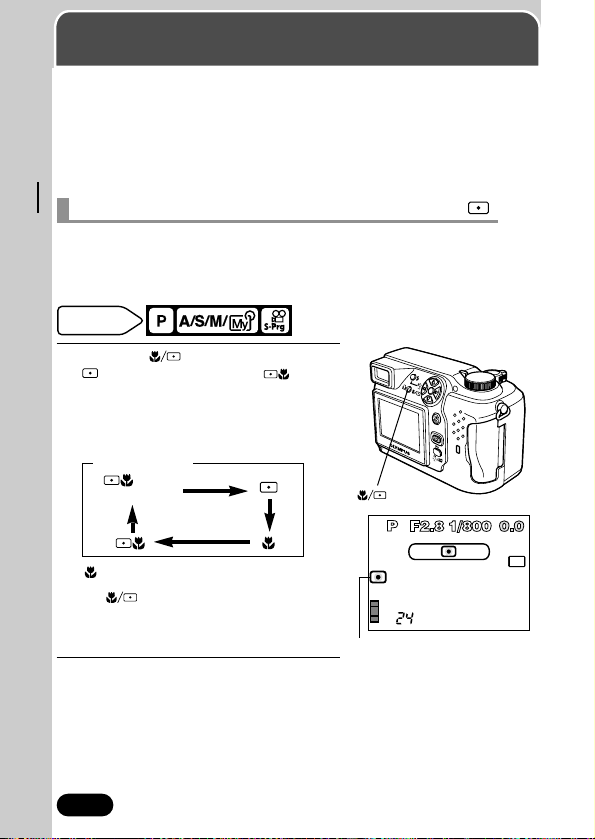
82
Chapter 5
Advanced shooting
Metering modes — Metering the
subject brightness
There are 3 metering methods: Digital ESP metering, spot metering and
multi-metering.
Digital ESP metering: Meters the center of the frame and the area around it
separately to determine the optimal exposure.
Spot metering: See below.
Multi-metering: See P. 83.
Mode dial
setting
1
Press the button repeatedly until
(spot metering) or (spot
metering+macro mode) appears.
● The monitor turns on automatically.
● The indications change as follows (if all
modes are available):
● If is not pressed within 2 seconds
after the selection screen is displayed, the
selection screen disappears.
2
Take a picture.
Factory default setting: Digital ESP
OFF
(Digital ESP)
~ “Macro mode” (P. 89)
When selecting
HQ
2288x1712
Spot metering
button
Exposure is determined by metering within the AF target mark. In this mode,
a subject can be shot with optimal exposure regardless of the background
light. In the working range of the macro mode, spot metering is also available
(spot metering+macro mode).
Spot metering — Selecting the metering area
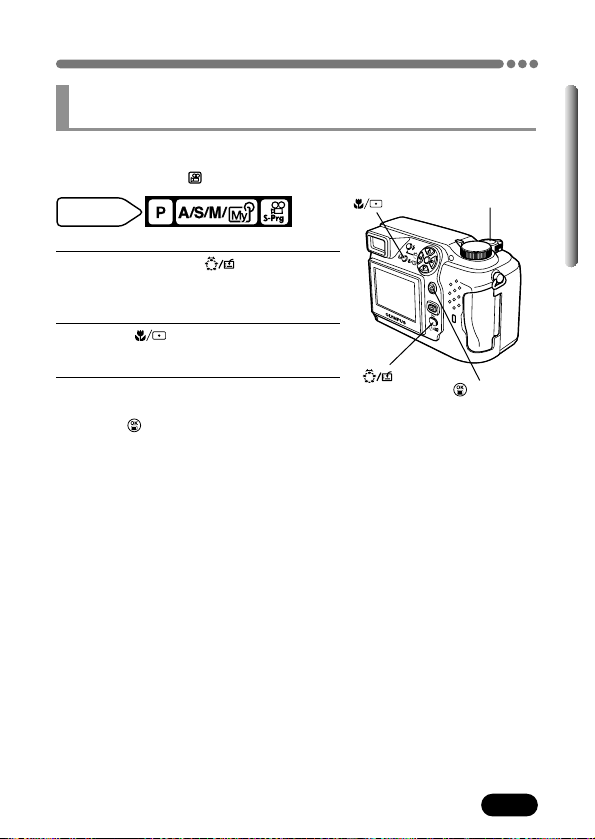
83
Chapter 5
Metering modes — Metering the subject brightness (Cont.)
Multi-metering — Metering the exposure of more than
one point in the frame
Meters the brightness of the subject at up to 8 different points to set the
optimal exposure based on the average brightness. Useful with high-contrast
subjects. In the M or mode, multi-metering is not available.
∑ Setting multi-metering
1
Set AE lock to the button.
~ “Setting the custom button”
(P. 146).
2
Press to engage the spot
metering mode (P. 82).
3
In the top menu, select MODE MENU T
CAMERA T MULTI METERING T ON.
Press . Press again to cancel the
menu.
~ “How to use the menu”
(P. 39)
button
Shutter button
Mode dial
setting
button
button
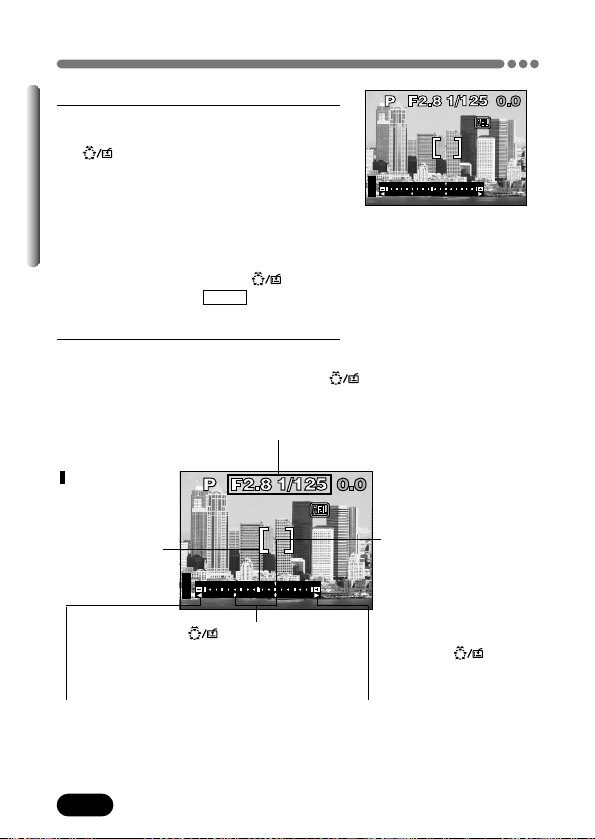
84
Chapter 5
Metering modes — Metering the subject brightness (Cont.)
HQ
∑ Using multi-metering
1
Point the AF target mark where you
want to meter the exposure. Press the
button. The subject’s brightness
can be metered at up to 8 different
points.
● A metering bar appears on the monitor.
● Brightness meter readings are ignored
after the 9th reading.
● To cancel the locked multi-metering
exposure, hold down over 1
second to display
MEMO . Press it again
and release it quickly.
2
Take a picture.
e.g. : When metering 2 points (pressing twice).
The average values for the aperture and shutter speed as calculated by
metering 2 points. These values are recalculated every time another metering
point is added.
indicates the
average for the 2
metering points.
The average is
always shown at
the center of the
bar.
indicates how much
the present exposure
you are metering is
different from the
average exposure
value. The present
exposure can be fixed
by pressing the shutter
button halfway down.
(The present exposure
is not added to the
average value unless
you press
.
)
When moves ±3 far from the center of the bar (the average reading), the
red
Éí
appears.
The reading with pressed. indicates
the number of times you have pressed the
button indicates the difference between the
metered and average readings.
HQ
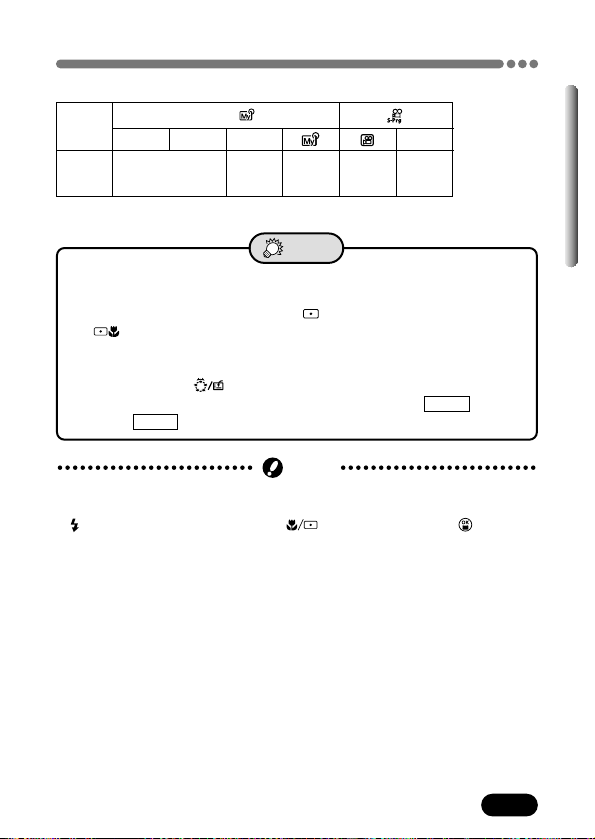
85
Chapter 5
Metering modes — Metering the subject brightness (Cont.)
S
–
A
A/S/M/
P
● If any of the following buttons are pressed during multi-metering, multi-
metering exposure is canceled.
(flash mode) button, mode dial, (macro/spot) button, .
● If multi-metering is not engaged
T In the Digital ESP mode, multi-metering is not available. Set the
metering mode to spot metering or spot metering + macro mode
.
● How to save the locked multi-metering exposure after shooting (AE
memory)
T After pressing as many times as required in step 1 of “Using
multi-metering”, hold it down for more than 1 second.
MEMO appears.
When
MEMO appears, the locked exposure is memorized.
TIPS
–
M
S-Prg
Note
: Available, – : Not available
Modes & Multi-metering
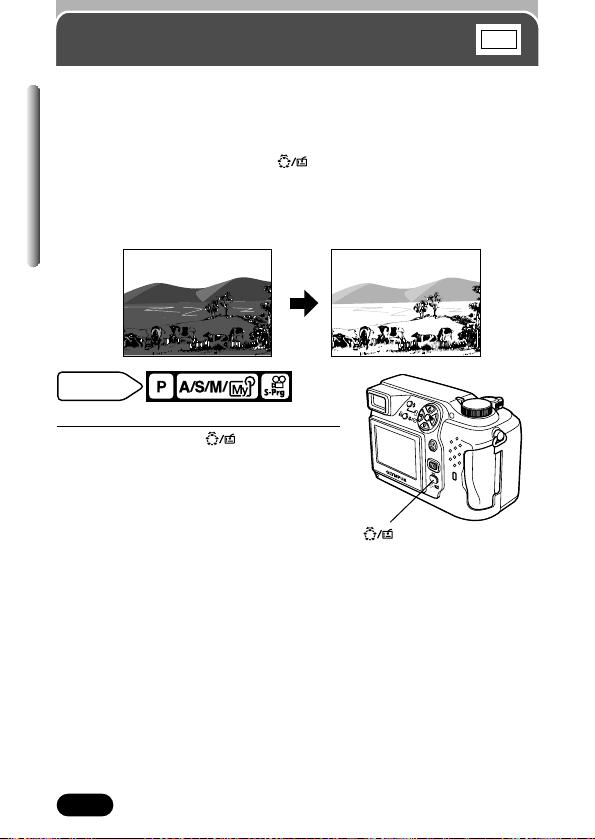
86
Chapter 5
AE lock
— Locking the exposure
Suitable for situations when optimal exposure is difficult to achieve (such as
excessive contrast between the subject and the surroundings). For example,
if nearly the whole frame is taken up with sky, shooting with automatic
exposure will result in a dark subject. In this case, first frame an image
without any sky. Then, press the button to lock the exposure of the
non-sky frame. Finally, compose your shot again with the sky in the frame
and shoot. In other words, use AE lock when you want an exposure setting
that's different from the setting that would normally apply to the image you
want to shoot.
∑ Setting AE lock
1
Set AE lock to the button.
~ “Setting the custom button” (P. 146)
● Set MULTI METERING to OFF (P. 83).
If set to ON, AE lock is not available.
Mode dial
setting
button
AEL
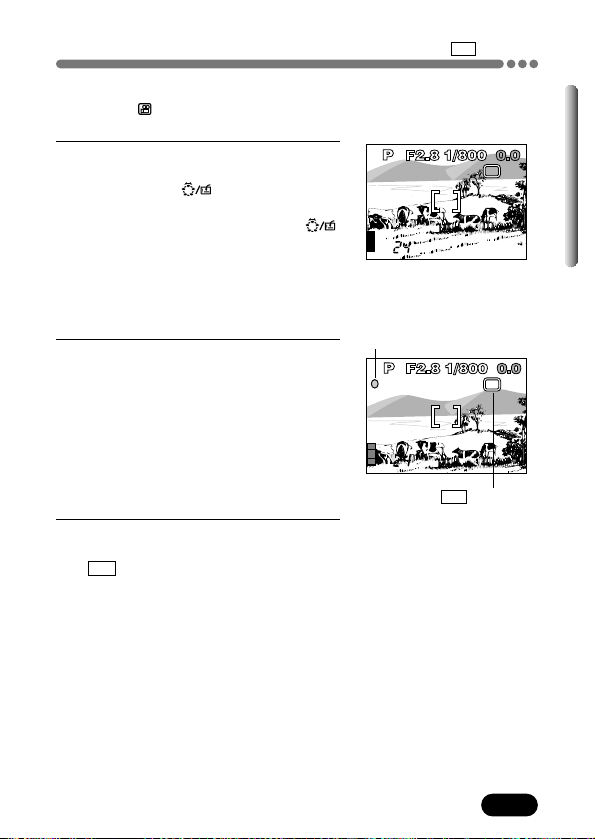
87
Chapter 5
AE lock — Locking the exposure (Cont.)
AEL
∑ Using AE lock
In the M or mode, multi-metering is not
available.
1
Compose the picture where you want
to lock the metered value (exposure),
then press the button.
● The monitor turns on automatically.
● To cancel AE lock, press the
button again and release it quickly. If
you want to lock a different exposure,
re-compose the picture and press the
button again. Each time you press the
button, lock and cancel are repeated.
2
Place the subject you want to focus on
within the AF target mark, then press
the shutter button halfway.
● The green lamp lights.
● AE lock cannot be canceled while the
shutter button is pressed halfway.
3
Press the Shutter button all the way.
● After shooting, AE lock is canceled and
AEL disappears.
AELAEL
HQ
2288x1712
AEL
AEL
HQ
2288x1712
During AE lock, AEL is displayed.
Green lamp
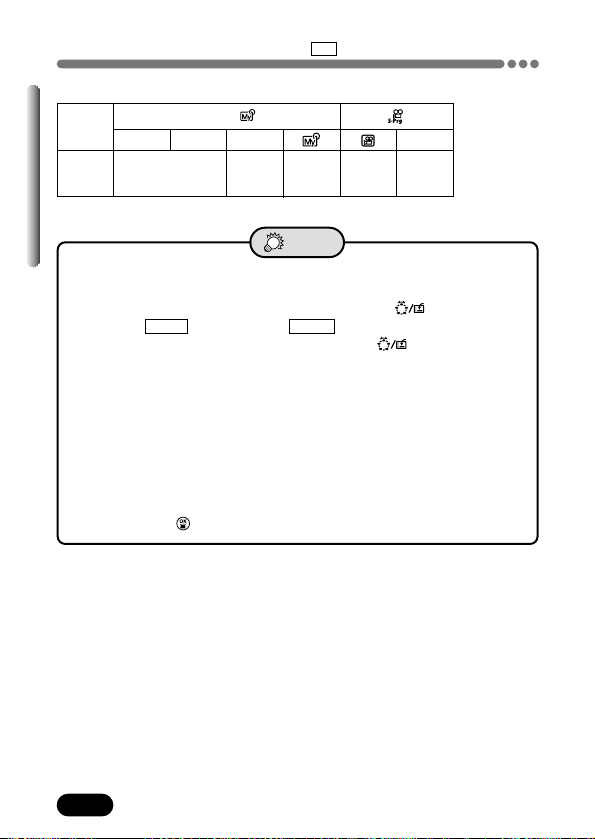
88
Chapter 5
AE lock — Locking the exposure (Cont.)
AEL
● How to save the locked Multi-metering exposure after shooting (AE
memory)
T After step 1 or 2 of “Using AE lock”, hold down for more than 1
second.
MEMO appears. When MEMO appears, the locked exposure is
memorized. To cancel AE memory, press the button and release
it quickly.
● AE lock is not available
T A menu is on the screen. Quit the menu (P. 39).
T The multi-metering is on. Turn it off (P. 83).
● AE lock has been canceled
T You turned the mode dial to change the camera’s mode.
T The camera's power was turned off or the camera entered sleep
mode.
T The spot metering/macro mode, drive mode or flash mode is changed.
T You pressed to display the menu.
TIPS
Modes & AE lock
: Available, – : Not available
S
(except
M)
–
A
A/S/M/
P
–
M
S-Prg
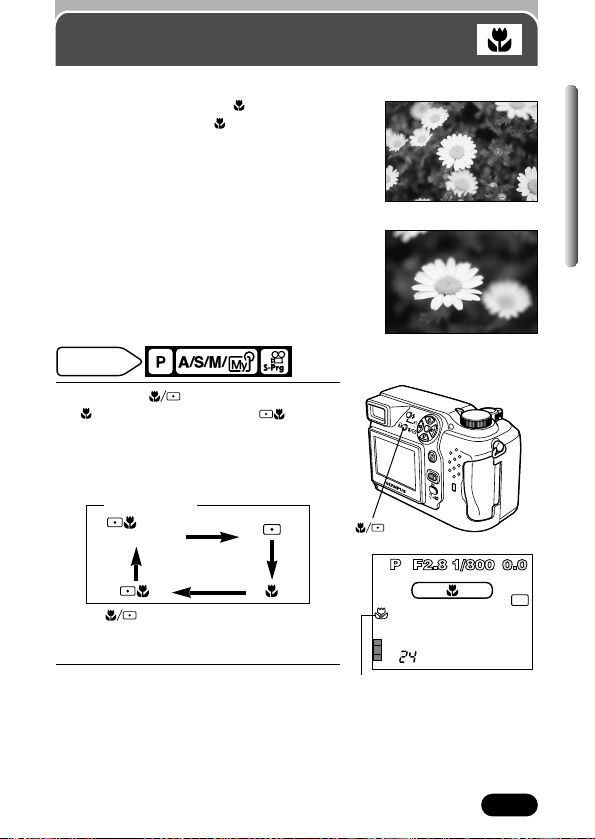
89
Chapter 5
Working range
Normal : 80 cm to
∞ (2.6 ft to ∞)
Macro : 20 cm to 80 cm (0.6 ft to 2.6 ft)
Factory default setting: Digital ESP
Macro mode shooting
— Taking close-up pictures
Focusing is usually slow when you get close to a
subject. However, in the mode focusing is
performed quickly. The (macro) mode allows
you to shoot close to the subject (within 20 cm – 80
cm (0.6 ft – 2.6 ft)). When the zoom lever is
pressed to the maximum W position, you can fill
the entire frame with your subject.
If the center of the frame (within the AF target
mark) is metered when you are close to the subject
and you shoot with the optimal exposure, the
picture will turn out well (Spot metering+ Macro
mode).
~ “Spot metering” (P. 82).
If you are close to a subject, the picture area in the
viewfinder is different from the picture that the
camera actually records. For macro mode
shooting, we recommend using the monitor (P. 68).
Mode dial
setting
1
Press the button repeatedly until
(macro mode) or (spot
metering+macro mode) appears.
● The monitor turns on automatically.
● The indications change as follows (if all
modes are available):
● If is not pressed within 2 seconds
after the selection screen is displayed, the
selection screen disappears.
2
Take a picture.
Normal shooting
With the macro mode
OFF
(Digital ESP)
When selecting
HQ
2288x1712
Macro mark
button
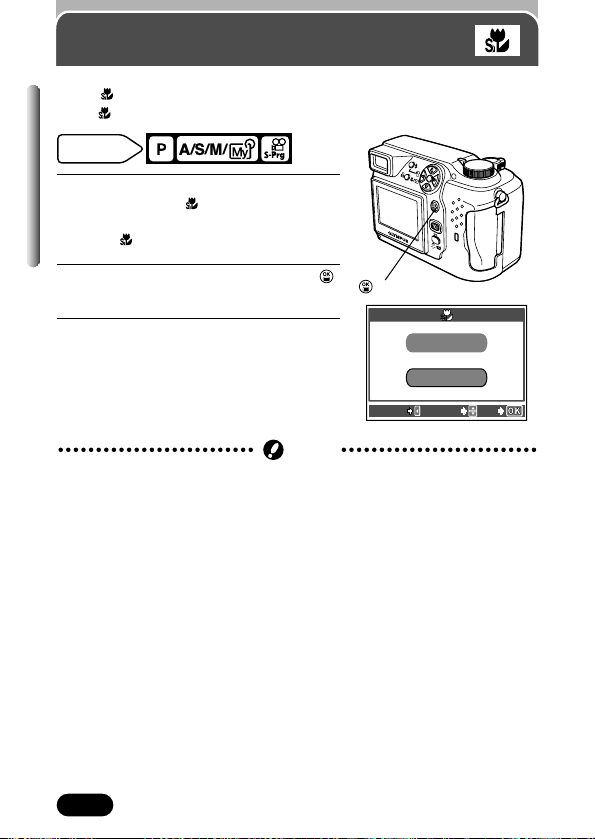
90
Chapter 5
Super macro mode
1
In the top menu, select MODE MENU
T CAMERA T . Press
í.
~ “How to use the menu” (P. 39)
● The screen appears.
2
Press Ññ to select ON, then press .
Press again to cancel the menu.
3
Take a picture.
● In the super macro mode, the monitor
turns on automatically.
Factory default setting: OFF
When is activated, you can shoot from as close as 2 cm to your subject.
In the mode, normal shooting is also possible.
Mode dial
setting
button
● During super macro shooting, the main flash is disabled. You can shoot
using an external flash. If an external flash is used, vignetting (P. 207) may
occur. Check the recorded image on the monitor.
Note
ON
OFF
CANCEL SELECT
GO
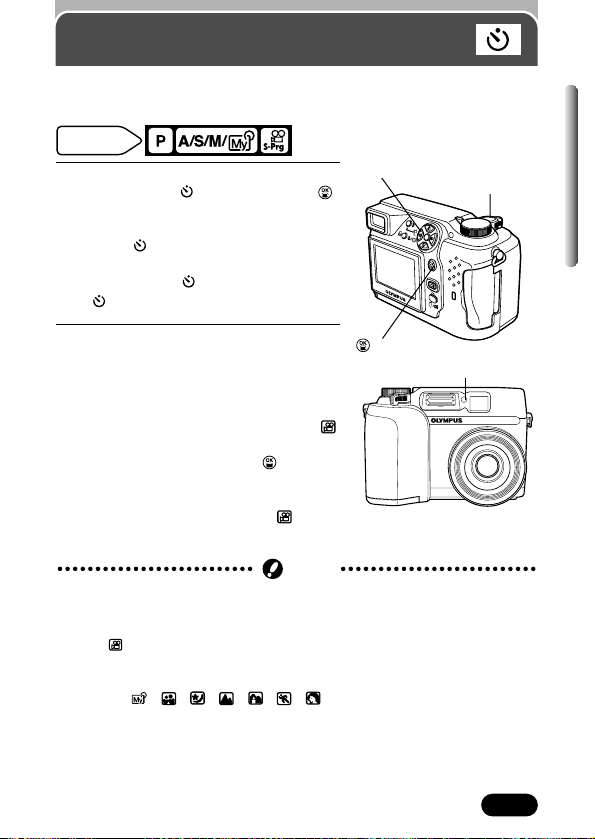
91
Chapter 5
1
In the top menu, select MODE MENU T
CAMERA TTON. Press .
Press again to cancel the menu.
~ “How to use the menu" (P. 39)
● When is displayed on the top menu,
press
Ñ, É or ñ according to the arrow
shown next to . This allows you to set
directly instead of via MODE MENU.
2
Press the shutter button fully to start
self-timer shooting.
● The self-timer lamp lights up for
approximately 10 seconds, then starts
blinking. After blinking for approximately 2
seconds, the picture is taken. (In the
mode, recording starts.)
● To stop the self-timer, press . The self-
timer stops and the self-timer lamp will
turn off.
● To stop shooting while in the mode,
press the shutter button fully again.
Self-timer shooting
This function is useful for taking pictures where you want to be included in the
photograph. Use a tripod to stabilize the camera.
Mode dial
setting
Self-timer lamp
Shutter button
button
ÑñÉbuttons
● The self-timer mode is not saved after the power is turned off even if All
Reset is set to OFF (P. 143).
● The self-timer mode is canceled automatically when shooting is finished.
● In the mode, the camera automatically stops shooting when it goes over
the maximum recording time.
● If the self-timer shooting is attempted when the still picture shooting mode
(P, A/S/M/ , , , , , , ) is set to sequential shooting, the
camera shoots 5 frames automatically.
Note

92
Chapter 5
: Shoots 1 frame at a time when the shutter button is pressed
all the way. (Single-frame shooting: normal shooting)
: Shoots pictures sequentially. Focus, exposure and white
balance are locked at the first frame. (Sequential shooting:
See below.)
: Shoots pictures sequentially. Focus is locked for each frame
automatically. The AF sequential shooting speed is lower than
normal sequential shooting. (AF sequential shooting:
See below.)
BKT : Auto bracketing (P. 93)
Sequential shooting
There are 3 sequential shooting modes: sequential shooting , AF
sequential shooting and auto bracketing BKT.
Sequential shooting modes can be selected from the DRIVE mode menu.
Sequential shooting & AF sequential shooting
Mode dial
setting
1
In the top menu, select MODE MENU
T CAMERA T DRIVE T or .
Press . Press again to cancel the
menu.
~ “How to use the menu”(P. 39)
2
Take pictures.
● Press the shutter button all the way and
keep it pressed. The camera will take
pictures in sequence until you release the
button.
● Sequential shooting speed (HQ mode):
approximately 1.5 frames/sec., number of
pictures: 8 max.
Drive mode
● Also read the “Note” (P. 95) and “Modes & Drive mode” (P. 94).
Note
Shutter button
button
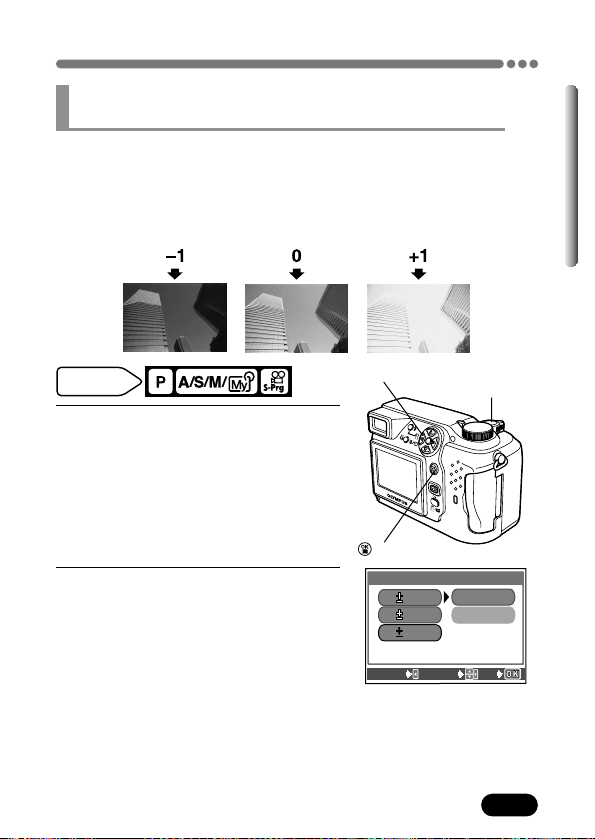
93
Chapter 5
Sequential shooting (Cont.)
Under some conditions, you may obtain better results shooting with exposure
compensation than by using the exposure setting considered optimal by the
camera. When auto bracketing is set, exposure is changed automatically for
each frame when you start shooting. The exposure differential can be
selected in the menus. Focus and white balance are locked at the first frame.
Ex: When BKT is set to ±1.0, x3
Auto bracketing — Shooting pictures sequentially
with a different exposure for each frame BKT
Mode dial
setting
1
In the top menu, select MODE MENU
T CAMERA T DRIVE T BKT. Press
í.
~ “How to use the menu” (P. 39)
2
Press Ññ to select the exposure
differential between each frame (±0.3,
±0.7, ±1.0), then press
í.
Shutter button
button
Ññíbuttons
BKT
CANCEL SELECT
GO
0.7
0.3
x3
x5
1.0
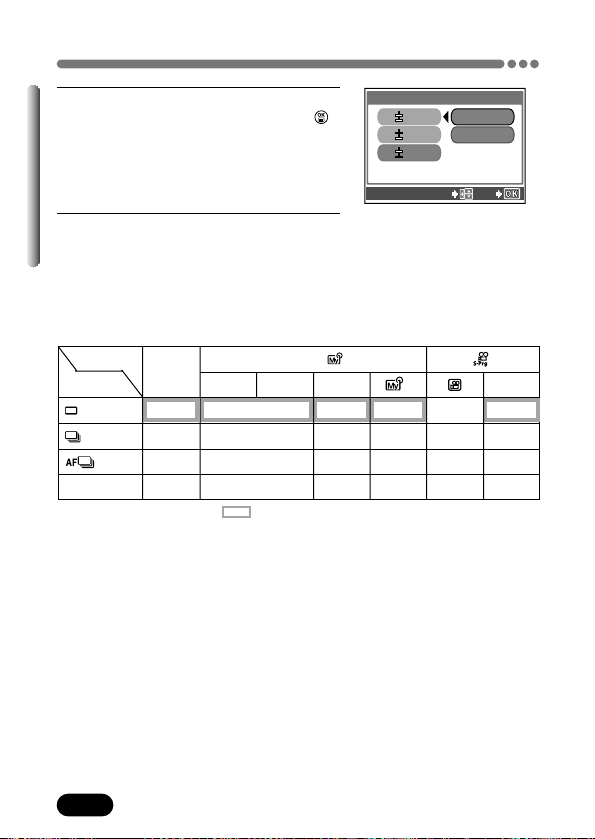
94
Chapter 5
Sequential shooting (Cont.)
3
Press Ññ to select the number of
frames to shoot (x3, x5), then press .
● In some combinations of picture size and
record mode, only x3 is available.
4
Take pictures.
● Press the shutter button all the way and
keep it pressed to shoot the preset
number of pictures. You can stop shooting
at any time by releasing the shutter button.
BKT
SELECT
GO
0.7
0.3
x3
x5
1.0
Modes & Drive mode
: Available, – : Not available : Factory default setting
* The available settings differ depending on which shooting mode is selected. See the P,
A, S, M or S-Prg column.
–
–
Mode
Drive mode
BKT
A
P
–
–
–
S
M
S-Prg
A/S/M/
*
95
Chapter 5
Sequential shooting (Cont.)
● In the following situations, sequential shooting ( , , BKT) is not
possible:
– When the record mode is set to TIFF (P. 102) or when the SHQ record
mode is set to ENLARGE SIZE (P. 106).
– When NOISE REDUCTION is set to ON (P. 116).
● During sequential shooting ( , , BKT), the main flash does not fire.
● If there is not enough space available on the card for the number of frames
you have set during auto bracketing, you cannot continue shooting.
● If self-timer shooting is attempted when the still picture shooting mode (P,
A/S/M/ , , , , , , ) is set to sequential shooting, the
camera shoots 5 frames automatically.
● If the ISO is set to over 200, noise may appear under some shooting
conditions (P. 107).
● If the battery power is low and the battery check blinks during sequential
shooting, shooting stops and the camera starts saving the pictures you
have taken. Whether or not all of the shots are saved depends on how
much battery power remains.
● Since the shutter speed is set to 1/30 sec. max., exposure is decreased
when shooting a dark subject to prevent camera movement.
● To use the external flash during sequential shooting, set the external flash
so that it fires for each frame.
Note

96
Chapter 5
1
In the top menu, select MODE MENU
T CAMERA T PANORAMA.
~ “How to use the menu” (P. 39)
2
Press í.
● The PANORAMA mode is set.
3
Press the arrow pad to choose at
which edge (top/bottom/right/left) you
want to connect images.
● The direction is displayed.
Panorama shooting
You can take advantage of panorama shooting with both Olympus CAMEDIA-
brand cards and CAMEDIA Master software. (Non-Olympus cards do not
support this feature.)
Panorama shooting lets you connect images with overlapping edges into a
single panoramic image, using the provided CAMEDIA Master software.
Connects a series of pictures
from left to right.
Connects a series of pictures
from bottom to top.
Mode dial
setting
Arrow pad
button

97
Chapter 5
Panorama shooting (Cont.)
4
Make sure that the edges of images
overlap, then take your pictures.
● Focus, exposure and white balance are
set by the first picture. Do not select an
extremely bright subject (such as the
sun) for the first picture.
● You cannot adjust the zoom after the
first picture.
● Panorama shooting is possible for up to
10 pictures.
Shutter
button
When shooting, be sure to have the edges (right/left/top/bottom) of images
overlap, so you will know which pictures should be connected.
Shutter
button
5
Press to finish panorama shooting.
● Frames on the edges of the screen
disappear, and the camera returns to
the normal shooting mode.
: Available, – : Not available
* Availability of the Panorama shooting depends on which shooting mode is selected. See
the P, A, S, M or S-Prg column.
S
A
P
–
Not
available
in .
M
S-Prg
Modes & Panorama shooting
A/S/M/
–
*
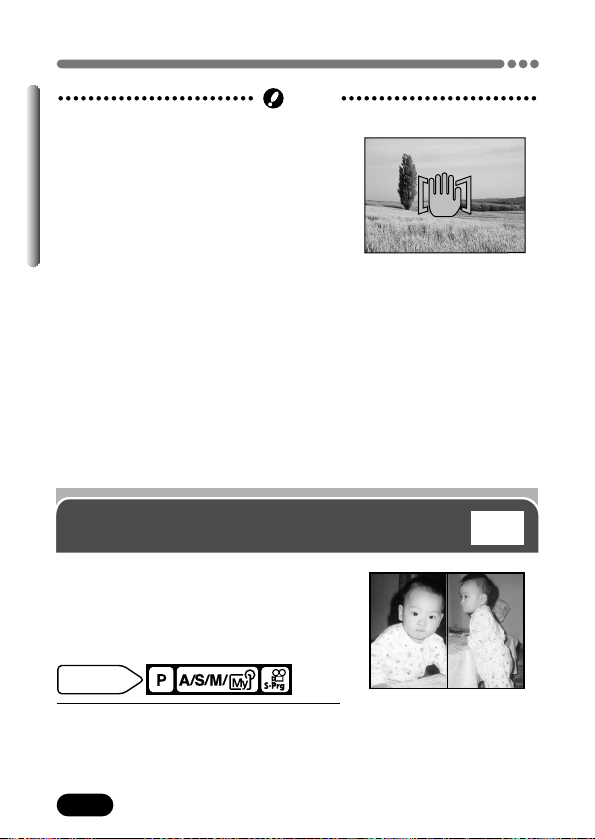
98
Chapter 5
Panorama shooting (Cont.)
● During panorama shooting, the flash is disabled.
● If you take 10 pictures, a warning screen
appears and no more pictures can be
taken.
● The panorama mode is only available with the OLYMPUS CAMEDIA-brand
SmartMedia cards.
● The camera itself cannot connect panorama pictures. To connect each
picture, the CAMEDIA Master software is necessary.
● Your computer's memory may be insufficient if you take too many panorama
pictures in the HQ/SHQ modes.
● Images are saved in JPEG format when panorama shooting is done in the
TIFF mode. The size of the image does not change.
● If the mode dial is moved during panorama shooting, the camera cancels
the panorama mode and returns to normal shooting.
Note
Taking two-in-one pictures
Allows you to combine two pictures taken in
succession and store them as a single
picture.
Mode dial
setting
1
In the top menu, select MODE MENU
T CAMERA T 2 IN 1.
~ “How to use the menu” (P. 39)
2 IN 1
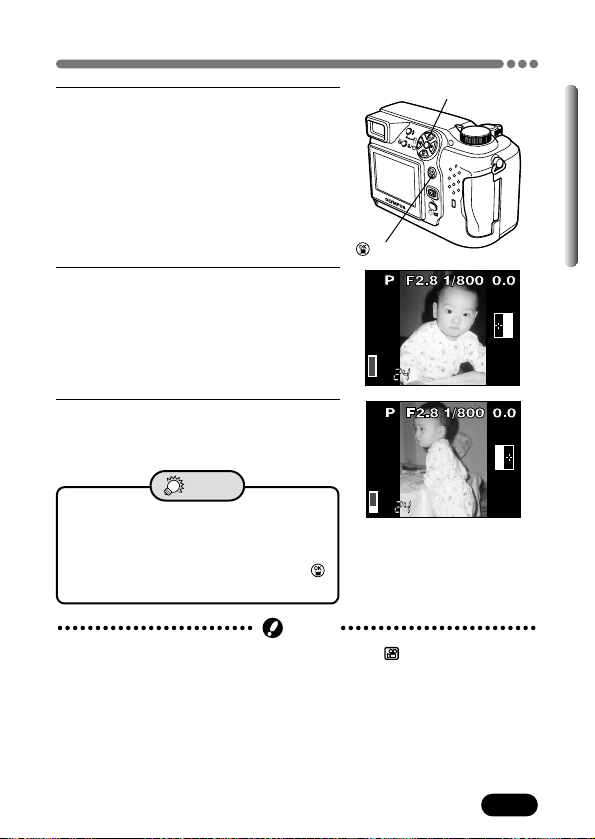
99
Chapter 5
Taking two-in-one pictures (Cont.)
2 IN 1
2
Press í.
● The two-in-one picture mode is set.
3
Take the first shot.
● The subject will be on the left in the
combined image.
4
Take the second shot in succession.
● The subject will be on the right in the
combined image.
1’st
HQHQ
2288x17122288x1712
2’nd
HQHQ
2288x17122288x1712
● How to cancel the two-in-one picture
mode
T To cancel the two-in-one picture mode
after taking the first shot, press .
The first shot will not be stored.
TIPS
● You cannot take two-in-one (2 IN 1) pictures in the mode.
● During two-in-one (2 IN 1) shooting, the following functions are disabled:
– Panorama shooting
– Sequential shooting/AF sequential shooting
– Auto bracketing (BKT)
● Two-in-one (2 IN 1) pictures are saved in SHQ in the TIFF record mode.
Note
í button
button
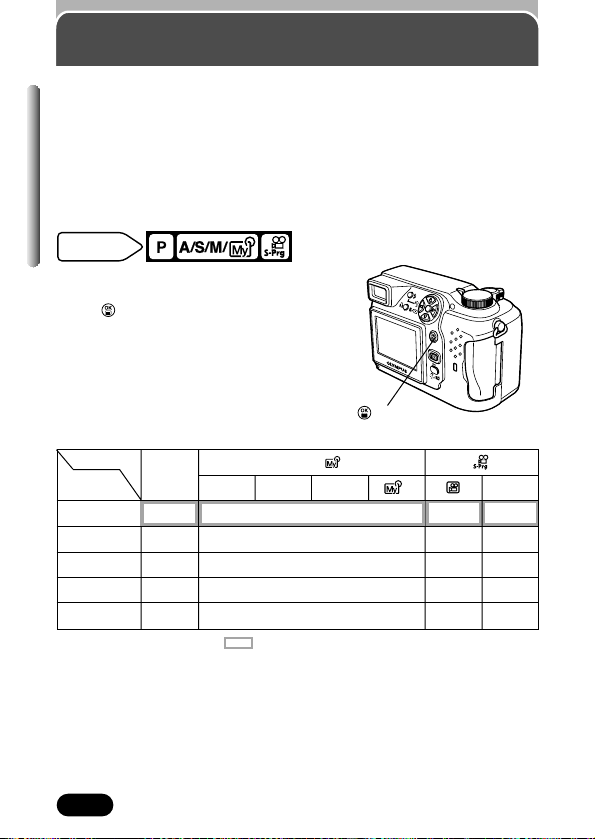
100
Chapter 5
FUNCTION — Taking black & white or
sepia-toned pictures
Lets you add special effect to your pictures during shooting. 4 effects are
available.
BLACK&WHITE : Takes pictures in black and white.
SEPIA : Gives pictures a sepia tone.
WHITE BOARD : Pictures are in black and white, with black letters on white
backgrounds emphasized to make them easier to read.
BLACK BOARD : Same as WHITE BOARD, but for white letters on black
backgrounds. Reverses blacks and whites in the image.
In the top menu, select MODE MENU T
CAMERA T FUNCTION T Select a mode.
Press . Press again to cancel the menu.
~ “How to use the menu” (P. 39)
Modes & Function shooting
: Available, – : Not available : Factory default setting
* The available settings differ depending on which shooting mode is selected. See the P,
A, S, M or S-Prg column.
Mode
Function
shooting
WHITE BOARD
OFF
BLACK BOARD
BLACK & WHITE
SEPIA
A
P
–
–
SM
*
S-Prg
Mode dial
setting
button
A/S/M/
101
Chapter 5
FUNCTION
— Taking black & white or sepia-toned pictures (Cont.)
● If letters do not show clearly with WHITE BOARD or BLACK BOARD
T Use exposure compensation (P. 108).
TIPS
● When WHITE/BLACK BOARD is selected, the flash does not fire.
● WB (white balance), (white balance compensation) and SATURATION
cannot be used in Function shooting.
Note
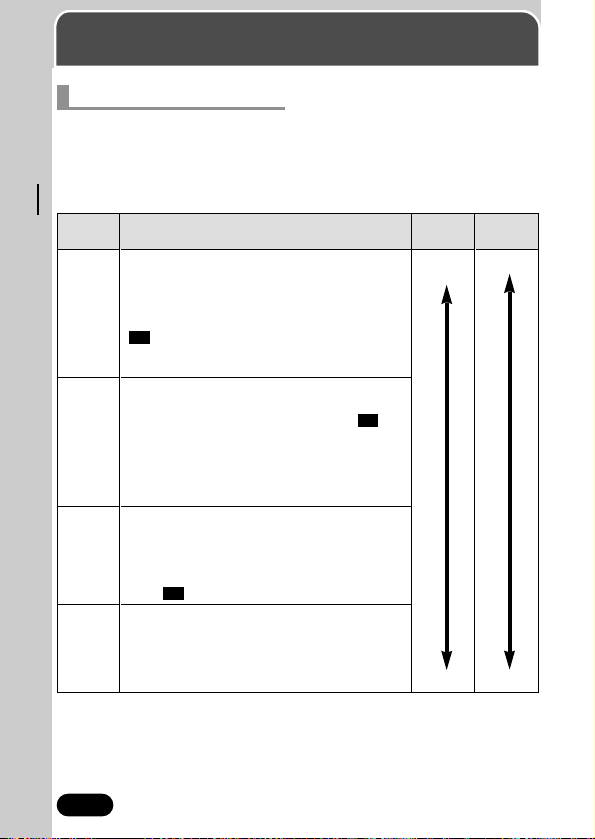
102
Chapter 6
Adjusting image quality and exposure
Record mode
Selecting record modes
Choose the best record mode for your purposes (printing, editing on a
computer, web-site editing, etc.). To see how large SmartMedia memory
capacity is under various conditions (such as different resolutions,
compressions, or file formats), refer to the table on page 103. The numbers in
the table are approximate.
Record
mode
TIFF
SHQ
HQ
SQ1
SQ2
File size
Larger
Smaller
Description
The highest-quality mode. Images are saved as
uncompressed data, which is the best for
printing or image-processing on a computer.
This mode has different resolutions to choose
from, depending on how it is used. Selecting
3:2 lets you print the entire image without
losing its borders— almost the same image size
used by photo labs.
A high quality mode using the JPEG format.
Because the compression rate is very low, high
quality images can be stored. Selecting
3:2
lets you print the entire image without losing its
borders— almost the same image size used by
photo labs. The Enlarge Size function is useful
when printing on large-format paper such as A3
(11" x 14"/28 cm x 36 cm).
A high quality mode using the JPEG format, with
medium compression. Because the
compression rate is higher than SHQ, file sizes
are smaller, so more images can be saved to a
card. Like SHQ, resolution can be increased by
using 3:2 or the Enlarge Size function.
The most compressed modes. For each one,
you can also choose HIGH (to reduce noise) or
NORMAL (to save more images). Select the
best settings for your purpose (printing, Internet
pages, etc.).
Quality
More
clear
Normal
103
Chapter 6
Record mode (Cont.)
Movie Record Modes
Memory capacity in sec. per movie
Resolution
Record mode
HQ
SQ
320x240 (15 frames/sec.)
160x120 (15 frames/sec.)
33
148
16MB or over
● In the mode, the total recording time is displayed on-screen. Total
recording time depends on the memory capacity of the card.
Record
Resolution Compression File format
Memory capacity in # of shots
mode
16MB 32MB
2288x1712 1 2
3:2 2288x1520 1 3
TIFF
2048x1536 1 3
1600x1200
Uncompressed
TIFF
25
1280x960 4 8
1024x768 6 13
640x480 16 33
2288x1712 5 11
SHQ
3:2 2288x1520 Low 6 12
ENLARGE SIZE
compression
25
3200x2400
2288x1712 16 32
HQ
3:2 2288x1520
Normal
18 36
ENLARGE SIZE
816
3200x2400
2048x1536
HIGH JPEG 6 13
NORMAL 20 40
SQ1 1600x1200
HIGH 11 22
NORMAL 32 64
1280x960
HIGH 17 34
NORMAL 49 99
1024x768
HIGH 26 53
SQ2
NORMAL 76 153
640x480
HIGH 66 132
NORMAL 165 331
*
Still Picture Record Modes
*HIGH uses low compression/NORMAL uses normal compression
The memory capacity listed here is approximate.
● If you shoot with VIDEO OUT set to PAL, the movie recording time will differ
from the times listed in the table.
~ “Video output selection” (P. 166)
Note

104
Chapter 6
Record mode (Cont.)
Mode dial
setting
1
In the top menu, select MODE MENU
T PICTURE T , then press
í. ~
“How to use the menu” (P. 39)
● When is displayed on the top menu,
press
Ñ, É or ñ according to the arrow
shown next to . This allows you to set
directly instead of via MODE MENU.
2
P A/S/M/ S-Prg:
Press
Ññ to select the desired record
mode (refer to the table on the
previous page). Go to step 3.
:
Press
Ññ to select HQ or SQ. Go to
step 4.
3
Press Ññ to select the resolution
(refer to the table on the previous
page).
● When you have selected SQ1/SQ2: After
selecting the resolution, press
í. Press
Ññ to HIGH or NORMAL.
4
Press to save the setting.
Factory default setting: HQ
button
Number of
storable still
pictures
Record mode
ÑñÉíbuttons
HQ
2288x1712
Resolution
105
Chapter 6
Record mode (Cont.)
● Resolution:
The number of pixels (vertical x horizontal) used when saving an image.
If the image will be printed, higher resolutions (larger numbers) are
recommended so that the image will be clearer. However, higher
resolutions make the file size (amount of data) larger, so less pictures
can be saved to a card.
● Resolution and picture size on a computer screen:
When a picture is transferred to a computer, the size of the picture on the
computer screen varies depending on the computer's monitor setting.
For instance, a picture taken in 640x480 resolution is the same size as
the screen if you set the picture to 1x when the monitor setting is
640x480. However, if the monitor setting is over 640x480 (such as
1024x768), the picture only takes up part of the screen.
● Compression rate:
In record modes other than TIFF, image data is compressed. The higher
the compression rate, the less clear the image will be.
● File format (P. 103):
This camera saves images with either TIFF or JPEG formats. In record
modes other than TIFF, images are compressed in the JPEG format.
The compression rate also varies in each mode (movies: Motion JPEG
(mov) format).
TIPS
● The card memory capacity listed in the table is approximate (P. 103).
● The number of storable pictures differs depending on the record mode, the
card’s memory size and whether or not print reserve is applied for the card.
● The number of storable pictures may not be reduced every time a picture is
taken, or increased when a picture is erased. The amount of data varies
depending on the subject.
● When VIDEO OUT is set to PAL (P.166) T If movie pictures are shot with
the video cable connected, the maximum recording time may be different
from the table on page 103.
Note
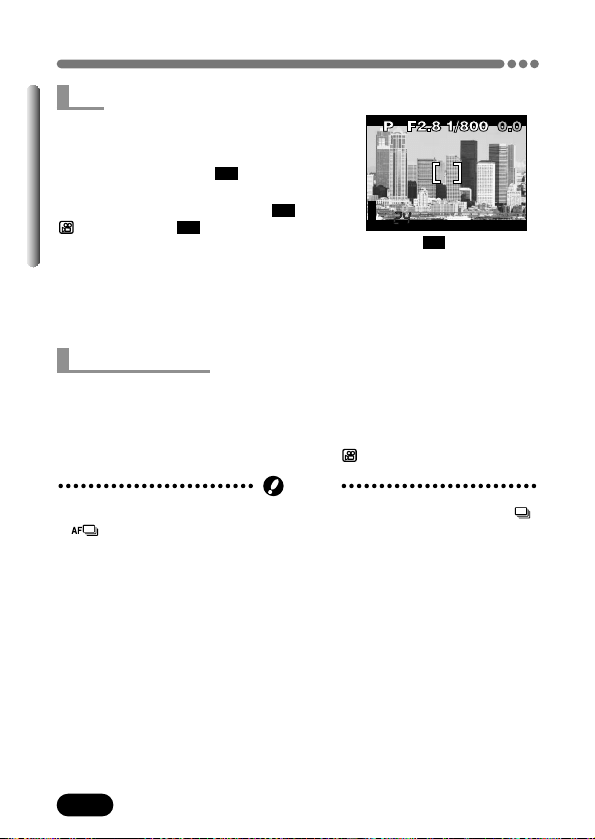
106
Chapter 6
Record mode (Cont.)
When ENLARGE SIZE is selected (only possible in HQ or SHQ), the actual 4
million pixels used by this camera can be increased as if they were approx. 8
(3200 x 2400) million pixels. This allows you to make quality prints in larger
sizes, such as A3 (11" x 14"/28 cm x 36 cm). However, file sizes also become
larger. ENLARGE SIZE is not available in the (movie) mode.
● If the SHQ record mode is set to ENLARGE SIZE, sequential shooting ( ,
, BKT) is not possible.
Note
ENLARGE SIZE
The image aspect ratio is normally 4:3. If the
aspect ratio is changed to 3:2, the image can
be printed without losing the image borders at
a photo lab. When
3:2 is activated,
resolution is 2288 x 1520 pixels. In the TIFF,
SHQ or HQ mode, you can select
3:2 . In the
(movie) mode,
3:2 is not available.
● The monitor turns on automatically if this
mode is selected. Check the monitor image
before shooting.
3:2
When 3:2 is selected
HQ
2288x1712
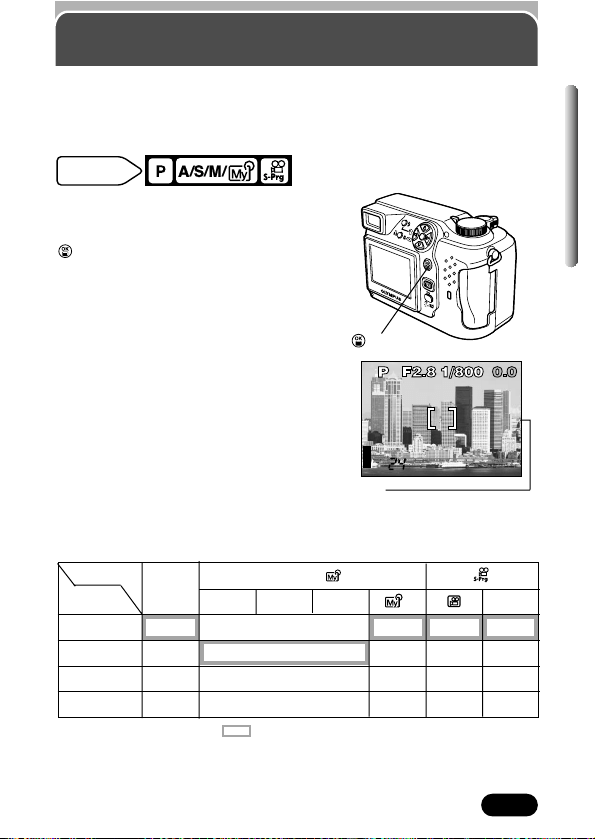
107
Chapter 6
S-Prg
ISO sensitivity
The higher the ISO value, the greater the camera’s light sensitivity and the
better its ability to shoot in low-light conditions. However, higher values also
introduce electrical noise into the resulting image, which may make give them
a grainy appearance.
In the top menu, select MODE MENU T
CAMERA T ISO. Select the most suitable
ISO from the options listed below. Press
. Press again to cancel the menu.
~ “How to use the menu” (P. 39)
AUTO:
Sensitivity is automatically adjusted
according to the lighting conditions and the
subject brightness.
100/200/400:
100 is best when you want to shoot clear,
sharp images in daylight. With a higher ISO
setting, you can use faster shutter speeds
with the same amount of light.
Mode dial
setting
ISO100
HQ
2288x1712
ISO
When ISO is set to AUTO, this
does not appear.
Modes & ISO Sensitivity
: Available, – : Not available : Factory default setting
* The factory default setting and the available settings differ depending on which shooting
mode is selected. See the P, A, S, M or S-Prg column.
–
Mode
ISO
400
AUTO
100
200
A
P
SM
A/S/M/
*
button
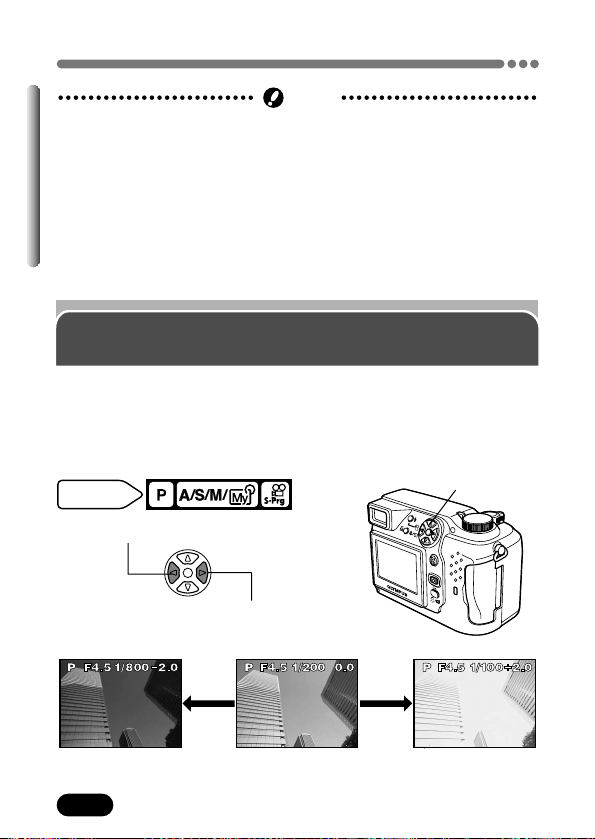
108
Chapter 6
ISO sensitivity (Cont.)
● Higher ISO settings can produce more electrical noise.
● ISO is standardized based on the sensitivity of normal camera film. The
scale is approximate.
● When ISO is set to AUTO and you are shooting in dark conditions without a
flash, ISO automatically increases; otherwise the shutter speed will be
reduced, possibly resulting in blurred images due to camera movement.
● If a subject is too far away for the flash illumination to reach it when the ISO
is set to AUTO, the ISO is automatically increased.
● When using slow synchronization in the P, A or S mode, the slowest
available shutter speed varies depending on the ISO setting.
Note
Exposure compensation
This function allows you to make fine changes to the present exposure
setting. In some situations, you may get better results when the exposure that
the camera sets is compensated (adjusted) manually. You can adjust
between +/–2.0 in 1/3 steps. When the setting is changed, you can check the
result on the monitor.
í
Adjusts towards + (images become brighter)
É
Adjusts towards – (images become darker)
– 2.0
+ 2.00.0
(Factory default setting)
Mode dial
setting
Éíbuttons
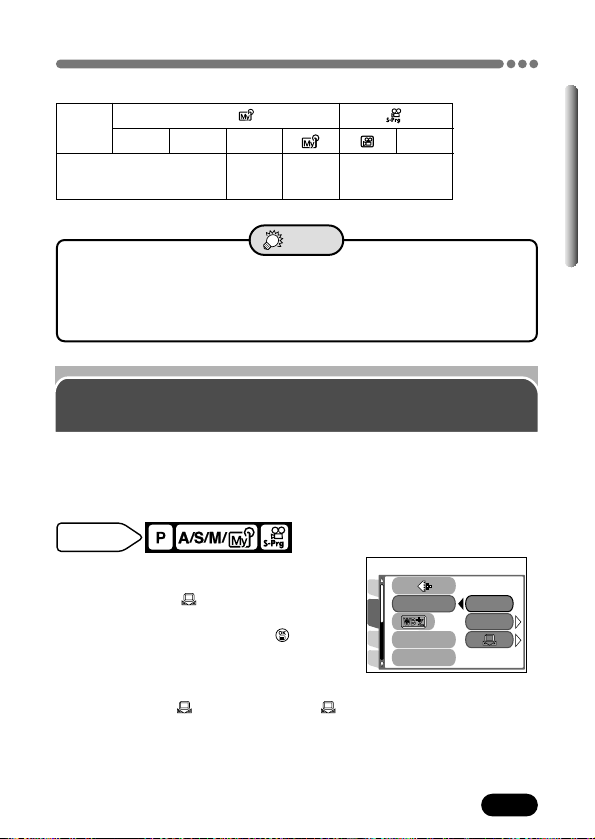
109
Chapter 6
Exposure compensation (Cont.)
Modes & Exposure Compensation
● Often, bright subjects (such as snow) will turn out darker than their
natural colors. Adjusting towards “+” makes these subjects closer to their
real shades. For the same reason, adjust towards “–” when shooting dark
subjects.
TIPS
S
(except
M)
–
A
P
M
S-Prg
: Available, – : Not available
A/S/M/
PICTURE
CAM
SET
CARD
AUTO
PRESET
WB
CONTRASTCONTRAST
SHARPNESS
White balance
Color reproduction differs depending on the lighting conditions. For instance,
when daylight, the setting sun, or indoor lighting are reflected on white paper,
the shade of white produced will be slightly different for each. By setting the
WB (white balance), you can achieve more natural-looking color.
In the top menu, select MODE MENU T
PICTURE T WB, then select the best WB
(AUTO, PRESET, ) for your shooting
conditions.
When you select AUTO: Press . Press
again to cancel the menu (P. 110).
When you select PRESET: Press
í. Go to
“PRESET (preset white balance)” (P. 110).
When you select : Press
í. Go to “
(One-Touch white balance)” (P. 111).
~ “How to use the menu” (P. 39)
Mode dial
setting
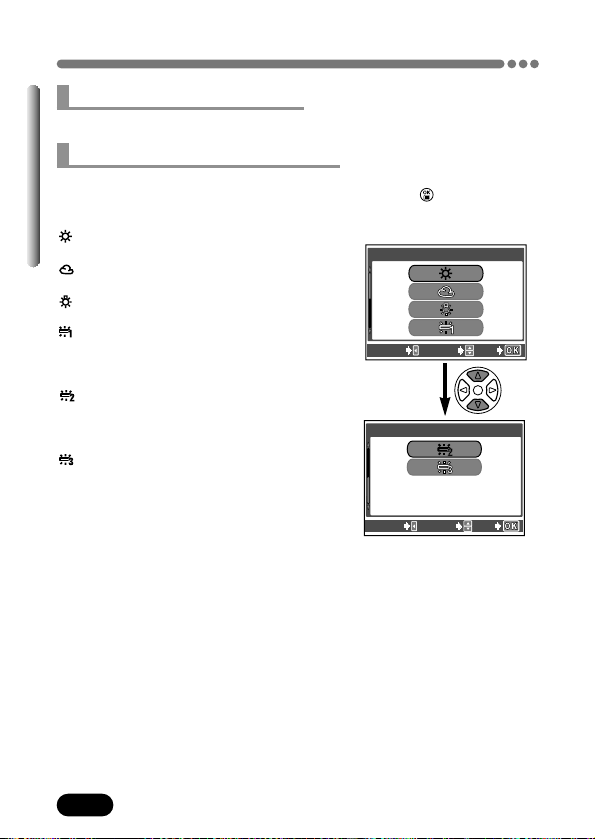
110
Chapter 6
White balance (Cont.)
Automatically adjusts the white balance for any light source.
: Adjusts the white balance for shooting
on a sunny day.
: Adjusts the white balance for shooting
on a cloudy day.
: Adjusts the white balance for shooting
under tungsten light.
: Adjusts the white balance for shooting
under daylight fluorescent lamp
(6700K). This type of lamp is used
mainly in houses.
: Adjusts the white balance for shooting
under neutral white fluorescent lamp
(5000K). This lamp is generally used
in desk lamps, etc.
: Adjusts the white balance for shooting
under cool white fluorescent lamp
(4200K). This lamp is generally used
in offices, etc.
● You can also preview different color tones
by trying the different PRESET WB settings
under the actual light source, and checking
the result on the monitor.
● Color temperature values above are
approximate.
AUTO (auto white balance)
PRESET (preset white balance)
PRESET WB screen
PRESET WB
CANCEL SELECT
GO
PRESET WB
CANCEL SELECT
GO
Select a preset white balance setting according to the type of the light. Press
Ññ to select either of the following settings and press . Press again to
cancel the menu.
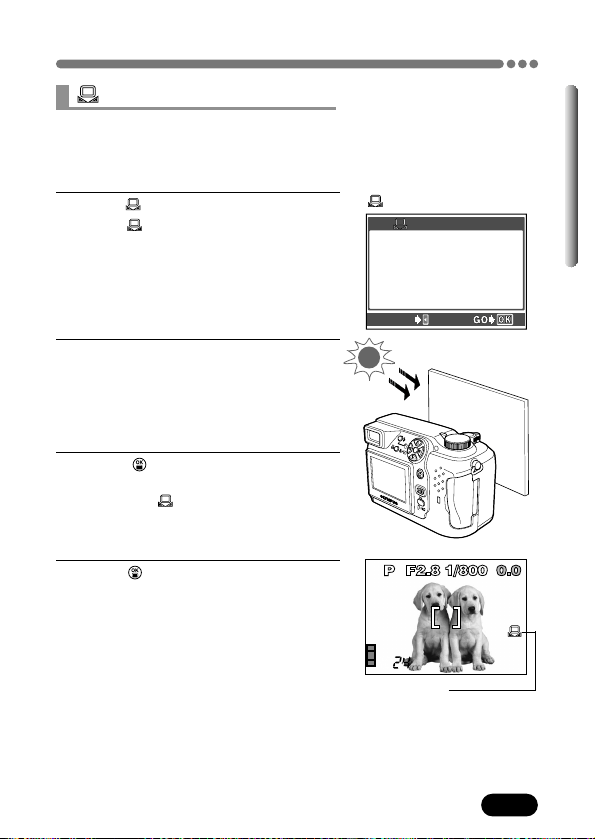
111
Chapter 6
White balance (Cont.)
(One-Touch white balance)
HQ
2288x1712
White balance
When white balance is set to
AUTO, this does not appear.
This function is useful when you need more precise white balance than
PRESET WB can give. To set the proper white balance for the shooting
conditions, point the camera at a white object under the light source you want
to use and adjust the white balance.
1
Select as shown on page 109.
● The ONE TOUCH WB screen
appears.
2
Point the camera at a sheet of white
paper.
● Position the paper so that it fills the screen
entirely. Be sure there is no shadow or
background showing around the paper.
3
Press to store the new white
balance setting.
● To cancel ONE TOUCH WB, press
É.
4
Press repeatedly until the menu
disappears.
Factory default setting: AUTO
ONE TOUCH WB screen
ONE TOUCH WBONE TOUCH WB
CANCELCANCEL
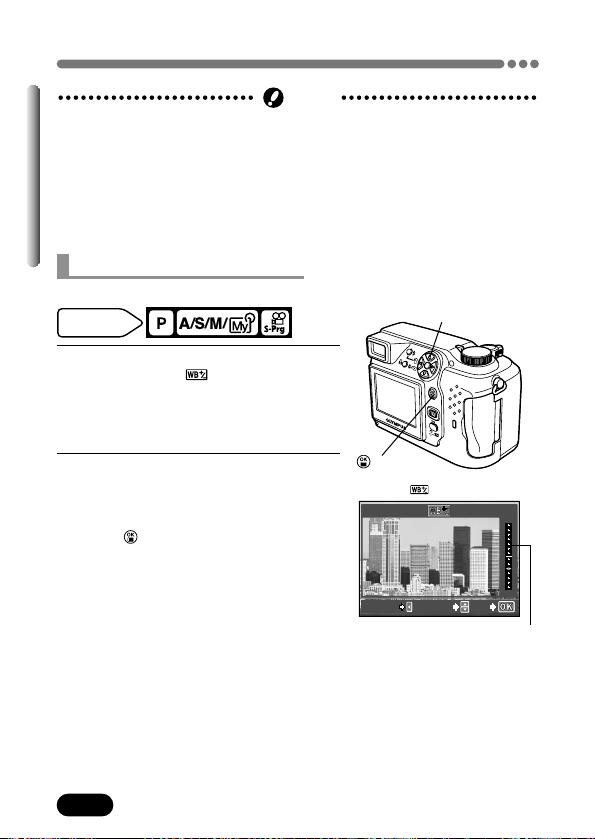
112
Chapter 6
White balance (Cont.)
BLUE
RED
CANCEL ADJUST
GO
1
In the top menu, select MODE MENU
T PICTURE T . Press
í.
~ “How to use the menu” (P. 39)
● The white balance adjustment indicator
appears on the screen.
2
The color becomes bluer each time
you press
Ñ, and redder each time
you press
ñ, depending on the
original white balance conditions.
Press to save your adjustment.
● White balance can be adjusted between
+7 and –7.
Factory default setting: ±0
● Set white balance to AUTO for normal shooting.
● When setting the white balance by pointing the camera at white paper, the
setting may be incorrect if the light reflected by the paper is too bright or
dark.
● White balance may not be effective under some special light sources.
● After setting the white balance, playback the image and check the color on
the monitor.
Note
White Balance Adjustment
This function allows you to make fine changes to the white balance.
screen
White balance adjustment
indicator
Mode dial
setting
button
Ññíbuttons
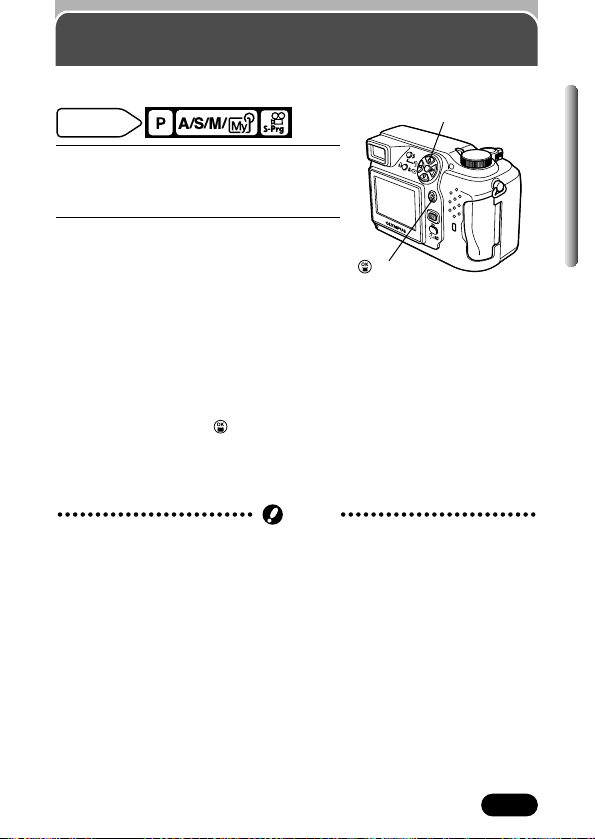
113
Chapter 6
Sharpness
1
In the top menu, select MODE MENU
T PICTURE T SHARPNESS. Press
í.
~ “How to use the menu” (P. 39)
2
To increase sharpness (+):
Press
Ñ. Image contours are
emphasized, making the image appear
sharper. This is ideal for printing.
To reduce sharpness (–):
Press
ñ. Image contours are softened.
This is suitable for image editing on
your PC.
● Sharpness can be adjusted between +5
and -5 using
Ññ.
● When you are finished setting the
sharpness, press . Press again to
cancel the menu.
Factory default setting: ±0
Note
This function adjusts the sharpness of images.
● When adjusted too much towards +, noise may appear.
Ññí
buttons
button
Mode dial
setting
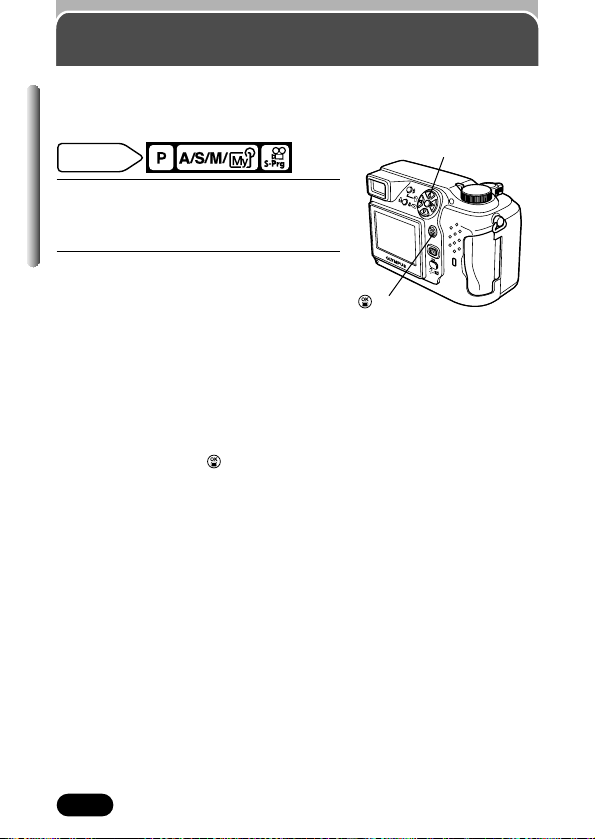
114
Chapter 6
Contrast
This function adjusts the contrast of images.
For example, images with strong differences in light and shadow can become
milder, while those with weaker differences can become more vivid.
1
In the top menu, select MODE MENU
T PICTURE T CONTRAST. Press
í.
~ “How to use the menu” (P. 39)
2
To increase contrast (+):
Press
Ñ. Light and dark areas are
defined more clearly. This makes
images look crisper.
To reduce contrast (–):
Press
ñ. Images become softer. This
is suitable for image editing on your
PC.
● Contrast can be adjusted between +5
and -5 using
Ññ.
● When you are finished setting the
contrast, press . Press again to
cancel the menu.
Factory default setting: ±0
Ññí buttons
button
Mode dial
setting
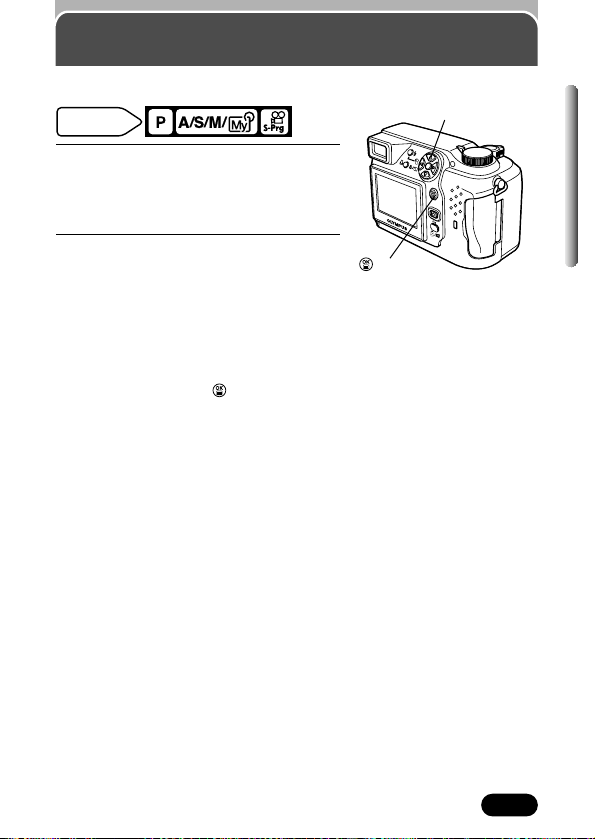
115
Chapter 6
Saturation
1
In the top menu, select MODE MENU
T PICTURE T SATURATION. Press
í.
~ “How to use the menu” (P. 39)
2
To increase saturation (+):
Press
Ñ. Colors become darker and
more intense.
To reduce saturation (–):
Press
ñ. Colors become lighter.
● Saturation can be adjusted between +5
and -5 using
Ññ.
● When you are finished setting the
saturation, press . Press again to
cancel the menu.
Factory default setting: ±0
This function adjusts the color depth level.
Ññí
buttons
button
Mode dial
setting
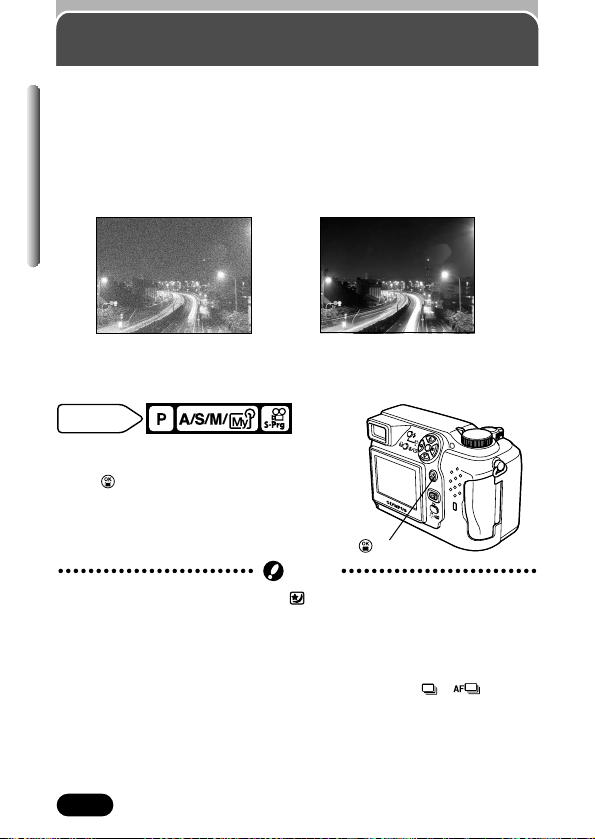
116
Chapter 6
Noise reduction
This function reduces the noise that appears on images during long
exposures. When shooting night scenes, shutter speeds become slower and
noise tends to appear on images. When noise reduction is set to ON, the
camera automatically reduces noise to produce clearer images. However,
shooting time is approximately twice as long as usual.
Noise reduction can only be used when the shutter speed is set slower than 1
sec.
In the top menu, select MODE MENU T
CAMERA T NOISE REDUCTION T ON.
Press . Press again to cancel the menu.
~ “How to use the menu” (P. 39)
Factory default setting: OFF
● Noise reduction is always on in the mode.
● When you set noise reduction to ON, shooting time is approximately twice
as long as usual, because the camera needs extra time to finish the noise-
reduction process. During this time, shooting the next picture is not
possible.
● When NOISE REDUCTION is ON, sequential shooting ( , , BKT) is
not possible.
● This function may not work well with some shooting conditions or subjects.
● Since the shutter speed is slower when noise reduction is ON, we
recommend that you use a tripod.
Note
Mode dial
setting
button
Noise reduction: OFF
Noise reduction: ON
● The images here are only for showing noise reduction effects. They
differ from the actual images.
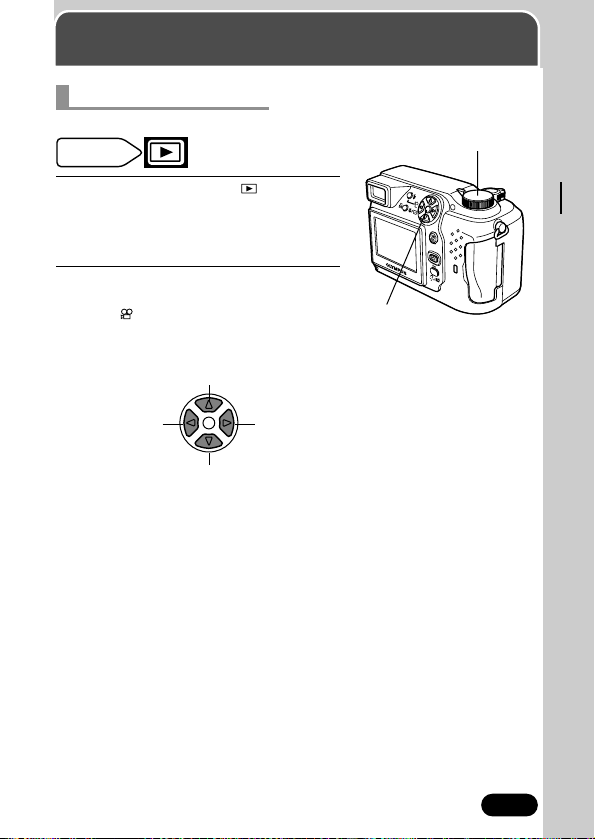
117
Chapter 7
Playback
Playing back still pictures
1
Set the mode dial to (playback
mode).
● The monitor turns on and displays the last
picture taken.
2
Use the arrow pad to play back other
pictures.
● The mark is attached to pictures from
movies.
~ “Playing back movies” on
page 120.
Plays back one picture.
Displays the
next picture.
Jumps to the picture 10 frames behind.
Displays the
previous picture.
Jumps to the picture 10 frames ahead.
Single-frame playback
Mode dial
setting
Mode dial
Arrow pad
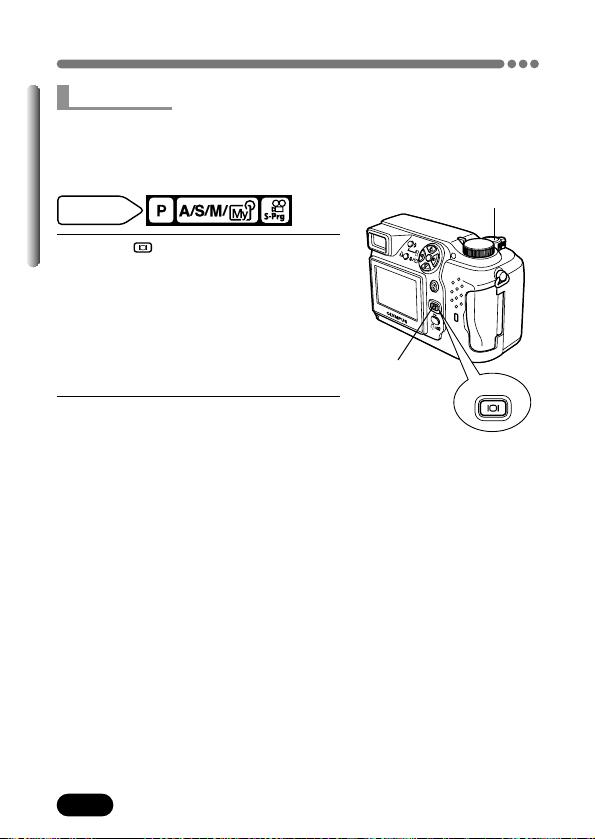
118
Chapter 7
Playing back still pictures (Cont.)
1
Press (monitor button) twice
quickly (double-click) while in the
shooting mode.
● The monitor turns on and displays the last
picture taken.
● To play back other pictures, use the arrow
pad in the same way as single-frame
playback.
2
To return to shooting, press the
shutter button halfway.
This function lets you play back pictures while the camera is in the shooting
mode. This is useful when you want to check shooting results quickly. Every
picture and function available in playback mode is also available in Quick
View.
Mode dial
setting
Quick View
Quick View
Shutter button
Monitor button
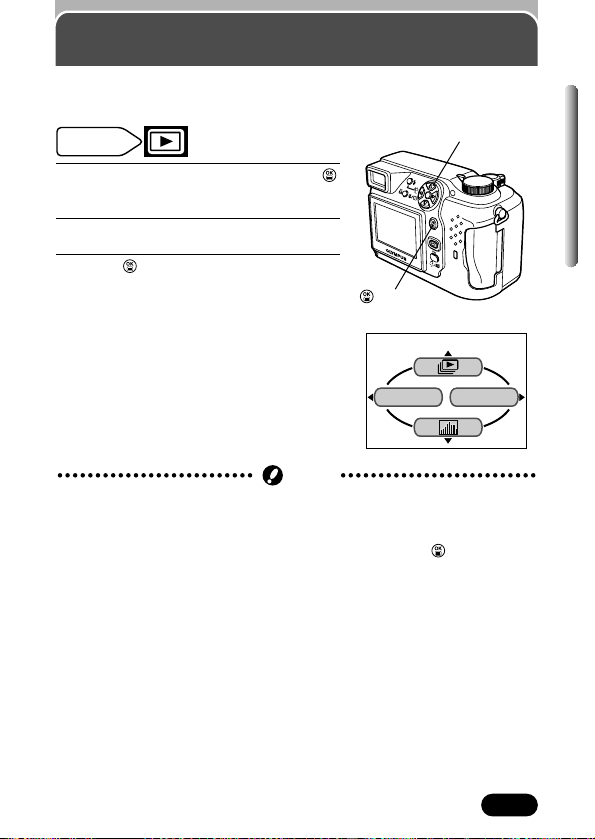
119
Chapter 7
1
Display a still picture. Then, press
to display the top menu.
2
Press Ñ to start the slide-show.
3
Press to stop the slide-show.
Slide-show
This function displays pictures from the card one after another. Movies are
played back like still pictures, starting from the first frame.
Playback top menu (still pictures)
INFO
MODE MENU
Mode dial
setting
● Use of the optional AC adapter is recommended when running a slide-show
for long periods of time. If batteries are being used, the camera will end the
slide-show after about 30 minutes and enter sleep mode.
● The slide-show will not stop until you cancel it by pressing .
Note
Ñbutton
button
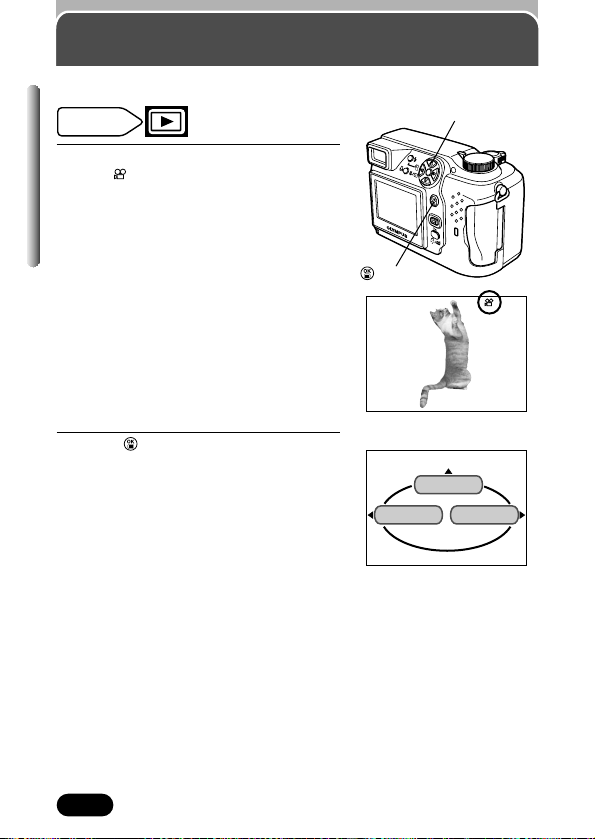
120
Chapter 7
Playing back movies
— MOVIE PLAY
1
Use the arrow pad to select a picture
with .
2
Press to display the top menu.
This function lets you play back or edit movies.
MODE MENU
MOVIE PLAY
INFO
Playback top menu (movies)
Mode dial
setting
20
button
Arrow pad
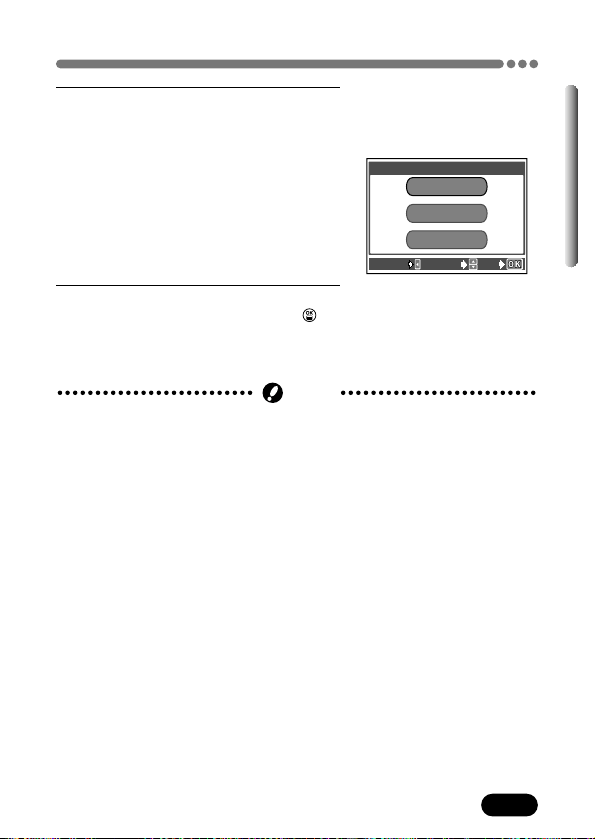
121
Chapter 7
Playing back movies — MOVIE PLAY (Cont.)
3
Press Ñ.
● The MOVIE PLAY screen is displayed.
MOVIE PLAYBACK:
Plays back movies (P. 122).
INDEX:
Displays movies as indexes of 9 still
frames (P. 124).
EDIT:
Lets you edit movies (P. 126).
4
Select the item on the MOVIE PLAY
screen that you need, then press .
● See the following pages for how to use
each on the MOVIE PLAY screen.
MOVIE PLAY screen
MOVIE PLAYBACK
INDEX
EDIT
MOVIE PLAMOVIE PLAY
CANCEL SELECT
GO
● When playing back a movie, access time will vary depending on the length
and record mode of the movie. The card access lamp blinks while movie
data is being accessed.
Note
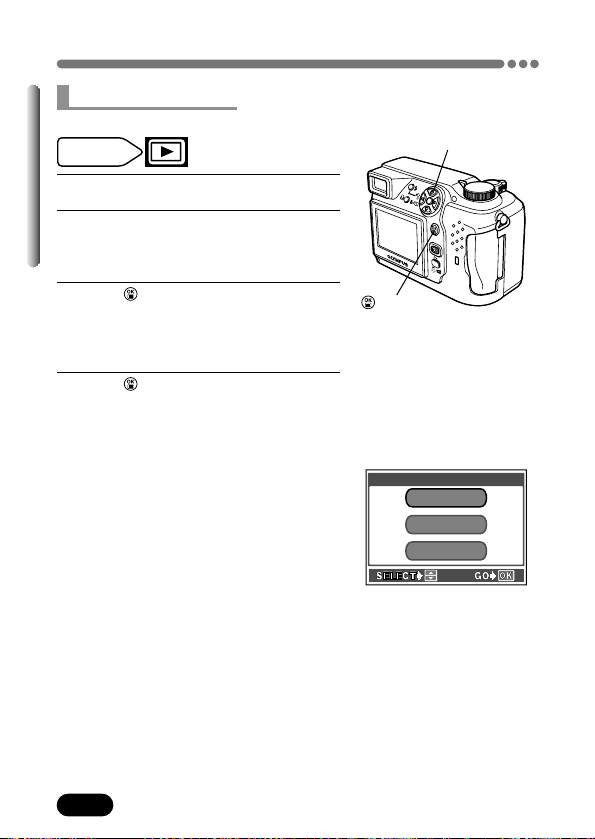
122
Chapter 7
Playing back movies — MOVIE PLAY (Cont.)
Plays back movies.
1
Follow steps 1-3 on pages 120 and 121.
2
Press Ññ to select MOVIE
PLAYBACK on the MOVIE PLAY
screen.
3
Press to start playback.
● When movie playback ends, the display
automatically returns to the beginning of
the movie.
4
Press .
● The MOVIE PLAYBACK screen is
displayed.
PLAYBACK:
Plays back the entire movie.
FRAME BY FRAME:
Plays back the movie manually one
frame at a time.
EXIT:
To play back other movies, exit the
movie playback mode and select a
different movie.
PLAYBACK
FRAME BY FRAMEFRAME BY FRAME
EXIT
MOVIE PLAMOVIE PLAYBACK
MOVIE PLAYBACK screen
Mode dial
setting
MOVIE PLAYBACK
button
ÑñÉíbuttons
123
Chapter 7
Playing back movies — MOVIE PLAY (Cont.)
5
Press Ññ to select items.
6
Press to start your choice.
● When FRAME BY FRAME is selected,
follow the instructions below.
● When EXIT is selected, the MOVIE
PLAY screen appears. To exit, press
É.
Displaying movies using the arrow pad
Ñ: Displays the beginning of the movie.
ñ: Displays the end of the movie.
í: Every time you press the button, the next
frame appears. The movie can be
displayed continuously by holding the
button down.
É: Every time you press the button, the
previous frame appears. The movie can
be displayed continuously in reverse by
holding the button down.
: Displays the MOVIE PLAYBACK screen.
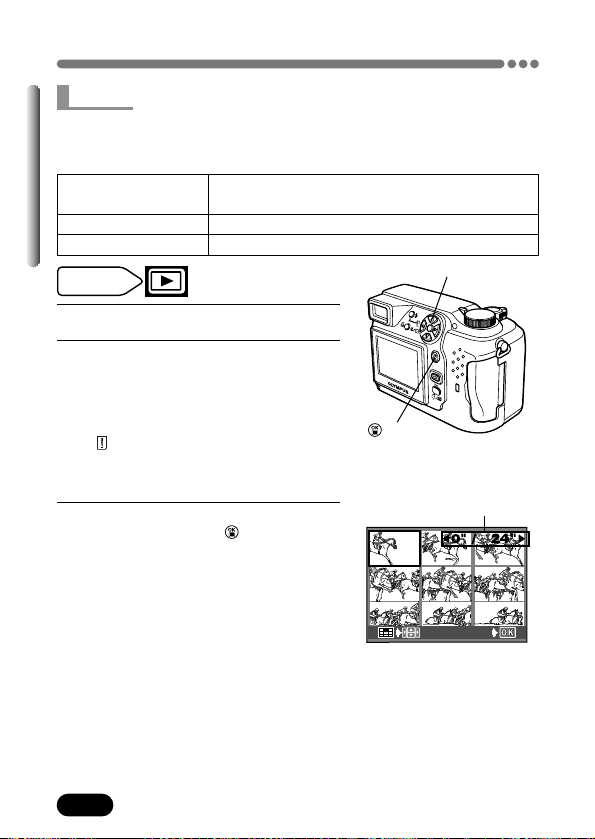
124
Chapter 7
Playing back movies — MOVIE PLAY (Cont.)
1
Follow steps 1-3 on pages 120 and 121.
2
Press Ññ to select INDEX on the
MOVIE PLAY screen.
● The first-frame selection screen appears.
● The card access lamp blinks while the
movie is being accessed.
● “ CARD FULL” (P. 189) appears if there
is not enough memory left on the card to
display the index.
3
Press Éí to select the first frame of
the index, then press .
● After the first frame is selected, the
selection frame moves to the last frame
of the index.
Using the arrow pad
Ñ: Jumps to the first frame of the movie.
ñ: Jumps to the last frame of the movie.
í: Each press of the button displays the
next frame. Movies are played by
holding the button down.
É: Each press of the button displays the
previous frame. Movies are played in
reverse by holding the button down.
Movies can be displayed as indexes of still frames. Indexes can be saved on
the card as still pictures. Indexes are not stored in the same record mode as
movies (see below).
Record mode when
Record mode when stored as an index
the movie is shot
HQ SQ2 (1024x768)
SQ SQ2 (640x480)
Mode dial
setting
INDEX
Elapsed time / Total time
First-frame selection screen
button
GO
ÑñÉíbuttons
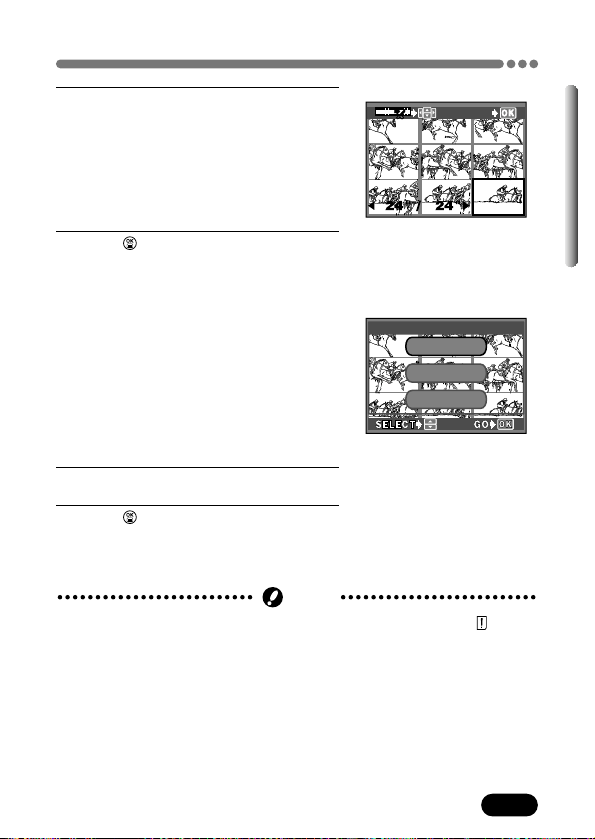
125
Chapter 7
Playing back movies — MOVIE PLAY (Cont.)
4
Select the last frame of the index
using the arrow pad (See step 3).
5
Press .
● INDEX screen appears.
OK:
Saves the index on the card. The menu
disappears from the screen.
RESET:
Resets the index. Returns to the first-
frame selection screen.
CANCEL:
Cancels the index. Returns to the
MOVIE PLAY screen.
6
Press Ññ to select items.
7
Press to run your choice.
● When EXIT is selected, the MOVIE
PLAY screen appears. To exit, press
É.
Last-frame selection screen
INDEX screen
● INDEX is not available when the card is protected or when “ CARD
FULL” appears (indicating insufficient memory).
Note
GO
O K
CANCEL
RESET
INDEXINDEX
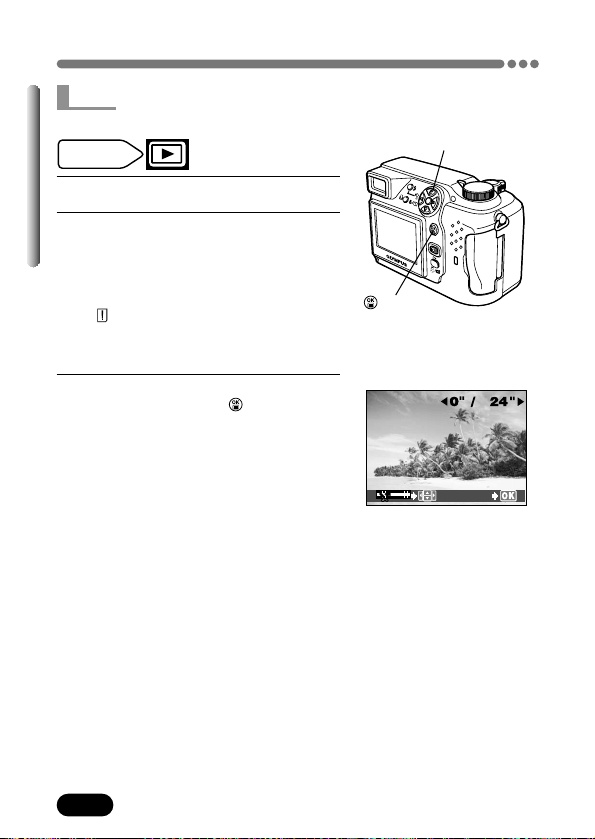
126
Chapter 7
Playing back movies — MOVIE PLAY (Cont.)
EDIT
This function allows you to edit movies by erasing parts you do not want.
1
Follow steps 1-3 on pages 120 and 121.
2
Press Ññ to select EDIT on the
MOVIE PLAY screen.
● The first-frame selection screen appears.
● The card access lamp blinks while the
movie is being accessed.
● " CARD FULL" (P. 189) appears if there
is not enough memory left on the card to
edit the movie.
3
Press Éí to select the first frame of
the movie, then press .
● After the first frame is selected, the
selection frame moves to the last frame
of the movie.
Using the arrow pad
Ñ: Jumps to the first frame of the movie.
ñ: Jumps to the last frame of the movie.
í: Each press of the button displays the
next frame. Movies are played by
holding the button down.
É: Each press of the button displays the
previous frame. Movies are played in
reverse by holding the button down.
First-frame selection screen
Mode dial
setting
button
GO
ÑñÉíbuttons
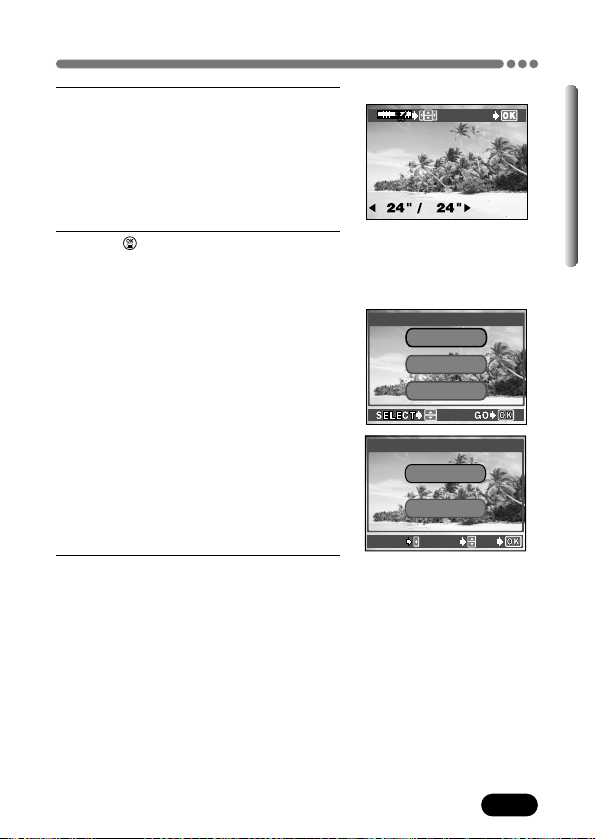
127
Chapter 7
Playing back movies — MOVIE PLAY (Cont.)
4
Select the last frame of the movie by
using the arrow pad. (See step 3)
5
Press .
● EDIT screen appears.
OK:
Selects NEW FILE or OVERWRITE.
* NEW FILE saves the edited movie as a
new movie with a different file name.
* OVERWRITE saves the edited movie
with the original file name. The original
movie will be erased.
RESET:
Resets EDIT. Returns to the first-frame
selection screen.
CANCEL:
Cancels EDIT. Returns to the MOVIE
PLAY screen.
6
Press Ññ to select items.
Last-frame selection screen
EDIT screen
GO
O K
CANCELCANCEL
RESET
EDITEDIT
NEW FILE
OVEROVERWRITEWRITE
EDIT
CANCEL SELECT
GO
128
Chapter 7
Playing Back Movies — MOVIE PLAY (Cont.)
7
Press to run your choice.
● When EXIT is selected, the MOVIE
PLAY screen appears. To exit, press
É.
● When OK is selected, press
Ññ to
select NEW FILE or OVERWRITE, then
press . The movie is edited.
● EDIT is not available when the card is protected or when “ CARD FULL”
appears (indicating insufficient memory).
● NEW FILE is not available when the card does not have enough memory.
● It is not possible to edit movies that were recorded together with sound on
another camera.
Note
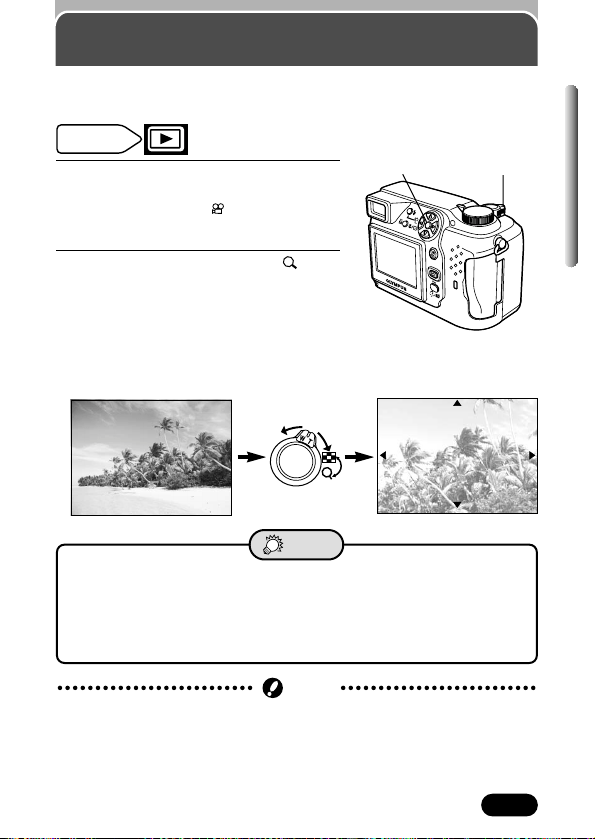
129
Chapter 7
Close-up playback
● How to return the picture to the original size (1x)
T Turn the zoom lever to W.
● How to display another picture
T Turn the zoom lever to W to return to 1x, then select the desired
picture by using the arrow pad.
TIPS
Pictures displayed on the monitor can be enlarged. Each time you turn the
zoom lever towards T, pictures are enlarged by 1.5 – 4 times.
1
With the arrow pad, select the picture
you want to enlarge.
● Pictures with the mark cannot be
enlarged.
2
Turn the zoom lever toward T ( ).
● When a picture is enlarged, ß/å/˙/¥
are displayed. Press the arrow
corresponding to the direction you want
to view. The enlarged picture is shifted
in the desired direction, allowing you to
view a different portion of the image.
2.5x2.5x
Mode dial
setting
● If picture rotation is attempted during close-up playback, close-up playback
is canceled.
● When you enlarge a picture on the monitor, you cannot save the enlarged
image.
Note
Arrow pad
Zoom lever
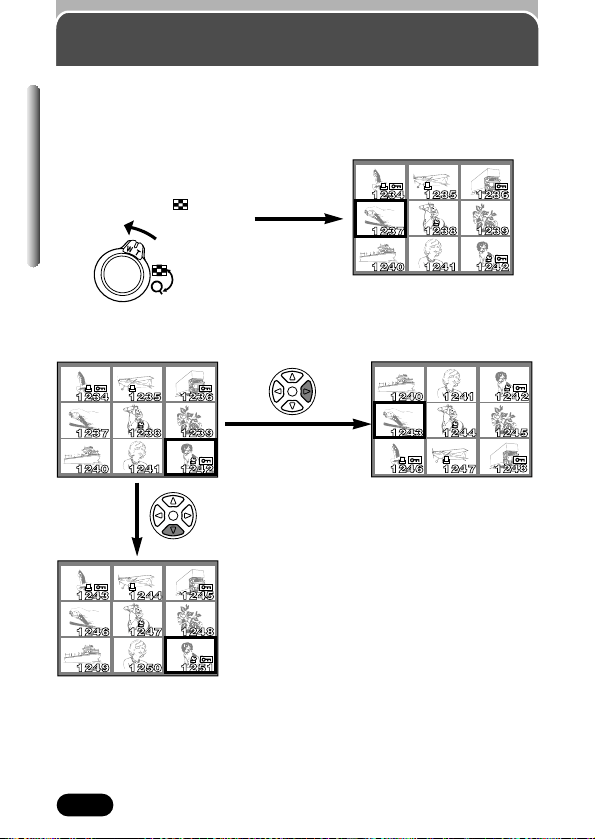
130
Chapter 7
Index display
This function lets you show many pictures at the same time on the monitor. It
is useful for comparing your pictures and choosing the best ones. The
number of pictures shown can be 4, 9, or 16 (see the next page).
In the single-frame playback
mode (P. 117), press the
zoom lever to W ( ).
Pictures, including the one displayed
in the single-frame playback mode,
appear in the index display.
Index display (9-frame)
How to use the arrow pad during an index display
É: Moves to the previous frame.
í: Moves to the next frame.
Ñ: Jumps to the previous index display
(the frames before the top left frame).
ñ: Jumps to the next index display (the
frames following the bottom right frame).
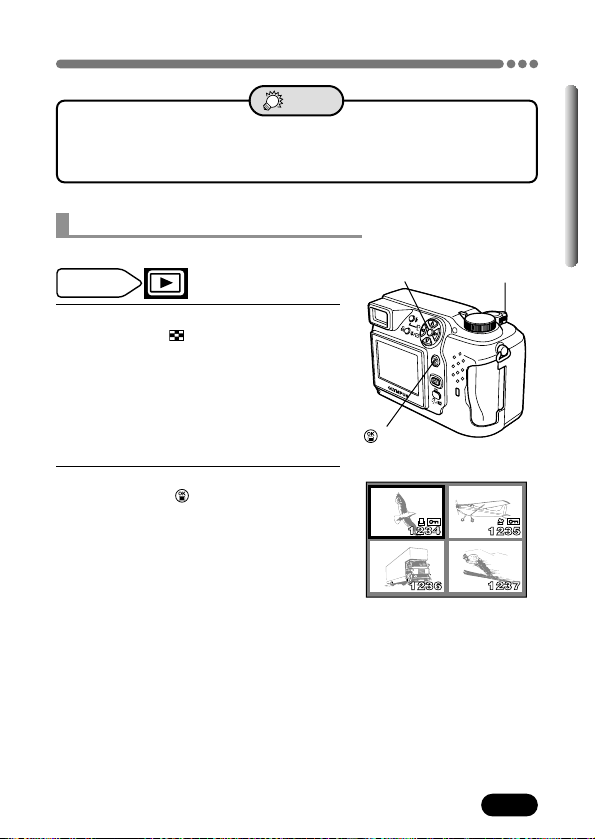
131
Chapter 7
Index display (Cont.)
● How to view a full-size picture from the index
T Select the picture with the arrow pad, then press the zoom lever
toward T.
TIPS
This function lets you change the number of pictures in an index display.
1
In the top menu, select MODE MENU
T SETUP T .
~ “How to use the menu” (P. 39)
2
Choose the number of pictures (4, 9 or
16) and press .
Press again to cancel the menu.
Index display (4-frame)
Selecting the number of pictures
Mode dial
setting
Arrow pad
Zoom lever
button
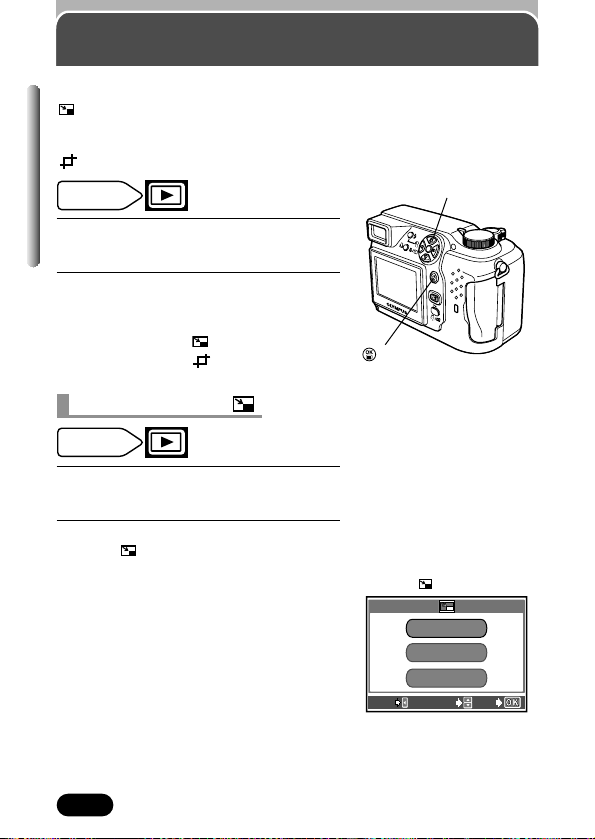
132
Chapter 7
Editing still pictures
Allows you to edit still pictures and save them as new ones.
: Changes picture dimensions to 640 x 480 or 320 x 240 and saves the
picture as a new file. Use this function to make the image file size
smaller, for instances such as attaching the picture to e-mail.
: Enlarges a part of a picture and saves it as a new picture.
1
Use the arrow pad to select the still
picture you want to edit.
2
In the top menu, select MODE MENU
T EDIT T select an item.
~ “How to
use the menu” (P. 39)
● When selecting : See below.
● When selecting : P. 133
Mode dial
setting
1
Perform steps 1 and 2 of “Editing still
pictures” above.
2
Press í.
● The screen appears.
640 x 480/320 x 240:
File sizes used when storing pictures as
new ones.
CANCEL:
Cancels resizing pictures. To edit other
pictures instead, select this item. The
screen returns to normal playback.
Mode dial
setting
Resizing pictures
screen
EXIT SELECT
GO
640 x 480
CANCELCANCEL
320 x 240320 x 240
Arrow pad
button
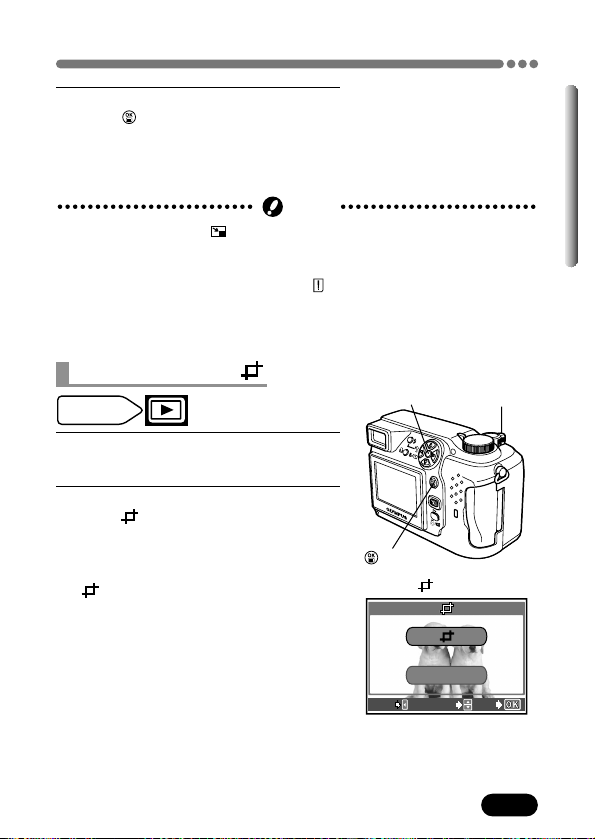
133
Chapter 7
Editing still pictures (Cont.)
3
Press Ññ to select the file size and
press to edit.
● A bar is displayed to show editing
progress and the screen returns to
normal display.
● In the following cases, is not available:
– Movie
– Pictures processed on a PC
– When the card is protected or when “ CARD FULL” appears (indicating
there is no memory left).
– If the size of the selected picture is 640 x 480, 640 x 480 is not available.
Note
1
Perform steps 1 and 2 of “Editing still
pictures” on P. 132.
2
Press í.
● The screen appears.
:
Enlarges the selected part of a picture
and saves it as a new picture.
CANCEL:
Cancels trimming. To edit other pictures
instead, select this item. The normal
display is restored.
Mode dial
setting
Trimming pictures
screen
EXIT SELECT
GO
CANCELCANCEL
Arrow pad
Zoom lever
button

134
Chapter 7
Editing still pictures (Cont.)
3
Press Ññ to select and press .
● The trim screen appears.
4
Set the top left corner point of the
desired picture. Move the corner point
of the trimming frame using the zoom
lever.
5
Press to save the top left corner
point.
● Press the arrow pad to move the
trimming frame. Press the arrow
corresponding to the direction you want
to move. If the trimming frame has
reached the trimming limit, the
corresponding arrow is not displayed.
GO
Move the zoom lever towards W.
The corner point of the trimming
frame moves towards the top left
corner of the display.
Move the zoom lever towards T.
The corner point of the trimming
frame moves towards the bottom
right corner of the display.
Arrow pad
button
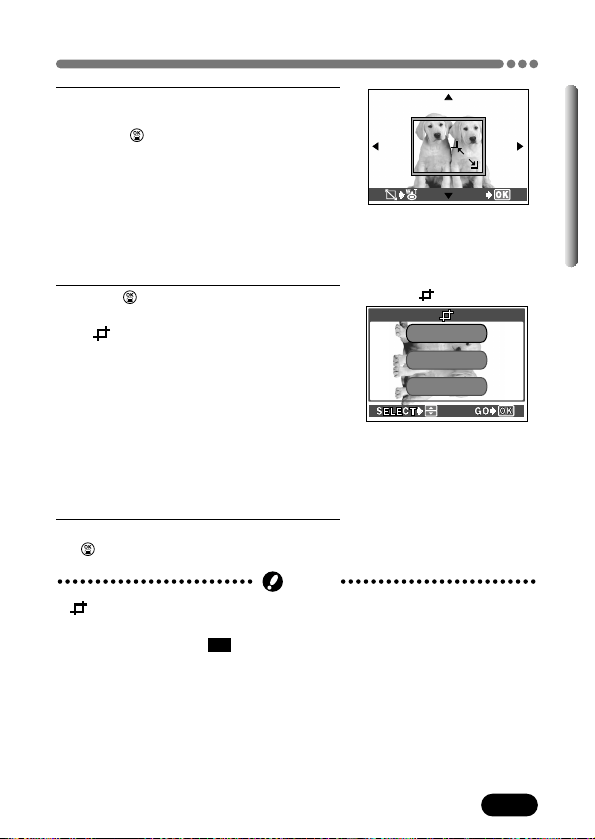
135
Chapter 7
Editing still pictures (Cont.)
● is not available when the card is protected or when “CARD FULL”
appears (indicating insufficient memory).
● If pictures recorded in
3:2 are trimmed, the image proportions are changed
to the standard 4:3 aspect ratio.
● If a trimmed image is printed out, it may appear grainy.
● It is not possible to trim images recorded in the ENLARGE SIZE record
mode.
● Trimming may not work with images recorded using other cameras.
Note
6
Set the bottom right corner point using
the zoom lever as described in step 4.
Press to save the bottom right
corner point.
● Press the arrow pad to move the
trimming frame. Press the arrow
corresponding to the direction you want
to move. If the trimming frame has
reached the trimming limit, the
corresponding arrow is not displayed.
7
Press to complete setting.
● The trimmed image is shown, and the
screen is displayed.
OK:
Saves the trimmed image on the card
and returns to normal playback.
RESET:
Restores the original image. Select this
item to trim again.
CANCEL:
Cancels the trimming and returns to
normal playback.
8
Press Ññ to select an item and press
.
screen
O K
CANCEL
RESET
GO
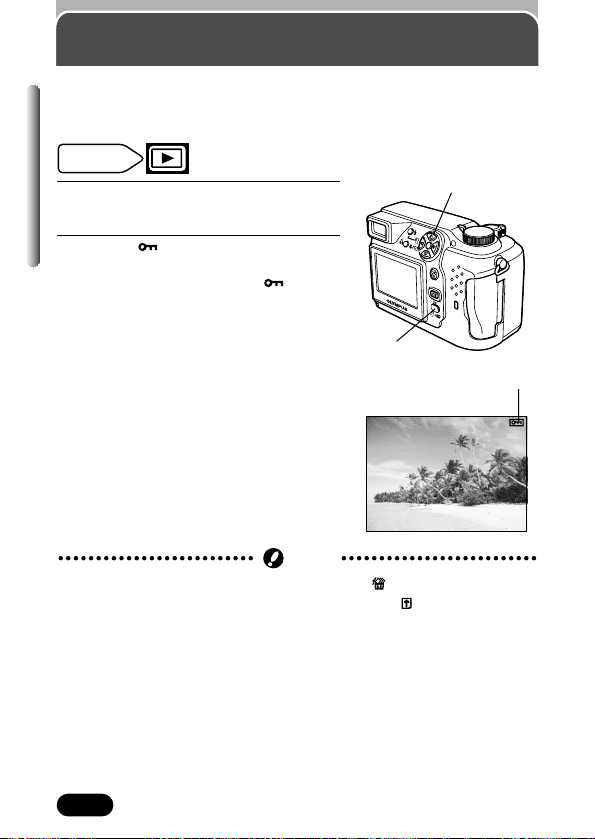
136
Chapter 7
Protect
It is highly recommended that you protect important pictures to avoid
accidentally erasing them. Protected pictures cannot be erased by the single-
frame/all-frame erase function.
1
Display the picture you want to protect
by using the arrow pad.
2
Press . The picture is now
protected.
● To cancel protection, press again.
Displayed when a picture
is protected.
Mode dial
setting
HQ
● Protected pictures cannot be deleted with the ALL ERASE (all-frame
erase) function, but they can be deleted with the FORMAT (format)
function.
● Protection cannot be applied to pictures stored on a card with a write-
protect adhesive seal.
Note
Arrow pad
Protect button

137
Chapter 7
Erasing pictures
Recorded pictures can also be erased. This can be done either one frame at
a time or to all the pictures in the card.
1
Select a picture you wish to erase by
using the arrow pad.
● If the picture is protected, cancel the
protection first (P. 136).
2
Press the (erase) button.
● The ERASE screen is displayed.
3
Press Ñ to select YES.
4
Press to erase the picture.
● To cancel erasing, select NO in step 3 and
press , or press the button again.
This function only erases the picture displayed on the monitor. Erasing further
pictures must be done one-by-one if using this function.
ERASE
YESYES
N O
SELECT GO
ERASE screen
● It is not possible to erase protected pictures or pictures stored on a card
that has a write-protect seal.
● Once erased, pictures cannot be restored.
Note
Mode dial
setting
Single-frame erase
Arrow pad
Erase button
button
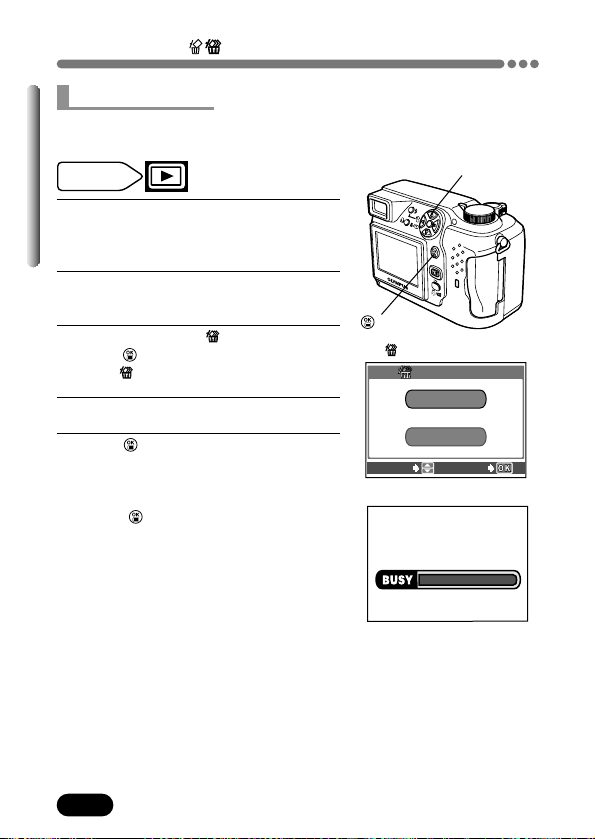
138
Chapter 7
Erasing pictures (Cont.)
1
In the top menu, select MODE MENU
T CARD T CARD SETUP.
~ “How to
use the menu” (P. 39)
2
Press í.
● The CARD SETUP screen is displayed.
3
Press Ñ to select ALL ERASE, then
press .
● The ALL ERASE screen is displayed.
4
Press Ñ to select YES.
5
Press to start erasing.
● A bar is displayed to show the progress of
erasing.
● To cancel erasing, select NO in step 4 and
press .
This function erases all still pictures and movies on the card, except protected
ones (P. 136).
ALL ERASE screen
ALL ERASE
YES
N ON O
SELECT GO
Screen during erasing
Mode dial
setting
All-frame erase
Ñ button
button
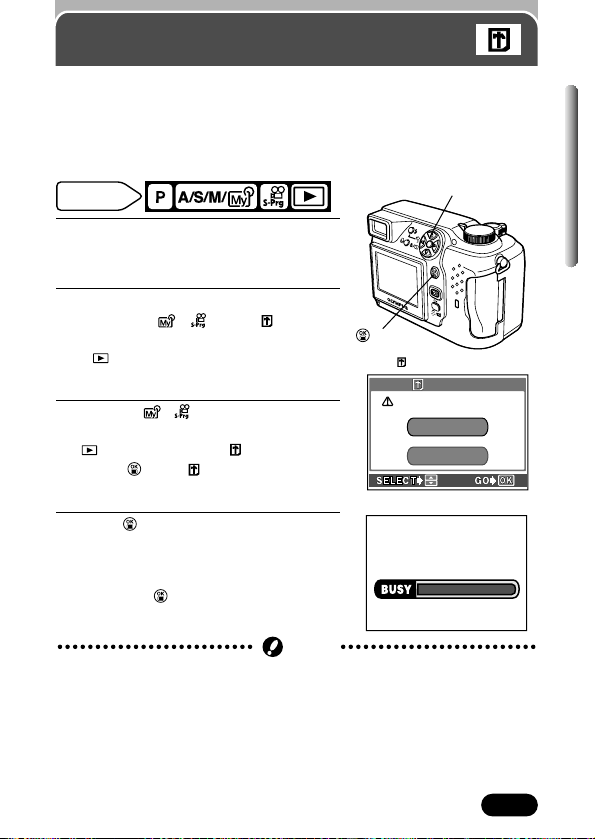
139
Chapter 7
Formatting cards
This function lets you format a card. Formatting prepares cards to receive
data. Olympus CAMEDIA-brand cards are highly recommended for use with
this camera. If you are going to use non-OLYMPUS cards or cards formatted
by other devices such as a computer, you must format them with the camera
before use. Cards can be formatted in all modes.
Mode dial
setting
1
In the top menu, select MODE MENU
T CARD T CARD SETUP.
~ “How to
use the menu” (P. 39)
2
Press í.
● P A/S/M/ : The FORMAT
screen is displayed.
● : The CARD SETUP screen is
displayed.
3
P A/S/M/ : Press Ñ to select
YES.
: Press ∆ to select FORMAT, then
press . The FORMAT screen is
displayed. Press
Ñ to select YES.
4
Press to start formatting.
● A bar is displayed to show the progress of
formatting.
● To cancel formatting, select NO in step 3
and press .
FORMAT screen
FORMAFORMAT
YES
NO
CAUTION ERASING ALL
Screen during formatting
Ñbutton
button
● All existing data stored on the card is erased when the card is formatted.
Make sure that you save or transfer important data to a PC before
formatting a used card.
● Recording time may be longer with non-OLYMPUS cards and computer-
formatted cards. In such cases, re-formatting with the camera is
recommended.
● Cards with a write-protect seal cannot be formatted.
Note
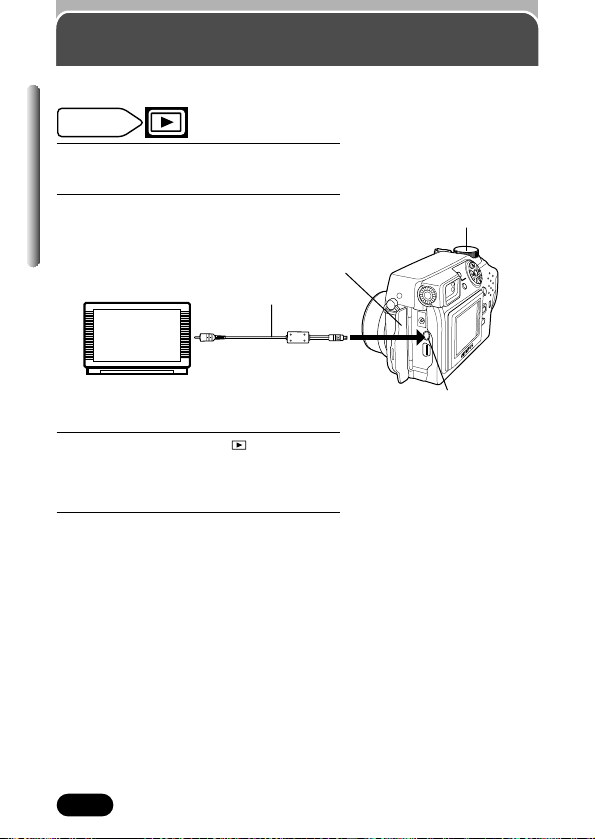
140
Playback on a TV
Chapter 7
1
Make sure that the TV and camera
power are off .
2
Connect the camera’s VIDEO OUT jack
to the TV using the video cable.
3
Set the mode dial to . Turn on the
TV. Set the TV to the video input mode.
● For details on switching to video input,
refer to your TV's instruction manual.
4
Select an image by using the arrow
pad.
● The selected image will be displayed on
the TV.
Use the provided video cable to play back recorded images on your TV.
Mode dial
setting
Connect to the TV's video
input (yellow) terminal.
Video cable
Connect to the VIDEO OUT jack.
Mode dial
Connector cover
141
Chapter 7
Playback on a TV (Cont.)
● The optional AC adapter is recommended when using the camera
with a TV.
● Images can be rotated only when they are played back on a TV. See
the next page for details.
TIPS
● Make sure that the camera’s video output signal type is the same as the
TV’s video signal type.
~ “Video output selection” (P. 166)
● The camera’s monitor turns off automatically when the camera is connected
to a TV.
● The image may appear off-center on the TV screen. This is due to the TV's
adjustment settings.
● When images are compressed in order to fit the entire image on a TV
screen, a black frame is placed in the blank parts of the screen around the
image. If the image is output to a video printer via the TV, the black frame
may be printed.
Note

142
Chapter 7
Playback on a TV (Cont.)
Chapter 7
There may be times when you want to rotate a
picture. For example, pictures taken with the
camera held vertically are also oriented vertically
(i.e. longer vertically than horizontally). With
picture rotation, you can turn them horizontally,
90 degrees clockwise, or counter-clockwise.
1
Display a vertically
oriented picture in
the single-frame
playback mode
(P. 117).
2
Each time the
(picture rotation)
button is pressed,
the picture is rotated
as shown.
Normal playback
of a vertically
oriented picture
Picture rotated
90° counter-
clockwise from
normal playback
position
Picture rotated
90° clockwise
from normal
playback position
Mode dial
setting
HQ
’02.12.23 21:56 24
HQ
’02.12.23 21:56 24
HQ
’02.12.23 21:56 24
● Movie pictures cannot be rotated.
● New picture orientations are saved even when the power is turned off.
● Close-up playback is possible after pictures are rotated. However, pictures
cannot be rotated while in close-up playback (P. 129).
● The following pictures cannot be rotated:
protected pictures, pictures on a card with a write-protect seal, pictures
taken with other cameras.
Note
(Picture rotation) button
Picture rotation
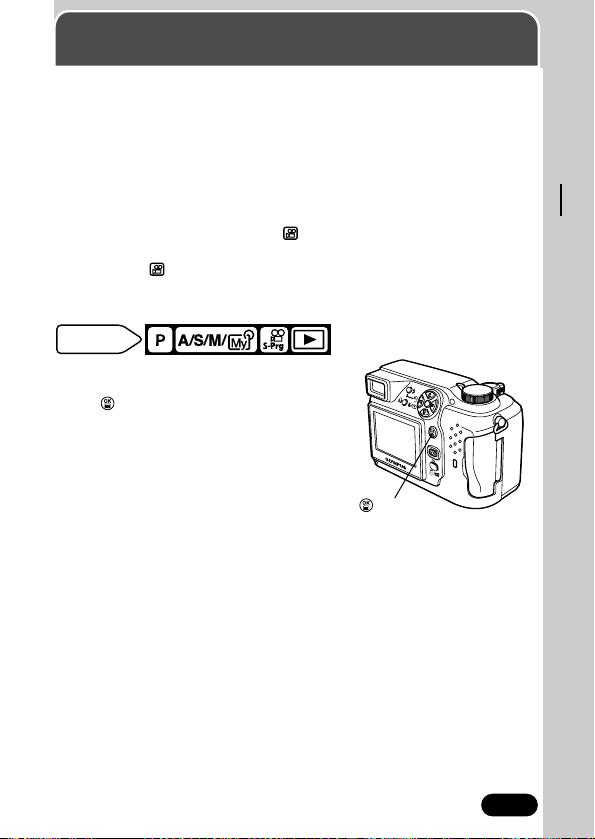
143
Chapter 8
Useful functions
All reset
— Saving the camera’s settings
This function lets you choose whether or not the camera saves its current
settings.
OFF: The settings made just before the power is turned off are saved.
ON : All settings are returned to the factory default settings (P. 144).
The settings affected by All Reset are listed below.
The ALL RESET setting (ON/OFF) applies to all the modes. If ALL RESET is
set to OFF in one shooting mode, this setting applies to all other shooting
modes, as well as the playback and modes.
When ALL RESET is set to OFF, the OFF setting does not apply to functions
(For example, : setting FULLTIME AF, INFO, etc.) that are not available in
the current mode.
All reset does not affect the menu’s SETUP items.
Mode dial
setting
In the top menu, select MODE MENU T
SETUP T ALL RESET T ON or OFF.
Press . Press again to cancel the menu.
~ “How to use the menu” (P. 39)
Factory default setting: ON
button
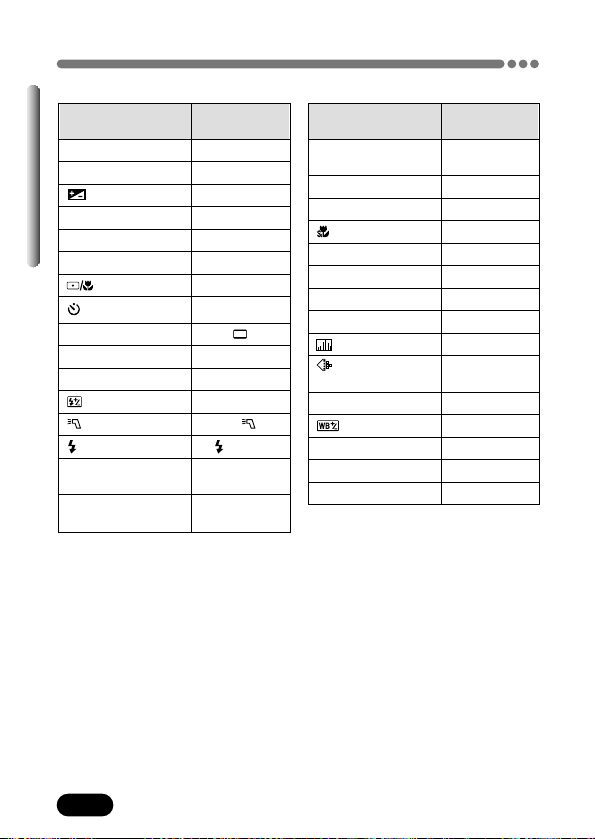
144
Chapter 8
All reset — Saving the camera’s settings (Cont.)
Items that All Reset affects
Setting
Factory default
setting
DIGITAL ZOOM
OFF
(P. 74)
FULLTIME AF (P. 61) OFF
AF MODE (P. 60) iESP
(P. 90) OFF
PANORAMA (P. 96) OFF
2 IN 1 (P. 98) OFF
FUNCTION (P. 100) OFF
INFO (P. 155) OFF
(P. 157) OFF
(for still pictures)
HQ
(P. 102)
WB (P. 109) AUTO
(P. 112) ±0
SHARPNESS (P. 113) ±0
CONTRAST (P. 114) ±0
SATURATION (P. 115) ±0
Setting
Factory default
setting
FNo (P. 53) F2.8
SHUTTER (P. 54) 1/1000
(P. 108) ±0
LCD* OFF
ZOOM (P. 73) 32mm
FLASH MODE (P. 75) AUTO
(P.82, 89) OFF
(P. 91) OFF
DRIVE (P. 92)
AF/MF (P. 63) AF
ISO (P. 107) AUTO
(P. 81) ±0
FLASH (P. 177) IN+
SLOW (P. 78) SLOW1
NOISE REDUCTION
OFF
(P. 116)
MULTI METERING
OFF
(P. 83)
* This sets the monitor’s ON/OFF when the camera is turned on.
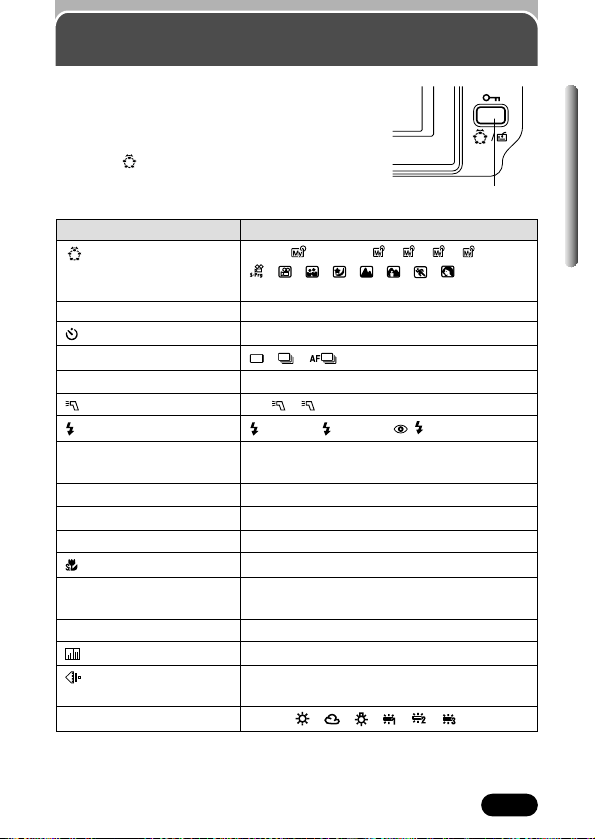
145
Chapter 8
Custom button
Menu items listed in the table below can be set to
the custom button on the camera. This makes it
easy to jump to frequently-used functions by
pressing only one button. The factory default
setting is “ (virtual dial)”.
Custom button
Available Items Settings
VIRTUAL DIAL A/S/M/ : A, S, M, , , ,
(factory default setting)
:
, , , , , ,
(P. 47, 48)
AE LOCK (P. 86) –
(P. 91) OFF, ON
DRIVE (P. 92) , , , BKT
ISO (P. 107) AUTO, 100, 200, 400
FLASH (P. 177) IN+ ,
SLOW (P. 78) SLOW1, SLOW2, SLOW
NOISE REDUCTION
(P. 116)
OFF, ON
DIGITAL ZOOM (P. 74) OFF, ON
FULLTIME AF (P. 61) OFF, ON
AF MODE (P. 60) iESP, SPOT
(P. 90) OFF, ON
FUNCTION (P. 100) OFF, BLACK&WHITE, SEPIA, WHITE
BOARD, BLACK BOARD
INFO (P. 155) OFF, ON
(P. 157) OFF, ON
(for still pictures)
(P. 102)
TIFF, SHQ, HQ, SQ1, SQ2
WB (P. 109) AUTO, , , , , ,
4
3
2
1
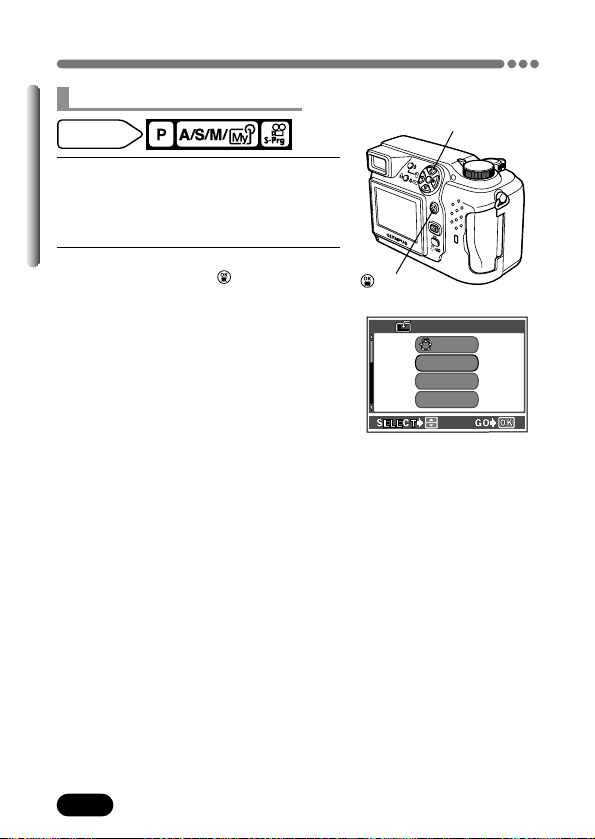
146
Chapter 8
Custom Button (Cont.)
1
In the top menu, select MODE MENU
T SETUP T CUSTOM BUTTON. Press
í. ~ “How to use the menu” (P. 39)
● The CUSTOM BUTTON screen appears.
2
Select the function you want by using
Ññ, then press to save your
setting.
CUSTOM BUTTON
AE LOCK
DRIVE
VIRVIRTUALTUAL
DIALDIAL
ISO
CUSTOM BUTTON screen
Mode dial
setting
Setting the custom button
button
Ññíbuttons
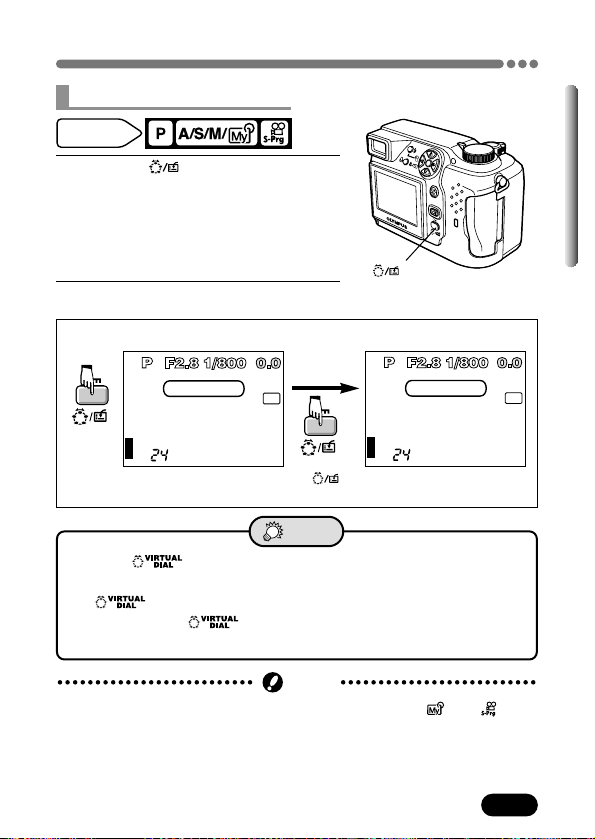
147
Chapter 8
Custom Button (Cont.)
Ex: When INFO is set to the custom button.
Press this
button.
Press to
select ON or OFF.
HQ
2288x1712
INFO ON
HQ
2288x1712
INFO OFF
● To use after setting a different function to the custom
button:
T cannot be used when a different function is set to the custom
button. Re-set to the custom button by following “Setting the
Custom Button” on page 146.
TIPS
● You cannot set the custom button separately for P, A/S/M/ and .
Note
Mode dial
setting
Using the custom button
1
Press the (custom) button.
● The function currently set to the custom
button appears.
2
Set following the below:
button
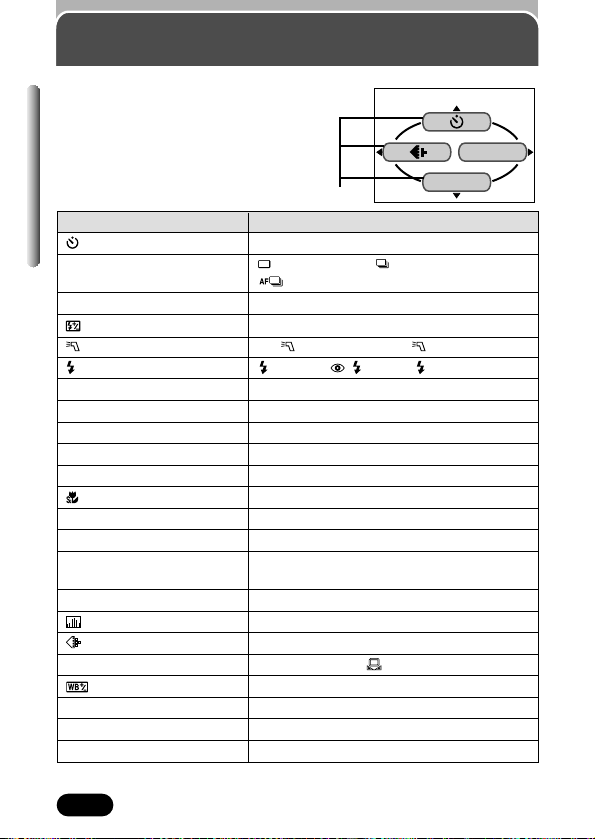
148
Chapter 8
Shortcut
You can replace 2 functions, which are of
functions on the top menu other than
MODE MENU, with those listed in the table
below. This is useful when you want to
quickly go to frequently-used functions.
DRIVE
MODE MENU
Shortcut menu
Available Menu Items Settings
(P. 91) OFF, ON
DRIVE (P.92) (Single-frame), (Sequential),
(AF Sequential), BKT
ISO (P. 107) AUTO, 100, 200, 400
(P. 81) –2 - 0 - +2
FLASH (P. 177) IN+ (main+external), (external only)
SLOW (P. 78) SLOW1, SLOW, SLOW2
NOISE REDUCTION (P. 116) OFF, ON
MULTI METERING (P. 83) OFF, ON
DIGITAL ZOOM (P. 74) OFF, ON
FULLTIME AF (P. 61) OFF, ON
AF MODE (P. 60) iESP, SPOT
(P. 90) OFF, ON
PANORAMA (P. 96) –
2 IN 1 (P. 98) –
FUNCTION (P. 100) OFF, BLACK&WHITE, SEPIA,
WHITE BOARD, BLACK BOARD
INFO (P. 155) OFF, ON
(P. 157) OFF, ON
(still pictures) (P. 102) TIFF, SHQ, HQ, SQ1, SQ2
WB (P. 109) AUTO, PRESET, (One-Touch)
(P. 112) BLUE - 0 - RED
SHARPNESS (P. 113) –5 - 0 - +5
CONTRAST (P. 114) –5 - 0 - +5
SATURATION (P. 115) –5 - 0 - +5
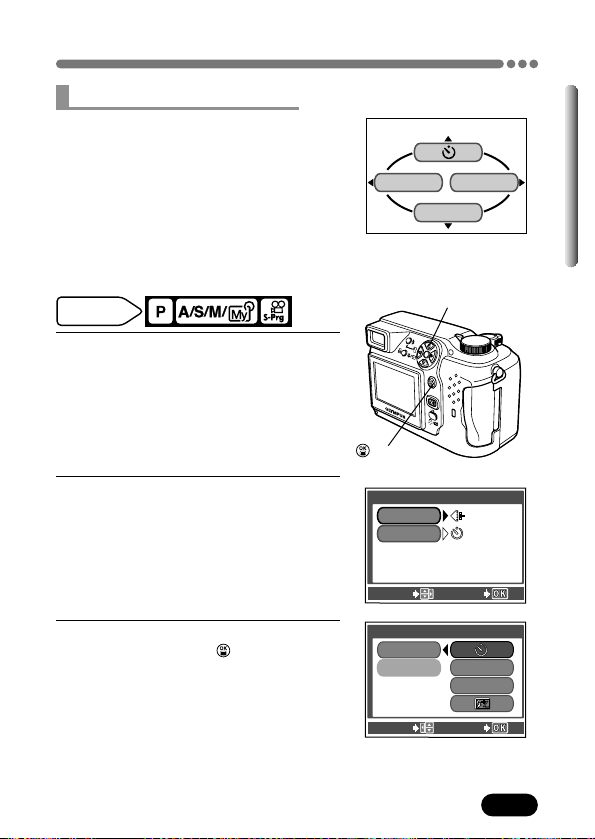
149
Chapter 8
Shortcut (Cont.)
Mode dial
setting
1
In the top menu, select MODE MENU
T SETUP T SHORT CUT. Press
í.
~ “How to use the menu” (P. 39)
● The SHORT CUT screen appears.
● The A and B positions on the monitor are
the same as the left and bottom on the top
menu.
2
Select A, then press í to display the
menu functions on page 148.
3
Select the item you want by pressing
Ññ, then press to save your
setting.
● Repeat steps 2 and 3 to set B.
SHORSHORT CUTT CUT
A
B
SELECT
GO
SHORT CUT screen
A
B
MODE MENU
Assign functions to the A and B positions on
the top menu.
SHORSHORT CUTT CUT
A
B
SELECT
GO
DRIVE
ISO
Setting the shortcut menu
Ññíbuttons
button
The items you can change on the
top menu vary depending on the
camera's mode.
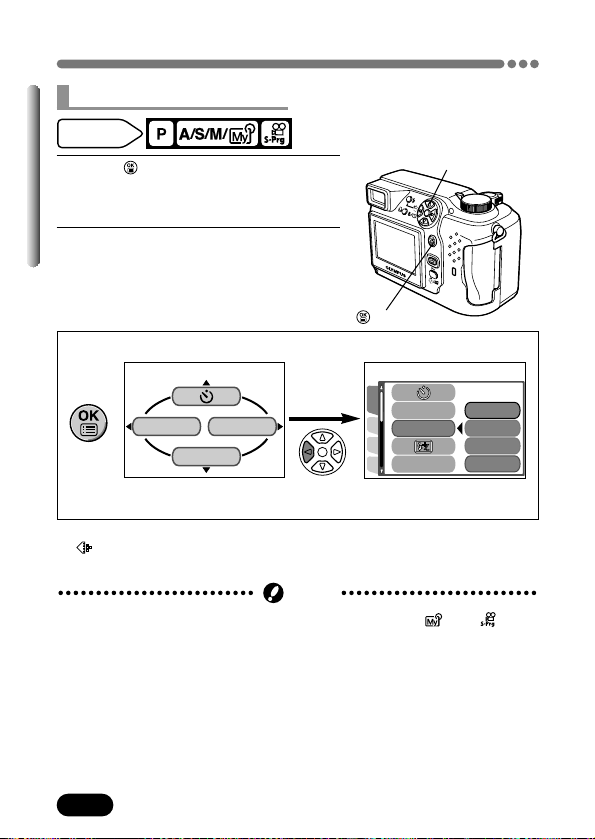
150
Chapter 8
Shortcut (Cont.)
Mode dial
setting
1
Press to display the top menu.
● The shortcut menu you set before is
shown on the top menu.
2
Press the arrow pad according to the
arrow (ߥ) shown next to each item.
● The monitor jumps directly to the setting
screen of that item.
DRIVE
ISO
MODE MENU
Ex: When ISO is set to the A shortcut.
Press this
button.
Pressing É takes you directly
to the ISO setting screen.
CAMERA
PICSET
CARD
200
100
AUTO
400
DRIVE
ISO
FLASH
Using the shortcut menu
● The shortcut menu cannot be set separately for P, A/S/M/ and .
Note
Shortcut menu default setting
A:
B: DRIVE
button
ñÉbuttons

151
Chapter 8
Your favorite settings can be saved in MY MODE SETUP. When the mode is
set to , your customized settings are activated. When the camera is in the
P or (except ), you can also save some of the settings you are using
in MY MODE SETUP. In MY MODE SETUP, you can create and save up to 4
different My Mode settings.
The settings affected by MY MODE SETUP are listed on P. 154.
MY MODE SETUP
1
In the top menu, select MODE MENU
T SETUP T MY MODE SETUP. Press
í. ~ “How to use the menu” (P. 39)
2
Press Ññ to select the item you want
(see below), then press
í.
CURRENT : Saves the settings you are
using now.
RESET : Restores the factory default
settings.
CUSTOM : Saves settings one by one.
Mode dial
setting
SETUP
CAM
CARD
PIC
RESETRESET
CURRENT
CUSTOMCUSTOM
FILE NAME
PIXEL MAPPINGPIXEL MAPPING
MY MODE SETUPMY MODE SETUP
button
Ññíbuttons
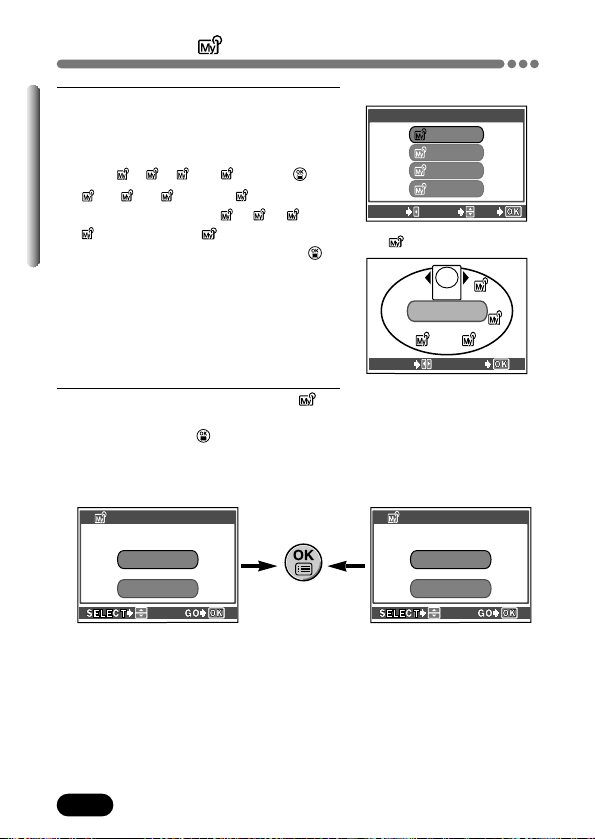
152
Chapter 8
MY MODE SETUP (Cont.)
3
The “MY MODE SETUP” screen
appears.
Press
Ññ to select a My Mode
position. You save the My Mode setting
from , , or . Press .
, , and positions
correspond to the , , and
on the A/S/M/ mode virtual dial
screen displayed when you press .
When selecting CURRENT in step 2:
Go to step 4.
When selecting RESET in step 2:
Go to step 4.
When selecting CUSTOM in step 2:
Go to step 5.
4
Set CURRENT or RESET on each MY
MODE SETUP screen. After selecting
the setting, press . Go to step 8.
● To cancel the setting, select CANCEL.
4
3
2
1
4
3
2
1
4
3
2
1
When CURRENT is selected:
Select SET.
When RESET is selected:
Select ALL RESET.
MY MODE SETUPMY MODE SETUP
SET
CANCELCANCEL
SET CURRENT SETTING
1
ALL RESET
CANCEL
SET CURRENT SETTING
MY MODE SETUPMY MODE SETUP
1
“MY MODE SETUP” screen
A/S/M/ mode virtual dial screen
CANCEL SELECT
GO
1
2
3
4
MY MODE SETUPMY MODE SETUP
MY MODEMY MODE
2
MY MODEMY MODE
3
MY MODEMY MODE
4
MY MODE
1
SELECT
GO
APERTURE
PRIORITY
MODE
A
S
M
1
2
3
4

153
Chapter 8
MY MODE SETUP (Cont.)
Ex: When setting the aperture on the MY MODE SETUP screen.
MY MODE SETUP screen
Press í to go to the
aperture setting screen.
FNo
SHUTTER
LCD
P/A/S/M/S-PrP/A/S/M/S-Prg
MY MODE SETUPMY MODE SETUP
FNo
SHUTTER
P
OFFOFF
LCD
P/A/S/M/S-PrP/A/S/M/S-Prg
MY MODE SETUPMY MODE SETUP
Increases the
value.
Decreases the
value.
Press to save the setting.
The monitor then returns to
the previous screen.
5
Set CUSTOM on the MY MODE SETUP
screen. Press
Ññ to select the
functions you want, then press
í.
6
Select the setting within the function
by using
Ññ, then press .
● Repeat Steps 5 and 6 to change other
functions.
7
When you have made all the settings
you want, press to exit from the MY
MODE SETUP screen. Custom setting
registration is complete.
● The menu displayed in step 2 appears.
8
Press to exit from the menu.
● When you save settings in CURRENT, the saved zoom position may differ
from the zoom position you are using. The zoom position is set to one of the
4 zoom positions included in ZOOM (function included in MY MODE
SETUP). The value closest to the current zoom position will be selected.
Note
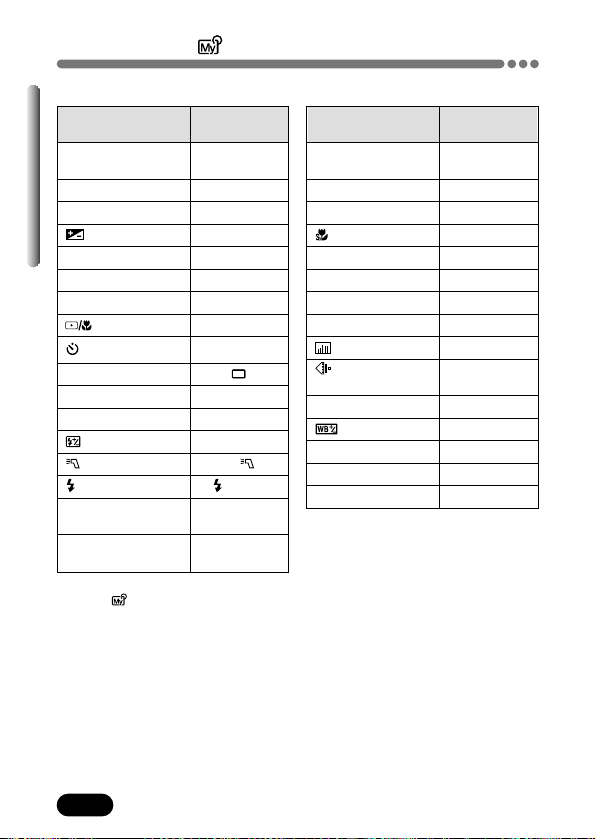
154
Chapter 8
MY MODE SETUP (Cont.)
Available Items and Factory Default Settings
*1 This sets the monitor’s ON/OFF when the camera is turned on.
*2 In the mode, available zoom positions are 32mm/50mm/70mm/96mm (these
numbers are based on a 35 mm camera).
Setting
Factory default
setting
DIGITAL ZOOM
OFF
(P. 74)
FULLTIME AF (P. 61) OFF
AF MODE (P. 60) iESP
(P. 90) OFF
PANORAMA (P. 96) OFF
2 IN 1 (P. 98) OFF
FUNCTION (P. 100) OFF
INFO (P. 155) OFF
(P. 157) OFF
(for still pictures)
HQ
(P. 102)
WB (P. 109) AUTO
(P. 112) ±0
SHARPNESS (P. 113) ±0
CONTRAST (P. 114) ±0
SATURATION (P. 115) ±0
Setting
Factory default
setting
P/A/S/M/S-Prg P
(P. 49 – 52)
FNo (P. 53) F2.8
SHUTTER (P. 54) 1/1000
(P. 108) ±0
LCD*
1
OFF
ZOOM*
2
(P. 73) 32mm
FLASH MODE (P. 75) AUTO
(P. 82, 89) OFF
(P. 91) OFF
DRIVE (P. 92)
AF/MF (P. 63) AF
ISO (P. 107) AUTO
(P. 81) ±0
FLASH (P. 177) IN+
SLOW (P. 78) SLOW1
NOISE REDUCTION
OFF
(P. 116)
MULTI METERING
OFF
(P. 83)
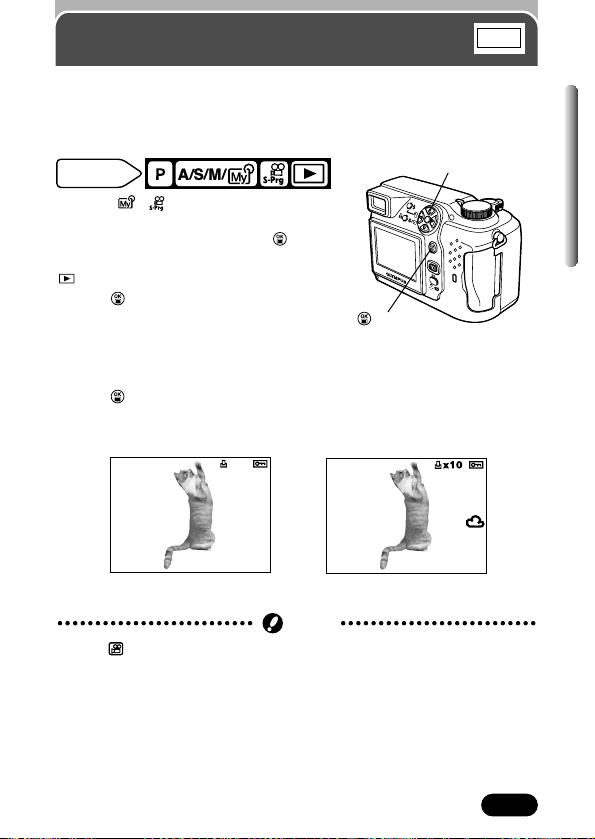
155
Chapter 8
Information display
Lets you select the amount of shooting information displayed in the shooting
or playback mode. When it is set to OFF, only a small amount of information
is displayed. For details on each piece of information displayed, see pages 12
to 15.
When INFO is OFF
When INFO is ON
Mode dial
setting
P A/S/M/ :
In the top menu, select MODE MENU T
SETUP T INFO T ON. Press . Press
again to cancel the menu.
:
Press to display the top menu.
Pressing
É turns INFO on.
~ “How to use the menu” (P. 39)
● All shooting information is displayed.
● To turn INFO off in the playback mode,
press again to bring up the top menu
and press
É.
Example: Playback mode
’02.09.12 12:30 20
x10
HQ
HQ
SIZE: 2288x1712
F2.8 1/800 +2.0
ISO100
’02.09.12 12:30
FILE: 100–0020
● In the mode, INFO is not available.
Note
Ébutton
button
INFO
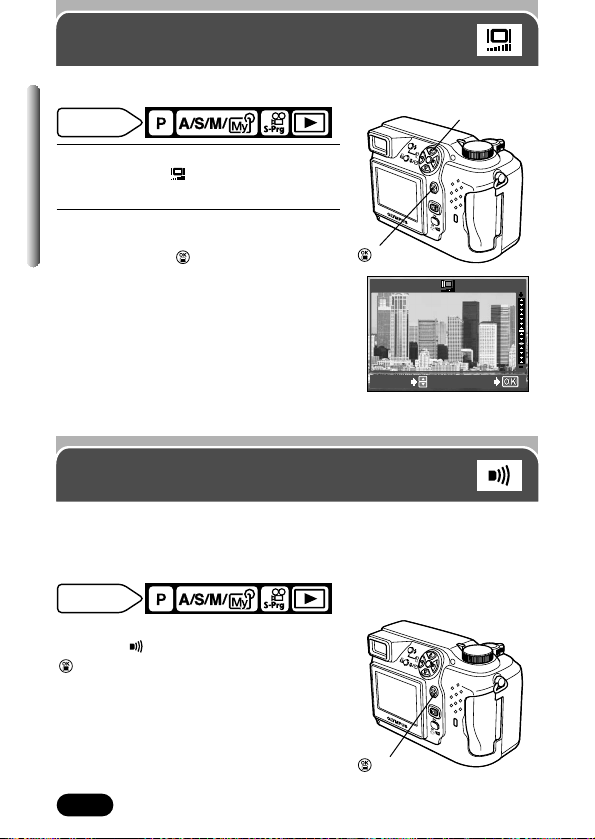
156
Chapter 8
Monitor brightness
adjustment
Mode dial
setting
Adjusts the brightness of the monitor.
1
In the top menu, select MODE MENU
T SETUP T .
~ “How to use the menu” (P. 39)
2
To brighten the monitor, press Ñ.To
darken it, press
ñ. To complete the
setting, press .
Factory default setting: ±0
ADJUST
GO
Beep sound adjustment
You can set the volume of the beep used for button operations or warnings to
OFF, LOW or HIGH. The factory default setting is HIGH, but you can turn the
beep completely off if you don't want it.
Mode dial
setting
In the top menu, select MODE MENU T
SETUP TTOFF, LOW or HIGH. Press
. Press again to cancel the menu.
~ “How to use the menu” (P. 39)
Factory default setting: HIGH
Ññbuttons
button
button
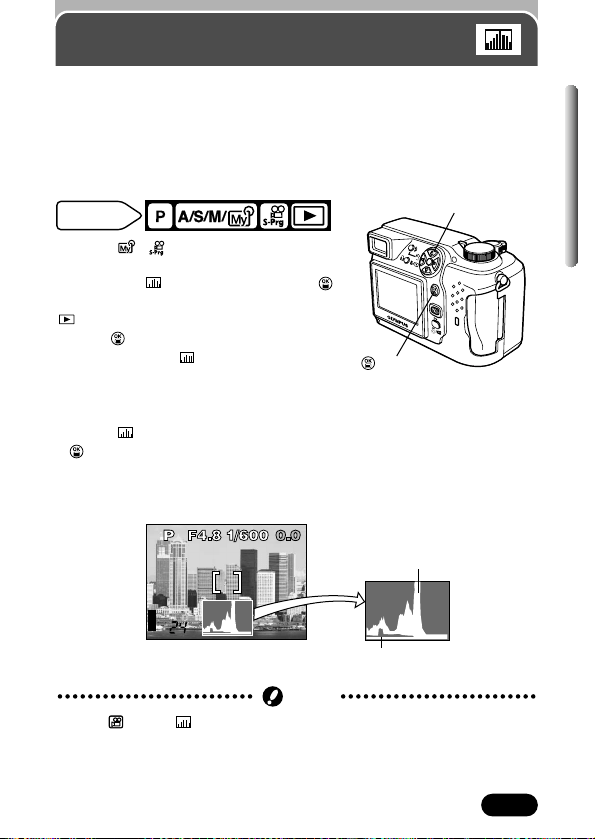
157
Chapter 8
Histogram display
You can display a histogram showing the brightness and contrast of the
subject in your monitor during shooting. Checking the histogram enables
precise exposure control. During playback, you can display a histogram
showing the brightness and contrast of recorded pictures.
The histogram display can be set separately for shooting modes and
playback mode.
Mode dial
setting
P A/S/M/ :
In the top menu, select MODE MENU T
CAMERA TTON or OFF. Press .
Press again to cancel the menu.
:
Press to display the top menu.
Pressing
ñ turns on.
~ “How to use the menu” (P. 39)
● The histogram is displayed.
● To turn off in the playback mode, press
again to bring up the top menu and
press
ñ.
Example: When the histogram is displayed during
shooting (P mode)
ñbutton
● In the mode, is not available.
● It may not be possible to display histograms for images recorded with other
cameras.
Note
button
HQ
Histogram of the area in the AF
target mark (green)
Histogram of the
whole frame (white)
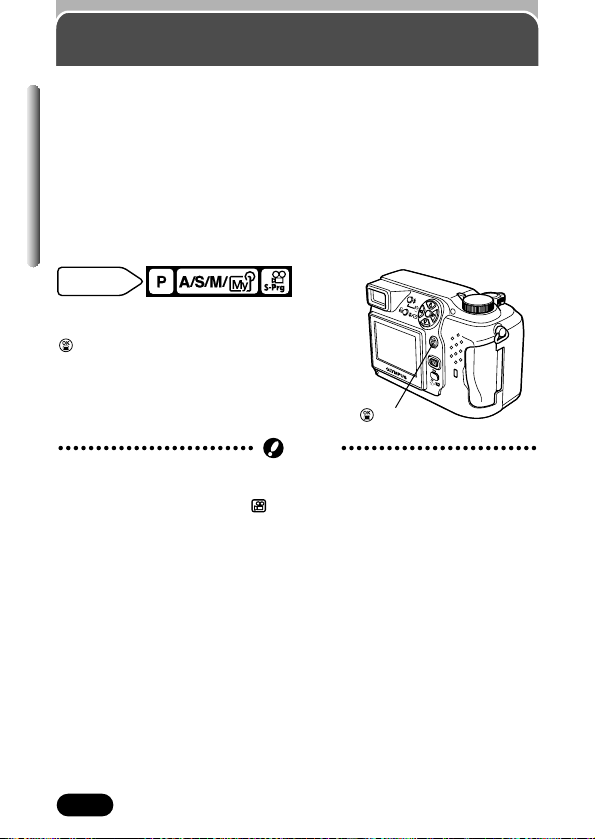
158
Chapter 8
Rec View
You can choose if the image being recorded is displayed on the monitor
during shooting.
ON
The image being recorded onto the card is displayed. This is useful for a brief
check of images you have just taken. Pressing the shutter button halfway at
any time displays the image the camera is currently aimed at.
OFF
The image being recorded onto the card is not displayed. Instead, the subject
the camera is currently pointing at is displayed. This is useful when you want
to prepare your next shot while the previous image is being recorded.
In the top menu, select MODE MENU T
SETUP T REC VIEW T ON or OFF. Press
. Press again to cancel the menu.
~ “How to use the menu” (P. 39)
Factory default setting: ON
Mode dial
setting
● If you shoot with the monitor off and battery power is too low, Rec View is
not available.
● Rec View is always on in the mode.
Note
button
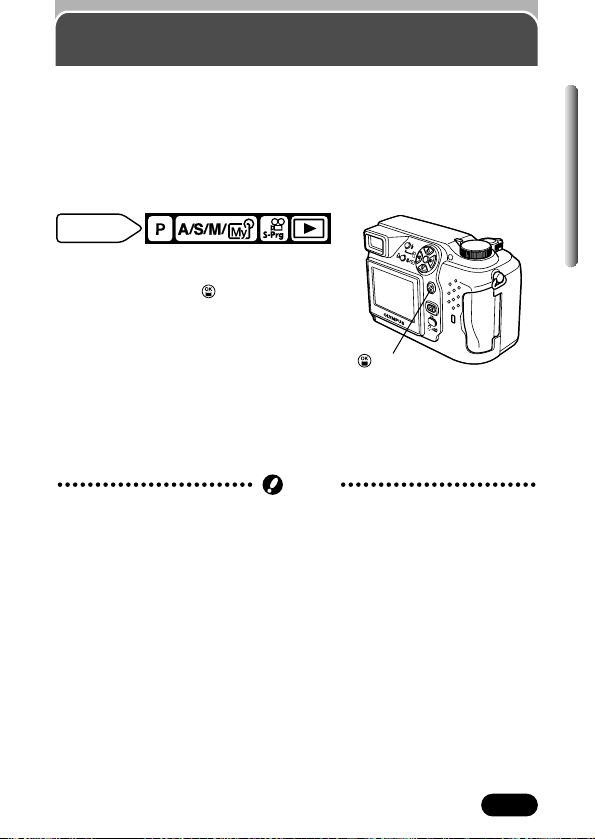
159
Chapter 8
Power on/off display setting
You can select a picture to display when the power is turned on/off. It is also
possible to register your favorite picture for display when the power is turned
on/off (P. 160). To select the already registered picture, select “2”.
PW ON SETUP: Selects the picture that will be displayed when the power is
turned on.
PW OFF SETUP: Selects the picture that will be displayed when the power is
turned off.
In the top menu, select MODE MENU T
SETUP T PW ON (PW OFF) SETUP T
OFF, 1 or 2. Press . Press again to
cancel the menu.
~ “How to use the
menu” (P. 39)
OFF: There is no picture.
1:Factory default setting
2:Displays registered picture. If no
picture is registered, the monitor does
not display any picture when the
camera’s power is on/off.
● If the battery check indication appears when the power is turned off, the
image you selected for PW OFF SETUP may not appear.
Note
Mode dial
setting
button
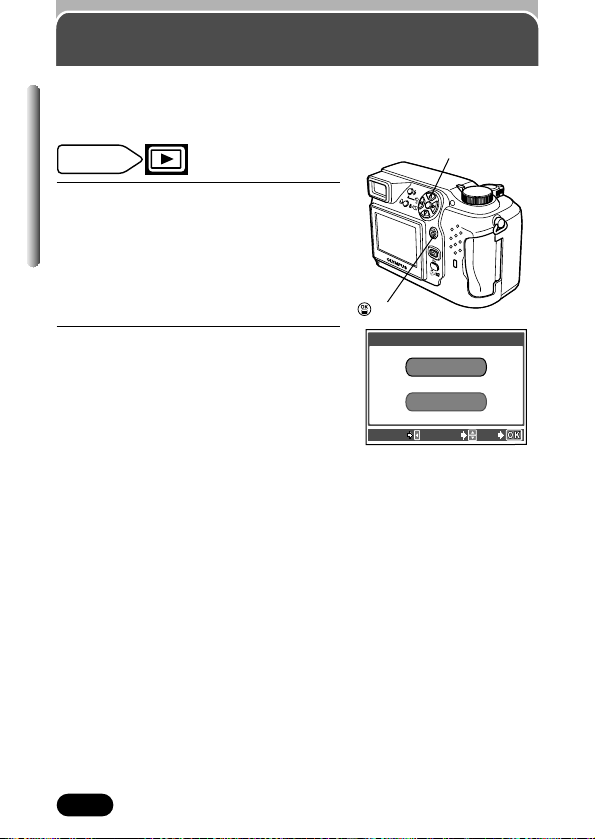
160
Chapter 8
Screen setup
You can register your favorite picture for display when the power is turned
on/off. For more information on this function, refer to “Power on/off display
setting” (P. 159).
1
Play back a picture you want to
register.
In the top menu, select MODE MENU
T SETUP T SCREEN SETUP. Press
í. ~ “How to use the menu” (P. 39)
● The SCREEN SETUP screen appears.
2
Press Ññ to select either of the
following items:
To register a picture for power on,
select PW ON.
To register a picture for power off,
select PW OFF.
● If a picture is already registered, the
IMAGE EXISTING screen is displayed
which asks you if you want to cancel the
currently registered picture and register a
new one. If KEEP is selected, the screen
returns to the initial PW ON/OFF selection
screen.
Mode dial
setting
Ññíñbuttons
button
PW ON
PW OFF
SCREEN SETUP
CANCEL SELECT
GO
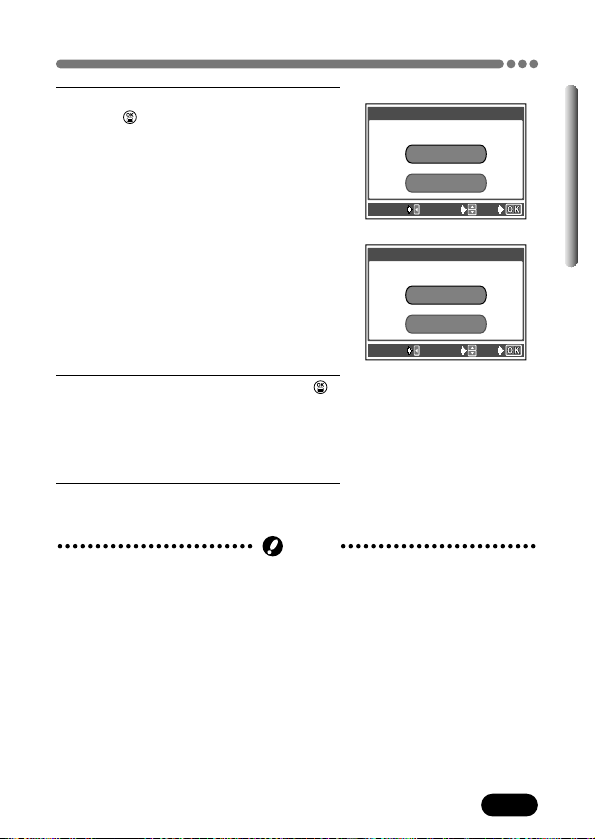
161
Chapter 8
Screen setup (Cont.)
● It is not possible to register pictures that cannot be played back on this
camera. No movie frames can be played back.
3
Select a picture you want to register.
Press .
● The SCREEN SETUP screen appears
and asks if you are sure you want to
register a picture.
4
Press Ññ to select OK, then press .
● The picture has been registered. When
registration is complete, the screen returns
to the PW ON/OFF selection screen
displayed in step 2.
5
To exit from the SCREEN SETUP
screen, press
É.
Note
SCREEN SETUP
CANCEL SELECT
GO
OK
CANCEL
SET AS PW ON SCREEN
SCREEN SETUP
CANCEL SELECT
GO
OK
CANCEL
SET AS PW OFF SCREEN
When selecting PW ON
When selecting PW OFF
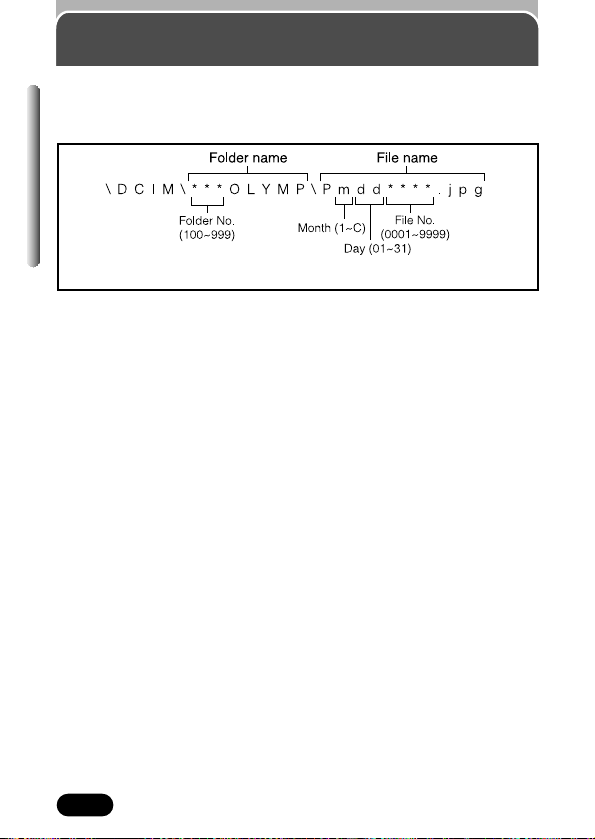
162
Chapter 8
File name
The camera automatically creates file names and folder names for images to
be stored in. Files can be numbered from 0001 to 9999 and folders can be
numbered from 100 to 999. Examples are shown below.
● Month: Jan. - Sep. = 1 - 9, Oct. = A, Nov. = B, Dec. = C
There are two choices here: RESET or AUTO. Choose the one that is best for
you when transferring images to a computer.
RESET
When RESET is selected, the file number and folder number are reset every
time a new card is inserted in the camera. The folder number returns to No.
100, and the file number returns to No. 0001. This is useful when grouping
files on separate cards.
AUTO
When AUTO is selected, the same folder number is retained, but the file
number continues from the previous card, so that the same file number is not
used on different cards. This helps you to manage multiple cards. This is
useful when a group of files stretches over more than one card.

163
Chapter 8
File name (Cont.)
● When the File No. reaches 9999...
The file number returns to 0001, and the folder number changes, for
example, from No. 100 to No. 101.
● When both the Folder and File No. reach each maximum number
(999/9999)...
The number of storable pictures becomes 0, even if the card is not full
yet. No more pictures can be taken. Replace the card with a new one.
TIPS
Mode dial
setting
1
In the top menu, select MODE MENU
T SETUP T FILE NAME.
~ “How to use the menu” (P. 39)
2
Select RESET or AUTO, then press .
Factory default setting: RESET
RESET
AUTO
SETUP
CAM
CARD
PIC
FILE NAMEFILE NAME
PIXEL MAPPINGPIXEL MAPPING
MY MODE SETUPMY MODE SETUP
button
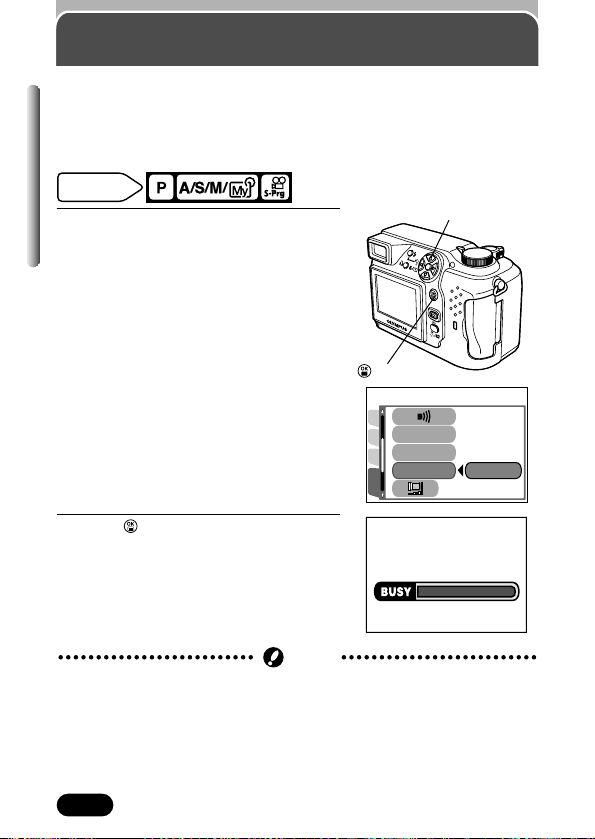
164
Chapter 8
Pixel Mapping
The Pixel Mapping feature allows the camera to check and adjust the CCD
and image processing circuit automatically. It is not necessary to operate this
function frequently. Approximately once a year is recommended. Wait a few
minutes after the monitor is used or continuous shots are taken to allow for
proper performance of the Pixel Mapping function.
1
In the top menu, select MODE MENU
T SETUP T PIXEL MAPPING. Press
í.
~ “How to use the menu” (P. 39)
● START appears.
2
Press .
● A progress bar appears during Pixel
Mapping.
● When Pixel Mapping is finished, the
screen returns to the menu.
SETUP
CAM
CARD
PIC
START
FILE NAMEFILE NAME
PIXEL MAPPINGPIXEL MAPPING
MY MODE SETUPMY MODE SETUP
Mode dial
setting
● If the power is turned off during Pixel Mapping, start again from Step 1.
Note
í button
button

165
Chapter 8
Measurement units: m/ft (meters/feet)
● In the mode, the m/ft setting is not available.
Note
Measurement units can be selected from either meters or feet in the manual
focus mode. (P. 63)
At close ranges, the camera replaces meters/feet with centimeters/inches.
In the top menu, select MODE MENU T
SETUP T m/ft T m or ft. Press . Press
again to cancel the menu.
~ “How to
use the menu” (P. 39)
Factory default setting: m
Mode dial
setting
button
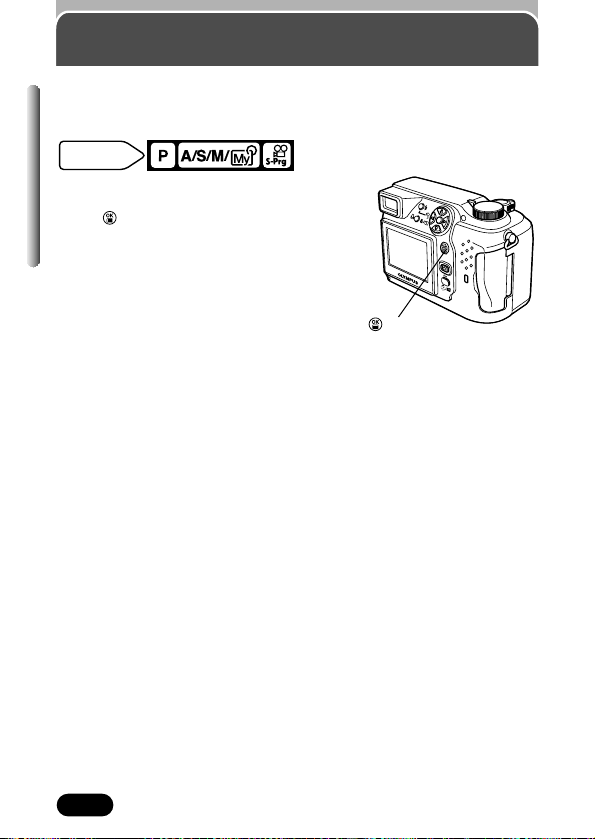
166
Chapter 8
Video output selection
You can select NTSC or PAL according to your TV's video signal type. Select
the video signal type before shooting. If you use the wrong video signal type,
you will not be able to play back the recorded images properly on your TV.
In the top menu, select MODE MENU T
SETUP T VIDEO OUT T NTSC or PAL.
Press . Press again to cancel the menu.
~ “How to use the menu” (P. 39)
● The factory default setting varies depending
on the area where you purchased this
camera.
TV video signal types & main regions
NTSC : Japan, Korea, North America, Taiwan
PAL : China, european countries
Mode dial
setting
button
167
Chapter 9
Print setting
How to print pictures
When you want to print out pictures that you have taken with this camera and
stored on a card, use one of the following options:
Print Reserve (P. 169) — for printing at a photo lab that supports
DPOF or for printing on a DPOF compatible printer
Apply Print Reserve to your pictures. This allows you to add printing data
(number of prints, date printed on pictures, etc.) to the pictures you have
stored.
● What is DPOF?
DPOF is short for Digital Print Order Format. DPOF is a format used to
record automatic print information from cameras. By specifying which
images are to be printed, the images can be printed easily by DPOF-
compatible printing service labs or a personal DPOF-compatible printer.
Printing on an Olympus CAMEDIA P-400, P-330N(E) or P-200 digital
printer:
If you insert a card with Print Reserve data into the printer, printing is
possible without using a computer. For more details, refer to the printer’s
instructions.
Transferring pictures to a computer and printing them from a printer
connected to the computer:
If your computer has software applications installed that support JPEG
images (Internet browsers, Paint software, etc.), you can print out your
pictures on a printer connected to the computer. CAMEDIA Master
software also enables printing. Print Reserve is not available.
Also refer to the application software's instructions.
168
Chapter 9
How to print pictures (Cont.)
● Picture size and printing
The resolution of a computer/printer is generally based on the number of
dots (pixels) per square inch. This is called “dpi” (dots per inch). The
higher the dpi value, the higher the resolution, and the better the printed
results. Keep in mind, however, that the dpi of the picture you want to
print does not change to match the printer resolution. This means that
when you print an image with a lower resolution than the printer, the size
of the printed picture will be smaller. Although you can print magnified
images, picture quality will decrease. If you want to be able to print large,
high-quality pictures, set the picture size in the camera as high as
possible (higher record mode) (P. 102).
TIPS
● Images taken with this camera can also be printed using a printer or at a
photo lab that supports the Design rule for Camera File system/DCF.
● DPOF reservations set by another device cannot be changed by this
camera. Make changes using the original device.
● If a card contains DPOF reservations set by another device, entering
reservations using this camera may overwrite the previous reservations.
● Even if an image appears with the message “PICTURE ERROR”, Print
reserve may be performed on it. In such a case, the print reserve icon ( )
does not appear where an image is displayed for full view. Since
appears where multiple images are displayed (index-display mode), it is
possible to confirm the print reserve status.
● This camera cannot be directly connected to printers such as the Olympus
P-300 digital printer.
● Not all functions may be available on all printers or at all photo labs.
● Only the first 999 images can be printed on the P-330N(E) printer.
● Some TIFF images may not be printed.
● Print reserve may take considerable time in some cases.
● Print reserve cannot be performed when using a card with a write-protect
seal.
Note
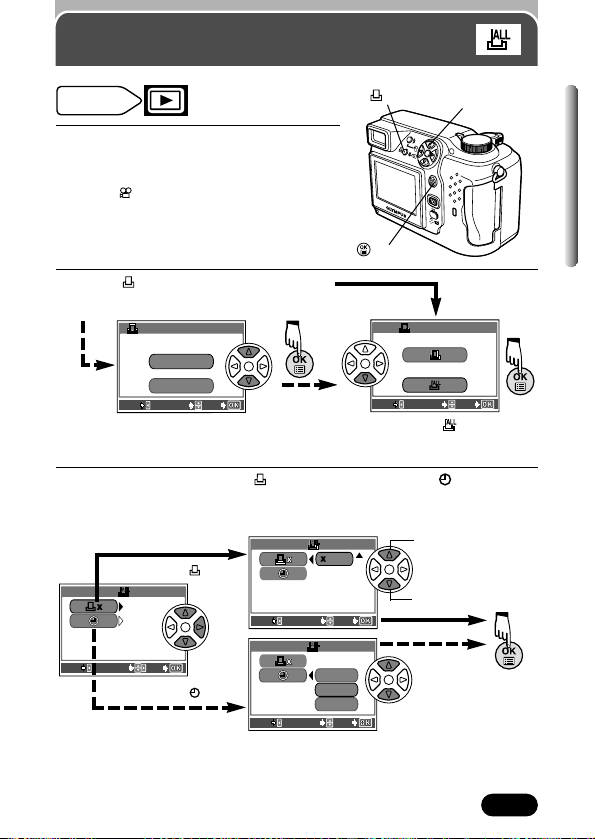
169
Chapter 9
All-frame Print Reserve
1
Use the arrow pad to play back a still
picture.
● You cannot use Print reserve on pictures
with .
2
Press .
● The PRINT ORDER screen appears.
3
Press Ñ or ñ to select x (number of prints) or (date/time),
then press
í to go to the setting. Perform each setting as
illustrated.
Mode dial
setting
EXITEXIT SELECTSELECT
GOGO
PRINT ORDER SETTINGPRINT ORDER SETTING
PRINT ORDERED
RESET
KEEPKEEP
EXITEXIT SELECTSELECT
GOGO
PRINT ORDER PRINT ORDER
If Print Reserve data is already stored on the card, the
PRINT ORDER SETTING screen appears giving you
the choice of resetting the data or keeping it (P. 176).
Select .
GOGO
0
DADATETE
EXITEXIT SELECTSELECT
0
EXITEXIT SELECTSELECT
GOGO
EXITEXIT SELECTSELECT
GOGO
NONO
DATE
TIMETIME
When selecting x
When selecting
Increases the number.
Decreases the number.
Select NO, DATE or TIME.
Arrow pad
button
button
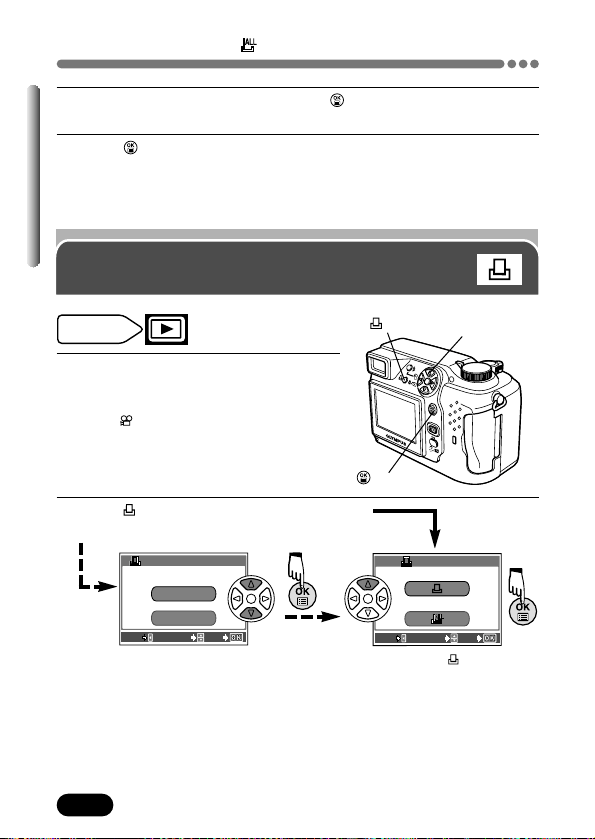
170
Chapter 9
All-frame Print Reserve (Cont.)
4
After all settings are complete, press .
● The top menu appears.
5
Press to exit from the top menu.
● The screen exits from the Print Reserve mode.
● The playback mode is restored and the Print Reserve mark and number
of prints are displayed.
Single-frame print reserve
1
Use the arrow pad to play back a still
picture.
● You cannot use Print reserve on pictures
with .
2
Press .
● The PRINT ORDER screen appears.
Mode dial
setting
Arrow pad
button
button
EXITEXIT SELECTSELECT
GOGO
PRINT ORDER SETTINGPRINT ORDER SETTING
PRINT ORDERED
RESET
KEEPKEEP
EXITEXIT SELECTSELECT
GOGO
PRINT ORDER PRINT ORDER
If Print Reserve data is already stored on the
card, the PRINT ORDER SETTING screen
appears giving you the choice of resetting the
data or keeping it (P. 176).
Select .
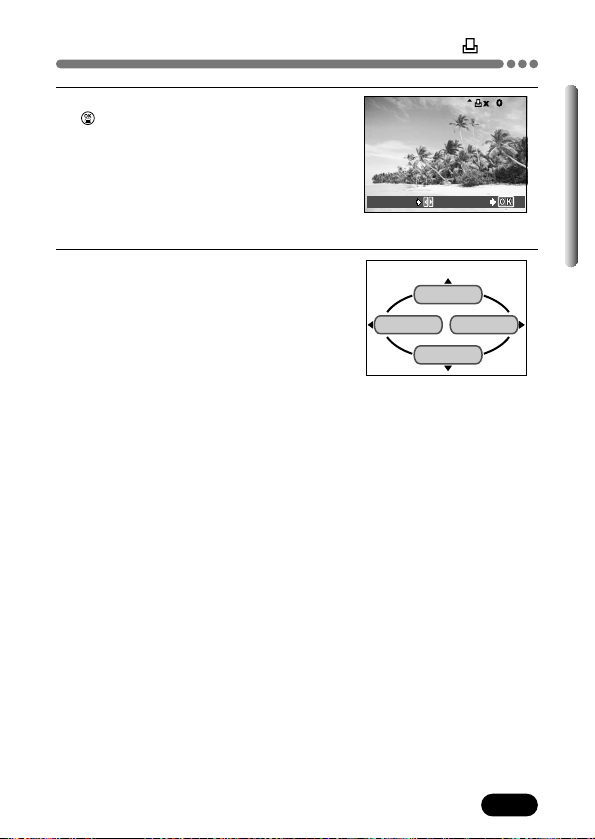
171
Chapter 9
Single-frame print reserve (Cont.)
3
Select a frame you want to print. Press
.
● The menu appears.
4
Select an appropriate Print reserve
setting (see below) using the arrow pad.
MORE: Sets the number of prints,
date/time and trim size. T Go to Step 5.
SINGLE PRINT: Sets single-frame print
and the date. Trimming setting is not
available. T Go to Step 6.
CANCEL: Cancels the Print reserve. T
Go to Step 6.
END: Completes the Print reserve. T Go
to Step 7.
When selecting a frame for
Print Reserve
SINGLE PRINT
END MORE
CANCEL
GO
SELECT
HQ
’02.12.23 21:56 24
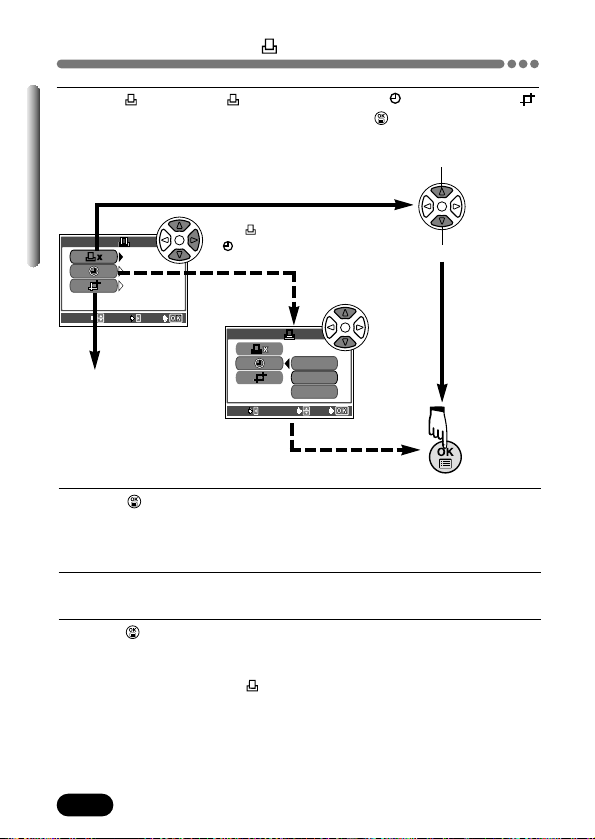
172
Chapter 9
Single-frame print reserve (Cont.)
0
DA
DA
TE
TE
NO
NO
GO
GO
SET
SET
SELECT
SELECT
5
In the screen, set x (number of prints), (date/time) and
(trimming). When setting is complete, press .
● A picture is played back.
Select x (number of prints)
or (date/time).
Increases the number.
Decreases the number.
To “Trimming setting”
(P. 173).
DATE
TIMETIME
N ON O
EXITEXIT SELECTSELECT
GOGO
6
Press to display the top menu again (as in Step 4). Press É to
select END.
● The PRINT ORDER screen appears.
● To perform Print Reserve for more pictures, repeat steps 3 – 6.
7
Press É repeatedly until the PRINT ORDER screen disappears.
● The top menu appears.
8
Press to exit the top menu.
● Make sure that the Print Reserve mark, number of prints and date/time
are displayed on the selected images. If the number of prints is set to 1,
no number is displayed; is displayed instead.
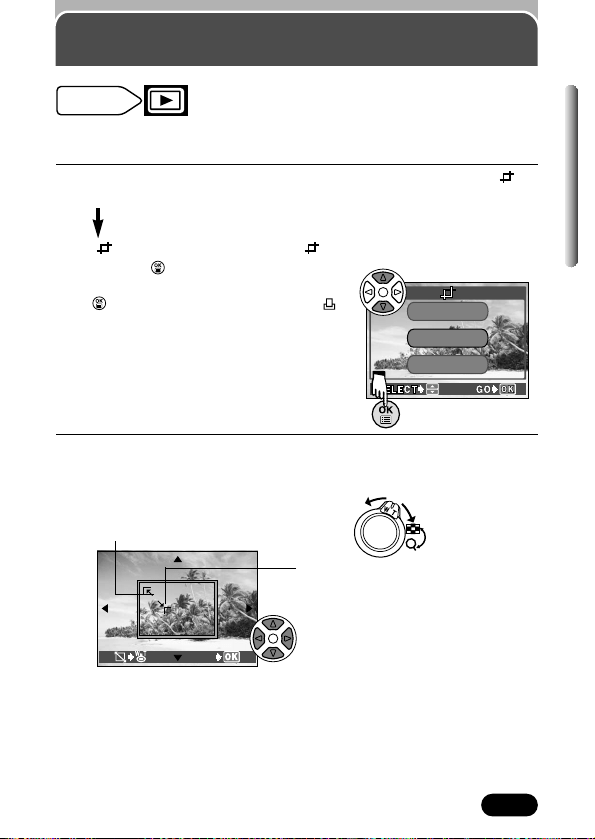
173
Chapter 9
Trimming setting
1
Do steps 1 – 5 of “Single-frame print reserve”. In step 5, select (P.
170 – 172).
If has been set already, the screen appears. Select RESET
and press .
● If you select OK or CANCEL, then press
, the screen returns to the
screen, which is displayed in step 5 on
P. 172.
To save the current trimming size T OK
To set a new trimming size T RESET
(Go to step 2.)
To cancel the trimming size T CANCEL
2
The trim screen appears. Set the top left corner point of the desired
picture. Move the corner point of the trimming frame using the zoom
lever.
It is possible to enlarge a part of a recorded picture and to print out the
enlarged section only.
CANCEL
RESET
O K
Mode dial
setting
GO
Move the zoom lever towards W. The corner
point of the trimming frame moves towards the
top left corner of the display.
Move the zoom lever towards T. The
corner point of the trimming frame moves
towards the bottom right corner of the
display.
Press the arrow pad to move the trimming
frame. Press the arrow corresponding to
the direction you want to move. If the
trimming frame has reached the trimming
limit, the corresponding arrow is not
displayed.
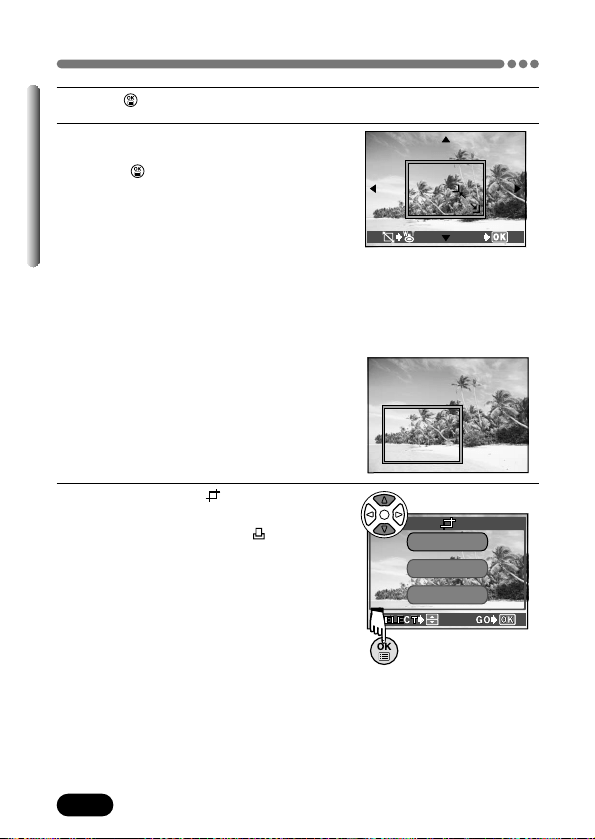
174
Chapter 9
Trimming setting (Cont.)
3
Press to save the top left corner point.
4
Set the bottom right corner point using
the zoom lever as described in step 2.
Press to save the bottom right
corner point.
● The trimming size is displayed for
approx. 1 second.
5
Select OK on the screen, which is
displayed in step 1.
● The screen returns to the screen.
GO
CANCEL
RESET
O K
Press the arrow pad to move the
trimming frame. Press the arrow
corresponding to the direction you
want to move. If the trimming
frame has reached the trimming
limit, the corresponding arrow is
not displayed.
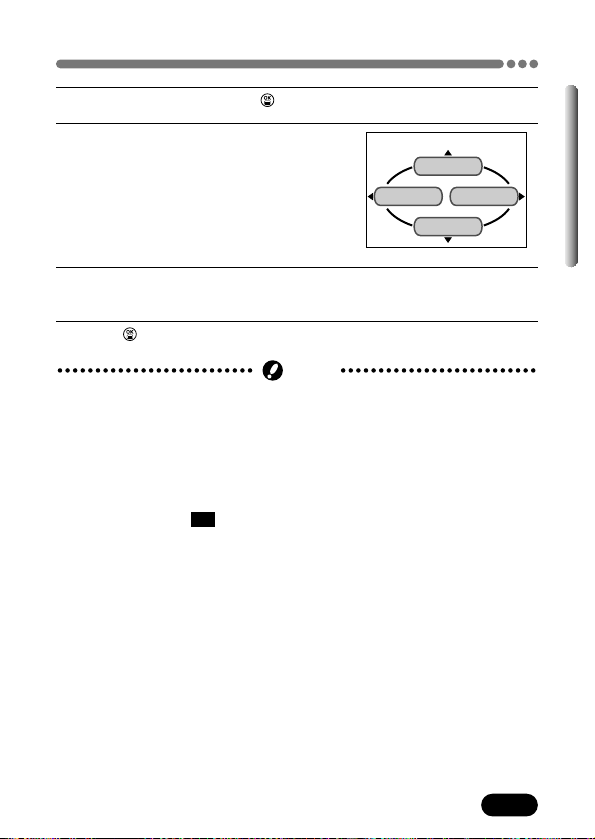
175
Chapter 9
Trimming setting (Cont.)
6
To complete setting, press twice.
7
Press É to select END.
● The PRINT ORDER screen appears.
8
Press É repeatedly until the PRINT ORDER screen disappears.
● The top menu appears.
9
Press to exit from the top menu.
SINGLE PRINT
END MORE
CANCEL
● The size of the printed picture varies depending on the printer setting. If the
trimmed picture size is small, printing magnification increases accordingly,
resulting in a printed picture with lower resolution.
● For best results with close-up prints, it is recommended to use the TIFF,
SHQ or HQ mode.
● The vertical to horizontal ratio in the trimming screen can be changed using
the arrow pad, but if the zoom lever is used, the ratio is fixed at 4:3.If
images recorded in
3:2 are trimmed, the ratio is also fixed at 4:3.
Note
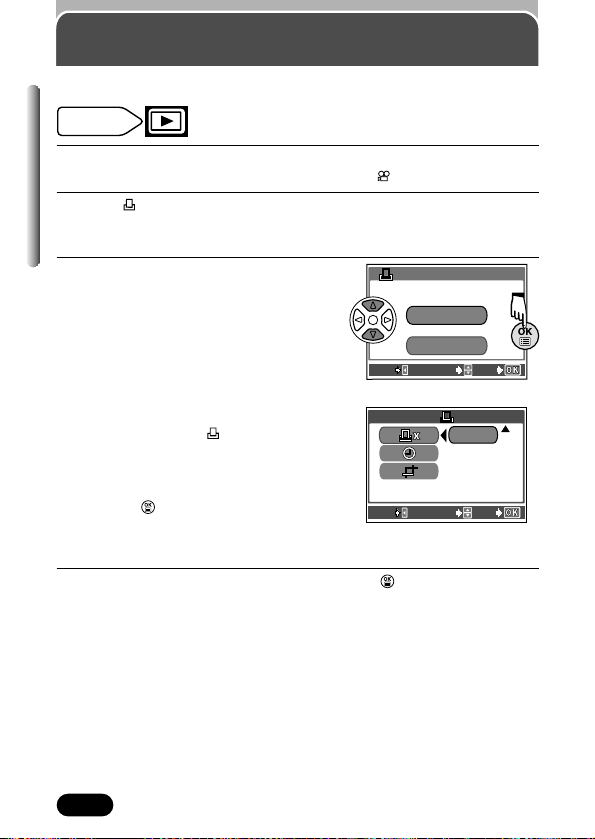
176
Chapter 9
Resetting Print Reserve
1
Use the arrow pad to play back a still picture.
● You cannot use Print reserve on pictures with .
2
Press to display the PRINT ORDER SETTING screen.
● If Print Reserve data is NOT stored on the card, the PRINT ORDER
SETTING screen does not appear.
3
Select RESET.
Remove selected pictures only
1 Select KEEP, then set the number of
prints to 0 on the (single-frame print
reserve) screen. T See Step 2 – 4 of
“Single-frame print reserve” (P. 170,
171)
2 Press to display the menu. Press
É to select END. Do the following
steps.
4
Press É to return to the top menu. Press to exit from the top
menu.
Allows you to reset all Print Reserve settings for pictures stored on a card.
EXIT SELECT
GO
PRINT ORDER SETTING
PRINT ORDERED
RESET
KEEPKEEP
EXIT SELECT
GO
x 0
Mode dial
setting
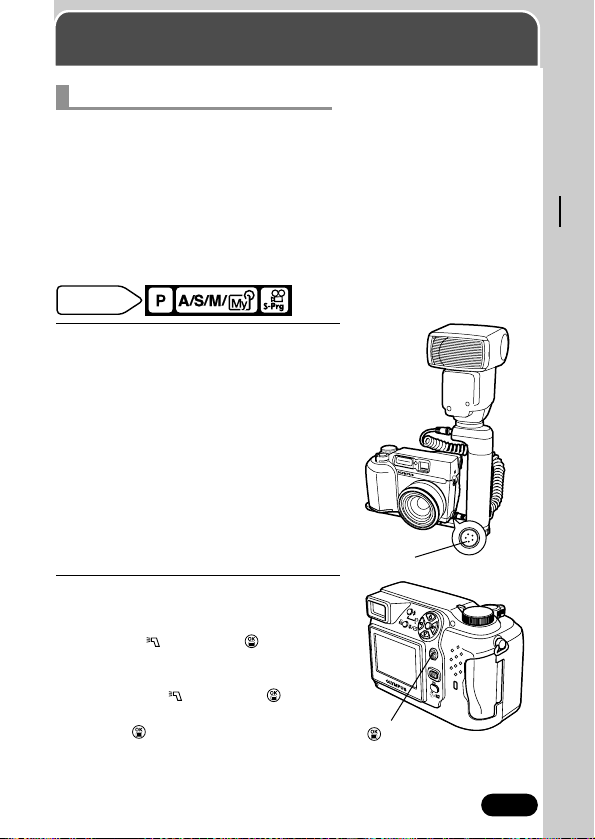
177
Chapter 10
Using optional accessories
External flash
Various types of flash shooting are possible with the FL-40 external flash,
which can be used either by itself or together with the main flash.
If the FL-40 is used, flash mode and exposure compensation will be detected
automatically by the camera, allowing the main flash and external flash to
function together.
Using the two flashes together allows for more sophisticated lighting, such as
catch lighting.
To connect the FL-40 to the camera, the exclusive FL-BK01 flash bracket
(optional) and FL-CB01 bracket cable (optional) are required.
1
Mount the FL-40 external flash on the
flash bracket, then fasten it to the
camera’s tripod socket and connect
the flash bracket and the camera’s 5-
pin external flash socket using the
bracket cable.
● Refer to each separate instruction
manual for the external flash, flash
bracket, and flash cable.
● The 5-pin external flash socket cover on
the camera is threaded. Unscrew and
remove it before connecting the bracket
cable.
2
In the top menu, select MODE MENU
T CAMERA T FLASH.
To use the external flash only
T Select , then press .
To use the external flash together with
the main flash
T Select IN+ , then press .
~ “How to use the menu” (P. 39)
● Press again to cancel the menu.
5-pin external flash socket
Using the FL-40 external flash
Mode dial
setting
button
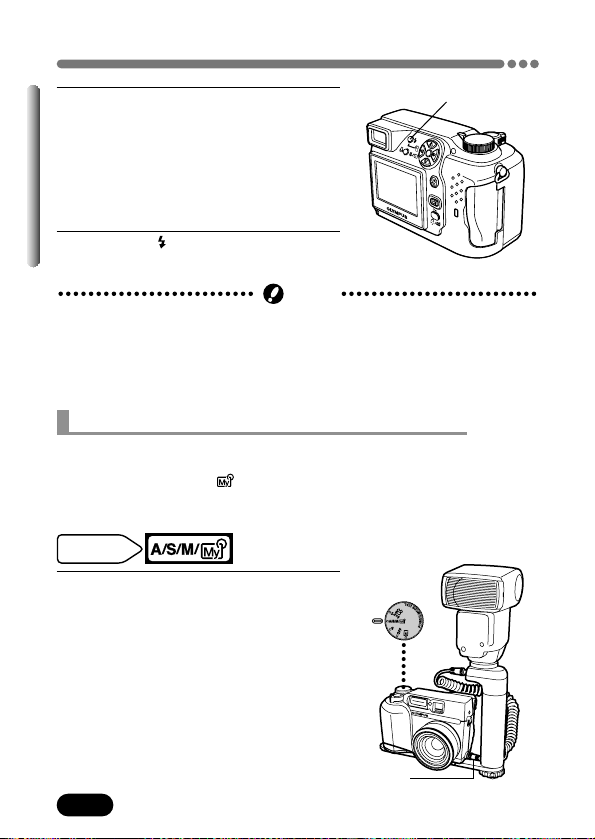
178
Chapter 10
External flash (Cont.)
3
Turn on the external flash.
● The mode for the external flash is TTL-
AUTO.
● When the shutter button is pressed
halfway, the external flash begins
communicating with the camera and
automatically switches to TTL-AUTO.
4
Press the (flash mode) button to
select the camera’s flash mode (P. 78).
Flash mode button
● If close-up pictures are overexposed, try using the main flash by itself.
● When the main flash and the FL-40 are used together, the main flash is
used as the compensating light source. This means that if the amount of
light from the FL-40 is insufficient (beyond its working range), the resulting
pictures may be underexposed.
Note
Mode dial
setting
1
Mount an external flash on the flash
bracket, then fasten it to the camera's
tripod socket and connect the flash
bracket and the camera's 5-pin
external flash socket using the bracket
cable.
External flashes (commercially available) can also be used with the exclusive
FL-BK01 (optional) and FL-CB01 bracket cable (optional) when the camera’s
mode dial is set to A/S/M/ .
For details on compatible commercially available external flashes, refer to the
next page.
Using commercially available external flashes
5-pin external flash socket
179
Chapter 10
External flash (Cont.)
2
Select M from “A/S/M/ mode
setting” (P. 48). Adjust the shutter
speed and the aperture (P. 55).
● Remember that a slow shutter speed
can produce blurred images. For the
best results, we recommend that you
set the shutter speed from 1/200 to
1/300 seconds.
3
Turn on the external flash.
4
Set the mode that automatically
controls the amount of light emitted by
the external flash. Also set ISO and
aperture on the external flash to match
the camera’s settings.
● See the user’s manual for the external
flash to select its modes.
● The camera's flash mode will have no effect on the external flash. The
external flash will fire even when the camera's flash mode is set to (off).
● Confirm in advance that the external flash you are using is synchronized
with the camera.
Note

180
Chapter 10
External flash (Cont.)
When selecting an external flash, use products which meet the following
basic conditions.
(1) Some flashes available on the market operate with a high voltage synchro
terminal. If one of these is used, it may damage the camera, and/or the
camera may not function normally. Contact the manufacturer of the flash
you are using concerning the specifications of the flash's synchro
terminal.
(2) Some flashes available on the market have the polarity of the synchro
terminal reversed. In this case, even if the flash is connected, it will not
fire. Contact the manufacturer of the flash for more information.
(3) Exposures when using an external flash require that adjustments be
made on the external flash unit.
If an external flash is used in the Auto mode, match it with the F value and
ISO sensitivity settings on the camera.
(4) Even if the auto F value and ISO sensitivity of the external flash are set to
the same conditions as those on the camera, depending on the
photographic conditions, it is possible that the correct exposure may not
be obtained anyway. In such a case, adjust the auto F value or ISO value
on external flash unit or calculate the distance in the manual mode and
use it that way. However, generally, the auto F value and ISO value can
only be adjusted 1 step and beyond that, exposure compensation cannot
be made. (Exposure compensation in the camera is made invalid in
external flash photography.)
(5) Use a flash which is capable of covering an illumination angle for a 32 mm
or larger lens when calculated for 35 mm film. However, in close-up
photography with the lens on the wide setting, the bottom of the image
may not expose correctly. The ideal is to have a wide angle adapter to fit
on the flash and spread the illumination angle so it is wider.
(6) Use a flash unit with a flash time of 1/200 sec. or less when using the
flash at full strength. For devices with a long flash time, such as a ring
flash, a portion of the light emitted will not contribute to the exposure.
(7) If a flash unit or other accessory with additional communications
functions other than the FL-40 is used, it may not only fail to
function normally, but may also cause damage to the camera’s
circuitry. Do not use such a device.
Compatible commercially available external flashes
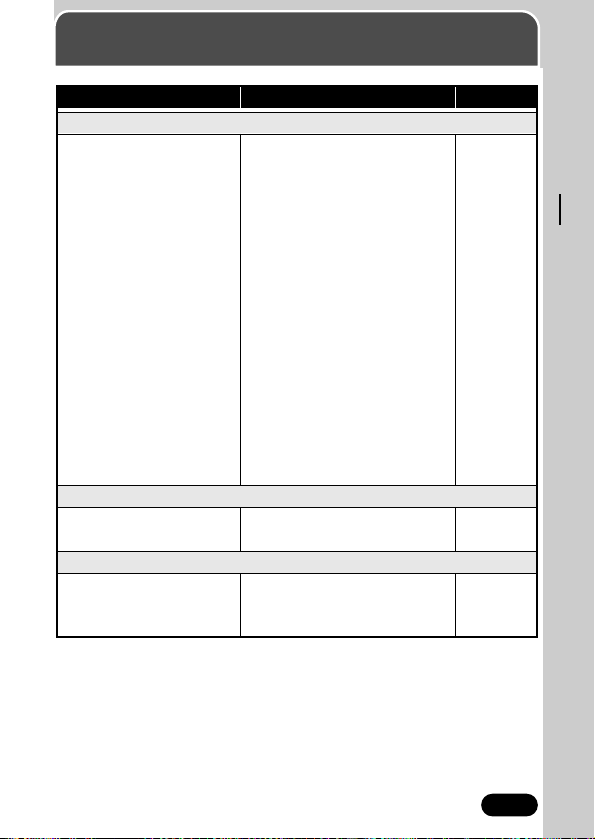
181
Chapter 11
Miscellaneous
Troubleshooting
1 The batteries are
exhausted.
2 The power is off.
3 The batteries are
loaded incorrectly.
4 The batteries are
temporarily unable to
function.
5 It is connected to a
personal computer.
6 The camera is in the
sleep mode.
1 Replace the batteries with
new ones
.
2 Set the mode dial to any
position except OFF to turn
on the power.
3 Reload the batteries
correctly.
4 The batteries may be too
cold. Warm them before use
by allowing them to return to
room temperature, or if
outdoors, putting them in an
inner jacket pocket.
5 The camera will not operate
while it is connected to a
personal computer.
6 Operate the camera (press
the shutter button, turn the
mode dial, etc.)
P. 19
P. 25
P. 19
–
–
P. 25
POSSIBLE CAUSES CORRECTIVE ACTION
REF. PAGE
The camera does not turn on or function buttons do not respond.
The monitor does not turn on.
1 The camera is in the
sleep mode.
1 Operate the camera (press
the shutter button, turn the
mode dial, etc.)
P. 25
The green lamp and orange lamp blink at the same time.
1 The batteries are
exhausted.
1 Replace the batteries with
new ones.
P. 19
182
Chapter 11
Troubleshooting (Cont.)
POSSIBLE CAUSES CORRECTIVE ACTION
REF. PAGE
No picture is taken when the shutter button is pressed.
1 The mode dial is set to
.
2 The memory gauge is
full.
3 The flash has not
finished charging.
4 The card access lamp
blinks after shooting in
the mode.
5 There is a problem with
the card.
6 The card is full.
7 The batteries ran out of
power.
8 The monitor indications
disappear, or only the
battery check lights up.
9 A write-protect
adhesive seal is placed
on the card or there is
no card in the camera.
1 Set the mode dial to any
position except .
2 Wait until there is room in
the memory gauge.
3 Remove your finger from the
shutter button and wait until
the orange lamp stops
blinking. Take your shot
again.
4 The recorded movie image
data is being written to the
card. You can start shooting
again when the card access
lamp stops blinking.
5 See the error code chart.
6 Erase unwanted pictures or
insert a new card. Before
erasing, download important
images to a PC.
7 Replace the batteries with
new ones.
8 Replace the batteries with
new ones. (Do not open the
battery compartment cover
when the card access lamp
is blinking.)
9 Insert a new card in the
camera.
P. 47
P. 16
P. 78
P. 72
P. 189
P. 137
P.19
P. 19
P. 24
183
Chapter 11
Troubleshooting (Cont.)
POSSIBLE CAUSES CORRECTIVE ACTION
REF. PAGE
1 The flash is set to the
off mode.
2 The subject is lighted.
3 Sequential shooting is
on.
4 You are recording
movies.
5 Panorama shooting is
set.
6 FUNCTION is set to
BLACK/WHITE
BOARD.
1 Press to select a flash
mode other than .
2 Set the flash to Fill-In mode.
3 Set the drive mode to
(single-frame shooting).
4 Select a shooting mode
other than .
5 Cancel the Panorama mode.
6 Set FUNCTION to OFF.
P. 78
P. 75
P. 92
P. 47
P. 96
P. 100
The date recorded with the image data is wrong.
1 The date is not set.
2 The camera has been
left for too long with the
batteries removed and
the date/time setting
was canceled.
1 Set the date. The clock
adjustment is not factory-
preset.
2 Set the date again.
P. 27
P. 27
Your customized settings have been canceled.
1 You turned off the
power without saving
the settings.
1 Set ALL RESET to OFF.
P. 143
The flash does not fire.
184
Chapter 11
Troubleshooting (Cont.)
POSSIBLE CAUSES CORRECTIVE ACTION
REF. PAGE
Pictures you have already taken do not appear on the monitor.
1 The camera is in the
shooting mode.
2 There is no picture on
the card.
3 There is a problem with
the card.
4 The camera is
connected to a TV.
1 Set the mode dial to .
2 NO PICTURE appears on the
monitor. Record pictures.
3 See the error code chart.
4 The monitor does not
function when the camera is
connected to a TV.
P. 117
P. 32, 33,
190
P. 189
P. 140
1 The brightness is not
adjusted properly.
2 The monitor is exposed
to direct sunlight.
1 Adjust the brightness.
2 Block the sunlight or move
out of the sunlight.
P. 156
–
The monitor is not clear.
1 The diopter is not
adjusted properly.
1 Adjust the diopter again.
P. 31
The viewfinder display is not clear.
Picture rotate, Picture protect, Single-frame erase, All-frame erase,
Print reserve and Card formatting cannot be performed.
1 A write-protect
adhesive seal is affixed
to the card.
1 Use the card after peeling
off the seal. Do not reuse
the write protect seal.
P. 23
185
Chapter 11
Troubleshooting (Cont.)
POSSIBLE CAUSES CORRECTIVE ACTION
REF. PAGE
The picture is out of focus.
1 The camera moved
when the shutter
button was pressed.
2 The AF target mark
was not on the subject.
3 The lens is dirty.
4 The shutter button was
pressed while standing
in front of the camera
in the self-timer mode.
5 The manual focus was
used with the wrong
focal distance.
1 Hold the camera correctly,
and press the shutter button.
2 Position the AF target mark
on the subject, or use the
focus lock.
3 Clean the lens with a soft
dry cloth.
4 Press the shutter button while
looking into the viewfinder,
not while standing in front of
the camera.
5 Use the right manual focus
for the distance.
P. 31, 57
P. 58, 59
P. 188
P. 91
P. 63
1 The flash is in the auto-
flash mode.
1
This “red-eye phenomenon”
occurs with all cameras when a
flash is used. It is caused by
light from the flash reflecting off
the retina at the back of the
eye. Red-eye varies depending
on the individual and the
shooting conditions such as
ambient lighting. Use of the
Red-eye reduction mode
significantly reduces this
phenomenon.
P. 75
The subject’s eyes appear red in pictures recorded with the flash.
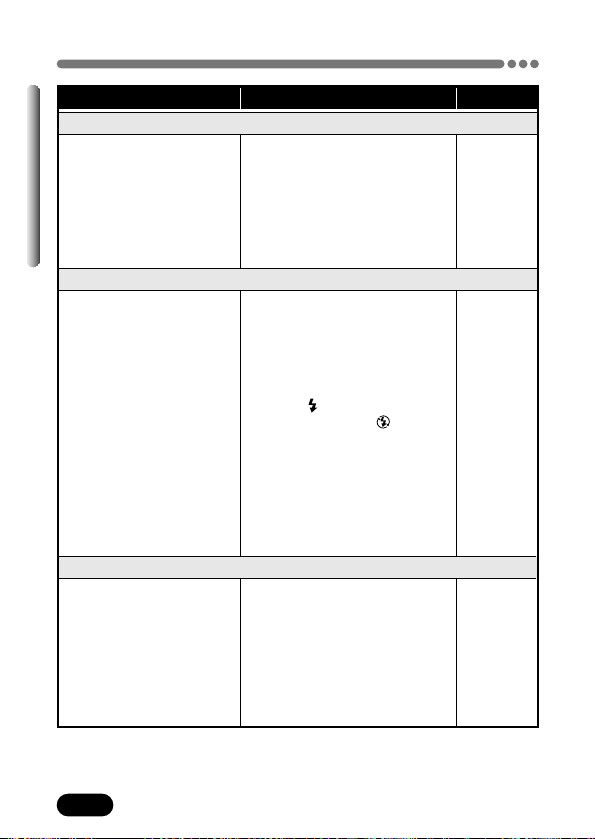
186
Chapter 11
Troubleshooting (Cont.)
POSSIBLE CAUSES CORRECTIVE ACTION
REF. PAGE
The picture is too dark.
1 The flash was blocked
by a finger.
2 The subject was out of
the working range of
the flash.
3 The flash mode was
set to the Off mode.
4 The subject was too
small and was backlit.
5 The sequential mode
was used.
1 Hold the camera correctly,
keeping your fingers away
from the flash.
2 Shoot within the flash
working range.
3 Press to select a flash
mode other than .
4
Set the flash to Fill-In mode. Or,
use the spot metering mode.
5 Higher shutter speeds are
used when the sequential
mode is selected which may
result in pictures that are
darker than usual.
P. 31
P. 79
P. 78
P. 75
P. 82
P. 92
The colors of pictures taken indoors look unnatural.
1 Indoor lighting can
affect the picture’s
colors.
2 There is no white in the
subject.
3 The white balance
setting is wrong.
1 Set the white balance
according to the lighting.
2 Try to include something
white in the picture or shoot
using the Fill-in flash mode.
3 Adjust the white balance to
the light source.
P. 110
P. 75
P. 110
1 The flash mode was
set to the Fill-in flash
mode.
2 The subject was
excessively illuminated.
1 Select a flash mode other
than the Fill-in flash mode.
2 Adjust the exposure
compensation or change the
camera position toward the
subject.
P. 78
P. 108
The picture is too bright.
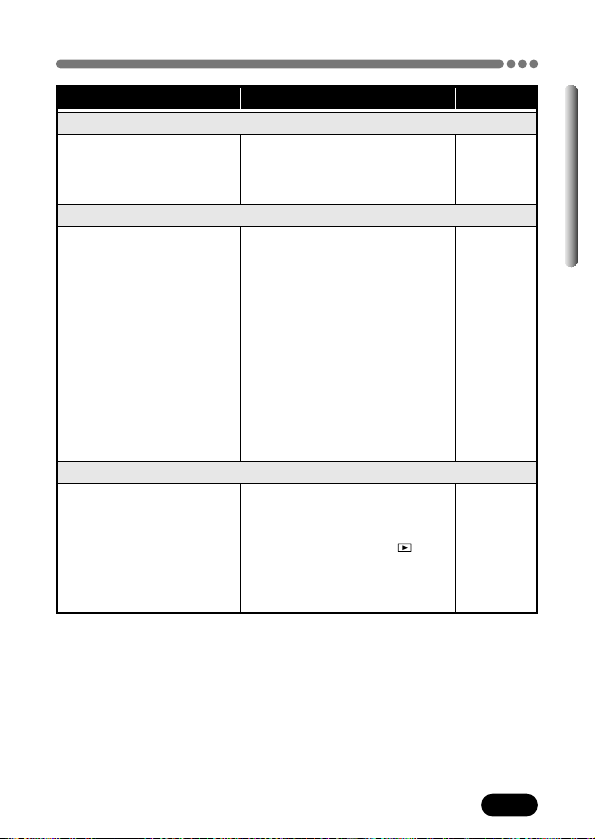
187
Chapter 11
Troubleshooting (Cont.)
POSSIBLE CAUSES CORRECTIVE ACTION
REF. PAGE
Halation produces unnatural colors in a picture.
1 Excessively bright
ultraviolet light on the
subject, such as
sunlight shining
through the leaves of
trees, window frames
in bright light at night,
reflection of metals
under direct sunlight,
etc.
1 Process the pictures using a
graphics application that
supports JPEG (Paint Shop
Pro, Photoshop, etc.). For
example, after picking up
unnatural colors with a
syringe tool, etc., you can
select color areas, and try
color conversion or
saturation adjustment. For
details, refer to the manual
of the graphics application
you are using.
–
The picture has obscured edge(s).
1 The lens was partly
blocked by a finger or
the strap.
1 Hold the camera correctly,
keeping your fingers and the
strap away from the lens.
P. 31
No picture displayed on TV when connecting to the camera.
1 The video output signal
is incorrect.
2 The mode dial is set
incorrectly.
3 Your TV's video signal
is incorrect.
1 Set the video output signal
correctly according to your
region.
2 Set the mode dial to .
3 Set the TV to the video input
mode.
P. 166
P. 117
P. 140
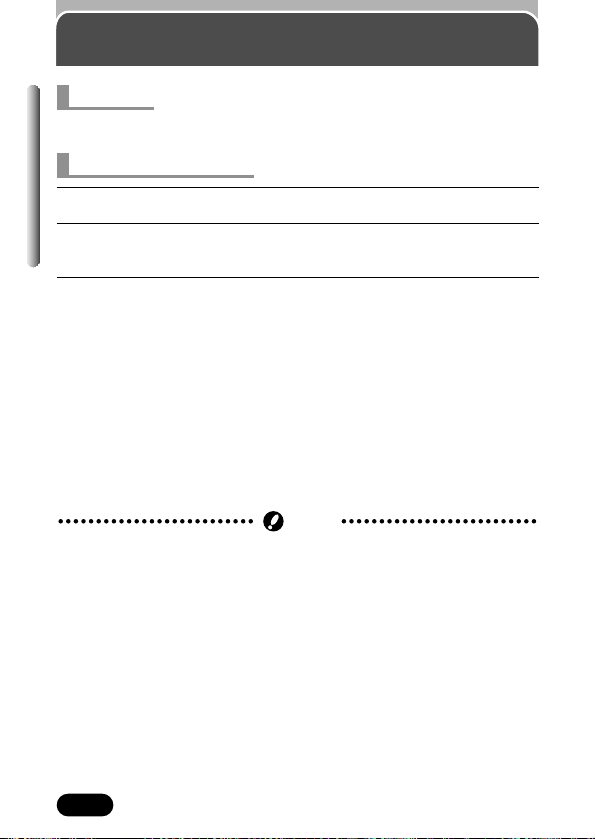
188
Chapter 11
User maintenance
Turn off the power and attach the lens cap to the lens.
1
Turn off the camera. (P. 25)
2
Remove the batteries (P. 19). When using an AC adapter, unplug the
AC adapter from the camera and the AC outlet.
3
Exterior:
Wipe gently with a soft cloth. To wipe off heavy dirt, soak the cloth in
diluted mild soap and wring it well. Wipe off the camera with the damp
cloth and then dry it with a dry cloth. If you have used your camera at the
beach, use a cloth dampened with fresh water.
Monitor and viewfinder:
Wipe gently with a soft cloth.
Lens:
Blow dust off the lens with a blower brush (commercially available), then
wipe gently with lens cleaning paper.
Card:
Wipe gently with a soft cloth.
After use
Cleaning the camera
● Do not use a strong solvent such as benzine or alcohol, or chemically
treated cloth.
● Cleaning should be done only after the batteries have been removed or
other power supply units have been disconnected.
● Mold may form on the lens surface if the lens is left dirty.
Note
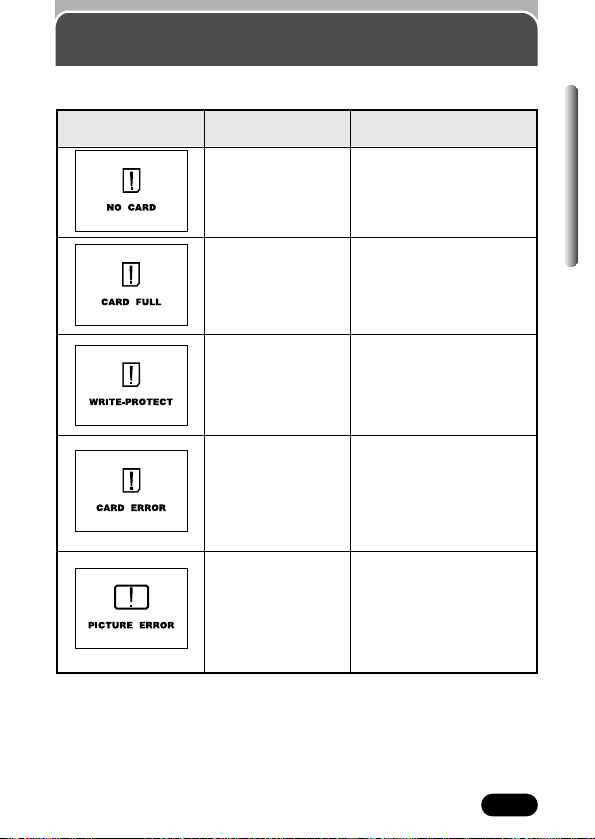
189
Chapter 11
Error codes
If there is a problem with your camera, a blinking error code will appear.
Possible
causes
The card is not
inserted, or it cannot
be recognized.
No more pictures
can be taken.
Writing to the card is
prohibited.
Cannot record, play
back or erase
pictures on this card.
The recorded image
cannot be played
back with this
camera.
Monitor indications
Corrective
action
Insert a card correctly or
insert a different card.
Replace the card or erase
unwanted pictures.
Remove the write-protect
adhesive seal attached to
the card.
If the card is dirty, wipe the
gold contacts with a clean
tissue and insert it again. If
the problem is still not
corrected, the card cannot be
used.
Download the image to a
personal computer and use
image processing software
to view it. If that cannot be
done, the image file is
damaged.
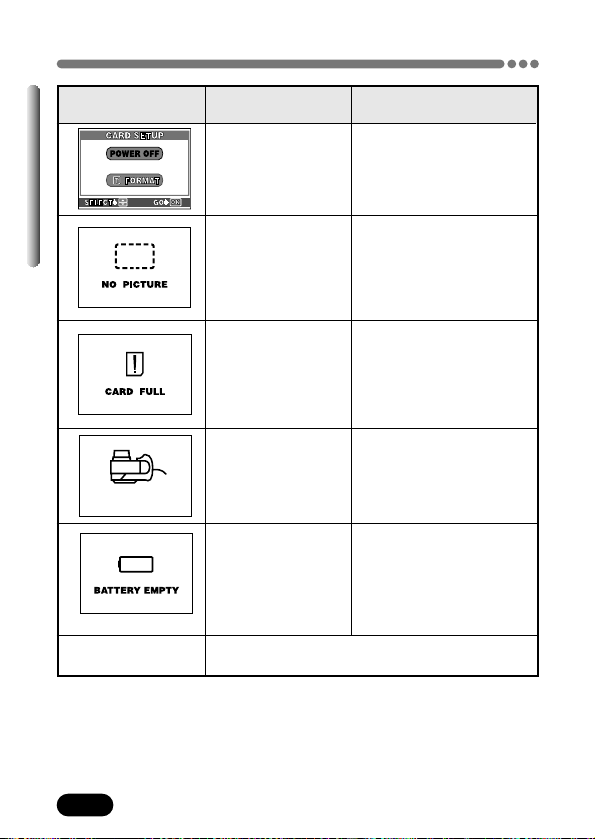
190
Chapter 11
Error codes (Cont.)
Possible causes
The card is not
formatted.
There are no
pictures on the card,
so there is nothing to
play back.
There is no empty
space on the card, so
it cannot record new
information such as
print data.
The card cover is
open.
The battery is dead.
The camera stops
working.
The green lamp and
orange lamp blink at
the same time.
Monitor indications
CARD-COVER OPEN
Consult your nearest Olympus dealer or
customer support department (see back cover).
Other indications
Corrective
action
Format the card.
Insert a card that contains
images.
Replace the card or erase
unneeded pictures.
Close the card cover.
Install either new or freshly
charged batteries.
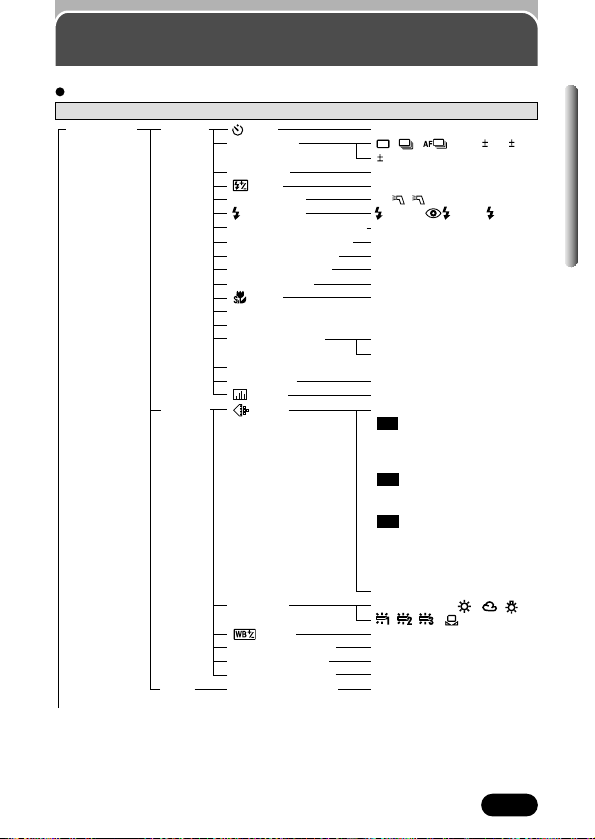
191
Chapter 11
Menu maps
(P. 91)
DRIVE (P. 92)
ISO (P. 107)
(P. 81)
FLASH (P. 177)
SLOW (P. 76)
NOISE REDUCTION (P. 116)
MULTI METERING (P. 83)
DIGITAL ZOOM (P. 74)
FULLTIME AF (P. 61)
AF MODE (P. 60)
(P. 90)
PANORAMA (P. 96)
2 IN 1 (P. 98)
FUNCTION (P. 100)
AF AREA (P. 62)
INFO (P. 155)
(P. 157)
(P. 102)
WB (P. 109)
(P. 112)
SHARPNESS (P. 113)
CONTRAST (P. 114)
SATURATION (P. 115)
CARD SETUP (P. 139)
OFF, ON
, , , BKT ( 0.3/ 0.7/
1.0, x3/x5)
AUTO, 100, 200, 400
–2.0 – +2.0
IN+ ,
SLOW1, SLOW, SLOW2
OFF, ON
OFF, ON
OFF, ON
OFF, ON
iESP, SPOT
OFF, ON
OFF, BLACK&WHITE, SEPIA,
WHITE BOARD, BLACK BOARD
OFF, ON
OFF, ON
TIFF(2288 x 1712,
3:2 2288 x 1520, 2048 x 1536,
1600 x 1200, 1280 x 960,
1024 x 768, 640 x 480)
SHQ (2288 x 1712,
3:2 2288 x 1520,
ENLARGE SIZE 3200 x 2400)
HQ (2288 x 1712,
3:2 2288 x 1520,
ENLARGE SIZE 3200 x 2400)
SQ1(2048 x 1536, 1600 x 1200,
1280 x 960, HIGH/NORMAL)
SQ2(1024 x 768, 640 x 480,
HIGH/NORMAL)
AUTO, PRESET ( , , ,
, , ),
–7.0 – +7
–5.0 – +5
–5.0 – +5
–5.0 – +5
YES, NO
CAMERA
PICTURE
CARD
MODE MENU
To the next page
P mode
Top menu Tab Function Setting
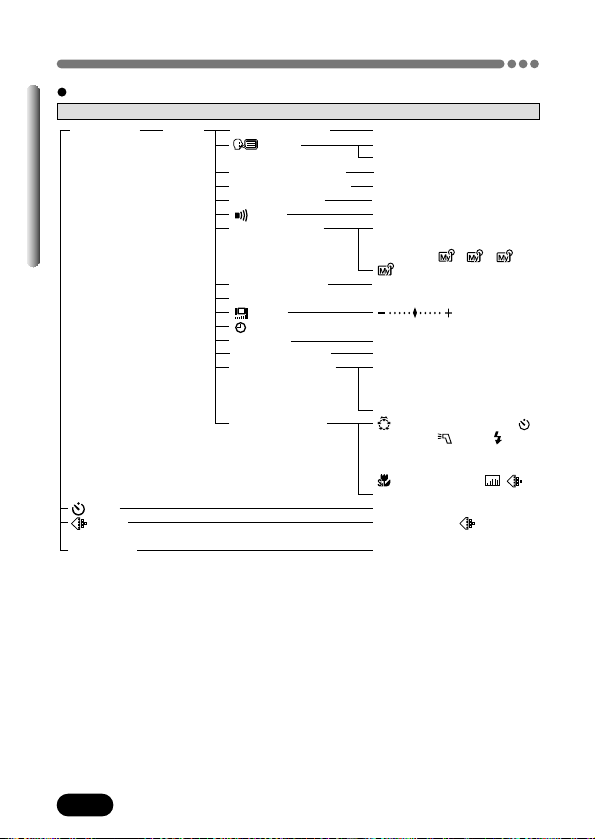
192
Chapter 11
Menu maps (Cont.)
ALL RESET (P. 143)
*
1
(P. 30)
PW ON SETUP (P. 159)
PW OFF SETUP (P. 159)
REC VIEW (P. 158)
(P. 156)
MY MODE SETUP
(P. 151)
FILE NAME (P. 162)
PIXEL MAPPING (P. 164)
(P. 156)
(P. 27)
m/ft (P. 165)
VIDEO OUT (P. 166)
SHORT CUT (P. 148)
CUSTOM BUTTON
(P. 145)
OFF, ON
ENGLISH, DEUTSCH, FRANÇAIS,
ESPAÑOL
OFF, 1, 2
OFF, 1, 2
OFF, ON
OFF, LOW, HIGH
CURRENT (SET, CANCEL),
RESET (ALL RESET, CANCEL),
CUSTOM
*
2
, 1/ 2/ 3/
4
RESET, AUTO
m, ft
NTSC, PAL
A/B, all items included in the
CAMERA tab (except AF AREA)
and all items included in the
PICTURE tab
VIRTUAL DIAL, AE LOCK, ,
DRIVE, ISO, FLASH, SLOW,
NOISE REDUCTION, DIGITAL
ZOOM, FULLTIME AF, AF MODE,
, FUNCTION, INFO, , ,
WB
OFF, ON
Same settings as on the
previous page.
Same settings as DRIVE on
the previous page.
SETUPMODE MENU
(P. 91)
(P. 102)
DRIVE (P. 92)
P mode (cont.)
*1 Available languages vary depending on the area where you purchased this camera.
*2 For CUSTOM settings, refer to “Available items and factory default settings” on P. 154.
Top menu Tab Function Setting
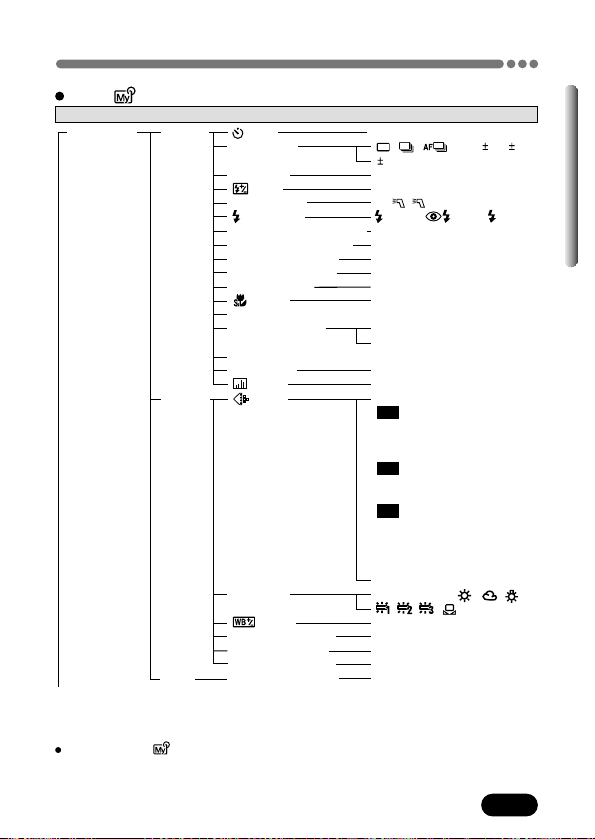
193
Chapter 11
Menu maps (Cont.)
A/S/M/ mode
* Not available in the M mode.
Note
When you use the mode (which is set to the P mode), the MODE MENU consists of the items
listed in the P menu maps. Refer to the menu maps on P. 191.
(P. 91)
DRIVE (P. 92)
ISO (P. 107)
(P. 81)
FLASH (P. 177)
SLOW (P. 76)
NOISE REDUCTION (P. 116)
MULTI METERING (P. 83)
DIGITAL ZOOM (P. 74)
FULLTIME AF (P. 61)
AF MODE (P. 60)
(P. 90)
2 IN 1 (P. 98)
FUNCTION (P. 100)
AF AREA (P. 62)
INFO (P. 155)
(P. 157)
(P. 102)
WB (P. 109)
(P. 112)
SHARPNESS (P. 113)
CONTRAST (P. 114)
SATURATION (P. 115)
CARD SETUP (P. 139)
OFF, ON
, , , BKT ( 0.3/ 0.7/
1.0, x3/x5)
100, 200, 400
–2.0 – +2.0
IN+ ,
SLOW1, SLOW, SLOW2
OFF, ON
OFF, ON
OFF, ON
OFF, ON
iESP, SPOT
OFF, ON
OFF, BLACK&WHITE, SEPIA,
WHITE BOARD, BLACK BOARD
OFF, ON
OFF, ON
TIFF(2288 x 1712,
3:2 2288 x 1520, 2048 x 1536,
1600 x 1200, 1280 x 960,
1024 x 768, 640 x 480)
SHQ (2288 x 1712,
3:2 2288 x 1520,
ENLARGE SIZE 3200 x 2400)
HQ (2288 x 1712,
3:2 2288 x 1520,
ENLARGE SIZE 3200 x 2400)
SQ1(2048 x 1536, 1600 x 1200,
1280 x 960, HIGH/NORMAL)
SQ2(1024 x 768, 640 x 480,
HIGH/NORMAL)
AUTO, PRESET ( , , ,
, , ),
–7.0 – +7
–5.0 – +5
–5.0 – +5
–5.0 – +5
YES, NO
CAMERA
PICTURE
CARD
MODE MENU
To the next page
Top menu Tab Function Setting
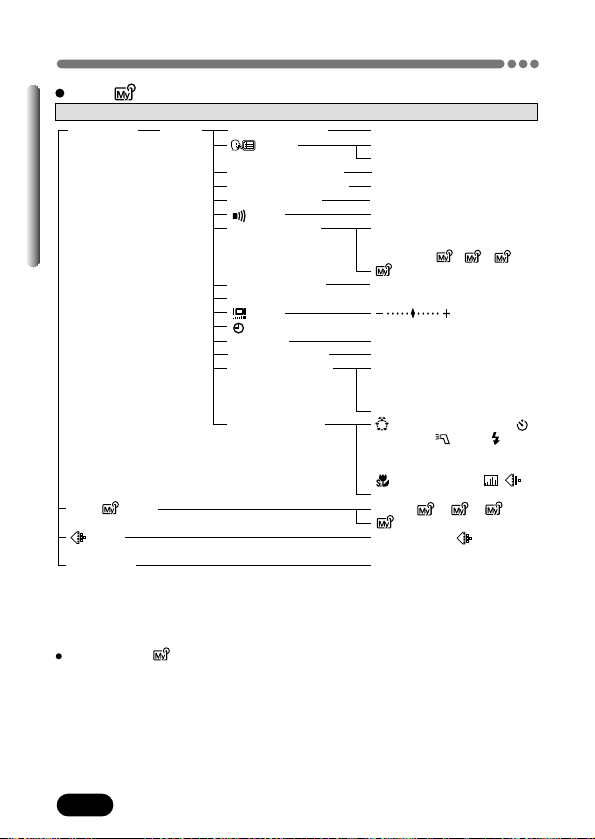
194
Chapter 11
Menu maps (Cont.)
OFF, ON
ENGLISH, DEUTSCH, FRANÇAIS,
ESPAÑOL
OFF, 1, 2
OFF, 1, 2
OFF, ON
OFF, LOW, HIGH
CURRENT (SET, CANCEL),
RESET (ALL RESET, CANCEL),
CUSTOM
*
2
, 1/ 2/ 3/
4
RESET, AUTO
m, ft
NTSC, PAL
A/B, all items included in the
CAMERA tab (except AF AREA)
and all items included in the
PICTURE tab
VIRTUAL DIAL, AE LOCK, ,
DRIVE, ISO, FLASH, SLOW,
NOISE REDUCTION, DIGITAL
ZOOM, FULLTIME AF, AF MODE,
, FUNCTION, INFO, , ,
WB
A, S, M,
1, 2, 3,
4
Same settings as on the
previous page.
Same settings as DRIVE on
the previous page.
A/S/M/ mode (Cont.)
Note
When you use the mode (which is set to the P mode), the MODE MENU consists of the items listed
in the P menu maps. Refer to the menu maps on P. 191.
ALL RESET (P. 143)
*
1
(P. 30)
PW ON SETUP (P. 159)
PW OFF SETUP (P. 159)
REC VIEW (P. 158)
(P. 156)
MY MODE SETUP
(P. 151)
FILE NAME (P. 162)
PIXEL MAPPING (P. 164)
(P. 156)
(P. 27)
m/ft (P. 165)
VIDEO OUT (P. 166)
SHORT CUT (P. 148)
CUSTOM BUTTON
(P. 145)
SETUPMODE MENU
A/S/M/ (P. 48)
(P. 102)
DRIVE (P. 92)
*1 Available languages vary depending on the area where you purchased this camera.
*2 For CUSTOM settings, refer to “Available items and factory default settings” on P. 154.
Top menu Tab Function Setting
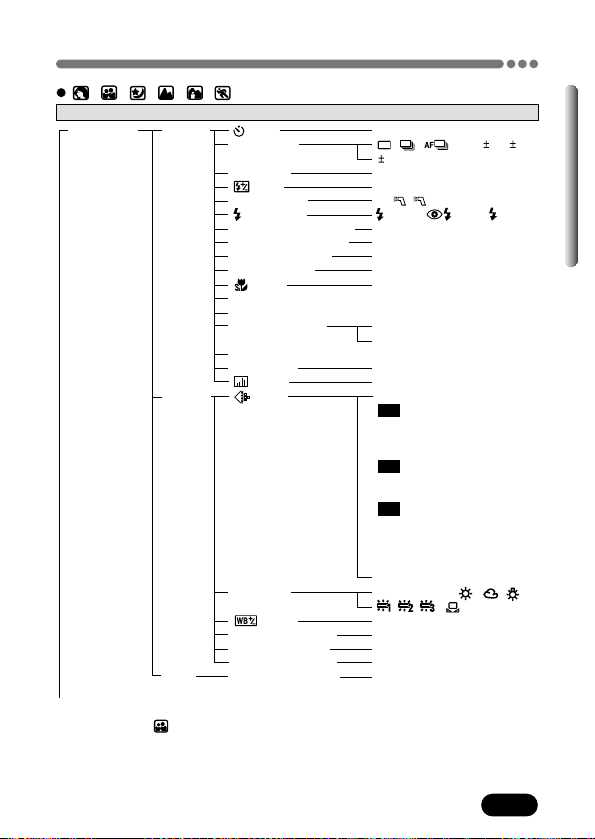
195
Chapter 11
Menu maps (Cont.)
/ / / / / mode
* Not available in the mode.
(P. 91)
DRIVE (P. 92)
ISO (P. 107)
(P. 81)
FLASH (P. 177)
SLOW (P. 76)
MULTI METERING (P. 83)
DIGITAL ZOOM
* (P. 74)
FULLTIME AF (P. 61)
AF MODE (P. 60)
(P. 90)
PANORAMA
* (P. 96)
2 IN 1 (P. 98)
FUNCTION (P. 100)
AF AREA (P. 62)
INFO (P. 155)
(P. 157)
(P. 102)
WB (P. 109)
(P. 112)
SHARPNESS (P. 113)
CONTRAST (P. 114)
SATURATION (P. 115)
CARD SETUP (P. 139)
OFF, ON
, , , BKT ( 0.3/ 0.7/
1.0, x3/x5)
AUTO, 100, 200, 400
–2.0 – +2.0
IN+ ,
SLOW1, SLOW, SLOW2
OFF, ON
OFF, ON
OFF, ON
iESP, SPOT
OFF, ON
OFF, BLACK&WHITE, SEPIA,
WHITE BOARD, BLACK BOARD
OFF, ON
OFF, ON
TIFF(2288 x 1712,
3:2 2288 x 1520, 2048 x 1536,
1600 x 1200, 1280 x 960,
1024 x 768, 640 x 480)
SHQ (2288 x 1712,
3:2 2288 x 1520,
ENLARGE SIZE 3200 x 2400)
HQ (2288 x 1712,
3:2 2288 x 1520,
ENLARGE SIZE 3200 x 2400)
SQ1(2048 x 1536, 1600 x 1200,
1280 x 960, HIGH/NORMAL)
SQ2(1024 x 768, 640 x 480,
HIGH/NORMAL)
AUTO, PRESET ( , , ,
, , ),
–7.0 – +7
–5.0 – +5
–5.0 – +5
–5.0 – +5
YES, NO
CAMERA
PICTURE
CARD
MODE MENU
To the next page
Top menu Tab Function Setting
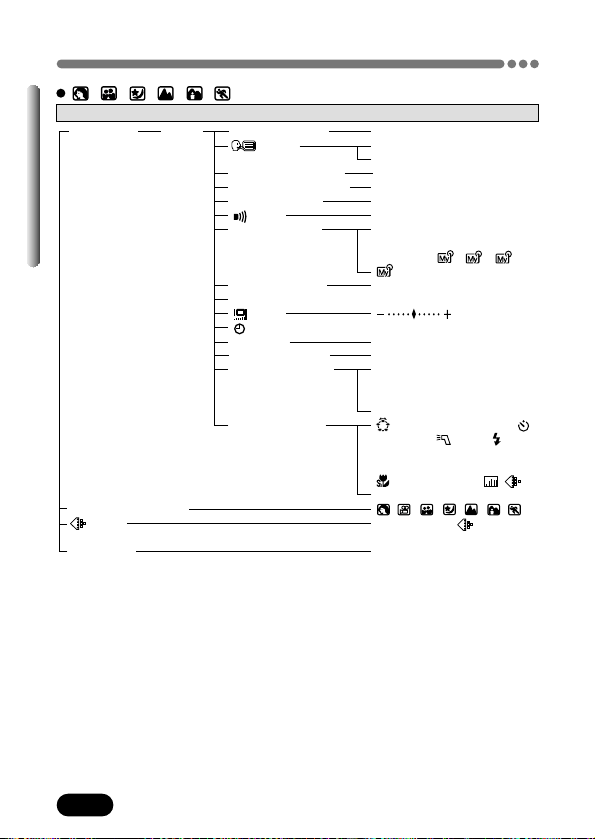
196
Chapter 11
Menu maps (Cont.)
OFF, ON
ENGLISH, DEUTSCH, FRANÇAIS,
ESPAÑOL
OFF, 1, 2
OFF, 1, 2
OFF, ON
OFF, LOW, HIGH
CURRENT (SET, CANCEL),
RESET (ALL RESET, CANCEL),
CUSTOM
*
2
, 1/ 2/ 3/
4
RESET, AUTO
m, ft
NTSC, PAL
A/B, all items included in the
CAMERA tab (except AF AREA)
and all items included in the
PICTURE tab
VIRTUAL DIAL, AE LOCK, ,
DRIVE, ISO, FLASH, SLOW,
NOISE REDUCTION, DIGITAL
ZOOM, FULLTIME AF, AF MODE,
, FUNCTION, INFO, , ,
WB
, , , , , ,
Same settings as on the
previous page.
Same settings as DRIVE on
the previous page.
/ / / / / mode (cont.)
ALL RESET (P. 143)
*
1
(P. 30)
PW ON SETUP (P. 159)
PW OFF SETUP (P. 159)
REC VIEW (P. 158)
(P. 156)
MY MODE SETUP
(P. 151)
FILE NAME (P. 162)
PIXEL MAPPING (P. 164)
(P. 156)
(P. 27)
m/ft (P. 165)
VIDEO OUT (P. 166)
SHORT CUT (P. 148)
CUSTOM BUTTON
(P. 145)
SETUPMODE MENU
SCENE SELECT (P. 47)
(P. 102)
DRIVE (P. 92)
*1 Available languages vary depending on the area where you purchased this camera.
*2 For CUSTOM settings, refer to “Available items and factory default settings” on P. 154.
Top menu Tab Function Setting
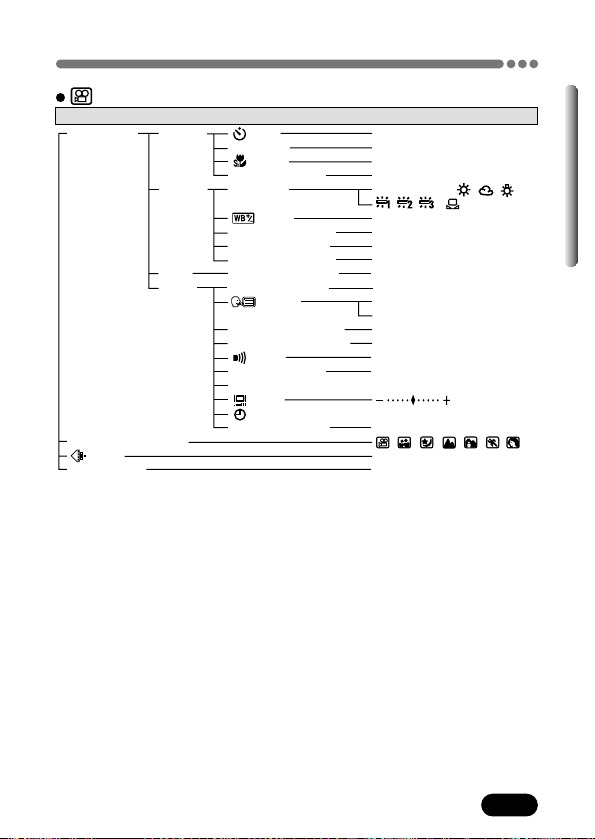
197
Chapter 11
Menu maps (Cont.)
(P. 91)
ISO (P. 107)
(P. 90)
FUNCTION (P. 100)
WB (P. 109)
(P. 112)
SHARPNESS (P. 113)
CONTRAST (P. 114)
SATURATION (P. 115)
CARD SETUP (P. 139)
ALL RESET (P. 143)
*
(P. 30)
PW ON SETUP (P. 159)
PW OFF SETUP (P. 159)
(P. 156)
FILE NAME (P. 162)
PIXEL MAPPING (P. 164)
(P. 156)
(P. 27)
VIDEO OUT (P. 166)
OFF, ON
AUTO, 100, 200, 400
OFF, ON
OFF, BLACK&WHITE, SEPIA
AUTO, PRESET ( , , ,
, , ),
–7 – +7
–5 – +5
–5 – +5
–5 – +5
YES, NO
OFF, ON
ENGLISH, DEUTSCH, FRANÇAIS,
ESPAÑOL
OFF, 1, 2
OFF, 1, 2
OFF, LOW, HIGH
RESET, AUTO
NTSC, PAL
, , , , , ,
HQ, SQ
OFF, ON
CAMERA
PICTURE
CARD
SETUP
MODE MENU
SCENE SELECT (P. 47)
(P. 102)
DIGITAL ZOOM
(P. 74)
mode
Top menu Tab Function Setting
*
Available languages vary depending on the area where you purchased this camera.
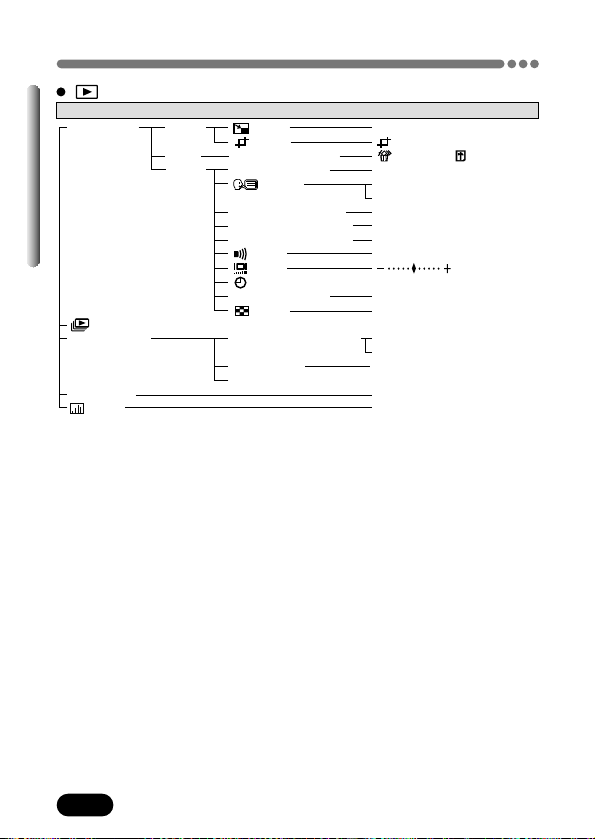
198
Chapter 11
Menu maps (Cont.)
(P. 132)
(P. 133)
CARD SETUP (P. 139)
ALL RESET (P. 143)
*
3
(P. 30)
PW ON SETUP (P. 159)
PW OFF SETUP (P. 159)
SCREEN SETUP (P. 160)
(P. 156)
(P. 156)
(P. 27)
VIDEO OUT (P. 166)
(P. 131)
MOVIE PLAYBACK (P. 122)
INDEX (P. 124)
EDIT (P. 126)
640 x 480, 320 x 240, CANCEL
, CANCEL
ALL ERASE, FORMAT
OFF, ON
ENGLISH, DEUTSCH, FRANÇAIS,
ESPAÑOL
OFF, 1, 2
OFF, 1, 2
PW ON, PW OFF
OFF, LOW, HIGH
NTSC, PAL
4, 9, 16
PLAYBACK, FRAME BY FRAME,
EXIT
OK, CANCEL
OFF, ON
OFF, ON
EDIT
*
1
CARD
SETUP
MODE MENU
(P. 119)
*
1
MOVIE PLAY
*
2
INFO (P. 155)
(P. 157)
mode
*
1 Not displayed during movie playback.
*
2 Not displayed during still picture playback.
*
3 Available languages vary depending on the area where you purchased this camera.
Top menu Tab Function Setting
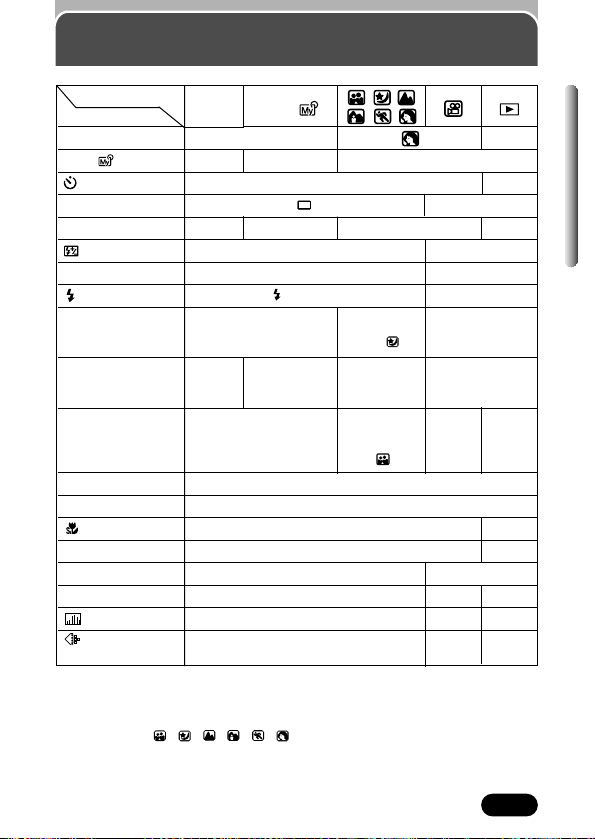
199
Chapter 11
Menu functions & factory default
settings
Mode
Function
SCENE SELECT
A/S/M/
DRIVE
ISO
FLASH
SLOW
NOISE REDUCTION
MULTI METERING
DIGITAL ZOOM
FULLTIME AF
AF MODE
FUNCTION
AF AREA
INFO
P
A S M
*
–
OFF
–
–
–
–
A
–
AUTO
100
AUTO
–
0
0
SLOW1
–
–
–
OFF
–
OFF
OFF (This
function is not
available in M.)
OFF
–
OFF
OFF
(This function
is not available
in .)
OFF
–
OFF
iESP
–
–
OFF
OFF
–
OFF
–
OFF
HQ (2288 x 1712)
HQ (320
x 240)
–
–
● When “–” appears in a mode column, it means that the corresponding function is not
available in that mode or cannot be set in that mode. Some function settings are
automatically determined by the settings selected in other modes.
*
Factory default settings differ depending on which shooting mode is selected. See the P,
A, S, M, S-Prg ( , , , , , ) column.
–
OFF
–
Center of the image
OFF
–
(Always set to
ON in .)
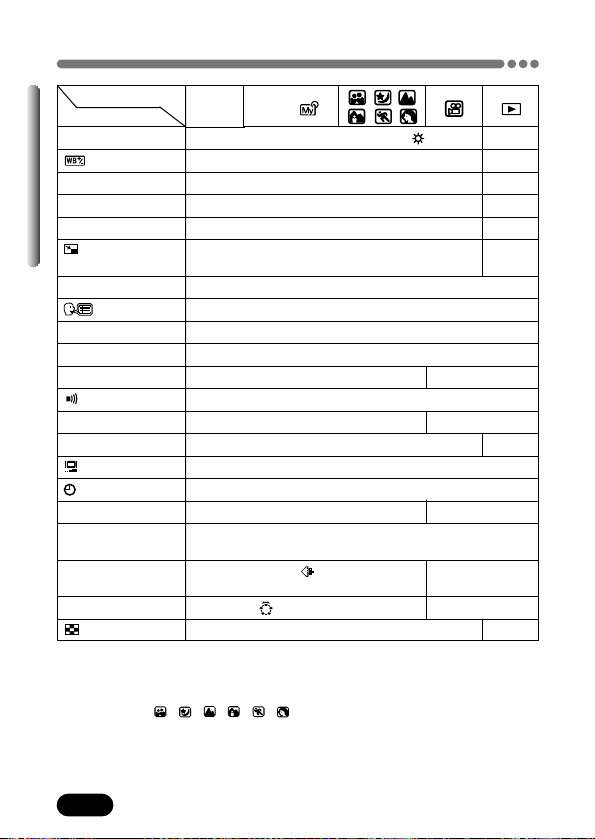
200
Chapter 11
Menu functions & factory default settings (Cont.)
● When “–” appears in a mode column, it means that the corresponding function is not
available in that mode or cannot be set in that mode. Some function settings are
automatically determined by the settings selected in other modes.
*
Factory default settings differ depending on which shooting mode is selected. See the P,
A, S, M, S-Prg ( , , , , , ) column.
Mode
Function
WB
SHARPNESS
CONTRAST
SATURATION
ALL RESET
PW ON SETUP
PW OFF SETUP
REC VIEW
MY MODE SETUP
FILE NAME
m/ft
VIDEO OUT
SHORT CUT
CUSTOM BUTTON
P
ENGLISH
–
HIGH
ON
NTSC or PAL (Factory default setting depends on the region
where you purchased this camera.)
–
A:
B: DRIVE
–
9
–
640 x
480
–
–
0
1
1
CURRENT
RESET
Y M D/2002/1/1
m
–
–
A S M
*
0
0
0
–
–
–
VIRTUAL DIAL
ON
–
AUTO (when selecting PRESET: )
0
–
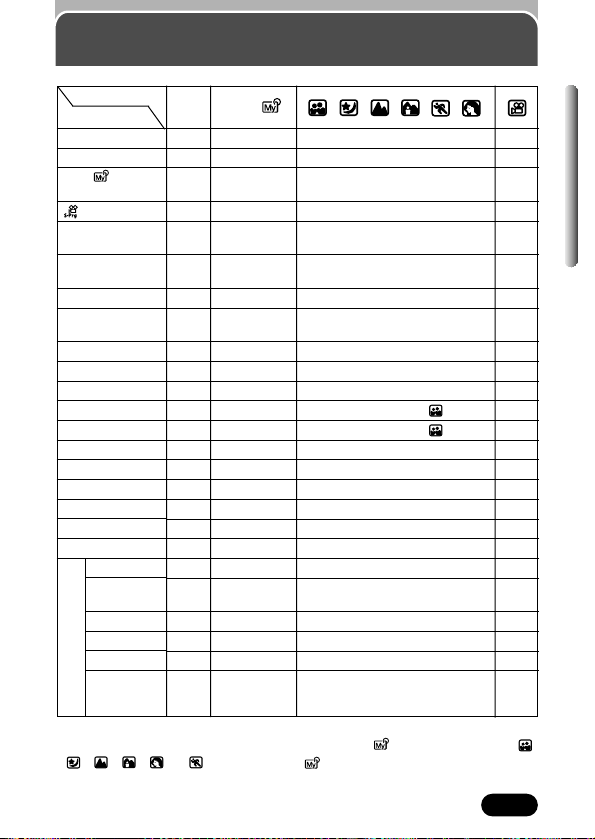
201
Chapter 11
Modes & Shooting functions
–
–
–
–
–
–
–
–
–
–
–
–
–
–
–
–
–
–
–
–
–
–
–
–
–
–
–
–
–
–
–
–
–
–
–
–
–
–
–
(not available in .)
(not available in .)
Mode
Function
Taking still pictures
Recording movies
A/S/M/ mode
setting
mode setting
Aperture value
setting
Aperture priority
shooting
Shutter speed setting
Shutter priority
shooting
Manual shooting
“My Mode” setting
“My Mode” shooting
Zoom
Digital zoom
Auto focus
Focus lock
AF mode setting
Fulltime AF
AF AREA
Manual focus
Auto
Red-eye
Reduction
Fill-in
1st Curtain
2nd Curtain
1st Curtain
with Red-eye
Reduction
P
A S M
*
Flash
: Available, – : Not available
*
Some functions are not available in some modes (A/S/M/ ). The shooting mode ( ,
, , , or ) selected in the mode also affects availability of some
functions. For details, refer to the individual function page.
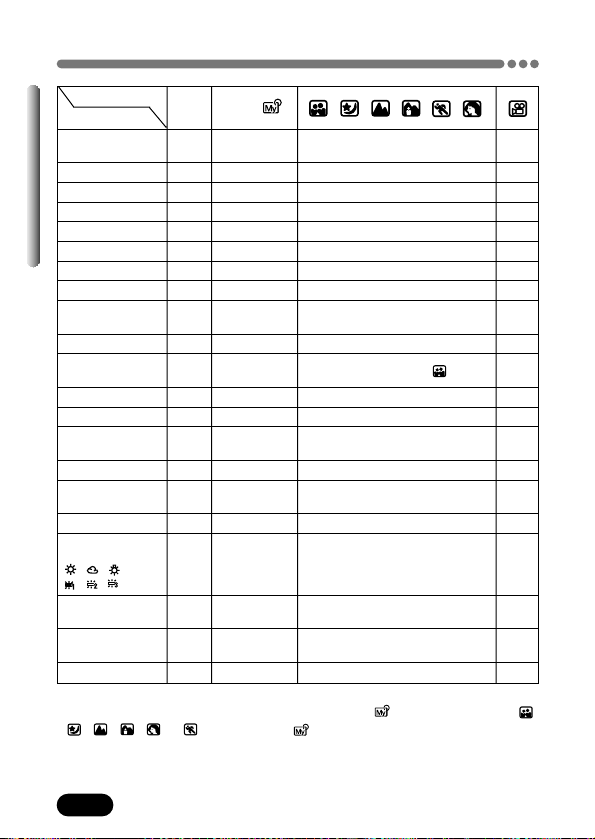
202
Chapter 11
Modes & Shooting functions (Cont.)
: Available, – : Not available
*
Some functions are not available in some modes (A/S/M/ ). The shooting mode ( ,
, , , or ) selected in the mode also affects availability of some
functions. For details, refer to the individual function page.
–
–
–
–
–
–
–
(not available in .)
Mode
Function
Flash intensity
control
Spot metering
Multi metering
AE lock
Macro shooting
Super macro shooting
Self-timer shooting
Sequential shooting
AF sequential
shooting
Auto bracketing
Panorama
shooting
2 in 1 shooting
Function shooting
Record mode
setting
ISO setting
Exposure
compensation
Auto white balance
Preset white
balance setting
,,,
,,
One-touch white
balance
White balance
adjustment
Sharpness setting
P
A S M
*
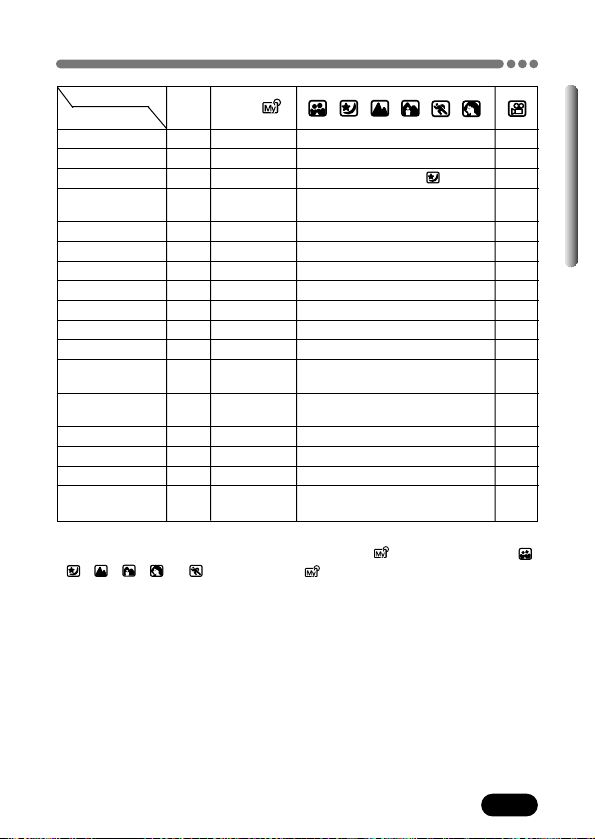
203
Chapter 11
Modes & Shooting functions (Cont.)
–
–
–
–
–
–
–
Available only in .
Mode
Function
Contrast setting
Saturation setting
Noise reduction
Custom button
setting
Shortcut setting
All reset
Language selection
Beep
Rec view
Information display
Histogram display
Power on/off
display setting
Monitor brightness
adjustment
File name setting
Pixel mapping
M/ft setting
Video output
setting
P
A S M
*
: Available, – : Not available
*
Some functions are not available in some modes (A/S/M/ ). The shooting mode ( ,
, , , or ) selected in the mode also affects availability of some
functions. For details, refer to the individual function page.
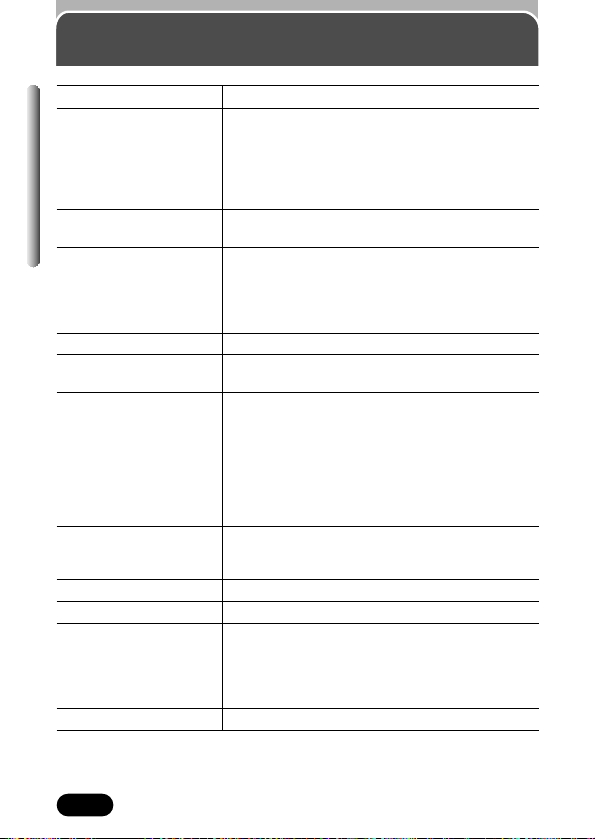
204
Chapter 11
Specifications
Product type Digital camera (for shooting and displaying)
Recording system
Still Digital recording, JPEG (in accordance with
Design rule for Camera File system (DCF)), TIFF
(non-compression), Digital Print Order Format
(DPOF)
Movie QuickTime Motion JPEG support
Memory 3V (3.3V) SmartMedia, 4 MB - 128 MB (all cards
except 2 MB)
No. of storable pictures 1 frame (TIFF: 2288x1712)
(When a 16 MB Approx. 5 frames (SHQ: 2288x1712)
card is used) Approx. 16 frames (HQ: 2288x1712)
Approx. 20 frames (SQ1: 2048x1536)
Approx. 76 frames (SQ2: 1024x768)
No. of effective pixels 4,000,000 pixels
Image pickup device 1/1.8" CCD solid-state image pickup
4,130,000 (gross)
Recording image 3200 x 2400 pixels (ENLARGE SIZE: SHQ/HQ)
resolutions 2288 x 1712 pixels (TIFF/SHQ/HQ)
2288 x 1520 pixels (TIFF/SHQ/HQ)
2048 x 1536 pixels (TIFF/SQ1)
1600 x 1200 pixels (TIFF/SQ1)
1280 x 960 pixels (TIFF/SQ1)
1024 x 768 pixels (TIFF/SQ2)
640 x 480 pixels (TIFF/SQ2)
Lens Olympus lens 6.5 mm to 19.5 mm, f2.8 ,
8 elements in 6 groups (equivalent to 32 mm to 96
mm lens on 35 mm camera)
Photometric system Digital ESP metering, Spot metering system
Aperture f2.8 to f11
Shutter speed Used with mechanical shutter
Still 1 to 1/1000 sec.
(M mode: 16 to 1/1000 sec.;
S mode: 4 to 1/1000 sec.)
Movie 1/30 to 1/8000 sec.
Viewfinder Optical real image viewfinder
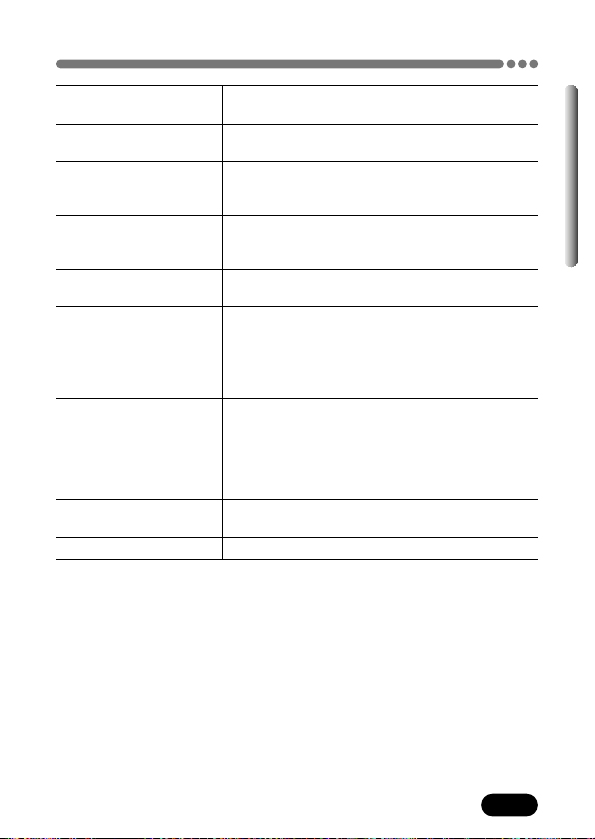
205
Chapter 11
Specifications (Cont.)
Monitor 1.8" TFT color LCD display
Approx. 114,000 pixels
Battery charging time Approx. 6 sec. (at normal temperature with new
for flash batteries)
Autofocus TTL system autofocus,
Contrast detection system,
Focusing range: 2 cm to ∞ (0.7 in to ∞)
Outer connector DC-IN jack, USB connector (mini-B),
VIDEO OUT jack,
5-pin external flash socket
Automatic calendar Up to 2099
system
Operating environment
Temperature 0°C to 40°C (32°F to104°F) (operation)
–20°C to 60°C (– 4°F to 140°F) (storage)
Humidity 30% to 90% (operation)
10% to 90% (storage)
Power supply For batteries, use 2 CR-V3 lithium battery packs,
or 4 AA (R6) NiMH batteries, NiCd batteries,
Alkaline batteries or lithium batteries.
AC adapter (optional)
Manganese (zinc-carbon) batteries cannot be
used.
Dimensions 110 mm x 76 mm x 77.5 mm
(W) X (H) X (D) (4.3" x 3.0" x 3.1")
Weight 290 g (0.6 lb) (without batteries/card)
SPECIFICATIONS ARE SUBJECT TO CHANGE WITHOUT ANY NOTICE OR
OBLIGATION ON THE PART OF THE MANUFACTURER.
206
Chapter 11
Glossary of terms
A (Aperture Priority) Mode
You set the aperture yourself and
the camera automatically varies
the shutter speed so that the
picture is taken with the best
exposure.
AE (Automatic Exposure)
The camera's built-in exposure
meter automatically sets the
exposure. The 3 AE modes
available on this camera are P
mode, in which the camera selects
both the aperture and shutter
speed, A mode, in which the user
selects the aperture and the
camera sets the shutter speed,
and S mode, in which the user
selects the shutter speed and the
camera sets the aperture. In M
mode, the user selects both the
aperture and the shutter speed.
Aperture
The adjustable lens opening which
controls the amount of light that
enters the camera. The larger the
aperture, the shorter the depth of
field and the fuzzier the
background. The smaller the
aperture, the greater the depth of
field and the sharper the
background. Aperture is measured
in f/stops. Larger aperture values
indicate smaller apertures, and
smaller aperture values indicate
larger apertures.
Backlight
A light source to illuminate the
monitor from behind the screen.
CCD (Charge-coupled Device)
This converts light passing through
the lens into electrical signals. On
this camera, light is picked up at
4,13 million points and converted
into RGB signals to build a single
image.
Contrast Detection Method
This is used to measure the
distance to the subject. The
camera determines if the image is
focused by the level of contrast in
the subject.
Conventional Photograph
This refers to recording images
using silver halide (the method for
recording images in conventional,
non-digital photography.) This
system is in contrast to still video
and digital photography.
DCF (Design rule for Camera
File system)
A standard for image files by the
Japan Electronics and Information
Technology Industries Association
(JEITA).
Digital ESP (Electro-Selective
Pattern) light metering
This determines the exposure by
metering and calculating the light
levels in the center and other
areas of the image separately.
207
Chapter 11
Glossary of terms (Cont.)
DPOF (Digital Print Order
Format)
This is for saving desired print
settings on digital cameras. By
entering which images to print and
the number of copies of each, the
user can automatically have the
desired images printed by a printer
or print lab that supports the DPOF
format.
Eclipsing (Vignetting)
This refers to when an object
obscures part of the field of view
so that the whole subject is not
photographed. Vignetting also
refers to when the image seen
through the viewfinder does not
exactly match the image shot
through the objective lens, so the
photographed image includes
objects not seen through the
viewfinder. In addition, vignetting
can occur when an incorrect lens
hood is used, causing shadowing
to appear in the corners of the
image.
Effective Pixel Resolution
The number of pixels used in the
CCD to create the image.
EV (Exposure Value)
A system for measuring exposure.
EV0 is when the aperture is at F1
and the shutter speed is 1 second.
The EV then increases by 1 each
time the aperture increases by one
F stop or the shutter speed
increases by one increment. EV
can also be used to indicate
brightness and ISO settings.
Exposure
The amount of light used to
capture an image. The exposure is
determined by the time the shutter
is open (shutter speed) and the
amount of light that passes
through the lens (aperture).
Gross Pixel Resolution
The total number of pixels in a
CCD. Not all pixels are used to
create the image.
Flash Bracket
A mount used to attach an external
flash to the camera.
ISO
A method for indicating film speed
by the International Organization
for Standardization (ISO) (e.g.
"ISO100"). Higher ISO values
indicate greater sensitivity to light,
so images can be exposed even in
low-light conditions.
208
Chapter 11
Glossary of terms (Cont.)
JPEG (Joint Photographic
Experts Group)
A compression format for color still
images. Photographs (images)
shot using this camera are
recorded onto the SmartMedia
card in JPEG format when the
Record mode is set to SHQ, HQ or
SQ. By downloading these images
to a personal computer, users can
edit them using graphics
application software or view the
images using an Internet web
browser.
M (Manual) Mode
The user sets both the aperture
and shutter speed.
NTSC (National Television
Systems Committee)/PAL (Phase
Alternating Line)
Television formats. NTSC is mainly
used in Japan, North America and
Korea. PAL is mainly used in
Europe and China.
P (Program) Mode
Also called Program AE mode. The
camera automatically sets the best
shutter speed and aperture for the
shot.
Pixels
A pixel is the smallest unit (dot)
used to make up an image. Clear
large-sized printed images require
millions of pixels.
Ring Flash
A flash unit that uses a circular
xenon fluorescent tube as its light
source.
S (Shutter Priority) Mode
Also called Shutter Priority AE
mode. The user selects the shutter
speed and the camera
automatically varies the aperture
so that the picture is taken with the
best exposure.
Sleep mode
A mode designed to save battery
life. The camera automatically
enters the sleep mode if you do
not operate it for a certain time. To
get out of the sleep mode, use any
button on the camera (shutter
button, arrow pad, etc.).
Synchro Terminals
Terminals on an external flash unit
for connecting it to the camera.
TFT (Thin-Film Transistor) Color
Monitor
A color Monitor constructed using
thin-film technology.
TIFF (Tagged Image File Format)
An uncompressed format used for
saving highly-detailed black &
white or color image data. TIFF
image files can be handled by
software programs for scanners
and graphics applications.
TTL (Through-The-Lens) System
To help adjust exposure, a light
receptor built into the camera
directly measures the light passing
through the lens.
TTL-AUTO
For use with an external flash.
Light emitted by the flash is
measured by the light receptor in
the camera as it passes through
the lens. A signal is then sent to
adjust the external flash's intensity.
209
Chapter 11
Glossary of terms (Cont.)
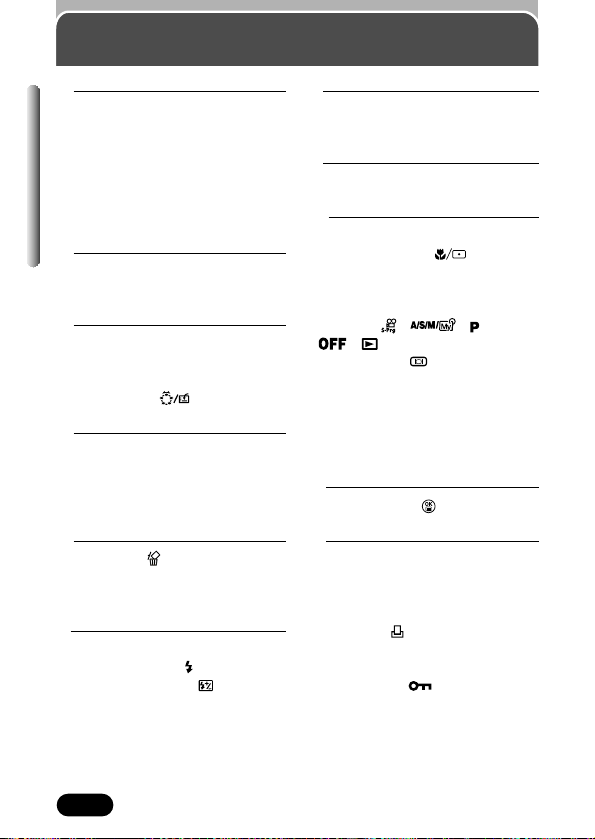
210
Chapter 11
Index
A
AC adapter....................................20
AE lock..........................................86
All-frame erase............................138
All reset ......................................143
Aperture ........................................53
Arrow pad (ÑñÉí)..............34, 39
Auto focus ....................................58
B
Battery ..........................................19
Beep............................................156
C
CAMEDIA Master..........................96
Card format ................................139
Close-up playback ......................129
Custom button ( )..................10
D
Date/time settings ........................27
DCF ................................................2
Digital ESP metering ....................82
DPOF ..........................................167
E
Erase button ( ) ........................10
Exposure ......................................56
Exposure compensation..............108
F
Flash ............................................75
Flash mode button ( ) ................10
Flash intensity control ............81
Focusing........................................58
Function shooting........................100
I
Index display ..............................130
ISO..............................................107
J
JPEG (compressed)....................105
M
Macro shooting..............................89
Macro/Spot button ( ) ..........10
Manual focus ................................63
Manual focus button......................10
Menu ............................................39
Mode dial ( , , ,
, ) ..................................10
Monitor button ( )......................10
Monitor brightness
adjustment ................................156
Movie playback ....................35, 120
Movie recording ......................33, 71
Multi-metering ..............................83
O
OK/Menu button ( )....................10
P
Picture rotation............................142
Playback......................................117
Pressing the shutter button
halfway/all the way......................57
Print button ( )............................10
Print reserve................................169
Printer..........................................167
Protect button ( ) ....................10
Protecting pictures ......................136
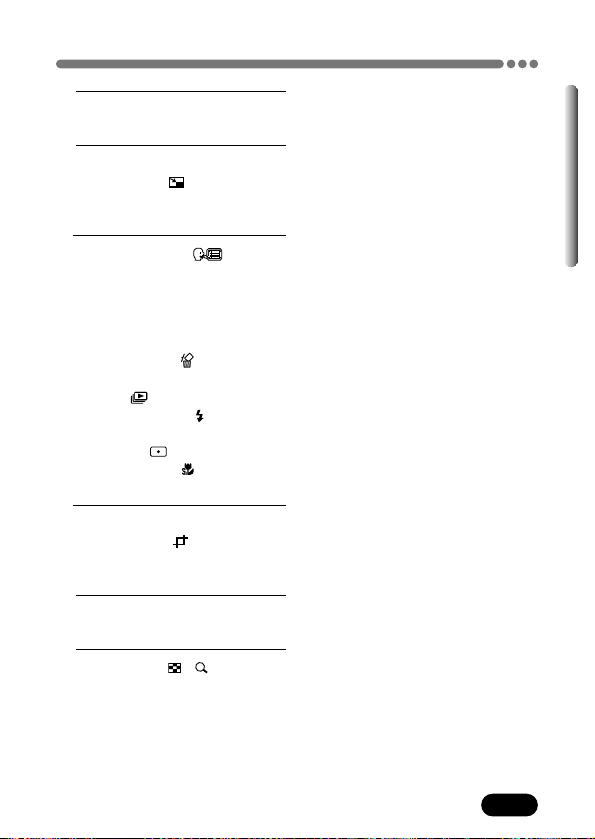
211
Chapter 11
Index (Cont.)
Q
Quick view ..................................118
R
Record mode ..............................102
Resizing pictures ..................132
Rotation button..............................10
S
Selecting a language ..........30
Self-timer shooting ........................91
Sequential shooting ......................92
Shooting modes ............................49
Shutter button................................57
Shutter speed................................54
Single-frame erase ................137
Sleep mode ..........................25, 208
Slide-show ............................119
Slow synchronization
SLOW
....76
SmartMedia ..................................23
Spot metering ........................82
Super macro mode ................90
T
TIFF (non-compressed) ..............102
Trimming pictures ................133
Two-in-one picture ............98
W
White balance ............................109
Z
Zoom lever (W/T, / ) ............10
2 IN 1
http://www.olympus.com/
© 2002 OLYMPUS OPTICAL CO., LTD.
OLYMPUS OPTICAL CO., LTD.
San-Ei Building, 22-2, Nishi Shinjuku 1-chome, Shinjuku-ku, Tokyo, Japan
Customer support (Japanese language only): Tel. 0426-42-7499 Tokyo
OLYMPUS AMERICA INC.
Two Corporate Center Drive, Melville, NY 11747-3157, U.S.A. Tel. 631-844-5000
Technical Support (USA)
24/7 online automated help: http://support.olympusamerica.com/
Phone customer support: Tel. 1-888-553-4448 (Toll-free)
Our phone customer support is available from 8 am to 10 pm
(Monday to Friday) ET
E-Mail: [email protected]
Olympus software updates can be obtained at: http://olympus.com/digital/
Adobe [Photoshop] Support
Adobe software updates and technical information can be obtained at:
http://www.adobe.com/support/
OLYMPUS OPTICAL CO. (EUROPA) GMBH.
Premises/Goods delivery: Wendenstrasse 14-18, 20097 Hamburg, Germany
Tel. 040-237730
Letters: Postfach 10 49 08, 20034 Hamburg, Germany
Hotline Numbers for customers in Europe:
Tel. 01805-67 10 83 for Germany
Tel. 00800-67 10 83 00 for Austria, Belgium, Denmark, France,
Netherlands, Norway, Sweden, Switzerland,
United Kingdom
Tel. +49 180 5-67 10 83 for Finland, Italy, Luxembourg, Portugal,
Spain, Czech Republic
Tel. +49 40-237 73 899 for Greece, Croatia, Hungary, and the rest of
Europe
Our Hotline is available from 9 am to 6 pm (Monday to Friday)
E-Mail: [email protected]
VT387801
How to use your PC to get the
most from images taken with
your digital camera.
Thank you for purchasing an Olympus digital camera.
This manual provides instructions on how to install the USB
driver. To ensure correct installation, refer only to these
installation procedures.
DIGITAL
CAMERA
PERSONAL
COMPUTER
DIGITAL CAMERA — PC CONNECTION
OPERATION MANUAL

2
Introduction
This manual explains in detail how to connect your Olympus digital camera to
a computer. Read it carefully and keep it in a safe place for future reference.
About this manual
The information contained in this manual may be subject to change without
notice. For the latest information on the product, please consult your local
Olympus representative.
The information contained in this manual has been compiled by taking all
possible measures to ensure its accuracy. However, if you find any errors or
incomplete information, please contact your local Olympus representative.
It is prohibited by copyright laws to duplicate in part or in whole the information
contained in this manual, except for personal use. Reproduction without
permission of the copyright owner is prohibited.
The PC screens shown in this manual may differ slightly from the actual displays
on some PC models.
Trademarks
Microsoft and Windows are registered trademarks of Microsoft Corporation.
Macintosh is a trademark of Apple Computer Inc.
All other company and product names are registered trademarks and/or
trademarks of their respective owners.
3
MacintoshWindows
INDEX
Flowchart . . . . . . . . . . . . . . . . . . . . . . . . 4
Identifying the OS . . . . . . . . . . . . . . . . . 6
Windows (98/Me/2000/XP) . . . . . . . . . . . 8
Macintosh (OS 9/X). . . . . . . . . . . . . . . . 23
Downloading image files using other OS
(For other OS users). . . . . . . . . . . . . . . 31
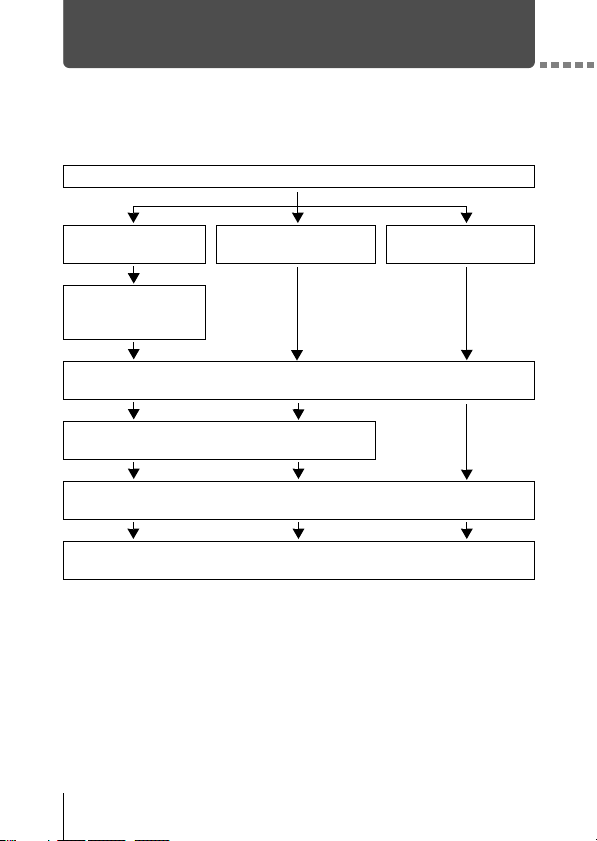
4
Flowchart
By connecting the camera to a computer with the provided USB cable,
images on a card can be transferred to the computer. Some OS’s (operating
systems) may need a special setup before connecting to the camera for the
first time. Follow the chart below.
* Even if your computer has a USB connector, data transfer may not function
correctly if you are using one of the operating systems listed below or if you have
an add-on USB connector (extension card, etc.).
Windows 95/NT 4.0
Windows 98/98 SE upgrade from Windows 95
Mac OS 8.6 or lower (except Mac OS 8.6 equipped with USB MASS Storage
Support 1.3.5 installed at the factory)
Data transfer is not guaranteed on a home-built PC system or PCs with no
factory installed OS.
Identifying the OS (p.6)
Windows 98/
98 SE (Second Edition)
Windows Me/2000/XP
MacOS 9.0 - 9.1/OS X (10.0)
*
For OS 8.6, see below.
Installing the USB
driver for Windows
98 (p.9)
Connecting the camera to the computer using the provided USB cable
(Windows p.11, Mac p.24)
Confirming the computer recognizes
the camera (p.14)
Downloading image files
(Windows p.17, Mac p.26)
Disconnecting the USB cable
(Windows p.20, Mac p.30)
Flowchart
5
• When connecting the camera to the computer, make sure that there is
sufficient remaining battery power. When connected (transmitting) to the
computer, the camera does not enter the sleep mode nor will the camera’s
power turn off automatically. Depending on the camera model, when the
battery power runs out or the internal temperature rises, the camera may
stop operating automatically. This could cause the computer to
malfunction, and any image data (file) being transmitted may be lost. Be
careful when downloading files for a long period of time. Use the AC
adapter (optional) when downloading files.
• If you connect or disconnect the AC adapter when the camera is connected
to the computer and is running on battery power, it may result in the loss of
image data on the card or cause a malfunction in the computer. Before
connecting or disconnecting the AC adapter, disconnect the camera from
the computer and make sure that the camera is turned off.
• To avoid computer malfunctions, do not turn off the camera when the
camera is connected to a computer.
• If the camera is connected to the computer via a USB hub, operation may
not be stable if there are any compatibility problems between the computer
and the hub. In such cases, do not use the hub and connect the camera
directly to the computer.
• You can view images using: graphics applications that support the JPEG
file format (Paint Shop Pro, Photoshop, etc.); Internet browsers (Netscape
Communicator, Microsoft Internet Explorer, etc.); CAMEDIA Master
software; or other software. For details on using commercial graphics
applications, refer to their instruction manuals.
• QuickTime is needed for playing back movies. QuickTime is included on
the provided software CD.
• If you want to process images, make sure to download them to your
computer first. Depending on the software, image files may be destroyed if
the images are processed (rotated, etc.) while they are on the card.

6
Identifying the OS
Identify the OS on your computer before connecting the camera. How to
identify the OS depends on the computer.
Windows
1
Double-click the “My Computer”
icon on your desktop.
When the “My computer” icon is not on
your desktop, click “Control Panel”
from the “Start” menu.
2
Double-click the
“Control Panel” icon.
3
Double-click the
“System” icon.
The way the file icons inside the folder appear may vary depending on your
version of Windows. If you don’t see the icon you are looking for, click on
“view all Control Panel options” on the left of the window.
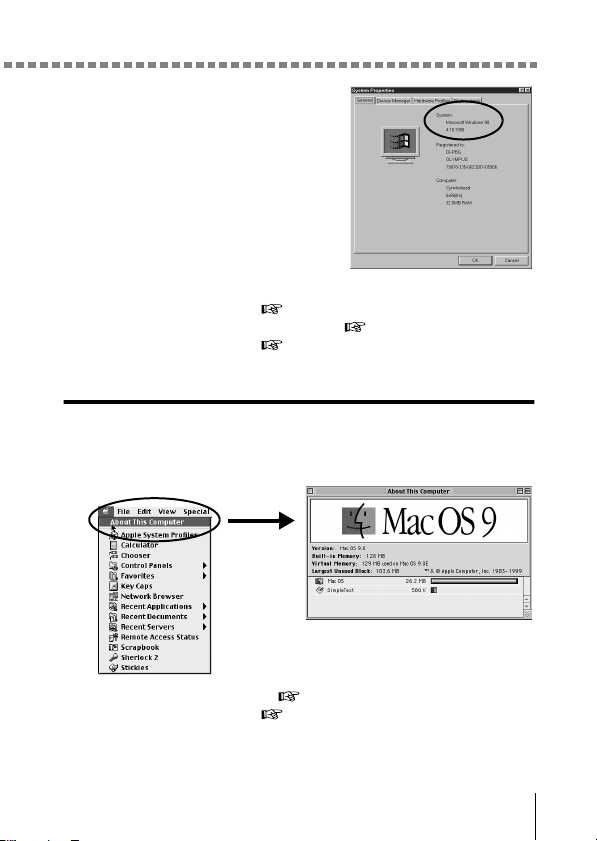
Identifying the OS
7
4
A System Properties window will
appear. Note and record the
“System:” information.
Confirm that your system is Windows
98, 98 SE, Me, 2000 Professional or
Windows XP, then press “OK” to close
the window.
If your OS is Windows 98/98 SE, proceed to “Installing the USB
driver for Windows 98” (
p.9).
Users running Windows Me/2000/XP
p.11
Users running other OS
p.31
Mac OS (Macintosh)
Select “About This Computer” from the Apple menu on the menu bar.
A window appears with the name of the computer’s OS.
Confirm that the OS is OS 9.0-9.1 or OS X.
Users running Mac OS 9/X
p.23
Users running other OS
p.31
8
Windows
Windows
WindowsWindows
Windows
Using Windows 98/Me/2000/XP
Using Windows 98/Me/2000/XPUsing Windows 98/Me/2000/XP
Using Windows 98/Me/2000/XP
Your computer is turned on and Windows is running.
If you are running any applications, quit them all.
You are recommended to power the camera using the optional AC adapter.
If the battery power runs out while the computer is accessing the card in the
camera, the camera will turn off in the middle of the operation and this could
destroy image files (data). If you are using batteries, make sure that there
is sufficient remaining battery power.
Installing the USB driver for Windows 98 (When using Windows
98/98 SE) ....................................................................................... 9
Connecting the camera to the computer ................................. 11
Confirming the computer recognizes the camera .................. 14
Confirming the USB driver is installed .................................... 15
Downloading images to your computer................................... 17
Disconnecting the camera from your computer ..................... 20
Make sure that:
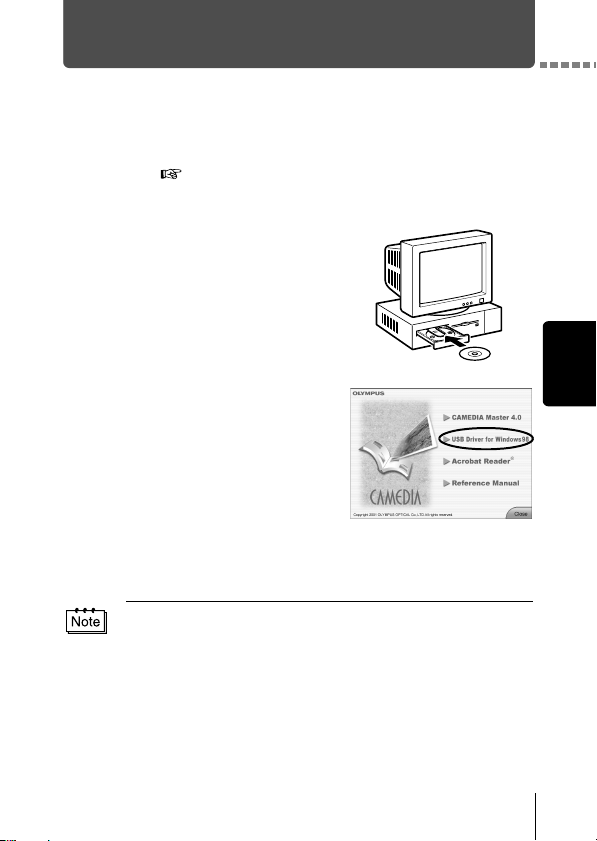
9
Windows
Installing the USB driver for Windows 98
(When using Windows 98/98 SE)
If your OS is Windows 98/98 SE, you must install the USB driver. Follow the
instructions below to install the USB driver in your computer. Once it is fully
installed, you do not need to repeat the procedure again.
If your OS is Windows Me/2000/XP, skip the procedure below as the USB
driver will be automatically installed. Proceed to “Connecting the camera to
the computer” (
p.11).
1
Insert the provided software CD
into your CD-ROM drive.
2
The Olympus Windows Installer
should automatically launch. Click
“USB driver for Windows 98”.
If the installer is not automatically launched, select “Run..” on the
“Start” menu and then execute “(drive letter):/ Information.exe”.
The drive letter of the CD-ROM varies depending on the computer.
To identify the drive letter, double-click “My Computer” on the desktop.
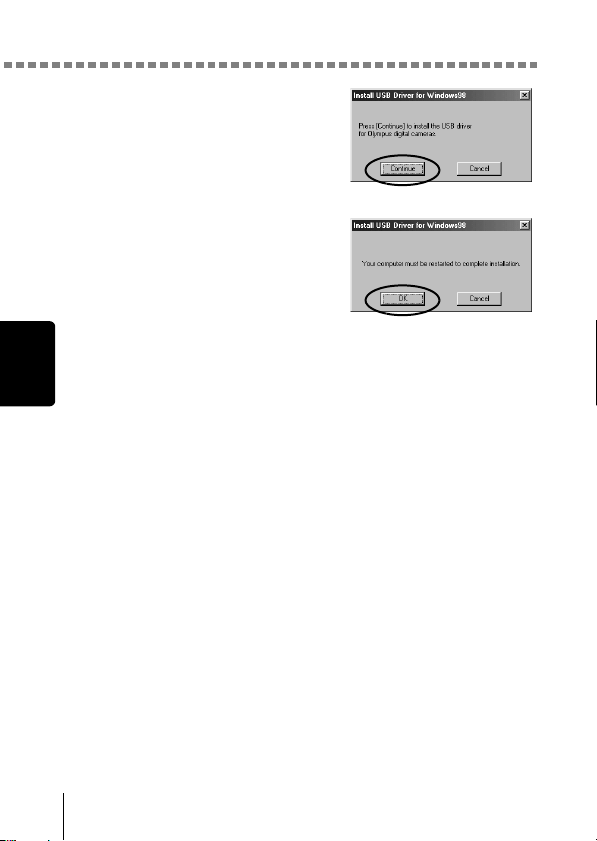
Installing the USB driver for Windows 98 (When using Windows 98/98 SE)
10
Windows
3
Click “Continue”. The installation
of the USB driver will start.
4
Click “OK” to restart your computer
and the installation is complete.
5
When the computer has restarted, installation is complete. If the
Olympus Windows Installer screen appears, click “Close” and
remove the CD-ROM from the CD-ROM drive.
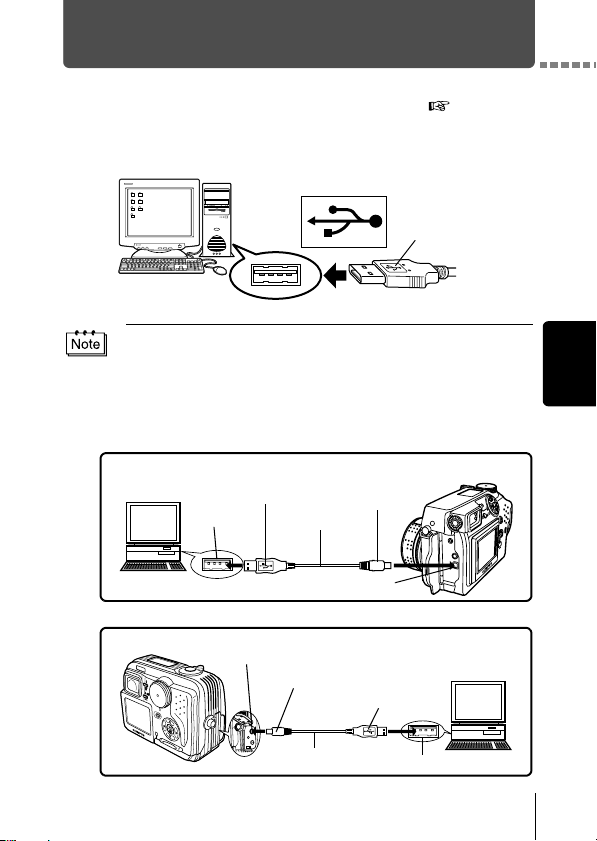
11
Windows
Connecting the camera to the computer
Users running Windows 98/98SE need to install the USB drive before
connecting the camera to your computer for the first time. ( p.9)
1
Insert the marked end of the provided USB cable into the USB
port on your computer as shown below.
2
After making sure that the camera is turned off, connect the end
of the USB cable to the USB connector on the camera.
The location of the USB connector or multi connector varies depending
on the camera model. Refer to the camera manual for details.
The location of the USB port varies depending on the computer. For details,
refer to your computer's manual.
Look for this mark.
USB port
Terminal
Camera with a USB connector
USB port
Computer
USB connector
USB cable
Smaller terminal
Rectangular terminal
Camera with a multi connector
USB cable
Smaller terminal
USB port
Computer
Rectangular terminal
Camera’s multi connector (USB, A/V OUT)
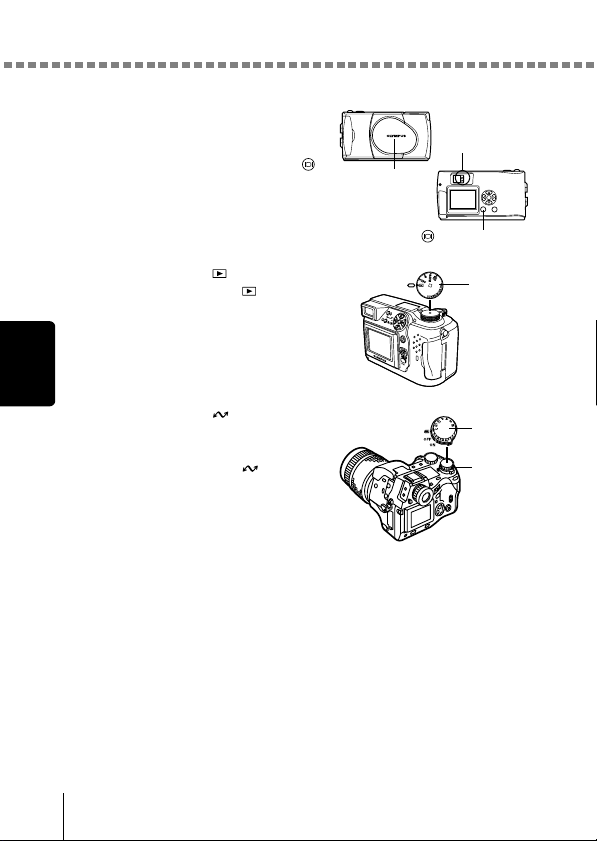
Connecting the camera to the computer
12
Windows
3
Turn the camera on.
Camera with a lens barrier
The power turns on automatically,
with the exception of some models
which require you to press the
(monitor) button.
When the camera is turned on, the
lamp on the right of the viewfinder
lights up.
Camera with a mode
Set the mode dial to . (If the
camera has a power switch as well
as a mode dial, turn the power
switch to ON.)
Camera with a mode
(Camera setup/connection
mode)
Set the mode dial to to turn
the camera on.
Lens barrier
Lamp
(monitor) button
Mode dial
Mode dial
Power
switch
Connecting the camera to the computer
13
Windows
4
The computer recognizes the camera as a new device.
When you connect the camera to the computer for the first time, the
computer automatically recognizes the camera. Click “OK” when the
message saying that the installation is completed appears. The
computer recognizes the camera as a “Removable Disk”.
Windows XP
You can download image files from the camera easily.
Select “Copy pictures to folder on my computer using Microsoft
Scanner and Camera Wizard”, then follow the on-screen instructions.
You may also select “take no action” to bypass the Microsoft Scanner
and Camera Wizard. You may then use a more advanced image
viewing/editing program such as Olympus CAMEDIA Master
software. For detailed instructions on downloading, refer to the
CAMEDIA Master software user’s guide.
When the camera is connected to the computer, none of the camera buttons
are functional.
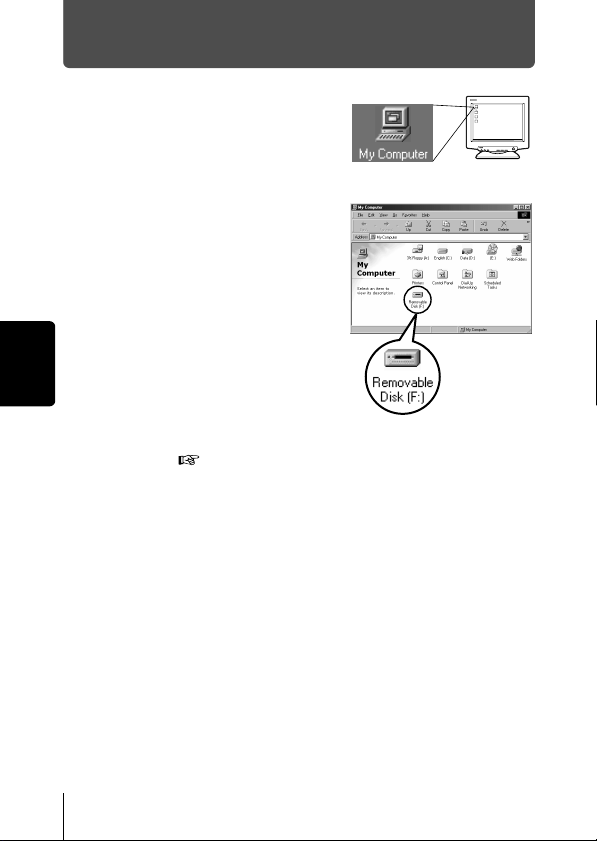
14
Windows
Confirming the computer recognizes the camera
1
Double-click the “My Computer”
icon on the desktop.
For users running Windows XP, click
“My Computer” from the “Start” menu.
2
Make sure the “Removable Disk”
icon appears in the window.
There may already be other
“Removable Disk” icons for other
devices, such as a removable media
drive or USB SmartMedia Reader/
Writer. In this case, the digital camera
is recognized as another “Removable
Disk”.
If you cannot find the icon, the camera
and computer are not connected
properly. Turn the camera off,
disconnect the camera from the
computer and connect again, or proceed to “Confirming the USB driver
is installed” ( p.15) to make sure that the USB driver is fully
installed.
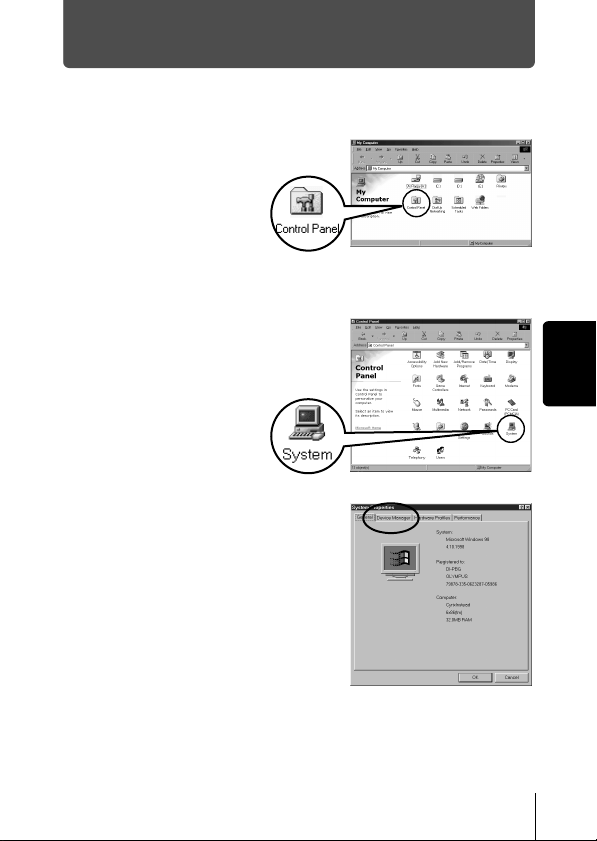
15
Windows
Confirming the USB driver is installed
If the computer does not recognize the camera as a Removable Disk, follow
the procedure below to check whether the USB driver has been fully installed.
1
Open “My Computer”
and double-click the
“Control Panel” icon.
For users running
Windows XP, open
“Control Panel” from the
“Start” menu.
2
Double-click the
“System” icon.
3
The System window will appear.
Click the “Device Manager” tab.
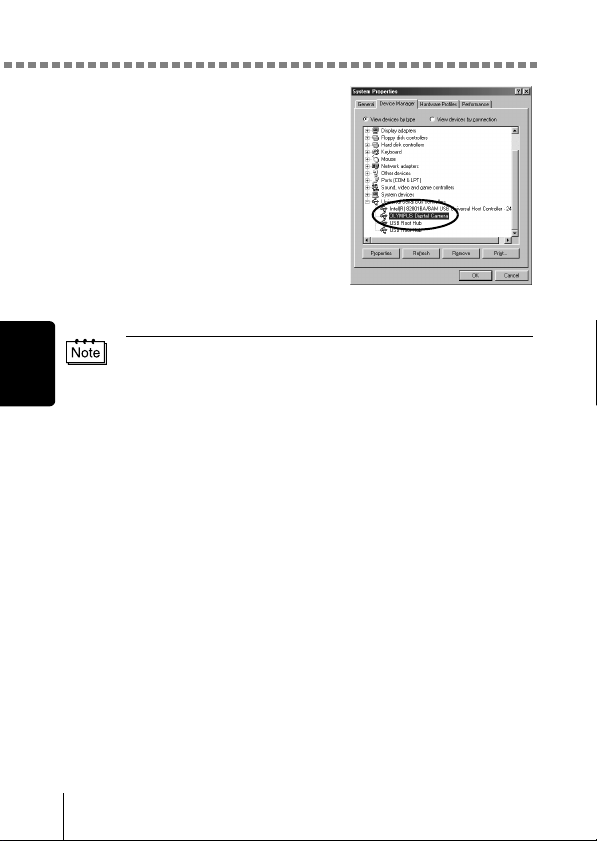
Confirming the USB driver is installed
16
Windows
4
Confirm that “OLYMPUS Digital
Camera” is in the “Universal Serial
Bus Controller” category.
If you cannot find the “OLYMPUS
Digital Camera”, turn the camera off,
disconnect the camera from the
computer and start again.
Users running Windows 98/98 SE
start again from “Confirming the USB
driver is installed”, and Users running
Window Me/2000/XP start from
“Connecting the camera to the
computer”.
If the USB driver was successfully installed, you can find the following in the
“Device Manager”.
– the name of the camera you have connected listed under “Disk drives”
– “OLYMPUS Digital Camera” listed as one of the items in the “Universal
Serial Bus Controller” category
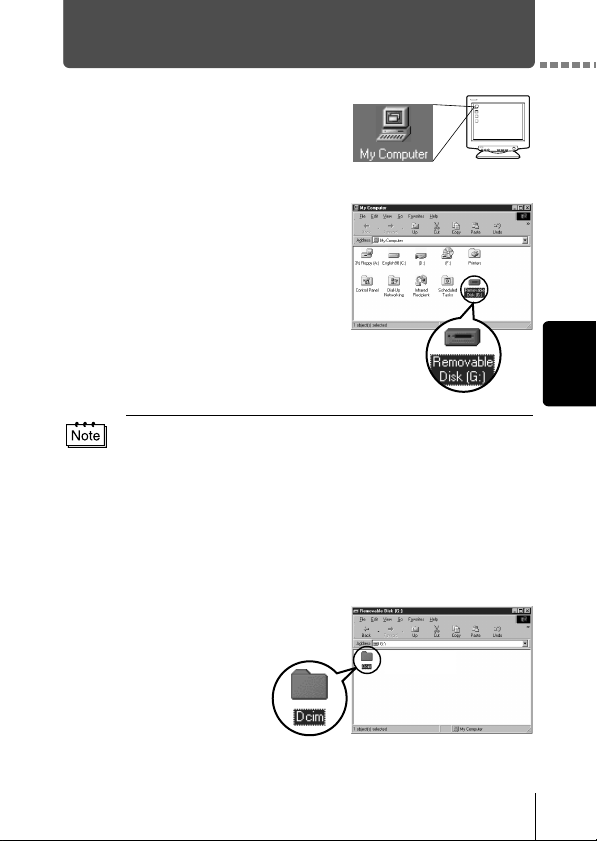
17
Windows
Downloading images to your computer
1
Double-click the “My Computer”
icon on the desktop.
For users running Windows XP, click
“Control Panel” from the “Start” menu.
2
Double-click the “Removable Disk”
icon.
A new “Removable Disk” icon appears
when the camera is connected to the
computer, as the digital camera is
recognized as a “Removable Disk”.
3
Double-click the
“Dcim” folder.
If an error message appears when you double-click the icon, there may be a
problem with one of the following:
the camera’s power source (the AC adapter is not properly connected or
the battery power is low)
Make sure that the AC adapter is correctly connected or that the batteries
are not running low.
the card (there is no card in the camera or there is a problem with the
card)
Check that you can play back pictures stored on the card on the monitor
of your digital camera.
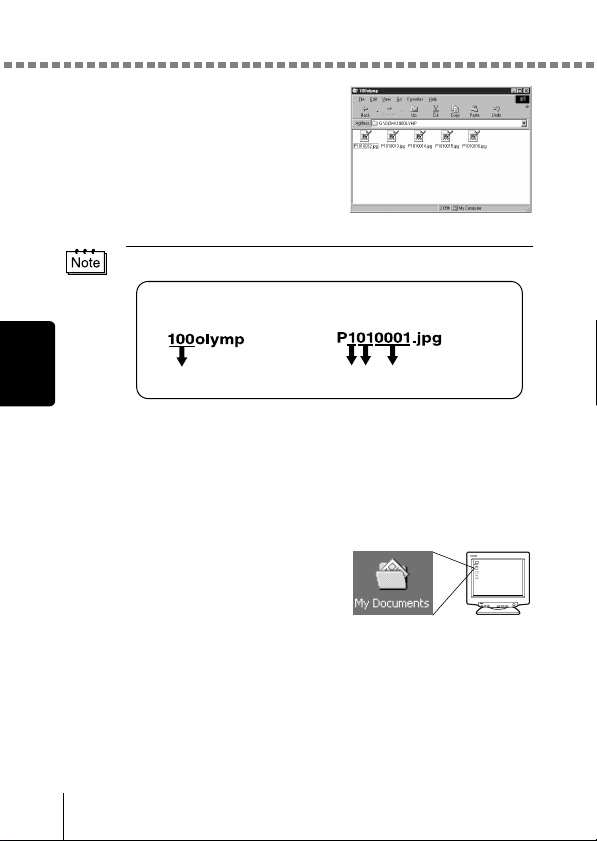
Downloading images to your computer
18
Windows
4
Double-click the “100olymp” folder.
Image files (JPEG files) with files
names such as “P1010001.jpg” are
displayed.
5
Double-click the “My Documents”
icon on the desktop.
If you cannot find the icon on the
desktop, select “Explorer” on the Start
menu and double-click the “My
Documents” icon.
• The camera automatically assigns folder names and file names according
to the following rules.
• Serial numbers of image files run from 0001 to 9999.
• Serial numbers of folders run from 100 to 999.
• When file number 9999 is reached, a new folder is created and assigned
the next number.
• Months January through September are expressed by the numbers 1
through 9, October by the letter A, November by B and December by C.
Folder name
(Example)
File name
(Example)
Serial number
Month / Day / Serial number
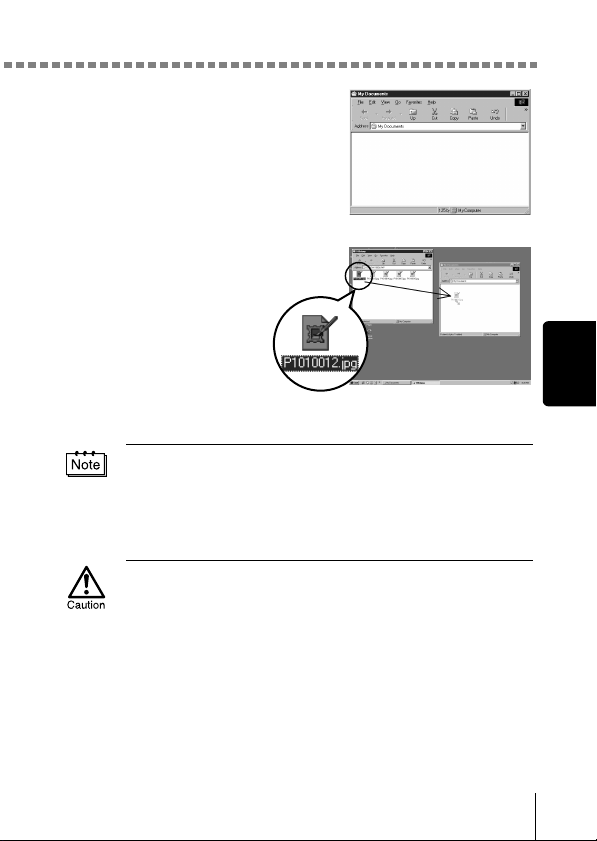
Downloading images to your computer
19
Windows
The “My Documents” window is
displayed.
6
Drag & drop the image
you want to save in the
computer (in this case,
P1010012.jpg) to the
“My Documents”
window.
The image is saved in the
computer (in My
Documents folder).
• To select all files, choose Edit > Select all.
When the image file has been downloaded to the computer, you can view
images by double-clicking the image files downloaded to your computer. The
files will be opened in the default image viewer of the operating system. If you
want to view the image a different size or process it, you will need to open the
image with software that supports JPEG or TIFF images files, such as Paint
Shop Pro, Photoshop or CAMEDIA Master software.
The lamp on the right of the viewfinder or the card access lamp blinks while
the image is being copied. Never open the card cover on the camera, load or
remove the batteries, or connect or disconnect the AC adapter while the lamp
is blinking as the image files may be destroyed.
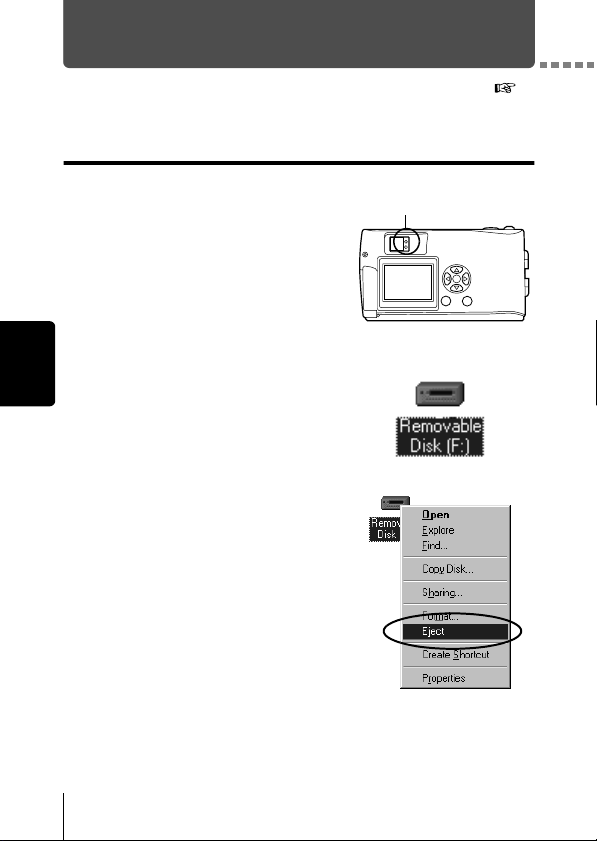
20
Windows
Disconnecting the camera from your computer
If your OS is Windows Me/2000, proceed to “Windows Me/2000/XP” (
p.21).
Windows 98
1
Make sure that the lamp on the right
of the viewfinder or the card access
lamp is not blinking.
Some camera models have either a
lamp on the right of the viewfinder or a
card access lamp, and the location
varies depending on the model. Refer
to your camera’s reference manual.
2
Double-click the “My Computer”
icon and right-click the “Removable
Disk” to display the menu.
3
Click “Eject” on the menu.
Lamp
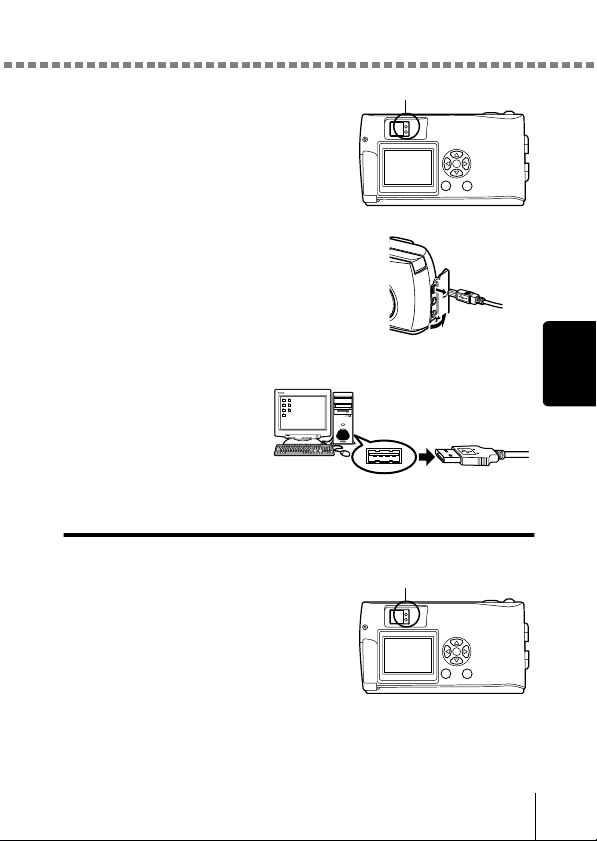
Disconnecting the camera from your computer
21
Windows
4
Make sure that the lamp on the right
of the viewfinder or the card access
lamp is not blinking.
5
Remove the USB cable from the
camera.
6
Remove the USB cable from your computer.
Windows Me/2000/XP
1
Make sure that the lamp on the right
of the viewfinder or the card access
lamp is not blinking.
Some camera models have either a
lamp on the right of the viewfinder or a
card access lamp, and the location
varies depending on the model. Refer
to your camera's reference manual.
Lamp
Lamp
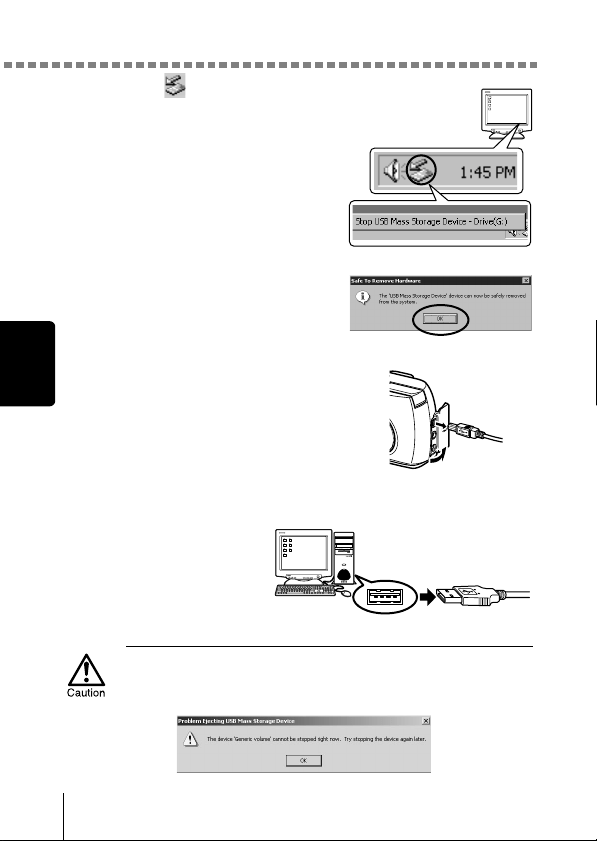
Disconnecting the camera from your computer
22
Windows
2
Click the “Unplug or Eject
Hardware” icon on the task bar.
The message saying that the drive
has been stopped appears.
3
Click on the message.
The “Unplug or Eject Hardware”
window appears.
4
When a message appears, click
“OK”.
5
Remove the USB cable from the
camera.
6
Remove the USB cable from your computer.
If the window returns the following message when you click “Unplug or Eject
Hardware”, first make sure that no image data is being downloaded from the
camera, and then remove the USB cable.
23
Macintosh
Macintosh
MacintoshMacintosh
Macintosh
Using Mac OS (9/X)
Using Mac OS (9/X)Using Mac OS (9/X)
Using Mac OS (9/X)
Your computer is turned on and Mac OS is running.
If you are running any applications, quit them all.
You are recommended to power the camera using the optional AC adapter.
If the battery power runs out while the computer is accessing the card in the
camera, the camera will turn off in the middle of the operation and this could
destroy image files (data). If you are using batteries, make sure that there
is sufficient remaining battery power.
If you are running Mac OS X, the connection to the computer and
downloading the image data are verified. Restrictions such as the
following may occur due to the OS.
The image file properties are not displayed correctly.
Images in the camera cannot be opened without first downloading
them. etc.
For more details, visit the Olympus web site.
Connecting the camera to the computer ................................. 24
Downloading images to your computer................................... 26
Disconnecting the camera from your computer ..................... 30
Make sure that:
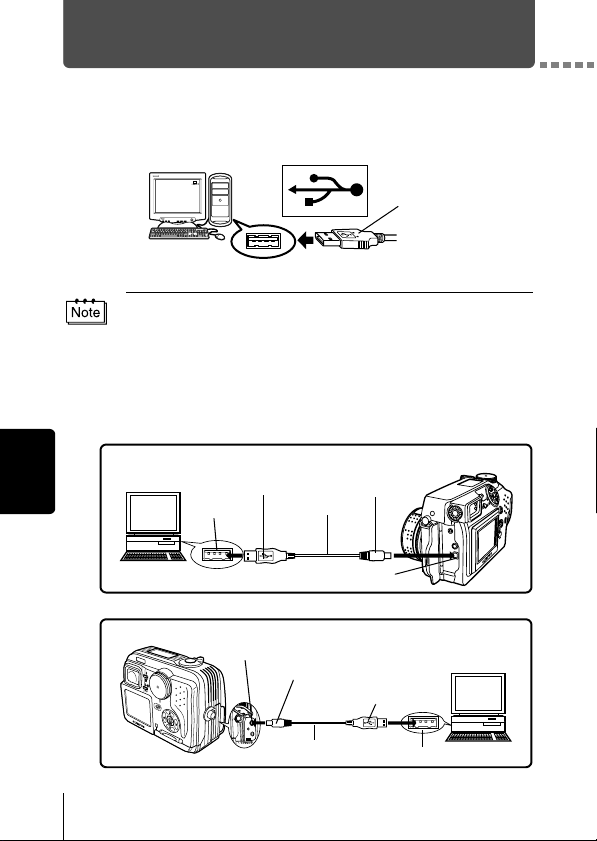
24
Macintosh
Connecting the camera to the computer
1
Insert the marked end of the USB cable into the USB port on your
computer as shown below.
2
After making sure that the camera is turned off, connect the end
of the USB cable to the USB connector on the camera.
The location of the USB connector or multi connector varies depending
on the camera model. Refer to the camera manual for details.
The location of the USB port varies depending on the computer. For details,
refer to your computer's manual.
Look for this mark.
Terminal
USB port
Camera with a USB connector
USB port
Computer
USB connector
USB cable
Smaller terminal
Rectangular terminal
Camera with a multi connector
USB cable
Smaller terminal
USB port
Computer
Rectangular terminal
Camera’s multi connector (USB, A/V OUT)
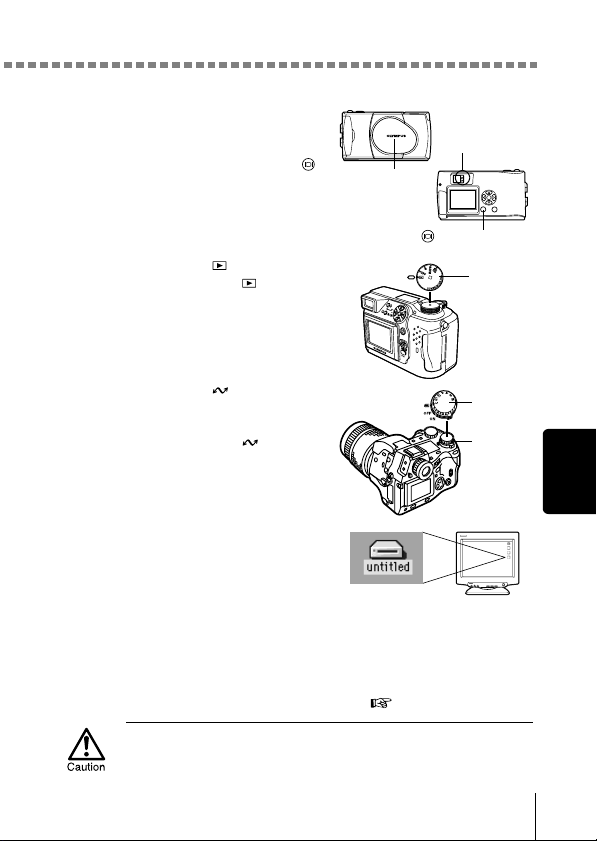
Connecting the camera to the computer
25
Macintosh
3
Turn the camera on.
Camera with a lens barrier
The power turns on automatically,
with the exception of some models
which require you to press the
(monitor) button.
When the camera is turned on, the
green lamp on the right of the
viewfinder lights up.
Camera with a mode
Set the mode dial to . (If the
camera has a power switch as well
as a mode dial, turn the power
switch to ON.)
Camera with a mode
(Camera setup/connection
mode)
Set the mode dial to to turn
the camera on.
4
The computer recognizes the
camera as a new device.
The computer recognizes the
camera automatically and an
“Untitled” icon appears on the
desktop.
If you cannot find this icon, turn off the camera and connect again.
Mac OS X
When the computer has recognized the camera, the Apple Image
Capture software automatically launches.
p.29
When the camera is connected to the computer, none of the camera buttons
are functional.
Lens barrier
Lamp
(monitor) button
Mode dial
Mode dial
Power
switch
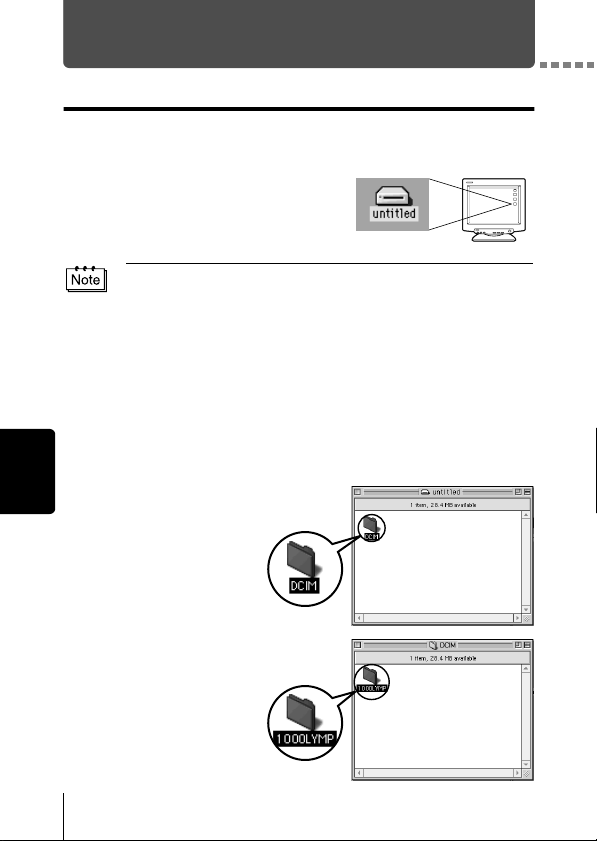
26
Macintosh
Downloading images to your computer
Mac OS 9
You can download images from the camera and save them in your computer
(in this case, in the Hard Disk).
1
Double-click the “Untitled” icon
displayed on the desktop when the
camera is connected to the
computer.
2
Double-click the
“Dcim” folder.
3
Double-click the
“100OLYMP” folder.
If you cannot find this icon, or if an error message appears when you double-
click the icon, there may be a problem with one of the following:
the camera’s power source (the AC adapter is not properly connected or
the battery power is low)
the card (there is no card in the camera or there is a problem with the
card)
Check that you can play back pictures on the monitor of your camera.
the USB cable (the camera is not properly connected to the computer by
the USB cable).
Apple “File Exchange” extension is not enabled.
• Please refer to your Apple operating system manual for instructions on
how to enable this extension.
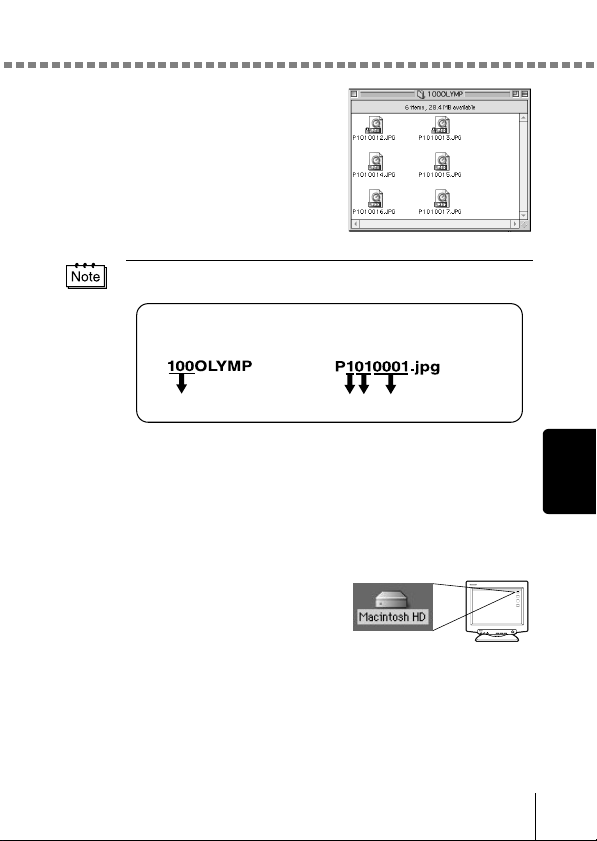
Downloading images to your computer
27
Macintosh
Image files (JPEG files) with files
names such as “P1010001.JPG” are
displayed.
4
Double-click the “Macintosh HD”
icon on the desktop.
• The camera automatically assigns folder names and file names according
to the following rules.
• Serial numbers of image files run from 0001 to 9999.
• Serial numbers of folders run from 100 to 999.
• When file number 9999 is reached, a new folder is created and assigned
the next number.
• Months January through September are expressed by the numbers 1
through 9, October by the letter A, November by B and December by C.
Folder name
(Example)
File name
(Example)
Serial number Month / Day / Serial number
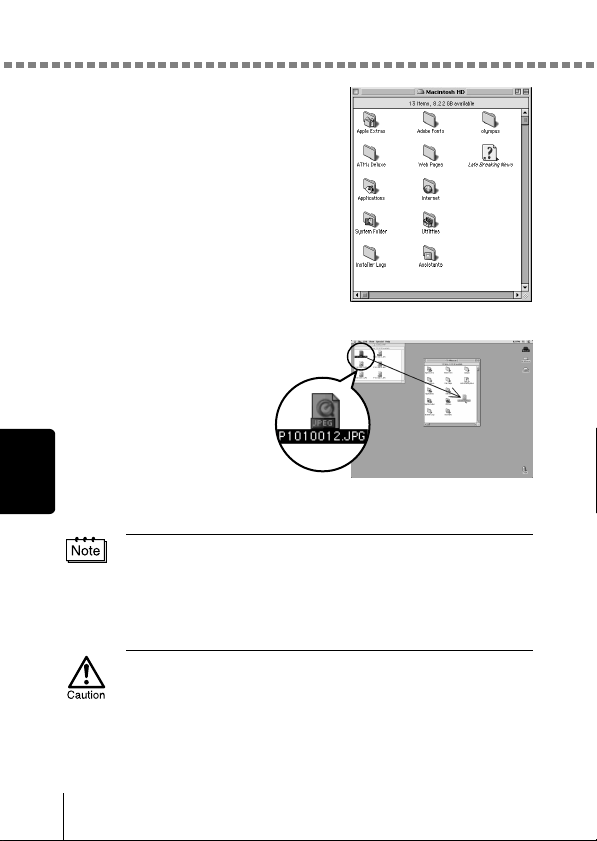
Downloading images to your computer
28
Macintosh
The “Hard Disk” window is displayed.
5
Drag & drop the image
you want to save in the
computer (in this case,
P1010012.JPG) to the
“Hard Disk” window.
The image is saved in
the computer (in the
Hard disk).
• To select all images,
click Edit > Select all.
When the image file has been copied to the computer, you can view images
by double-clicking the image files in the “Hard Disk” folder. The files will be
opened in the default image viewer of the operating system. If you want to
view the image a different size or process it, you will need to open the image
with software that supports JPEG or TIFF images files, such as Paint Shop
Pro, Photoshop or CAMEDIA Master software.
The lamp on the right of the viewfinder or the card access lamp blinks while
the image is being copied. Never open the card cover on the camera, load or
remove the batteries, or connect or disconnect the AC adapter while the lamp
is blinking as the image files may be destroyed.
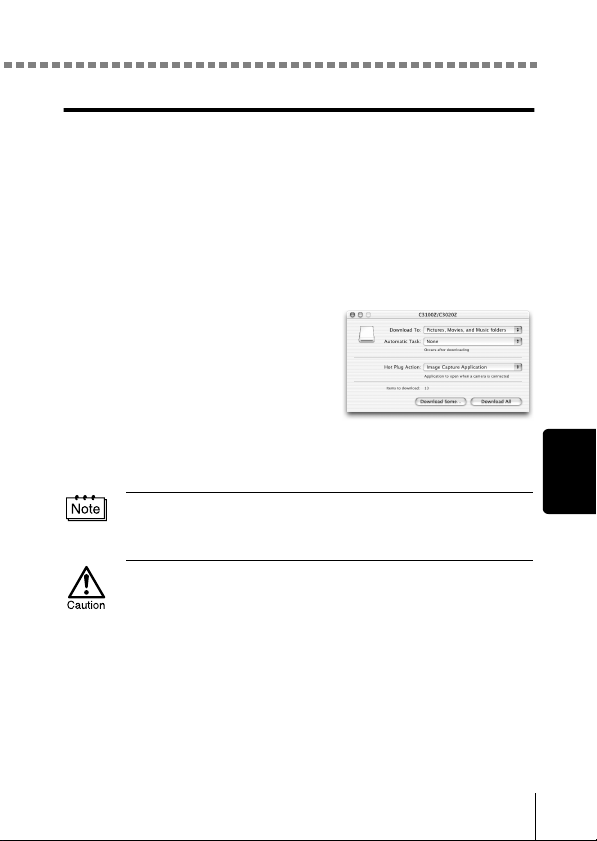
Downloading images to your computer
29
Macintosh
Mac OS X
Malfunctions such as the following may occur due to the OS.
• If the camera is not connected correctly, a malfunction occurs in the
computer.
• Date and time information of image files is not accurately displayed.
• If the card cover of the camera is opened while connecting to the computer,
the “untitled” icon does not disappear from the desktop. etc.
When the computer has recognized the camera, the Apple Image Capture
software dialog appears.
1
From the “Download To” menu,
select a destination folder.
2
To download all images, click
“Download All”.
To selectively download images,
click “Download Some” and
highlight the desired images.
The images are transferred from the camera to your computer.
If you are operating Mac OS X and you want to download images using the
same procedure as for Mac OS 9, select “File > Close” and exit the Apple
Image Capture software. At this time, the camera is indicated as “unlabeled”.
If you use the Apple Image Capture software, images downloaded to your
computer and transferred back to a card may not play back on the camera or
may have other problems.
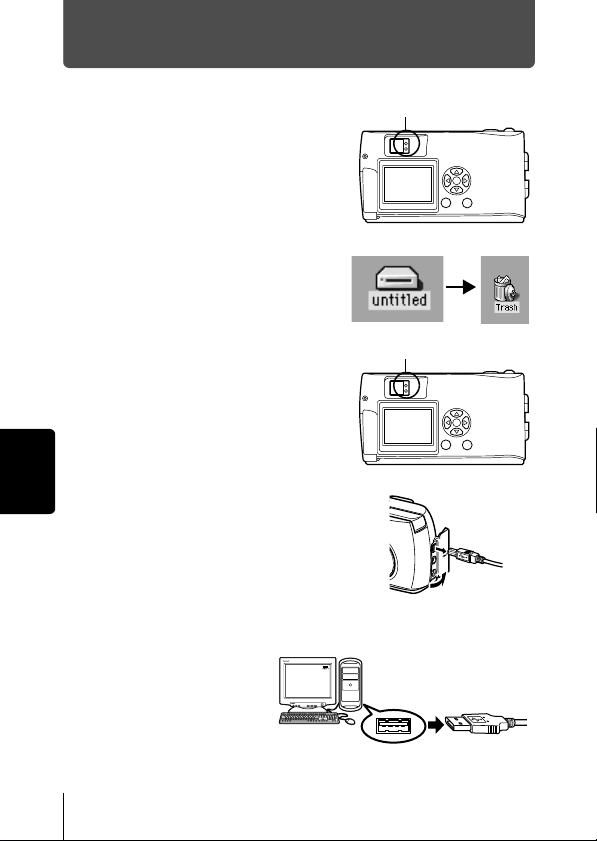
30
Macintosh
Disconnecting the camera from your computer
1
Make sure that the lamp on the right
of the viewfinder or the card access
lamp is not blinking.
2
Drag the “untitled” icon on the
desktop to “Trash”.
3
Make sure that the lamp on the right
of the viewfinder or the card access
lamp is not blinking.
4
Remove the USB cable from the
camera.
5
Remove the USB cable from your
computer.
Lamp
Lamp
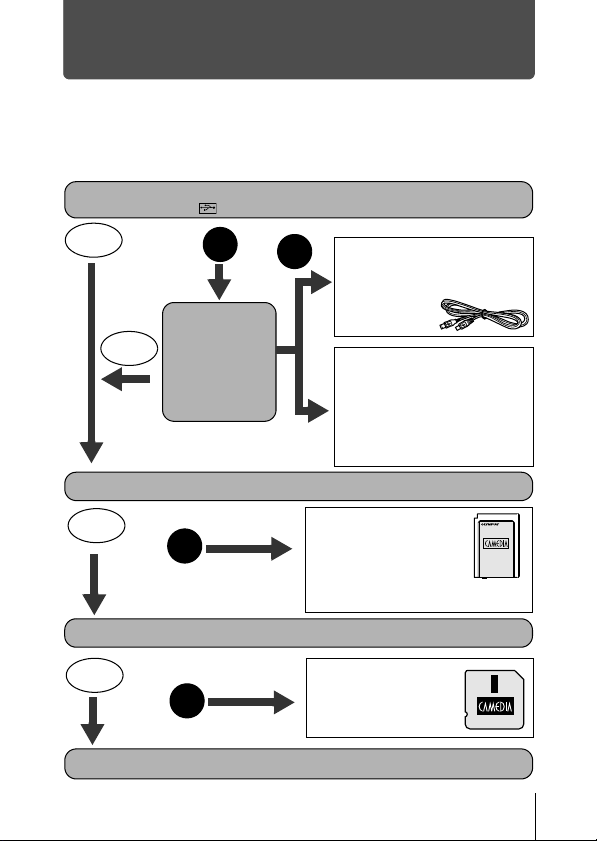
31
Downloading image files using other OS
(For other OS users)
Users running other OS cannot connect the camera directly to a computer.
Windows 95
Windows NT
Mac OS before OS 9
You can download images directly to your computer using an optional floppy
disk adapter or PC card adapter.
Does your computer have a USB interface?
Is there a port marked on your computer?
Does your computer have a built-in PC card slot?
Consult your nearest Olympus representative.
Is your OS one of
the following?
• Windows 98
• Windows 2000
• Windows Me
• Windows XP
• Mac OS 9/X
Yes
No
No
Yes
Connect the camera directly
to your computer using the
provided USB cable.
Use the optional USB
SmartMedia reader/writer.
*Certain card readers may not be
compatible with Mac OS X.
Check the Olympus website for
the most up-to-date compatibility
information.
Use the optional PC
card adapter.
*Not supported by Windows NT4.0 or
lower
Does your computer have a built-in floppy disk drive?
No
Yes
Use the optional
FlashPath floppy disk
adapter.
No
Yes
http://www.olympus.com/
2002 OLYMPUS OPTICAL CO., LTD.
VT387801
San-Ei Building, 22-2, Nishi Shinjuku 1-chome, Shinjuku-ku, Tokyo, Japan
Customer support (Japanese language only): Tel. 0426-42-7499 Tokyo
OLYMPUS OPTICAL CO., LTD.
Two Corporate Center Drive, Melville, NY 11747-3157, U.S.A. Tel. 631-844-5000
Technical Support (USA)
24/7 online automated help: http://support.olympusamerica.com/
Phone customer support: Tel. 1-888-553-4448 (Toll-free)
Our phone customer support is available from 8 am to 10 pm
(Monday to Friday) ET
E-Mail: [email protected]
Olympus software updates can be obtained at: http://olympus.com/digital/
Adobe [Photoshop] Support
Adobe software updates and technical information can be obtained at:
http://www.adobe.com/support/
OLYMPUS AMERICA INC.
Premises/Goods delivery: Wendenstrasse 14-18, 20097 Hamburg, Germany
Tel. 040-237730
Letters: Postfach 10 49 08, 20034 Hamburg, Germany
Hotline Numbers for customers in Europe:
Tel. 01805-67 10 83 for Germany
Tel. 00800-67 10 83 00 for Austria, Belgium, Denmark, France,
Netherlands, Norway, Sweden, Switzerland,
United Kingdom
Tel. +49 180 5-67 10 83 for Finland, Italy, Luxembourg, Portugal,
Spain, Czech Republic
Tel. +49 40-237 73 899 for Greece, Croatia, Hungary, and the rest of Europe
Our Hotline is available from 9 am to 6 pm (Monday to Friday)
E-Mail: [email protected]
OLYMPUS OPTICAL CO. (EUROPA) GMBH.