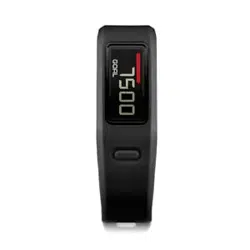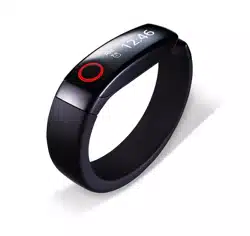
LG Lifeband
Touch
USER MANUAL
To maximize the full functionality of
the LG Lifeband Touch, please read the user
manual carefully.
Model : FB84-BM / FB84-BL / FB84-BX / FB84-SM /
FB84-SL / FB84-SX / FB84-RM / FB84-RL /
FB84-RX
www.lg.com
Before using 2
Before using
1
Safety Information
CAUTION
RISK OF ELECTRIC SHOCK
DO NOT OPEN
CAUTION: TO REDUCE THE RISK OF ELECTRIC
SHOCK DO NOT REMOVE COVER (OR BACK)
NO USER-SERVICEABLE PARTS INSIDE REFER
SERVICING TO QUALIFIED SERVICE PERSONNEL.
This lightning ash with
arrowhead symbol within an
equilateral triangle is intended to
alert the user to the presence of
uninsulated dangerous voltage
within the product’s enclosure that may be
of sucient magnitude to constitute a risk of
electric shock to persons.
The exclamation point within
an equilateral triangle is
intended to alert the user to the
presence of important operating
and maintenance (servicing)
instructions in the literature accompanying the
product.
WARNING: This product contains chemicals
known to the State of California to cause cancer
and birth defects or other reproductive harm.
Wash hands after handling.
This device is not intended to diagnose,
treat or prevent any disease or medical
condition. Always seek the advice of a qualied
professional before making any changes to
your exercise, sleep or nutrition.
WARNING: TO PREVENT FIRE OR ELECTRIC SHOCK
HAZARD, DO NOT EXPOSE THIS PRODUCT TO
RAIN OR MOISTURE.
CAUTION: The apparatus shall not be exposed
to water (dripping or splashing) and no objects
lled with liquids, such as vases, shall be placed
on the apparatus.
WARNING: Do not install this equipment in a
conned space such as a book case or similar
unit.
CAUTION: Do not block any ventilation openings.
Install in accordance with the manufacturer’s
instructions.
Slots and openings in the cabinet are provided
for ventilation and to ensure reliable operation of
the product and to protect it from over heating.
The openings shall be never be blocked by
placing the product on a bed, sofa, rug or other
similar surface. This product shall not be placed
in a built-in installation such as a bookcase or
rack unless proper ventilation is provided or the
manufacturer’s instruction has been adhered to.
CAUTION concerning the Power Cord
Most appliances recommend they be placed
upon a dedicated circuit;
That is, a single outlet circuit which powers only
that appliance and has no additional outlets or
branch circuits. Check the specication page
of this owner’s manual to be certain. Do not
overload wall outlets. Overloaded wall outlets,
loose or damaged wall outlets, extension cords,
frayed power cords, or damaged or cracked wire
insulation are dangerous. Any of these conditions
could result in electric shock or re. Periodically
examine the cord of your appliance, and if its
appearance indicates damage or deterioration,
unplug it, discontinue use of the appliance, and
have the cord replaced with an exact replacement
part by an authorized service center. Protect the
power cord from physical or mechanical abuse,
such as being twisted, kinked, pinched, closed in
a door, or walked upon. Pay particular attention
to plugs, wall outlets, and the point where the
cord exits the appliance. To disconnect power
from the mains, pull out the mains cord plug.
When installing the product, ensure that the plug
is easily accessible.
Before using 3
Before using
1
This device is equipped with a portable battery
or accumulator.
Safety way to remove the battery or the battery
from the equipment: Remove the old battery
or battery pack, follow the steps in reverse order
than the assembly. To prevent contamination of
the environment and bring on possible threat
to human and animal health, the old battery or
the battery put it in the appropriate container
at designated collection points. Do not dispose
of batteries or battery together with other
waste. It is recommended that you use local,
free reimbursement systems batteries and
accumulators. The battery shall not be exposed
to excessive heat such as sunshine, re or the like.
Do not remove battery incorporated with
product for your safety. If you need to replace
the battery, take it to the nearest authorized LG
Electronics service point or dealer for assistance.
NOTICE: For safety making information including
product identication and supply ratings,
please refer to the main label on the rear of the
apparatus.
CAUTION when using this product in
environments of low humidity
�
It may cause static electricity in
environments of low humidity.
�
It is recommended to use this product
after touching any metal object which
conducts electricity.
>
Caution
Before using 4
Before using
1
IMPORTANT SAFETY
INSTRUCTIONS
1. Read these instructions.
2. Keep these instructions.
3. Heed all warnings.
4. Follow all instructions.
5. Do not use this apparatus near water.
6. Clean only with dry cloth.
7. Do not block any ventilation openings.
Install in accordance with the manufacturer’s
instructions.
8. Do not install near any heat sources such
as radiators, heat registers, stoves, or other
apparatus (including ampliers) that produce
heat.
9. Do not defeat the safety purpose of the
polarized or grounding-type plug. A polarized
plug has two blades with one wider than the
other. A grounding type plug has two blades
and a third grounding prong. The wide blade
or the third prong are provided for your safety.
If the provided plug does not t into your
outlet, consult an electrician for replacement
of the obsolete outlet.
10. Protect the power cord from being walked on
or pinched particularly at plugs, convenience
receptacles, and the point where they exit
from the apparatus.
11. Only use attachments/accessories specied
by the manufacturer.
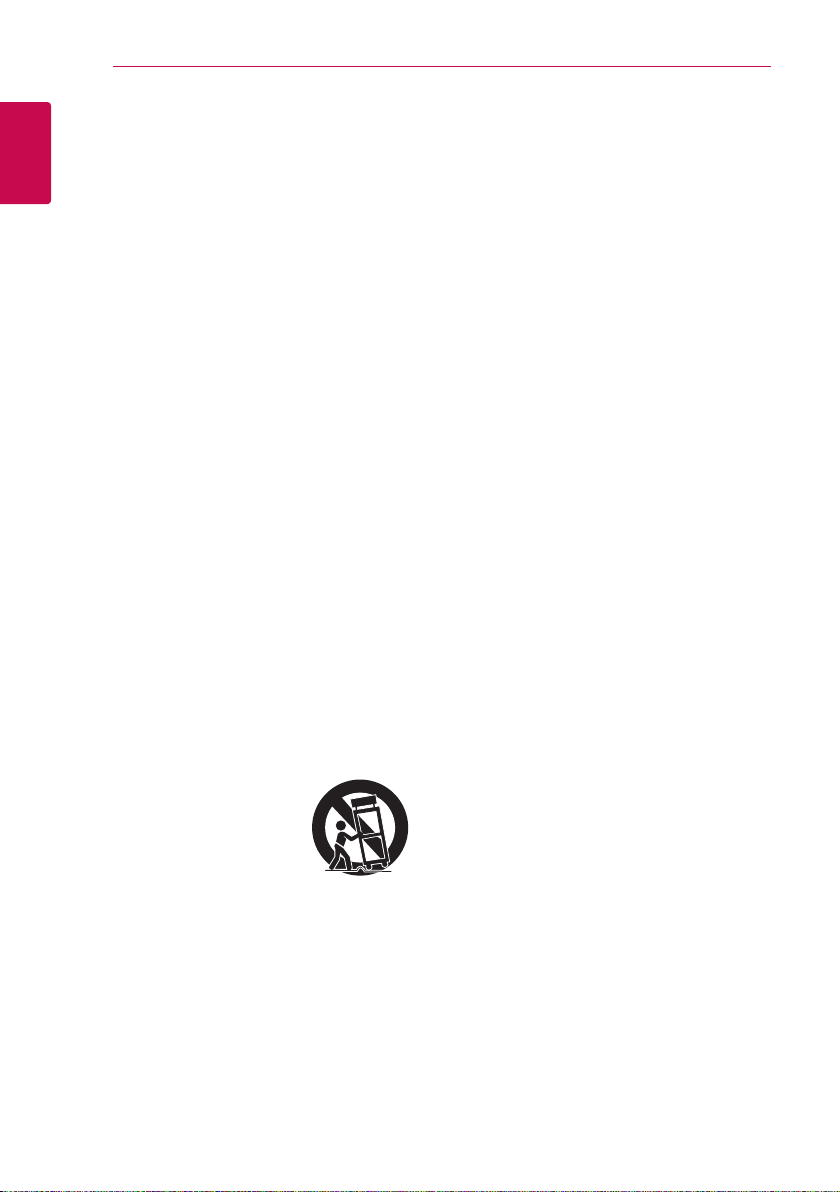
12. Use only with the cart, stand,
tripod, bracket, or table
specied by the manufacturer,
or sold with the apparatus.
When a cart is used, use
caution when moving the cart/
apparatus combination to avoid injury from
tip-over.
13. Unplug this apparatus during lightning
storms or when unused for long periods of
time.
14. Refer all servicing to qualied service
personnel. Servicing is required when the
apparatus has been damaged in any way, such
as power-supply cord or plug is damaged,
liquid has been spilled or objects have fallen
into the apparatus, the apparatus has been
exposed to rain or moisture, does not operate
normally, or has been dropped.

Before using 5
Before using
1
FCC Compliance Statement
This device complies with part 15 of the FCC
rules. Operation is subject to the following two
conditions:
(1) This device may not cause harmful
interference, and
(2) This device must accept any interference
received, including interference that may cause
undesired operation.
NOTE: This equipment has been tested and found
to comply with the limits for a Class B digital
device, pursuant to Part 15 of the FCC Rules.
These limits are designed to provide reasonable
protection against harmful interference in a
residential installation. This equipment generates,
uses, and can radiate radio frequency energy
and, if not installed and used in accordance with
the instructions, may cause harmful interference
to radio communications. However, there is no
guarantee that interference will not occur in a
particular installation.
If this equipment does cause harmful interference
to radio or television reception, which can be
determined by turning the equipment o and
on, the user is encouraged to try to correct the
interference by one or more of the following
measures:
�
Reorient or relocate the receiving antenna.
�
Increase the separation between the
equipment and receiver.
�
Connect the equipment into an outlet on a
circuit dierent from that to which the receiver
is connected.
�
Consult the dealer or an experienced radio/TV
technician for help.
CAUTION: Any changes or modications not
expressly approved by the party responsible for
compliance could void the user’s authority to
operate this equipment.
FCC WARNING : This equipment may generate
or use radio frequency energy. changes or
modications to this equipment may cause
harmful interference unless the modications are
expressly approved in the instruction manual.
The user could lose the authority to operate
this equipment if an unauthorized change or
modication is made.
FCC RF Radiation Exposure Statement : This
equipment complies with FCC radiation exposure
limits set forth for an uncontrolled environment.
CAUTION: Regulations of the FCC and FAA
prohibit airborne operation of radio-frequency
wireless devices because their signals could
interfere with critical aircraft instruments.
Responsible Party :
LG Electronics USA, Inc.1000 Sylvan Avenue
Englewood Clis, NJ 07632
TEL. : +1-800-243-0000
Before using 6
Before using
1
Warning
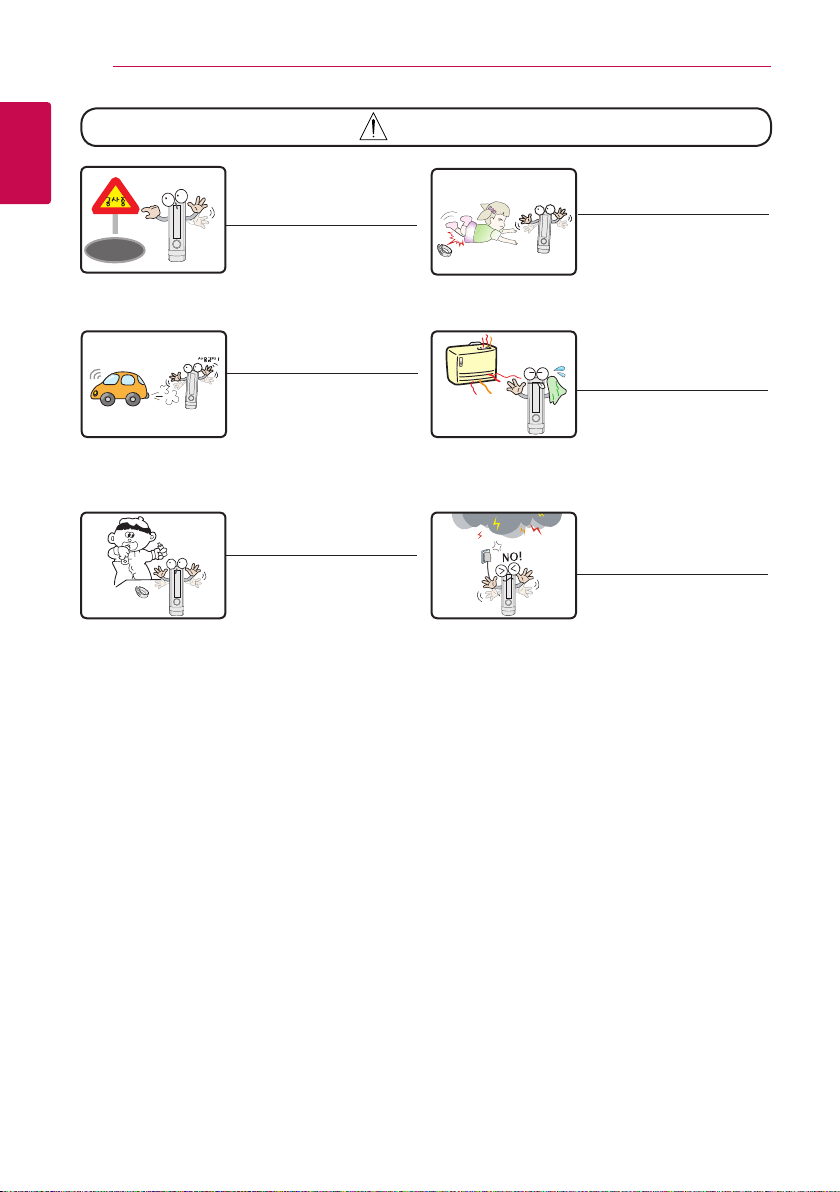
Keep the device away from
children.
�
This device may pose the
risk of injury to children.
Be aware of obstacles and
approach with caution when
using this device.
�
Obstacles carry the risk of
injury.
Do not use your device while
driving.
�
Store the device in a safe
place.
Do not place the device and
accessories near/in heating
appliances.
�
It may cause deformation.
Do not let children put the
device in his/her mouth.
�
Children may swallow a
small part of the device in
curiosity because the parts
are small. When the child
swallows the part, see a
doctor immediately after
giving first-aid.
�
There is a danger of electric
shock or damage of the
product.
Disconnect the AC adapter
and the cable in case of
lightning or thunder.
�
Otherwise, an electric shock
may occur.
Before using 7
Before using
1
Caution
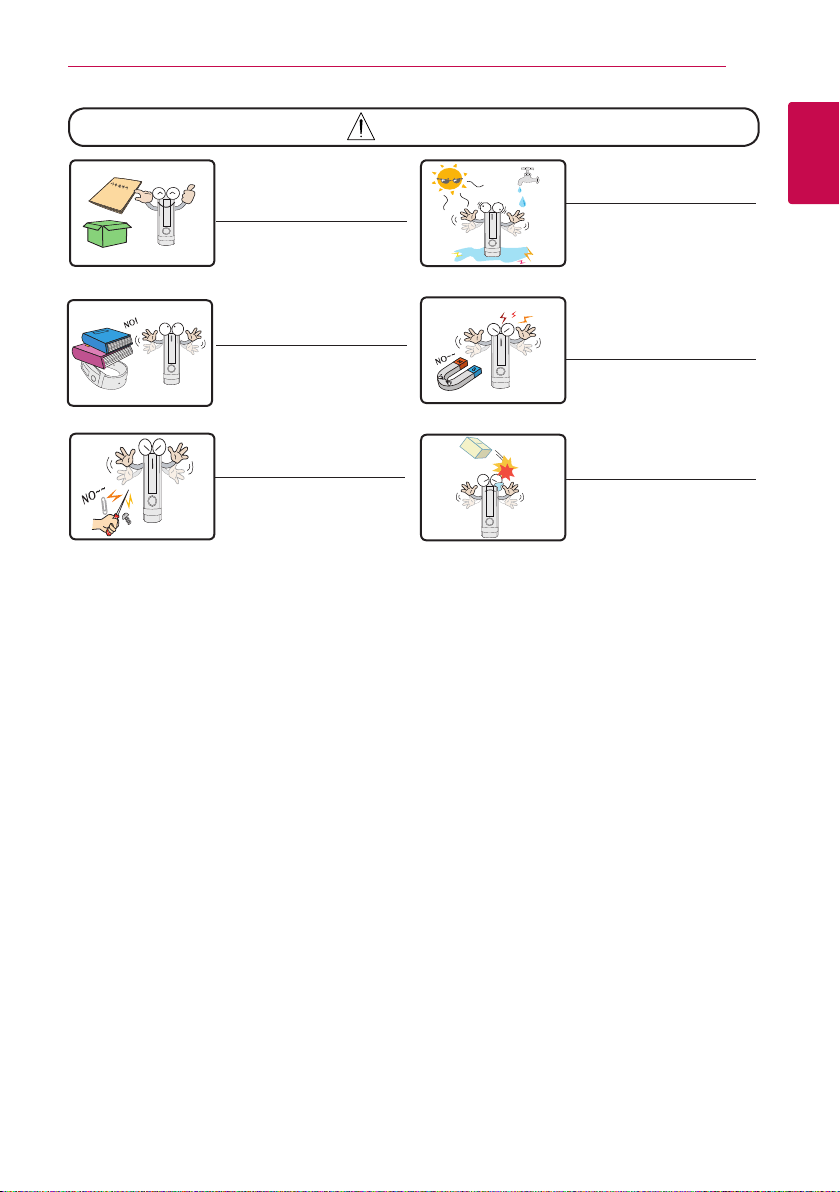
Read the web manual and
quick guide offered in the box
before using the device.
�
Otherwise, there is a
possibility of malfunction
or failure of the product.
Do not place an object on the
product.
�
It may cause failure.
Do not place the device near a
magnet or within the
magnetic field.
�
It may cause failure.
Do not disassemble, repair, or
remodel the product.
�
There is a danger of
damage or failure.
Do not drop an object or give
shock on the product.
�
LCD may be broken.
�
There is a danger of
damage or failure.
Do not soak the product in
the water.
�
There is a danger of
electric shock or failure.
Maintenance
Cleaning the device
�
Clean the device with soft and dry cloth.
�
Do not use strong chemical that include alcohol, such as benzene, thinner, FLUX, oil.
Handling the device
�
Handle the device as carefully as possible and not to expose it to water. This device is not designed to
be used underwater or come into continuous contact with water.
�
This device features a liquid contact indicator that changes color when it comes in contact with water.
In this case, the warranty may be voided.
�
Do not use a screen protector. This causes sensor malfunctions.
�
Do not allow water to contact the touch screen. The touch screen may malfunction in humid
conditions or when exposed to water.
m
Dry off the water before wearing the wristband.
it can cause skin irritation or itchiness.
m
Do not perform Bluetooth operation near medical appliances,
because it may cause electromagnetic interference.
m
Follow all posted warnings and directions from authorized personnel in areas
where the use of wireless devices is restricted, such as airplanes and hospitals.
m
LG Lifeband Touch does not support tablet products and may malfunction with some smartphones.

Table of Contents8
Table of Contents
1 Before Using
2 Safety Information
7 Maintenance
2 Using the LG Lifeband Touch
10 LG Lifeband Touch is your friend
10 Package Contents
11 Product Overview
12 Charging battery
12 - Using the USB gender
12 - Checking battery status
13 - Checking battery charging status
14 - Battery charging time and average battery usage time
14 - Low Battery Warning
14 Choose your size
15 Wearing the LG Lifeband Touch
15 - Using Gesture function
3 Starting the LG Lifeband Touch App
16 Device registration and sign up
16 - Step 1 Installing the LG Fitness app
16 - Step 2 Device registration
17 - Step 3 Sign Up
18 - Reconnecting Bluetooth
4
Table of Contents 9
1
2
3
5
6
4 Operating the LG Lifeband Touch
19 Check the function of the button
19 - Bluetooth connection setting
19 - Select Orientation (Left or Right)
20 - Turning o power
20 - Auto Restarting
21 OLED touch display information
21 - Changing the mode
22 Mode Overview
22 - Time mode
23 - Activity mode
24 - Music control mode
25 - Using Workout
28 Alert
28 - Checking an incoming call
30 - Checking the received message (Android only)
31 - Checking Alarm
31 - Notication message information
32 Updating LG Lifeband Touch rmware
34 LED Indications
5 Using the LG Lifeband Touch App
35 How to use LG Fitness app
35 - Home menu
37 - Activity
39 - Workout
40 - More
6 Support
45 Frequently Asked Question (FAQ)
47 Smartphone compatibility list
47 Open source software notice
48 Specications
2 Using the LG Lifeband Touch
Using the LG Lifeband Touch10
Using the LG Lifeband Touch
2
LG Lifeband Touch is your friend
�
LG Lifeband Touch helps you to check daily activity goal achievement rate and consumed calories
in real time for eective management by oering your hourly activity pattern, range and goal
achievement progress.
�
LG Lifeband Touch shows not only the activity record in specic time(time, calories, step, speed, pace)
but also detailed information such as the activity course, speed, pace graph using the app.
�
LG Lifeband Touch informs you of incoming and missed calls & message but also time, date and
remaining battery in real time, and allows to control the music in your smartphone.
But, iOS does not inform you of message reception.
�
LG Lifeband Touch can be connected to your smartphone via Blutooth(Bluetooth 4.0 LE).
The smartphone model compatible with the App can be added or changed depending on the phone
manufacturer.
.
How LG Lifeband Touch works
�
LG Lifeband Touch can detect movement using tri accelerometer and altimeter. And calculate user’s
consumed calories base on the user’s body information such as height, age, weight and gender by
analyzing user’s everyday activity such as steps, distance, time and intensity.
�
LG Lifeband Touch motivates you to work out by sending you messages along with vibrations, when
you’re reaching your goal or have been sedentary for long.
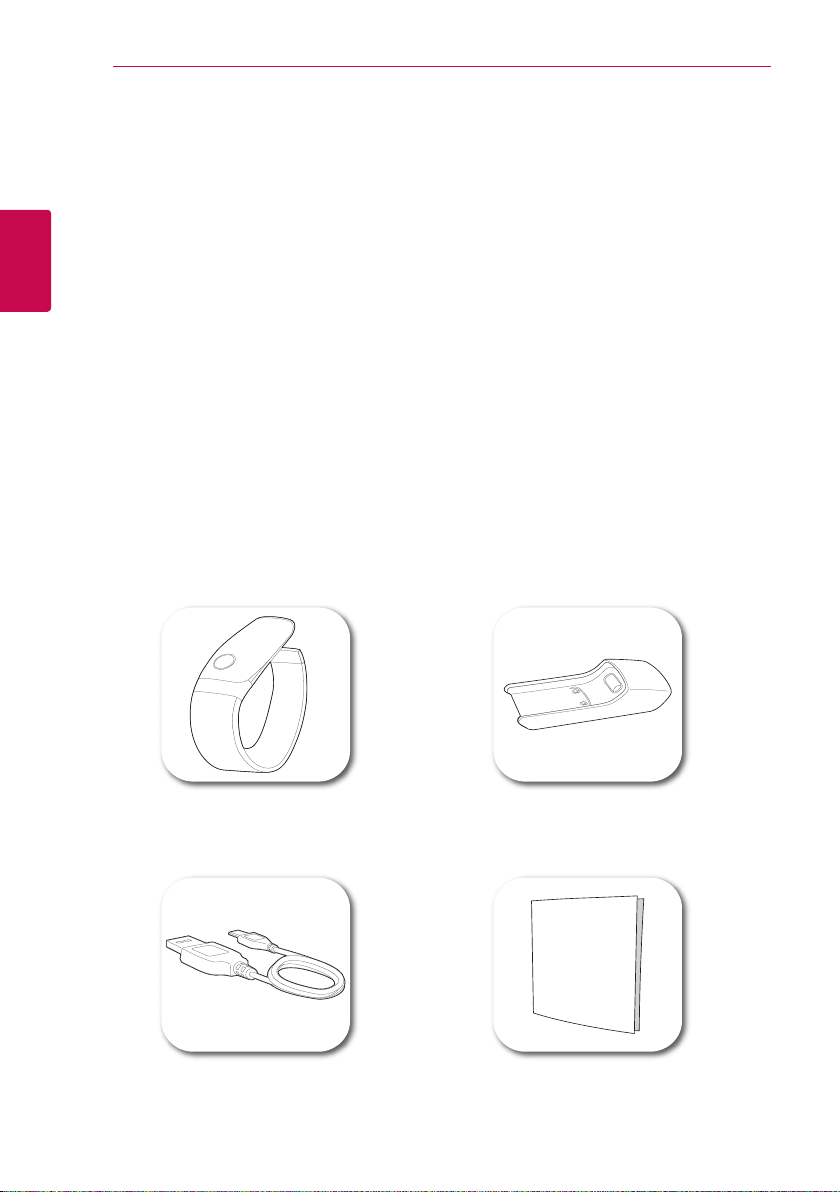
Package Contents
LG Lifeband Touch
USB gender
USB cable
Quick setup guide/
Warranty card
Using the LG Lifeband Touch 11
Using the LG Lifeband Touch
2
Product Overview
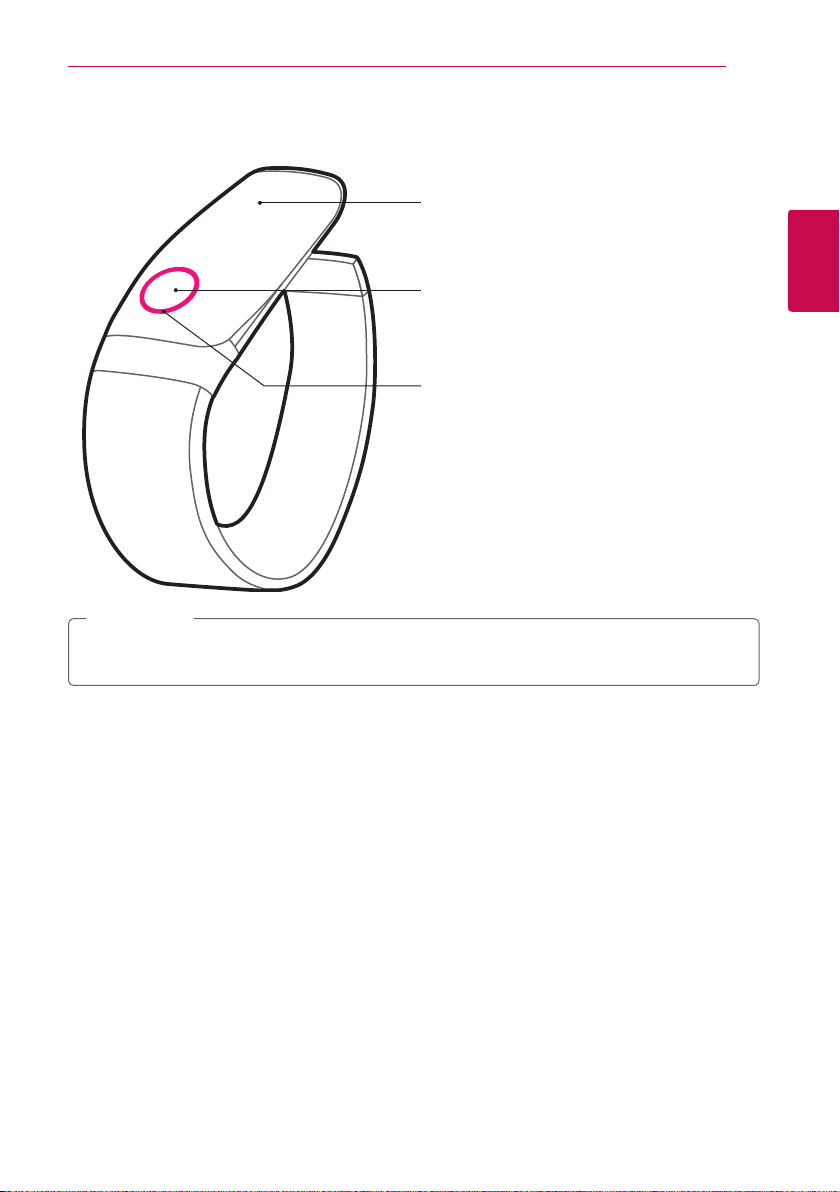
Display:
Shows detailed information. Swipe left or right
and touch to select an item.
Menu button:
Holding down or pressing the Menu button will
allow you to access dierent menu functions.
LED:
Shows information such as Goal achievement
rate.
When powering on the LG Lifeband Touch for the rst time, press and hold the Menu button for 2
seconds.
,
Note
Using the LG Lifeband Touch12
Using the LG Lifeband Touch
2
Charging battery
Using the USB gender
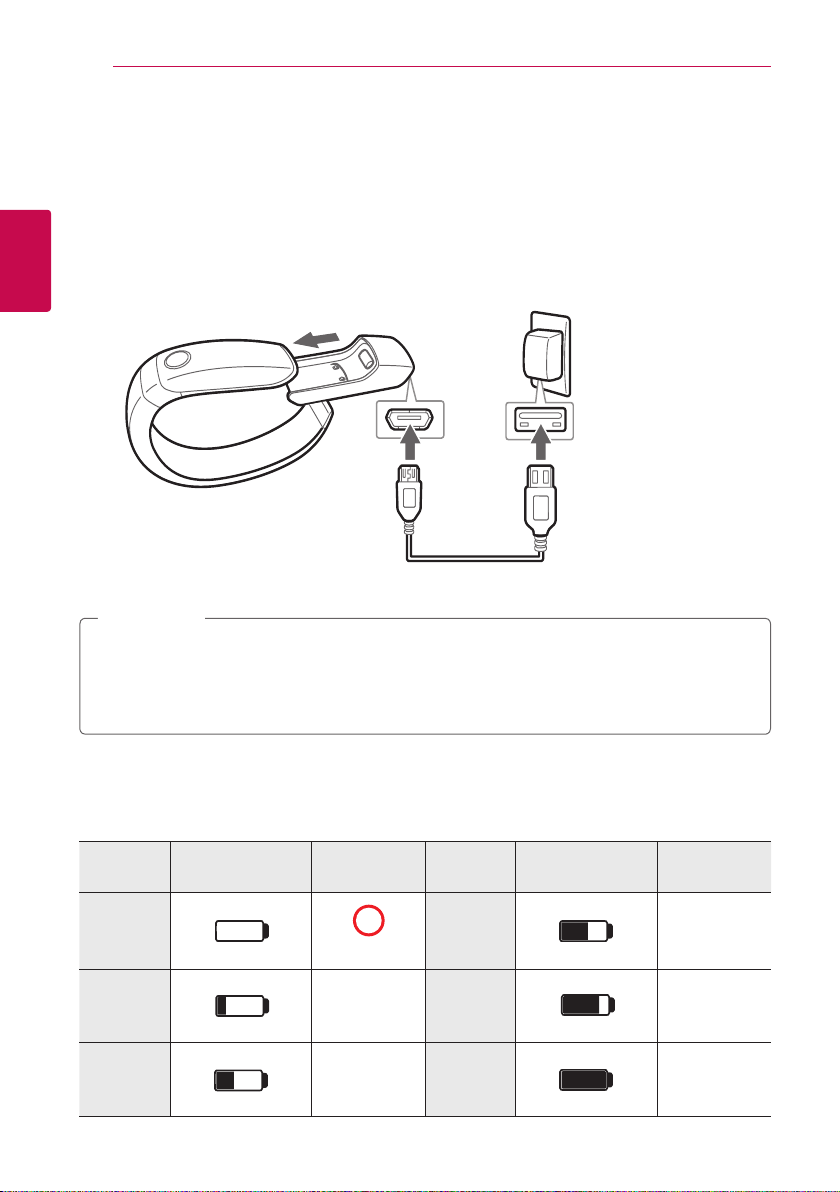
You can charge LG Lifeband Touch using the USB gender.
1. Connect the USB gender to LG Lifeband Touch.
2. Connect the USB cable to the USB gender.
3. Connect the USB cable to the adapter.
AC Adapter
is not
supplied.
a
b c
4. Battery starts charging and the device shows battery indicator.
�
Fully charge the device before using for the rst time or after long period of non-use.
�
The battery can be charged even if LG Lifeband Touch is connected to PC using the USB cable.
�
To charge this product, you must always use a AC 5 V, 100 mA or more. Certied /Listed Adapter
which complies with LPS.
,
Note
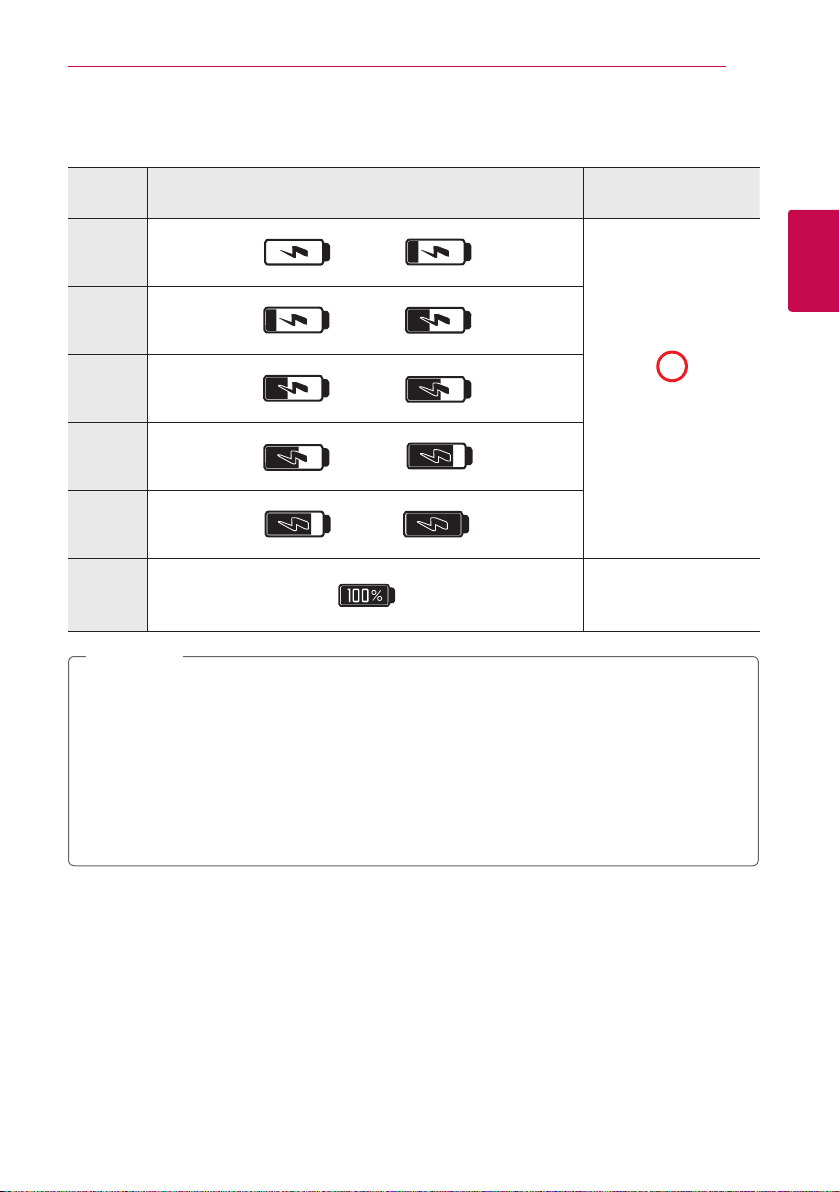
Checking battery status
1. Press Menu button to select Time mode.
2. Swipe the screen in Time mode to check remaining battery.
Battery
Status
Battery indicator LED indicator
Battery
Status
Battery indicator LED indicator
Less than
10 %
Red / Blinks.
Less than
60 %
-
Less than
20 %
-
Less than
80 %
-
Less than
40 %
-
more than
81 %
-
Using the LG Lifeband Touch 13
Using the LG Lifeband Touch
2
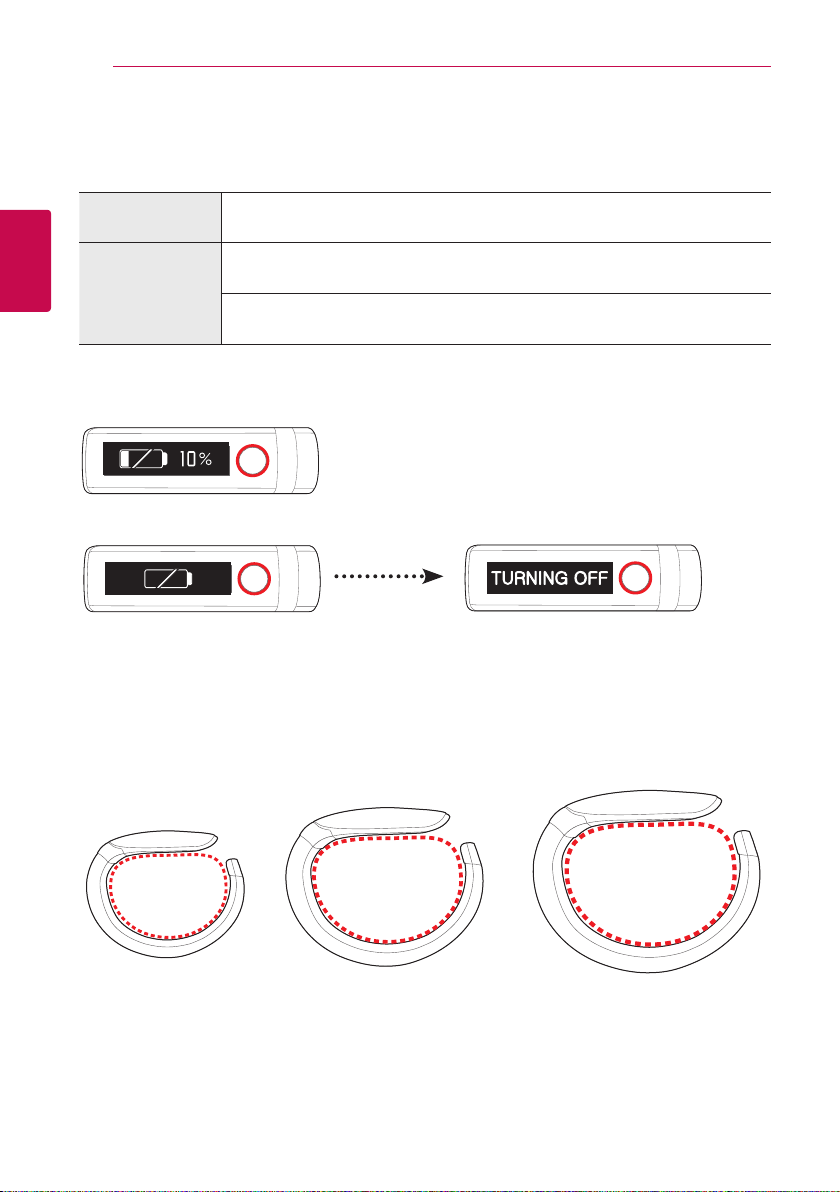
Checking battery charging status
Check Battery icons on the displays as below during charging.
Battery
Status
Battery indicator LED indicator
Less than
20 %
/
Red / Turned on during
charging.
Less than
40 %
/
Less than
60 %
/
Less than
80 %
/
Less than
99 %
/
Charged LED o
�
LED indicator blinks when battery is low. Please charge.
�
LG Lifeband Touch automatically turns o when the battery is empty.
�
Fully charge the device before using for the rst time or after long period of non-use.
�
If you use USB HUB, the battery may not be charged.
�
Operating temperature of LG Lifeband Touch is -15 °C ~ 45 °C (5 °F ~ 113 °F). The battery capacity
may decrease if you use in too high or low temperature.
�
If the temperature is too low or high, the device may not be charged, charge again at the room
temperature. (10 °C ~ 45 °C (50 °F ~ 113 °F))
,
Note
Using the LG Lifeband Touch14
Using the LG Lifeband Touch
2
14
Battery charging time and average battery usage time
Battery charging time and average battery usage time may vary depending on the battery charging
status, operational status and environment conditions.
Battery charging
time
3 hours to fully charge battery
Average battery
usage time (when
fully charged)
If the smartphone is not connected (when the Bluetooth is disconnected) :
approximately 5 days
If the smartphone is connected :
approximately 2 days (when the Bluetooth is connected)
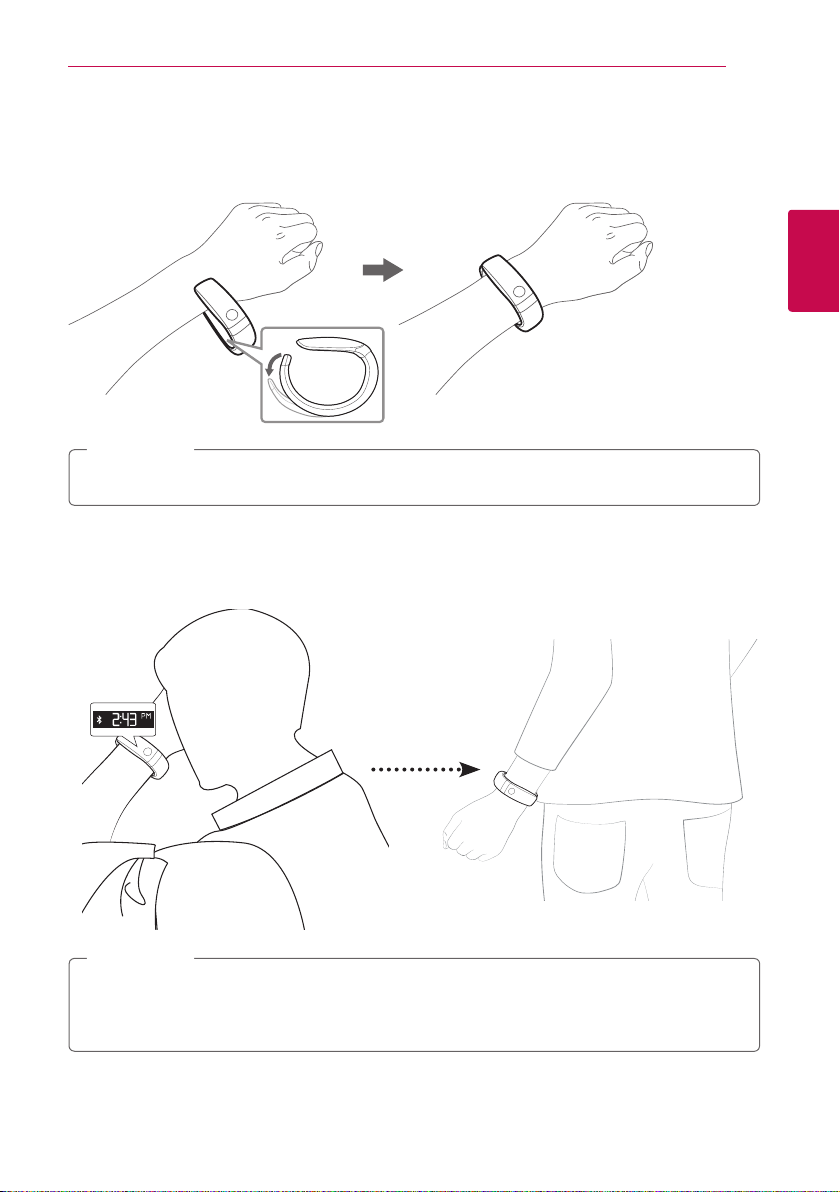
Low Battery Warning
LED blinks red when remaining battery is less than 10%.
LG Lifeband Touch is turned o with [TURNING OFF] message when the battery is empty.
Choose your size
LG Lifeband Touch’s size is dierent depending on the model. Please check before purchasing.
You can choose the size of LG Lifeband Touch to t your wrist.
Circumference
166 mm
(6.5 inches)
Circumference
181 mm
(7.1 inches)
Circumference
196 mm
(7.7 inches)
FB84-BM,SM,RM FB84-BL,SL,RL FB84-BX,SX,RX
Using the LG Lifeband Touch 15
Using the LG Lifeband Touch
2
15
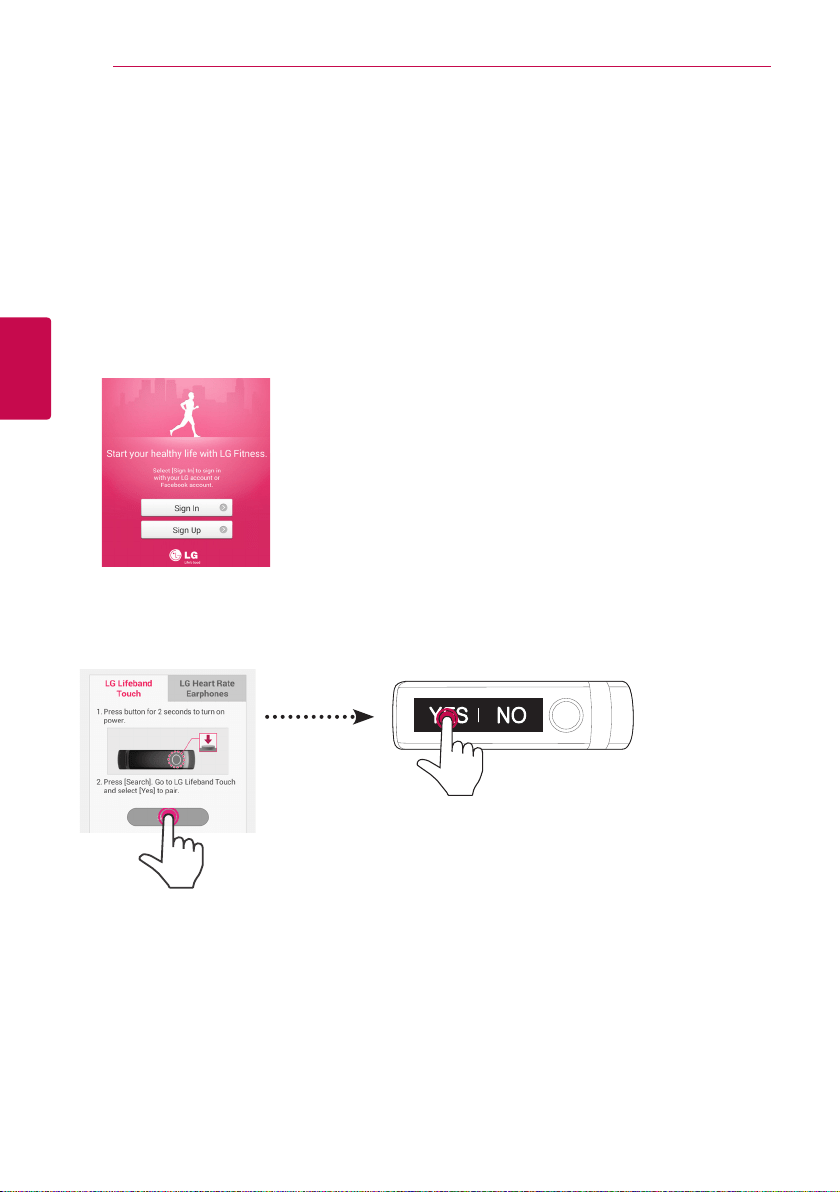
Wearing the LG Lifeband Touch
Stretch the tip of the band and slide it on to your wrist. Face the open end towards the outside for a
more comfortable t.
Do not bend or open excessively. The product may be damaged.
,
Note
Using Gesture function
Make a gesture as if to look at the watch after wearing LG Lifeband Touch. The screen turns on
automatically. The screen turns o when you bring your arm down.
You can set [Automatic screen on/o] in [More
/
LG Lifeband Touch Settings] on LG Fitness app.
Refer to the description about Enable Gestures function on LG Lifeband Touch settings. (Refer to
page 41.)
,
Note
Starting the LG Lifeband Touch App16
Starting the LG Lifeband Touch App
3
Device registration and sign up
Step 1 Installing the LG Fitness app
1. Search for “LG Fitness” in Play Store (Android phone) or App Store (iPhone).
2. Install “LG Fitness” app.
Step 2 Device registration
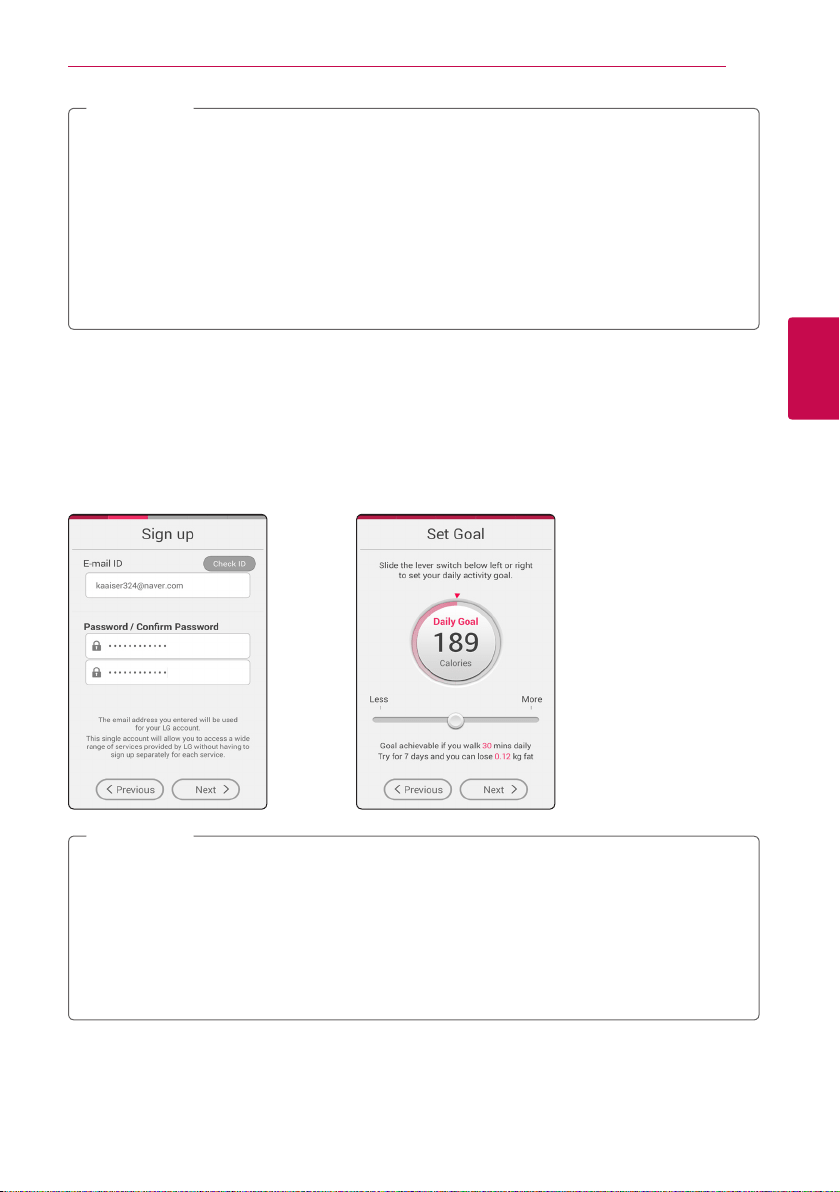
1. Run the “LG Fitness” app.
2. Touch [Sign Up] in the screen.
Select [Sign In] if you have already signed up or want to log in with your facebook ID.
3. Set Bluetooth setting to “Enable” or “On” before searching for the device.
4. Be sure that LG Lifeband Touch and Bluetooth are turned on and select [Search] of [LG Lifeband
Touch] tab on the LG Fitness app.
5. [Pairing?
/
YES | NO] appears on the screen. Touch [YES].
6. Once the device registration is complete, [Paired] appears on the screen.
Starting the LG Lifeband Touch App 17
Starting the LG Lifeband Touch App
3
�
The way of Bluetooth setting may dier depending on the smartphone manufacturer.
�
To connect with the smartphone, touch [YES] within 10 seconds. In case that the connection has
failed, repeat step 4 and step 5.
�
When using Bluetooth® technology, you have to make a connection between the LG Lifeband
Touch and the smartphone as close as possible and keep the distance.
�
Bluetooth uses the same frequency as some industrial, scientic, medical, and low power
products and interference may occur when making connections near these types of products.
�
LG Electronics is not responsible for the loss, interception, or misuse of data sent or received via
the Bluetooth feature.
,
Note
Step 3 Sign Up
* Enter each of the items and select [Next] to go to next page.
1. Select the country and agree with terms and conditions.
2. Enter the email ID and password to use.
3. Enter your gender, birthday, height and weight.
4. Set your Daily goal.
�
You can change daily goal on [Home] or [More] whenever you want.
�
Once you select the country, It can not be changed without reinstallation of the App when you
sign up for LG Fitness app account. To change your email adress and the country, reinstall the app
after uninstalling.
�
LG Electronics have no responsibility for the service quality or legal issues in case that the country
you selected diers from the country you use the device in.
�
If you do not agree with terms and conditions, service is limited.
,
Note
Starting the LG Lifeband Touch App18
Starting the LG Lifeband Touch App
3
18
Reconnecting Bluetooth
�
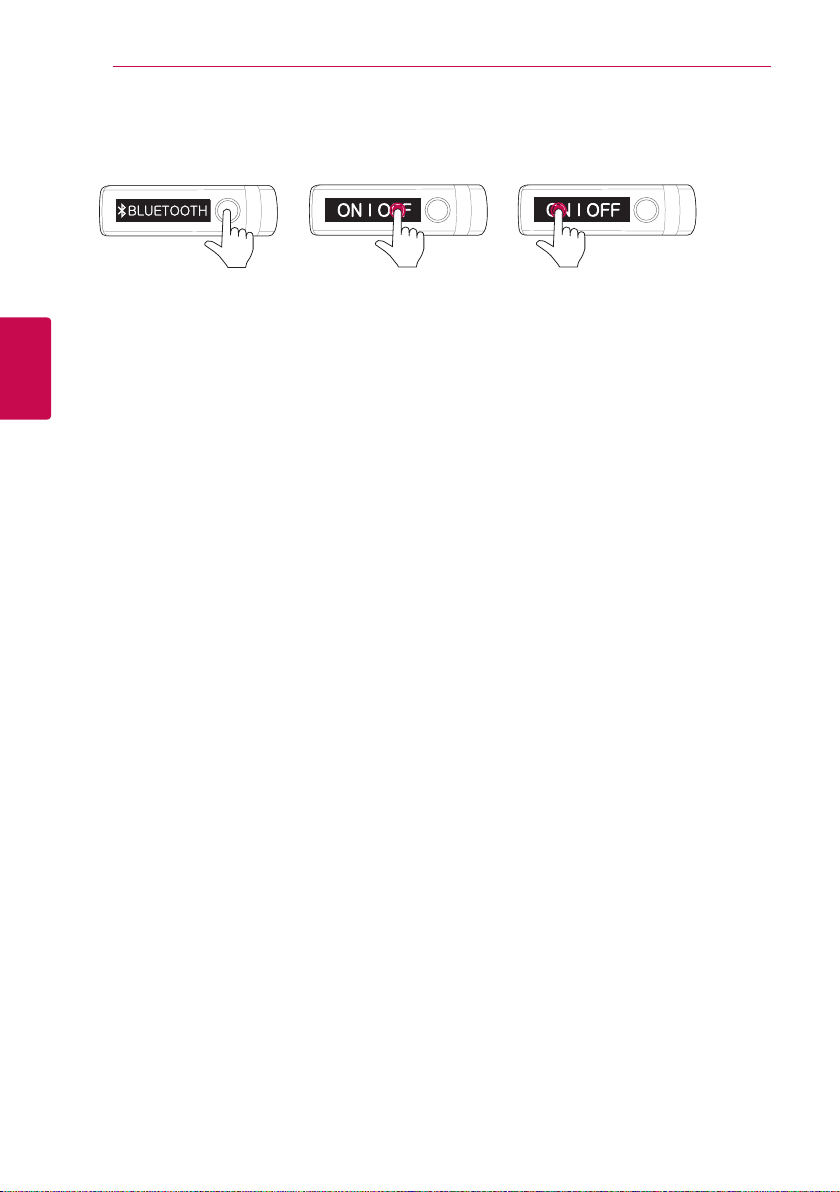
To reconnect to the smartphone, turn Bluetooth setting [OFF] and [ON] again by pressing and holding
for 2 seconds the Menu button when the app is running.
/
/
�
Pairing is kept even if the Bluetooth connection on your smartphone is turned o and on again.
Operating the LG Lifeband Touch 19
Operating the LG Lifeband Touch
4
19
Check the function of the button
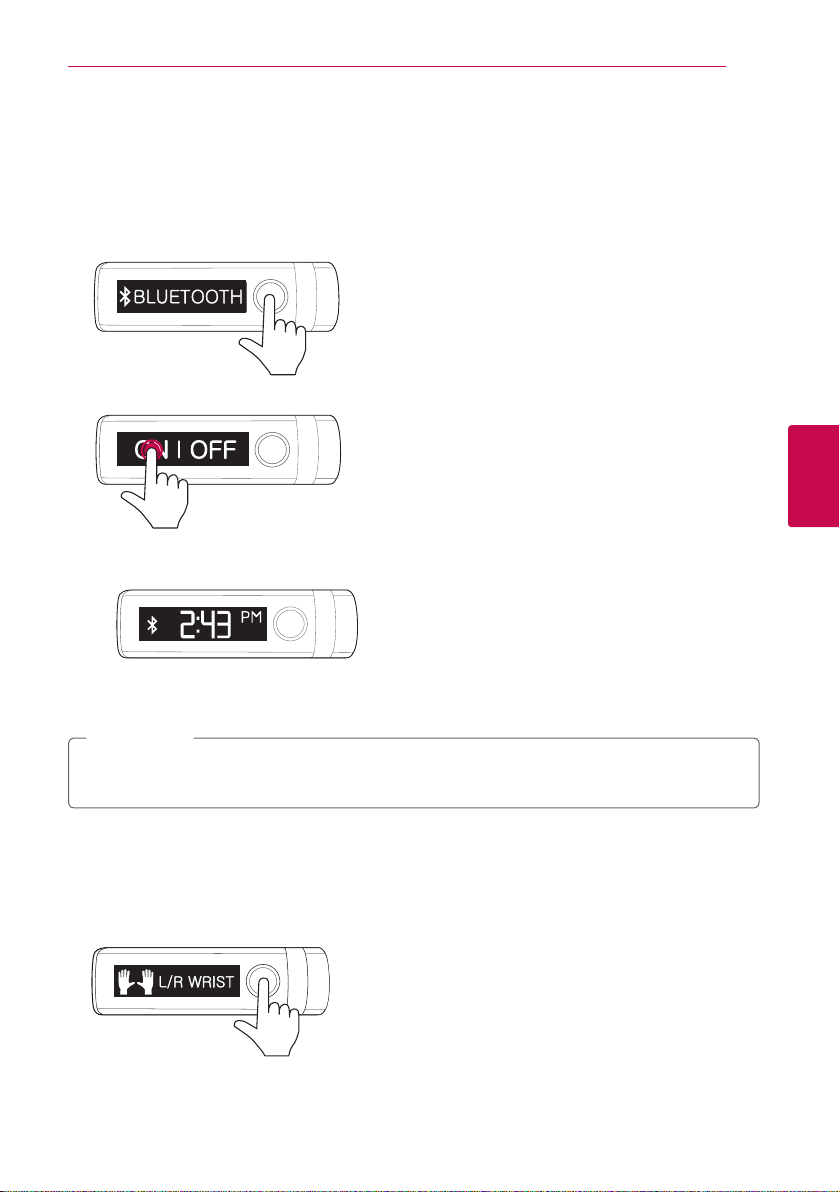
Bluetooth connection setting
1. Press and hold Menu button for 2 seconds after turning on the LG Lifeband Touch.
2. [BLUETOOTH] appears with rst vibration.
3. Touch [ON] or [OFF] on the screen.
�
To connect LG Lifeband Touch with your smartphone, select [ON]. Bluetooth icon appears on the
display when the device is connected with the smartphone.
�
To use LG Lifeband Touch without connection to your smartphone, select [OFF].
(Use for battery saving)
When you purchase and rst turn on LG Lifeband Touch, Bluetooth is already turned on and is ready
to pair with a smartphone.
,
Note
Select Orientation (Left or Right)
Measurement algorithm and on-screen display is optimized according to dierent orientation.
1. Press and hold the menu button for 4 seconds after turning on the LG Lifeband Touch.
2. [L/R WRIST] mode appears with the second vibration.
Operating the LG Lifeband Touch20
Operating the LG Lifeband Touch
4
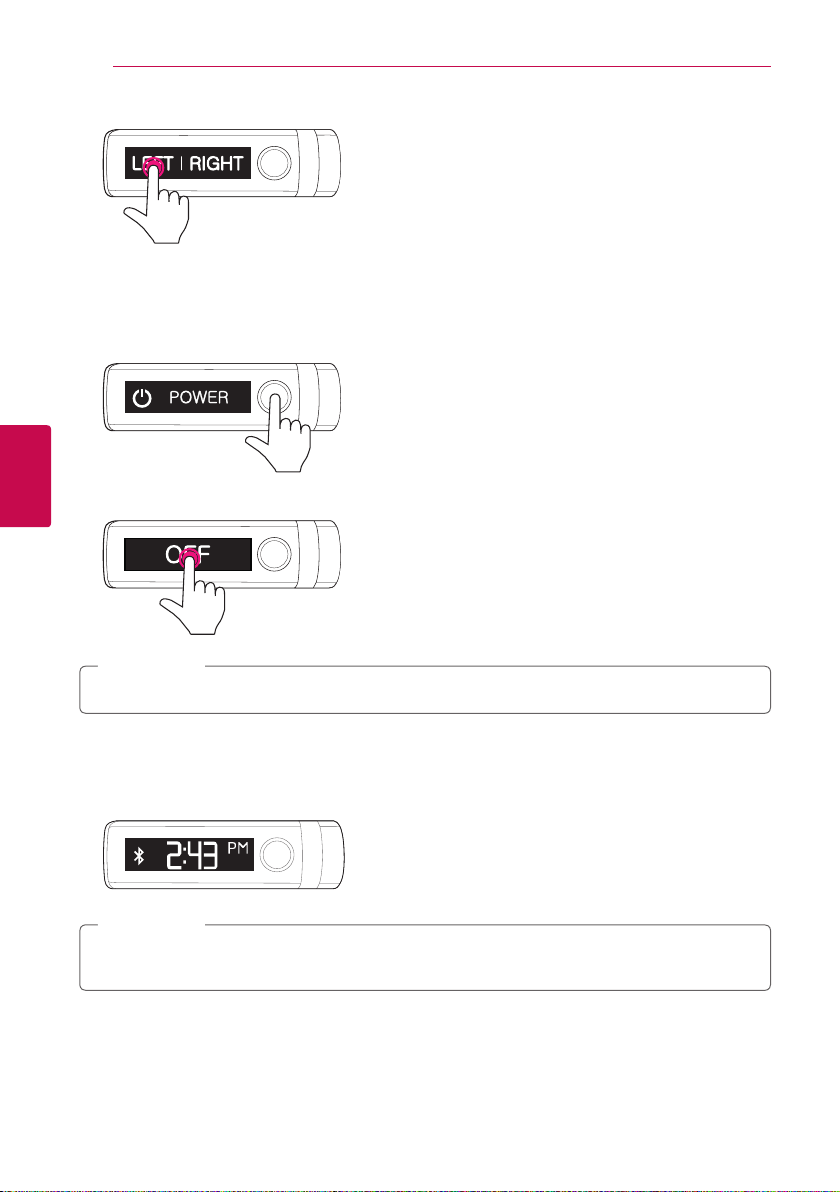
3. Touch [LEFT] or [RIGHT] on the screen.
Turning off power
1. Press and hold Menu button for 6 seconds after turning on the LG Lifeband Touch.
2. [POWER] mode appears with third vibration.
3. Touch [OFF] on the screen to turn o the power.
Press and hold the menu button for 2 seconds to turn on LG Lifeband Touch.
,
Note
Auto Restarting
In case there is an error and device stops functioning, press and hold the menu button for about 10
seconds.
The clock screen and saved data remains even if the device restarts and synchronizing automatically
starts.
,
Note

Operating the LG Lifeband Touch 21
Operating the LG Lifeband Touch
4
OLED touch display information
Changing the mode
Press the menu button to turn screen on.
Press the menu button again to navigate through 3 types of modes.
Display
Time mode
Activity mode
Music Control mode
�
LG Lifeband Touch should be connected to your smartphone at least once to display Time and
date.
�
LG Lifeband Touch should be connected to your smartphone via Bluetooth to control the Music.
,
Note
Operating the LG Lifeband Touch22
Operating the LG Lifeband Touch
4
Mode Overview
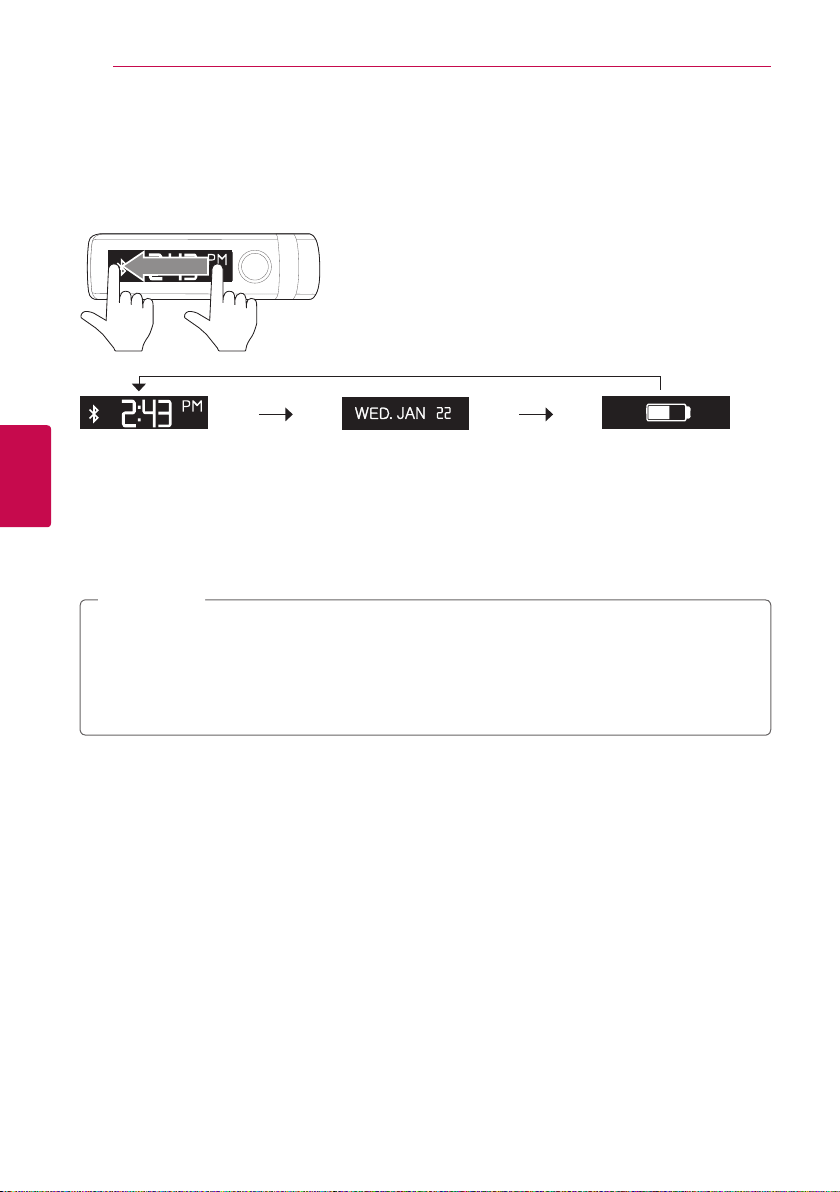
Time mode
To change modes, swipe the display screen.
DateTime
Battery life
�
Time: It displays time. The alarm icon appears if you set an alarm on the LG Fitness app.
The Bluetooth icon appears if LG Lifeband Touch is connected to your smartphone via Bluetooth.
�
Date: It displays today’s day and date.
�
Battery life: It displays remaining battery life. For more detail, refer to Checking battery status.
(Refer to page 12.)
�
Swipe screen in opposite direction to see modes in reverse order.
�
LG Lifeband Touch should be connected to your smartphone at least once to display time and
date.
�
You can change the time display format setting displayed on LG Lifeband Touch On LG Fitness
app. [Run the App
/
More
/
LG Lifeband Touch settings] (Refer to page 41.)
,
Note
Operating the LG Lifeband Touch 23
Operating the LG Lifeband Touch
4
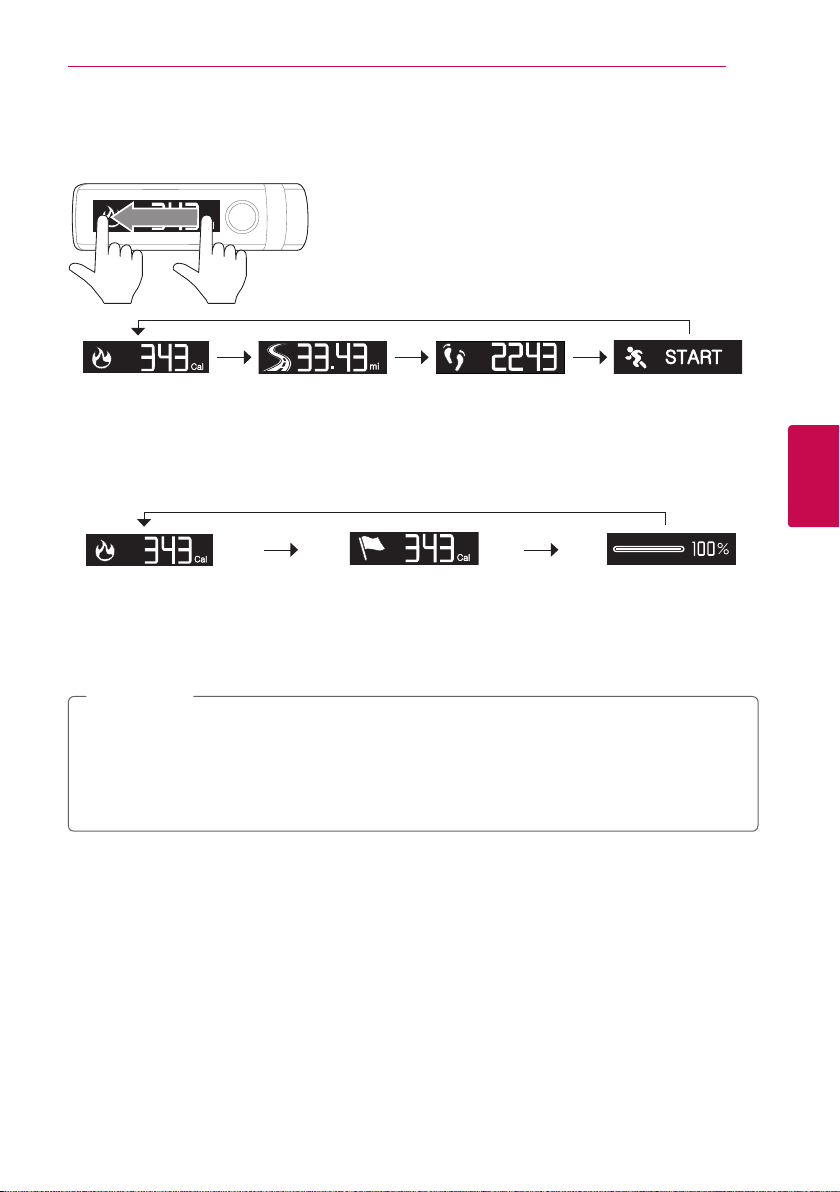
Activity mode
To move to Total burned calories / Goal burned calories / Goal achievement rate, Total distance, Number
of steps or [START] of Workout, swipe the screen. Touch [START] to start Workout.
Total distance Workout
Total burned calories /
Goal burned calories /
Goal achievement rate
Number of steps
�
Total burned calories / Goal burned calories / Goal achievement rate :
To display your Goal burned calories or Goal achievement rate, touch the screen in the Total burned
calories repeatedly.
Goal burned calories Goal achievement rateTotal burned calories
�
Total distance: Shows today’s total distance so far.
�
Number of steps: Shows today’s total step so far.
�
Workout: To start workout (Interval measurement), touch [Start].
�
Swipe screen in opposite direction to see modes in reverse order.
�
You can change your Daily Goal in LG Fitness app. [Run the app
/
Home
/
Change Goal].
(Refer to page 36.)
�
LG Lifeband Touch’s LED color is changed depending on the goal achievement rate. Refer to LED
Indications. (Refer to page 34.)
,
Note

Operating the LG Lifeband Touch24
Operating the LG Lifeband Touch
4
Music control mode
You can control the volume of the music in your smartphone connected via Bluetooth
on the LG Fitness app.
To change the display items in a mode, swipe the display screen.
Forward or Backward Volume Up or
Down
Play or Pause
�
Play or Pause: Press to play or pause.
�
Forward or Backward: Press to play previous or next music.
�
Volume Up or Down: Controls the volume level of the music being played.
�
Swipe screen in opposite direction to see modes in reverse order.
�
To control the music, your smartphone should be connected via Bluetooth.
�
To control the music with LG Lifeband Touch, check [Music control user settings] on LG Fitness
app.(Refer to page 41.)
�
On the LG Fitness app, you can select and play the music you want to listen when you workout.
[Run the App
/
Home
/
Music selection], [Run the App
/
Workout
/
Listening
music] (Refer to page 35 and 39.)
�
You can only control the general music player on the smartphone.
,
Note
Operating the LG Lifeband Touch 25
Operating the LG Lifeband Touch
4
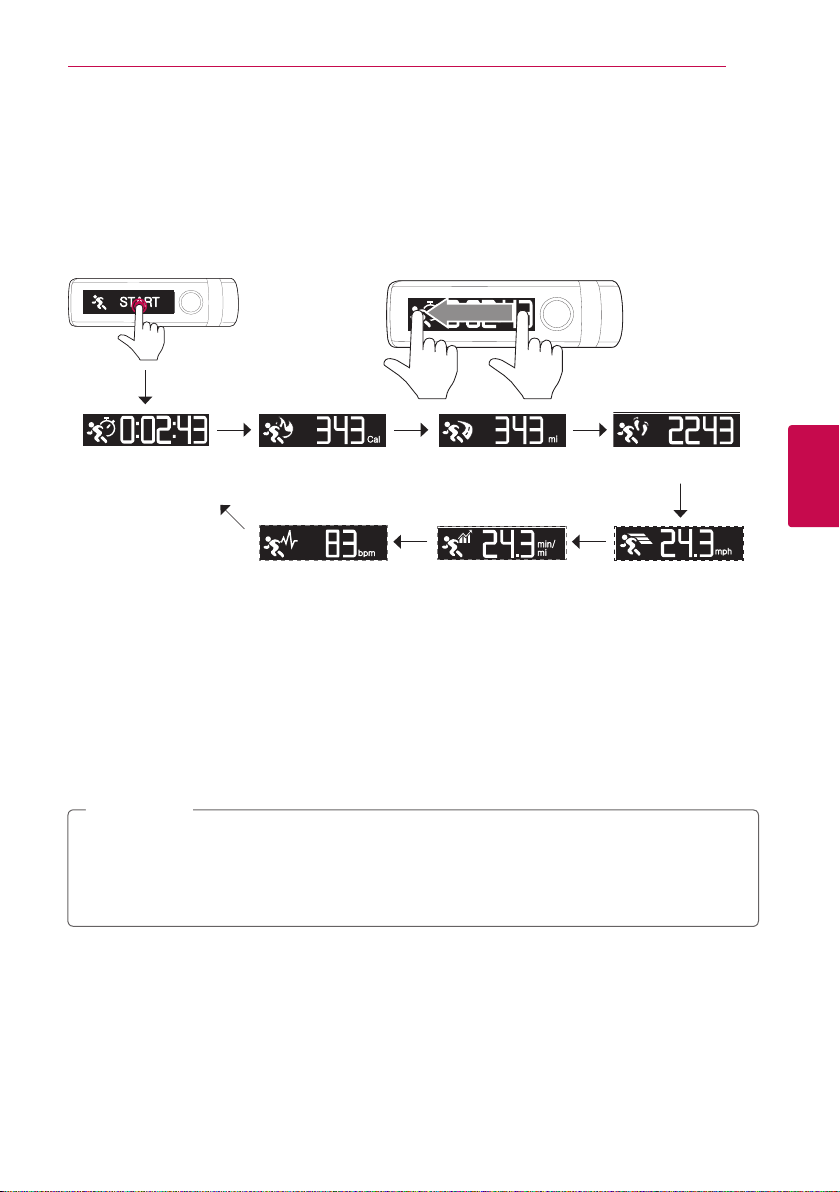
Using Workout
You can check various workout information in Workout mode.
1. Press Menu button to select Activity mode.
2. Swipe the screen on the Activity mode to select [START].
3. Touch [START] to start Workout.
To check the various workout information, swipe the display screen.
4. Once Lifeband Touch is connected to the mobile app, start workout mode to begin.
Number of steps
Speed
Calories
Heart Rate
Distance
Pace
Time
�
Time: Shows total workout time.
�
Calories: Shows total burned calories during workout.
�
Distance: Shows total workout distance.
�
Number of steps: Shows total workout steps during workout.
�
Speed: Shows instantaneous speed during workout.
�
Pace: Shows current pace during workout.
�
Heart Rate: Shows current heart rate during workout. The heart rate measuring device should be
connected via Bluetooth to measure the heart rate.
�
Swipe screen in opposite direction to see modes in reverse order.
�
The workout is stopped automatically 10 hours after starting.
�
The display setting such as speed, pace and heart rate is available on LG Fitness app. [Run the
App
/
More
/
LG Lifeband Touch settings] (Refer to page 41.)
,
Note
Operating the LG Lifeband Touch26
Operating the LG Lifeband Touch
4
}
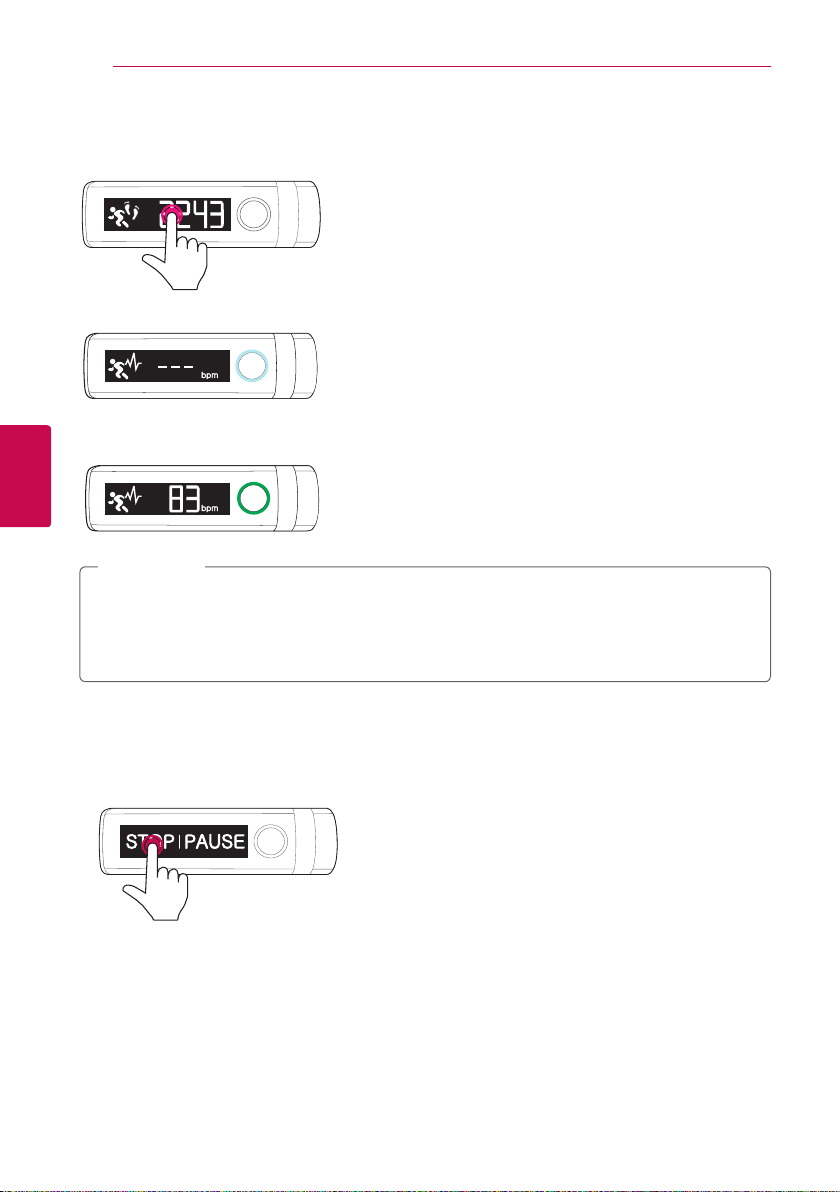
Short cut to the workout heart rate screen
You can jump to the workout heart rate screen from workout information screen.
1. Touch and hold the screen In the Workout menu.
2. Light Blue LED blinking means that your heart rate is being measured.
3. When measurement is completed, the current heart rate is displayed on the screen, and the heart
rate zone is displayed on LED.
�
On LG Fitness app, You can decide whether the heart rate should be displayed or not. [More
/
LG Lifeband Touch settings] (Refer to page 41.)
�
Short cut to the workout heart rate screen is available in only Workout mode.
�
The heart rate measuring device should be connected via Bluetooth to measure the heart rate.
,
Note
}
Exit from the Workout mode
Exits from the Workout mode and returns to the Activity mode.
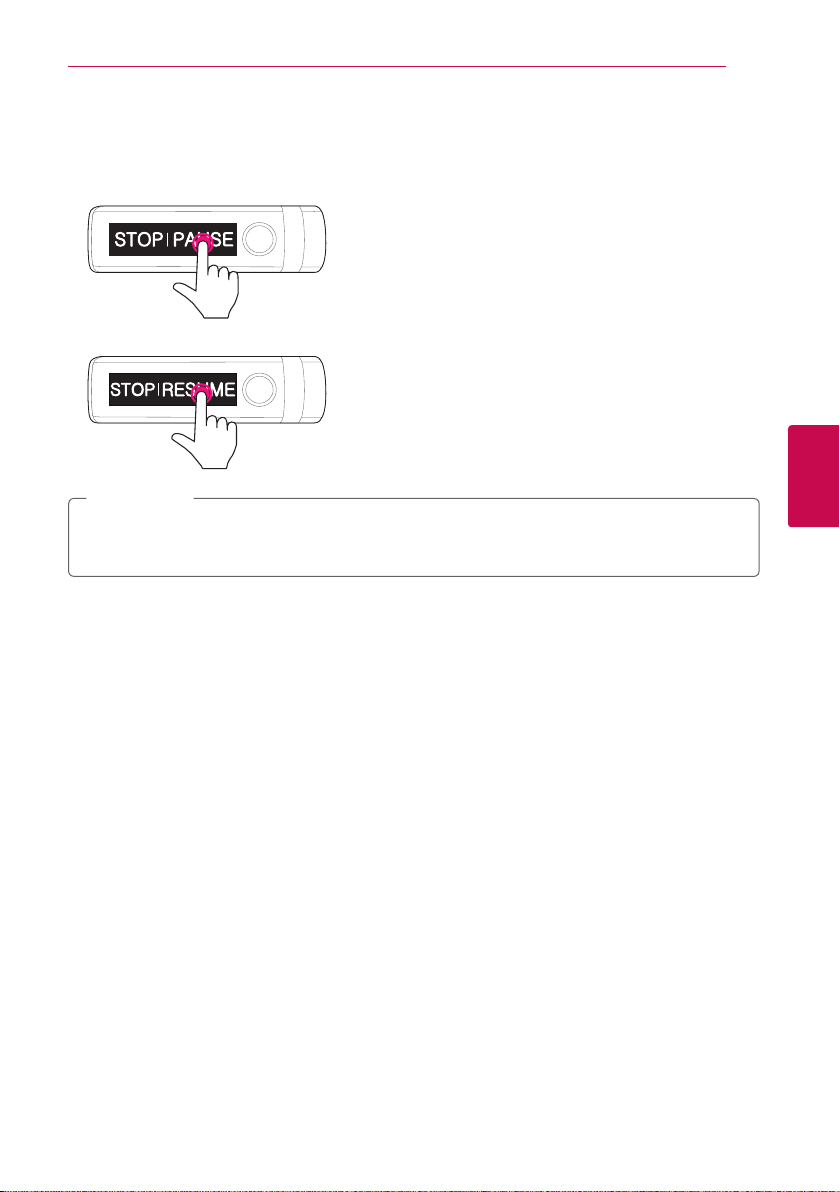
1. [STOP PAUSE] appears when you touch or cover the screen with your hand in workout mode.
2. To complete Workout mode, touch [STOP].
Operating the LG Lifeband Touch 27
Operating the LG Lifeband Touch
4
}
Pause and resume Workout
You can pause and resume the workout mode.
1. [STOP PAUSE] appears when you touch or cover the screen with your hand in workout mode.
2. To pause Workout mode, touch [PAUSE].
3. To resume to Workout mode after pausing Workout mode, touch [RESUME].
�
[STOP PAUSE] disappears if you don’t select the button within 3 seconds.
�
The measurement continues even while [STOP PAUSE] is being displayed.
,
Note
Operating the LG Lifeband Touch28
Operating the LG Lifeband Touch
4
Alert
LG Lifeband Touch provides a multitude of notications: incoming calls, text messages, personal alarm
clock, goal achievement, bluetooth connection, and battery status.
LG Lifeband Touch should be connected to your smartphone via Bluetooth to check Alert function.
Checking an incoming call
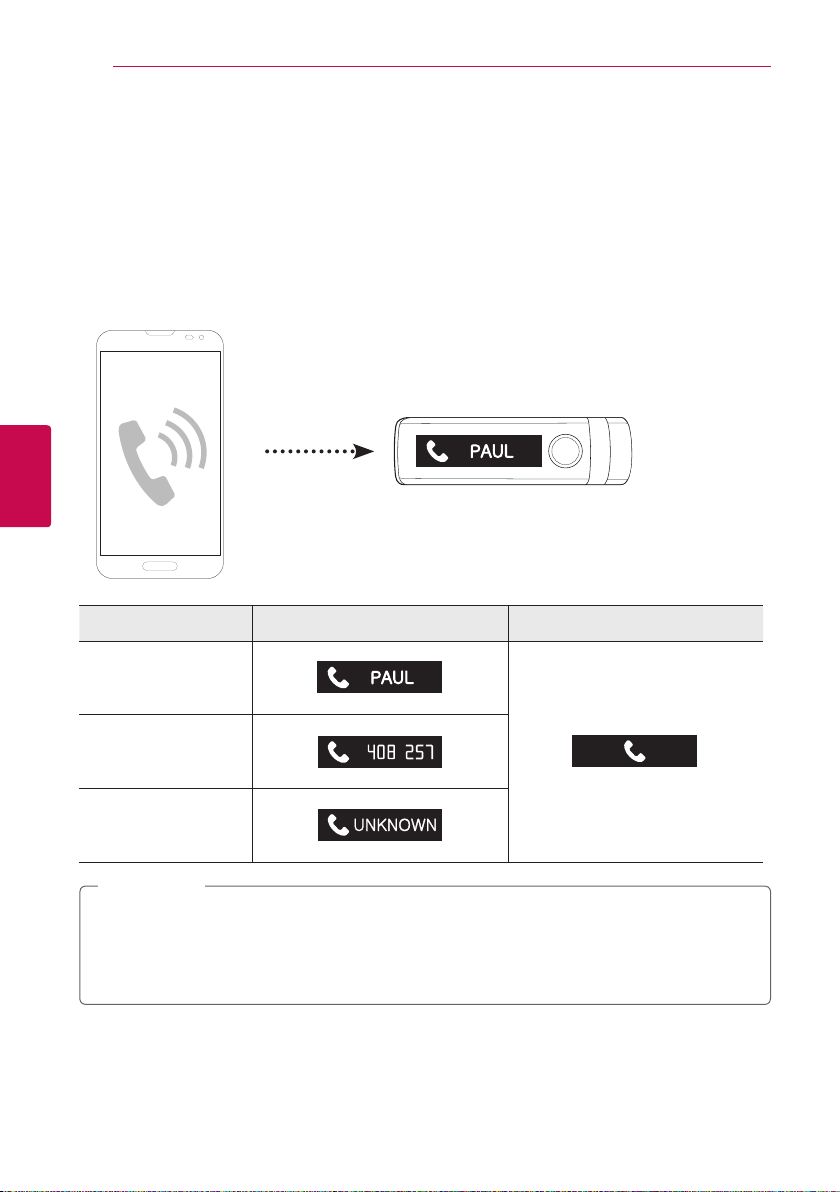
You can be notied of an incoming call using the LG Lifeband Touch.
Sender
Screen (Android phone)
Screen (iPhone)
Registered Caller
Unregistered Caller
Unknown Caller
�
The display shows up to 13 letters, numbers, symbols. In case of Korean, up to 9 letters can be
displayed.
�
In case of iPhone, the caller’s number and information are not displayed.
�
The text used in this function may be replaced with the icon depending on the device or OS.
,
Note
Operating the LG Lifeband Touch 29
Operating the LG Lifeband Touch
4
}
Converting to mute mode(Android only)
Touch or cover the display when receiving a call.
LG Lifeband Touch converts to mute mode automatically.
}
Checking a missed call(Android only)
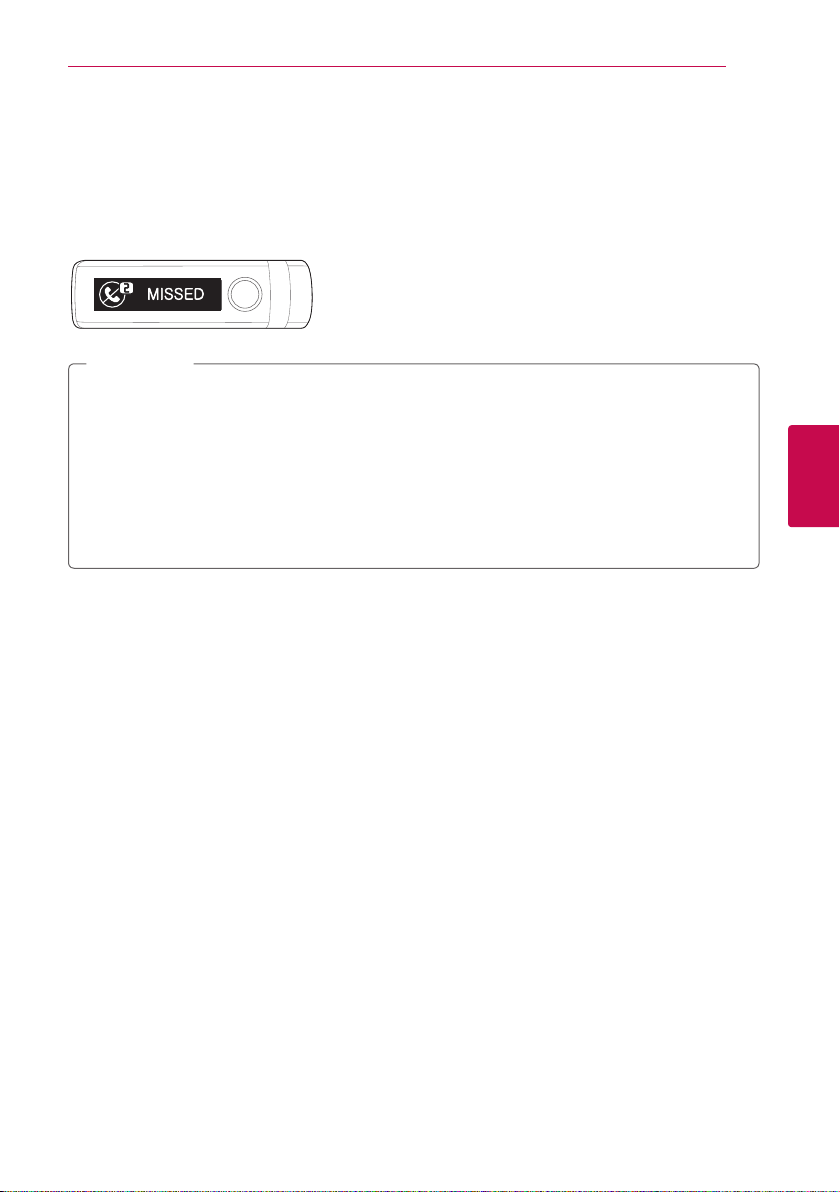
The missed calls are displayed as [MISSED] on LG Lifeband Touch. You can check the information of each
call. The displayed number of the missed call decreases whenever you check the missed call information.
�
If the number of the missed call you have not checked is more than 10, these are displayed as
[MISSED 9+].
�
The missed calls are displayed as [MISSED] on LG Lifeband Touch
�
Touch the screen to see the latest missed call information, and touch the screen again to display
the next missed call information.
�
Press the menu button to delete all missed call information.
�
LG Lifeband Touch does not support handsfree function. You cannot receive or end a call with the
LG Lifeband Touch.
,
Note
Operating the LG Lifeband Touch30
Operating the LG Lifeband Touch
4
Checking the received message (Android only)
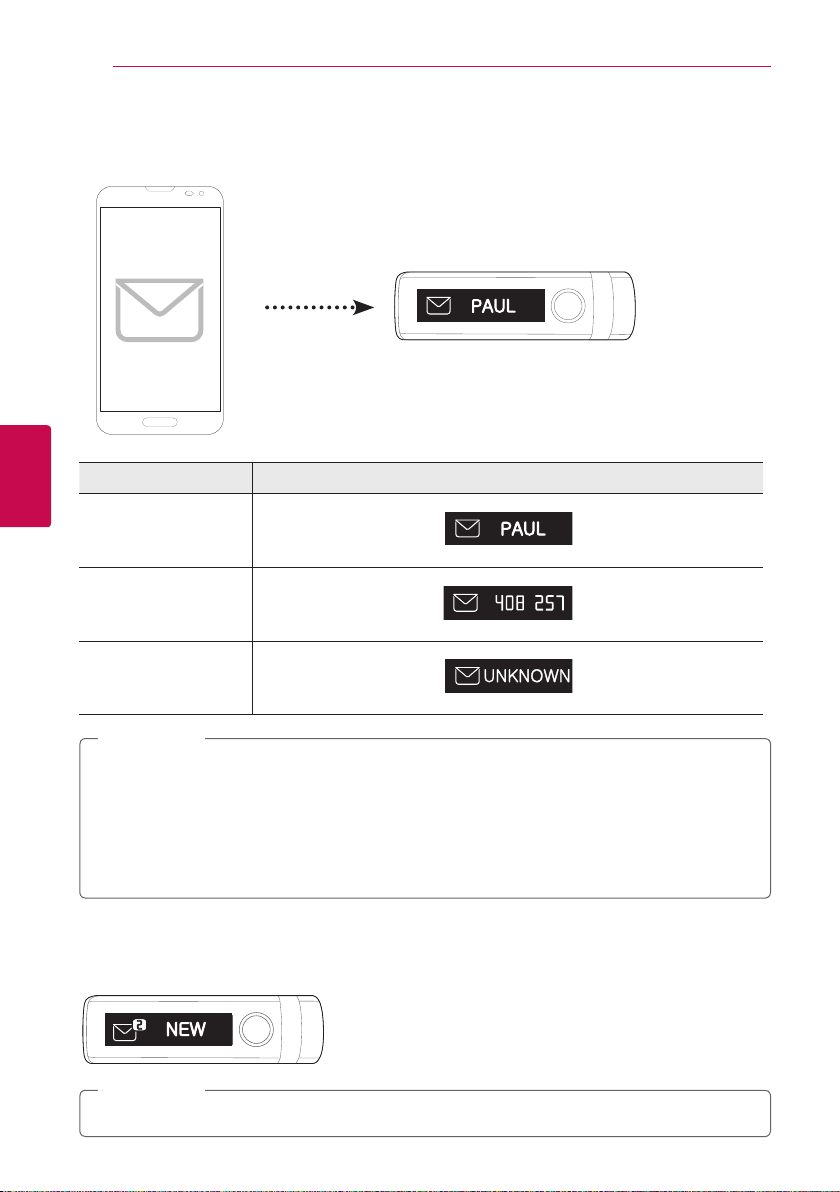
You can check the received message using LG Lifeband Touch. To delete displayed notication, touch
the screen.
Sender Screen
Registered Sender
Unregistered Sender
Unknown Sender
�
The message you have not yet checked by LG Lifeband Touch are displayed on the screen as
[NEW].
�
Touch the display. The latest message or phone number and reception time is displayed. To check
the next message information, touch the screen again.
�
To delete the new messages information, press the menu button.
�
The text used in this function may be replaced with the icon depending on the device or OS.
,
Note
}
Checking new messages
The message you have not yet checked by LG Lifeband Touch are displayed on the screen as [NEW]. You
can check the caller’s number and information. The number behind [NEW] decreases after checking.
[NEW 9+] is displayed when you have more than 10 new messages.
,
Note
Operating the LG Lifeband Touch 31
Operating the LG Lifeband Touch
4
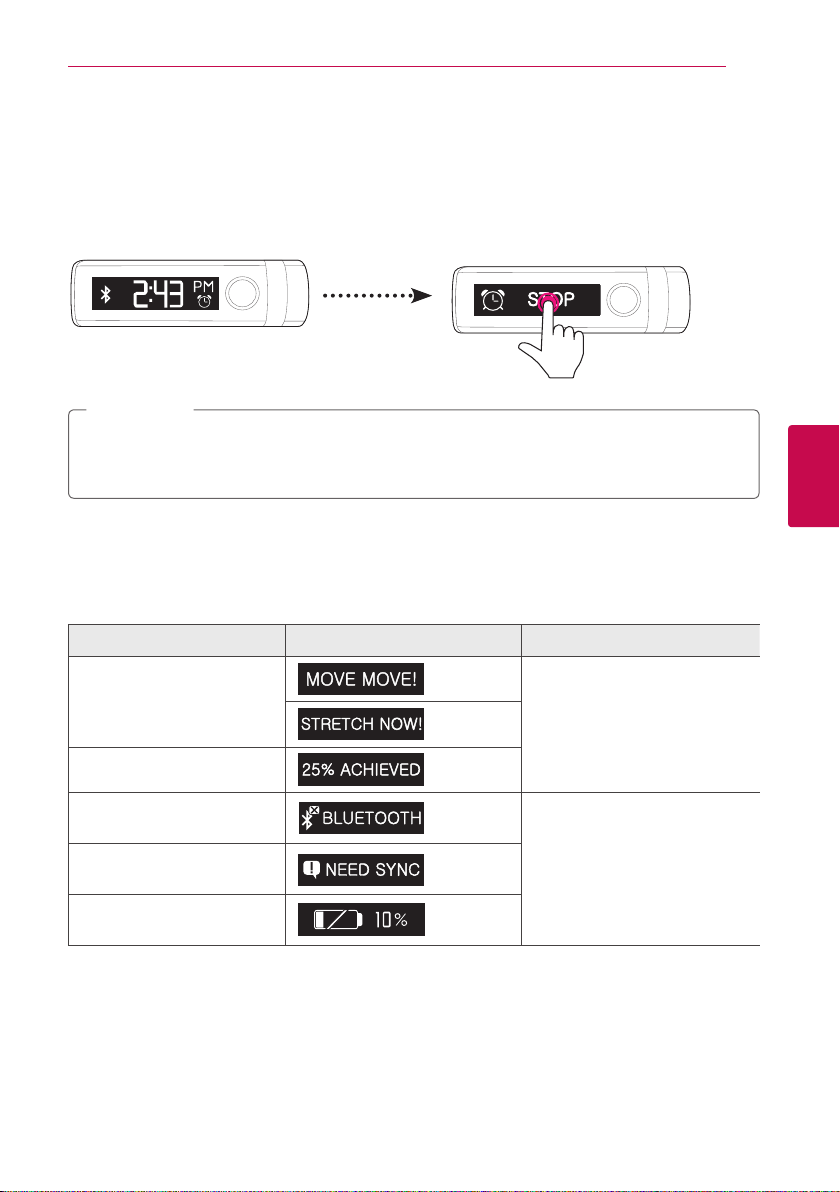
Checking Alarm
You can set the alarm from LG Lifeband Touch on the app.
Go to [More
/
Vibration alarm] on LG Fitness app.
If you touch or cover the screen with your hand when the alarm is ringing, [STOP] appears.
Touch [STOP]. The alarm will turn o.
If you do not turn o the alarm, the snooze function works.
�
Lifeband Touch will vibrate at the time you set the alarm.
�
For more details about setting the alarm, refer to [More
/
Vibration alarm] on LG Fitness app
(Refer to page 42.)
,
Note
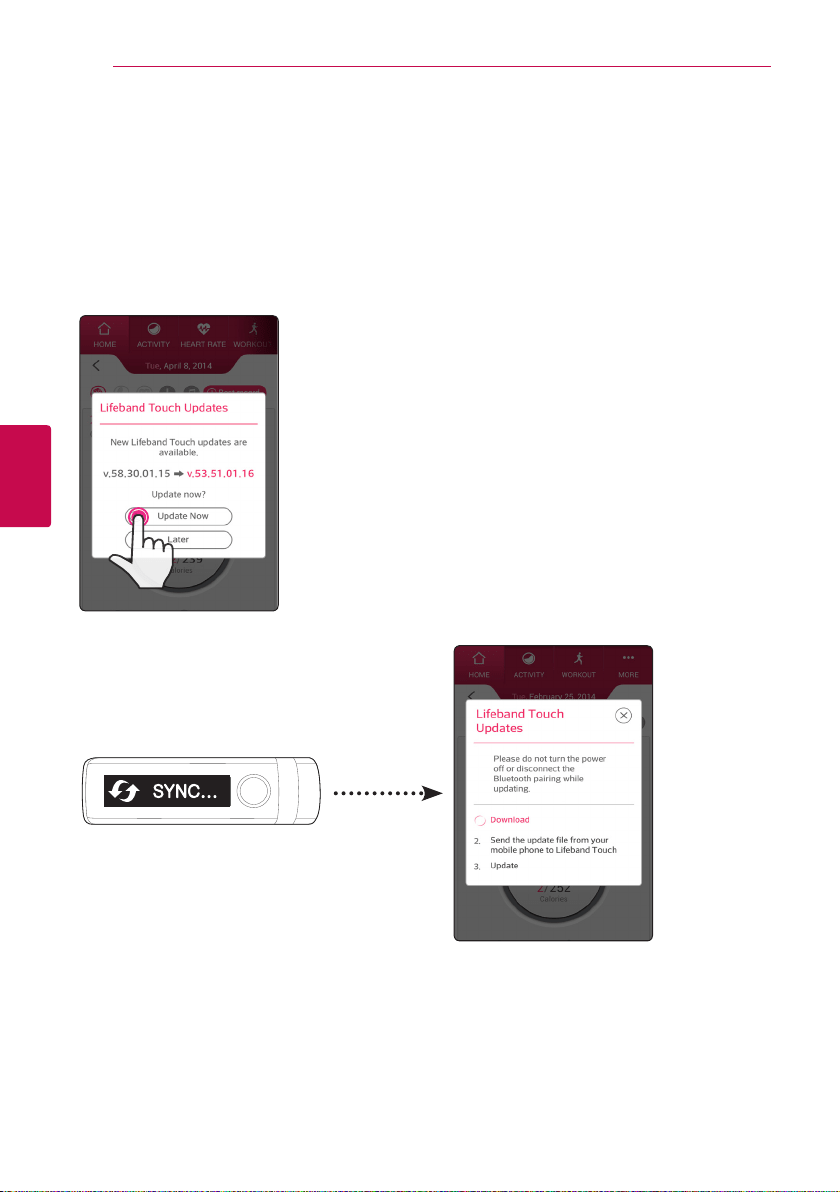
Notification message information
The notications about the activity status, goal achievement, Bluetooth disconnection and battery life
are displayed.
Conditions Notication Vibration
Prolonged sedentary time and
physical activity
Two times short vibration
Goal Achievement
Bluetooth Disconnected
One time long vibration
(Cautionary notice)
Need to sync.
Lack of the battery
Operating the LG Lifeband Touch32
Operating the LG Lifeband Touch
4
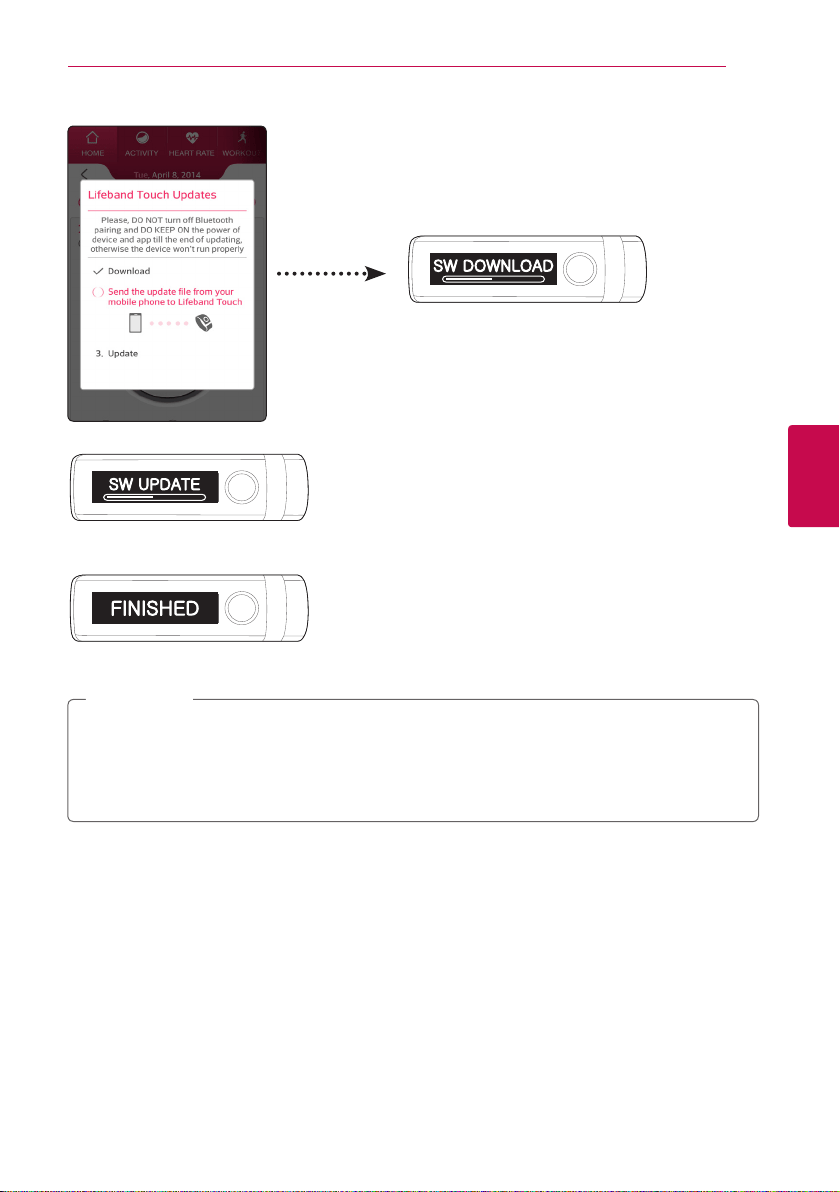
Updating LG Lifeband Touch firmware
An LG Lifeband Touch update will be made available if the rmware is improved or new functions are
added.
When the latest version of rmware is listed on the server, the app informs you that an update of LG
Lifeband Touch is available.
1. [Lifeband Touch Updates] window appears if there is an available update when running the
application.
2. Select [Update Now] to update LG Lifeband Touch.
3. Synchronizes with LG Lifeband Touch and the update le is downloaded from the update server.
Operating the LG Lifeband Touch 33
Operating the LG Lifeband Touch
4
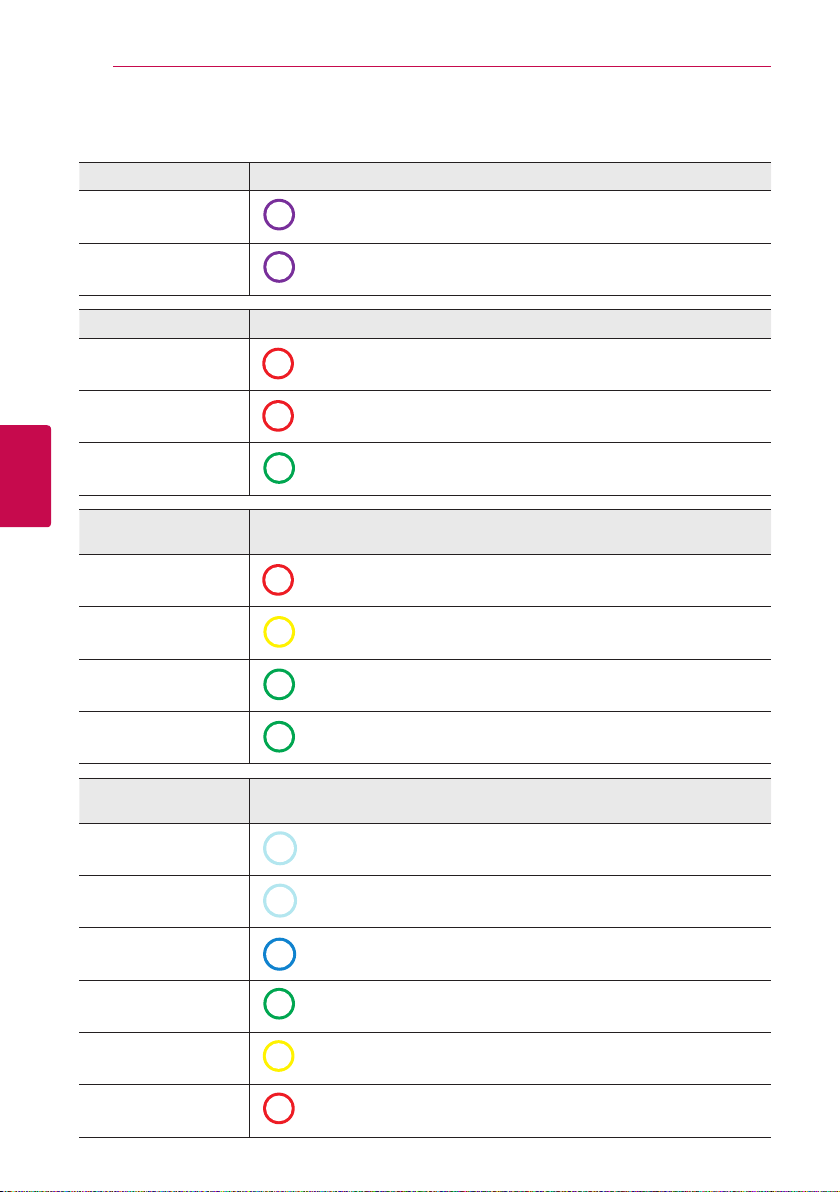
4. The le is transferred to LG Lifeband Touch from your smartphone.
5. The update of LG Lifeband Touch is performed.
6. Once the update is completed, [Finished] appears on display screen of LG Lifeband Touch.
7. Check [Update complete] and touch [Close] to close LG Lifeband Touch update window.
�
You cannot downgrade LG Lifeband Touch to previous version.
�
Do not turn o Bluetooth when updating LG Lifeband Touch. Do not turn o the app forcibly.
�
Internet network should be available to update LG Lifeband Touch.
�
When upgrading your device, be sure to fully charge your smartphone and LG Lifeband Touch.
,
Note
Operating the LG Lifeband Touch34
Operating the LG Lifeband Touch
4
LED Indications
Performance LED indicator
Ready to pair
Violet / Blinks.
Paired
Violet / Fade in and out
Battery LED indicator
Low (less than 10%)
Red / Blinks.
Charging
Red / Turned on dimly.
Charged LED o / When pressing MENU button, Green LED indicator turned
on.
Target Achievement
Rate
LED indicator
1 ~ 50 %
Red / Fade in
51 ~ 80 %
Yellow / Fade in
81 ~ 99 %
Green / Fade in
100 %
Green / Blinks.
Heart rate
measurement
LED indicator
Heart rate is being
measured
Light Blue / Blinks.
Warm Up
Light Blue / Turned on during LED display time.
Endurance
Blue / Turned on during LED display time.
Aerobic
Green / Turned on during LED display time.
Anaerobic
Yellow / Turned on during LED display time.
High intensity
Red / Turned on during LED display time.
5 Using the LG Lifeband Touch App
Using the LG Lifeband Touch App 35
Using the LG Lifeband Touch App
5
How to use LG Fitness app
�
You can check your activity and workout record measured by LG Lifeband Touch.
�
It helps you to manage your activity systematically by oering the hourly activity pattern, activity
distribution and goal achievement progress.
�
It motivates you to workout by informing you whenever you break your personal record.
Home menu
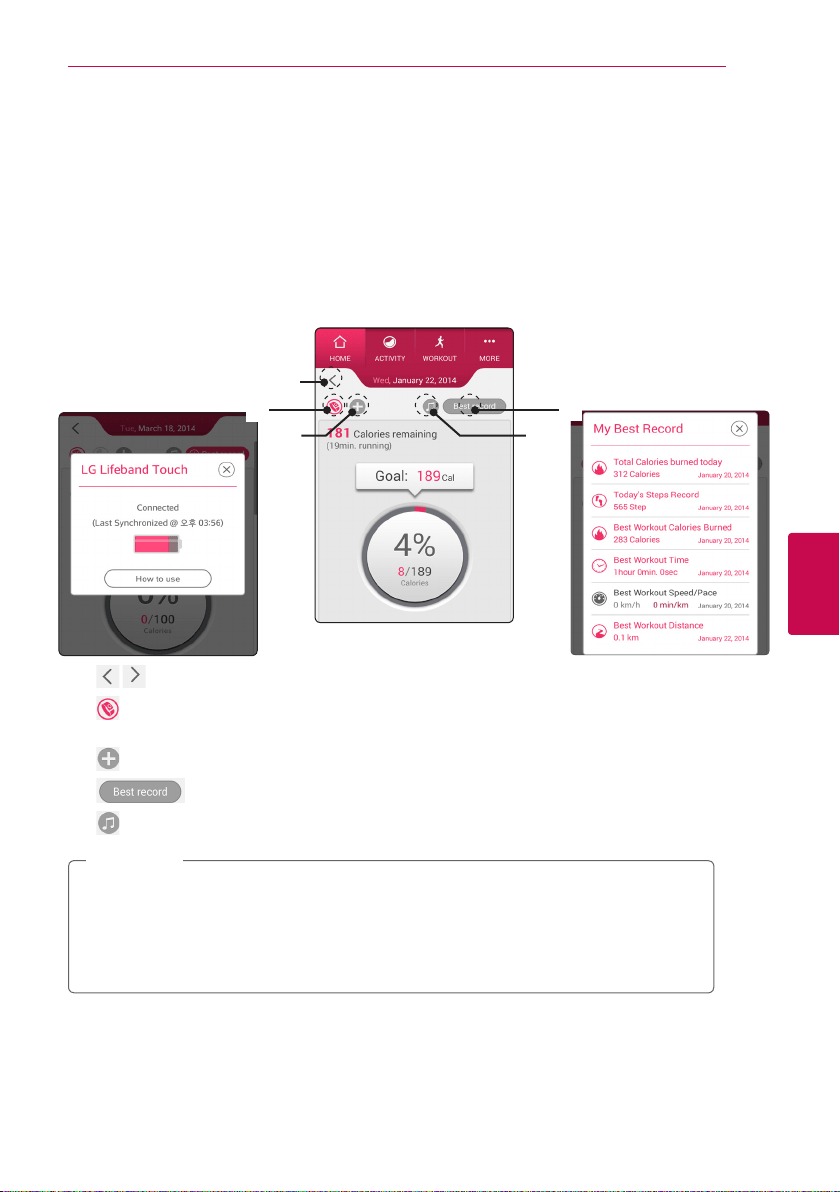
You can check your activity, workout record and total record measured by all of LG Fitness products.
a
c
e
b
d
a
Searching for date: Shows previous activity records.
b
Device connection status: Shows current device connection status and connected device’s
battery status.
c
: Add and register other devices.
d
: Shows my best record listed in the history of my activity and Workout.
e
Music selection: Selects music to play.
�
You can control the music playback in the smartphone connected with LG Lifeband Touch.
Refer to the description about music playback control mode. (Refer to page 24.)
�
You can check your activity and workout record and other various progress. Sync your
data at least once a week.
�
Upload activity data: Drag and release the Home page to sync device and upload data.
,
Note
Using the LG Lifeband Touch App36
Using the LG Lifeband Touch App
5
�
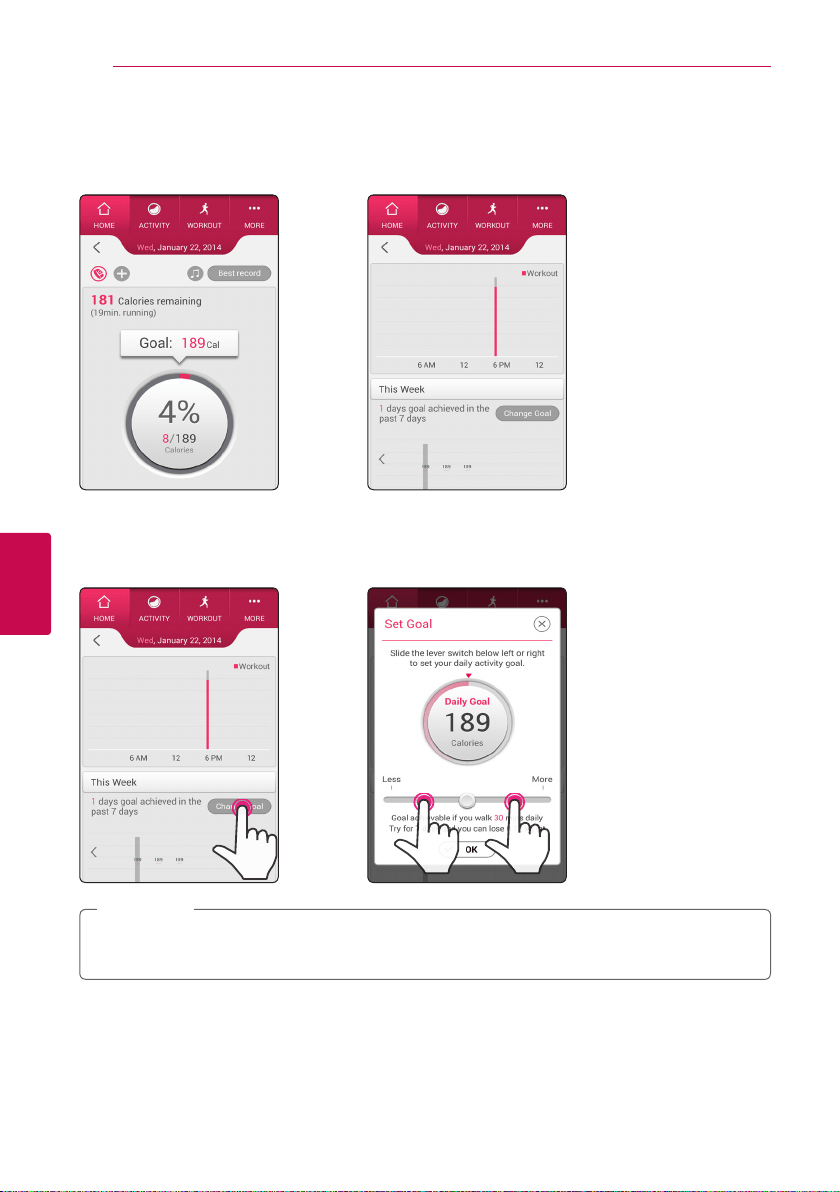
Checking today’s activity record
You can check today’s total activity record, hourly activity pattern and weekly goal achievement
progress.
To check more detailed activity and workout information, go to [Activity].
�
Changing daily goal
You can easily change your daily goal. Adjust your goal considering your physical condition.
To adjust the goal, select displayed goal on today’s total activity record screen or [Change goal] on the
weekly goal achievement graph. Or it is also available on [More
/
User Prole
/
Daily Goal].
You can check daily goal on LG Lifeband Touch’s screen. Check the description about activity display
mode. (Refer to page 23.)
,
Note
Using the LG Lifeband Touch App 37
Using the LG Lifeband Touch App
5
Activity
Check the amount of activity measured by LG Lifeband Touch.
�
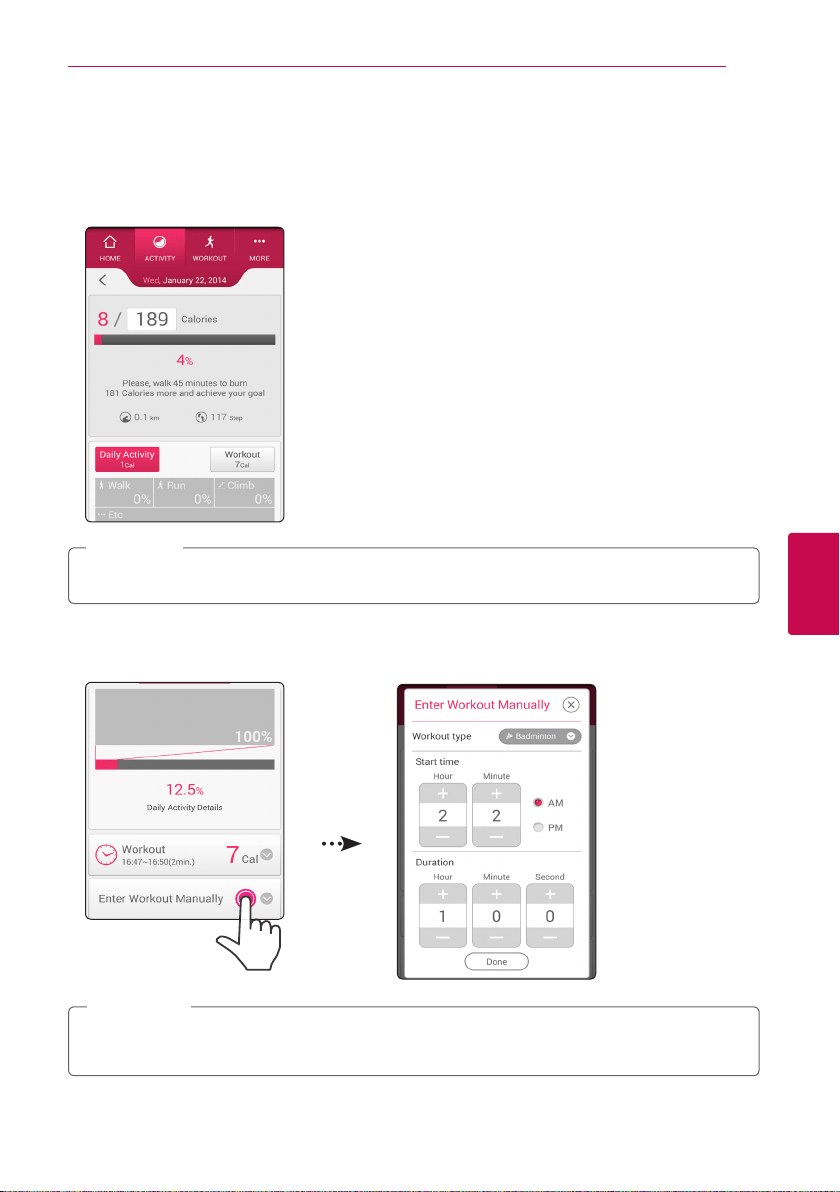
Activity analysis: To show this menu, device registration is needed.
In this menu, you can check all of the activity and workout record measured by LG Lifeband Touch.
And also you can see the daily average consumed calories progress.
Your activity history service may be updated to provide more useful data for you.
,
Note
�
Enter Workout Manually: If you want to record workouts such as swimming or golf, use [Enter
Workout manually]. You can manage workout that the device does not measure. If you enter the
workout, corresponding consumed calories are reected.
The total consumed calories or goal achievement rate in LG Lifeband Touch may dier from those of
the app because the gures you entered on the app is not reected in LG Lifeband Touch.
,
Note
Using the LG Lifeband Touch App38
Using the LG Lifeband Touch App
5
�
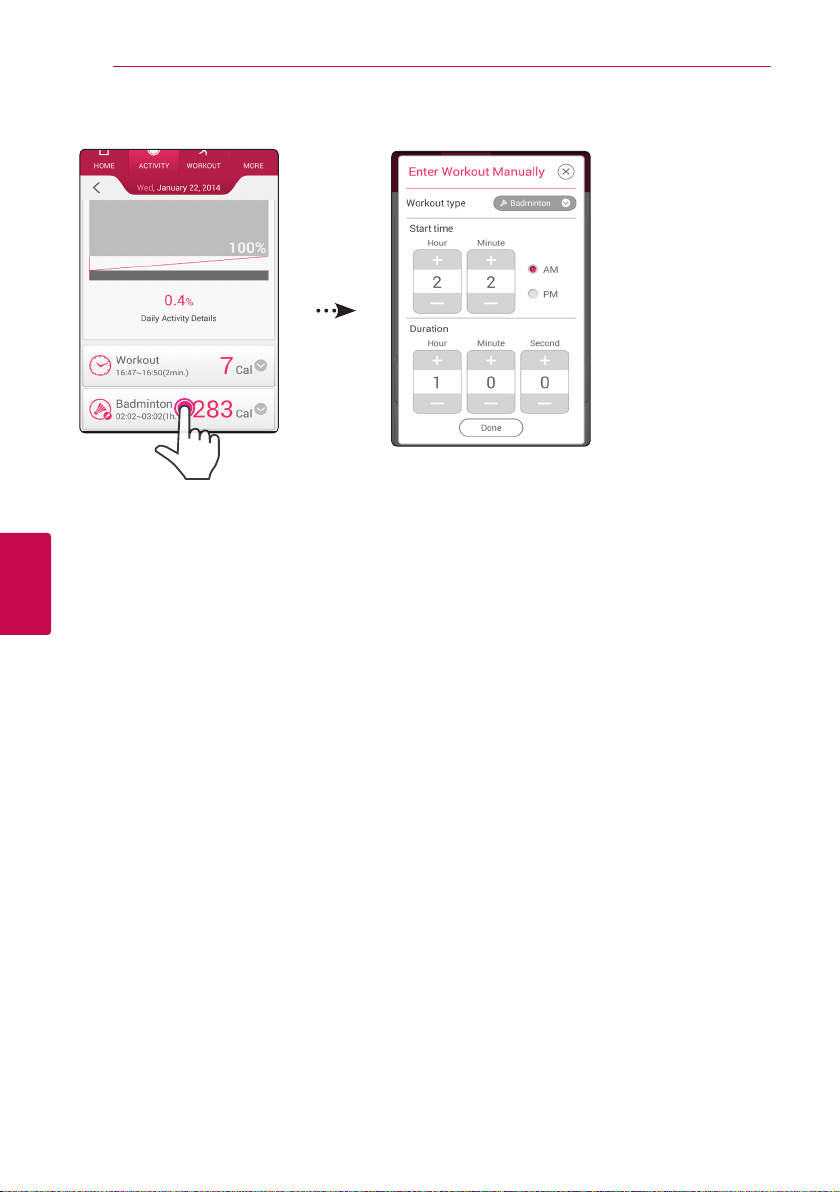
Modication of the workout record entered manually: Touch the item you entered manually to
change the start time or workout time.
Using the LG Lifeband Touch App 39
Using the LG Lifeband Touch App
5
Workout
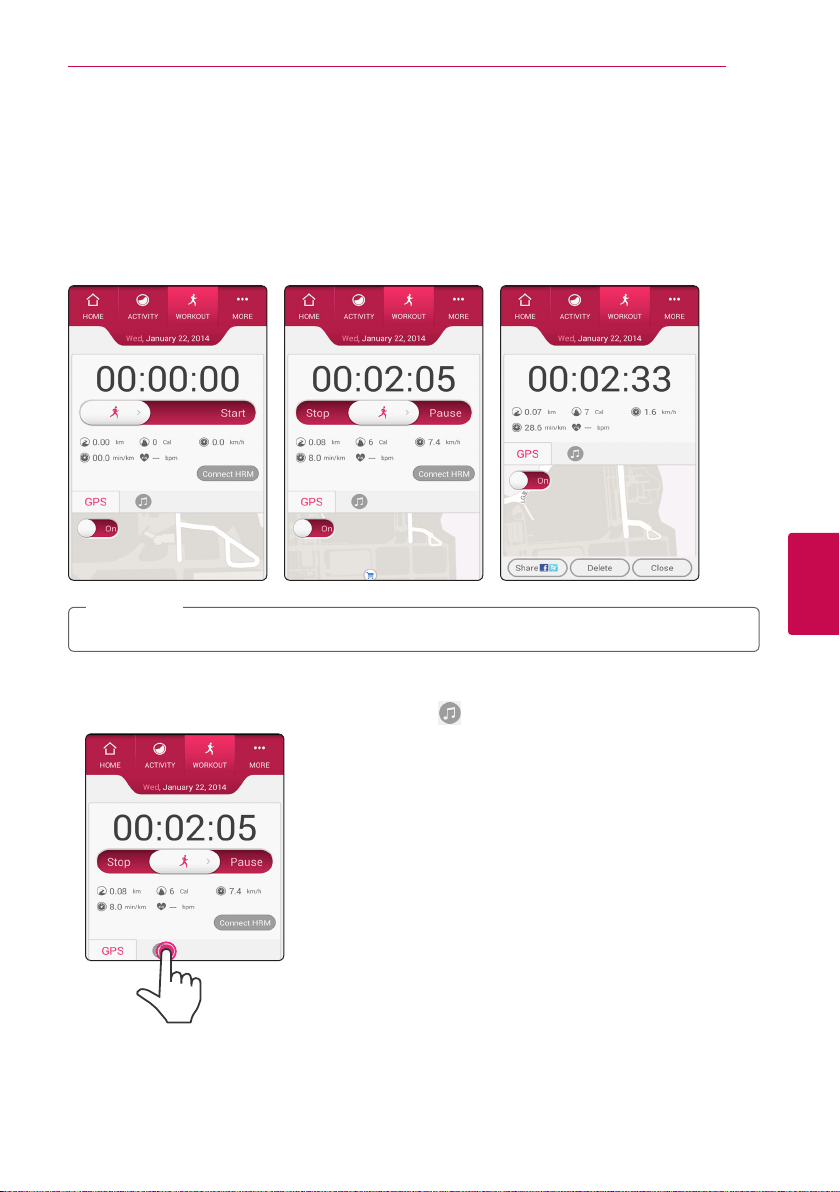
You can check your real time workout information and workout route, and change the music.
Also you can mark your workout route with various color depending on the workout intensity.
1. Drag the slide bar into [Start]. The workout is started with the countdown.
To check your workout route, turn on the GPS on your smartphone.
For rhythmic workout, play the music.
2. To Stop or Pause your workout, move the slide bar into desired direction. Workout course is displayed
when you stop the workout.
When using GPS indoors, the map may not be displayed due to lack of satellite signal.
,
Note
}
Listening to music
1. If you want to listen to music during workout, touch button.
2. Music player on the smartphone will appear.
3. Select the music you want to play.
Using the LG Lifeband Touch App40
Using the LG Lifeband Touch App
5
�
You can control the music playback in the smartphone connected with LG Lifeband Touch.
Refer to the description about music playback control mode. (Refer to page 24.)
�
Handling method of music control mode may dier depending on the device.
,
Note
More
}
User Prole
Sign out, deactivate the service or change password.
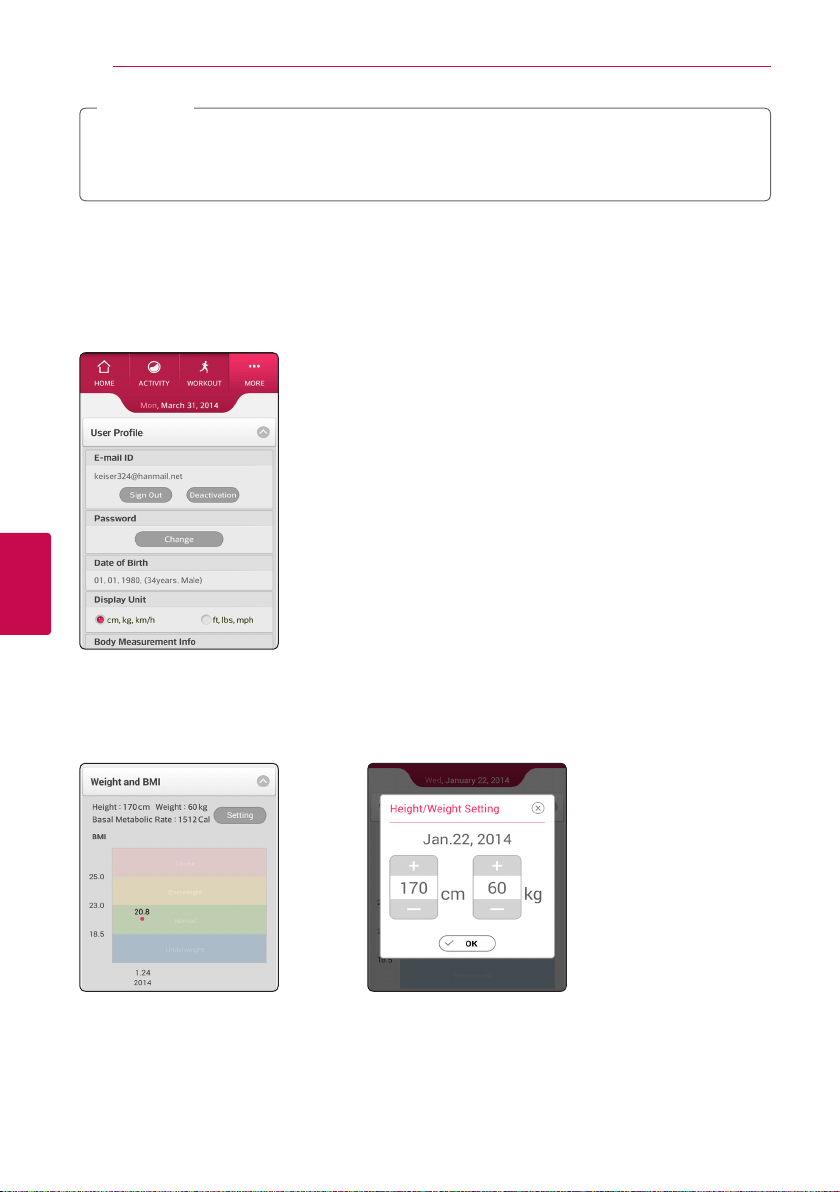
Also you can reset the display unit, body measurement information and daily goal.
}
Weight and BMI
BMI(Body Mass Index) is calculated based on the weight and height you entered. If there are changes on
your body size, touch [Setting] and enter the new gure to update your body measurement information.
It shows BMI update history as a whole.
Using the LG Lifeband Touch App 41
Using the LG Lifeband Touch App
5
***What is BMI level (Body Mass Index)?
BMI (Body Mass Index) is the value calculated as your weight (kg) divided by the squared value of your
height (m²). It is an important medical index for determining if he/ she is underweight, normal weight,
overweight, or obesity. It indicates risk of obesity-related diseases
(Refer to the table below.)
BMI Range Risk of Diseases
18.5 or less Underweight Increasing
18.5~25.0 Normal Low
25.0~30.0 Overweight Increasing
30.0 or more obese High
}
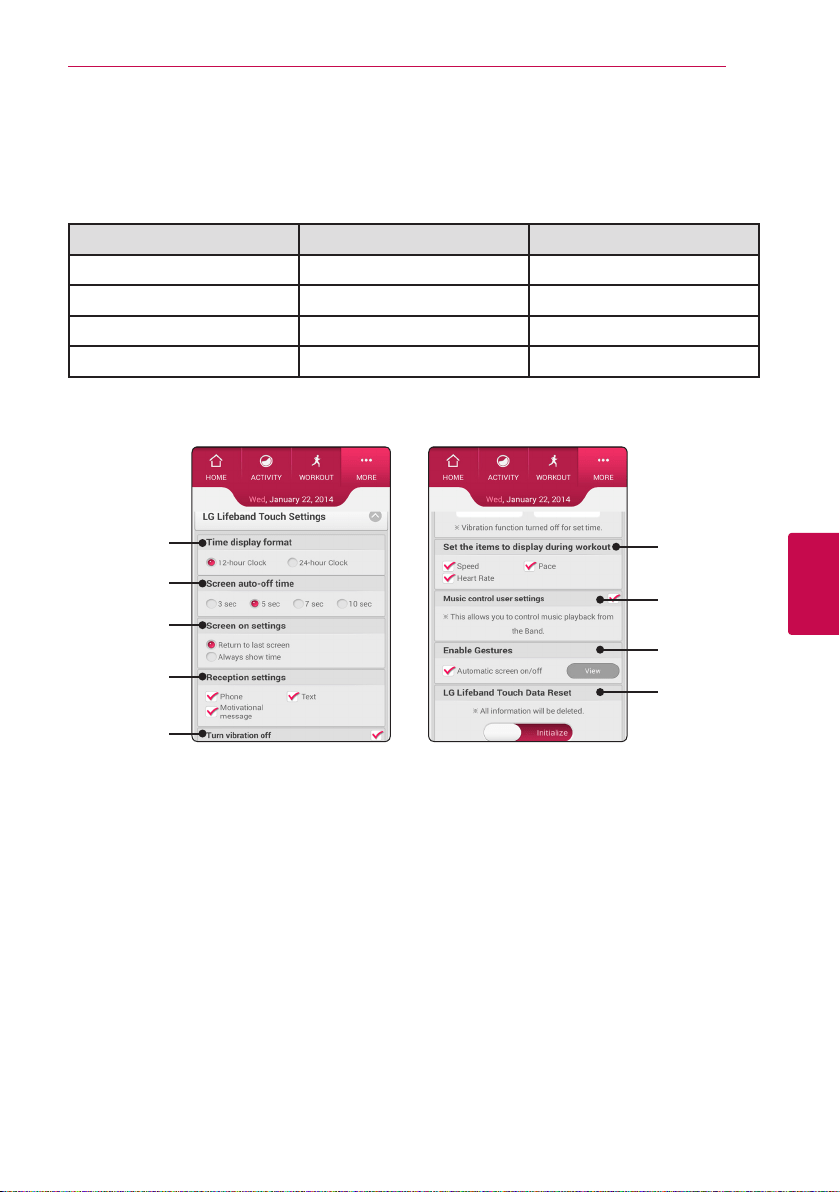
LG Lifeband Touch settings
a
b
c
d
e
f
g
h
i
a
Time display format : You can set time displayed on LG Lifeband Touch to 12-hour time or 24-hour
time.
b
Screen auto-o time: Set the auto screen o time. The screen is turned o in time you set.
c
Screen on settings: Choose the starting screen displayed when LG Lifeband Touch turned on.
d
Reception settings: Set to receive call & text notications and motivational messages
e
Turn vibration o: Set time you want to turn o the vibration. The vibration is turned o during
the set time. But, If you set the vibration alarm at the time when you have set vibration o for, the
vibration stays turned on.
f
Set the items to display during workout: You can set the item displayed in workout mode.
g
Music control user settings: To use music control, check [Music control user settings]. Refer to the
description about Music control mode. (Refer to page 24.)
h
Enable Gestures: To use gesture function, check [Automatic screen on/o].
Refer to the description about gesture function. (Refer to page 15.)
i
LG Lifeband Touch Data Reset: To initialize the data saved in LG Lifeband Touch, drag the slide bar
to [Initialize].
Using the LG Lifeband Touch App42
Using the LG Lifeband Touch App
5
}
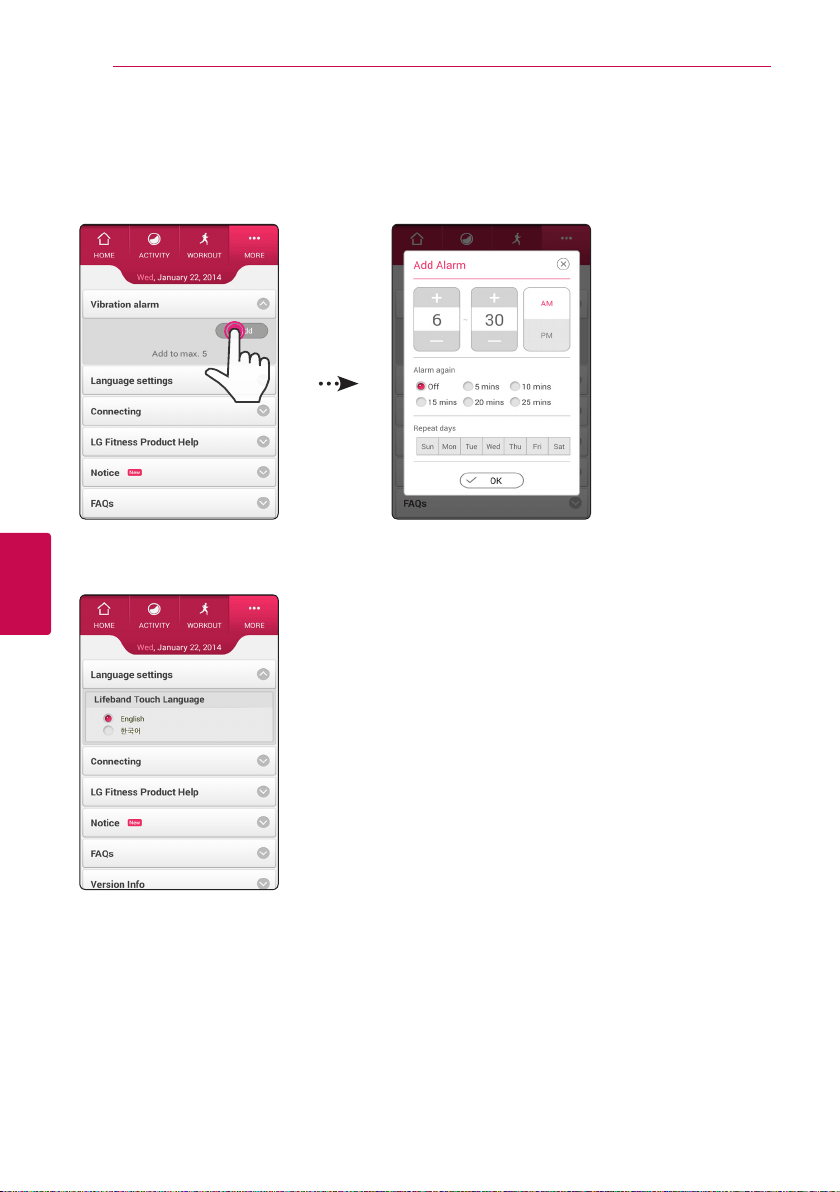
Vibration alarm
Set the alarm time, snooze function, weekly repetition.
You can modify or delete the alarm. Up to 5 alarms are available.
To set the alarm on LG Lifeband Touch, refer to the description about checking the alarm. (Refer to page
31.)
}
Language Setting
Set the language displayed on LG Lifeband Touch.
Using the LG Lifeband Touch App 43
Using the LG Lifeband Touch App
5
}
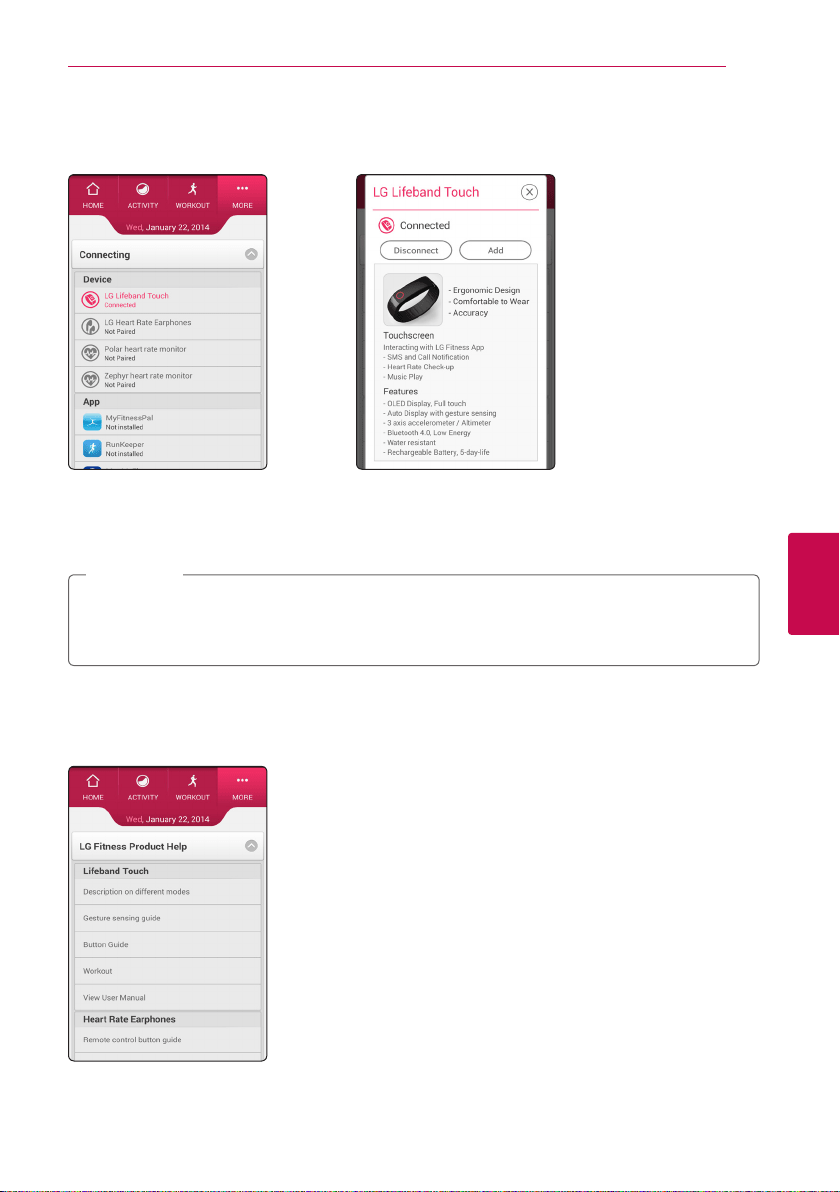
Connecting
You can register tness devices other than LG Lifeband Touch and check the connection condition.
Select desired device and the screen for connection status and/or adding new devices.
�
You can manage the data from various connected tness devices comprehensively.
�
You can share your workout record by connecting with other workout app or SNS accounts such as
Facebook or Twitter.
This device is not intended to diagnose, treat or prevent any disease or medical condition. Always
seek the advice of a qualied medical professional before making any changes to your exercise,
sleep, or nutrition.
,
Note
}
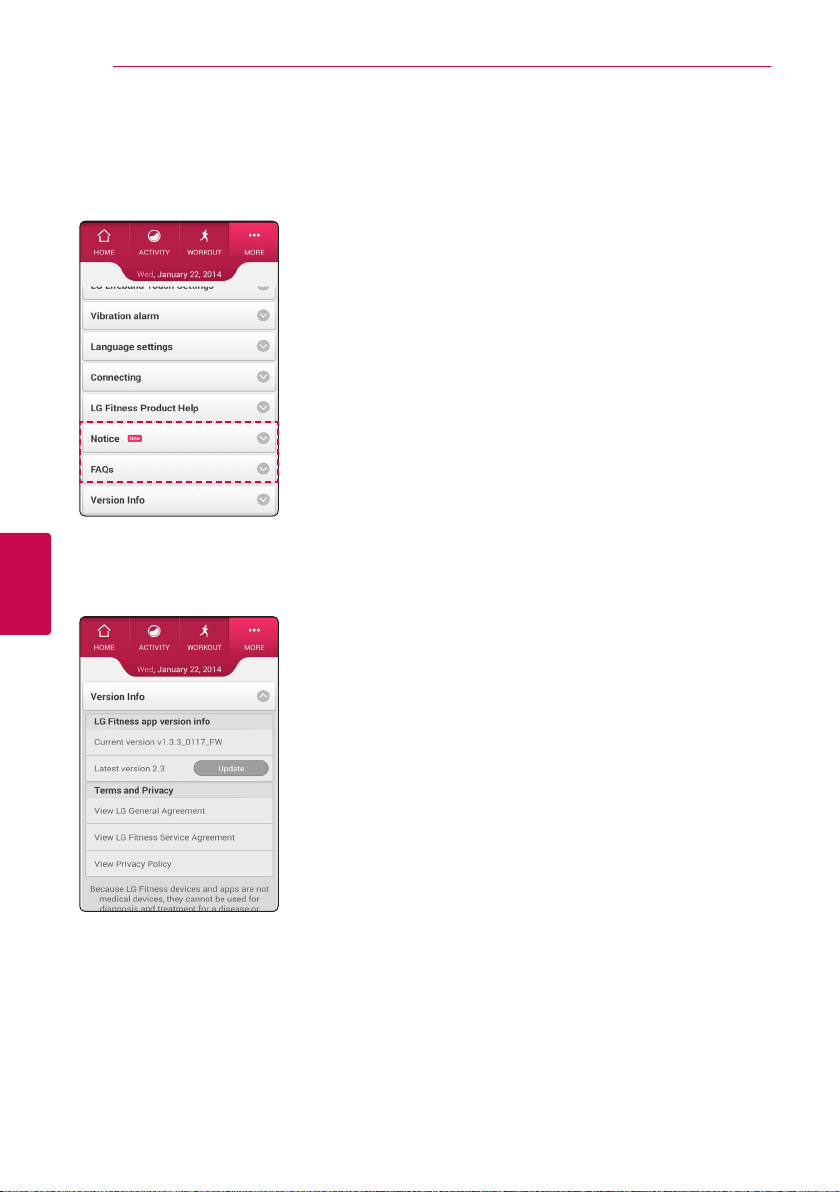
LG Fitness Product Help
Find more information on LG Fitness products.
You can also read more about the general use of LG Lifeband Touch.
Using the LG Lifeband Touch App44
Using the LG Lifeband Touch App
5
}
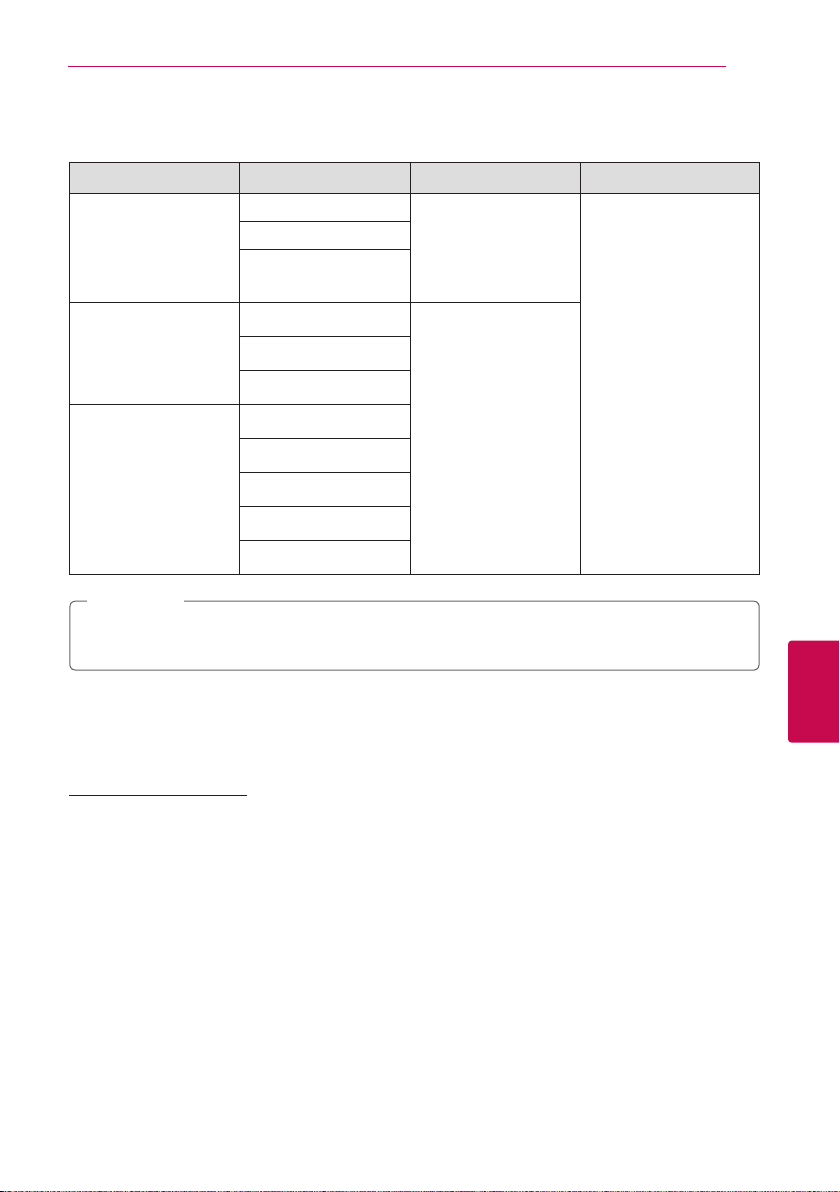
Notice
You can check notices about the update or system from app manager.
}
FAQs
You can search for FAQ such as features of the product, way of use, pairing related questions.
}
Version Information
You can read LG Fitness app’s version information, terms and privacy.
To use the latest version, select [Update].

6 Support
Support 45
Support
6
Frequently Asked Question (FAQ)
Q:
What are the general instructions for using LG Lifeband Touch?
A:
1) Check the product components.
2) Search for LG Fitness on Play store(Android) or App store(iphone) and install it.
3) Register the LG Lifeband Touch in LG Fitness app and sign up.
4) Wear LG Lifeband Touch and measure your activity or workout.
5) Check detailed information about your activity or workout on LG Fitness app.
Q:
Are there any possibilities that my data recorded by LG Lifeband Touch will be shared?
A:
LG Fitness service does not share customer’s data with a third party or person. But, about the only
service or person you have selected, related information can be shared with the selected third
party or person you have selected such as a tness service or SNS service.
Q:
How long should I charge the battery for?
A:
It takes 3 hours to charge the battery. You can charge using USB connecting gender.
LED lights turn red while charging. If the smartphone is not connected and Bluetooth connection
is turned o, the battery power can last for approximately 5 days, if connected, 2 days.
The lack of the battery icon appears when charging is needed.
Q:
What happens if the battery is fully discharged while using the LG Lifeband Touch?
A:
After the battery is dead, the data is not saved but the previous data remains.
When resynchronizing with smartphone after discharging, you can check the previous record
through the app, but workout information is deleted on the device screen.
Q:
How does LG Lifeband Touch dier from other activity management or measurement
devices?
A:
LG Lifeband Touch motivate you to do tness activity through ne design, superior wear sensation,
convenient function, high accuracy, and simple mobile app.
Q:
What does the LG Fitness app do?
A:
You can check and analyze the hourly pattern or proportion of your activity and workout, and
share it on SNS. You can modify your daily goal, and record manually your unmeasured workout.
You can modify the setting of your LG Lifeband Touch.

Support46
Support
6
Q:
The clock screen does not appear.
A:
After installing the LG Fitness app, sign up to synchronize your account with your LG Lifeband
Touch. You need to sync device with smartphone to see time and date.
Q:
How can I check the measurements for yesterday?
A:
If you synchronize your data using smartphone app, you can check already synchronized data on
your smartphone app.
Q:
How can I use Bluetooth transfer?
A:
Before registering your LG Lifeband Touch, install LG Fitness app on your smartphone.
The data transfers automatically between the devices connected via Bluetooth. Bluetooth
connection to the LG Lifeband Touch may be disconnected due to the Wi-Fi interference.
Q:
What does the LG Lifeband Touch screen show?
A:
In the screen, clock mode, activity display mode and music playback mode are displayed whenever
pressing the menu button. On clock mode, current time, day and date and remaining battery are
displayed, and activity display mode is made up total consumed calories, total distance, total steps
and workout (Section measurement) start button. On music playback mode, music play, pause,
searching for music and volume control are available. On each mode, you can drag the screen to
change the item.
Q:
I would like to know limited warranty, return, and exchange policy.
A:
Please refer to the quality certicate provided.
Q:
I would like to know How to change a LG Lifeband Touch after the replacement or
maintenance of the product.
A:
1) Turn on the LG Lifeband Touch you want to newly register.
2) Select [LG Lifeband Touch] and touch [add] on [Run the App
/
More
/
Connecting]
3) Select the LG Lifeband Touch you want to connect and select [YES] when [Pairing?
/
YES | NO]
appears on the screen.
Q:
The battery depletes faster than when rst purchased.
A:
When you expose the device to very cold or very hot temperatures, the useful charge may be
reduced. The battery is consumable and the useful charge will get shorter over time.
Support 47
Support
6
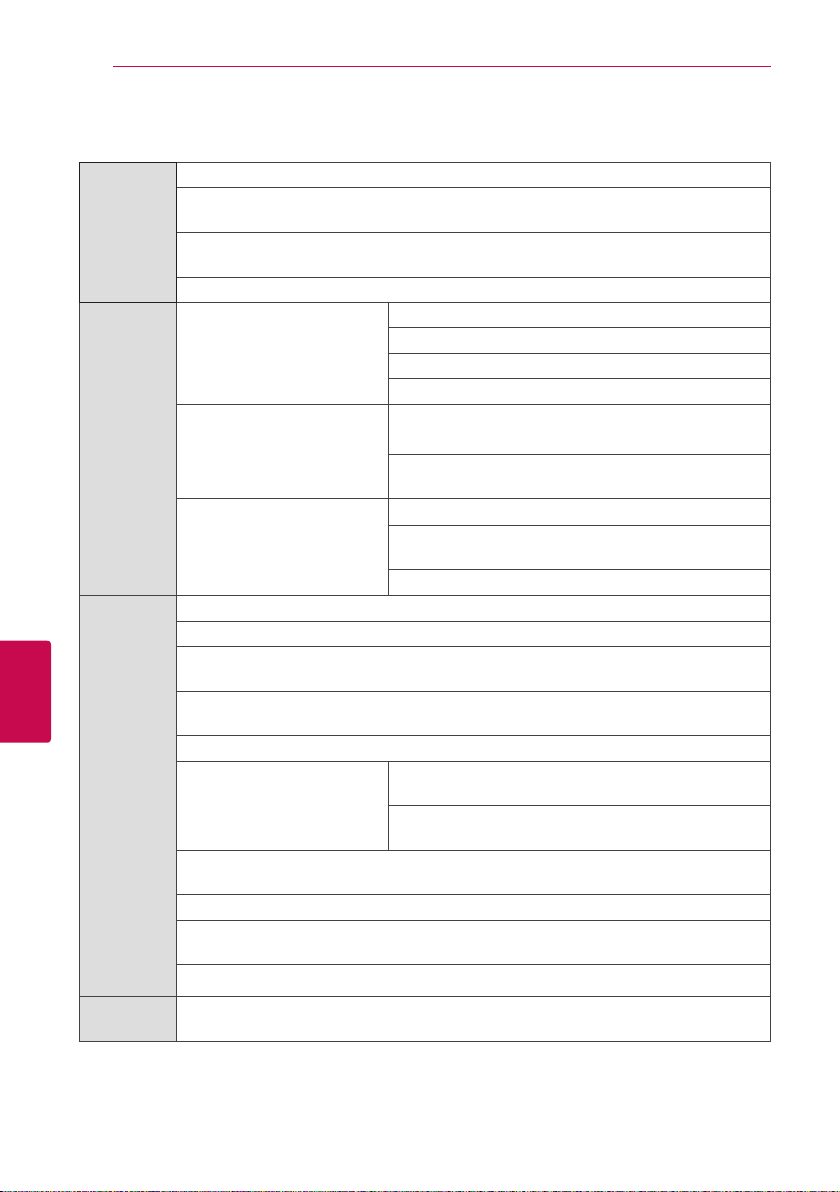
Smartphone compatibility list
Manufacturer Model OS Version Bluetooth Version
Apple
iPhone® 4S
iOS 6/ 7
Bluetooth 4.0 LE
iPhone® 5, 5s, 5c
iPod Touch
(5
th
Generation)
LG
LG G2
TM
Android
Jelly Bean 4.3 or more
Google Nexus
TM
5
LG G Flex
TM
Samsung
Galaxy S® 4
Galaxy S® 3
Galaxy Note® 2
Galaxy Note® 3
Galaxy round®
The smartphone model compatible with the App can be added or changed depending on the
phone manufacturer.
,
Note
Open source software notice
To obtain the corresponding source code under GPL, LGPL and other open source licenses, please visit
http://opensource.lge.com. All referred license terms, warranty disclaimers and copyright notices are
available to download with the source code.
Support48
Support
6
Specifications
Appearance
Menu button
Size : X-Large 7.7 inches (196 mm), Large 7.1 inches (181 mm),
Medium 6.5 inches (166 mm), Thickness : 0.4 inches (10 mm) or less
Weight: X-Large 0.12 lbs (53.11g), Large 0.11 lbs (50.12g),
Medium 0.11 lbs (49.86 g)
Display: OLED touch, LED
General
Device
Sensor: Triaxial acceleration Sensor, Pressure Sensor
Connectivity options: Bluetooth
Supported devices: Android Phone, iPhone
Operating Temperature: -15 ~ 45 °C / 5 ~ 113 °F
Android / iOS Application
Android 4.3 or higher(Jelly Bean),
iOS 6 or later
Resolution(Android): 1920*1080, 1280*720
Resolution(iOS): 960*640, 1136*640
Bluetooth
Bluetooth regulation: Bluetooth 4.0 LE
RF Channel : 40 / Modulation : GFSK / Power : 10 dBm
or less/ Rx Sen : -85 dBm
Range of frequency: 2.4 GHz (2402 - 2480 MHz)
Key Feature
Support operating Touch screen
Display the time, date and remaining battery on the screen.
Activity: Total consumed calories, Goal consumed calories, Goal achievement rate,
Total distance, Number of steps
Workout: Time, Calories, Distance, Number of steps, Speed, Pace,
Heart Rate(when pair with Heart rate measurement device )
Music Control: Play, Pause, Forward, Backward, Volume +/-
Checking incoming a call
and text
Android phone: phone call (caller identication) and
text message reception are supported.
iPhone: Only phone call reception (caller identication
is unavailable) is supported.
Notice message: Goal achievement rate, Activity encouragement, Low battery alert,
Bluetooth Disconnected
Vibration alarm: support up to ve (You can set it in LG Fitness app.)
Support the Korean and English display on the screen.
(You can set it in LG Fitness app.)
Support LG Fitness smartphone app (for Android phone and iPhone)
Water
Resistance
Splash proof
Support 49
Support
6
Battery
Battery Charging Temperature: + 10
°C
(+50F) ~ 45
°C
(+113F)
Capacity: Built-in Li-polymer Battery 90 mAh
Battery life: approximately 2 days (when device is connected with smartphone),
approximately 5 days (when the device is disconnected from the smartphone or
Bluetooth connection is disconnected)
Charging method: USB gender, USB cable (full charging time: 3 hours or less)
�
Design and specications are subject to change without notice. Default app that is shipped with the
device are subject to updates and may no longer be supported without prior notice.