Register your product and get support at
www.philips.com/welcome
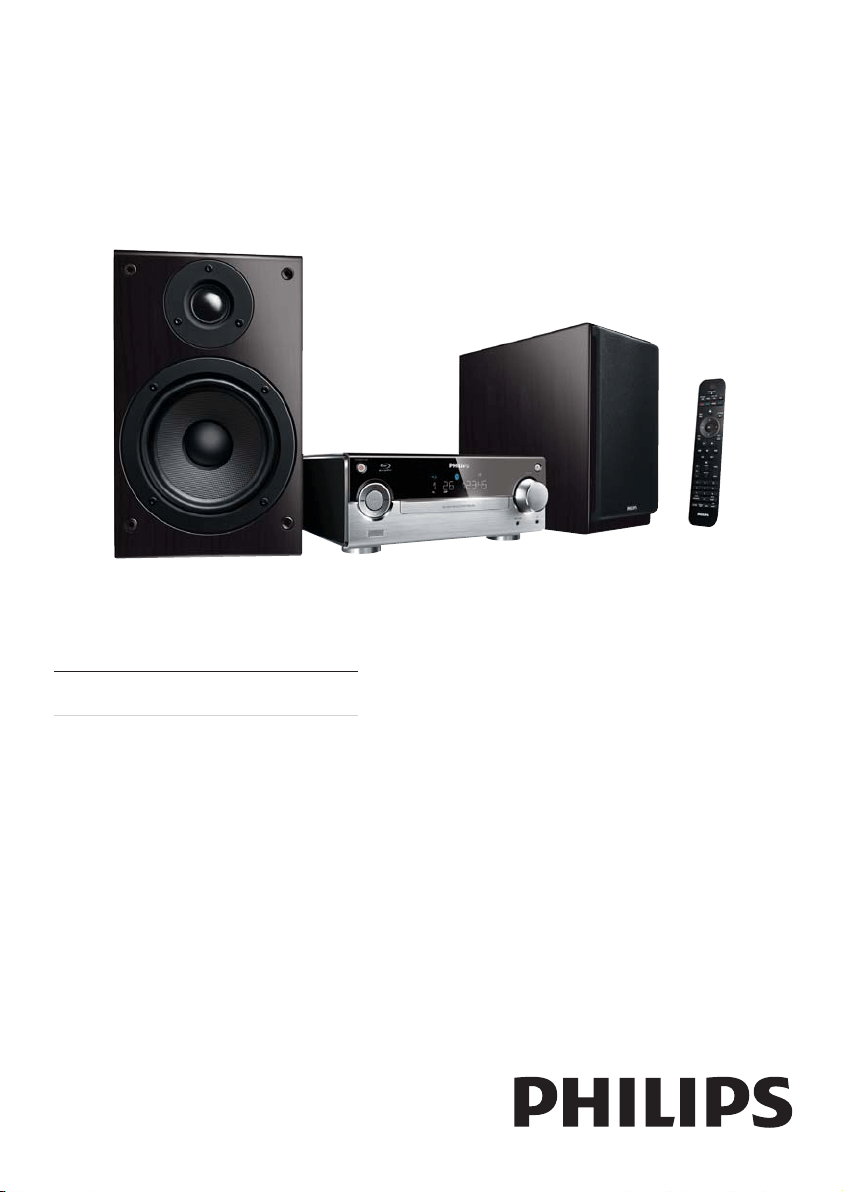
EN User manual
MBD3000

3
English
EN
6 Adjust settings 26
Video setup 26
Audio setup 27
Network setup 28
EasyLink setup 29
Preference setup 30
Advanced setup 31
7 Tune to FM radio stations 32
Program radio stations automatically 32
Program radio stations manually 33
Tune to a preset radio station 33
Set RDS clock 33
8 Adjust volume level and
sound effect 34
Adjust volume level 34
Select a sound effect 34
Mute sound 34
Listen through headphone 34
9 Additional Information 35
Adjust brightness of display panel 35
Set the alarm timer 35
Set the sleep timer 35
Update software 35
Care 36
Specifications 36
10 Troubleshooting 38
11 Glossary 40
Contents
1 Important 4
Safety and important notice 4
Trademark notice 5
2 Your Blu-ray Micro System 6
Feature highlights 6
Playable media 7
Product overview 8
3 Connect 11
Preparations 11
Connect speakers 11
Connect video/audio cables 12
Route audio to other devices 13
Connect FM antenna 15
Connect a USB device 15
Connect a network 15
Connect power 15
4 Get started 16
Prepare the remote control 16
Set clock 17
Find the TV input 17
Use the Home menu 17
Navigate a menu 17
Select a menu display language 17
Set up a network 18
Use Philips EasyLink 19
5 Play 20
Play a disc 20
Play from a USB device 20
Play video 21
Play photo 24
Play music 25
4
When this crossed-out wheeled bin symbol
is attached to a product it means that the
product is covered by the European Directive
2002/96/EC. Please inform yourself about the
local separate collection system for electrical
and electronic products.
Please act according to your local rules and
do not dispose of your old products with your
normal household waste.
Correct disposal of your old product helps to
prevent potential negative consequences for
the environment and human health.
Your product contains batteries covered by
the European Directive 2006/66/EC, which
cannot be disposed with normal household
waste.
Please inform yourself about the local rules
on separate collection of batteries because
correct disposal helps to prevent negative
consequences for the environmental and
human health.
Hearing safety
Listen at a moderate volume.
Using headphones at a high volume can •
impair your hearing. This product can
produce sounds in decibel ranges that
may cause hearing loss for a normal
person, even for exposure less than a
minute. The higher decibel ranges are
offered for those that may have already
experienced some hearing loss.
Sound can be deceiving. Over time your •
hearing ‘comfort level’ adapts to higher
volumes of sound. So after prolonged
listening, what sounds ‘normal’ can
actually be loud and harmful to your
hearing. To guard against this, set your
1 Important
Safety and important notice
Warning
Risk of overheating! Never install the product •
in a confined space. Always leave a space
of at least 4 inches around the product for
ventilation. Ensure curtains or other objects
never cover the ventilation slots on the
product.
Never place the product, remote control or
•
batteries near naked flames or other heat
sources, including direct sunlight.
Only use this product indoors. Keep this
•
product away from water, moisture and liquid-
filled objects.
Never place this product on other electrical
•
equipment.
Keep away from this product during lightning
•
storms.
Where the mains plug or an appliance
•
coupler is used as the disconnect device,
the disconnect device shall remain readily
operable.
Visible and invisible laser radiation when open.
•
Avoid exposure to beam.
This product is in compliance with the
essential requirements and other relevant
provisions of Directives 2006/95/EC (Low
Voltage), 2004/108/EC (EMC).
Disposal of your old product and
batteries
Your product is designed and manufactured
with high quality materials and components,
which can be recycled and reused.
EN
5
This offer is valid up to three years after
product purchase to anyone in receipt of
this information. To obtain source code,
please contact open.source@philips.com. If
you prefer not to use email or if you do not
receive confirmation receipt within a week
after mailing to this email address, please write
to “Open Source Team, Philips Intellectual
Property & Standards, P.O. Box 220, 5600
AE Eindhoven, The Netherlands.” If you do
not receive timely confirmation of your letter,
please email to the email address above.
Trademark notice
‘Blu-ray Disc’ and ‘Blu-ray Disc’ logo are
trademarks.
HDMI, and HDMI logo and High-Definition
Multimedia Interface are trademarks or
registered trademarks of HDMI licensing LLC.
‘AVCHD’ and ‘AVCHD’ logo are trademarks
of Matsushita Electric Industrial Co., Ltd and
Sony Corporation.
‘x.v.Colour’ is a trademark of Sony
Corporation.
BONUSVIEW™
‘BD LIVE’ and ‘BONUSVIEW’ are trademarks
of Blu-ray Disc Association.
volume to a safe level before your hearing
adapts and leave it there.
To establish a safe volume level:
Set your volume control at a low setting. •
Slowly increase the sound until you can •
hear it comfortably and clearly, without
distortion.
Listen for reasonable periods of time:
Prolonged exposure to sound, even •
at normally ‘safe’ levels, can also cause
hearing loss.
Be sure to use your equipment •
reasonably and take appropriate breaks.
Be sure to observe the following guidelines
when using your headphones.
Listen at reasonable volumes for •
reasonable periods of time.
Be careful not to adjust the volume as •
your hearing adapts.
Do not turn up the volume so high that •
you can’t hear what’s around you.
You should use caution or temporarily •
discontinue use in potentially hazardous
situations. Do not use headphones while
operating a motorized vehicle, cycling,
skateboarding, etc.; it may create a traffic
hazard and is illegal in many areas.
Copyright notice
This item incorporates copy protection
technology that is protected by U.S. patents
and other intellectual property rights of
Rovi Corporation. Reverse engineering and
disassembly are prohibited.
Open source software
Philips Electronics Hong Kong Ltd. hereby
offers to deliver, upon request, a copy of the
complete corresponding source code for the
copyrighted open source software packages
used in this product for which such offer is
requested by the respective licenses.
English
EN
6
2 Your Blu-ray
Micro System
Congratulations on your purchase, and
welcome to Philips! To fully benefit from
the support that Philips offers (e.g. product
software upgrade), register your product at
www.philips.com/welcome.
If you contact Philips, you will be asked for the
model and serial number of this product. The
model number and serial number are on the
bottom of this product. Write the numbers
here:
Model No. __________________________
Serial No. ___________________________
Feature highlights
For optimal performance of this product,
it is recommended to regularly update the
software of this product.
High-Definition entertainment
Watch high-definition content disc with
HDTV (High Definition Television). Connect
it through a high speed HDMI cable (1.3 or
category 2). You can enjoy excellent picture
quality up to 1080p resolution with the frame
rate of 24 frames per second with progressive
scan output.
BD-Live
Connect this player to the movie studios
website via the LAN port or external Wi-Fi
to access a variety of up-to-date content
(e.g. refreshed previews and exclusive special
features).
Manufactured under license under U.S. Patent
#’s: 5,451,942; 5,956,674; 5,974,380; 5,978,762;
6,487,535 & other U.S. and worldwide patents
issued & pending. DTS and the Symbol are
registered trademarks & DTS Digital Surround
and the DTS logos are trademarks of DTS,
Inc. Product includes software. © DTS, Inc. All
Rights Reserved.
Manufactured under license from Dolby
Laboratories. Dolby and the double-D symbol
are trademarks of Dolby Laboratories.
ABOUT DIVX VIDEO: DivX
®
is a digital video
format created by DivX, Inc. This is an official DivX
Certified device that plays DivX video. Visit www.
divx.com for more information and software tools
to convert your files into DivX video.
ABOUT DIVX VIDEO-ON-DEMAND: This
DivX Certified
®
device must be registered in
order to play DivX Video-on-Demand (VOD)
content. To generate the registration code,
locate the DivX VOD section in the device
setup menu. Go to vod.divx.com with this
code to complete the registration process and
learn more about DivX VOD.
DivX
®
, DivX Certified
®
and associated logos
are registered trademarks of DivX, Inc. and
are used under license.
Java and all other Java trademarks and logos
are trademarks or registered trademarks of
Sun Microsystems, Inc. in the United States
and/or other countries.
EN
7
Playable media
This product can play:
BD-Video, BD-R/RE2.0•
DVD, DVD-Video, DVD+R/+RW, DVD-•
R/-RW, DVD+R/-R DL (Dual Layer)
Video CD/SVCD•
Audio CD, CD-R/CD-RW, MP3 media, •
WMA media, JPEG files
DivX (Ultra)/DivX Plus HD media•
USB flash drive•
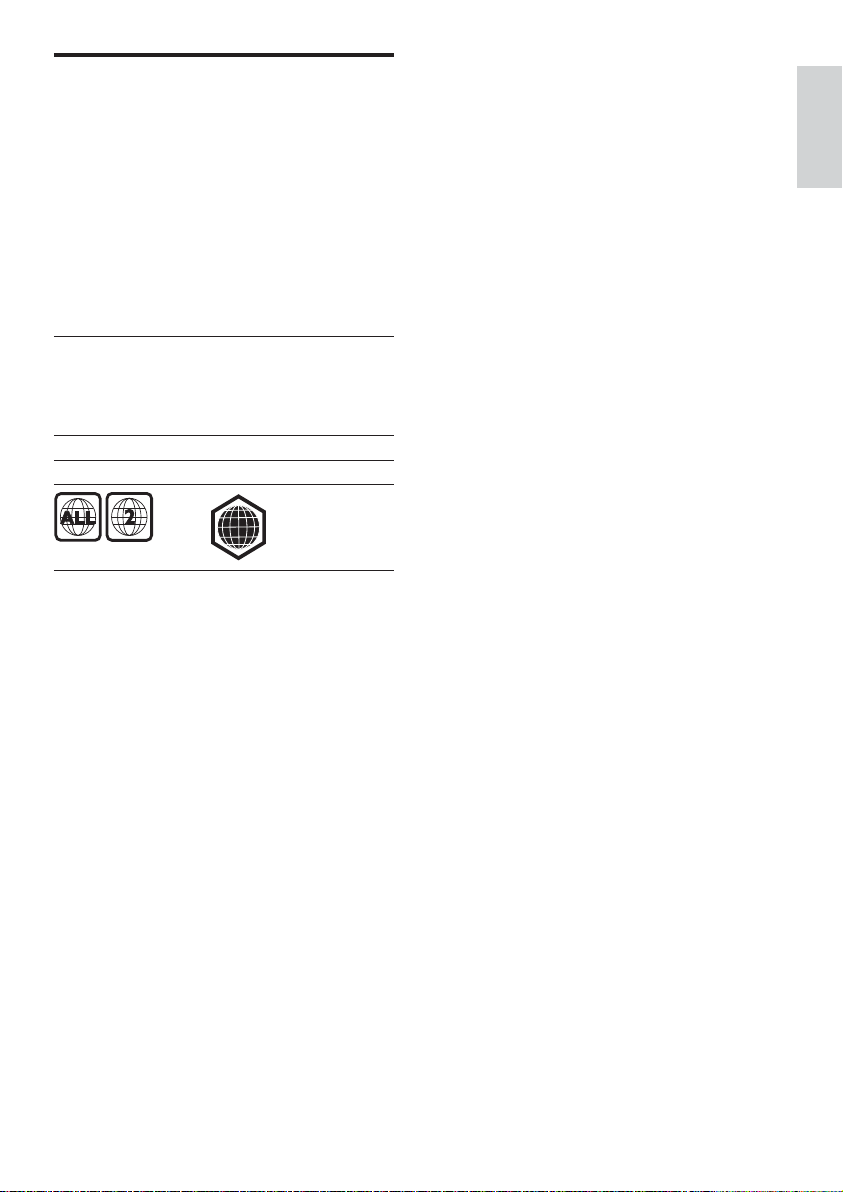
Region codes
You can play discs with the following region
codes.
Region code Countries
DVD Blu-ray
Europe,
United
Kingdom
B
English
EN
8
k IR sensor
Detect signals from the remote •
control. Always point the remote
control at the IR sensor.
l
Open or close the disc •
compartment.
m Display panel
Product overview
Main unit
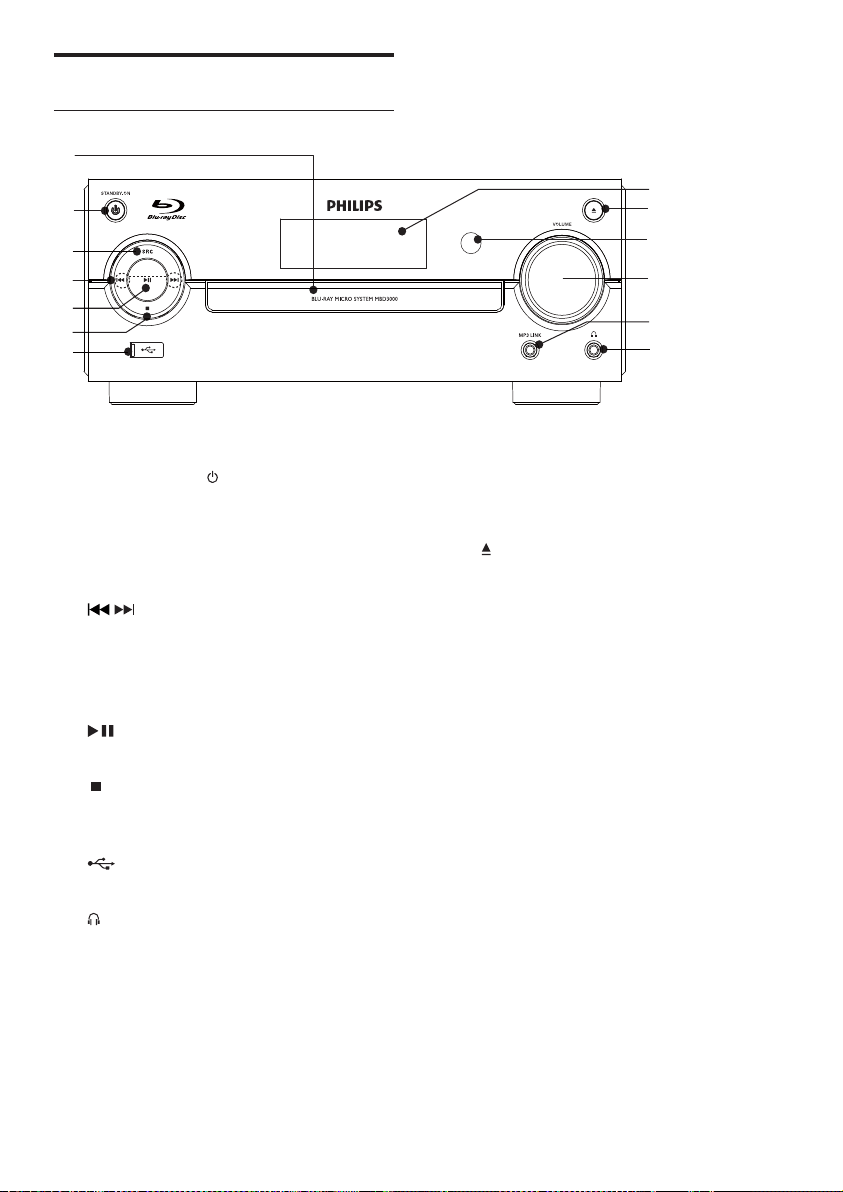
a Disc compartment
b STANDBY-ON
Turn on this product or switch to the •
Eco Power standby mode.
c SRC
Select a source.•
d
/
Skip to the previous/next track.•
Skip to the previous/next title or •
chapter.
Tune to a radio station.•
e
Start or pause play.•
f
Stop play.•
Erase a program.•
g
Connect to a USB flash drive.•
h
Headphone socket.•
i MP3 LINK
Connect to an external audio device.•
j VOLUME
Adjust volume.•
Adjust time.•
k
l
m
h
i
j
d
e
f
g
c
b
a
EN
9
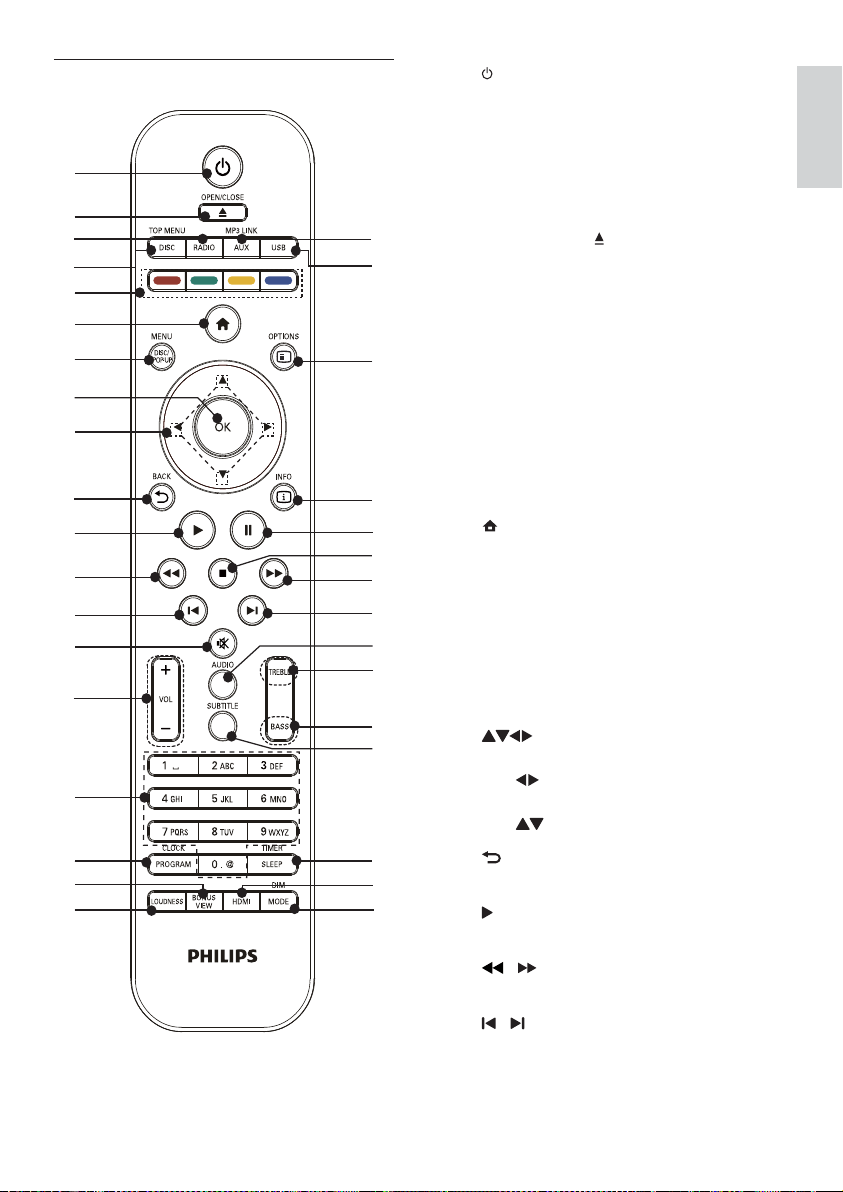
a
Turn on this product or switch to the •
Eco Power standby mode.
When EasyLink is enabled, press •
and hold for at least three seconds
to turn all connected HDMI CEC
compliant devices to standby.
b OPEN/CLOSE
Open or close the disc •
compartment.
c RADIO
Switch to FM radio.•
d DISC/TOP MENU
Switch to the disc source.•
• BD: Display the top menu.
• DVD: Display the title menu.
e Color buttons
• BD: Select tasks or options.
f
Access the home menu of this •
product.
g DISC/POP-UP/MENU
• BD: Access or exit the pop-up menu.
• DVD: Access or exit the disc menu.
h OK
Confirm an entry or selection.•
i
Navigate through the menus.•
•
: Search forward or backward for
a radio station.
•
: Tune to a radio station.
j
BACK
Return to a previous display menu.•
k
Start or resume play.•
l
/
Search backward or forward.•
m
/
Skip to the previous or next title, •
chapter, or track.
Remote control
English
EN

10
z AUDIO
Select an audio language or channel •
on a disc.
{
Stop play.•
Move the paused picture one step •
forward.
|
Pause play.•
}
INFO
Display the current status or the disc •
information.
Display the ID3 information (if •
available) of MP3 tracks.
~
OPTIONS
Access options for the current •
activity or selection.
USB
Switch to the USB input source.•
€ AUX/MP3 LINK
Switch to the AUX/MP3 Link input •
source.
n
Mute or restore volume.•
o VOL +/-
Adjust volume.•
Adjust time.•
p Alphanumeric buttons
Select an item to play.•
Enter numbers/letters/text.•
q PROGRAM/CLOCK
Program radio stations.•
Set the clock.•
Display the set clock (unavailable in •
the tuner mode).
r BONUSVIEW
Turn on or off the secondary video •
in a small screen window during play
(applicable only to a Blu-ray disc
that supports the BONUSVIEW or
Picture-In-Picture feature).
s LOUDNESS
Turn on or off automatic loudness •
adjustment.
t MODE/DIM
Select repeat play modes.•
Select shuffle play modes.•
Select a brightness level for the •
display panel on the main unit.
u HDMI
Select the video resolution of HDMI •
output.
v SLEEP/TIMER
Set the sleep timer.•
Set the alarm timer.•
w SUBTITLE
Select a subtitle language on a disc.•
x BASS
Adjust bass level.•
y TREBLE
Adjust treble level.•
EN
11
Analog stereo system•
FM antenna•
USB flash drive•
Wired/Wireless network•
Note
Refer to the type plate at the back or bottom •
of the product for identification and supply
ratings.
Before you make or change any connections,
•
ensure that all the devices are disconnected
from the power outlet.
Connect speakers
Note
Insert the stripped portion of each speaker •
wire into the socket completely.
For optimal sound, use the supplied speakers
•
only.
Connect only speakers with impedance that is
•
the same or higher than the supplied speakers.
For the main unit side:
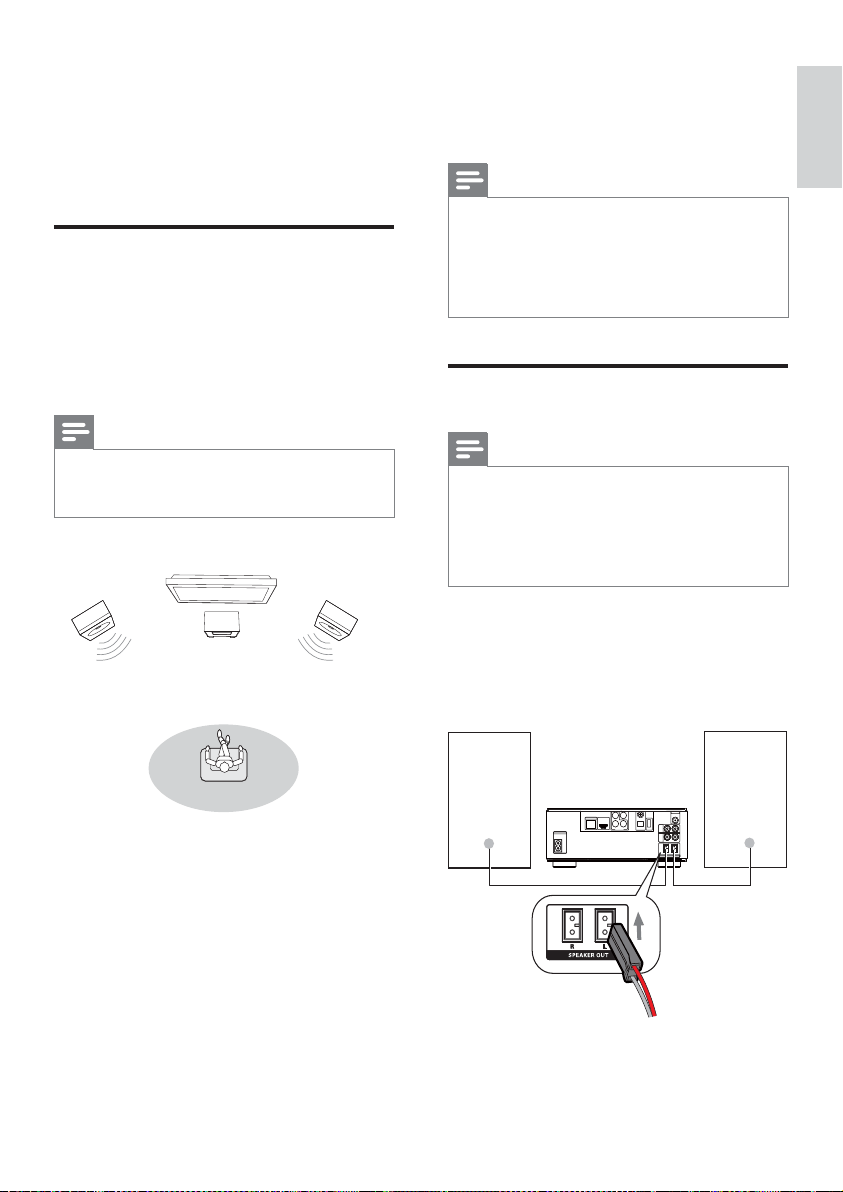
1 Match the type and colors of the speaker
cable connectors to the speaker input
sockets on the back of the main unit.
2 Connect the speaker cables.
COAXIAL
Pr/Cr
Pb/Cb
COMPONENT
Wi-Fi
Y
OPTICAL
DIGITAL AUDIO OUT
O
E
DI
V
T
U
O
DIGITAL AV OUT
LAN
AC
~
AUX
IN
LINE
OUT
LR
LR
ANTENNA
FM
SPEAKER OUT
R
L
3 Connect
Make the following connections to use this
product.
Preparations
1
Place the apparatus near to the TV.
2 Place the front left and right speakers
at equal distance from the TV and at an
angle of approximately 45 degrees from
the listening position.
Note
To avoid magnetic interference or unwanted •
noise, never place this apparatus and speakers
too close to any radiation devices.
Basic connections:
Speakers•
Video•
Audio•
Power•
Optional connections:
Route audio to other devices•
HDMI-compliant AV receiver/•
amplifier
Multi-channel AV amplifier/receiver•
Digital AV amplifier/receiver•
English
EN
12
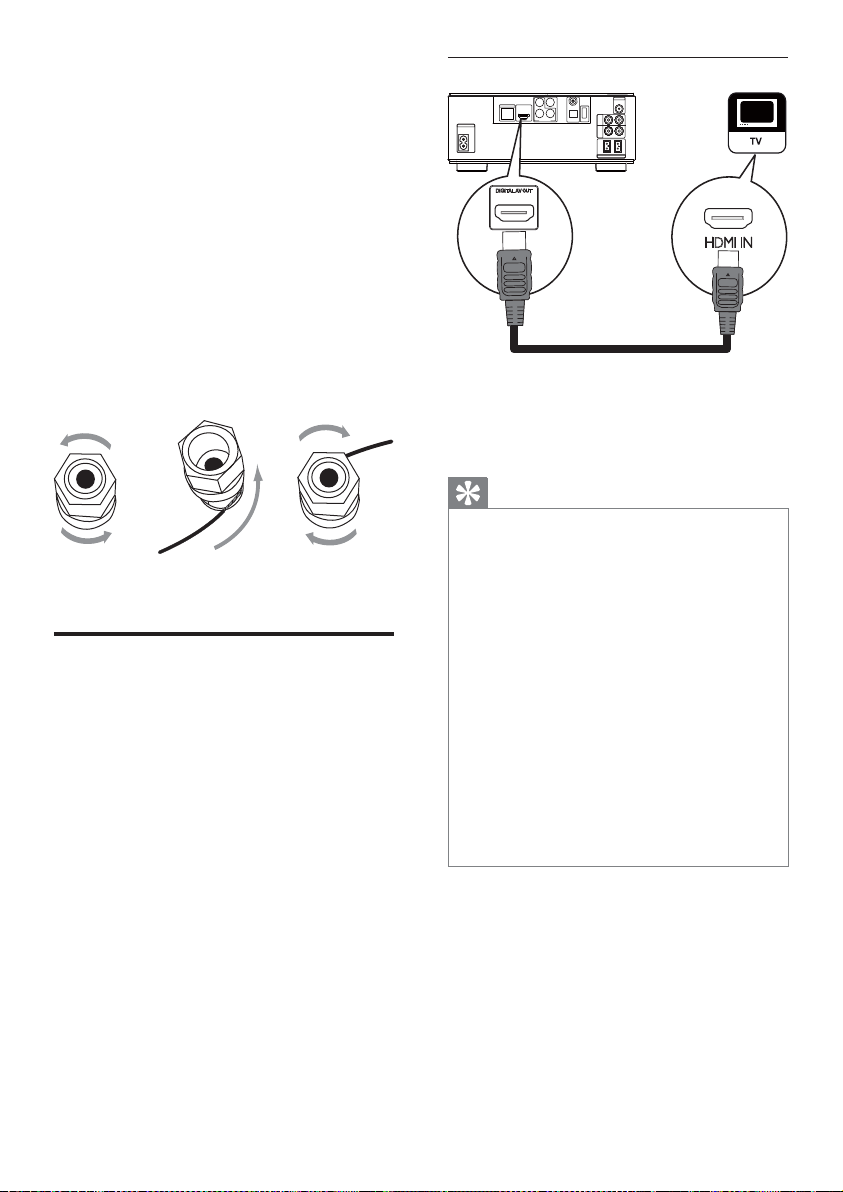
Option 1: Connect to the HDMI jack
1 Connect an HDMI cable (not supplied)
to:
the • HDMI jack on this product.
the HDMI input jack on the TV. •
Tip
If the TV has a DVI connector only, connect via •
an HDMI/DVI adaptor. Connect an audio cable
for sound output.
You can optimize the video output. Press the
•
HDMI button repeatedly to select the best
resolution the TV can support.
If this product connects to a TV compatible
•
with 1080p or 1080p/24Hz, Philips
recommends HDMI category 2 cable, also
known as High Speed HDMI cable, for optimal
video and audio output.
To play the digital video images of a BD-video
•
or DVD-video via an HDMI connection, it
is necessary that both this product and the
display device (or an AV receiver/amplifier)
support a copyright protection system called
HDCP (high-bandwidth digital content
protection system).
This type of connection provides best picture
•
quality.
COAXIAL
Pr/Cr
Pb/Cb
COMPONENT
Wi-Fi
Y
OPTICAL
DIGITAL AUDIO OUT
OEDIV
T
UO
DIGITAL AV OUT
LAN
AC
~
AUX
IN
LINE
OUT
LR
LR
ANTENNA
FM
SPEAKER OUT
R
L
HDMI IN
HDMI
For the speaker side:
1 Unscrew the speaker connectors.
2 For the left speaker, identify the speaker
cable that is connected to the left
connectors on the main unit.
3 Insert fully the red end of the speaker
cable into the red (+) connector.
4 Screw the red (+) connector to secure
the cable.
5 Insert fully the silver end of the speaker
cable into the black (-) connector.
6 Screw the black (-) connector to secure
the cable.
7 Repeat steps 2-6 for the right speaker.
Connect video/audio cables
Select the best video connection that the TV
can support.
• Option 1: Connect to the HDMI jack (for
an HDMI, DVI or HDCP-compliant TV).
• Option 2: Connect to the component
video jacks (for a standard TV or
Progressive Scan TV).
• Option 3: Connect to the composite
video jack (for a standard TV).
ac
b
EN
13
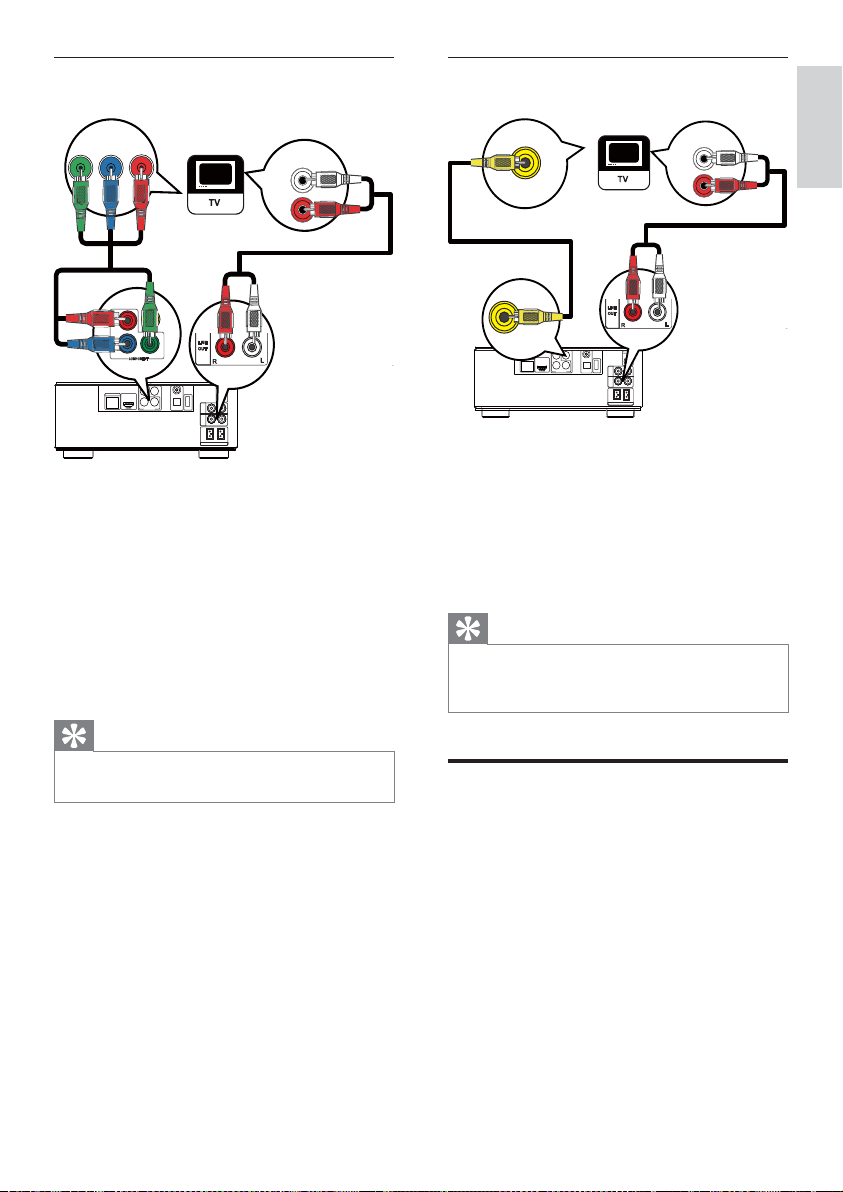
Option 3: Connect to the composite
video jack
1 Connect a composite video cable to:
the • VIDEO jack on this product.
the VIDEO input jack on the TV.•
2 Connect the audio cables to:
the • LINE OUT/AUDIO -L/R jacks
on this product.
the AUDIO input jacks on the TV.•
Tip
The video input jack on the TV might be •
labeled as A/V IN, VIDEO IN, COMPOSITE or
BASEBAND.
Route audio to other devices
You can route the audio from this product to
other devices.
COAXIAL
Pr/Cr
Pb/Cb
COMPONENT
Wi-Fi
Y
OPTICAL
DIGITAL AUDIO OUT
O
E
D
I
V
T
U
O
DIGITAL AV OUT
LAN
AUX
IN
LINE
OUT
LR
LR
ANTENNA
FM
SPEAKER OUT
R
L
VIDEO
OUT
LINE OUT
AUDIO IN
VIDEO IN
Option 2: Connect to the component
video jacks
1 Connect the component video cables
(not supplied) to:
the • Y Pb/Cb Pr/Cr jacks on this
product.
the COMPONENT VIDEO input •
jacks on the TV.
2 Connect the audio cables to:
the • LINE OUT/AUDIO -L/R jacks
on this product.
the AUDIO input jacks on the TV.•
Tip
The component video input jack on the TV •
might be labeled as Y Pb Pr or YUV.
COAXIAL
Pr/Cr
Pb/Cb
COMPONENT
Wi-Fi
Y
OPTICAL
DIGITAL AUDIO OUT
OE
D
I
V
T
U
O
DIGITAL AV OUT
LAN
AUX
IN
LINE
OUT
LR
LR
ANTENNA
FM
SPEAKER OUT
R
L
PbY
Pr
AUDIO IN
COMPONENT
Pb/Cb
Y
Pr/Cr
English
EN
14
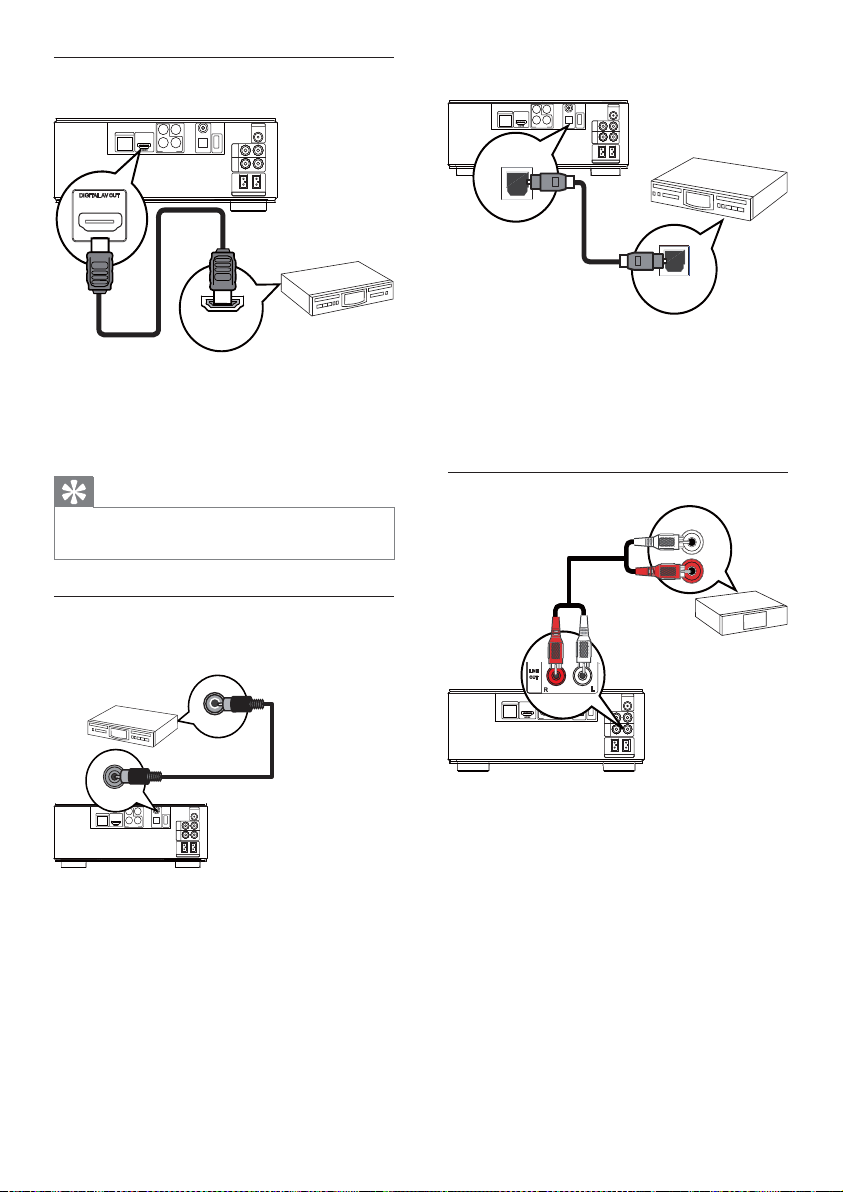
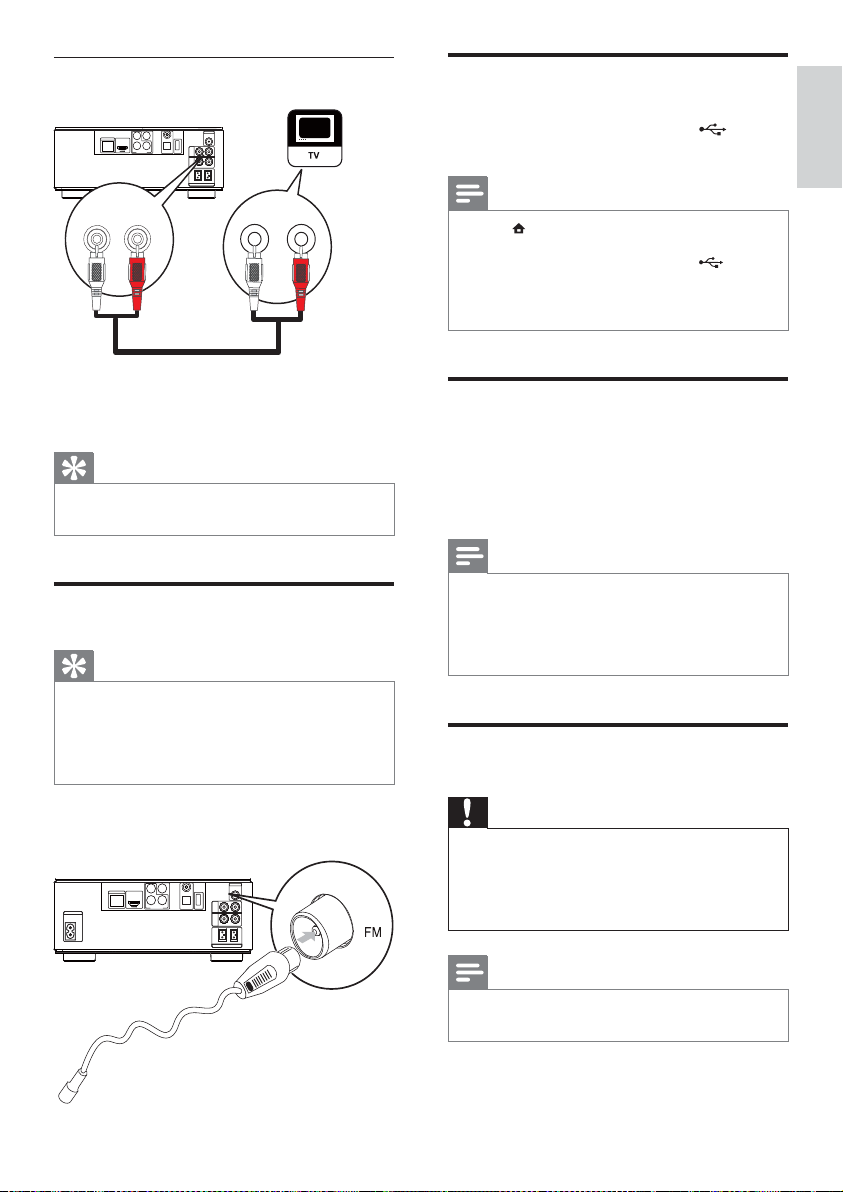
Connect to optical jack
1 Connect an optical cable (not supplied)
to:
the • OPTICAL jack on this product.
the OPTICAL/DIGITAL input jack on •
the device.
Connect an analogue stereo system
1 Connect the audio cables to:
the • LINE OUT/AUDIO -L/R jacks
on this product.
the AUDIO input jacks on the •
device.
COAXIAL
Pr/Cr
Pb/Cb
COMPONENT
Wi-Fi
Y
OPTICAL
DIGITAL AUDIO OUT
OEDIV
TUO
DIGITAL AV OUT
LAN
AUX
IN
LINE
OUT
LR
LR
ANTENNA
FM
SPEAKER OUT
R
L
OPTICAL
OPTICAL
COAXIAL
Pr/Cr
Pb/Cb
COMPONENT
Wi-Fi
Y
OPTICAL
DIGITAL AUDIO OUT
O
E
D
I
V
TUO
DIGITAL AV OUT
LAN
AUX
IN
LINE
OUT
LR
LR
ANTENNA
FM
SPEAKER OUT
R
L
AUDIO IN
LINE OUT
Connect to an HDMI-compliant AV
receiver/amplifier
1 Connect an HDMI cable (not supplied) to:
the • HDMI jack on this player.
the HDMI jack input jack on the •
device.
Tip
The HDMI connection provides best audio •
quality.
Connect to a digital AV amplifier/receiver
Connect to coaxial jack
1 Connect a coaxial cable (not supplied) to:
the • COAXIAL jack on this product.
the COAXIAL/DIGITAL input jack •
on the device.
COAXIAL
Pr/Cr
Pb/Cb
COMPONENT
Wi-Fi
Y
OPTICAL
DIGITAL AUDIO OUT
OEDI
V
TUO
DIGITAL AV OUT
LAN
AUX
IN
LINE
OUT
LR
LR
ANTENNA
FM
SPEAKER OUT
R
L
HDMI IN
HDMI
COAXIAL
Pr/Cr
Pb/Cb
COMPONENT
Wi-Fi
Y
OPTICAL
DIGITAL AUDIO OUT
O
E
D
I
V
T
U
O
DIGITAL AV OUT
LAN
AUX
IN
LINE
OUT
LR
LR
ANTENNA
FM
SPEAKER OUT
R
L
COAXIAL
COAXIAL
EN
15
Connect a USB device
1
Connect a USB device to the (USB)
jack on the front panel of this product.
Note
Press • , and select [Browse USB] in the menu
to access the content and play the files.
Connect a USB device only to the
• jack on
the front panel of this product.
Philips does not guarantee compatibility with
•
all USB devices.
Connect a network
With a wired or wireless connection (see
“Get started” > “Set up a network”), you
can connect this product to the Internet for
software update/BD Live.
Note
Internet access to Philips website for software •
update may not be allowed, depending on
the router you use or the Internet Service
Provider’s policy. Contact your Internet
Service Provider for more information.
Connect power
Caution
Risk of product damage! Ensure that the •
power supply voltage corresponds to the
voltage printed on the back of the unit.
Before connecting the AC power cord, ensure
•
you have completed all other connections.
Note
The type plate is located on the bottom of the •
product.
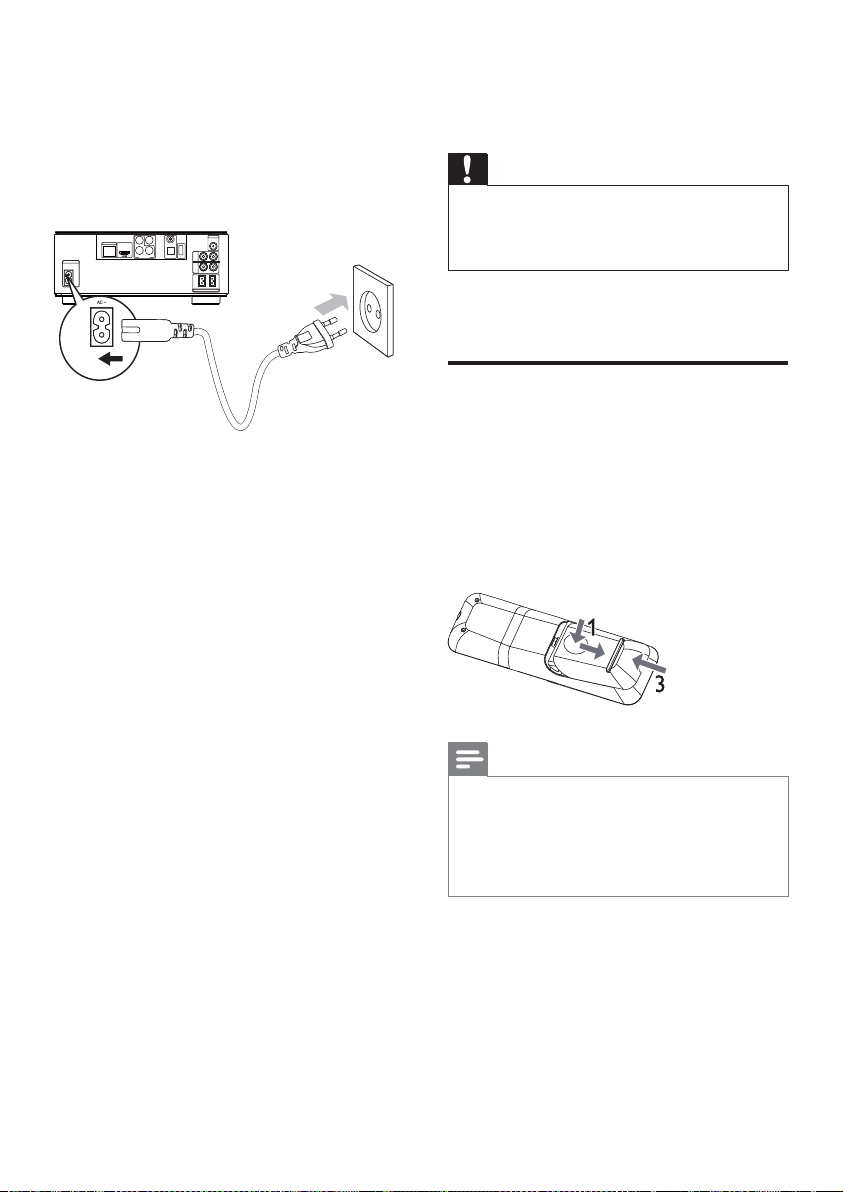
Connect audio from TV or other devices
Use this product to play audio from the TV or
other device such as a cable box.
Tip
Press • AUX to select the audio output of your
connection.
Connect FM antenna
Tip
For optimal reception, fully extend and adjust •
the position of the antenna.
For better FM stereo reception, connect an
•
outdoor FM antenna to the FM jack.
The unit does not support MW radio reception.
•
1 Connect the supplied FM wire antenna to
the FM socket on the unit.
COAXIAL
Pr/Cr
Pb/Cb
COMPONENT
Wi-Fi
Y
OPTICAL
DIGITAL AUDIO OUT
OE
DIV
T
UO
DIGITAL AV OUT
LAN
AUX
IN
LINE
OUT
LR
LR
ANTENNA
FM
SPEAKER OUT
R
L
AUX IN
R
L
RL
LINE OUT
COAXIAL
Pr/Cr
Pb/Cb
COMPONENT
Wi-Fi
Y
OPTICAL
DIGITAL AUDIO OUT
O
E
D
I
V
T
UO
DIGITAL AV OUT
LAN
AC
~
AUX
IN
LINE
OUT
LR
LR
ANTENNA
FM
SPEAKER OUT
R
L
English
EN
16
4 Get started
Caution
Use of controls or adjustments or •
performance of procedures other than herein
may result in hazardous radiation exposure or
other unsafe operation.
Always follow the instructions in this chapter in
sequence.
Prepare the remote control
1
Press and push the battery compartment
to slide it open (see “1” in the illustration).
2 Insert two AAA batteries with correct
polarity (+/-) as indicated.
3 Push and slide back the battery
compartment (see “3” in the illustration).
Note
If you are not going to use the remote control •
for a long time, remove the batteries.
Do not mix batteries (old and new or carbon
•
and alkaline, etc.).
Batteries contain chemical substances, so they
•
should be disposed of properly.
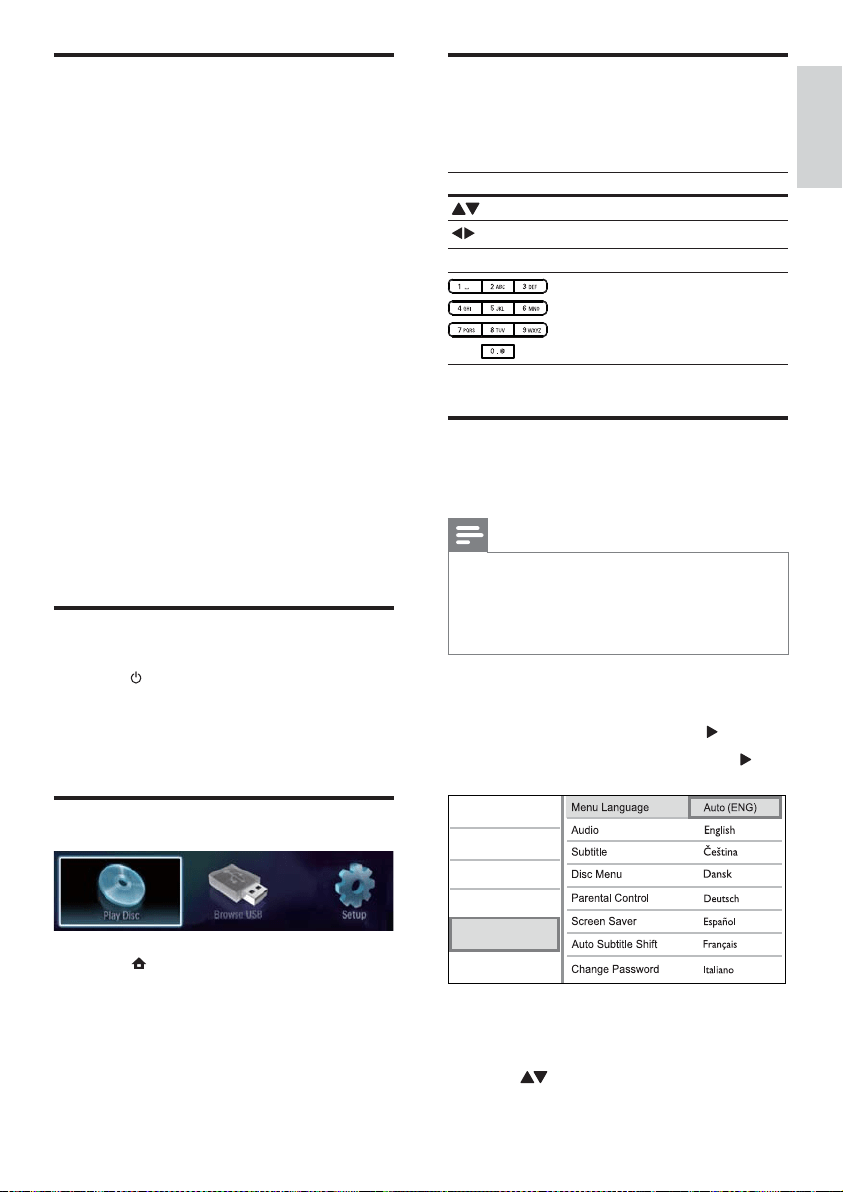
1 Connect the AC power cable to:
this product.•
the wall socket.•
This product is ready to be set up •
for use.
COAXIAL
Pr/Cr
Pb/Cb
COMPONENT
Wi-Fi
Y
OPTICAL
DIGITAL AUDIO OUT
O
E
D
I
V
T
U
O
DIGITAL AV OUT
LAN
AC
~
AUX
IN
LINE
OUT
LR
LR
ANTENNA
FM
SPEAKER OUT
R
L
EN
17
Navigate a menu
1
When a menu is displayed, press the
buttons on the remote control to navigate.
Button Action
Move up or down.
Move left or right.
OK Confirm a selection.
Enter numbers/letters/
text.
Select a menu display
language
Note
If this product is connected to an HDMI CEC •
compliant TV, skip this setting. It switches
automatically to the same OSD menu language
as per your TV setting (if the language set on
TV is supported by this product).
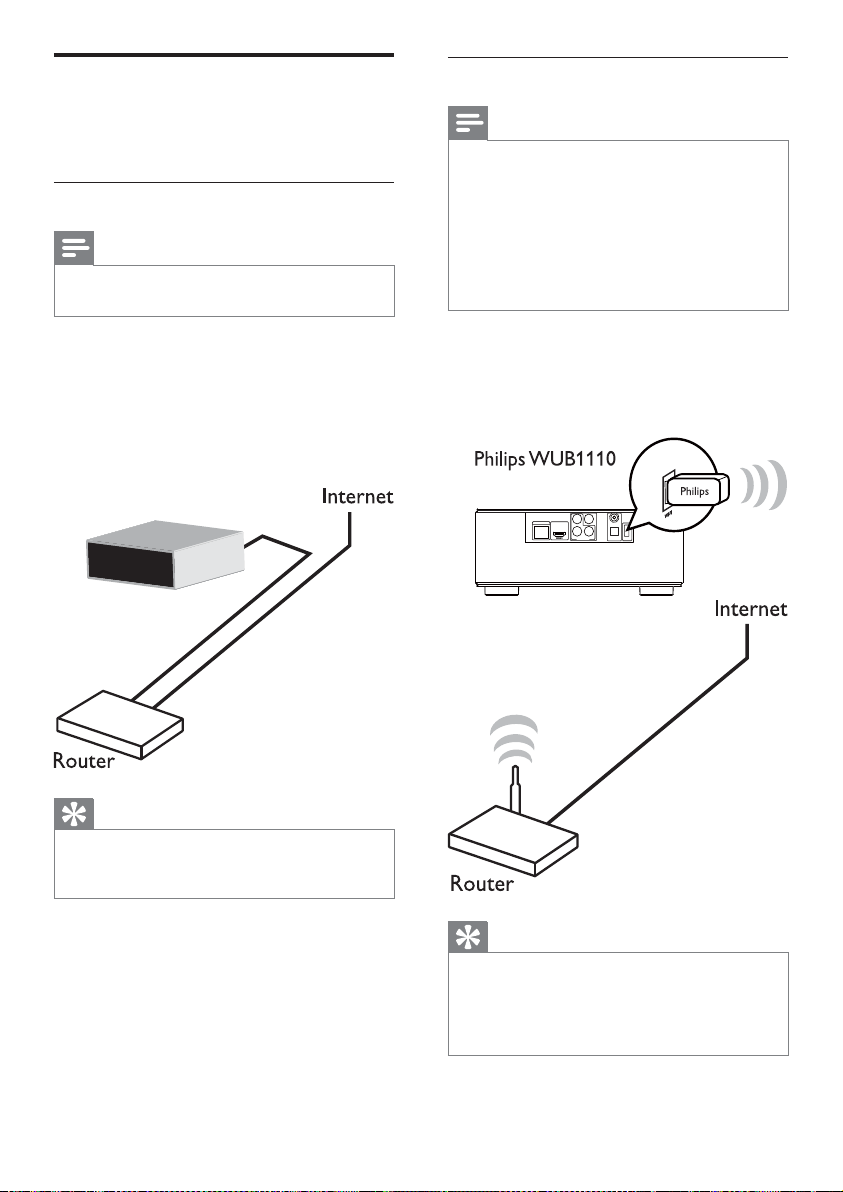
1 In the Home menu, select [Setup] and
press OK.
2 Select [Preference], and press .
3 Select [Menu Language], and press .
The language options may vary from •
different regions.
4 Press to select a language, and press OK.
Video
Advanced
Audio
Network
Preference
EasyLink
Set clock
1
In the Eco Power standby mode, press
and hold PROGRAM/CLOCK to activate
the clock setting mode.
The hour digits are displayed and begin »
to blink.
2 Press + VOL - to set the hour, then press
PROGRAM/CLOCK again.
The minute digits are displayed and »
begin to blink.
3 Press + VOL - to set the minute, then
press PROGRAM/CLOCK to confirm
the clock setting.
» [SYNC RDS] (synchronize with
RDS clock) or [UNSYNC RDS]
(not synchronize with RDS clock) is
displayed.
4 Press + VOL - to choose [SYNC RDS] or
[UNSYNC RDS].
5 Press PROGRAM/CLOCK to confirm.
Find the TV input
1
Press to turn on this player.
2 Turn on the TV and switch to the video
input (refer to the TV user manual on
how to select the A/V input).
Use the Home menu
1 Press to display the home menu.
To start disc play, select • [Play Disc].
To view the USB contents, select •
[Browse USB].
To access the setup menus, select •
[Setup].
English
EN
18
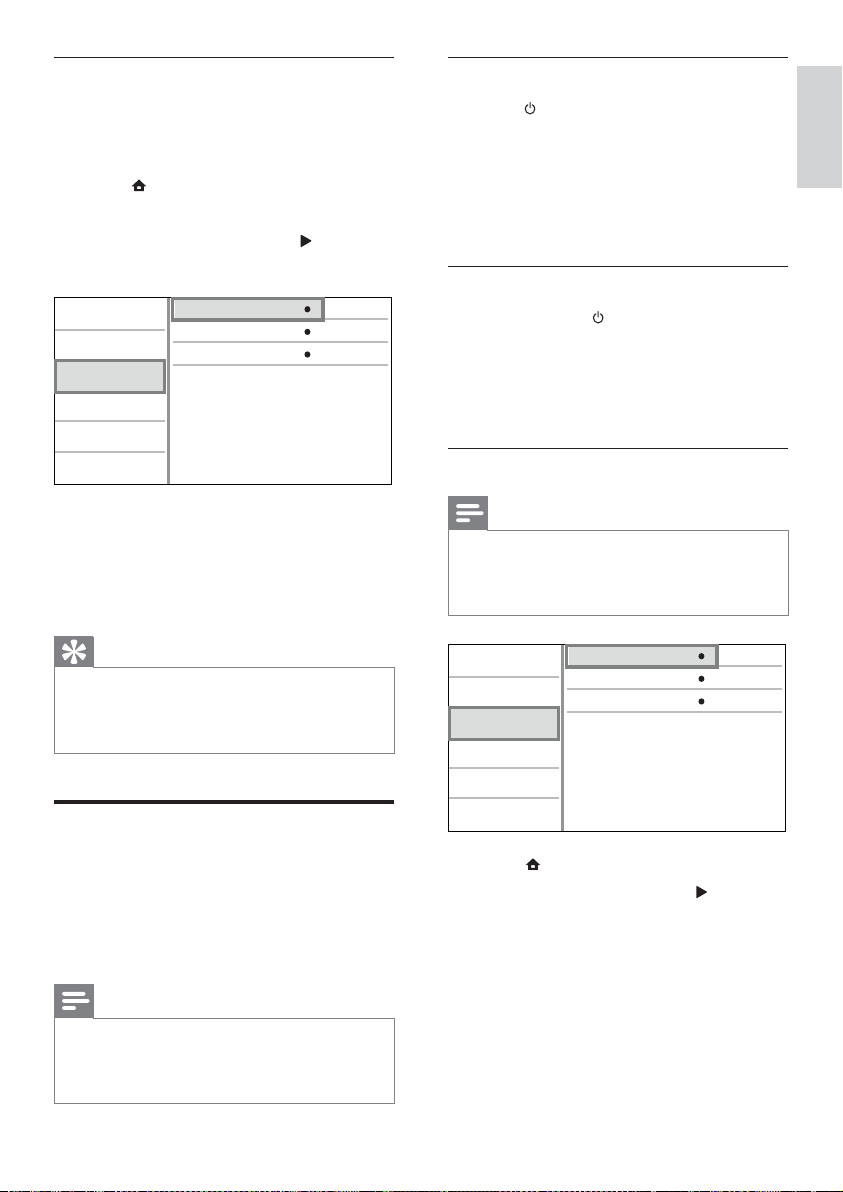
Set up a wireless network
Note
For wireless connection, you need to use an •
optional Philips Wi-Fi USB adapter (named
WUB1110).
The Wi-Fi USB Adapter (WUB1110) is not
•
included. To purchase this adapter, visit shop.
philips.com. If the Philips online shop is not
available in your country, please contact Philips
customer service. For contact details, go to
www.philips.com/support.
1 Connect a Philips Wi-Fi USB adapter
(named WUB1110, sold separately) to the
Wi-Fi port on the back of this product.
2 Turn on this product and the router.
Tip
The wireless performance can vary due •
to bandwidth connection, network traffic
and some environmental effects, such as
surrounded by metal panel or heavy concrete,
radio interference and coverage distance.
MBD3000
COAXIAL
Pr/Cr
Pb/Cb
COMPONENT
Wi-Fi
Y
OPTICAL
DIGITAL AUDIO OUT
O
ED
IV
T
U
O
DIGITAL AV OUT
LAN
ANTENNA
FM
Set up a network
You can connect this product to the Internet
for software update/BD Live enjoyment.
Set up a wired network
Note
Ensure that the network cables are properly •
connected.
1 Connect a network cable (not supplied)
to:
the • LAN port on this product.
the LAN port on a router with •
Internet connection.
2 Turn on this product and the router.
Tip
The wired network ensures the best •
performance for data transmission between
the devices.
MBD3000
EN
19
One-touch play
1 Press (standby) to turn on this product.
The TV (if the TV supports one-touch play) »
automatically turns on and switches to
the correct video-in channel.
If a disc is loaded in this product, disc »
play automatically starts.
One-touch standby
1 Press and hold (standby) for more than
3 seconds.
All the connected devices (if the »
device supports one-touch standby)
automatically switch to standby.
Map the devices to the audio inputs
Note
Before you start, ensure that the audio output •
of the HDMI TV and other HDMI devices have
been connected to the audio input jacks on
this product.
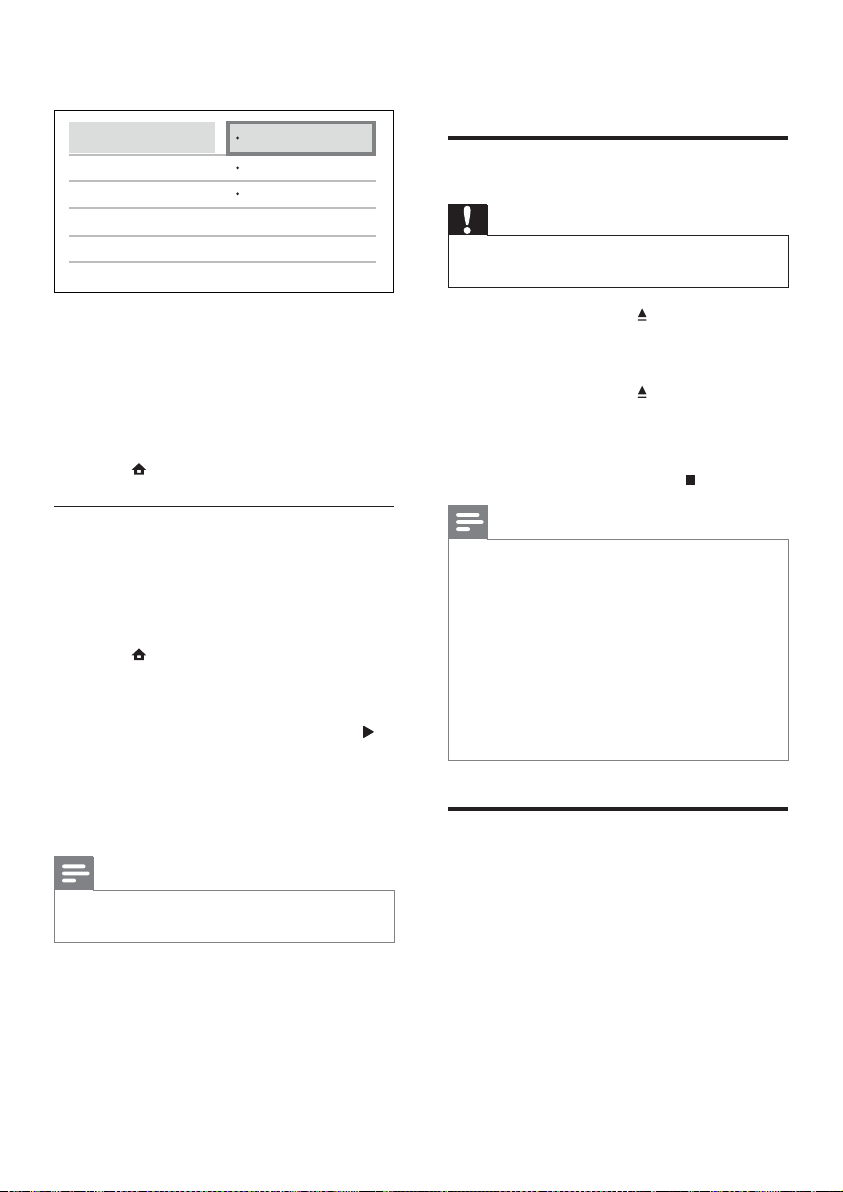
1 Press , select [Setup], then press OK.
2 Select [EasyLink], then press .
• [One Touch Play] and [One Touch
Standby] functions are turned on by
default.
3 Select [System Audio Control] > [On].
4 Read the on-screen instructions and
press OK to select [Continue].
The product scans and displays the »
valid devices.
View Network Settings
Network Installation
View Wireless Settings
Video
Advanced
Audio
Network
Preference
EasyLink
Install the network connection
For the first time you connect the network,
install the network connection.
1 Set up a wired or wireless network.
2 Press to display the home menu.
3 Select [Setup] and press OK.
4 Select [Network], and press .
5 Select [Network Installation], and press OK.
6 Follow the on-screen instructions to
complete the network installation.
After the network installation »
completes, you can access the services:
BD-Live and software updates.
Tip
You can check the status of the wired or wireless •
connection of this product (see “Adjust settings”
> “Network Setup” >[View Network Settings]
or [View Wireless Settings]).
Use Philips EasyLink
This player supports Philips EasyLink which uses
the HDMI CEC (Consumer Electronics Control)
protocol. You can use one single remote control
to control EasyLink-compliant devices that are
connected through HDMI connectors.
Note
To enable the EasyLink feature, you must turn •
on the HDMI CEC operations on the TV and
on other devices connected to TV. Refer to
the TVs/devices manual for details.
View Network Settings
Network Installation
View Wireless Settings
Video
Advanced
Audio
Network
Preference
EasyLink
English
EN
20
5 Play
Play a disc
Caution
Do not place any objects other than discs into •
the disc compartment.
1 Press OPEN/CLOSE to open the disc
compartment.
2 Insert a disc with its label facing up.
3 Press OPEN/CLOSE to close the disc
compartment and start disc play.
To view disc play, turn on the TV to •
the video input.
To stop disc play, press•
.
Note
Check disc/file formats supported (see “Your •
Blu-ray Micro System” > “Playable media”).
If the password entry menu is displayed, enter
•
the password before you can play the locked
or restricted disc (see “Adjust settings” >
“Preference Setup” > [Parental Control]).
If you pause or stop a disc, the screen saver
•
appears after 10 minutes of inactivity. To
deactivate the screen saver, press any button.
After you pause or stop a disc and no button
•
is pressed within 5 minutes, this product
automatically switches to standby.
Play from a USB device
Play or view media files on the following USB
devices:
flash drive•
memory card reader•
HDD (This product can detect only a •
portable hard disc drive with USB power
peak current no more than 500mA.)
5 Press OK to select [Continue].
Select a connected device on the left of
the menu, then press .
6 Select the connector that is used for the
device, then press OK.
Repeat steps 6~7 to map other »
devices.
7 Press to exit the menu.
Update audio mapping from
connected devices
If you have already mapped audio from
connected devices, you can use this procedure
to update your mapping.
1 Press , select [Settings], then press OK.
2 Select [EasyLink] > [Audio Input
Mapping], then press OK.
3 Select a connected device then press .
4 Select the connector that is used for the
device then press OK.
5 Repeat steps 4~5 to map other
connected devices.
Note
Philips does not guarantee interoperability •
with all HDMI CEC devices.
MP3
AUX
–
Philips TV
DVD player
Recorder
EN
21
Play video
Control video play
1 Play a title.
2 Use the remote control to control the
play.
Button Action
Pause play.
Start or resume play.
Stop play.
/ Skip to a previous/next title or
chapter.
/ Search fast-backward or fast-
forward. Press repeatedly to
change the search speed.
Note
For BD discs with Java application, availability •
of the play resume function depends on
specific discs.
Change video play
1 Play a title.
2 Use the remote control to change the
play.
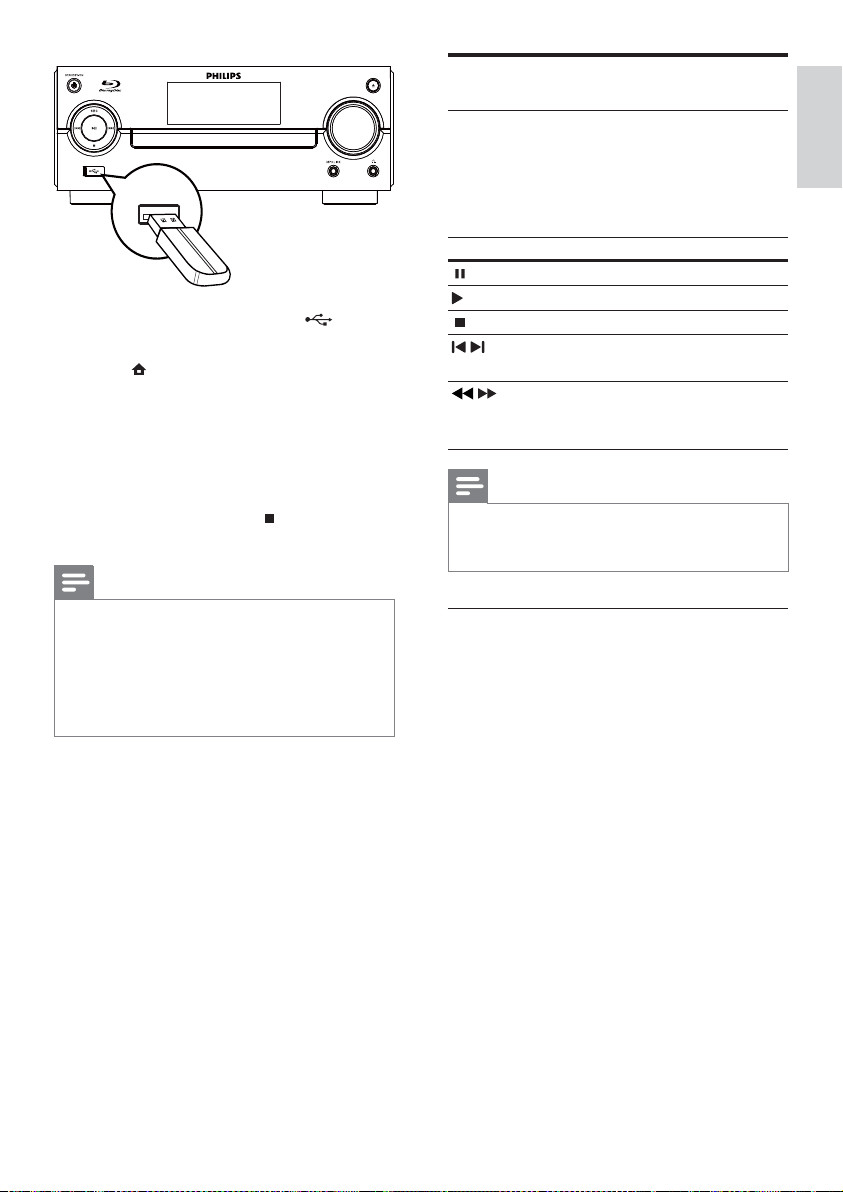
1 Connect a USB device to the (USB)
jack on the front panel of this product.
2 Press , and select [Browse USB], and
press OK.
A contents menu is displayed. »
3 Select a file to play, and press OK.
Play starts (see “Play video”, “Play »
photo”, “Play music” for details).
To stop play, press •
or remove the
USB device.
Note
Philips does not guarantee compatibility with •
all USB devices.
Not all digital cameras are supported.
•
Digital cameras that require PC programme
installation are not supported.
NTFS (New Technology File System) data
•
format is not supported.
BLU
-
RAY MICRO SYSTEM MBD3000
VOLUME
English
EN
22
DVD-video disc
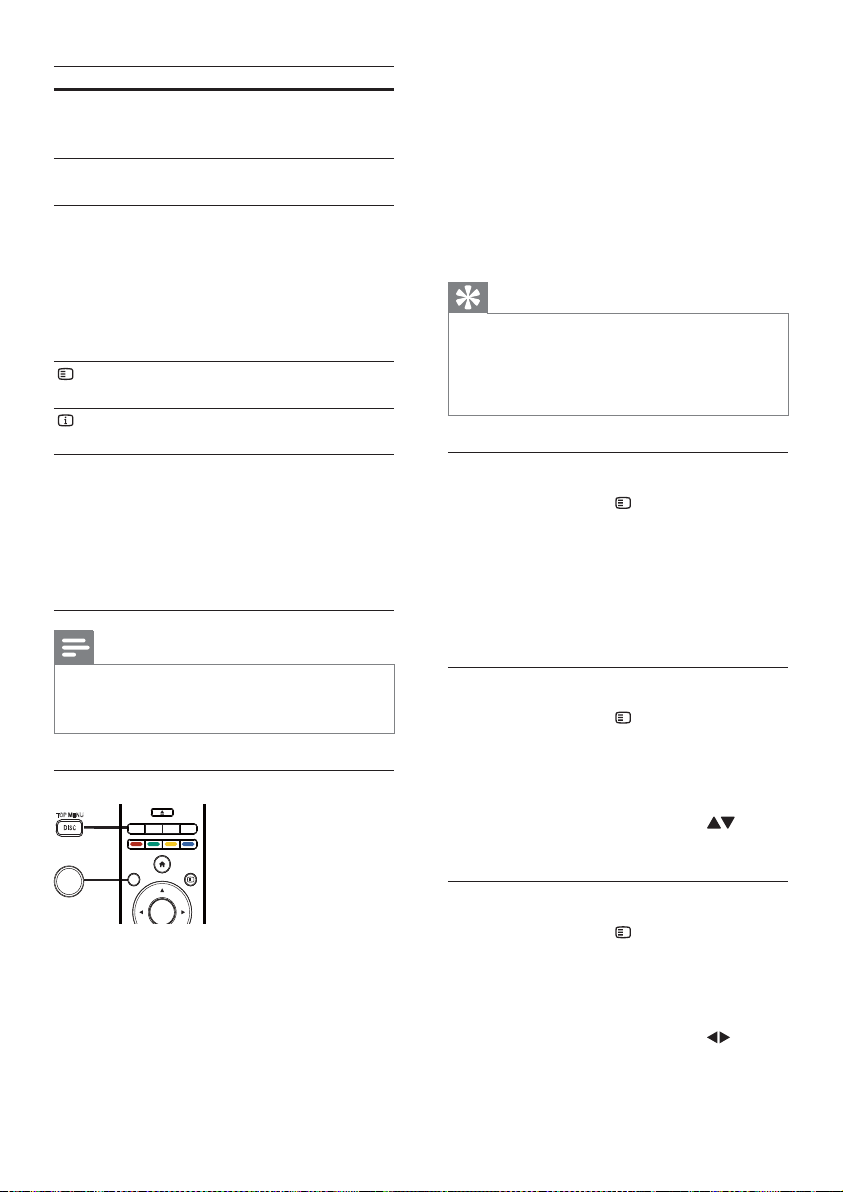
• TOP MENU: display the root menu of a
disc.
• DISC MENU: display disc information and
guide you through the available functions
in the disc.
VCD/SVCD/DivX disc:
• DISC MENU: display the content of the
disc.
Tip
If the PBC setting is off, the VCD/SVCD skips •
the menu and starts play from the first title. To
display the menu before play, turn on the PBC
setting (see “Adjust settings” > [Preference] >
[VCD PBC]).
Select a title/chapter
1 During play, press OPTIONS.
The play options menu is displayed. »
2 Select [Titles] or [Chapters] in the menu,
and press OK.
3 Select the title or chapter number, and
press OK.
Skip play to a specific time
1 During play, press OPTIONS.
The play options menu is displayed. »
2 Select [Time Search] in the menu, and
press OK.
3 Press the Navigation buttons ( ) to
change the time to skip to, and press OK.
Zoom in/out
1 During play, press OPTIONS.
The play options menu is displayed. »
2 Select [Zoom] in the menu, and press
OK.
3 Press the Navigation buttons ( )to
select a zoom factor, and press OK.
Button Action
AUDIO Directly select an audio
language or channel on a
disc.
SUBTITLE Directly select a subtitle
language on a disc.
MODE/DIM Directly select/turn off the
repeat or shuffle mode.
Repeat options may •
vary from the disc type.
For VCDs, repeat play is •
only possible when the
PBC mode is turned off.
OPTIONS Access the above mentioned
actions or more options.
INFO Display the current status or
disc information.
BONUSVIEW Turn on or off the
secondary video in a small
screen window during play
(applicable only to BD-
video that supports the
BONUSVIEW or Picture-
In-Picture feature).
Note
Some operations may not work with some •
discs. See the information accompanying the
disc for details.
Display menu
BD-video disc
• TOP MENU: access the BD-video disc
menu without interrupting disc play.
• POP-UP MENU: stop video play and
show the disc menu. This feature is disc-
dependent.
OPEN/CLOSE
AUX
USBRADIO
DISC
TOP MENU MP3 LINK
MENU
DISC/
POP-UP
OPTIONS
OK
MENU
DISC/
POP-UP
TOP MENU
EN
23
Manually shift subtitle display
You can manually adjust the subtitle position
on the TV screen.
1 During play, press OPTIONS.
The play options menu is displayed. »
2 Select [Subtitle Shift] in the menu, and
press OK.
3 Press the Navigation buttons ( ) to
shift the subtitle, and press OK.
Tip
Subtitle shift is not supported for DivX video •
with external subtitles.
Play BD-video
A Blu-ray video disc has a larger capacity
and supports features such as high-definition
videos, multi-channel surround sounds,
interactive menus and so on.
1 Insert a BD-video disc.
2 Press , select [Play Disc] and press OK.
3 Play automatically starts, or select a play
option in the menu and press OK.
During play, you can press •
DISC/TOP MENU to display the disc
menu without interrupting disc play.
During play, you can press • DISC/
POP-UP/MENU to display additional
information, features or content
stored in the disc.
Enjoy BONUSVIEW
(Applicable only to a disc compatible with the
BONUSVIEW or Picture-in-Picture feature)
You can instantly view additional content (such
as commentaries) in a small screen window.
1 Press BONUSVIEW to turn on the
secondary video window.
2 Press OPTIONS.
The play options menu is displayed. »
3 Select [2nd Audio Language] or [2nd Subtitle
Language] in the menu, and press
.
4 Press the Navigation buttons ( ) to
navigate in the zoomed picture.
To cancel zoom mode, press •
BACK to display the zoom factor
bar, and press the Navigation
buttons (
) until the zoom factor
[x1] is selected.
Repeat play for a specific section
1 During play, press OPTIONS .
The play options menu is displayed. »
2 Select [Repeat A-B] in the menu, and
press OK to set the starting point.
3 Forward the video play, and press OK to
set the ending point.
Repeat play starts. »
To cancel repeat play mode, press •
OPTIONS , and select [Repeat A-B]
and press OK.
Note
The marked section for repeat play is only •
possible within a track/title.
View video play from different camera
angles
1 During play, press OPTIONS.
The play options menu is displayed. »
2 Select [Angle List] in the menu, and press
.
3 Select an angle option, and press OK.
Play changes to the selected angle. »
Note
Applicable only to discs that contain multi- •
angle scenes.
English
EN
24
Note
You can only play DivX videos that were •
rented or purchased with the DivX registration
code of this player (see “Adjust Settings” >
[Advanced] > [DivX
®
VOD Code]).
You can play DivX video files of up to 4GB.
•
This player can display up to 45 characters in •
the subtitle.
Play photo
Play photo as slideshow
You can play JPEG photos (files with .jpeg or
.jpg extensions).
1 Insert a disc or USB device that contains
the JPEG photos.
2 Press , select [Play Disc]or [Browse
USB], and press OK.
A contents menu is displayed. »
3 Select a photo folder, and press OK to
enter.
To select a photo, press the •
Navigation buttons.
To enlarge the selected photo and •
start slideshow, press OK.
4 Press to start slideshow play.
Note
It may require longer time to display the disc •
content on the TV if there are a large number
of songs/photos compiled onto one disc.
This product can only display digital camera
•
pictures according to the JPEG-EXIF format,
typically used by most digital cameras. It
cannot display Motion JPEG, or pictures
in formats other than JPEG, or sound clips
associated with pictures.
Folders/files that exceed the supported limit of
•
this product cannot be displayed or played.
4 Select the language to play, and press OK.
Enjoy BD-LIVE
(Applicable only to a disc that enables BD-Live
bonus content. Ensure that this product is
connected to the Internet.)
Additional contents (such as movie trailers,
subtitles, and son on) can be downloaded
to the local storage of this product or a
connected USB storage device. Special video
data can be played while they are being
downloaded.
When the disc supporting BD-Live is played,
this product or disc ID can be sent to the
content provider via the Internet. The services
and functions that can be provided vary from
disc to disc.
Play DivX
®
video
DivX video is a digital media format that
retains high quality despite a high rate of
compression.
1 Insert a disc or USB device that contains
the DivX videos.
2 Press , select [Play Disc] or [Browse
USB], and press OK.
A contents menu is displayed. »
3 Select a video folder, and press OK.
4 Select a title to play, and press OK.
5 Use the remote control to control the
play.
Button Action
AUDIO Select an audio language
or channel.
SUBTITLE Select a subtitle language.
Stop play.
EN
25
Play music
Control a track
1 Play a track.
2 Use the remote control to control the
play.
Button Action
Pause play.
Start or resume play.
Stop play.
/ Skip to a previous/next
track.
Select an item to play.
/ Search fast-backward
or fast-forward. Press
repeatedly to change the
search speed.
MODE/DIM Select or turn off repeat or
shuffle mode.
Play MP3/WMA music
MP3/WMA is a type of compressed audio file
(files with .mp3, .wma extensions).
1 Insert a disc or USB device that contains
the MP3/WMA music.
2 Press , select [Play Disc] or [Browse
USB], and then press OK.
A contents menu is displayed. »
3 Select a music folder, and press OK.
4 Select a file to play, and press OK.
To return to the main menu, press •
BACK.
Control photo play
1 Play a photo slideshow.
Press •
OPTIONS to access play
options, select an option, and press OK.
During slideshow play, you may •
also press
to flip a photo
horizontally/vertically.
If the slideshow stops, press •
to
continue play.
Set a slideshow interval and animation
1 During play, press OPTIONS.
The play options menu is displayed. »
2 Select [Duration per slide] in the menu,
and press OK.
3 Select a duration, and press OK.
4 Select [Slide Animation] in the menu, and
press OK.
5 Select a type of animation effect, and press
OK.
Play a musical slideshow
Create a musical slideshow to play
simultaneously MP3/WMA music files and
JPEG photo files.
Note
To create a musical slideshow, you must store •
the MP3/WMA and JPEG files on the same
disc or USB device.
1 Play MP3/WMA music.
2 Press BACK to return to the main menu.
3 Navigate to enter a photo folder, and
press OK to start slideshow play.
Slideshow begins and continues till the »
end of the photo folder.
Audio continues to play until the end »
of the disc.
To stop the slideshow play, press •
.
To stop the music play, press •
again.
English
EN
26
6 Adjust settings
Note
If the setup option is grayed out, it means the •
setting cannot be changed at the current state.
Video setup
1
Press .
2 Select [Setup], and press OK.
3 Select [Video], and press .
4 Select an option, then press OK.
5 Select a setting, then press OK.
To return to the previous menu, •
press
BACK.
To exit the menu, press•
.
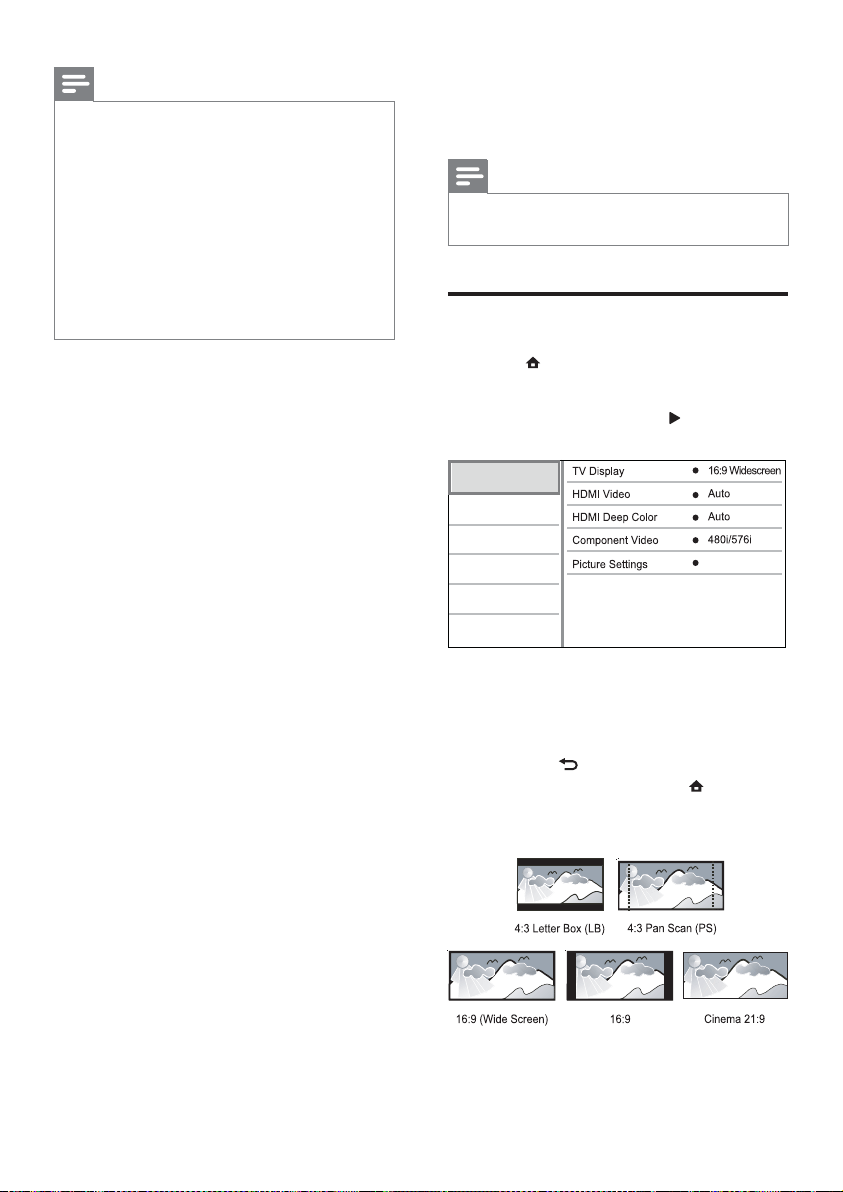
[TV Display]
Select a display format:
Standard
Video
Advanced
Audio
Network
Preference
EasyLink
Note
For disc recorded in multiple sessions, only the •
first session is played.
For a WMA file that is protected by Digital
•
Rights Management (DRM), it cannot be
played on this product.
This product does not support MP3PRO audio
•
format.
For any special character that is present in
•
the MP3 track name (ID3) or album name, it
might not be displayed correctly on the screen
because these characters are not supported.
Folders/files that exceed the supported limit of
•
this product cannot be displayed or played.
EN
27
Output 12 bit color that reduces the
posterization effect.
• [Off] - Output standard 8 bit color.
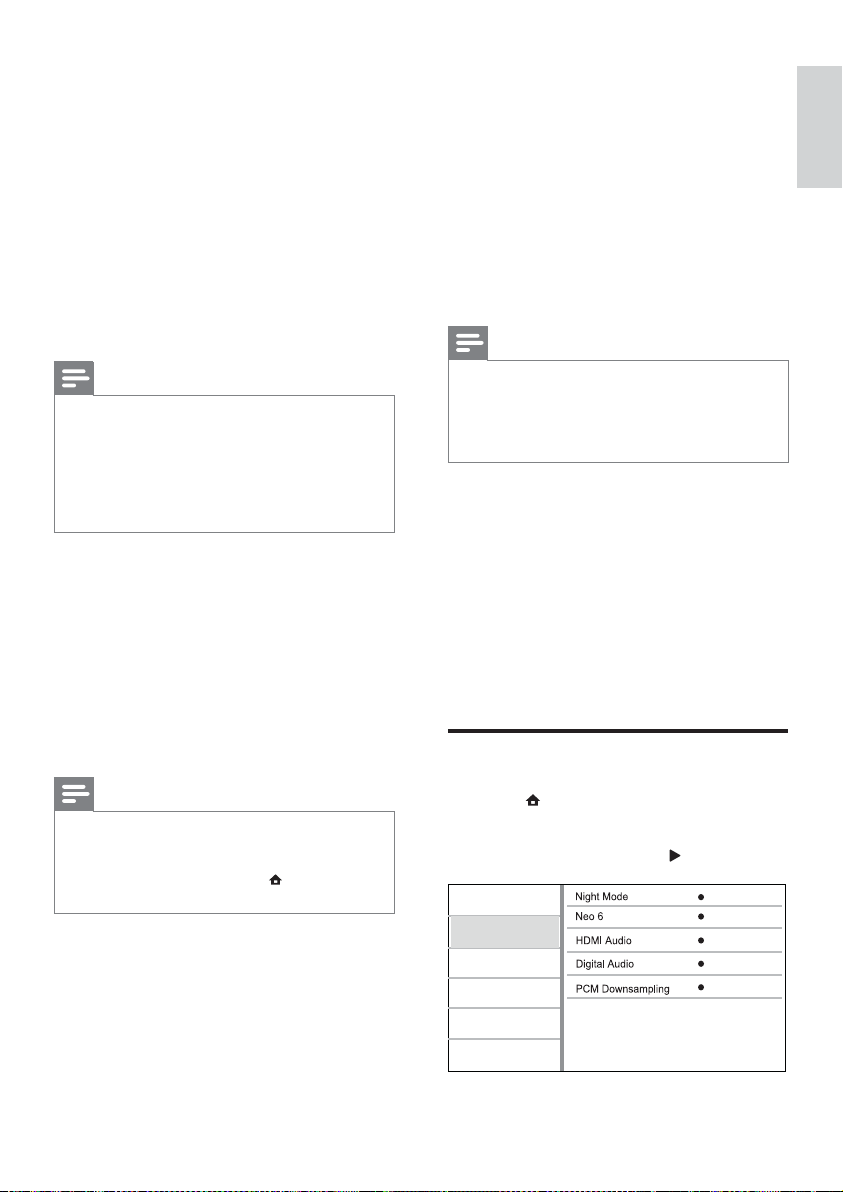
[Component Video]
Select a component video output resolution
that is compatible with the TV display
capability.
• [480i/576i], [480p/576p], [720p], [1080i]
- Select a video resolution setting that is
best supported by the TV. See the TV
manual for details.
Note
If the setting is not compatible with the TV, a •
blank screen appears. Wait for 10 seconds for
auto recovery.
Copy protected DVDs can only output
•
480p/576p or 480i/576i resolution.
[Picture Settings]
Select a predefined set of picture color settings.
• [Standard] – Original color setting.
• [Vivid] – Vibrant color setting.
• [Cool] - Soft color setting.
• [Action] – Sharp color setting. It
enhances the details in the dark area.
Ideal for action movies.
• [Animation] – Contrast color setting.
Ideal for animated pictures.
Audio setup
1
Press .
2 Select [Setup], and press OK.
3 Select [Audio], and press .
Off
Auto
Auto
On
Video
Advanced
Audio
Network
Preference
EasyLink
Off
• [4:3 Letterbox] – For 4:3 screen TV:
wide-screen display with black bars on
the top and bottom of the screen.
• [4:3 Panscan] – For 4:3 screen TV: full-
height display with the trimmed sides.
• [16:9 Widescreen] – For wide-screen TV:
display picture at ratio 16:9.
• [16:9] – For 16:9 screen TV: display
picture at ratio 4:3 for a disc with 4:3
ratio, with black bars on the left and right
side of the screen.
• [21:9 Cinema] – For wide-screen TV of
display ratio 21:9.
Note
If • [4:3 Panscan] you have selected is not
supported by the disc, the screen displays in
the [4:3 Letterbox] format.
Help text display is available in all modes,
•
except [21:9 Cinema].
For optimum viewing with Philips Cinema 21:9
•
TV, refer to the TV’s user manual.
[HDMI Video]
Select an HDMI video output resolution that
is compatible with your TV display capability.
• [Auto] - Detect and select the best
supported video resolution automatically.
• [Native] - Set to original video resolution.
• [480i/576i], [480p/576p], [720p], [1080i],
[1080p], [1080p/24Hz] - Select a video
resolution setting that best is supported
by the TV. See the TV manual for details.
Note
If a selected video resolution is not supported •
with your TV and a blank screen appears, to
recover picture display, wait for 10 seconds, or
on the remote control press
and then press
“731” (numeric buttons).
[HDMI Deep Color]
This feature is available only when the display
device is connected by an HDMI cable, and
when it supports deep color feature.
• [Auto] - Enjoy vivid images in over a
billion colors on Deep Color enabled TV.
• [On] - Enjoy vivid images in over a billion
colors on Deep Color enabled TV.
English
EN
28
• [PCM] - The audio device does not
support multi-channel format. Audio is
downmixed to two-channel sound.
• [Bitstream] - Select the original audio to
experience Dolby or DTS audio (BD-
video special sound effect is disabled).
Note
Ensure that the audio format is supported •
by the disc and the connected audio device
(amplifier/receiver).
When
• [Bitstream] is selected, interactive
audio like button sound is muted.
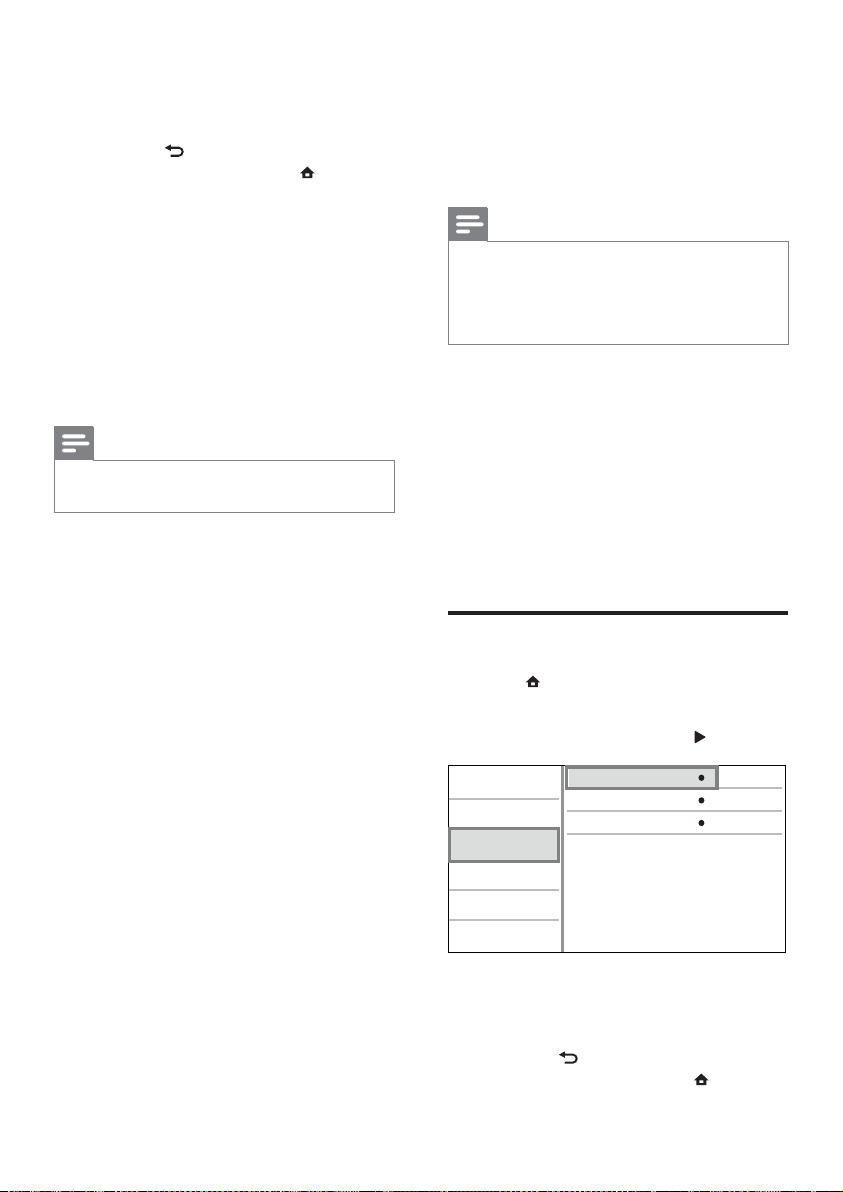
[PCM Downsampling]
Set the sampling rate for PCM audio output
from the DIGITAL OUT jack (coaxial/optical).
• [On] - PCM audio is down-sampled at
48kHz.
• [Off] - For BD or DVD recorded in
LPCM without copyright protection,
two-channel audio signals up to 96 kHz
are output as LPCM signals with no
conversion.
Network setup
1
Press .
2 Select [Setup], and press OK.
3 Select [Network], and press .
4 Select an option, then press OK.
5 Select a setting, then press OK.
To return to the previous menu, •
press
BACK.
To exit the menu, press •
.
View Network Settings
Network Installation
View Wireless Settings
Video
Advanced
Audio
Network
Preference
EasyLink
4 Select an option, and press OK.
5 Select a setting, and press OK.
To return to the previous menu, •
press
BACK.
To exit the menu, press •
.
[Night Mode]
Increase a soft sound level such as dialogue to
make it easier to hear at a low volume, while
simultaneously decreasing a loud sound level.
• [Auto] - Detect and select a best sound
level at a low volume. Applicable to tracks
with Dolby TrueHD audio only.
• [On] – For quiet viewing at night.
• [Off] – For surround sound with a full
dynamic range.
Note
Applicable only to Dolby encoded DVD-video •
or BD-video.
[Neo 6]
A post processing by DTS to generate a
surround sound effect from 2 channel audio.
• [Cinema] – Enable Neo 6 post processing
to the cinema mode.
• [Music] - Enable Neo 6 post processing
to the music mode.
• [Off] – Disable Neo 6 post processing.
[HDMI Audio]
Select an HDMI audio output when you
connect this product and the TV/audio device
with an HDMI cable.
• [Bitstream] – If the connected HDMI
device supports the appropriate HD
audio decoder, the original audio format
on the disc is sent. Otherwise, LPCM is
sent.
• [Auto] – Detect and select the best
supported audio format automatically.
[Digital Audio]
Select an audio format for the sound output
from the DIGITAL OUT jack (coaxial/optical).
• [Auto] - Detect and select the best
supported audio format automatically.
EN
29
one-touch play) automatically turns on and
switches to the video-in channel. Disc play
starts if there is a disc in this product.
• [On] - Turn on one-touch play feature.
• [Off] - Disable one-touch play feature.
[One Touch Standby]
When you press and hold
(standby), all
the connected HDMI CEC devices (if the
device supports one-touch standby) switch to
standby mode simultaneously.
• [On] - Turn on one-touch standby
feature.
• [Off] - Disable one-touch standby
feature.
[System Audio Control]
When you play audio that is routed from the
connected devices, this unit switches to the
corresponding audio source automatically.
• [On] - Turns on System Audio Control.
Then proceed to [Audio Input Mapping]
to scan and map all the connected
devices.
• [Off] - Disables System Audio Control.
[Audio Input Mapping]
Updates audio input mapping if there are new
devices connected.
Note
You must turn on the HDMI CEC operations •
on the TV/devices before you can enjoy the
EasyLink controls. See the TV/devices manual
for details.
Philips does not guarantee 100%
•
interoperability with all HDMI CEC compliant
devices.
[Network Installation]
Install the network connection.
[View Network Settings]
Display the information for the current
network status.
[View Wireless Settings]
Display the information for the current Wi-Fi
status.
If the current network is not set to a wireless
connection, this feature is de-activated.
EasyLink setup
1
Press .
2 Select [Setup], and press OK.
3 Select [EasyLink], and press .
4 Select an option, and press OK.
5 Select a setting, and press OK.
To return to the previous menu, •
press
BACK.
To exit the menu, press •
.
[EasyLink]
This product supports Philips EasyLink which
uses the HDMI CEC (Consumer Electronics
Control) protocol. You can use one single
remote control to control all EasyLink-
compliant devices that are connected through
HDMI connectors.
• [On] - Turn on EasyLink features.
• [Off] - Disable EasyLink features.
[One Touch Play]
When you press
(standby) to turn on
this product, the TV (if the TV supports
View Network Settings
Network Installation
View Wireless Settings
Video
Advanced
Audio
Network
Preference
EasyLink
English
EN
30
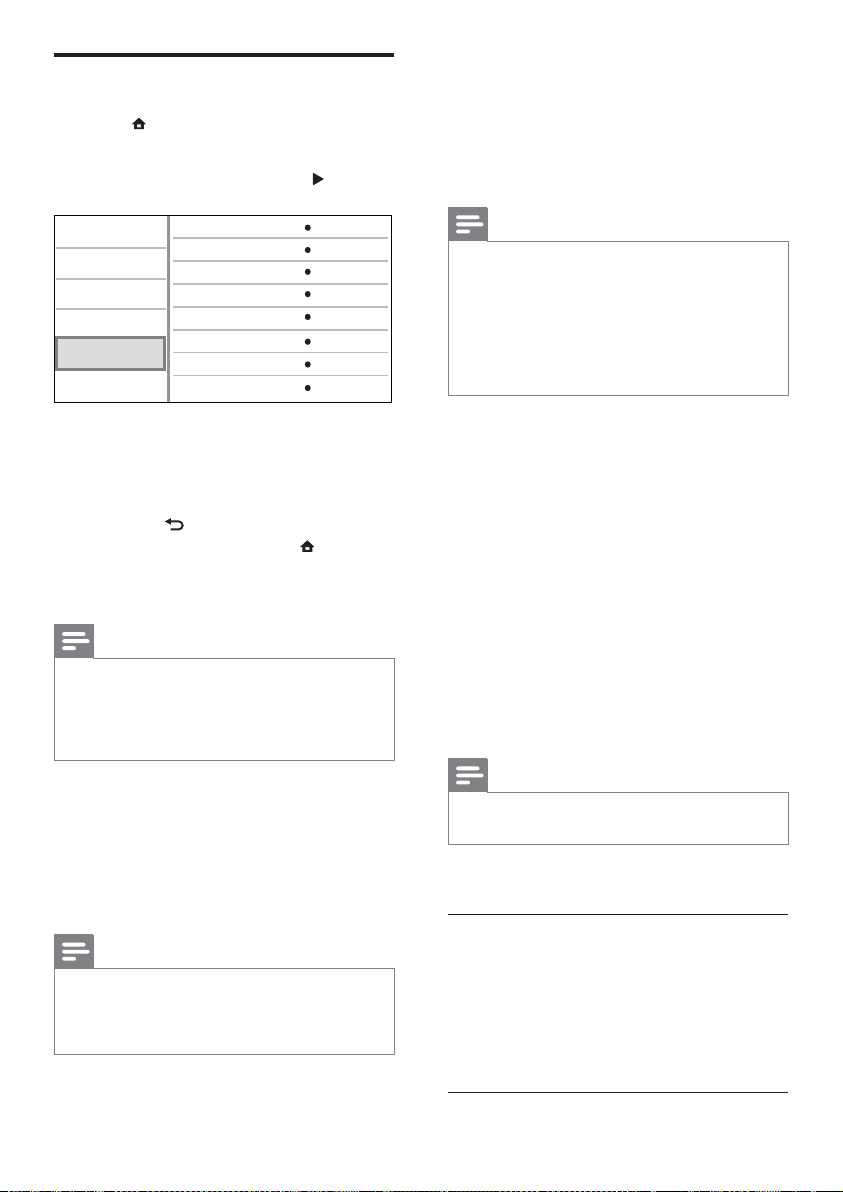
[Parental Control]
Restrict access to discs that are unsuitable
for children. These types of discs must be
recorded with ratings.
To access, enter your last set password or
‘0000’.
Note
Rated discs above the level you set in • [Parental
Control] require a password to be played.
The ratings are country-dependent. To allow
•
all discs to play, select ‘8’ for DVD-video and
BD-Video.
Some discs have ratings printed on them but
•
are not recorded with ratings. This function
has no effect on such discs.
[Screen Saver]
Turn on or off the screen saver mode. It helps
to protect the TV screen from being damaged
due to over exposure to static image for being
too long.
• [On] - Set the screen saver active after 10
minutes of inactivity (for example, in the
pause or stop mode)
• [Off] - Disable screen saver mode.
[Auto Subtitle Shift]
Turn on or off the automatic subtitle shift.
• [On] - The subtitle position on the TV
screen is automatically adjusted.
• [Off] - Disable the automatic subtitle
shift.
Note
This feature only works when • [TV Display] is
set to [21:9 Cinema].
[Change Password]
Set or change the password.
1) Press the Numeric buttons to enter the
password or your last set password. If you
forget the password, enter ‘0000’, then
press OK.
2) Enter the new password.
3) Enter the same password again.
4) Move to [Confirm] in the menu and press
OK.
Preference setup
1
Press .
2 Select [Setup], and press OK.
3 Select [Preference], and press .
4 Select an option, then press OK.
5 Select a setting, then press OK.
To return to the previous menu, •
press
BACK.
To exit the menu, press •
.
[Menu Language]
Select an on-screen menu language.
Note
If this product is connected to an HDMI CEC •
compliant TV using an HDMI cable, it switches
automatically to the same menu display
language as per your TV setting (if the language
set on TV is supported by this product).
[Audio]
Select an audio language for disc play.
[Subtitle]
Select a subtitle language for disc play.
[Disc Menu]
Select a language for disc menu.
Note
If the language you have set is not available on •
the disc, the disc uses its own default language.
For some discs, the subtitle/audio language can
•
only be changed from the disc menu.
Video
Advanced
Audio
Network
Preference
EasyLink
Menu Language
Parental Control
Disc Menu
Audio
Subtitle
Screen Saver
Change Password
Auto (ENG)
English (ENG)
English (ENG)
Off
Off
On
Auto Subtitle Shift
On
EN
31
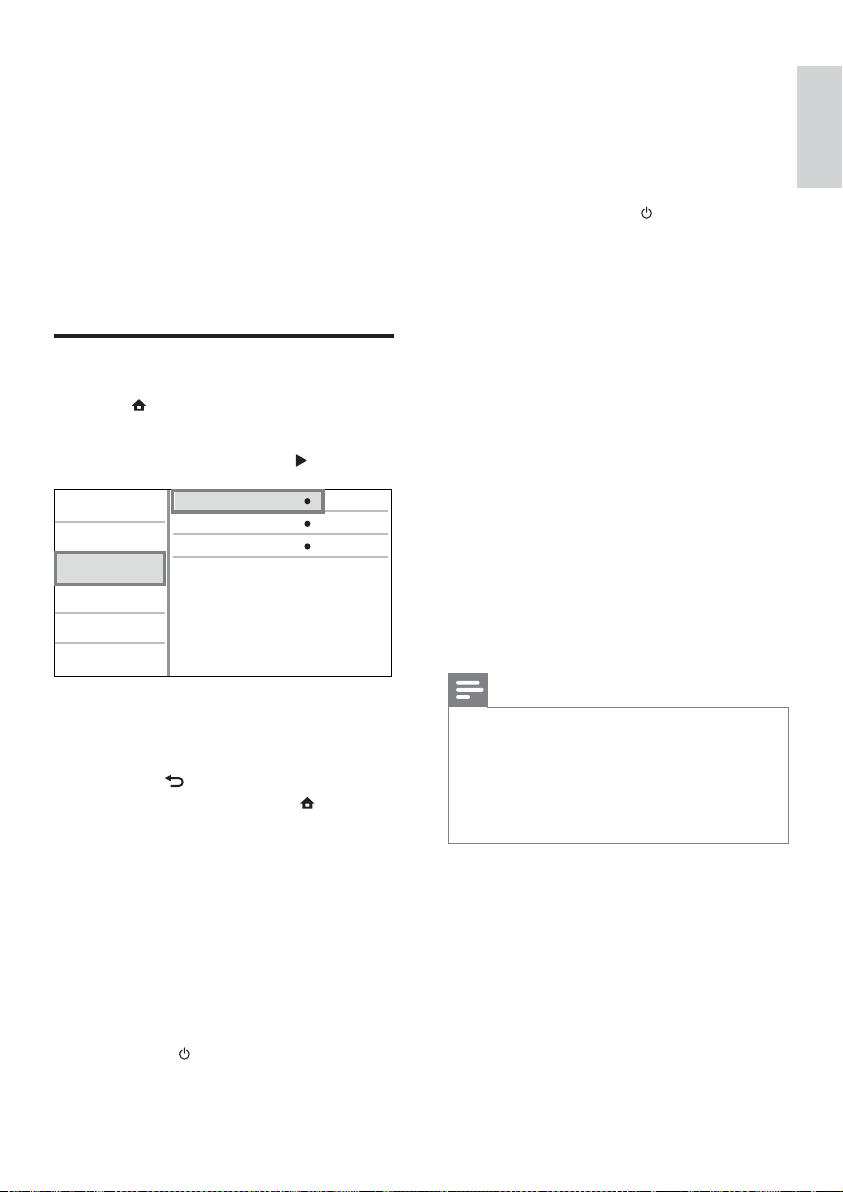
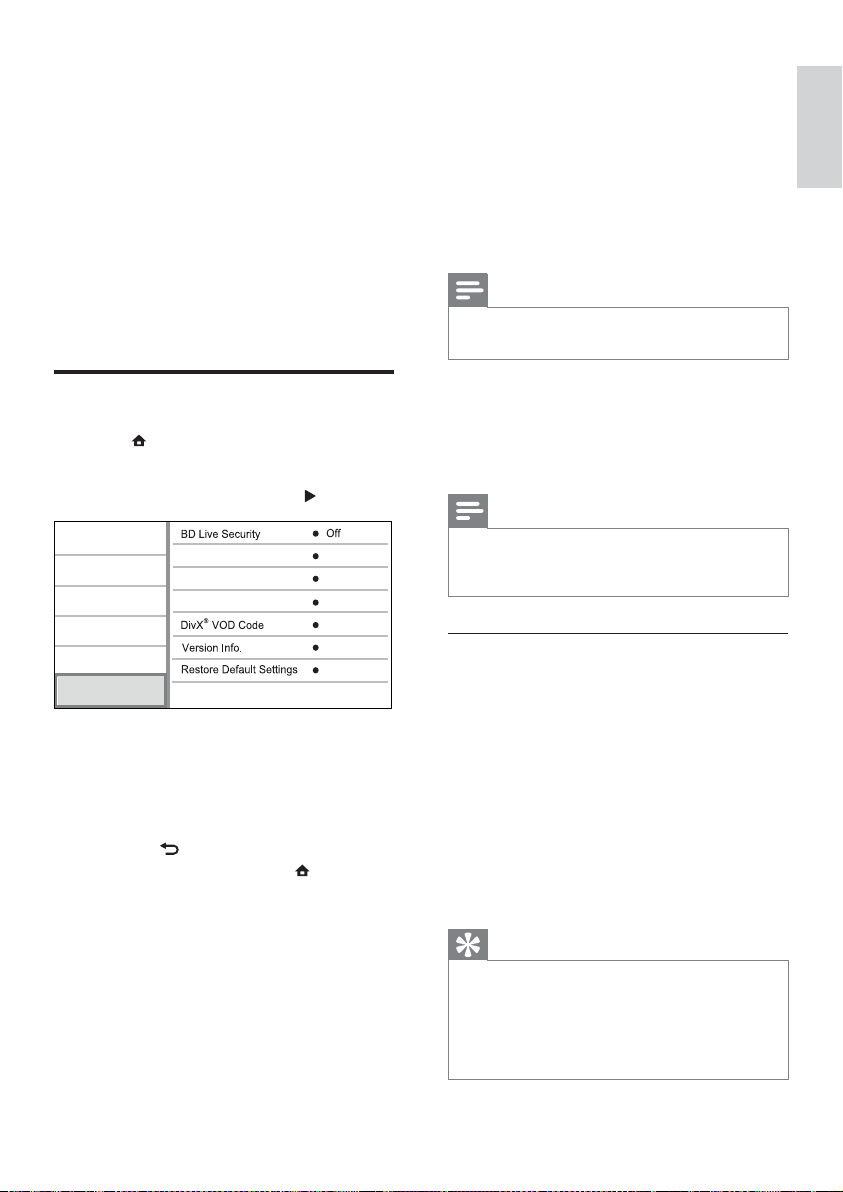
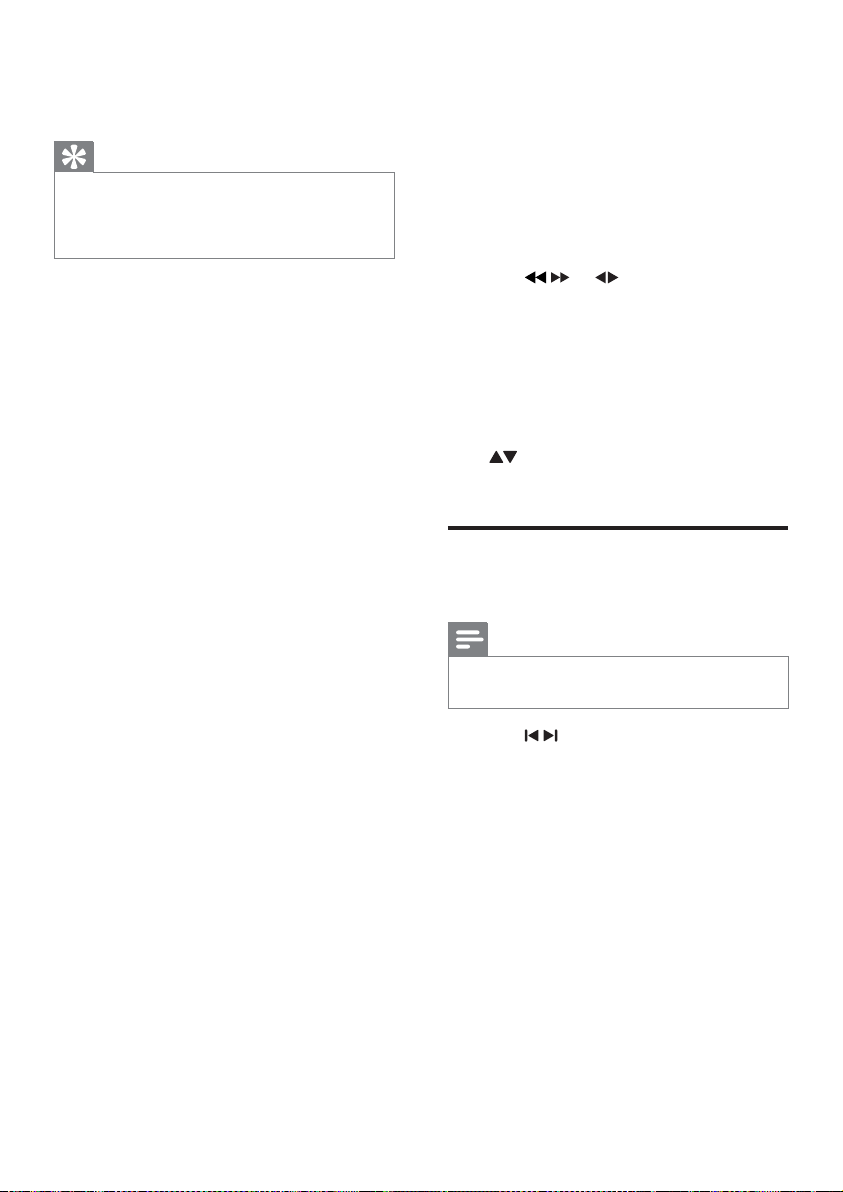
[Software Update]
Update the software of this product (if a
latest version is available on Philips website) to
enhance the performance of this product.
• [USB] - Update software from the
USB device which is connected to this
product.
• [Network] - Update software from the
Internet.
Note
For detailed software updating, see “Additional •
information” > “Update software”.
[Clear Memory]
If the internal memory of this product is not
enough to download BD-Live bonus contents
for a BD disc, reformat the local storage to
clear all the contents.
Note
When you clear the local storage, previous •
download of BD-Live bonus contents is no
longer available.
Local Storage
[Local Storage]
Save the downloaded BD-Live bonus contents
for a BD disc to the local memory of the
product or an external USB storage device.
[Internal] - Save to the local memory of the
product.
[External] - Save to an external USB storage
device connected to the product.
[DivX
®
VOD Code]
Obtain the DivX
®
registration code or the
deregistration code.
Tip
Use the DivX registration code of this product •
when you rent or purchase video from www.
divx.com/vod. The DivX videos rented or
purchased through the DivX
®
VOD (Video
On Demand) service can be played only on
the device to which it is registered.
[Display Panel]
Select a brightness level of the front panel
display.
• [Normal] - Normal brightness.
• [Dim] - To dim display.
[VCD PBC]
Turn on or off the content menu of VCDs/
SVCDs with PBC (playback control) feature.
• [On] - Display the index menu when you
load a disc for play.
• [Off] - Skip the menu and start play from
the first title.
Advanced setup
1
Press .
2 Select [Setup], and press OK.
3 Select [Advanced], and press .
4 Select an option, and press OK.
5 Select a setting, and press OK.
To return to the previous menu, •
press
BACK .
To exit the menu, press•
.
[BD-Live Security]
You can restrict internet access for BD-Live
bonus contents which are available to certain
Blu-ray discs.
• [On] - Internet access is prohibited for all
BD-Live contents.
• [Off] - Internet access is permitted for all
BD-Live contents.
Video
Local Storage
Clear Memory
Advanced
Audio
Network
Preference
EasyLink
Software Update
English
EN
32
7 Tune to FM
radio stations
1 Ensure that you have connected and fully
extended the supplied FM antenna.
2 Press RADIO.
3 Press / or .
4 When the frequency indication starts to
change, release the button.
The FM tuner tunes to a station with »
strong reception automatically.
5 Repeat steps 3-4 to tune to more stations.
To tune to a weak station:
Press
repeatedly until you find optimal
reception.
Program radio stations
automatically
Note
You can program a maximum of 40 preset •
radio stations.
1 Press / to select a preset number to
start programming.
2 Press and hold PROGRAM/CLOCK
for 2 seconds to activate automatic
programming.
» [AUTO] (auto) is displayed briefly.
All available stations are programmed »
in the order of waveband reception
strength.
The first programmed radio station is »
broadcast automatically.
[Version Info.]
Display the software version and the MAC
address of this player.
Tip
This information is needed for you to check •
if a latest software version is available at the
Philips website so that you can download and
install on this player.
[Restore Default Settings]
Reset all the settings of this player to the
factory settings, except for [Parental Control]
setting.
EN
33
Note
The accuracy of the transmitted time depends •
on the RDS station that transmits the time
signal.
If you have chosen
• [UNSYNC RDS] during
clock setting, you can press
INFO to view
the RDS clock.
Program radio stations
manually
Note
You can program a maximum of 40 preset •
radio stations.
1 Tune to a radio station.
2 Press PROGRAM/CLOCK to activate
programming.
3 Press / to allocate a number from
1 to 40 to this radio station, then press
PROGRAM/CLOCK to confirm.
The preset number and the frequency »
of the preset station are displayed.
4 Repeat the above steps to program other
stations.
Note
To overwrite a programmed station, store •
another station in its place.
Tune to a preset radio station
1
Press / to select a preset number
that you want.
Set RDS clock
You can use time signal broadcast together
with the RDS signal to set the clock of the unit
automatically.
1 Ensure that you have chosen [SYNC
RDS] during clock setting (see “Get
started” > “Set clock”).
2 Tune to an RDS radio station that
transmits time signals.
The unit reads the RDS time and sets »
the clock automatically.
English
EN
34
Mute sound
1
During play, press to mute/resume
sound.
Listen through headphone
1
Plug a headphone into the socket on
the unit.
8 Adjust volume
level and sound
effect
Adjust volume level
1
During play, press VOL +/- to increase/
decrease the volume level.
Select a sound effect
Note
You cannot use different sound effects at the •
same time.
Adjust bass level
1 During play, press BASS to enter bass
adjustment.
2 Press VOL +/- to adjust the bass level.
Adjust treble level
1 During play, press TREBLE to enter treble
adjustment.
2 Press VOL +/- to adjust the treble level.
Select automatic loudness control
The loudness feature enables the system to
increase the treble and bass sound effect
at low volume automatically (the higher
the volume, the lower the treble and bass
increase).
1 During play, press LOUDNESS to turn
on/off automatic loudness control.
EN

35
Set the sleep timer
1
When the unit is turned on, press SLEEP/
TIMER repeatedly to select a set period
of time (in minutes).
The unit turns off automatically after »
the set period of time.
Update software
For software updates to enhance performance,
check the current software version of this
product to compare with the latest software
(if available) at the Philips website.
1 Press .
2 Select [Setup], and press OK.
3 Select [Advanced] > [Version Info.], and
press OK.
Update software via network
1 Set up the internet connection (see “Get
started’ > “Set up a network”).
2 In the Home menu, select [Setup] >
[Advanced] > [Software Update] >
[Network].
You are prompted to start the »
upgrading process if upgrade media is
detected.
3 Follow the instructions on the TV screen
to confirm update operation.
Once software update is complete, this »
product restarts automatically.
Update software via USB
1 Go to www.philips.com/support to check
if the latest software version is available
for this product.
2 Download the software into a USB flash
drive:
9 Additional
Information
Adjust brightness of display
panel
1
In standby mode, press MODE/DIM
repeatedly to select different levels of
brightness for the display panel.
Set the alarm timer
1
Ensure that you have set the clock
correctly.
2 In standby mode, press and hold SLEEP/
TIMER.
The hour digits are displayed and begin »
to blink.
3 Press + VOL - to set the hour, then press
SLEEP/TIMER again.
The minute digits are displayed and »
begin to blink.
4 Press + VOL - to set the minute.
An alarm source icon (disc, tuner or »
USB) begins to blink.
5 Press + VOL - to select an alarm source.
6 Press SLEEP/TIMER to confirm.
» [OFF] (off) begins to blink.
7 To activate the wake-up timer, press +
VOL - to select [ON] (on) while [OFF]
(off) is blinking.
A clock icon appears on the display. »
To deactivate the alarm timer, select »
[OFF] (off) at step 6.
English
EN
36
Video
Laser type: Semiconductor•
Disc diameter: 12cm/8cm•
Video decoding: MPEG-1 / MPEG-2 / •
Divx
Video DAC: 12Bits•
Signal system: PAL / NTSC•
Video format: 4:3 / 16:9•
Component video output: •
480i/576i,480p/576p, 720p, 1080i
Video S/N: > 48dB•
HDMI output: 480p, 576p, 720p, •
1080i,1080p, 1080p24
Audio DAC: 24Bits / 192kHz•
Total Harmonic distortion: < 0.1% •
(1 kHz)
Frequency response: •
4Hz - 20kHz (44.1kHz)
4Hz - 22kHz (48kHz)
4Hz - 24kHz (96kHz)
S/N ratio: > 65dBA •
Tuner (FM)
Tuning range: 87.5 - 108MHz •
Tuning grid: 50KHz•
- Mono, 26dB S/N ratio: <22 dBf,
- Stereo, 46dB S/N ratio: >43 dBf
Search selectivity: >28dBf •
Total harmonic distortion: <1% •
Signal to noise ratio: >55dB •
USB
Compatibility: Hi-Speed USB (2.0)•
Class support: UMS (USB Mass Storage •
Class)
Main unit
Power supply rating•
Europe: 220-230V~, 50 Hz•
Power consumption: 50W•
Power consumption in standby mode: •
< 0.5 W
Dimensions (w x h x d): 277 x 98 x 247 •
(mm)
Net weight: 2.5 kg•
Speakers
Speaker impedance: 8ohm•
Speaker driver: 5”woofer+1”tweeter•
a Un-zip the download, and make
sure that the un-zipped folder is
named “UPG”.
b Put the “UPG” folder in the root
directory.
3 Insert the USB flash drive to the
(USB) jack on the front panel of this
product.
4 In the Home menu, select [Setup] >
[Advanced] > [Software Update] >
[USB].
5 Follow the instructions on the TV screen
to confirm update operation.
Once software update is complete, this »
product restarts automatically.
Note
Do not turn off the power or remove the •
USB flash drive when software updating is in
progress to prevent possible damage of this
product.
Care
Caution
Never use solvents such as benzene, thinner, •
cleaners available commercially, or anti-static
sprays intended for discs.
Clean discs
Wipe the disc with a micro fibre cleaning cloth
from the centre to the edge in a straight line
movement.
Specifications
Note
Specifications are subject to change without •
notice
EN

37
Output power: •
BD: Max. ratings: 20mW•
DVD: Max. ratings: 7mW•
CD: Max. ratings: 7mW•
Sensitivity: >80dB/m/W ± 4dB/m/W•
Dimensions: (w x h x d): 160 x 255 x •
2240 (mm)
Net weight: 3.5 kg•
Accessories supplied
Remote control and batteries•
Audio/Video cables•
Power cable•
FM wire antenna•
MP3 LINK cable•
Quick start guide•
User manual•
Optional accessory
A wireless Philips USB adapter(named •
WUB1110, sold separately)
Multimedia connections: Wi-Fi •
802.11b/g/n
Connectivity: Rear connection (USB)•
Ambient temperature: 5 deg C to 40 •
deg C.
Dongle dimensions (W x H x D): •
28.4 x 82 x 13.4 mm
Laser Specification
Laser Type: •
BD Laser Diode: InGaN/AIGaN•
DVD Laser Diode: InGaAIP•
CD Laser Diode:A IGaAs•
Wave length: •
BD: 405 +5 nm/-5 nm•
DVD: 650 +5nm/-10nm•
CD: 790 +10nm/-20nm•
Output power: •
BD: Max. ratings: 20mW•
DVD: Max. ratings: 7mW•
CD: Max. ratings: 7mW•
Laser Specification
Laser Type: •
BD Laser Diode: InGaN/AIGaN•
DVD Laser Diode: InGaAIP•
CD Laser Diode:A IGaAs•
Wave length: •
BD: 405 +5 nm/-5 nm•
DVD: 650 +5nm/-10nm•
CD: 790 +10nm/-20nm•
English
EN
38
Check if the HDMI cable is faulty. Replace •
with a new HDMI cable.
On the remote control, press •
and then
press “731” (numeric buttons) to recover
picture display.
No high-definition video signal on the TV.
Make sure that the disc contains high-•
definition video.
Make sure that the TV supports high-•
definition video.
Sound
No sound or poor sound
Adjust the volume. •
Disconnect the headphones. •
Check that the speakers are connected •
correctly.
Check if the stripped speaker wires are •
clamped.
No sound on HDMI connection.
You may not hear any sound from the •
HDMI output if the connected device
is non-HDCP compliant or only DVI-
compatible.
No secondary audio output for Picture-in-
Picture feature.
When • [Bitstream] under the [HDMI
Audio] or [Digital Audio] menu is
selected, interactive sound like secondary
sound for Picture-in-Picture feature is
muted. Deselect [Bitstream].
Play
Disc cannot be played.
Ensure that the disc is correctly loaded.•
Ensure that this product supports the •
disc (see “Your Blu-ray Micro System” >
“Playable media”).
Ensure that this product supports the •
region code of the DVD or BD.
For DVD±RW or DVD±R, ensure that •
the disc is finalized.
Clean the disc. •
10 Troubleshooting
Warning
Risk of electric shock. Never remove the •
casing of the product.
To keep the warranty valid, never try to repair
the product yourself.
If you have problems using this product, check
the following points before you request service.
If you still have a problem, register your product
and get support at www.philips.com/welcome.
Main unit
No reaction to the remote control.
Connect this product to the power •
outlet.
Point the remote control at the IR sensor •
located on the front panel of this product.
Insert the batteries correctly.•
Insert new batteries in the remote •
control.
Timer does not work
Set the clock correctly. •
Switch on the timer. •
Clock/timer setting erased
Power has been interrupted or the power •
cord has been disconnected.
Reset the clock/timer. •
Picture
No picture.
See TV manual for correct video input •
selection. Change the TV channel until
you see the Philips screen.
No picture on HDMI connection.
If this product is connected to an •
unauthorized display device with an
HDMI cable, the audio/video signal may
not be output.
EN

39
Network
Wireless network is not found or distorted.
Microwave ovens, DECT phones or other •
wireless devices in your neighborhood
might disturb the wireless network.
Make sure that the firewalls in your •
network allow access to the wireless
connection of this product.
If the wireless network does not work •
properly in your home, try the wired
network connection (see “Get started” >
“Set up a network”).
Data files (JPEG, MP3, WMA) cannot be
played or read.
Ensure that the data file was recorded in •
the UDF, ISO9660 or JOLIET format.
Ensure that the disc does not contain •
more than 9,999 files for DVD, and 999
files for CD.
Ensure that the JPEG file extension is.jpg, •
.JPG, .jpeg or .JPEG.
Ensure that the MP3/WMA file extension •
is .mp3 or .MP3, and .wma or .WMA for
windows Media™ Audio.
DivX video files cannot be played.
Ensure that the DivX video file is •
complete.
Ensure that the file name extension is •
correct.
The contents of the USB flash drive cannot
be read.
The USB flash drive format is not •
compatible with this product.
The maximum size of memory supported •
is 160GB.
‘No entry’ or ‘x’ sign appears on the TV.
The operation is not possible. •
EasyLink feature does not work.
Ensure that this product is connected •
to the Philips brand EasyLink TV and
the[EasyLink]in the menu is set to [On].
Unable to access BD-Live feature.
Check the network connection or •
make sure that the network has been
set up (see “Get started” > “Set up a
network”).
To free space, delete downloaded BD-•
Live data on the connected USB storage
device (see “Adjust settings” > “Advanced
setup” > [Clear Memory]).
Make sure that the BD disc supports BD-•
Live feature.
Poor radio reception
Increase the distance between the •
apparatus and your TV or VCR.
Fully extend the FM antenna. •
Connect an outdoor FM antenna instead. •
English
EN

40
DivX Video-On-Demand
This DivX Certified
®
device must be
registered in order to play DivX Video-on-
Demand (VOD) content. To generate the
registration code, locate the DivX VOD
section in your device setup menu. Go to
vod.divx.com with this code to complete the
registration process and learn more about
DivX video.
Dolby Digital
A surround sound system developed by Dolby
Laboratories that contains up to six channels
of digital audio (front left and right, surround
left and right, center and subwoofer.)
DTS
Digital Theatre Systems. A surround sound
system for providing 5.1 channels of discrete
digital audio in consumer electronics products
and software content. It is not developed by
Dolby Digital.
H
HDCP
High-bandwidth Digital Content Protection.
This is a specification that provides a secure
transmission of digital contents between
different devices (to prevent unauthorized
copyright.)
HDMI
High-Definition Multimedia Interface (HDMI)
is a high-speed digital interface that can
transmit uncompressed high definition video
and digital multichannel audio. It delivers high
quality picture and sound quality, completely
free from noise. HDMI is fully backward-
compatible with DVI.
As required by the HDMI standard,
connecting to HDMI or DVI products without
HDCP (High-bandwidth Digital Content
Protection) will result in no Video or Audio
output.
11 Glossary
A
Aspect ratio
Aspect ratio refers to the width to height
ratio of TV screens. The ratio of a standard
TV is 4:3, while the ratio of a high-definition
or wide TV is 16:9. The letter box allows you
to enjoy a picture with a wider perspective on
a standard 4:3 screen.
AVCHD
AVCHD is a format (standard) for high
definition video cameras that can be used to
record and play high-resolution HD images.
B
Blu-ray Disc (BD)
Blu-ray Disc is a next generation optical video
disc capable of storing five times more data
than a conventional DVD. The large capacity
makes it possible to benefit from the features
such as high-definition videos, multichannel
surround sound, interactive menus and so on.
BONUSVIEW
BonusView, also known as “Profile 1.1”. In
addition to basic playback and interactive
features, BonusView players introduced after
31st October, 2007 enables users to enjoy
‘Picture-in-Picture’ (PiP) and secondary audio
features (useful when playing games that use
additional audio stream while the movie is
playing) on compatible BonusView discs.
D
Digital Audio
Digital Audio is a sound signal that has been
converted into numerical values. Digital sound
can be transmitted through multiple channels.
Analogue sound can only be transmitted
through two channels.
EN

41
R
Region code
A system that allows discs to be played only
in the region designated. This unit only plays
discs that have compatible region codes. You
can find the region code of your unit on the
product label. Some discs are compatible with
more than one region (or ALL regions.)
W
WMA
Windows Media™ Audio. Refers to an
audio compression technology developed by
Microsoft Corporation. WMA data can be
encoded with Windows Media player version
9 or Windows Media player for Windows XP.
Files are recognized by their file extension
‘.wma.’
J
JPEG
A very common digital still picture format.
A still-picture data compression system
proposed by the Joint Photographic Expert
Group, which features small decrease in image
quality in spite of its high compression ratio.
Files are recognized by their file extension
‘.jpg’ or ‘.jpeg.’
L
LAN (Local Area Network)
A group of linked devices in a company,
school or home. Indicates the boundaries of a
particular network.
Local storage
This storage area is used as destination for
storing additional contents from BD-Live
enabled BD-Video.
M
MP3
A file format with a sound data compression
system. MP3 is the abbreviation of Motion
Picture Experts Group 1 (or MPEG-1) Audio
Layer 3. With the MP3 format, one CD-R or
CD-RW can contain about 10 times more
data than a regular CD.
P
PBC
Playback Control. A system where you
navigate through a Video CD/Super VCD with
on-screen menus that are recorded onto the
disc. You can enjoy interactive playback and
search.
PCM
Pulse Code Modulation. A digital audio
encoding system.
English
EN

© 2010 Koninklijke Philips Electronics N.V.
All rights reserved.
MBD3000_12_UM_V2.0