
2
Compatibility
Thermostat Installation
Initial Setup
Advanced Settings
Troubleshooting
Wiring Diagrams
4
6
11
16
21
23
Table of Contents
Main Screen Thermostat
Icons
Temperature Setpoints
Installation Guide BCC50 User Manual
29
30
32
BCC App User Manual
Additional Features
BCC App
App Main Screen Overview
Setpoint(s) on the App
Schedule Overview
Alexa
Google Assistant
Warranty & Legal
33
33
34
34
35
35
36
36
Thermostat Overview
System
Fan
Accessory
Wi-Fi
Schedule
Display
Device Info
Factory Reset
37
38
39
40
42
42
43
43
43
App Menu Overview
Mode
Wi-Fi
Device Messages
Device Settings
System Settings
44
46
48
2
3
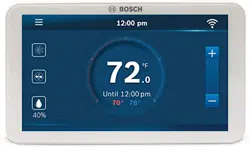
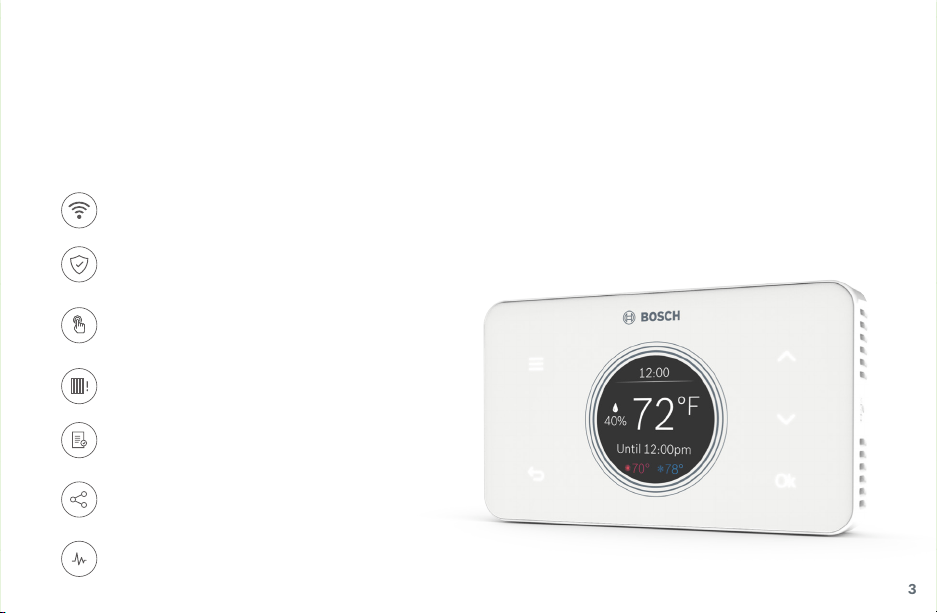
The Bosch Connected Control BCC50 Thermostat is compatible with the majority of 24VAC heating and cooling equipment to
help you save energy and money. Easily control your home's temperature from the intuitive interface using the 5 back-lit touch
buttons, the Bosch Connected Control smartphone app or your voice with the Bosch Connected Control Alexa Smart Home
Skill and your Alexa-enabled smart devices or with Google Assistant.
Connectivity
Connect to your HVAC equipment from anywhere
Sleek Design with Touch Buttons
Sleek design that will look great in your home, with
5 bright illuminated touch buttons & color screen
Programmable
Follows preset or user-defined schedules
Compatibility
Compatible with majority of HVAC systems
(requires C-wire)
Auto-on Safety Control
Keep your home safe using app alerts & auto-on feature
Enabled Smart Devices Compatible
Works with Google Assistant or Alexa
HVAC Filter Reminder
Get alerts when its time to replace your system's filter
Meet the Bosch Connected Control (BCC50 Thermostat)
4
Compatibility
u A C-wire (common wire) is required to power the unit
Two wire systems are not supported. If a C-wire is not
readily available, we recommend you seek professional
support from your local contractor.
u The Bosch Connected Control BCC50 Thermostat works
with most 24VAC systems, including gas, oil, propane,
electric, forced air, variable speed, heat pump and radiant.
The thermostat cannot support
u Line voltage thermostats
u Electric baseboard heaters
u Proprietary communicating thermostats
u Millivolt systems
u Remote sensors
Are you unsure of your system compatibility
or how to install your thermostat and need help?
u Self-support videos can be found on our website at:
BoschHeatingAndCooling.com/BCC50
u Contact our support team at 1-800-283-3787
Professional installation is recommended
for the following systems
u Dual Fuel systems (Heat Pump combined with a Furnace)
u Whole-home humidifiers and dehumidifiers
5
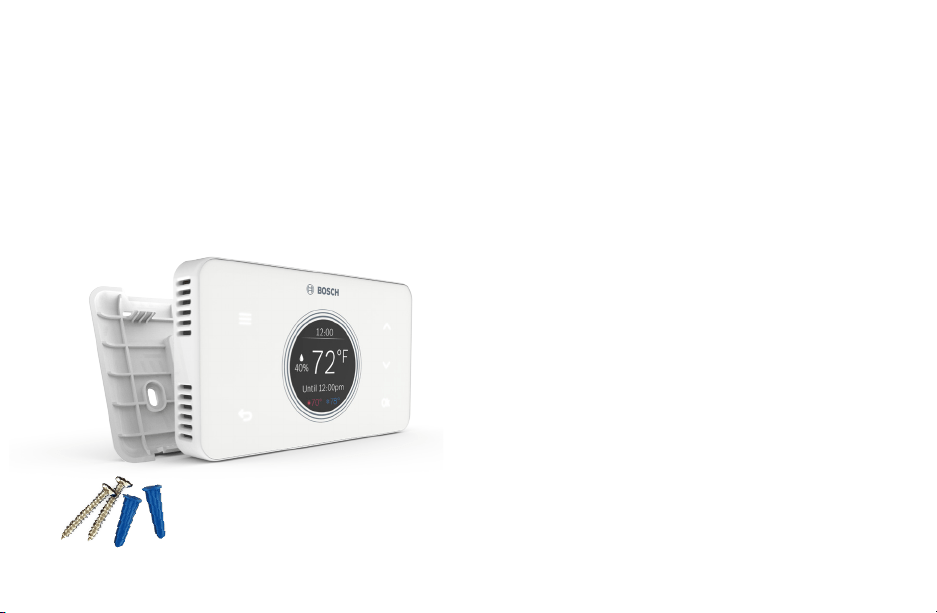
Included in the box
u Thermostat
u Wall Plate
u Screws & Wall Anchors
u Installation Guide and User Manual
u Wire Labels
Tools you will need
u Small flathead screwdriver
(for fastening the Wall Plate wire terminals)
u Medium Phillips screwdriver
(for attaching the Wall Plate to the wall)
u Smartphone
(for taking pictures of the existing wiring)
u Bosch Connected Control smartphone app
(for configuring the thermostat settings)
Tools you may need
u Needle-Nose Pliers (for pulling wires from the wall)
u Drill with 7/32” Drill Bit (for mounting wall anchors)
u Wire Stripper (for cutting and stripping wires)
u Multimeter (for testing circuit continuity)
u Pen or Pencil (for preventing wires from falling into the wall)
Installation Overview
Once you have everything you need, let’s get started!
6
Thermostat Installation
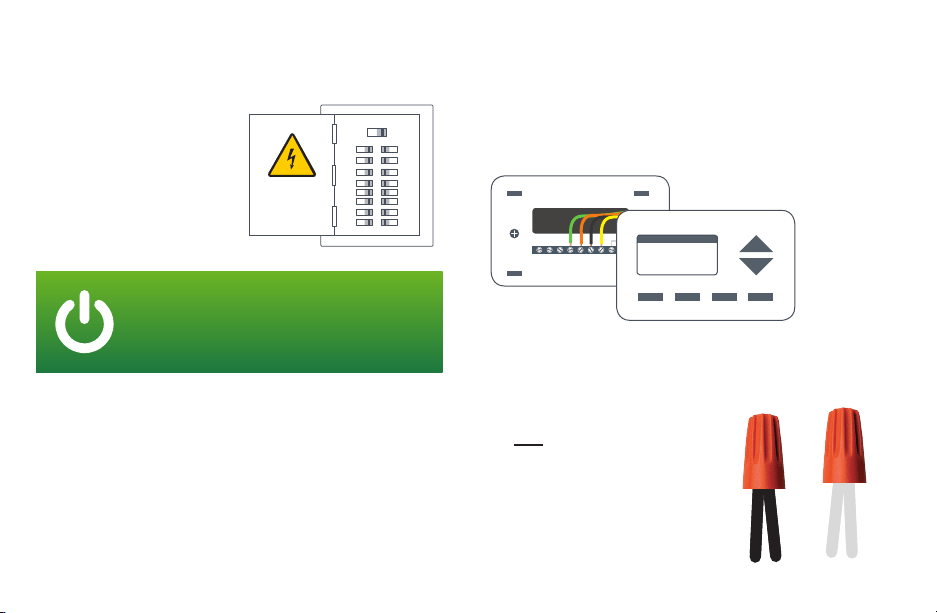
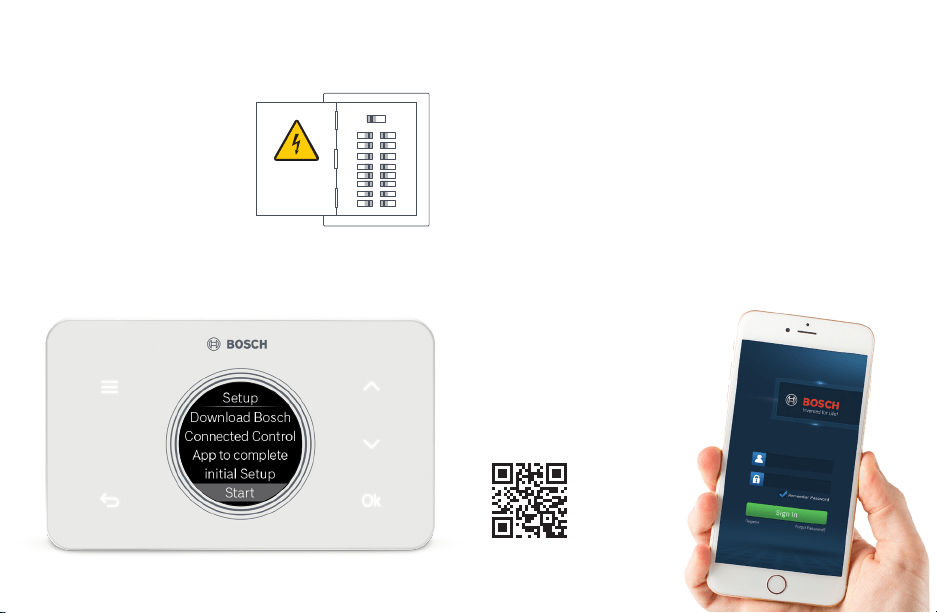
Turn OFF power
Turn off all power to your
HVAC (Heating, Ventilation,
and Air Conditioning) system
by using the master
equipment switch or
circuit breaker box.
Confirm that your system is off
Try to adjust the temperature on your old thermostat. If
you don’t hear the system turn on within 5 minutes, air
does not come out from the vents or the old thermostat
does not even power on, then you have successfully
turned off the power to your system.
Step 1 Step 2
Make sure your
old thermostat
Does Not Contain
Line Voltage Wiring
If you see any of these wire nuts,
unfortunately the BCC50 will not work
with your system. If you are unsure or
would like to discuss your options,
please contact a professional or our
support line: 1-800-283-3787.
Step 3
WARNING: Failure to turn off the power may
result in electrical shock and/or damage to the
equipment.
Remove the old thermostat from the
old wall plate
ON OFF
Y2 W2 G W C Y R RC
EL AUX G OB C Y R RC
OLD WALL PLATE
OLD THERMOSTAT
7
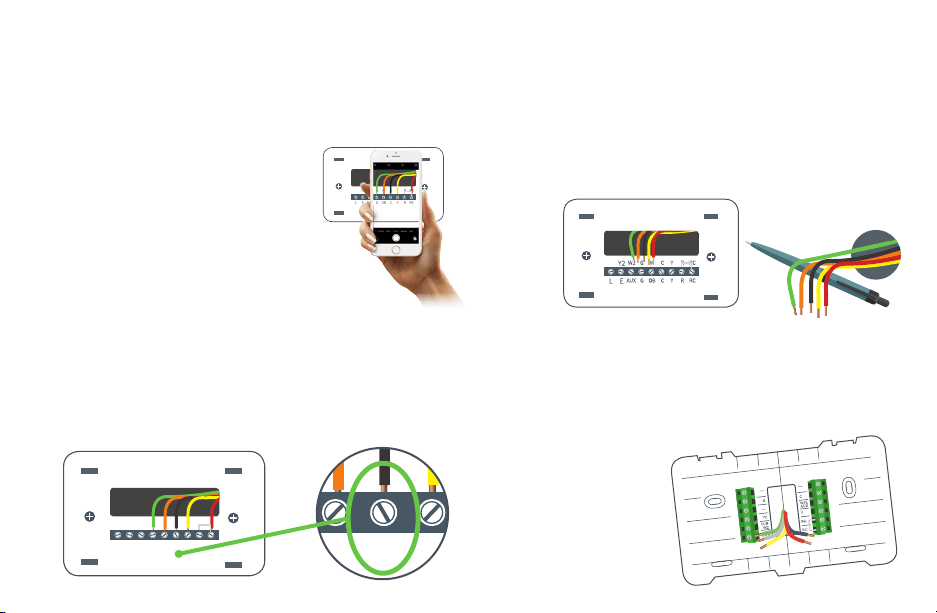
Take a picture of the existing wiring
Make sure that you can clearly read the terminal labels and
see which wires are connected to which terminal from your
photo. You will need to reference this
photo later during the initial setup.
Note: You can also use the wire labels
we have provided you to correctly
label each wire based on the terminal
where it is connected.
Step 4
Y2 W2 G W C Y R RC
EL AUX G OB C Y R RC
Confirm you have a C-wire connected
to your old thermostat wall plate
If you do not have a C-wire connected to your old
thermostat, please contact a professional or our support
line for further assistance to determine if the BCC50
Thermostat is compatible with your system.
Step 5
Y2 W2 G W C Y R RC
EL AUX G OB C Y R RC
Y2 W2 G W C Y R RC
EL AUX G OB C Y R RC
Disconnect the wires from the old thermostat and
remove the wall plate using a screwdriver
Some thermostats will also require you to use a screwdriver to
disconnect the wires. After the wires are disconnected and
the wall plate removed, we recommend wrapping a pen or
pencil around the wires to prevent them from falling back into
the wall.
Step 6
Step 7
Note: If the new Wall Plate
does not cover up any
holes or unpainted spaces
left by your old thermostat,
use this opportunity to
patch any holes and paint.
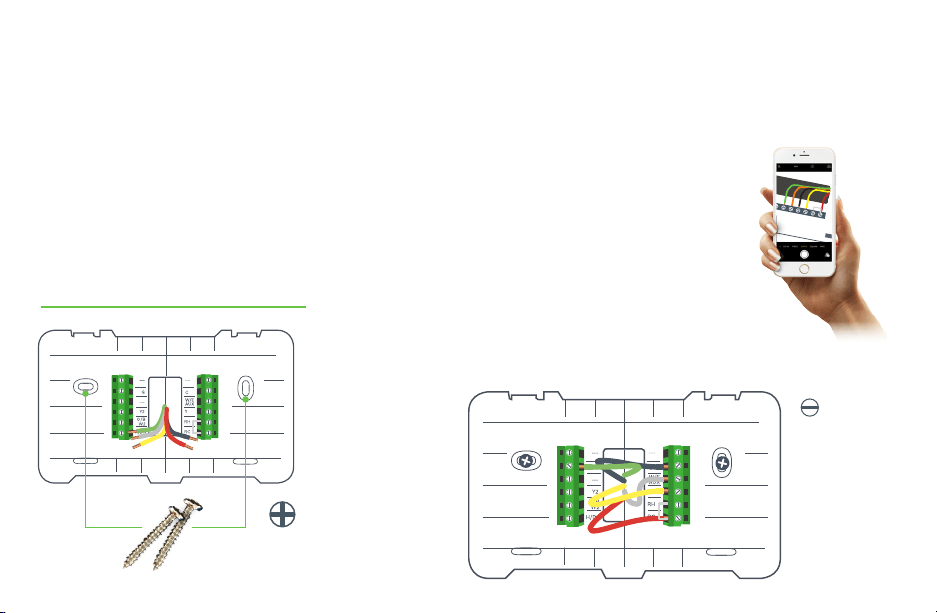
Pull thermostat wires through the hole in the center
of the BCC50 wall plate and mark the location of
the mounting screws
It is recommended to use the BCC50 Wall Plate as a reference
guide to mark the mounting holes and ensure that
all holes and unpainted
surfaces are covered.
8
Drill and insert wall anchors (if necessary)
Drill two 7/32” holes where you marked the location of the
mounting screws and then insert the wall anchors provided
into these mounting holes.
Check if the wall plate is level and insert screws
Make sure your new BCC50 wall plate is level and insert the
included screws from the package and mount your new wall
plate to the wall using a Phillips head screw driver.
Step 8
Insert each wire into the corresponding
terminal and close each terminal using a
flat head screw driver
Use the image you took with your
smartphone of your old thermostat wiring
or the wire labels as a reference for where
to place each wire. Be sure that you insert
each wire, one by one, and then
immediately close the terminal and confirm
that the wire is secure inside the terminal
before moving to the next wire. Repeat this
process for each wire to be installed. If you
are unsure of the terminal names on the
BCC50 Wall Plate, refer to BCC50 Terminal
Key on the next page:
Step 9
SMALL
FLAT HEAD
SCREWDRIVER
NEEDED
PHILLIPS HEAD
SCREWDRIVER NEEDED
Thermostat Installation
LEVEL
9
R/RC
R/RC
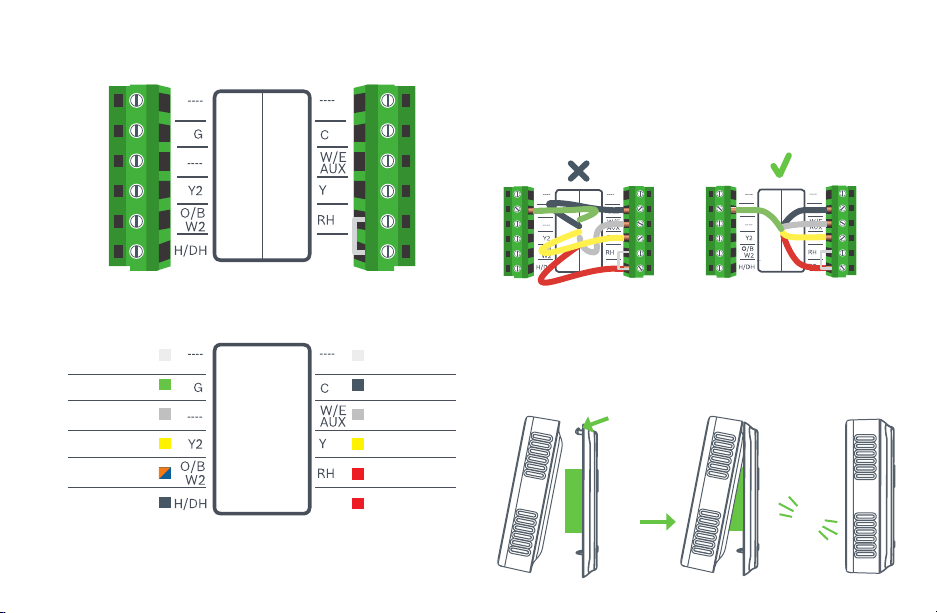
Note: The color of your wires may not be the same as shown
(1)Emergency Heat and Auxiliary Heat activated at W/E/AUX
BCC50 Terminal
After all wires are securely connected,
gently push any excess wires back into
the hole in the wall
Step 10
Attach the BCC50 thermostat to the
BCC50 wall plate
Step 11
PUSH
HOOK
CLICK
BCC50 Terminal Key
Not Used
C-wire (common)
1st Stage Heating
1
1st Stage Compressor
Heating Appliance Power
Cooling Appliance Power
Not Used
Fan
Not Used
2nd Stage Compressor
2nd Stage Heating
Humidifier/Dehumidifier
Reversing Valve
R/RC
10
Step 12 Step 13
Turn ON the power to
your HVAC by using the
master equipment switch
or circuit breaker box
The thermostat will power on
and display a Bosch logo and
loading bar.
Note: After loading completes,
the thermostat will display the
following screen:
ON OFF
Great Job, The Hard Parts Over!
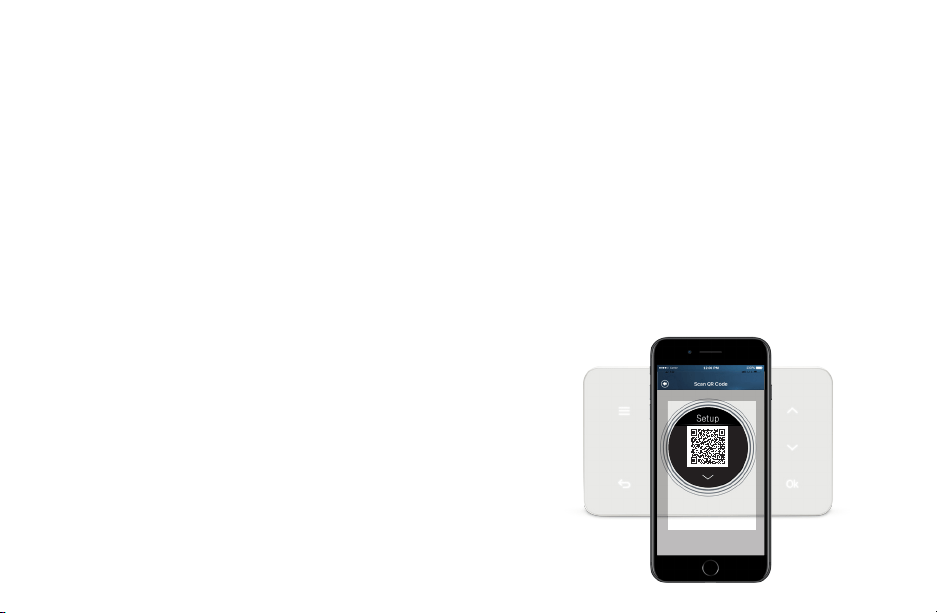
Next get your smartphone and visit your app
store. Download the Bosch Connected Control app
to setup your new BCC50
Your BCC50 Thermostat is not yet configured to your home’s
HVAC system. Go to the App Store or Google Play to download
the app, create an account and finish configuring your system.
Three ways to download the
Connected Control App:
u In the App Store or Google Play,
search “Bosch Connected Control” or
“BCC50” and then download the app.
u Visit www.bosch-climate.us/bcc50
or scan QR code below. Click the
links for the app in the Download
App section.
Thermostat Installation
11
Initial Setup
User Account Setup
1. After downloading the Bosch Connected Control app,
open the app on your smartphone and click the Register
button to create a new account.
2. Read and accept the Terms and Conditions and Privacy
policy, and press continue in the top right hand corner.
3. Follow the on-screen instructions to create your account
and then press OK at the bottom of the screen.
4. After a successful registration, you can use your newly
created user ID and password to log into your account.
Note: You will also receive a confirmation email from the
Bosch Team confirming your account creation.
Add Device
1. After signing into your account, click the plus sign (+) in the
top right hand corner to add a new device.
2. On the next screen, click the device you would like to add,
in this case the BCC50.
3. Return to your thermostat and click Ok to initiate the Initial
Setup. Return to your app, and follow the on-screen
instructions to connect the BCC50 Thermostat to your
home’s Wi-Fi network.
Note: If you skip this step, you will be required to repeat the
initial setup in the future to make any changes or
adjustments to the thermostat settings.
4. After you have successfully connected to your home’s Wi-Fi
Network, follow the on-screen instructions to name your
thermostat and connect your smartphone directly to the
thermostat to complete the initial setup.
5. Use the up and down arrows on your thermostat to change
between Automatic Entry and Manual Entry.
6. If your thermostat is unable to connect to the app, follow
the on-screen instructions.
7. After the Initial Setup, the Thermostat will say ‘You are
connected to the app. Please follow the guided setup
process in your app’
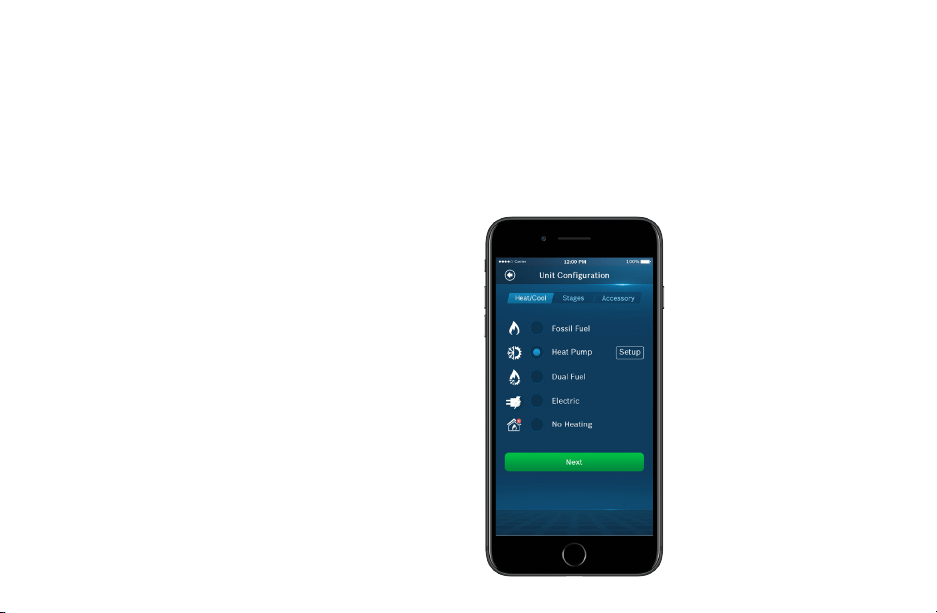
Note: You can use the QR code scanner by clicking the QR
icon in the Device SSID field to automatically enter the
Device SSID and Device password by scanning the QR code
on your thermostat. You can also manually enter the
information into the app using the information provided on
the thermostat.
12
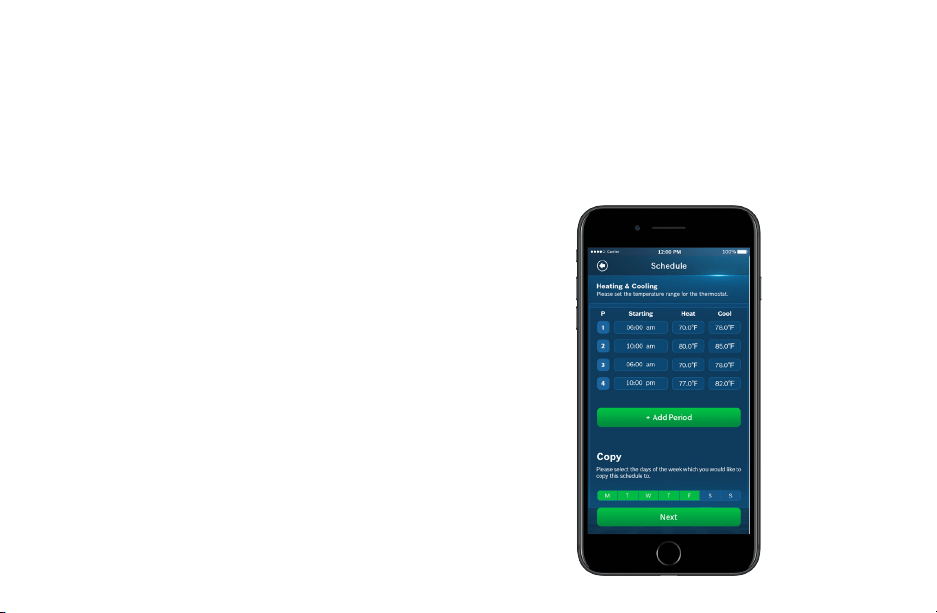
If you have a furnace
1. Select Fossil Fuel and click the setup button to the right
2. Then select Appliance or Thermostat depending on your
personal preferences for fan control.
3. Click Next at the bottom of the screen to continue.
Initial Setup
If you have a dual fuel system
1. Select Dual Fuel and click the setup button to the right
2. Then follow the on-screen instructions to configure the
fossil fuel heating appliance settings
3. Click Next at the bottom of the screen to continue.
Then follow the on-screen instructions to configure
the heat pump heating appliance settings.
If you have a heat pump
1. Select Heat Pump and click the setup button to the right
2. Then follow the on-screen instructions.
3. Click Next at the bottom of the screen to continue.
If you have a boiler
1. Select Fossil Fuel and click the setup button to the right
2. Then select Appliance
3. Click Next at the bottom of the screen to continue.
Unit Configuration
Select your Heat Type according to the heating appliance
located in your home. Below is a list of helpful tips that may
guide you to selecting the correct option for your home.
Note: If you are unsure of which option to select, contact
your local contractor or our support line: 1-800-283-3787.

13
If you have an electric system:
Select Electric and click Next at the bottom of the
screen to continue.
If you have no heating appliance:
Select No Heating and click Next at the bottom of the
screen to continue.
Select your stage configuration:
According to the heating and cooling appliances you
have in your home and then click Next.
4. Use the Balance Point to set the outdoor temperature value
the thermostat will use to switch between your heat pump
and fossil fuel appliance. Above this value, your thermostat
will use your heat pump to heat your home and below this
value, your thermostat will use your fossil fuel heating
appliance.
5. Use the Change over Delay to set the time the system will be
off when changing between heat pump and fossil fuel
heating sources. This delay allows for the coil to cool before
switching between heating appliances.
Note: In a dual fuel system, the BCC50 automatically enables
auxiliary heating and emergency heating using the fossil fuel
heating appliance.
Note: In a dual fuel system, the BCC50 will stage up from
heat pump to fossil fuel following the stage settings, which
can be modified in Advanced Settings > Installer Access > by
using the ST Action Code.
6. Click Next at the bottom of the screen to continue.
If you have a whole home humidifier or dehumidifier
accessory wired to your thermostat, select the type of
accessory you have in your home; otherwise, click None
and then click Next.
Note: Professional installation is recommended for humidifiers
and dehumidifiers.
If you have a Humidifier:
1. Select Humidifier and click the setup button to the right.
2. Then select Evaporative or Steam following the on-screen
instructions.
3. Click Next at the bottom of the screen to continue.
If you have a Dehumidifier:
1. Select Dehumidifier and click the setup button to the right.
2. Then enabled or disabled Cool to Dehumidify following the
on-screen instructions.
3. Click Next at the bottom of the screen to continue.
Need Help?
If you are unsure of which option to select,
contact your local contractor or our
support line: 1-800-283-3787.
14
Initial Setup
Date & Time
Follow the on-screen instructions to set the date and time of
BCC50 Thermostat and then click Next.
Schedule
1. Choose the schedule you would like to modify or click No
Schedule if you do not wish to set up a schedule at this
time, and click Next.
Note: Home is the default schedule for your BCC50. If you
wish to add a different schedule, click the plus (+) button in
the top right hand corner of the screen.
2. To set up your periods for the day, click on the Start Time
bubble of the period and use the scroll wheel to set the
start time of the first period of the day.
3. Next, click the Heat bubble and use the scroll wheel to set
the heating setpoint for the first period of the day.
4. Then, click the Cool bubble and use the scroll wheel to set
the cooling setpoint for the first period of the day.
Note: There is a 5 degree deadband required between
heating and cooling setpoints to prevent your equipment
from short cycling.
5. If you want to add more periods, then click add period
button and repeat the above 3 steps until you have set all
your periods for the day.
Note: You are allowed a maximum of 8 periods per day.
6. If you want to delete a period, swipe left on the period and
click delete.
7. After you have set up one day of the week, use the Copy
section to mirror the same daily schedule to other days of
the week by clicking on the days you would like to copy that
daily set of periods. Then click next.
Note: If you have not copied your schedule to all 7 days of
the week, you will be required to repeat the above steps until
you have set a schedule for everyday of the week.
Need
Screen

Review
Review your BCC50’s Initial Setup configuration and click Complete if you are happy with the setup. If you would like to change
any of the settings, click on the section you would like to change to be brought back to that section of the Initial Setup.
Congratulations!
You have finished the
installation and setup of
your BCC50 Thermostat.
Thank you for choosing
Bosch and enjoy the
savings and comfort
of owning your
Bosch Connected
Control thermostat!
Choose Bosch,
Choose Comfort!
Maximum Comfort,
From Anywhere!
15
16
Advanced Settings
Advanced Settings allow HVAC professionals
the ability to modify specific thermostat
settings for better control of the heating and
cooling appliance(s). In order to access the
Advanced Settings of the BCC50
Thermostat, your thermostat must be
connected to Wi-Fi. The Advanced Settings
section is accessible from the Menu of the
BCC50 smartphone app.
NOTE: Advanced Settings are for
professional use only and require
Access Code: 1886
16
17
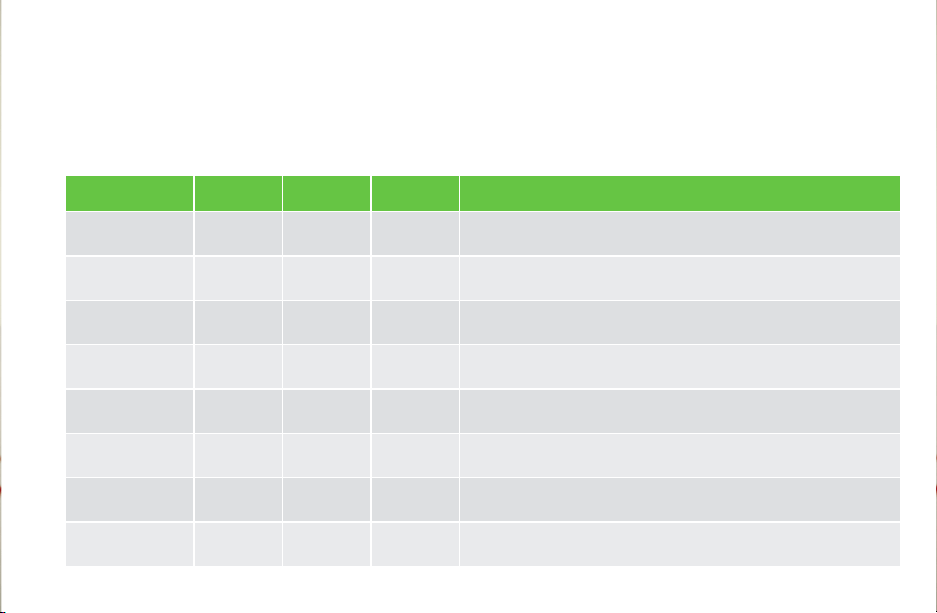
Advanced Settings
Heating & Cooling
u To access the Heating and Cooling, click Advanced Settings, and enter the Professional Access Code
u Click on a setting and use the scroll wheel to modify the default value. From this menu you can adjust:
TITLE Default Max Min Description
Fan Delay On 15 Seconds 120 Seconds 0 Seconds
The fan’s lag time after the heating or cooling call is initiated when in Fossil Fuel,
Heat Pump, or Cooling operation.
Fan Delay On Elec 0 Seconds 5 Seconds 0 Seconds
The fan’s lag time after the heating or cooling call is initiated when in Electric,
Auxiliary, or Emergency operation.
Fan Delay Off 60 Seconds 120 Seconds 30 Seconds The fan’s lag time after the heating or cooling call is terminated.
Min. Run Time 5 Minutes Stage Delay 3 Minutes The minimum amount of time the system will cycle upon engagement.
Anti Short Cycle 5 Minutes 5 Minutes 0 Minutes
The Anti Short Cycle (ASC) timer represents the minimum amount of time the
system will remain off upon stage down engagement.
Cycle Time 180 Seconds 300 Seconds 60 Seconds Time delay between active heating and cooling transition
Zero Energy
Band Heating
1° F/ 0.5° C 2° F/ 1° C 0.5° F/ 0.3° C
A temperature range between the current temperature and the heating set point,
where heating is not engaged (also called deadband).
Zero Energy
Band Cooling
1° F/ 0.5° C 2° F/ 1° C 0.5° F/ 0.3° C
A temperature range between the current temperature and the cooling set point,
where cooling is not engaged (also called deadband).

18
Advanced Settings
Installer Access
u To access the Installer Access,click Advanced Settings, enter the Professional Access Code and click Installer
u Enter any one of the Action Codes in parenthesis below to gain access to that specific setting:
Humidity Calibration (HC)
Ability to adjust humidity readings to improve sensor accuracy as the thermostat nears the end of its lifecycle
after years of use.
Relative Humidity Hysteresis (HSD)
A humidity range between the current humidity and humidity set point, where the humidifier or dehumidifier
is not engaged (also called a deadband)
Initial Setup (IS)
Use this code to repeat the initial setup process.
Sensor Calibration (SC)
Ability to adjust temperature readings to improve sensor accuracy as the thermostat nears the end of its
lifecycle after years of use.
Sensitivity Level (SS)
Ability to adjust how sensitive your thermostat sensor is to changes in the air temperature. The lower the level,
the more your system cycles to maintain the setpoint.
Staging (ST)
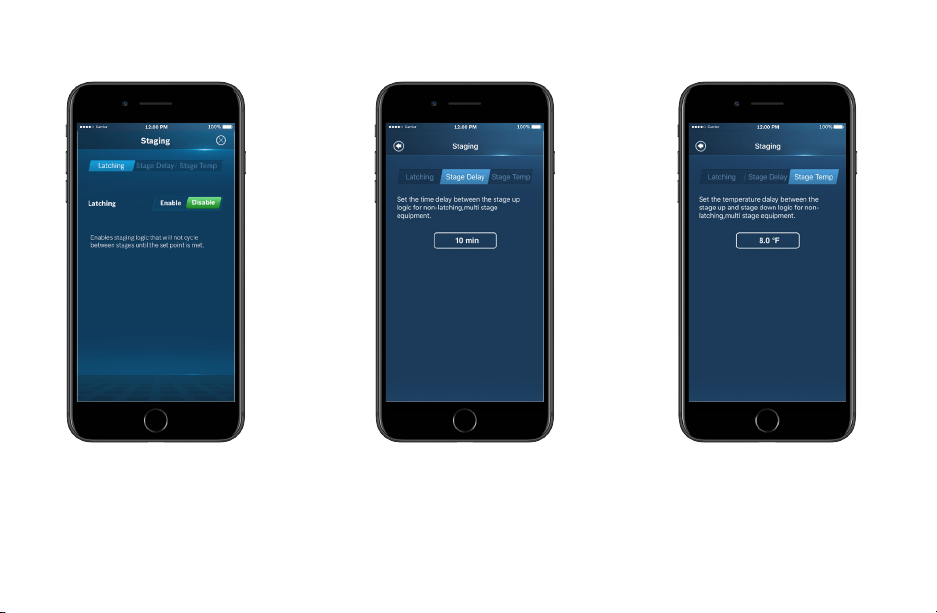
Ability to adjust 3 configuration options for custom stage up and stage down control. Refer to next page.
Unit Configuration (UC)
Use this code to repeat the unit configuration process.
19
Latching
Enables staging logic that will
not cycle between stages
until the setpoint is met.
Stage Delay
Set the time delay between the
stage up logic for non-latching,
multi stage equipment.
Stage Temp
Set the temperature delay
between the stage up and stage
down logic for non-latching, multi
stage equipment.
20
Advanced Settings
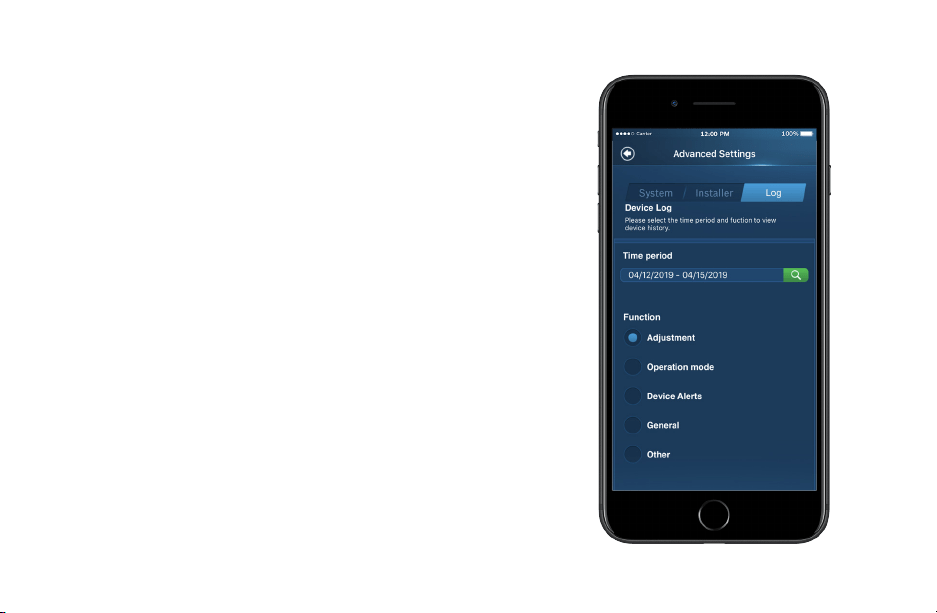
Device Log
u To access the Device Log, click Log on the Advanced Settings
screen and enter the Professional Access Code.
u The Device Log stores up to 90 days’ worth of thermostat activity.
To view historical data, select the time period you would like to view.
Then select the function you would like to view:
Functions
u Adjustment shows changes to temperature set point and hold
u Operation mode shows changes to system mode, fan mode,
and power switching
u Device Alerts shows temperature warning information
u General shows changes to temperature units, date,
and screen brightness
u Other shows all other information that the thermostat stores

21
Troubleshooting & Frequently Asked Questions
Wi-Fi
Can the BCC50 be used without Wi-Fi?
We strongly encourage everyone to use the Wi-Fi capabilities of the thermostat, as it will improve the user experience.
However, it is fully functional without the use of Wi-Fi after the Initial Setup has been completed with your smartphone.
Will the BCC50 support all Wi-Fi systems & routers?
This device only works with 2.4 GHz systems and is NOT compatible with 5.0 GHz systems or web pages that require
additional web authentication.
Trouble Connecting to your Home's Wi-Fi Network?
1. Make sure that your thermostat is a maximum 20 ft or less from the router/modem without any obstructions (i.e. walls,
floors, ceilings, etc.). If obstructions exist, try moving your thermostat and router/modem closer together.
2. Before attempting to reconnect your thermostat to your home network, power cycle your router/modem and then your
thermostat. If you have a separate router and modem, make sure that you power cycle the modem first and then the router.
3. In the event that you still cannot connect to your home’s wi-fi network please contact our support team for further
in-depth technical troubleshooting options.
NOTE: If you are able to connect to your home network, but the time does not update on the thermostat, you are not fully
connected to the cloud server. Please follow the troubleshooting steps again or contact Bosch Technical Support.
Initial Setup
Trouble connecting to your BCC50 Wi-Fi hotspot during Initial Setup?
Go to your phone's Wi-Fi settings and forget the BCC50 Wi-Fi hotspot. Power cycle the thermostat and attempt the initial
setup again.
Trouble advancing to the Unit Configuration portion of the Initial Setup?
Some devices have longer wait times to transfer from the Wi-Fi hotspot connection to the Unit Configuration. If wait times
exceed 60 seconds, repeat the Initial Setup process.

22
Bosch Connected Control App (Android and iOS)
What is the name of the smartphone app in the App Store and Google Play Store?
The name of the app is Bosch Connected Control. Bosch Control is a different Wi-Fi thermostat app used with Bosch Boilers.
How many accounts can be associated with the thermostat at once?
Only one account can be associated with a given thermostat. Family members must share their account information with each
other if they would like to be able to control the thermostat from multiple devices.
Can this device be accessed via a web page?
Not at this time.
Thermostat
What happens if I don't remember the password that locked my screen?
The password will always display on the main screen of your app in the top right hand corner under the green lock button. You can
unlock your thermostat by typing this code into the thermostat itself or clicking the green lock button in the top right hand corner
of the thermostat. NOTE: this is not the lock button for schedule hold.
What happens if I lose power to the device; will all my setting be lost?
All settings are kept in local memory, except for the schedule setpoints, which are stored in the cloud. Therefore, all settings will
be saved even during a power outage.
Troubleshooting & Frequently Asked Questions
Not Finding the Answer to Your Question?
u Self-support videos can be found on our website at: BoschHeatingAndCooling.com/BCC50
u Contact our support team at 1-800-283-3787
23
Wiring Diagrams
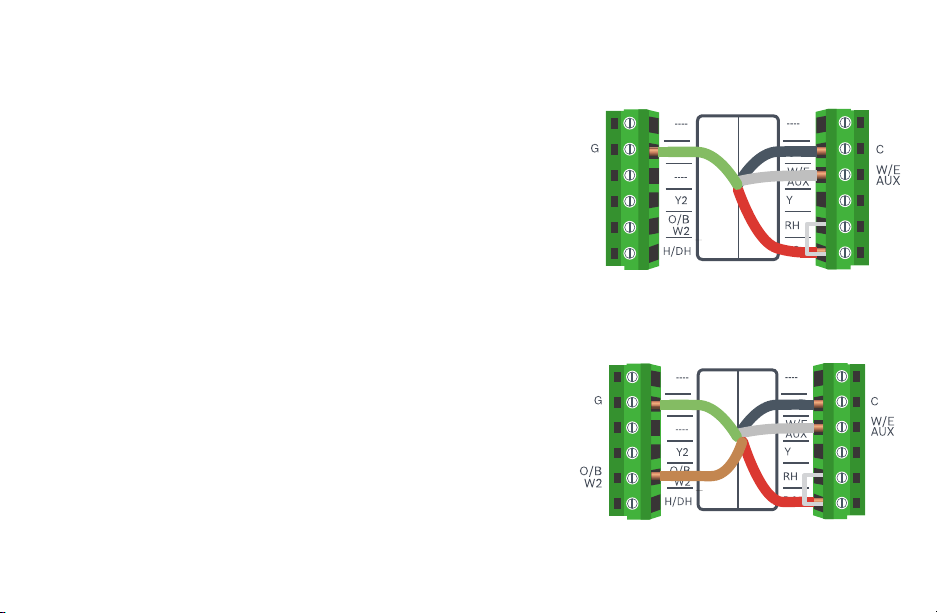
Single Stage Heat – Furnace
Example: Bosch 80% AFUE Gas Furnace - BGS80
▶ Ensure the system has a C-wire
▶ Ensure the pre-installed jumper wire remains between RH and RC
▶ Connect the R, C, W1 and G wires from the Furnace to R/RC, C,
W/E/AUX and G terminals on the wall plate, respectively
Two Stage Heat – Furnace
Example: Bosch 96% AFUE Gas Furnace - BGH96
▶ Ensure the system has a C-wire
▶ Ensure the pre-installed jumper wire remains between RH and R/RC
▶ Connect the R, C, W1, W2 and G wires from the Furnace to R/RC, C,
W/E/AUX, O/B/W2 and G terminals on the wall plate, respectively
R/RC
R/RC
24
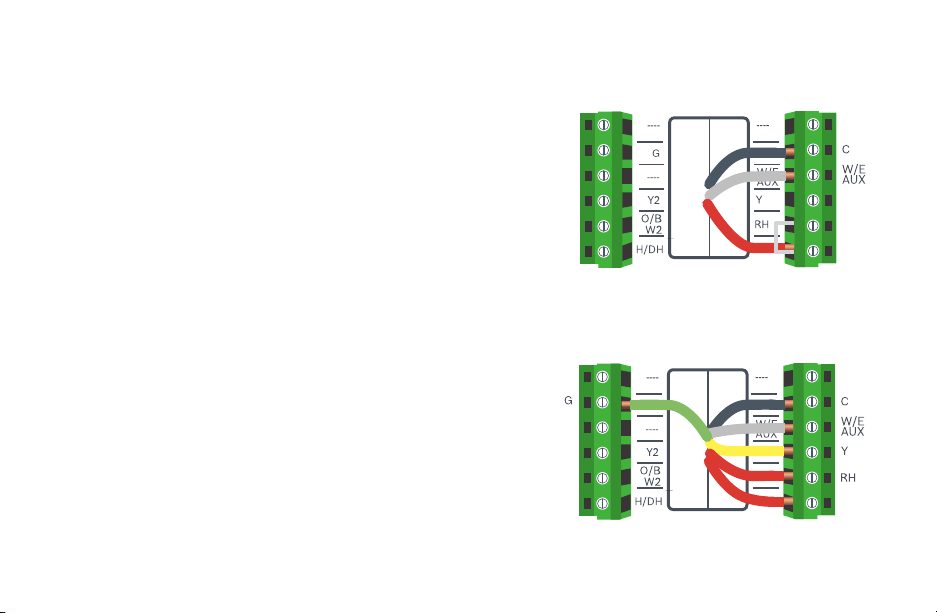
Single Stage Heat – Boiler
Example: Bosch Greenstar Gas Condensing Boilers*
▶ Ensure the system has a C-wire
▶ Ensure the pre-installed jumper wire remains between RH and RC
▶ Connect the R, C and W1 wires from the boiler to R/RC, C and W/E/AUX
terminals on the wall plate, respectively
*NOTE: Bosch Greenstar boilers will require an external transformer to power the
thermostat. First remove pre-installed jumper and then connect the dry contacts
on the boiler to RH and W/E/AUX on the boiler and the transformer terminals
will connect to R/RC and C on the thermostat
Combined Single Stage Heat and Single Stage
Cool Furnace and Air Conditioner
▶ Ensure the system has a C-wire
▶ Remove the pre-installed jumper wire from between RH and R/RC
▶ Connect the R, C, W1 and G wires from the Furnace to RH, C,
W/E/AUX and G terminals on the wall plate, respectively
▶ Connect the R, C, Y1 and G wires from the Air Conditioner to R/RC, C, Y
and G terminals on the wall plate, respectively
Wiring Diagrams
R/RC
R/RC
25
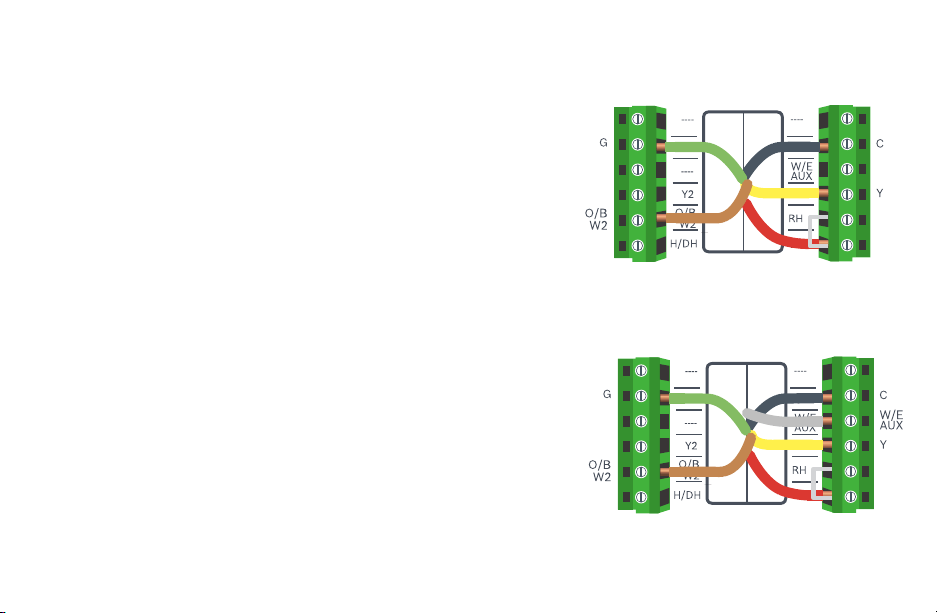
Single Stage Heat Pump
Example: Bosch Inverter Ducted Split
▶ Ensure the system has a C-wire
▶ Ensure the pre-installed jumper wire remains between RH and R/RC
▶ Connect the R, C, Y1, O/B and G wires from the heat pump to R/RC, C, Y,
O/B/W2 and G terminals on the wall plate, respectively
Single Stage Heat Pump
with Emergency Heat and Auxiliary Heat
Note: W/E/AUX controls both the Emergency Heat and Auxiliary Heat outputs.
▶ Ensure the system has a C-wire
▶ Ensure the pre-installed jumper wire remains between RH and R/RC
▶ Connect the R, C, W1, Y1, O/B and G wires from the heat pump to R/RC,
C, W/E/AUX, Y, O/B/W2 and G terminals on the wall plate, respectively
Wiring Diagrams
R/RC
R/RC
R/RC
R/RC
26
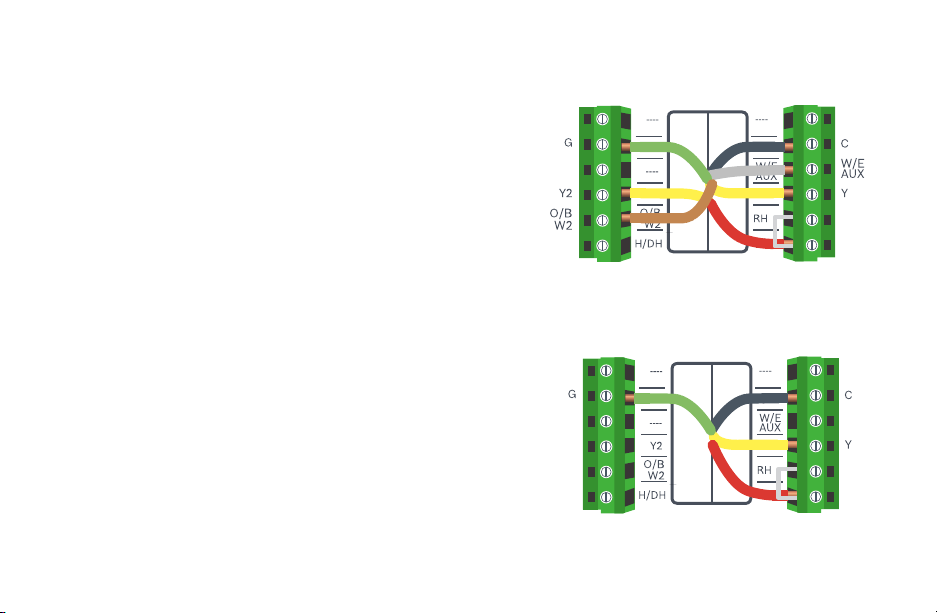
Two Stage Heat Pump
with One Stage Emergency Heat
▶ Ensure the system has a C-wire
▶ Ensure the pre-installed jumper wire remains between RH and R/RC
▶ Connect the R, C, W1, Y1, Y2, O/B and G wires from the heat
pump to R/RC, C, W/E/AUX, Y, Y2, O/B/W2 and G terminals
on the wall plate, respectively
Single Stage Cool – Air Conditioner
▶ Ensure the system has a C-wire
▶ Ensure the pre-installed jumper wire remains between RH and R/RC
▶ Connect the R, C, Y1 and G wires from the Air Conditioner to R/RC, C, Y
and G terminals on the wall plate, respectively
Wiring Diagrams
R/RC
R/RC
27
Combined Single Stage Heat Pump and Single
Stage Furnace (Dual Fuel)
▶ Ensure the system has a C-wire
▶ Ensure the pre-installed jumper wire remains between RH and R/RC
▶ Connect the R, C, W1 and G wires from the Furnace to R/RC, C,
W/E/AUX and G terminals on the wall plate, respectively
▶ Connect the C, Y1, G, and O/B wires from the Heat Pump to
C, Y, G, and O/B/W2 terminals on the wall plate, respectively
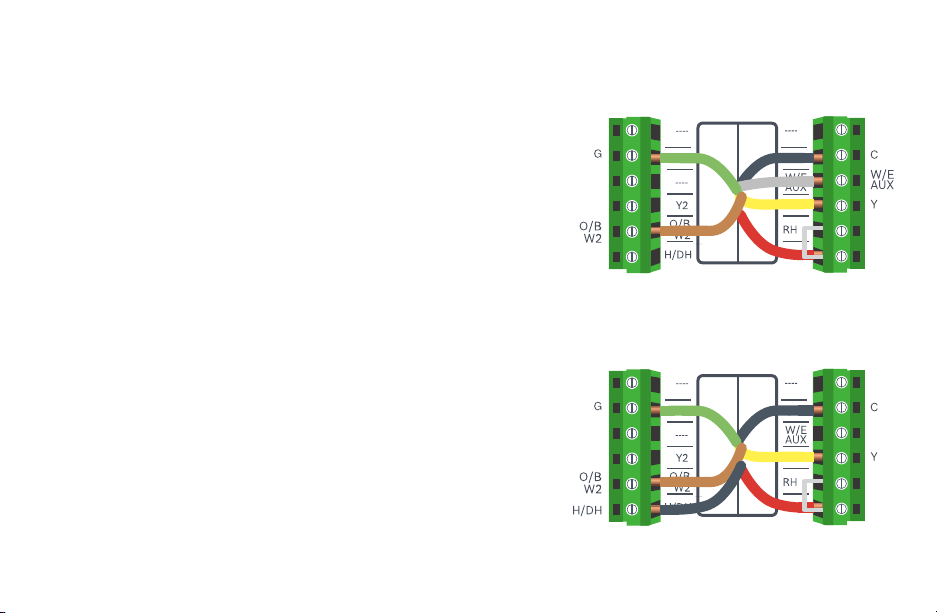
Humidifier or Dehumidifier Accessory
with a Single Stage Heat Pump
Note: The wiring configuration for humidifiers and dehumidifiers is the
same for all type of Heat Pump Systems
▶ Ensure that the accessory is externally powered
▶ Ensure the Heat Pump System is wired correctly
▶ Connect the control wire of the accessory to the H/DH
terminal of the wall plate
Wiring Diagrams
R/RC
R/RC
2828
29
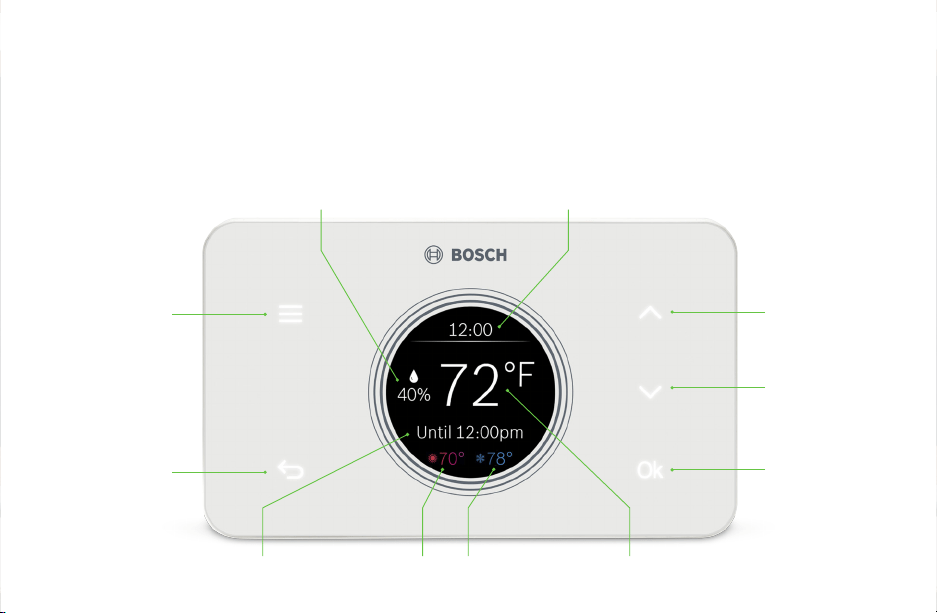
Menu
Back
Up
Select
Down
Actual Room Temperature
Current TimeActual Room Relative Humidity
Next Schedule Period Cooling SetpointHeating Setpoint
How to use your BCC50 Thermostat
Use the illuminated buttons to navigate the thermostat. If you do not see the illuminated buttons, simply click on a
button’s location to illuminate all the lights.
Note: The screen is not a touch screen. The buttons are the only way to interact with the device. The buttons will
turn off after a few seconds of no use.
User Manual
30
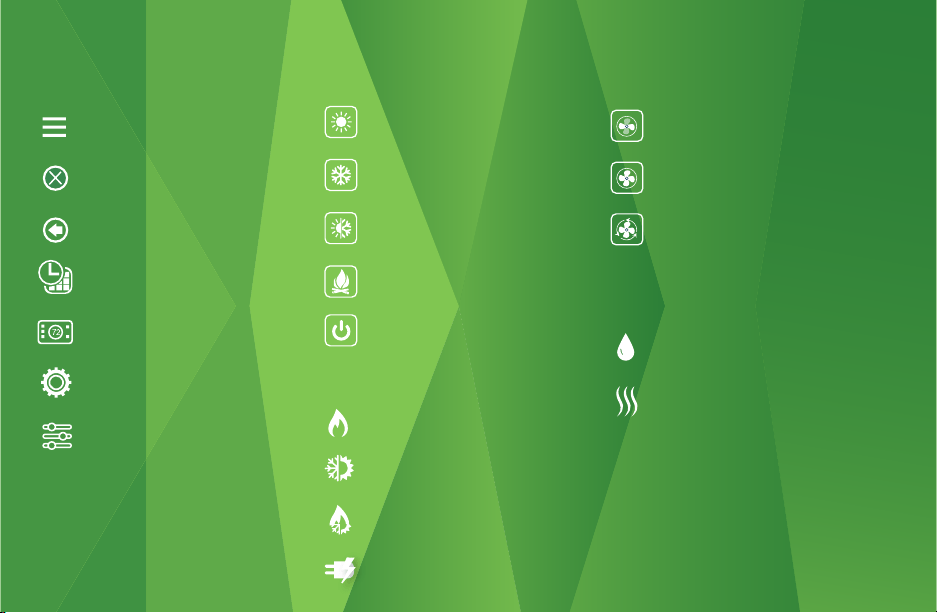
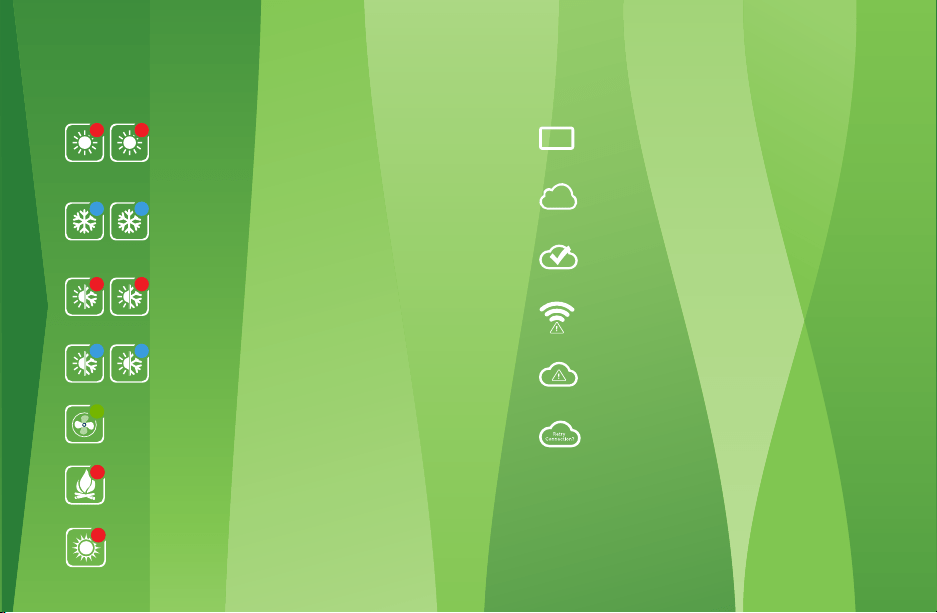
Thermostat and App Icons
Menu
Exit / Save Settings
Back
Schedule
Device Settings
System Settings
Advanced Setting
Fossil Fuel
Heat Pump
Dual Fuel
Electric
Basic Icons
Heating Types
Fan Modes
Accessory
System Modes
Heat Mode
Cool Mode
Auto Mode
Emergency Heat Mode
Off
Auto
On
Circulation
Humidifier
Dehumidifier
30
31
Schedule on Device
Schedule on Cloud
Wi-Fi Connection Established
Wi-Fi Connection Not Established
Internet is Not Available
Retry Internet Connection
System ConnectivityUnit Operation
1 2
1
2
1 2
1 2
Heat Mode
Heating on (1st stage) & (2nd stage)
Cool Mode
Cooling on (1st stage) & (2nd stage)
Auto Mode
Heating on (1st stage) & (2nd stage)
Auto Mode
Cooling on (1st stage) & (2nd stage)
Fan on/running (Fan Auto Mode)
Emergency heat on (1st stage) & (2nd stage)
Auxiliary heat on (2nd stage), (3rd stage)
& (4th stage)
4
Auxiliary
Heating
Emergency
Heating
1
31
32
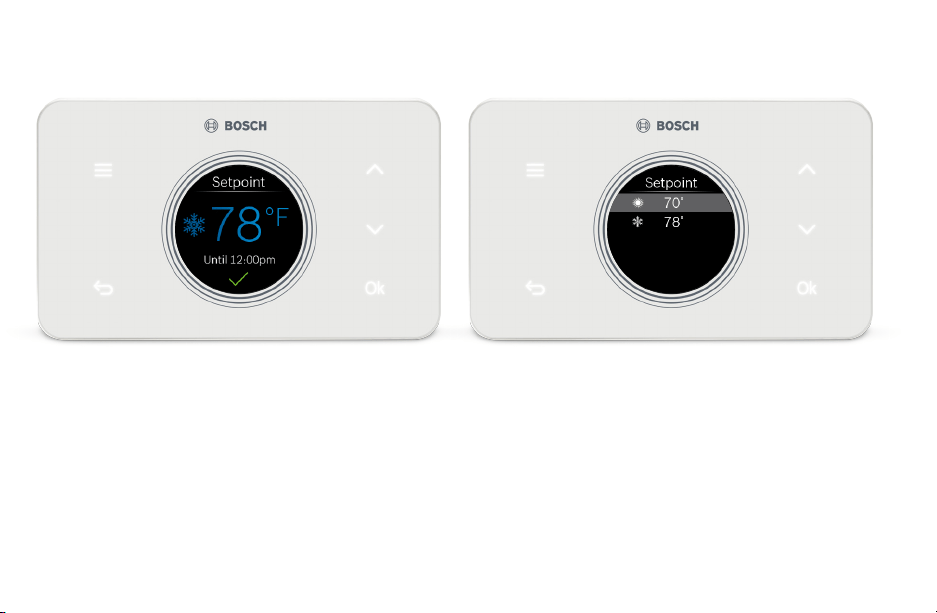
No Schedule
From the Main Screen, use the up or down arrows to change
the temperature setpoint, and then press Ok to confirm your
selection. You will see a green check mark confirming your
selection.
Schedule
Follow the same process as above to change the setpoint, but
be aware that you are only changing the setpoint until the next
scheduled period listed on the thermostat. If you would like to
change the setpoints for the schedule periods, please see the
section Schedule further on in this Manual.
Note: The hold feature is not available from the thermostat, only
from the app.
Note: When the thermostat is in Auto mode, you must first select
either your heating or cooling setpoint depending on which
setpoint you would like to modify.
Adjusting Temperature Setpoint(s)
33
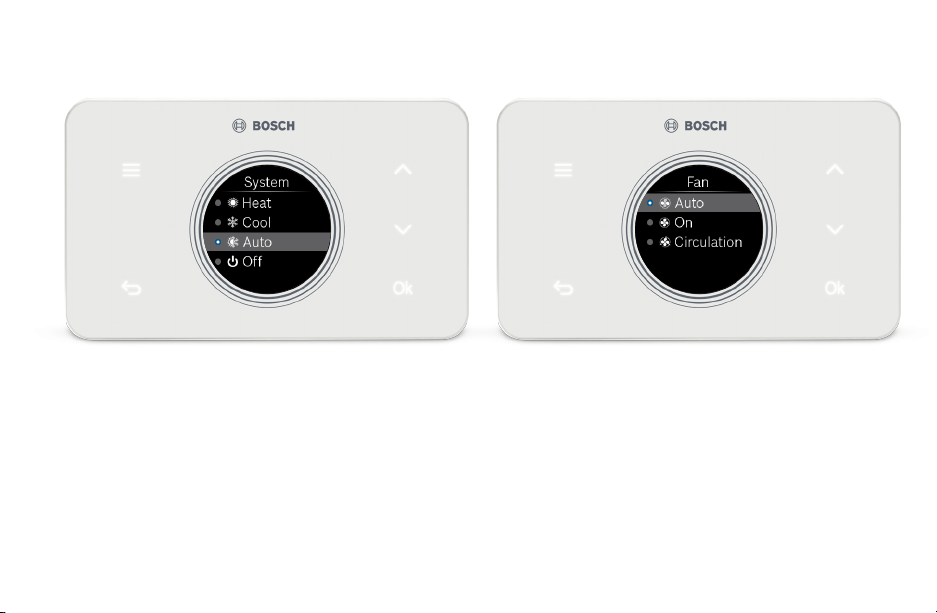
System
Use the up and down arrows to change the system mode of
your thermostat between: Heat, Cool, Auto, Emergency Heat
(available for Heat Pumps and Dual Fuel systems only) or Off.
Note: From the menu, the red or blue bubble next to the system
icon indicates the current system status: on or off, where red
signifies heating is on and blue signifies cooling is on.
Thermostat Overview
Fan
Use the up and down arrows to change the fan mode of your
thermostat between:
u Auto: the fan will automatically turn on when there is a call
for heating or cooling (recommended)
u On: the fan will always be on
u Circulation: the fan will turn on and off based on a user
programmed schedule.
Note: Circulation schedule can only be programmed
from the app.
34
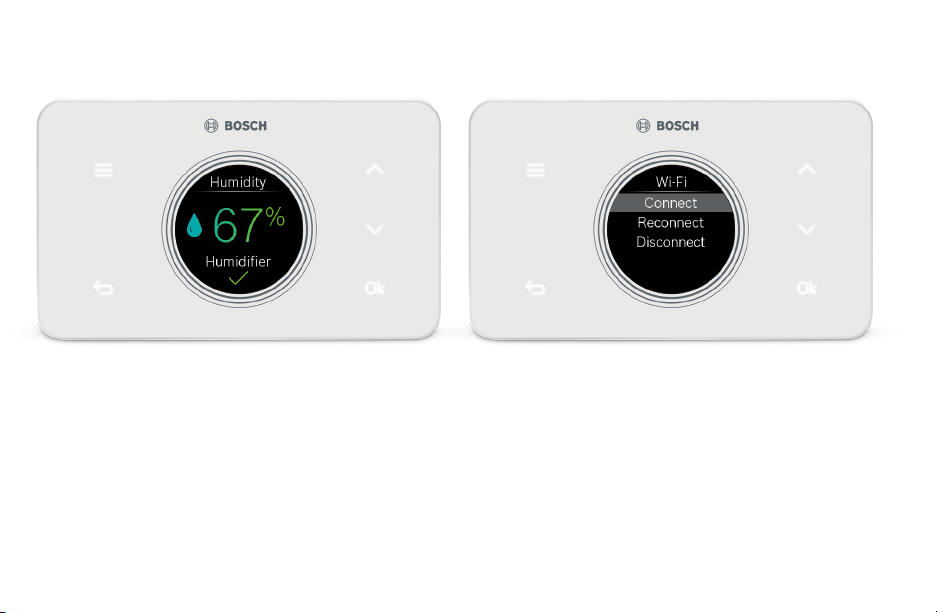
Accessory
Use the up and down arrows to change the relative humidity
setpoint, and then press Ok to confirm your selection. You will
see a green check mark confirming your selection.
Note: This item will not appear on your thermostat if you did not
setup a humidifier or dehumidifier accessory during the initial
setup process.
Wi-Fi
Use the up and down arrows to Connect, Re-Connect or
Disconnect from your home’s Wi-Fi network.
Note: When you select Connect, refer to page 11 of the
Installation Guide to add a new device and connect your
thermostat to the Wi-Fi network.
Thermostat Overview
35
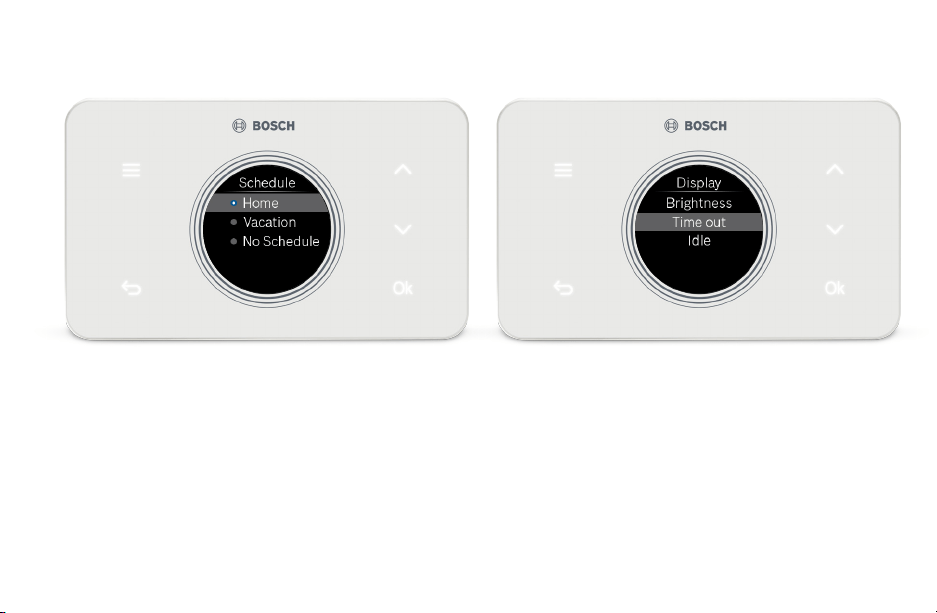
Schedule
Use the up and down arrows to change the active Schedule.
Note: The schedule can only be programmed from the app.
Display
u Select Brightness to adjust the screen’s brightness
between high, medium or low.
u Select Timeout to adjust the time before the thermostat
enters idle mode: 20 seconds, 1 minute or 3 minutes.
u Select Idle to enable or disable idle mode. Enabling idle
mode will always display time and Actual Room
Temperature after the timeout period expires.
Thermostat Overview
36
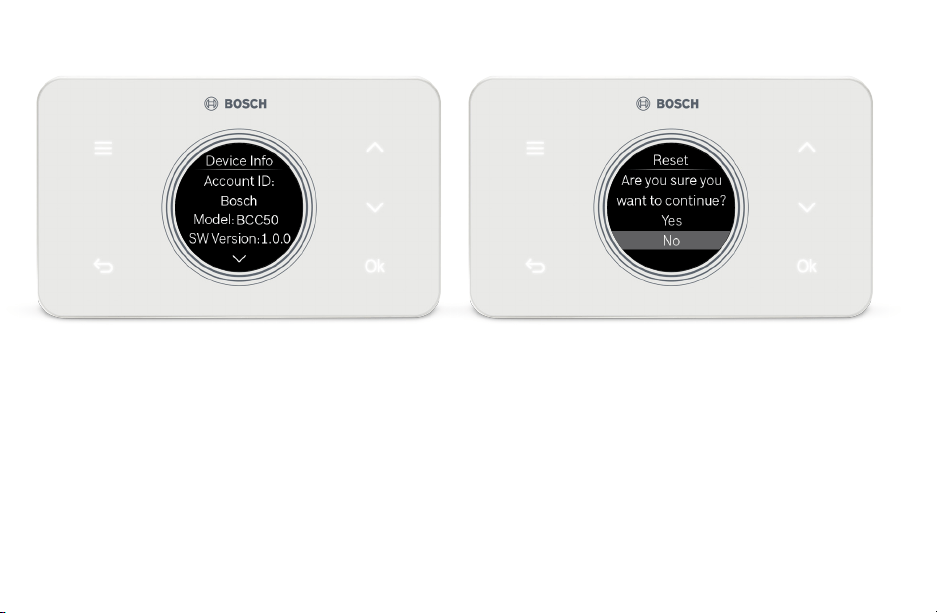
Device Info
Use the up and down arrows to scroll through the following
device information:
u Account ID displays the User ID associated with your
thermostat.
u Model displays the model number of your thermostat.
u SW Version displays the current software version on your
thermostat.
u MAC ID displays the MAC ID associated with your
thermostat.
Note: When a system update is available for your thermostat,
Click System Update at the bottom of the device information
to update your thermostat to a new software version.
Factory Reset
Click Factory Reset to restore your device to its factory
default settings.
Note: All settings will be lost and you will need to repeat the
Initial Setup process as outlined in the Installation Guide.
Thermostat Overview

37
The app allows you to remotely control all of
your thermostat’s settings. It also allows you to
adjust your schedule on-the-go or set it to
vacation mode to save energy while you’re
away. You can also connect an unlimited
number of thermostats and manage up to 4
schedules per thermostat.
This is a perfect solution to help you achieve
maximum comfort with minimum effort!
Bosch Connected Control App
Three Ways to Download
The Connected Control App
u In the App Store or Google Play, search “Bosch Connected Control”
or “BCC50” and then download the app.
u Visit www.bosch-climate.us/bcc50 or scan QR code below and
click the links for the app in the Download App section.
Download
Today!
Control all of your
thermostat’s settings. Adjust
your schedule on-the-go or
set your home to vacation
mode to save energy
while you’re away.
37
38
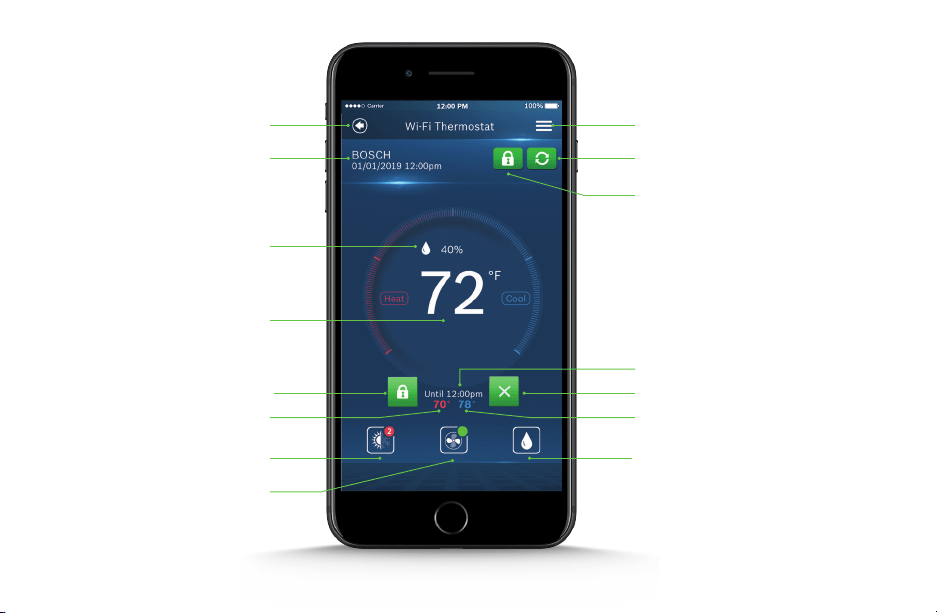
App Screen Overview
Actual Room Temperature
Cooling Setpoint
Heating Setpoint
Accessory
Menu
Lock
Refresh / Sync Time
Current Schedule Period
Current Time
System Mode
Fan
Back
Actual Room Relative Humidity
Cancel Schedule OverrideHold
39
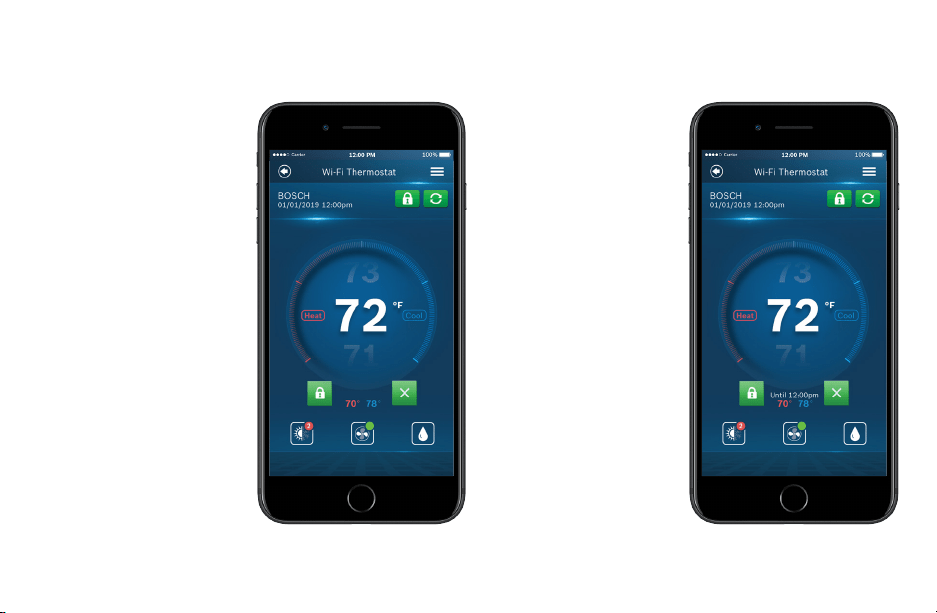
No Schedule
From the Main Screen, tap
the current temperature
and use your finger to scroll
up or down to change the
temperature setpoint. Stop
on the value you want for
your new setpoint and wait
a few seconds for the
setpoint to update. You will
see the update reflected on
the app and on the
thermostat.
Note: When the thermostat
is in Auto mode, you must
first select either heat or
cool next to the actual room
temperature, depending on
which setpoint you would
like to modify, and then
follow the steps above to
change the setpoint.
Adjusting Temperature Setpoint(s) on the App
Schedule
Follow the same process as
above to change the
setpoint, but be aware that
you are only changing the
setpoint temporarily, until
the next scheduled period
listed on the app. If you
would like to change the
setpoints for the schedule
periods, please see the
section Schedule further
on in this Manual.
Note: Click the lock icon to
override the temperature
setpoint permanently. You
can cancel the temporary
and permanent overrides at
any time by clicking the X
icon.
40
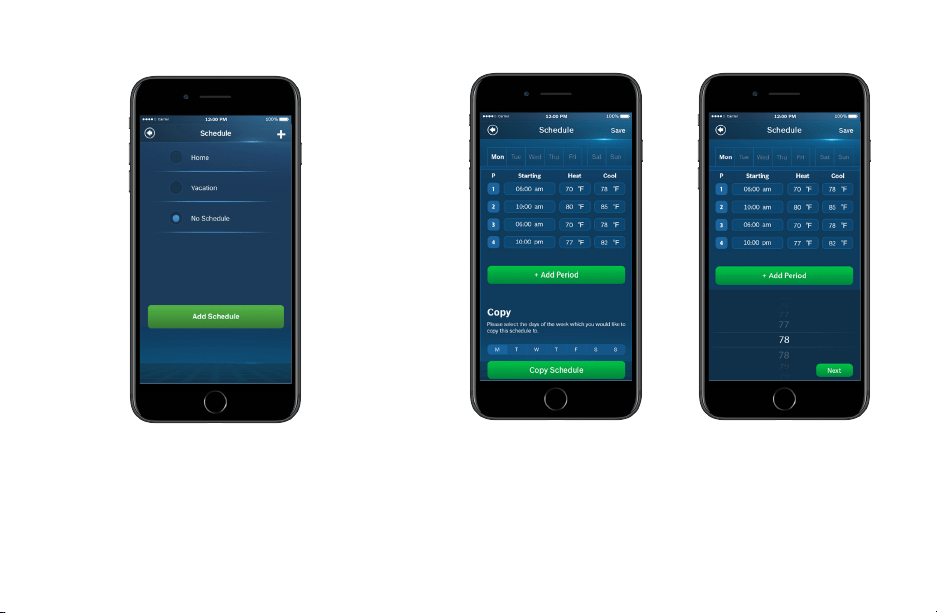
Schedule Overview
Schedule
u To add a new Schedule, use the ‘+’ button in the top right
hand corner, name your schedule and click OK.
u To modify an existing Schedule, select a Schedule from the
list and click Next.
Add a New Period
To add a new Period to a
given day, click the Add
Period button in the middle
of the screen and then
individually select and set
Starting time, Heat setpoint
and Cool setpoint.
Edit an Existing Period
To edit an existing Period,
click on the Starting, Heat or
Cool value you would like to
edit and use the scroll wheel
to update the value.
41
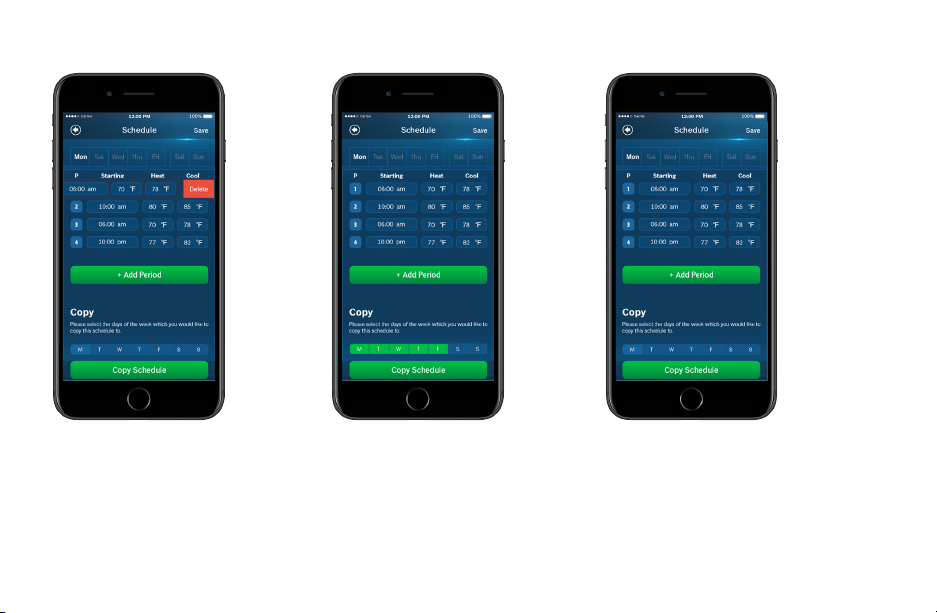
Schedule Overview
Delete an Existing Period
To delete an existing period,
swipe left on the existing
period and click delete.
Copy a Schedule
To copy a schedule to other
days of the week, click the
lettered days at the bottom of
the screen until all days you
would like to copy the existing
schedule have turned green
and click Copy Schedule.
Save Schedule
Use the Save button in the
top right hand corner of the
screen to save all changes.
42
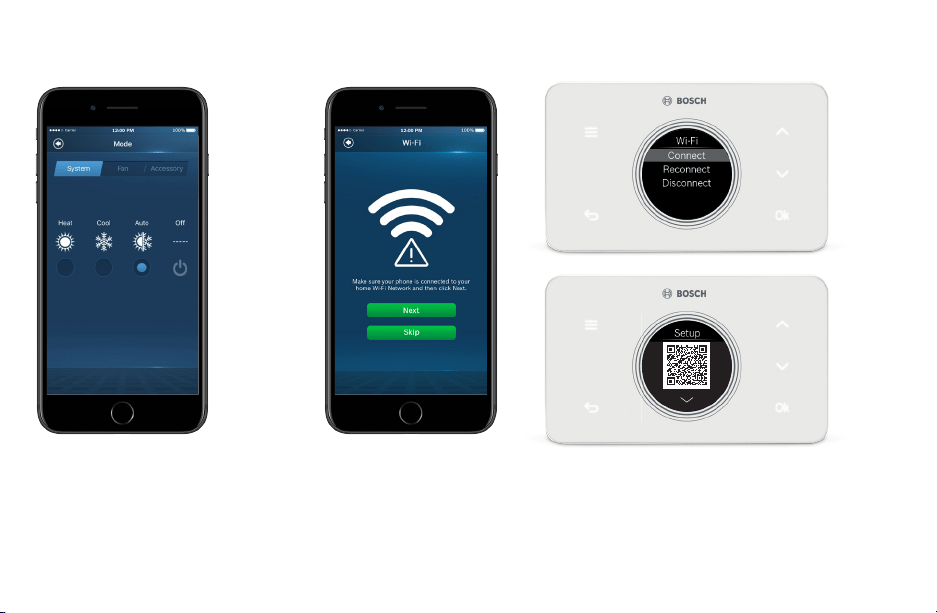
Mode
Similar to the BCC50 Thermostat, use
the Mode screens to adjust remotely the
System Mode, Fan Mode and Accessory
Mode.
App Menu Overview
Wi-Fi
To change the Wi-Fi Network that your thermostat uses to connect to the internet,
follow the on-screen instructions on your app.
Note: Ensure that you have clicked Connect from your Thermostat’s Wi-Fi menu
to start the pairing process.
43
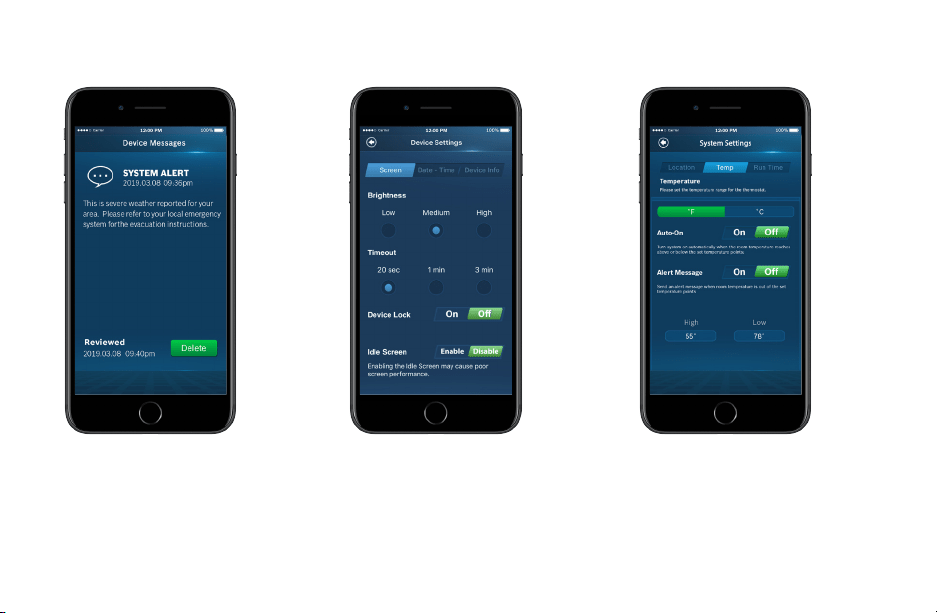
Device Messages
Alert messages regarding your
specific thermostat can be read and
deleted from this section of the app.
Device Settings
Follow the on-screen instructions to
view and modify the thermostat screen
settings for brightness, timeout, device
lock, date & time and to view specific
account and system information
regarding your thermostat.
System Settings
Follow the on-screen instructions to
change the temperature units, set
temperature safety functions, view and
reset the run time timers for your
thermostat.
App Menu Overview
44
Additional Features
Control Your BCC50 with Alexa
Bosch offers one Smart Home Skill for integrating your BCC50 with Alexa’s voice
controls. Using the Bosch Connected Control Skill from the Skills section of the
Amazon Alexa App.
Device Name
The Device Name is the name assigned to your device in the
BCC50 app. You can check the device name by opening the
BCC50 app and reading the name displayed on the main
menu of selectable devices.
You Can Control the BCC50 by Saying:
▶ Alexa, turn (Device Name) on.
▶ Alexa, turn (Device Name) off.
▶ Alexa, Increase (Device Name) by _ _ degrees.
▶ Alexa, Decrease (Device Name) by _ _ degrees.
▶ Alexa, Set (Device Name) to __ degrees.
▶ Alexa, what is the (Device Name) set to?
▶ Alexa, what is the temperature of the (Device Name)?
The Amazon Alexa commands for the
BCC50 are intended for use in Heating Only
and Cooling Only modes.
You must have a registered BCC50 account
to set up and use your thermostat with
Amazon Alexa.

45
Connecting Your BCC50 to Alexa
1. Download the BCC50 App, create an account, and register your app to the BCC50 thermostat.
2. Download the Amazon Alexa app and set up your Alexa-enabled device.
3. In the Amazon Alexa app, click on the Menu button in the top left corner.
4. Click on the Skills section and search for “Bosch Connected Control” in the search bar at the top of the page.
5. After you find and click on the Bosch Connected Control Skill, click on the blue Enable button.
6. The setup process redirects you to a Bosch sign-in page where you will need to enter your BCC50 account username and
password.
7. After you have received confirmation that your two accounts have been successfully linked, click Done in the top left hand
corner.
8. Next click Discover Devices in the Amazon Alexa app or say “Alexa, discover new devices.” Device Discovery could take up to
45 seconds.
9. When device discovery is complete, you should see a list of connected devices in the Smart Home menu of your Amazon
Alexa app.
The setup process is now complete and you can start to control your BCC50 with your Alexa-enabled device.
Try out some of the commands and enjoy!
For further support, contact our customer service team at: 1-800-283-3787.
46
Additional Features
Control Your BCC50 with Google Assistant
Once installed and connected to the app, Bosch offers one Smart Home link for integrating your
BCC50 with Google Assistant’s voice controls. After setting up your thermostat as a new device in
the Google Home app:
Device Name
The Device Name is the name assigned to your device in the
BCC50 app. You can check the device name by opening the
BCC50 app and reading the name displayed on the main menu
of selectable devices.
You Can Control the BCC50 by Saying:
▶ Hey Google, what’s the _ _ temperature?
▶ Hey Google, make it warmer (or cooler)
▶ Ok Google, set the temperature to __ degrees
▶ Ok Google, raise (or lower) the temperature __ degrees
▶ “Ok Google, what is the current temperature in the Bedroom?
▶ “Hey Google, what’s the Living Room set to?
▶ “Ok Google, what’s the temperature of my thermostat?
▶ “Ok Google, turn on heat mode in the Bedroom”
▶ “Hey Google, change to automatic mode in the Living Room”
▶ “Ok Google, turn on cool mode in the Kitchen”
The Google Assistant commands for the
BCC50 are intended for use in Heating Only
and Cooling Only modes.
You must have a registered BCC50 account
to set up and use your thermostat with
Google Assistant.

47
Connecting Your BCC50 to Google Assistant
1. Download the BCC100 app, create an account, and register your app to the BCC100 or BCC50 thermostat.
You must have a registered BCC account to set up and use your thermostat with Google Assistant.
2. Download the Google Home app and set up your Google-enabled device.
3. In the Google Home app, click on the add button in the middle of the screen.
4. Click on Setup up device and select the link option under Works with Google. This is the last option on the page.
5. Search for Bosch Connected Control and click add new Bosch Connected Control.
6. The setup process redirects you to a Bosch sign-in page where you will need to enter your BCC account
username and password.
7. After you have received confirmation that your accounts have been successfully linked, click Done in the top left hand corner.
8. Next choose the device(s) you want to link to your Google Home from the available list and click Next.
9. Choose a home for your new thermostat and click Next.
10. Choose a location for your thermostat and click Next
The set up process should now be complete and you can start to control your BCC thermostat with your Google-enabled device.
Try out some of the commands and enjoy!
For further support, contact our customer service team at: 1-800-283-3787.

48
MODELS COVERED
This limited warranty is provided by Bosch Thermotechnology Corp. (“Bosch”)and covers the Bosch Connected Control BCC50
Thermostat (hereinafter referred to as “Product”). This warranty is provided to the original purchaser of the Product as long as the
Product remains installed at its original place of installation.
WARRANTY COVERAGE Limited Warranty
Bosch warrants that the Product will remain free from defects in material and workmanship three (3) years from the date of
original installation or from the date of manufacture if proof of installation is not available, provided it is properly installed and the
other conditions of this warranty are met. If Bosch determines that the Product has a defect in workmanship or materials, Bosch,
at its option,will repair or replace the defective part.
ITEMS NOT COVERED
This limited warranty does not cover the following circumstances:
1. Components or parts not provided by Bosch.
2. Components or parts, on which the tags or nameplates have been removed, altered or defaced.
3. Scratches in or discoloration of finishes.
4. The workmanship of any installer. Bosch disclaims and does not assume any liability of any nature for unsatisfactory
performance caused by improper installation, repair or maintenance.
5. Any labor or material costs for removal, re-installation, repair and replacement of the defective component or part unless
otherwise provided above.
6. Electricity or fuel costs, or any increases or unrealized savings in same, for any reason whatsoever.
7. Damage caused by operation of the Product in a corrosive atmosphere,electrical failures, flooding or acts of God.
8. Damage caused by any attachment or modification to the Product,including any energy saving device.
9. Damage caused by Product not being installed in accordance with all applicable state and local plumbing and/or
building codes and regulations.
10. Shipping charges, delivery expenses or administrative fees incurred by the purchaser in repairing or replacing the Product.
Warranty

49
LIMITED WARRANTY
OTHER THAN THE OBLIGATIONS OF BOSCH EXPRESSLY SET FORTH HEREIN,BOSCH DISCLAIMS ALL WARRANTIES, EXPRESS
OR IMPLIED, INCLUDING BUT NOT LIMITED TO ANY IMPLIED WARRANTIES OF MERCHANTABILITY OR FITNESS FOR A
PARTICULAR PURPOSE. BOSCH’S SOLE OBLIGATION WITH RESPECT TO THE PRODUCT AND PURCHASER’S EXCLUSIVE
REMEDIES ARE SET FORTH IN THE FOREGOING LIMITED WARRANTY. BOSCH SHALL NOT BE LIABLE FOR ANY INDIRECT,
PUNITIVE, INCIDENTAL, SPECIAL, CONSEQUENTIAL OR SIMILAR DAMAGES INCLUDING, WITHOUT LIMITATION, INJURY OR
DAMAGE TO PERSONS OR PROPERTY OR DAMAGES FOR LOSS OF USE, LOST PROFITS,INCONVENIENCE OR LOSS OF TIME.
NOTE THAT ANY REPAIRED OR REPLACED PRODUCT WILL BE WARRANTED FOR ONLY THE UNEXPIRED TERM OF THE
ORIGINAL WARRANTY.
Some states do not allow the exclusion of limitation of damages, or limitations on how long an implied warranty lasts, so the above
limitations and exclusions may not apply to you.
WARRANTY CLAIMS PROCESS
Before making a claim under this Limited Warranty, you must contact Bosch Customer Service (+1-800-283-3787), who will
support you in troubleshooting the claim and determine if a replacement is covered under this Limited Warranty. To process your
claim, you will need a copy of your original invoice or other proof of purchase and documentation showing the original installation
date and location. The alleged defective Product must be returned to Bosch in accordance with Bosch procedure then in force for
handling goods returned for the purpose of inspection to determine cause of failure (contact Bosch if you have questions
regarding the return process). If Bosch determines that the returned product is defective and that this warranty applies, Bosch
will furnish the repaired or replacement Product. If you are a contractor, who purchased the product through your distributor, you
can also file a claim through your distributor.
This Warranty applies to Bosch Products installed in the Continental United States and Canada only.
Warranty

50
Notes

51
Notes

52
Bosch Thermotechnology Corp.
Watertown, MA • Londonderry, NH • Ft. Lauderdale, FL
General Inquiries: 1-800-283-3787
www.boschheatingandcooling.com
74H994001A 5/19
Copyright © 2019 Bosch Thermotechnology Corp.
All rights reserved. Subject to change without notice.