1
Fujitsu MESSHU RT500 FAQ
V1.4.1
MESSHU product APP
ICON
Description
MESSHU Router
Set Router connection and network management
MESSHU Drive
Remote ( not in wifi range ) access to USB
Storage (MESSHU cloud space ) data on the Router

2
Product problem ........................................................................................................................................ 4
Q1: How many Fujitsu MESSHU Wireless Shares do I need ?............................................................ 4
Q2: Does the Fujitsu MESSHU Wireless Sharer apply to the general internet service providers ? ... 4
Q3: I already have a network base station / wireless router provided by service providers . I can
also use Fujitsu MESSHU Router ? ..................................................................................................... 4
Q4: What position can the Fujitsu MESSHU Router be placed in ? ................................................... 4
Q5: MESSHU Router device is a wireless extender (Extender / Repeater)? ...................................... 4
Q6: What are the advantages of Mesh Router compared to general Extender/Repeater ? ............. 5
Specification ............................................................................................................................................... 6
Q1: Chipset specification ................................................................................................................... 6
Q2: Explanation of the light ............................................................................................................... 6
Q3: What is the coverage of Wifi signal ? .......................................................................................... 7
Q4: How many mesh routers can be connected in the same network ? ........................................... 7
Q5: If more Slave Routers are connected, will the connection speed decrease ? ............................ 7
Use operational issues ............................................................................................................................... 8
Q1: How do you get the router to start setting ................................................................................. 8
Q2: How to select the position of the Slave Router ? How does the connection signal relate to the
placement position ? ......................................................................................................................... 9
Q3: What should I do if the Bluetooth of the mobile phone APP fails to search for the Router ? .... 9
Q4: How to configure MESSHU Router for PPPoE network ? ............................................................ 9
Q5: Can't log in to APP ( show login failed ) ..................................................................................... 10
Q6: How to log in to the web management interface ? .................................................................. 10
Q7: How to use remote login APP ................................................................................................... 10
Q8: Is there a Chinese version of APP/Web ? .................................................................................. 10
Q9: What can I do if I can't connect to Wifi ? .................................................................................. 11
Q10: Wifi Settings ............................................................................................................................ 12
Q11: What if my Router seems to have a problem? ........................................................................ 12
Q12: I can connect to Router Wifi but I can't access the Internet ................................................... 12
Q13: Change / Forget Wifi Password ............................................................................................... 12
Q14: Change my APP login password .............................................................................................. 12
Q15: Forgot your password for APP/Web Login .............................................................................. 13
Q16: How to Reset defualt ............................................................................................................... 13
Q17: After Reset defualt Master Router, is the Slave Router also need to re-pair with the Reset
Master Router? ................................................................................................................................ 13
Q18: After the setting is completed , the new settings in APP/Web do not take effect ? ............... 13
Q19: Is it possible to set the internet / break time ? ....................................................................... 14
Q20: Is it possible to block some websites? ( such as pornography, gambling sites, etc. ) ............. 14
Q21: FW version ............................................................................................................................... 14
Q22: Why is the connection speed test in the MESSHU APP different from speed test results of
other software?................................................................................................................................ 14

3
Q23: Backup / Restore FW Settings ................................................................................................. 14
Q24: DDNS setting ........................................................................................................................... 15
Q25: Setting RT500 File Access and Sharing Function (SAMBA) ...................................................... 16
MESSHU Drive APP ................................................................................................................................... 19
Q1: Can't use the MESSHU Drive function ? .................................................................................... 19
Q2: Can multiple people sign in to the same account at the same time ? ...................................... 19
Q3: How to log in remotely .............................................................................................................. 19
Q4: Is there a file search function ? ................................................................................................. 19
Q5: Can I use SAMBA to modify cloud space files ? ........................................................................ 19
Q6: What is the difference between the Drive Mobile ( offline mode ) and Personal Cloud ( online
mode ) and how does it differ ? ....................................................................................................... 21
Supplemental instruction ......................................................................................................................... 22
MESSHU Router Setting Procedure .................................................................................................. 22
MESSHU Drive Instructions .............................................................................................................. 42

4
Product problem
Q1: How many Fujitsu MESSHU Wireless Shares do I need ?
A: MESSHU router has a wireless coverage area of about 1500 ft². The three combination
packages can cover a total of more than 4500 ft² of space, making it a perfect choice for a
thoroughgoing house. In addition, according to the layout of your home and free planning, any
space that needs WiFi coverage can be flexibly increased MESSHU router.
Mesh network requires at least three devices can play the full range of W i F i covering power,
only one device needs to access the Internet route, even the Internet as a host, all other
devices via WiFi transmission signal
Q2: Does the Fujitsu MESSHU Wireless Sharer apply to the general internet service
providers ?
A: Yes! MESSHU mesh router can be applied to all of the network operator's service, You just
need to use the network cable to connect a MESSHU mesh router and the base station
provided by the internet provider. Then pick up the phone to complete the simple installation
process of the MESSHU APP , and you can build a Mesh network system at home
Q3: I already have a network base station / wireless router provided by service
providers . I can also use Fujitsu MESSHU Router ?
A: Of course, MESSHU mesh router can replace your existing wireless sharing device features,
you can install MESSHU mesh router to extend the WiFi signal in the home, to facilitate the
management of the network and a stable of WiFi signal coverage and other features.
Q4: What position can the Fujitsu MESSHU Router be placed in ?
A: Need to plan according to your home's space and pattern, and the material of the building
will also affect the efficiency of wireless signal transmission. In general, it is recommended to
MESSHU mesh router is placed in a field where you often have fast and stable WiFi needs, or
any area where you and your family need WiFi coverage .
Q5: MESSHU Router device is a wireless extender (Extender / Repeater)?
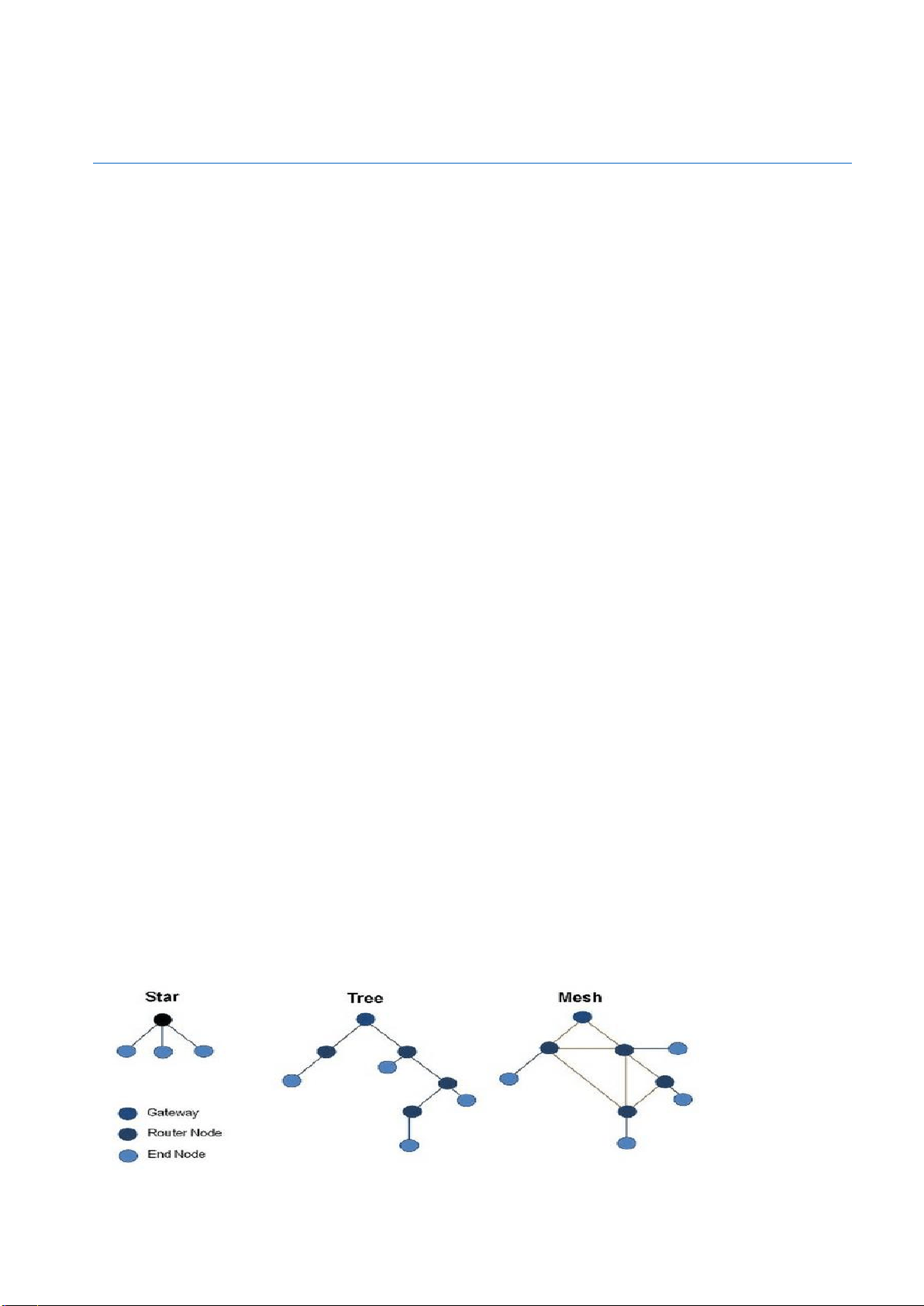
A: No. MESSHU mesh router will build their own Mesh network system, not as a general
wireless extender (Extender / Repeater)) use.
5
Q6: What are the advantages of Mesh Router compared to general
Extender/Repeater ?
A: # Also refer to this page description
https://baike.baidu.com/item/%E6%97%A0%E7%BA%BFMesh%E7%BD%91%E7%BB%9C
The traditional tree (Tree) network by a "R outer hosts" connected series of Extender / Repeater
continue to extend the network, each Extender / Repeater, and will only upper Router establishes
connections and does not communicate with each other
➢ Instead of calculating the best route, the system uses the default route when establishing the
network.
➢ If there have a problem with the middle Extender / Repeater , there will be no network at a more
remote location.
➢ Signals between different routers are prone to interference
➢ Different brand device the signals have poor compatibility
➢ Wireless network speed will attenuate
➢ The wifi signal will easily dropped when signal switch
Mesh Network Router using a series of mesh network, each Router is a connection point (Node), while
Cast Router / AP / Repeater, Each Node will connect to each other, a series of Node can easily form a
network, the establishment of a single large-scale wireless system, the whole network belong to a
relationship with the SSID, the device can be in the range of the best signal to automatically connect
the Node, wherein assuming a Node problem occurs, the other Node You can still walk around and
continue to send the signal. Simultaneously Mesh Wi-Fi can calculate the best transmission path for
packets , and the network transmission speed is usually faster.
Band Steering technology under a single Wifi SSID, while providing 2.4GHz and 5GHz band network,
wireless router or access point will automatically detect and switch 5GHz and 2 .4GHz Frequency band.
Seamless roaming so that the wireless device in response to the signal strength, the automatic
selection switching between the wireless router and the respective receivers, will not disconnect at
the time of handover, downloading files, Video Call, Streaming nor affected when . Seamless Roaming
is often used in mobile phone networks, home Wi-Fi systems are less used.
Consumers more usable set of all Mesh router with a APP and simultaneously monitor the operational
status of each Router
6
Specification
Q1: Chipset specification
Wi-Fi speed
AC1200(300 + 867Mbps)
CPU
Qualcomm QCA9557 2x2 11abgn WiFi SoC
Switch/Ethernet
AR8033-AL1A + AR8035-A Gigabit Ethernet PHY
RAM
128 MB (Nanya NT5TU64M16HG-AC)
Flash
32 MB (Spansion S25FL256SAIFR0)
2.4 GHz Radio
- In QCA9557
- Unidentified 2.4 GHz power amp (x2)
5 GHz Radio
- QCA9882 2x2 abgn+ac radio SoC
- Unidentified 5 GHz power amp (x2)
Bluetooth
TI CC2564B dual-mode Bluetooth 4.1 controller
Antenna
4 /per router
Wifi security
WPA2/AES
Wi-Fi Standards
802.11 a/b/g/n/ac
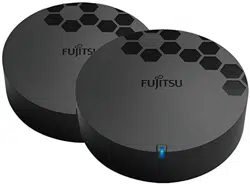
Size
127x47.2mm /per router
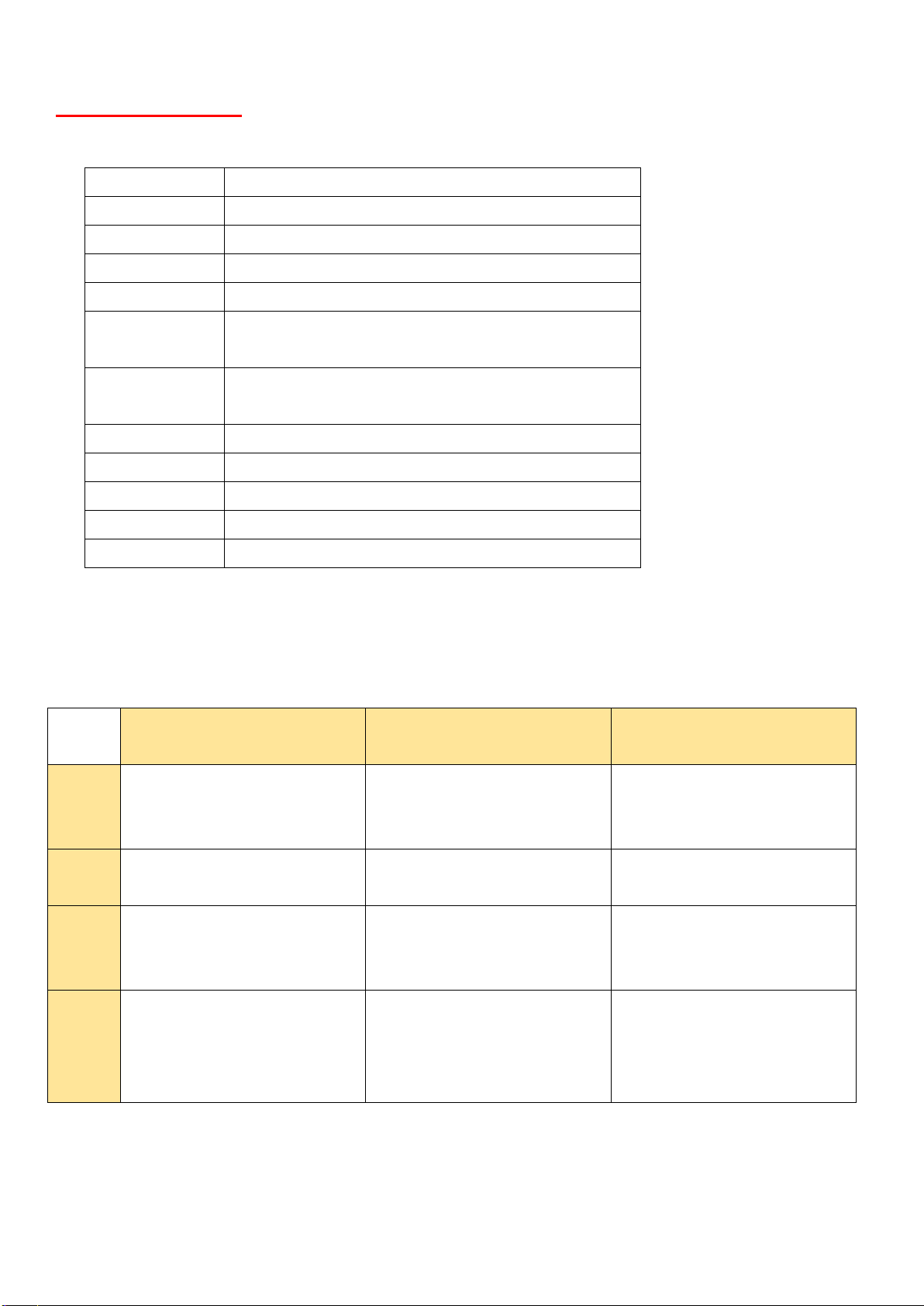
Q2: Explanation of the light
A: You can click the ○
i
icon in APP for reference
Continuous light
Fast flash (0.5 seconds on ,
0.5 seconds off )
Slow flash ( One second
light , one second off )
White
system (mesh and Internet
connection) is working
properly.
App connects to the master
node for doing setup.
device is booting or System
function loading
Red
lost mesh connection for
slave devices.
No Internet.
Blue
master and slave devices are
processing easy setup.
device is waiting for setup.
(it means device is in factory
default state.)
Orange
poor mesh connection.
(it means slave device is far
away from master device or
other slave nodes.)

7
Q3: What is the coverage of Wifi signal ?
A: Single Pack Covers Approx. 1,500 sq. ft. (about 140m
2
);
2-Pack Covers Approx. 3000 sq. ft
Q4: How many mesh routers can be connected in the same network ?
A: Mesh device in the same network recommended total number not more than 12
(Including possible future new products m esh cam & mesh plug all together)
# In fact if the user network is stable, then you can add more
Q5: If more Slave Routers are connected, will the connection speed decrease ?
A: It will. Wifi substantially as long as the signal transmitted through multiple satellites Router,
wifi be decay, the current ratio of mesh network technology can be reduced attenuation, but the
attenuation depends on how the user's own network source, placed between Router Locations
( distances, obstacles, etc. ) are also related to the transmission route selected by the network
packet in the moment. Of course, there are many other factors or user-defined modes.
8
Use operational issues
Q1: How do you get the router to start setting
If you have more than one router, please select one as the master router, plug in the power and
network cable to the WAN port, and then download the MESSHU Router APP. After you finish
configuring the host router,you can add other slaves router to the same mesh network.
Slave router only need to connect power (do not need to connect network cable)
When setting for the first time, place all RT500 (including Master & Slave) within 3m from the
mobile phone. After setting the pairings, place the RT500 in a place where you need to, and place
the distance away from other routers. Within 10m, and it is recommended to restart all RT500
(master + slave) after place, wait about 10 minutes, wait for the system to start and optimize the
network
(Download MESSHU APP to set up Mesh Router, Search for "Fujitsu MESSHU Router" on APP
store or Google Play.)
Open the APP, select the "Wizard" at the bottom and set it according to the APP instructions
For more details, please refer to the last Supplemental instruction: MESSHU Router Setting Procedure

9
Q2: How to select the position of the Slave Router ? How does the connection
signal relate to the placement position ?
A: One RT500 supports approximately 1500 square feet of space. If there is more obstruction
or signal interference in the home, the support space will be reduced.
If the RT500 is placed, the RT500 white light is on, indicating that the placement distance is
moderate and the connection is successful.
If orange or red lights appear on the RT500, it indicates that the connection is unstable. Please
try to relocate the RT500 to a different place or close to another RT500. Try not to place it in a
more closed space.
Each RT500 is best placed within a distance of 10m, and the smaller the distance between
straight lines is better. Because the walls will weaken the WiFi signal, the material of the
building will also affect the efficiency of wireless signal transmission. If there are many other
WiFi signals or wireless devices (such as a wireless phone in the house) around the house,
different signals interfere with each other, which affects the WiFi signal transmission
performance and speed.
Please turn off other WiFi devices you don't need (such as wireless sharer and WiFi extender)
as much as possible to ensure that the RT500 can use the best WiFi power
It is recommended to re-start all RT500 (master + slave) after placing a new location, wait for
about 10 minutes for the system to restart and optimize the network, and then check the signal
and try network again
Mesh network can provide better WiFi coverage for using three or more RT500, such as in a
high-rise house or a larger area, and can increase WiFi coverage by adding RT500
Q3: What should I do if the Bluetooth of the mobile phone APP fails to search
for the Router ?
A: Please turn off the Bluetooth of your mobile phone and turn it back on again, and keep it within
3 meters from the Router.
If the Router is connected to the power supply for more than one hour, remove the power and
restart it again.
# If you are using an Android phone, please turn off "Power Save" and turn on "GPS Location"
Q4: How to configure MESSHU Router for PPPoE network ?
A: During the first installation, it will show that no network can be detected, and then prompt to
manually set the ID & Password
See supplemental instruction: Start Setting Step 12
10
Q5: Can't log in to APP ( show login failed )
A: Please confirm that you have connected to the MESSHU wifi network, close and open the APP
again, and confirm whether there are other people logging in to the MESSHU APP.
Since only one person can log in at the same time in the MESSHU APP, there may be others who
are logging in or forget to log out after using it.
Please wait 10 minutes for timeout before logging in
# "MESSHU Drive" APP can allow up to 10 people to log in at the same time
Q6: How to log in to the web management interface ?
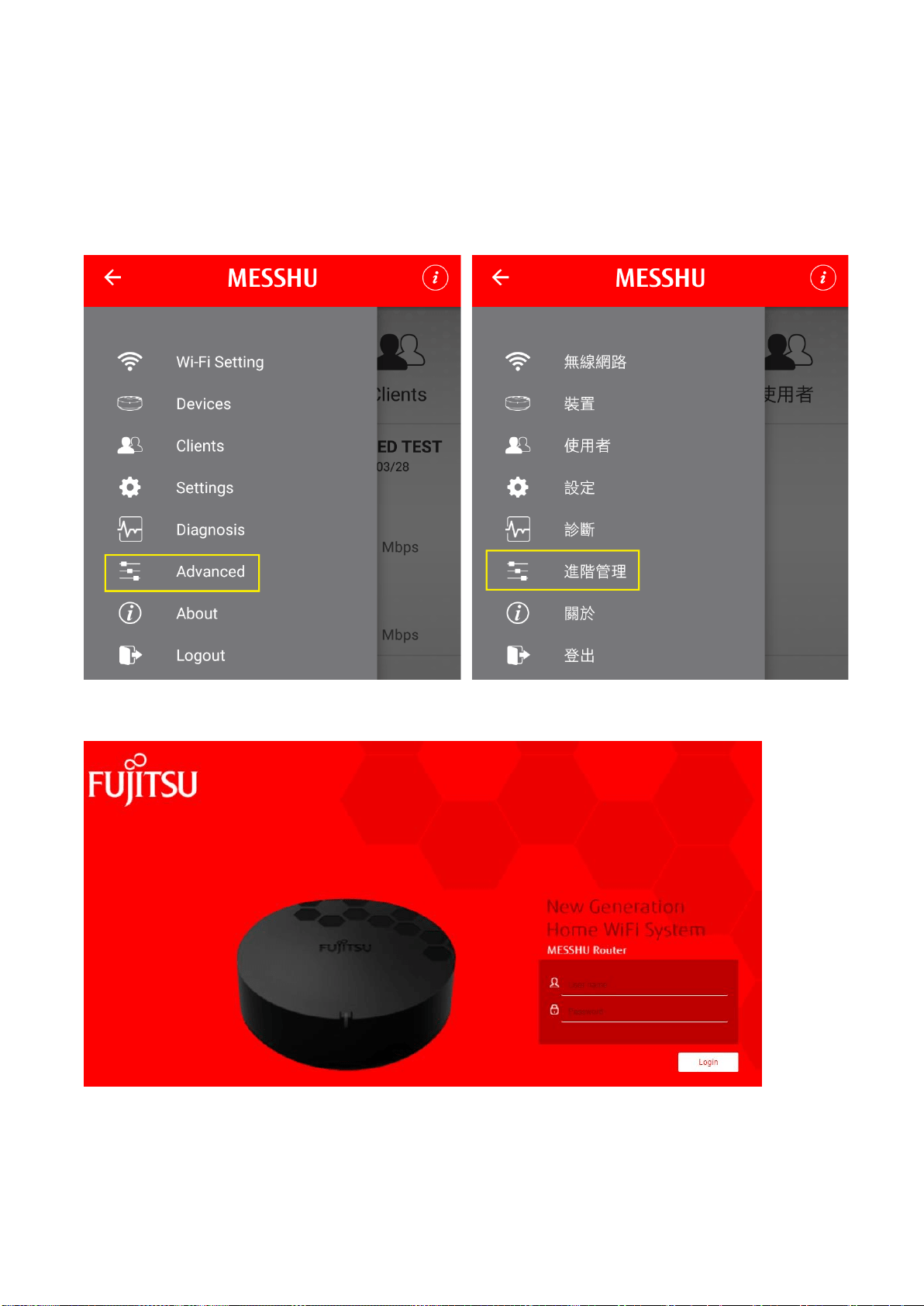
A: Please log in to MESSHU App → Click menu in the upper left corner → Select
“Advanced” → Open Web Login Screen → user name and password same as MESSHU
App
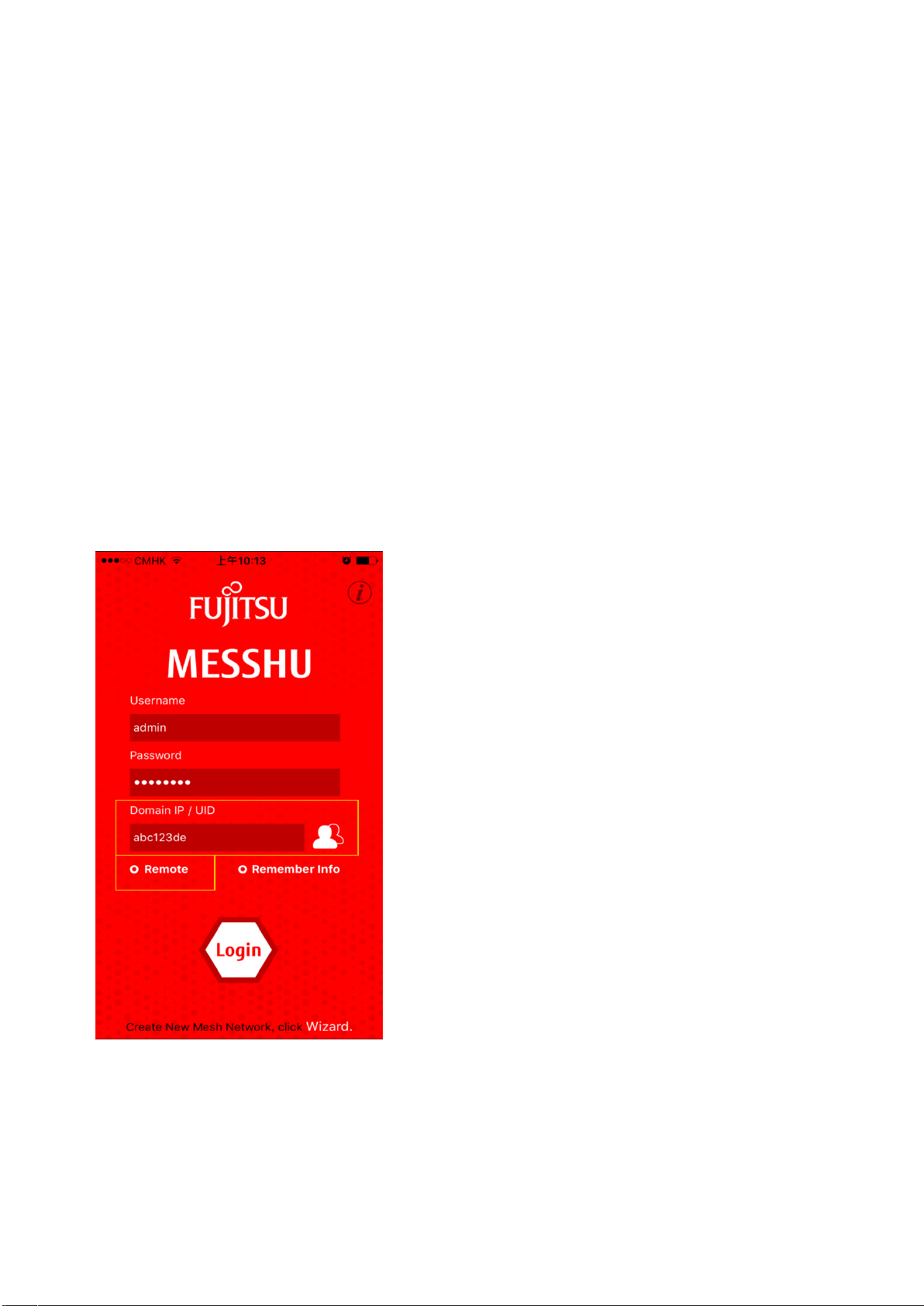
Q7: How to use remote login APP
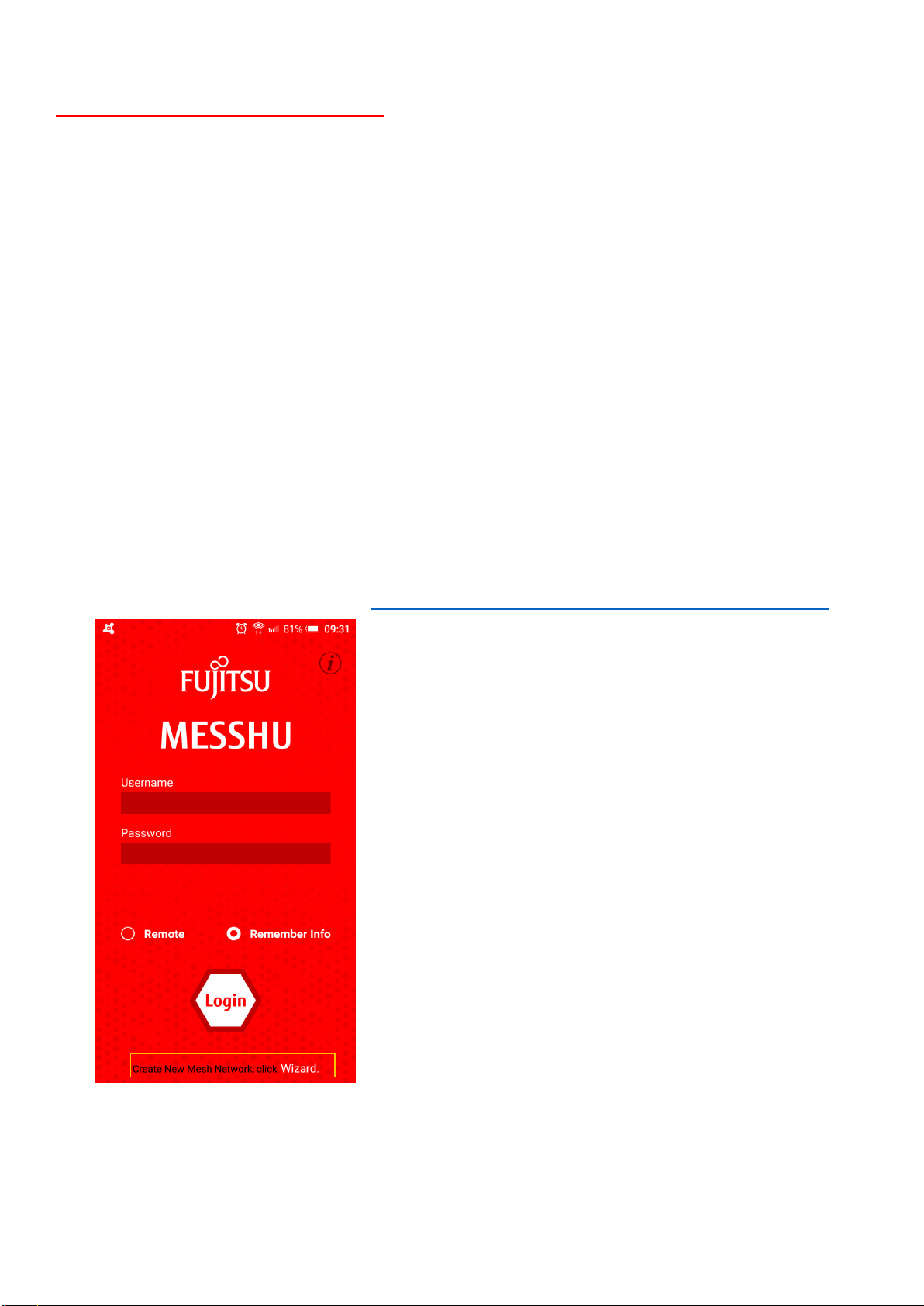
A: Please enter the user name and password in the MESSHU APP login screen, select
"Remote", and enter Unique ID (UID) (7 digits in total) on the device's sticker label at the
bottom of your Master MESSHU Router
Q8: Is there a Chinese version of APP/Web ?
A: In APP, you can select Traditional Chinese/English in "Settings → Language".
Web only in English
11
Q9: What can I do if I can't connect to Wifi ?
A: Please turn off the Wifi function of mobile device and reopen it
# Make sure that the mobile device if it supports countries in the RT500 set of frequency bands using wifi
Examples of practical experience:
- - Taiwan NCC announced in January 2015, "Opening 5GBand1: 5150~5250MHz Band Application"
http://ee.bureauveritas.com.tw/tw/news.php?KindID=2&ID=240
- Therefore, products before 2015 are only available in 5G Band2, 3, 4 and do not support band1.
- At present, the frequency bands used by the 5G & 2.4G of the RT500 are all auto channels. After
the RT500 is turned on, it detects the usage environment and automatically finds a suitable
channel. So if the mobile device before 2015 is using wifi, if the 5G band 1 selected, it cannot be
connected and there is always a connection error.
- Solution:
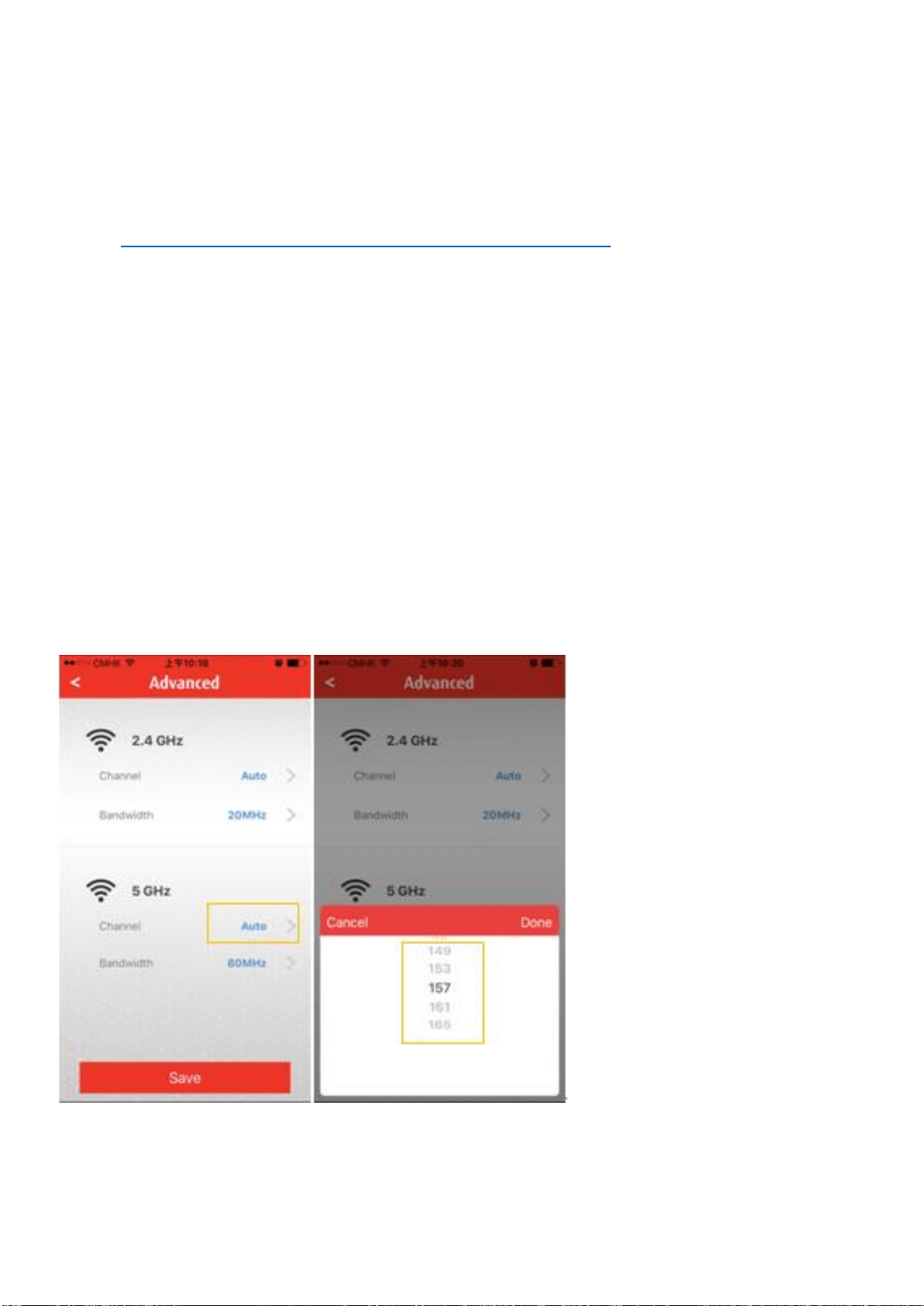
- You can use 5G wifi Band4 channel in APP or Web (band 2, 3 is DFS, EMR3000 and RT500 are not
supported), as follows
➢ Log in to APP
➢ Press Wi-Fi icon in the upper left corner
➢ WiFi Setting
➢ Advanced settings
➢ 5GHz” Channel Selection”
➢ Select any of the "149, 153, 157, 161, 165" channels

12
Q10: Wifi Settings
Wifi setting restrictions
➢ for both SSID username and Password
You can only input English, numbers, symbols, can not enter Chinese
Up to 12 characters
➢ Wifi encryption supports WPA2/AES and Open ONLY.
User device list
Only online client(s) are shown in the User device list. Offline client(s) and Mesh Camera are not
shown.
Does the Wifi signal have no choice of 2.4G or 5G?
A: Band Steering Technology: Under a single SSID, dual-band networks of 2.4GHz and 5GHz
can be provided at the same time. The wireless router or access point will automatically detect
the status of the device and its connection signal quality, and automatically switch the band
signals.
If the user still wants to manually set the 2.4G or 5G network band, it can be set in the web
management interface.
APP -> upper left corner menu -> advanced settings -> login web -> Wi-Fi -> Wi-Fi Settings
After setting, press Save & Apply
Q11: What if my Router seems to have a problem?
A: When you suspect a problem with your Router, first unplug the power for 30 seconds and
then plug it back in. This will restart the Router and fix most problems.
Q12: I can connect to Router Wifi but I can't access the Internet
A: If you can connect to Router Wifi, the Router is already running. Please check if the signal
status and network cable are firmly inserted into the WAN port behind the Router. Then restart
the Router.
Q13: Change / Forget Wifi Password
A: Login to APP
➢ Press Wi-Fi icon in the upper left corner
➢ WiFi Setting
➢ Re-enter the Wi-Fi name & password
➢ Press below to save
Q14: Change my APP login password
A:
➢ Login to APP

13
➢ Menu in the upper left corner
➢ Settings
➢ Login
➢ Enter the current password & new password
➢ Press below to save
Q15: Forgot your password for APP/Web Login
A: If you forget the APP/Web Login password, you must reset default the Master Router and
setup again. Please write down the password and paste it on the router to prevent it from being
forgotten.
Q16: How to Reset defualt
A:
- Hardware reset: Connect the router to power and wait until the white light flashes. When it
turns white light, use a slender object to press the button in the small round hole on the top side of
the router for 10 seconds. Flashing red light, please wait about 3 minutes to turn into a blue light,
you can start using APP settings
- Software reset: Log in to the APP → Press "menu (three-line pattern)" in the upper left
corner of the APP → Select "Device" → Select the device to be Reset → Press the "Setting
(screw pattern)" in the right → Press Below "Factory Reset"
Q17: After Reset defualt Master Router, is the Slave Router also need to re-pair
with the Reset Master Router?
A: No need. After the Master Router is set to complete (white light is turned on) after the reset,
the previously set slave router is unplugged and then turned on, and it can automatically
connect back to the Master router's mesh network and automatically pair.
(The red light may flash for several minutes before the connection is restored after the power is
turned on.)
Q18: After the setting is completed , the new settings in APP/Web do not take
effect ?
A: Please log in APP/Web again to view/use again

14
Q19: Is it possible to set the internet / break time ?
A: You can set up rules for individual devices on the Internet, customize break schedules, set
schedules for the week, or immediately suspend certain users to access the Internet. You can
set the length of time.
Use MESSHU App> Clients> Select Client> Enable " Internet Rules"> Set Instant Break
Sessions 戓 “Custom Rule” for Weekly Schedule (Custom Weekly Schedule Can Only Be Set
Once)> Save
There is no cutoff rules in WebPage, the function is only put on APP
Q20: Is it possible to block some websites? ( such as pornography, gambling
sites, etc. )
A: Temporarily no blocking website function
Most of the other routers generally only provide websites that block http, and https cannot
block them.
Q21: FW version
If the FW versions of different routers on the same Mesh network are different, the
connection pairing problem will occur?
A: No, New FW compatible with previous FW version
How do I know if it is the latest FW version? If not, how do I update it?
A: The APP has a function for confirm version and manual update immediately. You can
confirm whether the FW version is up-to-date (if not update immediately) in MESSHU Router
APP's "menu → Settings → Firmware Upgrade" and select the function of Enable/Disable FW
Auto update (default is Enable).
Q22: Why is the connection speed test in the MESSHU APP different from
speed test results of other software?
A: The Internet speed test result of MESSHU app shows WAN speed capacity with wired connection
test. The other speed test app's test result shows mobile device wireless connection speed, but it
might be impacted by some causes such as wireless interference, mobile device is far away from router,
2.4G/5G connection of mobile device, or poor speed test server.
According to customer's test result, you might ask him to check above items or provide us detailed test
information, e.g., the model name of his mobile device and the distance between phone and router.
Q23: Backup / Restore FW Settings
We did backup all functions’ configuration for master device (slave device(s) settings are not included),
and have a mechanism to automatically synchronize from master device to all slave devices.

15
Q24: DDNS setting
# Please upgrade the FW version after 1.0.3
A: RT500 provided a DDNS domain for remote access feature
DDNS service currently supports 3 free service providers:
- duckdns.org
- Dynu.com
- no-ip.com
The user can go to the above three DDNS service providers to apply for the domain. After entering the
relevant settings in the “Tool box”→“DDNS” in the web management interface, press “Save &
apply”.
16
Q25: Setting RT500 File Access and Sharing Function (SAMBA)
RT500 File sharing function (SAMBA) Setting
You can share file via RT500 USB port in your mesh network anywhere
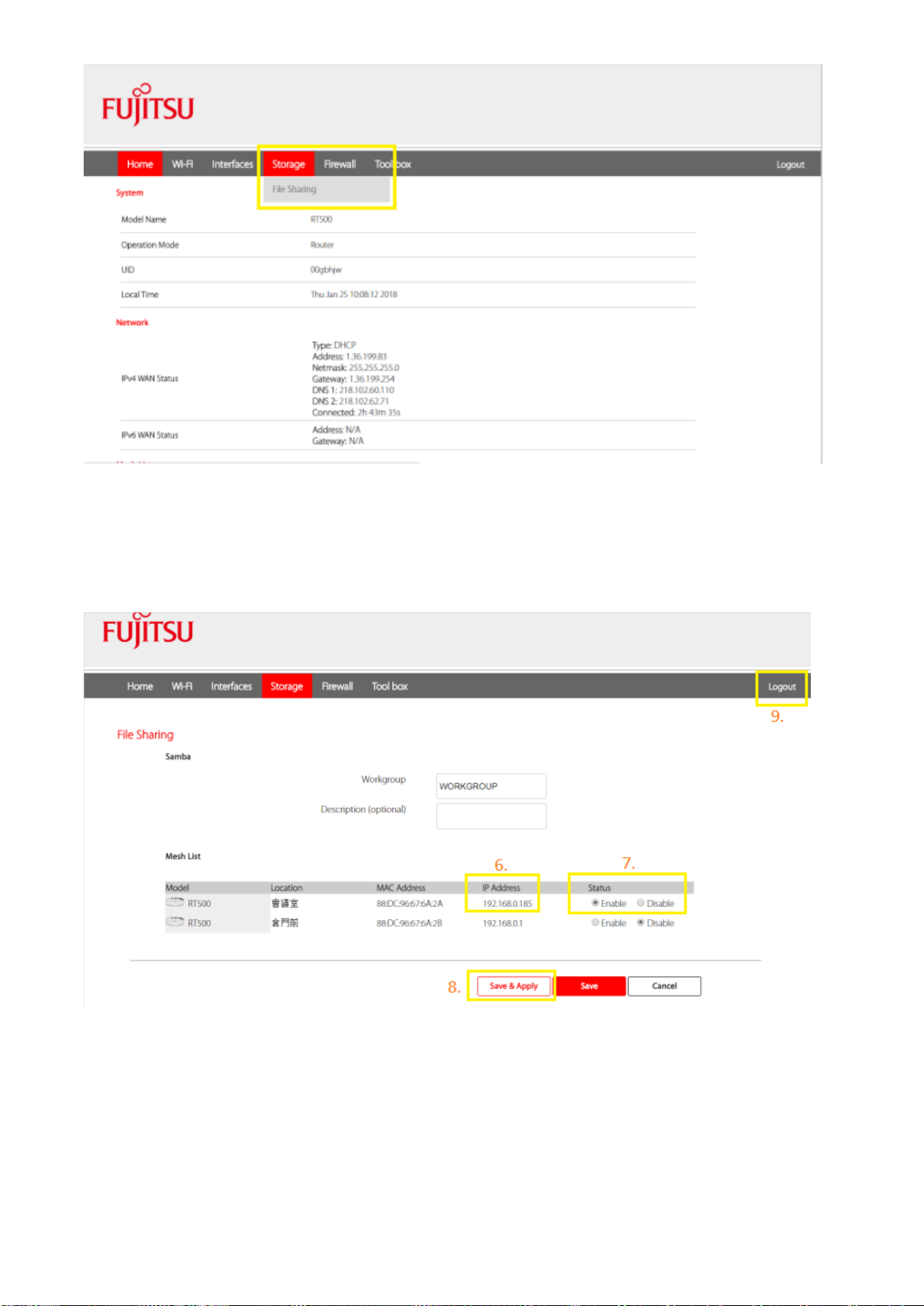
1. Plug in the USB device to your RT500
2. Login the router in MESSHU App
3. Press「Advanced」 in main menu
4. Login the Web adminpage, user name and password same as MESSHU App
5. Press Storage, and then select File Sharing
17
6. Notes the Mesh router IP Address you pluged USB device (e.g. 192.168.0.185)
7. Enable the Status of this Mesh router
8. Press Save & Apply
9. Logout the Web adminpage
18
How to use
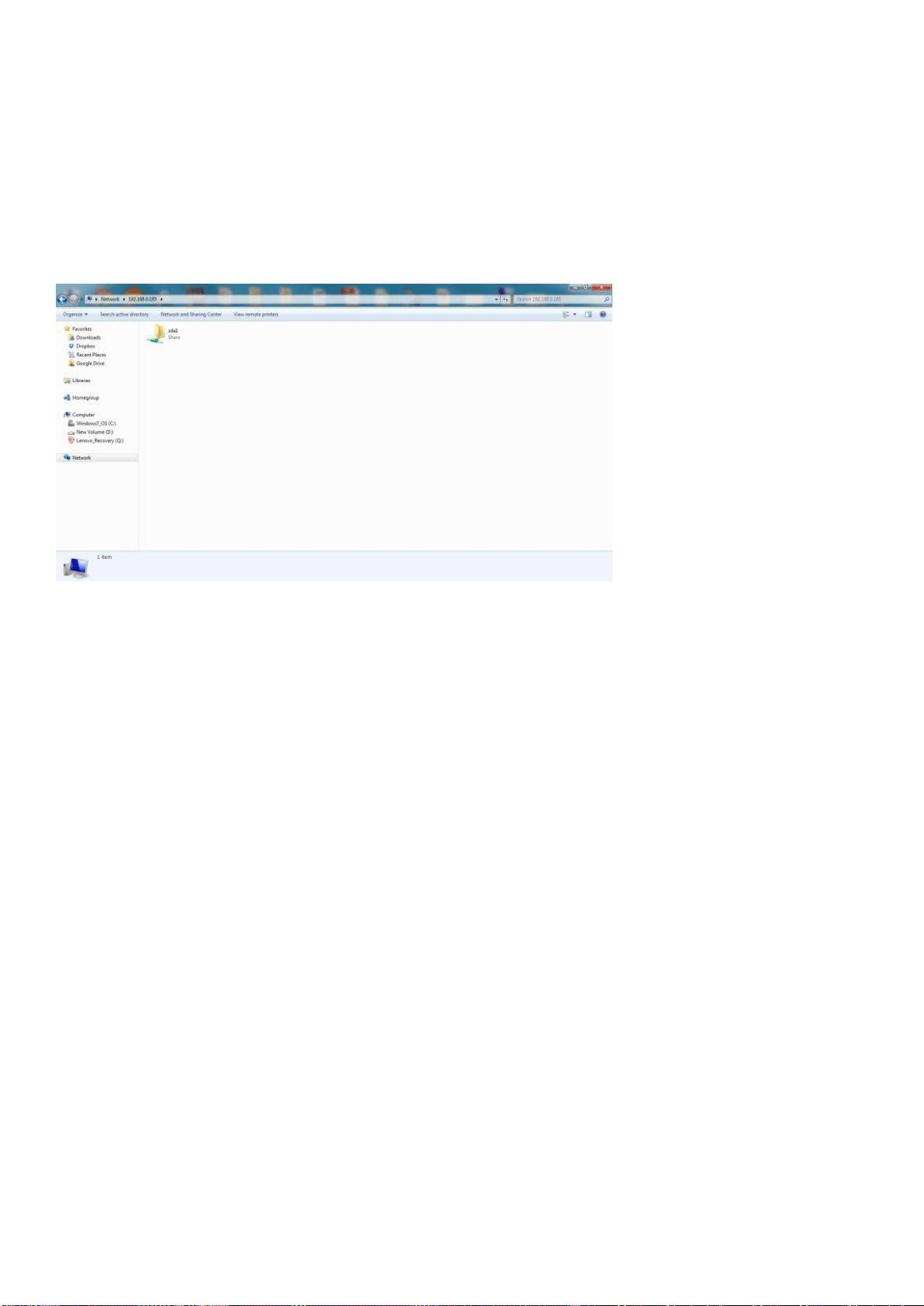
10. Open file brownser from your PC (Windows)
11. Enter the noted IP address in address bar as below format
\\your IP address
e.g. \\192.168.0.185
12. There will have a sda1 folder for your USB device
13. Double click the folder to login in, Username and Password same as MESSHU App
14. You can access your shared file now

19
MESSHU Drive APP
Q1: Can't use the MESSHU Drive function ?
A: Please confirm that the version of Router FW is 1.0.3. See FW Version
Please close and open again APP & Network
Q2: Can multiple people sign in to the same account at the same time ?
A: Yes, MESSHU Drive APP can allow up to 10 people to log in at the same time
Q3: How to log in remotely
A: Please enter the user name and password in the MESSHU Drive APP login screen, select
"Remote Login", enter UID or DDNS and press Login.
# Exclusive Unique ID (UID) (a total of 7-digit) can be found on the sticker label at the bottom of
your Master MESSHU Router
# DDNS must be set in the Web before you can use DDNS Domain to log in. The setting
method can refer to the DDNS setting.
Q4: Is there a file search function ?
A: Yes, only iOS Album is currently unavailable
Q5: Can I use SAMBA to modify cloud space files ?
A: After inserting USB storage into the USB port below the RT500,
1. It can be used as a shared file by SAMBA.,Please refer Setting RT500 File Access and Sharing
Function (SAMBA)
2. It can also be used as MESSHU Cloud's MESSHU Cloud storage and backup data
However, if you choose to use one, do not use both at the same time. This will cause data
confusion.
The following are errors caused:
Users use MESSHU Drive to upload mobile photos to MESSHU Cloud, but use SAMBA to
delete photos. Then the MESSHU Drive APP will still see the names of these photos in
MESSHU Cloud, but they cannot be previewed or opened at all (because Actually it has been
deleted)
Reason: The MESSHU Drive APP will automatically create two hidden Folders in the USB
(.Fujitsu & .Fujitsu_config). There will be a list of all stored & changed files in the MESSHU
Drive APP. If we use SAMBA to change files, both Hide the file list in Folder will not follow the
update, so there will be files have been deleted, but the APP still see the status of the file list.

20
Solution: Use SAMBA to delete the two folders of .Fujitsu and .Fujitsu_config in the USB,
reboot the RT500, and the list list will be regenerate
21
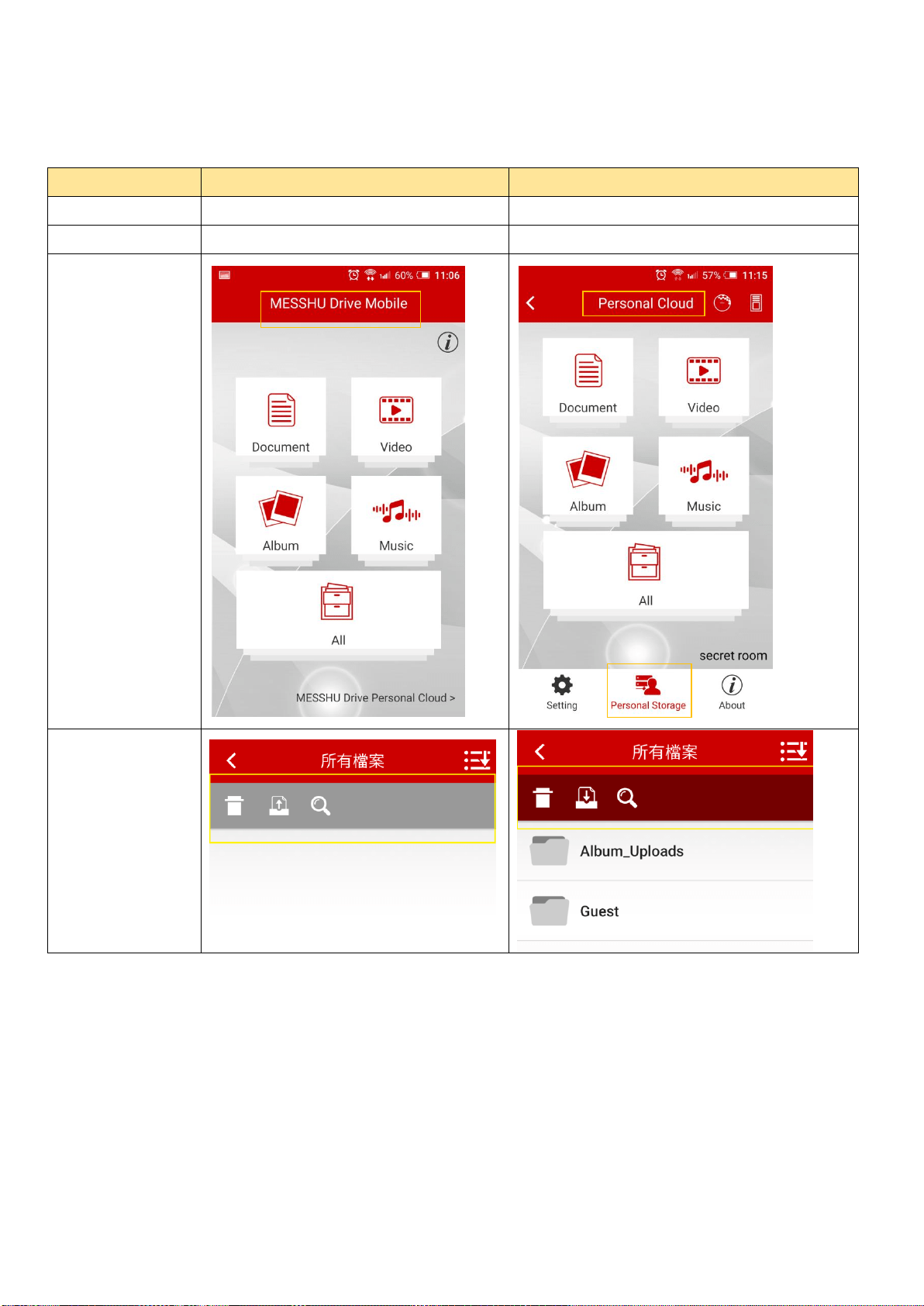
Q6: What is the difference between the Drive Mobile ( offline mode ) and
Personal Cloud ( online mode ) and how does it differ ?
A:
Drive Mobile(offline)
Personal Cloud(online)
Data exist?
Mobile phone
USB storage insert router
Need internet?
No need
Need
What different?
1. Home screen
2. Category
folder
(The top toolbar
color is different)
22
Supplemental instruction
MESSHU Router Setting Procedure
step
screen
description
1.
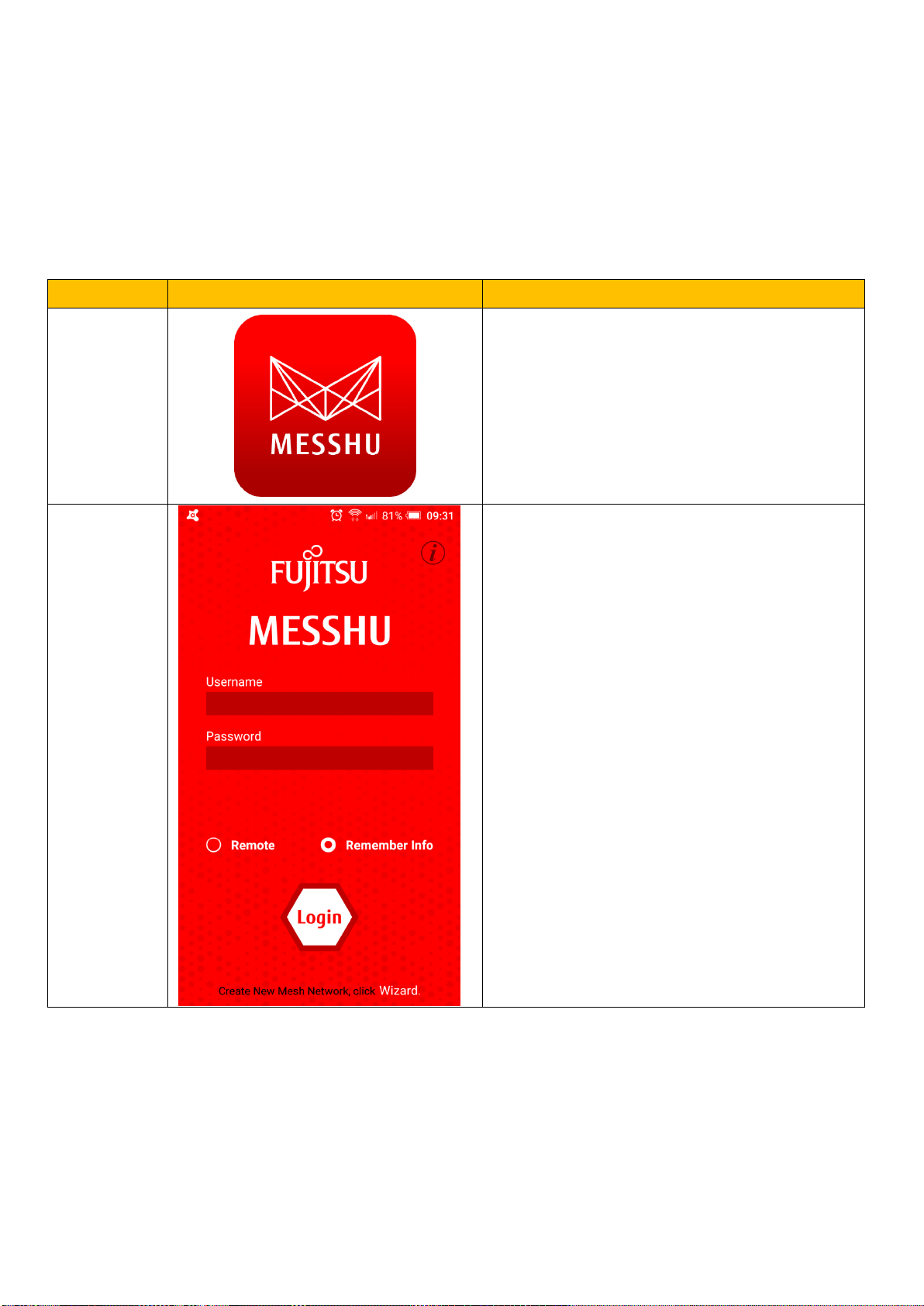
Search for "Fujitsu MESSHU Router" in the App
store or Google Play and open it after
downloading.
2.
Select [Wizard] at the bottom.
23
3.
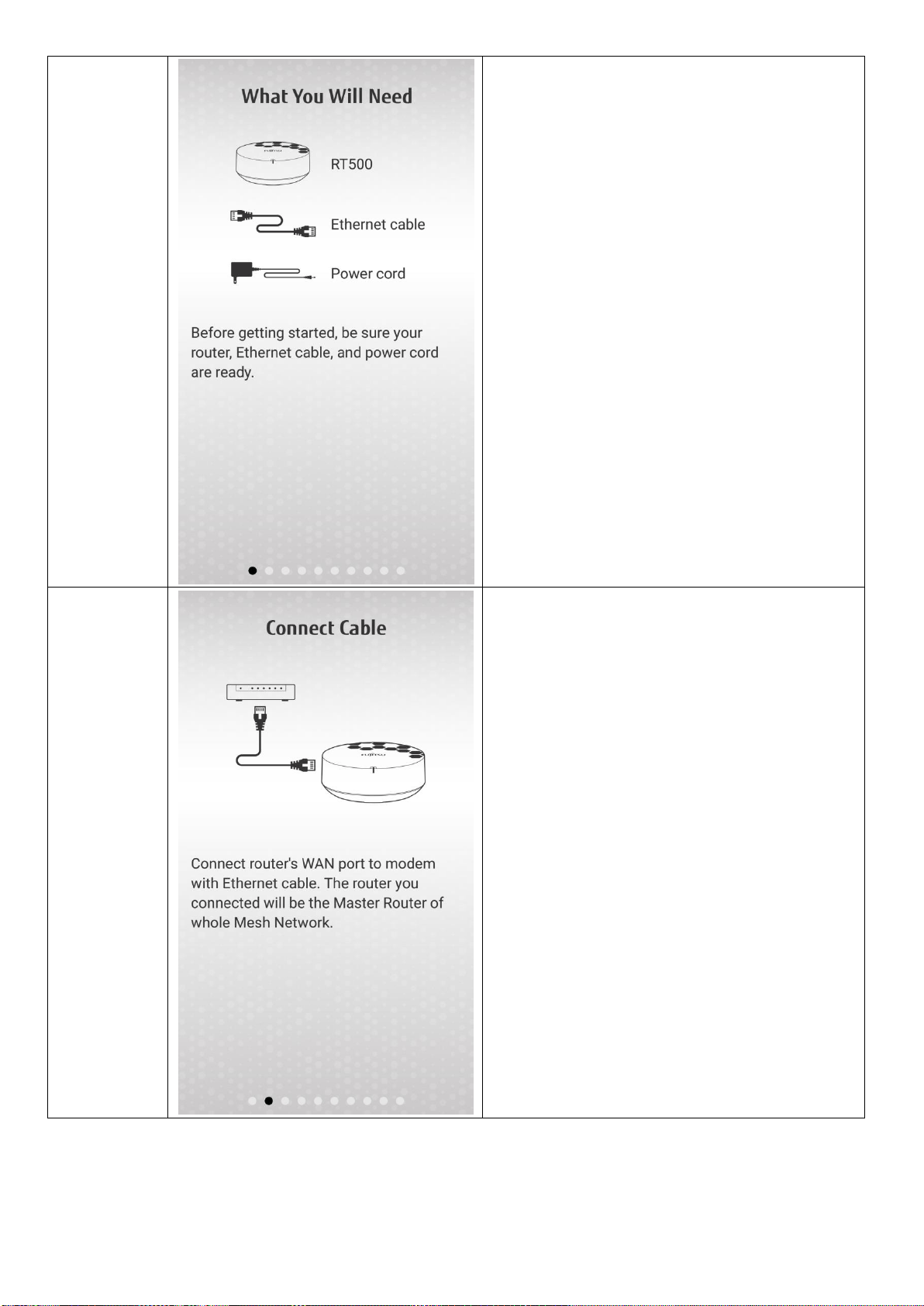
Please confirm the contents of the product box
If you have multiple routers to set, select one as
the master router. After setting the master
router, add other slave routers.
4.
Please connect one end of the network cable to
the home network signal source (internet
provider modem or cable modem), and the
other end to the WAN port (blue port) of the
Fujitsu MESSHU Router that you want to be
Master Router. .
24
5.
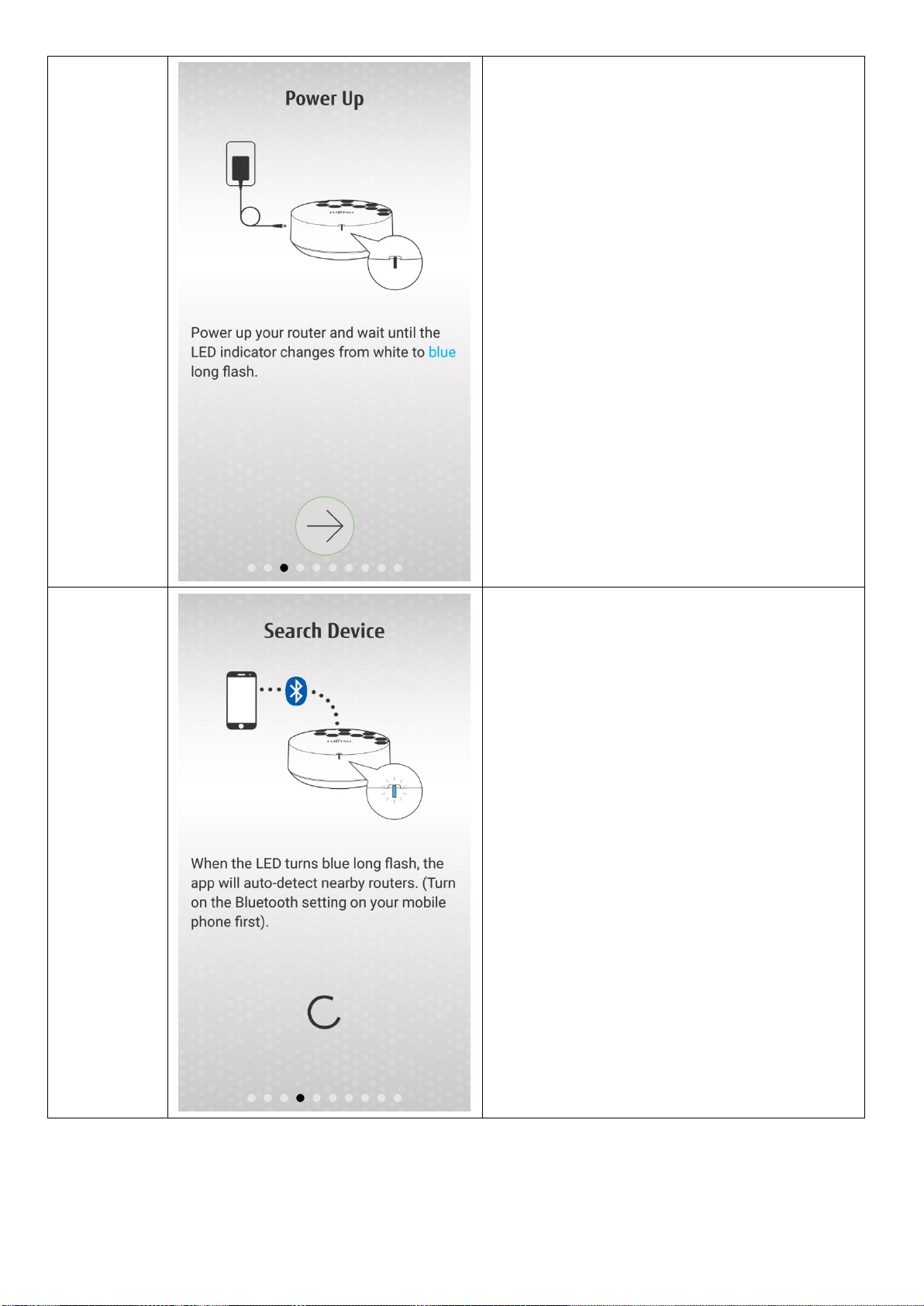
Please connect the Fujitsu MESSHU Router to
the power supply, then click Next.
6.
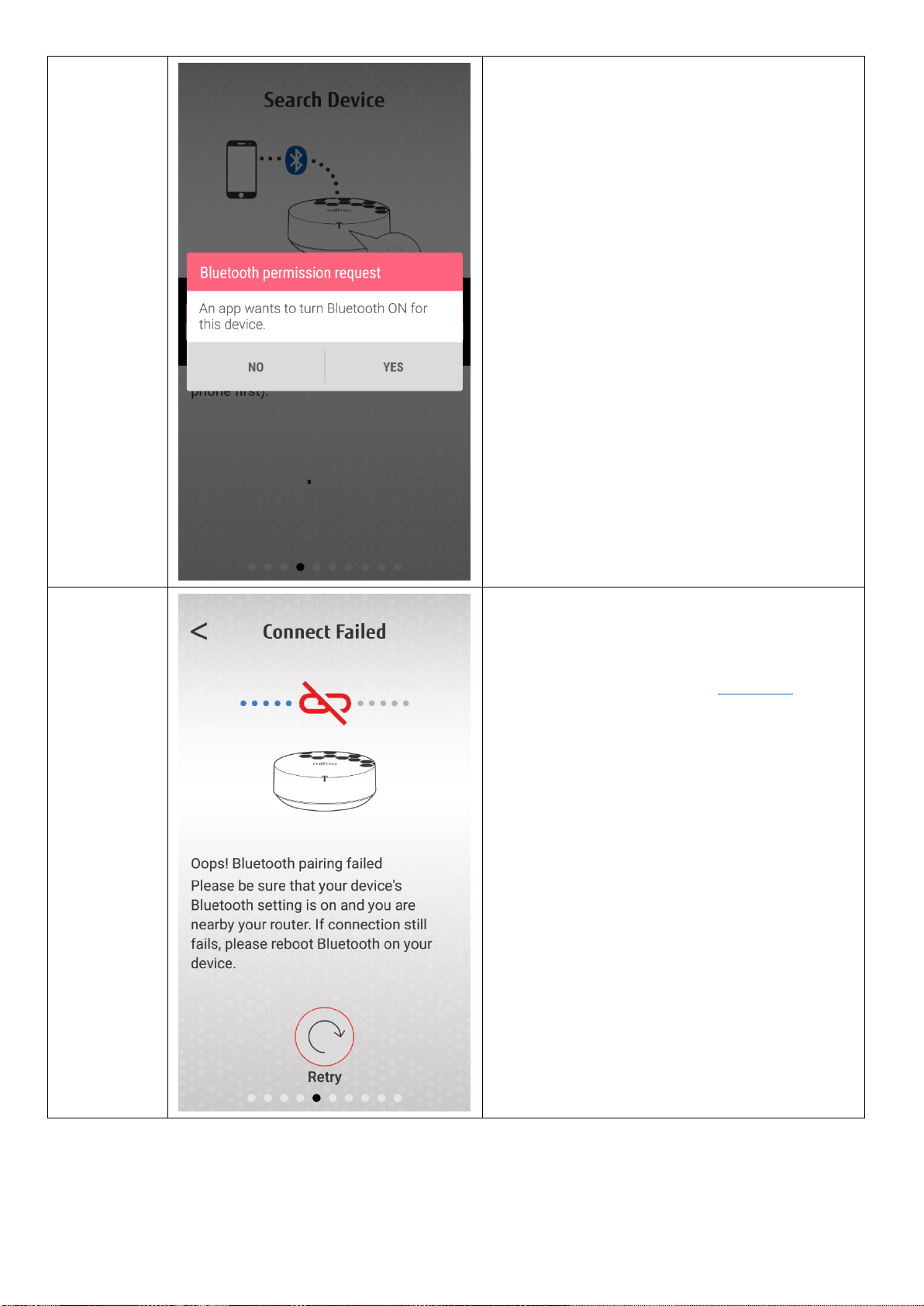
Please turn on the Bluetooth of the mobile
phone and confirm that the Router LED is
blinking blue and wait for a period of time for
the APP to search for the Router.
25
6.1.
If the phone hasn’t turned on the Bluetooth, a
message will pop up asking if you want to turn it
on, select “Yes”
6.2.
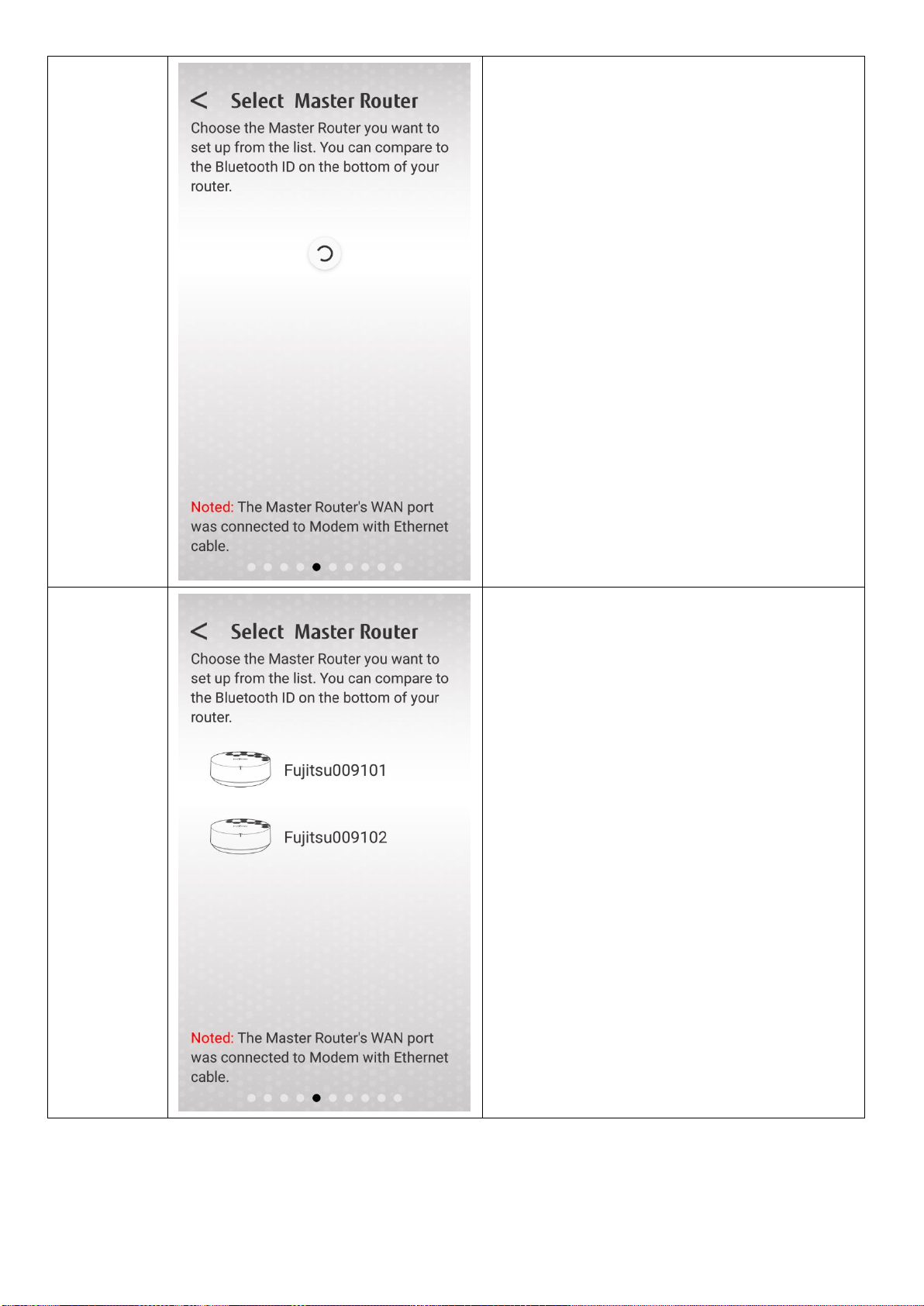
If there is a router connection failure, it means
that the APP does not find any router that can
be paired. Please confirm whether the Router
LED is flashing blue or not. Or refer here
26
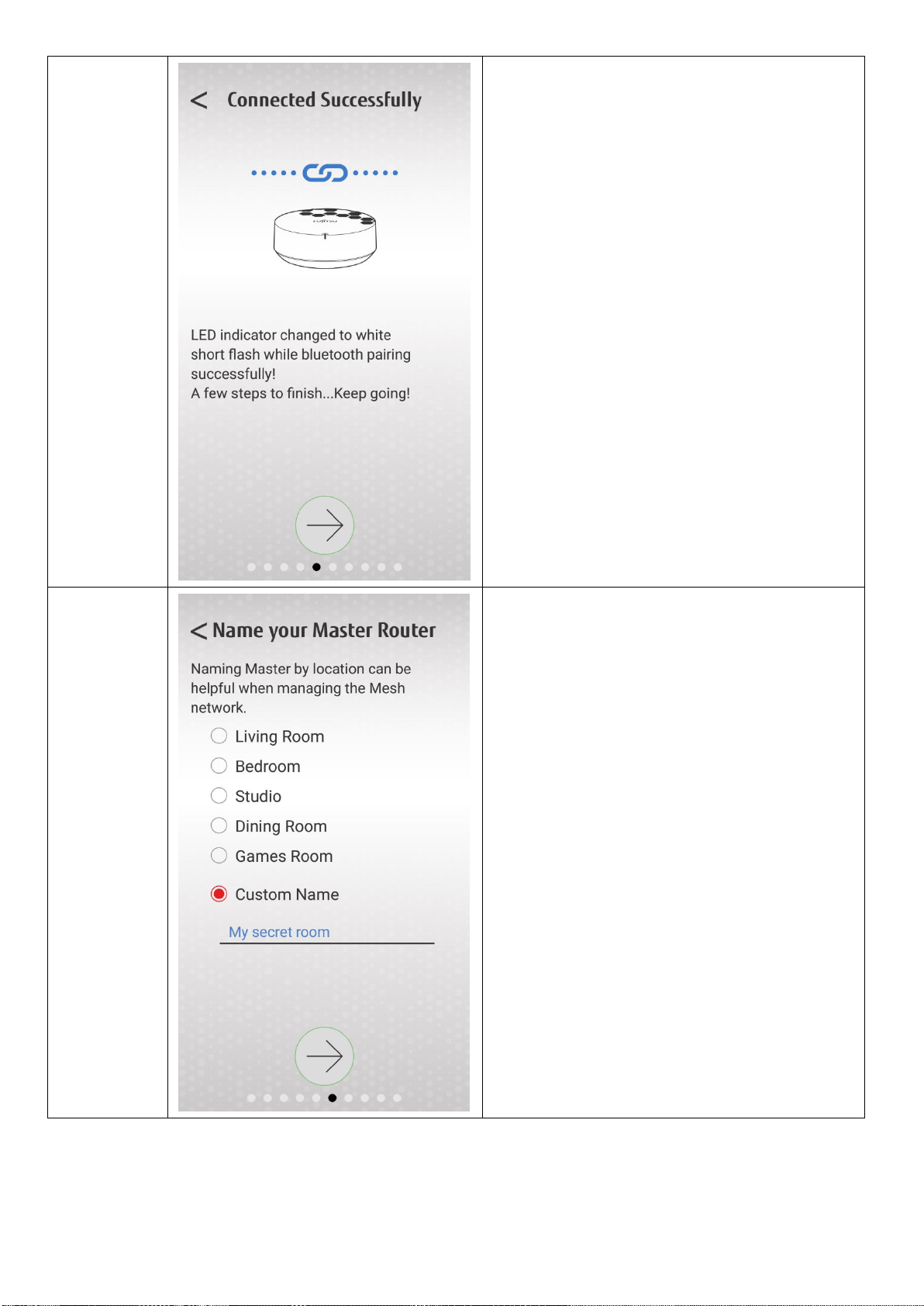
7.
The screen will jump to this page when
searching for Router. Please continue to wait.
8.
After the search is completed, all routers
available in the range will be displayed. Check
the Bluetooth ID of the label sticker under the
Router to confirm which one is the router you
want to set to Mater, and then tap it.
27
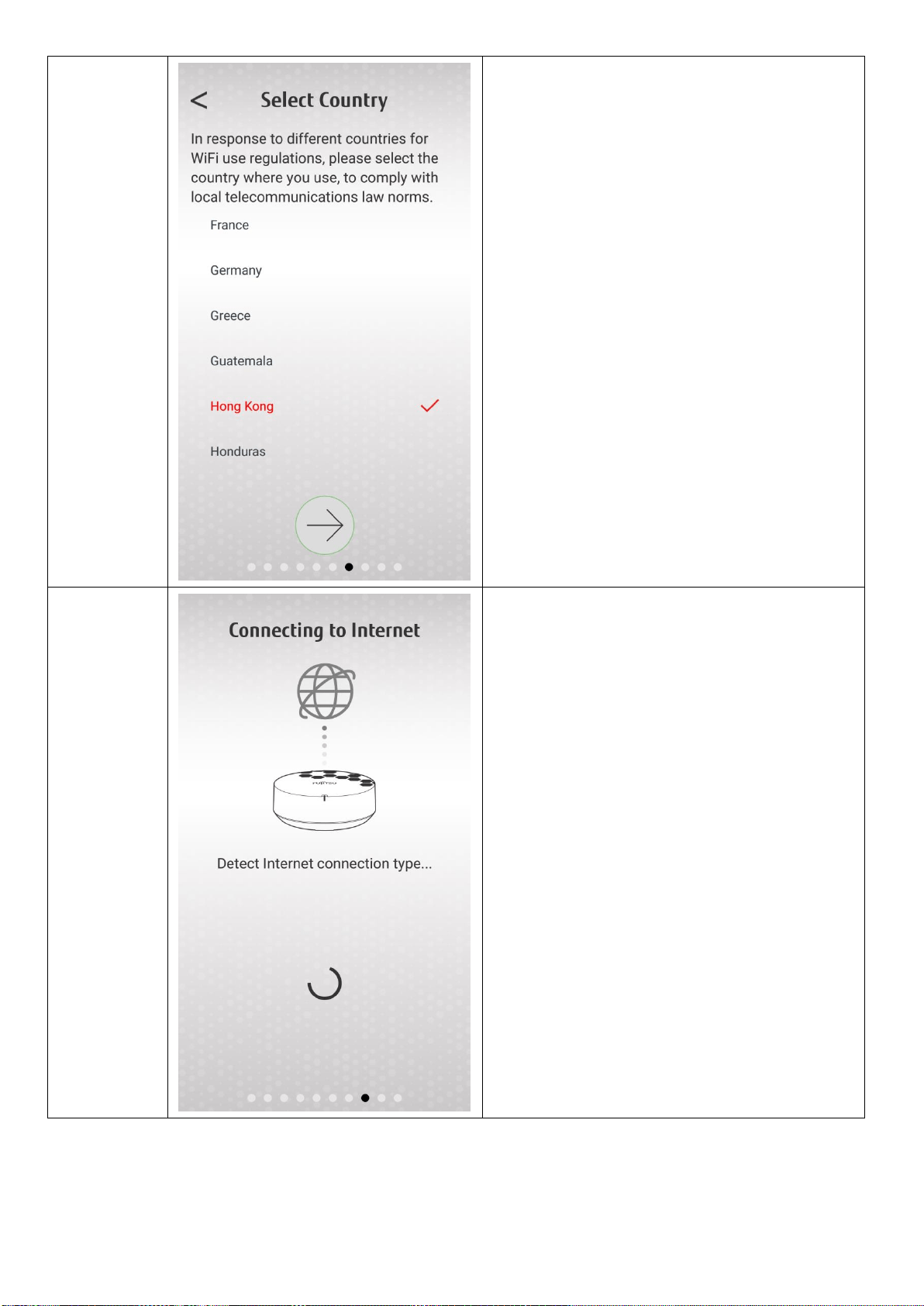
9.
After selecting the Router to be set, a successful
pairing screen will appear. Press []to start
setting.
10.
Please select the place where the Router is
placed, or select the custom name below. This
will be the name of the router you see in the
app in the future.
Press Next [] after completion
28
11.
Please select your country and click next []
12.
Wait for the Router to detect network settings.
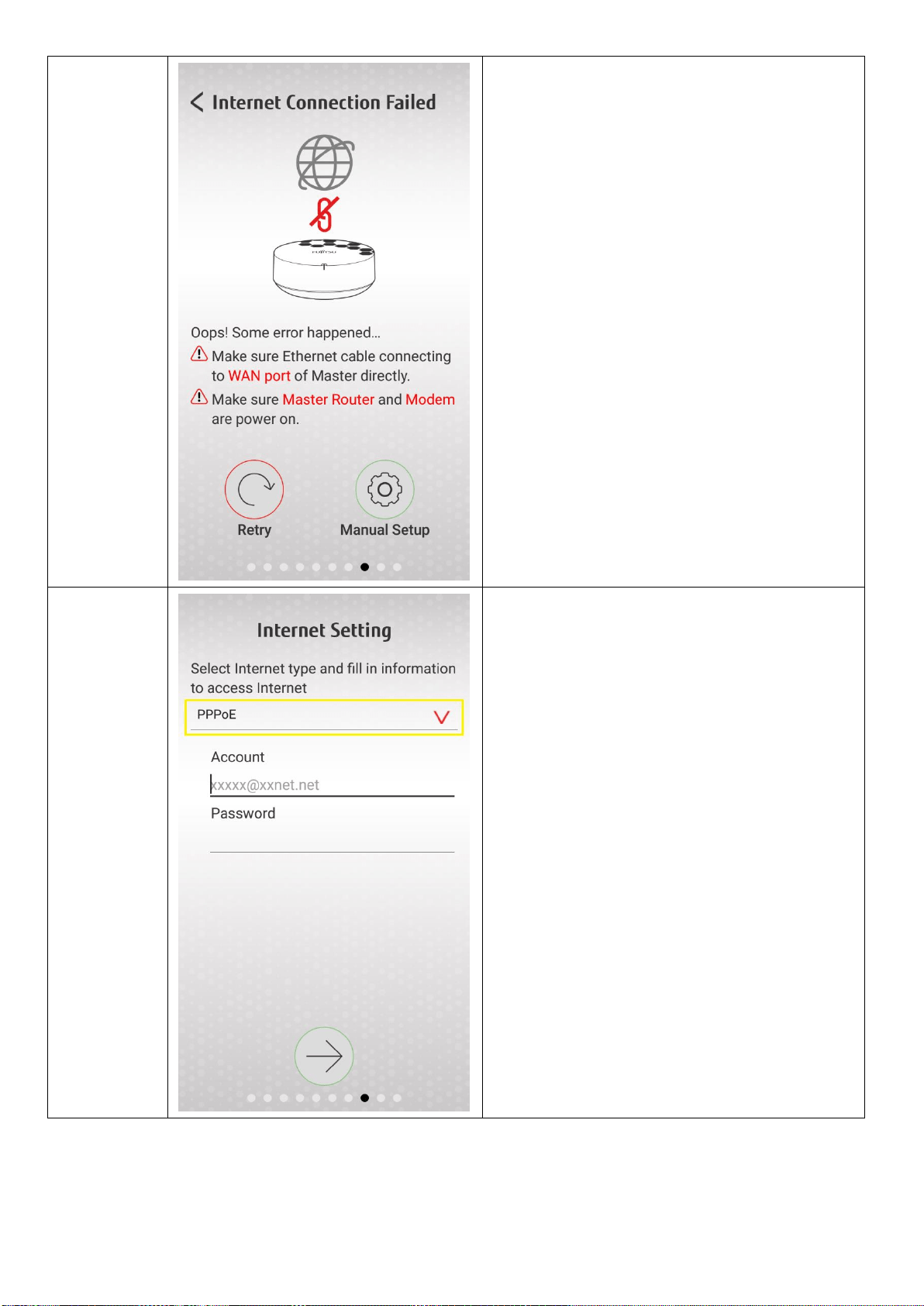
29
12.1
If your network is not automatically connected
to the Internet, for example PPPoE requires an
account password to connect to the network,
the following screen appears. Please select
[Manual Settings]
12.2
At the top you can select your network type
(see the next picture), select the network type
and enter the user name & password, click Next
[]
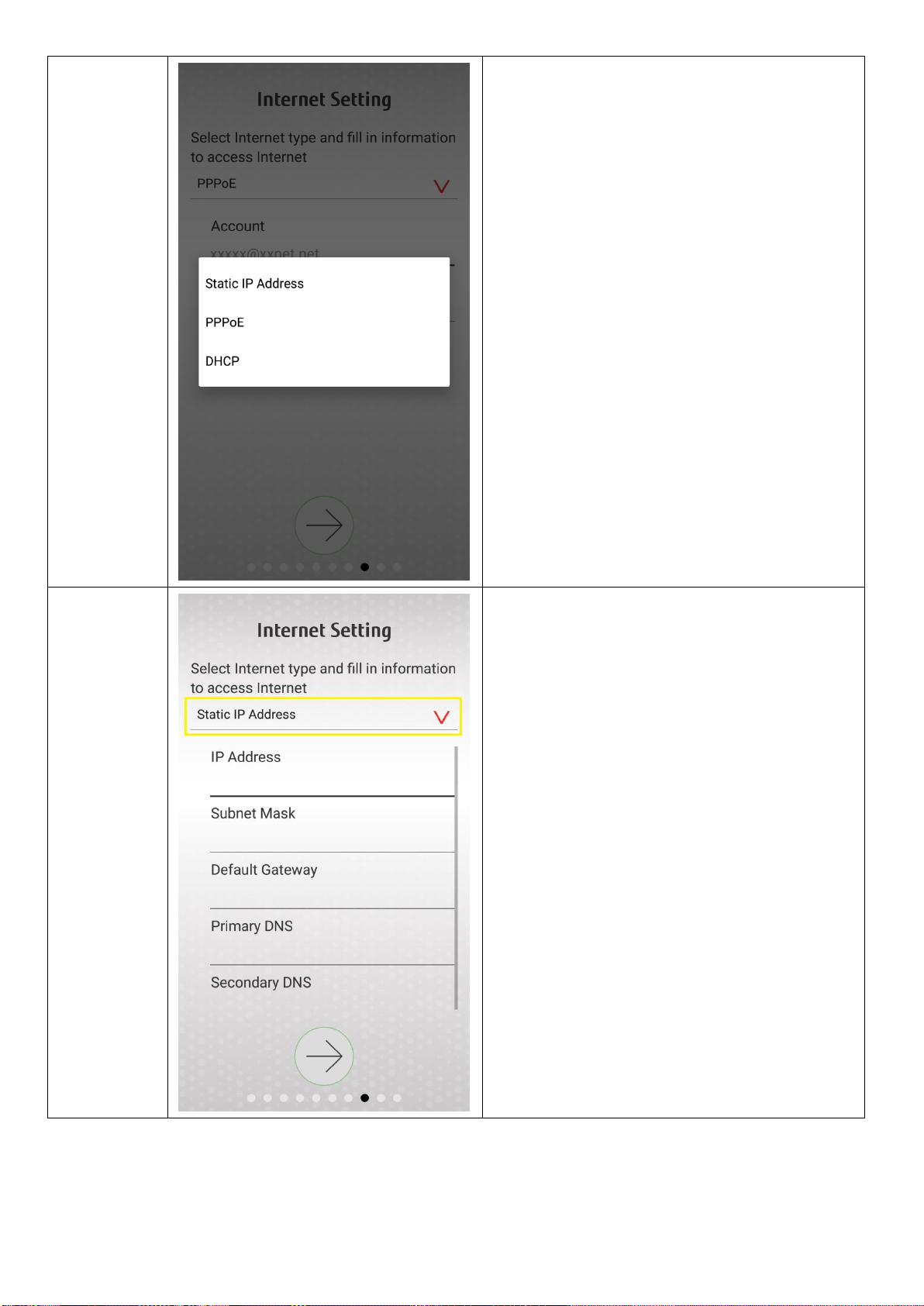
30
12.3
Here you can choose your network type is
PPPoE or static IP or dynamic IP.
- Dynamic IP: Automatic connection, such as if
you connect the RT500 to the LAN port of any
Router, or some modems that have been
automatically connected. Normally, the previous
automatic connection step should be direct
available.
- PPPoE: If your Internet provider provides user
name and password to allow you to dial up to
access the Internet, select PPPoE.
- Static IP: If your network environment needs
to input your own WAN IP, Mask, Default
gateway, DNS and other data.
12.4
Above can choose your network type (see next
picture)
- Static IP: If your network environment needs
to input your own WAN IP, Mask, Default
gateway, DNS and other data.
Press Next []

31
12.5
Above can choose your network type (see next
picture)
- Dynamic IP: Automatic connection, such as if
you connect the RT500 to the LAN port of any
Router, or some modems that have been
automatically connected. Normally, the previous
automatic connection step should be direct
available.
Press Next[]
13.
After the detection is completed, press Next
[]
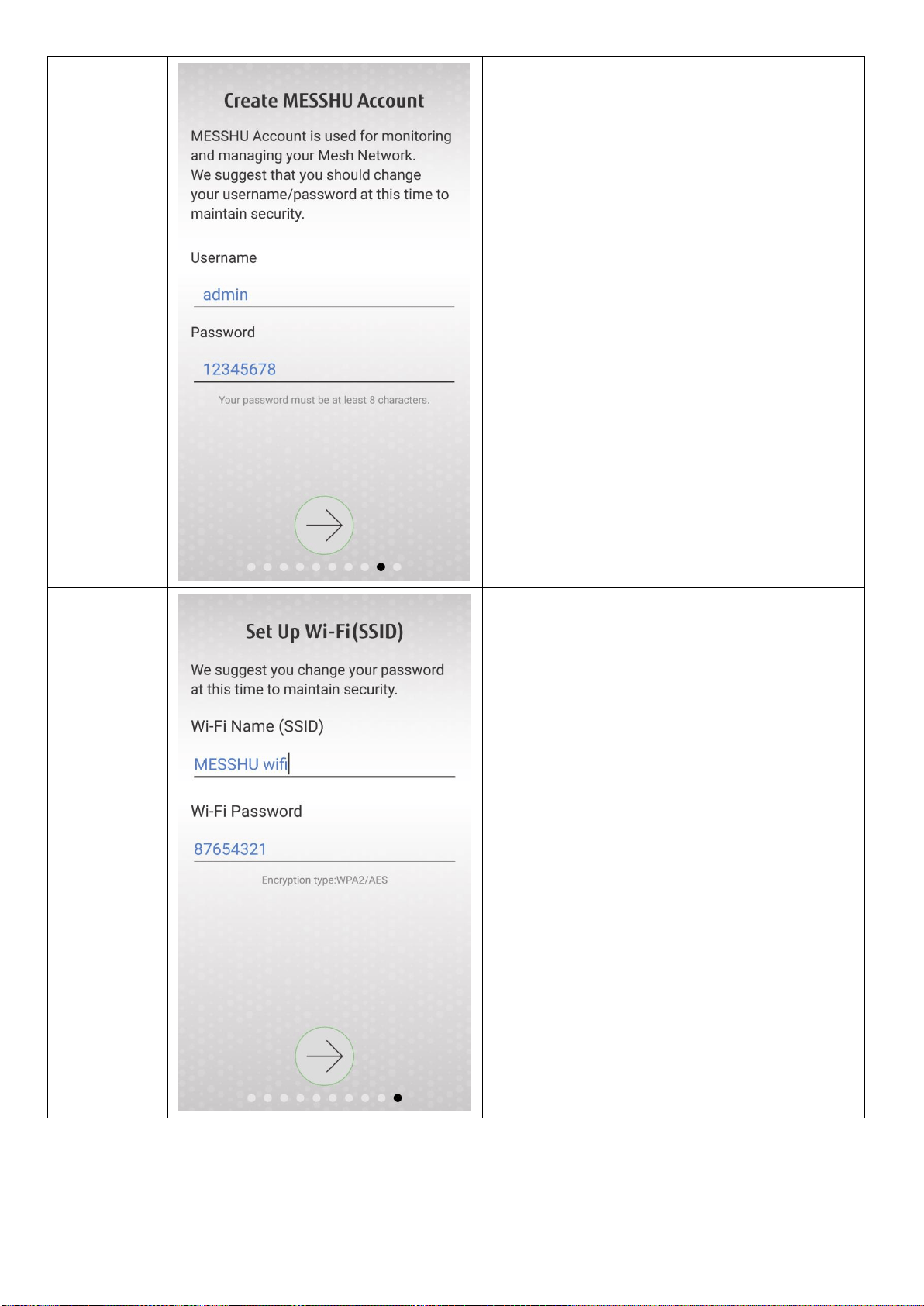
32
14.
Please enter the account password of the
MESSHU APP management Router. Input is
completed and click Next []。
** Account password Do not enter blank
characters and special symbols
15.
Enter the WiFi name and password you want to
use. After you have finished entering, click Next
[]。

33
16.
Finally, confirm that the information you set is
correct. If there is no problem, press the Next
[ ]。
17.
Wait for the Router to be set up (may take a few
minutes).
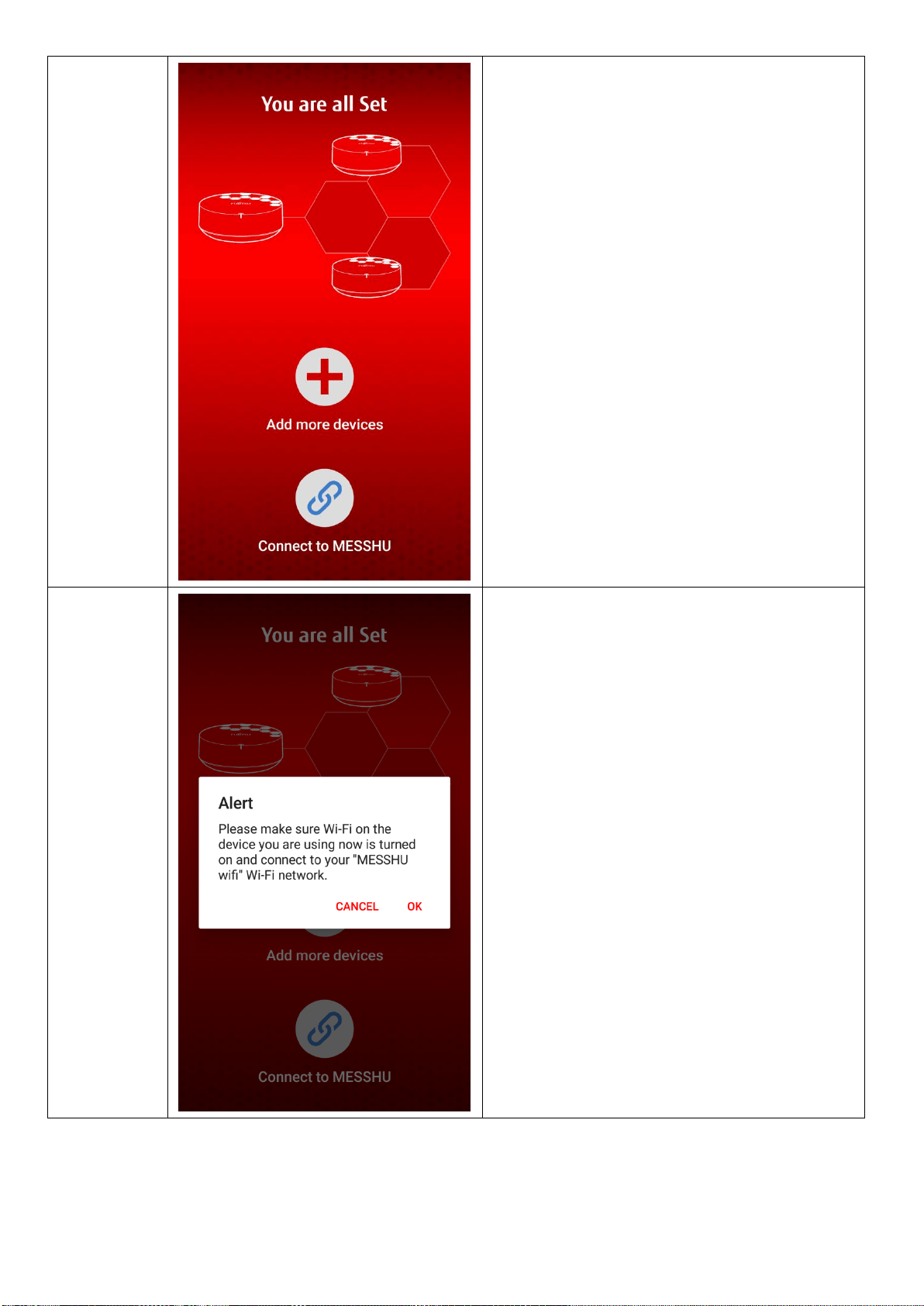
34
18.
See this screen represents that the Master
Router has been set up.
Below you can choose to install other routers
(add other Slave Routers to the network) or use
the wifi network now (start using APP to
manage the Router).
19.
Whether you want to choose to install other
routers (add other Slave Routers to the
network) or experience them immediately (start
using APP to manage the Router), you should
first connect to the Wifi you set.
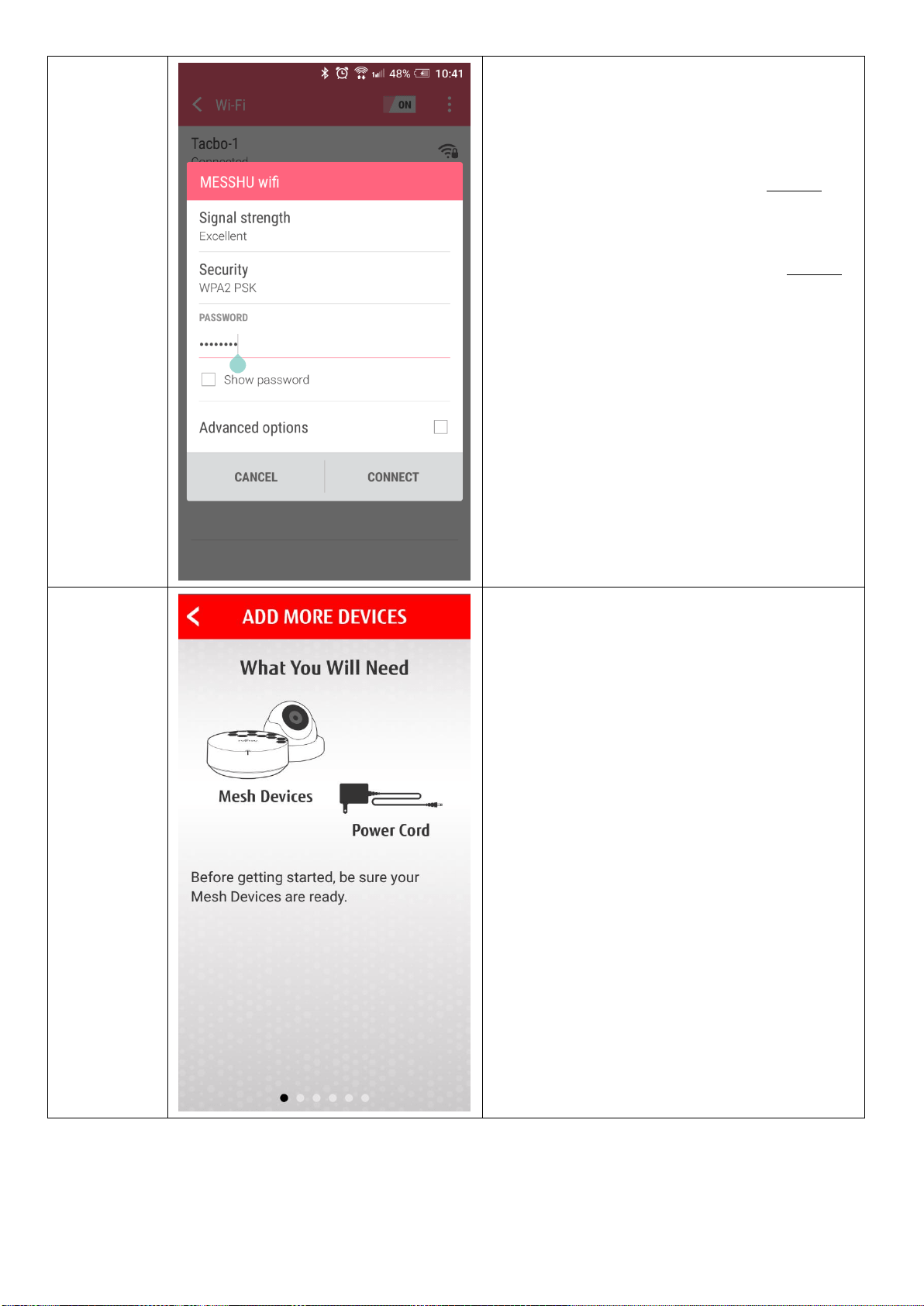
35
20.
Connect to the Wifi and enter the password,
then press [Connect].
If you choose to install other routers (add other
Slave Routers to the network), go to step 21.
** If you choose to experience it now (start
using APP to manage the Router) go to step 29.
21.
installation
other
Mesh
Decive
Please confirm other slave device items you
want to add.
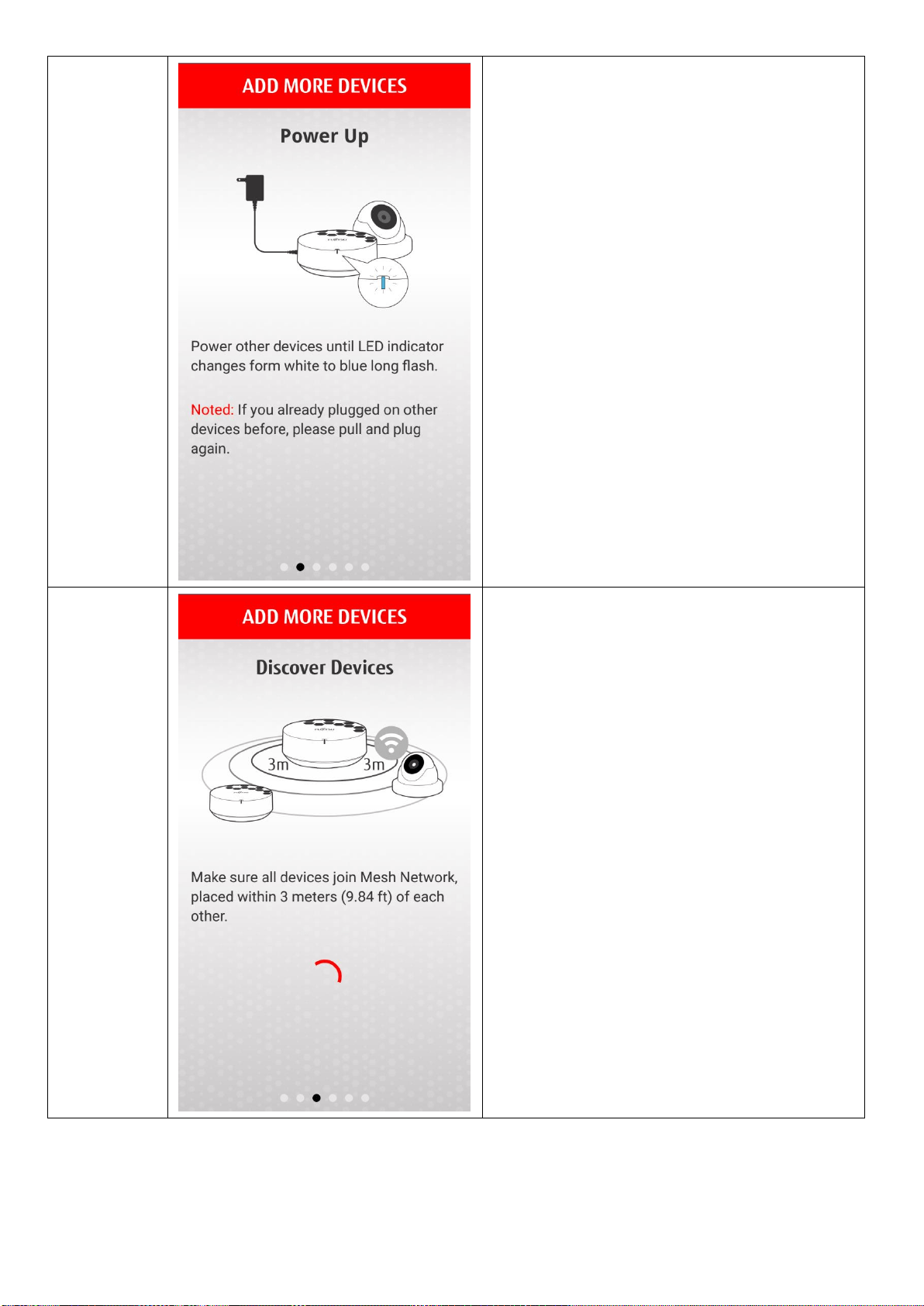
36
22.
Connect the slave router to the power supply
and wait for the Router LED to start flashing
blue.
**If the Router is connected to power for more
than one hour, remove the power and
reconnect it.
23.
Wait for the APP to find the Router.
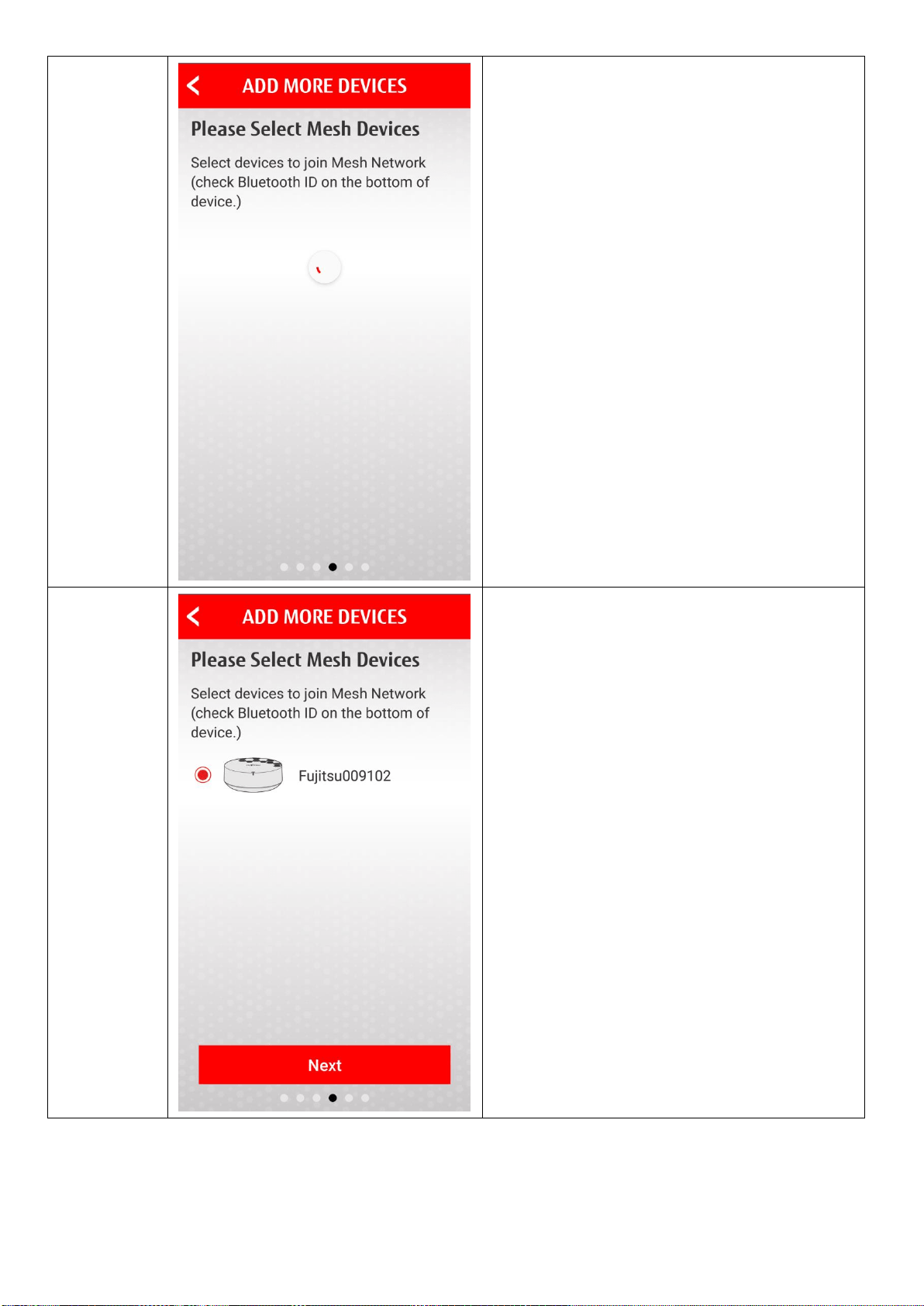
37
24.
Wait for the APP to find the Router.
25.
Select the Router you want to install and click
[Next].
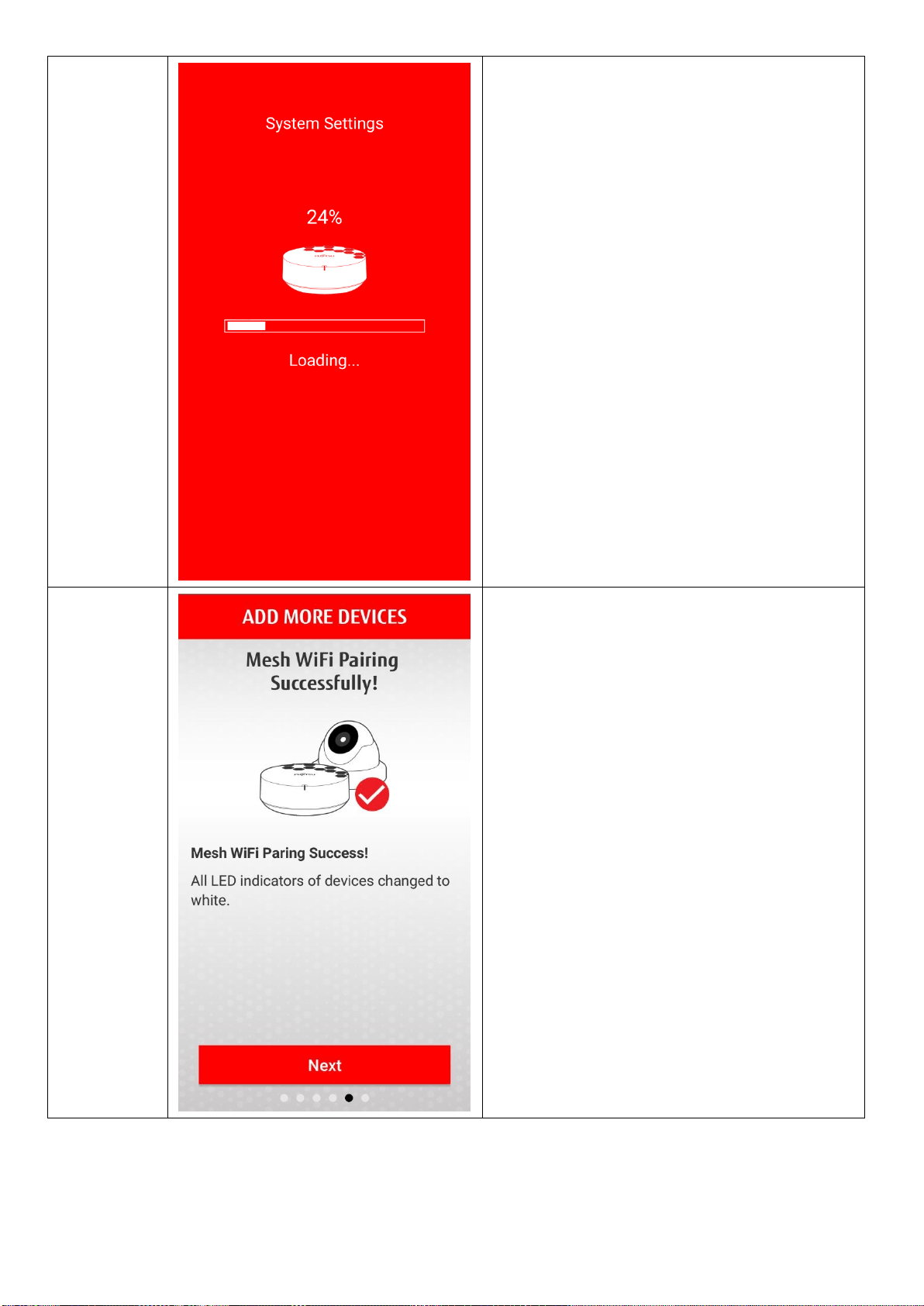
38
26.
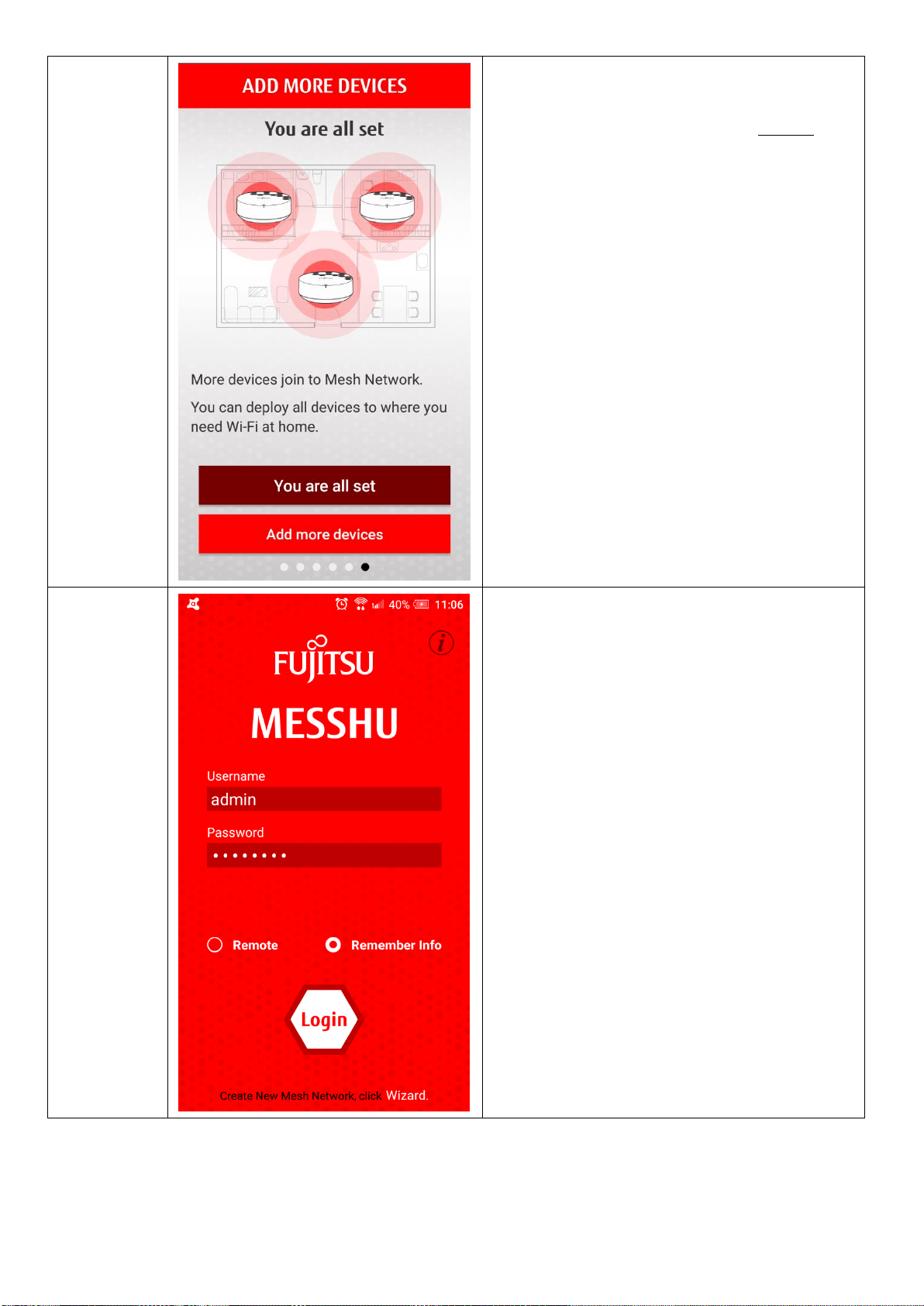
Start setting.
27.
The setting is complete.
39
28.
If there are other Slave routers to be added to
the network after completion, select to install
other Mesh devices and go back to step 21.
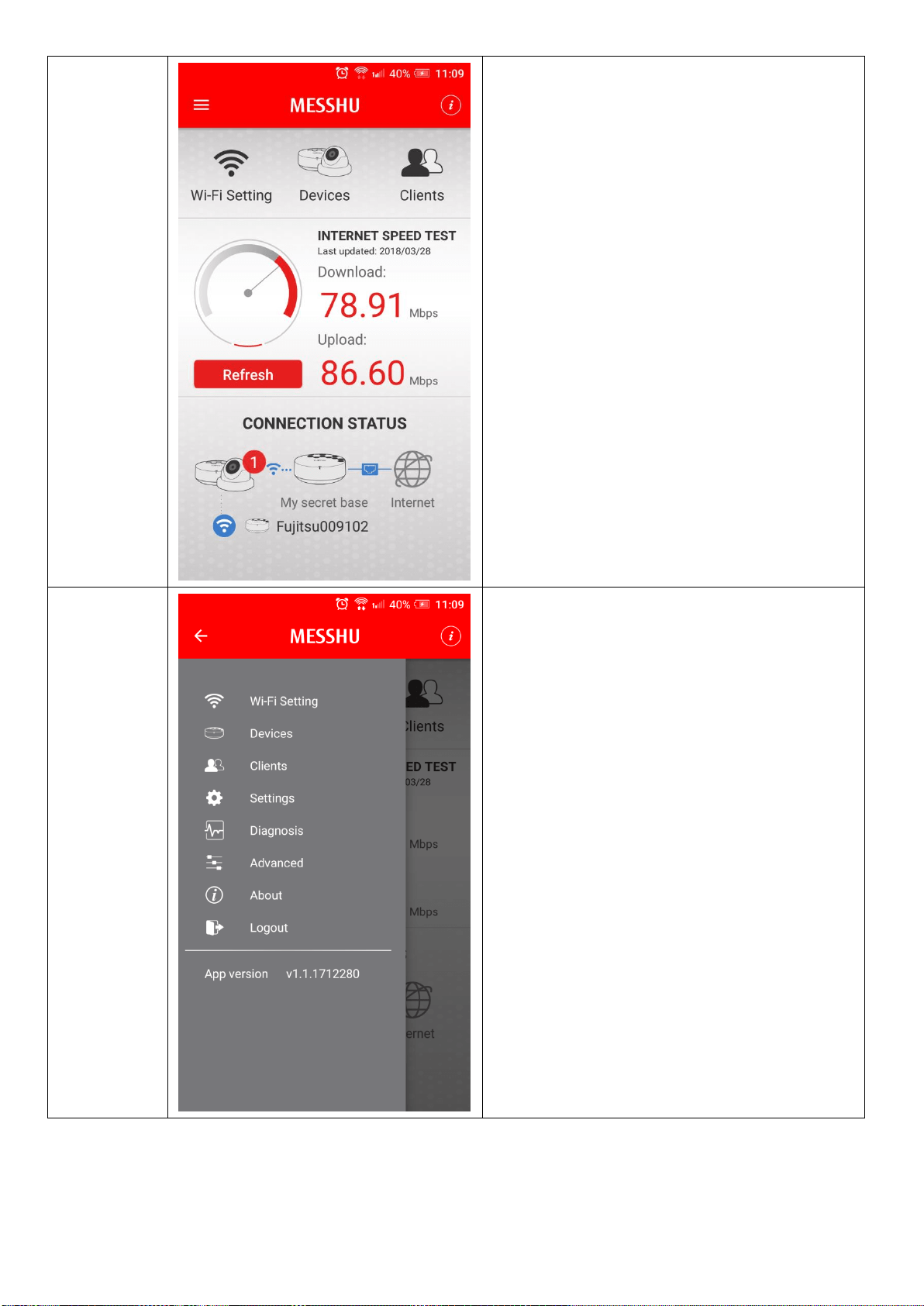
29.
After all Routers have been set up, they can log
in to the APP manage and check the status.
40
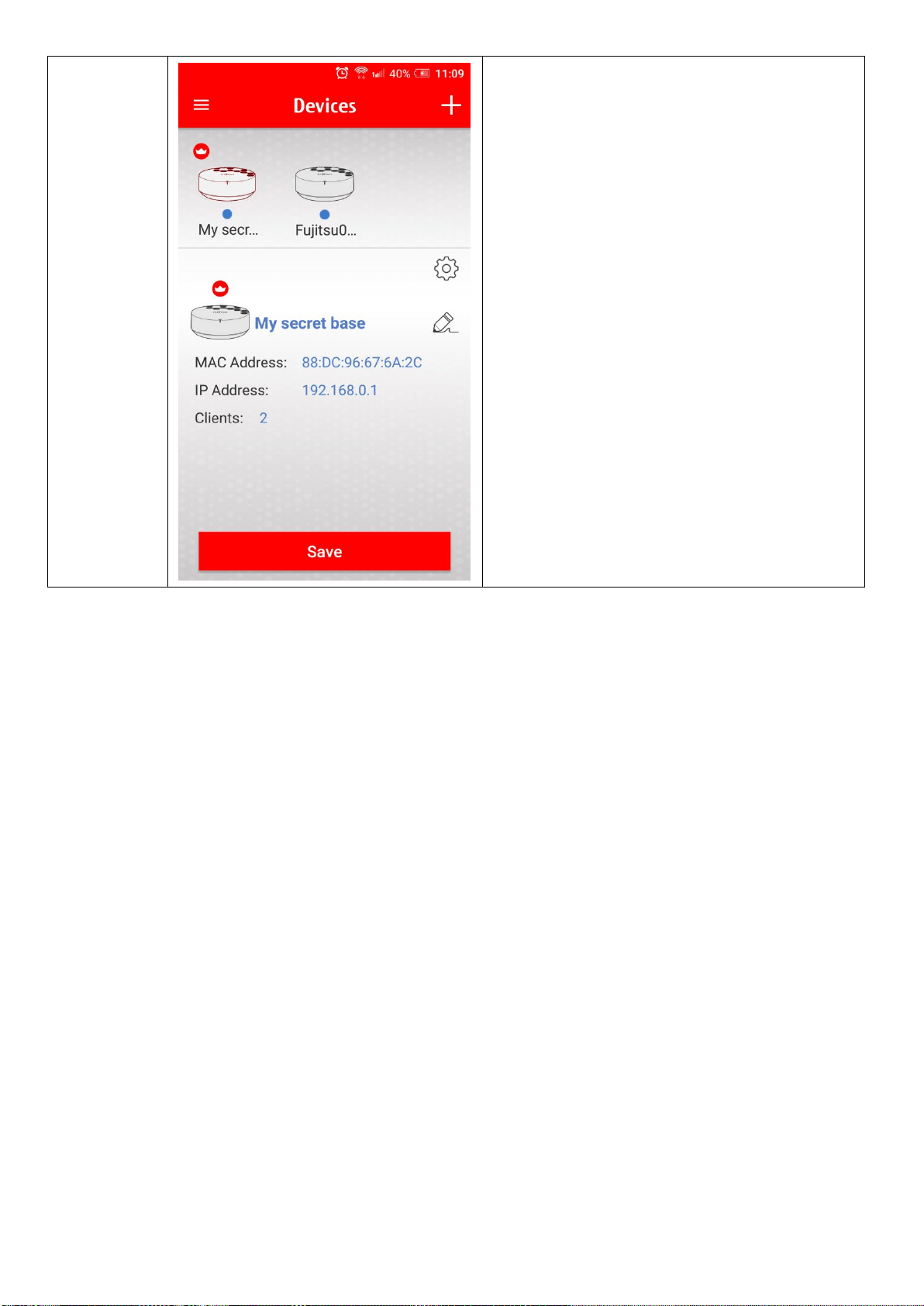
30.
After logging in to the APP, you can see the
current status of the Router.
Click the Menu in the upper left corner to see
more options.
31.
Menu screen.
41
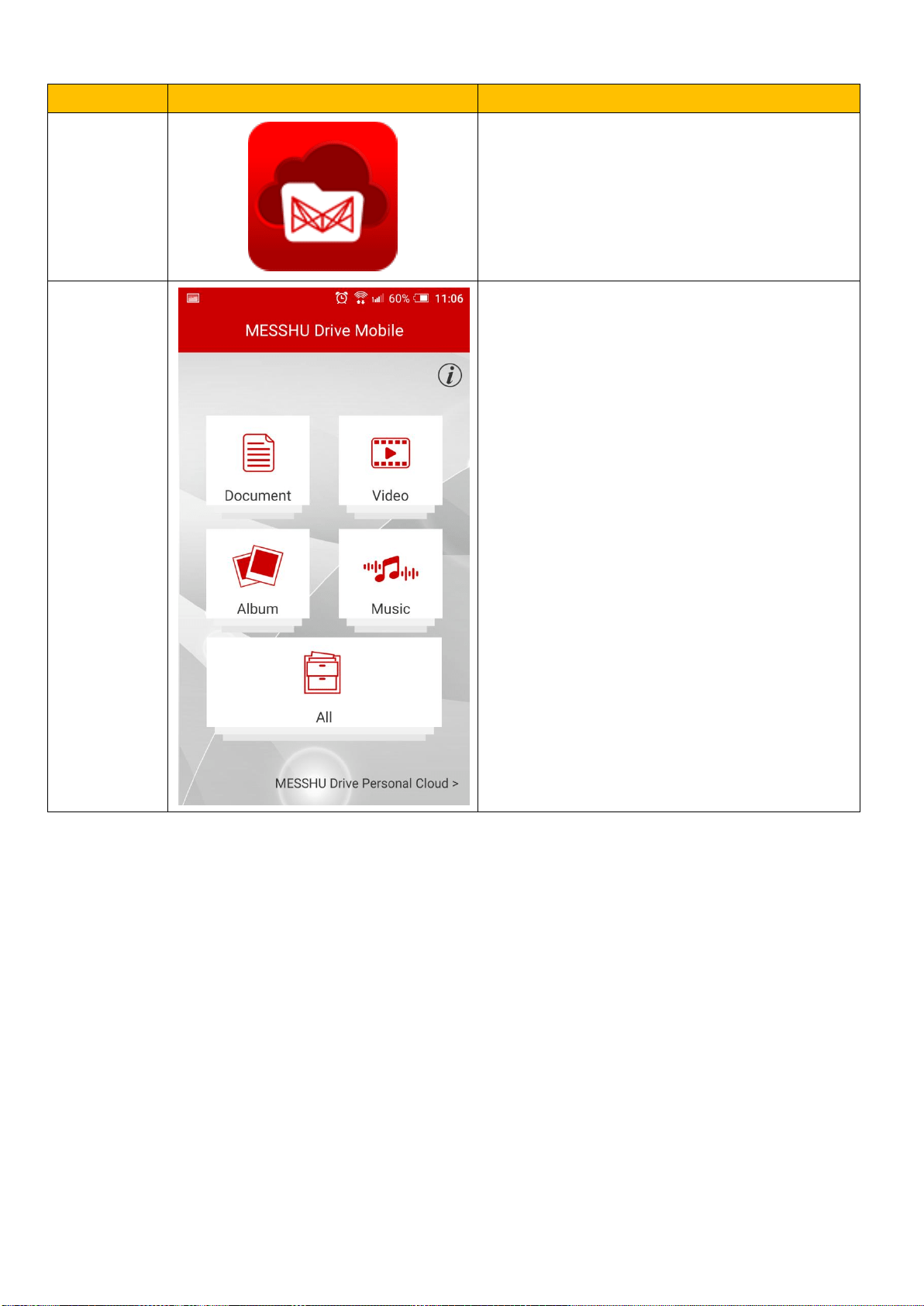
32.
To add/delete/modify Router again, please set
in [Device].
42
MESSHU Drive Instructions
step
圖示
說明
1.
Search for "MESSHU Drive" in the App store or
Google Play and open it after downloading.
MESSHU Drive is divided into mobile phone
mode and cloud mode.
2.
The home screen of the APP is the home page
of the mobile mode, where all the files can be
seen and divided into four categories: file,
video, album, and music.
To use Cloud Mode, please click "MESSHU Drive
Personal Cloud " in the lower right corner
#The ○
i
in the upper right corner has a simple
APP introduction
43
3.
Cloud
mode
Login
screen
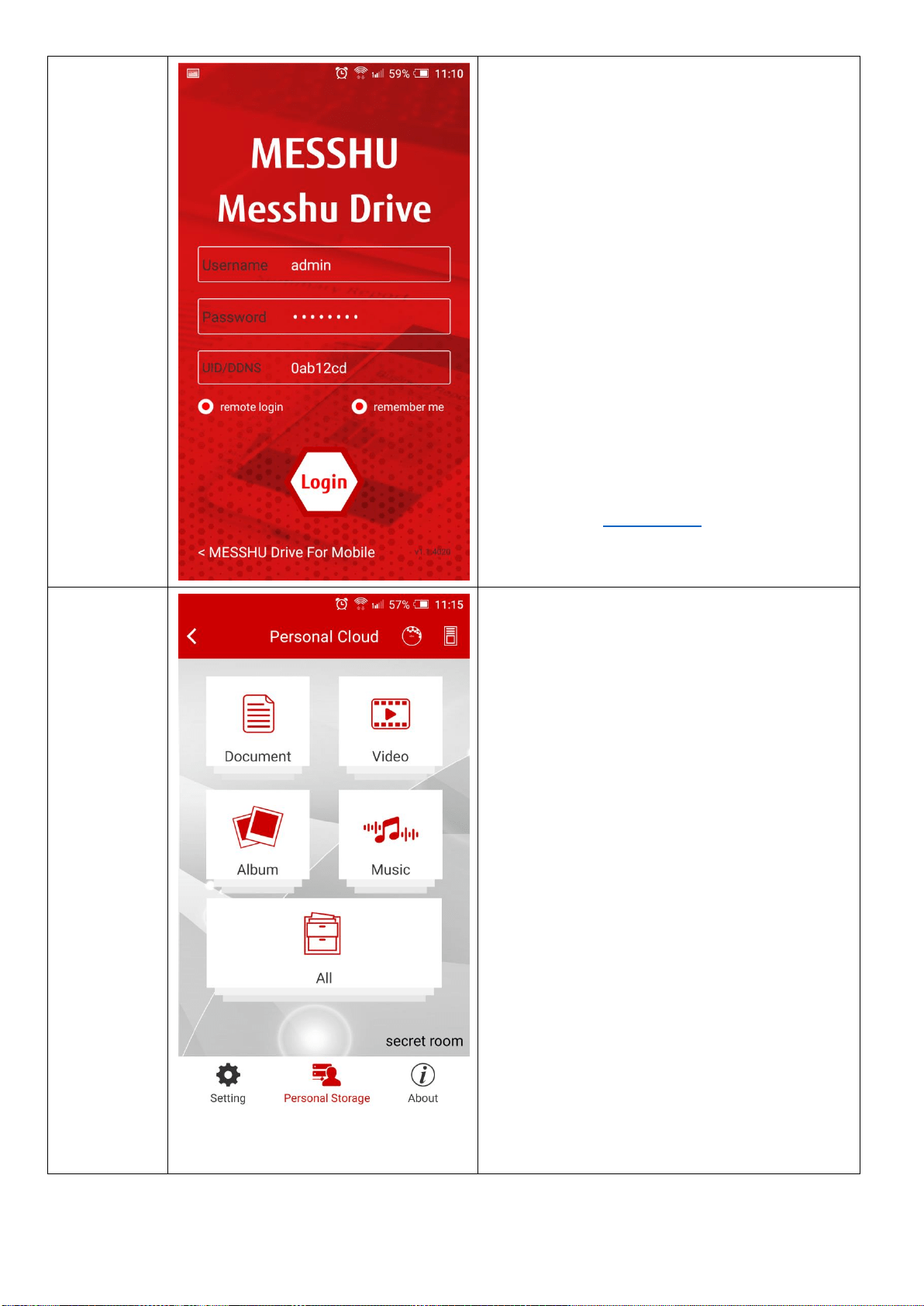
Cloud mode login screen:
The account password is the same as MESSHU
Router.
- If the Internet connection is under MESSHU
Wifi, enter the account password to log in.
- If the Internet connection is under the
connection of other Wifi or mobile network
such as 3G/4G, please click remote login and
enter UID or DDNS (choose one)
After entering, press [Login]
Unique ID (UID) (a total of 7-digit ) can be found
on the sticker label at the bottom of your
Master MESSHU Router
# DDNS must be set in the Web before you can
use DDNS Domain to log in. The setting method
can refer to theDDNS setting
4.
Cloud
mode
Main
screen
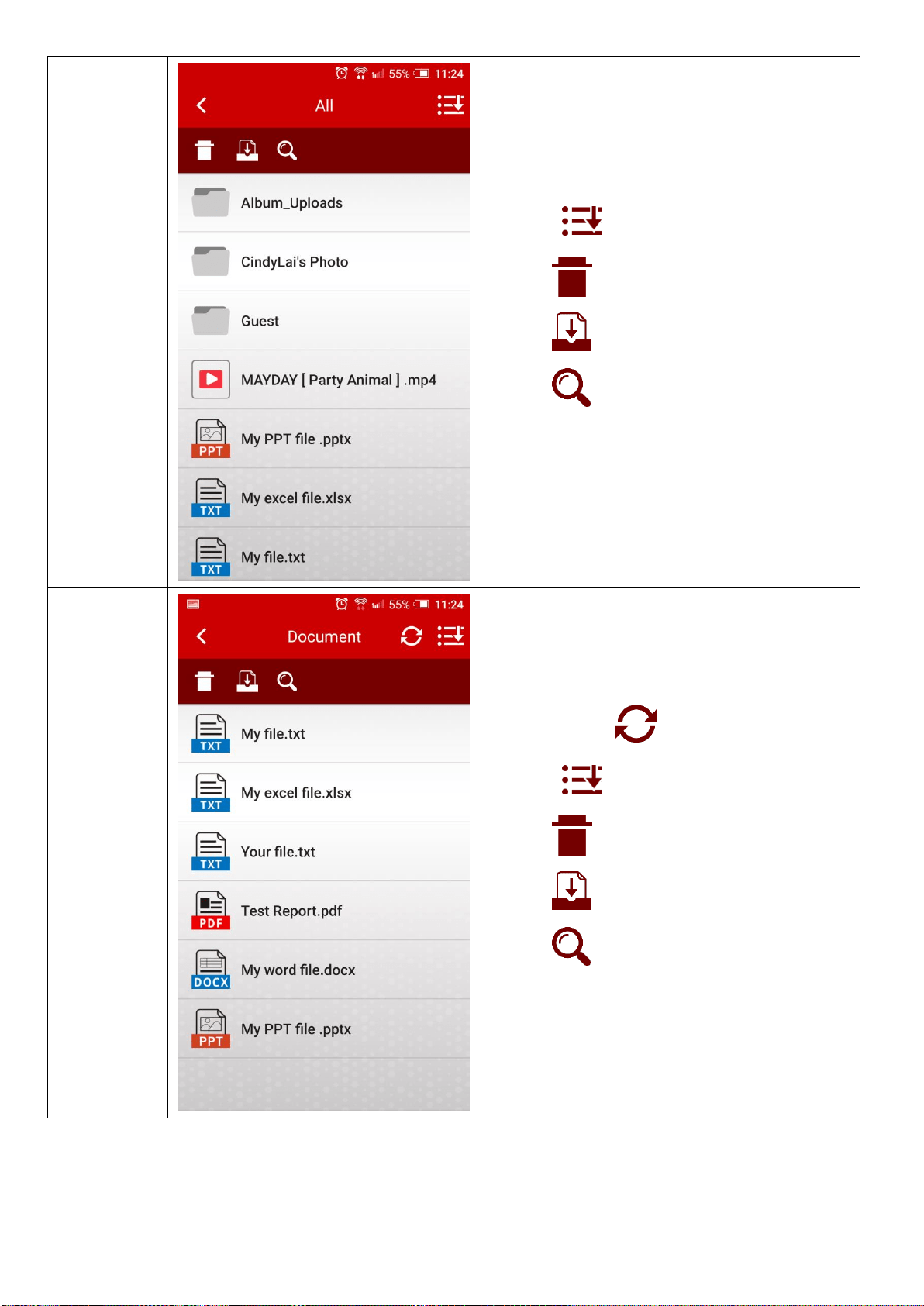
After logging in to the cloud mode, the main
screen looks like
- Above: Show "Personal Cloud"
- Bottom right: The displayed text indicates the
name of the router currently connected to.
- Left arrow <: Back to mobile mode
- The middle file area: you can see all the files,
and you can also browse the files in four
categories: Document, video, album, and music.
(Please see step 5~9)
- There are two icons on the upper right: the
pattern of the RT500 Router & drive. (Please see
step 13~14)
- Right below page menu: There are three pages
to switch: Setting, Personal Storage, About.
(Please see step 10~12)
44
5.
Cloud
mode
File Area:
All
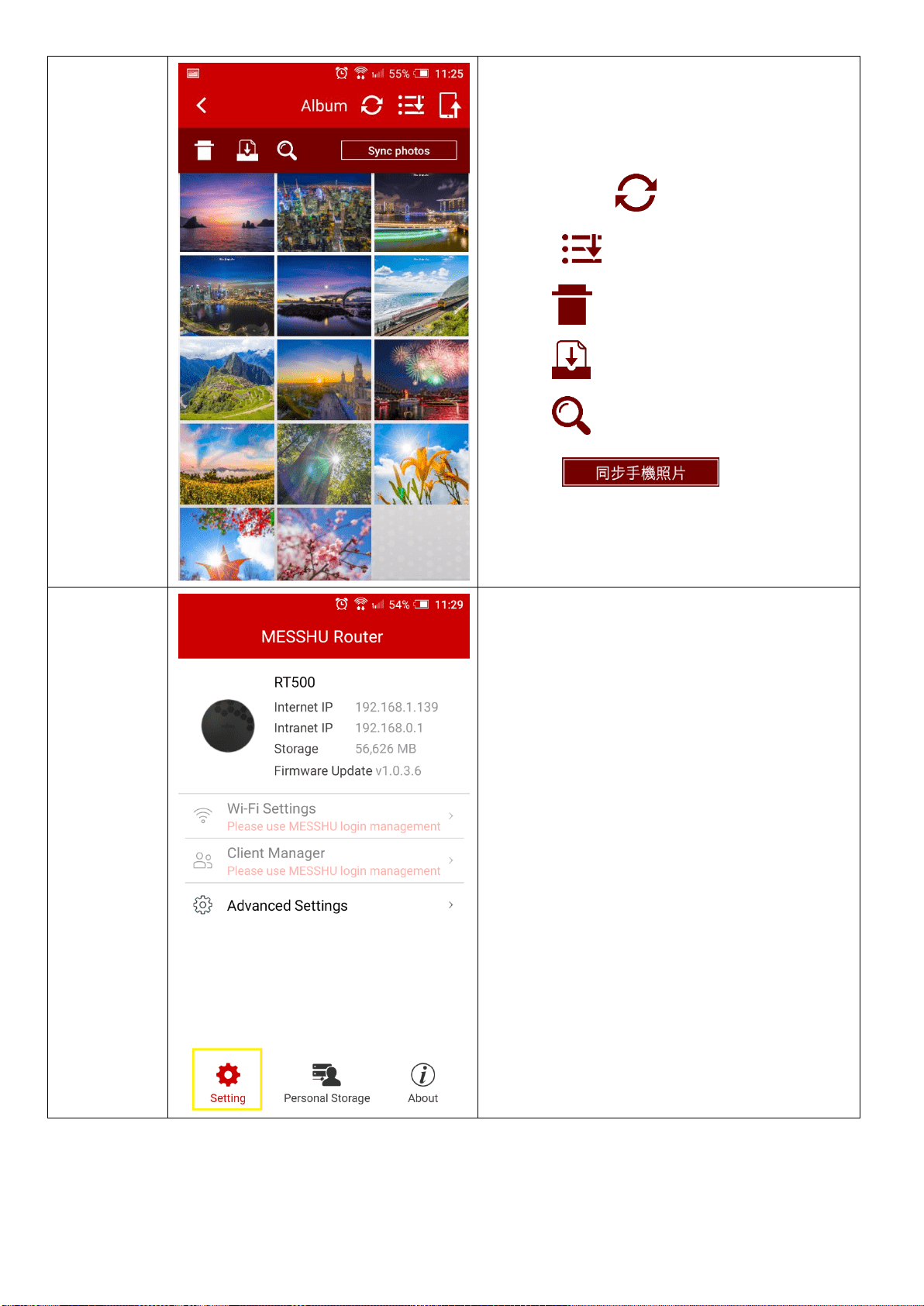
Main Screen: All
Can see the presence of cloud (USB) space, all
types of files
Top right :File sorting
Top left :trash
Top left :Download file to phone
Top left :search files
6.
Cloud
mode
File Area:
Document
Main screen: Document
Can see files in the cloud (USB) space that
belong to the file category
Top right corner :Refresh
Top right :File sorting
Top left :trash
Top left :Download file to phone
Top left :search files

45
7.
Cloud
mode
File Area:
Video
Main screen: Video
Can see files in the cloud (USB) space that
belong to the Video category
Top right corner :Refresh
Top right :File sorting
Top left :trash
Top left :Download file to phone
Top left :search files
8.
Cloud
mode
File Area:
Music
Main screen: Music
Can see files in the cloud (USB) space that
belong to the Music category
Top right corner :Refresh
Top right :File sorting
Top left :trash
Top left :Download file to phone
Top left :search files
46
9
Cloud
mode
File Area:
Album
Main screen: Album
Can see files in the cloud (USB) space that
belong to the Album category
Top right corner :Refresh
Top right :File sorting
Top left :trash
Top left :Download file to phone
Top left :search files
Top right :You can sync
your phone photos to USB space
10.
Cloud
mode
Menu:
Setting
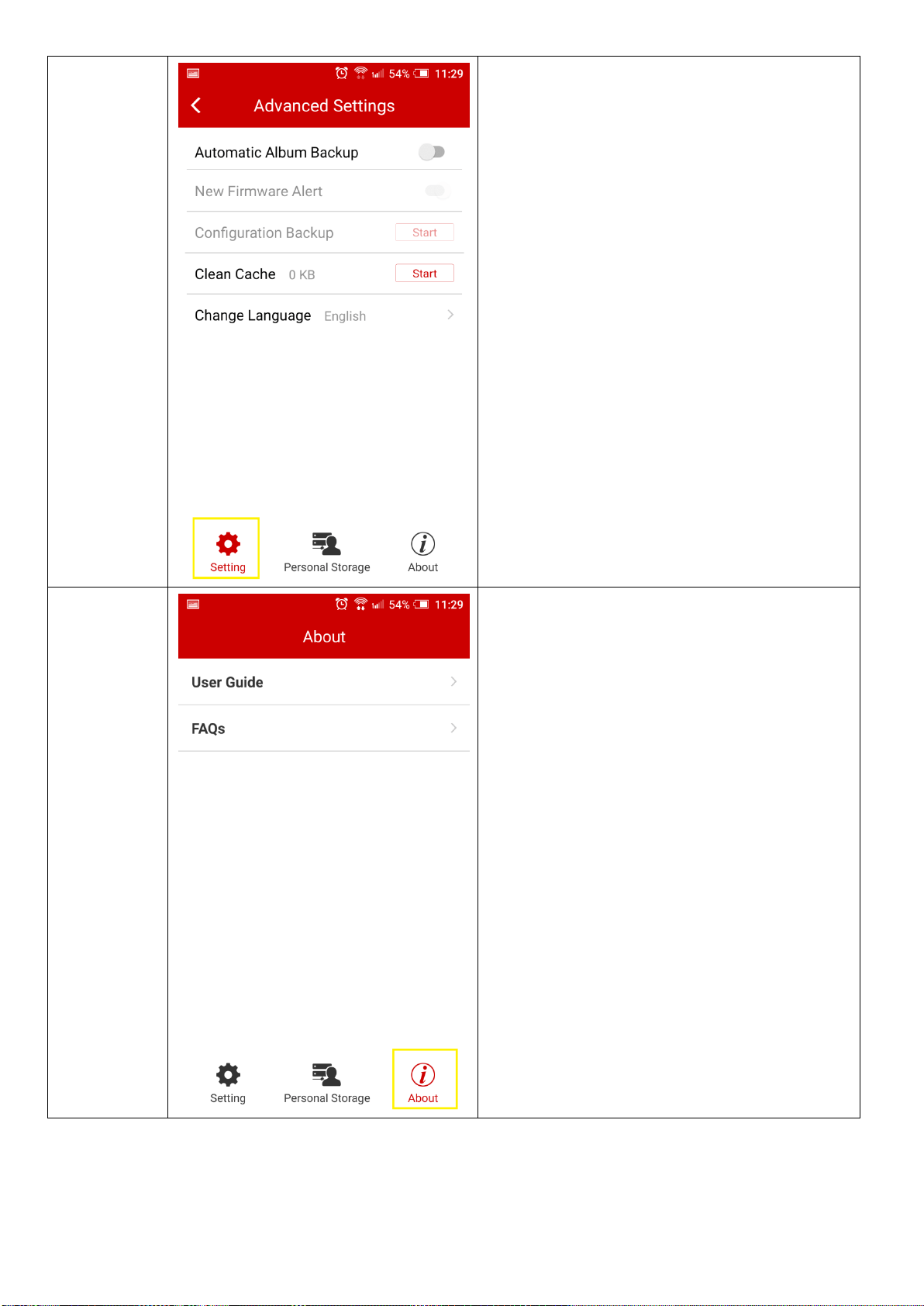
Below the main screen: Setting
You can see the basic information of the current
RT500 Router
47
10.1
Cloud
mode
Menu:
Setting→
Advanced
Settings
Under the main screen: Setting → Advanced
Settings
Select Language & Enable/Disable Auto Album
Backup
11.
Cloud
mode
Menu:
About
Below the main screen: About
There are simple instructions and basic FAQs for
reference.
48
12.
Cloud
mode
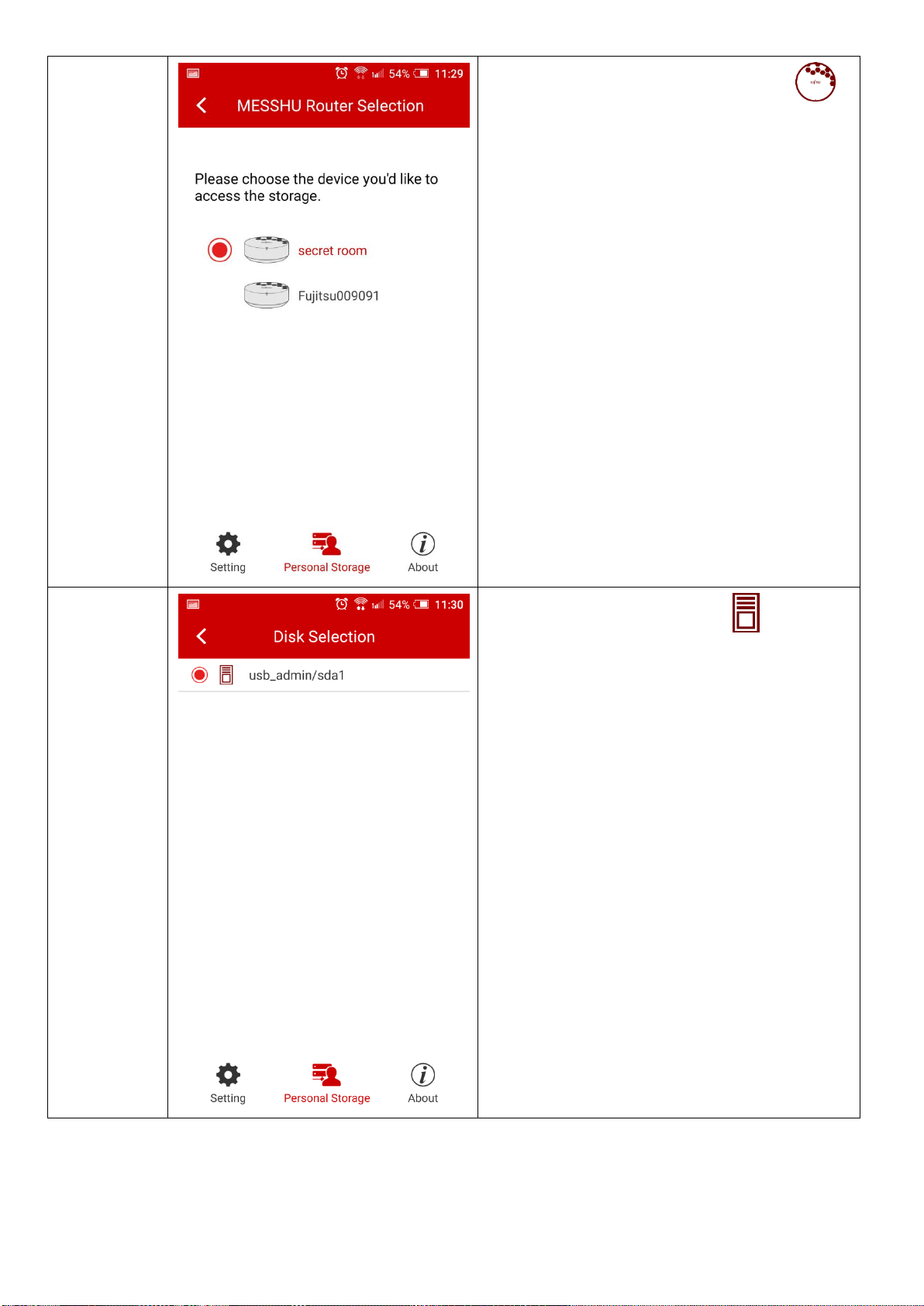
Main screen top right: RT500 Router icon
Select which USB file on the RT500 to read (if
you have more than one RT500 on your
network)
13.
Cloud
mode
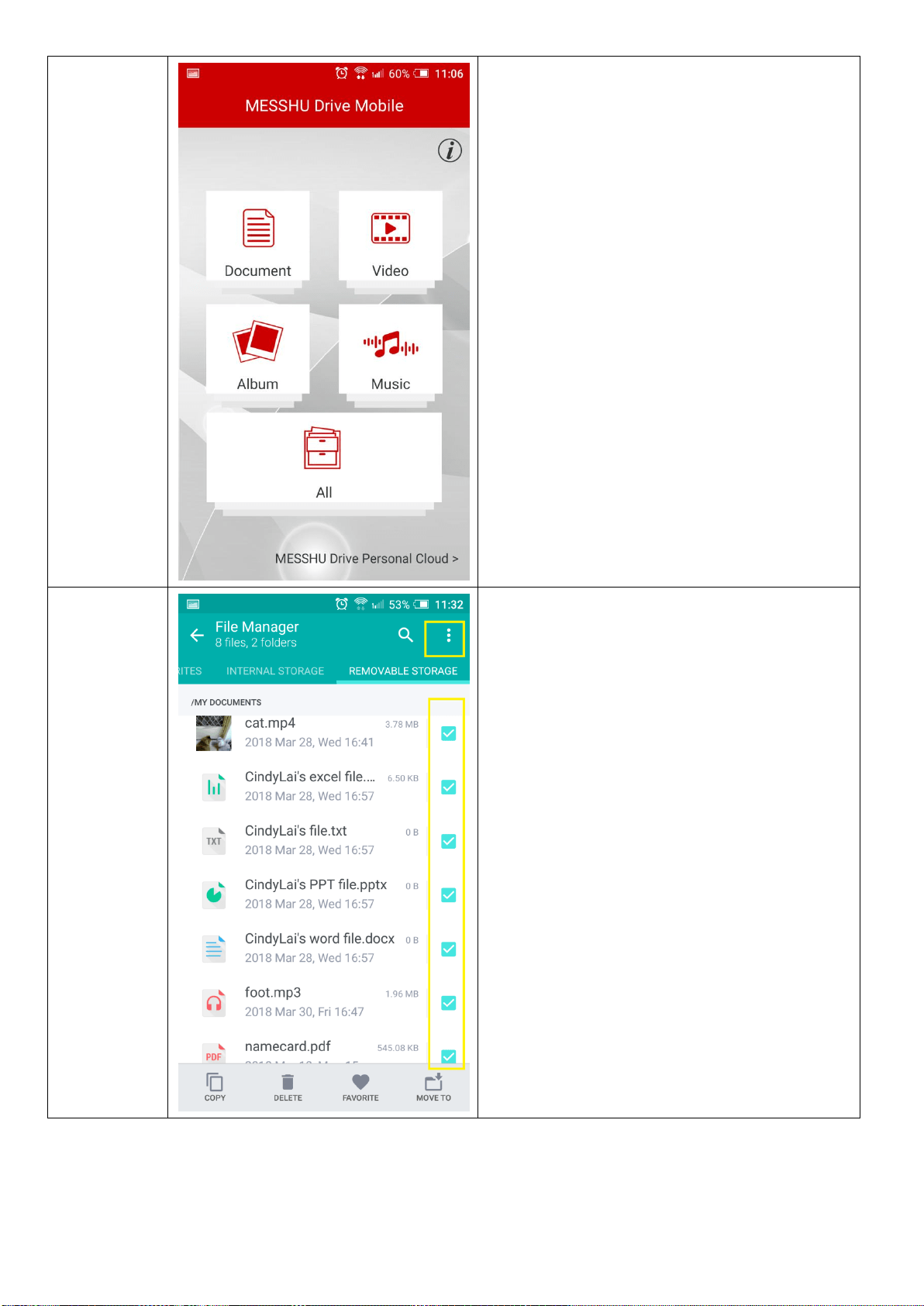
Main screen top right: Drive icon
Switchable reading of different sectors in the
USB Storage (if the USB has multiple sectors)
49
14.
Mobile
mode
Main
screen
In the mobile mode, the main screen looks like
- Right above: "MESSHU Drive Mobile " is
displayed
- Lower right: Switch to Personal cloud mode.
- In the middle of the file:: You can see all the
files. You can also view the files in four
categories: Document, video, album, and
music. (Please see step 17~21)
- Top right○
i
:Introduction to the APP function.
15.1
Mobile
mode
Import file
:
Option 1
Import files to MESSHU Drive APP:
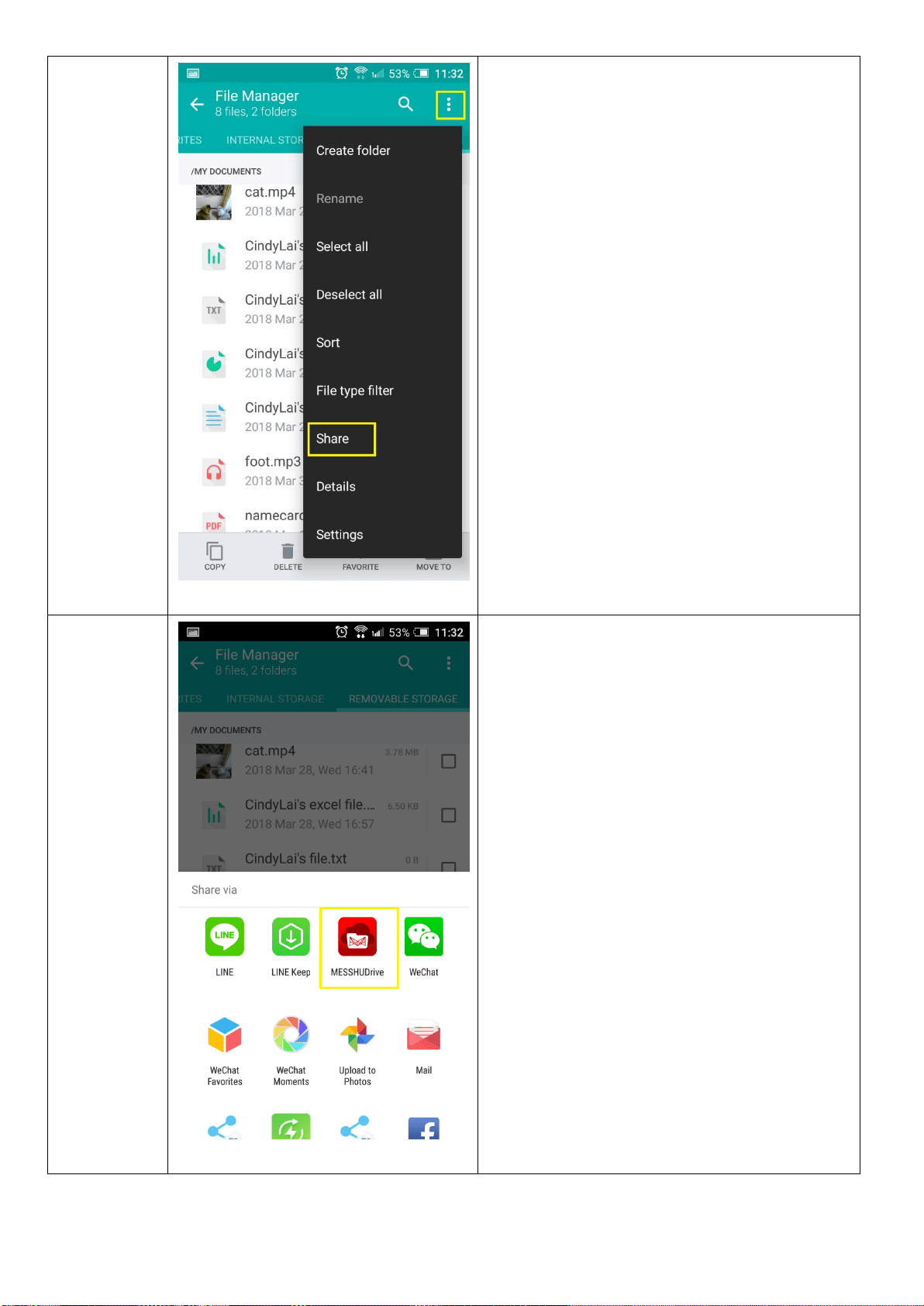
Option 1: Android's mobile phone can go to
“File Manager”, find and select files you want to
import, select “Share” in the menu in the upper
right corner, and then find and select “MESSHU
Drive” in the program list.
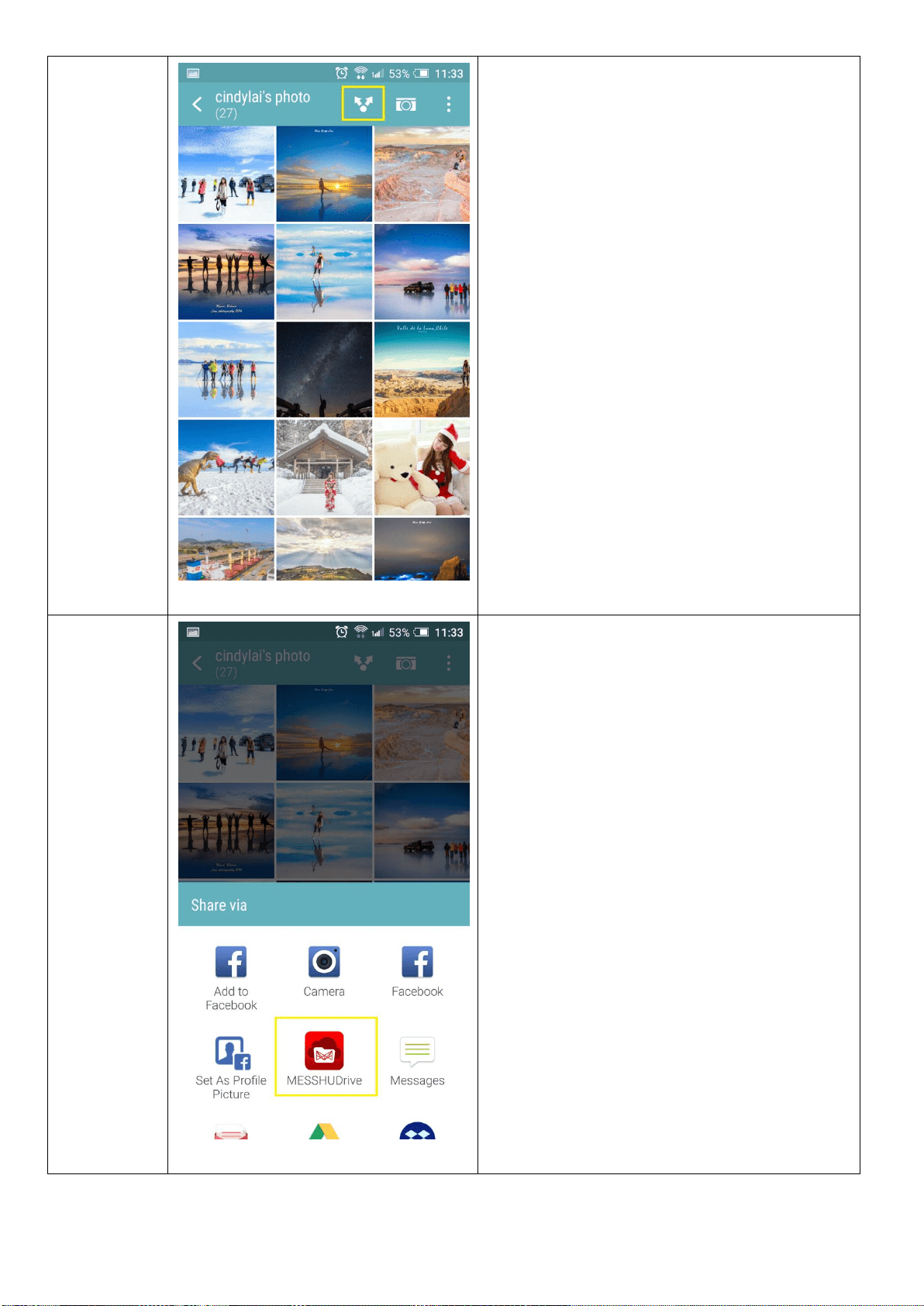
Option 2: Import photos. You can click on
“Share” in the mobile photo album, then “Find
and select MESSHU Drive” in the program list.
Then select the photos you want to import and
press OK or Next.
Other option: Files in various APPs, such as
emails, various social softwares, etc. All files can
be imported into the MESSHU Drive APP using
the “Share” method as long as there are
“Share” options.
50
15.2
Mobile
mode
Import file
:
Option 1
Import files to MESSHU Drive APP:
Option 1: Android's mobile phone can go to
“File Manager”, find and select files you want to
import, select “Share” in the menu in the upper
right corner, and then find and select “MESSHU
Drive” in the program list.
Option 2: Import photos. You can click on
“Share” in the mobile photo album, then “Find
and select MESSHU Drive” in the program list.
Then select the photos you want to import and
press OK or Next.
Other option: Files in various APPs, such as
emails, various social softwares, etc. All files can
be imported into the MESSHU Drive APP using
the “Share” method as long as there are
“Share” options.
15.3
Mobile
mode
Import file
:
Option 1
Import files to MESSHU Drive APP:
Option 1: Android's mobile phone can go to
“File Manager”, find and select files you want to
import, select “Share” in the menu in the upper
right corner, and then find and select “MESSHU
Drive” in the program list.
Option 2: Import photos. You can click on
“Share” in the mobile photo album, then “Find
and select MESSHU Drive” in the program list.
Then select the photos you want to import and
press OK or Next.
Other option: Files in various APPs, such as
emails, various social softwares, etc. All files can
be imported into the MESSHU Drive APP using
the “Share” method as long as there are
“Share” options.
51
16.1
Mobile
mode
Import file
:
Option 2
Import files to MESSHU Drive APP:
Option 1: Android's mobile phone can go to
“File Manager”, find and select files you want to
import, select “Share” in the menu in the upper
right corner, and then find and select “MESSHU
Drive” in the program list.
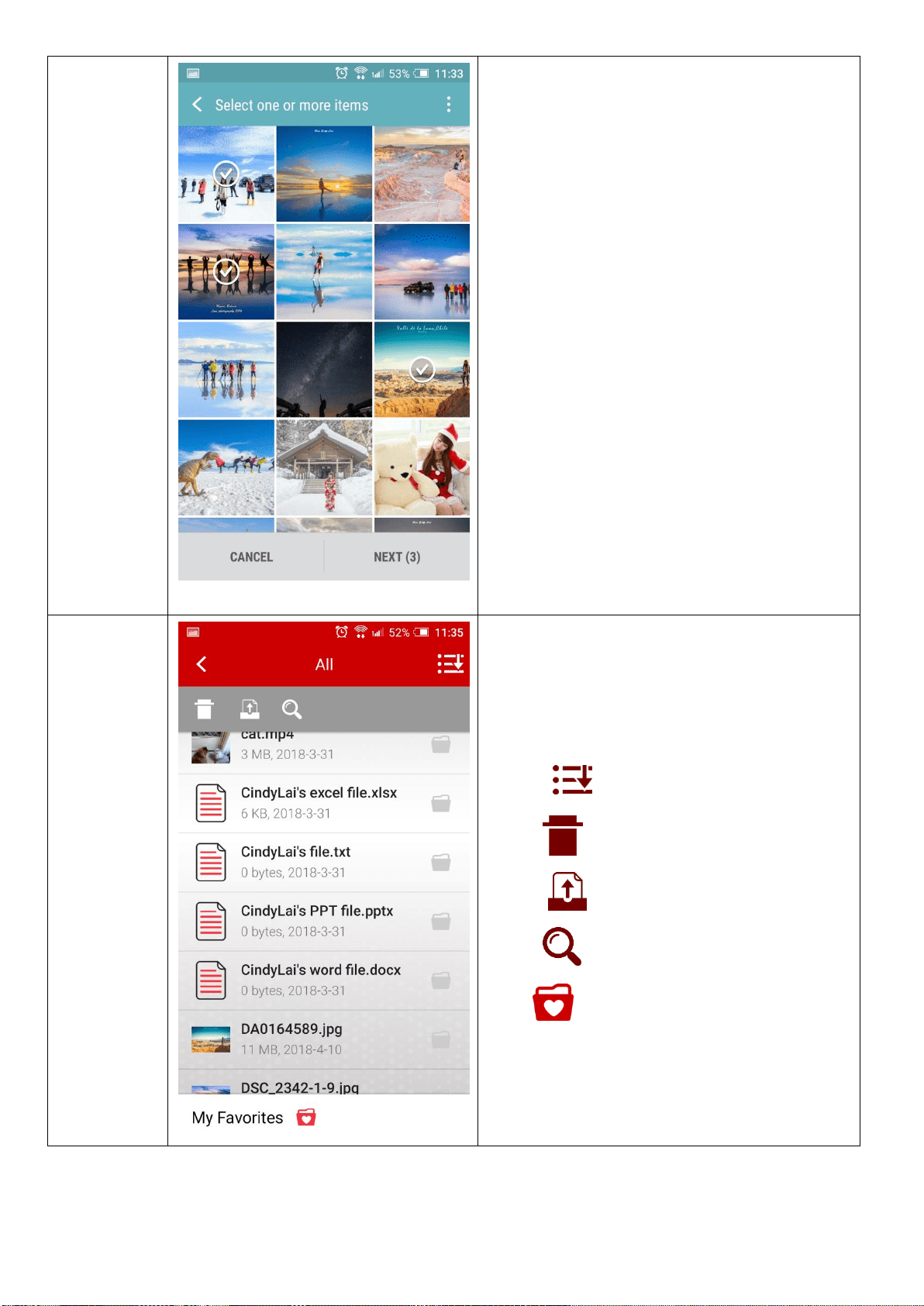
Option 2: Import photos. You can click on
“Share” in the mobile photo album, then “Find
and select MESSHU Drive” in the program list.
Then select the photos you want to import and
press OK or Next.
Other option: Files in various APPs, such as
emails, various social softwares, etc. All files can
be imported into the MESSHU Drive APP using
the “Share” method as long as there are
“Share” options.
16.2
Mobile
mode
Import file
:
Option 2
Import files to MESSHU Drive APP:
Option 1: Android's mobile phone can go to
“File Manager”, find and select files you want to
import, select “Share” in the menu in the upper
right corner, and then find and select “MESSHU
Drive” in the program list.
Option 2: Import photos. You can click on
“Share” in the mobile photo album, then “Find
and select MESSHU Drive” in the program list.
Then select the photos you want to import and
press OK or Next.
Other option: Files in various APPs, such as
emails, various social softwares, etc. All files can
be imported into the MESSHU Drive APP using
the “Share” method as long as there are
“Share” options.
52
16.3
Mobile
mode
Import file
:
Option 2
Import files to MESSHU Drive APP:
Option 1: Android's mobile phone can go to
“File Manager”, find and select files you want to
import, select “Share” in the menu in the upper
right corner, and then find and select “MESSHU
Drive” in the program list.
Option 2: Import photos. You can click on
“Share” in the mobile photo album, then “Find
and select MESSHU Drive” in the program list.
Then select the photos you want to import and
press OK or Next.
Other option: Files in various APPs, such as
emails, various social softwares, etc. All files can
be imported into the MESSHU Drive APP using
the “Share” method as long as there are
“Share” options.
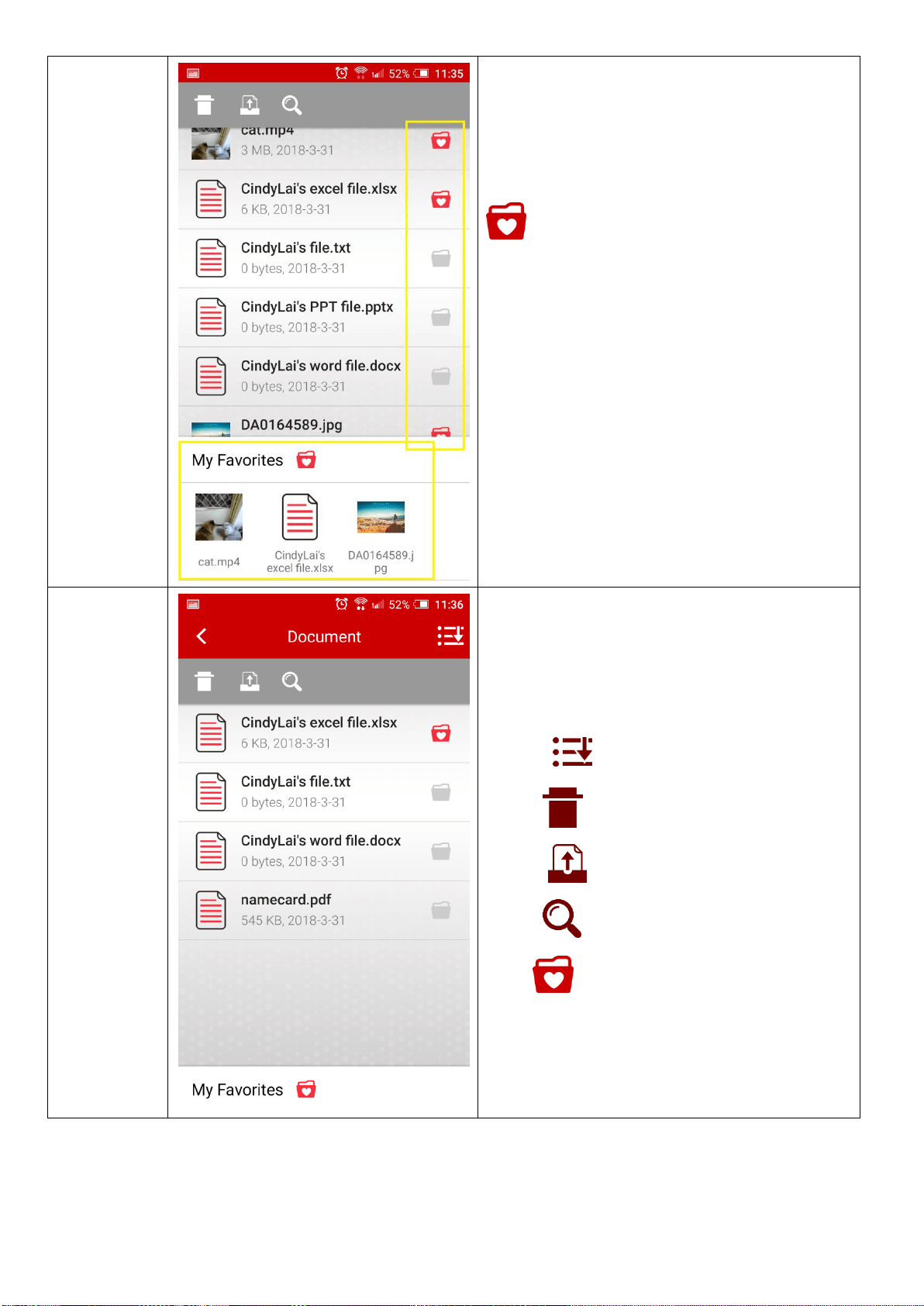
17.
Mobile
mode
File Area:
All
Main Screen: All
You can see that all types of files have been
imported into the MESSHU Drive APP.
Top right :File sorting
Top left :trash
Top leftt :Upload the file to the cloud
Top left :search files
Below :My favorites
53
17.1
Mobile
mode
File Area:
All
→
My
favorites
Main Screen: All
You can see that all types of files have been
imported into the MESSHU Drive APP.
My favorites: Users can click on the folder
at right side of the file to become a love icon
and add the file to my favorites for easy
browsing. Just click on "My Favorites" at the
bottom of the screen to show all your favorite
files.
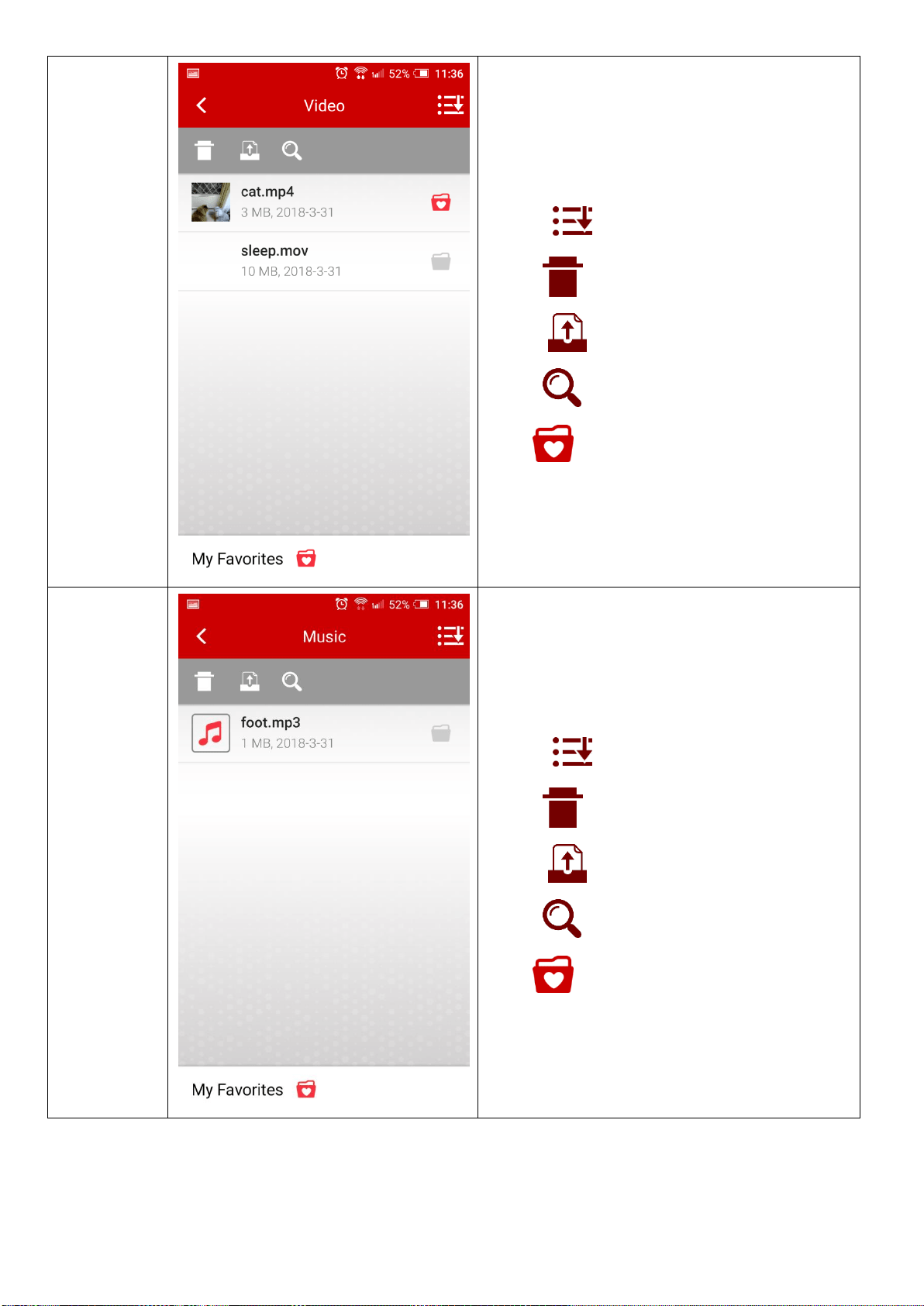
18.
Mobile
mode
File Area:
Document
Main Screen: Document
You can see that document types of files have
been imported into the MESSHU Drive APP.
Top right :File sorting
Top left :trash
Top leftt :Upload the file to the cloud
Top left :search files
Below :My favorites
54
19.
Mobile
mode
File Area:
Video
Main Screen: Video
You can see that Video types of files have been
imported into the MESSHU Drive APP.
Top right :File sorting
Top left :trash
Top leftt :Upload the file to the cloud
Top left :search files
Below :My favorites
20.
Mobile
mode
File Area:
Music
Main Screen: Music
You can see that Music types of files have been
imported into the MESSHU Drive APP.
Top right :File sorting
Top left :trash
Top leftt :Upload the file to the cloud
Top left :search files
Below :My favorites
55
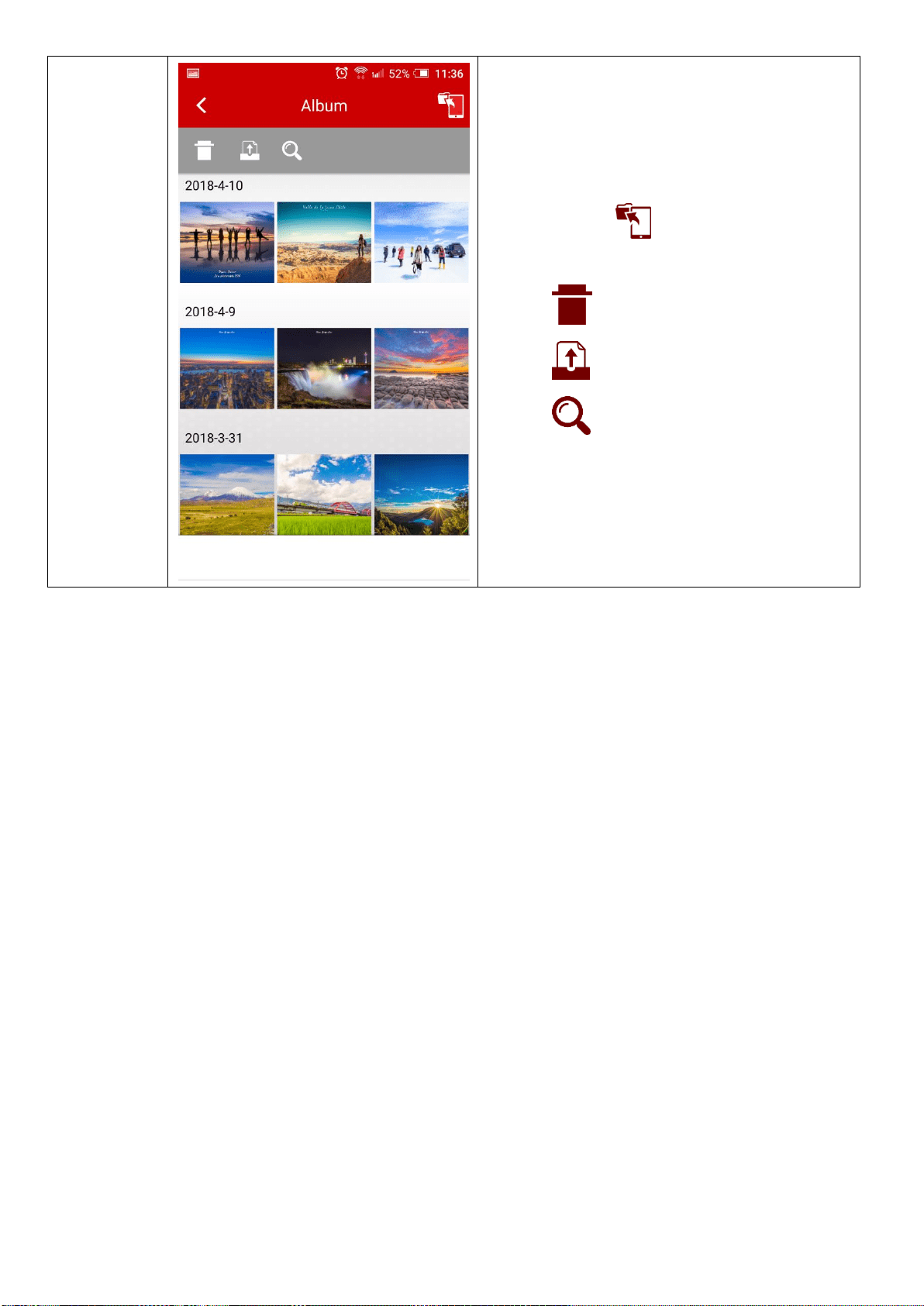
21.
Mobile
mode
File Area:
Album
Main Screen: Album
You can see the files that have been imported
into the MESSHU Drive APP and belong to the
picture category.
Top right corner :Import mobile phone
photos into MESSHU Drive APP
Top left :trash
Top left :Upload the file to the cloud
Top left :search files