EN User manual
Register your product and get support at
www.philips.com/welcome
Philips
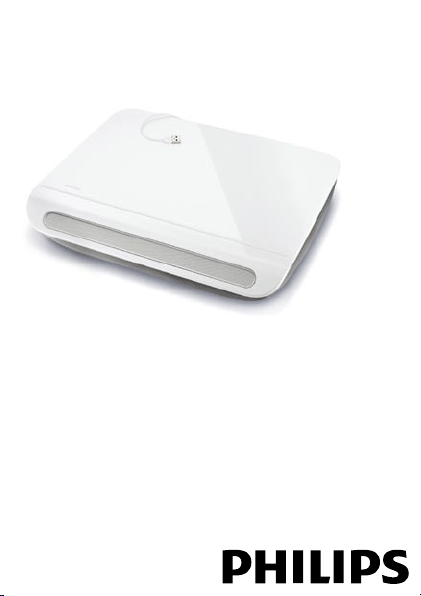
notebook CushionSpeaker
SDC5100
EN
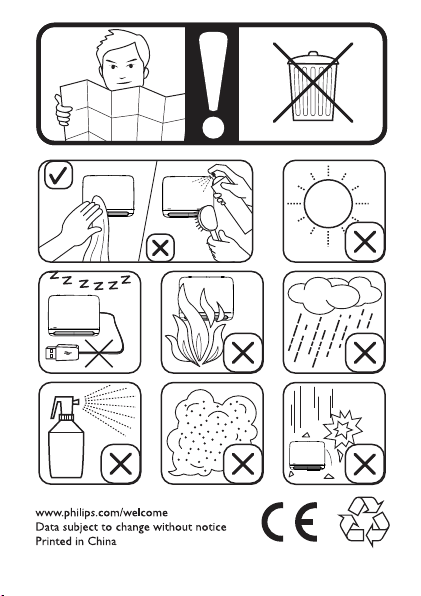
Disposal
Your product is designed and manufactured with high quality
materials and components, which can be recycled and reused.
Please inform yourself about the local separate collection
system for electrical and electronic products, including those
marked by the crossed-out wheely bin symbol. Please act
according to your local rules and do not dispose of your old products
with your normal household waste.
Cushion Speaker
NOTE: 1. Before you install the cushion speaker, ensure that a working
USB controller is listed in Windows Device Manager on your computer.
2. Ensure that the cushion speaker is installed properly before using.
3. Plug the cushion speaker into a USB port on your computer or a self-
powered (with DC supply) USB hub. 4. Never unplug the USB plug while
the cushion speaker is playing sound.
System Requirements:
PC Mac
Windows
®
98SE, Windows
®
ME,
Windows
®
2000, Windows
®
XP,
or Windows
®
Vista™
Mac OS9/OS
®
X, or later
Certied USB controller Built-in USB connection
Installation:
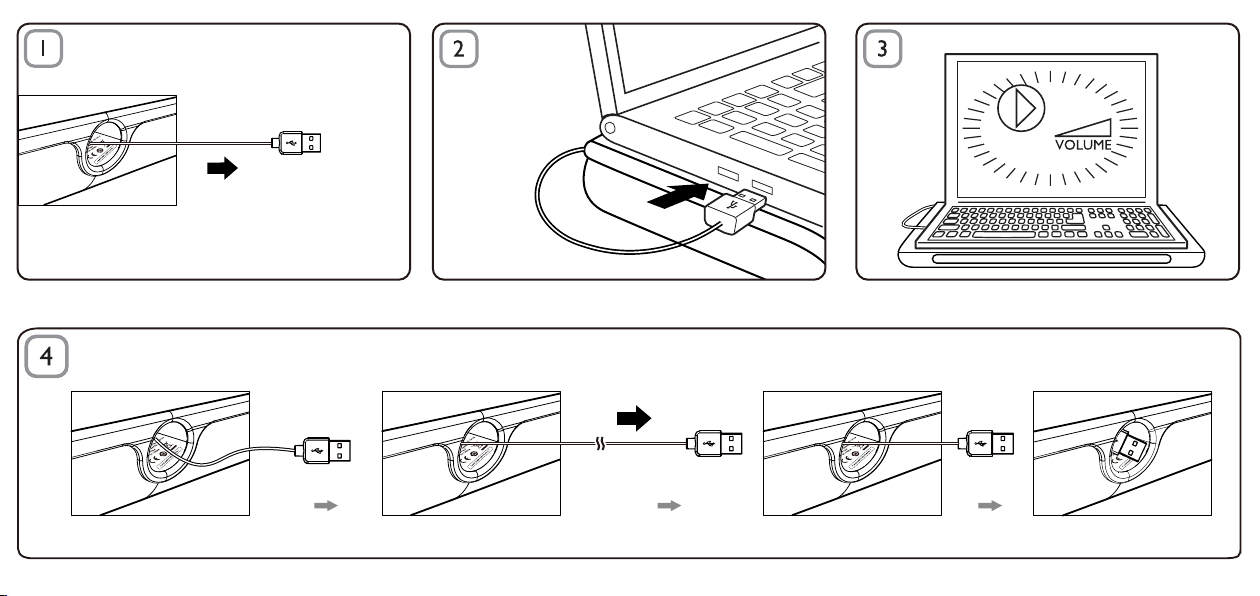
Pull out the retractable USB cable (Fig. 1) and insert the USB 1
connector into your notebook computer (Fig. 2).
Switch on the sound and audio function and adjust the volume by 2
using the computer application or multimedia player software (Fig. 3).
After use, exit the multimedia player software.3
Pull out the USB cable to the end and release it.4
The USB cable retracts into the cushion speaker (Fig. 4). »

If the cushion speaker cannot be detected by your notebook
computer, perform the following steps:
On PC On Mac
1. Click Control Panel.
2. Double click the Sounds and
Audio Devices icon.
3. In Sounds and Audio Devices
Properties, select the Audio tab.
4. Under Sound playback, select
USB Sound Device.
1. Click System Preferences.
2. Click the Sound icon.
3. Open Output and select
USB Sound Device.
4. Play music by multimedia
software.
FCC - Notice of compliance
FCC - Remarques sur la conformité
FCC - Notice of compliance
FCC - Remarques sur la conformité
V1.0
