22.01.2021 1
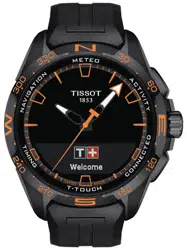
User’s Manual for the T-Touch Connect Solar
Contents
1. Introduction.......................................................................................................................... 3
• A word of thanks ......................................................................................................................... 3
• Compatibility ............................................................................................................................... 3
2. Versions and new features .................................................................................................... 4
3. Familiarisation ...................................................................................................................... 5
• Basic operations .......................................................................................................................... 5
• Starting the watch ....................................................................................................................... 8
• Reconnecting the watch to the phone ...................................................................................... 11
• Charging the watch .................................................................................................................... 14
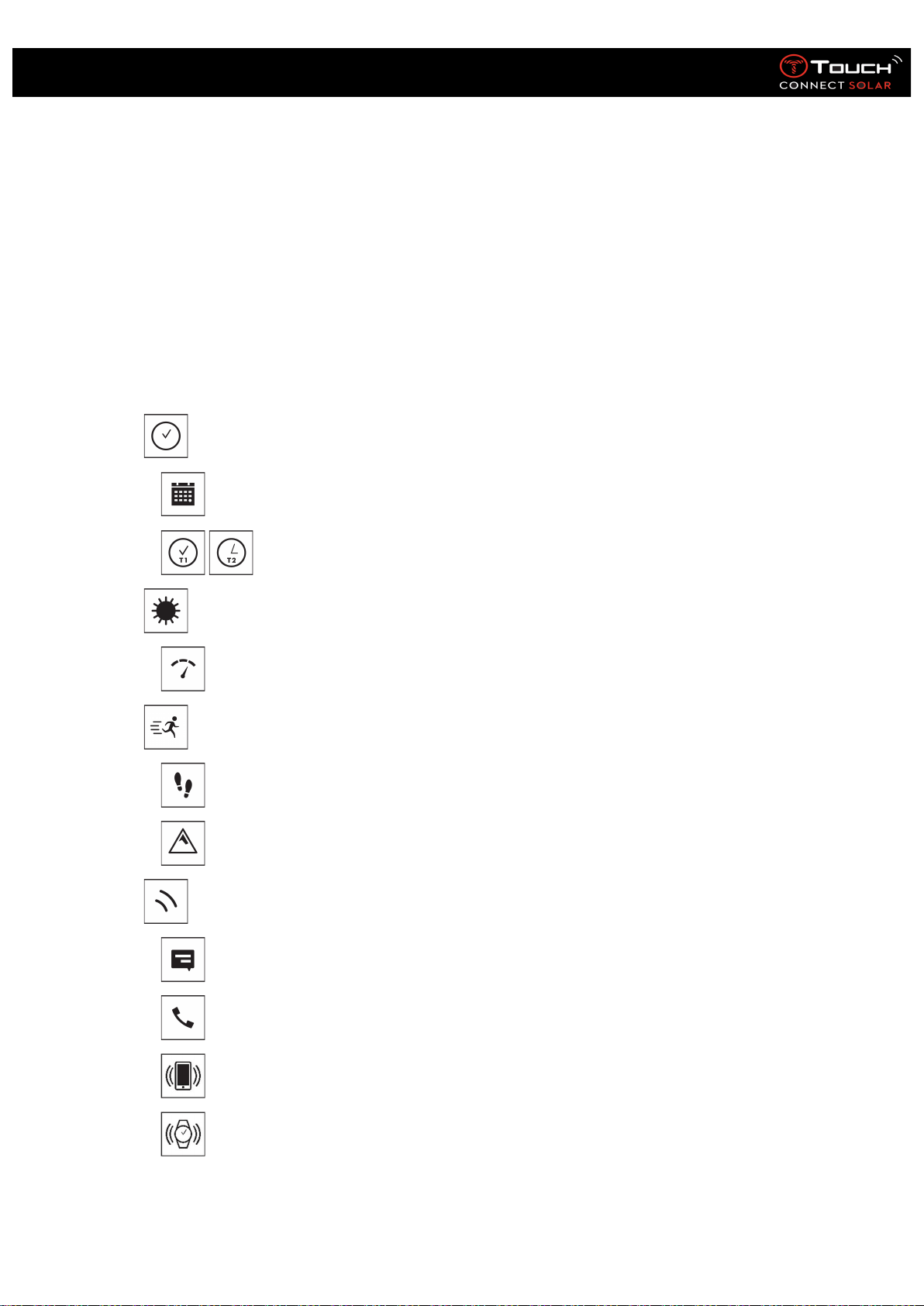
4. CLOCK ...................................................................................................................... 15
• DATE ............................................................................................................................... 15
• TIME 1 and TIME 2 .............................................................................................. 15
5. METEO (Weather) ..................................................................................................... 17
• BAROMETER ................................................................................................................... 17
6. ACTIVITY .................................................................................................................. 20
• ACTIVITY TRACKER .......................................................................................................... 20
• ALTIMETER ..................................................................................................................... 21
7. CONNECTED ............................................................................................................. 23
• NOTIFICATION (message, e-mail, reminder, social media) ............................................ 23
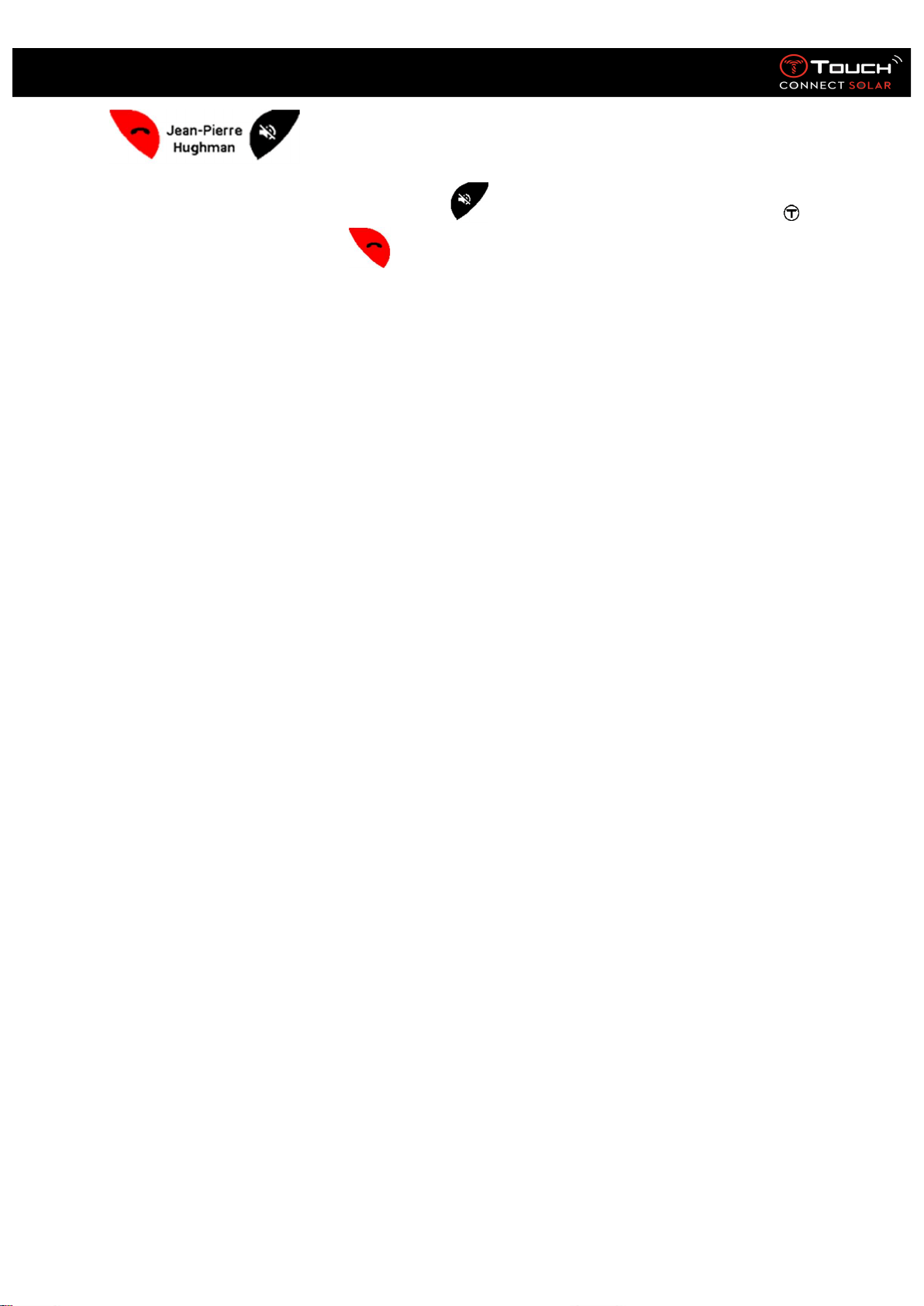
• Incoming call .................................................................................................................. 23
• FIND MY PHONE (from V2.0) .......................................................................................... 25
• Find my watch (from V2.0) ............................................................................................. 25
22.01.2021 2
User’s Manual for the T-Touch Connect Solar
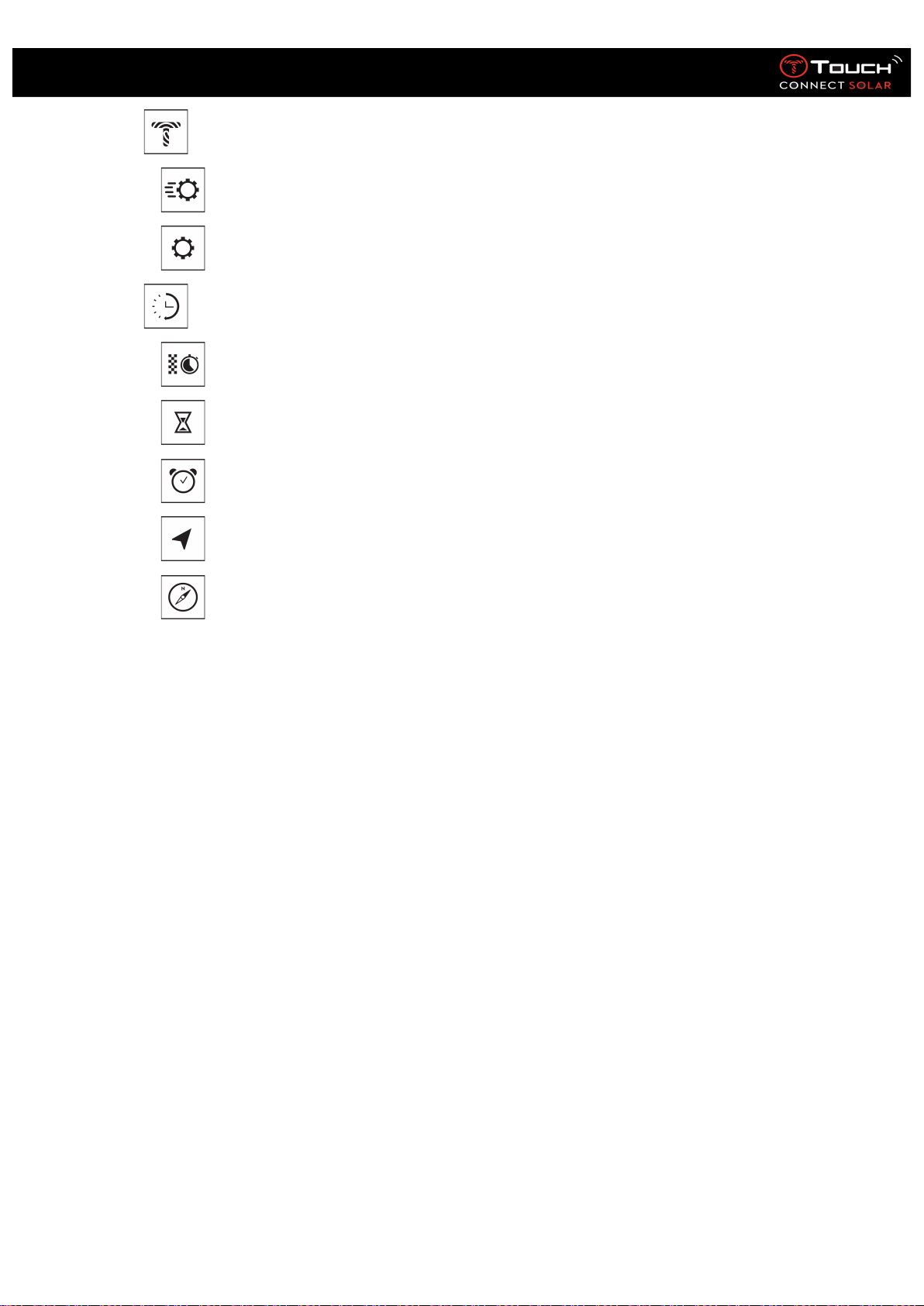
8. T-TOUCH .................................................................................................................. 26
• QUICK SETTINGS ............................................................................................................. 26
• SETTINGS ........................................................................................................................ 27
9. TIMING (Timing and Alarm)....................................................................................... 30
• CHRONO (Timing) ........................................................................................................... 30
• TIMER (Countdown) ....................................................................................................... 31
• ALARM ............................................................................................................................ 32
10. NAVIGATION ......................................................................................................... 34
• COMPASS........................................................................................................................ 34
22.01.2021 3
User’s Manual for the T-Touch Connect Solar
1. Introduction
• A word of thanks
Congratulations on having chosen a watch made by Tissot™, a Swiss company founded in Le Locle in
1853 and still based there today. Your watch has been made with the greatest of care, using fine-
quality materials and components, and is protected against shocks, temperature fluctuations, water
and dust.
• Compatibility
The T-Touch Connect Solar is equipped with Bluetooth® and requires the use of a smartphone
running on at least Android 6.0 or above, or iOS 12.0 or above.
Android requirements
Operating system 6.0 or above
Version 6.0 of Android (Android Marshmallow) was released in
October 2015. Most devices manufactured after this date will meet
this requirement.
Apple iOS requirements
iOS 12 or above
Compatible with iPhone
Tissot ensures its products are compatible with Android mobile devices, the best known and most
widely-used worldwide. Some devices, however, are not compatible with the T-Touch Connect Solar:
- Xiaomi Mi 8 lite international version
- Blackberry Key2 LE
- Samsung A21S
- Sony XZ3
- Caterpillar S60
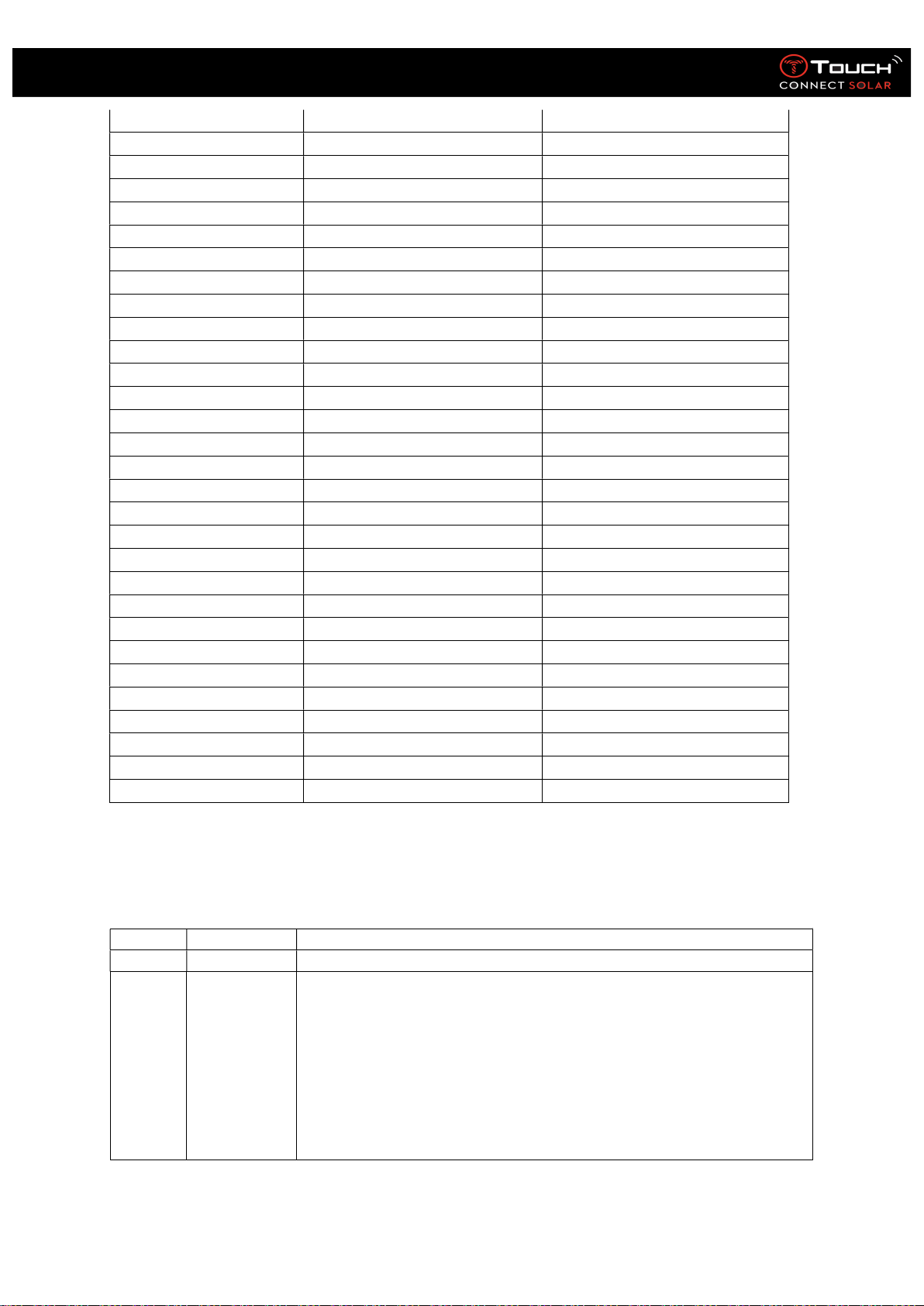
The T-Touch Connect application is supported only in the following countries and languages:
Supported countries
Supported character sets
(notifications) Application languages
Albania
Afrikaans English
Austria
Albanian French
Belarus
Basque German
Belgium
Breton Italian
Bulgaria
Catalan* Spanish
Canada
Corsican
Croatia
Danish*
Cyprus
Dutch*
Czech republic
English
22.01.2021 4
User’s Manual for the T-Touch Connect Solar
Denmark
Estonian*
Estonia
Faroese
Finland
Finnish*
France
French
Germany
Galician
Greece
German
Hungary
Hungarian*
Ireland
Icelandic
Island
Indonesian
Italia
Irish
Lettonia
Irish* (traditional orthography)
Lithuania
Italian
Luxembourg
Kurdish
Malta
Leonese
Moldavia
Luxembourgish
Netherlands
Malay
North Macedonia
Manx
Norway
Norwegian[d]
Poland
Occitan
Portugal
Portuguese
Romania
Rhaeto-Romanic
Slovakia
Scots
Slovenia
Scottish Gaelic
Spain
Southern Sami
Sweden
Spanish
Switzerland
Swahili
Turkey
Swedish
Ukraine
Tagalog
United Kingdom
Walloon
USA
Welsh*
*Please note that some characters may be missing.
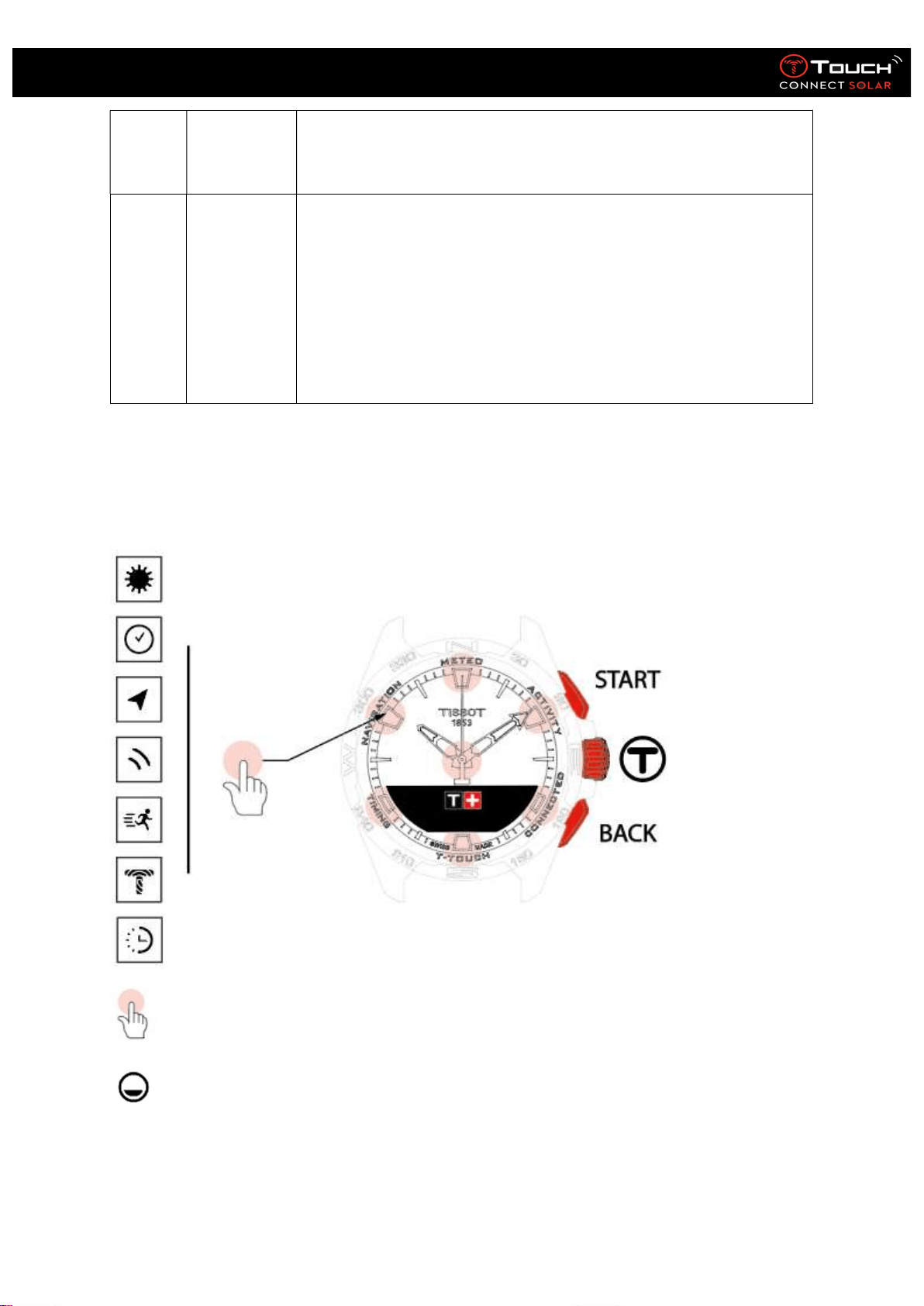
2. Versions and new features
Version
Availability
Modifications
1.1
Sept. 2020
Product basic version
2.0
Dec. 2020
TIMER: manage a list of countdowns in the app, and start directly from
the app
FIND MY PHONE: a new phone location function, running on the watch
FIND MY WATCH: a new watch location function, running on the phone
ENERGY: a detailed display of battery level and solar charge level in the
watch's "QUICK SETTINGS"
NOTIFICATIONS: A new function enabling you to clear all notifications
ONBOARDING: Simplified pairing procedure: the mobile app detects the
closest watch to establish the link.
22.01.2021 5
User’s Manual for the T-Touch Connect Solar
SOUND & VIBRATION: Separate sound and vibration setting added for
notifications
CONNECTION: improved reconnection after the phone has been out of
range for several hours.
3.1
Mar
. 2021
MULTI
-
LANGUAGE
: The watch is available in English, French, German,
Italian, Spanish or Chinese.
MULTI-REGION: For Chinese residents, the user data are stored in
China.
NOTIFICATIONS: The user can scroll through their lines of notifications
by turning the crown.
WATCH: There is a bigger connection range between the watch and
phone.
BAROMETER: In addition to the hands, the weather trend is displayed
by an appropriate icon.
3. Familiarisation
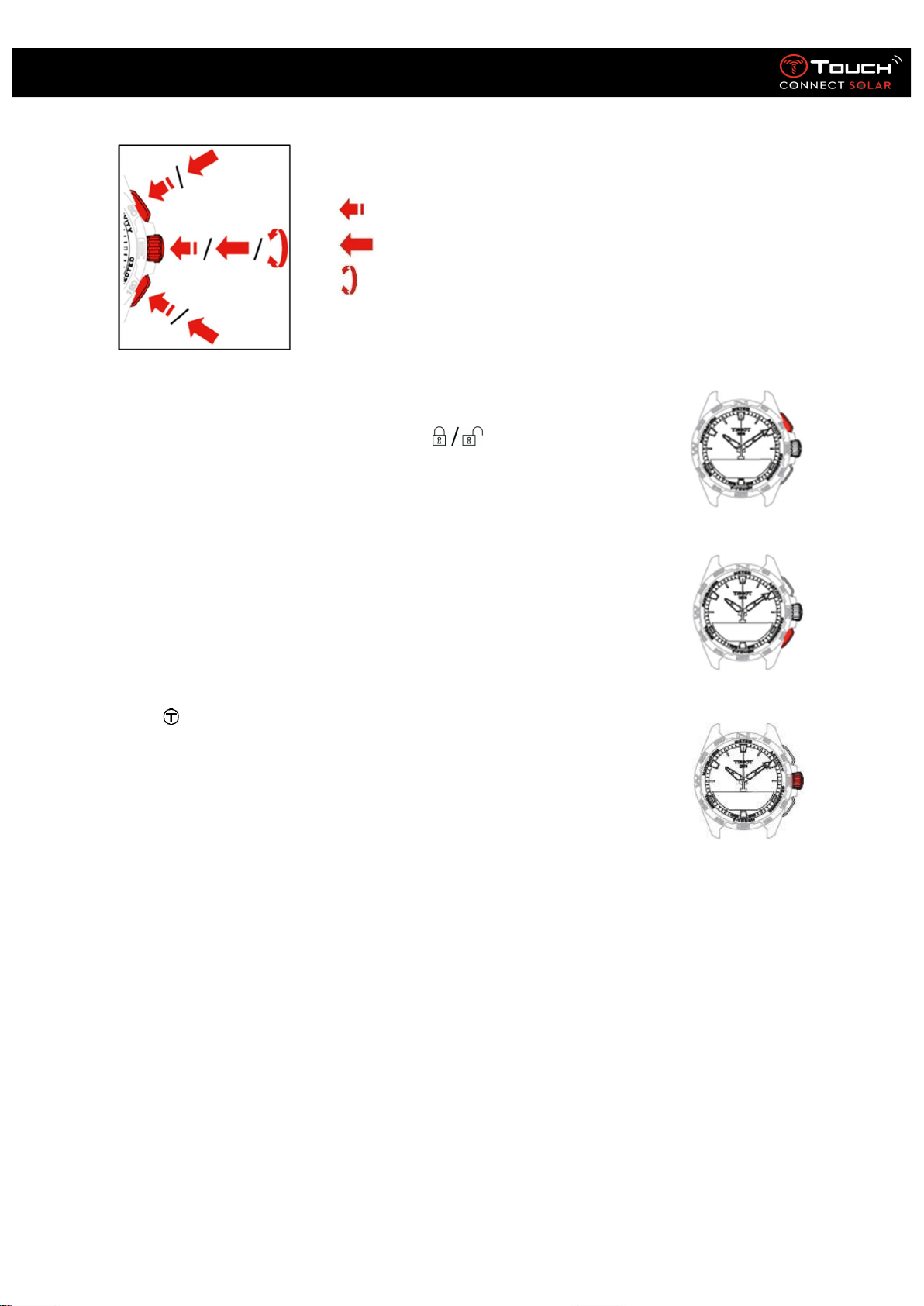
• Basic operations
: Touch zones
: MIP screen
22.01.2021 6
User’s Manual for the T-Touch Connect Solar
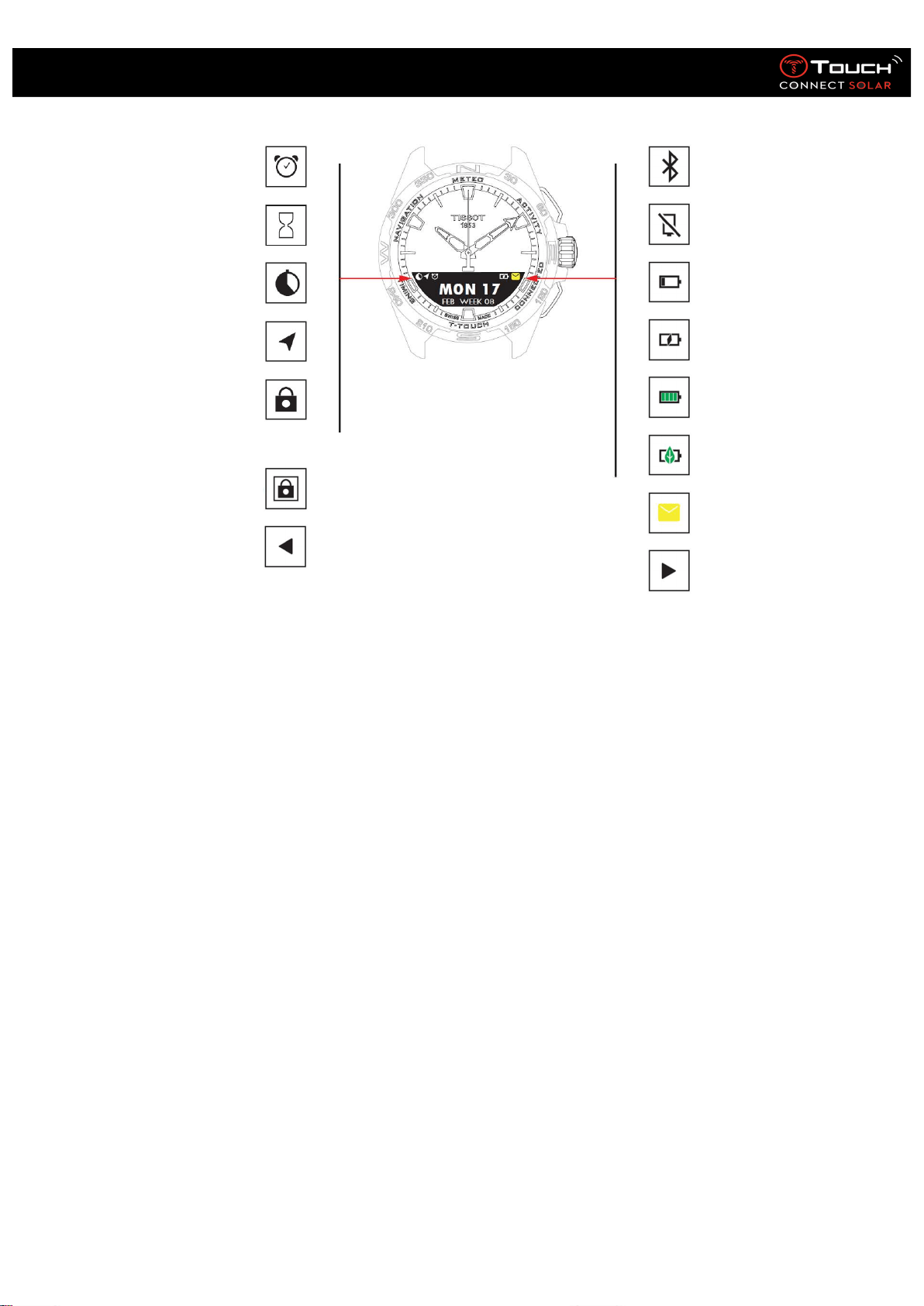
: Short press (less than ½ a second)
: Long press (more than ½ a second)
: Rotation (applies only to the crown)
START push
-
piece:
Short press: to start or stop timer/countdown
Long press: to lock/unlock the watch
BACK push
-
piece:
Short press: to cancel a setting, reject an incoming call, stop an alarm,
return to previous screen or exit a mode
Short press: to reset timer/countdown to zero
Long press: to return to the main menu
Crown
:
Short press: to confirm, access a sub-menu, snooze an alarm, or stop
the alarm sounding during an incoming call
Long press: to activate screen backlighting
Rotation: to navigate/scroll through functions and menus or change a
value
Please note:
All touch actions can be performed by using the push-pieces and crown instead.
Just a light press on the push-pieces and a light touch on the glass will suffice to activate the
functions of your T-Touch Connect Solar. Excessive force can damage the watch.
22.01.2021 7
User’s Manual for the T-Touch Connect Solar
One or more alarms active
Countdown in progress
Timer running
Navigation in progress
Watch locked
Watch locked in secure mode
(password)
Screen available on left
Bluetooth® activated
Watch disconnected
Battery low
Battery charging
Battery charged
Watch in Eco mode
Unread notifications
Screen available on right
22.01.2021 8
User’s Manual for the T-Touch Connect Solar
• Starting the watch
o Turning the watch on
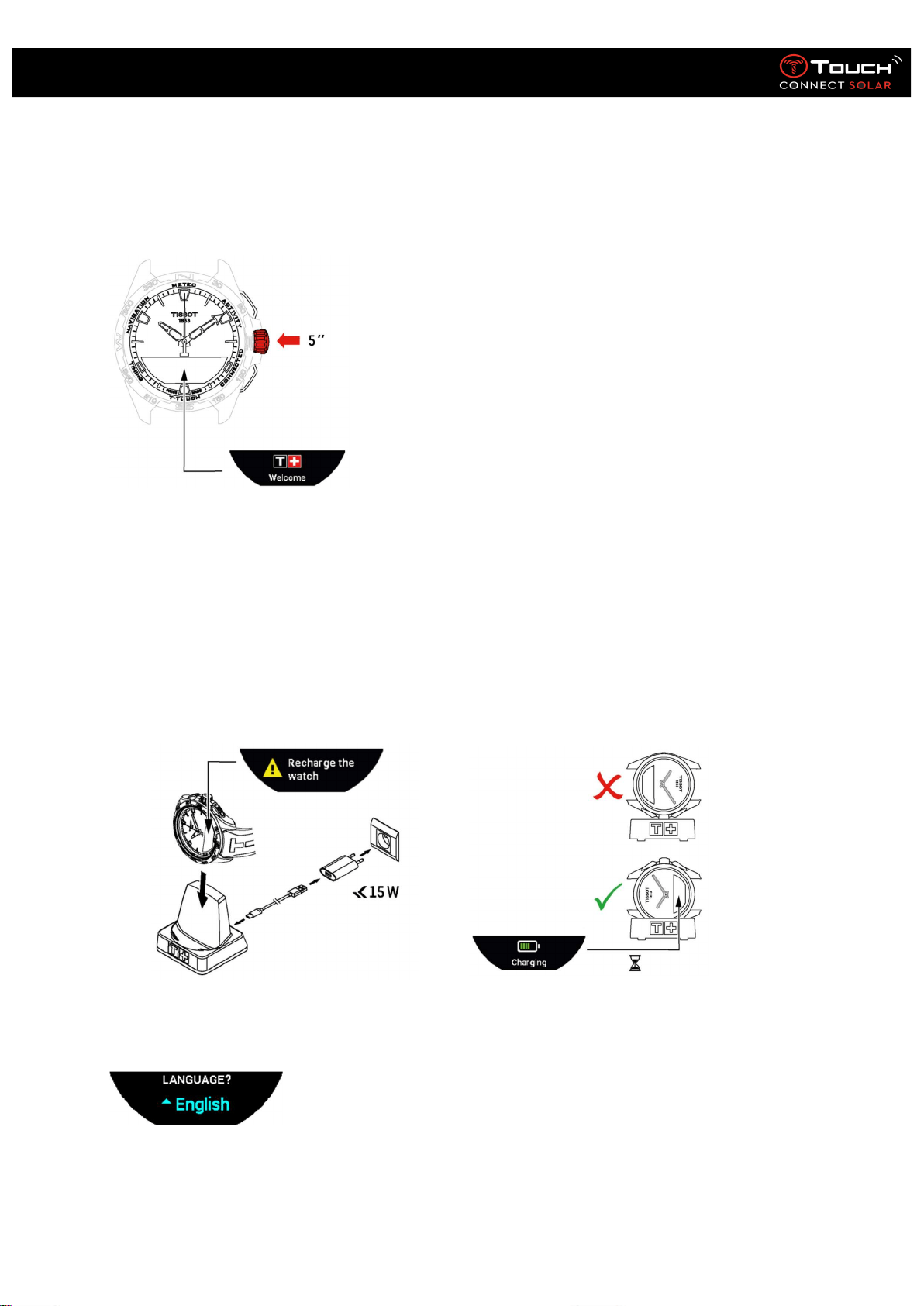
Press the crown for 5 seconds, until the MIP screen lights up.
o Charging the watch
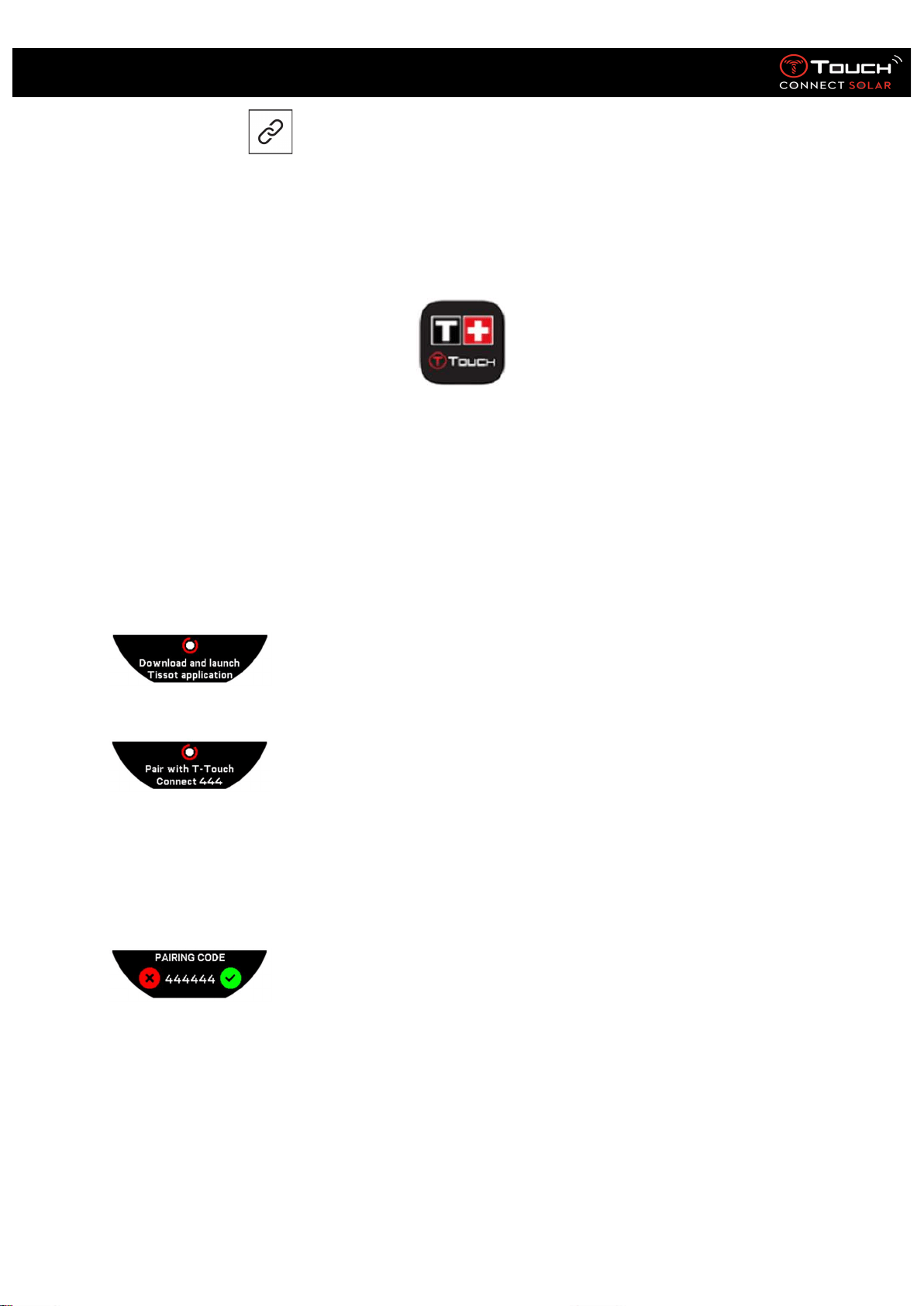
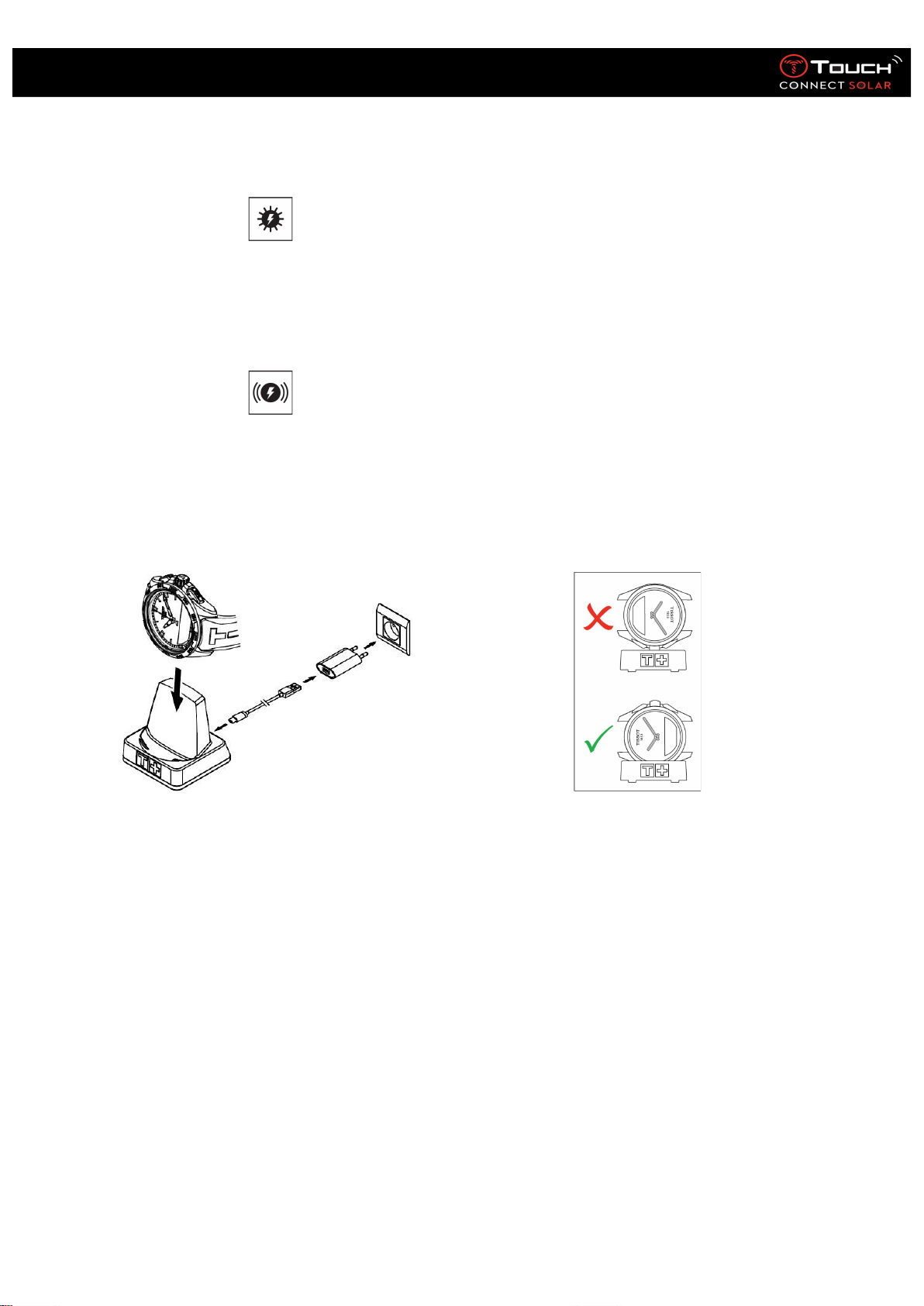
The first time you use your T-Touch Connect Solar, we recommend charging it with the T229 charger
supplied, being careful to position the T-Touch Connect Solar correctly on the charger and checking
that the “Charging” indicator is visible on the MIP screen.
Do not use a USB adaptor (not supplied) that provides power in excess of 15 watts.
Once the T-Touch Connect Solar battery is charged, briefly press the crown to select the watch
language.
Confirm your choice by briefly pressing the crown. You will be offered two watch operating options:
paired to a smartphone, or non-paired.
22.01.2021 9
User’s Manual for the T-Touch Connect Solar
o Using the T-Touch Connect Solar paired with a smartphone
Only paired mode provides access to all the T-Touch Connect Solar’s functions.
Download the T-Touch Connect app to the smartphone and follow the connection information.
You will see displayed on the T-Touch Connect Solar’s MIP screen:
“PAIR WITH PHONE? ”.
Using the crown, select “YES”.
“Date ?”
To ensure maximum security for your data, you must enter today’s date correctly on the T-Touch
Connect Solar. This information is visible on the smartphone screen.
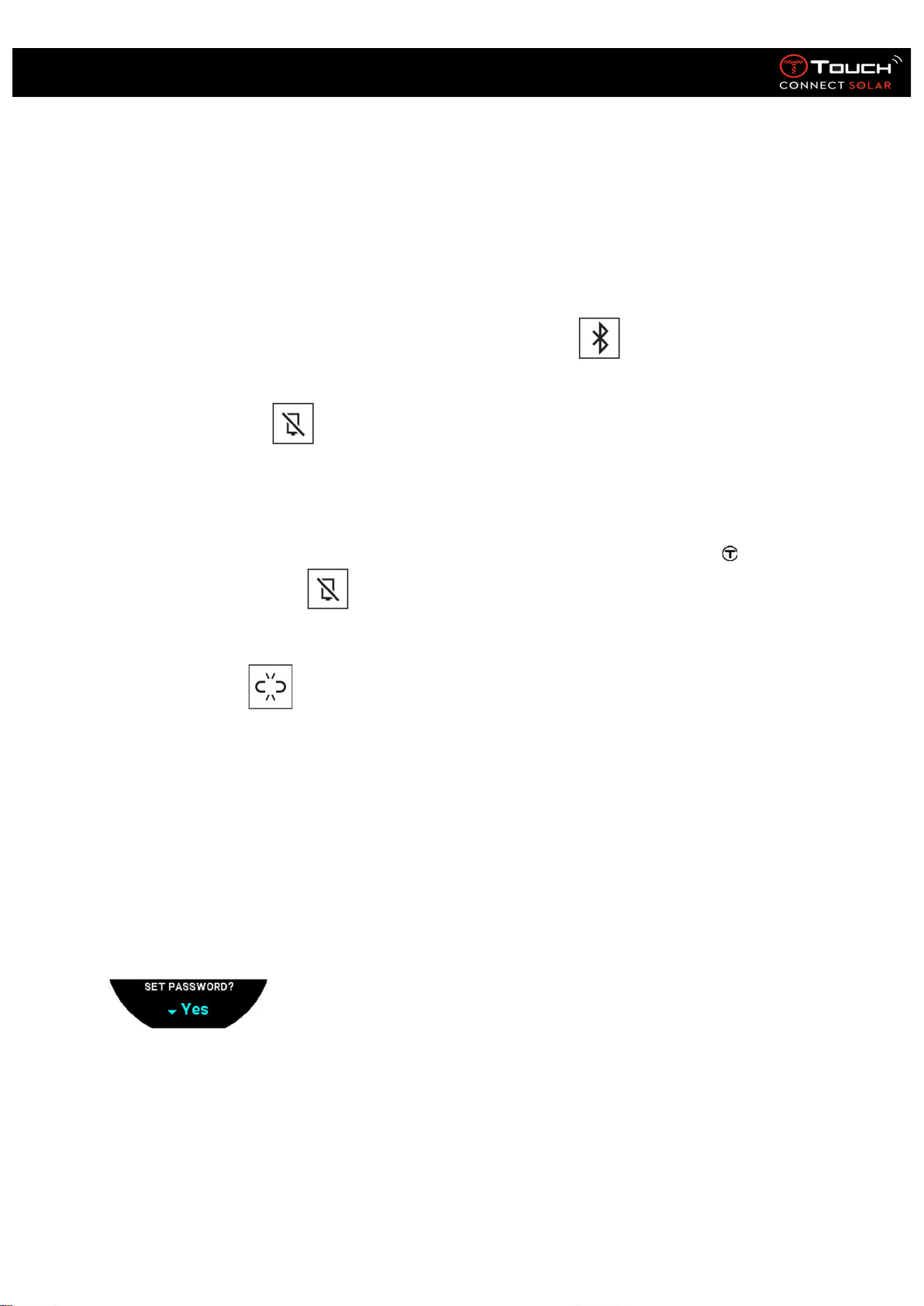
“Download and launch Tissot application”
Open the T-Touch Connect app on the smartphone.
“Pair with T-Touch Connect XXX”
The app is automatically paired with the closest watch, and displays the "PAIRING CODE". If the code
cannot be seen on the watch, or if the code displayed on the watch is different to that displayed on
the app, click on "cancel", and start over.
Please note: unlike the next step, you are not performing a check at this stage, but rather selecting
the right watch if there is more than one nearby.
“PAIRING CODE”
Check the pairing code on the T-Touch Connect Solar’s MIP screen and in the T-Touch Connect app.
Please note, you only have 30 seconds to do this before the pairing process times out.
“SET PASSWORD ?”.
Using the crown, choose if you want to secure the watch with a password. Activating the password
ensures that:

22.01.2021 10
User’s Manual for the T-Touch Connect Solar
- The content of notifications received is not displayed on the watch, thus protecting your
privacy
- The watch menus cannot be accessed.
If yes, select “Yes”.
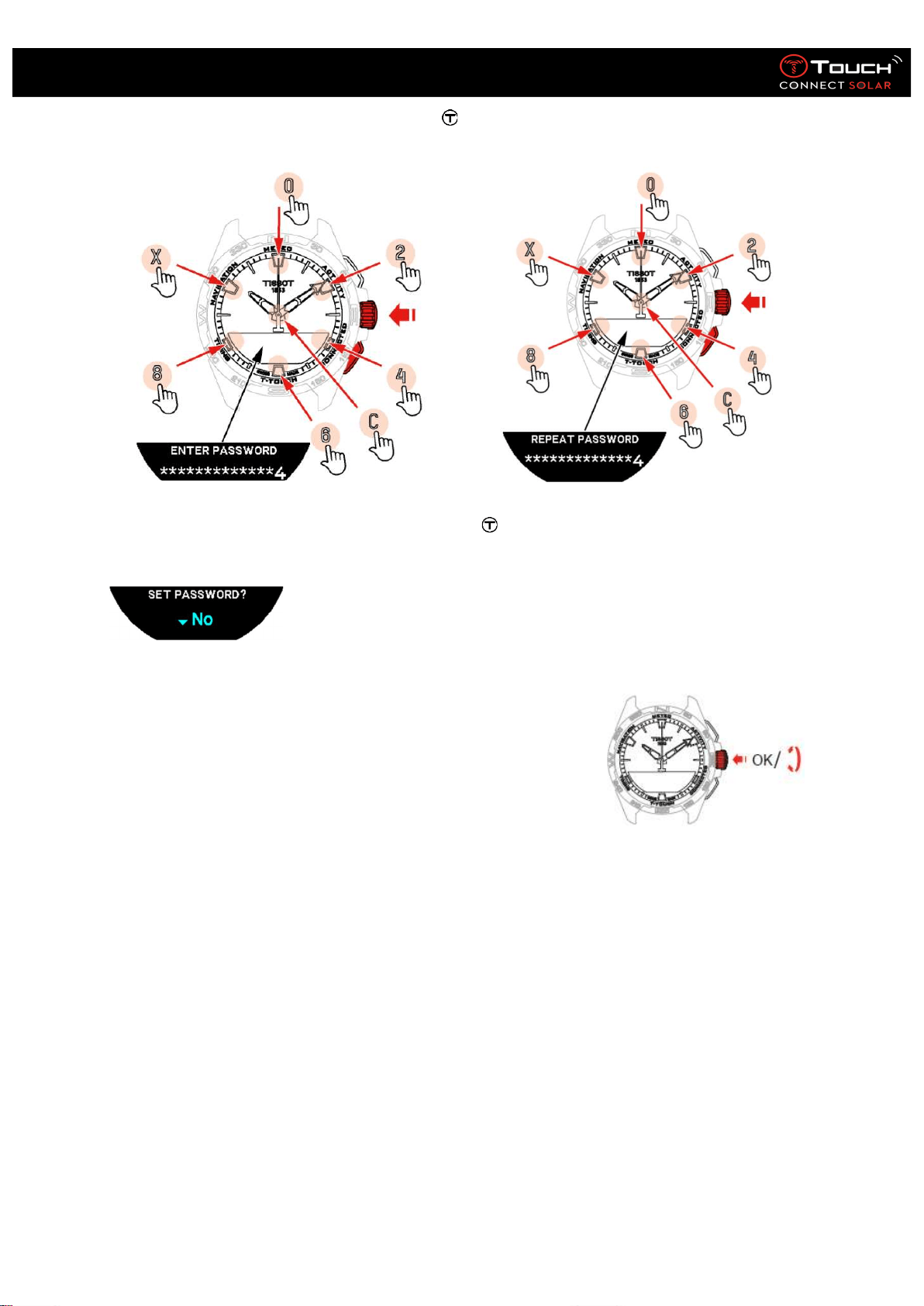
“ENTER PASSWORD”
Use the touch zones to create the password. Each zone corresponds to a character: 0, 2, 4, C, 6, 8
and X.
Please note: minimum 6 digits, maximum 14.
When you have entered the code, confirm with . You can return to the previous screen at any
point by using the BACK push button.
Enter the password a second time, then confirm with .
If no, select “No” and move on to the next step.
The message “Setup completed” appears, which means the setup has been successfully completed.
The hands position themselves to the correct time and the watch automatically self-locks.
If an error appears when you are trying to pair your watch to the Tissot T-Connect app, select the
“Try Again” option to restart the process.
If the problem persists, follow the steps below:
Uninstall the Tissot T-Connect app.
Reset your watch (BACK button > "Abort" or T-Touch/Settings/System/Restore to factory
settings menu).
22.01.2021 11
User’s Manual for the T-Touch Connect Solar
From the "Welcome" screen on your watch, press the crown and enter today's date starting
with the year, then the month and finally the day.
Activate Bluetooth on your smartphone.
Delete your watch from the Bluetooth settings on your smartphone.
Activate your smartphone's Internet connection.
Install the latest version of the Tissot T-Connect app.
Launch the app and connect to your account to restart the process.
• Reconnecting the watch to the phone
When the watch is connected to the phone, this is indicated by the icon
When the watch is temporarily out of the phone's range, it will try to reconnect for a period of 2 hrs.
This is indicated by the icon. In this situation, you need only bring the watch to within a few
metres of the phone in order to reconnect, provided that the phone's bluetooth is active.
After this period, in order to save its battery, the watch will cut the bluetooth signal; no connection
icon will be displayed. From version 2.0, you need only press one of the (BACK / START / ) buttons
to reactivate the signal. The icon will be immediately displayed.
o Using the T-Touch Connect Solar unpaired with a smartphone
You will see displayed on the T-Touch Connect Solar’s MIP screen:
“PAIR WITH PHONE ? ”.
Using the crown, select “No”.
“SET PASSWORD ? ”.
Using the crown, choose if you want to secure the watch with a password. Activating the password
ensures the watch menus cannot be accessed.
If yes, select “Yes”.
“ENTER PASSWORD”
Use the touch zones to create your password. Each zone corresponds to a character: 0, 2, 4, C, 6, 8
and X.
Please note: minimum 6 digits, maximum 14.
22.01.2021 12
User’s Manual for the T-Touch Connect Solar
When you have entered the code, confirm with . You can return to the previous screen at any
point by using the BACK push button.
Enter the password a second time, then confirm with .
If no, select “No” and move on to the next step.
Use the crown to adjust the watch settings manually:
“GENDER?”
Male or Female
“HEIGHT UNIT?”
Centimetres or Feet
Enter your height
“WEIGHT UNIT?”
Kilograms or Pounds
Enter your weight
“DATE FORMAT?”

22.01.2021 13
User’s Manual for the T-Touch Connect Solar
DD.MM.YY (day.month.year) or MM.DD.YY (month.day.year)
“BIRTH DATE?”
Select the year, month and date
“DATE?”
Enter today’s date
“TIME FORMAT?”
24-hour or 12-hour (AM/PM)
“TIME 1?”
Enter the time
The message “Setup completed” appears, which means the setup has been successfully completed.
The hands position themselves to the time you entered and the watch automatically self-locks.
22.01.2021 14
User’s Manual for the T-Touch Connect Solar
• Charging the watch
o Solar power
As its name indicates, the T-Touch Connect Solar uses light, especially sunlight, to recharge its battery
automatically and naturally. This has the advantage of prolonging the watch’s operating time.
Please note: Avoid close exposure (≤ 20 cm) of the watch to any light source. In no circumstances should
you do this in an attempt to make the battery charge faster.
o T229 cordless charger
Do not use a USB adaptor (not supplied) that provides power in excess of 15 watts.
Do not use a cable or connector that is kinked, twisted, damaged or broken.
When placed on the T229 cordless charger, the T-Touch Connect Solar charges fully in under 3 hours.
This cordless power supply is compliant with circuit PS1 as set out in EN 62368-1.
22.01.2021 15
User’s Manual for the T-Touch Connect Solar
4. CLOCK
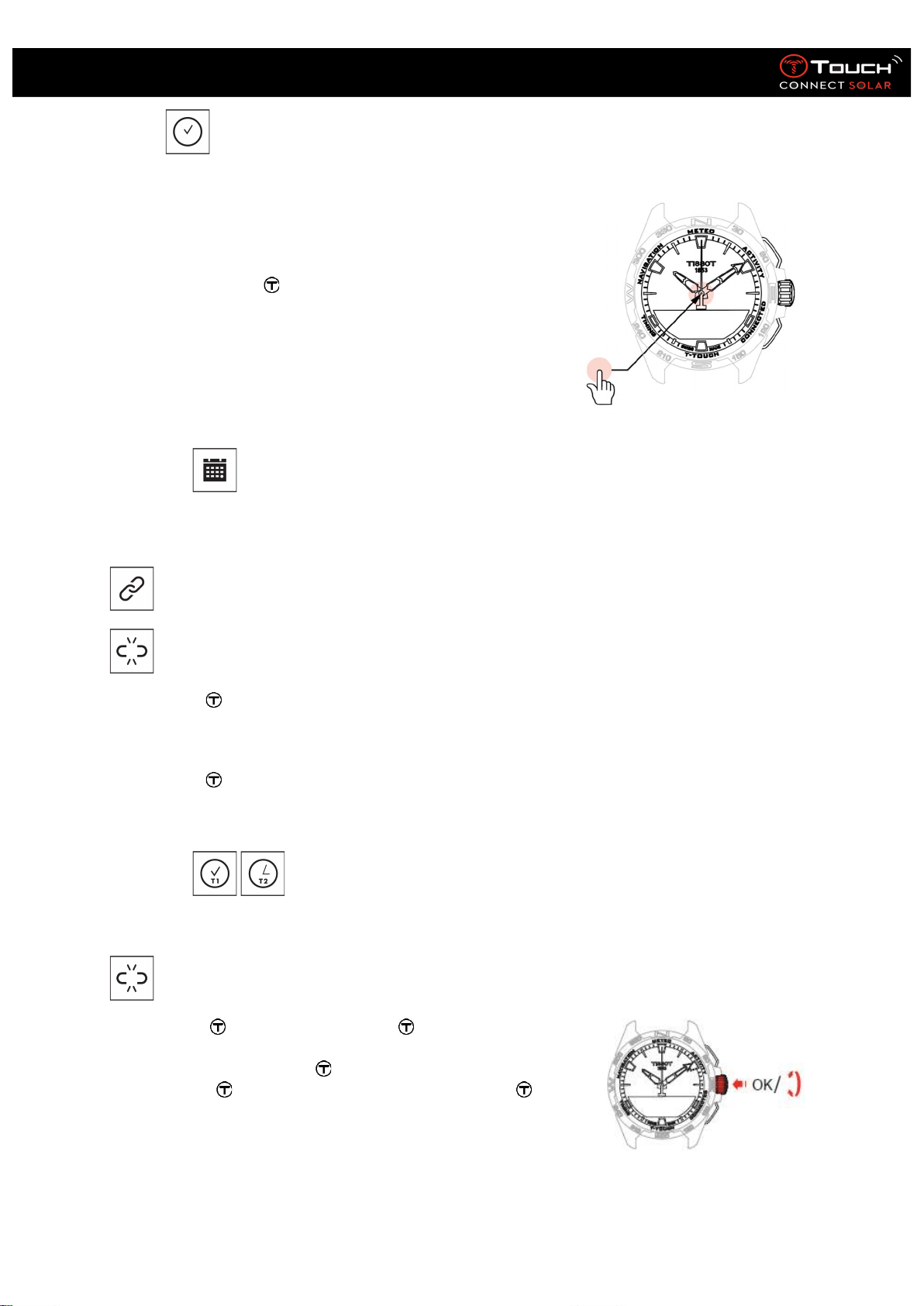
To access the “
CLOCK
” functions:
Unlock the watch with a long press on START.
Press the “CLOCK” touch zone.
Pressing and turning will give you access to the following
functions:
Please note: You can go backwards at any time by using the BACK push-piece.
• DATE
The T-Touch Connect Solar is equipped with a calendar:
: in paired mode the date is synchronised automatically with the watch.
: in unpaired mode, settings are entered manually:
Press
« Set Date ? »
Press
Enter today’s date
• TIME 1 and TIME 2
o Set Time
: in unpaired mode
Turn
to display
TIME 1
, press
, the watch displays
“Set time 1 ”.
Confirm by pressing
Using enter the time then confirm by pressing
22.01.2021 16
User’s Manual for the T-Touch Connect Solar
o Swap with Time 2 (Changing to the second time)
The “Swap” function enables swapping between the times set in TIME 1 and TIME 2.
Please note that this function is available only when TIME 1 and TIME 2 have been set.
o Timezone
: in paired mode
The watch has two times, TIME 1 and TIME 2, for which you can choose the desired time zone from a
list that can be modified on the Tissot smartphone app. The hands always display TIME 1.
The list of time zones contains:
The “PHONE” time zone, which is the smartphone’s time zone.
The “CUSTOM” time zone, which enables you to set the time manually.
The time zones of various cities and other places as listed on the T-Touch Connect
smartphone app.
Please note: When changing between summer and winter time, the watch will inform you of the
change 18 hours beforehand and will update itself automatically.
22.01.2021 17
User’s Manual for the T-Touch Connect Solar
5. METEO (Weather)
To access the “
METEO
” (Weather) functions:
Unlock the watch with a long press on START.
Press the “METEO” touch zone.
Pressing and turning will give you access to the following
functions:
Please note: You can go backwards at any time by using the BACK push-piece.
• BAROMETER
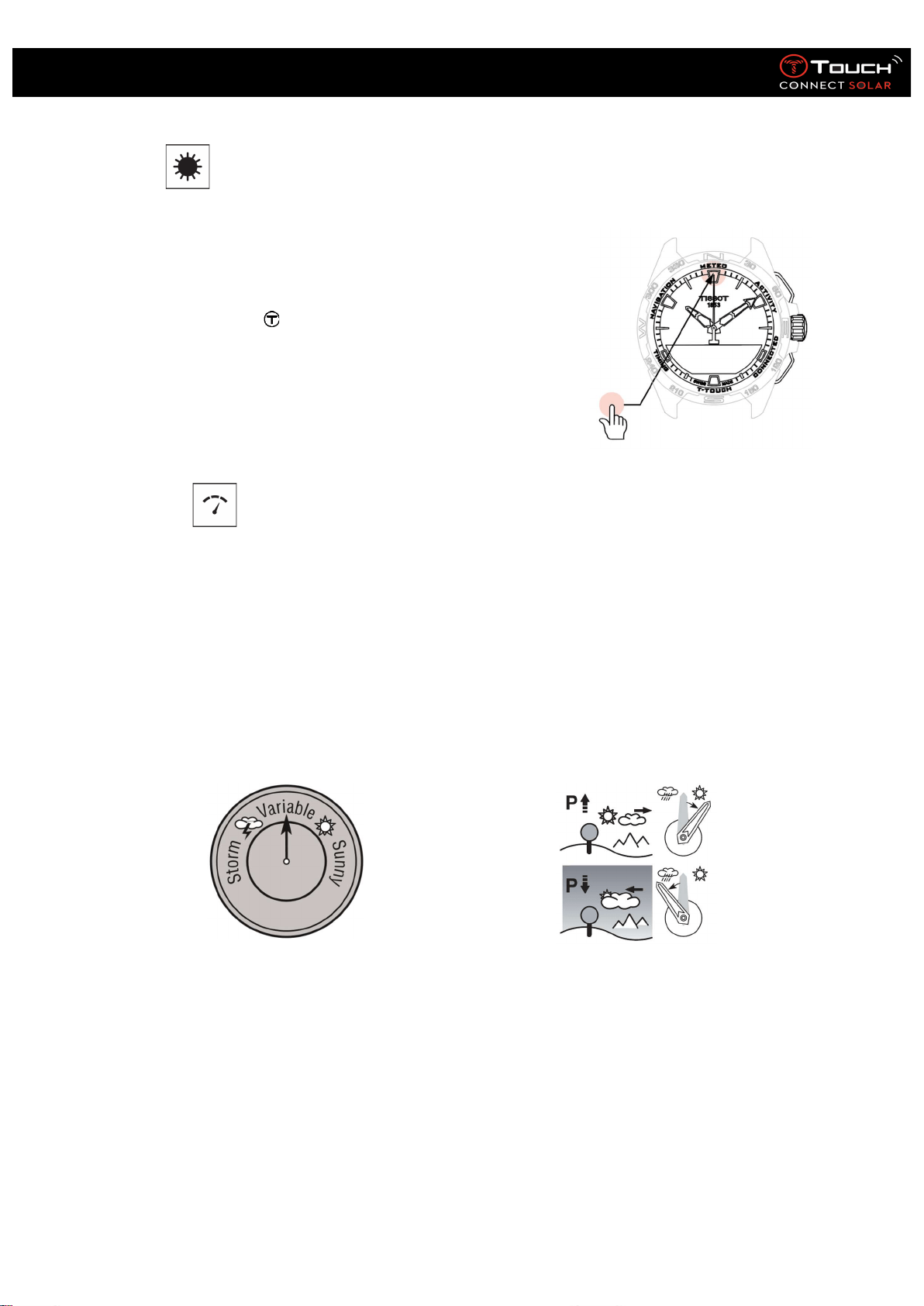
In Meteo mode, the hands are superimposed on each other to indicate the meteorological trend. The
advantage of the barometer is that it enables the relative atmospheric pressure to be displayed. This
relative pressure is displayed in hectopascals.
Changes in the weather are related to variations in atmospheric pressure. When the atmospheric
pressure rises, the sky clears. The area is then referred to as one of “high pressure", or an
“anticyclone”. When the atmospheric pressure falls, the sky clouds over. The area is then referred to
as one of “low pressure” or a “depression”.
The T-Touch Connect Solar watch measures these variations in pressure and indicates the
meteorological trend using hands that can adopt the following 7 positions depending on how
weather conditions are changing:

22.01.2021 18
User’s Manual for the T-Touch Connect Solar
-
6
’: Sharp fall in pressure, rapid deterioration
-4’: Moderate fall in pressure, deterioration likely
-2’: Slight fall in pressure, slight deterioration likely
12h: No appreciable change in the weather
+2’: Slight rise in pressure, slight improvement likely
+4’: Moderate rise in pressure, improvement likely
+6’: Sharp rise in pressure, rapid improvement
The T-Touch Connect Solar programme takes account of the variation in atmospheric pressure over
the last 6 hours in order to calculate the forecast to be displayed. In addition, the variation in
pressure caused by a rapid change in altitude is detected by the watch and compensated for
automatically. It therefore has only a minimal influence on the barometric trend. The T-Touch
Connect Solar’s digital display shows the absolute and relative value of atmospheric pressure in
hectopascals [hPa]. Absolute atmospheric pressure is the actual pressure at the time and place the
measurement is taken, and cannot be modified. Relative pressure is a value as at sea level, based on
the local absolute atmospheric pressure. Barometers and weather maps show relative pressure
values. The relative pressure value depends on the climatic zone set and can be reset within the
watch. Calibration of relative pressure is related to altitude.
Measurement range:
absolute pressure: 250 hPa to 1200 hPa
relative pressure: 950 hPa
to 1100 hPa
Accuracy:
absolute pressure: ± 3 hPa
Relative pressure:
changes with the altimeter
Resolution:
1 hPa
Unit conversion:
1 hectopascal [hPa] = 1 millibar [mb]
Pressing and turning
will give you access to the following
functions:
o Calibrate relative pressure
Adjusting the relative pressure causes the displayed altitude to change. The relative pressure is
intentionally restricted to between 950 hPa and 1,100 hPa.
o ABSOLUTE PRESSURE
Absolute atmospheric pressure is the actual pressure at the time and place the measurement is
taken, and cannot be modified.
To obtain the most accurate barometer readings, you have the option to adjust the hemisphere and
climatic zone based on your geographical location. In the “T-
Touch”/”SETTINGS”/”Calibration”/”ALTIMETER” functions, select your climatic zone either manually
or automatically, using the simplified Koeppen climate classification (see illustration below). If the
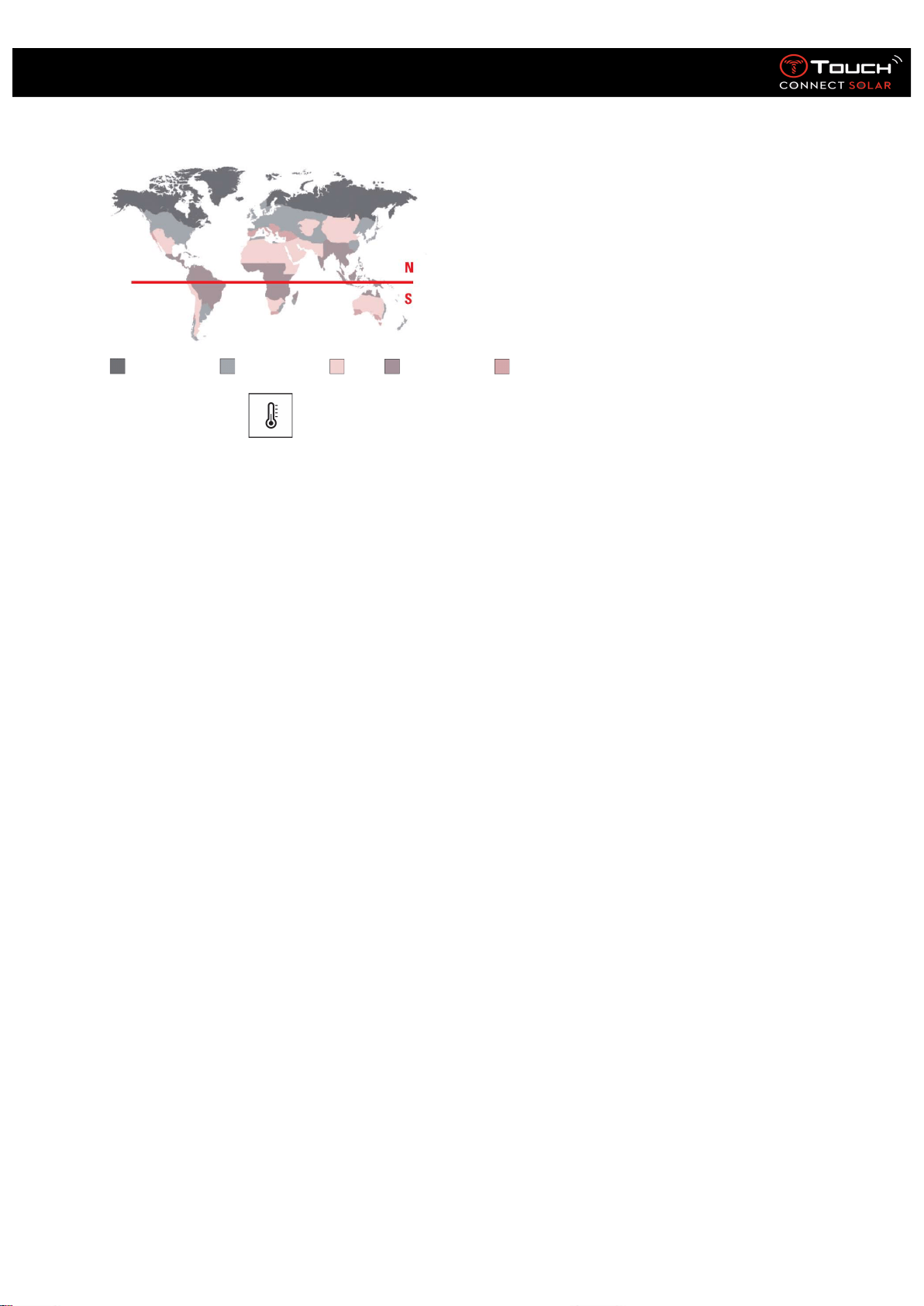
22.01.2021 19
User’s Manual for the T-Touch Connect Solar
watch is not set (“Not Set”), the standard atmosphere model is used: steady temperature at sea level
= 15°C, average pressure at sea level = 1013.25hPa.
Polar Temperate Arid Tropical Mediterranean
o TEMPERATURE
The temperature displayed is the temperature of the watch case. This is, in turn, affected by the
body’s temperature. This is why the temperature displayed may differ from the ambient
temperature.
In order to display the actual ambient temperature, the watch must be removed from the wrist until
no longer affected by the body’s temperature (this takes around 15 to 30 minutes).
The temperature can be displayed in degrees Celsius [°C] or degrees Fahrenheit [°F].
Measurement range:
-
10°C à +60°C
14°F à 140°F
Accuracy:
± 1°C
± 1.8°F
Resolution:
1°C
1°F
22.01.2021 20
User’s Manual for the T-Touch Connect Solar
6. ACTIVITY
To access the “
ACTIVITY
” functions:
Unlock the watch with a long press on START.
Press the “ACTIVITY” touch zone.
Pressing and turning will give you access to the following
functions:
Please note: You can go backwards at any time by using the BACK push-piece.
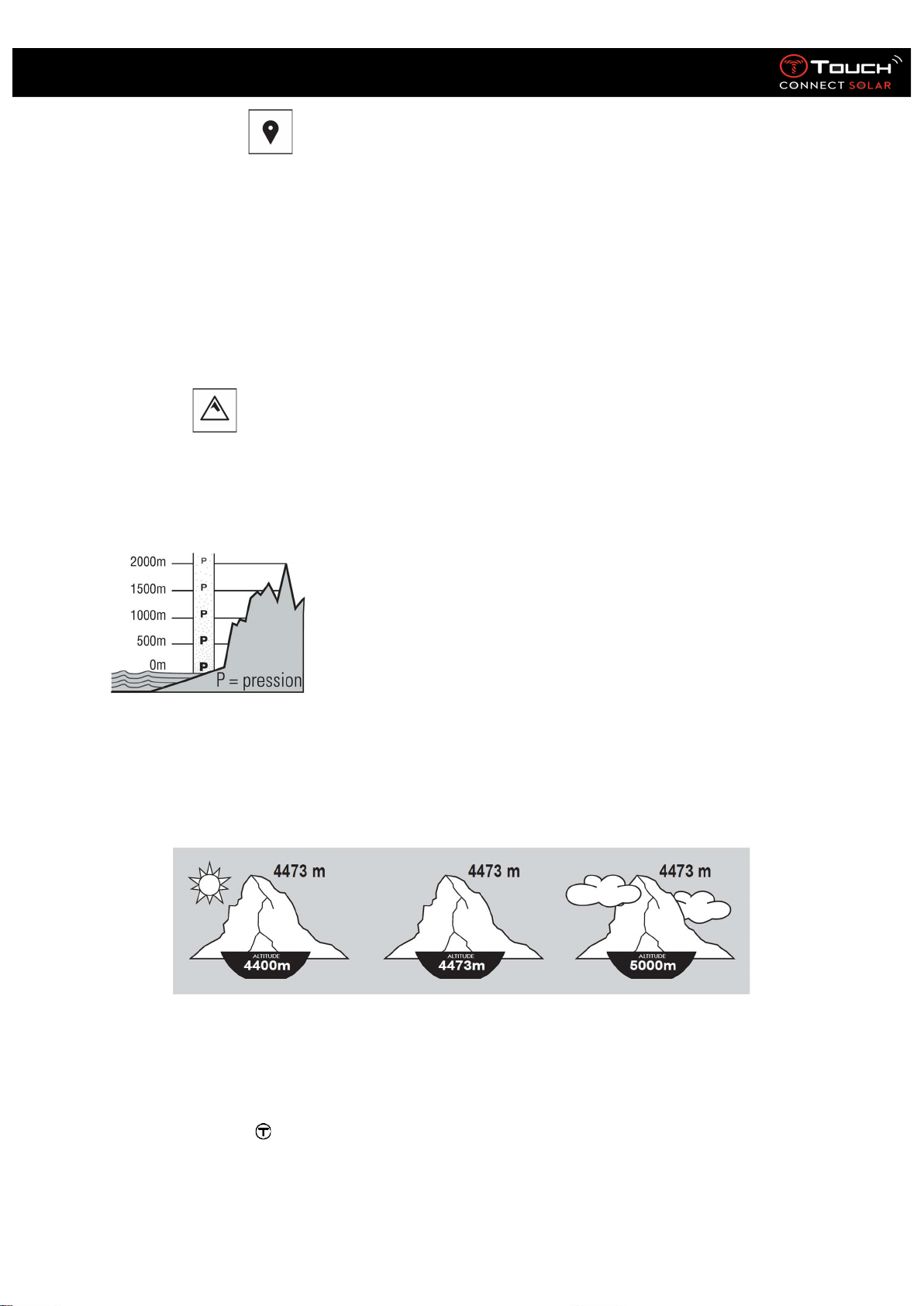
• ACTIVITY TRACKER
In activity tracker mode, the T-Touch Connect Solar measures daily physical activity by counting the
number of steps taken.
These daily data are always calculated by reference to Time 1, and changing Time 1 automatically
causes the daily data to be refreshed.
For more detailed activity tracking, more data are estimated, such as distance covered, number of
calories burned and duration of activity.
Pressing and turning will give you access to the following data:
o STEPS GOAL
The default daily steps goal is 5,000. This figure can be altered by using .
When the day’s goal has been reached, a “goal alert” notification is displayed, accompanied by a
beep or a vibration.
: in paired mode
The “Steps goal” can also be set in the app. In addition, daily activity records can be consulted for up
to 10 years in the app.
o CALORIES
Displays the number of calories burned during the day.
22.01.2021 21
User’s Manual for the T-Touch Connect Solar
o DISTANCE
Displays the distance covered during the day, in kilometres (km) or miles (mi).
o ACTIVITY PERIOD
Displays the duration of the day’s activity.
• ALTIMETER
In altimeter mode, the T-Touch Connect Solar becomes a barometric altimeter and displays the
altitude in relation to the average sea level. The measurement unit used to display the altitude (m or
ft) is the unit that was selected in the watch settings.
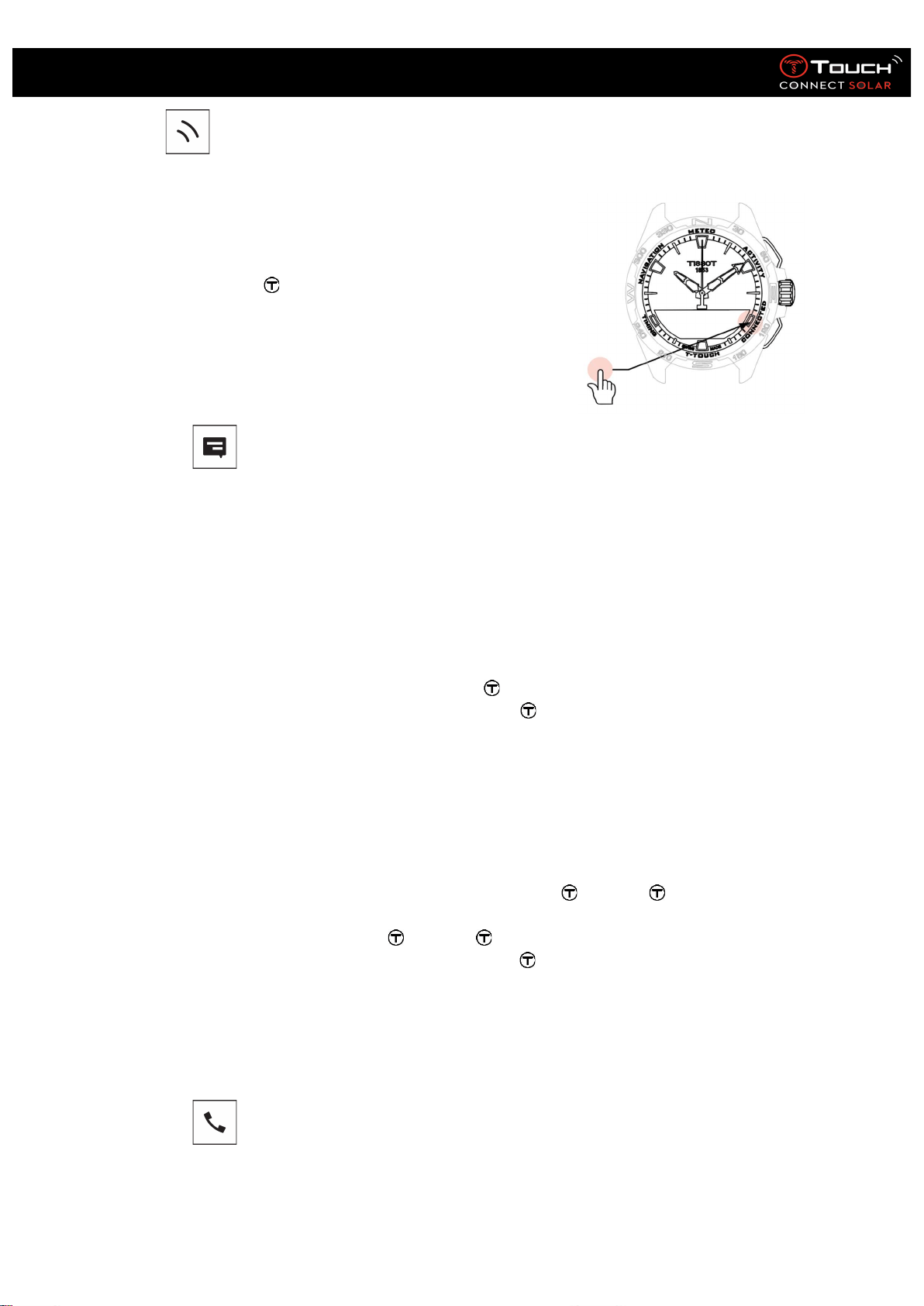
Please note: Because pressure is used to calculate altitude, the altimeter is sensitive to variations in
atmospheric pressure as the weather changes. It is not unusual to observe differences in altitude of
100 m in a single night. The value displayed can thus vary even though the altitude has not actually
changed.
Change in the weather = variation in pressure = change in the altitude displayed
o ALTITUDE? (Altitude calibration)
“Calibrating” an altimeter means setting it to the known altitude at a particular point. You can reset
the altitude by using . True altitude values are displayed in various places: on signposts, and on
contour lines and spot elevations on maps. Altitude must be “calibrated” in relation to the ambient
atmospheric pressure.

22.01.2021 22
User’s Manual for the T-Touch Connect Solar
Measurement range:
-
400 m
to
+9000 m
-
1,312 ft
to
+29,527 ft
Resolution:
1 m
3 ft
Please note: The average pressure at sea level is 1,013.25 hPa.
To obtain the most accurate altimeter readings, you can adjust the hemisphere and climatic zone
based on your geographical location. In the “T-Touch”/”SETTINGS”/”Calibration”/”ALTIMETER”
functions, select your climatic zone either manually or automatically, using the simplified Koeppen
climate classification (see illustration below). If the watch is not set (“Not Set”), the standard
atmosphere model is used: steady temperature at sea level = 15°C, average pressure at sea level =
1013.25hPa.
Polar Temperate Arid Tropical Mediterranean
22.01.2021 23
User’s Manual for the T-Touch Connect Solar
7. CONNECTED
To access the “
CONNECTED
” functions:
Unlock the watch with a long press on START.
Press the “CONNECTED” touch zone.
Pressing and turning will give you access to the following
functions:
Please note: You can go backwards at any time by using the BACK push-piece.
• NOTIFICATION (message, e-mail, reminder, social media)
When the watch is paired with and connected to a smartphone, it can display notifications sent by
the smartphone (message, e-mail, call, social media). The choice of notifications to be sent from the
smartphone to the watch is made in the smartphone settings and depends on the smartphone’s
operating system.
On receipt of a notification, you can:
Open the notification by pressing and turning to scroll through the notification. At the end
of the message, “CLEAR” is displayed, and pressing deletes the notification from the
watch.
To hide the notification, click on the BACK push-piece, and the notification will be stored in
“Notification”.
If you do nothing, the notification remains visible on the MIP screen for 15 seconds, after
which time it is automatically stored in “Notification”.
To read or delete hidden and non-deleted notifications:
When “NOTIFICATION” is displayed, confirm by pressing , and turn to browse through
the various notifications received.
Open a notification by pressing , and turn to scroll through the notification. At the end
of the message “CLEAR” is displayed, and pressing deletes the notification from the
watch.
o CLEAR ALL? (from version 2.0)
• Incoming call
22.01.2021 24
User’s Manual for the T-Touch Connect Solar
On receipt of an incoming call, you can:
Put the watch in silent mode by pressing on the right of the MIP screen or pressing .
Reject the call by pressing on the left of the MIP screen or pressing BACK.
22.01.2021 25
User’s Manual for the T-Touch Connect Solar
• FIND MY PHONE (from V2.0)
If the watch is paired with and connected to a smartphone, it can make the phone ring in order to
help find it if it is hidden.
The "Start" screen will be displayed; activate the ringtone by pressing . If this located the phone,
stop the ringtone by pressing again
Note: if the phone uses an iOS system, the ringtone volume depends on the setting on the phone.
You cannot make the phone ring if it is in silent mode.
• Find my watch (from V2.0)
If the watch is paired with and connected to a smartphone, it is possible to make the watch chime
from the T-Touch Connect app, in order to find it.
22.01.2021 26
User’s Manual for the T-Touch Connect Solar
8. T-TOUCH
To access the “T
-
TOUCH
” functions:
Unlock the watch with a long press on START.
Press the “T-TOUCH” touch zone.
Pressing and turning will give you access to the following
functions:
Please note: You can go backwards at any time by using the BACK push-piece.
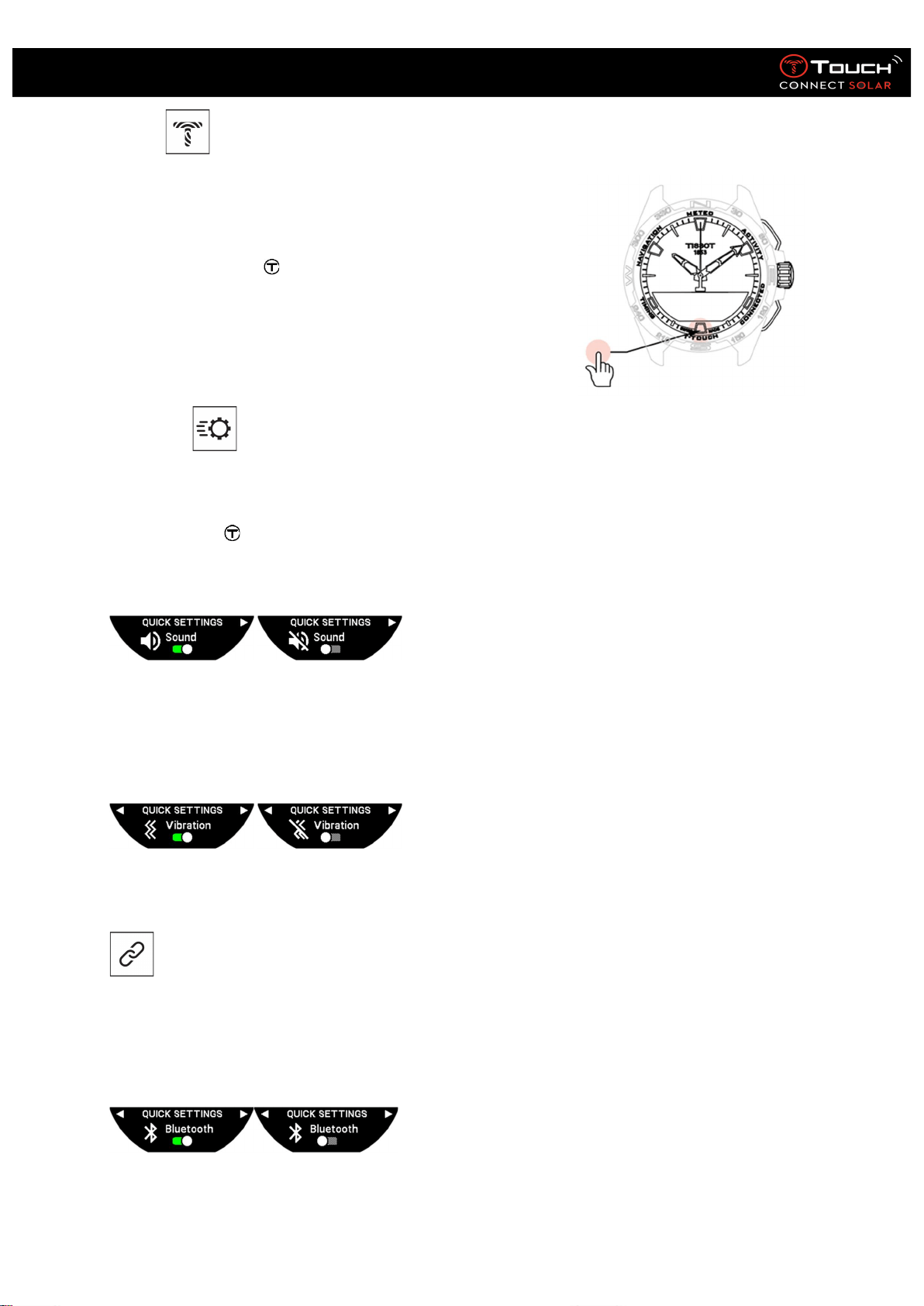
• QUICK SETTINGS
Using quick settings enables you to check some of the watch’s settings more quickly.
Press the crown to activate or deactivate the following quick settings:
o “Sound” (Quick setting of sound)
The watch’s sound alerts are activated or deactivated.
Please note: Alarm and timer sounds remain active regardless of this setting.
o “Vibration” (Quick setting of vibration)
The watch’s vibration alerts are activated or deactivated.
Please note: Alarm and timer vibrations remain active regardless of this setting.
: in paired mode
When the watch is paired with a smartphone, you can control the watch’s Bluetooth® technology
using additional quick settings.
o “Bluetooth” (Quick setting of Bluetooth®)
Activation or deactivation of Bluetooth®.
Please note: The T-Touch Connect Solar is disconnected from the smartphone.
22.01.2021 27
User’s Manual for the T-Touch Connect Solar
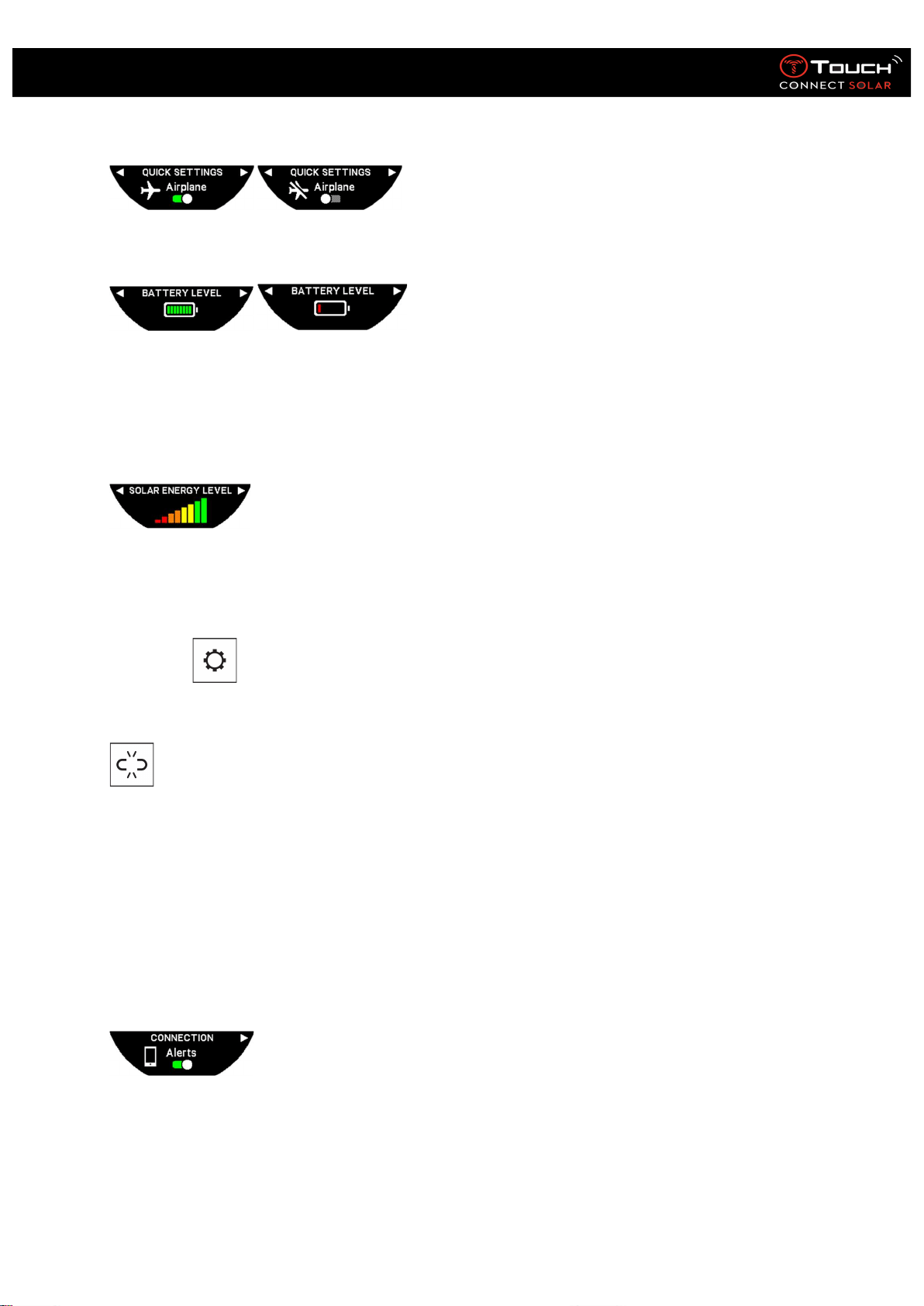
o “Airplane” (Flight mode)
Activation or deactivation of communication functions.
Please note: The T-Touch Connect Solar is disconnected from the smartphone.
o "BATTERY LEVEL" (from version 2.0)
indicates the current battery level.
Note: The battery level is represented by coloured bars. When the watch is fully charged, the battery
level is represented by 8 green bars. When the battery is nearly drained, its level is represented by a
red bar.
o "SOLAR ENERGY LEVEL" (from version 2.0)
indicates the current solar energy level received by the watch.
Note: The energy level is represented by coloured bars. The full scale corresponds to exposure to
sunlight.
• SETTINGS
o “Pair with phone”
: available only in unpaired mode
When the watch is operating in unpaired mode, you have the option to pair it with your phone at any
time.
Please note that data stored in the watch will be deleted if you confirm this option.
Please note: It is necessary for the latest version of the Tissot T-Connect app to be installed on your
phone.
o “Connection” (Connection settings)
In this sub-menu, you can adjust the settings for connecting the watch to the phone.
“Alerts” (Connection alerts)
Activation or deactivation of communication alerts.
Please note: If this setting is active, the watch will notify you each time it connects to or disconnects
from the phone.
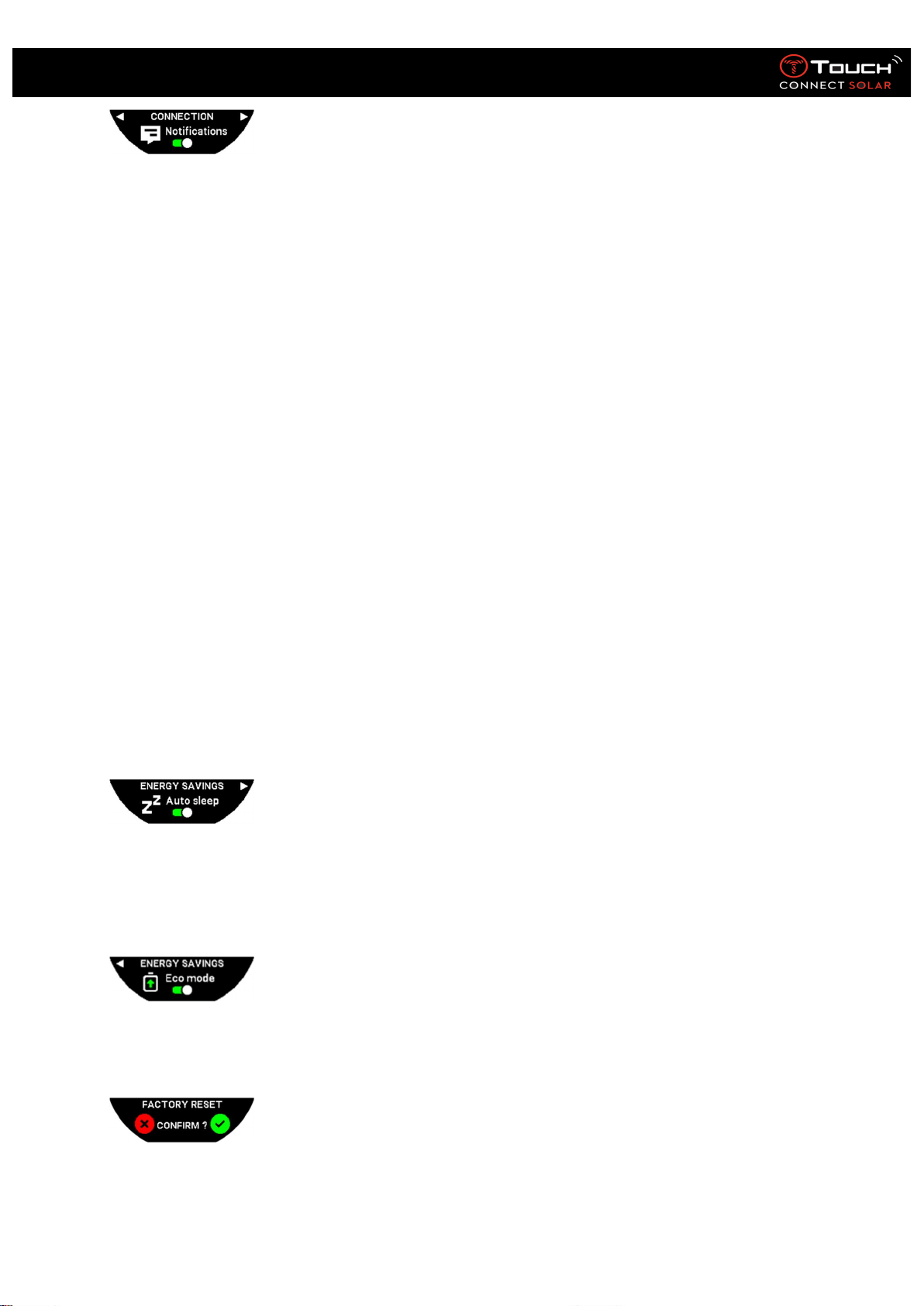
“Notifications”
22.01.2021 28
User’s Manual for the T-Touch Connect Solar
Activation or deactivation of receipt of notifications from the phone.
Please note: If this setting is active, the watch will not receive notifications from the phone.
“Unpair from phone” (Disconnect the watch from the phone)
This action disconnects the watch from your phone and does not allow synchronisation of your data
in the Tissot T-Connect app.
o System
In the “System” sub-menu, you can adjust the watch’s system settings.
Time (Date and time)
In the “Time” sub-menu, you can adjust all the watch’s date and time settings, such as the date and
time display format, and the first day of the week.
Password
In the “Password” sub-menu, you can manage the watch’s password. When the password is
activated, the watch automatically locks itself when disconnected from the phone or if you press
simultaneously on the “START” and “BACK” push-pieces.
Sounds
In the "Sounds" sub-menu, you can set the acoustic and vibration signals for notifications and for
browsing through the watch's menus.
Please note: Alarm and time sounds and vibrations are always active regardless of this parameter.
Units
In the “Units” sub-menu, you can adjust all the watch’s units.
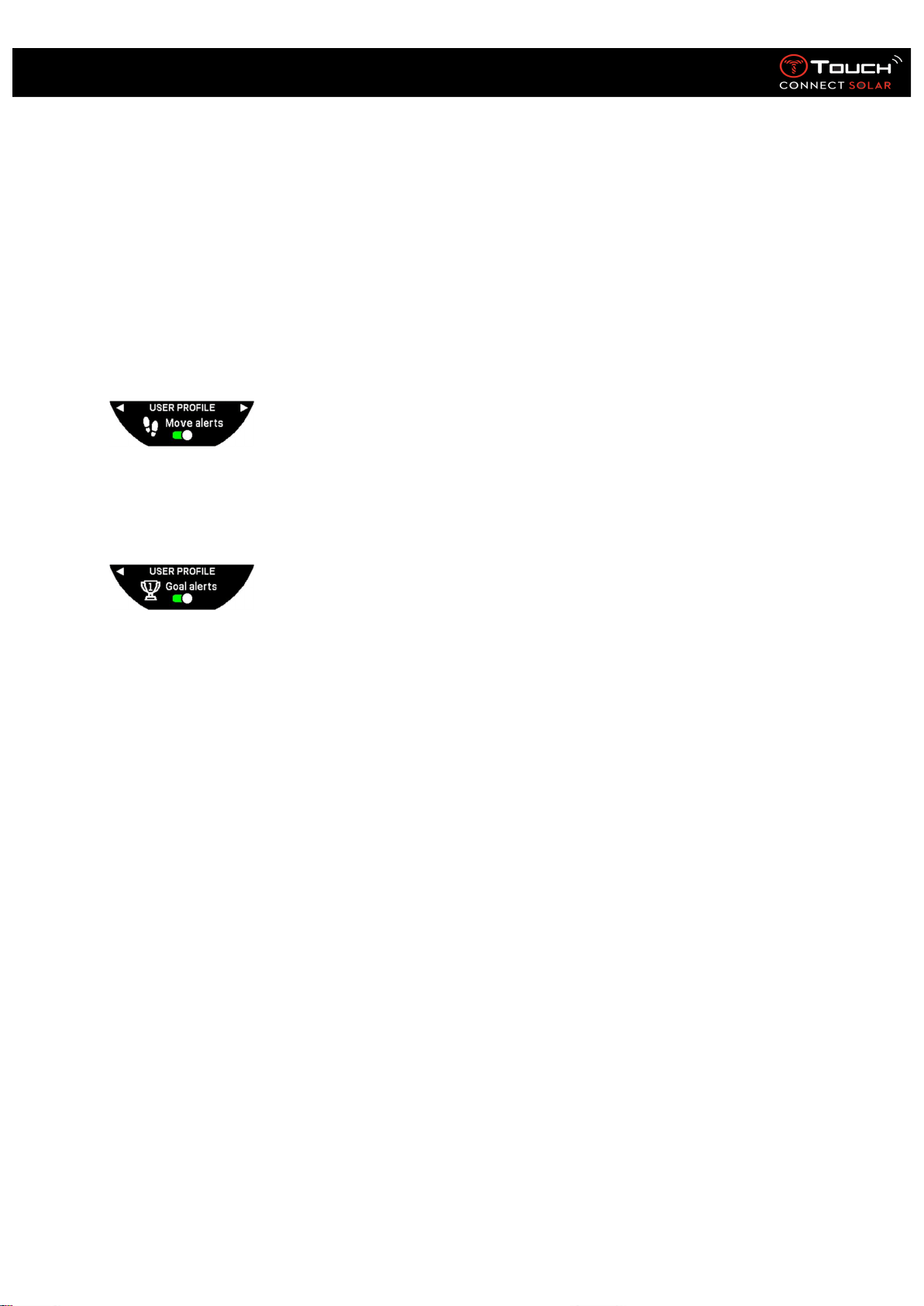
Energy saving
The "Energy savings" sub-menu enables you to manage your watch's consumption.
Activation and deactivation of “Auto sleep” mode (Automatic sleep mode)
Please note: When this mode is activated, the watch automatically enters sleep mode when it has
not been worn for at least 2 hours. When the watch is in sleep mode, the hands are stopped and the
screen, backlighting and Bluetooth® are turned off to save energy.
You can enter this mode manually by selecting “Enter in sleep. »
Activation and deactivation of “Eco mode”
This mode increases battery life by reducing battery output. For example, the connection with your
phone is slower and vibration and backlighting are deactivated.
Restore to factory settings
You can restore the watch to its factory settings from this sub-menu.
22.01.2021 29
User’s Manual for the T-Touch Connect Solar
Please note: If you opt to restore the factory settings, all data not yet synchronised with the Tissot
T-Connect mobile app will be lost. The connection with your phone will be deleted and you will have
to remove your watch from your phone’s connection settings if you wish to initiate the connection
procedure again.
o User profile
In the “User profile” sub-menu, you can change all your user profile details as well as the alert
reception settings.
"Language" (from V3.1)
You can change the watch language to English, French, German, Italian, Spanish or Chinese.
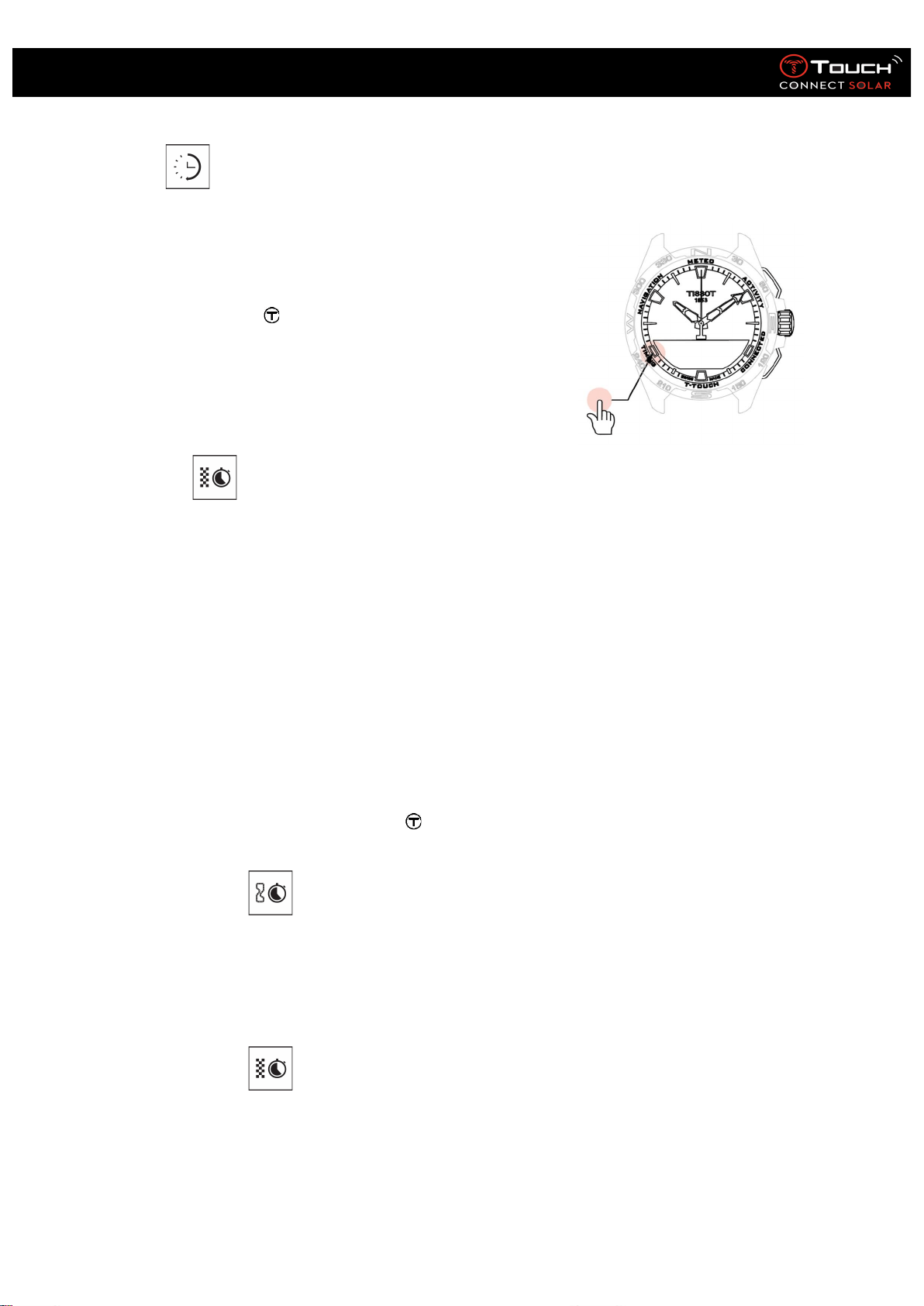
“Move alerts”
Activation and deactivation of reception of alerts when you are not moving
enough.
Please note: If you have not been moving enough for a period of time, the watch issues an alert
prompting you to move.
“Goal alerts”
Activation and deactivation of reception of alerts when you reach the goal you
have set for a daily number of steps.
o Calibration
In the “Calibration” sub-menu, you can calibrate and adjust all the watch’s sensors and motors.
“Compass”
To maximise compass accuracy, you can adjust the correct magnetic declination value (for place and
date), either automatically or manually. You can also calibrate the compass as explained in the
“NAVIGATION/Compass” chapter.
“Barometer”
To obtain the most accurate barometer readings, you have the option to adjust the hemisphere and
climatic zone based on your geographical location.
“Altimeter”
To obtain the most accurate altimeter readings, you can adjust the hemisphere and climatic zone
based on your geographical location.
“Motors”
When the watch hands are no longer showing the correct time, you can calibrate the motors
automatically from this sub-menu. This synchronisation takes place automatically every night.
o About
In the “About” sub-menu, you can obtain full details about the watch.
22.01.2021 30
User’s Manual for the T-Touch Connect Solar
9. TIMING (Timing and Alarm)
To access the “
TIMING
” (Timing and Alarm) functions:
Unlock the watch with a long press on START.
Press the “TIMING” touch zone.
Pressing and turning will give you access to the following
functions:
Please note: You can go back at any time by using the BACK push-piece.
• CHRONO (Timing)
In “CHRONO” mode, various types of timing are available in addition to basic timing, such as lap
timing and intermediate timing.
Activation of timing functions:
Give the “START” push-piece a short press to start the timer
Give the “BACK” push-piece a short press to enter an intermediate time (e.g. lap time or
arrival of first runner)
Give the “START” push-piece a short press to stop the timer (e.g. end of last lap or arrival of
last runner)
Give the “START” push-piece a short press to reset the timer to zero
To choose between Lap Timing and Intermediate Timing:
Select “Set mode” by pressing and turning . You will now have access to “Set mode”, enabling you
to choose between timing types, and “LOGBOOK”, for the most recent times recorded.
o CHRONO LAP (Lap timing)
The Lap Timing function is a timer for measuring lap time for a single runner, vehicle, etc. Maximum
measurement limit: 99 days 23 hours 59 mins 59 secs.
o CHRONO SPLIT (Intermediate timing)
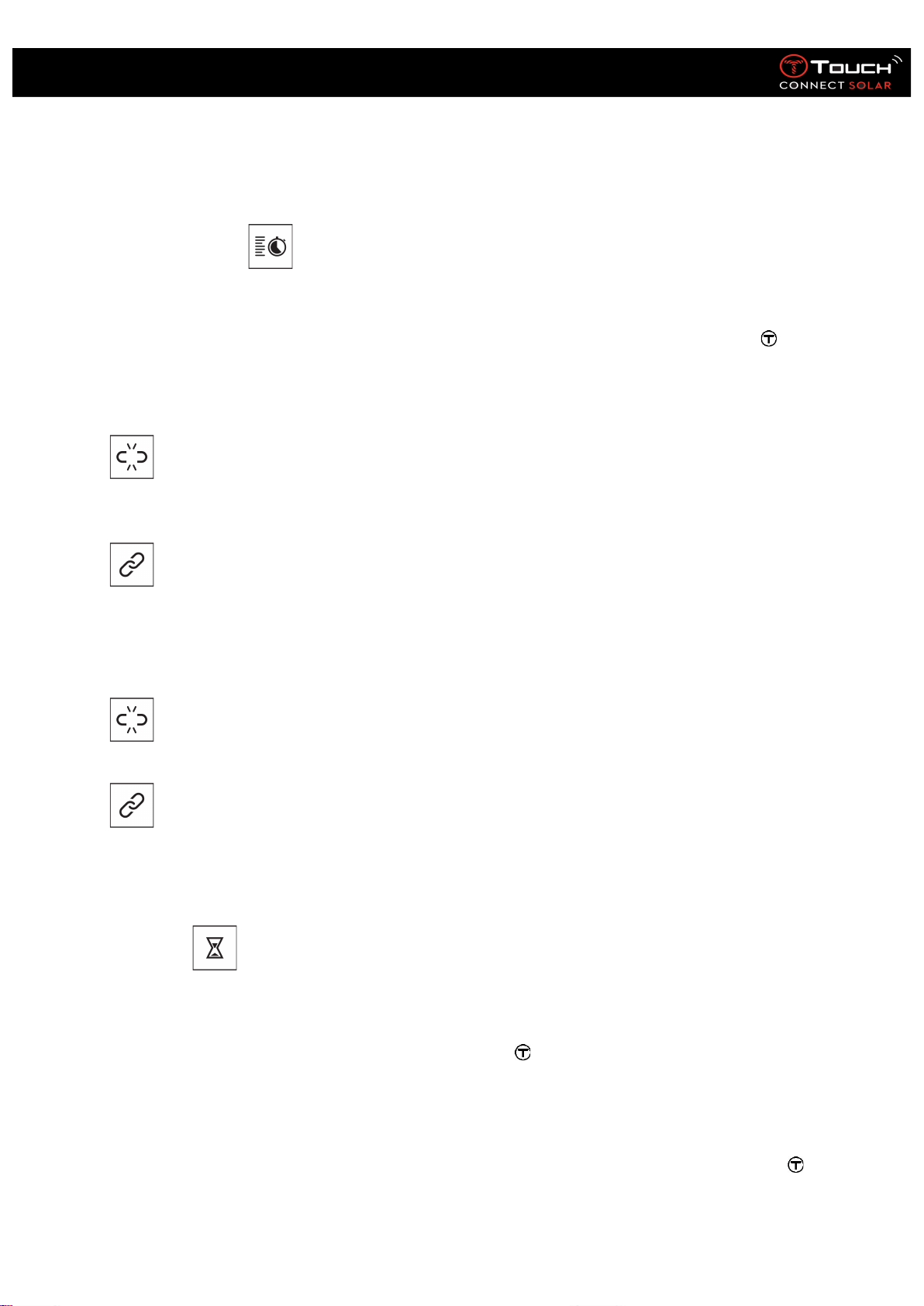
22.01.2021 31
User’s Manual for the T-Touch Connect Solar
The Intermediate Timing function is a timer for measuring the total duration of a race for up to
99 runners or vehicles participating in the same timed event. For example: measuring the arrival time
of several runners in a 100-metre race.
o LOGBOOK
Regardless of the type of pairing, the “LOGBOOK” function gives you access to the last timing taken,
as well as some statistics specific to the type of timing. To access these details, press and turn .
Please note: The stored data is deleted when you start a new timing from zero.
Reading stored lap time data:
: in unpaired mode, all times measured by the lap timing function are stored and can be
displayed on the watch in the “LOGBOOK” function, together with statistics of the total race duration
and the fastest, slowest and average lap times.
: in paired mode, you will also find the most recent times recorded on the T-Touch Connect
app. Under the History heading, you will also have access to the most recent timings taken.
Reading stored intermediate time data:
: in unpaired mode, all timings measured by the intermediate timing function are stored and
can be displayed on the watch in “LOGBOOK” function.
: in paired mode and with the timer reset to zero, you can see the latest timings recorded on
the T-Touch Connect app. Under the History heading, you will also have access to the most recent
timings taken.
• TIMER (Countdown)
The “TIMER” function enables you to start a countdown of up to 23 hours 59 mins 59 secs.
To adjust the countdown duration, press and turn
Give the “START” push-piece a short press to confirm
An acoustic signal will sound at the end of the countdown
Stop the audible signal by pressing the "X" symbol on the left of the MIP screen, or press
BACK
Restart the timer by pressing the "reload" symbol on the right of the MIP screen, or press
22.01.2021 32
User’s Manual for the T-Touch Connect Solar
: in paired mode, the countdown settings can be adjusted and countdown initiated from the
T-Touch Connect app.
• ALARM
The T-Touch Connect Solar watch has an Alarm function. An alarm can recur at various intervals. You
can programme 30 different alarms.
o Setting an alarm
: in unpaired mode, the setting is made from the watch only:
Press
“ADD ALARM”
Press
Use to enter the alarm time, then confirm
Use to specify the recurrence:
ONCE:
the alarm will sound once only
WEEKDAY:
the alarm will sound every weekday (Monday to Friday)
EVERY DAY:
the alarm will sound every day (Monday to Sunday)
PERZONALIZED:
the alarm will sound on the days of the week selected by the user, by
pressing and turning to select the required day(s)
: in paired mode, alarms can also be set and adjusted directly from the T-Touch Connect app.
When the alarm sounds you can either turn it off or set it to snooze, in which case the alarm will be
repeated 5 minutes later. Please note: a maximum of 3 snoozes is possible.
To stop the alarm: press “X” or press BACK
To snooze the alarm: press “ZZ” or press START
o Change, activate or deactivate an alarm
: in unpaired mode, the setting is made from the watch only:
Press
Use to select the alarm to be changed
Using gives you three options:
22.01.2021 33
User’s Manual for the T-Touch Connect Solar
“Enable”/”Disable”? : To activate or deactivate the alarm
“Modify?»: To change the alarm
“Delete?»: To delete one alarm or all of them
: in paired mode, alarms can also be changed directly from the T-Touch Connect app.
22.01.2021 34
User’s Manual for the T-Touch Connect Solar
10. NAVIGATION
To access the “
NAVIGATION
” functions:
Unlock the watch with a long press on START.
Press the “NAVIGATION” touch zone.
Pressing and turning will give you access to the following
functions:
Please note: You can go backwards at any time by using the BACK push-piece.
• COMPASS
In Compass mode the watch indicates magnetic north. Other display modes are available, such as indication of
geographic north or azimuthal direction.
Explanations:
On a geographical map of the world, the vertical lines (meridians) converge towards the Geographic North
Pole (gN), thus indicating its direction. The needle on a standard compass, which is often red, points towards
the North Magnetic Pole (mN). The angle (α) between these two directions, gN and mN, is called the magnetic
declination. The value of the magnetic declination thus depends on where you are on the globe.
In addition, the North Magnetic Pole is constantly shifting. The magnetic declination value thus also depends
on the date. When the correct (for location and date) magnetic declination value is set, either automatically or
manually (see setting procedure under the “T-Touch” heading), the T-Touch Connect Solar’s minute hand
points towards geographic north (gN). When magnetic declination is reset to zero, the watch points to
magnetic north (mN).
Magnetic declination values and dates are shown on topographical maps or can be looked up in dedicated
software packages available online.
For the whole world: www.ngdc.noaa.gov/geomag/calculators/magcalc.shtml
22.01.2021 35
User’s Manual for the T-Touch Connect Solar
Accuracy: ± 8°
Resolution: 1°
Note 1:
For the most accurate indication of North, hold the watch as nearly horizontal as possible.
Note 2:
The compass function, like any other compass, should not be used near any metallic or magnetic
body, and should preferably be used outdoors. If in doubt, you can recalibrate the compass.
Pressing and turning will give you access to the following compass settings:
“Set Mode”
Three types of indication are available: « Magn. North” (magnetic north), “True north” (geographic
north) and “Azimuth” (azimuthal direction). Select the desired indication by pressing and turning .
Please note: In “Azimuth” mode, the T-Touch Connect Solar indicates the azimuthal direction
(course) you need to follow.
“Set azimuth”
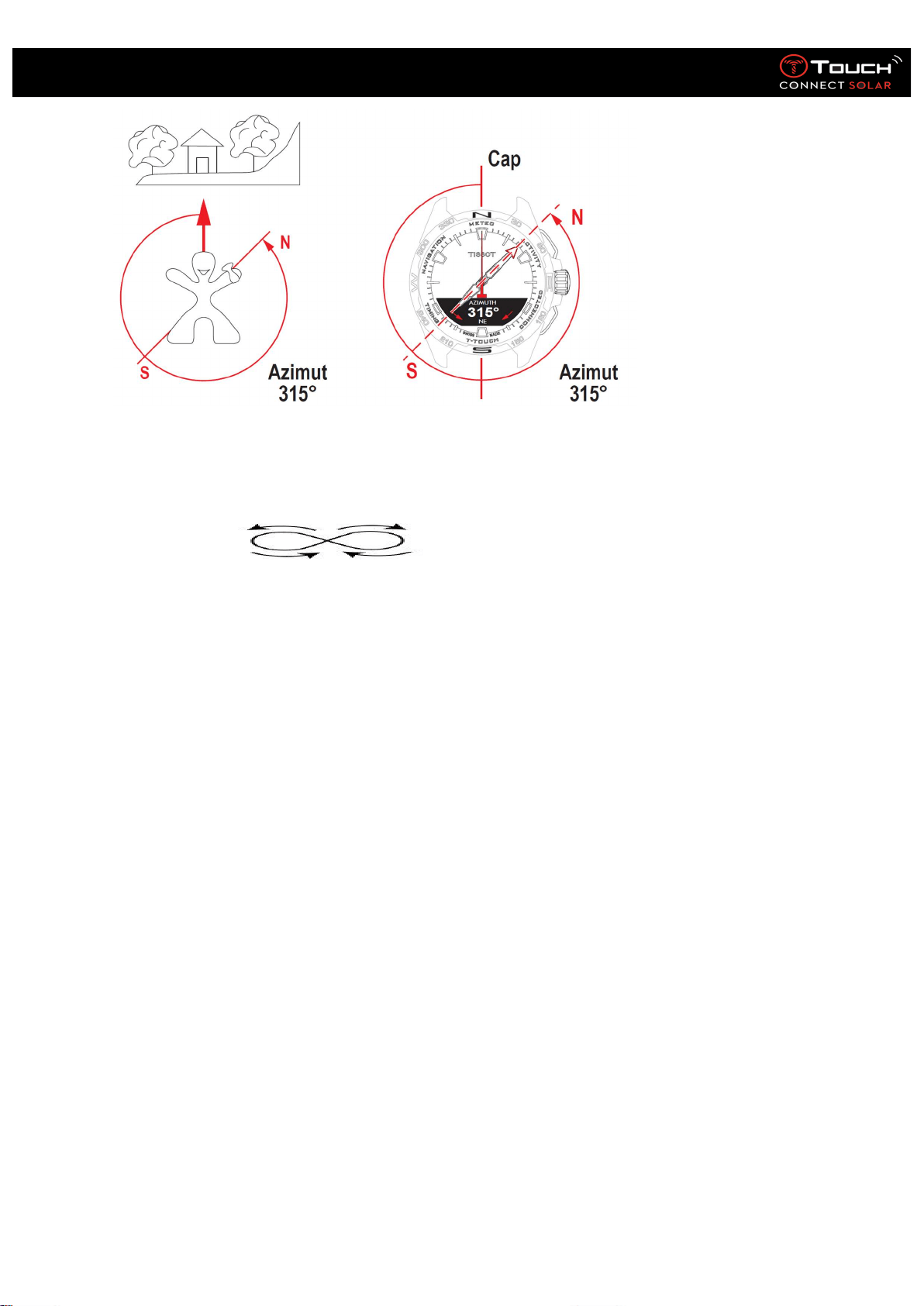
The azimuth is the horizontal angle between the direction of an object (course) and geographic
north. The azimuth is measured from the north in degrees, from 0° to 359°, and can be adjusted by
pressing and turning . When using the compass in azimuth mode, red arrows on the MIP screen
show you the direction in which to turn the watch so that the second hand points in the programmed
azimuthal direction (course).
In azimuth mode, the T-Touch Connect Solar emits an acoustic signal and displays a visual signal
(“Go”) when the watch’s 6 o’clock-12 o’clock axis is aligned with the azimuthal direction set. The
direction of the minute hand represents the azimuth direction in relation to geographic north, while
the direction of the hour hand represents geographic north.
22.01.2021 36
User’s Manual for the T-Touch Connect Solar
“Calibrate”
Various factors affect compass function’s precision, and therefore it may be necessary to recalibrate
the compass. For accurate calibration, ensure you are outdoors and well away from any metallic or
magnetic body. You now have 60 seconds in which to move your wrist fairly rapidly in a
figure-of-eight until you hear a little beep or see “Calibrated”
displayed on the MIP screen, indicating that calibration is complete. If “Calibration is unsuccessful”
appears on the MIP screen, the calibration operation has failed and you need to re-initiate it.
Please note: For accurate calibration, the watch should not be kept horizontal during the
figure-of-eight movements, and it is not necessary to execute a perfect figure-of-eight, the most
important thing being for the watch to move within its environment.