2
Read this first
Before operating this unit, please read this manual thoroughly, and retain it for future
reference.
Precautions when using the
camcorder
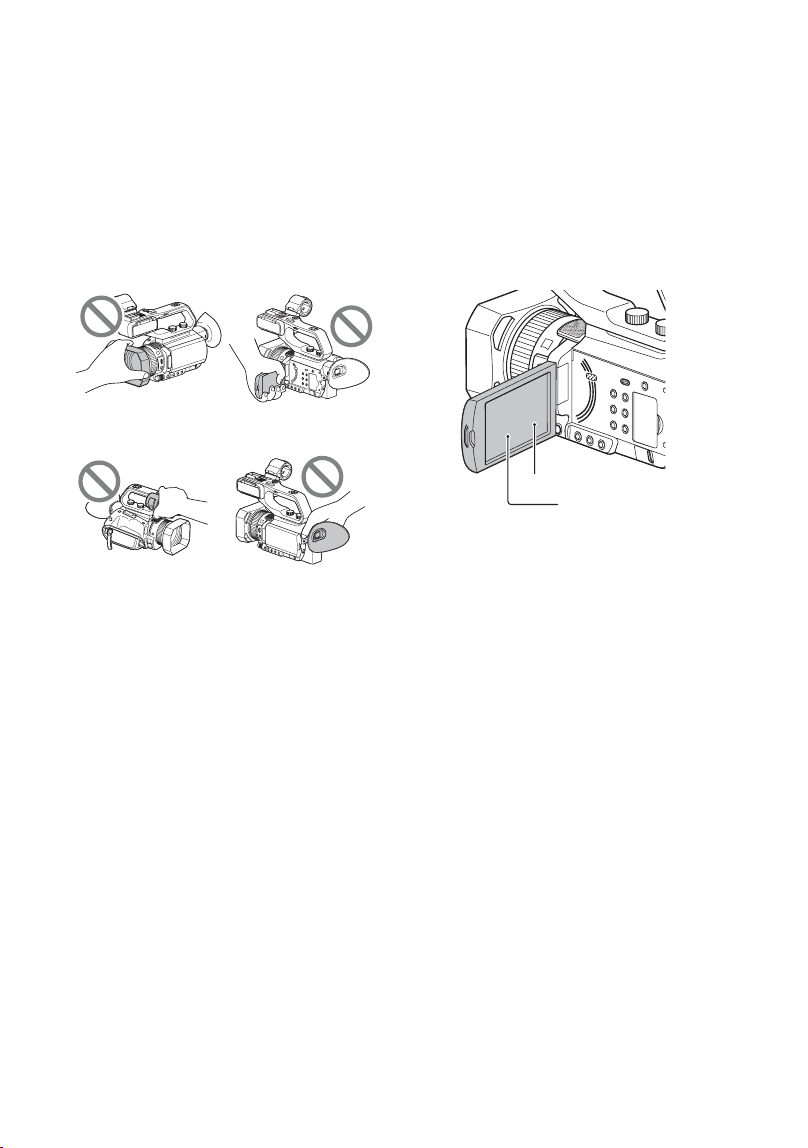
• Do not hold the camcorder by the following
parts, and also do not hold the camcorder by the
jack covers.
b Notes
• The camcorder is not dustproof, dripproof or
waterproof. See “About handling of your
camcorder” (p. 153).
• When connecting the camcorder to another
device with communication cables, be sure to
insert the connector plug in the correct way.
Pushing the plug forcibly into the terminal will
damage the terminal and may result in a
malfunction of the camcorder.
• Use the camcorder in accordance with the
regulations of the place where you use it.
On the LCD screen and lens
• A menu item that is grayed out is not available
under the current recording or playback
conditions.
• The LCD screen is manufactured using
extremely high-precision technology, so over
99.99% of the pixels are operational for
effective use. However, there may be some tiny
black points and/or bright points (white, red,
blue, or green in color) that appear constantly on
the LCD screen. This is not a malfunction.
These points are normal results of the
manufacturing process and do not affect the
recording in any way.
On sunlight
• Do not record the sun or leave the camcorder
under the sun for a long time. The internal parts
of the camcorder may be damaged. If sunlight is
focused on a nearby object, it may cause a fire.
• Do not expose your camcorder’s viewfinder,
lens, or LCD screen to the sun or strong light
source for extended periods. Doing so may
cause a malfunction of the camcorder.
• Do not attempt to record the sun directly. Doing
so may cause a malfunction of the camcorder.
• Do not expose the lens to beams, such as laser
beams.
That may damage the image sensor and cause
the camera to malfunction.
On the temperature of your camcorder
and battery pack
Your camcorder has a protective function that
disables recording or playback if the temperature
of your camcorder or battery pack is beyond the
safely operable range. In this case, a message
appears on the LCD screen or in the viewfinder
(p. 139).
On recording
• In order to stabilize memory card operation, it is
recommended that you format the memory card
ViewfinderMicrophone (sold
separately) or
Microphone holder
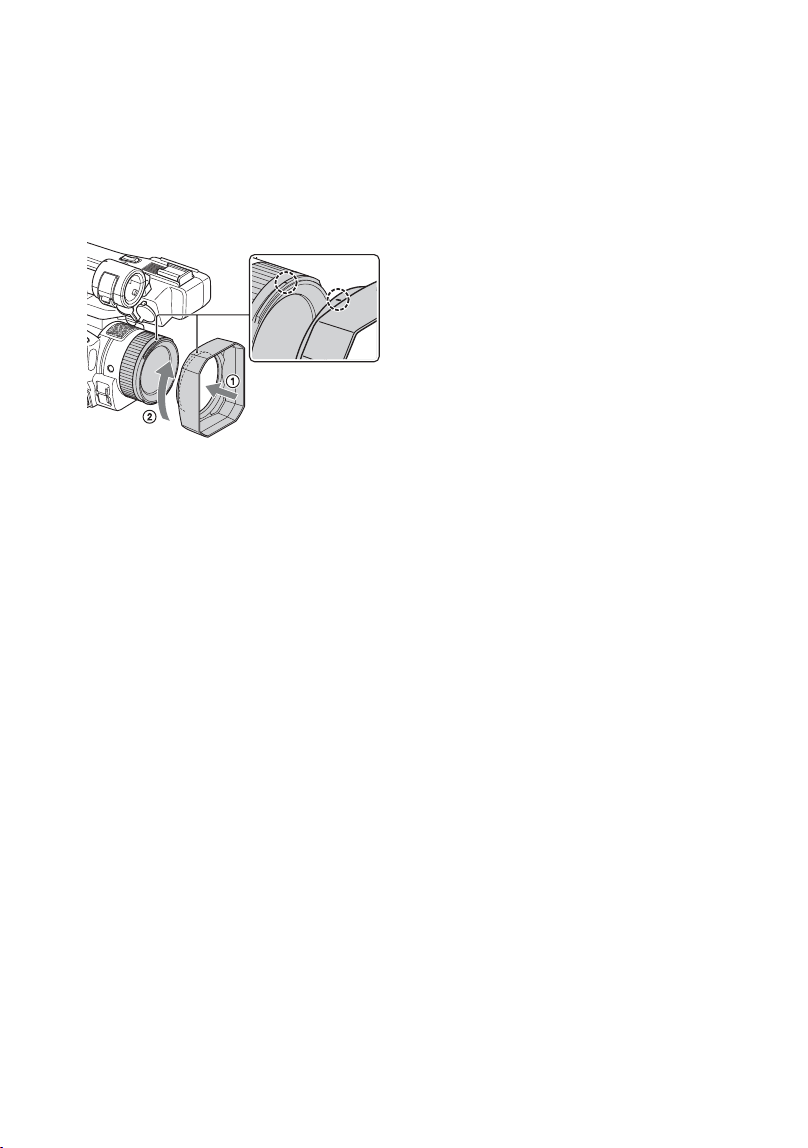
Lens hood LCD screen
White, red, blue or green point
Black point

3
when you use it with your camcorder for the
first time. All data recorded on the memory card
will be erased by formatting, and cannot be
recovered. Save important data on the memory
card on other media, such as a computer, before
formatting the memory card.
• Before starting to record, test the recording
function to make sure the picture and sound are
recorded without any problems.
• Compensation for the loss of the content of
recordings or the loss of recording opportunities
cannot be provided, even if recording or
playback is not possible due to a malfunction of
the camcorder, storage media, etc., or even if
images or sounds are distorted due to the limits
of the capabilities of the camcorder.
• TV color systems differ depending on the
countries/regions. To view your recordings on a
TV, a TV of the appropriate color system for the
country/region is required.
• Television programs, films, video tapes, and
other materials may be copyrighted.
Unauthorized recording of such materials may
be contrary to the copyright laws.
• Because of the way that the image device
(CMOS sensor) reads out image signals, the
following phenomena may occur.
– The subjects passing by the frame rapidly
might appear crooked depending on the
recording conditions. (This phenomenon may
be notable in displays having high motion
resolution.)
– Horizontal lines appear on the LCD screen
during recording under fluorescent lights,
sodium lamps or mercury lamps. The
phenomena can be reduced by adjusting the
shutter speed (p. 44).
Save all your recorded image data
• To prevent your image data from being lost,
save all your recorded images periodically.
To handle the recorded images on
your computer
Download software (p. 19).
Format the memory card using
[MEDIA FORMAT] if images are not
recorded or played back properly
If you continue recording and deleting images on
a memory card for a long period of time, the files
on that memory card may become fragmented. As
a result, you may not be able to record and save
images properly. If this happens, save images on a
PC, then format the memory card (p. 93).
About the operation of the camcorder
You can operate the camcorder using the v/V/b/
B/SET buttons (p. 95), and the touch panel.*
However, you cannot use the touch panel to make
some settings, such as the MENU items.
* Some operations are possible only with the
touch panel.
About this manual
• The on-screen display in English is used for
illustrating the operating procedures. Change
the screen language before using your
camcorder if necessary.
• The value you can set in [REC FORMAT], etc.,
depends on the [60i/50i SEL] setting. In this
manual, the values for both [60i] and [50i]
settings are described.
• Design and specifications of recording media
and other accessories are subject to change
without notice.

4
Table of Contents
Read this first ........................................................................................... 2
Identifying Parts and Controls
Identifying Parts and Controls ..................................................................8
Body ..................................................................................................... 8
Wireless Remote Commander ............................................................ 16
Screen Indicators ................................................................................... 17
Getting Started
Step 1: Checking supplied accessories ................................................. 19
Step 2: Charging the battery pack ......................................................... 21
Step 3: Attaching the accessory shoe .................................................... 23
Step 4: Turning on the camcorder and setting the date and time .......... 24
Turning on the camcorder .................................................................. 24
Setting the date and time ................................................................... 24
Step 5: Adjusting the LCD screen and viewfinder .................................. 26
Using the LCD screen ........................................................................ 26
Adjusting the viewfinder diopter ......................................................... 26
Step 6: Preparing the recording media .................................................. 27
Supported memory cards .................................................................. 27
Inserting a memory card .................................................................... 29
Recording
Recording ............................................................................................... 30
Recording ........................................................................................... 30
Continuous recording on the memory cards (Relay Rec) .................. 31
Recording movies using both memory card A and B (Simul Rec) .... 32
Changing the START/STOP button/handle record button setting ...... 32
Adjusting the zoom ............................................................................. 33
Adjusting the focus ................................................................................. 35
Adjusting the focus manually ............................................................. 35
Adjusting the focus automatically ...................................................... 35
Adjusting the focus while tracking a selected subject
(Lock-on AF) ....................................................................................... 38
Focusing using the focus magnifier ................................................... 38
Focusing by touching the LCD screen (Spot Focus) ......................... 39
Focusing on a detected face (Face Detection) .................................. 39
Selecting the file format and recording format ....................................... 41
Setting the file format and recording format ....................................... 41
Setting the output destination when recording in 4K mode ............... 41
Proxy recording ...................................................................................... 42

5
Notes on proxy recording .................................................................. 42
Proxy recording .................................................................................. 42
Adjusting the brightness .........................................................................43
Adjusting the iris ................................................................................ 43
Adjusting the ISO sensitivity/gain ...................................................... 44
Adjusting the shutter speed ............................................................... 44
Adjusting the exposure ...................................................................... 45
Adjusting the light level (ND Filter) ..................................................... 45
Adjusting the color tone ..........................................................................46
Adjusting the white balance ............................................................... 46
Using Direct Menu ..................................................................................48
Audio setup ............................................................................................50
Recording sound from the internal microphone ................................ 50
Recording sound from an external audio device ............................... 50
Recording sound from a Multi Interface Shoe compatible
microphone (sold separately) ............................................................ 51
Recording sound from an external microphone (sold separately) .... 52
Adjusting the audio level from the INPUT1 and INPUT2 jacks .......... 52
Adjusting the audio level from the internal microphone or an external
microphone (sold separately) ............................................................ 52
Useful functions ......................................................................................53
Selecting suitable settings automatically (auto mode setting) ........... 53
Shooting in dimly lit locations (LOW LUX) .......................................... 54
Shooting in dark conditions (NIGHTSHOT) ........................................ 54
Customizing the picture quality (Picture Profile) ................................ 54
Shooting in high dynamic range (HDR) ............................................. 56
Setting time data ................................................................................ 58
Recording with the Slow & Quick Motion function ............................. 59
Slow-motion recording at high frame rate (HFR) ............................... 60
Recording with the Super Slow Motion function ................................ 60
Reviewing the most recently recorded scene (Last Scene
Review) .............................................................................................. 62
Assigning functions to the ASSIGN buttons ...........................................63
Playback
Playback .................................................................................................64
Playback ............................................................................................ 64
Changing/checking the settings in your camcorder ................................66
Changing the screen display ............................................................. 66
Displaying recording data (Data Code) ............................................. 66
Checking the settings in your camcorder (Status Check) ................. 67
Connecting to a monitor or a TV ............................................................68
Output signal formats ......................................................................... 69
Continued ,

6
Using Network Functions
Using with a Smartphone ....................................................................... 73
Downloading “Content Browser Mobile” ............................................ 73
Using a smartphone as a remote controller ....................................... 73
Connecting the camcorder to an Android smartphone equipped with
the NFC function using One-touch ..................................................... 74
Connecting without using the NFC function (Android) ....................... 75
Connecting without using the NFC function (iPhone/iPad) ................ 75
Configuring a wireless LAN .................................................................... 76
Selecting and registering an access point ......................................... 76
Registering an access point using the WPS function ........................ 77
Registering an access point using the WPS PIN method .................. 78
Registering an access point manually ............................................... 79
Changing the device name ................................................................ 80
Configuring a wired LAN ........................................................................ 81
Using the streaming function (STREAMING) ......................................... 82
Streaming formats .............................................................................. 82
Configuring streaming (preset registration) ....................................... 82
Streaming distribution ........................................................................ 82
Streaming movies using USTREAM ...................................................... 84
Configuring USTREAM authentication ............................................... 84
Configuring using the menu ............................................................... 85
Starting USTREAM ............................................................................. 85
Stopping USTREAM ........................................................................... 86
Synchronizing the timecode of multiple cameras using
a smartphone ................................................................................ 87
To use Wireless TC LINK .................................................................... 87
Preparation on the smartphone .......................................................... 87
Synchronizing the timecode to another device using
a smartphone ..................................................................................... 87
Importing a root certificate ..................................................................... 89
Resetting network settings ..................................................................... 90
Editing
Protecting movies (Protect) .................................................................... 91
Dividing a movie ..................................................................................... 91
Deleting movies ..................................................................................... 92
Formatting a memory card ..................................................................... 93
Deleting all data from the memory card completely ............................... 93
Repairing the image database file ......................................................... 94
Table of Contents (Continued)

7
Using the Menu
Operating the menu ................................................................................95
Menu items .............................................................................................96
CAMERA SET menu ........................................................................... 98
REC/OUT SET menu ........................................................................ 106
AUDIO SET menu ............................................................................ 111
DISPLAY SET menu ......................................................................... 113
TC/UB SET menu ............................................................................. 117
NETWORK SET menu ...................................................................... 118
OTHERS menu ................................................................................. 119
EDIT menu ....................................................................................... 122
PICTURE PROFILE menu ................................................................. 122
Troubleshooting
Troubleshooting ....................................................................................131
Warning indicators and messages .......................................................139
Additional Information
Recording time .....................................................................................143
Function limitations when recording .....................................................145
Limitations for each file format ......................................................... 145
Slow & Quick Motion and Super Slow Motion recording
limitations ......................................................................................... 146
Streaming/USTREAM supported formats ............................................147
Proxy recording supported formats ......................................................148
Using your camcorder abroad ..............................................................149
File/folder structure on the recording media .........................................150
Maintenance and precautions ..............................................................151
About the XAVC S format ................................................................. 151
About the AVCHD format ................................................................. 151
About memory cards ....................................................................... 151
About the “InfoLITHIUM” battery pack ............................................ 152
About handling of your camcorder .................................................. 153
Specifications .......................................................................................157
Index .....................................................................................................160
8
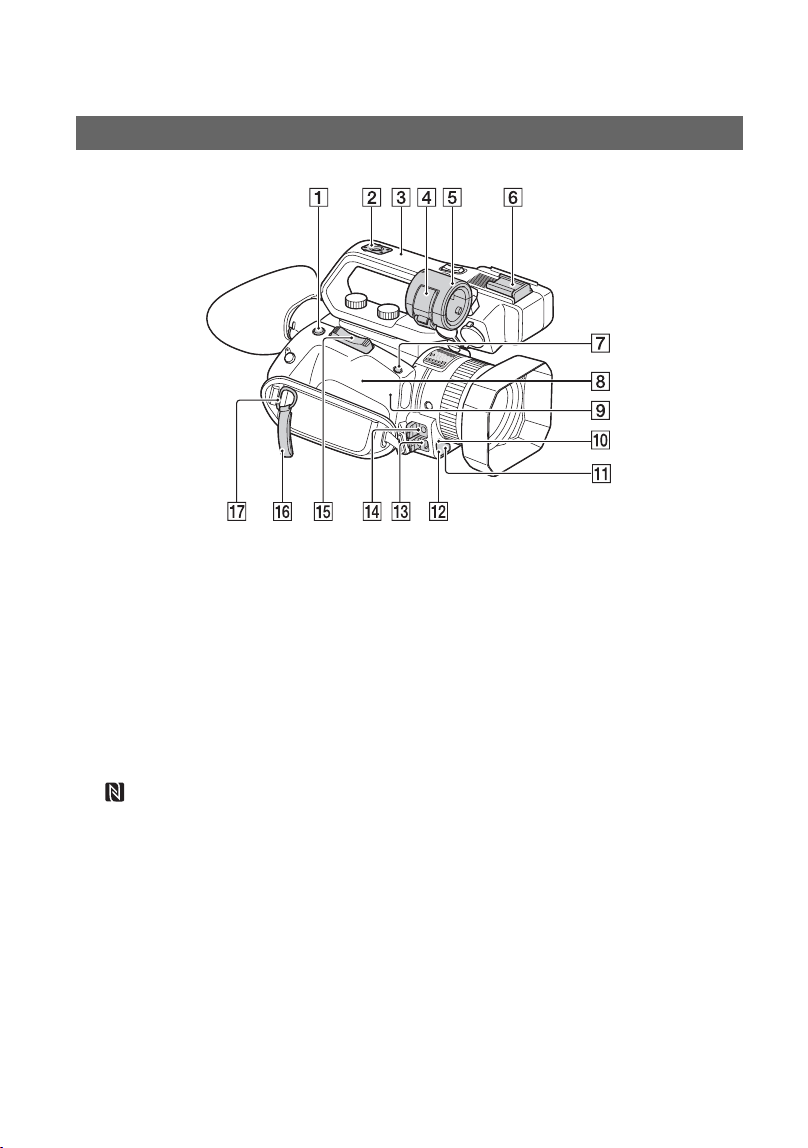
Identifying Parts and Controls
Identifying Parts and Controls
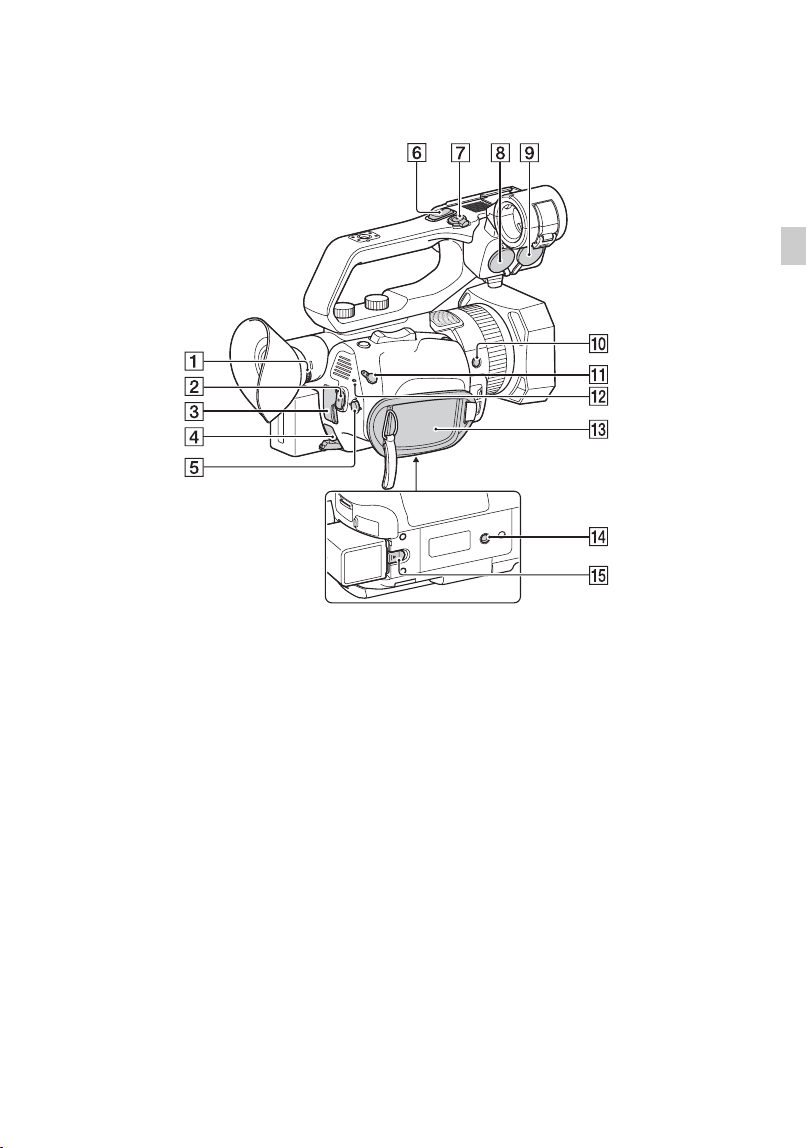
The numbers in ( ) are reference pages.
A ASSIGN4/FOCUS MAGNIFIER
button (p. 38)
B Accessory shoe mount (p. 23)
C XLR handle unit
D Microphone fixing clamper
E Microphone holder
F Accessory shoe
G ASSIGN5/IRIS PUSH AUTO button
(p. 43)
H (N mark)
• Touch an NFC-enabled smartphone to
the mark to establish a connection
with the camcorder.
• Near Field Communication (NFC) is
an international standard for short-
range wireless communication
technology.
I WLAN antenna (built-in)
Covering this part with your hand or
other object may block Wi-Fi
communication.
J Remote control sensor (p. 121)
K Recording lamp (p. 121)
Flashes when remaining capacity of the
memory card or battery becomes low.
L NightShot light (p. 54)
M Multi/Micro USB jack (p. 68)
VIDEO OUT jack (p. 68, 108)
N MIC jack (PLUG IN POWER)
O Power zoom lever
P Cable clamper
Q Hook for shoulder strap
R Multi Interface Shoe (p. 51)
Body
9
Identifying Parts and Controls
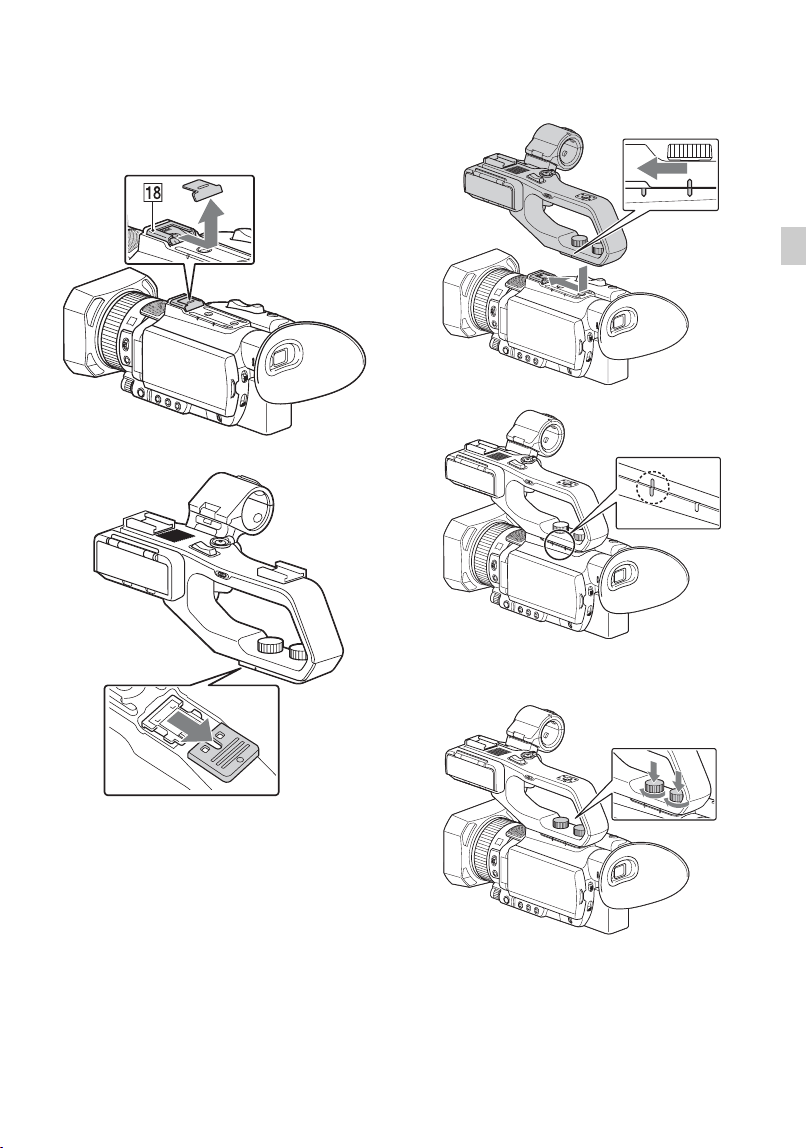
Attaching the XLR handle unit
1 Remove the Multi Interface Shoe cap.
2 Remove the handle shoe cap.
3 Align the mark on the XLR handle with
the one on the camcorder, and insert the
XLR handle unit in the direction of the
arrow.
4 Press and turn the handle mounting
screws to tighten them.
z Tips
• When attaching the XLR handle unit, make sure
to securely tighten both handle mounting
screws.
• If you use the XLR handle unit without securely
tightening the mounting screws, it may damage
Continued ,
10
the Multi Interface Shoe or cause the camcorder
to detach and fall.
Detaching the XLR handle unit
To detach the XLR handle unit, perform the
attachment procedure in reverse.
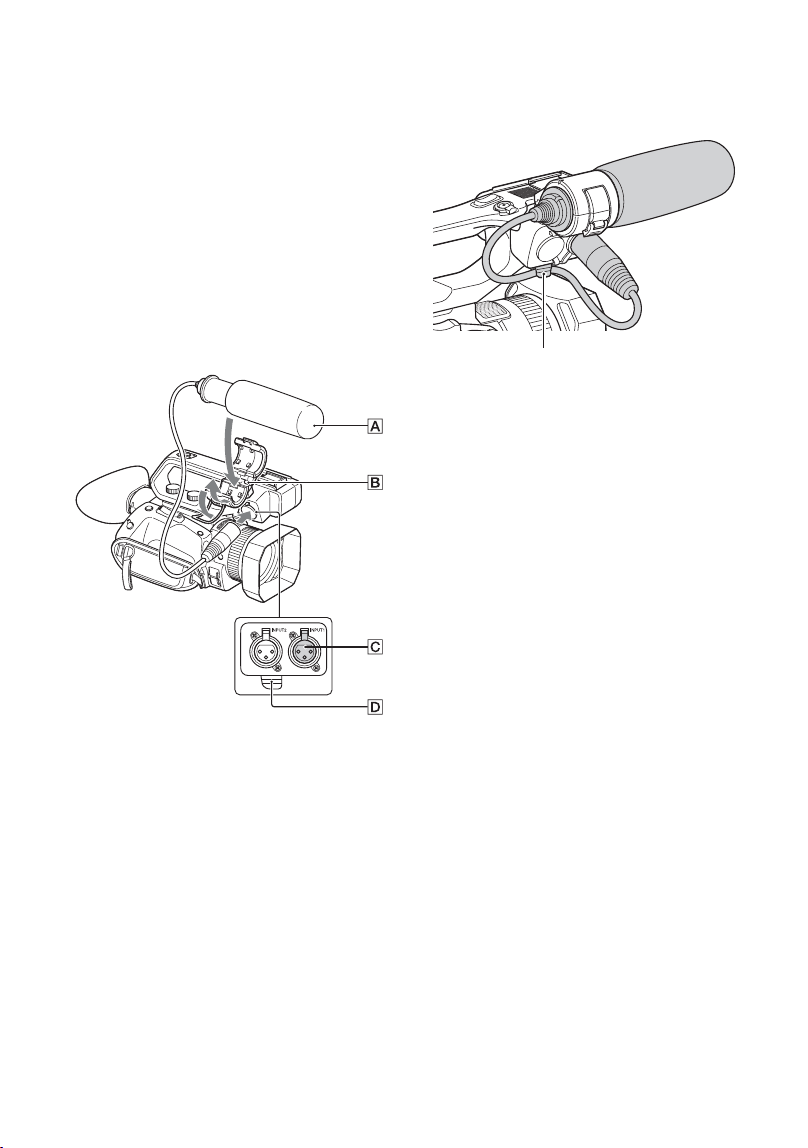
Attaching the microphone (sold
separately)
Use the following procedure to attach an
external microphone (sold separately) to
record audio.
1 Place the microphone A into the
microphone holder B.
2 Connect the plug of the microphone to
the INPUT 1 jack C.
3 Place the microphone cable into the
cable holder D.
Put the cable in the outer cable holder.
Identifying Parts and Controls (Continued)
11
Identifying Parts and Controls
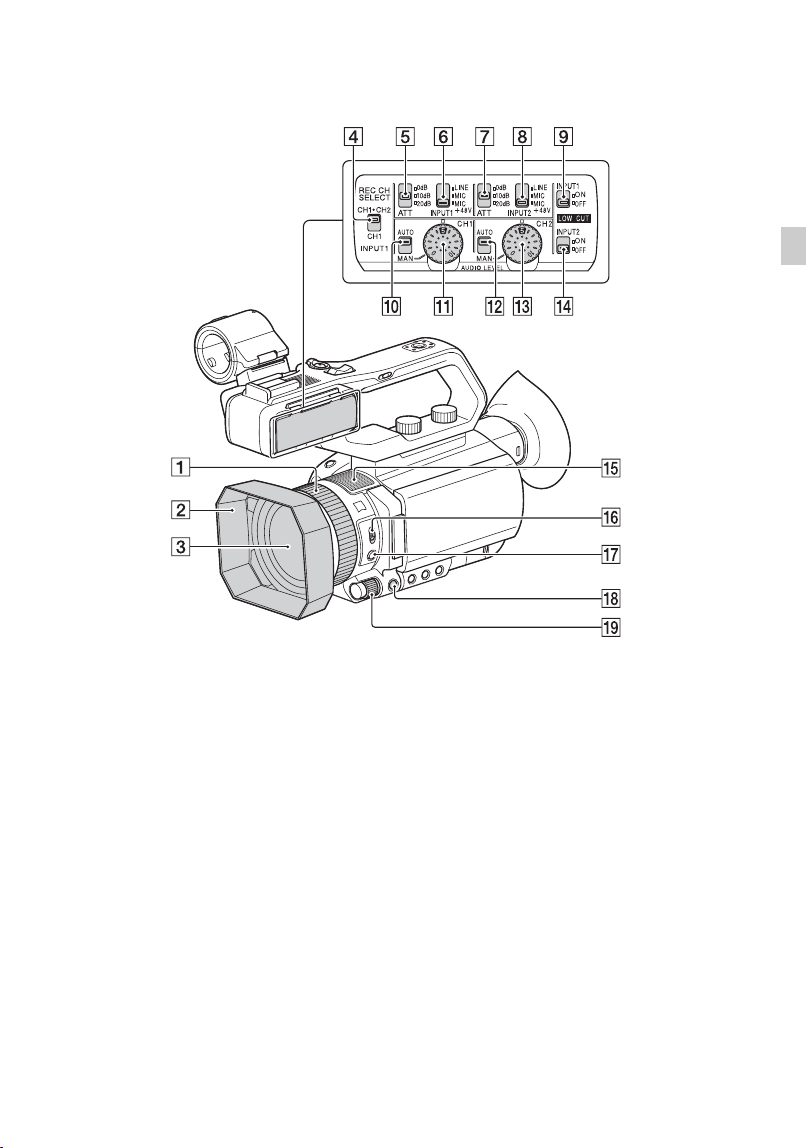
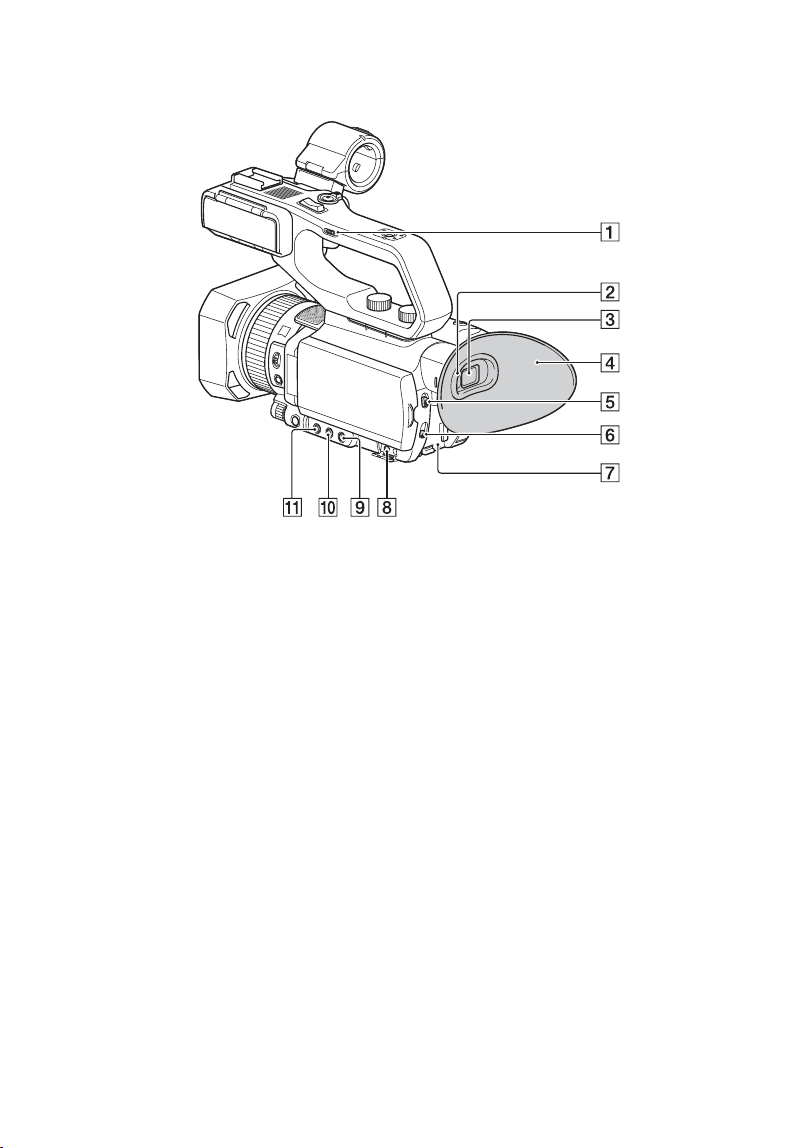
A Manual lens ring (p. 34)
B Lens hood
C Lens (ZEISS lens)
D REC CH SELECT (INPUT1) switch
(p. 50)
E ATT (INPUT1) switch (p. 50)
F INPUT1 (LINE/MIC/MIC+48V) switch
(p. 50)
G ATT (INPUT2) switch (p. 50)
H INPUT2 (LINE/MIC/MIC+48V) switch
(p. 50)
I LOW CUT (INPUT1) switch (p. 51)
J AUTO/MAN (CH1) switch (p. 50)
K AUDIO LEVEL (CH1) dial (p. 50)
L AUTO/MAN (CH2) switch (p. 50)
M AUDIO LEVEL (CH2) dial (p. 51)
N LOW CUT (INPUT2) switch (p. 51)
O Internal microphone
P ZOOM/FOCUS switch (p. 35)
Q AF/MF button (p. 35)
R MENU button (p. 95)
S MANUAL dial (p. 43)
Continued ,
13
Identifying Parts and Controls
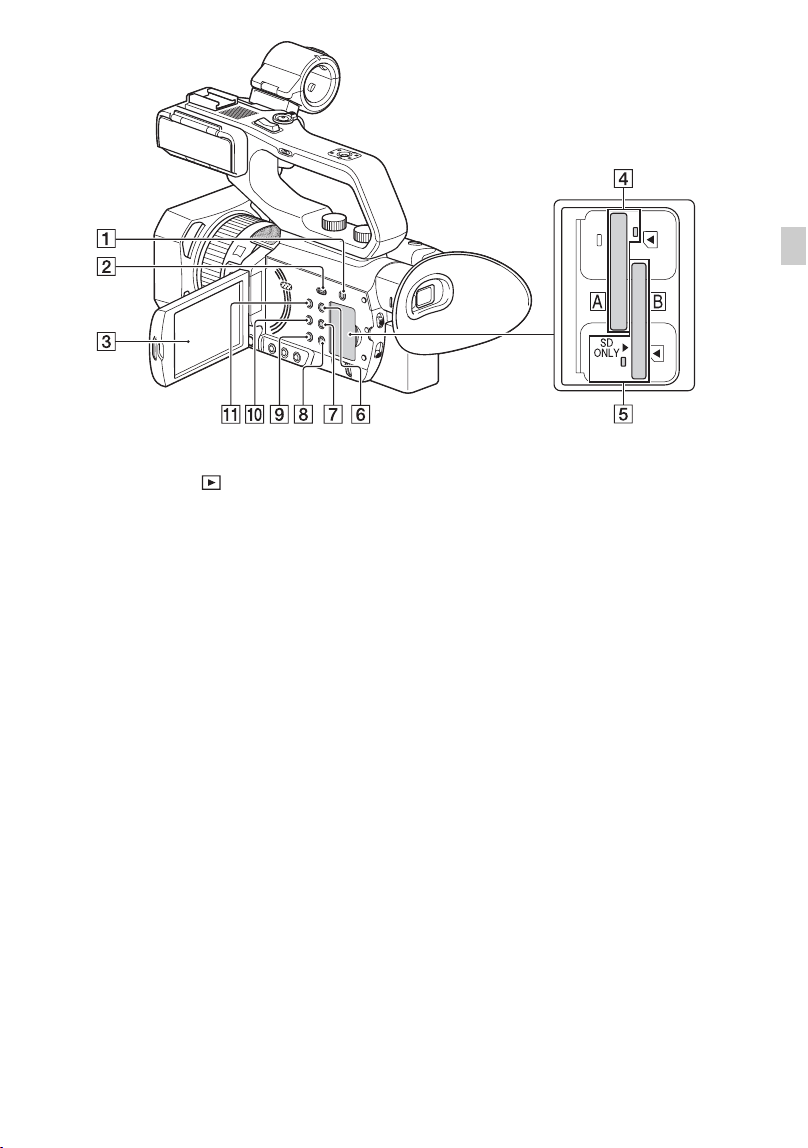
A Diopter adjustment dial (p. 26)
B START/STOP button (p. 30)
C HDMI OUT jack (p. 68)
D DC IN jack (p. 21)
E v/V/b/B/SET buttons (p. 95)
F Handle zoom lever (p. 33)
G Handle record button (p. 30)
H INPUT2 jack (p. 50)
I INPUT1 jack (p. 50)
J ASSIGN6 button
K REMOTE jack
L POWER/CHG lamp
M Grip belt
N Tripod receptacles (1/4 inch)
Supports 1/4-20UNC screws.
For mounting on a tripod (sold
separately, screw length 5.5 mm or
shorter).
The camcorder may not be able to
mount in some orientations, depending
on the tripod specifications.
O BATT release lever (p. 21)
Continued ,
14
A Handle zoom speed switch (p. 33)
B Eye sensor
C Viewfinder (p. 26)
D Large eyecup (p. 26)
E AUTO/MANUAL switch (p. 43)
F ND FILTER switch (p. 45)
G Battery slot (p. 21)
H i (headphones) jack
I SHUTTER SPEED button (p. 44)
J ISO/GAIN (ISO sensitivity/gain) button
(p. 44)
K IRIS button (p. 43)
Identifying Parts and Controls (Continued)
15
Identifying Parts and Controls
A SLOT SELECT button (p. 29)
B THUMBNAIL/ button (p. 64)
C LCD screen/touch panel (p. 26)
D Memory card slot A/Memory card
access lamp (p. 29)
E Memory card slot B/Memory card
access lamp (p. 29)
F DISPLAY button (p. 66)
G ASSIGN3/PICTURE PROFILE button
(p. 54)
H ASSIGN2/STATUS CHECK button
(p. 67)
I ASSIGN1/S&Q button (p. 59)
J WHITE BALANCE button (p. 46)
K 1 (On/Standby) button (p. 24)
Continued ,
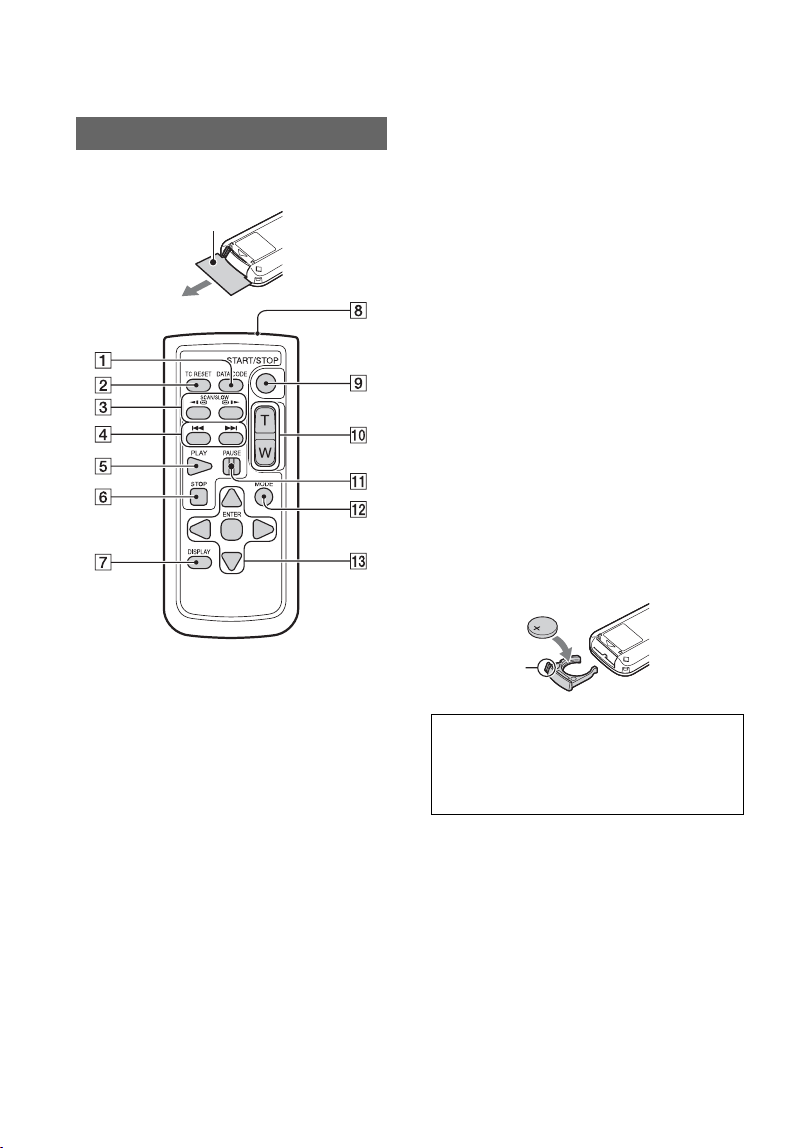
16
Remove the insulation sheet before using
the Wireless Remote Commander.
A DATA CODE button (p. 66)
B TC RESET button (p. 59)
C SCAN/SLOW buttons (p. 64)
D . > (PREV/NEXT) buttons
(p. 64)
E PLAY button (p. 64)
F STOP button (p. 64)
G DISPLAY button (p. 66)
H Transmitter
I START/STOP button (p. 30)
J Power zoom lever
K PAUSE button (p. 64)
L MODE button
M b/B/v/V/ENTER buttons
b Notes
• Aim the Wireless Remote Commander towards
the remote sensor to operate your camcorder.
• Point the remote sensor away from strong light
sources such as direct sunlight or overhead
lighting. Otherwise, the Wireless Remote
Commander may not function properly.
• When you are operating with the Wireless
Remote Commander supplied with your
camcorder, your video device may also operate.
In that case, select a commander mode other
than DVD2 for your video device, or cover the
sensor of your video device with black paper.
To change the battery of the Wireless
Remote Commander
1 While pressing on the tab, inset your
fingernail into the slit to pull out the
battery case.
2 Place a new battery with the + side
facing up.
3 Insert the battery case until it clicks into
place.
• When the lithium battery becomes weak, the
operating distance of the Wireless Remote
Commander may shorten, or the Wireless
Remote Commander may not function properly.
In this case, replace the battery with a Sony
CR2025 lithium battery. Use of another battery
may present a risk of fire or explosion.
Wireless Remote Commander
Insulation sheet
WARNING
Battery may explode if mistreated. Do not
recharge, disassemble or dispose of in
fire.
Tab
Identifying Parts and Controls (Continued)
17
Identifying Parts and Controls
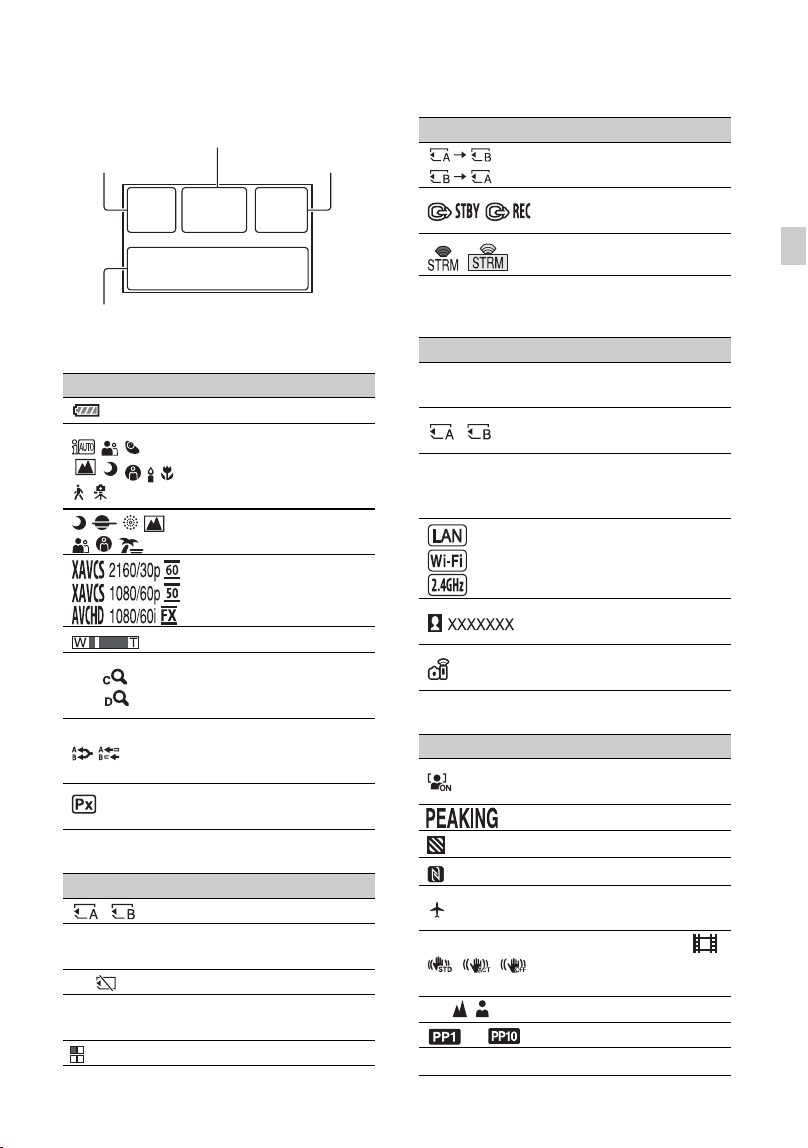
Screen Indicators
Upper left
Center
Upper right
Bottom
Indicator Meaning
100% Remaining battery
.
INTELLIGENT AUTO
(face/scene detection/
camera-shake detection)
(p. 53)
SCENE SELECTION
(p. 53)
Recording format (p. 41)
Optical zoom (p. 99)
Z99 ×1.2
Z99 ×2.3
Clear image zoom
(p. 99)
Digital zoom (p. 99)
Simultaneous recording
(p. 32)
Relay recording (p. 31)
Proxy recording [ON]
(p. 42)
Indicator Meaning
Recording media (p. 27)
REC STBY
Recording standby
(p. 30)
E Warning (p. 139)
N
Playback indicator
(p. 64)
Processing
Upper left Upper right
Bottom
Center
Relay recording (p. 31)
HDMI REC CONTROL
(p. 110)
Streaming (p. 82, 85)
Indicator Meaning
0min
Estimated remaining
recording time
Recording/playback
media
00:00:00:00
Timecode
(hour:minute:second:
frame) (p. 58)
LAN connection (p. 83,
85, 88)
USTREAM audience
(p. 85)
Wi-Fi connection status
indicator (p. 87)
Indicator Meaning
Face detection [ON]
(p. 39)
Peaking (p. 113)
Zebra (p. 113)
NFC active (p. 74)
Airplane mode [ON]
(p. 119)
Image stabilization (
STEADYSHOT)
(p. 99)
9 Manual focus (p. 35)
to Picture profile (p. 54)
F5.6 Iris (p. 43)
Indicator Meaning
Continued ,
18
z Tip
• Indicators may look different or appear at
different positions.
Data during recording
The date, time, and recording conditions are
recorded automatically.
They are not displayed while recording.
However, you can check them by selecting
(DISPLAY SET) t [DATA CODE]
and choosing the data that you want to
display, or by pressing the ASSIGN button
to which the DATA CODE function is
assigned, during playback.
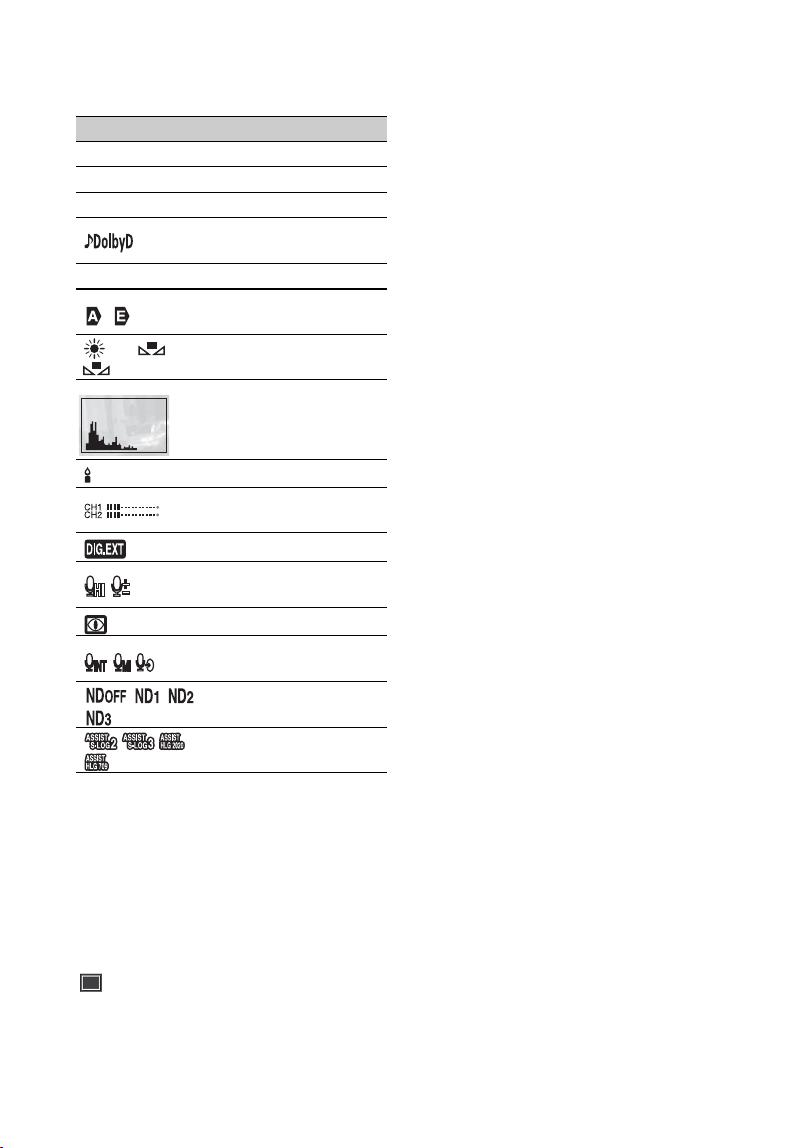
ISO800 ISO sensitivity (p. 44)
9dB Gain (p. 44)
100 180° Shutter speed (p. 44)
AVCHD audio format
(p. 111)
-2.0EV AE shift (p. 99)
/
Auto setting/manual
setting (p. 43)
n A
B 6500K
White balance (p. 46)
Histogram (p. 113)
LOW LUX (p. 54)
Audio level display
(p. 115)
Digital extender (p. 99)
REC LEVEL MODE
(p. 111)
NIGHTSHOT (p. 54)
SELECTED MIC
(p. 112)
ND filter (p. 45)
Gamma display assist
(p. 57)
Indicator Meaning
Screen Indicators (Continued)
19
Getting Started
Getting Started
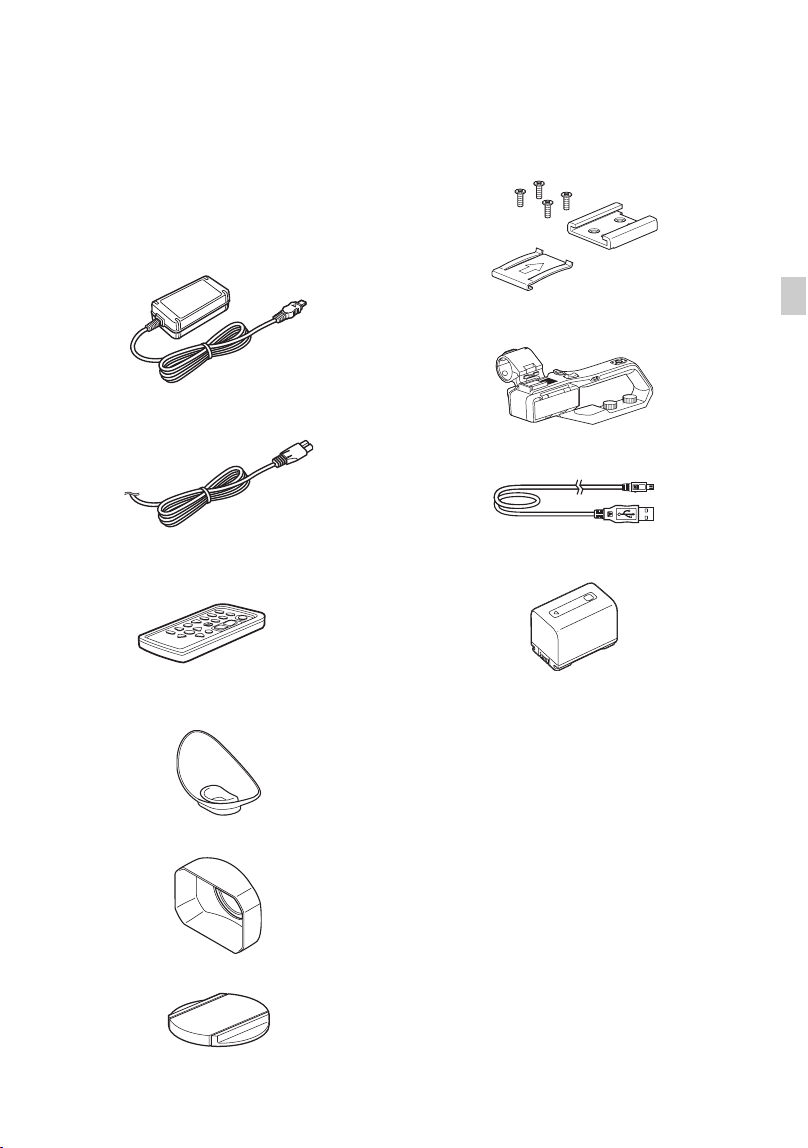
Step 1: Checking supplied accessories
Make sure that you have following items
supplied with your camcorder. If, for any
reason, there is something missing, contact
your Sony dealer.
The number in the parentheses indicates the
number of that item supplied.
AC Adaptor (p. 21)
Power cord (mains lead) (p. 21)
RMT-845 Wireless Remote Commander
(p. 16)
A button-type lithium battery is already installed.
Large eyecup (p. 26)
Lens hood (p. 12)
Lens cap (Attached to lens)
Accessory shoe kit (Accessory shoe (1),
Accessory shoe plate (1), screws (4))
(p. 23)
XLR handle unit
USB cable
Rechargeable battery pack (NP-FV70A)
CD-ROM “Manuals for Solid-State Memory
Camcorder”
Operating Guide (2)
Software Downloads
When the unit is used with a PC
connection, download any device drivers,
plug-ins, and application software you
require from the following websites.
You can work with recorded video on a
computer, for example, combining relay-
recorded movies, using the “Catalyst
Browse” application software. For details,
see the supplied brochure.
For details about NLE (Non-Linear
Editing) use, contact the software maker.
Continued ,

20
Sony Professional products website:
U.S.A. http://pro.sony.com
Canada http://www.sonybiz.ca
Latin America
http://sonypro-latin.com
Europe, Middle East, and Africa
http://www.pro.sony.eu
Japan http://www.sonybsc.com
Asia Pacific
http://pro.sony-asia.com
Korea http://bp.sony.co.kr
China http://pro.sony.com.cn
Although the data regarding recorded
materials are stored over multiple files and
folders, you can easily handle the clips
without considering its data and directory
structure, by using the dedicated application
software.
About paid upgrade license
• To use the Wireless TC LINK function,
“CBKZ-WTCL” (sold separately) is
required.
• After purchasing the option, connect the
camcorder to a computer using USB to
use the auto detect function, and install by
following the instructions on the PC.
Step 1: Checking supplied accessories (Continued)
21
Getting Started
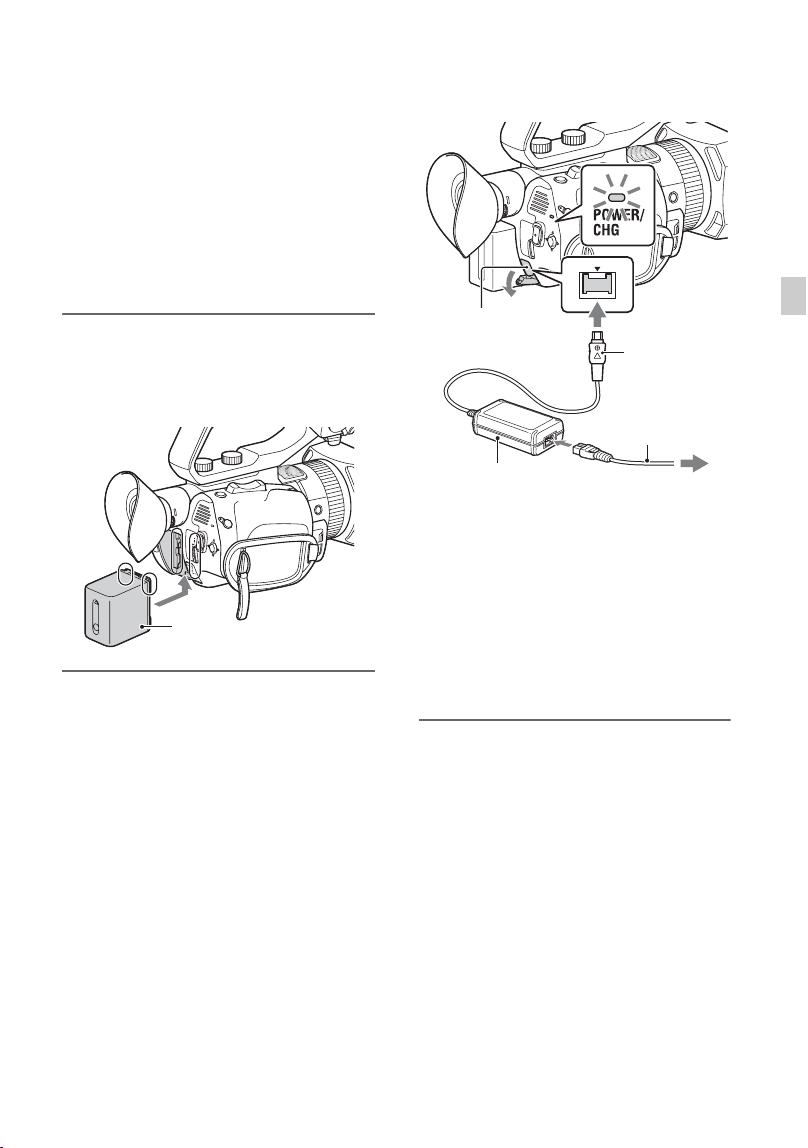
Step 2: Charging the battery pack
You can charge the “InfoLITHIUM”
battery pack (V series) with the
supplied AC Adaptor.
b Note
• You can use an NP-FV100A large capacity
battery pack (sold separately) with your
camcorder. You cannot use an NP-FV50A.
1 Close the LCD screen and store
the viewfinder before attaching
the battery.
2 Connect the AC Adaptor and
power cord from the camcorder
to an outlet.
The CHG lamp lights up and charging
starts.
When charging ends
The CHG lamp turns off when the battery is
fully charged.
Disconnect the AC Adaptor from the DC
IN jack.
z Tip
• You can check the remaining battery life with
the status check function (p. 67).
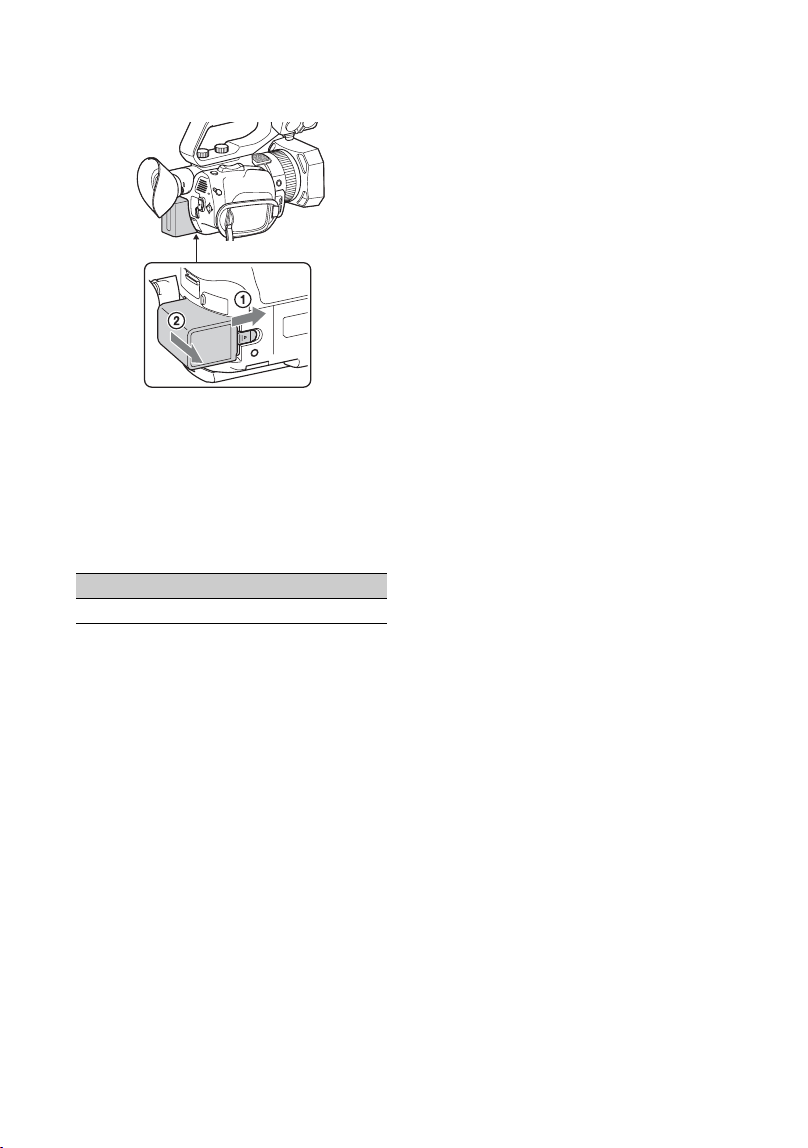
To remove the battery pack
Turn the power off, then slide the BATT
release lever to release the battery.
Battery
Power cord
DC IN jack
DC plug
To power outlet
AC Adaptor
Continued ,
22
To store the battery pack
If the battery pack is not in use for a while,
run down the battery and store it (p. 153).
Charging time
Approximate time (minutes) required when
you charge a fully discharged battery pack.
On the battery pack
• Turn the power off before changing the battery
pack.
• The CHG lamp flashes during charging, or the
Battery Info will not be correctly displayed
under the following conditions.
– The battery pack is not attached correctly.
– The battery pack is damaged.
– The battery pack is worn-out.
Using a power outlet
You can use the AC Adaptor to obtain the
AC power. While you are using the AC
Adaptor, the battery pack will not lose its
charge even when it is attached to your
camcorder.
Perform the procedure up to step 2 of “Step
2: Charging the battery pack” (p. 21).
On the AC Adaptor
• Do not short-circuit the DC plug of the AC
Adaptor or battery terminal with any metallic
objects. This may cause a malfunction.
Battery pack Full charge time
NP-FV70A 170
Step 2: Charging the battery pack (Continued)
23
Getting Started
Step 3: Attaching the accessory shoe
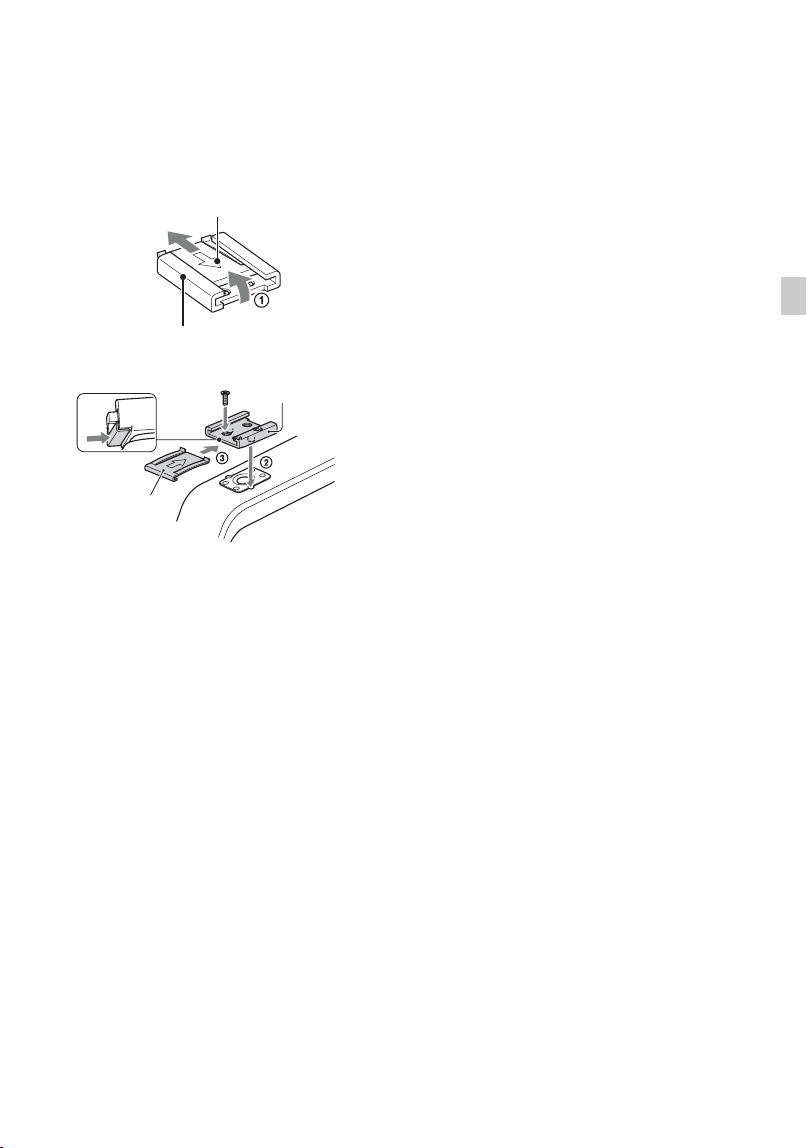
To mount the accessory shoe
Mount the accessory shoe on the accessory
shoe mount as illustrated.
1 Lift the edge of the accessory shoe plate
and pull it in the direction opposite to
that of the arrow on the accessory shoe
plate and remove it from the accessory
shoe.
2 Place the accessory shoe as its
protrusions matches recesses of the
accessory shoe mount, then fix it to the
mount with 4 screws.
3 Insert the accessory shoe plate in the
direction of the arrow on the plate
surface until the end of the plate
engages the end of the shoe.
To remove the accessory shoe
Remove the shoe plate in the same way as
step 1 of “To mount the accessory shoe.”
Loosen the 4 screws and remove the
accessory shoe from the accessory shoe
mount.
Accessory shoe plate
Accessory shoe
Accessory
shoe
Accessory
shoe plate
24
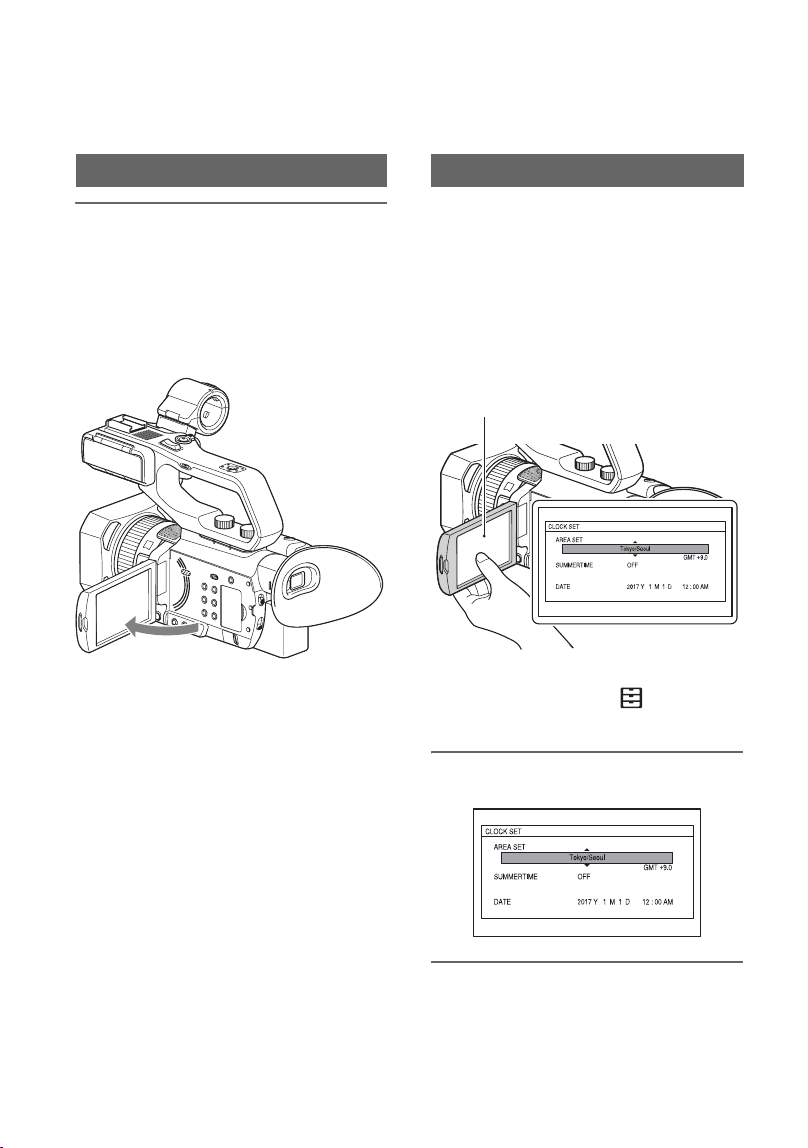
Step 4: Turning on the camcorder and setting
the date and time
Open the LCD screen and turn the
power on.
You can also turn on the power by
extending the viewfinder or by pressing the
1 (On/Standby) button.
When you use your camcorder for the first
time, the [CLOCK SET] screen appears.
To turn off the power
Close the LCD screen.
If the viewfinder is extended, return it to its
original position.
You can also turn off the power by pressing
the 1 (On/Standby) button.
b Notes
• If a warning message is displayed, follow the
instructions.
• When recording movies or when connected to
another device via USB, the camcorder does not
turn off even if the LCD screen is closed and the
viewfinder is returned to its original position.
Set the date and time when you use your
camcorder for the first time.
z Tip
• If you do not use your camcorder for about 3
months, the built-in rechargeable battery gets
discharged and the date and time settings may
be cleared from the memory. In that case,
charge the rechargeable battery and then set the
date and time again (p. 155).
To set the date and time again, press the
MENU button, and select (OTHERS)
t [CLOCK SET].
1 Set the area.
2 Set [SUMMERTIME], [Y], [M], [D],
hour, and minute.
Turning on the camcorder Setting the date and time
LCD screen

25
Getting Started
The clock starts.
• Set [SUMMERTIME] to [ON] to move the
time forward 1 hour.
• You can set any year up to the year 2037.
• Midnight is indicated as 12:00 AM, and
noon as 12:00 PM.
z Tip
• The date and time are automatically recorded on
the selected memory card, and can be displayed
during playback (p. 66).
26
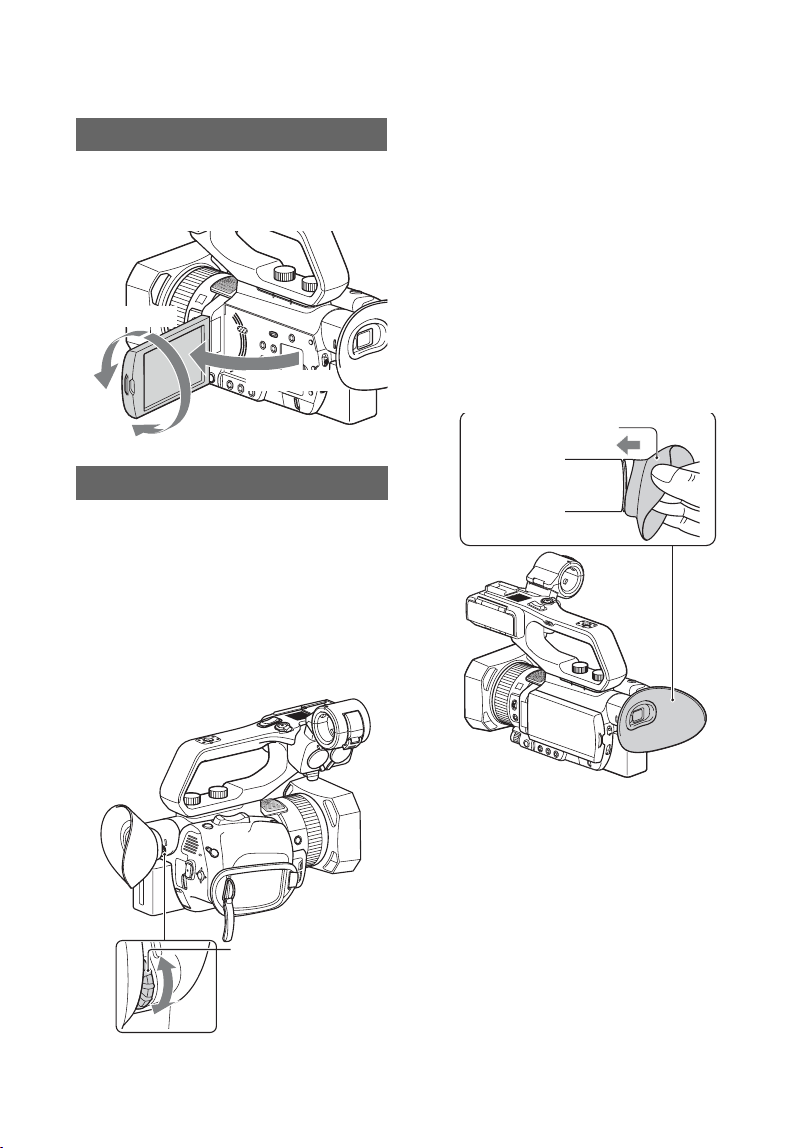
Step 5: Adjusting the LCD screen and viewfinder
The LCD screen can be rotated in the range
as illustrated below, allowing a person other
than the camera operator to see the image.
When using the viewfinder, extend it and
position your eye near it.
If you extend the viewfinder while the LCD
screen is open, the display switches from
the LCD screen to the viewfinder when you
position your eye near the viewfinder.
If the viewfinder image appears blurred,
turn the diopter adjustment dial next to the
viewfinder until the image is sharp.
b Note
The LCD screen and the viewfinder do not
operate at the same time.
When the picture in the viewfinder is
hard to see
If you cannot see the picture in the
viewfinder clearly under bright
circumstances, use the supplied large
eyecup. To attach the large eyecup, stretch
it slightly and fit it over the groove of the
eyecup attached to the camcorder. You can
attach the large eyecup facing either the
right or left side.
b Note
• If the viewfinder is extended while the NP-
FV100A battery pack (sold separately) is
attached, the large eyecup and battery pack may
interfere with each other slightly. However, this
does not affect the functionality of the
camcorder.
Using the LCD screen
Adjusting the viewfinder diopter
90° (max.)
180° (max.)
Open 90°
Diopter adjustment
dial
Move it until the
picture becomes
clear.
Large eyecup
(supplied)

27
Getting Started
Step 6: Preparing the recording media
Refer to the following lists when selecting memory cards to use.
In this document, SD cards or “Memory Stick” media are referred to as supported memory
cards.
SD card
“Memory Stick” media
b Notes
• Operation with all memory cards is not assured. For details about non-Sony memory cards, contact each
manufacturer.
• See page 143 for the recording time of memory cards.
• Only “Memory Stick PRO Duo” media, which is half the size of standard “Memory Stick” media, or
“Memory Stick XC-HG Duo” media, or standard size SD cards can be used with this camcorder.
• Movies recorded on “Memory Stick XC-HG Duo” media or SDXC memory cards can be imported to or
played back on other equipment, such as a computer or A/V device, by connecting the camcorder to the
equipment with the USB cable. However, the equipment must support the exFAT file system used for
Supported memory cards
File format Supported memory cards
AVCHD
SD/SDHC/SDXC memory cards
(Class 4 or U1 or faster)
S&Q MOTION
SUPER SLOW MOTION
SDHC/SDXC memory cards
(Class 10 or U1 or faster)
XAVC S HD
60Mbps or slower SDHC/SDXC memory cards
(Class 10 or U1 or faster)
100Mbps
SDHC/SDXC memory cards (U3)
S&Q MOTION
SUPER SLOW MOTION
SDHC/SDXC memory cards
(Class 10 or U1 or faster)
XAVC S 4K
60Mbps or slower
SDHC/SDXC memory cards
(Class 10 or U1 or faster)
100Mbps
SDHC/SDXC memory cards (U3)
S&Q MOTION
SUPER SLOW MOTION –
File format Supported memory cards
AVCHD
Memory Stick PRO Duo (Mark2), Memory
Stick PRO-HG Duo
S&Q MOTION
SUPER SLOW MOTION
–
XAVC S HD,
XAVC S 4K
S&Q MOTION
SUPER SLOW MOTION
Continued ,

28
“Memory Stick XC-HG Duo” media and SDXC memory cards. Confirm in advance that the connecting
equipment is supporting the exFAT file system. If you connect equipment not supporting the exFAT file
system and the format screen appears, do not perform the format. All the data recorded will be lost.
Step 6: Preparing the recording media (Continued)
29
Getting Started
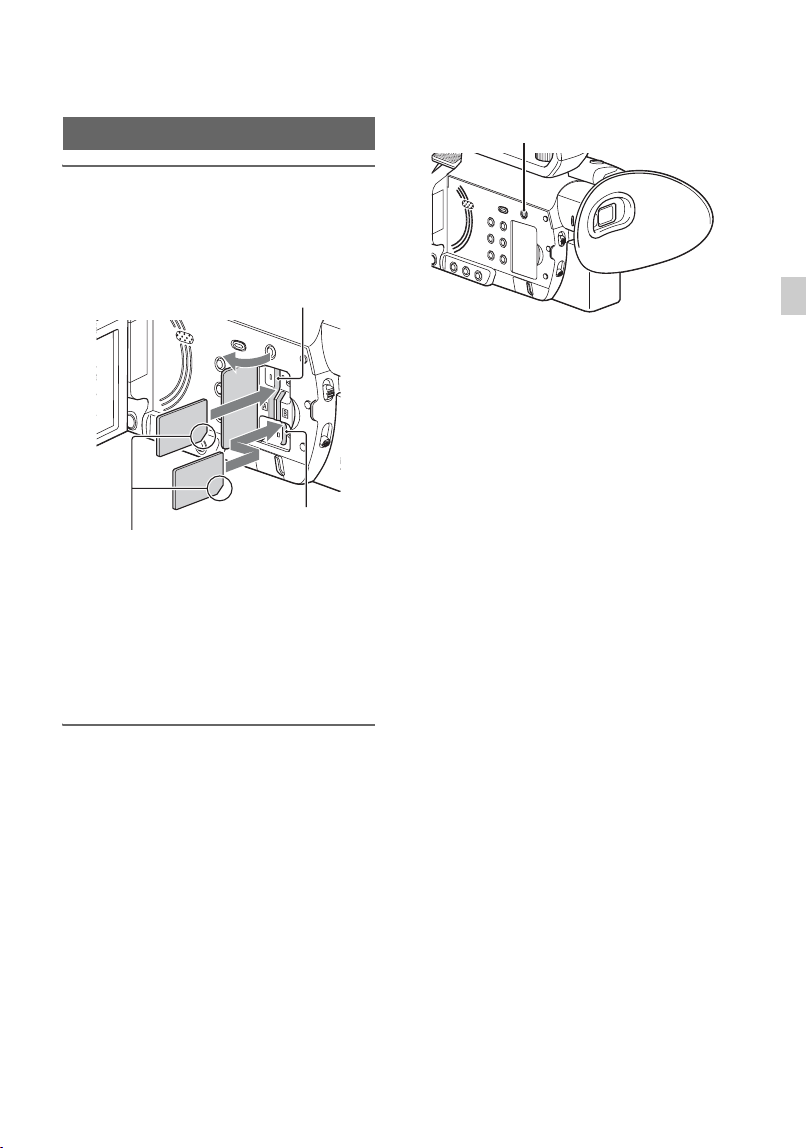
Open the cover, and insert the
memory card with the notched
corner in the direction as illustrated
until it clicks into place.
• If you insert a memory card into the slot in the
wrong direction, the memory card, the memory
card slot, or image data may be damaged.
• Memory card slot A accepts both “Memory
Stick PRO Duo” and SD cards. Memory card
slot B accepts SD cards only.
To eject a memory card
Lightly push the memory card once.
b Notes
• If “The image database file is corrupted. The
media must be restored to use again.” appears,
format the memory card (p. 93).
• When inserting or ejecting a memory card, be
careful of the memory card popping out and
dropping.
Selecting the memory card slot to be
used for recording
Press the SLOT SELECT button to change
which slot is selected for recording. You
can confirm the selected slot on the screen.
b Notes
• You can only select a slot that already has a
memory card inserted.
• When recording to a memory card, you cannot
switch the slot even if you press the SLOT
SELECT button.
z Tips
• When only one slot has a memory card inserted,
the slot that has the memory card is selected
automatically.
• When the memory card becomes full during
recording, the camcorder automatically switches
to the other slot if a memory card is inserted
(relay recording, p. 31).
If a repair memory card prompt screen
appears
There may have been a problem recording
to the memory card during the most-recent
recording. Select [OK] to repair the card to
the extent possible. Select [CANCEL] to
continue without repairing.
b Notes
• Correct repair may not be possible, even when
repair is executed.
• Repair is not supported if an error occurs when
recording in XAVC S format.
Inserting a memory card
Memory card slot A
Note the direction of the notched corner.
Memory card slot B
SLOT SELECT button
30
Recording
Recording
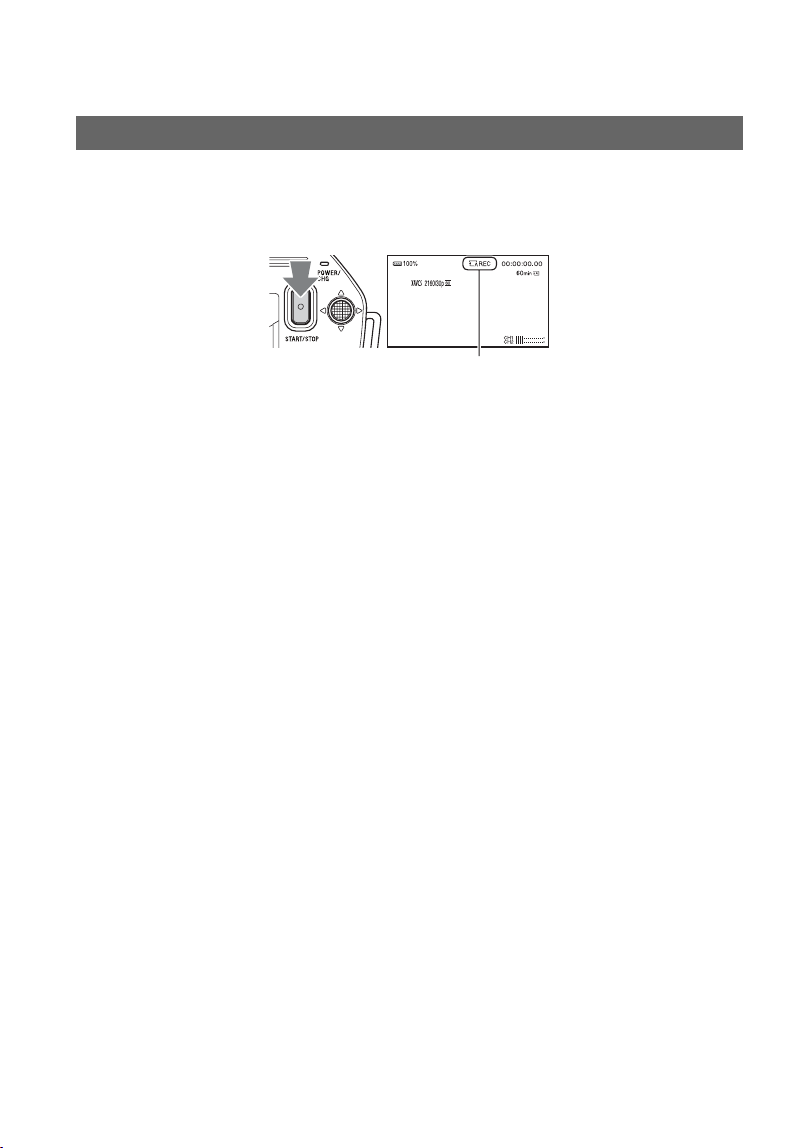
Your camcorder records movies on memory cards. The factory setting for recording is XAVC
S 4K.
Check that the memory cards are inserted correctly, and press the START/STOP button
(handle record button) to start recording.
The recording lamps light up during recording.
To stop recording, press the START/STOP button (handle record button) again.
b Notes
• When [AUTO] is selected in the [MIC SELECT] menu and the XLR handle unit is connected to the
camcorder without a microphone attached to the INPUT1 and INPUT2 jacks, the internal microphone is
not selected and no audio is recorded. In this case, select [INT MIC] (p. 50).
• If the file format is XAVC S 4K and [4K REC OUTPUT] is switched to [EXTERNAL OUTPUT], then
[NIGHTSHOT LIGHT] is set to [OFF].
• If recording in XAVC S 4K is started with [4K REC OUTPUT] set to [EXTERNAL OUTPUT], then
[LCD BRIGHT] is set to [NORMAL].
• If the file format is AVCHD or XAVC S HD and [SIMUL/RELAY REC] is switched to
[SIMULTANEOUS REC], then [NIGHTSHOT LIGHT] is set to [OFF].
• If the file format is XAVC S 4K and streaming is started, then [4K REC OUTPUT] is set to [VF/LCD
PANEL], [NIGHTSHOT LIGHT] is set to [OFF], and [LCD BRIGHT] is set to [NORMAL] while
streaming.
• If the file format is AVCHD or XAVC S HD and streaming is started, then [NIGHTSHOT LIGHT] is set
to [OFF] and [LCD BRIGHT] is set to [NORMAL] while streaming.
• When the access lamp is lit or flashing in red, your camcorder is reading or writing data. Do not shake or
apply strong force to your camcorder, do not turn the power off, and do not remove the memory card,
battery pack or the AC Adaptor. The image data may be destroyed.
• If a movie file size exceeds 2 GB while recording in AVCHD format, the camcorder automatically divides
the file and creates a new one.
• The menu settings, picture profile settings, and settings made using the AUTO/MANUAL switch are
saved when you close the LCD screen and turn off the camcorder. The POWER/CHG lamp flashes while
the settings are being stored. If you remove the battery or disconnect the AC Adaptor with the power
turned on without closing the LCD screen, interrupting the power, the settings will not be saved.
z Tips
• The picture aspect ratio is fixed to 16:9.
• For details about changing the screen display during recording, see page 66.
• For details about screen display during recording, see page 17.
• The recording lamps can be set to stay off ([REC LAMP], p. 121).
• See page 143 about the recording time of movies.
Recording
[STBY] t [REC]
31
Recording
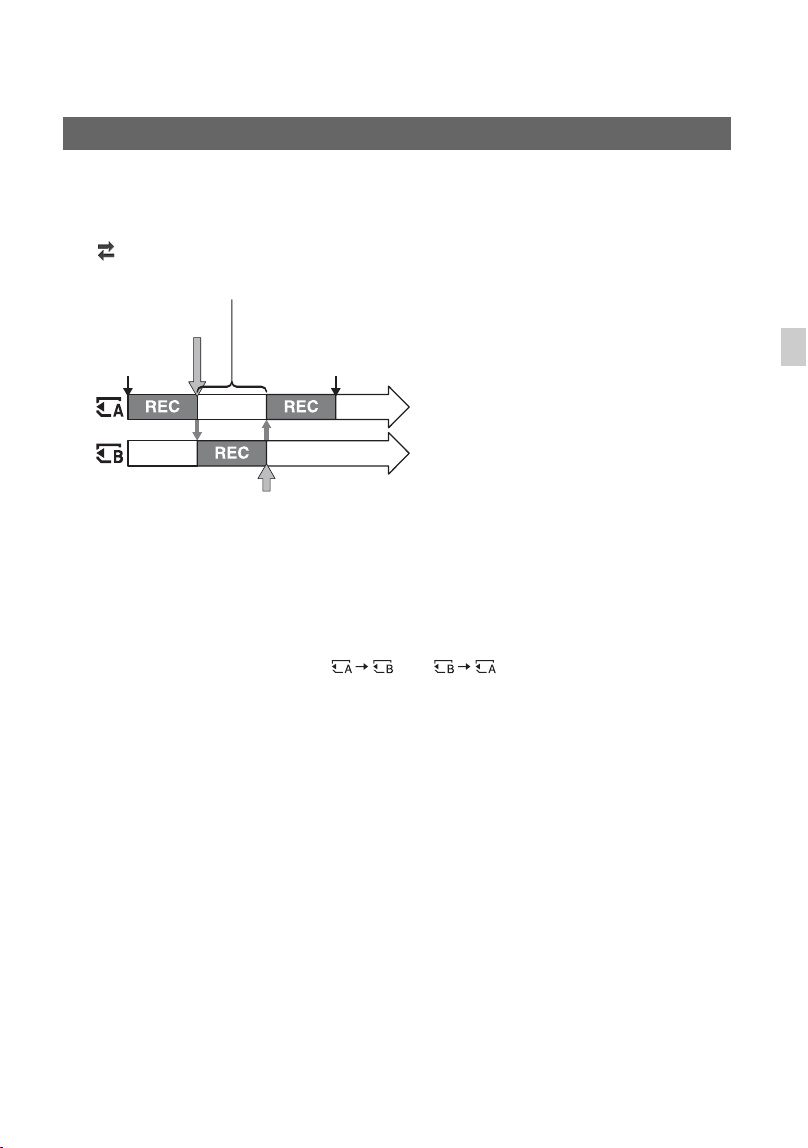
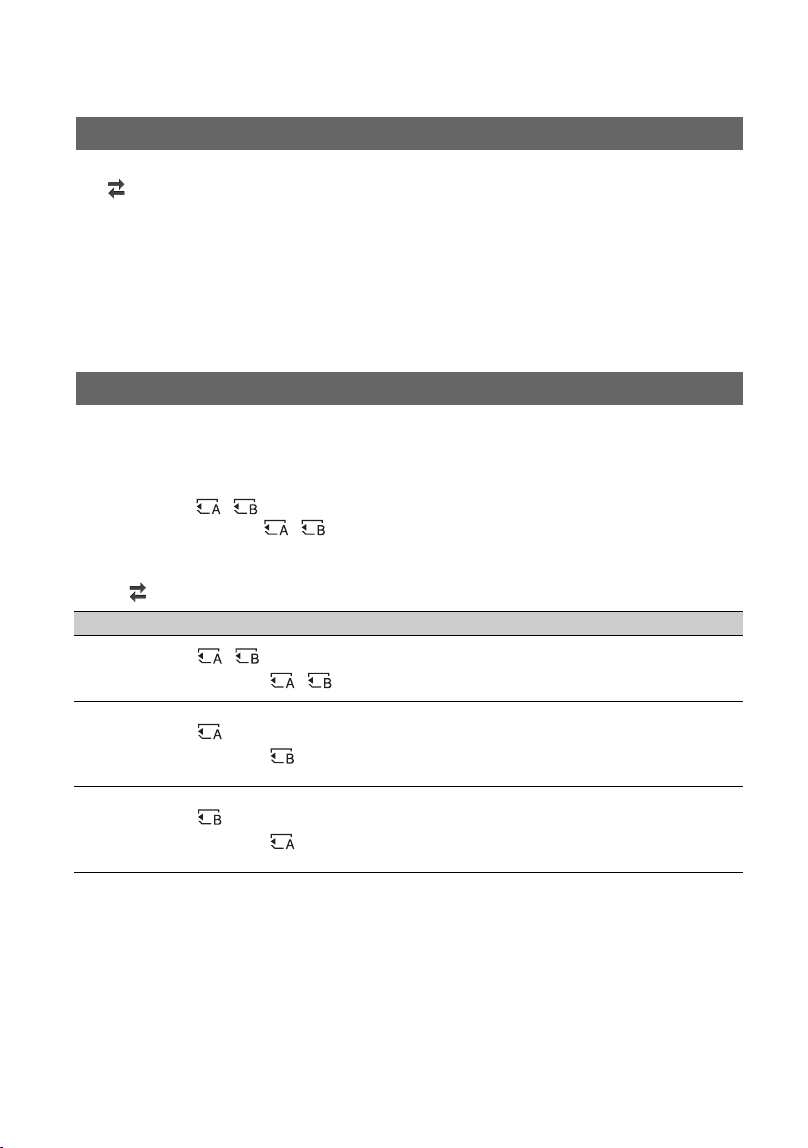
Insert memory cards each in both slots A and B so the camcorder switches memory card A (or
B) just before the remaining space on the other one runs out, and continues recording on the
next memory card automatically.
Make the following setting before recording.
Set (REC/OUT SET) t [REC SET] t [SIMUL/RELAY REC] t [RELAY REC].
b Notes
• Do not eject the memory card that is currently being used for recording. When replacing a memory card
while recording, replace only the one in the slot whose access lamp is off.
• Even if you press the SLOT SELECT button, while recording movies, you cannot switch the slot currently
being used.
• When the remaining recording time of the memory card being used is less than 1 minute and the other slot
has a recordable memory card inserted, [ ] or [ ] appears on the camcorder screen.
The indicator turns off when the memory card is switched.
• If you start recording on a memory card with the remaining recording time of less than 1 minute, the
camcorder may not be able to relay-record. To relay-record without failing, make sure that the memory
card has more than 1 minute when you start recording.
• Seamless playback of relay-recorded movies with this camcorder is not possible.
• You can combine relay-recorded movies using application software (p. 19).
• The maximum continuous recording time is 13 hours for XAVC S (HD/4K), and AVCHD. Recording
stops automatically when the maximum recording time elapses.
Continuous recording on the memory cards (Relay Rec)
REC start
Low remaining
capacity
Exchange the recordable memory card
Low remaining capacity
REC end
REC: Recording
Continued ,
32
You can record movies on both memory card A and memory card B simultaneously.
Set (REC/OUT SET) t [REC SET] t [SIMUL/RELAY REC] t [SIMULTANEOUS
REC].
b Notes
• If an SDHC memory card is inserted in memory card slot A/B and an SDXC memory card is
simultaneously inserted in the other memory card slot, data is recorded only to the SDXC memory card
when the file format is XAVC S (HD/4K), even if [SIMULTANEOUS REC] is enabled.
• If the file format is AVCHD or XAVC S HD and [SIMUL/RELAY REC] is switched to
[SIMULTANEOUS REC], then [NIGHTSHOT LIGHT] is set to [OFF].
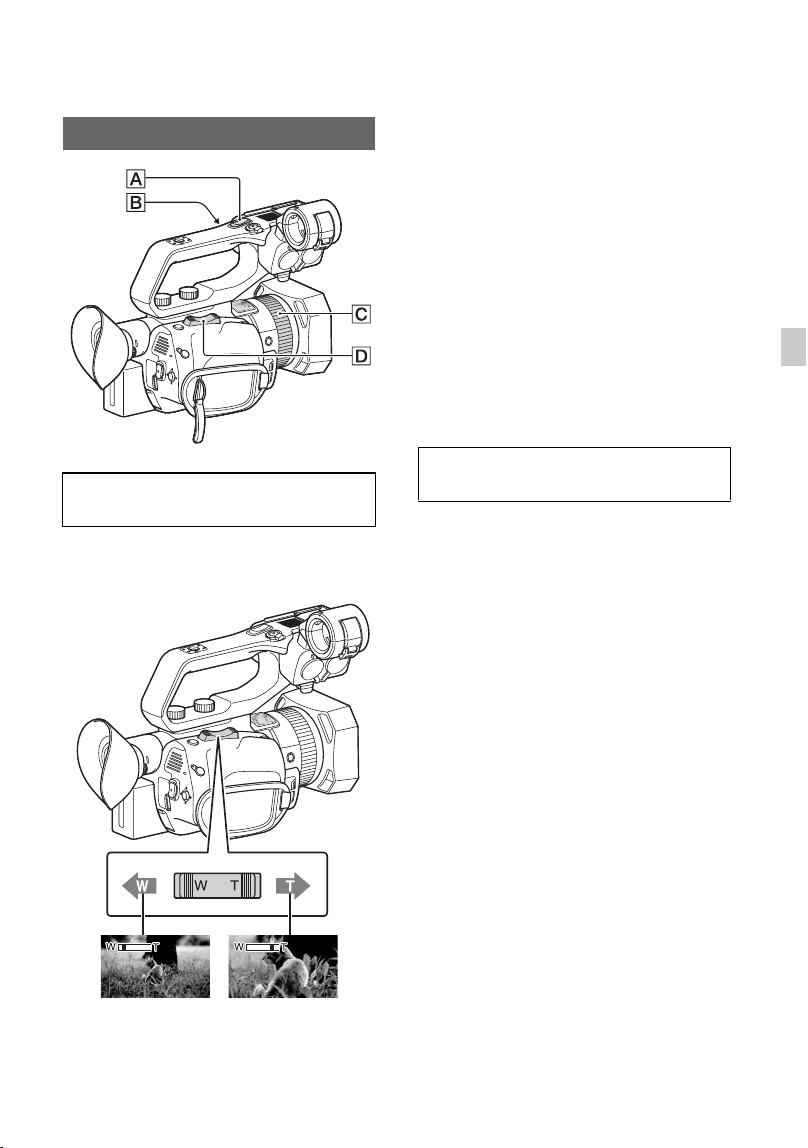
You can start and stop recording on different memory cards by using the START/STOP
button and the handle record button.
In the default setting, movies are recorded on both the memory card A and B at the same time
when either record button is pressed.
• REC BUTTON:
• HANDLE REC BUTTON:
To change the setting
Select (REC/OUT SET) t [REC SET] t [REC BUTTON SETTING].
b Note
• If an SDHC memory card is inserted in memory card slot A/B and an SDXC memory card is
simultaneously inserted in the other memory card slot, only the buttons assigned to the slot in which the
SDXC memory card is inserted are enabled when the file format is XAVC S (HD/4K).
Recording movies using both memory card A and B (Simul Rec)
Changing the START/STOP button/handle record button setting
REC BUTTON SETTING setting Button and memory card
REC BUTTON:
HANDLE REC BUTTON:
Recording on both the memory card A and the
memory card B starts and stops at the same time when
either record button is pressed.
REC BUTTON:
HANDLE REC BUTTON:
Recording on the memory card A starts and stops
when the START/STOP button is pressed, and on the
memory card B when the handle record button is
pressed.
REC BUTTON:
HANDLE REC BUTTON:
Recording on the memory card B starts and stops
when the START/STOP button is pressed, and on the
memory card A when the handle record button is
pressed.
Recording (Continued)
33
Recording
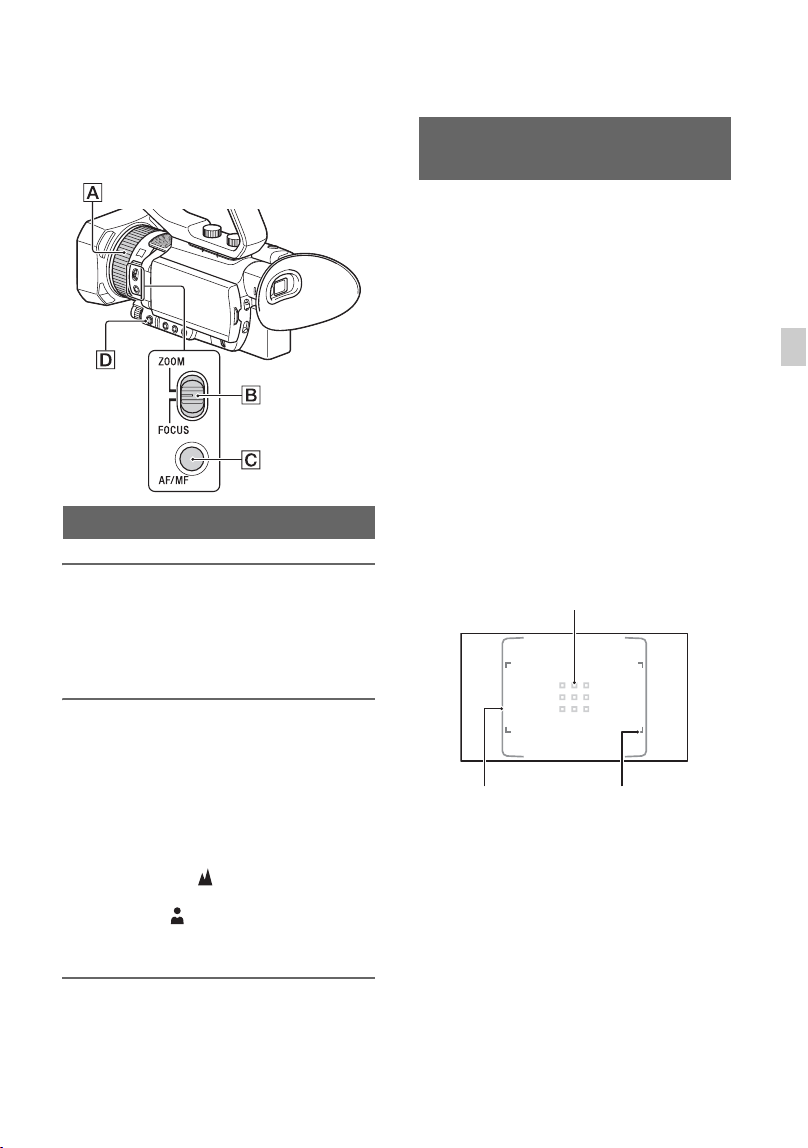
Press the zoom lever D slightly to zoom
slowly, and press it further to zoom more
quickly.
z Tips
• When focusing, the minimum distance required
between the camcorder and the subject is about
1 cm (about 13/32 in.) for wide angle and about
1 m (about 39 3/8 in.) for telephoto.
• The focus may not be adjusted at certain zoom
positions if the subject is within 1 meter (about
39 3/8 in.) from your camcorder.
• Be sure to keep your finger on the power zoom
lever D. If you remove your finger, the
operation sound of the power zoom lever D
may also be recorded.
• You can select the type of zoom operation for
the zoom lever D ([ZOOM TYPE], p. 99).
• You can increase the zoom speed of the power
zoom lever D ([SPEED ZOOM], p. 99).
1 Set the handle zoom speed switch B to
VAR or FIX.
z Tips
• When set to VAR, you can zoom in or out at
variable speed.
• When set to FIX, you can zoom in or out at
fixed speed (set in [HANDLE ZOOM], p. 99).
2 Press the handle zoom lever A to zoom
in or out.
b Notes
• You cannot use the handle zoom when the
handle zoom speed switch B is set to OFF.
• You cannot change the zoom speed of the power
zoom lever D with the handle zoom speed
switch B.
z Tips
• You can select the type of zoom operation for
the handle zoom lever A ([ZOOM TYPE],
p. 99).
• You can increase the zoom speed of the handle
zoom lever A ([SPEED ZOOM], p. 99).
Adjusting the zoom
Adjusting the zoom with the power
zoom lever
Wide angle view:
Wide
Close view:
Telephoto
Adjusting the zoom with the handle
zoom
Continued ,

34
If you toggle the ZOOM/FOCUS switch to
ZOOM, you can zoom at the desired speed
by turning the manual lens ring C. Fine
adjustment is also possible.
b Note
• Turn the manual lens ring C at a moderate
speed. If you turn it too fast, the zoom speed
may lag behind the manual lens ring rotation
speed, or the operation sound of the zoom may
also be recorded.
Adjusting the zoom with the manual
lens ring
Recording (Continued)
35
Recording
Adjusting the focus
You can adjust the focus manually or
automatically for different recording
conditions.
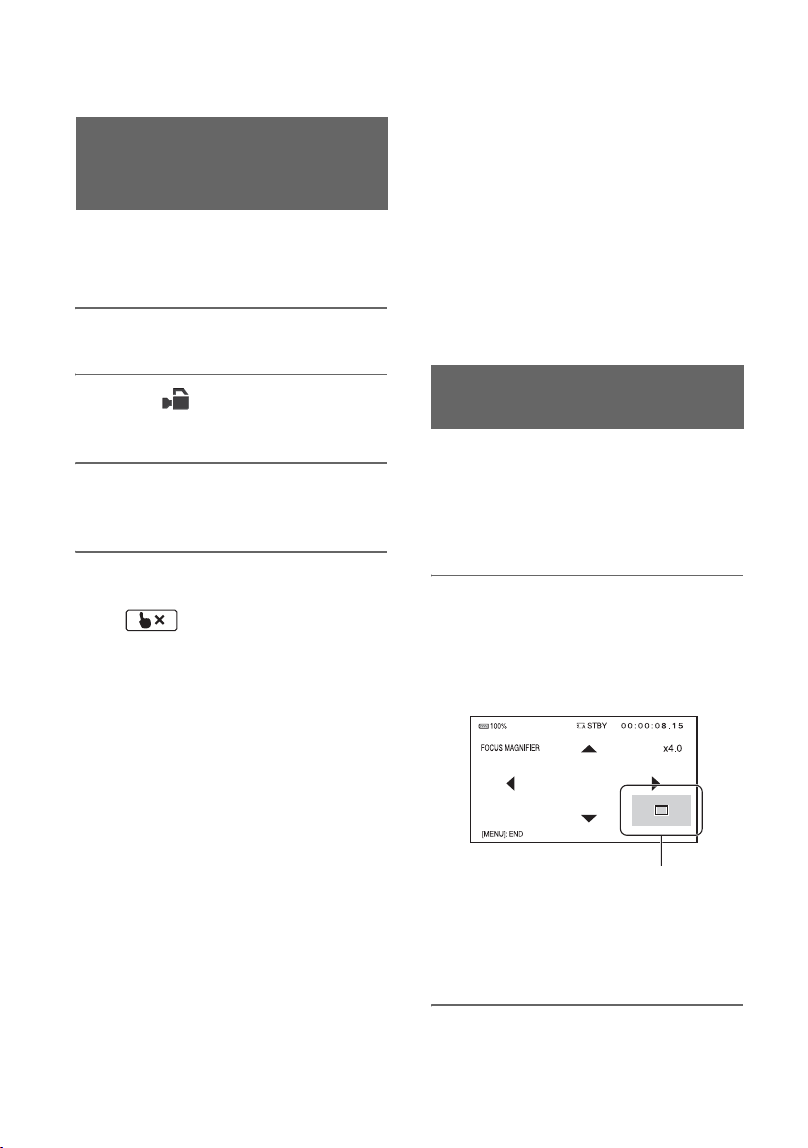
1 During recording or standby,
press the AF/MF button C to set
the focus to manual.
9 appears.
2 Move the ZOOM/FOCUS B
switch, and turn the manual lens
ring A.
• FOCUS: You can manually adjust the
focus by turning the manual lens ring.
• ZOOM: You can manually adjust the
zoom by turning the manual lens ring.
9 changes to when the focus
cannot be adjusted any farther, and
changes to when the focus cannot be
adjusted any closer.
Adjusting the focus manually
Press the AF/MF button C to set the focus
to automatic. 9 disappears and automatic
focus adjustment is restored.
The camcorder uses phase detection AF for
high-speed focusing and contrast AF for
high-accuracy focusing.
The combination of these two AF methods
provides auto focus with both high speed
and high accuracy.
When phase detection AF is enabled, phase
detection AF frames are displayed on the
screen when [PHASE AF FRAMES] is set
to [ON]. And the phase detection AF area is
displayed on the screen when [PHASE
DETECT. AF AREA] is set to [ON].
The position for focusing is indicated by
white phase detection AF frames, and the
frames turn green when the image is in
focus.
b Notes
• Phase detection AF frames are displayed only
when [FOCUS AREA] is set to [WIDE] or
[ZONE]. If set to [CENTER] or [FLEXIBLE
SPOT] and phase detection AF is enabled, the
focus area frame is displayed green to indicate
the in-focus state.
• The auto focus function cannot be used when
shooting in Super Slow Motion.
z Tips
• The focal length information (the distance at
which the subject is in focus; for when it is dark
Adjusting the focus
automatically
Phase detection AF frames
Phase detection
AF area
Focus area frame
Continued ,

36
and hard to adjust the focus) appears for about 3
seconds in the following cases.
– When you press the AF/MF button C to set
the focus to manual and 9 appears on the
LCD screen.
– When you rotate the manual lens ring A
while 9 is displayed on the LCD screen.
• You can switch the focal length information
between meters and feet ([FOCUS DISPLAY],
p. 115).
Selecting the focus area
You can change the position for focusing
used by auto focus.
This is useful when the composition and
movement range of the subject are
determined in advance, or when focusing
on an intended subject is difficult.
1 Press the MENU button
D, and select
(CAMERA SET) t [FOCUS
AREA].
2 Select [WIDE], [ZONE], [CENTER], or
[FLEXIBLE SPOT].
When [ZONE] or [FLEXIBLE SPOT]
is selected, touch the position for
focusing on the next displayed screen.
b Notes
• [FOCUS AREA] is fixed to [WIDE] in the
following cases.
– When using Clear Image Zoom
– When using Digital Zoom
– When auto mode shooting with [SCENE
SELECTION] setting
– When auto mode shooting with
[INTELLIGENT AUTO] setting
– When using lock-on AF
– When the priority face is selected with face
detection (FACE DETECTION)
• The focus area setting is disabled when shooting
in Super Slow Motion.
• When using non-optical zoom, the focus area
setting is disabled and the focus area frame is
displayed using dotted lines.
To focus on a position when [WIDE] is
selected
When [FOCUS AREA] is set to [WIDE]
and an unintended position is in focus,
touch the position at which you want to
focus on the LCD screen to automatically
focus at that position.
The area that can be touched is limited to
the phase detection AF area.
About phase detection AF
When there are phase detection AF distance
measurement points within the focus area,
auto focus uses a combination of phase
detection AF and contrast AF.
b Note
• Phase detection AF cannot be used in the
following cases. Only contrast AF is used.
– When the file format is XAVC S HD and the
recording format is 120p/100p
– When [HIGH FRAME RATE] is enabled in
[S&Q MOTION]
– When using [NIGHTSHOT]
– When the iris is F8.0 or larger
Selecting the AF drive speed
You can select the speed for focusing used
by auto focus.
1 Press the MENU button
D, and select
(CAMERA SET) t [AF DRIVE
SPEED].
2 Select a drive speed in the range
[1[SLOW]] to [7[FAST]].
1 to 4: The focus moves slowly when the
subject to be focused changes, enabling the
shooting of impressive images.
5 to 7: The higher the speed, the faster the
focus follows the subject. This enables
continuous focus on fast-moving subjects,
making it suitable for shooting active
scenes, such as sports.
b Notes
• The AF drive speed setting is disabled in the
following cases.
Adjusting the focus (Continued)

37
Recording
– When the file format is XAVC S HD and the
recording format is 120p/100p
– When [HIGH FRAME RATE] is enabled in
[S&Q MOTION]
– When using [NIGHTSHOT]
– When [INTELLIGENT AUTO] is enabled
• For subjects with low contrast or subjects in
dark places, AF may operate at the optimum
speed regardless of the speed setting.
Setting AF subject tracking
You can select the tracking sensitivity used
by auto focus.
1 Press the MENU button
D, and select
(CAMERA SET) t [AF SUBJ.
TRACK SET].
2 Set [AF TRACKING DEPTH] and [AF
SUBJ. SWITCH. SENS.].
AF TRACKING DEPTH:
This sets the range for tracking subjects in
the depth direction in the range
[1[NARROW]] to [5[WIDE]].
The wider the range, the faster the response
to subjects with large motion, allowing
focusing on subjects with different
distances one after the other.
The narrower the range, focusing can be
maintained on subjects with less movement.
This is useful to maintain focus on a subject
under conditions where other subjects may
pass in front of the intended subject.
AF SUBJ. SWITCH. SENS.:
This sets the time taken for focusing on a
new subject when switching subjects in the
range [1[LOCKED ON]] to
[5[RESPONSIVE]].
The shorter the time, the faster the response
to changing subjects, allowing focusing on
different subjects one after the other.
The longer the time, the longer the focus is
maintained. This focus response delay
allows you to maintain the focus on a
subject if the subject is temporarily placed
outside the focus area and then immediately
returned to within the focus area.
Example [AF TRACKING DEPTH] / [AF
SUBJ. SWITCH. SENS.] settings
Trains/motor sports
When there is nothing in the foreground
and you want to follow subjects with
regular movement and speed.
[AF TRACKING DEPTH]: 4
[AF SUBJ. SWITCH. SENS.]: 5
Sports/wildlife
When you want to track a specific subject
with fast and irregular movement.
[AF TRACKING DEPTH]: 4
[AF SUBJ. SWITCH. SENS.]: 2
Landscape/macro shooting
When the movement of the subject is small,
but there are many scene changes whose
tempo you want to capture.
[AF TRACKING DEPTH]: 1
[AF SUBJ. SWITCH. SENS.]: 5
Parties/festivals
When you want to track a slow-moving
subject but other subjects or people appear
in the foreground.
[AF TRACKING DEPTH]: 1
[AF SUBJ. SWITCH. SENS.]: 1
b Note
• The AF subject tracking settings are disabled in
the following cases.
– When the file format is XAVC S HD and the
recording format is 120p/100p
– When [HIGH FRAME RATE] is enabled in
[S&Q MOTION]
– When using [NIGHTSHOT]
– When [INTELLIGENT AUTO] is enabled
Continued ,
38
You can touch the screen to select a subject
to track for focusing (default setting is
[OFF]).
1 Press the MENU button D.
2 Select (CAMERA SET) t
[LOCK-ON AF] t [ON].
3 Touch the subject you want to
track on the LCD screen.
To cancel Lock-on AF
Select .
b Notes
• Lock-on AF may not provide optimum results
for the following subjects and shooting
conditions.
– Subject is moving too quickly
– Subject is too small or too large
– Subject and background are similar colors
– Dark scenes
– Scenes with changing brightness
• Lock-on AF cannot be used in the following
cases.
– When the file format is XAVC S HD and the
recording format is 120p/100p
– When using Digital Zoom
– When using focus magnification (FOCUS
MAGNIFIER)
– When shooting in HFR (High Frame Rate)
– When shooting in Super Slow Motion
– When the file format is XAVC S 4K and
[PROXY REC MODE] is set to [ON]
– During HDMI output when the file format is
XAVC S 4K
– During streaming (STREAMING)
– During streaming (USTREAM)
– When using Wireless TC LINK (WIRELESS
TC LINK)
– When using the digital extender
(D. EXTENDER)
– During color bar display
• If a fixed time has elapsed since a subject being
tracked is lost from view, it may not be possible
to resume tracking the subject.
– [FOCUS AREA] is set to [WIDE] while using
lock-on AF.
The selected area on the LCD screen is
magnified and displayed. This is useful
when adjusting the focus.
[FOCUS MAGNIFIER] is assigned to the
ASSIGN4/FOCUS MAGNIFIER button
(p. 63).
Press the ASSIGN4/FOCUS
MAGNIFIER button.
The center of the screen is magnified.
The setting changes with each press of the
button.
You can adjust the enlarged display
position with the v/V/b/B buttons on the
camcorder. Press the SET button to set the
enlarged display position back to the center.
b Note
• Even though the image appears enlarged on the
LCD screen, the recorded image is not enlarged.
Adjusting the focus while
tracking a selected subject
(Lock-on AF)
Focusing using the focus
magnifier
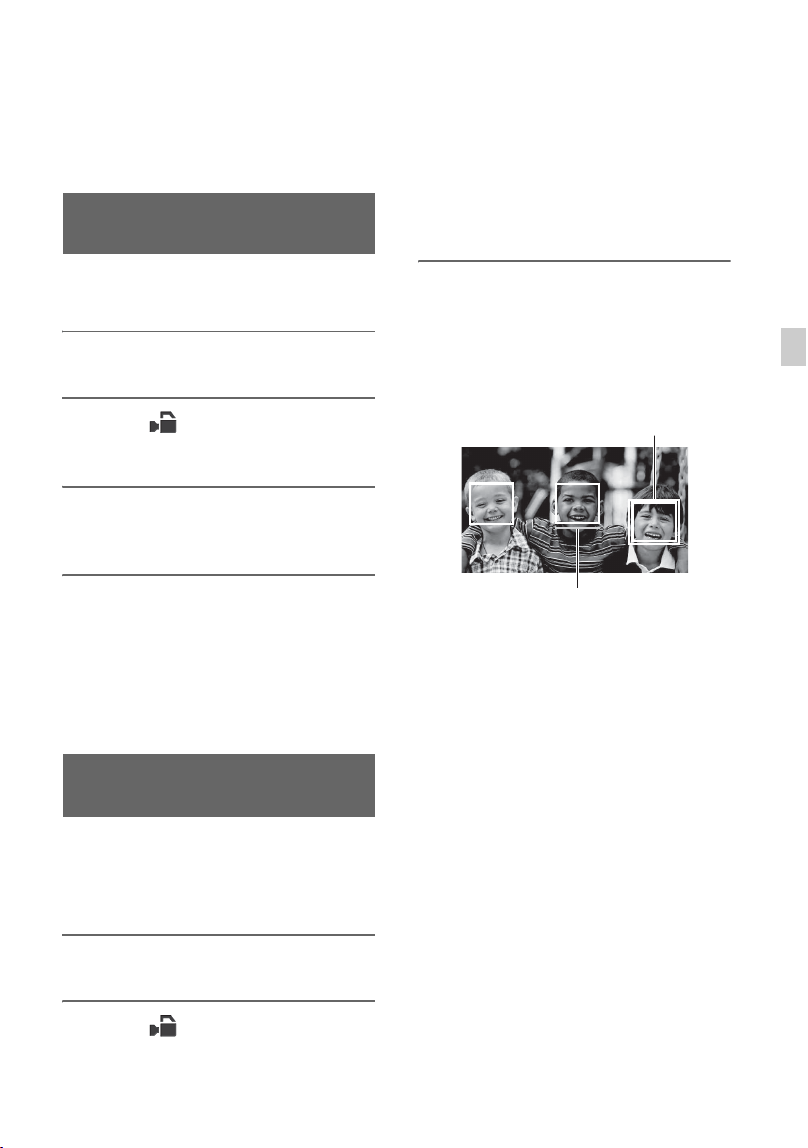
Enlarged display position
Adjusting the focus (Continued)
39
Recording
z Tip
• You can change the magnification ratio with
[FOCUS MAG RATIO] (p. 114).
You can focus on the point where you touch
on the LCD screen.
1 Press the MENU button D.
2 Select (CAMERA SET) t
[SPOT FOCUS].
3 Touch the point to be focused on
the LCD screen.
b Note
• [SPOT FOCUS] is available only with manual
focus.
To cancel the spot focus
Press the MENU button D.
The camcorder detects faces and focuses on
one of them (default setting is [ON]).
[FACE DETECTION] is available only
with automatic focus.
1 Press the MENU button D.
2 Select (CAMERA SET) t
[FACE DETECTION] t [ON].
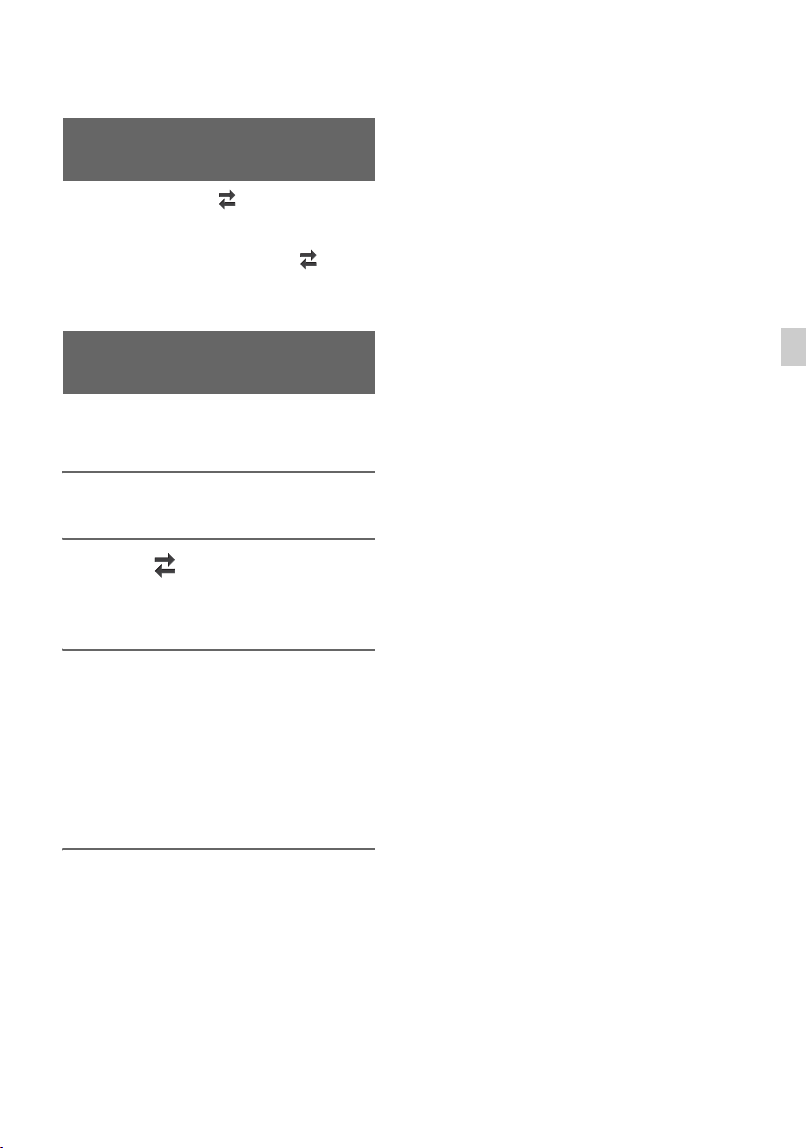
When a face is detected, a gray face
detection frame is displayed. When auto
focusing is possible, a white frame is
displayed. If phase detection AF is
enabled, a green frame is displayed
when in focus.
To set face detection
Move the selection cursor (orange colored
underline) to select the priority face, then
press the v/V/b/B/SET button.
The frame on the priority face changes
to a double frame.
To cancel the priority face
Move the selection cursor to the priority
face frame, then press the v/V/b/B/SET
button to cancel the priority face.
b Notes
• Faces may not be detected depending on the
recording environment, the condition of the
subject or the settings.
• You may not be able to get the proper effect in
some recording environments. If this happens,
set [FACE DETECTION] to [OFF].
• Face detection is disabled in the following
cases.
– When using Clear Image Zoom
– When using Digital Zoom
– When using NightShot
• For details about limitations of face detection,
see “Function limitations when recording”
Focusing by touching the LCD
screen (Spot Focus)
Focusing on a detected face
(Face Detection)
Selection cursor (orange)
Priority face frame
(double frame)
Continued ,

40
(p. 145) and “Slow & Quick Motion and Super
Slow Motion recording limitations” (p. 146).
• When [LOCK-ON AF] is set to [ON], the
selection cursor is not displayed, and a priority
face cannot be selected.
z Tips
• Only faces within the set focus area can be
focused.
• If [FOCUS AREA] is set to [WIDE], the focus
area frame is not displayed when [FACE
DETECTION] is set to [ON].
• To make it easy to detect faces, record under the
following conditions:
– Record in a moderately bright place.
– Do not obscure the face with a hat, mask,
sunglasses, etc.
– Face the front of the camera.
Adjusting the focus (Continued)
41
Recording
Selecting the file format and recording format
Set the file format in (REC/OUT SET)
t [REC SET] t [FILE FORMAT] and
the recording format (bit rate, picture size,
frame rate, scanning method) in (REC/
OUT SET) t [REC SET] t [REC
FORMAT] (p. 106).
You can select the output for the video
signal when recording in XAVC S 4K.
1 Press the MENU button.
2 Select (REC/OUT SET) t
[VIDEO OUT] t [OUTPUT
SELECT] t [4K REC OUTPUT].
3 Select the output destination.
VF/LCD PANEL
Output to viewfinder/LCD screen.
EXTERNAL OUTPUT
Output to an external device.
b Notes
• The [4K REC OUTPUT] settings are enabled
only when the file format is XAVC S 4K.
• The picture being recorded is not displayed on
the viewfinder/LCD screen when [4K REC
OUTPUT] is set to [EXTERNAL OUTPUT].
Also, [NIGHTSHOT LIGHT] is set to [OFF].
• The picture is output to the viewfinder/LCD
screen when recording and streaming, even
when set to [EXTERNAL OUTPUT].
• If recording in XAVC S 4K is started with [4K
REC OUTPUT] set to [EXTERNAL
OUTPUT], then [LCD BRIGHT] is set to
[NORMAL].
• Any one of the following functions can be used
while recording in XAVC S 4K.
– 4K REC OUTPUT
– FACE DETECTION
– Proxy recording
Setting the file format and
recording format
Setting the output destination
when recording in 4K mode
42
Proxy recording
This function allows you to simultaneously
record a low bitrate proxy file at the same
time as recording the high bitrate original
file movie.
Function limitations when proxy
recording
Some functions on the camcorder may be
unavailable when proxy recording. For
details, see “Function limitations when
recording” (p. 145).
Proxy recording supported formats
Proxy recording is supported when the file
format is set to other than AVCHD.
There are also limitations on the size of the
original file movie and the proxy file
movie. For details, see “Proxy recording
supported formats” (p. 148).
Supported media for proxy recording
See “Supported memory cards” (p. 27).
1 Press the MENU button.
2 Select (REC/OUT SET) t
[REC SET] t [PROXY REC
MODE] t [ON/OFF] t [ON].
appears on the screen.
3 Select (REC/OUT SET) t
[REC SET] t [PROXY REC
MODE] t [SIZE] t desired
picture size.
Notes on proxy recording
Proxy recording
4 Press the START/STOP button
(handle record button) to start
recording.
b Notes
• The camcorder can no longer record when the
maximum number of XAVC S movie files is
reached (600).
• The following functions are not available when
proxy recording is on.
– COLOR BAR
–DATE REC
–S&Q MOTION
– SUPER SLOW MOTION
About proxy recording files
• For details about the storage location of
proxy recording files, see “File/folder
structure on the recording media”
(p. 150).
• Proxy files cannot be played on the
camcorder. appears on the thumbnail
of the original file.
• A proxy file is also deleted/protected
when the corresponding original file is
deleted/protected.
43
Recording
Adjusting the brightness
You can adjust the image brightness by
adjusting the iris, ISO sensitivity/gain or
shutter speed, or by adjusting the light level
with the ND filter E.
b Note
• When you set the AUTO/MANUAL switch F
to AUTO, iris, ISO sensitivity/gain, shutter
speed, and white balance are adjusted
automatically. You cannot adjust them
manually.
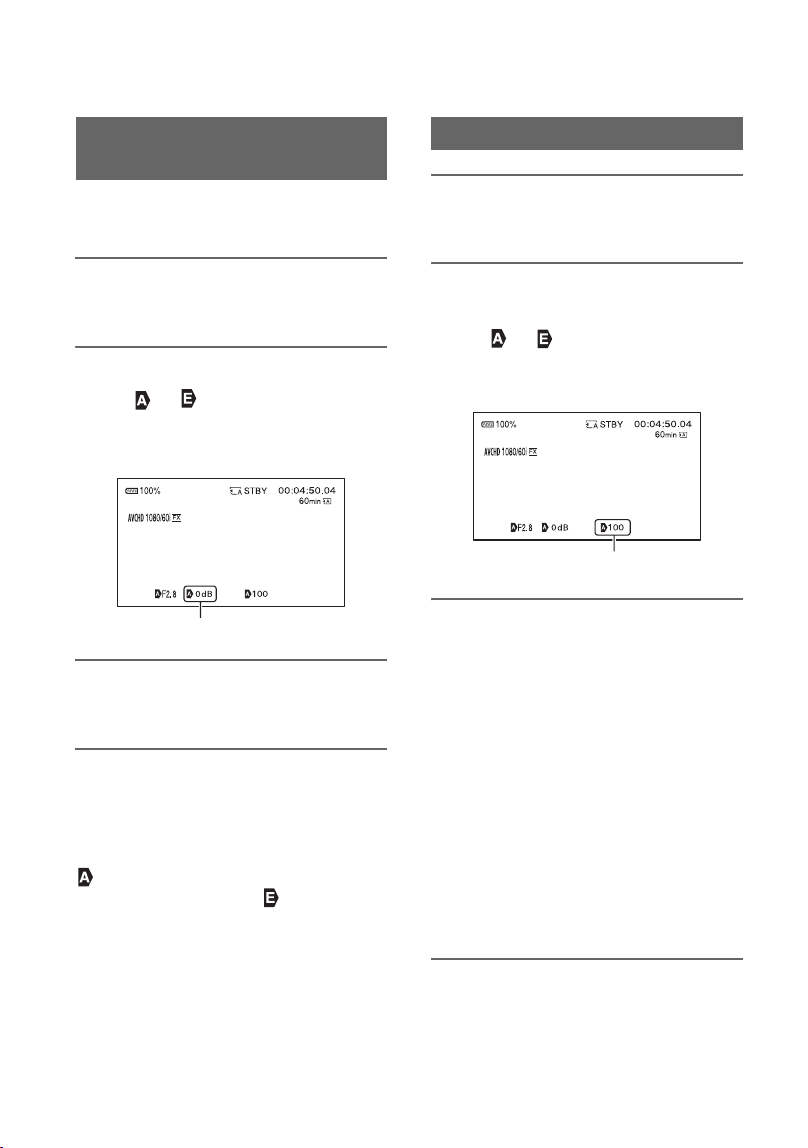
1 Set the AUTO/MANUAL switch F
to MANUAL.
2 Press the IRIS button B.
The or next to the iris value
disappears, and the iris value is
highlighted.
3 Turn the MANUAL dial A to
adjust the value.
The light level increases the more that
you open the aperture (decreasing F
value). The light level decreases the
more that you close the aperture
(increasing F value).
To temporarily adjust automatically
Hold the ASSIGN5/IRIS PUSH AUTO
button down.
The iris is adjusted automatically for as
long as you hold the button down.
To adjust automatically
Press the IRIS button B while the iris
value is highlighted.
The iris value disappears or appears
next to the iris value. When AE is fixed,
appears.
Adjusting the iris
Iris value
Continued ,
44
Set whether to adjust the ISO sensitivity or
gain using [ISO/GAIN SEL] (p. 98).
1 Set the AUTO/MANUAL switch F
to MANUAL.
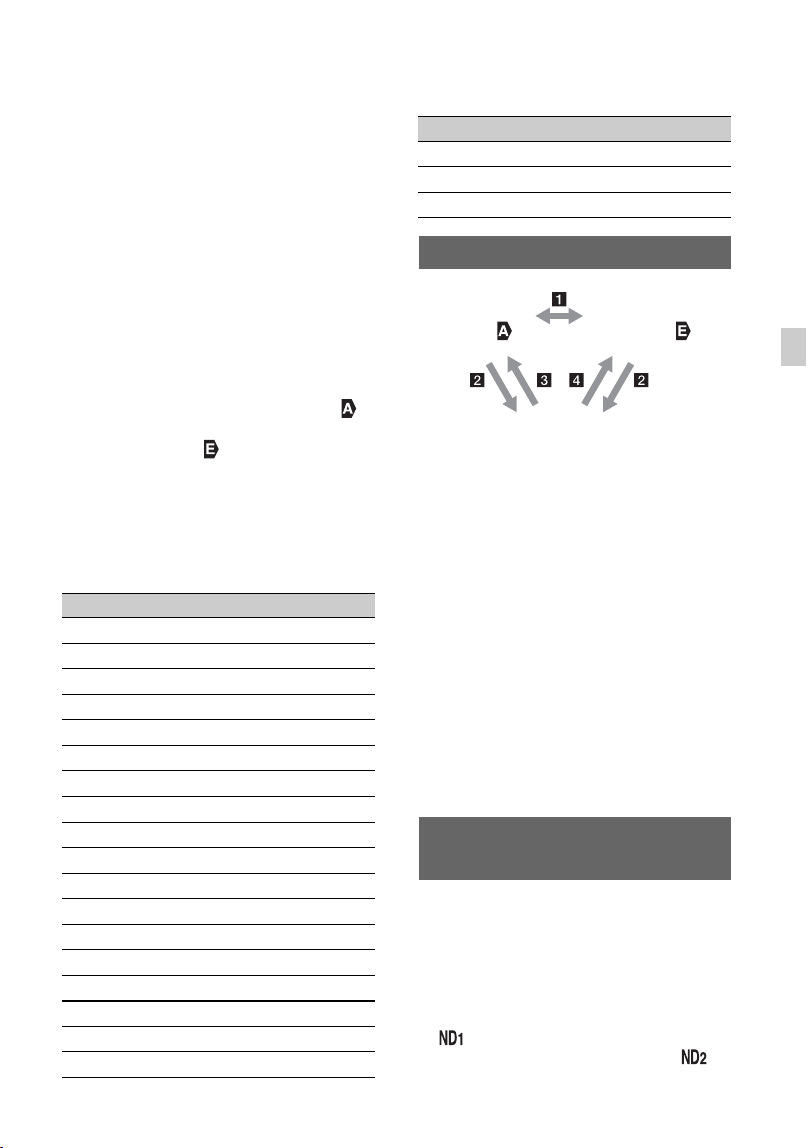
2 Press the ISO/GAIN button C.
The or next to the ISO value or
gain value disappears, and the value is
highlighted.
3 Turn the MANUAL dial A to
adjust the value.
To adjust automatically
Press the ISO/GAIN button C while the
ISO value or gain value is highlighted.
The ISO value or gain value disappears, or
appears next to the ISO value or gain
value. When AE is fixed, appears.
1 Set the AUTO/MANUAL switch F
to MANUAL.
2 Press the SHUTTER SPEED
button D.
The or next to the shutter speed
value disappears, and the shutter speed
value is highlighted.
3 Turn the MANUAL dial A to
adjust the shutter speed.
When [60i] is selected:
You can select from 1/8 to 1/10000 (1/6
to 1/10000 when shooting at 24p).
When [50i] is selected:
You can select from 1/6 to 1/10000.
The denominator of the set shutter speed
appears on the LCD screen. For
example, [100] appears on the LCD
screen when you set the shutter speed to
1/100 second. The larger the value on
the LCD screen is, the faster the shutter
speed is.
z Tips
• It is difficult to focus automatically at a lower
shutter speed. Manual focusing with your
camcorder attached to a tripod is recommended.
Adjusting the ISO sensitivity/
gain
ISO value or gain value
Adjusting the shutter speed
Shutter speed value
Adjusting the brightness (Continued)
45
Recording
• When recording under fluorescent lamps,
sodium lamps, or mercury lamps, the picture
may flicker or change colors, or may have
horizontal bands of noise.
You may be able to improve the situation by
adjusting the shutter speed to 1/100 if the power
frequency of your area is 50 Hz, or 1/60 in a 60
Hz area.
• You can switch the shutter speed display
between seconds and degrees ([SHUTTER
DISPLAY], p. 115).
To adjust automatically
Press the SHUTTER SPEED button D
while the shutter speed value is highlighted.
The shutter speed value disappears, or
appears next to the shutter speed value.
When AE is fixed, appears.
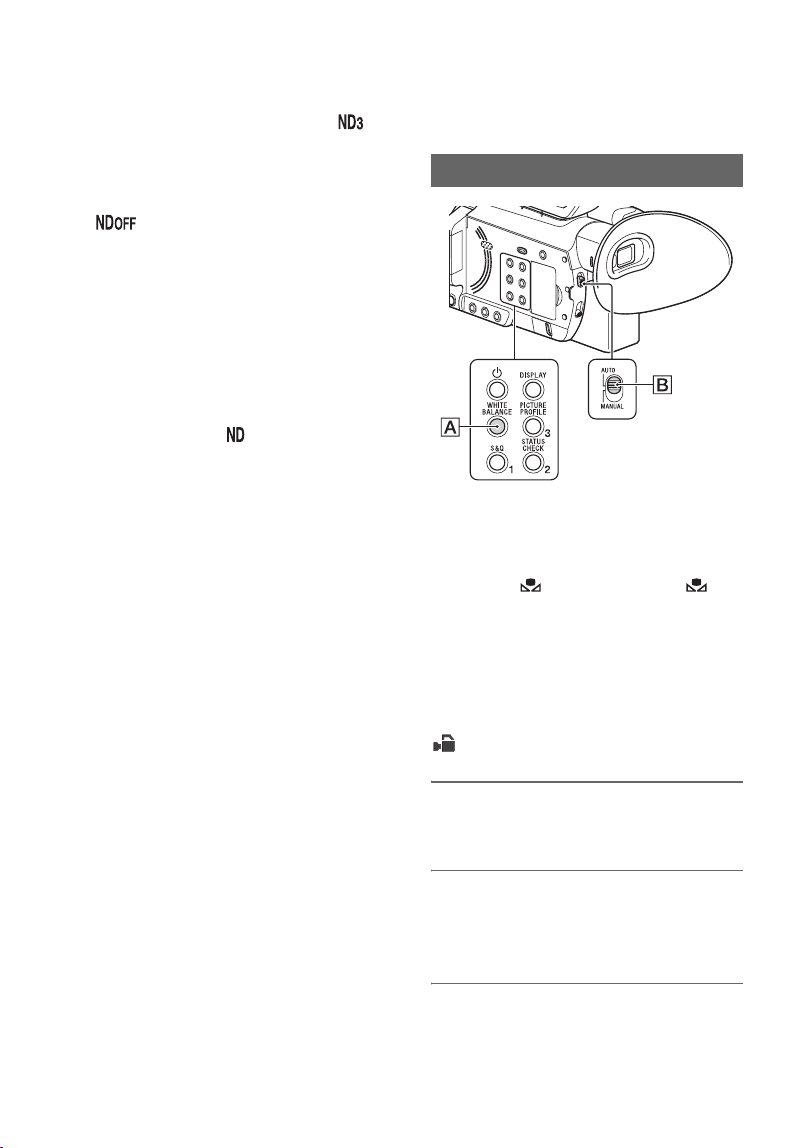
Setting when [60i/50i SEL] is switched
The shutter speed may change after
switching, depending on the current speed
level. Refer to the following table for the
shutter speed levels.
1 When you switch to AUTO/MANUAL
in [SPOT METER] or [SPOT METER/
FOCUS].
2 When all of iris, ISO sensitivity/gain,
and shutter speed are set to MANUAL.
3 When the last setting of the exposure is
set to AUTO, and the iris, ISO sensitivity/
gain, or shutter speed is set to AUTO.
4 When the last setting of the exposure is
set to MANUAL, and the iris, ISO
sensitivity/gain, or shutter speed is set to
AUTO.
b Note
• When you set the AUTO/MANUAL switch F
to AUTO, or press [EXEC] on the [SPOT
METER] or [SPOT METER/FOCUS] screen,
the exposure is returned to AUTO.
You can set an appropriate brightness level
using the ND filter switch E when the
recording environment is too bright.
The ND filters 1, 2 and 3 reduce the light
level to about 1/4, 1/16 and 1/64,
respectively.
If flashes during the iris automatic
adjustment, set the ND filter to 1. If
flashes during the iris automatic
Level 60i/60p/30p 24p 50i/50p/25p
0– 6 –
18 12 6
215 24 12
330 25 25
450 40 30
560 48 50
690 50 60
7 100 60 100
8 125 96 120
9 180 100 150
10 250 120 215
11 350 144 300
12 500 192 425
13 725 200 600
14 1000 288 1000
15 1500 400 1250
16 2000 576 1750
17 3000 1200 2500
18 4000 2400 3500
19 6000 4800 6000
20 10000 10000 10000
Adjusting the exposure
Adjusting the light level (ND
Filter)
Level 60i/60p/30p 24p 50i/50p/25p
MANUAL ( )AUTO ( )
MANUAL (all)
Continued ,
46
adjustment, set the ND filter to 2. If
flashes during the iris automatic
adjustment, set the ND filter to 3.
The ND filter indicator will stop flashing
and remain on the screen.
If flashes, set the ND filter E to
OFF. The ND filter icon will disappear
from the screen.
b Notes
• If you change the ND filter E during recording,
the movie and sound may become distorted.
• When adjusting the iris manually, the ND filter
icon does not flash even if the light level should
be adjusted with the ND filter.
• If the camcorder cannot detect the ND filter
position (OFF/1/2/3), flashes on the screen.
Make sure that the ND filter is set correctly.
z Tip
• While recording a bright subject, diffraction
may occur if you close the aperture further
down, resulting in a fuzzy focus (this is a
common phenomenon with video cameras). The
ND filter E suppresses this phenomenon and
gives better recording results.
Adjusting the color
tone
You can adjust and fix the white balance
according to the lighting conditions of
recording environment.
You can store white balance values in
memory A ( A) and memory B ( B),
respectively. Unless a white balance is
readjusted, values will remain even after the
power has been turned off.
When you select PRESET, [OUTDOOR],
[INDOOR] or [MANU WB TEMP] is
selected, according to which one you
previously set with [WB PRESET] in the
(CAMERA SET) menu.
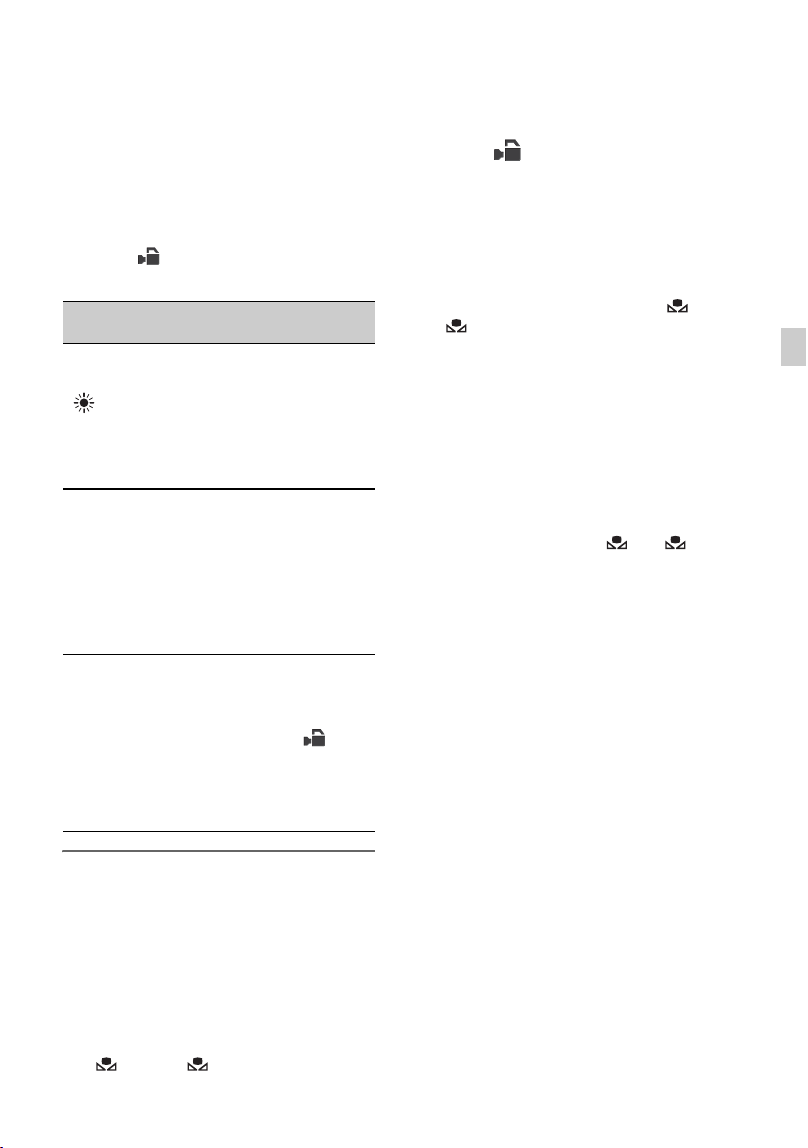
1 Set the AUTO/MANUAL switch B
to MANUAL.
2 Press the WHITE BALANCE
button A.
The white balance value is highlighted.
3 Turn the MANUAL dial to select
PRESET, A, or B.
Adjusting the white balance
Adjusting the brightness
(Continued)
47
Recording
x Setting the A/B value
Select A or B for recording with the
white balance setting stored in memory
A or B.
x To use the PRESET value of white
balance
Select (CAMERA SET) t [WB
PRESET] and select a desired setting.
To save the adjusted white balance
value in memory A or B
1 Set the AUTO/MANUAL switch B to
MANUAL.
2 Press the WHITE BALANCE button
A to highlight the white balance value.
3 Turn the MANUAL dial to select A
( A) or B ( B).
4 Press the MENU button.
5 Select (CAMERA SET) t [WB
SET].
6 Frame a white object such as a piece of
paper that fills the screen under the
same lighting conditions as your
subject.
7 Press the v/V/b/B/SET button.
The adjusted value is stored in A or
B. The stored color temperature
appears for about 3 seconds.
z Tip
• If [WB SET] is assigned to an ASSIGN button,
the adjusted value is stored by pressing the
ASSIGN button when the shooting screen is
displayed, instead of performing step 4.
b Note
• When a white balance adjustment value has not
been obtained successfully, A or B
starts flashing slowly. Adjust the subject
appropriately and set the shutter speed to auto or
around 1/60 (when [60i] is selected)/1/50 (when
[50i] is selected), then try adjusting the white
balance again.
To restore automatic adjustment
Press the WHITE BALANCE button A.
b Note
• When you set the AUTO/MANUAL switch B
to AUTO, iris, ISO sensitivity/gain, shutter
speed, and white balance are adjusted
automatically. You cannot adjust manually.
Setting values
Example of recording
conditions
Outdoor
([OUTDOOR])
• When recording a night
scene, neon lighting,
fireworks, etc.
• When recording a
sunrise, sunset, etc.
• Under daylight
fluorescent lamp
n Indoor
([INDOOR])
• Where lighting
conditions change,
such as at a party place,
etc.
• Under video light, such
as in a studio, etc.
• Under a sodium or
mercury lamp
Color
temperature
setting ([MANU
WB TEMP])
• You can set a desired
color temperature
between 2300K and
15000K with
(CAMERA SET) t
[WB TEMP SET]
(default setting is
6500K).
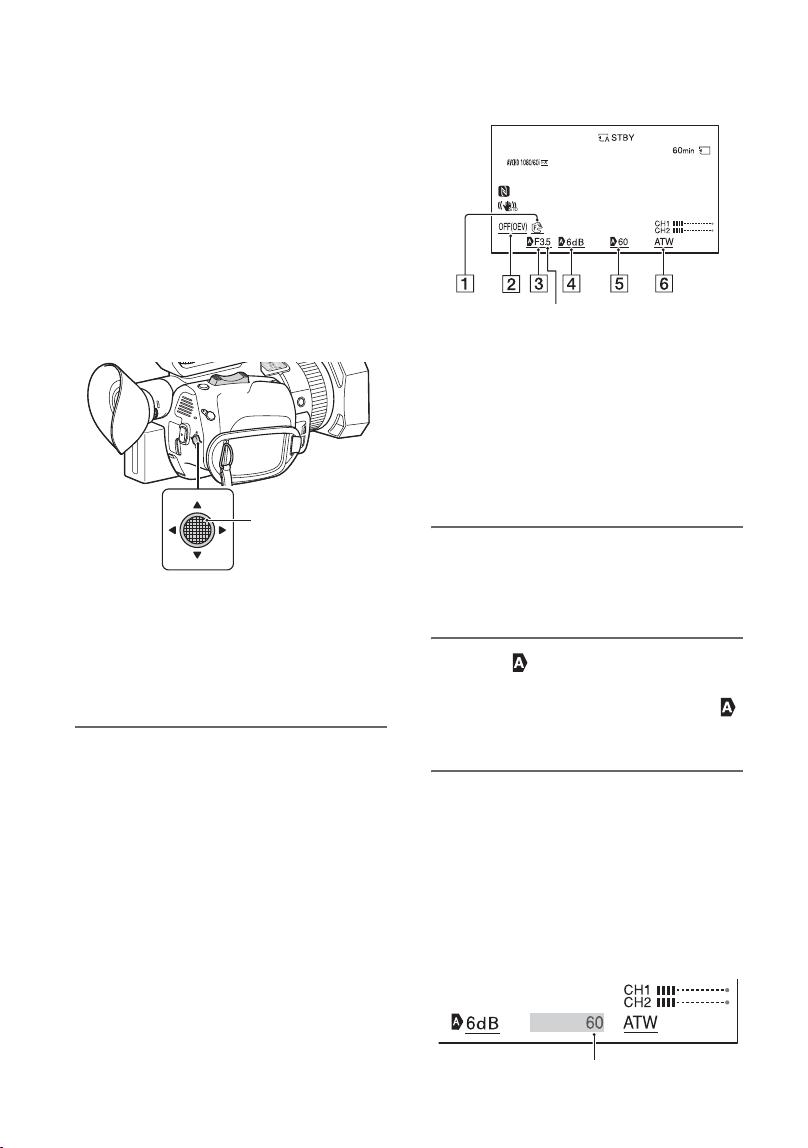
48
Using Direct Menu
Direct Menu allows you to change settings
directly while recording using the v/V/b/
B/SET buttons.
The following items can be configured.
• Focus value (p. 35)
• AE shift level value (p. 99)
• Iris value (p. 43)
• ISO sensitivity/gain value (p. 44)
• Shutter speed value (p. 44)
• White balance value (p. 46)
You can assign this function to an ASSIGN
button.
For details about function assignment
operation to an ASSIGN button, see
“Assigning functions to the ASSIGN
buttons” (p. 63).
1 Press the ASSIGN button to
which Direct Menu is assigned.
After entering Direct Menu mode, a
cursor (underline) is displayed for items
along the bottom of the LCD screen.
• Orange cursor indicates the selected
item.
• White cursor indicates selectable
items.
For example, the iris value 3 is
selected in the following diagram.
A Focus value
B AE shift level value
C Iris value
D ISO sensitivity/gain value
E Shutter speed value
F White balance value
2 Move the v/V/b/B/SET button left/
right to move the orange cursor
to select the target item to set.
3 When (auto) appears for the
item to set, moving the v/V/b/B/
SET button up/down clears the
mark.
4 Press the v /V/b/B/SET button to
apply the setting.
The set value is highlighted in reverse
black and white, allowing you to change
the value.
The following diagram shows an
example of changing the shutter speed
value.
v/V/b/B/SET
buttons
Orange cursor
Shutter speed value
49
Recording
5 Move the v/V/b/B/SET button up/
down to display the desired
value.
6 To set another item, repeat steps
3 to 5 to move the orange cursor
using the v/V/b/B/SET button.
7 When all desired values are
displayed, press the v/V/b/B/SET
button.
The setting is applied, and Direct Menu
mode ends.
b Notes
• Direct Menu is not available when using the
following functions (includes operation using
operation buttons and ASSIGN buttons).
– During menu display
– During playback mode
–S&Q MOTION
– SUPER SLOW MOTION
– FOCUS MAGNIFIER
– SPOT METER/FOCUS
–SPOT METER
–SPOT FOCUS
– Focus area setting
– VOLUME
– Smartphone operation (CTRL W/
SMARTPHONE)
– LAST SCENE REVIEW
–STREAMING
–USTREAM
– WIRELESS TC LINK
• If an item (such as iris value or focus value) is
changed using buttons or switches while Direct
Menu is displayed, the Direct Menu may be
canceled.
Changed shutter speed value
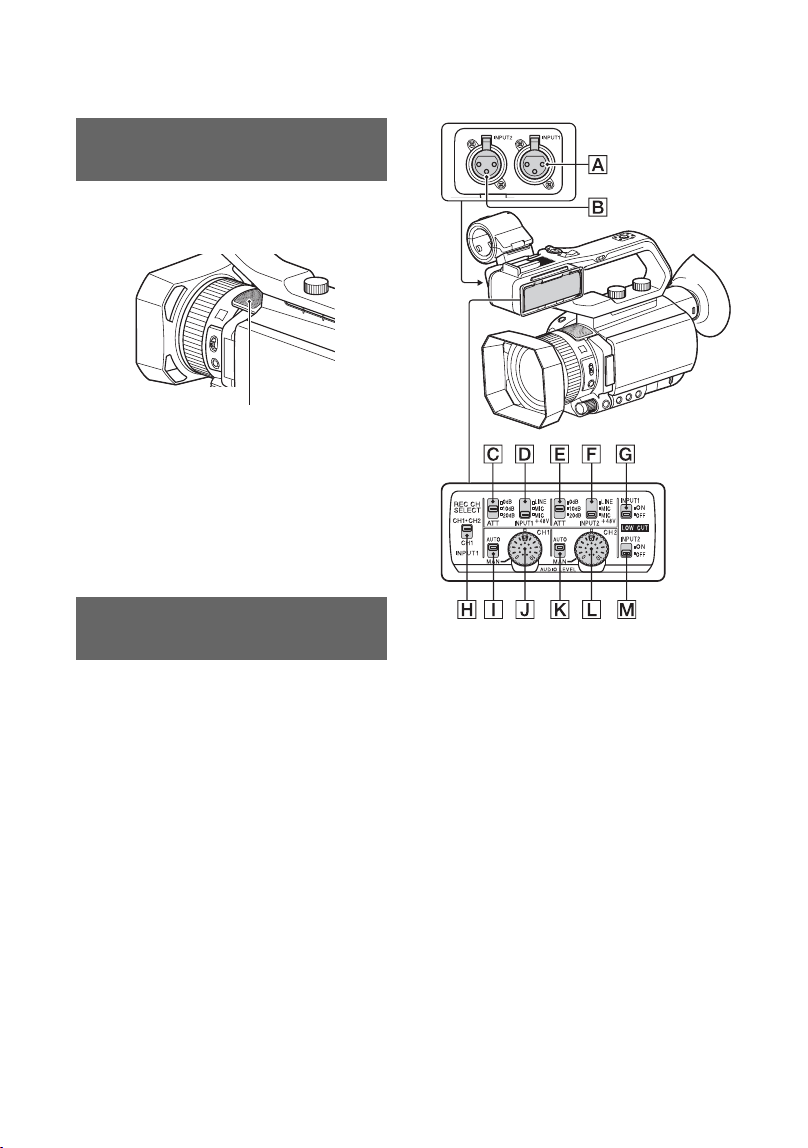
50
Audio setup
You can record sound in stereo using the
camcorder’s internal microphone.
Select [INT MIC] in the [MIC SELECT]
menu.
z Tip
• To reduce wind noise, set [INT MIC WIND] to
[ON].
The jacks, switches and dials shown below
allow you to set the sound that is recorded.
See page 10 for details about connecting a
microphone.
Recording sound from the
internal microphone
Recording sound from an
external audio device
Internal microphone
External audio input jacks
A: INPUT1 jack
B: INPUT2 jack
Audio source switches
D: INPUT1 (LINE/MIC/MIC+48V)
switch
F: INPUT2 (LINE/MIC/MIC+48V)
switch
Audio source level controls
C: ATT (INPUT1) switch
E: ATT (INPUT2) switch
Recording channel switch
H: REC CH SELECT (INPUT1) switch
Audio level controls
I: AUTO/MAN (CH1) switch
J: AUDIO LEVEL (CH1) dial
K: AUTO/MAN (CH2) switch
51
Recording
L: AUDIO LEVEL (CH2) dial
Wind noise reduction switches
G: LOW CUT (INPUT1) switch
M: LOW CUT (INPUT2) switch
When using a microphone with XLR-type
connector (sold separately) or external
audio device (such as a mixer), configure
the settings as described below.
1 Select the audio input source.
• Set the INPUT1/INPUT2 (LINE/MIC/
MIC+48V) switch (D or F) based
on the device connected to INPUT1
jack A/INPUT2 jack B.
b Notes
• If the switch is set to MIC+48V and you connect
a device that is not compatible with +48V
power, it may damage the connected device.
Check the switch before connecting the device.
• To prevent unwanted noise when no audio
device is connected to the INPUT1 or INPUT2
jack, set the INPUT1/INPUT2 (LINE/MIC/
MIC+48V) switch (D or F) to LINE.
2 Set the microphone input level.
When the INPUT1/INPUT2 (LINE/
MIC/MIC+48V) switch (D or F) is
set to MIC or MIC+48V, the input level
can be set using the ATT (INPUT1/
INPUT2) switch (C or E). Adjust the
setting based on the sensitivity of the
microphone.
ATT 0dB: –60dBu
ATT 10dB: –50dBu
ATT 20dB: –40dBu
b Note
• The input level is fixed to +4dBu when the
INPUT1/INPUT2 (LINE/MIC/MIC+48V)
switch (D or F) is set to LINE. The input
level does not change, even if you change the
ATT switch setting.
3 Select the channel to record.
With the REC CH SELECT (INPUT1)
switch H, select the channel to record.
z Tip
• When using a stereo microphone with two XLR
(3-pin) plugs, connect the INPUT1 jack A to
the left channel, connect the INPUT2 jack B to
the right channel, and set the REC CH SELECT
(INPUT1) switch H to CH1.
You can record audio with a Multi Interface
Shoe-compatible microphone.
1 Connect the Multi Interface Shoe
compatible microphone (sold
separately) to the Multi Interface
Shoe.
Connected device Switch position
External audio device (such
as mixer)
LINE
Dynamic microphone or
microphone with built-in
battery
MIC
+48V powered (phantom
power) microphone
MIC+48V
REC CH SELECT
(INPUT1) switch
setting
Sound recorded to CH1 and
CH2
CH1•CH2
INPUT1 CH1
CH2
CH1
INPUT1
INPUT2
CH1
CH2
Recording sound from a Multi
Interface Shoe compatible
microphone (sold separately)
Continued ,

52
2 Select [MI SHOE MIC] in the [MIC
SELECT] menu.
You can record sound in stereo using an
external microphone (sold separately).
1 Connect the external microphone
(sold separately) to the MIC jack
(PLUG IN POWER).
2 Select [STEREO MINI MIC] in the
[MIC SELECT] menu.
You can adjust the audio level for the sound
that is input from the INPUT1 and INPUT2
jacks.
1 Set the AUTO/MAN switch to MAN
for the channel that you want to
adjust (CH1 or CH2).
2 Turn the AUDIO LEVEL dial to
adjust the audio level.
Use headphones or an audio level meter to
check that the audio level is appropriate.
To restore automatic adjustment
• Set the AUTO/MAN switch to AUTO to restore
automatic adjustment for sound that is input
from the INPUT1 and INPUT2 jacks.
You can adjust the audio level for the sound
that is input from the internal microphone
or an external microphone (sold separately).
1 Select [MANUAL] in the [REC
LEVEL MODE] menu in [AUDIO
REC LEVEL].
2 During recording or standby,
adjust the microphone volume in
the [MANUAL REC LEVEL] menu
in [AUDIO REC LEVEL].
To restore automatic adjustment
• Select [NORMAL] or [HIGH] in the [REC
LEVEL MODE] menu in [AUDIO REC
LEVEL].
Recording sound from an
external microphone (sold
separately)
Adjusting the audio level from
the INPUT1 and INPUT2 jacks
Adjusting the audio level from
the internal microphone or an
external microphone (sold
separately)
Audio setup (Continued)
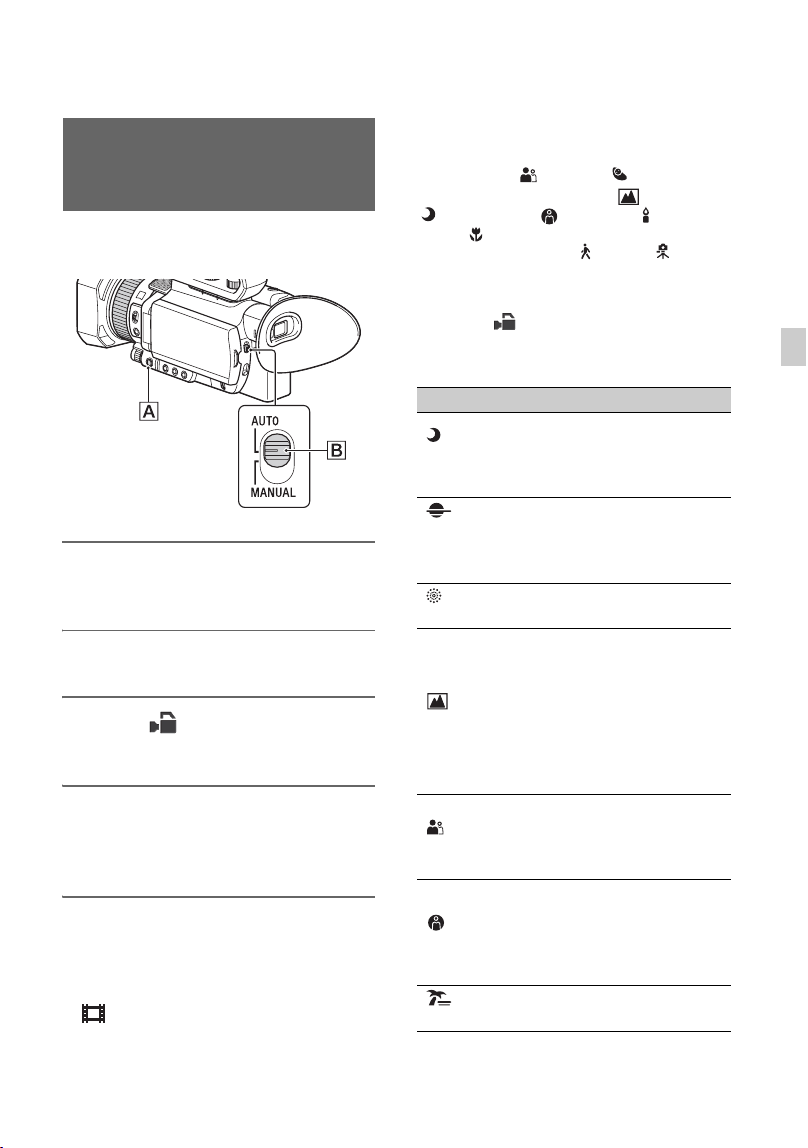
53
Recording
Useful functions
You can make optimal recordings in
various situations.
1 Set the AUTO/MANUAL switch B
to AUTO.
2 Press the MENU button A.
3 Select (CAMERA SET) t
[AUTO MODE SET].
4 Select [AUTO], [INTELLIGENT
AUTO], or [SCENE SELECTION],
then press the dial.
b Note
• Fixed to [AUTO] if the file format is XAVC S
4K.
• When you select [INTELLIGENT AUTO],
[ STEADYSHOT] is set to [ACTIVE], and
the angle of view shifts 1.08 times toward the
telephoto side.
Selecting suitable settings
automatically (auto mode
setting)
Scenes detected by INTELLIGENT
AUTO
Face detection: (Portrait), (Baby)
Scene detection: . (Backlight), (Landscape),
(Night Scene), (Spotlight), (Low
Light), (Macro)
Camera-shake detection: (Walk), (Tripod)
To use [SCENE SELECTION]
1 Select (CAMERA SET) t
[SCENE SELECTION SET].
2 Select the desired setting.
Setting values Recording conditions
Night Scene
([NIGHT
SCENE])
Shoots a night view with
a proper exposure, using
a tripod (sold
separately).
Sunrise &
Sunset
([SUNRISE&
SUNSET])
Shoots the scenes under
the glow of sunset/
sunrise vividly.
Fireworks
([FIREWORKS])
Shoots fireworks with
optimal exposure.
Landscape
([LANDSCAPE])
Shoots distant subjects
clearly. This setting also
prevents your camcorder
from focusing on any
glass or mesh in
windows between the
camcorder and the
subject.
Portrait
([PORTRAIT])
Brings out the subject,
such as people or
flowers, while creating a
soft background.
Spotlight
([SPOTLIGHT])
Prevents people's faces
from appearing
excessively white when
subjects are lit by strong
light.
Beach
([BEACH])
Takes the vivid blue of
the ocean or a lake.
Continued ,
54
b Notes
• When [SCENE SELECTION SET] is set, the
following settings are canceled.
– White balance
–Iris
– Shutter speed
– ISO sensitivity/gain
• When [SCENE SELECTION SET] is set, the
focus area is fixed to [WIDE].
You can shoot bright video, even in low
light conditions, such as outdoor locations
with limited street lighting or dimly lit
indoors, by automatically optimizing the
gain and shutter speed.
b Note
This function is available only when the AUTO/
MANUAL switch is set to AUTO and [AUTO
MODE SET] is set to [AUTO].
1 Set the AUTO/MANUAL switch
AUTO.
2 Press the MENU button.
3 Select (CAMERA SET) t
[LOW LUX] t [ON].
• is displayed.
• To cancel, set [LOW LUX] to [OFF].
You can shoot scenes under very dark
conditions by turning on the infrared light.
The infrared light does not turn on if
[NIGHTSHOT LIGHT] is set to [OFF].
1 Press the MENU button.
2 Select (CAMERA SET) t
[NIGHTSHOT] t [ON].
• is displayed.
• To cancel, set [NIGHTSHOT] to [OFF].
b Notes
• NIGHTSHOT can only be used when the
AUTO/MANUAL switch is set to AUTO.
• NIGHTSHOT uses infrared light. Make sure
that your finger does not cover the NightShot
light when shooting.
• Remove the lens hood.
• Do not use NIGHTSHOT in bright conditions.
Doing so may damage the camcorder.
You can customize the picture quality by
adjusting picture profile items such as
[GAMMA] and [DETAIL]. You can make
adjustments for the time of day, weather
conditions, or just personal preference.
Press the ASSIGN3/PICTURE PROFILE
button to display the picture profile
selection screen.
Select a picture profile number to enable
shooting with the selected picture profile
settings (p. 122).
You can change the settings of the picture
profile.
Picture quality settings for different
recording conditions have been stored in
[PP1] through [PP10] as default settings.
[PP4] is set for the picture profile by
default.
Shooting in dimly lit locations
(LOW LUX)
Shooting in dark conditions
(NIGHTSHOT)
Customizing the picture quality
(Picture Profile)
Useful functions (Continued)
55
Recording
To change the picture profile
You can change the settings stored in [PP1]
through [PP10].
1 Press the ASSIGN3/PICTURE
PROFILE button.
2 Select the picture profile number with
the settings you want to change.
3 Select [SETTING].
4 Select the item to adjust.
5 Adjust the picture quality.
6 Repeat steps 4 and 5 to adjust other
items.
7 Select [ RETURN] t [OK].
The picture profile indicator is
displayed.
Copying the picture profile settings to
another picture profile number
You can change settings by copying a
picture profile. This is useful when you
want to register similar settings.
1 Press the ASSIGN3/PICTURE
PROFILE button.
2 Select the source picture profile number
to copy.
3 Select [SETTING] t [COPY].
4 Select the destination picture profile
number.
5 Select [YES] t [ RETURN] t
[OK].
Resetting a picture profile
You can reset changed picture profile
settings by the picture profile number. You
cannot reset all picture profile settings at
once.
1 Press the ASSIGN3/PICTURE
PROFILE button.
2 Select the picture profile number that
you want to reset to default settings.
3 Select [SETTING] t [RESET] t
[YES] t [ RETURN] t [OK].
z Tip
Connect your camcorder to a TV or monitor, and
adjust the picture quality while observing the
picture on the TV or monitor screen.
Picture profile
number
Example setting
PP1
Example settings of a
color tone with
[STANDARD] gamma
PP2
Example settings of a
color tone with [STILL]
gamma
PP3
Example settings of
natural color tone with
[ITU709] gamma
PP4
Example settings of a
color tone that is faithful
to [ITU709]
PP5
Example settings of
pictures recorded on
cinema color negative
film
PP6
Example settings of
pictures screened with
cinema color print film
PP7
Example settings when
shooting with [S-LOG2]
gamma in [S-GAMUT]
color mode.
PP8
Example settings when
shooting with [S-LOG3]
gamma in
[S-GAMUT3.CINE]
color mode.
PP9
Example settings when
shooting with [S-LOG3]
gamma in [S-GAMUT3]
color mode.
PP10
Example settings when
shooting with [HLG2]
gamma in [BT.2020]
color mode.
Continued ,
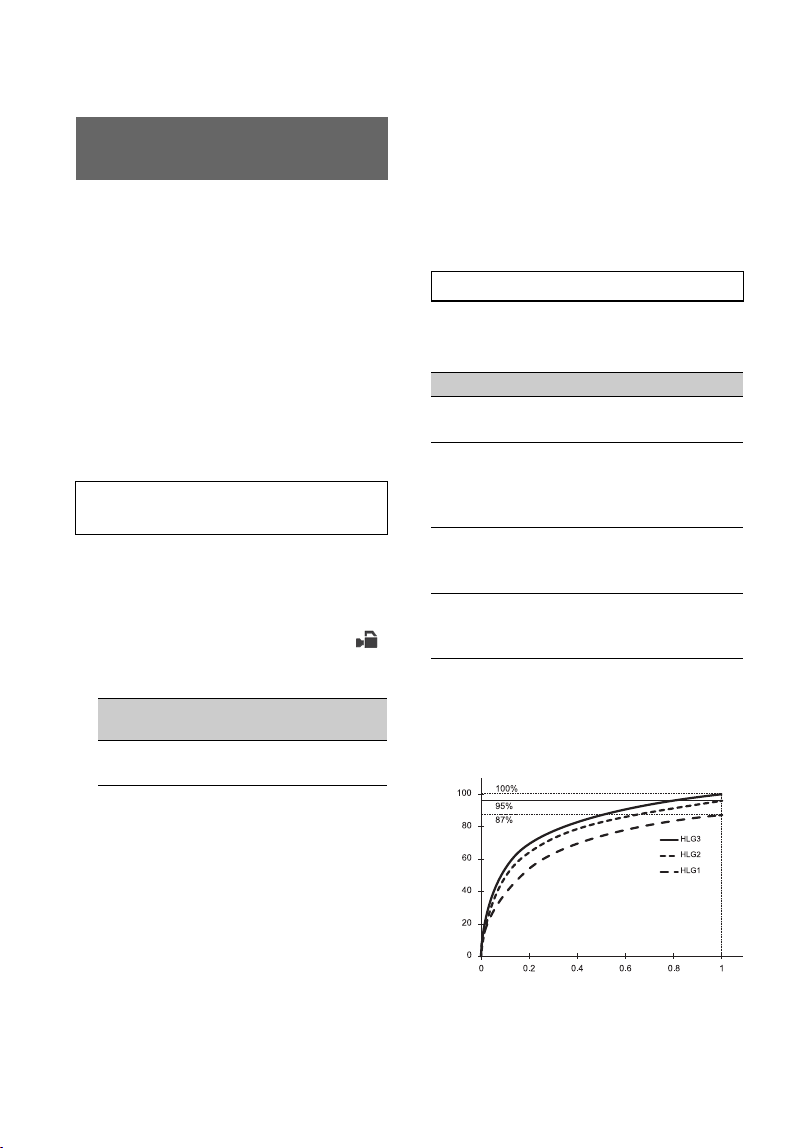
56
Reproduction of brightness over a wider
range than previously available is supported
by applying an HDR-compatible picture
profile. The camcorder supports Hybrid
Log-Gamma (HLG), with four selectable
gamma settings.
The [HLG] setting is equivalent to ITU-R
BT.2100. The [HLG1], [HLG2], and
[HLG3] settings enable images to be
reproduced with a wider dynamic range
without images that appear unnatural, as
can arise in existing camera image
reproduction.
An HDR setting is registered in [PP10] by
default for shooting in HDR.
[HLG], [HLG1], [HLG2], and [HLG3] can
also be used in [PP1] to [PP9].
1 Press the MENU button, and select
(CAMERA SET) t [PICTURE
PROFILE] t [PP10].
2 Adjust the picture profile items, as
required.
3 Press the START/STOP button (or the
handle record button).
Movies shot in HDR are recorded on the
memory card.
b Notes
• XAVC S format recording
When recording HDR video in XAVC S format
on the camcorder, the color space, gamma, and
other metadata required for HDR playback and
display are stored in the video file.
On devices used for playback and display that
support the metadata, the video is displayed
automatically with the appropriate settings. On
devices that do not support the metadata,
manual configuration is required.
• AVCHD format recording
AVCHD format recordings do not support HDR
metadata. For appropriate playback and display
of HDR, manual configuration is required.
[GAMMA] items
(Default setting in bold)
[HLG1], [HLG2], and [HLG3] all use the
same gamma curve characteristic. Only the
dynamic range and noise suppression
characteristics differ.
b Notes
• The maximum value of the video output varies
depending on whether [HLG1], [HLG2], or
[HLG3] is selected ([HLG1]: 87%, [HLG2]:
Shooting in high dynamic range
(HDR)
Shooting using HDR-compatible
picture profile
Picture profile
number
Example setting
PP10 Setting for shooting in
HDR
Picture profile HDR-related items
Item Description
[HLG] Setting equivalent to ITU-R
BT.2100.
[HLG1] Setting that provides greater
noise suppression than [HLG2].
However, the dynamic range
that can be shot is narrower.
[HLG2] Setting with balance between
dynamic range and noise
suppression.
[HLG3] Setting that provides wider
dynamic range than [HLG2].
However, the noise level rises.
HLG3
HLG2
HLG1
100%
100
80
60
40
20
0
00.20.40.60.81
95%
87%
HLG1 to HLG3
Gamma input
Video output (%)
Useful functions (Continued)
57
Recording
95%, [HLG3]: 100%). Test shooting beforehand
is recommended to prevent use of an
inappropriate setting during actual shooting.
• The following limitations apply when [HLG],
[HLG1], [HLG2], or [HLG3] is selected.
– If [MODE] is set to AUTO for [KNEE], the
[KNEE] setting becomes disabled.
– [COLOR MODE] can only be set to
[BT.2020] or [709].
– The [BLACK GAMMA] setting is disabled.
– [AUTO BACK LIGHT] cannot be used.
[COLOR MODE] items
(Default setting in bold)
b Note
Color bars are not output correctly when
[BT.2020] is selected.
The viewfinder and LCD screen of the
camcorder do not support HDR, and so are
not appropriate for displaying HDR.
However, they can display an image to aid
shooting using the gamma display assist
function.
The gamma display assist function affects
only the monitoring video or playback
video displayed in the viewfinder or on the
LCD screen. The recorded video and output
video are not affected.
1 Press the MENU button, and select
(DISPLAY SET) menu t [GAMMA
DISP ASSIST] t [ON/OFF] t [ON].
2 Select [GAMMA DISP ASSIST] t
[TYPE].
3 Select one of the following.
(Default setting in bold)
z Tips
• When the camcorder is powered using the
battery pack, changing the brightness of the
LCD will make the HDR image easier to
monitor. In the DISPLAY SET menu, select
[LCD BRIGHT] t [BRIGHT].
Item Description
[BT.2020] Standard color tone when
[HLG], [HLG1], [HLG2], or
[HLG3] is selected for
[GAMMA].
[709] Color tone for recording HDTV
format (BT.709) color when
[HLG], [HLG1], [HLG2], or
[HLG3] is selected for
[GAMMA].
Using the gamma display assist
function
Item Description
[AUTO] Shooting screen:
Automatically corrects
the picture according to
the picture profile setting.
Playback screen: For
AVCHD and XAVC S
non-HLG files,
automatically corrects the
picture according to the
current picture profile
setting. For XAVC S
HLG files, automatically
corrects the picture
according to the gamma
and color mode of the
playback image.
Thumbnail screen:
Maintains the recent
setting (shooting/
playback).
S-LOG2t
709(800%)
Converts S-LOG2 to ITU-
709(800%) for display.
S-LOG3t
709(800%)
Converts S-LOG3 to ITU-
709(800%) for display.
[HLG
(BT.2020)]
Applies suitable correction
for when [GAMMA] is HLG
and [COLOR MODE] is set
to [BT.2020].
[HLG(709)] Applies suitable correction
for when [GAMMA] is HLG
and [COLOR MODE] is set
to [709].
Continued ,
58
Icon display
When the gamma display assist function is
ON, the following icons are displayed on
the shooting screen and playback screen.
You can play back video recorded in HDR
on the camcorder.
When playing files recorded in XAVC S
4K or XAVC S HD format, an “HLG” icon
is displayed on the thumbnail screen and
playback screen (see following diagrams).
b Notes
• An “HLG” icon is not displayed when playing
AVCHD format files recorded in HDR.
• To view HDR video on a TV, connect a Sony
HDR (HLG) compatible TV to the camcorder
via USB.
When a TV (or HDR (HLG) compatible
monitor) is connected using HDMI or SDI, the
image quality settings of the TV must be
adjusted manually for appropriate display.
Set the image quality settings of the TV to a
gamma setting that supports HLG and a color
mode setting that supports BT.2020 or 709.
Thumbnail screen
* Only files recorded in XAVC S format.
Playback screen
* Only files recorded in XAVC S format.
The following limitations apply on files
recorded in formats other than XAVC S 4K
or XAVC S HD.
• The fact that the recording used HLG is
not registered in metadata.
• The “HLG” icon is not displayed on the
thumbnail screen and playback screen.
The camcorder records movies
accompanied by time data, such as
timecode and user bits.
1 Press the MENU button, and select
(TC/UB SET) t [TC PRESET].
Icon Meaning
[S-LOG2t709(800%)] in use
[S-LOG3
t709(800%)] in use
[HLG(BT.2020)] in use
[HLG(709)] in use
Playing video recorded in HDR on
the camcorder
Limitations on HDR files recorded in
non-XAVC S formats
Setting time data
Setting the timecode
“HLG” icon*
HLG 2020
“HLG” icon*
Gamma display assist icon
Useful functions (Continued)
59
Recording
2 Select [PRESET].
3 Select the first two digits. You can set
the timecode within the following
range.
When [60i] is selected:
00:00:00:00 to 23:59:59:29
• When setting 24p, you can set the last 2
timecode digits of the frames in multiples of
4, between 0 and 23.
When [50i] is selected:
00:00:00:00 to 23:59:59:24
4 Set other digits by repeating step 3.
5 Select [OK].
To reset the timecode
Select [RESET] in step 2 of “Setting the
timecode” to reset the timecode
(00:00:00:00).
To reset the timecode using the
Wireless Remote Commander
Press the TC RESET button on the Wireless
Remote Commander to reset the timecode
(00:00:00:00).
1 Press the MENU button, and select
(TC/UB SET) t [UB PRESET].
2 Select [PRESET].
3 Select the first two digits.
4 Set other digits by repeating step 3.
5 Select [OK].
To reset the user bits
Select [RESET] in step 2 of “Setting the
user bits” to reset the user bits (00 00 00
00).
By recording with a frame rate that is
different from the playback frame rate, you
can record images to be played back as
slow motion or quick motion images. The
images recorded with the Slow & Quick
Motion function will appear smoother than
slow or fast-forward playback of images
recorded at normal speed.
You must set the recording format and
frame rate. The playback speed is
determined by the combination.
1 Press the MENU button, and select
(CAMERA SET) t [SLOW &
QUICK] t [S&Q MOTION] t [REC
FORMAT].
2 Set the recording format.
3 Select [FRAME RATE].
4 Set the frame rate.
1 Press the ASSIGN1/S&Q button
repeatedly to display [S&Q MOTION]
on the screen.
2 Press the START/STOP button.
Slow & Quick Motion recording starts.
3 To stop, press the START/STOP button
again.
z Tip
• You can also press the MENU button and select
(CAMERA SET) t [SLOW & QUICK]
t [S&Q MOTION] t [EXECUTE] to switch
to Slow & Quick Motion shooting mode.
To change the frame rate setting
Press and hold the ASSIGN1/S&Q button
for about 1 second, then change the value.
Setting the user bits
Recording with the Slow &
Quick Motion function
Preparation
To record with the Slow & Quick
Motion function
Continued ,

60
Pressing the v/V/b/B/SET button, or
pressing and holding the ASSIGN1/S&Q
button again for about 1 second restores the
previous setting.
To cancel Slow & Quick Motion
recording
Press the ASSIGN1/S&Q button or the
MENU button during standby.
b Notes
• The supported memory cards that can be used
vary depending on the file format (p. 27).
• In quick motion recording, the camcorder may
continue recording for a few more seconds after
you press the START/STOP button to stop
recording (up to 30 seconds). Do not operate
your camcorder while the [REC] indicator is
flashing on the screen, and wait till it turns to
[STBY].
• After you stop recording, your camcorder
continues recording till it completes writing 0.5
seconds unit of data.
• When you are recording with a slow frame rate,
the camcorder may continue recording for a few
more seconds after you press the START/STOP
button to stop recording.
• You cannot change the frame rate during Slow
& Quick Motion recording. To change the frame
rate, first stop Slow & Quick Motion recording.
• The timecode is recorded in [REC RUN] mode
(p. 118).
• Slow & Quick Motion mode is automatically
canceled when the camcorder is turned off, but
the frame rate setting is retained.
• You cannot record sound during Slow & Quick
Motion recording.
• You cannot use the Slow & Quick Motion
function for simultaneous recording.
• The maximum continuous recording time in
Slow & Quick Motion has the same limitations
as for normal recording. The maximum
continuous recording time will vary depending
on the frame rate setting.
• For details about Slow & Quick Motion
limitations, see “Slow & Quick Motion and
Super Slow Motion recording limitations”
(p. 146).
You can record at high frame rate when the
file format is XAVC S HD.
The playback speed is determined by the
recording format.
1 Press the MENU button, and select
(CAMERA SET) t [SLOW &
QUICK] t [S&Q MOTION] t
[HIGH FRAME RATE] t [ON].
2 Select [REC FORMAT].
3 Select a recording format.
In this state, starting to record in Slow &
Quick Motion will record at high frame
rate.
The frame rate is fixed to the following
value.
When [60i] is selected: 120
When [50i] is selected: 100
For details about shooting, see “To record
with the Slow & Quick Motion function”
(p. 59).
b Notes
• The camcorder may continue recording for a
few more seconds after you press the START/
STOP button to stop recording.
• The timecode is recorded in [REC RUN] mode.
z Tip
• The [HIGH FRAME RATE] ON/OFF setting
cannot be switched using the ASSIGN1/S&Q
button.
By recording with a frame rate that is
higher than the playback frame rate, you
can record images to be played back as
Slow-motion recording at high
frame rate (HFR)
Preparation
Recording with the Super Slow
Motion function
Useful functions (Continued)
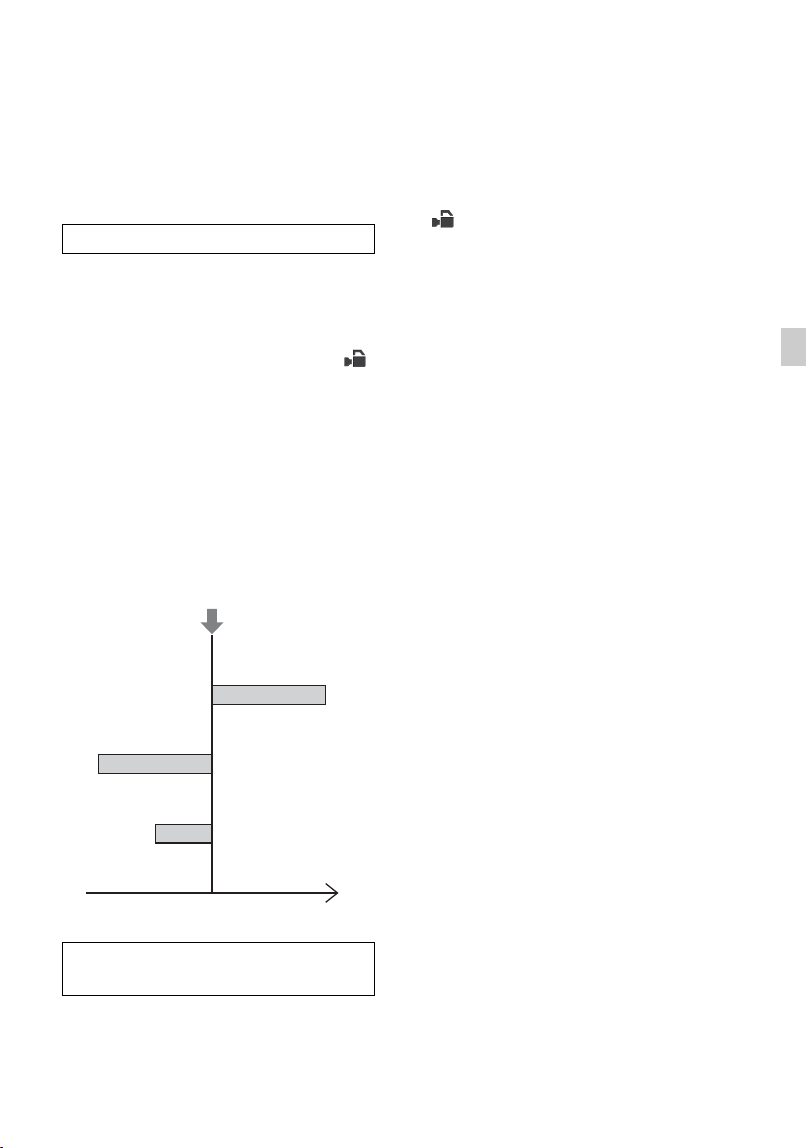
61
Recording
slow motion images. The images recorded
with the Super Slow Motion function will
appear smoother than slow playback of
images recorded at normal speed.
You must set the recording format and
frame rate. The playback speed is
determined by the combination. You also
must set the record timing.
1 Press the MENU button, and select
(CAMERA SET) t [SLOW &
QUICK] t [SUPER SLOW
MOTION].
2 Select [REC FORMAT], and select the
recording format.
3 Select [FRAME RATE], and select the
frame rate.
4 Select [REC TIMING], and select the
record timing.
1 Press the ASSIGN1/S&Q button
repeatedly to display [SUPER SLOW
MOTION] on the screen.
2 Press the START/STOP button.
Super Slow Motion recording starts.
z Tip
• You can also press the MENU button and select
(CAMERA SET) t [SLOW & QUICK]
t [SUPER SLOW MOTION] t
[EXECUTE] to switch to Super Slow Motion
shooting mode.
To determine the recording time
manually
When [REC TIMING] is set to [START
TRIGGER], press the START/STOP button
again while recording to stop recording.
To change the frame rate setting
Press and hold the ASSIGN1/S&Q button
for about 1 second, change the setting using
the v/V/b/B/SET button, and then press
the v/V/b/B/SET button to apply the
setting.
When you want to abort recording
Select [Cancel] on the screen during
recording to abort recording.
Recording stops and the captured content is
not saved. This is useful when you want to
shoot again immediately.
To cancel Super Slow Motion
recording
Press the ASSIGN1/S&Q button or the
MENU button during standby.
b Notes
• The supported memory cards that can be used
vary depending on the file format (p. 27).
• In Super Slow Motion recording, the camcorder
may continue recording after you press the
START/STOP button to stop recording (up to 3
minutes). Do not operate your camcorder while
the [REC] indicator is flashing on the screen,
and wait till it turns to [STBY].
• After you stop recording, your camcorder
continues recording till it completes writing 0.5
seconds unit of data.
Preparation
To record with the Super Slow
Motion function
Record button
START TRIGGER
END TRIGGER
END TRIGGER
HALF
Time axis
Continued ,

62
• The shutter value may not be displayed
correctly when recording in Super Slow Motion
if [SHUTTER DISPLAY] is set to [DEGREE]
(p. 115).
• Available only when the AUTO/MANUAL
switch is set to MANUAL. Note that iris, ISO
sensitivity/gain, and shutter speed are fixed to
manual.
• When the [FRAME RATE] is set to [960]
([1000]), the image displayed and recorded
shifts approximately 1.35 times toward the
telephoto side.
• When the [FRAME RATE] is set to [480] or
[960] ([500] or [1000]), the picture will be
slightly degraded relative to normal shooting.
• Changing the ISO sensitivity/gain, shutter
speed, or white balance will cause degradation
of the image on the LCD screen, but the camera
settings in force when shooting ends are applied
to the recorded image. For details about
displaying camera data, see page 66.
• To change the frame rate setting, first stop
recording.
• The timecode is recorded in [REC RUN] mode
(p. 118).
• Super Slow Motion mode is automatically
canceled when the camcorder is turned off, but
the [FRAME RATE] setting is retained.
• Flicker correction has no effect.
• You cannot record sound.
• The auto focus function is not supported.
• Shutter speeds slower than the frame rate cannot
be selected.
• Super Slow Motion recording is not supported
when the file format is XAVC S 4K.
• For details about Super Slow Motion
limitations, see “Slow & Quick Motion and
Super Slow Motion recording limitations”
(p. 146).
You can review the most recently recorded
scene on the LCD screen.
You can assign this function to an ASSIGN
button.
For details about function assignment
operation to an ASSIGN button, see
“Assigning functions to the ASSIGN
buttons” (p. 63).
After you stop recording, press the
ASSIGN button to which [LAST
SCENE REVIEW] is assigned.
The camcorder plays from the start to the
end of the most recently recorded scene,
then returns to standby mode.
To stop reviewing the last scene
Press the ASSIGN button to which [LAST
SCENE REVIEW] is assigned during
playback. The camcorder returns to standby
mode.
b Note
• If you edit the movie or remove the recording
media after you stop recording, the Last Scene
Review function may not work correctly.
Reviewing the most recently
recorded scene (Last Scene
Review)
Useful functions (Continued)

63
Recording
Assigning functions to the ASSIGN buttons
Some functions can be assigned to the
ASSIGN buttons.
You can assign a single function to each of
the ASSIGN1 to 6 buttons.
Function assignments are performed using
(OTHERS) t [ASSIGN BUTTON].
For details about each function, see “Menu
items” (p. 96).
Default assigned functions
• ASSIGN1: S&Q MOTION (p. 59)
• ASSIGN2: STATUS CHECK (p. 67)
• ASSIGN3: PICTURE PROFILE (p. 54)
• ASSIGN4: FOCUS MAGNIFIER (p. 38)
• ASSIGN5: IRIS PUSH AUTO (p. 43)
• ASSIGN6: – (no function)
Functions you can assign to the
ASSIGN buttons
• – (no function)
• LOW LUX (p. 54)
• FOCUS MAGNIFIER (p. 38)
• LAST SCENE REVIEW (p. 62)
• WHITE BALANCE (p. 46)
• WB PRESET (p. 47)
•WB SET (p.47)
• AE SHIFT (p. 99)
• D. EXTENDER (p. 99)
• STEADYSHOT (p. 99)
• FOCUS AREA (p. 100)
• FOCUS POSITION (p. 36)
• AF DRIVE SPEED (p. 36)
• AF TRACKING DEPTH (p. 37)
• AF SUBJ. SWITCH. SENS. (p. 37)
• FACE DETECTION (p. 39)
•S&Q MOTION (p.59)
• AUTO MODE SET (p. 53)
• SCENE SELECTION SET (p. 53)
• NIGHTSHOT (p. 54)
• IRIS PUSH AUTO (p. 43)
• SPOT METER/FOCUS (p. 104)
• SPOT METER (p. 104)
• SPOT FOCUS (p. 104)
•COLOR BAR (p.105)
• DIRECT (p. 48)
• MENU (p. 95)
• PICTURE PROFILE (p. 54)
• VOLUME (p. 111)
• HISTOGRAM (p. 113)
• ZEBRA (p. 113)
• PEAKING (p. 113)
• PHASE AF FRAMES (p. 113)
• MARKER (p. 114)
• CAMERA DATA DISPLAY (p. 115)
• AUDIO LEVEL DISPLAY (p. 115)
• DATA CODE (p. 66)
• GAMMA DISP ASSIST (p. 57)
• TC/UB DISPLAY (p. 117)
• SMARTPHONE CONNECT (p. 73)
• STREAMING (p. 82)
•USTREAM (p.84)
• STREAM OPERATION (p. 82)
• WIRELESS TC LINK (p. 87)
• STATUS CHECK (p. 67)
•REC LAMP (p.121)
• THUMBNAIL (p. 64)
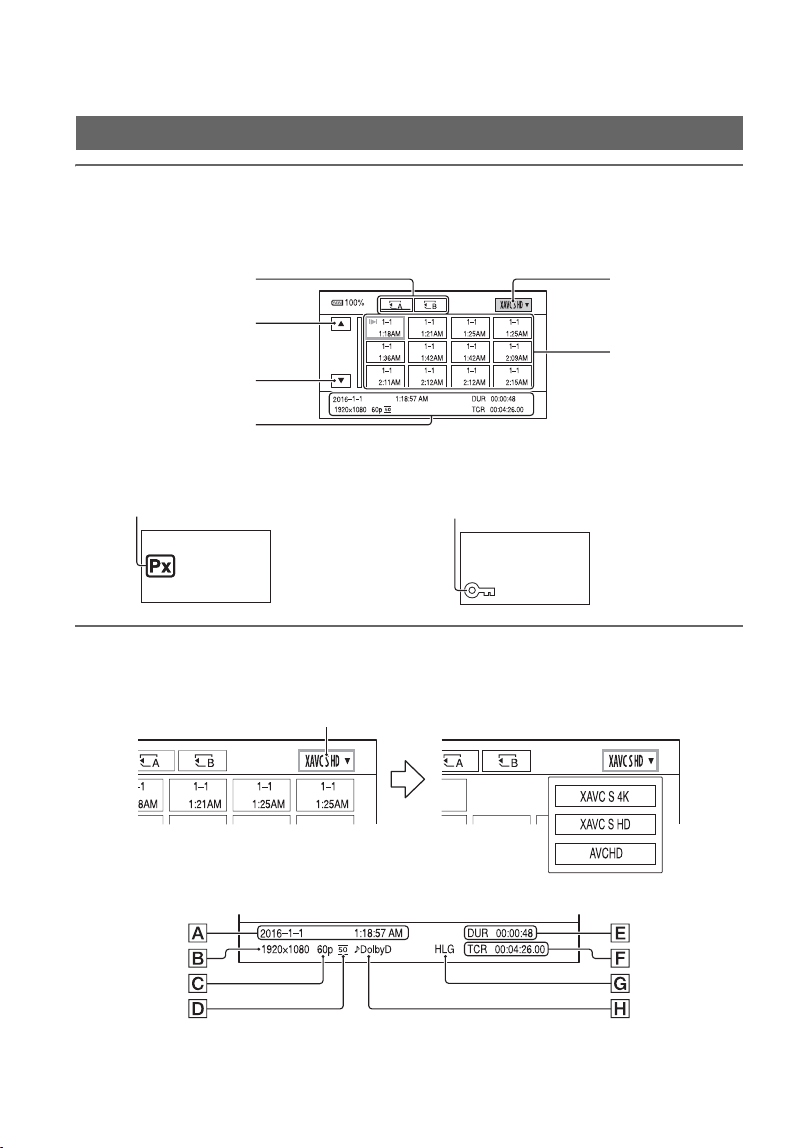
64
Playback
Playback
1 Insert a memory on which a movie has been recorded, and press the
THUMBNAIL button (p. 15).
The THUMBNAIL screen appears after a few seconds.
• You can turn on or off the date and time display on the thumbnails by pressing the DISPLAY button.
• Icons may also be displayed on thumbnails.
2 Select the target memory card and playback mode, then touch the movie
thumbnail twice to play back.
Playback
Memory card Playback mode
Back
Next
Thumbnails
Current movie data (p. 64)
Protected (p. 91) iconProxy recording (p. 42) icon
Playback mode
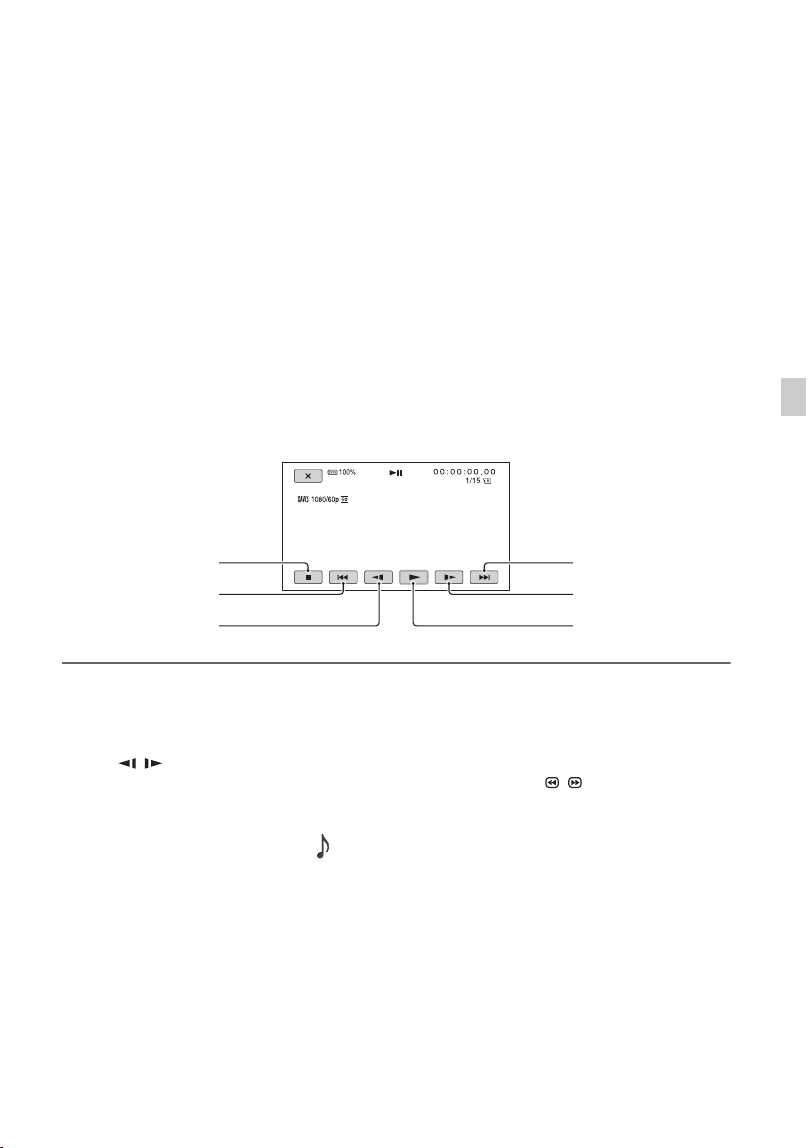
65
Playback
ADate and time of recording start
BResolution
CFrame rate
DRecording mode
ERecording time
FTimecode of recording start
Timecode will not be displayed correctly when you play back a memory card with no
timecode, or a memory card with timecode that your camcorder does not support.
GHLG recording
Displayed when recording movies using HLG gamma.
HDOLBY DIGITAL recording
Displayed when audio is recorded in Dolby Digital format.
• i appears with the movie that has been most recently played back or recorded. Selecting it will
continue playback from the previous time.
Playback starts.
z Tips
• When playback from the selected movie reaches the last movie, the screen returns to the THUMBNAIL
screen.
• Select / during pause to play back movies slowly.
• The playback speed increases based on the number of times that you select / .
To adjust the volume
Press the MENU button and select (AUDIO SET) t [VOLUME] to adjust the volume.
To return to recording mode
Press the THUMBNAIL button.
On playing back movies
• Movies recorded using this camcorder may not be played back normally on devices other than this
camcorder. Also, movies recorded on other devices may not play back properly on this camcorder.
Stop
Slow/Fast reverse
Back
Next
Play/Pause
Slow/Fast forward
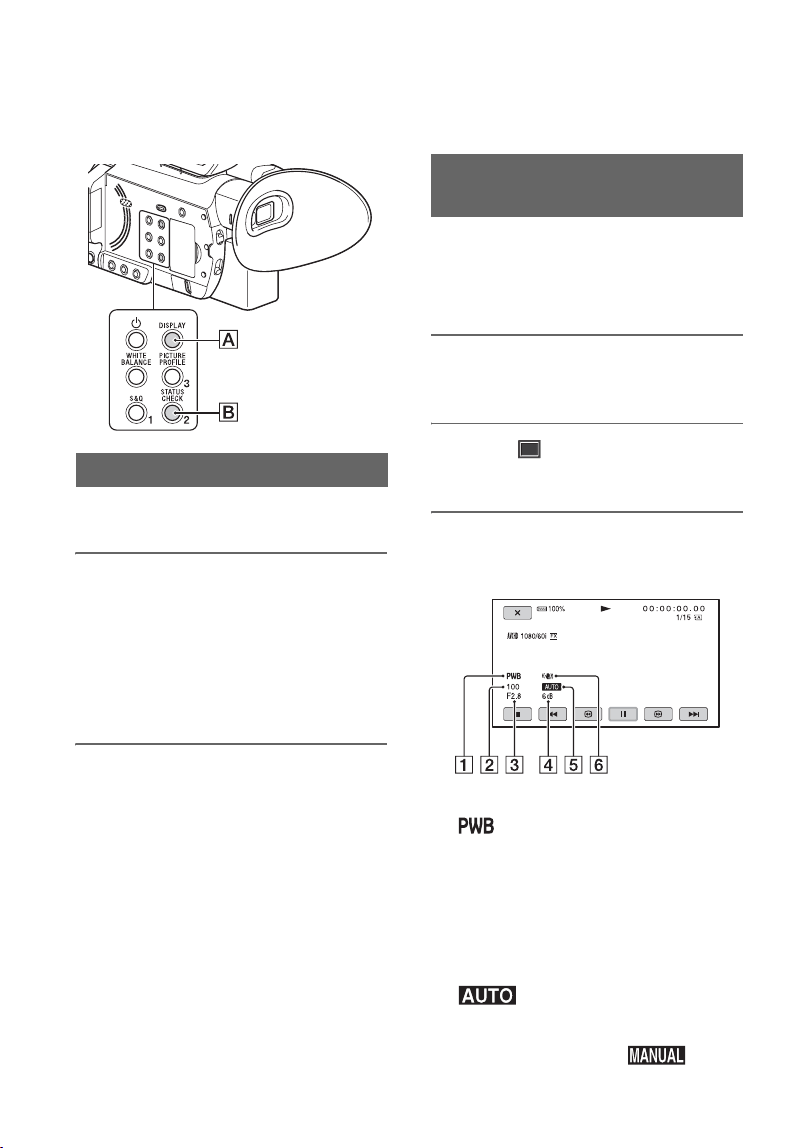
66
Changing/checking the settings in your
camcorder
You can display information such as
timecode, etc., on the image.
Press the DISPLAY button (A).
The screen indicators turn on (displayed)
y off (not displayed) each time you press
the button. In recording mode, the screen
changes in the order, detailed display t
simple display t no display with each
press of the button.
z Tip
• You can display the screen indicators during
playback on a TV by setting [DISPLAY
OUTPUT] to [ALL OUTPUT] (p. 117).
You can display information, including
date, time and camera data automatically
stored during recording on the screen
during playback.
1 Press the MENU button during
playback.
2 Select (DISPLAY SET) t
[DATA CODE].
3 Select the information you want
to display.
A White balance
appears during the playback of
movies recorded with [MANU WB
TEMP].
B Shutter speed
C Iris
D ISO sensitivity/gain
E Exposure
appears during playback of the
movie recorded with the iris, ISO
sensitivity/gain, and shutter speed
automatically adjusted.
appears during playback of the movie
Changing the screen display
Displaying recording data (Data
Code)
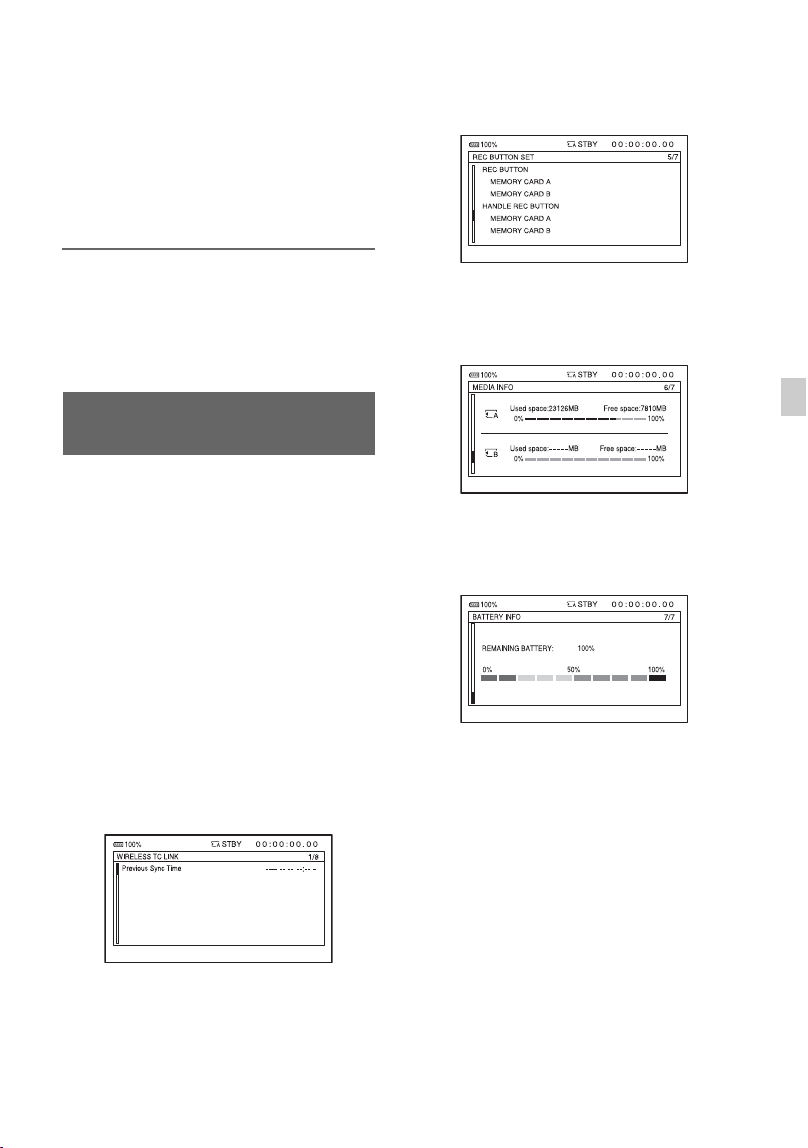
67
Playback
recorded with the iris, ISO sensitivity/
gain, and shutter speed manually
adjusted.
F Camera shake correction
(STEADYSHOT)
b Note
• When you play back the memory card on other
devices, the camera data may be displayed
incorrectly. Confirm the correct camera data on
your camcorder.
Press the ASSIGN2/STATUS CHECK
button B to check the settings of the
following items.
– Wireless TC LINK information (p. 87)
– Audio setup (p. 111)
– Output signal setup (p. 108)
– Functions assigned to the ASSIGN
buttons (p. 63)
– Camera setup (p. 98)
– Record button setup (p. 32)
– Memory card information
– Battery information
• Wireless TC LINK
You can check the last synchronization
time.
• Record button setup
You can check the record button setting.
• Memory card information
You can check the estimated used and free
spaces.
• Battery Info
You can check the remaining capacity of
the attached battery.
Checking the settings in your
camcorder (Status Check)
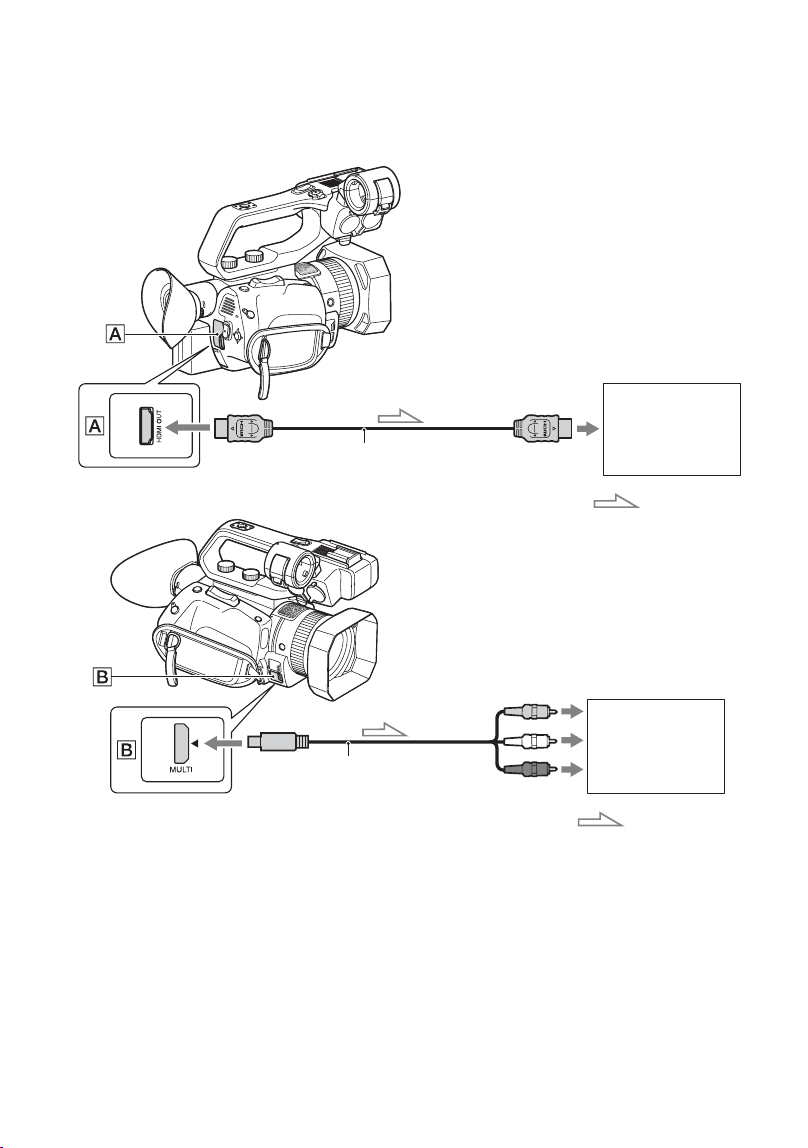
68
Connecting to a monitor or a TV
Playback image quality depends on the type of monitor or TV, and the jacks used to make the
connection.
b Notes
• Video signals cannot be output from the output jacks above simultaneously.
• The output resolution of VIDEO OUT is 480i when [60i] is selected, and 576i when [50i] is selected.
• It is recommended that you use an authorized cable with HDMI logo or a Sony HDMI cable.
• Images are not output from the HDMI OUT jack of your camcorder, if copyright protection signals are
recorded in the movies.
• Images and sounds may not be reproduced correctly on some monitors or TVs.
• When the frame rate in [REC FORMAT] is set to 24p or 30p (when [60i] is selected) or 25p (when [50i]
is selected), the output signal is converted to interlace or progressive through pull-down conversion.
• Do not connect the output jacks of the camcorder with the output jacks of the monitor or TV. A
malfunction may be caused.
Monitor/TV
HDMI cable (sold separately)
Signal flow
To HDMI input
jack
Monitor/TV
To video input
jack
AV cable (sold separately)
Signal flow
To audio input
jack

69
Playback
• If you display the edit screen while outputting signals to a monitor or TV, the menu may not be displayed
correctly.
• This camcorder is not compatible with “BRAVIA” sync.
The signal format of the outputs from the HDMI OUT jack and multi/micro USB jack is
shown below.
HDMI OUT output format (when [60i] is selected)
XAVC S 4K
–: Independent of set value
Output signal formats
Menu item
HDMI OUT output signal
format
Recording format HDMI 24p
REC/OUT SET>
REC SET>
REC FORMAT
REC/OUT SET>
VIDEO OUT>HDMI
REC/OUT SET>
VIDEO OUT>24p
2160/24p AUTO – 2160/24p
*2
> 1080/60p >
1080/60i > 720/60p >
480/60p
*1
2160p/1080p/480i 2160/24p
*2
2160p/720p/480i
2160p/1080i/480i
1080p/480i 24p During recording:
1080/24p
*3
During playback:
1080/60p
60p 1080/60p
720p/480i – 720/60p
1080i/480i 1080/60i
480p 480/60p
480i 480/60i
Continued ,

70
XAVC S HD/AVCHD
–: Independent of set value
2160/30p AUTO – 2160/30p > 1080/60p >
1080/60i > 720/60p >
480/60p
*1
2160p/1080p/480i 2160/30p
2160p/720p/480i
2160p/1080i/480i
1080p/480i 1080/60p
720p/480i 720/60p
1080i/480i 1080/60i
480p 480/60p
480i 480/60i
Menu item
HDMI OUT output signal
format
Recording format HDMI 24p
REC/OUT SET>
REC SET>
REC FORMAT
REC/OUT SET>
VIDEO OUT>HDMI
REC/OUT SET>
VIDEO OUT>24p
1080/24p AUTO – 1080/60p > 1080/60i >
720/60p > 480/60p
*1
2160p/1080p/480i 24p During recording:
1080/24p
*3
During playback:
1080/60p
60p 1080/60p
2160p/720p/480i – 720/60p
2160p/1080i/480i 1080/60i
1080p/480i 24p During recording:
1080/24p
*3
During playback:
1080/60p
60p 1080/60p
720p/480i – 720/60p
1080i/480i 1080/60i
480p 480/60p
480i 480/60i
Menu item
HDMI OUT output signal
format
Recording format HDMI 24p
REC/OUT SET>
REC SET>
REC FORMAT
REC/OUT SET>
VIDEO OUT>HDMI
REC/OUT SET>
VIDEO OUT>24p
Connecting to a monitor or a TV (Continued)

71
Playback
*1 Output in the format supported by the monitor or TV according to the priority order.
*2 In Slow & Quick Motion mode, the output is 2160/30p.
*3 In Slow & Quick Motion mode, the output is 1080/60p.
Multi/micro USB jack output format (when [60i] is selected)
Output is always 480/60i.
HDMI OUT output format (when [50i] is selected)
XAVC S 4K
–: Independent of set value
* Output in the format supported by the monitor or TV according to the priority order.
1080/30p
1080/60p
720/60p
1080/60i
1080/60i (1440)
1080/120p
AUTO – 1080/60p > 1080/60i >
720/60p > 480/60p
*1
2160p/1080p/480i 1080/60p
2160p/720p/480i 720/60p
2160p/1080i/480i 1080/60i
1080p/480i 1080/60p
720p/480i 720/60p
1080i/480i 1080/60i
480p 480/60p
480i 480/60i
Menu item
HDMI OUT output signal format
Recording format HDMI
REC/OUT SET>
REC SET>
REC FORMAT
REC/OUT SET>
VIDEO OUT>HDMI
2160/25p AUTO 2160/25p > 1080/50p > 1080/50i
> 720/50p > 576/50p*
2160p/1080p/576i 2160/25p
2160p/720p/576i
2160p/1080i/576i
1080p/576i 1080/50p
720p/576i 720/50p
1080i/576i 1080/50i
576p 576/50p
576i 576/50i
Menu item
HDMI OUT output signal
format
Recording format HDMI 24p
REC/OUT SET>
REC SET>
REC FORMAT
REC/OUT SET>
VIDEO OUT>HDMI
REC/OUT SET>
VIDEO OUT>24p
Continued ,

72
XAVC S HD/AVCHD
–: Independent of set value
* Output in the format supported by the monitor or TV according to the priority order.
Multi/micro USB jack output format (when [50i] is selected)
Output is always 576/50i.
Output in Slow & Quick Motion mode
When [60i] is selected, the output format is the same as that shown on pages 69 and 70.
When [50i] is selected, the output format is the same as that shown on pages 71 and 72.
Output in Super Slow Motion mode
The output format is the same as in XAVC S HD/AVCHD mode on pages 70 and 72. Super
Slow Motion is not supported in XAVC S 4K mode.
Menu item
HDMI OUT output signal format
Recording format HDMI
REC/OUT SET>
REC SET>
REC FORMAT
REC/OUT SET>
VIDEO OUT>HDMI
All recording formats AUTO 1080/50p > 1080/50i > 720/50p >
576/50p*
2160p/1080p/576i 1080/50p
2160p/720p/576i 720/50p
2160p/1080i/576i 1080/50i
1080p/576i 1080/50p
720p/576i 720/50p
1080i/576i 1080/50i
576p 576/50p
576i 576/50i
Connecting to a monitor or a TV (Continued)
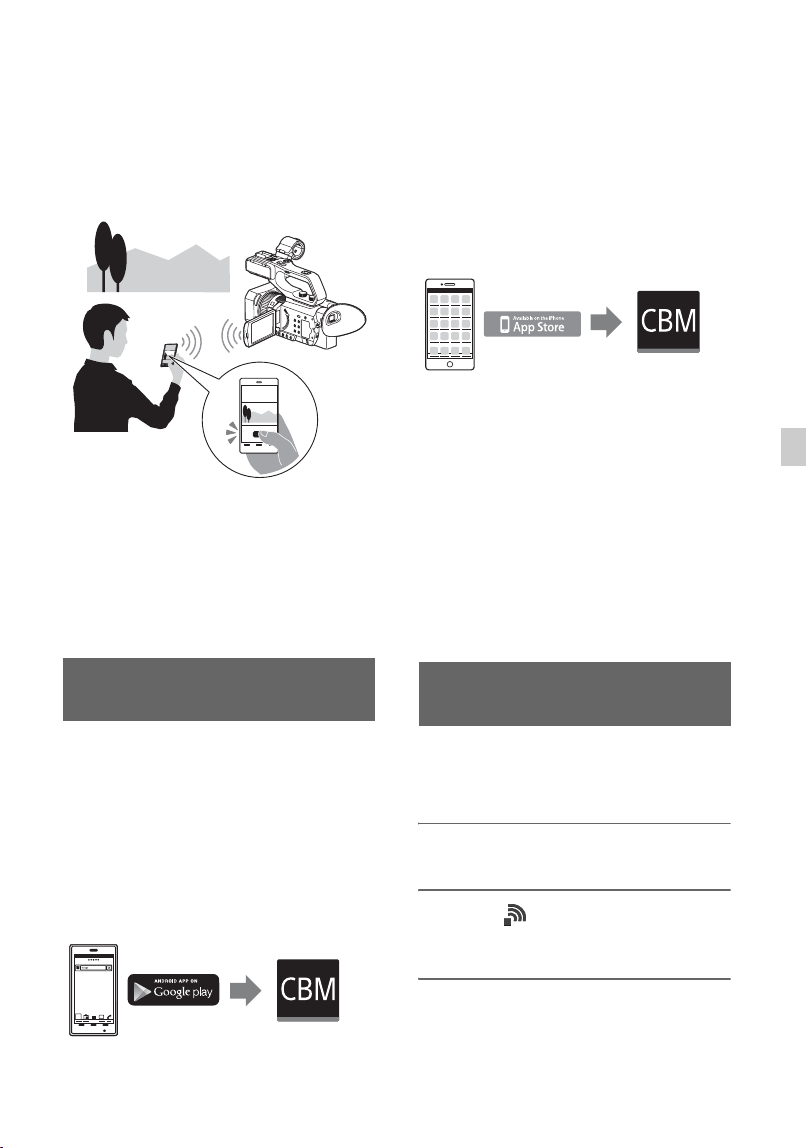
73
Using Network Functions
Using Network Functions
Using with a
Smartphone
The Wi-Fi function of the camcorder
enables you to operate the camcorder
remotely by a smartphone.
b Note
The frequency band used by the wireless LAN
module is part of the frequency spectrum shared
by various other devices. The communication
speed and communication distance may be
reduced, and communication may even be
interrupted, depending on the usage environment
and interference with other devices.
To use a smartphone as a remote control for
the camcorder, you need to install the
dedicated “Content Browser Mobile”
application on your smartphone. If it is
already installed on your smartphone,
update it to the latest version.
Android OS
Search for “Content Browser Mobile” in Google
Play, then install it.
• You need Android 4.4 or later when you use the
NFC One-touch.
Downloading “Content Browser
Mobile”
• Google Play may not be supported depending
on the country or region. In this case, search for
“Content Browser Mobile” on the Internet, then
install it.
iOS
Search for “Content Browser Mobile” in the App
Store, then install it.
You need iOS 10 or later.
• You cannot use NFC One-touch when you use
iOS.
b Notes
• You need an NFC-compatible smartphone or
tablet computer in order to use the NFC One-
touch function of the camcorder.
• Proper operation of the Wi-Fi function detailed
in this manual is not guaranteed for all
smartphones or tablet computers.
• Operations and screen displays of the
application may be subject to change without
notice by future upgrades.
You can control some of the camcorder’s
shooting functions remotely with a
smartphone.
1 Press the MENU button.
2 Select (NETWORK SET) t
[CTRL W/SMARTPHONE].
3 Connect the smartphone to the
camcorder, using the information
that appears on the screen when
Using a smartphone as a remote
controller
Continued ,
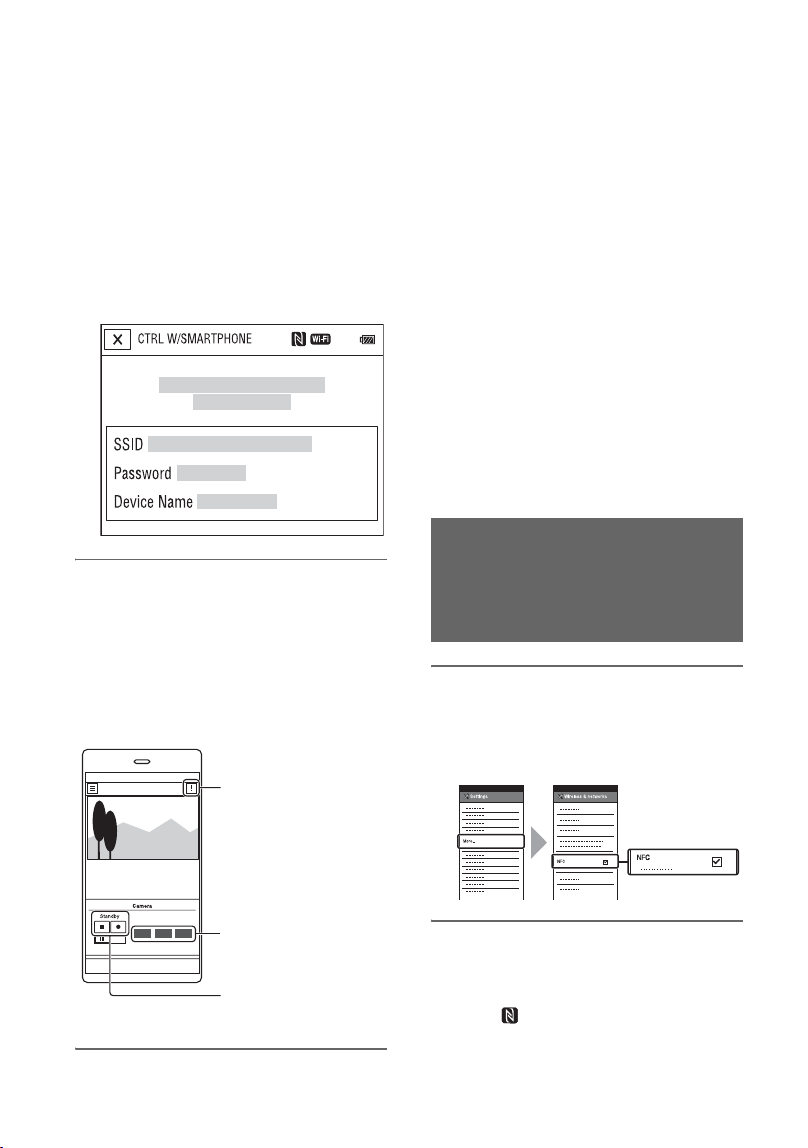
74
the camcorder is ready to be
connected.
The connection method will depend on
the type of smartphone.
Android device with NFC function:
page 74
Android: page 75
iPhone/iPad: page 75
4 Operate the camcorder using
“Content Browser Mobile”
installed on the smartphone.
For details on how to operate “Content
Browser Mobile” after it starts, refer to
the Help section in “Content Browser
Mobile”.
b Notes
• Live view images may not be displayed
smoothly, depending on the smartphone
performance and/or transmission conditions.
• Movies cannot be recorded on a smartphone.
• For details about usage restrictions, see
“Function limitations when recording” (p. 145).
Functions that can be controlled using
[CTRL W/SMARTPHONE]
• Recording start/stop
• Touch focus
– Available when using manual focus.
• Zoom
• Iris adjustment
b Note
• You cannot perform other operations during
touch focus.
1 Select [Settings] on the
smartphone, then select [More…]
and place a check mark next to
[NFC].
2 Set the camcorder to the shooting
mode.
You can use the NFC function only
when (N mark) is displayed on the
screen.
Setting button
Iris, Focus, and
Zoom buttons
Start/stop button
Connecting the camcorder to an
Android smartphone equipped
with the NFC function using
One-touch
Using with a Smartphone (Continued)
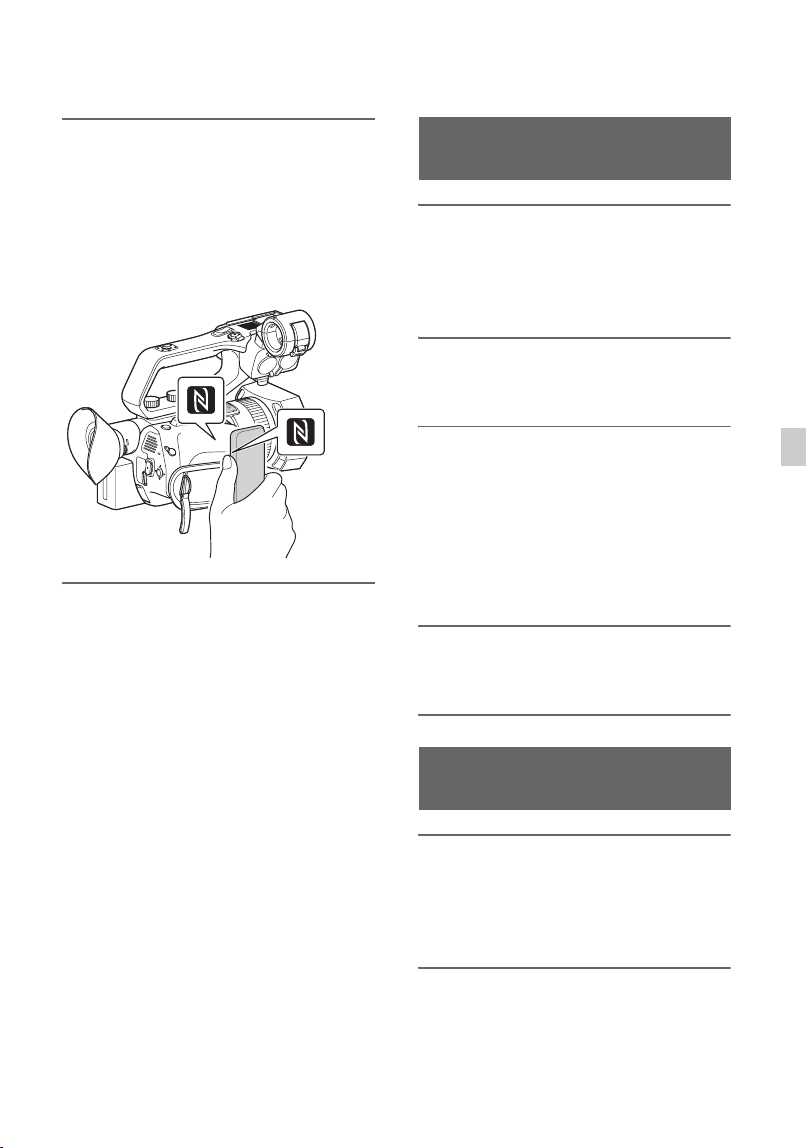
75
Using Network Functions
3 Touch the smartphone on the
camcorder.
The smartphone connects to the
camcorder, and “Content Browser
Mobile” is activated.
[CTRL W/SMARTPHONE] starts on
the camcorder.
z Tips
• Cancel sleep mode and screen lock of the
smartphone beforehand.
• Continue to touch (1 to 2 seconds) on the
camcorder without moving it, until “Content
Browser Mobile” starts.
• While [CTRL W/SMARTPHONE] is activated,
only the START/STOP button and handle
record button are available on the camcorder.
• The smartphone cannot be connected to the
camcorder when [AIRPLANE MODE] is set to
[ON]. Set [AIRPLANE MODE] to [OFF]
(p. 118).
1 Select [Settings] on your
smartphone, then select [Wi-Fi]
and the SSID (displayed on the
camcorder).
2 Input the password displayed on
the camcorder (first time only).
3 Confirm connection to the SSID
displayed on the camcorder.
z Tip
• The next time that you want to connect to
the camcorder, select the camcorder in the
device list in the Connect menu, and select
[Connect].
4 Return to the Home screen, then
start “Content Browser Mobile.”
1 Select [Settings] on the iPhone or
iPad, then select [Wi-Fi] and the
SSID (displayed on the
camcorder).
2 Input the password displayed on
the camcorder (first time only).
Connecting without using the
NFC function (Android)
Connecting without using the
NFC function (iPhone/iPad)
Continued ,
76
3 Confirm connection to the SSID
displayed on the camcorder.
4 Return to the Home screen, then
start “Content Browser Mobile.”
Configuring a wireless
LAN
You can connect the camcorder to a
network using a wireless LAN.
b Note
• The frequency band used by the wireless LAN
module is part of the frequency spectrum shared
by various other devices.
The communication speed and communication
distance may be reduced, and communication
may even be interrupted, depending on the
usage environment and interference with other
devices. If this occurs, try changing the channel
of the access point.
You can connect the camcorder and an
access point using a wireless LAN.
1 Press the MENU button.
2 Select (NETWORK SET) t
[Wi-Fi SET] t [ACCESS POINT
SET].
After a short delay, a list of access
points that can be connected is
displayed.
3 Select an access point to register.
If an access point you want to register is
not displayed, select [Manual setting]
and configure settings manually (p. 79).
4 Enter the password, and select
[Next].
Password entry is not required for
access points that do not display .
Selecting and registering an
access point
Using with a Smartphone
(Continued)
77
Using Network Functions
5 Configure the access point
settings.
IP address
Select the IP address configuration
method.
When [Manual] is selected, enter the IP
address configuration items displayed
on the screen, and select [OK].
Priority Connection
Select whether to configure connection
priority for access points.
WIRELESS TC LINK
Select whether the access point uses the
Wireless TC LINK function (p. 87).
z Tip
• Selecting [DNS server setting] on the IP
ADDRESS SET screen will display the DNS
server setting screen.
6 Select [Register].
• Connection to the access point is
initiated.
• [Registered.] appears when the access
point is registered successfully. The
SSID and frequency band of the
registered access point is also
displayed.
7 Select .
After a short delay, a list of access
points that can be connected is
displayed.
The following registered icons appear
on the right of the registered access
points. The icon varies depending on the
setting in step 5.
z Tip
• [Priority Connection] or [WIRELESS TC
LINK] can be registered on only one access
point. For example, if an access point is
registered with [WIRELESS TC LINK] set to
[On] and a new access point is registered with
[WIRELESS TC LINK] set to [On],
[WIRELESS TC LINK] on the first access point
is changed to [Off].
8 Select , and press the MENU
button to close the menu screen.
You can register an access point quickly if
the access point supports the WPS function.
1 Turn on the access point.
2 Turn on the camcorder.
3 Press the MENU button.
4 Select (NETWORK SET) t
[Wi-Fi SET] t [WPS].
After a short delay, the following screen
appears.
Priority
Connection
WIRELESS
TC LINK
Registered
icon
On
On
Off
Off
On
Off
Registering an access point
using the WPS function
Continued ,
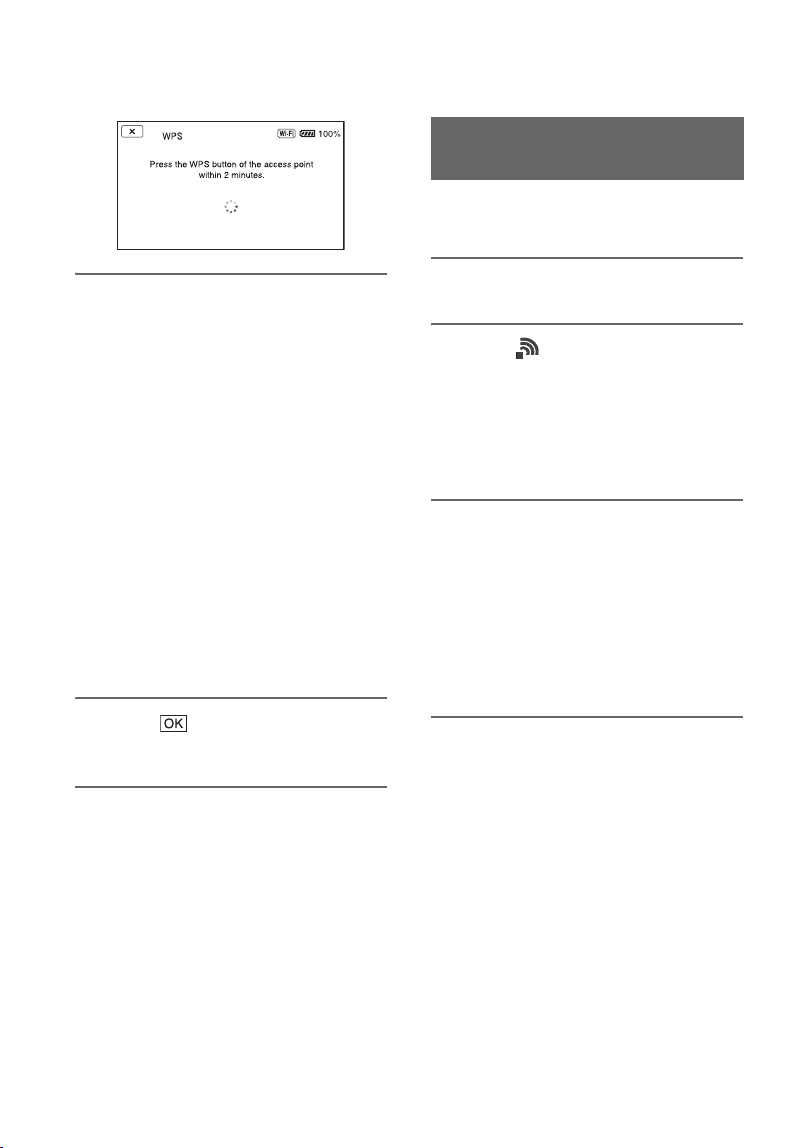
78
5 Press the WPS button of the
access point within the next two
minutes.
• For details about the WPS button
function, refer to the manual for the
access point.
• Connection to the access point is
initiated.
• [Registered.] appears when the access
point is registered successfully. The
SSID and frequency band of the
registered access point is also
displayed.
• A message is displayed on the screen
if the access point could not be
connected. Select [OK], then repeat
the procedure after selecting [WPS] in
step 4.
6 Select , and press the MENU
button to close the menu screen.
b Notes
• For details about the functions and settings
supported by your access point, refer to the
manual for the access point or contact the access
point administrator.
• The camcorder and access point may not
connect or the distance between them for
successful communication may be short,
depending on the surrounding environment,
such as obstacles and walls, and the radio wave
conditions. Move the camcorder or otherwise
reduce the distance between the camcorder and
the access point.
You can register an access point by entering
the PIN code of the access point.
1 Press the MENU button.
2 Select (NETWORK SET) t
[Wi-Fi SET] t [ACCESS POINT
SET].
After a short delay, a list of access
points that can be connected is
displayed.
3 Select [Manual setting] t [WPS
PIN].
z Tip
• If ten access points have been registered in the
camcorder, another access point cannot be
registered and a message appears. Select
[Delete], and delete any access points that are no
longer required.
4 Enter the PIN code displayed on
the camcorder screen, within two
minutes, of the access point to
which to connect.
• Connection to the access point is
initiated.
• [Registered.] appears when the access
point is registered successfully. The
SSID and frequency band of the
registered access point is also
displayed.
Registering an access point
using the WPS PIN method
Configuring a wireless LAN (Continued)
79
Using Network Functions
5 Select t , and press the
MENU button to close the menu
screen.
b Notes
• For details about the functions and settings
supported by your access point, refer to the
manual for the access point or contact the access
point administrator.
• The camcorder and access point may not
connect or the distance between them for
successful communication may be short,
depending on the surrounding environment,
such as obstacles and walls, and the radio wave
conditions. Move the camcorder or otherwise
reduce the distance between the camcorder and
the access point.
1 Press the MENU button.
2 Select (NETWORK SET) t
[Wi-Fi SET] t [ACCESS POINT
SET].
After a short delay, a list of access
points that can be connected is
displayed.
3 Select [Manual setting] t
[Manual regist.].
b Note
• If ten access points have been registered in the
camcorder, another access point cannot be
registered and a message appears. Select
[Delete], and delete any access points that are no
longer required.
4 Enter the SSID on the displayed
screen, and select [Next].
5 Select the security protocol.
If [WEP] or [WPS] is displayed, enter
the password on the displayed screen,
and select [Next].
6 Configure the access point
settings.
IP address
Select the IP address configuration
method.
When [Manual] is selected, enter the IP
address configuration items displayed
on the screen, and select [OK].
Priority Connection
Select whether to configure connection
priority for access points.
WIRELESS TC LINK
Select whether the access point uses the
Wireless TC LINK function (p. 87).
z Tip
• Selecting [DNS server setting] on the IP
ADDRESS SET screen will display the DNS
server setting screen.
7 Select [Register].
• Connection to the access point is
initiated.
• [Registered.] appears when the access
point is registered successfully. The
SSID and frequency band of the
registered access point is also
displayed.
Registering an access point
manually
Continued ,
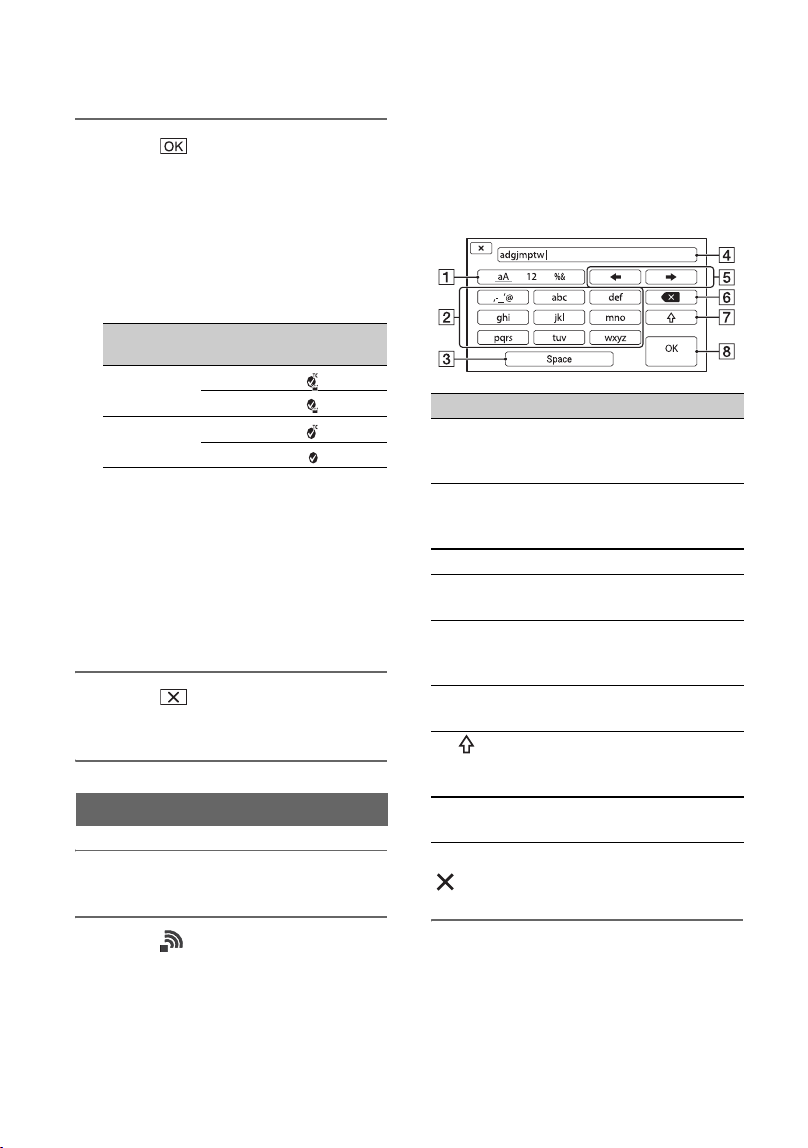
80
8 Select .
After a short delay, a list of access
points that can be connected is
displayed.
The following registered icons appear
on the right of the registered access
points. The icon varies depending on the
setting in step 6.
z Tip
• [Priority Connection] or [WIRELESS TC
LINK] can be registered on only one access
point. For example, if an access point is
registered with [WIRELESS TC LINK] set to
[On] and a new access point is registered with
[WIRELESS TC LINK] set to [On],
[WIRELESS TC LINK] on the first access point
is changed to [Off].
9 Select , and press the MENU
button to close the menu screen.
1 Press the MENU button.
2 Select (NETWORK SET) t
[Wi-Fi SET] t [EDIT DEVICE
NAME].
“Wi-Fi Direct” and other devices
appear.
To rename a device, use the following
procedure to enter a name from the
keyboard.
How to use the keyboard
To cancel character input midway, press
.
Priority
Connection
WIRELESS
TC LINK
Registered
icon
On
On
Off
Off
On
Off
Changing the device name
Screen items Functions
1 Switch
character type
Characters switch between
alphabetical letters,
numerals and symbols.
2 Keyboard Characters are displayed
in the order they are
selected.
3 Space Enters a space.
4 Input box Entered characters are
displayed.
5 Move cursor Moves the cursor in the
input box to the left or
right
6 Delete Deletes the character
preceding the cursor
7 Switches between
uppercase and lowercase
alphabetical letters
8 OK Confirms an input
operation
Configuring a wireless LAN (Continued)
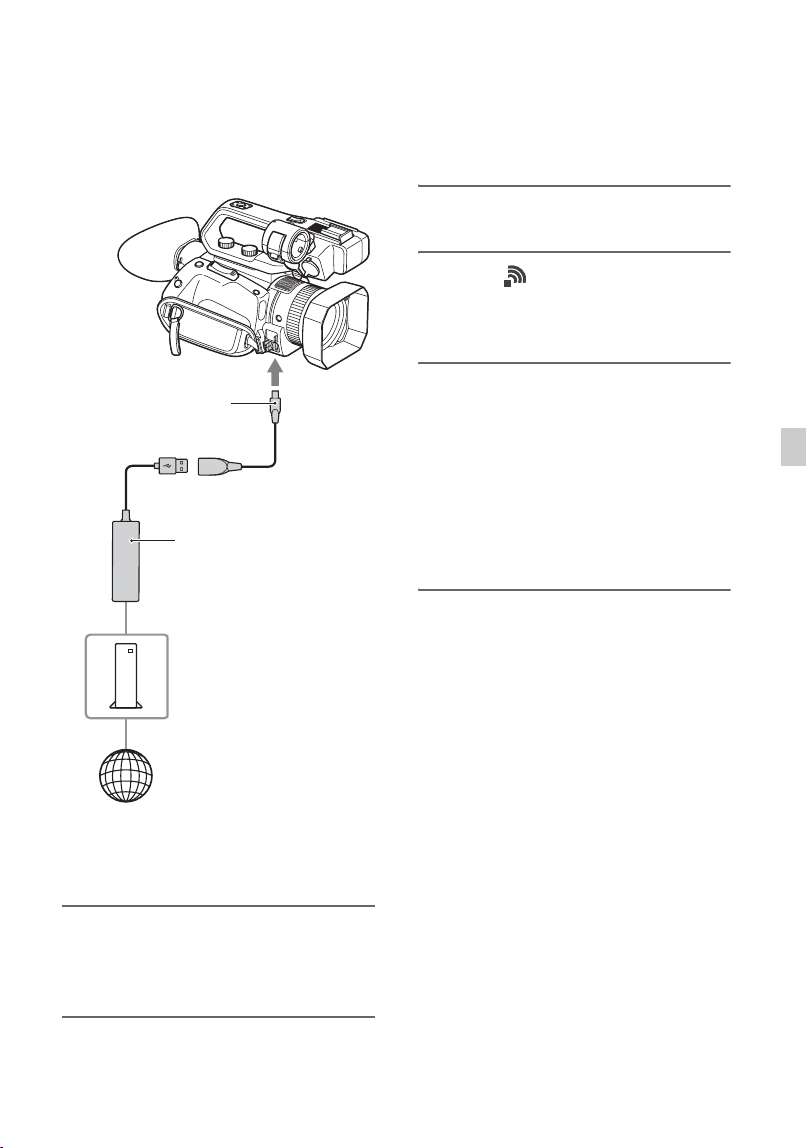
81
Using Network Functions
Configuring a wired
LAN
You can connect the camcorder to a
network using a wired LAN.
b Note
• Turn the power off before attaching or removing
the VMC-UAM2 and USB-RJ45 adaptor.
1 Attach the VMC-UAM2 (sold
separately) to the multi/micro
USB jack on the camcorder.
2 Attach a USB-RJ45 adaptor (sold
separately) to the VMC-UAM2,
USB-RJ45 adaptor
(supplied with the
CBK-NA1 Network
Adaptor Kit)
Internet
Router
VMC-UAM2
(sold separately)
and then connect to the router
using a LAN cable.
3 Press the MENU button.
4 Select (NETWORK SET) t
[WIRED LAN SET] t [IP
ADDRESS SET].
5 Configure the access point
settings.
IP address
Select the IP address configuration
method.
When [Manual] is selected, enter the IP
address configuration items displayed
on the screen, and select [OK].
z Tip
• Selecting [DNS server setting] on the IP
ADDRESS SET screen will display the DNS
server setting screen.
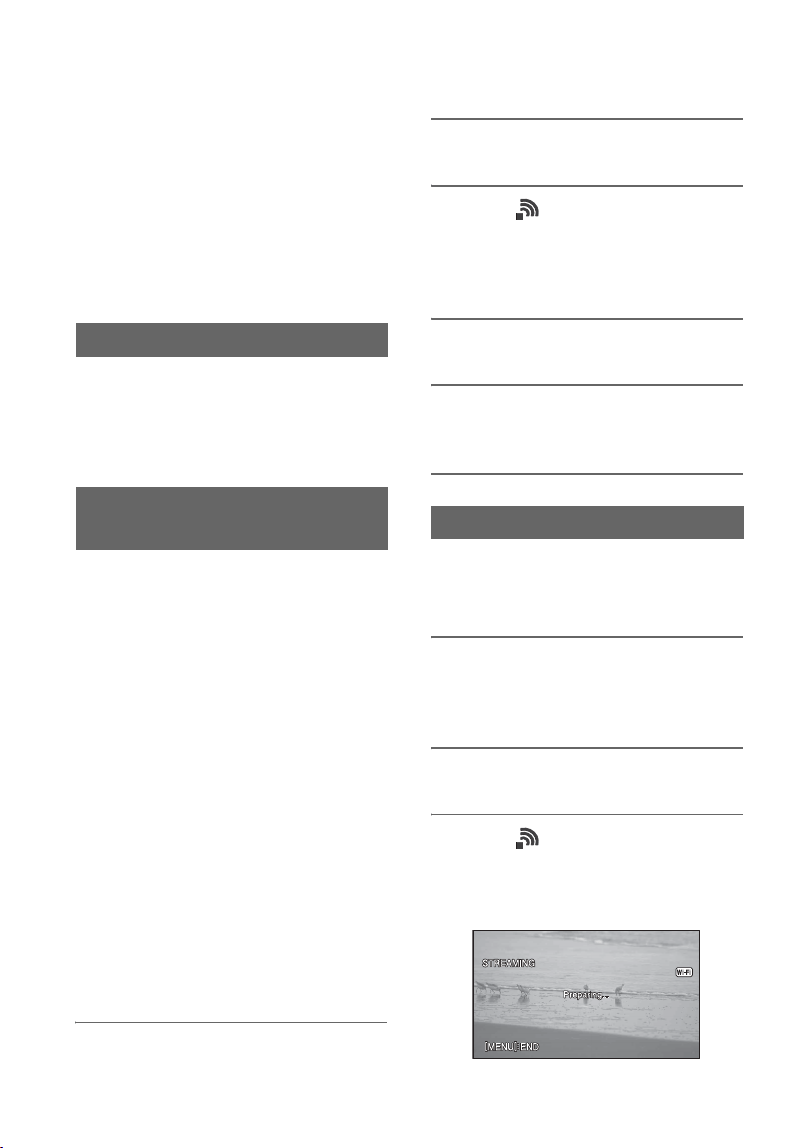
82
Using the streaming
function (STREAMING)
You can connect the camcorder to a
network and stream a movie in real-time to
external devices.
b Note
• Camcorder streaming uses MPEG2-TS/UDP
transport stream. To view the streamed video
and audio, use devices that supports this
transport stream format. For details, refer to the
instruction manuals of each device.
There are limitations on the size of the
original file movie and the streaming
movie.
For details, see “Streaming/USTREAM
supported formats” (p. 147).
You configure streaming settings and
register them using PRESET beforehand to
distribute a stream using those settings.
The following items can be configured.
SIZE
Select the image size for streaming.
– 1280×720
– 640×360
z Tip
• Select a size of “640×360” for increased
streaming distribution stability.
DESTINATION SET
Configure the streaming distribution
destination.
– Host Name: IP address or host name of
the receiver
– Port: Port number used for streaming on
the receiver
1 Configure the basic network
settings (p. 76, 81).
Streaming formats
Configuring streaming (preset
registration)
2 Press the MENU button.
3 Select (NETWORK SET) t
[STREAMING] t desired
PRESET number t configuration
item.
4 Select/set the setting value.
5 Press the MENU button to return
to the shooting screen.
You can distribute a stream of the movie,
while shooting, using the connected
network.
1 Check that the network
connection settings are
successful (p. 76, 81).
2 Press the MENU button.
3 Select (NETWORK SET) t
[STREAMING] t [EXECUTE] t
network connection method.
• The network connection starts.
Streaming distribution
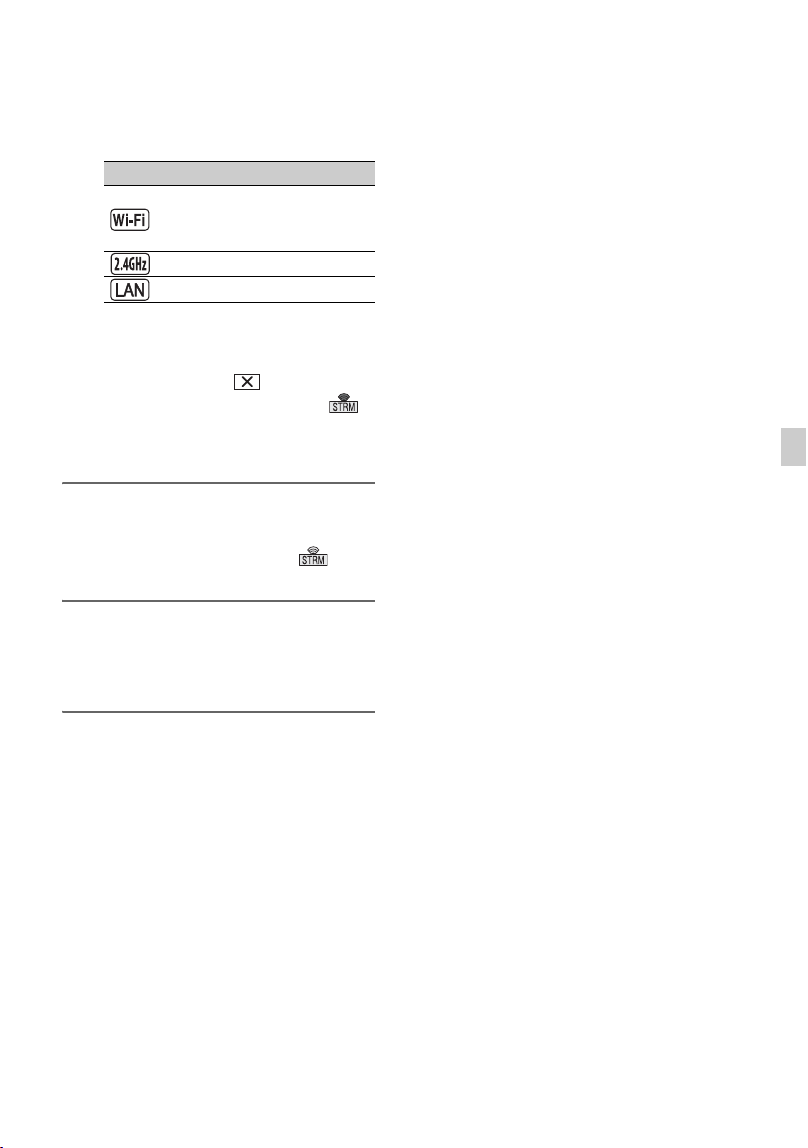
83
Using Network Functions
• The status of the network connection
is displayed using the following icons.
• To cancel streaming, press the MENU
button or press the ASSIGN button
assigned with the [STREAMING]
function, or select .
• When connection is successful,
appears on the screen and the
camcorder is ready to start streaming.
4 Press the THUMBNAIL button to
start streaming distribution.
• The screen icon changes to .
5 Press the THUMBNAIL button
again to stop streaming
distribution.
b Notes
• The streaming function is not available when
using the following functions.
– In the following formats when the file format
is XAVC S 4K:
2160/30p 100Mbps, 2160/24p 100Mbps,
2160/25p 100Mbps
– In the following formats when the file format
is XAVC S HD:
1080/120p 100Mbps, 1080/100p 100Mbps
– In the following formats when the file format
is AVCHD:
1080/60p, 1080/50p, 720/60p, 720/50p
– During movie recording/playback
– During thumbnail display
– SLOW & QUICK (S&Q MOTION, SUPER
SLOW MOTION)
– When executing other network functions
• The following functions are not available when
the streaming function is on.
– Menu operations
– Touch operation of the LCD screen
– SIMUL/RELAY REC
– PROXY REC MODE
– DATE REC
– ZEBRA
– PEAKING
– MARKER
– HISTOGRAM
– LOCK-ON AF
– FACE DETECTION
– COLOR BAR
– D. EXTENDER
– SLOW & QUICK (S&Q MOTION, SUPER
SLOW MOTION)
– NIGHTSHOT
– FOCUS MAGNIFIER
– AUTO MODE SET
– WB SET (during streaming)
– Other network functions
– STATUS CHECK
• Only wired LAN connection is supported when
[AIRPLANE MODE] is set to [ON].
• During streaming, the camcorder does not turn
off even if the LCD screen is closed and the
viewfinder is returned to its original position.
• If the file format is XAVC S 4K and streaming
is started, then [4K REC OUTPUT] is set to
[VF/LCD PANEL], [NIGHTSHOT LIGHT] is
set to [OFF], and [LCD BRIGHT] is set to
[NORMAL] while streaming.
• If the file format is AVCHD or XAVC S HD
and streaming is started, then [NIGHTSHOT
LIGHT] is set to [OFF] and [LCD BRIGHT] is
set to [NORMAL] while streaming.
• Streaming distribution transmits the raw video
and audio data via the Internet.
Accordingly, the data may be disclosed to other
parties.
• Check that the streaming data is being received
by the receiving device.
• Data may be transmitted to a third party if the
address or other settings are configured
incorrectly.
• Some frames may not be played, depending on
the network status.
• The image quality of fast-changing scenes may
be adversely affected.
Icon Meaning
Before wireless LAN
connection and after
disconnection
Wireless LAN connected
Wired LAN connection
Continued ,
84
z Tip
• If an error occurs during streaming distribution
standby or during streaming distribution, a
message appears. If [RECONNECT] appears,
selecting it will attempt to reconnect the
camcorder. Selecting [END] will disconnect the
camcorder. Repeat the procedure from step 1 to
reconnect.
To record using the camera while
streaming
You can record movies in XAVC S or
AVCHD on a memory card while
streaming is in progress.
Press the START/STOP button (handle
record button) after the camcorder enters
streaming standby mode to start recording.
To stop recording, press the START/STOP
button (handle record button) again.
The camcorder recording status is displayed
using the following indicators.
STBY: Standby mode
REC: Recording
b Note
• During streaming, switching the current slot
using the SLOT SELECT button or removing/
inserting media is not possible.
Camcorder operation during
streaming
The following functions are enabled during
streaming. Use the hardware switches and
buttons to control the camcorder. Operation
from the menu is not supported.
•Zoom
• Focusing
• To adjust the output audio level, adjust the
input level using the AUDIO LEVEL dial
of the XLR handle unit.
• Exposure adjustment (iris, ISO
sensitivity/gain, and shutter speed)
• White balance
Streaming movies
using USTREAM
You can distribute movies using the
USTREAM video sharing site.
USTREAM user registration is required
beforehand.
There are limitations imposed by
USTREAM for video distribution using
USTREAM. For details, visit the
USTREAM site.
1 Configure the basic network
settings (p. 76, 81).
2 Select (NETWORK SET) t
[USTREAM] t [USER INFO SET].
3 Select the connection method
(wired/wireless).
4 Enter the following information,
and select OK.
•User: User name
• Password: Password
“Completed.” is displayed if
authentication is successful.
z Tip
• A confirmation message appears if you have
already configured authentication.
You can switch the account used for
streaming, if required.
Configuring USTREAM
authentication
Using the streaming function
(STREAMING) (Continued)
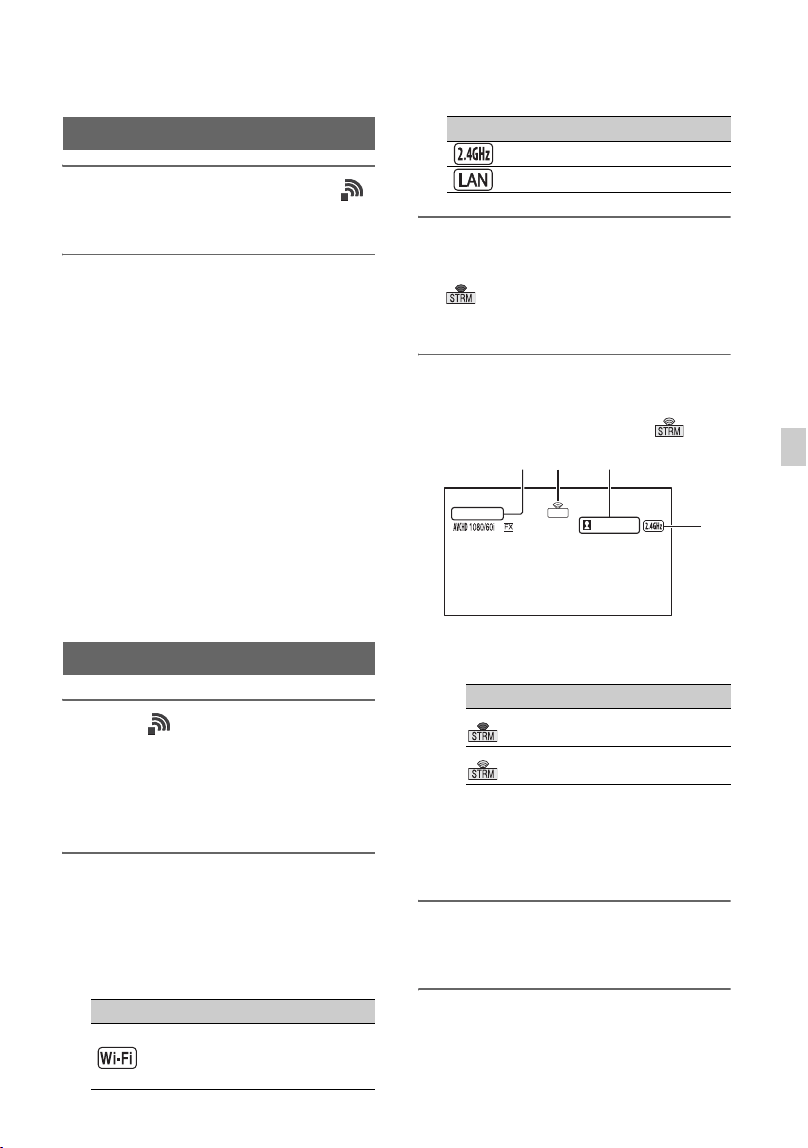
85
Using Network Functions
Configure the following items in
(NETWORK SET) t [USTREAM].
SIZE
Select the image size for USTREAM
distribution.
– 640×360 (default setting)
– 1280×720
z Tip
• The frame rate of the streaming data will vary
depending on the recording settings for the
original file (p. 147).
SERVER REC SET
Set whether to record the distributed movie
on the USTREAM server.
– ON: Record (default setting)
– OFF: Do not record
1 Select (NETWORK SET) t
[USTREAM] t [EXECUTE].
Configure authentication in [USER
INFO SET] if you haven't already done
so.
2 Select the connection method
(wired/wireless).
The network connection starts.
The status of the connection is displayed
using the following icons.
3 Select a channel.
USTREAM distribution is enabled.
appears on the screen and the
camcorder is ready to start streaming.
4 Press the THUMBNAIL button to
start streaming.
• The screen icon changes to .
1USTREAM
2Streaming status indicator
3Number of viewers
“>1000000” is displayed if the number
of viewers exceeds 1,000,000.
4Wi-Fi or LAN
5 To stop streaming, press the
THUMBNAIL button again.
b Notes
• Check that the date and time have been set
correctly on the camcorder before starting
streaming.
Configuring using the menu
Starting USTREAM
Icon Meaning
Before wireless LAN
connection and after
disconnection
Wireless LAN connected
Wired LAN connection
Icon Meaning
Streaming standby
Streaming
Icon Meaning
USTREAM
XXXXXXX
STRM
1 2 3
4
Continued ,
86
• When a channel is selected, text characters not
supported on the camcorder may not be
displayed correctly.
• The USTREAM function is not available when
using the camcorder in the following states.
– When the file format is XAVC S 4K
– In the following formats when the file format
is XAVC S HD:
1080/120p 100Mbps, 1080/100p 100Mbps
– In the following formats when the file format
is AVCHD:
1080/60p, 1080/50p, 720/60p, 720/50p
– When executing functions listed in the Note
(p. 83) in “Using the streaming function
(STREAMING)”.
• The following functions are not available when
the USTREAM function is on.
– Functions listed in the Note (p. 83) in “Using
the streaming function (STREAMING)”.
• Only wired LAN connection is supported when
[AIRPLANE MODE] is set to [ON].
• [4K REC OUTPUT] is fixed to [VF/LCD
PANEL].
z Tip
• If the channel name is not displayed correctly,
select the appropriate language in
(OTHERS) t [LANGUAGE].
To record using the camera while
streaming using USTREAM
Press the START/STOP button (handle
record button) to start recording.
To stop recording, press the START/STOP
button (handle record button) again.
The camcorder recording status is displayed
using the following indicators.
STBY: Standby mode
REC: Recording
b Note
• During streaming, switching the current slot
using the SLOT SELECT button or removing/
inserting media is not possible.
Camcorder operation when using
USTREAM
The following functions are enabled when
using USTREAM. Use the hardware
switches and buttons to control the
camcorder. Operation from the menu is not
supported.
• Zoom
• Focusing
• Streaming volume adjustment (only the
AUDIO LEVEL dial of the XLR handle
unit is enabled)
• Exposure adjustment (iris, ISO
sensitivity/gain, and shutter speed)
• White balance
1 Stop streaming.
2 Press one of the following.
• MENU button
• ASSIGN button assigned with the
USTREAM start/stop function
USTREAM stops.
Stopping USTREAM
Streaming movies using USTREAM (Continued)
87
Using Network Functions
Synchronizing the
timecode of multiple
cameras using a
smartphone
When shooting using multiple cameras, you
can synchronize the timecode of each
camera using a smartphone and the
Wireless TC LINK function.
The “CBKZ-WTCL” (sold separately) is
required to use the Wireless TC LINK
function.
After purchasing the option, connect the
camcorder to a computer using USB to use
the auto detect function, and install by
following the instructions on the PC.
b Note
• A smartphone that supports the tethering
function is required to use Wireless TC LINK.
To determine whether tethering is enabled on
your smartphone, check with your contracted
carrier.
The following preparation is required on
the smartphone used for timecode
synchronization.
1 Install “Content Browser Mobile”
on the smartphone.
For the installation procedure, see
page 73.
2 Set the smartphone to tethering
mode.
For details about configuring tethering,
refer to the instruction manual for your
smartphone.
To use Wireless TC LINK
Preparation on the smartphone
3 Launch “Content Browser
Mobile” on the smartphone.
For details on how to operate “Content
Browser Mobile” after it starts, refer to
the Help section in “Content Browser
Mobile”.
Use the following procedure on each
camera whose timecode you want to
synchronize.
1 Press the MENU button.
2 Align the following settings on
the cameras to synchronize the
timecode.
• (OTHERS) menu t [60i/50i
SEL] (page 121)
• (REC/OUT SET) menu t [REC
SET] t [REC FORMAT] (p. 106)
• (TC/UB SET) menu t [TC
FORMAT] (p. 117)
3 Configure wireless LAN settings.
For details about configuring a wireless
LAN, see page 76.
4 Select (NETWORK SET) t
[Wi-Fi SET] t [ACCESS POINT
SET].
After a short delay, a list of access
points that can be connected is
displayed.
Synchronizing the timecode to
another device using a
smartphone
Continued ,
88
5 Select the SSID of a smartphone
that has tethering mode enabled.
If the smartphone SSID is not displayed,
select [Manual setting] and configure
settings manually (p. 79).
6 Select [WIRELESS TC LINK] t
[ON] t [OK].
7 Select [Register].
• The smartphone connection starts.
• When connection is successful, you will
be able to search for cameras using
“Content Browser Mobile”·on the
smartphone.
8 Select (NETWORK SET) t
[WIRELESS TC LINK].
The network connection starts. The
status of the network connection is
displayed using the following icons.
9 Start timecode synchronization
from the smartphone.
“TC has been synced.” appears on the
screen when synchronization is
successful.
b Notes
• There may be an offset of several frames
after timecode synchronization.
• The timecode advance may become non-
contiguous at the instant the timecode is
synchronized. If this occurs, the timecode
output on HDMI OUT will also be non-
contiguous.
• Timecode synchronization is not performed
if a camera is currently recording, in order
to maintain a contiguous timecode.
• For lengthy continuous recording, periodic
timecode synchronization cannot be
performed, which may lead to an offset of
several frames per hour.
• When a camera is turned off, Wireless TC
LINK also stops. When the camera is turned
on again, Wireless TC LINK is
automatically executed.
10To exit Wireless TC LINK, press
the MENU button.
b Notes
• The timecode continues to advance
contiguously when Wireless TC LINK is
stopped. To synchronize the timecode once
only at the start, stop Wireless TC LINK
before use after synchronizing the timecode.
• After Wireless TC LINK is stopped, you
can execute Wireless TC LINK again by
performing only step
9 again in the above
procedure.
b Notes
• The Wireless TC LINK function is not available
when using the camcorder in the following
states.
– During movie recording/playback
– During thumbnail display
– SLOW & QUICK (S&Q MOTION, SUPER
SLOW MOTION)
– When executing other network functions
– AIRPLANE MODE
• The following functions are not available when
Wireless TC LINK is running.
– Menu operations
– Touch operation of the LCD screen
– DATE REC
– LOCK-ON AF
– FACE DETECTION
– COLOR BAR
– D. EXTENDER
–S&Q MOTION
Icon Meaning
Before wireless LAN
connection and after
disconnection
Wireless LAN connected
Synchronizing the timecode of multiple cameras using a smartphone
(Continued)
89
Using Network Functions
– SLOW & QUICK (S&Q MOTION, SUPER
SLOW MOTION
– NIGHTSHOT
– FOCUS MAGNIFIER
– AUTO MODE SET
– Other network functions
• During Wireless TC LINK execution, [TC
RUN] is set to [FREE RUN]. After the function
is stopped, the setting remains set to [FREE
RUN].
• During Wireless TC LINK execution, [TC
MAKE] is set to [PRESET]. After the function
is stopped, the setting remains set to [PRESET].
z Tips
• You can check the last synchronization time
with the status check function (p. 67).
• If the timecode from a smartphone is changed
during Wireless TC LINK execution, “TC has
been synced.” is displayed.
• After the “TC has been synced.” message
appears, the timecode is adjusted on each
camera.
Importing a root
certificate
A root certificate is required for
USTREAM streaming. The camcorder
contains a built-in root certificate, which
can also be updated. To update the root
certificate, save the certificate on a memory
card and then import the certificate from the
memory card.
1 Write the root certificate to a
memory card.
Write the certificate in PEM format with
a “certification.pem” file name to the
root directory of the memory card.
2 Insert the memory card with the
root certificate into memory card
slot A of the camcorder.
3 Press the MENU button.
4 Select (NETWORK SET) t
[ROOT CERTIFICATE] t [OK].
• The root certificate starts importing.
• The certificate is imported
successfully when “Completed.”
appears. Select to dismiss the
screen.
b Notes
• Do not eject the memory card while a certificate
is being imported.
• Resetting network settings (p. 90) will delete the
root certificate imported from the memory card,
and will initialize the root certificate of the
camcorder.
Note on wireless network function
We assume no responsibility whatsoever
for any damage caused by unauthorized
access to, or unauthorized use of,
Continued ,

90
destinations loaded on the camcorder,
resulting from loss or theft.
Security in the use of wireless LAN
devices
• To avoid hacking, access by malicious
third parties, and other vulnerabilities,
confirm that the wireless LAN is always
secure.
• It is very important to set up security on a
wireless LAN.
• If a problem occurs due to inadequate
security measures or due to foreseeable
circumstances, Sony Corporation is not
responsible for any resulting damage.
Resetting network
settings
The following settings are reset when
resetting network settings.
• SSID/password for smartphone operation
(p. 73)
• Streaming settings (p. 82)
• USTREAM settings (p. 84)
• Wired LAN settings (p. 81)
• Access point settings (p. 76 to 79)
• Device name (p. 80)
• Root certificate (p. 89)
1 Press the MENU button.
2 Select (NETWORK SET) t
[NETWORK RESET] t [OK].
The camcorder restarts.
Importing a root certificate
(Continued)
91
Editing
Editing
Protecting movies
(Protect)
Protect movies to avoid deleting them by
mistake.
1 Press the MENU button when the
THUMBNAIL screen is displayed.
2 Select (EDIT) t [PROTECT].
3 Touch the movies to be
protected.
is displayed on the selected images.
• Press and hold the thumbnail to preview the
image. Press to return to the previous
screen.
• You can select up to 100 images at one time.
4 Touch , successively,
according to the screen display.
To undo the protection
Touch the movie marked with in step 3.
disappears.
Dividing a movie
You can divide a movie at a designated
point.
1 Press the MENU button while
playing back movies.
2 Select (EDIT) t [DIVIDE].
3 Touch X at the point where you
want to divide.
4 Touch , successively,
according to the screen display.
b Notes
• Dividing movies is supported for AVCHD only.
• You cannot restore movies once they are
divided.
• Do not remove the battery pack, the AC Adaptor
or the memory card that contains the movies
from your camcorder during the operation. It
may damage the memory card.
• A slight time difference may occur between the
point where you touch
X and the actual
dividing point, as your camcorder selects the
dividing point based in about half-second
increments.
After you select the point with X, make
fine adjustment with these buttons.
Returns to the beginning of the selected
movie.
92
Deleting movies
You can free media space by deleting
movies from a memory card.
b Notes
• You cannot restore images once they are
deleted.
• Do not remove the battery pack, the AC
Adaptor, or the memory card from your
camcorder during the operation. It may damage
the memory card.
• You cannot delete protected movies. Undo the
protection of the movies before you try to delete
them (p. 91).
• Save important movies beforehand.
z Tip
• To delete all data recorded on a memory card
and recover all the recordable space, format the
media (p. 93).
1 Press the MENU button when the
THUMBNAIL screen is displayed.
2 Select (EDIT) t [DELETE].
3 Touch the movies to be deleted.
is displayed on the selected images.
• Press and hold the thumbnail to preview the
image. Press to return to the previous
screen.
• You can select up to 100 images at one time.
• - appears at the upper right corner on the
thumbnail of protected images.
• No checkbox appears on the thumbnail of
protected images.
4 Touch , successively,
according to the screen display.
93
Editing
Formatting a memory
card
Formatting deletes data from the memory
card to recover recordable free space.
b Notes
• Connect your camcorder to the wall outlet (wall
socket) using the supplied AC Adaptor to
prevent your camcorder from running out of
power during the operation.
• To avoid the loss of important images, you
should save them before formatting a memory
card.
• Protected movies are also deleted.
1 Press the MENU button.
2 Select (OTHERS) t [MEDIA
FORMAT].
3 Select the memory card to be
formatted.
4 Touch , successively,
according to the screen display.
b Note
• While [Executing…] is displayed, do not turn
off the camcorder, do not operate any buttons on
the camcorder, disconnect the AC Adaptor, or
remove the memory card from your camcorder.
(The access lamp is lit or flashing during
formatting.)
Deleting all data from
the memory card
completely
If a memory card is used repeatedly,
garbage data accumulate which may
prevent the image data from being written
at the fixed speed. In this case, recording
may stop suddenly.
If this happens, empty the memory card to
avoid the writing error. Emptying the
memory card can erase more data than
ordinary formatting.
b Notes
• If you perform this operation, all stored data are
deleted. To avoid the loss of important images,
you should save them before formatting a
memory card.
• You cannot perform this operation unless you
connect the AC Adaptor to the wall outlet (wall
socket).
• Disconnect all cables except the AC Adaptor.
Do not disconnect the AC Adaptor during the
operation.
• Do not apply any vibrations or shocks to your
camcorder during this operation.
1 Connect your camcorder to the
wall outlet (wall socket) using the
AC Adaptor (supplied) (p. 22).
2 Press the MENU button.
3 Select (OTHERS) t [MEDIA
FORMAT].
4 Select the memory card to delete.
The deletion screen appears.
5 Touch [Empty] t .
Continued ,
94
b Notes
• It may take from several minutes to several
hours to empty a memory card, depending on
the capacity. You can check the actual time
required on the LCD screen.
• If you stop the operation while [Executing…] is
displayed, be sure to complete the operation by
performing [MEDIA FORMAT] or emptying
before you use the memory card next time.
z Tip
• To prevent a data write error from occurring on
the recording media, empty the media data from
the camcorder before you start recording.
By deleting all data using the [Empty] operation
instead of the ordinary [MEDIA FORMAT]
operation, you can minimize potential media
write errors that might occur when recording.
Repairing the image
database file
This function checks the database
information and the consistency of movies
on the memory card, and repairs any
inconsistencies found.
b Notes
• Connect your camcorder to the wall outlet (wall
socket) using the supplied AC Adaptor to
prevent your camcorder from running out of
power during the operation.
• Correct repair may not be possible, even when
repair is executed.
1 Press the MENU button.
2 Select (OTHERS) t [REPAIR
IMAGE DB FILE].
3 Select the memory card for which
you want to check the database
file.
4 Touch .
The database file check starts. Select
and quit the database file check if
no inconsistency is found.
5 Touch , successively,
according to the screen display.
b Note
• If you stop the operation while “Repairing the
image database file.” is displayed, be sure to
complete the operation as described above
before you use the memory card next time.
Deleting all data from the memory
card completely (Continued)
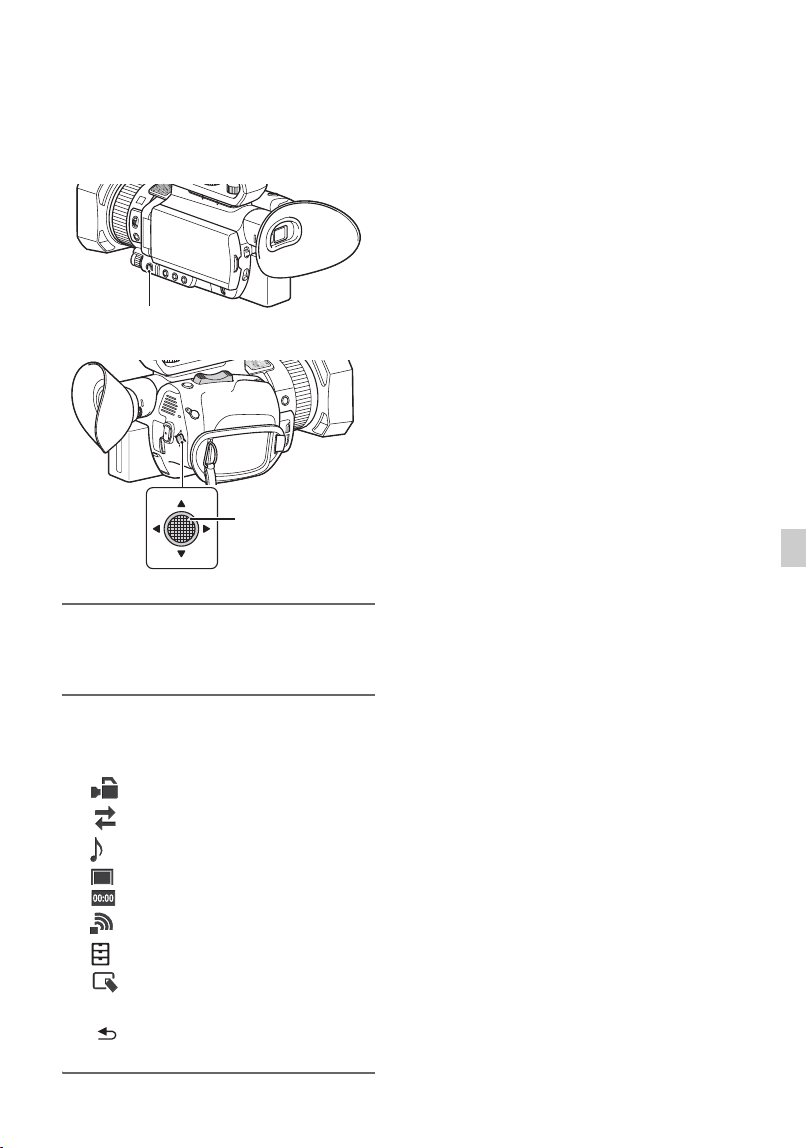
95
Using the Menu
Using the Menu
Operating the menu
You can change various settings or make
detailed adjustments using the menu items
displayed on the LCD screen.
1 Press the MENU button.
The menu screen appears.
2 Use the v/V/b/B/SET buttons to
select the desired menu, then
press the button.
CAMERA SET (p. 98)
REC/OUT SET (p. 106)
AUDIO SET (p. 111)
DISPLAY SET (p. 113)
TC/UB SET (p. 117)
NETWORK SET (p. 118)
OTHERS (p. 119)
EDIT (p. 122)
To return to the previous screen, select
[ RETURN].
b Notes
• The available menu items vary depending on the
context of your camcorder during recording or
playback.
• Items and setting values not available due to
other settings are grayed out.
MENU button
v/V/b/B/SET
buttons
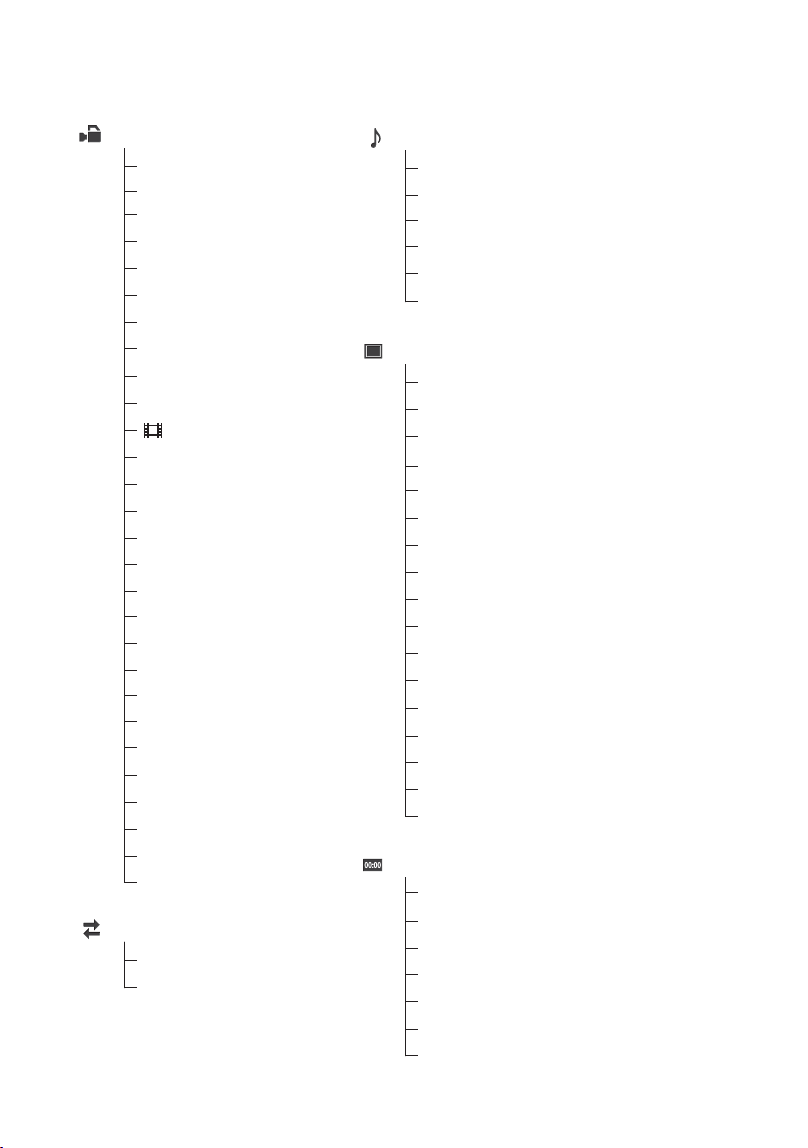
96
Menu items
CAMERA SET
ISO/GAIN SEL
AGC LIMI
AUTO ISO LIMIT
T
WB PRESET
WB OUTDOOR LEVEL
WB TEMP SET
AE SHIF
D. EXTENDER
WB SET
T
ZOOM SET
STEADYSHOT
FOCUS AREA
AF DRIVE SPEED
AF SUBJ. TRACK SET
LOCK-ON AF
FACE DETECTION
SLOW & QUICK
AUTO MODE SET
SCENE SELECTION SET
SPOT METER/FOCUS
SPOT METER
SPOT FOCUS
LOW LUX
AUTO BACK LIGHT
NIGHTSHOT
NIGHTSHOT LIGHT
COLOR BAR
PICTURE PROFILE
REC/OUT SET
REC SET
VIDEO OUT
DISPLAY SET
HISTOGRAM
ZEBRA
PEAKING
MARKER
FOCUS MAG RATIO
CAMERA DATA DISPLAY
AUDIO LEVEL DISPLAY
ZOOM DISPLAY
FOCUS DISPLAY
SHUTTER DISPL
DATA CODE
GAMMA DISP ASSIST
AY
LCD BRIGHT
VF COLOR TEMP.
DISPLAY OUTPUT
TC/UB SET
TC PRESET
TC/UB DISPLAY
UB PRESET
TC FORMAT
TC RUN
TC MAKE
UB TIME REC
AUDIO SET
AVCHD AUDIO FORMAT
AUDIO REC LEVEL
INT MIC WIND
MIC SELECT
AUDIO OUTPUT TIMING
VOLUME
PHASE AF FRAMES
PHASE DETECT. AF AREA
97
Using the Menu
OTHERS
STATUS CHECK
CAMERA PROFILE
S&Q BUTTON SETTING
ASSIGN BUTTON
CLOCK SET
AREA SET
SUMMERTIME
LANGUAGE
DATE REC
BEEP
REC LAMP
60i/50i SEL
REMOTE CONTROL
MEDIA FORMAT
REPAIR IMAGE DB FILE
USB CONNECT
USB LUN SET
OPER
OPTION
ATION TIME
VERSION DISPL
CALIBRATION
AY
INITIALIZE
EDIT
PROTECT
DIVIDE
DELETE
NETWORK SET
CTRL W/SMARTPHONE
STREAMING
USTREAM
WIRELESS TC LINK
WIRED LAN SE
T
Wi-Fi SET
AIRPLANE MODE
ROOT CERTIFICATE
NETWORK RESET
Continued ,

98
The function and setting value of each menu item are as follows.
The default settings are marked with bold text.
The display sequence of menu items may vary from the device.
CAMERA SET menu
CAMERA SET
Menu item Sub-items/Settings Description
ISO/GAIN SEL
ISO, GAIN Switches the ISO sensitivity/gain display.
• ISO sensitivity and gain values are stored
separately.
• [ISO/GAIN SEL] can be set only when the
AUTO/MANUAL switch is set to
MANUAL.
AUTO ISO LIMIT
OFF, ISO200 to ISO4000 Selects the upper limit for ISO auto
adjustment.
• The configurable range varies depending on
the [GAMMA] setting of the picture profile.
• This function is not active while you adjust
the ISO sensitivity manually.
• The setting is enabled when [ISO/GAIN
SEL] is set to [ISO].
• The value can be set independently of the
value set by [AGC LIMIT].
AGC LIMIT
OFF, 24dB to 0dB Selects the upper limit for the Auto Gain
Control (AGC).
• This function is not active while you adjust
the gain manually.
• The setting is enabled when [ISO/GAIN
SEL] is set to [GAIN].
WB PRESET
OUTDOOR, INDOOR,
MANU WB TEMP
Selects a preset white balance setting (p. 46).
WB OUTDOOR
LEVEL
–7 to +7 (0) Sets the offset value when the preset white
balance is set to [OUTDOOR].
Shifts to blue when negative, and to red when
positive.
WB TEMP SET
2300K to 15000K
(6500K)
Sets the color temperature value when the
preset white balance is set to [MANU WB
TEMP].
WB SET
– Adjusts white balance for the shooting
environment using one-push button (p. 47).
Menu items (Continued)
99
Using the Menu
AE SHIFT
ON/OFF
OFF, ON
Turns the AE shift function on/off.
LEVEL
–2.0EV to +2.0EV
(0EV)
Adjusts the brightness.
• This function is not active while you adjust
the iris, shutter speed, ISO sensitivity/gain all
manually.
D. EXTENDER
OFF, ON You can use 2× magnification when recording.
• This function is not available for XAVC S
4K.
ZOOM SET
ZOOM TYPE
OPTICAL ZOOM
ONLY, ON[CLEAR
IMAGE ZOOM],
ON[DIGITAL ZOOM]
Selects the type of zoom used when operating
the zoom lever.
OPTICAL ZOOM ONLY: Uses optical zoom
only.
ON[CLEAR IMAGE ZOOM]: Uses clear
image zoom in addition to optical zoom.
• Clear Image Zoom maintains an image
quality that is close to the original.
ON[DIGITAL ZOOM]: Uses digital zoom in
addition to optical zoom and clear image
zoom. Image quality deteriorates within the
range where is displayed.
• The face detection function, focus area, and
lock-on AF are disabled when using clear
image zoom and digital zoom.
HANDLE ZOOM
1 to 8 (3)
Selects the zoom speed for the FIX position of
the handle zoom speed switch.
SPEED ZOOM
OFF, ON
You can increase the zoom speed of the power
zoom lever and the handle zoom.
• When you set this function to [ON], the
operation sound of the zoom may also be
recorded in the movie.
STEADYSHOT
STANDARD, ACTIVE,
OFF
Sets the image stabilization to reduce camera
shake when shooting.
STANDARD ( ): Uses image stabilization
function.
ACTIVE ( ): Uses strong image
stabilization effect.
• When [ACTIVE] is selected, the angle of
view shifts 1.08 times toward the telephoto
side.
OFF ( ): Does not use image stabilization
function.
• This setting is recommended when you use
a tripod.
CAMERA SET
Menu item Sub-items/Settings Description
Continued ,
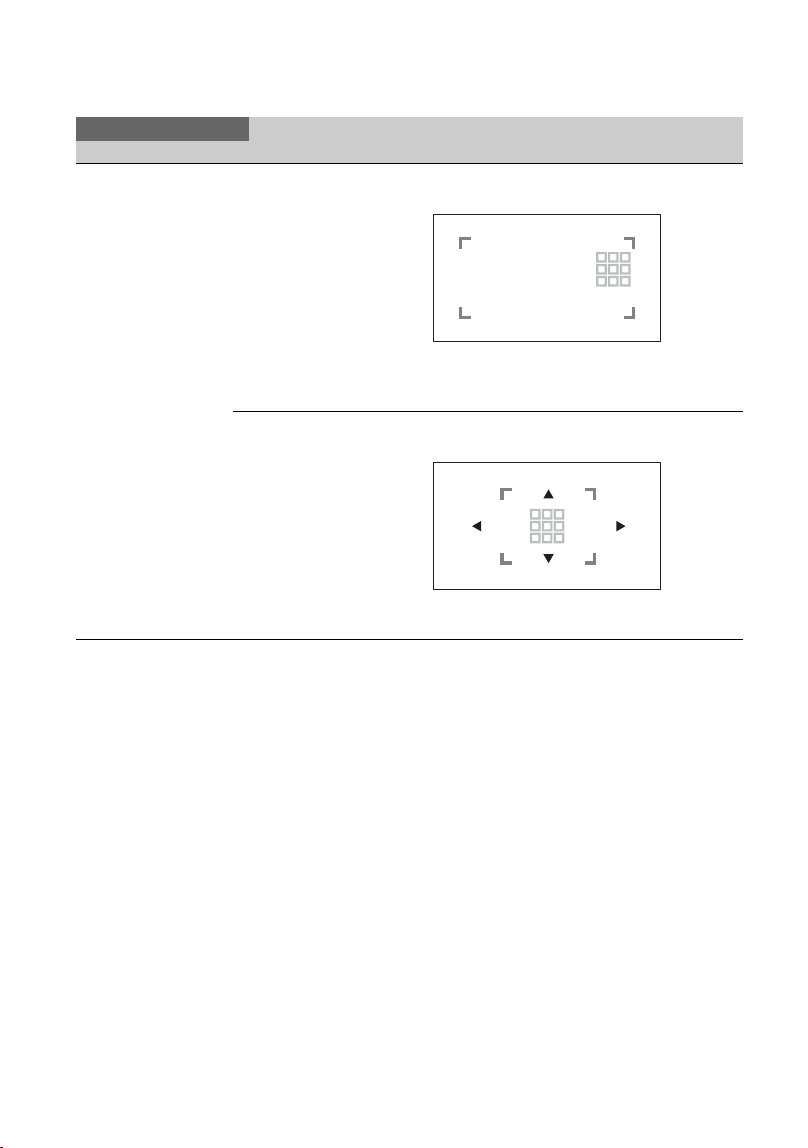
100
FOCUS AREA
WIDE Adjusts the focus automatically basically for
the whole screen.
• When phase detection AF frames are
displayed, you can specify the subject for
focusing by touch.
ZONE Adjusts the focus automatically within a
specified zone.
• The zone is subdivided into nine squares (3
vertical × 3 horizontal).
CAMERA SET
Menu item Sub-items/Settings Description
Menu items (Continued)
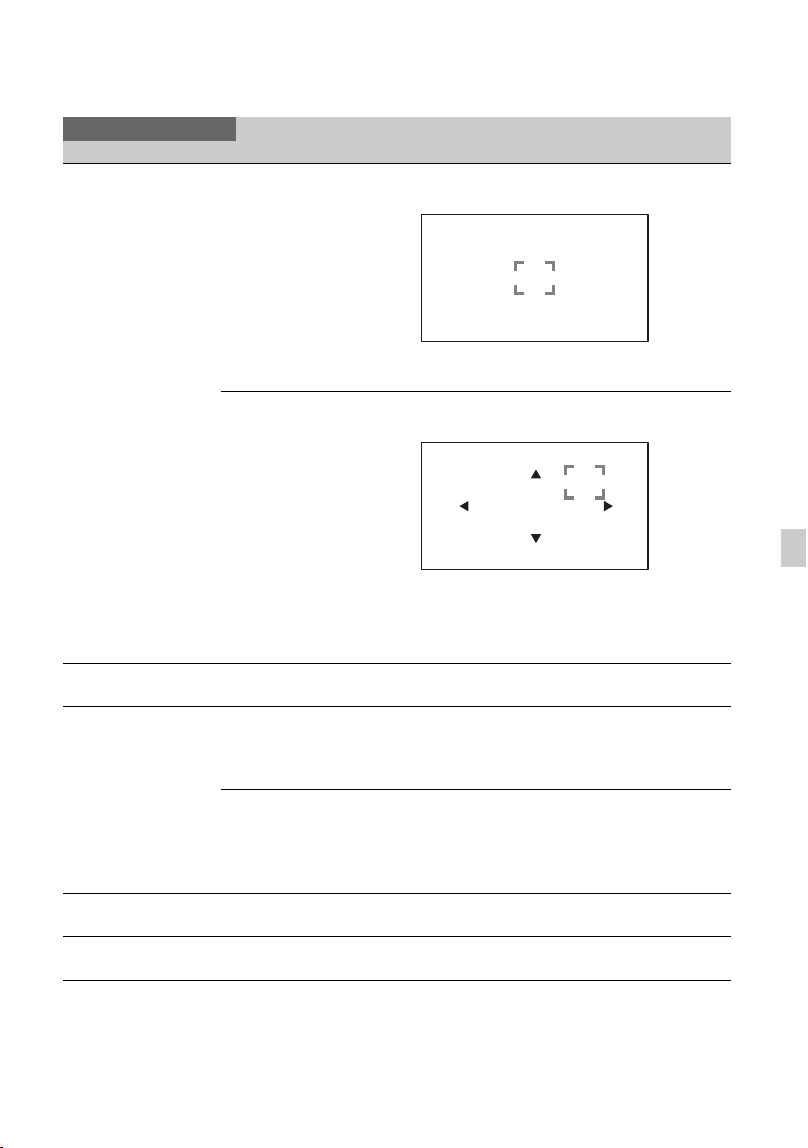
101
Using the Menu
FOCUS AREA
CENTER Adjusts the focus automatically on the subject
in the vicinity of the center of the screen.
• The auto focus operating range is indicated
by the focus area frame.
FLEXIBLE SPOT Adjusts the focus automatically at the touched
position on the screen.
• This allows you to focus on small subjects or
on a narrow area.
• The auto focus operating range is indicated
by the focus area frame.
AF DRIVE SPEED
7[FAST] to 1[SLOW]
(5[NORMAL])
Selects the speed for focusing used by auto
focus.
AF SUBJ. TRACK
SET
AF TRACKING DEPTH
5[WIDE] to
1[NARROW]
(3[NORMAL])
Selects the range for tracking subjects in the
depth direction.
AF SUBJ. SWITCH.
SENS.
5[RESPONSIVE] to
1[LOCKED ON]
(3[NORMAL])
Selects the time taken for focusing on a new
subject when switching subjects.
LOCK-ON AF
OFF, ON Turns the focus tracking function on/off for the
subject selected by touching the screen (p. 38).
FACE DETECTION
OFF, ON Turns face detection and the facial focus
function on/off (p. 39).
CAMERA SET
Menu item Sub-items/Settings Description
Continued ,

102
SLOW & QUICK
S&Q MOTION Sets Slow & Quick Motion recording.
HIGH FRAME RATE
OFF, ON
Sets slow-motion recording at high frame rate
(HFR) (p. 60).
REC FORMAT Sets the recording format for Slow & Quick
Motion.
XAVC S 4K
XAVC S HD ([HIGH FRAME RATE]: [OFF])
XAVC S HD ([HIGH FRAME RATE]: [ON])
AVCHD
CAMERA SET
Menu item Sub-items/Settings Description
When [60i] is selected When [50i] is selected
2160/30p 100Mbps 2160/25p 100Mbps
2160/30p 60Mbps 2160/25p 60Mbps
2160/24p 100Mbps –
2160/24p 60Mbps –
When [60i] is selected When [50i] is selected
1080/60p 50Mbps 1080/50p 50Mbps
1080/30p 50Mbps 1080/25p 50Mbps
1080/24p 50Mbps –
When [60i] is selected When [50i] is selected
1080/60p 50Mbps 1080/50p 50Mbps
1080/30p 25Mbps 1080/25p 25Mbps
1080/24p 25Mbps –
When [60i] is selected When [50i] is selected
1080/60p PS 1080/50p PS
1080/30p FX 1080/25p FX
1080/24p FX –
Menu items (Continued)

103
Using the Menu
SLOW & QUICK
FRAME RATE Sets the frame rate for Slow & Quick Motion
recording.
XAVC S 4K
XAVC S HD ([HIGH FRAME RATE]: [OFF]) /
AVCHD
XAVC S HD ([HIGH FRAME RATE]: [ON])
SUPER SLOW MOTION Sets Super Slow Motion recording.
CAMERA SET
Menu item Sub-items/Settings Description
When [60i] is selected When [50i] is selected
30fps 25fps
15fps 12fps
8fps 6fps
4fps 3fps
2fps 2fps
1fps 1fps
When [60i] is selected When [50i] is selected
60fps 50fps
30fps 25fps
15fps 12fps
8fps 6fps
4fps 3fps
2fps 2fps
1fps 1fps
When [60i] is selected When [50i] is selected
120fps 100fps
Continued ,
104
SLOW & QUICK
REC FORMAT Sets the recording format for Super Slow
Motion.
XAVC S HD
AVCHD
FRAME RATE Sets the frame rate for Super Slow Motion
recording.
REC TIMING
START TRIGGER,
END TRIGGER,
END TRIGGER
HALF
Selects the record timing when the record
button is pressed.
AUTO MODE SET
AUTO, INTELLIGENT
AUTO, SCENE
SELECTION
Sets auto mode to optimize settings to suit the
scene to record (p. 53).
SCENE SELECTION
SET
NIGHT SCENE,
SUNRISE&SUNSET,
FIREWORKS,
LANDSCAPE,
PORTRAIT,
SPOTLIGHT, BEACH
Sets the scene to use when [AUTO MODE
SET] is set to [SCENE SELECTION] (p. 53).
SPOT METER/FOCUS
Automatically adjusts the brightness and focus
of the subject selected by touching the screen.
SPOT METER
Automatically adjusts the brightness of the
subject selected by touching the screen.
SPOT FOCUS
Automatically adjusts the focus of the subject
selected by touching the screen.
CAMERA SET
Menu item Sub-items/Settings Description
When [60i] is selected When [50i] is selected
1080/60p 50Mbps 1080/50p 50Mbps
1080/30p 50Mbps 1080/25p 50Mbps
1080/24p 50Mbps –
When [60i] is selected When [50i] is selected
1080/60p PS 1080/50p PS
1080/30p FX 1080/25p FX
1080/24p FX –
When [60i] is selected When [50i] is selected
960fps 1000fps
480fps 500fps
240fps 250fps
Menu items (Continued)

105
Using the Menu
LOW LUX
OFF, ON Turns the function for shooting brighter colors
in dark areas on/off. This function
automatically adjusts the gain and shutter
speed
This function is available only when [AUTO
MODE SET] is set to [AUTO].
AUTO BACK LIGHT
OFF, ON Turns auto backlight compensation on/off.
NIGHTSHOT
ON, OFF Turns the NIGHTSHOT function on/off.
NIGHTSHOT LIGHT
ON, OFF Turns the infrared light source for shooting in
NIGHTSHOT mode (p. 54) on/off.
Infrared lighting allows you to record clearer
images in dark conditions.
• Make sure that your finger does not cover the
NightShot light (p. 8) when shooting.
• Remove the lens hood (supplied) so that it
does not block the infrared light emitter.
• The light is effective up to a distance of
approximately 3 meters (10 feet).
COLOR BAR
ON/OFF
OFF, ON
Displays and records color bars, and outputs
audio tone signals.
• This function is automatically set to [OFF]
when you switch the format, execute a
function with the MENU button, or turn off
the camcorder.
• The [COLOR BAR] setting cannot be
changed during recording or during focus
magnifier operation.
TONE
OFF, ON
Sets whether to output an audio tone signal (1
kHz: full bit, –20dB) during color bar display.
When turned off, the audio from the
microphone is recorded during color bar
display.
PICTURE PROFILE
Displays the PICTURE PROFILE menu
(p. 54).
CAMERA SET
Menu item Sub-items/Settings Description
Continued ,
106
REC/OUT SET menu
REC/OUT SET
Menu item Sub-items/Settings Description
REC SET
FILE FORMAT
XAVC S 4K, XAVC S
HD, AVCHD
Selects the file format.
REC FORMAT Sets the recording format.
The settings vary depending on the FILE
FORMAT setting.
• When [60i] is selected, the frame rate
displayed on the screen differs from the
actual frame rate.
When FILE FORMAT is
XAVC S 4K
• Image size: 2160 (3840×2160)
When FILE FORMAT is
XAVC S HD
• Image size: 1080 (1920×1080)
Frame rate display Actual frame rate
24 23.98
30 29.97
60 59.94
120 119.88
When [60i] is selected When [50i] is selected
2160/30p 100Mbps 2160/25p 100Mbps
2160/30p 60Mbps 2160/25p 60Mbps
2160/24p 100Mbps –
2160/24p 60Mbps –
When [60i] is selected When [50i] is selected
1080/120p 100Mbps 1080/100p 100Mbps
1080/120p 60Mbps 1080/100p 60Mbps
1080/60p 50Mbps 1080/50p 50Mbps
1080/60p 25Mbps 1080/50p 25Mbps
1080/30p 50Mbps 1080/25p 50Mbps
1080/30p 16Mbps 1080/25p 16Mbps
1080/24p 50Mbps –
Menu items (Continued)

107
Using the Menu
REC SET
When FILE FORMAT is
AVCHD
• Image size:
1080: 1920×1080 (PS, FX, FH), 1440×1080
(LP)
720: 1280×720 (HQ)
•Bit-rate
PS: max. 28 Mbps
FX: max. 24 Mbps
FH: approx. 17 Mbps (average)
HQ: approx. 9 Mbps (average)
LP: approx. 5 Mbps (average)
SIMUL/RELAY REC
OFF,
SIMULTANEOUS
REC, RELAY REC
Sets relay recording (p. 31) or simultaneous
recording (p. 32) using multiple memory cards.
REC BUTTON SETTING Sets the operation of the START/STOP button
and handle record button when
[SIMULTANEOUS REC] is selected (p. 32).
PROXY REC MODE
ON/OFF
SIZE
1280×720, 640×360
Sets proxy recording (p. 42).
REC/OUT SET
Menu item Sub-items/Settings Description
When [60i] is selected When [50i] is selected
1080/60p PS 1080/50p PS
1080/60i FX 1080/50i FX
1080/60i FH 1080/50i FH
1080/60i LP 1080/50i LP
1080/30p FX 1080/25p FX
1080/24p FX –
720/60p HQ 720/50p HQ
Continued ,

108
VIDEO OUT
OUTPUT SELECT
4K REC OUTPUT
VF/LCD PANEL
,
EXTERNAL OUTPUT
Sets the video output destination.
4K REC OUTPUT: Selects whether to output
the video signal when recording in 4K to the
viewfinder/LCD screen or to the external
output jack.
HDMI
When [60i] is selected:
AUTO,
2160p/1080p/480i,
2160p/720p/480i,
2160p/1080i/480i,
1080p/480i,
720p/480i,
1080i/480i, 480p, 480i
When [50i] is selected:
AUTO,
2160p/1080p/576i,
2160p/720p/576i,
2160p/1080i/576i,
1080p/576i, 720p/576i,
1080i/576i, 576p, 576i
Selects the resolution of the output signal from
the HDMI OUT jack.
• See page 69 for the format of the output
signal for each type of connection cable.
24p OUTPUT
24p/60p
Sets the output format when the frame rate is
set to 24 and progressive scan method setting is
selected.
• Available only when [60i] is selected.
• Enabled only when [HDMI] is set to [1080p/
480i].
REC/OUT SET
Menu item Sub-items/Settings Description
Menu items (Continued)
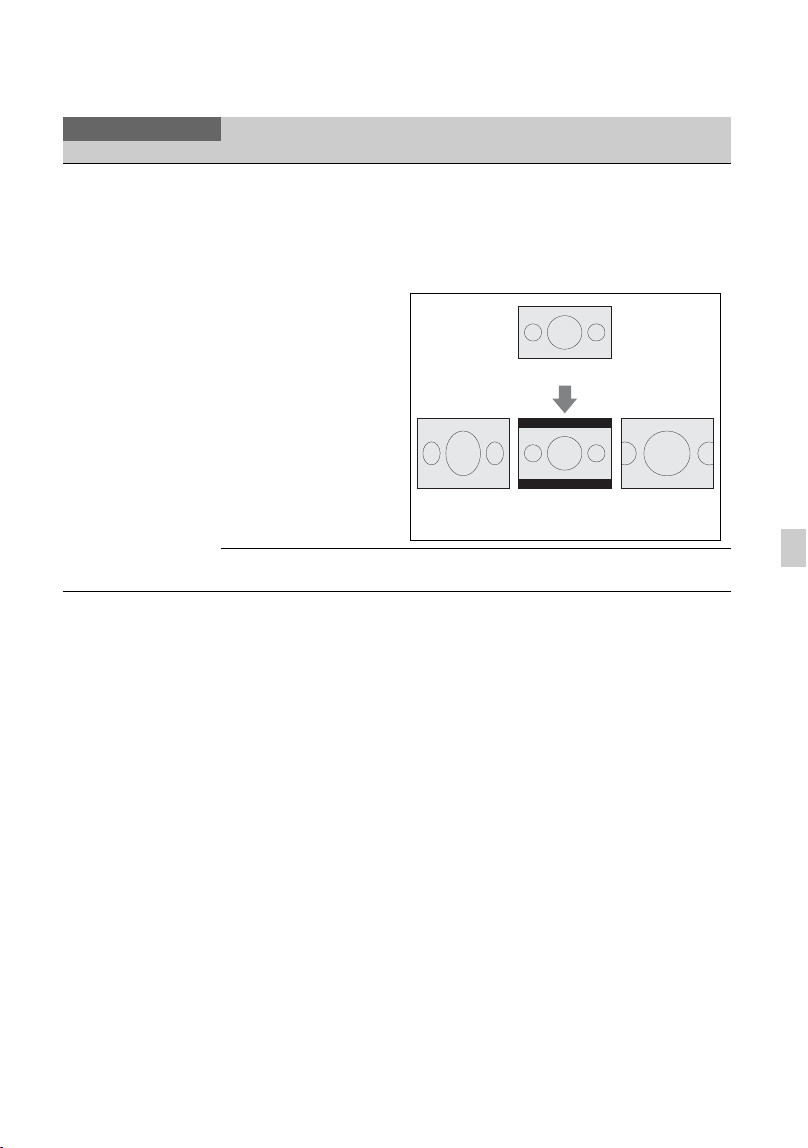
109
Using the Menu
VIDEO OUT
DOWN CONVERT TYPE
SQUEEZE, LETTER
BOX(16:9), EDGE
CROP
Sets the video output signal format.
Use this function for outputting movies
recorded in 16:9 under the following
conditions.
• Output from VIDEO OUT
• 480p/480i output from HDMI OUT
HDMI TC OUTPUT
OFF, ON
Sets whether to output timecode to other
professional-use devices, using HDMI.
REC/OUT SET
Menu item Sub-items/Settings Description
HD (16:9)
SQUEEZE LETTER
BOX(16:9)
EDGE
CROP
Continued ,
110
VIDEO OUT
HDMI REC CONTROL
OFF, ON
When the camcorder is connected to an
external recorder, this sets whether to record to
the external recorder based on the camcorder’s
operation.
ON: Record based on the camcorder operation.
OFF: Does not record based on the camcorder
operation.
• Icons displayed when [ON] is selected.
• VITC is not embedded when [HDMI REC
CONTROL] is set to [ON].
• HDMI REC CONTROL is forcibly disabled
when [HDMI TC OUTPUT] is [OFF].
• Even when or is displayed on
the screen, recording to an external recorder
may not be carried out correctly, depending
on the external recorder’s status (e.g.
insufficient free space on recording media,
low battery charge, incorrect connection to
camcorder). When recording on an external
recorder, check that recording is being
carried out correctly.
REC/OUT SET
Menu item Sub-items/Settings Description
Icon Meaning
Ready to send a trigger to
start recording on an
external recorder.
A trigger to start
recording has been sent to
an external recorder.
No icon A trigger to start
recording cannot be sent
to an external recorder.
Menu items (Continued)
111
Using the Menu
AUDIO SET menu
AUDIO SET
Menu item Sub-items/Settings Description
VOLUME
Adjusts the volume.
AVCHD AUDIO
FORMAT
LINEAR PCM, DOLBY
DIGITAL
Switches the recording audio format.
LINEAR PCM ( ): Records in linear
PCM format.
DOLBY DIGITAL ( ): Records in
Dolby Digital format.
AUDIO REC LEVEL
REC LEVEL MODE
NORMAL, HIGH,
MANUAL
MANUAL REC LEVEL
1 to 31 (21)
Sets the audio input recording level for the
internal microphone and external microphone
(sold separately).
REC LEVEL MODE: Selects the recording
level mode.
MANUAL REC LEVEL: Sets the recording
sensitivity when the recording level mode is
[MANUAL].
• We recommend that you wear headphones to
monitor the level during adjustment.
• If you repeatedly capture continuous loud
sounds, setting a low level allows you to
record more realistic audio.
• The limiter is always enabled, regardless of
the recording level setting.
• The recording level cannot be adjusted when
using a dedicated microphone attached to the
Multi Interface Shoe.
INT MIC WIND
OFF, ON Turns the wind noise reduction function on/off.
It attenuates low tone input sound in the
internal microphone to reduce wind noise.
Continued ,

112
MIC SELECT
AUTO, INT MIC, MI
SHOE MIC, STEREO
MINI MIC
Selects the microphone to use for recording
audio.
AUTO: The microphone used for recording
audio is automatically selected based on the
microphone that is connected.
• The microphone is selected in the
following order of priority:
External microphone connected to MIC
jack (PLUG IN POWER) > Microphone
connected to XLR handle unit or Multi
Interface Shoe compatible microphone >
Internal microphone
INT MIC: Records audio using the
camcorder’s internal microphone.
MI SHOE MIC: Records audio using a
microphone connected to the XLR handle
unit or a Multi Interface Shoe compatible
microphone.
STEREO MINI MIC: Records audio using a
microphone connected to the stereo mini
jack.
• When [AUTO] is selected and the XLR
handle unit is connected to the camcorder
without a microphone attached to the
INPUT1 and INPUT2 jacks, the internal
microphone is not selected and no audio is
recorded. In this case, select [INT MIC].
AUDIO OUTPUT
TIMING
LIVE, LIP SYNC Selects the timing of the audio output when
recording.
LIVE: When recording, audio is output without
any delay.
LIP SYNC: When recording, audio is
synchronized with video before output.
• Select [LIP SYNC] when using the HDMI
jack to record to an external device.
AUDIO SET
Menu item Sub-items/Settings Description
Menu items (Continued)

113
Using the Menu
DISPLAY SET menu
DISPLAY SET
Menu item Sub-items/Settings Description
HISTOGRAM
OFF, ON, ON[ZEBRA
POINT]
Sets the histogram display.
OFF: Does not display a histogram.
ON: Displays a histogram.
A line appears at the 100% position, and the
color of the zone above the line changes.
ON[ZEBRA POINT]: The histogram shows
the point where the zebra pattern appears. A
line is displayed at the brightness level set
with [ZEBRA].
ZEBRA
ZEBRA SELECT
OFF, ZEBRA1,
ZEBRA2
Selects the type of zebra display (ZEBRA1 or
ZEBRA2).
OFF: Does not display the zebra pattern.
ZEBRA1: Displays a zebra pattern in areas
where the image level is in the range set by
[ZEBRA1 APERTURE LEVEL] centered
on the image level set in [ZEBRA1 LEVEL].
ZEBRA2: Displays a zebra pattern in areas
where the image level exceeds the level set
in [ZEBRA2 LEVEL].
ZEBRA1 LEVEL
0% to 109% (1) (70%)
Sets the level to display ZEBRA1.
ZEBRA1 APERTURE
LEVEL
2% to 20% (2) (10%)
Sets the range for displaying a zebra pattern
centered on the level set in [ZEBRA1 LEVEL].
ZEBRA2 LEVEL
0% to 109% (1) (100%)
Sets the level to display ZEBRA2.
PEAKING
ON/OFF
OFF, ON
Sets the peaking display.
• You can focus more easily using this function
in combination with the focus magnifier
function (p. 38).
• The peaking is not recorded with the image.
COLOR
WHITE, RED,
YELLOW
Selects the peaking color.
LEVEL
HIGH, MIDDLE, LOW
Selects the peaking sensitivity.
PHASE AF FRAMES
OFF, ON Selects whether to display phase detection AF
frames when shooting with auto focus and
[FOCUS AREA] is set to [WIDE] or [ZONE].
PHASE DETECT. AF
AREA
OFF, ON Selects whether to display phase detection AF
area when shooting with auto focus.
Continued ,
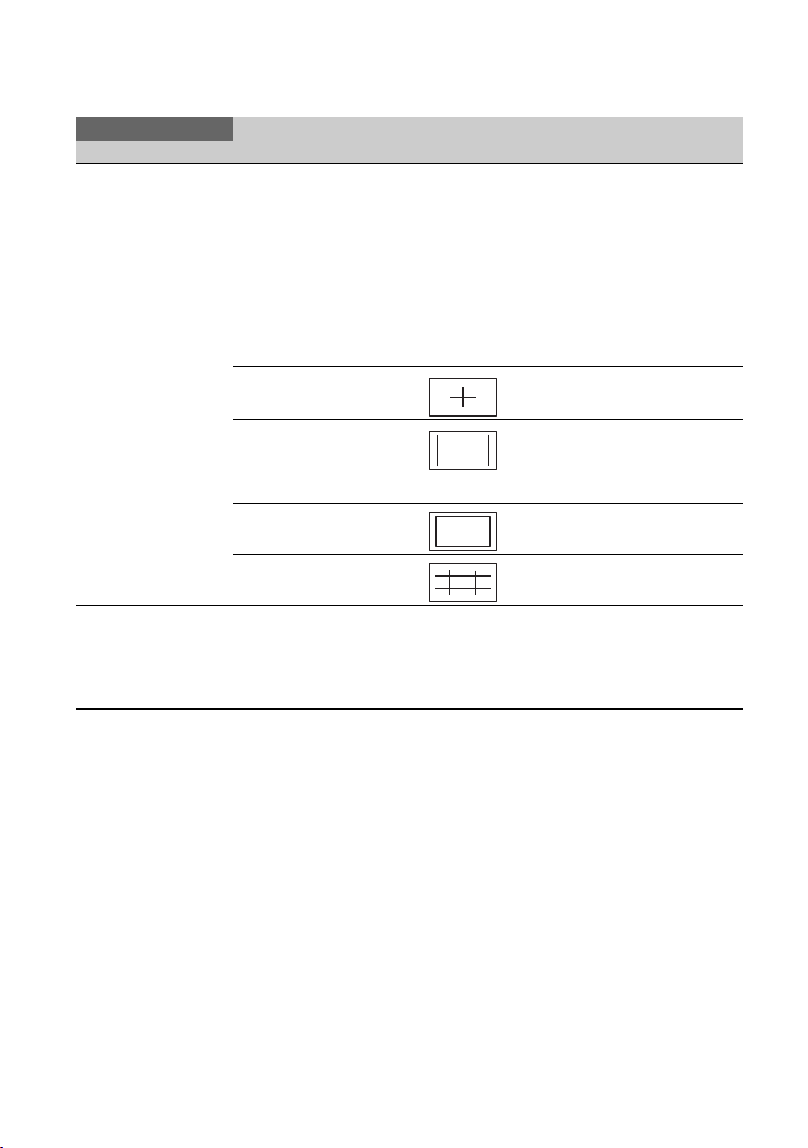
114
MARKER
ON/OFF
OFF, ON
Sets the marker display.
You can display multiple types of markers at
the same time.
• Markers are not recorded with the image.
• During marker display, only the timecode,
zebra, peaking, and face detection indicators
are output, even if [DISPLAY OUTPUT] is
set to [ALL OUTPUT].
• You cannot display markers when using
[FOCUS MAGNIFIER].
CENTER
ON, OFF
(Center marker)
ASPECT
OFF, 4:3, 13:9, 14:9,
15:9, 1.66:1, 1.85:1,
2.35:1
(Aspect marker)
SAFETY ZONE
OFF, 80%, 90%
(Safety zone)
GUIDEFRAME
OFF, ON
(Guideframe)
FOCUS MAG RATIO
×4.0, ×8.0, ×4.0/×8.0 Sets the focus magnification ratio.
When “×4.0/×8.0” is selected, the setting
changes in the order [×4.0] t [×8.0] t
[OFF] with each press of the ASSIGN4/
FOCUS MAGNIFIER button.
DISPLAY SET
Menu item Sub-items/Settings Description
Menu items (Continued)
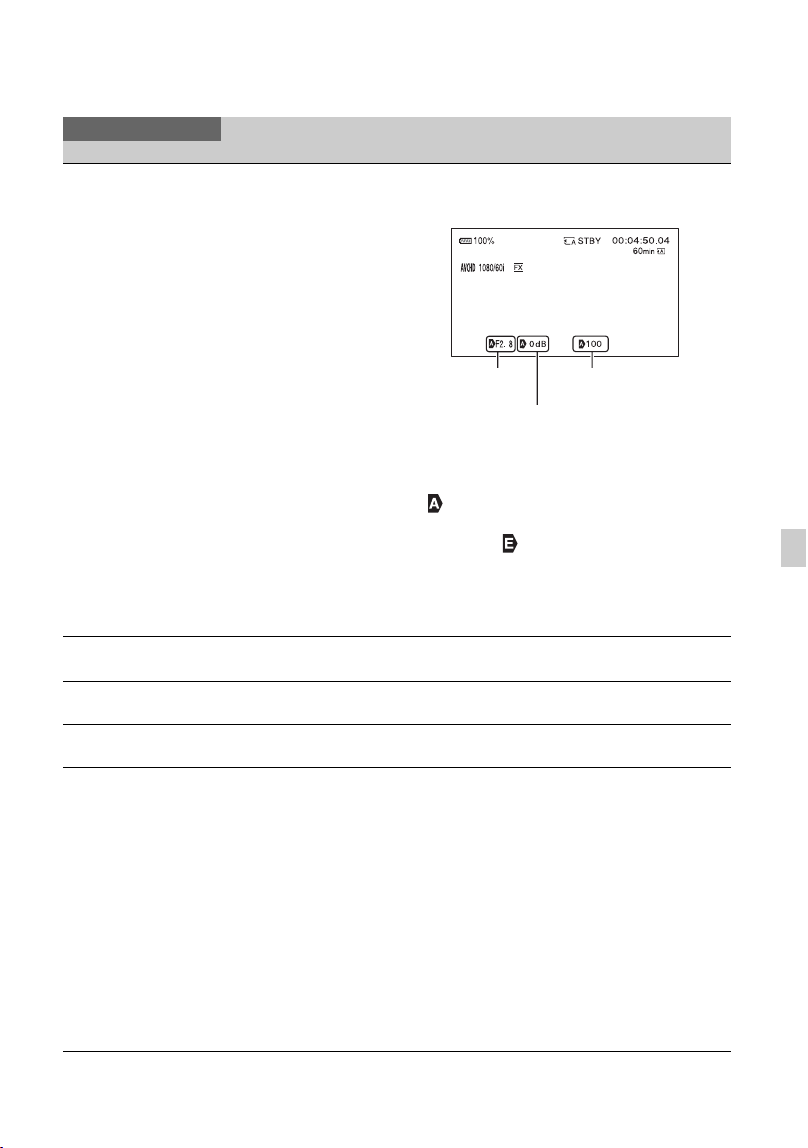
115
Using the Menu
CAMERA DATA
DISPLAY
OFF, ON Sets whether to display the iris, ISO sensitivity/
gain, and shutter speed values.
• The settings appear during manual
adjustment, regardless of the setting of this
function.
• indicates that the settings are
automatically adjusted values. The indicator
changes to when exposure is fixed by
[SPOT METER] or [SPOT METER/
FOCUS] (p. 45).
• The displayed settings are different from
those displayed by [DATA CODE] (p. 66).
AUDIO LEVEL
DISPLAY
ON, OFF Sets whether to display the audio level meters.
ZOOM DISPLAY
BAR, NUMBER Sets whether to display the zoom position as a
bar or number.
FOCUS DISPLAY
METER, FEET Sets the display of the focus distance in meters
or feet.
SHUTTER DISPLAY
SECOND, DEGREE Sets the display of the shutter speed in seconds
or degrees.
The shutter speed equal to the period that your
camcorder reads image data from the image
sensor is defined as 360 degrees. The degree is
calculated based on this definition and
displayed.
• When you press the ASSIGN button to which
[DATA CODE] is assigned, the shutter speed
is displayed in seconds regardless of this
setting.
• If the shutter speed is more than 360 degrees,
it is displayed as an integral multiple of 360
degrees (360 × 2, etc.).
DISPLAY SET
Menu item Sub-items/Settings Description
Iris value
Shutter speed value
ISO sensitivity/gain value
Continued ,

116
DATA CODE
OFF, DATE/TIME,
CAMERA DATA
Selects the information that is displayed during
playback.
OFF: No information is displayed.
DATE/TIME: The date and time are displayed.
CAMERA DATA: Camera data is displayed.
GAMMA DISP
ASSIST
ON/OFF
ON, OFF
TYPE
AUTO
,
S-LOG2
t
709(800%),
S-LOG3
t
709(800%),
HLG(BT.2020), HLG(709)
Sets whether to convert the image displayed on
the viewfinder or LCD screen to close to
normal video when shooting using a picture
profile with S-Log or HLG (p. 57).
ON/OFF: Turns the gamma display assist
function on/off.
TYPE: Sets the type of conversion.
• Movies shot using S-Log2 or S-Log3, which
require editing in post production, have
images shot with low contrast that make live
monitoring difficult. Movies shot using HLG/
HLG1/HLG2/HLG3 also have low contrast
when displayed on the viewfinder or LCD
screen, which do not support HDR, and
movies shot using BT.2020 color mode have
washed out colors.
To counter this, you can use [GAMMA DISP
ASSIST] to obtain the contrast and color
reproducibility that is close to normal video
for display on the viewfinder and LCD screen
to make monitoring easier.
• This function affects only the monitoring
video or playback video displayed in the
viewfinder or on the LCD screen. The
recorded video and output video are not
affected.
LCD BRIGHT
NORMAL, BRIGHT Adjusts the brightness of the LCD screen.
• Changes in the LCD brightness do not affect
the brightness of recorded images.
VF COLOR TEMP.
–2/–1/0/+1/+2 (0) Sets the color temperature of the viewfinder.
Low color temperature makes the viewfinder
appear reddish, and high color temperature
makes it appear bluish.
DISPLAY SET
Menu item Sub-items/Settings Description
Menu items (Continued)

117
Using the Menu
DISPLAY OUTPUT
LCD PANEL, ALL
OUTPUT
Sets the output to display information, such as
the timecode.
You can select to display information on the
LCD screen only, or output the information to
the VIDEO OUT, HDMI OUT jacks and the
LCD screen. Zebra, peaking and the frame on
the face are also output.
• During marker display, only the timecode,
zebra, peaking, and face detection indicators
are output, even if [DISPLAY OUTPUT] is
set to [ALL OUTPUT].
TC/UB SET menu
TC/UB SET
Menu item Sub-items/Settings Description
TC/UB DISPLAY
TC, U-BIT Switches the display to timecode or user bits.
TC PRESET
PRESET, RESET Sets the timecode (p. 58).
UB PRESET
PRESET, RESET Sets the user bits (p. 59).
TC FORMAT
DF, NDF Switches the timecode recording method when
[60i] is selected. The timecode is fixed to
[NDF] when [50i] is selected.
DF: Records the timecode in drop frame.
NDF: Records the timecode in non-drop frame.
• The timecode is also fixed to [NDF] (when
[60i] is selected) when the frame rate is set to
24 in [REC FORMAT].
• Drop-frame
Timecode is based on 30 frames per second;
however, gaps in the actual time occur during
extended periods of recording as the actual
frame frequency of NTSC image signals is
29.97 frames per second. Drop frame corrects
this gap to make timecode and actual time
equal. In drop frame, the first 2 frame
numbers are removed every minute except in
every tenth minute. Timecode without this
correction is called non-drop frame.
DISPLAY SET
Menu item Sub-items/Settings Description
Continued ,
118
TC RUN
REC RUN, FREE RUN Sets how the timecode advances.
REC RUN: Advances the timecode only
during recording. Select this setting to record
the timecode sequentially from the last
timecode of the previous recording.
• Even if the timecode advances in [REC
RUN] mode, the timecode may not be
recorded sequentially in the following
cases:
– When the recording format is changed.
– When the memory card is removed.
FREE RUN: Advances the timecode regardless
of operation of your camcorder.
TC MAKE
PRESET,
REGENERATE
Sets how the timecode continues.
PRESET: Records a preset set timecode on the
memory card.
REGENERATE: Reads the last recorded
timecode from the memory card, and starts
recording with a consecutive timecode.
• The timecode advances in [REC RUN]
mode, regardless of the setting of [TC
RUN].
UB TIME REC
OFF, ON Sets whether to save the actual time in user bit
code.
• The last 2 digits are fixed to “00” when it is
set to [ON].
NETWORK SET menu
NETWORK SET
Menu item Sub-items/Settings Description
CTRL W/
SMARTPHONE
Enables operation with a smartphone (p. 73).
STREAMING
PRESET SELECT
PRESET1, PRESET2,
PRESET3
Sets streaming (p. 82).
PRESET1/PRESET2/
PRESET3
SIZE
640×360, 1280×720
DESTINATION SET
TC/UB SET
Menu item Sub-items/Settings Description
Menu items (Continued)
119
Using the Menu
USTREAM
USER INFO SET Configures USTREAM settings (p. 84).
SIZE
640×360, 1280×720
SERVER REC SET
ON, OFF
Set whether to record the distributed movie on
the USTREAM server.
WIRELESS TC LINK
Synchronizes timecodes using a smartphone if
“CBKZ-WTCL” is installed on the camcorders
(p. 87).
WIRED LAN SET
IP ADDRESS SET Configures a wired LAN (p. 81).
Wi-Fi SET
ACCESS POINT SET • Selects and configures an access point
(p. 76).
• Registers an access point using the WPS PIN
method (p. 78).
• Registers an access point manually (p. 79).
WPS Registers an access point using the WPS
function (p. 77).
EDIT DEVICE NAME Edits the device name (p. 80).
SSID/PW RESET Resets the connection information.
When [OK] is selected, the connection
information registered in order to use [CTRL
W/SMARTPHONE] is reset.
• If the connection information has been reset,
it will be necessary to set up the smartphone
again, in order to connect it to the camcorder.
DISP MAC ADDRESS Displays the camcorder’s MAC address.
AIRPLANE MODE
OFF, ON Turns airplane mode on/off.
When turned on, all Wi-Fi-related settings are
temporarily disabled (for when boarding a
plane, etc.).
ROOT CERTIFICATE
Imports a root certificate (p. 89).
NETWORK RESET
Resets network settings (p. 90).
OTHERS menu
OTHERS
Menu item Sub-items/Settings Description
STATUS CHECK
Checks the settings in your camcorder (p. 67).
NETWORK SET
Menu item Sub-items/Settings Description
Continued ,

120
CAMERA PROFILE
MEMORY CARD A,
MEMORY CARD B
Loads, saves, and deletes camera profiles.
• A camera profile saves configuration
settings, such as menu, picture profile, and
button settings. Up to 99 profiles can be
saved on a memory card.
• Camera profiles for the 50i model and 60i
model are not compatible.
• You cannot use a computer to edit saved
settings.
• The file may not be shown properly if the file
name is changed on the computer, or the
power turned off during generation.
• A camera profile saved on a camcorder with
different model name, or edited on a
computer cannot be loaded.
Formatting the memory card also deletes
saved camera profiles.
S&Q BUTTON
SETTING
S&Q/SUPER SLOW,
S&Q MOTION,
SUPER SLOW MOTION
Sets the function of the button to which S&Q
MOTION is assigned.
S&Q/SUPER SLOW: Each time the button is
pressed, the function switches between Slow
& Quick Motion mode t Super Slow
Motion mode t Off.
S&Q MOTION: Sets Slow & Quick Motion
mode.
SUPER SLOW MOTION: Sets Super Slow
Motion mode.
ASSIGN BUTTON
ASSIGN1,
ASSIGN2,
ASSIGN3,
ASSIGN4,
ASSIGN5,
ASSIGN6
Assigns functions to the ASSIGN buttons
(p. 63).
CLOCK SET
Sets the date and time (p. 24).
AREA SET
Sets the time difference for when using the
camcorder abroad.
You can adjust the time difference without
stopping the clock.
SUMMERTIME
OFF, ON Sets whether to use summer time. When set to
[ON], the time moves forward 1 hour.
LANGUAGE
Sets the display language.
OTHERS
Menu item Sub-items/Settings Description
Menu items (Continued)
121
Using the Menu
DATE REC
OFF, ON Sets whether to record the date and time on the
recorded images.
• You can set this item only when the interlace
scanning system is selected.
• When zebra or peaking is activated, the date
and time characters are affected by the signal,
but are properly recorded on images.
BEEP
OFF, ON Sets whether to emit a sound when you start/
stop recording or when a warning appears, etc.
REC LAMP
ON, OFF Sets whether to turn on the recording lamp of
the camcorder when recording.
REMOTE CONTROL
ON, OFF Sets whether to use the infrared Wireless
Remote Commander (p. 16).
60i/50i SEL
Selects the frame rate corresponding to the
television format of the region where the
camcorder is used.
60i: NTSC
50i: PAL
The default setting is 60i for NTSC regions and
50i for PAL regions.
Refer to the label on the bottom of the
camcorder.
The camcorder automatically restarts if you
change the setting.
MEDIA FORMAT
MEMORY CARD A,
MEMORY CARD B
Formats a memory card (p. 93).
REPAIR IMAGE DB
FILE
MEMORY CARD A,
MEMORY CARD B
Repairs the image database file of a memory
card (p. 94).
USB CONNECT
Use this if [USB CONNECT] does not appear
after connecting the camcorder to another
device with a USB cable.
USB LUN SET
MULTI, SINGLE Improves compatibility by limiting the
functions of the USB connection.
• Set to [MULTI] under normal conditions. Set
to [SINGLE] if you are unable to connect
using the [MULTI] setting.
OPERATION TIME
Displays the total hours of operation in 10-hour
units.
OPTION
WIRELESS TC LINK Checks the installation status of options sold
separately. Also used to start installation after
purchasing option software.
• For details about installation, refer to the
installation guide for the option software.
OTHERS
Menu item Sub-items/Settings Description
Continued ,

122
You can display the [EDIT] menu by pressing the MENU button when the THUMBNAIL or
playback screen is displayed.
The PICTURE PROFILE menu is displayed by pressing the ASSIGN3/PICTURE PROFILE
button.
VERSION DISPLAY
Displays the version of your camcorder.
• Be sure to check for firmware updates.
• To perform an update, use the AC Adaptor.
CALIBRATION
Calibrates the touch panel (p. 155).
INITIALIZE
Resets all settings, including the clock setting
to their default values.
• The contents configured in a picture profile
are not reset.
EDIT menu
OTHERS
Menu item Sub-items/Settings Description
EDIT
Menu item Sub-items/Settings Description
PROTECT – Protects (locks) files (p. 91).
DIVIDE – Divides a movie (p. 91).
DELETE – Deletes a movie (p. 92).
PICTURE PROFILE menu
Item Sub-items Settings Description
BLACK
LEVEL
–15 to +15 Sets the black level.
Menu items (Continued)

123
Using the Menu
GAMMA STANDARD,
STILL,
CINE1,
CINE2,
CINE3,
CINE4,
ITU709,
ITU709(800%),
S-LOG2,
S-LOG3,
HLG,
HLG1,
HLG2,
HLG3
Selects a gamma curve.
STANDARD: Standard gamma curve for
movies.
STILL: Gamma curve for still image
capture.
CINE1: Softens the contrast in dark parts
and accentuates gradation changes in
bright parts to produce images with
subdued tones (equivalent to
HG4609G33).
CINE2: Produces a similar effect to
[CINE1]. Select this to obtain images
with 100% video signal for editing or
other purposes (equivalent to
HG4600G30).
CINE3: Increases contrast between bright
areas and dark areas more than
[CINE1], and accentuates gradation
changes in blacks.
CINE4: Increases contrast in dark areas
more than [CINE3]. The dark area
contrast is weaker and the bright area
contrast is stronger than that of
[STANDARD].
ITU709: Gamma curve equivalent to ITU-
709. Gain in low intensity area: 4.5.
ITU709(800%): Gamma curve for
checking scenes when shooting using
[S-LOG2] or [S-LOG3].
S-LOG2: [S-LOG2] gamma curve. This
setting presumes editing in post-
production after recording.
S-LOG3: [S-LOG3] gamma curve.
Gamma curve with characteristics
similar to film, and which presumes
editing in post-production after
recording.
HLG: Gamma curve for shooting in HDR.
Setting equivalent to ITU-R BT.2100.
HLG1: Gamma curve for shooting in
HDR using [HLG1]. This mode
prioritizes noise suppression. However,
the dynamic range that can be shot is
narrower than [HLG2] and [HLG3].
HLG2: Gamma curve for shooting in
HDR using [HLG2]. Setting with
balance between dynamic range and
noise suppression.
HLG3: Gamma curve for shooting in
HDR using [HLG3]. Setting that
provides wider dynamic range than
[HLG2]. However, the noise level
rises.
Item Sub-items Settings Description
Continued ,

124
BLACK
GAMMA
Corrects gamma in low intensity areas.
• [BLACK GAMMA] is disabled when [GAMMA] is set to [HLG], [HLG1],
[HLG2], or [HLG3].
RANGE HIGH,
MIDDLE,
LOW
Selects the correction range.
LEVEL –7 (maximum
black
compression)
to +7
(maximum
black stretch)
Sets the correction level.
KNEE MODE AUTO,
MANUAL
Selects the mode.
AUTO: Sets the knee point and
slope automatically.
MANUAL: Sets the knee point
and slope manually.
AUTO SET Settings when [AUTO] is selected.
MAX POINT 90% to 100% MAX POINT: Sets the
maximum value of the knee
point.
SENSITIVITY HIGH,
MIDDLE,
LOW
SENSITIVITY: Sets the
sensitivity.
MANUAL
SET
Settings when [MANUAL] is selected.
POINT 75% to 105% POINT: Sets the knee point.
SLOPE –5 (gentle) to
+5 (steep)
SLOPE: Sets the knee slope.
• [KNEE] is disabled when set to
+5.
Item Sub-items Settings Description
Menu items (Continued)

125
Using the Menu
COLOR
MODE
STANDARD,
STILL,
CINEMA,
PRO,
ITU709
MATRIX,
B/W,
S-GAMUT/
3200K,
S-GAMUT/
4300K,
S-GAMUT/
5500K,
S-GAMUT3.
CINE/3200K,
S-GAMUT3.
CINE/4300K,
S-GAMUT3.
CINE/5500K,
S-GAMUT3/
3200K,
S-GAMUT3/
4300K,
S-GAMUT3/
5500K,
BT.2020,
709
Sets the type and level of color.
STANDARD: Suitable colors when
[GAMMA] is set to
[STANDARD].
STILL: Suitable colors when
[GAMMA] is set to [STILL].
CINEMA: Suitable colors when
[GAMMA] is set to [CINE1].
PRO: Natural color tone when
[GAMMA] is set to [ITU709].
ITU709 MATRIX: Colors
corresponding to ITU-709
B/W: Black and white
S-GAMUT (/3200K/4300K/5500K):
Use when [GAMMA] is [S-
LOG2]. This setting assumes
editing in post-production. Can be
selected in combination with three
different color temperatures.
S-GAMUT3.CINE (/3200K/4300K/
5500K): Use when [GAMMA] is
[S-LOG3]. This setting assumes
editing in post-production.
Enables shooting in color space
with simple conversion to digital
cinema color space. Can be
selected in combination with three
different color temperatures.
S-GAMUT3 (/3200K/4300K/
5500K):
Use when [GAMMA] is [S-
LOG3]. This setting assumes
editing in post-production.
Enables shooting in wide color
space. Can be selected in
combination with three different
color temperatures.
BT.2020: Standard color tone when
[HLG], [HLG1], [HLG2], or
[HLG3] is selected for
[GAMMA].
709: Color tone for recording HDTV
format (BT.709) color when
[HLG], [HLG1], [HLG2], or
[HLG3] is selected for
[GAMMA].
• This differs from [ITU709]
above.
• When [GAMMA] is set to [HLG],
[HLG1], [HLG2], or [HLG3],
[COLOR MODE] can only be set
to [BT.2020] or [709].
SATURATION
–32 (light) to
+32 (dark)
Sets the color saturation.
Item Sub-items Settings Description
Continued ,

126
COLOR
PHASE
–7 (greenish)
to +7 (reddish)
Sets the color phase.
COLOR
DEPTH
R –7 (light red)
to +7 (deep
red)
Sets the color depth for each
color phase.
The darker the color, the greater
the effect. No effect is applied
for subjects lacking color. The
subject looks darker and colors
look deeper as you increase the
setting value to the positive side,
and brighter and lighter as you
decrease the value to the
negative side.
G –7 (light green)
to +7 (deep
green)
B –7 (light blue)
to +7 (deep
blue)
C –7 (light cyan)
to +7 (deep
cyan)
M –7 (light
magenta) to +7
(deep magenta)
Y –7 (light
yellow) to +7
(deep yellow)
Item Sub-items Settings Description
Menu items (Continued)

127
Using the Menu
COLOR
CORRECTION
Sets the color correction.
• Setting both memories to the same setting doubles the color correction effect.
• The settings of [COLOR CORRECTION] will be retained even if the power is
turned off. However, if you want to correct colors that may change according to
time of the day, weather, location, etc., it is recommended that you set [COLOR
CORRECTION] again prior to recording.
• Changing the white balance value or the settings of [WB SHIFT],
[SATURATION] or [COLOR PHASE] of the picture profile will change the
color settings and colors that are corrected.
• If the above settings have been changed since [COLOR CORRECTION] was
configured, check the [COLOR CORRECTION] settings prior to recording.
• During the automatic white balance adjustment, the white balance value
automatically varies according to the lighting of the subject. Manual white
balance adjustment is recommended when you use [COLOR CORRECTION].
TYPE OFF, COLOR
REVISION,
COLOR
EXTRACT
Selects the color correction type.
OFF: Do not perform color
correction.
COLOR REVISION: Corrects
the colors configured in
memory.
• Colors not configured in
memory (displayed in black
and white when [COLOR
EXTRACT] is set) will not be
corrected.
COLOR EXTRACT: Displays
only the colors that are
configured in memory in
color.
• The other areas are displayed
in black and white. You can
use this function as an effect in
your movies or to check the
colors configured in memory.
MEMORY
SELECTION
1, 2, 1&2 Selects a memory to enable.
1: Enables memory 1 settings
only.
2: Enables memory 2 settings
only.
1&2: Enables settings in both
memory 1 and 2.
Item Sub-items Settings Description
Continued ,

128
COLOR
CORRECTION
MEMORY1
COLOR
PHASE 0 (purple) to 8
(red) to 16
(yellow) to 24
(green) to 31
(blue)
Sets the color phase of memory
1.
PHASE
RANGE
0 (no color
selection), 1
(narrow: to
select only a
single color) to
31 (wide: to
select multiple
colors with
similar color
phase)
Sets the phase range of memory
1.
SATURATION
0 (to select
light colors to
dark colors) to
31 (to select
dark colors
only)
Sets the saturation of memory 1.
ONE PUSH
SET
– Automatically sets [PHASE] for
the subject at the center of the
center marker. [SATURATION]
is reset to 0.
MEMORY1
REVISION
PHASE –15 to +15 Corrects the phase of the color
selected in memory 1.
• When set to 0, the color is not
corrected.
SATURATION
–15 to +15 Corrects the saturation of the
color selected in memory 1.
• When set to 0, the color is not
corrected.
MEMORY2
COLOR
– Sets the color configured in
memory 2.
See [MEMORY1 COLOR] for
description and settings.
MEMORY2
REVISION
– Corrects the color in memory 2.
See [MEMORY1 REVISION]
for description and settings.
Item Sub-items Settings Description
Menu items (Continued)

129
Using the Menu
WB SHIFT Sets the white balance shift.
• Items you can adjust differ depending on the filter type.
FILTER TYPE LB-CC, R-B Selects a color filter type for the
white balance shift.
LB-CC: Film type (color
temperature conversion and
color correction)
R-B: Video type (correction of R
and B levels)
LB[COLOR
TEMP]
–9 (bluish) to
+9 (reddish)
Sets the color temperature offset
value.
CC[MG/GR] –9 (greenish)
to +9
(magentish)
Sets the color correction offset
value.
R GAIN –9 (low R
level) to +9
(high R level)
Sets the R level.
B GAIN –9 (low B
level) to +9
(high B level)
Sets the B level.
DETAIL Sets the detail.
LEVEL –7 to +7 Sets the DETAIL level.
MANUAL
SET
ON/OFF ON, OFF Turns manual DETAIL
adjustment on/off.
Set to [ON] to enable manual
DETAIL adjustment (automatic
optimization will not be
performed).
V/H
BALANCE
–2 (stronger
vertical (V)
DETAIL) to
+2 (stronger
horizontal (H)
DETAIL)
Sets the balance between vertical
(V) DETAIL and horizontal (H)
DETAIL.
B/W
BALANCE
TYPE1
(stronger black
(B) DETAIL)
to TYPE5
(stronger white
(W) DETAIL)
Selects the balance between
black (B) DETAIL for low
luminance areas and white (W)
DETAIL for high luminance
areas.
Item Sub-items Settings Description
Continued ,

130
DETAIL LIMIT 0 (low limit
level (likely to
be limited)) to
7 (high limit
level (not
likely to be
limited))
Sets the limit level of the
DETAIL.
CRISPENING
0 (shallow
crispening
level) to 7
(deep
crispening
level)
Sets the crispening level.
HI-LIGHT
DETAIL
0 to 4 Sets the DETAIL level in the
high intensity areas.
COPY – Copies the settings of the picture
profile to another picture profile
number.
RESET – Resets the picture profile to the
default setting.
Item Sub-items Settings Description
Menu items (Continued)
131
Troubleshooting
Troubleshooting
Troubleshooting
If you run into any problems using your camcorder, follow the flow chart below.
• Power sources/LCD screen/Wireless Remote Commander (p. 131)
• Memory cards (p. 133)
• Recording (p. 133)
• Playback (p. 136)
• Connecting to TV (p. 137)
• Copying/Editing/Connecting to other devices (p. 138)
• Connecting to a computer (p. 138)
The power does not turn on or abruptly turns off.
• Attach a charged battery pack to the camcorder (p. 21).
• Use the AC Adaptor to connect the camcorder to a wall outlet (wall socket) (p. 21).
The camcorder does not operate even when the power is set to on.
• Disconnect the power source (battery or AC Adaptor), then reconnect it after about 1 minute.
• Select (OTHERS) t INITIALIZE.
The camcorder gets warm.
• Camera body may get warm with use — this is normal.
The POWER/CHG lamp is not lit while charging the battery pack.
• Turn off the power.
• Reattach the battery pack correctly.
• Re-insert the plug in the power outlet correctly.
• The battery pack is already fully charged.
1 Check your camcorder, referring to the items on pages 131 to 138.
2 Disconnect the power source, reconnect the power source after about 1 minute and turn
on your camcorder.
3 Select (OTHERS) t INITIALIZE.
This operation will reset the date, time, and area settings.
4 Consult your Sony dealer or local authorized Sony service facility.
Power sources/LCD screen/Wireless Remote Commander
Continued ,

132
The POWER/CHG lamp flashes while charging the battery pack.
• The battery pack may not be able to be charged if the temperature of the battery pack is too
high or too low.
• Reattach the battery pack correctly.
• If the lamp continues to flash, there may be a problem with the camcorder. Disconnect the
plug from the power outlet, and contact a service representative.
The remaining battery indicator does not indicate the correct figure.
• Ambient temperature is too high or too low, or the battery pack has not been charged enough.
This is not a malfunction.
• Fully charge the battery again. If the problem persists, the battery may be worn-out. Replace
with a new battery (p. 21, 152).
• The indicated figure may not be correct in certain circumstances. For example, when you
open or close the LCD screen, it takes about 1 minute to display the correct remaining
battery.
The battery pack discharges too quickly.
• Ambient temperature is too high or too low, or the battery pack has not been charged enough.
This is not a malfunction.
• Fully charge the battery again. If the problem persists, the battery may be worn-out. Replace
with a new battery (p. 21, 152).
Grid-like points are visible on the panel.
• This is not a malfunction. These points are normal results of the manufacturing process and
do not affect the recording in any way.
The image on the viewfinder is not clear.
• Move the diopter adjustment dial until the image is clear (p. 26).
The touch panel is open, but the LCD screen is not displayed.
• The LCD screen is not displayed if the eye sensor detects something nearby and the
camcorder switches to viewfinder view.
The supplied Wireless Remote Commander does not function.
• Set [REMOTE CONTROL] to [ON] (p. 121).
• Remove any obstructions between the Wireless Remote Commander and the remote sensor
of the camcorder.
• Detach the lens hood (supplied).
• Keep strong light sources, such as sunlight or overhead lighting, away from the remote
sensor, otherwise the Wireless Remote Commander may not function properly.
• Change the battery. Insert a fresh battery with the +/– terminals aligned correctly (p. 16).
Troubleshooting (Continued)
133
Troubleshooting
Another video device malfunctions when you use the supplied Wireless
Remote Commander.
• Select a commander mode other than DVD2 for your video device.
• Cover the sensor of your video device with black paper.
The camcorder does not operate with the memory card inserted.
• The memory card was formatted on a computer. Format it on this camcorder (p. 93).
• The memory cards that are supported vary depending on the file format setting (p. 27).
The data file name is incorrect, or flashing.
• The file is damaged.
• The file format is not supported on your camcorder (p. 151).
The memory card indicator is flashing.
• An error occurred with the memory card during recording. Stop recording of all memory
cards, and repair the database file.
Images on the memory card cannot be deleted.
• You can select no more than 100 images to be deleted on the edit screen.
• The images are protected. Unprotect the images (p. 91).
Cannot play back or memory card is not recognized on another device.
• The playback device does not support playback of the memory card.
The recording does not start when you press the START/STOP button.
• The playback screen is displayed. Finish playback operation (p. 65).
• The previously shot scene is still being written to the memory card. Shooting a new scene
cannot start while writing data.
• There is no empty space on the memory card. Replace the memory card with a new one or
format the memory card (p. 93). Delete unnecessary images (p. 92).
• Total number of movie scenes exceeds the recordable capacity of your camcorder (p. 144).
Delete unnecessary images (p. 92).
• The temperature of your camcorder is extremely high. Turn off your camcorder and leave it
for a while in a cool place.
• The temperature of your camcorder is extremely low. Turn off your camcorder and leave it
for a while in a warm place.
• An error occurred with the memory card during recording. Stop recording of all memory
cards, and repair the database file.
Memory cards
Recording
Continued ,

134
The handle zoom does not work.
• Set the handle zoom speed switch to FIX or VAR (p. 33).
The access lamp remains lit even after recording was stopped.
• Your camcorder is recording the scene you have just shot on the memory card.
The imaging field looks different.
• The imaging field may look different depending on the condition of your camcorder. This is
not a malfunction.
The actual recording time for movies is less than the estimated recording time.
• Depending on the recording conditions, the time available for recording may be shorter, for
example when recording a fast moving object, etc. (p. 143).
Recording stops.
• Recording may stop if the camcorder is subjected to repeated vibration.
The camcorder does not keep the setting changes.
• Some menu items return to the default setting when the power is turned off.
• The [FOCUS MAGNIFIER] setting is not stored.
• The battery pack or AC Adaptor was disconnected while the power was turned on. Before
disconnecting the battery pack or AC Adaptor, turn off the power and make sure that the
access lamp is turned off.
There is a time difference between the point when the START/STOP button is
pressed and the point that the recording movie actually starts or stops.
• On your camcorder, there may be a slight time difference between the point where you press
the START/STOP button and the actual point that recording movie starts/stops. This is not a
malfunction.
Automatic focus does not function.
• Press the AF/MF button (p. 35) to set the focus to automatic adjustment.
• Adjust the focus manually if the automatic focus does not work properly (p. 35).
The phase detection AF frame display is not visible.
• The camcorder may have switched to contrast AF mode due to the subject conditions or user
settings. This is not a malfunction.
Image stabilization is not working.
• Set [STEADYSHOT] to [ACTIVE] or [STANDARD].
Troubleshooting (Continued)
135
Troubleshooting
• SteadyShot image stabilization may not be able to correct the image if the shaking is too
large, even if [STEADYSHOT] is set to [ACTIVE] or [STANDARD].
Image cannot be recorded or played back properly.
• If you continue recording and deleting images on recording media for a long period of time,
the files on that media may become fragmented. As a result, you may not be able to record
and save images properly.
Back up the image data, then format the media using [MEDIA FORMAT].
Menu items are grayed out or do not work.
• You cannot select grayed out display items in the current recording/playback situation.
• There are some functions you cannot activate simultaneously. The following list shows
examples of unworkable combinations of functions and menu items.
The settings of menu items change.
• When the AUTO/MANUAL switch is set to AUTO, settings related to picture quality
automatically change.
Iris, ISO sensitivity/gain, shutter speed, or white balance cannot be adjusted
manually.
• Set the AUTO/MANUAL switch to MANUAL.
Tiny spots in white, red, blue, or green appear on the LCD screen.
• This phenomenon appears when using a slow shutter speed (p. 44). This is not a malfunction.
The subjects passing by the frame very fast appear crooked.
• This is called focal plane phenomenon. This is not a malfunction. Because of the way that the
image device (CMOS sensor) reads out image signals, the subjects passing by the frame
rapidly might appear crooked depending on the recording conditions.
Horizontal stripes appear on the image.
• This occurs when recording pictures under a fluorescent lamp, sodium lamp, or mercury
lamp. This is not a malfunction. This can be improved by changing the shutter speed (p. 44).
Cannot use
(menu disabled)
Situation
[ON/OFF] of [AE SHIFT]
All of iris, ISO sensitivity/gain, and shutter speed are set
manually.
[ZEBRA], [PEAKING] [COLOR BAR] is set to [ON].
[ON/OFF] of [MARKER] [FOCUS MAGNIFIER] is set to [ON].
[TC PRESET] [TC MAKE] is set to [REGENERATE].
[COLOR BAR]
Movies are being recorded.
[FOCUS MAGNIFIER] is set to [ON].
Continued ,

136
Black bands appear when you record a TV screen or computer screen.
• Adjust the shutter speed (p. 44).
Fine patterns flicker, diagonal lines look jagged.
• Adjust [DETAIL] to the negative side (p. 129).
The timecode is not recorded in sequence.
• The timecode may not be recorded sequentially if you change the settings of [REC
FORMAT].
Image color is not correct.
• Cancel NIGHTSHOT (p. 54).
The image is not visible because the screen is too bright.
• Cancel NIGHTSHOT (p. 54).
Cannot adjust [LCD BRIGHT].
• [LCD BRIGHT] cannot be adjusted in the following cases.
– The LCD screen is in the stowed position with the screen facing outward.
– When using the AC Adaptor.
See “Memory cards” (p. 133).
The desired images cannot be found.
Images cannot be played back.
• Select the memory card and image quality of the image you want to play back on the
THUMBNAIL screen (p. 64).
• Image data cannot be played back if you have modified file names or folders, or have edited
the data on a computer. This is not a malfunction.
• Images recorded on other devices may not be played back, or displayed in incorrect size. This
is not a malfunction.
• Display the THUMBNAIL screen, touch twice on the thumbnail you want to play, or select
the thumbnail and press the v/V/b/B/SET button (p. 64).
The data file name is incorrect, or flashing.
• The file is damaged.
• The file format is not supported on your camcorder (p. 151).
• Only the file name is displayed, if the folder structure does not conform to the universal
standard.
Playback
Troubleshooting (Continued)
137
Troubleshooting
Audio is not recorded properly.
• If an external microphone or other device is connected or disconnected while recording a
movie, the audio may not be recorded properly. Audio is recorded properly by restoring the
connection state of the microphone that was in force at the start of recording.
• Audio is not recorded if [AUDIO REC LEVEL] is adjusted so that the volume is set to the
minimum.
No sound or only a low sound is heard.
• Turn up the playback volume (p. 65).
“---” is displayed on the LCD screen.
• Bars will be displayed for the camera data of the movies recorded with [COLOR BAR] set to
[ON].
appears on the LCD screen.
• appears when you play back movies recorded with 5.1ch surround sound. 5.1ch
surround sound is down-mixed to 2ch stereo and played back on your camcorder.
Neither image nor sound is played back on the TV connected with the HDMI
cable.
• Images are not output from the HDMI OUT jack if copyright protection signals are recorded
in the images.
• Signals are not output from the HDMI OUT jack when the USB jack is connected.
Neither image nor sound is played back on the TV, projector, or AV amplifier
connected with the HDMI cable.
• If you cannot view images or hear sound on the TV, projector, or AV amplifier connected
with the HDMI cable, try disconnecting and connecting the HDMI cable, or turn on your
camcorder again.
The image appears distorted on a 4:3 TV.
• This happens when viewing a movie recorded in 16:9 (wide) mode on a 4:3 TV. Select
(REC/OUT SET) t [VIDEO OUT] t [DOWN CONVERT TYPE] and set the appropriate
down conversion type (p. 109).
Black zone appears at top and bottom of a 4:3 TV screen.
• This happens when viewing a movie recorded in 16:9 (wide) mode on a 4:3 TV. This is not a
malfunction.
Connecting to TV
Continued ,

138
Timecode and other information appear on the display of the connected device.
• Set [DISPLAY OUTPUT] to [LCD PANEL] (p. 117).
Copy cannot be done correctly using the A/V connecting cable (sold
separately).
• The A/V connecting cable (sold separately) is not connected properly. Make sure that the
A/V connecting cable (sold separately) is connected to the input jack of the device.
Sound cannot be added after recording.
• You cannot add sound after recording on your camcorder.
Copy cannot be done correctly using the HDMI cable.
• You cannot copy movies using the HDMI cable.
Cannot divide movies.
• The following types of movie cannot be divided.
– Movies with a very short recording duration.
– XAVC S 4K and XAVC S HD movies
• Cancel file protection and then try to divide.
The computer does not recognize the camcorder.
• Disconnect the cable from the computer, then connect it again securely.
• Disconnect the cable from your computer and camcorder. Reboot your computer, and
connect your computer and camcorder following the steps in the correct order.
Movies cannot be viewed or copied to the computer.
• Disconnect the cable from the computer, then connect it again.
• Software must be installed to copy movies to your computer (p. 19).
Copying/Editing/Connecting to other devices
Connecting to a computer
Troubleshooting (Continued)
139
Troubleshooting
Warning indicators and messages
When an error occurs, a warning indicator
appears on the LCD screen or in the
viewfinder.
You can fix some problems associated with
the symptoms yourself. If the problem
persists even after you have tried a couple
of times, contact your Sony dealer or local
authorized Sony service facility.
C:04:ss
• The battery pack is not an
“InfoLITHIUM” battery pack. Use an
“InfoLITHIUM” battery pack (p. 152).
• Connect the DC plug of the AC
Adaptor firmly to the DC IN jack of the
camcorder.
C:06:ss
• The battery pack is too hot. Replace the
battery pack, or remove the battery
pack and put it in a cool place.
C:13:ss
• Remove the memory cards. After
installing them again, operate your
camcorder.
C:32:ss
• Remove the power source. Reconnect it
and operate your camcorder again.
E:ss:ss
• Try steps 2 to 4 on page 131.
E (Battery level warning)
• The battery pack is nearly used up.
• Depending on the operation,
environment, or battery conditions, the
indicator may flash, even if around
10% is displayed as the battery
remaining figure.
(Warning indicators
pertaining to battery pack
temperature)
• The battery pack is too hot. Replace the
battery pack, or remove the battery
pack and put it in a cool place.
(Warning indicators
pertaining to memory cards)
Slow flashing
• Free space for recording images are
running out. For the type of memory
cards you can use with your camcorder,
see page 27.
• No memory card is inserted (p. 27).
Fast flashing
• There is not enough free space for
recording images. Delete unnecessary
images (p. 92), or format the memory
card (p. 93) after you save the images
to your computer or another device.
• The image database file may be
damaged (p. 94).
(Warning indicators
pertaining to memory card
formatting)*
• The memory card is damaged.
• The memory card is not formatted
correctly (p. 93).
(Warning indicators
pertaining to incompatible memory
cards)*
• Incompatible memory card is inserted
(p. 27).
-- (Warning indicators
pertaining to the write-protect of the
memory card)*
• The write-protect switch is set to lock
position on the memory card.
Self-diagnosis display/Warning
indicators
Continued ,
140
• Access to the memory card was
restricted on another device.
* When [BEEP] is set to [ON] (p. 121), you hear a
melody when the warning indicators appear on
the LCD screen.
If a warning message is displayed, follow
the instructions.
Memory cards
Inconsistencies found in image
database file. Do you want to repair
the image database file?
Inconsistencies found in image
database file. Cannot record or play
HD movies. Do you want to repair the
image database file?
• You cannot record or play back movies
because no movie management
information exists. If you touch [OK],
new management information is
created and you can record or play back
movies.
Inconsistencies found in the image
database file. Back up and recover.
Recover, then import using the
included PC software.
• Inconsistencies occur in the image
database file because movie
management information is damaged.
If you touch [OK], new management
information is created by backing up a
movie. The backed up movies cannot
be recognized.
If you connect a computer on which
application software is installed to the
camcorder, you can copy the backed up
movies to the computer.
However, the loading of all moves is
not guaranteed.
Buffer overflow. Writing to the media
was not completed in time.
• You have performed recording and
erasing operations repeatedly, or a
memory card that has been formatted
by other device is used. Back up the
data to another device (such as a
computer HDD), and then [Empty] the
memory card on the camcorder (p. 93).
• The size of the inserted memory card is
not sufficient for copying the movie(s).
Use the recommended memory card
(p. 27).
Recovering data.
• Your camcorder tries to recover data
automatically if the data writing was
not performed properly.
Cannot recover data.
• Writing data onto the media of the
camcorder has failed. Attempts were
made to recover the data, but they were
unsuccessful.
Reinsert the memory card.
• Reinsert the memory card a few times.
If even then the indicator flashes, the
memory card could be damaged. Try
with another memory card.
Cannot recognize this
memory card. Format and use again.
• Format the memory card using the
camcorder (p. 93). Note that if you
format the memory card, all the
recorded movies and photos are
deleted.
This memory card may not be able to
record or play movies.
• Use a memory card recommended for
your camcorder (p. 27).
Description of warning messages
Warning indicators and messages (Continued)
141
Troubleshooting
This memory card may not be able to
record or play images correctly.
• Use a memory card recommended for
your camcorder (p. 27).
• Contact your Sony dealer.
Do not eject the memory card during
writing. Data may be damaged.
• Reinsert the memory card, and follow
the instructions on the LCD screen.
Other
Maximum number of images already
selected.
• You can select only 100 images at one
time for:
– Deleting movies/photos
– Protecting movies/photos, or
releasing the protection
Protected file. Cannot delete.
• An attempt was made to delete
protected data. Release the protection
of the data.
The following error messages may appear if
trouble occurs during streaming distribution
connection or Wireless TC LINK
connection. Try the solution suggested on
the display.
No registered access point.
There are no access points registered.
Select (NETWORK SET) t [Wi-Fi
SET] t [ACCESS POINT SET], and
register an access point.
Cannot find connectable access
point.
Set the access point setting.
An access point could not be found. Select
(NETWORK SET) t [Wi-Fi SET]
t [ACCESS POINT SET], and check
the access point settings.
Connection to the access point
failed.
Please input your password again.
Could not connect to the access point. Try
re-entering the password for the access
point.
Connection with an access point
disconnected.
Check the connection condition.
Connection to the access point was
disconnected. Check the access point
connection conditions.
No response from the access point.
There was no response from the access
point. Check the connection with the
access point.
Failed to acquire an IP address.
Change the IP address setting.
Could not acquire the IP address.
If connecting to a network via a wireless
LAN, select (NETWORK SET) t
[Wi-Fi SET] t [ACCESS POINT SET],
and specify the IP address manually.
If connecting to a network via a wired
LAN, select (NETWORK SET) t
[WIRED LAN SET], and specify the IP
address manually.
Failed to acquire an IP address.
Check the DNS server setting.
Could not acquire the IP address. Check
the DNS server settings.
Network error occurred.
A Wi-Fi communication error occurred.
Check the USB device connection.
Check the USB device connection.
Error messages
Continued ,

142
Cannot use this USB device.
Connect a correct USB device.
Check the LAN cable connection.
Could not connect to the network. Check
the LAN cable connection.
Cannot authenticate with WEP.
The password is wrong or automatic
acquisition of an IP address has
failed.
Check the password (WEP key). Check
the DHCP settings of the access point.
Cannot authenticate with WEP.
The password is wrong or the IP
address setting is wrong.
Check the password (WEP key). Check
the IP address setting of the camcorder.
Cannot execute functions.
Restart the camcorder. If the problem
persists, contact a service representative.
Failed to connect to the Ustream
server.
Check the “CLOCK SET”.
Check that the camcorder clock is set to
the correct time.
Ustream error occurred.
Try to restart streaming. Check the status
of the USTREAM service.
(http://www.ustream.tv/)
User name or the password is
invalid.
There may be an input error in the user
name or password. Check that the entered
user name and password are correct.
The server rejected the request.
Try to restart streaming. Check the status
of the USTREAM service.
(http://www.ustream.tv/)
Authentication information is invalid.
Check the user name and password.
Check (NETWORK SET) t
[USTREAM] t [USER INFO SET]
settings.
An invalid channel has been
specified.
Specify a valid channel and try to restart
streaming.
Connection to the server terminated.
Check the communication
environment.
Reconnect using a stable communications
environment.
There is a possibility that the movie
was not saved correctly on the
server.
Check whether or not the movie was
saved on the server.
Not enough stream time.
Could not be saved to the server.
Increase the time period for streaming.
Could not verify the certificate.
Continue connection?
Obtain and import a root certificate.
For details about importing a root
certificate, see page 89.
Also, check that the clock setting of the
camcorder is set to the correct date and
time.
Unable to access the media.
The memory card could not be loaded.
The memory card may be damaged.
Warning indicators and messages (Continued)

143
Additional Information
Additional Information
Recording time
Approximate time available when you use a
fully charged battery pack.
Recording time
(Unit: minute)
b Notes
• Recording format
XAVC S 4K 2160/30p 60Mbps
• Using an ECM-XM1 microphone connected to
the INPUT1 jack.
• Using an XLR microphone with [LCD
BRIGHT] set to [NORMAL]
• Using a memory card
• Using the LCD screen
• Typical recording time shows the time when
you repeat recording start/stop, turning on/off,
and so on.
• Times measured when using the camcorder at
25 °C (77 °F).
• Both recording and playback time will be
shorter when you use your camcorder in low
temperatures. It is recommended that you use
the camcorder from 10 °C to 30 °C (50 °F to 86
°F).
• The recording and playback time will be shorter
depending on the conditions under which you
use your camcorder.
Playing time
(Unit: minute)
Estimated time of recording and
playback with each battery pack
Battery pack
Continuous
recording
time
Typical
recording
time
NP-FV70A 155 75
Battery pack
NP-FV70A 265
(Unit: minute)
XAVC S 4K
XAVC S HD
Estimated recording time
4K (QFHD)
2160
60Mbps 100Mbps
64GB
125
(125)
75
(75)
4K(QFHD)+
PROXY(9M)
2160
60Mbps 100Mbps
64GB
110
(110)
70
(70)
4K(QFHD)+
PROXY(3M)
2160
60Mbps 100Mbps
64GB
120
(120)
75
(75)
XAVC S
1080
100
Mbps
60
Mbps
50
Mbps
25
Mbps
16
Mbps
64GB
75
(75)
125
(125)
150
(150)
300
(300)
465
(465)
XAVC S+
PROXY
(9M)
1080
100
Mbps
60
Mbps
50
Mbps
25
Mbps
16
Mbps
64GB
70
(70)
110
(110)
130
(130)
220
(220)
300
(300)
XAVC S+
PROXY
(3M)
1080
100
Mbps
60
Mbps
50
Mbps
25
Mbps
16
Mbps
64GB
75
(75)
120
(120)
145
(145)
265
(265)
390
(390)
Continued ,
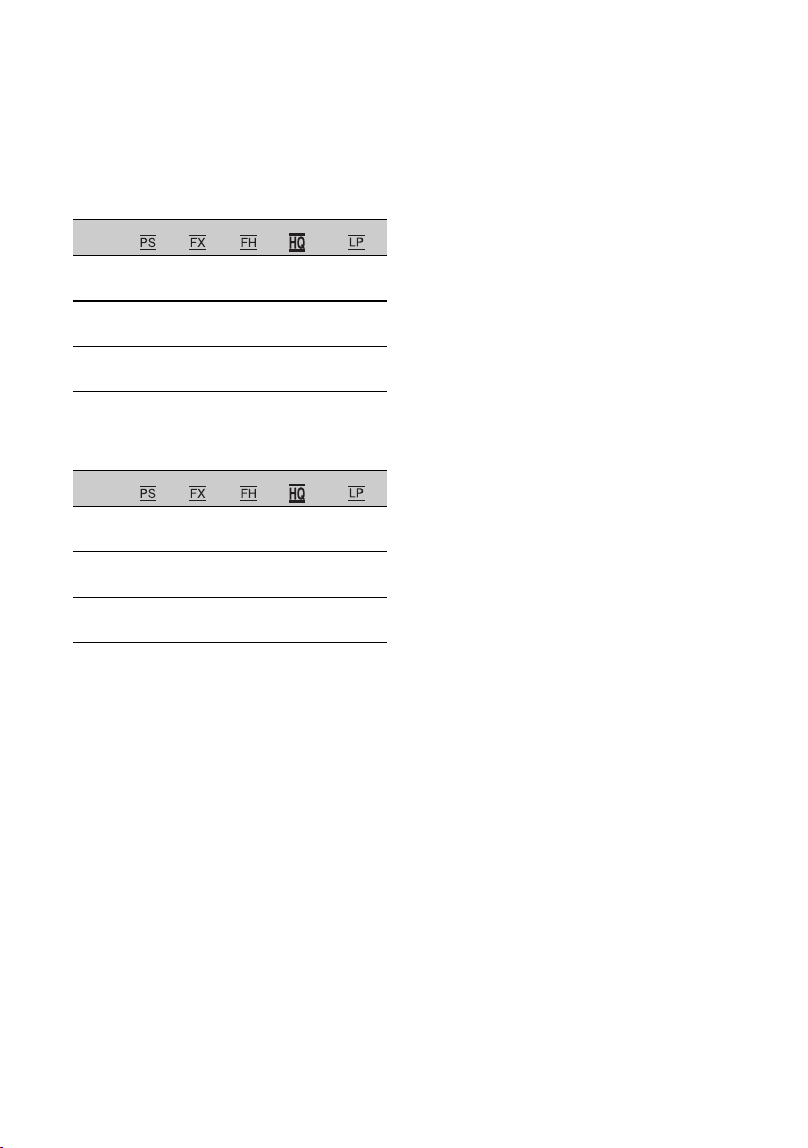
144
AVCHD
x When [AVCHD AUDIO FORMAT] is set
to [LINEAR PCM]
(Unit: minute)
x When [AVCHD AUDIO FORMAT] is set
to [DOLBY DIGITAL]
(Unit: minute)
• When using Sony memory cards.
• The number in ( ) is the minimum recordable
time.
b Note
• The recording time may vary depending on the
recording conditions, subjects, and [REC SET]
(p. 106).
z Tips
• The maximum number of scenes that can be
recorded is 600 in XAVC S HD/4K, and 3,999
in AVCHD.
• The maximum continuous recording time is 6
hours for XAVC S HD/4K, and 13 hours for
AVCHD.
• Your camcorder uses the VBR (Variable Bit
Rate) format to automatically adjust image
quality to suit the recording scene. This
technology causes fluctuations in the recording
time of the media. Movies containing quickly
moving and complex images are recorded at a
higher bit-rate, and this reduces the overall
recording time.
• Bit-rate (movie + audio, etc.), number of pixels,
and aspect ratio of each recording mode of
movies are as follows.
–XAVC S 4K
100 Mbps 3,840×2,160/16:9
60 Mbps 3,840×2,160/16:9
–XAVC S HD
100Mbps 1,920×1,080/16:9
60Mbps 1,920×1,080/16:9
50Mbps 1,920×1,080/16:9
25Mbps 1,920×1,080/16:9
16Mbps 1,920×1,080/16:9
–AVCHD
PS: max. 28 Mbps 1,920×1,080/16:9
FX: max. 24 Mbps 1,920×1,080/16:9
FH: approx. 17 Mbps (ave.) 1,920×1,080/16:9
HQ: approx. 9 Mbps (ave.) 1,280×720/16:9
LP: approx. 5 Mbps (ave.) 1,440×1,080/16:9
16GB 70
(70)
80
(80)
110
(110)
180
(140)
285
(250)
32GB 140
(140)
165
(165)
220
(220)
370
(290)
585
(505)
64GB 290
(290)
335
(335)
450
(450)
750
(585)
1185
(1020)
16GB 75
(75)
85
(85)
120
(120)
215
(160)
375
(305)
32GB 150
(150)
175
(175)
245
(245)
435
(330)
765
(620)
64GB 305
(305)
360
(360)
495
(495)
880
(665)
1540
(1255)
Recording time (Continued)

145
Additional Information
Function limitations when recording
For details about limitation when streaming is ON, see page 83.
Yes: Supported, No: Not supported
Limitations for each file format
Functions XAVC S 4K XAVC S HD AVCHD
RELAY REC (p. 31) Yes Yes Yes
SIMULTANEOUS REC (p. 32) Yes Yes Yes
FACE DETECTION (p. 39) Yes Yes Yes
PROXY REC MODE (p. 42) Yes Yes
(60fps or lower)
No
RELAY REC + PROXY REC MODE
Yes
Yes
(60fps or lower)
No
SIMULTANEOUS REC + PROXY REC
MODE
Yes
Yes
(60fps or lower)
No
HIGH FRAME RATE (p. 60) No Yes No
S&Q MOTION (p. 59) Yes Yes Yes
SUPER SLOW MOTION (p. 60) No Yes Yes
STREAMING (p. 82)
Yes
(60 Mbps only)
Yes Yes
USTREAM (p. 84) No Yes
Yes
COLOR BAR (p. 105) No
Yes
(when proxy
recording is OFF)
Yes
DATE REC (p. 121) No
Yes
(Interlaced
recording)
Yes
(Interlaced
recording)
Continued ,

146
Yes: Supported, No: Not supported
Slow & Quick Motion and Super Slow Motion recording limitations
Functions Slow & Quick Motion
Slow motion at high
frame rate
Super Slow Motion
FACE DETECTION No No No
LOCK-ON AF Yes No No
COLOR BAR No No No
STREAMING No No No
USTREAM No No No
DATE REC No No No
SIMULTANEOUS REC/RELAY
REC
No No No
PROXY REC MODE No No No
Wi-Fi remote control No No No
Auto mode shooting No No No
HISTOGRAM Yes Yes No
PEAKING Yes Yes Yes
ZEBRA Yes Yes Yes
WB SET Yes Yes No
CLEAR IMAGE ZOOM Yes No No
AUTO BACK LIGHT Yes No No
Audio recording No No No
Shutter speed auto adjustment No No No
Camera shake correction
(STEADYSHOT)
Yes Yes Yes
D. EXTENDER Yes No No
Function limitations when recording (Continued)

147
Additional Information
Streaming/USTREAM supported formats
b Notes
• Only streaming is supported if the original file is in 4K format with bit rate of 60Mbps.
• Proxy recording is not supported in the following cases.
– If the original file is in 4K format with bit rate of 100Mbps
– If the frame rate of the original file is 120/100p
– In AVCHD format and the frame rate of the original file is 60/50p
Original file (XAVC S) Streaming data
Image size 1,280×720 640×360
– Frame rate (fps) 30(25)p 24p 30(25)p 24p
Bit rate (Mbps) 3 3 1 1
24p – Yes Yes
Other than 24p Yes Yes

148
Proxy recording supported formats
b Note
• Proxy recording is not supported in the following cases.
– When [QFHD REC OUTPUT] is set to [EXTERNAL OUTPUT]
– In AVCHD format
– If the frame rate of the original file is 120/100p
Original file Proxy file
Image size 1,280×720 640×360
– Frame rate (fps) Same frame rate as original file
– Bit rate (Mbps) 9 3
–YesYes

149
Additional Information
Using your camcorder abroad
Power supply
You can use your camcorder in any
country/region using the AC Adaptor
supplied with your camcorder within the
AC 100 V to 240 V, 50/60 Hz range.
Viewing on TV
Before recording a movie with your
camcorder for viewing on a TV, set [60i/50i
SEL] to the appropriate TV system for the
country/region in which you intended to
view the movie. The following shows
which countries and regions require [60i] or
[50i] setting.
Countries/regions that require [60i/50i
SEL] set to [60i]
Bahama Islands, Barbados, Bermuda,
Bolivia, Canada, Central America, Chile,
Colombia, Costa Rica, Cuba, Dominican
Republic, Ecuador, El Salvador, Guam,
Guatemala, Guyana, Haiti, Honduras,
Jamaica, Japan, Korea, Mexico,
Micronesia, Myanmar, Nicaragua, Panama,
Peru, the Philippines, Puerto Rico, Saint
Lucia, Samoa, Surinam, Taiwan, Trinidad
and Tobago, the U.S.A., Venezuela, etc.
Countries/regions that require [60i/50i
SEL] set to [50i]
Argentina, Australia, Austria, Belgium,
Brazil, Bulgaria, China, Croatia, Czech
Republic, Denmark, Finland, France,
French Guiana, Germany, Greece, Hong
Kong, Hungary, Indonesia, Iran, Iraq, Italy,
Kuwait, Malaysia, Monaco, the
Netherlands New Zealand, Norway,
Paraguay, Poland, Portugal, Romania,
Russia, Singapore, Slovak Republic, Spain,
Sweden, Switzerland, Thailand, Turkey,
Ukraine, United Kingdom, Uruguay,
Vietnam, etc.
Simple setting of the clock by time
difference
When you are abroad, you can easily adjust
the clock to the local time by setting the
time difference. Select [AREA SET], then
set the time difference (p. 120).
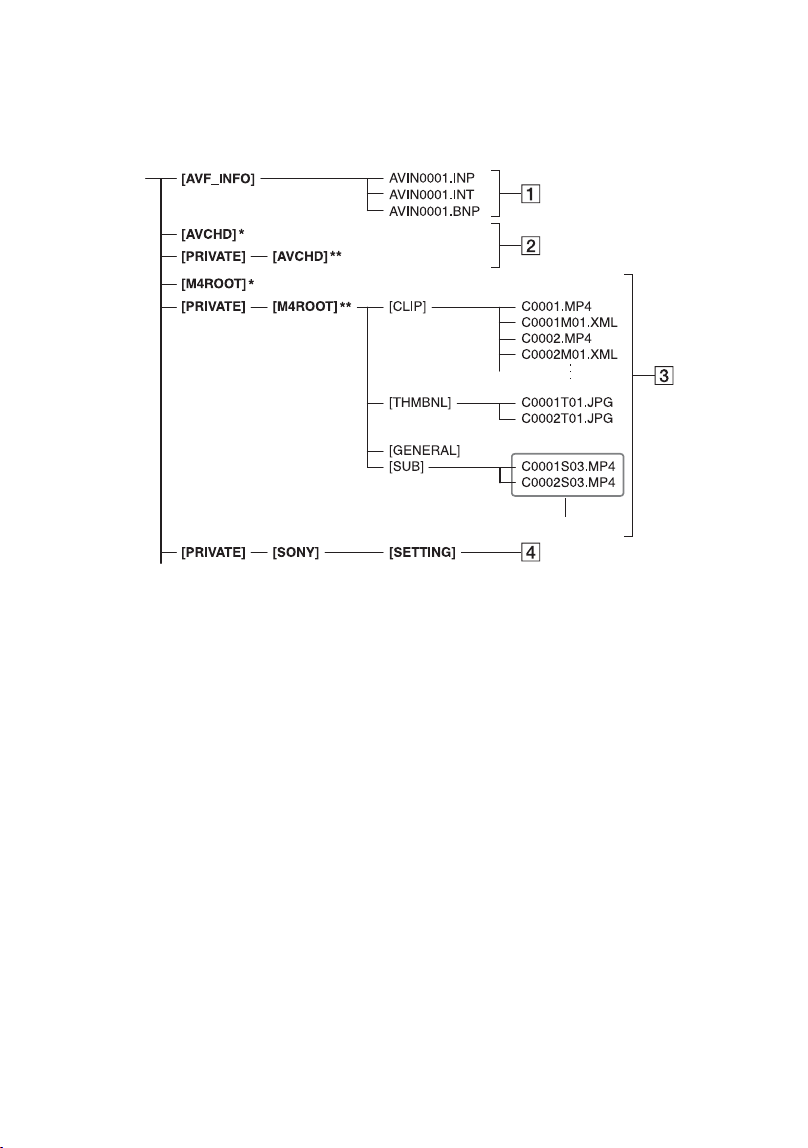
150
File/folder structure on the recording media
The file/folder structure is shown below. You do not usually need to acknowledge the file/
folder structure when recording/playing back movies on the camcorder.
* “Memory Stick PRO Duo”
** SD memory card, SDHC memory card, SDXC
memory card
A Image management files
When you delete the files, you cannot record/
play back the images correctly.
The files are defaulted as hidden files and not
usually displayed.
B AVCHD movie management
information folder
This folder contains recording data of
AVCHD movie files.
C XAVC S movie management
information folder
This folder contains recording data of XAVC
S movie files.
The file numbers go up automatically.
D Camera profiles
Stores camera profile data.
• Do not modify the files or folders on the
camcorder from the computer. Doing so might
damage image files, or prevent image files from
being played back.
• Sony accepts no responsibility for the results of
operation using data copied from a PC to a
memory card.
• When you delete image files, follow the steps on
page 92. Do not delete the image files on the
camcorder directly from the computer.
• Do not format the recording media in the
camcorder using a computer. The camcorder
may not operate correctly.
• Do not copy the files on the recording media
from a computer. Operation is not guaranteed, if
you perform this operation.
• Use “Catalyst Browse” application software to
import data from the recording media to a
computer.
• Files may not be loaded correctly if using
software other than “Catalyst Browse.”
• For details about NLE (Non-Linear Editing)
use, contact the software maker.
Proxy file

151
Additional Information
Maintenance and precautions
Recording and playback on your
camcorder
Your camcorder can record 4K (QFHD)
and HD (high definition) based on the
XAVC S format.
This uses a Long-GOP video compression
format for recording.
Video*: MPEG-4AVC/H.264
When [60i] is selected:
3840×2160/30p, 3840×2160/24p,
1920×1080/120p, 1920×1080/60p,
1920×1080/30p, 1920×1080/24p
When [50i] is selected:
3840×2160/25p, 1920×1080/100p,
1920×1080/50p, 1920×1080/25p
Audio: LPCM 2-ch
Recording media: Memory card
* The camcorder is not able to play back data that
is recorded in XAVC S format using settings
other than those described above.
Recording and playback on the
camcorder
Based on the AVCHD format, your
camcorder records with the HD (high
definition) image quality.
Video*: MPEG-4AVC/H.264
When [60i] is selected:
1920×1080/60p, 1920×1080/60i,
1920×1080/30p, 1920×1080/24p,
1440×1080/60i, 1280×720/60p
When [50i] is selected:
1920×1080/50p, 1920×1080/50i,
1920×1080/25p, 1440×1080/50i,
1280×720/50p
Audio: Dolby Digital 2-ch, LPCM 2-ch
Recording media: memory card (sold
separately)
* Data recorded in AVCHD format other than the
above mentioned cannot be played back on your
camcorder.
• Because the AVCHD format uses a data
compression system, images may be distorted in
scenes where the image, angle, or brightness
changes drastically. This is not a malfunction.
• A memory card formatted on a computer does
not have guaranteed compatibility with your
camcorder.
• Data read/write speed may vary depending on
the combination of the memory card and
memory card compliant product you use.
• Damaged or lost image data will not be
compensated for, and may occur in the
following cases:
– If you eject the memory card, turn the power
off on your camcorder, or remove the battery
pack for replacement while your camcorder is
reading or writing image files on the memory
card (while the access lamp is lit or flashing).
– If you use the memory card near electric
fields, magnetic fields, or other sources of
electromagnetic noise.
• It is recommended to make a back-up of
important data on the hard disk of a computer.
• Do not attach a label or the like on memory
card.
• Do not touch, or allow metallic objects to come
into contact with the terminals.
• Do not bend, drop or apply strong force to the
memory card.
• Do not disassemble or modify the memory card.
• Do not let the memory card get wet.
• Be careful to keep memory card out of the reach
of small children. There is danger that a child
might swallow it.
• Do not insert anything other than the compliant
size of memory card into the memory card slot.
Doing so may cause a malfunction.
• Do not use or keep the memory card in the
following locations:
– Places subject to extremely high temperature,
such as a car parked outside in the summer
– Places under direct sunlight
– Places with extremely high humidity or
subject to corrosive gases
About the XAVC S format
About the AVCHD format
About memory cards
Continued ,

152
About supported memory cards
“Memory Stick PRO Duo” media and
standard size SD cards can be used with this
camcorder.
• For the latest information about memory cards
that can be used, visit the home page (http://
www.sony.jp/support/r/handycam/connect/).
On image data compatibility
• Image data files recorded on a memory card by
your camcorder conform to the “Design rule for
Camera File system” universal standard
established by the JEITA (Japan Electronics and
Information Technology Industries
Association).
• If you cannot use the memory card that has been
used with another device, format it with your
camcorder using the procedure on page 93. Note
that formatting erases all information on the
memory card.
• You may not be able to play back images with
your camcorder:
– When playing back image data modified on
your computer.
– When playing back image data recorded with
other devices.
About “Memory Stick” media
• This unit does not support 8-bit parallel data
transfer, but supports 4-bit parallel data transfer
equivalent to Memory Stick PRO Duo media.
• This product cannot record or play data that uses
“MagicGate” technology. “MagicGate” is a
copyright protection technology that records and
transfers the contents in an encrypted format.
Your camcorder operates only with an
“InfoLITHIUM” V series battery pack of a
large capacity, such as the NP-FV70A.
“InfoLITHIUM” V series battery packs
have the mark.
What is an “InfoLITHIUM” battery
pack?
An “InfoLITHIUM” battery pack is a
lithium-ion battery pack that has functions
for communicating information related to
operating conditions between your
camcorder and a supplied AC Adaptor.
The “InfoLITHIUM” battery pack displays
the remaining battery time in % according
to the operating situations of your
camcorder.
To use the battery pack effectively
• Battery pack performance decreases when the
ambient temperature is 10 °C (50 °F) or below,
and the length of time you can use the battery
pack becomes shorter. In that case, do one of the
following to use the battery pack for a longer
time.
– Put the battery pack in a pocket to warm it up,
and install it in your camcorder right before
you start taking shots.
• Make sure to turn off the camcorder when you
are not recording or playing back. The battery
pack is also consumed when your camcorder is
in recording standby or playback pause.
• Have spare battery packs ready for 2 or 3 times
the expected recording time, and make trial
recordings before making the actual recording.
• Do not expose the battery pack to water. The
battery pack is not water resistant.
About the remaining battery indicator
• Check the level with the following indicators
and % displayed on the LCD screen.
Types of “Memory Stick” media
Recording/
Playback
“Memory Stick Duo”
(with MagicGate)
–
“Memory Stick PRO Duo”
(Mark2)
Yes
“Memory Stick PRO-HG Duo” Yes
About the “InfoLITHIUM”
battery pack
Battery remaining
indicator
%
81% to 100%
Maintenance and precautions (Continued)

153
Additional Information
• The displayed level may not be correct under
certain circumstances.
• When the power goes off even though the
remaining battery percent indicator indicates
that the battery pack has enough power to
operate, charge the battery pack fully again.
Remaining battery percent will be indicated
correctly. Note, however, that the battery
indication will not be restored if it is used in
high temperatures for a long time, or if left in a
fully charged state, or when the battery pack is
frequently used. Use the remaining battery
percent indication as a rough guide only.
About storage of the battery pack
• If the battery pack is not used for a long time,
fully charge the battery pack and use it up on
your camcorder once a year to maintain proper
function. To store the battery pack, remove it
from your camcorder and put it in a dry, cool
place.
• To discharge the battery pack on your
camcorder completely, leave your camcorder in
recording standby until the power goes off.
About battery life
• The battery has a limited lifespan. Battery
capacity decreases over time and through
repeated use. If decreased usage time between
charges becomes significant, it is probably time
to replace it with a new one.
• Each battery’s life is governed by storage,
operating and environmental conditions.
About charging the battery pack
• Use the AC Adaptor (supplied) to charge the
designated batteries only. If you charge other
types of batteries, those batteries may leak, heat
up, burst, or give an electric shock, resulting in
burns or injury.
• Remove the charged battery from the AC
Adaptor.
• The CHG lamp of the supplied AC Adaptor
flashes in 2 patterns as follows:
Fast-flashing: Turns on and off rapidly at about
0.15-second intervals.
Slow-flashing: Turns on and off alternately for
about 1.5 seconds, and turns off completely for
about 1.5 seconds. The lamp repeats this
sequence.
• If the CHG lamp is fast-flashing, remove the
battery that is being charged, and then re-attach
the same battery again firmly. If the CHG lamp
continues fast-flashing, the cause could be that
the battery is damaged, or the battery is not a
designated type. Check the battery to confirm
whether it is a designated type or not. If it is a
designated type, remove the battery first, and
then attach a brand-new battery or another
known-to-be-good battery to see if the AC
Adaptor is working correctly. If the AC Adaptor
is working correctly, the cause could be that the
battery is damaged.
• If the CHG lamp is slow-flashing, the AC
Adaptor is in standby mode and charging is
suspended. When the ambient temperature is out
of the appropriate temperature range for
charging, the AC Adaptor suspends charging
automatically and enters standby mode. When
the ambient temperature returns to an
appropriate temperature, the AC Adaptor
restarts charging and the CHG lamp lights up.
We recommend charging the battery pack in an
ambient temperature of from 10 °C to 30 °C
(50 °F to 86 °F).
On use and care
• Do not use or store the camcorder and
accessories in the following locations.
– Anywhere extremely hot or cold.
Never leave them exposed to temperatures
above 60 °C (140 °F), such as under direct
sunlight, near heaters or in a car parked in the
sun. They may malfunction or become
deformed.
– Near strong magnetic fields or mechanical
vibration.
The camcorder may malfunction.
– Near strong radio waves or radiation.
The camcorder may not be able to record
properly.
51% to 80%
21% to 50%
1% to 20%
–
Battery remaining
indicator
%
About handling of your
camcorder
Continued ,

154
– Near AM receivers and video equipment.
Noise may occur.
– On a sandy beach or anywhere dusty.
If sand or dust gets in your camcorder, the
camcorder may malfunction. Sometimes this
malfunction cannot be repaired.
– Near windows or outdoors, where the LCD
screen, the viewfinder, or the lens may be
exposed to direct sunlight.
This damages the inside of the viewfinder or
the LCD screen.
– Anywhere very humid.
• Operate your camcorder on 7.3 V (battery pack)
or 8.4 V DC (AC Adaptor).
• For DC or AC operation, use the accessories
recommended in these operating instructions.
• Do not let your camcorder get wet, for example,
from rain or sea water. If your camcorder gets
wet, it may malfunction. Sometimes this
malfunction cannot be repaired.
• If any solid object or liquid gets inside the
casing, unplug your camcorder and have it
checked by a Sony dealer before operating it
any further.
• Avoid rough handling, disassembling,
modifying, physical shock, or impact such as
hammering, dropping or stepping on the
product. Be particularly careful of the lens.
• Do not use a deformed or damaged battery pack.
• Keep the 1 (On/Standby) button set to the
standby position when you are not using your
camcorder.
• Do not wrap your camcorder with a towel, for
example, and operate it. Doing so might cause
heat to build up inside.
• When disconnecting the power cord (mains
lead), pull it by the plug and not the lead.
• Do not damage the power cord (mains lead)
such as by placing anything heavy on it.
• Keep metal contacts clean.
• Keep the Wireless Remote Commander and
button-type battery out of children’s reach. If
the battery is accidentally swallowed, consult a
doctor immediately.
• If the battery electrolytic liquid has leaked,
– consult your local authorized Sony service
facility.
– wash off any liquid that may have contacted
your skin.
– if any liquid gets in your eyes, wash with
plenty of water and consult a doctor.
x When not using your camcorder for a
long time
• Turn on the camcorder and record and play back
images about once a month to keep it in an
optimum state for a long time.
• Use up the battery pack completely before
storing it.
Moisture condensation
If your camcorder is brought directly from a cold
place to a warm place, moisture may condense
inside your camcorder and cause a malfunction of
your camcorder.
x If moisture condensation has occurred
Leave your camcorder for about 1 hour without
turning it on.
x Note on moisture condensation
Moisture may condense when you bring your
camcorder from a cold place into a warm place (or
vice versa) or when you use your camcorder in a
humid place as shown below.
• When you bring your camcorder from a ski
slope into a place warmed up by a heating
device.
• When you bring your camcorder from an air
conditioned car or room into a hot place outside.
• When you use your camcorder after a squall or a
shower.
• When you use your camcorder in a hot and
humid place.
x How to avoid moisture condensation
When you bring your camcorder from a cold place
into a warm place, put your camcorder in a plastic
bag and seal it tightly. Remove the bag when the
air temperature inside the plastic bag has reached
the ambient temperature (after about 1 hour).
LCD screen
• Do not exert excessive pressure on the LCD
screen, as it may cause damage.
• If your camcorder is used in a cold place, a
residual image may appear on the LCD screen.
This is not a malfunction.
• While using your camcorder, the back of the
LCD screen may heat up. This is not a
malfunction.
Maintenance and precautions (Continued)
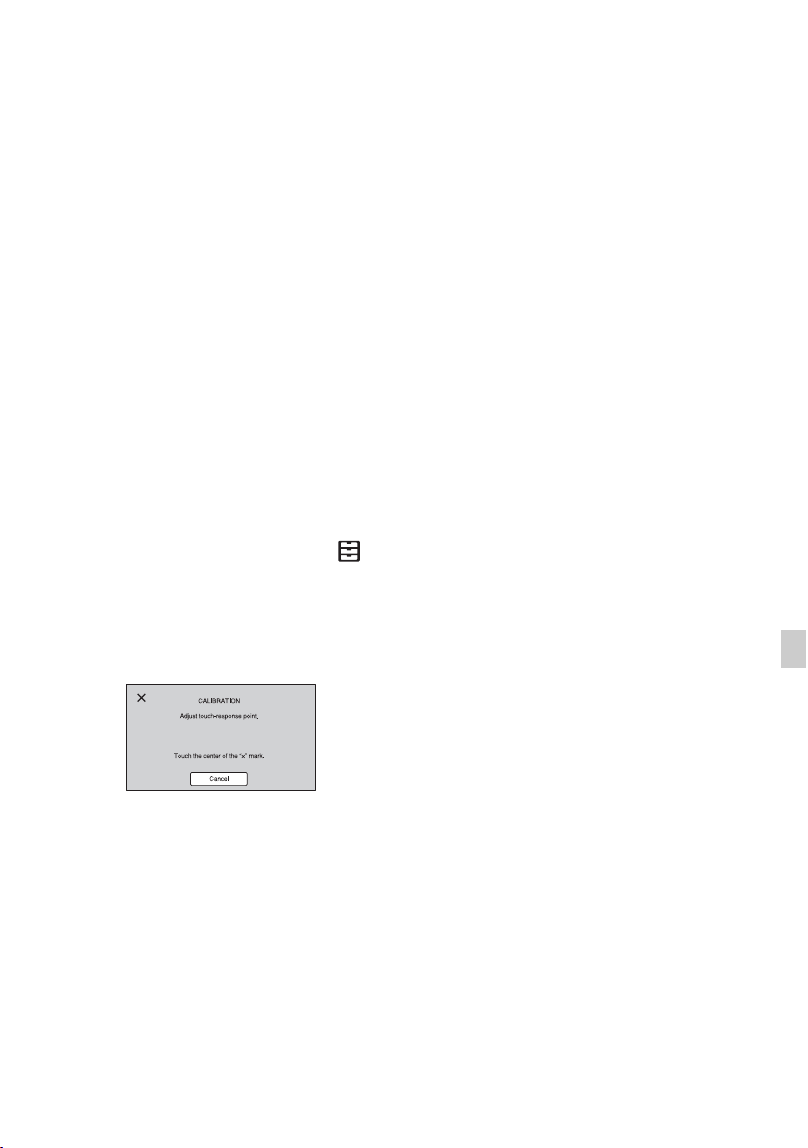
155
Additional Information
x To clean the LCD screen
The LCD screen is covered with a coating. The
coating may be peeled off by scratching or
rubbing. Maintain the LCD screen as follows.
• Wipe fingerprints or hand cream off the LCD
screen as soon as possible, as they may cause
the coating to peel off.
• If you rub the LCD screen hard, even with a
tissue, the coating may be damaged.
• Before wiping the LCD screen, blow dust or
sand off with a dust blower, etc.
• Wipe dirt off the LCD screen with a clean, soft
cloth, such as an eye glass cleaning cloth, etc.
x To adjust the touch panel
(CALIBRATION)
The buttons on the touch panel may not
work correctly.
If this happens, follow the procedure below. It is
recommended that you connect your camcorder to
the wall outlet (wall socket) using the supplied
AC Adaptor during the operation.
1 Press the MENU button t select
(OTHERS) t [CALIBRATION] with
the v/V/b/B/SET button.
2 Touch “×” displayed on the LCD screen
with the corner of memory card or the
like 3 times.
b Notes
• If you did not press the right spot, try the
calibration again.
• Do not use a sharp-pointed object for
calibration. Doing so may damage the LCD
screen.
• You cannot perform the calibration when the
LCD screen is turned around, or facing up and
closed to the camcorder
x OLED panel display
The OLED panel may experience issues such as
screen burn-in or loss of brightness with normal
use over time.
This is not a malfunction.
Casing
• If the casing is soiled, clean the camcorder body
with a soft cloth lightly moistened with water,
and then wipe the casing with a dry soft cloth.
• Avoid the following to prevent damage to the
finish.
– Using chemicals such as thinner, benzine,
alcohol, chemical cloths, repellent, insecticide
and sunscreen.
– Handling with above substances on your
hands.
– Leaving the casing in contact with rubber or
vinyl objects for a long period of time.
Care and storage of the lens
• Wipe the surface of the lens clean with a soft
cloth in the following instances: when there are
fingerprints on the lens surface, in hot or humid
locations, and when the lens is exposed to salty
air such as at the seaside.
• Store in a well-ventilated location subject to
little dirt or dust.
• To prevent mold, periodically clean the lens as
described above.
Charging the pre-installed
rechargeable battery
Your camcorder has a pre-installed
rechargeable battery to retain the date, time,
and other settings even when the 1 (On/
Standby) button is set to the standby
position. The pre-installed rechargeable
battery is always charged while your
camcorder is connected to the wall outlet
(wall socket) via the AC Adaptor or while
the battery pack is attached. The
rechargeable battery will be fully
discharged in about 3 months if you do
not use your camcorder at all, with the AC
Adaptor not connected or battery pack not
attached. Use your camcorder after
charging the pre-installed rechargeable
battery.
However, even if the pre-installed
rechargeable battery is not charged, the
camcorder operation will not be affected as
long as you are not recording the date.
Continued ,

156
x Charging procedure
Connect your camcorder to a wall outlet (wall
socket) using the supplied AC Adaptor, and leave
it with the power turned off for more than 24
hours.
Note on disposal/transfer of memory
cards
Even if you delete data in a memory card or
format the memory card on your camcorder
or a computer, you may not delete data
from the memory card completely. When
you give the memory card to somebody, it
is recommended that you delete data
completely using data deletion software on
a computer. Also, when you dispose of the
memory card, it is recommended that you
destroy the actual body of the memory card.
Operation is not guaranteed when using a
card adaptor.
Maintenance and precautions (Continued)

157
Additional Information
Specifications
General
Power requirements
8.4 V DC (using AC Adaptor)
7.4 V DC (using battery pack)
Power consumption
While recording using viewfinder:
Approx. 5.7 W
While recording using the LCD screen
in normal brightness:
Approx. 6.1 W
Operating temperature
0 °C to 40 °C (32 °F to 104 °F)
Storage temperature
–20 °C to +60 °C (–4 °F to +140 °F)
Dimensions
Approx. 121.0 mm × 104.0 mm ×
274.5 mm (4
7
/
8
in × 4
1
/
8
in × 10
7
/
8
in.)
(Including projecting parts, lens hood,
large eyecup, battery (NP-FV70A).
Excluding grip belt.) (width / height /
depth)
Approx. 130.0 mm × 181.5 mm ×
287.0 mm (5
1
/
8
in × 7
1
/
4
in ×
11
3
/
8
in.) (Including projecting parts,
lens hood, large eyecup, battery
(NP-FV70A), XLR handle unit.
Excluding grip belt.) (width / height /
depth)
Dimensions when shooting
Approx. 130.0 mm × 181.5 mm ×
287.0 mm (5
1
/
8
in. × 7
1
/
4
in. ×
11
3
/
8
in.) (Including projecting parts)
Mass
Approx. 955 g (2 lb 1.7 oz) (Including
lens hood, large eyecup)
Total mass when shooting
Approx. 1320 g (2 lb 14.6 oz)
(Including lens hood, large eyecup, NP-
FV70A battery, XLR handle unit)
System
Signal format
When [60i] is selected:
NTSC color, EIA standards
HDTV 1080/60i, 1080/60p, 720/60p
When [50i] is selected
PAL color, CCIR standards HDTV
1080/50i, 1080/50p, 720/50p
Video recording system
XAVC S: MPEG-4 AVC/H.264 4:2:0
Long profile
XAVC S Proxy: MPEG-4 AVC/H.264
4:2:0 Long profile
AVCHD: MPEG-4 AVC/H.264
AVCHD 2.0 format compatible
Audio recording format
XAVC S: Linear PCM 2ch, 16-bit, 48
kHz
XAVC S Proxy: AAC-LC 2-ch, 16-bit,
48 kHz
AVCHD: Linear PCM 2-ch, 16-bit, 48
kHz/Dolby Digital 2-ch, 16-bit, 48 kHz
Recording media (movies)
Memory Stick PRO Duo™ and SD
cards
Camera
Imaging device
1.0-inch type Exmor RS™ CMOS
sensor
Total picture elements: Approx.
21,000,000 pixels
Effective picture elements (16:9 mode):
Approx. 14,200,000 pixels
Color temperature
Preset (Indoor: 3200K, Outdoor: 5600K
± 7 steps, Color temperature set range:
2300 to 15000K), One-push A, B, Auto
selectable
Minimum illumination
When [60i] is selected:
1.7 lux (LOW LUX mode is on,
1/30 sec. shutter speed, 33 dB gain)
Continued ,

158
When [50i] is selected:
1.7 lux (LOW LUX mode is on,
1/25 sec. shutter speed, 33 dB gain)
Lens
Lens mount
Fixed
Zoom ratio
12× (optical), servo
Focal length
9.3 mm to 111.6 mm
(35 mm equivalent (16:9)
29.0 mm to 348.0 mm)
(35 mm equivalent (3:2)
32.8 mm to 393.6 mm)
Iris
F2.8 to F4.5
(auto/manual selectable)
Focus
AF/MF selectable,
10 mm to ∞ (Wide),
1000 mm to ∞ (Tele)
Image stabilizer
On/Off selectable, lens-shift type
Filter diameter
M62 mm
Wireless LAN
Supported standard
IEEE 802.11 b/g/n
Frequency band
2.4 GHz
Supported security protocols
WEP/WPA-PSK/
WPA2-PSK
NFC Forum Type 3 Tag compliant
Input/output connectors
VIDEO OUT jack
Multi/Micro USB jack (1)
Composite 1.0 Vp-p, 75 Ω
AUDIO OUT jack
Multi/Micro USB jack (1)
HDMI OUT jack
Type A (1)
USB jack
Multi/Micro USB jack (1)
i (headphone) jack
Stereo mini jack (∅3.5 mm) (1)
INPUT1/INPUT2 jacks
XLR-type 3-pin (female) (2)
line/mic/mic+48V selectable
MIC jack (PLUG IN POWER)
Stereo mini jack (∅3.5 mm) (1)
Multi Interface Shoe (1)
REMOTE jack
Stereo sub-mini jack (∅2.5 mm) (1)
Screen
LCD screen
8.8 cm (3.5 inch type)
Approx. 1.56M dots
Viewfinder
1.0 cm (0.39 inch type) OLED
Approx. 2.36M dots
Rechargeable battery pack
(NP-FV70A)
Rated voltage
7.3 V DC
AC Adaptor
Power requirements
100 V to 240 V AC, 50 Hz/60 Hz
Power consumption
18 W
Rated output
8.4 V DC
*1
Operating temperature
0 °C to 40 °C (32 °F to 104 °F)
Storage temperature
–20 °C to +60 °C (–4 °F to +140 °F)
Dimensions
Approx. 48 mm × 29 mm × 81 mm
(1
15
/
16
in. × 1
3
/
16
in. × 3
1
/
4
in.)
Specifications (Continued)

159
Additional Information
(Excluding projecting parts)
(width / height / depth)
Mass (body only)
Approx. 170 g (6.0 oz)
*1
Check the label on the AC Adaptor/charger for
other specifications.

160
Index
A
AC Adaptor ..........................19
Access point .........................76
Accessory shoe.....................23
AE SHIFT...........................135
AGC LIMIT .........................98
AIRPLANE MODE ...........119
AREA SET.........................120
ASPECT .............................114
ASSIGN BUTTON ............120
ASSIGN buttons...................63
AUDIO LEVEL
DISPLAY ...........................115
AUDIO SET menu .............111
AUTO BACK LIGHT........105
AUTO/MANUAL switch.....53
Auto mode............................53
AUTO MODE SET............104
AVCHD..............................151
AVCHD AUDIO
FORMAT ...........................111
B
Battery ..................................21
BEEP ..................................121
Button-type lithium
battery...................................16
C
CALIBRATION.................155
CAMERA DATA
DISPLAY ...........................115
CAMERA PROFILE.......... 120
CAMERA SET menu ...........98
CENTER ............................114
Charging time .......................22
CHG lamp.............................21
CLOCK SET ........................24
COLOR BAR .....................135
Connect
tv or monitor..................68
Content Browser Mobile...... 73
CTRL W/
SMARTPHONE ................ 118
D
DATA CODE ...................... 66
Date and time........... 18, 24, 25
DATE REC ........................ 121
DELETE .............................. 92
Direct Menu......................... 48
DISPLAY button ................. 66
DISPLAY OUTPUT.......... 117
DISPLAY SET menu......... 113
DIVIDE................................ 91
DOWN CONVERT
TYPE ................................. 109
Drop frame ......................... 117
E
EDIT menu ........................ 122
Error messages................... 141
F
FACE DETECTION............ 39
File format
limitations ................... 145
Focus.................................... 35
FOCUS DISPLAY............. 115
FOCUS MAG RATIO....... 114
Focus Magnifier................... 38
FOCUS MAGNIFIER
button ................................... 38
Focus ring ............................ 35
Format media ....................... 93
Function limitations ........... 145
G
Gain...................................... 44
Getting started...................... 19
GUIDEFRAME ................. 114
H
Handle record button............ 32
Handle zoom ........................ 33
Handle zoom lever ............... 33
HISTOGRAM ....................113
I
Image database file...............94
INDOOR ..............................46
“InfoLITHIUM”
battery pack ........................152
INITIALIZE.......................122
Iris......................................... 43
IRIS button ...........................43
Iris ring .................................43
ISO/GAIN button .................44
L
LANGUAGE......................120
Large eyecup ........................26
Last Scene Review ...............62
LCD BRIGHT....................116
LCD screen...........................26
Lens ..............................12, 155
LOW LUX............................54
M
MANU WB TEMP...............46
MARKER...........................135
Maximum recording time...143
MEDIA FORMAT ............... 93
Memory card
file/folder structure...... 150
formatting......................93
inserting/ejecting........... 29
notes ............................ 151
supported
memory cards................ 27
“Memory Stick”
media ............................27, 152

161
Additional Information
“Memory Stick PRO Duo”
media ..................................152
Menu.....................................95
AUDIO SET ................111
CAMERA SET..............98
DISPLAY SET............113
EDIT............................122
items ..............................96
NETWORK SET.........118
OTHERS .....................119
REC/OUT SET............106
TC/UB SET.................117
MENU button .......................95
MIC+48V..............................50
Microphone
internal...........................50
Multi Interface Shoe ......51
Moisture condensation........154
Multi Interface Shoe ...............8
Multi/Micro USB jack ............8
N
ND filter switch ....................45
Network functions ................73
NETWORK RESET ...........119
NETWORK SET menu ......118
NFC ......................................74
O
OPERATION TIME ...........121
OTHERS menu...................119
OUTDOOR...........................46
Output signal formats ...........69
P
PEAKING...........................135
PICTURE PROFILE ............54
Playback................................64
Power cord............................21
Power outlet..........................22
Power zoom lever .................33
Pre-installed rechargeable
battery.................................155
PROTECT............................91
Proxy recording
supported formats ....... 148
R
REC BUTTON SET.............32
REC LAMP........................ 121
REC/OUT SET menu.........106
REC SET............................ 106
Rechargeable battery
pack, see Battery
Recording ............................. 30
Recording format ................. 41
Recording lamp .................. 121
Recording time................... 143
Relay recording....................31
REMOTE CONTROL .......121
Remote control..................... 16
REPAIR IMAGE DB
FILE ..................................... 94
Reviewing ............................ 62
ROOT CERTIFICATE ...... 119
Root certificate..................... 89
S
S&Q MOTION .................... 59
SAFETY ZONE................. 114
SCENE SELECTION
SET....................................... 53
Screen indicators ............ 17, 66
Self-diagnosis display ........ 139
Shooting ...............................30
SHUTTER button ................ 44
SHUTTER DISPLAY........ 115
Shutter speed ........................44
SIMUL/RELAY REC .......... 32
Simultaneous recording........ 32
Slow & Quick Motion.......... 59
limitations ................... 146
Smartphone .......................... 73
Specifications .....................157
SPOT FOCUS ......................39
START/STOP button ...........30
STATUS button....................67
Status check ..........................67
STEADYSHOT....................99
STREAMING...............82, 118
Streaming..............................82
supported formats........147
SUMMERTIME .................120
Supplied accessories.............19
T
TC FORMAT .....................117
TC MAKE ..........................118
TC PRESET..................58, 135
TC RUN..............................118
TC/UB SET menu ..............117
Telephoto..............................33
Trademarks .........................163
Troubleshooting..................131
TV.........................................68
U
UB PRESET .........................59
UB TIME REC...................118
USB CONNECT ................121
USB LUN SET...................121
Using your camcorder
abroad .................................149
USTREAM ...........................84
V
VERSION DISPLAY.........122
VF COLOR TEMP.............116
VIDEO OUT ......................108
Viewfinder............................26
diopter
adjustment dial ..............26
VOLUME .............................65
Continued ,

162
W
Warning indicators .............139
Warning messages..............140
WB OUTDOOR LEVEL .....98
WB PRESET ........................98
WB TEMP SET....................98
White balance.......................46
WHITE BALANCE
button....................................46
Wi-Fi SET ..........................119
Wide angle............................33
Wired LAN...........................81
WIRED LAN SET..............119
Wireless LAN.......................76
Z
ZEBRA...............................135
Zoom ....................................33
ZOOM DISPLAY ..............115
ZOOM SET ..........................99
Index (Continued)

163
Trademarks
• “NXCAM” logo is a trademark of Sony
Corporation.
• “XAVC S” and are registered
trademarks of Sony Corporation.
• “AVCHD” and the “AVCHD” logo are
trademarks of Panasonic Corporation and Sony
Corporation.
• “Memory Stick,” “ ,” “Memory Stick
Duo,” “Memory Stick PRO Duo,” “Memory
Stick PRO-HG Duo,” “MagicGate,”
“MagicGate Memory Stick,” “MagicGate
Memory Stick Duo,” “Content Browser
Mobile,” and “Content Browser Mobile” logo
are trademarks or registered trademarks of Sony
Corporation.
• “InfoLITHIUM” is a trademark of Sony
Corporation.
• “BRAVIA” is a trademark of Sony Corporation.
• Dolby and the double-D symbol are trademarks
of Dolby Laboratories.
• The terms HDMI and HDMI High-Definition
Multimedia Interface, and the HDMI Logo are
trademarks or registered trademarks of HDMI
Licensing, LLC in the United States and other
countries.
• SDXC logo is a trademark of SD-3C, LLC.
• iPad is a trademark of Apple Inc., registered in
the U.S. and other countries.
• IOS is a registered trademark or trademark of
Cisco Systems, Inc. and/or its affiliates in the
United States and certain other countries.
• iPhone is a trademark of Apple Inc., registered
in the U.S. and other countries. The iPhone
trademark is used under license from AiPhone
Co., Ltd.
• Android, Google Play are trademarks of Google
Inc.
• Wi-Fi, the Wi-Fi logo, Wi-Fi PROTECTED
SET-UP are registered trademarks of the Wi-Fi
Alliance.
• The N Mark is a trademark or registered
trademark of NFC Forum, Inc. in the United
States and in other countries.
All other product names and brand names are
registered trademarks or trademarks of their
respective owners. Trademarked items are not
indicated by ® or ™ symbols in this manual.
Notes on the License
THIS PRODUCT IS LICENSED UNDER THE
AVC PATENT PORTFOLIO LICENSE FOR
THE PERSONAL USE OF A CONSUMER OR
OTHER USES IN WHICH IT DOES NOT
RECEIVE REMUNERATION TO
(i) ENCODE VIDEO IN COMPLIANCE WITH
THE AVC STANDARD (“AVC VIDEO”) AND/
OR
(ii) DECODE AVC VIDEO THAT WAS
ENCODED BY A CONSUMER ENGAGED IN
A PERSONAL ACTIVITY AND/OR WAS
OBTAINED FROM A VIDEO PROVIDER
LICENSED TO PROVIDE AVC VIDEO. NO
LICENSE IS GRANTED OR SHALL BE
IMPLIED FOR ANY OTHER USE.
ADDITIONAL INFORMATION MAY BE
OBTAINED FROM MPEG LA, L.L.C. SEE
<HTTP://WWW.MPEGLA.COM>
Software is installed in your camcorder. We
provide this software based on the license
agreements of the copyright owners. Based on
requests by the owners of copyright of these
software applications, we have an obligation to
inform you of the following.
Licenses (in English) are recorded in the internal
memory of your camera. Establish a Mass Storage
connection between the camera and a computer to
read licenses in the “PMHOME” t “LICENSE”
folder.
On GNU GPL/LGPL applied software
The software that is eligible for the following
GNU General Public License (hereinafter referred
to as “GPL”) or GNU Lesser General Public
License (hereinafter referred to as “LGPL”) are
included in the camcorder.
This informs you that you have a right to have
access to, modify, and redistribute source code for
these software programs under the conditions of
the supplied GPL/LGPL.
Source code is provided on the web.
Use the following URL to download it.
http://oss.sony.net/Products/Linux/
We would prefer you do not contact us about the
contents of source code.
Licenses (in English) are recorded in the internal
memory of your camera.

164
Establish a Mass Storage connection between the
camera and a computer to read licenses in the
“PMHOME” - “LICENSE” folder.

http://www.sony.net/
Printed in China© 2017 Sony Corporation