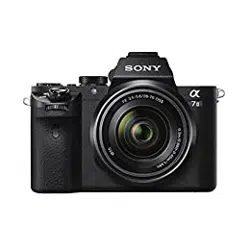
Interchangeable Lens Digital Camera ILCE-6300
How to Use
Before Use
Names of parts
Checking the camera and the supplied items [1]
Identifying parts [2]
Identifying parts Lens E PZ 16–50mm F3.5–5.6 OSS (supplied with ILCE-
6300L) [3]
Icons and indicators
List of icons on the screen [4]
List of focus range finder frames [5]
Using the strap
Using the shoulder strap [6]
Attaching the eyepiece cup
Attaching the eyepiece cup [7]
Adjusting the viewfinder
Adjusting the viewfinder (diopter-adjustment) [8]
In-Camera guide

About the [In-Camera Guide] [9]
Preparing the camera
Charging the battery pack
Inserting the battery pack into the camera [10]
Charging the battery pack while it is inserted in the camera [11]
Charging by connecting to a computer [12]
Battery life and the number of images that can be recorded/played back using a
battery pack [13]
Supplying power from a wall outlet (wall socket) [14]
Removing the battery pack [15]
Inserting a memory card (sold separately)
Inserting a memory card [16]
Removing the memory card [17]
Usable memory cards [18]
Attaching a lens
Attaching a lens [19]
Removing the lens [20]
Attaching the lens hood [21]
Notes on changing the lens [22]
Setting the language, date and time
Setting language, date and time [23]
Confirming the operation method
Confirming the operation method

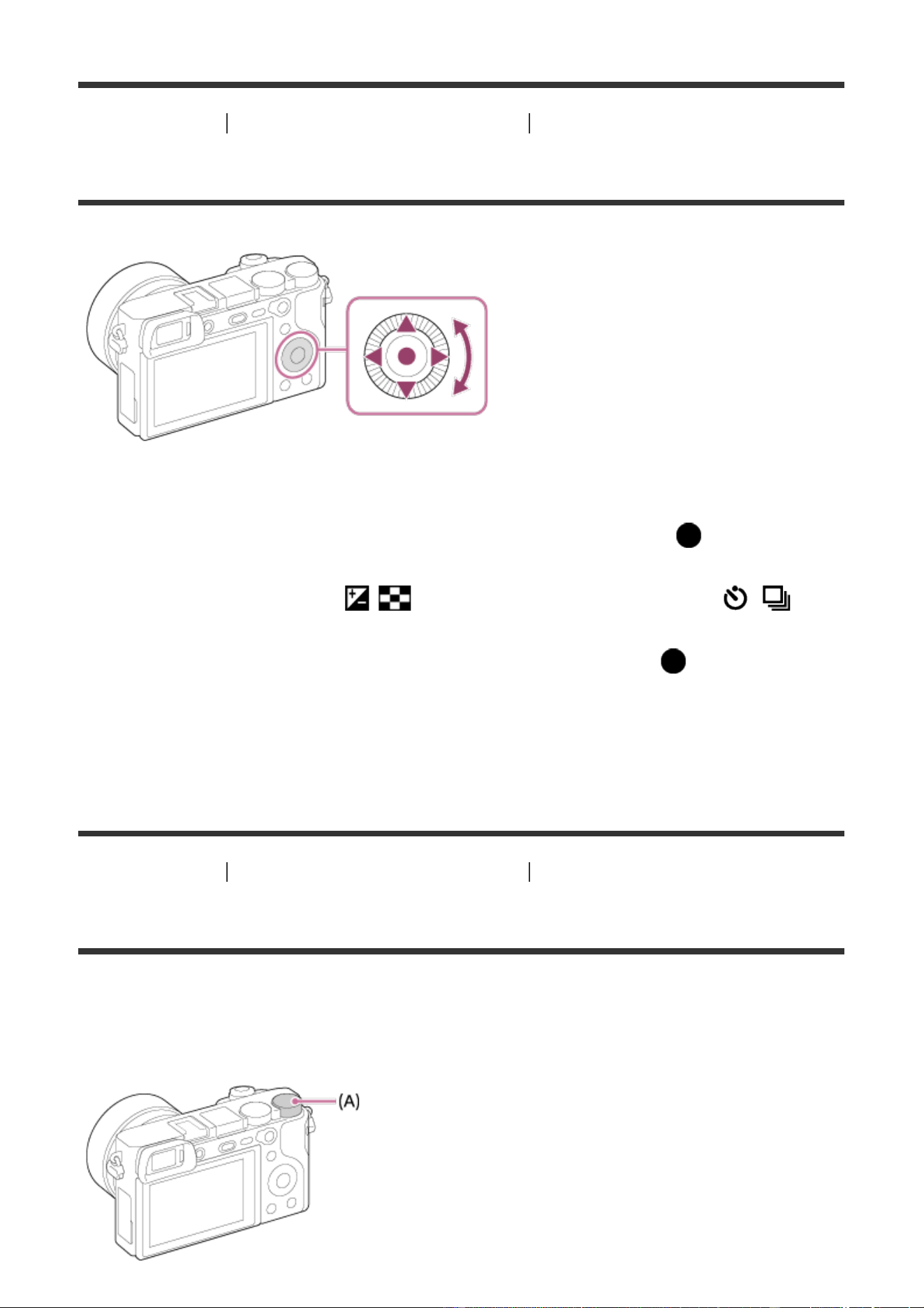
Using the control wheel [24]
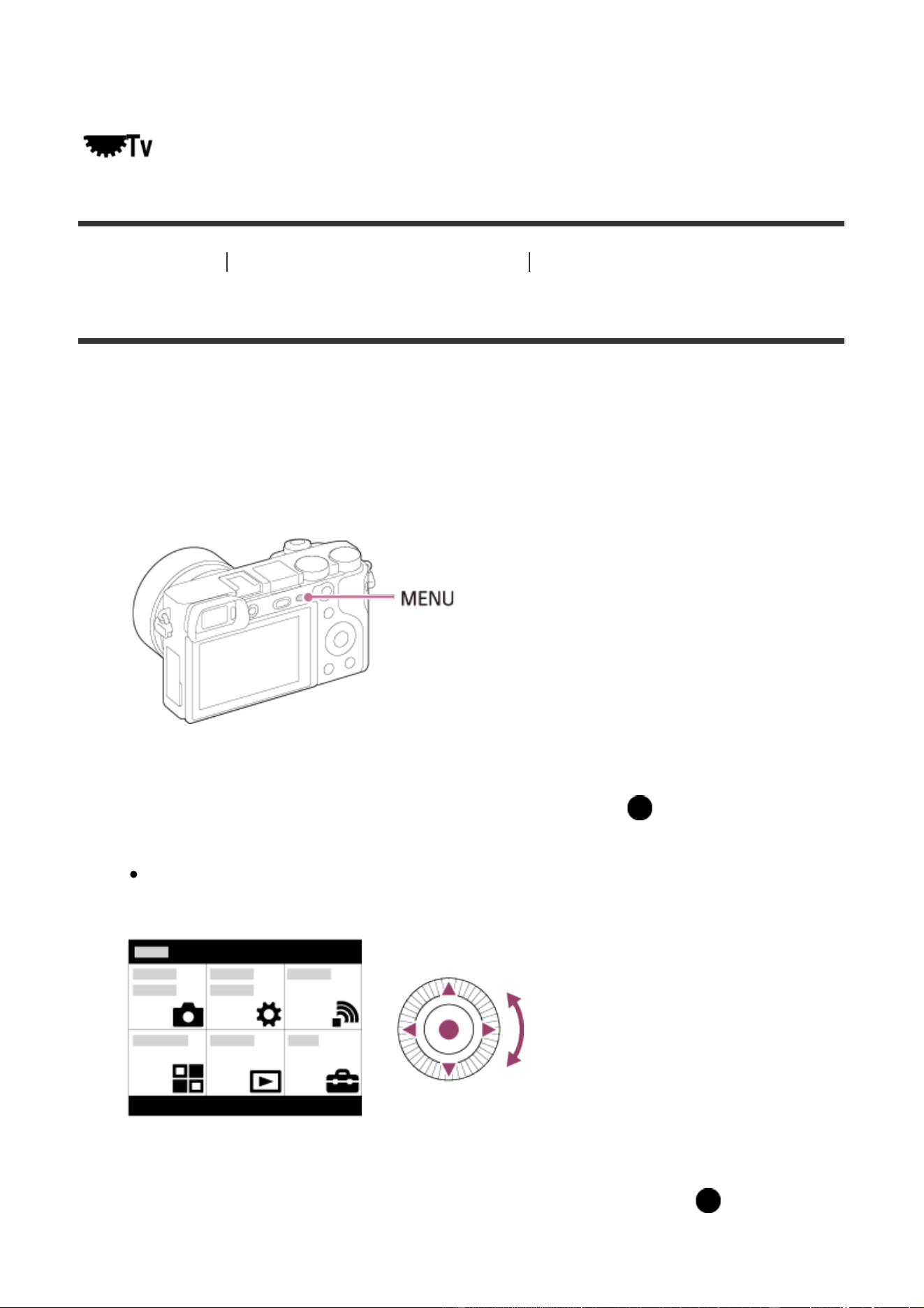
Using the control dial [25]
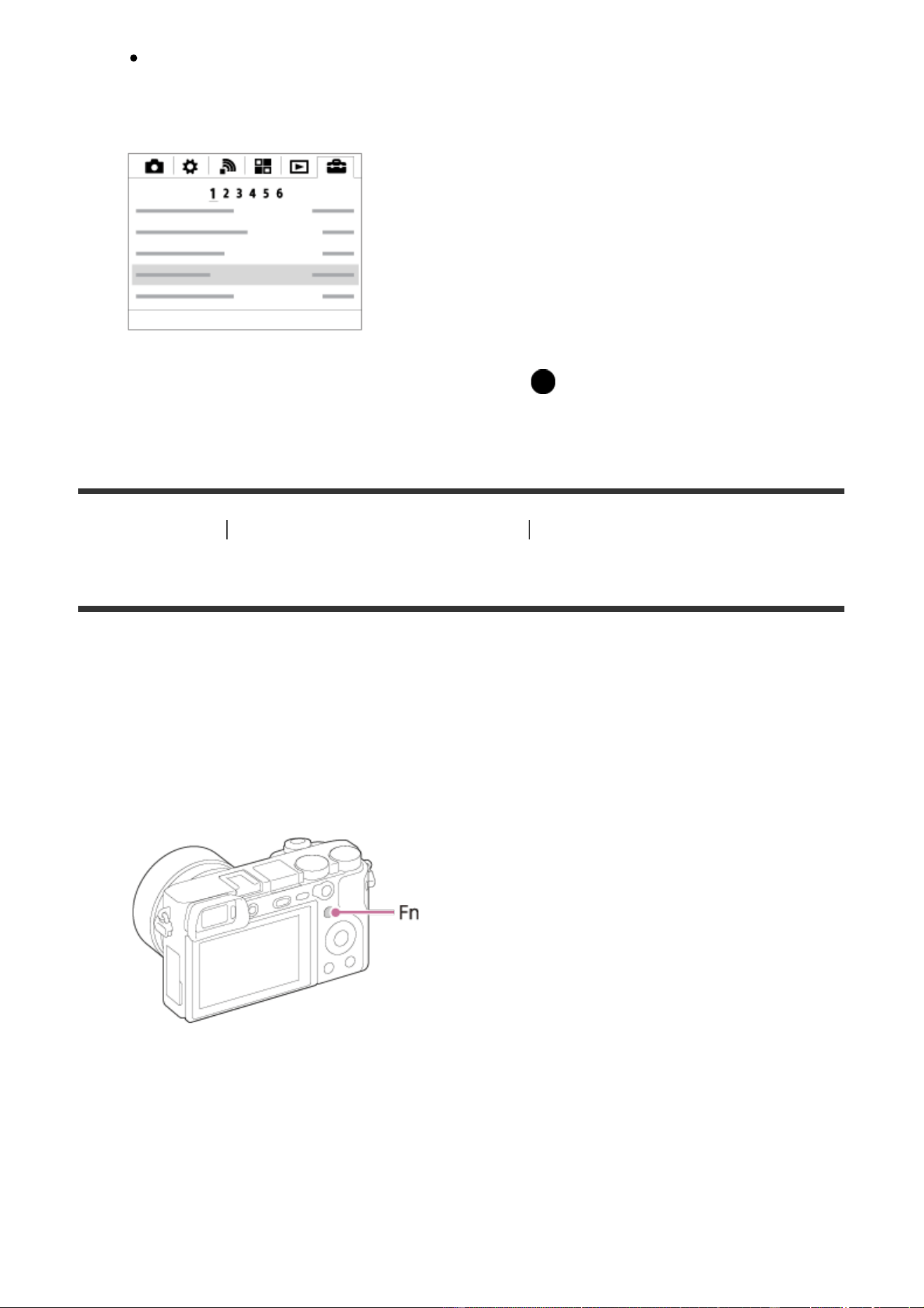
Using MENU items [26]
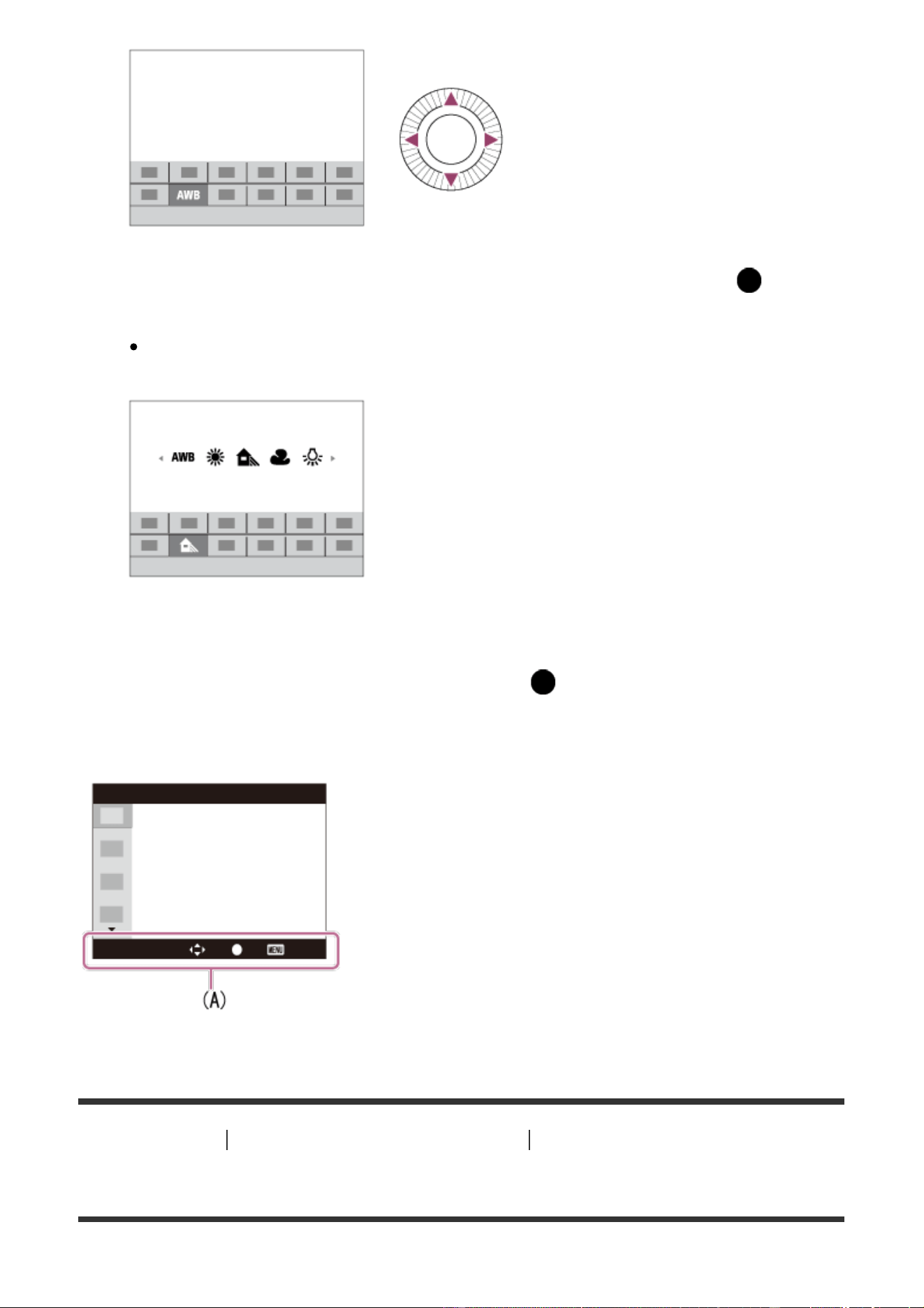
Using the Fn (Function) button [27]
Using the "Quick Navi" [28]
Shooting
Shooting still images/movies
Shooting still images [29]
Shooting movies [30]
Selecting a shooting mode
List of mode dial functions [31]
Intelligent Auto [32]
Superior Auto [33]
About Scene Recognition [34]
The advantages of automatic shooting [35]
Program Auto [36]
Sweep Panorama [37]
Scene Selection [38]
Shutter Priority [39]
Aperture Priority [40]
Manual Exposure [41]
BULB [42]
Memory recall [43]
Movie/HFR [44]
Shooting slow-motion movies (HFR Settings) [45]

Using shooting functions
Using the zoom
Zoom [46]
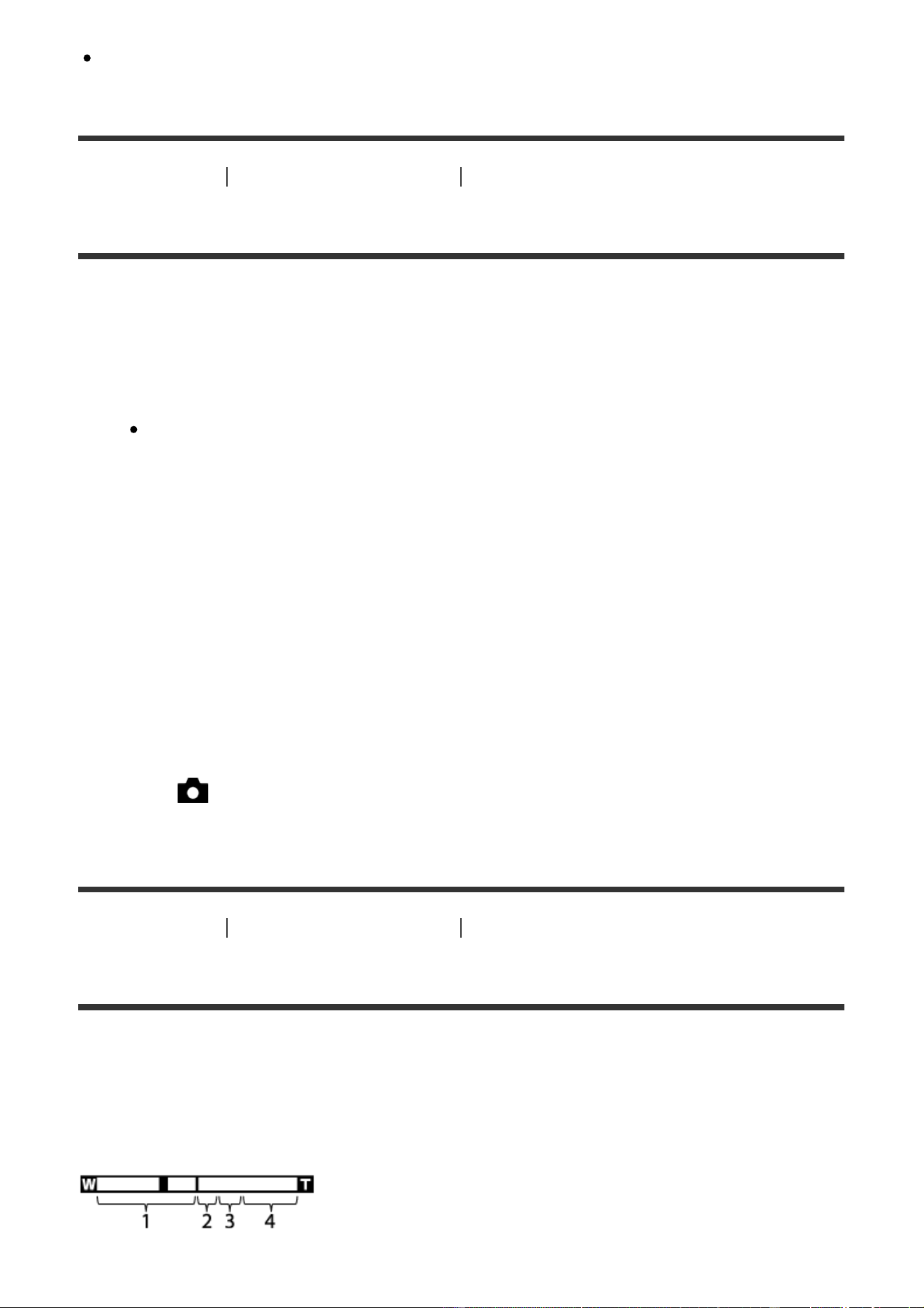
The zoom features available with this product [47]
Zoom Setting [48]
About zoom scale [49]
Zoom Ring Rotate [50]
Using the flash
Using flash [51]
Notes on using the flash [52]
Flash Mode [53]
Flash Comp. [54]
FEL Lock [55]
Selecting a screen display mode
Switching the screen display (Shooting) [56]
DISP Button (Finder) [57]
DISP Button (Monitor) [58]
TC/UB Disp. Switch [59]
Selecting still image size/image quality
Image Size (still image) [60]
Aspect Ratio (still image) [61]
Quality (still image) [62]
Panorama: Size [63]
Panorama: Direction [64]
Adjusting the focus

Focus Mode [65]
Focus Area [66]
Phase detection AF [67]
Center Lock-on AF [68]
AF Area Auto Clear [69]
Focus-lock [70]
Manual Focus [71]
Direct manual focus (DMF) [72]
MF Assist (still image) [73]
Focus Magnifier [74]
Focus Magnif. Time [75]
AF in Focus Mag. (still image) [76]
Peaking Level [77]
Peaking Color [78]
Pre-AF (still image) [79]
Eye-Start AF (still image) [80]
AF/MF control [81]
AF Illuminator (still image) [82]
AF Micro Adj. [83]
Disp. cont. AF area [84]
AF w/ shutter (still image) [85]
AF On [86]
Eye AF [87]
AF drive speed (movie) [88]
AF Track Sens (movie) [89]
Measuring the exact distance to the subject [90]
Priority Set in AF-S [91]
Priority Set in AF-C [92]
AF System (still image) [93]

Adjusting the exposure
Exposure Comp. [94]
Metering Mode [95]
AE lock [96]
AEL w/ shutter (still image) [97]
Exp.comp.set [98]
Zebra [99]
Exposure Set. Guide [100]
Exposure step [101]
Dial/Wheel Ev Comp [102]
Selecting a drive mode (Continuous shooting/Self-timer)
Drive Mode [103]
Cont. Shooting [104]
Self-timer [105]
Self-timer(Cont) [106]
Cont. Bracket [107]
Single Bracket [108]
WB bracket [109]
DRO Bracket [110]
Settings for bracket shooting [111]
Indicator during bracket shooting [112]
Selecting the ISO sensitivity
ISO [113]
ISO AUTO Min. SS [114]
Multi Frame NR [115]
NR Effect [116]

Correcting the brightness or contrast
D-Range Opt. (DRO) [117]
Auto HDR [118]
Adjusting color tones
White Balance [119]
Capturing a basic white color in [Custom Setup] mode [120]
Selecting an effect mode
Picture Effect [121]
Creative Style [122]
Recording movies
Movie recording formats [123]
File Format (movie) [124]
Record Setting (movie) [125]
Dual Video REC [126]
Marker Display (movie) [127]
Marker Settings (movie) [128]
Audio Recording [129]
Audio Level Display [130]
Audio Rec Level [131]
Wind Noise Reduct. [132]
Auto Slow Shut. (movie) [133]
MOVIE Button [134]
Picture Profile [135]
Customizing the shooting functions for convenient use
Memory [136]

Function Menu Set. [137]
Custom Key(Shoot.) / Custom Key(PB) [138]
Function of the focus hold button [139]
Function of the AEL button [140]
Function of the AF/MF button [141]
Function of the Custom button [142]
Function of the Center button [143]
Function of the Left button [144]
Function of the Right button [145]
Function of the down button [146]
Function of the Send to Smartphone button [147]
Dial/Wheel Setup [148]
Setting the other functions of this product
Smile/Face Detect. [149]
Soft Skin Effect (still image) [150]
Face Registration (New Registration) [151]
Face Registration (Order Exchanging) [152]
Face Registration (Delete) [153]
Red Eye Reduction [154]
Auto Obj. Framing (still image) [155]
SteadyShot [156]
Long Exposure NR (still image) [157]
High ISO NR (still image) [158]
Color Space (still image) [159]
Grid Line [160]
Auto Review [161]
Live View Display [162]
Bright Monitoring [163]

FINDER/MONITOR [164]
Finder Frame Rate (still image) [165]
Release w/o Lens [166]
Release w/o Card [167]
Silent Shooting (still image) [168]
e-Front Curtain Shut. [169]
S. Auto Img. Extract. [170]
Shading Comp. [171]
Chro. Aber. Comp. [172]
Distortion Comp. [173]
Dial / Wheel Lock [174]
Deactivate Monitor [175]
Aperture Preview [176]
Shot. Result Preview [177]
Viewing
Viewing still images
Playing back images [178]
Playback zoom [179]
Image Index [180]
Switching the screen display (during playback) [181]
Deleting images
Deleting a displayed image [182]
Deleting multiple selected images [183]
Playing back movies
Playing back movies [184]

Viewing panoramic images
Playing back panoramic images [185]
Printing
Specify Printing [186]
Using viewing functions
View Mode [187]
Display Rotation [188]
Slide Show [189]
Rotate [190]
Protect [191]
Viewing images on a TV
Viewing images on an HD TV [192]
Viewing images on a “BRAVIA” Sync-compatible TV [193]
Changing settings
Setup menu
Monitor Brightness [194]
Viewfinder Bright. [195]
Finder Color Temp. [196]
Gamma Disp. Assist [197]
Volume Settings [198]
Audio signals [199]
Upload Settings(Eye-Fi) [200]
Tile Menu [201]
Mode Dial Guide [202]

Delete confirm. [203]
Display Quality [204]
Pwr Save Start Time [205]
Auto Pwr OFF Temp. [206]
NTSC/PAL Selector [207]
Cleaning the image sensor (Cleaning Mode) [208]
Demo Mode [209]
TC/UB Settings [210]
Remote Ctrl [211]
HDMI Resolution [212]
24p/60p Output (movie) (Only for 1080 60i compatible models) [213]
CTRL FOR HDMI [214]
HDMI Info. Display [215]
TC Output (movie) [216]
REC Control (movie) [217]
4K Output Sel. (movie) [218]
USB Connection [219]
USB LUN Setting [220]
USB Power Supply [221]
Language [222]
Date/Time Setup [223]
Area Setting [224]
Copyright Info [225]
Format [226]
File Number [227]
Set File Name [228]
Select REC Folder [229]
New Folder [230]
Folder Name [231]

Recover Image DB [232]
Display Media Info. [233]
Version [234]
Certification Logo (For some models only) [235]
Setting Reset [236]
Using Wi-Fi functions
Connecting this product and a Smartphone
PlayMemories Mobile [237]
Connecting an Android smartphone to this product using the QR code [238]
Connecting an iPhone or iPad to this product using the QR code [239]
Connecting an Android smartphone to this product by inputting an SSID and
password [240]
Connecting an iPhone or iPad to this product by inputting an SSID and
password [241]
Calling up an application using [One-touch(NFC)] [242]
Controlling this product using a Smartphone
Smart Remote Embedded [243]
Using [Smart Remote Embedded] with a smartphone touch connection (NFC
One-touch remote) [244]
Transferring images to a Smartphone
Send to Smartphone [245]
Sending images to an Android smartphone (NFC One-touch Sharing) [246]
Transferring images to a computer
Send to Computer [247]
Transferring images to a TV

View on TV [248]
Changing the settings of Wi-Fi functions
Airplane Mode [249]
WPS Push [250]
Access Point Set. [251]
Edit Device Name [252]
Disp MAC Address [253]
SSID/PW Reset [254]
Reset Network Set. [255]
Adding applications to the product
PlayMemories Camera Apps
PlayMemories Camera Apps [256]
Recommended computer environment [257]
Installing the applications
Opening a service account [258]
Downloading applications [259]
Downloading applications directly to the product using the Wi-Fi function [260]
Starting the applications
Launching the downloaded application [261]
Managing the applications
Uninstalling applications [262]
Changing the order of applications [263]
Confirming the account information of PlayMemories Camera Apps [264]

Using a computer
Recommended computer environment
Recommended computer environment [265]
Using the software
PlayMemories Home [266]
Installing PlayMemories Home [267]
Software for Mac computers [268]
Image Data Converter [269]
Installing Image Data Converter [270]
Accessing Image Data Converter Guide [271]
Remote Camera Control [272]
Installing Remote Camera Control [273]
Accessing the Help of Remote Camera Control [274]
Connecting this product and a computer
Connecting the product to a computer [275]
Importing images to the computer [276]
Disconnecting the product from the computer [277]
Creating a movie disc
Selecting a disc to be created [278]
Creating Blu-ray Discs from high-definition image quality movies [279]
Creating DVD discs (AVCHD recording discs) from high-definition image quality
movies [280]
Creating DVD discs from standard image quality movies [281]
Precautions/This product
Precautions

Precautions [282]
On the internal rechargeable battery [283]
Notes on the battery pack [284]
Charging the battery pack [285]
Notes on memory card [286]
Cleaning this product
On cleaning [287]
Number of recordable still images and recordable time of movies
Number of still images [288]
Recordable time of movies [289]
Using this product abroad
Using the AC Adaptor/battery charger abroad [290]
On TV color systems [291]
Other information
Mount Adaptor [292]
LA-EA1 Mount Adaptor [293]
LA-EA2 Mount Adaptor [294]
LA-EA3 Mount Adaptor [295]
LA-EA4 Mount Adaptor [296]
AVCHD format [297]
License [298]
Trademarks
Trademarks [299]

Troubleshooting
If you have problems
If you have problems
Troubleshooting [300]
Troubleshooting
Battery pack and power
You cannot insert the battery pack into the product. [301]
You cannot turn on the product. [302]
The power turns off suddenly. [303]
The battery pack discharges quickly. [304]
The product gets hot. [305]
The remaining battery level indicator shows an incorrect level. [306]
The charge lamp on the product flashes when charging the battery pack. [307]
The battery pack has not been charged even if the charge lamp on the product
has turned off. [308]
The battery pack is not charged. [309]
The monitor does not turn on even when the product is turned on. [310]
Shooting still images/movies
You cannot record images. [311]
Recording takes a long time. [312]
The same image is captured multiple times. [313]
The shutter is released continuously. [314]
The image is out of focus. [315]
The angle of view changes little by little while shooting images. [316]

[Eye-Start AF] does not function. [317]
Zoom does not work. [318]
The flash does not work. [319]
Fuzzy white circular spots appear on images shot using the flash. [320]
The close-up shooting function (Macro) does not work. [321]
The recording date and time are not displayed on the screen. [322]
The date and time are recorded incorrectly. [323]
The aperture value and/or shutter speed flashes. [324]
The image colors are not correct. [325]
Noise appears in the image when you view the screen in a dark place. [326]
The eyes of the subject come out red. [327]
Dots appear and remain on the screen. [328]
You cannot shoot images continuously. [329]
The image is not clear in the viewfinder. [330]
No images appear on the viewfinder. [331]
No images appear on the monitor. [332]
[Finder/Monitor Sel.] does not work even though it has been assigned to a
certain key using [Custom Key(Shoot.)] or [Custom Key(PB)]. [333]
The image is whitish (Flare)./Blurring of light appears on the image (Ghosting).
[334]
The corners of the picture are too dark. [335]
The color tones of the image displayed on the monitor/the viewfinder look
unnatural. [336]
The image is blurred. [337]
The monitor darkens after a short period of time passed. [338]
The flash takes too long to recharge. [339]
The control dial or control wheel does not work. [340]
Sound is not recorded properly. [341]
Viewing images

Images cannot be played back. [342]
The date and time are not displayed. [343]
The color tones of the image being played back look unnatural. [344]
The image cannot be deleted. [345]
The image was deleted by mistake. [346]
A DPOF mark cannot be put. [347]
Wi-Fi
You cannot find the wireless access point to be connected. [348]
[WPS Push] does not work. [349]
[Send to Computer] is canceled halfway. [350]
You cannot send movies to a smartphone. [351]
[Smart Remote Embedded] or [Send to Smartphone] is canceled halfway. [352]
The shooting screen for [Smart Remote Embedded] is not displayed
smoothly./The connection between this product and the smartphone is
disconnected. [353]
You cannot use One-Touch connection (NFC). [354]
Computers
The computer does not recognize this product. [355]
You cannot import images. [356]
The image and sound are interrupted by noise when viewing a movie on a
computer. [357]
Images exported from a computer cannot be viewed on this product. [358]
Memory cards
Formatted the memory card by mistake. [359]
Printing
You cannot print images. [360]
The color of the image is strange. [361]

Images are printed with both edges cut off. [362]
You cannot print images with the date. [363]
Others
The lens gets fogged. [364]
The product becomes warm when you use it for a long time. [365]
The Clock Set screen appears when you turn on the product. [366]
The number of recordable images does not decrease, or decreases two images
at a time. [367]
Settings are reset even though resetting operation has not been performed.
[368]
The product does not work properly. [369]
Messages
Messages
Warning messages [370]
Situations this product has difficulty handling
Situations this product has difficulty handling
Situations this product has difficulty handling [371]
[1] How to Use Before Use Names of parts
Checking the camera and the supplied items
First check the model name of your camera. The accessories supplied differ
depending on the model.
The number in parentheses indicates the number of pieces.
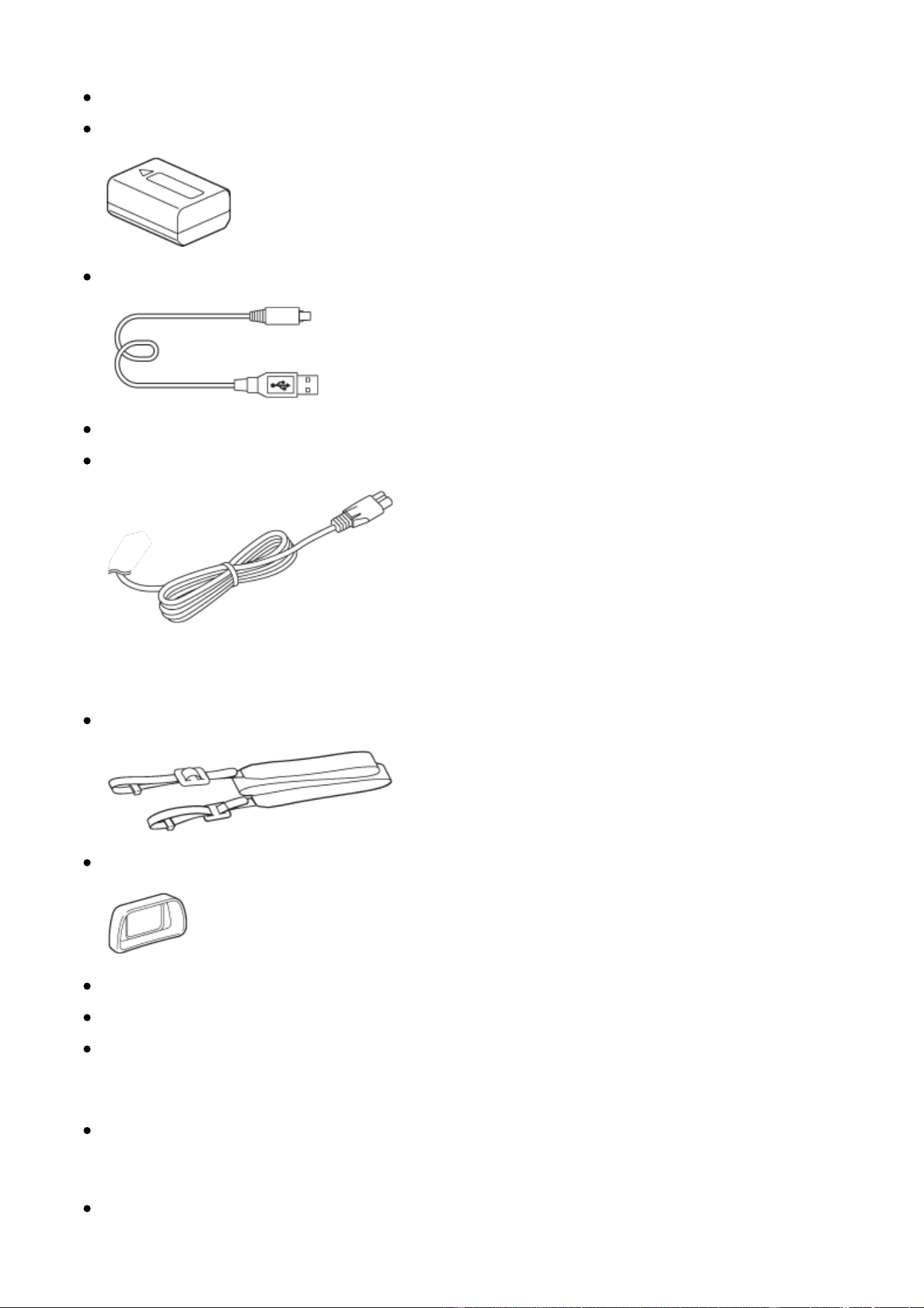
Supplied with all models
Camera (1)
NP-FW50 Rechargeable battery pack (1)
Micro USB Cable (1)
AC Adaptor (1)
Power cord (mains lead) (1)* (supplied in some countries/regions)
*
Multiple power cords may be supplied with your camera. Use the appropriate one that
matches your country/region.
Shoulder strap (1)
Eyepiece cup (1)
Shoe cap (1) (attached on the camera)
Instruction Manual (1)
Wi-Fi Connection/One-touch (NFC) Guide (1)
ILCE-6300
Body cap (1) (attached on the camera)
ILCE-6300L
E PZ 16 – 50mm zoom lens (1) (attached on the camera)/Front lens cap (1)
(attached on the lens)
[2] How to Use Before Use Names of parts
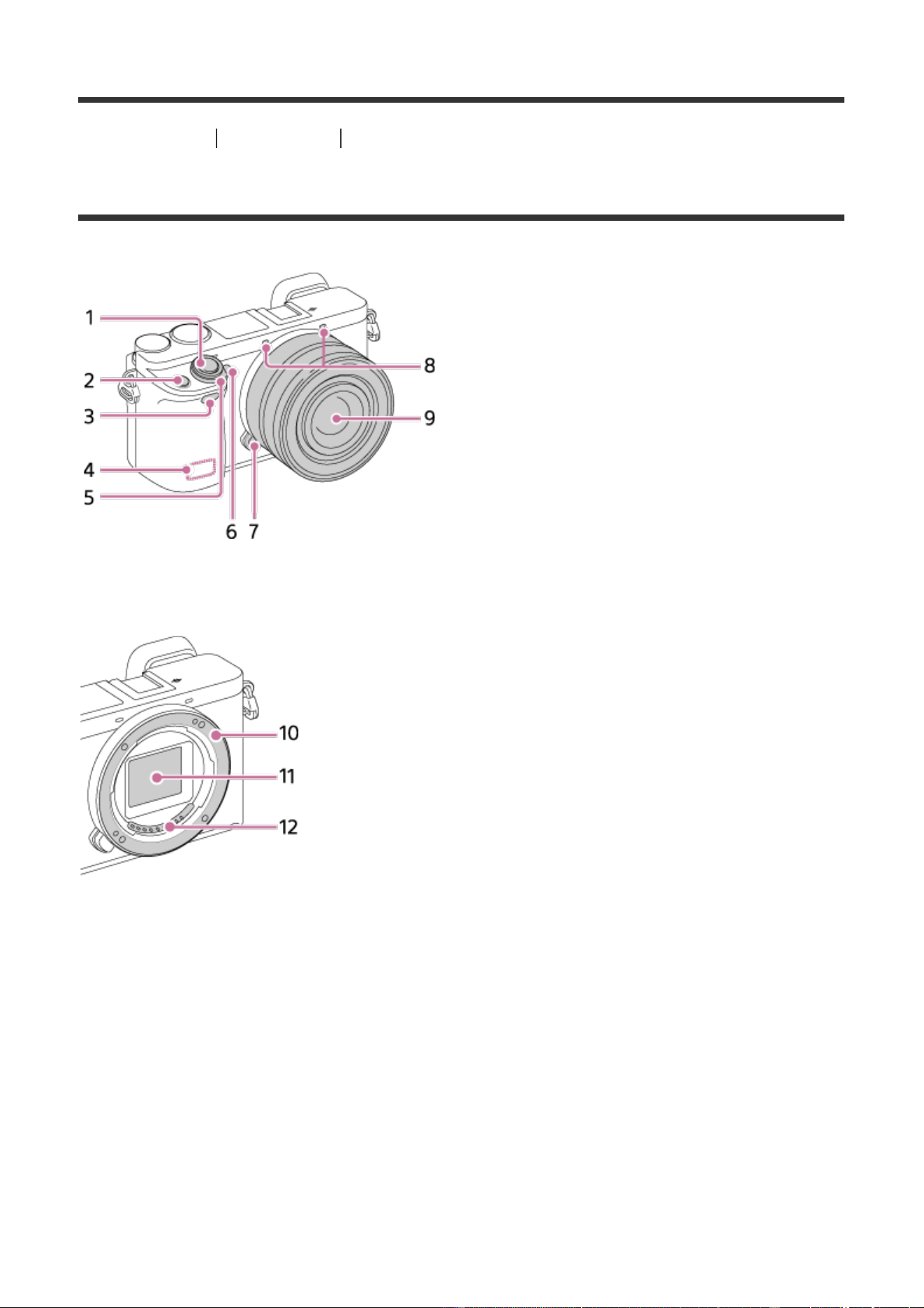
Identifying parts
When the lens is removed
1. Shutter button
2. C1 (Custom 1) button
3. Remote sensor
4. Wi-Fi antenna (built-in)
5. ON/OFF (Power) switch
6. Self-timer lamp/AF illuminator
7. Lens release button
8. Microphone*
9. Lens
10. Mount
11. Image sensor**
12. Lens contacts**
*
Do not cover this part during movie recording.
**
Do not touch this part directly.
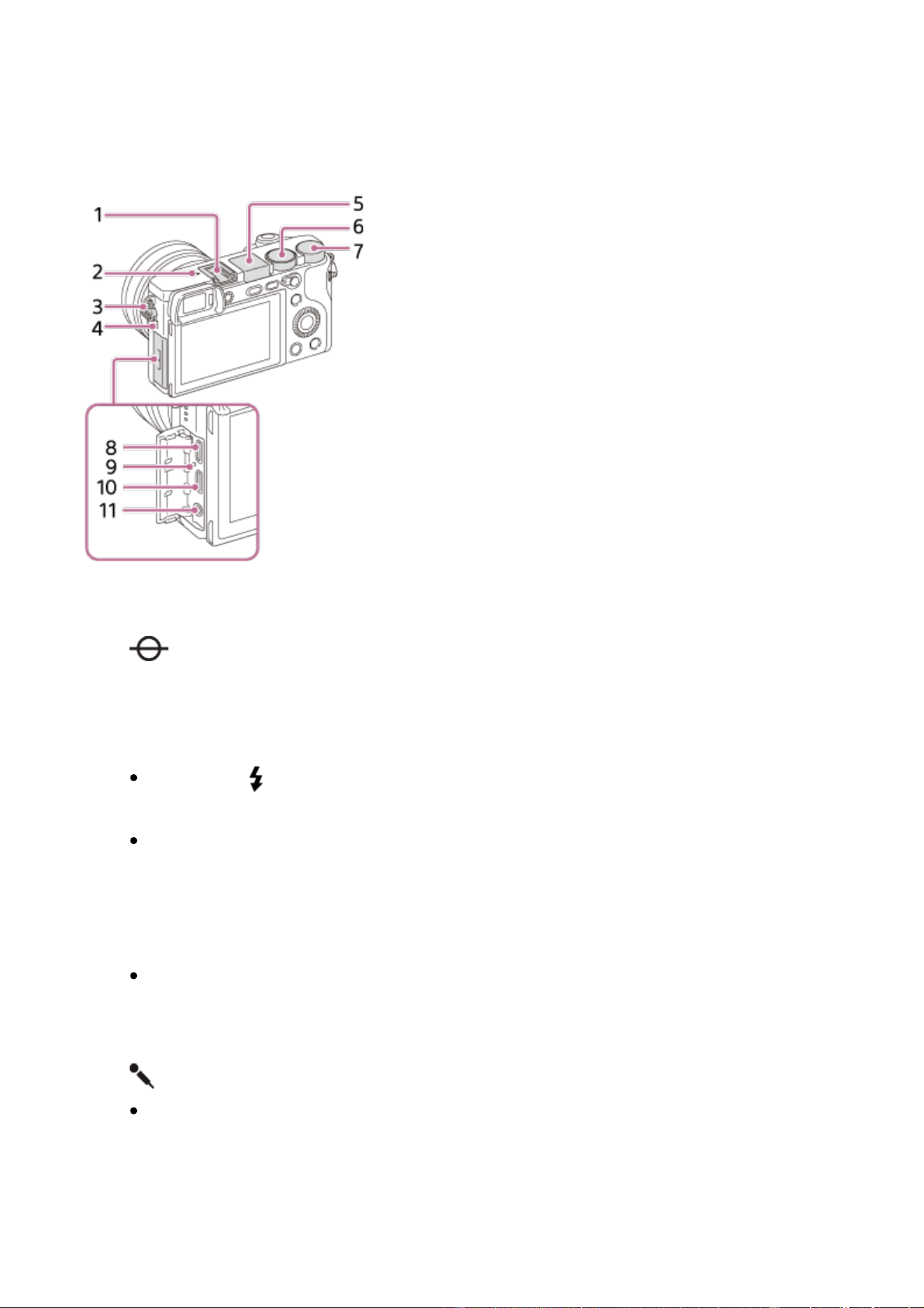
1. Multi interface shoe*
2. Image sensor position mark
3. Hook for shoulder strap
4. Speaker
5. Flash
Press the (Flash pop-up) button to use the flash. The flash does not
pop up automatically.
When not using the flash, press it back into the camera body.
6. Mode dial
7. Control dial
8. Multi/Micro USB Terminal*
Supports Micro USB compatible device.
9. Charge lamp
10. HDMI micro jack
11.
(Microphone) jack
When an external microphone is connected, the microphone is turned on
automatically. If the external microphone is a plug-in-power type, the
power of the microphone is supplied by the camera.
*
For details on compatible accessories for the multi interface shoe and the Multi/Micro USB
Terminal, visit the Sony web site, or consult your Sony dealer or local authorized Sony
service facility. You can also use accessories that are compatible with the accessory shoe.
Operations with other manufacturers’ accessories are not guaranteed.
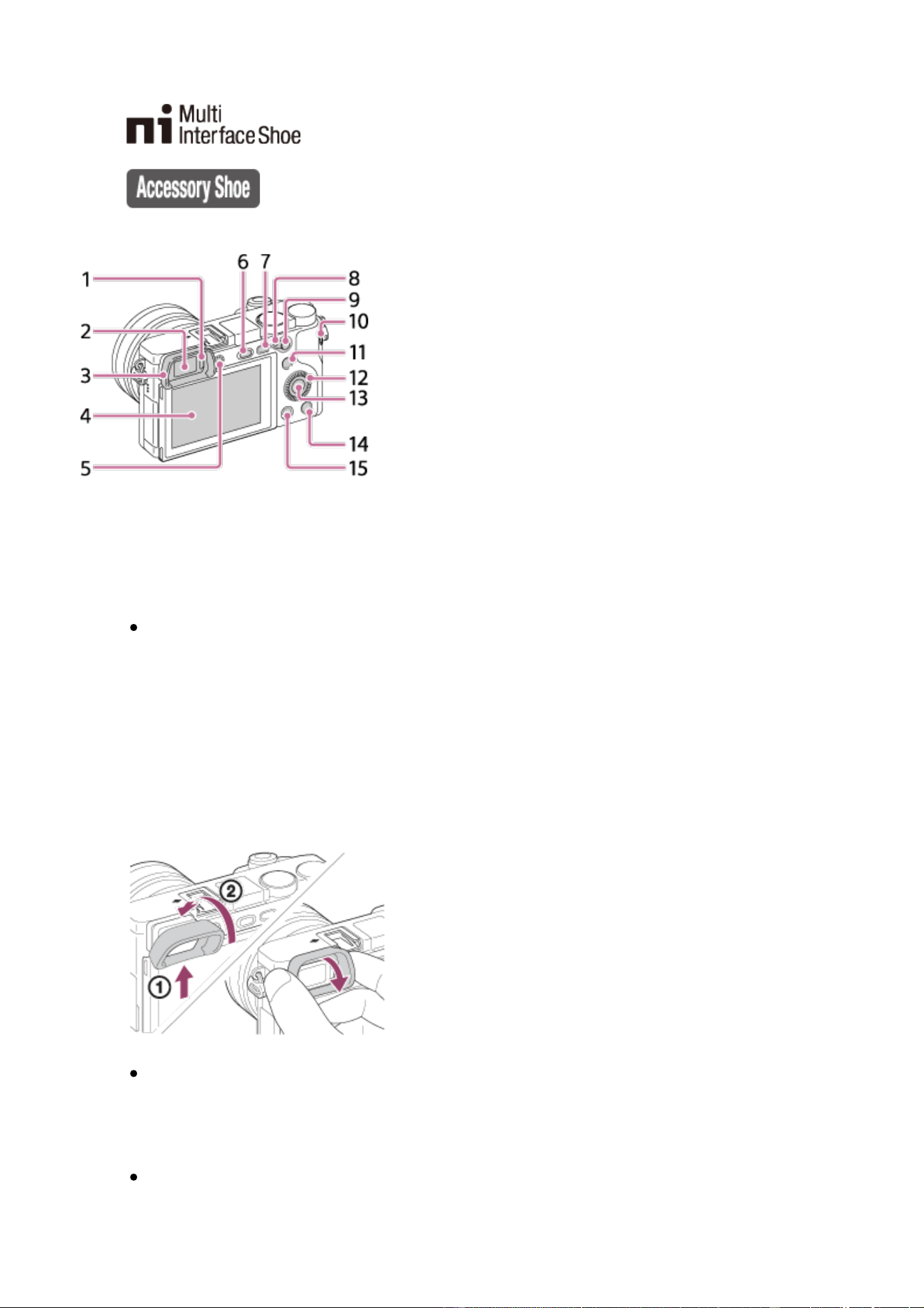
1. Eye sensor
2. Viewfinder
3. Eyepiece cup
Not attached to the camera at the factory. It is recommended that you
attach the eyepiece cup when you intend to use the viewfinder.
Attaching/removing the eyepiece cup
Match the bottom side of the eyepiece cup to the viewfinder, and attach it by
pushing the top side of the eyepiece cup in.
To remove the eyepiece cup, grasp it on the left and right sides and pull it
down.
Remove the eyepiece cup when you attach an accessory (sold separately)
to the Multi Interface Shoe.
4. Monitor
You can adjust the monitor to an easily viewable angle and shoot from any
position.
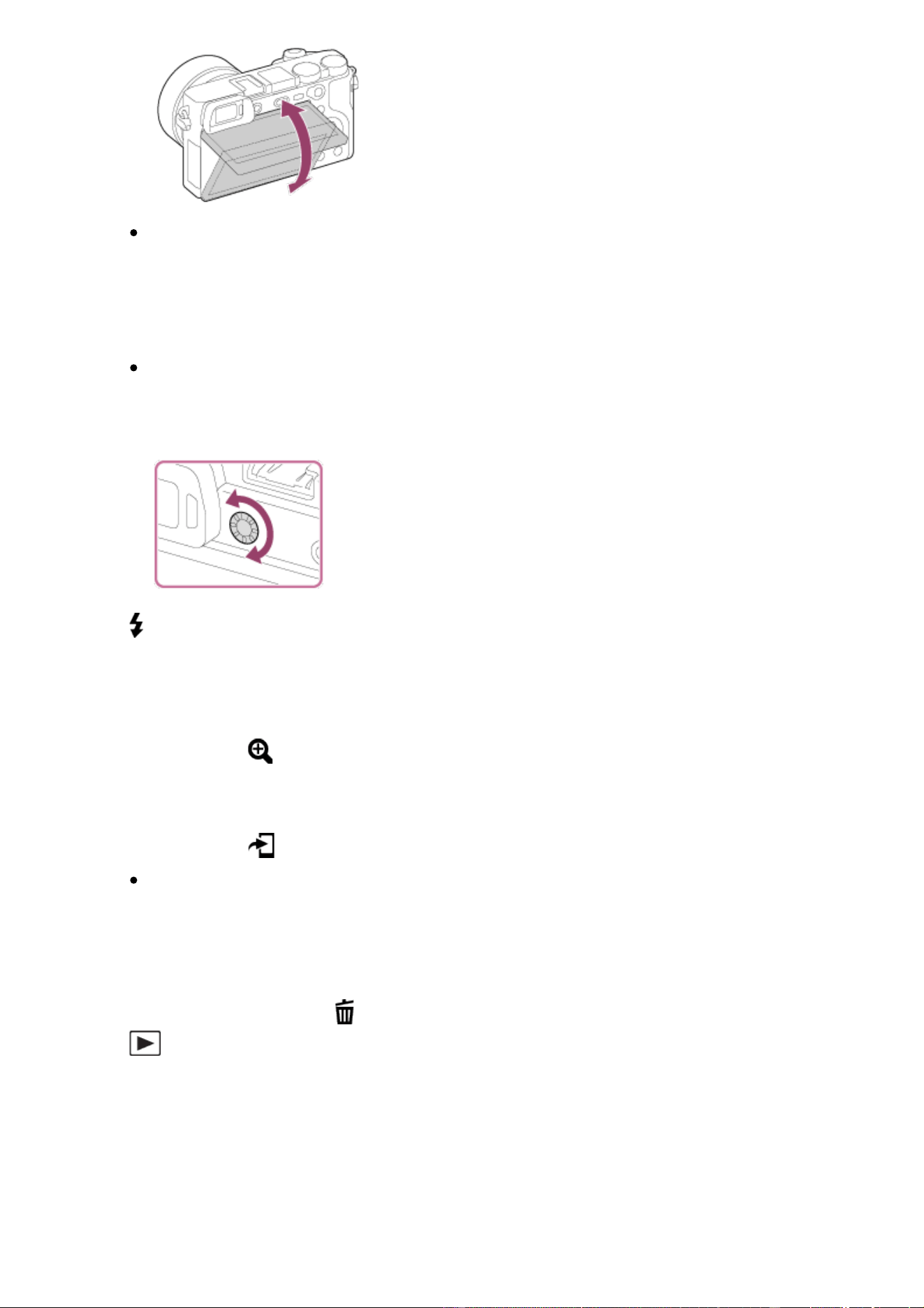
You may not be able to adjust the monitor angle depending on the type of
a tripod you use. In such a case, release the tripod screw once to adjust
the monitor angle.
5. Diopter-adjustment dial
Adjust the diopter-adjustment dial to your eyesight until the display
appears clearly in the viewfinder. If it is difficult to turn the diopter-
adjustment dial, remove the eyepiece cup and then adjust the dial.
6. (Flash pop-up) button
7. MENU button
8. AF/MF/AEL switch lever
9. For shooting: AF/MF button/AEL button
For viewing: (Enlarge) button
10. MOVIE (Movie) button
11. For shooting: Fn (Function) button
For viewing: (Send to Smartphone) button
You can display the screen for [Send to Smartphone] by pressing this
button.
12. Control wheel
13. Center button
14. C2 (Custom 2) button/
(Delete) button
15. (Playback) button
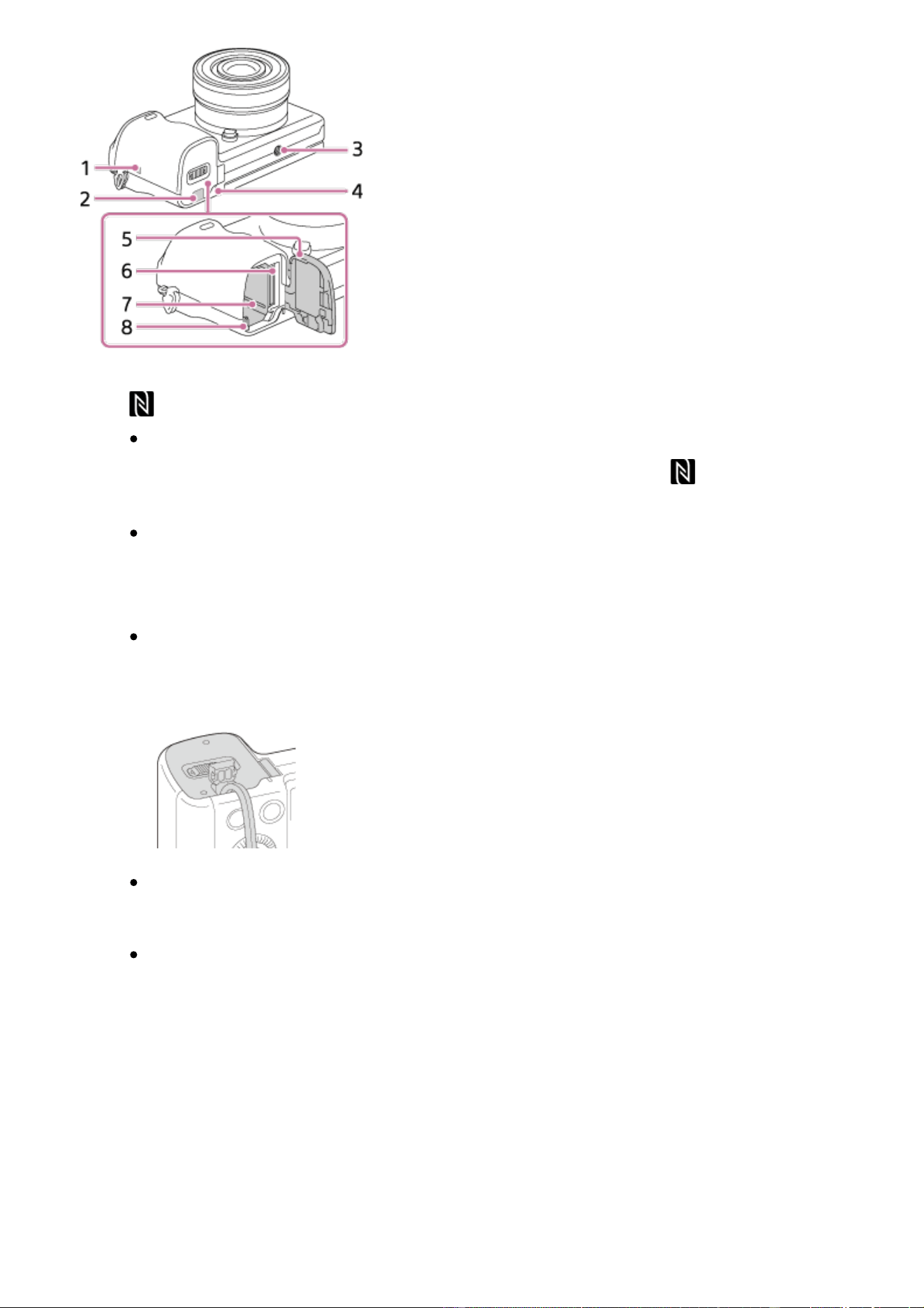
1. (N mark)
Touch the mark when you connect the camera to a smartphone equipped
with the NFC function. For details on the location of the (N mark) on
your Smartphone, refer to the operating instructions of the Smartphone.
NFC (Near Field Communication) is an international standard of the short-
range wireless communication technology.
2. Connection plate cover
Use this when using an AC-PW20 AC Adaptor (sold separately). Insert the
connection plate into the battery compartment, and then pass the cord
through the connection plate cover as shown below.
Make sure that the cord is not pinched when you close the cover.
3. Tripod socket hole
Use a tripod with a screw less than 5.5 mm (7/32 inches) long. Otherwise,
you cannot firmly secure the camera, and damage to the camera may
occur.
4. Access lamp
5. Battery/memory card cover
6. Memory card slot
7. Battery insertion slot
8. Battery lock lever
[3] How to Use Before Use Names of parts
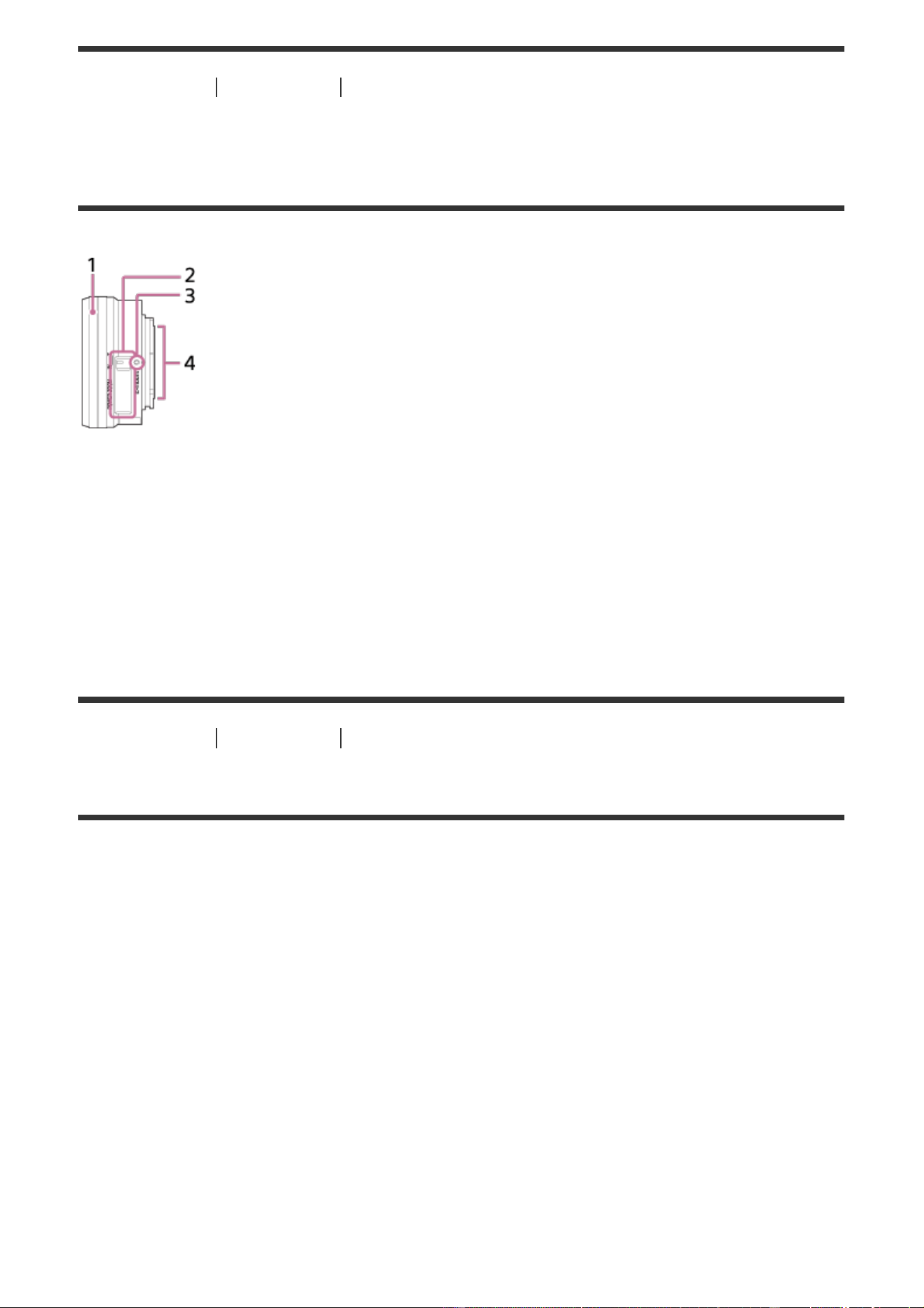
Identifying parts Lens E PZ 16–50mm F3.5–5.6 OSS
(supplied with ILCE-6300L)
1. Zooming/Focusing ring
2. Zooming lever
3. Mounting index
4. Lens contacts*
*
Do not touch this part directly.
[4] How to Use Before Use Icons and indicators
List of icons on the screen
The displayed contents and their positions shown below are just a guideline, and
may differ from the actual display.
Monitor mode
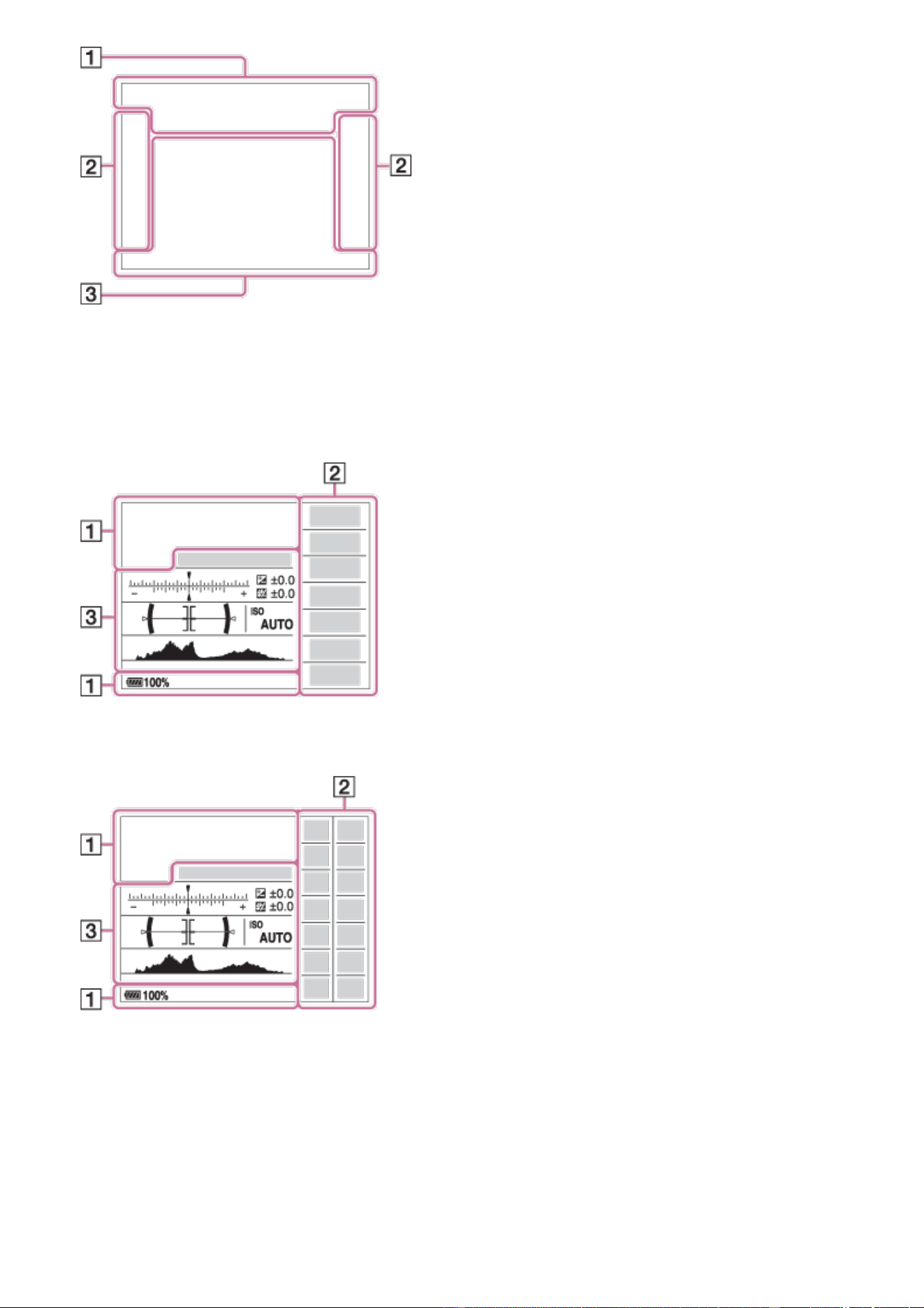
Viewfinder mode
In Auto Mode or Scene Selection mode
P/A/S/M/Sweep Panorama mode
For playback
Basic information display
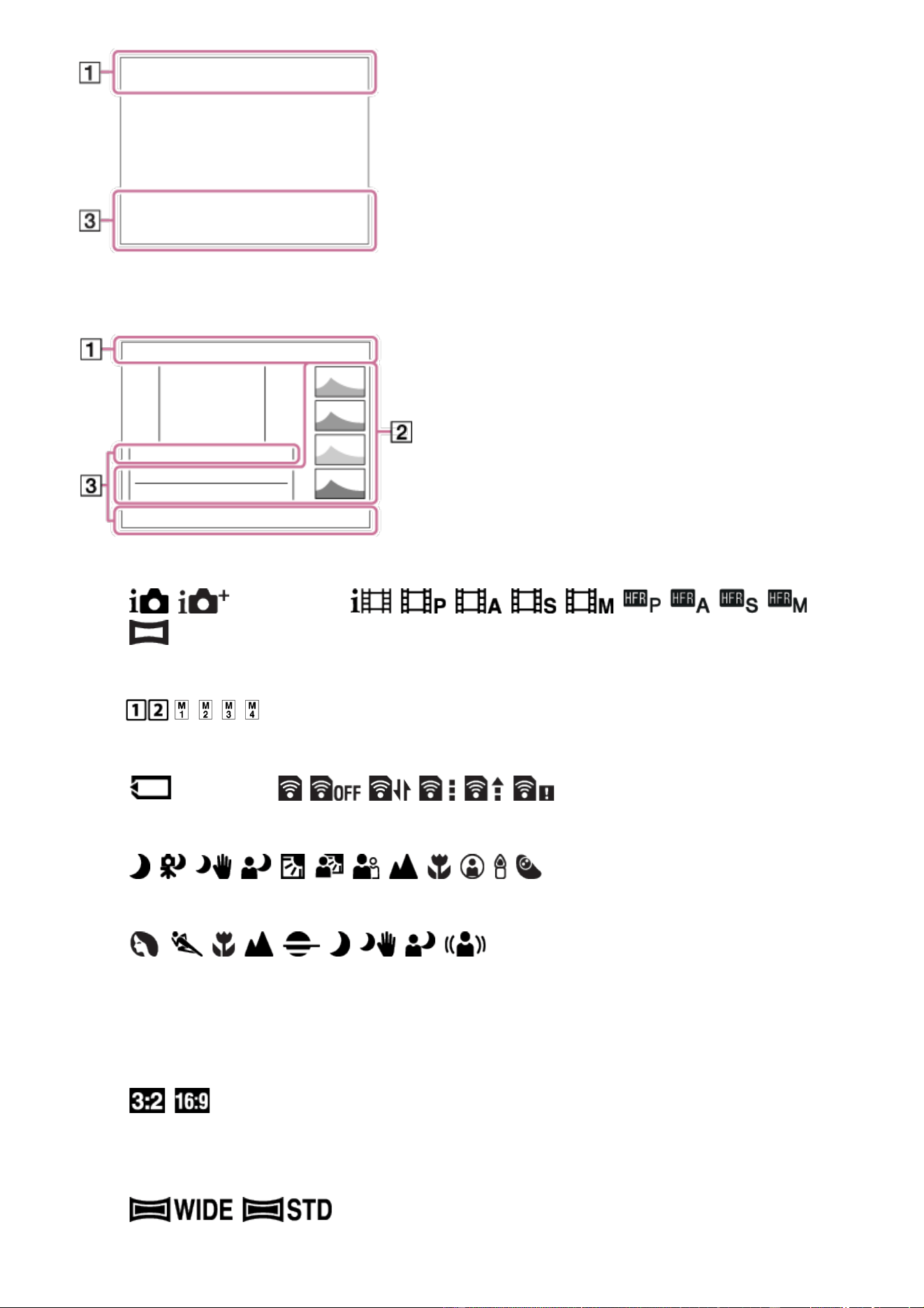
Histogram display
1. P P* A S M
Shoot Mode
Memory recall
NO CARD
Memory card status/Uploading status
Scene Recognition icons
Scene Selection
100
Remaining number of recordable images
Aspect ratio of still images
24M / 20M / 12M / 10M / 6.0M / 5.1M
Image size of still images
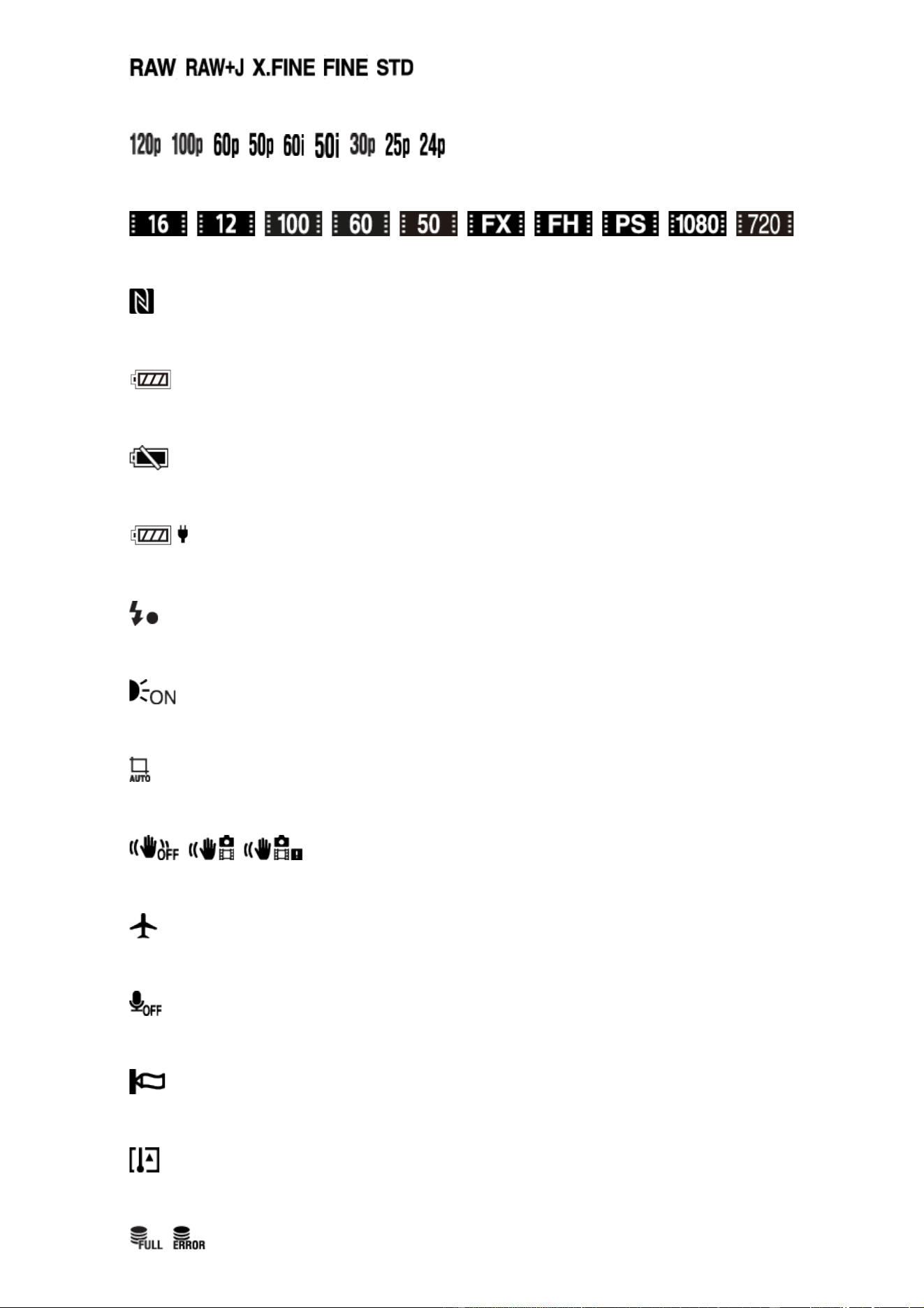
Image quality of still images
Frame rate of movies
Record setting of movies
NFC is activated
100%
Remaining battery
Remaining battery warning
USB power supply
Flash charge in progress
AF Illuminator
Auto object framing image
SteadyShot Off/On, Camera shake warning
Airplane Mode
No audio recording of movies
Wind Noise Reduct.
Overheating warning
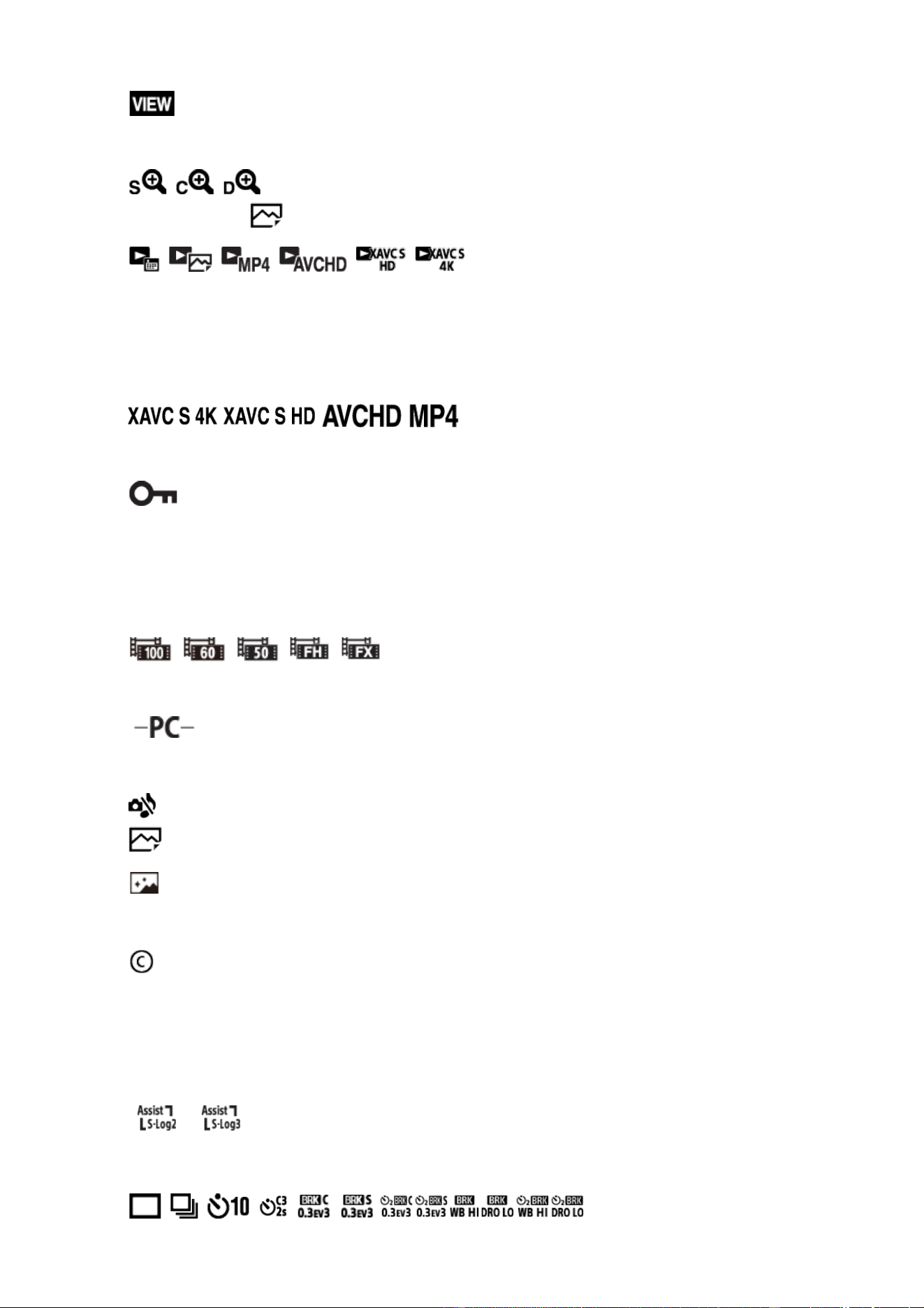
Database file full/Database file error
Setting Effect OFF
Smart Zoom/ Clear Image Zoom/Digital Zoom
View Mode
100-0003
Folder number-File number
File format of movies
Protect
DPOF
DPOF set
Dual Video REC
PC Remote
Silent Shooting
Bright Monitoring
Copyright information writing on
120fps100fps
Frame rate for HFR shooting
Gamma Disp. Assist
2.
Drive Mode
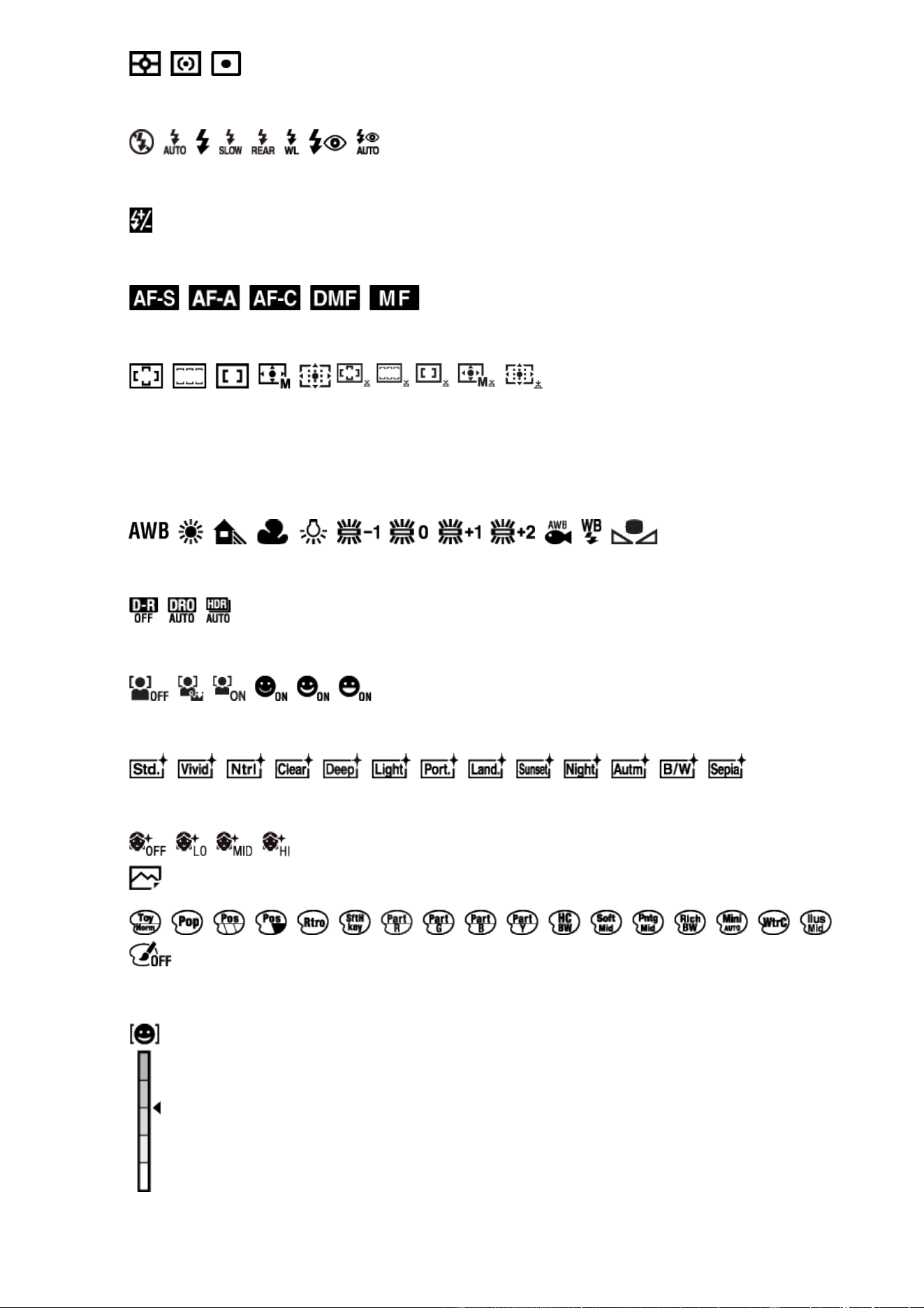
Metering Mode
Flash Mode/Red Eye Reduction
±0.0
Flash Comp.
Focus Mode
Focus Area
35mm
Lens focal length
7500K A5 G5
White Balance
D-Range Optimizer/Auto HDR
Smile/Face Detect.
+3 +3 +3
Creative Style
Soft Skin Effect
Picture Effect
Smile detection sensitivity indicator
―
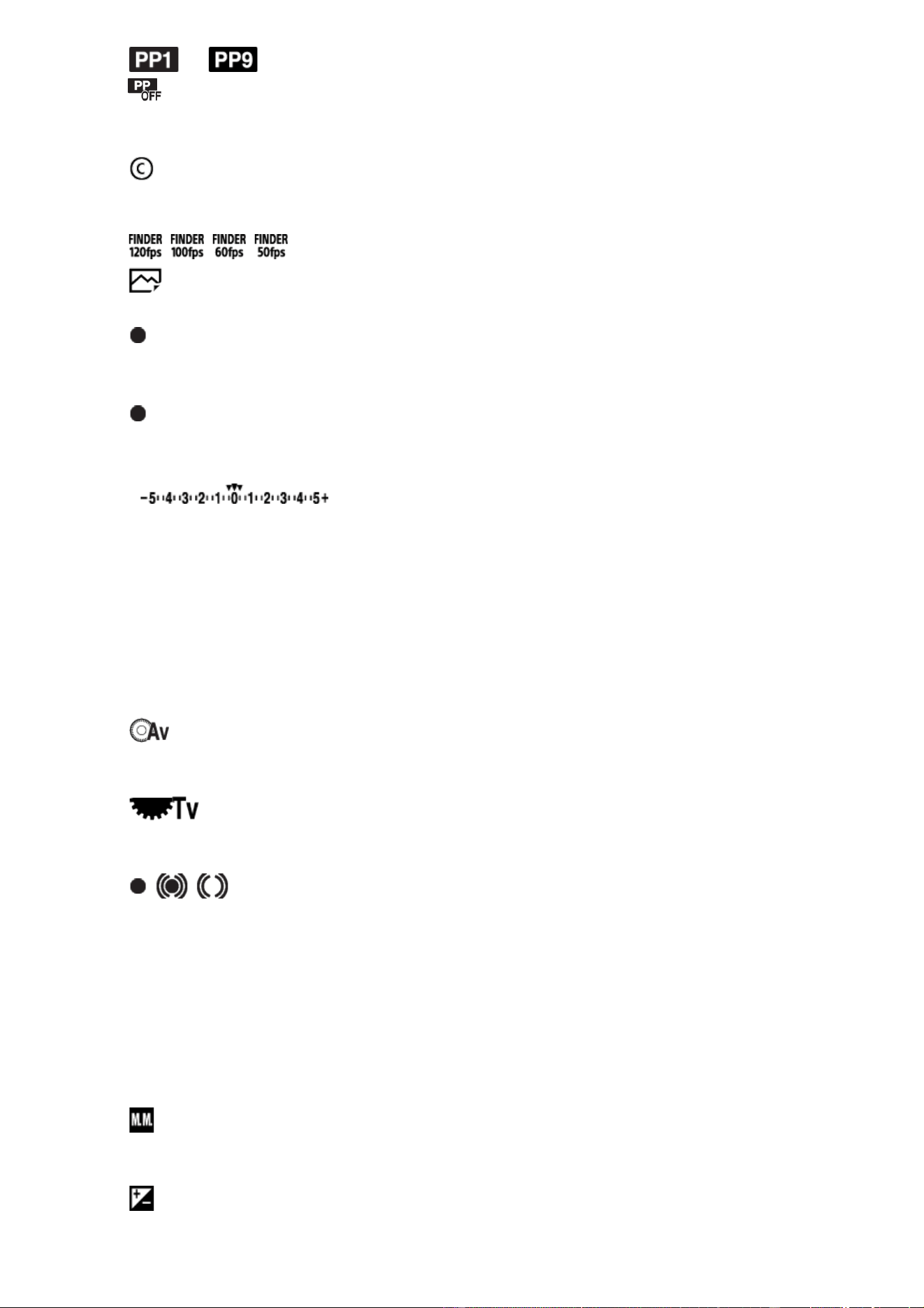
Picture Profile
Copyright information exists for image
Finder Frame Rate
3.
Lock-on AF
Guide display for Center button Lock-on AF
Select Focus Point On/Off
Guide display for setting Focus Area
Bracket indicator
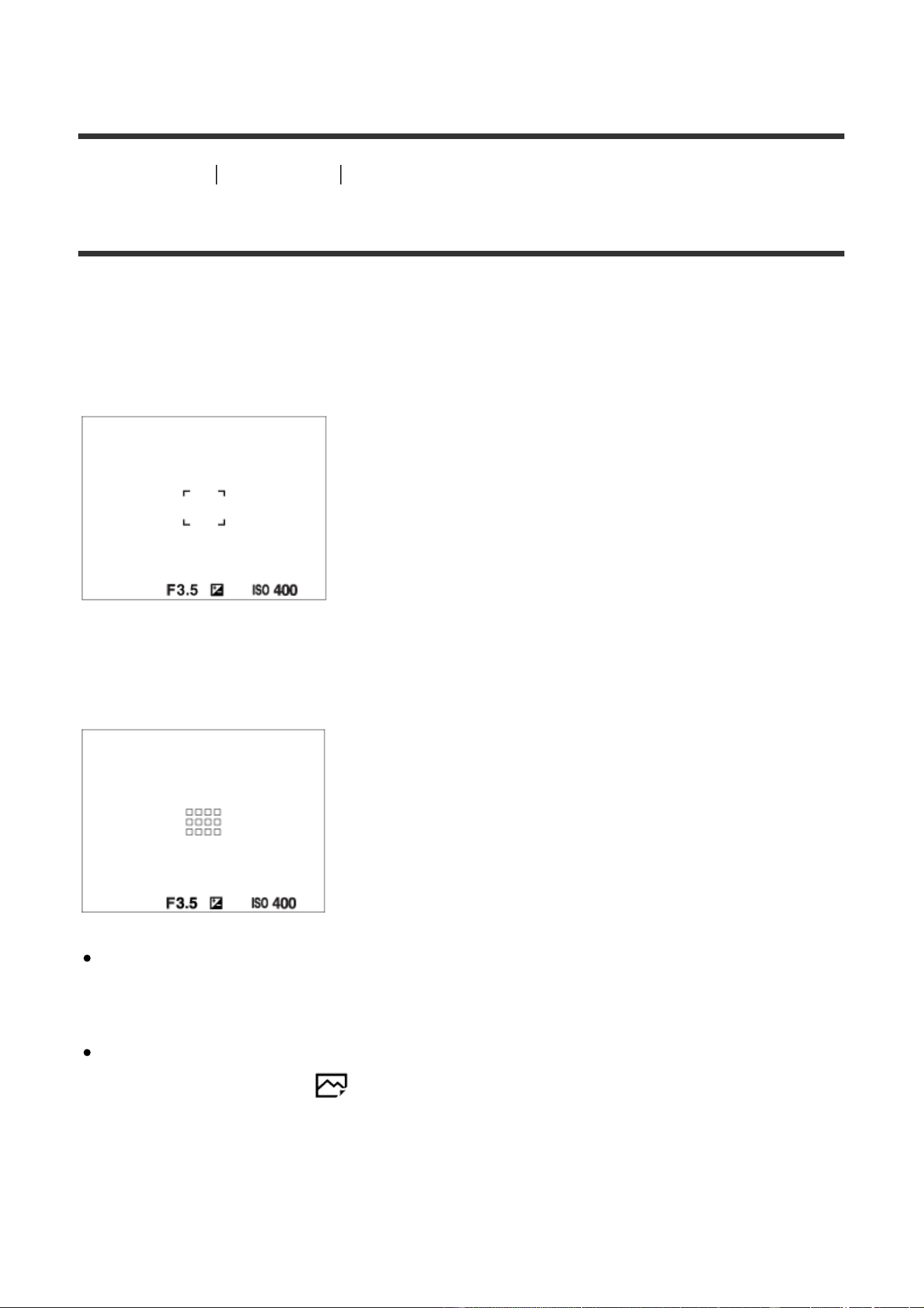
STBY
Movie recording standby
REC 0:12
Recording time of the movie (m:s)
Control wheel function
Control dial function
Focus
1/250
Shutter speed
F3.5
Aperture Value
±0.0
Metered Manual
±0.0
Exposure compensation
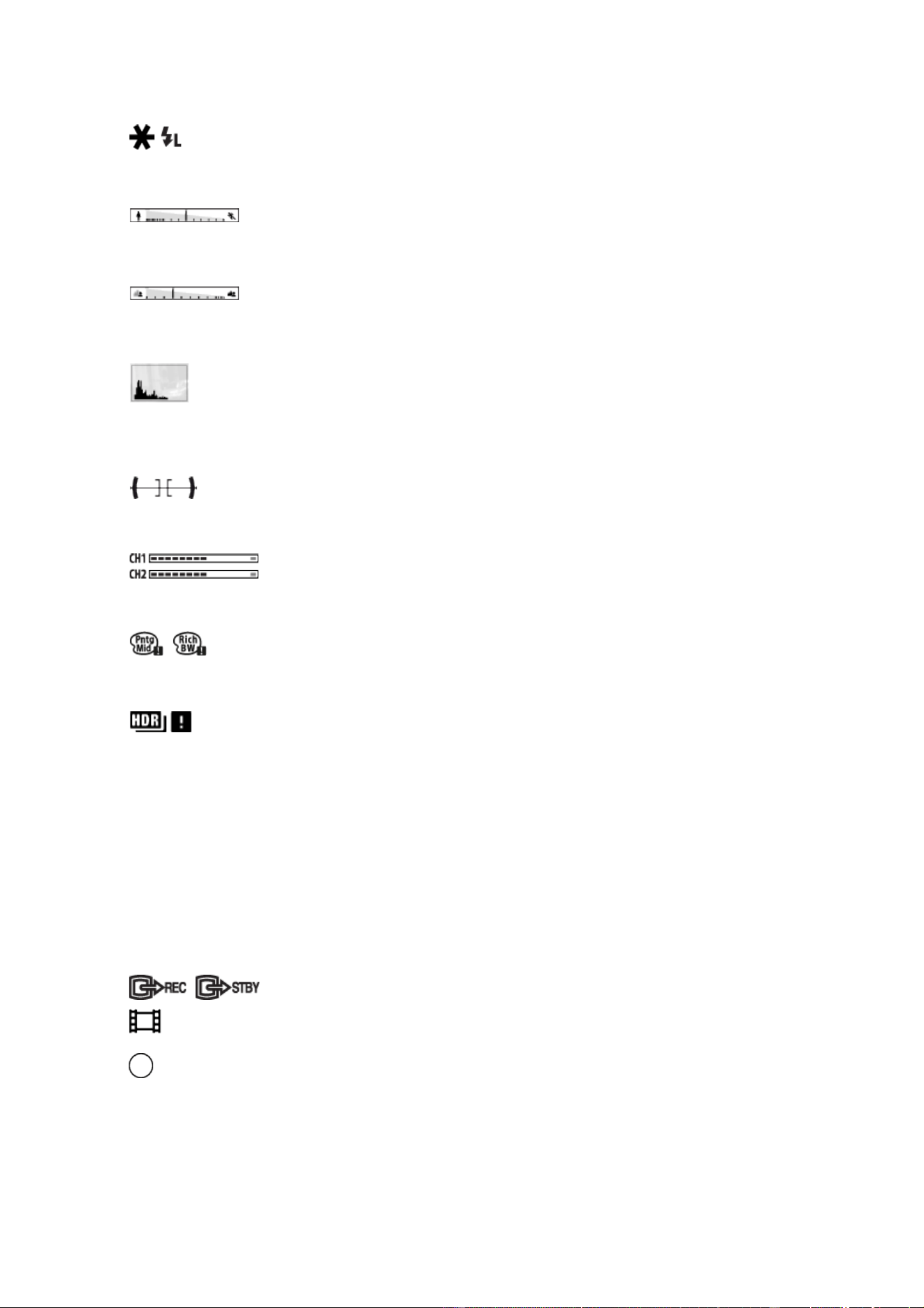
ISO400
ISO sensitivity
AE lock/FEL lock
Shutter speed indicator
Aperture indicator
Histogram
Digital level gauge
Audio level
Picture Effect error
Auto HDR image warning
2016-1-1
10:37AM
Date of recording
3/7
File number/Number of images in the view mode
REC Control
Spot metering area
00:00:00:00
Time code (hour:minute:second:frame)
00 00 00 00
User Bit
[5] How to Use Before Use Icons and indicators
List of focus range finder frames
The focus range finder frame differs as follows depending on the shooting mode.
When focusing on a larger area
When focusing on a smaller area
When [Focus Area] is set to [Wide] or [Zone] and you aim at a moving subject,
the focus range finder frame for "When focusing on a smaller area" may be
displayed.
When you attach an A-mount lens with a Mount Adaptor (LA-EA1 or LA-EA3)
(sold separately) and [ AF System] is set to [Phase Detection AF], the focus
range finder frame for "When focusing on a smaller area" may be displayed.
When focus is achieved automatically based on the whole range
of the monitor
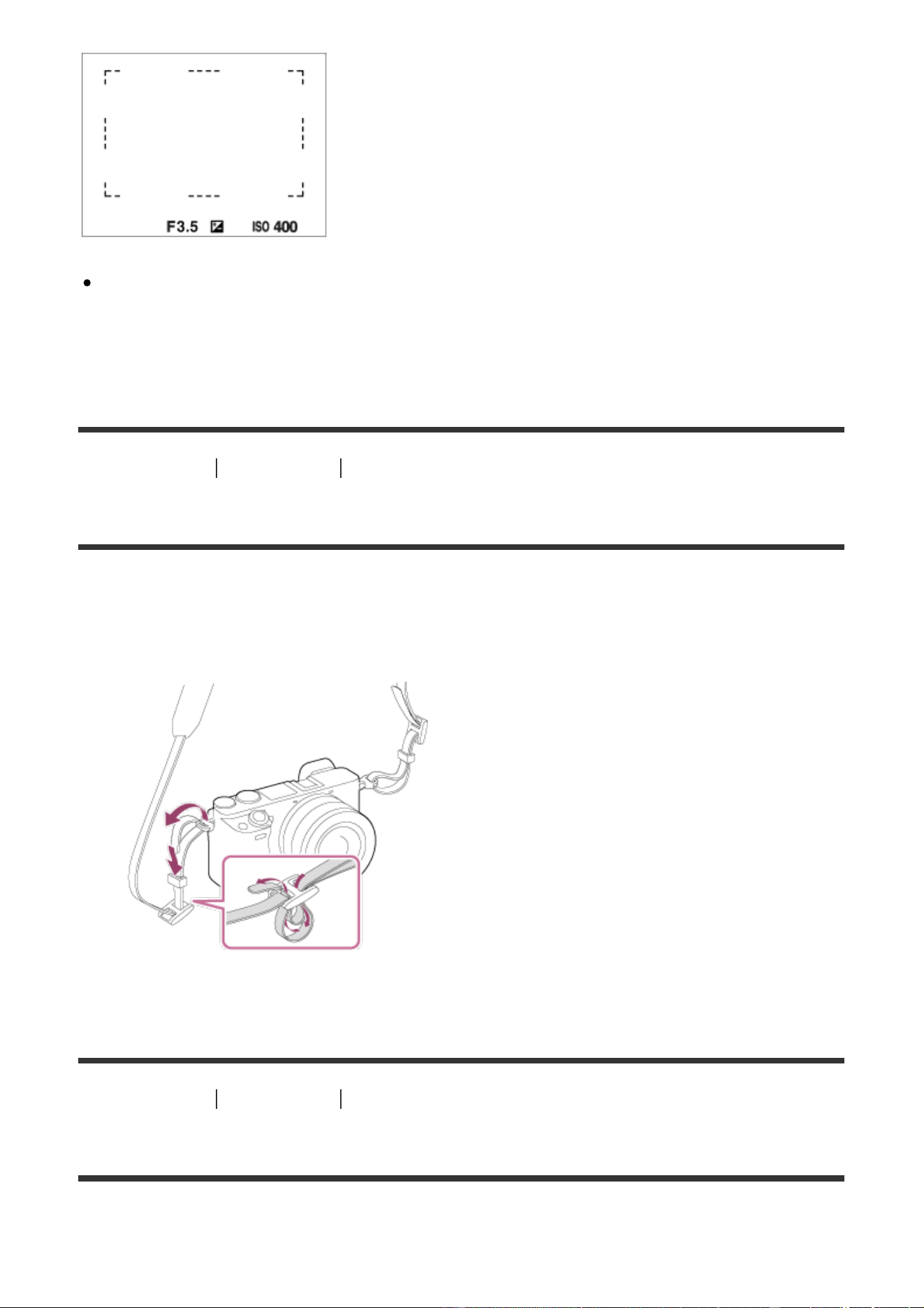
When you use a zoom function other than the optical zoom, the [Focus Area]
setting is disabled and the focus area frame is shown by the dotted line. The AF
operates with priority on and around the center area.
[6] How to Use Before Use Using the strap
Using the shoulder strap
Attach the shoulder strap to prevent damage caused by dropping the product.
1. Attach both ends of the strap.
[7] How to Use Before Use Attaching the eyepiece cup
Attaching the eyepiece cup
It is recommended that you attach the eyepiece cup when you intend to use the
viewfinder.
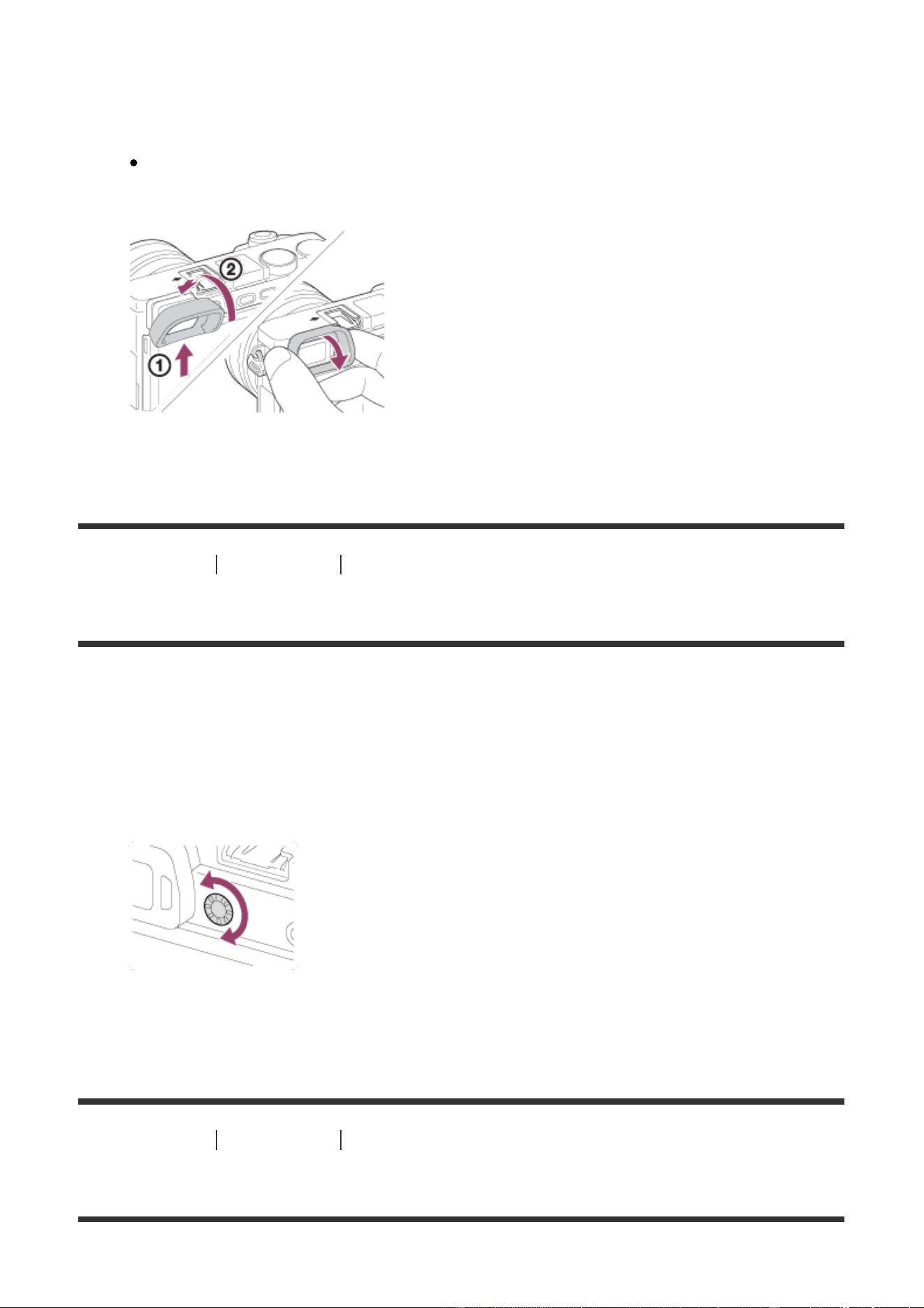
1. Match the bottom side of the eyepiece cup to the viewfinder, and attach it by
pushing the top side of the eyepiece cup in.
To remove the eyepiece cup, grasp it on the left and right sides and pull it
down.
[8] How to Use Before Use Adjusting the viewfinder
Adjusting the viewfinder (diopter-adjustment)
Adjust the diopter scale to your eyesight until the display appears clearly in the
viewfinder. If it is difficult to turn the diopter-adjustment dial, remove the eyepiece
cup and then adjust the dial.
1. Turn the diopter-adjustment dial.
[9] How to Use Before Use In-Camera guide
About the [In-Camera Guide]
The [In-Camera Guide] displays descriptions of MENU items, Fn (Function)
button, and settings, and if a function cannot be set, the reason why.
1. Press the MENU or Fn button.
2. Select the desired MENU item using up/down/left/right side on the control
wheel.
3. Press the button to which the [In-Camera Guide] function is assigned.
The operation guide for the MENU item you have selected in step 2 is
displayed.
If you press the on the center of the control wheel after selecting an
item shown in gray, the reason the item cannot be set is displayed.
Note
Assign the [In-Camera Guide] function to a button in advance using the
[Custom Key(Shoot.)].
[10] How to Use Preparing the camera Charging the battery pack
Inserting the battery pack into the camera
How to insert the battery pack into the camera
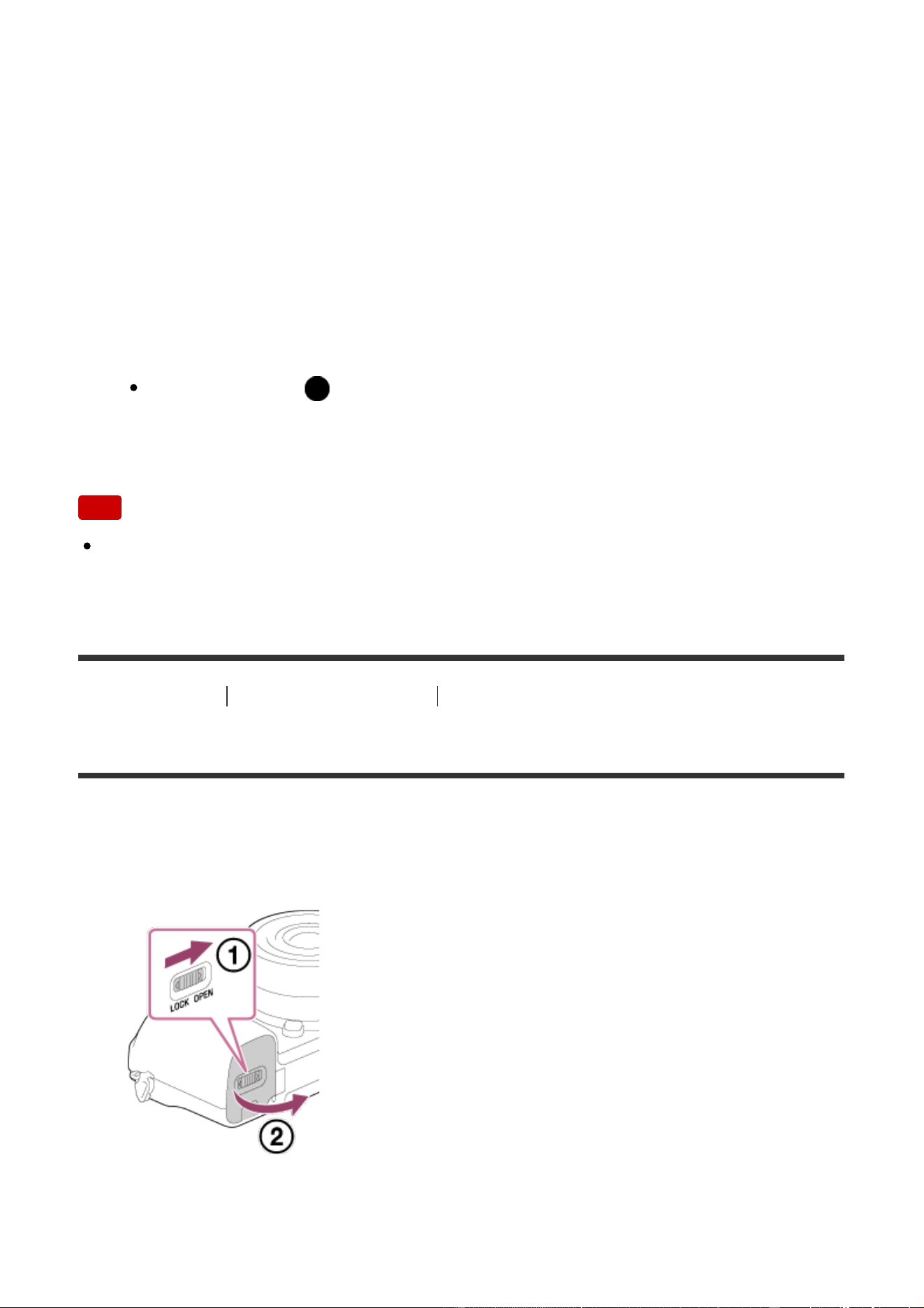
1. Open the battery/memory card cover.
2. Insert the battery pack while pressing the lock lever (A) with the tip of the
battery until the battery locks into place.
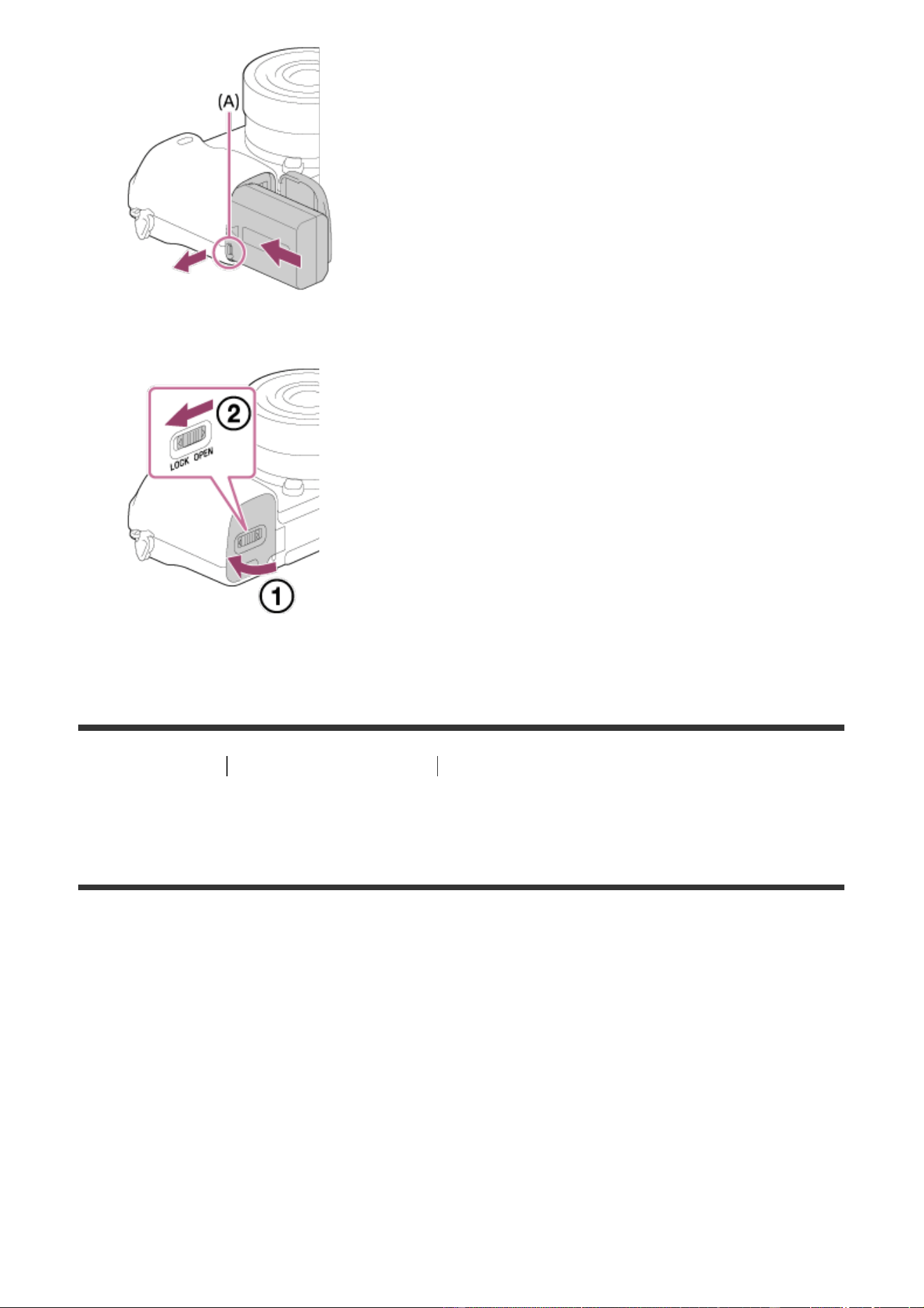
3. Close the cover.
[11] How to Use Preparing the camera Charging the battery pack
Charging the battery pack while it is inserted in the
camera
When using the camera for the first time, be sure to charge the battery pack. The
charged battery pack will discharge little by little, even if you do not use it. To
avoid missing a shooting opportunity, charge the battery pack before shooting.
1. Turn the power off.
2. Connect the camera with the battery pack inserted to the AC Adaptor
(supplied) using the micro USB cable (supplied), and connect the AC Adaptor
to the wall outlet (wall socket).
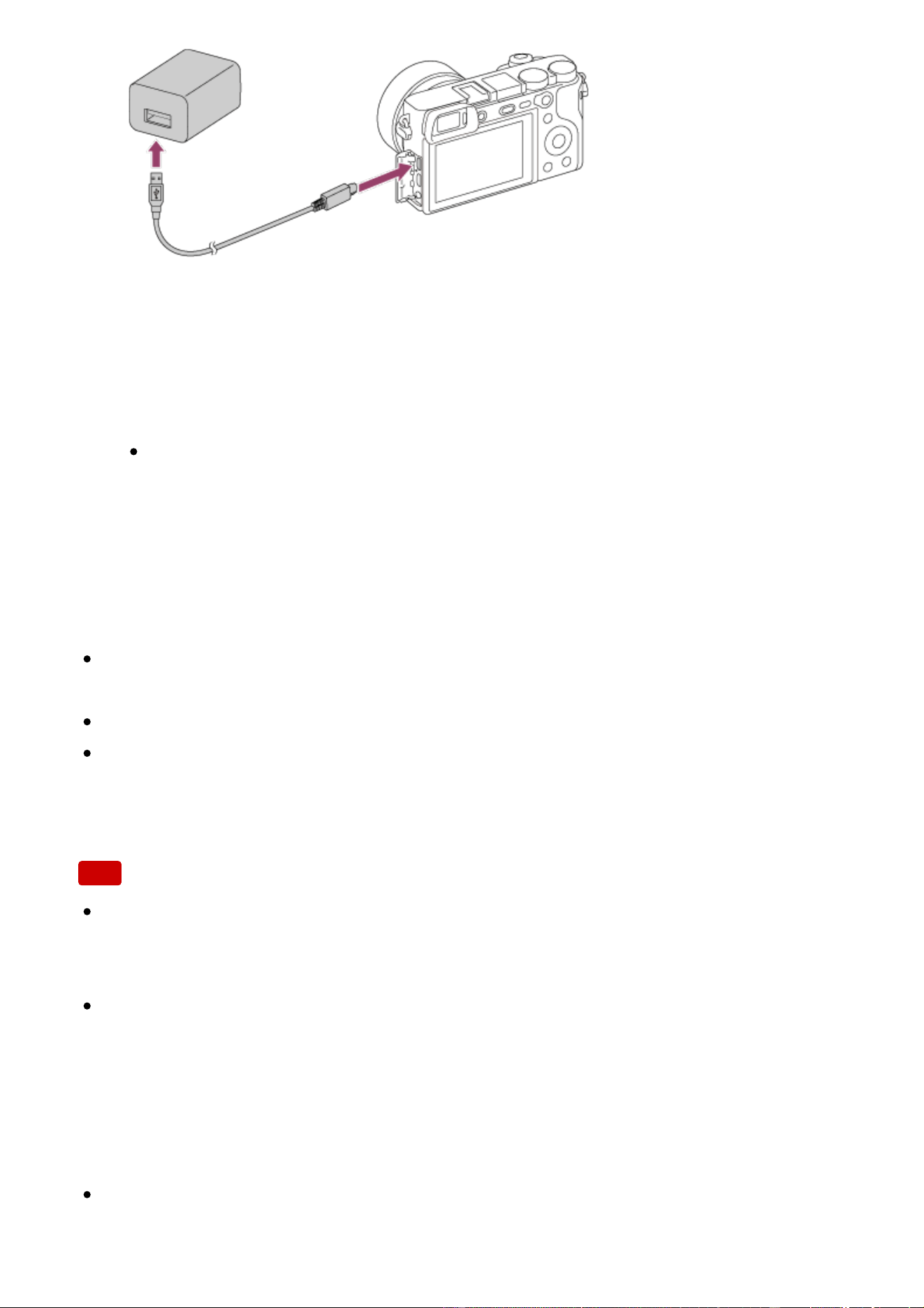
Charge lamp
Lit: Charging
Off: Charging finished
Flashing: Charging error or charging paused temporarily because the camera
is not within the proper temperature range
If the charge lamp lights up once and then immediately turns off, the
battery pack is fully charged.
Charging time (Full charge)
The charging time is approximately 150 min. using the AC Adaptor (supplied).
The charging time may differ depending on the remaining capacity of the
battery pack or the charging conditions.
The battery pack can be charged even when it is not fully depleted.
The above charging time applies when charging a fully depleted battery pack
(supplied) at a temperature of 25°C (77°F). Charging may take longer
depending on the conditions of use and the environment.
Note
If the charge lamp flashes when the battery pack is not fully charged, remove
the battery pack or disconnect the USB cable from the camera and then re-
insert it to recharge.
If the charge lamp on the camera flashes when the AC Adaptor is connected to
the wall outlet (wall socket), this indicates that charging is temporarily stopped
because the temperature is outside the recommended range. When the
temperature gets back within the appropriate range, the charging resumes. We
recommend charging the battery pack at an ambient temperature of between
10°C to 30°C (50ºF to 86ºF).
Use a nearby wall outlet (wall socket) when using the supplied or
recommended AC Adaptor/battery charger. If any malfunction occurs while
using this product, disconnect the plug from the wall outlet (wall socket)
immediately to disconnect from the power source. If you use the product with a
charge lamp, note that the product is not disconnected from the power source
even when the lamp turns off.
When you use a completely new battery pack or a battery pack that has not
been used for a long time, the charge lamp may flash quickly when the battery
is charged. If this happens, remove the battery pack or disconnect the USB
cable from the camera and then re-insert it to recharge.
Do not continuously or repeatedly charge the battery pack without using it if it is
already fully charged or close to fully charged. Doing so may cause a
deterioration in battery performance.
When charging is finished, disconnect the AC Adaptor from the wall outlet (wall
socket).
Be sure to use only genuine Sony brand battery packs, micro USB cables
(supplied) and AC Adaptors (supplied).
[12] How to Use Preparing the camera Charging the battery pack
Charging by connecting to a computer
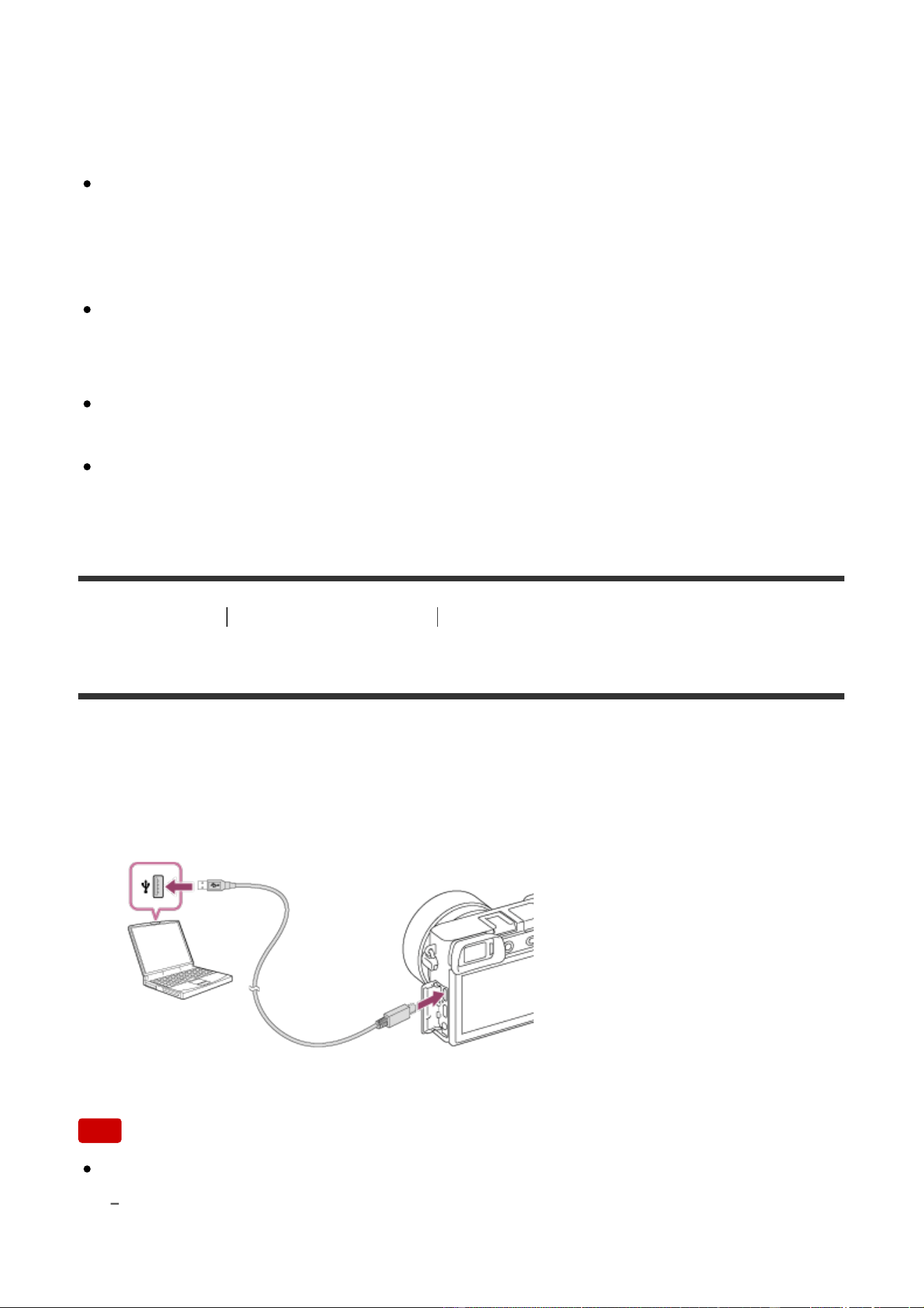
The battery pack can be charged by connecting the camera to a computer using a
micro USB cable.
1. Turn off the product, and connect to the USB terminal of the computer.
Note
Note the following points when charging via a computer:
If the product is connected to a laptop computer that is not connected to a power
source, the laptop battery level decreases. Do not leave the product connected to a

laptop computer for an extended period of time.
Do not turn on/off or restart the computer, or wake the computer from sleep mode
when a USB connection has been established between the computer and the camera.
Doing so may cause a malfunction. Before turning on/off or restarting the computer, or
waking the computer from sleep mode, disconnect the camera from the computer.
Proper operation cannot be guaranteed on all types of computers.
Charging cannot be guaranteed with a custom-built computer, modified computer, or a
computer connected through a USB hub.
The camera may not operate correctly when other USB devices are used at the same
time.
[13] How to Use
Preparing the camera Charging the battery pack
Battery life and the number of images that can be
recorded/played back using a battery pack
Screen mode
Shooting (still images):
Number of images: approx. 400
Actual shooting (movies):
Battery life: approx. 75 min.
Continuous shooting (movies):
Battery life: approx. 115 min.
Viewing (still images):
Battery life: approx. 360 min., Number of images: approx. 7100
Viewfinder mode
Shooting (still images):
Number of images: approx. 350
Actual shooting (movies):
Battery life: approx. 70 min.
Continuous shooting (movies):
Battery life: approx. 115 min.
Note
The above battery life and number of images applies when the battery pack has
been fully charged. The battery life and number of images may decrease
depending on the conditions of use.

The battery life and number of images that can be recorded is for shooting
under the following conditions:
The battery pack is used at an ambient temperature of 25°C (77°F).
Using the lens E PZ 16-50mm F3.5-5.6 OSS
Using Sony Memory Stick PRO Duo (Mark2) media (sold separately)
[Viewfinder Bright.]: [Manual][±0]
[Monitor Brightness]: [Manual][±0]
[Display Quality]: [Standard]
The number for “Shooting (still images)” is based on the CIPA standard, and is
for shooting under the following conditions (CIPA: Camera & Imaging Products
Association):
DISP: [Display All Info.]
Focus Mode: [Automatic AF]
One picture is taken every 30 seconds.
The flash strobes once for every two pictures.
The power is turned on and off once every ten times.
The number of minutes for movie shooting is based on the CIPA standard, and
is for shooting under the following conditions:
The image quality is set to XAVC S HD 60p 50M/50p 50M.
Actual shooting (movies): Battery life based on repeated shooting, zooming, shooting
stand-by, turning on/off, etc.
Continuous movie shooting: Battery life based on non-stop shooting until the limit (29
minutes) has been reached, and then continued by pressing the MOVIE (Movie) button
again. Other functions, such as zooming, are not used.
If the remaining battery is not displayed, press the DISP (Display Setting).
[14] How to Use Preparing the camera Charging the battery pack
Supplying power from a wall outlet (wall socket)
By using the supplied AC adaptor, you can shoot and playback images while the
power is supplied from a wall outlet (wall socket) without using up the battery
power.
1. Insert the battery pack into the camera.
2. Connect the camera to the wall outlet (wall socket) with a micro USB cable
(supplied) and an AC adaptor (supplied).
Note
The camera will not activate if there is no remaining battery. Insert a sufficiently
charged battery pack into the camera.
If you use the camera while power is being supplied from a wall outlet (wall
socket), make sure that the icon ( ) is displayed on the monitor.
Do not remove the battery pack while power is supplied from a wall outlet (wall
socket). If you remove the battery pack, the camera will be turned off.
Do not remove the battery pack while the access lamp is lit. The data in the
memory card may be damaged.
As long as the power is on, the battery pack will not be charged even if the
camera is connected to the AC Adaptor.
Under certain conditions, power may be supplied from the battery pack
supplementarily even if you are using the AC adaptor.
Do not remove the Micro USB cable while power is supplied from a wall outlet
(wall socket). Before you remove the Micro USB cable, turn off the camera.
Depending on the camera and battery temperature, the continuous recording
time may be shortened while power is supplied from a wall outlet (wall socket).
When using a mobile charger as a power source, confirm that it is fully charged
before use. Also, be careful of the remaining power on the mobile charger
during use.
[15] How to Use Preparing the camera Charging the battery pack
Removing the battery pack
How to remove the battery pack
1. Make sure that the access lamp is not lit, and turn off the camera.
2. Open the battery/memory card cover.
3. Slide lock lever (A) and remove the battery pack.
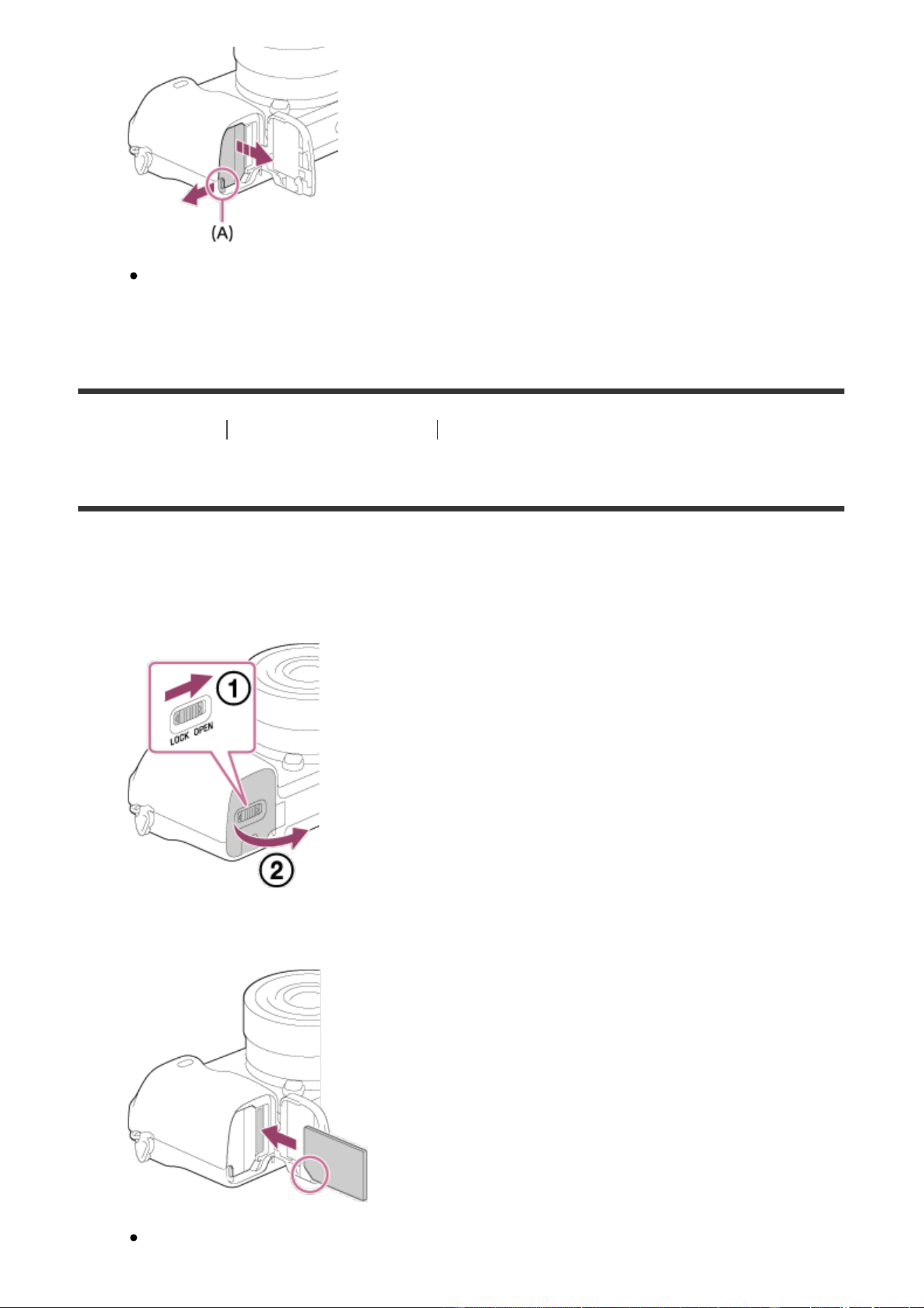
Be careful not to drop the battery pack.
[16] How to Use Preparing the camera Inserting a memory card (sold separately)
Inserting a memory card
How to insert a memory card
1. Open the battery/memory card cover.
2. Insert the memory card.
Ensure that the notched corner is facing in the correct direction.
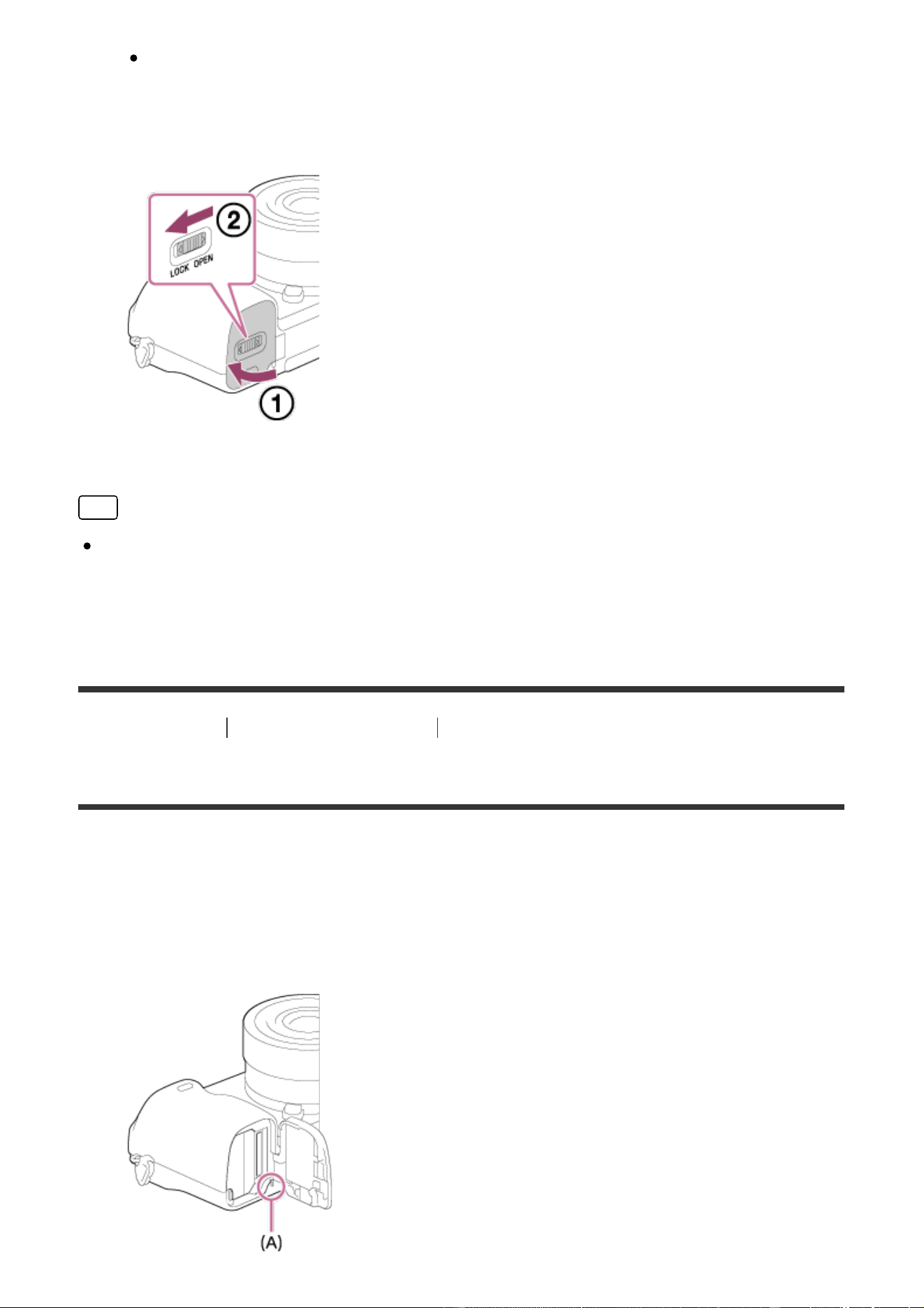
With the notched corner facing in the direction illustrated, insert the
memory card until it clicks into place.
3. Close the cover.
Hint
When you use a memory card with this product for the first time, it is
recommended that you format the card using the product for stable
performance of the memory card.
[17] How to Use Preparing the camera Inserting a memory card (sold separately)
Removing the memory card
How to remove the memory card
1. Open the battery/memory card cover.
2. Make sure that the access lamp (A) is not lit.
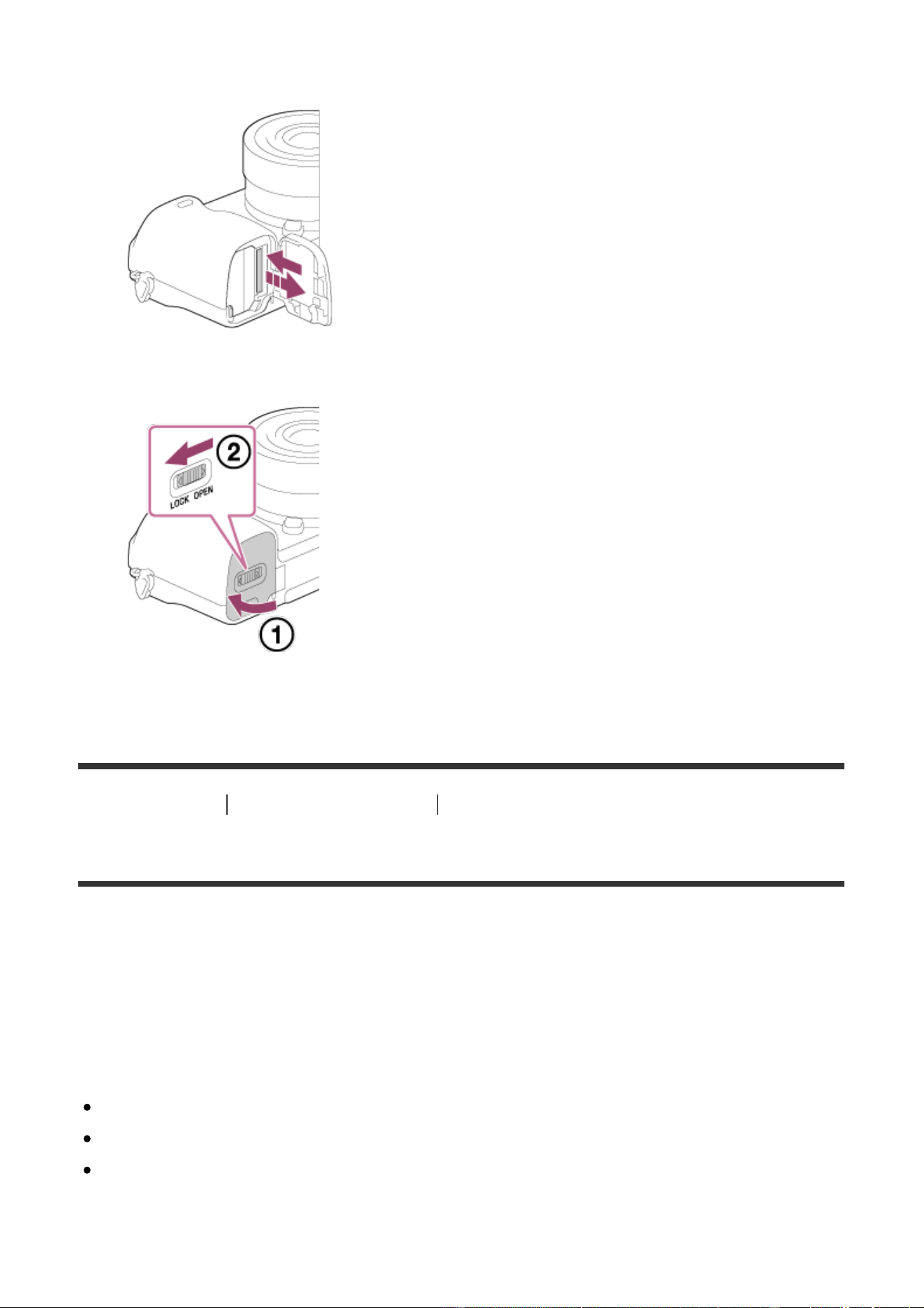
3. Push in on the memory card once to remove it.
4. Close the cover.
[18] How to Use Preparing the camera Inserting a memory card (sold separately)
Usable memory cards
You can use the following types of memory cards with this camera.
For movies, refer to “Memory cards that can be used for movie recording” on this
page.
Usable Memory Stick media
Memory Stick PRO Duo / Memory Stick PRO Duo (Mark2)
Memory Stick PRO-HG Duo
Memory Stick Micro (M2) (Mark2)
*Memory Stick media with a capacity of up to 32 GB have been tested and proven
to operate with this camera.

Usable SD cards
SD memory card
SDHC memory card
SDXC memory card
microSD memory card
microSDHC memory card
microSDXC memory card
*SD cards with a capacity of up to 256 GB have been tested and proven to
operate with this camera.
Memory cards that can be used for movie recording
When shooting movies in XAVC S format
Memory Stick PRO-HG Duo
Movies cannot be recorded in 100 Mbps or more.
SDHC / microSDHC memory card (SD Speed Class10, or UHS Speed Class
U1 or faster)
When recording in 100 Mbps or more, UHS Speed Class U3 is required.
SDXC / microSDXC memory card with a capacity of 64 GB or more (SD Speed
Class10, or UHS Speed Class U1 or faster)
When recording in 100 Mbps or more, UHS Speed Class U3 is required.
When shooting movies in AVCHD or MP4 format
Memory Stick PRO Duo (Mark2)
Memory Stick PRO-HG Duo
Memory Stick Micro (M2) (Mark2)
SD memory card / microSD memory card (SD Speed Class 4 or faster, or UHS
Speed Class U1 or faster)
SDHC memory card / microSDHC memory card (SD Speed Class 4 or faster,
or UHS Speed Class U1 or faster)
SDXC memory card / microSDXC memory card (SD Speed Class 4 or faster, or
UHS Speed Class U1 or faster)
Note
When an SDHC memory card is used to record XAVC S movies over extended
periods of time, the recorded movies will be divided into files of 4 GB. The
divided files can be integrated into a single file using PlayMemories Home.
Not all memory cards are guaranteed to operate correctly.
When you use a memory card with the camera for the first time, it is
recommended that you format the card on the camera before use for more
stable performance of the memory card.
Note that formatting erases all data on the memory card permanently, and is
irreversible. Save valuable data on a computer, etc.
Images recorded on an SDXC memory card cannot be imported to or played on
computers or AV devices that are not compatible with exFAT when connected
using a micro USB cable. Make sure that the device is compatible with exFAT
before connecting it to the camera. If you connect your camera to an
incompatible device, you may be prompted to format the card. Never format the
card in response to this prompt, as doing so will erase all data on the card.
(exFAT is the file system used on SDXC memory cards.)
[19] How to Use Preparing the camera Attaching a lens
Attaching a lens
Set the power switch of the camera to off before attaching the lens.
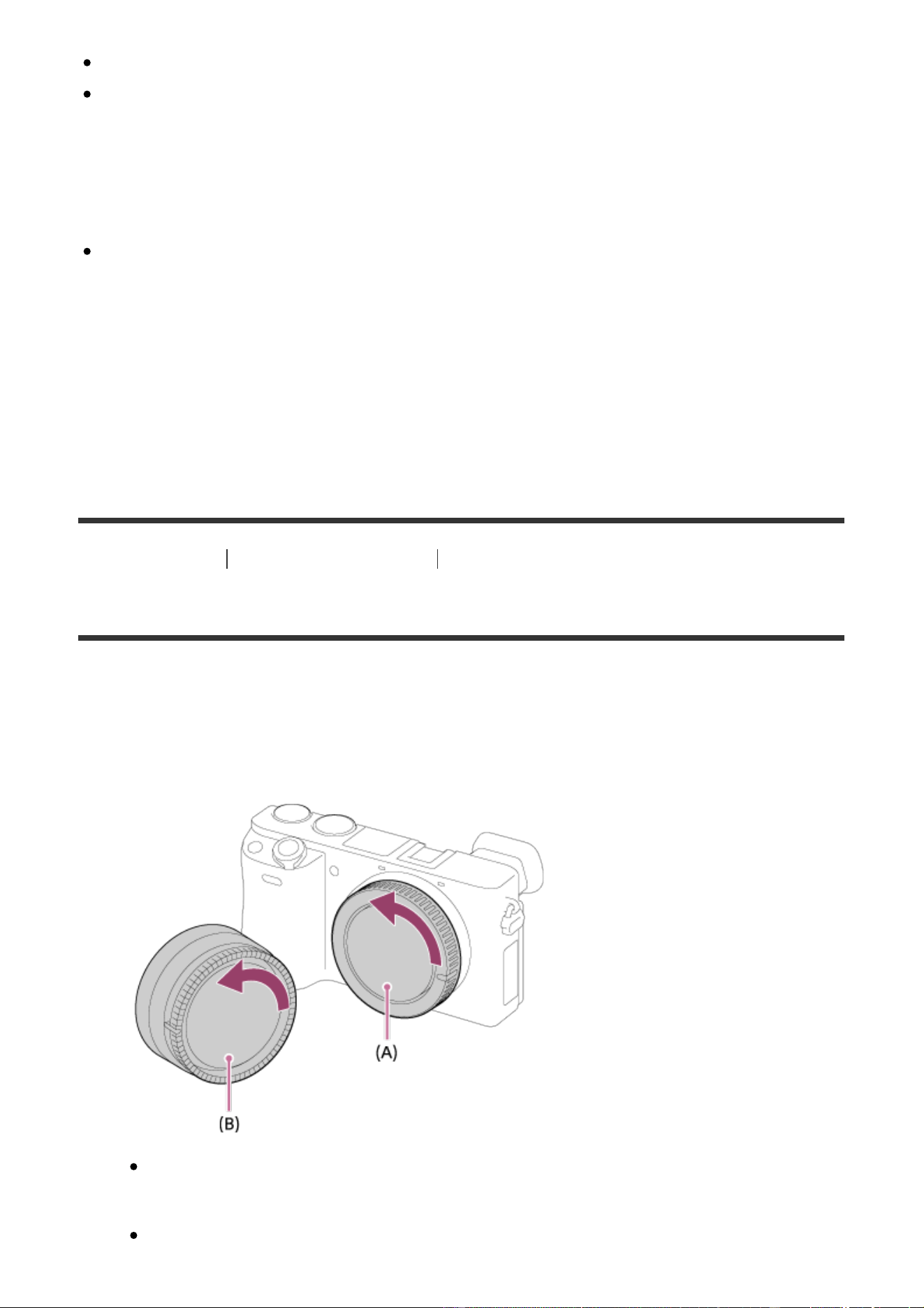
1. Remove the body cap (A) from the camera and the rear lens cap (B) from the
rear of the lens.
When changing the lens, work quickly in a dust-free location to keep dust
or debris from getting inside the camera.
When shooting, remove the front lens cap from the front of the lens.
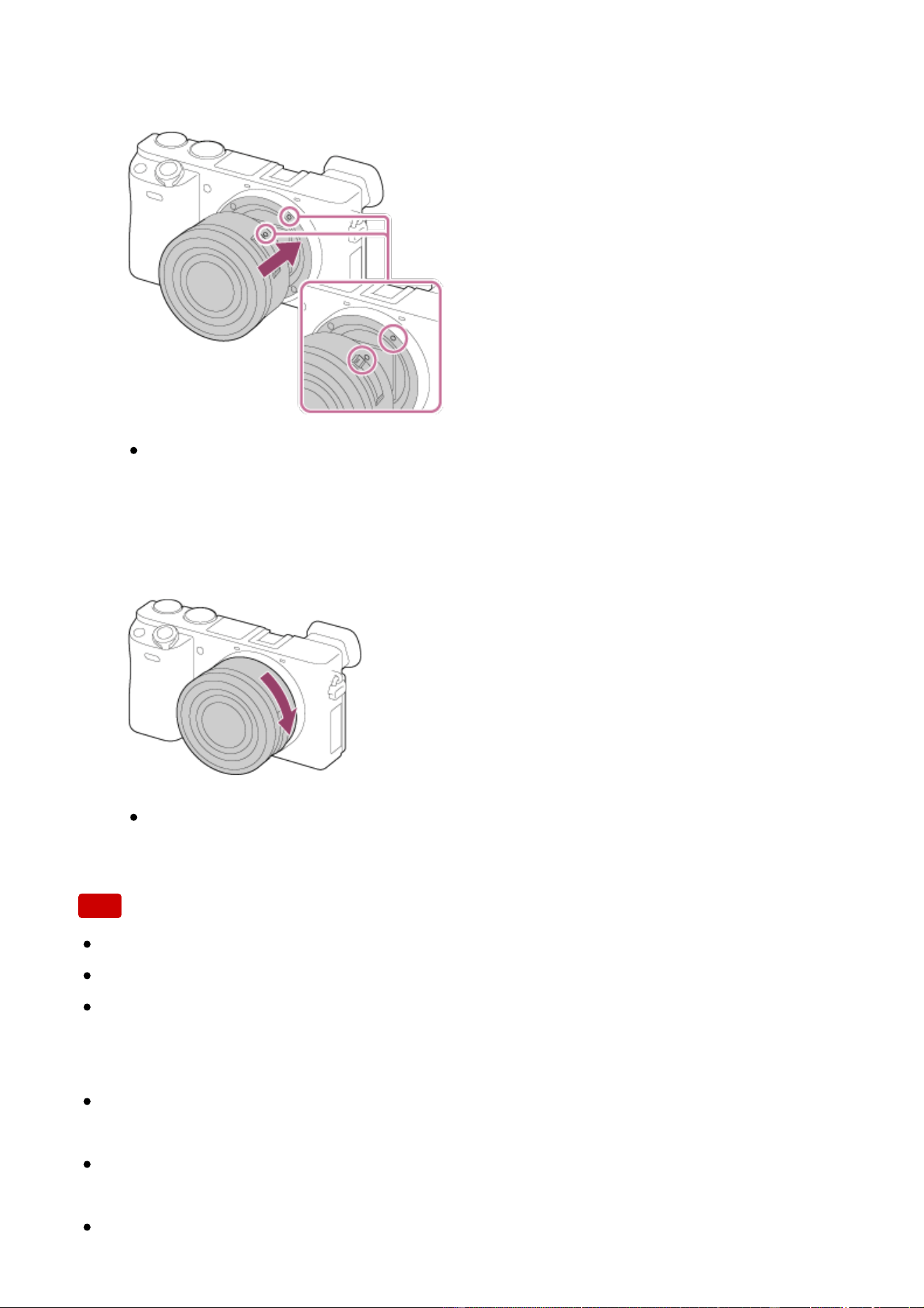
2. Mount the lens by aligning the two white index marks (mounting indexes) on
the lens and camera.
Hold the camera with the lens facing down to prevent dust and debris from
entering the camera.
3. While pushing the lens lightly toward the camera, turn the lens slowly in the
direction of the arrow until it clicks into the locked position.
Be sure to hold the lens straight when attaching it.
Note
Do not press the lens release button when attaching a lens.
Do not use force when attaching a lens.
A Mount Adaptor (sold separately) is required to use an A-mount lens (sold
separately). When using the Mount Adaptor, refer to the operating manual
supplied with the Mount Adaptor.
When you use a lens with a tripod socket, attach a tripod to the tripod socket of
the lens to help balance the weight of the lens.
When carrying the camera with a lens attached, hold both the camera and the
lens firmly.
Do not hold the part of the lens that is extended for zoom or focus adjustment.
[20] How to Use Preparing the camera Attaching a lens
Removing the lens
Set the power switch of the camera to off before you remove the lens.
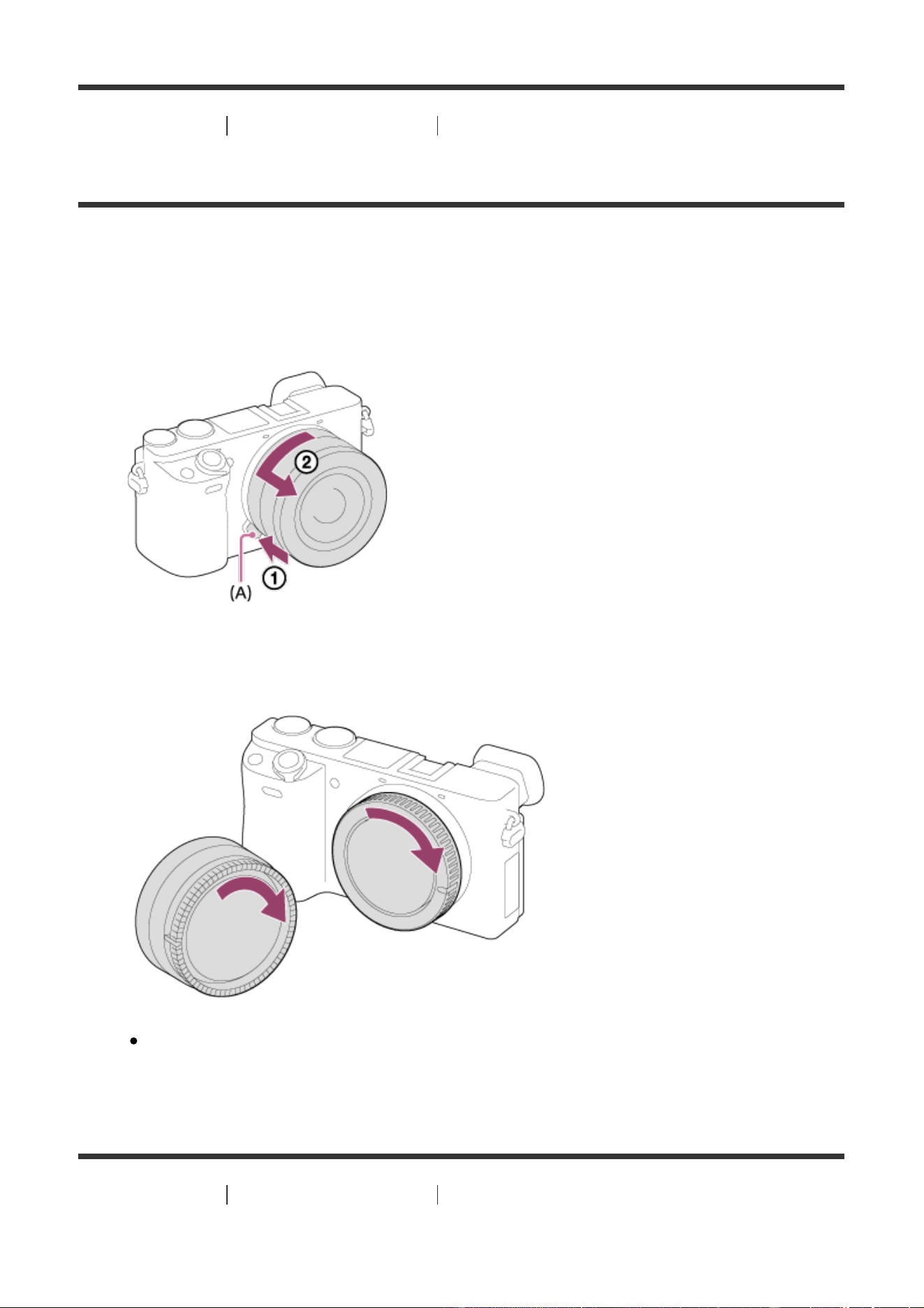
1. Keep pressing the lens release button (A) and turn the lens in the direction of
the arrow until it stops.
2. Attach the lens caps to the front and rear of the lens and the body cap to the
camera.
Remove any dust from the caps before attaching them.
[21] How to Use Preparing the camera Attaching a lens
Attaching the lens hood
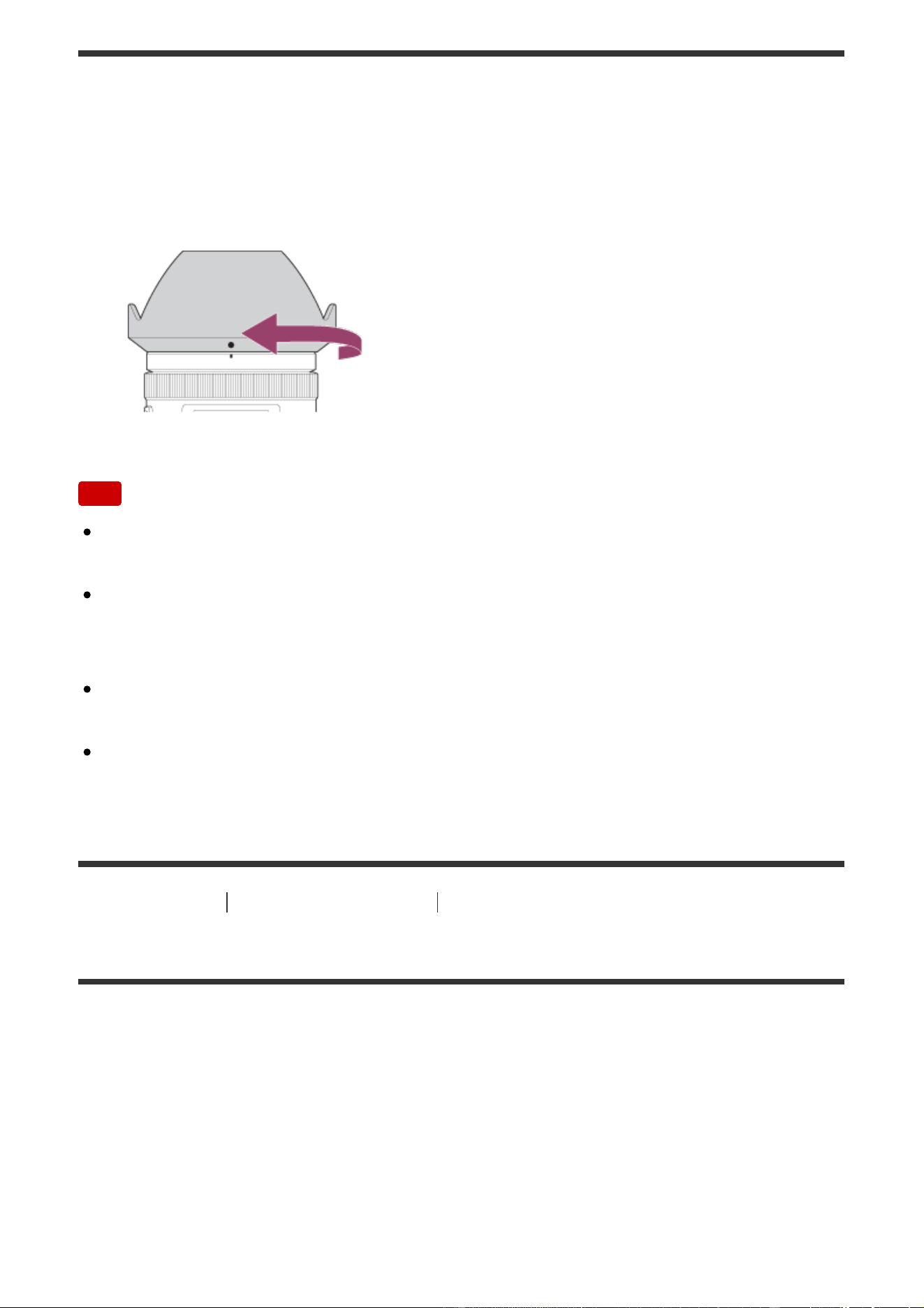
We recommend that you use the lens hood to prevent light outside the shooting
frame from affecting the image.
1. Match the shape of the lens hood mounting part and lens head, and turn the
lens hood clockwise until it clicks.
Note
Attach the lens hood properly. Otherwise, the lens hood may not have any
effect or may be partially reflected in the image.
When the lens hood is attached properly, the lens hood index (red line)
matches the red index mark on the hood. (There may be no lens hood index on
some lenses.)
Remove the lens hood when using the flash. Otherwise, the lens hood blocks
the flash light and may appear as a shadow on the image.
To store the lens hood after shooting, attach the lens hood to the lens
backward.
[22] How to Use Preparing the camera Attaching a lens
Notes on changing the lens
When changing the lens, if dust or debris gets inside the camera and adheres to
the surface of the image sensor (the part that converts the light to an electric
signal), it may appear as dark spots on the image, depending on the shooting
environment.
This camera is equipped with an anti-dust function that causes the image sensor
to vibrate a little when the power is turned off, and the camera’s image sensor is
coated with an anti-dust coating to prevent dust from adhering to the image
sensor. However, always make sure to attach/remove the lens quickly away from

dusty locations.
[23] How to Use Preparing the camera Setting the language, date and time
Setting language, date and time
When you turn on the camera for the first time or after you have initialized the
functions, the setting screen for language, date and time will appear.
1. Turn on the camera.
The language setting screen will appear and then setting screen for date and
time will appear.
2. Select your language, and then press .
3. Check that [Enter] is selected on the screen, then press on the control
wheel.
4. Select your desired geographic location, and then press .
5. Select a setting item using the up/down side of the control wheel or by turning
the control wheel, then press in the center.
6. Set [Daylight Savings], [Date/Time], and [Date Format] using the
up/down/left/right sides, then press in the center.
Midnight is indicated as 12:00 AM, and noon as 12:00 PM.
7. Repeat steps 5 and 6 to set other items, then select [Enter] and press
in
the center.
To cancel the date and time setting procedure, press the MENU button.
Note
This camera does not have a function for inserting the date on images. You can
insert the date on images and then save and print them using PlayMemories
Home (For Windows only).
If the date and time setting is cancelled halfway, the setting screen for the date
and time appears every time you turn on the camera.
[24] How to Use Confirming the operation method Confirming the operation method
Using the control wheel
You can select setting items by turning or pressing the top/bottom/right/left side of
the control wheel. Your selection is determined when you press on the center
of the control wheel.
The DISP (Display Setting), (Exposure Comp./Image Index), /
(Drive Mode), [ISO] functions are assigned to the top/bottom/left/right side of the
control wheel. In addition, [Focus Standard] is assigned to the in the center.
During playback, you can display the next/previous image by pressing the right/left
side of the control wheel or by turning the control wheel.
[25] How to Use Confirming the operation method Confirming the operation method
Using the control dial
By turning the control dial (A), you can instantly change settings as needed for
various shooting modes.
Icons and function names are displayed on the screen as follows.
Ex.
: Tv: shutter speed
[26] How to Use Confirming the operation method Confirming the operation method
Using MENU items
In this section, you learn how to change settings related to all camera operations
and execute camera functions including shooting, playback, and operation
methods.
1. Press MENU button to display the MENU items.
2. Select the desired MENU item using the up/down/left/right side of the control
wheel or by turning the control wheel, and then press in the center of the
control wheel.
The display may move directly from step 1 to step 3 depending on the [Tile
Menu] setting.
3. Select the desired setting item by pressing the up/down/left/right side on the
control wheel or by turning the control wheel, and then press on the
center of the control wheel.
Select an icon at the top of the screen and press the left/right side of the
control wheel to move to another MENU item.
4. Select the desired setting value, and press to confirm.
[27] How to Use Confirming the operation method Confirming the operation method
Using the Fn (Function) button
You can register frequently used functions to the Fn (function) button and recall
them while shooting. Up to 12 frequently used functions can be registered to the
Fn (Function) button.
1. Press the DISP button repeatedly to display a screen mode other than [For
viewfinder], and then press the Fn (Function) button.
2. Select a function to be registered by pressing the up/down/left/right side of
the control wheel.
3. Select the desired setting by turning the control wheel, and press in the
center of the control wheel.
Some functions can be fine-tuned using the control dial.
Performing settings on the dedicated screen
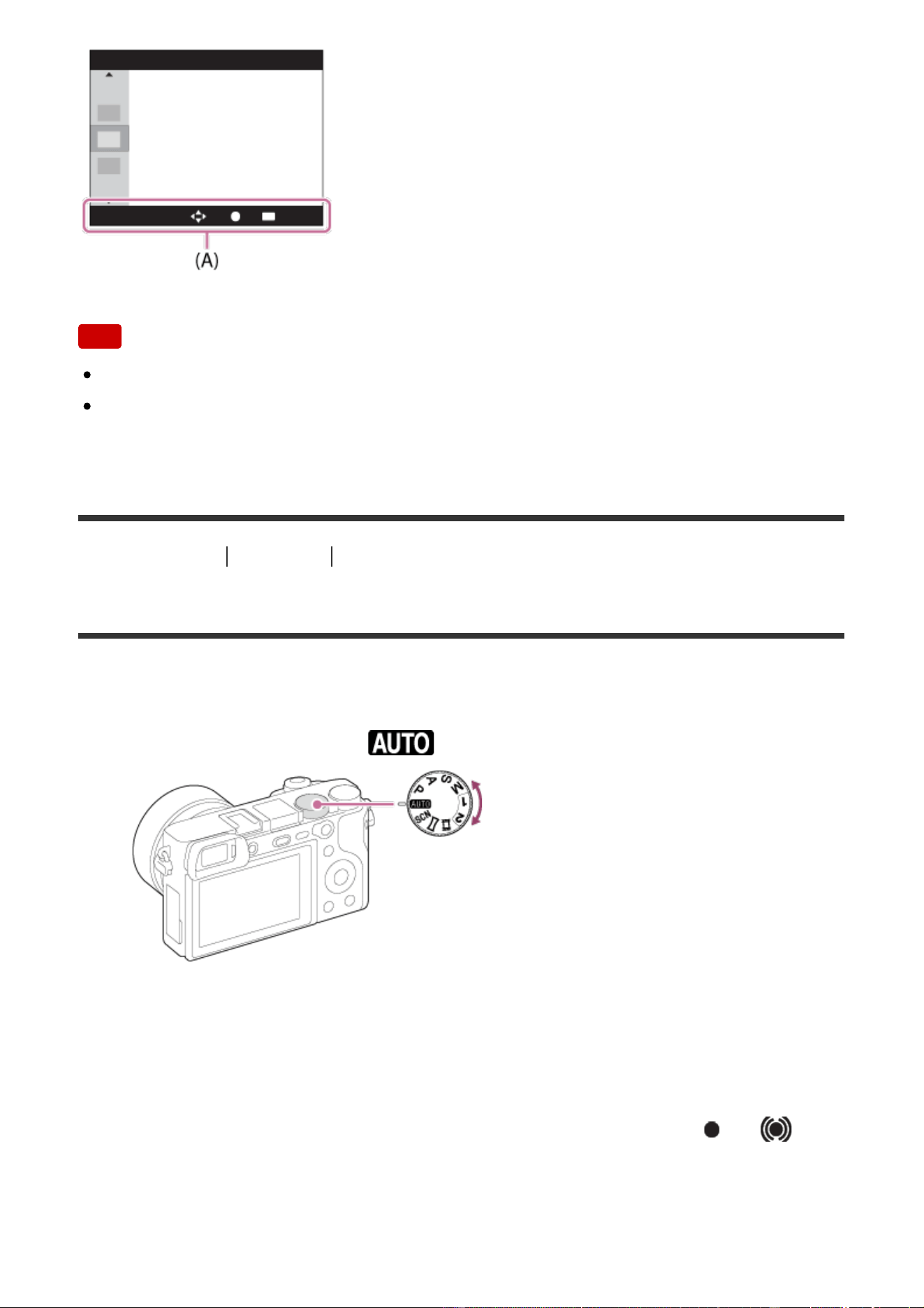
Select the desired function in step 2, then press on the center of the control
wheel. The dedicated setting screen for the function appears. Follow the operating
guide (A) to perform the settings.
[28] How to Use Confirming the operation method Confirming the operation method
Using the "Quick Navi"
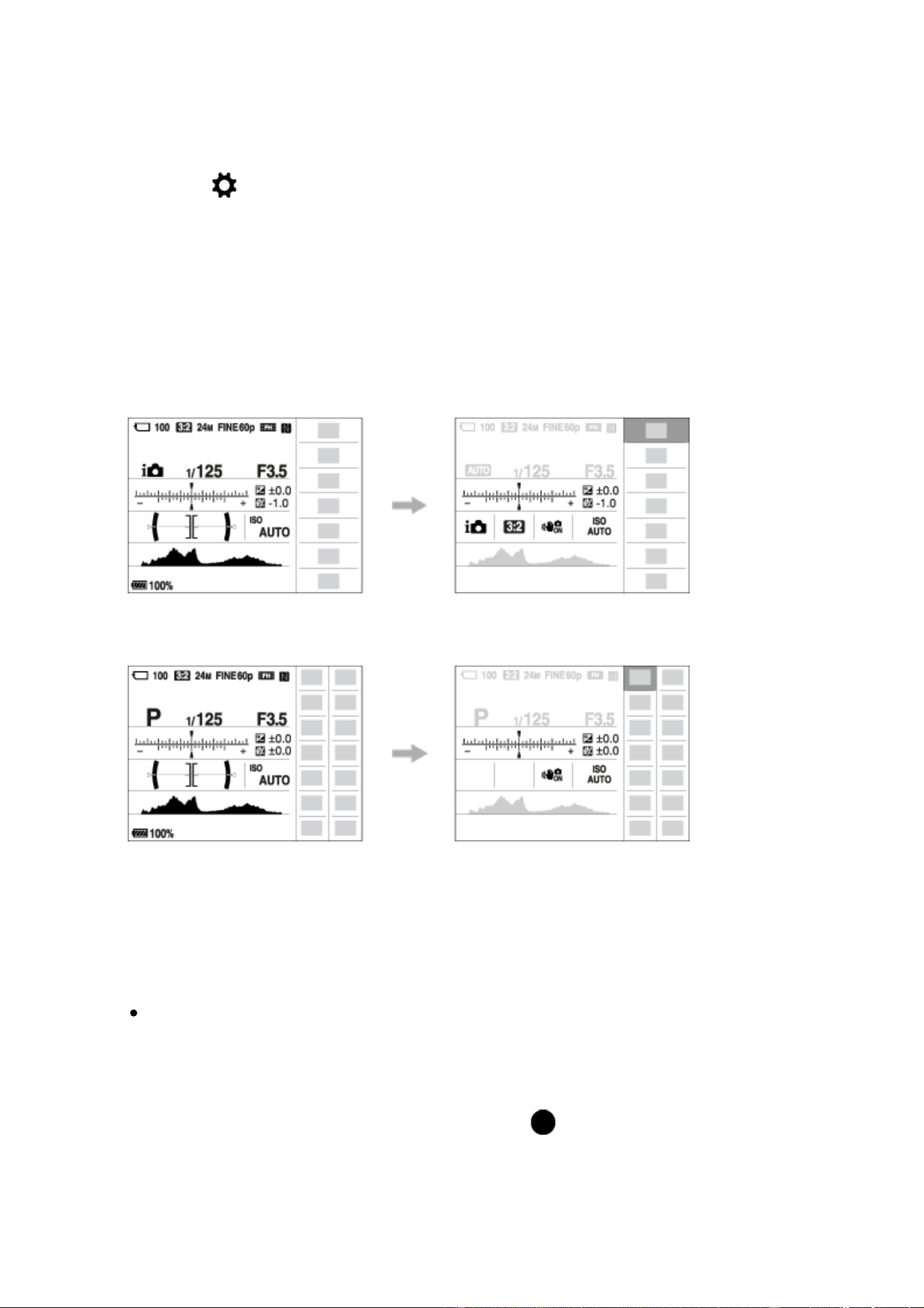
You can change the settings directly using the Quick Navi screen when using the
viewfinder. The displayed contents and their position are just a guideline, and may
differ from the actual display.
1. MENU→ (Custom Settings) → [DISP Button] → [Monitor] → [For
viewfinder] → [Enter].
2. Press the DISP (Display Setting) button on the control wheel repeatedly until
the screen is set to [For viewfinder].
3. Press Fn (Function) button to switch the screen to Quick Navi screen.
In Auto Mode or Scene Selection mode
In P/A/S/M/Sweep Panorama mode
4. Select the desired function by pressing the up/down/left/right side of the
control wheel.
5. Turn the control wheel to select the desired setting.
Some setting values can be finely adjusted by turning the control dial.
Performing settings on the dedicated screen
Select the desired function in step 4, then press on the center of the control
wheel. The dedicated setting screen for the function appears. Follow the operating
guide (A) to perform the settings.
Note
Gray items on the Quick Navi screen are not available.
When using [Creative Style] or [Picture Profile], some of the setup tasks can be
accomplished only on a designated screen.
[29] How to Use Shooting Shooting still images/movies
Shooting still images
Shoots still images.
1. Set the shooting mode to (Auto Mode).
2. Adjust the monitor angle, and hold the camera. Or look through the
viewfinder and hold the camera.
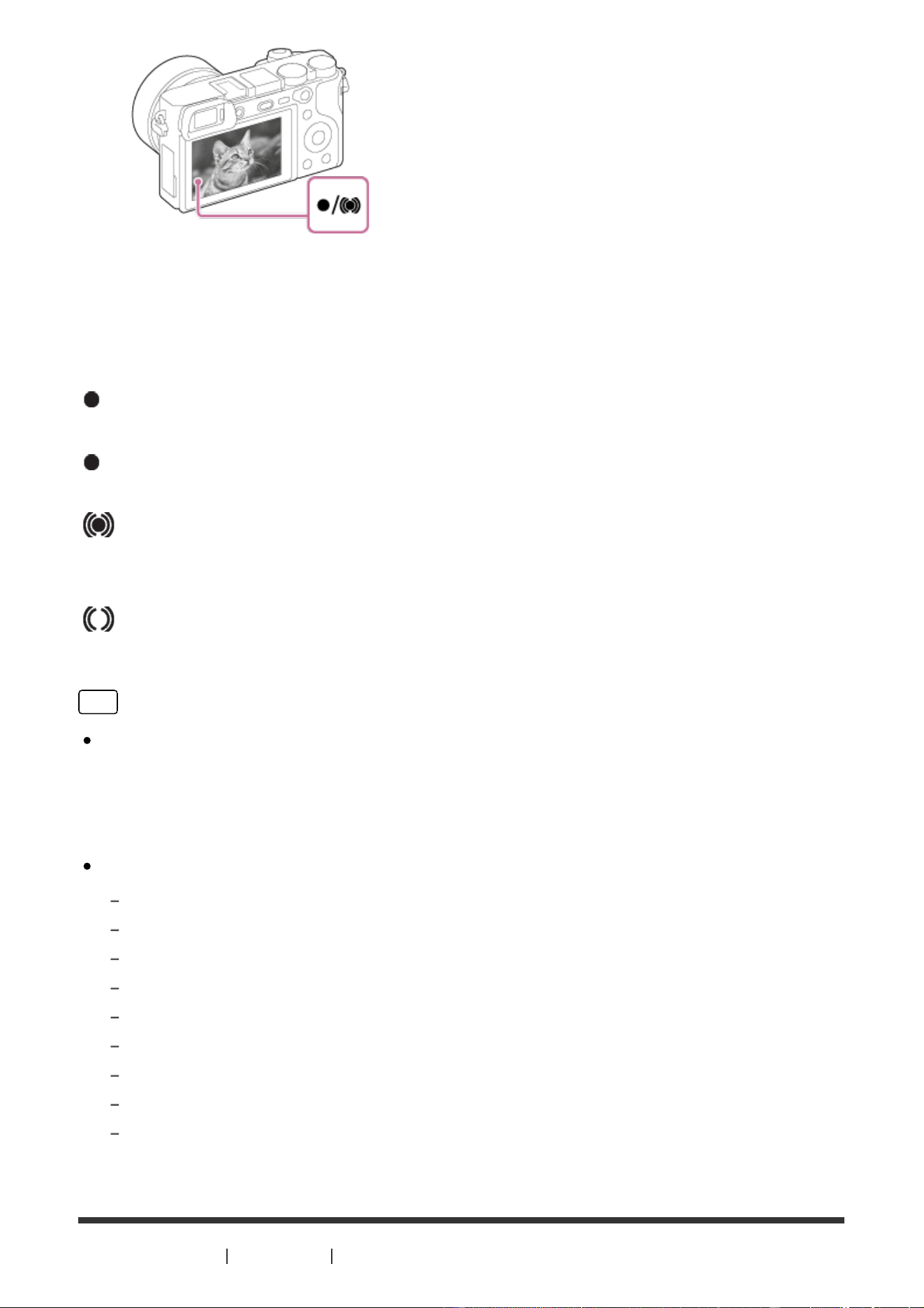
3. Press the shutter button halfway down to focus.
When the image is in focus, a beep sounds and the indicator ( or )
lights up.
4. Press the shutter button fully down.
Focus indicator
lights:
Image is in the focus.
flashes:
The focusing has failed.
lights:
Image is in the focus. The focused position will change to suit the motion of the
subject.
lights:
The focusing is in progress.
Hint
When the product cannot focus automatically, the focus indicator flashes and
the beep does not sound. Either recompose the shot or change the focus
setting. When [Continuous AF] is set, the beep does not sound when focus is
achieved.
Focusing may be difficult in the following situations:
It is dark and the subject is distant.
The contrast of the subject is poor.
The subject is seen through glass.
The subject is moving quickly.
There is reflective light or shiny surfaces.
There is a flashing light.
The subject is backlit.
Continuously repetitive pattern, such as the appearance of a building.
The subjects in the focus area have different focal distances.
[30] How to Use Shooting Shooting still images/movies
Shooting movies
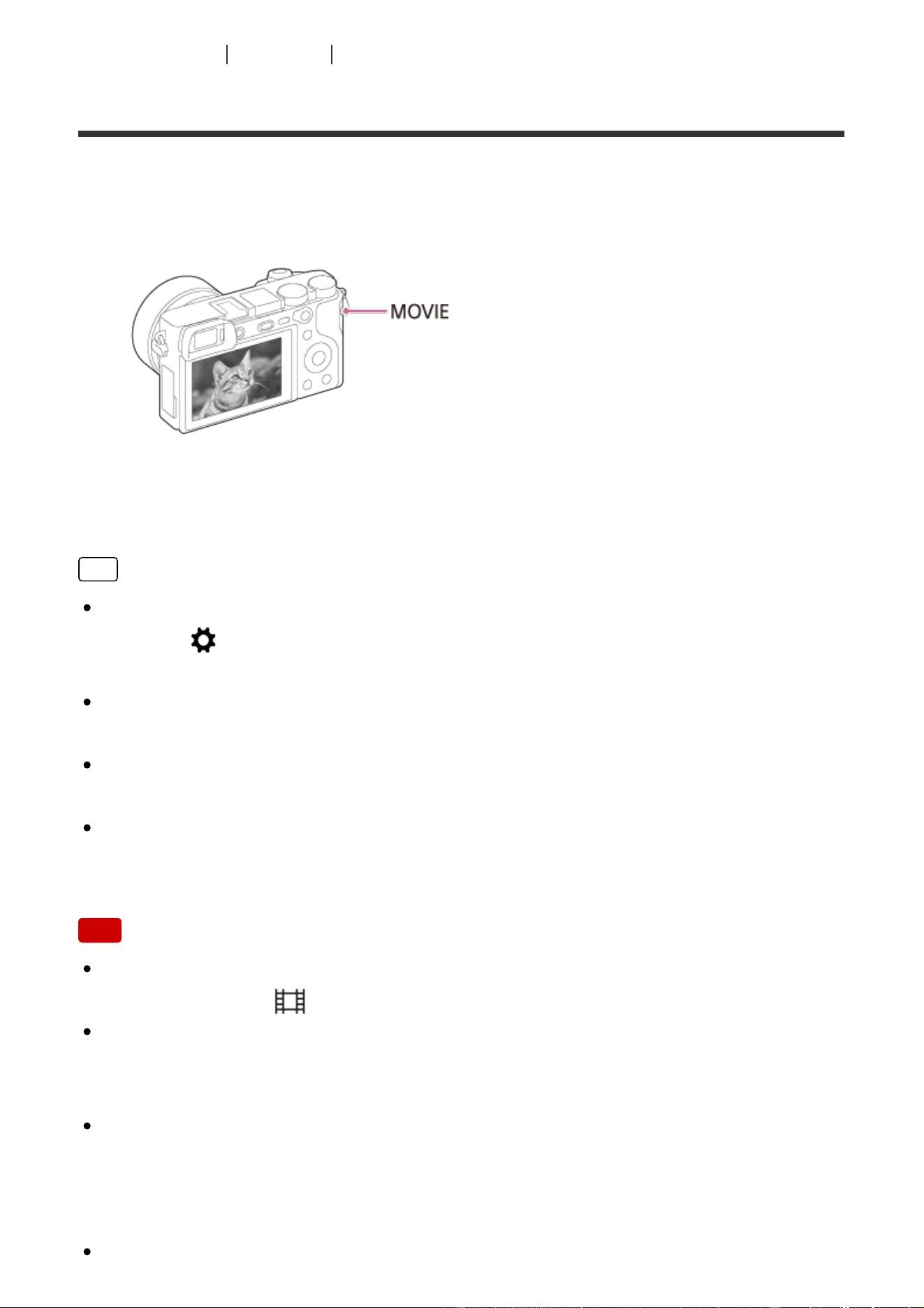
You can record movies by pressing the MOVIE (Movie) button.
1. Press the MOVIE button to start recording.
2. Press the MOVIE button again to stop recording.
Hint
You can assign the start/stop movie recording function to a preferred key.
MENU→ (Custom Settings) → [Custom Key(Shoot.)] → set the function to
the preferred key.
When you want to specify the area to be focused on, set the area using [Focus
Area].
To keep the focus on a face, arrange the composition so that the focus area
frame and face detection frame overlap, or set the [Focus Area] to [Wide].
You can focus quickly while shooting movies by pressing the shutter button
halfway down. (The sound of auto focus operation may be recorded in some
cases.)
Note
To adjust the shutter speed and aperture value to the desired settings, set the
shooting mode to (Movie/HFR).
If you use a function such as zoom while shooting a movie, the noise of the lens
operating will be recorded. The sound of the MOVIE button operating may also
be recorded when you press the MOVIE button to stop recording.
For the continuous shooting time of a movie recording, refer to “Recordable
time of movies.” When movie recording is finished, you can restart recording by
pressing the MOVIE button again. Recording may stop to protect the product,
depending on the temperature of the product or the battery.
When shooting, the sound of the shoulder strap hooks (triangular hook) could
be recorded, depending on the situation used.
When the mode dial is set to (Movie/HFR) or when shooting movies, you
cannot select [Lock-on AF] for [Focus Area].
[31] How to Use Shooting Selecting a shooting mode
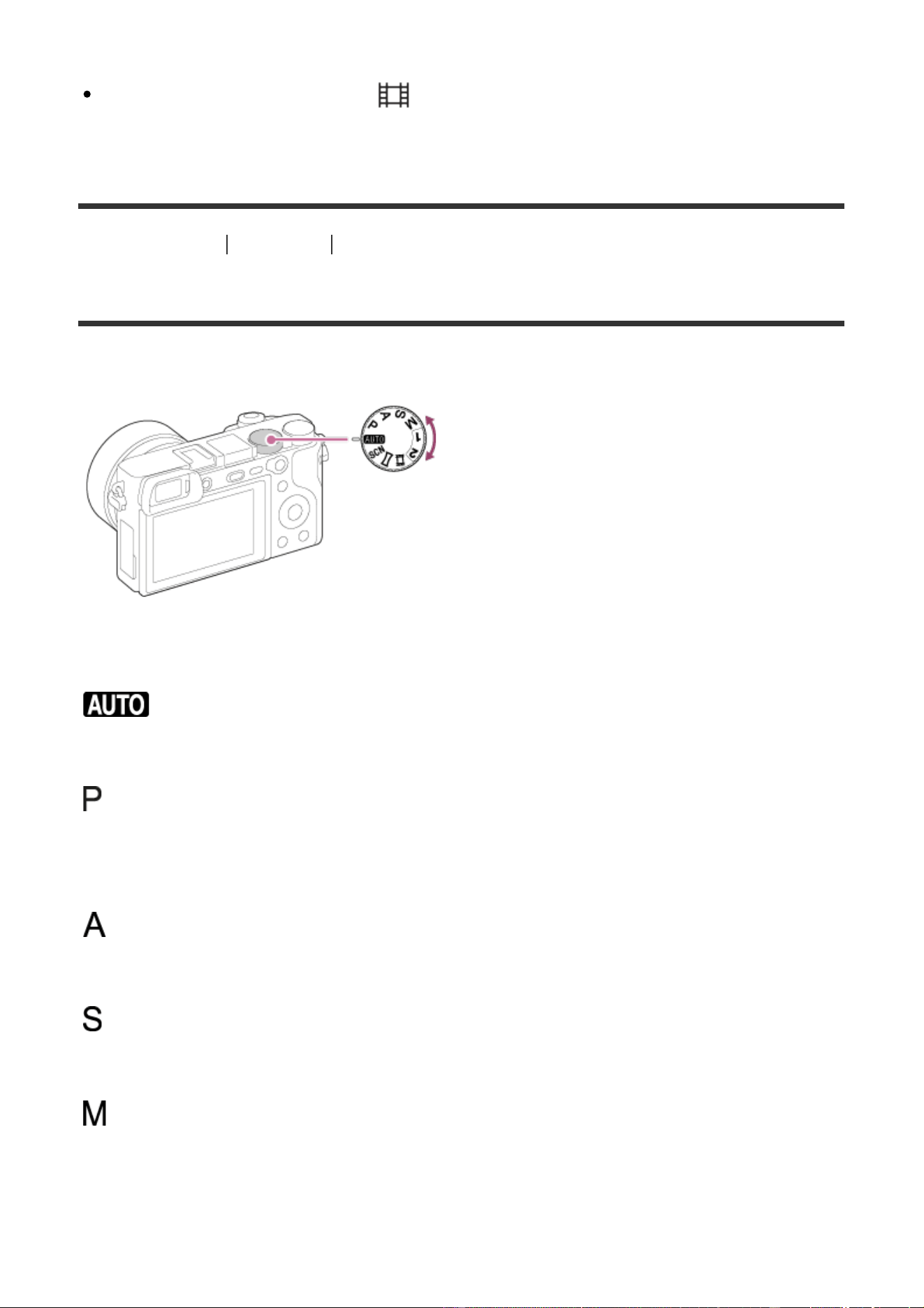
List of mode dial functions
You can select the desired shooting mode by turning the mode dial.
Available functions
(Auto Mode):
Allows you to shoot still images of any subject under any condition with good
results by setting the values determined appropriate by the product.
(Program Auto):
Allows you to shoot with the exposure adjusted automatically (both the shutter
speed and the aperture value (F value)). Also you can select various settings
using the menu.
(Aperture Priority):
Allows you to adjust the aperture and shoot when you want to blur the
background, etc.
(Shutter Priority):
Allows you to shoot fast-moving subjects etc., by manually adjusting the shutter
speed.
(Manual Exposure):
Allows you to shoot still images with the desired exposure by adjusting the
exposure (both the shutter speed and the aperture value (F value)).
1/2 (Memory recall):
Allows you to shoot an image after recalling often-used modes or numeric settings
registered in advance.
(Movie/HFR):
Allows you to change the settings for movie recording and slow motion (high frame
rate) movie recording.
(Sweep Panorama):
Allows you to shoot a panoramic image by compositing the images.
SCN (Scene Selection):
Allows you to shoot with preset settings according to the scene.
[32] How to Use Shooting Selecting a shooting mode
Intelligent Auto
The camera shoots with automatic scene recognition.
1. Set the mode dial to (Auto Mode).
2. MENU → (Camera Settings) → [Auto Mode] → [Intelligent Auto].
When [Mode Dial Guide] is set to [On], you can select the desired settings
after you have changed the position of the mode dial.
3. Point the camera to the subject.
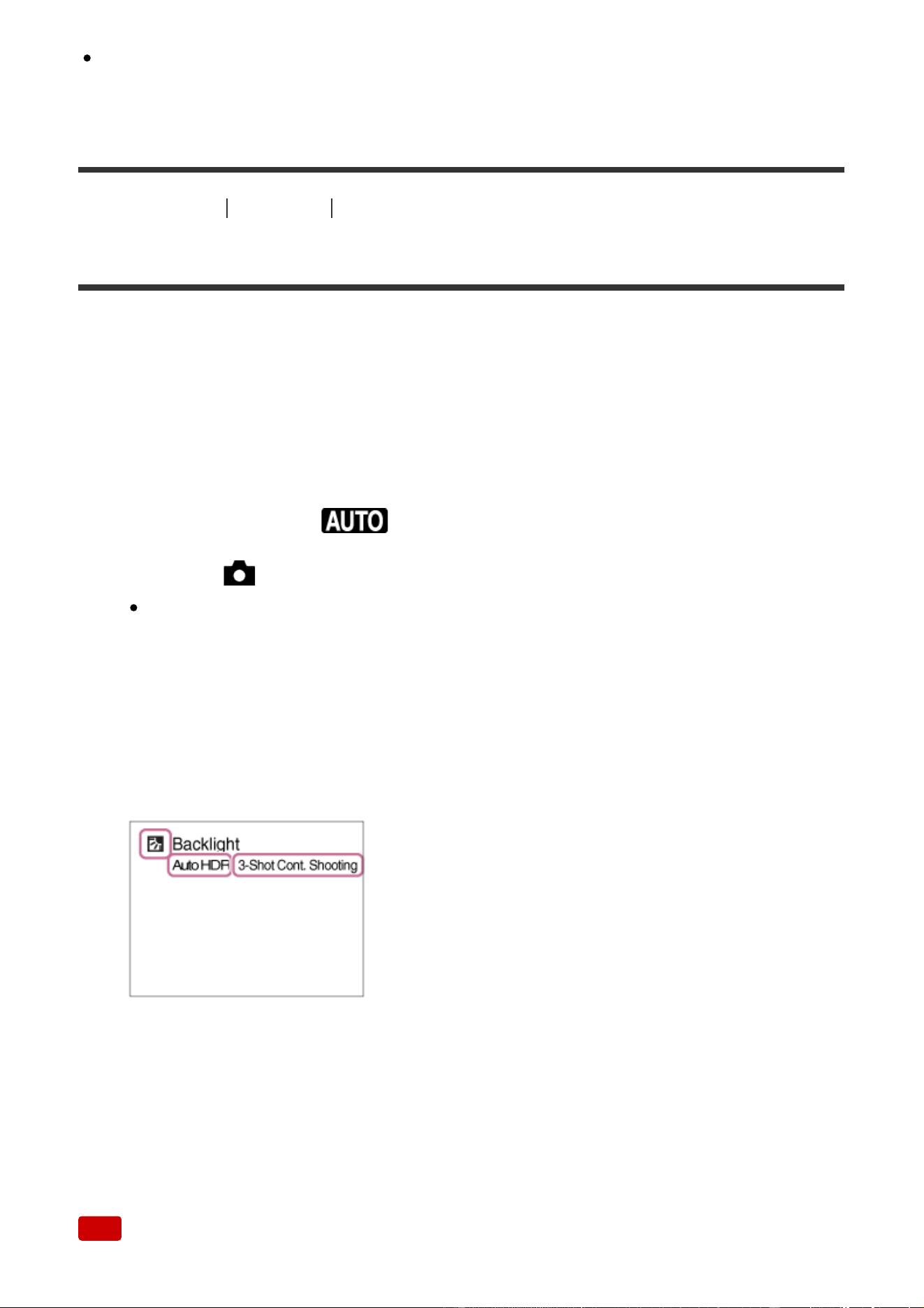
When the camera recognized the scene, the icon for the recognized scene
appears on the screen.
4. Adjust the focus and shoot the image.
Note
The product will not recognize the scene when you shoot images with zoom
functions other than optical zoom.
The product may not properly recognize the scene under certain shooting
conditions.
[33] How to Use Shooting Selecting a shooting mode
Superior Auto
The camera shoots with automatic scene recognition. This mode takes clear
images of dark or backlit scenes.
For low-lit or backlit scenes, if necessary the camera may shoot multiple images
and create a composite image, etc., to record higher quality images than in
Intelligent Auto mode.
1. Set the mode dial to (Auto Mode).
2. MENU → (Camera Settings) → [Auto Mode] → [Superior Auto].
When [Mode Dial Guide] is set to [On], you can select the desired settings
after you have changed the position of the mode dial.
3. Point the camera to the subject.
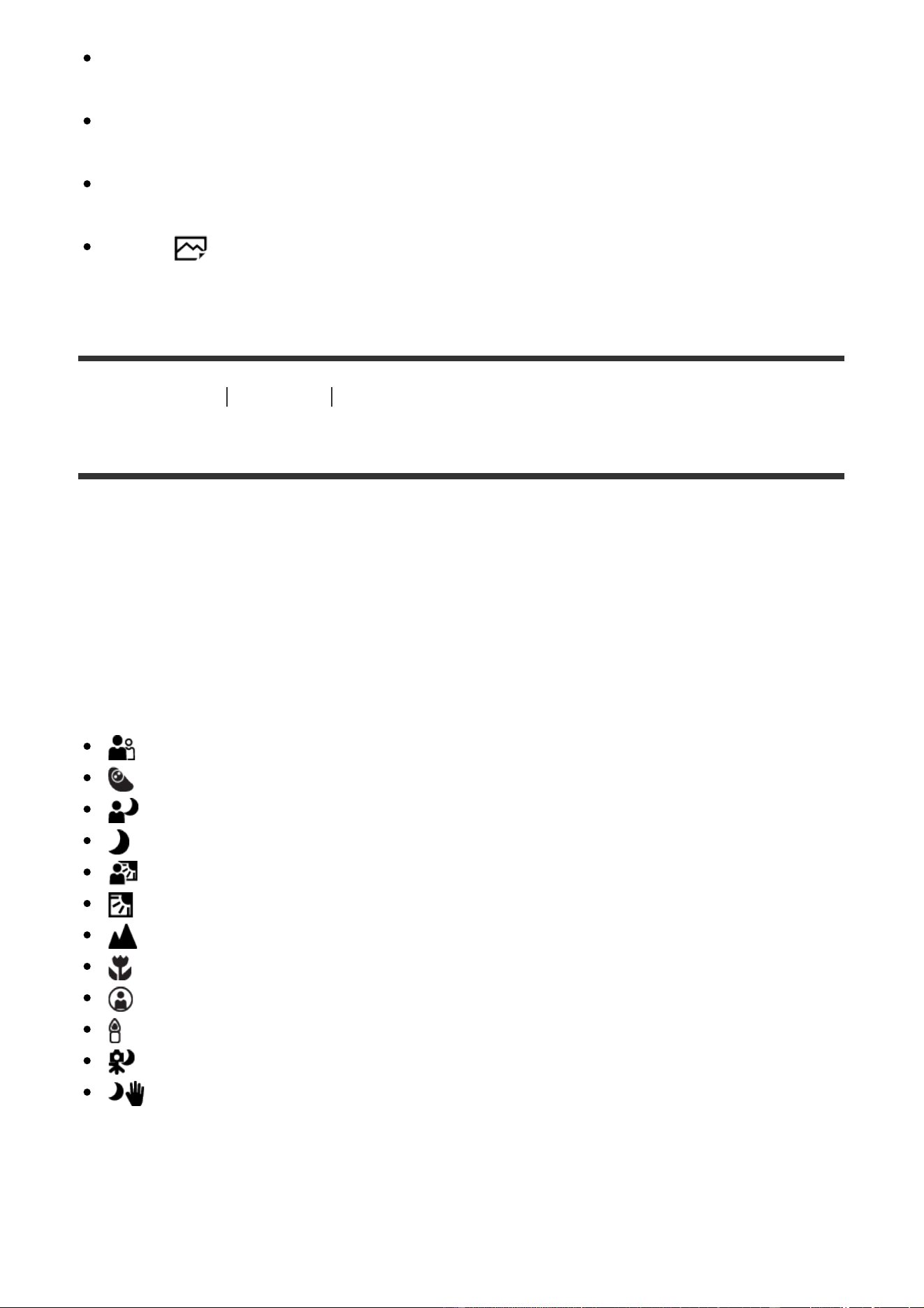
When the camera recognizes a scene, scene recognition icon appears on the
screen. If necessary, appropriate shooting function for the recognized scene
and the number of times the shutter is released also appear.
4. Adjust the focus and shoot the image.
When the camera shoots multiple images, it automatically chooses and
saves the appropriate image. You can also save all the images by setting the
[S. Auto Img. Extract.].
Note
When the product is used to create composite images, the recording process
takes longer than usual.
The product will not recognize the scene when you use zoom functions other
than optical zoom.
The product may not properly recognize a scene under some shooting
conditions.
When [ Quality] is set to [RAW] or [RAW & JPEG], the product cannot
create a composite image.
[34] How to Use Shooting Selecting a shooting mode
About Scene Recognition
Scene Recognition operates in [Intelligent Auto] mode and [Superior Auto] mode.
This function allows the product to automatically recognize the shooting conditions
and shoot the image.
Scene Recognition:
When the product recognizes certain scenes, the following icons and guides are
displayed on the first line:
(Portrait)
(Infant)
(Night Portrait)
(Night Scene)
(Backlight Portrait)
(Backlight)
(Landscape)
(Macro)
(Spotlight)
(Low Light)
(Night Scene using a tripod)
(Hand-held Twilight)
Image processing:
[Cont. Shooting], [Slow Sync.], [Auto HDR], [Daylight Sync.], [Slow Shutter],
[Hand-held Twilight]
Note
When [Smile/Face Detect.] is set to [Off], the [Portrait], [Backlight Portrait],
[Night Portrait] and [Infant] scenes are not recognized.
[35] How to Use Shooting Selecting a shooting mode
The advantages of automatic shooting
This camera is equipped with the following three automatic shooting modes:
[Intelligent Auto], [Superior Auto], and [Program Auto].
(Intelligent Auto):
Allows you to shoot with automatic scene recognition.
(Superior Auto):
Allows you to shoot with automatic scene recognition. This mode takes clear
images of dark or backlit scenes.
P (Program Auto):
Allows you to adjust various shooting settings such as white balance or ISO value,
etc.
Aperture value and shutter speed are automatically set by the camera.
Hint
In [Program Auto] mode, you can change the combination of shutter speed and
aperture value while maintaining the correct exposure by turning the control
dial. This function is called "Program Shift" (P*).
Note
In [Superior Auto] mode, the recording process takes longer, since the product
creates a composite image. In this case, the shutter sound is heard multiple
times, but only one image is recorded.
For [Intelligent Auto] and [Superior Auto] mode, most of the functions are set
automatically, and you cannot adjust the settings on your own.
[36] How to Use Shooting Selecting a shooting mode
Program Auto

Allows you to shoot with the exposure adjusted automatically (both the shutter
speed and the aperture value).
You can set shooting functions such as [ISO].
1. Set the mode dial to P (Program Auto).
2. Set the shooting functions to your desired settings.
3. Adjust the focus and shoot the subject.
Program Shift
You can change the shutter speed and aperture (F-value) combination by rotating
the control dial, without changing the appropriate exposure that is set by this
product. This function is available when you do not use the flash.
“P” on the screen changes to “P*” when you turn the control dial.
To cancel program shift, set the shooting mode to other than [Program Auto], or
turn off the camera.
Note
According to the brightness of the environment, the program shift may not be
used.
Set the shooting mode to another one than “P” or turn off the power to cancel
the setting you made.
When the brightness changes, the aperture (F-value) and shutter speed also
change while maintaining the shift amount.
[37] How to Use Shooting Selecting a shooting mode
Sweep Panorama
Allows you to create a single panoramic image from multiple images shot while
panning the camera.
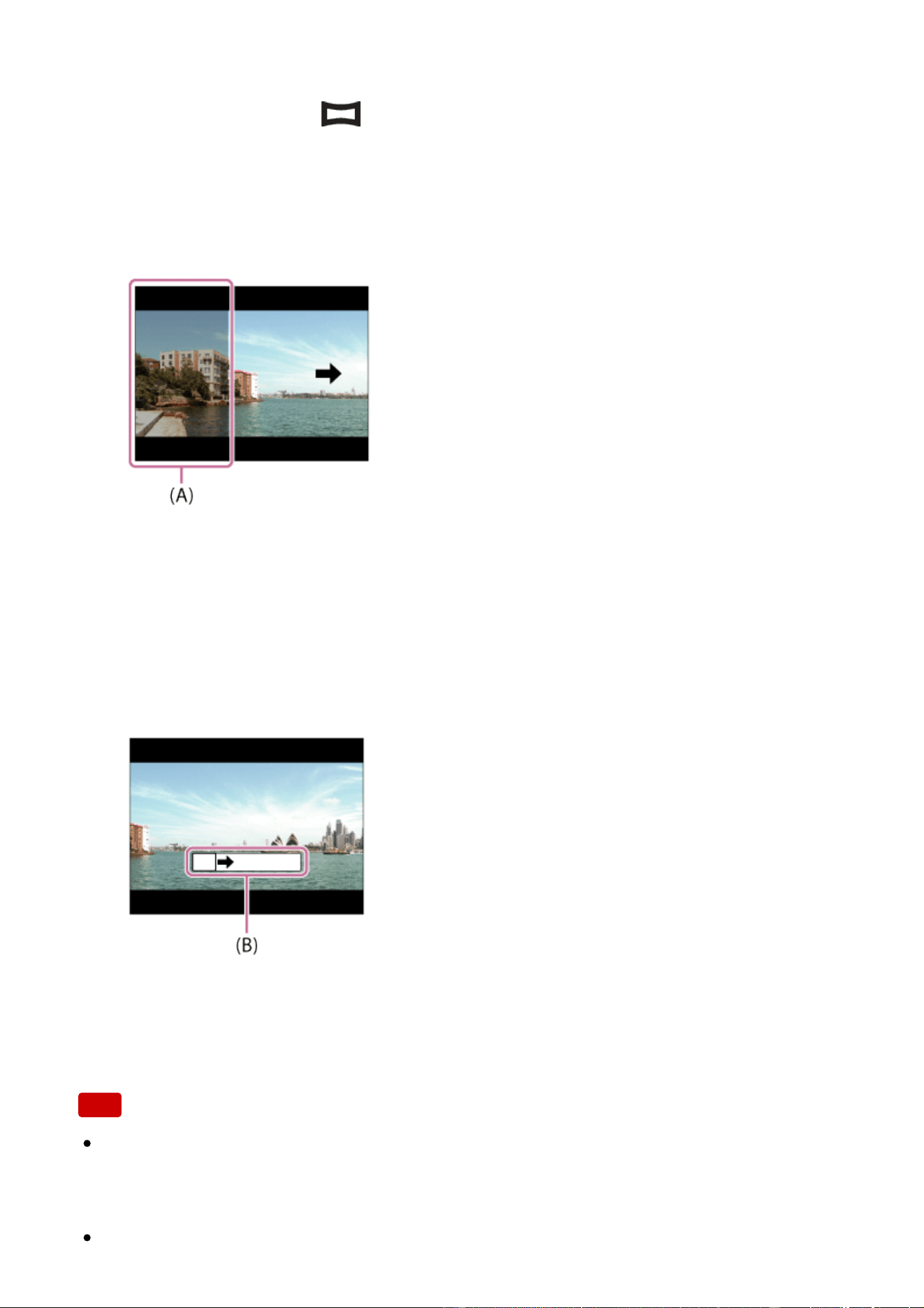
1. Set the mode dial to (Sweep Panorama).
2. Point the camera at the subject.
3. While pressing the shutter button halfway down, aim the camera at one end
of the desired panoramic composition.
(A) This part will not be shot.
4. Press the shutter button fully down.
5. Pan the camera to the end of the guide in the direction of the arrow on the
monitor.
(B) Guidance bar
Note
If the entire angle of the panoramic shot is not achieved within the set time, a
gray area occurs in the composite image. If this happens, move the product
faster to record the full panoramic image.
When [Wide] is selected for [Panorama: Size], the entire angle of the panoramic

shot may not be achieved within the given time. If this happens, try shooting
after changing [Panorama: Size] to [Standard].
Since several images are stitched together, the stitched part may not be
recorded smoothly in some cases.
The images may be blurred in dark scenes.
When a light source such as a fluorescent light flickers, the brightness and color
of a stitched image may not be consistent.
When the whole angle of panoramic shooting and the AE/AF locked angle are
very different in brightness and focus, the shooting may not be successful. If
this happens, change AE/AF locked angle and shoot again.
The following situations are not suited for shooting Sweep Panorama:
Moving subjects.
Subjects that are too close to the product.
Subjects with continuously similar patterns, such as the sky, beach, or a lawn.
Subjects with constant change such as waves or water falls.
Subjects with brightness widely different from its surroundings such as the sun or a
light bulb.
The Sweep Panorama shooting may be interrupted in the following situations.
When the camera is panned too fast or too slow.
The subject is too blurry.
Hint
You can turn the control dial on the shooting screen to select the shooting
direction.
[38] How to Use Shooting Selecting a shooting mode
Scene Selection
Allows you to shoot with preset settings according to the scene.
1. Set the mode dial to SCN (Scene Selection).
2. Turn the control dial to select the desired setting.
When [Mode Dial Guide] is set to [On], you can select the desired settings
after you have changed the position of the mode dial.
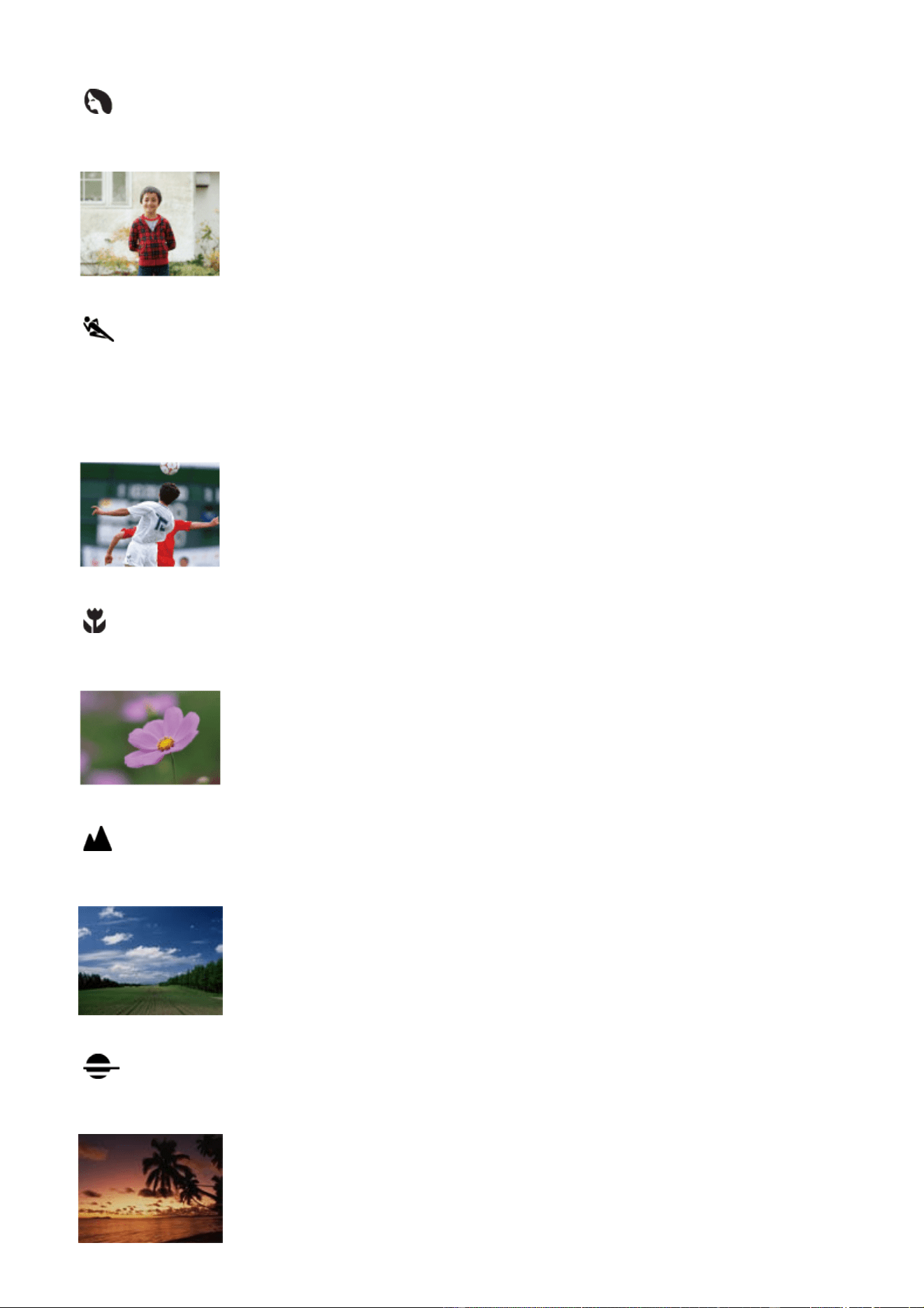
Menu item details
Portrait:
Blurs background and sharpens the subject. Accentuates the skin tones softly.
Sports Action:
Shoots a moving subject at a fast shutter speed so that the subject looks as if it is
standing still. The product shoots images continuously while the shutter button is
pressed.
Macro:
Shoots close-ups of the subjects, such as flowers, insects, food, or small items.
Landscape:
Shoots the entire range of a scenery in sharp focus with vivid colors.
Sunset:
Shoots the red of the sunset beautifully.
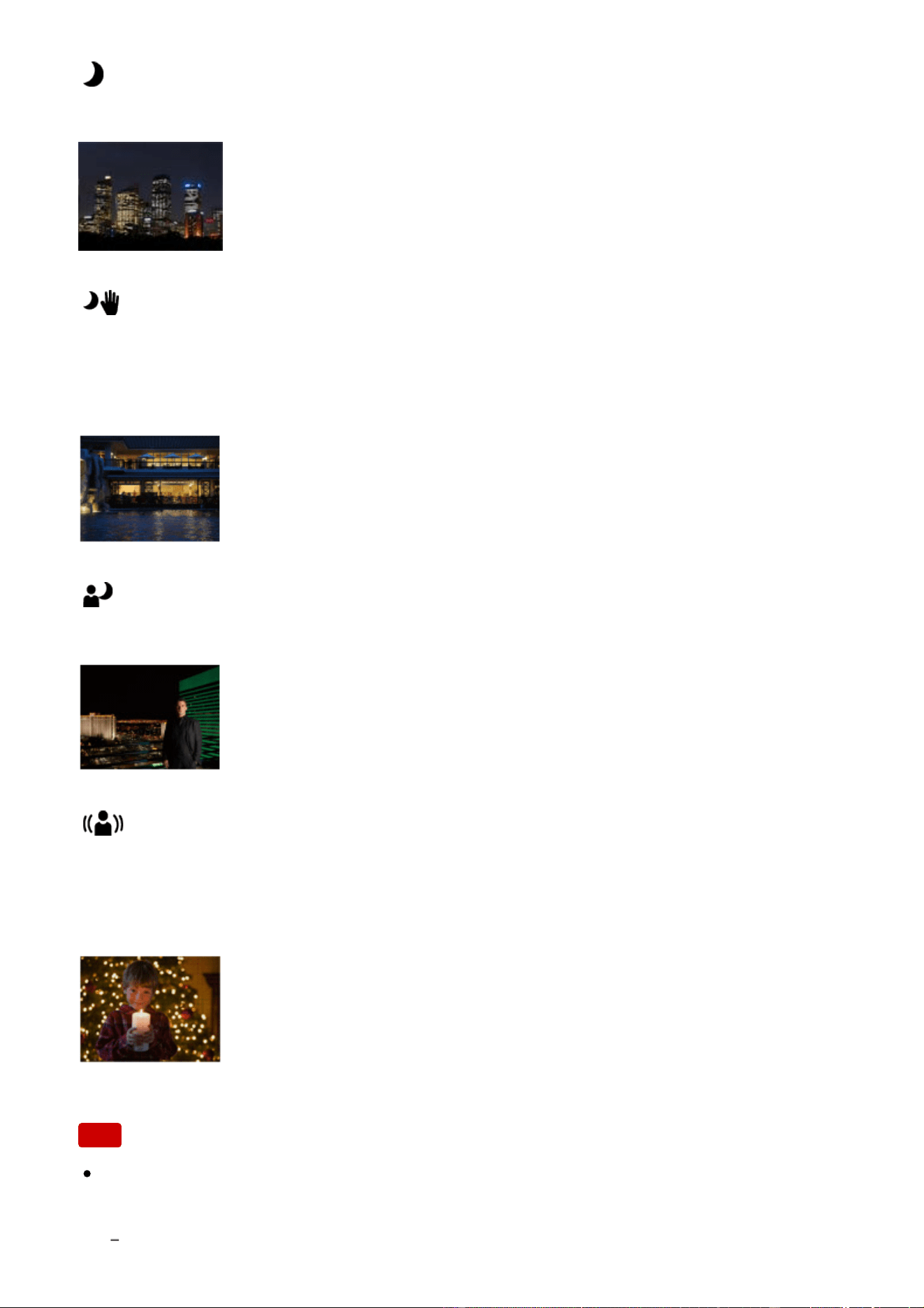
Night Scene:
Shoots night scenes without losing the dark atmosphere.
Hand-held Twilight:
Shoots night scenes with less noise and blur without using a tripod. A burst of
shots are taken, and image processing is applied to reduce subject blur, camera-
shake, and noise.
Night Portrait:
Shoots night scene portraits using the flash.
Anti Motion Blur:
Allows you to shoot indoor shots without using the flash and reduces subject blur.
The product shoots burst images and combines them to create the image,
reducing subject blur and noise.
Note
Under the following settings, the shutter speed is slower, so use of a tripod is
recommended to prevent the image from blurring:
[Night Scene]

[Night Portrait]
In the [Hand-held Twilight] or [Anti Motion Blur] mode, the shutter clicks 4 times
and an image is recorded.
If you select [Hand-held Twilight] or [Anti Motion Blur] with [RAW] or [RAW &
JPEG], the image quality becomes [Fine] temporarily.
Reducing blur is less effective even in [Hand-held Twilight] or [Anti Motion Blur]
when shooting the following subjects:
Subjects with erratic movement.
Subjects that are too close to the product.
Subjects with continuously similar patterns, such as the sky, a beach, or a lawn.
Subjects with constant change such as waves or water falls.
In the case of [Hand-held Twilight] or [Anti Motion Blur], block noise may occur
when using a light source that flickers, such as fluorescent lighting.
The minimum distance that you can come close to a subject does not change
even if you select [Macro]. For the minimum in-focus range, refer to the
minimum distance of the lens attached to the product.
Hint
To change the scene, rotate the control dial on the shooting screen and select a
new scene.
[39] How to Use Shooting Selecting a shooting mode
Shutter Priority
You can express the movement of a moving subject in various ways by adjusting
the shutter speed, for example, at the instant of the movement with high speed
shutter, or as a trailing image with low speed shutter. The shutter speed can be
changed while recording movies.
1. Set the mode dial to S (Shutter Priority).
2. Select the desired value by turning the control dial.
3. Adjust the focus and shoot the subject.
The aperture is automatically adjusted to obtain proper exposure.

Note
If proper exposure cannot be obtained after setup, the aperture value on the
shooting screen blinks. Although you can shoot as it is, resetting is
recommended.
Use a tripod to prevent blurring when you use a slow shutter speed.
The SteadyShot warning indicator does not appear in shutter speed priority
mode.
When the shutter speed is 1 second(s) or longer, noise reduction will be done
after shooting for the same amount of time that the shutter was open. However,
you cannot shoot any more while noise reduction is in progress.
The brightness of the image on the monitor may differ from the actual image
being shot.
Hint
When a faster shutter speed is used, moving subjects, such as a running
person, cars, or sea spray come out as if they are frozen in their movements.
When a slower shutter speed is used, a trailing image of the movement of the
subject is captured to create a more natural and dynamic image.
[40] How to Use Shooting Selecting a shooting mode
Aperture Priority
You can shoot by adjusting the aperture and changing the range in focus, or by
defocusing the background. The aperture value can be changed while recording
movies.
1. Set the mode dial to A (Aperture Priority).
2. Select the desired value by turning the control dial.
Smaller F-value: The subject is in focus, but objects in front of and beyond
the subject are blurred.
Larger F-value: The subject and its foreground and background are all in
focus.
3. Adjust the focus and shoot the subject.
The shutter speed is automatically adjusted to obtain proper exposure.
Hint
Smaller F-value (opening the aperture) narrows the range that is in focus. This
allows you to put the subject in sharp focus and blur objects in front of and
beyond the subject (depth of field becomes shallower). Larger F-value
(narrowing down the aperture) widens the range that is in focus. This allows
you to shoot the depth of the scenery (depth of field becomes deeper).
Note
If proper exposure cannot be obtained after setup, the shutter speed on the
shooting screen blinks. Although you can shoot as it is, resetting is
recommended.
The brightness of the image on the screen may differ from the actual image
being shot.
[41] How to Use Shooting Selecting a shooting mode
Manual Exposure
You can shoot with the desired exposure setting by adjusting both the shutter
speed and aperture. The shutter speed and the aperture value can be changed
while recording movies.
1. Set the mode dial to M (Manual Exposure).
2. Select the desired shutter speed by turning the control wheel.
Select the desired aperture value by turning the control dial.
When [ISO] is set to other than [ISO AUTO], use MM (Metered Manual) to
check the exposure value.
Toward +: Images become brighter.
Toward -: Images become darker.
0: Appropriate exposure analyzed by the product.
3. Adjust the focus and shoot the subject.
Note
When [ISO] is set to [ISO AUTO], the ISO value automatically changes to

achieve the appropriate exposure using the aperture value and shutter speed
you have set. If the aperture value and shutter speed you have set are not
suitable for appropriate exposure, the ISO value indicator will blink.
The Metered Manual indicator does not appear when [ISO] is set to [ISO
AUTO].
When the amount of ambient light exceeds the metering range of the Metered
Manual, the Metered Manual indicator flashes.
The SteadyShot warning indicator does not appear in manual exposure mode.
The brightness of the image on the monitor may differ from the actual image
being shot.
[42] How to Use Shooting Selecting a shooting mode
BULB
You can shoot a trailing image of the movement of a subject with long exposure.
BULB is suitable for shooting trails of light, such as fireworks.
1. Set the mode dial to M (Manual Exposure).
2. Turn the control wheel counterclockwise until [BULB] is indicated.
3. Press the bottom side of the control wheel to select the aperture value (F-
value), and turn the control wheel to set the value.
4. Press the shutter button halfway down to adjust the focus.
5. Press and hold the shutter button for the duration of the shooting.
As long as the shutter button is pressed, the shutter remains open.
Note
Since the shutter speed becomes slow and the camera-shake tends to occur
more easily, it is recommended that you use a tripod.
The longer the exposure time, the more noise will be visible on the image.
After shooting, noise reduction will be done for the same amount of time that
the shutter was open. However, you cannot shoot any more while noise
reduction is in progress.
You cannot set the shutter speed to [BULB] in the following situations:
When the [Smile Shutter] function is activated.
When the [Auto HDR] function is activated.
When [Picture Effect] is set to [HDR Painting] or [Rich-tone Mono.].
When the [Multi Frame NR] function is activated.
When the [Drive Mode] function is set to the following modes:
[Cont. Shooting]
[Self-timer(Cont)]
[Cont. Bracket]
[ Silent Shooting]
If you use the above functions when the shutter speed is set to [BULB], the
shutter speed is temporarily set to 30 seconds.
Hint
Images shot in [BULB] mode tend to be blurry. We recommend that you use a
tripod or a remote commander (sold separately) that has a shutter button lock
function.
[43] How to Use Shooting Selecting a shooting mode
Memory recall
Allows you to shoot an image after recalling often-used modes or camera settings
registered in advance.
1. Set the mode dial to 1 or 2 (Memory recall).
2. Press on the center of the control wheel.
You can also recall registered modes or settings by selecting MENU →
(Camera Settings) → [Memory recall].
Hint
To recall settings registered to the memory card, set the mode dial to 1 or 2,
then select the desired number by pressing the left/right side of the control
wheel.
Note
Register shooting settings in advance by [Memory].
If you set [Memory recall] after completing the shooting settings, the registered
settings are given priority and the original settings may become invalid. Check
the indicators on the screen before shooting.
[44] How to Use Shooting Selecting a shooting mode
Movie/HFR
You can adjust the shutter speed or aperture value to the desired settings when
recording movies/slow-motion (high frame rate) movies. You can also check the
image angle before shooting.
1. Set the mode dial to (Movie/HFR).
2. MENU → (Camera Settings) → [Movie/HFR] → desired setting.
When [Mode Dial Guide] is set to [On], you can select the desired settings
after you have changed the position of the mode dial.
3. Press the MOVIE (movie) button to start recording.
Press the MOVIE button again to stop recording.
Menu item details
Program Auto/ Program Auto:
Allows you to shoot with the exposure adjusted automatically (both the shutter
speed and the aperture value).
Aperture Priority/ Aperture Priority:
Allows you to shoot after adjusting the aperture value manually.
Shutter Priority/ Shutter Priority:
Allows you to shoot after adjusting the shutter speed manually.
Manual Exposure/ Manual Exposure:
Allows you to shoot after adjusting the exposure (both the shutter speed and the
aperture value) manually.
[45] How to Use Shooting Selecting a shooting mode
Shooting slow-motion movies (HFR Settings)
By shooting with a higher frame rate than the recording format, you can record a
smooth slow-motion movie.
1. Set the mode dial to (Movie/HFR).
2. Select MENU → (Camera Settings) → [Movie/HFR] or the Fn (Function)
button → (Movie/HFR) and select the desired settings for (High
Frame Rate).
3. Select MENU→ (Camera Settings)→[ HFR Settings] and select the
desired settings for [ Record Setting].
When shooting, the frame rate is locked at 120p or 100p and cannot be
changed.
4. Press the MENU button.
The HFR shooting screen will be displayed.
5. Press the MOVIE (Movie) button.
Menu item details
Record Setting:
Selects the frame rate of the movie from among [30p 16M]/[25p 16M] and [24p
12M*].
* Only when [NTSC/PAL Selector] is set to NTSC.
Playback speed
The playback speed will vary as below depending on the assigned [ Record
Setting].
[ Record Setting]: [30p 16M]/ [25p 16M]
4 times slower
[ Record Setting]: [24p 12M]*
5 times slower
*
Only when [NTSC/PAL Selector] is set to NTSC.
Note
Sound will not be recorded.
The movie will be recorded in XAVC S HD format.
[46] How to Use Using shooting functions Using the zoom
Zoom
When a zoom lens is mounted, you can enlarge images by turning the zoom ring
of the lens.
1. Turn the zoom ring of the zoom lens to enlarge subjects.
When a Power zoom lens is mounted, move the zoom lever of the zoom
lens or the zoom ring to enlarge subjects.
About other [Zoom] functions than the optical zoom
When you set [Zoom Setting] to something other than [Optical zoom only], you can
use other zoom functions than the optical zoom.
When a Power zoom lens is mounted:
If the zoom range of the optical zoom is exceeded when you operate the zoom
lever or zoom ring, the camera automatically switches over to another zoom
function than the optical zoom.
When a lens other than a Power zoom lens is mounted:
MENU → (Camera Settings) → [Zoom] → desired value.
[47] How to Use Using shooting functions Using the zoom
The zoom features available with this product
The zoom feature of the product provides a higher magnification zoom by
combining various zoom features. The icon displayed on the screen changes,
according to the selected zoom feature.
1. Optical zoom range
Zoom images in the zoom range of a lens.
When a Power zoom lens is mounted, the zoom bar of the optical zoom
range is displayed.
When a lens other than a Power zoom lens is mounted, the zoom bar of
optical zoom range is not displayed.
2. Smart Zoom range ( )
Zoom images without causing the original quality to deteriorate by partially
cropping an image (only when the image size is [M] or [S]).
3. Clear Image Zoom range ( )
Zoom images using an image process with less deterioration. Set [Zoom
Setting] to [On:ClearImage Zoom] or [On:Digital Zoom] first.
4. Digital Zoom range ( )
You can magnify images using an image process. When you select
[On:Digital Zoom] for [Zoom Setting], you can use this zoom function.
Note
The default setting for the [Zoom Setting] is [Optical zoom only].
The default setting for [ Image Size] is [L]. To use the smart zoom change [
Image Size] to [M] or [S].
Zoom functions other than the optical zoom are not available when shooting in
the following situations:
Shooting mode is set to [Sweep Panorama].
[
Quality] is set to [RAW] or [RAW & JPEG].
[
Record Setting] is set to [120p]/[100p].
During High Frame Rate shooting
You cannot use the Smart Zoom function with movies.
When a power zoom lens is mounted, you cannot use [Zoom] under MENU. If
you enlarge image past the optical zoom range, the product automatically
switches to another [Zoom] function than the optical zoom.
When you use a zoom function other than the optical zoom, [Metering Mode]
fixed to [Multi].
When using a zoom function other than the optical zoom, the following
functions are not available.
[Smile/Face Detect.]
Lock-on AF
[
Auto Obj. Framing]
To use another zoom function than the optical zoom for movies, assign [Zoom]
to the desired button using [Custom Key(Shoot.)].
[48] How to Use Using shooting functions Using the zoom
Zoom Setting
You can select the zoom setting of the product.
1. MENU → (Custom Settings) → [Zoom Setting] → desired setting.
Menu item details
Optical zoom only:
Optical zoom is activated. You can use the Smart Zoom function if you set [
Image Size] to [M] or [S].
On:ClearImage Zoom:
Even if the zoom range of the optical zoom is exceeded, the product magnifies
images within the range in which image quality does not deteriorate significantly.
On:Digital Zoom:
When the zoom range of the [ Clear Image Zoom] is exceeded, the product
magnifies images to the largest scale. However, the image quality will deteriorate.
Note
Set [Optical zoom only] if you want to magnify images within the range in which
image quality does not deteriorate.
[49] How to Use Using shooting functions Using the zoom
About zoom scale
The zoom scale that is used in combination with the zoom of the lens changes
according to the selected image size.
When [ Aspect Ratio] is [3:2]
[Zoom Setting] : [Optical zoom only] (including smart zoom)
[
Image Size] : L -, M 1.4×, S 2×
[Zoom Setting] : [On:ClearImage Zoom]
[
Image Size] : L 2×, M 2.8×, S 4×
[Zoom Setting] : [On:Digital Zoom]
[
Image Size] : L 4×, M 5.7×, S 8×
[50] How to Use Using shooting functions Using the zoom
Zoom Ring Rotate
Assigns zoom in (T) or zoom out (W) functions to the zoom ring rotation direction.
Available only with power zoom lenses that support this function.
1. MENU → (Custom Settings) → [Zoom Ring Rotate] → desired setting.
Menu item details
Left(W)/Right(T):
Assigns zoom out (W) function to left-handed rotation and zoom-in (T) function to
right-handed rotation.
Right(W)/Left(T):
Assigns zoom in (T) function to left-handed rotation and zoom-out (W) function to
right-handed rotation.
Note
This function is available only with a power zoom lens whose operation
direction is variable.
[51] How to Use Using shooting functions Using the flash
Using flash
In dark environments, use the flash to light up the subject while shooting and to
prevent camera-shake. When shooting against the sun, use the flash to lighten the
image of the backlit subject.
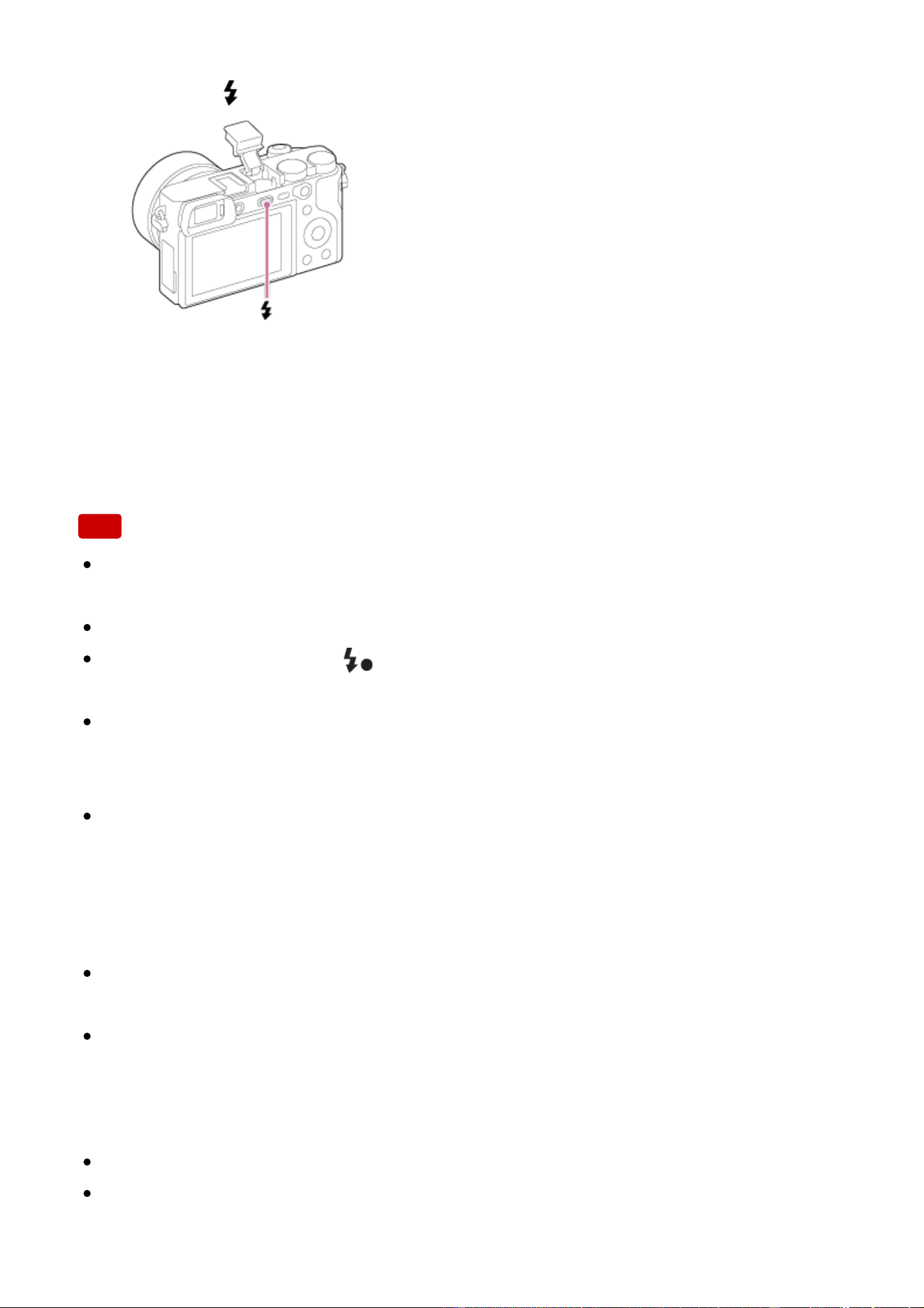
1. Press the (Flash pop-up) button to pop up the flash.
2. Press the shutter button fully down.
When you do not use the flash
When not using the flash, press it back into the camera body.
Note
If you fire the flash before the flash unit pops up entirely, it may cause
malfunction.
You cannot use the flash when recording movies.
While charging the flash, flashes. After charging is completed, the flashing
icon will light up.
When an external flash (sold separately) is attached to the Multi Interface Shoe,
the state of the external flash has priority over the setting of the product. You
cannot use the product’s internal flash.
Before attaching/removing an accessory such as a flash to/from the Multi
Interface Shoe, turn off the product first.
When attaching an accessory, insert it fully to the Multi Interface Shoe and
screw tightly. Also, make sure that the accessory is fixed securely to the
product.
Do not use a commercially available flash with high-voltage synchro terminals
or with reverse polarity.
When shooting with the flash and the zoom is set to W, the shadow of the lens
may appear on the screen, depending on the shooting conditions. If this
happens, shoot away from the subject or set the zoom to T and shoot with the
flash again.
The light of the flash may be blocked by the lens attached.
The corners of a recorded image may be shaded, depending on the lens.
[52] How to Use Using shooting functions Using the flash
Notes on using the flash
When using the flash, note the following points.
You cannot use the flash when recording movies.
While charging the flash, the indicator flashes. When the charging of the
flash is finished, the indicator lights up.
When an external flash (sold separately) is attached to the Multi Interface Shoe,
the state of the external flash has priority over the flash setting of this product,
and you cannot use the internal flash of this product.
Do not use a commercially available flash with high-voltage synchro terminals
or with reverse polarity, it may cause a malfunction.
[53] How to Use Using shooting functions Using the flash
Flash Mode
You can set the flash mode.
1. MENU → (Camera Settings) → [Flash Mode] → desired setting.
Menu item details
Flash Off:
The flash does not operate.
Autoflash:
The flash works in dark environments or when shooting towards bright light.
Fill-flash:
The flash works every time you trigger the shutter.
Slow Sync.:
The flash works every time you trigger the shutter. Slow sync shooting allows you
to shoot a clear image of both the subject and the background by slowing the
shutter speed.
Rear Sync.:
The flash works right before the exposure is completed every time you trigger the
shutter. Rear sync shooting allows you to shoot a natural image of the trail of a
moving subject such as a moving car or a walking person.
Wireless:
Using a wireless flash creates a shading effect that gives the subject a more 3D
appearance than when using the camera's flash.
This mode is effective when you attach a remote control-compatible external flash
(sold separately) to the product, and shoot with a wireless flash (sold separately),
placed away from the product.
High speed synchronization:
High speed synchronization function (HSS) can be used only when an HSS-
capable external flash (sold separately) is attached to the product. An HSS flash
operates by sending multiple small bursts of light at high speed to simulate the
effect of one long burst of flash so that you can shoot images with flash at all
shutter speeds.
*
High speed synchronization function (HSS) is also available during wireless flash shooting.
Note
The default setting depends on the shooting mode.
Available flash mode depends on the shooting mode.
The [Wireless] setting cannot be used with the camera’s internal flash.
[54] How to Use Using shooting functions Using the flash
Flash Comp.
Adjusts the amount of flash light in a range of –3.0 EV to +3.0 EV.
Flash compensation changes the amount of flash light only. Exposure
compensation changes the amount of flash light along with the change of the
shutter speed and aperture.
1. MENU → (Camera Settings) → [Flash Comp.] → desired setting.
Selecting higher values (+ side) makes the flash level higher, and lower

values (– side) makes the flash level lower.
Note
[Flash Comp.] does not work when the shooting mode is set to the following
modes:
[Intelligent Auto]
[Superior Auto]
[Sweep Panorama]
[Scene Selection]
The higher flash effect may not be visible due to the limited amount of flash light
available, if the subject is outside the maximum range of the flash. If the subject
is very close, the lower flash effect may not be visible.
[55] How to Use Using shooting functions Using the flash
FEL Lock
The flash level is automatically adjusted so that the subject gets the optimum
exposure during normal flash shooting. You can also set the flash exposure in
advance.
FEL: Flash Exposure Level
1. MENU → (Custom Settings) → [Custom Key(Shoot.)] → desired button
→ Select [FEL Lock toggle] to register the function.
2. Center the subject on which FEL is to be locked, and adjust the focus.
3. Press the button to which [FEL Lock toggle] is registered, and set the flash
amount.
A pre-flash flashes.
The (FEL lock) icon lights up.
4. Adjust the composition and shoot the image.
When you want to release the FEL lock, press the button to which [FEL
Lock toggle] is registered again.
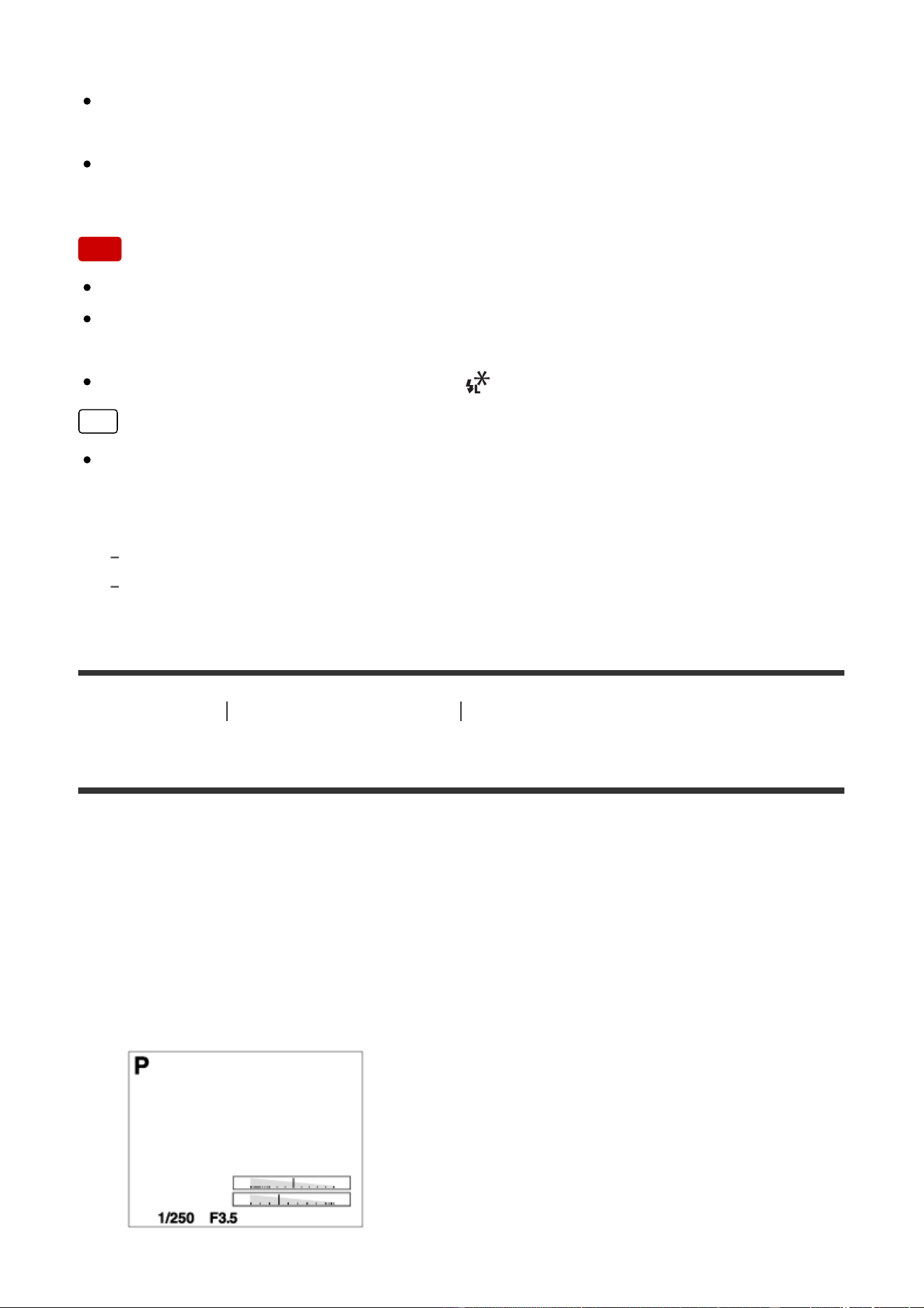
Flashes that support FEL lock
HVL-F60M, HVL-F43M and HVL-F32M can be used as clip-ons, off-camera
connected by a cable, and for wireless flash shooting (controller/remote).
HVL-F20M can be used as a clip-on, off-camera connected with a cable, and
for wireless flash shooting (controller).
Note
The FEL lock cannot be set when a flash is not attached.
If a flash that does not support the FEL lock is attached, an error message is
displayed.
When both AE and FEL lock are fixed, lights up.
Hint
By setting [FEL Lock hold], you can hold the setting while the button is pressed
down. Also, by setting [FEL Lock/AEL hold] and [FEL Lock/AEL tggle.], you can
shoot images with the AE locked in the following situations.
When [Flash Mode] is set to [Flash Off] or [Autoflash].
When the flash cannot go off.
[56] How to Use
Using shooting functions Selecting a screen display mode
Switching the screen display (Shooting)
You can change the display contents on the screen.
1. Press the DISP (Display Setting) button.
Each time you press the DISP button, the recording information display
changes.
Graphic Display
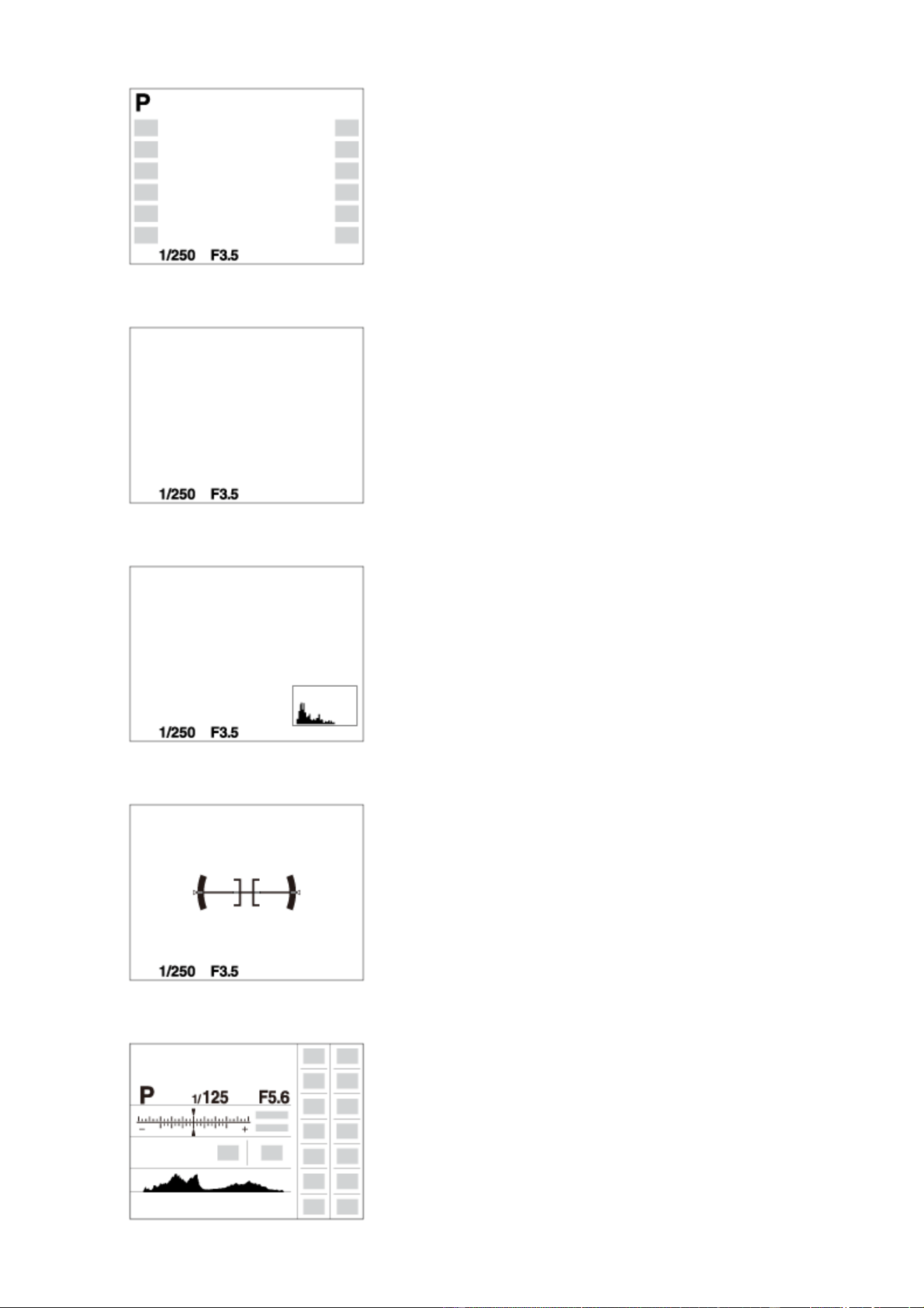
Display All Info.
No Disp. Info.
Histogram
Level
For viewfinder*
*
[For viewfinder] is displayed only on the screen.
Some display modes are not available in the default settings.
To change the display modes, press MENU → (Custom Settings) → [DISP
Button] and change the setting.
Note
Histogram is not displayed during panorama shooting.
In movie mode, [For viewfinder] cannot be displayed.
Hint
You can select different settings for both the viewfinder and the monitor. Look
through the viewfinder to set the display settings for the viewfinder.
To hide the grid lines displayed during still image shooting, select MENU →
(Custom Settings) → [Grid Line] → [Off].
To hide the marker displayed during movie recording, select MENU →
(Custom Settings) → [ Marker Display] → [Off].
[57] How to Use Using shooting functions Selecting a screen display mode
DISP Button (Finder)
Allows you to set the screen display modes that can be selected for the viewfinder
using (Display Setting) in shooting mode.
1. MENU → (Custom Settings) → [DISP Button] → [Finder] → desired
setting → [Enter].
The items marked with are available.
Menu item details
Graphic Display:
Shows basic shooting information. Graphically shows the shutter speed and
aperture value.
Display All Info.:
Shows recording information.
No Disp. Info.:
Does not show recording information.
Histogram:
Displays the luminance distribution graphically.
Level:
Indicates whether the product is level in both the horizontal and front-back
directions. When the product is level in both directions, the indicator turns to
green.
[58] How to Use Using shooting functions Selecting a screen display mode
DISP Button (Monitor)
Allows you to set the screen display modes that can be selected for the monitor
using (Display Setting) in shooting mode.
1. MENU → (Custom Settings) → [DISP Button] → [Monitor] → desired
setting → [Enter].
The items marked with are available.
Menu item details
Graphic Display:
Shows basic shooting information. Graphically shows the shutter speed and
aperture value.
Display All Info.:
Shows recording information.
No Disp. Info.:
Does not show recording information.
Histogram:
Displays the luminance distribution graphically.
Level:
Indicates whether the product is level in both the horizontal and front-back
directions. When the product is level in both directions, the indicator turns to
green.
For viewfinder:
Displays information suited for shooting with the viewfinder.
[59] How to Use Using shooting functions Selecting a screen display mode
TC/UB Disp. Switch
Allows you to display the time code (TC) and user bit (UB) of a movie by pressing
the key to which [TC/UB Disp. Switch] function has been assigned.
1. MENU→ (Custom Settings)→[Custom Key(Shoot.)]→ assign the [TC/UB
Disp. Switch] function to the desired key.
2. Press the key to which [TC/UB Disp. Switch] has been assigned.
Each time you press the key, the monitor display will switch from the
movie recording time counter → time code (TC) → user bit (UB), in that
order.
[60] How to Use Using shooting functions Selecting still image size/image quality
Image Size (still image)
The larger the image size, the more detail will be reproduced when the image is
printed on large-format paper. The smaller the image size, the more images can
be recorded.
1. MENU → (Camera Settings) → [ Image Size] → desired setting.
Menu item details
Image size when [ Aspect Ratio] is 3:2
L: 24M
6000×4000 pixels
M: 12M
4240×2832 pixels
S: 6.0M
3008×2000 pixels
Image size when [
Aspect Ratio] is 16:9
L: 20M
6000×3376 pixels
M: 10M
4240×2400 pixels
S: 5.1M
3008×1688 pixels
Note
When [ Quality] is set to [RAW] or [RAW & JPEG], the image size for RAW
images corresponds to [L].
[61] How to Use Using shooting functions Selecting still image size/image quality
Aspect Ratio (still image)
Sets the aspect ratio of still images.
1. MENU → (Camera Settings) → [ Aspect Ratio] → desired setting.
Menu item details
3:2:
Suitable for standard prints.
16:9:
For viewing on a high-definition TV.
[62] How to Use Using shooting functions Selecting still image size/image quality
Quality (still image)

Selects the compression format of still images.
1. MENU → (Camera Settings) → [ Quality] → desired setting.
Menu item details
RAW:
File format: RAW (Records using the RAW compression format.)
Digital processing is not performed on this file format. Select this format to process
images on a computer for professional purposes.
The image size is fixed to the maximum size. The image size is not displayed
on the screen.
RAW & JPEG:
File format: RAW (Records using the RAW compression format.) + JPEG
A RAW image and a JPEG image are created at the same time. This is suitable
when you need 2 image files, a JPEG for viewing, and a RAW for editing.
The JPEG image quality is set to [Fine].
Extra fine:
File format: JPEG
The image is compressed in the JPEG format and recorded using a higher quality
than with [Fine].
Fine:
File format: JPEG
The image is compressed in the JPEG format when recorded.
Standard:
File format: JPEG
The image is compressed in the JPEG format when recorded. Since the
compression rate of [Standard] is higher than that of [Fine], the file size of
[Standard] is smaller than that of [Fine]. This will allow more files to be recorded
on 1 memory card, but the image quality will be lower.
About RAW images
To open a RAW image file recorded with this camera, the software Image Data
Converter is needed. With Image Data Converter, you can open a RAW image
file, then convert it into a popular image format such as JPEG or TIFF, or
readjust the white balance, saturation or contrast of the image.
You cannot apply [Auto HDR] or [Picture Effect] functions with RAW images.
RAW images recorded with this camera have a resolution of 14 bits per pixel.
However, resolution is limited to 12 bits in the following shooting modes:

[ Long Exposure NR]
[BULB]
Continuous shooting (including continuous shooting in [Superior Auto] mode.)
[
Silent Shooting]
Note
If you do not intend to edit the images on your computer, we recommend that
you record in JPEG format.
You cannot add DPOF (print order) registration marks to RAW images.
[63] How to Use Using shooting functions Selecting still image size/image quality
Panorama: Size
Sets the image size when shooting panoramic images. The image size varies
depending on the [Panorama: Direction] setting.
1. MENU → (Camera Settings) → [Panorama: Size] → desired setting.
Menu item details
When [Panorama: Direction] is [Up] or [Down]
Standard: 3872×2160
Wide: 5536×2160
When [Panorama: Direction] is [Left] or [Right]
Standard: 8192×1856
Wide: 12416×1856
[64] How to Use Using shooting functions Selecting still image size/image quality
Panorama: Direction
Sets the direction to pan the camera when shooting panoramic images.
1. MENU → (Camera Settings) → [Panorama: Direction] → desired
setting.
Menu item details
Right:
Pan the camera from the left to the right.
Left:
Pan the camera from the right to the left.
Up:
Pan the camera from the bottom to the top.
Down:
Pan the camera from the top to the bottom.
[65] How to Use Using shooting functions Adjusting the focus
Focus Mode
Selects the focus method to suit the movement of the subject.
1. MENU → (Camera Settings) → [Focus Mode] → desired setting.
Menu item details
(Single-shot AF):
The product locks the focus when the focus adjustment is achieved. Use [Single-
shot AF] when the subject is motionless.
(Automatic AF):
[Single-shot AF] and [Continuous AF] are switched according to the movement of
the subject. When the shutter button is pressed halfway down, the product locks
the focus when it determines that the subject is motionless, or continues to focus
when the subject is in motion. During continuous shooting, the product
automatically shoots with Continuous AF from the second shot.
(Continuous AF):
The product continues to focus while the shutter button is pressed and held
halfway down. Use this when the subject is in motion.
(Direct Manual Focus):
Allows you to use manual focus and auto focus in combination.
(Manual Focus):
Adjusts the focus manually. If you cannot focus on the intended subject using auto
focus, use manual focus.
Note
If the subject is too close, the image may show any dust or fingerprints on the
lens. Wipe the lens with a soft cloth, etc.
When [Focus Mode] is set to [Continuous AF], the beep does not sound when
focus is achieved.
[Automatic AF] is available only when you are using a lens that supports phase
detection AF.
When [Focus Area] is [Wide] or [Zone], the focus range finder frame may
change after you achieve focus using [Automatic AF] mode.
Depending on the lens you use, the angle of view may change little by little
during focusing. This change in angle of view may be more evident when the
focus mode is set to [Continuous AF] (AF-C) or [Automatic AF] (including
[Sports Action] in Scene Selection and when the subject is moving when
shooting in [Automatic AF] (AF-A) mode). This will not affect the actual
recorded images. Consult your Sony dealer or local authorized Sony service
facility on compatible lenses.
Hint
If you shoot movies when [Focus Mode] is set to [Single-shot AF] or [DMF], the
[Focus Mode] will automatically change to (Continuous AF) and then
continue to focus.
[66] How to Use Using shooting functions Adjusting the focus
Focus Area
Selects the focusing area. Use this function when it is difficult to get the proper
focus in auto focus mode. The setting applies to both still images and movies.
1. MENU → (Camera Settings) → [Focus Area] → desired setting.
Menu item details
Wide:
Focuses automatically on a subject in all ranges of the image.
When you press the shutter button halfway down in still image shooting mode, a
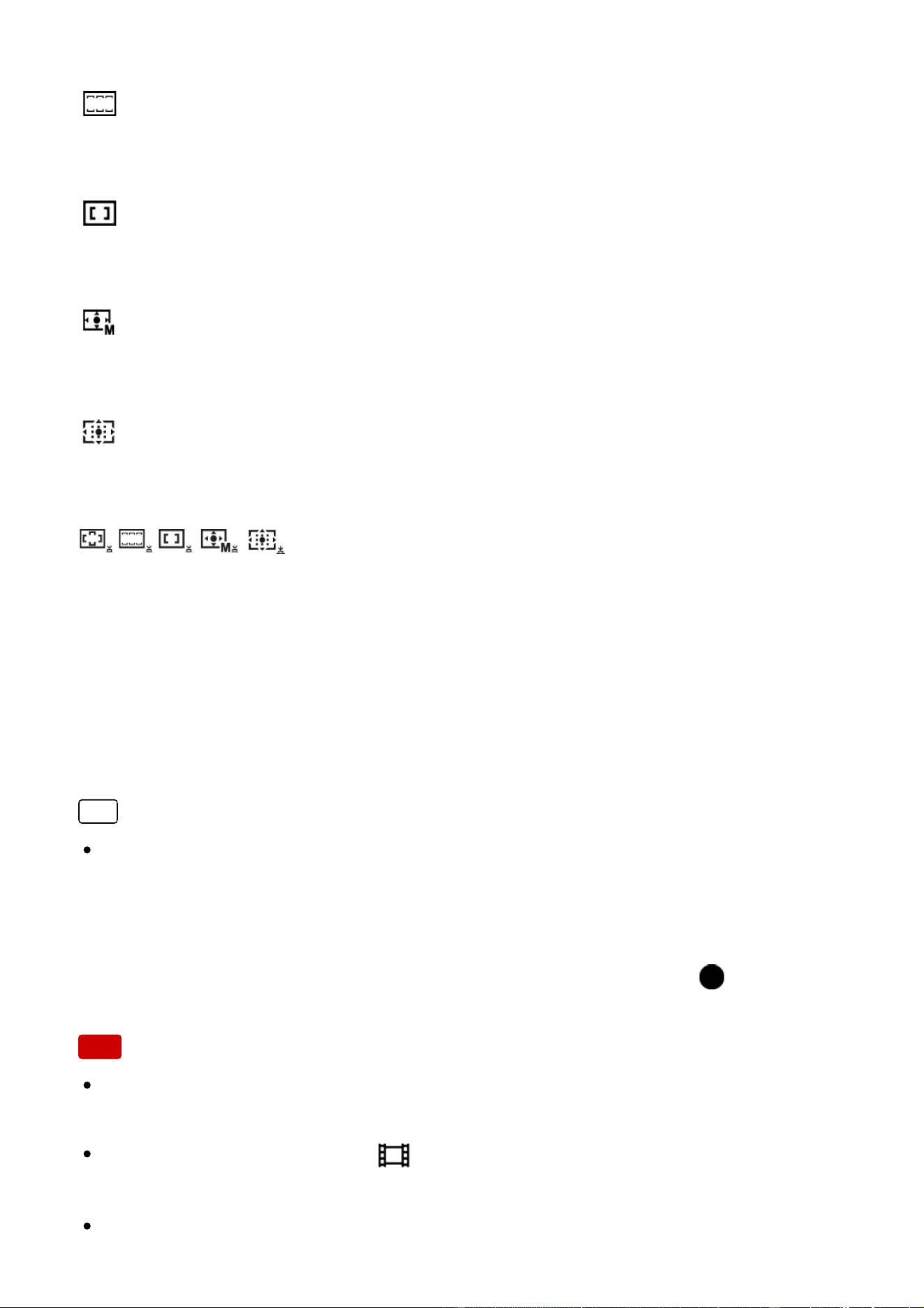
green frame is displayed around the area that is in focus.
Zone:
Select a zone on the monitor on which to focus. A zone consists of nine focus
areas, and the product automatically selects a focus area on which to focus.
Center:
Focuses automatically on a subject in the center of the image. When used
together with the AF lock function, you can compose the image you want.
Flexible Spot:
Allows you to move the focus range finder frame to the desired point on the screen
and focus on an extremely small subject in a narrow area.
Expand Flexible Spot:
If the product fails to focus on the single selected point, it uses the focus points
around the flexible spot as the second priority area to achieve focus.
Lock-on AF:
When the shutter button is pressed and held halfway down, the product tracks the
subject within the selected autofocus area. Point the cursor to [Lock-on AF] on the
[Focus Area] setting screen, then select the desired tracking start area using the
left/right sides of the control wheel. You can move the tracking start area to a
desired point by designating the area to be the flexible spot or expand flexible
spot.
Hint
When [Focus Area] is set to [Zone], [Flexible Spot], or [Expand Flexible Spot],
pressing the key to which [Focus Standard] has been assigned allows you to
shoot still images while adjusting the position of the focus range finder frame by
pressing the top/bottom/left/right side of the control wheel. When you want to
change the shooting settings using the control wheel, press the in the
center of the control wheel.
Note
When [Focus Mode] is [Continuous AF] and [Focus Area] is [Wide] or [Zone],
the focus range finder frame may change after the focus is achieved.
When the mode dial is set to (Movie/HFR) or when shooting movies, you
cannot select [Lock-on AF] for [Focus Area].
When [Focus Area] is set to [Wide] or [Zone], the size of the AF range finder

frame may be automatically adjusted according to the subject and the
composition as follows:
When focusing on a wider area such as a landscape: A larger AF range finder frame is
displayed.
When focusing on a smaller area such as flowers or small items: A smaller AF range
finder frame is displayed.
You can select [Lock-on AF] only when the focus mode is set to [Continuous
AF].
A dotted square may appear around the whole screen in the clear image zoom,
digital zoom, or smart zoom range in order to focus using the entire frame.
Functions assigned to the top/bottom/left/right side of the control wheel or
[Custom Button 2] cannot be executed while the focus range finder frame is
being moved.
The position of the focus range finder frame cannot be changed during movie
shooting.
[67] How to Use Using shooting functions Adjusting the focus
Phase detection AF
When there are phase detection AF points within the auto focus area, the product
uses the combined autofocus of the phase detection AF and contrast AF.
Note
When the F-value is set to F13 or more, you cannot use the phase detection
AF. Only contrast AF is available.
Phase detection AF is available only when an applicable lens is attached. If you
use a lens that does not support focal plane phase detection AF, you cannot
use [Automatic AF], [ AF Track Sens] or [ AF drive speed].
Also, even if you use a previously purchased applicable lens, the phase
detection AF might not function unless you update the lens.
[68] How to Use Using shooting functions Adjusting the focus
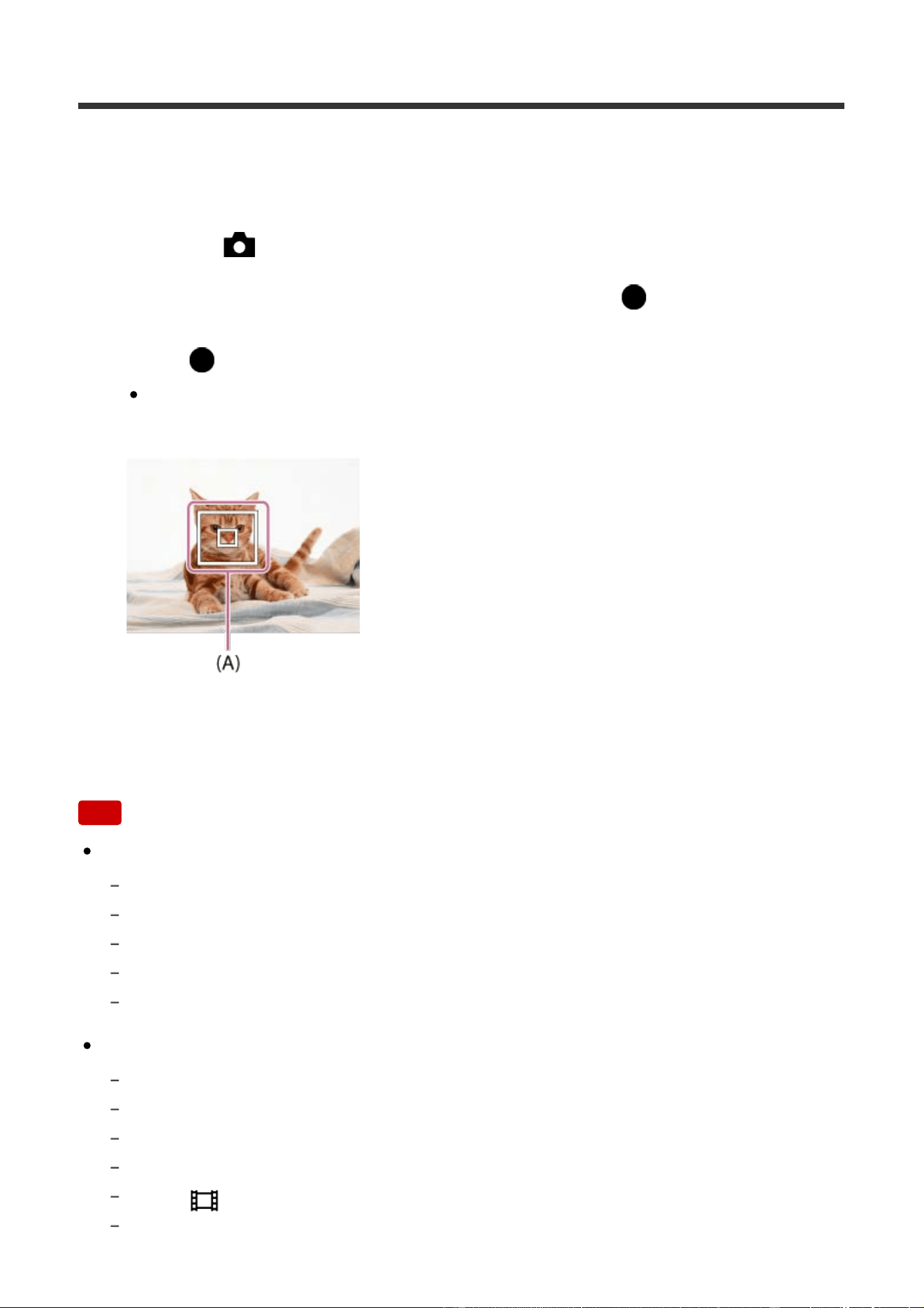
Center Lock-on AF
When you press the center button, the camera detects the subject positioned in
the center of the screen and continues to track the subject.
1. MENU → (Camera Settings) → [Center Lock-on AF] → [On].
2. Align the target frame (A) over the subject and press in the center of the
control wheel.
Press again to stop tracking.
If the camera loses track of the subject, it can detect when the subject
reappears on the monitor and resume tracking.
3. Press the shutter button fully down to shoot the image.
Note
[Center Lock-on AF] may not function very well in the following situations:
The subject is moving too quickly.
The subject is too small, or too large.
The contrast between the subject and the background is poor.
It is dark.
The ambient light changes.
Lock-on AF does not work in the following situations:
In [Sweep Panorama] mode
When [Scene Selection] is set to [Hand-held Twilight] or [Anti Motion Blur].
When shooting in Manual Focus mode
When using the digital zoom
When [
Record Setting] is set to [120p]/[100p].
During High Frame Rate shooting

The camera may not be able to resume tracking for a while after it loses the
track of the subject.
[69] How to Use Using shooting functions Adjusting the focus
AF Area Auto Clear
Sets whether the focus area should be displayed all the time or should disappear
automatically shortly after focus is achieved.
1. MENU → (Custom Settings) → [AF Area Auto Clear] → desired setting.
Menu item details
On:
The focus area disappears automatically shortly after focus is achieved.
Off:
The focus area is displayed all the time.
[70] How to Use Using shooting functions Adjusting the focus
Focus-lock
Shoots images with the focus locked on the desired subject in auto focus mode.
1. MENU → (Camera Settings) → [Focus Mode] → [Single-shot AF] or
[Automatic AF].
2. Place the subject within the AF area and press the shutter button halfway
down.
The focus is locked.
3. Keep pressing the shutter button halfway down, and place the subject back in
the original position to re-compose the shot.
4. Press the shutter button down fully to take the picture.
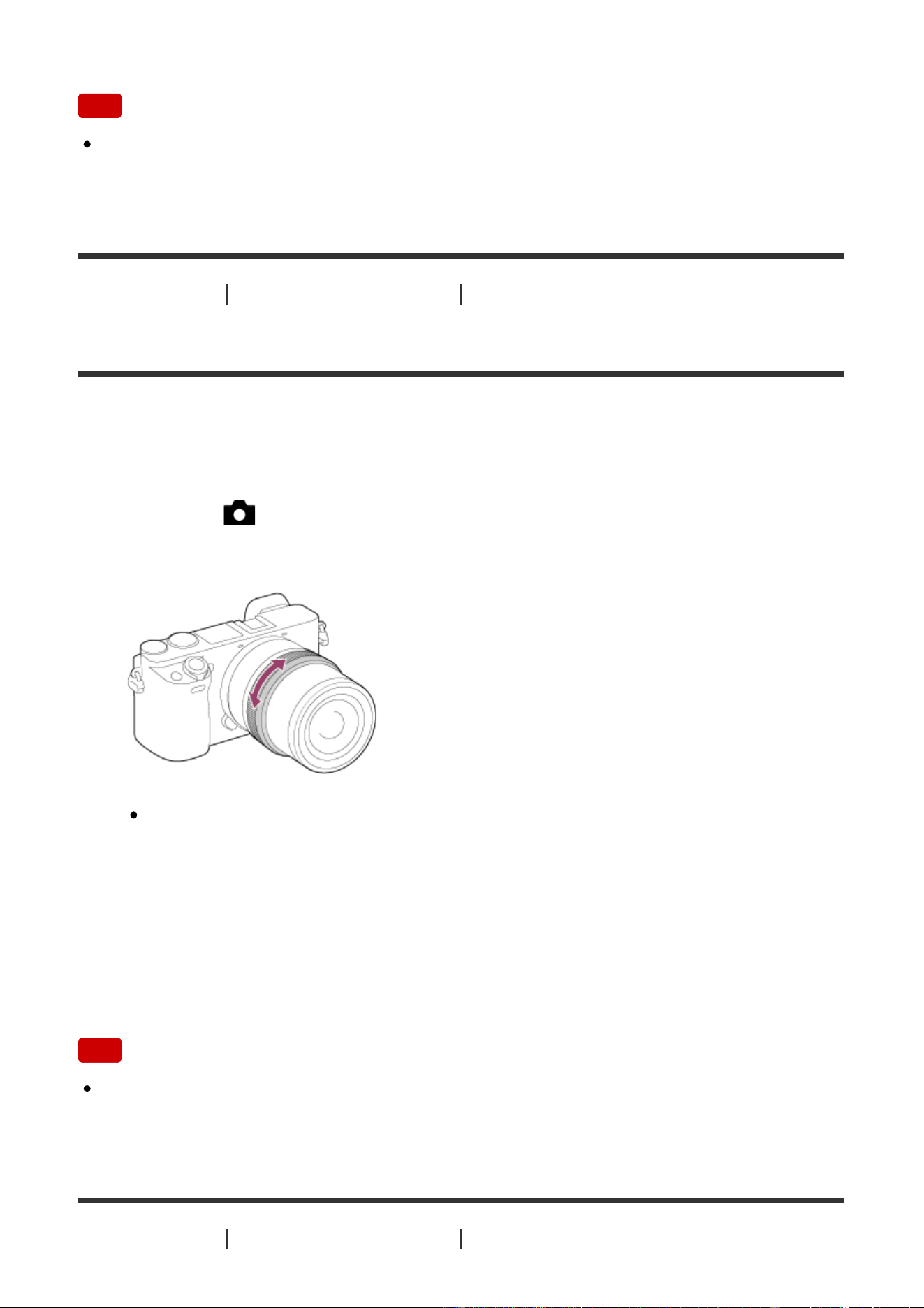
Note
When the subject is moving, you cannot lock the focus even if [Focus Mode]
has been set to [Automatic AF].
[71] How to Use Using shooting functions Adjusting the focus
Manual Focus
When it is difficult to get the proper focus in autofocus mode, you can adjust the
focus manually. The setting applies to both still images and movies.
1. MENU → (Camera Settings) → [Focus Mode] → [Manual Focus].
2. Rotate the focus ring to achieve sharp focus.
When you rotate the focus ring, the focus distance is displayed on the
screen.
The focus distance may not be displayed when the Mount Adaptor (sold
separately) is attached.
3. Press the shutter button fully down to take the picture.
Note
When you use the viewfinder, adjust the diopter level to obtain the correct focus
on the viewfinder.
[72] How to Use Using shooting functions Adjusting the focus
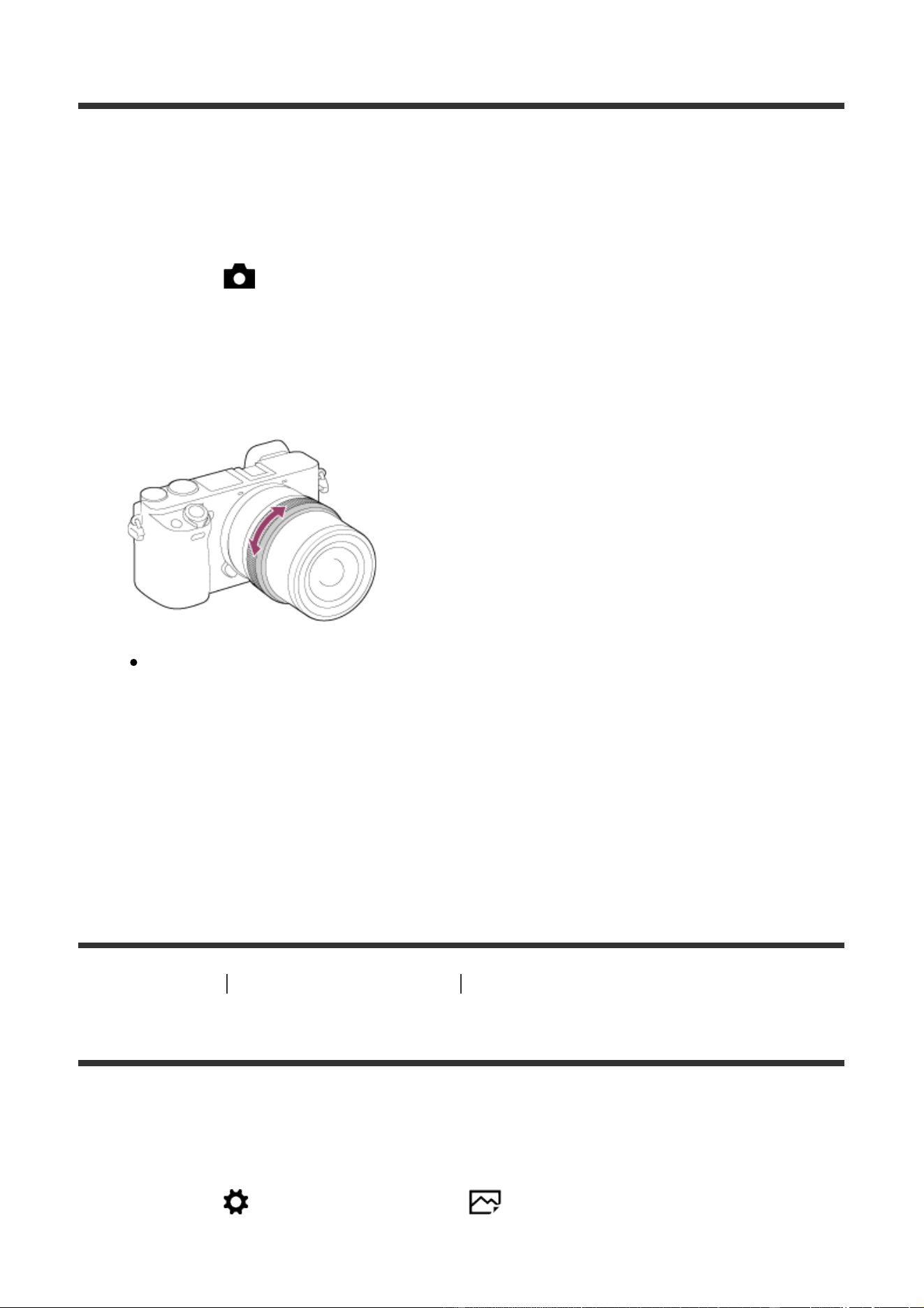
Direct manual focus (DMF)
You can make fine adjustments manually after the focus is locked.
You can quickly focus on a subject rather than using the manual focus from the
beginning. This is convenient in cases such as macro shooting.
1. MENU → (Camera Settings) → [Focus Mode] → [DMF].
2. Press the shutter button halfway down to focus automatically.
3. Keep the shutter button halfway down, rotate the focusing ring to achieve a
sharper focus.
When you rotate the focus ring, the focus distance is displayed on the
screen.
The focus distance may not be displayed when the Mount Adaptor (sold
separately) is attached.
4. Press the shutter button fully down to shoot an image.
[73] How to Use Using shooting functions Adjusting the focus
MF Assist (still image)
Enlarges the image on the screen automatically to make manual focusing easier.
This works in Manual Focus or Direct Manual Focus shooting.
1. MENU → (Custom Settings) → [ MF Assist] → [On].
2. Turn the focus ring to adjust the focus.
The image is enlarged. You can magnify images further by pressing
on the center of the control wheel.
Note
You cannot use [ MF Assist] when shooting movies.
[ MF Assist] is available only when E-mount lens is attached.
Hint
You can set how long the image is to be shown magnified by selecting MENU
→ (Custom Settings) → [Focus Magnif. Time].
[74] How to Use Using shooting functions Adjusting the focus
Focus Magnifier
You can check the focus by enlarging the image before shooting.
1. MENU → (Camera Settings) → [Focus Magnifier].
2. Press on the center of the control wheel to enlarge the image and select
the position you want to enlarge using up/down/left/right side of the control
wheel.
When is pressed for the third time, the focus magnifier closes and the
normal shooting display is restored.
3. Confirm the focus.
4. Press the shutter button fully down to shoot the image.
Hint
When focusing manually, you can adjust the focus while an image is magnified.
The [Focus Magnifier] function will be canceled when the shutter button is
pressed halfway.
When the shutter button is pressed halfway down while an image is magnified
during the auto-focusing, different functions are performed depending on the [
AF in Focus Mag.] setting.
When [ AF in Focus Mag.] is set to [On]:
Auto-focusing is performed again.
When [
AF in Focus Mag.] is set to [Off]:
The [Focus Magnifier] function is canceled.
You can record images while an image is enlarged, but the product records a
full-display image.
The [Focus Magnifier] function will be canceled after shooting.
You can set how long the image is to be shown magnified by selecting MENU
→ (Custom Settings) → [Focus Magnif. Time].
[75] How to Use Using shooting functions Adjusting the focus
Focus Magnif. Time
Set the duration for which an image is to be magnified using the [ MF Assist] or
[Focus Magnifier] function.
1. MENU → (Custom Settings) → [Focus Magnif. Time] → desired setting.
Menu item details
2 Sec:
Magnifies the images for 2 seconds.
5 Sec:
Magnifies the images for 5 seconds.
No Limit:
Magnifies the images until you press the shutter button.
[76] How to Use Using shooting functions Adjusting the focus
AF in Focus Mag. (still image)
You can focus on the subject more accurately using auto-focus by magnifying the
area where you want to focus. While the magnified image is displayed, you can
focus on a smaller area than the flexible spot.
1. MENU → (Custom Settings) → [ AF in Focus Mag.] → [On].
2. MENU → (Camera Settings) → [Focus Magnifier].
The displayed image will be magnified.
This function can be assigned to a button of your choice using [Custom
Key(Shoot.)].
The zoom scale can be adjusted by pressing the in the center of the
control wheel.
3. Adjust the position of focus by pressing the top/bottom/left/right side of the
control wheel and press the shutter button halfway down to focus.
4. Press the shutter button all the way down to shoot.
The [ AF in Focus Mag.] function is canceled after shooting.
Hint
Use of a tripod is recommended to accurately identify the location you want to
magnify.
You can check the auto-focusing position by magnifying the displayed image. If
you want to readjust the position of focus, adjust it on the magnified screen and
then press the shutter button halfway down.
Note
The edges of the screen may be unfocused.
The exposure and white balance cannot be adjusted while the displayed image
is being magnified.
[ AF in Focus Mag.] is unavailable in the following situations:
In [Sweep Panorama] mode
In movie mode
During movie shooting
When [Focus Mode] is set to [Continuous AF].
When [Focus Mode] is set to [Automatic AF] and the shooting mode is set to other than
P/A/S/M.
When [Focus Mode] is set to [Automatic AF] and [Drive Mode] is set to [Cont.
Shooting].
When using a Mount Adaptor (sold separately).
While the displayed image is being magnified, the following functions are
unavailable:

[Eye AF]
[Center Lock-on AF]
[
Eye-Start AF]
[
Pre-AF]
[Smile/Face Detect.]
[Intelligent Auto]
[Superior Auto]
[
Auto Obj. Framing]
[77] How to Use
Using shooting functions Adjusting the focus
Peaking Level
Enhances the outline of in-focus ranges using a specific color in Manual Focus or
Direct Manual Focus shooting. This function allows you to confirm the focus easily.
The setting applies to both still images and movies.
1. MENU → (Custom Settings) → [Peaking Level] → desired setting.
Menu item details
High:
Sets the peaking level to high.
Mid:
Sets the peaking level to middle.
Low:
Sets the peaking level to low.
Off:
Does not use the peaking function.
Note
Since the product recognizes sharp areas as in focus, the effect of peaking
differs, depending on the subject and lens.
The outline of in-focus ranges is not enhanced when the product is connected
using an HDMI cable.
[78] How to Use Using shooting functions Adjusting the focus
Peaking Color
Sets the color used for the peaking function in Manual Focus or Direct Manual
Focus shooting. The setting applies to both still images and movies.
1. MENU → (Custom Settings) → [Peaking Color] → desired setting.
Menu item details
Red:
Enhances outlines in red.
Yellow:
Enhances outlines in yellow.
White:
Enhances outlines in white.
[79] How to Use Using shooting functions Adjusting the focus
Pre-AF (still image)
The product automatically adjusts focus before you press the shutter button
halfway down.
1. MENU → (Custom Settings) → [ Pre-AF] → desired setting.
Menu item details
On:
Adjusts focus before you press the shutter button halfway down.
Off:
Does not adjust focus before you press the shutter button halfway down.
Note
[ Pre-AF] is available only when an E-mount lens is mounted.
[80] How to Use Using shooting functions Adjusting the focus
Eye-Start AF (still image)
Sets whether or not to use autofocus when you look through an Electronic
Viewfinder.
1. MENU → (Custom Settings) → [ Eye-Start AF] → desired setting.
Menu item details
On:
Auto focusing starts when you look through the Electronic Viewfinder.
Off:
Auto focusing does not start when you look through the Electronic Viewfinder.
Hint
[ Eye-Start AF] is available when an A-mount lens and a Mount Adaptor
(LA-EA2, LA-EA4) (sold separately) are attached.
[81] How to Use Using shooting functions Adjusting the focus
AF/MF control
You can easily switch the focusing mode from auto to manual and vice versa while
shooting without changing your holding position. The setting applies to both still
images and movies.
1. Switch the AF/MF/AEL switch lever to the AF/MF position, then press the
AF/MF button.
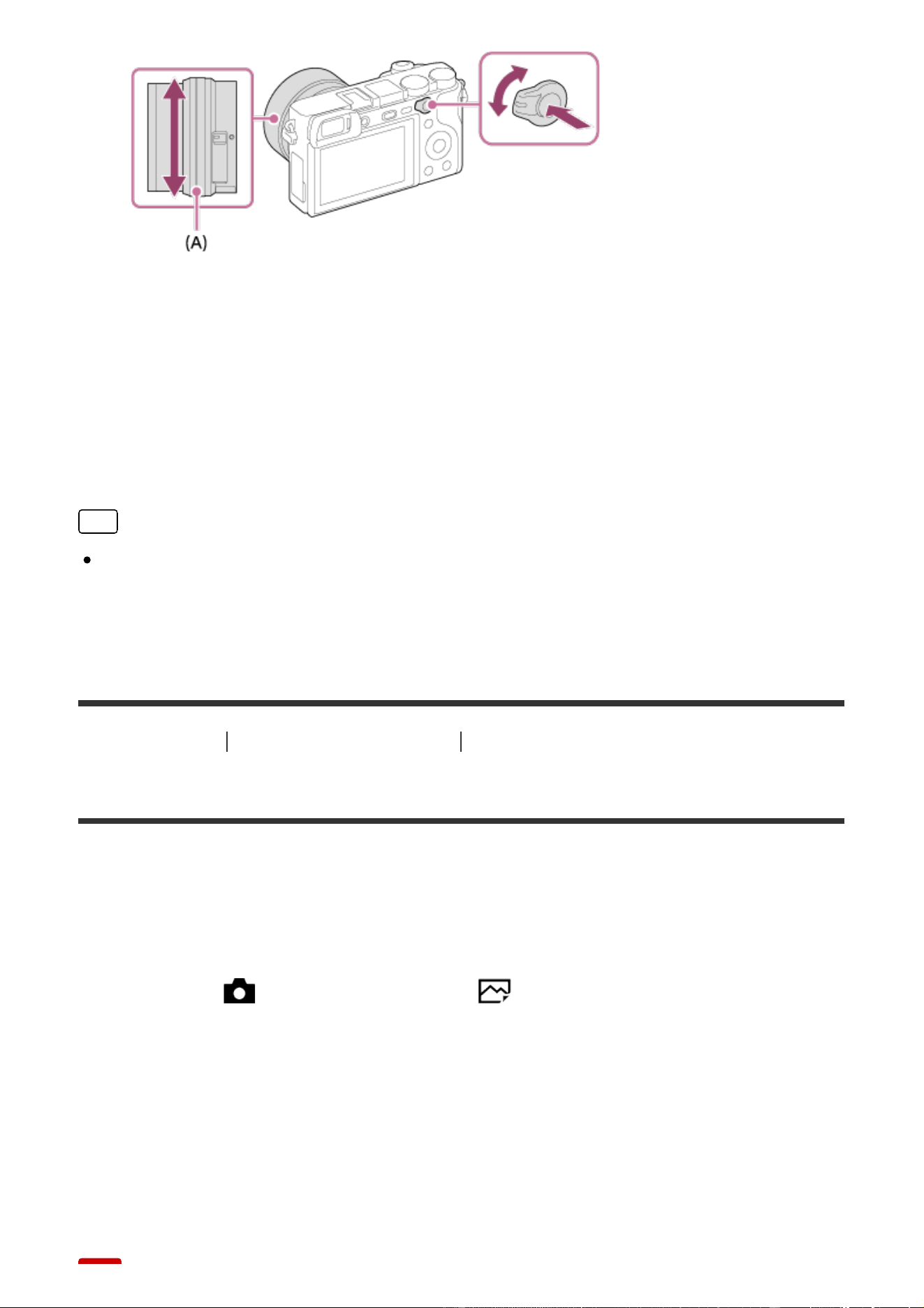
During auto focus:
Temporarily switches the focusing mode to manual. Adjust the focus by turning the
focus ring (A) while holding down the AF/MF button.
During manual focus:
Temporarily switches the focusing mode to auto while the AF/MF button is held
down, and locks the focus.
Hint
If you select [AF/MF Ctrl Toggle] in [AF/MF Button] under [Custom
Key(Shoot.)], the focusing mode remains switched even if you remove your
finger from the button.
[82] How to Use Using shooting functions Adjusting the focus
AF Illuminator (still image)
The AF illuminator supplies fill light to focus more easily on a subject in dark
surroundings. The red AF illuminator allows the product to focus easily when the
shutter button is pressed halfway, until the focus is locked.
1. MENU → (Camera Settings) → [ AF Illuminator] → desired setting.
Menu item details
Auto:
Uses the AF illuminator.
Off:
Does not use the AF illuminator.

Note
You cannot use [ AF Illuminator] in the following situations:
In movie mode
In [Sweep Panorama] mode
When [Focus Mode] is set to [Continuous AF] or [Automatic AF] and the subject is
moving (when the focus indicator
or lights up)
When [Focus Magnifier] is selected.
When [Scene Selection] is set to the following modes:
[Landscape]
[Sports Action]
[Night Scene]
When a Mount Adaptor is attached.
The AF illuminator emits a very bright light. Although there is no health hazard,
do not look directly into the AF illuminator at close range.
[83] How to Use Using shooting functions Adjusting the focus
AF Micro Adj.
Allows you to adjust and register an autofocused position for each lens, when
using an A-mount lens with the Mount Adaptor LA-EA2 or LA-EA4 (sold
separately).
1. Select MENU → (Custom Settings) → [AF Micro Adj.].
2. Select [AF Adjustment Set.] → [On].
3. [amount] → desired value.
You can select a value between −20 and +20. The larger the value you
select, the farther the autofocused position will be from the product. The
smaller the value you select, the closer the autofocused position will be to
the product.
Note
It is recommended that you adjust the position under actual shooting conditions.
When you attach a lens for which you have already registered a value, the
registered value appears on the screen. [±0] appears for lenses for which a

value has not yet been registered.
If [−] is displayed as the value, then a total of 30 lenses have been registered
and no new lens can be registered. To register a new lens, attach a lens for
which the registration can be erased, and set its value to [±0], or reset the
values of all the lenses using [Clear].
The [AF Micro Adj.] supports Sony, Minolta, or Konica-Minolta lenses. If you
perform [AF Micro Adj.] with lenses other than the supported lenses, the
registered settings for the supported lenses may be affected. Do not perform
[AF Micro Adj.] with an unsupported lens.
You cannot set [AF Micro Adj.] individually for a Sony, Minolta, and Konica-
Minolta lens of the same specification.
[84] How to Use Using shooting functions Adjusting the focus
Disp. cont. AF area
You can set whether or not to display the area that is in focus when [Focus Area]
is set to [Wide] or [Zone], in [Continuous AF] mode.
1. MENU → (Custom Settings) → [Disp. cont. AF area] → desired setting.
Menu item details
On:
Displays the focus area that is in focus.
Off:
Does not display the focus area that is in focus.
Note
When [Focus Area] is [Center], [Flexible Spot] or [Expand Flexible Spot], the
frames in the focus area that is in focus turn green, regardless of the [Disp.
cont. AF area] settings.
When an A-mount lens and a Mount Adaptor (LA-EA1/LA-EA3) (sold
separately) are mounted on the camera and [ AF System] is set to [Phase
Detection AF], [Disp. cont. AF area] is always turned on regardless of the
[Focus Area] settings.
[85] How to Use Using shooting functions Adjusting the focus
AF w/ shutter (still image)
Selects whether to focus automatically when you press the shutter button halfway
down. Select [Off] to adjust the focus and the exposure separately.
1. MENU → (Custom Settings) → [ AF w/ shutter] → desired setting.
Menu item details
On:
The auto focus operates when you press the shutter button halfway down.
Off:
The auto focus does not operate even if you press the shutter button halfway
down.
Hint
When [ AF w/ shutter] is set to [Off], you can still use the [AF On] function.
[86] How to Use Using shooting functions Adjusting the focus
AF On
You can focus using any button instead of pressing the shutter button halfway
down. The settings for [Focus Mode] will be applied.
1. Select the desired key and assign the [AF On] function to it using MENU →
(Custom Settings) → [Custom Key(Shoot.)].
2. Press the key to which you have assigned the [AF On] function while auto-
focus shooting.
Hint
Set [ AF w/ shutter] and [ Pre-AF] to [Off] to focus at a specific shooting
distance predicting the position of the subject.
[87] How to Use Using shooting functions Adjusting the focus
Eye AF
The camera focuses on the subject's eyes while you keep the button pressed.
1. MENU → (Custom Settings) → [Custom Key(Shoot.)] → assign the [Eye
AF] function to the desired button.
2. Point the camera at a person's face, and press the button to which you have
assigned the [Eye AF] function.
3. Press the shutter button while pressing the button.
Hint
When the camera focuses on the eyes, a detection frame is displayed over the
eyes. If the focus mode is set to [Single-shot AF], the frame will disappear after
a period of time.
Note
The camera may not be able to focus on the eyes depending on the
circumstances, such as when no eyes can be detected within the auto focus
area. In such cases, the camera detects a face and focuses on the face.
If the camera cannot detect a person’s face, you cannot use [Eye AF].
Depending on the circumstances, you cannot use [Eye AF], such as when
[Focus Mode] is set to [Manual Focus], etc.
[Eye AF] may not function in the following situations:
When the person is wearing sunglasses.
When the front hair covers the person’s eyes.
In low-light or back-lit conditions.
When the eyes are closed.
When the person is in the shade.
When the person is out of focus.
When the person is moving too much.
If the person is moving too much, the detection frame may not display correctly
over their eyes.
[88] How to Use Using shooting functions Adjusting the focus
AF drive speed (movie)
You can switch focusing speed when using autofocus in movie mode.
1. MENU → (Camera Settings) → [ AF drive speed] → desired setting.
Menu item details
Fast:
Sets the AF drive speed to fast. This mode is suitable for shooting active scenes,
such as sports.
Normal:
Sets the AF drive speed to normal.
Slow:
Sets the AF drive speed to slow. With this mode, the focus switches smoothly
when the subject to be focused is changed. This mode is useful for shooting
impressive images.
[89] How to Use Using shooting functions Adjusting the focus
AF Track Sens (movie)
You can set the duration for AF tracking in movie mode.
1. MENU → (Camera Settings) → [ AF Track Sens] → desired setting.
Menu item details
High:
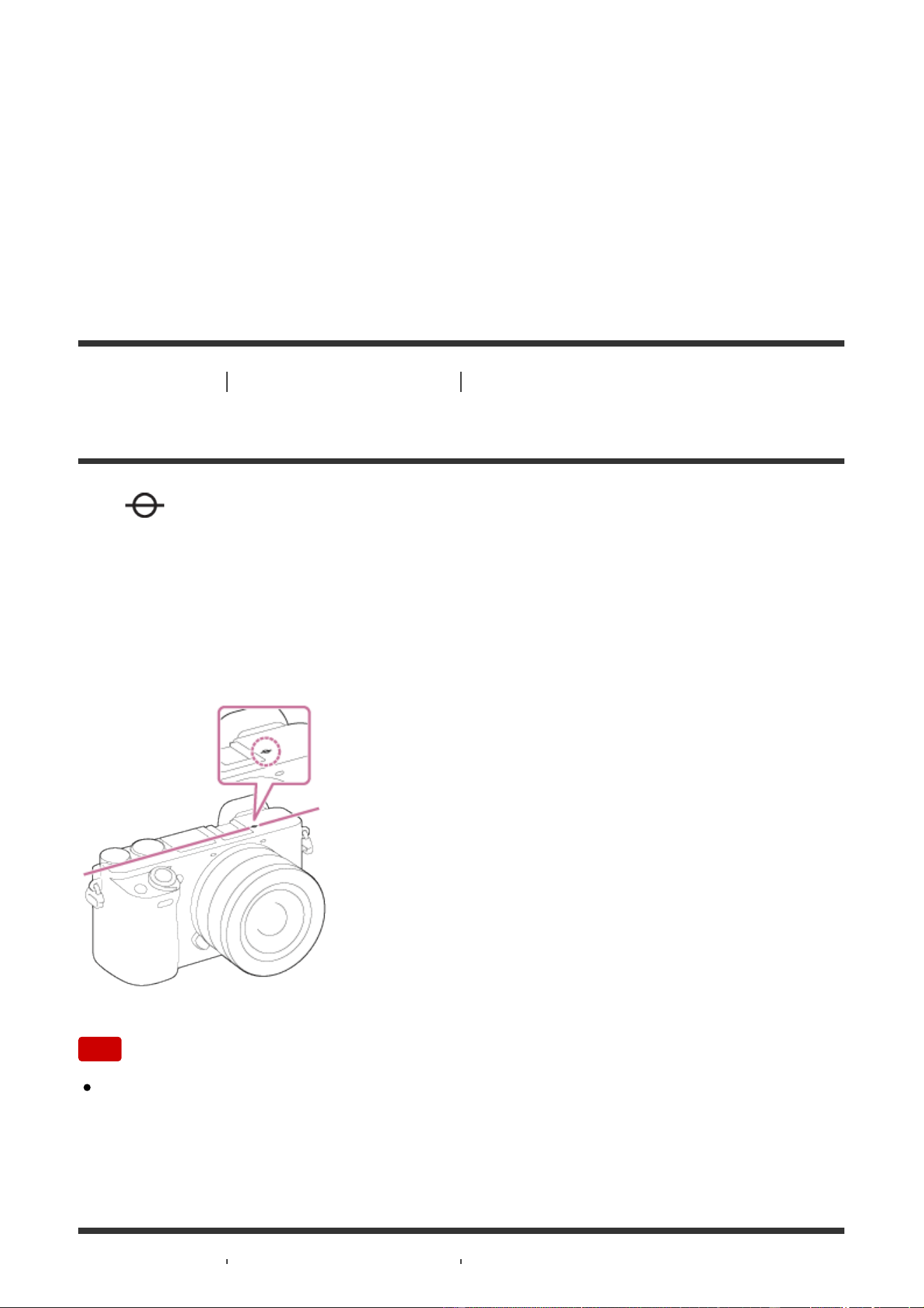
Sets the AF Track Duration to high. This mode is useful when recording movies
when the subject is moving quickly.
Normal:
Sets the AF Track Duration to normal. This mode is useful when you want to keep
the focus on a certain subject when there are some obstacles in front of the
subject or in crowded places.
[90] How to Use Using shooting functions Adjusting the focus
Measuring the exact distance to the subject
The mark shows the location of the image sensor*. When you measure the
exact distance between the product and the subject, refer to the position of the
horizontal line.
The distance from the lens contact surface to the image sensor is about 18 mm
(23/32 in.).
*
The image sensor is the part that converts the light source to a digital signal.
Note
If the subject is closer than the minimum shooting distance of the lens, the
focus cannot be confirmed. Make sure you put enough distance between the
subject and the product.

[91] How to Use Using shooting functions Adjusting the focus
Priority Set in AF-S
Sets whether to release the shutter even if the subject is not in focus when [Focus
Mode] is set to [Single-shot AF], [DMF] or [Automatic AF] and the subject is
remaining still.
1. MENU → (Custom Settings) → [Priority Set in AF-S] → desired setting.
Menu item details
AF:
Prioritizes focusing. The shutter will not be released until the subject is in focus.
Release:
Prioritizes the shutter's release. The shutter will be released even if the subject is
out of focus.
Balanced Emphasis:
Shoots with a balanced emphasis on both focusing and shutter release.
[92] How to Use Using shooting functions Adjusting the focus
Priority Set in AF-C
Sets whether to release the shutter even if the subject is not in focus when
[Continuous AF] is activated and the subject is in motion.
1. MENU → (Custom Settings) →[Priority Set in AF-C] → desired setting.
Menu item details
AF:
Prioritizes focusing. The shutter will not be released until the subject is in focus.
Release:
Prioritizes the shutter's release. The shutter will be released even if the subject is
out of focus.
Balanced Emphasis:
Shoots with a balanced emphasis on both focusing and shutter release.
[93] How to Use Using shooting functions Adjusting the focus
AF System (still image)
Sets the focus detection system (Phase Detection AF/Contrast AF) when you
attach an A-mount lens using an LA-EA1/LA-EA3 Mount Adaptor (sold
separately).
1. MENU → (Custom Settings) → [ AF System] → desired setting.
Menu item details
Phase Detection AF:
Focuses with Phase Detection AF. The focusing speed is very fast.
Contrast AF:
Always focuses with Contrast AF. The focusing speed is slower. Use when you
cannot focus with [Phase Detection AF].
Note
When [ AF System] is set to [Contrast AF], (Continuous AF) under
[Focus Mode] is unavailable.
When [ AF System] is set to [Phase Detection AF], [Zone], [Expand Flexible
Spot] and [Lock-on AF] under [Focus Area] are unavailable.
When [ AF System] is set to [Phase Detection AF], even if [Priority Set in
AF-S] is set to [Balanced Emphasis], the camera will temporarily switch to [AF].
When [ AF System] is set to [Phase Detection AF], [Eye AF] is unavailable.
[94] How to Use Using shooting functions Adjusting the exposure
Exposure Comp.
Based on the exposure value set by auto exposure, you can make the entire
image brighter or darker if you adjust [Exposure Comp.] to the plus side or minus
side, respectively (exposure compensation). Normally, exposure is set
automatically (auto exposure).
1. (Exposure Comp.) on the control wheel → press the left/right side of the
control wheel or turn the control wheel, and select the desired exposure
range.
You can adjust the exposure in a range of –5.0 EV to +5.0 EV.
Note
You can adjust the exposure in a range of –2.0 EV to +2.0 EV for movies.
If you shoot a subject in extremely bright or dark conditions, or when you use
the flash, you may not be able to get a satisfactory effect.
Only a value between –3.0 EV and +3.0 EV with the equivalent image
brightness appears on the screen when shooting. If you set an exposure
beyond this range, the image brightness on the screen does not show the
effect, but it will be reflected in the recorded image.
When you use [Manual Exposure], you can compensate for the exposure only
when [ISO] is set to [ISO AUTO].
[95] How to Use Using shooting functions Adjusting the exposure
Metering Mode
Selects the metering mode that sets which part of the screen to measure for
determining the exposure.
1. MENU → (Camera Settings) → [Metering Mode] → desired setting.
Menu item details
Multi:
Measures light on each area after dividing the total area into multiple areas and
determines the proper exposure of the entire screen (Multi-pattern metering).
Center:
Measures the average brightness of the entire screen, while emphasizing the
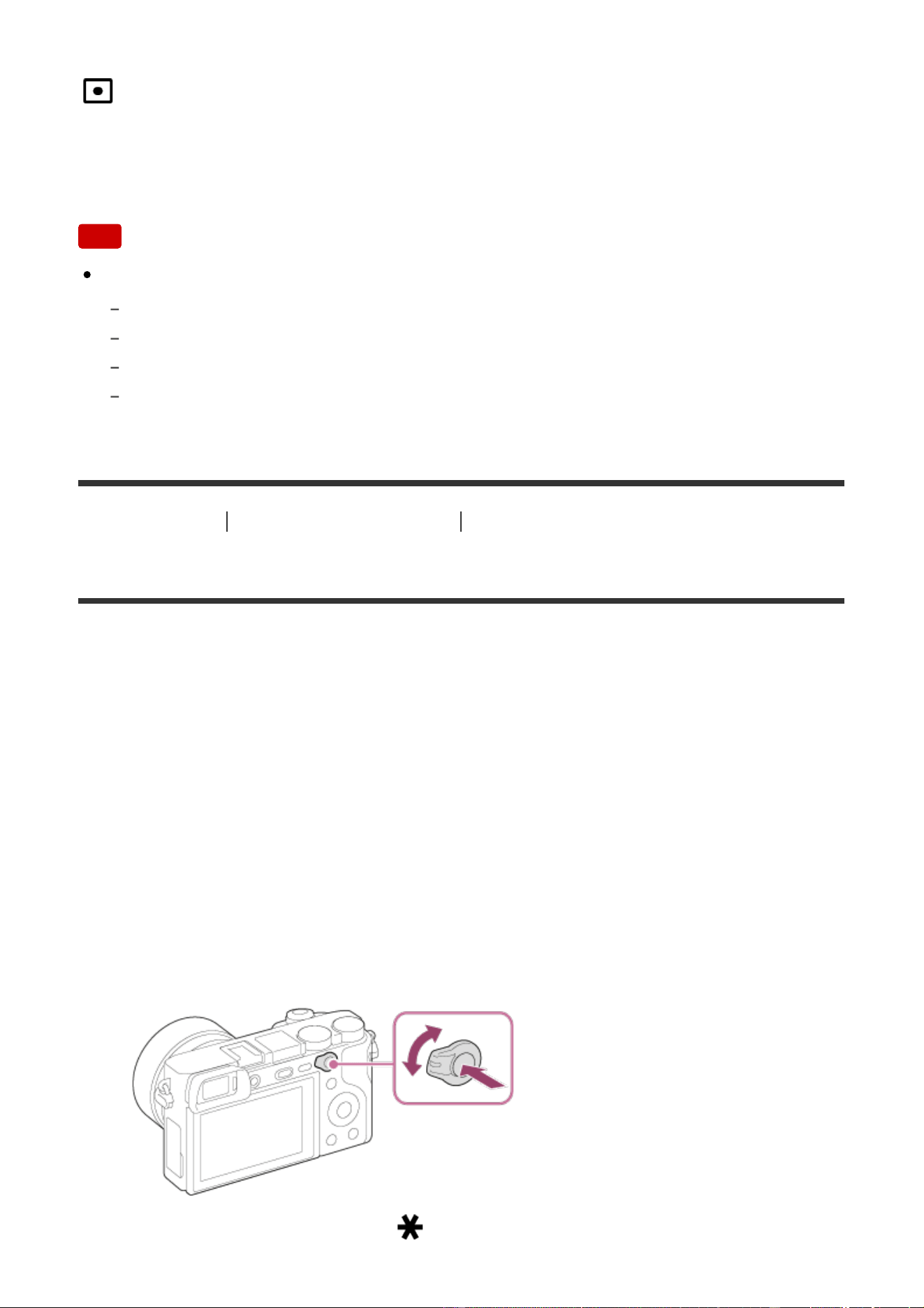
central area of the screen (Center-weighted metering).
Spot:
Measures only the central area (Spot metering). This function is useful when the
subject is backlit or when there is strong contrast between the subject and the
background.
Note
The setting is fixed to [Multi] in the following shooting modes:
[Intelligent Auto]
[Superior Auto]
[Scene Selection]
Zoom functions other than optical zoom
[96] How to Use
Using shooting functions Adjusting the exposure
AE lock
When the contrast between the subject and background is high, such as when
shooting a backlit subject or a subject near a window, meter the light at a spot
where the subject appears to have the appropriate brightness and lock the
exposure before shooting. To reduce the brightness of the subject, meter the light
at a spot brighter than the subject and lock the exposure of the entire screen. To
make the subject brighter, meter the light at a spot darker than the subject and
lock the exposure of the entire screen.
1. Adjust the focus on the spot at which the exposure is adjusted.
2. Switch the AF/MF/AEL switch lever to the AEL position, then press the AEL
button.
The exposure is locked, and (AE lock) lights up.
3. Keep pressing the AEL button and focus on the subject again, then shoot the
picture.
Keep holding the AEL button down while taking a shot if you want to
continue shooting with the fixed exposure. Release the button to reset the
exposure.
Hint
If you select the [AEL toggle] function in (Custom Settings) → [Custom
Key(Shoot.)] → [AEL Button], you can lock the exposure without holding down
the AEL button.
[97] How to Use Using shooting functions Adjusting the exposure
AEL w/ shutter (still image)
Sets whether to fix the exposure when you press the shutter button halfway down.
This function is useful when you want to adjust focus and exposure separately.
1. MENU → (Custom Settings) → [ AEL w/ shutter] → desired setting.
Menu item details
Auto:
Fixes the exposure after adjusting the focus automatically when you press the
shutter button halfway down when [Focus Mode] is set to [Single-shot AF].
When [Focus Mode] is set to [Automatic AF], and the product determines that the
subject is moving, or you shoot burst images, the fixed exposure is cancelled.
On:
Fixes the exposure when you press the shutter button halfway down.
Off:
Does not fix the exposure when you press the shutter button halfway down. Use
this mode when you want to adjust focus and exposure separately.
The product keeps adjusting the exposure while shooting in [Cont. Shooting]
mode.

Note
Operation using the AEL button is prioritized over the [ AEL w/ shutter]
settings.
[98] How to Use Using shooting functions Adjusting the exposure
Exp.comp.set
Sets whether to apply the exposure compensation value to control both flash light
and ambient light, or just ambient light.
1. MENU → (Custom Settings) → [Exp.comp.set] → desired setting.
Menu item details
Ambient&flash:
Applies the exposure compensation value to control both flash light and ambient
light.
Ambient only:
Applies the exposure compensation value to control ambient light only.
[99] How to Use Using shooting functions Adjusting the exposure
Zebra
The zebra pattern will appear over part of an image if the brightness level of that
part meets the IRE level that you set. Use this zebra pattern as a guide to adjust
the brightness.
1. MENU → (Custom Settings) → [Zebra] → desired setting.
Menu item details
Off:
Does not display the zebra pattern.
70/75/80/85/90/95/100/100+/Custom1/Custom2:
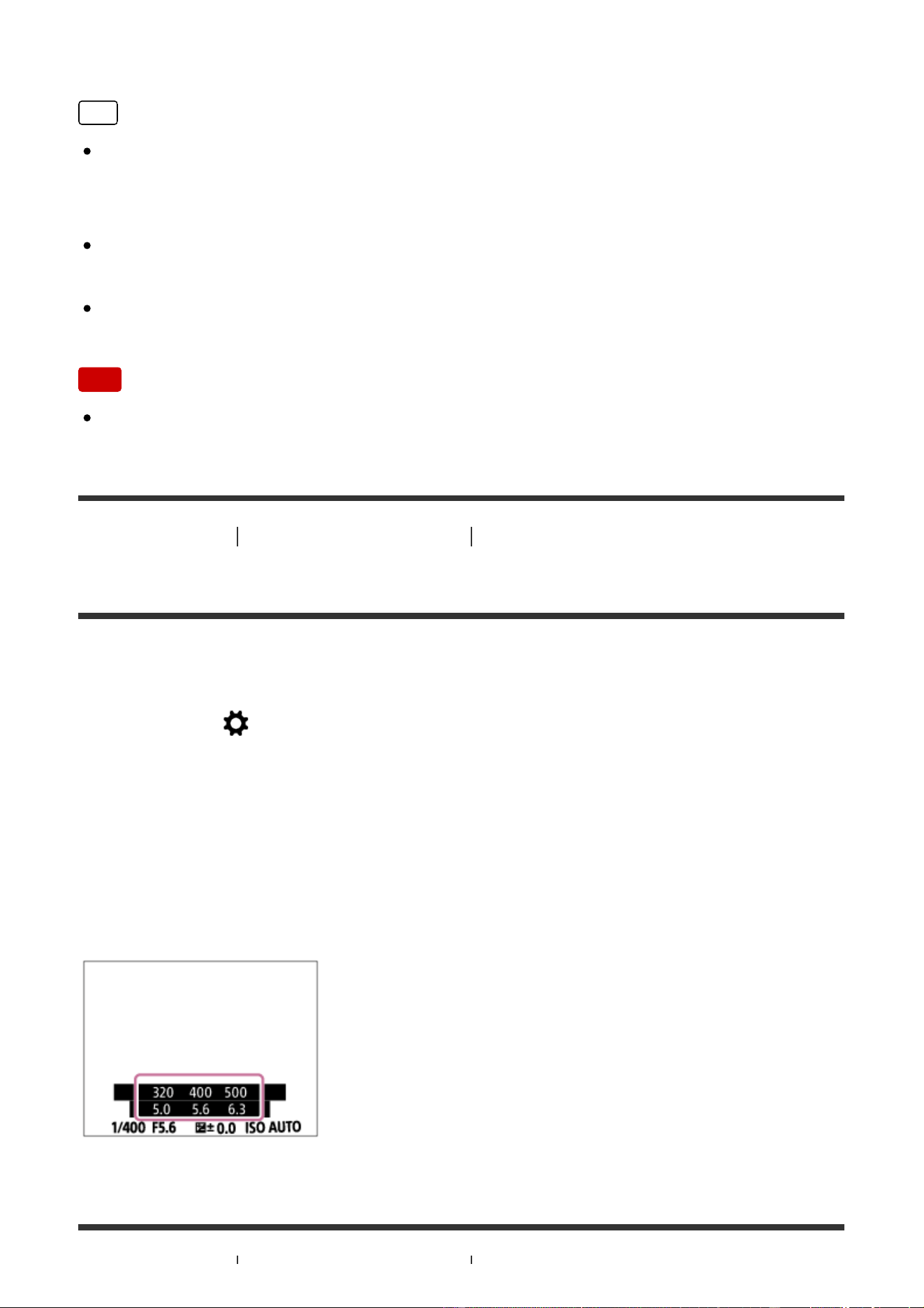
Adjusts the brightness level.
Hint
You can register multiple values for [Zebra] to check the exposure and the flare
as well as the brightness level. The settings for exposure confirmation and flare
confirmation are registered to [Custom1] and [Custom2] respectively by default.
To check exposure, set a standard value and the range for the brightness level.
The zebra pattern will appear on areas that fall within the range you set.
To check flare, set a minimum value for the brightness level. The zebra pattern
will appear on areas that exceed the value you set.
Note
The zebra pattern is not displayed during HDMI connection.
[100] How to Use Using shooting functions Adjusting the exposure
Exposure Set. Guide
You can set whether to display a guide when you change the exposure.
1. MENU → (Custom Settings) → [Exposure Set. Guide] → desired setting.
Menu item details
Off:
Does not display the guide.
On:
Displays the guide.

[101] How to Use Using shooting functions Adjusting the exposure
Exposure step
You can set the setting range for the shutter speed, aperture, and exposure
compensation values.
1. MENU → (Camera Settings) → [Exposure step] → desired setting.
Menu item details
0.3EV/0.5EV
[102] How to Use Using shooting functions Adjusting the exposure
Dial/Wheel Ev Comp
You can adjust the exposure compensation using the control dial or the control
wheel.
1. MENU → (Custom Settings) → [Dial/Wheel Ev Comp] → desired setting.
Menu item details
Off:
Does not assign the exposure compensation function to the control dial or control
wheel.
Wheel:
Assigns the exposure compensation function to the control wheel.
Dial:
Assigns the exposure compensation function to the control dial.
Note
If you assign the exposure compensation function to the control dial, the
function that was originally assigned can be managed using the control wheel,
and vice versa.
When the shooting mode is set to [Manual Exposure] and ISO is set to [ISO
AUTO], [Dial/Wheel Ev Comp] is disabled.
[103] How to Use Using shooting functions Selecting a drive mode (Continuous
shooting/Self-timer)
Drive Mode
You can set the drive mode, such as continuous or self-timer shooting.
1. MENU → (Camera Settings) → [Drive Mode] → desired setting.
You can also set the drive mode by pressing / (Drive Mode) button
of the control wheel.
Menu item details
Single Shooting:
Shoots one still image. Normal shooting mode.
Cont. Shooting:
Shoots images continuously while you press and hold down the shutter button.
Self-timer:
Shoots an image using the self-timer after a designated number of seconds have
elapsed since the shutter button was pressed.
Self-timer(Cont):
Shoots a designated number of images using the self-timer after a designated
number of seconds have elapsed since the shutter button was pressed.
Cont. Bracket:
Shoots images while holding the shutter button down, each with different degrees
of brightness.
Single Bracket:
Shoots a specified number of images, one by one, each with a different degree of
brightness.
WB bracket:
Shoots a total of three images, each with different color tones according to the
selected settings for white balance, color temperature and color filter.
DRO Bracket:
Shoots a total of three images, each at a different degree of D-Range Optimizer.
Note
When the shooting mode is set to [Scene Selection] and [Sports Action] is
selected, [Single Shooting] cannot be performed.
[104] How to Use Using shooting functions Selecting a drive mode (Continuous
shooting/Self-timer)
Cont. Shooting
Shoots images continuously while you press and hold down the shutter button.
1. MENU→ (Camera Settings) → [Drive Mode] → [Cont. Shooting].
2. Select the desired mode using the right/left side of the control wheel.
Menu Item Details
Continuous Shooting: Hi+:
Images are shot continuously at maximum speed while you press and hold down
the shutter button.
Continuous Shooting: Hi/ Continuous Shooting: Mid/
Continuous Shooting: Lo:
Subjects are easier to track because the subject is displayed in real-time on the
monitor or viewfinder during shooting.
Note
When [e-Front Curtain Shut.] is set to [Off], the continuous shooting speed is
slower.
Continuous shooting is unavailable in the following situations:
The shooting mode has been set to [Sweep Panorama].
The shooting mode is set to [Scene Selection] and a scene other than [Sports Action]
is selected.
The [Picture Effect] is set to [Soft Focus], [HDR Painting], [Rich-tone Mono.],
[Miniature], [Watercolor], or [Illustration].
The [DRO/Auto HDR] is set to [Auto HDR].
[ISO] is set to [Multi Frame NR].
[Smile Shutter] is being used.
Hint
To hold the focus and exposure during burst, change the following settings.
Set [Focus Mode] to [Continuous AF].
Set [
AEL w/ shutter] to [Off] or [Auto].
[105] How to Use
Using shooting functions Selecting a drive mode (Continuous
shooting/Self-timer)
Self-timer
Shoots an image using the self-timer after a designated number of seconds have
elapsed since the shutter button was pressed.
1. MENU → (Camera Settings) → [Drive Mode] → [Self-timer].
2. Select the desired mode using the right/left side of the control wheel.
Menu item details
Self-timer: 10 Sec:
Sets the 10-second delay self-timer.
When you press the shutter button, the self-timer lamp flashes, a beep sounds,
and the shutter operates after 10 seconds. To cancel the self-timer, press the
shutter button again.
Self-timer: 5 Sec:
Sets the 5-second delay self-timer.
When you press the shutter button, the self-timer lamp flashes, a beep sounds,
and the shutter operates after 5 seconds. To cancel the self-timer, press the
shutter button again.
Self-timer: 2 Sec:
Sets the 2-second delay self-timer. This reduces the camera-shake caused by
pressing the shutter button.
Hint
Press the / button of the control wheel and select (Single Shooting)
to cancel the self-timer.
To use the self-timer in bracket mode, select bracket mode under drive mode,
then select MENU → (Camera Settings) → [Bracket Settings] → [Selftimer
during Brkt].

Note
The self-timer is unavailable in the following situations:
The shooting mode is set to [Sweep Panorama].
[Sports Action] in [Scene Selection]
[Smile Shutter]
[106] How to Use
Using shooting functions Selecting a drive mode (Continuous
shooting/Self-timer)
Self-timer(Cont)
Shoots a designated number of images using the self-timer after a designated
number of seconds have elapsed since the shutter button was pressed. You can
choose the best from multiple shots.
1. MENU → (Camera Settings) → [Drive Mode] → [Self-timer(Cont)].
2. Select the desired mode using the right/left side of the control wheel.
Menu item details
Self-timer(Cont.): 10 Sec. 3 Img.:
Shoots three frames in succession 10 seconds after you press the shutter button.
When you press the shutter button, the self-timer lamp flashes, a beep sounds,
and the shutter operates after 10 seconds.
Self-timer(Cont.): 10 Sec. 5 Img.:
Shoots five frames in succession 10 seconds after you press the shutter button.
When you press the shutter button, the self-timer lamp flashes, a beep sounds,
and the shutter operates after 10 seconds.
Self-timer(Cont.): 5 Sec. 3 Img.:
Shoots three frames in succession 5 seconds after you press the shutter button.
When you press the shutter button, the self-timer lamp flashes, a beep sounds,
and the shutter operates after 5 seconds.
Self-timer(Cont.): 5 Sec. 5 Img.:
Shoots five frames in succession 5 seconds after you press the shutter button.
When you press the shutter button, the self-timer lamp flashes, a beep sounds,
and the shutter operates after 5 seconds.
Self-timer(Cont.): 2 Sec. 3 Img.:
Shoots three frames in succession 2 seconds after you press the shutter button.
When you press the shutter button, the self-timer lamp flashes, a beep sounds,
and the shutter operates after 2 seconds.
Self-timer(Cont.): 2 Sec. 5 Img.:
Shoots five frames in succession 2 seconds after you press the shutter button.
When you press the shutter button, the self-timer lamp flashes, a beep sounds,
and the shutter operates after 2 seconds.
Hint
Press the shutter button again to stop the self-timer countdown.
Press the / button of the control wheel and select (Single Shooting)
to cancel the self-timer.
[107] How to Use Using shooting functions Selecting a drive mode (Continuous
shooting/Self-timer)
Cont. Bracket
Shoots multiple images while automatically shifting the exposure from base to
darker and then to lighter. Press and hold down the shutter button until the bracket
recording is completed.
You can select an image that suits your intention, after recording.
1. MENU→ (Camera Settings) → [Drive Mode] → [Cont. Bracket].
2. Select the desired mode using the right/left side of the control wheel.
Menu item details
Cont. Bracket: 0.3EV 3 Image:
This setting shoots three images continuously with an exposure value shifted by
plus or minus 0.3 EV.
Cont. Bracket: 0.3EV 5 Image:
This setting shoots five images continuously with an exposure value shifted by
plus or minus 0.3 EV.
Cont. Bracket: 0.3EV 9 Image:

This setting shoots nine images continuously with an exposure value shifted by
plus or minus 0.3 EV.
Cont. Bracket: 0.5EV 3 Image:
This setting shoots three images continuously with an exposure value shifted by
plus or minus 0.5 EV.
Cont. Bracket: 0.5EV 5 Image:
This setting shoots five images continuously with an exposure value shifted by
plus or minus 0.5 EV.
Cont. Bracket: 0.5EV 9 Image:
This setting shoots nine images continuously with an exposure value shifted by
plus or minus 0.5 EV.
Cont. Bracket: 0.7EV 3 Image:
This setting shoots three images continuously with an exposure value shifted by
plus or minus 0.7 EV.
Cont. Bracket: 0.7EV 5 Image:
This setting shoots five images continuously with an exposure value shifted by
plus or minus 0.7 EV.
Cont. Bracket: 0.7EV 9 Image:
This setting shoots nine images continuously with an exposure value shifted by
plus or minus 0.7 EV.
Cont. Bracket: 1.0EV 3 Image:
This setting shoots three images continuously with an exposure value shifted by
plus or minus 1.0 EV.
Cont. Bracket: 1.0EV 5 Image:
This setting shoots five images continuously with an exposure value shifted by
plus or minus 1.0 EV.
Cont. Bracket: 1.0EV 9 Image:
This setting shoots nine images continuously with an exposure value shifted by
plus or minus 1.0 EV.
Cont. Bracket: 2.0EV 3 Image:
This setting shoots three images continuously with an exposure value shifted by
plus or minus 2.0 EV.
Cont. Bracket: 2.0EV 5 Image:
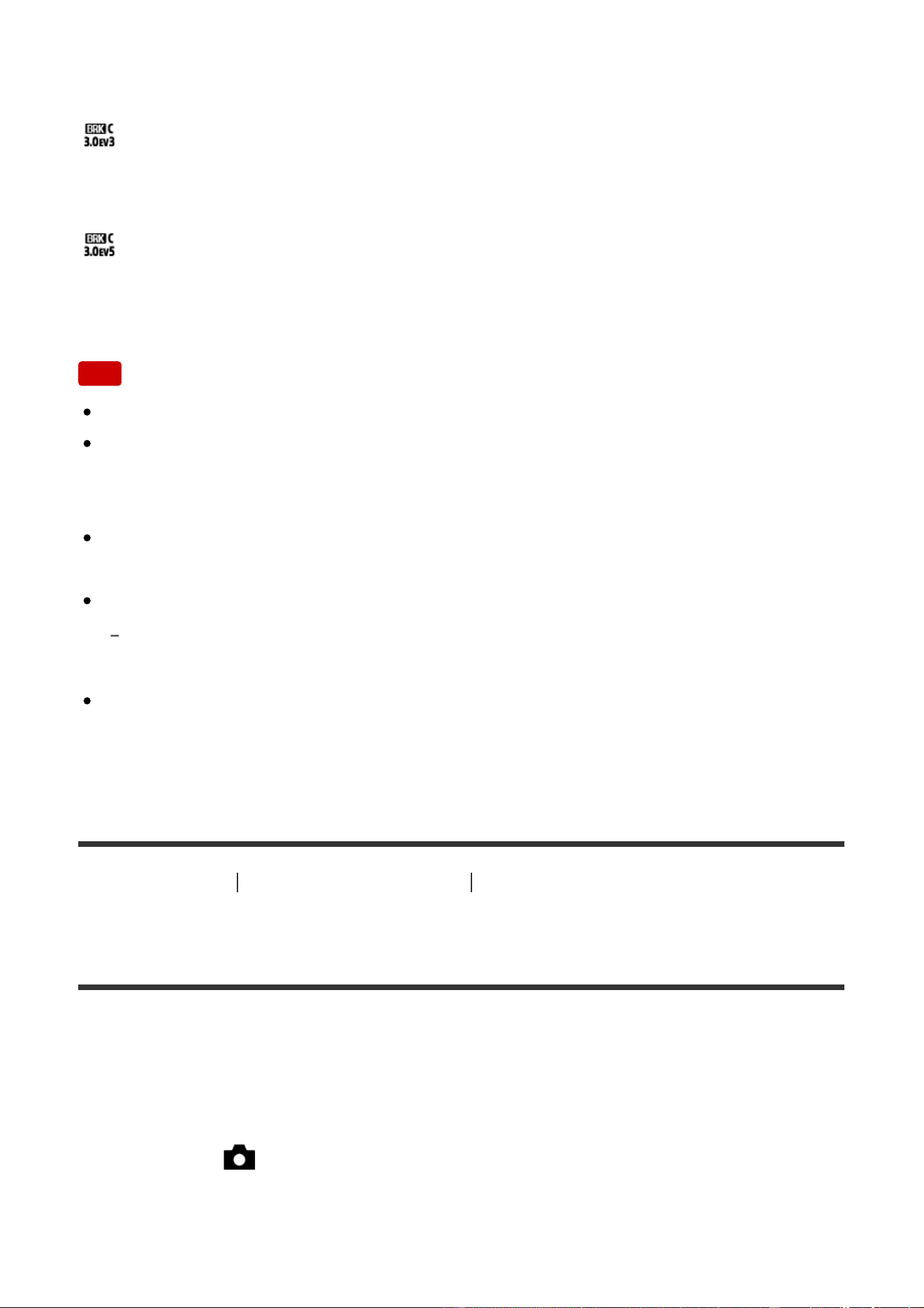
This setting shoots five images continuously with an exposure value shifted by
plus or minus 2.0 EV.
Cont. Bracket: 3.0EV 3 Image:
This setting shoots three images continuously with an exposure value shifted by
plus or minus 3.0 EV.
Cont. Bracket: 3.0EV 5 Image:
This setting shoots five images continuously with an exposure value shifted by
plus or minus 3.0 EV.
Note
The last shot is shown on the Auto Review.
When [ISO AUTO] is selected in [Manual Exposure] mode, the exposure is
changed by adjusting the ISO value. If a setting other than [ISO AUTO] is
selected, the exposure is changed by adjusting the shutter speed.
When you adjust the exposure, the exposure is shifted based on the
compensated value.
Bracket shooting is unavailable in the following situations:
The shooting mode is set to [Intelligent Auto], [Superior Auto], [Scene Selection], or
[Sweep Panorama].
When the flash is used, the product performs flash bracket shooting, which
shifts the amount of flash light even if [Cont. Bracket] is selected. Press the
shutter button for each image.
[108] How to Use Using shooting functions Selecting a drive mode (Continuous
shooting/Self-timer)
Single Bracket
Shoots multiple images while automatically shifting the exposure from base to
darker and then to lighter. Press the shutter button for each image. You can select
an image that suits your purpose after recording.
1. MENU → (Camera Settings) → [Drive Mode] → [Single Bracket].
2. Select the desired mode using the right/left side of the control wheel.

Menu item details
Single Bracket: 0.3EV 3 Image:
This setting shoots a total of three images in a row with an exposure value shifted
by plus or minus 0.3 EV.
Single Bracket: 0.3EV 5 Image:
This setting shoots a total of five images in a row with an exposure value shifted
by plus or minus 0.3 EV.
Single Bracket: 0.3EV 9 Image:
This setting shoots a total of nine images in a row with an exposure value shifted
by plus or minus 0.3 EV.
Single Bracket: 0.5EV 3 Image:
This setting shoots a total of three images in a row with an exposure value shifted
by plus or minus 0.5 EV.
Single Bracket: 0.5EV 5 Image:
This setting shoots a total of five images in a row with an exposure value shifted
by plus or minus 0.5 EV.
Single Bracket: 0.5EV 9 Image:
This setting shoots a total of nine images in a row with an exposure value shifted
by plus or minus 0.5 EV.
Single Bracket: 0.7EV 3 Image:
This setting shoots a total of three images in a row with an exposure value shifted
by plus or minus 0.7 EV.
Single Bracket: 0.7EV 5 Image:
This setting shoots a total of five images in a row with an exposure value shifted
by plus or minus 0.7 EV.
Single Bracket: 0.7EV 9 Image:
This setting shoots a total of nine images in a row with an exposure value shifted
by plus or minus 0.7 EV.
Single Bracket: 1.0EV 3 Image:
This setting shoots a total of three images in a row with an exposure value shifted
by plus or minus 1.0 EV.
Single Bracket: 1.0EV 5 Image:
This setting shoots a total of five images in a row with an exposure value shifted
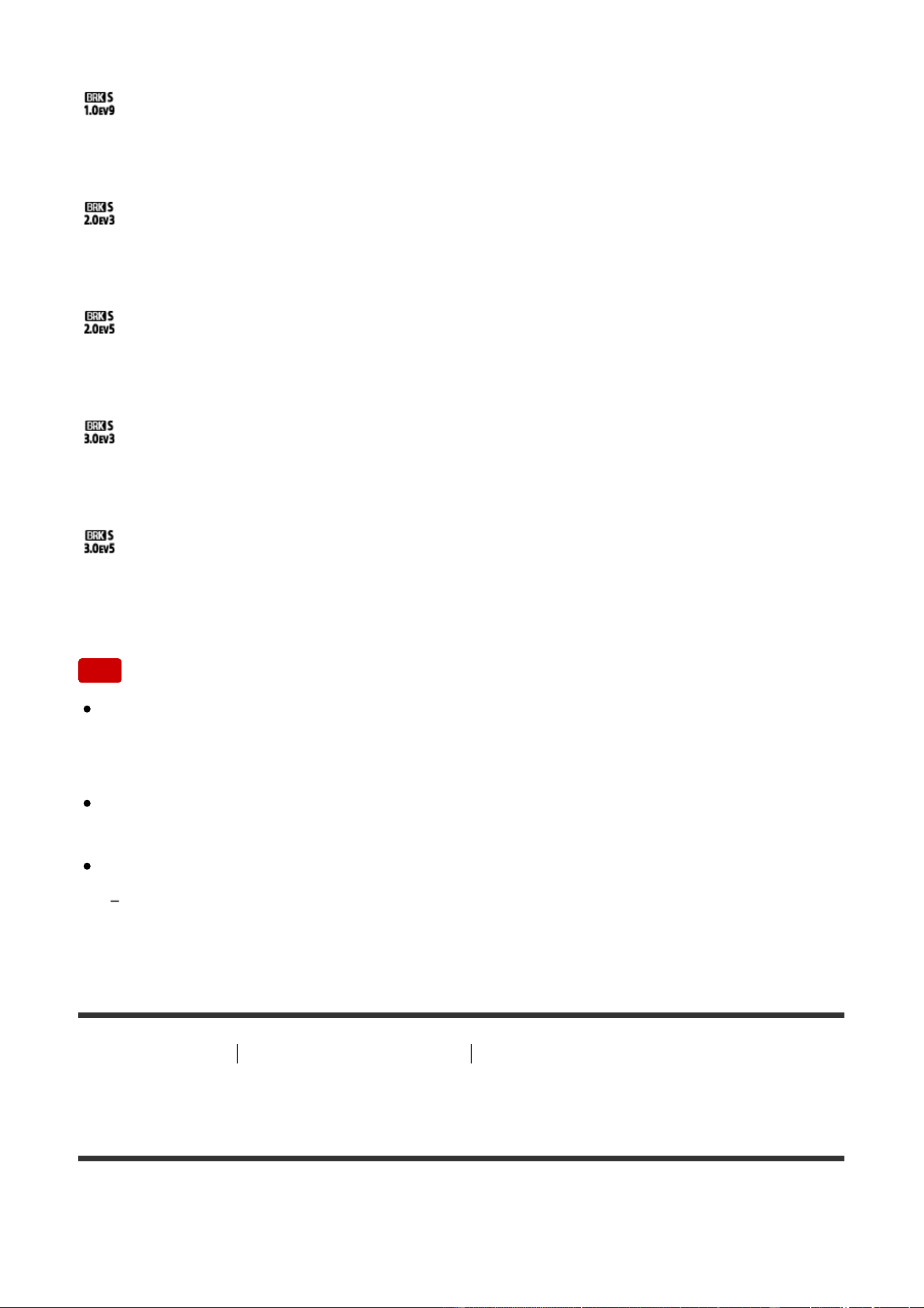
by plus or minus 1.0 EV.
Single Bracket: 1.0EV 9 Image:
This setting shoots a total of nine images in a row with an exposure value shifted
by plus or minus 1.0 EV.
Single Bracket: 2.0EV 3 Image:
This setting shoots a total of three images in a row with an exposure value shifted
by plus or minus 2.0 EV.
Single Bracket: 2.0EV 5 Image:
This setting shoots a total of five images in a row with an exposure value shifted
by plus or minus 2.0 EV.
Single Bracket: 3.0EV 3 Image:
This setting shoots a total of three images in a row with an exposure value shifted
by plus or minus 3.0 EV.
Single Bracket: 3.0EV 5 Image:
This setting shoots a total of five images in a row with an exposure value shifted
by plus or minus 3.0 EV.
Note
When [ISO AUTO] is selected in [Manual Exposure] mode, the exposure is
changed by adjusting the ISO value. If a setting other than [ISO AUTO] is
selected, the exposure is changed by adjusting the shutter speed.
When you adjust the exposure, the exposure is shifted based on the
compensated value.
Bracket shooting is unavailable in the following situations:
The shooting mode is set to [Intelligent Auto], [Superior Auto], [Scene Selection], or
[Sweep Panorama].
[109] How to Use
Using shooting functions Selecting a drive mode (Continuous
shooting/Self-timer)
WB bracket
Shoots three images, each with different color tones according to the selected
settings of white balance, color temperature and color filter.
1. MENU → (Camera Settings) → [Drive Mode] → [WB bracket].
2. Select the desired mode using the right/left side of the control wheel.
Menu item details
White Balance Bracket: Lo:
Records a series of three images with small changes in the white balance.
White Balance Bracket: Hi:
Records a series of three images with large changes in the white balance.
Note
The last shot is shown on the Auto Review.
[110] How to Use Using shooting functions Selecting a drive mode (Continuous
shooting/Self-timer)
DRO Bracket
You can record a total of three images, each at a different degree of D-Range
Optimizer value.
1. MENU → (Camera Settings) → [Drive Mode] → [DRO Bracket].
2. Select the desired mode using the right/left side of the control wheel.
Menu item details
DRO Bracket: Lo:
Records a series of three images with small changes in the D-Range Optimizer
value.
DRO Bracket: Hi:
Records a series of three images with large changes in the D-Range Optimizer
value.
Note
The last shot is shown on the Auto Review.
[111] How to Use Using shooting functions Selecting a drive mode (Continuous
shooting/Self-timer)
Settings for bracket shooting
You can set the self-timer in bracket shooting mode, and the shooting order for
exposure bracketing and white balance bracketing.
1. MENU → (Camera Settings) → [Drive Mode] → select bracket shooting
mode.
2. MENU → (Camera Settings) → [Bracket Settings] → desired setting.
Menu item details
Selftimer during Brkt:
Sets whether to use the self-timer during bracket shooting. Also sets the number
of seconds until the shutter is released if using the self-timer.
(OFF/2 Sec/5 Sec/10 Sec)
Bracket order:
Sets the order of exposure bracketing and white balance bracketing.
(0→-→+/-→0→+)
[112] How to Use Using shooting functions Selecting a drive mode (Continuous
shooting/Self-timer)
Indicator during bracket shooting
Viewfinder
Ambient light* bracketing
3 images shifted by 0.3 EV steps
Exposure compensation ±0.0 steps
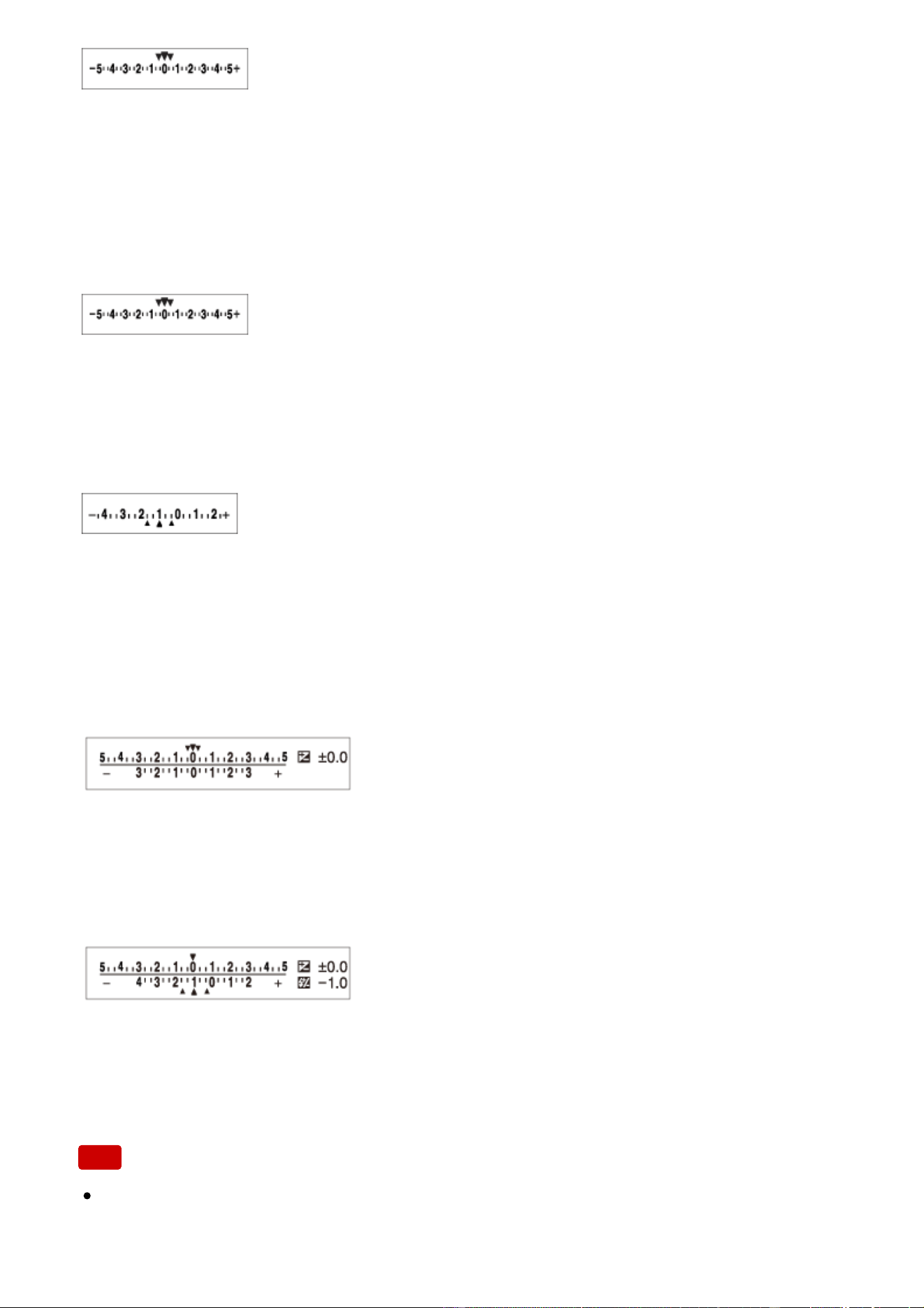
Monitor (Display All Info. or Histogram)
Ambient light* bracketing
3 images shifted by 0.3 EV steps
Exposure compensation ±0.0 steps
Flash bracketing
3 images shifted by 0.7 EV steps
Flash compensation -1.0 step
Monitor (For viewfinder)
Ambient light* bracketing
3 images shifted by 0.3 EV steps
Exposure compensation ±0.0 steps
Flash bracketing
3 images shifted by 0.7 EV steps
Flash compensation -1.0 step
*
Ambient light: A generic term for non-flash light including natural light, electric bulb and fluorescent
lighting. Whereas the flash light blinks for a moment, ambient light is constant, so this kind of light
is called "ambient light."
Note
During bracket shooting, guides equal to the number of images to be shot are
displayed over/under the bracket indicator.
When you start bracket shooting, the guides will disappear one by one as the
camera records images.
[113] How to Use Using shooting functions Selecting the ISO sensitivity
ISO
Sensitivity to light is expressed by the ISO number (recommended exposure
index). The larger the number, the higher the sensitivity.
1. MENU → (Camera Settings) → [ISO] → desired setting.
Menu item details
Multi Frame NR:
Combines continuous shots to create an image with less noise. Select the desired
ISO number from [ISO AUTO] or ISO 100 – 51200.
ISO AUTO:
Sets the ISO sensitivity automatically.
ISO 100 – ISO 51200:
Sets the ISO sensitivity manually. Selecting a larger number increases the ISO
sensitivity.
Note
[ISO AUTO] is selected when using the following functions:
[Intelligent Auto]
[Superior Auto]
[Scene Selection]
[Sweep Panorama]
The higher the ISO value, the more noise will appear on the images.
The available ISO settings will differ depending on whether you are shooting
still images, shooting movies, or using HFR.
When shooting movies, ISO values between ISO 100 and ISO 25600 are
available. If the ISO value is set to larger value than ISO 25600, the setting is
automatically switched to ISO 25600. When you finished the movie recording,
the ISO value returns to the original setting.
When you use [Multi Frame NR], it takes some time for the product to perform

the overlay processing of images.
Hint
You can change the automatically set ISO sensitivity range for the [ISO AUTO]
mode. Select [ISO AUTO] and press the right side of the control wheel, and set
the desired values for [ISO AUTO Maximum] and [ISO AUTO Minimum]. The
values for [ISO AUTO Maximum] and [ISO AUTO Minimum] are also applied
when shooting in [ISO AUTO] mode under [Multi Frame NR].
[114] How to Use Using shooting functions Selecting the ISO sensitivity
ISO AUTO Min. SS
If you select [ISO AUTO] or [ISO AUTO] under [Multi Frame NR] when the
shooting mode is P (Program Auto) or A (Aperture Priority), you can set the
shutter speed at which the ISO sensitivity starts changing.
This function is effective for shooting moving subjects. You can minimize subject
blurring while also preventing camera shake.
1. MENU→ (Camera Settings)→[ISO AUTO Min. SS]→desired setting.
Menu item details
FASTER (Faster)/FAST (Fast):
The ISO sensitivity will start to change at shutter speeds faster than [Standard], so
you can prevent camera shake and subject blurring.
STD (Standard):
The camera automatically sets the shutter speed based on the focal length of the
lens.
SLOW (Slow)/SLOWER (Slower):
The ISO sensitivity will start to change at shutter speeds slower than [Standard],
so you can shoot images with less noise.
1/4000―30":
The ISO sensitivity starts to change at the shutter speed you have set.
Hint
The difference in shutter speed at which ISO sensitivity starts to change
between [Faster], [Fast], [Standard], [Slow], and [Slower] is 1 EV.
Note
If the exposure is insufficient even when the ISO sensitivity is set to [ISO AUTO
Maximum] in [ISO AUTO], in order to shoot with an appropriate exposure, the
shutter speed will be slower than the speed set in [ISO AUTO Min. SS].
In the following situations, the shutter speed may not function as set:
When using the flash to shoot bright scenes. (The maximum shutter speed is limited to
the flash-synching speed of 1/160 seconds.)
When using the flash to shoot dark scenes with the [Flash Mode] set to [Fill-flash] or
[Wireless]. (The minimum shutter speed is limited to the speed automatically
determined by the camera.)
[115] How to Use
Using shooting functions Selecting the ISO sensitivity
Multi Frame NR
The product automatically shoots multiple images continuously, combines them,
reduces the noise, and records them as one image. The image recorded is one
combined image.
1. MENU → (Camera Settings) → [ISO] → [Multi Frame NR].
2. Press the right side of the control wheel to display the setting screen, then
select a desired value using the top/bottom side of the control wheel.
Note
When [ Quality] is set to [RAW] or [RAW & JPEG], this function cannot be
used.
The flash, [D-Range Opt.], and [Auto HDR] cannot be used.
When [Picture Profile] is set to something other than [Off], you cannot set [Multi
Frame NR].
When [Picture Effect] is set to something other than [Off], you cannot set [Multi
Frame NR].
Hint

You can change the automatically set range of ISO sensitivity in the [ISO
AUTO] mode under [Multi Frame NR]. Select [ISO AUTO] under [ISO] and
press the right side of the control wheel, and set the desired values for [ISO
AUTO Maximum] and [ISO AUTO Minimum]. The values for [ISO AUTO
Maximum] and [ISO AUTO Minimum] are also applied when shooting in [ISO
AUTO] mode under [Multi Frame NR].
[116] How to Use Using shooting functions Selecting the ISO sensitivity
NR Effect
Sets the effect level for multi frame NR.
1. MENU→ (Camera Settings) → [ISO] → [Multi Frame NR] → [NR Effect]
Menu item details
Normal:
4 images are added for the multi frame NR effect.
High:
12 images are added for the multi frame NR effect to produce images with even
less noise.
Note
When [High] is selected, it takes longer to shoot and combine images.
[117] How to Use Using shooting functions Correcting the brightness or contrast
D-Range Opt. (DRO)
By dividing the image into small areas, the product analyzes the contrast of light
and shadow between the subject and the background, and creates an image with
the optimal brightness and gradation.
1. MENU → (Camera Settings) → [DRO/Auto HDR] → [D-Range Opt.].
2. Select the desired setting using the left/right side of the control wheel.
Menu item details
D-Range Optimizer: Auto:
Corrects the brightness automatically.
D-Range Optimizer: Lv1 ― D-Range Optimizer: Lv5:
Optimizes the gradation of a recorded image for each divided area. Select the
optimization level from Lv1 (weak) to Lv5 (strong).
Note
[DRO/Auto HDR] is fixed to [Off] when the shooting mode is set to [Sweep
Panorama], or when [Multi Frame NR] or [Picture Effect] is set to other than
[Off].
[DRO/Auto HDR] is fixed to [Off] when [Picture Profile] is set to something other
than [Off].
[DRO/Auto HDR] is fixed to [Off] when the following modes are selected in
[Scene Selection].
[Sunset]
[Night Scene]
[Night Portrait]
[Hand-held Twilight]
[Anti Motion Blur]
The setting is fixed to [D-Range Optimizer: Auto] when [Scene Selection]
modes other than the above modes are selected.
When shooting with [D-Range Opt.], the image may be noisy. Select the proper
level by checking the recorded image, especially when you enhance the effect.
[118] How to Use Using shooting functions Correcting the brightness or contrast
Auto HDR
Widens the range (gradation) so that you can record from bright parts to dark parts
with correct brightness (HDR: High Dynamic Range). One image with proper
exposure and one overlaid image are recorded.
1. MENU → (Camera Settings) → [DRO/Auto HDR] → [Auto HDR].
2. Select the desired setting using the left/right side of the control wheel.
Menu item details
Auto HDR: Exposure Diff. Auto:
Corrects the exposure difference automatically.
Auto HDR: Exposure Diff. 1.0EV ― Auto HDR: Exposure Diff. 6.0EV:
Sets the exposure difference, based on the contrast of the subject. Select the
optimal level between 1.0 EV (weak) and 6.0 EV (strong).
For example, if you set the exposure value to 2.0 EV, three images will be
composed with the following exposure levels: −1.0 EV, correct exposure and +1.0
EV.
Note
[Auto HDR] is not available for RAW images.
[Auto HDR] is not available in the following shooting modes.
[Intelligent Auto]
[Superior Auto]
[Sweep Panorama]
[Scene Selection]
When [Multi Frame NR] is selected, you cannot select [Auto HDR].
When [Picture Effect] is set to something other than [Off], you cannot select
[Auto HDR].
When [Picture Profile] is set to something other than [Off], you cannot set [Auto
HDR].
You cannot start the next shot until the capture process is completed after you
shoot.
You may not obtain the desired effect depending on the luminance difference of
a subject and the shooting conditions.
When the flash is used, this function has little effect.
When the contrast of the scene is low or when product shake or subject blur
occurs, you may not obtain good HDR images. will be displayed over
the recorded image to inform you when the camera detects image blurring.
Change the composition or re-shoot the image carefully to avoid image blur, as
needed.
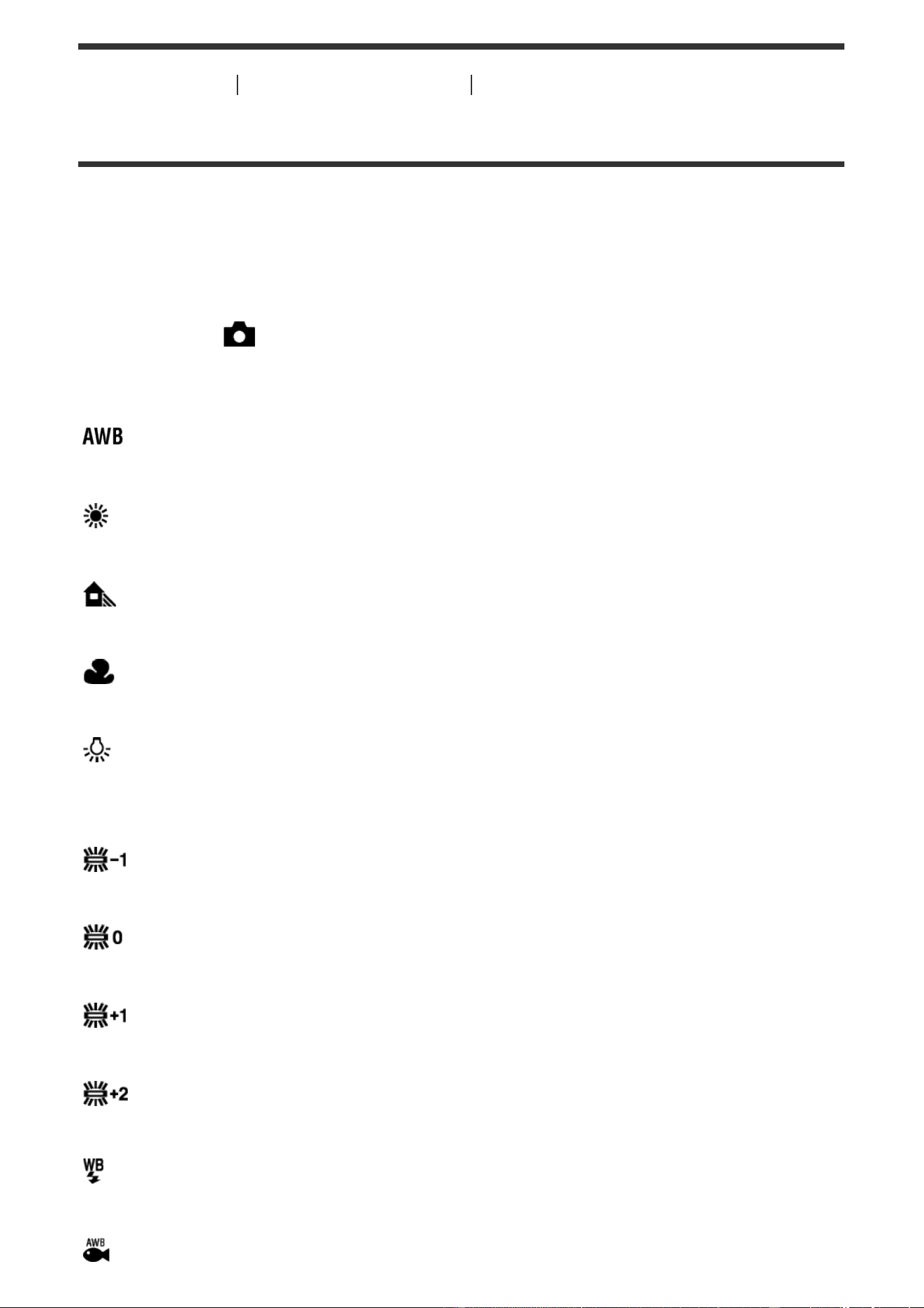
[119] How to Use Using shooting functions Adjusting color tones
White Balance
Adjusts the color tones according to the ambient light conditions. Use this feature
when the color tones of the image did not come out as you expected, or when you
want to change the color tones on purpose for photographic expression.
1. MENU → (Camera Settings) → [White Balance] → desired setting.
Menu item details
Auto:
The product automatically detects the light source and adjusts the color tones.
Daylight:
The color tones are adjusted for the daylight.
Shade:
The color tones are adjusted for shadiness.
Cloudy:
The color temperature is adjusted for a cloudy sky.
Incandescent:
The color temperature is adjusted for places under an incandescent lamp, or
under bright lighting, such as in a photo studio.
Fluor.: Warm White:
The color temperature is adjusted for warm white fluorescent lighting.
Fluor.: Cool White:
The color temperature is adjusted for white fluorescent lighting.
Fluor.: Day White:
The color temperature is adjusted for neutral white fluorescent lighting.
Fluor.: Daylight:
The color temperature is adjusted for daylight fluorescent lighting.
Flash:
The color temperature is adjusted for flash light.
Underwater Auto:
The color temperature is adjusted for underwater shooting.
C.Temp./Filter:
Adjusts the color tones depending on the light source. Achieves the effect of CC
(Color Compensation) filters for photography.
Custom 1/Custom 2/Custom 3:
Uses the white balance setting saved in [Custom Setup].
Custom Setup:
Memorizes the basic white color under the light conditions for the shooting
environment.
Select a memorized custom white balance number.
Hint
You can use the right side of the control wheel to display the fine adjustment
screen and perform fine adjustments of the color tones as required.
In [C.Temp./Filter], you can use the right button to display the color temperature
setting screen and perform a setting. When you press the right button again,
the fine adjustment screen appears to allow you perform fine adjustments as
required.
Note
[White Balance] is fixed to [Auto] in the following situations:
[Intelligent Auto]
[Superior Auto]
[Scene Selection]
[120] How to Use
Using shooting functions Adjusting color tones
Capturing a basic white color in [Custom Setup] mode
In a scene where the ambient light consists of multiple types of light sources, it is
recommended to use the custom white balance in order to accurately reproduce
the whiteness.
1. MENU → (Camera Settings) → [White Balance] → [Custom Setup].
2. Hold the product so that the white area fully covers the AF area located in the
center, and then press on the center of the control wheel.
The calibrated values (Color Temperature and Color Filter) are displayed.
3. Select a registration number using the right/left button.
The monitor returns to the recording information display while retaining the
memorized custom white balance setting.
Note
The message [Custom WB Error] indicates that the value is higher than the
expected range, when the flash is used on a subject with too bright colors in the
frame. If you register this value, the indicator turns orange on the
recording information display. You can shoot at this point, but it is
recommended that you set the white balance again to get a more accurate
white balance value.
[121] How to Use Using shooting functions Selecting an effect mode
Picture Effect
Select the desired effect filter to achieve more impressive and artistic images.
1. MENU → (Camera Settings) → [Picture Effect] → desired setting.
Menu item details
Off:
Disables the [Picture Effect] function.
Toy Camera:
Creates a soft image with shaded corners and reduced sharpness.
Pop Color:
Creates a vivid look by emphasizing color tones.
Posterization:
Creates a high contrast, abstract look by heavily emphasizing primary colors, or in
black and white.
Retro Photo:
Creates the look of an aged photo with sepia color tones and faded contrast.
Soft High-key:
Creates an image with the indicated atmosphere: bright, transparent, ethereal,
tender, soft.
Partial Color:
Creates an image which retains a specific color, but converts others to black and
white.
High Contrast Mono.:
Creates a high-contrast image in black and white.
Soft Focus:
Creates an image filled with a soft lighting effect.
HDR Painting:
Creates the look of a painting, enhancing the colors and details.
Rich-tone Mono.:
Creates an image in black and white with rich gradation and reproduction of
details.
Miniature:
Creates an image which enhances the subject vividly, with the background
defocused considerably. This effect may often be found in pictures of miniature
models.
Watercolor:
Creates an image with ink bleed and blurring effects as if painted using
watercolors.
Illustration:
Creates an illustration-like image by emphasizing the outlines.
Hint
You can perform detailed settings for the following [Picture Effect] modes using
the left/right side of the control wheel.
[Toy Camera]
[Posterization]
[Partial Color]
[Soft Focus]
[HDR Painting]
[Miniature]
[Illustration]
Note
When you use a zoom function other than the optical zoom, setting the zoom
scale larger makes [Toy Camera] less effective.
When [Partial Color] is selected, images may not retain the selected color,
depending on the subject or shooting conditions.
You cannot check the following effects on the shooting screen, because the
product processes the image after the shot. Also, you cannot shoot another
image until image processing is finished. You cannot use these effects with
movies.
[Soft Focus]
[HDR Painting]
[Rich-tone Mono.]
[Miniature]
[Watercolor]
[Illustration]
In the case of [HDR Painting] and [Rich-tone Mono.], the shutter is released
three times for one shot. Be careful about the following:
Use this function when the subject is motionless or does not flash light.
Do not change the composition before shooting.
When the contrast of the scene is low or when significant camera-shake or
subject blur has occurred, you may not be able to obtain good HDR images. If
the product detects such a situation, / appear on the recorded image
to inform you of this situation. If necessary, change the composition or
otherwise adjust the settings, be careful of blurring, and shoot again.
[Picture Effect] cannot be set when the shooting mode is set to [Intelligent
Auto], [Superior Auto], [Scene Selection] or [Sweep Panorama].
[Picture Effect] cannot be set when [ Quality] is set to [RAW] or [RAW &
JPEG].
[122] How to Use Using shooting functions Selecting an effect mode
Creative Style
Allows you to select the desired image processing. You can adjust exposure
(shutter speed and aperture) as you like with [Creative Style], unlike with [Scene
Selection] where the product adjusts the exposure.
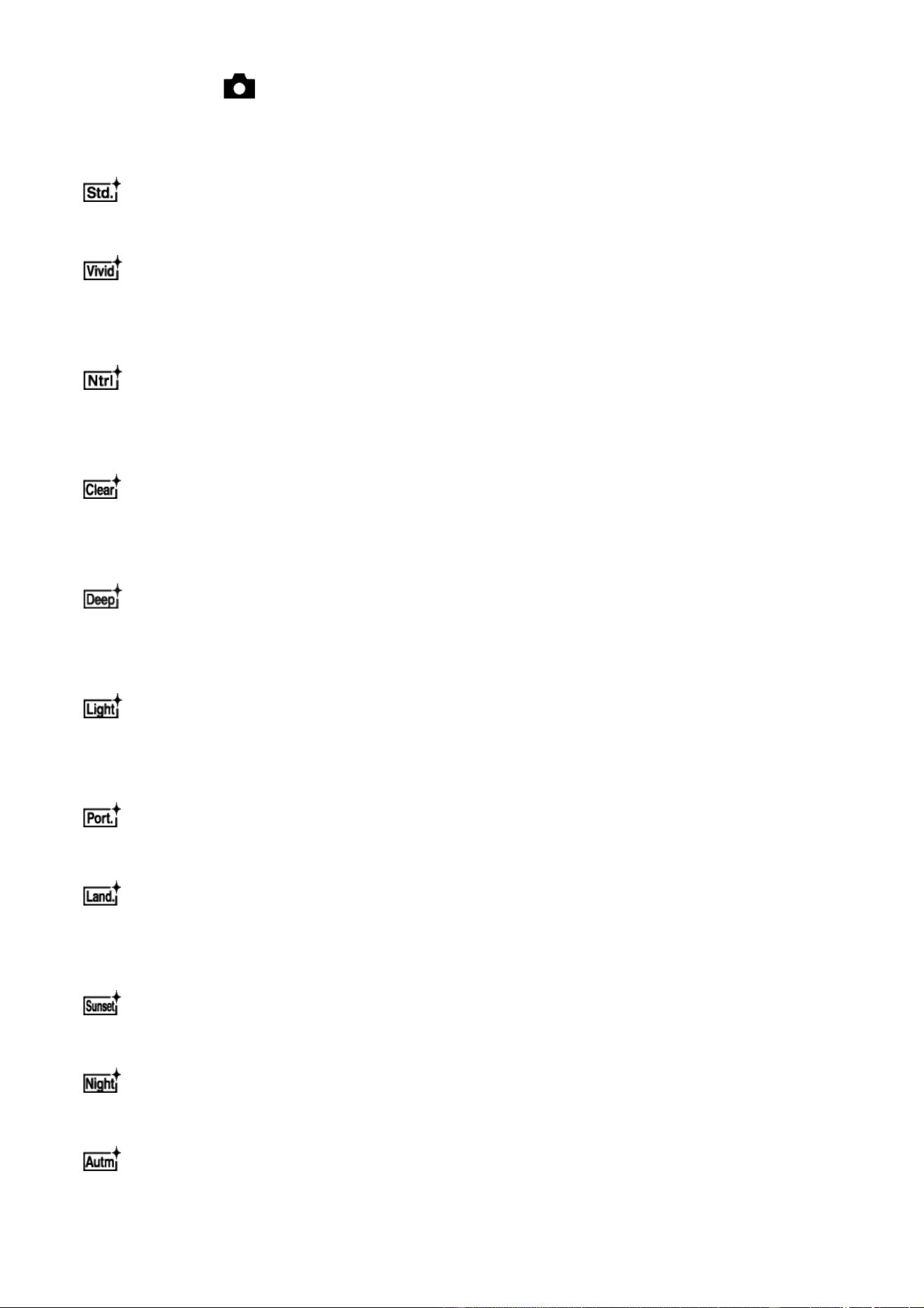
1. MENU → (Camera Settings) → [Creative Style] → desired setting.
Menu item details
Standard:
For shooting various scenes with rich gradation and beautiful colors.
Vivid:
The saturation and contrast are heightened for shooting striking images of colorful
scenes and subjects such as flowers, spring greenery, blue sky, or ocean views.
Neutral:
The saturation and sharpness are lowered for shooting images in subdued tones.
This is also suitable for capturing image material to be modified with a computer.
Clear:
For shooting images in clear tones with limpid colors in highlight, suitable for
capturing radiant light.
Deep:
For shooting images with deep and dense colors, suitable for capturing the solid
presence of the subject.
Light:
For shooting images with bright and simple colors, suitable for capturing a
refreshingly light ambience.
Portrait:
For capturing skin in a soft tone, ideally suited for shooting portraits.
Landscape:
The saturation, contrast, and sharpness are heightened for shooting vivid and
crisp scenery. Distant landscapes also stand out more.
Sunset:
For shooting the beautiful red of the setting sun.
Night Scene:
The contrast is lowered for reproducing night scenes.
Autumn leaves:
For shooting autumn scenes, vividly highlighting the reds and yellows of changing
leaves.
Black & White:
For shooting images in black and white monotone.
Sepia:
For shooting images in sepia monotone.
Registering preferred settings (Style Box):
Select the six style box (the boxes with numbers on the left side (
)) to
register preferred settings. Then select the desired settings using the right button.
You can call up the same style with slightly different settings.
To set [Contrast], [Saturation] and [Sharpness]
[Contrast], [Saturation] and [Sharpness] can be adjusted for each [Style Box] item.
Select an item to be set by pressing the right/left side of the control wheel, then set
the value using the top/bottom side of the control wheel.
Contrast:
The higher the value selected, the more the difference of light and shadow is
accentuated, and the bigger the effect on the image.
Saturation:
The higher the value selected, the more vivid the color. When a lower value is
selected, the color of the image is restrained and subdued.
Sharpness:
Adjusts the sharpness. The higher the value selected, the more the contours are
accentuated, and the lower the value selected, the more the contours are
softened.
Note
[Standard] is selected when using the following functions:
[Intelligent Auto]
[Superior Auto]
[Scene Selection]
[Picture Effect] is set to other than [Off].
[Picture Profile] is set to other than [Off].
When [Creative Style] is set to [Black & White] or [Sepia], [Saturation] cannot
be adjusted.
[123] How to Use Using shooting functions Recording movies
Movie recording formats

The following movie recording formats are available with this camera.
What is XAVC S?
Records high-definition movies such as 4K by converting them to MP4 movies
using the MPEG-4 AVC/H.264 codec. MPEG-4 AVC/H.264 is capable of
compressing images at higher efficiency. You can record high-quality images
while reducing the amount of data.
XAVC S/AVCHD recording format
XAVC S 4K:
Bit-rate: Approx. 100 Mbps or approx. 60 Mbps
Records movies in 4K resolution (3840×2160).
XAVC S HD:
Bit-rate: Approx. 100 Mbps, Approx. 60 Mbps, or Approx. 50 Mbps
Records a more vivid movie compared to AVCHD with increased amounts of
information.
Movies will be recorded at a bit-rate of approximately 16 Mbps or 12 Mbps during
High Frame Rate shooting.
AVCHD:
Bit-rate: Approx. 28 Mbps (Maximum), Approx. 24 Mbps (Maximum) or Approx. 17
Mbps (Average)
The AVCHD format has a high degree of compatibility with storage devices other
than computers.
Bit rate is the amount of the data processed within a given length of time.
[124] How to Use Using shooting functions Recording movies
File Format (movie)
Selects the movie file format.
1. MENU → (Camera Settings) → [ File Format] → desired setting.
Menu item details
XAVC S 4K:
Records high-definition movies in XAVC S 4K. This format supports a higher bit
rate.
Audio: LPCM
In order to record movies with [ File Format] set to [XAVC S 4K], the
following kind of memory card is needed:
Memory Stick PRO-HG Duo
Movies cannot be recorded in 100 Mbps or more.
SDHC / microSDHC memory card (SD Speed Class10, or UHS Speed Class U1 or
faster)
When recording in 100 Mbps or more, UHS Speed Class U3 is required.
SDXC / microSDXC memory card with a capacity of 64 GB or more (SD Speed
Class10, or UHS Speed Class U1 or faster)
When recording in 100 Mbps or more, UHS Speed Class U3 is required.
[HDMI Info. Display] is temporarily set to [Off] when [ File Format] is set to
[XAVC S 4K].
Images will not appear on the monitor when you record movies while the
camera is connected to an HDMI device with [ File Format] set to [XAVC S
4K].
[Smile/Face Detect.] and [Center Lock-on AF] are temporarily set to [Off] when
the camera is connected to an HDMI device with [ File Format] set to [XAVC
S 4K].
[Smile/Face Detect.], [Center Lock-on AF] and [ REC Control] are
temporarily set to [Off] when [ File Format] is set to [XAVC S 4K] and [Dual
Video REC] is set to [On]. Even if the camera is connected to an HDMI device,
images will not be displayed on that device while movie recording is in
progress.
XAVC S HD:
Records high-definition movies in XAVC S HD. This format supports a higher bit
rate.
Audio: LPCM
In order to record movies with [ File Format] set to [XAVC S HD], the
following kind of memory card is needed:
Memory Stick PRO-HG Duo
Movies cannot be recorded in 100 Mbps or more.
SDHC / microSDHC memory card (SD Speed Class10, or UHS Speed Class U1 or
faster)
When recording in 100 Mbps or more, UHS Speed Class U3 is required.
SDXC / microSDXC memory card with a capacity of 64 GB or more (SD Speed
Class10, or UHS Speed Class U1 or faster)
When recording in 100 Mbps or more, UHS Speed Class U3 is required.
AVCHD:
Records HD movies in AVCHD format. This file format is suitable for high-
definition TV.
Audio: Dolby Digital
MP4:
Records mp4 (AVC) movies. This format is suitable for playback on smartphones
or tablets, web uploads, email attachments, etc.
Audio: AAC
Hint
You can save images to a computer or copy them to a disc compatible with
your playback device using the software PlayMemories Home.
Note
When [ File Format] is set to [AVCHD], the file size of movies is limited to
approx. 2 GB. If the movie file size reaches approx. 2 GB during recording, a
new movie file will be created automatically.
When [ File Format] is set to [MP4], the file size of movies is limited to
approx. 4 GB. If the movie file size reaches approx. 4 GB during recording,
recording will stop automatically.
[125] How to Use Using shooting functions Recording movies
Record Setting (movie)
Selects the image size, frame rate, and image quality for movie recording. The
higher the bit-rate, the higher the image quality.
1. MENU → (Camera Settings) → [ Record Setting] → desired setting.
When [ File Format] is set to [XAVC S 4K]
Records high-definition movies by converting them to MP4 file format using the
MPEG-4 AVC/H.264 codec.
When [ File Format] is set to [XAVC S HD]
Records high-definition movies by converting them to MP4 file format using the
MPEG-4 AVC/H.264 codec.
When [ File Format] is set to [AVCHD]
60i/50i: Movies are recorded at approximately 60 fields/sec (for 1080 60i-
compatible devices) or 50 fields/sec (for 1080 50i-compatible devices), in
interlaced mode, with Dolby Digital audio, in AVCHD format.
24p/25p: Movies are recorded at approximately 24 frames/sec (for 1080 60i-
compatible devices) or 25 frames/sec (for 1080 50i-compatible devices), in
progressive mode, with Dolby Digital audio, in AVCHD format.
60p/50p: Movies are recorded at approximately 60 frames/sec (for 1080 60i-
compatible devices) or 50 frames/sec (for 1080 50i-compatible devices), in
progressive mode, with Dolby Digital audio, in AVCHD format.
When [ File Format] is set to [MP4]
Movies shot are recorded in MPEG-4 format, at approximately 60 frames/sec (for
1080 60i-compatible devices), approximately 50 frames/sec (for 1080 50i-
compatible devices), approximately 30 frames/sec (for 1080 60i-compatible
devices) or approximately 25 frames/sec (for 1080 50i-compatible devices), in
progressive mode, with AAC audio, MP4 format.
Menu item details
When [ File Format] is set to [XAVC S 4K]
30p 100M/25p 100M :
Records the movies in 3840 × 2160 (30p/25p).
Bit-rate: Approx. 100 Mbps
30p 60M/25p 60M
:
Records the movies in 3840 × 2160 (30p/25p).
Bit-rate: Approx. 60 Mbps
24p 100M
*:
Records the movies in 3840 × 2160 (24p). This produces a cinema-like
atmosphere.
Bit-rate: Approx. 100 Mbps
24p 60M
*:
Records the movies in 3840 × 2160 (24p). This produces a cinema-like

atmosphere.
Bit-rate: Approx. 60 Mbps
When [
File Format] is set to [XAVC S HD]
60p 50M /50p 50M :
Records the movies in 1920 × 1080 (60p/50p).
Bit-rate: Approx. 50 Mbps
30p 50M
/25p 50M :
Records the movies in 1920 × 1080 (30p/25p).
Bit-rate: Approx. 50 Mbps
24p 50M
*:
Records the movies in 1920 × 1080 (24p). This produces a cinema-like
atmosphere.
Bit-rate: Approx. 50 Mbps
120p 100M/100p 100M:
Records 1920 × 1080 (120p/100p) size movies at a high speed. Movies can be
recorded at 120 fps/100 fps.
You can create smoother slow-motion images using compatible editing equipment.
Bit-rate: Approx. 100 Mbps
120p 60M/100p 60M:
Records 1920 × 1080 (120p/100p) size movies at a high speed. Movies can be
recorded at 120 fps/100 fps.
You can create smoother slow-motion images using compatible editing equipment.
Bit-rate: Approx. 60 Mbps
When [
File Format] is set to [AVCHD]
60i 24M(FX) /50i 24M(FX) :
Records the movies in 1920 × 1080 (60i/50i).
Bit-rate: 24 Mbps (Max.)
60i 17M(FH)
/50i 17M(FH) :
Records the movies in 1920 × 1080 (60i/50i).
Bit-rate: Approx. 17 Mbps (Avg.)
60p 28M(PS)
/50p 28M(PS) :
Records the movies in 1920 × 1080 (60p/50p).
Bit-rate: 28 Mbps (Max.)
24p 24M(FX) /25p 24M(FX) :
Records the movies in 1920 × 1080 (24p/25p). This produces a cinema-like
atmosphere.
Bit-rate: 24 Mbps (Max.)
24p 17M(FH)
/25p 17M(FH) :
Records the movies in 1920 × 1080 (24p/25p). This produces a cinema-like
atmosphere.
Bit-rate: Approx. 17 Mbps (Avg.)
When [
File Format] is set to [MP4]
1080/60p 28M /1080/50p 28M :
Records the movies in 1920×1080 (60p/50p).
Bit-rate: Approx. 28 Mbps (Avg.)
1080/30p 16M
/1080/25p 16M :
Records the movies in 1920×1080 (30p/25p).
Bit-rate: Approx. 16 Mbps (Avg.)
720/30p 6M
/720/25p 6M :
Records small file size movies in 1280×720 (30p/25p).
Bit-rate: Approx. 6 Mbps (Avg.)
* Only when [NTSC/PAL Selector] is set to NTSC.
Note
60p/50p movies can be played back only on compatible devices.
Movies recorded with the [60p 28M(PS) ]/[50p 28M(PS) ]/[60i 24M(FX)
]/[50i 24M(FX) ]/ [24p 24M(FX) ] /[25p 24M(FX) ] setting in [
Record Setting] are converted by PlayMemories Home in order to create
an AVCHD recording disc. This conversion can take a long time. Also, you
cannot create a disc in the original image quality. If you want to keep the
original image quality, store your movies on a Blu-ray Disc.
To play back 60p/50p/24p/25p movies on a TV, the TV must be compatible with
the 60p/50p/24p/25p formats. If the TV is not compatible with the
60p/50p/24p/25p format, 60p/50p/24p/25p movies will be output as 60i/50i
movies.
[120p]/[100p] cannot be selected for the following settings.
[Intelligent Auto]
[Superior Auto]
[Scene Selection]
The angle of view will be narrower under the following conditions:
When [ File Format] is set to [XAVC S HD] and [ Record Setting] is set to
[120p]/[100p]
When [
File Format] is set to [XAVC S 4K] and [ Record Setting] is set to
[30p]/[25p]
During High Frame Rate shooting
[126] How to Use
Using shooting functions Recording movies
Dual Video REC
Allows you to simultaneously record an XAVC S movie and an MP4 movie, or an
AVCHD movie and an MP4 movie.
1. MENU → (Camera Settings) → [Dual Video REC] → desired setting.
Menu item details
On:
An XAVC S movie and an MP4 movie, or an AVCHD movie and an MP4 movie,
are recorded simultaneously.
Off:
The [Dual Video REC] function is not used.
Note
When [ Record Setting] for an XAVC S movie is set to [60p]/[50p] or
[120p]/[100p], [ Record Setting] for an AVCHD movie is set to [60p]/[50p], or
[ File Format] is set to [MP4], the [Dual Video REC] function is set to [Off].
If you select [Date View] in [View Mode] when playing back movies, XAVC S
movies and MP4 movies, or AVCHD movies and MP4 movies are displayed
side-by-side.
[127] How to Use Using shooting functions Recording movies
Marker Display (movie)
Sets whether or not to display markers set using [ Marker Settings] on the
monitor or the viewfinder while shooting movies.
1. MENU → (Custom Settings) → [ Marker Display] → desired setting.
Menu item details
On:
Markers are displayed. The markers are not recorded.
Off:
No marker is displayed.
Note
The markers are displayed when the mode dial is set to (Movie/HFR) or
when shooting movies.
You cannot display markers when using [Focus Magnifier].
The markers are displayed on the monitor or viewfinder. (You cannot output the
markers.)
[128] How to Use Using shooting functions Recording movies
Marker Settings (movie)
Sets the markers to be displayed while shooting movies.
1. MENU → (Custom Settings) → [ Marker Settings] → desired setting.
Menu item details
Center:
Sets whether or not to display the center marker in the center of the shooting
screen.
Off / On
Aspect:
Sets the aspect marker display.
Off / 4:3 / 13:9 / 14:9 / 15:9 / 1.66:1 / 1.85:1 / 2.35:1
Safety Zone:
Sets the safety zone display. This becomes the standard range that can be
received by a general household TV.
Off / 80% / 90%
Guideframe:
Sets whether or not to display the guide frame. You can verify whether the subject
is level or perpendicular to the ground.
Off / On
Hint
You can display all the markers at the same time.
Place the subject on the cross point of the [Guideframe] to make a balanced
composition.
[129] How to Use Using shooting functions Recording movies
Audio Recording
Sets whether to record sounds when shooting movies.
1. MENU → (Camera Settings) → [Audio Recording] → desired setting.
Menu item details
On:
Records sound (stereo).
Off:
Does not record sound.
Note
The noise of the lens and the product in operation will also be recorded, when
[On] is selected.
[130] How to Use Using shooting functions Recording movies
Audio Level Display
Sets whether to display the audio level on the screen.
1. MENU→ (Custom Settings) → [Audio Level Display] → desired setting.
Menu item details
On:
Displays the audio level.
Off:
Does not display the audio level.
Note
The audio level is not displayed in the following situations:
When [Audio Recording] is set to [Off].
When DISP (Display Setting) is set to [No Disp. Info.].
During High Frame Rate shooting
Set the shooting mode to Movie. You can see the audio level before recording
only in movie recording mode.
[131] How to Use Using shooting functions Recording movies
Audio Rec Level
You can adjust the audio recording level while checking the level meter.
1. MENU → (Camera Settings) → [Audio Rec Level] → desired setting.
Menu item details
+:
Turns up the audio recording level.
−:
Turns down the audio recording level.
Reset:

Resets the audio recording level to the default setting.
Hint
When you record audio movies with loud volumes, set [Audio Rec Level] to a
lower sound level. Doing so enables you to record more realistic audio. When
you record audio movies with lower volumes, set [Audio Rec Level] to a greater
sound level to make the sound easier to hear.
Note
Regardless of the [Audio Rec Level] settings, the limiter always operates.
[Audio Rec Level] is available only when the shooting mode is set to Movie.
[Audio Rec Level] is unavailable during High Frame Rate shooting.
The [Audio Rec Level] settings are applied for both the internal microphone and
the (Microphone) terminal input.
[132] How to Use Using shooting functions Recording movies
Wind Noise Reduct.
Sets whether or not to reduce wind noise during movie recording.
1. MENU → (Camera Settings) → [Wind Noise Reduct.] → desired setting.
Menu item details
On:
Reduces wind noise.
Off:
Does not reduce wind noise.
Note
Setting this item to [On] where wind is not blowing sufficiently hard may cause
normal sound to be recorded with too low volume.
When an external microphone (sold separately) is used, [Wind Noise Reduct.]
does not function.
[133] How to Use Using shooting functions Recording movies
Auto Slow Shut. (movie)
Sets whether or not to adjust the shutter speed automatically when recording
movies if the subject is dark.
1. MENU → (Camera Settings) → [ Auto Slow Shut.] → desired
setting.
Menu item details
On:
Uses [ Auto Slow Shut.]. The shutter speed automatically slows when
recording in dark locations. You can reduce noise in the movie by using a slow
shutter speed when recording in dark locations.
Off:
Does not use [ Auto Slow Shut.]. The recorded movie will be darker than when
[On] is selected, but you can record movies with smoother motion and less object
blur.
Note
[ Auto Slow Shut.] does not function in the following situations:
During High Frame Rate shooting
(Shutter Priority)
(Manual Exposure)
When [ISO] is set to other than [ISO AUTO].
[134] How to Use Using shooting functions Recording movies
MOVIE Button
Sets whether or not to activate the MOVIE button.
1. MENU → (Custom Settings) → [MOVIE Button] → desired setting.
Menu item details

Always:
Starts movie recording when you press the MOVIE button in any mode.
Movie Mode Only:
Starts movie recording when you press the MOVIE button only if the shooting
mode is set to [Movie/HFR] mode.
[135] How to Use Using shooting functions Recording movies
Picture Profile
Allows you to change the settings for the color, gradation, etc.
For details on “Picture Profile,” refer to
http://helpguide.sony.net/di/pp/v1/en/index.html.
Customizing the picture profile
You can customize the picture quality by adjusting picture profile items such as
[Gamma] and [Detail]. When setting these parameters, connect the camera to a
TV or monitor, and adjust them while observing the picture on the screen.
1. MENU → (Camera Settings) → [Picture Profile] → the profile you want
to change.
2. Move to the item index screen by pressing the right side of the control wheel.
3. Select the item to change using the up/down sides of the control wheel.
4. Select the desired value using the up/down sides of the control wheel and
press in the center.
Using the preset of the picture profile
The default settings [PP1] through [PP9] for movies have been set in advance in
the camera based on various shooting conditions.
MENU → (Camera Settings) → [Picture Profile] → desired setting.
PP1:
Example setting using [Movie] gamma
PP2:

Example setting using [Still] gamma
PP3:
Example setting of natural color tone using the [ITU709] gamma
PP4:
Example setting of a color tone faithful to the ITU709 standard
PP5:
Example setting using [Cine1] gamma
PP6:
Example setting using [Cine2] gamma
PP7:
Example setting using [S-Log2] gamma
PP8:
Example setting using the [S-Log3] gamma and the [S-Gamut3.Cine] under [Color
Mode].
PP9:
Example setting using the [S-Log3] gamma and the [S-Gamut3] under [Color
Mode].
Items of the picture profile
Black Level
Sets the black level. (–15 to +15)
Gamma
Selects a gamma curve.
Movie: Standard gamma curve for movies
Still: Standard gamma curve for still images
Cine1: Softens the contrast in dark parts and emphasizes gradation in bright parts
to produce a relaxed color movie. (equivalent to HG4609G33)
Cine2: Similar to [Cine1] but optimized for editing with up to 100% video signal.
(equivalent to HG4600G30)
Cine3: Intensifies the contrast in light and shade more than [Cine1] and [Cine2]
and strengthens gradation in black.
Cine4: Strengthens the contrast in dark parts more than [Cine3]. The contrast in

dark parts is lower and the contrast in bright parts is higher than for [Movie].
ITU709: Gamma curve that corresponds to ITU709.
ITU709(800%): Gamma curve for confirming scenes on the assumption of
shooting using [S-Log2] or [S-Log3].
S-Log2: Gamma curve for [S-Log2]. This setting is based on the assumption that
the picture will be processed after shooting.
S-Log3: Gamma curve for [S-Log3] with more similar features to film. This setting
is based on the assumption that the picture will be processed after shooting.
Black Gamma
Corrects gamma in low intensity areas.
Range: Selects the correcting range. (Wide / Middle / Narrow)
Level: Sets the correcting level. (-7 (maximum black compression) to +7
(maximum black stretch))
Knee
Sets knee point and slope for video signal compression to prevent over-exposure
by limiting signals in high intensity areas of the subject to the dynamic range of
your camera.
When selecting [Still], [Cine1], [Cine2], [Cine3], [Cine4], [ITU709(800%)], [S-Log2],
[S-Log3] in [Gamma], [Knee] is set to [Off] if [Mode] is set to [Auto]. To use
functions in [Knee], set [Mode] to [Manual].
Mode: Selects auto/manual settings.
Auto: The knee point and slope are set automatically.
Manual: The knee point and slope are set manually.
Auto Set: Settings when [Auto] is selected for [Mode].
Max Point: Sets the maximum point of the knee point. (90% to 100%)
Sensitivity: Sets the sensitivity. (High/Mid/Low)
Manual Set: Settings when [Manual] is selected for [Mode].
Point: Sets the knee point. (75% to 105%)
Slope: Sets the knee slope. (-5 (gentle) to +5 (steep))
Color Mode
Sets type and level of colors.
Movie: Suitable colors when [Gamma] is set to [Movie].

Still: Suitable colors when [Gamma] is set to [Still].
Cinema: Suitable colors when [Gamma] is set to [Cine1].
Pro: Similar color tones to the standard image quality of Sony professional
cameras (when combined with ITU709 gamma)
ITU709 Matrix: Colors corresponding to ITU709 standard (when combined with
ITU709 gamma)
Black & White: Sets the saturation to zero for shooting in black and white.
S-Gamut: Setting based on the assumption that the pictures will be processed
after shooting. Used when [Gamma] is set to [S-Log2].
S-Gamut3.Cine: Setting based on the assumption that the pictures will be
processed after shooting. Used when [Gamma] is set to [S-Log3]. This setting
allows you to shoot in a color space that can easily be converted for digital
cinema.
S-Gamut3: Setting based on the assumption that the pictures will be processed
after shooting. Used when [Gamma] is set to [S-Log3]. This setting allows you to
shoot in a wide color space.
Saturation
Sets the color saturation. (-32 to +32)
Color Phase
Sets the color phase. (-7 to +7)
Color Depth
Sets the color depth for each color phase. This function is more effective for
chromatic colors and less effective for achromatic colors. The color looks deeper
as you increase the setting value towards the positive side, and lighter as you
decrease the value towards the negative side. This function is effective even if you
set [Color Mode] to [Black & White].
[R] -7 (light red) to +7 (deep red)
[G] -7 (light green) to +7 (deep green)
[B] -7 (light blue) to +7 (deep blue)
[C] -7 (light cyan) to +7 (deep cyan)
[M] -7 (light magenta) to +7 (deep magenta)
[Y] -7 (light yellow) to +7 (deep yellow)

Detail
Sets items for [Detail].
Level: Sets the [Detail] level. (-7 to +7)
Adjust: The following parameters can be selected manually.
Mode: Selects auto/manual setting. (Auto (automatic optimization) / Manual
(The details are set manually.))
V/H Balance: Sets the vertical (V) and horizontal (H) balance of DETAIL. (-2 (off
to the vertical (V) side) to +2 (off to the horizontal (H) side))
B/W Balance: Selects the balance of the lower DETAIL (B) and the upper
DETAIL (W). (Type1 (off to the lower DETAIL (B) side) to Type5 (off to the
upper DETAIL (W) side))
Limit: Sets the limit level of [Detail]. (0 (Low limit level: likely to be limited) to 7
(High limit level: unlikely to be limited))
Crispning: Sets the crispening level. (0 (shallow crispening level) to 7 (deep
crispening level))
Hi-Light Detail: Sets the [Detail] level in the high intensity areas. (0 to 4)
Copy
Copies the settings of the picture profile to another picture profile number.
MENU →
(Camera Settings) → [Picture Profile] → [Copy]
Reset
Resets the picture profile to the default setting. You cannot reset all picture profile
settings at once.
MENU →
(Camera Settings) → [Picture Profile] → [Reset]
Note
Since the parameters are shared for movie and still images, adjust the value
when you change the shooting mode.
If you print RAW images with shooting settings, the following settings are not
reflected.
Black Level
Black Gamma
Knee
Color Depth

If you change [Gamma], the available ISO value range changes.
There may be more noise in dark parts depending on the gamma settings. It
may improve by setting the lens compensation to [Off].
When using S-Log2 or S-Log3 gamma, the noise becomes more noticeable
compared to when using other gammas. If the noise still is significant even after
processing pictures, it may be improved by shooting with a brighter setting.
However, the dynamic range becomes narrower accordingly when you shoot
with a brighter setting. We recommend checking the picture in advance by test
shooting when using S-Log2 or S-Log3.
Setting [ITU709(800%)], [S-Log2] or [S-Log3] may cause an error in the white
balance custom setup. In this case, perform custom setup with a gamma other
than [ITU709(800%)], [S-Log2], or [S-Log3] first, and then reselect
[ITU709(800%)], [S-Log2], or [S-Log3] gamma.
Setting [ITU709(800%)], [S-Log2] or [S-Log3] disables the [Black Level] setting.
If you set [Slope] to +5 in [Manual Set], [Knee] is set to [Off].
S-Gamut, S-Gamut3.Cine, and S-Gamut3 are color spaces exclusive to Sony.
However, this camera's S-Gamut setting does not support the whole S-Gamut
color space; it is a setting to achieve a color reproduction equivalent to S-
Gamut.
[136] How to Use Using shooting functions Customizing the shooting functions for
convenient use
Memory
Allows you to register up to 2 often-used modes or product settings to the product
and up to 4 (M1 through M4) to the memory card. You can recall the settings using
just the mode dial.
1. Set the product to the setting you want to register.
2. MENU → (Camera Settings) → [Memory] → desired number.
Items that can be registered
Shooting mode
Aperture (F number)

Shutter speed
Camera Settings
To recall registered settings
Select the memory number from “1” or “2” on the mode dial.
Then press the right/left side of the control wheel to select the desired memory
number.
M1 through M4 can be selected only when a memory card is inserted into the
product.
To change registered settings
Change the setting to the desired one and re-register the setting to the same
mode number.
Note
Program Shift cannot be registered.
[137] How to Use Using shooting functions Customizing the shooting functions for
convenient use
Function Menu Set.
You can assign the functions to be called up when you press the Fn (Function)
button.
1. MENU → (Custom Settings) → [Function Menu Set.] → set a function to
the desired location.
The functions that can be assigned are displayed on the setup item selection
screen.
[138] How to Use Using shooting functions Customizing the shooting functions for
convenient use
Custom Key(Shoot.) / Custom Key(PB)

Assigning functions to the various keys allows you to speed up operations by
pressing the appropriate key when the shooting information screen or playback
screen is displayed to execute an assigned function.
1. MENU → (Custom Settings) → [Custom Key(Shoot.)] / [Custom
Key(PB)]→ set a function to the desired key.
Examples of functions that can only be assigned with custom keys
Focus Standard:
Depending on the options selected in [Focus Area] or [Center Lock-on AF], the
available functions varies when pressing the key.
When you press the key while the [Focus Area] is set to [Zone], [Flexible Spot],
or [Expand Flexible Spot], you can change the position of the focus range finder
frame. You can shoot still images while changing the position of the focus range
finder frame.
When you press the key when the [Focus Area] is set to [Wide] or [Center] and
[Center Lock-on AF] is [On], [Center Lock-on AF] will activate.
The camera will automatically focus while pressing the key when the [Focus
Area] is [Wide] or [Center], [Focus Mode] is set to other than [Manual Focus],
and [Center Lock-on AF] is set to [Off].
Note
You can assign two functions to the same key to have different functions for
shooting and playback.
The keys that can be assigned functions are different for [Custom Key(Shoot.)]
and [Custom Key(PB)].
Some functions cannot be assigned to certain keys.
[139] How to Use Using shooting functions Customizing the shooting functions for
convenient use
Function of the focus hold button
Allows you to assign a function to the focus hold button on the lens.
1. MENU → (Custom Settings) → [Custom Key(Shoot.)] → [Focus Hold
Button] → desired setting.
The functions that can be assigned are displayed on the setup item selection
screen.
[140] How to Use Using shooting functions Customizing the shooting functions for
convenient use
Function of the AEL button
Once you assign a function to the AEL button, you can perform that function by
simply pressing the AEL button when the shooting information screen is displayed.
1. MENU→ (Custom Settings) → [Custom Key(Shoot.)] → [AEL Button] →
desired setting.
The functions that can be assigned are displayed on the setup item selection
screen.
[141] How to Use Using shooting functions Customizing the shooting functions for
convenient use
Function of the AF/MF button
Once you assign a function to the AF/MF button, you can perform that function by
simply pressing the AF/MF button when the shooting information screen is
displayed.
1. MENU → (Custom Settings) → [Custom Key(Shoot.)] → [AF/MF Button]
→ desired setting.
The functions that can be assigned are displayed on the setup item selection
screen.
[142] How to Use Using shooting functions Customizing the shooting functions for
convenient use
Function of the Custom button
Once you assign a function to the Custom button, you can perform that function by
simply pressing the Custom button when the shooting information screen or
playback screen is displayed.
1. MENU → (Custom Settings) → [Custom Key(Shoot.)] or [Custom
Key(PB)] → [Custom Button 1] or [Custom Button 2] → desired setting.
The only key that can be assigned a function with [Custom Key(PB)] is
[Custom Button 1].
The functions that can be assigned are displayed on the setup item selection
screen.
Hint
If you select MENU → (Custom Settings) → [Custom Key(PB)] → [Custom
Button 1] → [Follow Custom(Sht.)], the function selected for [Custom
Key(Shoot.)] is also assigned to that key in playback mode.
[143] How to Use Using shooting functions Customizing the shooting functions for
convenient use
Function of the Center button
Once you assign a function to the center button, you can perform that function by
simply pressing the center button when the shooting information screen is
displayed.
1. MENU → (Custom Settings) → [Custom Key(Shoot.)] → [Center Button]
→ desired setting.
The functions that can be assigned are displayed on the setup item selection
screen.

[144] How to Use Using shooting functions Customizing the shooting functions for
convenient use
Function of the Left button
Once you assign a function to the left button, you can perform that function by
simply pressing the left button when the shooting information screen is displayed.
1. MENU → (Custom Settings) → [Custom Key(Shoot.)] → [Left Button] →
desired setting.
The functions that can be assigned are displayed on the setup item selection
screen.
[145] How to Use Using shooting functions Customizing the shooting functions for
convenient use
Function of the Right button
Once you assign a function to the right button, you can perform that function by
simply pressing the right button when the shooting information screen is displayed.
1. MENU → (Custom Settings) → [Custom Key(Shoot.)] → [Right Button]
→ desired setting.
The functions that can be assigned are displayed on the setup item selection
screen.
[146] How to Use Using shooting functions Customizing the shooting functions for
convenient use
Function of the down button
Once you assign a function to the down button, you can perform that function by
simply pressing the down button when the shooting information screen is
displayed.
1. MENU → (Custom Settings) → [Custom Key(Shoot.)] → [Down Button]
→ desired setting.
The functions that can be assigned are displayed on the setup item selection
screen.
[147] How to Use Using shooting functions Customizing the shooting functions for
convenient use
Function of the Send to Smartphone button
Once you assign a function to the Send to Smartphone button, you can perform
that function by simply pressing the Send to Smartphone button when the
playback screen is displayed.
1. MENU → (Custom Settings) → [Custom Key(PB)] → [Fn/ Button] →
desired setting.
The functions that can be assigned are displayed on the setup item selection
screen.
[148] How to Use Using shooting functions Customizing the shooting functions for
convenient use
Dial/Wheel Setup
You can switch the functions of the control dial and the control wheel.
1. MENU → (Custom Settings) → [Dial/Wheel Setup] → desired setting.
Menu item details
SS F/no.:
You can change the shutter speed using the control wheel, and change the
aperture value using the control dial.
F/no. SS:
You can change the aperture value using the control wheel, and change the
shutter speed using the control dial.
Note
[Dial/Wheel Setup] is enabled when the shooting mode is set to “M.”
[149] How to Use Using shooting functions Setting the other functions of this product
Smile/Face Detect.
Detects the faces of your subjects and adjusts the focus, exposure, flash settings
and performs image processing automatically.
1. MENU → (Camera Settings) → [Smile/Face Detect.] → desired setting.
Menu item details
Off:
Does not use the Face Detection function.
On (Regist. Faces):
Detects the registered face with higher priority using [Face Registration].
On:
Detects a face without giving higher priority to the registered face.
Smile Shutter:
Automatically detects and shoots a smile.
Face Detection frame
When the product detects a face, the gray face detection frame appears. When
the product determines that autofocus is enabled, the face detection frame
turns white. When you press the shutter button halfway down, the frame turns
green.
In case you have registered the priority order for each face using [Face
Registration], the product automatically selects the first prioritized face and the
face detection frame over that face turns white. The face detection frames of
other registered faces turn reddish-purple.
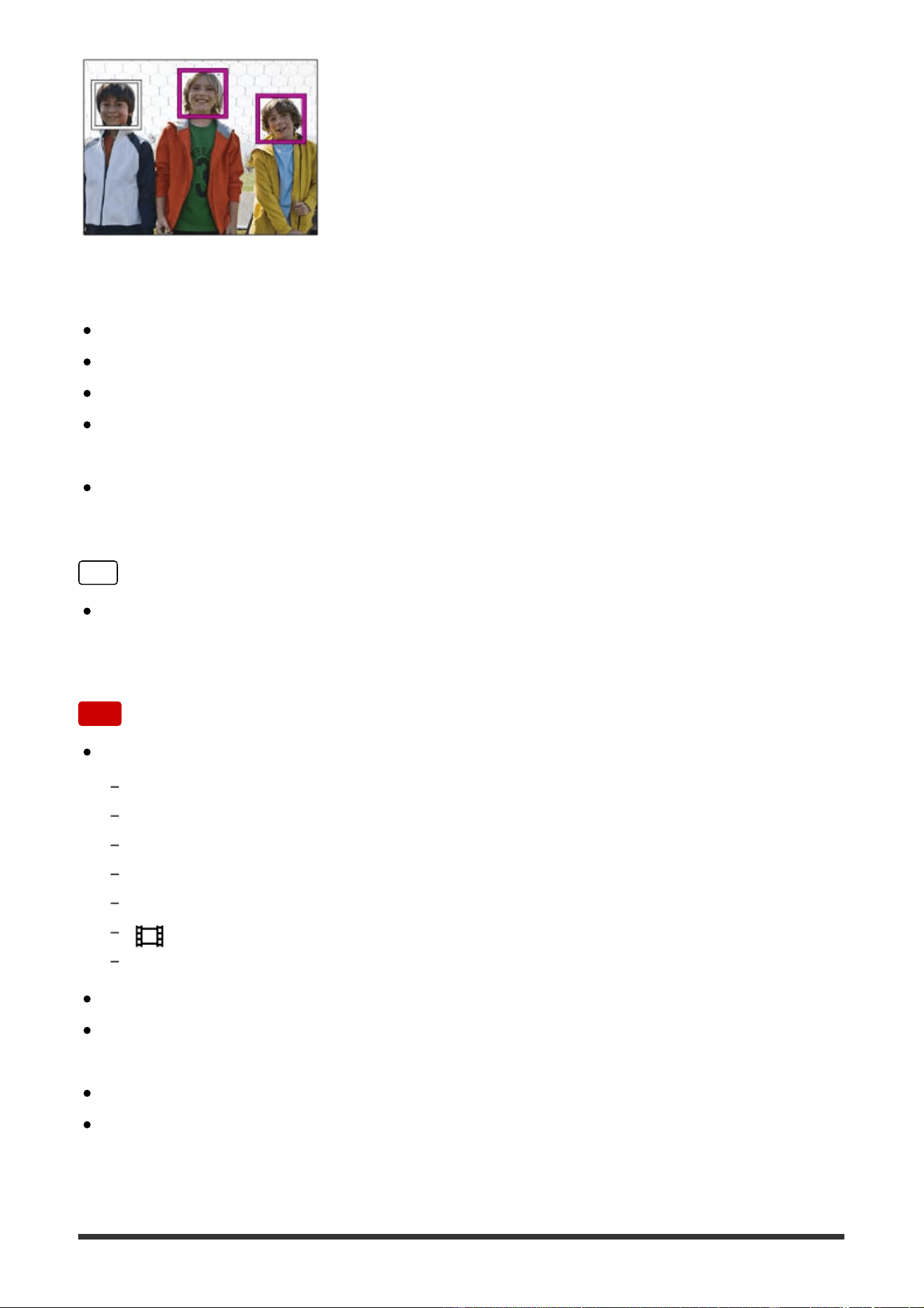
Tips for capturing smiles more effectively
Do not cover the eyes with front hair and keep the eyes narrowed.
Do not obscure the face by a hat, masks, sunglasses, etc.
Try to orient the face in front of the product and be as level as possible.
Give a clear smile with an open mouth. The smile is easier to be detected when
the teeth are shown.
If you press the shutter button during Smile Shutter, the product shoots the
image. After shooting, the product returns to Smile Shutter mode.
Hint
When the [Smile/Face Detect.] is set to [Smile Shutter], you can select the
Smile Detection Sensitivity from [On: Slight Smile], [On: Normal Smile] and [On:
Big Smile].
Note
You cannot use the Face Detection function with the following functions:
Zoom functions other than the optical zoom
[Sweep Panorama]
[Picture Effect] is set to [Posterization].
When using the [Focus Magnifier] function.
[Scene Selection] is set to [Landscape], [Night Scene] or [Sunset].
[
Record Setting] is set to [120p]/[100p].
During High Frame Rate shooting
Up to eight faces of your subjects can be detected.
The product may not detect faces at all or may accidentally detect other objects
as faces in some conditions.
If the product cannot detect a face, set the Smile Detection Sensitivity.
If you track a face using [Lock-on AF] while executing Smile Shutter function,
Smile Detection is performed only for that face.
[150] How to Use Using shooting functions Setting the other functions of this product
Soft Skin Effect (still image)
Sets the effect used for shooting the skin smoothly in the Face Detection function.
1. MENU → (Camera Settings) → [ Soft Skin Effect] → desired setting.
Menu item details
Off:
Does not use the [ Soft Skin Effect] function.
On:
Uses the [ Soft Skin Effect].
Hint
When [ Soft Skin Effect] is set to [On], you can select the effect level. Select
the effect level by pressing the right/left side of the control wheel.
Note
[ Soft Skin Effect] is not available when [ Quality] is [RAW].
[151] How to Use Using shooting functions Setting the other functions of this product
Face Registration (New Registration)
If you register faces in advance, the product can detect the registered face as a
priority when [Smile/Face Detect.] is set to [On (Regist. Faces)].
1. MENU → (Custom Settings) → [Face Registration] → [New
Registration].
2. Align the guide frame with the face to be registered, and press the shutter
button.
3. When a confirmation message appears, select [Enter].
Note

Up to eight faces can be registered.
Shoot the face from the front in a brightly lit place. The face may not be
registered correctly if it is obscured by a hat, a mask, sunglasses, etc.
[152] How to Use Using shooting functions Setting the other functions of this product
Face Registration (Order Exchanging)
When multiple faces are registered to be given priority, the face registered first will
be given priority. You can change the priority order.
1. MENU → (Custom Settings) → [Face Registration] → [Order
Exchanging].
2. Select a face to change the order of priority.
3. Select the destination.
[153] How to Use Using shooting functions Setting the other functions of this product
Face Registration (Delete)
Deletes a registered face.
1. MENU → (Custom Settings) → [Face Registration] → [Delete].
If you select [Delete All], you can delete all registered faces.
Note
Even if you execute [Delete], the data for registered face will remain in the
product. To delete the data for registered faces from the product, select [Delete
All].
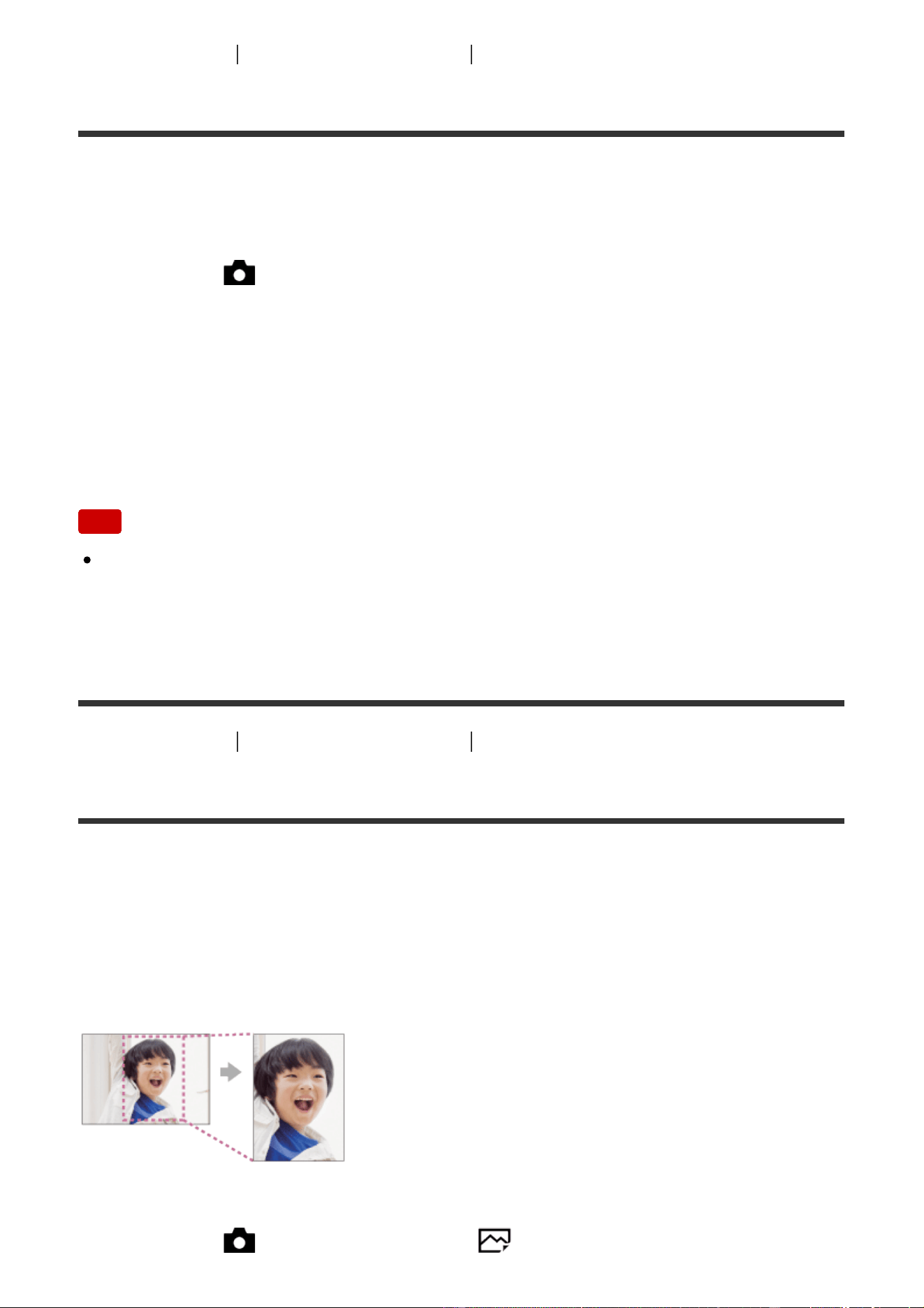
[154] How to Use Using shooting functions Setting the other functions of this product
Red Eye Reduction
When using the flash, it is fired two or more times before shooting to reduce the
red-eye phenomenon.
1. MENU → (Camera Settings) → [Red Eye Reduction] → desired setting.
Menu item details
On:
The flash is always fired to reduce the red-eye phenomenon.
Off:
Does not use Red Eye Reduction.
Note
Red Eye Reduction may not produce the desired effects. It depends on
individual differences and conditions, such as distance to the subject, or
whether the subject looks at the pre-strobe or not.
[155] How to Use Using shooting functions Setting the other functions of this product
Auto Obj. Framing (still image)
When this product detects and shoots faces, macro shooting subjects or subjects
that are tracked by [Lock-on AF], the product automatically trims the image into an
appropriate composition, and then saves it. Both the original and the trimmed
images are saved. The trimmed image is recorded in the same size as the original
image size.
1. MENU → (Camera Settings) → [ Auto Obj. Framing] → desired
setting.
Menu item details
Off:
Does not trim images.
Auto:
Automatically trims images into an appropriate composition.
Note
The trimmed image may not be the best possible composition, depending on
the shooting conditions.
[ Auto Obj. Framing] cannot be set when using zoom functions other than
the optical zoom.
[ Auto Obj. Framing] cannot be set when [ Quality] is set to [RAW] or
[RAW & JPEG].
[156] How to Use Using shooting functions Setting the other functions of this product
SteadyShot
Sets whether or not to use the SteadyShot function.
1. MENU → (Camera Settings) → [SteadyShot] → desired setting.
Menu item details
On:
Uses [SteadyShot].
Off:
Does not use [SteadyShot].
We recommend that you set [SteadyShot] to [Off] when using a tripod.
Note
You cannot set [SteadyShot] when you are using an A-mount lens (sold
separately), or when the name of the attached lens does not contain the letters
“OSS,” such as “E16mm F2.8.”
[157] How to Use Using shooting functions Setting the other functions of this product
Long Exposure NR (still image)
When you set the shutter speed to 1 second(s) or longer (long exposure shooting),
noise reduction is turned on for the duration that the shutter is open. With the
function turned on, the grainy noise typical of long exposures is reduced.
1. MENU → (Camera Settings) → [ Long Exposure NR] → desired
setting.
Menu item details
On:
Activates noise reduction for the same duration that the shutter is open. When
noise reduction is in progress, a message appears and you cannot take another
picture. Select this to prioritize the image quality.
Off:
Does not activate noise reduction. Select this to prioritize the timing of shooting.
Note
Noise reduction may not be activated even if [ Long Exposure NR] is set to
[On] in the following situations:
The shooting mode is set to [Sweep Panorama].
[Drive Mode] is set to [Cont. Shooting] or [Cont. Bracket].
The shooting mode is set to [Scene Selection] and [Sports Action], [Hand-held Twilight]
or [Anti Motion Blur] is selected.
The ISO sensitivity is set to [Multi Frame NR].
You cannot set [ Long Exposure NR] to [Off] when the shooting mode is set
to [Intelligent Auto], [Superior Auto] or [Scene Selection].
Depending on the shooting conditions, the camera may not perform noise
reduction, even if the shutter speed is longer than 1 second(s).
[158] How to Use Using shooting functions Setting the other functions of this product
High ISO NR (still image)
When shooting with high ISO sensitivity, the product reduces noise that becomes
more noticeable when the product sensitivity is high. A message may be displayed
during noise reduction processing; you cannot shoot another image until the
message disappears.
1. MENU → (Camera Settings) → [ High ISO NR] → desired setting.
Menu item details
Normal:
Activates high ISO noise reduction normally.
Low:
Activates high ISO noise reduction moderately.
Off:
Does not activate high ISO noise reduction. Select this to prioritize the timing of
shooting.
Note
[ High ISO NR] is not available in the following situations:
When the shooting mode is set to [Intelligent Auto], [Superior Auto], [Scene Selection]
or [Sweep Panorama].
[ High ISO NR] is not available for RAW images.
[159] How to Use Using shooting functions Setting the other functions of this product
Color Space (still image)
The way colors are represented using combinations of numbers or the range of
color reproduction is called “color space.” You can change the color space
depending on the purpose of the image.
1. MENU → (Camera Settings) → [ Color Space] → desired setting.

Menu item details
sRGB:
This is the standard color space of the digital camera. Use [sRGB] in normal
shooting, such as when you intend to print out the images without any
modification.
AdobeRGB:
This color space has a wide range of color reproduction. When a large part of the
subject is vivid green or red, Adobe RGB is effective. The file name of the
recorded image starts with “_.”
Note
[AdobeRGB] is for applications or printers that support color management and
DCF2.0 option color space. Images may not be printed or viewed in the correct
colors if you use applications or printers that do not support Adobe RGB.
When displaying images that were recorded with [AdobeRGB] on non-Adobe
RGB-compliant devices, the images will be displayed with low saturation.
[160] How to Use Using shooting functions Setting the other functions of this product
Grid Line
Sets whether the grid line is displayed or not. The grid line will help you to adjust
the composition of images.
1. MENU → (Custom Settings) → [Grid Line] → desired setting.
Menu item details
Rule of 3rds Grid:
Place main subjects close to one of the grid lines that divide the image into thirds
for a well-balanced composition.
Square Grid:
Square grids make it easier to confirm the horizontal level of your composition.
This is suitable to determine the quality of the composition when shooting
landscape, close-up, or duplicated images.
Diag. + Square Grid:

Place a subject on the diagonal line to express an uplifting and powerful feeling.
Off:
Does not display the grid line.
[161] How to Use Using shooting functions Setting the other functions of this product
Auto Review
You can check the recorded image on the screen right after the shooting. You can
also set the display time for Auto Review.
1. MENU → (Custom Settings) → [Auto Review] → desired setting.
Menu item details
10 Sec/5 Sec/2 Sec:
Displays the recorded image on the screen right after shooting for the selected
duration of time. If you perform a magnifying operation during Auto Review, you
can check that image using the magnified scale.
Off:
Does not display the Auto Review.
Note
When the product is enlarging an image using image processing, it may
temporarily display the original image prior to enlarging and then display the
enlarged image.
The DISP (Display Setting) settings are applied for the Auto Review display.
[162] How to Use Using shooting functions Setting the other functions of this product
Live View Display
Sets whether or not to show images altered with effects of the exposure
compensation, white balance, [Creative Style], or [Picture Effect] on the screen.
1. MENU → (Custom Settings) → [Live View Display] → desired setting.
Menu item details
Setting Effect ON:
Displays Live View in conditions close to what your picture will look like as a result
of applying all your settings. This setting is useful when you want to shoot pictures
while checking the results of the shot on the Live View screen.
Setting Effect OFF:
Displays Live View without the effects of exposure compensation, white balance,
[Creative Style], or [Picture Effect]. When this setting is used, you can easily check
the image composition.
Live View is always displayed with the appropriate brightness even in [Manual
Exposure] mode.
When [Setting Effect OFF] is selected, the icon is displayed on the Live
View screen.
Note
When the shooting mode is set to [Intelligent Auto], [Superior Auto], [Sweep
Panorama], [Movie/HFR] or [Scene Selection], [Live View Display] cannot be
set to [Setting Effect OFF].
When [Live View Display] is set to [Setting Effect OFF], the brightness of the
shot image will not be the same as that of the displayed Live View.
Hint
When you use a third-party flash, such as a studio flash, Live View Display may
be dark for some shutter speed settings. When [Live View Display] is set to
[Setting Effect OFF], Live View Display will be displayed brightly, so that you
can easily check the composition.
[163] How to Use Using shooting functions Setting the other functions of this product
Bright Monitoring
Allows you to adjust the composition when shooting in dark environments. By
extending the exposure time, you can check the composition on the
viewfinder/monitor even in dark locations such as under the night sky.
1. MENU → (Custom Settings) → [Custom Key(Shoot.)] → assign the
[Bright Monitoring] function to the desired key.
2. Press the key to which you assigned the [Bright Monitoring] function, then
shoot an image.
The brightness due to [Bright Monitoring] will continue after shooting.
To return the monitor brightness to normal, press the key to which you
assigned the [Bright Monitoring] function once again.
Note
During [Bright Monitoring], [Live View Display] will automatically switch to
[Setting Effect OFF], and setting values such as exposure compensation will
not be reflected in the live view display. It is recommended that you use [Bright
Monitoring] only in dark locations.
[Bright Monitoring] will be automatically cancelled in the following situations.
When the camera is turned off.
When the mode dial is turned.
When the focus mode is set to other than manual focus.
When [
MF Assist] is set to [On].
When [Focus Magnifier] is selected.
During [Bright Monitoring], the shutter speed may be slower than normal while
shooting in dark locations.
[164] How to Use Using shooting functions Setting the other functions of this product
FINDER/MONITOR
Sets the method for switching the display between Electronic Viewfinder and the
screen.
1. MENU → (Custom Settings) → [FINDER/MONITOR] → desired setting.
Menu item details
Auto:
When you look into the Electronic Viewfinder, the display is switched to the
Electronic Viewfinder automatically.
Viewfinder(Manual):
The screen is turned off and the image is displayed only in the Electronic
Viewfinder.
Monitor(Manual):
The Electronic Viewfinder is turned off and the image is always displayed on the
screen.
Hint
You can assign the [FINDER/MONITOR] function to your preferred key. MENU
→ (Custom Settings) → [Custom Key(Shoot.)] → set [Finder/Monitor Sel.]
to the preferred key.
To turn off automatic switching of the display using the eye sensor, set
[FINDER/MONITOR] to [Viewfinder(Manual)] or [Monitor(Manual)].
[165] How to Use Using shooting functions Setting the other functions of this product
Finder Frame Rate (still image)
Display the subject's movements more smoothly by adjusting the frame rate of the
viewfinder during still image shooting. This function is convenient when shooting a
fast-moving subject.
1. MENU → (Custom Settings) →[ Finder Frame Rate] → desired
setting.
This function can be assigned to button of your choice using [Custom
Key(Shoot.)].
Menu item details
120fps/100fps
:
Displays the movements of the subject more smoothly on the viewfinder.
60fps/50fps
:
Displays the subject at a normal frame rate on the viewfinder.
Note
When [ Finder Frame Rate] is set to [120fps]/[100fps], the resolution of the
viewfinder is lowered.
[ Finder Frame Rate] is locked to [60fps]/[50fps] in the following modes:
During playback
During movie shooting
During HDMI connection
[166] How to Use
Using shooting functions Setting the other functions of this product
Release w/o Lens
Sets whether or not the shutter can be released when no lens is attached.
1. MENU → (Custom Settings) → [Release w/o Lens] → desired setting.
Menu item details
Enable:
Releases the shutter when no lens is attached. Select [Enable] when attaching the
product to an astronomical telescope, etc.
Disable:
Does not release the shutter when a lens is not attached.
Note
Correct metering cannot be achieved when you use lenses that do not provide
a lens contact, such as the lens of an astronomical telescope. In such cases,
adjust the exposure manually by checking it on the recorded image.
[167] How to Use Using shooting functions Setting the other functions of this product
Release w/o Card
Sets whether the shutter can be released when no memory card has been
inserted.
1. MENU→ (Custom Settings) → [Release w/o Card] → desired setting.
Menu item details
Enable:
Releases the shutter even if no memory card has been inserted.
Disable:
Does not release the shutter when no memory card has been inserted.
Note
When no memory card has been inserted, the images shot will not be saved.
The default setting is [Enable]. It is recommended that you select [Disable] prior
to actual shooting.
[168] How to Use Using shooting functions Setting the other functions of this product
Silent Shooting (still image)
You can shoot images without the shutter sound.
1. MENU → (Custom Settings) → [ Silent Shooting] → desired setting.
Menu item details
On:
You can shoot images without the shutter sound.
Off:
[
Silent Shooting] is deactivated.
Note
Use the [ Silent Shooting] function on your own responsibility, while taking
sufficient consideration to the privacy and portrait rights of the subject.
Even if [ Silent Shooting] is set to [On], it will not be completely silent.
Even if [ Silent Shooting] is set to [On], the operating sound of the aperture
and focus will sound.
When shooting still images using the [ Silent Shooting] function with low
ISO sensitivity, if you point the camera at a very bright light source, high
intensity areas on the monitor may be recorded in darker tones.
When the power is turned off, the shutter sound may beep in rare occasions.
This is not a malfunction.
Image distortion caused by the movement of the subject or the camera may
occur.
If you shoot images under instantaneous lightning or flickering lights, such as
the flash light from other cameras or fluorescent lighting, a striping effect may
occur on the image.
If you want to turn off the beep that sounds when the subject is in focus or the
self-timer operates, set [Audio signals] to [Off].
Even if [ Silent Shooting] is set to [On], the shutter sound may beep under
the following circumstances:
[White Balance] is set to [Custom Setup]
[Face Registration]
You cannot select [ Silent Shooting] when the mode dial is set to other than
P/A/S/M.
When [ Silent Shooting] is set to [On], the following functions are not
available:
Flash shooting
Auto HDR
Picture Effect
Picture Profile
Long Exposure NR
e-Front Curtain Shut.
S. Auto Img. Extract.
BULB shooting
Multi Frame NR
When [ Silent Shooting] is set to [On], only [Continuous Shooting: Lo] is
available for [Cont. Shooting].
When shooting using a function downloaded from PlayMemories Camera Apps,
[ Silent Shooting] is canceled. To reactivate [ Silent Shooting], first
launch an application, then select MENU → [ Silent Shooting]. ([ Silent
Shooting] cannot be used with some applications.)
After you turn the camera on, the time in which you can start recording is
extended by approximately 0.5 seconds.
[169] How to Use Using shooting functions Setting the other functions of this product

e-Front Curtain Shut.
The electronic front curtain shutter function shortens the time lag between shutter
releases.
1. MENU → (Custom Settings) → [e-Front Curtain Shut.] → desired setting.
Menu item details
On:
Uses the electronic front curtain shutter function.
Off:
Does not use the electronic front curtain shutter function.
Note
When you shoot at high shutter speeds with a large diameter lens attached, the
ghosting of a blurred area may occur, depending on the subject or shooting
conditions. In such cases, set this function to [Off].
When a lens made by another manufacturer (including a Minolta/Konica-Minolta
lens) is used, set this function to [Off]. If you set this function to [On], the correct
exposure will not be set or the image brightness will be uneven.
When you shoot at high shutter speeds, the image brightness may become
uneven depending on the shooting environment. In such cases, set [e-Front
Curtain Shut.] to [Off].
[170] How to Use Using shooting functions Setting the other functions of this product
S. Auto Img. Extract.
Sets whether or not to save all the images that were shot continuously in [Superior
Auto].
1. MENU → (Custom Settings) → [S. Auto Img. Extract.] → desired setting.
Menu item details
Auto:

Saves one appropriate image selected by the product.
Off:
Saves all of the images.
Note
Even if you set [S. Auto Img. Extract.] to [Off] with [Hand-held Twilight] selected
as the scene recognition mode, one combined image is saved.
When the [ Auto Obj. Framing] function is activated, two images are saved
even if you set [S. Auto Img. Extract.] to [Auto].
When [ Quality] is set to [RAW] or [RAW & JPEG], the shooting function will
be limited.
[171] How to Use Using shooting functions Setting the other functions of this product
Shading Comp.
Compensates for the shaded corners of the screen, caused by certain lens
characteristics.
1. MENU → (Custom Settings) → [Lens Comp.] → [Shading Comp.] →
desired setting.
Menu item details
Auto:
Compensates for darker corners of the screen automatically.
Off:
Does not compensate for darker corners of the screen.
Note
This function is only available when using an automatic compensation
compliant lens.
The amount of light around the edges may not be corrected, depending on the
lens type.

[172] How to Use Using shooting functions Setting the other functions of this product
Chro. Aber. Comp.
Reduces the color deviation at the corners of the screen, caused by certain lens
characteristics.
1. MENU → (Custom Settings) → [Lens Comp.] → [Chro. Aber. Comp.] →
desired setting.
Menu item details
Auto:
Reduces the color deviation automatically.
Off:
Does not compensate for the color deviation.
Note
This function is only available when using an automatic compensation
compliant lens.
[173] How to Use Using shooting functions Setting the other functions of this product
Distortion Comp.
Compensates for the distortion of the screen, caused by certain lens
characteristics.
1. MENU → (Custom Settings) → [Lens Comp.] → [Distortion Comp.] →
desired setting.
Menu item details
Auto:
Compensates for distortion of the screen automatically.
Off:
Does not compensate for distortion of the screen.
Note
This function is only available when using an automatic compensation
compliant lens.
Depending on the attached lens, [Distortion Comp.] is fixed to [Auto], and you
cannot select [Off].
[174] How to Use Using shooting functions Setting the other functions of this product
Dial / Wheel Lock
You can set whether the dial and wheel will be locked by pressing and holding the
Fn (Function) button.
1. MENU → (Custom Settings) → [Dial / Wheel Lock] → desired setting.
Menu item details
Lock:
Locks the control dial and control wheel.
Unlock:
Does not lock the control dial or control wheel even if you press and hold the Fn
(Function) button.
Hint
You can release the locked dial/control wheel by holding the Fn (Function)
button down.
[175] How to Use Using shooting functions Setting the other functions of this product
Deactivate Monitor
When you press the key to which the [Deactivate Monitor] function has been
assigned, the monitor turns black, and the screen display is locked to [No Disp.
Info.].
1. MENU → (Custom Settings) → [Custom Key(Shoot.)] → set the

[Deactivate Monitor] function to the desired key.
2. Press the key to which [Deactivate Monitor] was assigned.
Note
Even if you perform [Deactivate Monitor], the backlight of monitor remains on.
To turn off the backlight, switch the monitor mode to viewfinder mode using the
[FINDER/MONITOR] function.
[176] How to Use Using shooting functions Setting the other functions of this product
Aperture Preview
The image on the monitor or viewfinder may have an aperture value different from
that of the actual image to be shot. Since the blurring of a subject changes if the
aperture is changed, the blurriness of the actual picture will differ from the image
you were viewing prior to shooting.
While you press and hold the key to which you assigned the [Aperture Preview]
function, the aperture is stepped down to the set aperture value and you can
check the blurriness prior to shooting.
1. MENU → (Custom Settings) → [Custom Key(Shoot.)] → set the
[Aperture Preview] function to the desired key.
2. Confirm the image by pressing the key to which [Aperture Preview] was
assigned.
Hint
Although you can change the aperture value during the preview, the subject
may be defocused if you select a brighter aperture. We recommend that you
adjust the focus again.
[177] How to Use Using shooting functions Setting the other functions of this product
Shot. Result Preview
The image on the monitor or viewfinder may have an aperture value different from
that of the actual image to be shot. Since the blurring of a subject changes if the
aperture is changed, the blurriness of the actual picture will differ from the image
you were viewing prior to shooting. While pressing down the key to which [Shot.
Result Preview] is assigned, you can check the image preview with the DRO,
shutter speed, aperture and ISO sensitivity settings applied. Check the shooting
result preview before shooting.
1. MENU → (Custom Settings) → [Custom Key(Shoot.)] → set the [Shot.
Result Preview] function to the desired key.
2. Confirm the image by pressing the key to which [Shot. Result Preview] was
assigned.
Hint
The DRO settings, shutter speed, aperture and ISO sensitivity settings you
have set are reflected on the image for [Shot. Result Preview], but some effects
cannot be previewed depending on the shooting settings. Even in that case, the
settings you have selected will be applied to the images you shoot.
[178] How to Use Viewing Viewing still images
Playing back images
Plays back the recorded images.
1. Press the (Playback) button to switch to the playback mode.
2. Select the image with the control wheel.
Hint
The product creates an image database file on a memory card to record and
play back images. An image that is not registered in the image database file
may not be played back correctly. To play back images shot using other
devices, register those images to the image database file using MENU →
[Setup] → [Recover Image DB].
[179] How to Use Viewing Viewing still images
Playback zoom
Enlarges the image being played back.
1. Display the image you want to enlarge, and then press the button.
Turn the control wheel to adjust the zoom scale.
By rotating the control dial, you can switch to the previous or next image
while keeping the same zoom scale.
The view will zoom in on the part of the image where the camera focused
during shooting. If the focus location information cannot be obtained, the
camera will zoom in on the center of the image.
2. Select the portion you want to enlarge by pressing the top/bottom/right/left
side of the control wheel.
3. Press the MENU button, or
in the center of the control wheel to exit the
playback zoom.
Hint
You can also enlarge an image being played back using MENU.
Note
You cannot enlarge movies.
[180] How to Use Viewing Viewing still images
Image Index
You can display multiple images at the same time in playback mode.

1. Press the (Image Index) button while the image is being played back.
To change the number of images to be displayed
MENU → (Playback) → [Image Index] → desired setting.
Menu item details
12 Images/30 Images
To return to single-image playback
Select the desired image and press on the center of the control wheel.
To display a desired image quickly
Select the bar on the left of the image index screen using the control wheel, then
press the top/bottom side of the control wheel. While the bar is being selected, you
can display the calendar screen or folder selection screen by pressing in the
center. In addition, you can switch View Mode by selecting an icon.
[181] How to Use Viewing Viewing still images
Switching the screen display (during playback)
Switches the screen display.
1. Press the DISP (Display Setting) button.
The screen display switches in the order “Display Info. → Histogram → No
Disp. Info. → Display Info.” each time you press the DISP button.
The DISP (Display Setting) settings are applied for the Auto Review
display.
Note
The histogram is not displayed in the following situations:
During movie playback
During scrolling playback of panoramic images
During slideshows
During Folder View (MP4)
During AVCHD View
During XAVC S 4K View
During XAVC S HD View
[182] How to Use
Viewing Deleting images
Deleting a displayed image
You can delete an image displayed.
1. Display the image you want to delete.
2. Press the (Delete) button.
3. Select [Delete] using the control wheel, then press on the center of the
control wheel.
[183] How to Use Viewing Deleting images
Deleting multiple selected images
You can delete multiple selected images.
1. MENU → (Playback) → [Delete] → desired setting.
Menu item details
Multiple Img.:
Deletes the selected images.
(1) Select the images to be deleted, then press on the center of the control
wheel. The mark is displayed in the check box. To cancel the selection, press
again to remove the mark.
(2) To delete other images, repeat step (1).
(3) MENU → [OK] → Press on the center.
All in this Folder:

Deletes all images in the selected folder.
All with this date:
Deletes all images in the selected date range.
Hint
Perform [Format] to delete all images, including protected images.
Note
The menu items that can be selected differ depending on the [View Mode]
setting.
[184] How to Use Viewing Playing back movies
Playing back movies
Plays back the recorded movies.
1. Press the (playback) button to switch to playback mode.
2. Select the movie to be played back using the control wheel.
3. To play back movies, press on the center.
Available operations during movie playback
You can perform slow playback and sound volume adjustment, etc. by pressing
the bottom side of the control wheel.
: Playback
: Pause
: Fast-forward
: Fast-rewind
: Forward slow playback
: Reverse slow playback
: Next movie file
: Previous movie file
: Displays the next frame
: Displays the previous frame
: Sound volume adjustment
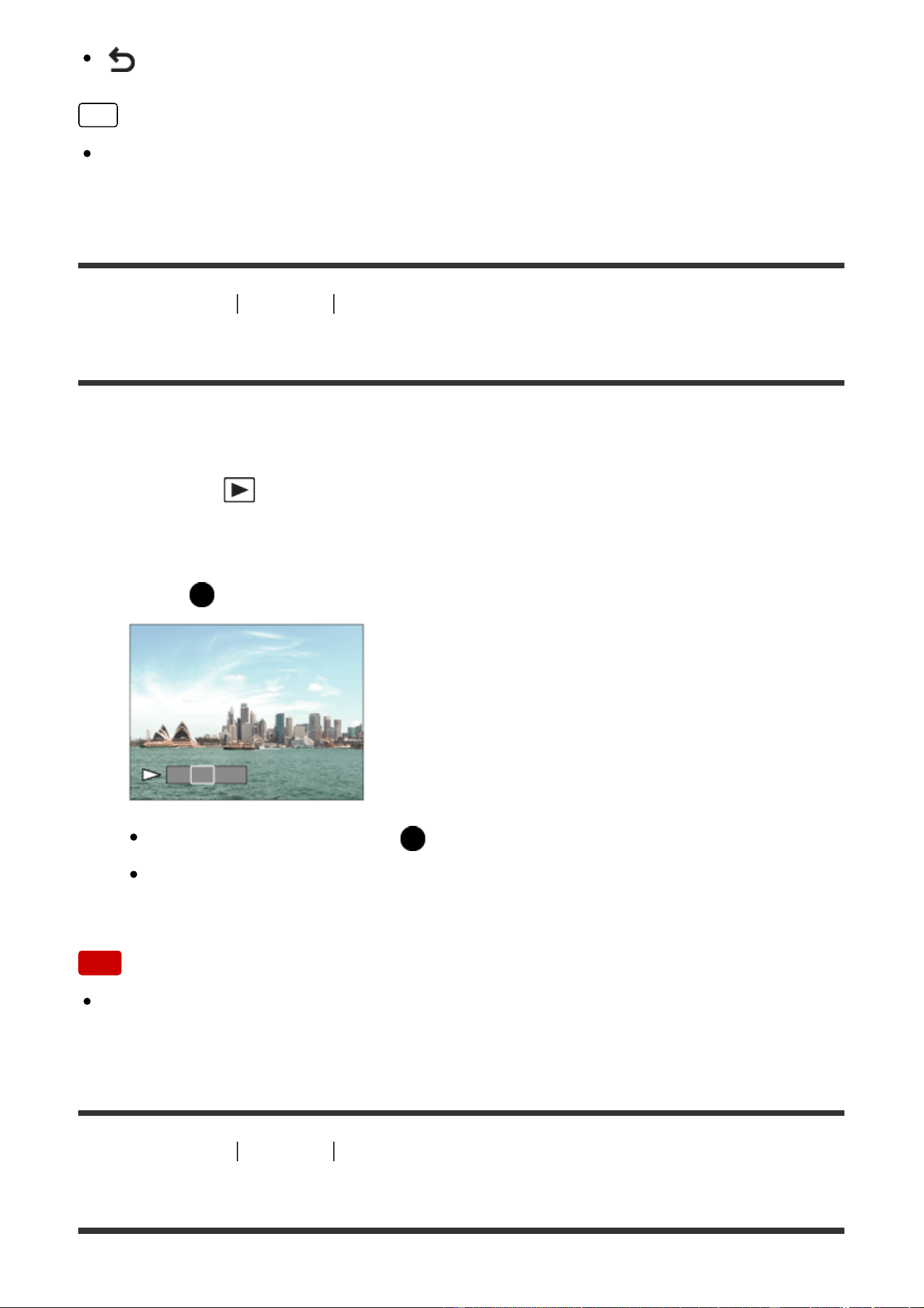
: Closes the operation panel
Hint
“Forward slow playback,” “Reverse slow playback,” “Displays the next frame”
and “Displays the previous frame” are available during pause.
[185] How to Use Viewing Viewing panoramic images
Playing back panoramic images
The product automatically scrolls a panoramic image from end to end.
1. Press the (playback) button to switch to playback mode.
2. Select the panoramic image to be played back using the control wheel.
3. Press on the center to play back the image.
To pause playback, press on the center again.
To return to the display of the entire image, press the MENU button.
Note
Panoramic images shot using other products may be displayed in a different
size from the actual size, or may not scroll correctly.
[186] How to Use Viewing Printing
Specify Printing
You can specify in advance on the memory card which still images you want to
print out later.
The (print order) icon will appear on the specified images. DPOF refers to
“Digital Print Order Format.”
1. MENU → (Playback) → [Specify Printing] → desired setting.
Menu item details
Multiple Img.:
Selects images to order printing.
(1) Select an image and press on the center of the control wheel. The
mark is displayed in the check box. To cancel the selection, press and delete
the mark.
(2) Repeat step (1) to print other images.
(3) MENU → [OK] → Press on the center.
Cancel All:
Clears all DPOF marks.
Print Setting:
Sets whether to print the date on images registered with DPOF marks.
Note
You cannot add the DPOF mark to the following files:
Movies
RAW images
[187] How to Use
Viewing Using viewing functions
View Mode
Sets the View Mode (image display method).
1. MENU → (Playback) → [View Mode] → desired setting.
Menu item details
Date View:
Displays the images by date.
Folder View(Still):
Displays only still images.
Folder View(MP4):
Displays only MP4-format movies.
AVCHD View:
Displays only AVCHD-format movies.
XAVC S HD View:
Displays only XAVC S HD-format movies.
XAVC S 4K View:
Displays only XAVC S 4K-format movies.
[188] How to Use Viewing Using viewing functions
Display Rotation
Selects the orientation when playing back recorded still images.
1. MENU → (Playback) → [Display Rotation] → desired setting.
Menu item details
Auto:
When you rotate the camera, the displayed image rotates automatically detecting
the orientation of the camera.
Manual:
A portrait image is displayed as a vertical image. If you have set the image
orientation using the [Rotate] function, the image will be displayed accordingly.
Off:
Always displays in landscape orientation.
[189] How to Use Viewing Using viewing functions
Slide Show
Automatically plays back images continuously.
1. MENU → (Playback) → [Slide Show] → desired setting.
2. Select [Enter].
Menu item details
Repeat:
Select [On], in which images are played back in a continuous loop, or [Off], in
which the product exits the slideshow when all the images are played back once.
Interval:
Select the display interval for images from among [1 Sec], [3 Sec], [5 Sec], [10
Sec] or [30 Sec].
To quit the slideshow in the middle of playback
Press the MENU button to quit the slideshow. You cannot pause the slideshow.
Hint
You can activate a slideshow only when [View Mode] is set to [Date View] or
[Folder View(Still)].
[190] How to Use Viewing Using viewing functions
Rotate
Rotates a recorded still image counter-clockwise.
1. MENU → (Playback) → [Rotate].
2. Press on the center of the control wheel.
The image is rotated counter-clockwise. The image rotates as you press
on the center. If you rotate the image once, the image remains rotated even
after the product is turned off.
Note
You cannot rotate the movies.
You may not be able to rotate images shot using other products.
When viewing rotated images on a computer, the images may be displayed in
their original orientation depending on the software.
[191] How to Use Viewing Using viewing functions
Protect
Protects recorded images against accidental erasure. The mark is displayed
on protected images.
1. MENU → (Playback) → [Protect] → desired setting.
Menu item details
Multiple Img.:
Applies or cancels the protection of the selected multiple images.
(1) Select the image to be protected, then press on the center of the control
wheel. The mark is displayed in the check box. To cancel the selection, press
again to remove the mark.
(2) To protect other images, repeat step (1).
(3) MENU → [OK] → Press on the center.
All in this Folder:
Protects all images in the selected folder.
All with this date:
Protects all images in the selected date range.
Cancel All in this Folder:
Cancels the protection of all images in the selected folder.
Cancel All with this date:
Cancels the protection of all images in the selected date range.
Note
The menu items that can be selected differ depending on the [View Mode]
setting.
[192] How to Use Viewing Viewing images on a TV
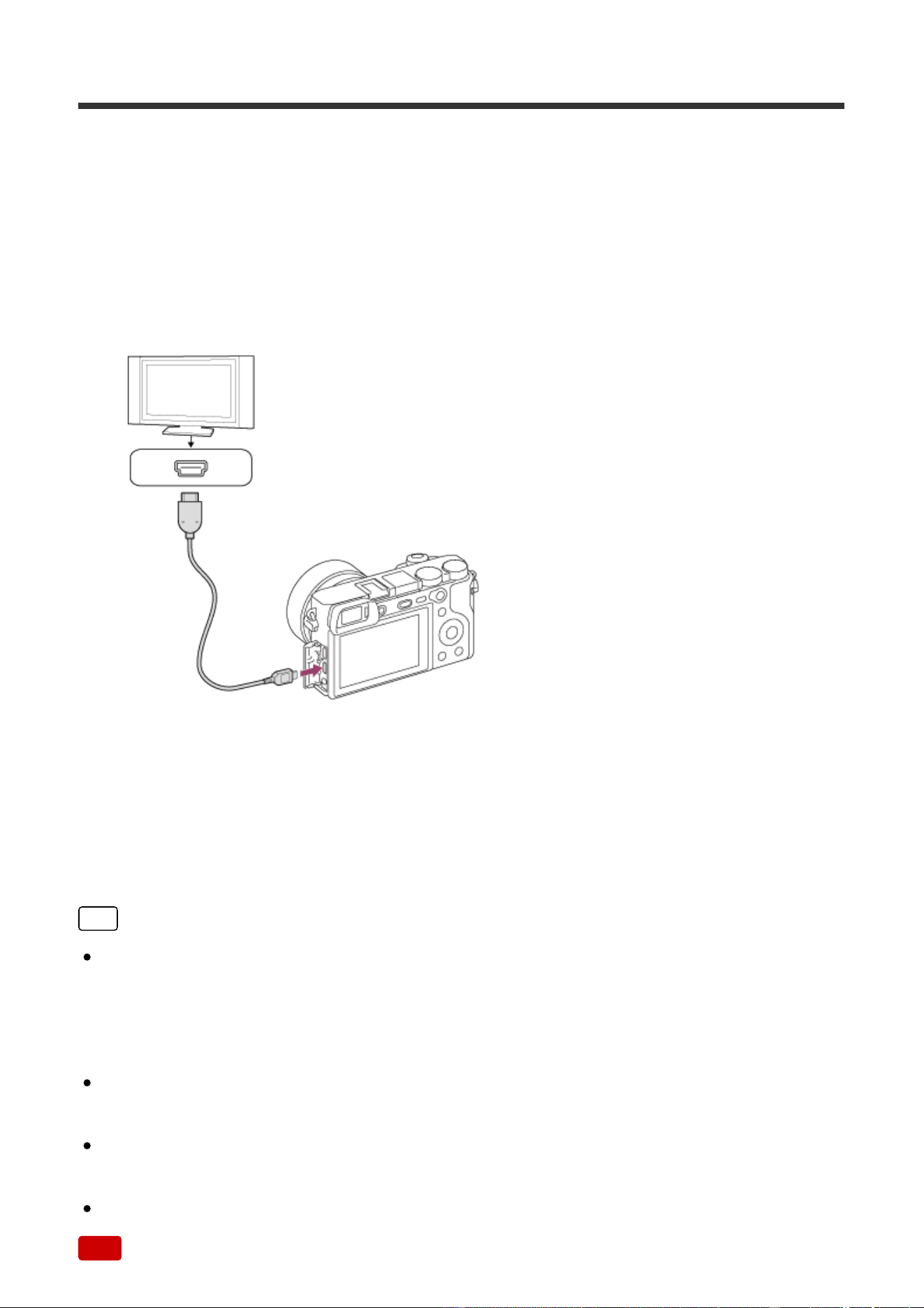
Viewing images on an HD TV
To view images stored on this product using a TV, an HDMI cable (sold
separately) and an HD TV equipped with an HDMI jack are required.
1. Turn off both this product and the TV.
2. Connect the HDMI micro terminal of this product to the HDMI jack of the TV
using an HDMI cable (sold separately).
3. Turn on the TV and switch the input.
4. Turn on this product.
Images shot with the product appear on the TV screen.
Hint
This product is compatible with the PhotoTV HD standard. If you connect Sony
PhotoTV HD-compatible devices using an HDMI cable (sold separately), the TV
is set to the image quality suitable for viewing still images, and a whole new
world of photos can be enjoyed in breathtaking high quality.
You can connect this product to Sony PhotoTV HD-compatible devices with a
USB terminal using the supplied micro USB cable.
The PhotoTV HD allows for a highly-detailed, photo-like expression of subtle
textures and colors.
For details, refer to the operating instructions supplied with the compatible TV.
Note

Do not connect this product and another device using the output terminals of
both. Doing so may cause a malfunction.
Some devices may not work properly when connected to this product. For
example, they may not output video or audio.
Use an HDMI cable with the HDMI logo or a genuine Sony cable.
Use an HDMI cable that is compatible with the HDMI micro terminal of the
product and the HDMI jack of the TV.
When [ TC Output] is set to [On], the image may not be output properly to
the TV or recording device. In such cases, set [ TC Output] to [Off].
If images do not appear on the TV screen properly, select [1080i],
[2160p/1080p] or [1080p] using (Setup) → [HDMI Settings] → [HDMI
Resolution] according to the TV to be connected.
During HDMI output, when you switch the movie from 4K to HD image quality or
vice-versa, or change the movie to a different frame rate, the screen may
become dark. This is not a malfunction.
[193] How to Use Viewing Viewing images on a TV
Viewing images on a “BRAVIA” Sync-compatible TV
By connecting this product to a TV that supports “BRAVIA” Sync using an HDMI
cable (sold separately), you can operate this product's playback functions with the
TV remote control.
1. Turn off both this product and the TV.
2. Connect the HDMI micro terminal of the product to the HDMI jack of the TV
using an HDMI cable (sold separately).
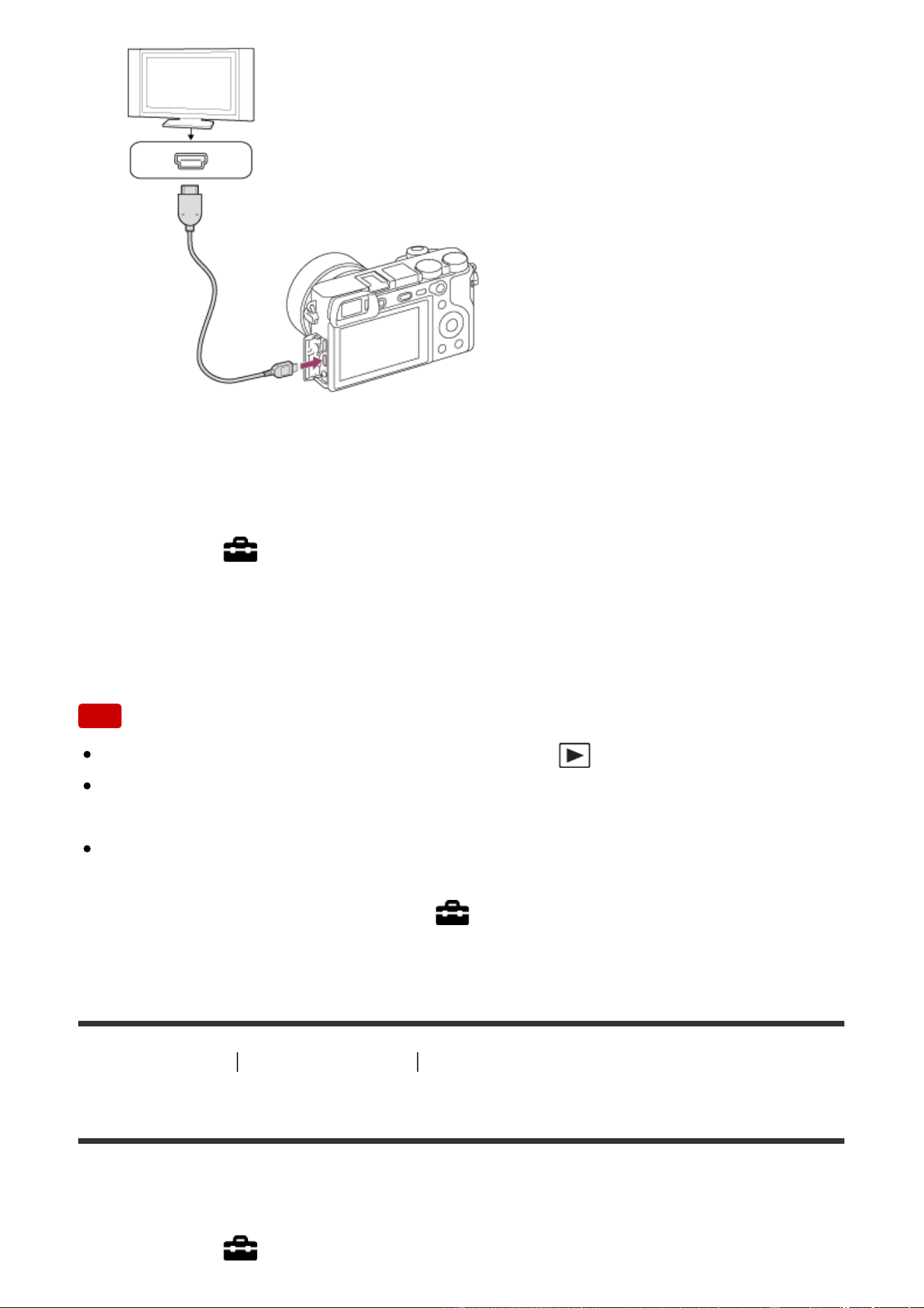
3. Turn on the TV and switch the input.
4. Turn on this product.
5. MENU → (Setup) → [HDMI Settings] → [CTRL FOR HDMI] → [On].
6. Press the SYNC MENU button on the TV remote control, and select the
desired mode.
Note
If the product is not in playback mode, press the (Playback) button.
Only TVs that support “BRAVIA” Sync can provide SYNC MENU operations.
For details, refer to the operating instructions supplied with the TV.
If the product performs unwanted operations in response to the TV remote
control when the product is connected to another manufacturer’s TV using an
HDMI connection, select MENU → (Setup) → [HDMI Settings] → [CTRL
FOR HDMI] → [Off].
[194] How to Use Changing settings Setup menu
Monitor Brightness
You can adjust the brightness of the screen.
1. MENU → (Setup) → [Monitor Brightness] → desired setting.
Menu item details
Manual:
Adjusts the brightness within the range of –2 to +2.
Sunny Weather:
Sets the brightness appropriately for shooting outdoors.
Note
The [Sunny Weather] setting is too bright for shooting indoors. Set [Monitor
Brightness] to [Manual] for indoor shooting.
The monitor brightness cannot be adjusted in the following situations. The
maximum brightness will be [±0].
[ File Format] is [XAVC S 4K].
[
File Format] is [XAVC S HD] and the [ Record Setting] is [120p]/[100p].
During High Frame Rate shooting
The monitor brightness is locked at [-2] when using Wi-Fi functions.
[195] How to Use Changing settings Setup menu
Viewfinder Bright.
When using an electronic viewfinder, this product adjusts the brightness of the
electronic viewfinder according to the surrounding environment.
1. MENU → (Setup) → [Viewfinder Bright.] → desired setting.
Menu item details
Auto:
Adjusts the brightness of the electronic viewfinder automatically.
Manual:
Selects the brightness of the electronic viewfinder from the range –2 to +2.
Note
The electronic viewfinder brightness cannot be adjusted in the following
situations. The maximum brightness will be [±0].
[ File Format] is [XAVC S 4K].
[ File Format] is [XAVC S HD] and the [ Record Setting] is [120p]/[100p].
During High Frame Rate shooting
You cannot use the viewfinder while using Wi-Fi functions. The camera will
switch to screen display mode.
When [ Finder Frame Rate] is set to [120fps]/[100fps], [Viewfinder Bright.]
cannot be set to [Auto]. [Viewfinder Bright.] can only be set to [Manual].
[196] How to Use Changing settings Setup menu
Finder Color Temp.
Adjusts the color temperature of the electronic viewfinder.
1. MENU → (Setup) → [Finder Color Temp.] → desired setting.
Menu item details
-2 to +2:
When you select “-,” the viewfinder screen changes to a warmer color, and when
you select “+,” it changes to a colder color.
[197] How to Use Changing settings Setup menu
Gamma Disp. Assist
Movies with S-Log gamma are assumed to be processed after shooting in order to
make use of the wide dynamic range. They are therefore displayed in low contrast
during shooting and may be difficult to monitor. However, using [Gamma Disp.
Assist], contrast equivalent to that of normal gamma can be reproduced. In
addition, [Gamma Disp. Assist] can also be applied when playing back movies on
the camera's monitor/viewfinder.
1. MENU → (Setup) → [Gamma Disp. Assist].
2. Press the top/bottom of the control wheel and select the desired setting.
Menu item details
Off:
Does not apply [Gamma Disp. Assist].
Auto:
Displays movies with an [S-Log2→709(800%)] effect when the gamma set in
[Picture Profile] is [S-Log2], and with an [S-Log3→709(800%)] effect when the
gamma is set to [S-Log3].
S-Log2→709(800%):
Displays movies with an S-Log2 gamma reproducing contrast equivalent to
ITU709(800%).
S-Log3→709(800%):
Displays movies with an S-Log3 gamma reproducing contrast equivalent to
ITU709(800%).
Note
When [Gamma Disp. Assist] is set to [Auto] during playback, the picture is
displayed based on the current gamma setting in [Picture Profile] instead of
auto-detecting the gamma value of the movie.
[Gamma Disp. Assist] is not applied to movies when displayed on a TV or
monitor connected to the camera.
[198] How to Use Changing settings Setup menu
Volume Settings
Sets the sound volume for movie playback.
1. MENU → (Setup) → [Volume Settings] → desired setting.
Adjusting the volume during playback
Press the bottom of the control wheel while playing back movies to display the
operation panel, then adjust the volume. You can adjust the volume while listening
to the actual sound.
[199] How to Use Changing settings Setup menu
Audio signals
Selects whether the product produces a sound or not.
1. MENU → (Setup) → [Audio signals] → desired setting.
Menu item details
On:
Sounds are produced for example when the focus is achieved by pressing the
shutter button halfway down.
Off:
Sounds are not produced.
Note
If [Focus Mode] is set to [Continuous AF], the camera will not beep when it
focuses on a subject.
[200] How to Use Changing settings Setup menu
Upload Settings(Eye-Fi)
Sets whether to use the upload function when using an Eye-Fi card (commercially
available). This item appears when an Eye-Fi card is inserted into the product’s
memory card slot.
1. MENU → (Setup) → [Upload Settings] → desired setting.
2. Set your Wi-Fi network or destination on the Eye-Fi card.
For details, refer to the manual supplied with the Eye-Fi card.
3. Insert the Eye-Fi card you have set up into the product, and shoot still
images.
Images are transferred to your computer, etc., automatically via the Wi-Fi
network.
Menu item details
On:
Enables the upload function.
Off:
Disables the upload function.
Communication status screen display
: Standby. No images are to be sent.
: Upload standby
: Connecting
: Uploading
: Error
Note
Eye-Fi cards are only sold in certain countries/regions.
For more information on Eye-Fi cards, please contact the manufacturer or
vendor directly.
Eye-Fi cards can be used only in the countries/regions where they were
purchased. Use Eye-Fi cards in accordance with the law of the
countries/regions where you purchased the card.
Eye-Fi cards are equipped with a wireless LAN function. Do not insert an Eye-Fi
card into the product in locations in which their use is prohibited, such as on an
airplane. When an Eye-Fi card is inserted into the product, set [Upload Settings]
to [Off]. When the upload function is set to [Off], the indicator will be
displayed on the product.
Power save mode will not function during uploading.
If (error) is displayed, remove the memory card and reinsert it, or turn the
product off and then on again. If the indicator appears again, the Eye-Fi card
may be damaged.
Wireless LAN communication may be influenced by other communication
devices. If the communication status is poor, move closer to the access point to
be connected.
This product does not support Eye-Fi “Endless Memory Mode.” Before using an
Eye-Fi card, be sure that “Endless Memory Mode” is turned off.
[201] How to Use Changing settings Setup menu
Tile Menu
Selects whether to always display the first screen of the menu when you press the
MENU button.
1. MENU → (Setup) → [Tile Menu] → desired setting.
Menu item details
On:
Always displays the first screen of the menu (Tile Menu).
Off:
Deactivates the Tile Menu display.
[202] How to Use Changing settings Setup menu
Mode Dial Guide
You can display the description of a shooting mode when you turn the mode dial
and change the settings available for that shooting mode.
1. MENU → (Setup) → [Mode Dial Guide] → desired setting.
Menu item details
On:
Displays the Mode Dial Guide.
Off:
Does not display the Mode Dial Guide.
[203] How to Use Changing settings Setup menu
Delete confirm.
You can set whether [Delete] or [Cancel] is selected as the default setting on the
delete confirmation screen.
1. MENU → (Setup) → [Delete confirm.] → desired setting.
Menu item details
"Delete" first:
[Delete] is selected as the default setting.
"Cancel" first:
[Cancel] is selected as the default setting.
[204] How to Use Changing settings Setup menu
Display Quality
You can change the display quality.
1. MENU → (Setup) → [Display Quality] → desired setting.
Menu item details
High:
Displays in high quality.
Standard:
Displays in standard quality.
Note
When [High] is set, battery consumption will be higher than when [Standard] is
set.
[205] How to Use Changing settings Setup menu
Pwr Save Start Time
You can set time intervals to automatically switch to power save mode. To return
to shooting mode, perform an operation such as pressing the shutter button
halfway down.
1. MENU → (Setup) → [Pwr Save Start Time] → desired setting.
Menu item details
30 Min/5 Min/2 Min/1 Min/10 Sec
Note
Turn off the product when you do not use it for a long time.
When using a lens with power zoom, the lens is retracted one minute after the
product stops operation if [Pwr Save Start Time] is set to [10 Sec].
The power save function is not activated when power is being supplied via
USB, when playing back slideshows, when recording movies, or when
connected to a computer or TV.
[206] How to Use Changing settings Setup menu
Auto Pwr OFF Temp.
Sets the temperature of the camera at which the camera turns off automatically
during shooting. When it is set to [High], you can continue shooting even when the
temperature of the camera gets hotter than normal.
1. MENU → (Setup) → [Auto Pwr OFF Temp.] → desired setting.
Menu item details
Standard:
Sets the standard temperature at which the camera turns off.
High:
Sets a higher temperature than the standard at which the camera turns off.
Notes when [Auto Pwr OFF Temp.] is set to [High]
Do not shoot while holding the camera in your hand. Use a tripod.
Using the camera while holding it in your hand for a long period of time may
cause low-temperature burns.
Continuous recording time for movies when [Auto Pwr OFF Temp.] is set
to [High]
The following values are the continuous times from when the camera starts
recording until the camera stops recording.
Ambient temperature: 20°C (68°F)
Continuous recording time for movies (HD): Approx. 29 minutes
Continuous recording time for movies (4K): Approx. 29 minutes
Ambient temperature: 30°C (86°F)
Continuous recording time for movies (HD): Approx. 29 minutes
Continuous recording time for movies (4K): Approx. 29 minutes
Ambient temperature: 40°C (104°F)
Continuous recording time for movies (HD): Approx. 29 minutes
Continuous recording time for movies (4K): Approx. 20 minutes
HD: XAVC S HD (60p 50M/50p 50M, not connected via Wi-Fi)
4K: XAVC S 4K (24p 60M, not connected via Wi-Fi)
Note
Even if [Auto Pwr OFF Temp.] is set to [High], depending on the conditions or
the temperature of the camera, the recordable time for movies may not change.
[207] How to Use Changing settings Setup menu
NTSC/PAL Selector
Plays back movies recorded with the product on a NTSC/PAL system TV.
1. MENU → (Setup) → [NTSC/PAL Selector] → [Enter]
Note
If you insert a memory card that has previously been formatted with a different
video system, a message telling you that you must reformat the card will
appear.
If you want to record using another system, re-format the memory card or use
another memory card.
When you perform [NTSC/PAL Selector], and the setting is changed from the
default one, a message "Running on NTSC." or "Running on PAL." will appear
on the start-up screen.
[208] How to Use Changing settings Setup menu
Cleaning the image sensor (Cleaning Mode)
Allows you to clean the image sensor.
1. Confirm that the battery has been charged sufficiently.
2. MENU → (Setup) → [Cleaning Mode] → [Enter]
3. Turn off the product following the instructions on the screen.
4. Detach the lens.
5. Use the blower to clean the image sensor surface and the surrounding area.
6. Attach the lens.
Note
A blower is not supplied with this product. Use a commercially available blower.
Cleaning can be performed only when the battery level is (3 remaining
battery icons) or more. The use of an AC-PW20 AC Adaptor is recommended.
Do not use a spray type blower as it may scatter water droplets inside the
camera body.
Do not put the tip of a blower into the cavity beyond the lens mount area, so
that the tip of the blower does not touch the image sensor.

Hold the camera slightly face downward so that the dust falls out.
Do not subject the product to any shock during cleaning.
When cleaning the image sensor with a blower, do not blow too hard. If you
blow the sensor too hard, the inside of the product may be damaged.
If the dust remains even after you cleaned the product as described, consult the
service facility.
[209] How to Use Changing settings Setup menu
Demo Mode
The [Demo Mode] function displays the movies recorded on the memory card
automatically (demonstration), when the camera has not been operated for a
certain time. Normally select [Off].
1. MENU → (Setup) → [Demo Mode] → desired setting.
Menu item details
On:
The movie playback demonstration starts automatically if the product is not
operated for about one minute. Only protected AVCHD movies are played back.
Set the view mode to [AVCHD View], and protect the movie file with the oldest
recorded date and time.
Off:
Does not show the demonstration.
Note
You can set this item only when the product is powered by the AC Adaptor
(supplied).
Even if [On] is selected, the product does not start a demonstration if there is no
movie file on the memory card.
When [On] is selected, the product does not switch to power save mode.
[210] How to Use Changing settings Setup menu
TC/UB Settings

The time code (TC) and the user bit (UB) information can be recorded as data
attached to movies.
1. MENU → (Setup) → [TC/UB Settings] → setting value you want to
change.
Menu item details
TC/UB Disp. Setting:
Sets the display for the counter, time code, and user bit.
TC Preset:
Sets the time code.
UB Preset:
Sets the user bit.
TC Format:
Sets the recording method for the time code. (Only when [NTSC/PAL Selector] is
set to NTSC.)
TC Run:
Sets the count up format for the time code.
TC Make:
Sets the recording format for the time code on the recording medium.
UB Time Rec:
Sets whether or not to record the time as a user bit.
How to set the time code (TC Preset)
1. MENU → (Setup) → [TC/UB Settings] → [TC Preset], then press in
the center of the control wheel.
2. Turn the control wheel and select the first two digits.
The time code can be set between the following range.
When [60i] is selected: 00:00:00:00 to 23:59:59:29
*
When [24p] is selected, you can select the last two digits of the time code
in multiples of four from 0 to 23 frames.
When [50i] is selected: 00:00:00:00 to 23:59:59:24
3. Set the other digits following the same procedure as in step 2, then press

in the center of the control wheel.
How to reset the time code
1. MENU → (Setup) → [TC/UB Settings] →[TC Preset], then press in
the center of the control wheel.
2. Press the (Delete) button to reset the time code (00:00:00:00).
You can also reset the time code (00:00:00:00) using the RMT-VP1K remote
commander (sold separately).
How to set the user bit (UB Preset)
1. MENU → (Setup) → [TC/UB Settings] → [UB Preset], then press in
the center of the control wheel.
2. Turn the control wheel and select the first two digits.
3. Set the other digits following the same procedure as in step 2, then press
in the center of the control wheel.
How to reset the user bit
1. MENU → (Setup) → [TC/UB Settings] → [UB Preset], then press in
the center of the control wheel.
2. Press the (Delete) button to reset the user bit (00 00 00 00).
How to select the recording method for the time code (TC Format
*1
)
1. MENU → (Setup) → [TC/UB Settings] → [TC Format], then press in
the center of the control wheel.
DF:
Records the time code in Drop Frame
*2
format.
NDF:
Records the time code in Non-Drop Frame format.
*1
Only when [NTSC/PAL Selector] is set to NTSC.
*2
The time code is based on 30 frames per second. However, a gap between the actual
time and the time code will occur during extended periods of recording as the frame
frequency of the NTSC image signal is approximately 29.97 frames per second. Drop frame
corrects this gap to make the time code and actual time equal. In drop frame, the first 2
frame numbers are removed every minute except for every tenth minute. The time code
without this correction is called non-drop frame.
The setting is fixed to [NDF] when recording in 4K/24p or 1080/24p.

How to select the count up format for the time code (TC Run)
1. MENU → (Setup) → [TC/UB Settings] → [TC Run], then press in
the center of the control wheel.
Rec Run:
Sets the stepping mode for the time code to advance only while recording. The
time code is recorded sequentially from the last time code of the previous
recording.
Free Run:
Sets the stepping mode for the time code to advance anytime, regardless of the
camera operation.
The time code may not be recorded sequentially in the following situations even
when the time code advances in [Rec Run] mode.
When the recording format is changed.
When the recording medium is removed.
How to select how the time code is recorded (TC Make)
1. MENU → (Setup) → [TC/UB Settings] → [TC Make], then press in
the center of the control wheel.
Preset:
Records the newly set time code on the recording medium.
Regenerate:
Reads the last time code for the previous recording from the recording medium
and records the new time code consecutively from the last time code. The time
code advances in [Rec Run] mode regardless of the [TC Run] setting.
[211] How to Use Changing settings Setup menu
Remote Ctrl
You can shoot images using the RMT-DSLR1 or RMT-DSLR2 remote
commanders (sold separately). Refer also to the operating instructions for the
remote commander.
1. MENU → (Setup) → [Remote Ctrl] → desired setting.

Menu item details
On:
Allows remote commander operation.
Off:
Does not allow remote commander operation.
Note
The RMT-DSLR1 remote commander cannot be used for movie recording.
The lens or lens hood may block the remote sensor that receive the signals.
Use the remote commander in the position from which the signal can reach the
product.
When [Remote Ctrl] is set to [On], the product does not switch to power save
mode. Set [Remote Ctrl] to [Off] after using a remote commander.
[212] How to Use Changing settings Setup menu
HDMI Resolution
When you connect the product to a High Definition (HD) TV with HDMI terminals
using an HDMI cable (sold separately), you can select HDMI Resolution to output
images to the TV.
1. MENU → (Setup) → [HDMI Settings] → [HDMI Resolution] → desired
setting.
Menu item details
Auto:
The product automatically recognizes an HD TV and sets the output resolution.
2160p/1080p:
Outputs signals in 2160p/1080p.
1080p:
Outputs signals in HD picture quality (1080p).
1080i:
Outputs signals in HD picture quality (1080i).
Note
If the images are not displayed properly using the [Auto] setting, select either
[1080i], [1080p] or [2160p/1080p], based on which TV is to be connected.
[213] How to Use Changing settings Setup menu
24p/60p Output (movie) (Only for 1080 60i compatible
models)
Set 1080/24p or 1080/60p as the HDMI output format when [ Record Setting]
is set to [24p 24M(FX) ], [24p 17M(FH) ], or [24p 50M ].
1. MENU → (Setup) → [HDMI Settings] → [HDMI Resolution] → [1080p]
or
[2160p/1080p].
2. MENU → (Setup) → [HDMI Settings] → [ 24p/60p Output] →
desired setting.
Menu item details
60p:
Movies are output as 60p.
24p:
Movies are output as 24p.
Note
Steps 1 and 2 can be set in either order.
When [ Record Setting] is set to other than [24p 24M(FX) ], [24p
17M(FH) ], or [24p 50M ], this setting is canceled, and HDMI video is
output according to the [HDMI Resolution] settings.
[214] How to Use Changing settings Setup menu
CTRL FOR HDMI
When connecting this product to a “BRAVIA” Sync-compatible TV using an HDMI
cable (sold separately), you can operate this product by aiming the TV remote
control at the TV.
1. MENU → (Setup) → [HDMI Settings] → [CTRL FOR HDMI] → desired
setting.
Menu item details
On:
You can operate this product with a TV’s remote control.
Off:
You cannot operate this product with a TV’s remote control.
Note
[CTRL FOR HDMI] is available only with a “BRAVIA” Sync-compatible TV.
[215] How to Use Changing settings Setup menu
HDMI Info. Display
Selects whether to display the shooting information when this product and the TV
are connected using an HDMI cable (sold separately).
1. MENU → (Setup) → [HDMI Settings] → [HDMI Info. Display] → desired
setting.
Menu item details
On:
Displays the shooting information on the TV. The recorded image and the shooting
information are displayed on the TV, while nothing is displayed on the camera’s
monitor.
Off:
Does not display the shooting information on the TV. Only the recorded image is
displayed on the TV, while the recorded image and the shooting information are
displayed on the camera’s monitor.
[216] How to Use Changing settings Setup menu
TC Output (movie)
Sets whether or not to layer the TC (time code) information on the output signal
via the HDMI terminal when outputting the signal to other professional-use
devices.
This function layers the time code information on the HDMI output signal. The
product sends the time code information as digital data, not as an image displayed
on the screen. The connected device can then refer to the digital data to recognize
the time data.
1. MENU → (Setup) → [HDMI Settings] → [ TC Output] → desired
setting.
Menu item details
On:
Time code is output to other devices.
Off:
Time code is not output to other devices.
Note
When [ TC Output] is set to [On], the image may not be output properly to
the TV or recording device. In such cases, set [ TC Output] to [Off].
[217] How to Use Changing settings Setup menu
REC Control (movie)
If you connect the camera to an external recorder/player, you can remotely
command the recorder/player to start/stop recording using the camera.
1. MENU → (Setup) → [HDMI Settings] → [ REC Control] → desired
setting.
Menu item details
On:
The camera can send a recording command to an external
recorder/player.
The camera is sending a recording command to an external
recorder/player.
Off:
The camera is not able to send a command to an external recorder/player to
start/stop recording.
Note
Available for external recorders/players compatible with [ REC Control].
When [ TC Output] is [Off], [ REC Control] is set to [Off].
Even when is displayed, the external recorder/player may not work
properly depending on the settings or status of the recorder/player. Check if the
external recorder/player works properly before use.
[218] How to Use Changing settings Setup menu
4K Output Sel. (movie)
You can set how to record movies and perform HDMI output when your camera is
connected to 4K-compatible external recording/playback devices, etc.
1. Turn the mode dial to (Movie/HFR).
2. Connect the camera to the desired device via an HDMI cable.
3. MENU→ (Setup)→[ 4K Output Sel.]→desired setting.
Menu item details
Memory Card+HDMI:
Simultaneously outputs to the external recording/playback device and records on
the camera's memory card.
HDMI Only(30p):
Outputs a 4K movie in 30p to the external recording/playback device without
recording on the camera's memory card.
HDMI Only(24p)
:
Outputs a 4K movie in 24p to the external recording/playback device without
recording on the camera's memory card.
HDMI Only(25p)
*:
Outputs a 4K movie in 25p to the external recording/playback device without
recording on the camera’s memory card.
*
Only when [NTSC/PAL Selector] is set to PAL.
Note
This item can be set only when the camera is in movie mode and connected to
a 4K-compatible device.
When [HDMI Only(30p)], [HDMI Only(24p) ] or [HDMI Only(25p) ] is set,
the [HDMI Info. Display] will temporarily be set to [Off].
A 4K movie is not output to the connected 4K-compatible device during High
Frame Rate shooting.
The counter does not move forward when 4K movies are being output.
The following functions are not available when the camera is connected via an
HDMI cable and the [ File Format] is [XAVC S 4K], or when the [ File
Format] is [XAVC S 4K] and [Dual Video REC] is [On].
[Smile/Face Detect.]
[Lock-on AF] under [Focus Area]
[Center Lock-on AF]
[Eye AF]
[219] How to Use
Changing settings Setup menu
USB Connection
Selects the appropriate USB connection method for each computer or USB device
connected to this product.
1. MENU → (Setup) → [USB Connection] → desired setting.

Menu item details
Auto:
Establishes a Mass Storage or MTP connection automatically, depending on the
computer or other USB devices to be connected. Windows 7 or Windows 8
computers are connected in MTP, and their unique functions are enabled for use.
Mass Storage:
Establishes a Mass Storage connection between this product, a computer, and
other USB devices.
MTP:
Establishes an MTP connection between this product, a computer, and other USB
devices. Windows 7 or Windows 8 computers are connected in MTP, and their
unique functions are enabled for use.
PC Remote:
Uses “Remote Camera Control” to control this product from the computer,
including such functions as shooting and storing images on the computer.
Note
It may take some time to make the connection between this product and a
computer when [USB Connection] is set to [Auto].
If Device Stage* is not displayed with Windows 7 or Windows 8, set [USB
Connection] to [Auto].
* Device Stage is a menu screen used to manage connected devices, such as a
camera (Function of Windows 7 or Windows 8).
[220] How to Use Changing settings Setup menu
USB LUN Setting
Enhances compatibility by limiting of USB connection functions.
1. MENU → (Setup) → [USB LUN Setting] → desired setting.
Menu item details
Multi:
Normally, use [Multi].
Single:
Set [USB LUN Setting] to [Single] only if you cannot make a connection.
[221] How to Use Changing settings Setup menu
USB Power Supply
Sets whether to supply power via the micro USB cable when the product is
connected to a computer or an USB device.
1. MENU → (Setup) → [USB Power Supply] → desired setting.
Menu item details
On:
Power is supplied to the product via a micro USB cable when the product is
connected to a computer, etc.
Off:
Power is not supplied to the product via a micro USB cable when the product is
connected to a computer, etc. If you use the supplied AC Adaptor, power will be
supplied even when [Off] is selected.
Note
Insert the battery pack into the product to supply power via USB cable.
[222] How to Use Changing settings Setup menu
Language
Selects the language to be used in the menu items, warnings and messages.
1. MENU → (Setup) → [ Language] → desired language.
[223] How to Use Changing settings Setup menu
Date/Time Setup
Sets the date and time again.
1. MENU → (Setup) → [Date/Time Setup] → desired setting.
Menu item details
Daylight Savings:
Selects Daylight Savings [On]/[Off].
Date/Time:
Sets the date and time.
Date Format:
Selects the date and time display format.
[224] How to Use Changing settings Setup menu
Area Setting
Sets the area where you are using the product.
1. MENU → (Setup) → [Area Setting] → desired area.
[225] How to Use Changing settings Setup menu
Copyright Info
You can write copyright information onto the still images.
1. MENU→ (Setup)→[Copyright Info]→ desired setting.
2. When you select [Set Photographer] or [Set Copyright], a keyboard appears
on the screen. Enter your desired name.
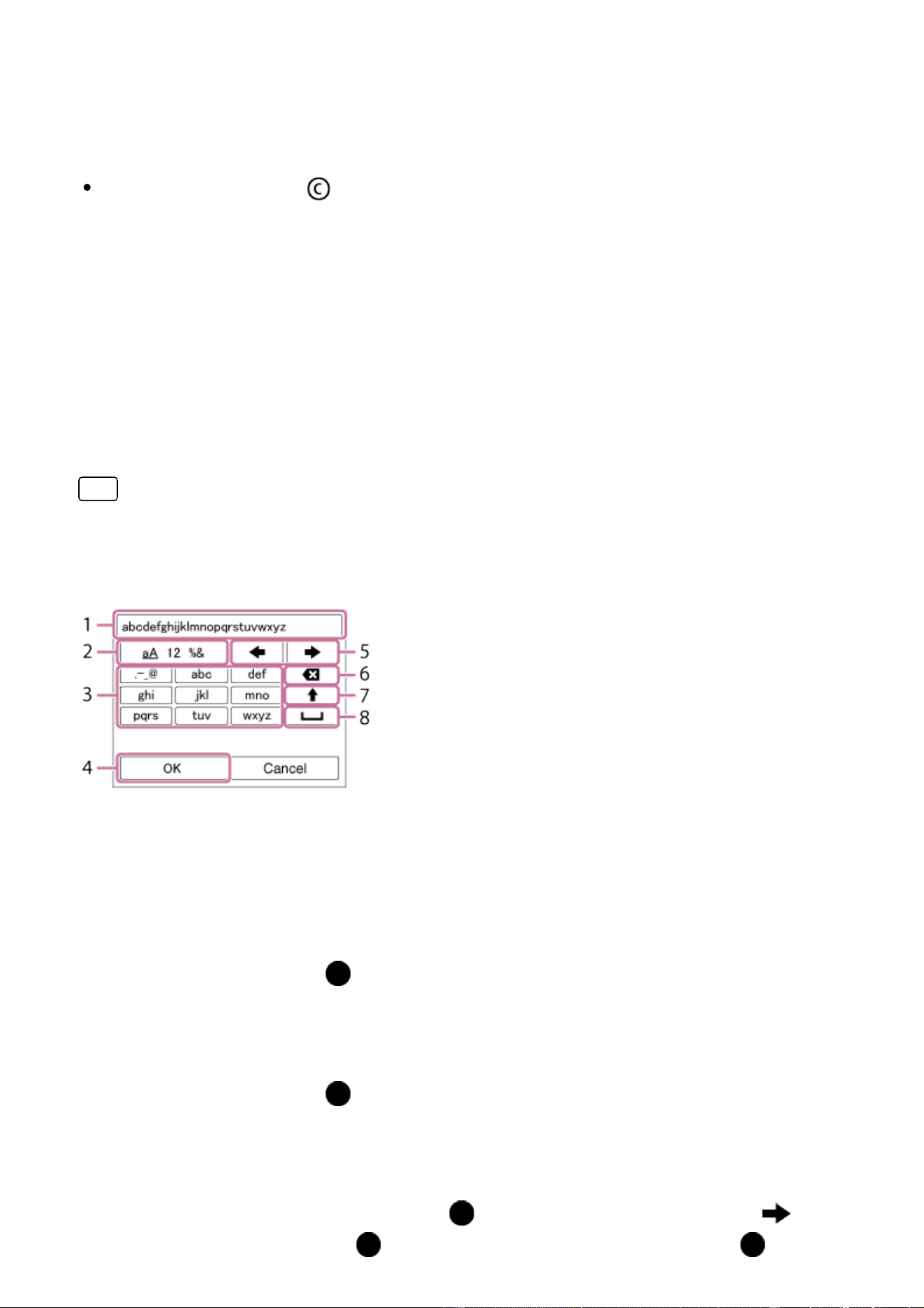
Menu item details
Write Copyright Info:
Sets whether to write copyright information. ([On]/[Off])
If you select [On], an icon will appear on the shooting screen.
Set Photographer:
Sets the photographer name.
Set Copyright:
Sets the copyright holder name.
Disp. Copyright Info:
Displays the current copyright information.
Hint
How to use the keyboard
When manual character entry is required, a keyboard is displayed on the screen.
1. Input box
The characters you entered are displayed.
2. Switch character types
Each time you press
in the center of the control wheel, the character
type will switch between alphabet letters, numerals and symbols.
3. Keyboard
Each time you press
in the center, the characters corresponding to that
key will be displayed one-by-one in order.
For example: If you want to enter “abd”
Select the key for “abc” and press once to display “a” → select “ ”((5)
Move cursor) and press → select the key for “abc” and press twice
to display “b” → select the key for “def” and press once to display “d”.
4. Finalize
Finalizes the entered characters.
5. Move cursor
Moves the cursor in the input box to the right or left.
6. Delete
Deletes the character preceding the cursor.
7.
Switches the next character to a capital or lowercase letter.
8.
Enters a space.
To cancel input, select [Cancel].
Note
You can only enter alphanumeric characters and symbols for [Set
Photographer] and [Set Copyright]. You can enter up to 46 letters.
A icon appears during the playback of images with copyright information.
In order to prevent unauthorized use of [Copyright Info], be sure to clear the
[Set Photographer] and [Set Copyright] columns before lending out or handing
over your camera.
[226] How to Use Changing settings Setup menu
Format
Formats (initializes) the memory card. When you use a memory card with this
product for the first time, it is recommended that you format the card using the
product for stable performance of the memory card. Note that formatting
permanently erases all data on the memory card, and is unrecoverable. Save
valuable data on a computer, etc.
1. MENU → (Setup) → [Format].

Note
Formatting permanently erases all data including protected images and
registered settings (from M1 to M4).
[227] How to Use Changing settings Setup menu
File Number
Selects how to assign file numbers to recorded still images and MP4 movies.
1. MENU → (Setup) → [File Number] → desired setting.
Menu item details
Series:
The product will assign numbers to files sequentially up to “9999” without
resetting.
Reset:
The product resets numbers when a file is recorded in a new folder and assigns
numbers to files starting with “0001.”
(When the recording folder contains a file, a number one higher than the largest
number is assigned.)
[228] How to Use Changing settings Setup menu
Set File Name
You can specify the first three characters of the file name for images you shoot.
1. MENU → (Setup) → [Set File Name].
2. Select the entry field for the file name to display a keyboard on the screen,
and then enter three characters of your choice.
Note
Only capital letters, numbers, and underscores can be entered. However, an
underscore cannot be used as the first character.
The three characters of the file name you specify using [Set File Name] will only
be applied to images you shoot after changing the setting.
[229] How to Use Changing settings Setup menu
Select REC Folder
You can change the folder on the memory card where still images and MP4
movies are to be recorded.
1. MENU → (Setup) → [Select REC Folder] → desired folder.
Note
You cannot select the folder when [Folder Name] is set to [Date Form].
[230] How to Use Changing settings Setup menu
New Folder
Creates a new folder on the memory card for recording still images and MP4
movies. A new folder is created with a folder number one greater than the largest
folder number currently used. Images are recorded in the newly created folder. A
folder for still images and a folder for MP4 movies that have the same number are
created at the same time.
1. MENU → (Setup) → [New Folder].
Note
When you insert a memory card that was used with other equipment into this
product and shoot images, a new folder may be automatically created.
Up to 4,000 images in total can be stored in one folder. When the folder
capacity is exceeded, a new folder may be automatically created.
[231] How to Use Changing settings Setup menu
Folder Name
Still images are recorded in a folder that is automatically created inside the DCIM
folder on the memory card. You can change the way folder names are assigned.
1. MENU → (Setup) → [Folder Name] → desired setting.
Menu item details
Standard Form:
The folder name form is as follows: folder number + MSDCF.
Example: 100MSDCF
Date Form:
The folder name form is as follows: folder number + Y (the last digit)/MM/DD.
Example: 10060405 (Folder number: 100, date: 04/05/2016)
Note
You cannot change the [Folder Name] settings for movies.
[232] How to Use Changing settings Setup menu
Recover Image DB
If image files were processed on a computer, problems may occur in the image
database file. In such cases, the images on the memory card will not be played
back on this product. If these problems happen, repair the file using [Recover
Image DB].
1. MENU → (Setup) → [Recover Image DB] → [Enter].
Note
Use a sufficiently charged battery pack. Low battery power during repairing can
cause damage to data.
[233] How to Use Changing settings Setup menu
Display Media Info.
Displays the recordable time of movies and the number of recordable still images
for the inserted memory card.
1. MENU → (Setup) → [Display Media Info.].
[234] How to Use Changing settings Setup menu
Version
Displays the software version of this product, lens and Mount Adaptor.
1. MENU → (Setup) → [Version].
[235] How to Use Changing settings Setup menu
Certification Logo (For some models only)
Displays some of the certification logos for this product.
1. MENU → (Setup) → [Certification Logo].
[236] How to Use Changing settings Setup menu
Setting Reset
Resets the product to the default settings. Even if you perform [Setting Reset], the
recorded images are retained.
1. MENU → (Setup) → [Setting Reset] → desired setting.
Menu item details
Camera Settings Reset:
Initializes the main shooting settings to the default settings.
Initialize:
Initializes all the settings to the default settings.
Note
Be sure not to eject the battery pack while resetting.
When you perform [Initialize], downloaded applications on the product may be
uninstalled. To use these applications again, re-install them.
The value set with [AF Micro Adj.] will not be reset even when [Camera Settings
Reset] or [Initialize] is performed.
[237] How to Use Using Wi-Fi functions Connecting this product and a Smartphone
PlayMemories Mobile
To use [Smart Remote Embedded] or [Send to Smartphone], etc., the application
PlayMemories Mobile should be installed on your smartphone.
Download and install the application PlayMemories Mobile from your
smartphone’s application store. If PlayMemories Mobile is already installed on
your smartphone, be sure to update it to the latest version.
For details on PlayMemories Mobile, refer to the support page
(http://www.sony.net/pmm/).
[238] How to Use Using Wi-Fi functions Connecting this product and a Smartphone
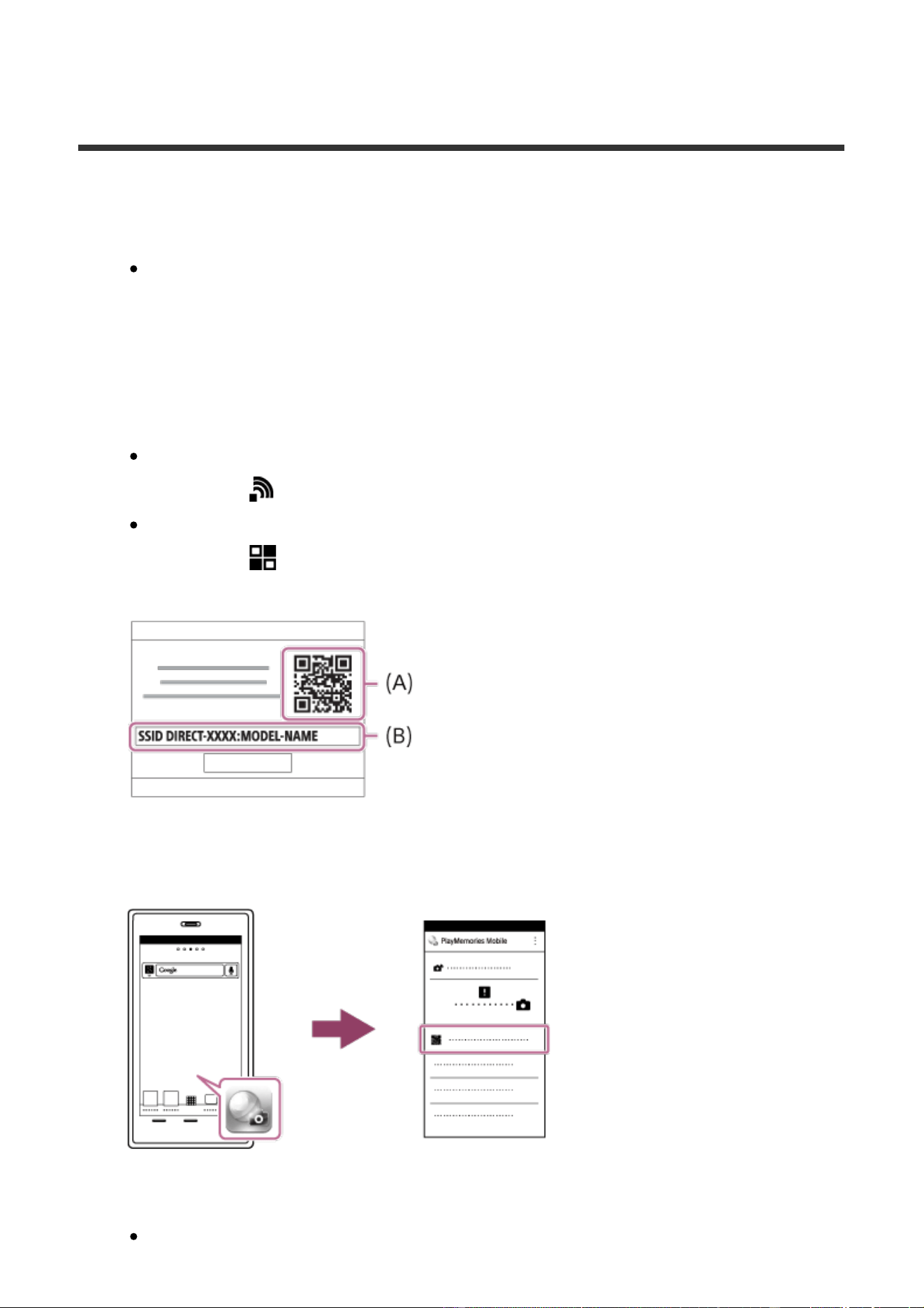
Connecting an Android smartphone to this product using
the QR code
1. Download and install the PlayMemories Mobile application to your
smartphone.
If PlayMemories Mobile is already installed on your smartphone, be sure to
update it to the latest version.
2. Display the QR code (A) on the monitor of this product by following the steps
below.
An SSID (B) will also be displayed on the monitor.
Using [Send to Smartphone]:
MENU → (Wireless) → select [Send to Smartphone]
Using [Smart Remote Embedded]:
MENU → (Application) → select [Application List] → [Smart Remote
Embedded]
3. Launch PlayMemories Mobile on your smartphone and select [Scan QR
Code of the Camera].
4. Select [OK] on the smartphone screen.
When a message is displayed, select [OK] again.
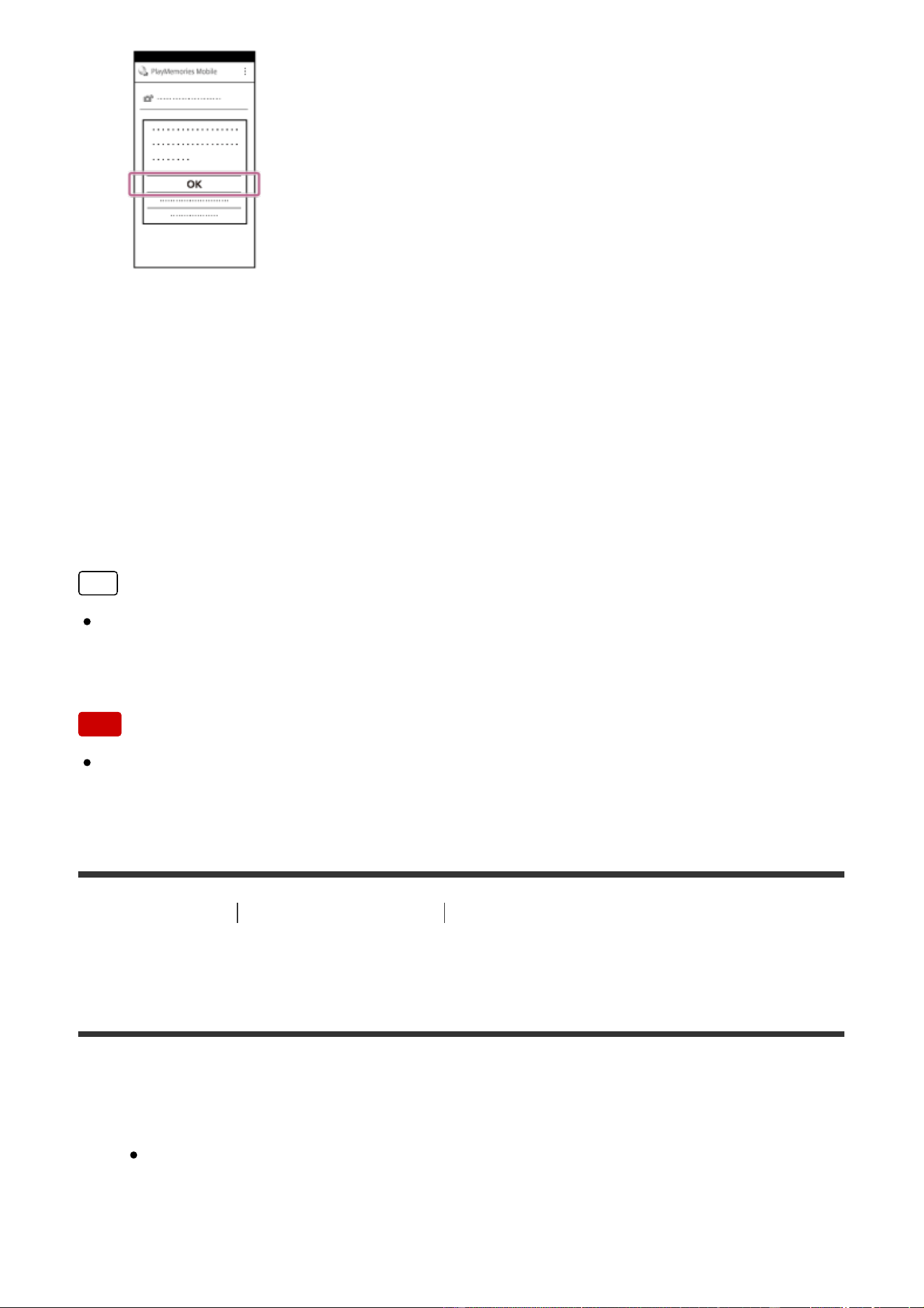
5. Read the QR code displayed on the monitor of this product with the
smartphone.
Once the QR code is read, the message [Connect with the camera?] will be
displayed on the smartphone screen.
6. Select [OK] on the smartphone screen.
The smartphone will connect to the product.
Hint
Once the QR code has been read, this product's SSID (DIRECT-xxxx) and
password are registered to the smartphone. This enables you to easily connect
the smartphone to the product via Wi-Fi at a later date by selecting the SSID.
Note
If you cannot connect your smartphone to this product using the [One-
touch(NFC)] function or QR code, use the SSID and password.
[239] How to Use Using Wi-Fi functions Connecting this product and a Smartphone
Connecting an iPhone or iPad to this product using the
QR code
1. Download and install the PlayMemories Mobile application to your iPhone or
iPad.
If PlayMemories Mobile is already installed on your device, be sure to
update it to the latest version.
2. Display the QR code (A) on the monitor of this product by following the steps
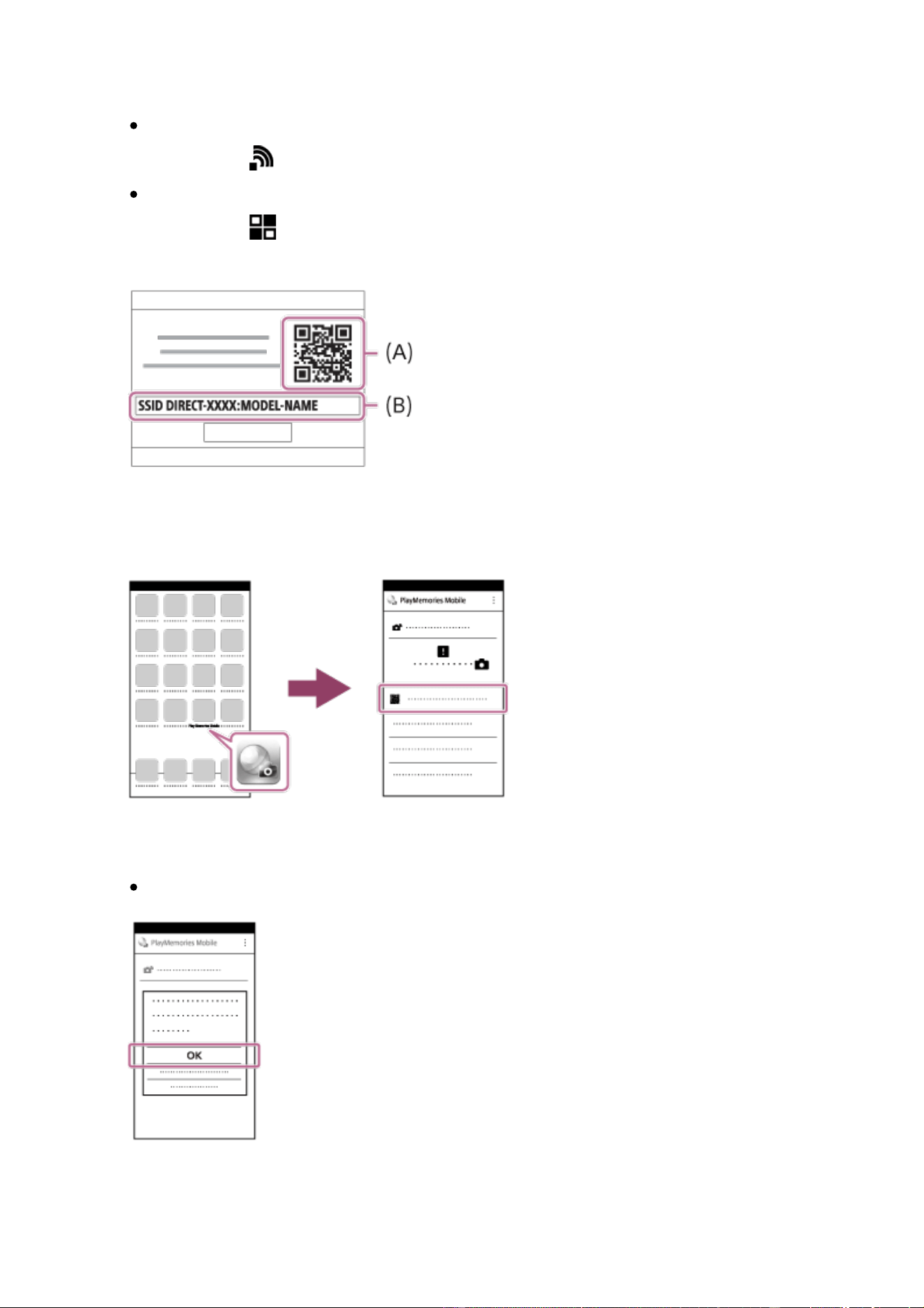
below.
An SSID (B) will also be displayed on the monitor.
Using [Send to Smartphone]:
MENU → (Wireless) → select [Send to Smartphone]
Using [Smart Remote Embedded]:
MENU → (Application) → select [Application List] → [Smart Remote
Embedded]
3. Launch PlayMemories Mobile on your iPhone or iPad and select [Scan QR
Code of the Camera].
4. Select [OK] on the iPhone or iPad screen.
When a message is displayed, select [OK] again.
5. Read the QR code displayed on the monitor of this product with the iPhone or
iPad.
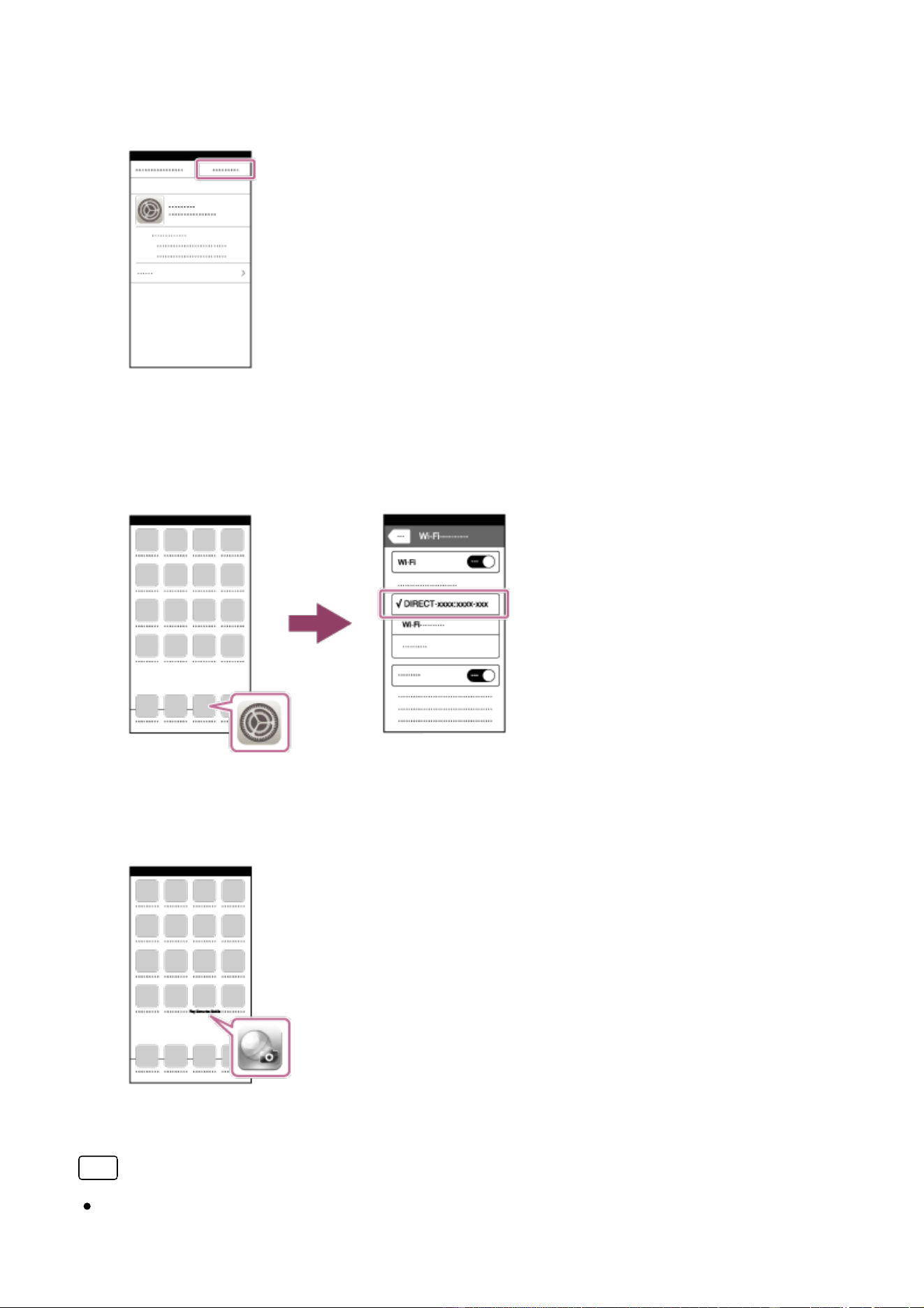
6. Install the profile (setting information) by following the instructions shown on
the iPhone or iPad screen and select [OK].
The profile will be installed to the iPhone or iPad.
7. Select [Settings] on the "Home" screen → [Wi-Fi] → this product's SSID
displayed in the Step 2.
The iPhone or iPad will connect to the product.
8. Return to the "Home" screen of the iPhone or iPad and launch PlayMemories
Mobile.
Hint
Once the QR code has been read, this product's SSID (DIRECT-xxxx) and
password are registered to the iPhone or iPad. This enables you to easily
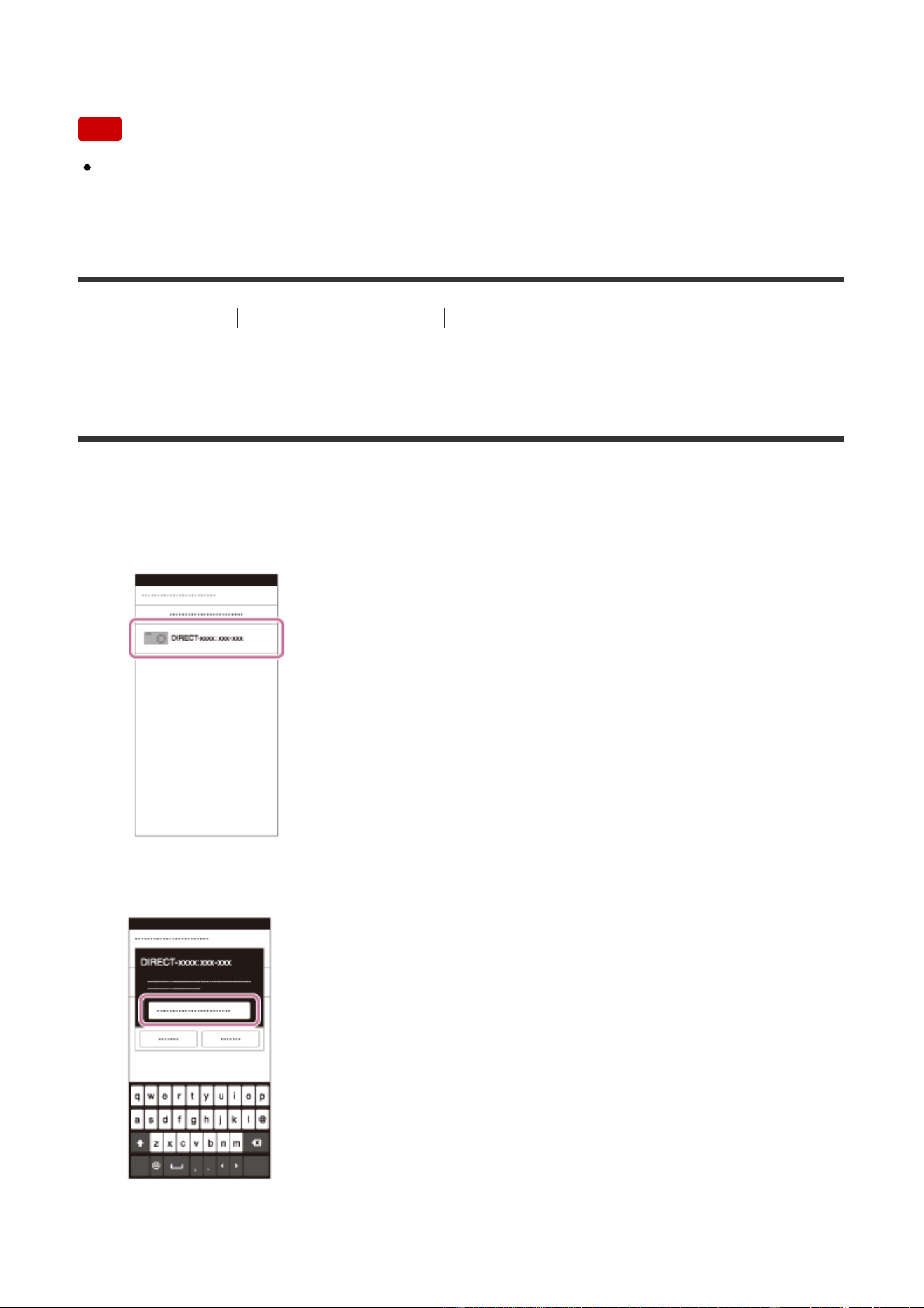
connect the iPhone or iPad to the product via Wi-Fi at a later date by selecting
the SSID.
Note
If you cannot connect your device to this product using the QR code, use the
SSID and password.
[240] How to Use Using Wi-Fi functions Connecting this product and a Smartphone
Connecting an Android smartphone to this product by
inputting an SSID and password
1. Launch PlayMemories Mobile on your smartphone.
2. Select the model name of this product (DIRECT-xxxx: xxxx).
3. Input the password that is displayed on this product.
The smartphone is connected to the product.
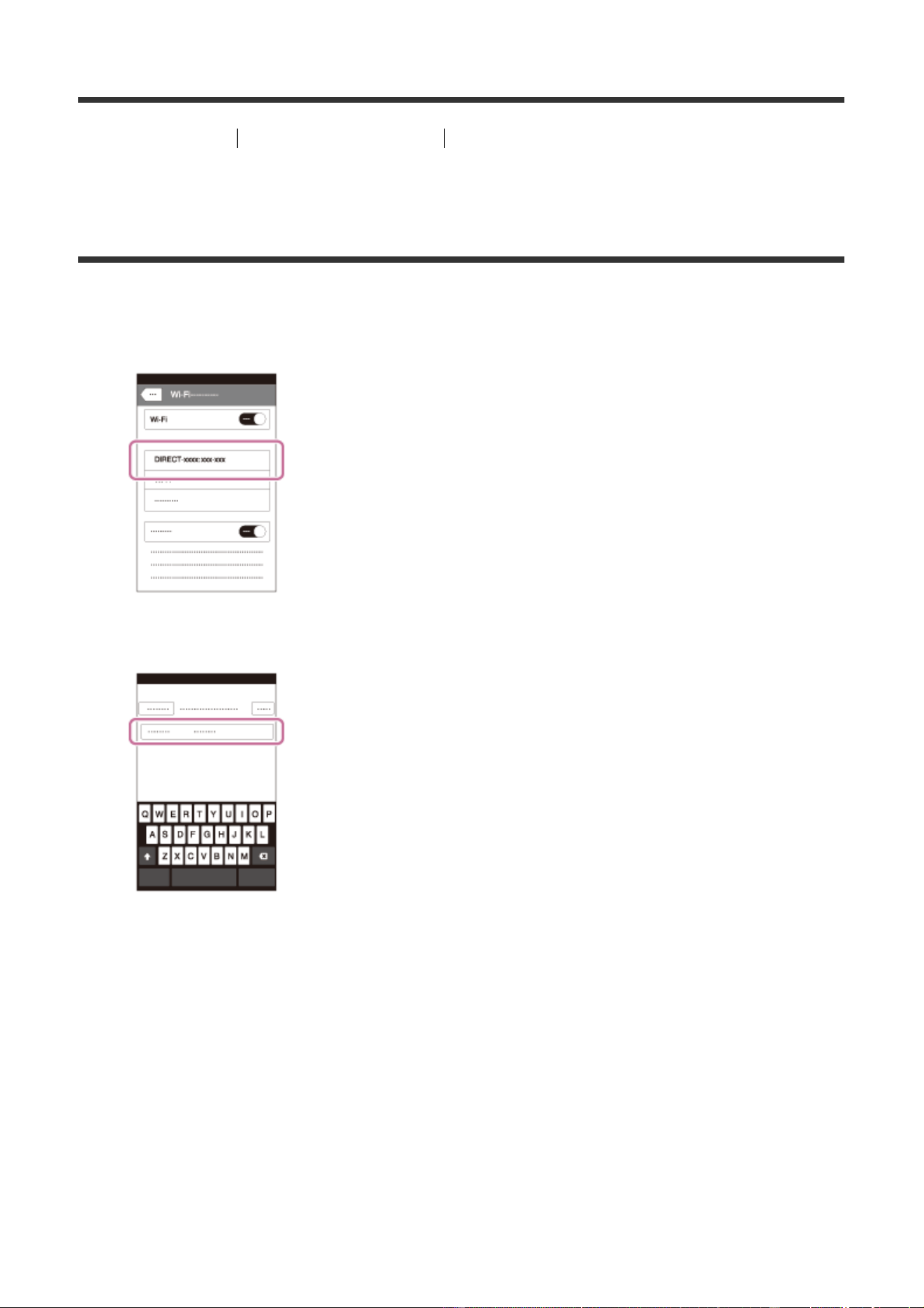
[241] How to Use Using Wi-Fi functions Connecting this product and a Smartphone
Connecting an iPhone or iPad to this product by inputting
an SSID and password
1. Select the model name of this product (DIRECT-xxxx: xxxx) on the Wi-Fi
setting screen of your iPhone or iPad.
2. Input the password displayed on this product.
The iPhone or iPad is connected to the product.
3. Confirm that your iPhone or iPad was connected to the “SSID” shown on this
product.
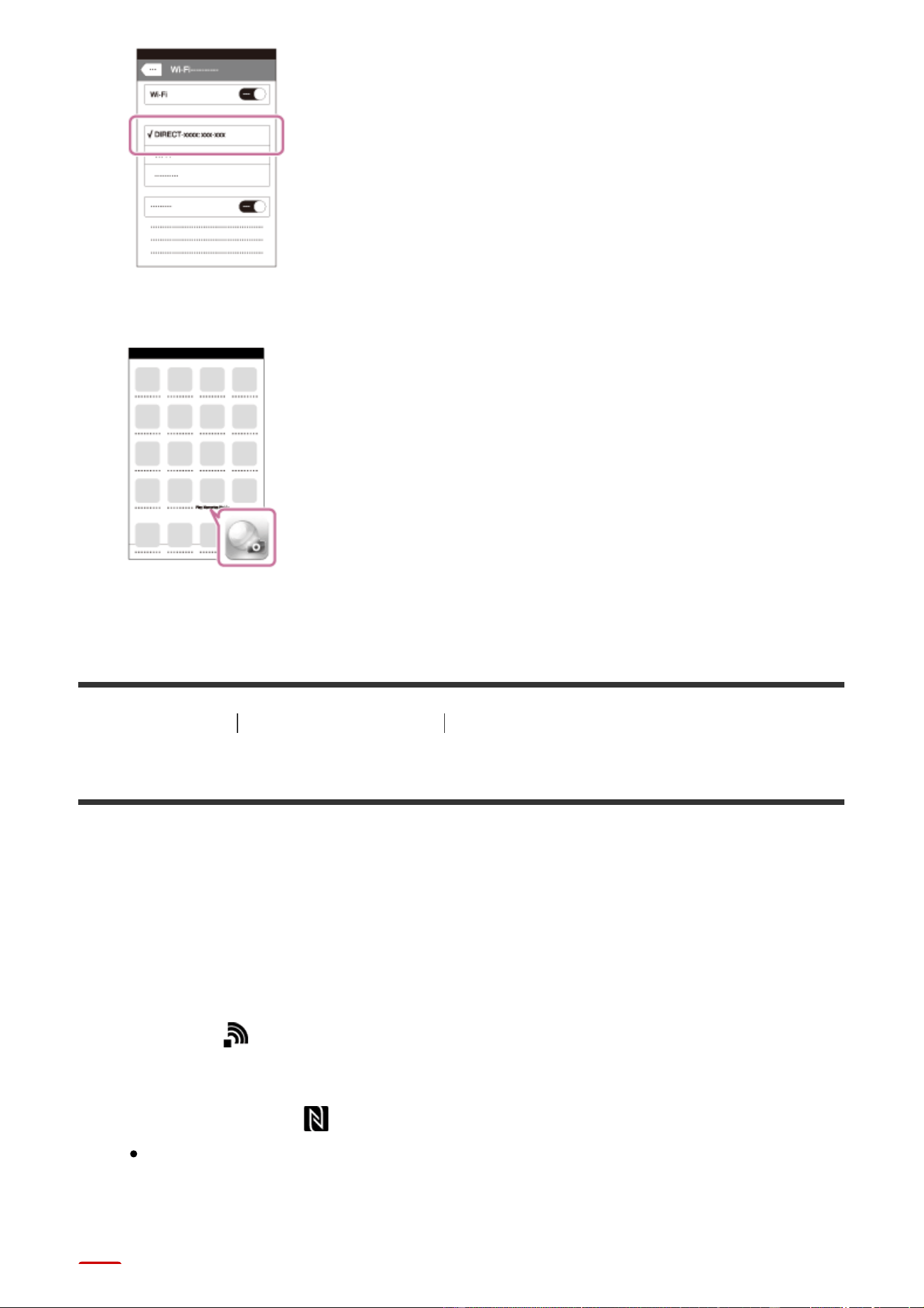
4. Return to the “Home” screen and launch PlayMemories Mobile.
[242] How to Use Using Wi-Fi functions Connecting this product and a Smartphone
Calling up an application using [One-touch(NFC)]
You can call up a desired application from the application menu of this product by
touching an NFC-enabled Android smartphone to the product. If the application
you call up has a feature that works with the smartphone, the product and the
smartphone will be connected via Wi-Fi. To use this function, register the desired
application in advance.
1. MENU → (Wireless) → [One-touch(NFC)] → desired application.
2. Switch this product to shooting mode, then touch an NFC-enabled
smartphone to the (N mark) on the product for 1-2 seconds.
PlayMemories Mobile launches on the smartphone, and the application
you have registered launches on this product.
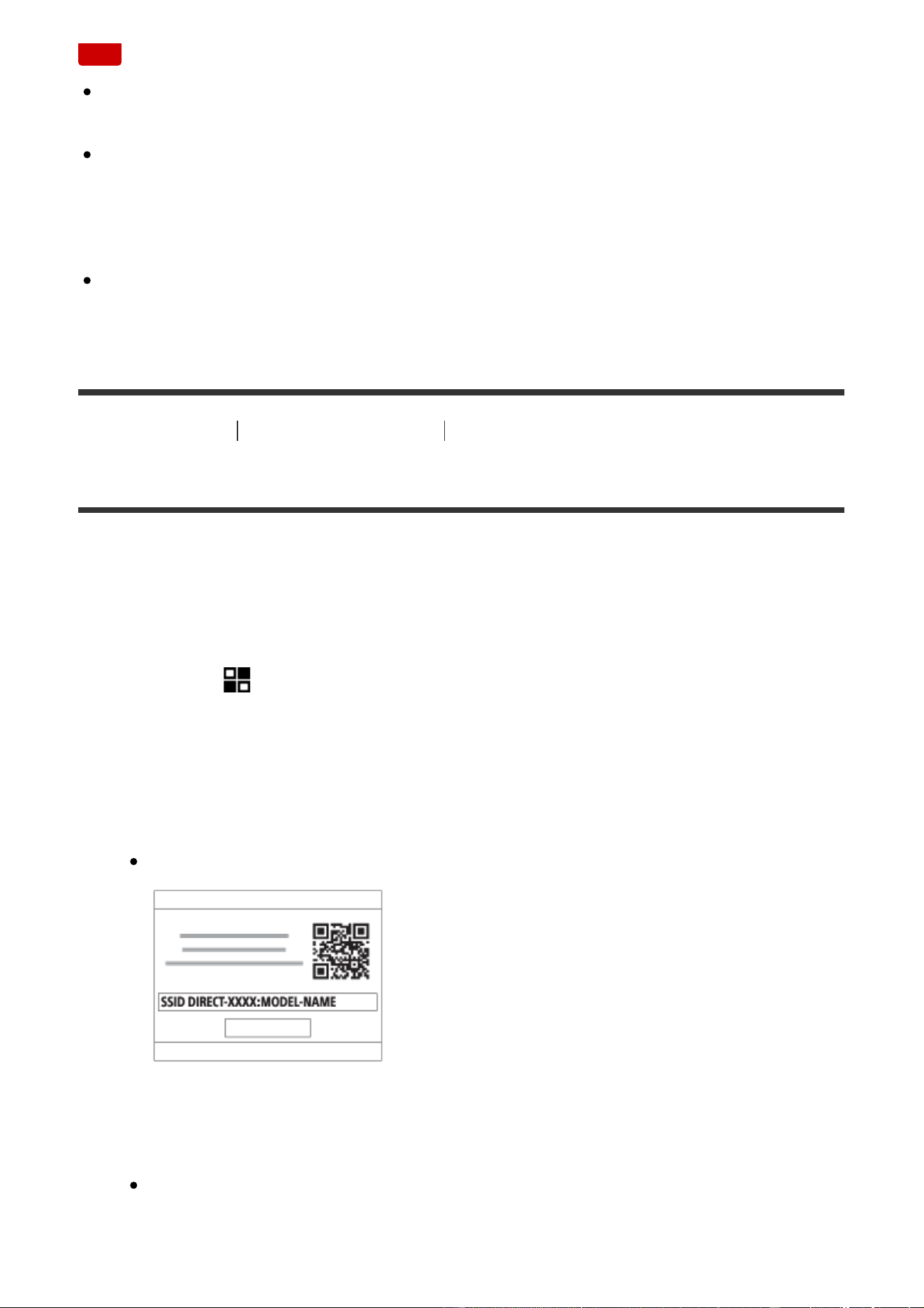
Note
When the product is in playback mode, the registered application will not launch
even if you touch the smartphone to the product.
When you call up an application with one touch, even if that application does
not work with a smartphone, PlayMemories Mobile on smartphone will launch.
Exit PlayMemories Mobile without performing an operation. If you do not exit
PlayMemories Mobile, the smartphone stays in standby connection status.
[Smart Remote Embedded] is assigned to [One-touch(NFC)] as a default
setting.
[243] How to Use Using Wi-Fi functions Controlling this product using a Smartphone
Smart Remote Embedded
You can use a smartphone as the remote controller for this product, and shoot still
images/movies. The application PlayMemories Mobile must be installed on your
smartphone.
1. MENU → (Application) → [Application List] → [Smart Remote
Embedded].
2. When the product is ready for the connection, an information screen appears
on the product. Connect the smartphone and the product using that
information.
Connection setting methods differ among smartphones.
3. Check the composition of the image on the smartphone screen, and then
press the shutter button (A) on the smartphone to shoot an image.
Use button (B) to change settings such as [EV], [Self-Timer] and [Review
Check].
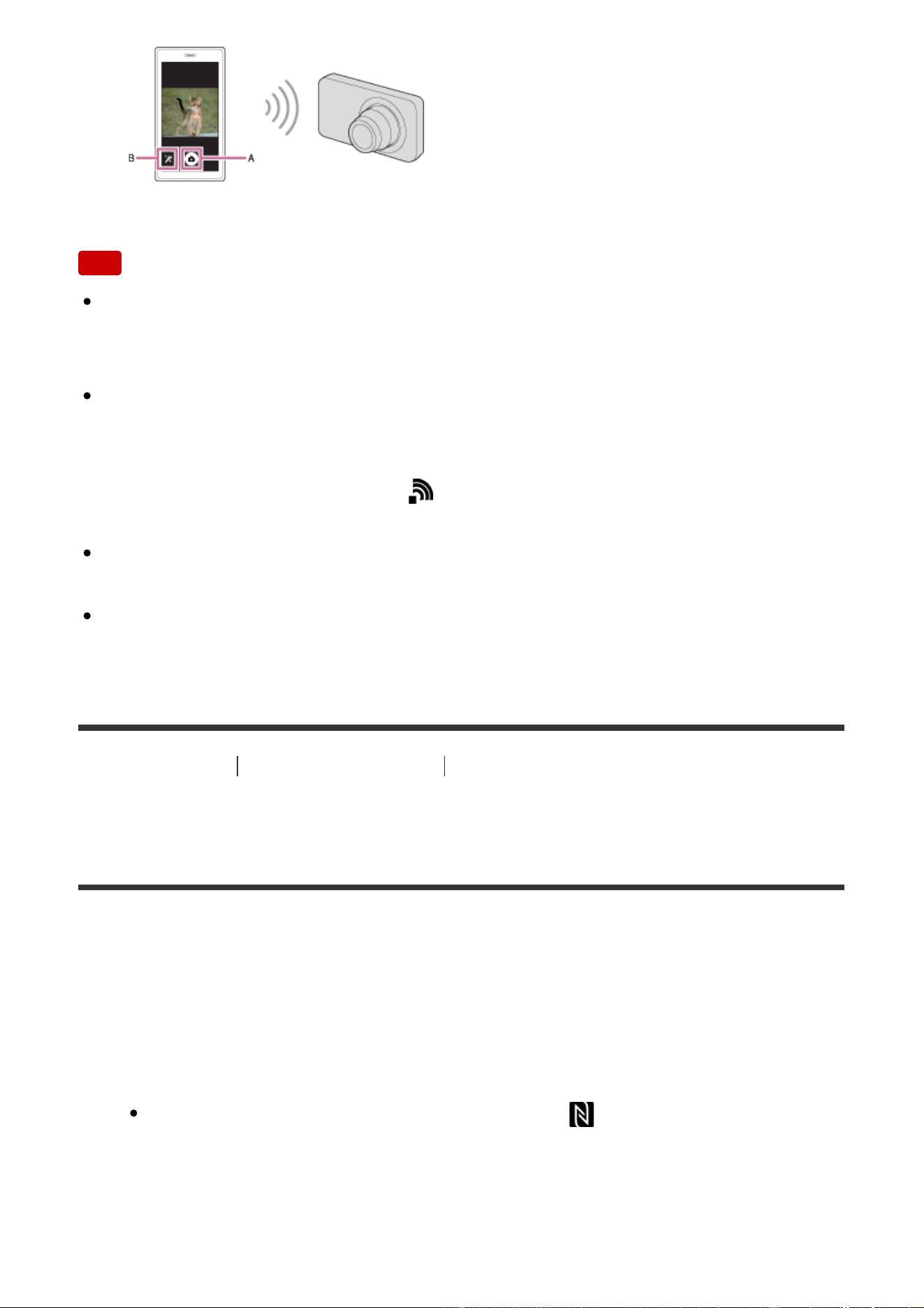
Note
When you record movies using a smartphone as a remote controller, the
monitor of the product becomes darker. Also, you cannot use the viewfinder for
still image/movie recording.
This product shares the connection information for [Smart Remote Embedded]
with a device that has permission to connect. If you want to change the device
that is permitted to connect to the product, reset the connection information by
following these steps. MENU → (Wireless) → [SSID/PW Reset]. After
resetting the connection information, you must register the smartphone again.
When [Airplane Mode] is set to [On], you cannot connect this product and the
smartphone. Set [Airplane Mode] to [Off].
Depending on future version upgrades, the operational procedures or screen
displays are subject to change without notice.
[244] How to Use Using Wi-Fi functions Controlling this product using a Smartphone
Using [Smart Remote Embedded] with a smartphone
touch connection (NFC One-touch remote)
You can connect this product to an NFC-enabled Android smartphone by touching
them together and then operate the product using the smartphone.
1. Activate the NFC function of the smartphone.
2. Switch this product to shooting mode.
The NFC function is available only when the (N mark) is displayed on
the screen.
3. Touch the product to the smartphone.
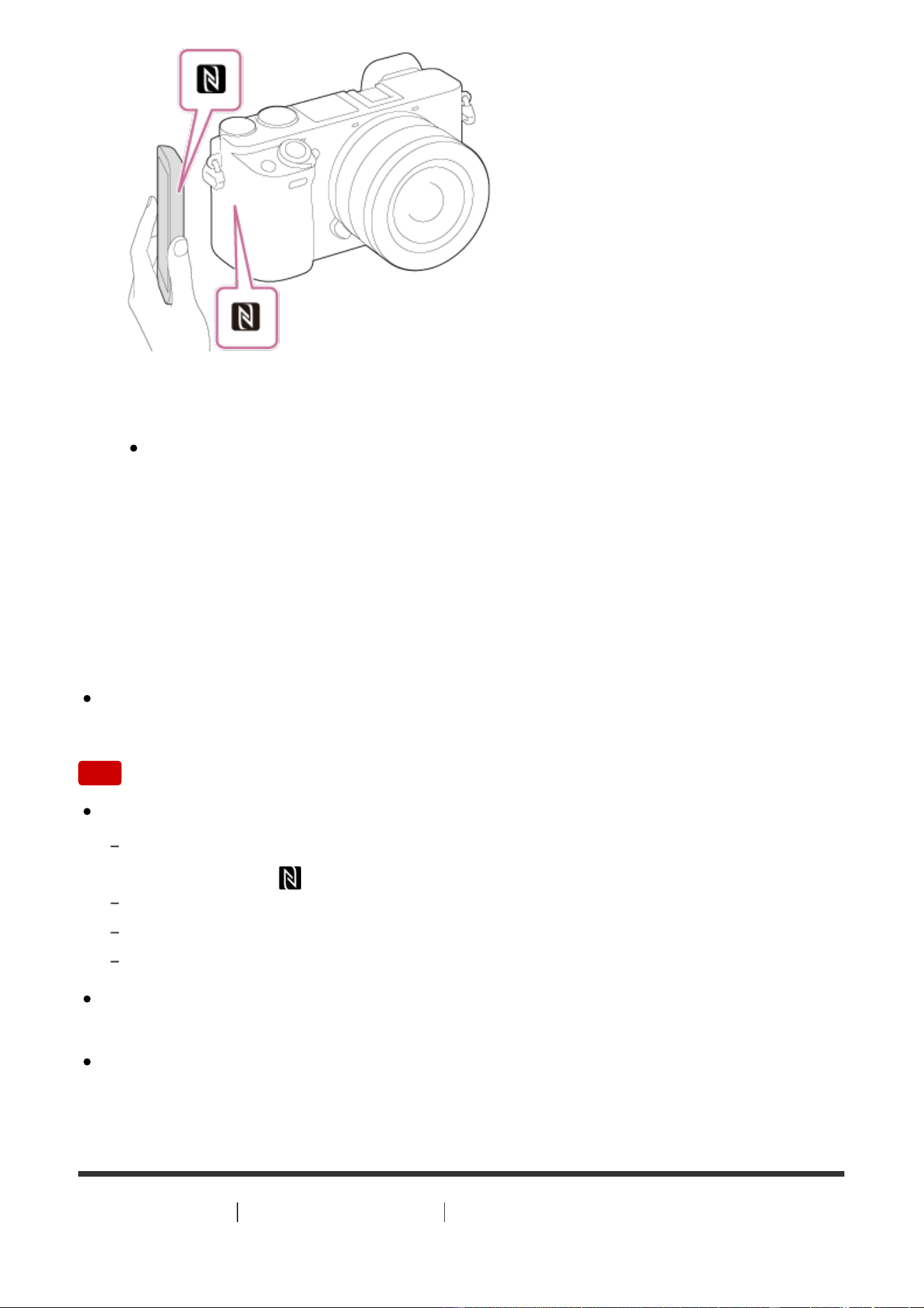
The smartphone and the product are connected, and PlayMemories Mobile
launches on the smartphone.
Touch the smartphone to the product for 1-2 seconds until PlayMemories
Mobile launches.
About “NFC”
NFC is a technology that enables short-range wireless communication between
various devices, such as mobile phones or IC tags, etc. NFC makes data
communication simpler with just a touch on the designated touch-point.
NFC (Near Field Communication) is an international standard of short-range
wireless communication technology.
Note
If you cannot make a connection, do as the following:
Launch PlayMemories Mobile on your smartphone, and then move the smartphone
slowly toward the (N mark) of this product.
If the smartphone is in a case, remove it.
If the product is in a case, remove it.
Check whether the NFC function is activated on your smartphone.
When [Airplane Mode] is set to [On], you cannot connect this product and the
smartphone. Set [Airplane Mode] to [Off].
If this product and the smartphone are connected when the product is in
playback mode, the displayed image is sent to the smartphone.
[245] How to Use Using Wi-Fi functions Transferring images to a Smartphone
Send to Smartphone
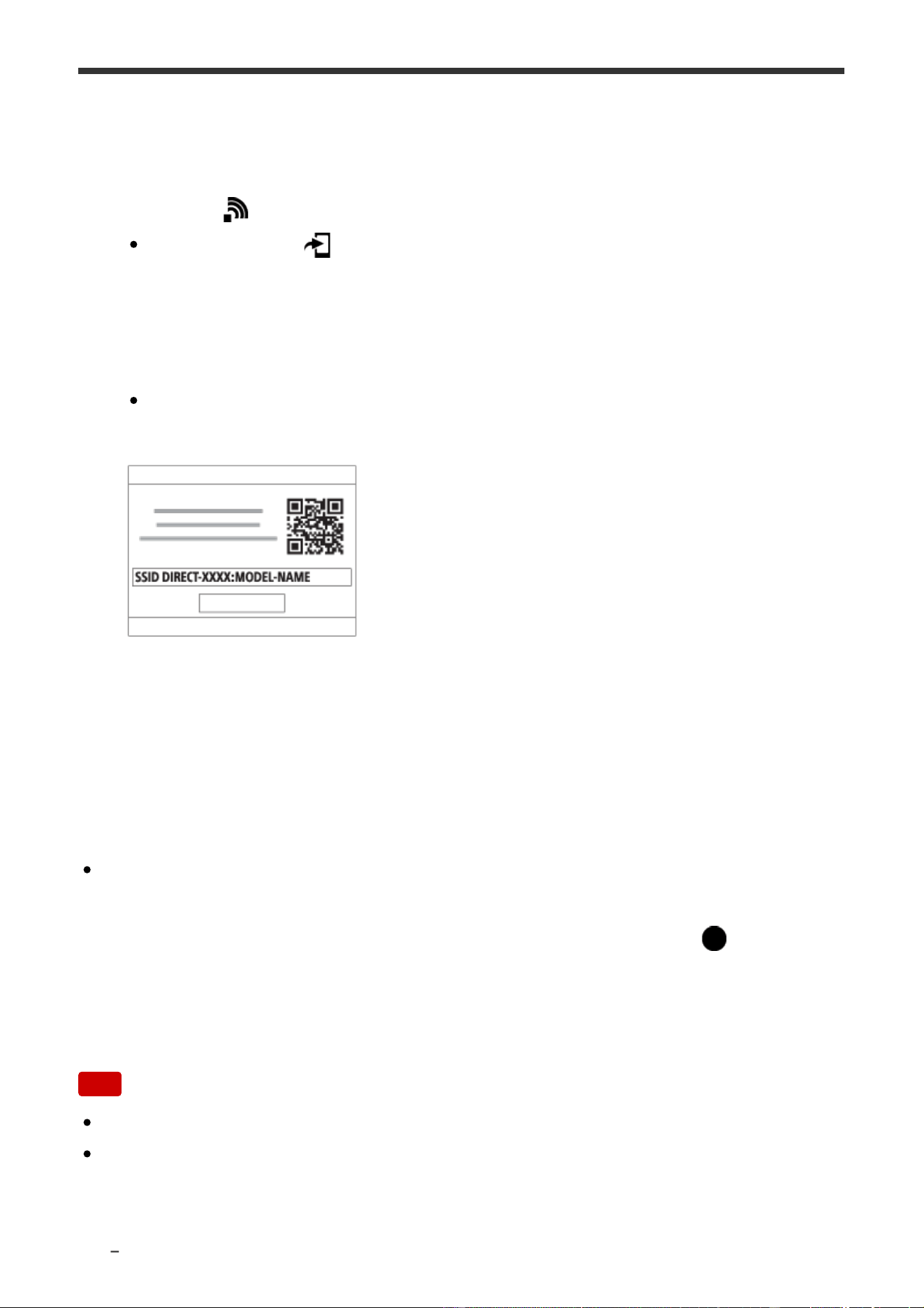
You can transfer still images/movies to a smartphone and view them. The
application PlayMemories Mobile must be installed on your smartphone.
1. MENU → (Wireless) → [Send to Smartphone] → desired setting.
If you press the (Send to Smartphone) button in playback mode, the
setting screen for [Send to Smartphone] will appear.
2. If the product is ready for the transfer, the information screen appears on the
product. Connect the smartphone and the product using that information.
The setting method for connecting the smartphone and the product varies
depending on the smartphone.
Menu item details
Select on This Device:
Selects an image on the product to be transferred to the smartphone.
(1) Select from among [This Image], [All Images on This Date] or [Multiple
Images].
The options displayed may differ depending on the View Mode selected on the
camera.
(2) If you select [Multiple Images], select the desired images using
on the
control wheel, then press MENU → [Enter].
Select on Smartphone:
Displays all images recorded on the product’s memory card on the smartphone.
Note
You can only transfer images that are saved on the camera's memory card.
You can select an image size to be sent to the smartphone from [Original], [2M]
or [VGA].
To change the image size, refer to the following steps.
For Android smartphone

Start PlayMemories Mobile, and change the image size by [Settings] → [Copy Image
Size].
For iPhone/iPad
Select PlayMemories Mobile in the setting menu, and change the image size by [Copy
Image Size].
Some images may not be displayed on the smartphone depending on the
recording format.
RAW images are converted to JPEG format when they are sent.
You cannot send XAVC S or AVCHD format movies.
This product shares the connection information for [Send to Smartphone] with a
device that has permission to connect. If you want to change the device that is
permitted to connect to the product, reset the connection information by
following these steps. MENU → [Wireless] → [SSID/PW Reset]. After resetting
the connection information, you must register the smartphone again.
When [Airplane Mode] is set to [On], you cannot connect this product and the
smartphone. Set [Airplane Mode] to [Off].
When you save images to the Mac computer using Wi-Fi function, use
"Wireless Auto Import."
[246] How to Use Using Wi-Fi functions Transferring images to a Smartphone
Sending images to an Android smartphone (NFC One-
touch Sharing)
With just one touch, you can connect this product and an NFC-enabled Android
smartphone, and send an image displayed on the product screen directly to the
smartphone. For movies, you can only transfer MP4 movies recorded with [
File Format] set to [MP4].
1. Activate the NFC function of the smartphone.
2. Display a single image on the product.
3. Touch the smartphone to the product.
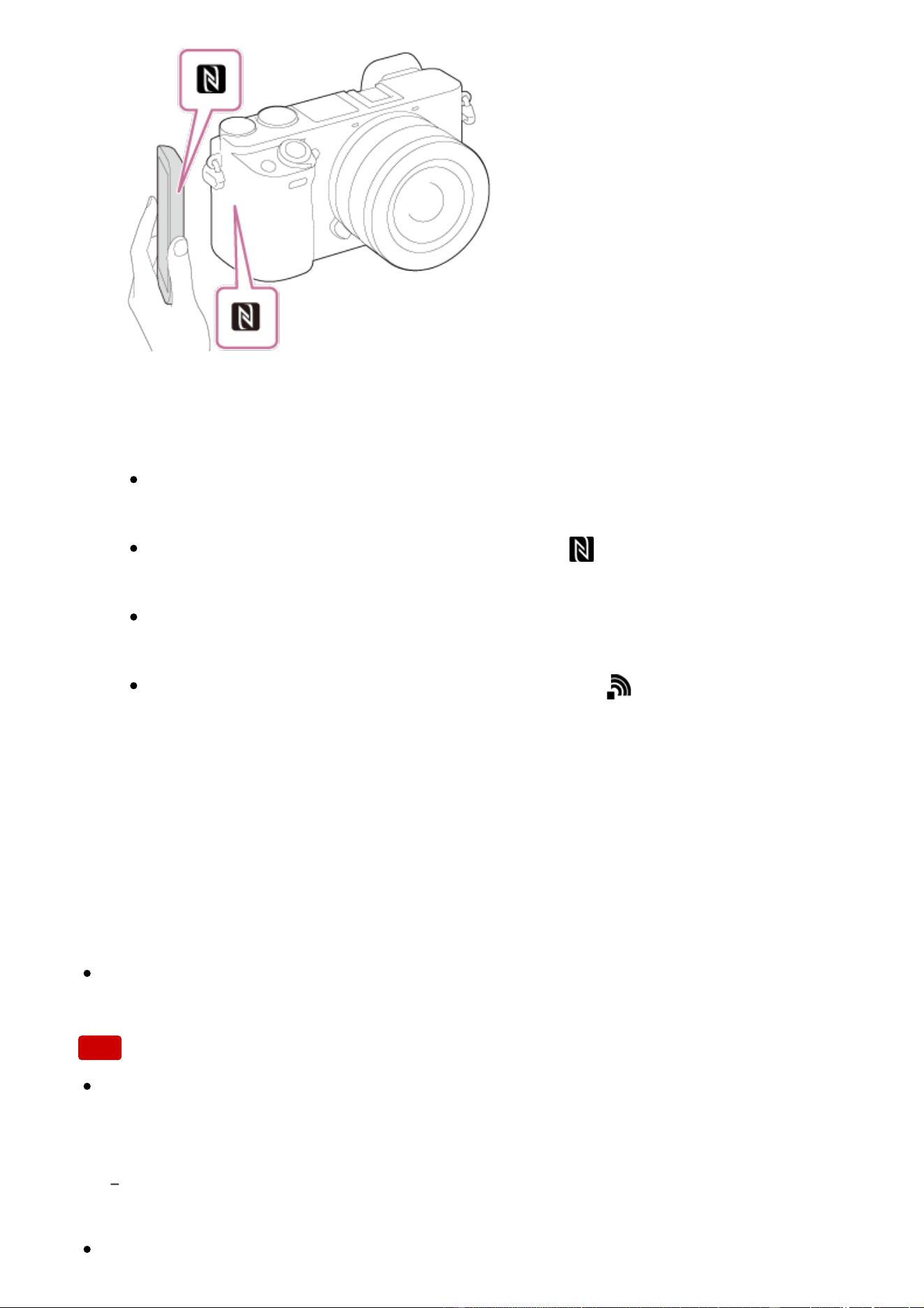
The product and the smartphone are connected, and PlayMemories Mobile
automatically launches on the smartphone, and then the displayed image is
sent to the smartphone.
Before you touch the smartphone, cancel the sleep and lock-screen
functions of the smartphone.
The NFC function is available only when the (N mark) is displayed on
the product.
Touch the smartphone to the product for 1-2 seconds until PlayMemories
Mobile launches.
To transfer two or more images, select MENU → (Wireless) → [Send
to Smartphone] to select images. After the connection enabled screen
appears, use NFC to connect the product and the smartphone.
About “NFC”
NFC is a technology that enables short-range wireless communication between
various devices, such as mobile phones or IC tags, etc. NFC makes data
communication simpler with just a touch on the designated touch-point.
NFC (Near Field Communication) is an international standard of short-range
wireless communication technology.
Note
You can select an image size to be sent to the smartphone from [Original],
[2M], or [VGA].
To change the image size, refer to the following steps.
Start PlayMemories Mobile, and change the image size by [Settings] → [Copy Image
Size].
RAW images are converted to JPEG format when they are sent.

If the Image Index is displayed on the product, you cannot transfer images
using the NFC function.
If you cannot make a connection, perform the following:
Launch PlayMemories Mobile on your smartphone, and then move the smartphone
slowly toward the (N mark) of this product.
If the smartphone is in a case, remove it.
If the product is in a case, remove it.
Confirm that the NFC function is activated on the smartphone.
When [Airplane Mode] is set to [On], you cannot connect the product and the
smartphone. Set [Airplane Mode] to [Off].
You cannot send AVCHD format movies.
You cannot send XAVC S format movies.
When you save images to a Mac computer using the Wi-Fi function, use
“Wireless Auto Import.”
[247] How to Use Using Wi-Fi functions Transferring images to a computer
Send to Computer
You can transfer images stored in the product to a computer connected to a
wireless access point or wireless broadband router and easily make backup
copies using this operation. Before starting this operation, install PlayMemories
Home on your computer and register the access point on the product.
1. Start your computer.
2. MENU → (Wireless) → [Send to Computer].
Note
Depending on the application settings of your computer, the product will turn off
after saving the images to your computer.
You can transfer images from the product to only one computer at a time.
If you want to transfer images to another computer, connect the product and the
computer via a USB connection and follow the instructions in PlayMemories
Home.
When you save images to the Mac computer using Wi-Fi function, use
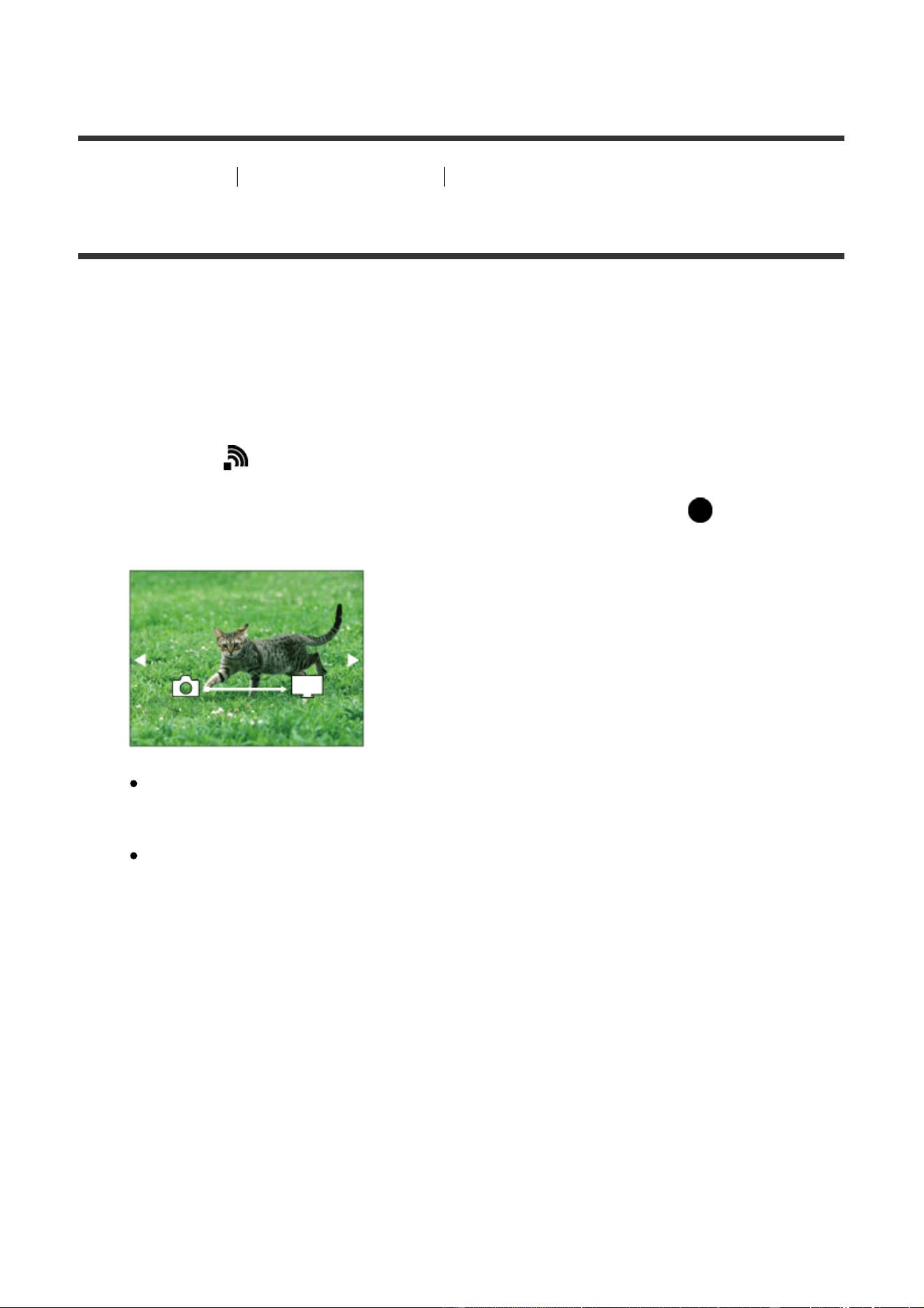
"Wireless Auto Import."
[248] How to Use Using Wi-Fi functions Transferring images to a TV
View on TV
You can view images on a network-enabled TV by transferring them from the
product without connecting the product and TV with a cable. For some TVs, you
may need to perform operations on the TV. For details, refer to the operating
instructions supplied with the TV.
1. MENU → (Wireless) → [View on TV] → desired device to be connected.
2. When you want to play back images using slideshow, press on the
center of the control wheel.
To display the next/previous image manually, press the right/left side of
the control wheel.
To change the device to be connected, press the bottom side of the
control wheel, then select [Device list].
Slideshow settings
You can change the slideshow settings by pressing the bottom side of the control
wheel.
Playback Selection:
Selects the group of images to be shown.
Folder View(Still):
Selects from [All] and [All in Folder].
Date View:
Selects from [All] and [All in Date Rng.].
Interval:
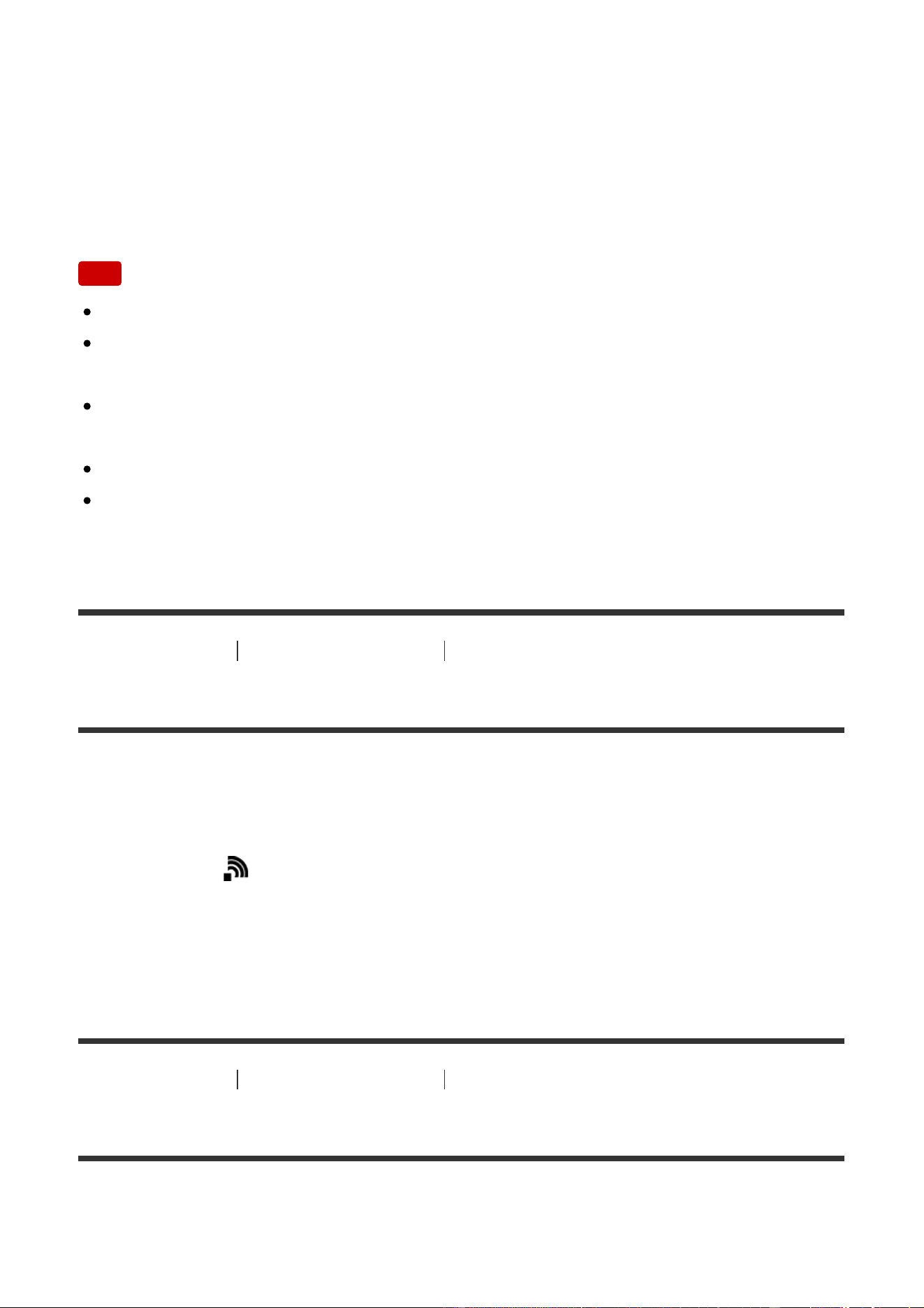
Selects from [Short] and [Long].
Effects*:
Select from [On] and [Off].
Playback Image Size:
Select from [HD] and [4K].
*
The settings are effective only for BRAVIA TV which is compatible with the functions.
Note
You can use this function on a TV that supports DLNA renderer.
You can view images on a Wi-Fi Direct-enabled TV or network-enabled TV
(including wired network-enabled TVs).
If you connect TV and this product and do not use Wi-Fi Direct, you need to
register your access point first.
Displaying the images on the TV may take time.
Movies cannot be shown on a TV via Wi-Fi. Use an HDMI cable (sold
separately).
[249] How to Use Using Wi-Fi functions Changing the settings of Wi-Fi functions
Airplane Mode
When you board an airplane, etc., you can temporarily disable all the wireless-
related functions including Wi-Fi.
1. MENU → (Wireless) → [Airplane Mode] → desired setting.
If you set [Airplane Mode] to [On], an airplane mark will be displayed on the
screen.
[250] How to Use Using Wi-Fi functions Changing the settings of Wi-Fi functions
WPS Push
If your access point has the Wi-Fi Protected Setup (WPS) button, you can register
the access point to this product easily by pushing the Wi-Fi Protected Setup

(WPS) button.
1. MENU → (Wireless) → [WPS Push].
2. Press the WPS button on the access point you want to register.
Note
[WPS Push] works only if the security setting of your access point is set to WPA
or WPA2 and your access point supports the Wi-Fi Protected Setup (WPS)
button method. If the security setting is set to WEP or your access point does
not support the Wi-Fi Protected Setup (WPS) button method, perform [Access
Point Set.].
For details about the available functions and settings of your access point, see
the access point operating instructions or contact the administrator of the
access point.
A connection may not be enabled depending on the surrounding conditions,
such as the type of wall material or if there is an obstruction or poor wireless
signal between the product and access point. If that happens, change the
location of the product or move the product closer to the access point.
[251] How to Use Using Wi-Fi functions Changing the settings of Wi-Fi functions
Access Point Set.
You can register your access point manually. Before starting the procedure, check
the SSID name of the access point, security system, and password. The password
may be preset in some devices. For details, see the access point operating
instructions, or consult the access point administrator.
1. MENU → (Wireless) → [Access Point Set.].
2. Select the access point you want to register.
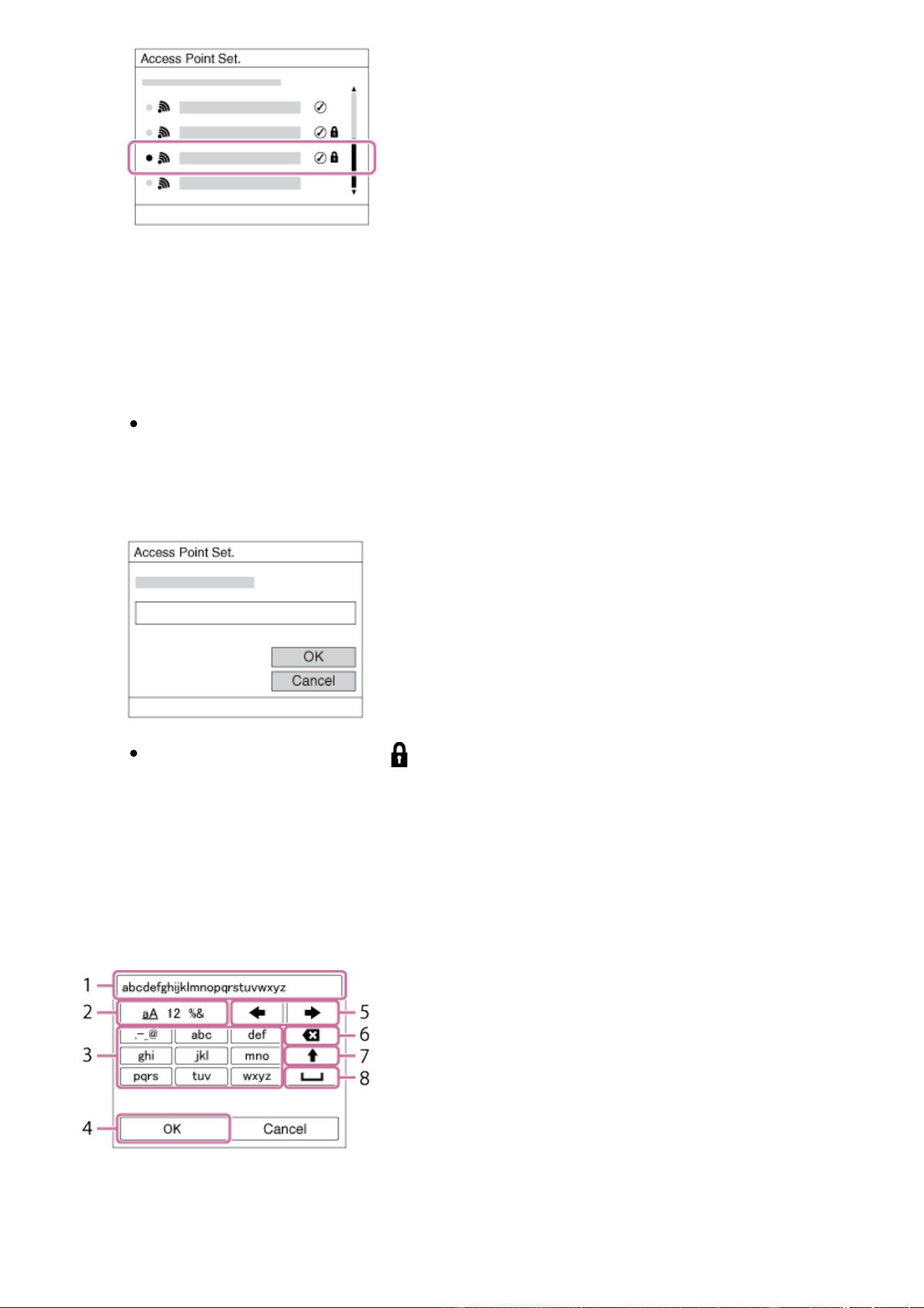
When the desired access point is displayed on the screen: Select the
desired access point.
When the desired access point is not displayed on the screen: Select
[Manual Setting] and set the access point.
*
For the input method, refer to “How to use the keyboard.”
If you select [Manual Setting], input the SSID name of the access point,
then select the security system.
3. Input the password, and select [OK].
Access points without the mark do not require a password.
4. Select [OK].
How to use the keyboard
When manual character entry is required, a keyboard is displayed on the screen.
1. Input box
The characters you entered are displayed.

2. Switch character types
Each time you press
in the center of the control wheel, the character
type will switch between alphabet letters, numerals and symbols.
3. Keyboard
Each time you press
in the center, the characters corresponding to that
key will be displayed one-by-one in order.
For example: If you want to enter “abd”
Select the key for “abc” and press once to display “a” → select “ ”((5)
Move cursor) and press → select the key for “abc” and press twice
to display “b” → select the key for “def” and press once to display “d”.
4. Finalize
Finalizes the entered characters.
5. Move cursor
Moves the cursor in the input box to the right or left.
6. Delete
Deletes the character preceding the cursor.
7.
Switches the next character to a capital or lowercase letter.
8.
Enters a space.
To cancel input, select [Cancel].
Other setting items
Depending on the status or the setting method of your access point, you may want
to set more items.
WPS PIN:
Displays the PIN code you enter into the connected device.
Priority Connection:
Select [On] or [Off].
IP Address Setting:
Select [Auto] or [Manual].
IP Address:
If you are entering the IP address manually, enter the set address.
Subnet Mask/Default Gateway:
When you set [IP Address Setting] to [Manual], enter the IP address to match your
network environment.
Note
To give the registered access point priority, set [Priority Connection] to [On].
[252] How to Use Using Wi-Fi functions Changing the settings of Wi-Fi functions
Edit Device Name
You can change the device name under Wi-Fi Direct.
1. MENU → (Wireless) → [Edit Device Name].
2. Select the input box, then input the device name → [OK].
For input method, refer to “How to use the keyboard.”
[253] How to Use Using Wi-Fi functions Changing the settings of Wi-Fi functions
Disp MAC Address
Displays the MAC address of this product.
1. MENU → (Wireless) → [Disp MAC Address].
[254] How to Use Using Wi-Fi functions Changing the settings of Wi-Fi functions
SSID/PW Reset
This product shares the connection information for [Send to Smartphone] and
[Smart Remote Embedded] with a device that has permission to connect. If you
want to change the device that is permitted to connect, reset the connection
information.
1. MENU → (Wireless) → [SSID/PW Reset] → [OK].
Note
If you connect this product to the smartphone after resetting the connection
information, you must register the smartphone again.
[255] How to Use Using Wi-Fi functions Changing the settings of Wi-Fi functions
Reset Network Set.
Resets all the network settings to default settings.
1. MENU → (Wireless) → [Reset Network Set.] → [OK].
[256] How to Use Adding applications to the product PlayMemories Camera Apps
PlayMemories Camera Apps
You can add the desired functions to this product by connecting to the application
download website (PlayMemories Camera Apps) via the Internet.
Press MENU → (Application) → [Introduction] for information about the
service and available countries and regions.
[257] How to Use Adding applications to the product PlayMemories Camera Apps
Recommended computer environment

For details on the recommended computer environments for downloading an
application and adding functions to the product, refer to the following URL:
“PlayMemories Camera Apps” website (http://www.sony.net/pmca/)
[258] How to Use Adding applications to the product Installing the applications
Opening a service account
You can open a service account, which is required to download applications.
1. Access the application download website.
http://www.sony.net/pmca/
2. Follow the instructions on the screen and acquire a service account.
Follow the instructions on the screen to download the desired application
to the product.
[259] How to Use Adding applications to the product Installing the applications
Downloading applications
You can download applications using your computer.
1. Access the application downloading website.
http://www.sony.net/pmca/
2. Select the desired application and download the application to the product
following the instructions on the screen.
Connect the computer and the product using the micro USB cable
(supplied), following the instructions on the screen.
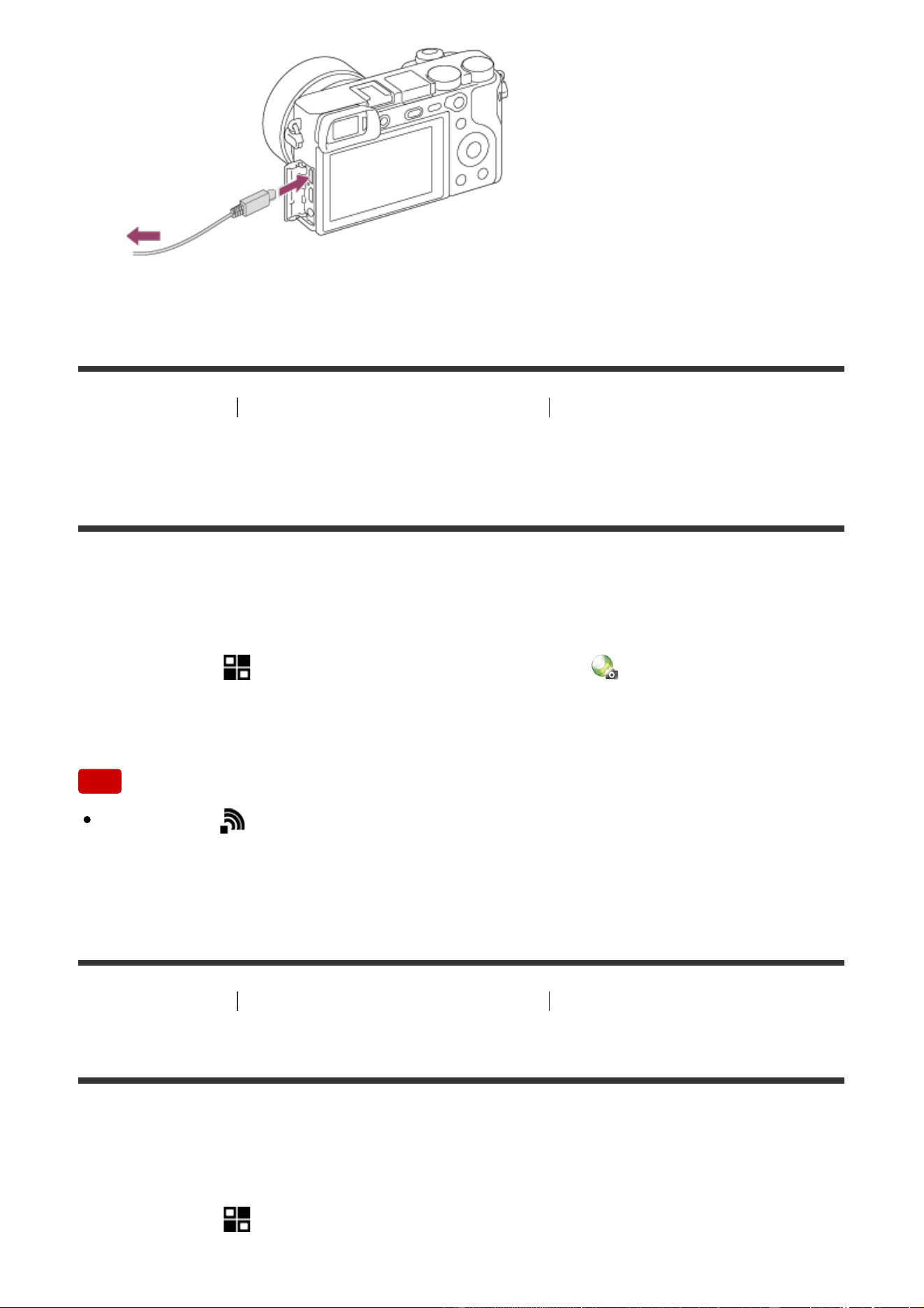
[260] How to Use Adding applications to the product Installing the applications
Downloading applications directly to the product using
the Wi-Fi function
You can download applications using the Wi-Fi function without connecting to a
computer. Acquire a service account in advance.
1. MENU → (Application) → [Application List] → (PlayMemories Camera
Apps), then follow the instructions on the screen to download applications.
Note
If MENU → (Wireless) → [Access Point Set.] → access point to be
connected → [IP Address Setting] is set to [Manual], change the setting to
[Auto].
[261] How to Use Adding applications to the product Starting the applications
Launching the downloaded application
Launch an application that has been downloaded from the application download
website PlayMemories Camera Apps.
1. MENU → (Application) → [Application List] → desired application to
launch.
Hint
How to launch the applications faster
Assign [Download Appli.] and [Application List] to the custom key. You can launch
the applications or display application list only by pressing the custom key during
the shooting information screen is displayed.
[262] How to Use Adding applications to the product Managing the applications
Uninstalling applications
You can uninstall applications from this product.
1. MENU → (Application) → [Application List] → [Application Management]
→ [Manage and Remove].
2. Select the application to be uninstalled.
3. Select to uninstall the application.
The uninstalled application can be re-installed. For details, see the application
download website.
[263] How to Use Adding applications to the product Managing the applications
Changing the order of applications
You can change the order in which added applications are displayed on this
product.
1. MENU → (Application) → [Application List] → [Application Management]
→ [Sort].
2. Select the application of which you want to change the order.
3. Select the destination.
[264] How to Use Adding applications to the product Managing the applications
Confirming the account information of PlayMemories
Camera Apps
The account information for the “Sony Entertainment Network” that is registered
on the product is displayed.
1. MENU → (Application) → [Application List] → [Application Management]
→ [Display Account Information].
[265] How to Use Using a computer Recommended computer environment
Recommended computer environment
You can confirm the operating computer environment of the software from the
following URL:
http://www.sony.net/pcenv/
[266] How to Use Using a computer Using the software
PlayMemories Home
With PlayMemories Home, you can do the following:
You can import images shot with this product to your computer.
You can play back the images imported to your computer.
You can share your images using PlayMemories Online.
You can edit movies such as by cutting or merging.

You can add various effects such as BGM and subtitles to movies.
You can change the playback speed of movies and slow-motion movies.
Also for Windows, you can do the following:
You can organize images on the computer on a calendar by shooting date to
view them.
You can edit and correct images, such as by trimming and resizing.
You can create a disc from movies imported to a computer. Blu-ray discs or
AVCHD discs can be created from XAVC S-format movies.
You can upload images to a network service. (An internet connection is
required.)
For other details, please refer to the Help of PlayMemories Home.
[267] How to Use Using a computer Using the software
Installing PlayMemories Home
1. Using your computer's Internet browser, go to the URL below and download
PlayMemories Home by following the on-screen instructions.
http://www.sony.net/pm/
An internet connection is required.
For detailed instructions, visit the PlayMemories Home support page.
http://www.sony.co.jp/pmh-se/
2. Connect the product to your computer using the micro USB cable (supplied),
then turn the product on.
New functions may be added to PlayMemories Home. Even if
PlayMemories Home has already been installed on your computer,
connect this product and your computer again.
Do not remove the micro USB cable (supplied) from the camera while the
camera is in operation or the access screen is displayed. Doing so may
damage the data.
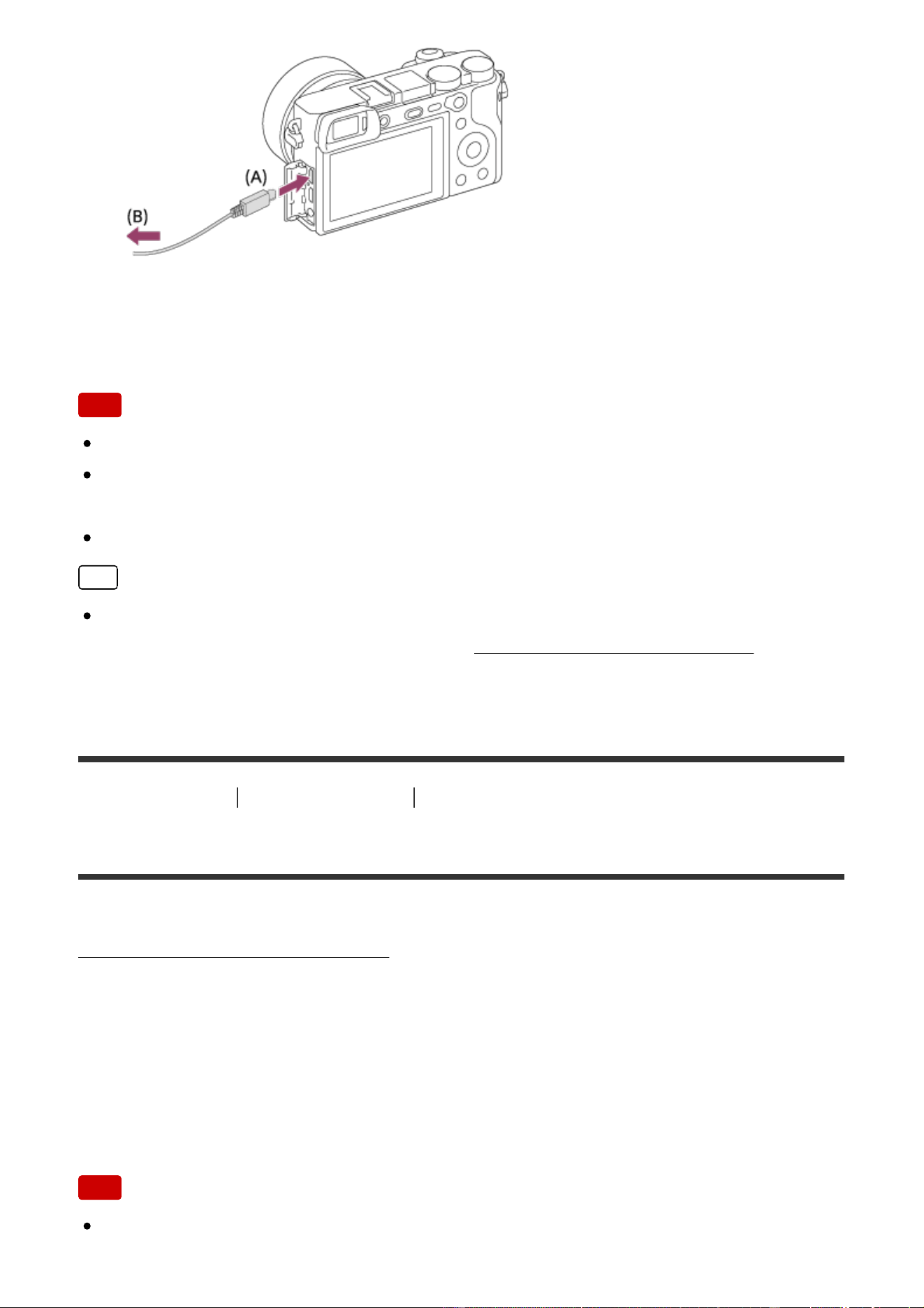
A: To the Multi/Micro USB Terminal
B: To the USB jack of the computer
Note
Log on as Administrator.
It may be necessary to restart your computer. When the restart confirmation
message appears, restart the computer following the instructions on the screen.
DirectX may be installed depending on your computer’s system environment.
Hint
For details on PlayMemories Home, refer to the Help of PlayMemories Home or
the PlayMemories Home support page (http://www.sony.co.jp/pmh-se/) (English
only).
[268] How to Use Using a computer Using the software
Software for Mac computers
For details on software for Mac computers, access the following URL:
http://www.sony.co.jp/imsoft/Mac/
Wireless Auto Import
“Wireless Auto Import” is required if you are using a Mac computer and want to
import images to the computer using Wi-Fi function. Download “Wireless Auto
Import” from the URL above, and install it on your Mac computer. For details, see
Help for “Wireless Auto Import.”
Note
The software that can be used varies depending on the region.

[269] How to Use Using a computer Using the software
Image Data Converter
With Image Data Converter, you can do the following:
You can play back and edit images recorded in RAW format with various
corrections, such as tone curve and sharpness.
You can adjust images with white balance, exposure, and [Creative Style], etc.
You can save the still images displayed and edited on a computer.
You can either save the still image as RAW format or save it in the general file
format.
You can display and compare the RAW images and JPEG images recorded by
this product.
You can rank images in five grades.
You can apply color labels.
[270] How to Use Using a computer Using the software
Installing Image Data Converter
1. Download and install the software by accessing the following URL.
Windows:
http://www.sony.co.jp/imsoft/Win/
Mac:
http://www.sony.co.jp/imsoft/Mac/
Note
Log on as Administrator.
[271] How to Use Using a computer Using the software
Accessing Image Data Converter Guide

Windows:
[Start] → [All Programs] → [Image Data Converter] → [Help] → [Image Data
Converter].
For Windows 8, start [Image Data Converter], and select [Help] from the menu
bar → [Image Data Converter Guide].
Mac:
Finder → [Applications] → [Image Data Converter] → [Image Data Converter], and
select [Help] from the menu bar → [Image Data Converter Guide].
Hint
For details on operation, you can also refer to the Image Data Converter
support page (English only).
http://www.sony.co.jp/ids-se/
[272] How to Use Using a computer Using the software
Remote Camera Control
When using Remote Camera Control, the following operations are available on
your computer.
Changing this product’s settings and shooting.
Recording images directly to the computer.
Performing interval timer shooting.
Use these functions after selecting MENU →
(Setup) → [USB Connection] →
[PC Remote]. For details on how to use Remote Camera Control, refer to the
Help.
[273] How to Use Using a computer Using the software
Installing Remote Camera Control
Download and install the software by accessing the following URL:
Windows:
http://www.sony.co.jp/imsoft/Win/
Mac:

http://www.sony.co.jp/imsoft/Mac/
[274] How to Use Using a computer Using the software
Accessing the Help of Remote Camera Control
Windows:
[Start] → [All Programs] → [Remote Camera Control] → [Remote Camera Control
Help].
For Windows 8, start [Remote Camera Control], and right-click the title bar to
select [Remote Camera Control Help].
Mac:
Finder → [Applications] → [Remote Camera Control], and select [Help] from the
menu bar → [Remote Camera Control Help].
[275] How to Use Using a computer Connecting this product and a computer
Connecting the product to a computer
1. Insert a sufficiently charged battery pack into the product, or connect it to a
wall outlet (wall socket) using an AC Adaptor AC-PW20 (sold separately).
2. Turn on the product and the computer.
3. Check from (Setup) that [USB Connection] is set to [Mass Storage].
4. Connect the product and your computer using the micro USB cable
(supplied) (A) .
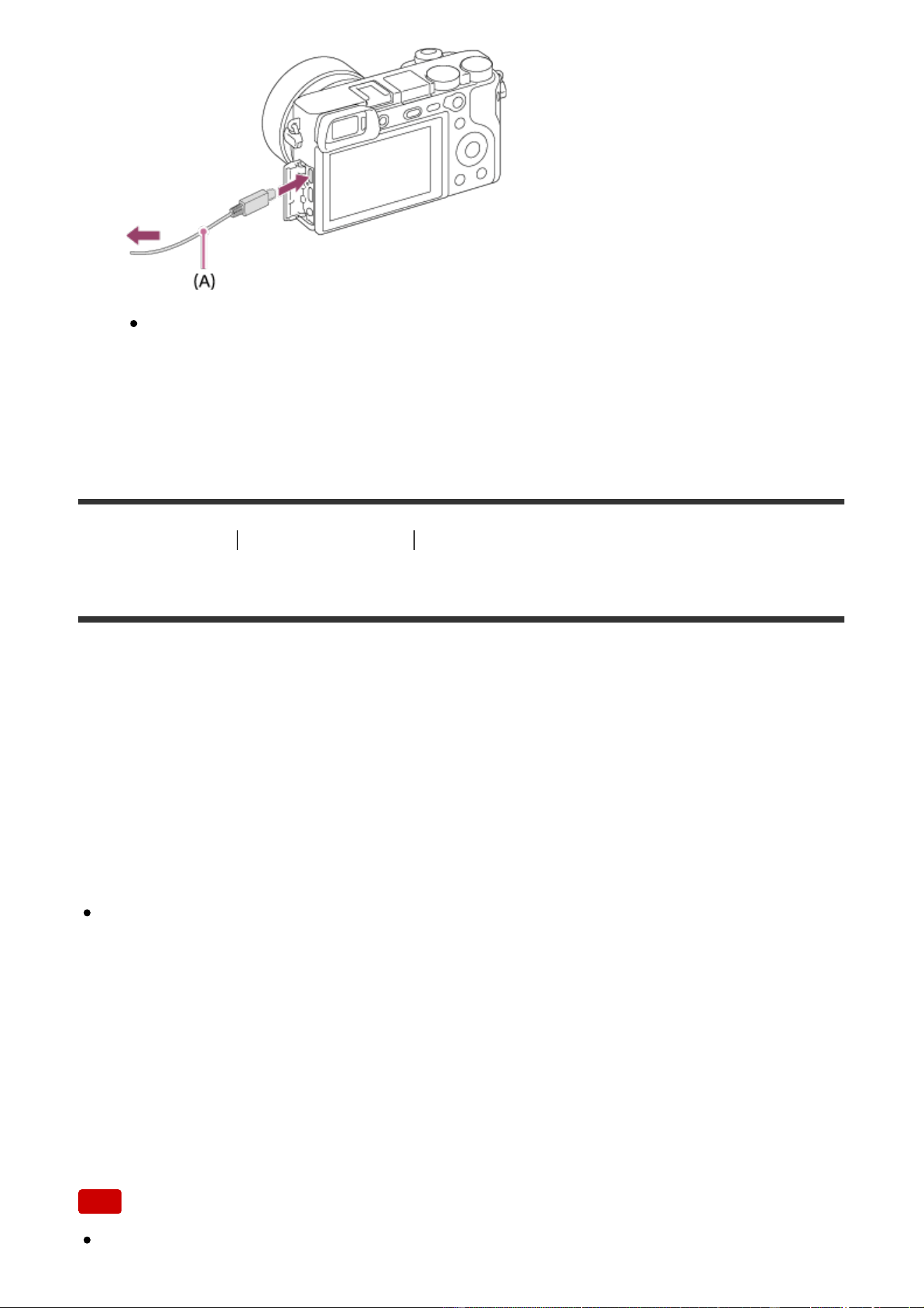
If you connect the product to your computer using the micro USB cable
when [USB Power Supply] is set to [On], power is supplied from your
computer. (Default setting: [On])
[276] How to Use Using a computer Connecting this product and a computer
Importing images to the computer
PlayMemories Home allows you to easily import images. For details on
PlayMemories Home functions, see the Help of PlayMemories Home.
Importing images to the computer without using PlayMemories Home
(For Windows)
When the AutoPlay Wizard appears after making a USB connection between this
product and a computer, click [Open folder to view files] → [OK] → [DCIM] or
[MP_ROOT]. Then copy the desired images to the computer.
If Device Stage appears on a Windows 7 or Windows 8 computer, double-click
[Browse Files] → media icon → folder in which the images you want to import
are stored.
Importing images to the computer without using PlayMemories Home
(For Mac)
Connect the product to your Mac computer. Double-click the newly recognized
icon on the desktop → the folder in which the image you want to import is stored.
Then drag and drop the image file on to the hard disk icon.
Note
For operations such as importing XAVC S movies or AVCHD movies to the

computer, use PlayMemories Home.
Do not edit or otherwise process AVCHD movie files/folders from the connected
computer. Movie files may be damaged or become unplayable. Do not delete or
copy AVCHD movies on the memory card from the computer. Sony is not held
liable for consequences resulting from such operations via the computer.
[277] How to Use Using a computer Connecting this product and a computer
Disconnecting the product from the computer
Disconnects the USB connection between this product and the computer.
Perform the procedures from step 1 to 2 below before performing the following
operations:
Disconnecting the USB cable.
Removing a memory card.
Turning off the product.
1. Click
(Safely remove USB Mass Storage Device) on the taskbar.
2. Click the displayed message.
Note
For Mac computers, drag and drop the icon of the memory card or the drive
icon in the “Trash” icon. The product is disconnected from the computer.
For Windows 7/Windows 8 computers, the disconnect icon may not appear. In
that case, you can skip steps 1 and 2 above.
Do not remove a micro USB cable from this product while the access lamp is
illuminated. The data may be damaged.
[278] How to Use Using a computer Creating a movie disc
Selecting a disc to be created
You can create a disc that can be played back on other devices from a movie

recorded on this camera.
What devices can play back the disc depends on the disc type. Select a disc type
suitable for the playback devices you will be using.
Depending on the movie type, the movie format may be converted when creating
a disc.
High-definition image quality (HD) (Blu-ray Disc)
High-definition image quality (HD) movies can be recorded on a Blu-ray Disc,
creating a high-definition image quality (HD) disc. A Blu-ray Disc enables you to
record longer-duration high-definition image quality (HD) movies than DVD discs.
Writable movie formats: XAVC S, AVCHD, MP4 (AVC)
Players: Blu-ray Disc playback devices (Sony Blu-ray Disc players, PlayStation 3,
etc.)
High-definition image quality (HD) (AVCHD recording disc)
High-definition image quality (HD) movies can be recorded on DVD media such as
DVD-R discs, creating a high-definition image quality (HD) disc.
Writable movie formats: XAVC S, AVCHD, MP4 (AVC)
Players: AVCHD format playback devices (Sony Blu-ray Disc players, PlayStation
3, etc.)
You cannot play these kinds of discs on ordinary DVD players.
Standard definition image quality (STD)
Standard definition image quality (STD) movies converted from high-definition
image quality (HD) movies can be recorded on DVD media such as DVD-R discs,
creating a standard image quality (STD) disc.
Writable movie format: AVCHD
Players: Ordinary DVD playback devices (DVD players, computers that can play
back DVD discs, etc.)
Hint
You can use the following types of 12 cm discs with PlayMemories Home.

BD-R*/ DVD-R/DVD+R/DVD+R DL: Non-rewritable
BD-RE*/DVD-RW/DVD+RW: Rewritable
*
Additional recording is not possible.
Always maintain your “PlayStation 3” to use the latest version of the
“PlayStation 3” system software.
[279] How to Use Using a computer Creating a movie disc
Creating Blu-ray Discs from high-definition image quality
movies
You can create Blu-ray Discs that can be played back on Blu-ray Disc playback
devices (such as Sony Blu-ray Disc players or the PlayStation 3, etc.).
A. How to create using a computer
With a Windows computer, you can copy movies imported to the computer and
create Blu-ray Discs using PlayMemories Home.
Your computer must be able to create Blu-ray Discs.
When you create a Blu-ray Disc for the first time, connect your camera to the
computer using a USB cable. The necessary software is automatically added to
your computer. (An internet connection is needed.)
For details on how to create a disc using PlayMemories Home, refer to the Help
guide for PlayMemories Home.
B. How to create using a device other than a computer
You can also create Blu-ray Discs using a Blu-ray recorder, etc.
For details, refer to the device's operating instructions.
Note
When creating Blu-ray discs using PlayMemories Home from movies recorded
in the XAVC S or MP4 movie formats, the image quality is converted to
1920×1080 (60i/50i) and it is not possible to create discs with the original image
quality. To record movies with the original image quality, copy movies to a
computer or an external medium.
To create a Blu-ray Disc from movies recorded in the AVCHD movie format with
[ Record Setting] set to [60p 28M(PS) ]/[50p 28M(PS) ], you need
to use a device that is compliant with AVCHD format Ver. 2.0. The created Blu-
ray Disc can be played back only on a device that is compliant with AVCHD
format Ver. 2.0.
[280] How to Use Using a computer Creating a movie disc
Creating DVD discs (AVCHD recording discs) from high-
definition image quality movies
You can create DVD discs (AVCHD recording discs) that can be played back on
AVCHD-compatible playback devices (such as Sony Blu-ray Disc players or the
PlayStation 3, etc.).
A. How to create using a computer
With a Windows computer, you can copy movies imported to the computer and
create DVD discs (AVCHD recording discs) using PlayMemories Home.
Your computer must be able to create DVD discs (AVCHD recording discs).
When you create a DVD disc for the first time, connect your camera to the
computer using a USB cable. The necessary software is automatically added to
your computer. (An internet connection is needed.)
For details on how to create a disc using PlayMemories Home, refer to the Help
guide for PlayMemories Home.
B. How to create using a device other than a computer
You can also create DVD discs (AVCHD recording discs) using a Blu-ray recorder,
etc.
For details, refer to the device's operating instructions.
Note
When creating DVD discs (AVCHD recording discs) using PlayMemories Home
from movies recorded in the XAVC S or MP4 movie formats, the image quality
is converted to 1920×1080 (60i/50i) and it is not possible to create discs with
the original image quality. To record movies with the original image quality,
copy movies to a computer or an external medium.
When creating AVCHD recording discs using PlayMemories Home from movies
recorded in the AVCHD movie format with [ Record Setting] set to [60p
28M(PS) ]/[50p 28M(PS) ], [60i 24M(FX) ]/[50i 24M(FX) ] or
[24p 24M(FX) ]/[25p 24M(FX) ], the image quality is converted and it is
not possible to create discs with the original image quality. Converting the
image quality takes time. To record movies with the original image quality, use

a Blu-ray Disc.
[281] How to Use Using a computer Creating a movie disc
Creating DVD discs from standard image quality movies
You can create DVD discs that can be played back on ordinary DVD playback
devices (DVD players, computers that can play back DVD discs, etc.).
A. How to create using a computer
With a Windows computer, you can copy movies imported to the computer and
create DVD disc using PlayMemories Home.
Your computer must be able to create DVD discs.
When you create a DVD disc for the first time, connect your camera to the
computer using a USB cable. Install the dedicated add-on software following the
on-screen instructions. (An internet connection is needed.)
For details on how to create a disc using PlayMemories Home, refer to the Help
for PlayMemories Home.
B. How to create using a device other than a computer
You can also create DVD discs using a Blu-ray recorder, HDD recorder, etc. For
details, refer to the device's operating instructions.
[282] How to Use Precautions/This product Precautions
Precautions
Backing up memory cards
Data may be corrupted in the following cases. Be sure to back up the data for
protection.
When the memory card is removed, the USB cable is disconnected, or the
product is turned off in the middle of a read or write operation.
When the memory card is used in locations subject to static electricity or
electrical noise.

Creating an image database file
If you insert a memory card that does not contain an image database file into the
product and turn on the power, the product automatically creates an image
database file using some of the memory card’s capacity. The process may take a
long time and you cannot operate the product until the process is completed.
If a database file error occurs, export all images to your computer using
PlayMemories Home, and then format the memory card using this product.
Do not use/store the product in the following places
In an extremely hot, cold or humid place
In places such as in a car parked in the sun, the camera body may become
deformed and this may cause a malfunction.
Storing under direct sunlight or near a heater
The camera body may become discolored or deformed, and this may cause a
malfunction.
In a location subject to rocking vibration
Near strong magnetic place
In sandy or dusty places
Be careful not to let sand or dust get into the product. This may cause the
product to malfunction, and in some cases this malfunction cannot be repaired.
In places with high humidity
(This may cause the lens to mold.)
On storing
Always attach the lens front cap or body cap when you are not using the camera.
To prevent dust or debris from getting inside the camera, remove dust from the
body cap before attaching it to the camera.
Precaution on carrying
Do not carry the camera with the tripod attached. This may cause the tripod socket
hole to break.
On operating temperatures
Your product is designed for use under the temperatures between 0°C and 40 °C
(32 °F and 104 °F). Shooting in extremely cold or hot places that exceed this
range is not recommended.
On moisture condensation

If the product is brought directly from a cold to a warm location, moisture may
condense inside or outside the product. This moisture condensation may cause
a malfunction of the product.
To prevent moisture condensation when you bring the product directly from a
cold to a warm location, first put it in a plastic bag and seal it to prevent air from
entering. Wait for about an hour until the temperature of the product has
reached the ambient temperature.
If moisture condensation occurs, turn off the product and wait about an hour for
the moisture to evaporate. Note that if you attempt to shoot with moisture
remaining inside the lens, you will be unable to record clear images.
On the functions available with the product
This camera is compatible with 1080 60p or 1080 50p-format movies. Unlike
traditional standard recording modes, which record using an interlacing method,
this product records movies using a progressive method. This increases the
resolution, and provides a smoother, more realistic image.
The camera is compatible with 4K 30p/4K 25p/4K 24p-format movies. You can
record movies in higher quality.
Notes for when on board an airplane
In an airplane, set [Airplane Mode] to [On].
On image data compatibility
This product conforms with DCF (Design rule for Camera File system) universal
standard established by JEITA (Japan Electronics and Information Technology
Industries Association).
Playback of images recorded with your product on other equipment and
playback of images recorded or edited with other equipment on your product
are not guaranteed.
Notes on playing movies on other devices
Movies recorded by your camera may not be playable properly on other
devices. Also, movies recorded by devices other than your camera may not be
able to playback on your camera.
Discs of AVCHD movies recorded by your camera can only be played back on
devices supporting AVCHD format.

DVD players and DVD recorders do not support AVCHD format, so they cannot
playback AVCHD movie discs.
Also, if a high definition image quality (HD) disc recorded with AVCHD format is
inserted in either of DVD players or DVD recorders, the disc may be unable to
eject from the device.
Movies recorded in 1080 60p/1080 50p format can be played back only on
1080 60p/1080 50p supported devices.
XAVC S movies can be played back only on XAVC S-supported devices.
On the monitor, viewfinder, and lens
The monitor and viewfinder are manufactured using extremely high-precision
technology so over 99.99 % of the pixels are operational for effective use.
However, there may be some tiny black points and/or bright points (white, red,
blue or green in color) that consistently appear on the monitor and the
viewfinder. These points are normal in the manufacturing process and do not
affect the images in any way.
Exposing the monitor or lens to direct sunlight for long periods may cause a
malfunction. Exercise caution when placing the product near a window or
outdoors.
Do not directly expose the lens to beams such as laser beams. That may
damage the image sensor and cause the camera to malfunction.
Do not press against the monitor. The monitor may be discolored and that may
cause a malfunction.
Images may trail across on the monitor in a cold location. This is not a
malfunction.
If the monitor has drops of water or other liquids on it, wipe it with a soft cloth. If
the monitor stays wet, the surface of the monitor may change or deteriorate.
This may cause a malfunction.
Make sure not to bump the lens or subject it to force.
Do not carry the camera by the monitor.
When using the power zoom lens, be careful not to get your fingers or any other
objects caught in the lens.
Do not expose the camera to sunlight or shoot sunward for a long time. The
internal mechanism may be damaged.
Do not look at sunlight or a strong light source through the lens when it is
detached. This may result in unrecoverable damage to the eyes or cause a
malfunction to the lens.
Do not use the camera in areas where strong radio waves or radiation is being

emitted. Recording and playback may not function correctly.
Shooting with the viewfinder
When looking through the viewfinder, you may experience symptoms such as
eye soreness, fatigue, or nausea similar to car-sickness. We recommend that
you take periodic breaks when shooting with the viewfinder. Determine the
necessary length and frequency of breaks on your own, as these will vary from
individual to individual. If unpleasant symptoms occur, stop using the viewfinder
until they resolve, and consult your doctor if necessary.
Notes on the flash
Do not cover the flash with your fingers.
Do not carry the product by the flash unit, or use excessive strength on it.
If water, dust or sand get into the open flash unit, it may cause a malfunction.
When pushing down the flash unit, be careful not to catch your fingers.
Notes on discarding or transferring this product to others
When discarding or transferring this product to others, make sure to perform the
following operation to protect private information.
Perform [Setting Reset] to reset all the settings.
[283] How to Use Precautions/This product Precautions
On the internal rechargeable battery
This camera has an internal rechargeable battery for maintaining the date and
time and other settings regardless of whether the power is on or off, or whether
the battery pack is charged or discharged. This rechargeable battery is continually
charged as long as you are using the product. However, if you use the product for
only short periods, it gradually discharges. If you do not use the product at all for
about 2 month(s) it becomes completely discharged. In this case, be sure to
charge this rechargeable battery before using the product. However, even if this
rechargeable battery is not charged, you can still use the product as long as you
do not record the date and time.
Charging method of the internal rechargeable battery

Insert a charged battery pack into the product, or connect the product to a wall
outlet (wall socket) using the AC Adaptor (supplied), and leave the product for 24
hours or more with the power off.
[284] How to Use Precautions/This product Precautions
Notes on the battery pack
Charging the battery pack
Charge the battery pack (supplied) before using the product for the first time.
The charged battery pack will discharge little by little even if you do not use it.
Charge the battery pack each time before you use the product so that you do
not miss any opportunities to shoot images.
You can charge the battery pack even if it is not completely discharged. You
can use a partially charged battery pack.
If the charge lamp flashes when the battery pack is not fully charged, remove
the battery pack or disconnect the USB cable from the camera and then
reinsert it to recharge.
We recommend charging the battery pack at an ambient temperature between
10°C and 30°C (50°F and 86°F). The battery pack may not charge normally at
temperatures outside this range.
When you connect this product and a laptop computer that is not connected to
a power source, the laptop’s battery charge may decrease. Do not charge this
product using the laptop computer for too long.
Do not turn on/restart a computer, wake a computer from sleep mode, or turn
off a computer while this product is connected to the computer via USB cable.
Doing so may cause a malfunction of this product. Disconnect the product and
the computer before performing the above operations.
We do not guarantee charging if you are using a self-built or modified computer.
Charging time (Full charge)
The charging time is approximately 150 minutes using the AC adaptor (supplied).
The above charging time applies when charging a fully depleted battery pack at a
temperature of 25 °C (77 °F). Charging may take longer depending on conditions
of use and circumstances.
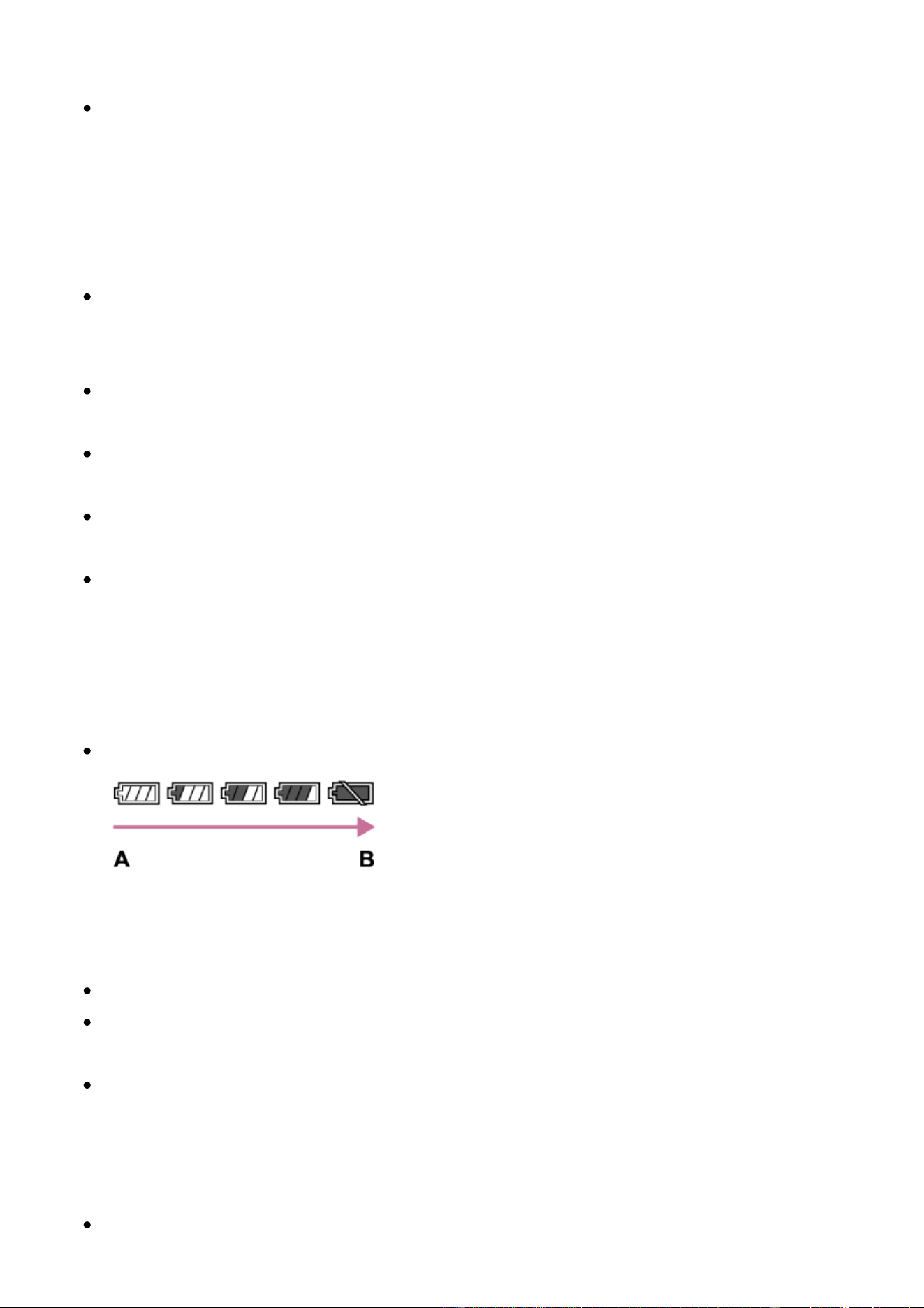
Effective use of the battery pack
Battery performance decreases in low temperature environments. So in cold
places, the operational time of the battery pack is shorter. To ensure longer
battery pack use, we recommend putting the battery pack in your pocket close
to your body to warm it up, and insert it in the product immediately before you
start shooting. If there are any metal objects such as keys in your pocket, be
careful of causing a short-circuit.
The battery pack will run down quickly if you use the flash or continuous
shooting function frequently, turn the power on/off frequently, or set the monitor
very bright.
We recommend preparing spare battery packs and taking trial shots before
taking the actual shots.
Do not expose the battery pack to water. The battery pack is not water-
resistant.
Do not leave the battery pack in extremely hot places, such as in a car or under
direct sunlight.
If the battery terminal is dirty, you may not be able to turn on the product or the
battery pack may not be properly charged. In that case, clean the battery by
lightly wiping off any dust using a soft cloth or a cotton swab.
Remaining battery indicator
The remaining battery indicator appears on the screen.
A: Battery level high
B: Battery exhausted
It takes about one minute for the correct remaining battery indicator to appear.
The correct remaining battery indicator may not be displayed under some
operating or environmental conditions.
If the remaining battery time does not appear on the screen, press the DISP
(Display Setting) button to display it.
How to store the battery pack
To maintain the battery pack’s function, charge the battery pack and then fully

discharge it in the product at least once a year before storing it. Remove the
battery pack from the camera and store the battery in a cool, dry place.
To use the battery pack up, leave the product in slide show playback mode until
the power goes off.
To prevent staining the terminal, short-circuiting, etc., be sure to use a plastic
bag to keep away from metal materials when carrying or storing the battery
pack.
On battery life
The battery life is limited. If you use the same battery repeatedly, or use the
same battery for a long period, the battery capacity decreases gradually. If the
available time of the battery is shortened significantly, it is probably time to
replace the battery pack with a new one.
The battery life varies according to how the battery pack is stored and the
operating conditions and environment in which each battery pack is used.
[285] How to Use Precautions/This product Precautions
Charging the battery pack
The supplied AC Adaptor is dedicated to this product. Do not connect with other
electronic devices. Doing so may cause a malfunction.
Make sure to use a genuine Sony AC Adaptor.
If the product's charge lamp flashes while charging, remove the battery pack
being charged, and then insert the same battery pack firmly back into the
product. If the charge lamp flashes again, this may indicate a faulty battery or
that a battery pack other than the specified type has been inserted. Check that
the battery pack is the specified type.
If the battery pack is the specified type, remove the battery pack, replace it with
a new or different one and check that the newly inserted battery is charging
correctly. If the newly inserted battery is charging correctly, the previously
inserted battery may be faulty.
If the charge lamp flashes even if the AC Adaptor is connected to the product
and the wall outlet (wall socket), this indicates that charging has stopped
temporarily and is on standby. Charging stops and enters standby status
automatically when the temperature is outside of the recommended operating

temperature. When the temperature returns to the appropriate range, charging
resumes and the charge lamp lights up again. We recommend charging the
battery pack in an ambient temperature of between 10°C to 30°C (50°F to
86°F).
[286] How to Use Precautions/This product Precautions
Notes on memory card
If you repeatedly shoot and delete images for a long time, fragmentation of data
in a file in the memory card may occur, and movie recording may be interrupted
in the middle of shooting. If this happens, save your images to a computer or
other storage location, then execute [Format].
Memory card formatted with a computer is not guaranteed to operate with the
product.
Data read/write speeds differ depending on the combination of the memory
card and the equipment used.
We recommend backing up important data, such as to a hard disk of a
computer.
Do not attach a label on the memory card itself nor on a memory card adaptor.
Do not touch the terminal section of the memory card with your hand or a metal
object.
Do not strike, bend or drop the memory card.
Do not disassemble or modify the memory card.
Do not expose the memory card to water.
Do not leave the memory card within the reach of small children. They might
accidentally swallow it.
The memory card may be hot just after it has been used for a long time. Be
careful when you handle it.
Do not remove the battery pack or the memory card or turn the camera off while
the access lamp is illuminated. This may cause the data on the memory card to
become damaged.
If the memory card is used near areas with strong magnetization, or used in
locations subject to static electricity or electrical noise, the data on the memory
card may become damaged.
Do not insert a memory card that does not fit the memory card slot. Doing so

will cause a malfunction.
Do not use or store the memory card under the following conditions:
High temperature locations such as in a car parked under the sun
Locations exposed to direct sunlight
Humid locations or locations with corrosive substances present
To use a Memory Stick Micro media with this product, be sure to insert the
Memory Stick Micro media into an M2 Adaptor as large as Duo size. If you
insert a Memory Stick Micro media into the product without an M2 Adaptor as
large as Duo size, you might not be able to remove it from the product.
To use a microSD memory card with this product, be sure to insert the microSD
memory card into a dedicated adaptor.
When inserting a memory card into a memory card adaptor, be sure that the
memory card is inserted in the correct direction and then insert it as far as it will
go. If the card is not inserted properly, it may result in a malfunction.
[287] How to Use Precautions/This product Cleaning this product
On cleaning
Cleaning the lens, viewfinder and flash
Wipe the lens, viewfinder and flash with a soft cloth to remove fingerprints, dust,
etc.
Cleaning the lens
Do not use a cleaning solution containing organic solvents, such as thinner, or
benzine.
When cleaning the lens surface, remove dust with a commercially available
blower. In case of dust that sticks to the surface, wipe it off with a soft cloth or
tissue paper slightly moistened with lens cleaning solution. Wipe in a spiral
pattern from the center to the outside. Do not spray lens cleaning solution
directly onto the lens surface.
Cleaning the flash
Clean the flash surface before use. The heat of the flash emission may cause dirt
on the flash surface to start smoking or burning. Wipe the flash surface with a soft

cloth to remove dirt or dust, etc.
Cleaning the camera body
Do not touch the parts of the product inside the lens mount, such as a lens signal
contact. To clean inside the lens mount, use a commercially available blower* to
blow any dust off.
*
Do not use a spray-type blower as doing so may cause a malfunction.
Cleaning the product surface
Clean the product surface with a soft cloth slightly moistened with water, then wipe
the surface with a dry cloth. To prevent damage to the finish or casing:
Do not expose the product to chemical products such as thinner, benzine,
alcohol, disposable cloths, insect repellent, sunscreen or insecticide.
Do not touch the product with any of the above on your hand.
Do not leave the product in contact with rubber or vinyl for a long time.
Cleaning the monitor
If oil from your hand or hand cream, etc., remain on the monitor, the original
coating may become easily removable. Wipe oil or hand cream off as soon as
possible.
If you wipe the monitor firmly using tissue paper, etc., the coating may be
scratched.
If the monitor becomes dirty with fingerprints or dust, gently remove the dust
from the surface, and then clean the monitor using soft cloth, etc.
[288] How to Use Precautions/This product Number of recordable still images and
recordable time of movies
Number of still images
The number of still images may vary depending on the shooting conditions and the
memory card.
[ Image Size]: [L: 24M]
When [ Aspect Ratio] is set to [3:2]*
Standard
8 GB: 1300 images
16 GB: 2700 images
32 GB: 5400 images
64 GB: 10500 images
Fine
8 GB: 820 images
16 GB: 1650 images
32 GB: 3300 images
64 GB: 6600 images
Extra fine
8 GB: 405 images
16 GB: 810 images
32 GB: 1600 images
64 GB: 3250 images
RAW & JPEG
8 GB: 215 images
16 GB: 435 images
32 GB: 880 images
64 GB: 1750 images
RAW
8 GB: 295 images
16 GB: 600 images
32 GB: 1200 images
64 GB: 2400 images
*
When the [ Aspect Ratio] is set to other than [3:2], you can record more pictures than shown
above. (Except when [ Quality] is set to [RAW].)
Note
Even if the number of remaining shootable images is greater than 9,999, the
“9999” indicator appears.
When an image shot with other products is played back on this product, the
image may not appear in the actual image size.
[289] How to Use Precautions/This product Number of recordable still images and
recordable time of movies
Recordable time of movies

The table below shows the approximate maximum recording times which can be
recorded on the memory card that is formatted with this product. These numbers
are the total times of all movie files on the memory card. The recordable time may
vary depending on the shooting conditions and the memory card.
The values when [ File Format] is set to [XAVC S 4K], [XAVC S HD], and
[AVCHD] are based on shooting with [Dual Video REC] set to [Off].
(h (hour), m (minute))
[ File Format]: [XAVC S 4K]
30p 100M
25p 100M
8 GB: 9 m
16 GB: 15 m
32 GB: 35 m
64 GB: 1 h 15 m
30p 60M
25p 60M
8 GB: 15 m
16 GB: 30 m
32 GB: 1 h
64 GB: 2 h 5 m
24p 100M
*
1
8 GB: 9 m
16 GB: 15 m
32 GB: 35 m
64 GB: 1 h 15 m
24p 60M
*
1
8 GB: 15 m
16 GB: 30 m
32 GB: 1 h
64 GB: 2 h 5 m
[ File Format]: [XAVC S HD]
60p 50M
50p 50M
8 GB: 15 m
16 GB: 35 m
32 GB: 1 h 15 m

64 GB: 2 h 35 m
30p 50M
25p 50M
8 GB: 15 m
16 GB: 35 m
32 GB: 1 h 15 m
64 GB: 2 h 35 m
24p 50M
*
1
8 GB: 15 m
16 GB: 35 m
32 GB: 1 h 15 m
64 GB: 2 h 35 m
120p 100M
100p 100M
8 GB: 9 m
16 GB: 15 m
32 GB: 35 m
64 GB: 1 h 15 m
120p 60M
100p 60M
8 GB: 15 m
16 GB: 30 m
32 GB: 1 h
64 GB: 2 h 5 m
30p 16M*
2
25p 16M*
2
8 GB: 10 m
16 GB: 25 m
32 GB: 55 m
64 GB: 1 h 55 m
24p 12M*
1
*
2
8 GB: 10 m
16 GB: 25 m
32 GB: 55 m
64 GB: 1 h 55 m
[ File Format]: [AVCHD]
60i 24M(FX)
50i 24M(FX)
8 GB: 40 m
16 GB: 1 h 25 m
32 GB: 3 h
64 GB: 6 h
60i 17M(FH)
50i 17M(FH)
8 GB: 55 m
16 GB: 2 h
32 GB: 4 h 5 m
64 GB: 8 h 15 m
60p 28M(PS)
50p 28M(PS)
8 GB: 35 m
16 GB: 1 h 15 m
32 GB: 2 h 30 m
64 GB: 5 h 5 m
24p 24M(FX)
25p 24M(FX)
8 GB: 40 m
16 GB: 1 h 25 m
32 GB: 3 h
64 GB: 6 h
24p 17M(FH)
25p 17M(FH)
8 GB: 55 m
16 GB: 2 h
32 GB: 4 h 5 m
64 GB: 8 h 15 m
[ File Format]: [MP4]
1080/60p 28M
1080/50p 28M
8 GB: 35 m
16 GB: 1 h 15 m
32 GB: 2 h 35 m
64 GB: 5 h 20 m
1080/30p 16M
1080/25p 16M

8 GB: 1 h
16 GB: 2 h
32 GB: 4 h 10 m
64 GB: 8 h 25 m
720/30p 6M
720/25p 6M
8 GB: 2 h 35 m
16 GB: 5 h 20 m
32 GB: 10 h 55 m
64 GB: 22 h
*1
Only when [NTSC/PAL Selector] is set to NTSC.
*2
File format for High Frame Rate shooting (The values shown are available recording times when
shooting, not durations when playing back.)
Continuous shooting is possible for approximately 29 minutes (a product
specification limit). However, the duration of time available for continuous movie
recording varies under the following conditions.
High Frame Rate shooting: Approximately 7 minutes at [30p 16M]/[25p 16M];
approximately 5 minutes 30 seconds at [24p 12M]
When the file format is set to MP4 (28M): Approximately 20 minutes (limited by file size
of 4 GB)
Note
The recordable time of movies varies because the product is equipped with
VBR (Variable Bit-Rate), which automatically adjusts image quality depending
on the shooting scene.
When you record a fast-moving subject, the image is clearer but the recordable
time is shorter because more memory is required for recording.
The recordable time also varies depending on the shooting conditions, the
subject or the image quality/size settings.
The playback time of slow-motion movies is 4 times longer than the recording
time for XAVC S HD 30p/25p 16M movies and 5 times longer for XAVC S HD
24p 12M movies.
Notes on continuous movie recording
It requires a lot of power to perform high quality movie recording or continuous
shooting. Therefore, if you continue to shoot, the temperature inside the camera
will rise, especially that of the image sensor. In such cases, the camera will turn
off automatically because the surface of the camera is heated to a high
temperature that can affect the quality of the images or the internal mechanism

of the camera.
The duration of time available for movie recording is as follows when the
camera starts recording with the camera’s default settings after the power of the
camera has been turned off for a while. (The following values indicate the
continuous time from when the camera starts recording until the camera stops
recording.)
Ambient temperature: 20°C (68°F)
Continuous recording time for movies (HD): About 29 minutes
Continuous recording time for movies (4K): About 20 minutes
Ambient temperature: 30°C (86°F)
Continuous recording time for movies (HD): About 29 minutes
Continuous recording time for movies (4K): About 20 minutes
Ambient temperature: 40°C (104°F)
Continuous recording time for movies (HD): About 29 minutes
Continuous recording time for movies (4K): About 20 minutes
[Auto Pwr OFF Temp.]: [Standard]
HD: XAVC S HD 60p 50M/50p 50M
4K: XAVC S 4K 24p 60M
The duration of time available for movie recording varies with the temperature,
the recording format/setting, or condition of the camera before you start
recording. If you frequently recompose or shoot images after the power is
turned on, the temperature inside the camera will rise and the recording time
available will be shorter.
When the icon appears, the temperature of the camera is too high.
If the camera stops recording due to the temperature, leave it for several
minutes with the power turned off. Start recording after the temperature inside
the camera drops fully.
[290] How to Use Precautions/This product Using this product abroad
Using the AC Adaptor/battery charger abroad
You can use the battery charger (sold separately) and the AC Adaptor (supplied)
in any country or region where the power supply is within 100 V to 240 V AC and

50 Hz/60 Hz.
Depending on the country/region, a converting plug adaptor may be needed to
connect to a wall outlet (wall socket).
Note
Do not use an electronic voltage transformer as doing so may cause a
malfunction.
[291] How to Use Precautions/This product Using this product abroad
On TV color systems
To view movies shot using this product on a television, the product and television
must use the same color television system. Check the TV color system for the
country or region where you are using the product.
NTSC system:
Bahama Islands, Bolivia, Canada, Central America, Chile, Colombia, Ecuador,
Jamaica, Japan, Korea, Mexico, Peru, Surinam, Taiwan, the Philippines, the
U.S.A., Venezuela, etc.
PAL system:
Australia, Austria, Belgium, China, Croatia, Czech Republic, Denmark, Finland,
Germany, Holland, Hong Kong, Hungary, Indonesia, Italy, Kuwait, Malaysia,
New Zealand, Norway, Poland, Portugal, Rumania, Singapore, Slovak
Republic, Spain, Sweden, Switzerland, Thailand, Turkey, United Kingdom, Viet
Nam, etc.
PAL-M system:
Brazil
PAL-N system:
Argentina, Paraguay, Uruguay
SECAM system:
Bulgaria, France, Greece, Guiana, Iran, Iraq, Monaco, Russia, Ukraine, etc.
[292] How to Use Precautions/This product Other information
Mount Adaptor
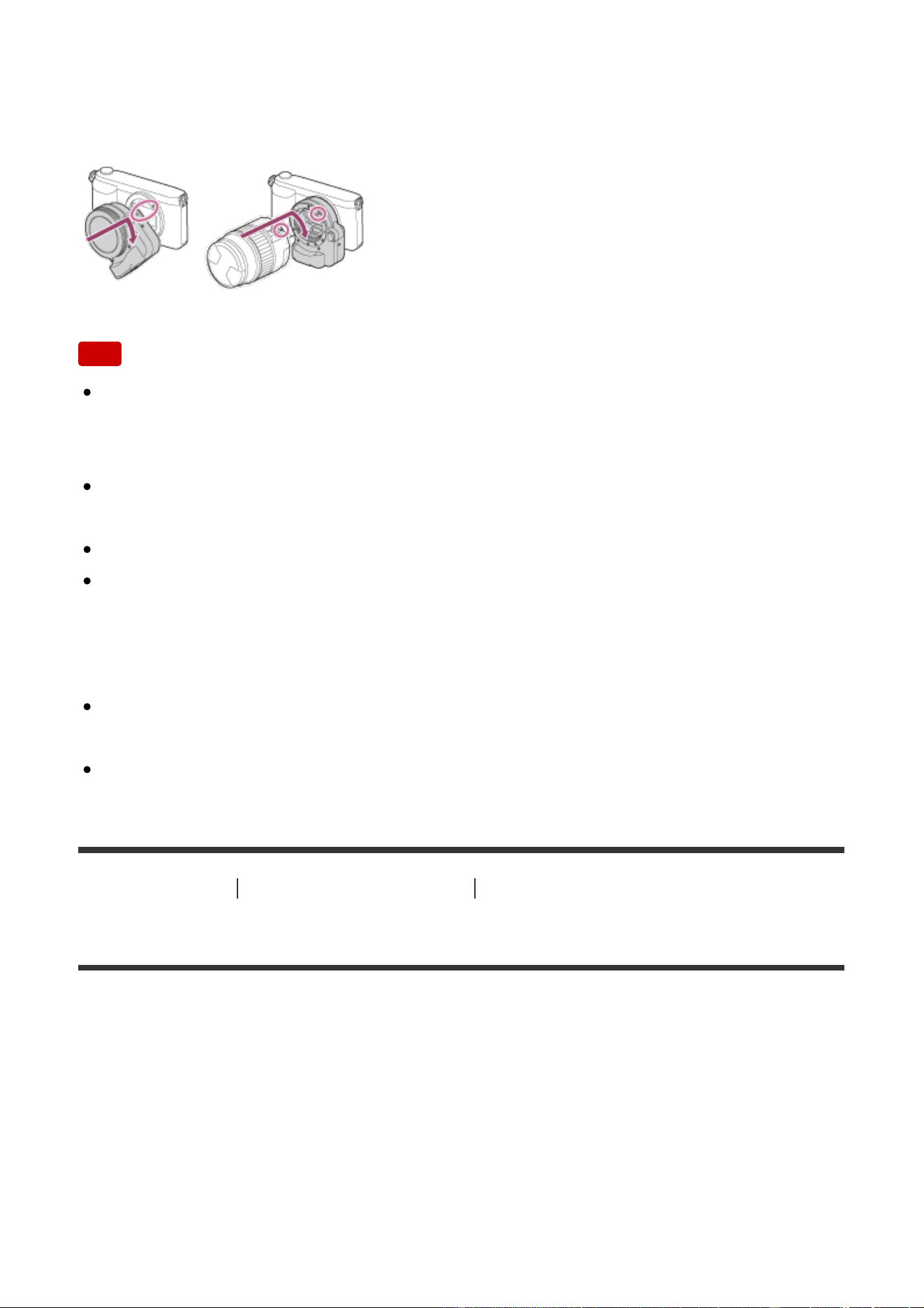
Using a Mount Adaptor (sold separately), you can attach an A-mount lens (sold
separately) to this product.
For details, refer to the operating instructions supplied with the Mount Adaptor.
Note
When a setting other than [Continuous Shooting: Lo] is selected for [Cont.
Shooting], the focus is locked during the first shot, even if [Focus Mode] is set
to [Continuous AF].
You may not be able to use the Mount Adaptor with certain lenses. Consult
your Sony dealer or local authorized Sony service facility on compatible lenses.
You cannot use the AF illuminator when using an A-mount lens.
The sound of the lens and the product in operation may be recorded during
movie recording.
You can turn the sound off by selecting MENU → [Camera Settings] → [Audio
Recording] → [Off].
It may take a long time or may be difficult for the product to focus, depending on
the lens used or the subject.
The light of the flash may be blocked by the lens attached.
[293] How to Use Precautions/This product Other information
LA-EA1 Mount Adaptor
If you use the LA-EA1 Mount Adaptor (sold separately), the following functions are
available.
Autofocus:
Available with SAM/SSM lens only
AF system:
Contrast AF/Phase Detection AF
AF/MF select:
Can be changed using the operating switch on the lens.

Focus Mode:
Single-shot AF/Continuous AF*
*
This setting is unavailable when [ AF System] is set to [Contrast AF].
When using a Mount Adaptor and the camera is set to movie mode, the Auto
Focus only works when the shutter button is pressed halfway down.
When using a Mount Adaptor in movie mode, adjust the aperture manually.
Available focus area
When the LA-EA1 Mount Adaptor is mounted, the available focus areas are the
same as for the available settings of this camera.
[Zone], [Expand Flexible Spot] or [Lock-on AF] cannot be selected when [
AF
System] is set to [Phase Detection AF].
[294] How to Use Precautions/This product Other information
LA-EA2 Mount Adaptor
If you use the LA-EA2 Mount Adaptor (sold separately), the following functions are
available.
Autofocus:
Available
AF system:
Phase Detection AF, which is controlled by the dedicated AF sensor inside the
Mount Adaptor
AF/MF select:
Lenses that do not support DMF: Can be changed using the operating switch on
the lens.
Lenses that support DMF: Can be changed using the operating switch on the lens.
When the switch on the lens is set to AF, you can use MENU to change the
focusing method.
Other lenses:
Can be changed using MENU.
Focus Mode:
Available modes are as follows (Single-shot AF/Continuous AF/DMF*)
*
Only available when using lenses that support Direct Manual Focus.

Even if [Priority Set in AF-S] is set to [Balanced Emphasis], the camera will
temporarily switch to [AF].
Even if [Priority Set in AF-C] is set to [Balanced Emphasis], the camera will
temporarily switch to [Release].
Available focus area
Wide:
The product automatically selects a focus area from among 15 areas.
Center:
The product uses the focus area located in the center area exclusively.
Flexible Spot:
You can select a focus area from 15 areas using the control wheel.
Lock-on AF:
When you press the shutter button halfway down, the product will start tracking a
subject from the selected AF area.
[295] How to Use Precautions/This product Other information
LA-EA3 Mount Adaptor
If you use the LA-EA3 Mount Adaptor (sold separately), the following functions are
available.
Autofocus:
Available with SAM/SSM lens only
AF system:
Contrast AF/Phase Detection AF
AF/MF select:
Can be changed using the operating switch on the lens.
Focus Mode:
Single-shot AF/Continuous AF*
*
This setting is unavailable when [ AF System] is set to [Contrast AF].
When using a Mount Adaptor and the camera is set to movie mode, the Auto
Focus only works when the shutter button is pressed halfway down.
When using a Mount Adaptor in movie mode, adjust the aperture manually.
Available focus area

When the LA-EA3 Mount Adaptor is mounted, the available focus areas are the
same as for the available settings of this camera.
[Zone], [Expand Flexible Spot] or [Lock-on AF] cannot be selected when [ AF
System] is set to [Phase Detection AF].
[296] How to Use Precautions/This product Other information
LA-EA4 Mount Adaptor
If you use the LA-EA4 Mount Adaptor (sold separately), the following functions are
available.
Autofocus:
Available
AF system:
Phase Detection AF, which is controlled by the dedicated AF sensor inside the
Mount Adaptor
AF/MF select:
Lenses that do not support DMF: Can be changed using the operating switch on
the lens.
Lenses that support DMF: Can be changed using the operating switch on the lens.
When the switch on the lens is set to AF, you can use MENU to change the
focusing method.
Other lenses:
Can be changed using MENU.
Focus Mode:
Available modes are as follows
(Single-shot AF/Continuous AF/Automatic AF/DMF*)
*
Only available when using lenses that support Direct Manual Focus.
Even if [Priority Set in AF-S] is set to [Balanced Emphasis], the camera will
temporarily switch to [AF].
Even if [Priority Set in AF-C] is set to [Balanced Emphasis], the camera will
temporarily switch to [Release].
Available focus area
Wide:
The product automatically selects a focus area from among 15 areas.

Center:
The product uses the focus area located in the center area exclusively.
Flexible Spot:
You can select a focus area from 15 areas using the control wheel.
Lock-on AF:
When you press the shutter button halfway down, the product will start tracking a
subject from the selected AF area.
[297] How to Use Precautions/This product Other information
AVCHD format
The AVCHD format was developed for high-definition digital video cameras when
recording an HD (High-Definition) signal using high-efficiency compression coding
technology. The MPEG-4 AVC/H.264 format is used to compress video data, and
the Dolby Digital or Linear PCM system is used to compress audio data.
The MPEG-4 AVC/H.264 format is capable of compressing images at higher
efficiency than that of the conventional image compressing format.
As the AVCHD format uses compression coding technology, the picture may be
unstable in scenes where the screen, angle of view, or brightness, etc. change
drastically, but this is not a malfunction.
[298] How to Use Precautions/This product Other information
License
Notes on the License
This product comes with software that are used based on licensing agreements
with the owners of that software. Based on requests by the owners of copyright of
these software applications, we have an obligation to inform you of the following.
Please read the following sections. Licenses (in English) are recorded in the

internal memory of your product. Establish a Mass Storage connection between
the product and a computer to read licenses in the “PMHOME” - “LICENSE”
folder.
THIS PRODUCT IS LICENSED UNDER THE AVC PATENT PORTFOLIO
LICENSE FOR THE PERSONAL USE OF A CONSUMER OR OTHER USES IN
WHICH IT DOES NOT RECEIVE REMUNERATION TO
(i) ENCODE VIDEO IN COMPLIANCE WITH THE AVC STANDARD (“AVC
VIDEO”)
AND/OR
(ii) DECODE AVC VIDEO THAT WAS ENCODED BY A CONSUMER ENGAGED
IN A PERSONAL ACTIVITY AND/OR WAS OBTAINED FROM A VIDEO
PROVIDER LICENSED TO PROVIDE AVC VIDEO.
NO LICENSE IS GRANTED OR SHALL BE IMPLIED FOR ANY OTHER USE.
ADDITIONAL INFORMATION MAY BE OBTAINED FROM MPEG LA, L.L.C. SEE
HTTP://WWW.MPEGLA.COM
On GNU GPL/LGPL applied software
The software that is eligible for the following GNU General Public License
(hereinafter referred to as “GPL”) or GNU Lesser General Public License
(hereinafter referred to as “LGPL”) are included in the product.
This informs you that you have a right to have access to, modify, and redistribute
source code for these software programs under the conditions of the supplied
GPL/LGPL.
Source code is provided on the web. Use the following URL to download it.
http://oss.sony.net/Products/Linux/
We would prefer you do not contact us about the contents of source code.
[299] How to Use Precautions/This product Trademarks
Trademarks
The following marks are registered trademarks or trademarks of Sony
Corporation.
, , Memory Stick, , Memory Stick PRO,
, Memory Stick Duo,
, Memory Stick PRO Duo,

, Memory Stick PRO-HG Duo,
, Memory Stick Micro, ,
MagicGate, PhotoTV HD, InfoLITHIUM, PlayMemories Online, PlayMemories
Online logo, PlayMemories Home, PlayMemories Home logo, PlayMemories
Mobile, PlayMemories Mobile logo
PlayMemories Camera Apps, PlayMemories Camera Apps logo
Multi Interface Shoe, Multi Interface Shoe logo
XAVC S and are registered trademarks of Sony Corporation.
Blu-ray Disc™ and Blu-ray™ are trademarks of the Blu-ray Disc Association.
AVCHD Progressive and AVCHD Progressive logotype are trademarks of
Panasonic Corporation and Sony Corporation.
Dolby and the double-D symbol are trademarks of Dolby Laboratories.
The terms HDMI and HDMI High-Definition Multimedia Interface, and the HDMI
Logo are trademarks or registered trademarks of HDMI Licensing, LLC in the
United States and other countries.
Microsoft, Windows and DirectX are either registered trademarks or trademarks
of Microsoft Corporation in the United States and/or other countries.
Mac is a trademark of Apple Inc.
iPhone and iPad are trademarks of Apple Inc., registered in the U.S. and other
countries.
SDXC logo is a trademark of SD-3C, LLC.
Android and Google Play are trademarks or registered trademarks of Google
Inc.
Wi-Fi, the Wi-Fi logo, Wi-Fi Protected Setup are registered trademarks or
trademarks of the Wi-Fi Alliance.
The N Mark is a trademark or registered trademark of NFC Forum, Inc. in the
United States and in other countries.
DLNA and DLNA CERTIFIED are trademarks of Digital Living Network Alliance.
Eye-Fi is a trademark of Eye-Fi Inc.
QR Code is a registered trademark of Denso Wave Inc.
In addition, system and product names used in this manual are, in general,
trademarks or registered trademarks of their respective developers or
manufacturers. However, the ™ or ® marks may not be specified in all cases in
this manual.
[300] Troubleshooting If you have problems If you have problems

Troubleshooting
If you experience trouble with the product, try the following solutions.
1. Check the items under “Troubleshooting”, then check the product.
2. Remove the battery pack, wait for about one minute, re-insert the battery
pack, then turn on the power.
3. Initialize the settings.
4. Consult your dealer or local authorized service facility. Additional information
on this product and answers to frequently asked questions can be found at
our Customer Support Website.
http://www.sony.net/
[301] Troubleshooting Troubleshooting Battery pack and power
You cannot insert the battery pack into the product.
Make sure the direction of the battery pack is correct, and insert it until the
battery lock lever is locked.
Make sure that the battery is NP-FW50.
[302] Troubleshooting Troubleshooting Battery pack and power
You cannot turn on the product.
After inserting the battery pack into the product, it may take a few moments for
the product to power up.
Make sure that the battery pack is inserted correctly.
The battery pack will discharge by itself even if you do not use it. Charge the
battery pack before use.
Make sure that the battery is NP-FW50.
[303] Troubleshooting Troubleshooting Battery pack and power
The power turns off suddenly.
Depending on the product and battery pack temperature, the product may turn
off automatically to protect itself. In this case, a message is displayed on the
product screen before the product turns off.
[304] Troubleshooting Troubleshooting Battery pack and power
The battery pack discharges quickly.
When [Remote Ctrl] has been set to [On], the power save mode will not
function. Set [Remote Ctrl] to [Off] after using with a remote control.
[305] Troubleshooting Troubleshooting Battery pack and power
The product gets hot.
When the product is used for a long time, the temperature of the product will
rise. If the product gets too hot, movie recording may be interrupted or the
power may turn off automatically to protect the product.
[306] Troubleshooting Troubleshooting Battery pack and power
The remaining battery level indicator shows an incorrect
level.
This phenomenon occurs when you use the product in an extremely hot or cold
location.

There may be a difference between the remaining battery level indicator and
the actual remaining battery charge. Deplete the battery pack once, then
charge it so that the remaining battery level indicator is reset. The correct
remaining battery level indicator may not be displayed under some operating or
environmental conditions.
Battery capacity decreases over time and through repeated use. If decreased
usage time between charges becomes significant, it is probably time to replace
it with a new one.
[307] Troubleshooting Troubleshooting Battery pack and power
The charge lamp on the product flashes when charging
the battery pack.
Make sure that the battery is NP-FW50.
Remove the battery pack and then reinsert it into the product.
Batteries which have not been used for more than a year may have
deteriorated.
Charging has paused temporarily because the camera is not within the
appropriate temperature range. The optimum temperature for charging the
battery pack is between 10 °C and 30 °C (50 °F and 86 °F).
[308] Troubleshooting Troubleshooting Battery pack and power
The battery pack has not been charged even if the
charge lamp on the product has turned off.
Make sure that the battery is NP-FW50.
Batteries which have not been used for more than a year may have
deteriorated.
[309] Troubleshooting Troubleshooting Battery pack and power
The battery pack is not charged.
When the battery pack is not charged (the charge lamp does not light) even if
you follow the proper charging procedure, check if the power of the product is
turned off, then remove the battery pack and re-insert the same battery pack
securely, or disconnect and reconnect the USB cable.
[310] Troubleshooting Troubleshooting Battery pack and power
The monitor does not turn on even when the product is
turned on.
[FINDER/MONITOR] has been set to [Viewfinder(Manual)]. Change
[FINDER/MONITOR] to [Auto].
[311] Troubleshooting Troubleshooting Shooting still images/movies
You cannot record images.
You are using a memory card with a write-protect switch, and the switch is set
to the LOCK position. Set the switch to the record position.
Check the free capacity of the memory card.
You cannot record images while charging the flash.
The lens is not attached properly. Attach the lens properly.
The [Self-timer] is activated.
Set [Release w/o Card] to [Enable]. However, without a memory card inserted
in the camera, images cannot be recorded.
[312] Troubleshooting Troubleshooting Shooting still images/movies
Recording takes a long time.
The noise reduction function is processing an image. This is not a malfunction.
You are shooting in RAW mode. Since RAW data files are large, RAW mode
shooting may take time.
The [Auto HDR] function is processing an image.
The product is compiling images.
[313] Troubleshooting Troubleshooting Shooting still images/movies
The same image is captured multiple times.
Set the drive mode to [Single Shooting].
The shooting mode has been set to [Superior Auto] and the [S. Auto Img.
Extract.] has been set to [Off].
[314] Troubleshooting Troubleshooting Shooting still images/movies
The shutter is released continuously.
The camera may automatically take multiple shots and perform overlay
processing under the following conditions:
[ISO] is set to [Multi Frame NR].
The shooting mode is set to [Sweep Panorama].
The shooting mode is set to [Superior Auto].
The shooting mode is set to [Hand-held Twilight] or [Anti Motion Blur] under [Scene
Selection].
[DRO/Auto HDR] is set to [Auto HDR].
[315] Troubleshooting
Troubleshooting Shooting still images/movies
The image is out of focus.
The subject is too close. Check the minimum focal distance of the lens.
Ambient light is insufficient.
[Focus Mode] has been set to [Manual Focus]. Set [Focus Mode] to a setting
other than [Manual Focus].
[316] Troubleshooting Troubleshooting Shooting still images/movies
The angle of view changes little by little while shooting
images.
Depending on the lens you use, the angle of view may change little by little
while focusing. This change in angle of view may be more evident when the
focus mode is set to [Continuous AF] (AF-C) (including [Sports Action] in the
Scene Selection function). This does not affect the actual recorded images.
Consult your Sony dealer or local authorized Sony service facility on compatible
lenses.
[317] Troubleshooting Troubleshooting Shooting still images/movies
[Eye-Start AF] does not function.
[ Eye-Start AF] is available only when a Mount Adaptor (LA-EA2, LA-EA4)
(sold separately) is attached.
Set [ Eye-Start AF] to [On].
[318] Troubleshooting Troubleshooting Shooting still images/movies
Zoom does not work.
You cannot use zoom functions during Sweep Panorama shooting.
You can use only the optical zoom in the following situations:
When using Smile Shutter function.
[
Quality] is set to [RAW] or [RAW & JPEG].

[319] Troubleshooting Troubleshooting Shooting still images/movies
The flash does not work.
Raise the flash.
You cannot use a flash in the following situations:
When the following modes are selected in [Scene Selection].
[Anti Motion Blur]
[Night Scene]
[Hand-held Twilight]
During Sweep Panorama shooting.
During movie recording.
[320] Troubleshooting
Troubleshooting Shooting still images/movies
Fuzzy white circular spots appear on images shot using
the flash.
Particles (dust, pollen, etc.) in the air reflected the flash light and appeared on
the image. This is not a malfunction.
[321] Troubleshooting Troubleshooting Shooting still images/movies
The close-up shooting function (Macro) does not work.
The product automatically adjusts the focus. Press and hold the shutter button
halfway down. Focus adjustment may take some time when shooting a close
subject.
[322] Troubleshooting Troubleshooting Shooting still images/movies
The recording date and time are not displayed on the
screen.
While shooting, the date and time are not displayed. They are displayed only
during playback.
[323] Troubleshooting Troubleshooting Shooting still images/movies
The date and time are recorded incorrectly.
Set the correct date and time.
The area selected using [Area Setting] differs from the actual area. Select the
actual area.
[324] Troubleshooting Troubleshooting Shooting still images/movies
The aperture value and/or shutter speed flashes.
The subject is too bright or too dark to shoot using the current aperture value
and/or shutter speed settings. Readjust the settings.
[325] Troubleshooting Troubleshooting Shooting still images/movies
The image colors are not correct.
Adjust [White Balance].
[Picture Effect] is set. Set [Picture Effect] to [Off].
[Picture Profile] is set. Set [Picture Profile] to [Off].
To reset settings to default, perform [Setting Reset].
[326] Troubleshooting Troubleshooting Shooting still images/movies
Noise appears in the image when you view the screen in
a dark place.
The product is attempting to increase the visibility of the screen by temporarily
brightening the monitor under conditions of low illumination. There is no effect
on the recorded image.
[327] Troubleshooting Troubleshooting Shooting still images/movies
The eyes of the subject come out red.
Set [Red Eye Reduction] to [On].
Shoot the subject at a distance closer than the flash range using the flash.
Light the room and shoot the subject.
[328] Troubleshooting Troubleshooting Shooting still images/movies
Dots appear and remain on the screen.
This is not a malfunction. These dots are not recorded.
[329] Troubleshooting Troubleshooting Shooting still images/movies
You cannot shoot images continuously.
The memory card is full. Delete unnecessary images.
The battery level is low. Insert a charged battery pack.
[330] Troubleshooting Troubleshooting Shooting still images/movies
The image is not clear in the viewfinder.
Adjust the diopter scale properly using the diopter-adjustment dial.
[331] Troubleshooting Troubleshooting Shooting still images/movies
No images appear on the viewfinder.
[FINDER/MONITOR] has been set to [Monitor(Manual)]. Change
[FINDER/MONITOR] to [Auto] or [Viewfinder(Manual)].
Bring your eye close to the viewfinder.
[332] Troubleshooting Troubleshooting Shooting still images/movies
No images appear on the monitor.
If you shoot images at waist height when [FINDER/MONITOR] has been set to
[Auto], the monitor will turn off due to the reaction of the eye sensor. Set
[FINDER/MONITOR] to [Monitor(Manual)].
[333] Troubleshooting Troubleshooting Shooting still images/movies
[Finder/Monitor Sel.] does not work even though it has
been assigned to a certain key using [Custom
Key(Shoot.)] or [Custom Key(PB)].
[FINDER/MONITOR] is currently set to [Auto]. Set [FINDER/MONITOR] to
[Viewfinder(Manual)] or [Monitor(Manual)].
[334] Troubleshooting Troubleshooting Shooting still images/movies
The image is whitish (Flare)./Blurring of light appears on
the image (Ghosting).
When pointing the lens toward the strong light source, excessive light enters
the lens and the image may come out white (flare) or extraneous light (ghost
images) may appear on the image, but this is not a malfunction.
When using the zoom lens, attach the lens hood. Set up the composition so
that you shoot images while avoiding backlit condition.
[335] Troubleshooting Troubleshooting Shooting still images/movies
The corners of the picture are too dark.
If any filter or hood is used, take it off and try shooting again. Depending on the
thickness of the filter and improper attachment of the hood, the filter or the hood
may partially appear in the image. The optical properties of some lenses may
cause the periphery of the image to appear too dark (insufficient light). You may
compensate for this phenomenon with [Shading Comp.].
[336] Troubleshooting Troubleshooting Shooting still images/movies
The color tones of the image displayed on the
monitor/the viewfinder look unnatural.
[Gamma Disp. Assist] has been activated. Set [Gamma Disp. Assist] to [Off].
[Gamma Disp. Assist] is not working properly. The [Picture Profile] settings are
cancelled when you select other than [Off] for [Picture Effect] or when you use [
Silent Shooting], even if [Gamma] is set to [S-Log2] or [S-Log3]. Therefore,
the color tones are not displayed correctly when [Gamma Disp. Assist] is set to
[Auto]. To display the color tones properly, set [Gamma Disp. Assist] to [Off].
[337] Troubleshooting Troubleshooting Shooting still images/movies
The image is blurred.
Make sure that [SteadyShot] is set to [On].
The picture was taken in a dark location without the flash, resulting in camera-
shake. The use of a tripod or the flash is recommended. [Hand-held Twilight]
and [Anti Motion Blur] in [Scene Selection] are also effective in reducing blur.
[338] Troubleshooting Troubleshooting Shooting still images/movies
The monitor darkens after a short period of time passed.
If you do not operate the product for a certain period of time, the product
switches to the power-save mode. The product exits power-save mode when
you perform operations such as pressing the shutter button halfway.
[339] Troubleshooting Troubleshooting Shooting still images/movies
The flash takes too long to recharge.
The flash has been fired in succession in a short period. When the flash has
been fired in succession, the recharging process may take longer than usual to
avoid overheating of the camera.
[340] Troubleshooting Troubleshooting Shooting still images/movies
The control dial or control wheel does not work.
[Dial / Wheel Lock] is on. Hold down the Fn button until the lock is released, or
set the [Dial / Wheel Lock] to [Unlock].
[341] Troubleshooting Troubleshooting Shooting still images/movies
Sound is not recorded properly.
If you turn down the [Audio Rec Level] to the lowest sound level, audio will not
be recorded.
If you turn up the [Audio Rec Level] to the highest sound level, there will likely
be sound clipping.
[342] Troubleshooting Troubleshooting Viewing images
Images cannot be played back.
Make sure that the memory card is fully inserted into the product.
The folder/file name has been changed on your computer.
When an image file has been processed by a computer or when the image file
was recorded using a model other than this product, playback on this product is
not guaranteed.
The product is in USB mode. Disconnect the product from the computer.
Use PlayMemories Home to play back on this product images that are stored
on your computer.
[343] Troubleshooting Troubleshooting Viewing images
The date and time are not displayed.
The screen display is set to display images only. Press DISP (Display Setting)
on the control wheel to display the information.
[344] Troubleshooting Troubleshooting Viewing images
The color tones of the image being played back look
unnatural.
The [Gamma Disp. Assist] setting is not appropriate for the recorded image. To
display the color tones correctly, use the correct setting for [Gamma Disp.
Assist].
[345] Troubleshooting Troubleshooting Viewing images
The image cannot be deleted.
Cancel the protection.
[346] Troubleshooting Troubleshooting Viewing images
The image was deleted by mistake.
Once you have deleted an image, you cannot restore it. We recommend that
you protect images that you do not want to delete.
[347] Troubleshooting Troubleshooting Viewing images
A DPOF mark cannot be put.
You cannot place DPOF marks on RAW images.
[348] Troubleshooting Troubleshooting Wi-Fi
You cannot find the wireless access point to be
connected.
Wireless access points may not be displayed on the product due to signal
conditions. Place the product closer to the wireless access point.
Wireless access points may not be displayed on the product depending on the
access point settings. Refer to the instruction manual of the wireless access
point.
[349] Troubleshooting Troubleshooting Wi-Fi
[WPS Push] does not work.
[WPS Push] may not work depending on the access point settings. Check the
SSID and password of the wireless access point, and perform [Access Point
Set.].
[350] Troubleshooting Troubleshooting Wi-Fi
[Send to Computer] is canceled halfway.
When the battery remaining level is low, [Send to Computer] may be canceled
halfway. Charge the battery pack and try again.
[351] Troubleshooting Troubleshooting Wi-Fi
You cannot send movies to a smartphone.
You cannot send XAVC S movies to a smartphone.
You cannot send AVCHD movies to a smartphone. Set [ File Format] to
[MP4] before recording movies.
[352] Troubleshooting Troubleshooting Wi-Fi
[Smart Remote Embedded] or [Send to Smartphone] is
canceled halfway.
When the remaining battery level is low, [Smart Remote Embedded] or [Send to
Smartphone] may be canceled halfway. Charge the battery pack and try again.
[353] Troubleshooting Troubleshooting Wi-Fi
The shooting screen for [Smart Remote Embedded] is
not displayed smoothly./The connection between this
product and the smartphone is disconnected.
Data communication between this product and the smartphone may fail due to
signal conditions. Place this product closer to the smartphone.
[354] Troubleshooting Troubleshooting Wi-Fi
You cannot use One-Touch connection (NFC).
Place the (N mark) on the smartphone and the (N mark) on the product
as close together as possible. If there is no response, move the smartphone a
few millimeters or move the smartphone away from this product, wait more than
10 seconds, and then touch them together again.
[Airplane Mode] is set to [On]. Set [Airplane Mode] to [Off].
Check whether the NFC function is activated on your smartphone. For details,
refer to the instruction manual of the smartphone.
Do not place any metal objects other than a smartphone near the (N mark).
Do not contact two or more smartphones to this product at the same time.
If another NFC-based application is running on your smartphone, terminate that
application.
Switch to shooting mode before touching the smartphone to the product. The
application will not activate if the product is in playback mode.

[355] Troubleshooting Troubleshooting Computers
The computer does not recognize this product.
Set [USB Connection] to [Mass Storage].
Check that the power of the camera is turned on.
If the battery level is low, insert a charged battery pack.
Use the micro USB cable (supplied) to connect the devices.
Disconnect the USB cable, and connect it again firmly.
Disconnect all equipment other than this product, the keyboard and the mouse
from the USB terminals of your computer.
Connect this product directly to your computer without passing through a USB
hub or other device.
If you set [USB Power Supply] to [Off], the computer may be able to recognize
this product.
[356] Troubleshooting Troubleshooting Computers
You cannot import images.
Connect this product and your computer correctly making a USB connection.
When you shoot images with a memory card formatted by a computer, you may
not be able to import the images to a computer. Shoot using a memory card
formatted by this product.
[357] Troubleshooting Troubleshooting Computers
The image and sound are interrupted by noise when
viewing a movie on a computer.
You are playing back the movie directly from the memory card. Import the
movie to your computer using PlayMemories Home and play it back.
[358] Troubleshooting Troubleshooting Computers
Images exported from a computer cannot be viewed on
this product.
Use PlayMemories Home to copy images that are stored on a computer onto a
memory card inserted into this product and view them on this product.
[359] Troubleshooting Troubleshooting Memory cards
Formatted the memory card by mistake.
All the data on the memory card is deleted by formatting. You cannot restore
the data.
[360] Troubleshooting Troubleshooting Printing
You cannot print images.
RAW images cannot be printed. To print RAW images, first convert them to
JPEG images using Image Data Converter.
[361] Troubleshooting Troubleshooting Printing
The color of the image is strange.
When you print the images recorded in Adobe RGB mode using sRGB printers
that are not compatible with Adobe RGB (DCF2.0/Exif2.21), the images are
printed at a lower saturation.
[362] Troubleshooting Troubleshooting Printing
Images are printed with both edges cut off.
Depending on your printer, the left, right, top, and bottom edges of the image
may be cut off. Especially when you print an image shot with [ Aspect Ratio]
set to [16:9], the lateral end of the image may be cut off.
When printing images using your printer, cancel the trimming or borderless
settings of the printer. Consult the printer manufacturer as to whether the printer
provides these functions or not.
When you print images at a shop, ask the shop whether they can print the
images without cutting off both edges.
[363] Troubleshooting Troubleshooting Printing
You cannot print images with the date.
If you want to print images with the date, use [Print Setting] under [Specify
Printing].
You can print images with the date superimposed if the printer or the software
can recognize Exif information. For compatibility with Exif information, consult
the manufacturer of the printer or the software.
Using PlayMemories Home (Windows version only), you can insert a date even
into images that were taken without recording the date.
When you print images at a shop, images can be printed with the date if you
ask them to do so.
[364] Troubleshooting Troubleshooting Others
The lens gets fogged.
Moisture condensation has occurred. Turn off the product and leave it for about

an hour before using it.
[365] Troubleshooting Troubleshooting Others
The product becomes warm when you use it for a long
time.
Turn off the product and do not use it for a while.
[366] Troubleshooting Troubleshooting Others
The Clock Set screen appears when you turn on the
product.
Set the date and time again.
The internal rechargeable backup battery has discharged. Insert a charged
battery, and set aside for 24 hours or more with the power left off.
[367] Troubleshooting Troubleshooting Others
The number of recordable images does not decrease, or
decreases two images at a time.
This is because the compression rate and the image size after compression
change depending on the image when you shoot a JPEG image.
[368] Troubleshooting Troubleshooting Others
Settings are reset even though resetting operation has
not been performed.

The camera settings may be reset if the battery pack is ejected while the power
is on. When ejecting the battery pack, first turn the power off and check that the
access lamp is not illuminated before ejecting.
[369] Troubleshooting Troubleshooting Others
The product does not work properly.
Turn off the product. Remove the battery pack and insert it again. If the product
is hot, remove the battery pack, and allow it to cool down before trying this
corrective procedure.
If an AC-PW20 AC Adaptor (sold separately) is used, disconnect the power
cord. Connect the power cord and turn on the product again. If the product
repeats the same error often or still does not work after trying these solutions,
consult your Sony dealer or local authorized Sony service facility.
[370] Troubleshooting Messages Messages
Warning messages
Set Area/Date/Time.
Set the area, date and time. If you have not used the product for a long time,
charge the internal rechargeable backup battery.
Power insufficient.
The cleaning mode will not operate when the remaining battery charge is less
than (3). We recommend using the AC Adaptor AC-PW20 when using
cleaning mode.
Unable to use memory card. Format?
The memory card was formatted on a computer and the file format was
modified. Select [Enter], and then format the memory card. You can use the
memory card again, however, all previous data in the memory card is erased. It

may take some time to complete the format. If the message still appears,
change the memory card.
Memory Card Error
An incompatible memory card is inserted.
Formatting has failed. Format the memory card again.
Unable to read memory card. Reinsert memory card.
An incompatible memory card is inserted.
The memory card is damaged.
The terminal section of the memory card is dirty.
Memory card locked.
You are using a memory card with a write-protect switch or a delete-protect
switch with the switch set to the LOCK position. Set the switch to the record
position.
Cannot open the shutter since the memory card is not inserted.
No memory card has been inserted.
To release the shutter without inserting a memory card into the camera, set
[Release w/o Card] to [Enable]. In this case, images will not be saved.
This memory card may not be capable of recording and playing normally.
An incompatible memory card is inserted.
Processing...
When performing noise reduction, the reduction process takes place. You
cannot do any further shooting during this reduction process.
Unable to display.
Images recorded with other products or images modified with a computer may
not be displayed.
Processing on the computer such as deletion of the image files may cause
inconsistencies in the image database files. Repair the image database files.
Cannot recognize lens. Attach it properly.
The lens is not attached properly, or the lens is not attached. If the message
appears when a lens is attached, reattach the lens. If the message appears
frequently, check whether the contacts of the lens and product are clean or not.

When attaching the product to an astronomical telescope or something similar,
set [Release w/o Lens] to [Enable].
The SteadyShot function does not work. You can continue to shoot but the
SteadyShot function will not work. Turn the product off and on again. If this icon
does not disappear, consult your Sony dealer or local authorized Sony service
facility.
The retractable lens with power zoom is retracted. Turn off the product and
eject the battery pack, then reinsert the battery pack.
Unable to print.
You tried to mark RAW images with a DPOF mark.
Internal temp. high. Allow it to cool.
The product has become hot because you have been shooting continuously.
Turn the power off. Cool the product and wait until the product is ready to shoot
again.
You have been recording images for a long time, the product temperature has
risen.
Recording is unavailable in this movie format.
Set [ File Format] to [MP4].
The number of images exceeds that for which date management in a database
file by the product is possible.
Unable to register to the database file. Import all the images to a computer and
recover the memory card.
Image DataBase File error
There is something wrong in the Image Database File. Select [Setup] →
[Recover Image DB].
System Error
Camera Error. Turn power off then on.
Remove the battery pack, and then re-insert it. If the message appears

frequently, consult your Sony dealer or local authorized Sony service facility.
Unable to magnify.
Unable to rotate image.
Images recorded with other products may not be enlarged or rotated.
Cannot create more folders.
A folder in the memory card has the first three digits “999.” You cannot create
any more folders on this camera.
[371] Troubleshooting Situations this product has difficulty handling Situations this
product has difficulty handling
Situations this product has difficulty handling
The product cannot take full advantage of some features under certain
circumstances.
When shooting under the following conditions, either recompose the shot or
change the shooting mode, then shoot the images again.
Low light conditions
Sweep Panorama
Lock-on AF
High Frame Rate
Overly bright conditions
Lock-on AF
Varying levels of brightness
Lock-on AF
High Frame Rate
Flickering lights
Sweep Panorama
High Frame Rate
Subjects too close to the product
Sweep Panorama
Subjects with large movements or subjects that move too quickly
Superior Auto
Sweep Panorama
Auto HDR
Lock-on AF
Subjects too small or too large
Sweep Panorama
Lock-on AF
Scenes with little contrast, such as the sky or a sandy beach
Sweep Panorama
Superior Auto
AF drive speed
AF Track Sens
Scenes changing constantly, such as a waterfall
Sweep Panorama
Superior Auto
AF drive speed
AF Track Sens