Operating Instructions
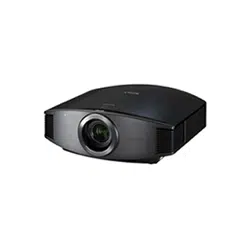
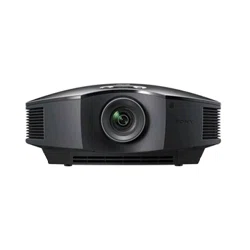
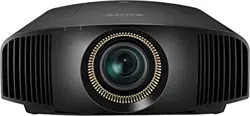
VPL-VW85
© 2009 Sony Corporation
4-156-597-11(1)
Video Projector

2
To reduce the risk of fire or
electric shock, do not expose
this apparatus to rain or
moisture.
To avoid electrical shock, do
not open the cabinet. Refer
servicing to qualified
personnel only.
THIS APPARATUS MUST BE
EARTHED.
Afin de réduire les risques
d’incendie ou d’électrocution,
ne pas exposer cet appareil à
la pluie ou à l’humidité.
Afin d’écarter tout risque
d’électrocution, garder le
coffret fermé. Ne confier
l’entretien de l’appareil qu’à
un personnel qualifié.
CET APPAREIL DOIT ÊTRE
RELIÉ À LA TERRE.
Um die Gefahr von Bränden
oder elektrischen Schlägen zu
verringern, darf dieses Gerät
nicht Regen oder Feuchtigkeit
ausgesetzt werden.
Um einen elektrischen Schlag
zu vermeiden, darf das
Gehäuse nicht geöffnet
werden. Überlassen Sie
Wartungsarbeiten stets nur
qualifiziertem Fachpersonal.
DIESES GERÄT MUSS
GEERDET WERDEN.
For the customers in the U.S.A. and
Canada
WARNING:
Using this unit at a voltage other than 120 V
may require the use of a different line cord or
attachment plug, or both. To reduce the risk
of fire or electric shock, refer servicing to
qualified service personnel.
For the customers in the U.S.A.
This equipment has been tested and found to
comply with the limits for a Class B digital
device, pursuant to Part 15 of the FCC
Rules. These limits are designed to provide
reasonable protection against harmful
interference in a residential installation. This
equipment generates, uses, and can radiate
radio frequency energy and, if not installed
and used in accordance with the instructions,
may cause harmful interference to radio
communications. However, there is no
guarantee that interference will not occur in
a particular installation. If this equipment
does cause harmful interference to radio or
television reception, which can be
determined by turning the equipment off and
on, the user is encouraged to try to correct
the interference by one or more of the
following measures:
- Reorient or relocate the receiving antenna.
- Increase the separation between the
equipment and receiver.
- Connect the equipment into an outlet on a
circuit different from that to which the
receiver is connected.
- Consult the dealer or an experienced
radio/TV technician for help.
You are cautioned that any changes or
modifications not expressly approved in this
manual could void your authority to operate
this equipment.
WARNING
AVERTISSEMENT
WARNUNG

3
All interface cables used to connect
peripherals must be shielded in order to
comply with the limits for a digital device
pursuant to Subpart B of Part 15 of FCC
Rules.
If you have any questions about this product,
you may call;
Sony Customer Information Service Center
1-800-222-7669 or http://www.sony.com/
For the customers in Canada
This Class B digital apparatus complies with
Canadian ICES-003.
Pour les clients au Canada
Cet appareil numérique de la classe B est
conforme à la norme NMB-003 du Canada.
For the customers in Europe
The manufacturer of this product is Sony
Corporation, 1-7-1 Konan, Minato-ku,
Tokyo, Japan.
The Authorized Representative for EMC
and product safety is Sony Deutschland
GmbH, Hedelfinger Strasse 61, 70327
Stuttgart, Germany. For any service or
guarantee matters please refer to the
addresses given in separate service or
guarantee documents.
Pour les clients en Europe
Le fabricant de ce produit est Sony
Corporation, 1-7-1 Konan, Minato-ku,
Tokyo, Japon.
Le représentant autorisé pour EMC et la
sécurité des produits est Sony Deutschland
GmbH, Hedelfinger Strasse 61, 70327
Stuttgart, Allemagne. Pour toute question
concernant le service ou la garantie, veuillez
consulter les adresses indiquées dans les
documents de service ou de garantie séparés.
Für Kunden in Europa
Der Hersteller dieses Produkts ist Sony
Corporation, 1-7-1 Konan, Minato-ku,
Tokyo, Japan.
Der autorisierte Repräsentant für EMV und
Produktsicherheit ist Sony Deutschland
GmbH, Hedelfinger Strasse 61, 70327
Stuttgart, Deutschland. Bei jeglichen
Angelegenheiten in Bezug auf
Kundendienst oder Garantie wenden Sie
sich bitte an die in den separaten
Kundendienst- oder Garantiedokumenten
aufgeführten Anschriften.
For kundene i Norge
Dette utstyret kan kobles til et IT-
strømfordelingssystem.
Für Kunden in Deutschland
Entsorgungshinweis: Bitte werfen Sie nur
entladene Batterien in die Sammelboxen
beim Handel oder den Kommunen. Entladen
sind Batterien in der Regel dann, wenn das
Gerät abschaltet und signalisiert “Batterie
leer” oder nach längerer Gebrauchsdauer der
Batterien “nicht mehr einwandfrei
funktioniert”. Um sicherzugehen, kleben Sie
die Batteriepole z.B. mit einem
Klebestreifen ab oder geben Sie die
Batterien einzeln in einen Plastikbeutel.
For the customers in Taiwan only
Declaration of Conformity
Trade Name: SONY
Model: VPL-VW85
Responsible party: Sony Electronics Inc.
Address: 16530 Via Esprillo,
San Diego, CA 92127
U.S.A.
Telephone Number:858-942-2230
This device complies with part 15 of the
FCC Rules. Operation is subject to the
following two conditions: (1) this device
may not cause harmful interference, and
(2) this device must accept any interference
received, including interference that may
cause undesired operation.

4
Table of Contents
Precautions .........................................6
Front/Right Side ................................. 7
Rear/Bottom ....................................... 8
Remote Control .................................. 9
Unpacking ........................................ 10
Step 1: Installing the Projector ......... 11
Before Setting Up the Projector
......................................... 11
Positioning the Projector and a
Screen ......................................... 13
Step 2: Adjusting the Picture Position
............................................... 17
Step 3: Connecting the Projector ..... 22
Connecting to a VCR ................. 22
Connecting to a Computer ......... 25
Step 4: Selecting the Menu Language
............................................... 26
Projecting the Picture on the Screen
................................................28
Turning Off the Power ................29
Operating the BRAVIA Sync
Compatible Equipment with the
Remote Control of the Projector ......30
Selecting the Wide Screen Mode .....32
Selecting the Picture Viewing Mode
................................................35
Adjusting the Picture Quality ...........36
Selecting to Directly Adjust the
Desired Menu Item .....................36
Selecting Desired Adjust Menu
Items in the Order .......................37
Adjusting the Picture Using Real
Color Processing ...............................38
Using the Supplied Software to Adjust
the Picture Quality (ImageDirector3)
................................................39
Operation through the Menus ...........40
Picture Menu ....................................44
Advanced Picture Menu ...................49
Screen Menu .....................................50
Setup Menu .......................................52
Function Menu .................................54
Installation Menu ..............................56
Information Menu .............................59
About the Preset Memory No. ....59
Location of Controls
Connections and
Preparations
Projecting
Using the Menus

5
About the Control for HDMI ...........60
About the x.v.Color ..........................61
Troubleshooting ...............................62
Warning Indicators .....................65
Message Lists .............................66
Replacing the Lamp and the Air Filter
and Cleaning the Ventilation Holes
(intake) .............................................68
Cleaning the Air Filter .....................71
Cleaning and the Screen of the Projector
...............................................71
Specifications ...................................73
Preset Signals .............................75
Input Signals and Adjustable/
Setting Items ...............................78
Ceiling Installation ...........................80
Index ...............................................84
Others
Trademark Information
“PS3” is a registered trademark of Sony
Computer Entertainment Inc.
HDMI, the HDMI logo and High-Definition
Multimedia Interface are trademarks or
registered trademarks of HDMI Licensing
LLC.
“Blu-ray Disc” is a trademark.
..........................................................................
Control for HDMI is an HDMI standard mutual
control function which uses the HDMI CEC
(Consumer Electronics Control) specification.
This projector supports DeepColor, x.v.Color,
LipSync and computer input signal of HDMI
standards. It also supports HDCP.

6
Precautions
On safety
• Check that the operating voltage of your
unit is identical with the voltage of your
local power supply.
• Should any liquid or solid object fall into
the cabinet, unplug the unit and have it
checked by qualified personnel before
operating it further.
• Unplug the unit from the wall outlet if it is
not to be used for several days.
• To disconnect the cord, pull it out by the
plug. Never pull the cord itself.
• The wall outlet should be near the unit and
easily accessible.
• The unit is not disconnected to the AC
power source (mains) as long as it is
connected to the wall outlet, even if the
unit itself has been turned off.
• Do not look into the lens while the lamp is
on.
• Do not place your hand or objects near the
ventilation holes. The air coming out is
hot.
On preventing internal heat build-
up
After you turn off the power with the ?/1
(ON/STANDBY) switch, do not disconnect
the unit from the wall outlet while the
cooling fan is still running.
Caution
The projector is equipped with ventilation
holes (intake) and ventilation holes
(exhaust). Do not block or place anything
near these holes, or internal heat build-up
may occur, causing picture degradation or
damage to the projector.
On repacking
Save the original shipping carton and
packing material; they will come in handy if
you ever have to ship your unit. For
maximum protection, repack your unit as it
was originally packed at the factory.
7
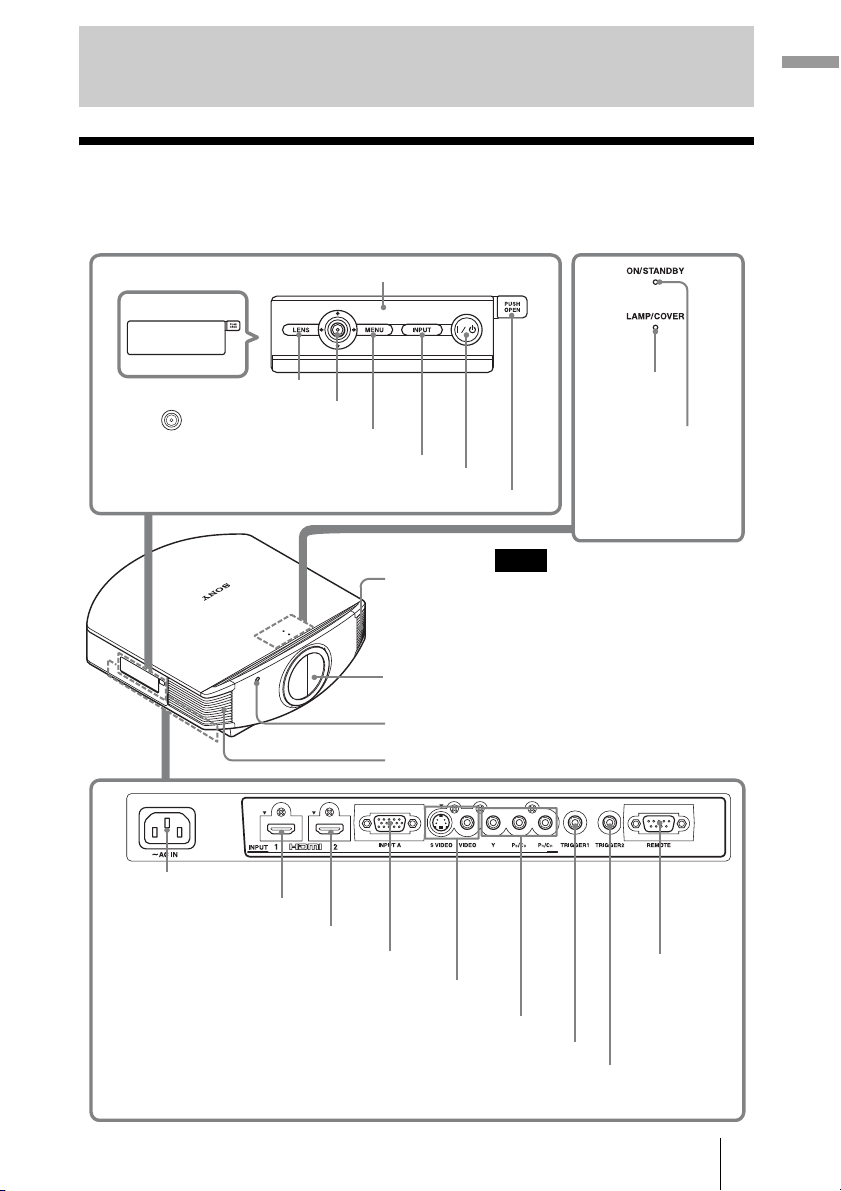
Location of Controls
Front/Right Side
You can use the buttons on the control panel with the same names as those on the remote
control to operate the projector.
Location of Controls
INPUT button (1 page 28)
MENU button (1 page 40)
ON/STANDBY
indicator
(1 page 17)
Remote control detector
Ventilation
holes (exhaust)
(1 page 12)
?/1 (ON/STANDBY) switch (1 page 18)
LAMP/COVER
indicator
(1 page 65)
M/m/</, (arrow)/
(enter) button (1 page 40)
Ventilation holes (exhaust) (1 page 12)
- AC IN socket
S VIDEO INPUT connector (mini DIN 4-pin)/VIDEO INPUT
connector (phono type) (1 page 24)
Y P
B/CB PR/CR connector (phono type) (1 page 22)
INPUT A connector (1 page 25)
HDMI 1 connector (1 page 22)
REMOTE
connector
Connects to a
computer, etc.
for remote
control.
(1 page 39)
HDMI 2 connector (1 page 22)
While the ON/STANDBY indicator
lights in orange, the power saving
mode is on. (1 page 53)
Note
Control panel
LENS button
Open button
TRIGGER 1 connector
Outputs 12V signal when the projector is on.
TRIGGER 2 connector
Outputs 12V signal when “Wide Mode” is set to “Anamorphic Zoom”. (1 page 33)
Press the button and open
the cover.
Lens protector
8
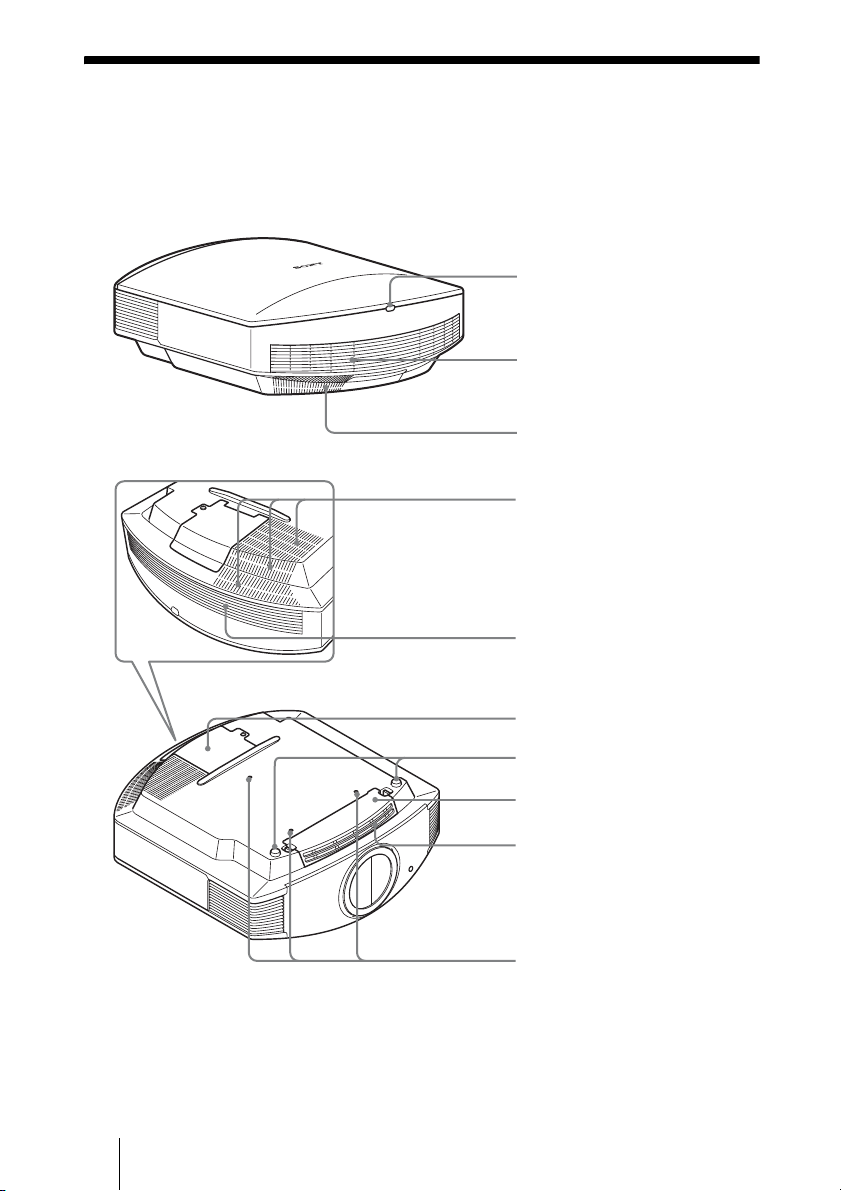
Rear/Bottom
Filter holder (1 page 70)
Ventilation holes (intake)
(1 page 12)
Lamp cover (1 page 69)
Ventilation holes (intake)
(1 page 12)
Projector suspension
support attaching hole
(1 page 80)
Adjusters (1 page 21)
Ventilation holes (intake)
(1 page 12)
Ventilation holes (intake)
(1 page 12)
Ventilation holes (intake)
(1 page 12)
Remote control detector
(1 page 17)
9
Location of Controls
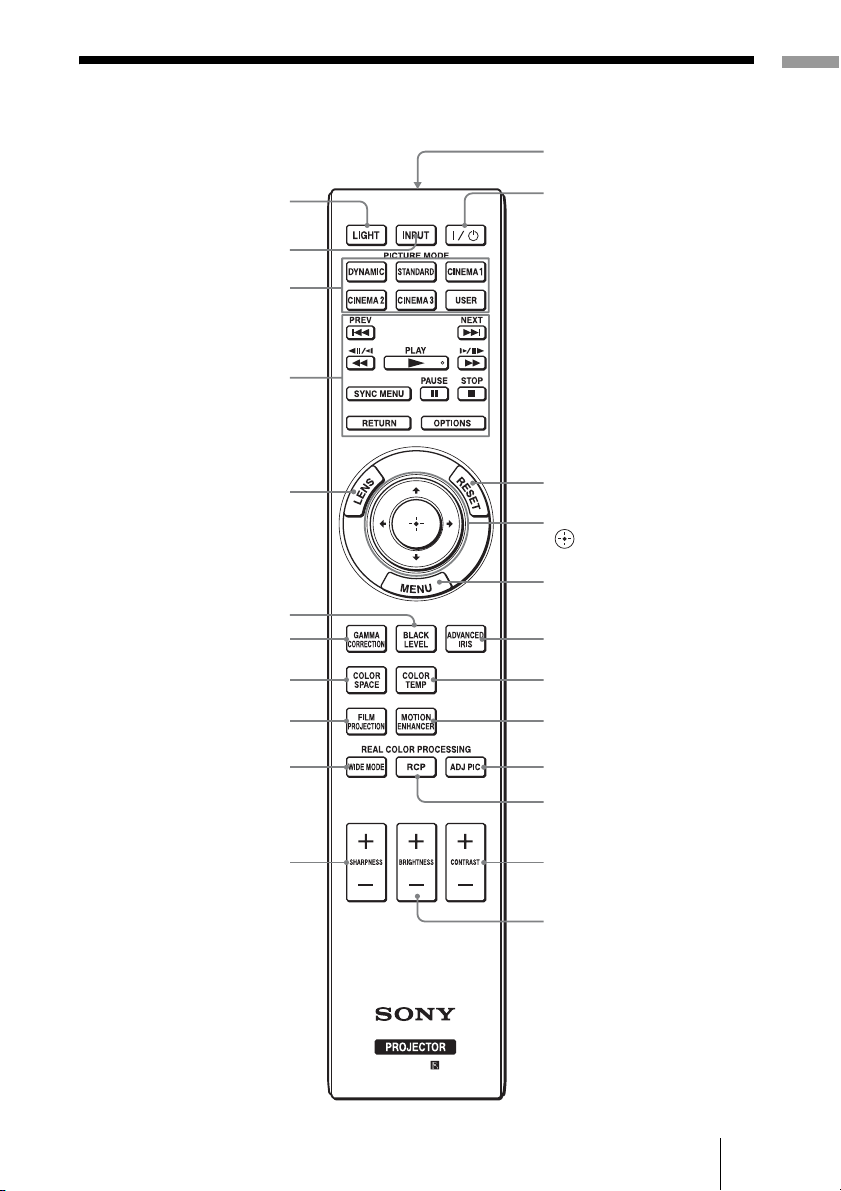
Remote Control
Infrared transmitter
?/1 (On/standby)
switch (1 page 18)
COLOR SPACE button
(1 page 36)
M/m/</, (arrow)/
(enter) buttons
(1 page 40)
RESET button
(1 page 40)
MOTION ENHANCER
button (1 page 36)
CONTRAST +/– button
(1 page 45)
BRIGHTNESS +/– button
(1 page 46)
INPUT button
(1 page 28)
LIGHT button
Illuminates the buttons on
the remote control.
PICTURE MODE buttons
(1 page 35)
ADJ PIC (Adjust Picture)
button (1 page 37)
WIDE MODE button
(1 page 32)
Buttons to operate
BRAVIA Sync compatible
equipment (1 page 30)
LENS button
(1 page 17)
SHARPNESS +/– button
(1 page 46)
MENU button
(1 page 40)
ADVANCED IRIS button
(1 page 36)
COLOR TEMP button
(1 page 36)
RCP (Real Color
Processing) button
(1 page 38)
BLACK LEVEL button
(1 page 36)
GAMMA CORRECTION
button (1 page 36)
FILM PROJECTION
button (1 page 36)
10
This section describes how to install the projector and screen, how to connect the
equipment from which you want to project the picture, etc.
Unpacking
Check the carton to make sure it contains the following items:
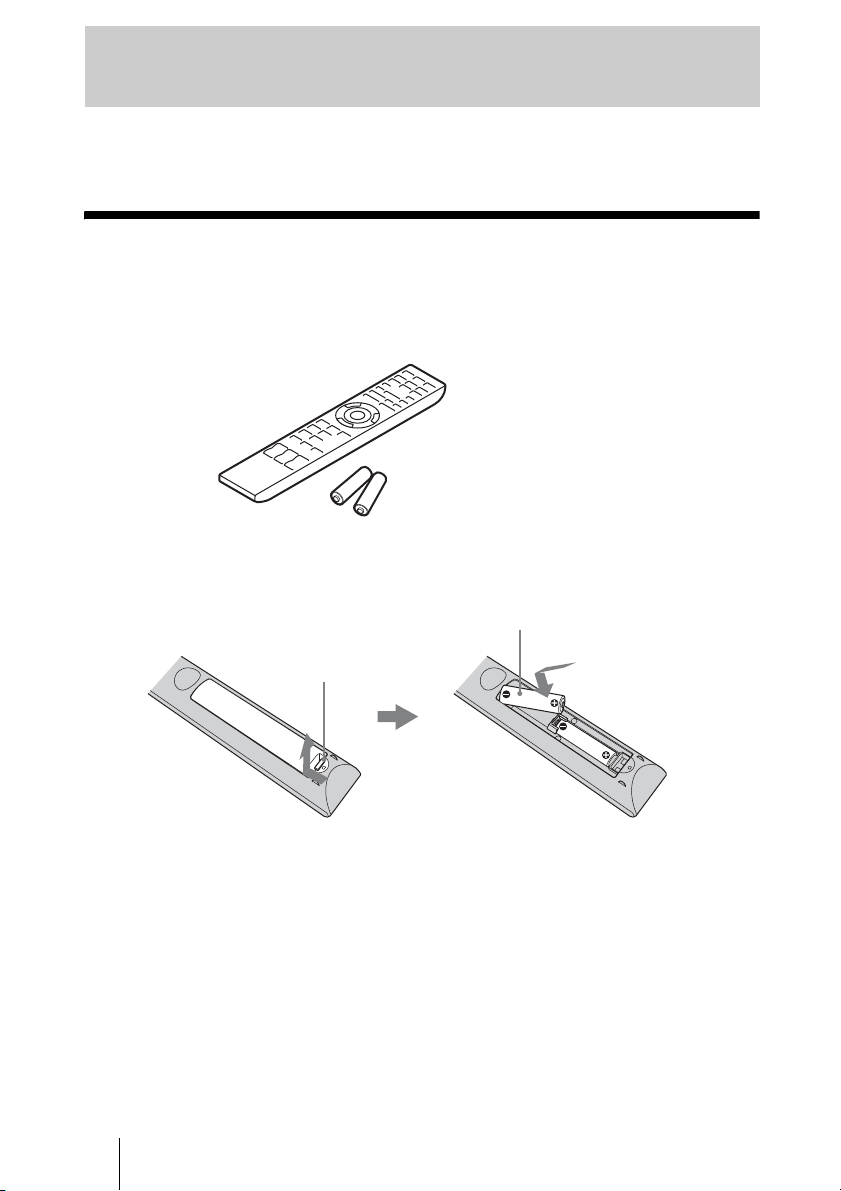
Inserting the batteries into the remote control
CAUTION
Danger of explosion if battery is incorrectly replaced.
Replace only with the same or equivalent type recommended by the manufacturer.
When you dispose of the battery, you must obey the law in the relative area or country.
Installing batteries
Two size AA (R6) batteries are supplied for Remote Control.
To avoid risk of explosion, use size AA (R6) manganese or alkaline batteries.
Caution about handling the remote control
• Handle the remote control with care. Do not drop or step on it, or spill liquid of any kind
onto it.
• Do not place the remote control in a location near a heat source, a place subject to direct
sunlight, or a damp room.
Connections and Preparations
• Remote control (1) and
Size AA (R6) manganese batteries (2)
• AC power cord (1)
• ImageDirector3 CD-ROM (1)
• Operating Instructions (this manual)
Insert the batteries
E
side first as shown in the illustration.
Inserting them forcibly or with the polarities reversed may
cause a short circuit and may generate heat.
Push and slide to open.
11
Connections and Preparations
Step 1: Installing the Projector
The projector displays pictures output from
a VCR or other device.
The lens shift allows you to have broader
options for placing the projector and
viewing pictures easily.
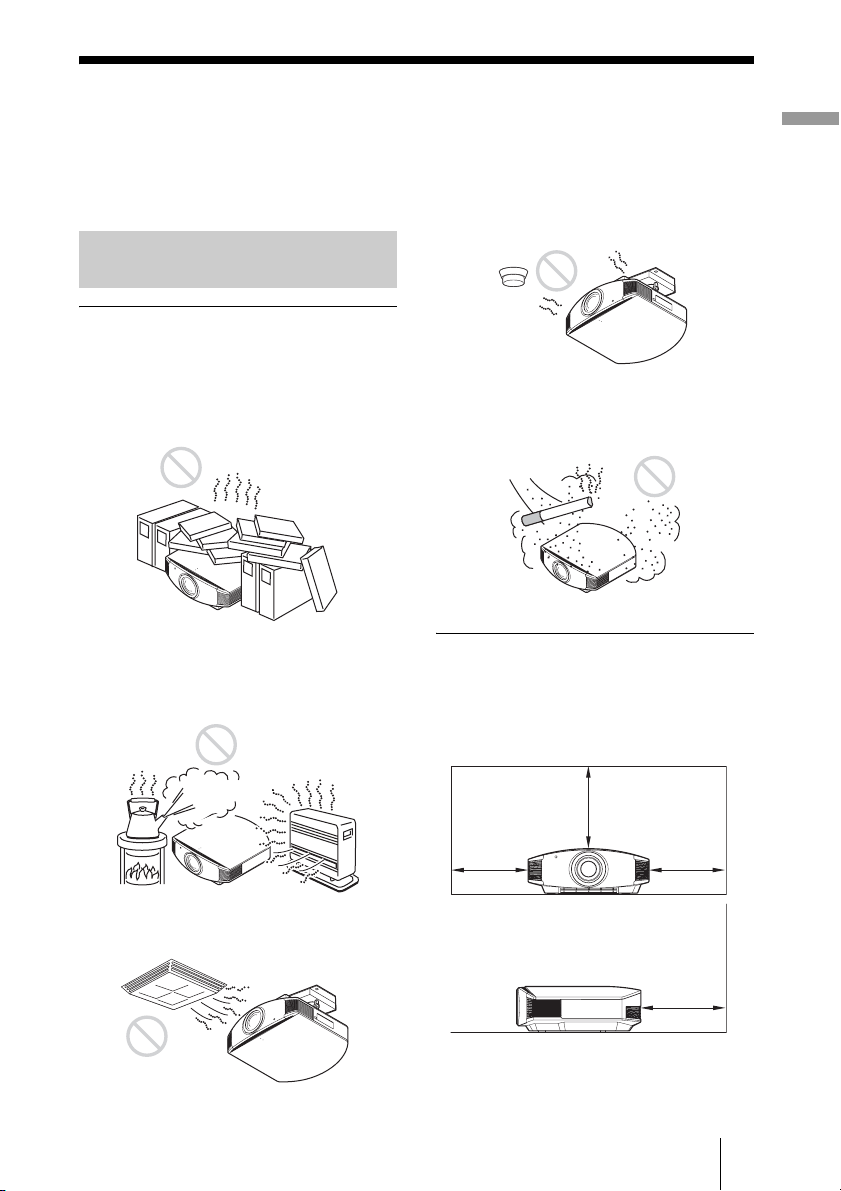
Unsuitable installation
Do not place the projector in the following
situations, which may cause malfunction
or damage to the projector.
Poorly ventilated location
Leave space of more than 30 cm (11
7
/
8
inches)
around the unit.
Hot and humid
Locations subject to direct cool or
warm air from an air-conditioner
Installing the projector in such a location
may cause a malfunction of the unit due to
moisture condensation or rise in
temperature.
Near a heat or smoke sensor
Malfunction of the sensor may occur.
Very dusty and extremely smoky
locations
Install in a location away from walls
To maintain the performance and
reliability of the projector, allow at
least 30 cm (11 7/8 inches) between
the projector and walls.
Before Setting Up the
Projector
30 cm
(11
7
/
8
inches)
30 cm
(11
7
/
8
inches)
30 cm
(11
7
/
8
inches)
30 cm
(11
7
/
8
inches)
12
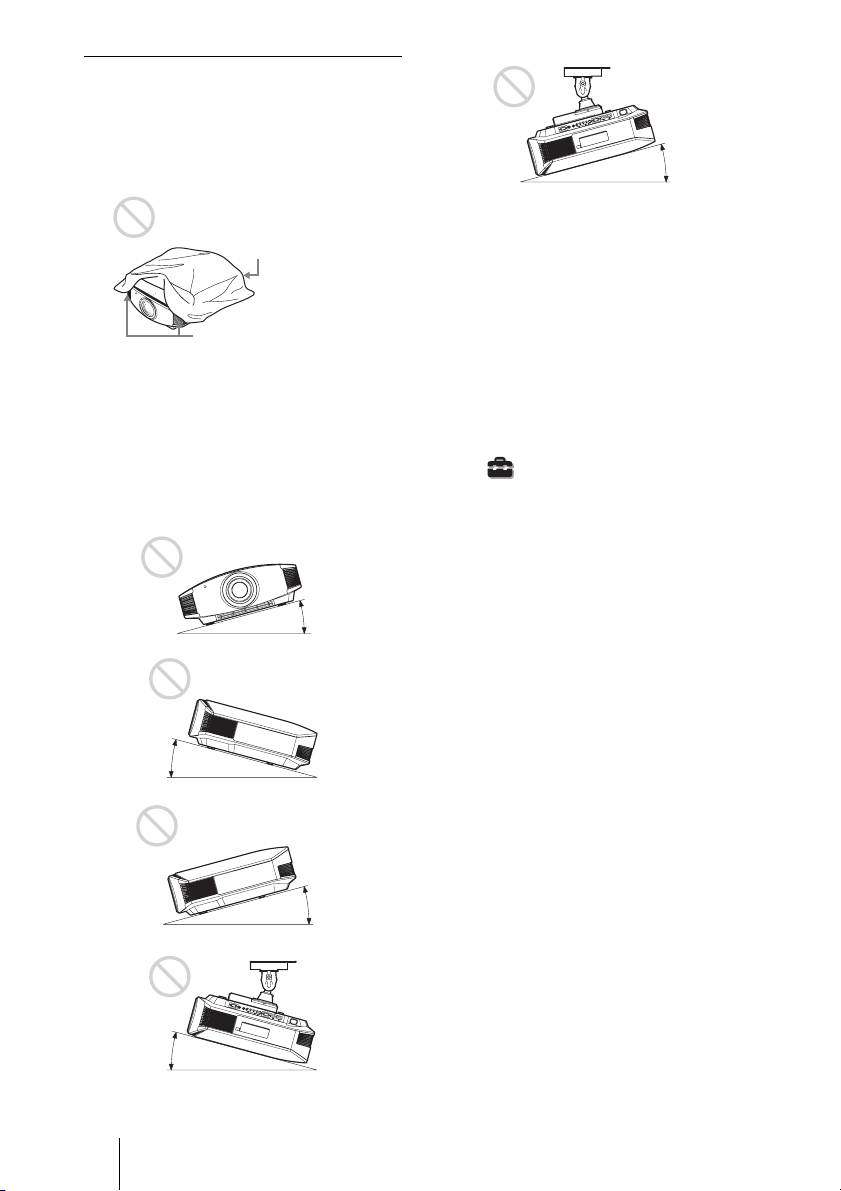
Improper use
Do not do any of the following while using
the projector.
Blocking the ventilation holes (intake
or exhaust)
Tip
For details on the location of the ventilation
holes (intake or exhaust), see “Location of
Controls” on page 7.
Tilting front/rear and left/right
Avoid using the projector tilted at an angle
of more than 15 degrees.
Do not install the projector anywhere other
than on a level surface or on the ceiling.
Installing the projector in such a location
may result in uneven color uniformity or
reduce the reliability of the effects of the
lamp.
When installing the unit at high
altitudes
When using the projector at an altitude of
1,500 m or higher, set “Cooling Setting” in the
Setup menu to “High” (1 page 52).
Failing to set this mode when using the
projector at high altitudes could have adverse
effects, such as reducing the reliability of
certain components.
WARNING
When installing the unit, incorporate a readily
accessible disconnect device in the fixed
wiring, or connect the power plug to an easily
accessible socket-outlet near the unit. If a fault
should occur during operation of the unit,
operate the disconnect device to switch the
power supply off, or disconnect the power
plug.
Ventilation holes
(exhaust)
Ventilation holes
(intake)
15° or more
15° or more
15° or more
15° or more
15° or more
13
Connections and Preparations
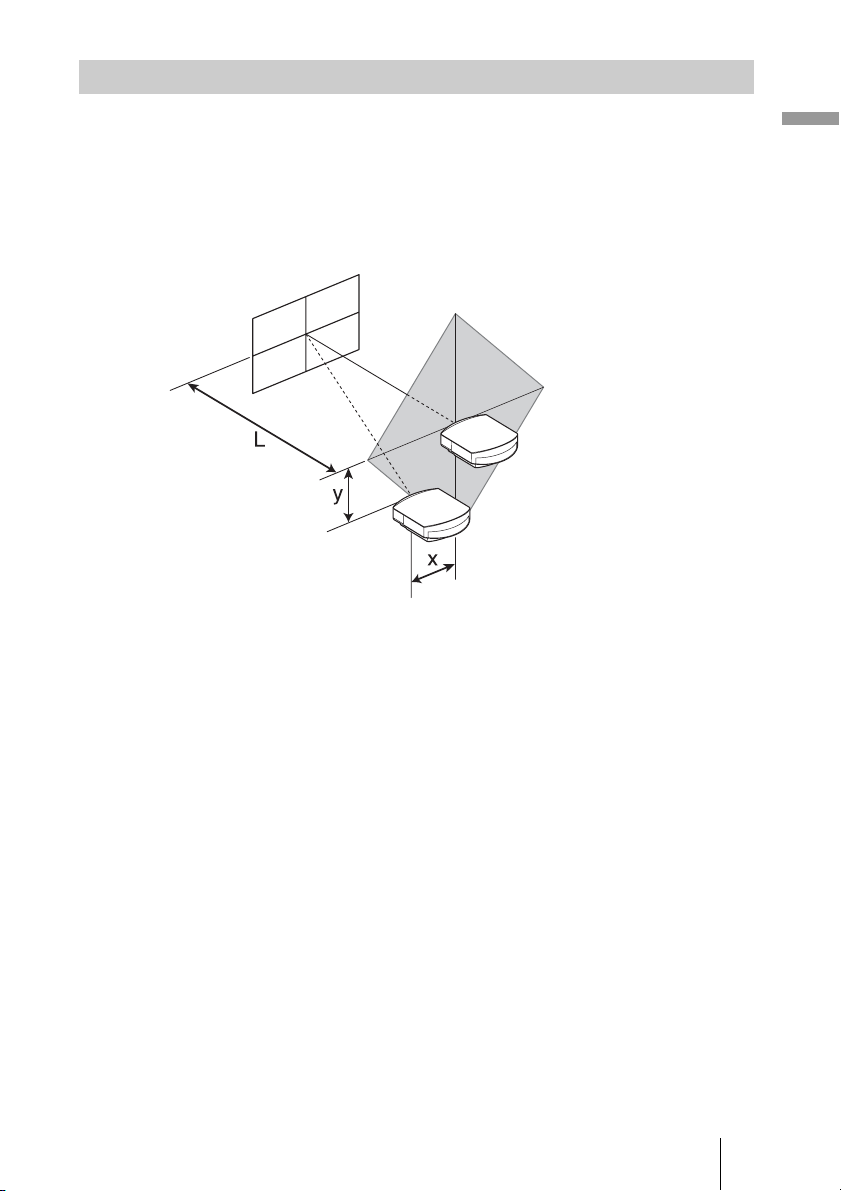
The installation distance between the projector and a screen varies depending on the size
of the screen or whether or not you use the lens shift features.
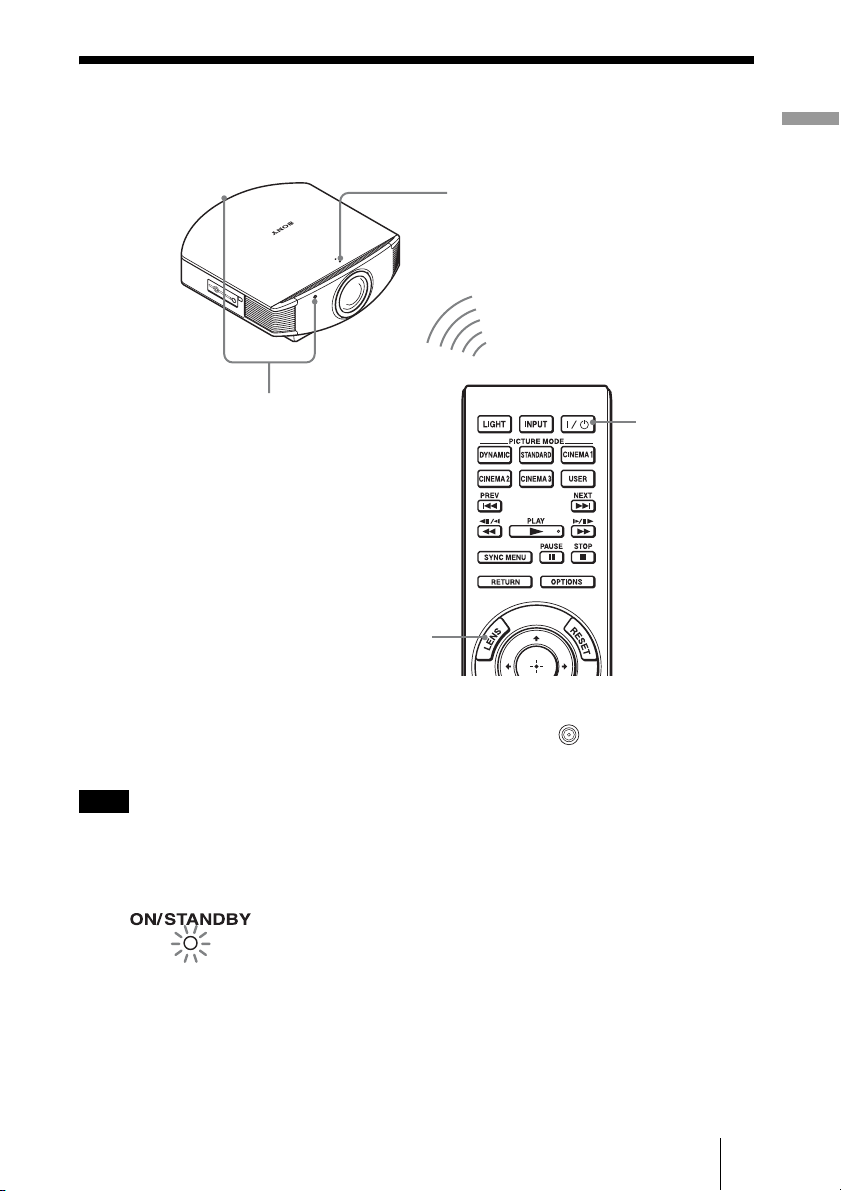
1 Determine the installation position of the projector and screen.
You can obtain a good quality picture if you position the projector so that the center
of the lens is within the area indicated in gray in the illustration.
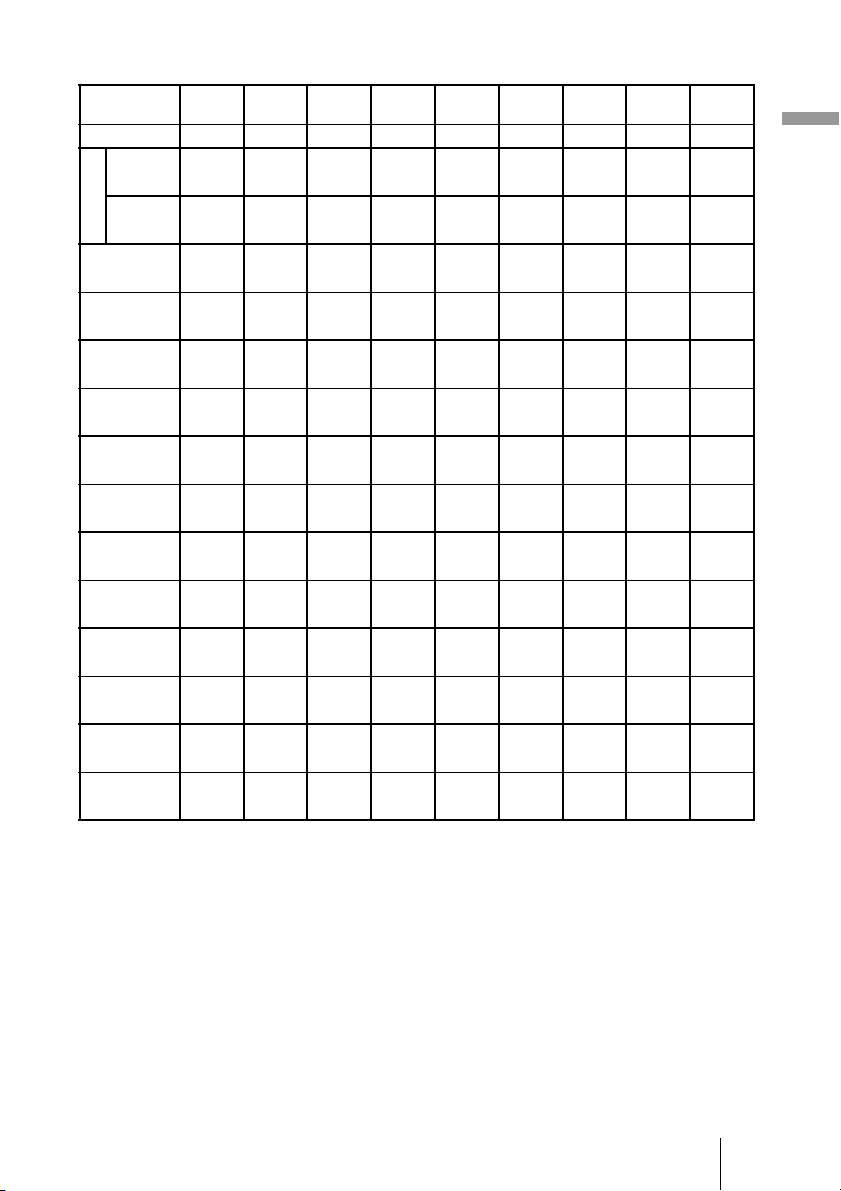
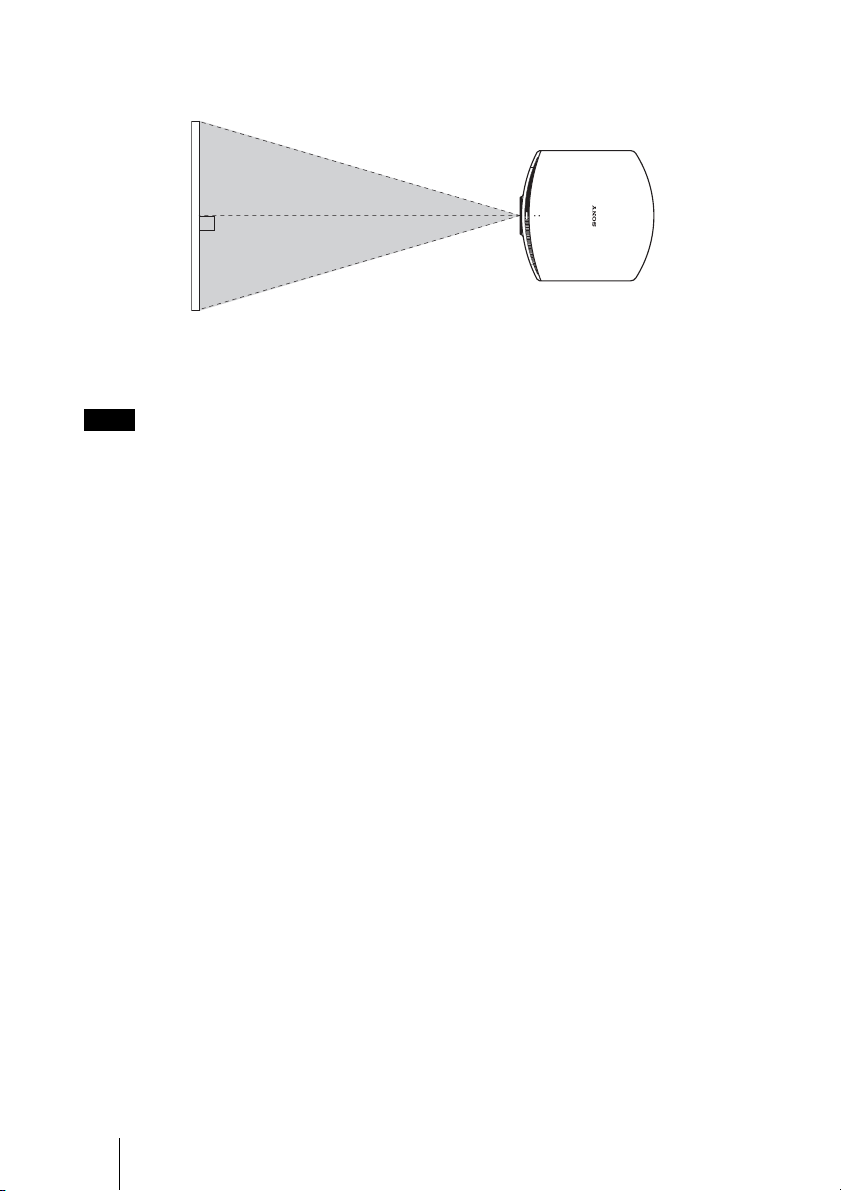
Use the values L, x and y in the table on page 14 or 15 as a guide.
* Installation position not using lens shift (x = 0, y = 0)
** Example of installation position using lens shift (x, y)
L: Distance between the screen and the front end of the projector’s lens.
x: Horizontal distance between the center of the screen and the center of the
projector’s lens.
y: Vertical distance between the center of the screen and the center of the projector’s
lens.
For installation of the projector on a ceiling, see “Ceiling Installation.”
(1 page 80)
For details on the lens shift feature, see “Step 2: Adjusting the Picture Position.”
(1 page 17)
Positioning the Projector and a Screen
Screen
*
**
14
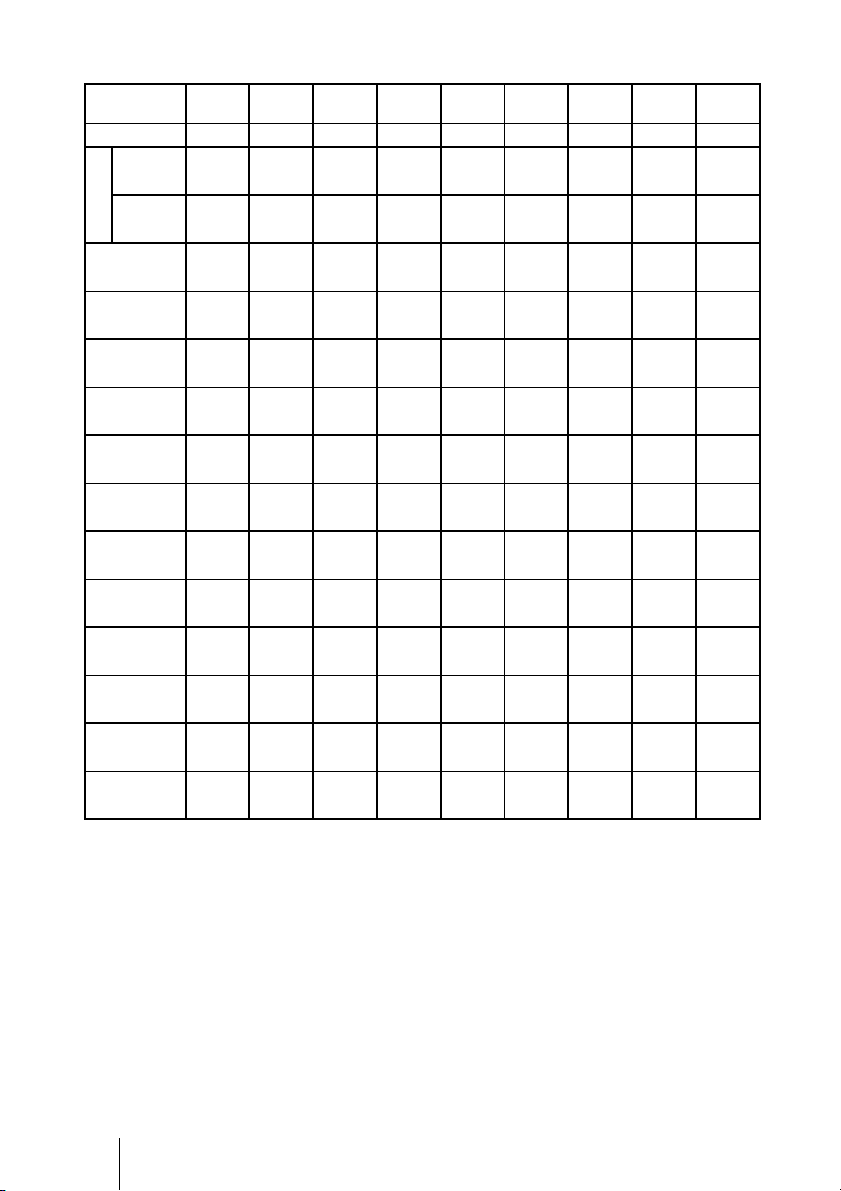
When using the 16:9 aspect ratio screen size
Unit: mm (inches)
To calculate the installation positions
L (minimum) = 31.1781 (1
7
/
32
) × SS – 46.1543 (1
13
/
16
)
L (maximum) = 47.0644 (1
27
/
32
) × SS – 42.3308 (1
21
/
32
)
y = –1.463 × x (mm or inch) + 8.0942 (
5
/
16
) × SS
Screen Size
SS (inches)
40 60 80 100 120 150 200 250 300
(mm) 1016 1524 2032 2540 3048 3810 5080 6350 7620
L
minimum 1201 1825 2448 3072 3695 4631 6189 7748 9307
(47
3
/
8
) (71
7
/
8
) (96
1
/
2
) (121) (145
1
/
2
) (182
3
/
8
) (243
3
/
4
) (305
1
/
8
) (366
1
/
2
)
maximum 1840 2782 3723 4664 5605 7017 9371 11724 14077
(72
1
/
2
) (109
5
/
8
) (146
5
/
8
) (183
5
/
8
) (220
3
/
4
) (276
3
/
8
) (369) (461
5
/
8
) (554
1
/
4
)
x 000000000
(0) (0) (0) (0) (0) (0) (0) (0) (0)
y 324 486 648 809 971 1214 1619 2024 2428
(12
7
/
8
) (19
1
/
4
)(25
5
/
8
) (31
7
/
8
) (38
1
/
4
) (47
7
/
8
)(63
3
/
4
) (79
3
/
4
) (95
5
/
8
)
x 44 66 89 111 133 166 221 277 332
(1
3
/
4
) (2
5
/
8
) (3
5
/
8
) (4
3
/
8
)(5
1
/
4
) (6
5
/
8
) (8
3
/
4
) (11) (13
1
/
8
)
y 259 389 518 648 777 971 1295 1619 1943
(10
1
/
4
) (15
3
/
8
)(20
1
/
2
) (25
5
/
8
) (30
5
/
8
) (38
1
/
4
) (51) (63
3
/
4
) (76
1
/
2
)
x 89 133 177 221 266 332 443 553 664
(3
5
/
8
) (5
1
/
4
) (7) (8
3
/
4
) (10
1
/
2
) (13
1
/
8
)(17
1
/
2
) (21
7
/
8
) (26
1
/
4
)
y 194 291 389 486 583 728 971 1214 1457
(7
3
/
4
) (11
1
/
2
)(15
3
/
8
) (19
1
/
4
) (23) (28
3
/
4
)(38
1
/
4
) (47
7
/
8
) (57
3
/
8
)
x 133 199 266 332 398 498 664 830 996
(5
1
/
4
) (7
7
/
8
)(10
1
/
2
) (13
1
/
8
) (15
3
/
4
) (19
5
/
8
)(26
1
/
4
) (32
3
/
4
) (39
1
/
4
)
y 130 194 259 324 389 486 648 809 971
(5
1
/
8
) (7
3
/
4
)(10
1
/
4
) (12
7
/
8
) (15
3
/
8
) (19
1
/
4
)(25
5
/
8
) (31
7
/
8
) (38
1
/
4
)
x 177 266 354 443 531 664 886 1107 1328
(7) (10
1
/
2
) (14) (17
1
/
2
) (21) (26
1
/
4
) (35) (43
5
/
8
) (52
3
/
8
)
y 65 97 130 162 194 243 324 405 486
(2
5
/
8
) (3
7
/
8
) (5
1
/
8
) (6
1
/
2
)(7
3
/
4
) (9
5
/
8
)(12
7
/
8
) (16) (19
1
/
4
)
x 221 332 443 553 664 830 1107 1384 1660
(8
3
/
4
) (13
1
/
8
)(17
1
/
2
) (21
7
/
8
) (26
1
/
4
) (32
3
/
4
)(43
5
/
8
) (54
1
/
2
) (65
3
/
8
)
y 000000000
(0) (0) (0) (0) (0) (0) (0) (0) (0)
15
Connections and Preparations
When using the 4:3 aspect ratio screen size
Unit: mm (inches)
To calculate the installation positions
L (minimum) = 38.1569 (1
1
/
2
) × SS – 46.1543 (1
13
/
16
)
L (maximum) = 57.5992 (2
9
/
32
) × SS – 42.3308 (1
21
/
32
)
y = –1.463 × x (mm or inch) + 9.9060 (
3
/
8
) × SS
Screen Size
SS (inches)
40 60 80 100 120 150 200 250 300
(mm) 1016 1524 2032 2540 3048 3810 5080 6350 7620
L
minimum 1480 2243 3006 3770 4533 5677 7585 9493 11401
(58
3
/
8
) (88
3
/
8
) (118
3
/
8
) (148
1
/
2
) (178
1
/
2
) (223
5
/
8
) (298
5
/
8
) (373
3
/
4
) (448
7
/
8
)
maximum 2262 3414 4566 5718 6870 8598 11478 14357 17237
(89
1
/
8
) (134
1
/
2
) (179
7
/
8
) (225
1
/
8
) (270
1
/
2
) (338
5
/
8
) (452) (565
1
/
4
) (678
5
/
8
)
x 000000000
(0) (0) (0) (0) (0) (0) (0) (0) (0)
y 396 594 792 991 1189 1486 1981 2477 2972
(15
5
/
8
) (23
1
/
2
) (31
1
/
4
)(39
1
/
8
) (46
7
/
8
) (58
5
/
8
) (78) (97
5
/
8
)
(117
1
/
8
)
x 54 81 108 135 163 203 271 339 406
(2
1
/
4
) (3
1
/
4
)(4
3
/
8
) (5
3
/
8
) (6
1
/
2
) (8) (10
3
/
4
)(13
3
/
8
) (16)
y 317 475 634 792 951 1189 1585 1981 2377
(12
1
/
2
) (18
3
/
4
) (25) (31
1
/
4
) (37
1
/
2
) (46
7
/
8
) (62
1
/
2
) (78) (93
5
/
8
)
x 108 163 217 271 325 406 542 677 813
(4
3
/
8
) (6
1
/
2
)(8
5
/
8
)(10
3
/
4
) (12
7
/
8
) (16) (21
3
/
8
)(26
3
/
4
) (32
1
/
8
)
y 238 357 475 594 713 892 1189 1486 1783
(9
3
/
8
) (14
1
/
8
) (18
3
/
4
)(23
1
/
2
) (28
1
/
8
) (35
1
/
8
) (46
7
/
8
)(58
5
/
8
) (70
1
/
4
)
x 163 244 325 406 488 610 813 1016 1219
(6
1
/
2
) (9
5
/
8
) (12
7
/
8
) (16) (19
1
/
4
) (24
1
/
8
) (32
1
/
8
) (40) (48)
y 158 238 317 396 475 594 792 991 1189
(6
1
/
4
) (9
3
/
8
) (12
1
/
2
)(15
5
/
8
) (18
3
/
4
) (23
1
/
2
) (31
1
/
4
)(39
1
/
8
) (46
7
/
8
)
x 217 325 433 542 650 813 1084 1355 1626
(8
5
/
8
) (12
7
/
8
) (17
1
/
8
)(21
3
/
8
) (25
5
/
8
) (32
1
/
8
) (42
3
/
4
)(53
3
/
8
) (64
1
/
8
)
y 79 119 158 198 238 297 396 495 594
(3
1
/
8
) (4
3
/
4
)(6
1
/
4
) (7
7
/
8
) (9
3
/
8
) (11
3
/
4
) (15
5
/
8
)(19
1
/
2
) (23
1
/
2
)
x 271 406 542 677 813 1016 1355 1693 2032
(10
3
/
4
) (16) (21
3
/
8
)(26
3
/
4
) (32
1
/
8
) (40) (53
3
/
8
)(66
3
/
4
) (80)
y 000000000
(0) (0) (0) (0) (0) (0) (0) (0) (0)
16
2 Position the projector so that the lens is parallel to the screen.
3 Project an image on the screen and adjust the picture so that it fits the
screen. (1 page 17)
When using a screen with an uneven surface, stripes pattern may rarely appear on the screen
depending on the distance between the screen and the projector or the zooming magnifications. This
is not a malfunction of the projector.
Note
Screen
Top view
17
Connections and Preparations
Step 2: Adjusting the Picture Position
Project an image on the screen and then adjust the picture position.
Tip
The
?/1 (ON/STANDBY), INPUT, LENS, MENU, and M/m/</,/ (joystick) buttons on the
side panel of the projector function the same as those on the remote control.
Depending on the installation location of the projector, you may not control it with the remote
control. In this case, point the remote control to the screen instead of the projector.
Note
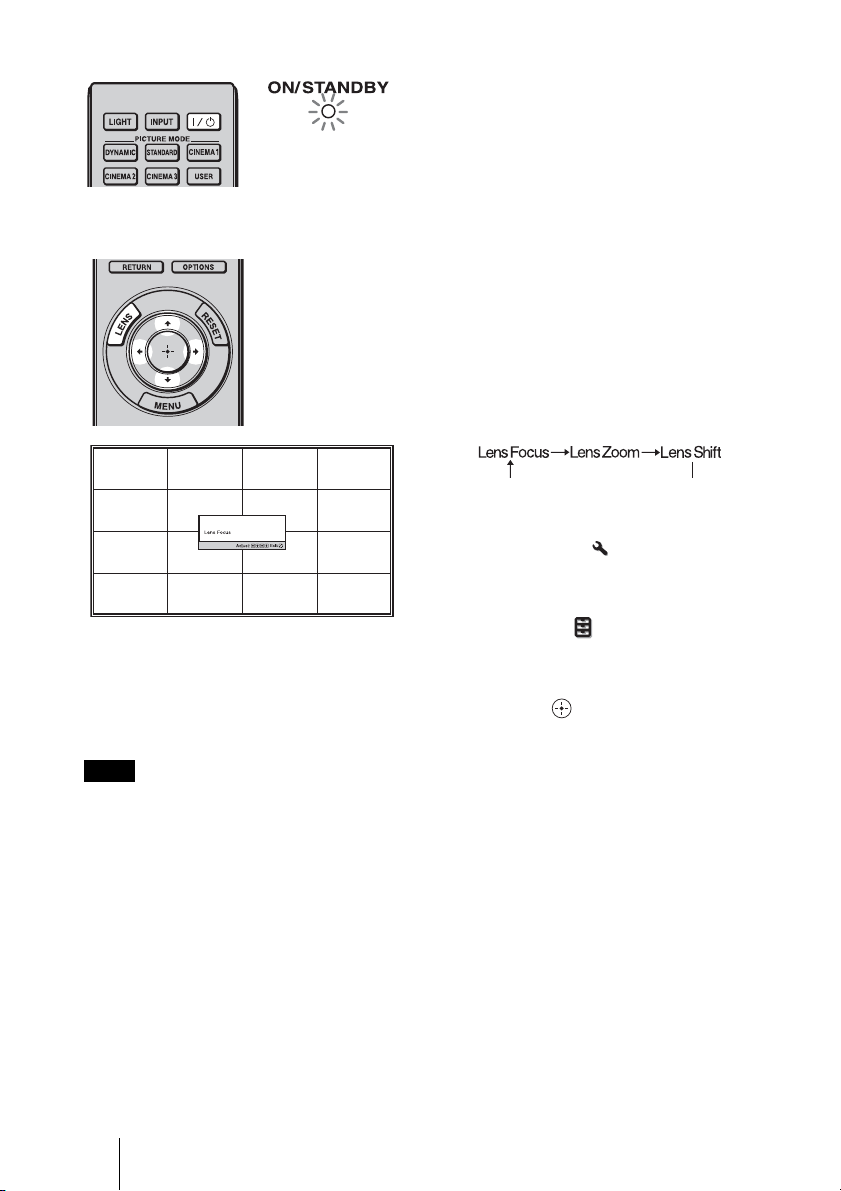
1 After connecting the AC cord to
the projector plug the AC cord
into a wall outlet.
The ON/STANDBY indicator lights
in red and the projector goes into
standby mode.
ON/STANDBY indicator
Remote control detector
3, 4, 5
Lens button
2
1
?/1 (On/
standby)
switch
Lights in red.
18
Be sure to adjust the picture size and the focus by using buttons on the remote control or the control
panel of the projector. Never make adjustments by directly turning the lens with your hands, which
may cause damage or malfunction to the projector.
2 Press the ?/1 (ON/STANDBY)
switch to turn on the projector.
The lens protector will open.
The ON/STANDBY indicator flashes
in green, and then lights in green.
When the ON/STANDBY indicator
flashes, “Starting...” appears on the
screen.
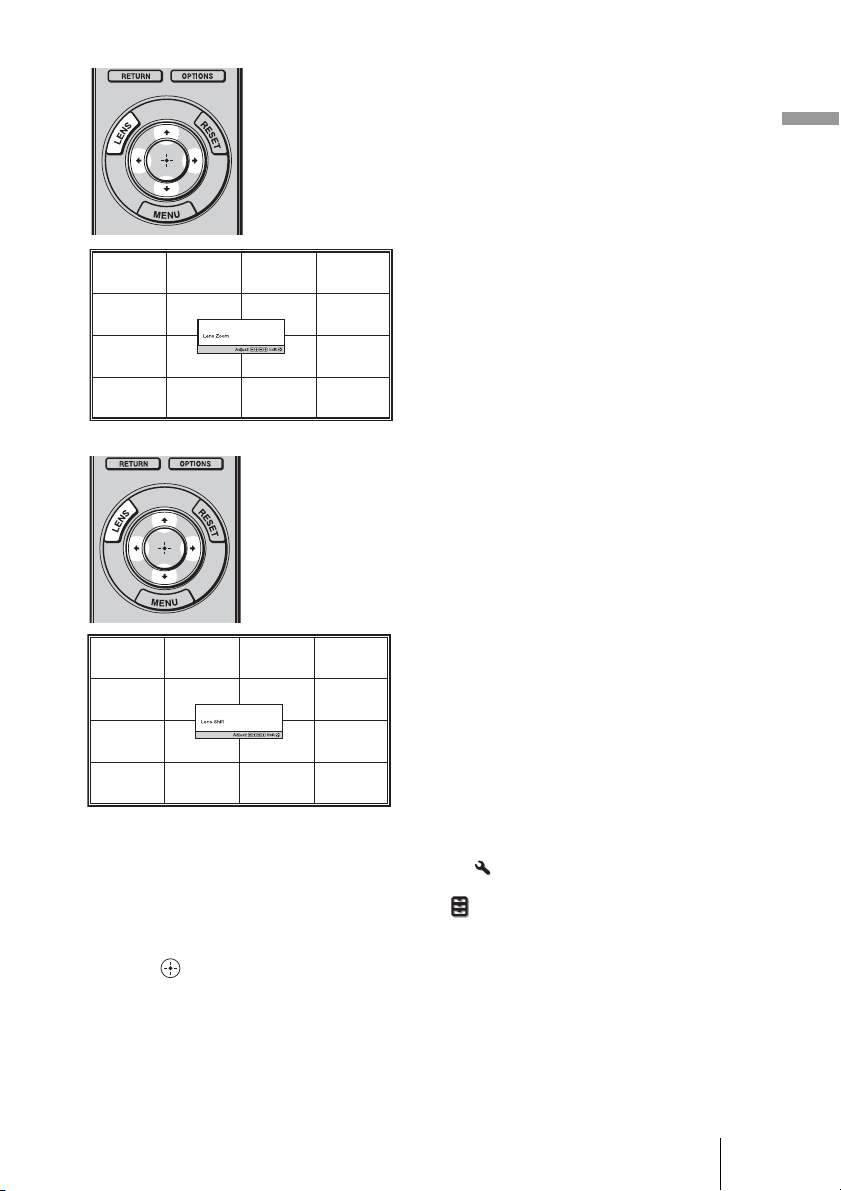
3 Adjust the focus.
Press the LENS button repeatedly
until the Lens Focus adjustment
window (test pattern) appears. Then
adjust the focus of the picture by
pressing the M/m/</, buttons.
Each time you press the LENS button,
the LENS adjustment window appears
in order.
Tip
• When “Lens Control” is set to “Off” on
the Installation menu, you cannot
adjust the picture size and the focus. (1
page 56)
When “Test Pattern” is set to “Off” on
the Function menu, the test pattern is
not displayed.
(1 page 55)
• The test signal is displayed for 1 minute.
Press the button to clear the test
signal display before that.
Note
Flashes in green fo
r
a while (tens of
seconds) and then
lights in green.
19
Connections and Preparations
Tip
• When “Lens Control” is set to “Off” on the Installation
menu, you cannot adjust the picture
position. (1 page 56)
When “Test Pattern” is set to “Off” on the Function menu, the test pattern is not displayed.
(1 page 55)
• The test signal is displayed for 1 minute.
Press the button to clear the test signal display before that.
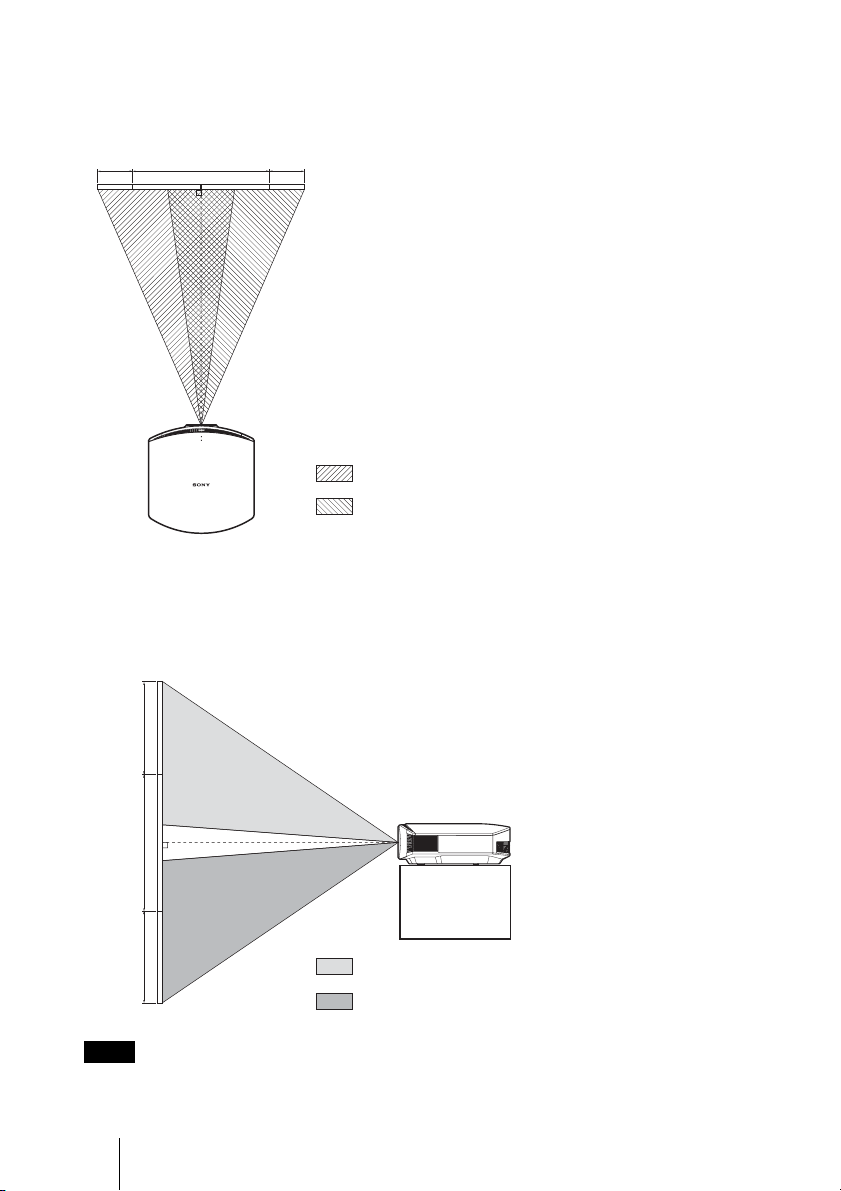
4 Adjust the picture size.
Press the LENS button repeatedly
until the Lens Zoom adjustment
window (test pattern) appears. Then
adjust the size of the picture by
pressing the M/m/</, buttons.
To make the picture larger, press
M/,.
To make the picture smaller, press
m/<.
5 Adjust the picture position.
Press the LENS button repeatedly until
the Lens Shift adjustment window (test
pattern) appears. Then adjust the
proper position by pressing the M/m/
</, buttons.
20
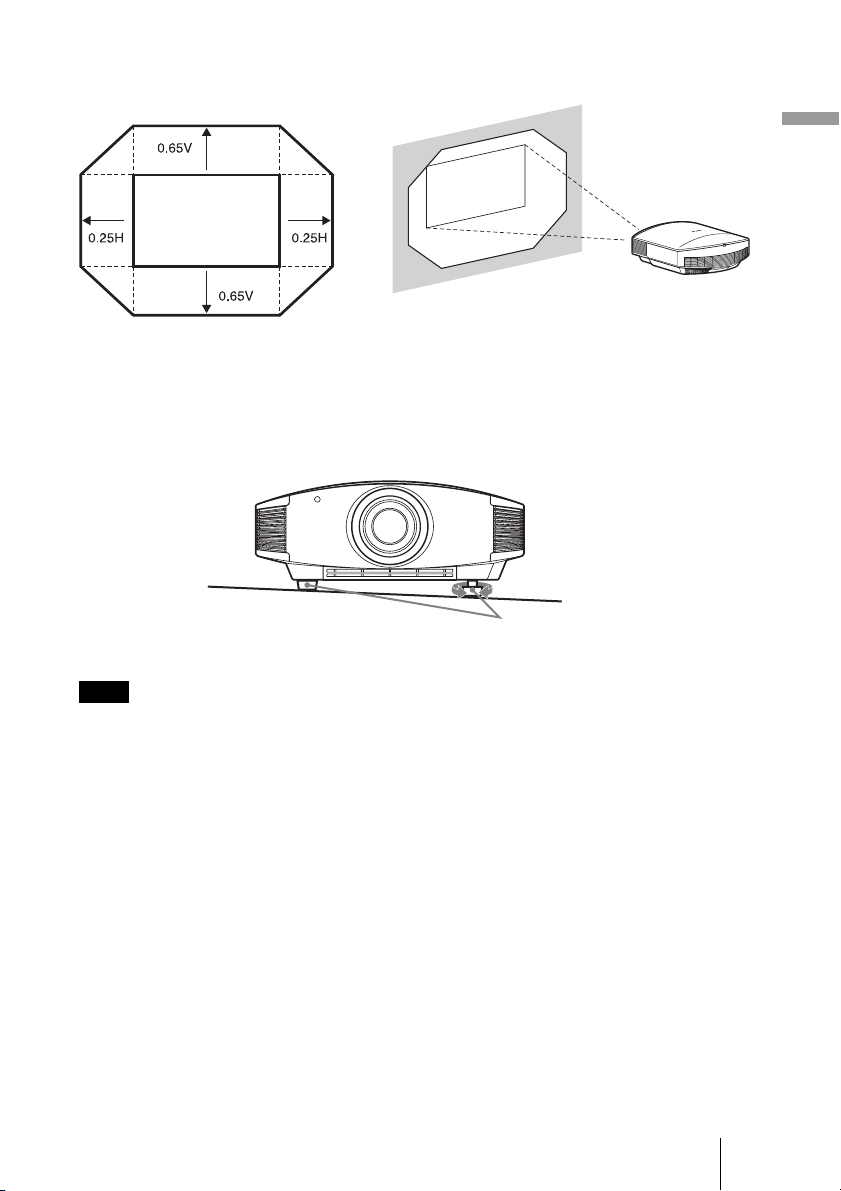
To adjust the horizontal position
Press </,.
The picture projected on the screen moves right or left by a maximum of 25% of the screen
width from the center of the lens.
To adjust the vertical position
Press M/m.
The picture projected on the screen moves up or down by a maximum of 65% of the screen
height from the center of the lens.
The range to move the picture projected on the screen can be adjusted only within the octagon area
illustrated below. In this connection, see “Positioning the Projector and a Screen” (1 page 13) as
well.
Note
Top view
: Picture position when moving the picture to the left
at maximum
: Picture position when moving the picture to the
right at maximum
25% 1 screen width 25%
65%
1
screen
height
65%
Side view
: Picture position when moving the picture upward at
maximum
: Picture position when moving the picture downward at
maximum
21
Connections and Preparations
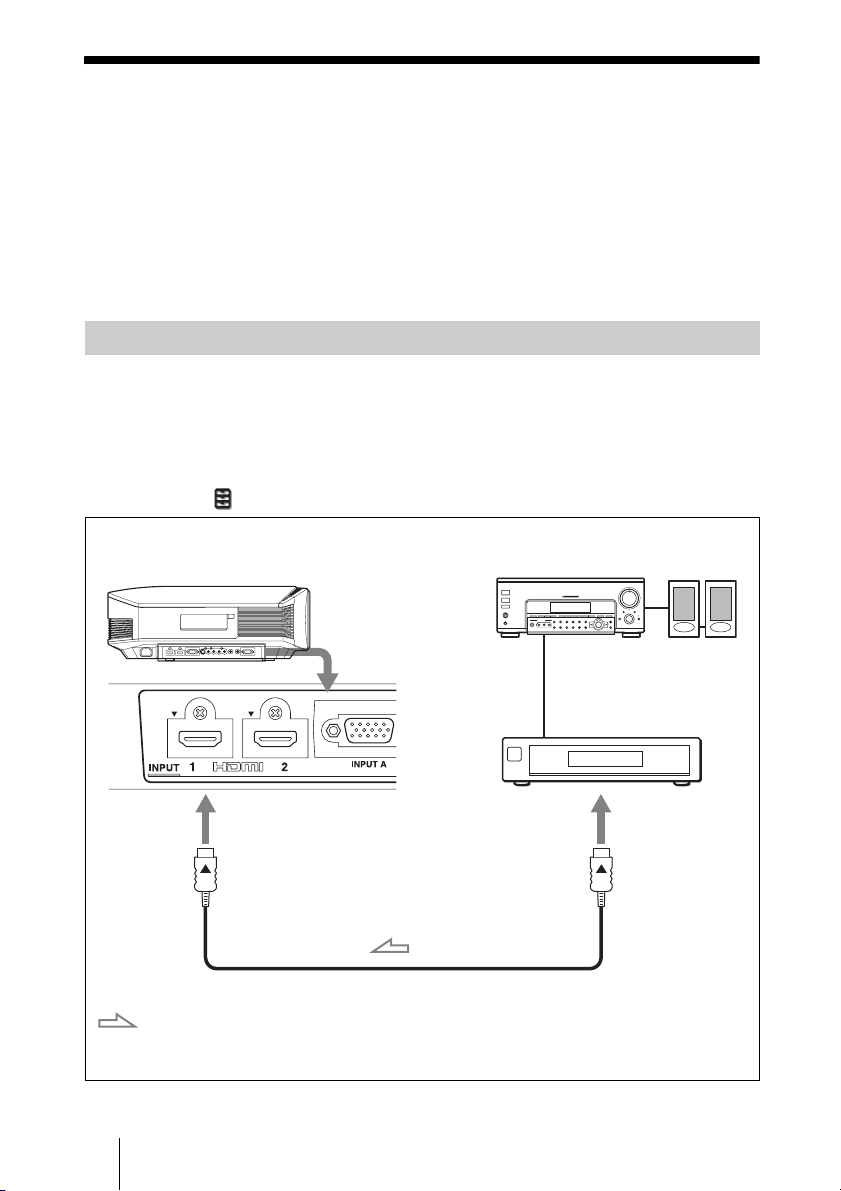
To adjust the tilt of the installation surface
If the projector is installed on an uneven surface, use the adjusters to keep the projector
level.
• Pointing the projector at too high or too low of a tilt will result in trapezoidal distortion in the
projected image.
• Be careful not to catch your finger when turning the adjusters.
Note
Range of movement of
the projected picture
Projected Picture
H: Width of the projected picture
V: Height of the projected picture
Adjusters
Turn to adjust.
22
Step 3: Connecting the Projector
When making connections, be sure to do the following:
• Turn off all equipment before making any connections.
• Use the proper cables for each connection.
• Insert the cable plugs properly; poor connection at the plugs may cause a malfunction or
poor picture quality. When pulling out a cable, be sure to pull it out from the plug, not
the cable itself.
• Refer to the operating instructions of the connected equipment.
To connect to equipment with HDMI output connectors
You can enjoy better picture quality by connecting a DVD player/recorder, Blu-ray Disc
player/recorder, or PS3
®
equipped with HDMI output to the HDMI input of the projector.
Moreover, if you have a Control for HDMI compatible equipment, you can operate the
projector synchronizing with the Control for HDMI compatible equipment. For details,
see the Function menu (1 page 54) and “About the Control for HDMI” (1 page 60).
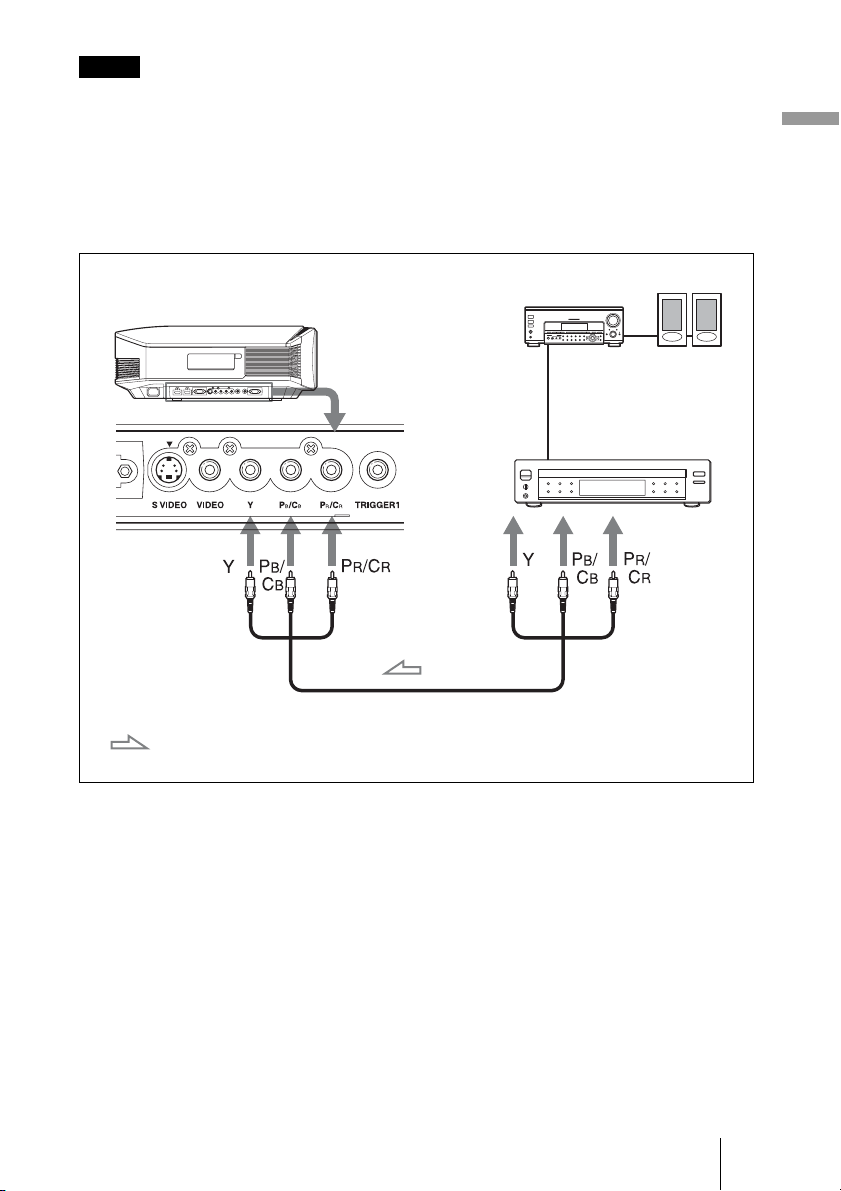
Connecting to a VCR
HDMI cable (not supplied)
: Video signal flow
Right side of the projector
Equipment with HDMI output
connectors
to HDMI output
AV amplifier
Speakers
When using an optional HDMI cable, be sure to use
a cable that has acquired the HDMI logo.
23
Connections and Preparations
• When connecting an HDMI cable to the projector, make sure the V mark on the upper part of the
HDMI input of the projector and the
v mark on the connector of the cable is set at the same
position.
• If the picture from equipment connected to the projector with an HDMI cable is not clear, check
the settings of the connected equipment.
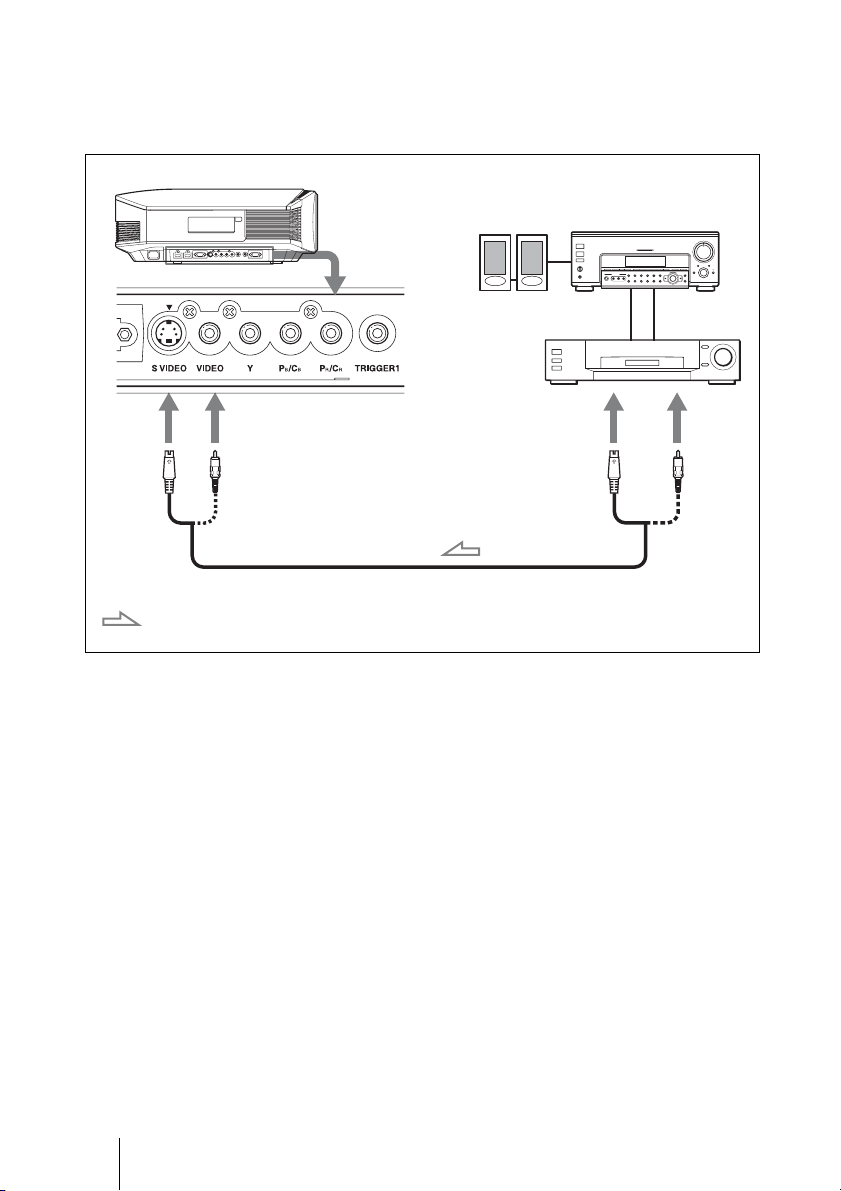
To connect to equipment with component video output
connectors
Notes
Component video cable (not supplied)
: Video signal flow
Equipment with component
video output connectors
Right side of the projector
AV amplifier
Speakers
24
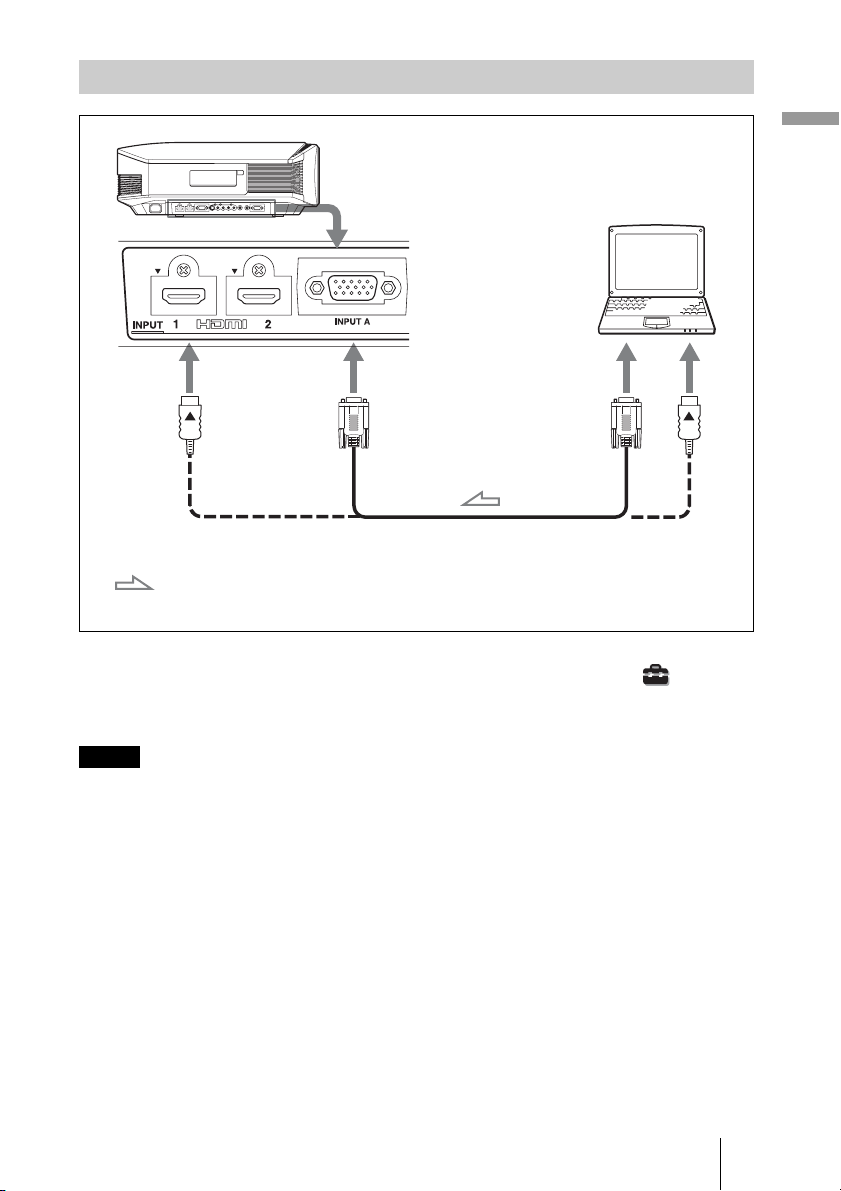
To connect to a VCR equipped with the S video connector or
video connector
You can connect a DVD player/recorder, hard disk video recorder, VCR or laser disk
player, which is not equipped with component video connectors.
Tip
If you do not know to which connector you should connect the cable, S VIDEO INPUT (S video
input connector) or VIDEO INPUT (video input connector), connect it to S VIDEO to enjoy better
picture quality.
If the equipment to be connected has no S video connector, connect the cable to the video output.
S video or video cable (not supplied)
: Video signal flow
Right side of the projector
to S video or
video output
Video equipment
AV amplifier
Speakers
25
Connections and Preparations
Tip
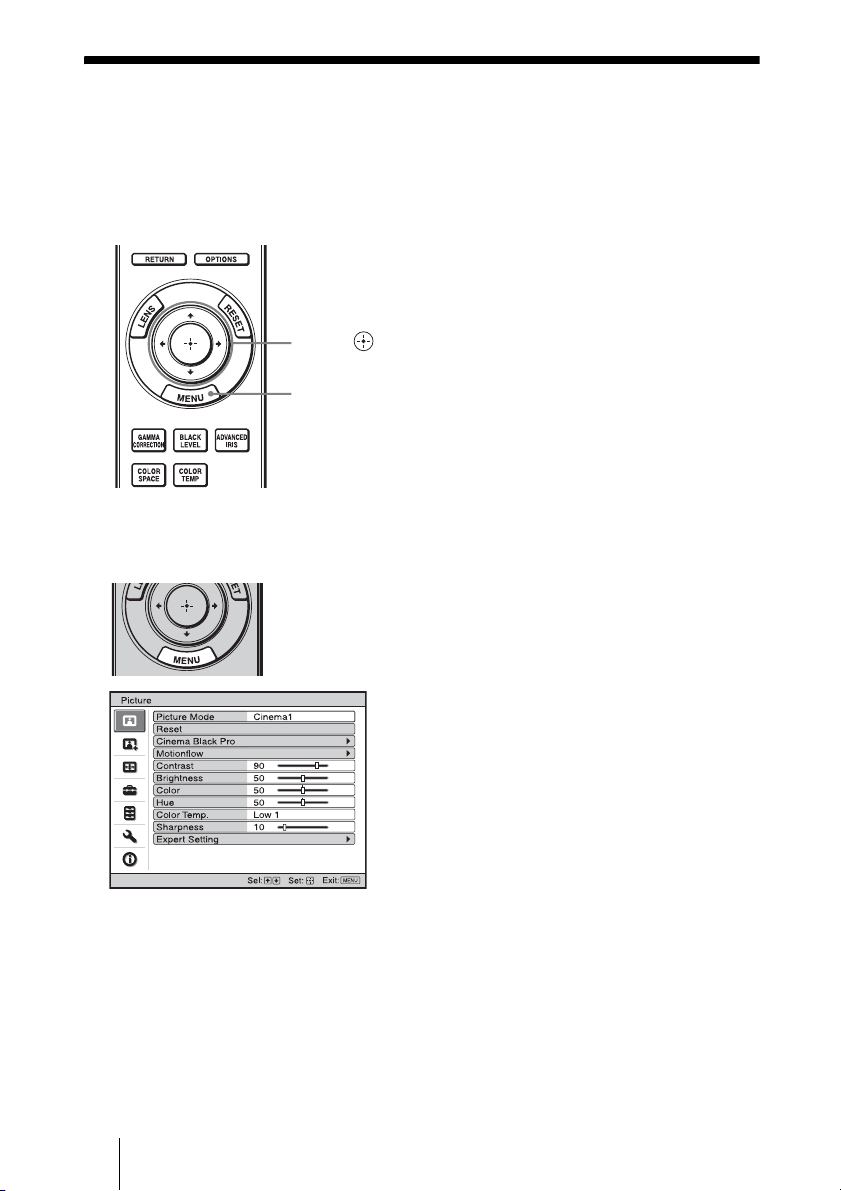
When connecting an HD-Dsub15 pin cable, set “Input-A Signal Sel.” in the Setup menu to
“Auto” or “Computer.” If the input signal does not appear properly, set it to “Computer.” (1
pages 53, 66)
• When connecting an HDMI cable, make sure the V mark on the upper part of the HDMI input of
the projector and the
v mark on the connector of the cable is set at the same position.
• If you set your computer, such as a notebook type, to output the signal to both computer’s display
and this equipment, the picture of the equipment may not appear properly. Set your computer to
output the signal to only the external monitor.
For details, refer to the computer’s operating instructions supplied with your computer. For
settings of the computer, consult with the manufacturer of the computer.
• If the picture from equipment connected to the projector with an HDMI cable is not clear, check
the settings of the connected equipment.
Connecting to a Computer
Notes
HD-Dsub15 pin cable (not supplied) or HDMI cable (not supplied)
: Video signal flow
Right side of the projector
to monitor output
Computer
When using an optional HDMI cable, be sure to use
a cable that has acquired the HDMI logo.
26
Step 4: Selecting the Menu Language
You can select one of 16 languages for displaying the menu and other on-screen displays.
The factory default setting is English. To change the current menu language, set the
desired language with the menu screen.
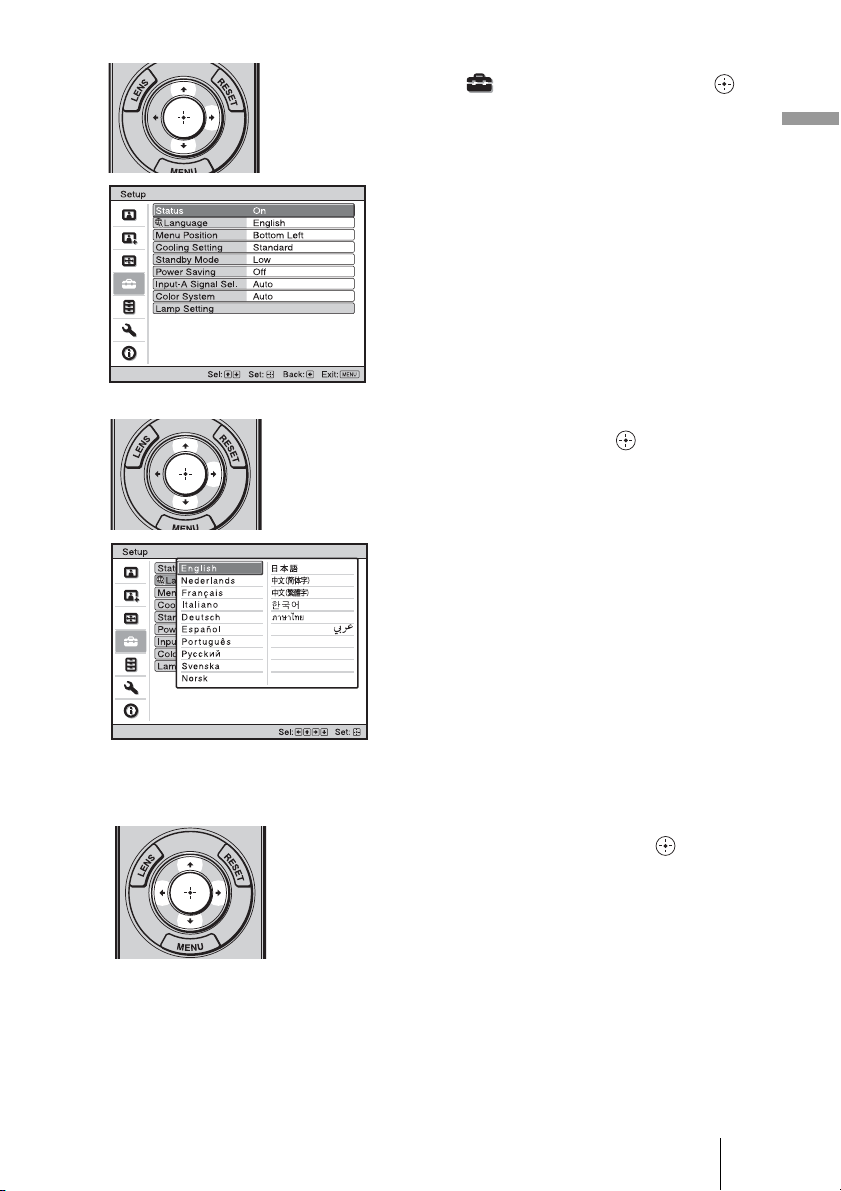
1 Press MENU.
The menu appears.
1
MENU button
2,3,4
M/m/</,
(arrow)/ (enter)
buttons
27
Connections and Preparations
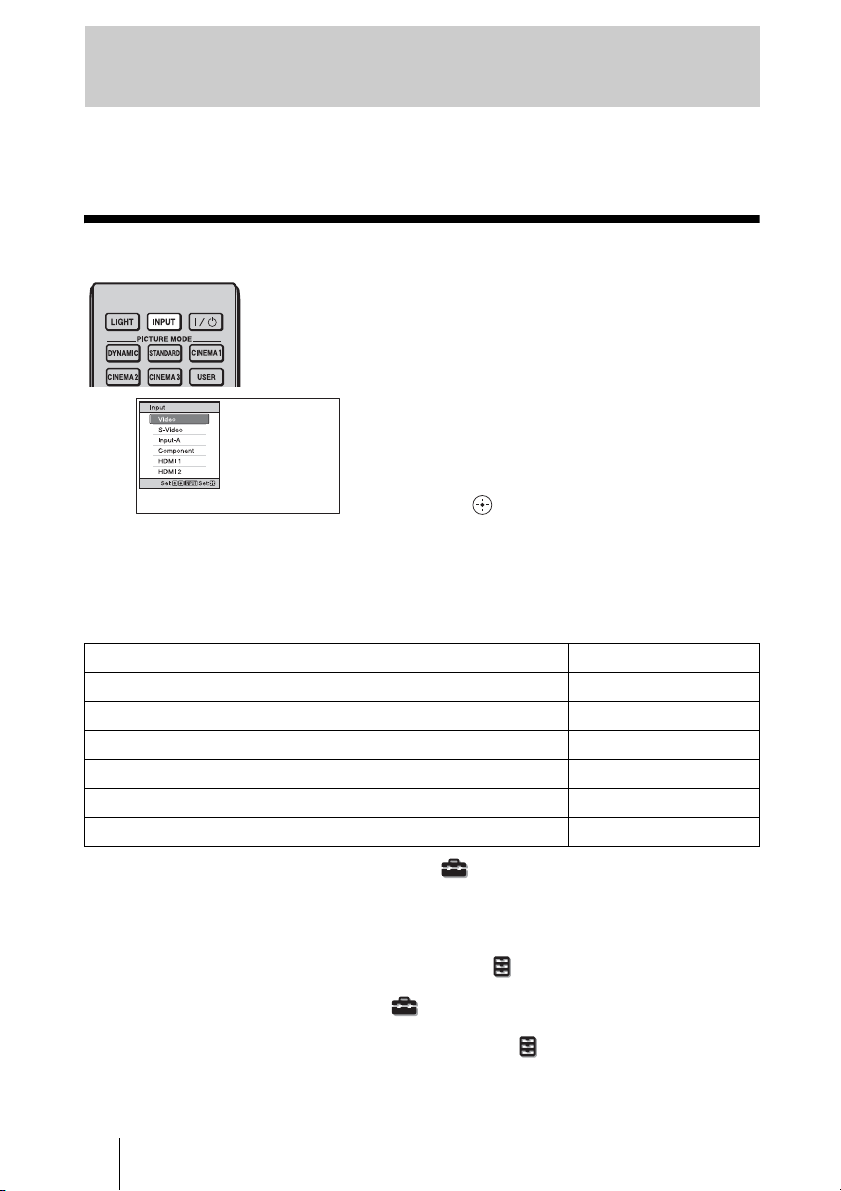
2 Press M/m to select the Setup
menu, and press , or .
The setting items of the selected menu
appears.
3 Press M/m to select “Language,”
and press , or .
4 Press M/m/</, to select a
language, and press .
The menu changes to the selected
language.
To clear the menu
Press MENU.
28
This section describes how to operate the projector to view the picture from the equipment
connected to the projector. It also describes how to adjust the quality of the picture to suit your taste.
Projecting the Picture on the Screen
* Set the “Input-A Signal Sel.” setting in the Setup menu according to the signal input. When
you set it to “Auto,” and cannot display the picture properly, select an appropriate signal
according to the input signal. (1 pages 53, 59)
Tips
• When “Auto Input Search” is set to “On” in the Function menu, only input terminals with
effective signals are displayed in the input palette.
• When “Status” is set to “Off” in the Setup menu, the input palette does not appear. Press of
the INPUT button to switch between input terminals in sequence.
• When the “Control for HDMI” is set to “On” in the Function menu, the input terminal with
effective signals is automatically displayed, synchronizing with the operation of the equipment
connected to HDMI 1 or HDMI 2 input of the projector. (Only when the connected equipment
supports Control for HDMI compatible.)
Projecting
1 Power on both the projector and
the equipment connected to the
projector.
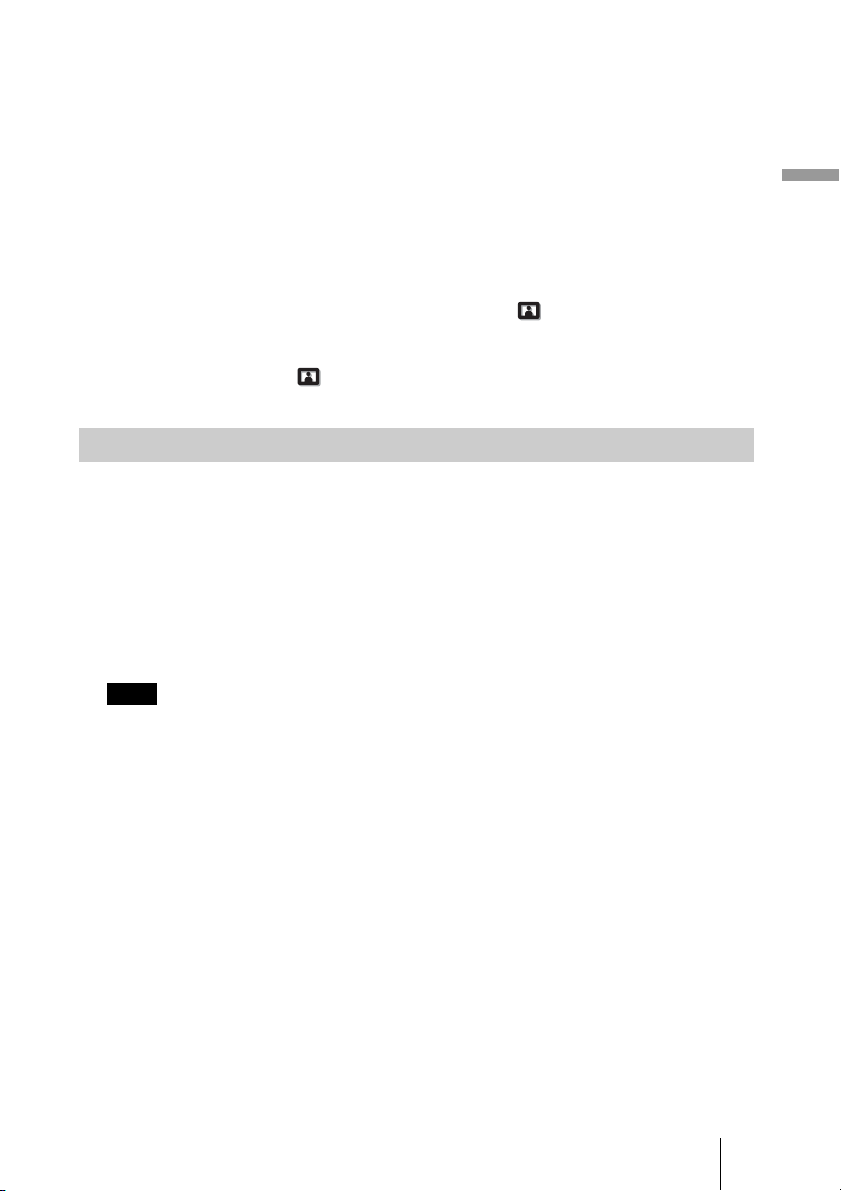
2 Press INPUT to display the input
palette on the screen.
3 Select the equipment from
which you want to display
images.
Press INPUT repeatedly or press M/m/
(enter) to select the equipment
from which to project.
Example: To view the picture
from the video
equipment connected
to the VIDEO INPUT
connector.
To view the picture from Press INPUT to display
Video equipment connected to the VIDEO INPUT connector Video
Video equipment connected to the S VIDEO INPUT connector S-Video
RGB/component equipment connected to the INPUT A connector Input-A*
Component equipment connected to the Y P
B/CB PR/CR connector Component
Equipment connected to the HDMI 1 connector HDMI 1
Equipment connected to the HDMI 2 connector HDMI 2
29
Projecting
Notes on input of HDMI signal
The projector adjusts the RGB dynamic range of the equipment connected with HDMI
cable to the following to suit the HDMI standard and display in best picture quality.
When video signal is input: Limited (16-235)
When computer signal is input: Full (0-255)
When a signal other than those of HDMI standard is input, the following symptoms may
occur.
• When a video signal is input, the color gradation of the dark area or bright area may
become unclear, or texts may become faded. In this case, switch the RGB dynamic range
of the connected equipment to Limited (16-235). If this adjustment is unavailable, adjust
“Brightness”, “Contrast”, or “Sharpness” in the Picture menu of the projector. (1
pages 45, 46)
* When a computer signal is input, the texts may become faded. In this case, adjust the
“Sharpness” in the Picture menu. (1 page 46)
(* 1,920 × 1,080 or 1,280 × 720 signals)
1 Press the ?/1 (ON/STANDBY) switch.
A message “POWER OFF?” appears on the screen.
2 Press the ?/1 (ON/STANDBY) switch again before the message
disappears.
The lens protector will close. Be careful not to catch your fingers or any objects.
The ON/STANDBY indicator flashes in green and the fan continues to run to reduce the
internal heat. First, the ON/STANDBY indicator flashes quickly, during which you will
not be able to light up the ON/STANDBY indicator with the
?/1 (ON/STANDBY) switch.
Never disconnect the power cord while the indicator is flashing.
The fan stops and the ON/STANDBY indicator changes from flashing green to remaining
red.
The power is turned off completely, and you can disconnect the power cord.
You can turn off the projector by holding the
?/1 (ON/STANDBY) switch for about 1
second, instead of performing the above steps.
Turning Off the Power
Note
30
Operating the BRAVIA Sync Compatible Equipment
with the Remote Control of the Projector
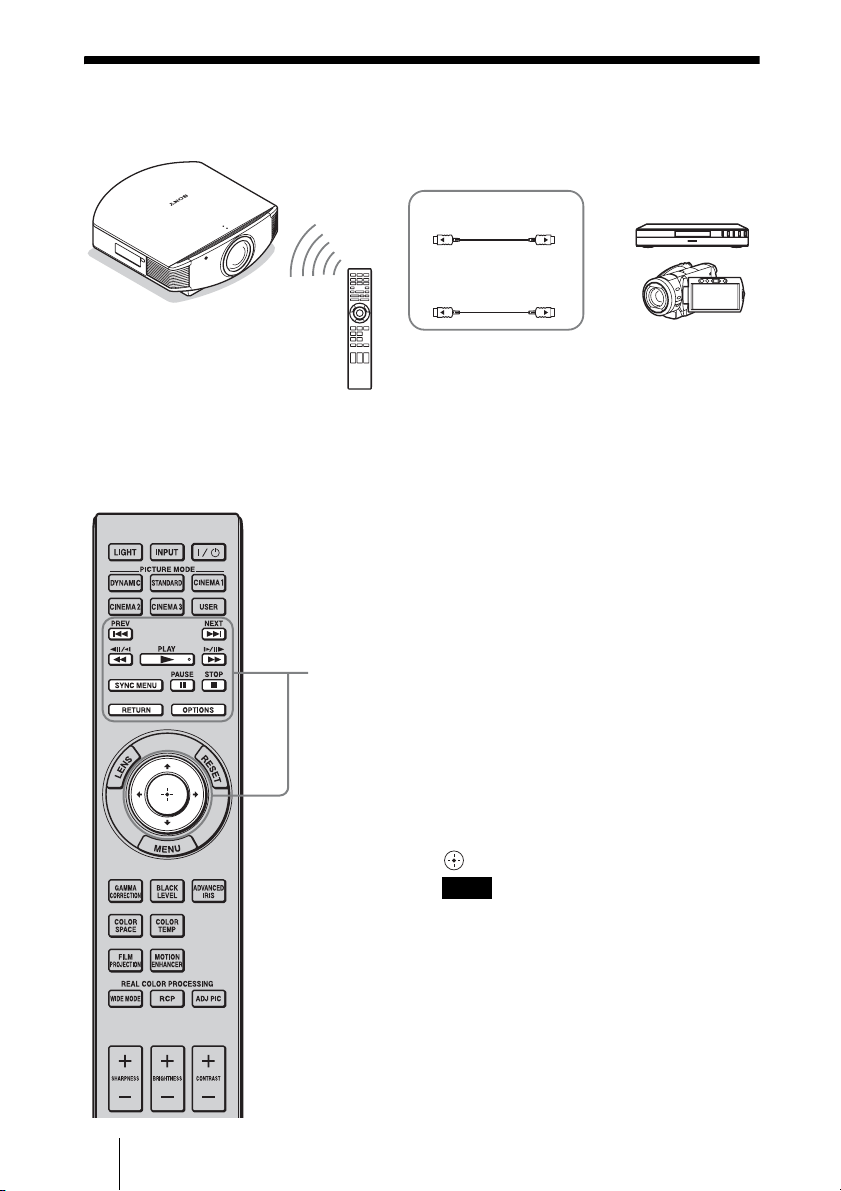
By using the remote control of the projector, you can directly operate the BRAVIA Sync
compatible equipment connected to the HDMI 1 and HDMI 2 INPUT connectors of the
projector. Only the connected equipment that is currently being viewed can be operated.
To operate the BRAVIA Sync compatible equipment, the Control for HDMI setting of the
projector and the connected equipment must both be set. (1 page 54)
Making operations such as
playback or stop
Press ., m, N, >, M, X, x
while viewing pictures.
You can make basic operations such as
playback or stop for the connected
equipment currently being viewed.
Displaying and operating the
menu of the connected
equipment currently being
viewed
Press SYNC MENU while viewing pictures.
Operating menu of the connected equipment
currently being viewed is displayed. Select
the menu item to operate with
M
/m/</,/
or RETURN.
You cannot operate the BRAVIA Sync
compatible equipment with the remote control
of the projector while the menu of the projector
is being displayed.
BRAVIA Sync
compatible equipment
HDMI 1
HDMI 2
Buttons
available to
operate the
BRAVIA
Sync
compatible
equipment
Note
31
Projecting
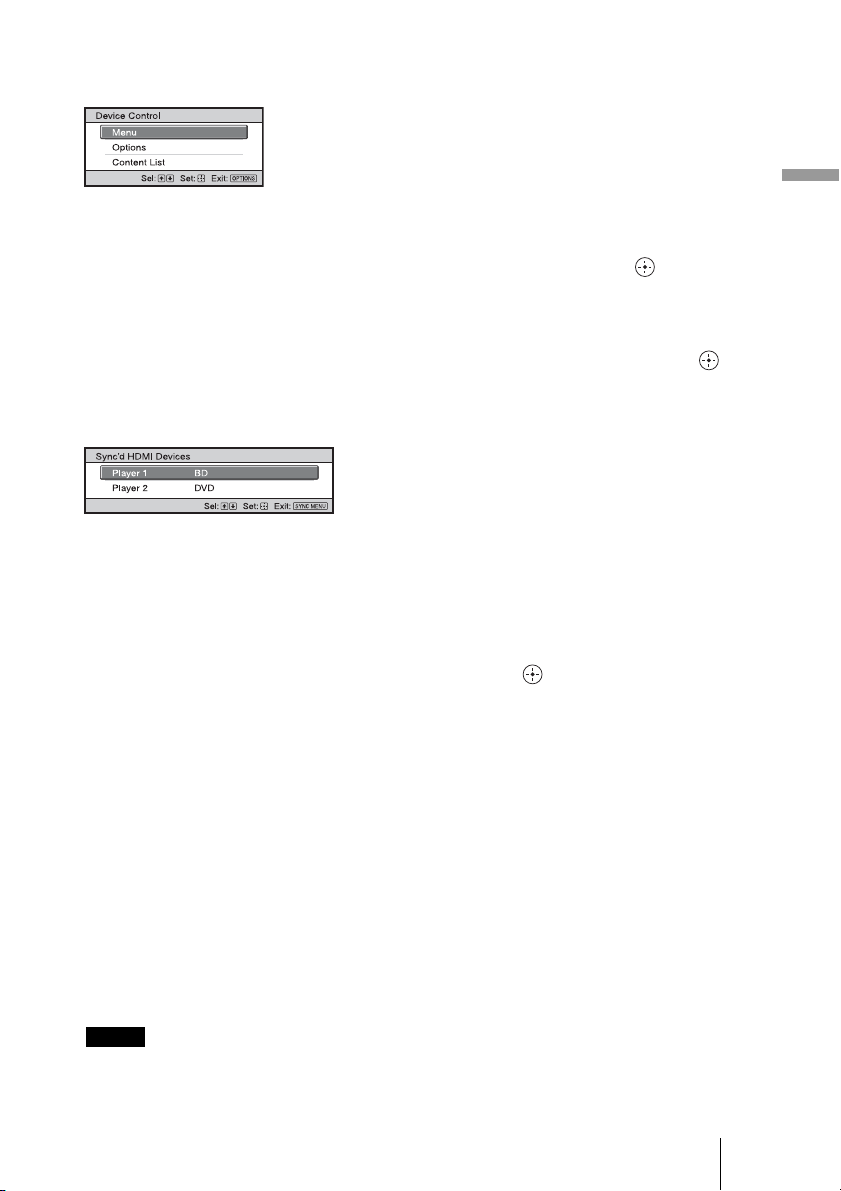
Using the OPTIONS button to
operate
1 Press OPTIONS while viewing
pictures from the connected
BRAVIA Sync compatible
equipment.
Device Control screen is displayed.
2 Select the desired menu item to
operate with M/m/ .
The screen of the selected menu item is
displayed.
Operate through the menu or select a
menu item with M/m/</,/ .
Switching the input setting to
the BRAVIA Sync compatible
equipment
1 Press SYNC MENU while
viewing pictures from
connected equipment that is not
BRAVIA Sync compatible.
Sync’d HDMI Devices screen is
displayed.
*1
2 Select the name of the
equipment to use with M/m and
press .
The power of the selected equipment
will turn on, and the input setting of the
projector will switch to the terminal of
the selected equipment.
*2
*1
Only the Control for HDMI compatible
equipment connected to HDMI 1 and
HDMI 2 INPUT connectors are
displayed. Connected equipment will
not be displayed when connected to
component input connectors, etc. of the
projector. Also, connected equipment
will not be displayed if it is not
compatible with HDMI Control. AV
amplifier is also not displayed.
*2
Some equipment may take few minutes
for the power to turn on.
• Only connected equipment compatible with BRAVIA Sync can be operated with the remote
control of the projector.
• Functions available to operate differ depending on the equipment.
• For the functions available to operate, refer to the operating instruction of each equipment.
Notes
32
Selecting the Wide Screen Mode
You can enjoy various wide screen modes according to the video signal received.
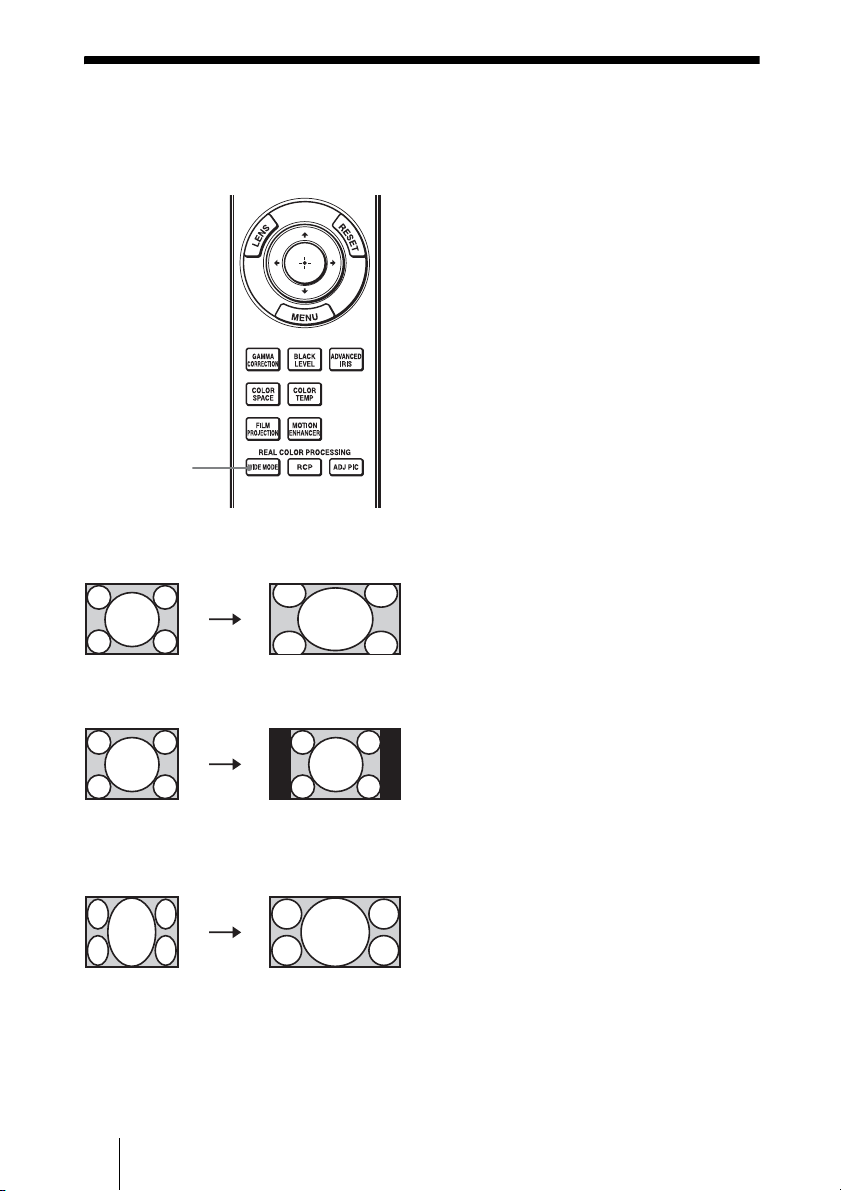
Press WIDE MODE.
Each time you press the button, you can
select the “Wide Mode” setting.
You can also select it using the menu.
(1 page 50)
Wide Zoom (When a video
signal is input)
A 4:3 aspect ratio picture is enlarged
naturally to fill the screen. The upper and
lower portions of the screen are slightly
cut off.
Normal (When a video signal is
input)
A 4:3 aspect ratio picture is displayed in
the center of the screen and enlarged to fill
the screen vertically.
Full (When a video signal is
input)
A picture squeezed to 4:3 aspect ratio is
displayed in its original aspect ratio.
When a 4:3 aspect ratio picture is
displayed, the picture is enlarged
horizontally to fill the 16:9 screen.
Tip
Squeezed: An original 16:9 aspect ratio picture
is recorded horizontally compressed to a 4:3
picture.
WIDE MODE
button
Original
image
When the Wide
Mode is operated
Squeezed
33
Projecting
• You can adjust the vertical position of the picture with “V Center” and “Vertical Size” in the
Screen menu only when “Zoom” is selected. (1 page 51)
• Depending on the type of Anamorphic lens, part of the screen may be cut off when you zoom in
on the picture. Check the specifications of the Anamorphic lens you use.
• When the aspect ratio of the computer signal is 16:9 or wider, the “Wide Mode” setting is fixed at
“Full 1.”
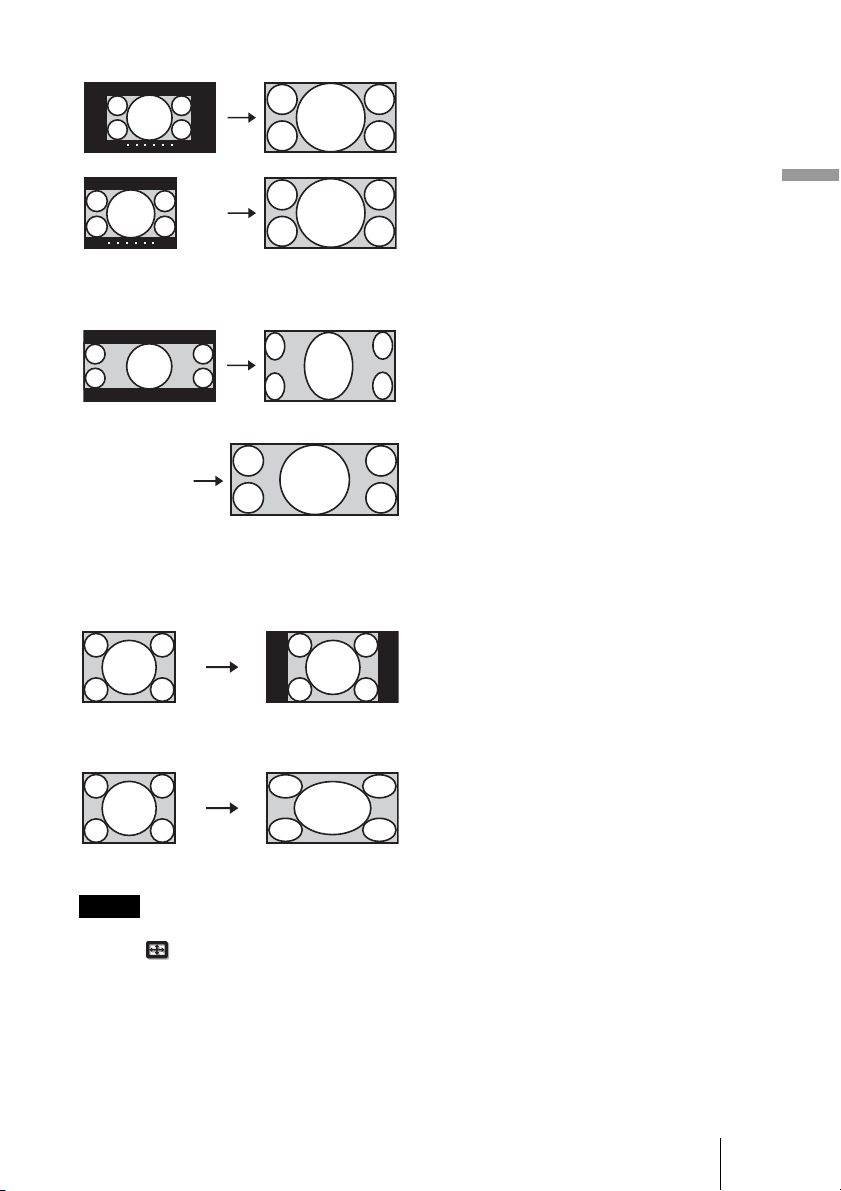
Zoom
A 16:9 aspect ratio picture is enlarged
vertically and horizontally in the same
ratio to fill the screen. Use this mode to
view a letterbox picture or a letterbox
picture with side panels.
If the subtitle of a movie, etc. is hidden
and cannot be seen, adjust the screen with
“Vertical Size” and “V Center” to display
the subtitle. (1 page 51)
Anamorphic Zoom (When a
video signal is input)
A 2.35:1 aspect ratio picture is converted
to a normal 16:9 picture on the screen.
This mode is best suited when using a
commercially available Anamorphic lens
which converts a normal 16:9 aspect ratio
picture to a 2.35:1 picture.
Also, 12V signal is output from the
TRIGGER 2 connector and can be used as
sync signal that synchronizes the projector
with the Anamorphic lens.
Full 1 (When a computer
signal is input)
Displays a picture on the whole of the
screen without changing the aspect ratio
of the original picture.
Full 2 (When a computer
signal is input)
Displays a picture on the whole of the
screen.
Notes
Letterbox picture with side panels
Letterbox picture
When using an
Anamorphic lens

34
Notes on selecting the wide screen mode
The projector is featured with the WIDE MODE. When changing the settings of WIDE
MODE, use caution as described below.
• Select the wide screen mode taking into account that changing the aspect ratio of the
original picture will provide a different look from that of the original image.
• Note that if the projector is used for profit or for public viewing, modifying the original
picture by switching to the Wide Mode may constitute an infringement of the rights of
authors or producers, which are legally protected.
35
Projecting
Selecting the Picture Viewing Mode
You can select the picture viewing mode that best suits the type of program or room
conditions.
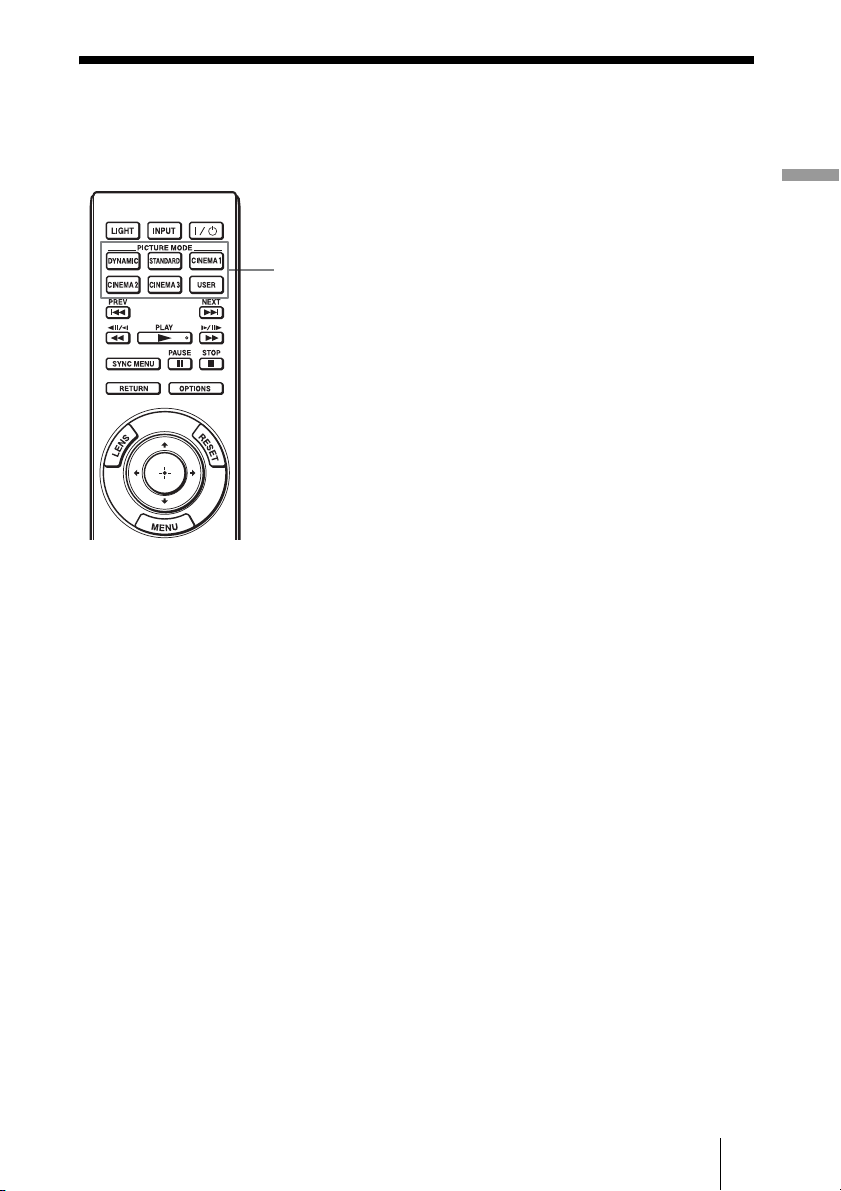
Press one of the
PICTURE MODE buttons
(DYNAMIC, STANDARD,
CINEMA 1, CINEMA 2,
CINEMA 3 and USER).
DYNAMIC
Project bright images with sharp, vivid
picture quality.
STANDARD
Ideal for projecting TV programs,
concerts, and other video images.
CINEMA 1
Picture quality suited for watching
movies.
CINEMA 2
Picture quality suited for digital cinema
content.
CINEMA 3
Simulates production/editing studio
picture quality.
USER
You can adjust the quality of the picture to
suit your taste and store the settings into
the selected memory of the projector. (1
pages 36, 44) The settings are stored, and
you can view the picture with the adjusted
picture quality by pressing the button.
PICTURE MODE
buttons
DYNAMIC
STANDARD
CINEMA 1
CINEMA 2
CINEMA 3
USER

36
Adjusting the Picture Quality
You can easily adjust the picture quality that suits your taste by selecting the adjustment
items with the remote control. The adjusted data can be stored in each picture mode.
Selecting to Directly Adjust the Desired Menu Item
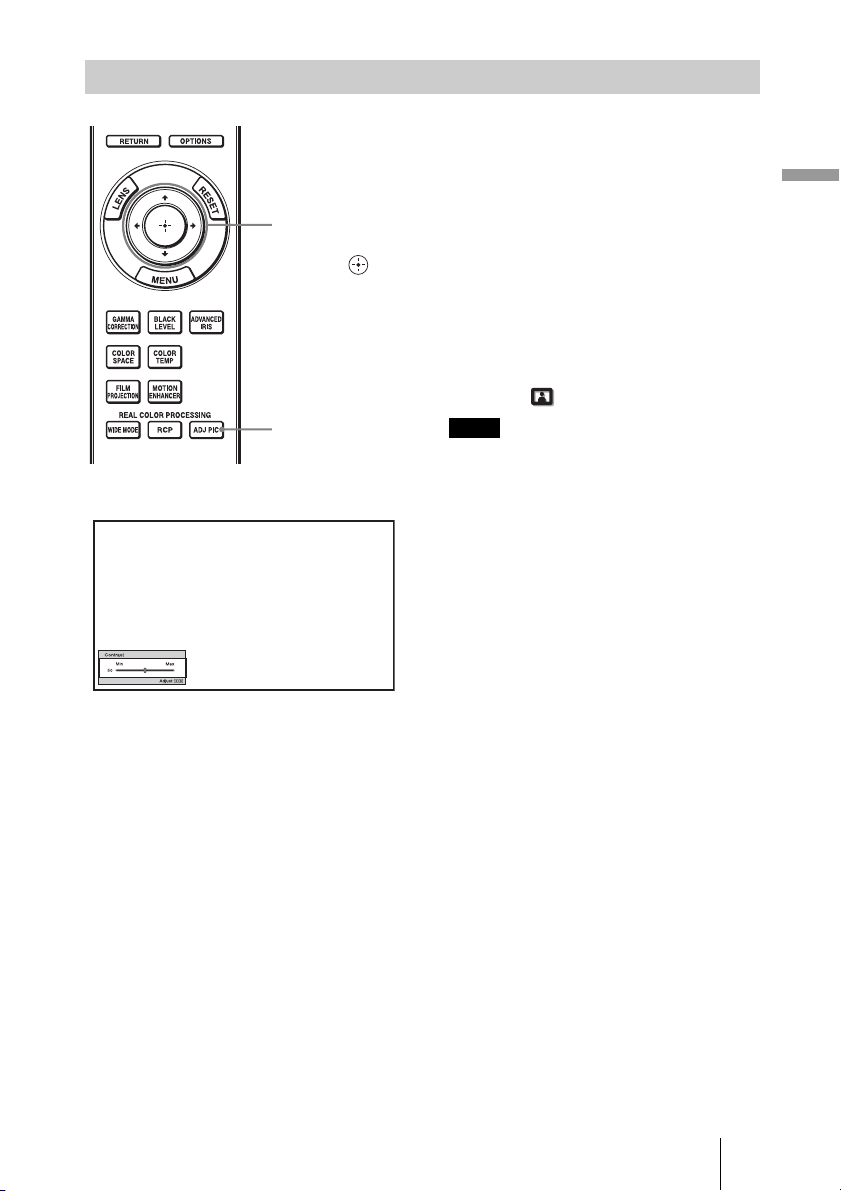
The following menu items can be
adjusted by using the buttons on
the remote control.
“Gamma Correction”
“Black Level Adj.”
“Advanced Iris”
“Color Temp.”
“Color Space”
“Motion Enhancer”
“Film Projection”
Press the following buttons of the desired menu
item repeatedly to adjust the picture quality to
suit your taste. For details on each menu item,
see the Picture
menu. (1 page 44)
BLACK LEVEL
button
GAMMA
CORRECTION
button
COLOR SPACE
button
ADVANCED IRIS
button
COLOR TEMP
button
FILM
PROJECTION
button
MOTION
ENHANCER button
37
Projecting
Selecting Desired Adjust Menu Items in the Order
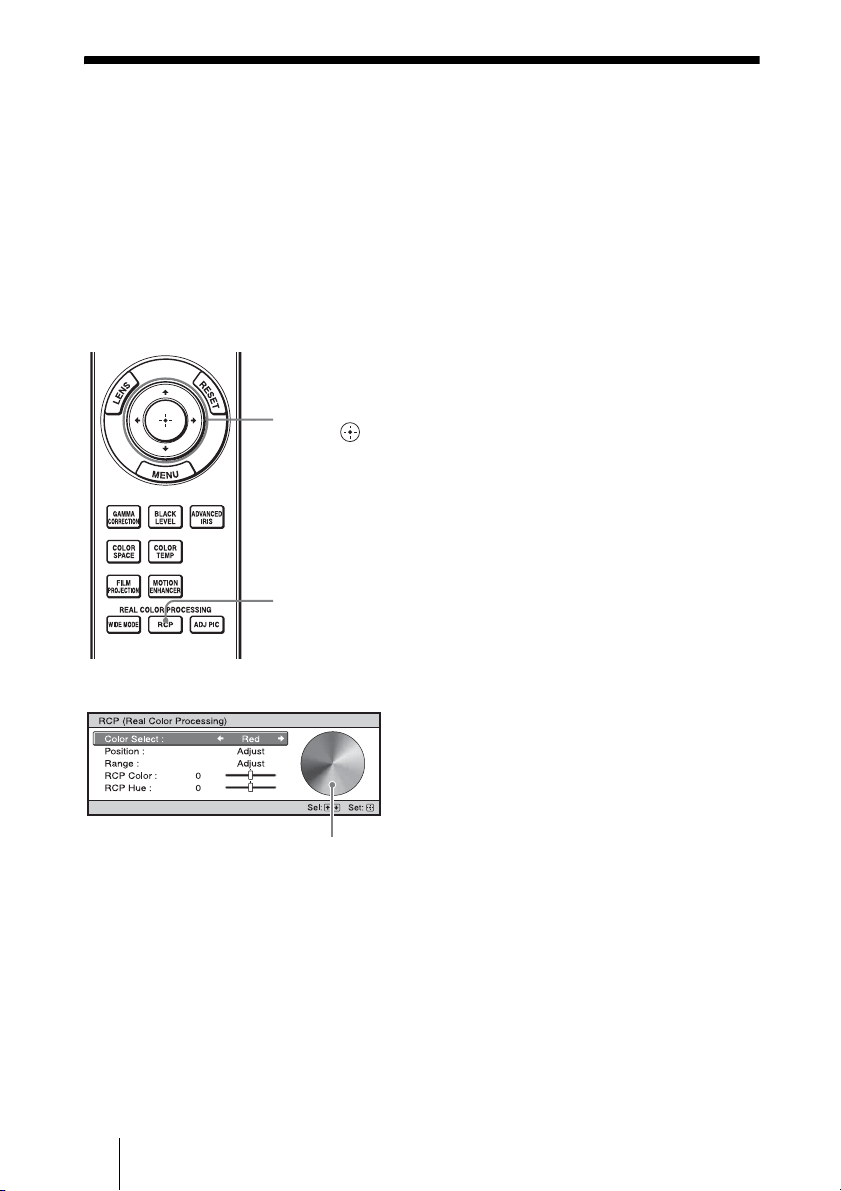
1 Press ADJ PIC.
Each time you press the button, the
following adjustment windows are
displayed in sequence.
“Advanced Iris”, “Lamp Control”,
“Film Projection”, “Motion
Enhancer”, “Contrast”, “Brightness”,
“Color”, “Hue”, “Color Temp.”,
“Sharpness”, “NR”, “MPEG NR”,
“Film Mode”, “Gamma Correction”,
“x.v.Color”, “Color Space”
For details on each adjustment, see the
Picture menu. (1 page 44)
Some adjustment windows cannot be
displayed, depending on the type of input
signal. For details, see “Input Signals and
Adjustable/Setting Items” (1 page 78)
2 Make the setting or adjustment
on an item with M/m/</,.
When changing the adjustment
level
To increase the value, press M/,.
To decrease the value, press m/<.
When changing the setting
Press M/m to change the setting.
1
2
M/m/</,
(arrow) /
(enter) buttons
ADJ PIC
button
Note
Example: To adjust the contrast
38
Adjusting the Picture Using Real Color
Processing
The Real Color Processing (RCP) feature allows you to adjust the color and hue of each
target of the projected picture you specify independently. You can thus obtain a picture
more suitable to your taste.
Tip
Freeze the scene of the video source when you are adjusting the picture using Real Color Processing.
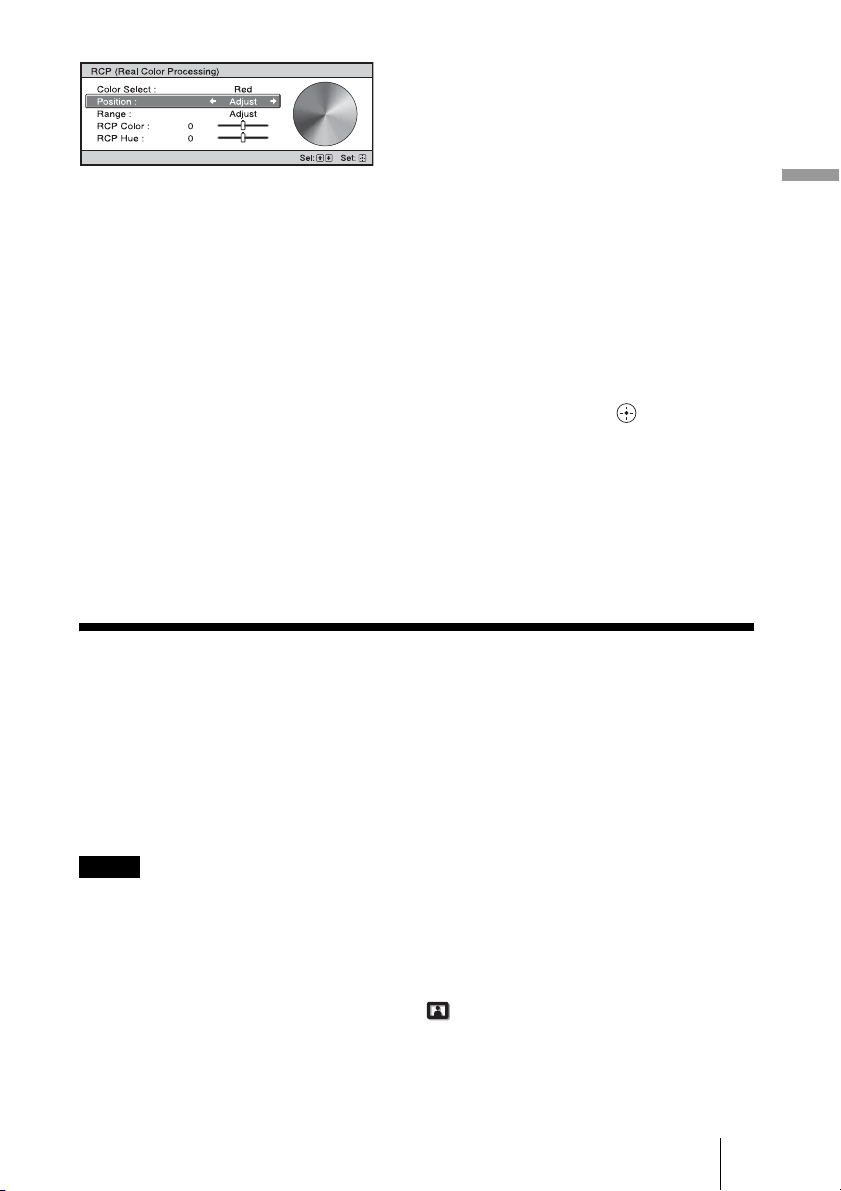
1 Press RCP on the remote
control.
2 Press M/m to select “User 1,”
“User 2” or “User 3,” then press
,.
The RCP (Real Color Processing)
window appears.
3 Select the target color you want
to adjust.
Repeat steps 1 and 2 described
below to specify the target color.
1 Press
M/m to select
“Color Select,” then press
</,
to select the color you want to
adjust among “Red,” “Yellow,”
“Green,” “Cyan,” “Blue” and
“Magenta.”
Only the portions that correspond
to the specified color will be
colored and the other portions will
be displayed in black and white.
The reference palette in the RCP
window also shows the adjustable
colors. Select the desired setting to
adjust the color on the projected
image using the reference palette
as a guide.
2, 3, 4, 5
M/m/</,
(arrow) /
(enter) buttons
1
RCP (Real
Color
Processing)
button
Reference palette
39
Projecting
Using the Supplied Software to Adjust the
Picture Quality (ImageDirector3)
By using the “ImageDirector3” (supplied as a CD-ROM), you can make the desired
gamma correction from a computer connected to the projector. Connect the REMOTE
connector of the projector with a computer and start-up “ImageDirector3” on the
computer.
For details on how to use the “ImageDirector3”, refer to the Help within the CD-ROM.
• You need to install the “ImageDirector3” on a computer beforehand.
• When connecting the REMOTE connector with a computer, connect while the power of the
computer and the projector is off.
• You can only perform adjustment with “ImageDirector3” when “Gamma Correction” in the
Picture menu is set to Gamma 1 to 6. Adjustment is not possible when it is set to Gamma 7 to 10
and Off.
• Before using “Image Director3,” use the Picture menu to set “Gamma Correction” to Off or
Gamma 1 to 6.
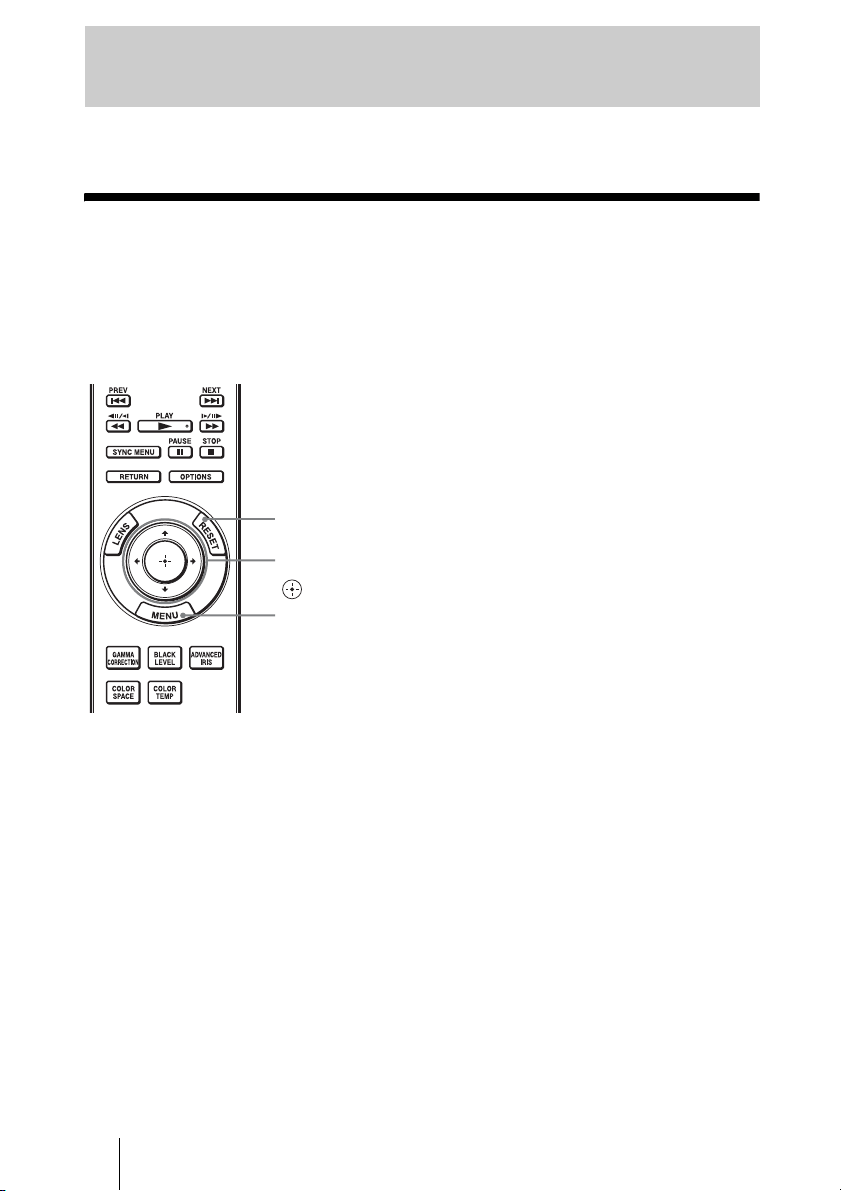
2 Press M/m to select “Position” or
“Range,” and specify it more
delicate color position and color
range you want to adjust using
</,.
4 Adjust the color of the specified
portions.
Press
M/m to select “RCP Color” or
“RCP Hue,” then adjust the color or
hue of the portions selected in step 3 to
suit your taste using
</, while
watching the projected picture. The
picture is returned to normal color
during adjustment.
5 After the adjustment is
complete, press .
The RCP window disappears and the
picture of step 2 is appeared. Then
after a few seconds, normal picture is
restored.
Tip
There are some limitations on selection of
position and range.
Notes
40
This section describes how to make various adjustments and settings using the menus.
Operation through the Menus
The projector is equipped with an on-screen menu for making various adjustments and
settings. Some of the adjustable/setting items are displayed in a pop-up menu, in a setting
menu or adjustment menu with no main menu, or in the next menu window. If you select
an item name followed by an arrow (
B), the next menu window with setting items appears.
Using the Menus
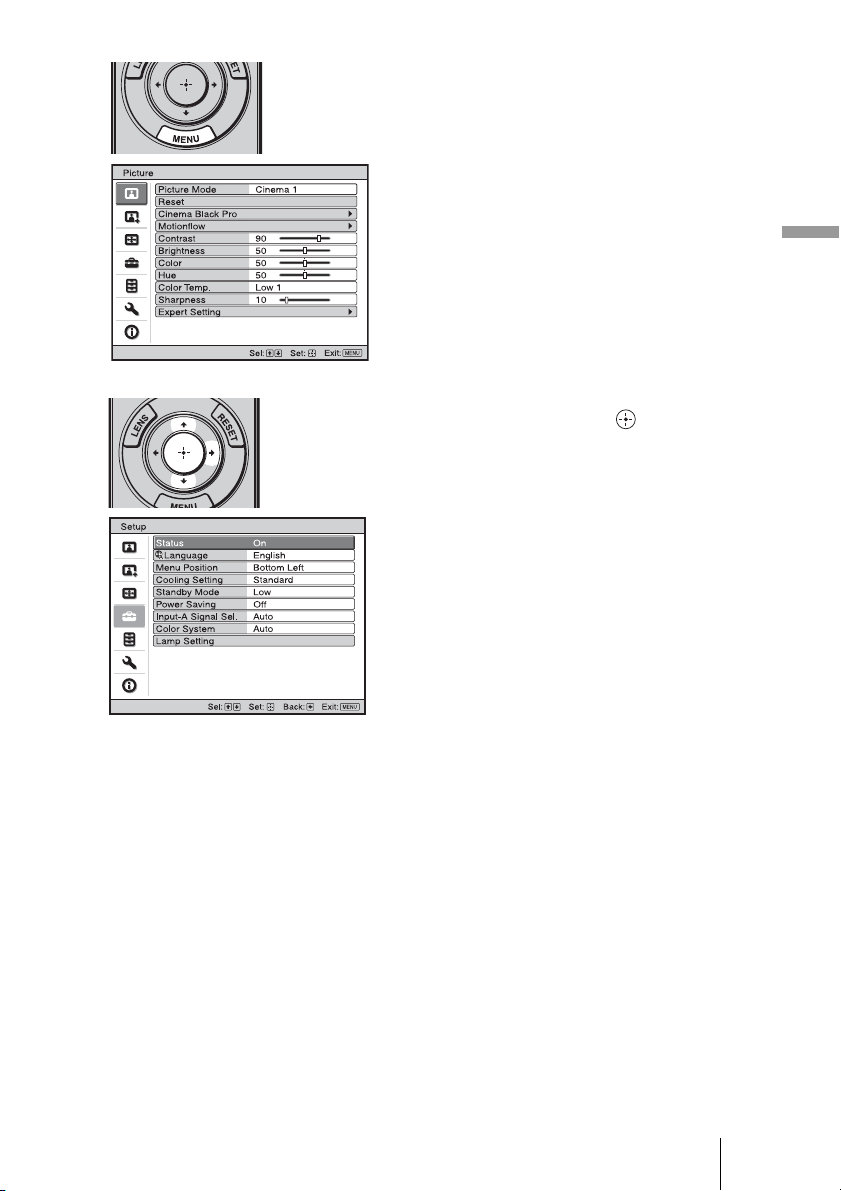
2, 3, 4
M/m/</, (arrow) /
(enter) buttons
1
MENU button
RESET button
41
Using the Menus
1 Press MENU.
The menu window appears.
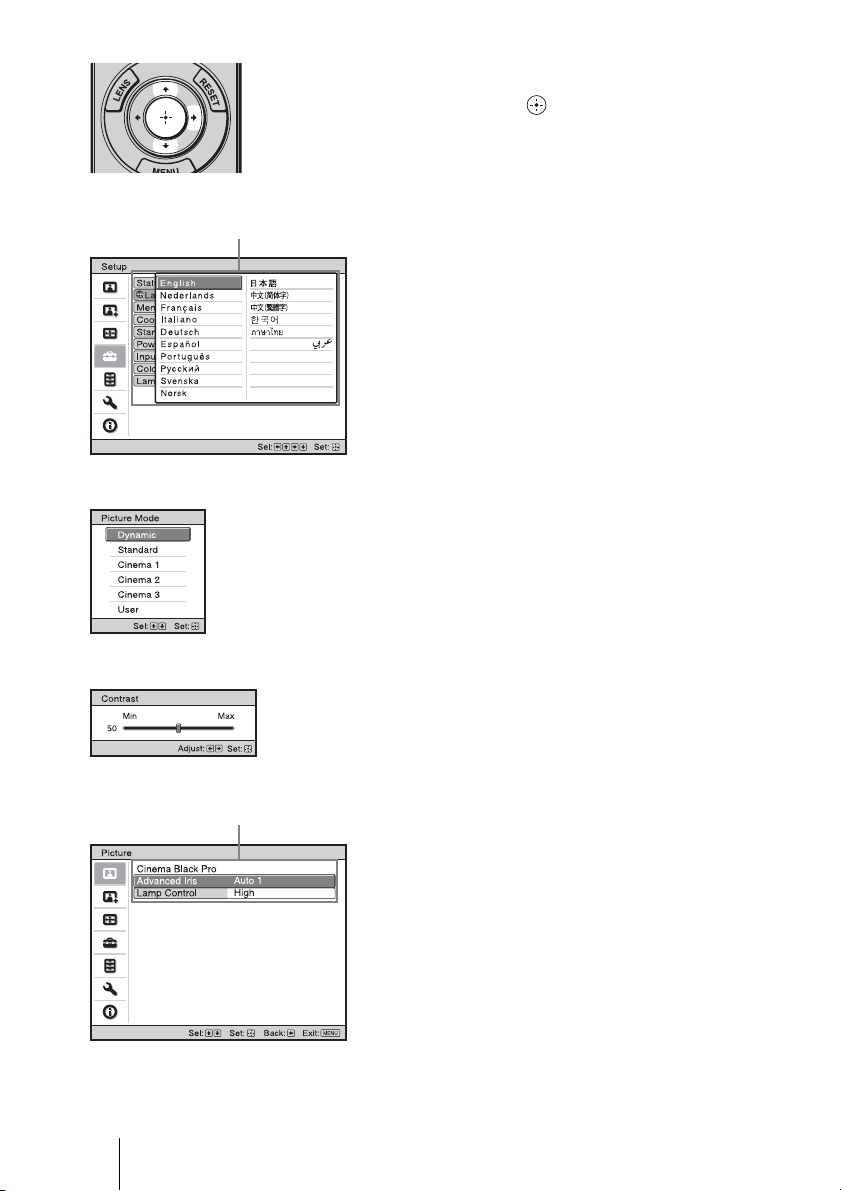
2 Press M/m to select a menu item,
and press , or .
The items that can be set or adjusted
with the selected menu appear. The
item presently selected is shown in
yellow.
42
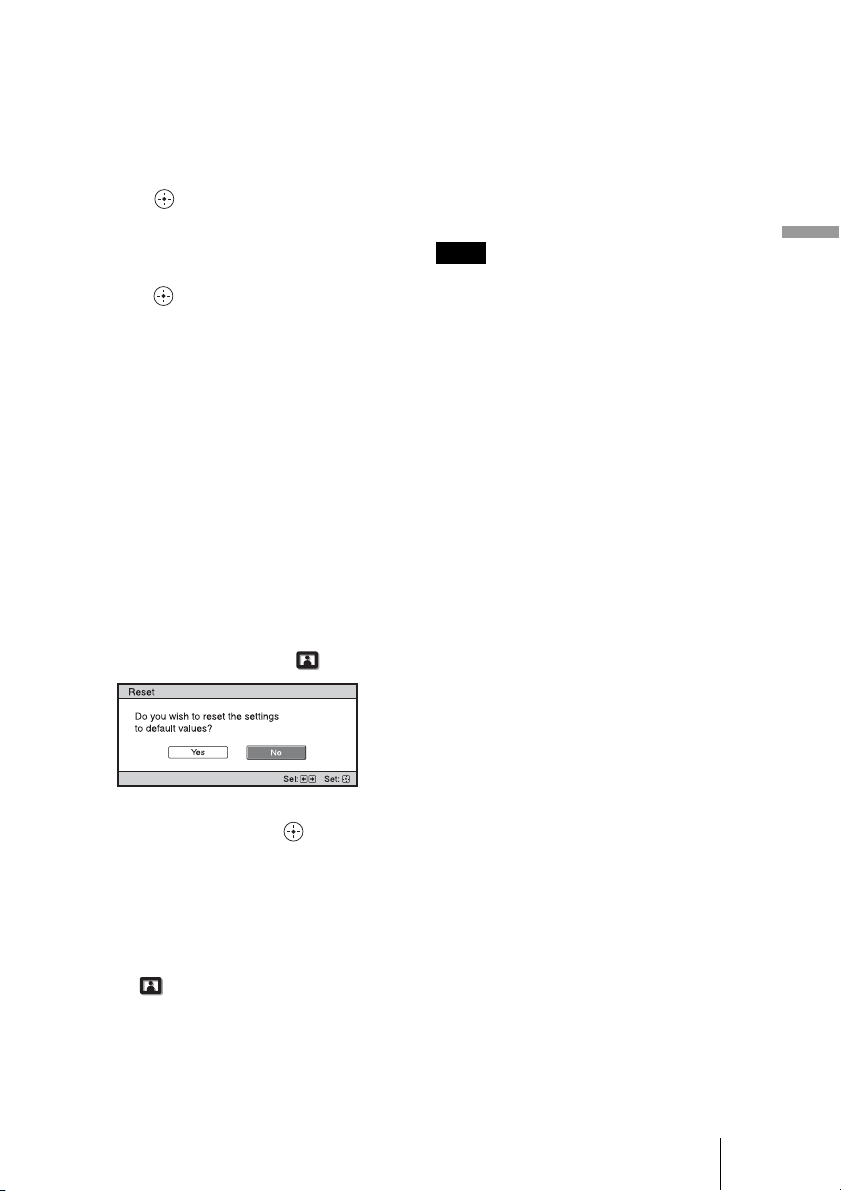
3 Press M/m to select an item you
want to set or adjust and press
, or .
The setting items are displayed in a
pop-up menu, in a setting menu, in an
adjustment menu or in the next menu
window.
Pop-up menu
Setting items
Next menu window
Setting items
Setting menu
Adjustment menu
43
Using the Menus
4 Make the setting or adjustment
of an item.
When changing the adjustment
level
To increase the value, press M/,.
To decrease the value, press m/<.
Press to restore the original menu
screen.
When changing the setting
Press M/m to change the setting.
Press to restore the original screen.
You can restore the original screen
using < depending on the selected
item.
Items that cannot be adjusted
Adjustable items differ depending on the
input signal. The items that cannot be
adjusted or set do not appear in the menu.
(1 page 78)
To clear the menu
Press MENU.
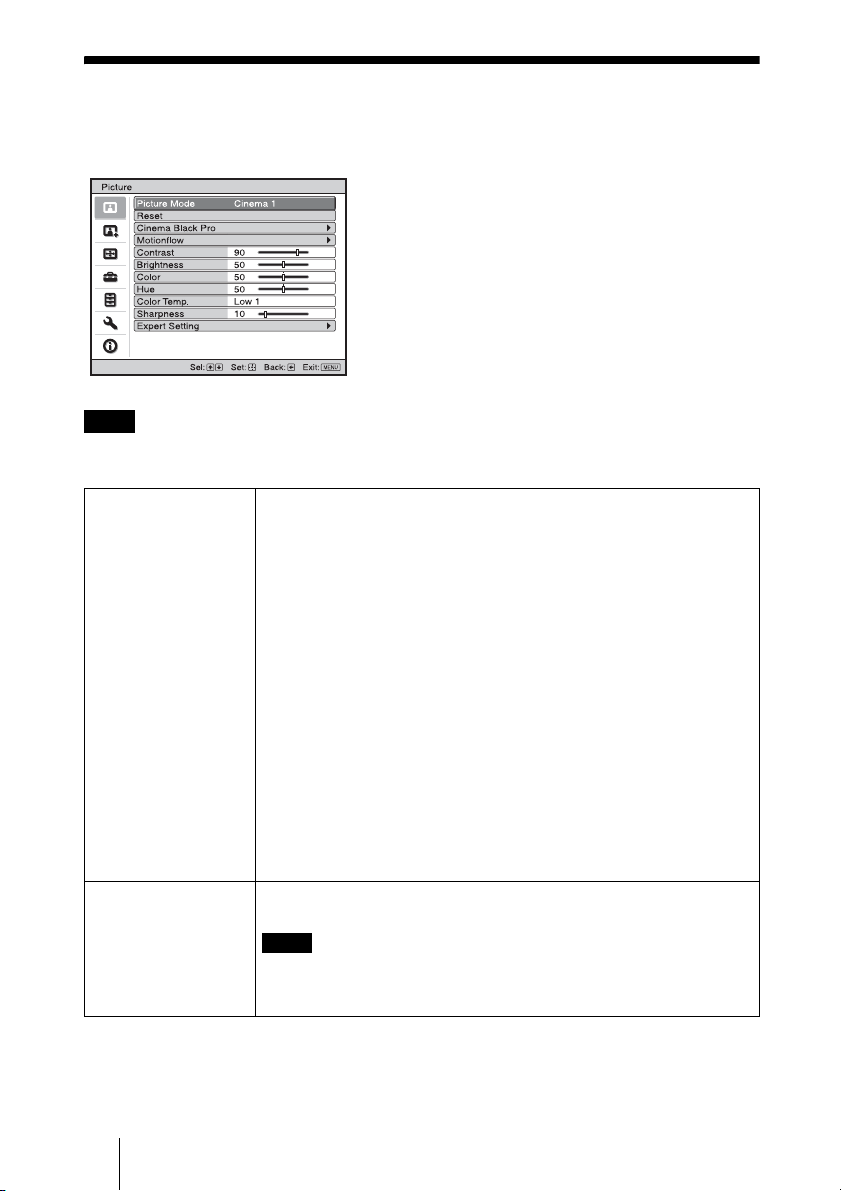
To reset the picture that has
been adjusted
Select “Reset” from Picture menu.
When the screen display appears, select
“Yes” using < and press .
All of the following settings are reset to its
factory preset value.
The settings of “Cinema Black Pro”,
“Motionflow”, “Contrast”, “Brightness”,
“Color”, “Hue”, “Color Temp”,
“Sharpness” and “Expert Setting” on the
Picture
menu
To reset the items that have
been adjusted
Select an item in the Menu screen, and
display the pop-up menu, the setting
menu, and the adjustment menu.
Press the RESET on the remote control to
reset only the selected settings to its
factory preset value.
RESET button on the remote control is
available only when the adjustment menu or
the setting menu is selected.
Note
44
Picture Menu
The Picture menu is used for adjusting the picture.
These items may not be available, depending on the type of input signal. For details, see “Input
Signals and Adjustable/Setting Items” (1 page 78).
Note
Picture Mode You can select the picture viewing mode that best suits the type of
picture or the environment.
Dynamic: Project bright images with sharp, vivid picture quality.
Standard: Ideal for projecting TV programs, concerts, and other video
images.
Cinema 1: Picture quality suited for watching movies.
Cinema 2: Picture quality suited for digital cinema content.
Cinema 3: Simulates production/editing studio picture quality.
User: You can adjust the quality of the picture to suit your taste and then
store the settings. Once the settings are stored, you can view the
picture with the adjusted picture quality by pressing the USER button
on the remote control.
To store the settings
1 Select User.
2 Adjust the items you want in the menus.
Tip
When picture quality adjustments are made in modes other than “User”,
those settings are stored. To reset everything to the factory settings,
select “Reset” from the menu.
Reset Resets all currently selected picture mode settings to their default values.
(1 page 43)
Reset does not affect settings saved for the Custom 1 to 5 items of
“Color Temp.”, or the “Black Level Adj.” or “White Level Adj.” items of
“Gamma Correction.”
Note
45
Using the Menus
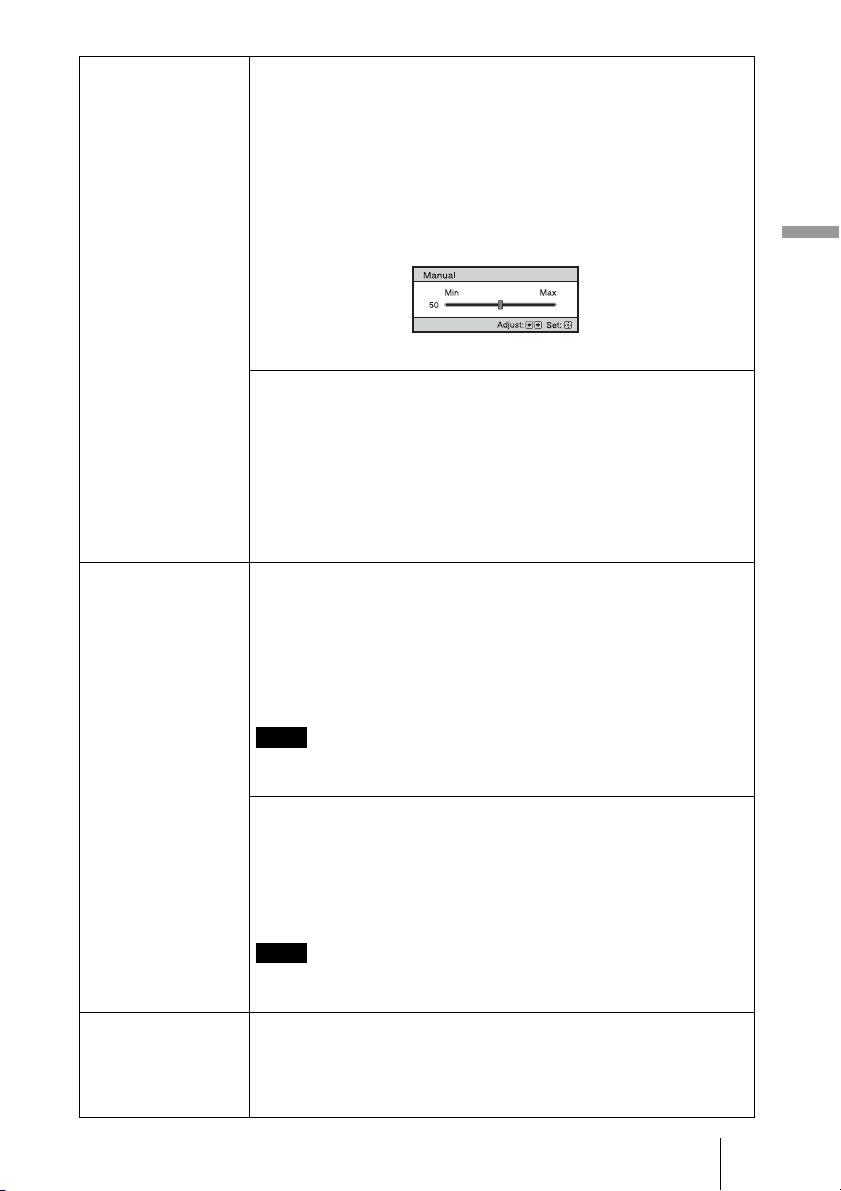
Cinema Black Pro Advanced Iris
Switches the iris function during projection.
Auto 1: Automatically switches to an optimum iris according to a
projected scene. The contrast of the scene is emphasized most.
Auto 2: An optimum iris becomes smaller than when set to “Auto 1”.
The contrast of the scene becomes reduced.
Sensitivity: If “Auto 1” or “Auto 2” is selected, either “Recommend”,
“Fast”, or “Slow” can be selected according to the desired response
speed with Sensitivity Mode.
Manual: Manually (fixed) adjusts the Iris.
Off: Disables the iris (aperture) function.
Lamp Control
Switches the lamp wattage during projection.
High: Increases the lamp brightness, and projects brighter images.
Low: Decreases the lamp brightness, and enhances blacks by
minimizing brightness.
Tip
When you switch from “Low” to “High”, the number of turns of the fan
increases, and the fan noise becomes slightly louder. When you switch to
“Low”, energy consumption is reduced, thereby increasing the lamp life.
Motionflow Film Projection
Reproduces movies in its original moving picture.
Mode 1: Suited for watching movies.
Mode 2: Suited for watching movies and the picture is brighter than in
“Mode 1”.
Mode 3: Suited for watching movies and the picture is brighter than in
“Mode 2”.
Off: Normal picture.
When you select “Mode 1”, “Mode 2” or “Mode 3”, the picture will
become slightly darker than in “Off”.
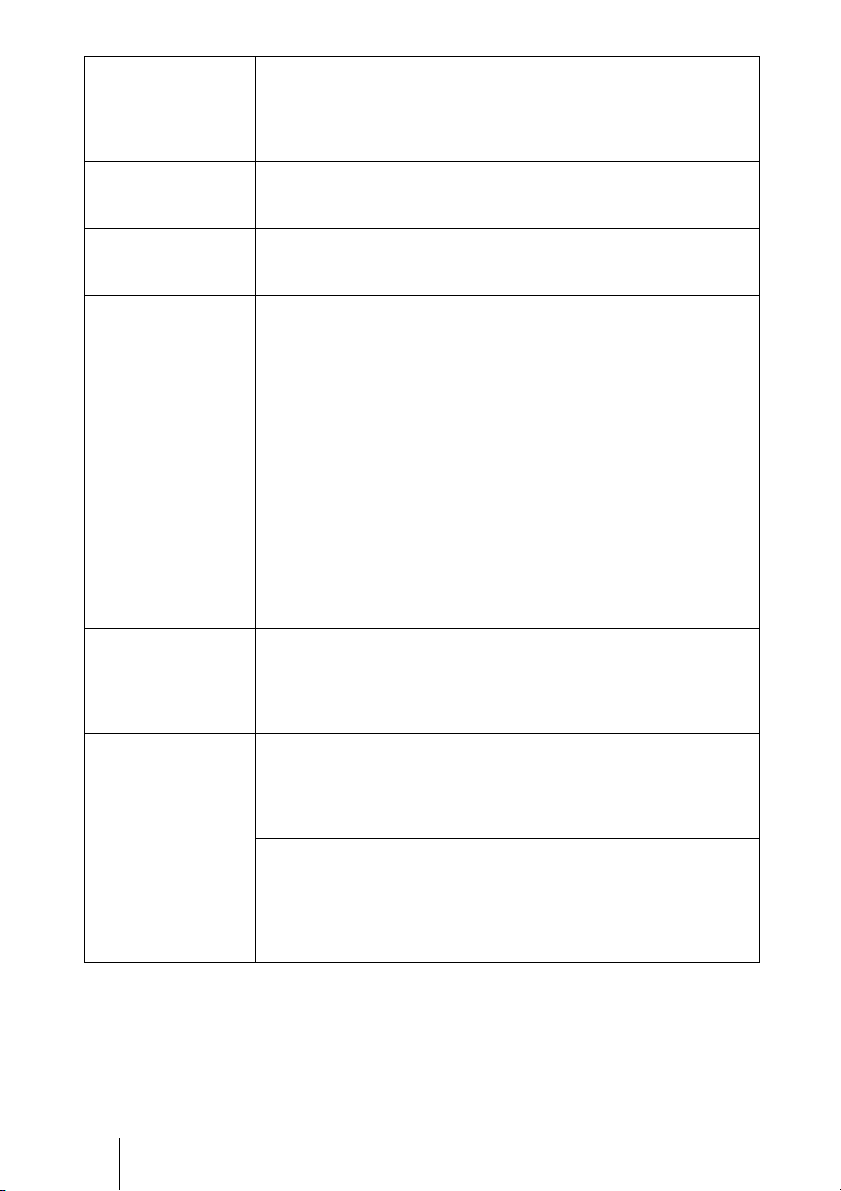
Motion Enhancer
Reproduces fast-moving pictures smoothly without generating
afterimages.
High: Select this for picture quality smoother than “Low”.
Low: Select this for smooth picture quality.
Off: Select “Off” when noise, etc. appears in “High” or “Low”. Usually,
use to set “Motion Enhancer” to “Off”.
Depending on the scene, a noise in particular in digital signals may
appear on the picture.
Contrast Adjusts the contrast.
Higher values increase the sharpness in images, while lower values
decrease the sharpness.
You can make adjustments by pressing the CONTRAST+/– on the
remote control.
Note
Note
46
Brightness Adjusts the brightness of the picture.
The higher the setting, the brighter the picture. The lower the setting, the
darker the picture.
You can make adjustments by pressing the BRIGHTNESS+/– on the
remote control.
Color Adjusts the color density.
The higher the setting, the greater the intensity. The lower the setting, the
lower the intensity.
Hue Adjusts the color tone.
The higher the setting, the more greenish the picture becomes. The lower
the setting, the more reddish the picture becomes.
Color Temp. Adjusts the color temperature.
High: Equivalent to 9,300 K color temperature.
Gives white colors a blue tint.
Middle: Equivalent to 8,000 K color temperature.
Gives a neutral tint between “High” and “Low”.
Low 1: Equivalent to 6,500 K color temperature.
Gives white colors a red tint.
Low 2: Equivalent to 6,000 K color temperature.
Gives white colors an even redder tint.
Custom 1 to 5: Enables you to adjust, set, and store your favorite color
temperature.
The factory default settings are as follows.
Custom 1: Same as “High” color temperature setting.
Custom 2: Same as “Middle” color temperature setting.
Custom 3: Same as “Low 1” color temperature setting.
Custom 4: Same as “Low 2” color temperature setting.
Custom 5: Setting that prioritizes brightness.
Sharpness Sharpens the outline of the picture, or reduces the noise.
The higher the setting, the sharper the picture. The lower the setting, the
softer the picture, thus reducing the noise.
You can make adjustments by pressing the SHARPNESS+/– on the
remote control.
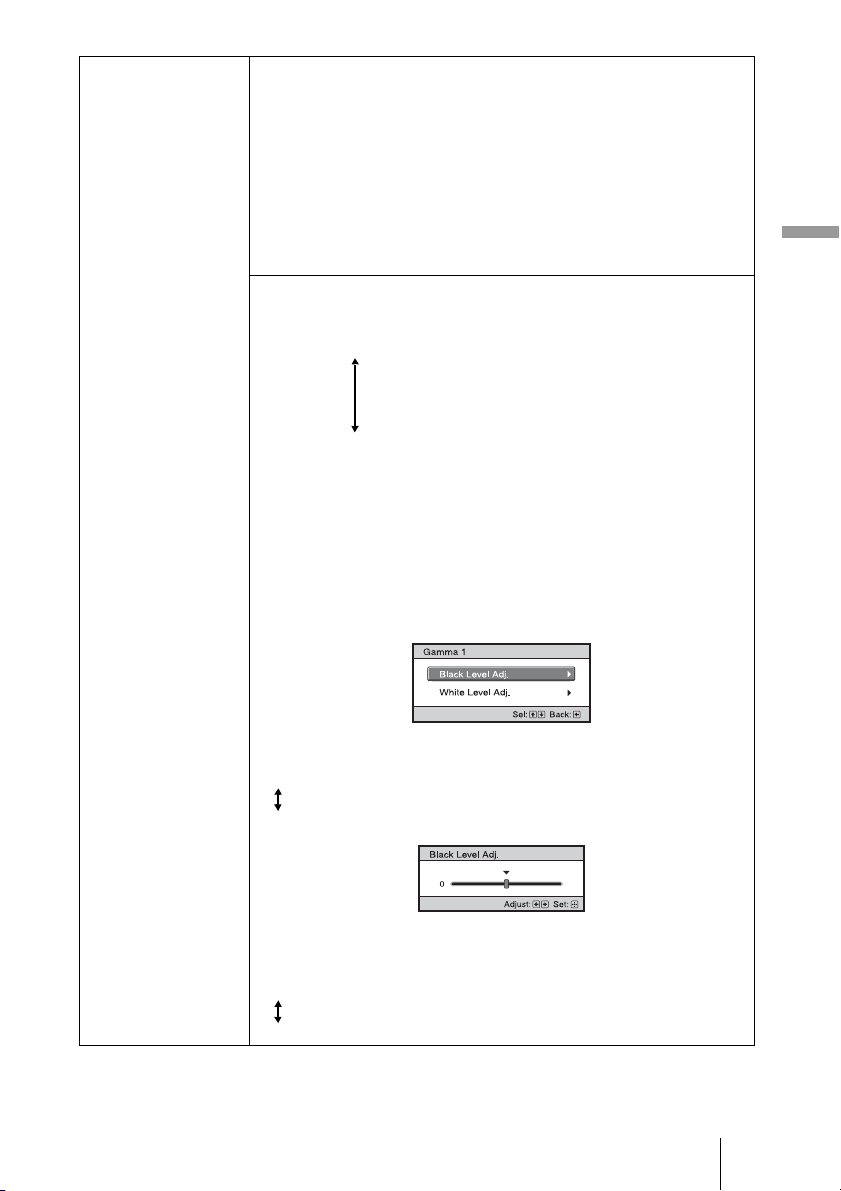
Expert Setting NR (Noise Reduction)
Reduces the roughness or noise of the picture.
Usually, use to select “Off”.
If the picture is rough or noisy, select a setting from among “Low”,
“Middle” or “High” according to the input signal source.
MPEG NR (MPEG Noise Reduction)
Reduces block noise and mosquito noise, in particular in digital
signals.
Block NR: Reduces digital noise that appears in mosaic-like pattern.
Mosquito NR: Reduces digital noise that appears near the outline of the
picture.
47
Using the Menus
Expert Setting Film Mode
According to the film source you have selected, make a setting for
playback.
Auto 1: Suited for reproducing a picture movement close to the original
picture movement of the film source. Normally, set this to “Auto 1”.
Auto 2: Reproduces a 2-3 or 2-2 Pull-Down format video signal, such as
film sources, in a smooth picture movement. When a video signal
other than 2-3 or 2-2 Pull-Down format is input, the picture is played
back in progressive format.
Off: Plays back the picture in progressive format without detecting
video signals automatically.
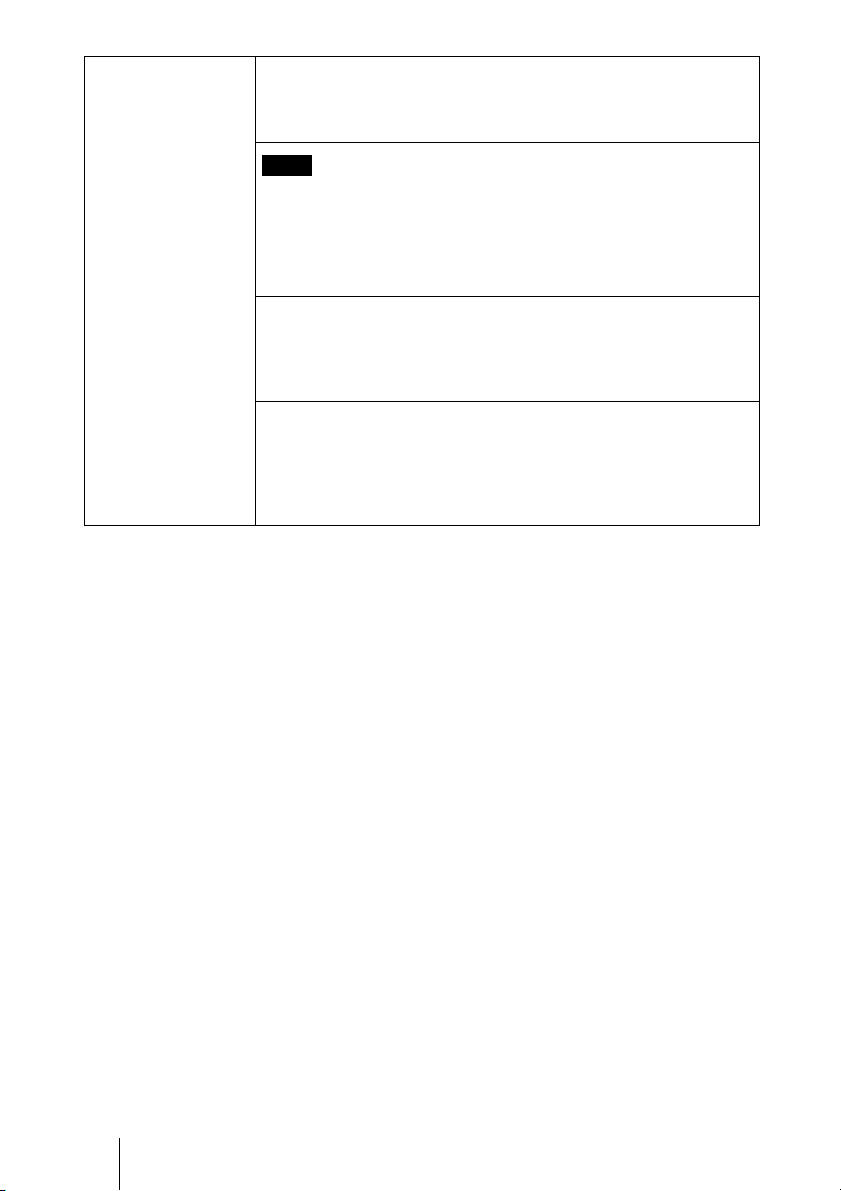
Gamma Correction
Adjusts the response characteristics of the tone of the picture.
Select a favorite tone from 10 options.
Gamma 1: Bright Produces a brighter picture overall.
Gamma 2:
Gamma 3:
Off
Gamma 4:
Gamma 5: Dark Produces a darker picture overall.
Gamma 6: Brightens dark areas in the picture, and expands gradation
expression.
Gamma 7: Produces a picture with contrast emphasized slightly.
Gamma 8: Produces a picture with contrast emphasized more than with
Gamma 7.
Gamma 9: Simulates the gamma curve of film.
Gamma 10: Expands gradation expression on the black side more than
with Gamma 9.
Off: Gamma Correction is “Off”.
Black Level Adj. (Adjust): Produces a bolder, dynamic picture.
Set according to the input signal source.
3: Brightens dark areas in the picture, and expands gradation.
–3: Emphasizes dark areas in the picture.
White Level Adj. (Adjust): Produces clear picture with sharp light/dark
contrast.
Set according to the input signal source.
3: Makes bright areas in the picture even brighter.
–3: Lowers the brilliance of bright areas in the picture.
48
Expert Setting Using the specified controller, “ImageDirector3” (supplied as a CD-
ROM) allows you to adjust, set, and store a favorite tone in a computer.
For detailed information on “ImageDirector3”, refer to the Help
provided on the supplied CD-ROM in the computer.
You can only perform adjustment with “ImageDirector3” when Gamma
1 to 6 are configured. Adjustment is not possible with Gamma 7 to 10
and Off. If you save “ImageDirector3” data adjustments, you cannot
return the data to its original condition. If you intend to restore original
data conditions, be sure to save the data onto a computer before making
the adjustments.
x.v.Color
Set this item when playing back an x.v.Color video signal.
Set this item to “On” when connecting the projector with equipment that
supports x.v.Color and playing back an x.v.Color video signal.
For details on x.v.Color, see “About the x.v.Color” (1 page 61).
Color Space
You can convert the range of color reproduction.
Normal: Color range conforming to sRGB standards.
Wide 1: Reproduces color similar to film.
Wide 2: Reproduces color similar to digital cinema.
Wide 3: Produces a wider, more vivid range of color reproduction.
Note
49
Using the Menus
Advanced Picture Menu
The Advanced Picture is used for adjusting the picture more.
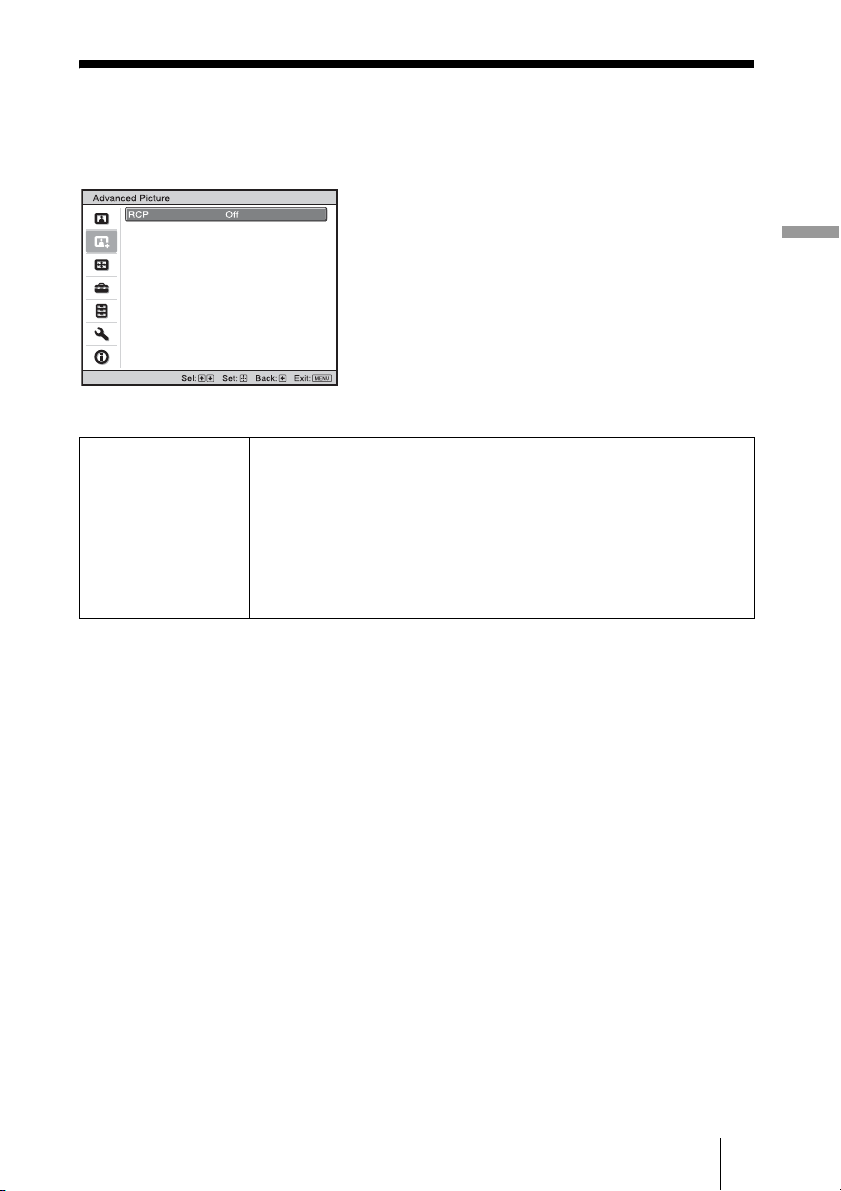
RCP (Real Color
Processing)
You can adjust the color and hue of each selected portion of the
picture independently.
User 1, User 2, User 3: You can adjust the picture using Real Color
Processing and store the settings. Once the settings are stored, you can
view the picture with the adjusted picture quality.
Off: Cancels this feature.
For details, see “Adjusting the Picture Using Real Color Processing”.
(1 page 38)
50
Screen Menu
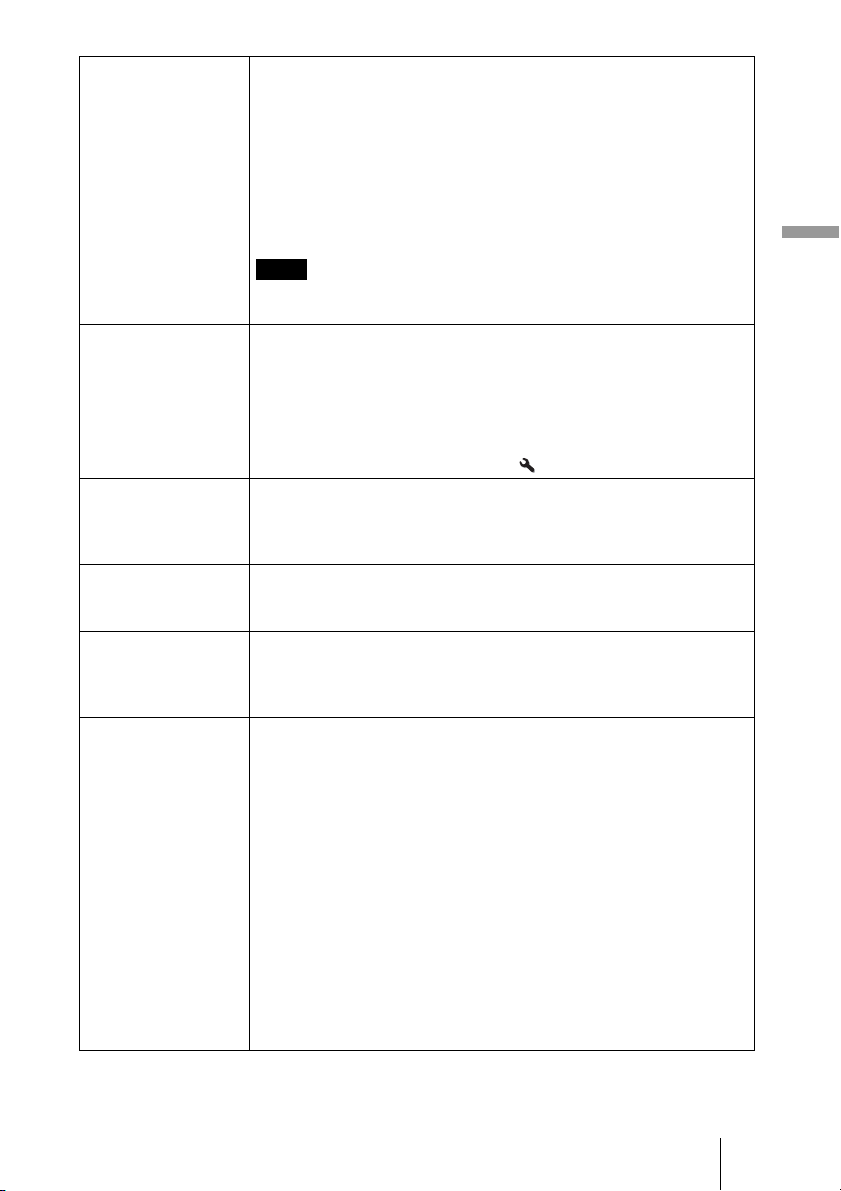
The Screen menu is used to adjust the input signal. You can adjust the size of the picture,
and select wide screen mode, etc.
.
These items may not be available, depending on the type of input signal. For details, see “Input
Signals and Adjustable/Setting Items” (1 page 78).
Note
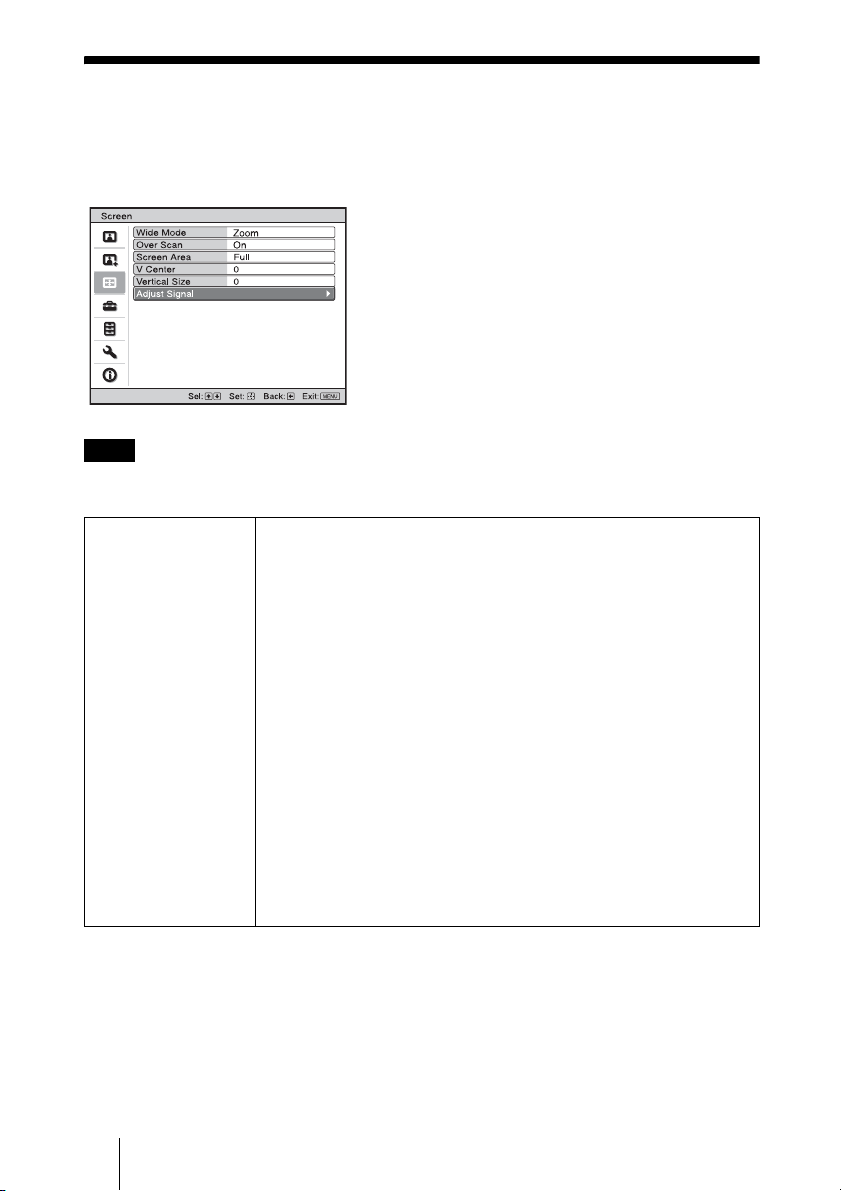
Wide Mode
(Video signal)
You can set the aspect ratio of the picture to be displayed for the
current input signal. (1 page 32) This item is enabled only when a
video signal (preset memory numbers 1 to 14) (1 pages 75, 75) is
input.
Wide Zoom: A 4:3 aspect ratio picture is enlarged naturally to fill the
screen. The upper and lower portions of the screen are slightly cut off.
Normal: A 4:3 aspect ratio picture is displayed in the center of the
screen and enlarged to fill the screen vertically.
Full: A picture squeezed to 4:3 aspect ratio is displayed in its original
aspect ratio. When a 4:3 aspect ratio picture is displayed, the picture is
enlarged horizontally to fill the 16:9 screen.
Zoom: A picture is enlarged vertically and horizontally in the same ratio
to fill the screen. The upper and lower portions are cropped.
Anamorphic Zoom: A 2.35:1 aspect ratio picture is converted to a
normal 16:9 picture on the screen. This mode is best suited when
using a commercially available Anamorphic lens which converts a
normal 16:9 aspect ratio picture to a 2.35:1 picture. When set to this
setting, only 12 V signal is output from the TRIGGER 2 connector.
(1 pages 7, 33)
You can switch settings by pressing WIDE MODE on the remote
control.
51
Using the Menus
Wide Mode
(Computer signal)
You can set the aspect ratio of the picture to be displayed for the
current input signal. (1 page 33) This item is enabled only when a
computer signal is input.
Full 1: Displays a picture on the whole of the screen without changing
the aspect ratio of the original picture.
Full 2: Displays a picture on the whole of the screen.
Zoom: A picture is enlarged vertically and horizontally in the same ratio
to fill the screen. The upper and lower portions are cropped.
You can switch settings by pressing WIDE MODE on the remote
control.
When the aspect ratio of the input signal is 16:9 or wider, this setting is
fixed at “Full 1”.
Over Scan Hides the outline of the picture.
On: Hides the outline of the input picture. Select this setting when noise
appears along the edge of the picture.
Off: Projects the whole of the input picture.
Tip
To display the displayable region within the four directions of the screen,
refer to “Blanking” on the Installation menu (1 page 57).
Screen Area Selects the size of the picture when a Hi-Vision picture is
overscanned.
Full: Expands the picture on the whole of the screen.
Through: Does not expands the picture on the whole of the screen.
V Center Adjust the whole picture by moving up and down on the screen.
As the selected number increases, the screen moves up, and as the
selected number decreases, the screen moves down.
Vertical Size Reduces or enlarges the picture vertically.
The screen is enlarged as the setting increases and reduced as the setting
decreases. If the subtitle of a movie, etc. cannot be seen, use this together
with “V Center”.
Adjust Signal You can adjust the input signal.
APA: Adjusts “Phase”, “Pitch”, and “Shift” automatically to a position
that suits the image signal for pictures from a computer.
Phase: Adjusts the dot phase and the phase of computer signal of
pictures from a computer. Adjusts the picture to the point where it
looks clearest.
Pitch: Adjusts the horizontal size of the picture from a computer.
As the number increases, the picture becomes wider, and as the
number decreases, the picture becomes narrower. Adjust the setting to
match the number of dots of the input signal.
Shift: Adjusts the position of the picture.
H: As the setting for H (horizontal) increases, the picture moves
to the right, and as the setting decreases, the picture moves to
the left. Use < / , to adjust the horizontal position.
V: As the setting for V (vertical) increases, the picture moves up,
and as the setting decreases, the picture moves down. Use M /
m to adjust the vertical position.
Note
52
Setup Menu
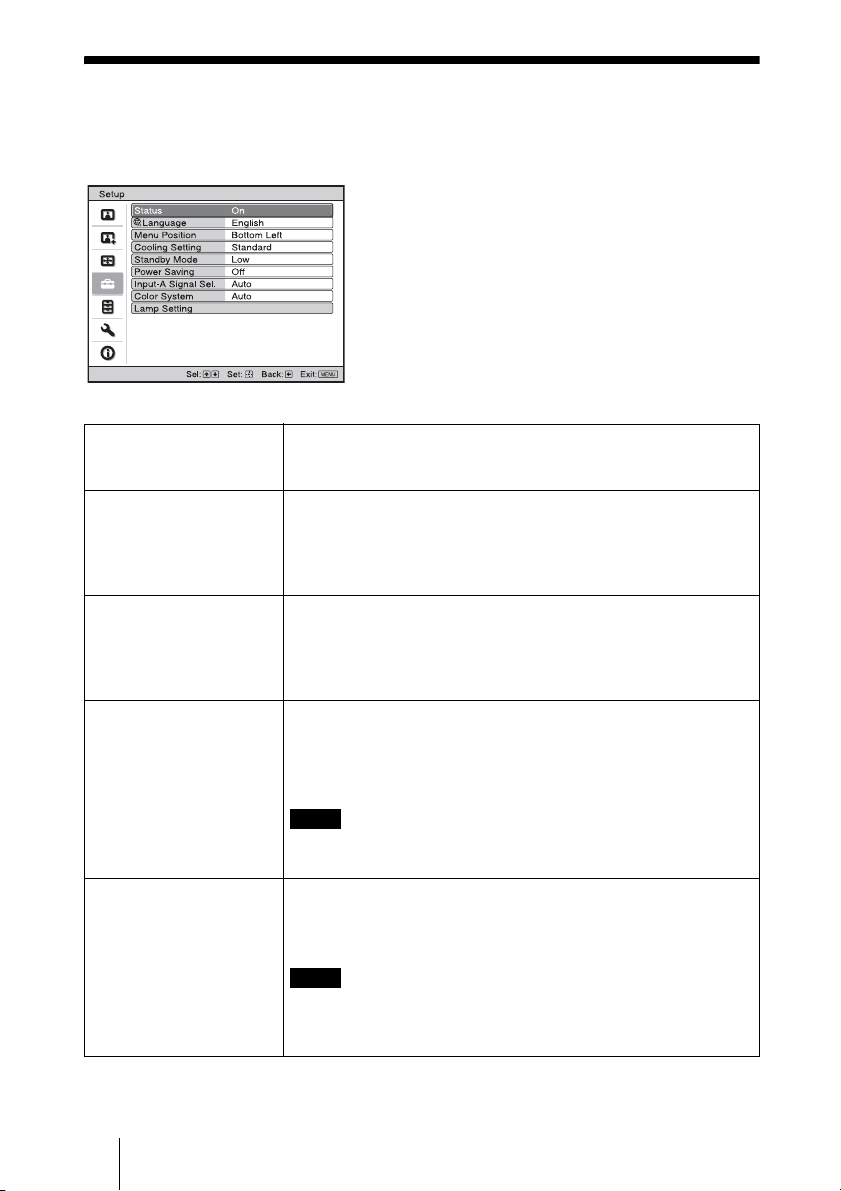
The Setup menu is used to change the factory preset settings, etc.
Status Sets whether or not the on-screen display is displayed.
Set to “Off” to turn off the on-screen displays except for certain
menus, message when turning off the power, and warning messages.
Language Selects the language used in the menu and on-screen displays.
Available languages are: English, Dutch, French, Italian, German,
Spanish, Portuguese, Russian, Swedish, Norwegian, Japanese,
Chinese (Simplified Chinese), Chinese (Traditional Chinese),
Korean, Thai and Arabic.
Menu Position You can change the position to display the menu on the upper
screen.
Bottom Left: Displays the menu on the bottom left area of the
screen.
Center: Displays the menu on the center of the screen.
Cooling Setting Use this item when using the projector at high altitudes.
High: Use this setting when using the projector at an altitude of
1,500 m or higher.
Standard: Use this setting when using the projector at normal
altitudes.
When this item is set to “High”, the fan noise becomes slightly
louder since the number of fan rotation increases.
Standby Mode Lowers the power consumption in standby.
When set to “Standard”, the power consumption in standby becomes
normal.
When set to “Low”, the power consumption in standby is lowered.
When this item is set to “Low”, the “PJ Auto Power On” function is
disabled (The function is set to “Off” and does not appear in the
menu.). (1 page 54)
Note
Note
53
Using the Menus
Power Saving Sets the power saving mode.
When set to “On”, the projector goes into power saving mode if no
signal is input for 10 minutes. At that time, the ON/STANDBY
indicator lights in orange, then the screen becomes dark. In power
saving mode, the power saving mode is cancelled if a signal is input
or any button on the projector or the remote control is pressed. If you
do not want to set the projector to power saving mode, select “Off”.
Input-A Signal Sel. Selects the type of signal input from the equipment connected to
the INPUT A connector.
Selects the type of signal input from the equipment by selecting
“Input-A” with the INPUT button.
Auto: Selects the input signal type automatically.
Computer: Inputs the signal from a computer.
Video GBR: Inputs the signal from a TV game or HDTV broadcast.
Component: Inputs the component signal from a DVD player/
recorder, Blu-ray Disc player/recorder, digital tuner, etc.
When the input signal is not displayed correctly with this item set to
“Auto,” select the item according to the input signal.
Color System Selects the color system of the input signal.
Auto: Selects the color system of the input signal automatically
from among NTSC
3.58, PAL, SECAM, NTSC4.43, PAL-M,
PAL-N, or PAL6 0.
“NTSC3.58”–“PAL-N”: Allows you to set the color system to the
selected system manually.
Normally, set this to “Auto.” If the picture is distorted or colorless,
select the color system appropriate for the input signal.
Lamp Setting When replacing the lamps, set the desired lamp setting.
(1 page 70)
Note
Note
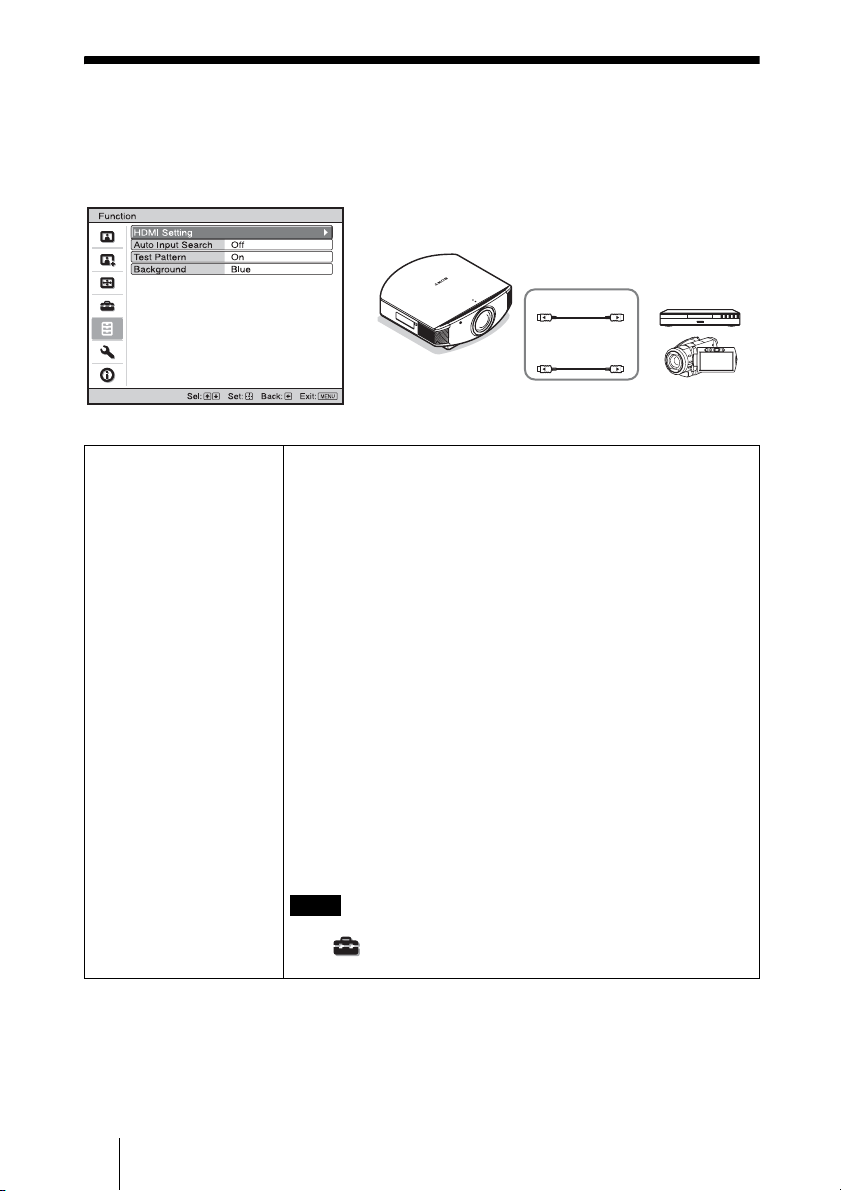
54
Function Menu
The Function menu is used for changing the settings of the various functions of the
projector.
HDMI Setting You can change the settings of the Control for HDMI function.
Control for HDMI: Selects the function whether to turn the Control
for HDMI function effective when the HDMI 1 and HDMI 2
connectors are connected to a Control for HDMI compatible
equipment.
When set to “On”, the following are available.
• The operation of the projector and the connected Control for
HDMI compatible equipment will synchronize with each other.
• The Control for HDMI setting of Sony equipment (AV
amplifier, video, etc.), which is compatible with “Control for
HDMI - Easy Setting”*, will also be effective.
The factory default setting is “On”.
Device Auto Power Off: Sets whether to also turn the power of the
connected Control for HDMI compatible equipment off when you
turn the power of the projector off.
When set to “On”, the equipment will synchronize and turn off
when the power of the projector turns off.
The factory default setting is “On”.
PJ Auto Power On: Select whether to link the power of the
projector to the Control for HDMI compatible equipment.
When set to “On”, the power of the projector will automatically
turn on when the power of the connected equipment is turned on
or when making operations such as playback.
To enable this function, set “Standby Mode” (1 page 52) in the
Setup menu to “Standard”, and then set “PJ Auto Power On” to
“On”. For details, see “About the Control for HDMI” (1 page 60).
HDMI 1
HDMI 2
Note
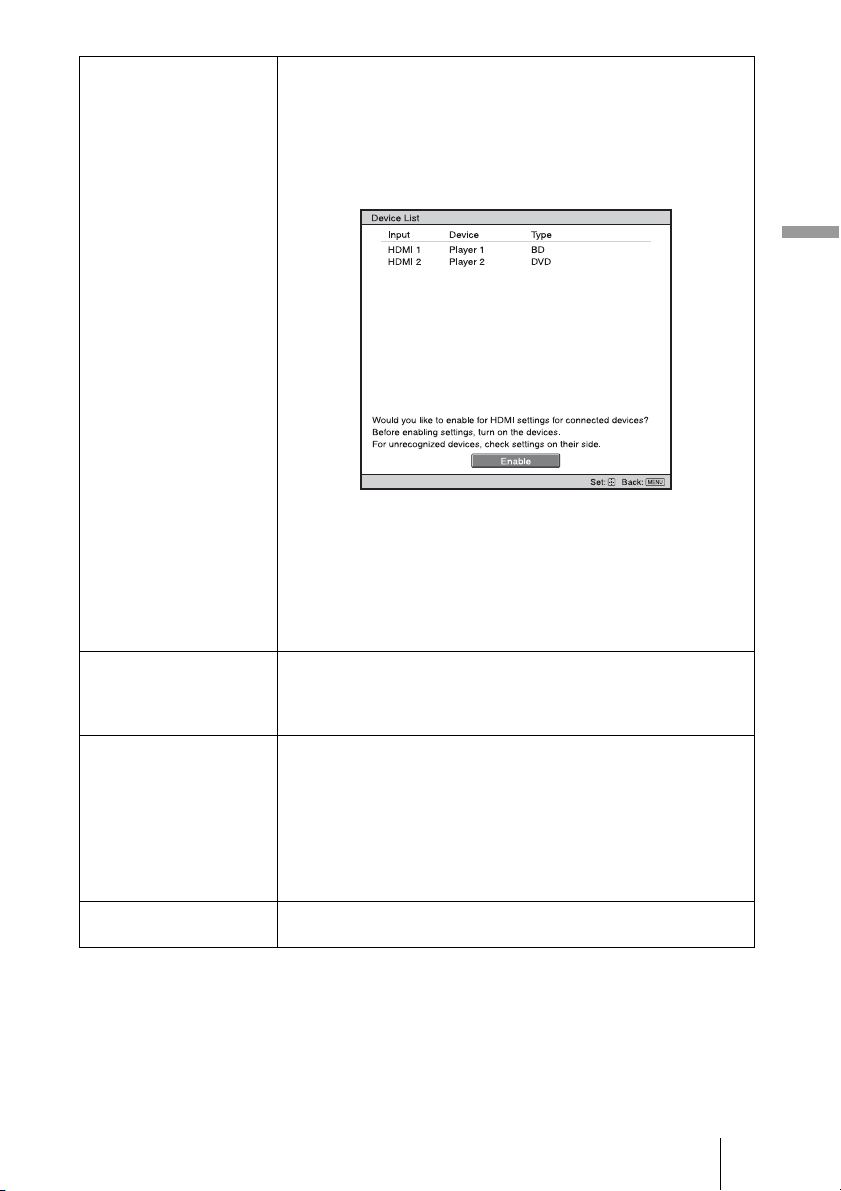
55
Using the Menus
HDMI Setting Device List: Lists all the Control for HDMI compatible equipment
connected to the projector.
All equipment listed (except AV amplifier) can be selected with
SYNC MENU of the remote control of the projector. When
“Enable” is selected, the Control for HDMI setting of Sony
equipment (AV amplifier, video, etc.), which is compatible with
“Control for HDMI - Easy Setting”, will also be effective.
* “Control for HDMI - Easy Setting” is a function that makes the
Control for HDMI setting of equipment connected to HDMI input
of the projector effective as well when the Control for HDMI
setting of the projector is effective. This function is only available
between compatible Sony equipment, and some equipment may
not be compatible.
Although some non-Sony equipment may be compatible,
operation is not guaranteed for such equipment.
Auto Input Search Hides input terminals that do not have signal input.
When set to “On”, terminals without input signals do not appear on
the input palette that appears when you press INPUT.
To display all input terminals, set this to “Off”. (1 page 28)
Test Pattern Displays the test pattern.
When set to “On,” a test pattern appears on the screen to be used
when adjusting the lens with “Lens Focus,” “Lens Zoom,” and “Lens
Shift,” or correcting the screen proportions with “V Keystone.” A
test pattern does not appear when this item is set to “Off.”
Tip
While the test pattern is displayed, it is only displayed in green to
allow you to adjust the focus easily.
Background Selects the background color of the screen when no signal is input.
You can select “Black” or “Blue”.
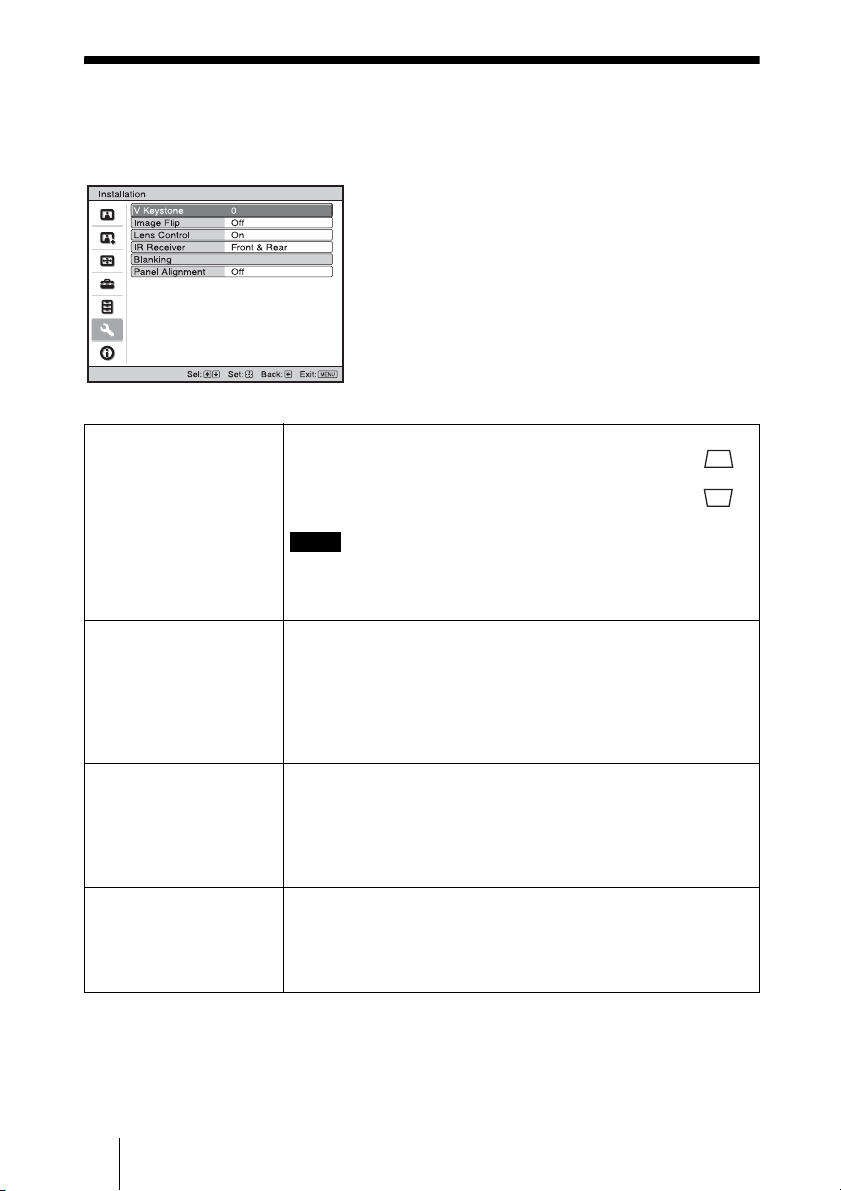
56
Installation Menu
The Installation menu is used for changing the installation settings.
V Keystone Corrects the vertical trapezoidal distortion of the picture.
When the bottom of the trapezoid is longer than the top ( ):
Sets a lower value (– direction)
When the top of the trapezoid is longer than the bottom ( ):
Sets a higher value (+ direction).
Depending on the picture position adjusted with the lens shift
feature, the aspect ratio of the picture may change from the original
or picture distortion may occur with V Keystone adjustment.
Image Flip Flips the picture on the screen horizontally and/or vertically.
HV: Flips the picture horizontally and vertically.
H: Flips the picture horizontally.
V: Flips the picture vertically.
Off: The picture does not flip.
Use this item for installation for the backside projection or ceiling
installation.
Lens Control Avoids any operation of the lens such as “Lens Focus,” “Lens
Zoom,” and “Lens Shift,” by mistake.
When set to “On,” you can adjust the projection lens using “Lens
Focus,” “Lens Zoom,” and “Lens Shift.” After you make this
adjustment, it is recommended that you set this item to “Off” to
avoid any operation of the lens.
IR Receiver Selects the remote control detectors (IR Receiver) on the front
and rear of the projector.
Front & Rear: Activates both the front and rear detectors.
Front: Activates the front detector only.
Rear: Activates the rear detector only.
Note
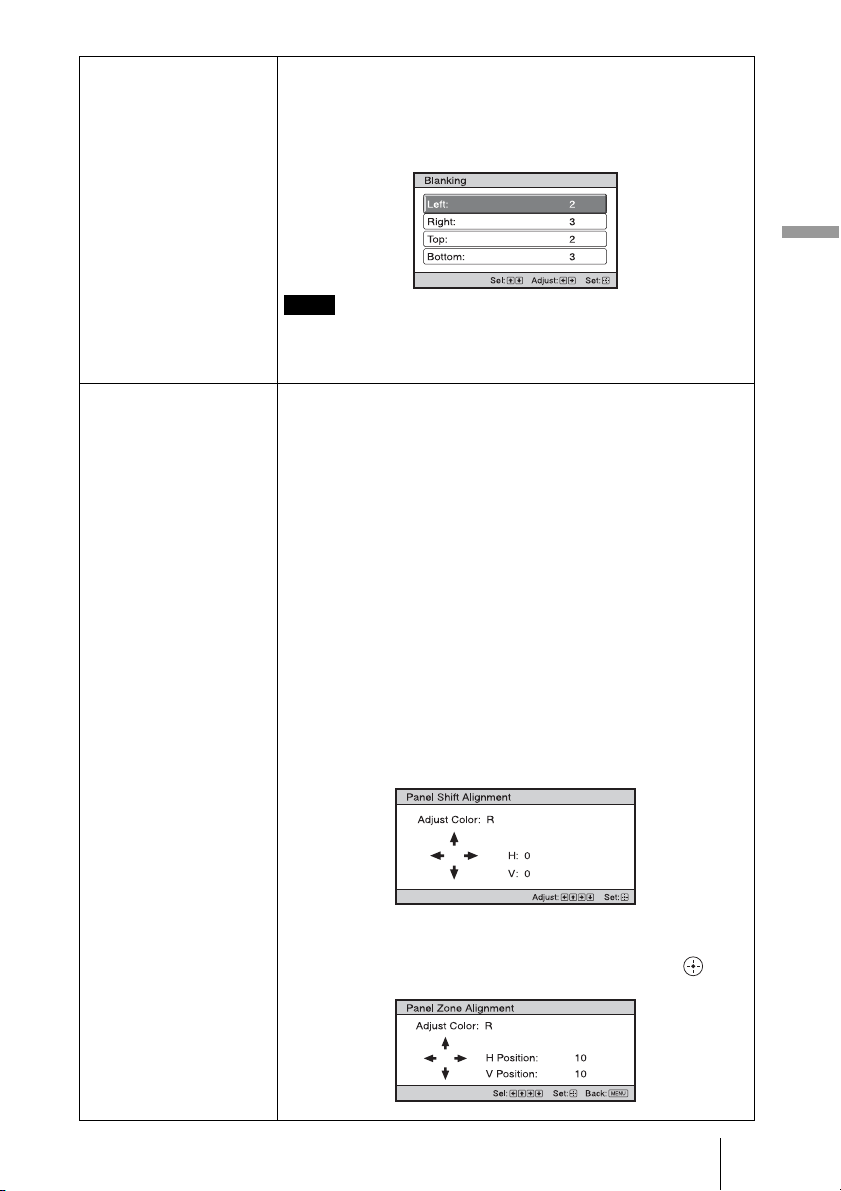
57
Using the Menus
Blanking This feature allows you to adjust the displayable region within
the four directions of the screen.
Select the edge to adjust by highlighting Left, Right, Top, or Bottom
using the M / m buttons.
Adjust the amount of blanking using the < / , buttons.
When both the “Blanking” and the “V Keystone” are adjusted at the
same time, the “Blanking” cannot be adjusted correctly. When using
the “Blanking”, make sure that you set the “V Keystone” to “0”.
Panel Alignment This feature allows you to adjust the gaps in the color of
characters or the picture.
When set to “On”, the “Adjust Color” and the “Pattern Color” can be
assigned and adjusted.
Adjust Item: Selects how to make adjustments from below.
Shift: Shifts the whole picture and makes adjustments.
Zone: Selects the desired range and makes adjustments.
Adjust Color: Assigns the desired color to adjust the gaps in color.
Select “R” (Red) or “B” (Blue) to make adjustments based on
“G” (Green).
Pattern Color: Select “R/G” (Red and Green) or “R/G/B” (White,
all colors) when the “Adjust Color” is “R” (Red). Select “B/G”
(Blue and Green) or “R/G/B” (White, all colors) when the “Adjust
Color” is “B” (Blue).
Adjust: The shift adjustment and zone adjustment of the color
selected in “Adjust Color” can be made with < / ,, M / m
buttons.
When “Shift” is selected: Assign the settings of the horizontal
direction (H) with < / , buttons and the vertical direction (V)
with M / m buttons on the shift adjustment screen.
When “Zone” is selected: Select the position to adjust with
< / , buttons for the horizontal position (H position) and M / m
buttons for the vertical position (V position), then press .
Note
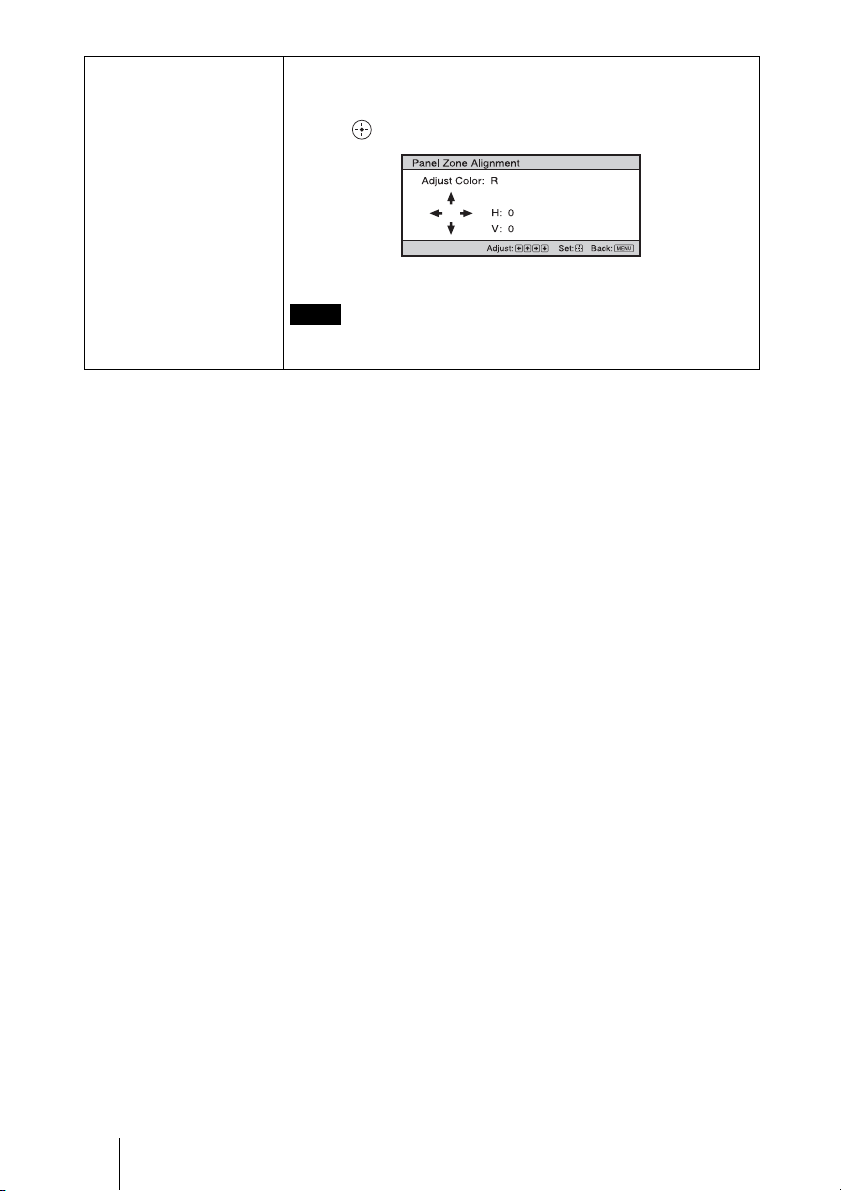
58
Panel Alignment Set the amount to adjust with < / , buttons for the horizontal
direction (H direction) and with M / m buttons for the vertical
direction (V direction). You can select the position to adjust again by
pressing .
Reset: Returns to the factory settings.
Depending on the adjustments made above, colors may become
uneven or the resolution may change.
Note
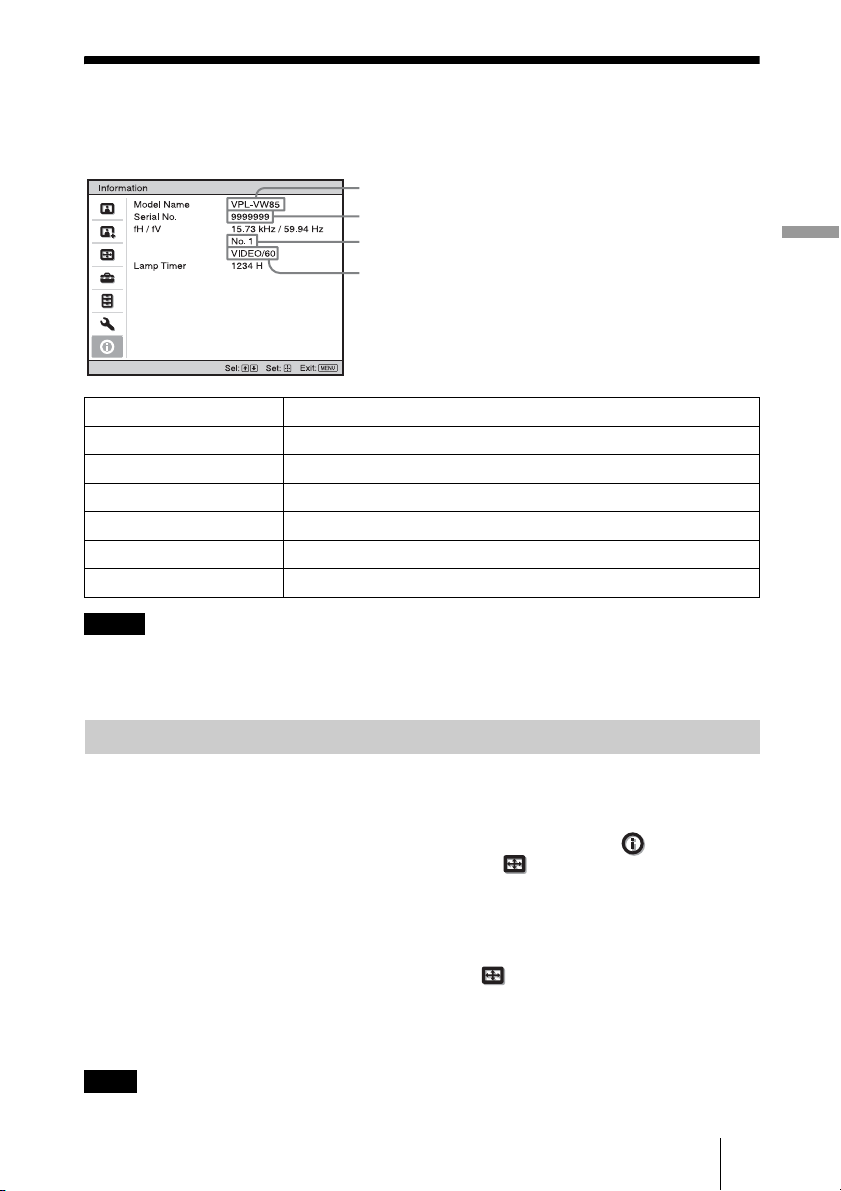
59
Using the Menus
Information Menu
The Information menu displays the model name, serial number, the horizontal and vertical
frequencies of the input signal and the cumulated hours of usage of the lamp.
• fH (horizontal frequency) and fV(vertical frequency) may not be displayed depending on the input
signal used on the projector.
• You cannot change the displays listed above.
This projector has 38 types of preset data for input signals (the preset memory). When the
preset signal is input, the projector automatically detects the signal type and recalls the
data for the signal from the preset memory to adjust it to an optimum picture. The memory
number and signal type of that signal are displayed in the Information menu.
You can also adjust the preset data through the Screen menu.
This projector also contains 20 different user memories beside the preset memories used
for inputting analog computer signals. You can save input signals that have not been preset
on these user memories.
When an unpreset signal is input for the first time, a memory number is displayed as 0.
When you adjust the data of the signal in the Screen menu, it will be registered to the
projector. If more than 20 user memories are registered, the newest memory always
overwrites the oldest one.
See the chart on page 75 to find if the signal is registered to the preset memory.
When the aspect ratio of input signal does not match the screen size, a part of the screen is displayed in black.
Model name Displays the model name (VPL-VW85).
Serial No. Displays the serial number.
fH (horizontal frequency) Displays the horizontal frequency of the input signal.
fV (vertical frequency) Displays the vertical frequency of the input signal.
Memory No. Displays the preset memory number of the input signal.
Signal type Displays the type of the input signal.
Lamp Timer Indicates how long the lamp has been turned on (total usage).
Notes
About the Preset Memory No.
Note
Memory No.
Signal type
Serial No.
Model name: VPL-VW85

60
This section describes about the other functions, how to solve the problems, how to
replace the lamp and air filter, etc.
About the Control for
HDMI
What is the Control for HDMI?
Control for HDMI is an HDMI standard
mutual control function which uses the
HDMI CEC (Consumer Electronics
Control) specification. By connecting a
variety of Control for HDMI compatible
equipment such as a hard disk Blu-ray Disc
player, a DVD player/recorder, an AV
amplifier, etc. to a Sony Control for HDMI
compatible TV or a projector with an HDMI
cable, the equipment connected will
synchronize with the TV or the projector
when either is operated.
Using the Control for HDMI
function
• Connect and assign the settings of each
equipment appropriately.
• Do not turn off the main power of the
equipment.
• Set the input setting of the projector to the
HDMI input which the equipment is
connected.
• Check if the picture from the equipment
appears appropriately on the projector.
Connecting a Control for HDMI
compatible equipment
Use an HDMI cable to connect the projector
and the Control for HDMI compatible
equipment. Use a cable that has acquired the
HDMI logo.
Setting the Control for HDMI
Be sure to assign the appropriate
connections for both the projector and the
Control for HDMI compatible equipment
connected to the projector. For settings of
the projector, see page 54. For settings of the
Control for HDMI compatible equipment
connected to the projector, refer to its
operational instructions. When a equipment
that is compatible with the “Control for
HDMI - Easy Setting” is connected to the
HDMI input of the projector, if you turn the
Control for HDMI function setting of the
projector on, the Control for HDMI function
setting of the connected equipment will also
turn on.
What you can do with the
Control for HDMI
• Basic operations (playback, stop, menu
operations, etc.) of the connected
equipment is available by using the remote
control of the projector.
• By turning on or playing back the
connected equipment, the projector will
turn on and the input setting will switch to
the terminal of the connected equipment
automatically.
• By turning the power of the projector off,
the power of the connected equipment will
also turn off automatically.
• By selecting equipment connected to the
projector desired to operate with SYNC
MENU button on the remote control of the
projector, the power of the selected
equipment will turn on and the input will
switch to the terminal of the connected
equipment automatically.
• By changing the language setting of the
projector, the language setting of the
connected equipment will also change to
the same language automatically.
• The available functions of the Control for
HDMI differ depending on each
equipment. Refer to the operating
instruction of each equipment.
Others
Notes
61
Others
• Some synchronization may be available
with equipment of other brands with
similar functions, but it is not guaranteed.
About the x.v.Color
• “x.v.Color” is a promotion name given to
the products that have the capability to
realize a wide color space based on the
xvYCC specifications and is a trademark
of Sony Corporation.
• xvYCC is an international standard of the
technical specifications of the extended-
gamut color space for video signals. The
color gamut of xvYCC is wider than the
one of sRGB that is used with the current
television system.
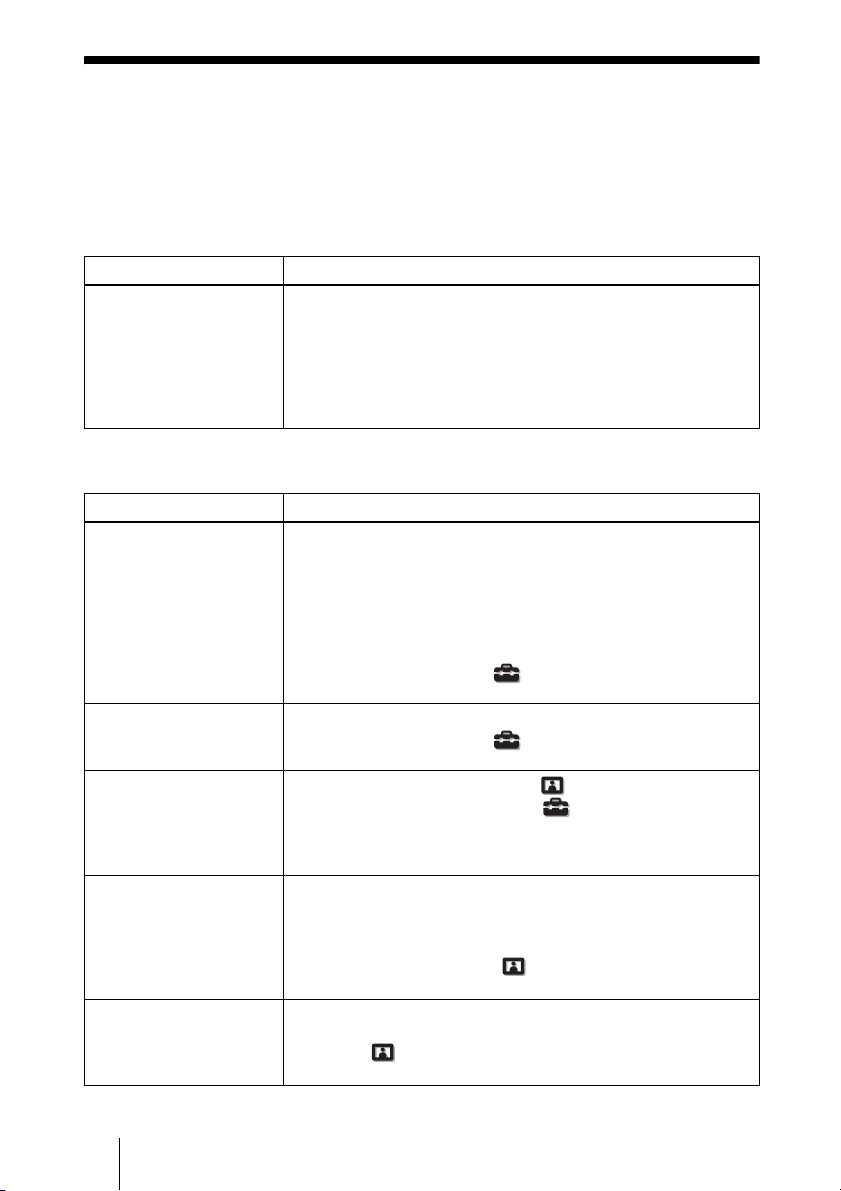
62
Troubleshooting
If the projector appears to be operating erratically, try to diagnose and correct the problem
using the following instructions. If the problem persists, consult with qualified Sony
personnel.
Power
Picture
Symptom Cause and Remedy
The power is not turned on. c The power may not turn on if you turn the power off with ?/1
(ON/STANDBY) switch and turn it on again in a short time.
After about 1 minute, turn the power on.
c Close the lamp cover securely, then tighten the screws securely.
(1 page 69)
c Close the filter holder securely. (1 page 70)
c Check warning indicators. (1 page 65)
Symptom Cause and Remedy
No picture. c Check that the proper connections have been made.
(1 page 22)
c Select the input source correctly using the INPUT button.
(1 page 28)
c Set the computer signal to output from an external monitor.
c Set the computer signal to output only to an external monitor.
c Select “Computer,” “Component” or “Video GBR” for “Input-A
Signal Sel.” on the Setup menu according to the input
signal. (1 page 53)
The picture from the
INPUT A connector is
colored strange.
c Select “Computer,” “Component” or “Video GBR” for “Input-A
Signal Sel.” on the Setup menu according to the input
signal. (1 page 53)
The picture from the
VIDEO INPUT or
S VIDEO INPUT
connector is colored
strange.
c Adjust the picture of the Picture menu. (1 page 44)
c Set “Color System” in the Setup menu to match the color
system being input. (1 page 53)
The bright area of the
picture may become
unclear or texts may
become faded. (When
HDMI video signal is
input)
c This symptom may occur when a signal other than those of
HDMI standard is input. (1 page 29) Switch the RGB dynamic
range of the connected equipment to Limited (16-235). If this
adjustment is unavailable, adjust “Brightness”, “Contrast”, or
“Sharpness” in the Picture menu of the projector.
(1 pages 45, 46)
The texts may become
faded when connected with
a computer. (When
computer signal is input)
c This symptom may occur when a signal other than those of
HDMI standard is input. (1 page 29) Adjust “Sharpness” in the
Picture menu. (1 page 46)
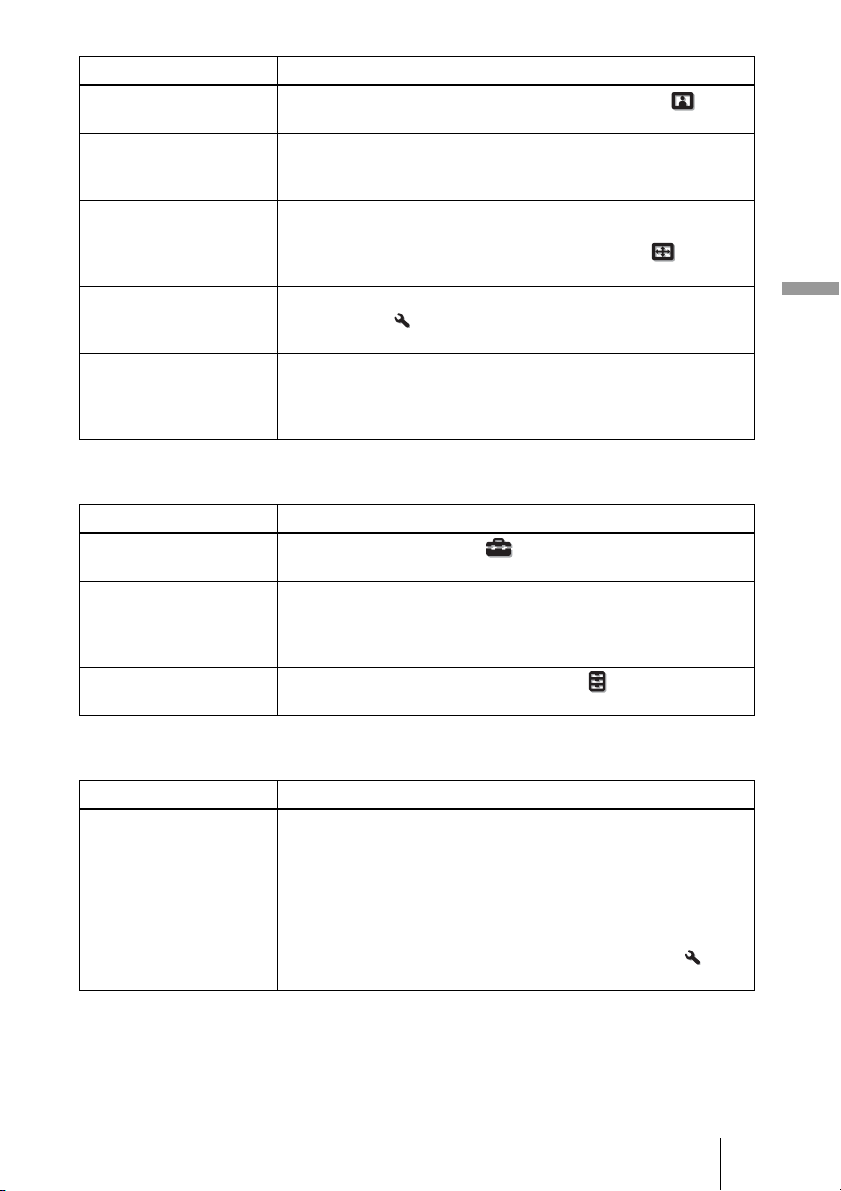
63
Others
On-screen display
Remote control
The picture is too dark. c Adjust the “Contrast” or “Brightness” of the Picture menu
properly. (1 pages 45, 46)
The picture is not clear. c Adjust the focus. (1 page 18)
c Condensation has accumulated on the lens. Leave the projector
for about 2 hours with the power on.
The picture flickers. c For pictures from a computer, activate “APA” and adjust the
current input signal.
c Adjust “Phase” for “Adjust Signal” in the Screen menu
properly. (1 page 51)
The color of characters or
the picture is not
appropriate.
c Select the desired color registration in “Panel Alignment” of
Installation menu (1 page 57).
Image is left on the screen.
(image retention)
c When high contrast non-moving images are displayed for a long
period of time, there may be some image retention on the
screen. This is only a temporary condition. Turning off the
power for a while will eliminate the retained image.
Symptom Cause and Remedy
Symptom Cause and Remedy
On-screen display does not
appear.
c Set “Status” in the Setup menu to “On.” (1 page 52)
c Check if the ON/STANDBY indicator should light in green.
The model name does not
disappear from the screen.
Or else, the demo mode is
displayed continuously.
c The display mode of the projector may be set at the time of
purchase. Consult with your local dealer or qualified Sony
personnel.
Input terminals do not
appear.
c Set “Auto Input Search” in the Function menu to “Off”. (1
page 55)
Symptom Cause and Remedy
The remote control does
not work.
c Batteries could be weak. Replace them with new batteries.
(1 page 10)
c Insert the batteries with the correct polarities. (1 page 10)
c If there is a fluorescent lamp near the remote control detector, the
projector may work improperly or inadvertently.
c Confirm the position of the remote control detector on the
projector. (1 page 7)
c Set “IR Receiver” to “Front & Rear” on the Installation menu
(1 page 56).
64
Others
Symptom Cause and Remedy
The fan is noisy. c Check the setting of “Cooling Setting” in the Setup menu.
(1 page 52)
c Make sure that the room temperature is not too high.
c Check the installation conditions. (1 page 11)
The number of fan rotation increases to maintain the product
reliability of the projector’s components in a room, where the
temperature is higher than normal. The fan noise becomes
slightly louder. The approximate normal temperature is 25°C.
The lens shift cannot be
adjusted.
c The lens shift cannot be adjusted over the range of movement.
Adjust the lens shift within the range of movement. (1
pages 13, 20).
The projector and
connected equipment turn
On/Off, play back, and
operate at the same time.
c “Control for HDMI”, “Device Auto Power Off”, and “PJ Auto
Power ON” are set to “On”. Set them to “Off”.
For details, see “HDMI Setting” (1 page 54).
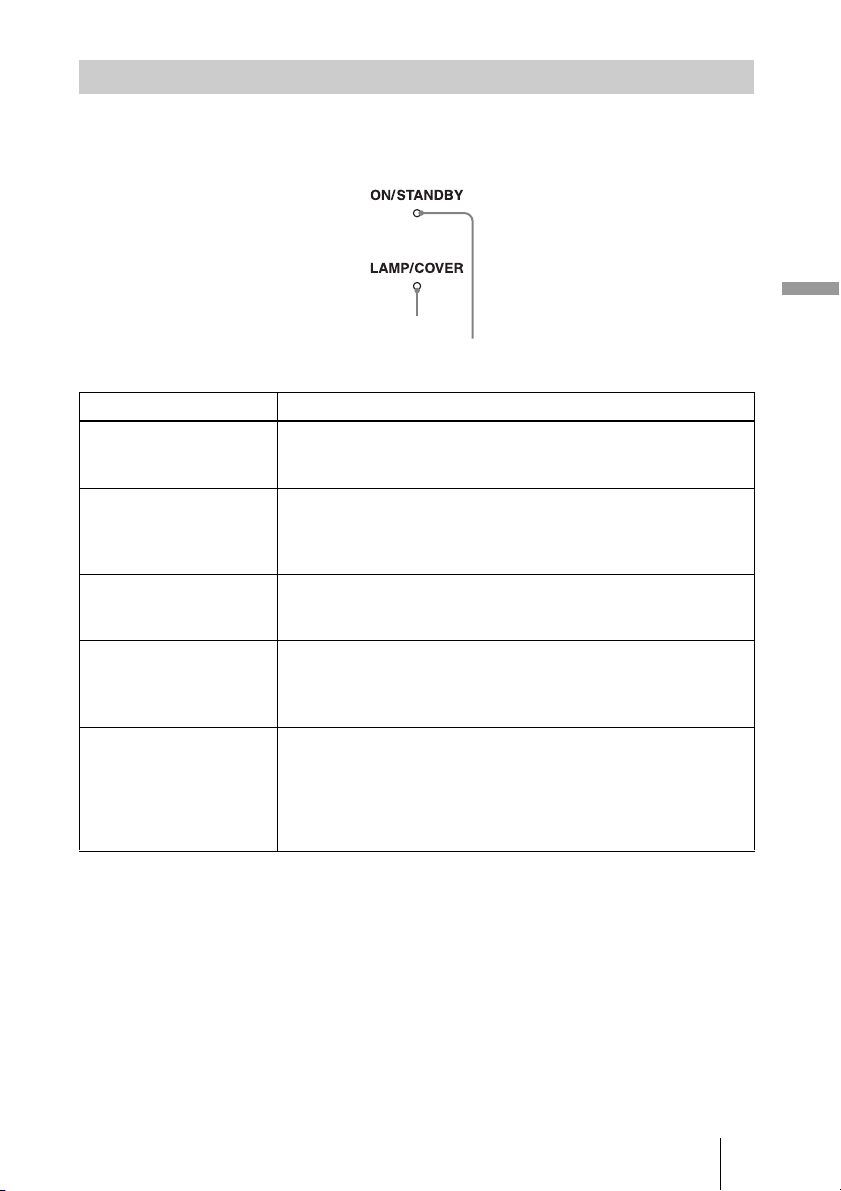
65
Others
The ON/STANDBY or LAMP/COVER indicator lights up or flashes if there is any
trouble with your projector.
Warning Indicators
Symptom Cause and Remedy
LAMP/COVER flashes in
red. (A repetition rate of 2
flashes)
c Close the lamp cover securely, then tighten the screws securely.
(1 page 69)
c Close the filter holder securely. (1 page 70)
LAMP/COVER flashes in
red. (A repetition rate of 3
flashes)
c The lamp has reached the end of its useful lifespan. Replace the
lamp. (1 page 68)
c The lamp has reached a high temperature. Wait until the lamp
cools, and then turn on the power again.
ON/STANDBY flashes in
red. (A repetition rate of 4
flashes)
c The fan is broken. Consult with qualified Sony personnel.
ON/STANDBY flashes in
red. (A repetition rate of 2
flashes)
c The internal temperature is unusually high. Check to ensure that
if nothing is blocking the ventilation holes or whether or not the
projector is being used at high altitudes.
ON/STANDBY flashes in
red. (A repetition rate of 6
flashes)
c Press the
?/1 (ON/STANDBY) switch to turn on the projector. If
the power is not turned on, disconnect the AC power cord, then
confirm the ON/STANDBY lamp is turned off. After about 10
seconds, reconnect the AC power cord and turn on the power
again. If the indicators still light up, the electrical system has a
problem. Consult with qualified Sony personnel.
ON/STANDBY indicator
LAMP/COVER indicator
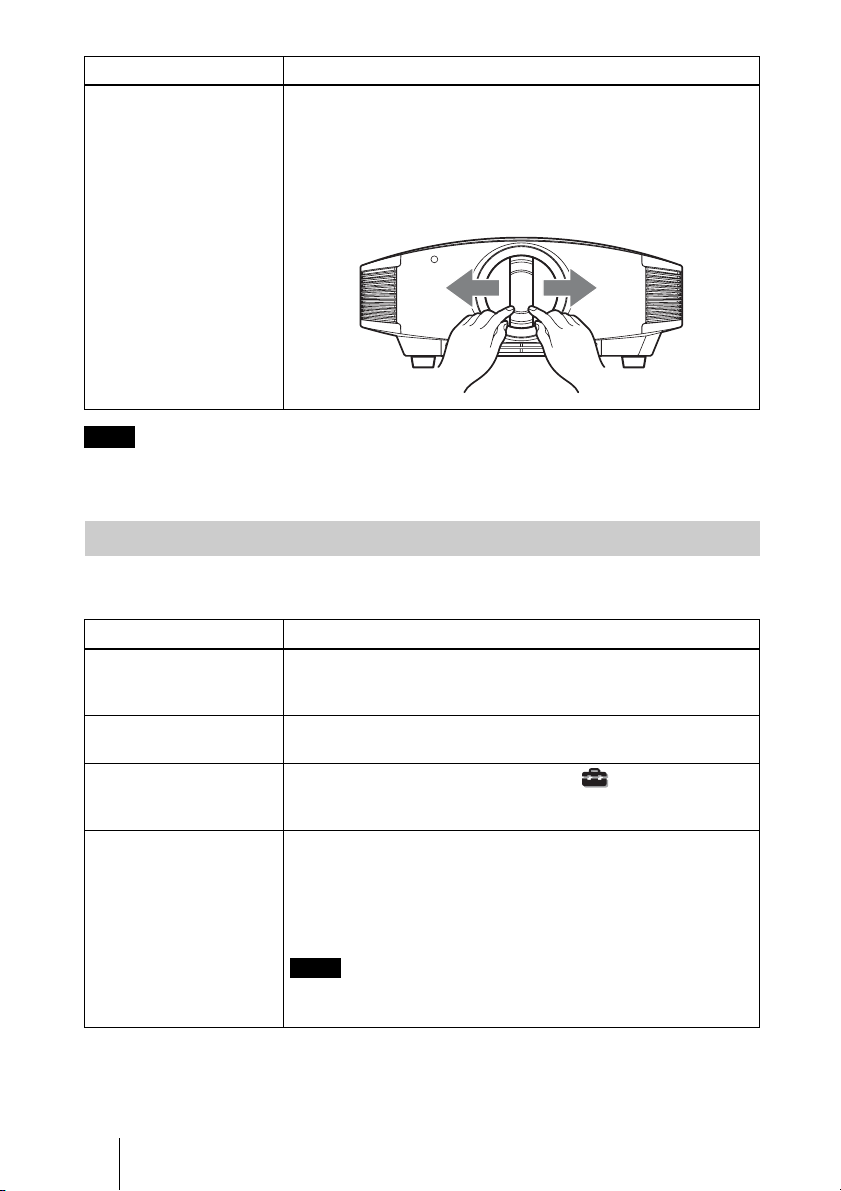
66
When a warning indicator other than the above starts flashing, and the symptom persists even after
carrying out the above methods, consult with qualified Sony personnel.
Warning messages
ON/STANDBY flashes in
red. (A repetition rate of 5
times)
c The lens protector is not fully open. Turn the power of the
projector off and then on again. If the lens protector still does not
fully open, consult with qualified Sony personnel.
Tip
In an urgent situation, refer to the illustration below to open the lens
protector with your hands. Press the
?/1 (ON/STANDBY) switch to
turn the power on and operate the projector.
Note
Message Lists
Message Cause and Remedy
High temp.! Lamp off in 1
min.
c Turn off the power.
c Check to ensure that nothing is blocking the ventilation holes.
(1 page 12)
Frequency is out of range! c Frequency is out of range. Input a signal that is within the
acceptable frequency range of the projector. (1 page 75)
Please check Input-A
Signal Sel.
c Set “Input-A Signal Sel.” in the Setup menu to
“Computer” when an RGB signal is input from a computer.
(1 page 53)
Please replace the Lamp/
Filter.
c It is time to replace the lamp. Replace the lamp. (1 page 68)
c Also, replace the air filter too. Restart cleaning the ventilation
holes (intake). (1 page 68)
If this message appears again after you replace the lamp and
filter, the lamp replacement process is not complete. Check the
lamp replacement process. (1 page 68)
To clear this message, press any button either on the remote control
or the control panel of the projector once.
Symptom Cause and Remedy
Note
67
Others
Caution messages
Please clean the filter. c It is time to clean the air filter. Clean the air filter. (1 page 71)
To clear this message, press any button either on the remote control
or the control panel of the projector once.
Please clean the filter. Have
you finished? Yes No
c It is time to clean the air filter. Clean the air filter. (1 page 71)
c If you cleaned the air filter, select “Yes.” If you did not clean the
air filter, select “No.”
Projector temperature is
high. Cooling Setting
should be “High” if
projector is being used at
high altitude.
c Check to ensure that the ventilation holes on the unit are not
covered. (1 page 12)
c When using the projector at high altitude, set the “Cooling
Setting” to “High”. (1 page 52)
When temperature inside the projector remains high, the “Cooling
Setting” is switched to “High” in 1 minute, then the fan speed
increases.
Message Cause and Remedy
c No signal is input in the selected input. Check connections.
(1 page 22)
Not applicable! c Press the appropriate button.
c The operation to be activated by the button is currently
prohibited.
Message Cause and Remedy
Note
Note
x
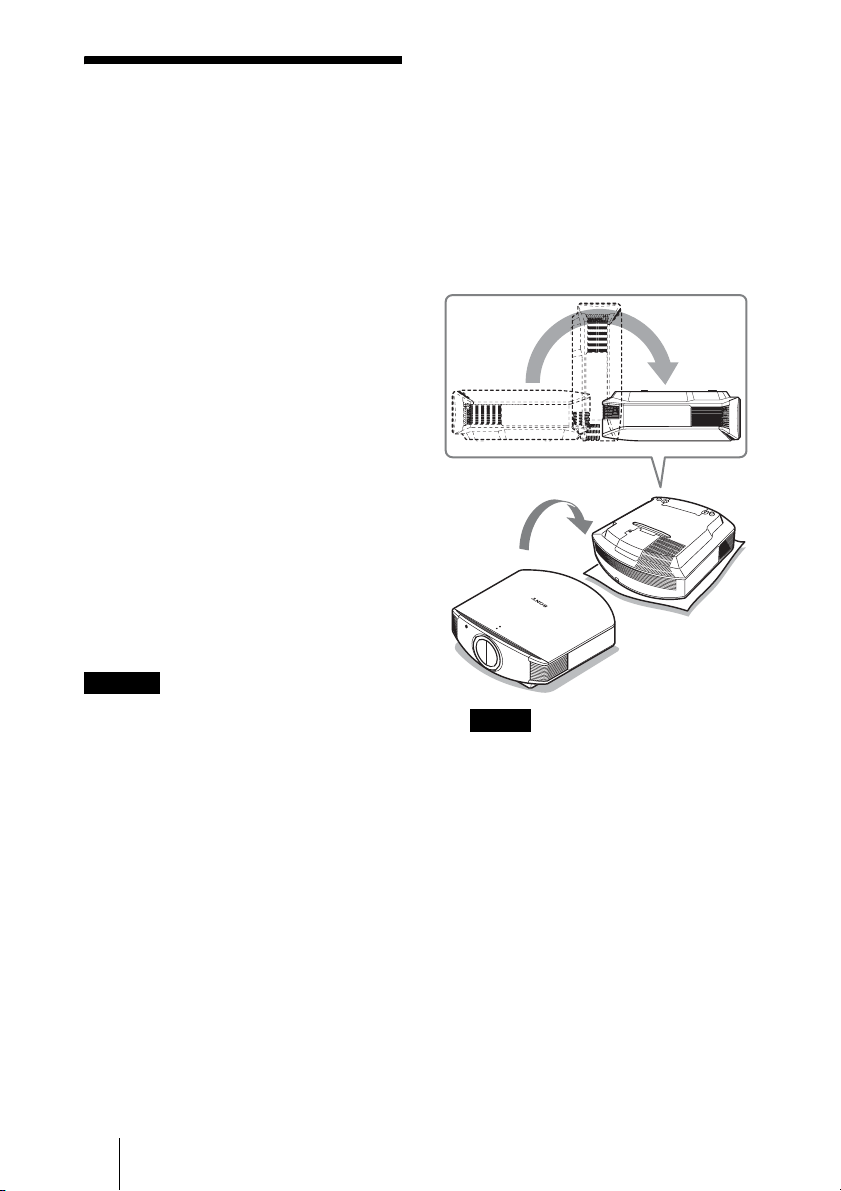
68
Replacing the Lamp
and the Air Filter and
Cleaning the
Ventilation Holes
(intake)
Tools you need to get started:
• Projector Lamp LMP-H201 (Optional)
• Standard Phillips screwdriver
• Cloth (for scratch protection)
The lamp used for the light source has a
certain lifespan. When the lamp dims, the
color balance of the picture becomes strange,
or “Please replace the Lamp/Filter.” appears
on the screen, the lamp may be exhausted.
Replace the lamp with a new one (not
supplied)
without delay.
Use an LMP-H201 Projector Lamp as the
replacement lamp.
The air filter is supplied with the LMP-H201
Projector Lamp. When you replace the lamp,
it is also time to replace the air filter.
Whenever you replace the lamp, be sure to
replace the air filter with a new one. Also
clean the ventilation holes (intake).
• The lamp remains hot after the projector is
turned off with the
?/1 (ON/STANDBY)
switch. If you touch the lamp, you may burn
your fingers. When you replace the lamp, wait
for at least 1 hour for the lamp to cool.
• Do not touch the surface of the lens. If you
touch it, wipe off the fingerprints with a soft
cloth.
• Pay special attention to replacing the lamp
when the projector is installed on the ceiling.
• When removing the lamp unit, make sure it
remains horizontal, then pull straight up. Do
not tilt the lamp unit. If you pull out the lamp
unit while tilted and if the lamp breaks, the
pieces may scatter, causing injury.
• When you remove the air filter, be careful
not to let any dust fall into the projector.
• Replacing the air filter is crucial to maintain
the good performance of the projector or to
prevent malfunction to it. When a warning
message for replacing the air filter appears,
replace the air filter immediately.
1 Turn off the projector and unplug
the AC power cord.
2 When setting the projector on a
flat surface such as a desk etc.,
put a cloth to prevent the surface
from being scratched. Reverse
the projector as illustrated, then
place it on the cloth.
• When the lamp is damaged the broken
pieces of the lamp may become
scattered, if you do not reverse the
projector. This may cause injury.
• Be sure that the projector is placed on a
stable surface.
Caution
Notes
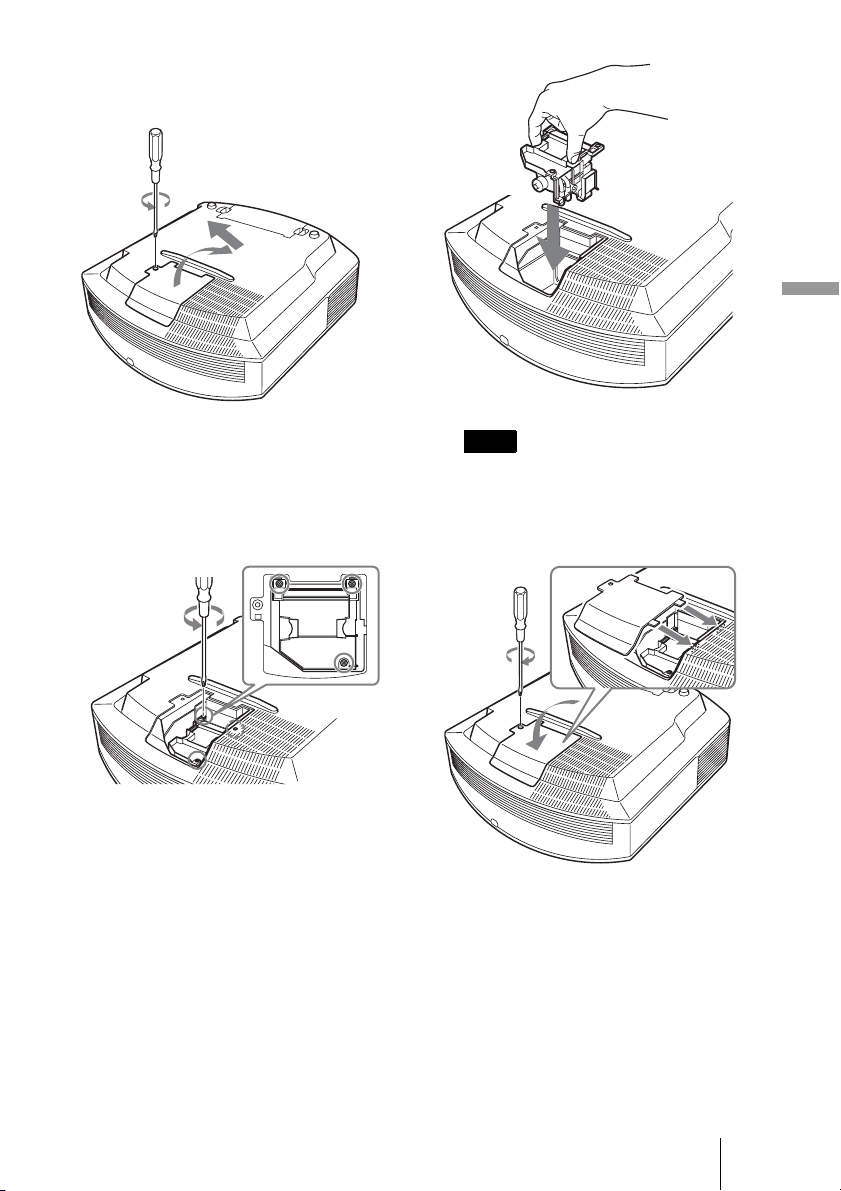
69
Others
3 Loosen the screw on the lamp
cover with a Philips screwdriver,
and then open the lamp cover.
4 Loosen the 3 screws on the
lamp with the Phillips
screwdriver. Hold up the handle,
then pull the lamp straight out.
5 Hold the handle of the new lamp
and push it in securely until it
reaches the end, and then
tighten the 3 screws.
Be careful not to touch the optical block
inside the unit.
6 Close the lamp cover, then
tighten the screws.
Note
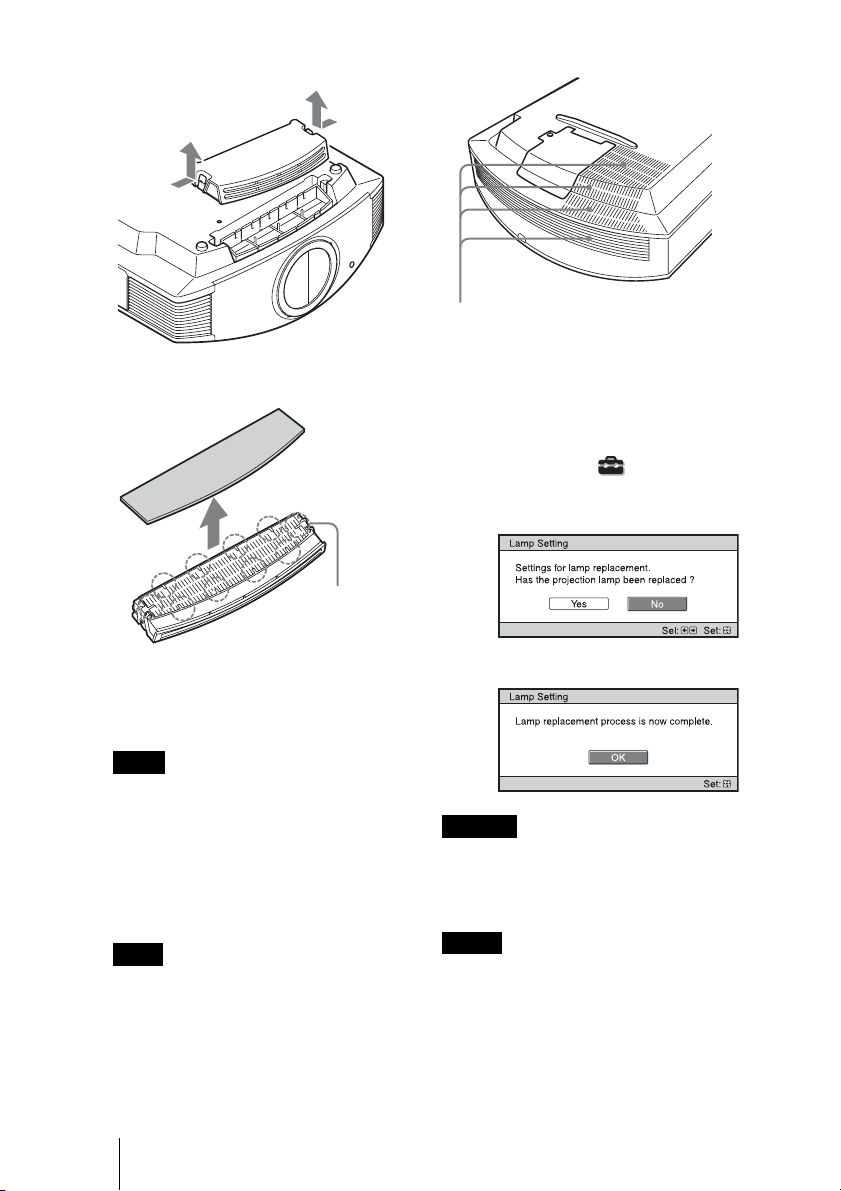
70
7 Remove the filter holder.
8 Remove the air filter.
9 Attach the new air filter so that it
fits into the each claws (10
positions) on the filter holder.
Attach the air filter aligning it with the
shape of the filter holder.
Also, do not touch the fan after removing
the air filter that is set deep inside the
projector.
10 Attach the filter holder.
The projector will not turn on unless the
filter holder is securely closed.
11 Wipe dust off the ventilation
holes (intake) with a soft cloth.
12 Place the project back on its
original position.
13 Turn on the projector, then
select the desired setting item
on the Setup menu. The
menu screen below will be
appeared.
14 Select “Yes”.
Do not put your hands into the lamp
replacement slot, and do not allow any liquid or
other objects into the slot to avoid electrical
shock or fire.
• Be sure to use an LMP-H201 Projector Lamp
for replacement. If you use lamps other than
the LMP-H201, the projector may
malfunction.
Note
Note
Claws
Caution
Notes
Ventilation holes (intake)
71
Others
• Be sure to turn off the projector and unplug
the power cord before replacing the lamp,
then check the ON/STANDBY lamp has
already been turned off.
• The projector will not turn on unless the lamp
is securely installed in place.
• The projector will not turn on unless the lamp
cover are securely closed.
• To cancel a message displayed on the screen,
press either the button on the remote control
or the one on the control panel on the
projector.
Disposal of the used lamp
For the customers in the USA
Lamp in this product contains mercury.
Disposal of these materials may be regulated
due to environmental considerations. For
disposal or recycling information, please
contact your local authorities or the
Electronic Industries Alliance
(www.eiae.org).
Cleaning the Air
Filter
When “Please clean the filter.” appears on
the screen, you should clean the air filter.
The air filter should be cleaned every 1,500
hours. This value varies depending on the
environment or how the projector is used.
1,500 hours are approximate.
After washing the air filter with a mild
detergent solution, dry it in a shaded place.
• When you clean the air filter, make sure you
do not damage it.
For details on how to attach and remove the
air filter, see “Replacing the Lamp and the
Air Filter and Cleaning the Ventilation Holes
(intake)” Steps 7 to 10. (1 page 70)
• When you remove the air filter, be careful
not to let any dust fall into the projector.
• Cleaning the air filter is crucial to maintain
the good performance of the projector or to
prevent malfunction to it. When a warning
message for cleaning the air filter appears,
clean the air filter immediately.
Cleaning and the
Screen of the
Projector
Cleaning the cabinet
• To remove dust from the cabinet, wipe
gently with a soft cloth. If dust is
persistent, wipe with a soft cloth slightly
moistened with a diluted mild detergent
solution.
• Never use any type of abrasive pad,
alkaline/acid cleaner, scouring powder, or
volatile solvent, such as alcohol, benzene,
thinner or insecticide.
• Using such materials or maintaining
prolonged contact with rubber or vinyl
materials may result in damage to the
screen surface and cabinet material.
Note
The lamp contains mercury. The disposal
rules for used fluorescent tubes depend on
where you live. Follow the waste disposal
policy in your area.
Notes

72
Black points and bright points (red,
blue, or green) on the screen
The projector is manufactured using high-
precision technology.
You may, however, see tiny black points
and/or bright points (red, blue, or green) that
continuously appear on the projector.
This is a normal result of the manufacturing
process and does not indicate a malfunction.

73
Others
Specifications
System
Projection system
SXRD panel, 1 lens, projection system
LCD panel
0.61-inch (15.4 mm)
SXRD panel 6,220,800 pixels
(2,073,600 pixels × 3)
Lens 1.6 times zoom lens (motorized)
f=18.5 mm to 29.6 mm
F2.50 to F3.40
Lamp
200 W Ultra High Pressure Lamp
Projection picture size
40 inches to 300 inches (1,016 mm to
7,620 mm) (measured diagonally)
Color system
NTSC
3.58/PAL/SECAM/
NTSC
4.43/PAL-M/PAL-N/PAL60
system, switched automatically/
manually (PAL60 system not
switched manually)
Acceptable video signals
15 kHz RGB/component 50/60 Hz,
Progressive component 50/60 Hz,
480/60i, 576/50i, 480/60p, 576/50p,
720/60p, 720/50p, 1080/60i, 1080/50i,
1080/24PsF (48i), 1080/60p (HDMI
input only), 1080/50p (HDMI input
only), 1080/24p (HDMI input only),
Composite video, Y/C video
Acceptable computer signals
fH: 19 kHz to 72 kHz
fV: 48 Hz to 92 Hz
Maximum resolution 1,920 × 1,080
(HDMI input only)
For details, see “Preset Signals”. (1
page 75)
Input
Video input
VIDEO: phono type
Composite video: 1 Vp-p±2 dB
sync negative (75 ohms
terminated)
S VIDEO: Y/C mini DIN 4-pin type
Y (luminance): 1 Vp-p±2 dB sync
negative (75 ohms terminated)
C (chrominance): burst 0.286 Vp-p ±2
dB (NTSC)
(75 ohms terminated), or
burst 0.3 Vp-p±2 dB (PAL)
(75 ohms terminated)
Y P
B/CB PR/CR
Component: phono type
Y with Sync: 1 Vp-p±2 dB sync
negative (75 ohms terminated)
P
B/CB: 0.7 Vp-p±2 dB (75 ohms
terminated)
P
R/CR: 0.7 Vp-p±2 dB (75 ohms
terminated)
HDMI
Digital RGB/Y C
B (PB) CR (PR)
INPUT A
HD D-sub 15-pins
Analog RGB/component:
R/C
R (PR): 0.7 Vp-p±2 dB
(75 ohms terminated)
G: 0.7 Vp-p±2 dB
(75 ohms terminated)
G with sync/Y: 1 Vp-p±2 dB sync
negative (75 ohms terminated)
B/C
B (PB): 0.7 Vp-p±2 dB
(75 ohms terminated)
SYNC/HD: Composite sync input:
TTL level, positive/ negative
Horizontal sync input: TTL level,
positive/negative
VD: Vertical sync input: TTL
level, positive/negative
TRIGGER 1
Minijack
Power on: DC 12 V, output
impedance: 4.7 kilohms
Power off: 0 V
TRIGGER 2
Minijack
Anamorphic Zoom:
DC 12 V, output
impedance: 4.7 kilohms
The other wide screen modes or
Power off: 0 V
REMOTE
RS-232C: D-sub 9-pins (female)
General
Dimensions
470 mm × 179.2 mm ×
482.4 mm (18
5
/
8
× 7
1
/
8
×
19 inches) (w/h/d)
Mass Approx. 12 kg (26 lb 8 oz)
Power requirements
AC 100 V to 240 V, 3.2 A to 1.4 A,
50/60 Hz
Power consumption
Max. 320 W
Standby mode: 8 W
Standby mode (low): 0.5 W
Operating temperature
5°C to 35°C (41°F to 95°F)
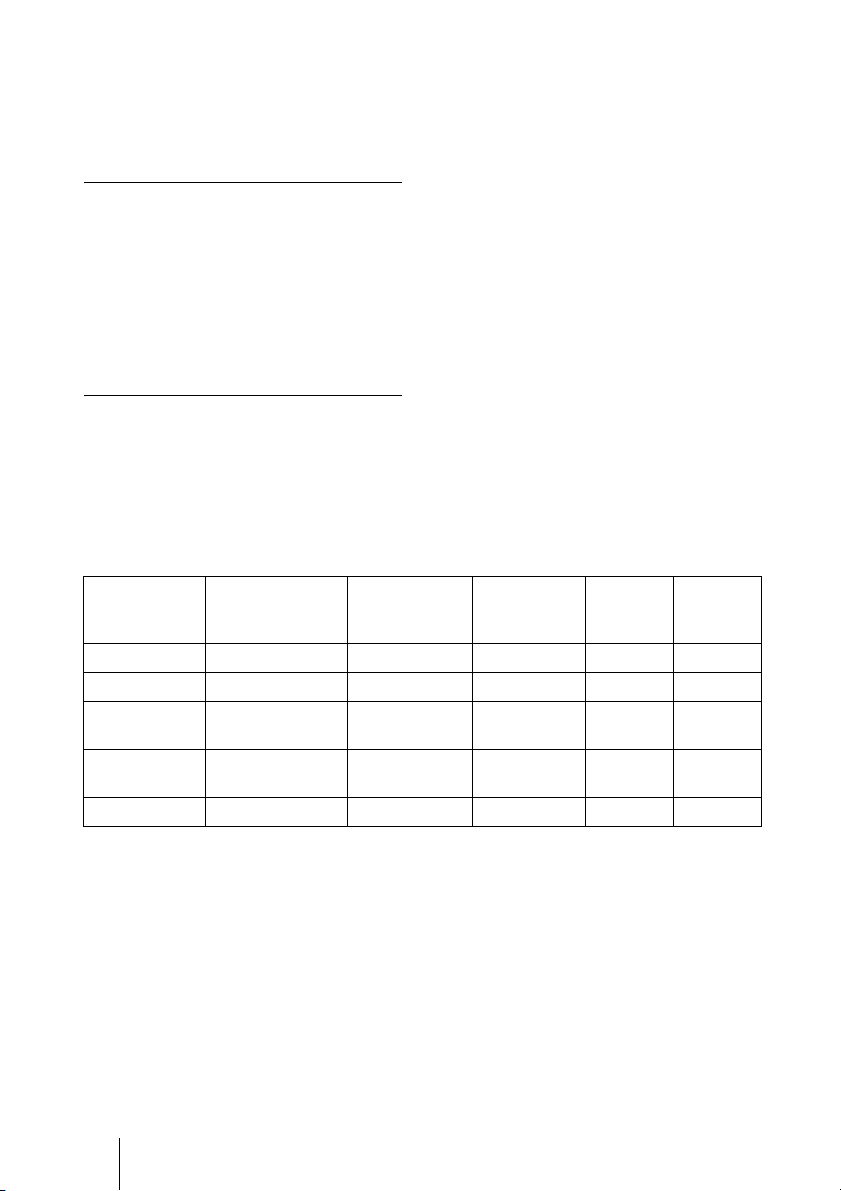
74
Operating humidity
35% to 85% (no condensation)
Storage temperature
–20°C to +60°C (–4°F to +140°F)
Storage humidity
10% to 90%
Supplied accessories
Remote control RM-PJVW85 (1)
Size AA (R6) manganese batteries
(2)
AC power cord (1)
Operating Instructions (1)
CD-ROM (ImageDirector3) (1)
Design and specifications are subject to change
without notice.
Optional accessories
Projector Lamp LMP-H201 (for replacement)
Projector Suspension Support PSS-H10
Warning on power connection
Use a proper power cord for your local power supply.
* Use a rated plug that complies with the regulation of each country/region and the specifications.
The United States,
Canada
Continental
Europe
UK, Ireland,
Australia,
New Zealand
Japan China
Plug type YP-3 YP-12A * YP-359 VM0722
Female end YC-13 YC-13D VM0303B YC-13 VM0724
Cord type SVT H05VV-F CEE (13)
53 rd (OC)
VCTF 227 IEC
53(RVV)
Rated Voltage
& Current
10A/125V 10A/250V 10A/250V 12A/125V 10A/250V
Safety approval UL/CSA VDE VDE
DENANHO
CCC
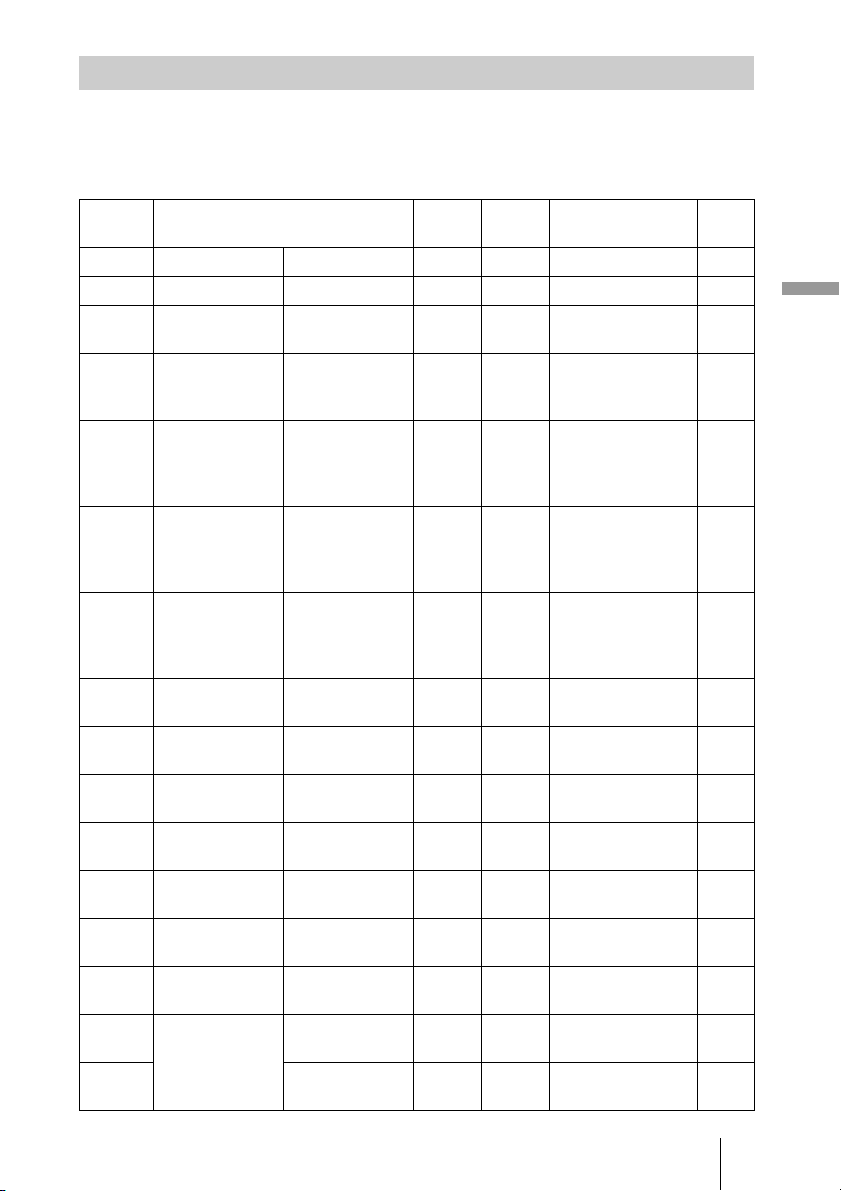
75
Others
The following table shows the signals and video formats which you can project using this
unit.
When a signal other than the preset signal shown below is input, the picture may not be
displayed properly.
Preset Signals
Memory
No.
Preset signal
(resolution)
fH
(kHz)
fV
(Hz)
Sync H Size
1 VIDEO/60 60 Hz 15.734 59.940 – –
2 VIDEO/50 50 Hz 15.625 50.000 – –
3 480/60i 480/60i
(720 × 480i)
15.734 59.940 SonG/Y or
composite sync
–
4 576/50i 576/50i
(720 × 576i)
15.625 50.000 SonG/Y or
composite sync
/composite video
–
5 480/60p 480/60p
(Progressive
NTSC)
(720 × 480p)
31.470 60.000 SonG/Y –
6 576/50p 576/50p
(Progressive
PA L )
(720 × 576p)
31.250 50.000 SonG/Y –
7 1080/60i 1035/60i
(1920 × 1035i)
1080/60i
(1920 × 1080i)
33.750 60.000 SonG/Y –
8 1080/50i 1080/50i
(1920 × 1080i)
28.130 50.000 SonG/Y –
9 1080/24PsF (48i) 1080/24PsF (48i)
(1920 × 1080i)
27.000 48.000 SonG/Y –
10 720/60p 720/60p
(1280 × 720p)
45.000 60.000 SonG/Y –
11 720/50p 720/50p
(1280 × 720p)
37.500 50.000 SonG/Y –
12 1080/60p 1080/60p
(1920 × 1080p)
67.500 60.000 – –
13 1080/50p 1080/50p
(1920 × 1080p)
56.260 50.000 – –
14 1080/24p 1080/24p
(1920 × 1080p)
26.973 23.976 – –
21 640 × 350 VGA-1
(VGA350)
31.469 70.086 H-pos, V-neg 800
22 VESA 85
(VGA350)
37.861 85.080 H-pos, V-neg 832
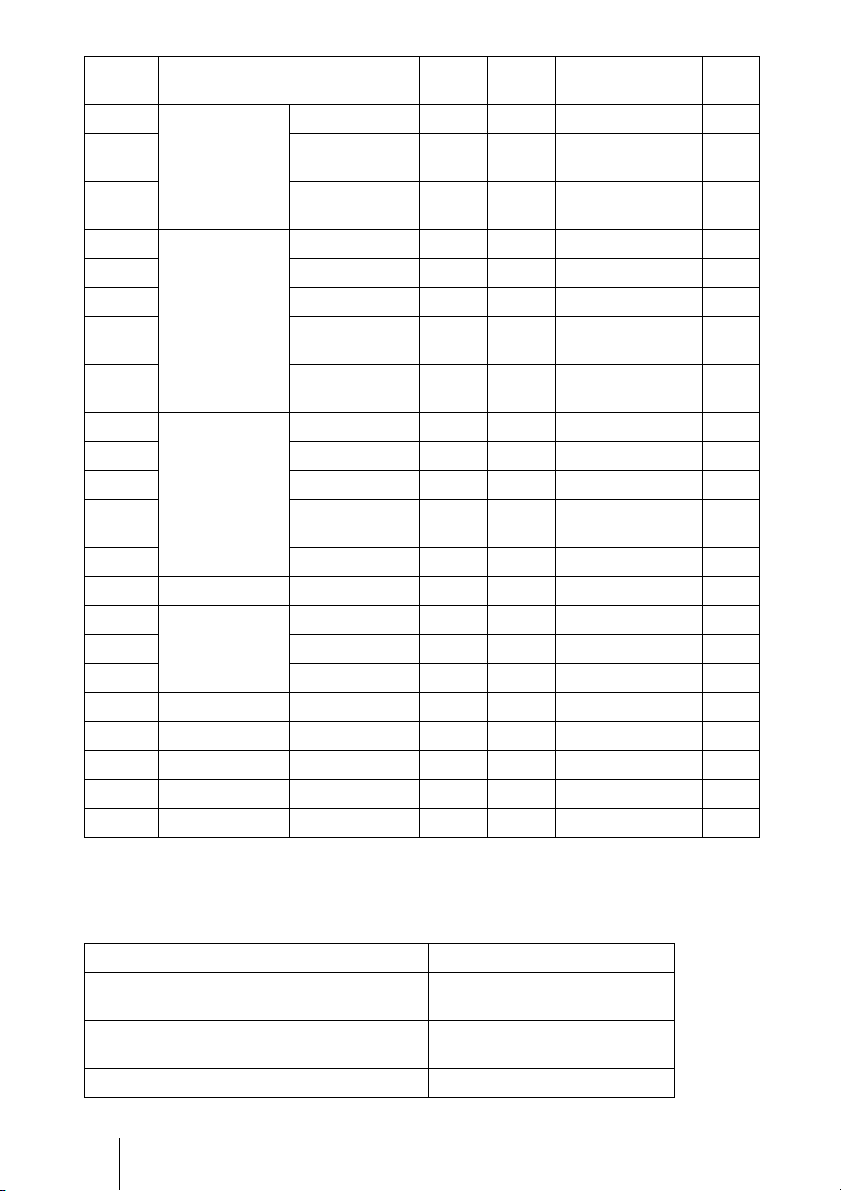
76
Preset memory numbers for each input signal
Analog signal
23 640 × 400 NEC PC98 24.823 56.416 H-neg V-neg 848
24 VGA-2 (TEXT)
/VESA70
31.469 70.086 H-neg V-pos 800
25 VESA 85
(VGA400)
37.861 85.080 H-neg, V-pos 832
26 640 × 480 VESA 60 31.469 59.940 H-neg, V-neg 800
27 Mac 13 35.000 66.667 H-neg, V-neg 864
28 VESA 72 37.861 72.809 H-neg, V-neg 832
29 VESA 75
(IBM M3)
37.500 75.000 H-neg, V-neg 840
30 VESA 85
(IBM M4)
43.269 85.008 H-neg, V-neg 832
31 800 × 600 VESA 56 35.156 56.250 H-pos, V-pos 1024
32 VESA 60 37.879 60.317 H-pos, V-pos 1056
33 VESA 72 48.077 72.188 H-pos, V-pos 1040
34 VESA 75
(IBM M5)
46.875 75.000 H-pos, V-pos 1056
35 VESA 85 53.674 85.061 H-pos, V-pos 1048
36 832 × 624 Mac 16 49.724 74.550 H-neg, V-neg 1152
37 1024 × 768 VESA 60 48.363 60.004 H-neg, V-neg 1344
38 VESA 70 56.476 70.069 H-neg, V-neg 1328
39 VESA 75 60.023 75.029 H-pos, V-pos 1312
45 1280 × 960 VESA 60 60.000 60.000 H-pos, V-pos 1800
47 1280 × 1024 VESA 60 63.974 60.013 H-pos, V-pos 1696
50 1400 × 1050 SXGA + 65.317 59.978 H-neg, V-pos 1864
55 1280 × 768 1280 × 768/60 47.776 59.870 H-neg, V-pos 1664
56 1280 × 720 1280 × 720/60 44.772 59.855 H-neg, V-pos 1664
Signal Preset memory number
Video signal (VIDEO INPUT and
S VIDEO INPUT connectors)
1, 2
Component signal (INPUT A and Y P
B/CB PR/
C
R connectors)
3 to 11
Video GBR signal (INPUT A connector) 3 to 11
Memory
No.
Preset signal
(resolution)
fH
(kHz)
fV
(Hz)
Sync H Size
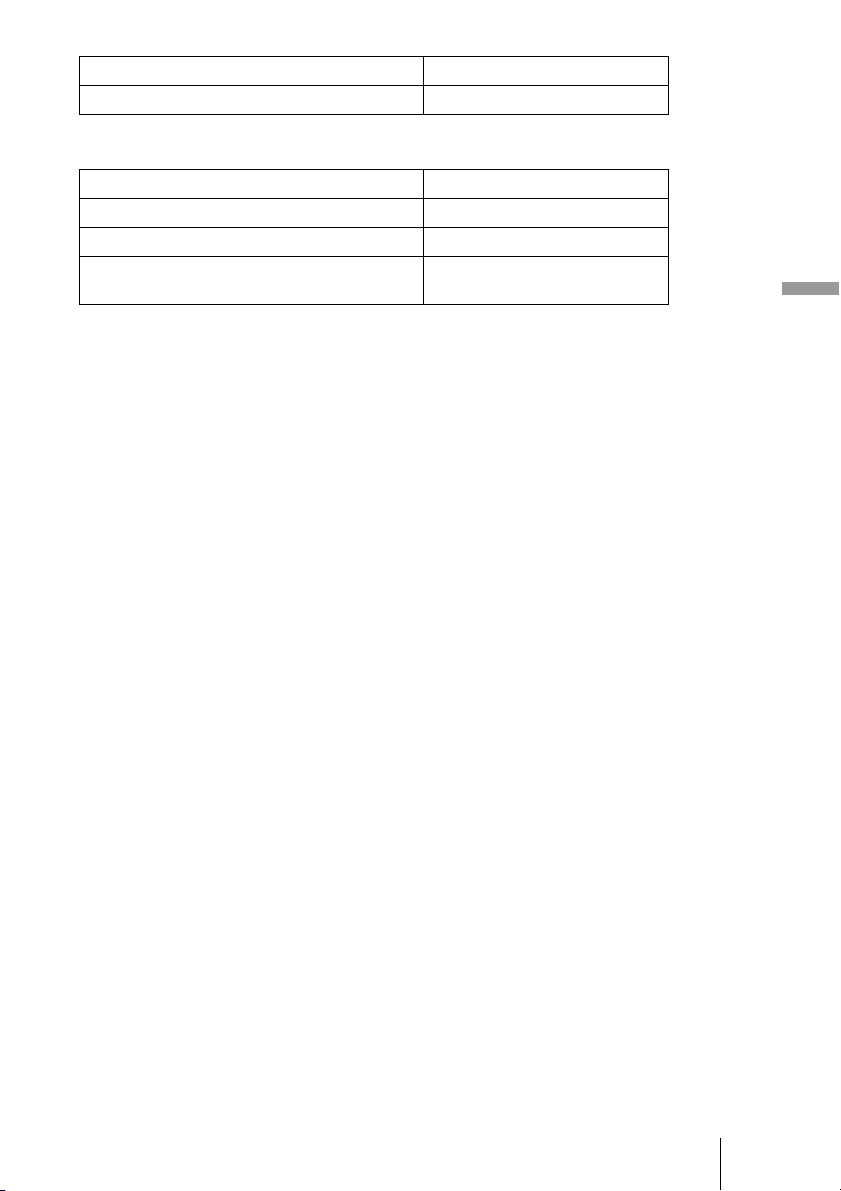
77
Others
Digital signal
* Some digital signals input from computers may be displayed as preset memory number of
Component or Video GBR signal.
Computer signal (INPUT A connector) 21 to 39, 55 to 56
Signal Preset memory number
Component signal (HDMI 1, 2 connectors) 3 to 8, 10 to 14
Video GBR signal (HDMI 1, 2 connectors) 3 to 8, 10 to 14
Computer signal (HDMI 1, 2 connectors) 10 to 13*, 26, 32, 36, 37, 45, 47,
50, 55
Signal Preset memory number
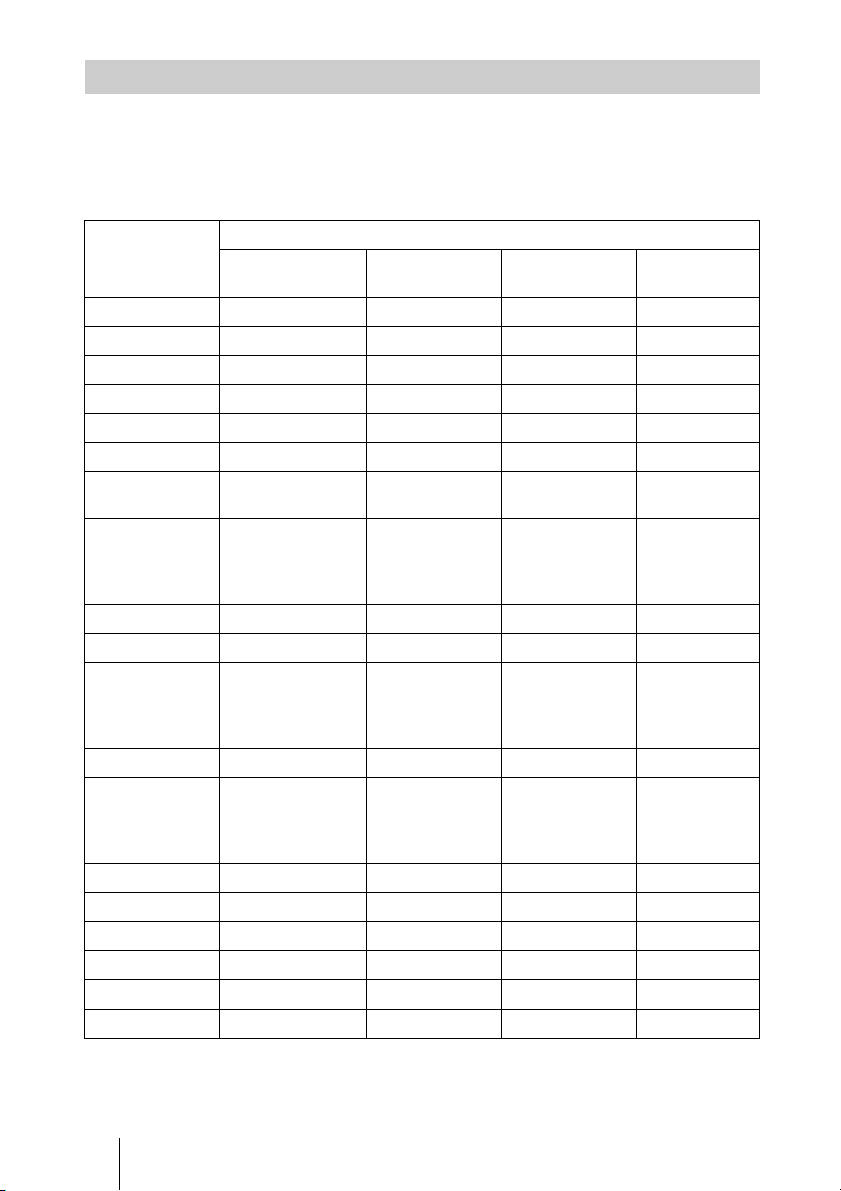
78
The items in the menus available to adjust differ depending on the input signal. The
following tables indicate them.
The items that cannot be adjusted are not displayed in the menu.
Picture menu
z
: Adjustable/can be set
– : Not adjustable/cannot be set
Input Signals and Adjustable/Setting Items
Item Input signal
Video signal Component
signal
Video GBR signal Computer
signal
Advanced Iris zzzz
Lamp Control zzzz
Film Projection zzz–
Motion Enhancer zzz–
Contrast zzzz
Brightness zzzz
Color
z
(except for B & W)
zz–
Hue z
(NTSC
3.58/
NTSC
4.43 only,
except for B & W)
zz–
Color Temp. zzzz
Sharpness zzz–
NR zz
(preset memory
numbers 3, 4, 7,
8, 9 only)
z
(preset memory
numbers 3, 4, 7,
8, 9 only)
–
MPEG NR zzzz
Film Mode zz
(excluding preset
memory number
14)
z
(excluding preset
memory number
14)
–
Black Level Adj.*
1
zzz–
White Level Adj.*
1
zzz–
Gamma Correction
*
1
zzzz
x.v.Color
zz––
Color Space
zzzz
RCP zzzz
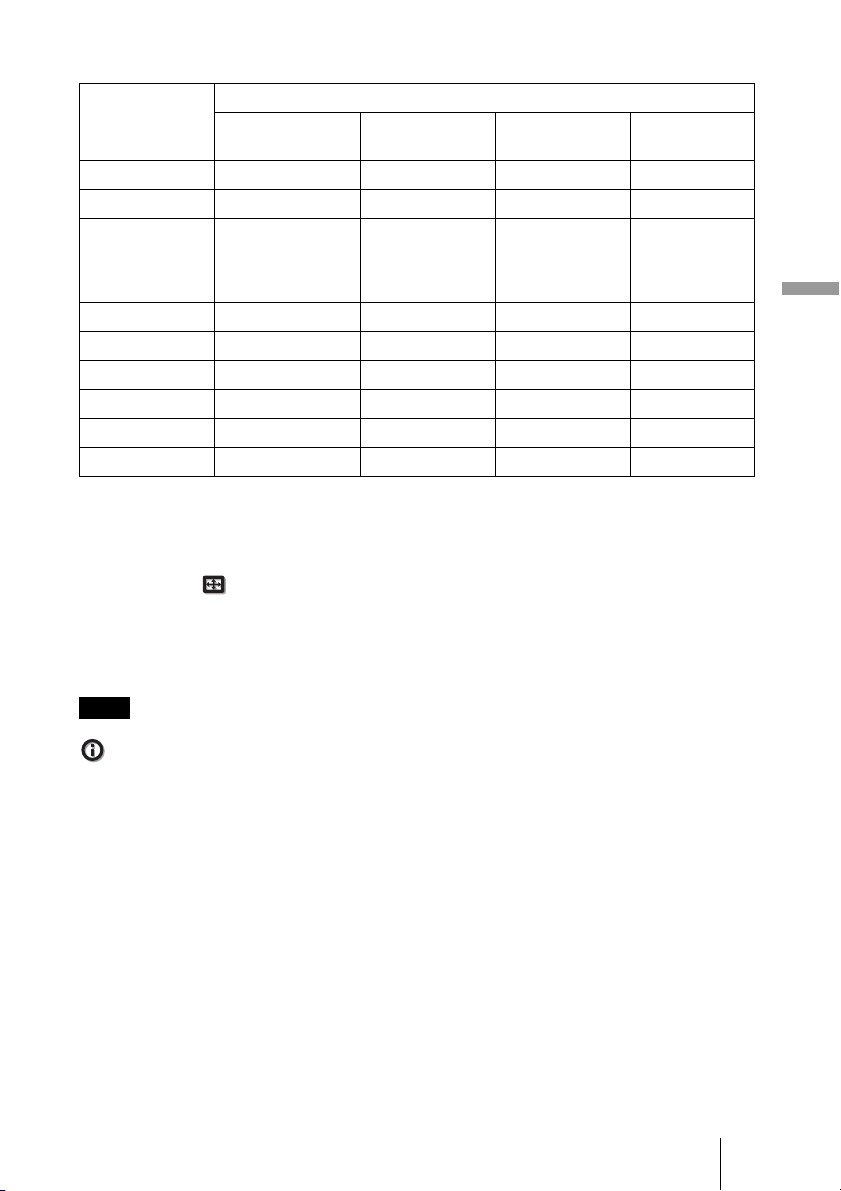
79
Others
Screen menu
z : Adjustable/can be set
– : Not adjustable/cannot be set
*
1
: The setting can be made only when “x.v.Color” is set to “Off”.
*
2
: The setting can be made only when “Wide Mode” is set to “Full” and “Over Scan” is set to “On”
in the Screen menu.
*
3
: If the input signal is from a computer, the setting cannot be made when the aspect ratio is 16:9
or wider (fixed at “Full 1”).
*
4
: The setting can be made only when “Zoom” is selected in “Wide Mode”.
*
5
: The setting can be made only for analog signal.
When connecting a cable such as an HDMI cable, etc., check the type of the signal in the Information
menu (1 page 59) and Digital signal (1 page 77), and check items that are adjustable/can be
set.
Item Input signal
Video signal Component
signal
Video GBR signal Computer
signal
Wide Mode zzzz *
3
Over Scan – zz–
Screen Area *
2
– z
(preset memory
numbers 7, 8, 9,
12, 13, 14 only)
z
(preset memory
numbers 7, 8, 9,
12, 13, 14 only)
–
V Center *
4
zzzz
Vertical Size *
4
zzz–
APA – – – z *
5
Phase – – – z *
5
Pitch – – – z *
5
Shift – z *
5
z *
5
z
Note
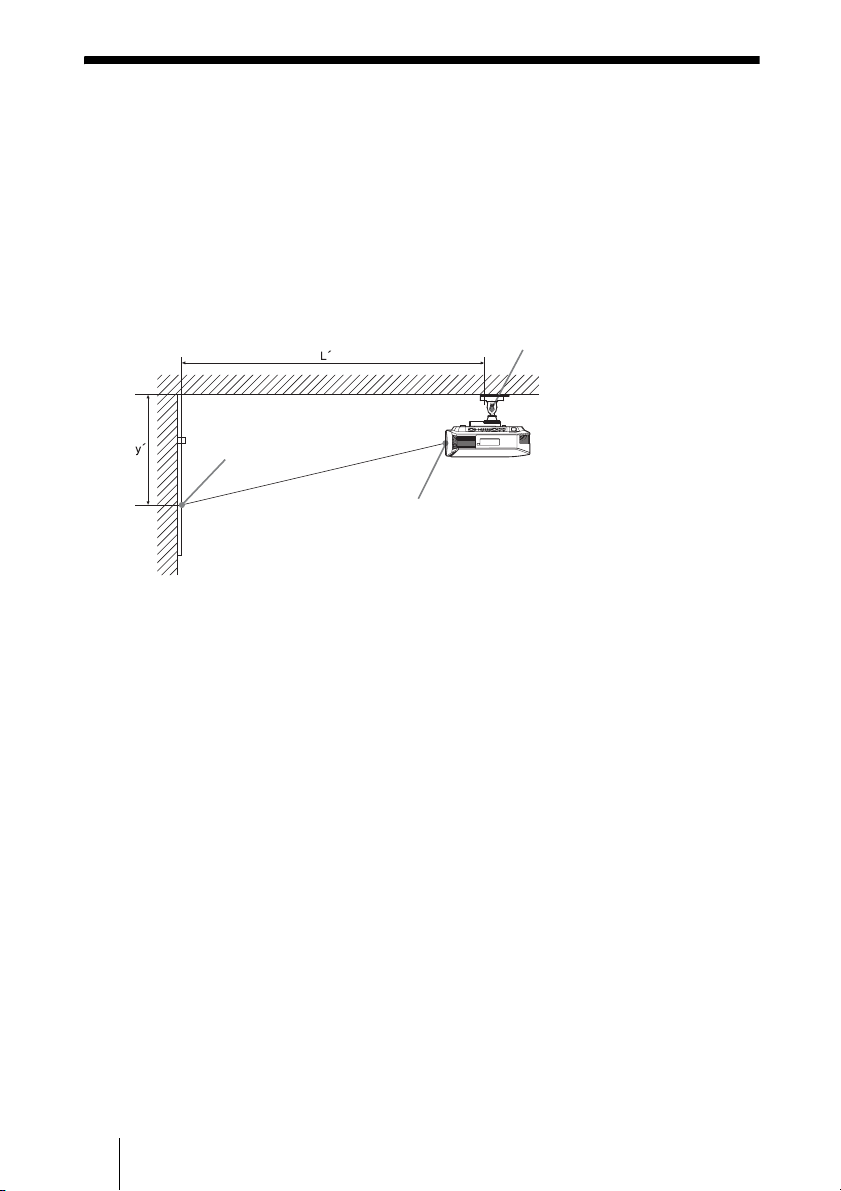
80
Ceiling Installation
Use the PSS-H10 Projector Suspension Support when you install the projector on a
ceiling. The projection distances for ceiling installation are shown below.
L’:Distance between the screen and the installation hole at the
ceiling side of the ceiling mount unit (front side)
y’: Distance between the ceiling and the center of the screen such
that the picture will not be truncated or blocked
PSS-H10 Projector Suspension
Support (not supplied)
Ceiling
Center of the screen
Center of the lens
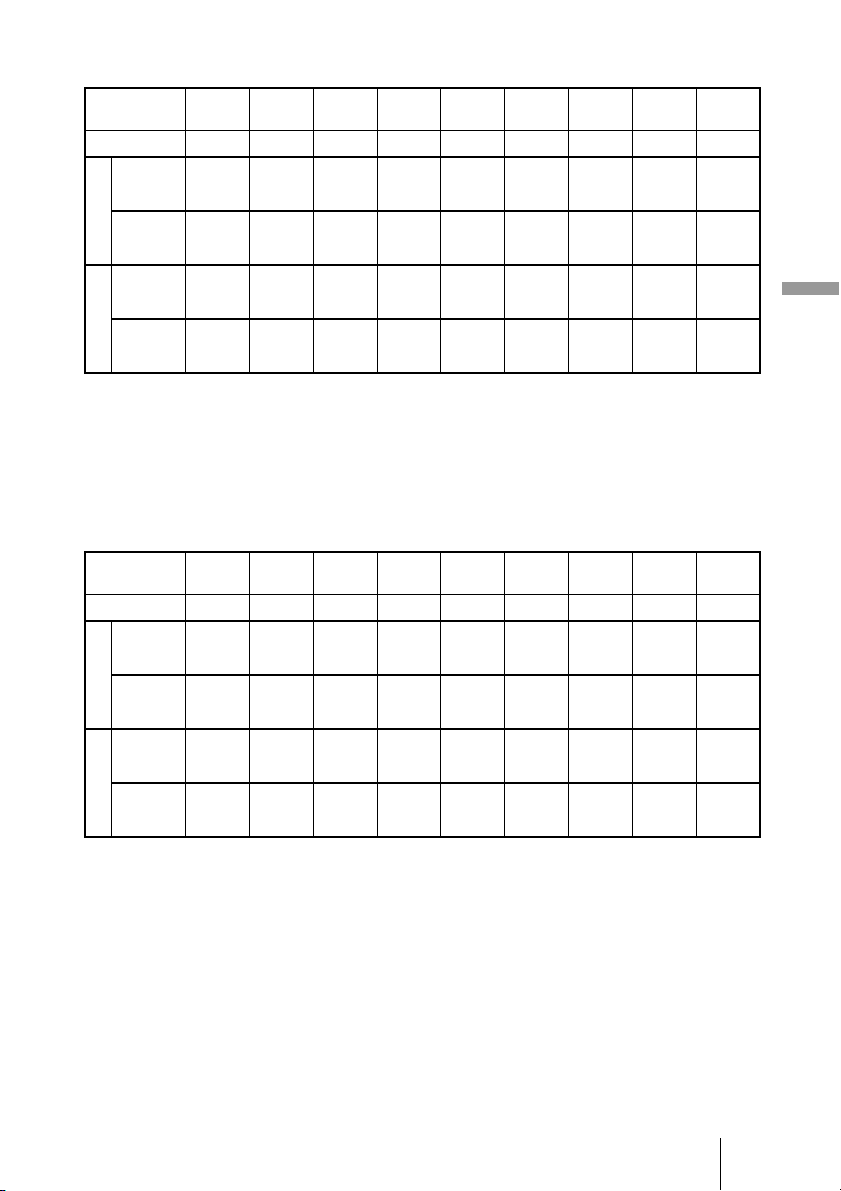
81
Others
When using the 16:9 aspect ratio screen size
Unit: mm (inches)
To calculate the installation positions
L’ (minimum) = 31.1781 (1
7
/
32
) × SS + 137.7 (5
13
/
32
)
L’ (maximum) = 47.0644 (1
27
/
32
) × SS + 130.8 (5
5
/
32
)
y’ (minimum) = 6.2263 (
1
/
4
) × SS
y’ (maximum) = 8.0942 (
5
/
16
) × SS + 268.5 (10
9
/
16
)
When using the 4:3 aspect ratio screen size
Unit: mm (inches)
To calculate the installation positions
L’ (minimum) = 38.1569 (1
1
/
2
) × SS + 137.7 (5
13
/
32
)
L’ (maximum) = 57.5992 (2
9
/
32
) × SS + 130.8 (5
5
/
32
)
y’ (minimum) = 7.62 (
5
/
16
) × SS
y’ (maximum) = 9.906 (
3
/
8
) × SS + 268.5 (10
9
/
16
)
Screen Size
SS (inches)
40 60 80 100 120 150 200 250 300
(mm) 1016 1524 2032 2540 3048 3810 5080 6350 7620
L’
(minimum) 1385 2008 2632 3256 3879 4814 6373 7932 9491
(54
17
/
32
)(79
1
/
16
) (103
5
/
8
) (128
5
/
32
) (152
23
/
32
) (189
17
/
32
) (250
29
/
32
) (312
9
/
32
) (373
21
/
32
)
(maximum) 2013 2955 3896 4837 5779 7190 9544 11897 14250
(79
9
/
32
) (116
5
/
16
) (153
3
/
8
) (190
7
/
16
) (227
1
/
2
) (283
3
/
32
) (375
3
/
4
) (468
3
/
8
) (561
1
/
32
)
y’
(minimum) 249 374 498 623 747 934 1245 1557 1868
(9
7
/
8
)(14
3
/
4
)(19
5
/
8
)(24
5
/
8
) (29
1
/
2
)(36
7
/
8
)(49
1
/
8
)(61
3
/
8
) (73
5
/
8
)
(maximum) 592 754 916 1078 1240 1483 1887 2292 2697
(23
3
/
8
)(29
3
/
4
)(36
1
/
8
)(42
1
/
2
) (48
7
/
8
)(58
1
/
2
)(74
3
/
8
)(90
1
/
4
) (106
1
/
4
)
Screen Size
SS (inches)
40 60 80 100 120 150 200 250 300
(mm) 1016 1524 2032 2540 3048 3810 5080 6350 7620
L’
(minimum) 1664 2427 3190 3953 4717 5861 7769 9677 11585
(65
1
/
2
)(95
9
/
16
) (125
19
/
32
) (155
21
/
32
) (185
11
/
16
) (230
3
/
4
) (305
7
/
8
) (380
31
/
32
) (456
3
/
32
)
(maximum) 2435 3587 4739 5891 7043 8771 11651 14531 17411
(95
27
/
32
) (141
7
/
32
) (186
9
/
16
) (231
29
/
32
) (277
9
/
32
) (345
5
/
16
) (458
11
/
16
) (572
1
/
16
) (685
15
/
32
)
y’
(minimum) 305 457 610 762 914 1143 1524 1905 2286
(12
1
/
8
) (18) (24
1
/
8
) (30) (36) (45) (60) (75) (90)
(maximum) 665 863 1061 1259 1457 1754 2250 2745 3240
(26
1
/
4
) (34) (41
7
/
8
)(49
5
/
8
) (57
3
/
8
)(69
1
/
8
)(88
5
/
8
) (108
1
/
8
) (127
5
/
8
)
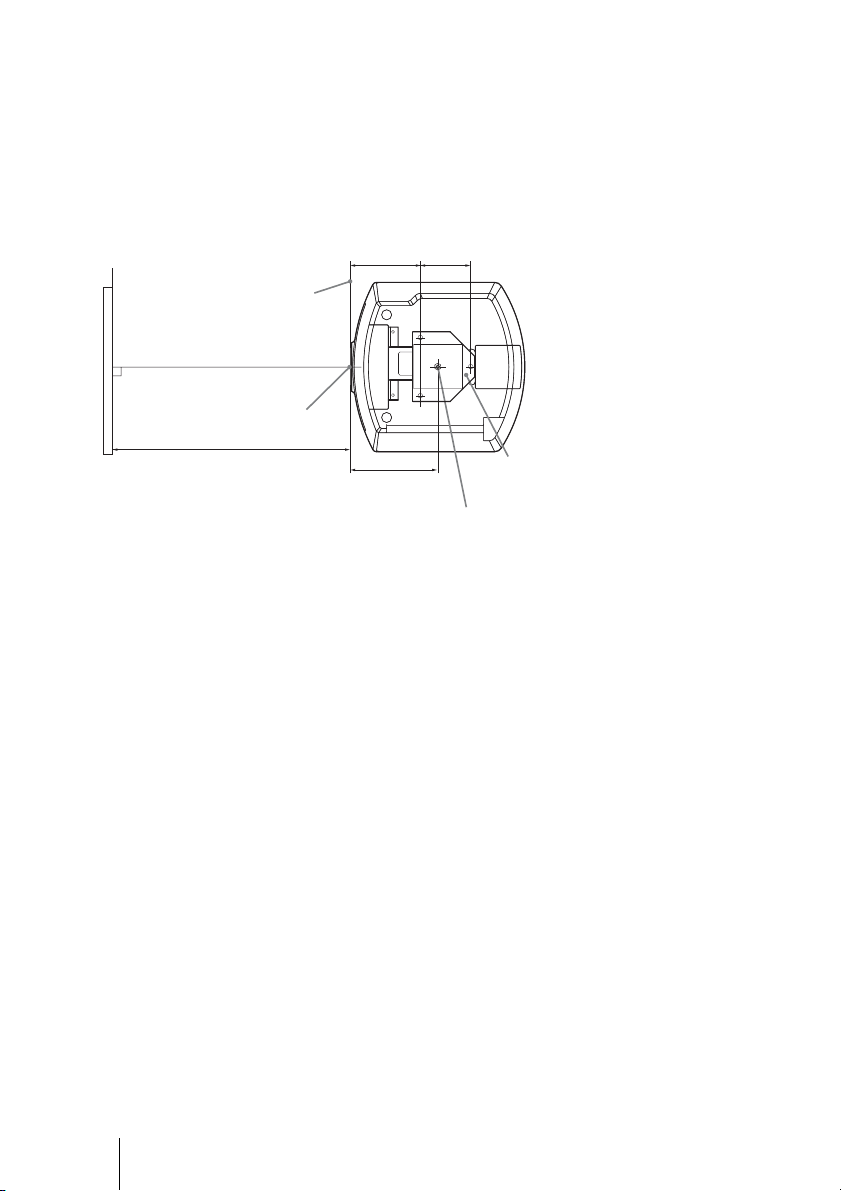
82
Attaching the PSS-H10 projector suspension support
For details on installation on a ceiling, refer to the Installation manual for Dealers of the
PSS-H10. Make sure to consult with a qualified Sony personnel for installation.
The installation measurements are shown below when installing the projector on a ceiling
using the PSS-H10.
Top view
Install the projector so that the center of the lens is parallel to the center of the screen.
Front of the cabinet
Center of the lens
Upper ceiling
mount bracket
Center of the supporting pole
(The center of the supporting pole
is different from that of the unit.)
Distance between the screen
and the center of the lens
202.3 (8) 130 (5
1
/
8
)
247.3 (9
3
/
4
)
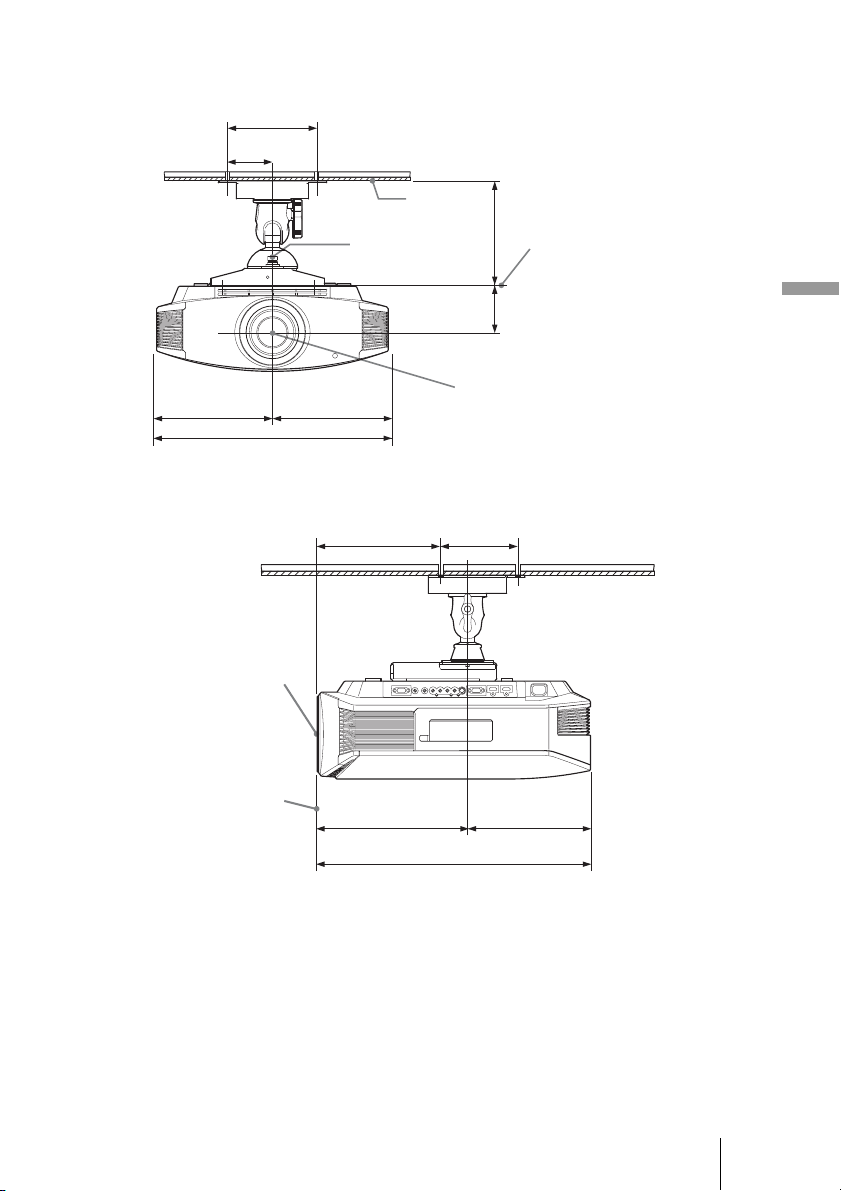
83
Others
Front view
Side view
Ceiling
The bottom
surface of the
mount bracket
Center of the
supporting pole
Center of the lens
150 (6)
75 (3)
175 (7)
93.5 (3
3
/
4
)
235 (9
3
/
8
)235 (9
3
/
8
)
470 (18
5
/
8
)
Center of the lens
Front of the cabinet
202.3 (8) 130 (5
1
/
8
)
247.3 (9
3
/
4
) 235.1 (9
3
/
8
)
482.4 (19)

84
Index
A
Adjust Signal
APA ..................................................... 51
Phase ................................................... 51
Pitch ..................................................... 51
Shift .....................................................51
Adjuster ................................................... 21
Adjusting
picture position .................................... 17
picture quality ...................................... 36
Advanced Iris .......................................... 45
APA ......................................................... 51
Auto Input Search ................................... 55
B
Background ............................................. 55
Black Level Adj. ..................................... 47
Blanking .................................................. 57
Brightness ............................................... 46
C
Ceiling Installation .................................. 80
Cinema Black Pro ................................... 45
Color Space ............................................. 48
Color System ........................................... 53
Color Temp. ............................................46
Connecting
Computer ............................................. 25
Video equipment .................................22
Contrast ................................................... 45
Control for HDMI ...................................54
Cooling Setting ....................................... 52
E
Expert Setting ..........................................46
F
fH .......................................................... 59
Film Projection ........................................45
fV .......................................................... 59
G
Gamma Correction .................................. 47
H
HDMI ......................................................22
Hue ..........................................................46
I
Image Flip ................................................56
ImageDirector3 ..................................39, 48
Input-A Signal Sel. ..................................53
IR Receiver ..............................................56
L
Lamp Control ...........................................45
Lamp Timer .............................................59
Language .................................................52
Lens Control ............................................56
Location of Controls
Front/Right side .....................................7
Rear/Bottom ...........................................8
M
Menu
Advanced Picture .................................49
Function ...............................................54
Information ..........................................59
Installation ...........................................56
Picture ..................................................44
Screen ..................................................50
Setup ....................................................52
Messages
Caution .................................................67
Warning ...............................................66
Motion Enhancer .....................................45
Motionflow ..............................................45
MPEG NR ...............................................46
N
NR ...........................................................46
O
Over Scan ................................................51
P
Panel Alignment ......................................57
Picture Mode
CINEMA ..............................................35
Cinema .................................................44
DYNAMIC ..........................................35
Dynamic ...............................................44
STANDARD ........................................35

85
Others
Standard ...............................................44
USER ...................................................35
User ......................................................44
Precautions ................................................6
Preset Memory ........................................59
Preset Signals ..........................................75
R
RCP .........................................................49
Remote control
inserting the batteries ...........................10
location of controls ................................9
Reset
resettable items ....................................43
resetting the items ................................43
S
Screen Area .............................................51
Selecting the menu language ...................26
Sharpness .................................................46
Specifications ..........................................73
Standby Mode .........................................52
Status .......................................................52
Supplied accessories ................................10
T
Test Pattern ..............................................55
Troubleshooting ......................................62
V
V Keystone ..............................................56
W
White Level Adj. .....................................47
WIDE MODE ..........................................32
Wide Mode
Anamorphic Zoom ...............................50
Full ......................................................50
Full 1 ....................................................51
Full 2 ....................................................51
Normal .................................................50
Wide Zoom ..........................................50
Zoom ...................................................50
X
x.v.Color ..................................................48

S
ony Corporation
Printed in Japan