
PLASMA
MONITOR
OWNER'S
MANUAL
Please
read
this
manual
carefully
and
completely
before
operating
your
Monitor.
Retain
this
manual
for
future
reference.
Record
model
number
and
serial
number
of
the
Monitor
in
the
spaces
provided
below.
See
the
label
attached
on
the
back
cover
and
relate
this
infor-
mation
to
your
dealer
if
you
require
service.
Model
Number
:
Serial
Number
:
MODELS:
42PM1M
42PM1M-UC
42PM3MV
42PM3MV-UC
50PM1M
50PM1M-UC
U514Aen
06/7/14
9:55
AM
Page
1

2
Plasma
Monitor
Warning/Caution
WARNING/CAUTION:
TO
REDUCE
THE
RISK
OF
ELECTRIC
SHOCK
DO
NOT
REMOVE
COVER
(OR
BACK).
NO
USER
SERVICEABLE
PARTS
INSIDE.
REFER
TO
QUALIFIED
SERVICE
PERSONNEL.
The
lightning
flash
with
arrowhead
symbol,
within
an
equilateral
triangle,
is
intended
to
alert
the
user
to
the
presence
of
uninsulated
"dangerous
voltage"
within
the
product's
enclosure
that
may
be
of
suffi-
cient
magnitude
to
constitute
a
risk
of
electric
shock
to
persons.
The
exclamation
point
within
an
equilateral
triangle
is
intended
to
alert
the
user
to
the
presence
of
important operating
and
maintenance
(servicing)
instructions
in
the
literature
accompanying
the
appli-
ance.
WARNING/CAUTION:
TO PREVENT
FIRE
OR
SHOCK
HAZARDS,
DO
NOT
EXPOSE
THIS
PRODUCT
TO
RAIN
OR
MOISTURE.
FCC
NOTICE
?
A
Class
B
digital
device
This
equipment
has
been
tested
and
found
to
comply
with
the
limits
for
a
Class
B
digital
device,
pursuant
to
Part
15
of
the
FCC
Rules.
These
limits
are
designed
to
provide
reasonable
protection
against
harmful
interference
in
a
residential
installation.
This
equipment
generates,
uses
and
can
radiate
radio
frequency
energy
and,
if
not
installed
and
used
in
accordance
with
the
instructions,
may
cause
harmful
interference
to
radio
communications.
However,
there
is
no
guarantee
that
interference
will
not
occur
in
a
particular
installation.
If
this
equipment
does
cause
harmful
interference
to
radio
or
television
reception,
which
can
be
determined
by
turning
the
equipment
off
and
on,
the
user
is
encouraged
to
try
to
correct
the
interference
by
one
or
more
of
the
following
measures:
-
Reorient
or
relocate
the
receiving
antenna.
-
Increase
the
separation
between
the
equipment
and
receiver.
-
Connect
the
equipment
into
an
outlet
on a
circuit
different
from
that
to
which
the
receiver
is
connected.
-
Consult
the
dealer
or
an
experienced
radio/TV
technician
for
help.
?
Any
changes
or
modifications
not
expressly
approved
by
the
party
responsible
for
compli-
ance
could
void
the
user's
authority
to
operate
the
equipment.
CAUTION:
Do
not
attempt
to
modify
this
product
in
any
way
without
written
authorization
from
LG
Electronics.
Unauthorized
mod-
ification
could
void
the
user's
authority
to
operate
this
product.
COMPLIANCE:
The
responsible
party
for
this
product's
compliance
is:
LG
Electronics
U.S.A.,
Inc
1000
Sylvan
Avenue,
Englewood
Cliffs,
NJ
07632
1-800-243-0000
http://www.lgusa.com
WARNING
RISK
OF
ELECTRIC
SHOCK
DO
NOT
OPEN
/CAUTION
WARNING/CAUTION
TO
REDUCE
THE
RISK
OF
FIRE
AND
ELECTRIC
SHOCK,
DO
NOT
EXPOSE
THIS
PRODUCT
TO
RAIN
OR
MOISTURE.
W
W
arning/Caution
arning/Caution
U514Aen
06/7/14
9:55
AM
Page
2

Owner's
Manual
3
Safety
Instructions
IMPORTANT
SAFETY
INSTRUCTIONS
Important
safety
instructions
shall
be
provided
with
each
apparatus.
This
information
shall
be
given
in
a
separate
booklet
or
sheet,
or
be
located
before
any
operating
instructions
in
an
instruction
for
installation
for
use
and
supplied
with
the
appa-
ratus.
This
information
shall
be
given
in
a
language
acceptable
to
the
country
where
the
apparatus
is
intended
to
be
used.
The
important
safety
instructions
shall
be
entitled
"Important
Safety
Instructions".
The
following
safety
instructions
shall
be
included
where
applicable,
and,
when
used,
shall
be
verbatim
as
follows.
Additional
safety
information
may
be
included
by
adding
statements
after
the
end
of
the
following
safety
instruction
list.
At
the
manufacturer's
option,
a
picture
or
drawing
that
illustrates
the
intent
of
a
specific
safety
instruction
may
be
placed
immediately
adjacent
to
that
safety
instruction
:
1.
Read
these
instructions.
2.
Keep
these
instructions.
3.
Heed
all
warnings.
4.
Follow
all
instructions.
5.
Do
not
use
this
apparatus
near
water.
6.
Clean
only
with
dry
cloth.
7.
Do
not
block
any
ventilation
openings.
Install
in
accor-
dance
with
the
manufacturer's
instructions.
8.
Do
not
install
near
any
heat
sources
such
as
radiators,
heat
registers,
stoves,
or
other
apparatus
(including
ampli-
fiers)that
produce
heat.
9.
Do
not
defeat
the
safety
purpose
of
the
polarized
or
grounding-type
plug.
A
polarized
plug
has
two
blades
with
one
wider
than
the
other.
A
grounding
type
plug
has
two
blades
and
a
third
grounding
prong,
The
wide
blade
or
the
third
prong
are
provided
for
your
safety.
If
the
provided
plug
does
not
fit
into
your
outlet,
consult
an
electrician
for
replace-
ment
of
the
obsolete
outlet.
10.
Protect
the
power
cord
from
being
walked
on
or
pinched
particularly
at
plugs,
convenience
receptacles,
and
the
point
where
they
exit
from
the
apparatus.
11.
Only
use
attachments/accessories
specified
by
the
man-
ufacturer.
Safety
Instructions
Safety
Instructions
O
w
n
e
r
's
M
a
n
u
a
l
U514Aen
06/7/14
9:55
AM
Page
3

4
Plasma
Monitor
Safety
Instructions
12.
Use
only
with
the
cart,
stand,
tripod,
bracket,
or
table
specified
by
the
manufacturer,
or
sold
with
the
apparatus.
When
a
cart
is
used,
use
caution
when
moving
the
cart/apparatus
combination
to
avoid
injury
from
tip-over.
13.
Unplug
this
apparatus
during
lightning
storms
or
when
unused
for
long
periods
of
time.
14.
Refer
all
servicing
to
qualified
service
personnel.
Servicing
is
required
when
the
apparatus
has
been
dam-
aged
in
any
way,
such
as
power-supply
cord
or
plug
is
dam-
aged,
liquid
has
been
spilled
or
objects
have
fallen
into
the
apparatus,
the
apparatus
has
exposed
to
rain
or
moisture,
does
not
operate
normally,
or
has
been
dropped.
15.
CAUTION
concerning
the
Power
Cord
:
Most
appliances
recommend
they
be
placed
upon
a
dedi-
cated
circuit;
that
is,
a
single
outlet
circuit
which
powers
only
that
appliance
and
has
no
additional
outlets
or
branch
cir-
cuits.
Check
the
specification
page
of
this
owner's
manual
to
be
certain.
Do
not
overload
wall
outlets.
Overloaded
wall
outlets,
loose
or
damaged
wall
outlets,
extension
cords,
frayed
power
cords,
or
damaged
or
cracked
wire
insulation
are
dangerous.
Any
of
these
conditions
could
result
in
electric
shock
or
fire.
Periodically
examine
the
cord
of
your
appliance,
and
if
its
appearance
indicates
damage
or
deteri-
oration,
unplug
it,
discontinue
use
of
the
appliance,
and
have
the
cord
replaced
with
an
exact
replacement
part
by
an
authorized
servicer.
Protect
the
power
cord
from
physical
or
mechanical
abuse,
such
as
being
twisted,
kinked,
pinched,
closed
in
a
door,
or
walked
upon.
Pay
particular
attention
to
plugs,
wall
outlets,
and
the
point
where
the
cord
exits
the
appliance.
16.
Outdoor
Use
Marking
:
WARNING
-
To
Reduce
The
Risk
Of
Fire
Or
Electric
Shock,
Do
Not
Expose
This
Appliance
To
Rain
Or
Moisture.
17.
Wet
Location
Marking
:
Apparatus
shall
not
be
exposed
to
dripping
or
splashing
and
no
objects
filled
with
liquids,
such
as
vases,
shall
be
placed
on
the
apparatus.
18.
Any
DATA
saved
on
HDD
may
be
lost
or
damaged,
mak-
ing
a
back
up
copy
of
data
is
strongly
recommended.
The
manufacturer
will
NOT
be
responsible
for
any
data
loss
or
damage.
PORTABLE
CART
WARNING
U514Aen
06/7/14
9:55
AM
Page
4

Owner's
Manual
5
Contents
After
reading
this
manual,
keep
it
handy
for
future
reference.
Warinig/Caution.................................2
SafetyInstructions.............................3~4
Introduction
Accessories............................7
Controls...............................7
ConnectionOptions......................8
RemoteControlKeyFunctions.
. . . . . . . . . . . .
.9
Installation
Instructions
DesktopPedestalInstallation
. . . . . . . . . . . . .
.10
External
Equipment
Connections
VCRSetup/CableTVSetup................11
ExternalA/VSourceSetup................12
DVDSetup............................12
DTVSetup............................13
MonitorOutputSetup....................13
PCSetup..........................14~15
Basic
Operation
TurningthemonitorOn...................16
VolumeAdjustment......................16
On-screen
Menus
Language
Selection
. . . . . .
.16
On
Screen
Menus
Selection
and
Adjustment
. .
.17
Picture
Adjustment
APC(AutoPictureControl)................18
XD..................................18
ColorTemperatureControl................18
ACM.................................19
sRGB................................19
Manual
Picture
Control(Off
option)
. . . . . . . . .
.19
Audio
Adjustment
DASP
(Digital
Auto
Sound
Processing)
. . . . . .
.20
BBE.................................20
AVL(AutoVolumeLeveler)................21
ManualSoundControl(Offoption)
. . . . . . . . .
.21
TVspeakerSetup.......................21
Time
Setting
ClockSetup...........................22
On/OffTimerSetup.....................22
AutoOff/SleepTimer...................23
Optional
Features
KeyLock.............................24
ISM
(Image
Sticking
Minimization)
Method . . .
.24
LowPower............................25
XDDemo.............................25
OSDRotate...........................25
Screen
Adjustment
AutoAdjustment.......................26
SettingPictureFormat...................26
ManualConfigure......................26
Selecting
VGA/XGA
Mode
(RGB
Mode
Only)
.
.27
PicturesizeZoom......................27
ScreenPosition........................27
CinemaModeSetup.....................27
NR(NoiseReduction)....................28
Initializing
(Reset
to
original
factory
value)
. . . .
.28
SplitZoom............................28
Lock
Adjustment
SettingUpYourpassword.................29
LockSystem...........................29
SetPassword..........................30
MPAA(Moviepating).....................30
Ageblock.............................31
Contentblock..........................31
Aux.Block............................32
Appendix
ExternalControlDeviceSetup..................33~38
IRCodes.................................39~40
TroubleshootingChecklist........................41
ProductSpecifications...........................42
Warranty..............................43~44
Contents
Contents
U514Aen
06/7/14
9:55
AM
Page
5

6
Plasma
Monitor
Introduction
What
is
a
Plasma
Display
Panel
(PDP)?
A
plasma
display
panel
is
the
latest
display
technology
and
the best
way
to
achieve
flat
panel
displays
with
excellent
image
quality
and
large
screen
sizes
that
are
easily
viewable.
The
PDP
can
be
thought
of
as
a
descendant
of
the
neon
lamp
and
it
can
be
also
be
viewed
as
a
series
of
fluorescent
lamps.
How
does
it
work?
PDP
is
an
array
of
cells,
known
as
pixels,
which
are
comprised
of
3
sub
pixels,
corresponding
to
the
colors
red,
green,
and
blue.
Gas
in
a
plasma
state
is
used
to
react
with
phosphors
in
each
sub-pixel
to
produce
colored
light
(red,
green,
or
blue).
These
phos-
phors
are
the
same
types
used
in
Cathode
Ray
Tube
(CRT)
devices
such
as
televisions
and
common
computer
monitors.
You
get
the
rich,
dynamic
colors
that
you
expect.
Each
sub-pixel
is
individually
controlled
by
advanced
electronics to
produce
over
16
million
different
colors.
All
of
this
means
that
you
get
perfect
images
that
are
easily
viewable
in
a
display
that
is
less
than
5
inches
thick.
160°
-
Wide
angle
range
of
vision
Your
flat
panel
plasma
screen
offers
an
exceptionally
broad
viewing
angle
--
over
160
degrees.
This
means
that
the
display
is
clear
and
visible
to
viewers
anywhere
in
the
room
who
can
see
the
screen.
Wide
Screen
The
screen
of
the
Plasma
Display
is
so
wide
that
your
viewing
experience
is
as
if
you
are
in
a
theater.
Multimedia
Connect
your
plasma
display
to
a
PC
and
you
can
use
it
for
conferencing,
games,
and
Internet
browsing.
The
Picture-in-Picture
feature
allows
you
to
view
your
PC
and
video
images
simultaneously.
Versatile
The
light
weight
and
thin
size
makes
it
easy
to
install
your
plasma
display
in
a
variety
of
locations
where
conventional
monitors
will
not
fit.
The
PDP
Manufacturing
Process:
a
few
minute
colored
dots
may
be
present
on
the
PDP
screen
The
PDP
(Plasma
Display
Panel),
which
is
the
display
device
of
this
product
is
composed
of
0.9
to
2.2
million
cells.
A
few
cell
defects
will
normally
occur
in
the
PDP
manufacturing
process.
Several
tiny,
minute
colored
dots
visible
on
the
screen
should
be
acceptable.
This
also
occurs
in
other
PDP
manufacturers'
products.
The
tiny
dots
appearing
does
not
mean
that
this
PDP
is
defec-
tive.
Thus
a
few
cell
defects
are
not
sufficient
cause
for
the
PDP
to
be
exchanged
or
returned.
Our
production
technology
mini-
mizes
these
cell
defects
during
the
manufacture
and
operation
of
this
product.
Introduction
Introduction
U514Aen
06/7/14
9:55
AM
Page
6

Owner's
Manual
7
Introduction
Ensure
that
the
following
accessories
are
included
with
your
plasma
display.
If
an
accessory
is
missing,
please
contact
the
dealer
where
you
purchased
the
product.
Accessories
Accessories
Owner's
Manual
1.5V
1
.
5
V
Batteries
Power
Cord
P
O
W
E
R
M
U
T
E
N
P
UT
M
ULT
IM
E
D
IA
M
T
S/
E
X
IT
V
O
L
E
N
T
E
R
1
2
3
4
5
6
7
8
9
0
V
O
L
A
R
C
M
E
N
U
A
P
C
D
A
S
P
S
P
LI
T
Z
O
O
M
S
L
E
E
P
M
E
M
ORY
/
ER
A
SE
/
R
E
V
E
W
/
F
C
R
/
A
.P
R
O
G
/
P
L
A
Y
S
T
IL
L
S
T
OP
R
E
C
O
R
D
R
E
W
F
F
P
O
W
E
R
Remote
Control
Controls
Controls
D-sub
15
pin
Cable
-
This
is
a
simplified
representation
of
front
panel.
Here
shown
may
be
somewhat
different
from
your
Monitor.
Front
Panel
Controls
Front
Panel
Controls
OK
ON/OFF
1.
Power
Standby
Indicator
Illuminates
red
in
standby
mode,
Illuminates
green
when
the
Set
is
turned
on.
2.
Remote
Control
Sensor
3.
VOLUME
(F,G)
Buttons
E,
D
Buttons
4.
OK
Button
5.
MENU
Button
6.
INPUT
SELECT
Button
7.
Main
Power
Button
Switches
the
set
on
from
standby
or
off
to
standby.
5
6
7
4
3
2
1
3
5
6
42/50PM1M
42PM3MV
7
42/50PM1M
42/50PM1M
2
1
42PM3MV
U514Aen
06/7/14
9:55
AM
Page
7

8
Plasma
Monitor
Introduction
-
Connection
panels
shown
may
be
somewhat
different
from
your
Monitor.
AC
INPUT
RS-232C
INPUT
(CONTROL/SERVICE)
AUD O
L
R
REMOTE
CONTROL
AUDIO
INPUT
RGB
INPUT
HDMI/
DVI(VIDEO)
RGB
OUTPUT
S-VIDEO
COMPONENT
INPUT
2
COMPONENT
INPUT
1
AUDIO
VIDEO
RL
AUDIO
VIDEO
R
MONITOR
OUTPUT
A/V
INPUT
L
(MONO)
EXTERNAL
SPEAKER
R
L
VARIABLE
AUDIO
OUT
1
5
23
7
8
9
1.
RS-232C
INPUT(CONTROL/SERVICE)
PORT
Connect
to
the
RS-232C
port
on
a
PC.
2.
HDMI/DVI
(VIDEO)
Connect
a
HDMI
signal
to
this
jack.
Or
connect
a
DVI(Video)
signal.
3.
REMOTE
CONTROL
/
AUDIO
INPUT
(for
RGB,
DVI)
4.
RGB
INPUT
Connect
the
set
output
connector
from
a
PC
to
the
appropriate
input
port.
RGB
OUTPUT
You
can
watch
the
RGB
signal
on
another
set,
connect
RGB
OUTPUT
to
another
set's
PC
input
port.
5.
VARIABLE
AUDIO
OUTPUT
6.
EXTERNAL
SPEAKER
(8
ohm
output)
Connect
to
optional
external
speaker(s).
*
For
further
information,
refer
to
'Speaker
&
Speaker
Stand'
manual.
7.
COMPONENT
INPUT
1-2
Connect
a
component
video/audio
device
to
these
jacks.
8.
VIDEO/AUDIO
IN/OUT
SOCKETS
Connect
the
video/audio
out
sockets
of
external
equipment
to
these
sockets.
S-VIDEO/AUDIO
IN
SOCKETS
Connect
the
S-VIDEO
out
socket
of
an
VCR
to
the
S-VIDEO
socket.
Connect
the
audio
out
sockets
of
the
VCR
to
the
audio
sock-
ets
as
in
AV.
MONITOR
OUTPUT
Connect
a
second
Set
or
monitor.
9.
POWER
CORD
SOCKET
This
set
operates
on an
AC
power.
The
voltage
is
indicated
on
the
Specifications
page.
Never
attempt
to
operate
the
set
on
DC
power.
4 6
Connection
Options
Connection
Options
U514Aen
06/7/14
9:55
AM
Page
8

Owner's
Manual
9
Introduction
Installing
Batteries
?
Open
the
battery
compartment
cover
on
the
back
side
and
install
the
batteries
matching
correct
polarity
(+
with
+,
-
with
-).
?
Install
two
1.5V
AAA
batteries.
Don't
mix
old
or
used
batteries
with
new
ones.
Replace
cover.
POWER
MUTE
INPUT
MULTIMEDIA
MTS/
EXIT
VOL
ENTER
123
456
789
0
VOL
ARC
MENU
APC
DASP
SPLIT
ZOOM
SLEEP
MEMORY/
ERASE/
REVIEW/
FCR/
A.PROG/
PLAY
STILL
STOP
RECORD
REW
FF
PO
WER
MUTE
Switches
the
sound
on
or
off.
INPUT
Selects
source:
RGB,HDMI,
Component
or
Video
mode.
MULTIMEDIA
Selects:
RGB,HDMI
and
Component
input
sources.
MENU
Brings
up
the
main
menu
to
the
screen.
VOLUMEF/G
Increases/decreases
the
sound
level.
Selects
a
menu
item.
E/D
Selects
menu
options.
ENTER
Accepts
your
selection
or
displays
the
current
mode.
POWER
Turns
your
Monitor
on
or
off.
Not
functional
EXIT
Clears
all
on-screen
displays
and
returns
to
monitor
viewing
from
any
menu.
DASP
Selects the
sound
appropriate
for
the
pro-
gram's
character.
Not
functional
ARC
Changes
the
picture
format.
VCR/DVD
BUTTONS
Control
some
video
cassette
recorders
or
DVD
player
("RECORD"
button
is
not
available
for
DVD
player).
APC
Adjusts
the
factory
preset
picture
according
to
the
room.
Not
functional
SPLIT
ZOOM
Enlarges
the
picture
with
regular
ration.
SLEEP
Sets
the
sleep
timer.
-
When
using
the
remote
control,
aim
it
at
the
remote
control
sensor on
the
Monitor.
-
Under
certain
conditions
such
as
if
the
remote
IR
signal
is
interrupted,
the
remote
control
may
not
function.
Press
the
key
again
as
necessary.
Remote
Control
Key
Functions
Remote
Control
Key
Functions
U514Aen
06/7/14
9:55
AM
Page
9

10
Plasma
Monitor
Installation
Instructions
Installation
Instructions
Installation
Instructions
GROUNDING
Ensure
that
you
connect
the
earth
ground
wire
to
prevent
possible
electric
shock.
If
grounding
methods
are
not
possible,
have
a
qualified
electrician
install
a
separate
circuit
breaker.
Do
not
try
to
ground
the
unit
by
connecting
it
to
telephone
wires,
lightening
rods,
or
gas
pipes.
Power
Supply
Short-circuit
Breaker
Desktop
Pedestal
Installation
Desktop
Pedestal
Installation
?
For
proper
ventilation,
allow
a
clearance
of
4"
on
each
side
and
the
top,
2.36"
on
the
bottom,
and
2"
from
the
wall.
Detailed
installation
instructions
are
included
in
the
optional
Desktop
Stand
Installation.
?
Speakers
shown
are
optional,
and
are
shown
for
example
only.
?
Pedestal
mount
minimum
allowable
clearances
for
adequate
ventilation.
U514Aen
06/7/14
9:55
AM
Page
10

Owner's
Manual
11
External
Equipment
Connections
NOTE:
All
cables
shown
are
not
included
with the
monitor.
-
To
avoid
picture
noise
(interference),
leave
an
adequate
distance
between
the
VCR
and
monitor.
-
Use
the
ISM
Method
(on
the
Special
menu)
feature
to
avoid
having
a
fixed
image
remain
on
the
screen
for
a
long period
of
time.
Typically
a
frozen
still
picture
from
a
VCR.
If
the
4:3
picture
format
is
used;
the
fixed
images
on
the sides
of
the
screen
may
remain
visible
on
the
screen.
Connection
Option
1.
Connect
the
audio
and
video
cables
from
the
VCR's
output
jacks
to
the
set
input
jacks,
as
shown
in
the
figure.
When
connecting
the
set
to
VCR,
match
the
jack
colors
(Video
=
yellow,
Audio
Left
=
white,
and
Audio
Right
=
red).
If
you
connect
an
S-VIDEO
output
from
VCR
to
the
S-VIDEO
input,
the
picture
quality
is
improved;
compared
to
connecting
a
regular
VCR
to
the
Video
input.
2.
Insert
a
video
tape
into
the
VCR
and
press
PLAY
on
the
VCR.
(Refer
to
the
VCR
owner
's
manual.)
3.
Select the
input
source
with
using
the
INPUT
button
on
the
remote
control.
Do
not
connect
to
both
Video
and
S-
Video
at
the
same
time.
In
the
event
that
you
connect
both
Video
and
the
S-Video
cables,
only
the
S-Video
will
work.
S-O
COMPONENT
INPUT
2
COMPONENT
INPUT
1
AUDIO
VIDEO
RL
AUD
VO
R
MONITOR
OUTPUT
A/V
INPUT
MONO
S-VIDEO
OUT
IN
(R)
AUDIO
(L)
VIDEO
34
OUTPUT
SWITCH
ANT OUT
ANT
IN
-
After
subscribing
to
a
cable
TV
service
from
a
local
provider
and
installing
a
converter,
you
can
watch
cable
TV
programming.
The
set
cannot
display
TV
programming
unless
a
TV
tuner
device
or
cable
TV
converter
box
is
connected
to
the
set.
-
For
further
information
regarding
cable
TV
service,
contact
your
local
cable
TV
service
provider(s).
Connection
Option
1.
Connect
the
audio
and
video
cables
from
the
Cable
Box's
output
jacks
to
the
set
input
jacks,
as
shown
in
the
figure.
When
connecting
the
set
to
a
Cable
Box,
match
the
jack
colors
(Video
=
yellow,
Audio
Left
=
white,
and
Audio
Right
=
red).
2.
Select the
input
source
with
using
the
INPUT
button
on
the
remote
control.
3.
Select
your
desired
channel
with
the
remote
control
for
cable
box.
S-VIDEO
COMPONENT
INPUT
2
COMPONENT
INPUT
1
AUDIO
VIDEO
RL
UD
V
R
MONITOR
OUTPUT
A/V
INPUT
MONO
TV
VCR
RF
Cable
(R)
AUDIO
(L)
VIDEO
34
OUTPUT
SWITCH
VCR
Cable
Box
External
Equipment
Connections
External
Equipment
Connections
VCR
Stup
VCR
Stup
Cable
TV
Setup
Cable
TV
Setup
U514Aen
06/7/14
9:55
AM
Page
11

12
Plasma
Monitor
External
Equipment
Connections
?
Component
Input
ports
To
get
better
picture
quality,
connect
a
DVD
player
to
the
compo-
nent
input
ports
as
shown
below.
How
to
connect
Connect
the
audio
and
video
cables
from
the
external
equipment's
output
jacks
to
the
set
input
jacks,
as
shown
in
the
figure.
When
connecting
the
set
to
external
equipment,
match
the
jack
colors
(Video
=
yellow,
Audio
Left
=
white,
and
Audio
Right
=
red).
How
to
use
1.
Select the
input
source
with
using
the
INPUT
button
on
the
remote
control.
2.
Operate
the
corresponding
external
equipment.
Refer
to
external
equipment
operating
guide.
Component
ports
on
the
TV
YPBPR
Video
output
ports
on
DVD
player
Y
Y
Y
Y
Pb
B-Y
Cb
PB
Pr
R-Y
Cr
PR
How
to
connect
1.
Connect
the
DVD
video
outputs
(Y,
PB,
PR)
to
the
COMPONENT
(Y,
PB,
PR)
INPUT
or
HDMI
INPUT
jacks
on
the
set
and
con-
nect
the
DVD
audio
outputs
to
the
AUDIO
INPUT
jacks
on
the
set,
as
shown
in
the
figure.
2.
If
your
DVD
only
has
an
S-Video
output
jack,
connect
this
to
the
S-VIDEO
input
on
the
set
and
connect
the
DVD
audio
outputs
to
the
AUDIO
INPUT
jacks
on
the
set,
as
shown
in
the
figure.
NOTE:
If
your
DVD
player
does
not
have
component
video
output,
use
S-Video.
How
to
use
1.
Turn
on
the
DVD
player,
insert
a
DVD.
2.
Use
the
INPUT
or
MULTIMEDIA
button
on
the
remote
control
to
select
Component
1,
Component
2
or
HDMI.
(If
connected
to
S-VIDEO,
select
the
Video
external
input
source.)
3.
Refer
to
the
DVD
player's
manual
for
operating
instructions.
S-VIDEO
COMPONENT
INPUT
2
COMPONENT
INPUT
1
AUDIO
VIDEO
RL
AU
VO
R
MONITOR
OUTPUT
A/V
INPUT
L
MONO
RL
AUDIO
VIDEO
RS-232C
INPUT
(CONTROL/SERVICE)
LR
REMOTE
CONTROL
AUDIO
INPUT
RGB
INPUT
HDMI/
DVI(VIDEO)
RGBOUTPUT
S-VIDEO
COMPONENT
INPUT
2
COMPONENT
INPUT
1
AUDIO
VIDEO
RL
AUDIO
VIDEO
R
MONITOROUTPUT
A/V
INPUT
L
MONO
VARIABLE
AUDIO
OUT
EXTERNAL
SPEAKER
R
L
B
R
(R)
AUDIO
(L)
(R)
AUDIO
(L)
S-VIDEO
HDMI-DTV
OUTPUT
DVD
or
Camcorder
Video
Game
Set
External
External
A/V
Source
Setup
A/V
Source
Setup
DVD
Setup
DVD
Setup
U514Aen
06/7/14
9:55
AM
Page
12

Owner's
Manual
13
External
Equipment
Connections
How
to
connect
Use
the
set's
COMPONENT
(Y,
PB,
PR)
INPUT,
RGB
or
HDMI/DVI
jack
for
video
connections,
depending
on
your
set-top
box
connector.
Then,
make
the
corresponding
audio
connections.
How
to
use
1.
Turn
on
the
digital
set-top
box.
(Refer
to
the
owner's
manual
for
the
digital
set-
top
box.)
2.
Use
MULTIMEDIA
on
the
remote
control
to
select
RGB,
HDMI,
Component
1
or
Component
2
source.
-
To
watch
digitally
broadcast
programs,
purchase
and
connect
a
digital
set-top
box.
RS-232C
INPUT
(CONTROL/SERVICE)
UO
L
R
REMOTE
CONTROL
AUDIO
INPUT
RGB
INPUT
HDMI/
DVI(VIDEO)
RGB
OUTPUT
C
C
AUDIO
VIDEO
RL
VARIABLE
AUDIO
OUT
EXTERNAL
SPEAKER
R
L
RGB-DTV
OUTPUT
(R)
AUDIO
(L)
DVI-DTV
OUTPUT
HDMI
OUTPUT
B
R
(R)
AUDIO
(L)
Digital
Set-top
Box
or
or
Signal
480i
480p
720p
1080i
Component
1/2
Yes
Yes
Yes
Yes
RGB,
HDMI
No
Yes
Yes
Yes
DTV
DTV
Setup
Setup
The
set
has
a
special
signal
output
capability
which
allows
you
to
hook
up
a
second
set.
Connect
the
second
set
to
the
set's
MONITOR
OUTPUT.
See
the
Operating
Manual
of
the
second
set
for
further
details
regarding
that
device's
input
settings.
NOTE
?
Component,
RGB,
HDMI
input
sources
cannot
be
used
for
Monitor
output.
S-VIDEO
COMPONENT
INPUT
2
COMPONENT
INPUT
1
AUDIO
VIDEO
RL
AUDIO
VIDEO
MONITOR
OUTPUT
A/V
INPUT
MONO
S-VIDEO
IN
(R)
AUDIO
(L)
VIDEO
Monitor
Output
Monitor
Output
Setup
Setup
U514Aen
06/7/14
9:55
AM
Page
13

14
Plasma
Monitor
External
Equipment
Connections
NOTE:
All
cables
shown
are
not
included
with the
Monitor
How
to
connect
1.
To
get
the
best
picture
quality,
adjust
the
PC
graphics
card
to
1024x768,
60Hz.
But
in
42PM3MV
series,
we
recommend
using
640x480,
60HZ
for
the
PC
mode.
2.
Use
the
set's
RGB
INPUT
or
HDMI/DVI
(VIDEO)
INPUT
port
for
video
connections,
depending
on
your
PC
connector.
?
If
the
graphic
card
on
the
PC
does
not
output
analog
and
digital
RGB
simultaneously,
connect
only
one
of
either
RGB
INPUT
or
HDMI/DVI
(VIDEO)
to
display
the
PC
on
the
set.
?
If
the
graphic
card
on
the
PC
does
output
analog
and
digital
RGB
simultaneously,
set
the
set
to
either
RGB
or
HDMI/DVI
(VIDEO);
(the
other
mode
is
set
to
Plug
and
Play
automatically
by
the
set.)
3.
Then,
make
the
corresponding
audio
connection.
If
using
a
sound
card,
adjust
the
PC
sound
as
required.
RS-232C
INPUT
(CONTROL/SERVICE)
REMOTE
CONTROL
AUDI
INPUT
UT
HDMI/
DV
O)
RGB OUTPUT
How
to
use
1.
Turn
on
the
PC
and
the
set.
2.
Turn
on
the
display
by
pressing
the
POWER
button
on
the
set's
remote
control.
3.
Use
INPUT
or
MULTIMEDIA
on
the
remote
control
to
select
RGB
or
HDMI
source.
4.
Check
the
image
on
your
set.
There
may
be
noise
associated
with
the
resolution,
vertical
pattern,
contrast
or
brightness
in
PC
mode.
If
noise
is
present,
change
the
PC
mode
to
another
resolution,
change
the
refresh
rate
to
another
rate
or
adjust
the
brightness
and
contrast
on
the
menu
until
the
picture
is
clear.
If
the
refresh
rate
of
the
PC
graphic
card
can
not
be
changed,
change
the
PC
graphic
card
or
consult
the
manufacturer
of
the
PC
graphic
card.
PC
PC
Setup
Setup
Note:
-Check
the
image
on
your
TV.
There
may
be
noise
associated
with
the
resolution,
vertical
pattern,
contrast
or
brightness
in
PC
mode.
If
noise
is
present,
change
the
PC
output
to
another
resolution,
change
the
refresh
rate
to
another
rate
or
adjust
the
brightness
and
contrast
on
the
VIDEO
menu
until
the
picture
is
clear.
If
the
refresh
rate
of
the
PC
graphic
card
can
not
be
changed,
change
the
PC
graphic
card
or
consult
the
manufacturer
of
the
PC
graphic
card.
-When
you
use
too
long
RGB-PC
cable,
there
might
be
a
noise
on
the
screen.
We
recommend
using
under
5m
of
the
cable.
It
provides
the
best
picture
quality.
Notes:
-
Depending
on
the
graphics
card,
DOS
mode
may
not
work
if
a
HDMI
to
DVI
Cable
is in
use.
-
Avoid
keeping
a
fixed
image
on
the
screen
for
a
long
peri-
od
of
time.
The
fixed
image
may
become
permanently
imprinted
on
the
screen.
Use
the
Orbiter
feature
on
the
ISM
Method
menu.
-
When
Source
Devices
connected
with
HDMI/DVI
Input,
output
PC
Resolution(VGA,
XGA),
Position
and
Size
may
not
fit
the
Screen.
-
When
Source
Devices
connected
with
HDMI/DVI
Input,
output
TV SET
Resolution(480p,
720p,
1080i)
and
SET
Display
fit
EIA/CEA-861-B
Specification
to
Screen.
If
not,
refer
to
the
Manual
of
HDMI/DVI
Source
Devices
or
con-
tact
your
service
center.
-
In
case
HDMI/DVI
Source
Devices
is
not
connected
Cable
or
poor
cable
connection,
"No
signal"
OSD
dis-
play
in
HDMI/DVI
Input.
In
case
that
Video
Resolution
is
not
supported
SET
output
in
HDMI/DVI
Source
Devices,
"Invalid
Format"
OSD
display.
Refer
to
the
Manual
of
HDMI/DVI
Source
Devices
or
contact
your
service
cen-
ter.
U514Aen
06/7/14
9:55
AM
Page
14

Owner's
Manual
15
External
Equipment
Connections
Monitor
Display
Specifications
(RGB
/
HDMI-PC
)
Resolution
720x480
1280x720
1920x1080
Horizontal
Frequency(KHz)
31.47
31.50
44.96
45.00
33.72
33.75
59.94
60.00
59.94
60.00
59.94
60.00
Vertical
Frequency(Hz)
Supported
Display
Resolution
(RGB
/
HDMI-DTV
)
Resolution
640x350
720x400
640x480
848x480
800x600
Horizontal
Frequency(KHz)
Vertical
Frequency(Hz)
852x480
832x624
70.09
85.08
70.08
85.03
59.94
66.66
72.80
75.00
85.00
60.00
70.00
75.00
60.00
70.00
75.00
56.25
60.31
72.18
75.00
85.06
74.55
31.468
37.861
31.469
37.927
31.469
35.000
37.861
37.500
43.269
31.500
37.799
39.375
31.500
37.799
39.375
35.156
37.879
48.077
46.875
53.674
49.725
Proposed
EGA
EGA
DOS
DOS
VESA(VGA)
Macintosh
VESA(VGA)
VESA(VGA)
VESA(VGA)
WVGA
WVGA
WVGA
WVGA
WVGA
WVGA
VESA(SVGA)
VESA(SVGA)
VESA(SVGA)
VESA(SVGA)
VESA(SVGA)
Macintosh
SUB
Not
Supported
Proposed
SDTV
480P
SDTV
480P
HDTV
720P
HDTV
720P
HDTV
1080I
HDTV
1080I
1280x768
60.00
70.06
75.02
85.00
60.05
70.01
75.00
75.06
60.02
60.02
59.870
74.93
60.00
75.02
60.00
75.02
48.363
56.476
60.023
68.677
54.348
63.995
67.500
68.681
60.023
63.981
47.776
60.091
47.700
59.625
47.700
59.625
VESA(XGA)
VESA(XGA)
VESA(XGA)
VESA(XGA)
VESA
VESA
VESA
VESA
VESA
VESA(SXGA)
WXGA
WXGA
WXGA
WXGA
WXGA
WXGA
1360x768
1366x768
1024x768
1152x864
1152x870
1280x960
1280x1024
Resolution
Horizontal
Frequency(KHz)
Vertical
Frequency(Hz)
Proposed
Only
42/50PM1M
Models
U514Aen
06/7/14
9:55
AM
Page
15

16
Plasma
Monitor
Basic
Operation
-
The
menus
can
be
shown
on
the
screen
in
the
selected
language.
First
select
your
language.
1.
Press
the
MENU
button
and
then
use
D
/
E
button
to
select
the
SPECIAL
menu.
2.
Press
the
G
button
and
then
use D
/
E
button
to
select
Language.
3.
Press
the
G
button
and
then
use D
/
E
button
to
select
your
desired
language.
From
this
point
on,
the
on-screen
menus
will
be
shown
in
the
language
of
your
choice.
4.
Press
the
ENTER
button
to
save.
NOTE
?
If
you
intend
to
be
away
on
vacation,
disconnect
the
power
plug
from
the
wall
power
outlet.
Turning
on
the
set
just
after
installation
Turning
on
the
set
(power
cord
is
still
connected)
1.
Connect
power
cord
correctly,
the
set
is
switched
to
standby
mode.
2.
Press
the
ON/OFF
(or
/
I),
INPUT
SELECT
button
on
the
set
or
press
the
POWER,
MULTIMEDIA,
INPUT
on
the
remote
control
and
then
the
set
will
switch
on.
If
the
set
was
turned
off
with the
remote
control
power
button
and
the
ON/OFF
(or
/
I)
button
on
the
set.
?
Press
the
ON/OFF
(or
/
I),
INPUT
SELECT
button
on
the
set
or
press
the
POWER,
MULTIMEDIA,
INPUT
on
the
remote
control
and
then
the
set
will
switch
on.
Basic
Operation
Basic
Operation
T
T
urning
the
monitor
On
urning
the
monitor
On
On-screen
Menus
Language
Selection
On-screen
Menus
Language
Selection
1.
Press
the
VOL
F
/
G
button
to
adjust
the
volume.
2.
If
you
want
to
switch
the
sound
off,
press
the
MUTE
button.
3.
You
can
cancel
this
function
by
pressing
the
MUTE
or
VOL
F
/
G
button.
V
V
olume
olume
Adjustment
Adjustment
SPECIAL
Prev.
Input
Language
G
Key
lock
ISM
Method
Low
power
Set
ID
Caption
/
Text
Demo
OSD
Rotate
SPECIAL
MENU
English
Espanol
Francais
U514Aen
06/7/14
9:55
AM
Page
16

Owner's
Manual
17
Basic
Operation
1.
Press
the
MENU
button
and
then
D
/
E
button
to
select
each
menu.
2.
Press
the
G
button
and
then
use
D/E
/
F
/
G
button
to
display
the
available
menus.
?
Your
monitor's
OSD
(On
Screen
Display)
may
differ
slightly
from
what
is
shown
in
this
manual.
On
Screen
Menus
Selection
and
On
Screen
Menus
Selection
and
Adjustment
Adjustment
PICTURE
APC
ACC
ACM
Contrast
80
Brightness
60
Color
50
Sharpness
50
Tint
50
PICTURE
SOUND
DASP
BBE
AVL
Balance
0
Treble
50
Bass
50
TV
speaker
SOUND
TIMER
Clock
Off
timer
On
timer
Auto
off
TIMER
SPECIAL
Input
Language
Key
lock
ISM
Method
Low
power
Set
ID
Caption
/
Text
Demo
OSD
Rotate
SPECIAL
SCREEN
Auto
config.
Manual
config.
VGA
Mode
ARC
Zoom
+/-
Position
Cinema
NR
Reset
SCREEN
LOCK
Lock
on/off
Set
password
MPAA
Age
block
Content
block
Aux.
block
LOCK
U514Aen
06/7/14
9:55
AM
Page
17

18
Plasma
Monitor
Picture
Adjustment
-
XD
is
LG
Electronic's
unique
picture
improving
technology
to
display
a
real
HD
source
through
an
advanced
digital
signal
processing
algorithm.
-
When
selecting
APC
options
(Daylight,
Optimum
and
Night
time),
XD
is
auto-
matically
change
to
On.
-
XD
demo
is
not
available
for
RGB
(PC)
and
HDMI
(PC)
sources.
1.
Press
the
MENU
button
and
then
use
D/E
button
to
select
the
PICTURE
menu.
2.
Press
the
G
button
and
then
use
D/E
button
to
select
XD.
3.
Press
the
G
button
and
then
use
D/E
button
to
set
On
or
Off.
4.
Press
the
ENTER
button
to
save.
1.
Press
the
APC
button
repeatedly
to
select
the
picture
appearance
setup
option
as
shown
below.
?
You
can
also
adjust
APC
in
the
PICTURE
menu.
?
Daylight,
Optimum,
and
Night
time
settings
are
preset
for
good
picture
quality
at
the
factory
and
cannot
be
changed.
Daylight
Optimum
Night
time
Off
-
APC
adjusts
the
Monitor
to
the
best
picture
appearance.
-
If
adjusting
picture
options
(contrast,
brightness,
color,
sharpness,
or
tint)
manually,
APC
automatically
changes
to
Off.
Auto
Color
Temperature
Control
-
To
initialize
values
(reset
to
default
settings),
select
the
Normal
option.
1.
Press
the
MENU
button
and
then
use
D/E
button
to
select
the
PICTURE
menu.
2.
Press
the
G
button
and
then
use
D/E
button
to
select
ACC
.
3.
Press
the
G
button
and
then
use
D/E
button
to
select
either:
Cool
(Preset),
Normal
(Default),
or
Warm
(Preset).
4.
Press
the
ENTER
button
to
save.
Manual
Color
Temperature
Control
(ACC
set
to
Off
option)
-
You
can
adjust
red,
green,
or
blue
to
any
color
temperature
you
prefer.
1.
Press
the
MENU
button
and
then
use
D/E
button
to
select
the
PICTURE
menu.
2.
Press
the
G
button
and
then
use
D/E
button
to
select
ACC
.
3.
Press
the
G
button
and
then
use
D/E
button
to
select
Off.
4.
Press
the
G
button
and
then
use
D/E
button
to
select
Red,
Green
or
Blue.
5.
Use
the
F
/
G
button
to
make
appropriate
adjustments.
?
The
adjustment
range
of
Red,
Green,
and
Blue
is
-40
~
+40.
6.
Press
the
ENTER
button
to
save.
PICTURE
Prev.
APC
ACC
G
ACM
Contrast
80
Brightness
60
Color
50
Sharpness
50
PICTURE
MENU
On
Off
PICTURE
Prev.
APC
ACC
G
ACM
Contrast
80
Brightness
60
Color
50
Sharpness
50
PICTURE
MENU
Cool
Normal
Warm
Off
Red
0
Green
0
Blue
0
Picture
Adjustment
APC
(Auto
Picture
Control)
APC
(Auto
Picture
Control)
XD
XD
Color
T
Color
T
emperature
Control
emperature
Control
U514Aen
06/7/14
9:55
AM
Page
18

Owner's
Manual
19
Picture
Adjustment
-
You
can
adjust
picture
contrast,
brightness,
color
and
sharpness
options
to
the
levels
you
prefer.
1.
Press
the
MENU
button
and
then
use
D/E
button
to
select
the
PICTURE
menu.
2.
Press
the
G
button
and
then
use
D/E
button
to
select
the
desired
picture
option
:
RGB-DTV,
HDMI-DTV
:
(Contrast,
Brightness,
Color,
Sharpness,
Tint).
:
RGB-PC,
HDMI-PC:
(Contrast,
Brightness).
3.
Press
the
G
button
and
then
use
F
/
G
button
to
make
appropriate
adjustments.
4.
Press
the
ENTER
button
to
save.
-
If
the
Monitor
is
connected
to
external
equipment
using
sRGB,
set
sRGB
to
On
to
adjust
for
the
color
difference.
1.
Press
the
MENU
button
and
then
use
D/E
button
to
select
the
PICTURE
menu.
2.
Press
the
G
button
and
then
use
D/E
button
to
select
sRGB.
3.
Press
the
G
button
and
then
use
D/E
button
to
select
On
or
Off.
4.
Press
the
ENTER
button
to
save.
-
Adjust
the
ACM
to
select
the
desired
skin
color
option.
-
This
function
works
in
the
following
mode:
VIDEO,
COMPONENT1,
2,
RGB-DTV,
HDMI-DTV.
-
This
feature
is
not
operational
with
the
XD
Off
feature.
1.
Press
the
MENU
button
and
then
use
D/E
button
to
select
the
PICTURE
menu.
2.
Press
the
G
button
and
then
use
D/E
button
to
select
ACM.
3.
Press
the
G
button
and
then
use
F
/
G
button
to
make
appropriate
adjustments.
4.
Press
the
ENTER
button
to
save.
PICTURE
Prev.
APC
ACC
sRGB
G
Contrast
80
Brightness
60
PICTURE
MENU
On
Off
PICTURE
Prev.
APC
ACC
ACM
Contrast
80
G
Brightness
60
Color
50
Sharpness
50
Tint
50
PICTURE
MENU
ACM
(Active
Color
Management)
ACM
(Active
Color
Management)
sRGB
(Only
RGB-PC,
DVI-PC
Modes)
sRGB
(Only
RGB-PC,
DVI-PC
Modes)
Manual
Picture
Control
(APC
set
to
Off
option)
Manual
Picture
Control
(APC
set
to
Off
option)
PICTURE
Prev.
APC
ACC
ACM
G
Contrast
80
Brightness
60
Color
50
Sharpness
50
Tint
0
PICTURE
MENU
Fleshtone
0
Greentone
0
Bluetone
0
U514Aen
06/7/14
9:55
AM
Page
19

20
Plasma
Monitor
Sound
Adjustment
1.
Press
the
DASP
button
repeatedly
to
select
the
appropriate
sound
setup
as
shown
below.
?
You
can
also
adjust
DASP
in
the
SOUND
menu.
?
SRS
TSXT,
Flat,
Music,
Movie,
and
Sports
are
preset
for
good
sound
quality
at
the
factory
and
cannot
be
changed.
?
is
a
trademark
of
SRS
Labs,
Inc.
?
TruSurround
XT
technology
is
incorporated
under
license
from
SRS
Labs,
Inc.
Flat
Music
Movie
Sports
Off
SRS
TSXT
-
This
function
lets
you
enjoy
the best
sound
without
any
special
adjustment
because
the
Monitor
has
the
appro-
priate
sound
options
based
on
the
program
content.
-
If
you
adjust
sound
options
(Treble
and
Bass)
manually,
DASP
automatically
changes
to
Off.
1.
Press
the
MENU
button
and
then
use
D/E
button
to
select
the
SOUND
menu.
2.
Press
the
G
button
and
then
use
D/E
button
to
select
BBE.
3.
Press
the
G
button
and
then
use
D/E
button
to
select
On
or
Off.
4.
Press
the
ENTER
button
to
save.
-
BBE
High
Definition
Sound
restores
clarity
and
presence
for
better
speech
intelligibility
and
music
realism.
?
Manufactured
under
license
from
BBE
Sound,
Inc.
?
Treble,
Bass
or
BBE
aren't
suitable
for
SRS
TSXT
mode.
SOUND
Prev.
DASP
BBE
G
AVL
Balance
0
Treble
50
Bass
50
TV
speaker
SOUND
MENU
On
Off
Sound
Adjustment
DASP
DASP
(Digital
(Digital
Auto
Sound
Processing)
Auto
Sound
Processing)
BBE
BBE
U514Aen
06/7/14
9:55
AM
Page
20

Owner's
Manual
21
Sound
Adjustment
1.
Press
the
MENU
button
and
then
use
D/E
button
to
select
the
SOUND
menu.
2.
Press
the
G
button
and
then
use
D/E
button
to
select
the
desired
sound
option
(Balance,
Treble,
Bass).
3.
Press
the
G
button
and
then
use
F
/
G
button
to
make
appropriate
adjustments.
4.
Press
the
ENTER
button
to
save.
-
You
can
adjust
sound
options
Balance,
Treble,
and
Bass
to
the
levels
you
prefer.
-
AVL
maintains
an
equal
sound
level;
even
if
you
change
channels.
1.
Press
the
MENU
button
and
then
use
D/E
button
to
select
the
SOUND
menu.
2.
Press
the
G
button
and
then
use
D/E
button
to
select
AV
L
.
3.
Press
the
G
button
and
then
use
D/E
button
to
select
On
or
Off.
4.
Press
the
ENTER
button
to
save.
1.
Press
the
MENU
button
and
then
use
D/E
button
to
select
the
SOUND
menu.
2.
Press
the
G
button
and
then
use
D/E
button
to
select
TV
speaker.
3.
Press
the
G
button
and
then
use
D/E
button
to
select
On
or
Off.
4.
Press
the
ENTER
button
to
save.
-
You
can
adjust
internal
speaker
status.
-
If
you
want
to
use
your
external
hi-fi
stereo
system,
turn
off
the
internal
speakers
of
the
set.
SOUND
Prev.
DASP
BBE
AVL
G
Balance
0
Treble
50
Bass
50
TV
speaker
SOUND
MENU
On
Off
SOUND
Prev.
DASP
BBE
AVL
Balance
0G
Treble
50
Bass
50
TV
speaker
SOUND
MENU
L
R
SOUND
Prev.
DASP
BBE
AVL
Balance
0
Treble
50
Bass
50
TV
speaker
G
SOUND
MENU
On
Off
A
A
VL
VL
(Auto
V
(Auto
V
olume
Leveler)
olume
Leveler)
Manual
Sound
Control
(
Manual
Sound
Control
(
DASP
DASP
Off
Off
option
and
balance)
option
and
balance)
TV
speaker
Setup
TV
speaker
Setup
U514Aen
06/7/14
9:55
AM
Page
21

22
Plasma
Monitor
Time
Setting
-
Timer
function
operates
only
if
current
time
has
been
set.
-
Off-Timer
function
overrides
On-Timer
function
if
they
are
set
both
set
to
the
same
time.
-
The
Monitor
must
be
in
standby
mode
for
the
On-Timer
to
work.
1.
Press
the
MENU
button
and
then
use
D/E
button
to
select
the
TIMER
menu.
2.
Press
the
G
button
and
then
use
D/E
button
to
select
Off
timer
or
On
timer.
3.
Press
the
G
button
and
then
use
D/E
button
to
select
On.
?
To
cancel
On/Off
timer
function,
select
Off.
4.
Press
the
G
button
and
then
use
D/E
button
to
set
the
hour.
5.
Press
the
G
button
and
then
use
D/E
button
to
set
the
minutes.
6.
For
only
On
timer
function
Press
the
G
button
and
then
use
D/E
button
to
set
sound
level.
7.
Press
the
ENTER
button
to
save.
-
If
current
time
setting
is
wrong,
reset
the
clock
manually.
1.
Press
the
MENU
button
and
then
use
D/E
button
to
select
the
TIMER
menu.
2.
Press
the
G
button
and
then
use
D/E
button
to
select
Clock.
3.
Press
the
G
button
and
then
use
D/E
button
to
set
the
hour.
4.
Press
the
G
button
and
then
use
D/E
button
to
set
the minutes.
5.
Press
the
ENTER
button
to
save.
TIMER
Prev.
Clock
G
Off
timer
On
timer
Auto
off
TIMER
MENU
--:--AM
TIMER
Prev.
Clock
Off
timer
On
timer
G
Auto
off
TIMER
MENU
10:30
Volume
30
AM
On
Off
Time
Setting
Clock
Setup
Clock
Setup
On/Off
T
On/Off
T
imer
Setup
imer
Setup
U514Aen
06/7/14
9:55
AM
Page
22

Owner's
Manual
23
Time
Setting
-
If
set
to
on
and
there
is
no
input
signal,
the
Monitor
turns
off
automatically
after
10
minutes.
1.
Press
the
MENU
button
and
then
use
D/E
button
to
select
the
TIMER
menu.
2.
Press
the
G
button
and
then
use
D/E
button
to
select
Auto
off.
3.
Press
the
G
button
and
then
use
D/E
button
to
select
On
or
Off.
4.
Press
the
ENTER
button
to
save.
-
The
Sleep
Timer
turns
the
Monitor
off
at
the
preset
time.
Note
that
this
setting
is
cleared
when
the
Monitor
is
turned
off.
1.
Press
the
SLEEP
button
repeatedly
to
select
the
number
of
min-
utes.
First
the
Off
option
appears
on
the
screen,
followed
by
the
following
sleep
timer
options:
10,
20, 30, 60, 90,
120, 180,
and
240
minutes.
2.
When
the
number
of
minutes
you
want
is
displayed
on
the
screen,
press
the
ENTER
button.
The
timer
begins
to
count
down
from
the
number
of
minutes
selected.
3.
To
check
the
remaining
minutes
before
the
Monitor
turns
off,
press
the
SLEEP
button
once.
4.
To
cancel
the
Sleep
Timer,
press
the
SLEEP
button
repeatedly
to
select
Off.
TIMER
Prev.
Clock
Off
timer
On
timer
Auto
off
G
TIMER
MENU
On
Off
Sleep
T
Sleep
T
imer
imer
Auto
Off
Auto
Off
0
APC
DASP
SPLIT
ZOOM
MEMORY/
ERASE/
REVIEW/
A.PRO
P
OW
ER
SLEEP
U514Aen
06/7/14
9:55
AM
Page
23

24
Plasma
Monitor
Special
Features
-
The
Monitor
can
be
set
up
so
that
it
can
only
be used
with
the
remote
control.
-
This
feature
can
be used
to
prevent
unauthorized
viewing
by
locking
out
the
front
panel
controls.
-
This
Monitor
is
programmed
to
remember
which
option
it
was
last
set
to
even
if
you
turn the
Monitor
off.
1.
Press
the
MENU
button
and
then
use
D/E
button
to
select
the
SPECIAL
menu.
2.
Press
the
G
button
and
then
use
D/E
button
to
select
Key
lock.
3.
Press
the
G
button
and
then
use
D/E
button
to
select
On
or
Off.
4.
Press
the
ENTER
button
to
save.
?
With
the
Key
lock
On,
the
display
'
Key
lock'
appears
on
the
screen
if
any
button
on
the
front
panel
is
pressed.
W
-
A
frozen
still
picture
from
a
PC/video
game
displayed
on
the
screen
for
prolonged
periods
will
result
in
a
ghost
image
remaining
even
when
you
change
the
image.
Avoid
allowing
a
fixed
image
to
remain
on
the
Monitor's
screen
for
a
long
period
of
time.
1.
Press
the
MENU
button
and
then
use
D/E
button
to
select
the
SPECIAL
menu.
2.
Press
the
G
button
and
then
use
D/E
button
to
select
ISM
Method.
3.
Press
the
G
button
and
then
use
D/E
button
to
select
either
Normal,
White
wash,
Orbiter
or
Inversion.
?
Normal
If
image
sticking
is
never
a
problem,
ISM
is
not
necessary
-
set
to
Normal.
?
White
wash
White
Wash
removes
permanent
images
from
the
screen.
Note:
An
excessive
permanent
image
may
be
impossible
to
clear
entirely
with
White
Wash.
To
return
to
normal
viewing,
press
any
button.
?
Orbiter
Orbiter
may
help
prevent
ghost images.
However,
it
is
best
not
to
allow
any
fixed
image
to
remain
on
the
screen.
To
avoid
a
permanent
image
on
the
screen,
the
image
will
move
every
2
minutes:
Right
→
Right
→
Left
→
Left
→
Downside
→
Downside
→
Upside
→
Upside
→
Left
→
Left
→
Right
→
Right
→
Upside
→
Upside
→
Downside
→
Downside.
?
Inversion
Inversion
will
automatically
invert
the
Monitor
panel
color
every
30
minutes.
4.
Press
the
ENTER
button
to
save.
SPECIAL
Prev.
Input
Language
Key
lock
G
ISM
Method
Low
power
Set
ID
Caption
/
Text
Demo
OSD
Rotate
SPECIAL
MENU
On
Off
SPECIAL
Prev.
Input
Language
Key
lock
ISM
Method
G
Low
power
Set
ID
Caption
/
Text
Demo
OSD
Rotate
SPECIAL
MENU
Normal
White
wash
Orbiter
Inversion
Special
Features
Key
Lock
Key
Lock
ISM
ISM
(Image
Sticking
Minimization)
(Image
Sticking
Minimization)
Method
Method
U514Aen
06/7/14
9:55
AM
Page
24

Owner's
Manual
25
Special
Features
1.
Press
the
MENU
button
and
then
use
D/E
button
to
select
the
SPECIAL
menu.
2.
Press
the
G
button
and
then
use
D/E
button
to
select
OSD
Rotate.
3.
Press
the
G
button
and
then
use
D/E
button
to
select
Normal
or
Rotate.
?
Normal
:
If
the
set
is
installed
horizontally.
?
Rotate
:
If
the
set
is
installed
vertically.
4.
Press
the
ENTER
button
to
save.
SPECIAL
Prev.
Input
Language
Key
lock
ISM
Method
Low
power
Set
ID
Caption
/
Text
Demo
OSD
Rotate
G
SPECIAL
MENU
Normal
Rotate
-
Low
power
reduces
the
plasma
display
power
consumption.
1.
Press
the
MENU
button
and
then
use
D/E
button
to
select
the
SPECIAL
menu.
2.
Press
the
G
button
and
then
use
D/E
button
to
select
Low
power.
3.
Press
the
G
button
and
then
use
D/E
button
to
select
On
or
Off.
?
When
you
select
On,
the
screen
darkens.
4.
Press
the
ENTER
button
to
save.
1.
Press
the
MENU
button
and
then
use
D/E
button
to
select
the
SPECIAL
menu.
2.
Press
the
G
button
and
then
use
D/E
button
to
select
Demo.
3.
Press
the
G
button
to
begin
XD
Demo.
4.
Press
the
EXIT
button
to
stop
XD
Demo.
-
Use
it
to
see
the
difference
between
XD
Demo
on
and
XD
Demo
off.
-
XD
demo
is
not
available
for
RGB
(PC)
and
HDMI
(PC)
sources.
SPECIAL
Prev.
Input
Language
Key
lock
ISM
Method
Low
power
G
Set
ID
Caption
/
Text
Demo
OSD
Rotate
SPECIAL
MENU
On
Off
SPECIAL
Prev.
Input
Language
Key
lock
ISM
Method
Low
power
Set
ID
Caption
/
Text
Demo
G
OSD
Rotate
SPECIAL
MENU
To
start
Low
Power
Low
Power
XD
Demo
XD
Demo
OSD
Rotate
OSD
Rotate
U514Aen
06/7/14
9:55
AM
Page
25

26
Plasma
Monitor
Screen
Adjustment
-
If
the
image
still
isn't
clear
after
auto
adjustment
and
especially
if
characters
are
still
jittery,
adjust
the
picture
Phase
manually.
-
To
correct
the
screen
size,
adjust
Clock.
-
Phase,
Clock,
H-position,
V-position
function
works
in
the
following
mode
:
RGB-PC.
-
Only
H-position,
V-position
function
works
in
the
following
mode
:RGB-DTV,
COMPONENT
(480p,
720p,1080i),
HDMI-
DTV
(480p,
720p,1080i)
mode.
1.
Press
the
MENU
button
and
then
use
D/E
button
to
select
the
SCREEN
menu.
2.
Press
the
G
button
and
then
use
D/E
button
to
select
Manual
config..
3.
Press
the
G
button
and
then
use
D/E
button
to to
select
Phase,
Clock,
H-Position
or
V-Position.
4.
Use
the
F
/
G
button
to
make
appropriate
adjustments.
?
The
Phase
adjustment
range
is
0
~
63.
?
The
Clock
adjustment
range
is
-20
~
+50.
5.
Press
the
ENTER
button
to
save.
-
RGB
(PC)
mode
only;
This
function
doesn't
work
for
RGB
(DTV)
mode.
-
Automatically
adjusts
picture
position
and
minimizes
image
shaking.
-
After
adjustment,
if
the
image
is
still
not
correct,
your
set
is
functioning
properly
but
needs
further
adjustment.
-
The
Auto
config.
and
Manual
config.
are
not
active
in
HDMI
mode.
1.
Press
the
MENU
button
and
then
use
D/E
button
to
select
the
SCREEN
menu.
2.
Press
the
G
button
and
then
use
D/E
button
to
select
Auto
config..
3.
Press
the
G
button
to
run
Auto
configure.
?
When
Auto
config.
has
finished,
OK
will
be
seen
on
the
screen.
?
If
the
position
of
the
image
is
still
not
correct,
try
Auto
adjustment
again.
4.
In
RGB
(PC)
mode,
if
the
image
needs
to
be
adjusted
more
after
using
Auto
config.
,
you
can
make
further
adjustments
with
the
Manual
config.
option.
-
Caution:
If
a
4:3
fixed
image
is
on
the
screen
for
a
long
time,
it
may
remain
visible.
-
Set
every
aspect
ratio
for
Video,
Component
480i
sources.
-
Use
4:3
or
16:9
for
other
RGB(PC),
HDMI(PC)
sources.
-
Horizon
is
not
available
for
RGB
(DTV),
HDMI
(DTV),
and
Component
(DTV)
sources.
1.
Press
the
ARC
button
repeatedly
to
select
the
desired
picture
format.
You
can
also
adjust
ARC
in
the
SCREEN
menu.
?
4:3
Choose
4:3
when
you
want
to
view
a
picture
with
an
original
4:3
aspect
ratio,
with
black
bars
appearing
at
both
the
left
and
right
sides.
?
16:9
Choose
16:9
when
you
want
to
adjust
the
picture
horizontally,
in
a
linear
proportion
to
fill
the
entire
screen.
?
Horizon
Choose
Horizon
when
you
want
to
adjust
the
picture
in
a
non-linear
proportion,
that
is,
more
enlarged
at
both
sides,
to
create
a
spectacular
view.
?
Zoom
-
Choose
Zoom
when
you
want
to
view
the
picture
without
any
alteration.
However,
the
top
and
bottom
portions
of
the
picture
will
be
cropped.
SCREEN
Prev.
Auto
config.
G
Manual
config.
VGA
Mode
ARC
Zoom
+/-
Position
Cinema
NR
Reset
SCREEN
MENU
To
set
SCREEN
Prev.
Auto
config.
Manual
config.
G
VGA
Mode
ARC
Zoom
+/-
Position
Cinema
NR
Reset
SCREEN
MENU
Phase
0
Clock
0
H-position
0
V-position
0
Screen
Adjustment
Auto
Auto
Adjustment
Adjustment
Setting
Picture
Format
Setting
Picture
Format
Manual
Configure
Manual
Configure
U514Aen
06/7/14
9:55
AM
Page
26

Owner's
Manual
27
Screen
Adjustment
-
To
see a
normal
picture,
match
the
resolution
of
RGB
VGA/XGA
mode
(640x480,
848x480,
852x480
/
1024x768,
1280x768,
1360x768,
1366x768)
with
the
selection
for
VGA/XGA
mode
in
the
SCREEN
menu.
-
42PM3MV
model
is
only
available
in
VGA
mode.
1.
Press
the
MENU
button
and
then
use
D/E
button
to
select
the
SCREEN
menu.
2.
Press
the
G
button
and
then
use
D/E
button
to
select
VGA
Mode
(or
XGA
Mode).
3.
Press
the
G
button
and
then
use
D/E
button
to
select
the
desired
VGA/XGA
res-
olution.
4.
Press
the
ENTER
button
to
save.
SCREEN
Prev.
Auto
config.
Manual
config.
VGA
Mode
G
ARC
Zoom
+/-
Position
Cinema
NR
Reset
SCREEN
MENU
640x480
848x480
852x480
1.
Press
the
MENU
button
and
then
use
D/E
button
to
select
the
SCREEN
menu.
2.
Press
the
G
button
and
then
use
D/E
button
to
select
Position.
3.
Press
the
G
button
and
then
use
D/E/
F
/
G
button
to
adjust
the
position.
4.
Press
the
ENTER
button
to
save.
-
You
are
available
to
this
function
after
adjusting
Zoom
+/-.
-
When
enlarging
or
reducing
the
picture,
the
screen
may
display
an
incorrect
picture.
1.
Press
the
MENU
button
and
then
use
D/E
button
to
select
the
SCREEN
menu.
2.
Press
the
G
button
and
then
use
D/E
button
to
select
Zoom+/-
.
3.
Press
the
G
button
and
then
use
D/E/
F
/
G
button
to
adjust
the
position.
4.
Press
the
ENTER
button
to
save.
SCREEN
Prev.
Auto
config.
Manual
config.
VGA
Mode
ARC
Zoom
+/-
Position
G
Cinema
NR
Reset
SCREEN
MENU
D
F
G
E
SCREEN
Prev.
Auto
config.
Manual
config.
VGA
Mode
ARC
Zoom
+/-
G
Position
Cinema
NR
Reset
SCREEN
MENU
FG
Selecting
VGA/XGA
Selecting
VGA/XGA
Mode
Mode
(RGB
mode
only)
(RGB
mode
only)
Picture
size
Zoom
Picture
size
Zoom
Screen
Position
Screen
Position
105
%
-
Sets
up
the
set
for
the
best
picture
appearance
for
viewing
movies.
-
This
function
works
in
the
following
mode:
Video
or
COMPONENT
(480i).
1.
Press
the
MENU
button
and
then
use
D/E
button
to
select
the
SCREEN
menu.
2.
Press
the
G
button
and
then
use
D/E
button
to
select
Cinema..
3.
Press
the
G
button
and
then
use
D/E
button
to
select
On
or
Off.
4.
Press
the
ENTER
button
to
save.
SCREEN
Prev.
Auto
config.
Manual
config.
VGA
Mode
ARC
Zoom
+/-
Position
Cinema
G
NR
Reset
SCREEN
MENU
On
Off
Cinema
Mode
Setup
Cinema
Mode
Setup
(V
(V
ideo
and
Component
480i
mode
only)
ideo
and
Component
480i
mode
only)
U514Aen
06/7/14
9:55
AM
Page
27

28
Plasma
Monitor
Screen
Adjustment
-
You
can
select
3D
NR
or
MPEG
NR
to
reduce
the
picture
noise
which
may
appear
on
the
screen
while
watching
the
set.
1.
Press
the
MENU
button
and
then
use
D/E
button
to
select
the
SCREEN
menu.
2.
Press
the
G
button
and
then
use
D/E
button
to
select
NR.
3.
Press
the
G
button
and
then
use
D/E
button
to
select
3D
NR
or
MPEG
NR.
4.
Press
the
F
/
G
button
to
make
appropriate
adjustments.
5.
Press
the
ENTER
button
to
save.
SCREEN
Prev.
Auto
config.
Manual
config.
VGA
Mode
ARC
Zoom
+/-
Position
Cinema
NR
G
Reset
SCREEN
MENU
3D
NR
0
MPEG
NR
0
-
Enlarges
the
picture
in
correct
proportions.
-
Split
Zoom
can
be
used
for
all
input
sources.
-
In
2-Split
Zoom
mode,
you
can
only
move
the
image
up
or
down.
-
If
an
image
is
enlarged,
a
section
can
be
viewed
without
using
Split
Zoom.
1.
Press
the
SPLIT
ZOOM
button
repeatedly
to
select
either
2, 4,
or
9
Split
Zoom.
2.
Press
the
number
button
corresponding
to
the
section
you
wish
to
enlarge.
You
can
move
within
the
enlarged
pic-
ture
using
the
D/E
/
F
/
G
button.
To
return
to
normal
viewing,
press
the
SPLIT
ZOOM
button
again.
Example
of
choosing
5.
Section
5
is
enlarged
to
fill
the
screen.
1
4
2-Split
zoom
1
4
2
5
4-Split
zoom
123
456
789
9-Split
zoom
123
456
789
9-Split
zoom
1.
Press
the
MENU
button
and
then
use
D/E
button
to
select
the
SCREEN
menu.
2.
Press
the
G
button
and
then
use
D/E
button
to
select
Reset.
3.
Press
the
G
button.
-
Reset
is
unique
to
each
function:
Position,
Zoom
+/-.
-
Use
the
Reset
option
to
initialize
the
adjusted
settings.
SCREEN
Prev.
Auto
config.
Manual
config.
VGA
Mode
ARC
Zoom
+/-
Position
Cinema
NR
Reset
G
SCREEN
MENU
To
set
Screen
Adjustment
Initializing
(Reset
to
original
factory
value)
Initializing
(Reset
to
original
factory
value)
Split
Zoom
Split
Zoom
NR
(Noise
Reduction)
NR
(Noise
Reduction)
U514Aen
06/7/14
9:55
AM
Page
28

Owner's
Manual
29
Lock
Adjustment
Parental
Control
can
be
used
to
block
specific
channels,
ratings
and
other
viewing
sources.
The
Parental
Control
Function
(V-Chip)
is
used
to
block
program
viewing
based
on
the
ratings
sent
by
the
broadcasting
station.
The
default
setting
is
to
allow
all
programs
to
be
viewed.
Viewing
can
be
blocked
by
choosing
the
type
of
the
program
and
the
cat-
egories.
It
is
also
possible
to
block
all
program
viewing
for
a
time
period.
To
use
this
function,
the
following
must
be
done
:
1.
Set
ratings
and
categories
to
be
blocked.
2.
Specify
a
password
3.
Enable
the
lock
V-Chip
rating
and
categories
Rating
guidelines
are
provided
by
broadcasting
stations.
Most
television
programs
and
television
movies
can
be
blocked
by
TV
Rating
and/or
Individual
Categories.
Movies
that
have been
shown
at
the
theaters
or
direct-to-video
movies
use
the
Movie
Rating
System
(MPAA)
only.
Ratings
for
Television
programs
including
made-for-TV
movies
:
?
TV-G
(General
audience)
?
TV-PG
(Parental
guidance
suggested)
?
TV-14
(Parents
strongly
cautioned)
?
TV-MA
(Mature
audience
only)
?
TV-Y
(All
children)
?
TV-Y7
(Children
7
years
older)
Lock
Adjustment
1.
After
inputting
the
password,
use
the
D/E
button
to
choose
Lock
System.
2.
Press
the
G
button
and
then
use
the
D/E
to
select
On
or
Off.
?
When
you
select
,
the
Lock
System
is
enable.
3.
Press
the
ENTER
button
to
save.
-
Set
up
blocking
schemes
to
block
specific
channels,
ratings,
and
external
viewing
sources.
-
A
password
is
required
to
gain
access
to
this
menu.
Setting
Up
Setting
Up
Y
Y
our
Password
our
Password
Enables
or
disables
the
blocking
scheme
you
set
up
previously.
Lock
System
Lock
System
1.
Press
the
MENU
button
and
then
use
the
D/E
button
to
select
the
LOCK
menu.
Then,
press
the
G
button.
?
Enter
the
password
as
requested.
?
The
TV
is
set
up
with
the
initial
password
"0-0-0-0".
LOCK
Prev.
Lock
on/off
G
Set
password
MPAA
Age
block
Content
block
Aux.
block
LOCK
MENU
On
Off
Password
:
*
***
U514Aen
06/7/14
9:55
AM
Page
29

30
Plasma
Monitor
Lock
Adjustment
Set
Password
Set
Password
Change
the
password
by
inputting
a
new
password
twice.
1.
After
inputting
the
password,
use
the
D/E
button
to
choose
Set
password.
2.
Press
the
G
button
and
then
choose
any
4
digits
for
your
new
password
and
enter
the
them
on
the
new.
As
soon
as
the
4
digits
are
entered,
re-enter
the
same
4
digits
on
the
Confirm.
Then
your
changed
password
has
been
memorized.
3.
Press
the
ENTER
button
to
save.
LOCK
Prev.
Lock
on/off
Set
password
G
MPAA
Age
block
Content
block
Aux.
block
LOCK
MENU
New
Confirm
*
***
*
***
MP
MP
AA
AA
(Movie
Rating)
(Movie
Rating)
Blocks
movies
according
to
the
movie
ratings
limits
specified,
so
children
cannot
view
certain
movies.
You
can
set
the
ratings
limit
by
blocking
out
all
the
movies
with
the
ratings
above
a
specified
level.
Keep
in
mind
that
the
movie
ratings
limit
only
applies
to
movies
shown
on
TV,
not
TV
programs,
such
as
soap
operas.
1.
After
inputting
the
password,
use
the
D/E
button
to
choose
MPAA.
2.
Press
the
G
button
and
then
use
the
D/E
to
select
G&above,
PG&above,
PG-13&above,
R&above,
NC-17&above,orX.
?
Unblocked
(Permits
all
programs)
?
G&above
(General
audience)
?
PG&above
(Parental
guidance
suggested)
?
PG-13&above
(Parents
strongly
cautioned)
?
R&above
(Restricted)
?
NC-17&above
(No
one
17
and
under
admitted)
?X
(Adult
only)
3.
Press
the
ENTER
button
to
save.
If
you
set
PG-13&above
:
G&above
and
PG&above
movies
will
be
available
,
PG-13&above,
R&above,
NC-17&above
and
X
will
be
blocked.
LOCK
Prev.
Lock
on/off
Set
password
MPAA
G
Age
block
Content
block
Aux.
block
LOCK
MENU
G&above
PG&above
PG-13&above
R&above
NC-17&above
X
Unblocked
U514Aen
06/7/14
9:55
AM
Page
30

Owner's
Manual
31
Lock
Adjustment
Age
block
Age
block
LOCK
Prev.
Lock
on/off
Set
password
MPAA
Age
block
G
Content
block
Aux.
block
LOCK
MENU
General
Children
General
?
Based
on
the
ratings,
blocks
certain
monitor
programs
that
you
and
your
family
do
not
want
to
view.
?
TV-G
&above
(General
audience)
?
TV-PG&above
(Parental
guidance
suggested)
?
TV-14&above
(Parents
strongly
cautioned)
?
TV-MA
(Mature
audience
only)
Children
?
Prevents
children
from
watching
certain
children's
monitor
programs,
according
to
the
ratings
limit
set.
The
children
rating
does
not
apply
to
other
Tmonitor
programs.
Unless
you
block
certain
monitor
programs
intended
for
mature
audiences
in
the
monitor
Rating
-
sub
menu,
your
children
can
view
those
programs.
?
TV-Y&above
(All
children)
?
TV-Y7
(Children
7
years
older)
1.
After
inputting
the
password,
use
the
D/E
button
to
choose
Age
block.
2.
Press
the
G
button
and
then
use
the
D/E
to
select
General
or
Children.
3.
Press
the
ENTER
button
to
save.
Content
block
Content
block
LOCK
Prev.
Lock
on/off
Set
password
MPAA
Age
block
Content
block
G
Aux.
block
LOCK
MENU
Dialogue
Language
Sex
scene
Violence
F.Violence
1.
After
inputting
the
password,
use
the
D/E
button
to
choose
Content
block.
2.
Press
the
G
button
and
then
use
the
D/E
to
select
Dialogue,
Language,
Sex
scene,
Violence
or
F.Violence.
?
Dialogue
-
sexual
dialogue
(applies
to
TV-PG&above,
TV-14)
?
Language
-
adult
language
(applies
to
TV-PG&above,
TV-
14&above,
TV-MA)
?
Sex
scene-
sexual
situations
(applies
to
TV-PG&above,
TV-
14&above,
TV-MA)
?
Violence
(applies
to
TV-PG&above,
TV-
14&above,
TV-MA)
?
F.Violence
(applies
to
TV-Y7)
3.
Press
the
ENTER
button
to
save.
U514Aen
06/7/14
9:55
AM
Page
31

32
Plasma
Monitor
Lock
Adjustment
Aux.
block
Aux.
block
LOCK
Prev.
Lock
on/off
Set
password
MPAA
Age
block
Content
block
Aux.
block
G
LOCK
MENU
Enables
you
to
select
a
source
to
block
from
the
external
source
devices
you
have
hooked
up.
1.
After
inputting
the
password,
use
the
D/E
button
to
choose
Aux.
block.
2.
Press
the
G
button
and
then
use
the
D/E
to
select
a
source.
3.
Press
the
G
button
and
then
use
the
D/E
to
select
RGB,
HDMI,
Component
1,
Component
2
or
Video
on
the
each
source
and
then
you
can
select
Blocked
or
Unblocked.
4.
Press
the
ENTER
button
to
save.
Note:
?
If
you
ever
forget
your
password,
key
in
'7',
'7', '7',
'7'
on
the
remote
control.
RGB
HDMI
Component
1
Component
2
Video
U514Aen
06/7/14
9:55
AM
Page
32

Owner's
Manual
33
External
Control
Device
Setup
RS-232C
INPUT
(CONTROL/SERVICE)
LR
REMOTE
CONTROL
AUDIO
INPUT
RGB
INPUT
HDMI/
DVI(VIDEO)
RGB
OUTPUT
AUDIO
VIDEO
RL
No.
Pin
name
1
No
connection
2
RXD
(Receive
data)
3
TXD
(Transmit
data)
4
DTR
(DTE
side
ready)
5
GND
6
DSR
(DCE
side
ready)
7
RTS
(Ready
to
send)
8
CTS
(Clear
to
send)
9
No
Connection
1
5
6
9
2
3
5
4
6
7
8
RXD
TXD
GND
DTR
DSR
RTS
CTS
TXD
RXD
GND
DSR
DTR
CTS
RTS
PC
7-Wire
Configurations
(Standard
RS-232C
cable)
D-Sub
9
3
2
5
6
4
8
7
PDP
D-Sub
9
2
3
5
4
6
7
8
RXD
TXD
GND
DTR
DSR
RTS
CTS
TXD
RXD
GND
DTR
DSR
RTS
CTS
PC
3-Wire
Configurations
(Not
standard)
D-Sub
9
3
2
5
4
6
7
8
PDP
D-Sub
9
-
Connect
the
RS-232C
input
jack
to
an
external
control
device
(such
as
a
computer
or
an
A/V
control
system)
and
control
the Monitor's functions
externally.
-
Connect
the
serial
port
of
the
control
device
to
the
RS-232C
jack
on
the
Monitor
back
panel.
-
RS-232C
connection
cables
are
not
supplied
with
the
Monitor.
-
RS-232C
connection
cables
are
used
for
service.
T
T
ype
of
Connector;
D-Sub
9-Pin
Male
ype
of
Connector;
D-Sub
9-Pin
Male
RS-232C
Configurations
RS-232C
Configurations
RS-232C
Setup
RS-232C
Setup
PC
Appendix
Appendix
External
Control
Device
Setup
External
Control
Device
Setup
U514Aen
06/7/14
9:55
AM
Page
33

34
Plasma
Monitor
External
Control
Device
Setup
Set
ID
Set
ID
-
Use
this
function
to
specify
a
Monitor
ID
number.
-
Refer
to
'Real
Data
Mapping
1'.
See
page
35.
1.
Press
the
MENU
button
and
then
use
D/E
button
to
select
the
SPECIAL
menu.
2.
Press
the
G
button
and
then
use
D/E
button
to
select
Set
ID.
3.
Press
the
G
button
and
then
use
F
/
G
button
to
adjust
Set
ID
to
choose
the
desired
Monitor
ID
number.
The
adjustment
range
of
Set
ID
is
1
~
99.
4.
Press
the
ENTER
button
to
save.
Transmission
*
[Command
1]
:
First
command
to
control
PDP
set.
(j,korm)
*
[Command
2]
:
Second
command
to
control
PDP
set.
*
[Set
ID]
:
You
can
adjust
the
set
ID
to
choose
desired
monitor
ID
number
in
special
menu.
Adjustment
range
is
1
~
99.
When
selecting
Set
ID
'0',
every
connected
PDP
set
is
controlled.
Set
ID
is
indicated
as
decimal
(1~99)
on
menu
and
as
Hexa
decimal
(0x0~0x63)
on
transmission/receiving
protocol.
*
[DATA]
:
To
transmit
command
data.
Transmit
'FF'
data
to
read
status
of
command.
*
[Cr]
:
Carriage
Return
ASCII
code
'0x0D'
*
[]
:
ASCII
code
'space
(0x20)'
[Command1][Command2][
][Set
ID][
][Data][Cr]
OK
Acknowledgement
*
The
Monitor
transmits
ACK
(acknowledgement)
based
on
this
format
when
receiving
normal
data.
At
this
time,
if
the
data
is
data
read
mode,
it
indicates
present
status
data.
If
the
data
is
data
write
mode,
it
returns
the
data
of
the
PC
computer.
[Command2][
][Set
ID][
][OK][Data][x]
Error
Acknowledgement
*
The
Monitor
transmits
ACK
(acknowledgement)
based
on
this
format
when
receiving
abnormal
data
from
non-viable
functions
or
communication
errors.
[Command2][
][Set
ID][
][NG][Data][x]
Transmission
/
Receiving
Protocol
Data
1:
Illegal
Code
2:
not
support
function
3:
Wait
more
time
?
Baud
rate
:
9600
bps
(UART)
?
Data
length
:
8
bits
?
Parity
:
None
*
Use
a
crossed
(reverse)
cable.
?Stopbit:1bit
?
Communication
code
:
ASCII
code
Communication
Parameters
SPECIAL
Prev.
Input
Language
Key
lock
ISM
Method
G
Low
power
Set
ID
Caption
/
Text
Demo
OSD
Rotate
SPECIAL
MENU
1
Command
Reference
List
*
When
setting
the
22
~
27,
a
menu
doesn't
display
on
screen.
01.
Power
k
a
0~1
02.
Input
Select
k
b
2~9
03.
Aspect
Ratio k
c
1~4
04.
Screen
Mute
k
d
0~1
05.
Volume
Mute
k
e
0~1
06.
Volume
Control k
f
0~64
07.
Contrast
k
g
0~64
08.
Brightness
k h
0~64
09.
Color
k
i
0~64
10.
Tint
(option)
k
j
0~64
11.
Sharpness
k k
0~64
12.
OSD
Select
k
l
0~1
13.
Remote
control
lock
mode
k
m
0~1
14.
Split
Zoom
k
p
0~99
15.
Treble
k
r
0~64
16.
Bass
k
s
0~64
17.
Balance
k
t
0~64
18.
Color
Temperature
(ACC)
k
u
0~3
19.
Red
Adjustment
k
v
0~50
20.
Green
Adjustment
k
w
0~50
21.
Blue
Adjustment
k
$
0~50
22.
Abnormal
Status
k
z
0~a
23.
ISM
Method
j
p
1~8
24.
Low
Power
j
q
0~1
25.
Orbiter
Time
Setting
j
r
1~FE
26.
Orbiter
Pixel
Setting
j
s
1~3
27.
Auto
Configure
j
u
1
28.
Key
m
c
Key
Code
29.
Input
select
(Main)
x
b
Refer
to
p.38
COMMAND
1
COMMAND
2
DATA
(Hexadecimal)
U514Aen
06/7/14
9:55
AM
Page
34

Owner's
Manual
35
External
Control
Device
Setup
03.
Aspect
Ratio
(Command
2
:
c)
(Main
Picture
Size)
G
To
adjust
the
screen
format.
(Main
picture
format)
You
can
also
adjust
the
screen
format
using
the
ARC
(Aspect
Ratio
Control)
button
on
remote
control
or
in
the
SCREEN
menu.
Transmission
Data
1
:
Normal
screen
(4:3)
2
:
Wide
screen
(16:9)
3
:
Horizon
4:Zoom
[k][c][
][Set
ID][
][Data][Cr]
Ack
*
Using
the
PC
input,
you
select
either
16:9
or
4:3
screen
aspect
ratio.
[c][
][Set
ID][
][OK][Data][x]
04.
Screen
Mute
(Command
2
:
d)
G
To
select
screen
mute
on/off.
Transmission
Data
0
:
Screen
mute
off
(Picture
on)
1
:
Screen
mute
on
(Picture
off)
[k][d][
][Set
ID][
][Data][Cr]
Ack
[d][
][Set
ID][
][OK][Data][x]
06.
Volume
Control
(Command
2
:
f)
G
To
adjust
volume.
You
can
also
adjust
volume
with
the
volume
buttons
on
remote
control.
Transmission
Data
Min:0~Max:64
*
Refer
to
'Real
data
mapping
1'.
[k][f][
][Set
ID][
][Data][Cr]
Ack
[f][
][Set
ID][
][OK][Data][x]
01.
Power
(Command2:a)
G
To
control
Power
On/Off
of
the
monitor.
Transmission
Data
0
:
Power
Off
1:PowerOn
[k][a][
][Set
ID][
][Data][Cr]
Ack
[a][
][Set
ID][
][OK][Data][x]
G
To
show
Power
On/Off.
Transmission
[k][a][
][Set
ID][
][FF][Cr]
Ack
*
In
like
manner,
if
other
functions
transmit
'0xFF'
data
based
on
this
format,
Acknowledgement
data feed
back
presents
status
about
each
function.
[a][
][Set
ID][
][OK][Data][x]
*
Real
data
mapping
1
0
:Step0
A
:Step10(SetID10)
F
:Step15(SetID15)
10
:Step16(SetID16)
64
:
Step
100
6E
:
Step
110
73
:
Step
115
74
:
Step
116
C7
:
Step
199
*
Real
data
mapping
2
0:-40
1:-39
2:-38
28:0
4E:+38
4F:+39
50:+40
02.
Input
Select
(Command
2
:
b)
G
To
select
input
source
for
the
monitor.
You
can
also
select
an
input
source
using
the
INPUT
but-
ton
on
the
Monitor's
remote
control.
Transmission
Data
2
:
Video
4
:
Component1
5
:
Component2
6
:
RGB-DTV
7
:
RGB-PC
8
:
HDMI-DTV
9
:
HDMI-PC
[k][b][
][Set
ID][
][Data][Cr]
Ack
[b][
][Set
ID][
][OK][Data][x]
If
you
use
either
RGB-DTV
or
RGB-PC
command,
It
is
possi-
ble
to
select
RGB
input.
And
HDMI
input
mode
is
also
the
same.
*If
you
read
status
of
the
input
mode
in
RGB
or
HDMI
input
,
Monitor
will
always
send
the
DTV
mode
status.
05.
Volume
Mute
(Command
2
:
e)
G
To
control
volume
mute
on/off.
You
can
also
adjust
mute
using
the
MUTE
button
on
remote
control.
Transmission
Data
0
:
Volume
mute
on
(Volume
off)
1
:
Volume
mute
off
(Volume
on)
[k][e][
][Set
ID][
][Data][Cr]
Ack
[e][
][Set
ID][
][OK][Data][x]
U514Aen
06/7/14
9:55
AM
Page
35
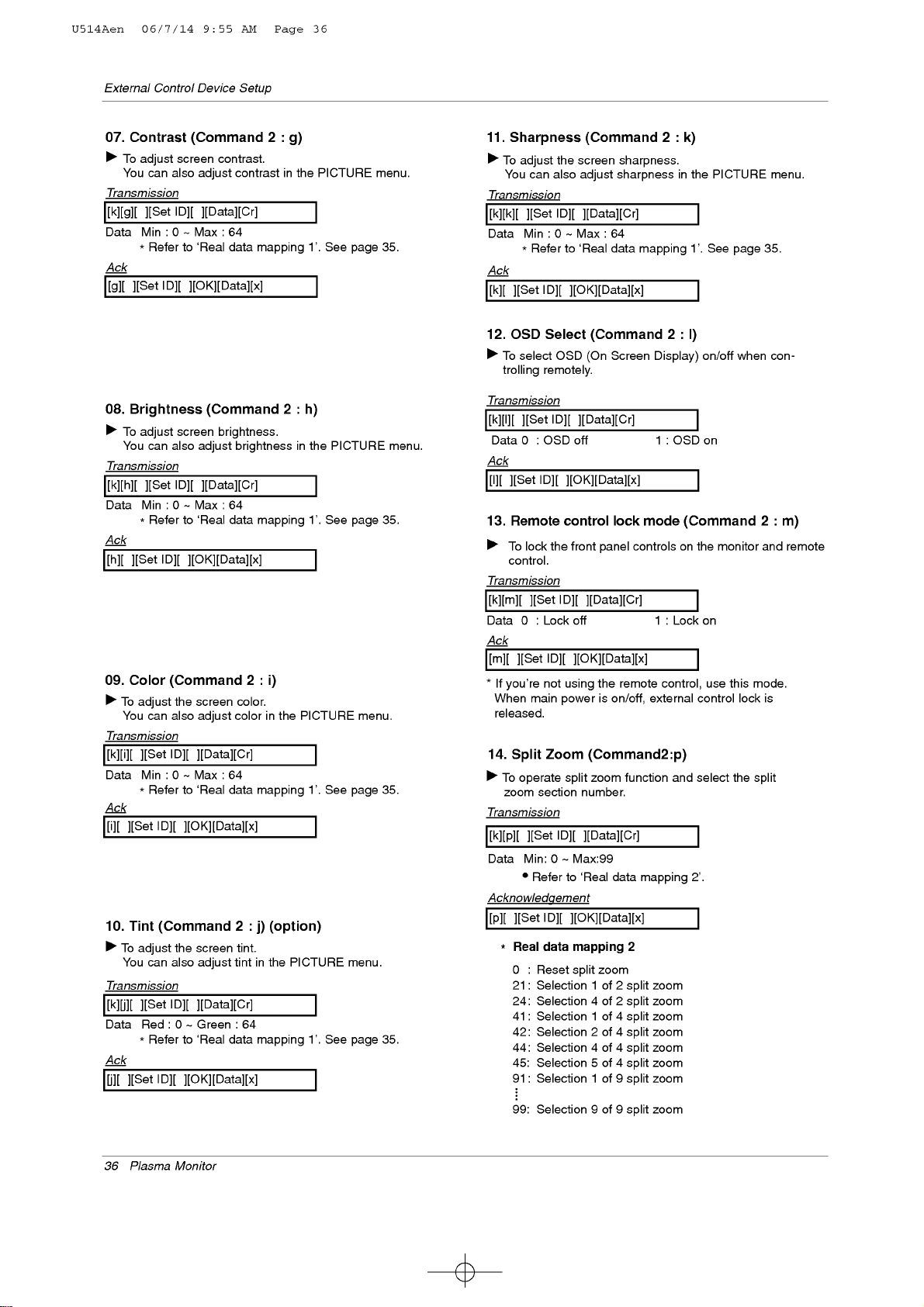
36
Plasma
Monitor
External
Control
Device
Setup
07.
Contrast
(Command
2
:
g)
G
To
adjust
screen
contrast.
You
can
also
adjust
contrast
in
the
PICTURE
menu.
Transmission
Data
Min:0~Max:64
*
Refer
to
'Real
data
mapping
1'.
See
page
35.
[k][g][
][Set
ID][
][Data][Cr]
Ack
[g][
][Set
ID][
][OK][Data][x]
08.
Brightness
(Command
2
:
h)
G
To
adjust
screen
brightness.
You
can
also
adjust
brightness
in
the
PICTURE
menu.
Transmission
Data
Min:0~Max:64
*
Refer
to
'Real
data
mapping
1'.
See
page
35.
[k][h][
][Set
ID][
][Data][Cr]
Ack
[h][
][Set
ID][
][OK][Data][x]
13.
Remote
control
lock
mode
(Command
2
:
m)
G
To
lock
the
front
panel
controls
on
the
monitor
and
remote
control.
Transmission
[k][m][
][Set
ID][
][Data][Cr]
Ack
Data
0
:
Lock
off
1:Lockon
*
If
you're
not
using
the
remote
control,
use
this
mode.
When
main
power
is
on/off,
external
control
lock
is
released.
[m][
][Set
ID][
][OK][Data][x]
12.
OSD
Select
(Command
2
:
l)
G
To
select
OSD
(On
Screen
Display)
on/off
when
con-
trolling
remotely.
Transmission
[k][l][
][Set
ID][
][Data][Cr]
Ack
Data0
:OSDoff
1:OSDon
[l][
][Set
ID][
][OK][Data][x]
09.
Color
(Command
2
:
i)
G
To
adjust
the
screen
color.
You
can
also
adjust
color
in
the
PICTURE
menu.
Transmission
Data
Min:0~Max:64
*
Refer
to
'Real
data
mapping
1'.
See
page
35.
[k][i][
][Set
ID][
][Data][Cr]
Ack
[i][
][Set
ID][
][OK][Data][x]
10.
Tint
(Command
2
:
j)
(option)
G
To
adjust
the
screen
tint.
You
can
also
adjust
tint
in
the
PICTURE
menu.
Transmission
Data
Red:0~Green:64
*
Refer
to
'Real
data
mapping
1'.
See
page
35.
[k][j][
][Set
ID][
][Data][Cr]
Ack
[j][
][Set
ID][
][OK][Data][x]
G
To
adjust
the
screen
sharpness.
You
can
also
adjust
sharpness
in
the
PICTURE
menu.
Transmission
11.
Sharpness
(Command
2
:
k)
Data
Min:0~Max:64
*
Refer
to
'Real
data
mapping
1'.
See
page
35.
[k][k][
][Set
ID][
][Data][Cr]
Ack
[k][
][Set
ID][
][OK][Data][x]
14.
Split
Zoom
(Command2:p)
G
To
operate
split
zoom
function
and
select
the
split
zoom
section
number.
Transmission
Data
Min:
0
~
Max:99
?
Refer
to
'Real
data
mapping
2'.
[k][p][
][Set
ID][
][Data][Cr]
Acknowledgement
[p][
][Set
ID][
][OK][Data][x]
*
Real
data
mapping
2
0
:
Reset
split
zoom
21
:
Selection
1
of
2
split
zoom
24
:
Selection
4
of
2
split
zoom
41
:
Selection
1
of
4
split
zoom
42
:
Selection
2
of
4
split
zoom
44
:
Selection
4
of
4
split
zoom
45:
Selection
5
of
4
split
zoom
91
:
Selection
1
of
9
split
zoom
99:
Selection
9
of
9
split
zoom
U514Aen
06/7/14
9:55
AM
Page
36
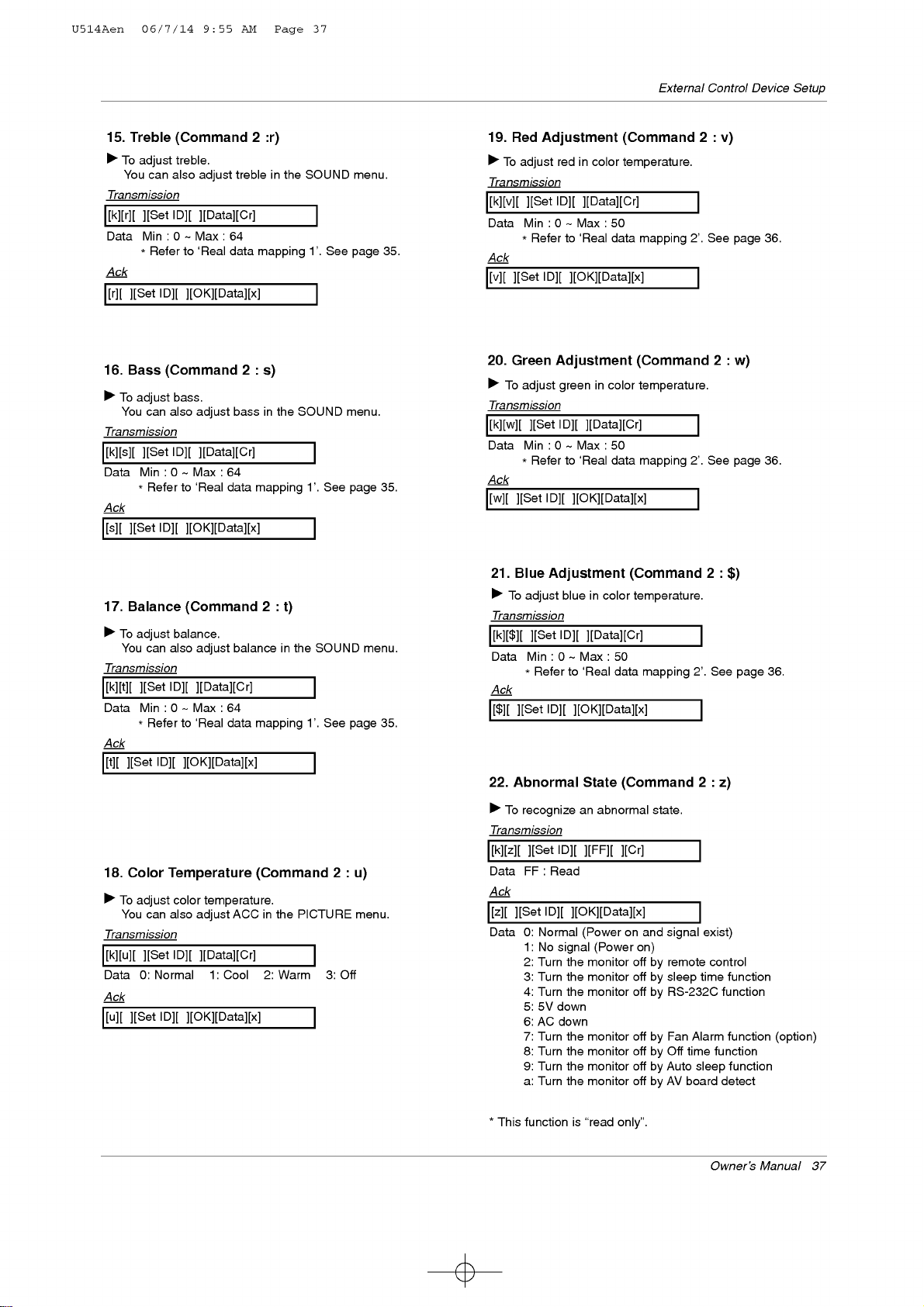
Owner's
Manual
37
External
Control
Device
Setup
20.
Green
Adjustment
(Command
2
:
w)
G
To
adjust
green
in
color
temperature.
Transmission
Data
Min:0~Max:50
*
Refer
to
'Real
data
mapping
2'.
See
page
36.
[k][w][
][Set
ID][
][Data][Cr]
Ack
[w][
][Set
ID][
][OK][Data][x]
21.
Blue
Adjustment
(Command
2
:
$)
G
To
adjust
blue
in
color
temperature.
Transmission
Data
Min:0~Max:50
*
Refer
to
'Real
data
mapping
2'.
See
page
36.
[k][$][
][Set
ID][
][Data][Cr]
Ack
[$][
][Set
ID][
][OK][Data][x]
19.
Red
Adjustment
(Command
2
:
v)
G
To
adjust
red
in
color
temperature.
Transmission
Data
Min:0~Max:50
*
Refer
to
'Real
data
mapping
2'.
See
page
36.
[k][v][
][Set
ID][
][Data][Cr]
Ack
[v][
][Set
ID][
][OK][Data][x]
18.
Color
Temperature
(Command
2
:
u)
G
To
adjust
color
temperature.
You
can
also
adjust
ACC
in
the
PICTURE
menu.
Transmission
Data
0:
Normal
1:
Cool
2:
Warm
3:
Off
[k][u][
][Set
ID][
][Data][Cr]
Ack
[u][
][Set
ID][
][OK][Data][x]
16.
Bass
(Command
2
:
s)
G
To
adjust
bass.
You
can
also
adjust
bass
in
the
SOUND
menu.
Transmission
Data
Min:0~Max:64
*
Refer
to
'Real
data
mapping
1'.
See
page
35.
[k][s][
][Set
ID][
][Data][Cr]
Ack
[s][
][Set
ID][
][OK][Data][x]
15.
Treble
(Command
2
:r)
G
To
adjust
treble.
You
can
also
adjust
treble
in
the
SOUND
menu.
Transmission
Data
Min:0~Max:64
*
Refer
to
'Real
data
mapping
1'.
See
page
35.
[k][r][
][Set
ID][
][Data][Cr]
Ack
[r][
][Set
ID][
][OK][Data][x]
17.
Balance
(Command
2
:
t)
G
To
adjust
balance.
You
can
also
adjust
balance
in
the
SOUND
menu.
Transmission
Data
Min:0~Max:64
*
Refer
to
'Real
data
mapping
1'.
See
page
35.
[k][t][
][Set
ID][
][Data][Cr]
Ack
[t][
][Set
ID][
][OK][Data][x]
22.
Abnormal
State
(Command
2
:
z)
G
To
recognize
an
abnormal
state.
Transmission
Data
FF
:
Read
Data
0:
Normal
(Power
on
and
signal
exist)
1:
No
signal
(Power
on)
2:
Turn
the
monitor
off
by
remote
control
3:
Turn
the
monitor
off
by
sleep
time
function
4:
Turn
the
monitor
off
by
RS-232C
function
5:
5V
down
6:
AC
down
7:
Turn
the
monitor
off
by
Fan
Alarm
function
(option)
8:
Turn
the
monitor
off
by
Off
time
function
9:
Turn
the
monitor
off
by
Auto
sleep
function
a: Turn
the
monitor
off
by
AV
board
detect
*
This
function
is
"read
only".
[k][z][
][Set
ID][
][FF][
][Cr]
Ack
[z][
][Set
ID][
][OK][Data][x]
U514Aen
06/7/14
9:55
AM
Page
37
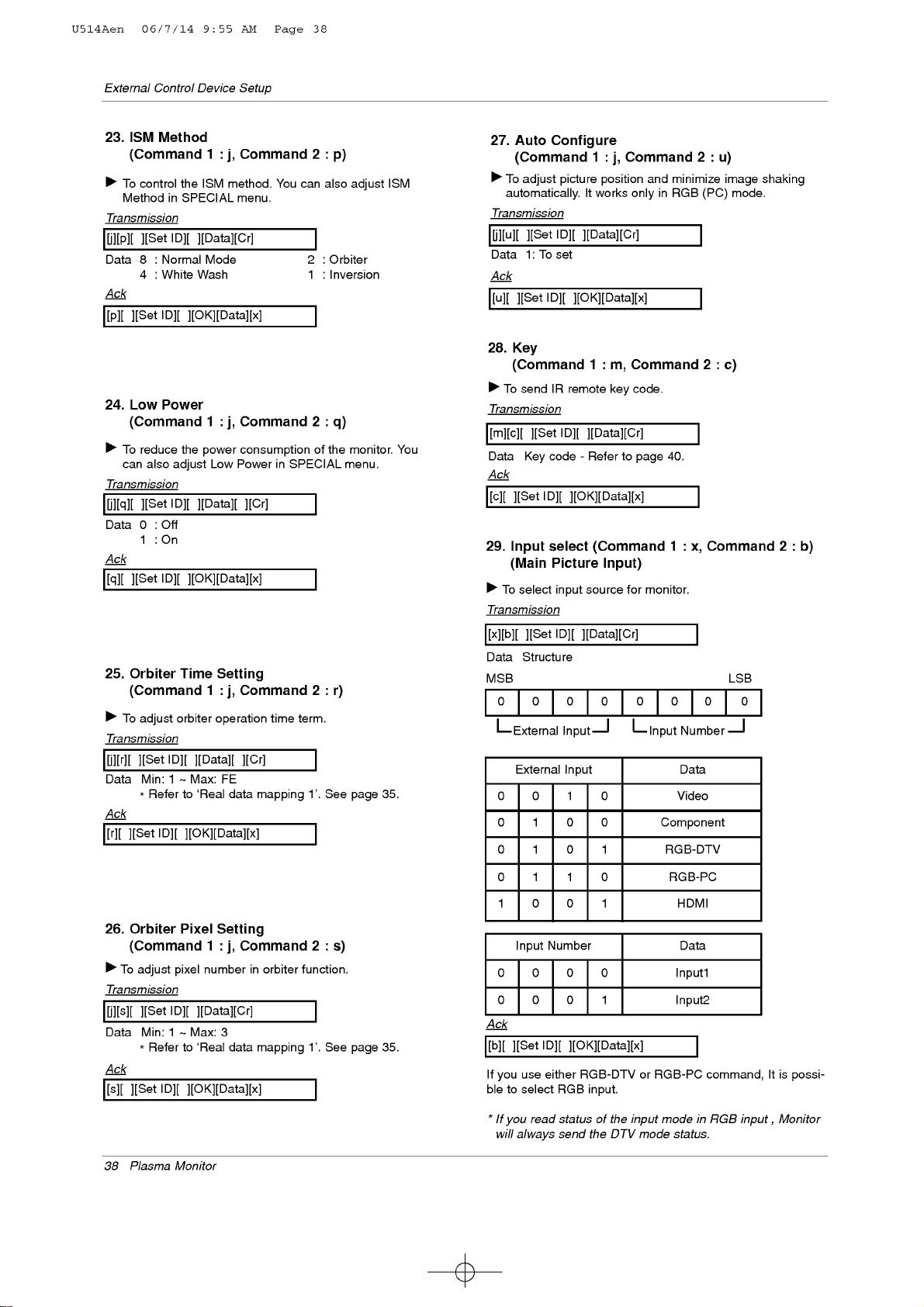
38
Plasma
Monitor
External
Control
Device
Setup
23.
ISM
Method
(Command
1
:
j,
Command
2
:
p)
G
To
control
the
ISM
method.
You
can
also
adjust
ISM
Method
in
SPECIAL
menu.
Transmission
Data
8
:
Normal
Mode
4
:
White
Wash
2
:
Orbiter
1
:
Inversion
[j][p][
][Set
ID][
][Data][Cr]
Ack
[p][
][Set
ID][
][OK][Data][x]
24.
Low
Power
(Command
1
:
j,
Command
2
:
q)
G
To
reduce
the
power
consumption
of
the
monitor.
You
can
also
adjust
Low
Power
in
SPECIAL
menu.
Transmission
Data
0
:Off
1
:On
[j][q][
][Set
ID][
][Data][
][Cr]
Ack
[q][
][Set
ID][
][OK][Data][x]
25.
Orbiter
Time
Setting
(Command
1
:
j,
Command
2
:
r)
G
To
adjust
orbiter
operation
time
term.
Transmission
Data
Min:
1
~
Max:
FE
*
Refer
to
'Real
data
mapping
1'.
See
page
35.
[j][r][
][Set
ID][
][Data][
][Cr]
Ack
[r][
][Set
ID][
][OK][Data][x]
26.
Orbiter
Pixel
Setting
(Command
1
:
j,
Command
2
:
s)
G
To
adjust
pixel
number
in
orbiter
function.
Transmission
Data
Min:1~Max:3
*
Refer
to
'Real
data
mapping
1'.
See
page
35.
[j][s][
][Set
ID][
][Data][Cr]
Ack
[s][
][Set
ID][
][OK][Data][x]
27.
Auto
Configure
(Command
1
:
j,
Command
2
:
u)
G
To
adjust
picture
position
and
minimize
image
shaking
automatically.
It
works
only
in
RGB
(PC)
mode.
Transmission
Data
1:
To
set
[j][u][
][Set
ID][
][Data][Cr]
Ack
[u][
][Set
ID][
][OK][Data][x]
28.
Key
(Command
1
:
m,
Command
2
:
c)
G
To
send
IR
remote
key
code.
Transmission
Data
Key
code
-
Refer
to
page
40.
[m][c][
][Set
ID][
][Data][Cr]
Ack
[c][
][Set
ID][
][OK][Data][x]
29.
Input
select
(Command
1
:
x,
Command
2
:
b)
(Main
Picture
Input)
G
To
select
input
source
for
monitor.
Transmission
Data
Structure
MSB
LSB
0
[x][b][
][Set
ID][
][Data][Cr]
Ack
[b][
][Set
ID][
][OK][Data][x]
0000000
External
Input
Data
0010
Video
0100
Component
0101
RGB-DTV
0110
RGB-PC
1001
HDMI
External
Input Input
Number
Input
Number
Data
0000
Input1
0001
Input2
If
you
use
either
RGB-DTV
or
RGB-PC
command,
It
is
possi-
ble
to
select
RGB
input.
*
If
you
read
status
of
the
input
mode
in
RGB
input
,
Monitor
will
always
send
the
DTV
mode
status.
U514Aen
06/7/14
9:55
AM
Page
38

Owner's
Manual
39
IR
Codes
G
Output
waveform
Single
pulse,
modulated
with
37.917KHz
signal
at
455KHz
G
Configuration
of
frame
G
Repeat
code
G
Lead
code
?
1st
frame
Low
custom
code
Lead
code
High
custom
code
Data
code
Data
code
TC
Tf
T1
C0
Carrier
frequency
FCAR
=
1/TC
=
fOSC/12
Duty
ratio
=
T1/TC
=
1/3
?
Repeat
frame
C1C2C3C4C5C6C7C0C1C2C3C4C5C6C7D0D1D2D3D4D5D6D7D0D1D2D3D4D5D6D7
Repeat
code
9ms
4.5
ms
0.55
ms
9ms
2.25
ms
G
Bit
description
G
Frame
interval
:
Tf
The
waveform
is
transmitted
as
long
as
a
key
is
depressed.
?
Bit
"0"
Tf
Tf
Tf=108ms
@455KHz
0.56
ms
0.56
ms
1.12
ms
?
Bit
"1"
2.24
ms
How
to
Connect
How
to
Connect
Remote
Control
IR
Code
Remote
Control
IR
Code
IR
Codes
IR
Codes
G
Connect
your
wired
remote
control
to
the
Remote
Control
port
on
the
Monitor.
U514Aen
06/7/14
9:55
AM
Page
39

40
Plasma
Monitor
IR
Codes
Code
(Hexa)
Function
Note
00
01
02
03
08
C4
C5
09
5B
10
11
12
13
14
15
16
17
18
19
98
0B
5A
BF
D4
C6,CE
D5
0E
43
44
4D
52
5D
5C
79
76
77
AF
99
R/C
Button
R/C
Button
R/C
Button
R/C
Button
R/C
Button
(Power
On/Off)
Discrete
IR
Code
(Only
Power
On)
Discrete
IR
Code
(Only
Power
Off)
R/C
Button
R/C
Button
R/C
Button
R/C
Button
R/C
Button
R/C
Button
R/C
Button
R/C
Button
R/C
Button
R/C
Button
R/C
Button
R/C
Button
R/C
Button
R/C
Button
Discrete
IR
Code
(Input
VIDEO
Selection)
Discrete
IR
Code
(Input
COMPONENT1
Selection)
Discrete
IR
Code
(Input
COMPONENT2
Selection)
Discrete
IR
Code
(Input
HDMI
Selection)
Discrete
IR
Code
(Input
RGB
Selection)
R/C
Button
R/C
Button
R/C
Button
R/C
Button
R/C
Button
R/C
Button
R/C
Button
R/C
Button
Discrete
IR
Code
(Only
4:3
mode)
Discrete
IR
Code
(Only
16:9
mode)
Discrete
IR
Code
(Only
Zoom
mode)
Discrete
IR
Code
D
E
VOL
(G)
VOL
(F)
POWER
POWER
ON
POWER
OFF
MUTE
EXIT
Number
Key
0
Number
Key
1
Number
Key
2
Number
Key
3
Number
Key
4
Number
Key
5
Number
Key
6
Number
Key
7
Number
Key
8
Number
Key
9
MULTIMEDIA
INPUT
VIDEO
COMPONENT1
COMPONENT2
HDMI
RGB
SLEEP
MENU
ENTER
APC
DASP
ZOOM
-
ZOOM +
ARC
ARC
(4:3)
ARC
(16:9)
ARC
(Zoom)
AUTO
CONFIG
U514Aen
06/7/14
9:55
AM
Page
40

Owner's
Manual
41
Troubleshooting
Checklist
No
output
from
one
of
the
speakers
?
Adjust
Balance
in
the
Sound
menu.
(Refer
to
p.21)
Unusual
sound
from
inside
the
Monitor
?
A
change
in
ambient
humidity
or
temperature
may
result
in
an
unusual
noise
when
the
plasma
display
is
turned
on
or
off
and
does
not
indicate
a
fault
with
the
Monitor.
No
picture
&
No
sound
?
Check
whether
the
Monitor
is
turned
on.
?
Is
the
power
cord
inserted
into
wall
power
outlet?
?
Test
the
wall
power
outlet,
plug
another
product's
power
cord
into
the
outlet
where
the
Monitor's
power
cord
was
plugged
in.
No
or
poor
color
or
poor
picture
?
Select
Color
in
the
Picture
menu
and
press
the
VOLUME
(G)
button.
(Refer
to
p.19)
?
Keep
a
sufficient
distance
between
the
Monitor
and
the
VCR.
?
Activate
any
function
to
restore
the
brightness
of
the
picture.
(If
still
picture
is
on
the
screen
for
more
than
5
minutes,
the
screen
gets
dark.)
The
remote
control
doesn't
work
?
Check
to
see
if
there
is
any
object
between
the
Monitor
and
the
remote
con-
trol
causing
obstruction.
?
Are
batteries
installed
with
correct
polarity
(+
to
+,
-
to
-)?
(Refer
to
p.9)
?
Correct
remote
operating
mode
set:
Monitor,
VCR
etc.?
?
Install
new
batteries.
(Refer
to
p.9)
Picture
OK
&
No
sound
?
Press
the
VOLUME
(G)
button.
?
Sound
muted?
Press
MUTE
button.
Picture
appears
slowly
after
switching
on
?
This
is
normal,
the
image
is
muted
during
the
Monitor
startup
process.
Please
contact
your
service
center,
if
the
picture
has
not
appeared
after
five
minutes.
Horizontal/vertical
bars
or
picture
shaking
?
Check
for
local
interference
such
as an
electrical
appliance
or
power
tool.
T
T
roubleshooting
Checklist
roubleshooting
Checklist
U514Aen
06/7/14
9:55
AM
Page
41

42
Plasma
Monitor
Product
Specifications
Product
Specifications
Product
Specifications
?
The
specifications
shown
above
may
be
changed
without
notice
for
quality
improvement.
MODELS
41.3
/
1050.0
24.8
/
630.0
3.6
/
91.5
50.9
/
23.1
852
x
480
(Dot)
AC100-240V,
50/60Hz
32
~
104°F
(0
~
40°C)
Less
than
80%
Width
(inches
/
mm)
Height
(inches
/
mm)
Depth
(inches
/
mm)
Weight
(pounds
/
kg)
Resolution
Power
requirement
Operating
Temperature
Range
Operating
Humidity
Range
42PM1M-UC
42PM3MV-UC
42.0
/
1066.0
25.6
/
650.0
3.8
/
97.5
66.1
/
30.0
1024
x
768
(Dot)
AC100-240V,
50/60Hz
32
~
104°F
(0
~
40°C)
Less
than
80%
50PM1M-UC
49.3
/
1253.0
29.3
/
745.0
3.9
/
99.5
84.7
/
38.4
1366
x
768
(Dot)
AC100-240V,
50/60Hz
32
~
104°F
(0
~
40°C)
Less
than
80%
U514Aen
06/7/14
9:55
AM
Page
42
Your
LG
Plasma
TV
will
be
repaired
or
replaced
in
accordance
with
the
terms
of
this
warranty,
at
LGE's
option,
if
it
proves
to
be
defective
in
material
or
workmanship
under
normal
use,
during
the
warranty
period
("Warranty
Period")
listed
below,
effective
from
the
date
("Date
of
Purchase")
of
original
consumer
purchase
of
the
product.
This
war-
ranty
is
good
only
to
the
original
purchaser
of
the
product
and
effective
only
when
used
in
the
United
States,
includ-
ing
Alaska,
Hawaii,
and
U.S.
Territories.
CONCERNING
PIXEL
FUNCTIONALITY:
Your
Plasma
TV
contains
about
one
million
individual
pixels.
Plasma
TV
typically
contain
a
small
number
of
pixels
that
do
not
function
normally.
Your
display
has
been
inspected
and
is
in
compliance
with
manufacturer's
specifications,
indicating
that
any
pixel
defects
do
not
effect
the
operation
or
use
of
your
display.
THIS
WARRANTY
IS
IN
LIEU
OF
ANY
OTHER
WARRANTY,
EXPRESS
OR
IMPLIED,
INCLUDING
WITHOUT
LIMITATION,
ANY
WARRANTY
OF
MERCHANTABILITY
OR
FITNESS
FOR
A
PARTICULAR
PURPOSE.
TO
THE
EXTENT
ANY
IMPLIED
WARRANTY
IS
REQUIRED
BY
LAW,
IT
IS
LIMITED
IN
DURATION
TO
THE
EXPRESS
WARRANTY
PERIOD
ABOVE.
NEITHER
THE
MANUFACTURER
NOR
ITS
U.S.
DISTRIBUTOR
SHALL
BE
LIABLE
FOR
ANY
INCIDENTAL,
CONSEQUENTIAL,
INDIRECT,
SPECIAL,
OR
PUNITIVE
DAMAGES
OF
ANY
NATURE,
INCLUDING
WITHOUT
LIMITATION,
LOST
PROFITS,
LOST
OR
CORRUPTED
PROGRAMMING
OR
DATA,
OR
ANY
OTHER
DAMAGE
WHETHER
BASED
IN
CONTRACT,
TORT,
OR
OTHERWISE.
Some
states
do
not
allow
the
exclusion
or
limitation
of
incidental
or
consequential
damages
or
limitations
on
how
long
an
implied
warranty
lasts,
so
the
above
exclusion
or
limitation
may
not
apply
to
you.
This
warranty
gives
you
specific
legal
rights
and
you
may
also
have
other
rights
that
vary
from
state
to
state.
WARRANTY
PERIOD:
LABOR
and
PARTS:
2
YEARS
from
the
Date
of
Purchase.
Your
unit
will
be
repaired
or
replaced
with
a
new,
substitute
model
or
factory
reconditioned
unit,
at
LGE's
option.
If
repaired,
parts
used
in
the
repair
may
be
new
or
remanufac-
tured.
Replacement
Units
and
Repair
Parts
are
warranted
for
the
remaining
portion
of
the
original
unit's
warranty
period.
EFFECTIVE
DATE
OF
WARRANTY:
Your
warranty
period
begins
on
the
date
of
sale
to
the
original
consumer/end
user.
KEEP
THE
DEALER'S
DATED
BILL
OF
SALE
OR
PROOF
OF
DELIVERY
as
evidence
of
the
purchase
date.
You
will
be
required
to
submit
a
legible
copy
of
your
bill
of
sale
or
proof
of
delivery
when
requesting
warranty
service.
HOW
SERVICE
IS
HANDLED:
In-Home
Service:
Please
retain
dealer's
dated
bill
of
sale
or
delivery
ticket
as
evidence
of
the
Date
of
Purchase
for
proof
of
warranty,
and
submit
a
copy
of
the
bill
of
sale
to
the
ser-
vice
person
at
the
time
warranty
service
is
pro-
vided.
Please
call
1-800-243-0000
to
locate
your
nearest
LGE
Authorized
Service
Center.
Visit
our
website
at:
http://www.lgservice.com
IMPORTANT:
Please
fill
out
and
mail
in
your
Product
Registration
Card
or
go
to
www.lgservice.com
to
register
your
product
online.
This
information
will
allow
us
to
reach
you
promptly
should
we
discover
a
safety
or
reliability
prob-
lem
that
could
affect
you.
U514Aen
06/7/14
9:55
AM
Page
43
c
P/N
:
38289U0514A
sTO
CONTACT
THE
LGE
CUSTOMER
SERVICE
CENTER
BY
MAIL:
LGE Customer
Interactive
Center
P.O.
Box
240007
201
James
Record
Road
Huntsville,
Alabama
35824
http://www.lgservice.com
FOR
SERVICE:
Before
you
call
for
warranty
service,
check
your
operating
guide
--
you
may
avoid
a
service
call.
For
warranty
service
information,
please
contact
the
LGE
Customer
Interactive
Center
telephone
number.
When
calling
for
service,
please
have
your
product
model
number,
serial
number
and
the
date
of
pur-
chase
or
the
date
of
original
installation
available.
If
a
replacement
unit
is
required,
under
some
circumstances
you
may
be
asked
to
provide
a
reserve
deposit
to
the
LGE
Service
Center
against
a
credit
card
number
as
surety
for
advanced
shipment.
Your
credit
card
will
not
be
charged
if
you
return
the
defective
unit
within
10
working
days.
If
a
replacement
unit
is
received,
please
use
the
carton
and
packaging
from
that
unit
in
returning
the
defective
unit
to
the
LG
Brand
Service
Center.
Parts
and
service
in
accordance
with
the
LGE
warranty
are
LGE's
responsibility
and
will
be
provided
without
charge.
Other
service
requirements
will
be
at
the
owner's
expense.
If
you
have
problems
in
obtaining
satisfactory
warranty
service,
write
or
call
the
LGE
Customer
Interactive
Center.
Service
may
be
provided
by
independently
owned
and
operated
service
organizations.
To
assure
proper
credit
and
avoid
unnecessary
charges,
you
must
obtain
an
LGE
Return
Authorization
before
returning
any
product
to
the
LGE
Service
Center.
Contact
the
Customer
Interactive
Center
for
details.
CUSTOMER
INTERACTIVE
CENTER
NUMBERS:
To
obtain
customer
assistance,
product
information
or
Dealer
or
Service
locations
Call
1-800-243-0000
24
hours
a
day,
365
days
per
year
THIS
LIMITED
WARRANTY
DOES
NOT
APPLY
TO:
The
cost
of
repair
or
replacement
under
these
excluded
circumstances
shall
be
borne
by
the
consumer.
damage
caused
in
shipping
or
transit
service
required
as
a
result
of
improper
installation,
including
incorrect
or
insufficient
AC
supply
(please
consult
the
owner's
manual
for
power
supply
requirements)
installation
or
repair
of
antenna
systems,
cable
con-
verters,
cable
company
supplied
equipment,
or
other
components
in
a
video
system
set-up
or
adjustment
on
consumer
controls,
or
damage
caused
by
improper
adjustments
damage
caused
by
other
system
components
any
panel
that
has
been
modified
or
incorporated
into
any
other
product
replacement
of
batteries
on
the
remote
control.
damage
(including
cosmetic
damage),
failure,
loss
or
personal
injury
due
to
misuse,
abuse,
negli-
gence,
improper
maintenance
or
storage,
or
to
acts
of
nature
or
other
causes
beyond
our
control.
(Causes
beyond
our
control
include
but
are
not
lim-
ited
to
lightning
strike,
power
surges,
power
out-
ages
and
water
damage.)
image
burn-in
repair
or
replacement
of
warranted
parts
by
other
than
LGE
authorized
service
centers.
units
purchased
or
serviced
outside
of
the
coverage
area.
product
where
the
original
factory
serial
numbers
have
been
removed,
defaced
or
changed
in
any
way.
product
sold
and
labeled
as
"as
is,
where
is"
or
sim-
ilar
disclaimer.
U514Aen
06/7/14
9:55
AM
Page
44






