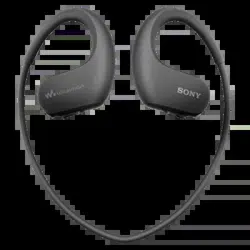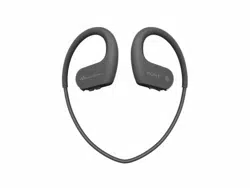
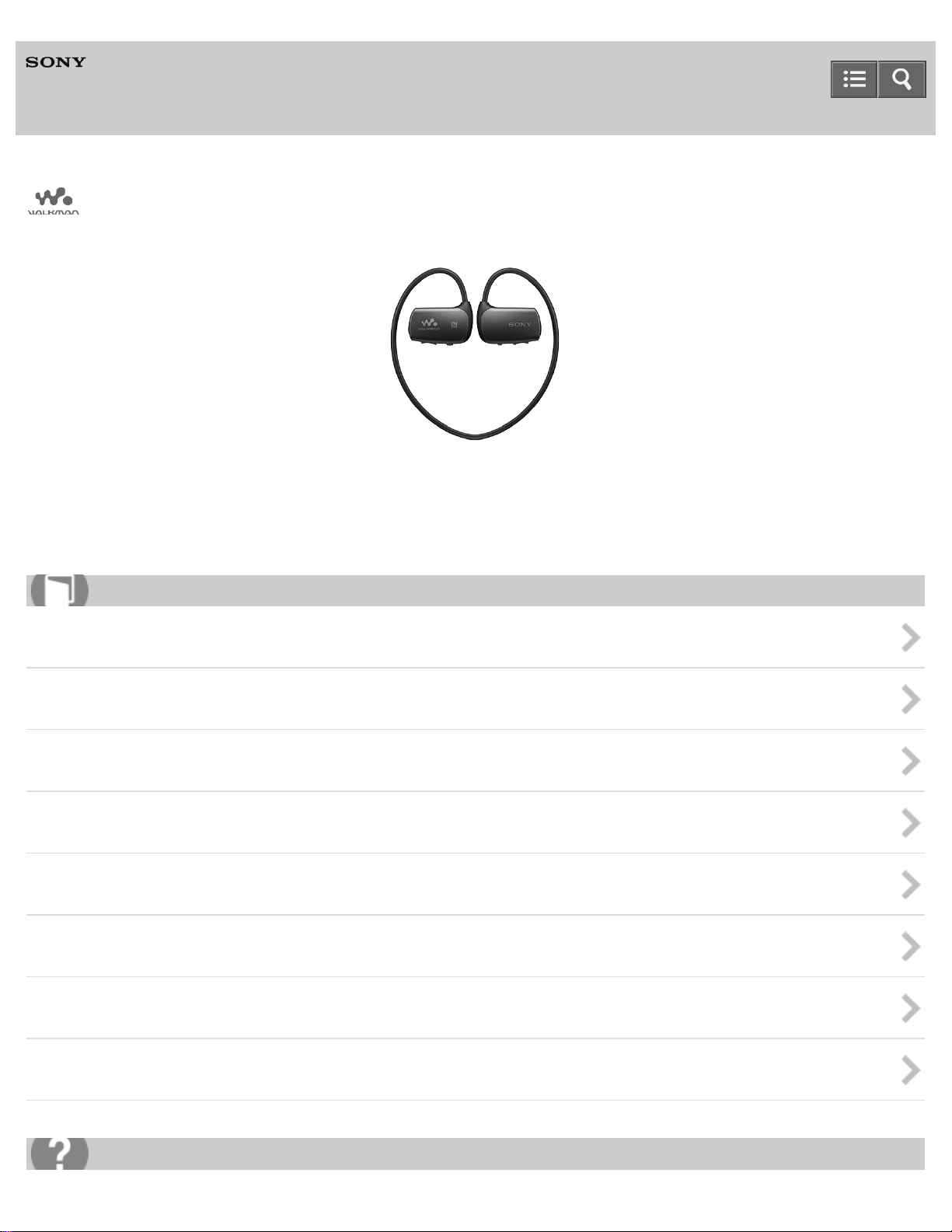
Digital Music Player
NWZ-WS613/WS615
Use this manual when you have troubles or when you need to know how to use your WALKMAN
®
.
The color of Walkman sold in some countries/regions may differ from those shown above.
Getting Started
Basic Operations
Transferring Content
Music
Connecting with a Smartphone
Using with a Smartphone
Announcement
Specifications
Help Guide
How to Use
Troubleshooting

Table Of Contents
Help Guide NWZ-WS613/WS615 i....................................................................................................
Getting Started 1...............................................................................................................................
Help Guide | Customer Registration Website 17.........................................................................
Help Guide | Customer registration website 58.....................................................................
Help Guide | Before Use 18.........................................................................................................
Help Guide | Before first use 59.............................................................................................
Help Guide | Walkman instruction manuals 60......................................................................
Help Guide | Enjoying Using Your Walkman 19..........................................................................
Help Guide | 3 steps to listening to music 61.........................................................................
Help Guide | Various ways to enjoy using your Walkman 63................................................
Help Guide | Parts and Controls 20.............................................................................................
Help Guide | Parts and controls 64........................................................................................
Help Guide | About the differences between the two types of earbuds 66............................
Help Guide | Changing the earbuds 67.................................................................................
Help Guide | How to store your Walkman in the carrying holder 69......................................
Help Guide | Power/Charging 21.................................................................................................
Help Guide | Turning the power on 70...................................................................................
Help Guide | Turning the power off 71...................................................................................
Help Guide | Charging the battery 72....................................................................................
Help Guide | Extending the battery life 74.............................................................................
Help Guide | Notes on charging the battery 75......................................................................
Basic Operations 2............................................................................................................................
Help Guide | How to Place Your Walkman on Your Ears 22.......................................................
Help Guide | How to place your Walkman on your ears 76...................................................
Help Guide | Improving the fit 77...........................................................................................
Help Guide | Taking your Walkman off 79.............................................................................
Help Guide | LED Lamp 23..........................................................................................................
Help Guide | Confirming the Walkman status by the OPR lamp 80......................................
Help Guide | Confirming the Bluetooth status by the Bluetooth lamp 82...............................
Help Guide | Using Your Walkman while Swimming 24..............................................................
Help Guide | Water resistant performance of this Walkman 83.............................................
Help Guide | Liquids that the water resistant performance specifications
apply to 84.............................................................................................................................
Help Guide | Changing the earbuds to Swimming earbuds 85..............................................
Help Guide | How the sound becomes muffled while you are swimming 87.........................
Help Guide | If the sound becomes muffled while swimming 88...........................................
Help Guide | Notes while swimming 90.................................................................................
Help Guide | Notes on charging the battery after swimming 91............................................
TOC-1

Help Guide | Using Supplied Remote Commander 25................................................................
Help Guide | Parts and controls of the Remote Commander 92...........................................
Help Guide | Using the Remote Commander 93...................................................................
Help Guide | Replacing the battery of the Remote Commander 95......................................
Help Guide | Notes on using the Remote Commander 97....................................................
Help Guide | Connecting Your Walkman to Your Computer 26...................................................
Help Guide | Connecting to a computer 98............................................................................
Help Guide | Notes on connecting your Walkman to a computer 100...................................
Help Guide | Initializing/Updating 27............................................................................................
Help Guide | Resetting your Walkman 101............................................................................
Help Guide | Resetting to the factory settings 103................................................................
Help Guide | Formatting memory 104....................................................................................
Help Guide | Updating the system software of your Walkman 106.......................................
Help Guide | Displaying your Walkman information 107.......................................................
Transferring Content 3.......................................................................................................................
Help Guide | Operation Flow for Transferring Content to Your Walkman 28...............................
Help Guide | Preparing content using a Windows computer 108..........................................
Help Guide | Preparing content using a Mac computer 109..................................................
Help Guide | Installing Media Go 29............................................................................................
Help Guide | About Media Go 110.........................................................................................
Help Guide | Installing Media Go 111....................................................................................
Help Guide | Installing Content Transfer 30.................................................................................
Help Guide | About Content Transfer 113.............................................................................
Help Guide | Installing Content Transfer 114.........................................................................
Help Guide | Importing Content to the Software 31.....................................................................
Help Guide | Importing content from media using Media Go 115..........................................
Help Guide | Importing content on your Windows computer into Media Go 117...................
Help Guide | Importing podcasts into Media Go 118.............................................................
Help Guide | Transferring Content to Your Walkman 32.............................................................
Help Guide | Transferring content using Media Go 119........................................................
Help Guide | Transferring iTunes content using Media Go 120.............................................
Help Guide | Transferring content using Content Transfer 121.............................................
Help Guide | Transferring content using Explorer 122...........................................................
Help Guide | Transferring content using the Finder 124........................................................
Help Guide | Notes for transferring content such as music from your
computer 125.........................................................................................................................
Help Guide | Deleting Content from Your Walkman 33...............................................................
Help Guide | Deleting content from your Walkman using Media Go 126..............................
Help Guide | Deleting content from your Walkman using Content Transfer 127...................
Help Guide | Deleting content from your Walkman using Explorer 128.................................
TOC-2

Help Guide | Deleting content from your Walkman using the Finder 129..............................
Help Guide | Operating with Media Go 34...................................................................................
Help Guide | Deleting content imported to Media Go 130.....................................................
Music 4..............................................................................................................................................
Help Guide | Playing Music 35.....................................................................................................
Help Guide | Preparing music 131.........................................................................................
Help Guide | Playing music 132.............................................................................................
Help Guide | Volume operation (Only for countries/areas complying with
European and Korean Directives) 134...................................................................................
Help Guide | Adjusting the volume 135.................................................................................
Help Guide | Skipping to the previous/next song 136............................................................
Help Guide | Skipping to the previous/next folder/playlist/album 137....................................
Help Guide | Shuffle playback 138........................................................................................
Help Guide | Repeat playback 139........................................................................................
Help Guide | Changing the playback order to Folder Play/Playlist Play/
Album Play 140......................................................................................................................
Help Guide | Limiting the volume 141....................................................................................
Help Guide | Deleting Songs 36..................................................................................................
Help Guide | Deleting songs 142...........................................................................................
Help Guide | Connecting with a Smartphone 5.................................................................................
Help Guide | Connecting with One Touch (NFC) 37....................................................................
Help Guide | What is the NFC function? 143.........................................................................
Help Guide | Requirements for smartphones connecting with your
Walkman by one touch (NFC) 144........................................................................................
Help Guide | About “NFC Easy Connect” 145......................................................................
Help Guide | Installing the “NFC Easy Connect” app on an Android
smartphone 146.....................................................................................................................
Help Guide | Connecting with a smartphone by the NFC function 147.................................
Help Guide | Disconnecting with the smartphone by the NFC function 149..........................
Help Guide | Connecting with a Smartphone via Bluetooth Connection 38.................................
Help Guide | What is the Bluetooth function? 150.................................................................
Help Guide | Turning the Bluetooth function on/off 151.........................................................
Help Guide | Pairing and connecting with an Android smartphone 153................................
Help Guide | Connecting with a paired smartphone 155.......................................................
Help Guide | Pairing and connecting with an iPhone 156......................................................
Help Guide | Setting wireless playback quality 158...............................................................
Help Guide | Notes on the Bluetooth function 160.................................................................
Help Guide | Notes on the Bluetooth Function 39.......................................................................
Notes on the Bluetooth function 160......................................................................................
Using with a Smartphone 6...............................................................................................................
TOC-3

Help Guide | Playing Music Stored on a Smartphone 40............................................................
Help Guide | Playing music on a smartphone 162.................................................................
Help Guide | Answering Incoming Call to a Smartphone 41........................................................
Help Guide | Answering/hanging up a call 164......................................................................
Help Guide | Rejecting an incoming call 165.........................................................................
Help Guide | Volume for calls on smartphones 166..............................................................
Help Guide | Selecting the Sound Source between your Walkman and a
Smartphone 42............................................................................................................................
Help Guide | Selecting the sound source 167.......................................................................
Help Guide | Using “Sound Mix” 168....................................................................................
Help Guide | Operating Your Walkman Using a Smartphone (SongPal) 43................................
Help Guide | What is SongPal? 169......................................................................................
Help Guide | Installing SongPal on a smartphone 170..........................................................
Announcement 7...............................................................................................................................
Help Guide | Precautions 44........................................................................................................
Help Guide | Notes on handling your Walkman 171..............................................................
Help Guide | Notes on headphones 173................................................................................
Help Guide | Notes on the software 174................................................................................
Help Guide | Maintenance of your Walkman 175..................................................................
Help Guide | Customer support website 177.........................................................................
Help Guide | Specifications 178.............................................................................................
Help Guide | Customer Support Website 45................................................................................
Customer support website 177..............................................................................................
Specifications 8.................................................................................................................................
Help Guide | Specifications 46.....................................................................................................
Specifications 178..................................................................................................................
Help Guide | Battery life 181..................................................................................................
Help Guide | Maximum recordable number of songs and time (Approx.) 182.......................
Help Guide | Supported formats 183.....................................................................................
Help Guide | System requirements 184.................................................................................
Help Guide | Contents 185....................................................................................................
Troubleshooting 9..............................................................................................................................
Help Guide | What Can I Do to Solve a Problem? 47..................................................................
Help Guide | What can I do to solve a problem? 186............................................................
Help Guide | Your Walkman does not operate or the power does not turn
on. 188...................................................................................................................................
Q&A 10..............................................................................................................................................
Help Guide | Operation 48...........................................................................................................
Help Guide | Your Walkman does not work properly. 189.....................................................
Help Guide | Your Walkman power turns off or on automatically. 190..................................
TOC-4

Help Guide | A drink (water, coffee, etc.) was spilled on your Walkman, or
the Walkman was washed in the washing machine. 191......................................................
Help Guide | The earbuds supplied with the headphones are missing. 192..........................
Help Guide | You want to back up the content such as music stored on
your Walkman. 193................................................................................................................
Help Guide | You want to find the product name (model name) of your
Walkman. 194........................................................................................................................
Help Guide | The voice guidance “Check the volume level” is heard. 195...........................
Help Guide | There is no sound. 196.....................................................................................
Help Guide | Sound 49................................................................................................................
Help Guide | Content such as music suddenly stops during playback. 197..........................
Help Guide | Noise is generated. 198....................................................................................
Help Guide | Volume cannot be turned up, or the volume remains low
when the playback volume is turned up. 199.........................................................................
Help Guide | Sound is interrupted or skips. 200....................................................................
Help Guide | Power 50.................................................................................................................
Help Guide | You cannot charge your Walkman. 201............................................................
Help Guide | How long is the life of the built-in rechargeable battery? 202...........................
Help Guide | The rechargeable battery needs to be replaced. 203.......................................
Help Guide | The battery life is short. 204.............................................................................
Help Guide | How long is the standard battery duration? 205...............................................
Help Guide | How long does it take to charge the battery? 206............................................
Help Guide | Connection to a Computer 51.................................................................................
Help Guide | The computer does not recognize your Walkman. 207....................................
Help Guide | You cannot install software to your computer. 208...........................................
Help Guide | The progress bar on the install screen does not proceed
while installing the software. 209...........................................................................................
Help Guide | Your Walkman is not recognized by Media Go. 210.........................................
Help Guide | Content such as music cannot be transferred from the
computer to your Walkman. 211............................................................................................
Help Guide | Only a small amount of content such as music can be
transferred to your Walkman. 212.........................................................................................
Help Guide | Playing/Deleting Content 52...................................................................................
Help Guide | You cannot play content such as music transferred to your
Walkman. 213........................................................................................................................
Help Guide | Songs are not played back in the expected order. 214....................................
Help Guide | Sound becomes muffled when using your Walkman in
water, such as when swimming. 215.....................................................................................
Help Guide | Water Resistant Performance 53............................................................................
Help Guide | You dropped your Walkman in water. 216........................................................
TOC-5

Help Guide | Fitting 54.................................................................................................................
Help Guide | The headphones are not firmly seated on your ears. 217................................
Help Guide | The neckband part does not fit. 218.................................................................
Help Guide | The earbuds do not fit. 219...............................................................................
Help Guide | Connection to the Smartphone 55..........................................................................
Help Guide | Pairing cannot be done. 220.............................................................................
Help Guide | You cannot connect via the Bluetooth function. 221.........................................
Help Guide | The screen to enter the passkey appears when pairing with
a smartphone. 222.................................................................................................................
Help Guide | Sound skips or noise is generated during a Bluetooth
connection. 223.....................................................................................................................
Help Guide | You cannot connect with one touch (NFC). 224...............................................
Help Guide | You cannot hear sound from the connected smartphone. 225.........................
Help Guide | You cannot take incoming calls properly. 226..................................................
Help Guide | Remote Commander 56.........................................................................................
Help Guide | You cannot operate your Walkman by the Remote
Commander. 227...................................................................................................................
Help Guide | Other 57..................................................................................................................
Help Guide | Your Walkman gets warm. 228.........................................................................
How to Use 11...................................................................................................................................
Troubleshooting 15............................................................................................................................
TOC-6
Digital Music Player
NWZ-WS613/WS615
Transferring Content
Operation Flow for Transferring Content to Your Walkman
Installing Media Go
Installing Content Transfer
Importing Content to the Software
Transferring Content to Your Walkman
Deleting Content from Your Walkman
Operating with Media Go
4-536-927-16(1)
Copyright 2014 Sony Corporation
Help Guide
How to Use
3
Digital Music Player
NWZ-WS613/WS615
Using with a Smartphone
Playing Music Stored on a Smartphone
Answering Incoming Call to a Smartphone
Selecting the Sound Source between your Walkman and a Smartphone
Operating Your Walkman Using a Smartphone (SongPal)
4-536-927-16(1)
Copyright 2014 Sony Corporation
Help Guide
How to Use
6
Digital Music Player
NWZ-WS613/WS615
How to Use
Getting Started
Customer Registration Website
Customer registration website
Before Use
Before first use
Walkman instruction manuals
Enjoying Using Your Walkman
3 steps to listening to music
Various ways to enjoy using your Walkman
Parts and Controls
Parts and controls
About the differences between the two types of earbuds
Changing the earbuds
How to store your Walkman in the carrying holder
Power/Charging
Turning the power on
Turning the power off
Charging the battery
Extending the battery life
Notes on charging the battery
Basic Operations
How to Place Your Walkman on Your Ears
How to place your Walkman on your ears
Improving the fit
Taking your Walkman off
LED Lamp
Confirming the Walkman status by the OPR lamp
Confirming the Bluetooth status by the Bluetooth lamp
Using Your Walkman while Swimming
Water resistant performance of this Walkman
Help Guide
List of Topics
11

Liquids that the water resistant performance specifications apply to
Changing the earbuds to Swimming earbuds
How the sound becomes muffled while you are swimming
If the sound becomes muffled while swimming
Notes while swimming
Notes on charging the battery after swimming
Using Supplied Remote Commander
Parts and controls of the Remote Commander
Using the Remote Commander
Replacing the battery of the Remote Commander
Notes on using the Remote Commander
Connecting Your Walkman to Your Computer
Connecting to a computer
Notes on connecting your Walkman to a computer
Initializing/Updating
Resetting your Walkman
Resetting to the factory settings
Formatting memory
Updating the system software of your Walkman
Displaying your Walkman information
Transferring Content
Operation Flow for Transferring Content to Your Walkman
Preparing content using a Windows computer
Preparing content using a Mac computer
Installing Media Go
About Media Go
Installing Media Go
Installing Content Transfer
About Content Transfer
Installing Content Transfer
Importing Content to the Software
Importing content from media using Media Go
Importing content on your Windows computer into Media Go
Importing podcasts into Media Go
Transferring Content to Your Walkman
Transferring content using Media Go
Transferring iTunes content using Media Go
Transferring content using Content Transfer
Transferring content using Explorer
Transferring content using the Finder
12

Notes for transferring content such as music from your computer
Deleting Content from Your Walkman
Deleting content from your Walkman using Media Go
Deleting content from your Walkman using Content Transfer
Deleting content from your Walkman using Explorer
Deleting content from your Walkman using the Finder
Operating with Media Go
Deleting content imported to Media Go
Music
Playing Music
Preparing music
Playing music
Volume operation (Only for countries/areas complying with European and Korean Directives)
Adjusting the volume
Skipping to the previous/next song
Skipping to the previous/next folder/playlist/album
Shuffle playback
Repeat playback
Changing the playback order to Folder Play/Playlist Play/Album Play
Limiting the volume
Deleting Songs
Deleting songs
Connecting with a Smartphone
Connecting with One Touch (NFC)
What is the NFC function?
Requirements for smartphones connecting with your Walkman by one touch (NFC)
About “NFC Easy Connect”
Installing the “NFC Easy Connect” app on an Android smartphone
Connecting with a smartphone by the NFC function
Disconnecting with the smartphone by the NFC function
Connecting with a Smartphone via Bluetooth Connection
What is the Bluetooth function?
Turning the Bluetooth function on/off
Pairing and connecting with an Android smartphone
Connecting with a paired smartphone
Pairing and connecting with an iPhone
Setting wireless playback quality
Confirming the Bluetooth status by the Bluetooth lamp
Notes on the Bluetooth Function
13

Notes on the Bluetooth function
Using with a Smartphone
Playing Music Stored on a Smartphone
Playing music on a smartphone
Answering Incoming Call to a Smartphone
Answering/hanging up a call
Rejecting an incoming call
Volume for calls on smartphones
Selecting the Sound Source between your Walkman and a Smartphone
Selecting the sound source
Using “Sound Mix”
Operating Your Walkman Using a Smartphone (SongPal)
What is SongPal?
Installing SongPal on a smartphone
Announcement
Precautions
Notes on handling your Walkman
Notes on headphones
Notes on the software
Notes while swimming
Notes on charging the battery after swimming
Maintenance of your Walkman
Customer Support Website
Customer support website
Specifications
Specifications
Specifications
Battery life
Maximum recordable number of songs and time (Approx.)
Supported formats
System requirements
Contents
4-536-927-16(1)
Copyright 2014 Sony Corporation
14
Digital Music Player
NWZ-WS613/WS615
Troubleshooting
Troubleshooting
What Can I Do to Solve a Problem?
What can I do to solve a problem?
Customer support website
Q&A
Operation
Your Walkman does not operate or the power does not turn on.
Your Walkman does not work properly.
Your Walkman power turns off or on automatically.
A drink (water, coffee, etc.) was spilled on your Walkman, or the Walkman was washed in the washing machine.
The earbuds supplied with the headphones are missing.
You want to back up the content such as music stored on your Walkman.
You want to find the product name (model name) of your Walkman.
The voice guidance “Check the volume level” is heard.
Sound
There is no sound.
Content such as music suddenly stops during playback.
Noise is generated.
Volume cannot be turned up, or the volume remains low when the playback volume is turned up.
Sound is interrupted or skips.
Power
You cannot charge your Walkman.
How long is the life of the built-in rechargeable battery?
The rechargeable battery needs to be replaced.
The battery life is short.
How long is the standard battery duration?
How long does it take to charge the battery?
Connection to a Computer
The computer does not recognize your Walkman.
You cannot install software to your computer.
The progress bar on the install screen does not proceed while installing the software.
Help Guide
List of Topics
15

Your Walkman is not recognized by Media Go.
Content such as music cannot be transferred from the computer to your Walkman.
Only a small amount of content such as music can be transferred to your Walkman.
Playing/Deleting Content
You cannot play content such as music transferred to your Walkman.
Content such as music suddenly stops during playback.
Songs are not played back in the expected order.
Water Resistant Performance
Sound becomes muffled when using your Walkman in water, such as when swimming.
You dropped your Walkman in water.
Fitting
The headphones are not firmly seated on your ears.
The neckband part does not fit.
The earbuds do not fit.
Connection to the Smartphone
Pairing cannot be done.
You cannot connect via the Bluetooth function.
The screen to enter the passkey appears when pairing with a smartphone.
Sound skips or noise is generated during a Bluetooth connection.
You cannot connect with one touch (NFC).
You cannot hear sound from the connected smartphone.
You cannot take incoming calls properly.
Remote Commander
You cannot operate your Walkman by the Remote Commander.
Other
Your Walkman gets warm.
4-536-927-16(1)
Copyright 2014 Sony Corporation
16
Digital Music Player
NWZ-WS613/WS615
Before Use
Before first use
Be sure to read this manual before you use your Walkman for the first time.
Walkman instruction manuals
There are a wide variety of instruction manuals available in addition to this Help Guide.
4-536-927-16(1)
Copyright 2014 Sony Corporation
Help Guide
How to Use
18
Digital Music Player
NWZ-WS613/WS615
Enjoying Using Your Walkman
3 steps to listening to music
This section explains how you can start enjoying using your Walkman after purchase in three simple steps.
Various ways to enjoy using your Walkman
Your Walkman can do more than simply play back music. Get to know more about various ways you can enjoy using the
Walkman.
4-536-927-16(1)
Copyright 2014 Sony Corporation
Help Guide
How to Use
19
Digital Music Player
NWZ-WS613/WS615
Parts and Controls
Parts and controls
This section introduces the functions of buttons, jacks, and other parts of your Walkman.
About the differences between the two types of earbuds
This section explains the characteristics of the two different types of earbuds.
Changing the earbuds
You can change the earbuds if the initially installed earbuds do not fit your ears correctly.
How to store your Walkman in the carrying holder
This section explains how to use the carrying holder (supplied).
4-536-927-16(1)
Copyright 2014 Sony Corporation
Help Guide
How to Use
20

Digital Music Player
NWZ-WS613/WS615
Power/Charging
Turning the power on
Turn on the power to start your Walkman.
Turning the power off
Turn off the power when not using your Walkman.
Charging the battery
Charge your Walkman by connecting it to a computer.
Extending the battery life
This section introduces various ways to reduce battery consumption such as frequently turning the power off and changing
various settings.
Notes on charging the battery
This section contains various notes about charging your Walkman.
4-536-927-16(1)
Copyright 2014 Sony Corporation
Help Guide
How to Use
21
Digital Music Player
NWZ-WS613/WS615
How to Place Your Walkman on Your Ears
How to place your Walkman on your ears
Place your Walkman on your ears and adjust it to fit you.
Improving the fit
This section explains how to fit your Walkman better on your ears.
Taking your Walkman off
Instructions and notes for when you take your Walkman off your ears are explained.
4-536-927-16(1)
Copyright 2014 Sony Corporation
Help Guide
How to Use
22
Digital Music Player
NWZ-WS613/WS615
LED Lamp
Confirming the Walkman status by the OPR lamp
The OPR lamp indicates the condition of the battery or settings by changing color and blinking patterns.
Confirming the Bluetooth status by the Bluetooth lamp
The Bluetooth lamp indicates the status of the Bluetooth connection by changing color and blinking speed.
4-536-927-16(1)
Copyright 2014 Sony Corporation
Help Guide
How to Use
23
Digital Music Player
NWZ-WS613/WS615
Using Your Walkman while Swimming
Water resistant performance of this Walkman
This section explains the water resistant performance of your Walkman.
Liquids that the water resistant performance specifications apply to
This section explains the types of liquid that the water resistant specifications of your Walkman apply to.
Changing the earbuds to Swimming earbuds
You can change the earbuds if the initially installed earbuds do not fit your ears correctly while swimming.
How the sound becomes muffled while you are swimming
This section explains the cases where the sound becomes muffled while swimming and how to prevent those from happening.
If the sound becomes muffled while swimming
This section explains how to remove water from your ears and headphone sections.
Notes while swimming
This section contains notes for using your Walkman while swimming.
Notes on charging the battery after swimming
Important notes for charging the battery after swimming are explained.
4-536-927-16(1)
Copyright 2014 Sony Corporation
Help Guide
How to Use
24
Digital Music Player
NWZ-WS613/WS615
Using Supplied Remote Commander
Parts and controls of the Remote Commander
This section explains the functions of buttons and other parts of the Remote Commander (supplied).
Using the Remote Commander
Use the Remote Commander (supplied) to operate your Walkman wirelessly.
Replacing the battery of the Remote Commander
This section explains how to replace the battery of the Remote Commander (supplied).
Notes on using the Remote Commander
Important notes for using the Remote Commander (supplied) are explained.
4-536-927-16(1)
Copyright 2014 Sony Corporation
Help Guide
How to Use
25
Digital Music Player
NWZ-WS613/WS615
Connecting Your Walkman to Your Computer
Connecting to a computer
Connect your Walkman to a computer via USB to charge the Walkman or transfer data.
Notes on connecting your Walkman to a computer
This section contains notes on connecting your Walkman to a computer.
4-536-927-16(1)
Copyright 2014 Sony Corporation
Help Guide
How to Use
26
Digital Music Player
NWZ-WS613/WS615
Initializing/Updating
Resetting your Walkman
Reset your Walkman if operations become unstable.
Resetting to the factory settings
Reset your Walkman to the default settings.
Formatting memory
Initialize your Walkman by formatting the memory.
Updating the system software of your Walkman
Add new features to your Walkman by installing the latest system software.
Displaying your Walkman information
Display information on your Walkman, such as the model name and system software version.
4-536-927-16(1)
Copyright 2014 Sony Corporation
Help Guide
How to Use
27

Digital Music Player
NWZ-WS613/WS615
Operation Flow for Transferring Content to Your Walkman
Preparing content using a Windows computer
Installing Media Go (built into the memory of your Walkman) enables you to import CDs, download and manage content from
online music services, and transfer them to the Walkman.
Preparing content using a Mac computer
Installing Content Transfer (built into the memory of your Walkman) enables you to transfer content to the Walkman.
4-536-927-16(1)
Copyright 2014 Sony Corporation
Help Guide
How to Use
28
Digital Music Player
NWZ-WS613/WS615
Installing Media Go
About Media Go
Media Go is software that allows you to import various content to your Windows computer, manage the content and transfer it
to your Walkman.
Installing Media Go
Connect your Walkman to your Windows computer and install Media Go.
4-536-927-16(1)
Copyright 2014 Sony Corporation
Help Guide
How to Use
29
Digital Music Player
NWZ-WS613/WS615
Installing Content Transfer
About Content Transfer
Content Transfer is software that allows you to transfer content managed with iTunes or the Finder to your Walkman.
Installing Content Transfer
Connect your Walkman to your Mac computer and install Content Transfer.
4-536-927-16(1)
Copyright 2014 Sony Corporation
Help Guide
How to Use
30
Digital Music Player
NWZ-WS613/WS615
Importing Content to the Software
Importing content from media using Media Go
This section explains how to import music from CDs by using Media Go.
Importing content on your Windows computer into Media Go
You can organize a wide range of content such as music, photos and videos that you have already imported to your Windows
computer using other software together using Media Go.
Importing podcasts into Media Go
Media Go has a wide range of podcast functions, and you can use Media Go to manage your podcast subscriptions.
4-536-927-16(1)
Copyright 2014 Sony Corporation
Help Guide
How to Use
31
Digital Music Player
NWZ-WS613/WS615
Transferring Content to Your Walkman
Transferring content using Media Go
Use Media Go to transfer content or playlists that are also managed on your computer to your Walkman.
Transferring iTunes content using Media Go
Use Media Go to transfer content on your computer or managed with iTunes to your Walkman.
Transferring content using Content Transfer
Use Content Transfer to transfer content or playlists on your Mac computer or managed with iTunes to your Walkman.
Transferring content using Explorer
Use drag-and-drop in Windows Explorer to directly transfer content to your Walkman.
Transferring content using the Finder
Use drag-and-drop in the Finder to directly transfer content to your Walkman.
Notes for transferring content such as music from your computer
When transferring files and folders to your Walkman by drag-and-drop, you need to make sure that the default folder names
remain unchanged and the hierarchy is correct.
4-536-927-16(1)
Copyright 2014 Sony Corporation
Help Guide
How to Use
32
Digital Music Player
NWZ-WS613/WS615
Deleting Content from Your Walkman
Deleting content from your Walkman using Media Go
Use Media Go to delete content stored on your Walkman.
Deleting content from your Walkman using Content Transfer
Use Content Transfer to delete content stored on your Walkman.
Deleting content from your Walkman using Explorer
Use Windows Explorer to delete content stored on your Walkman.
Deleting content from your Walkman using the Finder
Use the Finder to delete content stored on your Walkman.
4-536-927-16(1)
Copyright 2014 Sony Corporation
Help Guide
How to Use
33
Digital Music Player
NWZ-WS613/WS615
Playing Music
Preparing music
You need to transfer music from your computer to your Walkman in order to listen to music on the Walkman.
Playing music
Play music that you transferred from your computer to your Walkman.
Volume operation (Only for countries/areas complying with European and Korean Directives)
The voice guidance “Check the volume level” is meant to protect your ears when you turn the volume up to a level that is
harmful for your ears for the first time.
Adjusting the volume
Adjust the volume using the VOL + and - button. The volume can be adjusted in 31 steps: from 0 to 30. “10” is set by default.
Skipping to the previous/next song
Skip to the previous/next song.
Skipping to the previous/next folder/playlist/album
Skip to the beginning of the previous or next folder quickly.
Shuffle playback
Play songs in random order.
Repeat playback
Play songs repeatedly.
Changing the playback order to Folder Play/Playlist Play/Album Play
You can change the playback order to Folder Play/Playlist Play/Album Play.
Limiting the volume
You can use AVLS (Automatic Volume Limiter System) to limit the maximum volume.
Help Guide
How to Use
35
Digital Music Player
NWZ-WS613/WS615
Connecting with One Touch (NFC)
What is the NFC function?
This function enables easy data communication between various devices, such as mobile phones and IC tags, simply by
touching the devices together.
Requirements for smartphones connecting with your Walkman by one touch (NFC)
Requirements for a smartphone to be connected with your Walkman by the NFC function are shown.
About “NFC Easy Connect”
The “NFC Easy Connect” app allows your smartphone to connect easily with the NFC-compatible devices manufactured by
Sony.
Installing the “NFC Easy Connect” app on an Android smartphone
Install the “NFC Easy Connect” app on your Android smartphone.
Connecting with a smartphone by the NFC function
Touch your NFC-compatible smartphone to your Walkman to make a Bluetooth connection.
Disconnecting with the smartphone by the NFC function
Disconnect the connection between your Walkman and the smartphone by one touch.
4-536-927-16(1)
Copyright 2014 Sony Corporation
Help Guide
How to Use
37
Digital Music Player
NWZ-WS613/WS615
Connecting with a Smartphone via Bluetooth Connection
What is the Bluetooth function?
The Bluetooth function is based on short-range wireless technology used in devices such as headphones and mini stereo
music systems to connect digital devices.
Turning the Bluetooth function on/off
Turn on the Bluetooth function when connecting your Walkman with a smartphone.
Pairing and connecting with an Android smartphone
Pair your Walkman and your smartphone when you connect them for the first time via Bluetooth connection.
Connecting with a paired smartphone
Connect a paired smartphone and your Walkman.
Pairing and connecting with an iPhone
Pair your Walkman and your iPhone when you connect them for the first time via Bluetooth connection.
Setting wireless playback quality
You can set whether to prioritize the sound quality or the stability of the connection during a Bluetooth connection.
Confirming the Bluetooth status by the Bluetooth lamp
The Bluetooth lamp indicates the status of the Bluetooth connection by changing color and blinking speed.
4-536-927-16(1)
Copyright 2014 Sony Corporation
Help Guide
How to Use
38
Digital Music Player
NWZ-WS613/WS615
Answering Incoming Call to a Smartphone
Answering/hanging up a call
You can answer and hang up a phone call to your smartphone that is connected to your Walkman via the active Bluetooth
connection.
Rejecting an incoming call
When your Walkman is connected to your smartphone, you can reject an incoming call with the Walkman.
Volume for calls on smartphones
The volume for music and the volume for calls are independent from each other.
4-536-927-16(1)
Copyright 2014 Sony Corporation
Help Guide
How to Use
41
Digital Music Player
NWZ-WS613/WS615
Selecting the Sound Source between your Walkman and a Smartphone
Selecting the sound source
When your Walkman is connected to a Bluetooth audio device, you can select the sound source setting from between
Walkman Mode and Headphones Mode.
Using “Sound Mix”
When your Walkman is in Walkman Mode, “Sound Mix” allows you to listen to sound from smartphone applications and the
Walkman at the same time.
4-536-927-16(1)
Copyright 2014 Sony Corporation
Help Guide
How to Use
42
Digital Music Player
NWZ-WS613/WS615
Operating Your Walkman Using a Smartphone (SongPal)
What is SongPal?
SongPal allows you to control your Walkman from your smartphone.
Installing SongPal on a smartphone
Download and install SongPal on your smartphone or iPhone to control your Walkman.
4-536-927-16(1)
Copyright 2014 Sony Corporation
Help Guide
How to Use
43
Digital Music Player
NWZ-WS613/WS615
Precautions
Notes on handling your Walkman
Important information for using your Walkman is explained.
Notes on headphones
Important notes for the headphones are explained.
Notes on the software
Important notes for the software are explained.
Notes while swimming
This section contains notes for using your Walkman while swimming.
Notes on charging the battery after swimming
Important notes for charging the battery after swimming are explained.
Maintenance of your Walkman
Important notes for cleaning your Walkman are explained.
4-536-927-16(1)
Copyright 2014 Sony Corporation
Help Guide
How to Use
44
Digital Music Player
NWZ-WS613/WS615
Specifications
Specifications
Details on the Walkman specifications (size, weight, and memory size, etc.) are shown.
Battery life
The estimated battery usage time based on typical usage conditions and settings are explained.
Maximum recordable number of songs and time (Approx.)
The maximum recordable number of songs and time are explained.
Supported formats
The file formats that are supported by your Walkman are explained.
System requirements
Details on the system requirements needed to use your Walkman (the operating system version and memory size, etc.) are
shown.
Contents
A list of accessories and manuals supplied with your Walkman is shown.
4-536-927-16(1)
Copyright 2014 Sony Corporation
Help Guide
How to Use
46
Digital Music Player
NWZ-WS613/WS615
What Can I Do to Solve a Problem?
What can I do to solve a problem?
This section contains solutions for when your Walkman does not function as expected or if a problem occurs during operation.
Customer support website
Visit the customer support website if you have any questions or issues with your Walkman.
4-536-927-16(1)
Copyright 2014 Sony Corporation
Help Guide
Troubleshooting
47
Digital Music Player
NWZ-WS613/WS615
Operation
Your Walkman does not operate or the power does not turn on.
Your Walkman does not work properly.
Your Walkman power turns off or on automatically.
A drink (water, coffee, etc.) was spilled on your Walkman, or the Walkman was washed in the washing machine.
The earbuds supplied with the headphones are missing.
You want to back up the content such as music stored on your Walkman.
You want to find the product name (model name) of your Walkman.
The voice guidance “Check the volume level” is heard.
4-536-927-16(1)
Copyright 2014 Sony Corporation
Help Guide
Troubleshooting
48
Digital Music Player
NWZ-WS613/WS615
Sound
There is no sound.
Content such as music suddenly stops during playback.
Noise is generated.
Volume cannot be turned up, or the volume remains low when the playback volume is turned up.
Sound is interrupted or skips.
4-536-927-16(1)
Copyright 2014 Sony Corporation
Help Guide
Troubleshooting
49
Digital Music Player
NWZ-WS613/WS615
Power
You cannot charge your Walkman.
How long is the life of the built-in rechargeable battery?
The rechargeable battery needs to be replaced.
The battery life is short.
How long is the standard battery duration?
How long does it take to charge the battery?
4-536-927-16(1)
Copyright 2014 Sony Corporation
Help Guide
Troubleshooting
50
Digital Music Player
NWZ-WS613/WS615
Connection to a Computer
The computer does not recognize your Walkman.
You cannot install software to your computer.
The progress bar on the install screen does not proceed while installing the software.
Your Walkman is not recognized by Media Go.
Content such as music cannot be transferred from the computer to your Walkman.
Only a small amount of content such as music can be transferred to your Walkman.
4-536-927-16(1)
Copyright 2014 Sony Corporation
Help Guide
Troubleshooting
51
Digital Music Player
NWZ-WS613/WS615
Connection to the Smartphone
Pairing cannot be done.
You cannot connect via the Bluetooth function.
The screen to enter the passkey appears when pairing with a smartphone.
Sound skips or noise is generated during a Bluetooth connection.
You cannot connect with one touch (NFC).
You cannot hear sound from the connected smartphone.
You cannot take incoming calls properly.
4-536-927-16(1)
Copyright 2014 Sony Corporation
Help Guide
Troubleshooting
55

Digital Music Player
NWZ-WS613/WS615
Customer registration website
We recommend that you register your Walkman so we can provide better customer support. Visit one of the following
websites to register the Walkman.
For customers in the USA:
http://www.sony.com/walkmanreg/
For customers in Canada:
English
http://www.Sony.ca/Registration
French
http://www.Sony.ca/Enregistrement
For customers in Latin America:
http://www.sony-latin.com/registration
For customers in Europe:
http://walkman.sony-europe.com/usb-registration
For customers in Asia/Oceania/Middle East/Africa:
English/Korean/Traditional Chinese
http://www.sony-asia.com/dmpwalkman/register/
Simplified Chinese
https://www.sonystyle.com.cn/b2c_sony/b2c/productRegister.do
4-536-927-16(1)
Copyright 2014 Sony Corporation
Help Guide
How to Use
58
Digital Music Player
NWZ-WS613/WS615
Before first use
Thank you for purchasing this Walkman.
This “Help Guide” explains how to transfer content to your Walkman, and how to use the various functions. Browse this
“Help Guide” for necessary information.
The printed manuals (supplied), such as “Quick Start Guide,” also contain important information for you. For information
about the customer support website, see “Customer support website.”
For information on laws, regulations and trademark rights, refer to “Important Information” contained in the supplied
software. To read it, install the supplied software on your computer.
All other trademarks and registered trademarks are trademarks or registered trademarks of their respective holders. In
this manual, TM and ® marks are not specified.
About model names mentioned in this “Help Guide”
Depending on the country/region in which you have purchased your Walkman, some models may not be available.
Computer system requirements when connecting your Walkman
See “System requirements” for details on computer system requirements.
Battery charging
The battery might be low when you use your Walkman for the first time. Charge the battery before using the Walkman.
About images used in this “Help Guide”
The illustrations shown are for reference only and may differ from the actual product.
Design and specifications are subject to change without notice.
Related Topic
System requirements
Customer support website
Charging the battery
Help Guide
How to Use
59

Digital Music Player
NWZ-WS613/WS615
Walkman instruction manuals
The operations of this Walkman are explained in the following instruction manuals.
Quick Start Guide (paper)
Describes the basic operating instructions (provided only in some languages).
Help Guide
You are currently viewing the Help Guide. This contains information such as explanations of Walkman operations and
software.
Important Information
Contains information on trademark rights, laws, and regulations. You can read it by installing the software (supplied) on
your computer.
4-536-927-16(1)
Copyright 2014 Sony Corporation
Help Guide
How to Use
60
Digital Music Player
NWZ-WS613/WS615
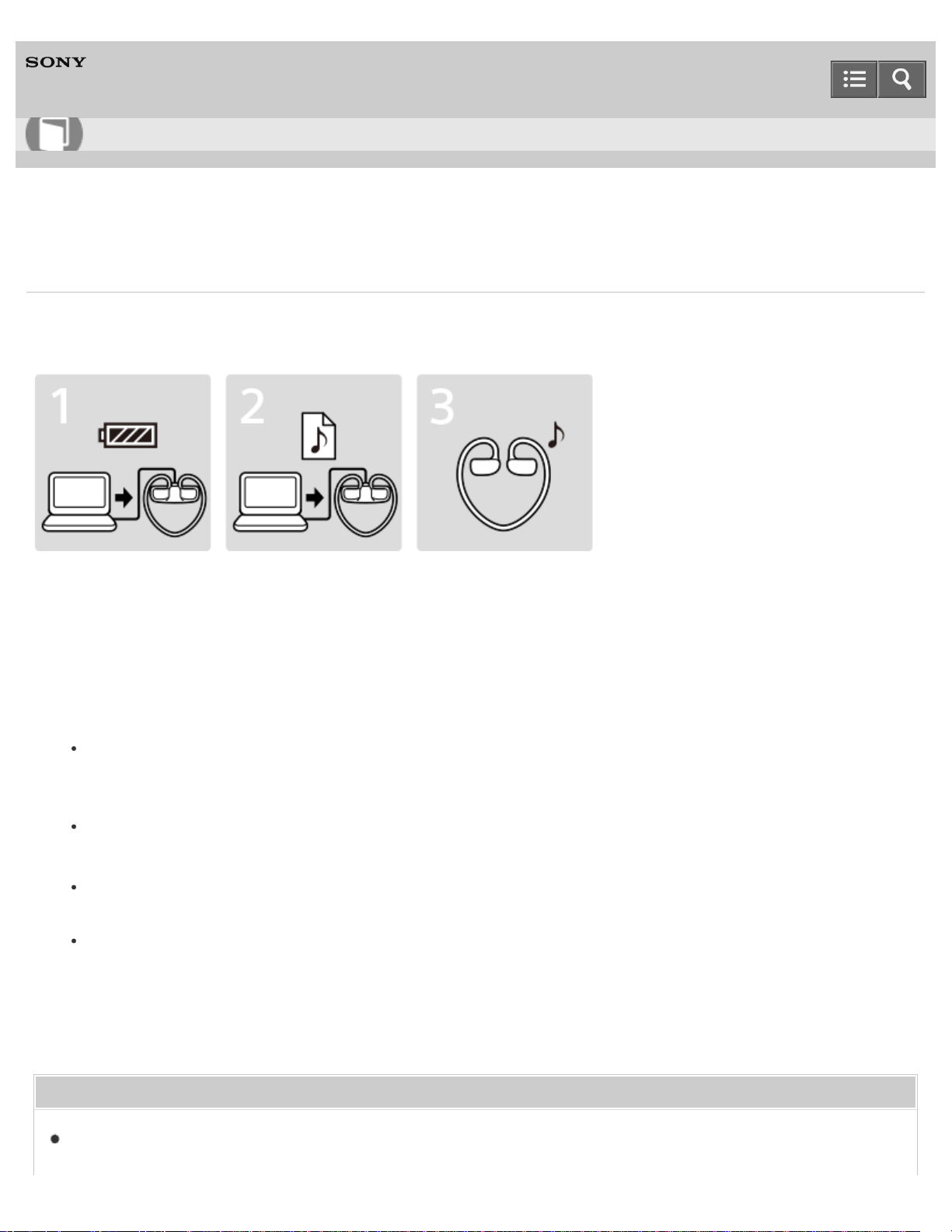
3 steps to listening to music
Be sure to charge the battery before you use your Walkman for the first time. You can transfer music while charging the
battery. You can listen to your music as soon as the transfer has completed.
1. Connect your Walkman to a computer.
You can charge the battery by connecting your Walkman via a USB connection to a computer that is turned on and
running.
2. Import music to your computer and transfer the music to your Walkman.
For Windows users
Recommended: Install Media Go, which is pre-installed in the built-in memory of your Walkman.
You can transfer music that you have imported from CDs or downloaded from online music services to your
Walkman.
You can transfer music by drag-and-drop directly from Windows Explorer to your Walkman.
For Mac users
Recommended: Install Content Transfer, which is pre-installed in the built-in memory of your Walkman.
You can transfer music and playlists that are managed with iTunes to your Walkman by an easy operation.
You can transfer music by drag-and-drop directly from the Finder to your Walkman.
3. Enjoy your music!
Turn on your Walkman, put it on, and start playing the music you want to listen to!
Related Topic
Charging the battery
Help Guide
How to Use
61

Installing Media Go
Importing content from media using Media Go
Transferring content using Media Go
Transferring iTunes content using Media Go
Installing Content Transfer
Transferring content using Content Transfer
Transferring content using Explorer
Transferring content using the Finder
Turning the power on
Playing music
4-536-927-16(1)
Copyright 2014 Sony Corporation
62
Digital Music Player
NWZ-WS613/WS615
Various ways to enjoy using your Walkman
Your Walkman can do more than simply play back music. Get to know more about various ways you can enjoy using the
Walkman.
Using your Walkman while swimming
Change the earbuds to the Swimming earbuds and enjoy using your Walkman even while swimming.
Operating your Walkman with the Remote Commander
The Remote Commander and the Walkman are already paired at the factory, so just turn them on and they are ready to
use without pairing.
Using with a smartphone
You can enjoy listening to music on your smartphone using your Walkman. You can also use the Walkman to answer
incoming calls to your smartphone.
“Sound Mix” allows you to listen to sound from a smartphone application and the Walkman at the same time. You can
also use SongPal, a smartphone application that allows you to operate the Walkman using your smartphone.
Related Topic
Changing the earbuds to Swimming earbuds
Using the Remote Commander
What is SongPal?
Using “Sound Mix”
Playing music on a smartphone
4-536-927-16(1)
Copyright 2014 Sony Corporation
Help Guide
How to Use
63
Digital Music Player
NWZ-WS613/WS615
Parts and controls
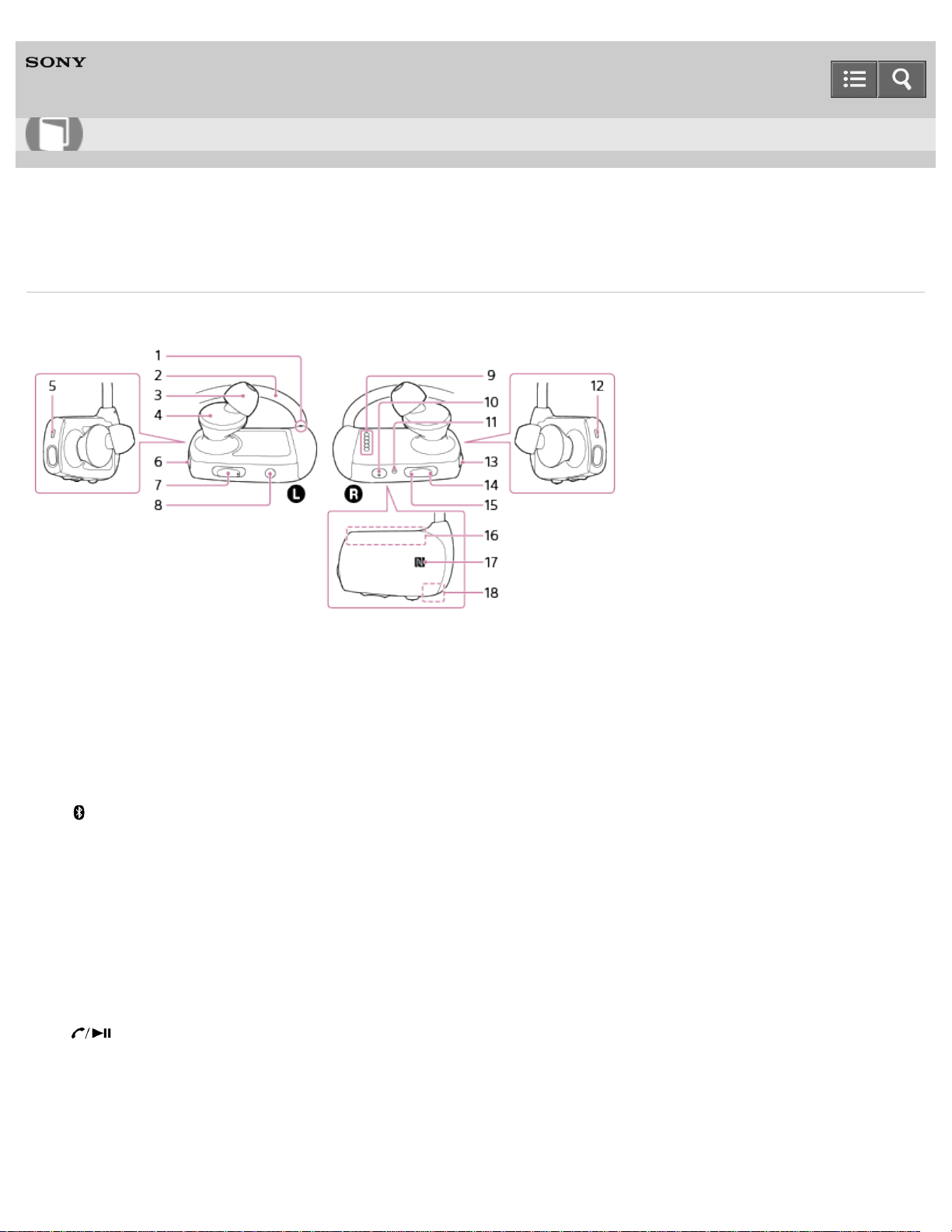
This section explains the functions of buttons, jacks, and other parts of your Walkman.
1. Tactile dot
There is a tactile dot on the left part of your Walkman. Use it to distinguish left from right when you operate it.
2. Neckband
3. Earbud
4. Headphone section
5. Bluetooth lamp
6. (Bluetooth) button
Press and hold for 2 seconds to turn the Bluetooth function on or off.
Press and hold for 7 seconds while the Bluetooth function is turned off to pair with a Bluetooth device.
7. VOL (Volume) + (*1)/- button
Press to adjust the music playback, ringtone, and call volumes.
8. MODE button
Press to switch the playback mode (All Song/Repeat/Shuffle).
Press and hold for longer than 1 second to switch the playback order (Folder/Playlist/Album).
9. Terminals
10. (Play) button (*1)
Press to start/pause playback or to answer/hang up a call.
Press and hold for 2 seconds to switch the sound source (Walkman/Bluetooth device) or to reject an incoming call.
Press and hold for 15 seconds to enter the formatting mode.
11. RESET button
Press the RESET button with a pen or a paper clip, etc., to reset your Walkman.
Help Guide
How to Use
64

12. OPR (Operation) lamp
13. (Power) button
Press and hold for 3 seconds to turn your Walkman on or off.
14. (Previous) button
Press to skip to the previous song.
Press and hold for longer than 2 seconds to skip to the beginning of the previous folder.
15. (Next) button
Press to skip to the next song.
Press and hold for longer than 2 seconds to skip to the beginning of the next folder.
16. Built-in Bluetooth antenna
Do not cover the antenna part with your hands or other object when a Bluetooth connection is active. Doing so may
interrupt the connection.
17. N-mark
Touch a Bluetooth device equipped with an NFC function to this mark to connect it to your Walkman.
18. Built-in microphone
Do not cover the microphone part with your hands or other object when you talk on your Walkman. Doing so may
block your voice sound.
(*1)
There is a tactile dot. Use it to help with button operations.
Related Topic
Turning the power on
Turning the power off
Confirming the Walkman status by the OPR lamp
Confirming the Bluetooth status by the Bluetooth lamp
Resetting your Walkman
4-536-927-16(1)
Copyright 2014 Sony Corporation
65
Digital Music Player
NWZ-WS613/WS615
About the differences between the two types of earbuds
There are two different types of earbuds (supplied): standard-type and swimming type. The characteristics of each type
are as follows.
Standard-type earbuds:
You can use them in a wide variety of situations.
Swimming earbuds:
Employing a structure that prevents water penetration inside the headphones, Swimming earbuds allow you to enjoy
music more comfortably while swimming.
Note
The sound volume is lower with Swimming earbuds than with standard-type earbuds. Increase the volume as needed.
When you replace Swimming earbuds with the standard-type earbuds, the sound becomes louder. Adjust the volume
so as not to hurt your eardrums.
Related Topic
Changing the earbuds
Changing the earbuds to Swimming earbuds
4-536-927-16(1)
Copyright 2014 Sony Corporation
Help Guide
How to Use
66

Digital Music Player
NWZ-WS613/WS615
Changing the earbuds
To enjoy better sound quality, change the earbuds (supplied) to another size to fit your ears comfortably and snugly.
1. While holding the headphone, twist and pull the earbud off.
If the earbud slips and cannot be detached, wrap it in a soft dry cloth.
2. Attach the earbuds to the headphone.
Push the earbud onto the headphone to where the end of the earbud’s colored part ( ) aligns with . Attach the
earbud firmly to the headphones to prevent it from detaching and remaining in your ear.
Hint
If the earbuds become worn, purchase new earbuds.
If the earbuds get dirty, remove the earbuds from the headphones and hand-wash them with neutral detergent. After
washing, drain off the water and reattach them.
Help Guide
How to Use
67


Digital Music Player
NWZ-WS613/WS615
How to store your Walkman in the carrying holder
Whenever carrying or when not using your Walkman, store your Walkman in the carrying holder (supplied).
1. Turn off your Walkman.
2. Attach your Walkman to the carrying holder firmly.
3. Rotate your Walkman inward toward the carrying holder until the Walkman sets in place.
4-536-927-16(1)
Copyright 2014 Sony Corporation
Help Guide
How to Use
69
Digital Music Player
NWZ-WS613/WS615
Turning the power on
Turn on the power to start your Walkman.
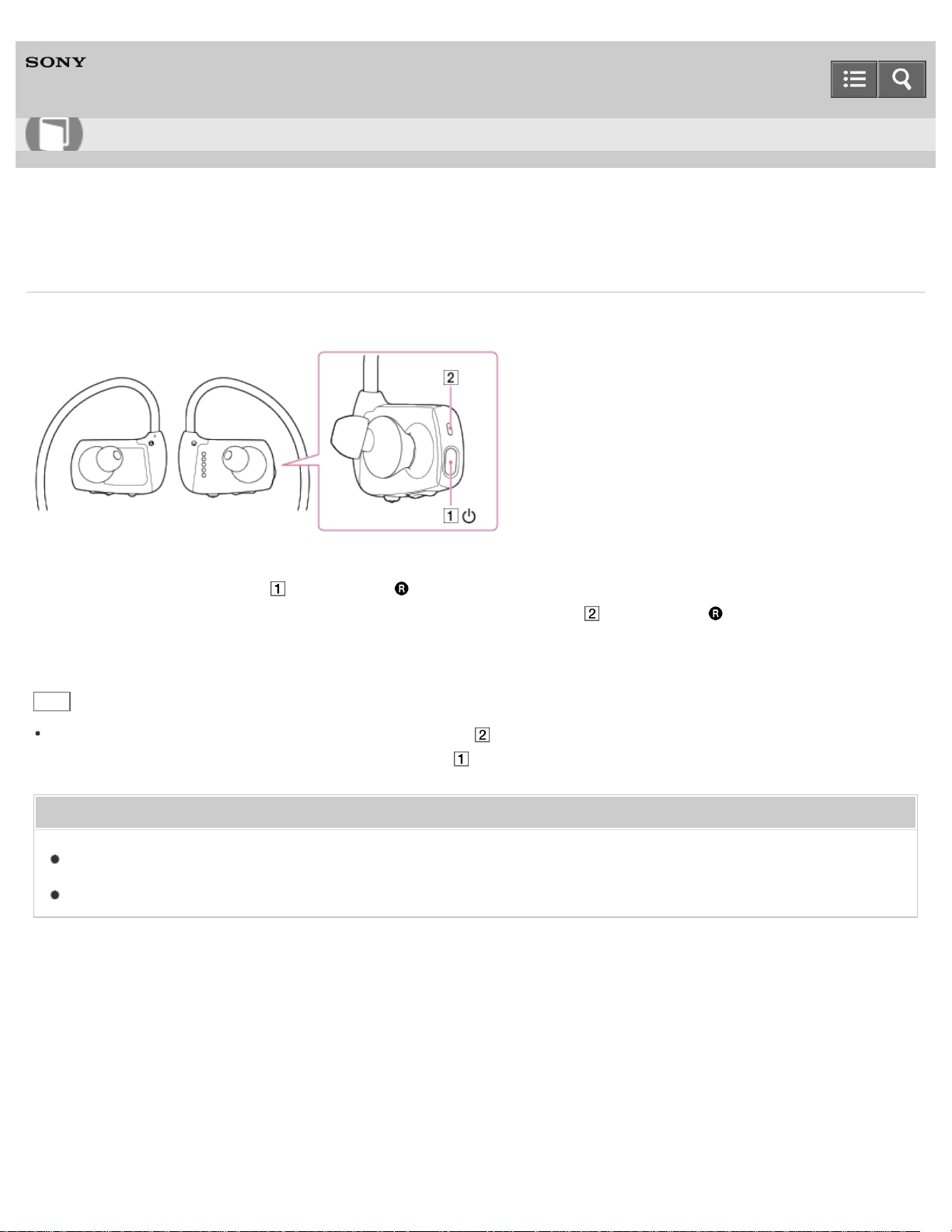
1. Press and hold the button ( ) on the right ( ) side of your Walkman for 3 seconds.
Your Walkman turns on and a startup sound will be heard. The lamp ( ) on the right ( ) side of your Walkman
blinks in orange quickly while the Walkman is turned on.
Hint
If there is no operation for an extended period, the lamp ( ) turns off and your Walkman will be turned off
automatically. In that case, press and hold the button ( ) to turn on the Walkman.
Related Topic
Turning the power off
Confirming the Walkman status by the OPR lamp
4-536-927-16(1)
Copyright 2014 Sony Corporation
Help Guide
How to Use
70
Digital Music Player
NWZ-WS613/WS615
Turning the power off
Turn off the power when not using your Walkman.
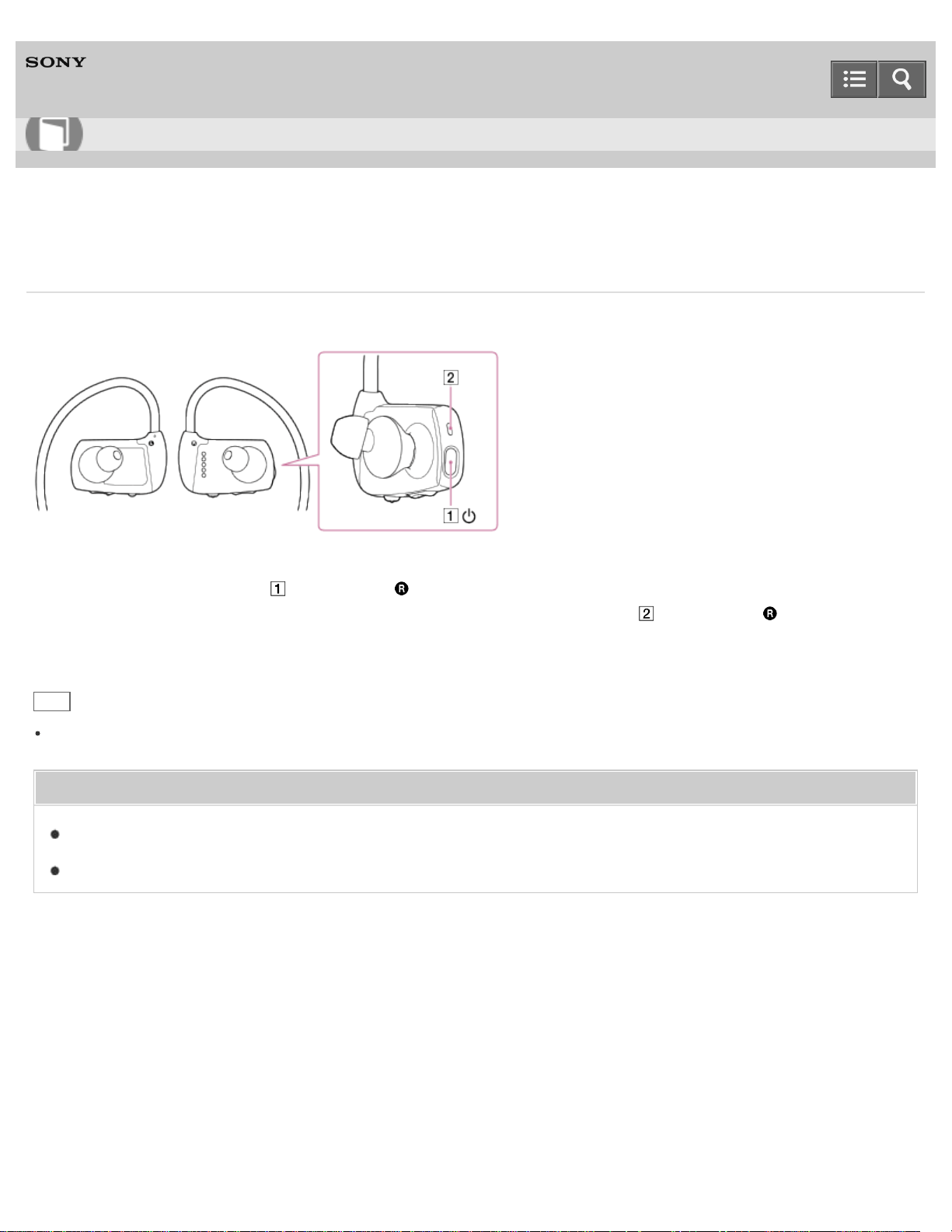
1. Press and hold the button ( ) on the right ( ) side of your Walkman for 3 seconds.
After the beep sound and the voice guidance “Power Off” is heard, the lamp ( ) on the right ( ) side of your
Walkman and your Walkman turns off.
Hint
If there is no operation for an extended period, your Walkman will be turned off automatically.
Related Topic
Turning the power on
Confirming the Walkman status by the OPR lamp
4-536-927-16(1)
Copyright 2014 Sony Corporation
Help Guide
How to Use
71

Digital Music Player
NWZ-WS613/WS615
Charging the battery
Charge your Walkman by connecting it to a computer.
1. Attach your Walkman to the USB cradle in the order of the left ( ) part first, then the right ( ) part. Make sure
that the terminals of your Walkman ( ) and the USB cradle ( ) are in contact with each other.
2. Connect your Walkman to a running computer via USB.
The lamp ( ) on the right ( ) side of your Walkman lights up in orange while charging the battery. Charging is
complete when the lamp ( ) turns off.
3. Disconnect your Walkman from the computer when charging is complete.
Hint
The Remote Commander cannot be charged. For details on how to replace the battery of the Remote Commander,
see "Replacing the battery of the Remote Commander."
For information about the time to fully charge the battery, see “Specifications.”
Note
When you charge your Walkman when it has not been used for a long period of time or when you use it for the first
Help Guide
How to Use
72

time, your computer may not recognize it. The Walkman should start operating normally again after charging for about
10 minutes.
Dry and clean the terminals of your Walkman using a soft dry cloth, if the terminals are wet or dirty.
You cannot operate your Walkman when it is connected to a computer.
You cannot operate your Walkman while charging the battery.
Related Topic
Connecting to a computer
Confirming the Walkman status by the OPR lamp
Extending the battery life
Notes on charging the battery
Specifications
4-536-927-16(1)
Copyright 2014 Sony Corporation
73
Digital Music Player
NWZ-WS613/WS615
Extending the battery life
You can reduce battery consumption by using your Walkman as follows.
For a comparison of battery life based on set effects, default settings and functions, see “Battery life.”
Turn off the power manually.
Set all sound quality settings to off.
Turn off the Bluetooth function when not in use.
Related Topic
Turning the power off
Turning the Bluetooth function on/off
What is SongPal?
Battery life
4-536-927-16(1)
Copyright 2014 Sony Corporation
Help Guide
How to Use
74
Digital Music Player
NWZ-WS613/WS615
Notes on charging the battery
The charging time differs depending on the battery usage conditions.
If the battery life is reduced to about half of its normal life even if sufficiently charged, it has probably worn out. Please
contact your nearest Sony dealer.
If you charge your Walkman when it has not been used for a long period of time, your computer may not recognize it,
or the Walkman may not respond. Charge the Walkman for about 10 minutes, after which it should start operating
normally again.
Charge the battery in an ambient temperature between 5 °C to 35 °C (41 ºF to 95 ºF).
The number of times the battery can be recharged from complete discharge is approximately 500 times. This number
may vary depending on the conditions under which you use your Walkman.
To prevent battery deterioration, charge the battery at least once every six months to one year.
Charging is not guaranteed with homebuilt or modified computers.
Operation with a USB port extended with a USB hub is only guaranteed when a self-powered USB hub that carries an
authorized logo is used.
Do not leave your Walkman connected for an extended period of time to a laptop computer that is not connected to
an AC power supply. Doing so may discharge the computer’s battery.
Do not turn on, restart, wake up from sleep mode, or shut down the computer with your Walkman connected to the
computer via USB. Doing so may cause the Walkman to malfunction. Disconnect the Walkman from the computer
before conducting these operations.
Your Walkman may become hot while charging. This is not a malfunction.
You cannot operate your Walkman when it is connected to a computer.
You cannot operate your Walkman while charging the battery.
4-536-927-16(1)
Copyright 2014 Sony Corporation
Help Guide
How to Use
75
Digital Music Player
NWZ-WS613/WS615
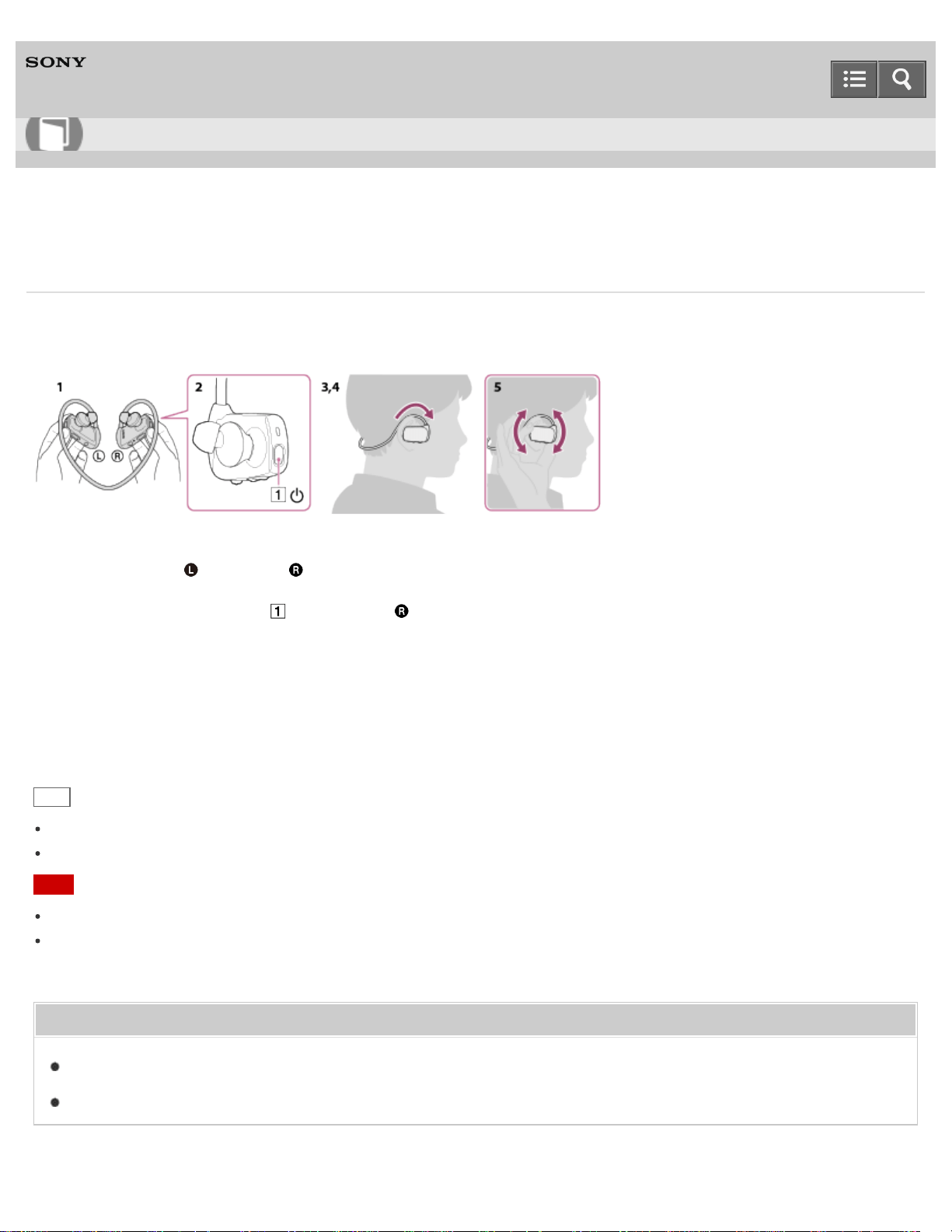
How to place your Walkman on your ears
Choose the size of earbud that fits into your left/right ear each. If you find that the earbuds easily come off, try another
size that fits into your ears.
1. Check the left ( ) and right ( ) parts of your Walkman.
2. Press and hold the button ( ) on the right ( ) side of your Walkman for about 3 seconds to turn on the Walkman.
3. Hang the neckband over the top of your ears and behind your head.
4. Place the headphone sections into your ears.
5. Adjust your Walkman so it feels comfortable.
Hint
If your Walkman does not feel comfortable, replace the earbuds.
To use your Walkman for swimming, change the earbuds to Swimming earbuds.
Note
Fit your Walkman earbuds into your ears before swimming while the earbuds and your ears are still dry.
Make sure to fit your Walkman earbuds into your ears firmly so that water does not get into your ears through a gap
between your ears and the headphones.
Related Topic
Improving the fit
Taking your Walkman off
Help Guide
How to Use
76

Digital Music Player
NWZ-WS613/WS615
Improving the fit
Try the following to fit your Walkman better on your ears.
Stabilizing your Walkman with the adjustment band (supplied)
You can place your Walkman earbuds more firmly into your ears by using the adjustment band.
Stabilizing your Walkman with swimming goggles
By stabilizing the part on your Walkman indicated by the arrow using the band of your swimming goggles, you can
prevent your Walkman from detaching because of water pressure.
Note
Do not use strong force to deform or bend the neckband. If you bend the neckband at the same part repeatedly, it
may break. If it breaks, a wire-like metal may project from the covering and you could injure yourself. If the neckband
breaks, stop using your Walkman.
Related Topic
Help Guide
How to Use
77

Digital Music Player
NWZ-WS613/WS615
Taking your Walkman off
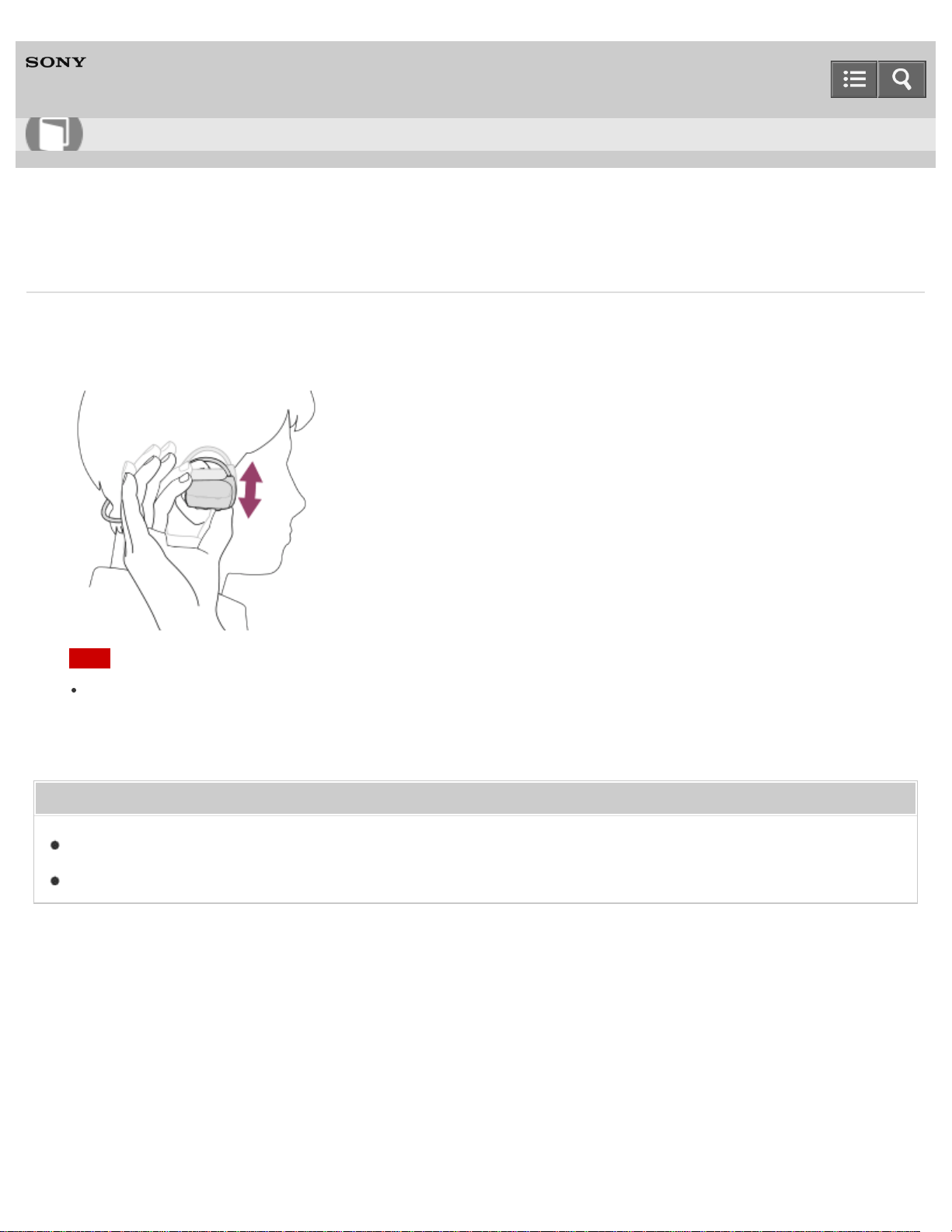
When you take your Walkman off your ears, be sure to follow the instructions and notes below.
1. Gently move your Walkman up and down to take it off your ears.
Note
Removing the Walkman suddenly when the earbuds are fitted firmly in your ears may cause damage to your
ears or eardrums, or the earbuds may remain in your ears.
Related Topic
How to place your Walkman on your ears
Improving the fit
4-536-927-16(1)
Copyright 2014 Sony Corporation
Help Guide
How to Use
79
Digital Music Player
NWZ-WS613/WS615
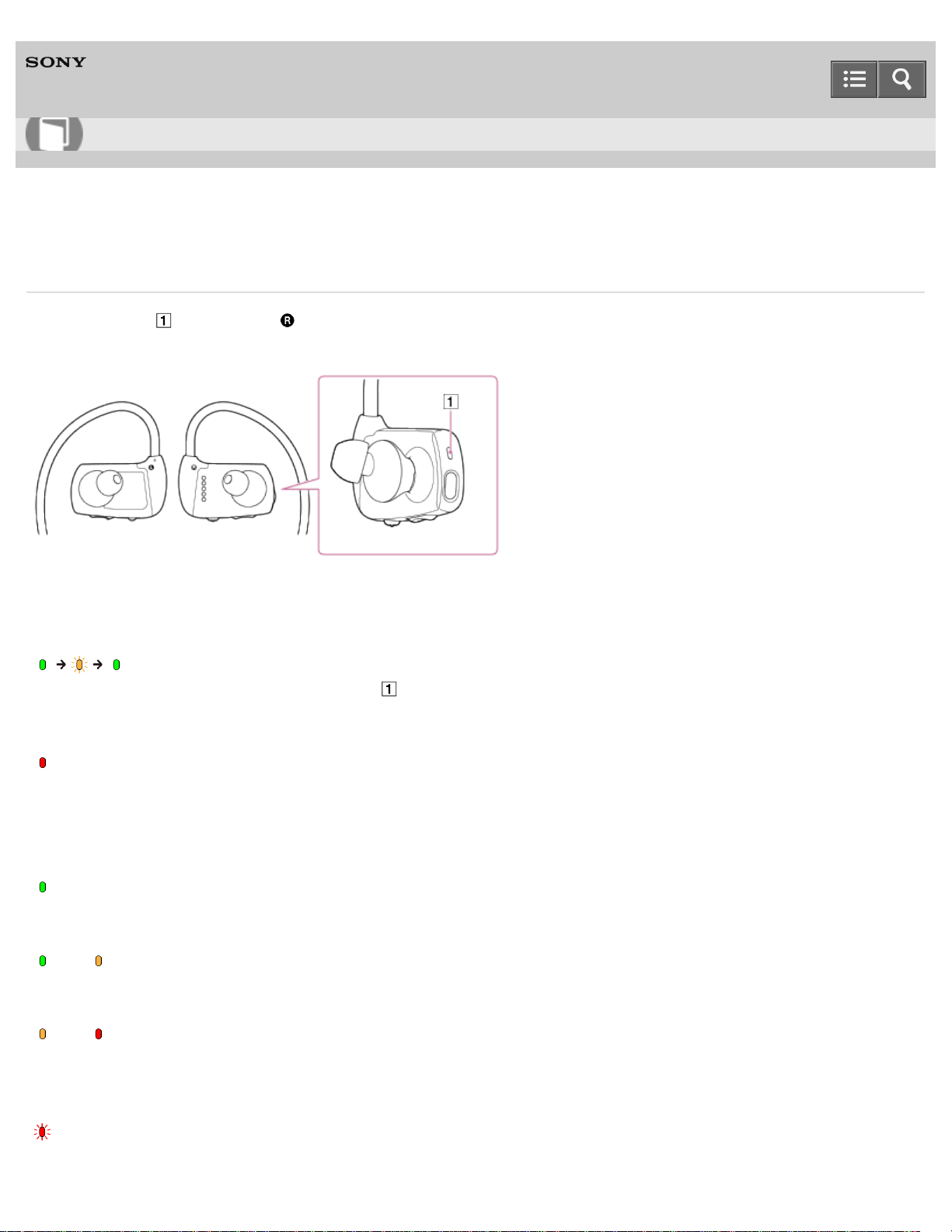
Confirming the Walkman status by the OPR lamp
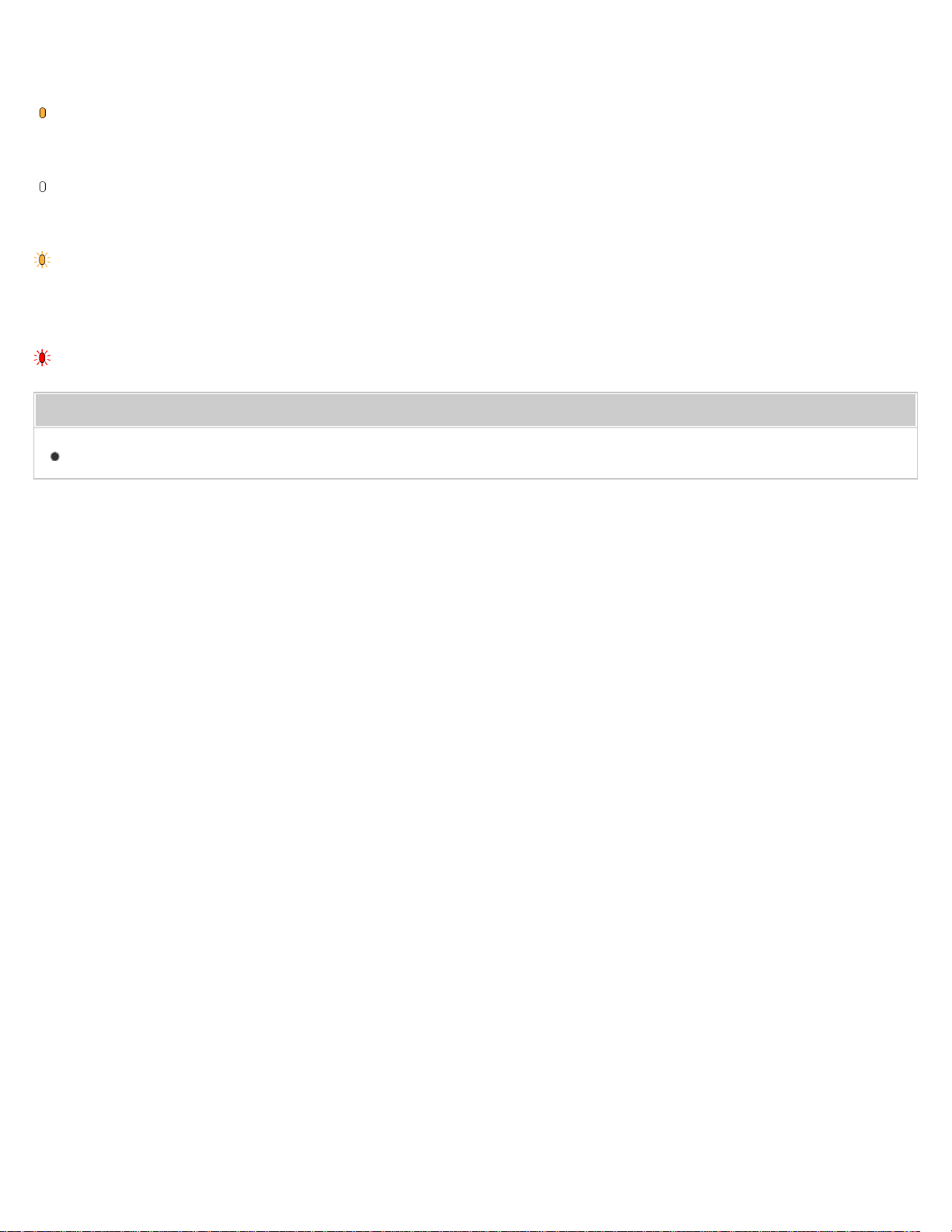
The OPR lamp ( ) on the right ( ) side of your Walkman indicates the condition of the battery or settings by changing
color and blinking patterns.
When you turn on your Walkman
Starting up
(Lights up in green, blinks in orange and then stays lit in green)
Your Walkman is ready to use when the lamp ( ) turns green after blinking in orange.
An error has occurred
(Lights up in red for 10 seconds)
Turn the power off and then back on.
During playback or pause
Battery has been charged enough
(Lights up or blinks in green)
Current remaining battery power is low
and (Blinks in green and orange alternately)
Battery is discharged
and (Blinks in orange and red alternately)
The battery has no charge left. Your Walkman beeps and then becomes inoperable.
Music is not played back due to an error
(Blinks in red twice)
Help Guide
How to Use
80
While connected to a computer
Battery is being charged
(Lights up in orange)
Battery has been fully charged
(Goes out)
Accessing the Walkman via a USB connection, such as when data is being transferred
(Blinks in orange quickly)
You are trying to charge the battery in an ambient temperature outside the range of 5 ºC (41 ºF)
to 35 ºC (95 ºF)
(Blinks in red twice)
Related Topic
Confirming the Bluetooth status by the Bluetooth lamp
4-536-927-16(1)
Copyright 2014 Sony Corporation
81
Digital Music Player
NWZ-WS613/WS615
Confirming the Bluetooth status by the Bluetooth lamp
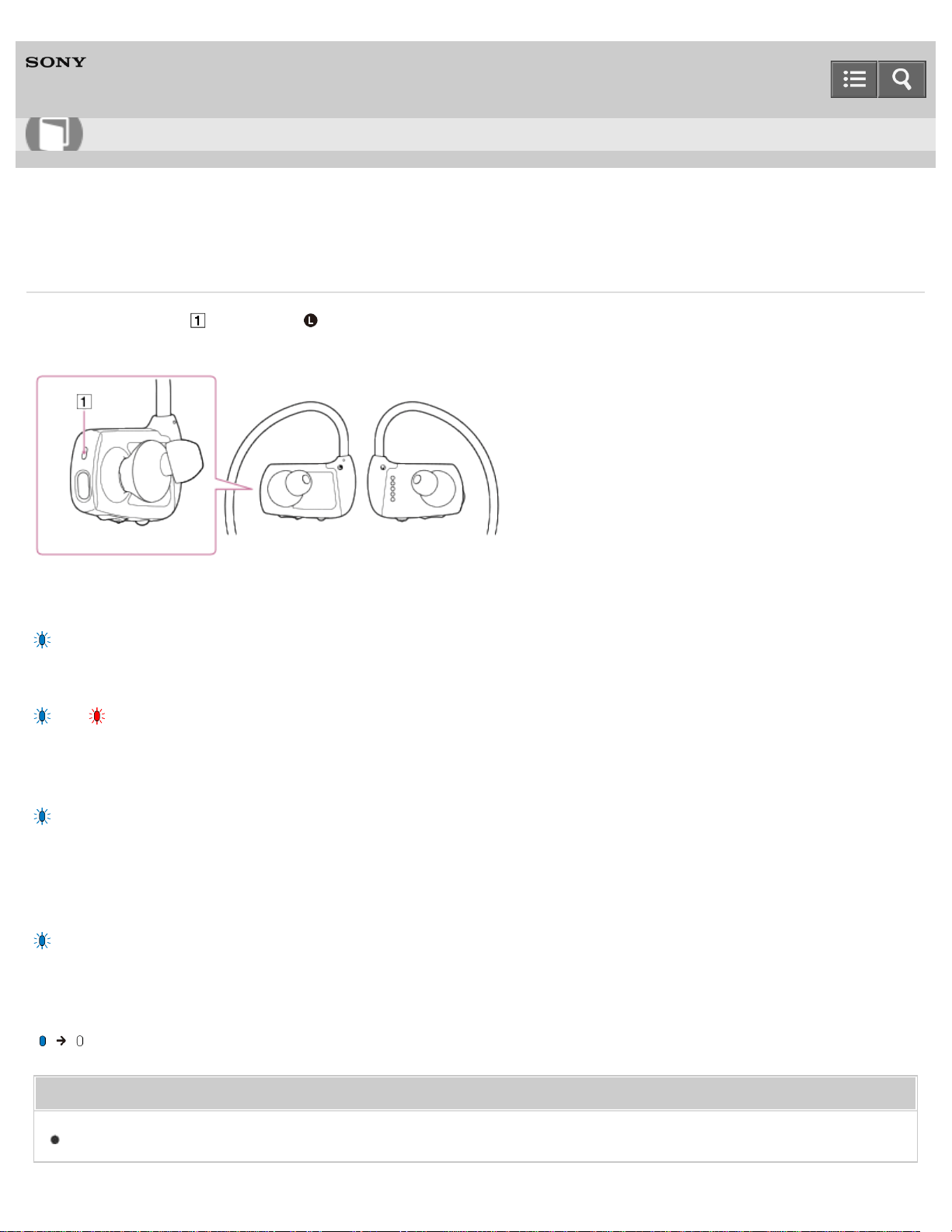
The Bluetooth lamp ( ) on the left ( ) side of your Walkman indicates the status of the Bluetooth connection by
changing color and blinking speed.
Bluetooth function turned on
(Blinks in blue twice)
Pairing in progress
and (Blinks in blue and red quickly alternately)
Your Walkman is in the process of pairing with a Bluetooth device.
Operating a connection
(Blinks in blue twice every second)
If Bluetooth devices are paired, when you turn on the Bluetooth function of your Walkman, the Walkman makes the
Bluetooth connection with the last connected device automatically.
Bluetooth connection active (Connection was successful)
(Blinks in blue once, twice or 3 times every 5 seconds)
The number of blinks differs depending on the types of the connected Bluetooth devices, status of playback or call, etc.
Bluetooth function turned off
(Lights up in blue for 2 seconds and then goes out)
Related Topic
Confirming the Walkman status by the OPR lamp
Help Guide
How to Use
82
Digital Music Player
NWZ-WS613/WS615
Water resistant performance of this Walkman
The water resistant specifications (*1) of this Walkman are equivalent to IEC 60529 “Degrees of protection against
ingress of water (IP Code)” IPX5/8 (*2), which specifies the degree of protection provided against the entry of water.
If you use your Walkman in a swimming pool, do not exceed a depth of 2 meters (6.5 feet) while wearing it. Before use,
be sure to read and understand the water resistant specifications completely.
(*1)
The headphone sections are not water-tight.
(*2)
IPX5 (Degrees of protection against jets of water): Your Walkman, with Swimming earbuds attached, will maintain its
operability even when exposed to direct streams of water from any direction in a situation where approximately 12.5 l/min. of
water is supplied for more than 3 minutes from a distance of about 3 meters using a nozzle with an inner diameter of 6.3
millimeters. However, this does not apply to the headphone sections.
IPX8 (Degrees of protection against continual water submersion): Your Walkman, with Swimming earbuds attached, will maintain
its operability even when submersed in water to a depth of 2 meters for 30 minutes.
Related Topic
Changing the earbuds to Swimming earbuds
How the sound becomes muffled while you are swimming
If the sound becomes muffled while swimming
Notes while swimming
Notes on charging the battery after swimming
4-536-927-16(1)
Copyright 2014 Sony Corporation
Help Guide
How to Use
83

Digital Music Player
NWZ-WS613/WS615
Liquids that the water resistant performance specifications apply to
The types of liquid that the water resistant specifications of your Walkman apply to are as follows.
Applicable:
Fresh water, tap water, perspiration, pool water
Not applicable:
Liquids other than those above (examples: soapy water, detergent water, water with bath agents, shampoo, hot spring
water, salt water, etc.)
The water resistant performance of your Walkman is based on our measurements under the conditions described above.
Note that malfunctions as a result of water immersion caused by misuse by the customer are not covered by the
warranty.
Related Topic
Changing the earbuds to Swimming earbuds
How the sound becomes muffled while you are swimming
If the sound becomes muffled while swimming
Notes while swimming
Notes on charging the battery after swimming
4-536-927-16(1)
Copyright 2014 Sony Corporation
Help Guide
How to Use
84
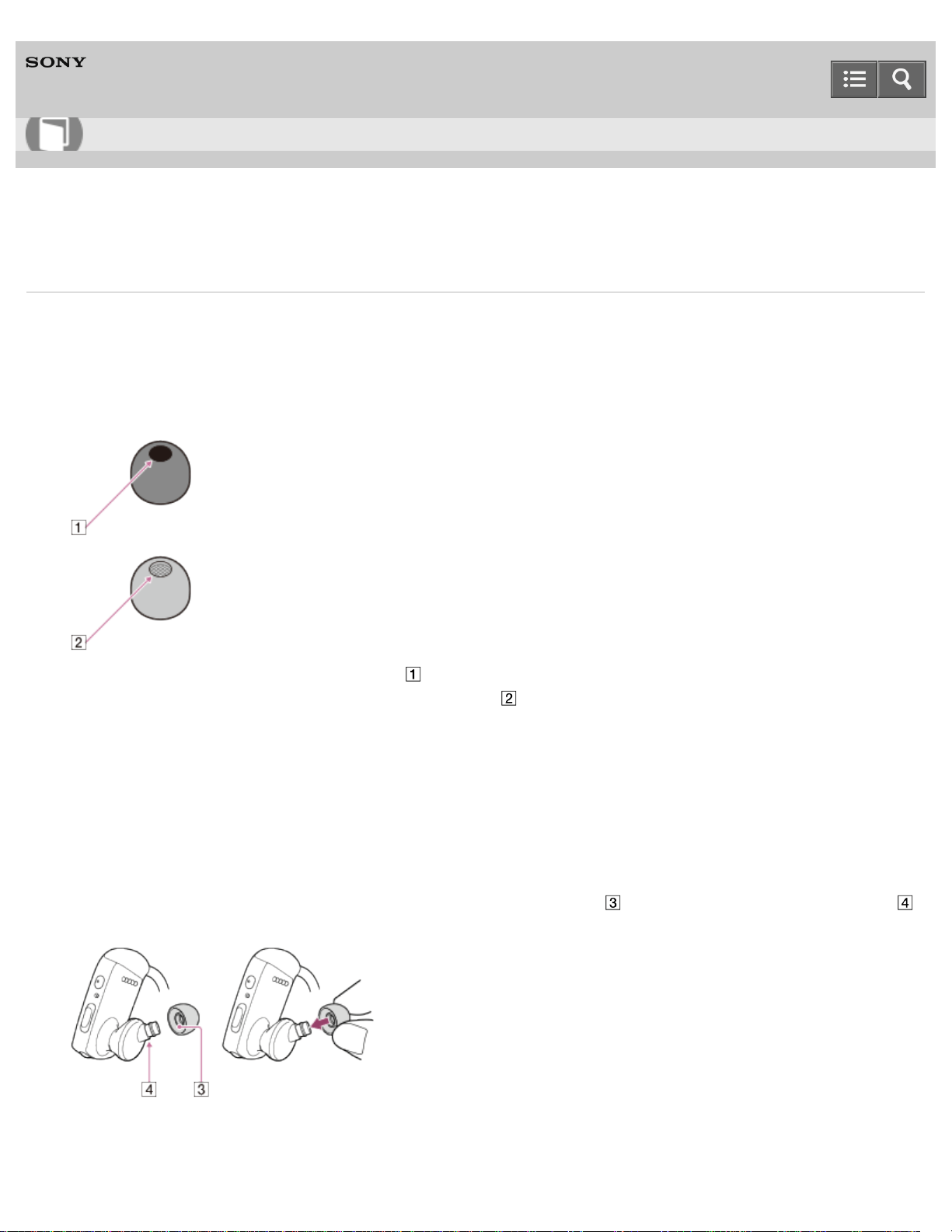
Digital Music Player
NWZ-WS613/WS615
Changing the earbuds to Swimming earbuds
To enjoy using your Walkman while swimming, change the earbuds to another type/size to fit your ears comfortably and
snugly.
1. Select the appropriate Swimming earbuds.
The standard-type earbuds are attached when you purchase your Walkman.
The standard-type earbud has an open hole ( ).
The Swimming earbud has a hole covered with a thin film ( ) to make it difficult for water to get in.
2. Choose the best fitting Swimming earbuds.
There are 4 different sizes of Swimming earbuds (S/M/L/LL) (supplied).
Choose a size slightly tighter than the standard-type.
Your ears may require different sized earbuds as not all ears are the same. For example: left side medium size,
right side large size.
3. Attach Swimming earbuds to your Walkman.
Install the earbuds onto the headphones so that the tip of the inner part ( ) of the earbuds fits into the position (
) on the projection of the headphones.
Make sure that the earbuds fit straight on, not at an angle, to prevent the earbuds from detaching and remaining in
your ears.
Help Guide
How to Use
85
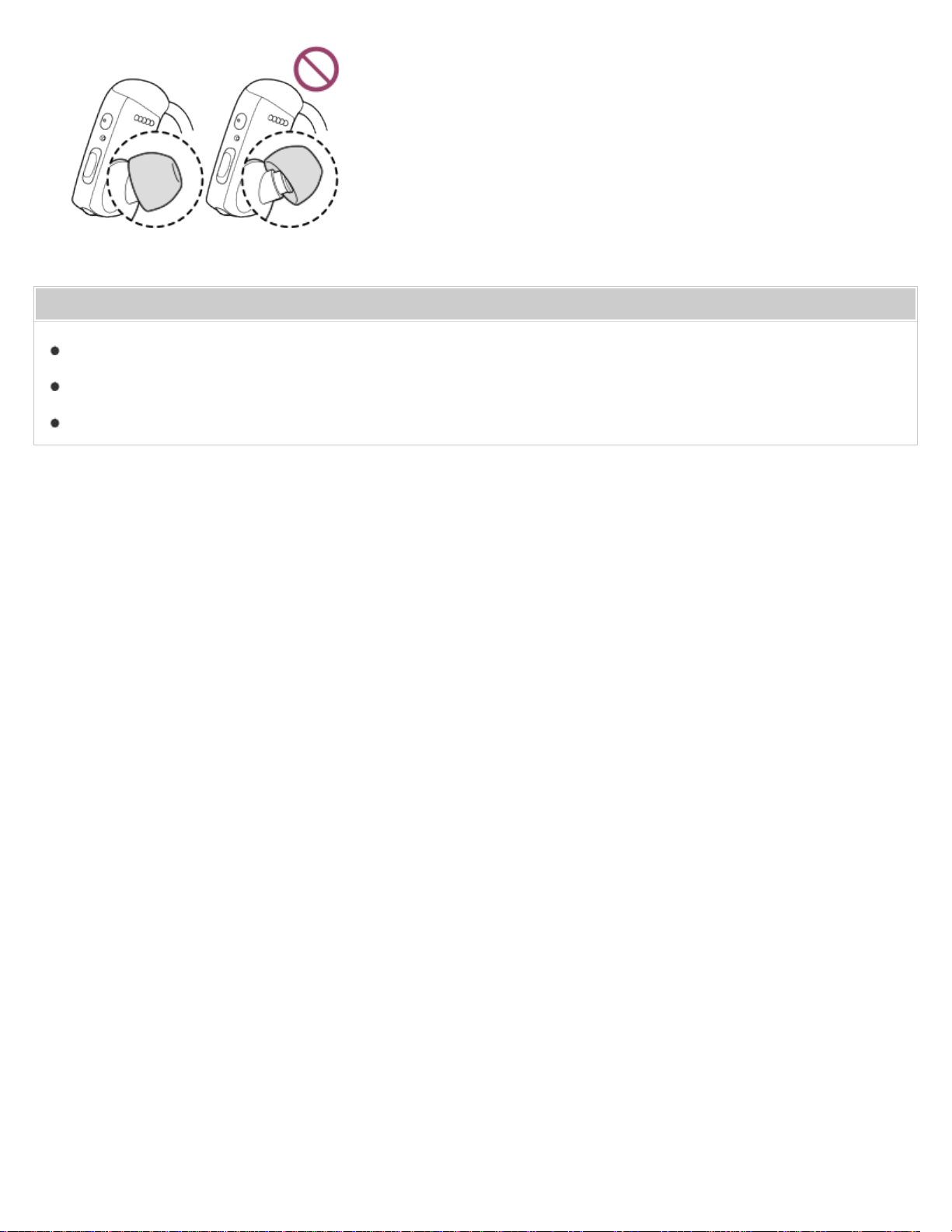
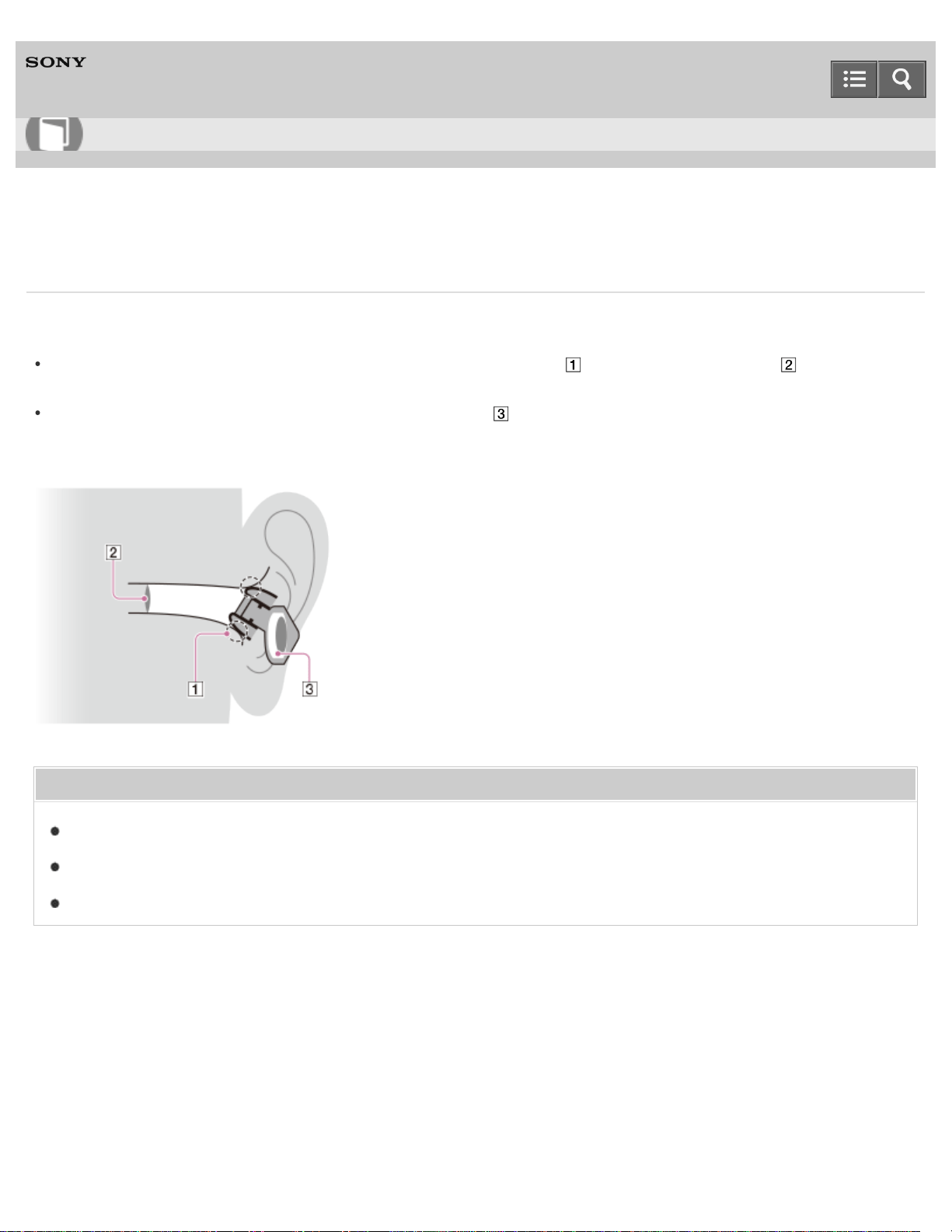
Digital Music Player
NWZ-WS613/WS615
How the sound becomes muffled while you are swimming
The sound may become muffled in cases like those shown below.
When water gets into a gap between your ears and the headphones ( ) and covers the eardrum ( ):
You can prevent water penetration by using the most appropriate size of earbuds that fit your ears firmly.
When water accumulates in the drivers of the headphones ( ):
You can prevent water penetration by using the Swimming earbuds (supplied).
Related Topic
Water resistant performance of this Walkman
Liquids that the water resistant performance specifications apply to
About the differences between the two types of earbuds
4-536-927-16(1)
Copyright 2014 Sony Corporation
Help Guide
How to Use
87
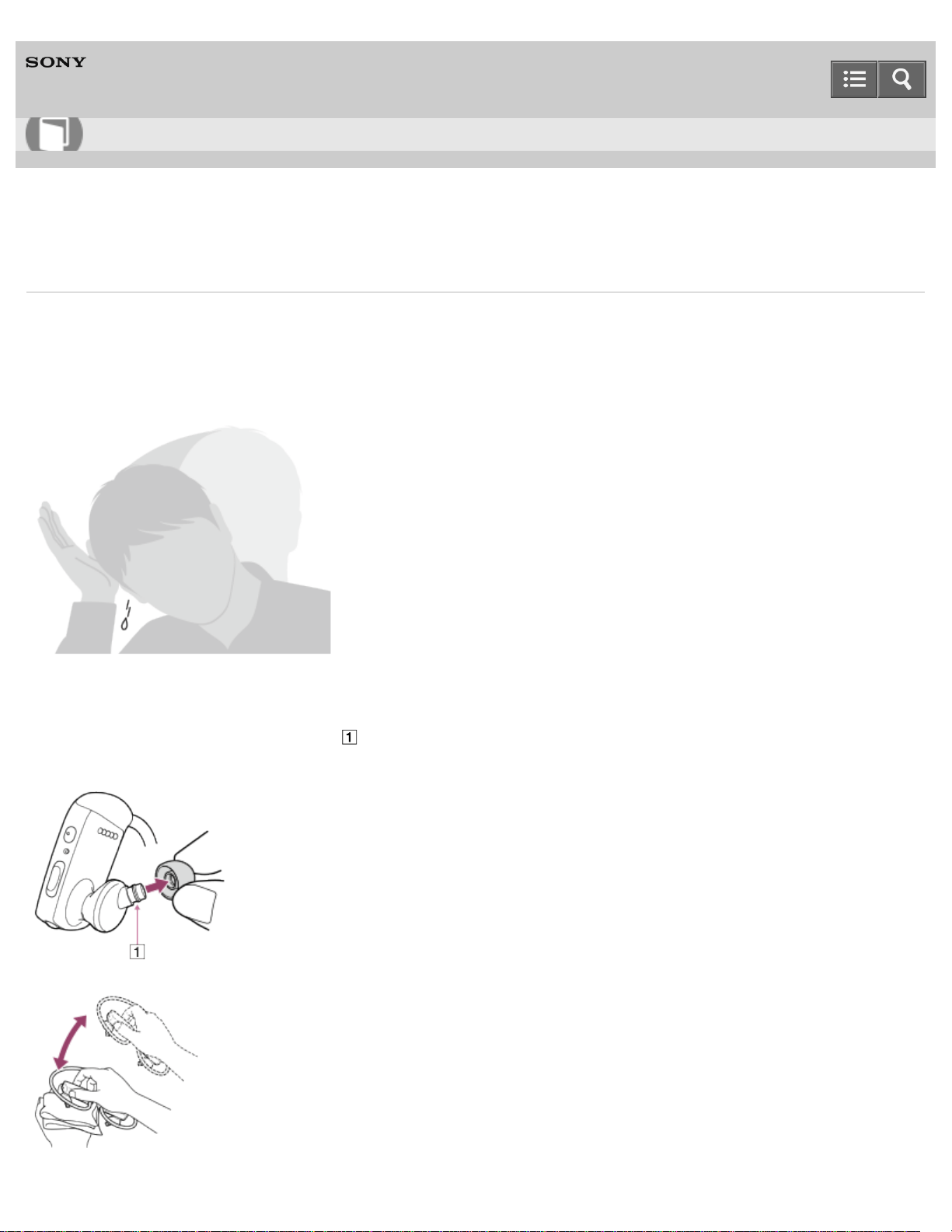
Digital Music Player
NWZ-WS613/WS615
If the sound becomes muffled while swimming
Water inside your ears or headphones may cause the sound to be muffled.
Removing water from your ears
Remove water from your ears.
Removing water from headphones
When water gets inside the headphones ( ), remove the earbuds from the headphones and pat the headphones lightly
5 to 10 times on a dry cloth.
Help Guide
How to Use
88

Digital Music Player
NWZ-WS613/WS615
Notes while swimming
Do not use your Walkman in places where an inability to hear surrounding sound would be dangerous.
When you use your Walkman in public or private swimming facilities, follow the rules of that facility.
Do not use your Walkman while swimming in a river or in the ocean.
Your Walkman cannot be connected to your smartphone.
You cannot use the Remote Commander (supplied).
The earbuds (supplied) seal your ears. Therefore, be aware that there is a risk of damage to your ears or eardrums if
strong pressure is applied to the earbuds or the earbuds are removed suddenly from your ears. Due to this risk, do
not do vigorous exercises, dive into a swimming pool, etc., while wearing your Walkman.
Do not pour hot water directly on your Walkman and do not blow hot air from a hair dryer, etc., directly on the
Walkman. Never use the Walkman in high-temperature locations such as in saunas or near a stove.
The sound volume is lower with Swimming earbuds than with standard-type earbuds. Increase the volume as needed.
When you replace Swimming earbuds with the standard-type earbuds, the sound becomes louder. Adjust the volume
so as not to hurt your eardrums.
Related Topic
Water resistant performance of this Walkman
Liquids that the water resistant performance specifications apply to
About the differences between the two types of earbuds
4-536-927-16(1)
Copyright 2014 Sony Corporation
Help Guide
How to Use
90
Digital Music Player
NWZ-WS613/WS615
Notes on charging the battery after swimming
The USB cradle (supplied) is not water resistant.
Before charging the battery, make sure your Walkman is not wet.
If there is moisture on your Walkman, wipe it off completely, and leave the Walkman at room temperature to dry until
no moisture remains on the Walkman before you start charging.
Never use the USB cradle with wet hands or when your Walkman is wet.
Related Topic
Water resistant performance of this Walkman
Liquids that the water resistant performance specifications apply to
About the differences between the two types of earbuds
4-536-927-16(1)
Copyright 2014 Sony Corporation
Help Guide
How to Use
91
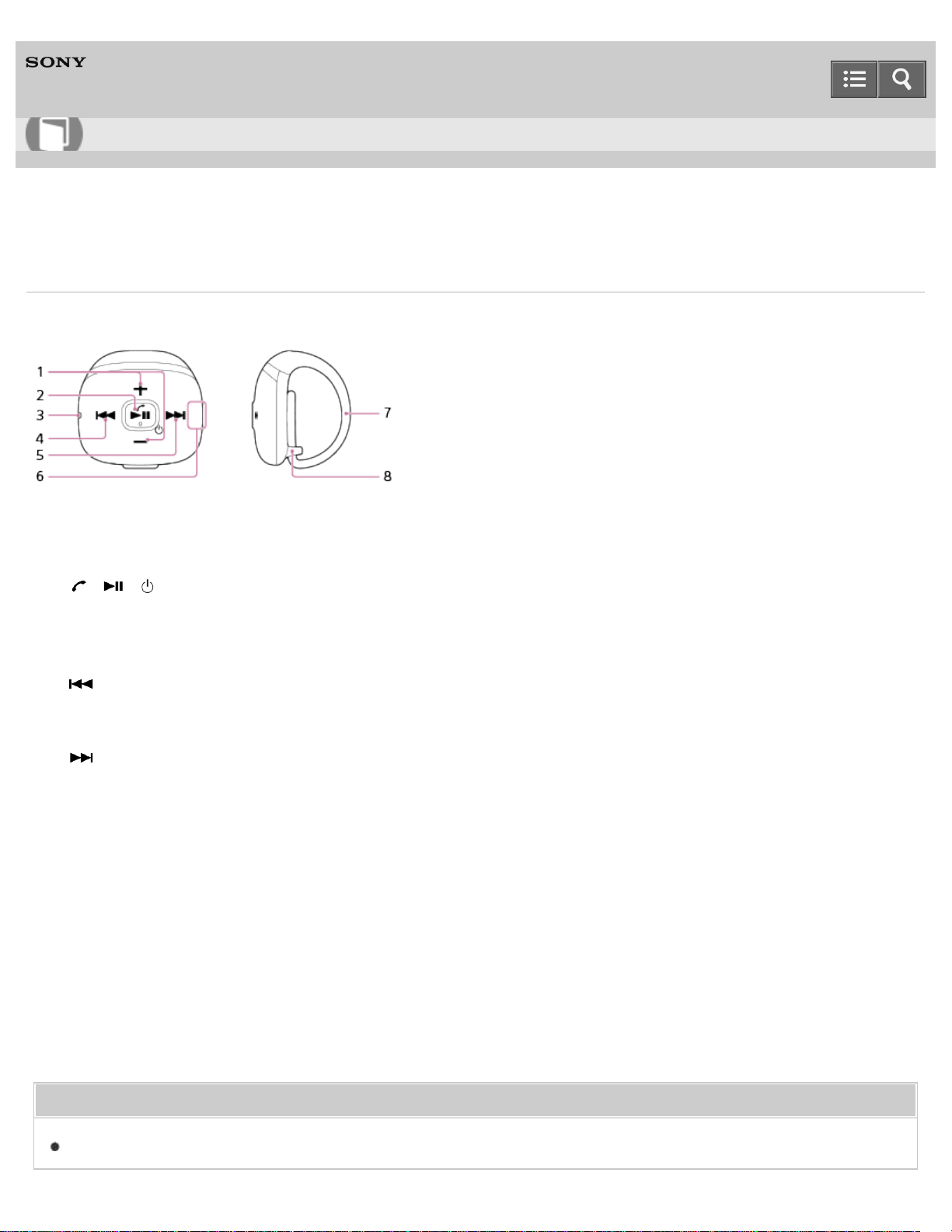
Digital Music Player
NWZ-WS613/WS615
Parts and controls of the Remote Commander
This section explains the functions of buttons and other parts of the Remote Commander (supplied).
1. VOL (Volume) +/- button
Press to adjust the music playback, ringtone, and call volumes.
2. / / button (*1)
Press to start/pause playback or to answer/hang up a call.
Press and hold for 2 seconds to turn on the Remote Commander or to reject an incoming call.
3. Lamp (blue/red)
4. (Previous) button
Press to skip to the previous song.
Press and hold for longer than 2 seconds to skip to the beginning of the previous folder.
5. (Next) button
Press to skip to the next song.
Press and hold for longer than 2 seconds to skip to the beginning of the next folder.
6. Antenna (aerial)
The antenna is built-in. Do not cover the antenna part with your hands or other object when using the Remote
Commander. Doing so may interrupt the connection.
7. Band
8. Band loop
When you press any button, the lamp lights up. If it does not light up, the battery is depleted or the Remote Commander
is turned off.
(*1)
There is a tactile dot. Use it to help with button operations.
Related Topic
Using the Remote Commander
Help Guide
How to Use
92
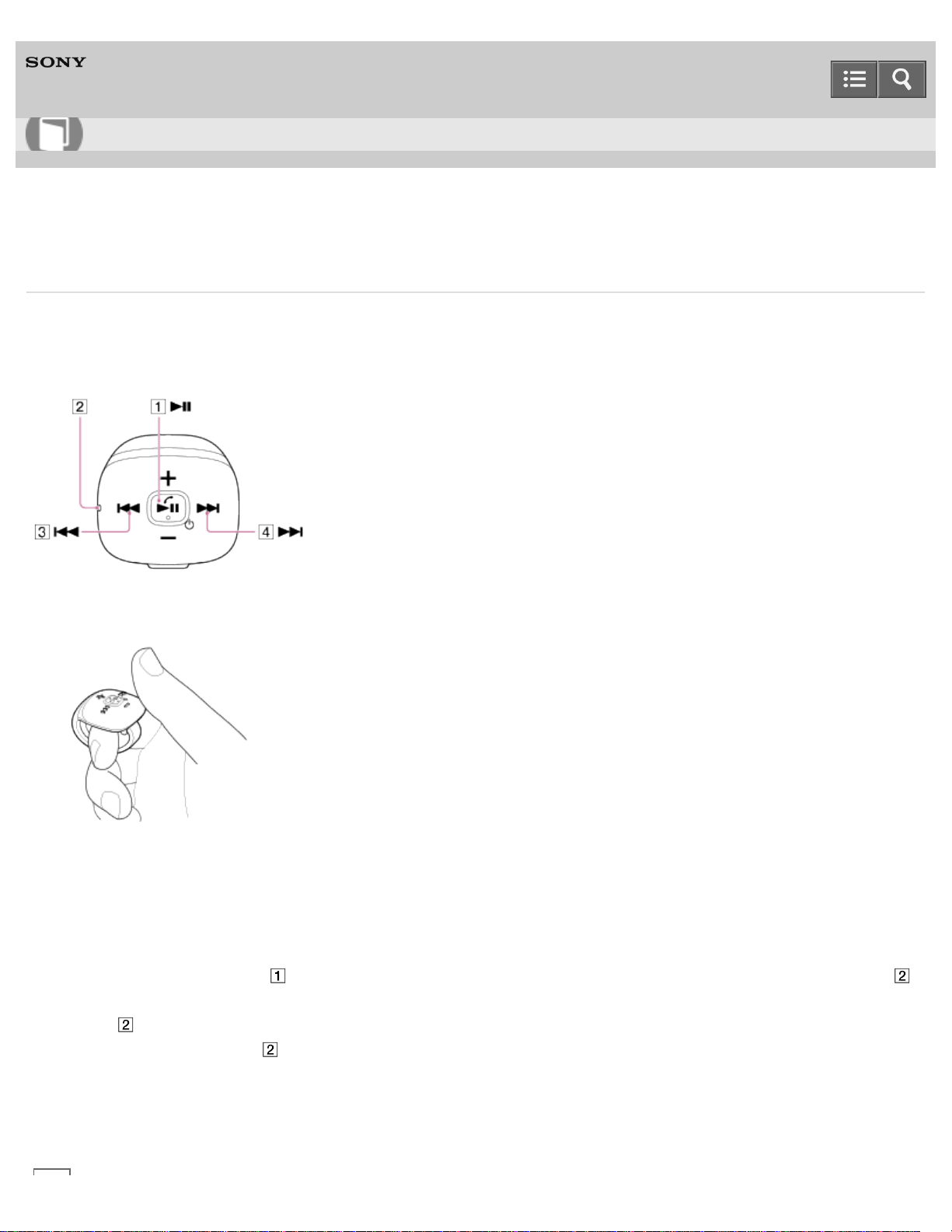
Digital Music Player
NWZ-WS613/WS615
Using the Remote Commander
The Remote Commander (supplied) allows you to operate your Walkman wirelessly. The Remote Commander and the
Walkman are already paired at the factory, so just turn them on and they are ready to use without pairing.
The power of your Walkman has to be turned on before performing the procedures below.
1. Put the Remote Commander on your finger.
If the band does not fit the size of your finger, remove the Remote Commander once and adjust the band, then put
it on again.
2. Check that your Walkman is turned on.
3. Turn on the Remote Commander.
Press and hold the button ( ) for more than 2 seconds. When the Remote Commander is turned on, the lamp ( )
starts blinking. Your Walkman and the Remote Commander are automatically connected to each other and the
lamp ( ) turns off.
Skip this step if the lamp ( ) lights up when you press any of the Remote Commander buttons. The Remote
Commander is already turned on.
4. Press the desired button of the Remote Commander to operate your Walkman.
Help Guide
How to Use
93
Hint
The Remote Commander is automatically turned off when your Walkman is turned off.
The Remote Commander is automatically turned off if you do not operate it for more than 2 hours.
If the remaining battery power is low, the lamp ( ) color changes to red.
You cannot turn on or off your Walkman by the Remote Commander.
To delete pairing information, press and hold the buttons ( and ) for about 10 seconds.
If the Remote Commander has no pairing information, it will be in pairing mode automatically when it is turned on.
Related Topic
Parts and controls of the Remote Commander
4-536-927-16(1)
Copyright 2014 Sony Corporation
94
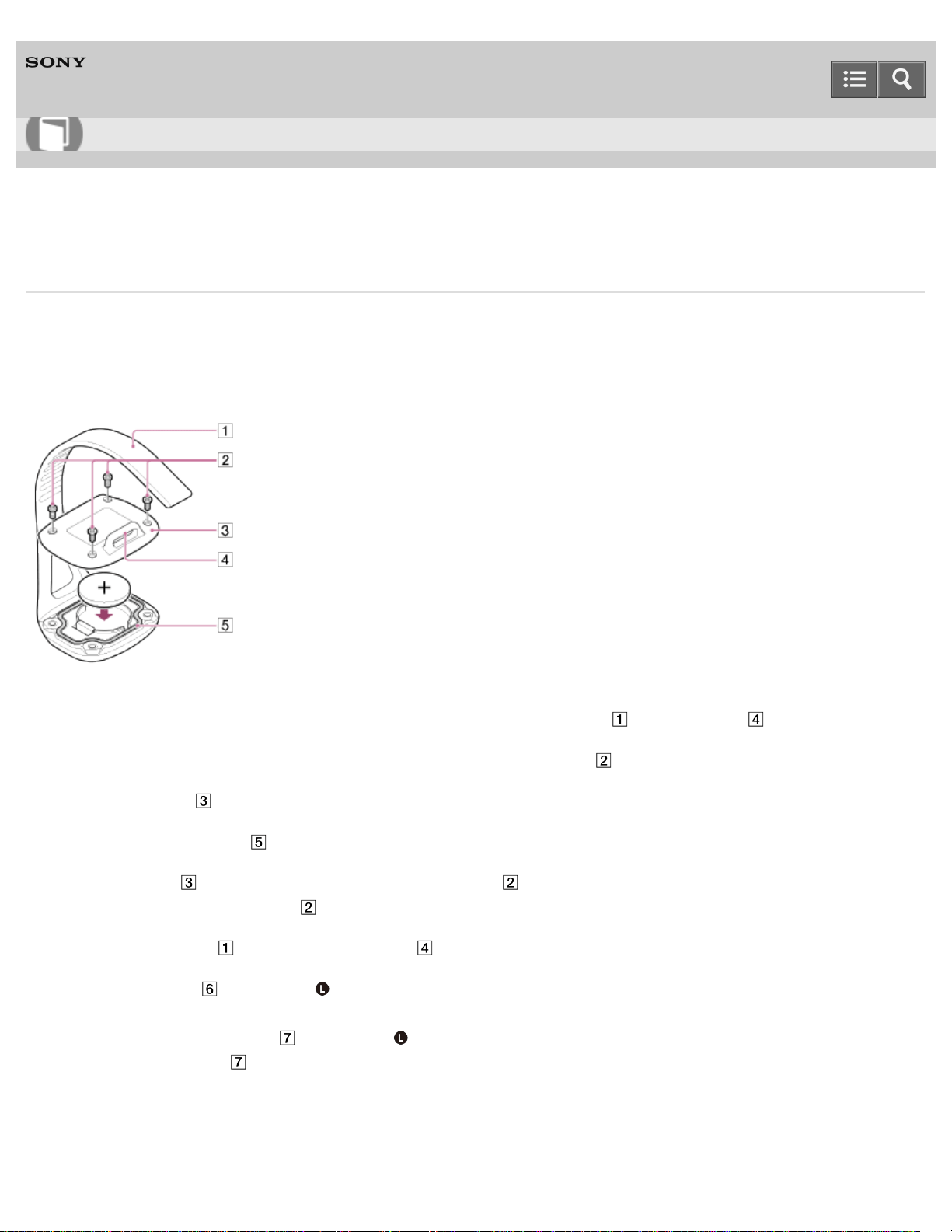
Digital Music Player
NWZ-WS613/WS615
Replacing the battery of the Remote Commander
Replace the battery of the Remote Commander (supplied) when the lamp color changes to red. Be sure to use a
CR1620 Lithium Coin Cell Battery only.
When you open the battery cover, the waterproof performance may be impaired by dust, etc. To maintain waterproof
performance, consult your nearest Sony dealer or Sony Service Center for replacement of the battery (at extra cost).
1. Make sure that the Remote Commander is turned off. Remove the band ( ) from the loop ( ).
2. Use a size 0 cross-head precision screwdriver and remove the screws ( , 4 in total).
3. Open the cover ( ), remove the battery, and insert a new CR1620 battery with correct polarity.
4. Check that the packing ( ) is in place and is clean.
5. Put the cover ( ) back into place and tighten the screws ( ) firmly to the end.
Do not overtighten the screws ( ).
6. Reattach the band ( ) back through the loop ( ).
7. Press the button ( ) on the left ( ) side of your Walkman for about 7 seconds and turn the Remote Commander
on.
Pairing starts and the lamp ( ) on the left ( ) side of your Walkman blinks in blue and red. When the pairing is
completed, the lamp ( ) blinks in blue.
Help Guide
How to Use
95
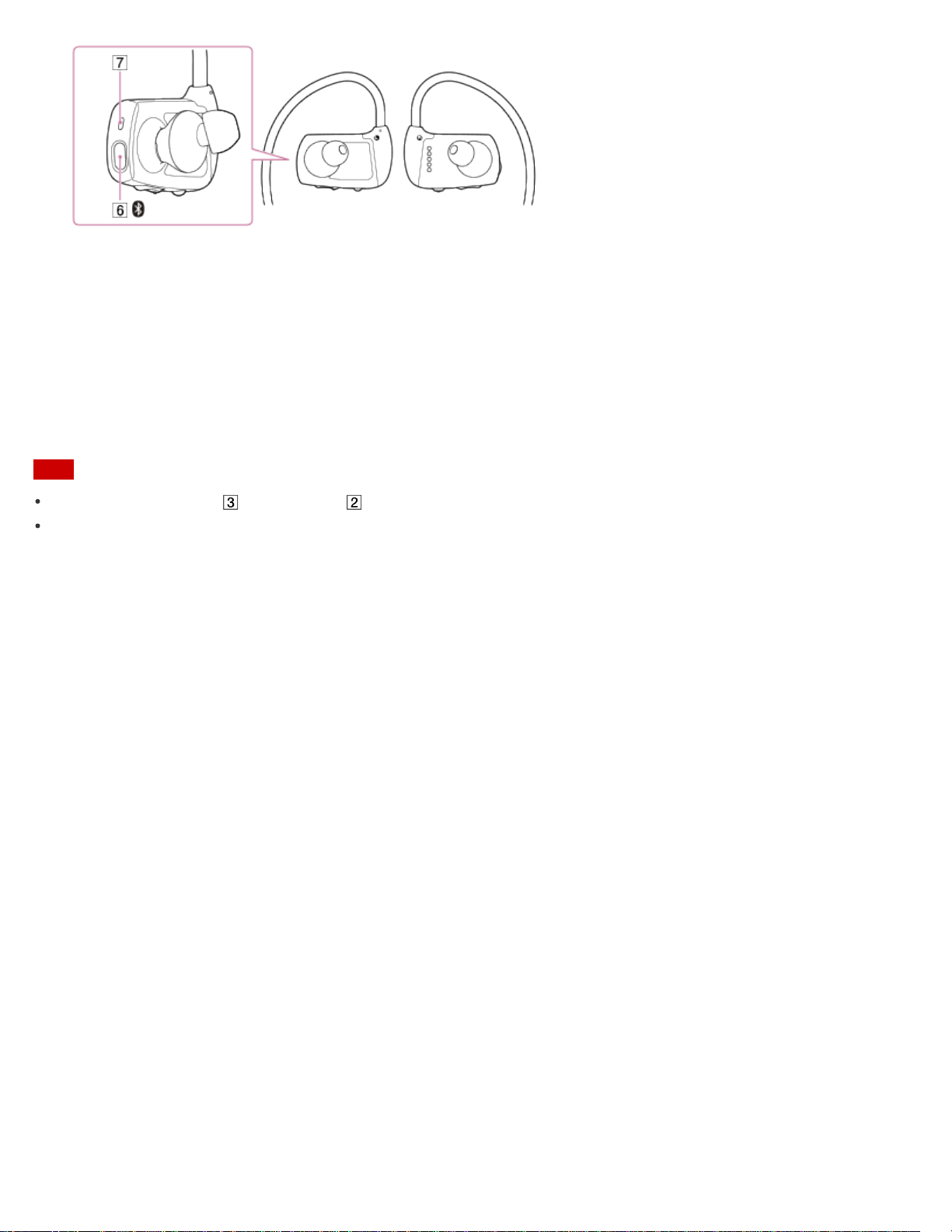
CAUTION: Do not ingest battery, Chemical Burn Hazard.
The Remote Commander supplied with this product contains a coin cell battery. If the coin cell battery is swallowed, it
can cause severe internal burns in just 2 hours and can lead to death.
Keep new and used batteries away from children.
If the battery compartment does not close securely, stop using the product and keep it away from children.
If you think batteries might have been swallowed or placed inside any part of the body, seek immediate medical
attention.
Note
Do not lose the cover ( ) and screws ( ).
The battery supplied at the time of purchase may have a shorter battery life as it is installed at the factory to check the
performance.
4-536-927-16(1)
Copyright 2014 Sony Corporation
96
Digital Music Player
NWZ-WS613/WS615
Notes on using the Remote Commander
The water resistant specifications of this Remote Commander (supplied) are equivalent to IEC 60529 “Degrees of
protection against ingress of water (IP Code)” IPX5 (*1), which specifies the degree of protection provided against the
entry of water.
You cannot use the Remote Commander in a swimming pool.
You cannot use the Remote Commander when it is wet.
The antenna (aerial) is built into the Remote Commander.
The following conditions may cause the Remote Commander to become inoperable.
When using in an area with a wireless LAN, in an area where devices such as microwave ovens, mobile phones and
mobile gaming devices with a communication function are in use nearby, or in other areas where electromagnetic waves
are being emitted.
When the antenna (aerial) built into the Remote Commander is covered by your hand or blocked by people in situations
such as riding in a crowded train.
If tanning oil or sunscreen gets onto the Remote Commander, wash it off using lukewarm water. Otherwise, it may
cause discoloration or damage such as cracks to occur.
(*1)
IPX5 (Degrees of protection against jets of water): The Remote Commander will maintain its operability even when exposed
to direct streams of water from any direction in a situation where approximately 12.5 l/min. of water is supplied for more than 3
minutes from a distance of about 3 meters using a nozzle with an inner diameter of 6.3 millimeters.
4-536-927-16(1)
Copyright 2014 Sony Corporation
Help Guide
How to Use
97
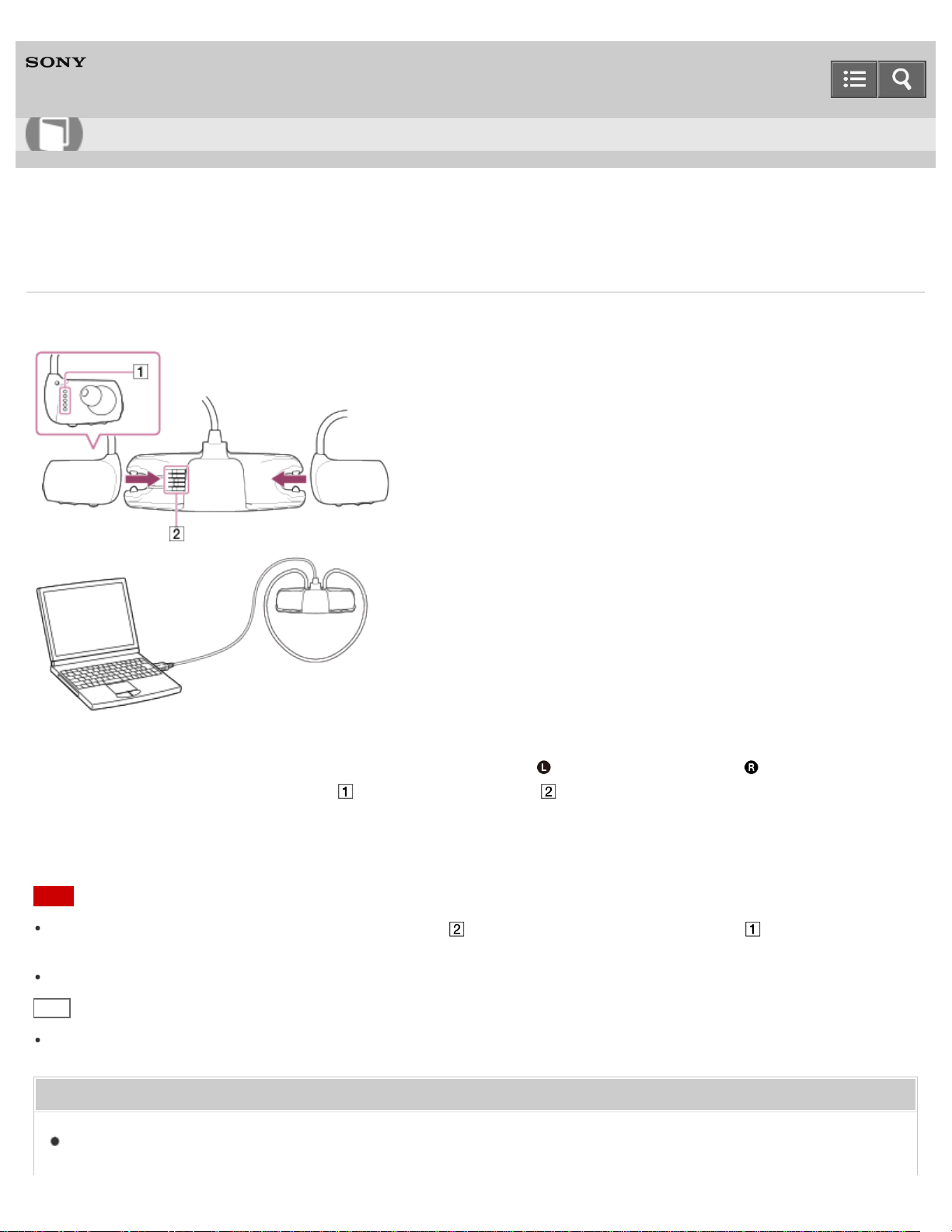
Digital Music Player
NWZ-WS613/WS615
Connecting to a computer
Connect your Walkman to a computer via USB to charge the Walkman or transfer data.
1. Attach your Walkman to the USB cradle in the order of the left ( ) part first, then the right ( ) part. Make sure
that the terminals of your Walkman ( ) and of the USB cradle ( ) are in contact with each other.
2. Connect your Walkman to a running computer via USB.
Note
When you connect your Walkman to the USB cradle ( ), dry the terminals of your Walkman ( ) using a soft dry
cloth.
You cannot operate your Walkman when it is connected to a computer.
Hint
If you are prompted to make a Windows operation, click “Cancel” or “×.”
Related Topic
Notes on connecting your Walkman to a computer
Help Guide
How to Use
98


Digital Music Player
NWZ-WS613/WS615
Notes on connecting your Walkman to a computer
Your Walkman cannot be operated when connected to a computer.
Do not disconnect your Walkman from your computer when transferring data between the Walkman and the computer
via USB. Doing so may result in loss of the data being transferred and data on the Walkman.
Do not turn on, restart, wake up from sleep mode, or shut down the computer with your Walkman connected to the
computer via USB. Doing so may cause the Walkman to malfunction. Disconnect the Walkman from the computer
before conducting those operations.
4-536-927-16(1)
Copyright 2014 Sony Corporation
Help Guide
How to Use
100
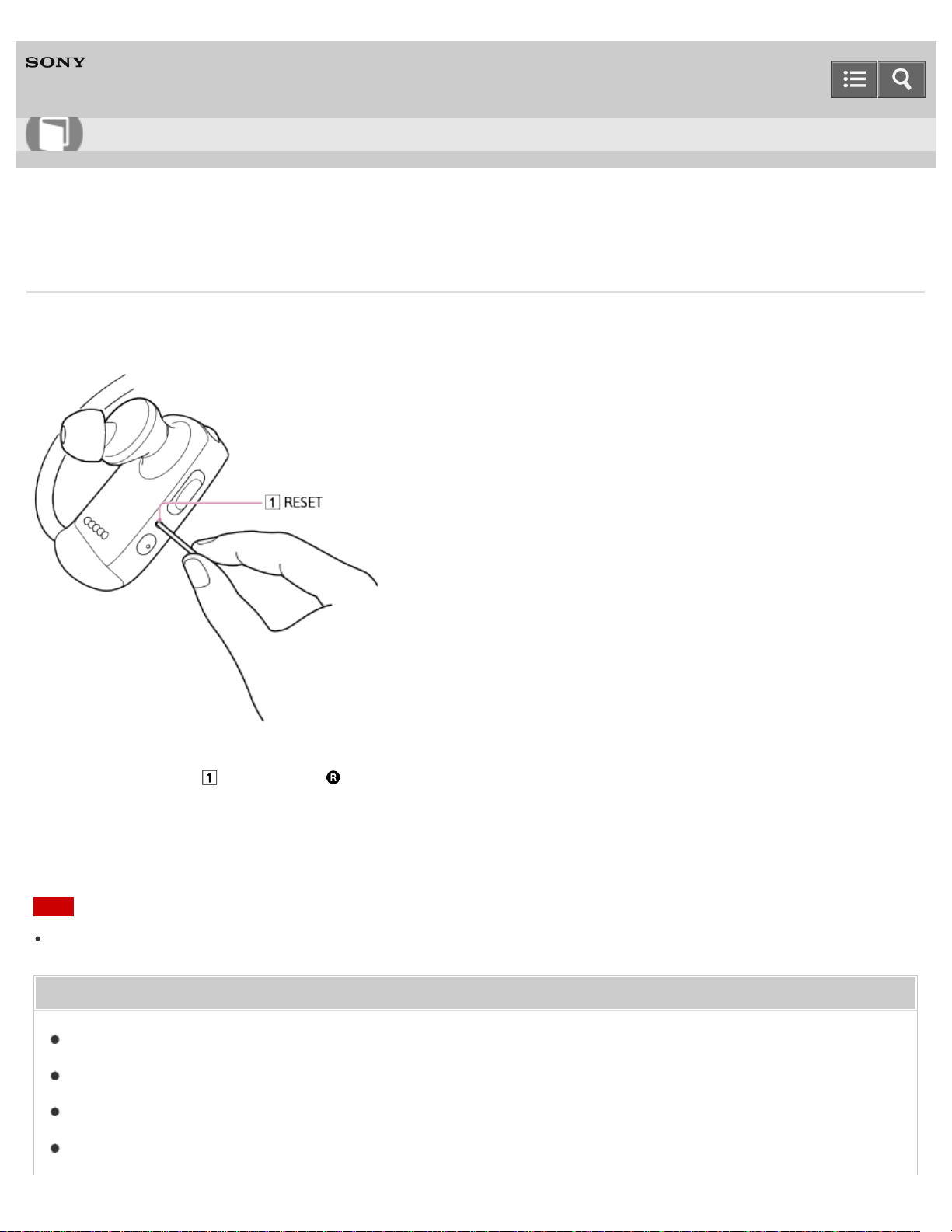
Digital Music Player
NWZ-WS613/WS615
Resetting your Walkman
Try resetting your Walkman if operations become unstable. Before resetting the Walkman, disconnect the Walkman from
your computer and check that no content such as music is being played. Otherwise, the data may be damaged.
1. Press the button ( ) on the right ( ) side of your Walkman with a pen or a paper clip, etc. to reset your Walkman.
The Walkman turns off.
2. Turn on the Walkman.
Note
Resetting your Walkman will not delete any data or reset any settings.
Related Topic
Turning the power on
Resetting to the factory settings
Formatting memory
Confirming the Walkman status by the OPR lamp
Help Guide
How to Use
101

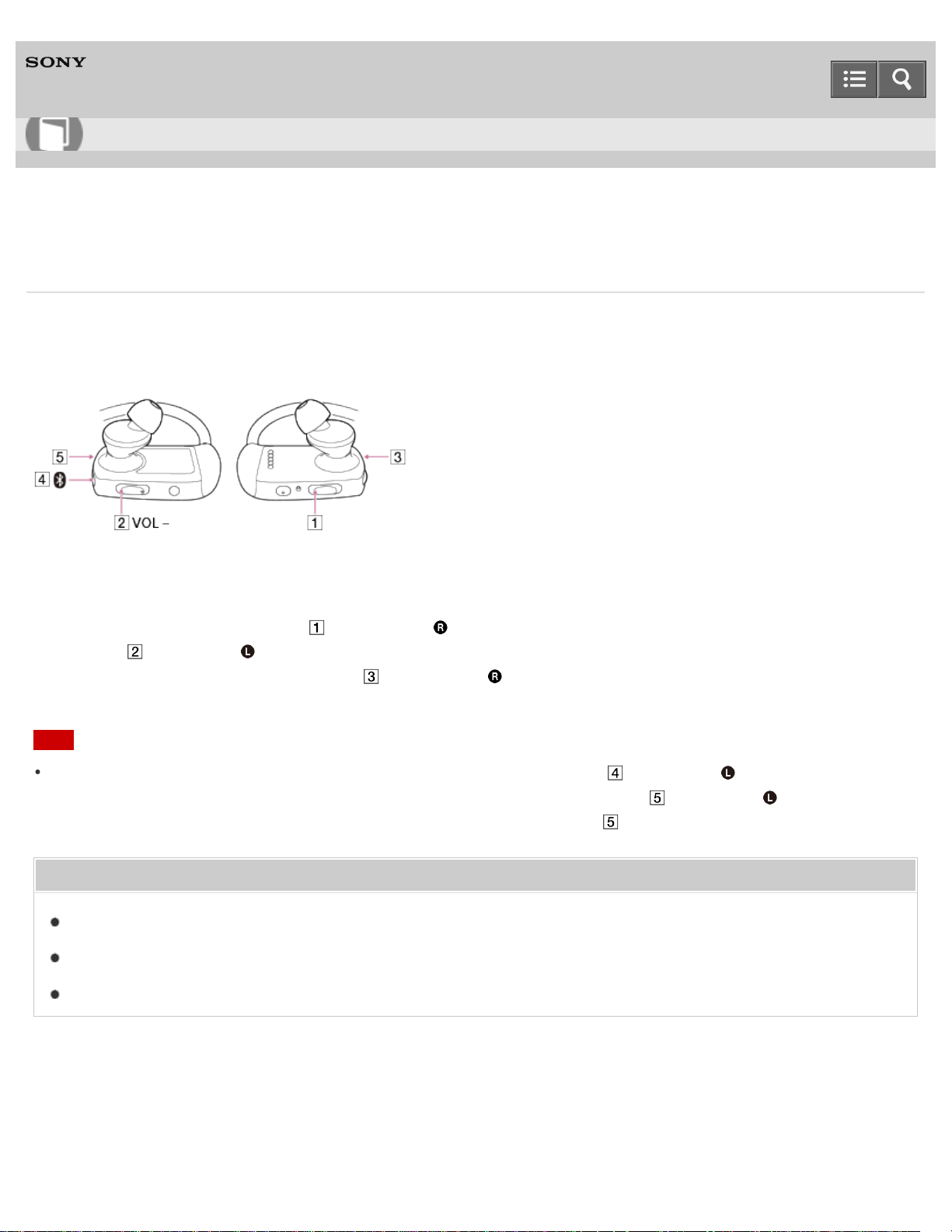
Digital Music Player
NWZ-WS613/WS615
Resetting to the factory settings
Your Walkman can be reset to the default settings. Resetting the Walkman will not delete content such as music.
If you reset your Walkman, the pairing information of the Remote Commander and the other Bluetooth devices is
deleted.
1. Check that the playback is paused and the Bluetooth function is turned off.
2. Press and hold the Next button ( ) on the right ( ) side of your Walkman for 15 seconds while pressing the
button ( ) on the left ( ) side of your Walkman.
When resetting is completed, the lamp ( ) on the right ( ) side of your Walkman blinks in green twice.
Note
To pair your Walkman to the Remote Commander again, press the button ( ) on the left ( ) side of your Walkman
for 7 seconds and turn the Remote Commander on. Pairing starts and the lamp ( ) on the left ( ) side of your
Walkman blinks in blue and red. When the pairing is completed, the lamp ( ) blinks in blue.
Related Topic
Resetting your Walkman
Formatting memory
Confirming the Walkman status by the OPR lamp
4-536-927-16(1)
Copyright 2014 Sony Corporation
Help Guide
How to Use
103

Digital Music Player
NWZ-WS613/WS615
Formatting memory
You can initialize your Walkman by formatting the memory.
1. Check that the playback is paused and the Bluetooth function is turned off.
2. Press and hold the button ( ) on the right ( ) side of your Walkman for about 15 seconds until the lamp ( ) on
the right ( ) side of your Walkman blinks in orange quickly.
3. Release the button ( ).
The lamp ( ) lights up in red.
4. Press the Previous/Next button ( ) on the right ( ) side of your Walkman within 30 seconds after the lamp ( )
lights up in red.
5. Press the button ( ) while the lamp ( ) is lit in green.
The lamp ( ) blinks in green quickly while formatting. The lamp ( ) turns off when formatting is completed.
Note
Be sure not to initialize (format) the memory of your Walkman using a computer. If you have formatted it with a
computer, format it again using the Walkman.
Formatting the memory erases all content data (songs, etc., including the sample data installed at the factory, the
supplied software installer, and the “Help Guide”). Be sure to check the data stored in the memory and export any
important data to your computer before formatting.
Related Topic
Resetting your Walkman
Help Guide
How to Use
104

Digital Music Player
NWZ-WS613/WS615
Updating the system software of your Walkman
You can add new features to your Walkman by installing the latest system software. For details on the latest system
software information and how to install it, visit the customer support website for your area.
1. Download the update program to your computer from the website.
2. Connect your Walkman to your computer and start the update program.
3. Follow the on-screen instructions to update the system software of your Walkman.
Hint
You can check the system software version of your Walkman by connecting the Walkman to your computer. Check
the “information.txt” file in the [WALKMAN] folder on your computer. The “information.txt” file contains the following
information.
01: Model name
02: Memory capacity
03: System software version
Related Topic
Customer support website
Connecting to a computer
Displaying your Walkman information
4-536-927-16(1)
Copyright 2014 Sony Corporation
Help Guide
How to Use
106
Digital Music Player
NWZ-WS613/WS615
Displaying your Walkman information
Check information such as model name, memory capacity, and system software version.
1. Connect your Walkman to a running computer via USB.
2. Open the “WALKMAN” folder using the procedure below that corresponds to your computer.
Windows 7 or earlier:
Select “Start” – “Computer,” and open the “WALKMAN” folder.
Windows 8:
Select “Desktop” from the “Start screen” to open “File Explorer.” In the “Computer” list, open the “WALKMAN”
folder.
Windows 8.1: Select “Desktop” to open “File Explorer.” In the “This PC” list, open the “WALKMAN” folder.
Mac:
Select “WALKMAN” in the sidebar of the Finder.
3. Check the “information.txt” file.
The “information.txt” file contains the following information.
01: Model name
02: Memory capacity
03: System software version
Related Topic
Connecting to a computer
4-536-927-16(1)
Copyright 2014 Sony Corporation
Help Guide
How to Use
107
Digital Music Player
NWZ-WS613/WS615
Preparing content using a Windows computer
Installing Media Go (built into the memory of your Walkman) enables you to import CDs, download and manage content
from online music services, and transfer them to the Walkman.
1. Install Media Go (built into the memory of your Walkman) on your Windows computer.
2. Import content to Media Go.
You can import music, photos or videos on media or your Windows computer to Media Go.
3. Transfer the content to your Walkman.
Transfer the imported content from Media Go to your Walkman.
Hint
You can also transfer content directly from Windows Explorer to your Walkman by drag-and-drop.
Related Topic
About Media Go
Installing Media Go
Importing content from media using Media Go
Importing content on your Windows computer into Media Go
Importing podcasts into Media Go
Transferring content using Media Go
Transferring iTunes content using Media Go
Transferring content using Explorer
Notes for transferring content such as music from your computer
Deleting content from your Walkman using Media Go
Deleting content from your Walkman using Explorer
Help Guide
How to Use
108
Digital Music Player
NWZ-WS613/WS615
Preparing content using a Mac computer
Installing Content Transfer (built into the memory of your Walkman) enables you to transfer content to the Walkman.
1. Install Content Transfer (built into the memory of your Walkman) on your Mac computer.
2. Drag-and-drop the content on your Mac computer to Content Transfer.
The content is transferred to your Walkman.
Hint
You can also transfer content directly from iTunes or the Finder to your Walkman by drag-and-drop.
Related Topic
About Content Transfer
Installing Content Transfer
Transferring content using Content Transfer
Transferring content using the Finder
Notes for transferring content such as music from your computer
Deleting content from your Walkman using the Finder
4-536-927-16(1)
Copyright 2014 Sony Corporation
Help Guide
How to Use
109
Digital Music Player
NWZ-WS613/WS615
About Media Go
Media Go is software for your Windows computer that allows you to import various content such as music, photos or
videos to your Windows computer and manage stored content on your Windows computer. You can transfer content that
you have imported from CDs or downloaded from online music services to your Walkman. If you have already managed
content such as music with iTunes, etc., you can use Media Go to transfer the content to the Walkman.
Related Topic
Installing Media Go
Importing content from media using Media Go
Transferring content using Media Go
Transferring iTunes content using Media Go
4-536-927-16(1)
Copyright 2014 Sony Corporation
Help Guide
How to Use
110
Digital Music Player
NWZ-WS613/WS615
Installing Media Go
Install Media Go to your Windows computer.
1. Connect your Walkman to your Windows computer via USB.
2. Open the “WALKMAN” folder using the procedure below that corresponds to your computer.
Windows 7 or earlier:
Select “Start” – “Computer,” and open the “WALKMAN” folder.
Windows 8:
Select “Desktop” from the “Start screen” to open “File Explorer.” In the “Computer” list, open the “WALKMAN”
folder.
Windows 8.1:
Select “Desktop” to open “File Explorer.” In the “This PC” list, open the “WALKMAN” folder.
3. Double-click “FOR_WINDOWS.”
4. Double-click “MediaGo_WM(.exe)” in the folder.
The setup file is extracted.
Depending on the version of Windows, a “User Account Control” screen may appear. In this case, click “Yes.”
5. Follow the on-screen instructions to install Media Go.
When you click “Finish” after installation, Media Go automatically starts.
Hint
During installation, you may be prompted to install additional software components that are necessary to run Media
Go. If prompted, follow the on-screen instructions to download and install the components.
When your Windows computer is connected to the Internet, the latest version of Media Go is automatically searched
and downloaded. If a message to install the latest version of Media Go appears, click the message and follow the on-
screen instructions to install the software.
Note
Depending on the environment, restarting your computer may be required. Follow the on-screen instructions.
Related Topic
Connecting to a computer
Help Guide
How to Use
111

Digital Music Player
NWZ-WS613/WS615
About Content Transfer
Content Transfer is software for your Mac computer that allows you to transfer content such as music, photos or videos
managed with iTunes or the Finder to your Walkman easily. You can transfer files, folders, and playlists to the
appropriate folder of the Walkman simply by drag-and-drop.
Related Topic
Installing Content Transfer
Transferring content using Content Transfer
4-536-927-16(1)
Copyright 2014 Sony Corporation
Help Guide
How to Use
113
Digital Music Player
NWZ-WS613/WS615
Installing Content Transfer
Install Content Transfer to your Mac computer.
1. Connect your Walkman to your Mac computer via USB.
2. Select “WALKMAN” in the sidebar of the Finder.
3. Double-click the “FOR_MAC” folder.
4. Double-click “ContentTransfer.pkg.”
The installer starts.
5. Follow the on-screen instructions to install Content Transfer.
is displayed in the Dock when the installation is completed. Click to start Content Transfer.
Related Topic
Connecting to a computer
About Content Transfer
Transferring content using Content Transfer
4-536-927-16(1)
Copyright 2014 Sony Corporation
Help Guide
How to Use
114
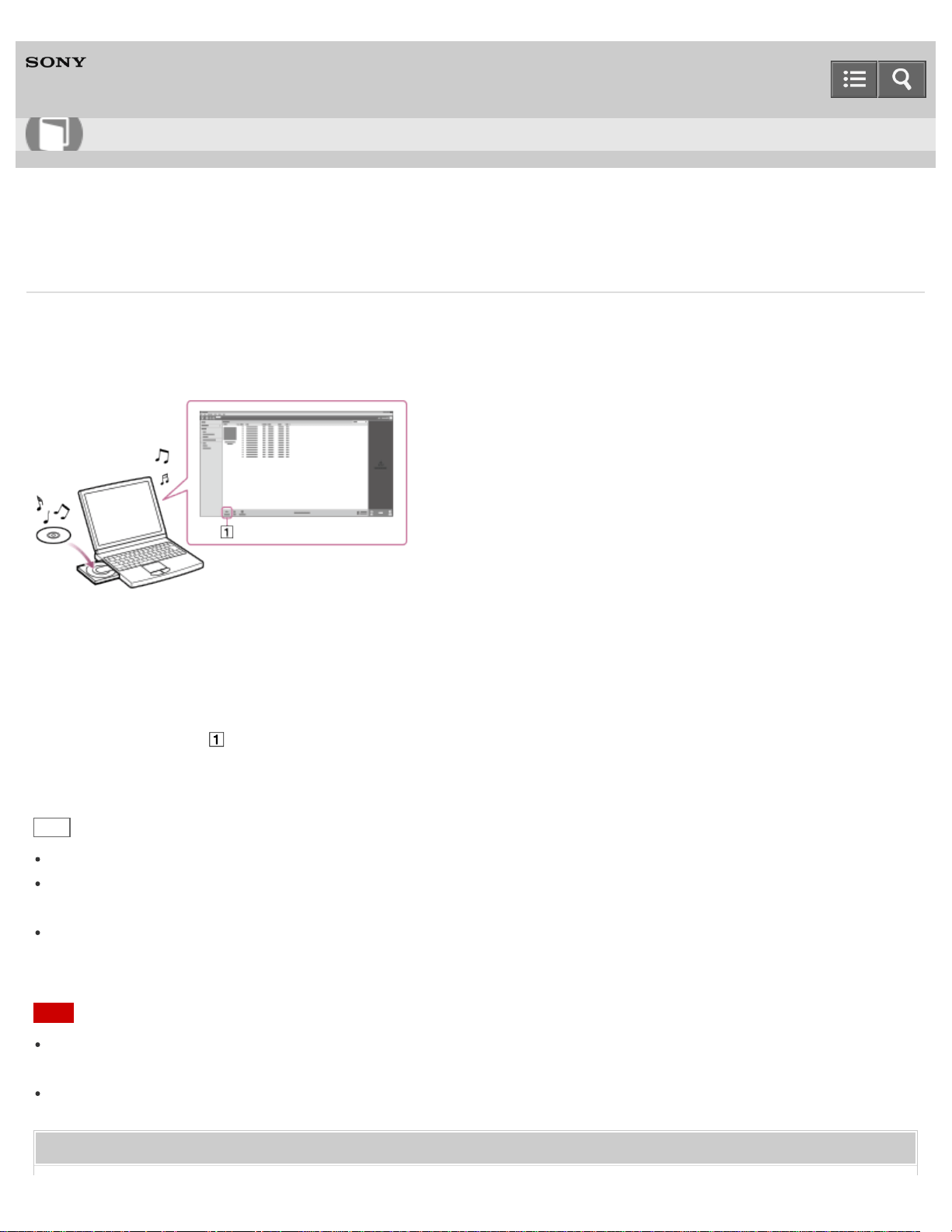
Digital Music Player
NWZ-WS613/WS615
Importing content from media using Media Go
Use Media Go to import content such as music on your Windows computer. This section explains how to import music
from CDs. Your computer must be connected to the Internet to obtain CD information such as song names and artist
names automatically.
1. Start up Media Go and insert an audio CD into the CD drive of your Windows computer.
Media Go detects the CD and displays a window for CD information. When Media Go obtains the CD information
(CD title, song name, artist name, etc.), it is displayed in this window.
2. Click “Import CD” ( ).
Wait until all content such as music has been imported.
Hint
For details about how to use Media Go, refer to the help of Media Go.
Recommended file formats for ripping CDs are AAC (.mp4) and MP3 (.mp3) for normal sound quality. Music in these
formats can be transferred to your Walkman more effectively.
Media Go obtains the CD information from a database on the Internet. Information on some CDs may not be available
in the database. If information on your CD is missing, you can add it manually after importing the CD. For information
about adding and editing CD information, refer to the help of Media Go.
Note
Imported content is limited to private use only. Use of content for other purposes requires the permission of the
copyright holders.
Commercial DVDs and Blu-ray discs cannot be imported into Media Go.
Related Topic
Help Guide
How to Use
115

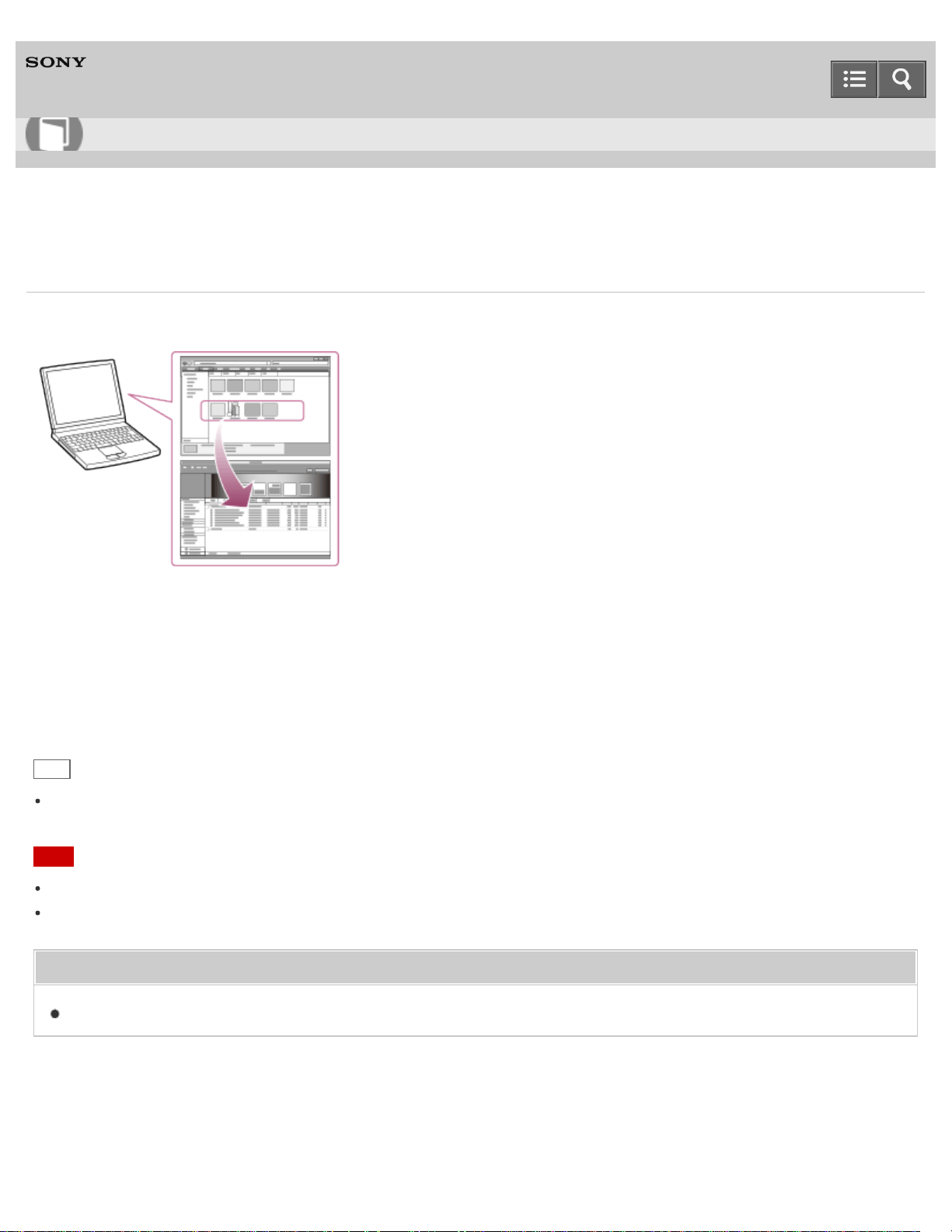
Digital Music Player
NWZ-WS613/WS615
Importing content on your Windows computer into Media Go
Import content such as music imported to your Windows computer into Media Go.
1. Start Media Go.
2. Select the type of content you want to import from “Library.”
3. Drag-and-drop the content into the Content List area.
Hint
You can also import data organized by programs such as iTunes by selecting “File” - “Add/Remove Media from
Library” in Media Go. For details, refer to the help of Media Go.
Note
Copy-protected videos cannot be imported into Media Go.
Some video formats cannot be imported or played.
Related Topic
Transferring content using Media Go
4-536-927-16(1)
Copyright 2014 Sony Corporation
Help Guide
How to Use
117

Digital Music Player
NWZ-WS613/WS615
Importing podcasts into Media Go
Media Go has a wide range of podcast functions on Windows, and you can use Media Go to manage your podcast
subscriptions. The podcast directory is also convenient for finding the latest content or content you are interested in.
For details on importing podcasts, refer to the help of Media Go.
4-536-927-16(1)
Copyright 2014 Sony Corporation
Help Guide
How to Use
118
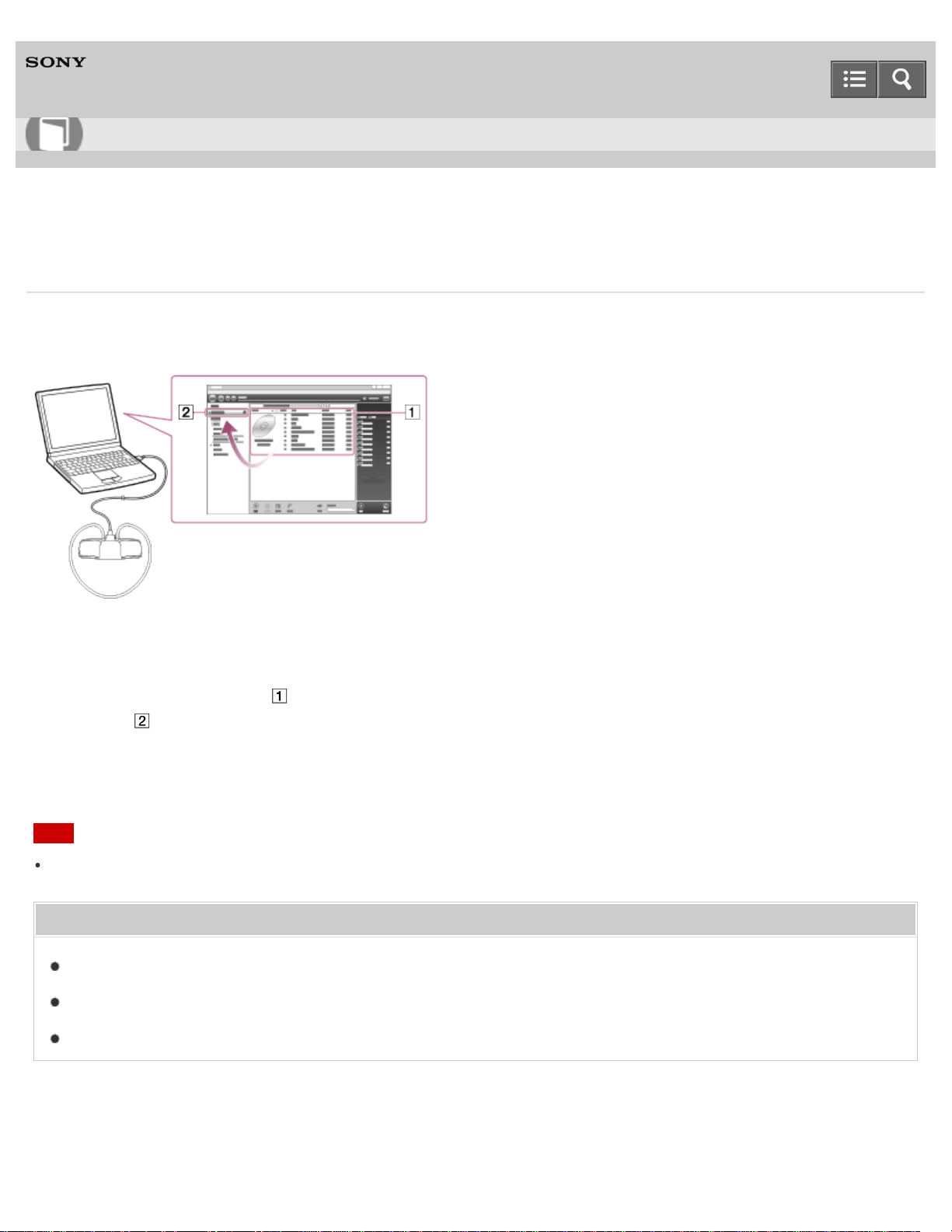
Digital Music Player
NWZ-WS613/WS615
Transferring content using Media Go
Transfer content such as music or playlists managed with Media Go on your computer to your Walkman. Content with
copyright protection cannot be transferred.
1. Connect your Walkman to a running computer via USB, and then start Media Go.
2. Select the desired content ( ) on Music Library of Media Go, and drag-and-drop it to your “WALKMAN (model
name)” ( ).
Media Go recognizes the type of data by the filename extension and sends it to the appropriate folder of your
Walkman.
Note
Media Go does not support content that uses Windows Media digital rights management technology (“WM-DRM”).
Related Topic
Connecting to a computer
Importing content from media using Media Go
Importing content on your Windows computer into Media Go
4-536-927-16(1)
Copyright 2014 Sony Corporation
Help Guide
How to Use
119
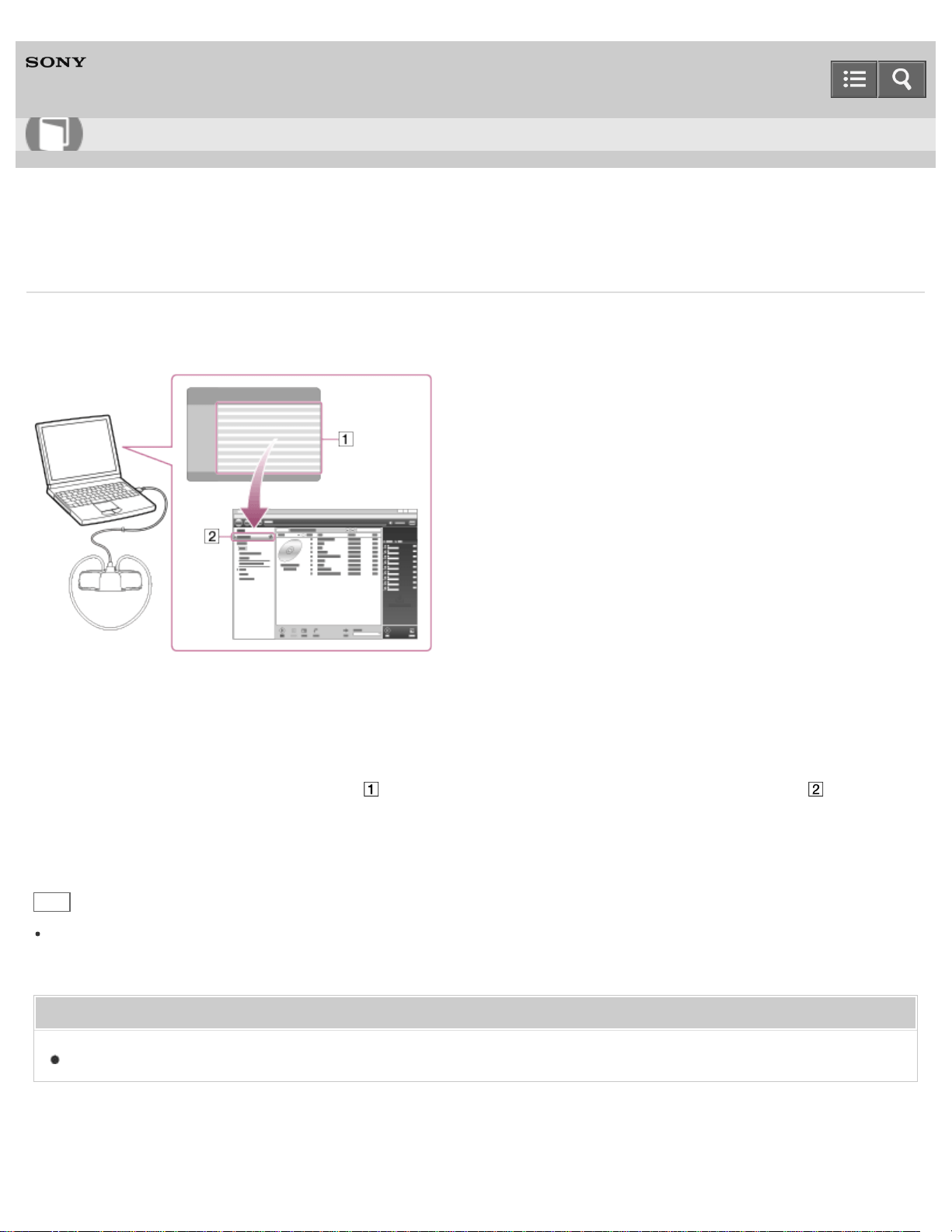
Digital Music Player
NWZ-WS613/WS615
Transferring iTunes content using Media Go
Media Go supports transfer of data from iTunes to your Walkman. Transfer content such as music managed with iTunes
on your computer to the Walkman. Content with copyright protection cannot be transferred.
1. Connect your Walkman to a running computer via USB, and then start Media Go.
2. Start iTunes.
3. Select the desired content from iTunes ( ), and drag-and-drop it to your “Walkman (model name)” ( ).
Media Go recognizes the type of data by the filename extension and sends it to the appropriate folder of your
Walkman.
Hint
You can also transfer playlists created with iTunes to your Walkman. Use iTunes to export playlists in m3u file format.
Then use Media Go to import the m3u files and transfer the playlists to the Walkman.
Related Topic
Connecting to a computer
4-536-927-16(1)
Help Guide
How to Use
120
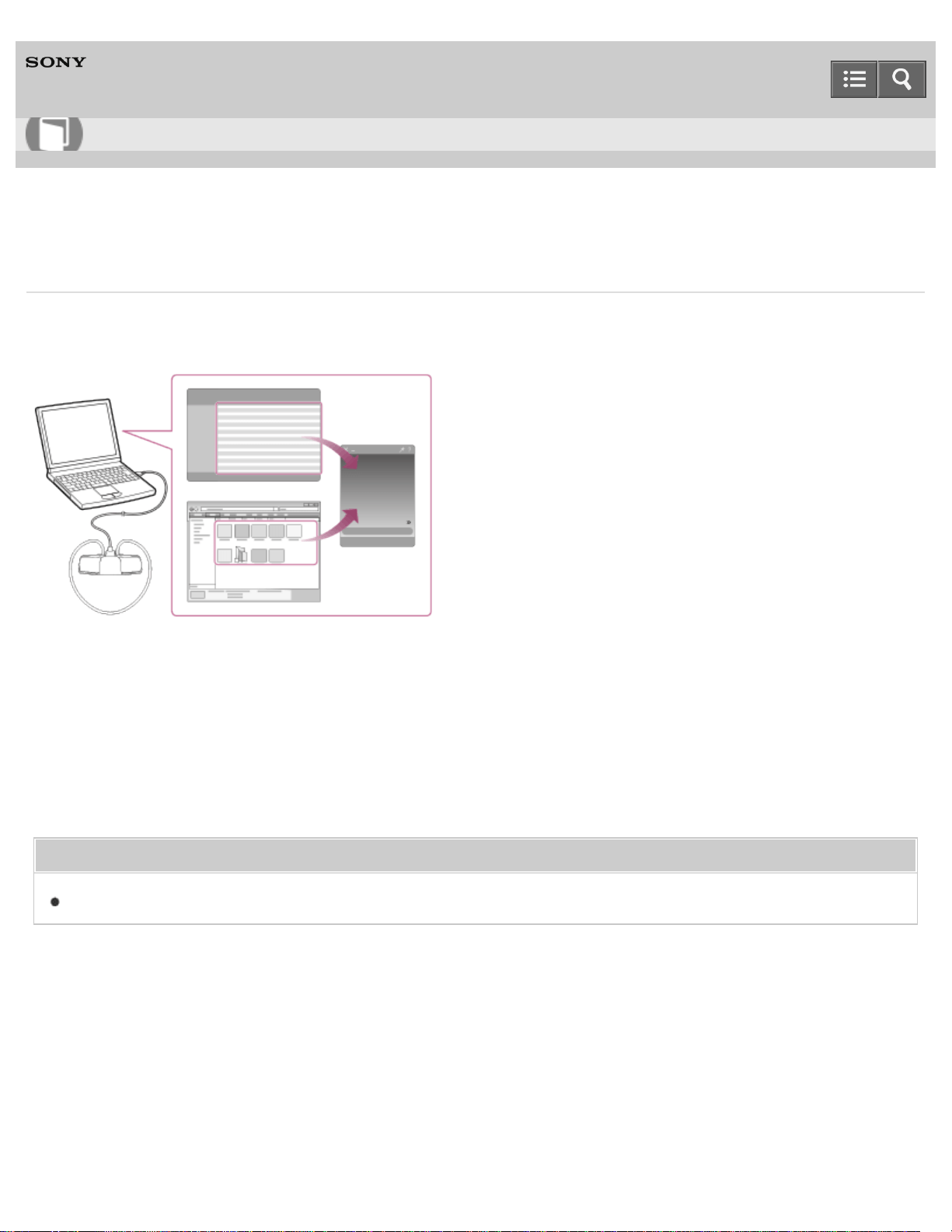
Digital Music Player
NWZ-WS613/WS615
Transferring content using Content Transfer
Transfer content such as music or playlists on your Mac computer or managed with iTunes to your Walkman. Content
with copyright protection cannot be transferred.
1. Connect your Walkman to a running computer via USB, and then start Content Transfer.
2. Display the desired content on the Finder or the desired content or playlists on iTunes.
3. Drag-and-drop the content or playlists you want to transfer to Content Transfer.
Content is transferred to your Walkman.
Related Topic
Connecting to a computer
4-536-927-16(1)
Copyright 2014 Sony Corporation
Help Guide
How to Use
121
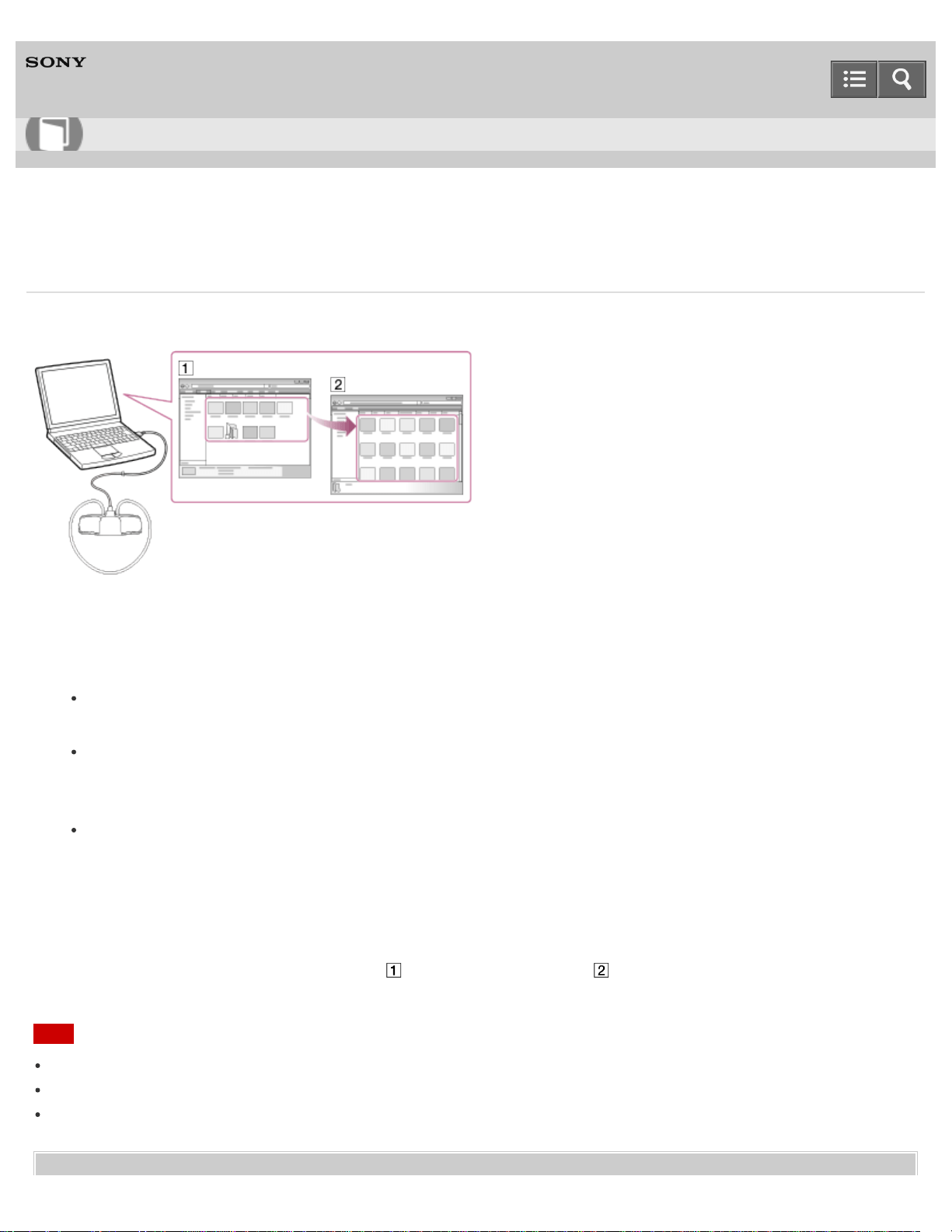
Digital Music Player
NWZ-WS613/WS615
Transferring content using Explorer
Content such as music can be directly transferred by drag-and-drop using Windows Explorer.
1. Connect your Walkman to a running computer via USB.
2. Open the “WALKMAN” folder using the procedure below that corresponds to your computer.
Windows 7 or earlier:
Select “Start” – “Computer,” and then open the “WALKMAN” folder.
Windows 8:
Select “Desktop” from the “Start screen” to open “File Explorer.” In the “Computer” list, open the “WALKMAN”
folder.
Windows 8.1:
Select “Desktop” to open “File Explorer.” In the “This PC” list, open the “WALKMAN” folder.
3. Open the folder to which you want to transfer content.
To transfer music files or folders: “MUSIC” folder
4. Drag-and-drop the desired files or folders ( ) to the applicable folder ( ) in the “WALKMAN” folder.
Note
You cannot operate your Walkman when it is connected to a computer.
Do not change folder name or delete the “MUSIC” folder.
Some songs may not be played back on your Walkman due to copyright protection.
Help Guide
How to Use
122

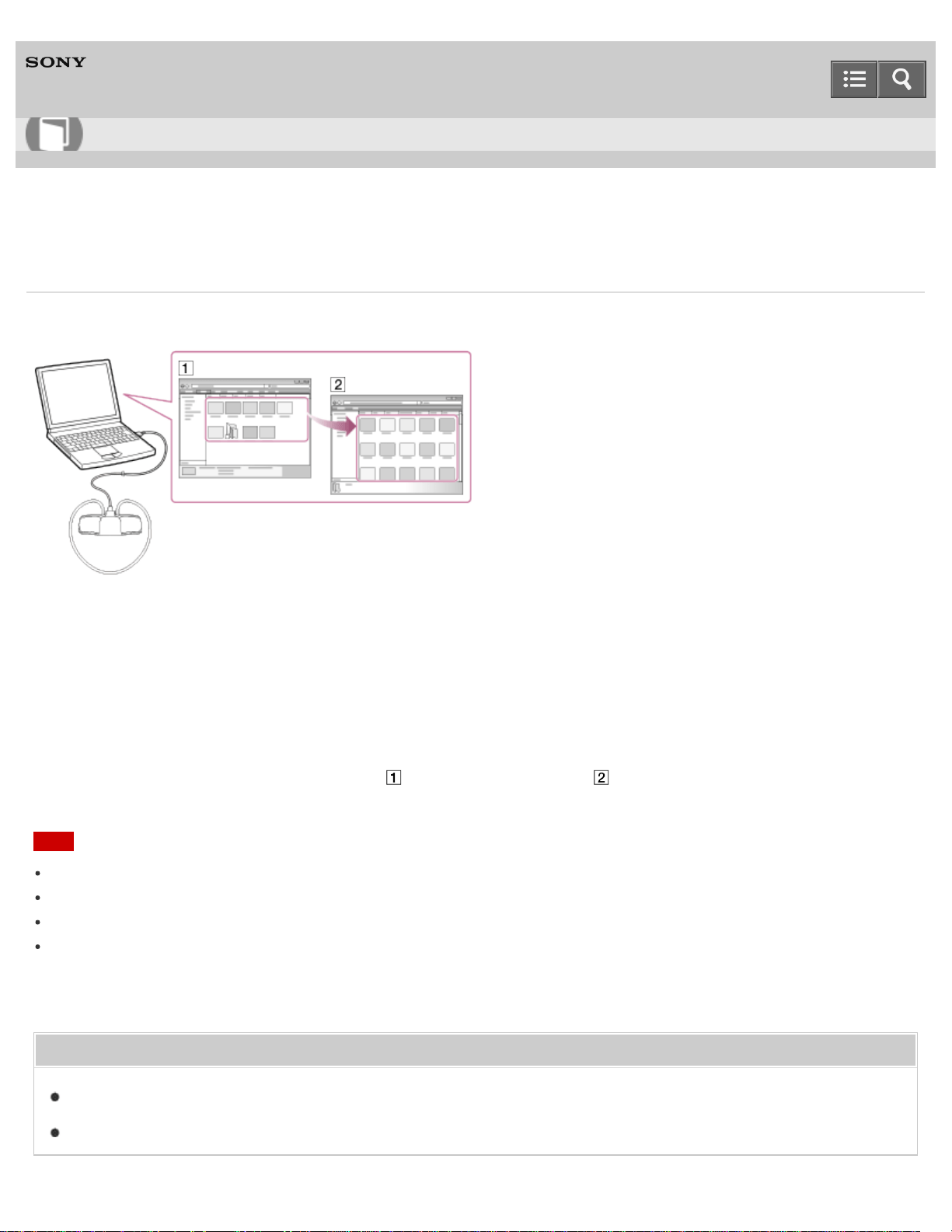
Digital Music Player
NWZ-WS613/WS615
Transferring content using the Finder
Content such as music can be directly transferred by drag-and-drop using the Finder.
1. Connect your Walkman to a running computer via USB.
2. Select “WALKMAN” in the sidebar of the Finder.
3. Open the folder to which you want to transfer content.
To transfer music files or folders: “MUSIC” folder
4. Drag-and-drop the desired files or folders ( ) to the applicable folder ( ) in the “WALKMAN” folder.
Note
You cannot operate your Walkman when it is connected to a computer.
Do not change folder name or delete the “MUSIC” folder.
Some songs may not be played back on your Walkman due to copyright protection.
Do not disconnect your Walkman while the OPR lamp is blinking. Otherwise, data being transferred or stored on the
Walkman may be damaged. If the Walkman is disconnected while files are being transferred, unnecessary files may
be left in the Walkman. In this case, transfer usable files back to the computer and format the Walkman.
Related Topic
Connecting to a computer
Notes for transferring content such as music from your computer
Help Guide
How to Use
124
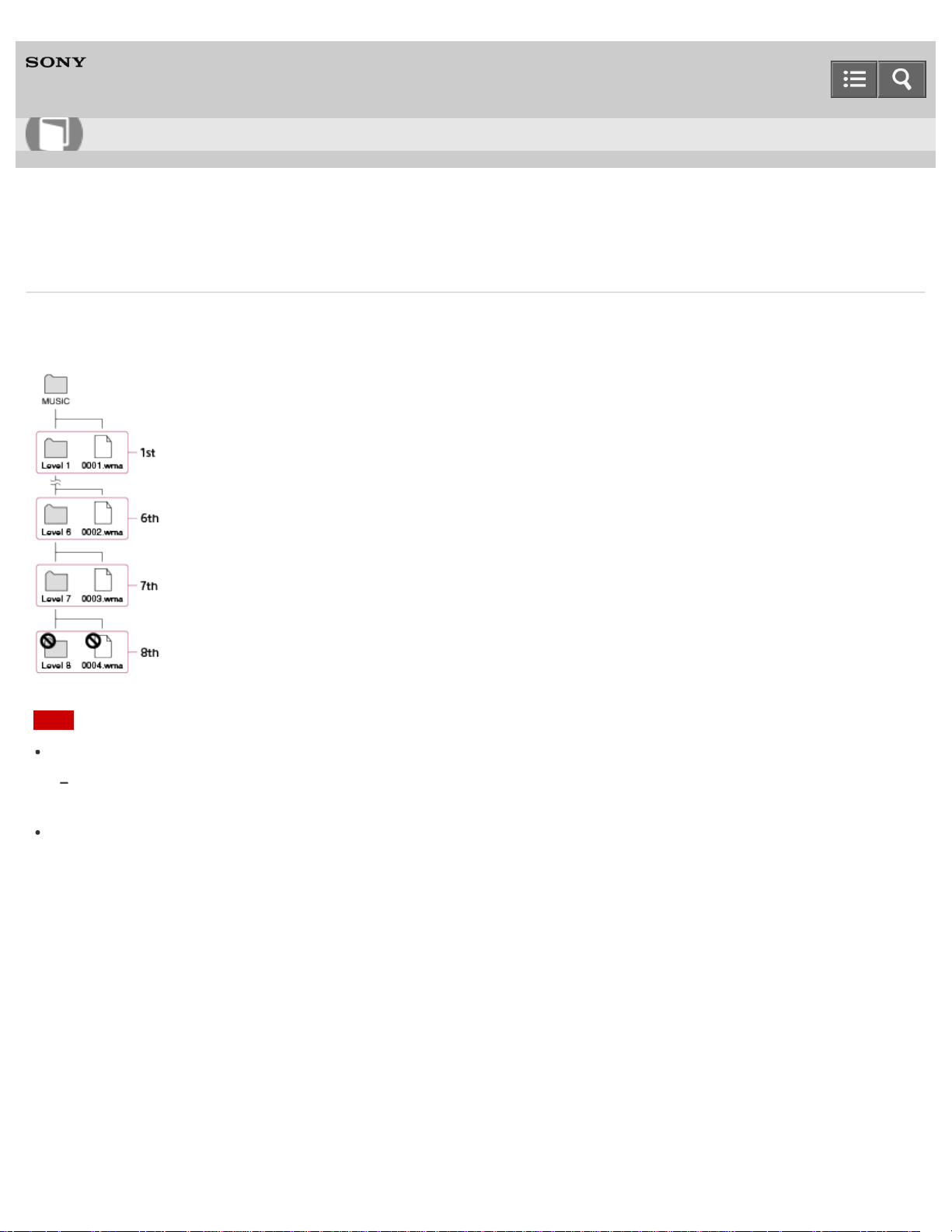
Digital Music Player
NWZ-WS613/WS615
Notes for transferring content such as music from your computer
Drag-and-drop content such as music or folders into the correct folder as shown in the following illustrations. Your
Walkman can play back content stored in the 1st to 8th level of each folder.
Note
Do not rename the following default folders.
MUSIC
Otherwise, they will not be recognized by your Walkman anymore.
Some songs may not be played back on your Walkman due to copyright protection.
4-536-927-16(1)
Copyright 2014 Sony Corporation
Help Guide
How to Use
125
Digital Music Player
NWZ-WS613/WS615
Deleting content from your Walkman using Media Go
You can use Media Go to delete content stored on your Walkman.
1. Connect your Walkman to a running computer via USB.
2. Start Media Go.
3. Double-click “WALKMAN (model name)” and select the type of content you want to delete.
The content list is displayed.
4. Select the content you want to delete.
5. Click “Edit” - “Delete.”
A window to confirm the deletion of the item is displayed.
6. Click “Yes.”
Related Topic
Connecting to a computer
Transferring content using Media Go
4-536-927-16(1)
Copyright 2014 Sony Corporation
Help Guide
How to Use
126
Digital Music Player
NWZ-WS613/WS615
Deleting content from your Walkman using Content Transfer
You can use Content Transfer to delete content stored on your Walkman.
1. Connect your Walkman to a running computer via USB.
2. Start Content Transfer.
3. Click at the right bottom of the screen.
4. Click the icon of the folder (such as “Music”) that contains the content you want to delete.
The content list is displayed.
5. Select the content you want to delete.
6. Click “Delete.”
The selected content is deleted.
Related Topic
Connecting to a computer
Transferring content using Content Transfer
4-536-927-16(1)
Copyright 2014 Sony Corporation
Help Guide
How to Use
127
Digital Music Player
NWZ-WS613/WS615
Deleting content from your Walkman using Explorer
Delete content stored on your Walkman using Windows Explorer.
1. Connect your Walkman to a running computer via USB.
2. Open the “WALKMAN” folder using the procedure below that corresponds to your computer.
Windows 7 or earlier:
Select “Start” - “Computer,” and open the “WALKMAN” folder.
Windows 8:
Select “Desktop” from the “Start screen” to open “File Explorer.” In the “Computer” list, open the “WALKMAN”
folder.
Windows 8.1:
Select “Desktop” to open “File Explorer.” In the “This PC” list, open the “WALKMAN” folder.
3. Open the folder containing the file(s) you want to delete.
To delete a music file or a folder that contains music: “MUSIC” folder
4. Select the content you want to delete.
5. Delete the content.
Note
Do not change folder name or delete the “MUSIC” folder.
Related Topic
Connecting to a computer
Transferring content using Explorer
4-536-927-16(1)
Copyright 2014 Sony Corporation
Help Guide
How to Use
128
Digital Music Player
NWZ-WS613/WS615
Deleting content from your Walkman using the Finder
Delete content stored on your Walkman using the Mac Finder.
1. Connect your Walkman to a running computer via USB.
2. Open a folder under “WALKMAN” from the sidebar of the Finder.
3. Open the folder containing the file(s) you want to delete.
To delete a music file or a folder that contains music: “MUSIC” folder
4. Select the content you want to delete.
5. Delete the content.
Note
Do not change folder name or delete the “MUSIC” folder.
Related Topic
Connecting to a computer
Transferring content using the Finder
4-536-927-16(1)
Copyright 2014 Sony Corporation
Help Guide
How to Use
129
Digital Music Player
NWZ-WS613/WS615
Deleting content imported to Media Go
You can delete content imported to Media Go.
1. Start Media Go.
2. Select the type of content you want to delete from “Library.”
The content list is displayed.
3. Select the content you want to delete.
4. Click “Edit” - “Delete.”
A “Confirm Delete” window is displayed.
5. Select a method to delete the content.
6. Click “OK.”
Related Topic
Deleting content from your Walkman using Media Go
4-536-927-16(1)
Copyright 2014 Sony Corporation
Help Guide
How to Use
130
Digital Music Player
NWZ-WS613/WS615
Preparing music
You need to transfer music from your computer to your Walkman in order to listen to music on the Walkman. After
importing songs from a CD or your computer to Media Go, use Media Go to transfer them to the Walkman. You can also
transfer them by drag-and-drop from Windows Explorer. For a Mac computer, you can use Content Transfer to transfer
the songs from iTunes, etc. You can also transfer them by drag-and-drop from the Mac Finder.
Related Topic
Connecting to a computer
Importing content from media using Media Go
Importing content on your Windows computer into Media Go
Transferring content using Media Go
Transferring content using Content Transfer
Transferring content using Explorer
Transferring content using the Finder
Notes for transferring content such as music from your computer
4-536-927-16(1)
Copyright 2014 Sony Corporation
Help Guide
How to Use
131
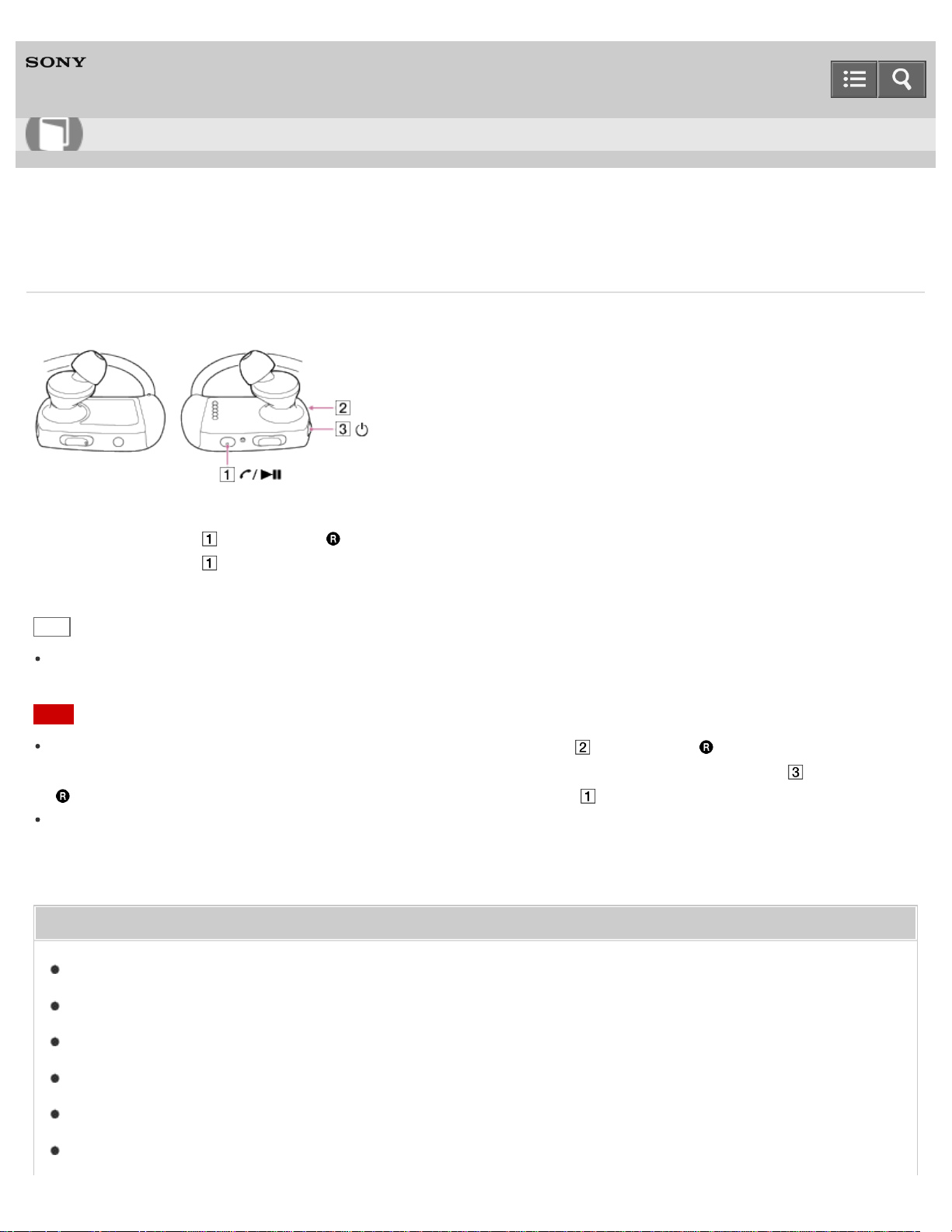
Digital Music Player
NWZ-WS613/WS615
Playing music
Play music transferred to your Walkman.
1. Press the button ( ) on the right ( ) side of your Walkman.
Press the button ( ) again to pause playback.
Hint
When playback of the last song is finished, your Walkman automatically restarts playback from the first song and
continues in sequential order.
Note
If there is no operation for an extended period while paused, the lamp ( ) on the right ( ) side of your Walkman
turns off and your Walkman will be turned off automatically. In that case, press and hold the button ( ) on the right (
) side of your Walkman to turn it back on, and then press the button ( ) to start playback music.
Depending on the way of transferring songs to your Walkman, songs might be played in different order from the song
order on your computer. When you specify a song order other than that on your Walkman, edit the playlists with a
function of Media Go or iTunes, and then transfer them to your Walkman.
Related Topic
Preparing music
Skipping to the previous/next song
Skipping to the previous/next folder/playlist/album
Shuffle playback
Repeat playback
Changing the playback order to Folder Play/Playlist Play/Album Play
Help Guide
How to Use
132

Digital Music Player
NWZ-WS613/WS615
Volume operation (Only for countries/areas complying with European and Korean Directives)
The voice guidance “Check the volume level” is meant to protect your ears when you turn the volume up to a level that
is harmful for your ears for the first time. You can cancel the alarm and warning by pressing any button.
Note
You can turn up the volume after canceling the alarm and warning.
After the initial warning, the alarm and warning repeat every 20 cumulative hours that the volume is set to a level that
is harmful for your ears. When this happens, the volume is turned down automatically.
If the volume is set to a level that is harmful for your ears and you turn off your Walkman, the volume is turned down
to a level that is safe for your ears automatically.
The alarm (beep) does not sound when your Walkman is in Headphones Mode.
Related Topic
Adjusting the volume
4-536-927-16(1)
Copyright 2014 Sony Corporation
Help Guide
How to Use
134
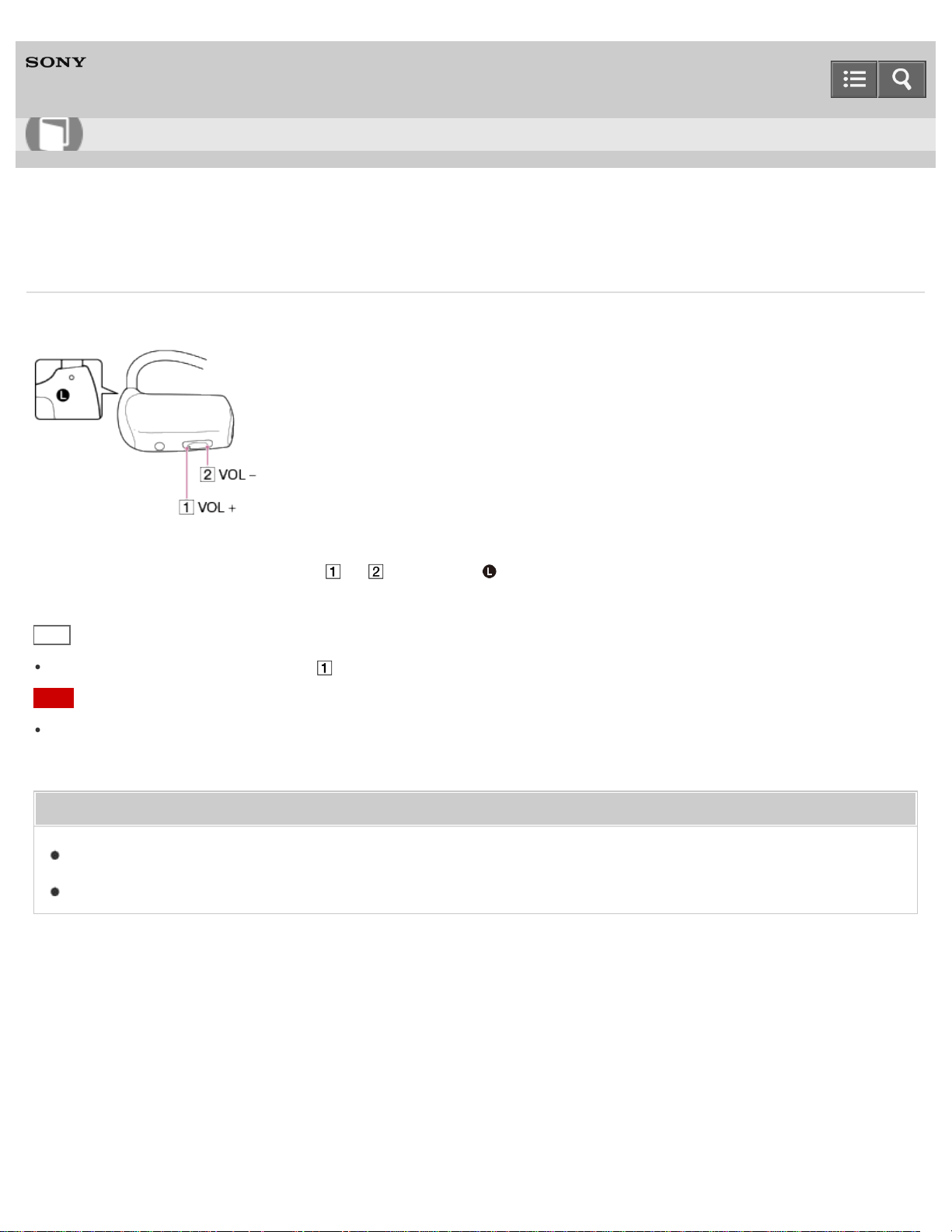
Digital Music Player
NWZ-WS613/WS615
Adjusting the volume
Adjust the volume with the VOL + and - button.
1. Adjust the volume with the button ( or ) on the left ( ) side of your Walkman.
Hint
There is a tactile dot on the button ( ).
Note
If you turn off your Walkman with the volume set to “0,” the volume will be automatically set to “1” when you start
playback next time.
Related Topic
Limiting the volume
Playing music
4-536-927-16(1)
Copyright 2014 Sony Corporation
Help Guide
How to Use
135
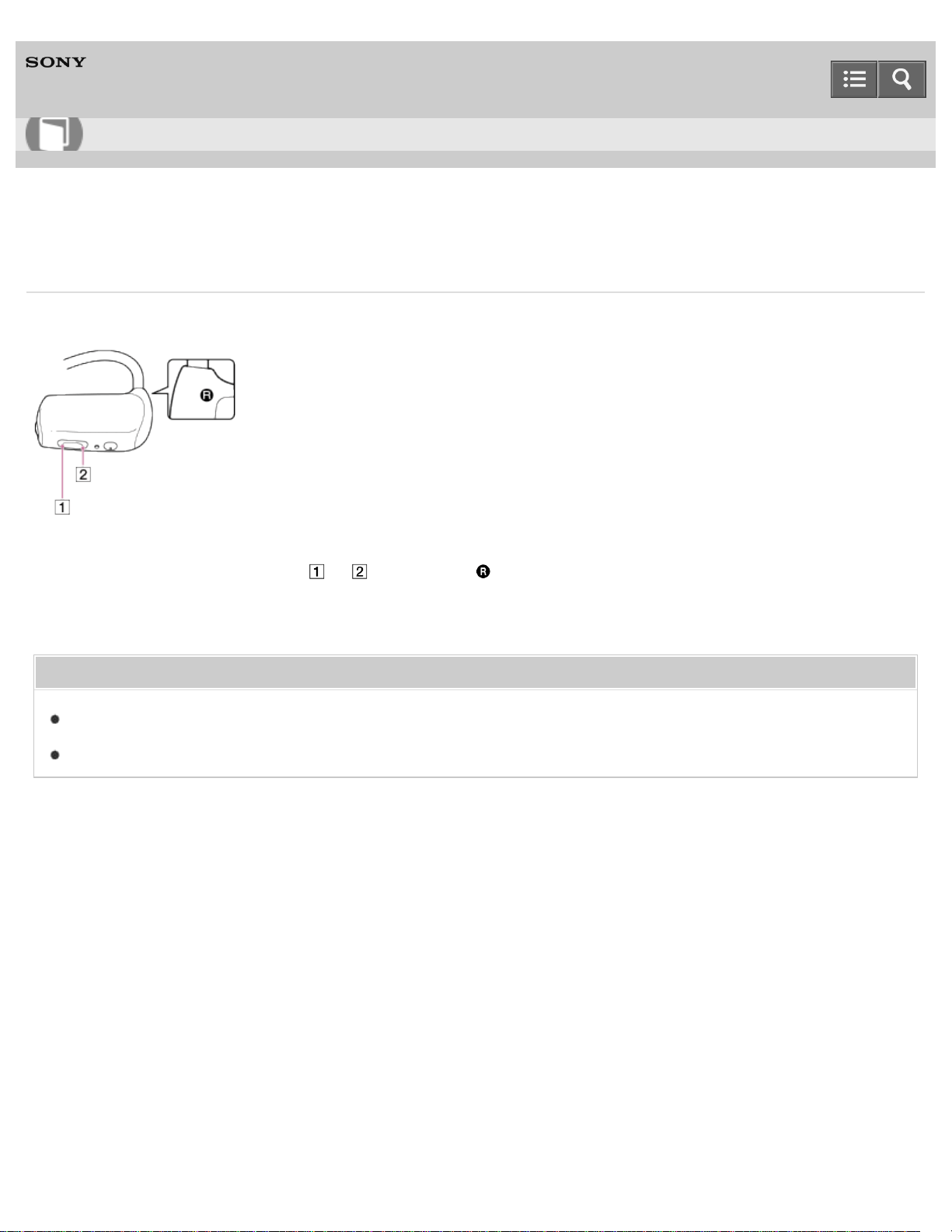
Digital Music Player
NWZ-WS613/WS615
Skipping to the previous/next song
Skip to the previous/next song.
1. Press the Previous/Next button ( or ) on the right ( ) side of your Walkman to skip to the previous/next song.
The previous (or current) or next song starts.
Related Topic
Playing music
Skipping to the previous/next folder/playlist/album
4-536-927-16(1)
Copyright 2014 Sony Corporation
Help Guide
How to Use
136
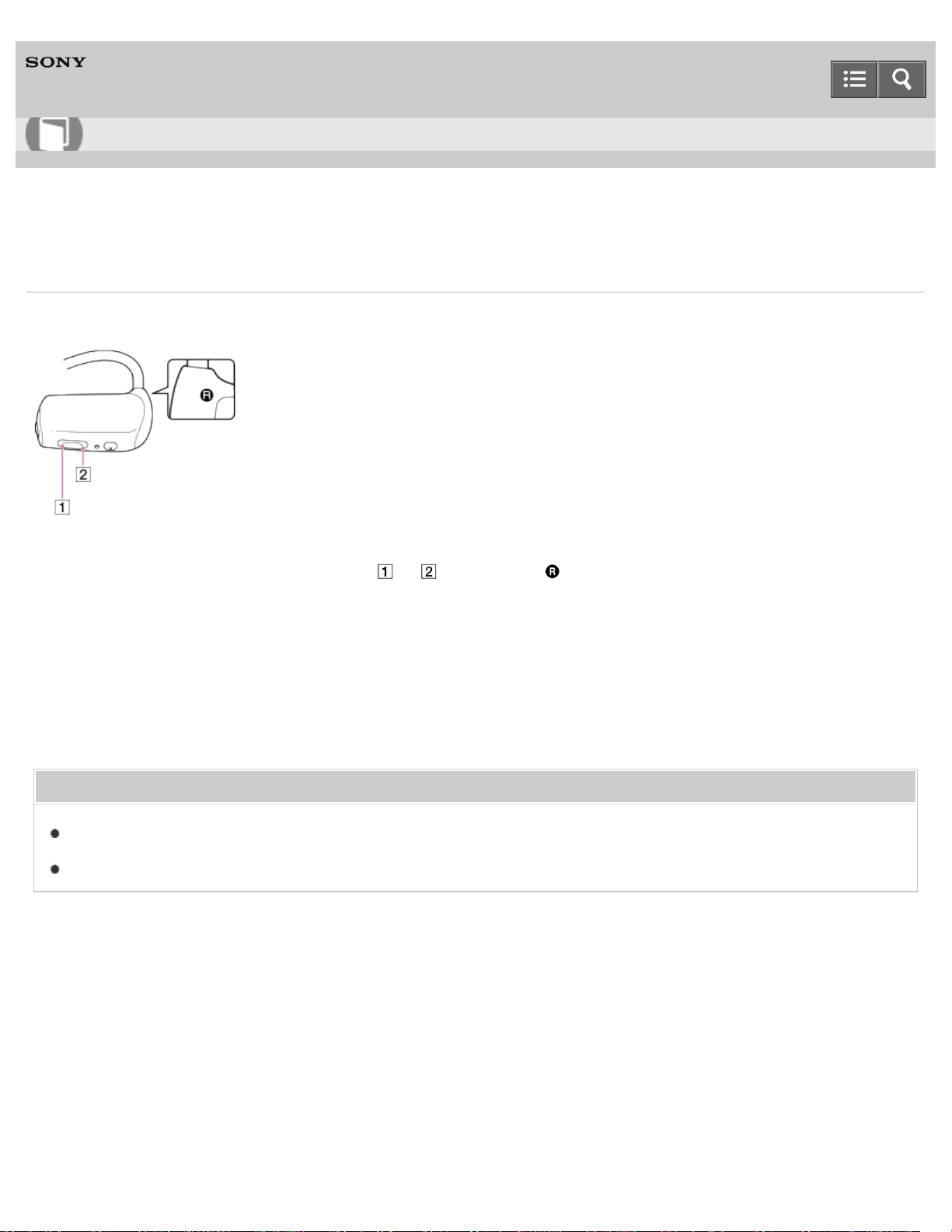
Digital Music Player
NWZ-WS613/WS615
Skipping to the previous/next folder/playlist/album
Skip to the beginning of the previous or next folder/playlist/album quickly.
1. Press and hold the Previous/Next button ( or ) on the right ( ) side of your Walkman for longer than 2
seconds to skip to the beginning of the previous/next folder/playlist/album.
Skips to the beginning of the previous/next folder/playlist/album.
When skipping to the next folder/playlist/album, the voice guidance “Next folder,” “Next playlist,” or “Next album” are
heard. When skipping to the previous folder/playlist/album, the voice guidance “Previous folder,” “Previous playlist,”
or “Previous album” are heard.
Related Topic
Playing music
Skipping to the previous/next song
4-536-927-16(1)
Copyright 2014 Sony Corporation
Help Guide
How to Use
137
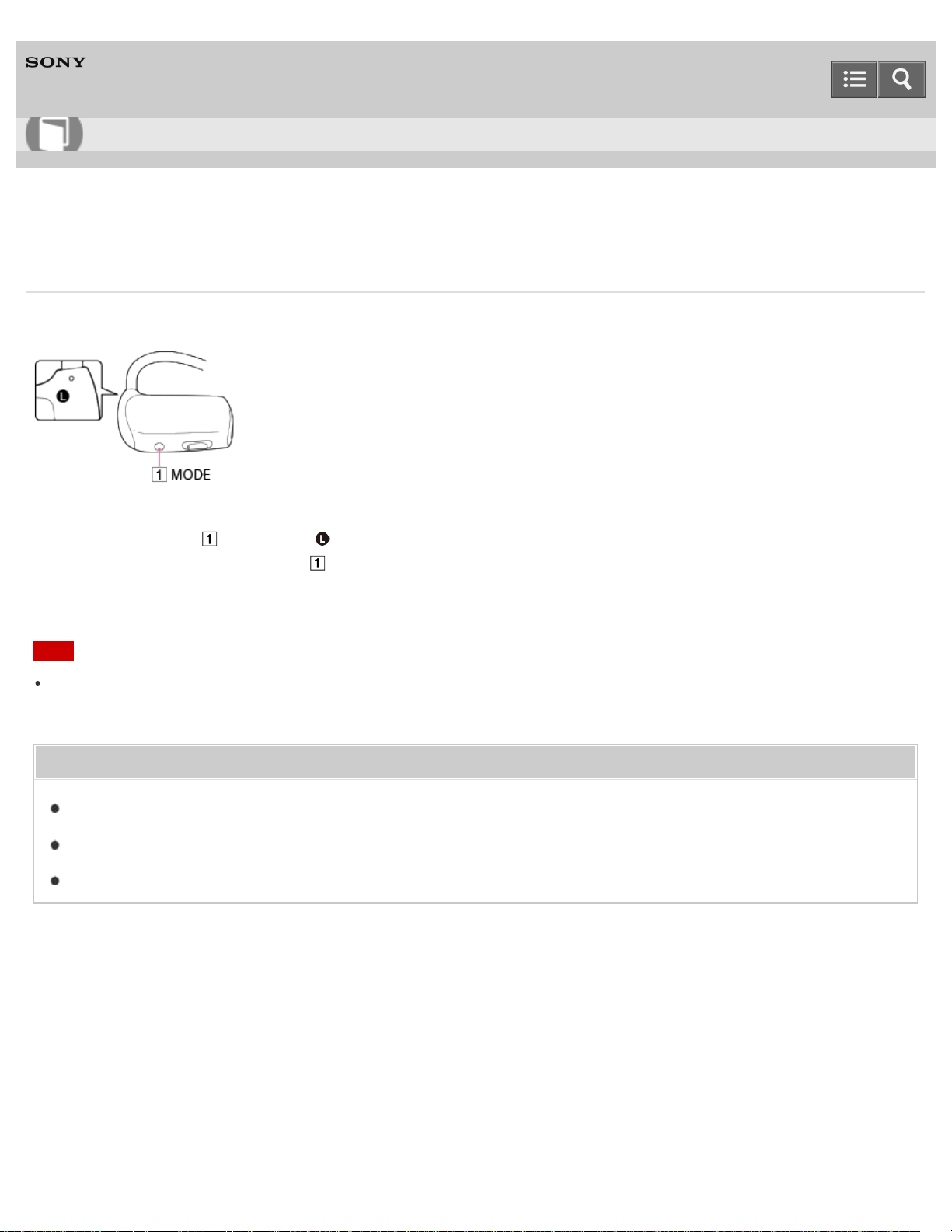
Digital Music Player
NWZ-WS613/WS615
Shuffle playback
Play songs in random order. The playback range of songs can be changed.
1. Press the button ( ) on the left ( ) side of your Walkman repeatedly.
Each time you press the button ( ), the voice guidance is heard and the playback mode changes in the order of
Normal, Repeat, Shuffle, and Normal.
Note
You cannot change the playback mode when you listen to music on the other Bluetooth audio device in Headphones
Mode.
Related Topic
Playing music
Repeat playback
Changing the playback order to Folder Play/Playlist Play/Album Play
4-536-927-16(1)
Copyright 2014 Sony Corporation
Help Guide
How to Use
138
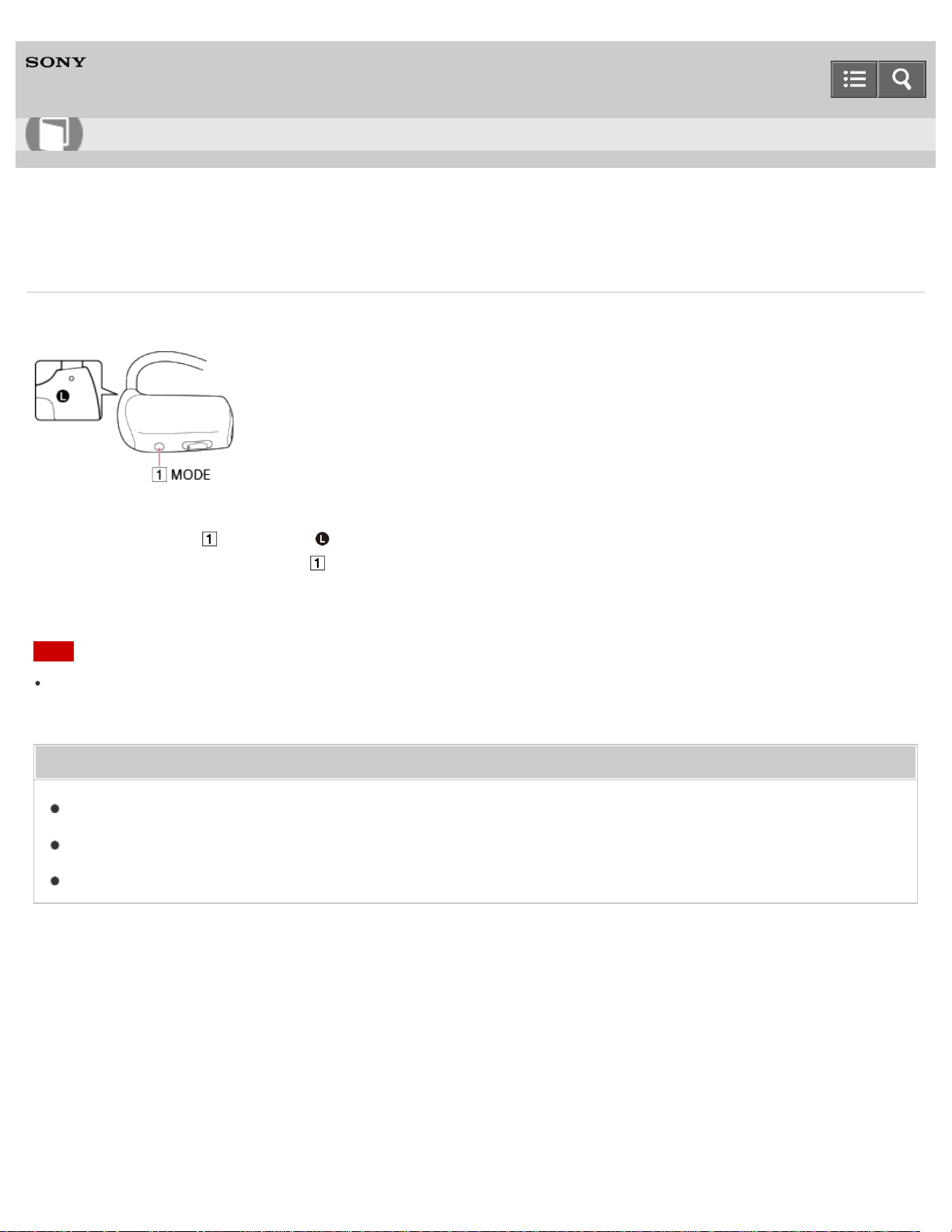
Digital Music Player
NWZ-WS613/WS615
Repeat playback
Play songs repeatedly. The playback range of songs can be changed.
1. Press the button ( ) on the left ( ) side of your Walkman repeatedly.
Each time you press the button ( ), the voice guidance is heard and the playback mode changes in the order of
Normal, Repeat, Shuffle, and Normal.
Note
You cannot change the playback mode when you listen to music on the other Bluetooth audio device in Headphones
Mode.
Related Topic
Playing music
Shuffle playback
Changing the playback order to Folder Play/Playlist Play/Album Play
4-536-927-16(1)
Copyright 2014 Sony Corporation
Help Guide
How to Use
139
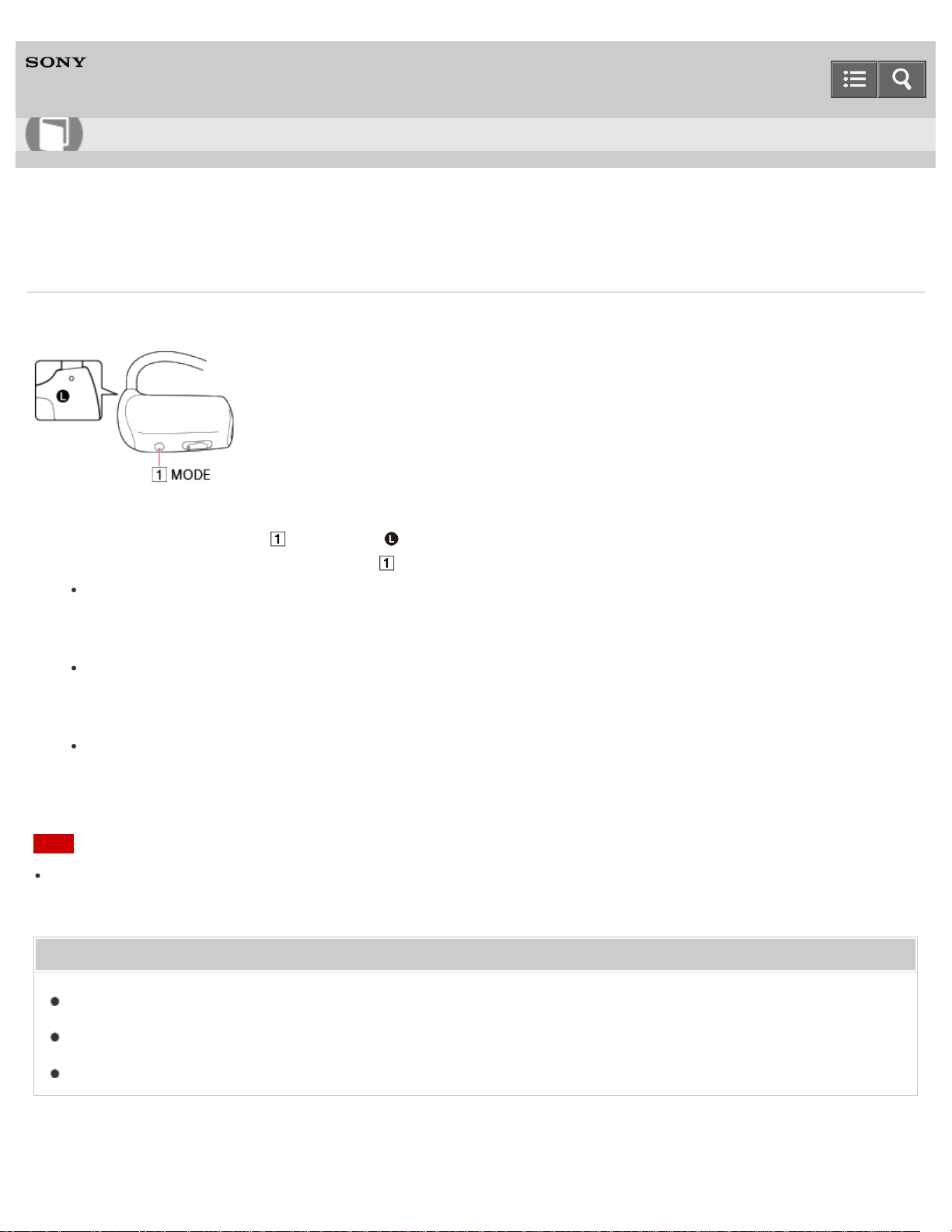
Digital Music Player
NWZ-WS613/WS615
Changing the playback order to Folder Play/Playlist Play/Album Play
You can change the playback order to Folder Play/Playlist Play/Album Play. Default setting is for all songs to be played.
1. Press and hold the button ( ) on the left ( ) side of your Walkman repeatedly.
Each time you press and hold the button ( ), the playback order changes as follows and voice guidance is heard.
Folder (Normal)
Plays songs in the order set in folders. Folders are groups of songs shown in Windows Explorer or the Mac
Finder.
Playlist
Plays songs in the order set in playlists. Playlists are lists of songs to play back in a desired order created by
using software such as Media Go (supplied) or Content Transfer.
Album
Plays songs in the order set in albums. Albums are groups of songs organized based on album information.
Note
You cannot change the playback mode when you listen to music on the other Bluetooth audio device in Headphones
Mode.
Related Topic
Playing music
Shuffle playback
Repeat playback
4-536-927-16(1)
Help Guide
How to Use
140
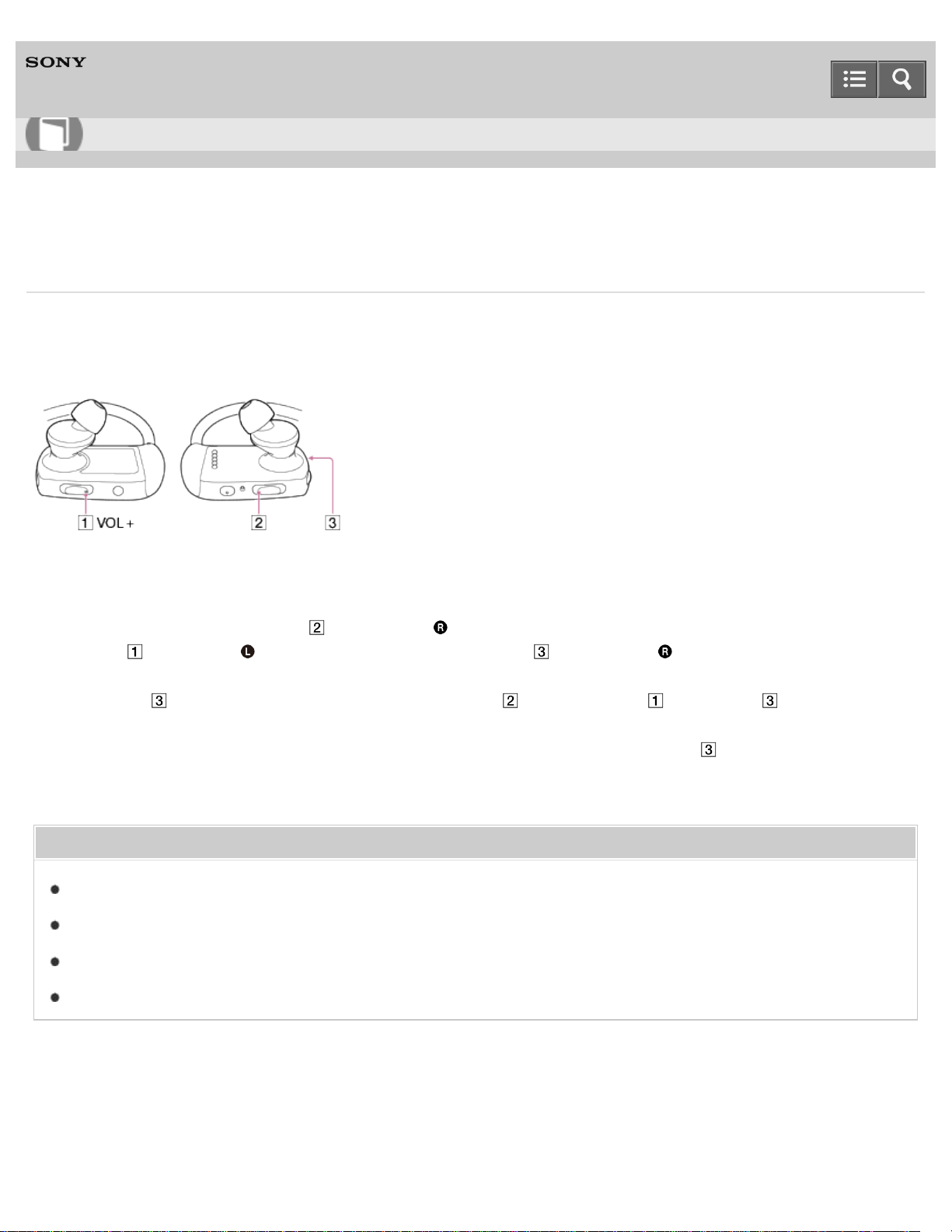
Digital Music Player
NWZ-WS613/WS615
Limiting the volume
You can use AVLS (Automatic Volume Limiter System) to limit the maximum volume. This prevents the volume from
getting too high and disturbing others, causing discomfort to your ears, or preventing you from hearing sounds around
you, and it allows you to listen at a more comfortable volume.
1. Check that the playback is paused and the Bluetooth function is turned off.
2. Press and hold the Next button ( ) on the right ( ) side of your Walkman for about 5 seconds while pressing the
button ( ) on the left ( ) side of the Walkman until the lamp ( ) on the right ( ) side of the Walkman lights up
in orange.
The lamp ( ) turns off when you release the Next button ( ) and the button ( ). The lamp ( ) blinks in green
twice and AVLS is set to on. The volume is kept to a moderate level.
To return the AVLS setting to off, repeat this step. When AVLS is set to off, the lamp ( ) blinks in red twice.
Related Topic
Confirming the Walkman status by the OPR lamp
Adjusting the volume
Volume for calls on smartphones
Volume operation (Only for countries/areas complying with European and Korean Directives)
4-536-927-16(1)
Copyright 2014 Sony Corporation
Help Guide
How to Use
141
Digital Music Player
NWZ-WS613/WS615
Deleting songs
To delete songs from your Walkman, use the software on your computer that you used to transfer the songs. If you used
Windows Explorer to transfer the songs, use Windows Explorer to delete them. If you used the Finder on a Mac to
transfer the songs, use the Finder on a Mac to delete the songs.
Hint
Sample music is pre-installed on your Walkman. If you want to delete it, use the software.
Note
Do not delete or rename the “MUSIC” folder. Otherwise, songs may not be recognized by your Walkman.
Related Topic
Deleting content from your Walkman using Media Go
Deleting content from your Walkman using Content Transfer
Deleting content from your Walkman using Explorer
Deleting content from your Walkman using the Finder
4-536-927-16(1)
Copyright 2014 Sony Corporation
Help Guide
How to Use
142
Digital Music Player
NWZ-WS613/WS615
What is the NFC function?
This function is for close-range wireless communication between various devices, such as mobile phones and IC tags.
You can perform easy data communication simply by touching the devices together in the marked spot.
Related Topic
Connecting with a smartphone by the NFC function
4-536-927-16(1)
Copyright 2014 Sony Corporation
Help Guide
How to Use
143
Digital Music Player
NWZ-WS613/WS615
Requirements for smartphones connecting with your Walkman by one touch (NFC)
To connect with your Walkman by the NFC function, the system requirements of the smartphone are as follows.
NFC-compatible smartphones with Android 2.3.3 or later installed (excluding Android 3.X)
Hint
If your smartphone is not NFC-compatible, connect with your Walkman using the Bluetooth function.
Note
If your smartphone OS is Android 2.3.3 or later but prior to Android 4.1, you may need to download the “NFC Easy
Connect” app. For details, refer to the operating instructions supplied with your smartphone.
Related Topic
Pairing and connecting with an Android smartphone
Pairing and connecting with an iPhone
Installing the “NFC Easy Connect” app on an Android smartphone
4-536-927-16(1)
Copyright 2014 Sony Corporation
Help Guide
How to Use
144
Digital Music Player
NWZ-WS613/WS615
About “NFC Easy Connect”
The “NFC Easy Connect” app allows your smartphone to connect easily with the NFC-compatible devices manufactured
by Sony. To find out more about the functions, search for “NFC Easy Connect” and download the free app. The app may
not be available in some countries and/or regions.
Related Topic
Installing the “NFC Easy Connect” app on an Android smartphone
4-536-927-16(1)
Copyright 2014 Sony Corporation
Help Guide
How to Use
145
Digital Music Player
NWZ-WS613/WS615
Installing the “NFC Easy Connect” app on an Android smartphone
Download and install the “NFC Easy Connect” app on your Android smartphone.
1. Search for “NFC Easy Connect” at Google Play™ Store.
The app may not be downloadable in some countries/regions.
2. Install the “NFC Easy Connect” app on the smartphone by following the on-screen instructions.
3. Start the “NFC Easy Connect” app on the smartphone.
Make sure that the app screen is displayed.
Related Topic
Connecting with a smartphone by the NFC function
Requirements for smartphones connecting with your Walkman by one touch (NFC)
4-536-927-16(1)
Copyright 2014 Sony Corporation
Help Guide
How to Use
146
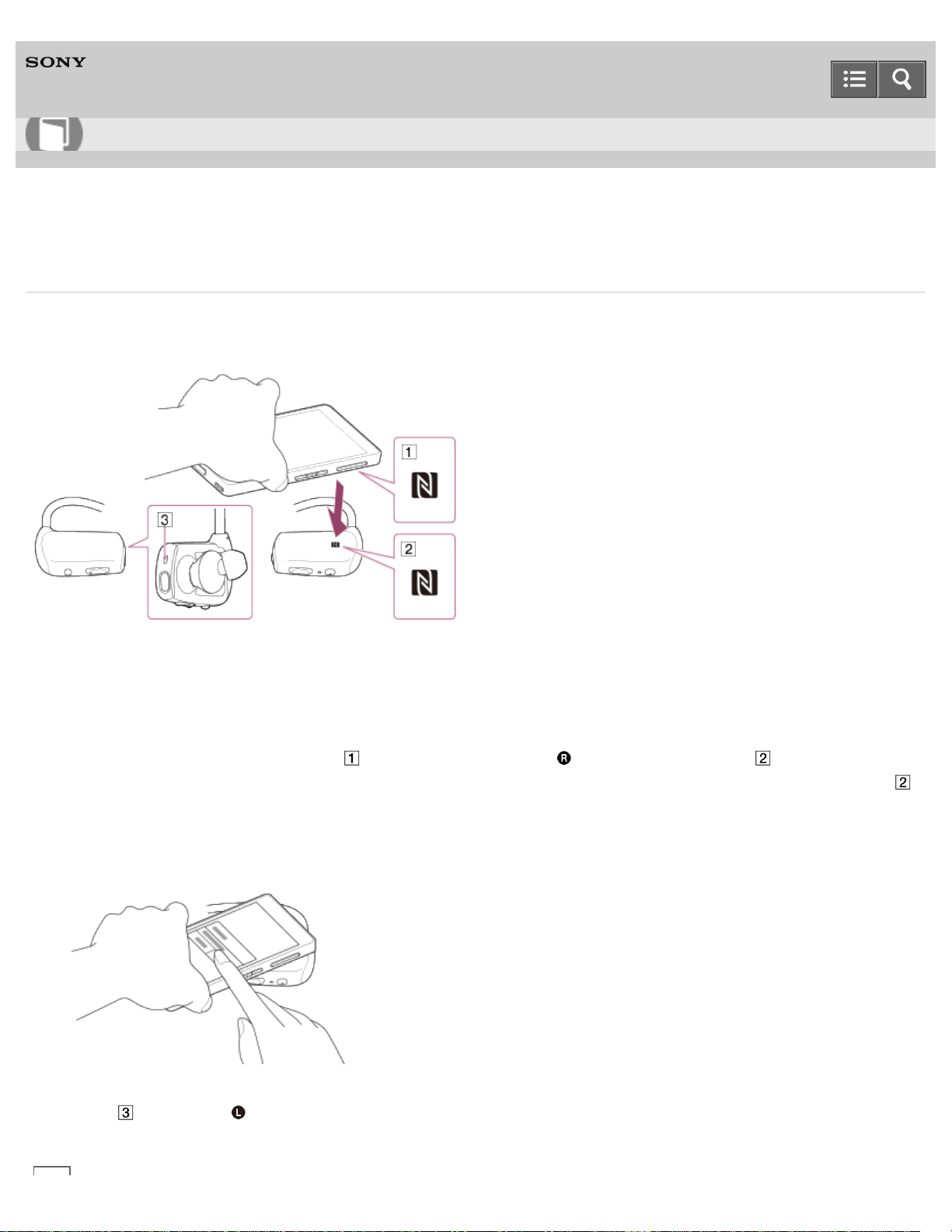
Digital Music Player
NWZ-WS613/WS615
Connecting with a smartphone by the NFC function
Simply touch your NFC-compatible smartphone to your Walkman to automatically turn on the power of the Walkman,
pair the Walkman and the smartphone, and make a Bluetooth connection.
1. Make sure that your smartphone has the NFC function.
2. Activate the NFC function on your smartphone.
3. Touch the mark of your smartphone ( ) to the mark on the right ( ) side of your Walkman ( ).
Unlock the screen of the smartphone beforehand. Keep touching the smartphone to the mark on your Walkman ( )
until the smartphone responds.
4. Tap the confirmation screen on your smartphone.
Keep touching your smartphone to your Walkman until the connection is completed.
Your smartphone and your Walkman are paired and connected with each other. When the connection is made, the
lamp ( ) on the left ( ) side of the Walkman blinks twice every 5 seconds.
Help Guide
How to Use
147
Hint
If your smartphone is in a case, the connection may not be made with one touch. Remove the case.
If you have installed the “NFC Easy Connect” app on your smartphone, make sure that the screen of this app is
displayed on the smartphone.
The smartphone operations mentioned above are examples. Refer to the operating instructions of your smartphone
for details.
The procedure to tap the confirmation screen on your smartphone is required only the first time you make a one-
touch connection.
Note
If you touch your smartphone to the mark on your Walkman ( ) while using the Remote Commander (supplied), the
Remote Commander may be turned off. In this case, turn the Remote Commander on again.
Related Topic
Requirements for smartphones connecting with your Walkman by one touch (NFC)
Pairing and connecting with an Android smartphone
Pairing and connecting with an iPhone
Disconnecting with the smartphone by the NFC function
4-536-927-16(1)
Copyright 2014 Sony Corporation
148
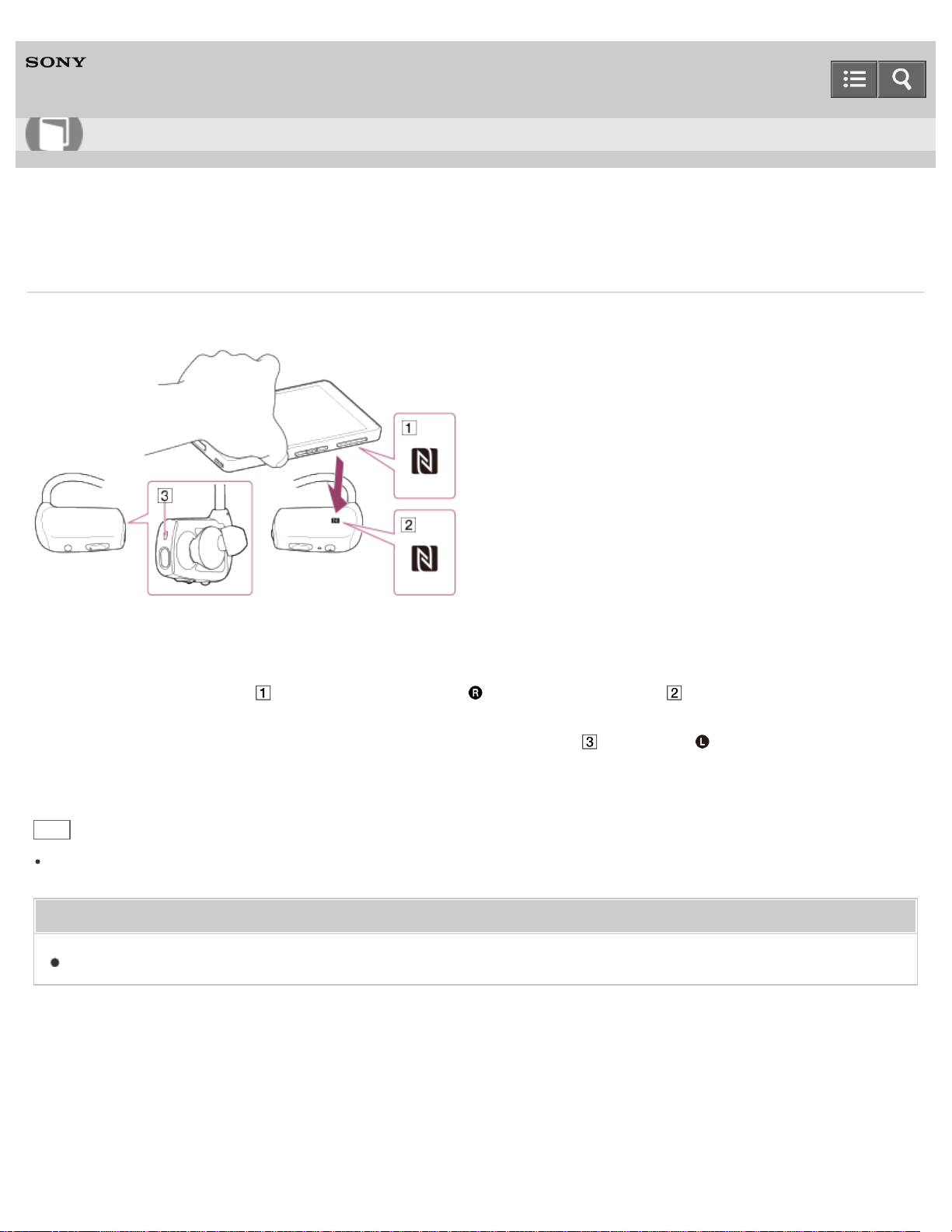
Digital Music Player
NWZ-WS613/WS615
Disconnecting with the smartphone by the NFC function
Disconnect the connection between your Walkman and the smartphone by one touch.
1. Turn on the NFC function of your smartphone.
2. Touch your smartphone ( ) to the mark on the right ( ) side of your Walkman ( ). Keep touching the devices
together until messages appear on the screen of the smartphone.
When the connection is disconnected, a beep is heard and the lamp ( ) on the left ( ) side of your Walkman
blinks. The Walkman enters connection standby mode.
Hint
If your smartphone is in a case, the connection may not be disconnected with one touch. Remove the case.
Related Topic
Connecting with a smartphone by the NFC function
4-536-927-16(1)
Copyright 2014 Sony Corporation
Help Guide
How to Use
149
Digital Music Player
NWZ-WS613/WS615
What is the Bluetooth function?
The Bluetooth function enables wireless data transfer between devices that support Bluetooth wireless technology. You
can transfer data between these devices at a range of up to 10 meters in an open area.
You do not need to use a cable for connection, since the Bluetooth function uses wireless technology, nor is it necessary
for the devices to face one another, as is the case with infrared technology. For example, you can use Bluetooth devices
in a bag or pocket.
Related Topic
Turning the Bluetooth function on/off
Notes on the Bluetooth function
4-536-927-16(1)
Copyright 2014 Sony Corporation
Help Guide
How to Use
150
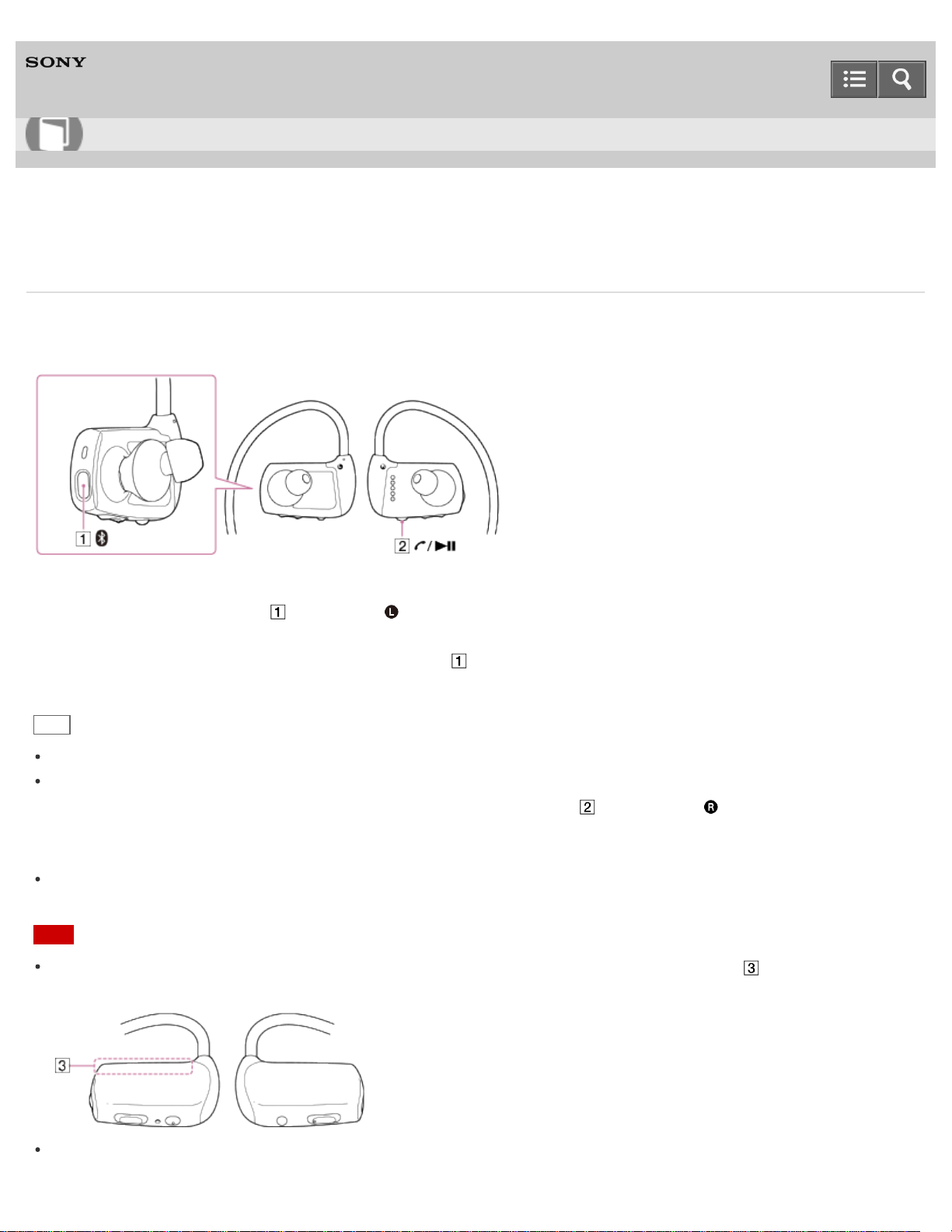
Digital Music Player
NWZ-WS613/WS615
Turning the Bluetooth function on/off
Turn on the Bluetooth function of your Walkman and the smartphone when you pair them or connect the paired
smartphone with the Walkman.
1. Press and hold the button ( ) on the left ( ) side of your Walkman for 2 seconds to turn the Bluetooth function
on.
To turn off the Bluetooth function, press the button ( ) again for 2 seconds.
Hint
To reduce battery consumption, turn off the Bluetooth function when your Walkman is not connected to a smartphone.
Headphones Mode is selected automatically when a Bluetooth audio device is connected to your Walkman. To switch
the sound source and start Walkman Mode, press and hold the button ( ) on the right ( ) side of your Walkman
until the voice guidance “Walkman Mode” is heard. At that time, the playback on the other Bluetooth device is stopped
automatically.
If the Bluetooth function is on when you turn off your Walkman, the Bluetooth function is turned on automatically the
next time you turn on the Walkman.
Note
The Bluetooth communications antenna is built in to your Walkman. If you cover the antenna ( ) with your hands or
other objects while using Bluetooth communications, the communication quality may be affected.
Even if the Bluetooth function is turned off, only the Remote Commander can be connected to your Walkman.
Help Guide
How to Use
151

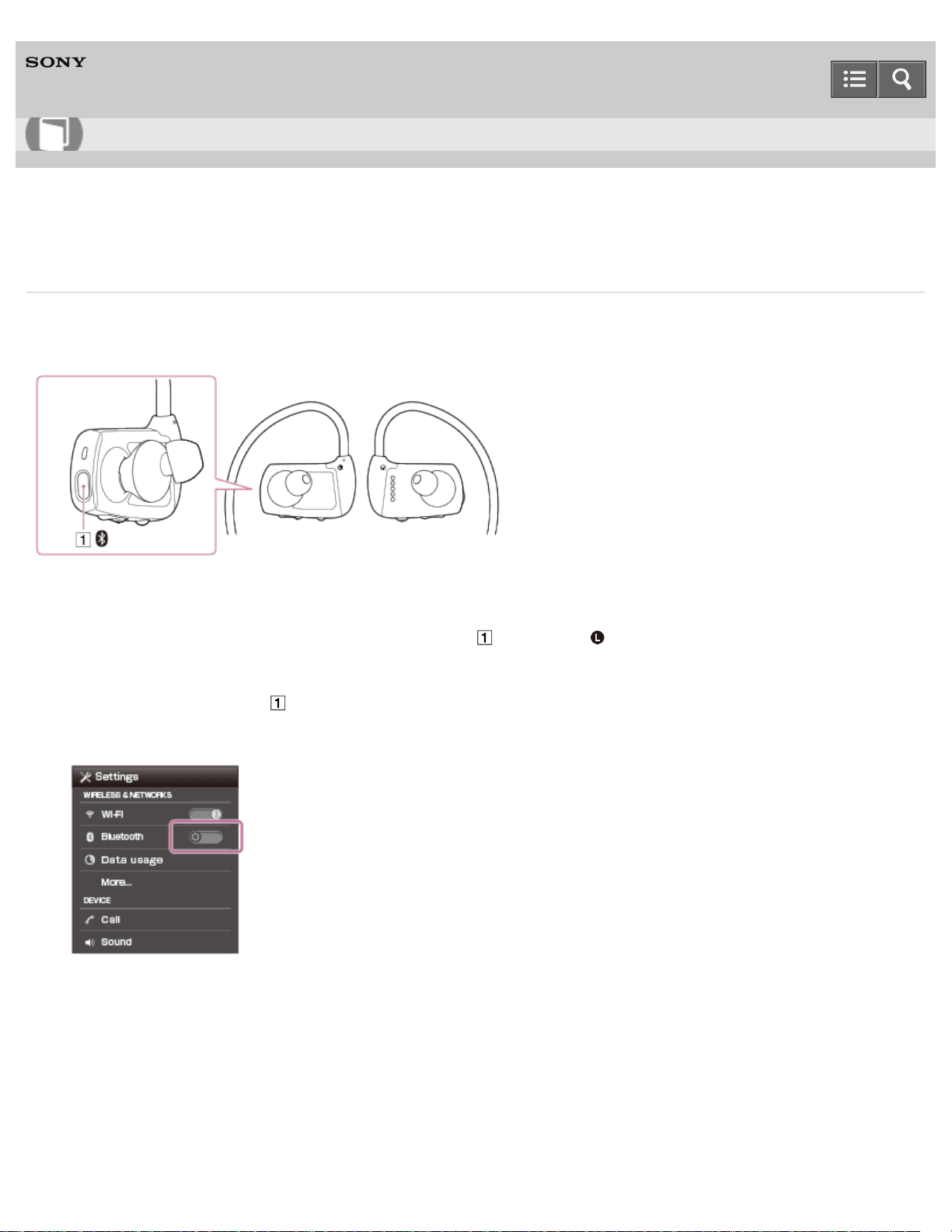
Digital Music Player
NWZ-WS613/WS615
Pairing and connecting with an Android smartphone
When you connect your Walkman and smartphone for the first time, you need to pair them. Once pairing is successfully
completed, future connections between them can be made with simple operations.
1. Check that your Walkman is turned on and the Bluetooth function is turned off.
If the Bluetooth function is turned on, press the button ( ) on the left ( ) side of your Walkman for 2 seconds to
turn off.
2. Press and hold the button ( ) for about 7 seconds.
3. Turn on the Bluetooth function on your smartphone.
4. Tap a menu (icon) to search for your Walkman on your smartphone.
Help Guide
How to Use
153
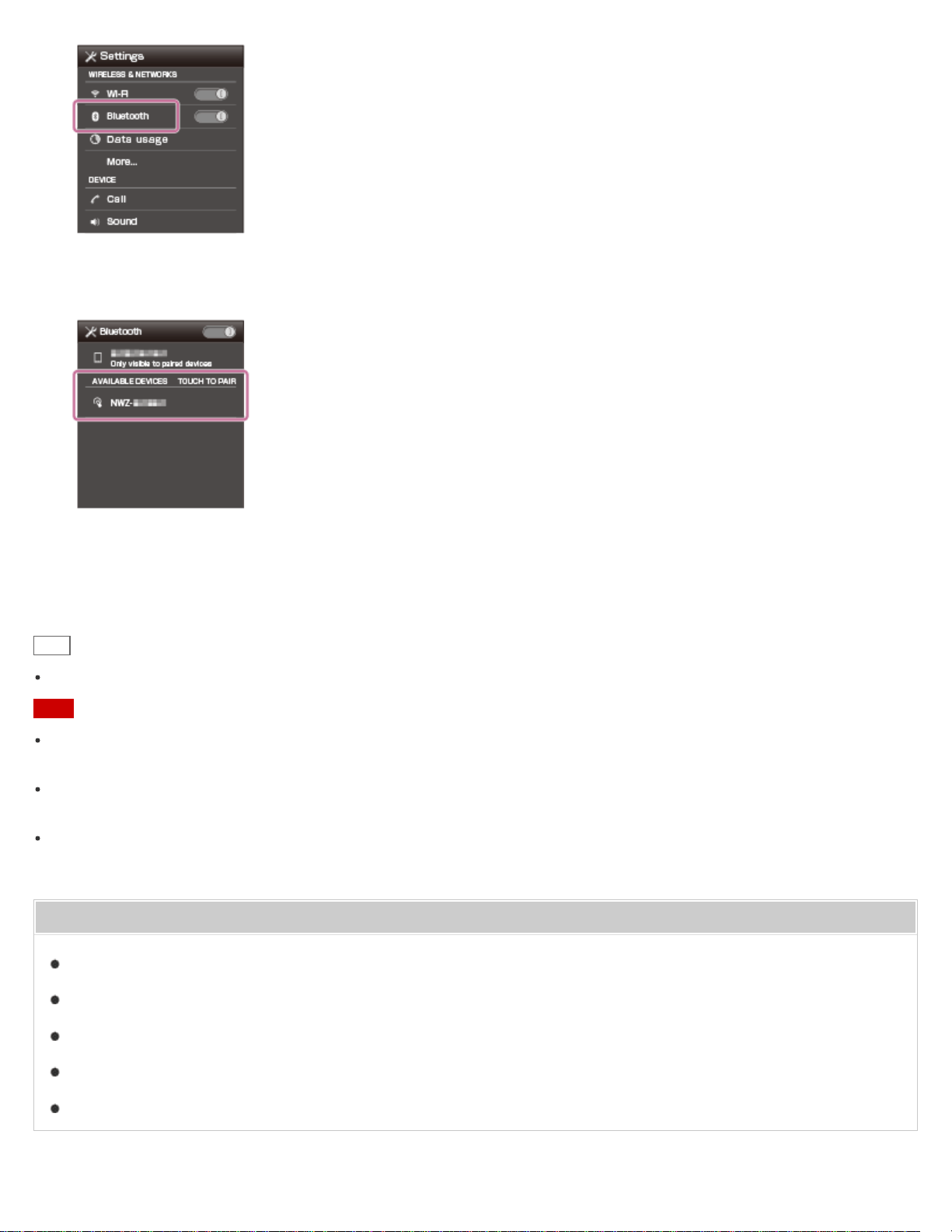
Depending on the smartphone you use, the search may be started automatically.
5. Tap the model name of your Walkman.
If passkey input is required, input “0000.” A Passkey may be called a “Pass code,” a “PIN code,” a “PIN number,” or
a “Password.”
Your Walkman and the smartphone are paired to each other and a connection is made.
Hint
If your smartphone has an NFC function, pairing and connection can be made with one touch.
Note
Once pairing is successfully completed, you do not have to pair the devices again for future connections between
them.
Operations on smartphone mentioned above are examples. Refer to the operating instructions of your smartphone for
details.
If you pair your Walkman and a smartphone while using the Remote Commander, the Remote Commander is turned
off. In this case, turn the Remote Commander on again.
Related Topic
Turning the Bluetooth function on/off
Confirming the Bluetooth status by the Bluetooth lamp
Playing music on a smartphone
Connecting with a paired smartphone
Connecting with a smartphone by the NFC function
154
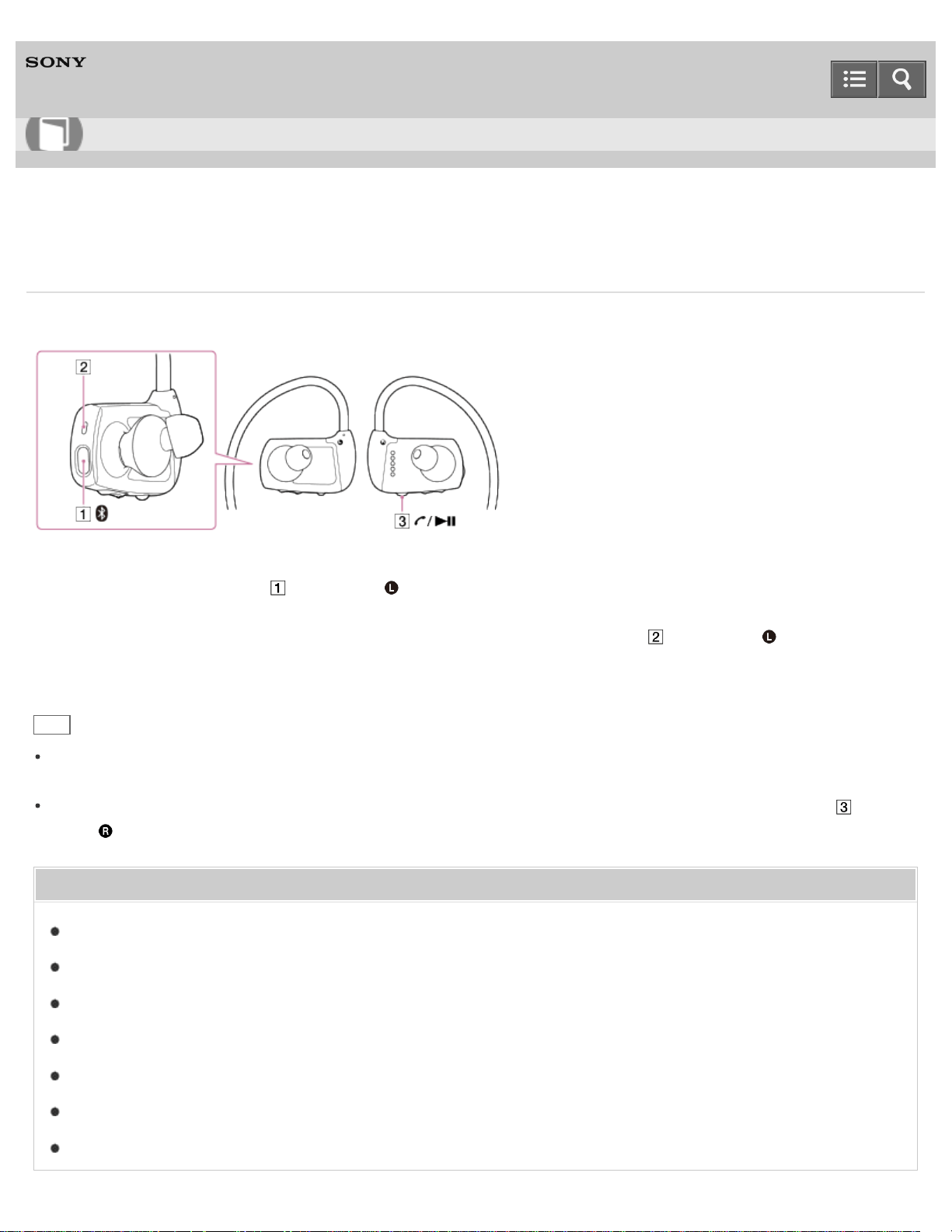
Digital Music Player
NWZ-WS613/WS615
Connecting with a paired smartphone
Connect a paired smartphone and your Walkman.
1. Press and hold the button ( ) on the left ( ) side of your Walkman for 2 seconds to turn on the Bluetooth
function.
When the last paired smartphone is connected, a beep is heard and the lamp ( ) on the left ( ) side of your
Walkman blinks twice every 5 seconds.
Hint
When your Walkman is connected to the smartphone, the Walkman (model name) is shown as being connected in the
Bluetooth settings screen of the smartphone. If the Walkman is not connected, tap the model name.
To listen to music stored on your Walkman while connected to the smartphone, press and hold the button ( ) on the
right ( ) side of your Walkman for 2 seconds to change the sound source.
Related Topic
Turning the Bluetooth function on/off
Confirming the Bluetooth status by the Bluetooth lamp
Playing music on a smartphone
Pairing and connecting with an Android smartphone
Pairing and connecting with an iPhone
Connecting with a smartphone by the NFC function
Selecting the sound source
Help Guide
How to Use
155
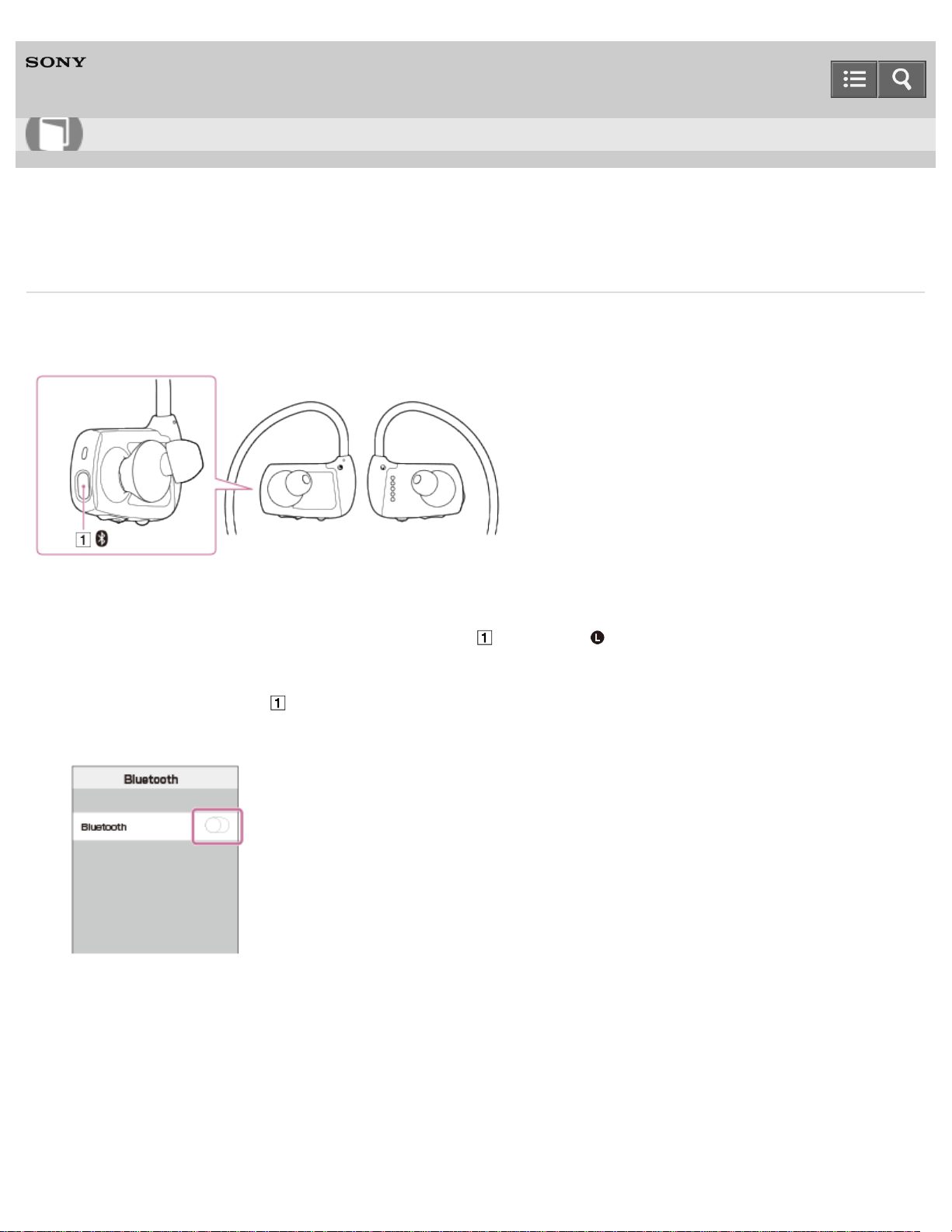
Digital Music Player
NWZ-WS613/WS615
Pairing and connecting with an iPhone
When you connect your Walkman and iPhone for the first time, you need to pair them. Once pairing is successfully
completed, future connections between them can be made with simple operations.
1. Check that your Walkman is turned on and the Bluetooth function is not turned on.
If the Bluetooth function is turned on, press the button ( ) on the left ( ) side of your Walkman for 2 seconds to
turn off.
2. Press and hold the button ( ) for 7 seconds.
3. Turn on the Bluetooth function on your iPhone.
4. Tap the model name of your Walkman.
Help Guide
How to Use
156
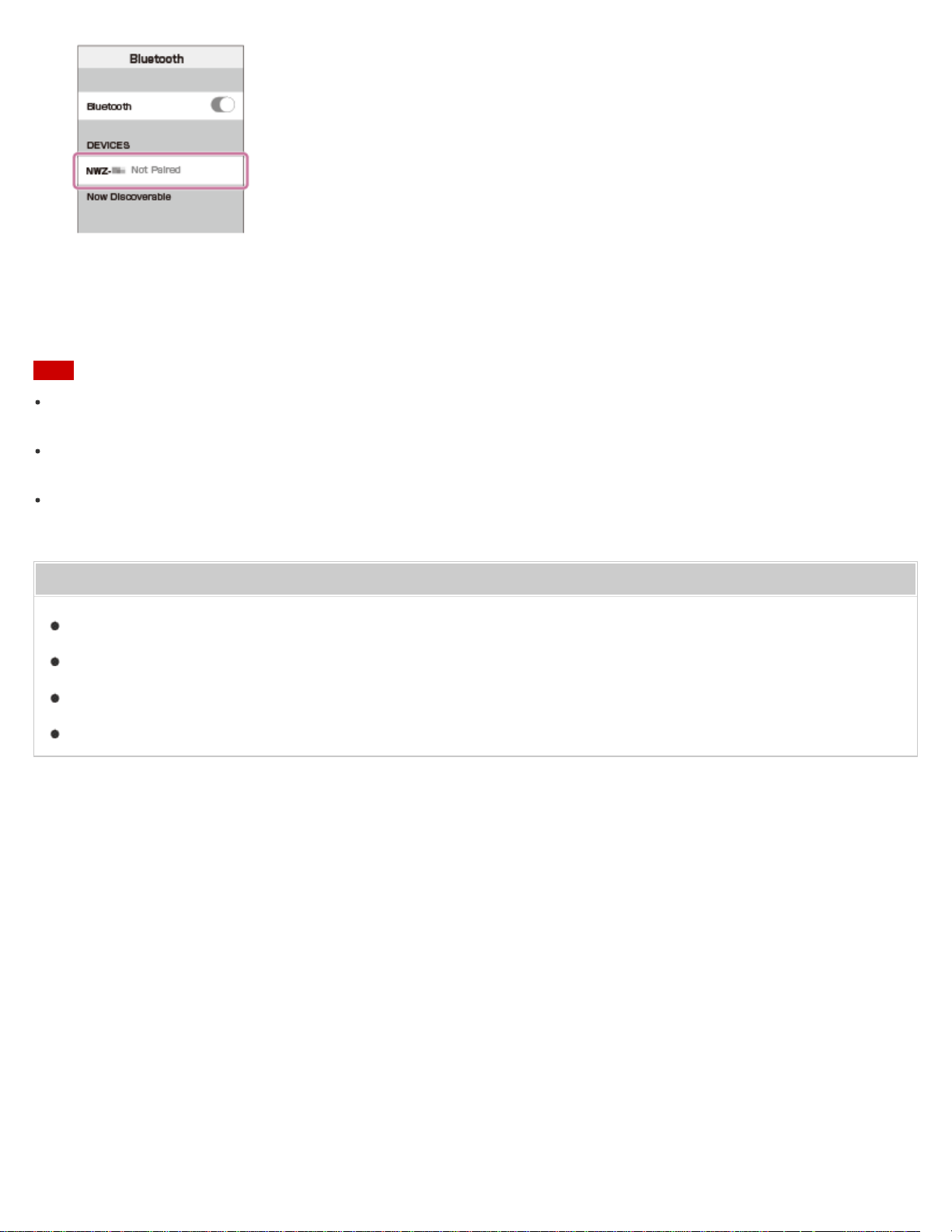
If passkey input is required, input “0000.” A Passkey may be called a “Pass code,” a “PIN code,” a “PIN number,” or
a “Password.”
Your Walkman and the iPhone are paired to each other and a connection is made.
Note
Once pairing is successfully completed, you do not have to pair the devices again for future connections between
them.
Operations on the iPhone mentioned above are examples. Refer to the operating instructions of your iPhone for
details.
If you pair your Walkman and a smartphone while using the Remote Commander, the Remote Commander is turned
off. In this case, turn the Remote Commander on again.
Related Topic
Turning the Bluetooth function on/off
Confirming the Bluetooth status by the Bluetooth lamp
Playing music on a smartphone
Connecting with a paired smartphone
4-536-927-16(1)
Copyright 2014 Sony Corporation
157
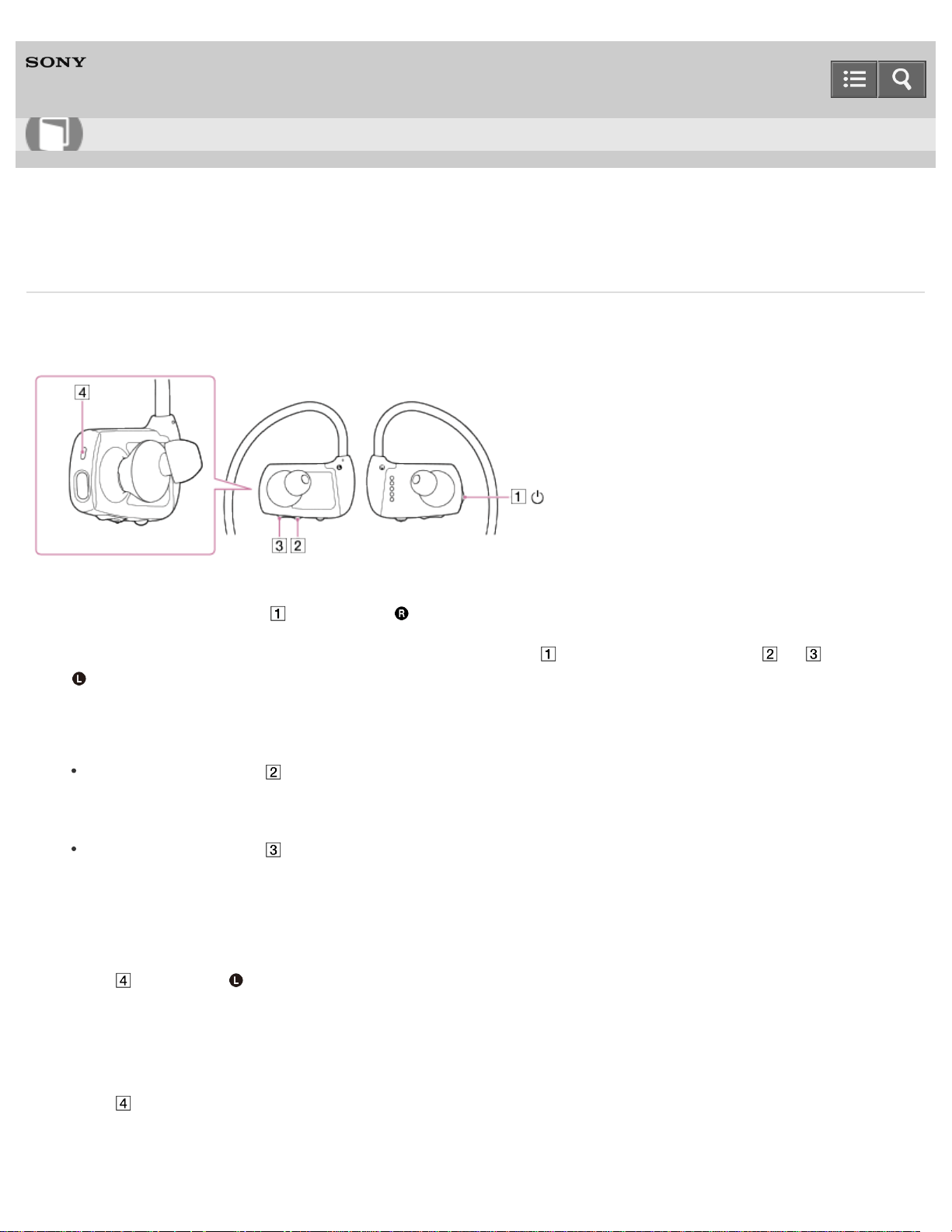
Digital Music Player
NWZ-WS613/WS615
Setting wireless playback quality
You can set whether to prioritize the sound quality or the stability of the connection.
Prioritize connection is selected at the time of purchase. You can change the setting by following the procedures below.
1. Press and hold the button ( ) on the right ( ) side of your Walkman for 3 seconds to turn the Walkman off.
2. To change the sound quality setting, press and hold the button ( ) while pressing the button ( or ) on the left (
) side of your Walkman for 5 seconds. The Walkman turns on and the wireless playback quality setting is
changed.
3. Repeat steps 1 and 2 to change the setting again.
If you press the button ( ) in step 2, the wireless playback quality setting changes in the following order:
Prioritize connection, Standard, Prioritize sound quality. The setting does not change if Prioritize sound quality is
already selected.
If you press the button ( ) in step 2, the wireless playback quality setting changes in the following order:
Prioritize sound quality, Standard, Prioritize connection. The setting does not change if Prioritize connection is
already selected.
Prioritize connection
The lamp ( ) on the left ( ) side of your Walkman blinks in blue once when changed to this setting.
The sound quality may not be as good as in other modes, but the connection status will most likely be stable. This
setting is recommended if the connection is unstable.
Standard
The lamp ( ) blinks in blue twice when changed to this setting.
Stabilizes both connection and sound quality.
Help Guide
How to Use
158
Prioritize sound quality
The lamp ( ) blinks in blue three times when changed to this setting.
Sound is transmitted in high quality, but the connection may become unstable.
Hint
Select prioritize sound quality to play songs with aptX/AAC Codec.
Note
Changing the wireless playback quality setting of your Walkman may not have any effect depending on the settings of
the smartphone.
Related Topic
Turning the Bluetooth function on/off
Playing music on a smartphone
Playing music
4-536-927-16(1)
Copyright 2014 Sony Corporation
159
Digital Music Player
NWZ-WS613/WS615
Notes on the Bluetooth function
Bluetooth wireless technology allows connection at a distance of up to about 10 meters. However, the effective range
may vary depending on obstructions (people, metals, walls, etc.) or signal status.
The Bluetooth antenna (aerial) is built into your Walkman and the Remote Commander. You can improve the
sensitivity of Bluetooth communications by turning the built-in Bluetooth antenna (aerial) in the direction of the
connected Bluetooth device. The communication distance shortens if there are obstructions between the connected
device and the Walkman.
The following conditions may cause noise, breakup of sound, changes in playback speed, or inoperability by the
Remote Commander.
When using inside a metal bag.
When using inside a backpack or shoulder bag.
When using in an area with a wireless LAN, in an area where devices such as microwave ovens, mobile phones and
mobile gaming devices with a communication function are in use nearby, or in other areas where electromagnetic waves
are being emitted.
When the antenna (aerial) built into your Walkman or the Remote Commander is covered by your hand or blocked by
people in situations such as riding in a crowded train.
Because Bluetooth and wireless LAN (IEEE802.11b/g) devices use the same frequency (2.4 GHz), signal interference
may occur, resulting in communication speed decrease, noise, or inability to connect, if Bluetooth communications are
used near a wireless LAN device. In such cases, take the following measures.
Perform Bluetooth communications at least 10 meters away from the wireless LAN device when connecting your Walkman
and a Bluetooth device.
Place your Walkman and the Bluetooth device as close together as possible.
Turn off the wireless LAN device when performing Bluetooth communications within about 10 meters of a wireless LAN
device.
Due to a characteristic of Bluetooth wireless technology, the sound played on the receiving Bluetooth device lags
slightly behind the sound of the sending device.
Radio waves emitted from a Bluetooth device may affect the operation of equipment such as electronic medical
devices. Turn off your Walkman and other Bluetooth devices in the following locations as failure to do so may cause
an accident.
In hospitals, near priority seats on trains, in airplanes, in places such as gasoline stations where flammable gases are
present, near automatic doors or fire alarms
Your Walkman supports security functions that comply with the Bluetooth standard to provide a secure connection
when Bluetooth technology is used, but security may not be sufficient depending on the settings. Be careful when
connecting using Bluetooth technology.
Sony bears no responsibility whatsoever for information leaks that occur as a result of using Bluetooth technology.
Your Walkman is not guaranteed to connect with all Bluetooth devices.
Help Guide
How to Use
160

Bluetooth devices you connect to must conform to the Bluetooth standard specified by Bluetooth SIG and be certified.
Even if the connected device conforms to the above-mentioned Bluetooth standard, some devices may not be connected or
work correctly depending on the features or specifications of the device.
Depending on the device to be connected, the Bluetooth connection may take some time to be established.
Related Topic
Parts and controls
4-536-927-16(1)
Copyright 2014 Sony Corporation
161
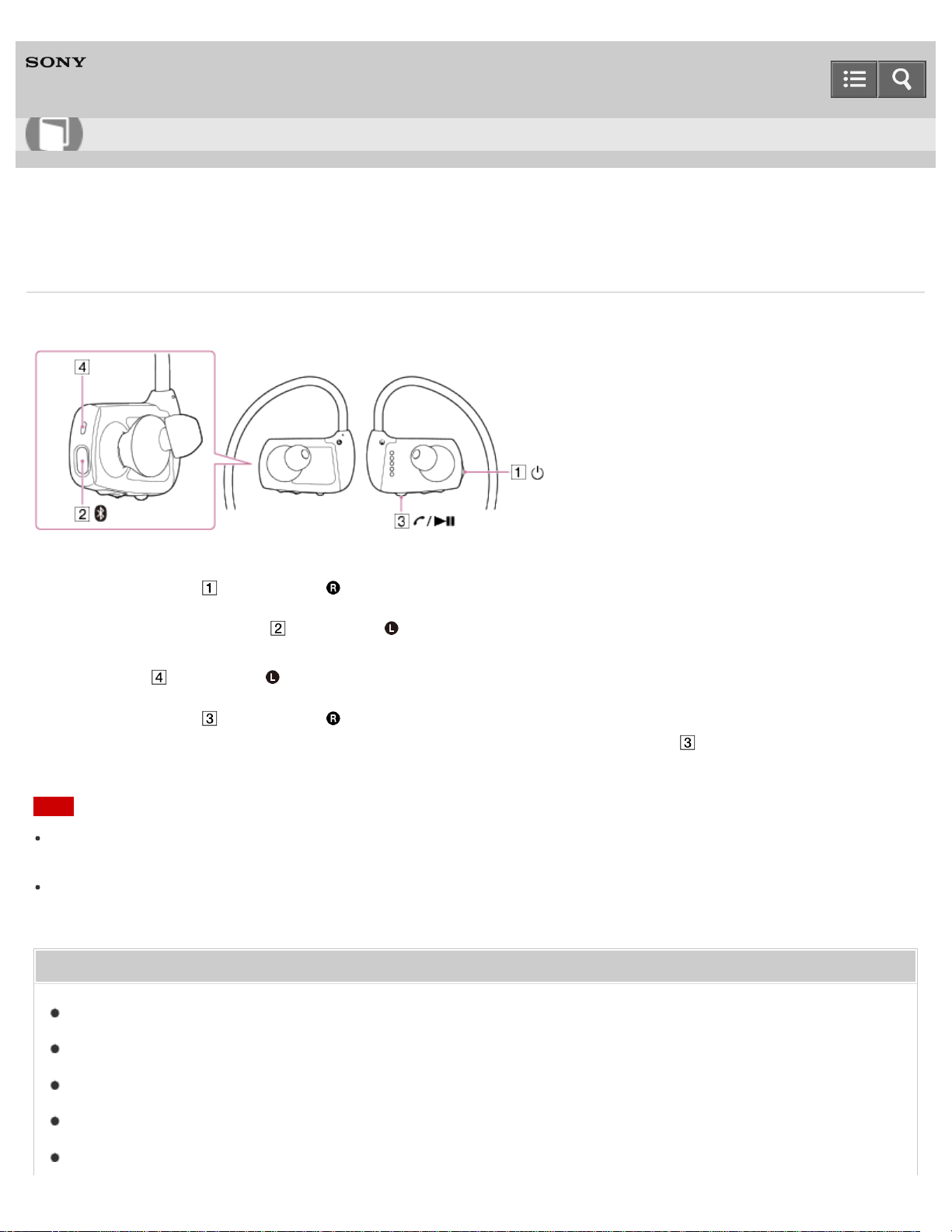
Digital Music Player
NWZ-WS613/WS615
Playing music on a smartphone
Play music on your smartphone that is connected to your Walkman via a Bluetooth connection.
1. Press the button ( ) on the right ( ) side of your Walkman for 3 seconds to turn on your Walkman.
2. Press and hold the button ( ) on the left ( ) side of your Walkman for 2 seconds to turn the Bluetooth function
on.
The lamp ( ) on the left ( ) side of your Walkman blinks in blue and the last connected smartphone is connected.
3. Press the button ( ) on the right ( ) side of your Walkman to play a song.
Playback of music on the smartphone starts. To pause playback, press the button ( ).
Note
Music may not be played through the operation on your Walkman depending on the smartphone you use. If this
occurs, operate on the smartphone.
If the Bluetooth function is on when you turn off your Walkman, the Bluetooth function is turned on automatically the
next time you turn on the Walkman.
Related Topic
Turning the Bluetooth function on/off
Confirming the Bluetooth status by the Bluetooth lamp
Pairing and connecting with an Android smartphone
Connecting with a paired smartphone
Pairing and connecting with an iPhone
Help Guide
How to Use
162

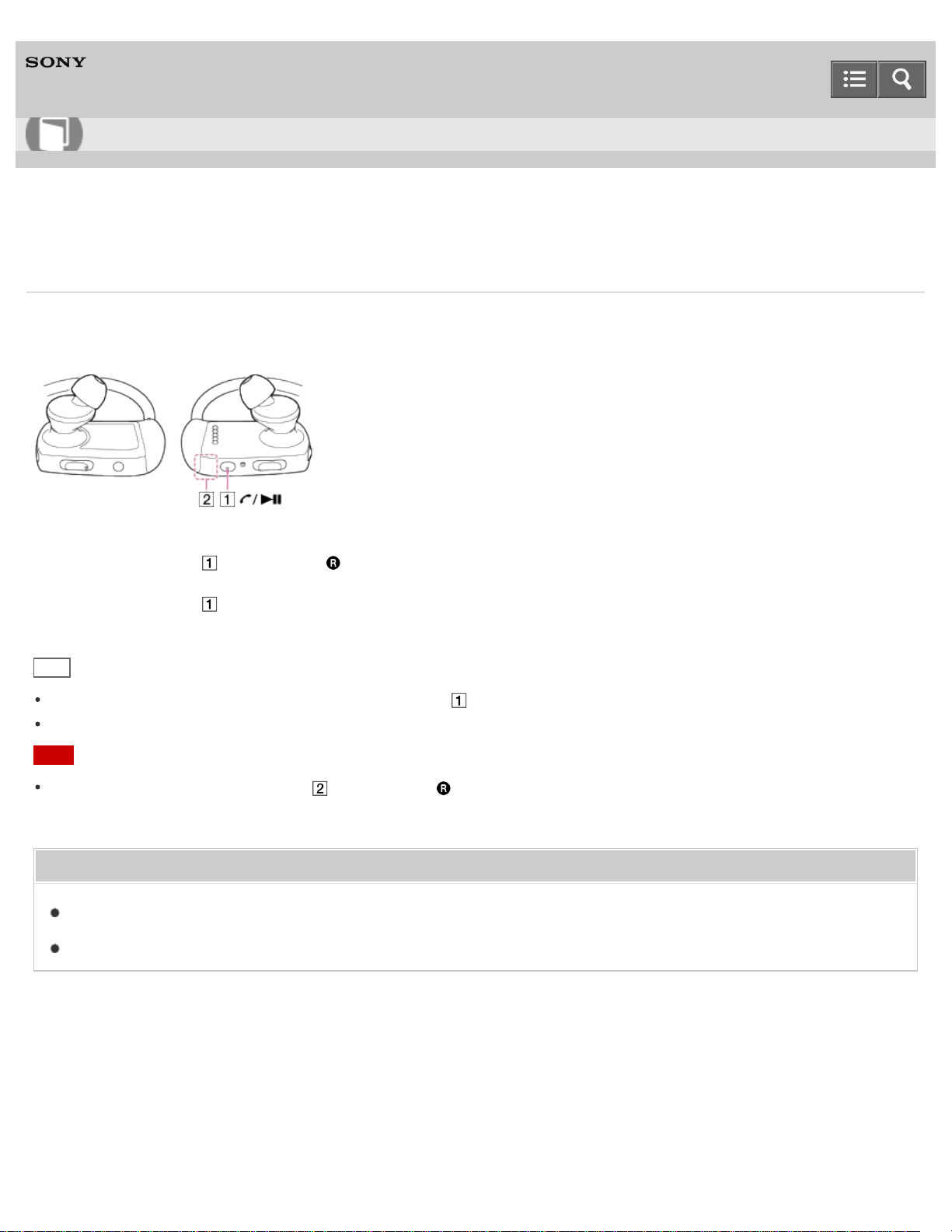
Digital Music Player
NWZ-WS613/WS615
Answering/hanging up a call
You can answer and hang up a phone call to your smartphone that is connected to your Walkman via a Bluetooth
connection.
1. Press the button ( ) on the right ( ) side of your Walkman to answer a call.
2. Press the button ( ) to hang up the call.
Hint
To reject an incoming call, press and hold the button ( ) for 2 seconds while receiving a call.
If you answer a call during music playback, playback is paused. Playback is resumed when you hang up the call.
Note
Do not cover the microphone part ( ) on the right ( ) side of your Walkman with your hands or other object when
you talk on your Walkman.
Related Topic
Volume for calls on smartphones
Rejecting an incoming call
4-536-927-16(1)
Copyright 2014 Sony Corporation
Help Guide
How to Use
164
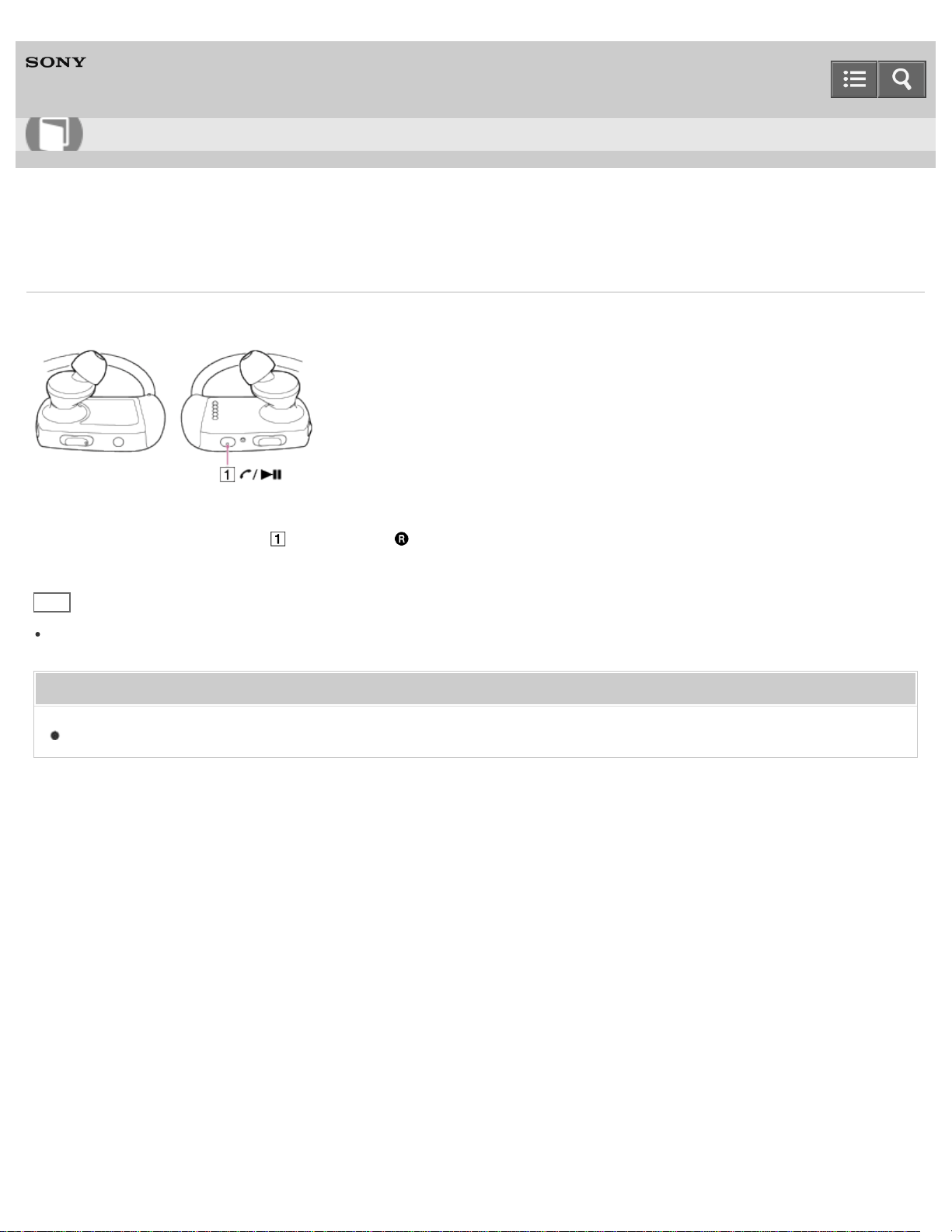
Digital Music Player
NWZ-WS613/WS615
Rejecting an incoming call
When your Walkman is connected to your smartphone, you can reject an incoming call with the Walkman.
1. Press and hold the button ( ) on the right ( ) side of your Walkman for 2 seconds while receiving a call.
Hint
If you answer a call during music playback, playback is paused. Playback is resumed when you hang up the call.
Related Topic
Answering/hanging up a call
4-536-927-16(1)
Copyright 2014 Sony Corporation
Help Guide
How to Use
165
Digital Music Player
NWZ-WS613/WS615
Volume for calls on smartphones
The volume for music and the volume for calls are independent from each other. You can adjust the volume for calls
during an incoming call or while talking on the phone. When you hang up the call, the volume returns to the level that
was previously set for music.
The volume for calls is also kept to a moderate level if the AVLS is on.
Related Topic
Answering/hanging up a call
Limiting the volume
4-536-927-16(1)
Copyright 2014 Sony Corporation
Help Guide
How to Use
166
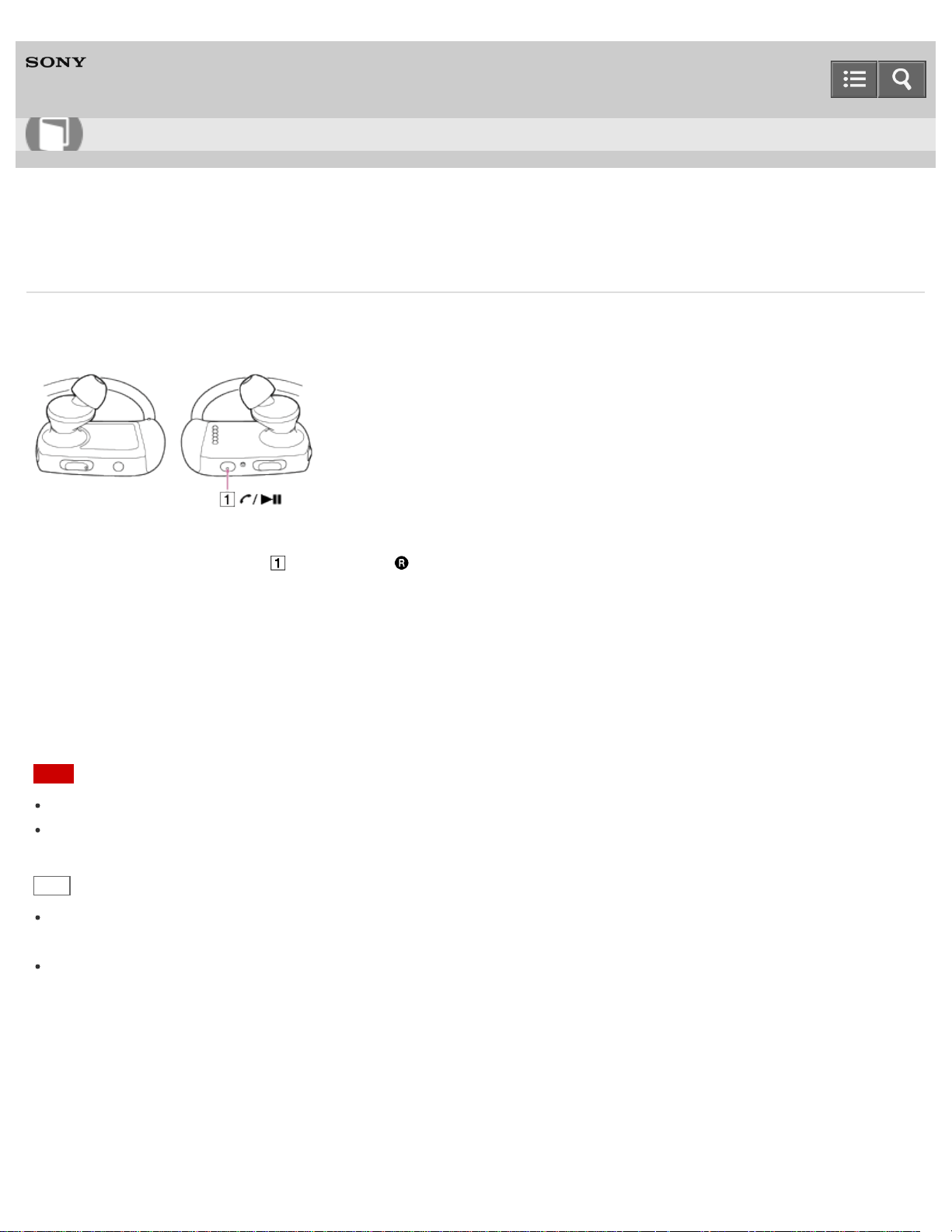
Digital Music Player
NWZ-WS613/WS615
Selecting the sound source
When your Walkman is connected to a Bluetooth audio device, you can select the sound source setting from between
Walkman Mode and Headphones Mode.
1. Press and hold the button ( ) on the right ( ) side of your Walkman until the voice guidance “Walkman Mode” or
“Headphones Mode” is heard.
Walkman Mode
Play back music on your Walkman.
Headphones Mode
Listen to music on a Bluetooth audio device with your Walkman.
Note
Headphones Mode is selected automatically when a Bluetooth audio device is connected to your Walkman.
If the Bluetooth function is on when you turn off your Walkman, the Bluetooth function is turned on automatically the
next time you turn on the Walkman.
Hint
When you change the sound source setting from Headphones Mode to Walkman Mode, the playback on the
Bluetooth audio device is stopped automatically.
The sound source setting may be changed by the SongPal settings. For details about how to use SongPal, refer to
the help of SongPal.
4-536-927-16(1)
Copyright 2014 Sony Corporation
Help Guide
How to Use
167
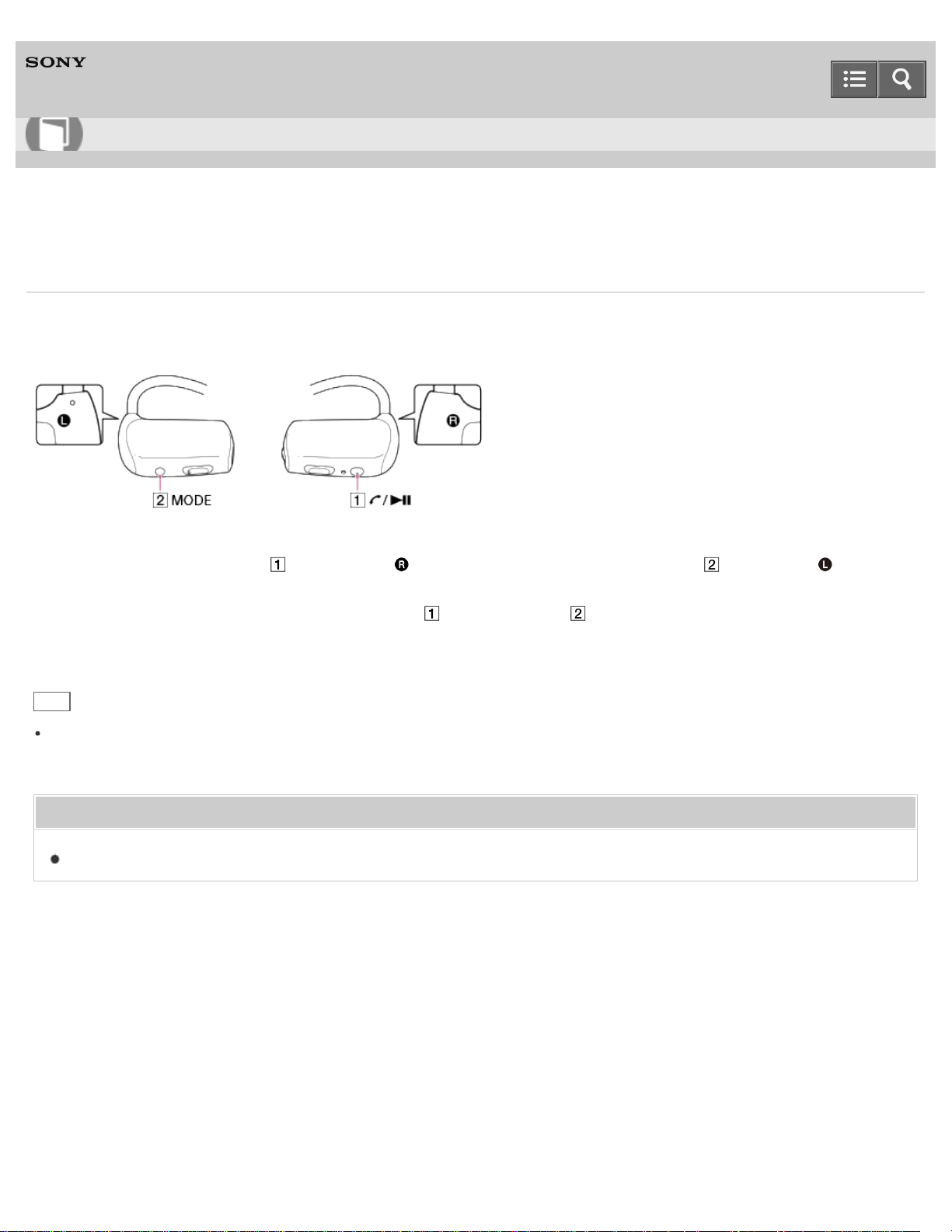
Digital Music Player
NWZ-WS613/WS615
Using “Sound Mix”
When your Walkman is in Walkman Mode, “Sound Mix” allows you to listen to sound from smartphone applications and
the Walkman at the same time.
1. Press and hold the button ( ) on the right ( ) side of your Walkman and the button ( ) on the left ( ) side of
the Walkman until the voice guidance “Mix On” is heard.
To quit “Sound Mix,” press and hold the button ( ) and the button ( ) again until the voice guidance “Mix Off” is
heard.
Hint
You can also change the “Sound Mix” setting using SongPal. For details about how to use SongPal, refer to the help
of SongPal.
Related Topic
What is SongPal?
4-536-927-16(1)
Copyright 2014 Sony Corporation
Help Guide
How to Use
168
Digital Music Player
NWZ-WS613/WS615
What is SongPal?
SongPal is an application for controlling the audio devices manufactured by Sony that are compatible with SongPal from
your smartphone. Installing SongPal to your smartphone enables you to perform the operations below. For details on the
devices that support SongPal or how to connect, refer to the help of SongPal.
Use your smartphone to select music and play it on your Walkman.
Change the playback mode (normal/repeat/shuffle playback) as desired.
Change the sound settings.
Equalizer
Select Equalizer:
You can set the sound quality according to the music genre.
Edit Custom (available only when “Custom 1” or “Custom 2” is selected):
You can set CLEAR BASS and the 5 band equalizer. CLEAR BASS allows your Walkman to reproduce dynamic deep bass
without distortion, even at a high volume.
Clear Phase™
“Clear Phase™ ” optimizes the sound characteristics for your Walkman.
Dynamic Normalizer
You can moderate the volume between songs to minimize the differences in volume level.
Sound Mix
You can turn “Sound Mix” on or off.
You can check the remaining battery power of your Walkman.
Note
The selected playback mode is kept even after the Bluetooth connection to your smartphone is disconnected.
Sound settings other than “Sound Mix” cannot be controlled on your Walkman. Use SongPal to change these settings.
When you reset the Walkman to factory default, all settings return to the factory defaults.
Specifications and screen design of the application are subject to change without notice.
Related Topic
Installing SongPal on a smartphone
Help Guide
How to Use
169
Digital Music Player
NWZ-WS613/WS615
Installing SongPal on a smartphone
Download and install SongPal on your Android smartphone or iPhone to control your Walkman.
1. Search for “SongPal” at Google Play Store or App Store.
The app may not be downloadable in some countries/regions.
2. Install SongPal on your smartphone by following the on-screen instructions.
Related Topic
What is SongPal?
4-536-927-16(1)
Copyright 2014 Sony Corporation
Help Guide
How to Use
170
Digital Music Player
NWZ-WS613/WS615
Notes on handling your Walkman
Warning
Be sure not to short-circuit the terminals of your Walkman with metallic objects.
Do not put any foreign object in the Walkman. Doing so may cause fire or electric shock. If this occurs, turn off the
Walkman immediately, disconnect the Walkman from your computer, and consult your nearest Sony dealer or Sony
Service Center.
Do not place your Walkman in fire.
Do not take apart or modify your Walkman. Doing so can result in electric shock. Consult your nearest Sony dealer or
Sony Service Center for exchange of rechargeable batteries, internal checks, or repair.
Do not put any heavy object on top of your Walkman or apply a strong shock to it.
This may cause malfunction or damage.
The following descriptions are important for using your Walkman. Be sure to follow the instructions below.
Charging time differs depending on battery usage conditions.
If the battery life is reduced to about half of its normal life even if sufficiently charged, it has probably worn out. Please
contact your nearest Sony dealer.
Do not touch the rechargeable battery with bare hands if it is leaking. Consult your nearest Sony dealer if the battery
has leaked as battery liquid may remain in your Walkman. If the liquid gets into your eyes, do not rub your eyes as
this may lead to blindness. Wash out your eyes with clean water and consult a doctor.
If the liquid gets onto your body or clothes, wash it off immediately. Failure to do so may cause burns or injury.
Consult a doctor if you are burned or injured by the liquid from the battery.
Heat may build up in your Walkman while charging if it is used for an extended period of time.
Note that condensation may form temporarily in cases such as when your Walkman is moved quickly from a low-
temperature environment to a high-temperature environment, or used in a room where a heater has just been turned
on. Condensation is a phenomenon where moisture in the air adheres to surfaces such as metal panels and then
changes to liquid. If condensation forms in the Walkman, leave it turned off until the condensation disappears. If you
use the Walkman with condensation present, a malfunction may result.
If your Walkman causes interference to radio or television reception, turn the Walkman off and move it away from the
radio or television.
Mild tingling may be felt on your ears in particularly dry air conditions. This is a result of static electricity accumulated
in the body, and it is not a malfunction of your Walkman.
This effect can be minimized by wearing clothes made from natural materials.
Refrain from using your Walkman as is requested by in-flight announcements during takeoff or landing in an aircraft.
If you see lightning or hear thunder, take off the headphones immediately and refrain from using your Walkman.
Never use your Walkman where it will be subjected to extreme light, temperatures, humidity or vibration. For example,
never leave the Walkman in a car parked in the sun or in direct sunlight. It may become discolored, distorted or
Help Guide
How to Use
171

damaged.
Do not leave your Walkman in a place subject to excessive dust.
Do not leave your Walkman on an unstable surface or in an inclined position.
Be sure to follow the precautions below when using your Walkman. Failure to do so may warp the casing or cause
the Walkman to malfunction.
Do not sit down with your Walkman in your back pocket.
If tanning oil or sunscreen gets onto your Walkman, wash it off using lukewarm water. Otherwise, it may cause
discoloration or damage such as cracks to occur.
Sample data is pre-installed on your Walkman.
Sample data is not installed in some countries/regions.
If you delete the sample data, you cannot restore it, and we will not supply any replacement data.
Sony is not responsible for incomplete recording/downloading or damaged data due to problems with your Walkman
or computer.
4-536-927-16(1)
Copyright 2014 Sony Corporation
172

Digital Music Player
NWZ-WS613/WS615
Notes on headphones
Road safety
Avoid listening with your headphones in situations where hearing must not be impaired.
Preventing hearing damage
Avoid using the headphones at a high volume. Hearing experts advise against continuous, loud, and extended play. If
you experience a ringing in your ears, reduce the volume or discontinue use.
Do not turn the volume up high all at once, especially when using headphones. Turn up the volume gradually to avoid
excessive levels hurting your ears.
Consideration for others
Keep the volume at a moderate level. This will allow you to hear outside sounds and to be considerate to the people
around you.
About the in-ear headphones
The earbuds seal your ears. Therefore, be aware that there is a risk of damage to your ears or eardrums if strong
pressure is applied to the earbuds or the earbuds are suddenly removed from your ears. After use, be sure to take the
earbuds off your ears gently.
4-536-927-16(1)
Copyright 2014 Sony Corporation
Help Guide
How to Use
173
Digital Music Player
NWZ-WS613/WS615
Notes on the software
Copyright laws prohibit reproducing the software or the manual accompanying it, in whole or in part, or renting the
software without the permission of the copyright holder.
In no event will Sony be liable for any financial damage or loss of profits, including claims made by third parties,
arising out of the use of the supplied software.
The supplied software cannot be used with equipment other than that to which it is designated.
Please note that, due to continued efforts to improve quality, the software specifications may be changed without
notice.
Operation of your Walkman with software other than that supplied is not covered by the warranty.
The explanations in this manual assume that you are familiar with the basic operations of your computer.
For details on the use of your computer and operating system, please refer to the respective manuals.
4-536-927-16(1)
Copyright 2014 Sony Corporation
Help Guide
How to Use
174
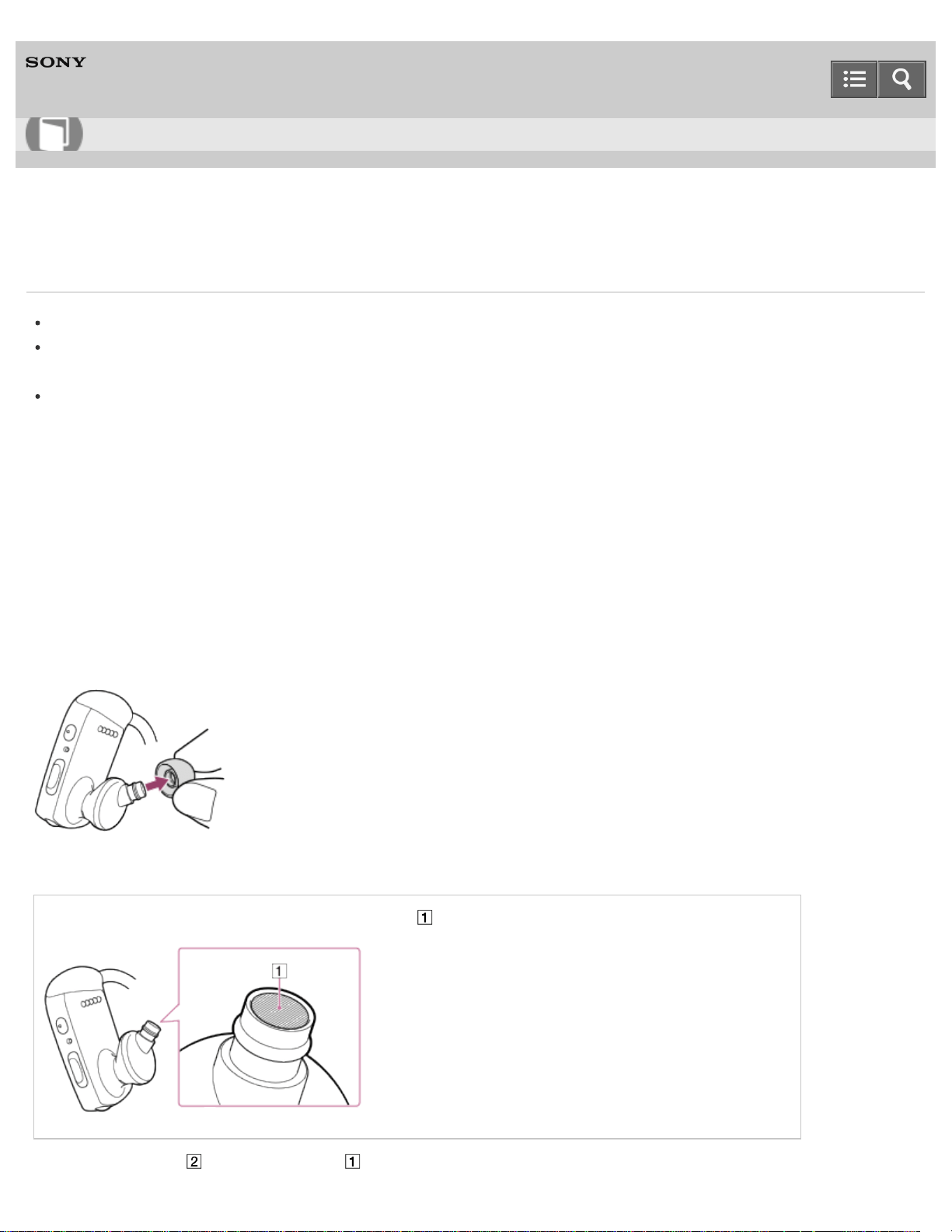
Digital Music Player
NWZ-WS613/WS615
Maintenance of your Walkman
Clean your Walkman with a soft cloth, such as a cleaning cloth for eyeglasses.
Should your Walkman become excessively dirty, clean it with a soft cloth slightly moistened with water or mild
detergent solution.
Do not use any type of abrasive pad, scouring powder, or solvent such as alcohol or benzene as doing so may
damage the surface of your Walkman.
Maintenance after swimming
Clean the earbuds and your Walkman after every use as follows.
The buildup of foreign substances such as earwax in the headphone sections may cause deteriorated sound quality or
sound loss. If there is a buildup of any foreign substances on the terminals, your Walkman may not be charged or may
not be recognized by your computer.
Wash the earbuds
Remove the earbuds and wash the earbuds by hand using a mild detergent solution. After washing the earbuds, dry
them well.
Wash your Walkman
Do not rub foreign substances on the mesh sheet ( ). Doing so may push them into the headphones.
Rinse the terminals ( ) and mesh sheet ( ) of your Walkman with gentle running tap water.
Help Guide
How to Use
175
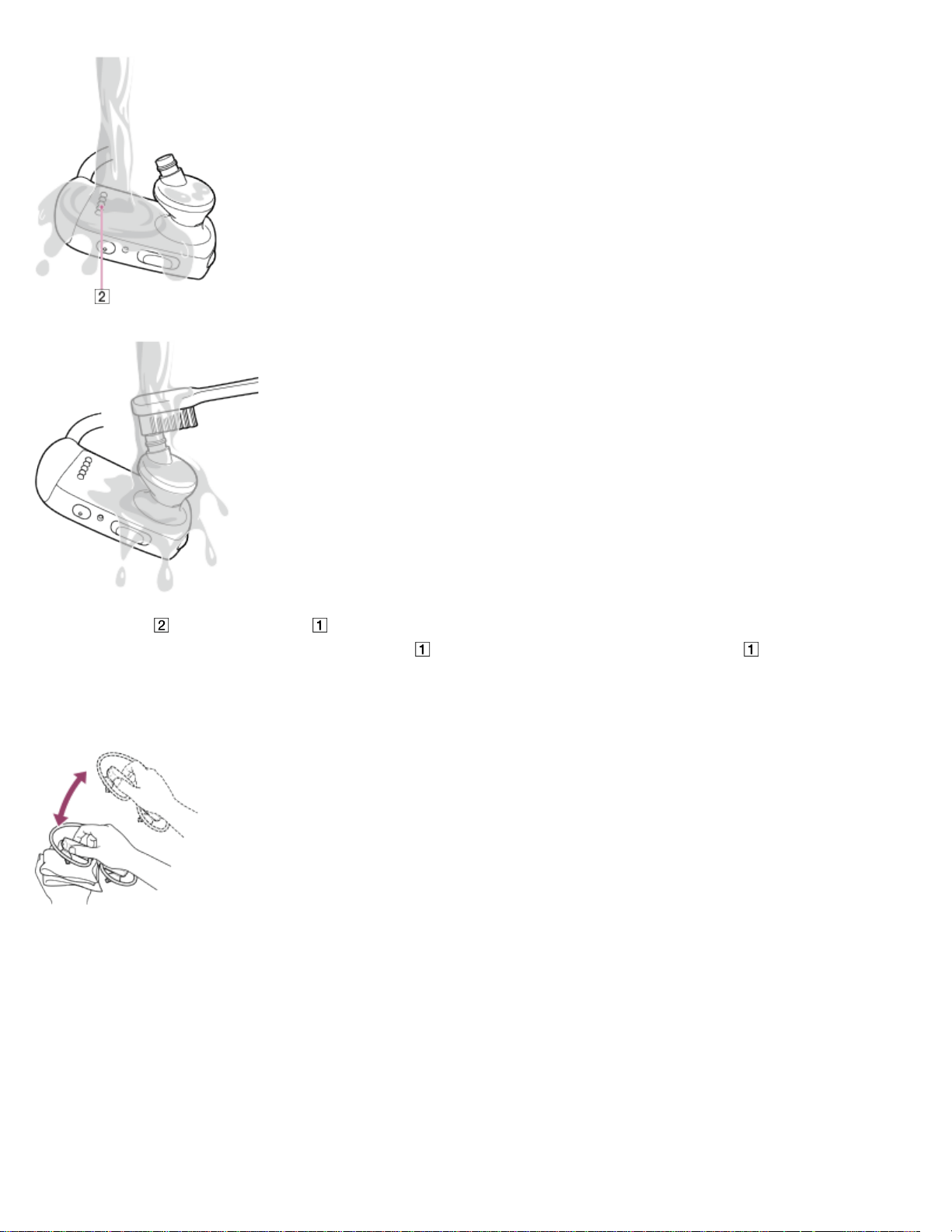
If the terminals ( ) and mesh sheet ( ) are not clean, wet a soft brush such as a toothbrush with water and clean
them. Do not apply strong force to the mesh sheet ( ). Doing so may damage the mesh sheet ( ).
Wipe the moisture off the terminals and surface of your Walkman using a soft, dry cloth.
Pat the headphones softly against a dry cloth. Repeat patting about 20 times. Then place a dry cloth under the
headphones and leave at room temperature for 2 to 3 hours.
4-536-927-16(1)
Copyright 2014 Sony Corporation
176

Digital Music Player
NWZ-WS613/WS615
Customer support website
If you have any questions or issues with your Walkman, or would like information on compatible items with the Walkman,
visit one of the following websites.
For customers in the USA:
http://www.sony.com/walkmansupport
For customers in Canada:
English
http://www.sony.ca/ElectronicsSupport/
French
http://www.sony.ca/ElectronicsSupport/
For customers in Latin America:
http://www.sony-latin.com/index.crp
For customers in Europe:
http://www.sony.eu/dna/wm/
For customers in Asia/Oceania/Middle East/Africa:
English
http://www.sony-asia.com/support
Korean
https://scs.sony.co.kr/scs/handler/ProductSupport
Simplified Chinese
http://service.sony.com.cn/KB/
Traditional Chinese
http://service.sony.com.tw/
For customers who purchased the overseas models:
http://www.sony.co.jp/overseas/support/
Help Guide
How to Use
177
Digital Music Player
NWZ-WS613/WS615
Specifications
Interface
USB
Hi-Speed USB (USB 2.0 compliant)
Bluetooth
Bluetooth Specifications
Communication system: Bluetooth specification version 4.0
Output: Bluetooth specification Power Class 2
Maximum communication range: Line of sight approx. 10 meters (30 feet) (*1)
Frequency band: 2.4 GHz band (2.4000 GHz - 2.4835 GHz)
Compatible Bluetooth profiles (*2)
A2DP (Advanced Audio Distribution Profile)
AVRCP (Audio Video Remote Control Profile)
HFP/HSP (Hands Free Profile/Headset Profile)
SPP (Serial Port Profile)
Supported Codec (*3): SBC (*4)/AAC/aptX
Compatible iPhone/iPod models
Bluetooth technology works with iPhone 6 Plus, iPhone 6, iPhone 5s, iPhone 5c, iPhone 5, iPhone 4s, iPhone 4, iPhone
3GS, and iPod touch (4th and 5th generation).
Microphone
Monaural
Output (headphones)
Frequency response
20 Hz to 20,000 Hz (when playing data file, single signal measurement)
Sound Effects (*5)
5 Band equalizer (None/[Heavy]/[Pop]/[Jazz]/[Unique]/[Custom 1]/[Custom 2]) & CLEAR BASS
[Clear Phase™ ] (On/Off)
[Dynamic Normalizer] (On/Off)
Power Source
Help Guide
How to Use
178

Built-in Rechargeable lithium-ion Battery
USB power (from a computer via a USB Cradle of the player)
Charging Time
USB-based charging
Approx. 1.5 hours
Quick charge
Approx. 3 minutes charge enables up to approx. 60 minutes playback.
Operating temperature
5 °C to 35 °C (41 ºF to 95 ºF)
Mass
Approx. 37 g (1.4 oz)
Water resistance
IPX5/IPX8 (IEC 60529) or equivalent (with Swimming earbuds attached)
Capacity (User available capacity) (*6)
NWZ-WS613: 4 GB
NWZ-WS615: 16 GB
Remote Commander
Bluetooth Specifications
Communication system: Bluetooth specification version 4.0
Output: Bluetooth specification Power Class 2
Maximum communication range: Line of sight approx. 10 meters (30 feet) (*1)
Frequency band: 2.4 GHz band (2.4000 GHz - 2.4835 GHz)
Power Source
CR1620 Lithium Coin Cell Battery (*7)
Operating temperature
5 °C to 35 °C (41 ºF to 95 ºF)
Mass
Approx. 11 g (0.4 oz)
Water resistance
IPX5 (IEC 60529) or equivalent
(*1)
The range may vary depending on the communication environment.
(*2)
Bluetooth profiles are standardized according to the purpose of the Bluetooth device.
(*3)
Codec indicates the audio signal compression and conversion format.
179

(*4)
SBC stands for Subband Codec.
(*5)
The sound effects are available only when using SongPal.
(*6)
Available capacity may vary. A portion of the memory is used for data management functions.
(*7)
The battery supplied at the time of purchase may have a shorter battery life as it is installed at the factory to check the
performance.
4-536-927-16(1)
Copyright 2014 Sony Corporation
180
Digital Music Player
NWZ-WS613/WS615
Battery life
The time below may differ depending on ambient temperature or the status of use.
Battery life of your Walkman (continuous playback)
Actual battery life may vary depending on settings. The estimated battery usage hours shown below are based on typical
usage conditions with “Settings of your Walkman for battery life measurement” as shown below.
Walkman Mode
MP3 128 kbps: approx. 8 Hrs
Linear PCM 1,411 kbps: approx. 7 Hrs
Headphones Mode
approx. 4 Hrs
Note
Even if the player is turned off for an extended period, a small amount of battery power is still consumed.
Battery life may vary depending on volume setting, conditions of use and ambient temperature.
Settings of your Walkman for battery life measurement
Music Settings
Equalizer (*1): OFF (default setting: OFF)
Dynamic Normalizer (*2): OFF (default setting: OFF)
Clear Phase™ (*3): OFF (default setting: OFF)
Bluetooth Settings
Wireless Playback Quality: Standard (default setting: Prioritize connection)
Sound Mix (*4): OFF (default setting: OFF)
Battery life of the Remote Commander
approx. 18 months (2 hours usage every day) (*5)
(*1)
The [On] setting shortens the battery life about 25 % compared with the [Off] setting.
(*2)
The [On] setting shortens the battery life about 30 % compared with the [Off] setting.
(*3)
The [On] setting shortens the battery life about 60 % compared with the [Off] setting.
(*4)
The [On] setting shortens the battery life about 35 % compared with the [Off] setting.
(*5)
The battery life may differ depending on ambient temperature or the status of use. The value is for reference only.
Help Guide
How to Use
181

Digital Music Player
NWZ-WS613/WS615
Maximum recordable number of songs and time (Approx.)
The approximate times are based on the case in which you transfer or record only 4 minute songs.
Number
NWZ-WS613
MP3 128 kbps: Approx. 940 songs
Linear PCM 1,411 kbps: Approx. 85 songs
NWZ-WS615
MP3 128 kbps: Approx. 3,900 songs
Linear PCM 1,411 kbps: Approx. 350 songs
Time
NWZ-WS613
MP3 128 kbps: Approx. 62 hr. 00 min.
Linear PCM 1,411 kbps: Approx. 5 hr. 40 min.
NWZ-WS615
MP3 128 kbps: Approx. 260 hr. 00 min.
Linear PCM 1,411 kbps: Approx. 23 hr. 20 min.
4-536-927-16(1)
Copyright 2014 Sony Corporation
Help Guide
How to Use
182

Digital Music Player
NWZ-WS613/WS615
Supported formats
Music (Music player)
Audio Formats
MP3
Media File format: MP3 (MPEG-1 Layer3) file format
File extension: .mp3
Bit rate: 32 kbps to 320 kbps (Supports variable bit rate (VBR))
Sampling frequency (*1): 32, 44.1, 48 kHz
WMA (*2)
Media File format: ASF file format
File extension: .wma
Bit rate: 32 kbps to 192 kbps (Supports variable bit rate (VBR))
Sampling frequency (*1) : 44.1 kHz
Linear PCM
Media File format: Wave-Riff file format
File extension: .wav
Bit rate: 1,411 kbps
Sampling frequency (*1) : 44.1 kHz
AAC (*3)
Media File format: MP4 file format
File extension: .mp4, .m4a, .3gp
Bit rate: 16 kbps to 320 kbps (Supports variable bit rate (VBR)) (*4)
Sampling frequency (*1) : 8, 11.025, 12, 16, 22.05, 24, 32, 44.1, 48 kHz
(*1)
Sampling frequency may not correspond to all encoders.
(*2)
Copyright protected WMA files cannot be played back.
(*3)
Copyright protected AAC-LC files cannot be played back.
(*4)
Non-standard bit rates or non-guaranteed bit rates are included depending on the sampling frequency.
4-536-927-16(1)
Copyright 2014 Sony Corporation
Help Guide
How to Use
183
Digital Music Player
NWZ-WS613/WS615
System requirements
Computer
Windows Vista® Home Basic (Service Pack 2 or later)
Windows Vista® Home Premium (Service Pack 2 or later)
Windows Vista® Business (Service Pack 2 or later)
Windows Vista® Ultimate (Service Pack 2 or later)
Windows® 7 Starter (Service Pack 1 or later)
Windows® 7 Home Basic (Service Pack 1 or later)
Windows® 7 Home Premium (Service Pack 1 or later)
Windows® 7 Professional (Service Pack 1 or later)
Windows® 7 Ultimate (Service Pack 1 or later)
Windows® 8
Windows® 8 Pro
Windows® 8.1
Windows® 8.1 Pro
Mac OS® X v10.6 or later
Pre-installed OS only supported.
“Compatibility mode” for Windows XP (included with Windows Vista and Windows 7) is not supported.
CPU: 1 GHz processor (2.6 GHz recommended for video playback on PC)
RAM: 1 GB or more (2 GB RAM required for Windows 8 64-bit)
Hard Disk Drive/Solid State Drive: 600 MB or more of available space
Web browser: Internet Explorer 7 or later
Internet connection (for Gracenote® MusicID® service, podcast features, Store access, or online help)
Not supported by the following environments:
Personally constructed computers or operating systems
An environment that is an upgrade of the original manufacturer-installed operating system
Multi-boot environment
We do not guarantee operation for all computers even if they meet the above System Requirements.
4-536-927-16(1)
Copyright 2014 Sony Corporation
Help Guide
How to Use
184
Digital Music Player
NWZ-WS613/WS615
Contents
List of accessories and manuals supplied with your Walkman.
Walkman (1)
Remote Commander (1)
Earbuds (1 set)
Swimming Earbuds (1 set)
USB Cradle (1)
Adjustment band (1)
Holder (1)
Quick Start Guide
Using your Walkman while Swimming
Design and specifications are subject to change without notice.
Related Topic
About the differences between the two types of earbuds
Changing the earbuds
Using the Remote Commander
How to store your Walkman in the carrying holder
4-536-927-16(1)
Copyright 2014 Sony Corporation
Help Guide
How to Use
185
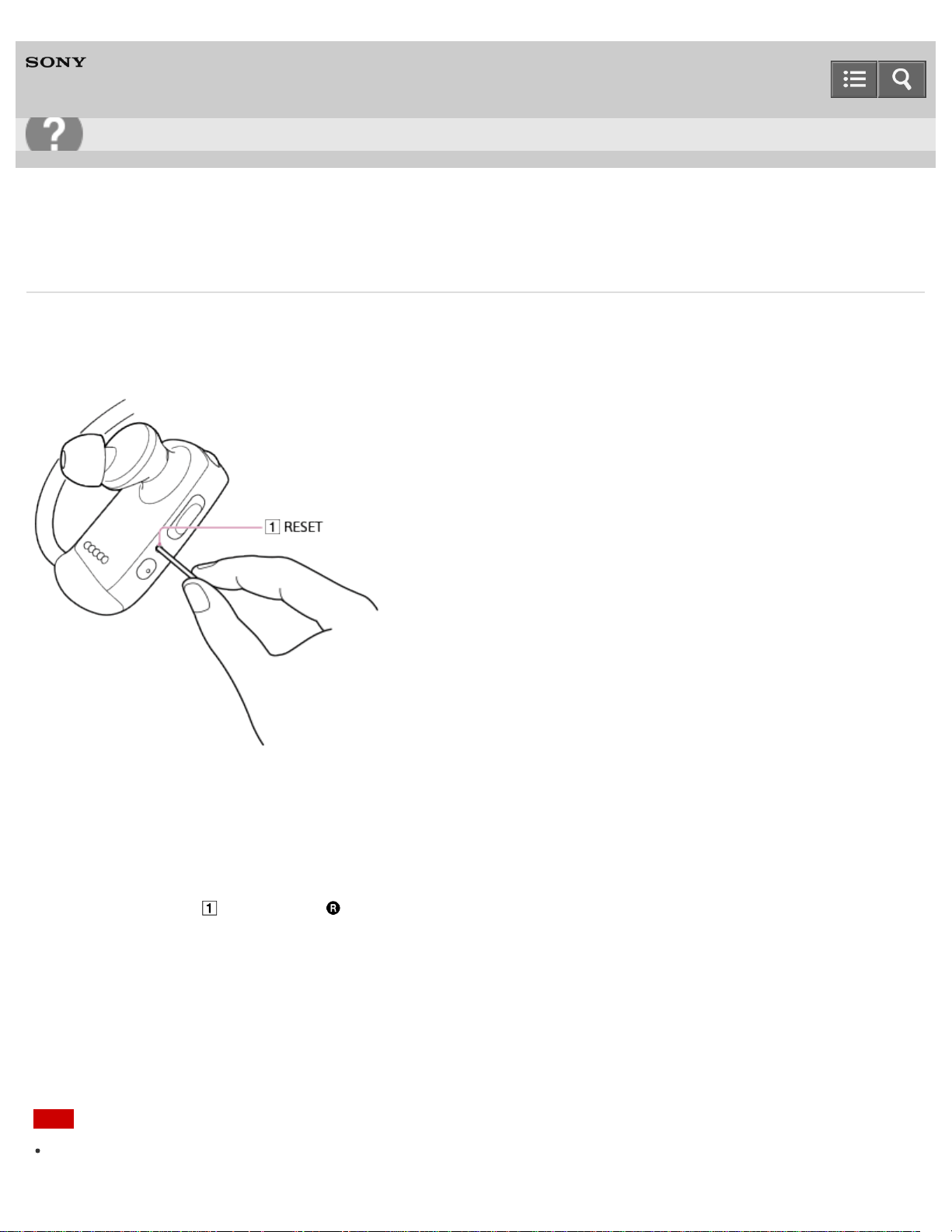
Digital Music Player
NWZ-WS613/WS615
What can I do to solve a problem?
If your Walkman does not function as expected, try the following steps to resolve the issue.
Before resetting your Walkman, disconnect the Walkman from your computer and check that no content such as music
is being played back. Otherwise, the data may be damaged. You can then reset the Walkman safely.
1. Check the topic on the issue in “Q&A.”
2. Connect your Walkman to your computer to charge the battery.
You may be able to resolve some issues by charging the battery.
3. Press the button ( ) on the right ( ) side of your Walkman with a pen or a paper clip, etc. to reset your Walkman.
Turn on the Walkman after resetting it.
4. Check information on the issue in the help of the software having problems.
5. Look up information on the issue on one of the customer support websites.
6. If the approaches listed above fail to resolve the issue, consult your nearest Sony dealer.
Note
Data will not be deleted, nor will any settings be changed by resetting.
Help Guide
Troubleshooting
186

Digital Music Player
NWZ-WS613/WS615
Your Walkman does not operate or the power does not turn on.
If you transfer a lot of content such as music to your Walkman at once, it will take time to build the database on the
Walkman. Therefore, it will take more than 1 minute until the Walkman becomes operable again after you disconnect
the Walkman from your computer. During this time, continuous beep sounds will be heard. Wait until beeping has
stopped before you operate the Walkman.
If your Walkman contains moisture condensation, wait a few hours to let the Walkman dry out.
If the remaining battery power is low or insufficient, charge the battery.
You cannot operate your Walkman while it is connected to a computer. Disconnect the Walkman from the computer.
If your Walkman still does not operate after charging the battery, press the RESET button with a pen or a paper clip,
etc., to reset the Walkman.
Related Topic
Charging the battery
Resetting your Walkman
4-536-927-16(1)
Copyright 2014 Sony Corporation
Help Guide
Troubleshooting
188
Digital Music Player
NWZ-WS613/WS615
Your Walkman does not work properly.
Your Walkman may not work properly if the USB device (e.g. computer) to which it is connected is turned on or off
without disconnecting the Walkman.
Reset your Walkman by pressing the RESET button with a pen or a paper clip, etc.
Related Topic
Resetting your Walkman
4-536-927-16(1)
Copyright 2014 Sony Corporation
Help Guide
Troubleshooting
189
Digital Music Player
NWZ-WS613/WS615
A drink (water, coffee, etc.) was spilled on your Walkman, or the Walkman was washed in the washing machine.
If you spill a drink on your Walkman or wash it in a washing machine, liquid may get inside the Walkman. Stop using
the Walkman immediately and consult your nearest Sony dealer.
The water resistant performance of your Walkman is not applicable to liquids other than fresh water, tap water,
perspiration, and pool water. If any liquid other than those mentioned gets on your Walkman, rinse it off with fresh
water at room temperature or gently running tap water immediately and wipe the moisture off the Walkman using a
soft dry cloth.
Sound may become muffled if water gets inside the headphones because the headphone sections are not water-tight.
If water gets in the headphones, remove the water and do not use the Walkman until it dries completely.
Related Topic
Water resistant performance of this Walkman
Liquids that the water resistant performance specifications apply to
Customer support website
4-536-927-16(1)
Copyright 2014 Sony Corporation
Help Guide
Troubleshooting
191
Digital Music Player
NWZ-WS613/WS615
The earbuds supplied with the headphones are missing.
If you lose or break the earbuds supplied with your headphones, please contact your nearest Sony dealer.
Related Topic
Changing the earbuds
Changing the earbuds to Swimming earbuds
4-536-927-16(1)
Copyright 2014 Sony Corporation
Help Guide
Troubleshooting
192
Digital Music Player
NWZ-WS613/WS615
You want to back up the content such as music stored on your Walkman.
Connect to a computer and copy the files onto the computer.
If you have already deleted content transferred to your Walkman from Media Go, transfer the content from the
Walkman to Media Go again.
Related Topic
Connecting to a computer
Transferring content using Media Go
Transferring content using Explorer
Transferring content using the Finder
4-536-927-16(1)
Copyright 2014 Sony Corporation
Help Guide
Troubleshooting
193
Digital Music Player
NWZ-WS613/WS615
You want to find the product name (model name) of your Walkman.
The model name is the alphabetical name starting with NW that is printed on the back of your Walkman. If the
Walkman is inside a case, you need to remove it from the case to find the name.
Related Topic
Displaying your Walkman information
4-536-927-16(1)
Copyright 2014 Sony Corporation
Help Guide
Troubleshooting
194
Digital Music Player
NWZ-WS613/WS615
The voice guidance “Check the volume level” is heard.
The voice guidance “Check the volume level” is meant to protect your ears when you turn the volume up to a level
that is harmful for your ears for the first time. You can cancel the alarm and warning by pressing any button.
You can turn up the volume after canceling the alarm and warning.
After the initial warning, the alarm and warning repeat every 20 cumulative hours that the volume is set to a level that
is harmful for your ears. When this happens, the volume is turned down automatically.
Related Topic
Volume operation (Only for countries/areas complying with European and Korean Directives)
Adjusting the volume
4-536-927-16(1)
Copyright 2014 Sony Corporation
Help Guide
Troubleshooting
195
Digital Music Player
NWZ-WS613/WS615
There is no sound.
Check that the volume level is not set to zero.
If you are listening to music on a smartphone via a Bluetooth connection, check that the volume of the smartphone is
not set to zero.
If there is no sound from a smartphone when listening to music on the smartphone via a Bluetooth connection, the
Bluetooth connection may not have been made. Check that the pairing for making a Bluetooth connection is
completed and the smartphone is connected to your Walkman.
If the problem persists after performing the remedies above, use a pen or paper clip, etc., to press the RESET button
and reset your Walkman.
Related Topic
Playing music
Playing music on a smartphone
Resetting your Walkman
Connecting with a paired smartphone
Pairing and connecting with an Android smartphone
Pairing and connecting with an iPhone
4-536-927-16(1)
Copyright 2014 Sony Corporation
Help Guide
Troubleshooting
196
Digital Music Player
NWZ-WS613/WS615
Content such as music suddenly stops during playback.
The remaining battery power is low or the battery has run out.
The content may not be supported on your Walkman. Select and play other content.
If you are playing music on a smartphone, check that your Walkman is connected to the smartphone.
Related Topic
Supported formats
Connecting with a paired smartphone
4-536-927-16(1)
Copyright 2014 Sony Corporation
Help Guide
Troubleshooting
197
Digital Music Player
NWZ-WS613/WS615
Noise is generated.
The content such as music on your Walkman may be corrupted. Connect the Walkman to a Windows computer and
use Media Go or Windows Explorer to delete the content in which the noise occurred from the Walkman. If you use a
Mac computer, use the Finder to delete the corrupted content. After you have deleted the corrupted content, transfer
the content from the computer to the Walkman again. Do not perform any other tasks on the computer while
transferring content to the Walkman. Doing so may cause the content to be corrupted.
Set the wireless playback quality to prioritize connection while listening to music stored on a smartphone.
Related Topic
Setting wireless playback quality
Deleting content from your Walkman using Media Go
Deleting content from your Walkman using the Finder
Deleting content from your Walkman using Explorer
Transferring content using Media Go
Transferring content using Explorer
Transferring content using Content Transfer
Transferring content using the Finder
4-536-927-16(1)
Copyright 2014 Sony Corporation
Help Guide
Troubleshooting
198
Digital Music Player
NWZ-WS613/WS615
Volume cannot be turned up, or the volume remains low when the playback volume is turned up.
If the AVLS (Volume Limit) setting is activated, deactivate it.
If the volume level cannot be adjusted on your Walkman when listening to music on a smartphone, increase the
volume on the smartphone.
Related Topic
Adjusting the volume
Limiting the volume
4-536-927-16(1)
Copyright 2014 Sony Corporation
Help Guide
Troubleshooting
199
Digital Music Player
NWZ-WS613/WS615
Sound is interrupted or skips.
The sound may be interrupted or skip depending on the environment where your Walkman is used or the settings of
the Walkman.
Following the procedures below may reduce the amount of skipping or interruptions.
Set all sound quality settings to off.
Set the wireless playback quality to prioritize connection while listening to music stored on a smartphone.
If you are listening to music using the Bluetooth function, see “Notes on the Bluetooth function.”
Related Topic
Setting wireless playback quality
Notes on the Bluetooth function
4-536-927-16(1)
Copyright 2014 Sony Corporation
Help Guide
Troubleshooting
200
Digital Music Player
NWZ-WS613/WS615
You cannot charge your Walkman.
Charge the battery within the ambient temperature range of 5 °C to 35 °C (41 ºF to 95 ºF).
You need to turn the computer power on in order to charge your Walkman. Check whether the computer is in standby
(sleep) or hibernation status.
Check that the USB connection to the computer is made properly.
There may be bad electrical contact in the connector. Disconnect your Walkman, and then reconnect it.
Use the supplied USB cable.
Your Walkman may not be able to connect properly to your computer when using a USB hub. Connect the Walkman
directly to a USB connector on your computer.
Check whether the operating system and operating system version installed on the computer are compatible with your
Walkman.
The battery may have deteriorated if you have not used your Walkman for more than a year. Contact your nearest
Sony dealer.
If the remedies above do not solve the problem, use a pen or paper clip, etc. to press the RESET button and reset
your Walkman, and then connect again using USB.
Related Topic
Charging the battery
System requirements
Resetting your Walkman
Customer support website
4-536-927-16(1)
Copyright 2014 Sony Corporation
Help Guide
Troubleshooting
201
Digital Music Player
NWZ-WS613/WS615
How long is the life of the built-in rechargeable battery?
This will differ depending on the environment where your Walkman is used, but on average the built-in rechargeable
battery can be charged approximately 500 times. The battery life becomes shorter and capacity is reduced as a result
of the number of times it is recharged or used, and the environment in which it is used. When the usable battery life is
half the usual time even when the battery is fully charged, the battery should be replaced.
Consult your nearest Sony dealer for more details on the life of the built-in battery.
Related Topic
Customer support website
4-536-927-16(1)
Copyright 2014 Sony Corporation
Help Guide
Troubleshooting
202
Digital Music Player
NWZ-WS613/WS615
The rechargeable battery needs to be replaced.
To replace rechargeable batteries, your Walkman needs to be taken apart professionally. Do not take apart the
Walkman by yourself.
Consult your nearest Sony dealer or Sony Service Center for replacement of rechargeable batteries.
Related Topic
Replacing the battery of the Remote Commander
Customer support website
4-536-927-16(1)
Copyright 2014 Sony Corporation
Help Guide
Troubleshooting
203
Digital Music Player
NWZ-WS613/WS615
The battery life is short.
If your Walkman is used in an environment where the temperature is below 5 °C (41 ºF), the battery life becomes
shorter due to characteristics of the battery. This is not a malfunction.
Charge the battery until it is full.
More battery power is consumed when the Bluetooth function is used.
You can preserve the battery life and get more use from each charge by changing your Walkman settings and
managing the power appropriately.
Depending on the environment in which your Walkman is used, the battery may deteriorate if it is not used for over a
year. Contact your nearest Sony dealer.
If the usable battery life is half that when new even after sufficiently charging the battery, your battery may have
deteriorated. Contact your nearest Sony dealer.
Related Topic
Charging the battery
Extending the battery life
Customer support website
4-536-927-16(1)
Copyright 2014 Sony Corporation
Help Guide
Troubleshooting
204
Digital Music Player
NWZ-WS613/WS615
The computer does not recognize your Walkman.
If the remaining battery power is low, charge the battery.
When you use your Walkman for the first time, or if you have not used the Walkman for a long time, it may take a few
minutes to be recognized by the computer. Check that the computer recognizes the Walkman after you have
connected it to the computer for about 10 minutes.
Make sure that the USB connection to the computer is made properly and securely.
Use the supplied USB cable.
Your Walkman may not be recognized if connected via a USB hub. Connect the Walkman directly to the USB
connector on your computer.
If the approaches listed above fail to resolve the issue, press the RESET button with a pen or a paper clip, etc., to
reset your Walkman, and then try the USB connection again.
Related Topic
Charging the battery
Connecting to a computer
Resetting your Walkman
4-536-927-16(1)
Copyright 2014 Sony Corporation
Help Guide
Troubleshooting
207
Digital Music Player
NWZ-WS613/WS615
You cannot install software to your computer.
Media Go can be also obtained by downloading it via the Internet. If you cannot find the “MediaGo_WM(.exe)” file or
the installation does not start even though you double-clicked the file, download Media Go from the following website
and install it by following the on-screen instructions. http://mediago.sony.com/enu/
If other software is running, it may interfere with the installation. Be sure to quit all other software before installing this
software. Particularly, be sure to disconnect from the Internet and quit security software as it can put a heavy load on
the computer.
There may not be enough free space on the hard drive. Check the amount of free hard drive space required to install
the software, and then delete any unnecessary files.
With a Windows computer, you may not be able to install the software if your account does not have administrator
privileges or if you have not logged in as a computer administrator. Log in using an account with administrator
privileges or as the computer's administrator. Furthermore, if two-byte characters are used in the user name, create a
new account using only one-byte characters in the user name.
With a Windows computer, a message dialog may be hidden by the install screen, making the install process seem
stopped. Press and hold the “Alt” key while pressing the “Tab” key several times. When the dialog is displayed, follow
the instructions in the dialog box.
Related Topic
System requirements
Installing Media Go
Installing Content Transfer
4-536-927-16(1)
Copyright 2014 Sony Corporation
Help Guide
Troubleshooting
208
Digital Music Player
NWZ-WS613/WS615
The progress bar on the install screen does not proceed while installing the software.
Wait until the installation is completed, because it is progressing properly. Installation may take 30 minutes or more
depending on the computer used.
4-536-927-16(1)
Copyright 2014 Sony Corporation
Help Guide
Troubleshooting
209
Digital Music Player
NWZ-WS613/WS615
Your Walkman is not recognized by Media Go.
Your Walkman may not be recognized by the computer. Disconnect the Walkman from the computer, and then
reconnect it.
The software may have failed to install correctly. Use the installer to re-install the software. The imported data will
remain untouched.
If the remedies above do not solve the problem, use a pen or paper clip, etc. to press the RESET button and reset
your Walkman, and then connect again via USB.
Related Topic
Connecting to a computer
Installing Media Go
Resetting your Walkman
4-536-927-16(1)
Copyright 2014 Sony Corporation
Help Guide
Troubleshooting
210
Digital Music Player
NWZ-WS613/WS615
Content such as music cannot be transferred from the computer to your Walkman.
Check that the USB connection to the computer is made properly.
Use the supplied USB cable.
You may not be able to transfer content when using a USB hub. Connect directly to the USB connector on your
computer.
The version of the installed software may be earlier than that of the supplied Media Go. Install the supplied Media Go
or the latest version through the Internet.
There is not enough free space in your Walkman, or the number of files has exceeded the maximum number of
transferable files. Delete any unnecessary content to increase free space. For details on the number of files
recordable, see the following.
“Maximum recordable number of songs and time (Approx.)”
Songs with a limited playing period or playing count may not be transferred due to restrictions set by copyright
holders. For details on the settings of each audio file, contact the distributor.
Some of the content on your Walkman may be damaged. Copy the content that you need onto the computer and
initialize (format) the Walkman.
If the software is not compatible with your Walkman, install compatible software and use the compatible software to
transfer content.
You may be attempting to transfer corrupted content. Delete the content that cannot be transferred from the computer,
and import this content to the computer again. Do not perform any other tasks on the computer when transferring
content to your computer. Doing so may cause the content to be corrupted.
You may be attempting to transfer a file that is not in playable format. See “Supported formats.”
Transferring may be stopped due to noise such as static electricity accumulated in the computer. This happens to
protect data. Disconnect your Walkman, and then reconnect it.
Related Topic
Connecting to a computer
Installing Media Go
Maximum recordable number of songs and time (Approx.)
Supported formats
4-536-927-16(1)
Copyright 2014 Sony Corporation
Help Guide
Troubleshooting
211
Digital Music Player
NWZ-WS613/WS615
Only a small amount of content such as music can be transferred to your Walkman.
There is not enough free memory space on your Walkman. Delete any unnecessary content to increase free space.
If content that cannot be played on your Walkman is stored on the Walkman, less content can be transferred. Transfer
content other than that which you want to play on the Walkman back to the computer in order to increase the available
space.
Related Topic
Maximum recordable number of songs and time (Approx.)
4-536-927-16(1)
Copyright 2014 Sony Corporation
Help Guide
Troubleshooting
212
Digital Music Player
NWZ-WS613/WS615
You cannot play content such as music transferred to your Walkman.
If the remaining battery power is low or insufficient, charge the battery. If your Walkman still does not operate after
charging the battery, press the RESET button with a pen or a paper clip, etc. to reset the Walkman.
The data hierarchy levels of the content such as music transferred by drag-and-drop may not be correct. Place them
in the appropriate folder and hierarchy.
Transferred files are not in a playable format. See “Supported formats” for details on playable formats.
When you transfer audio MP4 files by drag-and-drop, place them in the “MUSIC” folder of your Walkman.
The transferred content may be damaged. When you transfer content, make sure that no other tasks are running on
your computer until transferring is completed. Otherwise, the content may be damaged. Delete the unplayable content
from your Walkman and transfer it again. If the Walkman is still unable to play the content, format the built-in flash
memory of the Walkman using the function of the Walkman and then transfer the content again.
If you change the file names or location of the content such as music that was transferred from your computer to your
Walkman, the content may not be recognized by the Walkman. Return it to the correct name and location.
If you have initialized (formatted) the built-in flash memory of your Walkman using Windows Explorer, initialize (format)
it again using the Walkman. If you have initialized (formatted) the Walkman using the Mac Finder, initialize (format) it
again using the Walkman.
Related Topic
Charging the battery
Resetting your Walkman
Transferring content using Explorer
Transferring content using the Finder
Supported formats
Deleting content from your Walkman using Media Go
Deleting content from your Walkman using Explorer
Deleting content from your Walkman using the Finder
Formatting memory
Notes for transferring content such as music from your computer
Help Guide
Troubleshooting
213
Digital Music Player
NWZ-WS613/WS615
Songs are not played back in the expected order.
If songs are being played back using shuffle, cancel shuffle to return to normal playback.
When tracks are transferred from the computer using drag-and-drop, the track order may be different from the album
track order. Create a playlist using software on your computer and transfer the playlist to your Walkman. For details
on playlists, refer to the help of the software you are using.
Related Topic
Shuffle playback
Transferring content using Media Go
Transferring content using Content Transfer
4-536-927-16(1)
Copyright 2014 Sony Corporation
Help Guide
Troubleshooting
214
Digital Music Player
NWZ-WS613/WS615
Sound becomes muffled when using your Walkman in water, such as when swimming.
The headphone sections are not watertight, so the sound quality of your Walkman may deteriorate if water gets inside
the headphones. If water gets in the headphones, remove the water and dry well before using again.
Before swimming, attach the appropriate earbuds to prevent water from getting inside the headphones.
Related Topic
How the sound becomes muffled while you are swimming
If the sound becomes muffled while swimming
Changing the earbuds to Swimming earbuds
4-536-927-16(1)
Copyright 2014 Sony Corporation
Help Guide
Troubleshooting
215
Digital Music Player
NWZ-WS613/WS615
You dropped your Walkman in water.
The headphone sections are not watertight, so the sound quality of your Walkman may deteriorate if water gets inside
the headphones. If water gets in the headphones, remove the water and dry well before using again.
Related Topic
If the sound becomes muffled while swimming
Maintenance of your Walkman
4-536-927-16(1)
Copyright 2014 Sony Corporation
Help Guide
Troubleshooting
216
Digital Music Player
NWZ-WS613/WS615
The headphones are not firmly seated on your ears.
Place the headphone sections into your ears, and then adjust your Walkman so that it feels comfortable.
Related Topic
How to place your Walkman on your ears
Improving the fit
4-536-927-16(1)
Copyright 2014 Sony Corporation
Help Guide
Troubleshooting
217
Digital Music Player
NWZ-WS613/WS615
Pairing cannot be done.
Pair the devices within the Bluetooth communications range.
If the support profiles are different, your Walkman and smartphone cannot be paired. See "Specifications."
Your Walkman cannot be paired if the number of paired smartphones exceeds the maximum number.
Your Walkman works as a Bluetooth receiver and cannot connect with Bluetooth speakers or headphones as they
also work as receivers.
Related Topic
Specifications
Turning the Bluetooth function on/off
Confirming the Bluetooth status by the Bluetooth lamp
Connecting with a paired smartphone
Pairing and connecting with an Android smartphone
Pairing and connecting with an iPhone
4-536-927-16(1)
Copyright 2014 Sony Corporation
Help Guide
Troubleshooting
220
Digital Music Player
NWZ-WS613/WS615
You cannot connect via the Bluetooth function.
Check that the Bluetooth function of your Walkman and smartphone are turned on.
Check that the model name of your Walkman is selected in the Bluetooth connection screen of the smartphone. If not,
tap the model name of the Walkman.
Your Walkman cannot connect with a smartphone that is not paired. Check that the Walkman has been paired with
the smartphone.
The pairing information might have been deleted. Make the pairing operation again.
If your Walkman and the smartphone are too far from each other, a Bluetooth connection may not be established or
may be interrupted. Place the Walkman and the smartphone closer.
Related Topic
Turning the Bluetooth function on/off
Confirming the Bluetooth status by the Bluetooth lamp
Connecting with a paired smartphone
Pairing and connecting with an Android smartphone
Pairing and connecting with an iPhone
4-536-927-16(1)
Copyright 2014 Sony Corporation
Help Guide
Troubleshooting
221

Digital Music Player
NWZ-WS613/WS615
Sound skips or noise is generated during a Bluetooth connection.
Devices using the 2.4 GHz frequency, such as a wireless LAN device, cordless telephone, or microwave oven, may
disturb the Bluetooth connection. Use your Walkman and connected smartphone away from these electronic devices.
The Bluetooth connection is impeded by obstructions such as metal, walls or people. Remove any obstructions or
change the location to enable proper communication.
The Bluetooth connection may become unstable depending on the combination of the usage environment and the
method of connecting with the Bluetooth audio device.
The Bluetooth connection may be stabilized by performing the following measures.
Set the wireless playback quality to prioritize connection.
Set the wireless playback quality to prioritize connection while listening to music stored on the smartphone.
Related Topic
Setting wireless playback quality
4-536-927-16(1)
Copyright 2014 Sony Corporation
Help Guide
Troubleshooting
223
Digital Music Player
NWZ-WS613/WS615
You cannot connect with one touch (NFC).
Make sure that the smartphone has the NFC function and the NFC function is enabled.
Unlock the screen lock of the smartphone.
When a dialog is displayed on the screen, follow the on-screen instructions to complete the connection. The operation
may not have been completed on the smartphone. Tap the confirmation dialog displayed on the smartphone to
complete the operation.
If the smartphone does not recognize your Walkman, slowly move the smartphone in all directions with the N-mark
touching over the N-mark on the Walkman.
If a clip or case is attached to the device to connect with or to your Walkman, remove the clip or case.
The NFC reception sensitivity of the device you use may be insufficient to make a one-touch connection (NFC). In this
case, make the Bluetooth connection with pairing.
One-touch connections (NFC) cannot be made while your Walkman is connected to a computer, as the Walkman is
inoperable during those times. Disconnect all connections and try again.
Related Topic
Connecting with a smartphone by the NFC function
Requirements for smartphones connecting with your Walkman by one touch (NFC)
Pairing and connecting with an Android smartphone
Pairing and connecting with an iPhone
4-536-927-16(1)
Copyright 2014 Sony Corporation
Help Guide
Troubleshooting
224
Digital Music Player
NWZ-WS613/WS615
You cannot hear sound from the connected smartphone.
With some smartphones, the volume cannot be controlled by your Walkman. Turn up the volume on the smartphone.
Check that content such as music is being played back on the music player application on the smartphone.
Check that the pairing for making a Bluetooth connection is completed and the smartphone is connected to your
Walkman.
Even when your Walkman is connected to a smartphone via a Bluetooth connection, sound from the smartphone is
not heard on the Walkman when the Walkman is in Walkman Mode. Change the sound source setting to Headphones
Mode.
Related Topic
Connecting with a paired smartphone
Pairing and connecting with an Android smartphone
Pairing and connecting with an iPhone
Selecting the sound source
4-536-927-16(1)
Copyright 2014 Sony Corporation
Help Guide
Troubleshooting
225
Digital Music Player
NWZ-WS613/WS615
You cannot take incoming calls properly.
A Bluetooth connection may not have been made. Check that the pairing for making a Bluetooth connection is
completed and the smartphone is connected to your Walkman.
Do not cover the built-in microphone part with your hand.
Check that your Walkman is turned on.
Your Walkman cannot receive calls while it is connected to a computer or being charged.
Related Topic
Connecting with a paired smartphone
Pairing and connecting with an Android smartphone
Pairing and connecting with an iPhone
Answering/hanging up a call
4-536-927-16(1)
Copyright 2014 Sony Corporation
Help Guide
Troubleshooting
226
Digital Music Player
NWZ-WS613/WS615
You cannot operate your Walkman by the Remote Commander.
Make sure that the Remote Commander (supplied) is turned on.
Make sure that your Walkman is turned on.
Reset the Remote Commander and your Walkman by following the procedures below.
1. Press the and buttons of the Remote Commander at the same time and hold for about 10 seconds.
2. Press the RESET button of your Walkman with a pen or a paper clip, etc.
3. Turn on the Remote Commander and your Walkman.
Pair the Remote Commander and your Walkman again by following the procedures below.
1. Press the and buttons of the Remote Commander at the same time and hold for about 10 seconds.
2. Turn on the Remote Commander.
The lamp of the Remote Commander blinks in red and blue alternately.
3. Make sure that your Walkman is turned on and the Bluetooth function is turned off, and press and hold the
button of the Walkman for about 7 seconds.
When pairing is successfully completed, the lamp of the Remote Commander blinks in blue.
You cannot use the Remote Commander when it is wet. Dry the Remote Commander using a dry cloth.
A device using the 2.4 GHz frequency, such as a wireless LAN device, Bluetooth audio device, or microwave oven,
may disturb the Bluetooth connection. Use your Walkman and the connected Remote Commander away from these
devices.
The Bluetooth connection between your Walkman and the Remote Commander may be obstructed by, for example,
metal, walls, or people. Remove any obstructions or change the location to enable proper communications.
Replace the battery of the Remote Commander. See “Replacing the battery of the Remote Commander” for details.
Related Topic
Using the Remote Commander
Replacing the battery of the Remote Commander
4-536-927-16(1)
Copyright 2014 Sony Corporation
Help Guide
Troubleshooting
227
Digital Music Player
NWZ-WS613/WS615
Your Walkman gets warm.
Depending on the way you use your Walkman, the Walkman may become warm while the battery is being charged or
the Walkman is performing intensive data processing. This is not a malfunction.
4-536-927-16(1)
Copyright 2014 Sony Corporation
Help Guide
Troubleshooting
228