®
FOCUS
User Manual

Contents
1
English
Safety Instructions ..........................................................................................................3
Intended Use Statement ........................................................................................................ 4
Safety Information .................................................................................................................. 4
Safety Labels ......................................................................................................................... 6
Trademarks ............................................................................................................................ 7
Video and Audio Decoder Notices ........................................................................................ 7
Regulatory Notices ................................................................................................................ 8
CE Statement ......................................................................................................................... 9
WEEE Statement .................................................................................................................... 9
Introduction ....................................................................................................................10
Package Contents ............................................................................................................... 10
About Your Projector ............................................................................................................ 11
Main Unit ................................................................................................................. 11
Input / Output Connections ..................................................................................... 12
Control Panel ........................................................................................................... 13
Remote Control ....................................................................................................... 14
Installing the Remote Control Battery ...................................................................... 15
Operating Range with Remote Control ................................................................... 15
Installation ......................................................................................................................16
Connecting to a Computer .................................................................................................. 16
Connecting to a DVD Player ................................................................................................ 17
Connecting to Multi-Media ................................................................................................... 18
Turning On/Off the Projector ................................................................................................ 19
Turning Your Projector On ....................................................................................... 19
Turning Your Projector Off ....................................................................................... 19
Adjusting the Projected Image ............................................................................................ 20
Raising the Projector Height ................................................................................... 20
Lowering the Projector Height ................................................................................. 20
Adjusting the Projector Focus ................................................................................. 20
Adjusting Projection Image Size ............................................................................. 21
User Controls .................................................................................................................23
Using the On-Screen Display .............................................................................................. 23
Main Menu ........................................................................................................................... 23
Language ................................................................................................................ 23
Source ..................................................................................................................... 24
Display Mode .......................................................................................................... 25
Audio ....................................................................................................................... 25
Auto Adjust .............................................................................................................. 26

OSD Reset ............................................................................................................... 26
Data Transferring ..................................................................................................... 26
Advanced ................................................................................................................ 26
FW Version .............................................................................................................. 26
Advanced Menu .................................................................................................................. 27
Display (In PC Mode) .............................................................................................. 27
Display (In Video Mode) .......................................................................................... 28
Image ...................................................................................................................... 29
Power ...................................................................................................................... 30
Multi-Media Introduction ...................................................................................................... 31
Photo Format ........................................................................................................... 31
Video Format ........................................................................................................... 31
Audio Format ........................................................................................................... 31
Office Viewer Format ............................................................................................... 32
How to set-up File Type for Multi-Media with USB .................................................. 33
How to set-up File Type for Multi-Media with MicroSD ............................................ 34
How to set-up File Type for Multi-Media with Internal Memory ............................... 35
Multi-Media Main Menu ........................................................................................... 36
Multi-Media SETUP for USB, MicroSD, and Internal Memory ................................. 36
Photo Setup ............................................................................................................. 37
Video Setup ............................................................................................................. 38
Music Setup ............................................................................................................ 39
Information .............................................................................................................. 40
Appendices ....................................................................................................................41
Troubleshooting ................................................................................................................... 41
Guiding Signals ....................................................................................................... 43
Compatibility Modes (Analog/Digital) .................................................................................. 44
Tripod Mount the Projector ................................................................................................... 45
2
English
Safety Instructions
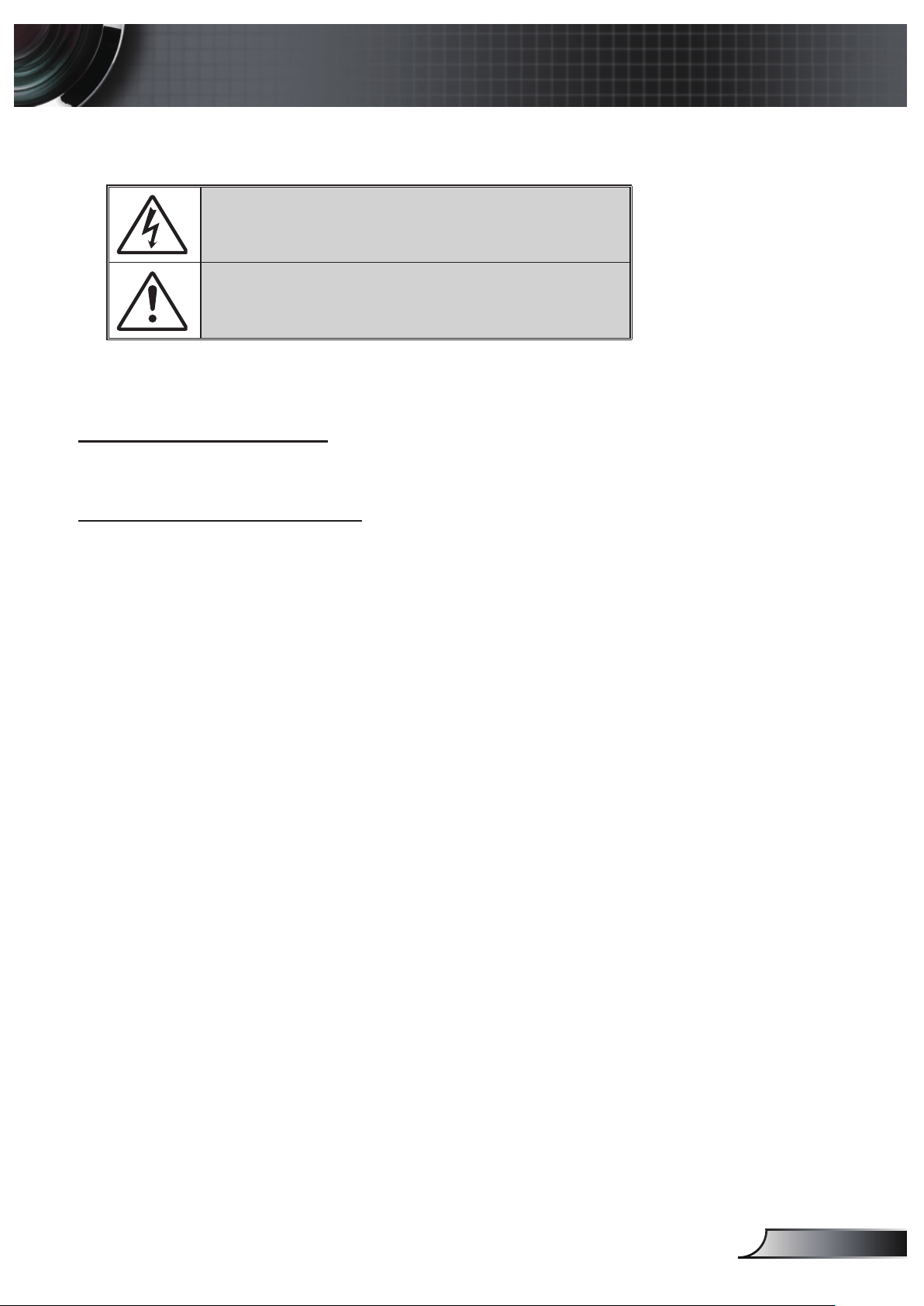
The lightning ash with arrow head within an equilateral triangle is
intended to alert the user to the presence of uninsulated “dangerous
voltage” within the product’s enclosure that may be of sufcient
magnitude to constitute a risk of electric shock to persons.
The exclamation point within an equilateral triangle is intended to alert
the user to the presence of important operating and maintenance
(servicing) instructions in the literature accompanying the appliance.
WARNING: TO REDUCE THE RISK OF FIRE OR ELECTRIC SHOCK, DO NOT EXPOSE THIS
APPLIANCE TO RAIN OR MOISTURE. DANGEROUS HIGH VOLTAGES ARE PRESENT INSIDE THE
ENCLOSURE. DO NOT OPEN THE CABINET. REFER SERVICING TO QUALIFIED PERSONNEL ONLY.
Class B emissions limits
This Class B digital apparatus meets all requirements of the Canadian Interference-Causing Equip-
ment Regulations.
Important Safety Instruction
1. Do not block any ventilation openings. To ensure reliable operation of the projector and to
protect from over heating, it is recommended to install the projector in a location that does
not block ventilation. As an example, do not place the projector on a crowded coffee table,
sofa, bed, etc. Do not put the projector in an enclosure such as a book case or a cabinet that
restricts air ow.
2. Do not use the projector near water or moisture. To reduce the risk of re and/or electric shock,
do not expose the projector to rain or moisture.
3. Do not install near heat sources such as radiators, heaters, stoves or any other apparatus such
as ampliers that emits heat.
4. Clean only with dry cloth.
5. Only use attachments/accessories specied by the manufacturer.
6. Do not use the unit if it has been physically damaged or abused.
Physical damage/abuse would be (but not limited to):
Unit has been dropped.
Power supply cord or plug has been damaged.
Liquid has been spilled on to the projector.
Projector has been exposed to rain or moisture.
Something has fallen in the projector or something is loose inside.
Do not attempt to service the unit yourself. Opening or removing covers may expose you to
dangerous voltages or other hazards. Please call Optoma before you send the unit for repair.
7. Do not let objects or liquids enter the projector. They may touch dangerous voltage points and
short out parts that could result in re or electric shock.
8. See projector enclosure for safety related markings.
9. The unit should only be repaired by appropriate service personnel.
3
English
Intended Use Statement
Operation temperature: y
For 0 - 2500 ft, 5 - 35 °C -
For 2500 - 5000 ft, 5 - 30 °C -
For 5000 - 10000 ft, 5 - 25 °C -
Maximum Humidity: y
Operating: 5°C ~ 35°C, 80%RH (Max.), Non-condensing -
Storage: -20°C ~ 60°C, 80%RH (Max.), Non-condensing -
The ambient operating environment should be free of airborne smoke, grease, oil and
other contaminants that can affect the operation or performance of the projector.
Use of this product in adverse conditions will void the product warranty.
Safety Information
Please read, understand, and follow all safety information contained in these instruc-
tions prior to the use of this projector. Retain these instructions for future reference.
Explanation of Signal Word Consequences
Warning:
Indicates a potentially hazardous situation, which, if not
avoided, could result in death or serious injury and/or property
damage.
Caution:
Indicates a potentially hazardous situation, which, if not
avoided, may result in minor or moderate injury and/or property
damage.
Warning:
Hazardous voltage
4
English
5
English
Warning
To reduce the risk associated with hazardous voltage:
Do not modify this product in any way. y
Do not attempt to service this projector. y
There are no user-serviceable parts. Service to be performed only by a Optoma y
authorized service provider using Optoma approved system components.
Do not use the wall power supply in a wet environment. y
Do not use with a damaged wall power supply. Replace damaged part prior to y
use.
To reduce the risk associated with re and explosion:
Do not immerse the projector in any liquid or allow either to get wet. y
Use only Optoma approved power supply. y
To reduce the risks associated with choking:
Keep all small parts like the remote control battery away from young children and y
pets.
To reduce the risk associated with hazardous voltage, impact, tripping, and
intense visible light:
Do not use this projector around unsupervised children. y
Caution
To reduce the risks associated with hearing loss:
Be sure to read earphone manufacturer's instructions with respect to volume y
level.
User is responsible to set a safe volume level. y
To reduce the risk associated with explosion, and/or chemicals from a leaking
batteries:
Use only with battery type CR2025. y
Orient the battery's plus (+) and minus (-) terminals of the batteries according to y
the markings found on the remote control.
Do not leave the battery in the remote for an extended period of time. y
Do not heat or expose the battery to fire. y
Do not disassemble, short, or recharge battery y
Do not carry batteries loose in your pocket or purse. y
Avoid eye and skin contact in the event that battery leaks. y
Do not recharge the battery near a heat source or in extremely hot conditions. y
6
English
To reduce the risk associated with environmental contamination:
Dispose of all system components in accordance with applicable government y
regulations.
To reduce the risks associated with LED bright light:
Do not stare directly into the projector lens. y
To reduce the risks associated with tripping and falling:
Position the charging cord and data cables so that they are not a tripping hazard. y
IMPORTANT NOTE: Do not expose the projector to direct sunlight in a closed space such as a
vehicle.
SAVE THESE INSTRUCTIONS
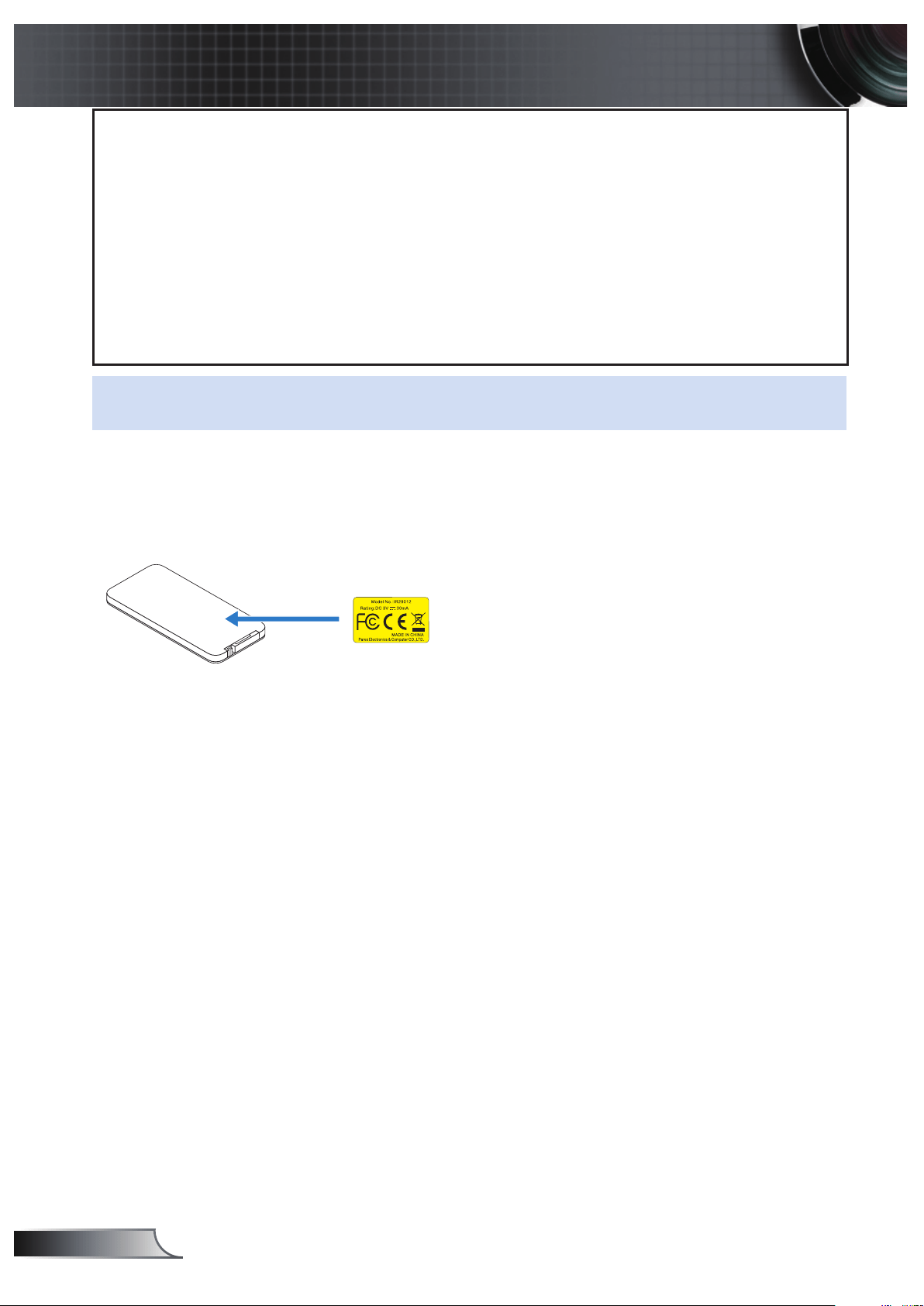
Safety Labels
M
n
O
2
-
L
i
C
E
L
L
3
V
O
L
T
S
J
A
P
A
N
H
CR2025
Remote Control (Optional)
Model No. IR28012

7
English
Trademarks
Optoma and the Optoma logo are trademarks of Optoam Company. Adobe and the
Adobe logo are either registered trademarks or trademarks of Adobe Systems Incorpo-
rated in the United States and/or other countries. Microsoft, PowerPoint, and Excel are
registered trademarks of Microsoft Corporation. microSD and microSDHC are trade-
marks of the SD Association.
All other trademarks or registered trademarks are property of their respective compa-
nies.
Video and Audio Decoder Notices
MPEG-4 NOTICE
THIS PRODUCT IS LICENSED UNDER THE MPEG-4 VISUAL PATENT PORTFOLIO
LICENSE FOR THE PERSONAL AND NON-COMMERCIAL USE OF A CONSUMER
FOR (i) ENCODING VIDEO IN COMPLIANCE WITH THE MPEG-4 VISUAL STANDARD
("MPEG-4 VIDEO") AND/OR (ii) DECODING MPEG-4 VIDEO THAT WAS ENCODED BY
A CONSUMER ENGAGED IN A PERSONAL AND NONCOMMERCIAL ACTIVITY AND/
OR WAS OBTAINED FROM A VIDEO PROVIDER LICENSED BY MPEG LA TO PROVIDE
MPEG-4 VIDEO. NO LICENSE IS GRANTED OR SHALL BE IMPLIED FOR ANY OTHER
USE. ADDITIONAL INFORMATION INCLUDING THAT RELATING TO PROMOTIONAL,
INTERNAL AND COMMERCIAL USES AND LICENSING MAY BE OBTAINED FROM
MPEG LA, LLC. SEE HTTP://WWW.MPEGLA.COM.
AVC VIDEO NOTICE
THIS PRODUCT IS LICENSED UNDER THE AVC PATENT PORTFOLIO LICENSE FOR
THE PERSONAL AND NONCOMMERCIAL USE OF A CONSUMER TO (i) ENCODE VID-
EO IN COMPLIANCE WITH THE AVC STANDARD (“AVC VIDEO”) AND/OR (ii) DECODE
AVC VIDEO THAT WAS ENCODED BY A CONSUMER ENGAGED IN A PERSONAL AND
NON-COMMERCIAL ACTIVITY AND/OR WAS OBTAINED FROM A VIDEO PROVIDER
LICENSED TO PROVIDE AVC VIDEO. NO LICENSE IS GRANTED OR SHALL BE IM-
PLIED FOR ANY OTHER USE. ADDITIONAL INFORMATION MAY BE OBTAINED FROM
MPEG LA, L.L.C. SEE HTTP://WWW.MPEGLA.COM.
MPEG LAYER-3 NOTICE
Supply of this product does not convey a license nor imply any right to distribute MPEG
Layer-3 compliant content created with this product in revenue-generating broadcast
systems (terrestrial, satellite, cable and/or other distribution channels),streaming appli-
cations (via Internet, intranets and/or other networks), other content distribution systems
(pay-audio or audio-ondemand applications and the like) or on physical media (com-
pact discs, digital versatile discs, semiconductor chips, hard drives, memory cards and
the like). An independent license for such use is required.
For details, please visit http://mp3licensing.com.

8
English
Regulatory Notices
FCC STATEMENT - CLASS B
This equipment generates, uses and can radiate radio frequency energy, and if not
installed and used in accordance with the instruction manual may cause interference to
radio communications. It has been tested and found to comply with the limits for a Class
“B” computing device pursuant to Subpart B of Part 15 of the FCC Rules, which are
designed to provide reasonable protection against such interference when operated in
a residential installation. However, there is no guarantee that interference will not occur
in a particular installation. If this equipment does cause harmful interference to radio
or television reception, which can be determined by turning the equipment off and on,
the user is encouraged to try to correct the interference by one or more of the following
measures:
Reorient or relocate the receiving antenna. y
Increase the separation between the equipment and receiver. y
Connect the equipment into an outlet on a circuit different from that to which the receiver is y
connected.
Consult the dealer or an experienced radio/TV technician for help. y
NOTICE: This Class B digital apparatus complies with Canadian ICES-003.
Cet appareil numérique de la classe B est conforme à la norme NMB-003 du Canada.
Industry Canada regulatory information
Operation is subject to the following two conditions:
(1) this device may not cause interference, and
(2) this device must accept any interference, including interference that may cause
undesired operation of the device.
The user is cautioned that this device should be used only as specified within this
manual to meet RF exposure requirements. Use of this device in a manner inconsistent
with this manual could lead to excessive RF exposure conditions.
This Class [B] digital apparatus complies with Canadian ICES-003.
Cet appareil numérique de la classe [B] est conforme à la norme NMB-003 du Canada.
INSTRUCTIONS TO USERS: This equipment complies with the requirements of FCC
equipment provided that the following conditions are met. If the cables include a EMI
ferrite core, attach the ferrite core end of the cable to the projector. Use the cables
which are included with the projector or specified.
Note: Changes or modifications not expressly approved by the party responsible for
compliance could void the user’s authority to operate the equipment.
Complies with IDA Standards DA103121
9
English
CE Statement
ElectroMagnectic Compatibility Statement: Meets 2004/108/EC Directive
Low Voltage Directive: Meets 2006-95-EC Directive.
WEEE Statement
The following information is only for EU-members States:
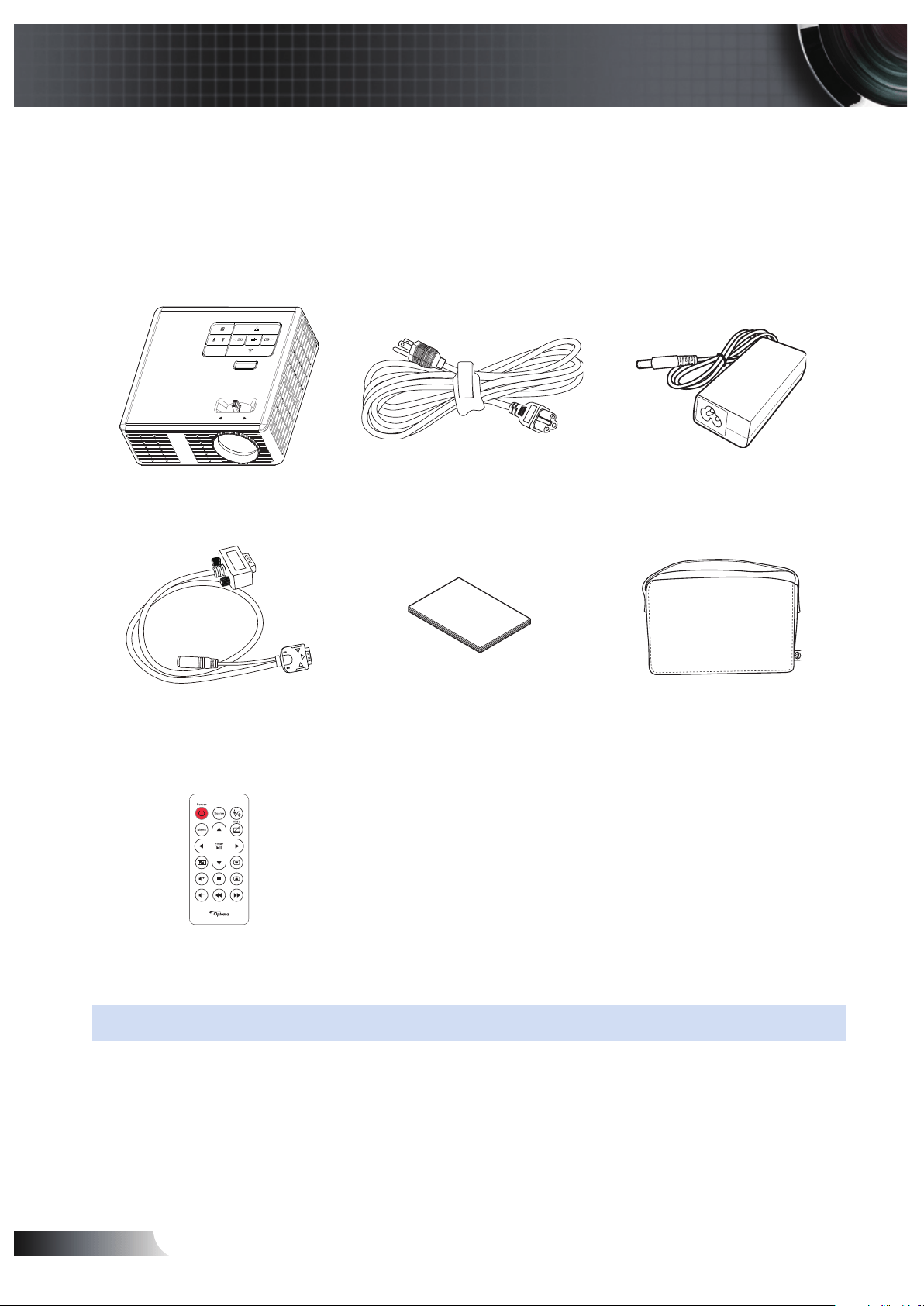
The mark shown to the right is in compliance with Waste Electrical and Electronic Equip-
ment Directive 2002/96/EC (WEEE). The mark indicates the requirement NOT to dispose
the equipment as unsorted municipal waste, but use the return and collection systems
according to local law.
10
English
Introduction
Package Contents
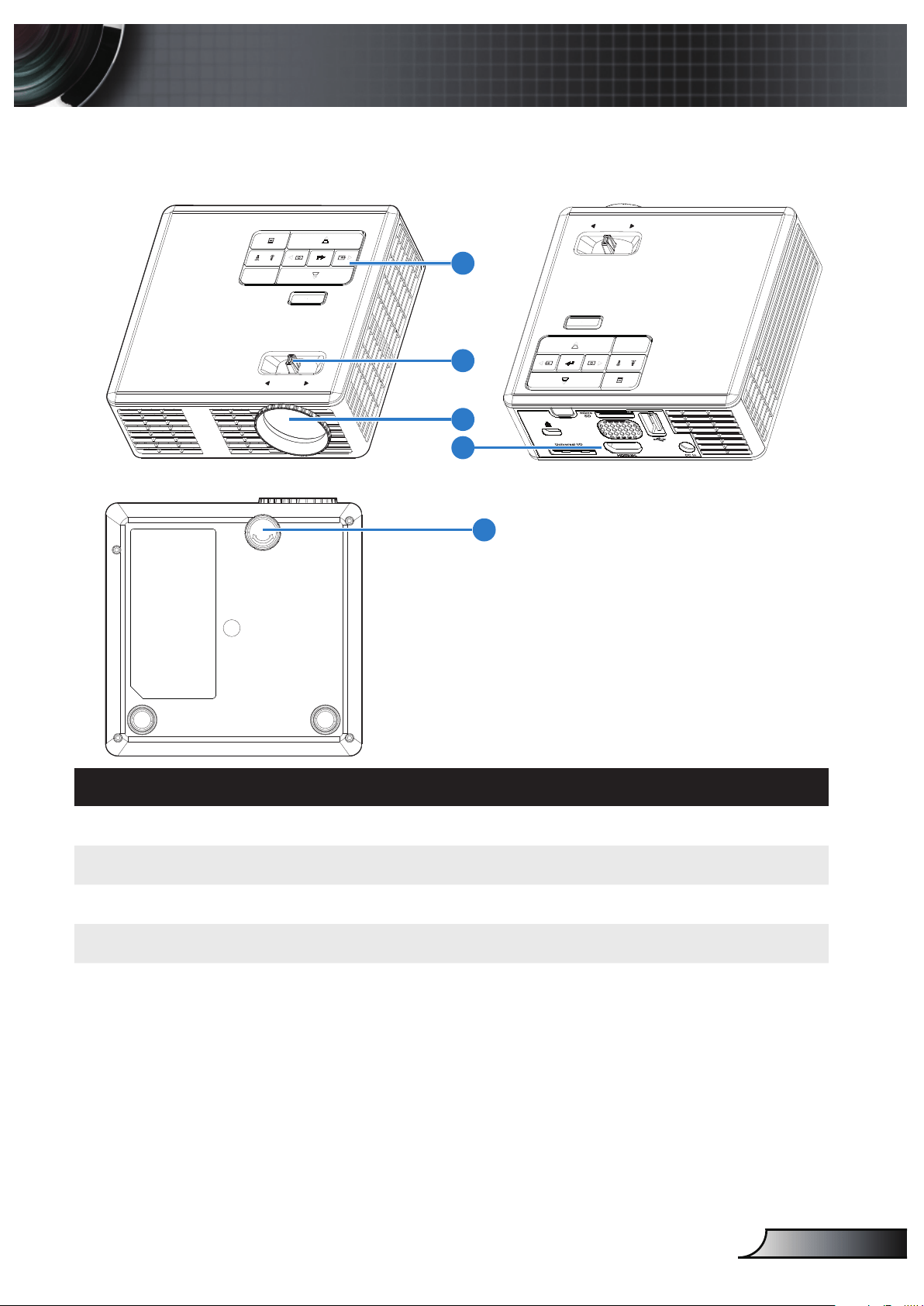
Your projector comes with all the items shown below. Ensure that you have all
the items, and contact your local reseller or service center if anything is missing.
FOCUS
Projector Power cable AC adapter
Universal 24-pin to
VGA/Audio cable
Quick start card
and documentation
Carrying case
Remote control
NOTE: The remote control is shipped with battery.
11
English
About Your Projector
Main Unit
FOCUS
4
FOCUS
1
2
3
5
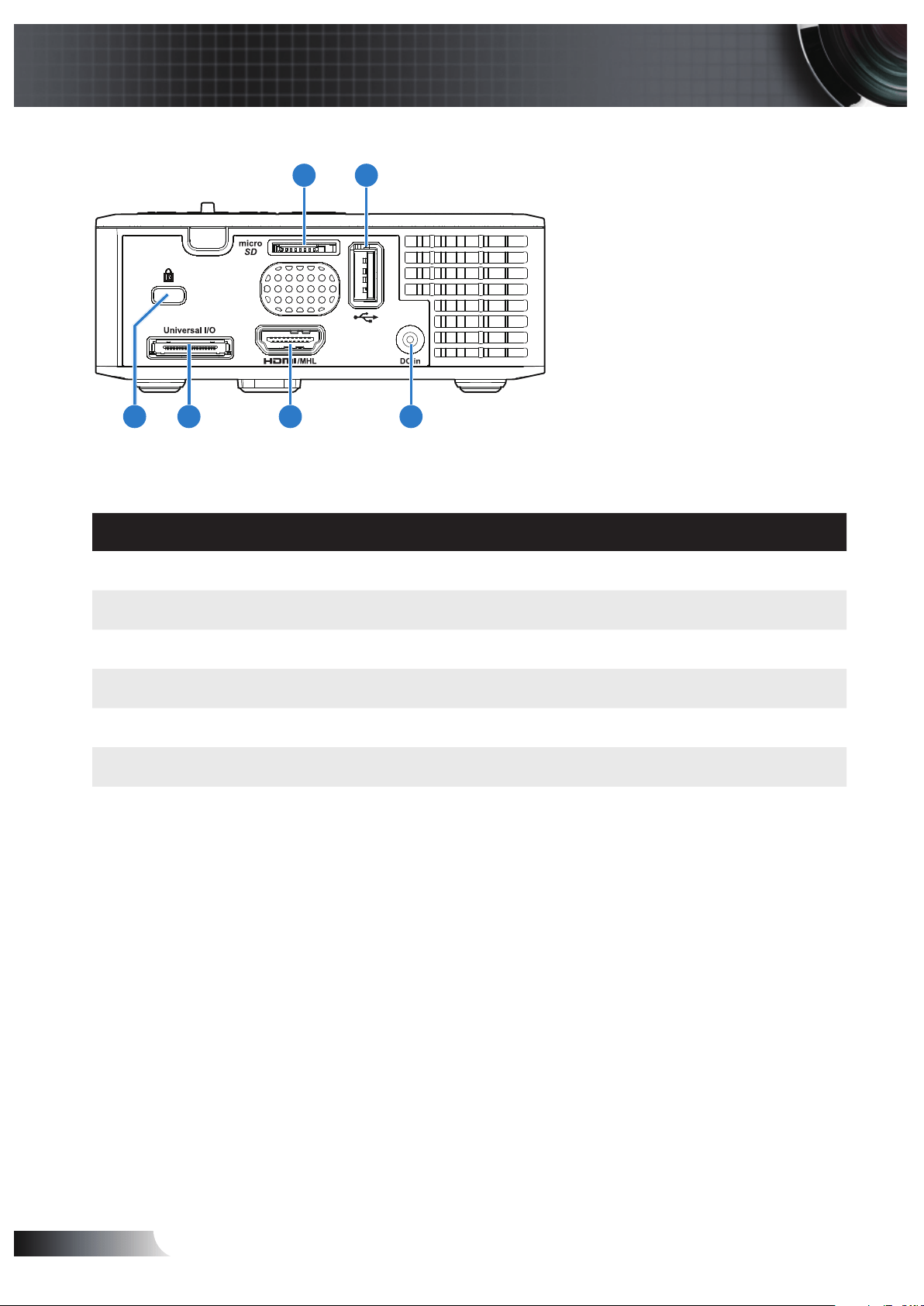
# Description
1 Control panel
2 Focus ring
3 Lens
4 Input / Output connections
5 Tilt adjusting wheel
12
English
Input / Output Connections
6
1 2
345
# Description
1 MicroSD card slot
2 USB Type A connector
3 DC input connector
4 HDMI/MHL connector
5 Universal I/O connector
6 Security cable slot
13
English
FOCUS
Control Panel
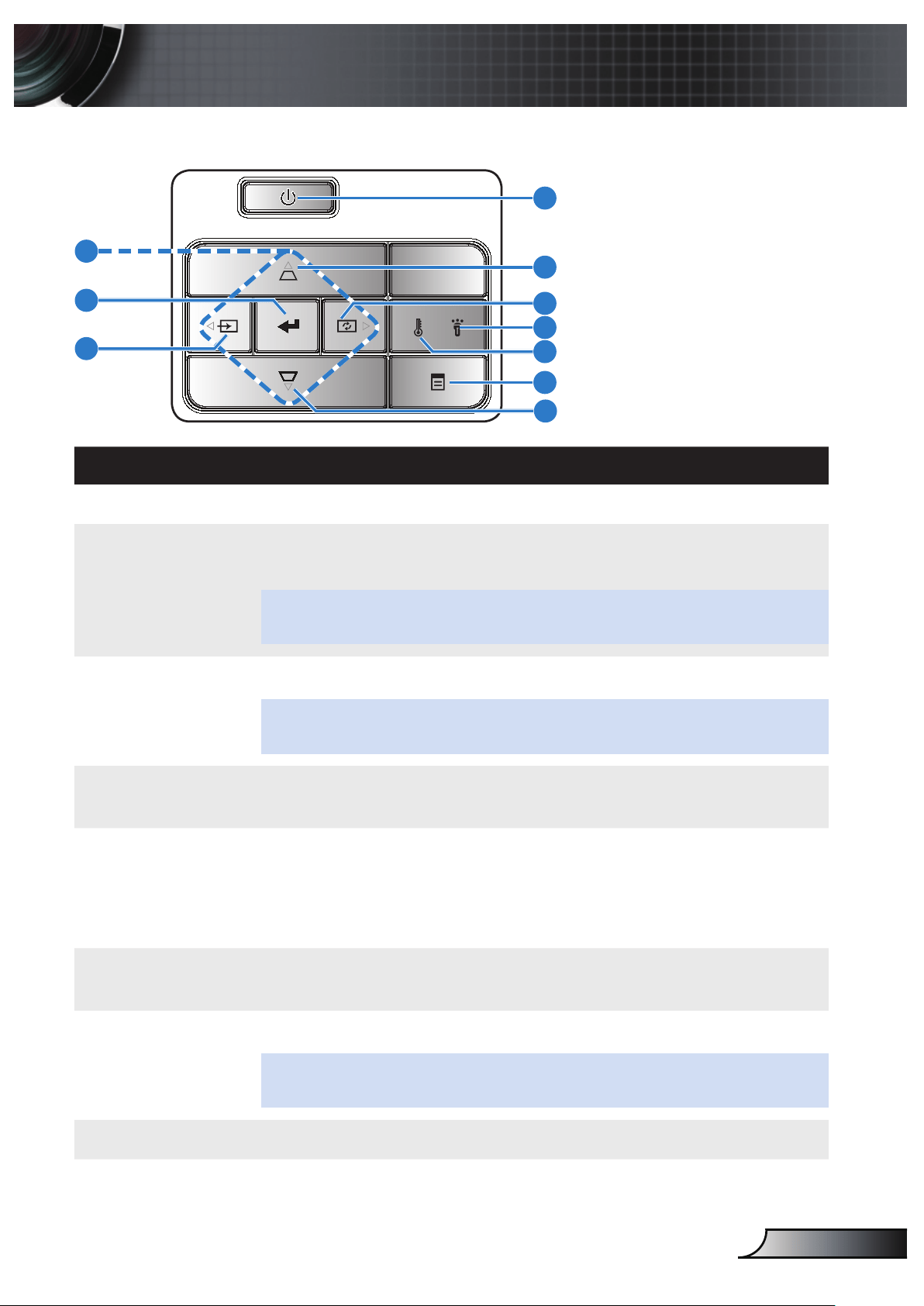
# Name Description
1 Power Turns the projector on or off.
2 Keystone ad-
justment
Press to adjust image distortion caused by tilting the projector
(+/-40 degrees).
NOTE: This function is not supported on Multi-Media function.
3 Auto adjust Press to synchronize the projector to the input source.
NOTE: Auto Adjust does not operate if the on-screen display (OSD) is
displayed.
4 Error LED Error LED is solid amber, one of the LED has failed. The projector
will automatically shut down.
5 Temp LED If the TEMP amber indicator is blinking, one of the following prob-
lems could be occurring:
Internal temperature of the projector is too high. y
The fans has failed. y
6 Menu Press to activate the OSD. Use the directional keys and the Menu
button to navigate through the OSD.
7 Source Press to enter Source menu and select an input source.
NOTE: This function is not supported on Multi-Media function.
8 Enter Press to confirm the selection item.
9 Four Direction-
al Select Keys
Press to navigate through the On-Screen Display (OSD) Menu
items.
1
2
3
4
5
6
7
8
9
8
14
English
Remote Control
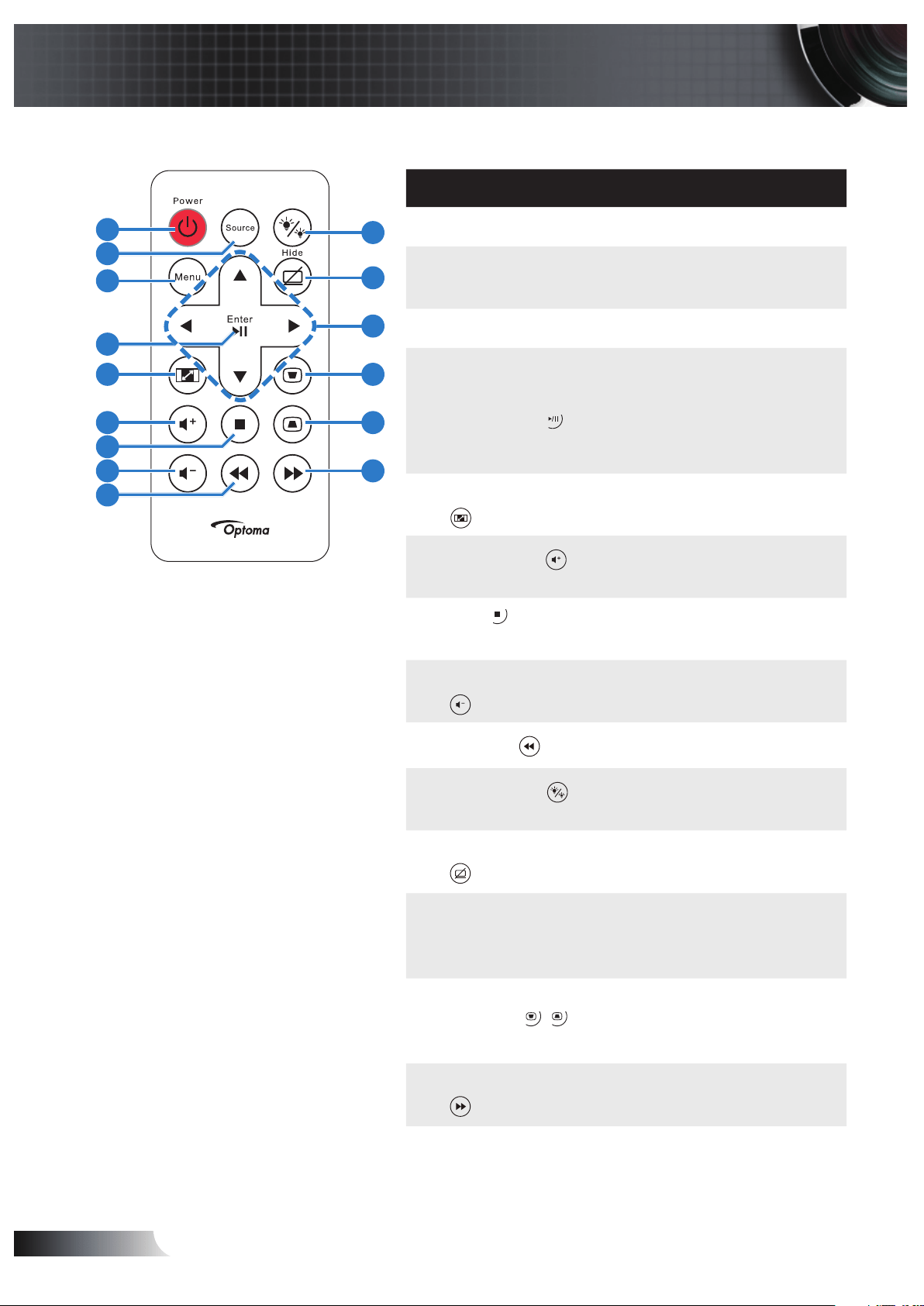
# Name Description
1 Power Turns the projector on or off.
2 Source Press to enter Source menu
and select an input source.
3 Menu Press to activate the OSD.
4 Enter
Play/Pause
Press to confirm the selec-
tion.
Press to play/pause media
file.
5 Aspect Ratio
Press to change aspect ratio
of a displayed image.
6
Volume up
Press to increase the vol-
ume.
7
Stop
Press to stop playing media
file.
8 Volume down
Press to decrease the
volume.
9
Rewind
Press to search backward.
10
LED mode
Allows you to select the
display mode.
11 Blank screen
Press to hide/unhide the
image.
12 Up/Down/Left/
Right
Press to navigate through
the On-Screen Display
(OSD) Menu items.
13
14
Keystone ad-
justment
Press to adjust image distor-
tion caused by tilting the
projector (+/-40 degrees).
15 Fast Forward
Press to search forward.
10
11
13
15
12
14
1
2
3
4
5
7
8
9
6
15
English
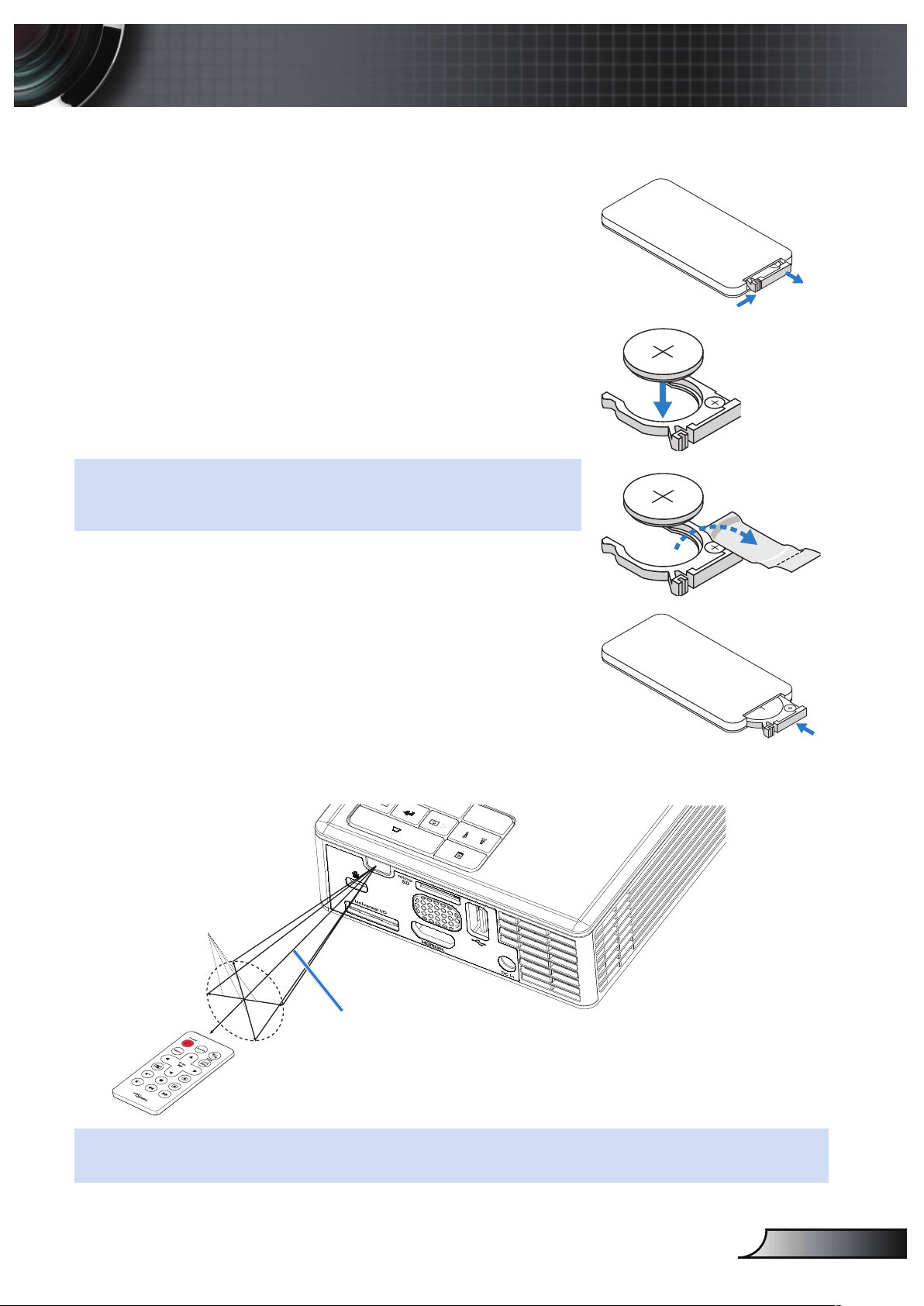
Installing the Remote Control Battery
Remove the battery holder by holding down the side 1.
release firmly and pulling out the battery holder.
3
V
O
L
T
S
CR2025
3
V
O
L
T
S
CR2025
M
3
V
O
L
T
S
CR2025
NOTE: When you use the remote control for the rst time, there
is a plastic sheet between the battery and its contact. Remove
the sheet before use.
Insert a CR2025 coin cell battery and align the polarity 2.
correctly according to the marking in the battery holder.
Replace the battery holder.3.
Operating Range with Remote Control
FOCUS
±20°
7 m/22.97 feet
NOTE: Actual operating range may slightly differ from the diagram. Additionally, a weak battery
reduces or eliminates the operating range of the remote control.
16
English
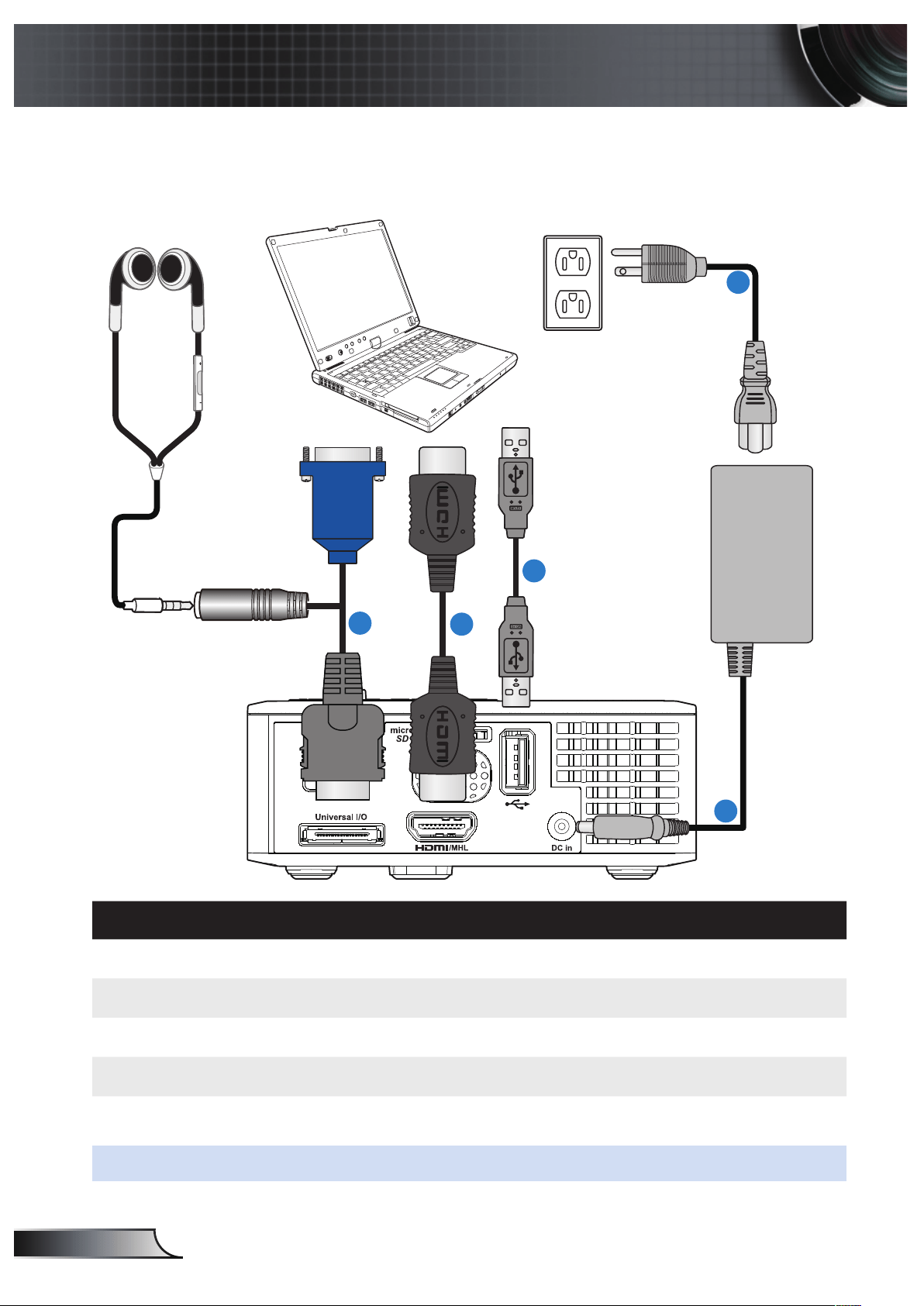
Connecting to a Computer
Installation
1
2
3
4
5
# Description
1 Power cord
2 AC adapter
3 Universal 24-pin to VGA/Audio cable
4 HDMI cable *
5 USB-A to USB-A cable *
* NOTE: The accessory is not shipped with your projector.
17
English
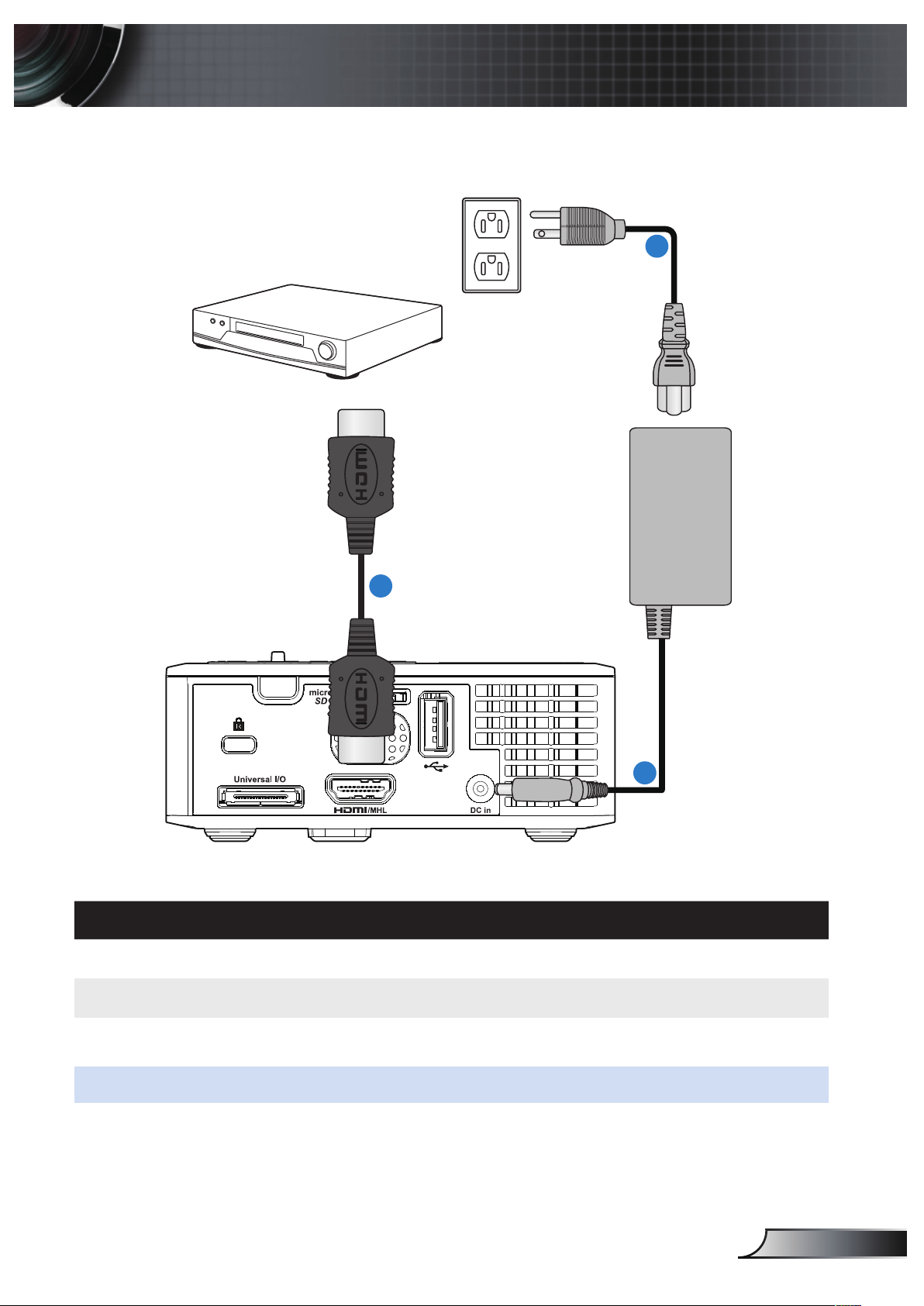
Connecting to a DVD Player
2
3
1
# Description
1 Power cord
2 AC adapter
3 HDMI cable *
* NOTE: The accessory is not shipped with your projector.
18
English
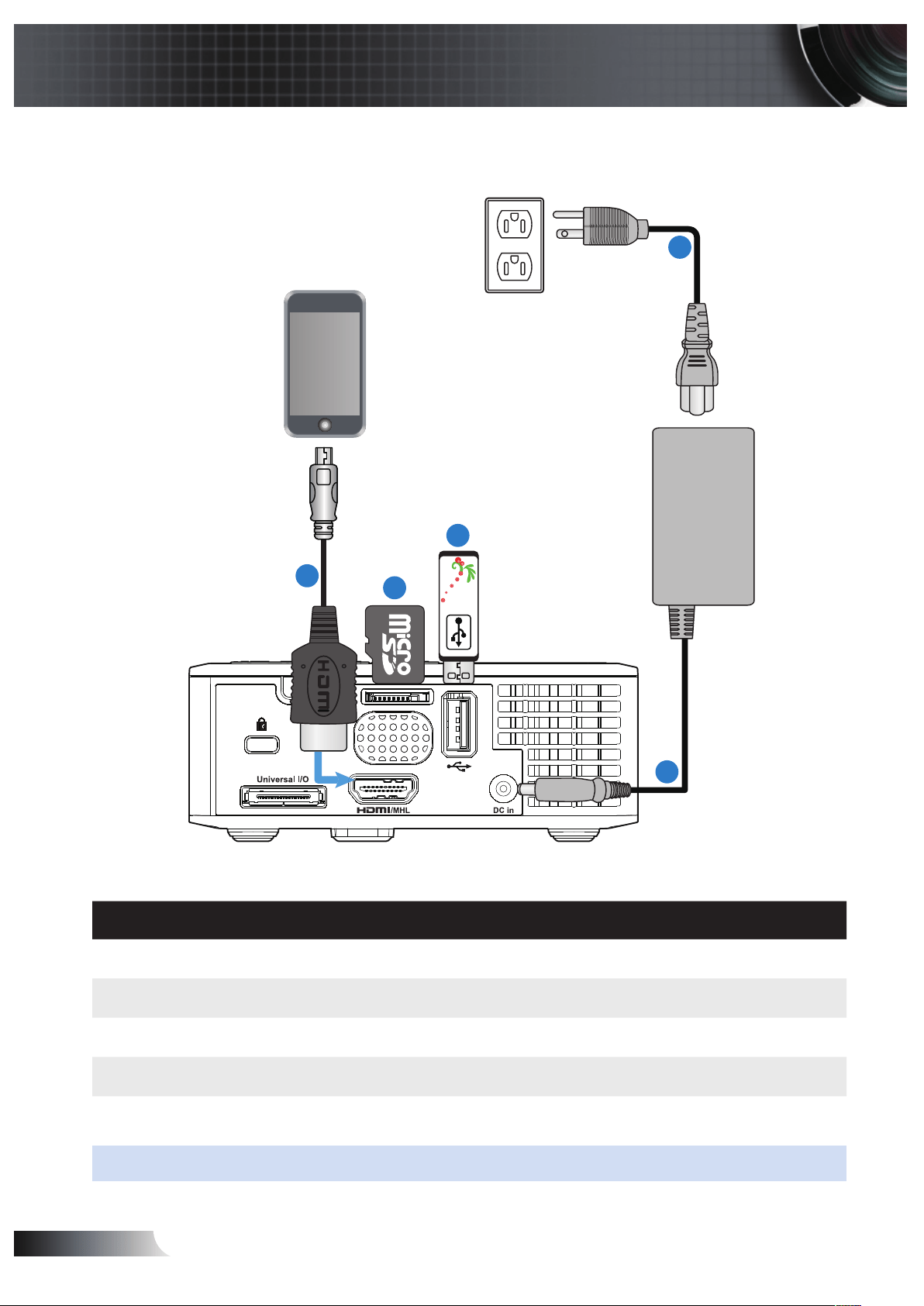
Connecting to Multi-Media
1
2
3
4
# Description
1 Power cord
2 AC adapter
3 MicroSD card *
4 USB fl ash disk *
5 MHL cable *
* NOTE: The accessory is not shipped with your projector.
5
Smart Phone

19
English
Turning Your Projector On
NOTE: Turn on the projector before you turn on the source (computer, DVD player, etc.). The
Power button light blinks amber until pressed.
Connect the power cord with AC adapter and appropriate signal cables to the pro-1.
jector.
Press the 2. Power button.
Turn on your source (computer, DVD player, etc).3.
Connect your source to the projector using the appropriate cable.4.
The input source is determined by the last connected input source. (By default, the 5.
input source of the projector is set to Multimedia). Change the input source of the
projector if necessary.
If you have multiple sources connected to the projector, press the 6. Source button on
the remote control or control panel to select the desired source.
Turning Your Projector Off
Press the 1. Power button. Follow the instruction displayed on screen to properly turn
off the projector.
Press the 2. Power button again. The cooling fans continue to operate for 3~5 sec-
onds.
Disconnect the power cord and AC adapter from the electrical outlet and the projec-3.
tor.
Turning On/Off the Projector
NOTE: The “
Press Power Button to Turn Off Projector
” message will appear on the screen. The
message disappears after 5 seconds or you can press the Menu button to clear it.
20
English
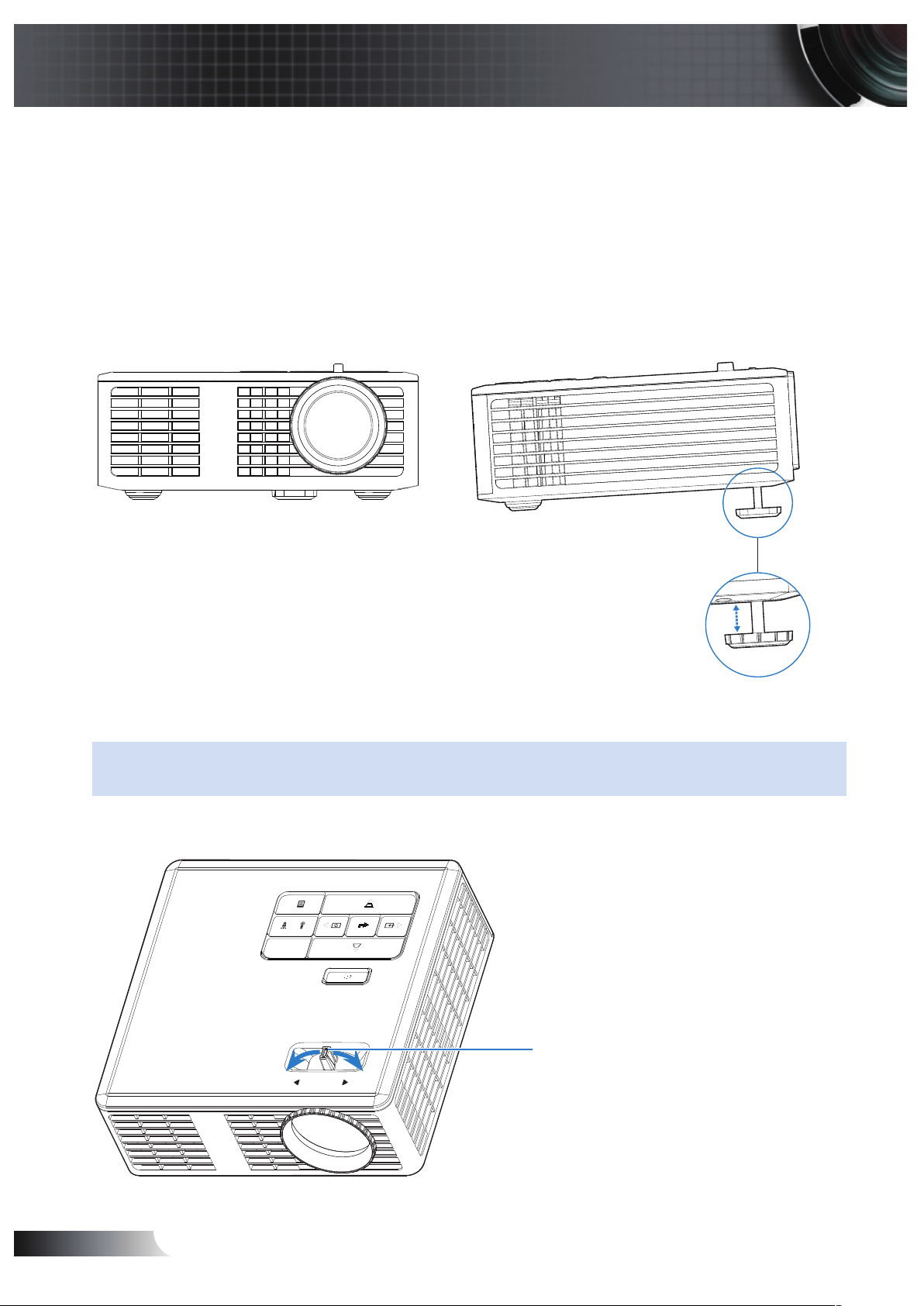
Raising the Projector Height
Raise the projector to the desired display angle, and use the front tilt adjustment wheel
to fine-tune the display angle.
Lowering the Projector Height
Lower the projector, and use the front tilt adjustment wheel to fine-tune the display
angle.
Front tilt adjustment wheel
(Angle of tilt: 0 to 6 degrees)
Adjusting the Projector Focus
IMPORTANT NOTE: To avoid damaging the projector, ensure that the adjustment wheels are
fully retracted before moving the projector or placing the projector in its carrying case.
Rotate the focus tab until the image is clear. The projector focuses at distances ranging
between 3.18 ft to 8.48 ft (97 cm to 258 cm).
Focus tab
FOCUS
Adjusting the Projected Image
21
English
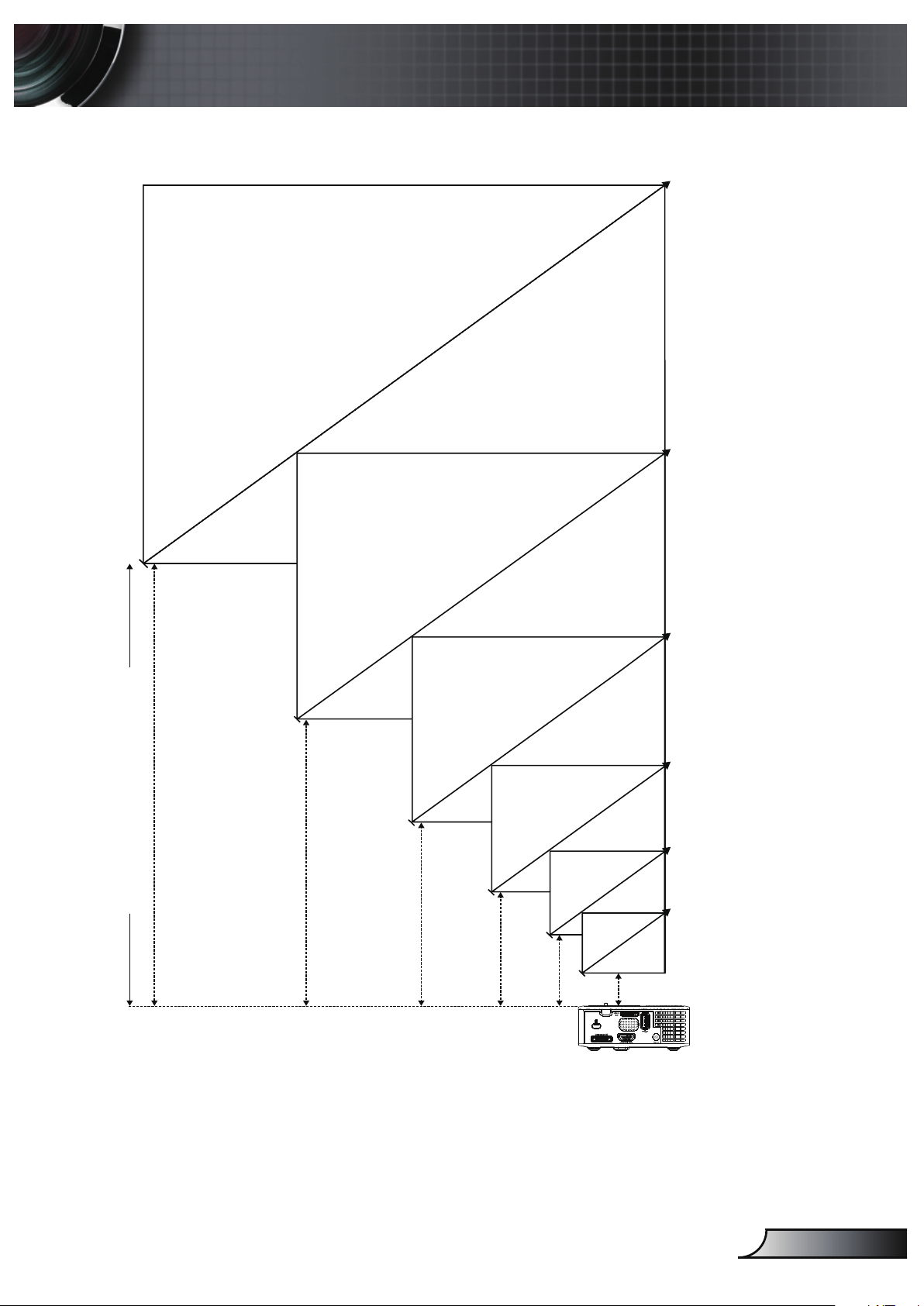
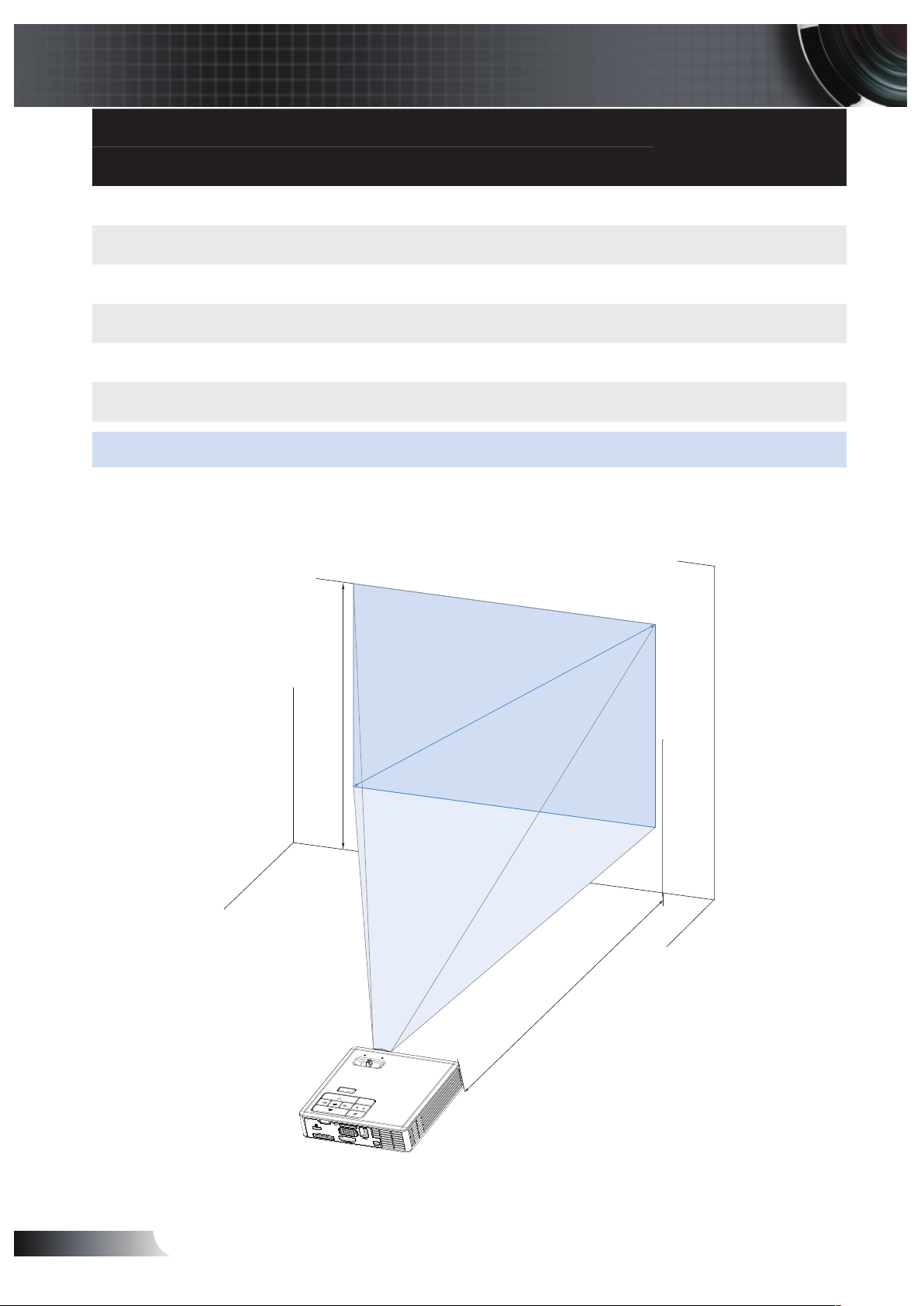
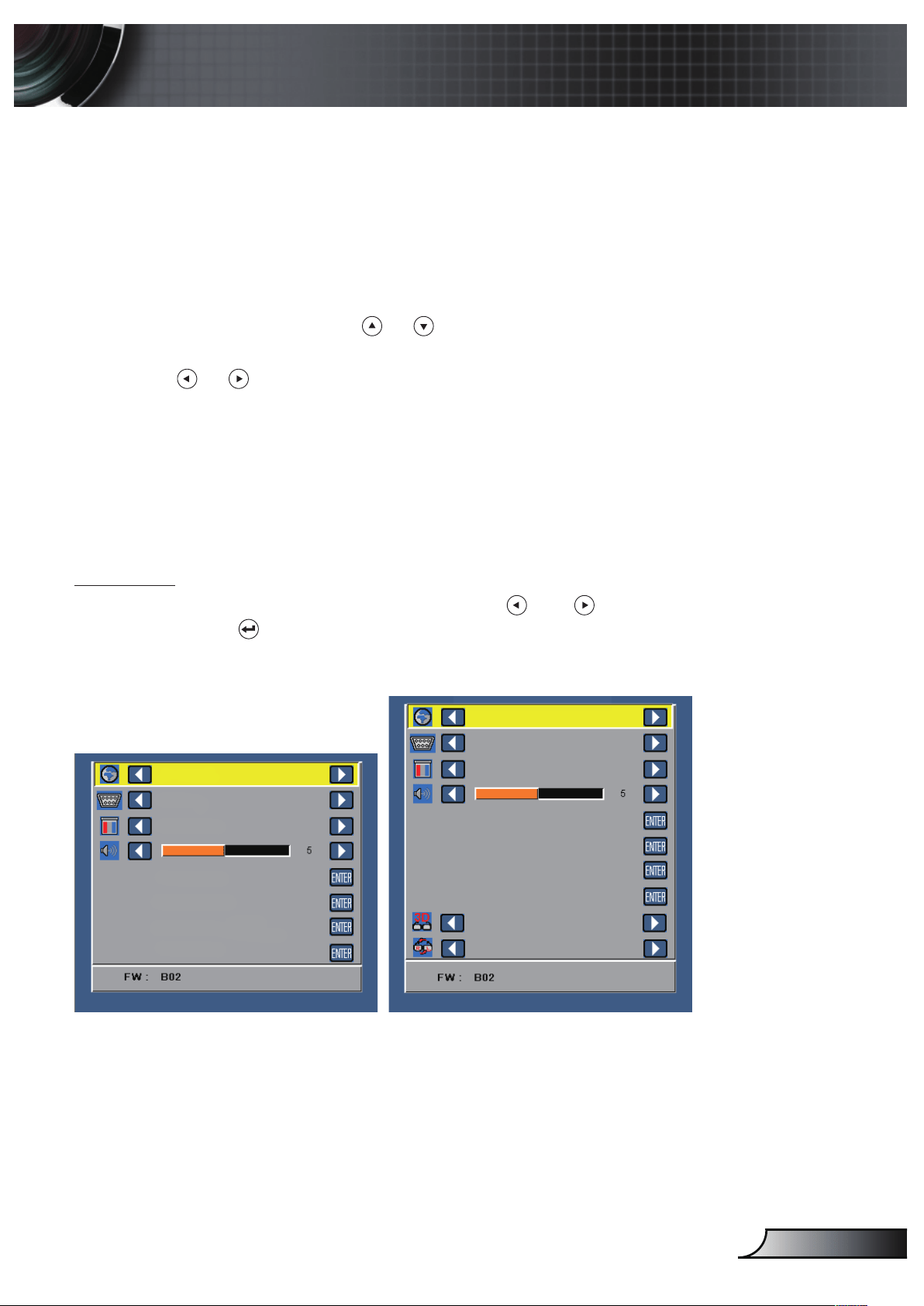
Adjusting Projection Image Size
Universal I/O
80” (203.2 cm)
70” (177.8 cm)
60” (152.4 cm)
50” (127.0 cm)
40” (101.6 cm)
30” (76.2 cm)
3.18’ (0.97 m)
4.23’ (1.29 m)
5.28’ (1.61 m)
6.36’ (1.94 m)
7.41’ (2.26 m)
8.48’ (2.58 m)
Projector to screen distance
22
English
Screen Size
Distance
Diagonal Width Height
30” (76.2 cm) 25.59” (65 cm) 15.75” (40 cm) 3.18’ (0.97 m)
40” (101.6 cm) 33.86” (86 cm) 21.26” (54 cm) 4.23’ (1.29 m)
50” (127.0 cm) 42.13” (107 cm) 26.38” (67 cm) 5.28’ (1.61 m)
60” (152.4 cm) 50.79” (129 cm) 31.89” (81 cm) 6.36’ (1.94 m)
70” (177.8 cm) 59.45” (151 cm) 37.01” (94 cm) 7.41’ (2.26 m)
80” (203.2 cm) 67.72” (172 cm) 42.52” (108 cm) 8.48’ (2.58 m)
NOTE: This graph is for user reference only.
FOCUS
60”
Distance: 1.94 m
23
English
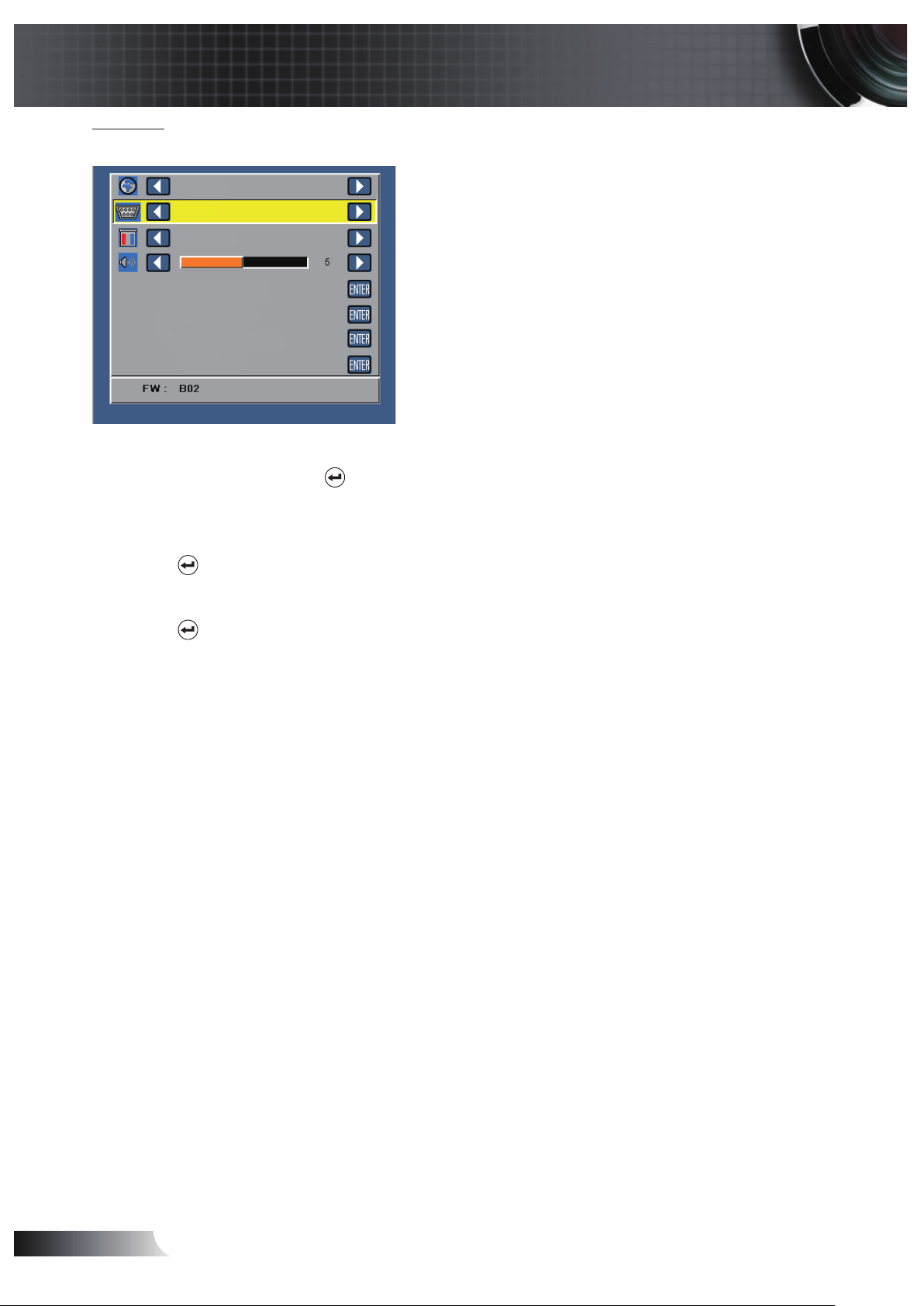
Using the On-Screen Display
The projector has a multi-language On-Screen Display (OSD) Menu that can be 1.
displayed with or without an input source.
Press the 2. Menu button on the control panel or the remote control to enter the Main
Menu.
To select an option, press the 3.
or buttons on your projector’s control panel or
remote control.
Use the 4.
or buttons on the control panel or remote control to adjust the set-
tings.
To exit the OSD, press the 5. Menu button directly on the control panel or the remote
control.
Main Menu
Language
Allows you to set the language for the OSD. Press and to select different lan-
guages and press
to change the language.
Without 3D function
VGA
English
PC Mode
Auto Adjust
OSD Reset
Advanced
Data Transferring
With 3D function
VGA
English
PC Mode
Auto Adjust
OSD Reset
Advanced
Data Transferring
Off
Off
User Controls
24
English
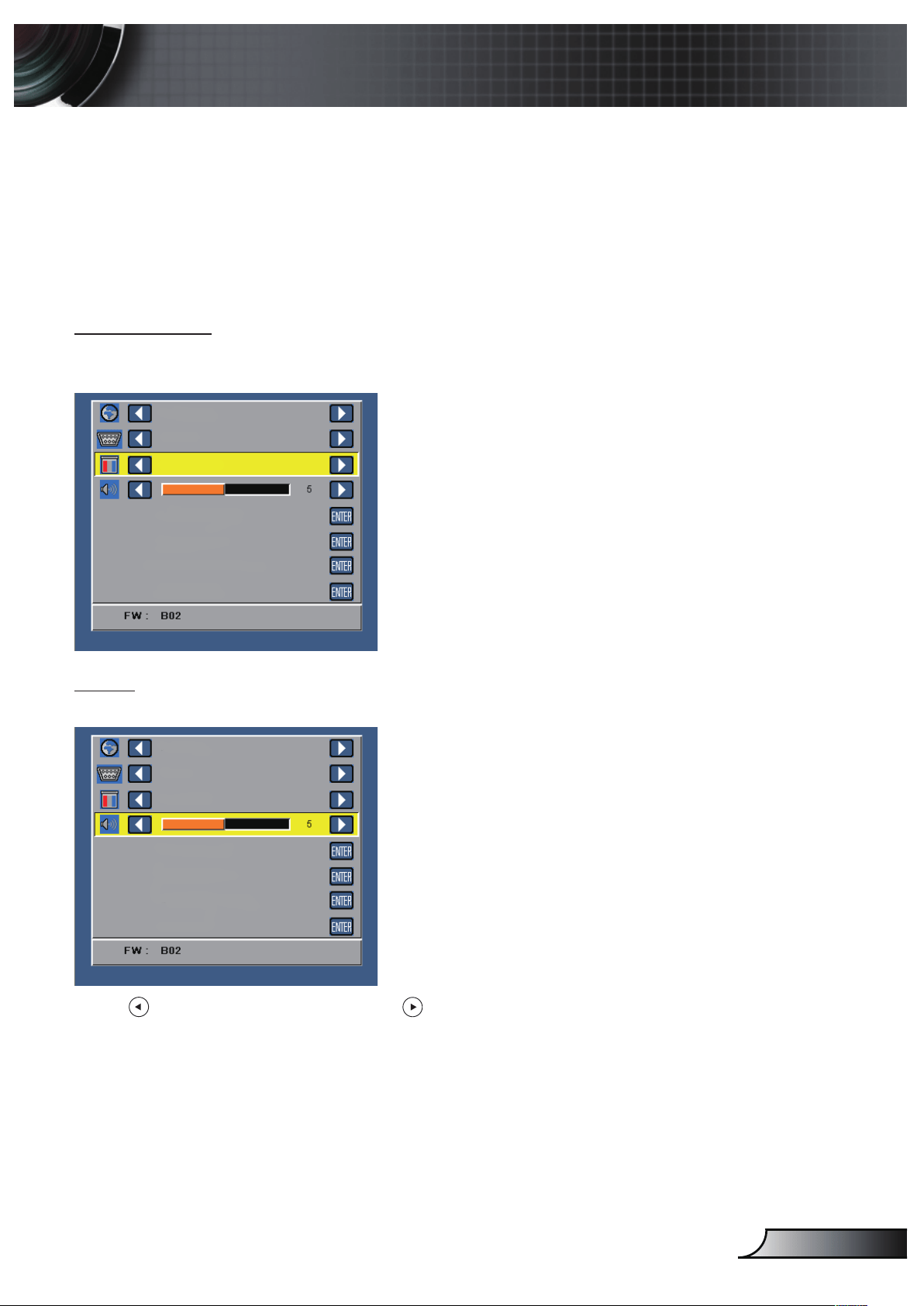
Source
The Source menu allows you to select your projector's input source.
VGA
English
PC Mode
Auto Adjust
OSD Reset
Advanced
Data Transferring
Auto Source
If you select and press
to activate, the Auto option will automatically find the next
available input source.
VGA
Press
to detect a VGA signal.
HDMI
Press
to detect a HDMI signal.
25
English
USB
Allows you to playback the photo, Audio, or Video files from your USB flash disk.
Micro SD
Allows you to playback the photo, Audio, or Video files from your microSD card.
Internal Memory
Allows you to playback the photo, Audio, or Video files from internal memory of the
projector.
Display Mode
The Display Mode menu allows you to optimize the display image. The options are:
Bright, PC, Cinema, and Photo mode.
VGA
English
PC Mode
Auto Adjust
OSD Reset
Advanced
Data Transferring
Audio
The Audio menu allows you adjust the volume setting of your projector.
VGA
English
PC Mode
Auto Adjust
OSD Reset
Advanced
Data Transferring
Press to decrease the volume and to increase the volume.
26
English
Auto Adjust
Auto Adjust automatically adjusts the projector's Horizontal Position,
Vertical Position, Frequency, and Tracking in VGA source (PC mode).
VGA
English
PC Mode
Auto Adjust
OSD Reset
Advanced
Data Transferring
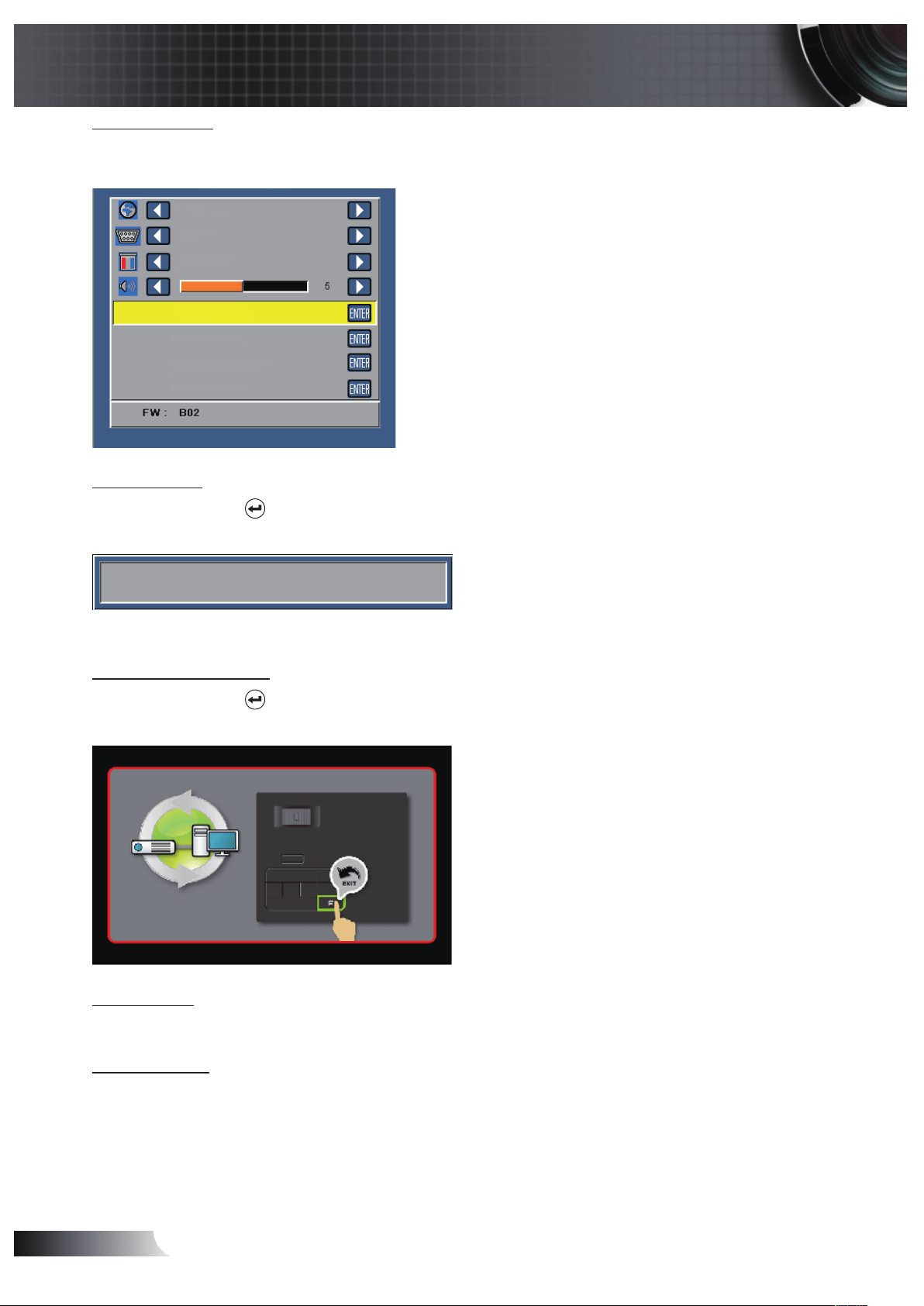
OSD Reset
Select and press to reset all settings to its factory default.
The below warning message appears:
Resetting to factory default
Reset items include both computer sources and Video source settings.
Data Transferring
Select and press to action.
The below warning message appears:
Advanced
See “Advanced Menu” on pages 27~31.
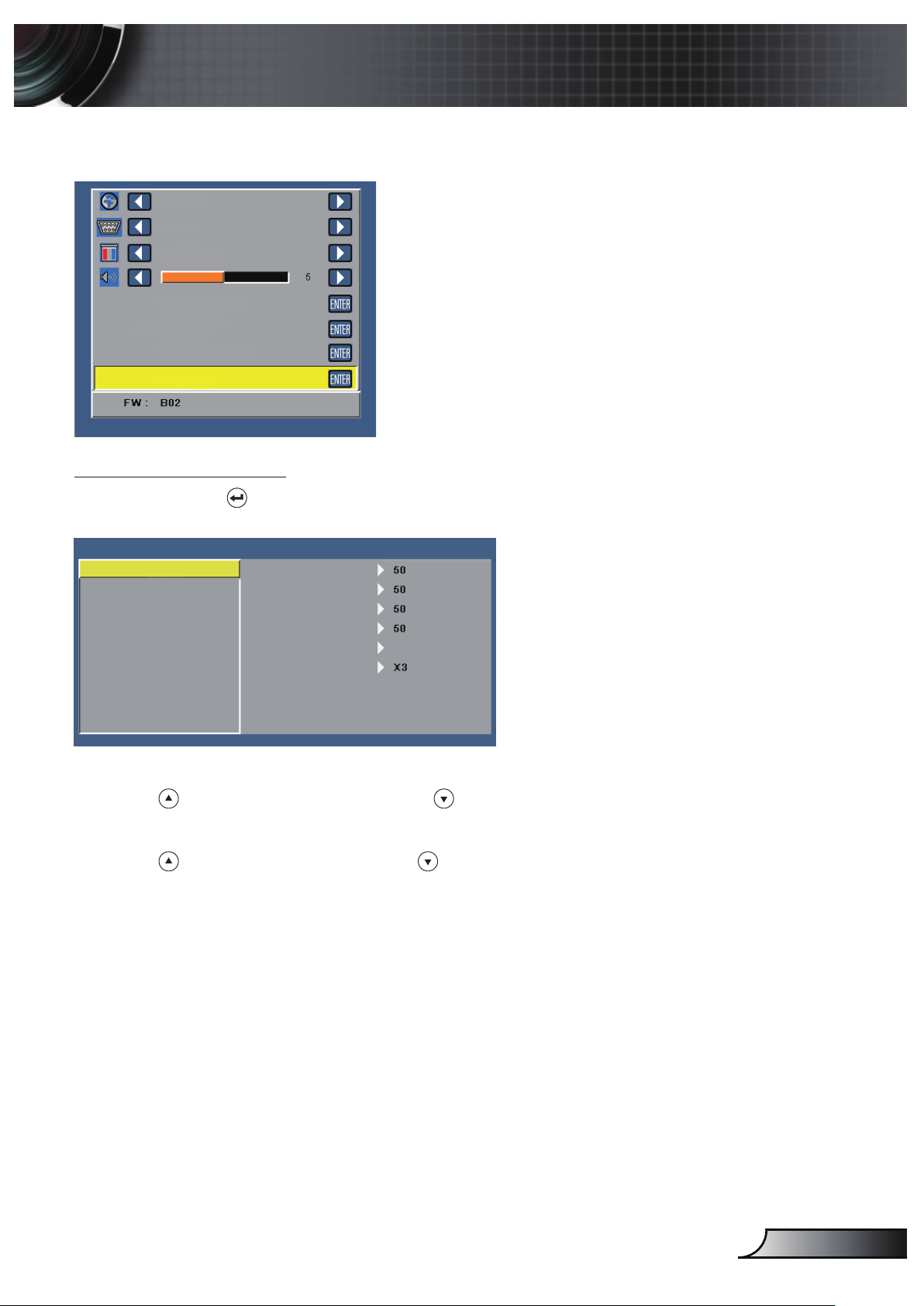
FW Version
Display the current projector’s firmware version.
27
English
Advanced Menu
The Advanced menu allows you to change settings for Display, Image, and Power.
VGA
English
PC Mode
Auto Adjust
OSD Reset
Advanced
Data Transferring
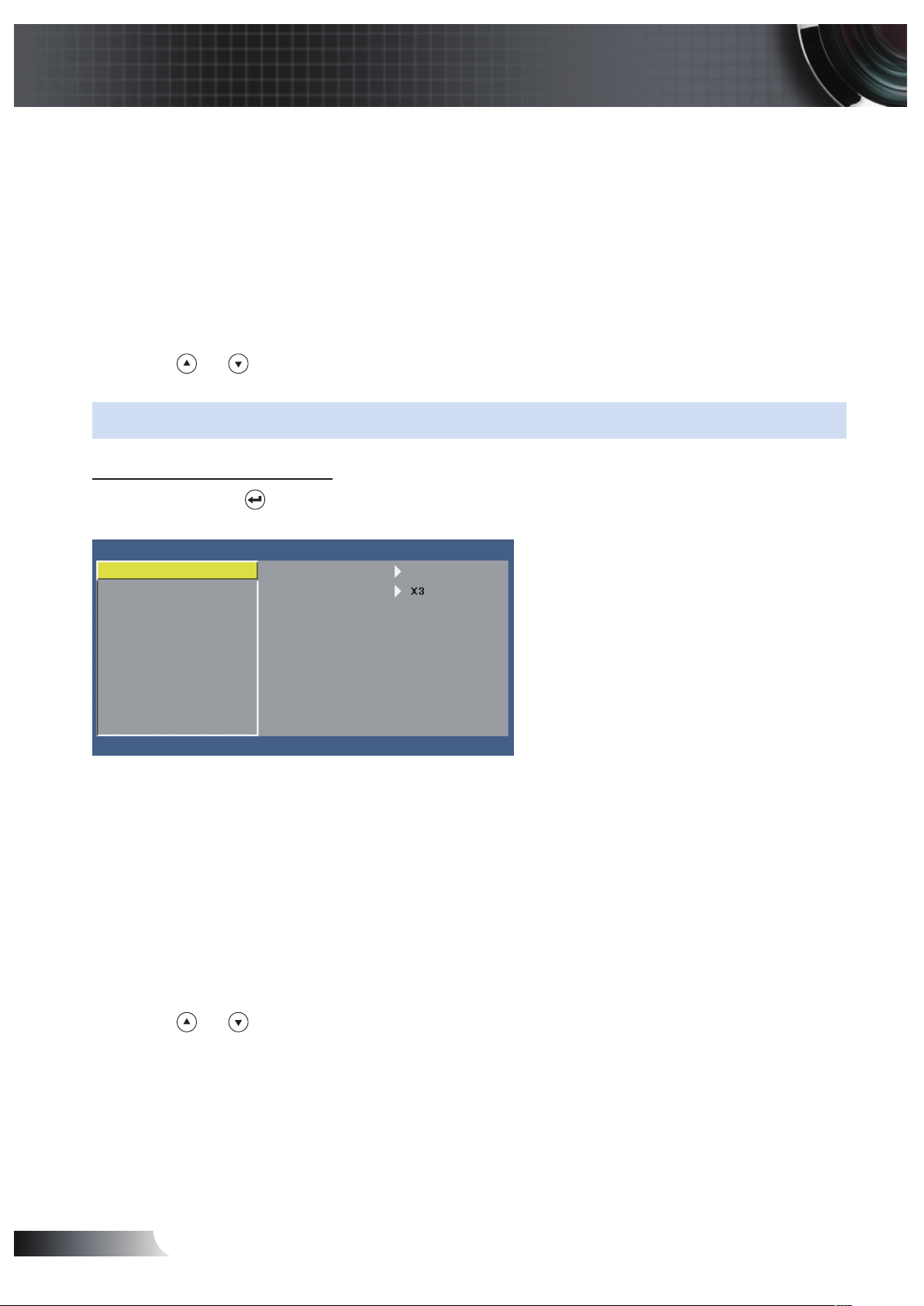
Display (In PC Mode)
Select and press to activate display settings. The display menu provides the follow-
ing options:
Advanced
Display
Image
Power
Horizontal Position
Vertical Position
Frequency
Tracking
Aspect Ratio Origin
Zoom
Horizontal Position
Press
to move the image right and to move the image left.
Vertical Position
Press
to move the image up and to move the image down.
Frequency
Allows you to change the display data clock frequency to match the frequency
of your computer’s graphics card. If you see a vertical flickering wave, use the
Frequency control to minimize the bars. This is a coarse adjustment.
Tracking
Synchronize the phase of the display signal with the graphic card. If you experience
an unstable or flickering image, use the Tracking to correct it. This is a fine
adjustment.
28
English
Aspect Ratio
Allows you to select the aspect ratio to adjust how the image appears. Options are:
Origin
,
16:9
and
4:3
.
Origin: Select
y
Origin
to maintain the aspect ratio of the image projector
according to the input source.
16:9: The input source scales to fit the width of the screen to project a 16:9
y
screen image.
4:3: The input source scales to fit the screen and projects a 4:3 image.
y
Zoom
Press
or to zoom and view the image.
NOTE: Closed caption option is available for NTSC only.
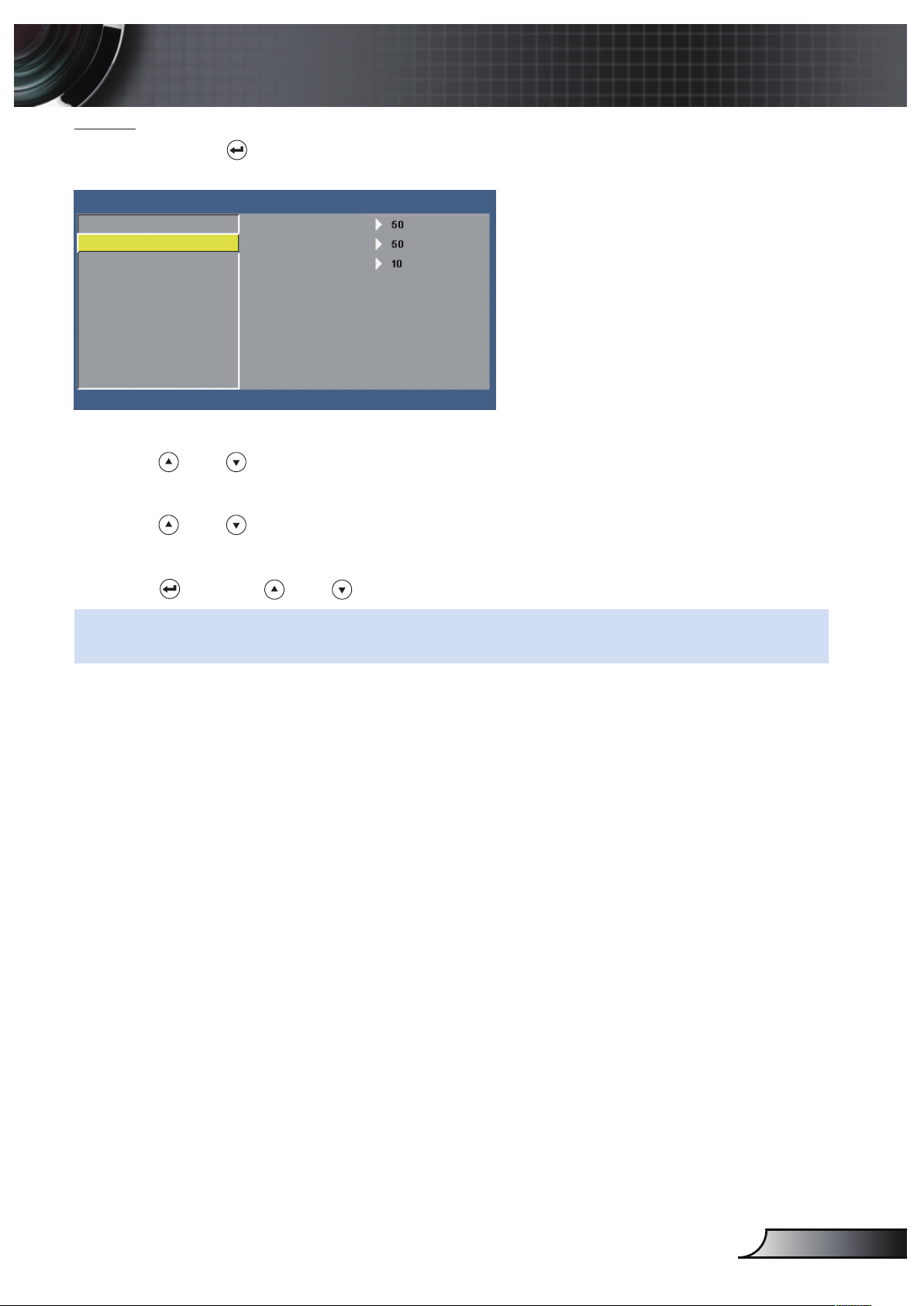
Display (In Video Mode)
Select and press to activate display settings. The display menu provides the follow-
ing options:
Advanced
Display
Image
Power
Aspect Ratio
Origin
Zoom
Aspect Ratio
Allows you to select the aspect ratio to adjust how the image appears. Options are:
Origin
,
16:9
and
4:3
.
Origin: Select
y
Origin
to maintain the aspect ratio of the image projector
according to the input source.
16:9: The input source scales to fit the width of the screen to project a 16:9
y
screen image.
4:3: The input source scales to fit the screen and projects a 4:3 image.
y
Zoom
Press
or to zoom and view the image.
29
English
Image
Select and press to activate image settings. The image menu provides the following
options:
Advanced
Display
Image
Power
Brightness
White Intensity
Contrast
Brightness
Press
and to adjust the brightness of the image.
Contrast
Press
and to adjust the display contrast.
White Intensity
Press
and use and to display white intensity.
NOTE: If you adjust the settings for Brightness, Contrast, and White Intensity the projector auto-
matically switches to User mode.
30
English
Power
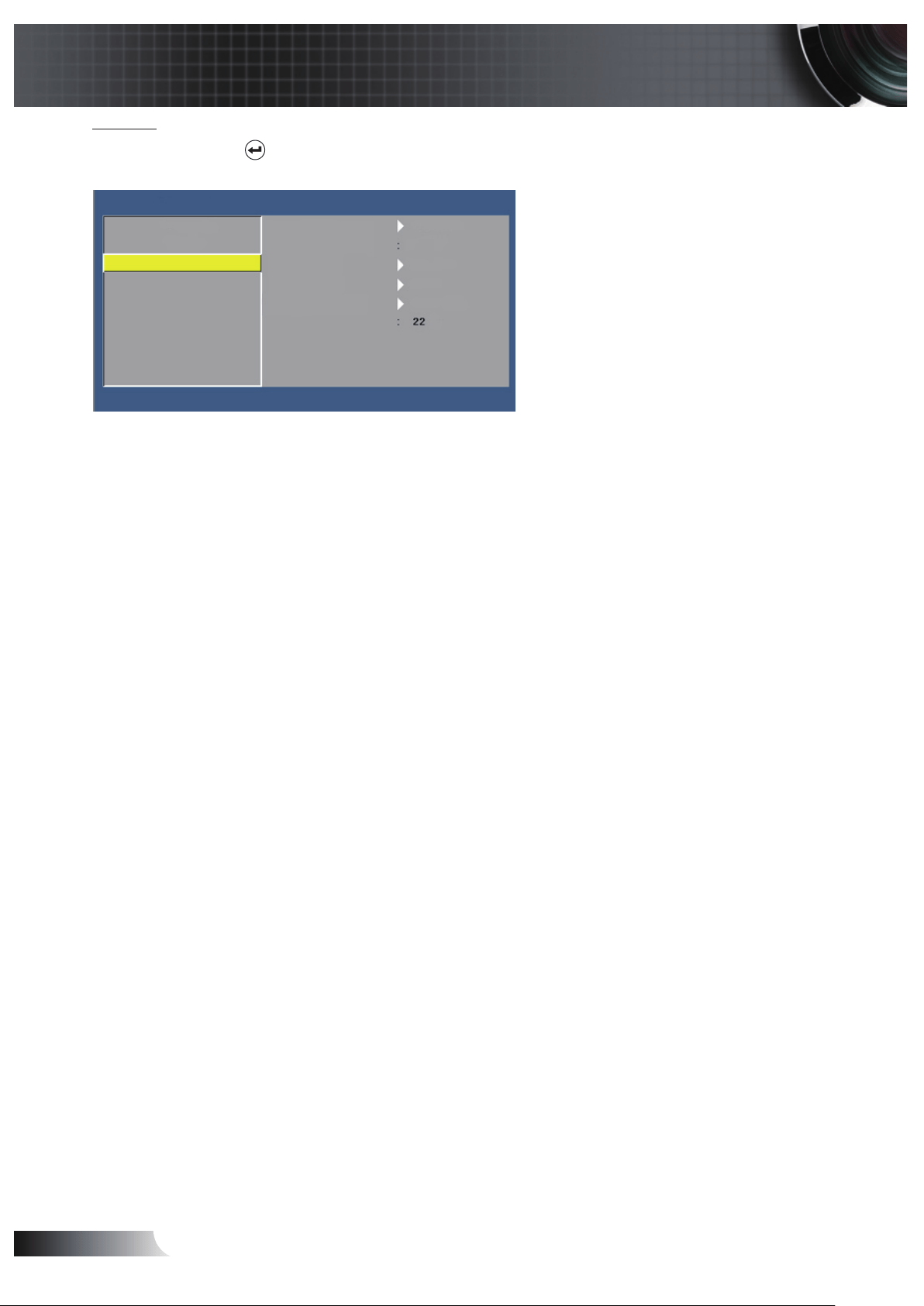
Select and press to activate power settings. The power menu provides the following
options:
Display
Image
Power
Power Saving
Speaker
120 min
0 min
Off
Off
Front
hours
Projection
Display Hour
Sleep Timer (min)
Advanced
Direct Power On
Power Saving
Select
Off
to disable Power Saving mode. By default, the projector is set to enter
power saving mode after 120 minutes of no activity. A warning message appears on
screen showing a 60 seconds countdown before switching to power saving mode.
Press any button during the countdown period to stop the power-saving mode.
You can also set a different delay period to enter power saving mode. The delay
period is the time you want the projector to wait without an input signal. Power saving
can be set to
30
,
60
,
90
, or
120
minutes. If an input signal is not detected during the
delay period, the projector turns off. To turn on the projector, press the
Power
button.
Sleep Timer (min)
Sets the countdown timer interval. The countdown timer will start, with or without a
signal being sent to the projector. The projector will automatically power off when the
countdown has finished (in minutes).
Direct Power On
Choose
On
to activate Direct Power mode. The projector will automatically power
on when AC power is supplied, without pressing the
Power
button on the projector
control panel or on the remote control.
Projection
Allows you to select the projector mode, depending upon how the projector is
mounted.
Front: This is the default option.
y
Rear: The projector reverses the image so that you can project from behind a
y
translucent screen.
Front Ceiling: The projector turns the image upside down for ceiling-mounted
y
projection.
Rear Ceiling: The projector reverses and turns the image upside down. You can
y
project from behind a translucent screen with a ceiling-mounted projection.
Speaker
Select
On
or
Off
to turn on or turn off the speaker.
Display Hour
Display the projection time.

31
English
Multi-Media Introduction
Multi-media format supported:
Photo Format
Image Type
(Ext Name)
Sub Type Encode Type Max Size
Jpeg / Jpg Baseline YUV420 4000x4000=16,000,000 pixel
YUV422
YUV440
YUV444
Progressive YUV420 4000x4000=16,000,000 pixel
YUV422
YUV440
YUV444
BMP 4000x4000=16,000,000 pixel
Video Format
File Format Video Format Decode Max
res.
Max Bit Rate
(bps)
Audio Format Prole
MPG,MPEG MPEG1 1920x1080
30fps
30M bps MPEG1 L1-3
AVI, MOV,
MP4, MKV
H.264 1920x1080
30fps
30M bps MPEG1 L1-3
HE-ACC v1
AC3
BP/MP/HP
AVI, MOV,
MP4,
MPEG4 1920x1080
30fps
30M bps HE-ACC v1 SP/ASP
AVI, MOV,
MP4,
Xivd 1920x1080
30fps
30M bps MPEG1 L1-3
HE-ACC v1
HD
AVI MJPEG 8192x8192
30fps
30Mbps MPEG1 L1-3
HE-ACC v1
Baseline
WMV VC-1 1920x1080
30fps
30M bps WMA8/9(V1/
v2)
SP/MP/AP
Audio Format

32
English
Music Type (Ext Name) Sample Rate (KHz) Bit Rate (Kbps)
MP3 8-48 8-320
WMA 22-48 5-320
ADPCM-WAV 8-48 32-384
PCM-WAV 8-48 128-1536
AAC 8-48 8-256
Office Viewer Format
File Format Support Version Page/Lines Limitation Size Limitation
Adobe PDF PDF 1.0, 1.1, 1.2, 1.3, 1.4 Up to 1000 pages (One File) Up to 75MB
MS Word British Word 95, Becasue office viewer does not
load all pages of MS/Word file
at the same time, there are not
abvious limitations of page and
line.
Up to 100MB
Word 97, 2000, 2002, 2003
Word 2007(.docx),
Word2010(.docx),
MS Excel British Excel 5,95 Row Limit: up to 595 Up to 15MB
Excel 97, 2000, 2002, 2003 Column Limit: up to 256
Excel 2007(.docx),
Excel 2010(.docx)
Sheet: up to 100
Office XP Excel Note: Any one of three limitations
above can not appear on one
excel file simultaneously
MS
PowerPoint
British PowerPoint 97 Up to 1000 pages (One File) Up to 19MB
PowerPoint 2000, 2002,
2003
PowerPoint 2007(.pptx)
PowerPoint 2010(.pptx)
Office XP PowerPoint
PowerPoint presentatin
2003 and earlier (.ppx)
PowerPoint presentatin
2007 and 2010 (.ppsx)
33
English
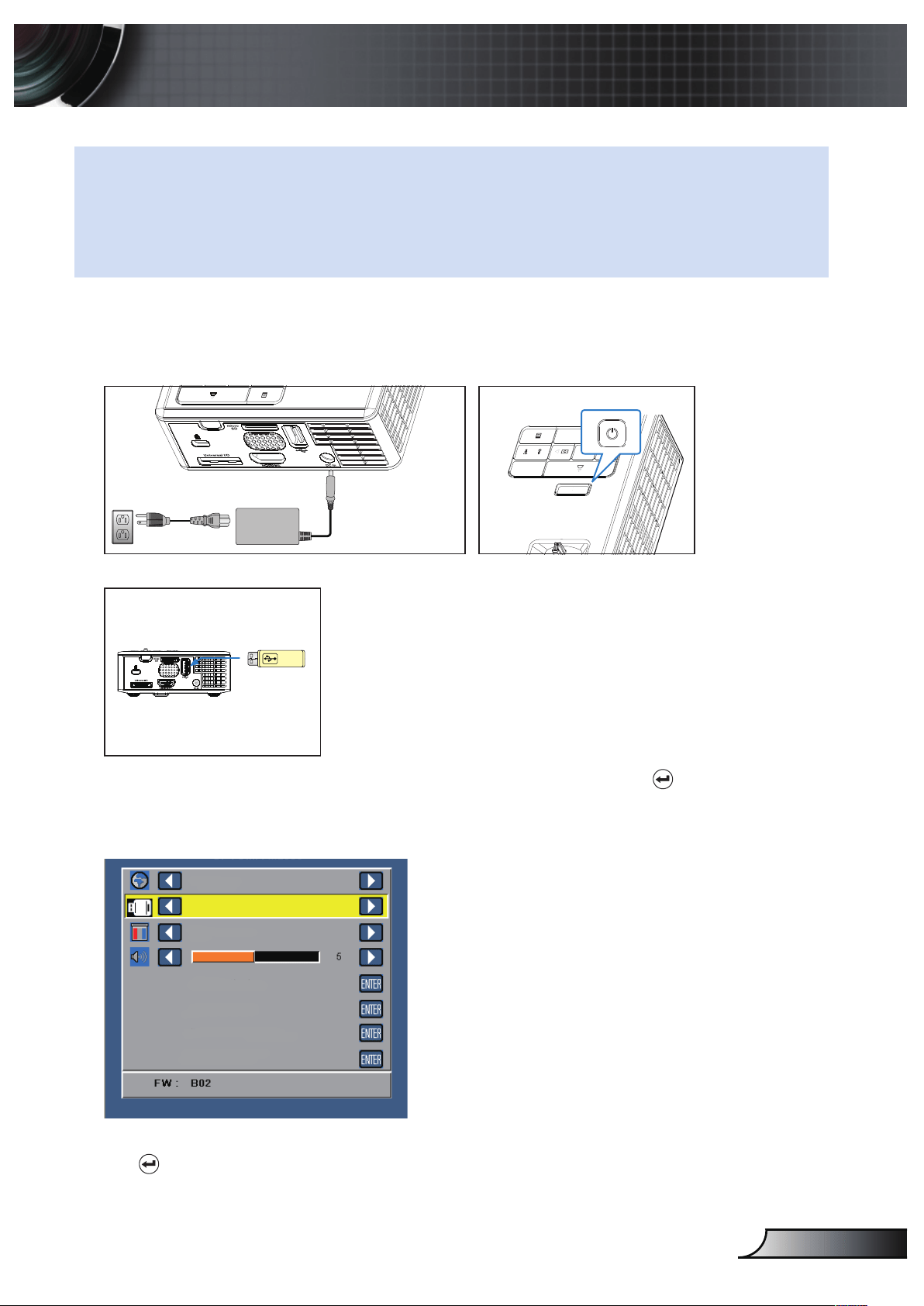
How to set-up File Type for Multi-Media with USB
NOTE:
A USB ash disk must be plugged into the projector if you want to use the multimedia 1.
USB function.
Please don’t connect USB port for camera since it would be exist compatibility problem.2.
Follow these steps to playback the Photo, Video, Music, or Office Viewer files on your
projector:
Connect the power cable with AC adapter and turn on the projector by pressing the 1.
Power button.
FOCUS
FOCUS
Plug in a 2. USB ash disk to your projector.
Access the 3. Source menu, select the USB option and press the button. The im-
age input source will automatically switch to Multimedia Menu when USB option is
selected in this step.
USB
English
PC Mode
Auto Adjust
OSD Reset
Advanced
Data Transferring
Select the multi-media files: 4. Photo, Video, Music, or Ofce Viewer, and then press
the
to start playing. Or select the Setup option to change settings for Photo,
Video, Music, or Ofce Viewer.
34
English
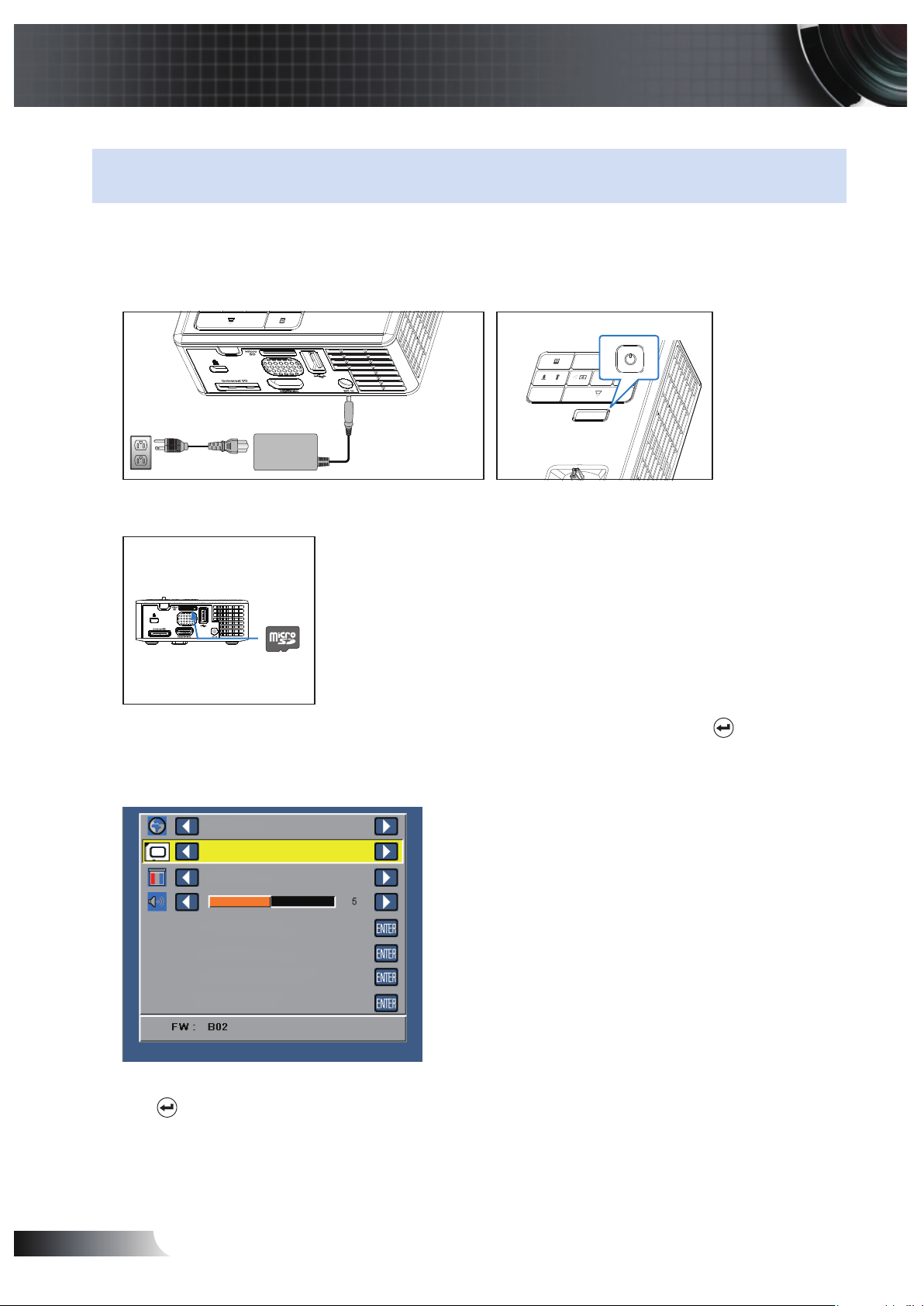
How to set-up File Type for Multi-Media with MicroSD
NOTE: A microSD card must be plugged into the projector if you want to use the multimedia
microSD function.
Follow these steps to playback the Photo, Video, Music, or Office Viewer files on your
projector:
Connect the power cable with AC adapter and turn on the projector by pressing the 1.
Power button.
FOCUS
FOCUS
Plug in a 2. MicroSD card to your projector. The image input source will be automati-
cally switched to microSD screen when you plug in a microSD card.
Access the 3. Source menu, select the Micro SD option and press the button. The
image input source will automatically switch to Multimedia Menu when Micro SD
option is selected in this step.
Micro SD
English
PC Mode
Auto Adjust
OSD Reset
Advanced
Data Transferring
Select the multi-media files: 4. Photo, Video, Music, or Ofce Viewer, and then press
the
to start playing. Or select the Setup option to change settings for Photo,
Video, Music, or Ofce Viewer.
35
English
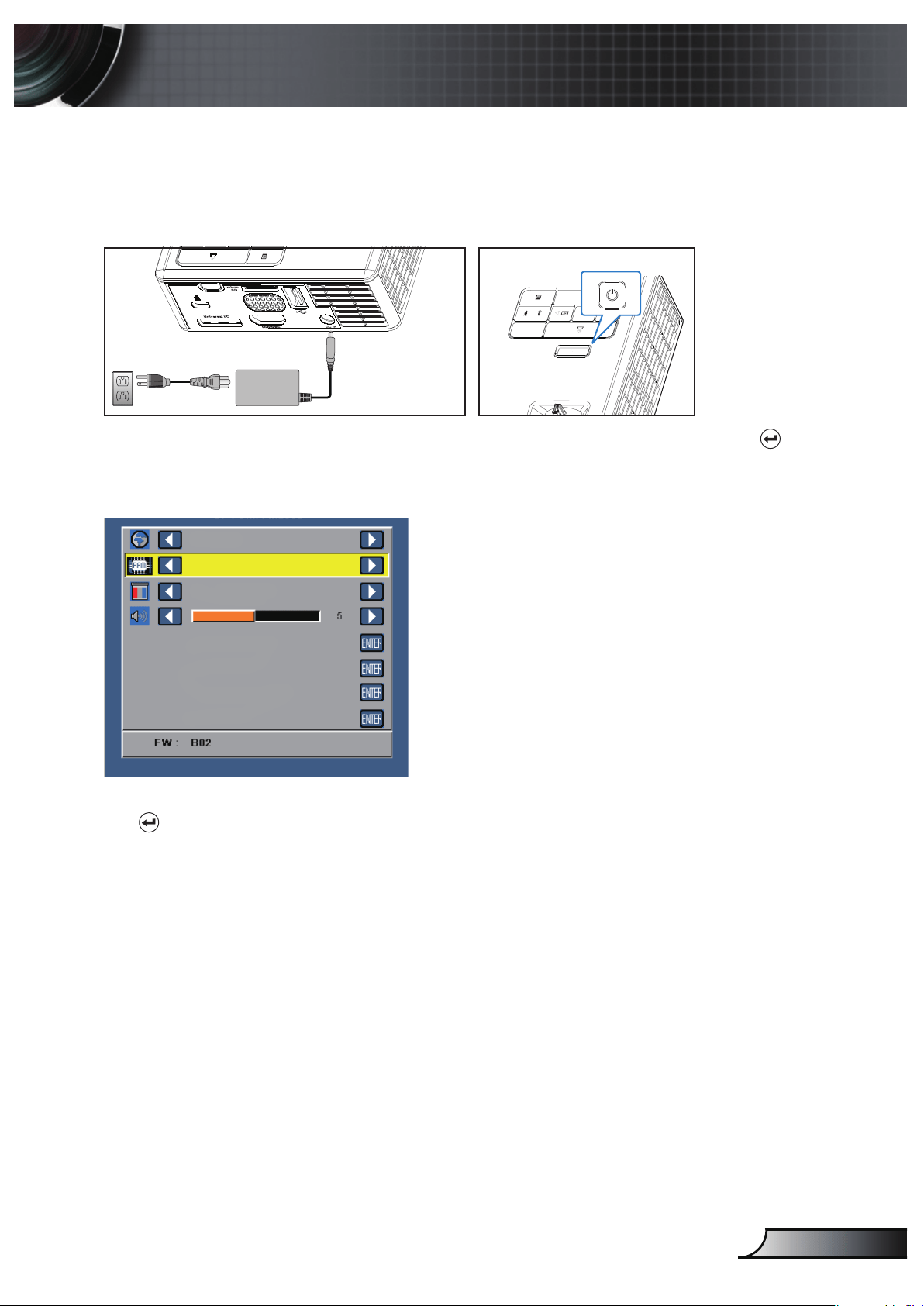
How to set-up File Type for Multi-Media with Internal Memory
Follow these steps to playback the Photo, Video, Music, or Office Viewer files on your
projector:
Connect the power cable with AC adapter and turn on the projector by pressing the 1.
Power button.
FOCUS
FOCUS
Access the 2. Source menu, select the Internal Memory option and press the
button. The image input source will automatically switch to Multimedia Menu when
Internal Memory option is selected in this step.
Internal Memory
English
PC Mode
Auto Adjust
OSD Reset
Advanced
Data Transferring
Select the multi-media files: 3. Photo, Video, Music, or Ofce Viewer, and then press
the
to start playing. Or select the Setup option to change settings for Photo,
Video, Music, or Ofce Viewer.
36
English
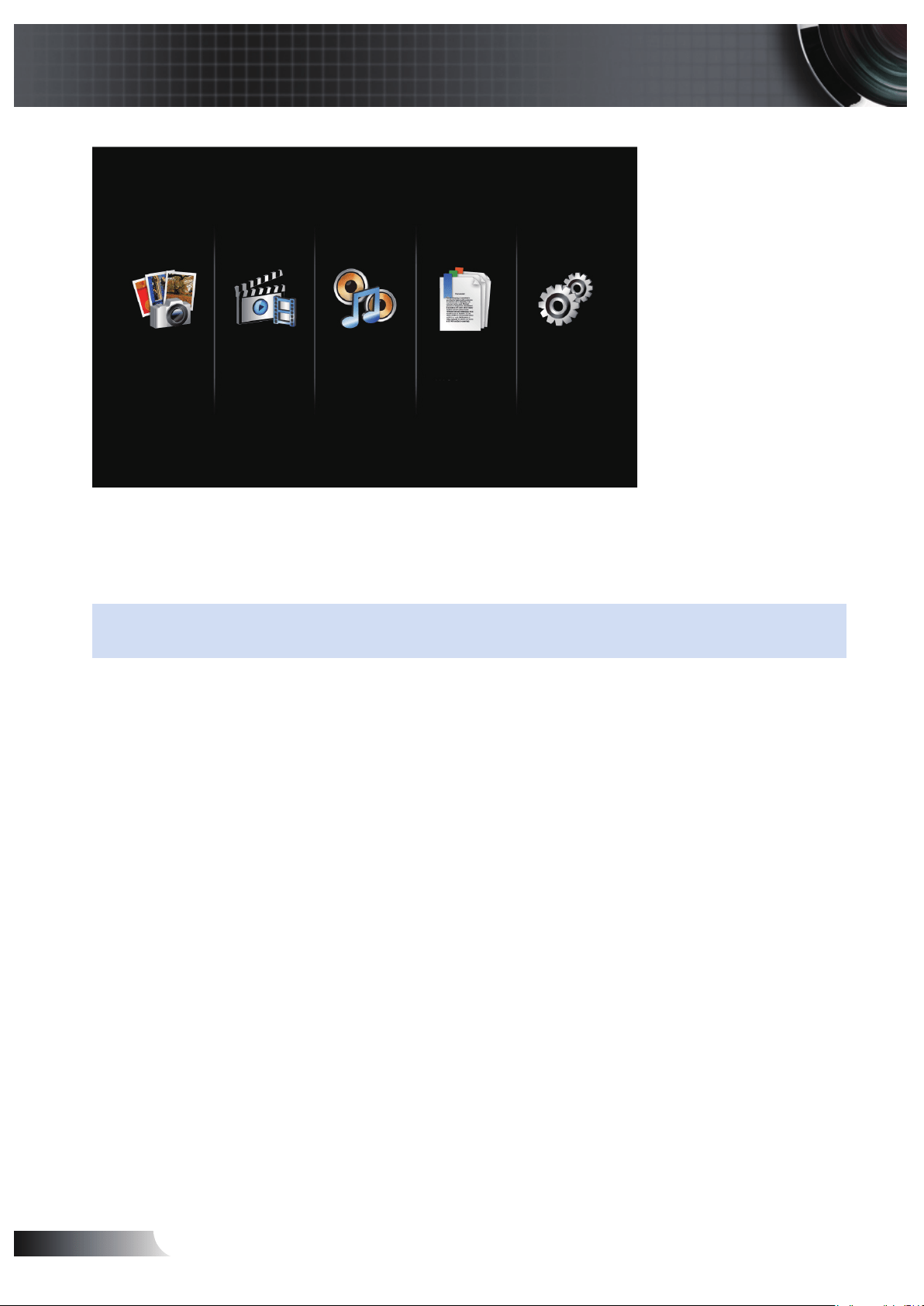
Multi-Media Main Menu
Photo Video Music Of ce Viewer Setup
Multi-Media SETUP for USB, MicroSD, and Internal Memory
The multi-media setup menu allows you to change settings for Photo, Video,
Music, and Of ce Viewer.
NOTE: Multi-media setup menu and set are the same for the USB, MicroSD, and Internal
Memory.
37
English
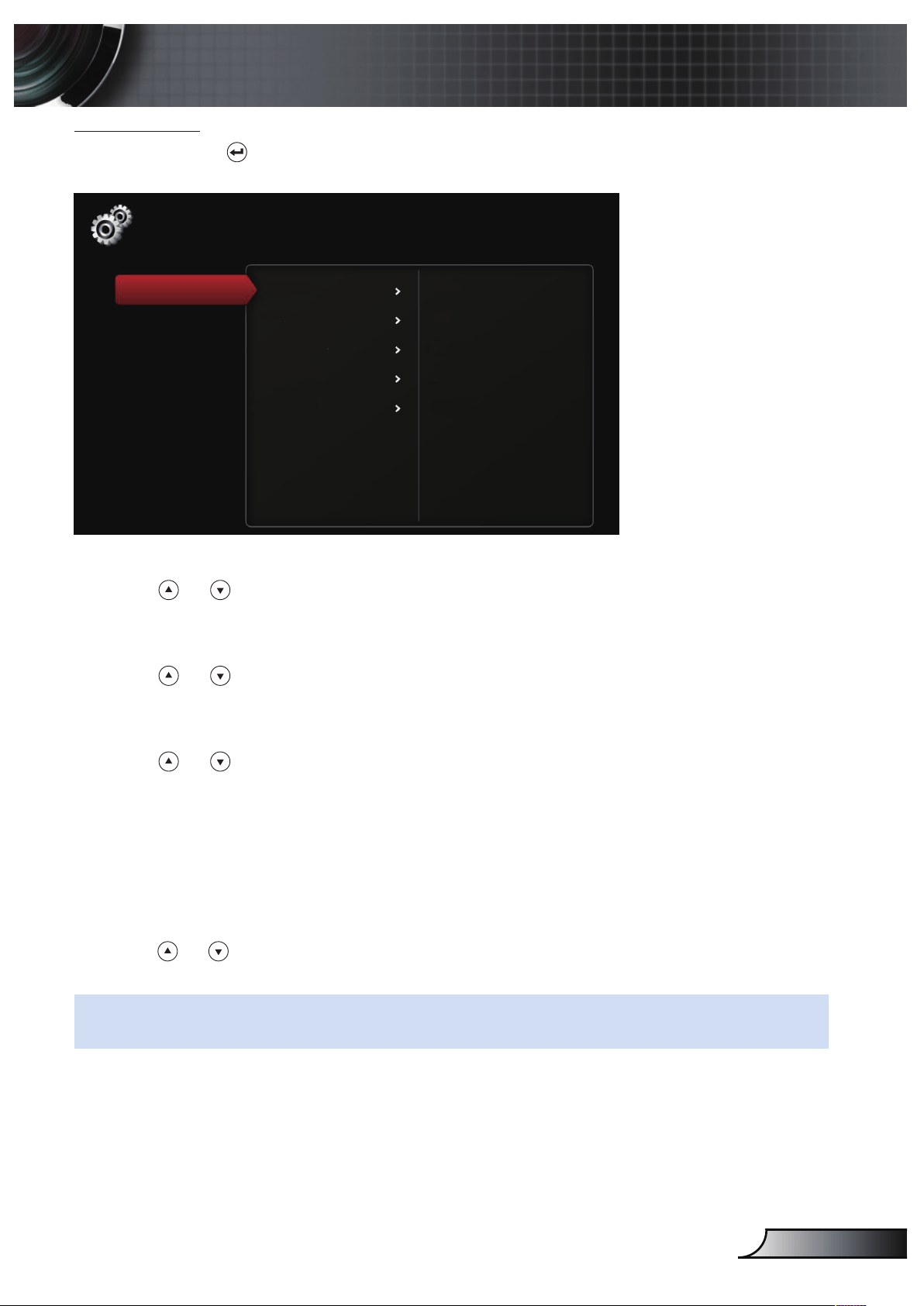
Photo Setup
Select and press to activate photo setup menu. The photo setup menu provides the
following options:
Setup
Photo Setup
Video Setup
Display Mode File List
Display Ratio Auto
Slideshow Duration 5 Sec.
Slideshow Repeat On
Slideshow Effect Random
Music Setup
Information
Display Mode
Press
or to select the display mode of the photo on the screen. Options are:
File List
,
Thumbnail
, and
Slideshow
.
Display Ratio
Press
or to select the display ratio of the photo as
Auto
(original ratio) or
Full
(full screen).
Slideshow Duration
Press
or to select the slideshow duration. The image will automatically switch
to the next photo after the time out. Options are:
5 Sec.
,
15 Sec., 30 Sec., 1 Min.,
5 Min., and 15 Min.
.
Slideshow Repeat
Select
On
to repeat slideshow always. Or select
Off
to stop slideshow when it goes
to the last page.
Slideshow Effect
Press
or to select what slideshow effect you want. Options are:
Random, Rect.,
Off, Snake, Partition, Erase, Blinds, Lines, GridCross, Cross, and Spiral
.
NOTE: Slideshow Duration, Slideshow Repeat, and Slideshow Effect function only support
Slideshow mode.
38
English
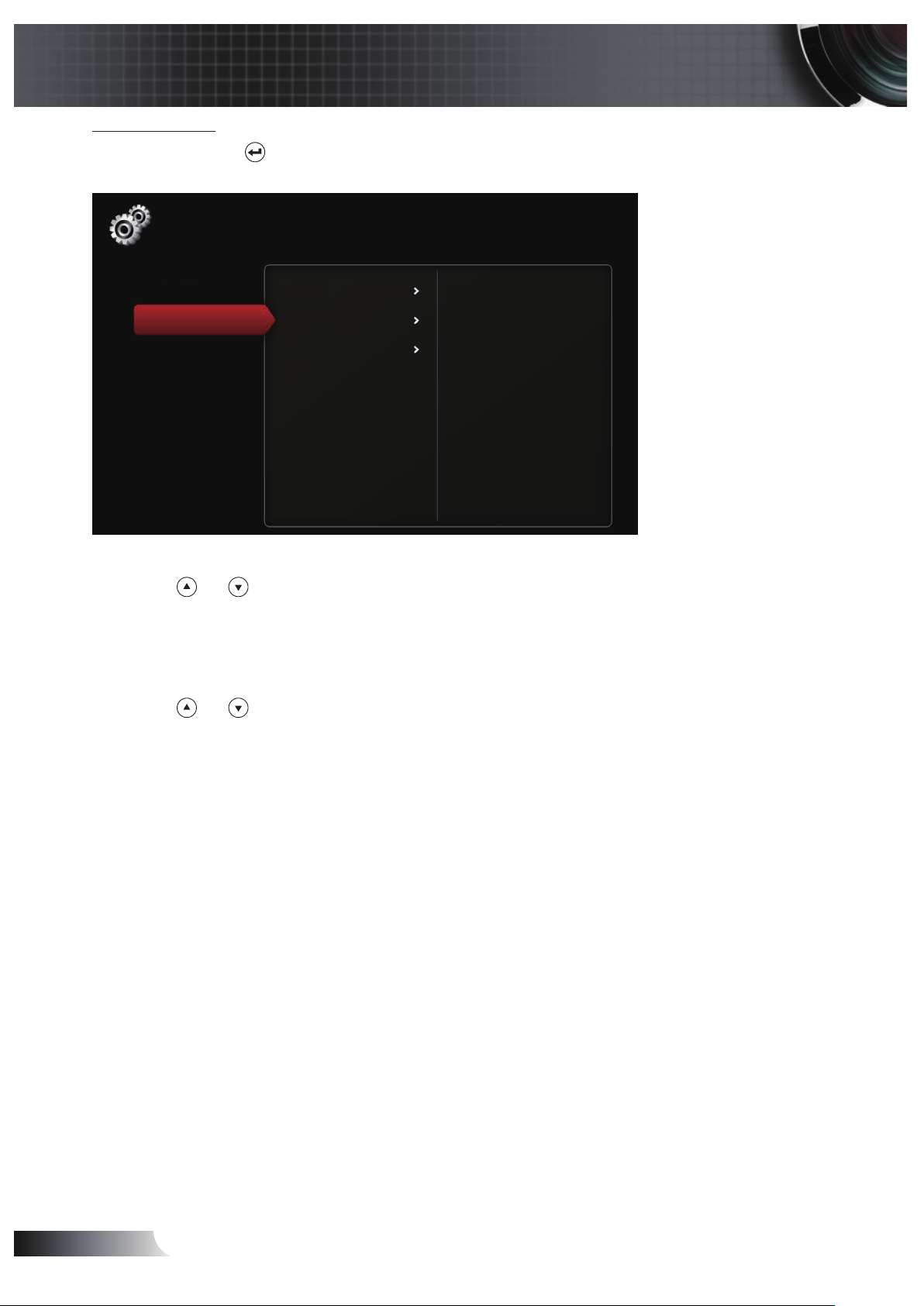
Video Setup
Select and press to activate video setup menu. The video setup menu provides the
following options:
Display Ratio Auto
Play Mode Random
Auto Play Off
Setup
Photo Setup
Video Setup
Music Setup
Information
Display Ratio
Press
or to select the display ratio of the Video.
Auto: Keep original aspect ratio.
y
Full: Full screen.
y
Play Mode
Press
or to select the video play mode. Options are:
Once, Repeat Once,
Repeat, and Random
.
Auto Play
Select
On
to play the video automatically while entering the video list.
39
English
Music Setup
Select and press to activate music setup menu. The music setup menu provides the
following options:
Setup
Photo Setup
Video Setup
Play Mode Once
Show Spectrum Off
Auto Play Off
Music Setup
Information
Play Mode
Press
or to select the video play mode. Options are:
Once, Repeat Once,
Repeat, and Random
.
Show Spectrum
Select
On
to show the spectrum plot while music is playing.
Auto Play
Select
On
to play the music automatically while entering the music list.
40
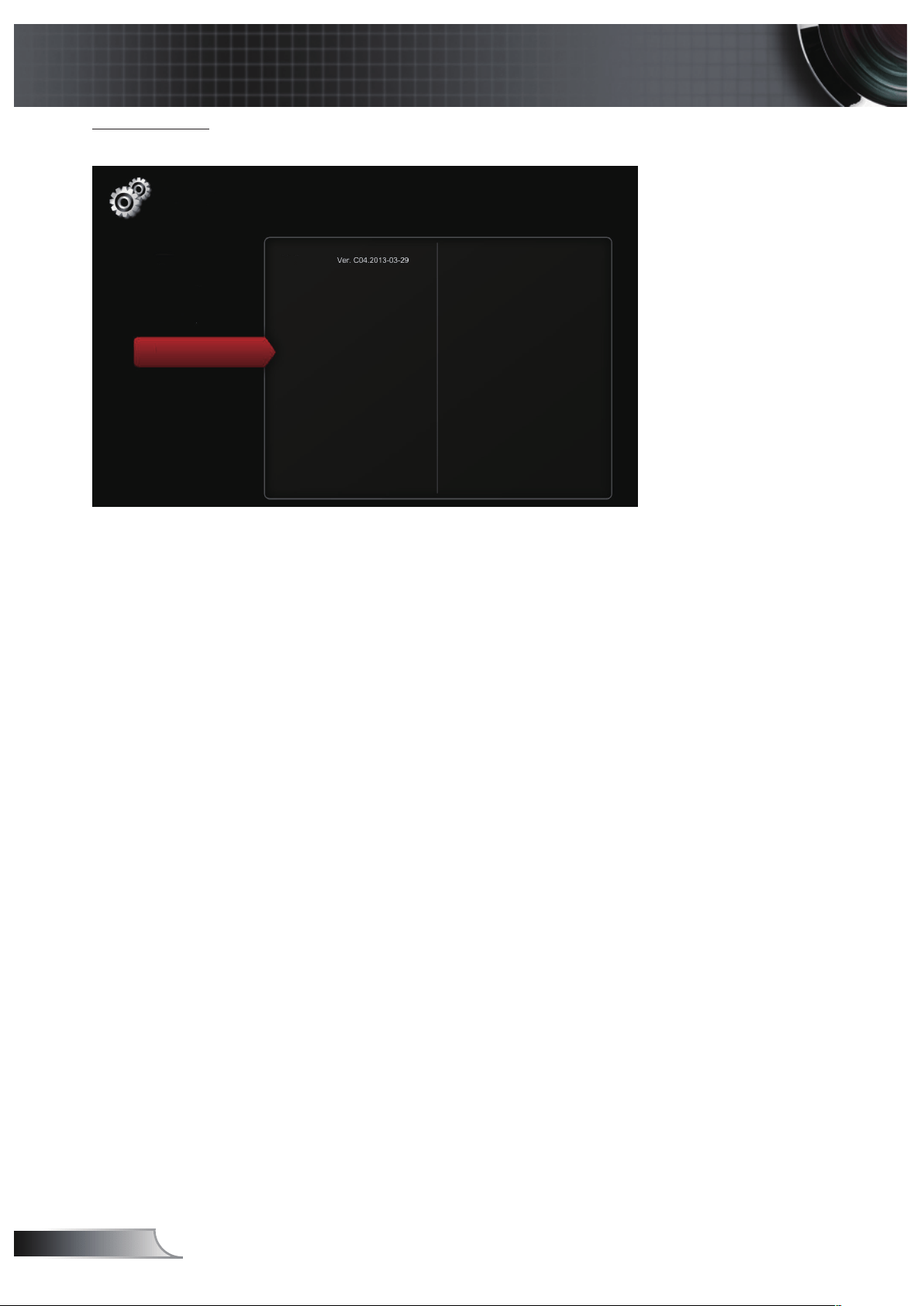
English
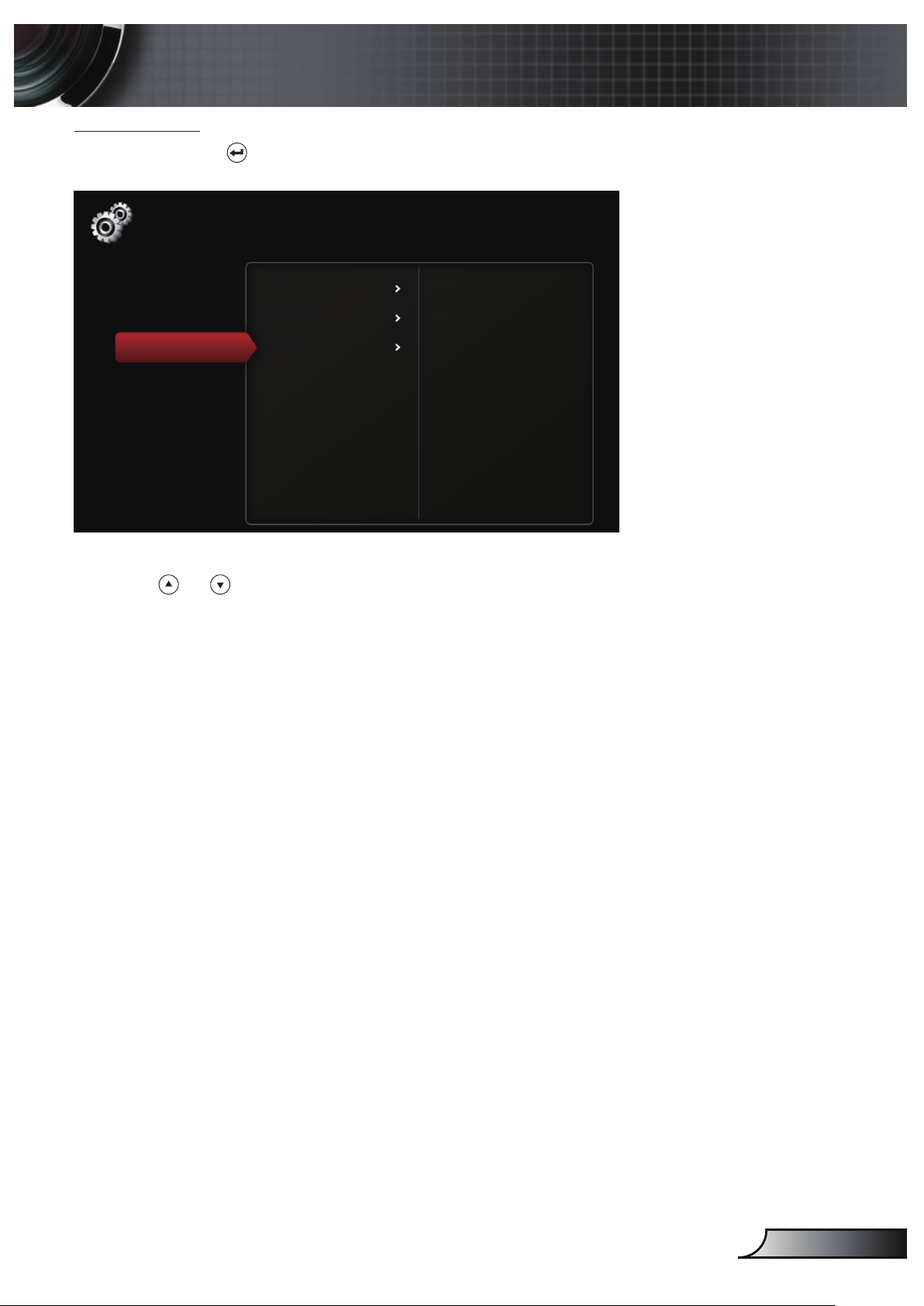
Information
Display the current projector’s firmware version and date.
Media
Setup
Photo Setup
Video Setup
Music Setup
Information

41
English
Appendices
Troubleshooting
If you experience problems with your projector, see the following troubleshoot-
ing tips. If the problem persists, contact your local reseller or service center.
Problem Possible Solution
No image appears on the
screen
Ensure that the projector is turned on. y
Ensure that you have chosen the correct input source y
on the OSD Source menu.
Ensure the external graphics port is enabled. If images y
are not displayed properly, please upgrade the video
driver of your computer.
Ensure that all the cables are securely connected. y
Ensure that the pins of the connectors are not bent or y
broken.
Partial, scrolling or
incorrectly displayed
image
Press the y Auto Adjust button on the control panel.
If you are using a portable computer, set the resolution of -
the computer to WXGA (1280 x 800).
If you experience difficulty in changing resolutions, or y
if your monitor freezes, restart all the equipment and
the projector.
If images are not displayed properly, please upgrade y
the video driver of your computer.
The screen does not dis-
play your presentation
If you are using a portable computer, press y the toggle
output settings. Example: [Fn]+[F4].
Image is unstable or
ickering
Adjust the tracking in the OSD y Display settings of the
Advanced menu (in PC Mode only).
Image has vertical ick-
ering bar
Adjust the frequency in the OSD y Display settings of
the Advanced menu (in PC Mode only).
Image is out of focus
Adjust the focus ring on the projector lens.1.
Ensure that the projection screen is within the required 2.
distance from the projector (3.18 ft [97 cm] to 8.48 ft
[258 cm]).
42
English
Problem Possible Solution
The image is stretched
when displaying a 16:9
DVD
The projector automatically detects the input signal y
format. It will maintain the aspect ratio of the projected
image according to input signal format with an Original
setting.
If the image is still stretched, adjust the aspect ratio y
in the Display settings of the Advanced menu in the
OSD.
LED warning indicator
(LED) is solid amber
A projector LED has failed and the projector will auto- y
matically shut down. If the problem persists, contact
Optoma.
TEMP warning indicator
(LED) is blinking amber
The projector has overheated. The display automati- y
cally shuts down. Turn the display on again after the
projector cools down. If the problem persists, contact
Optoma.
If the projector fan fails, the projector will automatically y
shut down. Clear the projector mode by pressing and
holding the Power button for 10 seconds. Please wait
for about 5 minutes and try to power up again. If the
problem persists, contact Optoma.
The remote control is
not operating smoothly
or works only within a
limited range
The battery may be low. Check if the LED indication y
from the remote is too dim. If so, replace with a new
CR2025 battery.

43
English
Guiding Signals
Projector
Status
Description
Power
(Blue/Amber)
TEMP
Warning
(Amber)
LED
Warning
(Amber)
Standby
mode
Projector in Standby mode. Ready to
power on.
Amber
Flashing
OFF OFF
Power on Projector in Normal mode, ready to
display an image.
BLUE OFF OFF
Projector
overheated
Air vents might be blocked or ambient
temperature may be above 35 ºC.
The projector automatically shuts
down. Ensure that the air vents are
not blocked and that the ambient
temperature is within operational
range. If the problem persists, contact
us.
OFF Amber
Flashing
(cycling
turn-off
1sec and
turn-on
3sec)
OFF
Fan
breakdown
One of the fans has failed. The
projector automatically shuts down. If
the problem persists, contact us.
OFF Amber
Flashing
(cycling
turn-off
0.5sec and
turn-on
2sec)
OFF
LED failure LED shutdown. OFF OFF AMBER

44
English
Compatibility Modes (Analog/Digital)
Resolution Refresh Rate (Hz) Hsync Frequency (KHz) Pixel Clock (MHz)
640 x 350 70.087 31.469 25.175
720 x 400 70.087 31.469 28.322
720 x 400 70.087 31.469 28.322
640 x 480 59.940 31.469 25.175
640 x 480 75.000 37.500 31.500
640 x 480 85.008 43.269 36.000
800 x 600 60.317 37.879 40.000
800 x 600 75.000 46.875 49.500
800 x 600 85.061 53.674 56.250
1024 x 768 60.004 48.363 65.000
1024 x 768 75.029 60.023 78.750
1024 x 768 84.997 68.677 94.500
1280 x 720 59.855 44.772 74.500
1280 x 1024 60.020 63.981 108.000
1280 x 1024 75.025 79.976 135.000
1280 x 768 59.87 47.776 79.500
1366 x 768 59.789 47.712 85.500
1680 x 1050 59.954 65.290 146.250
1440 x 900 59.887 55.935 106.500
1920 x 1080 60.000 67.500 148.500
1280 x 800 59.810 49.702 83.500
1280 x 720 59.855 44.772 74.500
720 x 480 p60 59.940 31.469 27.000
720 x 576 p50 50.000 31.250 27.000
1280 x 720 p60 60.000 45.000 74.250
1280 x 720 p50 50.000 37.500 74.250
1920 x 1080 i60 60.000 33.750 74.250
1920 x 1080 i50 50.000 28.125 74.250
1280 x 768 -R60 59.995 47.396 68.250
1280 X 768 74.893 60.289 102.250
1280 X 768 84.837 68.633 117.500
1280 x 800 -R 59.910 49.306 71.000
1280 x 800 74.934 62.795 106.500
1440 x 900 74.984 70.635 136.750
45
English
FOCUS
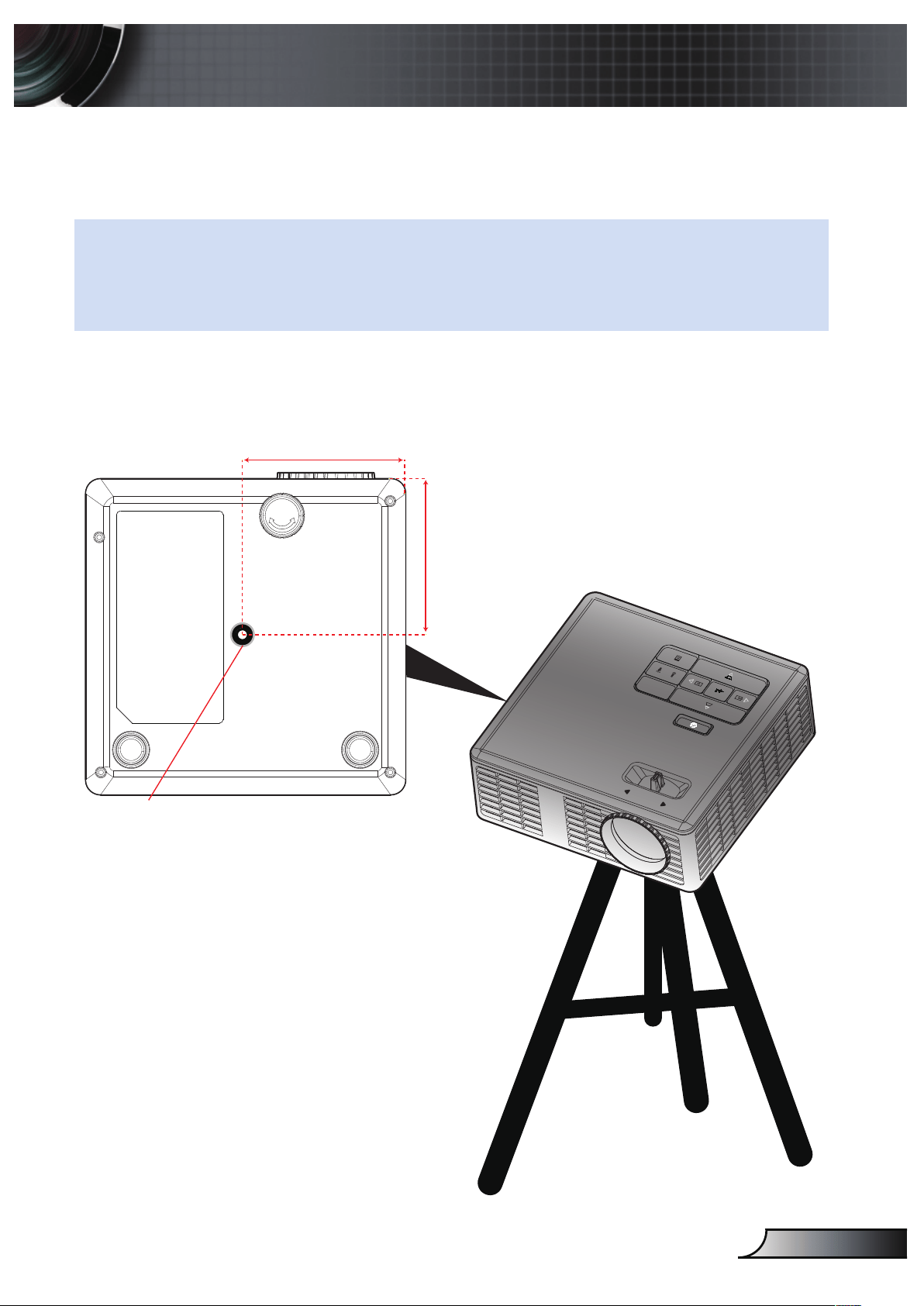
Tripod Mount the Projector
Screw a standard tripod into the screw hole on the projector.
Unit: mm
(Screw hole for tripod)
NOTE:
The tripod and ceiling mount are optional accessories.1.
Please note that damage resulting from incorrect installation will void the warranty.2.
52.0
54.0
Insert Nut 1/4” - 20 UNCxL7.5mm