USER’S MANUAL

BMP
®
21-PLUS/BMP
®
21-LAB User’s Manual ii
Copyright
This manual is copyrighted with all rights reserved. No portion of this manual may
be copied or reproduced by any means without the prior written consent of
BRADY.
While every precaution has been taken in the preparation of this document,
BRADY assumes no liability to any party for any loss or damage caused by errors
or omissions or by statements resulting from negligence, accident, or any other
cause. BRADY further assumes no liability arising out of the application or use of
any product or system described, herein; nor any liability for incidental or
consequential damages arising from the use of this document. BRADY disclaims
all warranties of merchantability of fitness for a particular purpose.
Trademarks
BMP
®
21-PLUS Label Printer is a trademark of BRADY Worldwide, Inc.
BMP
®
21-LAB Label Printer is a trademark of BRADY Worldwide, Inc.
Arial® is a trademark of The Monotype Corporation registered in the United States
Patent and Trademark Office and may be registered in certain jurisdictions.
Monotype® is a trademark of Monotype Imaging Inc. registered in the U.S. Patent
& Trademark Office and may be registered in certain other jurisdictions.
Microsoft and Windows are registered trademarks of Microsoft Corporation.
All brand or product names referenced in this manual are trademarks (™) or
registered trademarks (®) of their respective companies or organizations.
© 2018 BRADY Worldwide, Inc. All Rights Reserved.
Firmware 2.XX
Brady Worldwide, Inc.
6555 W. Good Hope Road
Milwaukee, WI 53223 USA
www.bradycorp.com
Telephone: 414-358-6600 USA Domestic
Facsimile: 414-438-6958

BMP
®
21-PLUS/BMP
®
21-LAB User’s Manual iii
BRADY Warranty
Our products are sold with the understanding that the buyer will test them in actual
use and determine for him or herself their adaptability to his/her intended uses.
BRADY warrants to the buyer that its products are free from defects in material
and workmanship, but limits its obligations under this warranty to replacement of
the product shown to BRADY’s satisfaction to have been defective at the time
BRADY sold it. This warranty does not extend to any persons obtaining the
product from the buyer.
THIS WARRANTY IS IN LIEU OF ANY OTHER WARRANTY, EXPRESSED, OR
IMPLIED INCLUDING, BUT NOT LIMITED TO ANY IMPLIED WARRANTY OF
MERCHANTABILITY OR FITNESS FOR A PARTICULAR PURPOSE, AND OF
ANY OTHER OBLIGATIONS OR LIABILITY ON BRADY’S PART. UNDER NO
CIRCUMSTANCES WILL BRADY BE LIABLE FOR ANY LOSS, DAMAGE,
EXPENSE OR CONSEQUENTIAL DAMAGES OF ANY KIND ARISING IN
CONNECTION WITH THE USE, OR INABILITY TO USE, BRADY’S PRODUCTS.
YOU SHOULD CAREFULLY READ THE FOLLOWING TERMS & CONDITIONS
OF THIS LICENSE AGREEMENT. IF YOU DO NOT AGREE WITH THESE
TERMS & CONDITIONS, PLEASE PROMPTLY RETURN THIS PACKAGE FOR
A FULL REFUND.
BMP
®
21-PLUS/BMP
®
21-LAB User’s Manual iv
Regulatory Compliance
United States
Note
This equipment has been tested and found to comply with the limits for a Class B
digital device, pursuant to part 15 of the FCC Rules. These limits are designed to
provide reasonable protection against harmful interference in a residential
installation. This equipment generates, and may radiate radio frequency energy
and, if not installed and used in accordance with the instructions, may cause
harmful interference to radio communications. However, there is no guarantee
that interference will not occur in a particular installation. If this equipment does
cause harmful interference to radio or television reception, which can be
determined by turning the equipment off and on, the user is encouraged to try to
correct the interference by one or more of the following measures:
• Reorient or relocate the receiving antenna.
• Increase the separation between the equipment and receiver.
• Connect the equipment into an outlet on a circuit different from that to which the
receiver is connected.
• Consult BRADY Technical Support for help.
Changes or modifications not expressly approved by the party responsible for
compliance could void the user’s authority to operate the equipment.
THIS CLASS B DEVICE COMPLIES WITH PART 15 OF THE FCC RULES.
OPERATION IS SUBJECT TO THE FOLLOWING TWO CONDITIONS: (1) THIS
DEVICE MAY NOT CAUSE HARMFUL INTERFERENCE, AND (2) THIS DEVICE
MUST ACCEPT ANY INTERFERENCE RECEIVED, INCLUDING
INTERFERENCE THAT MAY CAUSE UNDESIRED OPERATION.
Canada
Innovation, Science and Economic Development (ISED)
Canada ICES-003:
CAN ICES-3 (B)/NMB-3(B)
Europe
Waste Electrical and Electronic Equipment Directive
In accordance with the European WEEE Directive, this device needs to be
recycled in accordance with local regulations.
BMP
®
21-PLUS/BMP
®
21-LAB User’s Manual v
RoHS Directive 2011/65/EU (RoHS 2), 2015/863/EU (RoHS 3)
This product is CE marked and complies with the European Union's Directive
2011/65/EU OF THE EUROPEAN PARLIAMENT AND OF THE COUNCIL of 8
June 2011 on the restriction of the use of certain hazardous substances in
electrical and electronic equipment.
EU Directive 2015/863 of 31 March 2015 (RoHS 3) amends Annex II to Directive
2011/65/EU of the European Parliament and of the Council as regards the list of
restricted substances.
Batteries Directive 2006/66/EC
This product contains a lithium battery. The crossed-out
wheeled bin shown to the left is used to indicate 'separate
collection' for all batteries and accumulators in accordance with
European Directive 2006/66/EC. Users of batteries must not
dispose of batteries as unsorted municipal waste. This Directive
determines the framework for the return and recycling of used
batteries and accumulators that are to be collected separately
and recycled at end of life. Please dispose of the battery
according to your local regulations.
Notice to Recyclers
To remove the lithium battery pack:
1. Turn the printer over, open the battery compartment door, and remove the
battery pack.
2. Dispose of in accordance with local regulations.
To remove the lithium coin cell battery:
3. Disassemble printer and locate the lithium coin cell battery located on the
main circuit board.
4. Remove the battery from the board and dispose of in accordance with local
regulations.
Turkey
Turkish Ministry of Environment and Forestry
(Directive on the Restriction of the use of certain hazardous substances in
electrical and electronic equipment).
Türkiye Cumhuriyeti: EEE Yönetmeliğine Uygundur
Mexico
Energy Statement:
Consumo de energia en operacion: 3.35 Wh
(Energy consumption in operation mode)
Consumo de energia en modo de espera: 0.1 Wh
(Energy consumption in standby mode)

BMP
®
21-PLUS/BMP
®
21-LAB User’s Manual vi
Technical Support and Registration
Contact Information
For repair or technical assistance, locate your regional BRADY Technical Support
office by going to:
•
United States:
www.bradyid.com/techsupport
•
Europe:
www.bradyeurope.com/services
•
Australia:
www.bradyid.com.au/en-au/supportlanding
•
Canada:
www.bradycanada.ca
•
Latin America:
www.bradylatinamerica.com
Registration Information
To register your printer, go to:
•
www.bradycorp.com/register
•
Australia
:
www.bradyid.com.au/register
•
China:
www.brady.com.cn/membercenter/register_product.aspx
The serial number can be found under the media cartridge.
Repair and Return
Brady Corporation offers repair and replacement service. Contact Brady
Technical Support for repair and replacement information.

vii
BMP
®
21-PLUS/BMP
®
21-LAB User’s Manual
Table of Contents
Introduction. . . . . . . . . . . . . . . . . . . . . . . . . . . . . . . . . . . . . . . . . . . . . . . . . . . . . . . . . 1
Unpack Your Printer . . . . . . . . . . . . . . . . . . . . . . . . . . . . . . . . . . . . . . . . . . . . . . . . 2
Accessories. . . . . . . . . . . . . . . . . . . . . . . . . . . . . . . . . . . . . . . . . . . . . . . . . . . . 2
Register Your Printer . . . . . . . . . . . . . . . . . . . . . . . . . . . . . . . . . . . . . . . . . . . . 2
BMP
®
21-PLUS/BMP
®
21-LAB Label Printer System Specifications. . . . . . . . . . . . 3
Physical and Environmental Characteristics . . . . . . . . . . . . . . . . . . . . . . . . . . . . . 3
External View . . . . . . . . . . . . . . . . . . . . . . . . . . . . . . . . . . . . . . . . . . . . . . . . . . . . . . . 5
Power Source . . . . . . . . . . . . . . . . . . . . . . . . . . . . . . . . . . . . . . . . . . . . . . . . . . . . . . . 6
Loading AA Alkaline Batteries. . . . . . . . . . . . . . . . . . . . . . . . . . . . . . . . . . . . . . . . . 8
Loading the Lithium Ion Battery Pack. . . . . . . . . . . . . . . . . . . . . . . . . . . . . . . . . . . 9
Remove Lithium Battery . . . . . . . . . . . . . . . . . . . . . . . . . . . . . . . . . . . . . . . . . 10
AC Power Adapter . . . . . . . . . . . . . . . . . . . . . . . . . . . . . . . . . . . . . . . . . . . . . . . . .11
Attaching the Adapter . . . . . . . . . . . . . . . . . . . . . . . . . . . . . . . . . . . . . . . . . . . 11
Charging the Lithium Ion Battery Pack . . . . . . . . . . . . . . . . . . . . . . . . . . . . . . 12
Media Cartridge . . . . . . . . . . . . . . . . . . . . . . . . . . . . . . . . . . . . . . . . . . . . . . . . . . . . 13
Changing the Label Cartridge. . . . . . . . . . . . . . . . . . . . . . . . . . . . . . . . . . . . . . . . 14
Recycling the Label Cartridge . . . . . . . . . . . . . . . . . . . . . . . . . . . . . . . . . . . . . . . 15
Materials . . . . . . . . . . . . . . . . . . . . . . . . . . . . . . . . . . . . . . . . . . . . . . . . . . . . . 15
Dismantling the Cartridge . . . . . . . . . . . . . . . . . . . . . . . . . . . . . . . . . . . . . . . . 15
Recycling Components . . . . . . . . . . . . . . . . . . . . . . . . . . . . . . . . . . . . . . . . . . 17
Power On. . . . . . . . . . . . . . . . . . . . . . . . . . . . . . . . . . . . . . . . . . . . . . . . . . . . . . . . . . 18
Printer Version . . . . . . . . . . . . . . . . . . . . . . . . . . . . . . . . . . . . . . . . . . . . . . . . . . . 18
Editing Screen . . . . . . . . . . . . . . . . . . . . . . . . . . . . . . . . . . . . . . . . . . . . . . . . . . . 19
Status Information. . . . . . . . . . . . . . . . . . . . . . . . . . . . . . . . . . . . . . . . . . . . . . 19
Keypad. . . . . . . . . . . . . . . . . . . . . . . . . . . . . . . . . . . . . . . . . . . . . . . . . . . . . . . . . . . . 20
Navigation and Editing Keys. . . . . . . . . . . . . . . . . . . . . . . . . . . . . . . . . . . . . . . . . 20
Function Keys. . . . . . . . . . . . . . . . . . . . . . . . . . . . . . . . . . . . . . . . . . . . . . . . . . . . 22
Menus . . . . . . . . . . . . . . . . . . . . . . . . . . . . . . . . . . . . . . . . . . . . . . . . . . . . . . . . . . . . 23
Data Fields . . . . . . . . . . . . . . . . . . . . . . . . . . . . . . . . . . . . . . . . . . . . . . . . . . . . . . 24
Cancel a Menu or Data Field . . . . . . . . . . . . . . . . . . . . . . . . . . . . . . . . . . . . . . . . 24
Printer Defaults. . . . . . . . . . . . . . . . . . . . . . . . . . . . . . . . . . . . . . . . . . . . . . . . . . . 25
Language . . . . . . . . . . . . . . . . . . . . . . . . . . . . . . . . . . . . . . . . . . . . . . . . . . . . 25
Initial Language Setup . . . . . . . . . . . . . . . . . . . . . . . . . . . . . . . . . . . . . . . . . . 26

viii
BMP
®
21-PLUS/BMP
®
21-LAB User’s Manual
Set Clock. . . . . . . . . . . . . . . . . . . . . . . . . . . . . . . . . . . . . . . . . . . . . . . . . . . . . 27
Units . . . . . . . . . . . . . . . . . . . . . . . . . . . . . . . . . . . . . . . . . . . . . . . . . . . . . . . . . . . 31
Cut Mode . . . . . . . . . . . . . . . . . . . . . . . . . . . . . . . . . . . . . . . . . . . . . . . . . . . . . . . 32
Set Zero Style. . . . . . . . . . . . . . . . . . . . . . . . . . . . . . . . . . . . . . . . . . . . . . . . . . . . 33
Backlight Time . . . . . . . . . . . . . . . . . . . . . . . . . . . . . . . . . . . . . . . . . . . . . . . . . . . 34
Getting Started . . . . . . . . . . . . . . . . . . . . . . . . . . . . . . . . . . . . . . . . . . . . . . . . . . . . . 35
Entering Text. . . . . . . . . . . . . . . . . . . . . . . . . . . . . . . . . . . . . . . . . . . . . . . . . . . . . 35
Editing Text . . . . . . . . . . . . . . . . . . . . . . . . . . . . . . . . . . . . . . . . . . . . . . . . . . . . . . 35
Inserting Text . . . . . . . . . . . . . . . . . . . . . . . . . . . . . . . . . . . . . . . . . . . . . . . . . 35
Deleting Text. . . . . . . . . . . . . . . . . . . . . . . . . . . . . . . . . . . . . . . . . . . . . . . . . . 36
Clear Data. . . . . . . . . . . . . . . . . . . . . . . . . . . . . . . . . . . . . . . . . . . . . . . . . . . . 36
Error Messages. . . . . . . . . . . . . . . . . . . . . . . . . . . . . . . . . . . . . . . . . . . . . . . . 36
Font Size. . . . . . . . . . . . . . . . . . . . . . . . . . . . . . . . . . . . . . . . . . . . . . . . . . . . . 37
Printing a Label. . . . . . . . . . . . . . . . . . . . . . . . . . . . . . . . . . . . . . . . . . . . . . . . . . . 39
Multi-Print . . . . . . . . . . . . . . . . . . . . . . . . . . . . . . . . . . . . . . . . . . . . . . . . . . . . 39
Formatting. . . . . . . . . . . . . . . . . . . . . . . . . . . . . . . . . . . . . . . . . . . . . . . . . . . . . . . . . 40
Symbols . . . . . . . . . . . . . . . . . . . . . . . . . . . . . . . . . . . . . . . . . . . . . . . . . . . . . . . . 40
Remove a Symbol. . . . . . . . . . . . . . . . . . . . . . . . . . . . . . . . . . . . . . . . . . . . . . 41
International Character Set. . . . . . . . . . . . . . . . . . . . . . . . . . . . . . . . . . . . . . . . . . 42
Date and Time . . . . . . . . . . . . . . . . . . . . . . . . . . . . . . . . . . . . . . . . . . . . . . . . . . . 43
Timestamp . . . . . . . . . . . . . . . . . . . . . . . . . . . . . . . . . . . . . . . . . . . . . . . . . . . 43
Barcode . . . . . . . . . . . . . . . . . . . . . . . . . . . . . . . . . . . . . . . . . . . . . . . . . . . . . . . . 44
Add a Barcode . . . . . . . . . . . . . . . . . . . . . . . . . . . . . . . . . . . . . . . . . . . . . . . . 44
Edit Barcode Data. . . . . . . . . . . . . . . . . . . . . . . . . . . . . . . . . . . . . . . . . . . . . . 45
Datamatrix and QR Codes (Version 2.0 only) . . . . . . . . . . . . . . . . . . . . . . . . . . . 45
Add a Datamatrix or QR Code . . . . . . . . . . . . . . . . . . . . . . . . . . . . . . . . . . . . 46
Serialization . . . . . . . . . . . . . . . . . . . . . . . . . . . . . . . . . . . . . . . . . . . . . . . . . . . . . . . 47
How Serialization Works. . . . . . . . . . . . . . . . . . . . . . . . . . . . . . . . . . . . . . . . . . . . 47
Examples of Serialization . . . . . . . . . . . . . . . . . . . . . . . . . . . . . . . . . . . . . . . . . . . 48
Using Letters in Serialization . . . . . . . . . . . . . . . . . . . . . . . . . . . . . . . . . . . . . 49
Add Serialization. . . . . . . . . . . . . . . . . . . . . . . . . . . . . . . . . . . . . . . . . . . . . . . . . . 50
Edit a Sequence . . . . . . . . . . . . . . . . . . . . . . . . . . . . . . . . . . . . . . . . . . . . . . . . . . 50
File Management . . . . . . . . . . . . . . . . . . . . . . . . . . . . . . . . . . . . . . . . . . . . . . . . . . . 51
File Naming Standards . . . . . . . . . . . . . . . . . . . . . . . . . . . . . . . . . . . . . . . . . . . . . 51
Save a File . . . . . . . . . . . . . . . . . . . . . . . . . . . . . . . . . . . . . . . . . . . . . . . . . . . . . . 51
Replace (Overwrite) a File . . . . . . . . . . . . . . . . . . . . . . . . . . . . . . . . . . . . . . . . . . 52
Open a File . . . . . . . . . . . . . . . . . . . . . . . . . . . . . . . . . . . . . . . . . . . . . . . . . . . . . . 53
Delete a File . . . . . . . . . . . . . . . . . . . . . . . . . . . . . . . . . . . . . . . . . . . . . . . . . . . . . 54
Label Types. . . . . . . . . . . . . . . . . . . . . . . . . . . . . . . . . . . . . . . . . . . . . . . . . . . . . . . . 55
Selecting a Label Type . . . . . . . . . . . . . . . . . . . . . . . . . . . . . . . . . . . . . . . . . . . . . 55
Banner Portrait Label Type . . . . . . . . . . . . . . . . . . . . . . . . . . . . . . . . . . . . . . . . . . . 56
Banner Landscape Label Type . . . . . . . . . . . . . . . . . . . . . . . . . . . . . . . . . . . . . . . . 57
Fixed Length. . . . . . . . . . . . . . . . . . . . . . . . . . . . . . . . . . . . . . . . . . . . . . . . . . . . . . . 58

ix
BMP
®
21-PLUS/BMP
®
21-LAB User’s Manual
Custom Length (Version 2.0 only) . . . . . . . . . . . . . . . . . . . . . . . . . . . . . . . . . . . . . 59
Vial. . . . . . . . . . . . . . . . . . . . . . . . . . . . . . . . . . . . . . . . . . . . . . . . . . . . . . . . . . . . . . . 60
WireMarker Label Type (BMP®21-PLUS and 2.0 Only). . . . . . . . . . . . . . . . . . . . . 61
Terminal Block, Patch Panel (BMP®21-PLUS and 2.0 Only) . . . . . . . . . . . . . . . . 63
Panel Residential (Version 2.0 Only) . . . . . . . . . . . . . . . . . . . . . . . . . . . . . . . . . . . 66
Flags (BMP®21-PLUS and 2.0 Only). . . . . . . . . . . . . . . . . . . . . . . . . . . . . . . . . . . . 68
Breaker Box (BMP®21-PLUS and 2.0 Only). . . . . . . . . . . . . . . . . . . . . . . . . . . . . . 70
Technical Support Numbers/On-line Help . . . . . . . . . . . . . . . . . . . . . . . . . . . . . . . 72
Troubleshooting . . . . . . . . . . . . . . . . . . . . . . . . . . . . . . . . . . . . . . . . . . . . . . . . . . . . 73
Cleaning the Printer . . . . . . . . . . . . . . . . . . . . . . . . . . . . . . . . . . . . . . . . . . . . . . . 80
Display Screen . . . . . . . . . . . . . . . . . . . . . . . . . . . . . . . . . . . . . . . . . . . . . . . . 80
Internal Components. . . . . . . . . . . . . . . . . . . . . . . . . . . . . . . . . . . . . . . . . . . . 80
Appendix A - Symbols . . . . . . . . . . . . . . . . . . . . . . . . . . . . . . . . . . . . . . . . . . . . . . . 81
Appendix B - Supported ASCII Characters for Barcodes. . . . . . . . . . . . . . . . . . . 85
1
Introduction
BMP
®
21-PLUS/BMP
®
21-LAB User’s Manual
Introduction
The BMP
®
21-PLUS/BMP
®
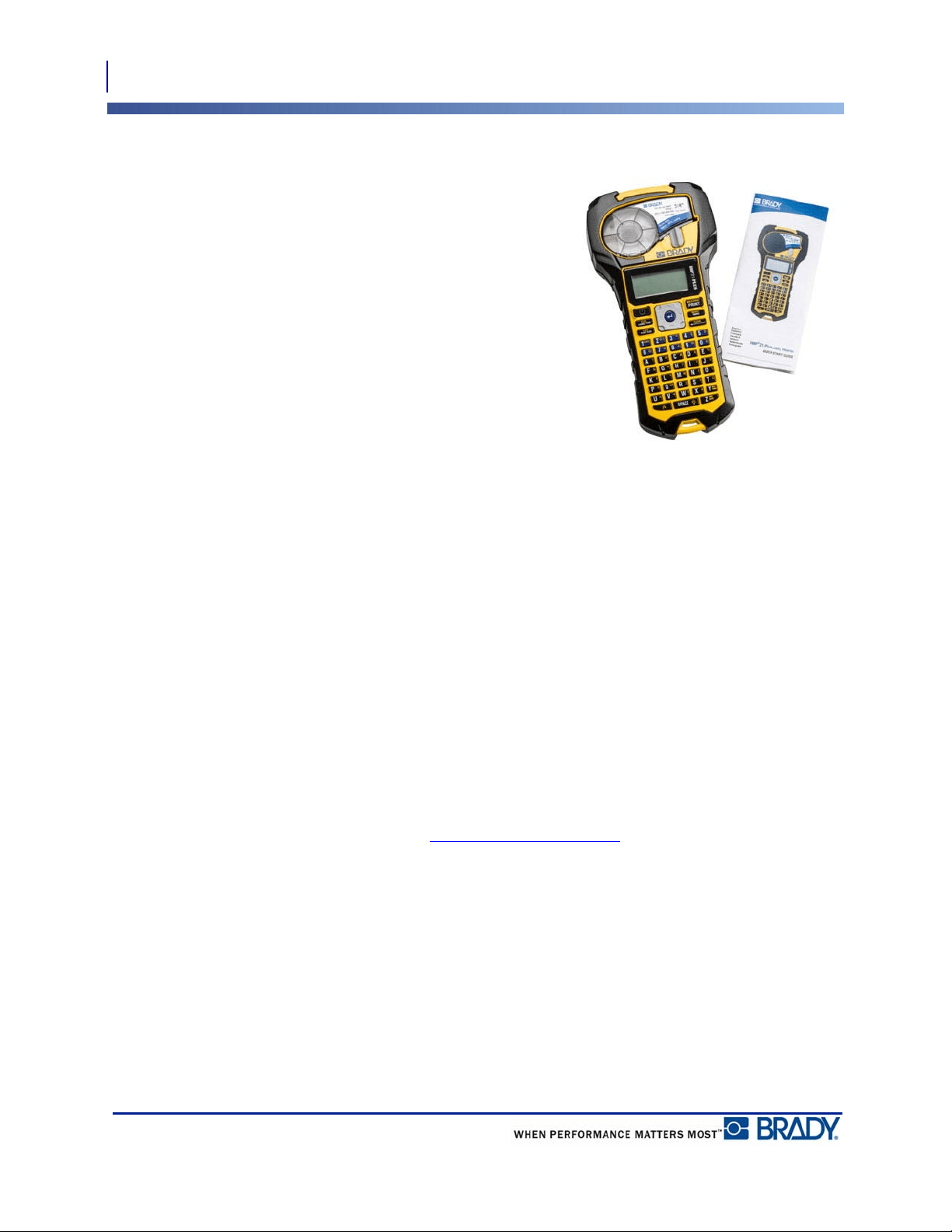
21-LAB Label Printer is capable of printing on a variety of
continuous supplies, up to 3/4- inch (19.1 mm) wide print. It includes the following features:
• Targeted applications to simplify the creation of specific label types
• Battery operation - at least 1800 2-inch (50.8mm) long labels on six AA alkaline batteries;
at least 2000 2-inch (50.8mm) long labels on Lithium battery pack.
• Ability to use the printer with either 6 AA batteries or an optional lithium ion rechargeable
battery pack.
• High contrast LCD display (132 pixels x 64 pixels)
• Easy to use graphic user interface
• 203 DPI print resolution
• One step media installation
Note: The BMP®21-PLUS and BMP®21-LAB label printers differ only in the
available label type templates. The BMP®21-LAB Label Printer is intended for use in
laboratory environments and therefore presents only label types for laboratory
functions.
The BMP
®
21-Plus also comes in a Russian language version with a Cyrillic keypad. The
printer closely mirrors the BMP®21-Plus. See the Russian quick start guide for more
information.
As denoted, some features described herein are applicable only on 2.0 version printers.
Please note that existing printers cannot be upgraded.
BMP21-Plus
2.0
Introduction
Unpack Your Printer
2
BMP
®
21-PLUS/BMP
®
21-LAB User’s Manual
Unpack Your Printer
The following items are included in the standard
BMP
®
21-PLUS/BMP
®
21-LAB Label Printer
package:
•BMP
®
21-PLUS Label Printer (BMP
®
21-LAB
Label Printer)
• M21-750-499 black on white vinyl cartridge
(BMP
®
21-PLUS and BMP
®
21-PLUS-RUSSIAN)
• M21-750-7425 cartridge (BMP®21-LAB)
• Quick Start Guide
•Lanyard
Accessories
The following items are accessories available for the BMP®21-PLUS/BMP®21-LAB Label
Printer.
• Lithium Ion battery pack (BMP21-PLUS-BATT)
• AC Adapter 110V (BMP21-AC), 220V (#110416), UK 240V (#110417)
• Hardside carrying case (BMP21-HC)
• Magnet Accessory (BMP21-MAGNET)
• Multifunctional Accessory (BMP21-TOOL)
Accessories can be purchased separately or potentially as part of a kit. A variety of kits are
available in different areas. Please visit your local Brady website to determine what kits are
available in your country/region.
Register Your Printer
Register your printer on-line at www.bradycorp.com/register and receive free product support
and updates!
For Warranty information, visit your local Brady website.
3
Introduction
BMP
®
21-PLUS/BMP
®
21-LAB User’s Manual
BMP
®
21-PLUS/BMP
®
21-LAB Label Printer System
Specifications
The BMP
®
21-PLUS/BMP
®
21-LAB Label Printer has the following specifications:
• Weight 1.66 lbs (0.753 kg)
• Thermal Transfer Print Mechanism, 203 DPI print resolution
• Softplast ABC-style keypad
• Print Width - 0.75-inch (19.1 mm) maximum label width
• Maximum length for labels with alphanumeric characters: 15.75 inches (400 mm)
• Maximum characters that can be printed: 50
• Prints up to 1800 1/2-inch x 2-inch (12.7mm x 50.8mm) labels on 6 AA batteries
Physical and Environmental Characteristics
The BMP
®
21-PLUS/BMP
®
21-LAB Label Printer has the following physical and
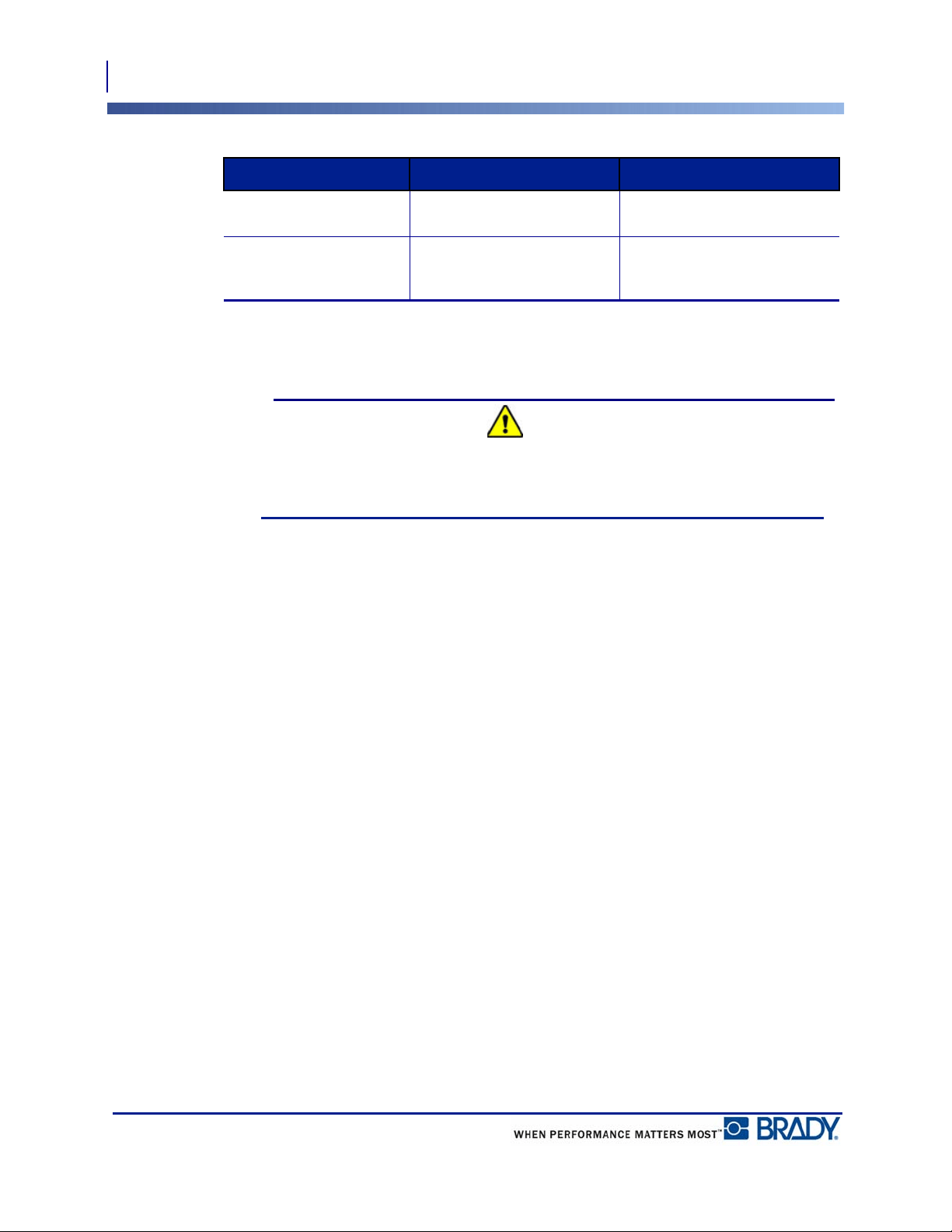
environmental characteristics:
Note: The table below refers to the BMP
®
21-PLUS/BMP
®
21-LAB Label Printer
only. Consumable performance may vary.
Physical Metric Units Imperial/U.S. Units
Dimensions
236.22 x 63.5 x 114.3 mm
9.3" x 2.5" x 4.5"
Weight (with battery pack) 0.75 kg 1.66 lbs
Introduction
Physical and Environmental Characteristics
4
BMP
®
21-PLUS/BMP
®
21-LAB User’s Manual
*Exposing the BMP
®
21-PLUS/BMP
®
21-LAB Label Printer to direct sunlight is not
recommended.
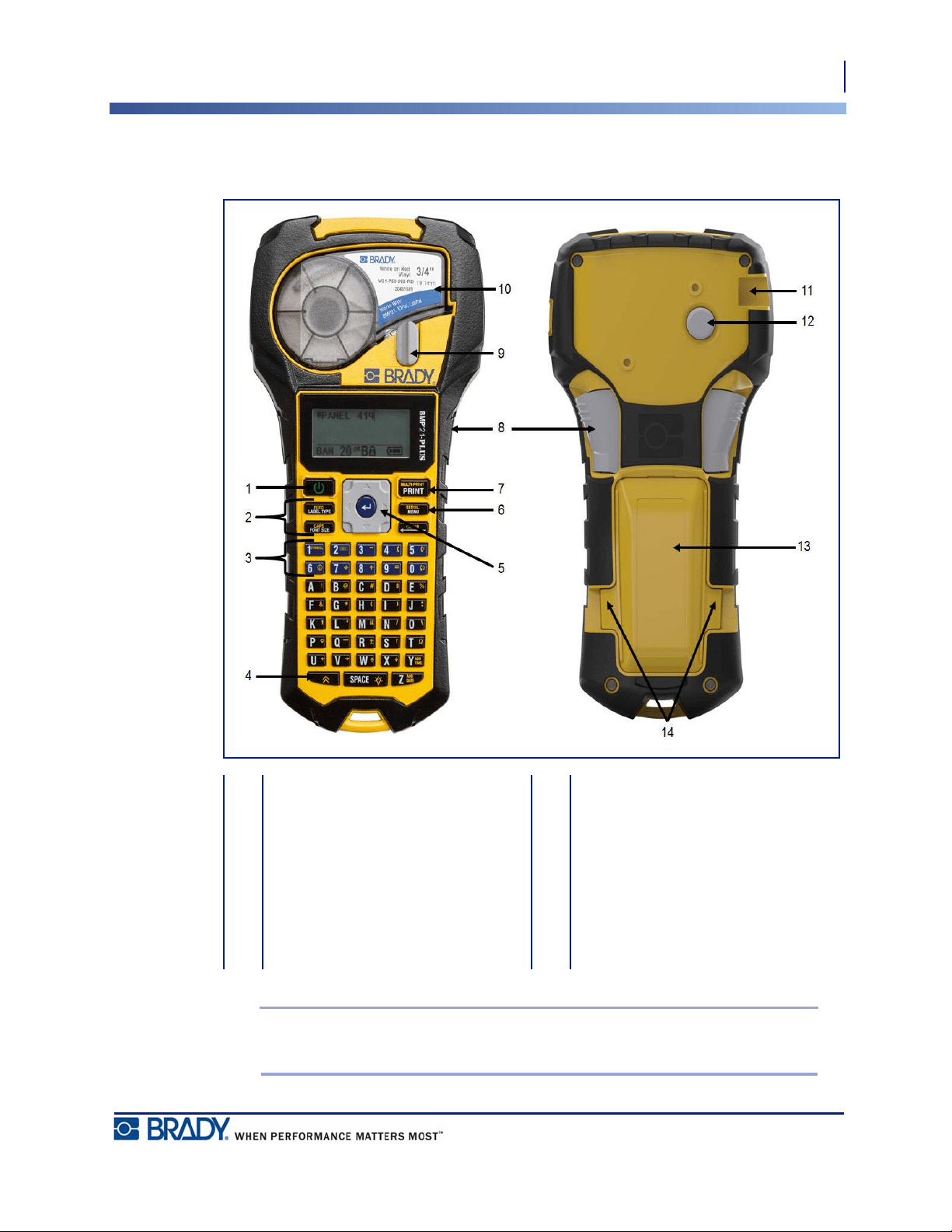
WARNING
Avoid using the system near water, in direct sunlight, or near a heating device.
Do not attempt to use batteries other than those recommended in this manual.
Environmental Operation Storage
Temperature* (Printer)
4° to 43° C (40° to 110° F)
-18° to 43° C (0° to 110° F)
Relative Humidity
(Printer)
20% to 90% (non-
condensing)
10% to 90% (non-
condensing)
5
External View
Physical and Environmental Characteristics
BMP
®
21-PLUS/BMP
®
21-LAB User’s Manual
External View
Note: There are NO PC connection ports on the BMP®21-PLUS/BMP®21-LAB
printer. BMP®21-PLUS/BMP®21-LAB CANNOT be connected to a PC.
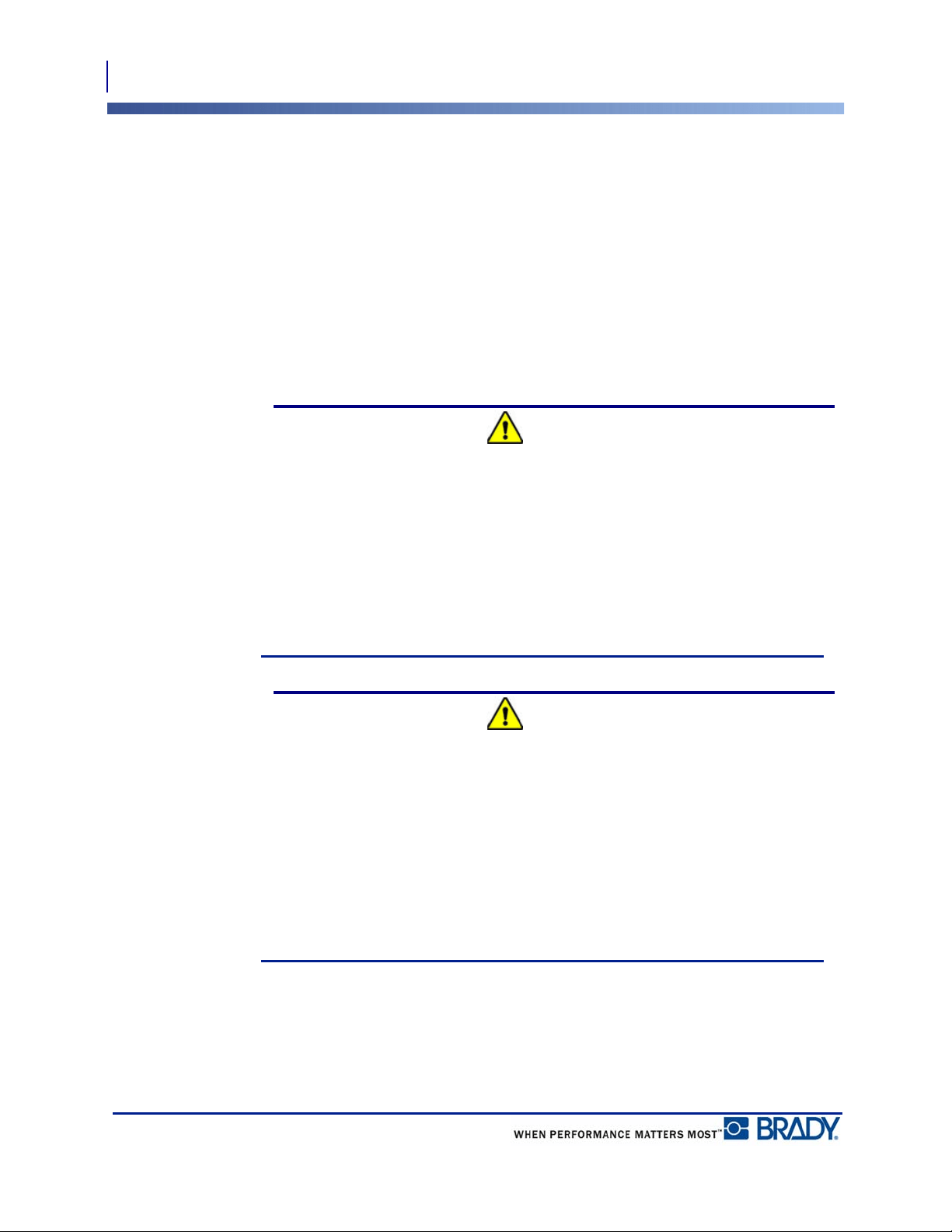
1 Power key 8 Cutter lever
2 Function keys 9 Cartridge bay locking lever
3 Symbols and characters 10 Cartridge bay with cartridge
4 Secondary function key 11 AC adapter port
5 Navigation pad with ENTER key 12 Cartridge eject button
6 Set language and unit defaults 13 Battery compartment
7 Print key 14 Finger tabs on battery
compartment cover
Power Source
Physical and Environmental Characteristics
6
BMP
®
21-PLUS/BMP
®
21-LAB User’s Manual
Power Source
Power is supplied to the BMP
®
21-PLUS/BMP
®
21-LAB Label Printer by six AA alkaline
batteries, a BMP21-PLUS-BATT Lithium Ion battery pack, or by an AC power adapter.
To maintain maximum printer performance, use basic AA alkaline batteries, NOT
rechargeable (Ultimate Lithium) AA batteries.
The optional Li-Ion battery pack is rechargeable, but must be removed from the printer and
attached to the AC power adapter for charging to take place.
The AC power adapter is used to recharge the Li-ion battery pack outside the printer, but it can
also be used to power the BMP®21-PLUS printer without batteries.
WARNING
Do not expose batteries to temperatures above 60C (140F).
Do not disassemble or mistreat the battery pack.
Do not attempt to open, damage, or replace components in the battery pack.
The Battery Pack should only be used in the BMP
®
21-PLUS/BMP
®
21-LAB Label
Printer.
Do not use any other rechargeable battery pack other than the BMP21-PLUS-BATT
supplied for the BMP
®
21-PLUS/BMP
®
21-LAB Label Printer.
Do not allow metal or other conductive materials to touch the battery terminals.
WARNING
Keep the battery pack away from sparks, flames, or other heat sources.
Keep the battery pack away from water.
Never lay objects on top of the battery pack.
Store your battery pack only in a cool, dry place.
Keep the battery pack out of the reach of children.
Special precautions should be taken when handling the battery pack during disposal to
prevent impact to the cells.
The battery pack must be recycled or disposed of properly according to federal, state,
and municipal regulations.
7
Power Source
Physical and Environmental Characteristics
BMP
®
21-PLUS/BMP
®
21-LAB User’s Manual
WARNING
Do not dismantle, open or shred cells or batteries.
Do not expose cells or batteries to heat or fire. Avoid storage in direct sunlight.
Do not short-circuit a cell or a battery. Do not store cells or batteries haphazardly in a
box or drawer where they may short-circuit each other or be short-circuited by other
metal objects.
Do not remove a cell or battery from its original packaging until required for use.
Do not subject cells or batteries to mechanical shock.
In the event of a cell leaking, do not allow the liquid to come in contact with the skin or
eyes. If contact has been made, wash the affected area with copious amounts of water
and seek medical advice.
Do not use any charger other than that specifically provided for use with the equipment.
Observe the plus (+) and minus (-) marks on the cell, battery and equipment and ensure
correct use.
Do not use any cell or battery which is not designed for use with the equipment.
Do not mix cells of different manufacture, capacity, size, or type.
When using alkaline cells, always use fresh, new batteries and never mix used batteries
with new batteries.
Keep cells and batteries out of the reach of children.
Seek medical advice immediately if a cell or a battery has been swallowed.
Keep cells and batteries clean and dry.
Wipe the cell or battery terminals with a clean dry cloth if they become dirty.
The BMP21-PLUS-BATT battery pack needs to be charged before use. Always use the
correct charger and refer to the manual included with the pack.
After extended periods of storage, it may be necessary to charge the battery pack to
obtain maximum performance.
Batteries give their best performance when they are operated at normal room
temperature (20 °C ± 5 °C, 68°F ± 41°F).
Retain the original product literature for future reference.
Power Source
Loading AA Alkaline Batteries
8
BMP
®
21-PLUS/BMP
®
21-LAB User’s Manual
Loading AA Alkaline Batteries
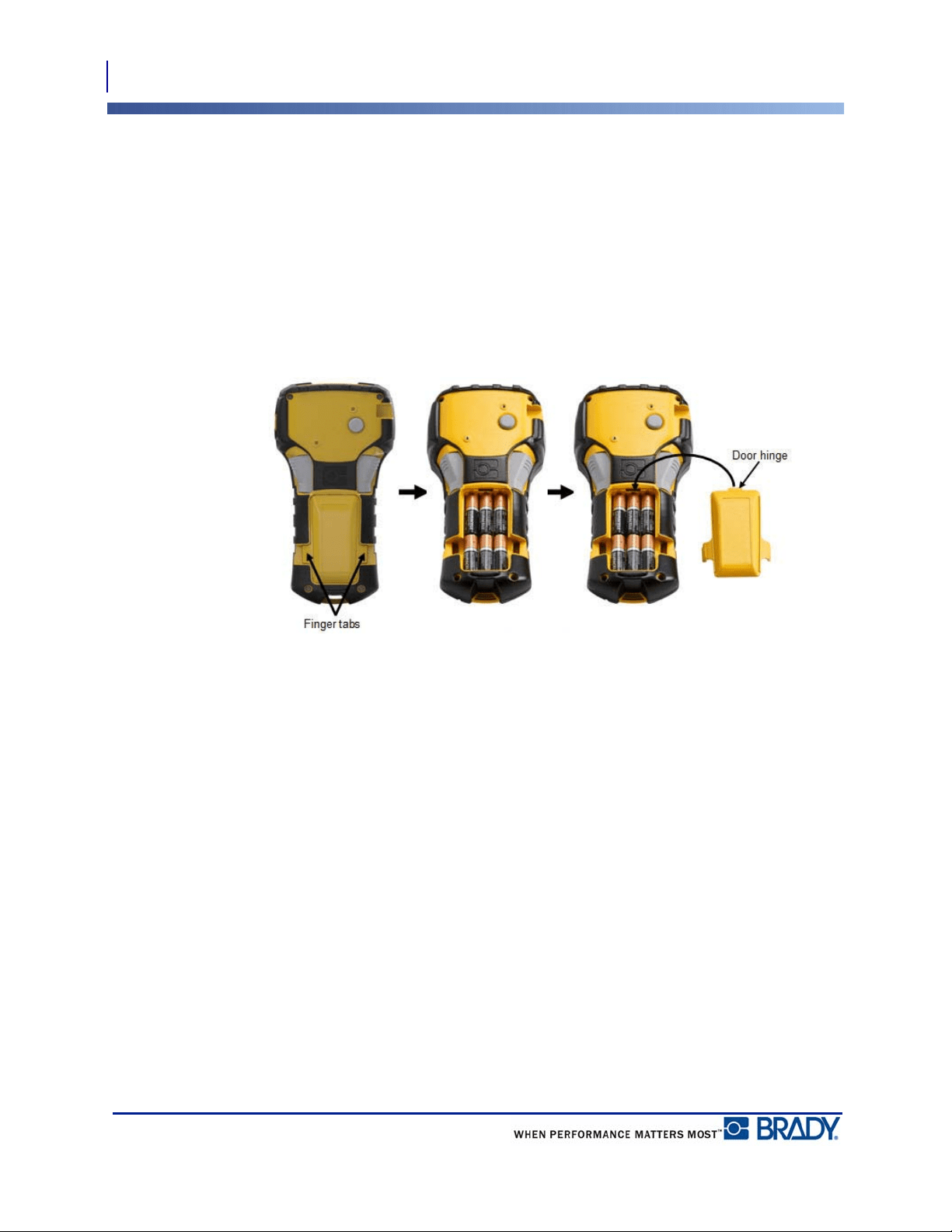
1. On the back of the printer,
squeeze the finger tabs
located on both sides of the
battery compartment door,
then swing the battery
compartment door up and
out. (The door will come
off.)
2. Insert 6 AA alkaline
batteries, observing correct
polarity. (Do not use
rechargeable AA batteries
or Ultimate Lithium AA
batteries).
3. Re-insert the battery door
hinge at the top of the
compartment and push
down on the battery
compartment door,
snapping it into place.
9
Power Source
Loading the Lithium Ion Battery Pack
BMP
®
21-PLUS/BMP
®
21-LAB User’s Manual
Loading the Lithium Ion Battery Pack
When using a BMP21-PLUS-BATT Lithium Ion battery pack, please consult the instructions
enclosed with the battery pack for the charging procedure.
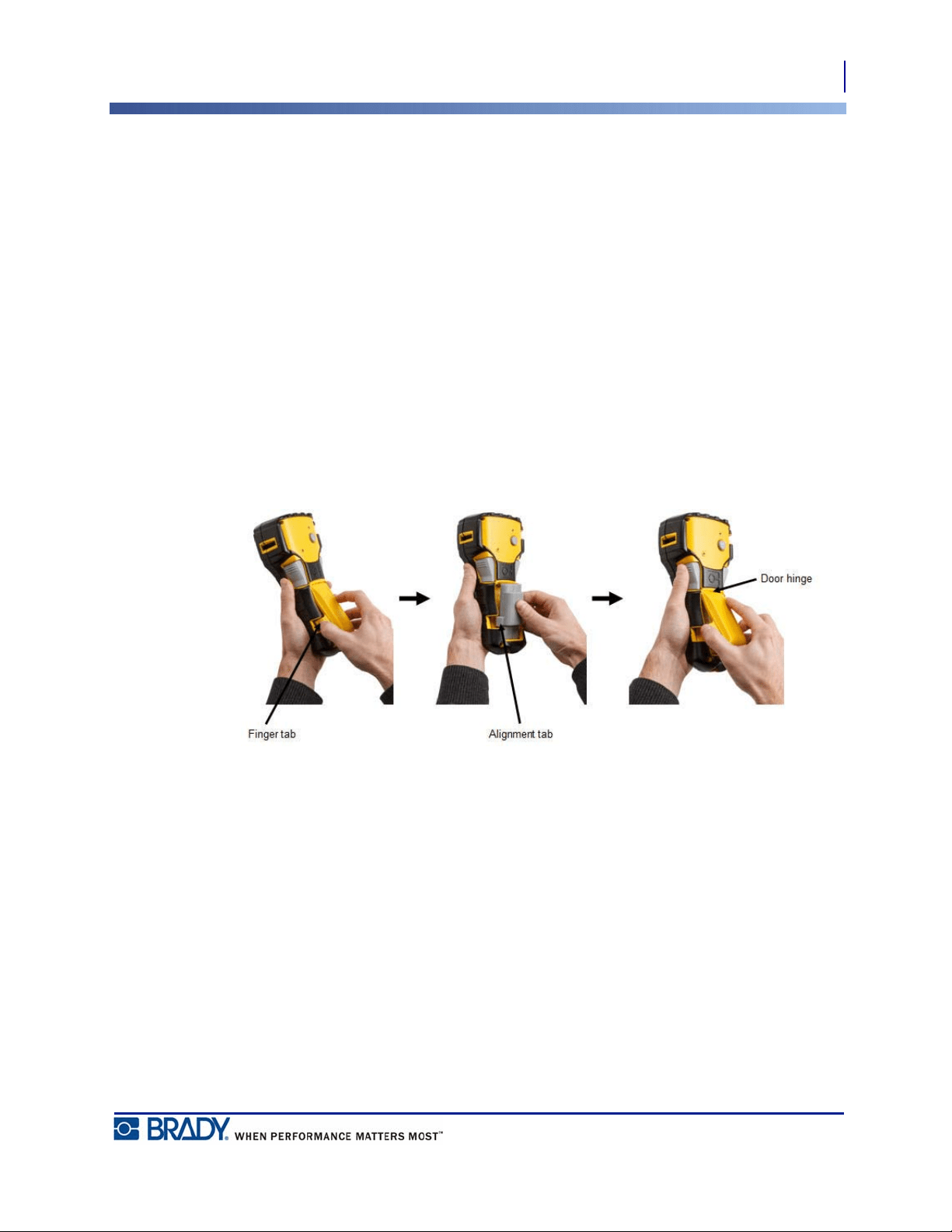
1. On the back of the printer,
squeeze the finger tabs
located on both sides of the
battery compartment door,
then swing the battery
compartment door up and
out. (The door will come
off.)
2. With the battery label
facing down, insert the
elongated portion of the
battery (just below the
alignment tabs) into the
slot at the bottom of the
battery compartment; then
push the top part of the
battery down until it snaps
into place. (The battery
alignment tabs fit into the
cutout finger tab grooves.)
3. Re-insert the battery door
hinge at the top of the
compartment and push
down on the battery
compartment door,
snapping it into place.
Power Source
Loading the Lithium Ion Battery Pack
10
BMP
®
21-PLUS/BMP
®
21-LAB User’s Manual
Remove Lithium Battery
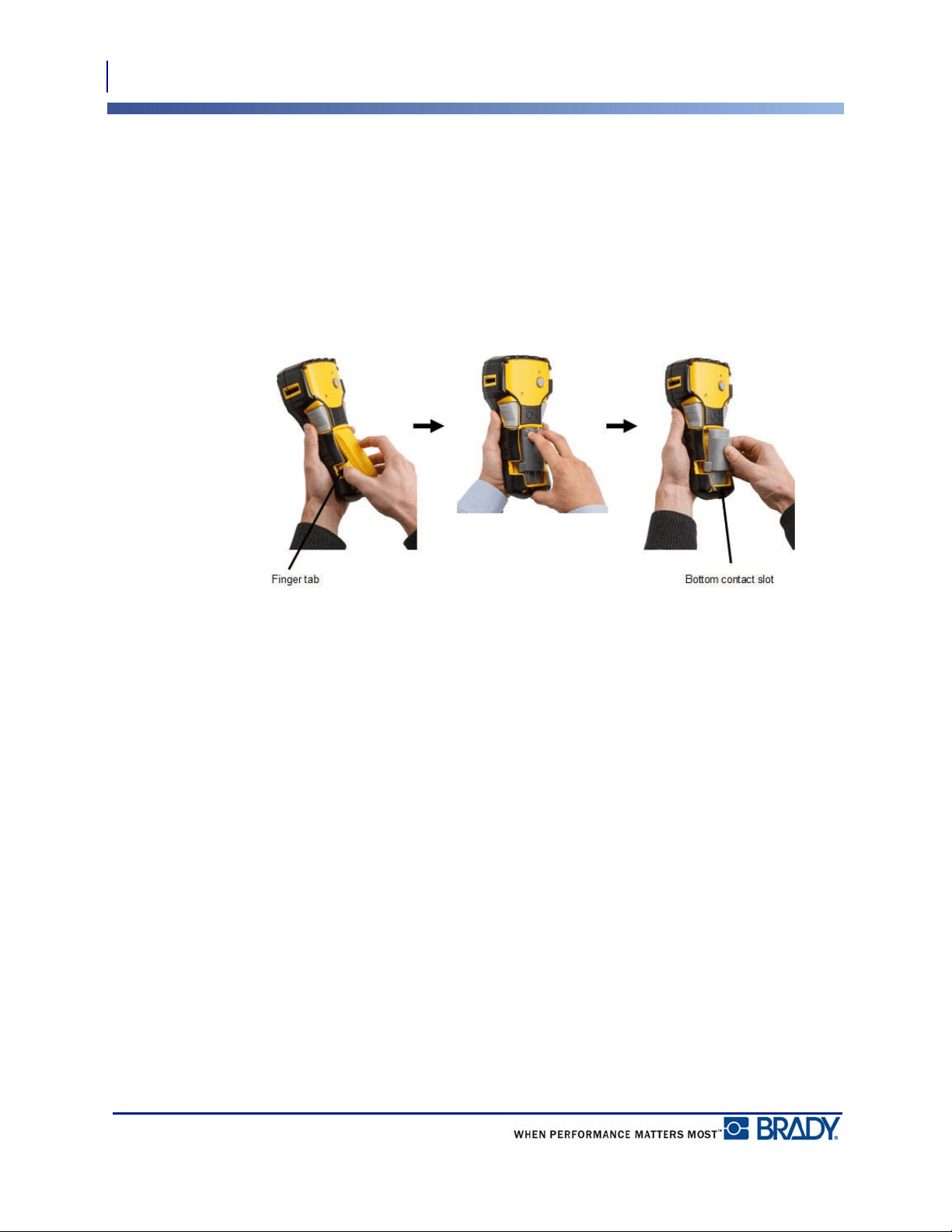
1. Squeeze the finger tabs
located on both sides of the
battery compartment door,
then swing the battery
compartment door up and
out. (The door will come
off.)
2. Placing your thumb at the
base of the printer, use
your forefingers to gently
pull up on the raised
portion of the battery. This
releases the top of the
battery from the contacts.
3. Grasp the raised battery
and pull it up and out from
the bottom contact slots.
11
Power Source
AC Power Adapter
BMP
®
21-PLUS/BMP
®
21-LAB User’s Manual
AC Power Adapter
The printer can be powered by an AC/DC power adapter. The AC/DC power adapter can also
be used to recharge the BMP21-BATT battery pack outside of the printer.
WARNING
Use only the 9V DC, Brady AC/DC adapters, shown below, for supplying power to the
BMP
®
21-PLUS/BMP
®
21-LAB Label Printer.
Attaching the Adapter
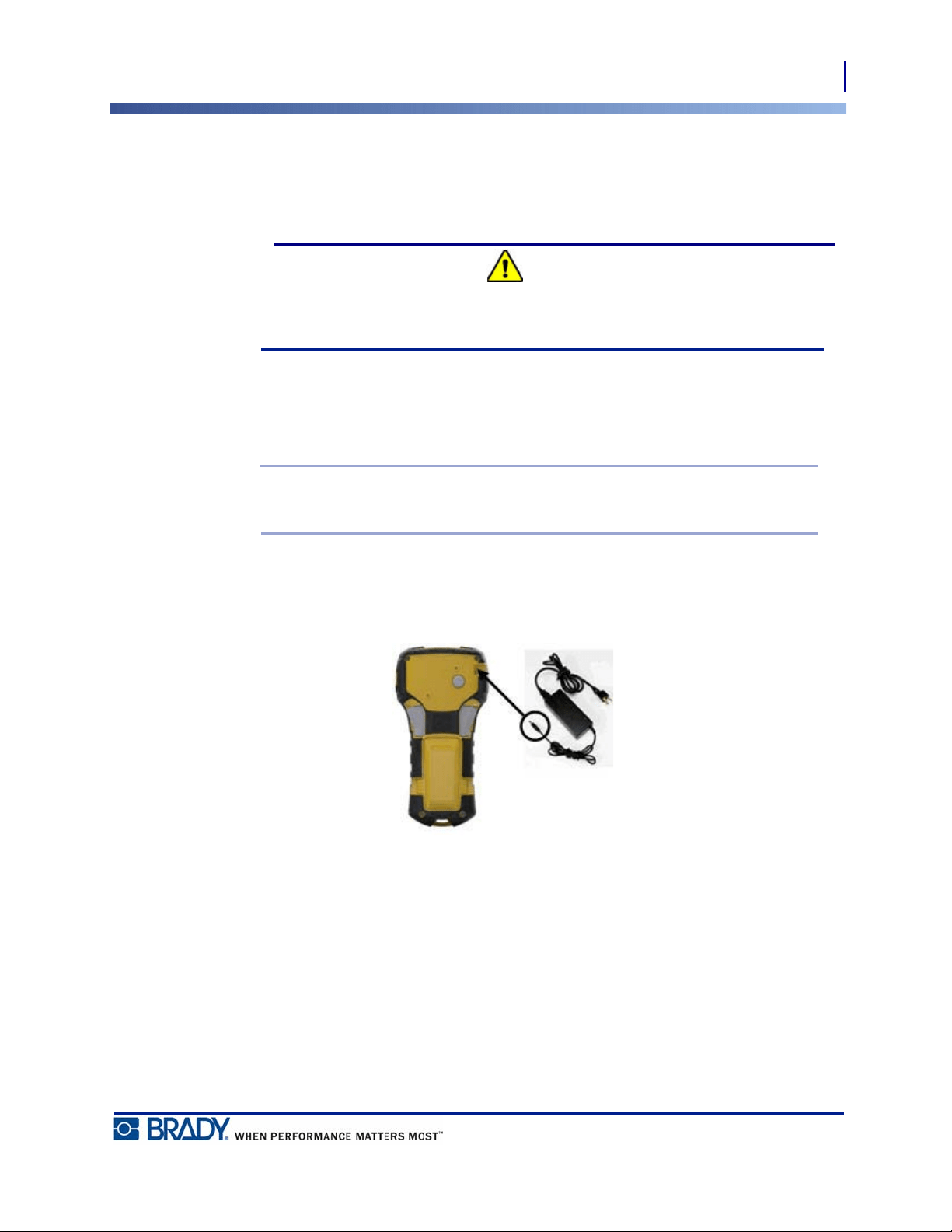
The printer can be powered through a designated AC power adapter.
Note: The lithium ion battery does NOT charge within the printer when using the AC
adapter.
1. Insert the round end of the optional adapter
cable into the plug-in port on the left side
of the printer.
2. Plug the other end of the cord into an
electrical outlet.
Power Source
AC Power Adapter
12
BMP
®
21-PLUS/BMP
®
21-LAB User’s Manual
Charging the Lithium Ion Battery Pack
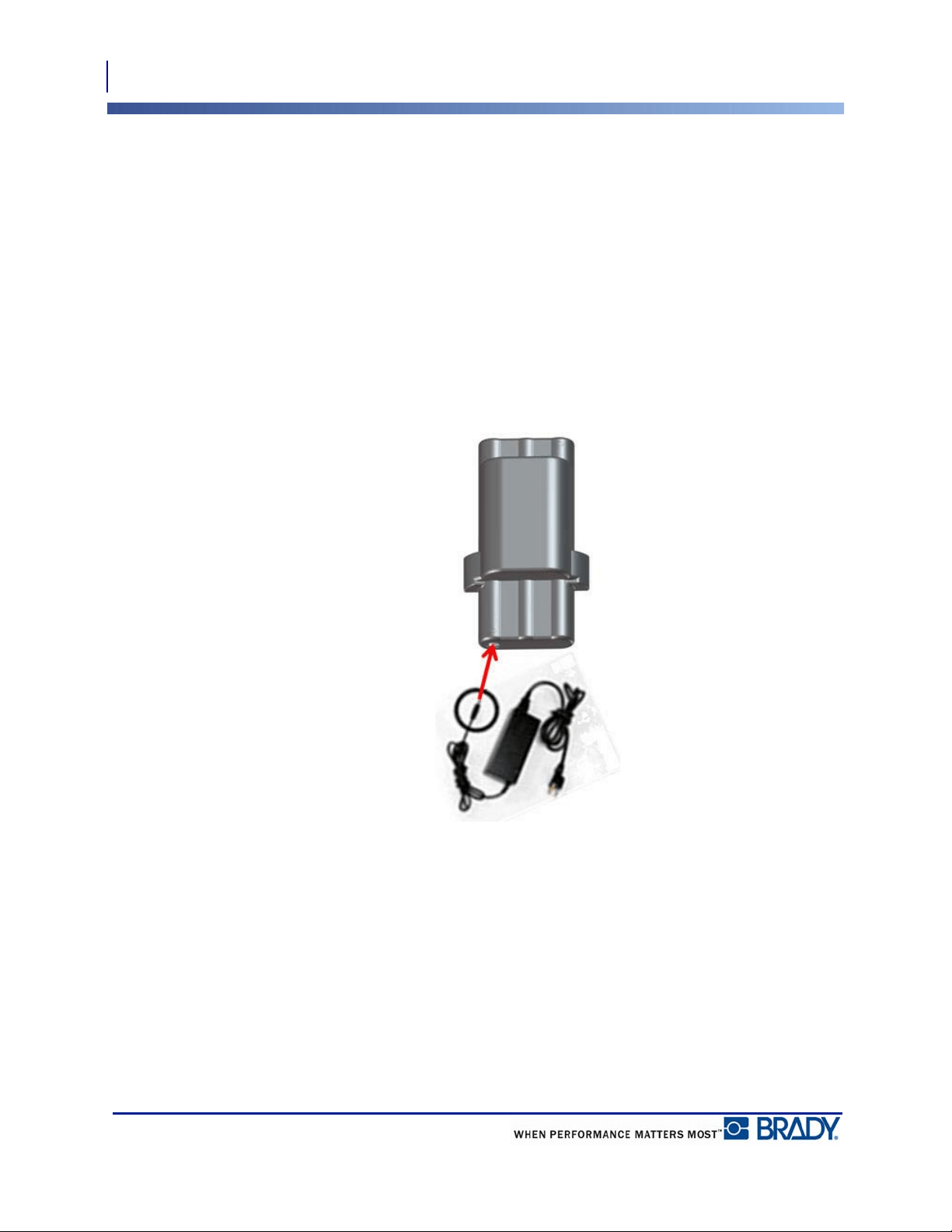
The lithium ion battery pack accessory cannot be charged in the printer. The battery pack must
be removed from the printer and charged using the BMP21-AC AC adapter. To use the printer
while charging the battery, insert 6 AA alkaline batteries in the battery compartment.
Attaching the Adapter to the Battery Pack
1. Insert the round end of the adapter cable into the plug-in port on the lower left side of the
battery pack.
2. Plug the other end of the adapter cord into an electrical outlet.
13
Media Cartridge
AC Power Adapter
BMP
®
21-PLUS/BMP
®
21-LAB User’s Manual
Media Cartridge
The media and ribbon supplies for the BMP
®
21-PLUS/BMP
®
21-LAB Label Printers are
combined in a plastic cartridge for easy one-step loading. With the exception of the 0.25-inch
(6.35mm) size, these cartridges are NOT compatible with the BMP21 printer. Media sizes are
between 0.25-0.75-inch (6.35mm - 19.1mm) width. Length is variable based on the font size
used and information placed on the label.
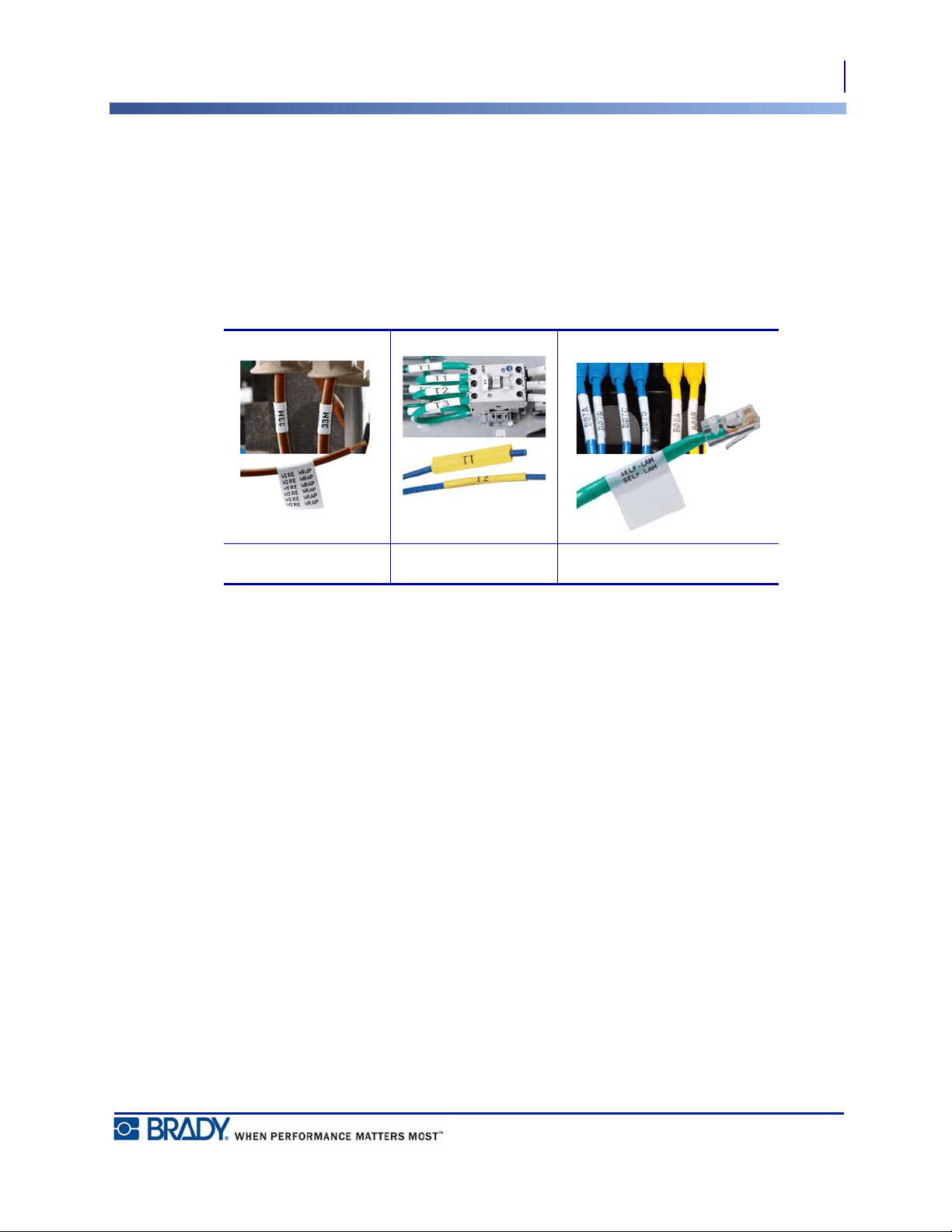
Media types include:
Standard labels Permasleeve Selflams
Media Cartridge
Changing the Label Cartridge
14
BMP
®
21-PLUS/BMP
®
21-LAB User’s Manual
Changing the Label Cartridge
If the cartridge is empty, recycle according to local regulations. (See page 15 for more
information on recycling cartridges.)
Store the cartridge in a cool, dry place.
Please note that the cartridge bay contains parts and assemblies that may be
susceptible to damage by Electrostatic Discharge (ESD). When loading or unloading a
cartridge, care must be taken so that devices are not damaged.
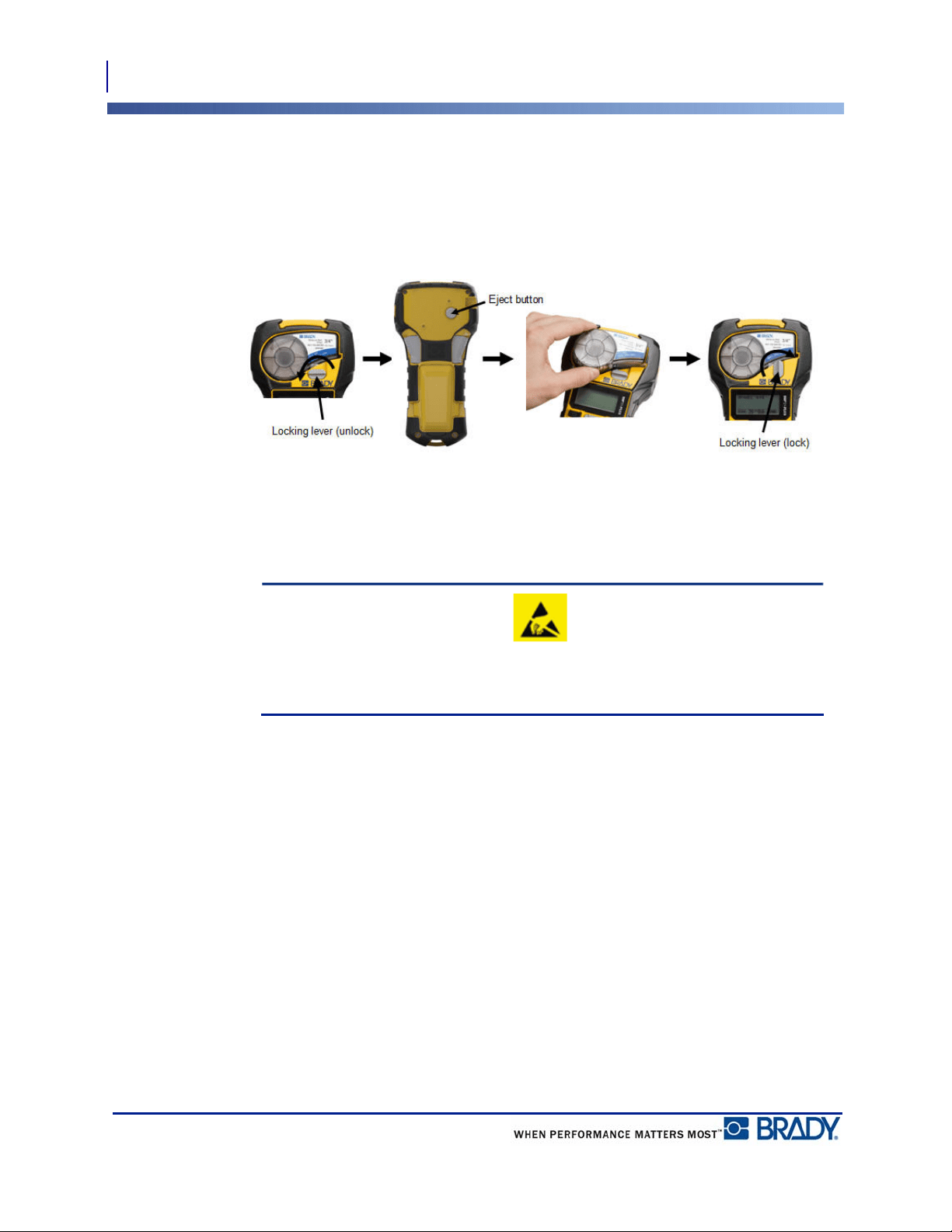
1. Turn the locking
lever to the left to
unlock the
cartridge.
2. Push the eject
button on the back
of the printer, then
lift the cartridge out
of the printer.
3. Place a new cartridge in the
cartridge bay and push down until
the cartridge snaps into place.
4. Turn the locking lever up (to the
right).
15
Media Cartridge
Recycling the Label Cartridge
BMP
®
21-PLUS/BMP
®
21-LAB User’s Manual
Recycling the Label Cartridge
Cartridges need to be recycled in accordance with local regulations. Before recycling, the used
cartridges must be pulled apart to release the individual components. These various
components must then be recycled in the correct recycling bins.
Materials
• 1/4-inch blade flathead screwdriver
• Safety Glasses
• Safety Gloves
CAUTIONCAUTION
ALWAYS wear Personal Protective Equipment when dismantling a cartridge.
Dismantling the Cartridge
To dismantle the cartridge:
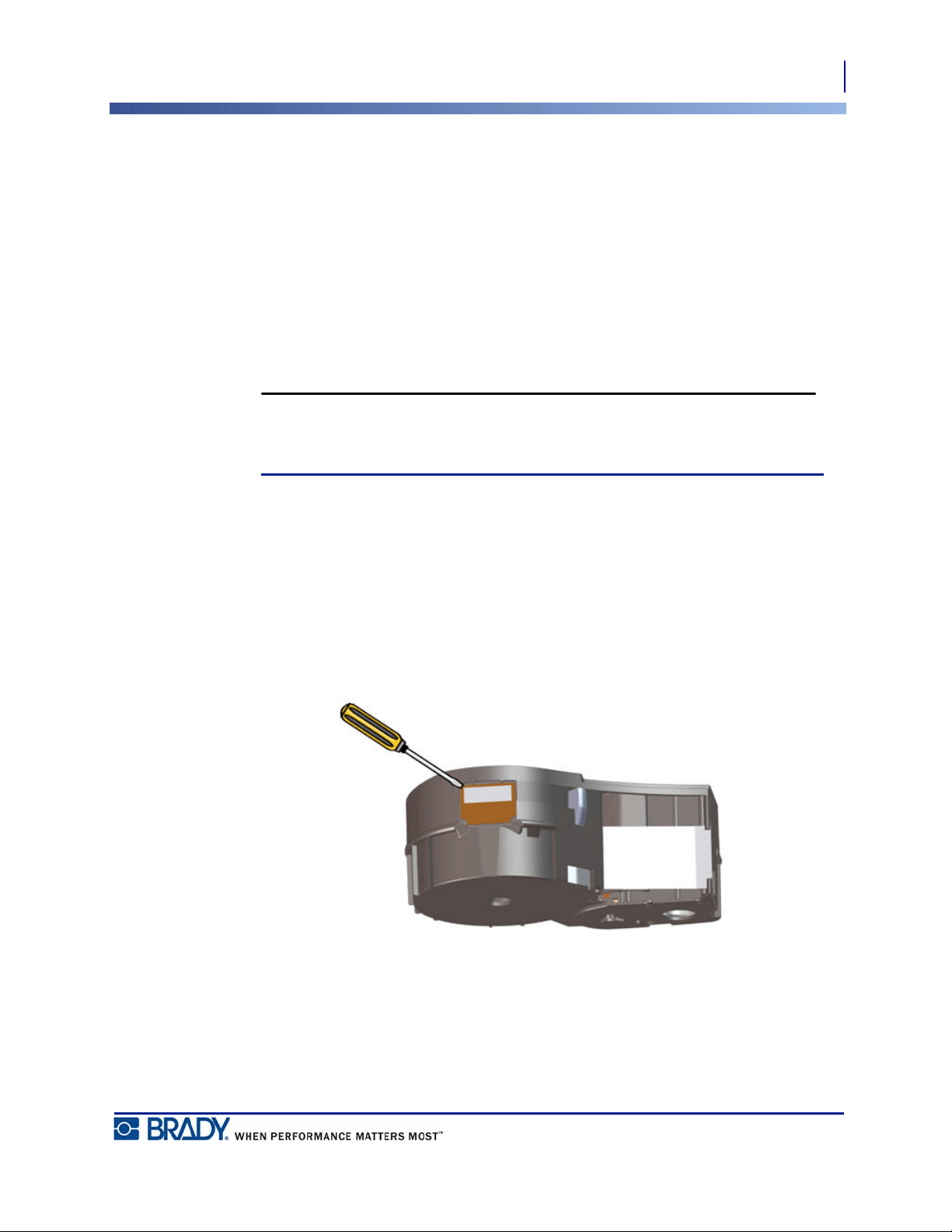
1. Using the flathead screwdriver, pry off the chip (smart cell) on the bottom of the cartridge
by placing the screwdriver blade under a corner of the chip and lifting up.
The chip is glued on and should release fairly easy.
Media Cartridge
Recycling the Label Cartridge
16
BMP
®
21-PLUS/BMP
®
21-LAB User’s Manual
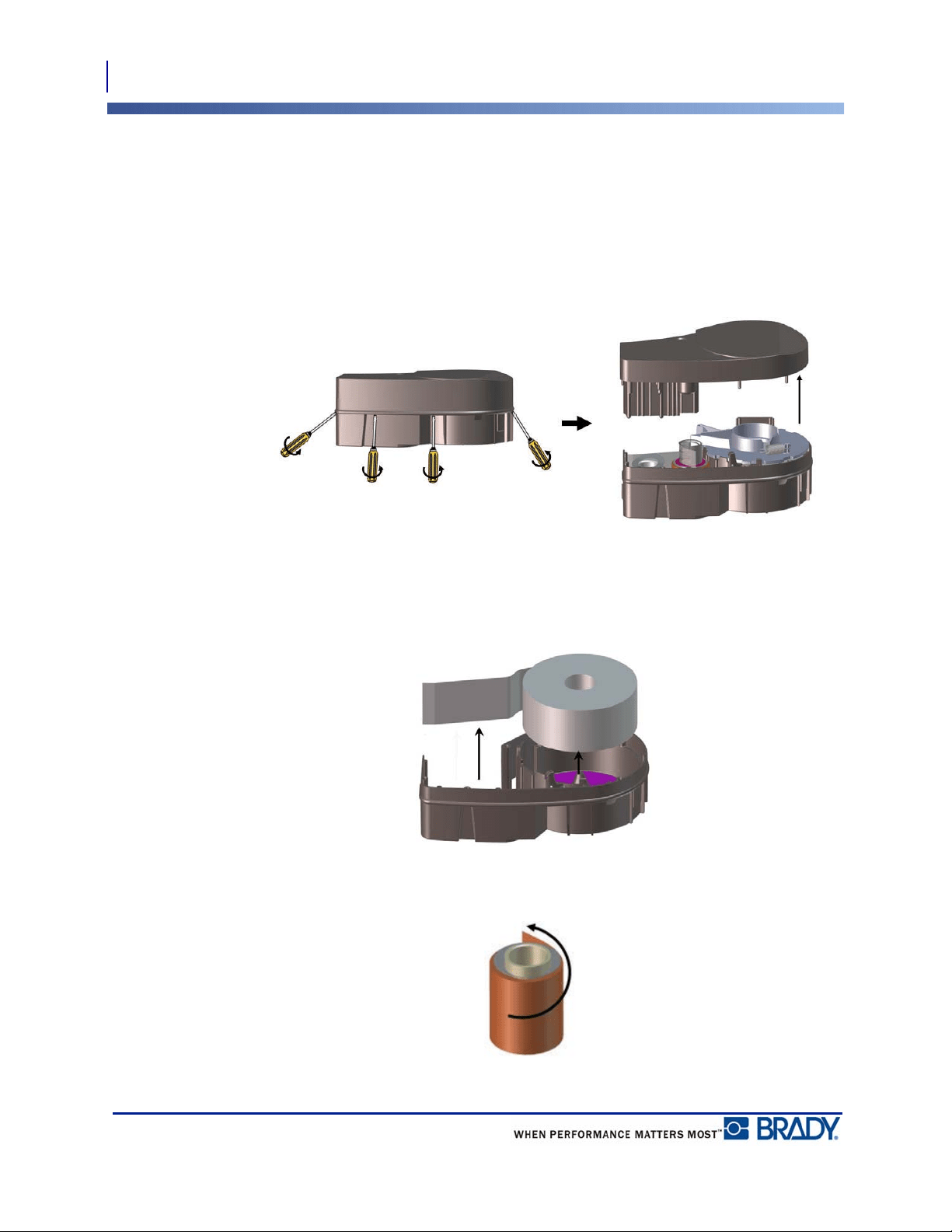
To open the cartridge:
2. Starting at the narrow end of the cartridge, insert the flathead screwdriver into the seam of
the cartridge, then twist the screwdriver slightly to loosen the two outside pieces of
molding.
3. Repeat at various points on the seam until you can separate the top of the molding from
the base.
4. Turn the base of the cartridge upside down and shake gently. Most of the components will
fall out of the cartridge. If not, unhook and pull the components away from the molding.
5. Pull up on any unused media (labels) to remove it from the cartridge molding.
6. Unwind and detach the ribbon from its spools.
17
Media Cartridge
Recycling the Label Cartridge
BMP
®
21-PLUS/BMP
®
21-LAB User’s Manual
Recycling Components
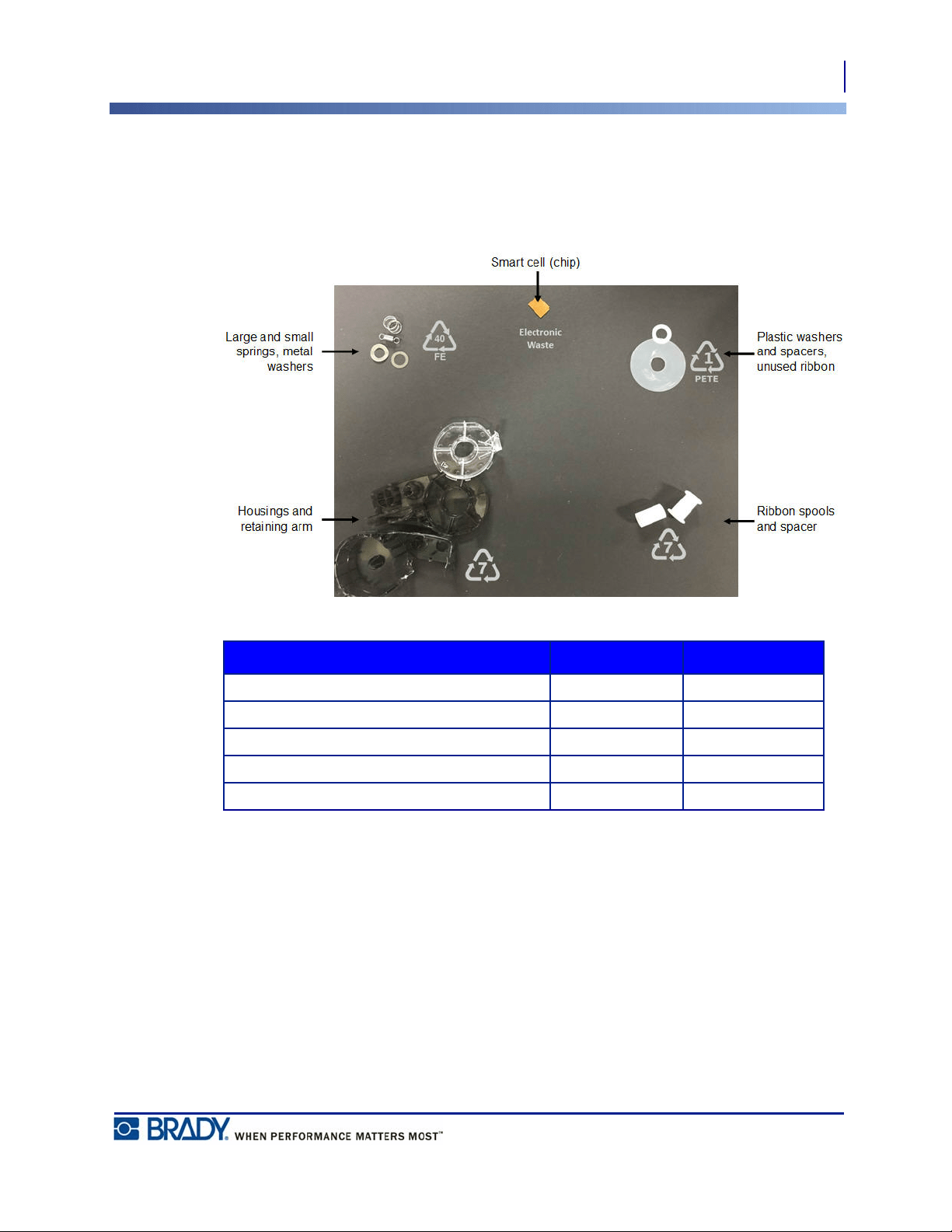
These components should be removed from the cartridge and recycled according to the
following guidelines.
Component Material Recycle Bin
Housings and retaining arm Polycarbonate Plastics (#7)
Ribbon spools and spacer Plastic Plastics (#7)
Large and small springs, metal washers Metals Metals (#40)
Plastic washers and spacers, unused ribbon Mylar PETE (#1)
Smart cell (chip) Electronic Electronic waste
Power On
Printer Version
18
BMP
®
21-PLUS/BMP
®
21-LAB User’s Manual
Power On
Printer Version
To turn the system on or off:
1. Press Power .
2. Watch the screen closely for the version number which displays briefly.
If you missed seeing the version number and need to know what it is:
3. Remove whichever type of batteries are installed.
4. Press and hold the power button for 10 seconds.
5. Reinstall batteries while watching the screen.
If using the power adapter instead of batteries:
6. With the printer powered up, remove and reinsert the power adapter into the plug-in port
on the left side of the printer while watching the screen.
To preserve battery life, when the printer detects a time of inactivity, it automatically shuts
down. Any data on the screen at the time of auto shutdown is retained and available the next
time the [Power] key is pressed to restart the printer.
The first time the printer is turned on, you may want to choose a language in which to display
screen items. Language selection is obtained from the Menu function. (For more information,
see “Selecting a Language” on page 25.)
Whenever the printer is powered on, the system performs an initialization process. Part of this
process is recognizing the media installed. While it is possible to power on the printer without
installing media, you must insert a media cartridge in order to continue.
BMP21-Plus
2.0
19
Power On
Editing Screen
BMP
®
21-PLUS/BMP
®
21-LAB User’s Manual
Editing Screen
The editing screen enables you to view formatting features directly on the screen while you are
entering and editing data.
Status Information
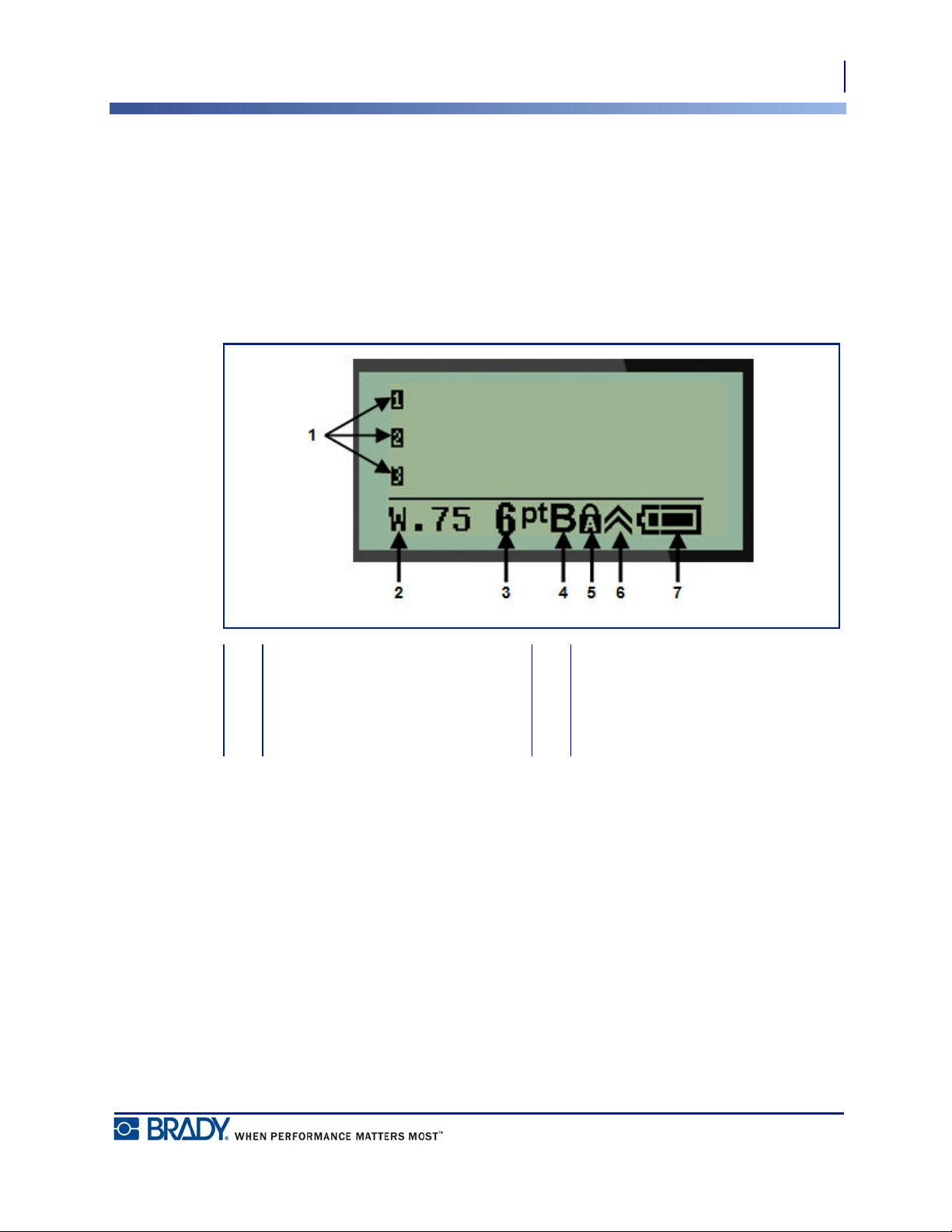
A status bar displays permanently at the bottom of the screen and contains the following:
1 Text lines 5 Caps lock (on)
2 Label type 6 Function key indicator (in use)
3 Font size 7 Battery life indicator
4 Bold font (on)
Keypad
Navigation and Editing Keys
20
BMP
®
21-PLUS/BMP
®
21-LAB User’s Manual
Keypad
Navigation and Editing Keys
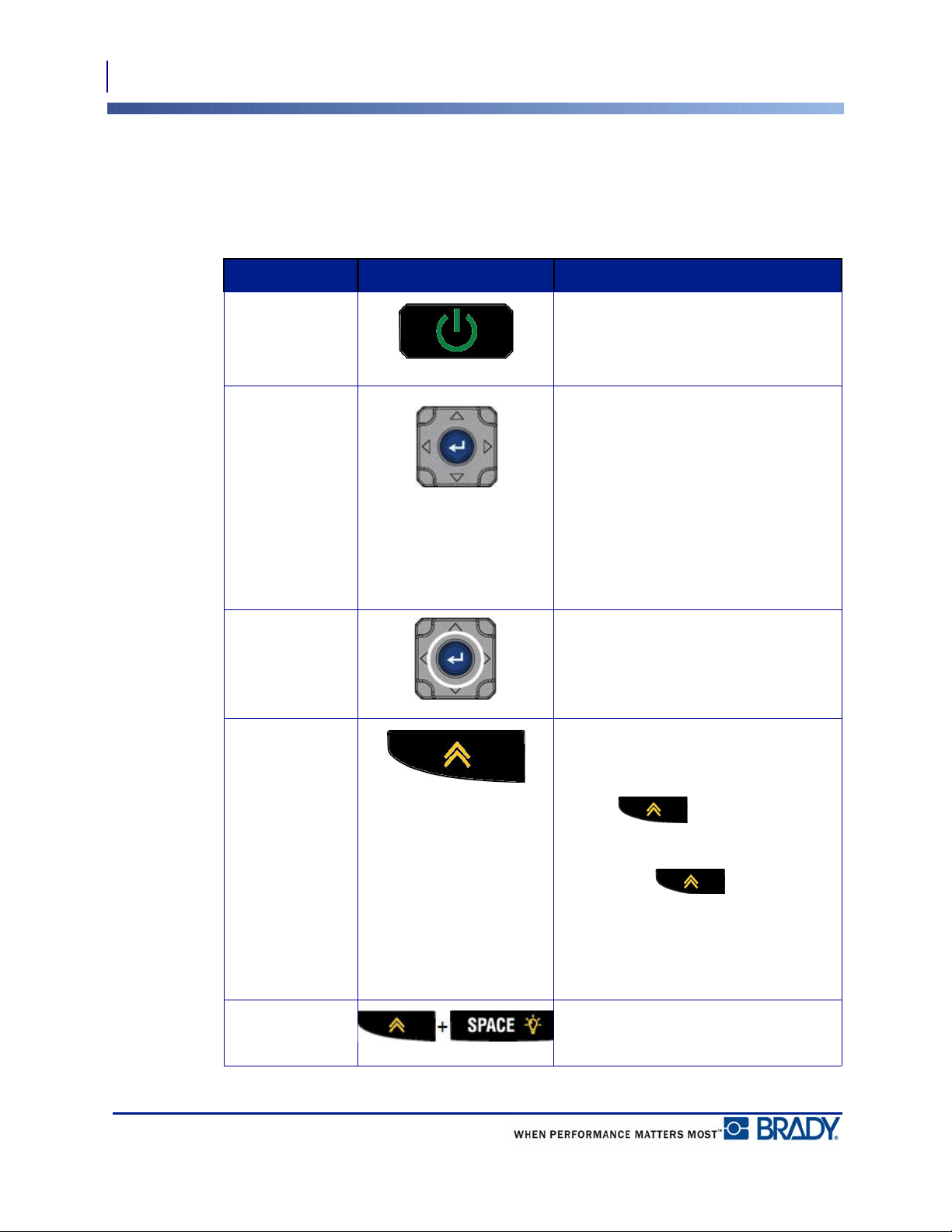
Function Key Description
Power Turns on the printer
Navigation Keys Navigation keys:
• In a line of text, move the cursor left
or right a character at a time, or up
and down a line at a time.
• In menus, move the selection up or
down in primary menu choices; left
or right through secondary menu
choices (such as Symbols or
International characters), if
available.
ENTER Key
• Adds a new blank line in label data.
• Accepts menu selections and
attributes.
Alternate
Function Key
• Used in conjunction with the
alternate function (displayed in
gold) on some of the keys. Press
the key, then press the
alternate function key.
OR
Hold the key while
simultaneously pressing the key
that has the alternate function.
• Used to access special characters
on the alphanumeric keys.
Backlight Key Increases readability of screen in low
light conditions.
21
Keypad
Navigation and Editing Keys
BMP
®
21-PLUS/BMP
®
21-LAB User’s Manual
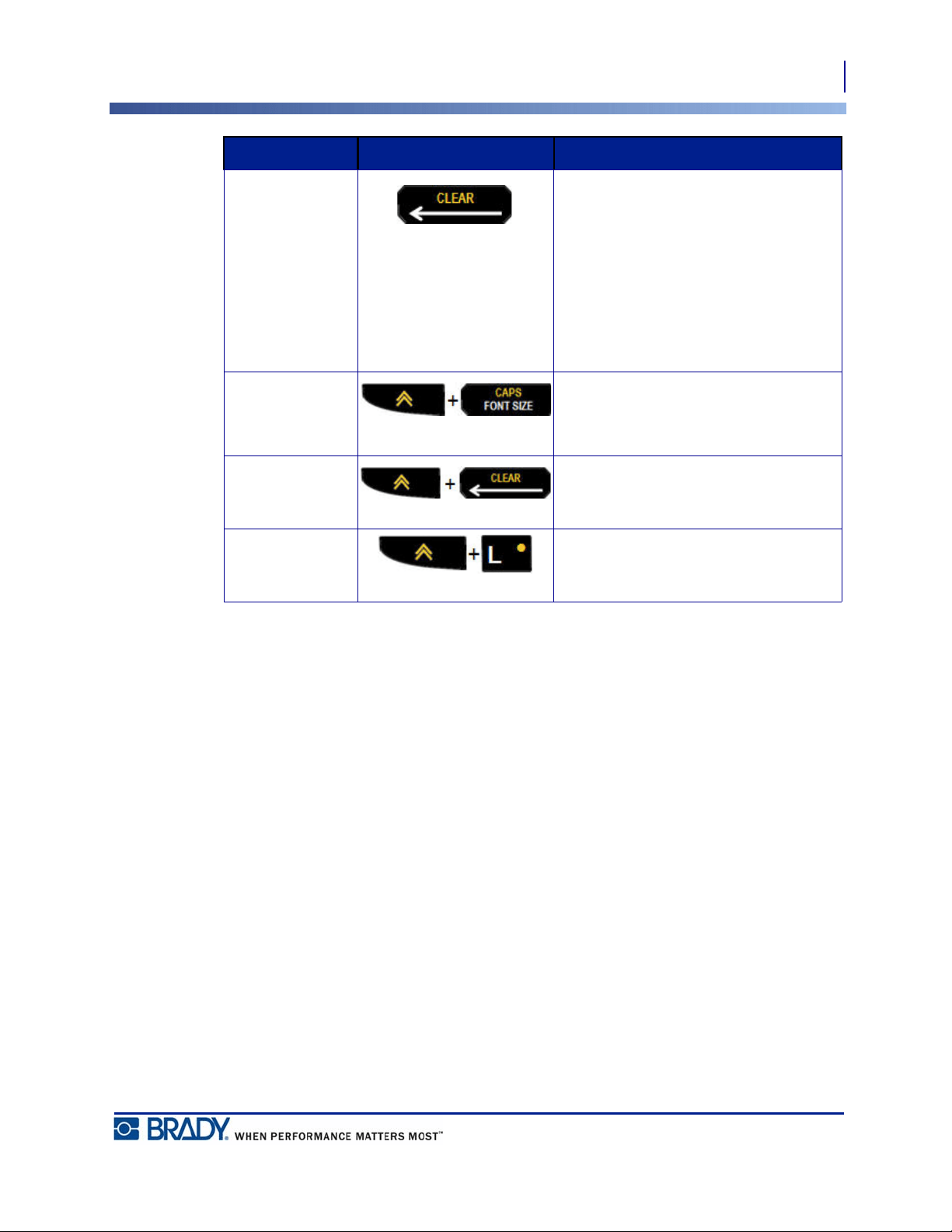
Backspace Key
• Removes characters one at a time,
moving to the left.
• Backs out of menu options and
functions, one screen at a time.
Note: Depending on how deep you are
into menus and functions, you may
have to press Backspace multiple
times.
Caps Lock Key Acts as a toggle to lock text into
uppercase as data is entered.
Clear Key Clears data from the screen.
Decimal Point Adds a decimal point or period.
Function Key Description
Keypad
Function Keys
22
BMP
®
21-PLUS/BMP
®
21-LAB User’s Manual
Function Keys
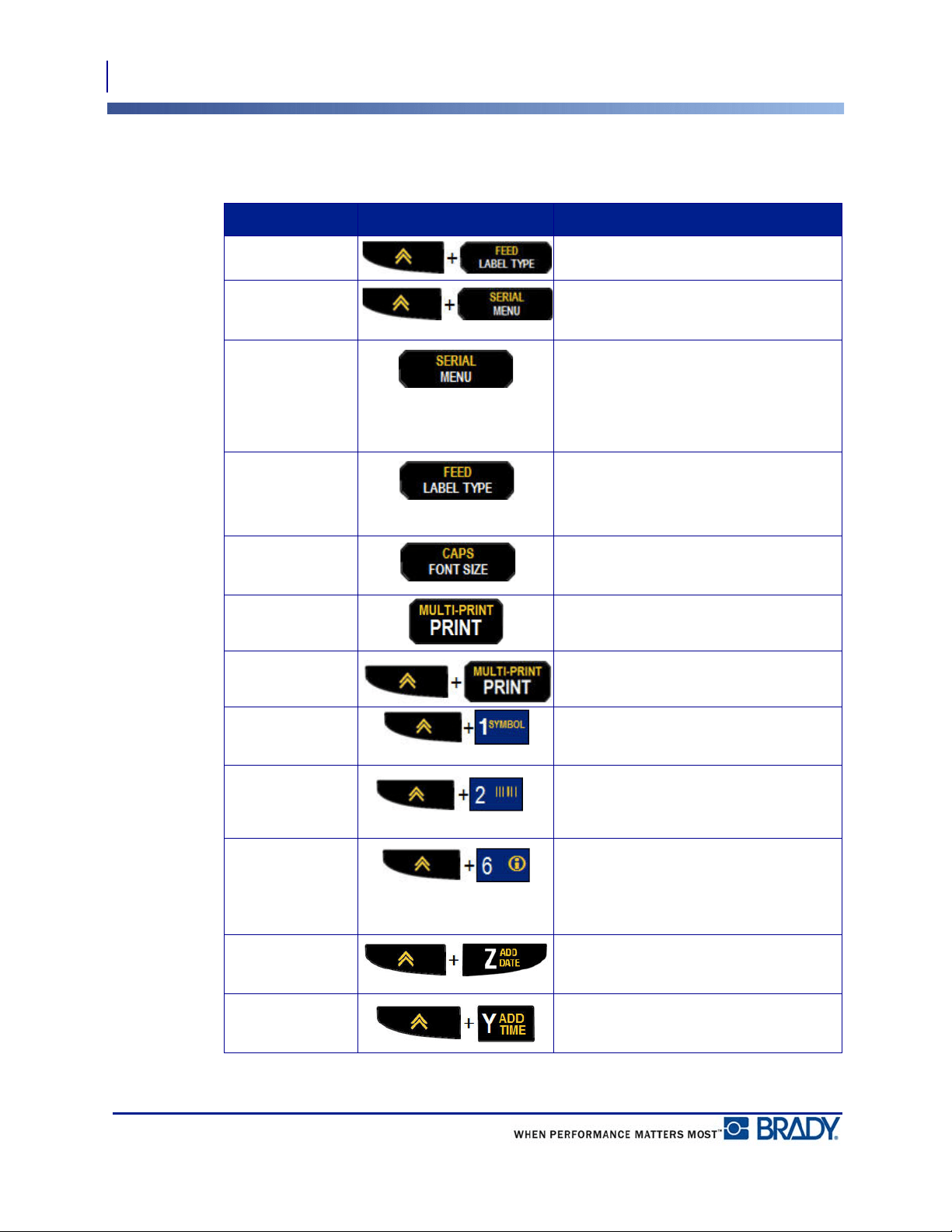
Function Key Description
Feed Key Feeds the media through the printer.
Serial Key Sets the start, end, and increment
values for serialization.
Menu Key Provides printer defaults (i.e., language,
units) and other print options not
available on keys. Menu items include
symbols, international characters,
barcode styles, and file options.
Label Type Key Accesses the different applications/
label type templates installed (i.e.,
wiremarker, banner, terminal blocks,
etc.).
Font Size Key Provides font sizes and bold attribute.
Print Key Prints all labels in a label file.
Multi-Print Key Prints multiple copies of a label.
Symbol Key Accesses the predefined graphics
(symbols) available in the printer.
Barcode Key Places a text string in Barcode format.
International Key Accesses characters specific to some
international alphabets with diacritical
and accent marks incorporated into the
characters.
Add Date Key Inserts the current date, as set on the
printer.
Add Time Key Inserts the current time, as set on the
printer.
23
Menus
Function Keys
BMP
®
21-PLUS/BMP
®
21-LAB User’s Manual
Menus
Additional functions not displayed on a key are available from the Menu key. Use the up or
down navigation keys to access the different menu items displayed. When you have reached
the last menu item displayed, the menus cycle back to the first menu item.
Figure 1 • Menus
To access the menus:
1. Press MENU .
The menu choices display in a list.
2. Press the up/down navigation keys to highlight the menu items.
3. Press Enter to select the menu item.
To exit a menu without selecting it:
4. Press Backspace .
The various key functions and menu items are discussed in further detail in the Formatting
section of this manual, starting on page 40.
Menus
Data Fields
24
BMP
®
21-PLUS/BMP
®
21-LAB User’s Manual
Data Fields
For some menu items, there may be data fields requesting additional information. To enter the
information:
1. Using navigation keys, navigate to the data field.
2. Enter data using the keyboard.
OR
Use the left/right navigation keys to toggle through a series of predesigned values.
3. Use navigation keys to move off the field after entering data.
4. To accept data entered, press Enter .
Figure 2 • Data input fields
Cancel a Menu or Data Field
To cancel a menu or data field, without accepting changes:
1. Press Backspace .

25
Menus
Printer Defaults
BMP
®
21-PLUS/BMP
®
21-LAB User’s Manual
Printer Defaults
Printer defaults are set to provide a consistent operating environment for the work you do with
your printer. Once the defaults are set, they will remain in effect until you change them. The
following printer default settings can be found using the Menu key.
•Language
•Units
•Set Clock
•Cut Mode
•Set Zero Style
• Backlight Time
Language
The following languages can be found under the Language menu item.
Note: Quick Start Guides are available electronically for all languages listed on the
printer.
BMP21-Plus Languages
English - Default Czech Romanian
French Danish Slovakian
Spanish Estonian Slovenian
German Finnish Swedish
Dutch Hungarian Turkish
Portuguese Norwegian Croation
Italian Polish
Menus
Printer Defaults
26
BMP
®
21-PLUS/BMP
®
21-LAB User’s Manual
BMP21-Lab Languages
BMP21-Plus Russian Languages
Note: Greek language characters are found under the International menu function.
Initial Language Setup
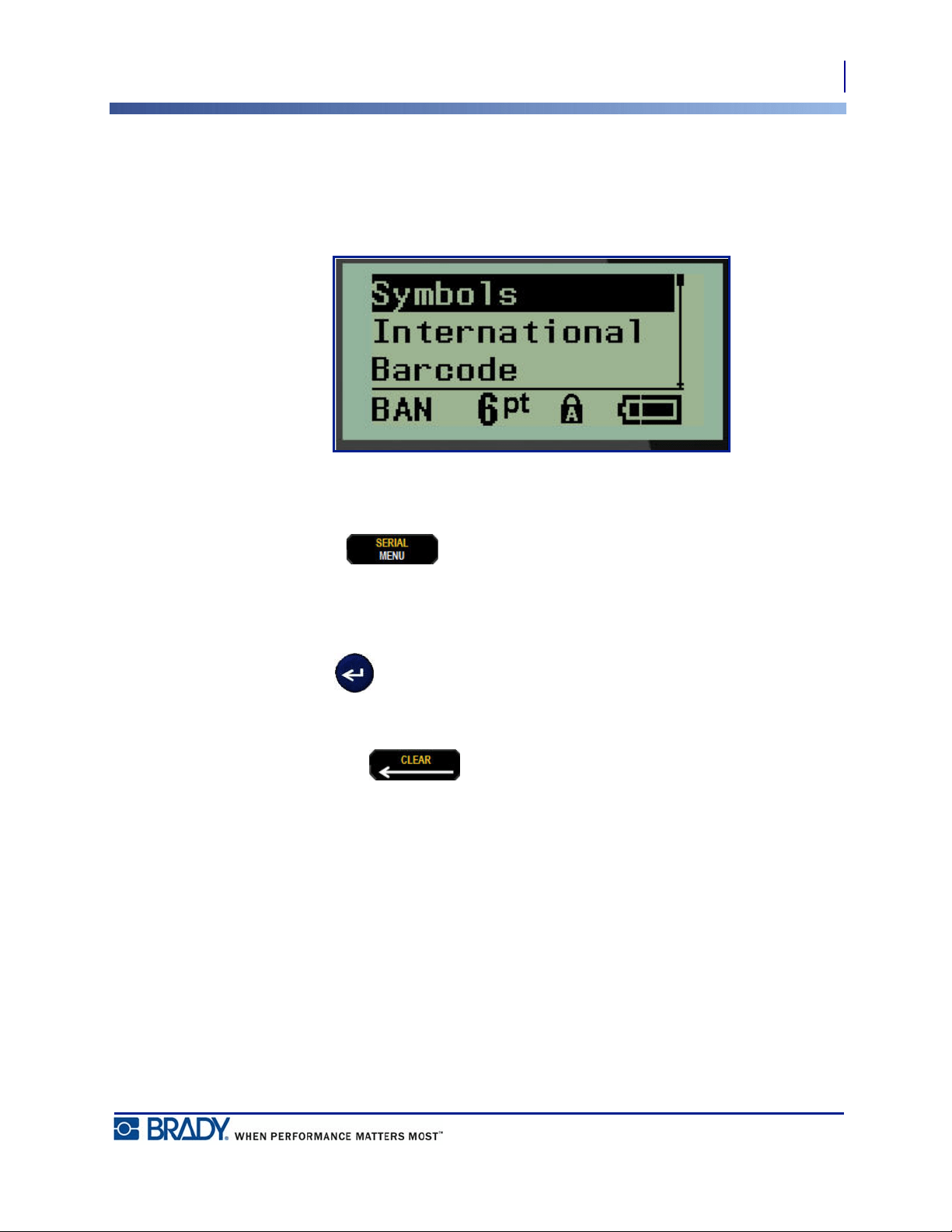
When turning the printer on for the first time, immediately go to the Menu>Language function
and choose the language in which you want all printer menus, functions, and data displayed.
1. Press MENU .
2. Using navigation keys, choose Language.
Note: The menu item "Language" is the 6th item in the menu list and the word
"Language" displays in the language that is currently set on your printer. For instance,
in English it displays "Language," in Spanish it displays "Idioma", in French it displays
"Langue", etc.
3. Press Enter .
4. Using navigation keys, choose the desired language, then press Enter .
English - Default Dutch
French Portuguese
Spanish Italian
German
Russian - Default
English
27
Menus
Printer Defaults
BMP
®
21-PLUS/BMP
®
21-LAB User’s Manual
Set Clock
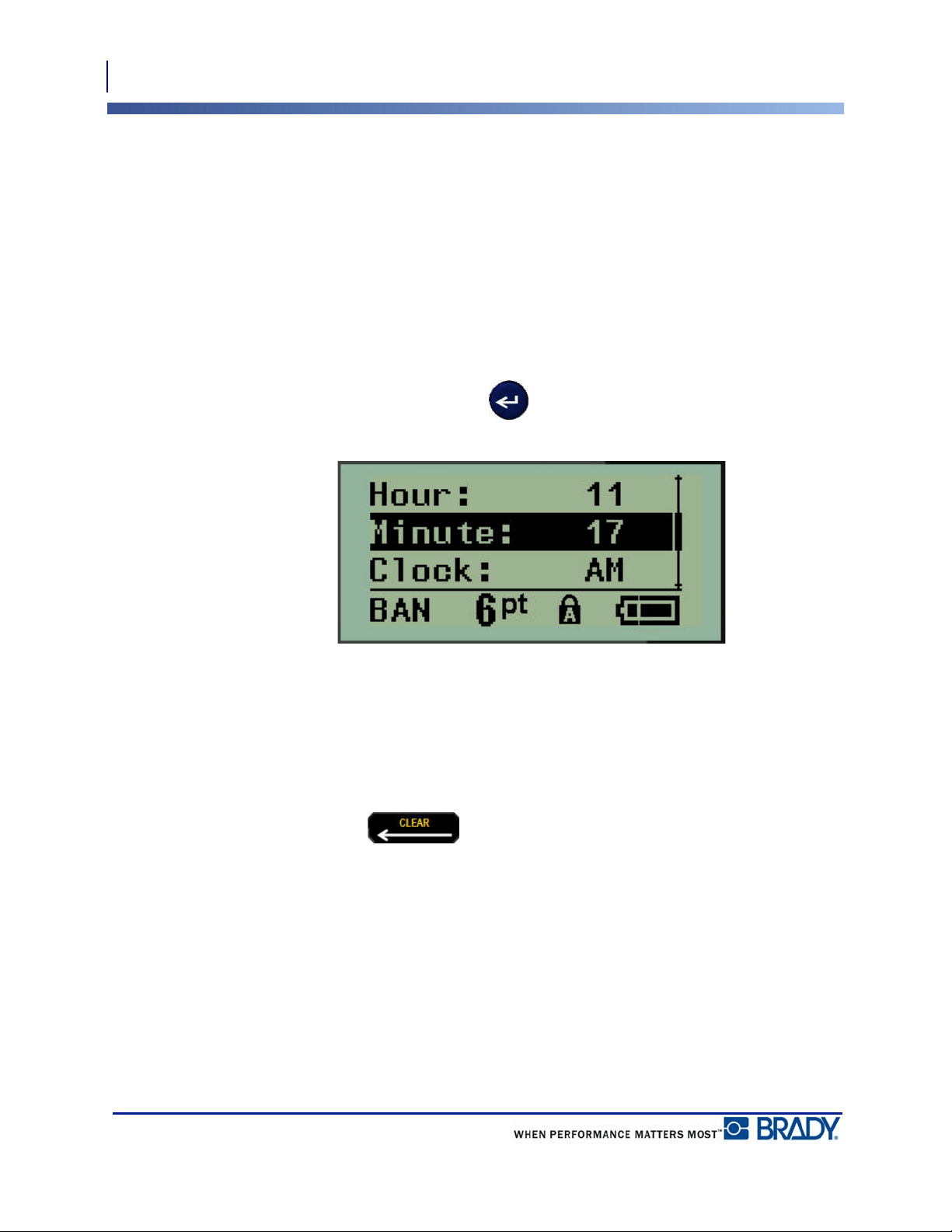
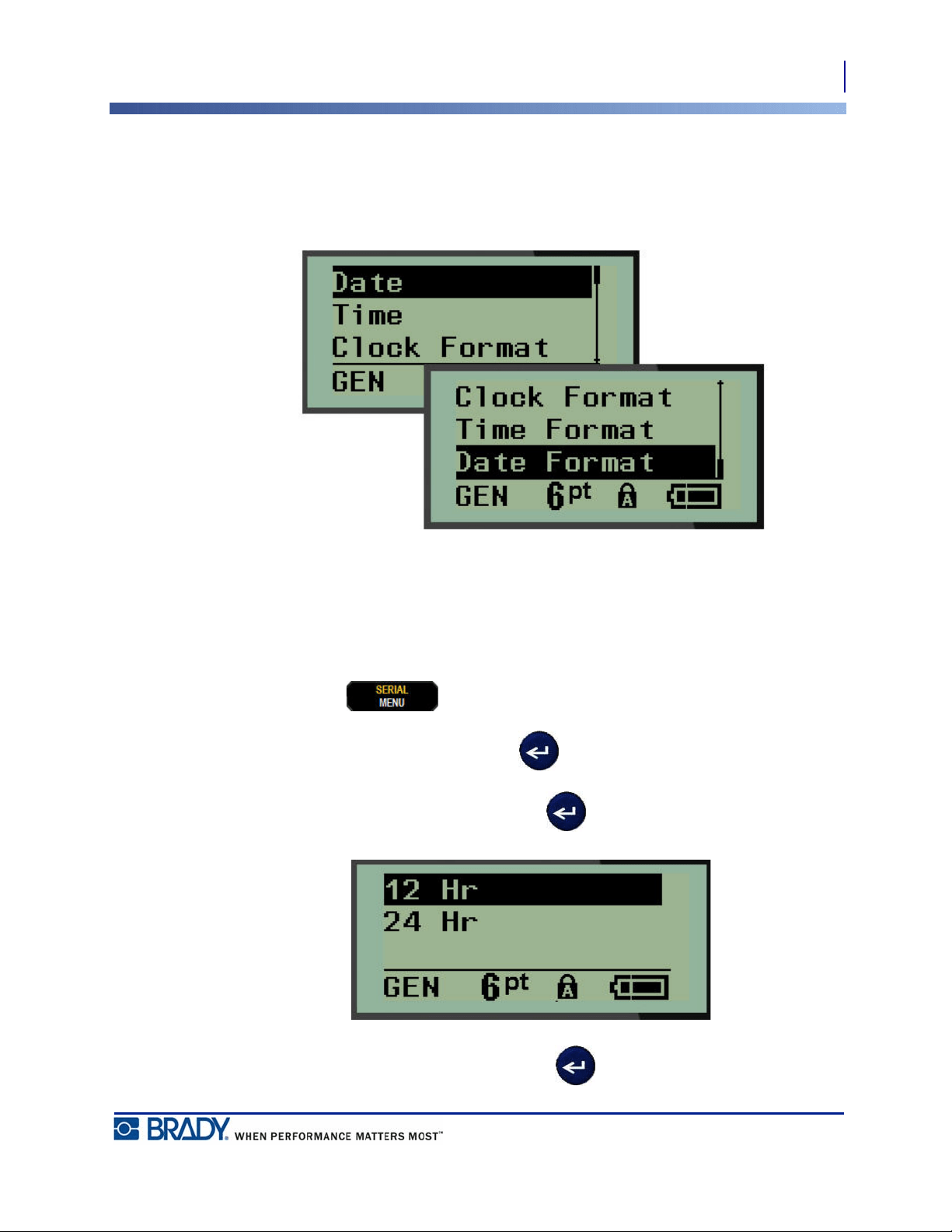
The following settings can be found under the Set Clock menu function. Set the Date and Time
options upon initial start-up of the printer.
Figure 3 • Time/Date settings in Set Clock function
Clock Format
Before setting the date and time, set the Clock Format. This enables you to use a 12-hour clock
or a 24-hour clock. To set the Clock Format:
1. Press MENU .
2. Navigate to Set Clock, then press Enter .
3. Navigate to Clock Format, then press Enter .
4. Select the desired format, then press ENTER .
Menus
Printer Defaults
28
BMP
®
21-PLUS/BMP
®
21-LAB User’s Manual
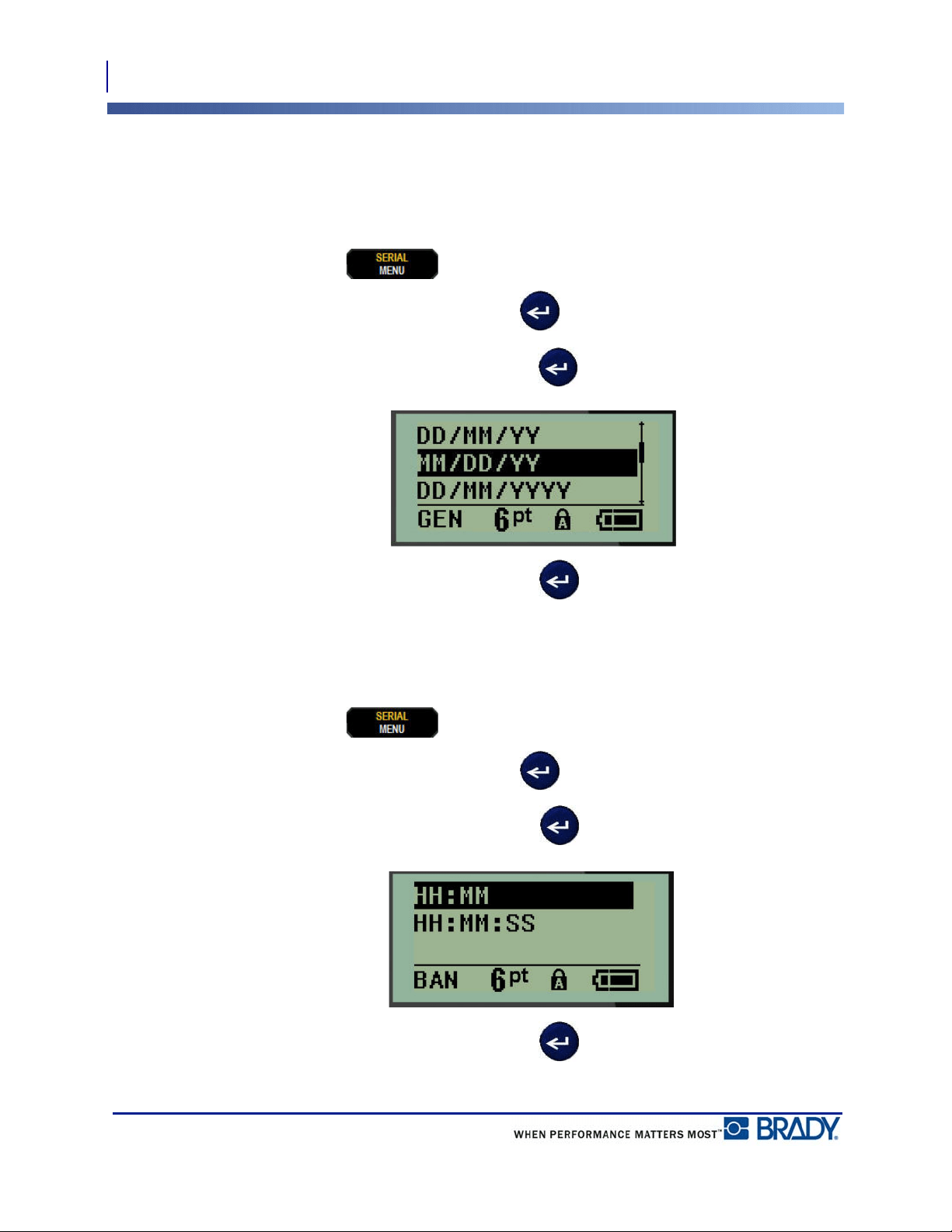
Date Format
You have four choices for the date format. The date can be displayed in the American standard
(MM/DD/YY) or the International Standard (DD/MM/YY). You can also have the date display
2 digits or 4 digits for the year (e.g., YY = 13, YYYY = 2013). To set the date:
1. Press MENU .
2. Navigate to Set Clock, then press Enter .
3. Navigate to Date Format, then press Enter .
4. Select the desired format, then press Enter .
Time Format
Next, choose the Time Format to use. The Time Format displays the time in hours and
minutes, or hours, minutes, and seconds. To set the time:
1. Press MENU .
2. Navigate to Set Clock, then press Enter .
3. Navigate to Time Format, then press Enter .
4. Select the desired format, then press Enter .
29
Menus
Printer Defaults
BMP
®
21-PLUS/BMP
®
21-LAB User’s Manual
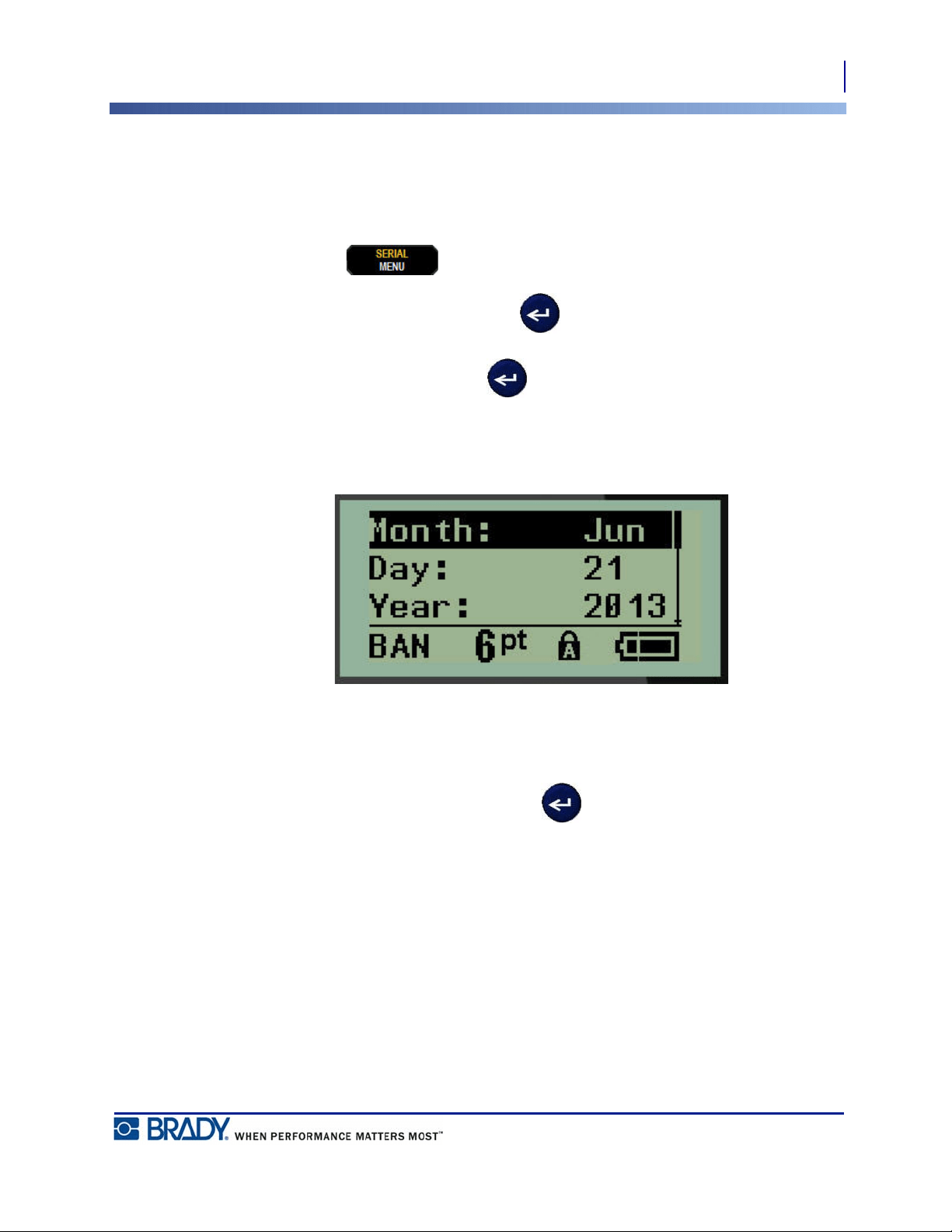
Set Date
Once you have set the date and time format, you can now set the actual date and time.
To set the date:
1. Press MENU .
2. Navigate to Set Clock, then press Enter .
3. Navigate to Date, then press Enter .
4. Navigate to various fields to set the desired month, day, and year for the time you want
displayed on your labels.
5. Enter the date from the keyboard OR use the left/right navigation key to decrease or
increase the date, one month, day, or year at a time. (The left navigation key decreases the
number, the right navigation key increases the number.)
6. When finished setting the date, press Enter .
Menus
Printer Defaults
30
BMP
®
21-PLUS/BMP
®
21-LAB User’s Manual
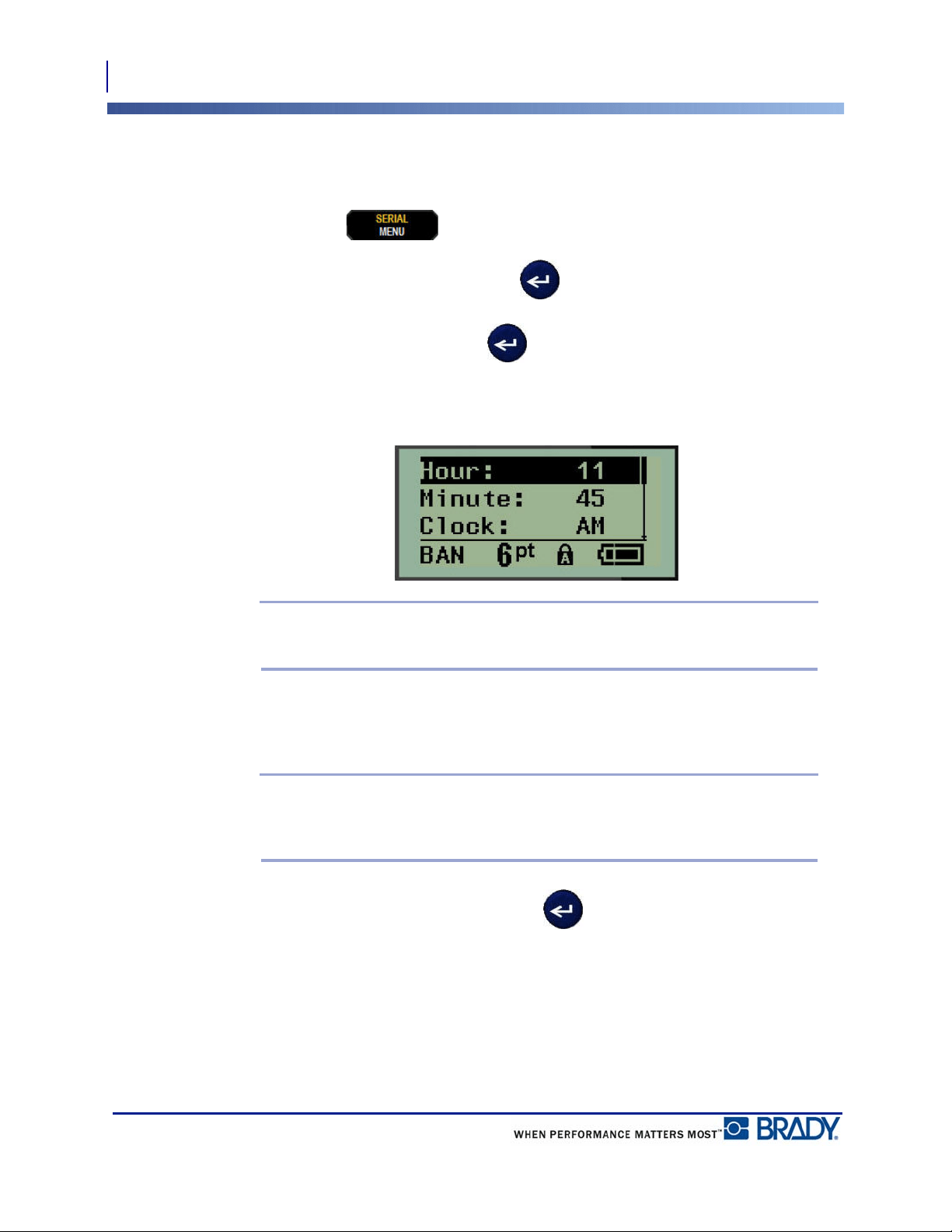
Set Time
To set the time:
1. Press MENU .
2. Navigate to Set Clock, then press Enter .
3. Navigate to Time, then press Enter .
4. Navigate to various fields to set the hour and/or minutes of the desired time.
Note: When using the time format HH:MM:SS, no field for seconds displays. The
internal clock in the printer starts the seconds based on the minutes you have chosen.
5. Enter the time from the keyboard OR use the left/right navigation key to decrease or
increase the time, one hour or minute at a time. (The left navigation key decreases the
time, the right navigation key increases the time.)
Note: If you have chosen the 12 hour clock format, you can toggle the Clock field
between AM and PM. If you have chosen the 24 hour clock format, you will not be able
to access the Clock field.
6. When finished setting the time, press Enter .
The date and time format and date and time are stored on the printer and will automatically
increment forward to the current date or time whenever the printer is used. The date and time
format you have chosen only displays when the date or time function is used. You can enter
any date or time, in any format, from the keyboard. Entered data is not affected by the internal
clock.
31
Menus
Units
BMP
®
21-PLUS/BMP
®
21-LAB User’s Manual
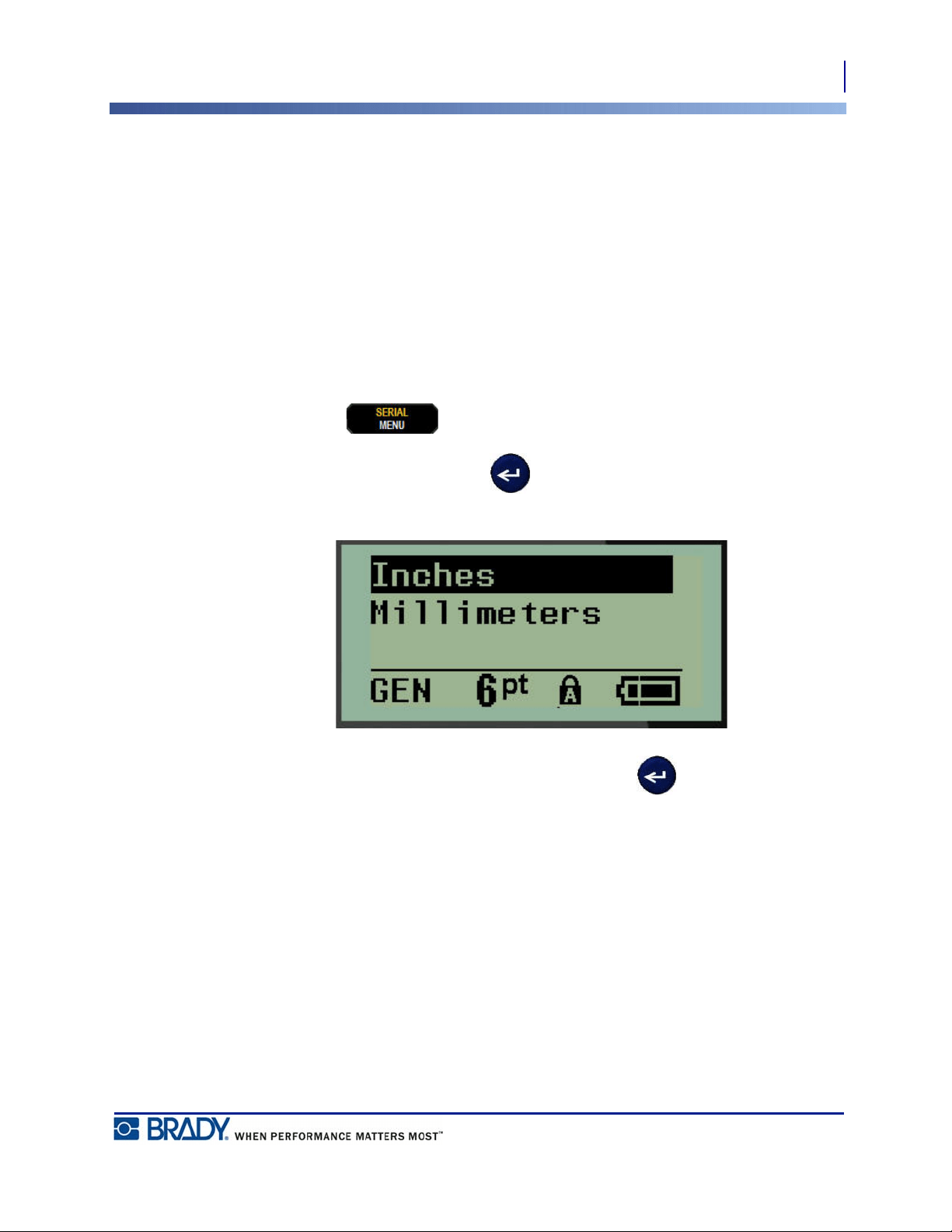
Units
The Units setting is used to configure label parameters for the printer. The units are:
• Inches
• Millimeters
Once configured, you do not have to indicate “inches” or “millimeters” (or their globally
accepted abbreviations or marks) when entering numbers in data fields. Likewise, in any scale
or range of measurement field (as found under Label Type), the range of measurements will
automatically configure to the units selected in the Menu function.
To set the default units:
1. Press MENU .
2. Navigate to Units, then press Enter .
3. Navigate to the desired units of measure, then press Enter .
Menus
Cut Mode
32
BMP
®
21-PLUS/BMP
®
21-LAB User’s Manual
Cut Mode
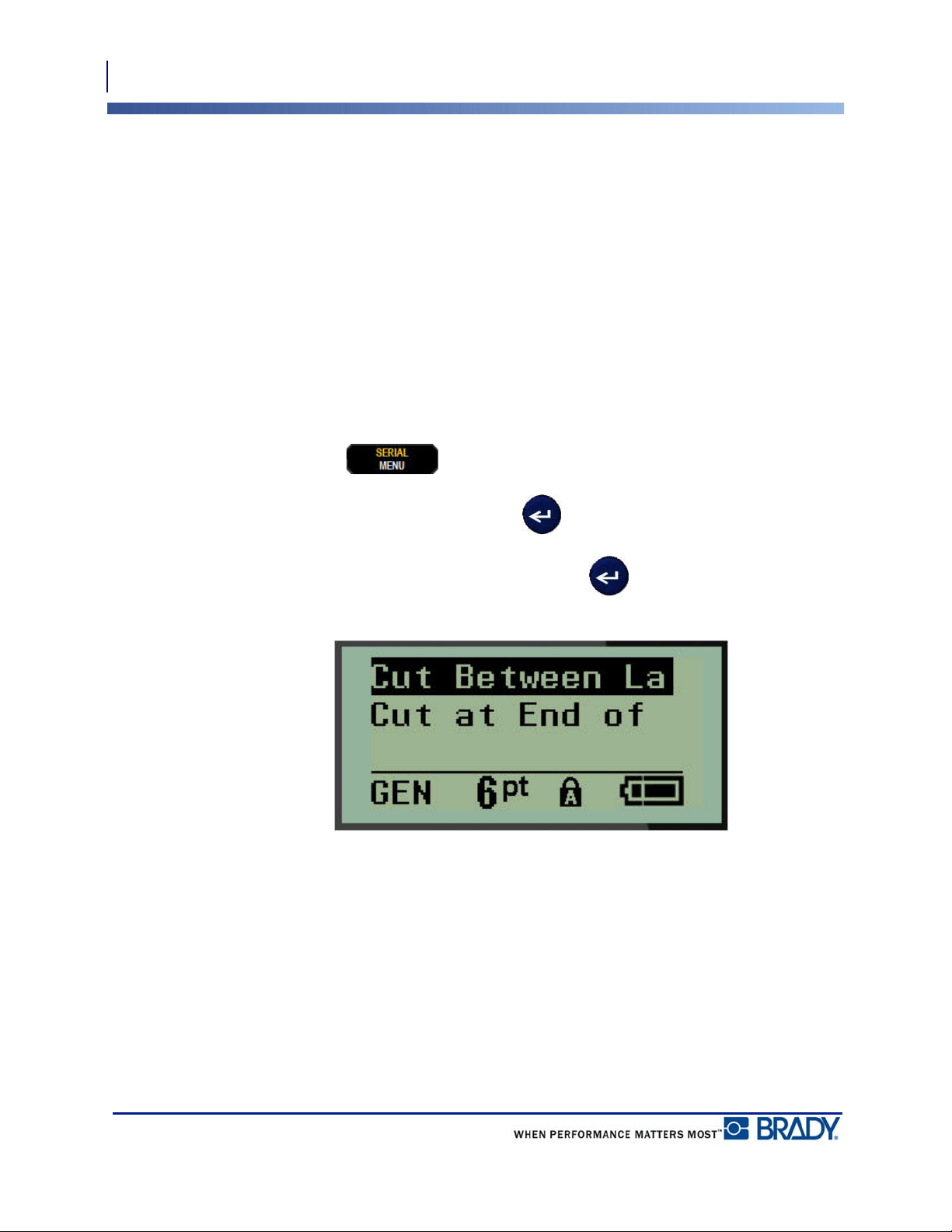
Set the Cut Mode default to determine when the printer should pause for cutting. There are two
modes to choose from:
• Cut Between Labels
• Cut at End of Job
In a multiprint job (serialized label, terminal block, breaker box, etc.) cut mode determines if
the printer should pause between each label for cutting the individual labels. If you select Cut
at End of Job, all labels in a serialized sequence, or all labels for each listed block in a terminal
or breaker box label type, will print out as one long string, pausing for cutting only after the
last label has been printed.
To set the Cut Mode:
1. Press MENU .
2. Navigate to Cut Mode, then press Enter .
3. Navigate to the desired cut mode, then press Enter .
33
Menus
Set Zero Style
BMP
®
21-PLUS/BMP
®
21-LAB User’s Manual
Set Zero Style
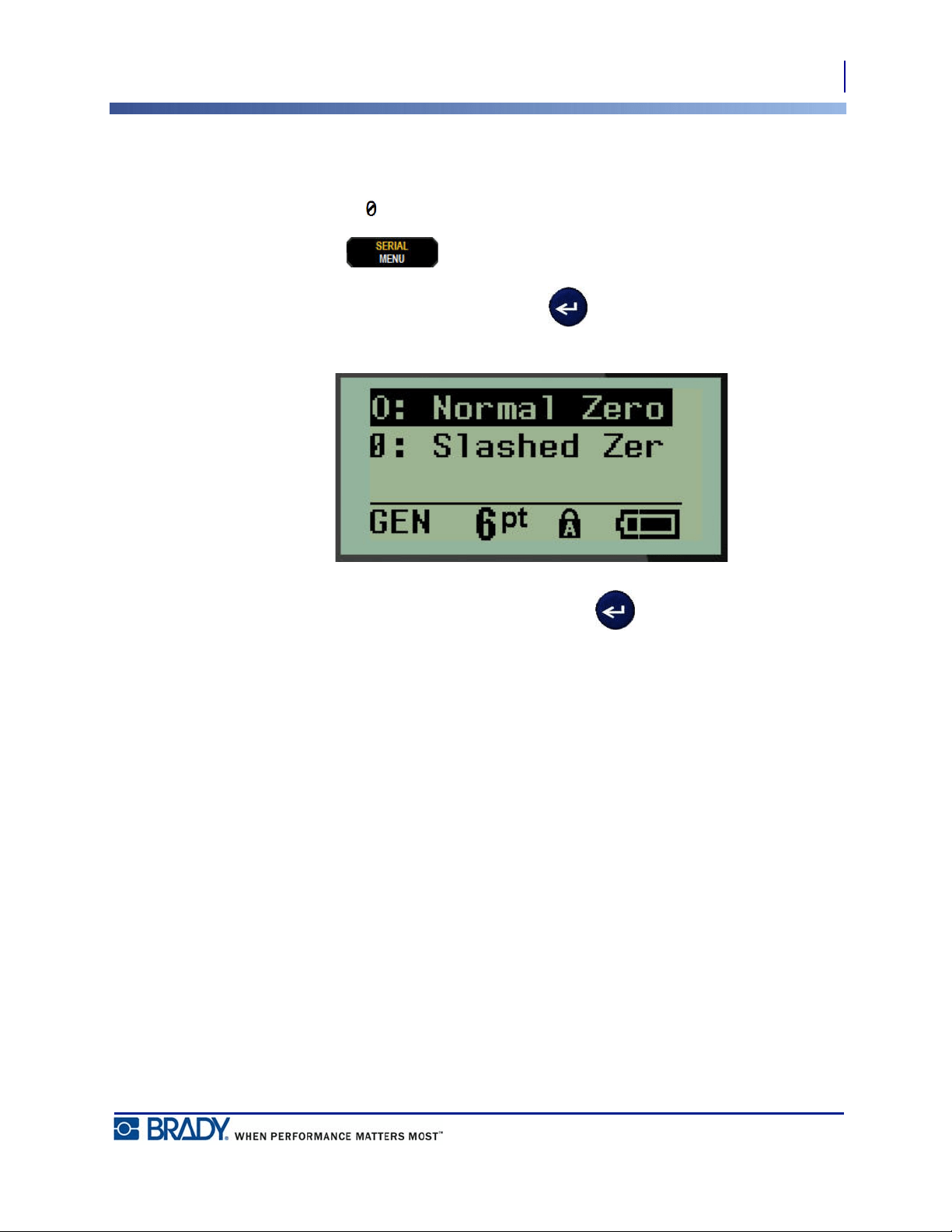
The Set Zero Style default determines if the number zero will print as an open zero (0), or
intersected by a line ( ), as on a computer. To set the Zero Style default:
1. Press MENU .
2. Navigate to Set Zero Style, then press Enter .
3. Navigate to the desired zero style, then press Enter .
Menus
Backlight Time
34
BMP
®
21-PLUS/BMP
®
21-LAB User’s Manual
Backlight Time
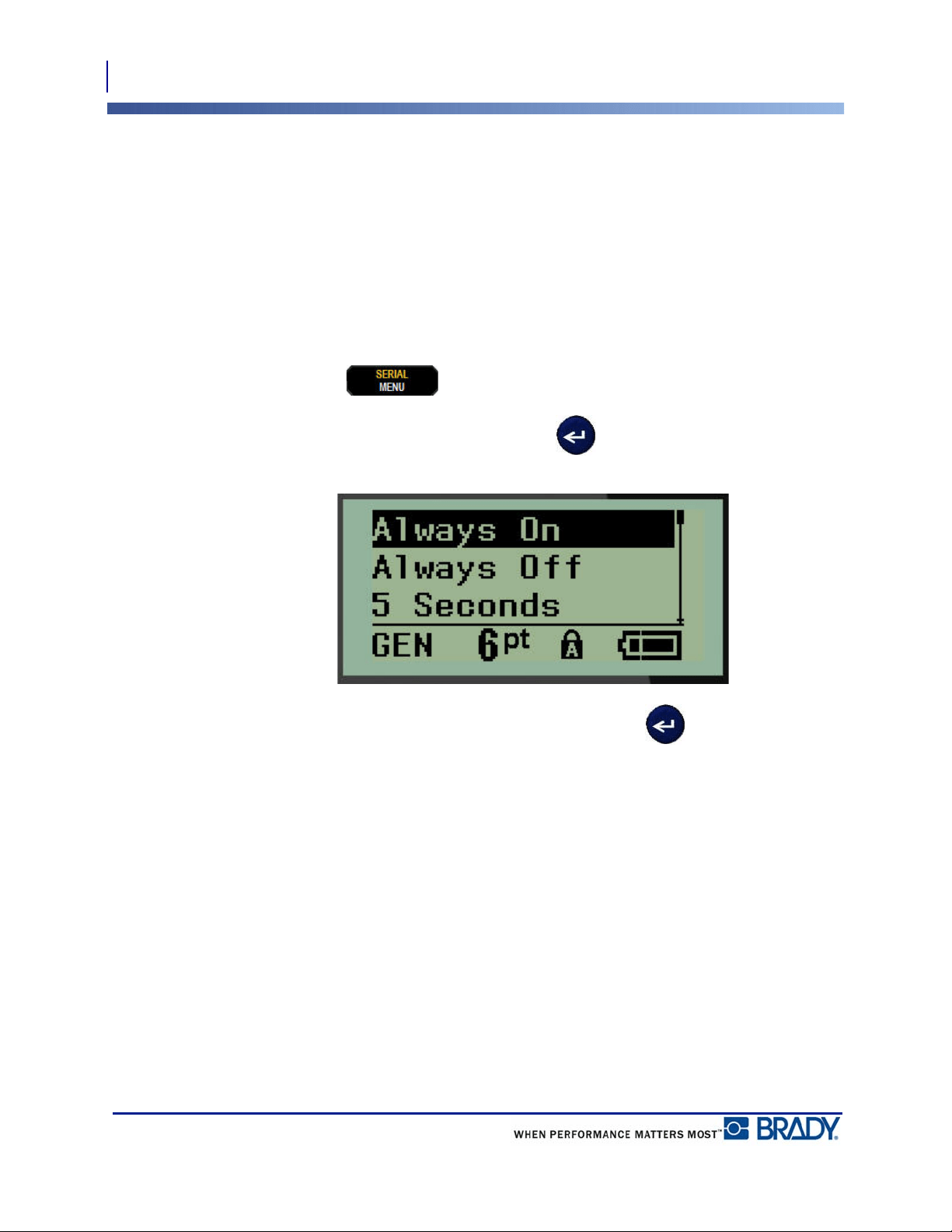
The Backlight Time sets the backlight auto-off time-out. This refers to the number of seconds
of inactivity detected, after which the backlight automatically shuts off.
If you prefer to keep the backlight on at all times while using the AC adapter, choose Always
On. To turn it off completely, select Always Off. Otherwise set the number of seconds of
inactivity the printer should detect before shutting off the backlight. The options run from 5
seconds to 30 seconds, at 5-second intervals.
To reset the Backlight options:
1. Press MENU .
2. Navigate to Backlight Time, then press Enter .
3. Navigate to the desired backlight options, then press Enter .

35
Getting Started
Entering Text
BMP
®
21-PLUS/BMP
®
21-LAB User’s Manual
Getting Started
This section describes the process of creating a text label with minimal formatting, using basic
editing techniques, and printing the label.
Entering Text
Before entering label text, be sure the media cartridge is loaded and the power is ON.
The vertical bar on the display screen is the cursor and is the starting point for every label you
create using the BMP
®
21-PLUS/BMP
®
21-Lab Label Printer. Begin entering text at the
position of the cursor. The cursor moves across the screen as you enter data. If you want
another line of text, press [ENTER] .
Editing Text
If you have entered some text in error or want to change the content or format of your label,
edit the information before printing.
Inserting Text
To insert additional text within a line of text:
1. Using navigation keys, position the cursor at the point where text should be inserted.
2. Enter the text.
Existing data positioned to the right of the cursor moves progressively to the right to make
room for the inserted text. When the end of the line (for the label size) is reached, no more data
can be inserted. The error message “Cannot Fit” displays to indicate that the width of the label
cannot accommodate any more text.
To correct the error, delete some of the text, add another line of text, or decrease the font size.
36
Getting Started
Editing Text
BMP
®
21-PLUS/BMP
®
21-LAB User’s Manual
Deleting Text
To remove characters, one at a time, from the position of the cursor TO THE LEFT
(backwards):
1. Press Backspace .
If you want to delete characters in the middle of the line of text, use the navigation keys to
position the cursor to the right of the characters you want to delete, then press [BACKSPACE].
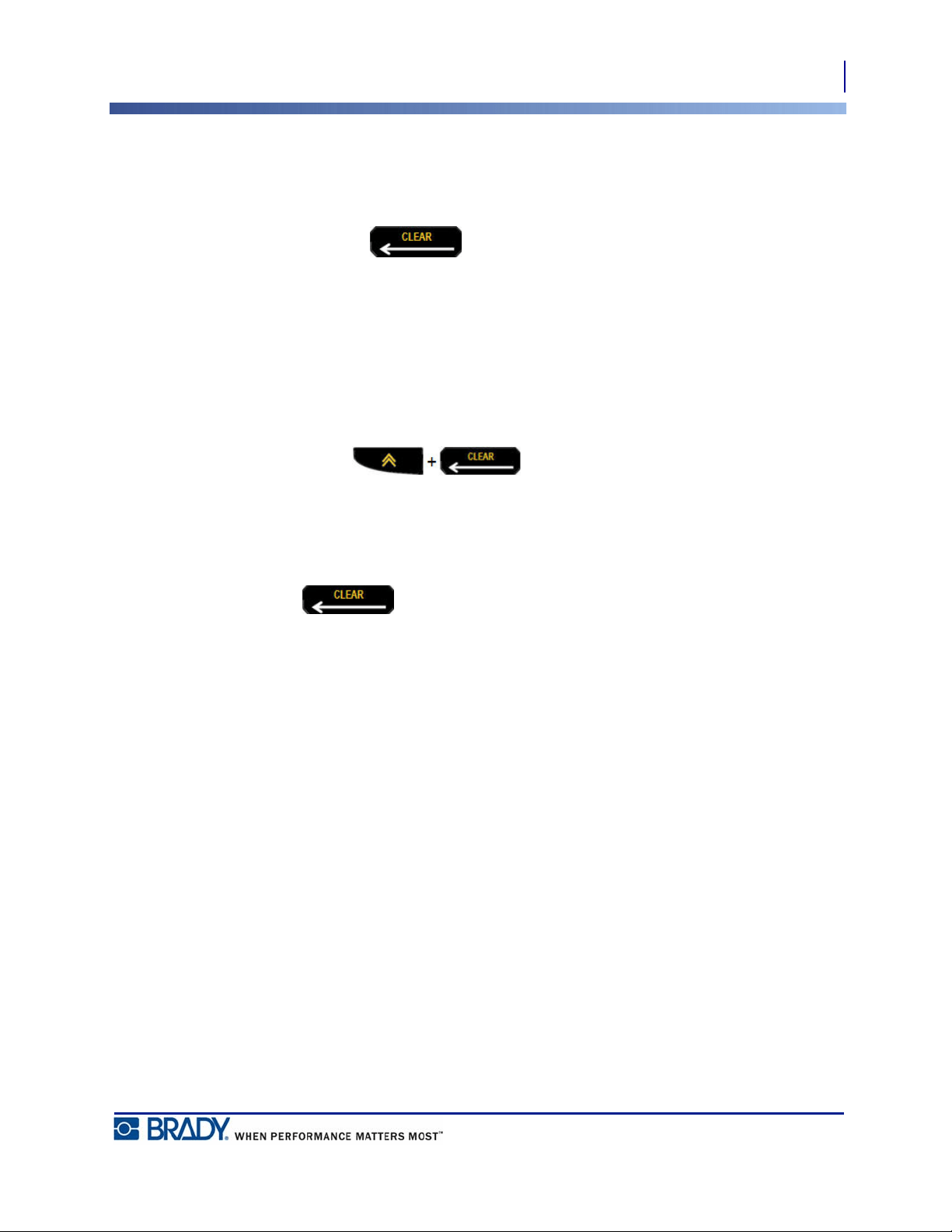
Clear Data
The Clear key is used to clear all data from the screen.
To clear data:
1. Press CLEAR .
Clear removes all data on the label, but leaves the formatting in place (e.g., font size, label
type, etc.)
Cancel Functions
Backspace is also used to cancel functions or a menu. When pressing
[BACKSPACE] in the middle of a function, you are walked out of the function a screen at
a time. You may have to press [BACKSPACE] several times to completely exit the
function.
Error Messages
If a function does not operate under current conditions, an error or information message
displays indicating the problem and/or offers situational advice. Read the message carefully
and follow the instructions. (A list of error messages can be found in the Troubleshooting
section of this manual, starting on page 72.)
37
Getting Started
Editing Text
BMP
®
21-PLUS/BMP
®
21-LAB User’s Manual
Font Size
Note: This printer provides a single typeface – the Arial® Alternative
Monospaced typeface – that has different sizes and weights. Version 2.0 included
an update to this font which can make it look different than what has been seen in
previous versions.
Font size can be applied before or after data is entered, regardless of where the cursor is
positioned. The font setting applies to all text on the label. You cannot change font size on
individual lines of text.
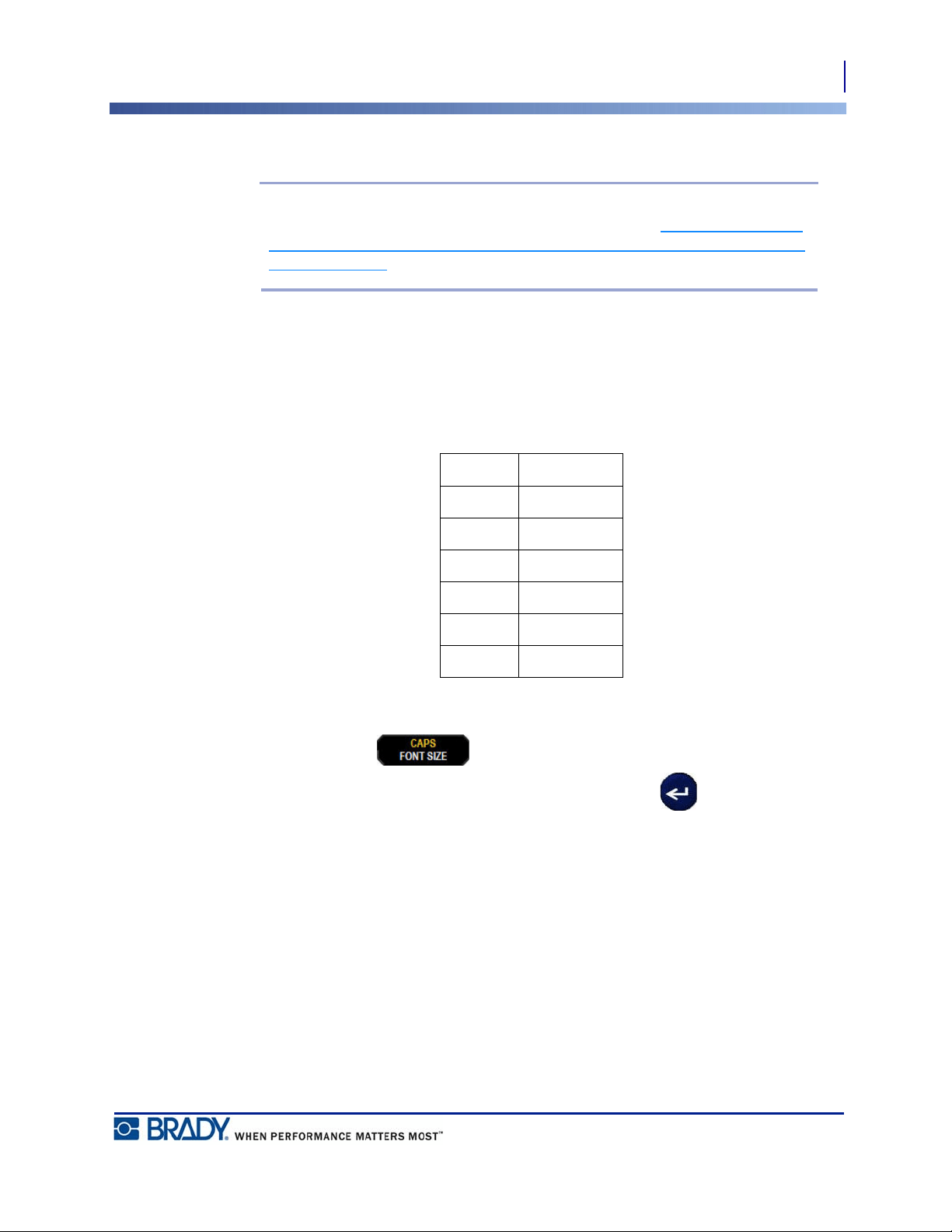
The following font sizes are available for the BMP®21-PLUS/BMP®21-LAB Label Printer.
To change the font size:
1. Press FONT SIZE
2. Navigate to the desired font size and weight, then press Enter .
Auto Auto Bold
6
6 Bold
9
9 Bold
14
14 Bold
20
20 Bold
28
28 Bold
40
40 Bold
38
Getting Started
Editing Text
BMP
®
21-PLUS/BMP
®
21-LAB User’s Manual
Autosize
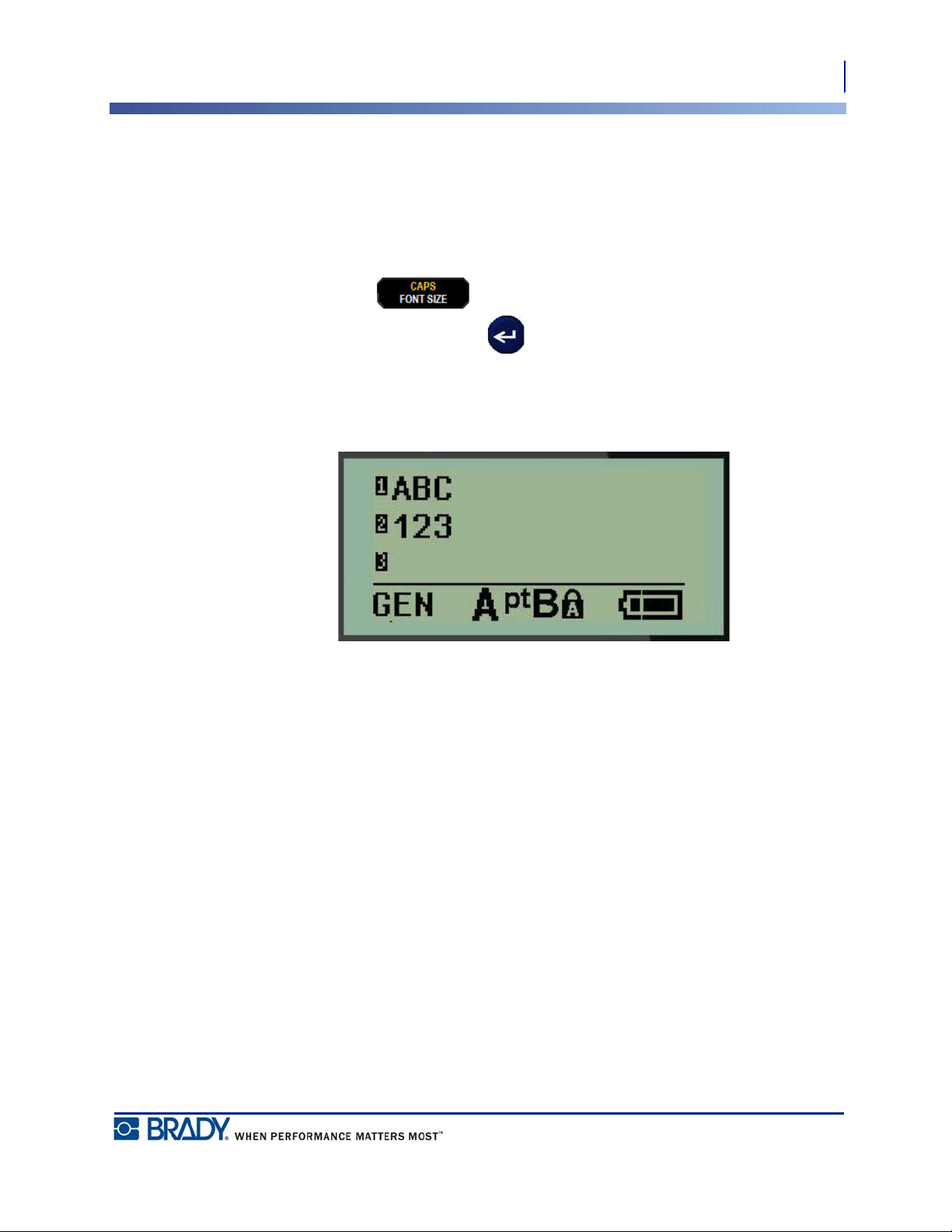
Autosize starts with the largest font size that fits on the label. When a line of text reaches the
fixed margin (distance between the edge of the print head and the cutter blade), it scales
downward until you press [ENTER] or the minimum font size is reached.
By default, a 9 point font is enabled for all labels. To turn autosize on:
1. Press FONT SIZE .
2. Navigate to Auto, then press Enter .
When autosize is turned on, it displays as an ‘A’ in the Status Bar. Autosize remains on for the
entire label, until a different font size is selected.
39
Getting Started
Printing a Label
BMP
®
21-PLUS/BMP
®
21-LAB User’s Manual
Printing a Label
To print a label:
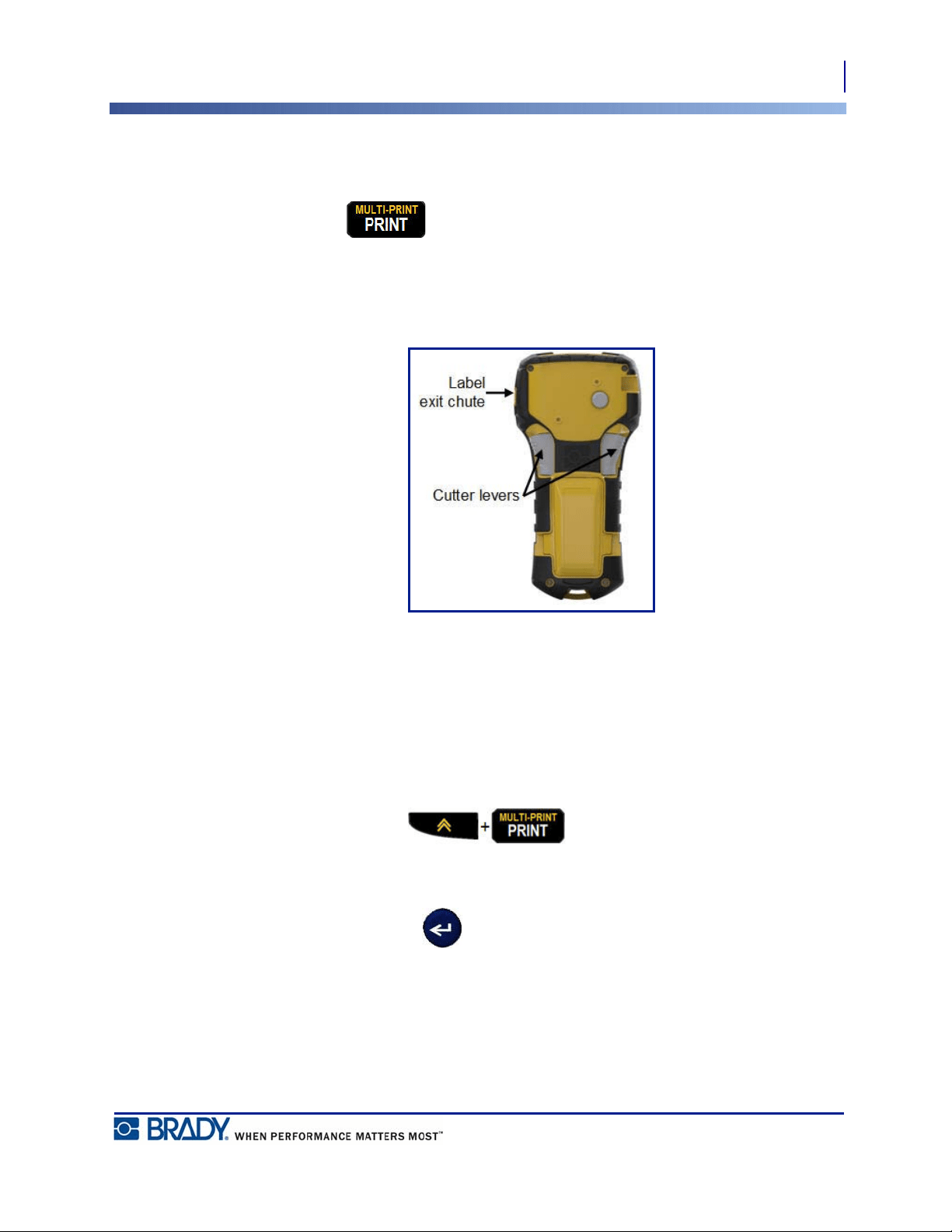
1. Press PRINT .
A printing icon displays on the screen indicating that the label is printing. When the icon
disappears, you can cut the label.
2. Squeeze the cutter levers to cut the label.
The label exit chute contains plastic grips that hold the label in place after cutting so it will not
fall off.
3. Gently pull the label away from the label exit chute.
Multi-Print
Multi-Print allows you to print multiple copies of a label file. To print multiple copies:
1. Press MULTI-PRINT .
2. In the Copies: field, enter a numeric value for the number of copies desired OR use left/
right navigation keys to decrease or increase the number of copies.
3. When ready, press Enter .
The label copies will immediately print.
40
Formatting
Symbols
BMP
®
21-PLUS/BMP
®
21-LAB User’s Manual
Formatting
Formatting refers to the layout, structure, and appearance of a label. Different formatting
features can be found under the Menu and function keys.
Symbols
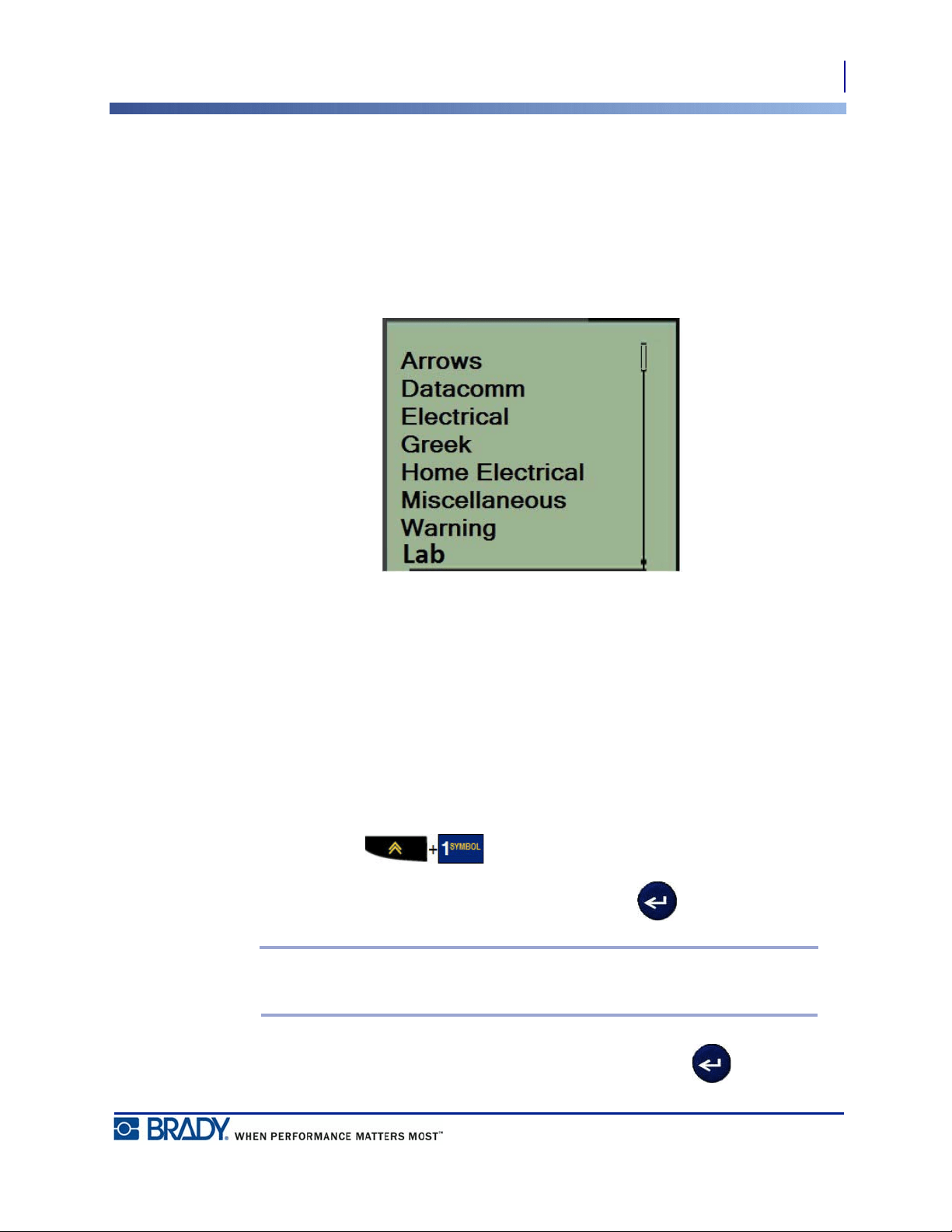
Figure 4 • Symbol categories
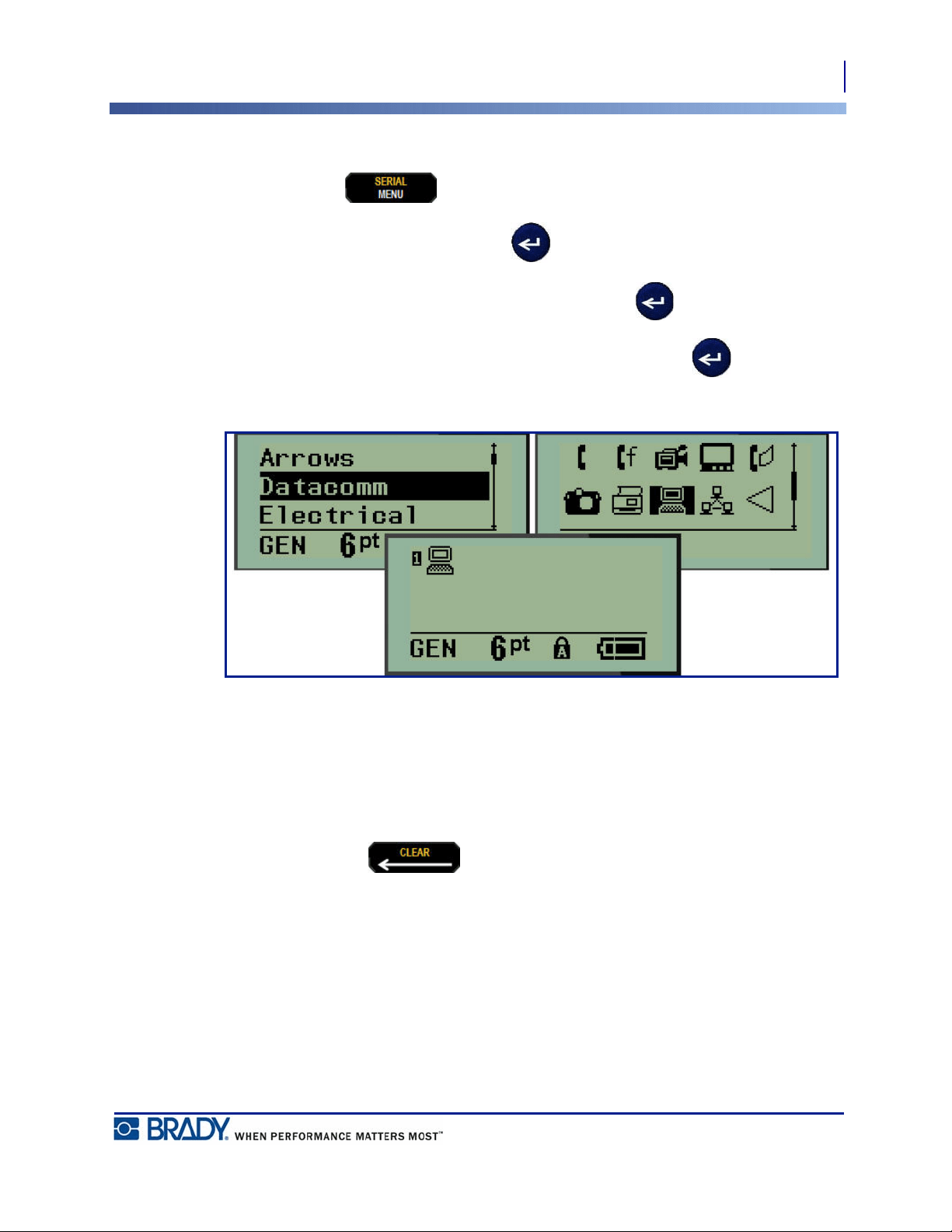
Symbols (graphics) that can be used for a variety of applications are available on the printer.
The number of symbols is printer dependent as outlined below:
•BMP
®
21-PLUS = 191 symbols
•BMP
®
21-PLUS with Cyrillic keyboard = 218 symbols
•BMP
®
21-LAB = 131 symbols
To add a symbol to the label:
1. Position the cursor at the point where you want the symbol to display.
2. Press SYMBOL .
3. Navigate to the desired symbol category, then press Enter .
Note: When adding symbols, the printer always returns to the last symbol
category used.
4. Using navigation keys, select the desired symbol, then press Enter .
41
Formatting
Symbols
BMP
®
21-PLUS/BMP
®
21-LAB User’s Manual
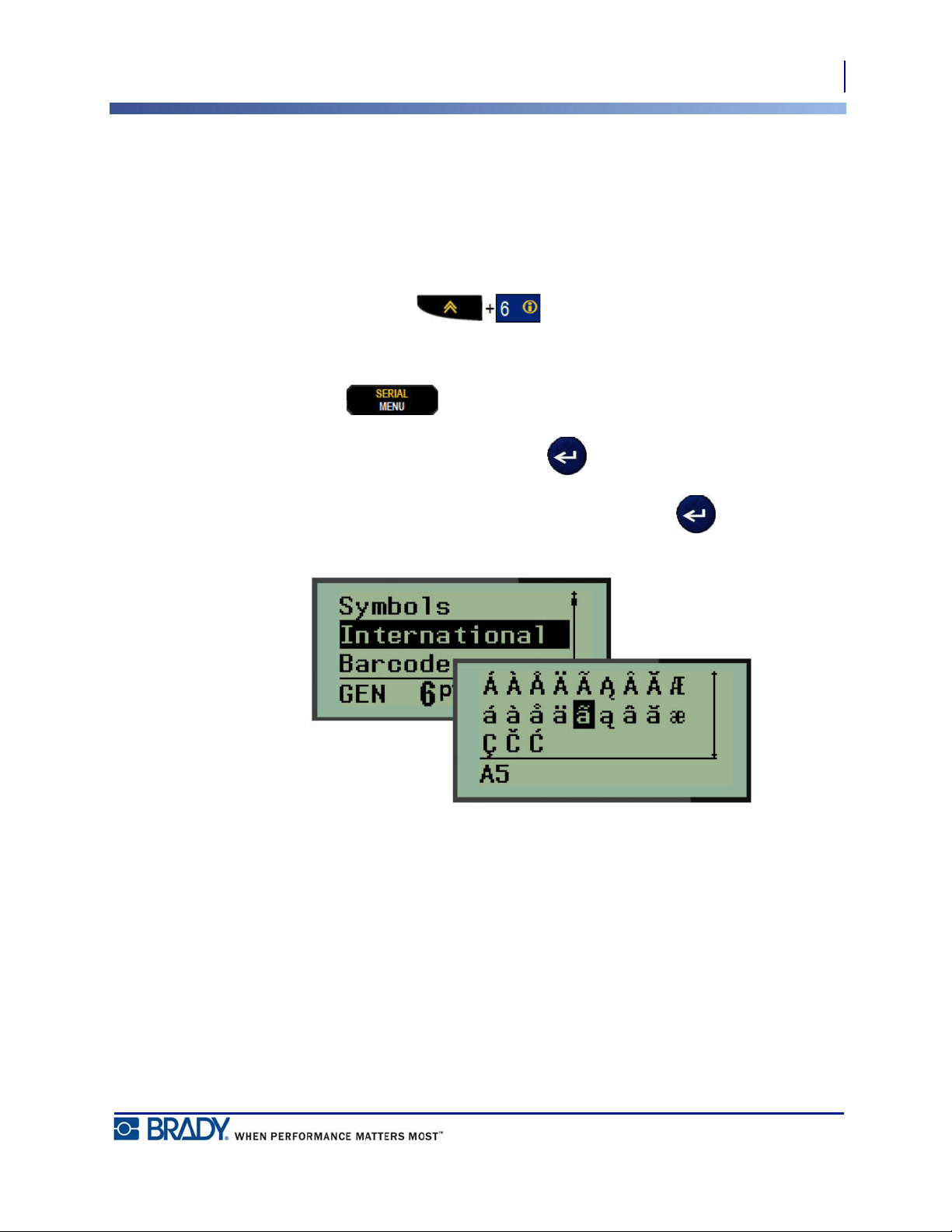
You can also choose symbols through the Menu function.
1. Press MENU .
2. Navigate to Symbols, then press Enter .
3. Navigate to the desired symbol category, then press Enter .
4. Using navigation keys, select the desired symbol, then press Enter .
The symbol displays with the same font size that is currently in use.
Figure 5 • Selecting a symbol
Remove a Symbol
The symbol is the same as any other character. To remove a symbol:
1. Position the cursor to the right of the symbol.
2. Press Backspace .
42
Formatting
International Character Set
BMP
®
21-PLUS/BMP
®
21-LAB User’s Manual
International Character Set
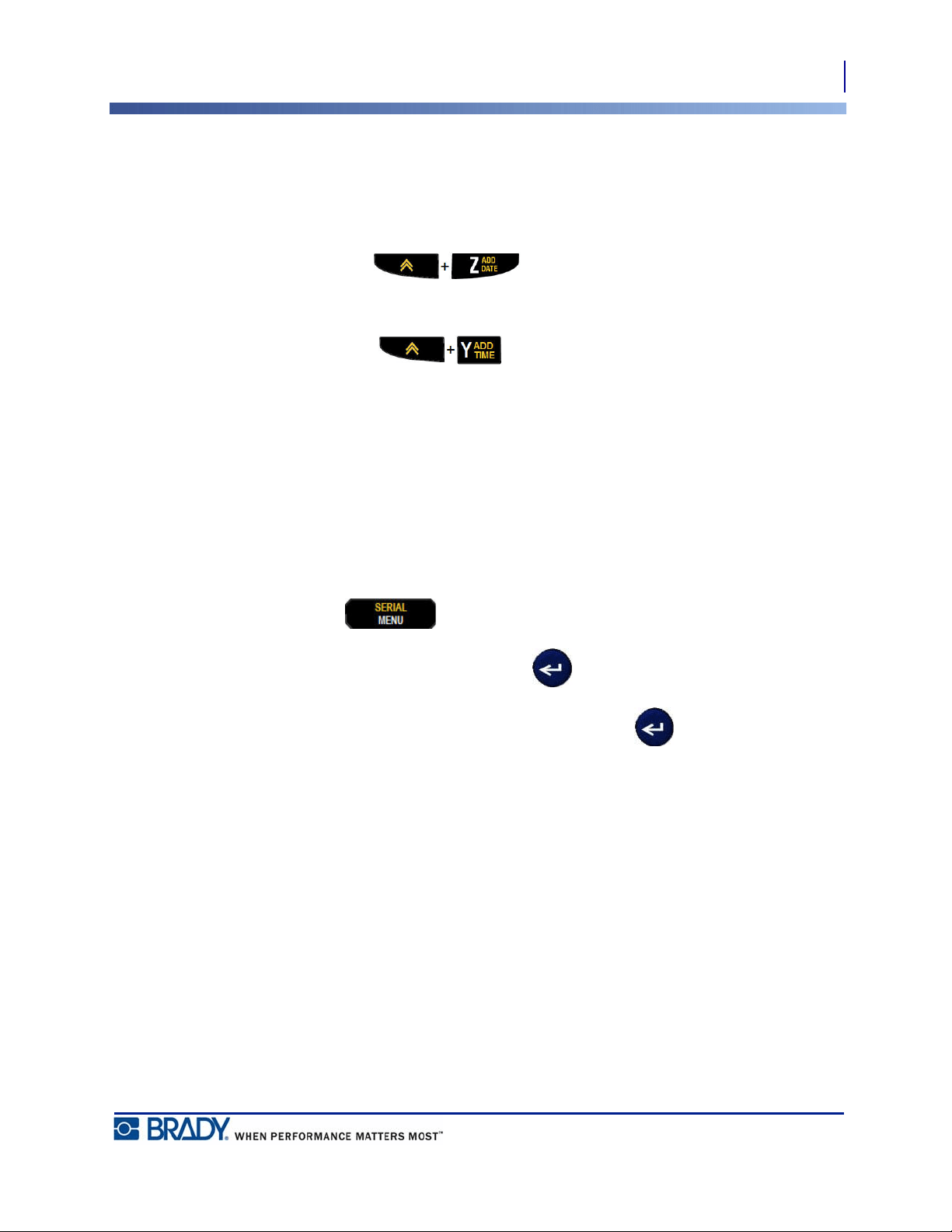
The International Character Set supplies characters specific to some international alphabets
with diacritical and accent marks incorporated into the characters. To add a character from the
International Character Set:
1. Position the cursor where you want the international character to display.
2. Press International key .
OR
Press MENU .
Navigate to International, then press Enter
3. Navigate to the desired international character, then press Enter .
43
Formatting
Date and Time
BMP
®
21-PLUS/BMP
®
21-LAB User’s Manual
Date and Time
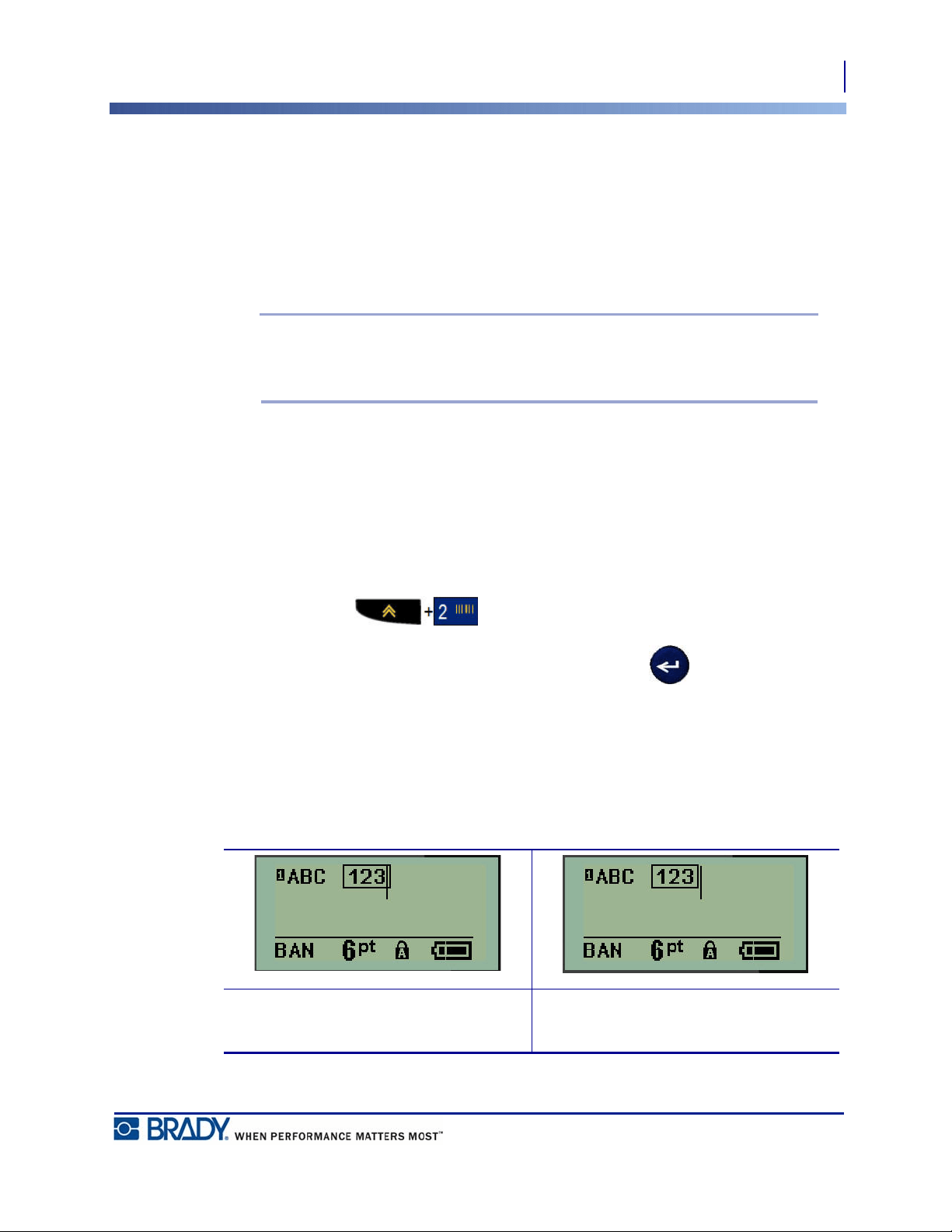
To have the current date and/or time inserted on a label:
1. Position the cursor on the label where you want the date and/or time to be inserted.
2. Press ADD DATE to display the date.
OR
3. Press ADD TIME to display the time.
The BMP
®
21-PLUS/BMP
®
21-LAB printer inserts the Date or Time using the current system
clock value at the time of printing and the date/time format defined in the Menu function. (For
more information, see “Set Clock” settings on page 27.)
Timestamp
You can also use the Timestamp menu option to insert the date or time on your label. To
Timestamp your label:
1. Place the cursor at the position on the label where you want to stamp the date or time.
2. Press MENU .
3. Navigate to Timestamp, then press Enter .
4. Navigate to Insert Time or Insert Date, then press Enter .
44
Formatting
Barcode
BMP
®
21-PLUS/BMP
®
21-LAB User’s Manual
Barcode
The BMP
®
21-PLUS/BMP
®
21-Lab Label Printer supports Code 39 and Code 128 barcode
symbology. You can use either Banner Landscape or Flag label type to insert a barcode. (See
page 55 for information on changing the Label Type.)
Barcode data can be displayed in the same line as other data (text or symbols). Barcode data on
the same line as text will not overwrite the text already on the line but will be placed next to it.
Note: You cannot change the characteristics of the barcode except the font size.
The human readable text is placed below the barcode and cannot be removed. The
size of the barcode changes with the font size of the human readable text.
Add a Barcode
Barcode creation is only available for select ASCII characters, as shown in Appendix B
on page 85.
To add a barcode:
1. Position the cursor where you want to add the barcode.
2. Press Barcode .
3. Choose the barcode symbology (39 or 128) and press Enter .
4. Enter the barcode data.
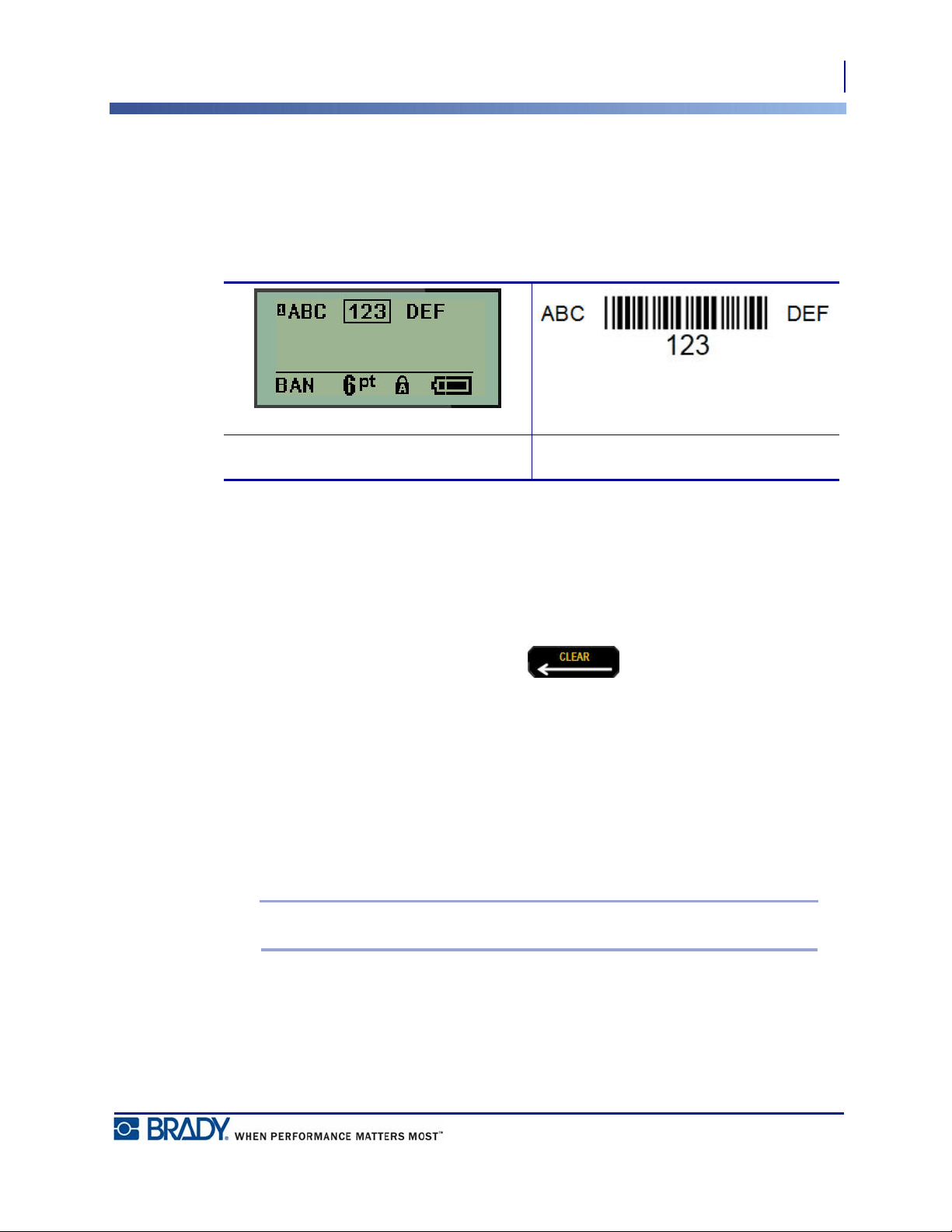
The barcode displays on the screen as a rectangle around the barcode data. To exit out of the
barcode data:
5. Press the right navigation key to move off the barcode.
Entering barcode data (cursor inside
barcode)
Cursor moved off the barcode data
45
Formatting
Datamatrix and QR Codes (Version 2.0 only)
BMP
®
21-PLUS/BMP
®
21-LAB User’s Manual
If you want to enter more data on the same line of text as the barcode:
1. Press the right navigation key to move off the barcode.
2. Enter the data. (Be sure to press Space before entering more data if you want to separate
the data from the barcode.)
Edit Barcode Data
To edit barcode data:
1. Using the left or right navigation keys, position the cursor in the barcode text.
2. If you are deleting barcode data, be sure to position the cursor to the right of the character
you want to delete, then press Backspace .
3. If you are inserting additional data, position the cursor in the barcode data where new data
will be entered, then enter the data.
4. To exit the barcode data, use the left or right navigation keys to move off the barcode data.
Datamatrix and QR Codes (Version 2.0 only)
Barcode creation is only available for select ASCII characters, as shown in Appendix B
on page 85.
Note: This feature available only on Version 2.0.
The BMP
®
21-PLUS/BMP
®
21-Lab Label Printer supports Datamatrix and QR Codes in two
different sizes, with 0.59 inches (15 mm) being the minimum supported diameter that a Brady
scanner can read. Datamatrix Codes will accept a maximum of 44 characters and QR Codes
can accept up to 50 characters. This feature is only supported on .75-inch (19.1 mm) media.
Multiple lines of text/codes is not supported.
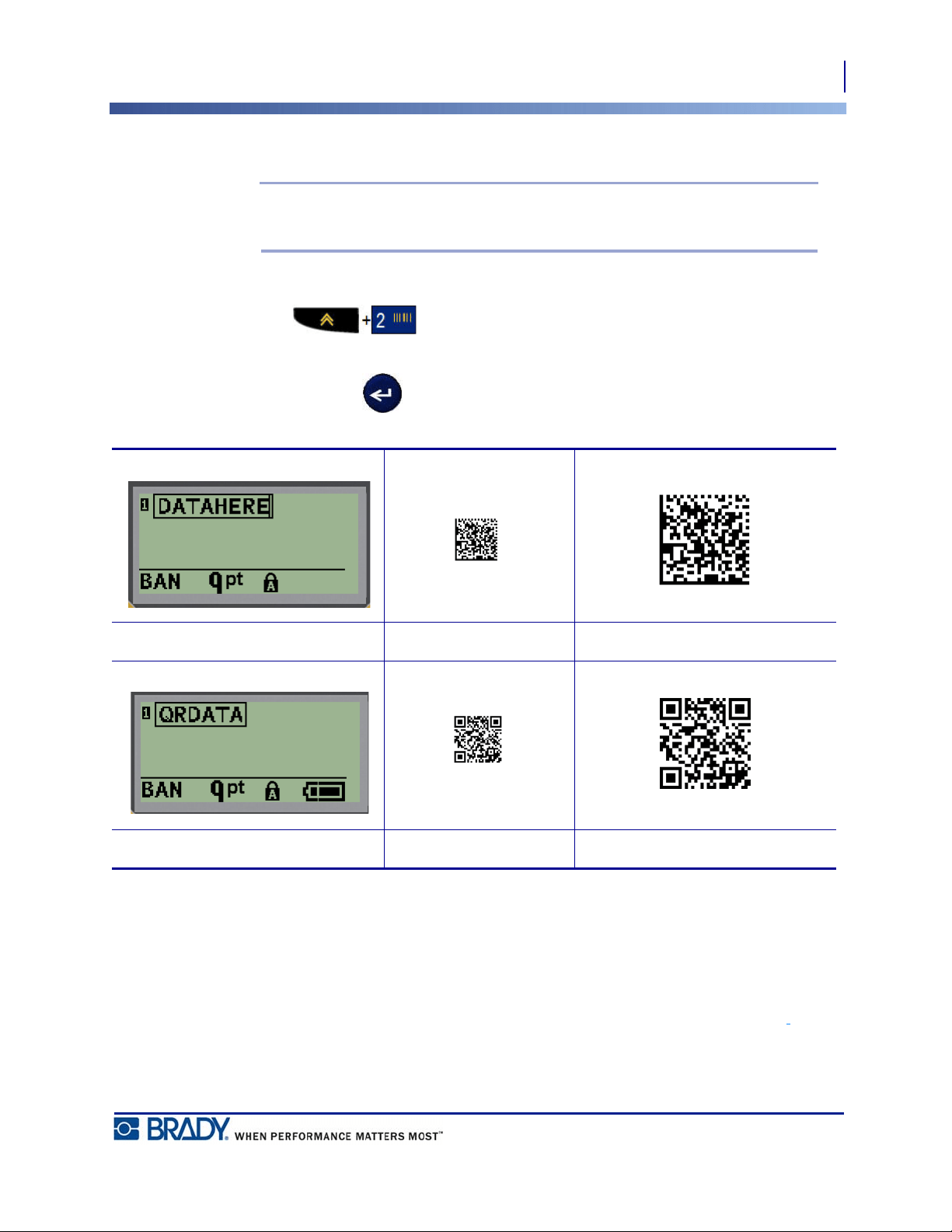
Barcode in line of data Printed label of barcode in line of data
46
Formatting
Datamatrix and QR Codes (Version 2.0 only)
BMP
®
21-PLUS/BMP
®
21-LAB User’s Manual
Add a Datamatrix or QR Code
Note: Label type must be set to Banner Landscape. The size of the codes are
preset and not affected by changing font size.
1. Position the cursor where you want to add the code.
2. Press .
3. Use the arrows to scroll to the desired code (Datamatrix or QR) and size (small or large)
and press Enter .
4. Enter data for the code. Use the left and right navigation keys to move within the data
which is shown inside a box.
5. Press the right navigation key to move off the barcode (outside of the box) and stop adding
data to the code.
Editing either type of code is the same steps as editing a barcode as shown on page 45.
Datamatrix line of data Small Datamatrix Large Datamatrix
QR line of data Small QR Large QR

47
Serialization
How Serialization Works
BMP
®
21-PLUS/BMP
®
21-LAB User’s Manual
Serialization
Serialization (or sequencing) automatically adds a series of sequential numbers or letters to the
printed labels. The Serial function consecutively places the next number or letter in the defined
sequence on individual labels. The number of labels created is defined by the sequence values
you enter.
Serialization can be combined with other data on a label. Any data displayed on a label that
includes serialization will be repeated on every label along with the serial data. You can also
incorporate serialized data into a barcode. However, you can only have one serialized data set
per label file. (I.e., you cannot put two different serialization sequences on one label.)
How Serialization Works
Serialization is alphanumeric, with numbers from 0 to 9, and letters A-Z. Serialization consists
of a Start Value, End Value, and Increment. The Start Value is the number or letter that begins
the serialization sequence. (You can use multiple numbers or letters in the sequence. However,
you cannot combine numbers and letters in the same sequence.) The End Value is the
termination point of the sequence.
The Increment is the value that is added to the previous number in the sequence to produce the
next sequence number. (You cannot have an increment value of 0.) For instance, a start value
of 1, an end value of 25, and an increment of 4 would produce 1, 5, 9, 13, 17, 21, 25.
Note: Letters are sequenced according to their place in the alphabet. For instance,
the letter A occurs first in the alphabet (1), B is second (2), C is third (3), and so on.
When sequencing letters, the Increment value is still entered as a number.

48
Serialization
Examples of Serialization
BMP
®
21-PLUS/BMP
®
21-LAB User’s Manual
Examples of Serialization
In a simple serialization, a sequence runs through its full range of numbers and/or letters (i.e.,
0 to 9, or A to Z), one number/letter for each label. Starting with the Start Value, the Increment
value is added to the previous number to produce the next sequence number, until it reaches
the End Value.
Example: Simple serialization 1:
Start Value: 1
Increment: 1
End Value: 10
Produces: 1, 2, 3, 4, 5, 6, 7, 8, 9, 10
Sequencing progresses only until the End Value is reached, it cannot go over the End Value.
When the Increment Value is larger than 1, it may produce a sequence that does not print the
End Value.
Example: Simple serialization 2:
Start Value: 1
Increment: 2
End Value: 10
Produces: 1, 3, 5, 7, 9
In the above example, the increment value of 2 is added to each previous sequence number.
Therefore, 1 + 2 = 3, 3 + 2 = 5, 5 + 2 = 7, 7 + 2 = 9. It cannot add 2 to sequence number 9
because that would produce sequence number 11, which is higher than the end value of 10.
Note: The BMP21 printer can only process simple serializations, as in the above
two examples. The BMP21-PLUS printer can also process serializations using
single or multiple letters.
49
Serialization
Examples of Serialization
BMP
®
21-PLUS/BMP
®
21-LAB User’s Manual
Using Letters in Serialization
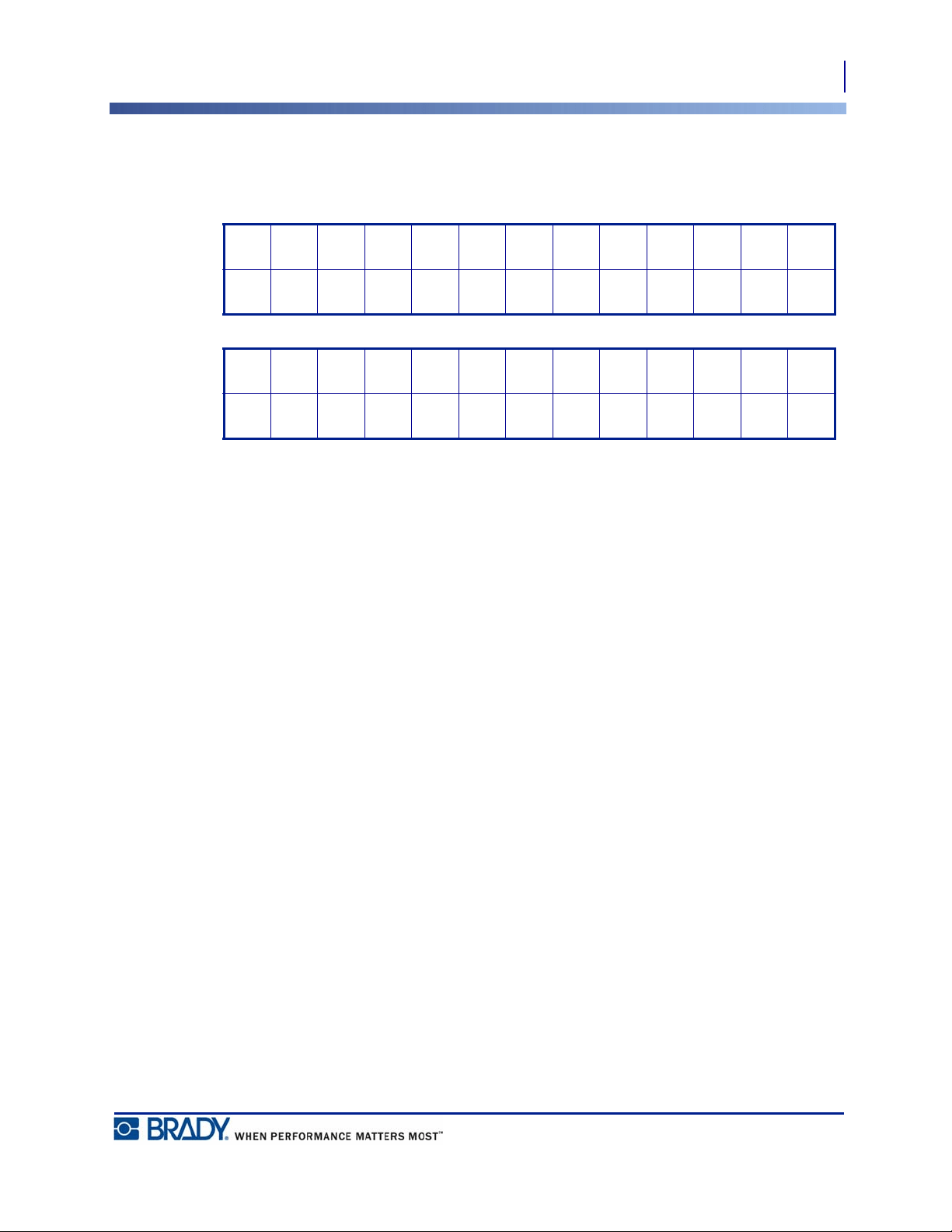
Sequencing letters occurs according to the letter’s position in the alphabet. Below is a chart
referencing alpha character positions in the English alphabet.
Example: Letter sequence:
Start Value: A
Increment: 3
End Value: M
Produces: A, D, G, J, M
Multi-Letter Serialization
You can serialize up to three letters at a time. When the right-most character in the Start Value
reaches its maximum value (Z), the character immediately to the left is incremented, and the
right character cycles back to its minimum value (A). It is important to understand how letter
serialization works as it can produce a very large amount of labels.
Example: Multiple Letter Serialization 1:
Start Value: AB
Increment: 1
End Value: BB
Produces: AB, AC, AD, AE......AZ, BA, BB
In the above example, 27 sequences are produced. Starting with AB, the right-most character
runs the entire alphabet until it reaches its maximum value (Z). When the end of the alphabet is
reached, the character immediately to the left increments one letter and the sequence starts
again. This process continues up to the End Value of BB.
ABCDEFGH I JKLM
12345678910111213
NOPQRSTUVWXYZ
14 15 16 17 18 19 20 21 22 23 24 25 26
50
Serialization
Add Serialization
BMP
®
21-PLUS/BMP
®
21-LAB User’s Manual
Add Serialization
To add serialization to labels:
1. Position the cursor on the label where you want the serialization to display.
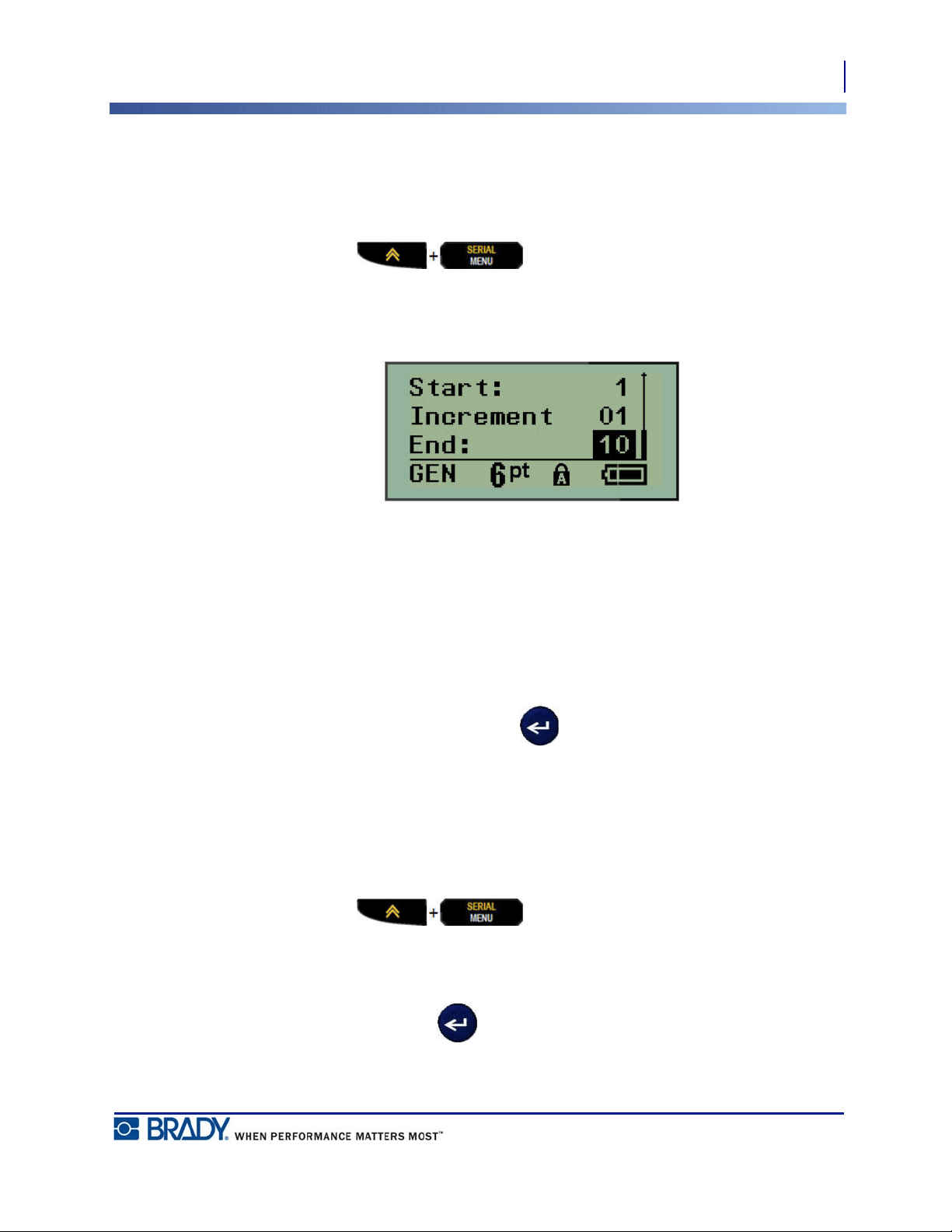
2. Press SERIAL .
A dialog box displays where you can enter the start value of the serialization, the increment
value, and the end value.
For simple serialization:
3. With the cursor immediately displayed in the Start: field, enter the start value of the
sequence.
4. In the Increment field, enter the increment value.
5. In the End: field, enter the end value of the sequence.
The default increment is 1. If that is the desired increment, skip this entry field.
6. To process the serialization, press Enter .
Edit a Sequence
You can change the serialization values after a sequence has been determined. To edit the
sequence values, from anywhere on the label (the cursor does not have to be in the serialized
data set):
1. Press SERIAL .
The Serial dialog box displays with the current values listed.
2. Navigate to the value fields to change and enter the new value.
3. When finished, press Enter .
51
File Management
File Naming Standards
BMP
®
21-PLUS/BMP
®
21-LAB User’s Manual
File Management
A label can be saved as a file, to be opened and reused at a later date. You can save up to 12
files on the BMP
®
21-PLUS/BMP
®
21-LAB Label Printer. The files are retained and are not
lost when removing the rechargeable battery.
Note: The BMP®21-PLUS/BMP®21-LAB printer CANNOT be connected to a
PC. You cannot print PC label files on the BMP21-PLUS/BMP®21-LAB printer.
File Naming Standards
To create a file on the BMP
®
21-PLUS/BMP
®
21-LAB Label Printer, the file must be given a
name. Names can be up to 11 characters long and can consist of letters, numbers, and spaces.
Unlike file names in a Windows environment, two different files can have the same name. File
names in the BMP21-Plus Label Printer are designated and separated by the position number
(1 - 12) so same names are allowed.
Save a File
You can save a file internally on the BMP
®
21-PLUS Label Printer. The saved file retains the
label data and data attributes. This file is available for reuse whenever needed.
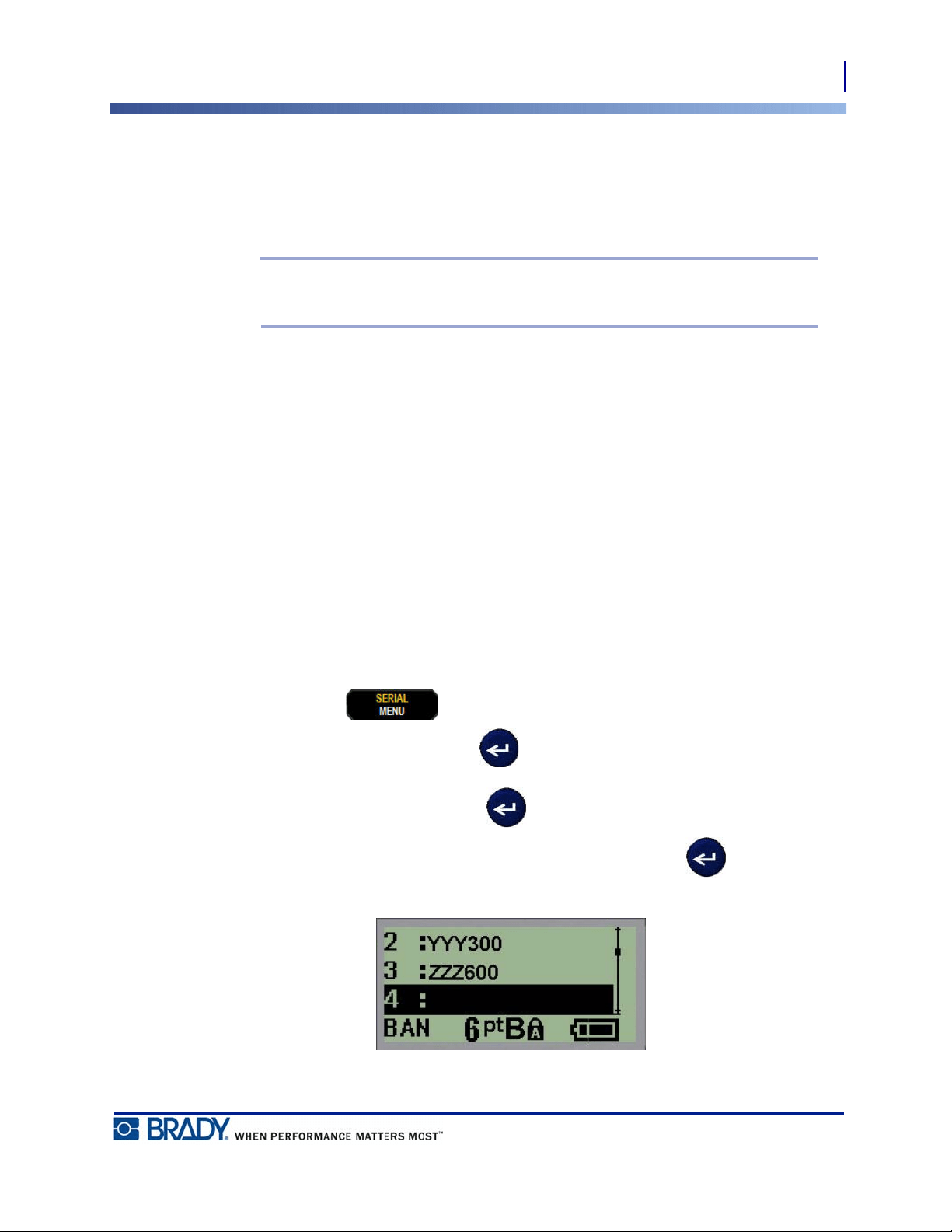
To save labels as a file:
1. Press MENU .
2. Navigate to File, then press Enter .
3. Navigate to Save, then press Enter .
4. Navigate to an open numbered field (blank field) and press Enter .
52
File Management
Replace (Overwrite) a File
BMP
®
21-PLUS/BMP
®
21-LAB User’s Manual
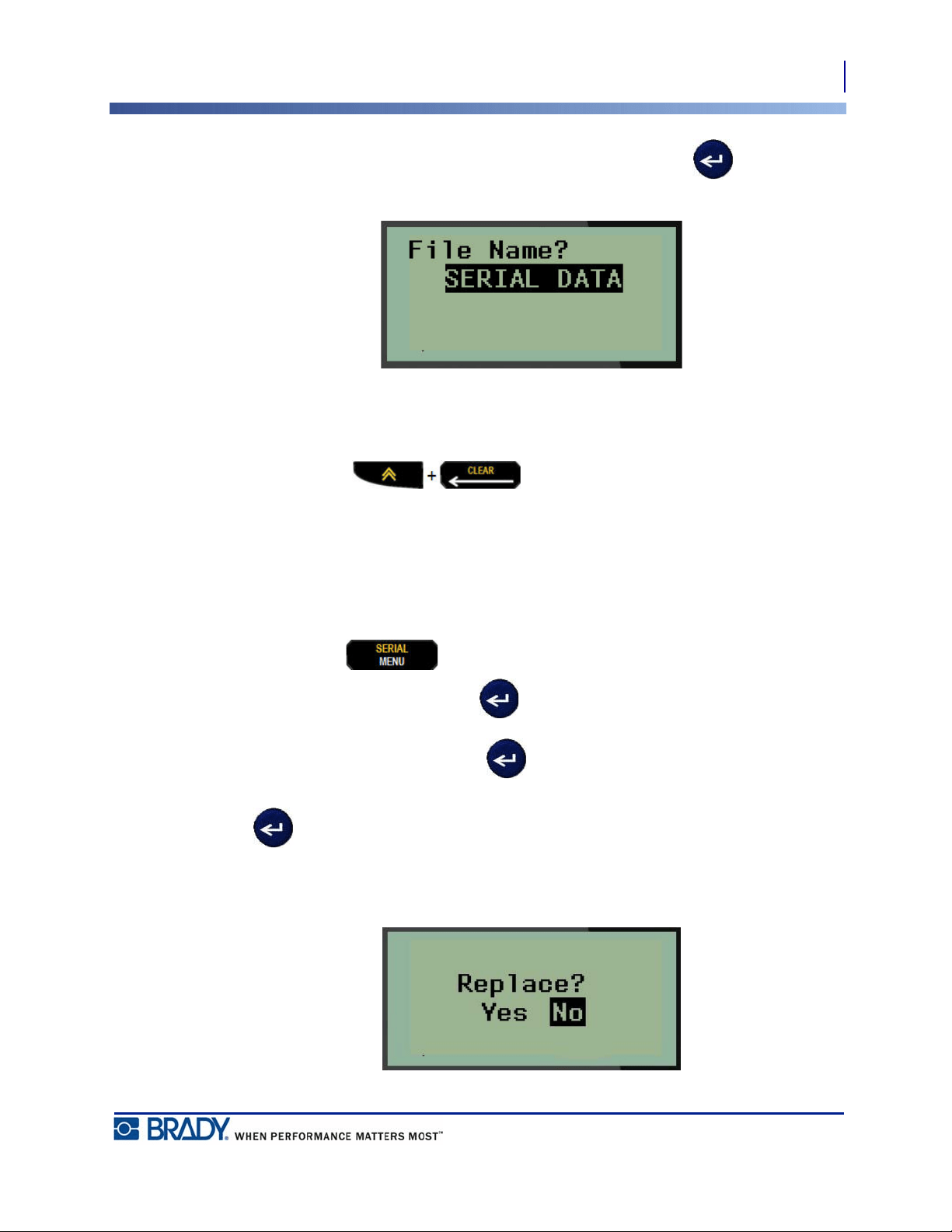
5. In the File Name? field, enter a name for the file, then press Enter .
When the file is saved, you are returned to the Editing screen with the saved file still displayed.
To remove the saved file from the screen:
6. Press CLEAR .
Replace (Overwrite) a File
You can only save 12 files on the BMP
®
21-Plus/BMP
®
21-LAB Label Printer. To save another
file, you need to replace (overwrite) one of the previously saved files. To replace, or overwrite,
a file:
1. Press MENU .
2. Navigate to File, then press Enter .
3. Navigate to Save, then press Enter .
4. Navigate to the numbered field containing the file you want to overwrite and press Enter
.
A message displays requesting confirmation on replacing the previous file.
53
File Management
Open a File
BMP
®
21-PLUS/BMP
®
21-LAB User’s Manual
To overwrite the previous file:
5. Navigate to Ye s, then press Enter .
6. In the File Name? field, enter a name for the file, then press Enter .
Open a File
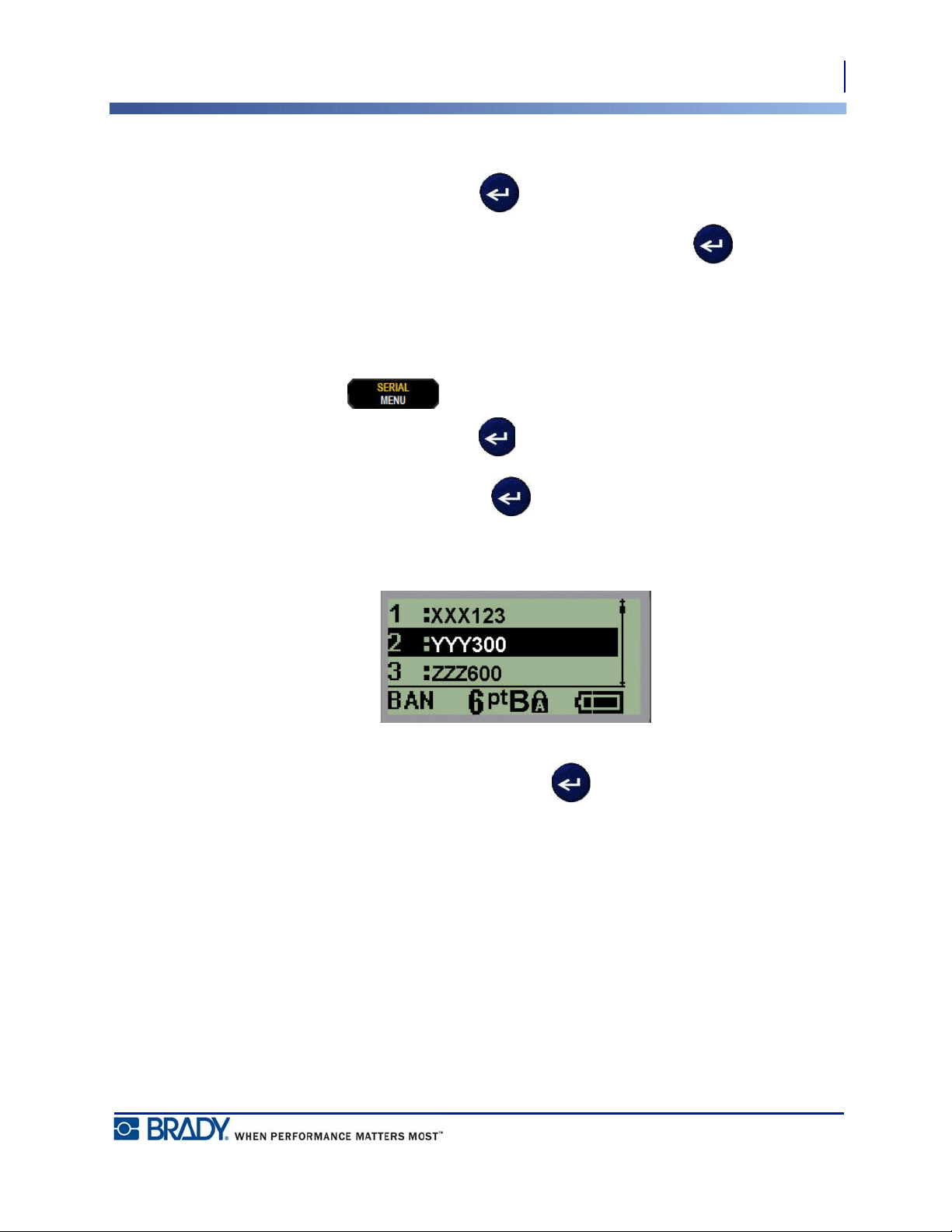
To open (recall) a saved file:
1. Press MENU .
2. Navigate to File, then press Enter .
3. Navigate to Open, then press Enter .
A list of previously saved files displays.
4. Navigate to the file to open, then press Enter .
Only one file can be displayed on the screen at a time. When opening a saved file, if the
Editing screen contains data, the opened file overwrites that data. If the previous data on the
screen was not saved, that data is lost.
54
File Management
Delete a File
BMP
®
21-PLUS/BMP
®
21-LAB User’s Manual
Delete a File
The display screen does not have to be cleared before deleting a file. A file can be deleted with
other data still on the screen.
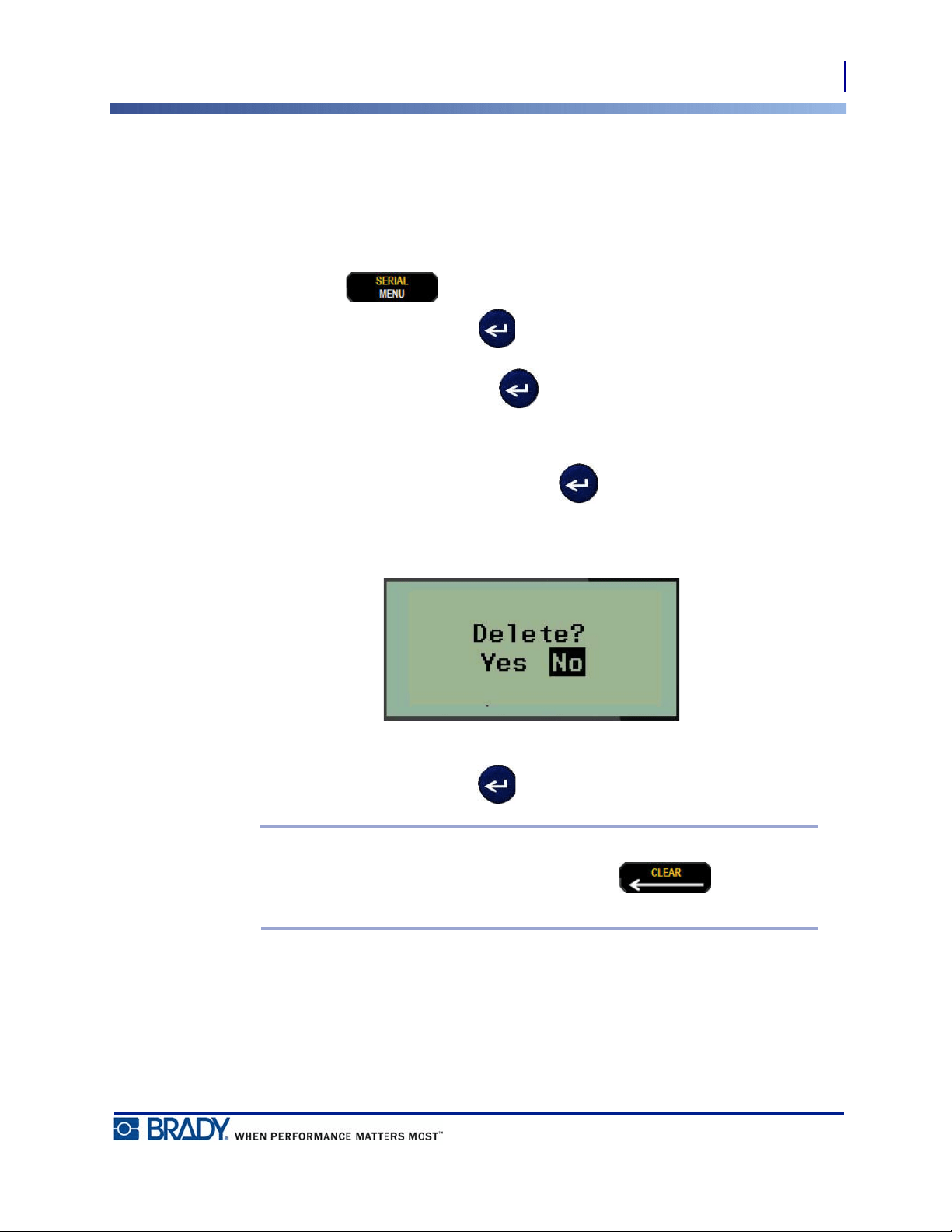
To delete a previously saved file:
1. Press MENU .
2. Navigate to File, then press Enter .
3. Navigate to Delete, then press Enter .
A list of previously saved files displays.
4. Navigate to the file to delete, then press Enter .
A delete confirmation message displays.
5. Navigate to Ye s, then press Enter .
Note: If you enter ‘No’, you will be returned to the list of saved files. You can
select another file to delete OR press [BACKSPACE] to move out of
the File>Delete menus and return to the Editing screen.
When a file is deleted, it is removed from the system and is no longer available for use.
55
Label Types
Selecting a Label Type
BMP
®
21-PLUS/BMP
®
21-LAB User’s Manual
Label Types
Label types provide templates that guide and control the layout for label formats and may
require specific media.
The label types available are:
Selecting a Label Type
To select a label type:
1. Press LABEL TYPE .
2. Using navigation keys, choose the desired Label Type, then press Enter .
Note: If the correct media is not installed in the printer, some of the label type
templates will not display in the Label Type menu. For example, if a permasleeve
cartridge is loaded, the wiremarker template will not be available.
For some label types, data fields display to collect information for automatically formatting
the specific label type.
3. Navigate to the different data fields and enter the data requested.
4. When finished, press Enter .
BMP®21-PLUS and
BMP®21-PLUS-Russian Label Printer
The BMP®21-LAB Label Printer
• Banner Portrait
• Banner Landscape
•Fixed Length
• Custom Length
•Vial
•WireMarker
•Terminal Block
• Patch Panel
• Panel-Residential
•Flag
• Breaker Box
The BMP®21-LAB Label Printer is
intended for laboratory environments
and therefore contains only the
following label types.
• Banner Portrait
•Banner Landscape
•Custom Length
•Fixed Length
•Vial
56
Banner Portrait Label Type
Selecting a Label Type
BMP
®
21-PLUS/BMP
®
21-LAB User’s Manual
Banner Portrait Label Type
Banner Portrait label type is used for creating basic labels, with no specific formatting. Banner
portrait supports all media except SelfLam and Permasleeve.
When you are using a specific label type, clearing the data removes the data you entered but
the specific label type parameters remain. To exit out of the specific label type and return to the
general editing mode of the BMP
®
21-PLUS/BMP
®
21-LAB Label Printer, select the Banner
Portrait label type.
1. Press LABEL TYPE .
2. Using navigation keys, choose Banner Portrait, then press Enter .
3. Using navigation keys, choose Horizontal or Vertical text, then press Enter .
Note: When using Horizontal Text on a Banner Portrait label type, you are limited
to four lines of text and the message “Cannot Fit” displays if each individual line of
text is too long. However, if using Vertical Text on a Banner Portrait label, while
you are limited to four lines of text, each individual line is unlimited in length.
The parameters of the previous label type in use are removed from the screen and you are
returned to the general editing mode.
Banner Portrait label type - horizontal text
on screen
Banner Portrait label type - horizontal text
printed out
Banner Portrait label type - vertical text on
screen (limited to four lines)
Banner Portrait label type - vertical text
printed out
57
Banner Landscape Label Type
Selecting a Label Type
BMP
®
21-PLUS/BMP
®
21-LAB User’s Manual
Banner Landscape Label Type
Banner Landscape label type allows you to enter a long text string. Any media can be installed
for Banner Landscape. If a label type is not supported for newly installed media, the label type
automatically switches to Banner Landscape.
To print a long text string (i.e., producing a “banner”):
1. Press LABEL TYPE .
2. Using navigation keys, choose Banner Landscape, then press Enter .
3. Using navigation keys, choose Horizontal Text or Vertical Text, then press Enter .
Note: When using Vertical Text on a Banner Landscape label type, you are limited
to four lines of text and the message “Cannot Fit” displays if each individual line of
text is too long. However, when using Horizontal Text on a Banner Landscape
label, while you are limited to four lines of text, each individual line is unlimited in
length.
4. On the Editing screen, enter the text string.
Banner Landscape label type - text on
screen
Banner Landscape label type - text
printed out
58
Fixed Length
Selecting a Label Type
BMP
®
21-PLUS/BMP
®
21-LAB User’s Manual
Fixed Length
If the label type is set to Banner landscape the label length will be as long as necessary to
accommodate the font size and text entered. However, you can set the length of the media to a
fixed length, which may restrict how much data you can enter on the label.
Note: On all labels, there exists a fixed margin that measures the distance between
the edge of the print head and the cutter blade. This distance cannot be changed.
To set a fixed label length:
1. Press LABEL TYPE .
2. Navigate to Fixed Length, and press Enter .
3. Navigate to the desired length, and press Enter .
Enter data as usual. If you enter more data than the fixed length label can accommodate, the
error message “Cannot Fit” displays and you are returned to the label.
To correct the error, you can delete text (see page 35), change the font size (see page 37), or
select a larger fixed length label size by performing the above three steps.
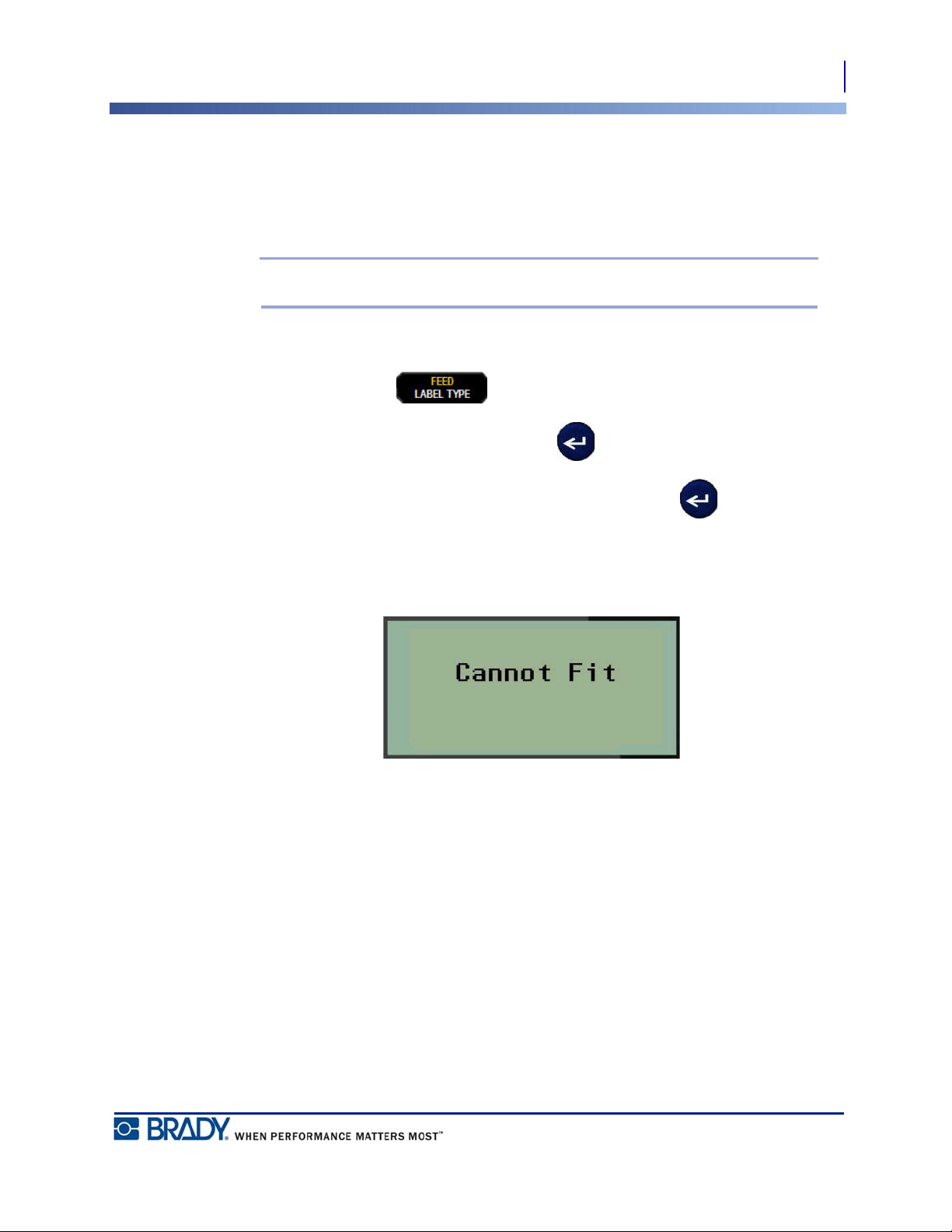
59
Custom Length (Version 2.0 only)
Selecting a Label Type
BMP
®
21-PLUS/BMP
®
21-LAB User’s Manual
Custom Length (Version 2.0 only)
Setting a custom length gives you the option to set smaller label lengths than what is available
with the fixed length setting. The maximum length is 99.9 inches (2537.46mm) with the
maximum number of characters at 50. Text will be centered on the label, regardless of length.
Note: This feature available only on Version 2.0.
To set a custom label length:
1. Press LABEL TYPE .
2. Navigate to Custom Length, and press Enter .
3. Use the number keys to enter the desired length, and press Enter .
Enter data as usual. If you enter more data than the fixed length label can accommodate, the
error message “Cannot Fit” displays and you are returned to the label.
To correct the error, you can delete text (see page 35), change the font size (see page 37), or
select a longer custom length label size.
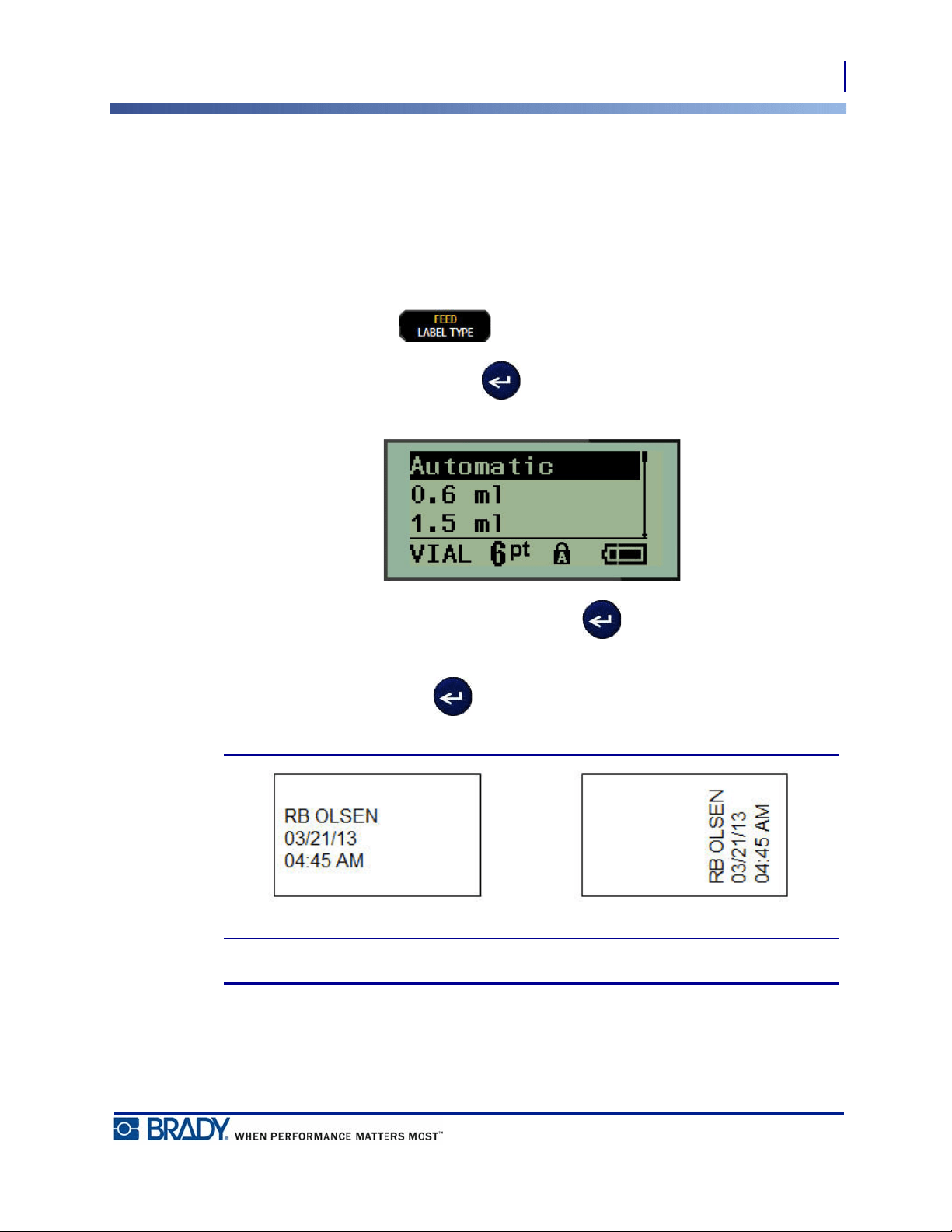
60
Vial
Selecting a Label Type
BMP
®
21-PLUS/BMP
®
21-LAB User’s Manual
Vial
The Vial label type can be used with any media except SelfLam or Permasleeve. (If SelfLam
or Permasleeve media is installed, the Vial label type does not display.) The Vial label type
fixes the length of the label based on the vial size selected and formats the data horizontally or
vertically.
To create a label using the Vial label type:
1. Press LABEL TYPE .
2. Navigate to Vial, then press Enter .
3. Navigate to the desired vial size, then press Enter .
4. Select the way you want the data to print on the label - landscape (horizontal) or portrait
(vertical), then press Enter .
5. Enter the data to display on the vial label.
Landscape (horizontal on printed label) Portrait (vertical on printed label)
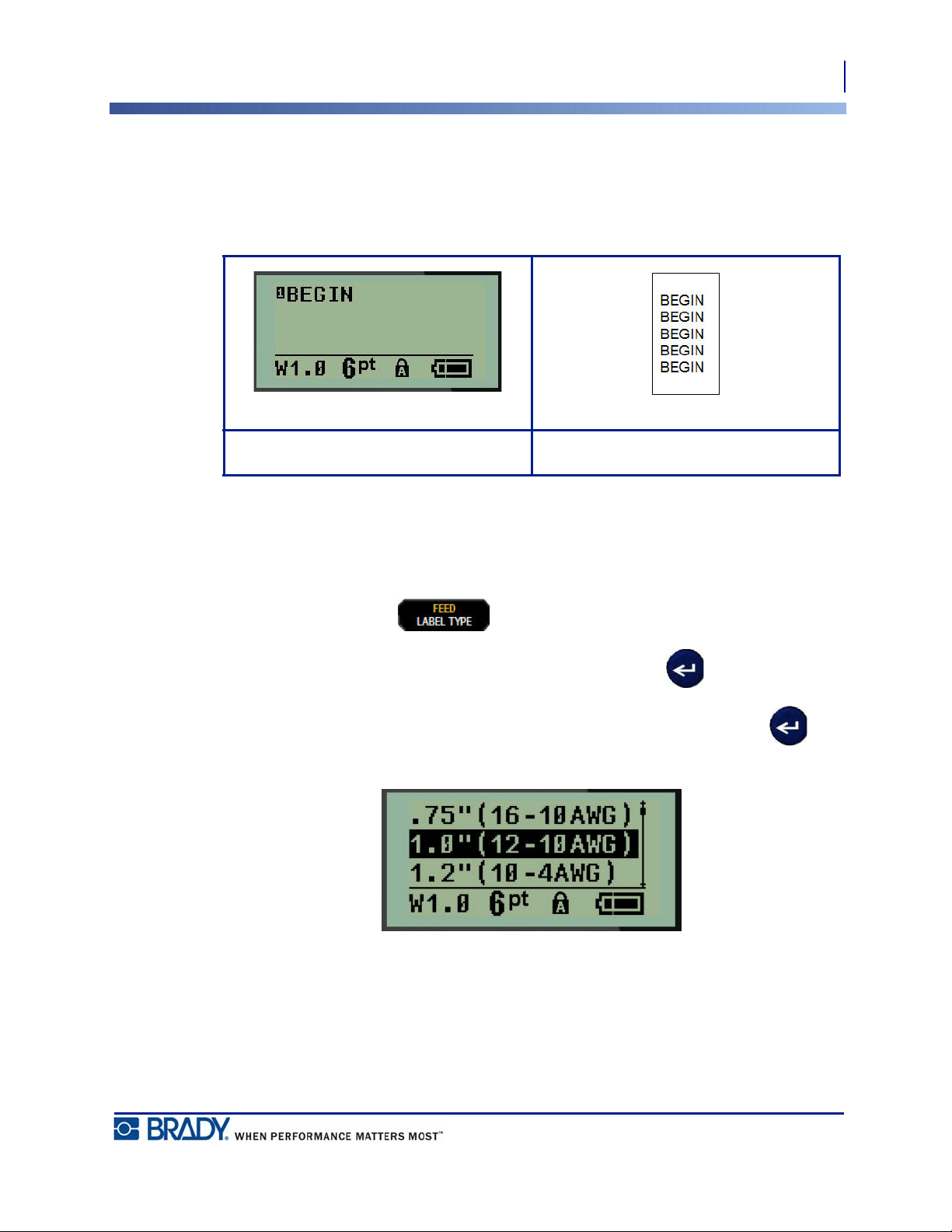
61
WireMarker Label Type (BMP®21-PLUS and 2.0 Only)
Selecting a Label Type
BMP
®
21-PLUS/BMP
®
21-LAB User’s Manual
WireMarker Label Type (BMP
®
21-PLUS and 2.0 Only)
The WireMarker label type is designed to repeat entered data down the length of the label. The
data repeats as many times as possible, considering the font size and the wire size selected.
Figure 6 • Repeated data on a WireMarker label
All media, except Permasleeve, support WireMarker label types.
To use the WireMarker label type:
1. Press LABEL TYPE .
2. Using navigation keys, choose WireMarker, then press Enter .
3. Navigate to the appropriate label size to fit the intended wire, then press Enter .
4. Enter the data you want repeated down the length of the label.
The repeated data does not display on the screen, but displays on printout.
WireMarker label type - text on screen WireMarker label type - printed text
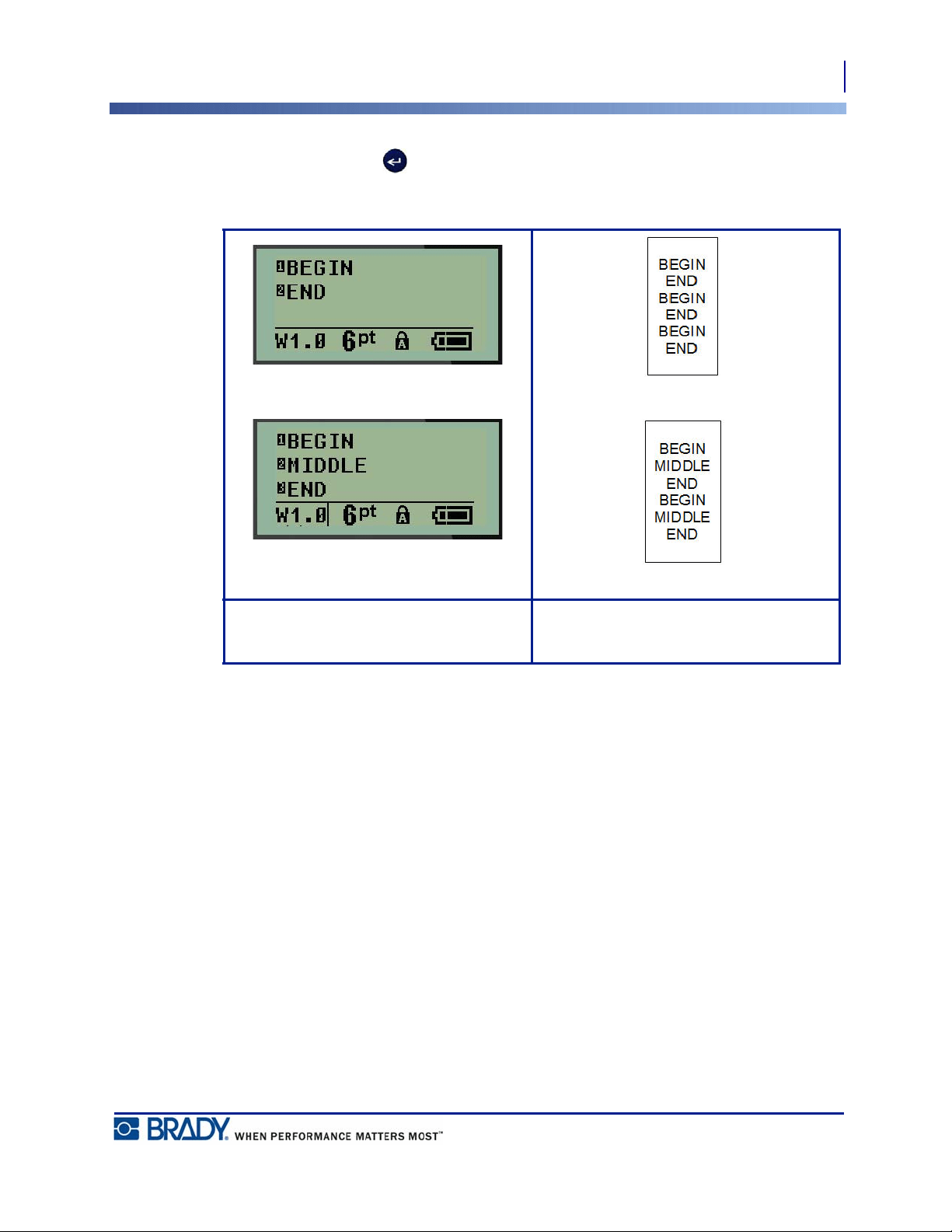
62
WireMarker Label Type (BMP®21-PLUS and 2.0 Only)
Selecting a Label Type
BMP
®
21-PLUS/BMP
®
21-LAB User’s Manual
You can press [ENTER] to start a new line of text. When the label is printed, both lines of
text are repeated down the label, depending on the size of the label and the font size.
WireMarker label type - multiple lines as
displayed on screen
WireMarker label type - multiple lines as
displayed on print out
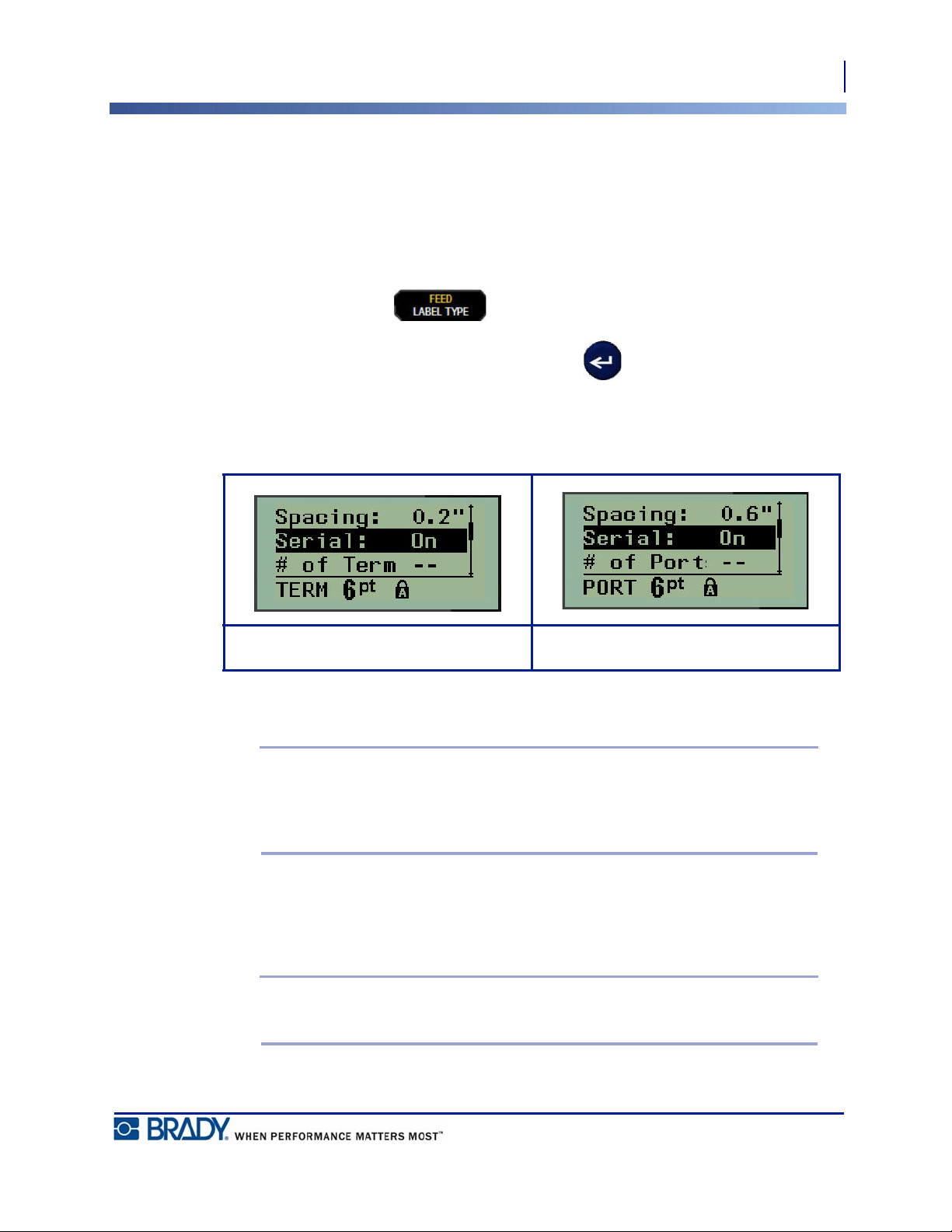
63
Terminal Block, Patch Panel (BMP®21-PLUS and 2.0 Only)
Selecting a Label Type
BMP
®
21-PLUS/BMP
®
21-LAB User’s Manual
Terminal Block, Patch Panel (BMP
®
21-PLUS and 2.0 Only)
Terminal Block and Patch Panel label types are designed to be used with any media, except
SelfLam or Permasleeve. If SelfLam or Permasleeve is installed, these label types are not
available.
To use Terminal Block or Patch Panel:
1. Press LABEL TYPE .
2. Navigate to the desired label type and press Enter .
Data fields display requesting additional information. (For a review of data field navigation,
see page 24.) The data fields for Terminal Block and Patch Panel are similar.
1. In the Spacing: field, enter the amount of space that exists between the terminals or ports.
Note: If you have indicated the correct spacing between the requested number of
terminals or ports, the printed label can be attached to the terminal block or patch
panel as one strip. There is no need to cut and adhere each individual block or port
identifier.
2. Navigate to the Serial: field, then use the left or right navigation key to turn serialization
ON or OFF.
If serialization is turned ON, proceed to Step 4.
Note: If serialization is turned ON, you do not have to specify the number of
terminations (or the number of ports if using Patch Panel).
Terminal Block data fields Patch Panel data fields
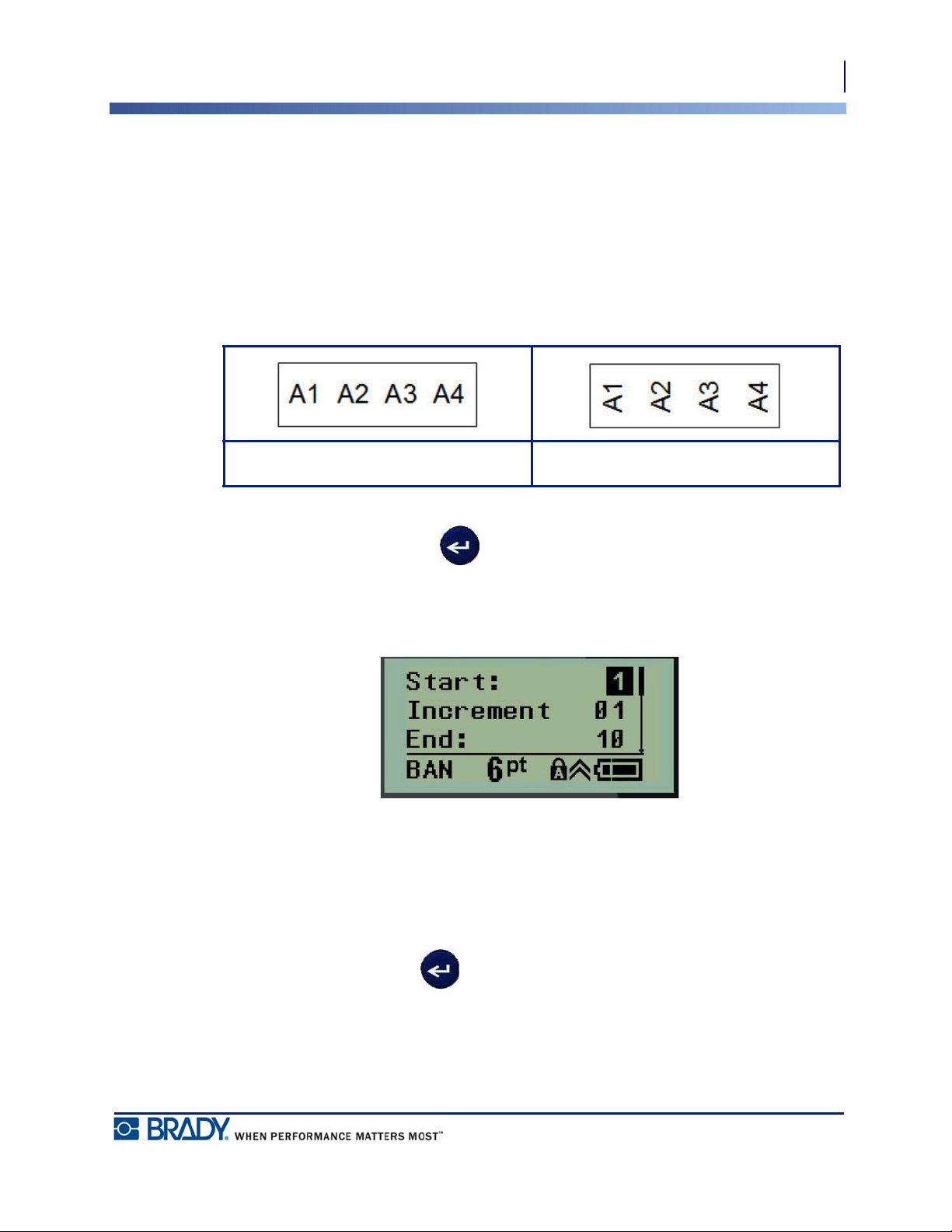
64
Terminal Block, Patch Panel (BMP®21-PLUS and 2.0 Only)
Selecting a Label Type
BMP
®
21-PLUS/BMP
®
21-LAB User’s Manual
If serialization is turned OFF, continue with the following:
3. Navigate to the # of Terminations: (or # of Ports:) field and enter the number of terminals
or ports needed.
4. Navigate to the Rotation: field (not visible on the initial data fields screen), and determine
if you want the label data to print out at 0
° rotation (landscape) or print vertically at 90°
rotation (portrait). Use the left or right navigation key to switch between degrees of
rotation.
5. When finished, press Enter .
If serialization was turned OFF, proceed to Step 13. If serialization was turned ON, you are
presented with the Serial screen. Continue with the following:
6. With the cursor displayed in the Start: field, enter the start value of the sequence.
7. In the Increment field, enter the increment value.
The default increment is 1. If that is the desired increment, skip this entry field.
8. In the End: field, enter the end value of the sequence.
9. When ready, press Enter .
If serialization was turned ON, the serial start value is displayed on the editing screen.
However, all labels in the serial sequence will print out. Likewise, if you delete the start value
on the editing screen, the entire serialization sequence will be deleted.
Landscape printout - rotation 0° Portrait printout - rotation 90°
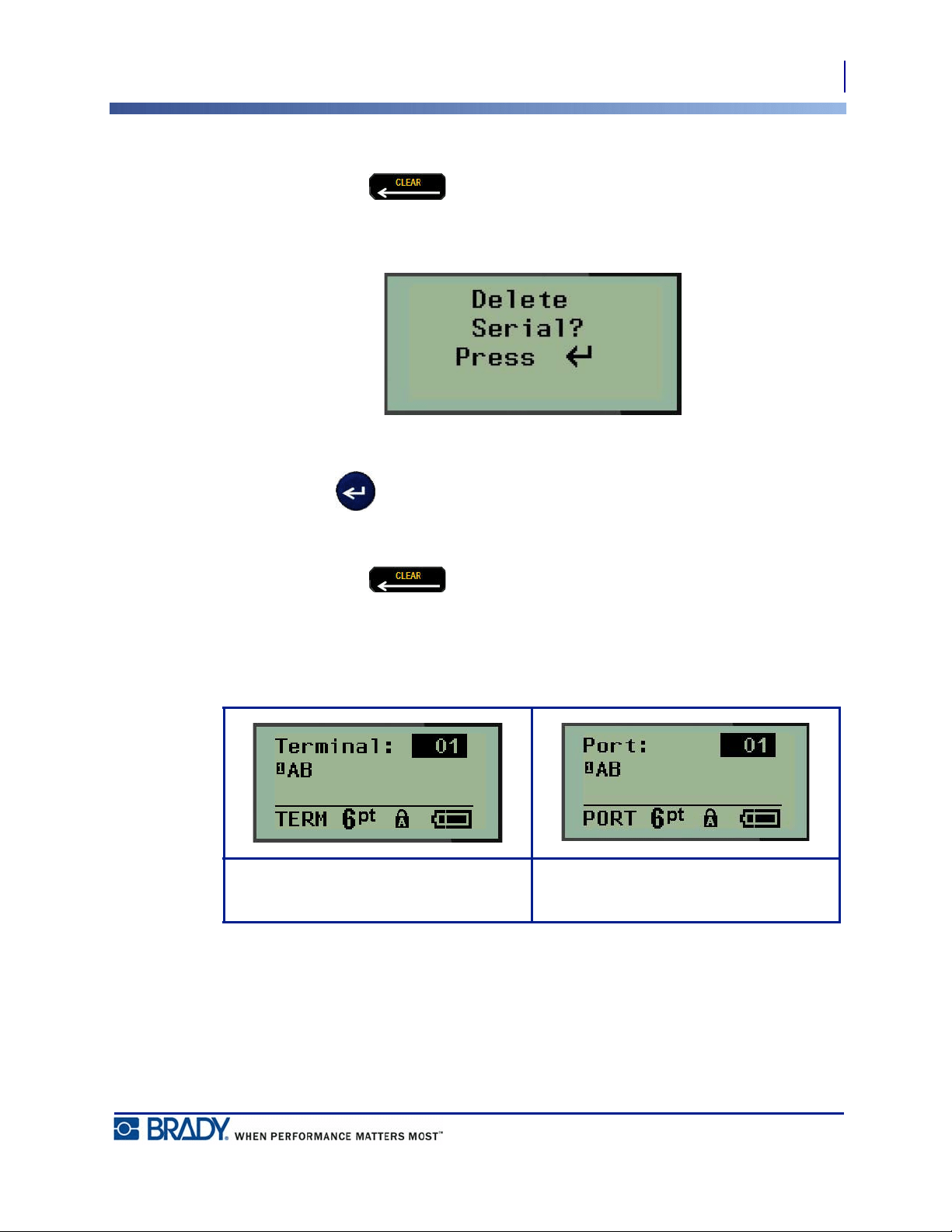
65
Terminal Block, Patch Panel (BMP®21-PLUS and 2.0 Only)
Selecting a Label Type
BMP
®
21-PLUS/BMP
®
21-LAB User’s Manual
To delete the serialization sequence:
10. Press Backspace .
A confirmation message displays.
To delete the entire sequence:
11. Press Enter .
To cancel the deletion:
12. Press Backspace again.
If serialization was turned OFF, the number of terminals (or ports) indicated in Step 3 above,
display in individual areas. The terminal areas display in the upper right corner of the editing
screen.
13. Use the up and down navigation keys to navigate to the first numbered data field and enter
the identifying information for that terminal.
14. When on a terminal number, use the left or right navigation key to toggle to another
terminal number.
Terminal Block editing screen -
Serialization turned OFF
Patch Panel editing screen -
Serialization turned OFF
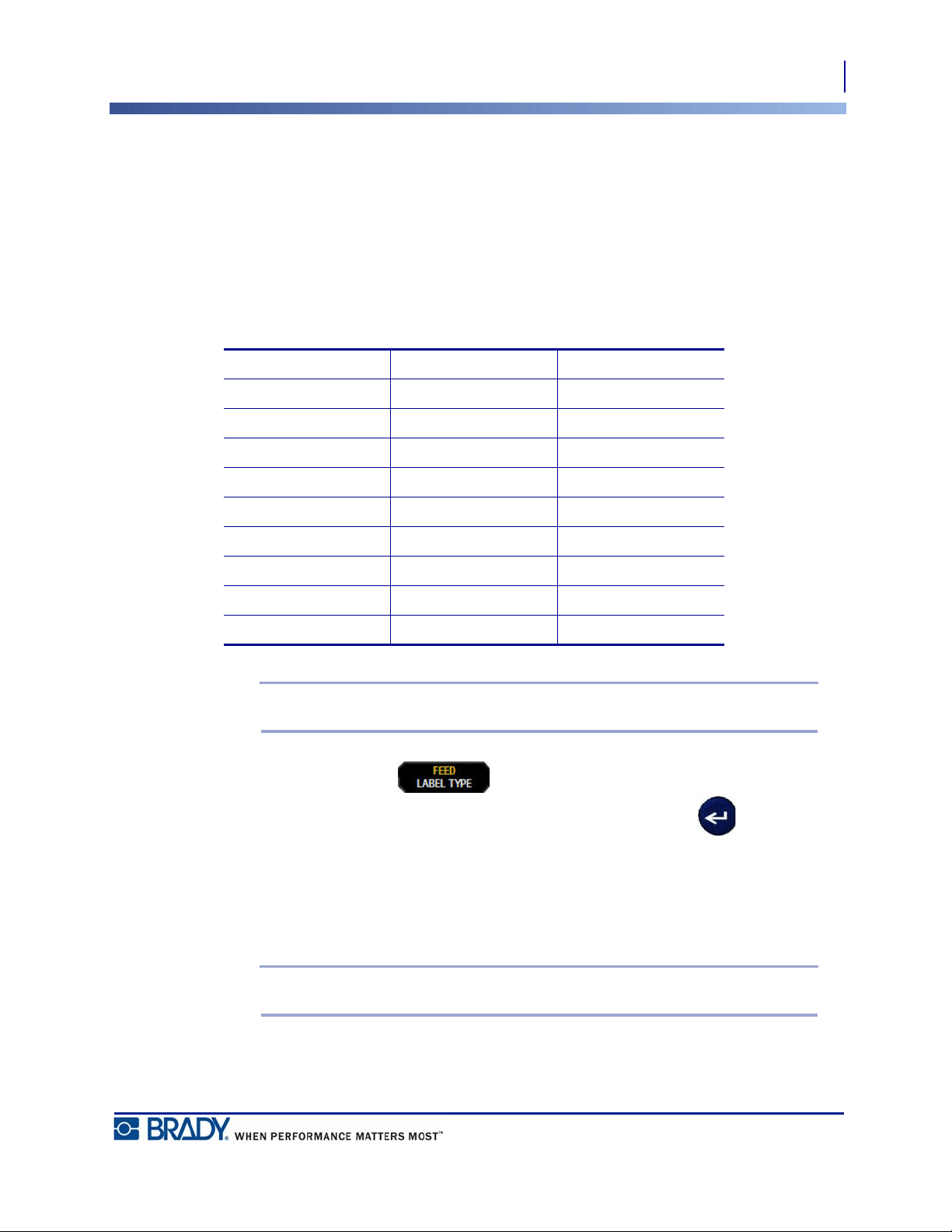
66
Panel Residential (Version 2.0 Only)
Selecting a Label Type
BMP
®
21-PLUS/BMP
®
21-LAB User’s Manual
Panel Residential (Version 2.0 Only)
Allows you to create labels for residential breaker box panel/door using pre-defined or user-
defined terms. Labels print portrait if more than one line is used.
For the best fit on a standard residential breaker box use font size 9 on 0.25 inch (6.35mm)
width media. All labels are printed left justified with the same fixed width and accept up to 15
characters maximum.
Available labels (listed in order of appearance):
Note: This feature available only on Version 2.0.
1. Press LABEL TYPE .
2. Using navigation keys, choose Panel Residential, then press Enter .
3. Use the right/left navigation keys to toggle between Yes or No to select YES to print all 30
panel labels or NO to choose specific labels.
4. (Optional) Use the number keys to change the number of copies or the navigation pad to
increase/decrease the number.
Note: When multiple copies are chosen the labels will collate as they print.
A/C Bedroom 4 Kitchen
Alarm Den Dish Washer
Basement Dining Room Microwave
Bathroom 1 Family Room Refrigerator
Bathroom 2 Office Stove
Bathroom 3 Living Room Garage
Master Bedroom Utility Room Exterior
Bedroom 1 Laundry Furnace
Bedroom 2 Dryer Water Heater
Bedroom 3 Washer Smoke Detector

67
Panel Residential (Version 2.0 Only)
Selecting a Label Type
BMP
®
21-PLUS/BMP
®
21-LAB User’s Manual
5. (Optional) Navigate to Cut Between, use the right or left navigation key to toggle
between YES or NO, then press Enter .
Choosing “YES” on Cut Between will prompt you to “Cut” or “Press Print” after each label
during printing.
Note: Even if the printer is already set to cut between mode, it still needs to be
selected here.
Note: It is not possible to return to the set-up menu after leaving it. To exit the
application from the set-up menu, press .
6. Select all desired labels using the right/left navigation keys to toggle between Yes or No,
then press Enter . A preview of the first panel label will display.
7. (Optional) To change the text of the label press the down navigation key.
8. Use the Backspace to erase the characters and the keypad to enter up to 15
characters of text.
9. Press the up navigation key to return to the panel number in the upper right corner
followed by the right navigation key to move to the next label, the left key for the previous
label or use the keypad to enter the number of the panel, followed by Enter to go to
a specific panel.
10. After the last label has been previewed/changed, press Enter to add additional
labels or Backspace to return to the last panel.
11. Press PRINT .
Exit Panel Residential without creating labels by pressing the Backspace twice. The
options you already selected will be available the next time you enter the feature.
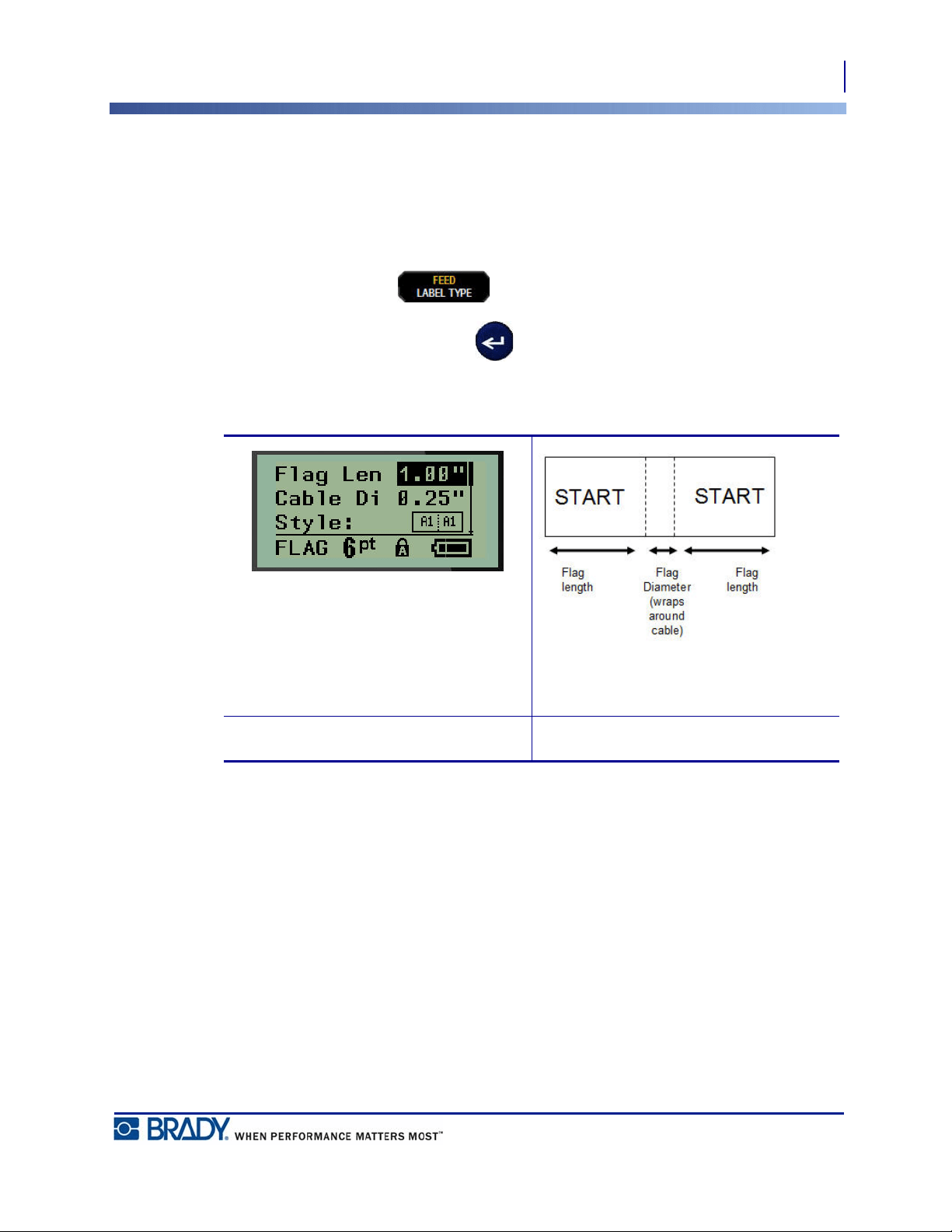
68
Flags (BMP®21-PLUS and 2.0 Only)
Selecting a Label Type
BMP
®
21-PLUS/BMP
®
21-LAB User’s Manual
Flags (BMP
®
21-PLUS and 2.0 Only)
A Flag label wraps around a wire or cable, with the ends joined together to form a flag. The
Flag label type is designed to work with any media except SelfLam or Permasleeve.
To use a Flag label type:
1. Press LABEL TYPE .
2. Navigate to Flag and press Enter .
Data fields display requesting additional information.
3. In the Flag Length: field, enter the total length of the flag (as it exists before being
wrapped around a wire or cable).
4. In the Cable Diameter: field, enter the diameter measurement of the cable to which the
flag will be applied.
The range for the cable diameter is 0.25 inches (6.35mm) to 8 inches (203.2mm). By entering
the diameter of the wire or cable, the system automatically calculates an additional length of
label to allow complete wrap of the wire/cable with additional label material left for the flag.
Flag data fields Flag label on print out
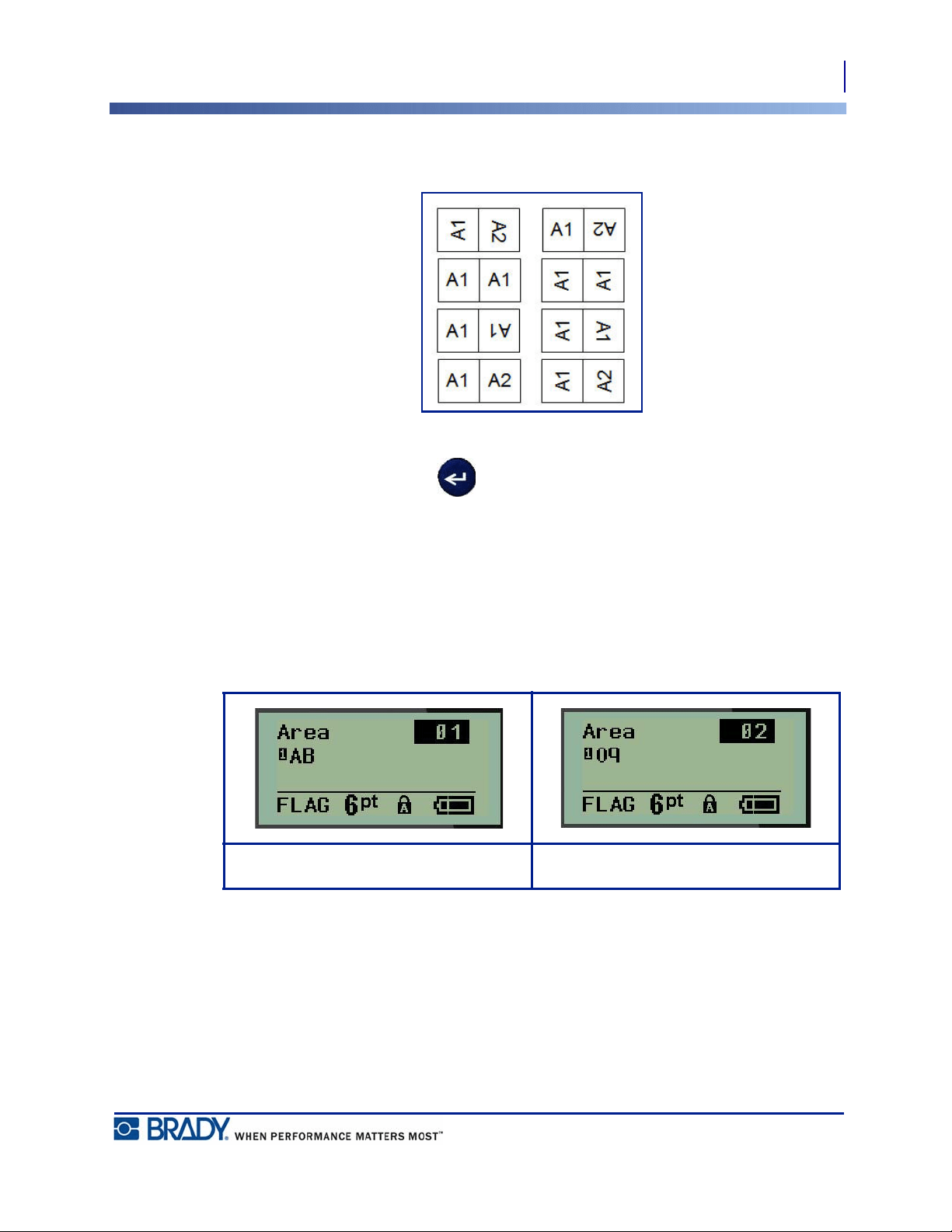
69
Flags (BMP®21-PLUS and 2.0 Only)
Selecting a Label Type
BMP
®
21-PLUS/BMP
®
21-LAB User’s Manual
5. In the Style: field, use the left or right navigation key to display the eight different flag
rotations.
Figure 7 • Eight flag layouts
6. When finished, press Enter .
Rotation is embedded in the template design, based on the flag design you pick. Justification
defaults to center, middle. The font size remains whatever size is set when the flag label type is
chosen.
If the design chosen indicates only one text element, the printer automatically duplicates the
entered text for the other area, rotating according to the predefined layout.
In a 2-text element flag layout, you enter text in two separate areas. The areas are designated at
the top of the screen.
To move to the different areas:
7. Using the up/down navigation keys, navigate from the line number to the area number
listed on the top right of the editing screen.
8. On the area number, use the left/right navigation keys to toggle between Area 01 and Area
02.
9. When on the desired area, use the down navigation key to move to the line number in that
area and enter the text to display in that area of the flag.
Flag 2-text layout - Area 1 Flag 2-text layout - Area 2
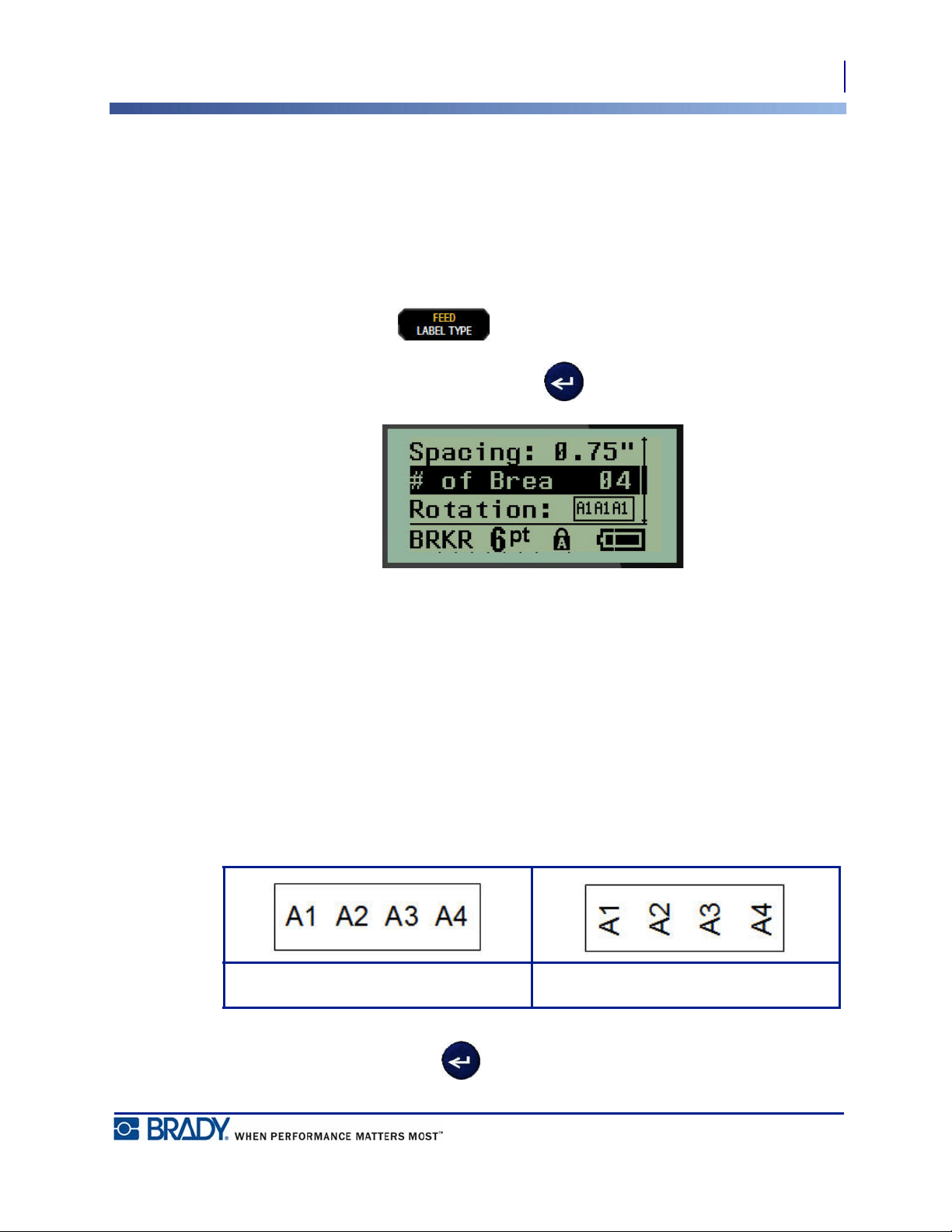
70
Breaker Box (BMP®21-PLUS and 2.0 Only)
Selecting a Label Type
BMP
®
21-PLUS/BMP
®
21-LAB User’s Manual
Breaker Box (BMP
®
21-PLUS and 2.0 Only)
Breakers are usually arranged in two columns or along one row, depending on geographic
regions. The breaker positions are numbered left-to-right or top-to-bottom, depending on label
orientation. This numbering system is universal across various competing manufacturers of
breaker panels.
To create Breaker Box labels:
1. Press LABEL TYPE .
2. Navigate to Breaker Box, then press Enter .
3. In the Spacing: field, enter the width of a standard breaker.
4. In the # of Breakers: field, enter the number of breakers to be labeled. This produces one
continuous strip, vertically aligned for US breaker boxes, or horizontally aligned for EU
breaker boxes.
A “partition” is a separator line that prints between breakers on a label. Indicate if you want a
separator line to print.
5. In the Partition: field, use the left or right navigation keys to turn the partition on or off.
6. In the Rotation: field (not visible on the initial data fields screen), use the left or right
navigation keys to access the degree of rotation desired for the printed labels - landscape
(0
°) or portrait (90°).
7. When finished, press Enter .
Landscape - 0° rotation Portrait - 90° rotation
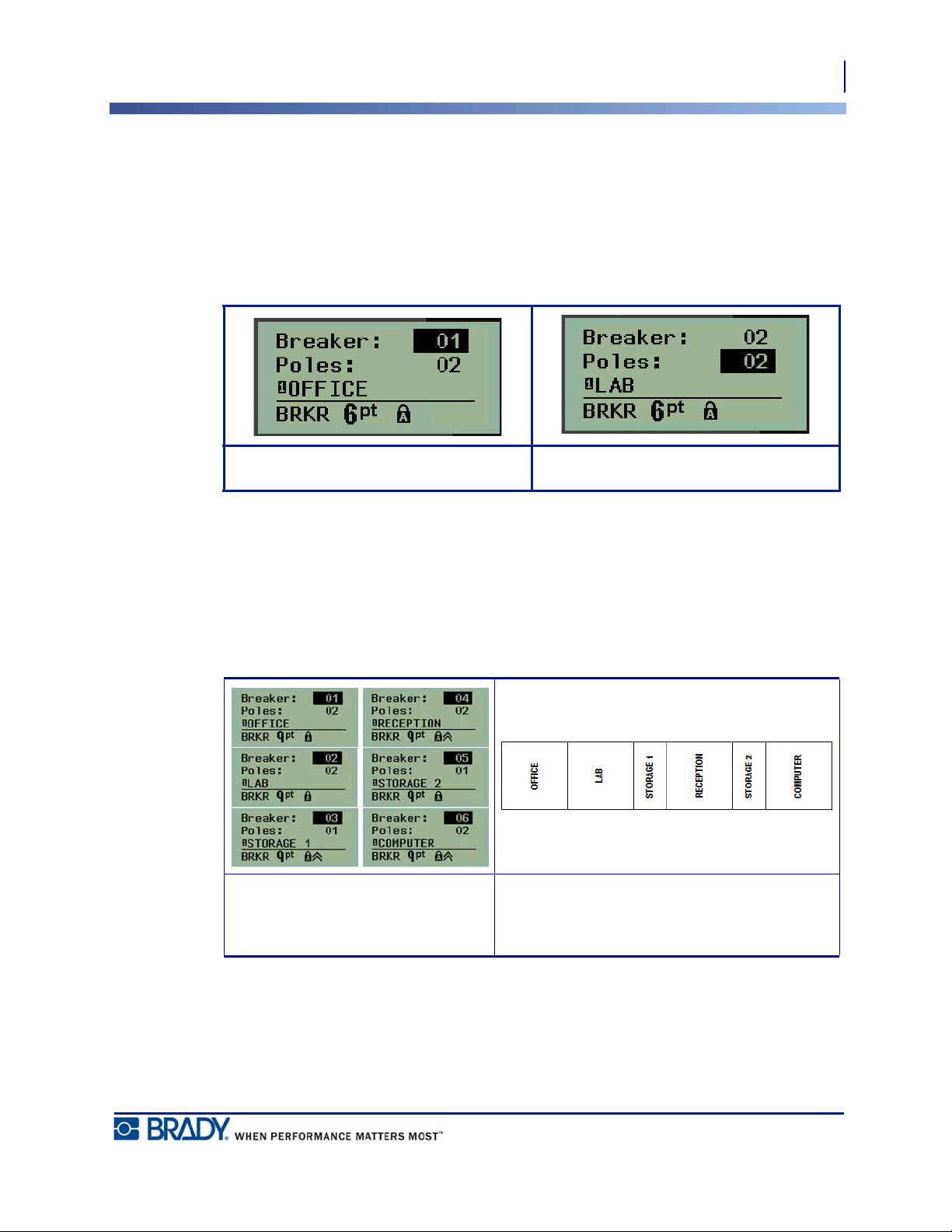
71
Breaker Box (BMP®21-PLUS and 2.0 Only)
Selecting a Label Type
BMP
®
21-PLUS/BMP
®
21-LAB User’s Manual
On the Breaker Box editing screen, enter the number of poles for each breaker and the
corresponding identifying data. The number of the breaker displays in the upper right corner of
the editing screen.
8. Using the up and down navigation keys, navigate to the breaker number.
9. When on the breaker number, use the left or right navigation keys to toggle to another
breaker number.
10. Navigate to the Poles: number (directly under the breaker number) and enter the number
of poles for that breaker. (You can also use the navigation keys to toggle to different
numbers.)
11. Navigate to the first numbered data field and enter the identifying information for that
breaker.
12. Repeat Steps 7 through 10 for each breaker.
Figure 8 • Rotated printout of breaker box label type
Breaker field accessed Pole field accessed
Breaker box editing screens
(6 breakers, 1 and 2 poles)
Printout of breaker box, with partition turned on
(notice space between breakers based on
number of poles)

72
Technical Support Numbers/On-line Help
BMP
®
21-PLUS/BMP
®
21-LAB User’s Manual
Technical Support Numbers/On-line Help
For repair or technical assistance, find your regional Brady Technical Support office in the
following list.
• United States: 1-800-643-8766
or via the web at www.bradyid.com/techsupport
• Australia: 1-800-644-834 or via the web at www.bradyid.com.au/en-au/supportlanding
• Canada: 1-800-263-6179 or via the web at www.bradycanada.ca
• Mexico & Latin America: 01-800-212-8181 or via the web at
www.bradylatinamerica.com
• Europe: +44-333-333-1111 or via the web at www.bradyeurope.com/services
73
Troubleshooting
BMP
®
21-PLUS/BMP
®
21-LAB User’s Manual
Troubleshooting
Use the following table to troubleshoot and diagnose possible performance problems with
your BMP
®
21-PLUS/BMP
®
21-LAB Label Printer. If the corrective action suggested does not
work, contact Brady’s Technical Support Group (see page 72).
Problem Cause Corrective Action
Hardware
Keyboard works intermittently or
not at all.
One or more keys is stuck in
depressed state.
Identify any keys stuck in down
position. Repress key to un-stick.
Cutter does not cut Label slivers in cutter assembly Use a small tool such as tweezers
or needle-nose pliers to carefully
remove the media slivers from the
cutter assembly. Use caution not to
damage any of the components in
the cutter assembly while removing
media slivers. If you have concerns,
please contact technical support for
further assistance.
Never attempt to remove slivers
with your fingers. The cutter
assembly includes very sharp
components that can cause injury.
Printer jammed, cannot feed labels Label exit chute is blocked causing
label material to back up inside
printer
To clear the jam inside the printer:
1. Slide the locking lever to the
unlock position.
Note: Unlocking retracts the platen
so the cartridge can be removed. If
there is a large jam, you may have
to force the locking lever to the
unlock position.)
2. Remove the cartridge.
3. Use tweezers or a needle-nose
pliers to clear label jam.
The print head is susceptible to
damage. Using metal objects to
remove jams can scratch, dent, or
crack the print head. Use every
precaution when clearing a jam.
74
Troubleshooting
BMP
®
21-PLUS/BMP
®
21-LAB User’s Manual
Power ON/OFF - Printer not working
Printer does not power up when
turned on.
Battery pack is not charged. If using batteries, replace with 6
new AA batteries.
OR, if using the lithium ion battery,
remove the battery from the printer
and recharge using the AC adapter.
To use the printer while charging
the lithium ion battery, insert 6 AA
alkaline batteries in the battery
compartment.
Screen freezes User interface error.
1. Press Power button to turn the
printer off.
If Power button does not shut down
printer:
2. Remove the AC adapter (if
using one).
3. Remove the battery pack, or
batteries, then immediately re-
insert.
4. Power ON the printer.
LCD reads "Error" Battery is low.
Not using correct media.
If using batteries, replace with 6
new AA batteries.
OR, if using the lithium ion battery,
remove the battery from the printer
and recharge using the AC adapter.
Insert correct media cartridge.
LCD reverts to previous label text. Battery is low. If using batteries, replace with 6
new AA batteries.
OR, if using the lithium ion battery,
remove the battery from the printer
and recharge using the AC adapter.
Problem Cause Corrective Action
75
Troubleshooting
BMP
®
21-PLUS/BMP
®
21-LAB User’s Manual
Printer frequently powers OFF. Battery is low.
Note: The printer is programmed to
shut off automatically after 10
minutes of inactivity.
Install 6 fresh AA batteries.
OR
Attach the AC Adapter to the
printer and plug into an electrical
outlet. This will supply immediate
power.
If using the lithium ion battery,
remove the battery from the printer
and recharge using the AC adapter.
To use the printer while the lithium
ion battery is being recharged on
the AC adapter, insert 6 AA
alkaline batteries in the battery
compartment, or purchase a second
AC adapter to power the printer
while the battery is charging.
Printer not responding Battery is dead. If using the lithium ion battery,
remove the battery from the printer
and recharge on the AC adapter.
To use the printer while the lithium
ion battery is recharging, install 6
new AA batteries in the battery
compartment.
Error - “Cut while printing” Operating cutter while labels are
still printing.
1. Cut through the material
completely.
2. Press Clear
key to clear error.
3. Reprint the label(s).
Printing from PC The BMP
®
21-PLUS/BMP
®
21-
LAB printer CANNOT be
connected to a PC. You cannot print
PC label files on the BMP
®
21-
PLUS/BMP
®
21-LAB printer.
To obtain a Brady printer that can
be connected to a PC, contact
Brady customer service at 888-250-
3082.
Problem Cause Corrective Action
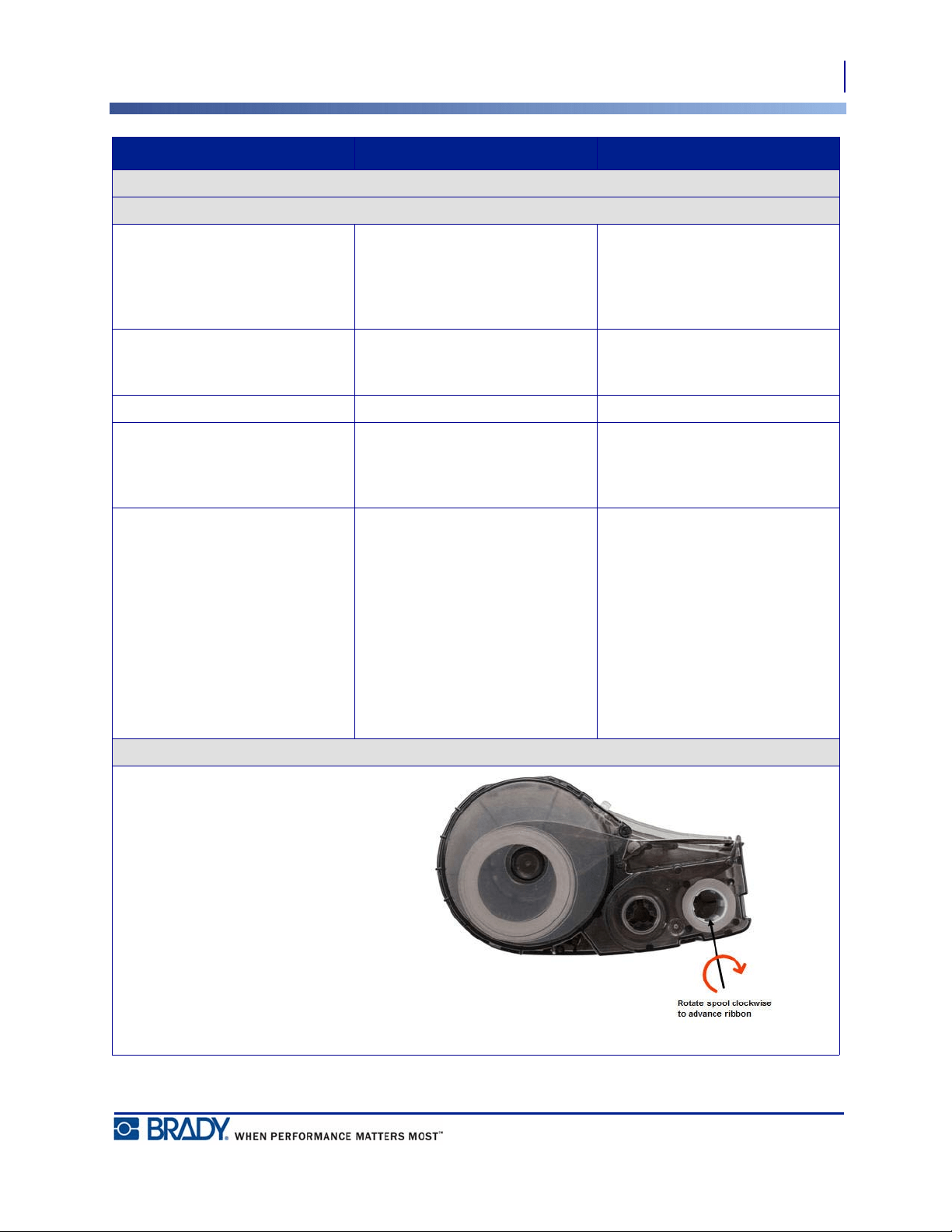
76
Troubleshooting
BMP
®
21-PLUS/BMP
®
21-LAB User’s Manual
Print Quality
Poor print quality Battery pack, or 6 AA batteries,
may be worn out and not properly
holding a charge.
Battery life is approximately one to
three years, depending on its use
and care. Order a replacement
battery pack or insert 6 new AA
batteries.
Poor print quality. Dust or adhesives accumulated on
the print head.
Clean the print head. (Refer to
page 80 for instructions on
cleaning the printer.)
Poor print quality Media not usable. Try another media cartridge.
Void areas or lines appear on
printed text.
A creased line occurs on the label.
When printing over the crease, the
ribbon ink cannot fill in the
indenture.
1. Advance the label material to
jump over the crease.
2. Reprint your label.
Void areas or lines appear on
printed text.
Ribbon wrinkling.
1. Remove the cartridge from the
printer and advance the ribbon
by rotating the take-up spool
clockwise until the wrinkled/
damaged ribbon is no longer
visible (typically about one or
two full turns).
2. Reinstall the cartridge and
continue printing normally.
OR, try a new cartridge.
Problem Cause Corrective Action
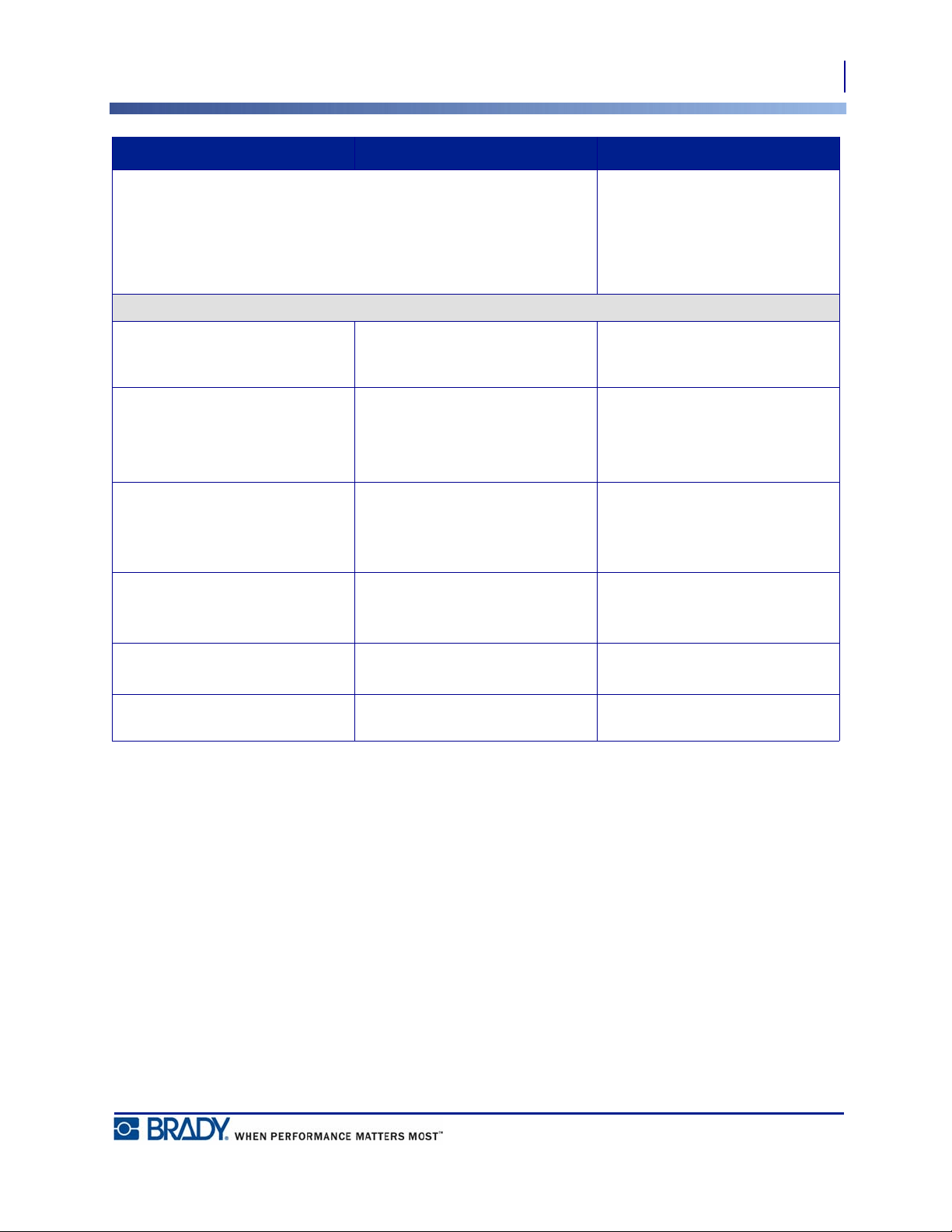
77
Troubleshooting
BMP
®
21-PLUS/BMP
®
21-LAB User’s Manual
Black line displays on first label
printed
When the cartridge is left in the
locked position (when not in use),
the print head is pressed against the
platen roller, causing a vertical
pressure point line (or residual burn
line) to appear on the tape.
Unlock the cartridge as soon as you
are done printing more labels. This
will prevent the warm print head
from burning the ink from the
ribbon onto the next label under the
print head.
Labels
Printer will not feed labels. The leading edge of the label roll is
uneven or torn (not a straight edge).
Use a pair of scissors to cut a
straight leading edge on the label
roll.
Press Print but nothing feeds out Locking lever not engaged.
Damaged label cartridge.
Exit chute jammed.
Verify the locking lever is in the
correct position.
Insert a different label cartridge.
Verify exit chute is not blocked
Compressed print, poor registration Dirty platen roller Make sure the last cut label has
been removed from the label tray.
Clean the platen roller. (See
page 80 for cleaning information.)
Error - "Insert labels" Damaged circuit board on label/
media roll.
1. Replace label/media roll.
2. Press [CLEAR/ESC] key to
clear error
Error - "Insert labels" Damaged contacts in receiver slot
of lower printer base.
Contact Technical Support.
Printing a symbol produces the
“Cannot Fit” message.
Some symbols cannot print at 6 pt
font.
Change the font size to 9 pt or
larger.
Problem Cause Corrective Action
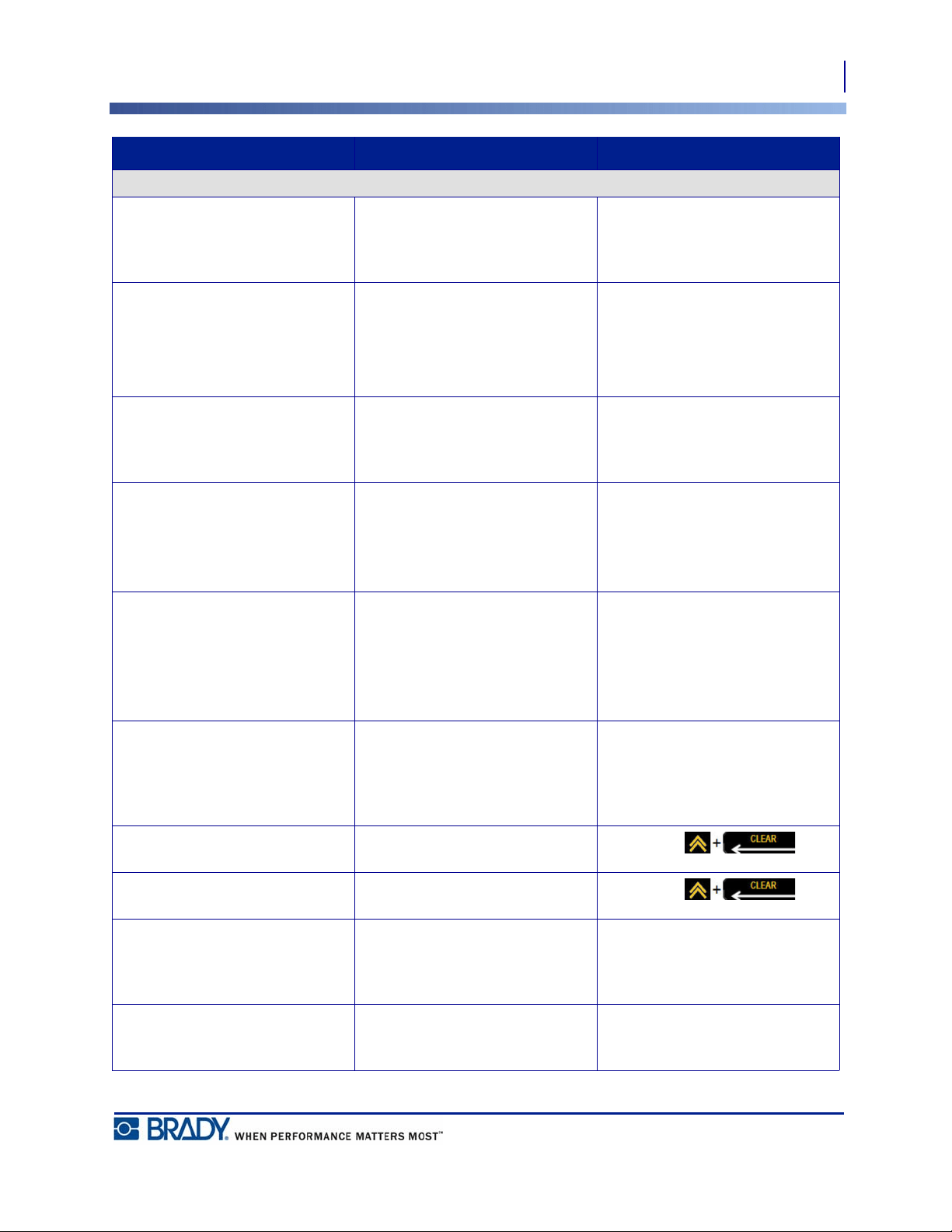
78
Troubleshooting
BMP
®
21-PLUS/BMP
®
21-LAB User’s Manual
Program
Invalid terminal repeat value
entered.
The value entered is out of the
range.
The acceptable range is between
the minimum of 0.2 inch (50.8mm)
to the maximum of 40 inches
(1016mm).
Error - “Cannot Fit” Font size and settings too large for
label.
• Change the font size to a smaller
font. (Refer to page 37.)
• Delete some text.
(See page 35 for more
information.)
Error - “Cannot Fit” There are too many lines of text.
The maximum number of lines
allowed is four.
A blank line is considered another
line of text. DO NOT press ENTER
at the end of a line if you DO NOT
want another line. (See page 35.)
Error - “Cannot Fit” Wrong label type or orientation • Select a different label type (e.g.,
banner landscape). (See
page 55.)
• Change orientation (vertical or
horizontal). (See page 56.)
“Cannot Fit” message received
while typing.
No more room on the label using
the font currently in use.
• Check the label type. Sometimes
wiremarker or fixed length is
accidentally selected rather than
banner.
• Check that an additional line of
text was not inadvertently added.
Left and right justification not
working.
The BMP
®
21-PLUS/BMP
®
21-
LAB printer currently does not
support left or right justification.
All label text will be center
justified only.
No action required.
Text not centered on label. Possible blank spaces added to text. Press Clear , then
re-enter text.
A large section of blank label prints
after text.
Possible blank lines added after
text.
Press Clear , then
re-enter text.
Cannot change location of the
human readable text in a barcode.
The human readable text is
automatically added below the
label. This position is fixed and
cannot be changed.
No action required.
Cannot add checksum character in
barcode.
The BMP
®
21-PLUS/BMP
®
21-
LAB does not allow checksum
characters to be used.
No action required.
Problem Cause Corrective Action

Menu does not display all label
types.
The BMP
®
21-PLUS/BMP
®
21-
LAB only displays the label types
that will work with the installed
label material (cartridge).
Insert the proper label material
(cartridge) for the labels you want
to produce.
Examples:
• If using Nylon, Vinyl or
Polyester continuous labels, all
labels types will be shown.
• If using Self-Lam labels the only
label types displayed are Banner
Landscape, Fixed Length and
Wire.
• If using Permasleeve labels, the
only label types that will be
shown are Banner Landscape and
Fixed Length.
• Only .75-inch media will work
with 2D barcodes.
Cannot change to a different
language.
Pressed a wrong key while in
language setup.
Reset the language. See page 25 for
information on setting a specific
language.
Datamatrix and/or QR code can’t
be entered.
Label type is set to Banner Portrait. Set label type to Banner Landscape.
Unable to exit screen or feature. Pressing the CLEAR key only
erases data on the screen.
Press the CLEAR key twice to exit
from a feature or screen.
Problem Cause Corrective Action
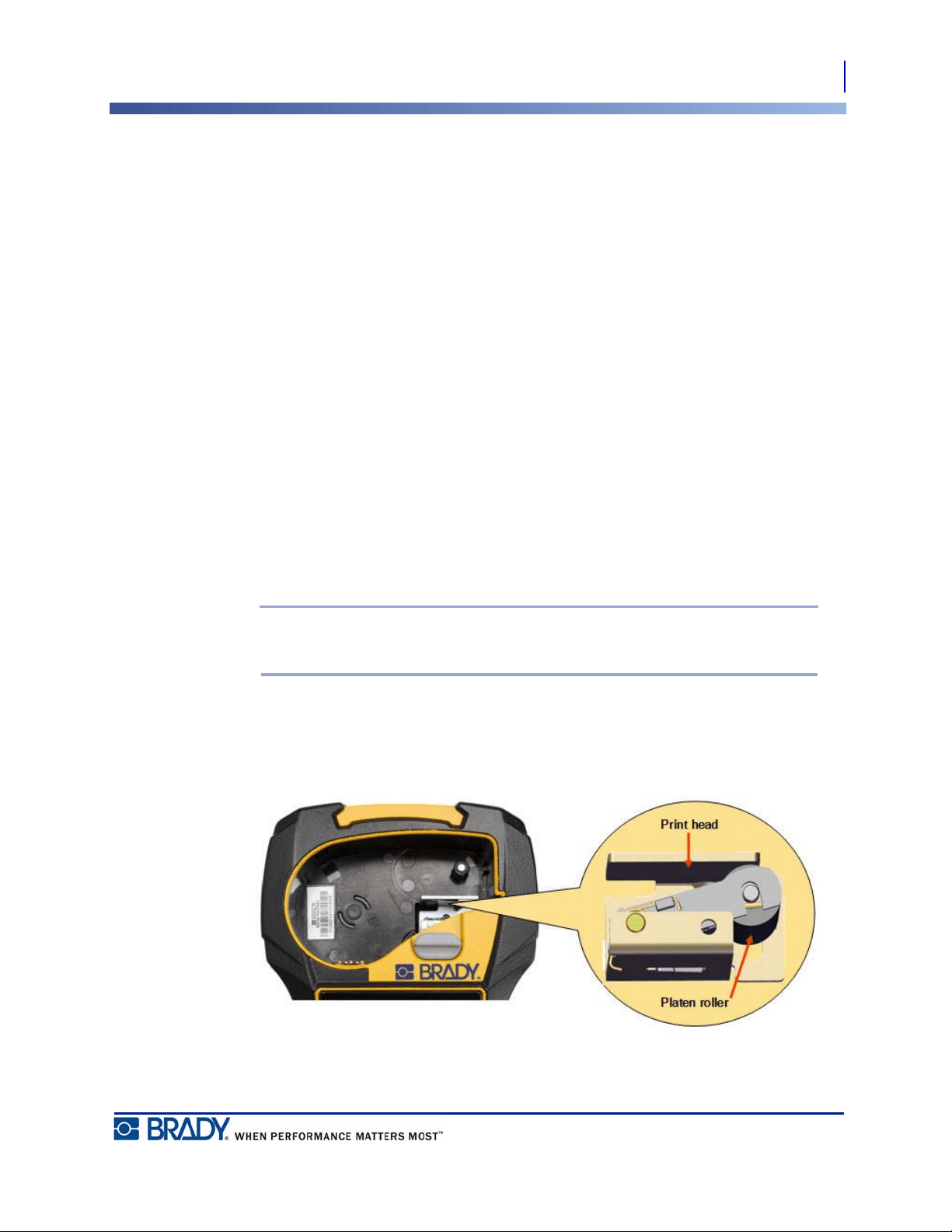
80
Troubleshooting
Cleaning the Printer
BMP
®
21-PLUS/BMP
®
21-LAB User’s Manual
Cleaning the Printer
Cleaning the printer will improve print quality and legibility. It also increases output, machine
life, printer reliability and performance.
Display Screen
To clean the display screen:
1. Lightly moisten a soft (non-scratching) cloth with isopropyl alcohol.
OR
Use pre-moistened static-free cloths available with the Brady PCK-6 Cleaning Kit.
2. Gently wipe the display screen until clean.
Internal Components
The only internal components that may require cleaning are the print head and platen roller.
To clean the internal components:
1. Turn the printer off.
2. Open the printer cover and remove any cartridge currently in the printer.
Note: Make sure the locking lever is in the UNLOCK position. If not, you will not
be able to access the print head.
3. Using a lint-free swab moistened with isopropyl alcohol (or a swab from the Brady PCK-
6 Cleaning Kit), gently swab the print head.
4. With the same moistened swab, gently brush the platen roller.
Figure 9 • Print head and platen roller in cartridge bay
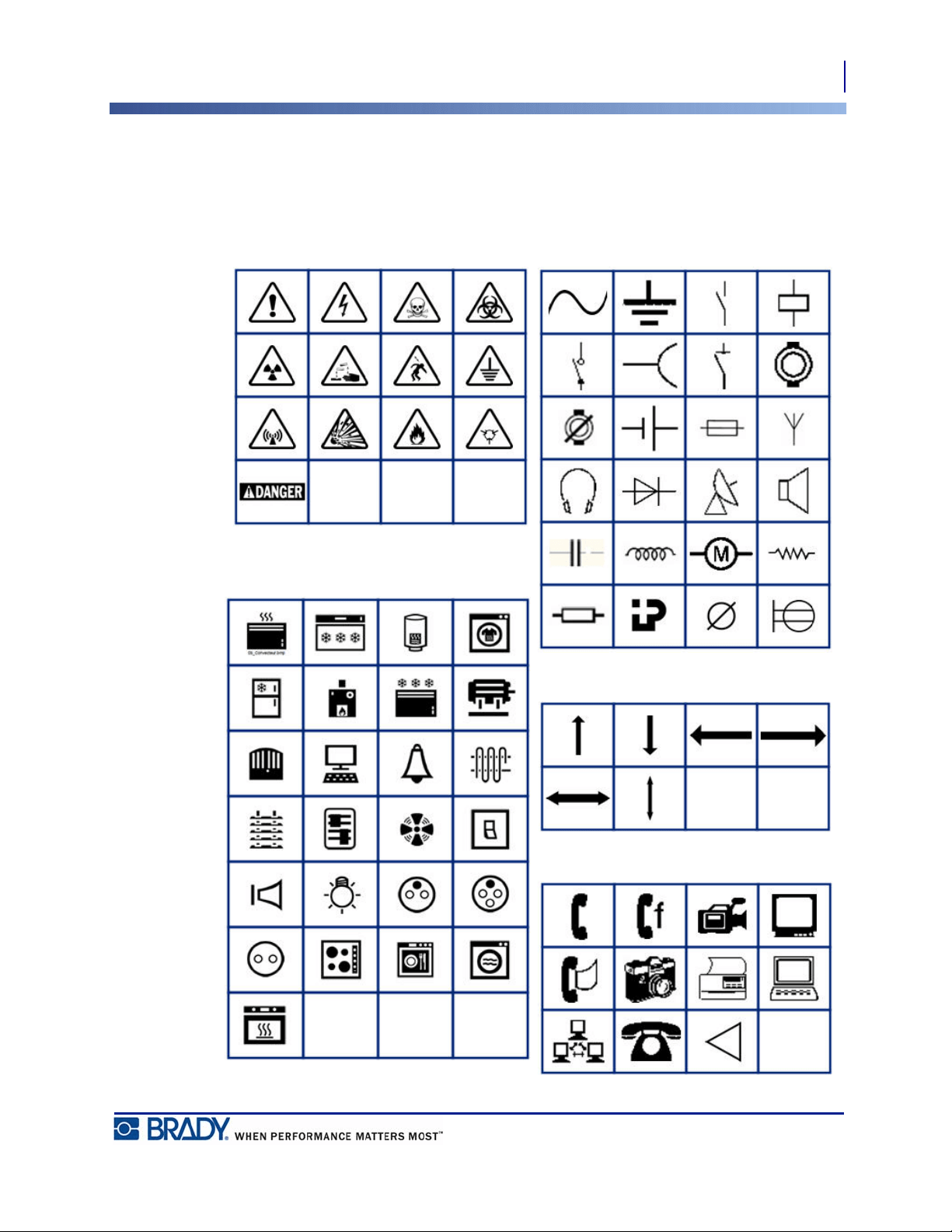
81
Appendix A - Symbols
BMP
®
21-PLUS/BMP
®
21-LAB User’s Manual
Appendix A - Symbols
Symbols for all enabled applications are available for use on any label, regardless of the
application/label type in use. See
page 40
for information on how to apply symbols to your labels.
Warning
Home Electrical
(BMP®21-PLUS and Russian only)
Electrical (BMP®21-PLUS and Russian only)
Arrows
DataComm
(BMP®21-PLUS and Russian only)
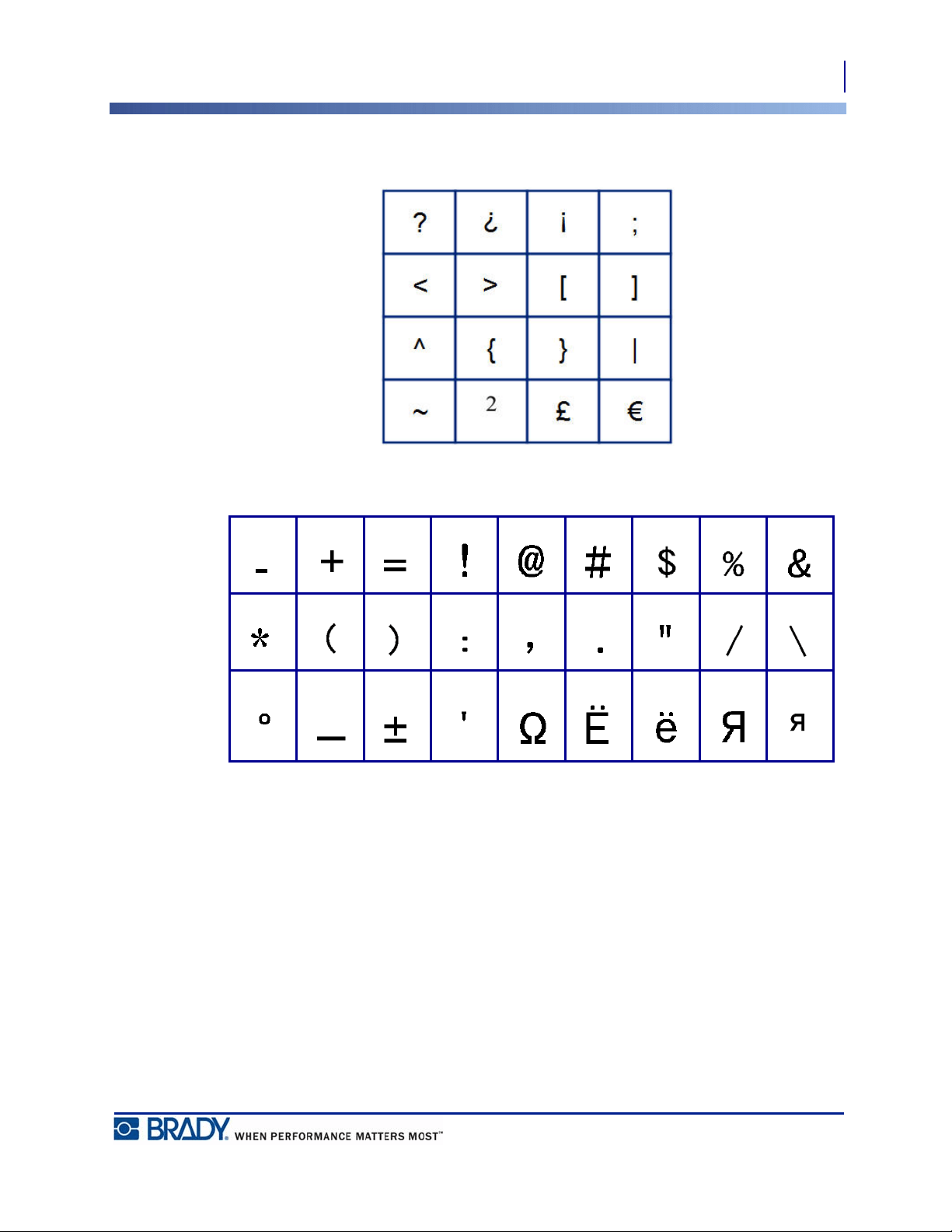
82
Appendix A - Symbols
BMP
®
21-PLUS/BMP
®
21-LAB User’s Manual
Miscellaneous (Russian only)
Miscellaneous
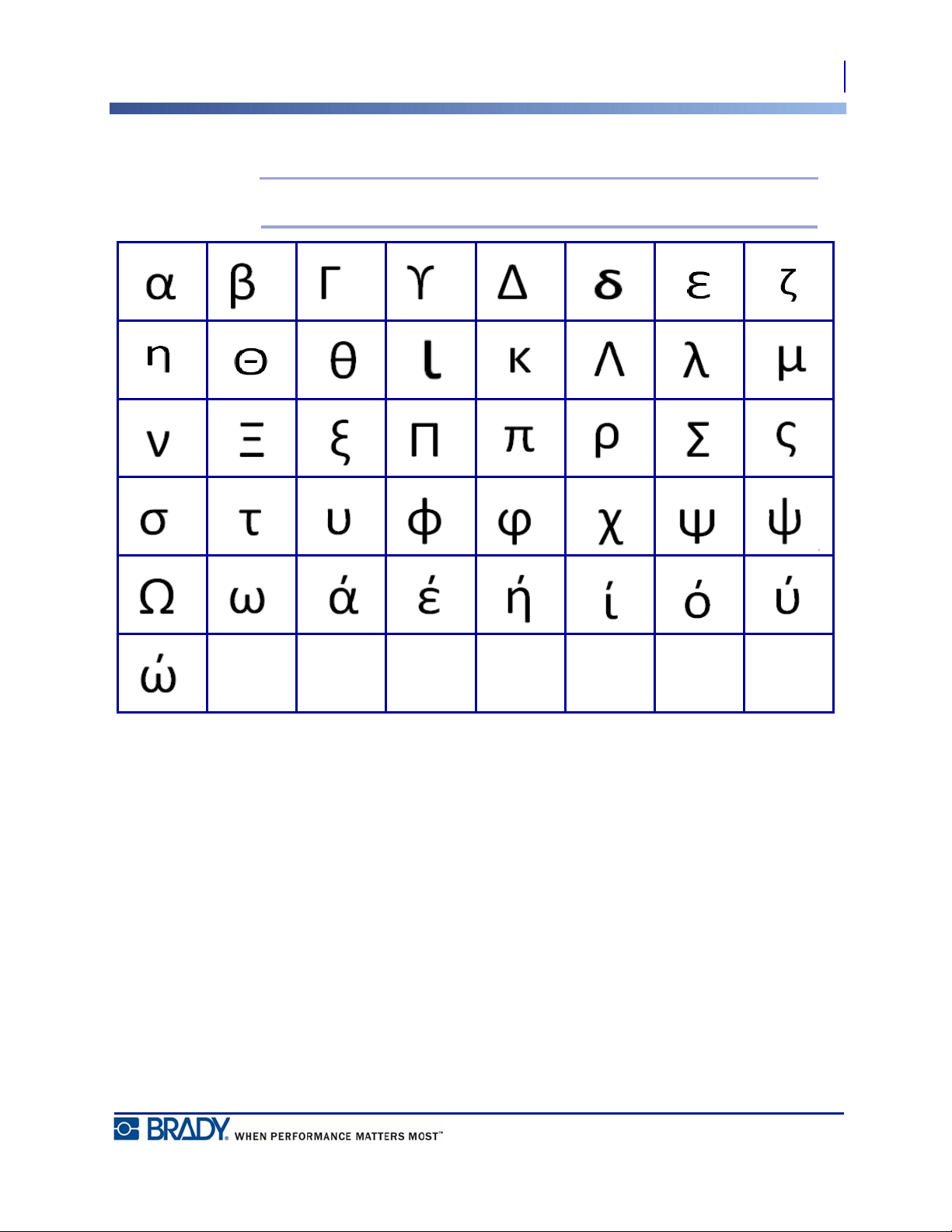
83
Appendix A - Symbols
BMP
®
21-PLUS/BMP
®
21-LAB User’s Manual
Greek
Note: Available Greek symbols will depend on version of printer.
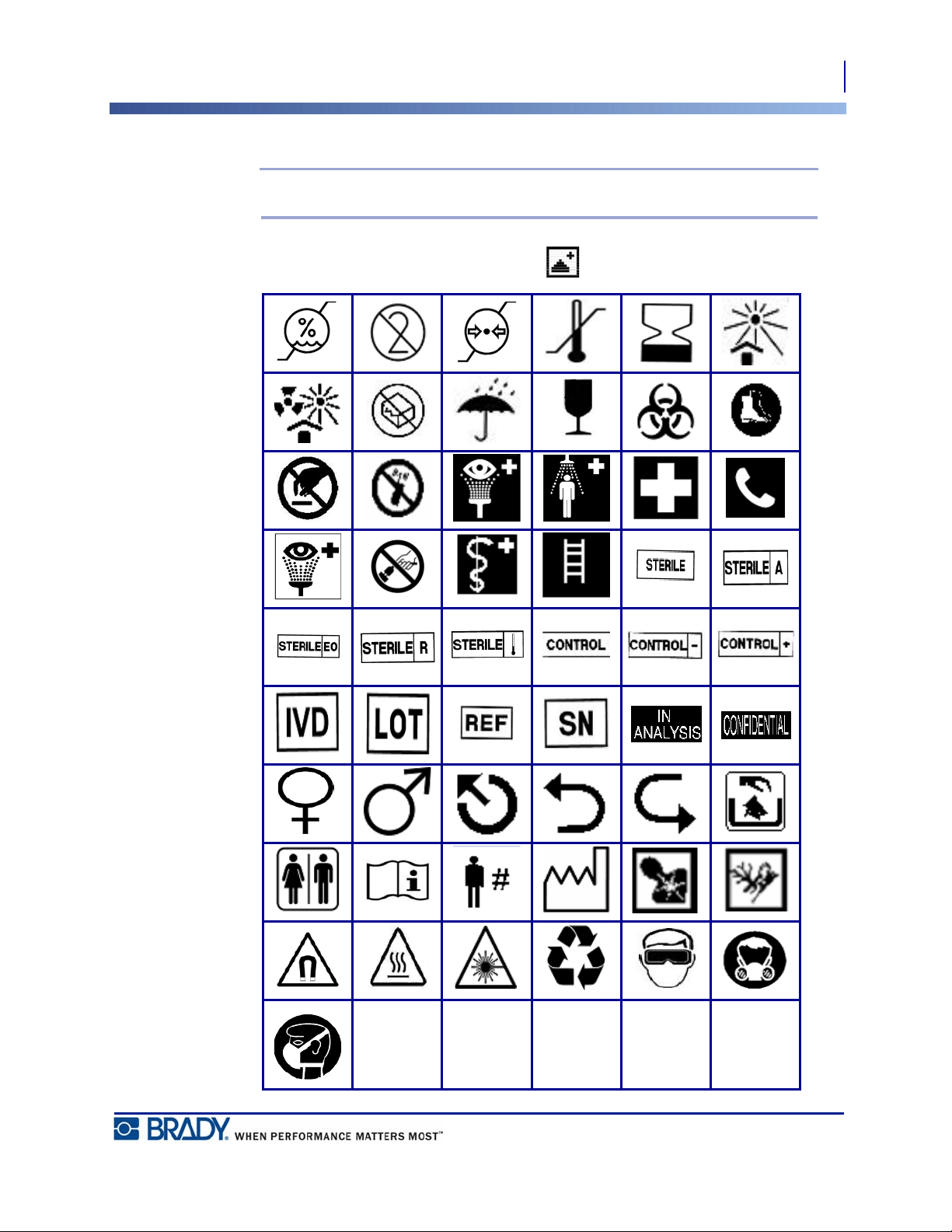
84
Appendix A - Symbols
BMP
®
21-PLUS/BMP
®
21-LAB User’s Manual
Lab
Note:
This feature available only on Version 2.0.
If a symbol cannot print in 6 pt font the “Cannot Fit” error message will display. Change
font size to 9 pt. Some symbols will display as in the editor.
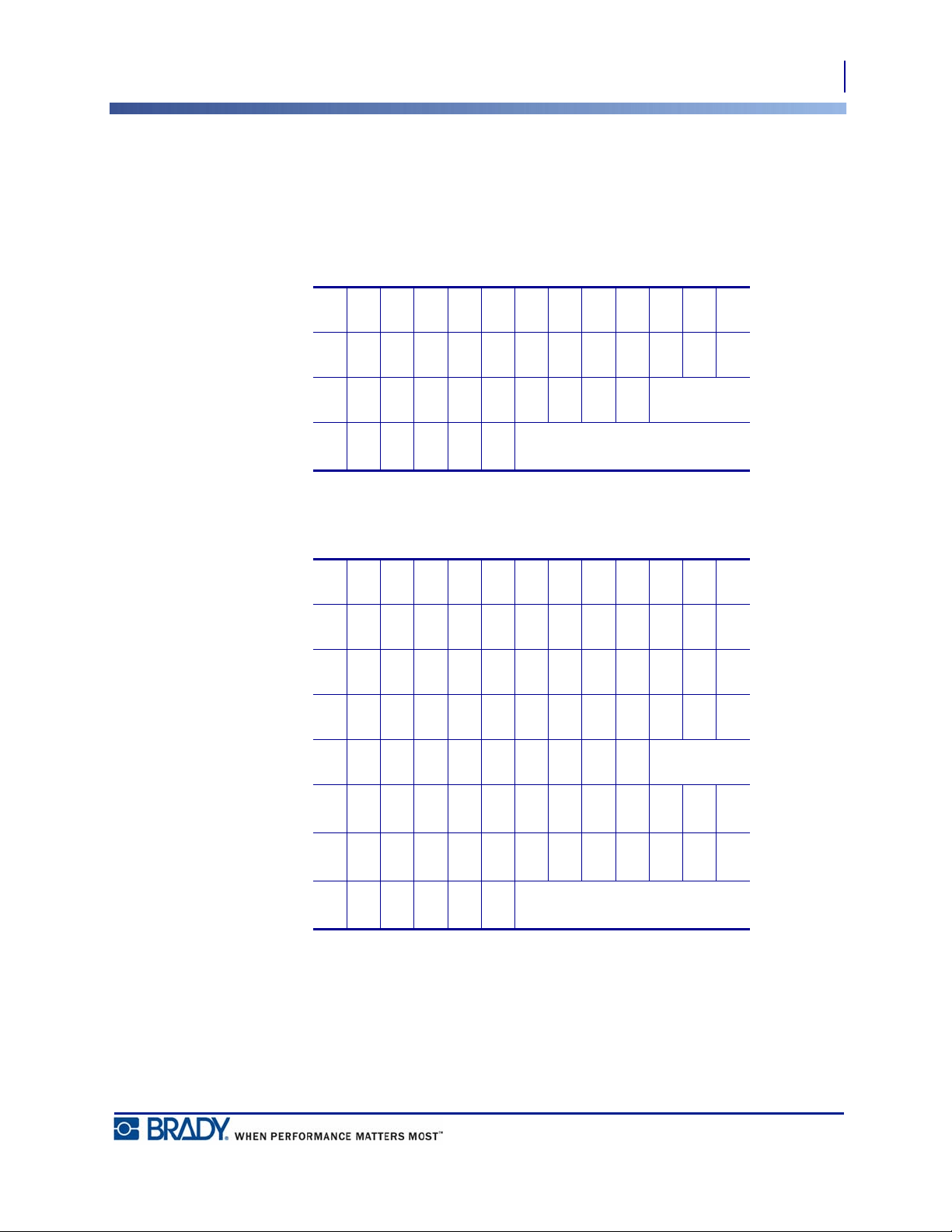
85
Appendix B - Supported ASCII Characters for Barcodes
BMP
®
21-PLUS/BMP
®
21-LAB User’s Manual
Appendix B - Supported ASCII Characters for Barcodes
When creating barcodes reference the tables below for supported characters.
Code 39
Code 128
ABCDEFGHI J KL M
NOPQRSTUVWXYZ
0123456789 (space)
-.
$/ %+
ABCDEFGHI J KL M
NOPQRSTUVWXYZ
abcdef ghi j kl m
nopqr st uvwxyz
0123456789 (space)
!"
#$%&
'
()*+
,-
./
: ; <=>?@[\]^
_
{
|}
`
~
86
Appendix B - Supported ASCII Characters for Barcodes
BMP
®
21-PLUS/BMP
®
21-LAB User’s Manual
Datamatrix and QR Codes
ABCDEFGHI J KL M
NOPQRSTUVWXYZ
abcdef ghi j kl m
nopqr st uvwxyz
0123456789 (space)
!"
#$%&
'
()*+
,-
./
: ; <=>?@[\]^
_
{
|}