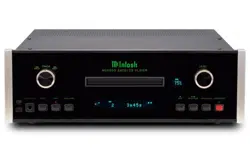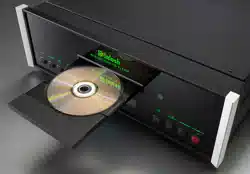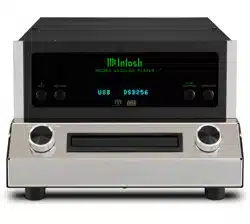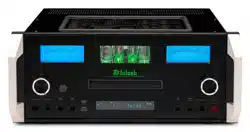
McIntosh Laboratory, Inc. 2 Chambers Street Binghamton, New York 13903-2699 Phone: 607-723-3512 www.mcintoshlabs.com
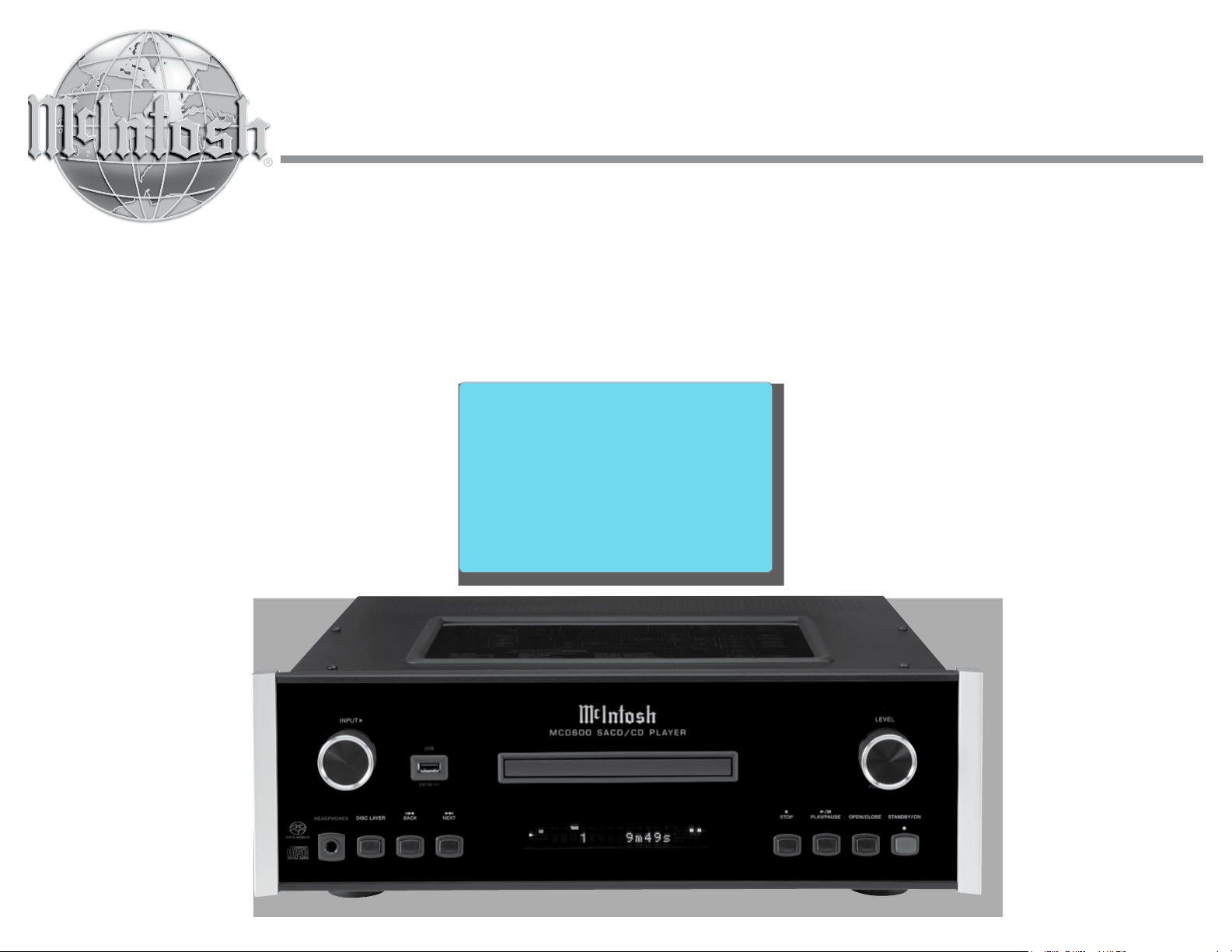
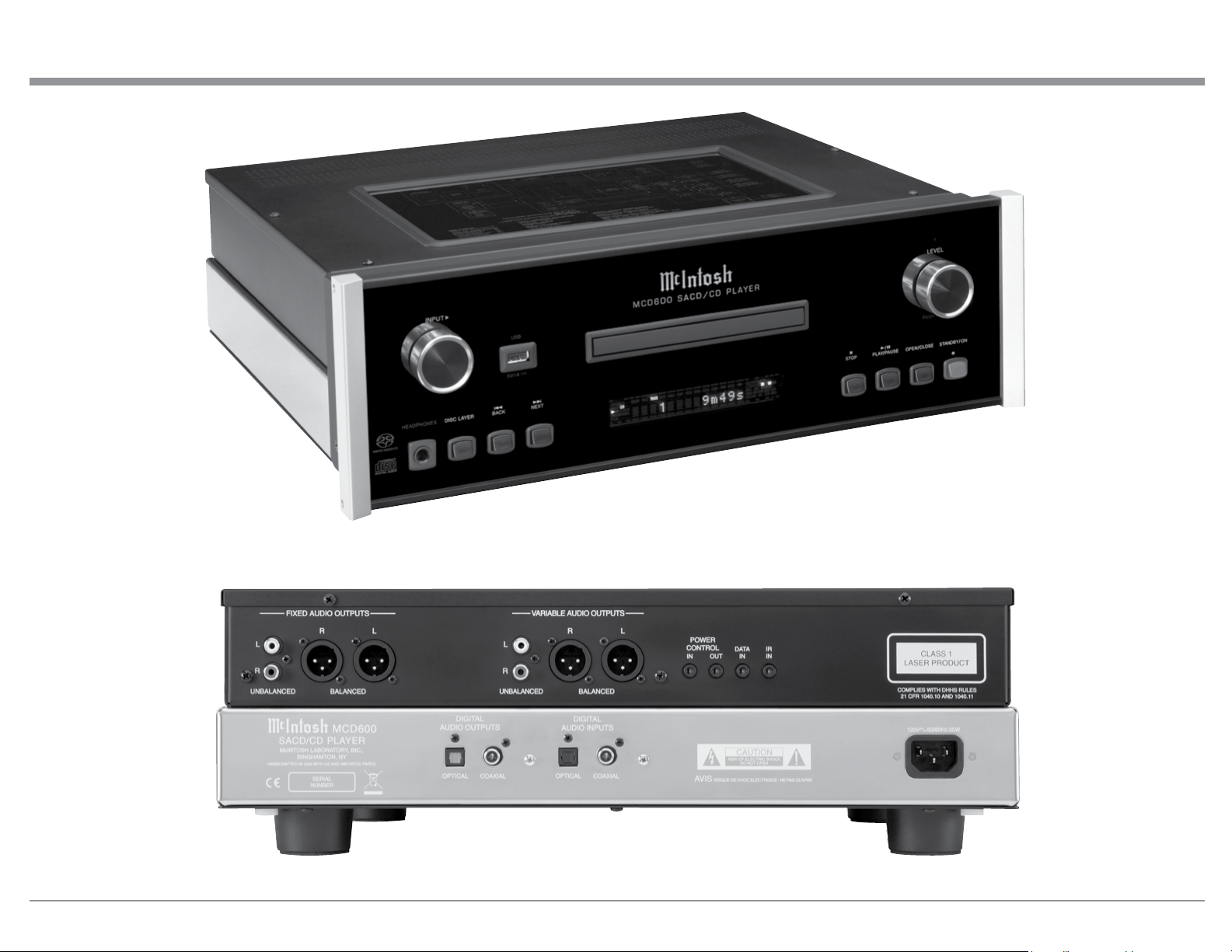
MCD600
SACD/CD Player
Owner’s Manual
2
The lightning ash with arrowhead, within an equilateral
triangle, is intended to alert the user to the presence of
uninsulated “dangerous voltage” within the product’s en-
closure that may be of sufcient magnitude to constitute
a risk of electric shock to persons.
The exclamation point within an equilateral triangle is
intended to alert the user to the presence of important
operating and maintenance (servicing) instructions in the
literature accompanying the appliance.
WARNING - TO REDUCE RISK
OF FIRE OR ELECTRICAL
SHOCK, DO NOT EXPOSE
THIS EQUIPMENT TO RAIN OR
MOISTURE.
NO USER-SERVICEABLE PARTS
INSIDE. REFER SERVICING TO
QUALIFIED PERSONNEL.
To prevent the risk of electric
shock, do not remove cover or
back. No user-serviceable parts
inside.
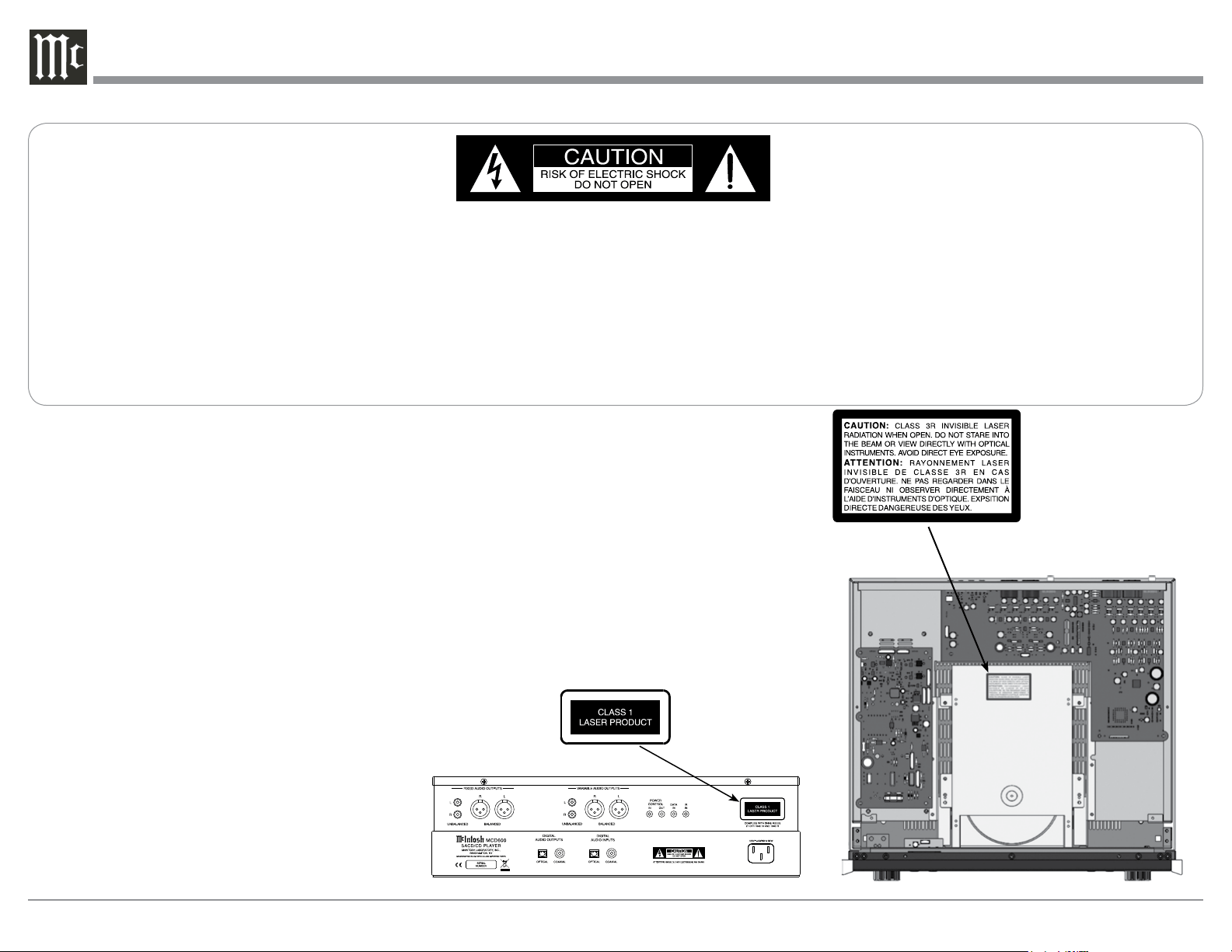
CAUTION: Invisible Laser Radiation when
open. DO NOT stare into the
beam or view directly with opti-
cal instruments. Use of controls
or adjustments or performance
of procedures other than those
specified in the Owners Manual
may result in Hazardous Radiation
Exposure.
ATTENTION: Rayonnnement Laser Invisible en
cas d’ouverture. Ne pas regarder
dans le faisceau ni observer di-
rectement à l’aide d’instruments
d’optiques. L’utilisation de
commandes, de réglages ou
d’instructions autres que ceux
spécifiés dans le manuel du
propriétaire peut entraîner une
exposition x à des rayonnements
dangereux
LUOKAN 1 LASERLAITE
KLASS 1 LASER APPARAT
VAROITUS!
Laitteen kayttaminen muulla kuin tassa
kayttoohjeessa mainitulla tavalla saat-
taa altistaa kayttajan turvallisuusluokan
1 ylittavalle nakymattomalle lasersate-
iiylle.
VARNING! Om apparaten anvands pa annat satt an i
denna bruksanvisning specificerats, kan
anvandaren utsattas for osynbg laser-
straining, som overskrider gransen for
laserklass 1.
This product incorporates an embedded
CLASS 3R Laser (IEC60825-1).
ATTENTION:
RISQUE DE CHOC ELECTRIQUE - NE PAS OUVRIR
Additional Safety Information is supplied in a separate document “Important Additional Operation Information Guide”
3
Copyright 2018 © by McIntosh Laboratory, Inc.
Table of Contents
Thank You
Your decision to own this McIntosh MCD600 SACD/
CD Player ranks you at the very top among discrimi-
nating music listeners. You now have “The Best.” The
McIntosh dedication to “Quality,” is assurance that
you will receive many years of musical enjoyment
from this unit.
Please take a short time to read the information in
this manual. We want you to be as familiar as pos-
sible with all the features and functions of your new
McIntosh.
Please Take A Moment
The serial number, purchase date and McIntosh Dealer
name are important to you for possible insurance
claim or future service. The spaces below have been
provided for you to record that information:
Serial Number: ______________________________
Purchase Date: ______________________________
Dealer Name: _______________________________
Technical Assistance
If at any time you have questions about your McIntosh
product, contact your McIntosh Dealer who is familiar
with your McIntosh equipment and any other brands
that may be part of your system. If you or your Dealer
wish additional help concerning a suspected problem,
you can receive technical assistance for all McIntosh
products at:
McIntosh Laboratory, Inc.
2 Chambers Street
Binghamton, New York 13903
Phone: 607-723-1545
Fax: 607-724-0549
Customer Service
If it is determined that your McIntosh product is in
need of repair, you can return it to your Dealer. You
can also return it to the McIntosh Laboratory Service
Department. For assistance on factory repair return
procedure, contact the McIntosh Service Department
at:
McIntosh Laboratory, Inc.
2 Chambers Street
Binghamton, New York 13903
Phone: 607-723-3515
Fax: 607-723-1917
Safety Instructions ..................................................... 2
(Separate Sheet) ................... Important Additional
Operation Information Guide
Thank You and Please Take a Moment ...................... 3
Technical Assistance and Customer Service ............. 3
Table of Contents ....................................................... 3
General Information .................................................. 4
Connector and Cable Information ............................. 4
Disc Information ..................................................... 4-5
Introduction ................................................................ 5
Performance Features ................................................ 5
Dimensions ................................................................ 6
Installation ................................................................. 7
Connections:
Rear Panel Connections ............................................. 8
Connections using to Preamplifier
and Integrated Amplifier ........................................10
Connection Diagrams (Separate Sheet) ............. Mc1A
Connections using to Power Amplifier.....................11
Connection Diagram (Separate Sheet) ............... Mc1B
Front Panel Features:
Front Panel Display, USB Connector
and Push-buttons .....................................................12
Front Panel Information Display ...............................13
Remote Control:
Remote Control Push-buttons for CD Disc
and SACD Disc Playback .......................................14
How to Use the Remote Control for CD Disc
and SACD Disc Playback .......................................15
Remote Control Push-buttons for Playback
of Data CD, Data DVD Disc and USB
Flash Memory Data Drive ......................................16
How to Use the Remote Control for Playback
of Data CD, Data DVD Disc and USB Flash
Memory Data Drive ................................................17
Operation:
How to Operate the MCD600 ............................. 16-24
Additional Information:
Photos ....................................................................... 25
Specifications ........................................................... 26
Packing Instruction ...................................................27
4
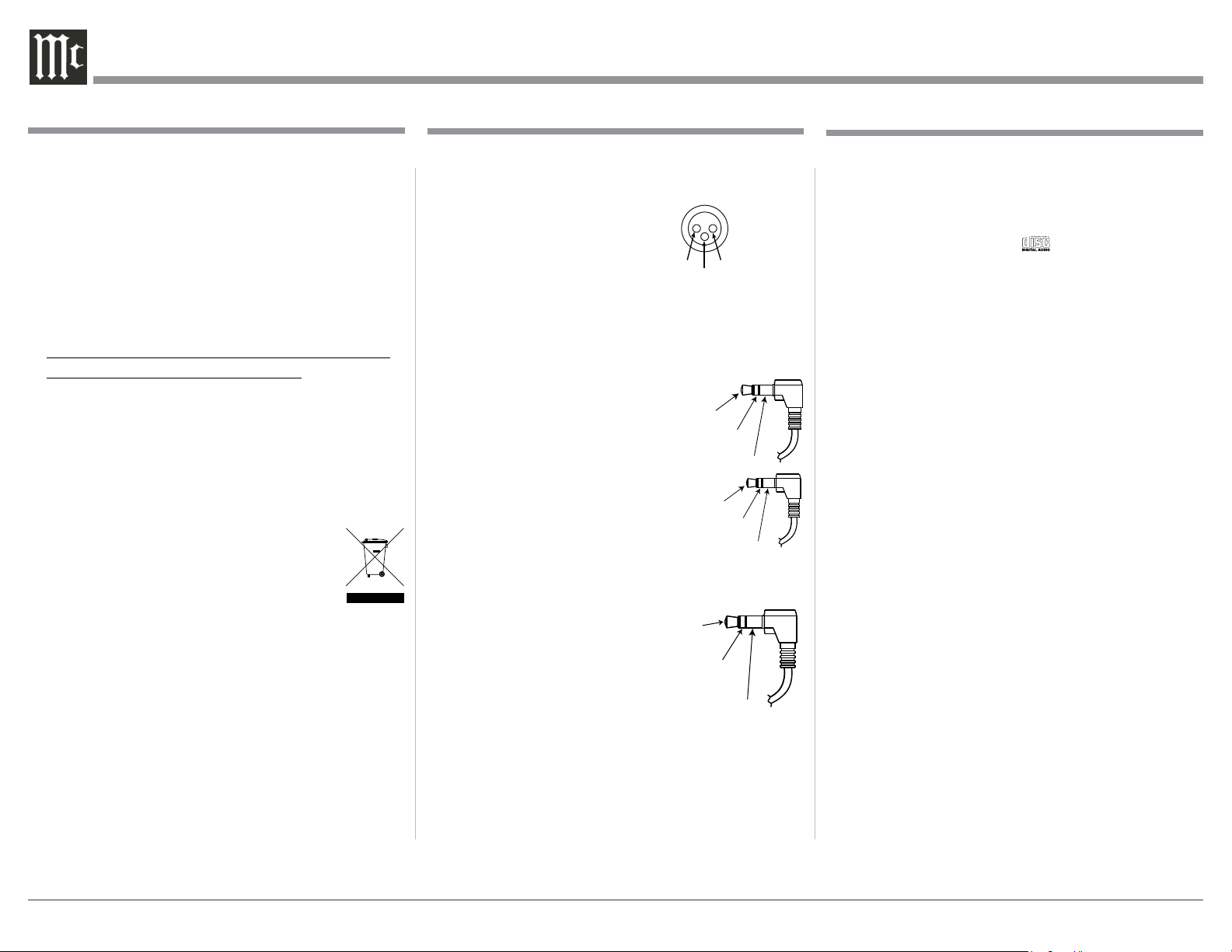
XLR Connectors (Digital Audio)
Below is the Pin configuration for the XLR Balanced
Digital Audio Connectors on the MCD600. Refer to
the diagram for connection:
PIN 1: Shield/Ground
PIN 2: + Signal
PIN 3: - Signal
Note: When connecting to the MCD600 Digital XLR
Input and Output connectors it is important to use
a twisted pair shielded cable.
Data and IR Input Port Connectors
The MCD600 Data In Port receives
Remote Control Signals. A 3.5mm
stereo mini phone plug is used for
connection. The IR Ports also use a
3.5mm stereo mini phone plug and
allow the connection of other brand
IR Receivers to the MCD600.
Power Control Connector
The MCD600 Power Control Input receives an On/Off
signal from (+12 volt/0 volt). The Power Control Out-
put will then send out a +12 volt
Output Signal with a total cur-
rent up to 50mA. An additional
connection is for controlling the
illumination of the Power Out-
put Meters. The 3.5mm stereo
mini phone plug connects to a McIntosh Preamplifier
or A/V Control Center Power Control Output.
1. For additional connection information, refer to the
owner’s manual(s) for any component(s) connected
to the MCD600 SACD/CD Player.
2. The Super Audio Compact Discs Audio Signals
(DSD) are available only at the Analog Audio Out-
put Connectors. Compact Discs Audio Signals are
available at the Digital Audio Optical and Coaxial
Output Connectors.
3. The Front Panel USB Connector is for only con-
necting a USB Flash Memory Drive.
DO NOT CONNECT IT TO A COMPUTER OR
ANY OTHER USB TYPE DEVICE.
4. The IR Input, with a 3.5mm mini phone jack, is
configured for non-McIntosh IR sensors such as
a Xantech Model HL85BK Kit. Use a Connection
Block such as a Xantech Model ZC21 when two
or more IR sensors need to be connected to the
MCD600.
5. When discarding the unit, comply with local rules
or regulations. Batteries should never be
thrown away or incinerated but disposed
of in accordance with the local regulations
concerning battery disposal.
6. For additional information on the MCD600
and other McIntosh Products please visit the McIn-
tosh Web Site at www.mcintoshlabs.com.
General Information Connector and Cable Information
Data
Signal
N/C
Data
Ground
IR Data
Control
Ground
N/C
1. The MCD600 is designed to play round Compact
Discs; do not try other shapes or possible damage
may occur.
2. The MCD600 SACD/CD Player is designed to
play all industry standard “Redbook” CD Audio
Discs as indicated by the Symbol. It will also
play most CD-R, CD-RW and Dual Discs, however
some recorded discs may not be able to play due to
the condition of the recording or manufacturing.
3. Disc with tracks recorded with MP3 and WMA
Formats will playback on the MCD600 when the
writing software used to create them conforms to
the ISO9660 Level 1 standard.
4. The PCM (Pulse Code Modulation) Digital Signal,
is the standard for Audio CD Discs and is avail-
able at all Digital Audio Output Connectors on the
MCD600. Discs with WAV and MP3 file formats
are converted internally to a PCM Digital Signal.
5. Playing back Audio from a CD Disc and a SACD
Disc (CD Layer) is available at the Optical and
Coaxial Digital Outputs. When a SACD Disc is
playing back a 2 Channel or a Multichannel Layer,
the Digital Audio is only available at the Analog
Audio Output, with the Optical and Coaxial Out-
puts muted.
6. The MCD600 has the ability to playback a user
created DVD Data Disc with Audio Tracks up to
DSD128 and PCM up to 96Khz/24Bit. Digital Au-
dio Signals are available at the Optical and Coaxial
Digital Outputs for Discs with PCM Audio Tracks
up to 192kHz-24Bit.
Disc Information
Power
Control
Ground
Meter
Illumination
Control
Pass Thru
PIN 1
PIN 2
PIN 3
5
General Information, Cable Information, Disc Information, Introduction and Performance Features
Introduction
Performance Features
The McIntosh MCD600 SACD/CD Player offers the
latest in audio technology, providing state of the art
reproduction of audio discs. A full complement of per-
formance features allows for the enjoyment of SACD
Discs, CD Discs and USB Flash Memory Drives
Audio Formats. The advanced mechanical design of
the transport ensures many years of smooth trouble
free operation.
• Twin Laser Pickup
The MCD600 incorporates two laser elements, with
different wavelengths, that are focused through one
lens assembly. This unique design allows reading both
the CD and Super Audio Compact Disc (SACD) Discs
Formats.
• Advanced Transport
The MCD600 has a new transport with a Die Cast
Tray. It has the latest in advanced digital servo for
faster, quieter and accurate operation. The Disc Audio
Data is read at twice the normal rate insuring better
disc tracking and error correction processing.
• USB Music Playback
The Front Panel USB Connector is for a USB Flash
Memory Drive. This provides the ability to Playback
many of the Disc Media Types with High Sampling
Frequencies and the High Bit Rates available.
• Quad Balanced Digital to Analog Converter
The 8 channel 32-bit Digital to Analog Converter is
used in a Stereo Quad Balanced Mode, assuring the
music is reproduced with a wide dynamic range and
extremely low distortion, for Disc, USB Flash Memo-
ry Drive and external Digital Signal Sources.
• Digital Audio Outputs
The MCD600 has Coaxial and Optical Digital Output-
Connections.
• Power Control and Full Function Remote Control
The Power Control Input Connection switches the
MCD600 On/Off with other McIntosh Components
in a system. The Remote Control provides complete
control of the MCD600 operating functions.
• Multi-Function Front Panel Display
The MCD600 Front Panel display indicates the current
disc playback status.
• Special Power Supply
The Switching Power Supply with a R-Core Trans-
former has Multiple Regulators ensuring stable noise
free operation even though the power line varies.
• Glass Front Panel and Super Mirror Chassis
The MCD600 has the famous McIntosh Illuminated
Glass Front Panel and Stainless Steel Super Mirror
Finish Chassis. These highly durable materials ensure
the pristine beauty of the MCD600 will be retained for
many years.
• LED Front Panel Illumination
The Illumination of the Front Panel is accomplished
by Light Diffusers and extra long life Light Emitting
Diodes (LEDs). This provides even Front Panel Illumi-
nation and is designed to ensure the pristine beauty of
the MCD600 will be retained for many years.
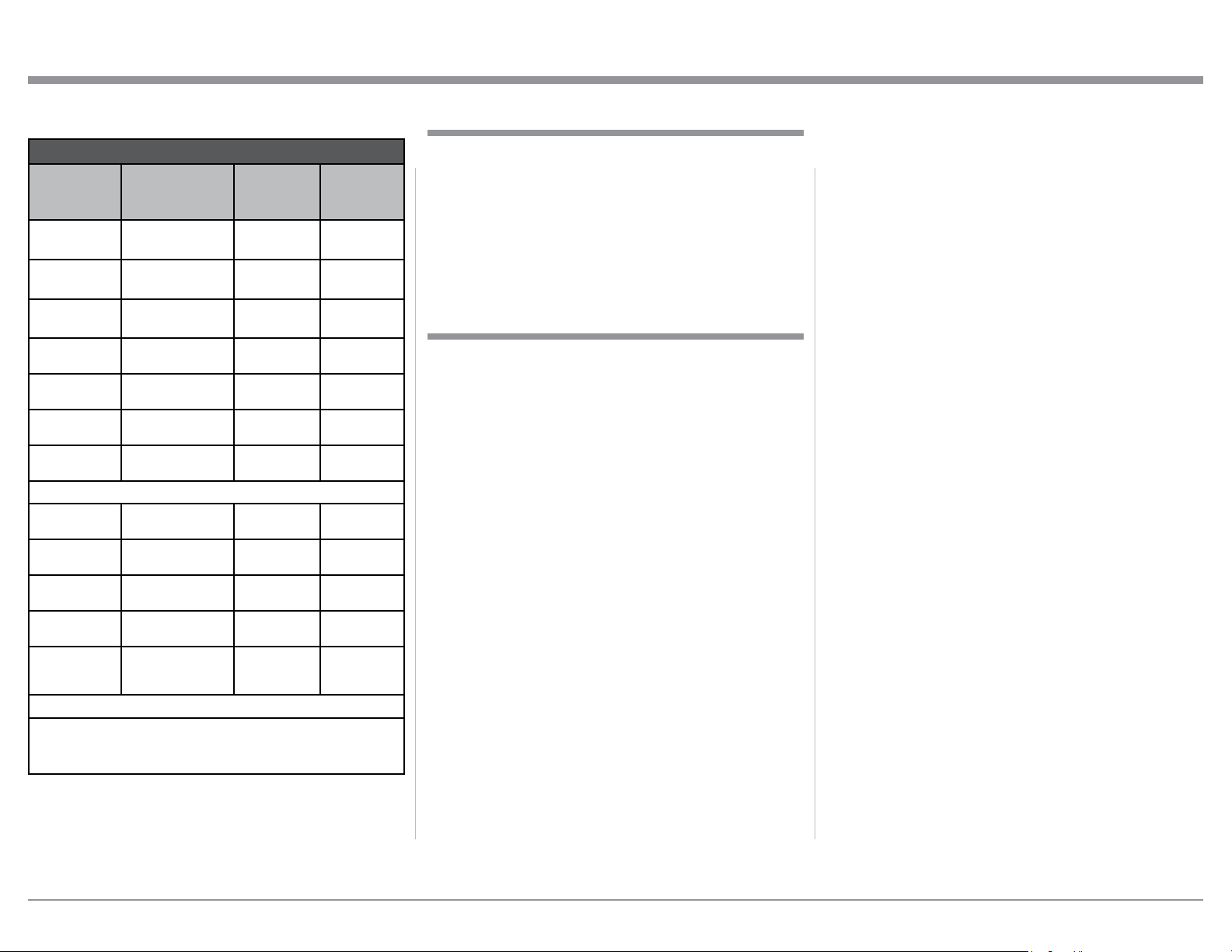
Media and Format Type of Music Playback
Media Type
Format Type
and
File Extension
Maximum
Sampling
Frequency
Maximum
Bit Rate
CD Disc
(R/-RW)
MP3 (.mp3) 48KHz
Up to
320kbs
CD Disc
(R/-RW)
WMA (.wma) 48KHz
Up to
320kbs
CD Disc
(R/-RW)
ACC (.mp4) 48KHz
Up to
320kbs
CD Disc
(R/-RW+R+RW)
WAV (.wma) 48KHz 16Bit
CD Disc
(R/-RW+R+RW)
FLAC (.ac) 48KHz 16Bit
CD Disc
(R/-RW+R+RW)
ALAC (.m4a) 48KHz 16Bit
CD Disc
(R/-RW+R+RW)
AIFF(.aif/aiff) 48KHz 16Bit
DVD Disc
(R/-RW+R+RW)
WAV (.wma) 192KHz Up to 24Bit
DVD Disc
(R/-RW+R+RW)
FLAC (.ac) 192KHz Up to 24Bit
DVD Disc
(R/-RW+R+RW)
ALAC (.m4a) 192KHz Up to 24Bit
DVD Disc
(R/-RW+R+RW)
AIFF(.aif/aiff) 192KHz Up to 24Bit
DSD Disc
(DSD64 to
DSD128)
DSD(.diff/dsf) 5.6MHz 1Bit
USB Flash Drive supports many of the Disc Media Types,
Format Types and File Extensions. It also has the same
Maximum Sampling Frequencies and Bit Rates.
6
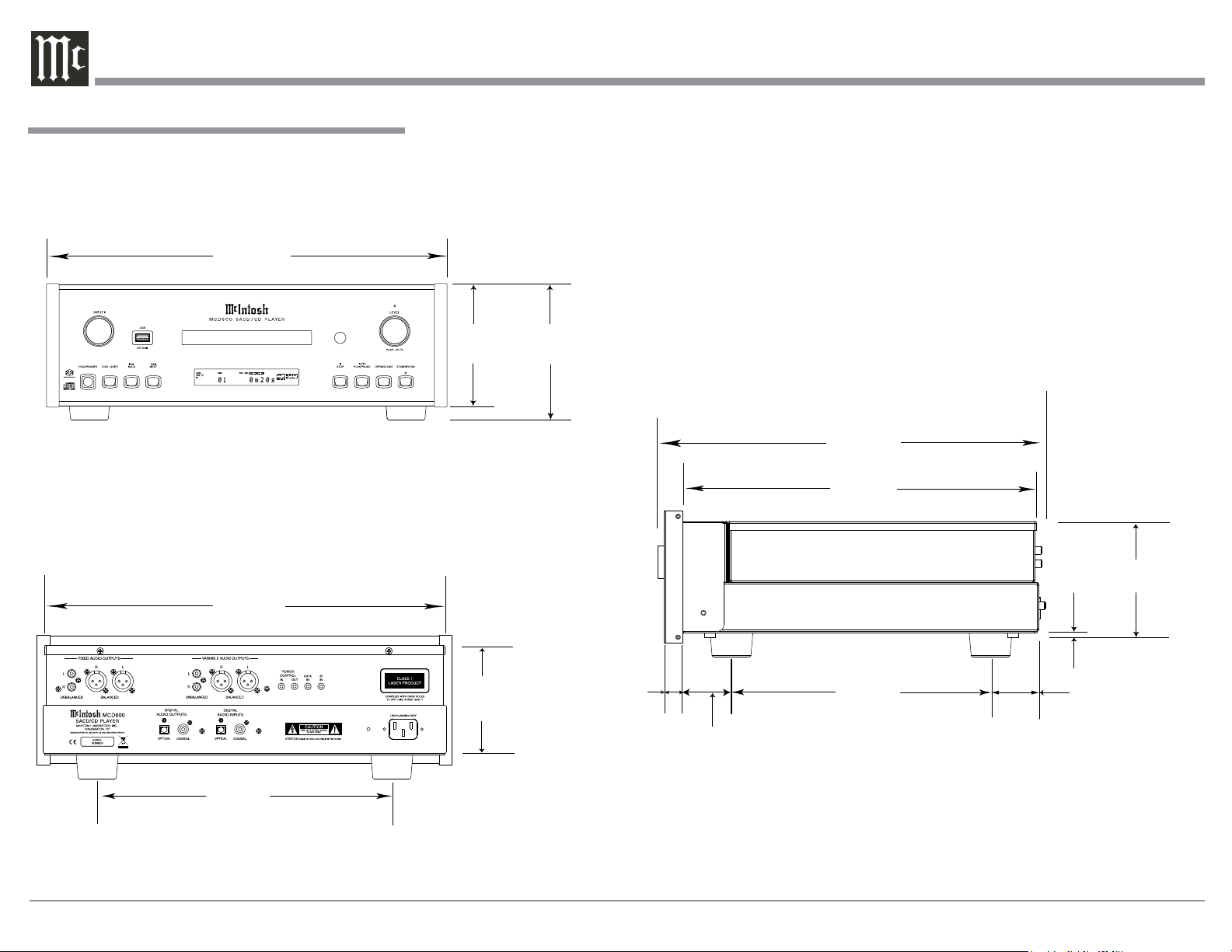
Dimensions
The following dimensions can assist in determining
the best location for your MCD600.
Dimensions
17-1/2"
44.5cm
13 -1/4"
33.7cm
17-1/8"
43.5cm
3/16"
0.5cm
13/16"
2.1cm
10-9/16"
26.8cm
14-1/2"
36.8cm
2"
5.1cm
1-15/16"
4.9cm
Front View of the MCD600
Rear View of the MCD600
Side View of the MCD600
6"
15.2cm
5-3/8"
13.7cm
4-5/8"
11.8cm
4-7/8"
12.8cm
16-3/8"
41.6cm
7
Installation
Installation
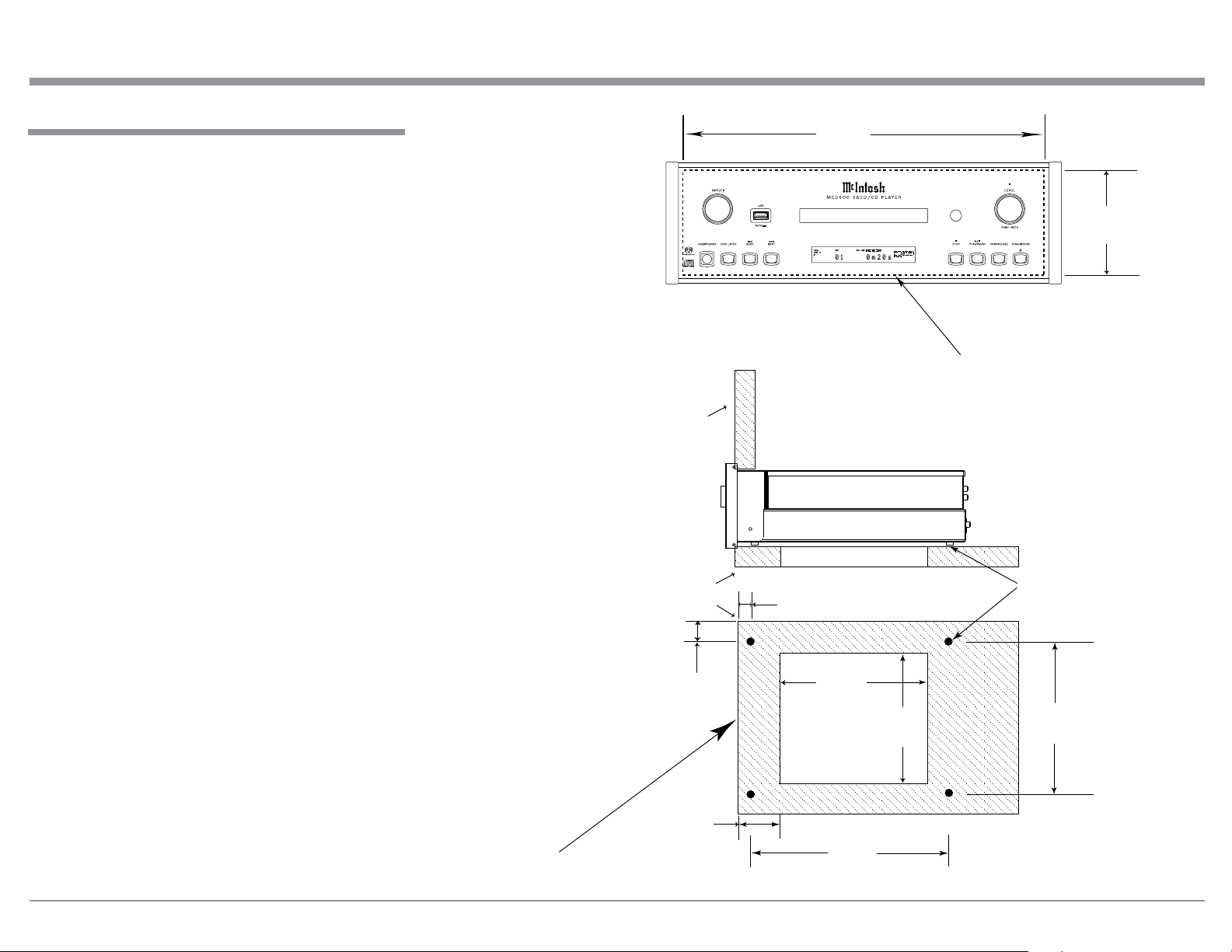
The MCD600 can be placed upright on a table or
shelf, standing on its four feet. It also can be custom
installed in a piece of furniture or cabinet of your
choice. The four feet may be removed from the bottom
of the MCD600 when it is custom installed as out-
lined below. The four feet together with the mounting
screws should be retained for possible future use if the
MCD600 is removed from the custom installation and
used free standing. The required panel cutout, ventila-
tion cutout and unit dimensions are shown.
Always provide adequate ventilation for your
MCD600. Cool operation ensures the longest possible
operating life for any electronic instrument. Do not
install the MCD600 directly above a heat generat-
ing component such as a high powered amplifier. If
all the components are installed in a single cabinet, a
quiet running ventilation fan can be a definite asset in
maintaining all the system components at the coolest
possible operating temperature.
A custom cabinet installation should provide the
following minimum spacing dimensions for cool
operation.
Allow at least 2 inches (5.1cm) above the top, 2
inches (5.1cm) below the bottom and 1 inch (2.5cm) on
each side of the SACD/CD Player, so that airflow is
not obstructed. Allow 17 inches (43.2cm) depth behind
the front panel. Allow 1-1/8 inch (2.9cm) in front of
the mounting panel for knob clearance. Be sure to cut
out a ventilation hole in the mounting shelf according
to the dimensions in the drawing.
4-15/16"
12.54cm
17-3/16"
43.65cm
Cutout Opening for Custom Mounting
MCD600 Front Panel
Custom Cabinet Cutout
8-5/8"
21.91cm
15-1/2"
39.37cm
15-1/16"
38.26cm
1"
2.54cm
Cutout Opening
for Ventilation
Cutout Opening for Ventilation
Support
Shelf
Cabinet
Front
Panel
Chassis
Spacers
MCD600 Side View
in Custom Cabinet
MCD600 Bottom View
in Custom Cabinet
1-1/16"
2.70cm
12-5/16"
31.27cm
3"
7.62cm
Note: Center the cutout Horizontally on the unit.
For purposes of clarity, the above
illustration is not drawn to scale.
8
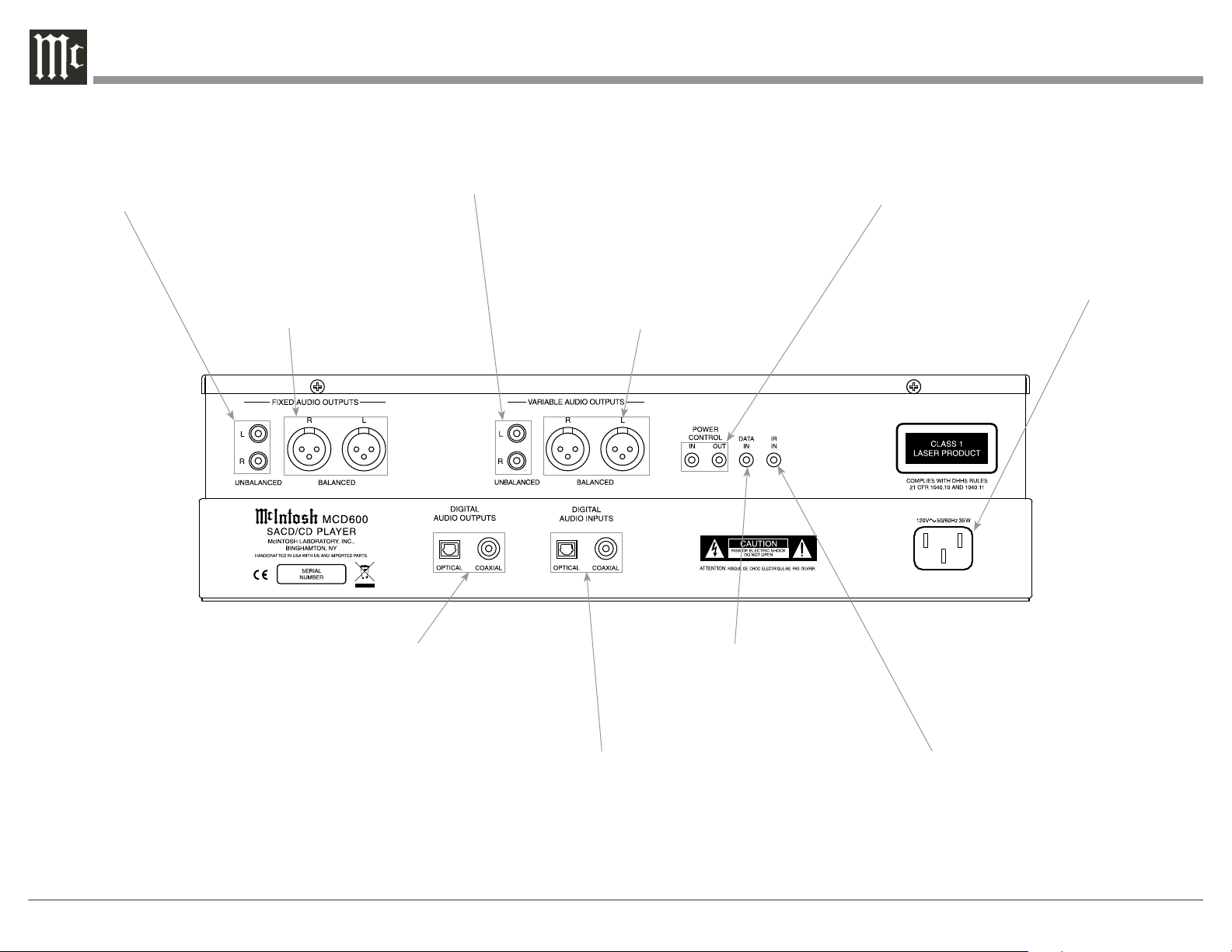
Rear Panel Connections
POWER CONTROL IN receives
turn-on signals from a McIntosh
component and POWER CONTROL
OUT sends turn-on signals on to
another McIntosh Component
Connect the MCD600 power cord to
a live AC outlet. Refer to information
on the back panel of your MCD600
to determine the correct voltage for
your unit
IR IN for connecting an
IR Receiver
DATA IN receives control data
from a McIntosh Control Center
OPTICAL and COAXIAL DIGITAL
AUDIO OUTPUTS send a Digital
Audio Signal to a Preamplifier or
an Integrated Amplifier with a D/A
Converter or a decoder
OPTICAL and COAXIAL DIGITAL
AUDIO INPUTS receive a Digital Audio
Signal
1
from an external source compo-
nent such as a Disc Player and uses the
MCD600 internal D/A Converter to decode
the signal into analog audio
BALANCED VARIABLE
level AUDIO OUTPUTS
supply analog audio signals
to connect to Balanced In-
puts of other components
BALANCED FIXED
level AUDIO OUTPUTS
supply analog audio sig-
nals to Balanced Inputs
of other components
UNBALANCED VARIABLE level
AUDIO OUTPUTS supply analog
audio signals to Unbalanced Inputs
of other components
UNBALANCED FIXED
level AUDIO OUTPUTS
supply analog audio signals
to Unbalanced Inputs of
other components
1
For additional information refer to page 4 “Disc Information” and page 5 “Media and Format Type of Music Playback
9
Notes
10
Connections to Analog Preamplifier or
Integrated Amplifier
Connections to Analog Preamplifier or Integrated Amplifier
The MCD600 provides complete Digital Audio
to Analog Audio conversion from CD Discs, SACD
Discs, Data Discs and USB Flash Memory Drives. It
also provides Digital Audio to Analog Audio conver-
sion from external components with Digital Audio
Output Signals connected to the MCD600 Digital
Inputs.
Power Control provides the ability for the MCD600
to be remotely switched On/Off from a Preamplifier
or Integrated Amplifier via the Power Control Con-
nection.
The MCD600 Data Port Connection allows for the
remote operation of basic functions using the Pream-
plifier or Integrated Amplifier Remote Control. With
an external sensor connected to the MCD600, remote
control operation is possible from another room and/
or when the MCD600 is located in a cabinet with the
doors closed.
The connection instructions below, together with
the MCD600 Connection Diagram located on the
separate folded sheet “Mc1A” is an example of a typi-
cal audio system. Your system may vary from this,
however the actual components would be connected in
a similar manner. For additional information refer to
“Connector and Cable Information” on page 4.
Power Control Connections:
1. Connect a Control Cable from the Preamplifier
or Integrated Amplifier Power Control Main Out
Jack to the POWER CONTROL IN Jack on the
McIntosh MCD600 SACD/CD Player.
2. Optionally, connect a Control Cable from the
MCD600 SACD/CD POWER CONTROL OUT
Jack to additional McIntosh components with a
Power Control In Jack.
Data Control Connections:
3. When a Data Port connection on the Preampli-
fier or Integrated Amplifier is available, connect a
Control Cable from the Preamplifier or Integrated
Amplifier (Setup Assigned) Data Port Jack to the
McIntosh MCD600 SACD/CD Player DATA IN
Jack.
Sensor Connections:
4. Optionally, connect an IR Sensor to the McIntosh
MCD600 SACD/CD Player IR IN Jack.
Digital Audio Input Connections:
5. Connect an Optical Cable from the MCD600
SACD/CD Player DIGITAL AUDIO INPUT OP-
TICAL Connector to the Optical Digital Output
Connector on the Music Streamer.
Note: A Coaxial Cable Connection may be used
instead of the Optical Connection.
6. Connect a Digital Coaxial Cable from the
MCD600 SACD/CD Player DIGITAL AUDIO IN-
PUT COAX Connector to the Digital Coax Output
Jack on the Tuner.
Note: An Optical Cable Connection may be used
instead of the Coaxial Connection.
Digital Audio Output Connections:
7. Connect an Optical Cable from the MCD600
SACD/CD Player DIGITAL AUDIO OUTPUT
OPTICAL Connector to the Optical 1 Digital
Input Connector on the Preamplifier or Integrated
Amplifier.
Note: A Coaxial Cable Connection may be used
instead of the Optical Connection.
8. Connect a Digital Coaxial Cable from the
MCD600 SACD/CD Player DIGITAL AUDIO
OUTPUT COAX Connector to the Digital 2 Coax-
Input Connector on the Preamplifier or Integrated
Amplifier.
Note: An Optical Cable Connection may be used
instead of the Coaxial Connection.
9. If the MCD600 is to be connected directly to a
Power Amplifier proceed to the next page.
AC Power Cords Connections:
10. Connect the McIntosh MCD600 SACD/CD Trans-
port AC Power Cord to a live AC outlet.
11
The MCD600 Power Control Circuitry provides an
internally generated Power Control Signal for exter-
nally connected Power Amplifier.
The connection instructions below, together with
the MCD600 Connection Diagram located on the
separate folded sheet “Mc1B” is an example of using
the MCD600 as a Preamplifier with built-in Disc and
Digital Data Player. Your system may vary from this,
however the actual components would be connected in
a similar manner. For additional information refer to
“Connector and Cable Information” on page 4.
Power Control Connections:
1. Connect a Control Cable from the MCD600 POW-
ER CONTROL Out Jack to the Power Control In
Jack on the Power Ampifier.
2. Optionally, connect a Control Cable from the
Power Amplifier Power Control Out 1 Jack to
additional McIntosh components with a Power
Control In Jack.
Audio Connections:
3. Connect a XLR Audio Cable from the MCD600
VARIABLE AUDIO BALANCED OUTPUTS to
the Power Amplifier Balanced Input connectors.
Note: The UNBALANCED Output Jacks may be
used instead of the BALANCED Connection.
AC Power Cords Connections:
4. Connect the McIntosh MCD600 SACD/CD Trans-
port AC Power Cord to a live AC outlet.
Connections to Power Amplifier
Connections to Power Amplifier
12
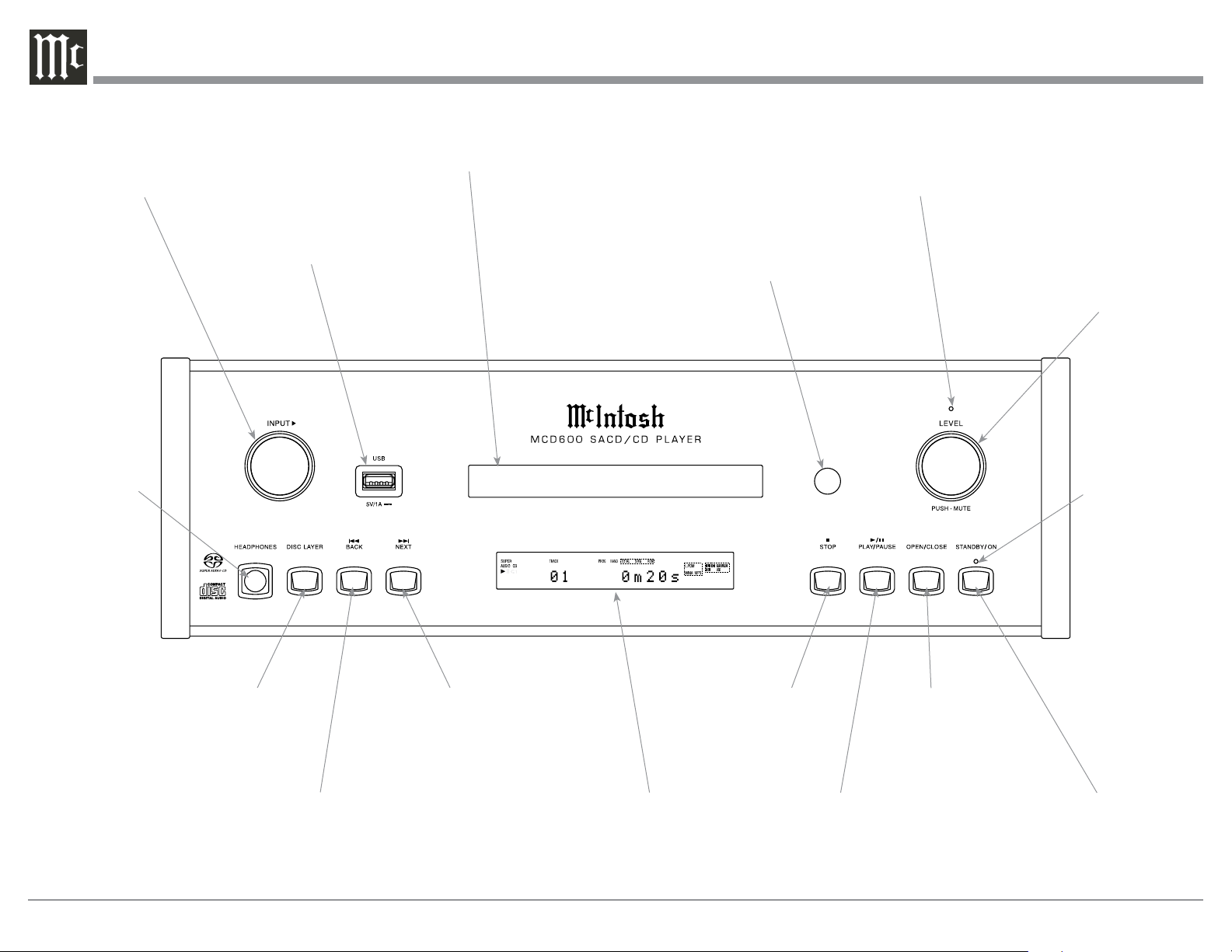
Front Panel Displays, Controls, Push-buttons and Jack
MUTE On Indicator for
the Rear Panel Analog
Audio Outputs
IR Sensor receives
commands from a
Remote Control
Disc Tray opens to
load and unload a disc
Front Panel Display indicates
various operation functions
and times
STANDBY/ON Push-button switches
the MCD600 ON or OFF (Standby)
OPENs and CLOSEs
the disc tray for load-
ing or unloading discs
Starts disc PLAYback and
PAUSEs disc playback
Move backward one
track at a time
Selects the SACD
or CD Audio Tracks
from a hybrid disc
STOPs disc playbackMove forward one
track at a time
Select between Disc Playback,
USB Playback or Digital Input
Sources by rotating the Control
Clockwise
USB Drive Input Connector
for USB Flash Memory Drives
Standby Power
On Indicator and
the color indicates
the status of the
Auto Off Feature
Connection for low
impedance dynamic
headphones, for
private listening
Adjusts the listening volume
level for Headphones and the
Analog Audio Outputs. It also
MUTES the Analog Audio
Outputs.
13
X
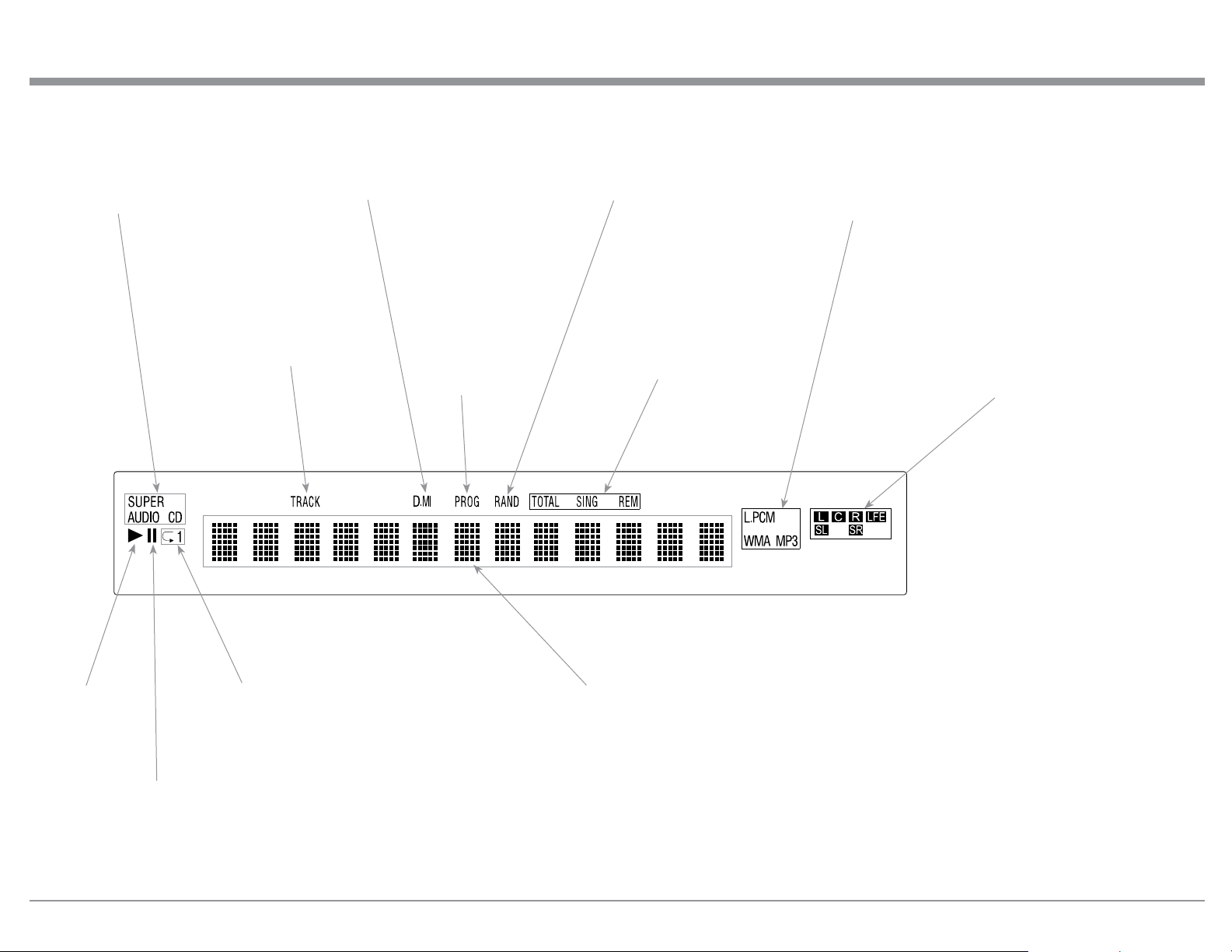
Front Panel Information Display
Indicates the type
of disc loaded, CD
or SACD
Indicates when
in the Pause
Mode
Indicates when
the Play Mode
is active
Indicates the
PROGramming
or Program
Play Mode is
active
Indicates the number of tracks on the Disc, Programmed
Tracks, the current Track Time, Remaining Track Time,
Total Disc Playing Time, Text, Selected Input Source,
Listening Volume Level and various other Information.
When a USB Flash Memory Drive is inserted, it also dis-
plays Drive Directories, File Format Type and Sampling
Frequency
Indicates the RANDom
Play Mode is active
Indicates when the
tracks on the CD disc
are MP3 or WMA
encoded
Indicates the Repeat
Mode selected; Repeat
All (Tracks) or Repeat
1 (Track)
Indicates when the
TRACK Number is
being displayed
Indicates the total disc
remaining playback time or
the current track remaining
playback time
Indicates the sound channels on a CD Disc,
SACD Disc or USB Drive. Left and Right Chan-
nels for a CD Disc, SACD Disc or USB Drive.
Left, Center, Right, LFE (subwoofer), Surround
Left and Surround Right on a Multichannel
SACD Disc
Indicates the MultiChannnel
Layer of the SACD Disc is
active
14
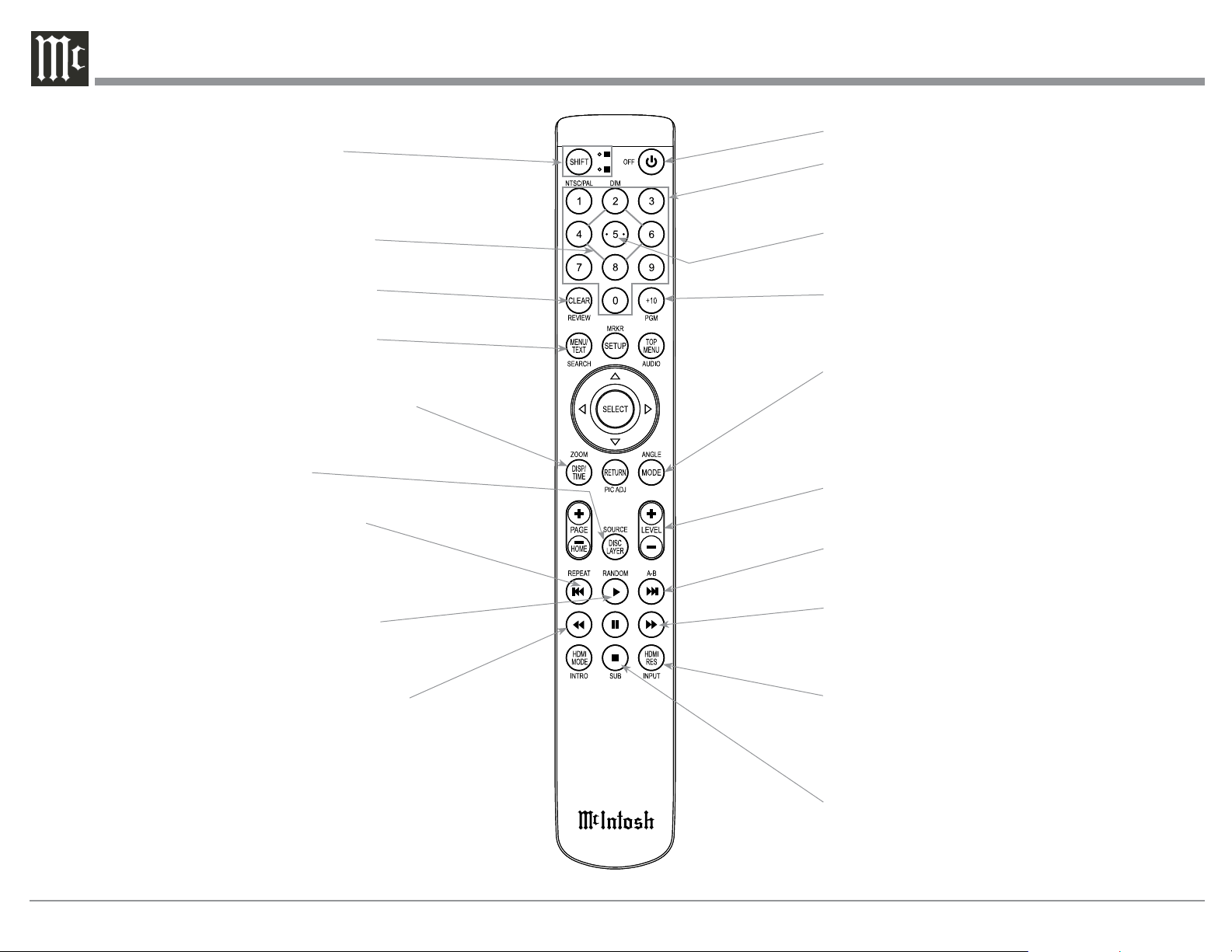
Remote Control Push-Buttons for CD Disc and SACD Disc Playback
Note: The Remote Control Push-buttons not identified are for use with other McIntosh Products
Use to CLEAR the last programmed track
Use to select various disc information, including
TIME, on the Front Panel DISPlay. It is also used
to cancel the text display mode on a SACD Disc
Press to play the Previous Selection. Also
used to select one of various REPEAT
modes
Press once to PLAY, a second time to PAUSE
and a third time to RESUME playback. Also
used to activate RANDOM playback of the
tracks on a SACD or CD disc
Access the TEXT Display Mode when play-
ing a SACD Disc containing the information
Use to select the SACD or CD Tracks
from a hybrid disc for playback
Use to direct access tracks 10 and above
Momentarily press to Power ON or OFF
Selects the All MODE or the Folder MODE for
navigating and selection of music on a CD-R or
DVD ±R and Flash Drive
Push-buttons 2, 4, 6 and 8 used for navigating
up, down, left, right through tracks/folders
SHIFT push-button with LED Indicators
used to select a push-button function
with white or gold color nomenclature
Use to select disc tracks or
any numbered operation
Push-button 5 used to Enter the track/folder
indicated on the McIntosh Front Panel Display
Press to FAST-REVERSE thru the current
selection
Press to play the next Selection
Press to FAST-FORWARD thru the current selection
Press to STOP disc playback
Select Disc, USB Mode or Coax/Optical Digital Inputs
LEVEL Control adjusts the volume level for the
Rear Panel Variable Audio Output Connectors and
the Front Panel Headphone Jack

15
How to use the Remote Control for CD Disc and SACD Disc Playback
The Remote Control is capable of performing most
Operating Functions for the MCD600 SACD/CD
Transport.
If at any time the Player seems unresponsive to the
desired Remote Control Command, it may be neces-
sary to select the color of the push-button nomencla-
ture for the desired command. This is accomplished
by first pressing the SHIFT Push-button to select gold,
as indicated by the LED, and then within 3 seconds
pressing (or in the case of some functions repeatedly
pressing) the desired command push-button.
Note: Refer to the “How to Operate” Section of this
manual for additional information using this
Remote Control.
Play and Pause
With a disc loaded, press the PLAY Push-button to
start the disc playing. Press the PLAY Push-button
a second time to temporarily stop disc playback at any
time (Pause). To resume playback press the PLAY
Push-button again.
Note: The Play and Pause functions have been combined
into the Play Push-button.
Stop
Press the STOP< Push-button to stop disc playback
and return to displaying the table of contents of the
disc.
Numbered Push-buttons
Press 1 through 9 to directly access one of the first
nine Disc Tracks using the Front Panel Information
Display. For track numbers greater than 10, press the
+10 Push-button followed by the 0-9 Push-button. For
example, to access Disc Track 23, press the +10 Push-
button twice and then the 3 Push-button.
Reverse and Fast Foward
Press the
7 (Reverse) or8 (Fast Forward) Push-button
to start moving rapidly through a track on the disc.
When the desired location is reached release the7
(Reverse) or8 (Fast Forward) Push-button to resume
normal playback.
Back and Next
Press the : (Next) Push-button to move forward one
track or the 9 (Back) Push-button to move back to the
beginning of the current track playing. Also used to
review the Programmed Tracks from the disc on the
Front Panel Information Display, while in the Program
Mode.
Note: If the 9 (Back) Push-button is pressed during
playback of the first three seconds of the track, the
SACD/CD will start playing back the previous track
from the beginning. If the Front Panel Information
Display is indicating time, the display will momen-
tarily indicate the track number.
SACD or CD Track Selection
Press the DISC LAYER Push-button to select the
SACD or CD Tracks from a hybrid disc for playback.
Display/Time
Press the DISPlay/TIME Push-button to access vari-
ous disc times. It is also used to return the Front Panel
Information Display to indicating time instead of text
information on a SACD Disc.
Menu/Text
Press the MENU/TEXT Push-button to select the vari-
ous text information on a SACD Disc such as Album,
Artist and Track Titles (disc dependent).
Repeat Modes
Press the REPEAT Push-button to select either One
Track, All Tracks or cancel the Repeat Mode.
Clear
Press the CLEAR Push-button to erase a program
track(s).
How to use the Remote Control for
CD Disc and SACD Disc Playback
16
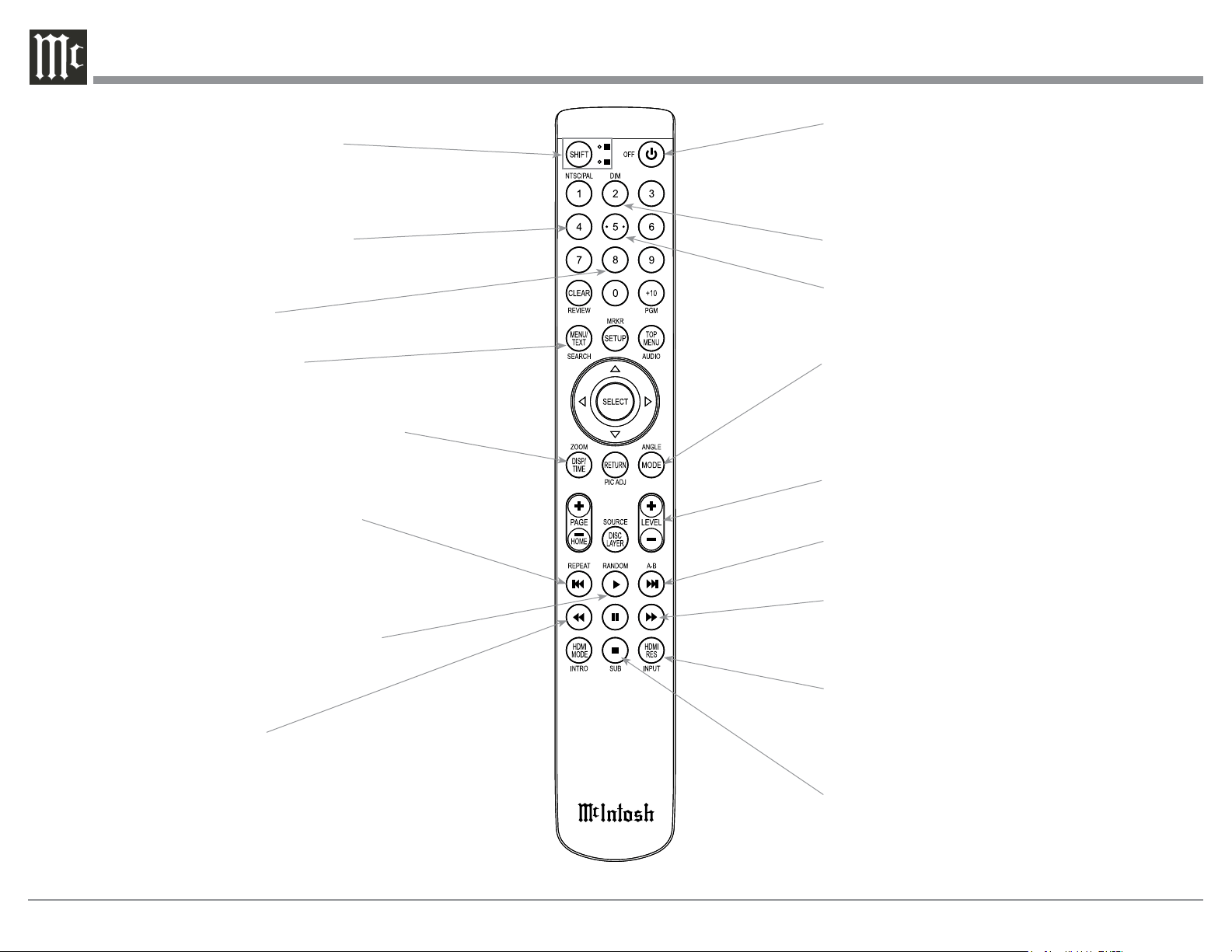
Remote Control Push-Buttons for Playback of Data CD, Data DVD Disc and USB Flash Memory Data Drive
Note: The Remote Control Push-buttons not identified are for use when playing back CD/SACD Discs (refer to page 14) or for use with other McIntosh Products
Use to select various disc information, including
TIME, on the Front Panel DISPlay
Press Back to play the Previous Selection.
Also used to select one of various repeat
modes
Press once to PLAY, a second time to PAUSE
and a third time to RESUME playback. Also
used to activate random playback of the
tracks
Access the TEXT Display Mode
when playing back a music track
Momentarily press to Power ON or OFF
SHIFT push-button with LED Indicators
used to select a push-button function
with white or gold color nomenclature
Push-button 2 used to select the Upper▲ Data Folder
Push-button 5 used to Enter the track/folder
indicated on the McIntosh Front Panel Display
Press to FAST-REVERSE
thru the current selection
Press to play the NEXT Selection
Press to FAST-FORWARD thru the current selection
Press to STOP playback
Push-button 8 used to select
the Lower▼ Data Folder
Push-button 4 used to enter selection of a
Data Folder, Sub Folder or a Track con-
tained within the selected Folder
Select Disc, USB Mode or Coax/Optical Digital Inputs
Selects the All MODE or the Folder MODE for
navigating and selection of music on a CD-R or
DVD ±R and Flash Drive
LEVEL Control adjusts the volume level for the
Rear Panel Variable Audio Output Connectors and
the Front Panel Headphone Jack
17
How to use the Remote Control for Playback of Data CD Disc, Data DVD Disc and USB Flash Memory Data Drive
How to use the Remote Control for
Playback of Data CD Disc, Data DVD Disc
and USB Flash Memory Data Drive
The Remote Control is capable of performing most
Operating Functions for Data Disc and the USB Flash
Memory on the MCD600.
If at any time the Player seems unresponsive to the
desired Remote Control Command, it may be neces-
sary to select the color of the push-button nomencla-
ture for the desired command. This is accomplished
by first pressing the SHIFT Push-button to select gold,
as indicated by the LED, and then within 3 seconds
pressing (or in the case of some functions repeatedly
pressing) the desired command push-button.
Note: Refer to the “How to Operate” Section of this
manual for additional information using this
Remote Control.
Remote Control Button Functions
When playing a Data CD Disc, Data DVD Disc or
USB Flash Memory Drive, some of the Remote Con-
trol Push-buttons that are labeled for stand CD and
SACD Operation Functions will also perform different
additional Operation Functions.
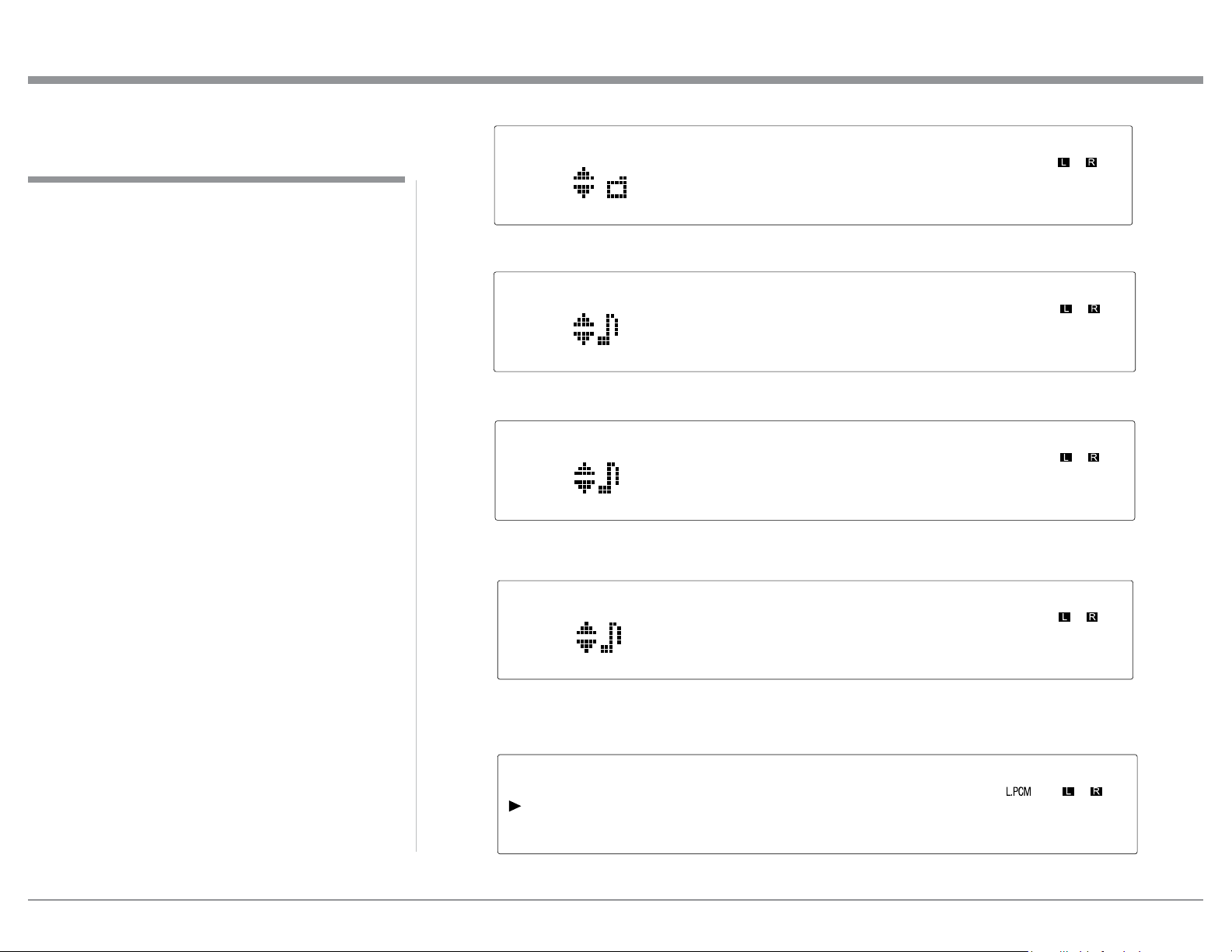
Front Panel Display
When playing a Data CD Disc, Data DVD Disc or
USB Flash Memory Drive, the MCD600 Front Panel
Information Display will also indicate the following:
Folder or Sub-Folder Name
Artist Name
Album Name
Track Name
Audio Format Type and Sampling Frequency
Getting Ready-
Freddie King -
Music One
09-Tore Down.
WAV 44.1kHz
18
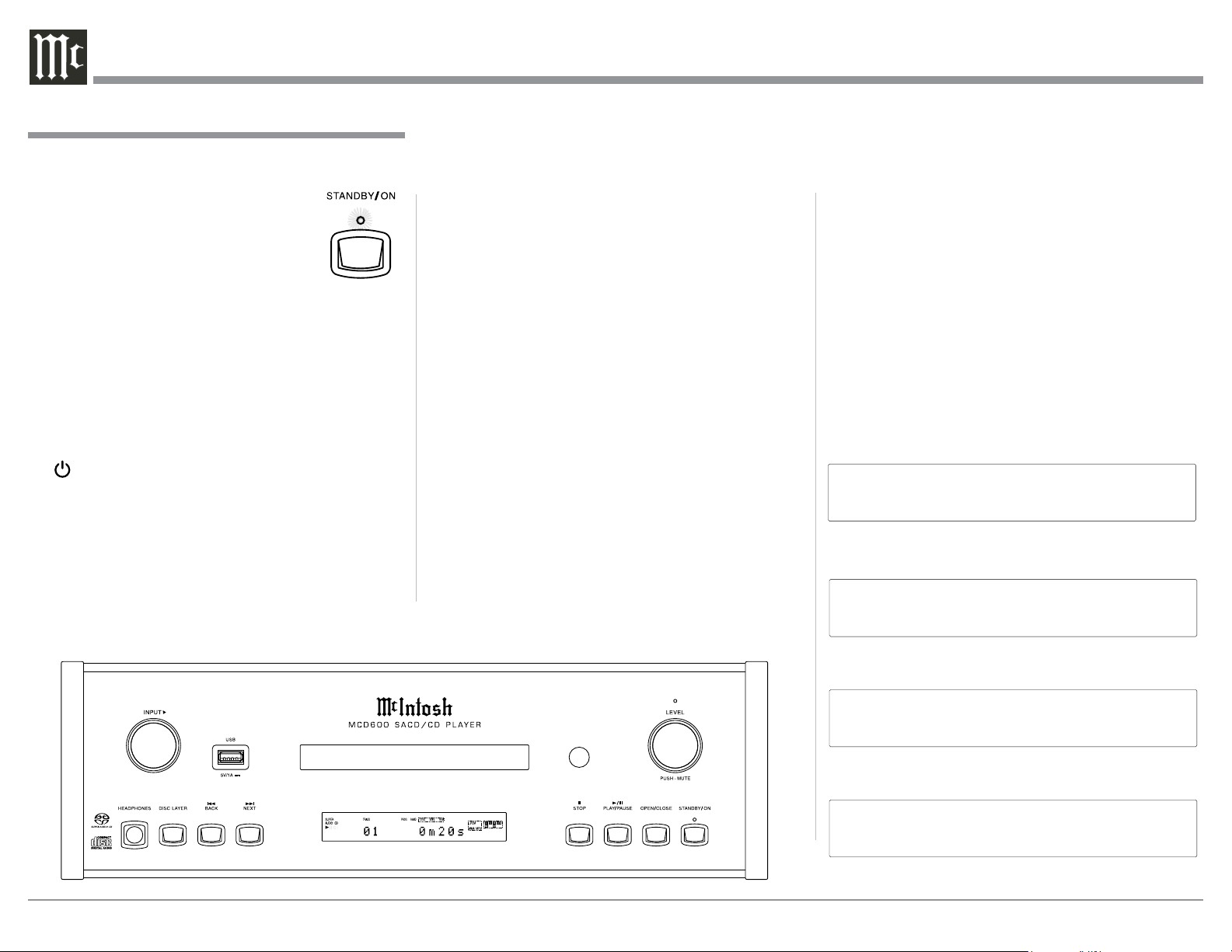
Power On and Off
The LED above the STANDBY/ON Push-button lights
to indicate the MCD600 is connected to
AC Power. Refer to figure 1. The LED
also indicates the status of the Auto
Off Feature. When the MCD600 is in
the Standby Mode, green illumination
indicates the Auto Off Feature is enabled
(default setting) and red illumination in-
dicates the Auto Off Feature is disabled. For additional
information refer to “Power Mode” on page 24.
Note: When AC Power is initially applied to the
MCD600, the unit will momentarily switch On
and then go into the Standby Mode.
To Switch ON the MCD600, momentarily press the
STANDBY/ON Push-button on the Front Panel or
the (Power) Push-button on the Remote Con-
trol. Refer to figures 2 and 10. The LED above the
STANDBY/ON Push-button illuminates green. The
Front Panel Display will momentarily indicate “DISC”
followed by “READING” and then “NO DISC”.
Refer to figures 2, 3, 4, 5 and 10. To switch OFF the
MCD600, momentarily press the STANDBY/ON
Push-button on the Front Panel or the OFF Push-but-
ton on the Remote Control.
How to Operate the MCD600
Figure 2
Figure 3
DISC
Figure 5
NO DISC
Figure 4
READING
Figure 1
DISC
Figure 6
USB
Figure 7
COAXIAL
Figure 8
OPTICAL
Figure 9
Note: When the MCD600 SACD/CD is first switched
On (after it is connected) it will default to the
Input Selection of the DISC Mode. The next
time the MCD600 is switched On, it will have
the same Input Selected Mode when it was
switched Off the previous time.
Input Sources
The MCD600 provides high performance music play-
back from up to four different Input Sources. The First
Music Source is DISC Playback of three different type
of Disc Formats which includes CD, SACD and Com-
puter Created Data Discs. The Second Music Source
is a USB Flash Memory Drive which plays back PCM
and DSD computer created Music Recorded Formats.
The Third and Fourth Music Sources are the Rear
Panel Digital Coaxial and Optical Input Connec-
tions for a variety audio components. The MCD600
provides the ability to decode Digital PCM Audio
Signals. The decoding is performed by the High Per-
formance Quad Balanced Digital to Analog Converter
Circuitry of the MCD600.
Input Selection
To change the Input Music Source, rotate the Front
Panel INPUT Control CLOCKWISE or press the
INPUT Push-button on the Remote Control to select
the desired Input Music Source. Refer to figures 2 and
10. The Front Panel Information Display will momen-
tarily indicate the selected Input Music Source. Then
the display will change to indicate the information that
is normally displayed during music playback. First
refer to figures 6 thru 9 and then figure 13 for the
DISC Playback Display. When a USB Flash Memory
Drive is inserted into the Front Panel Connector, the
MCD600 Input Selector will automatically switch
over from the existing Input Music Source to the USB
Music Source Playback.
19
The Album Title is followed by the Table of Contents.
Refer to figure 17.
Press the PLAY/PAUSE/; Push-button on the Front
Panel of the MCD600 or on the Remote Control. Refer
to figures 2 and 10. The Disc will start playing the
first track of the SACD Layer.
Note: The default setting for SACD/CD Hybrid Disc
is to play the SACD Stereo Layer. The default
setting may be changed to play the CD Layer
or the SACD Multichannel Layer, when avail-
able. With the MCD600 On and no disc loaded,
press the DISC LAYER Push-button until the
Front Panel Display indicates the desired
layer.
Selection of a different Layer (CD, Stereo or
Multichannel) can occur during playback of a disc by
pressing the DISC LAYER Push-but-
ton once to see the current selection
and a second or third time to select
the desired Layer. Refer to figures 18,
19 and 20. The Player will stop play-
ing the current Layer and then load
the desired Layer’s Table of Contents
(Number of tracks and Total Playing
Time).
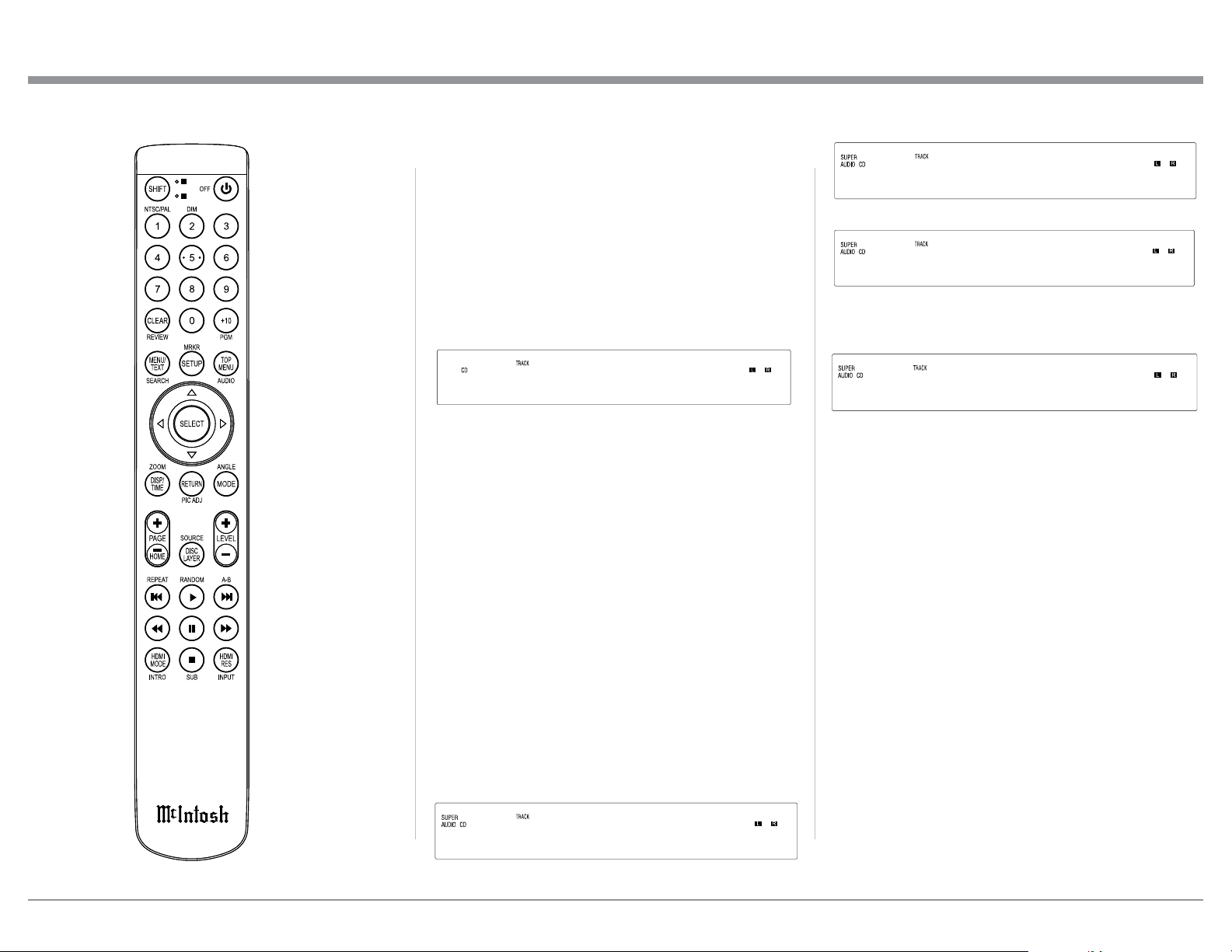
How to Load and Unload a Disc
1. Press the OPEN/CLOSE Push-button. The disc tray
will slide out allowing a CD Disc to be
loaded. Refer to figure 11.
2. Press the OPEN/CLOSE Push-button
and the disc tray will close. Refer to
figure 12. Loading of the CD Disc’s
Table of Contents (number of tracks
and total playing time) will be indi-
cated on the Front Panel Display. Refer to figure 13.
Notes: 1. The MCD600 will start up selecting the
same source it played last.
2. When a Disc is placed in the tray and the
PLAY/PAUSE Push-button is pressed, the
tray will close and the first track will start
playing.
3. If a USB Flash Memory Data Drive was
inserted into the USB Front Panel Socket,
the INPUT Push-button needs to select
“DISC” after AC Power is switched ON to
the MCD600.
3. Pressing the OPEN/CLOSE Push-button will stop
playback of the disc and the disc tray will open.
How to Play a SACD Disc
Load a SACD Disc into the MCD600. The Front Panel
Display will first scroll the Album Title of the SACD
Disc (available on most SACD Discs). Refer to figures
14, 15 and 16.
Fig ure 11
OPEN
CLOSE
Figure 12
12 58m32s
Figure 13
Figure 14
ALBUM ARTIST: Jac
TITLE: Dvorak: Cel
Figure 15
ak: Cello Concert
Figure 16
8 48m12s
Fig ure 17
Figure 10
Figure 18
STEREO
Figure 20
CD
Figure 19
MULTI
How to Operate the MCD600
20
Once the information is indicated on the front panel
display, press the PLAY/PAUSE/; Push-button.
Refer to figure 20.
Note: 1. Most SACD Discs have the ability of display-
ing the Album Title and Artist. With the disc
loaded, SACD Table of Contents read and the
disc stopped, press the MENU/TEXT Push-
button once for scrolling the Title and twice
for scrolling the Artist Name. Display of the
Artist information is not available during
playback of the disc. Refer to figures 21, 22
and 10.
2. In a similar manner, some SACD Discs have
the ability of scrolling the Track Number and
Title by pressing the MENU/TEXT Push-but-
ton after the Track has started to play. Refer
to figures 23 and 10.
3. The Text Display Mode may be canceled by
pressing the DISP/TIME Push-button on the
Remote Control. Refer to figure 10.
4. The various Time Modes may be displayed by
pressing the DISP/TIME Push-button on the
hold the : Push-button for rapid
selection of the desired next Track.
Refer to figures 2 and 10.
Fast Forward or Reverse
Using the Remote Control, press
the 8 (Fast Forward) or 7 (Re-
verse) Push-button to search back
and forth rapidly through a Track
on a disc. To return to normal
playback, release the same 8 (Fast
Forward) or 7 (Reverse) Push-
button. Refer to figure 10.
Stop Mode
Press the STOP< Push-button at
any time to stop Playback. To listen
to the disc again, press the PLAY/
PAUSE/; Push-button and play-
back will start from the beginning
of the disc.
Direct Track Selection
The MCD600 Front Panel Display
indicates the Disc Track currently
playing. Use the Remote Control
NUMERIC Push-button(s) to enter
the desired Track Number. Refer
to pages 14 and 15 for additional
information using the Remote
Control.
Repeat
This allows repeating a Track,
Disc, Program Mode or Random Play Mode on a con-
tinuous basis. Refer to figures 10 and 2.
Remote Control. Refer to figure 21. For addi-
tional information on the Time Display Modes
refer to “Display Modes” on page 24.
5. SACD Discs containing Multichannel sound
tracks are down mixed into two channels and
available at the Analog Audio Outputs.
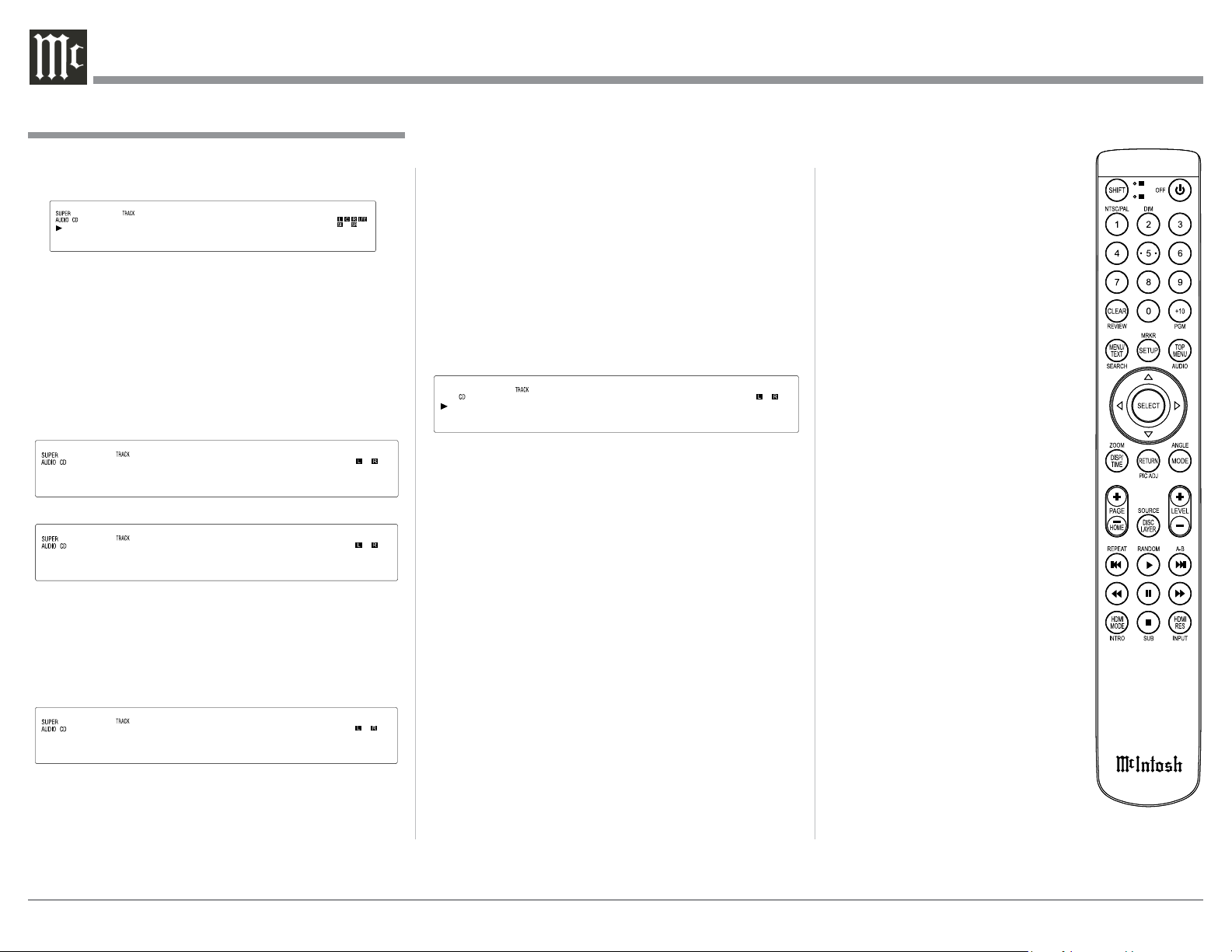
How to Play a CD Disc
With a disc already loaded into the MCD600, press
the PL AY/ PAUSE/; Push-button on the Front Panel
of the MCD600 or Remote Control. Refer to figures 2,
24 and 10.
How to Pause a Disc
This feature allows for the temporary stopping of disc
playback. Refer to figures 2 and 20.
1. When playing a Disc, press the PLAY/PAUSE/;
Push-button to temporarily stop playback.
2. Press the PLAY/PAUSE/; Push-button to re-
sume playing the disc.
Track Back
Return to the beginning of the Track currently play-
ing by momentarily pressing the MCD600 Front Panel
BACK 9 Pushbutton or the 9 Push-button on the
Remote Control. Press and hold the 9 Push-button for
for rapid selection of the desired previous Track. Refer
to figures 2 and 10.
Track Next
Advance to the next Track by momentarily pressing
the MCD600 Front Panel NEXT : Push-button or
the : Push-button on the Remote Control. Press and
ALBUM ARTIST: Jac
Figure 21
ARTIST: Jacintha
Figure 22
Figure 23
8: Autumn Leaves
Figure 24
1 0m05s
Figure 20
1 0m08s
Figure 10
How to Operate the MCD600, con’t
21
1. With the disc playing (Regular, Program or Ran-
dom Playback Mode), press the SHIFT Push-button
then the REPEAT Push-button once to activate the
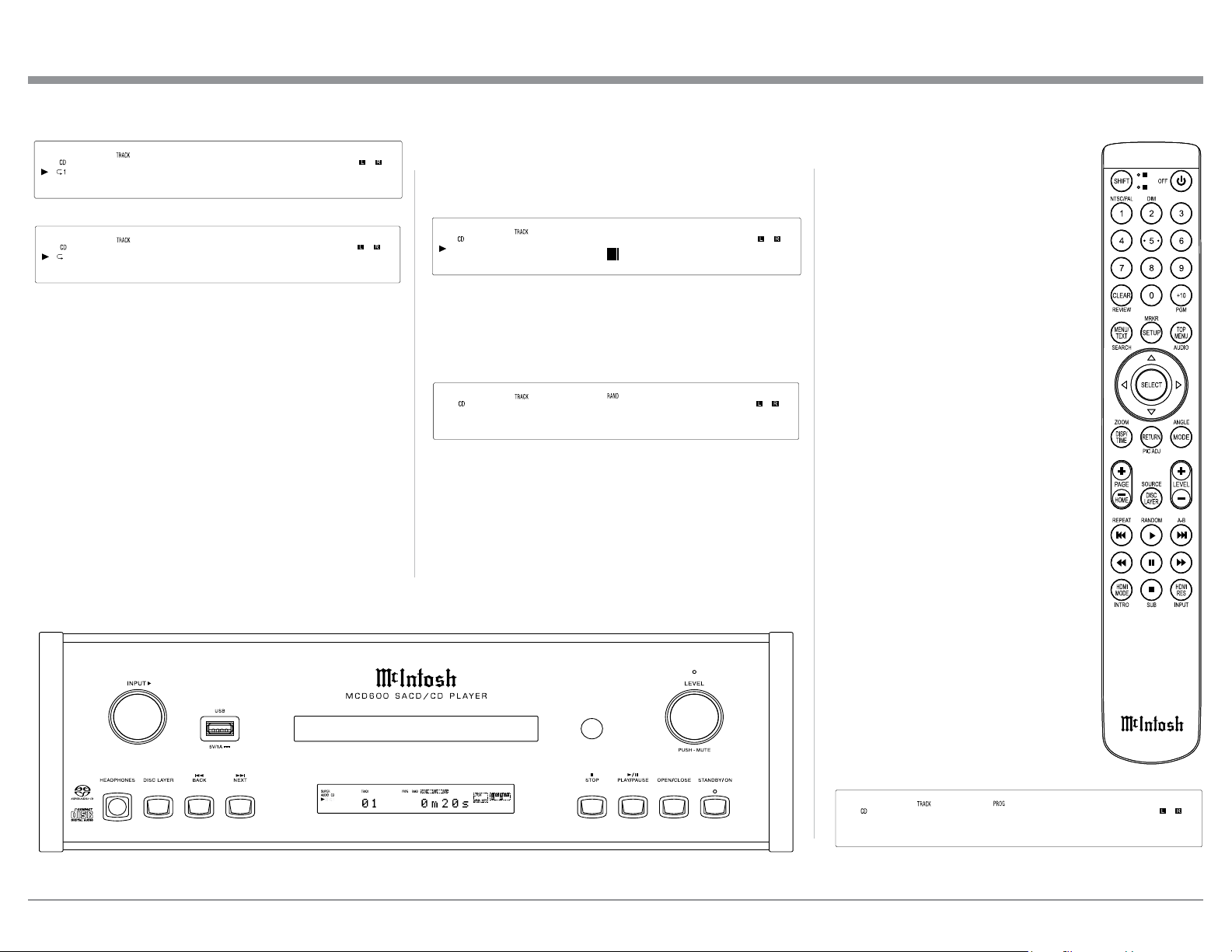
Track Repeat (
N1); press the REPEAT Push-button
twice to activate the Disc Repeat (N). Refer to
figures 25 and 26.
2. To cancel the previously selected Repeat Mode,
press the REPEAT Push-button until the character
“1” and/or the symbol “N” in the Front Panel Infor-
mation Display is extinguished.
Random Playback
This feature allows for listening to Tracks of a Disc in
a Random Order. Refer to figure 10.
Note: Before the Random Playback Mode feature on
the MCD600 can be activated, the disc must be
stopped or the message “Press
< (stop) first”
will momentarily appear on the Front Panel Dis-
play. Refer to figure 27.
1. With the MCD600 in the STOP< Mode press
the SHIFT Push-button and then the RANDOM
Push-button. The word RANDom will be indicat-
ed in the Front Panel Display. Refer to figure 28.
2. Press the PLAY/PAUSE/; Push-button to start
Random Playback. After all the tracks have been
played the MCD600 will stop.
Notes: 1. To provide continuous playback of the disc,
press the REPEAT Push-button twice to ac-
tivate the Disc Repeat (N) after the Random
Playback Mode has started. If Repeat (N1)
is selected, the current track will repeat.
2. The NEXT TRACK
:
function will advance to
the next random selection
and start playing.
3. To cancel the Random Playback
Mode, press the STOP< Push-
button, then press the RANDOM
Push-button twice.
Program Playback
This feature allows for playback of
selected Tracks on a Disc in the de-
sired order. In the following example,
a Disc is programmed to play Track 6
followed by Track 4 and then Track 2.
Notes: 1. The MCD600 must be in
STOP Mode with the Disc
TOC (Table of Contents) read
before the Program Play-
back Mode Feature can be
activated.
2. When programming Hybrid
SACD Discs, first choose the
layer (SACD or CD) so the
correct TOC can be read,
as some discs have different
selections for the SACD and
CD Tracks.
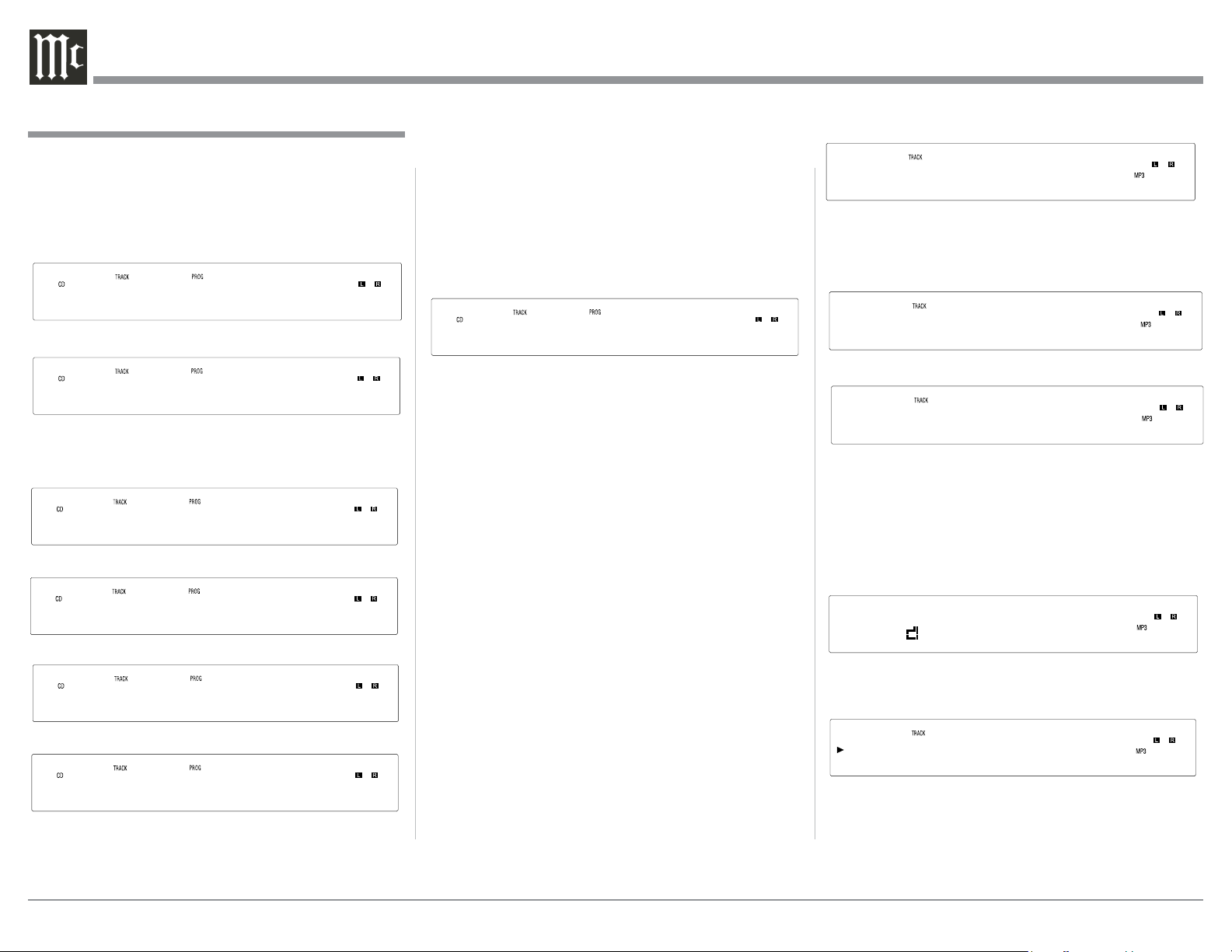
1. Press the SHIFT Push-button and
then the RANDOM Push-button
twice to access the Program
Mode. Refer to figures 10, 24 and
29.
How to Operate the MCD600, con’t
Figure 25
1 0m05s
Figure 26
1 0m05s
Press first
Figure 27
Figure 10
Figure 2
12 58m32s
Figure 28
12 58m32s
Figure 29
22
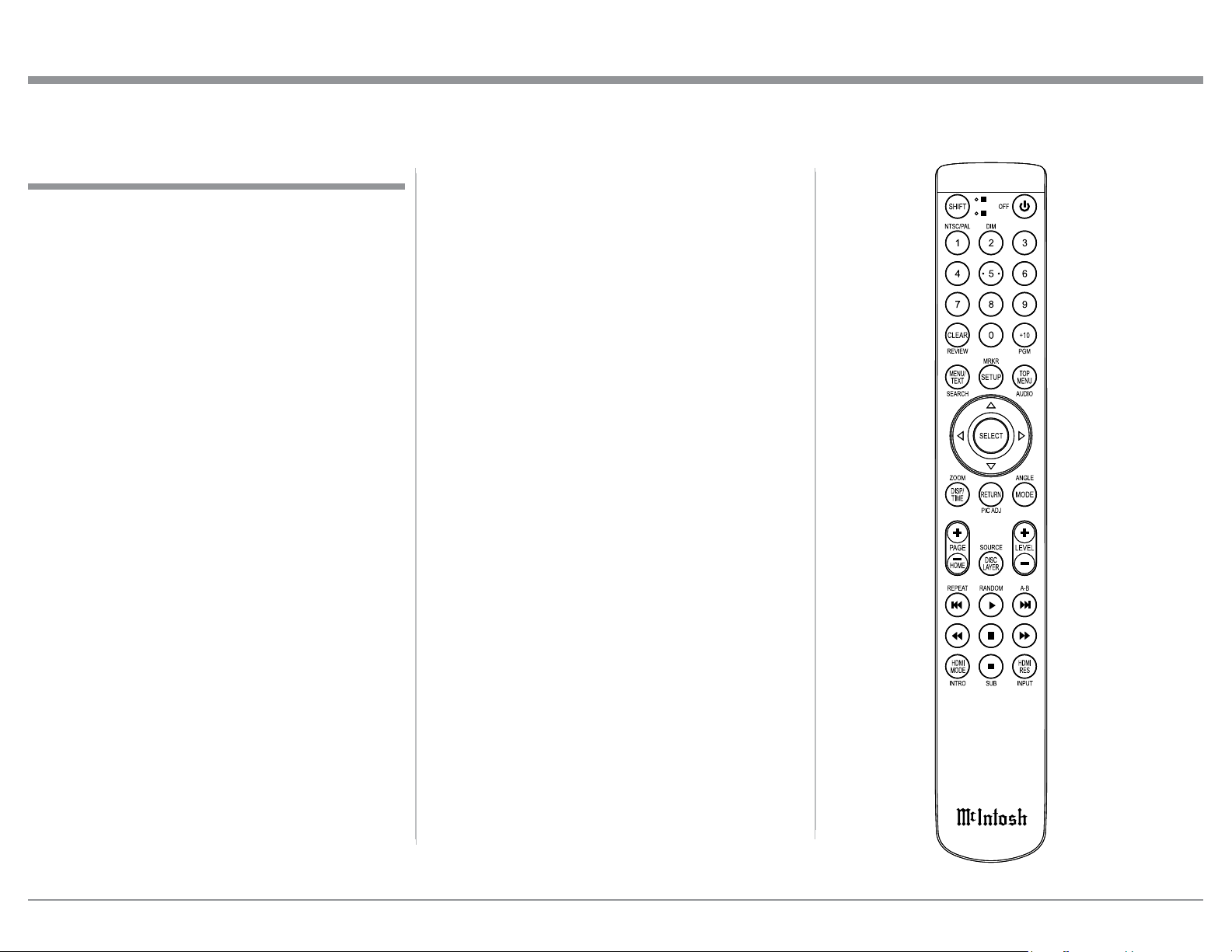
The MCD600 has two MP3/WMA Modes of Opera-
tion: All Mode and Folder Mode. Refer to figures
38 and 39. Select the desired mode by pressing the
MODE Push-button on the Remote Control.
The All Mode will playback all the tracks on the disc
starting with tracks not in folders, followed by the
tracks contained in the folder. The Folder Mode will
play back the tracks contained in the selected folder.
Refer to figure 40.
1. Press the PLAY/PAUSE/; Push-button to start
Playback. Refer to figure 41.
After all the tracks have been played the MCD600
will stop.
Note: Use the ▲ up and ▼ down directional Push-
buttons to select folders on the disc.
Note: To view and/or delete the selections pro-
grammed, use the
TRACK NEXT :
Push-button to step through programmed
tracks and the CLEAR Push-button to re-
move any unwanted selections.
4. To start playback of the just entered program,
press the PLAY/PAUSE/; Push-button. Refer
to figure 36.
After playback begins, the Repeat Mode can be
activated to provide continuous playback of the
Programmed Track(s). Refer to figure 10.
Note: To momentarily stop playback, press the
PLAY/PAUSE/;Push-button. To re-
sume Program Playback press the PLAY/
PAUSE/; Push-button.
5. To cancel the Program Playback Mode, press the
STOP< Push-button, then the SHIFT Push-button
and then the RANDOM Push-button.
Once the Program Playback Mode is active, tracks
may be added or deleted by first pressing the STOP<
Push-button followed by entering the additional tracks
using the Numeric Push-buttons or delete the last
track programmed by using the CLEAR Push-button.
MP3/WMA Disc Playback
The MCD600 has the ability of playing back MP3
and WMA encoded discs. MP3 and some version of
WMA coding allow more tracks on the Disc by us-
ing the technique of lossy compression applied to the
original audio information. These Tracks have lower
audio quality than the original recording. Load a MP3/
WMA disc into the MCD600. Refer to figure 37.
2. Enter the first desired selection (track 6) using the
Numeric Push-buttons. The Front Panel Display
will first indicate track 6 followed by indicat-
ing the total number of tracks and total playback
time for the current program. Refer to figures 30
and 31.
3. In a similar manner, enter the remaining Tracks 4
and 2. Refer to figures 32 thru 35.
4 m s
Figure 32
2 8m28s
Figure 33
2 m s
Figure 34
3 15m53s
Figure 35
6 0m03s
Figure 36
6 m s
Figure 30
1 4m59s
Figu re 31
Figure 37
DISC 10
All Mode
Figure 38
Folder Mode
Figure 39
How to Operate the MCD600, con’t
1 mp-3
Figure 40
Figure 41
4 2m15s
23
Load a DATA Disc or insert a DATA USB Flash
Memory into the MCD600. The Front Panel Display
will then indicate whether a Data Disk or a DATA
USB Flash Memory has been inserted into the
MCD600.
The Front Panel Information Display will indicate
“Reading” of the Data from the source and which in-
cludes the number of Folders, Sub Folders and Tracks.
It also reads the Album Name, the Artist Name, the
Track Name, the Track Time, along with the Audio
Format Type and Sampling Frequency. Refer to the
graphics on page 17.
To start playback of the desired music track(s)
perform the following steps using the Remote Control
Push-buttons as identified on page 16.
Start Playback of a Track
1. Press the Number 4 Push-button. The Display will
indicate the name of the current Folder.
2. Press the Number 2 Push-button to select the first
Music Track in the current Folder. The Display
will indicate the Track Number and Track Name.
3. To start playback of the track indicated in step 2,
press the ► PLAY Push-button.
4. Pressing the MENU/TEXT Push-button several
times will display first the Track Name, followed
by the Artist Name and then the Album Name.
5. To select a different Folder, press the Number 4
Push-button followed by pressing the Number 2
Push-button. Once the desired Folder has been
selected, press the Number 5 Push-button. Then
repeat steps 2 and 3.
How to Operate the MCD600, con’t
Playback of Data Disc or
USB Flash Memory Data Drive
Figure 10
Selection of a Sub Folder
1. Press the Number 4 Push-button. The Display
will indicate the name of the current Folder. Then
press the Number 5 Push-button twice and the Sub
Folder will now be selected.
2. Press the Number 2 Push-button to select the
first Music Track in the current Sub Folder. The
Display will indicate the Track Number and Track
Name.
3. To start playback of the track indicated in step 2,
press the ► PLAY Push-button.
4. Pressing the MENU/TEXT Push-button several
times will display first the Track Name, followed
by the Artist Name and then the Album Name.
5. Pressing the DISP/TIME Push-button will now
indicate the Audio Format Type and the Sampling
Frequency of the current Track playing on the
Display. Pressing the DISP/TIME Push-button
a second time will have the Track Number and
Track Playback Time displayed again.
24
Power Mode
The MCD600 incorporates an Auto Off Feature,
which can automatically place the SACD/CD Trans-
port into the Power Saving Standby/Off Mode (default
setting). This occurs approximately 30 minutes after
there has been an absence of a Digital Audio Signal. If
it is desirable to disable the Auto Off Feature, perform
the following steps:
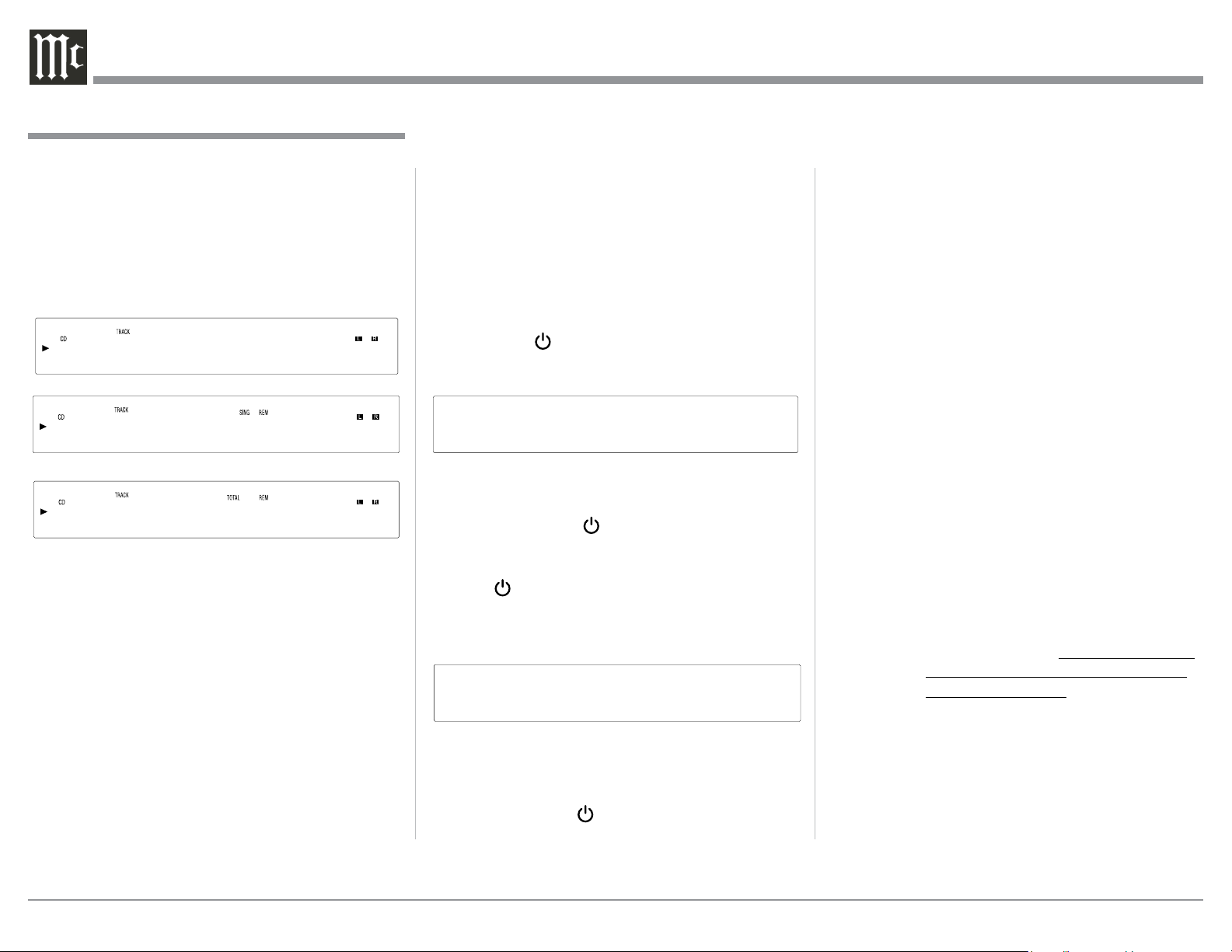
1. Using the MCD600 Remote Control, press and
hold in the (Power) Push-button for about 5-10
seconds, at which time the Front Panel Display
indicates “Auto STBY Off”. Refer to figure 45.
2. The MCD600 will switch Off and the LED above
the STAND/BY Push-button will illuminate Red
in color. Press the (Power) Push-button to
switch the MCD600 On.
3. To re-active the Auto Off Feature, press and hold
in the Power Push-button on the Remote Con-
trol for about 5-10 seconds, at which time the Front
Panel Display indicates “Auto STBY On”. Refer to
figure 46.
4. The MCD600 will switch Off and the LED above
the STAND/BY Push-button will illuminate Green
in color. Press the (Power) Push-button to
switch the MCD600 On.
Display Modes
The MCD600 Front Panel Display indicates both track
number and playing time. There are three playing time
display indications: track elapse time, track remaining
time or disc remaining time. To change from the de-
fault setting of track elapse time, press the DSP/TIME
Push-button on the Remote Control. Refer to figures
10, 42, 43 and 44.
Display Brightness
There are three available Settings for the Front Panel
Display. The choices include brightness settings of
high (default setting), medium or low. To change the
brightness setting perform the following steps and
refer to figure 10:
1. Press the SHIFT Push-button.
2. Momentarily press the 2 (DIM) Push-button to
change the current brightness setting. Repeat this
until the desired brightness setting is selected.
3. Press the DISC LAYER Push-button to store the
new brightness setting.
How to Operate the MCD600, con’t
Auto STBY On
Figure 46
Auto STBY Off
Figure 45
How to Operate the MCD600, con’t
Figure 43
1 -2m35s
Figure 44
1 -51m33s
Figure 42
1 1m35s
Resetting the MCD600
In the unlikely event the MCD600 stops functioning,
first try resetting the Main (System) microprocessor
by performing the following:
1. Switch Off the MCD600 by using the STANDBY/
ON Front Panel Push-button. Then simultaneously
press and hold in the Front Panel MUTE (LEVEL
Control) and DISC LAYER Push-button until the
illumination of the LED above the STANDBY/ON
Push-button goes Off.
2. Press the STAND/BY Push-button to switch the
MCD600 back On.
Note: Resetting of the microprocessor also places
the Power Saving Mode into the default
setting of On.
If the MCD600 is still not functioning properly, reset
the Secondary (Transport) microprocessor by per-
forming the following:
1. Switch Off A.C. Power going to the MCD600.
Note: Temporarily, connect the AC Power
Cord coming from the MCD600 into an
AC Power Strip with an On/Off Switch.
Position the AC Power Strip so the On/Off
Switch on the strip is in very close proxim-
ity to the MCD600 Front Panel NEXT and
STOP Push-buttons (the MCD600 Remote
Control STOP Push-button will not work
for resetting the micro).
2. Press and hold in the NEXT: and STOP< Push-
buttons while at the same time switching On the
AC Power Strip.
3. The Front Panel will indicate “RESET” and then
go through the process of reading the Disc for
playback. At this time release the NEXT: and
the STOP< Push-button.
4. The MCD600 will resume normal operation.
25
Photos
26
Specications
Digital Audio Specifications
Digital Input Format
SPDIF (PCM
1
)
Digital Input Sample Rate
Coaxial: 16, 24-Bit/96kHz
Optical: 16, 24-Bit/192kHz
Digital Inputs
Coaxial: 0.5V p-p/75 ohms
Optical: - 15dbm to -21dbm (TOS Link)
Digital Output Format
SPDIF (PCM
1
)
Digital Output Sample Rate
Up to 24-Bit/192kHz
Digital Outputs
Coaxial: 0.5V p-p/75 ohms
Optical: - 15dbm to -21dbm (TOS Link)
Digital Audio Output Format
Coaxial and Optical: SPDIF (PCM
1
), IEC958
44.1kHz to 192KHz/24Bit
1
PCM (Pulse Code Modulation) Digital Signal type used for
CD Discs
2
DSD (Direct Stream Digital) Digital Signal type used for
SACD Discs
Transport
Laser Type: Twin Beam
Laser Beam Wavelength: 650nm (SACD)/790nm (CD)
Laser Power: CLASS IIa/CLASS I
Power Requirements
100 Volts, 50/60Hz at 35 watts
110 Volts, 50/60Hz at 35 watts
120 Volts, 50/60Hz at 35 watts
127 Volts, 50/60Hz at 35 watts
220 Volts, 50/60Hz at 35 watts
230 Volts, 50/60Hz at 35 watts
240 Volts, 50/60Hz at 35 watts
Standby: Less than 0.5 watt
Note: Refer to the rear panel of the MCD600 for the cor-
rect voltage.
Overall Dimensions
Width is 17-1/2 inches (44.4cm)
Height is 6 inches (15.2cm)
Depth is 19 inches (48.3cm) including the Front Panel
and Cables
Note: When the Disc Tray is opened, the panel clear-
ance required in front of mounting panel is 6-3/4
inches (17.2cm).
Weight
28.2 pounds (12.8Kg) net, 44.6 pounds (20.2Kg) in
shipping carton
Shipping Carton Dimensions
Width is 26-1/2 inches (67.3cm)
Depth is 24-1/4 inches (62.2cm)
Height is 11-3/4 inches (29.9cm)
General SpecificationsAudio Specifications
Disc Formats
CD, SACD, MP3 WMA
Fixed Output level
2.0Vrms Unbalanced
4.0Vrms Balanced
Variable Output level
0 - 8.0Vrms Unbalanced
0- 16.0Vrms Balanced
Output Impedance
600 ohms Unbalanced and Balanced
Frequency Response
4Hz to 20,000Hz, ±0.5dB (CD)
4Hz to 40,000Hz, +0.5, -2dB (SACD)
4Hz to 40,000Hz, +0.5, -2dB (DATA)
Signal to Noise Ratio
Better than 110dB (A-weighted)
Dynamic Range
Better than 100dB
Harmonic Distortion
0.002% @ 1,000Hz (CD)
0.002% @ 1,000Hz (SACD)
0.002% @ 1,000Hz (DATA)
Channel Separation
Better than 98dB (1,000Hz)
Headphone Output Impedance
47 ohms
Headphone Load Impedance
16-600 oh ms
27
Packing Instructions
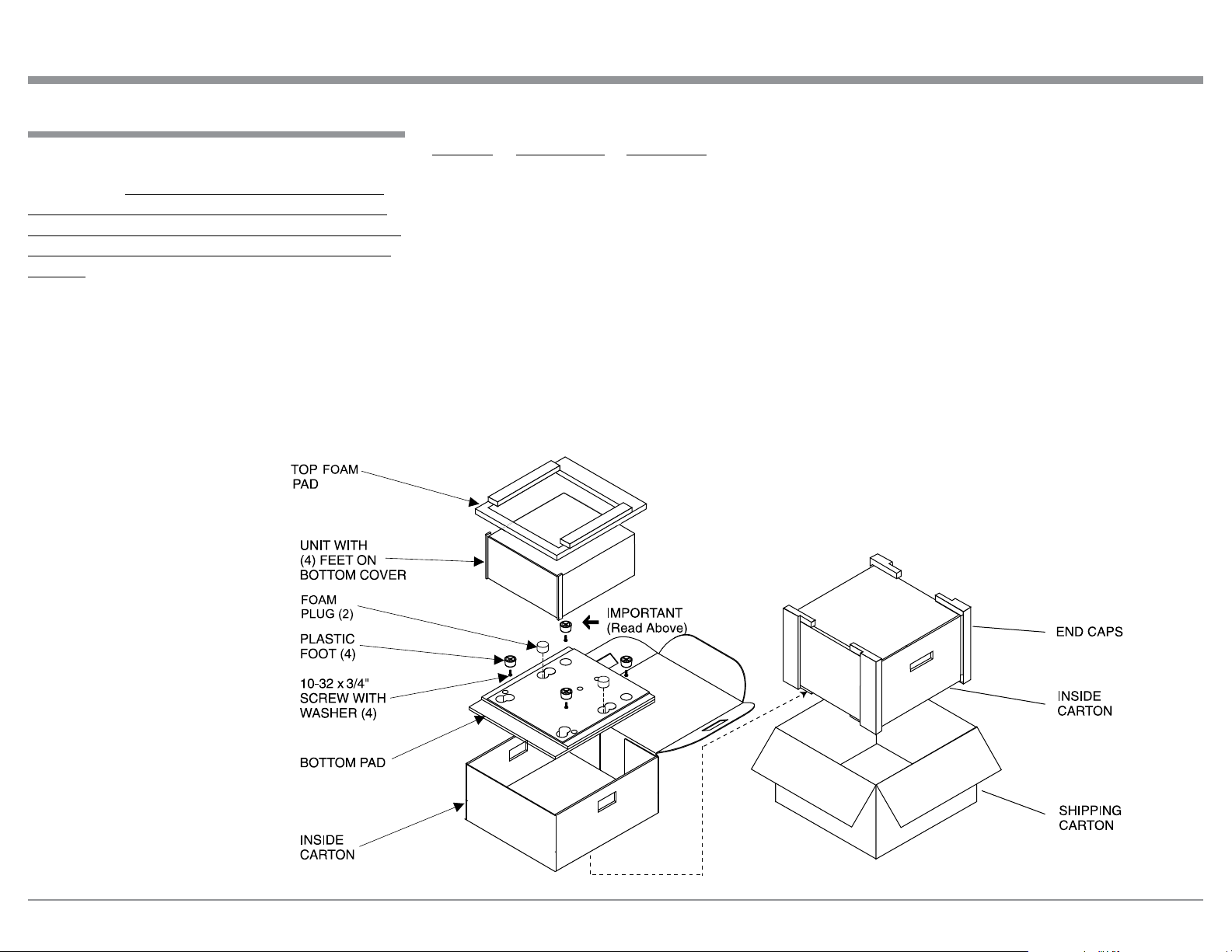
Packing Instructions
In the event it is necessary to repack the equipment for
shipment, the equipment must be packed exactly as
shown below. It is very important that the four plas-
tic feet are attached to the bottom of the equipment.
This will ensure the proper equipment location on the
bottom pad. Failure to do this will result in shipping
damage.
Use the original shipping carton and interior parts
only if they are all in good serviceable condition. If
a shipping carton or any of the interior part(s) are
needed, please call or write Customer Service Depart-
ment of McIntosh Laboratory. Refer to page 3. Please
see the Part List for the correct part numbers.
Quantity Part Number Description
1 033838 Shipping carton only
4 033837 End cap
1 033836 Inside carton only
1 034414 Top foam pad
1 034576 Bottom pad
2 034446 Foam plug
4 017937 Plastic foot
4 400159 #10-32 x 3/4” screw
4 404080 #10 Flat washer

The continuous improvement of its products is the
policy of McIntosh Laboratory Incorporated who
reserve the right to improve design without notice.
Printed in the U.S.A.
McIntosh Laboratory, Inc.
2 Chambers Street
Binghamton, NY 13903
www.mcintoshlabs.com
McIntosh Part No. 04185800