
Table Of Contents
Help Guide NW-A25/A25HN/A26HN/A27HN i..................................................................................
Getting Started 1...............................................................................................................................
Customer registration website 100..............................................................................................
Before Use 28..............................................................................................................................
Before first use 101................................................................................................................
Walkman instruction manuals 103.........................................................................................
How to use the operating explanations 104...........................................................................
Enjoying Using Your Walkman 29...............................................................................................
3 steps to listening to music 105............................................................................................
Various ways to enjoy using your Walkman 107...................................................................
Parts and Controls 30..................................................................................................................
Parts and controls 108...........................................................................................................
Changing the earbuds 110....................................................................................................
Attaching the clip 111............................................................................................................
Power/Charging 31......................................................................................................................
Turning the power on 112......................................................................................................
Turning the power off 113......................................................................................................
Using the HOLD switch 114...................................................................................................
Charging the battery 115.......................................................................................................
Charging in the battery care mode 116.................................................................................
Extending the battery life 117................................................................................................
Notes on charging the battery 118.........................................................................................
Basic Operations 2............................................................................................................................
Transferring/Deleting Content 3........................................................................................................
Operation Flow for Transferring Content to Your Walkman 38...................................................
Preparing content using a Windows computer 145...............................................................
Preparing content using a Mac computer 146.......................................................................
Installing Media Go 39.................................................................................................................
About Media Go 147..............................................................................................................
Installing Media Go 148.........................................................................................................
Installing Content Transfer 40.....................................................................................................
About Content Transfer 149..................................................................................................
Installing Content Transfer 150..............................................................................................
Importing Content to the Software 41..........................................................................................
Importing and transferring content from media using Media Go 151.....................................
Importing content on your Windows computer into Media Go 153........................................
Importing podcasts into Media Go 154..................................................................................
Transferring Content to Your Walkman 42..................................................................................
TOC-1

Transferring content using Media Go 155.............................................................................
Transferring iTunes content using Media Go 156..................................................................
Transferring content using Content Transfer 157..................................................................
Transferring content using Explorer 158................................................................................
Transferring content using the Finder 160.............................................................................
Notes for transferring content such as music from your computer 162.................................
Deleting Content from Your Walkman 43....................................................................................
Deleting content from your Walkman using Media Go 164...................................................
Deleting content from your Walkman using Content Transfer 165........................................
Deleting content received from a Bluetooth connection 166.................................................
Deleting content from your Walkman using Explorer 167......................................................
Deleting content from your Walkman using the Finder 168...................................................
Operating with Media Go 44........................................................................................................
Playing live albums with no gaps in between songs 169.......................................................
Deleting content imported to Media Go 170..........................................................................
Inputting the lyrics information using Media Go 171..............................................................
Music 4..............................................................................................................................................
Playing Music 45.........................................................................................................................
Deleting songs 183......................................................................................................................
Using Bookmarks 47...................................................................................................................
Displaying Lyrics 48.....................................................................................................................
SensMe™ Channels 49.................................................................................................................
Music Settings 50........................................................................................................................
Photos/Videos/Podcasts 5.................................................................................................................
Viewing Photos 52.......................................................................................................................
Watching Videos 53.....................................................................................................................
Playing Podcasts 54....................................................................................................................
Photo Settings 55........................................................................................................................
Video Settings 56........................................................................................................................
FM Radio 6........................................................................................................................................
Listening to FM Radio 57.............................................................................................................
FM Radio Settings 58..................................................................................................................
microSD Card 59...............................................................................................................................
Inserting a microSD card 124......................................................................................................
Removing a microSD card 126....................................................................................................
Selecting the memory to use 128................................................................................................
Formatting a microSD card 123...................................................................................................
Notes on microSD cards 129.......................................................................................................
Noise Canceling 8.............................................................................................................................
Using the Noise Canceling Function 60......................................................................................
TOC-2

Noise Canceling Settings 61.......................................................................................................
Bluetooth 9........................................................................................................................................
What Is the Bluetooth Function? 62............................................................................................
Connecting with Bluetooth Audio Devices 63..............................................................................
Listening to sound using a Bluetooth audio device 268..............................................................
Sending/Receiving Content via a Bluetooth Connection 65........................................................
Information of Bluetooth Audio Devices 66.................................................................................
Bluetooth Settings 67..................................................................................................................
Notes on the Bluetooth function 286...........................................................................................
NFC 10..............................................................................................................................................
What is the NFC function? 288....................................................................................................
Connecting with One Touch (NFC) 70........................................................................................
Making a Bluetooth connection using the NFC function 265.................................................
Settings 11.........................................................................................................................................
Music Settings 71........................................................................................................................
Photo Settings 73........................................................................................................................
Video Settings 74........................................................................................................................
FM Radio Settings 75..................................................................................................................
Noise Canceling Settings 76.......................................................................................................
Bluetooth Settings 77..................................................................................................................
Alarm/Sleep Timer Settings 78....................................................................................................
Selecting Headphones 79...........................................................................................................
Common Settings 80...................................................................................................................
Language Settings 82..................................................................................................................
Announcement 12.............................................................................................................................
Precautions 83.............................................................................................................................
Customer support website 307....................................................................................................
Specifications 85...............................................................................................................................
Specifications 308.......................................................................................................................
Battery life 310.............................................................................................................................
Maximum recordable number of songs and time (Approx.) 312..................................................
Maximum recordable time of videos (Approx.) 314.....................................................................
Supported formats 315................................................................................................................
System requirements 318............................................................................................................
Contents 319...............................................................................................................................
Troubleshooting 14............................................................................................................................
What Can I Do to Solve a Problem? 86.......................................................................................
Q&A 15..............................................................................................................................................
Operation 87................................................................................................................................
Sound 88.....................................................................................................................................
TOC-3

Power 89.....................................................................................................................................
Connection to a Computer 90......................................................................................................
Displaying/Playing/Deleting Content 91......................................................................................
FM Radio 93................................................................................................................................
Bluetooth 94................................................................................................................................
NFC 95........................................................................................................................................
Noise Canceling 96.....................................................................................................................
microSD Card 97.........................................................................................................................
Other 98.......................................................................................................................................
Message 99.................................................................................................................................
How to Use 16...................................................................................................................................
Troubleshooting 24............................................................................................................................
TOC-4
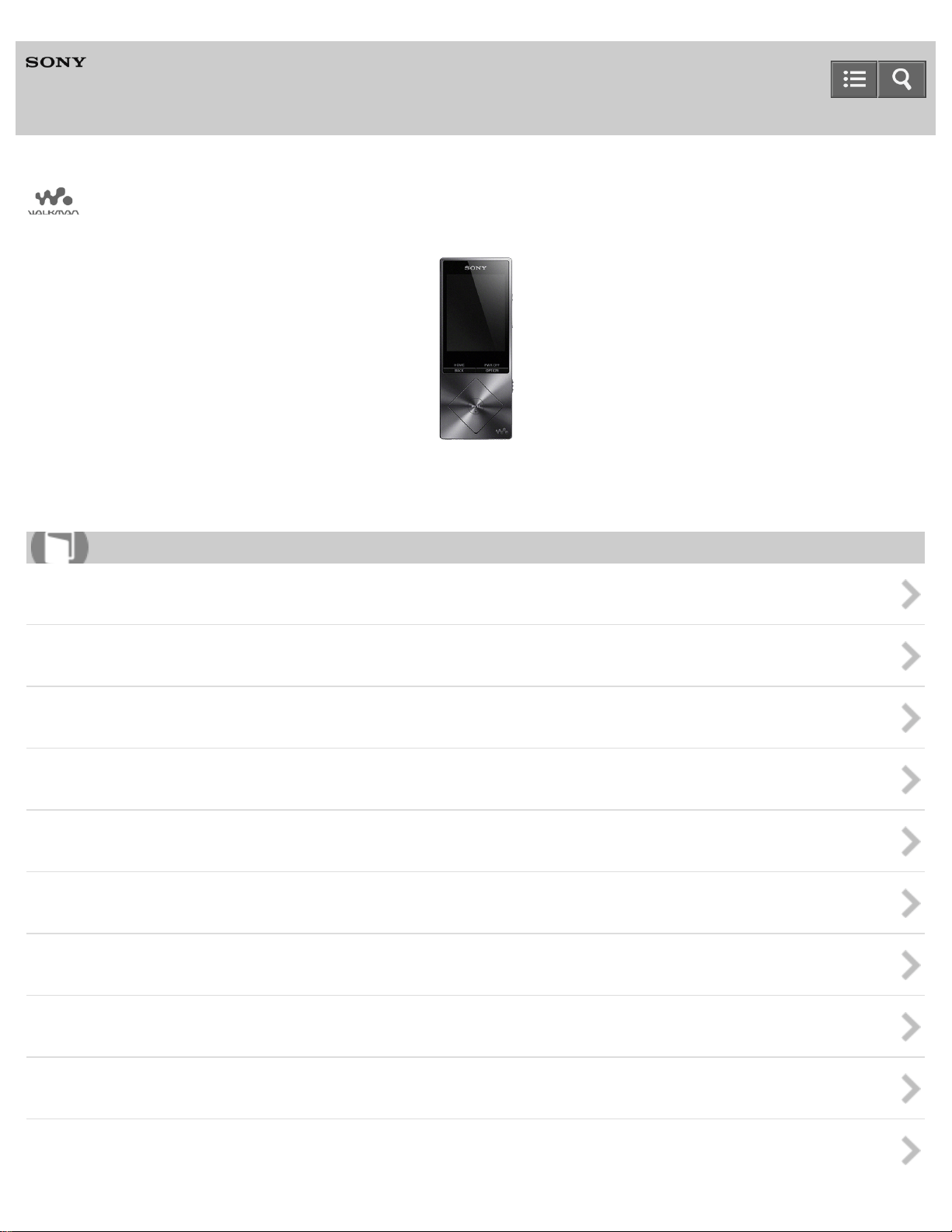
Digital Media Player
NW-A25/A25HN/A26HN/A27HN
Transferring/Deleting Content
Operation Flow for Transferring Content to Your Walkman
Installing Media Go
Installing Content Transfer
Importing Content to the Software
Transferring Content to Your Walkman
Deleting Content from Your Walkman
Operating with Media Go
4-573-951-11(1)
Copyright 2015 Sony Corporation
Help Guide
How to Use
3
Digital Media Player
NW-A25/A25HN/A26HN/A27HN
Bluetooth
What Is the Bluetooth Function?
Connecting with Bluetooth Audio Devices
Listening to Sound Using a Bluetooth Audio Device
Sending/Receiving Content via a Bluetooth Connection
Information of Bluetooth Audio Devices
Bluetooth Settings
Notes on the Bluetooth Function
4-573-951-11(1)
Copyright 2015 Sony Corporation
Help Guide
How to Use
9
Digital Media Player
NW-A25/A25HN/A26HN/A27HN
How to Use
Getting Started
Customer Registration Website
Customer registration website
Before Use
Before first use
Walkman instruction manuals
How to use the operating explanations
Enjoying Using Your Walkman
3 steps to listening to music
Various ways to enjoy using your Walkman
Parts and Controls
Parts and controls
Changing the earbuds
Attaching the clip
Power/Charging
Turning the power on
Turning the power off
Using the HOLD switch
Charging the battery
Charging in the battery care mode
Extending the battery life
Notes on charging the battery
Initial Settings
Selecting the display language
Setting the date and time
Setting the date display format
Setting the time display format
Formatting a microSD card
Basic Operations
microSD Card
Help Guide
List of Topics
16

Inserting a microSD card
Removing a microSD card
Selecting the memory to use
Formatting a microSD card
Notes on microSD cards
Home Menu/Option Menu
Home menu
How to use the Home menu
How to use the option menu
List of icons displayed in the information area
Connecting Your Walkman to Your Computer
Connecting to a computer
Notes on connecting your Walkman to a computer
Initializing/Updating
Restarting your Walkman
Resetting to the factory settings
Formatting memory
Updating the system software of your Walkman
Displaying your Walkman information
Using the Contents
Changing the earbuds
Attaching the clip
Transferring/Deleting Content
Operation Flow for Transferring Content to Your Walkman
Preparing content using a Windows computer
Preparing content using a Mac computer
Installing Media Go
About Media Go
Installing Media Go
Installing Content Transfer
About Content Transfer
Installing Content Transfer
Importing Content to the Software
Importing and transferring content from media using Media Go
Importing content on your Windows computer into Media Go
Importing podcasts into Media Go
Transferring Content to Your Walkman
Transferring content using Media Go
Transferring iTunes content using Media Go
Transferring content using Content Transfer
17

Transferring content using Explorer
Transferring content using the Finder
Notes for transferring content such as music from your computer
Deleting Content from Your Walkman
Deleting content from your Walkman using Media Go
Deleting content from your Walkman using Content Transfer
Deleting content received from a Bluetooth connection
Deleting content from your Walkman using Explorer
Deleting content from your Walkman using the Finder
Operating with Media Go
Playing live albums with no gaps in between songs
Deleting content imported to Media Go
Inputting the lyrics information using Media Go
Music
Playing Music
Preparing music
Playing music
Browsing the music list screen
Volume operation (Only for countries/areas complying with European and Korean Directives)
Browsing the music playback screen
Music playback operations
Searching for songs
Playing playlist songs
Choosing an album from the cover art images
Deleting Songs
Deleting songs
Using Bookmarks
What is the bookmark function?
Adding a song to a bookmark list
Changing the default bookmark list
Changing the order of bookmarked songs
Removing songs from a bookmark list
Displaying Lyrics
What is the Display Lyrics function?
Adding lyrics to songs
Making lyrics information in a text file
Displaying lyrics
SensMe™ Channels
What is SensMe™ Channels?
Playing songs using SensMe™ Channels
18

Analyzing songs on your Walkman
Music Settings
Shuffle playback
Repeat playback
Setting the playback range
Upscaling compressed audio to quality almost that of High-Resolution Audio
Enjoying various sound quality
Setting the sound quality easily with a single operation
Customizing sound quality settings
Presetting your equalizer settings
Moderating the differences in volume level between songs
Optimizing the sound characteristics
Selecting the album display format
Photos/Videos/Podcasts
Viewing Photos
Preparing photos
Viewing photos
Browsing the photo screen
Operations on the photo screen
Deleting photos
Watching Videos
Preparing videos
Watching videos
Browsing the video playback screen
Operations on the video playback screen
Searching for videos
Browsing scenes from thumbnails
Deleting videos
Playing Podcasts
What is a podcast?
Preparing podcasts
Playing podcasts
Browsing the podcast playback screen
Operations for audio podcast playback
Operations for video podcast playback
Deleting podcast episodes
Photo Settings
Selecting how the photo list is displayed
Video Settings
Displaying a video to match the screen size
19

Playing only the sound of a video
Playing videos continually
Changing the order of videos
FM Radio
Listening to FM Radio
Listening to FM radio
Browsing the FM radio screen
FM radio operations
Presetting broadcast stations automatically
Presetting broadcast stations manually
Deleting preset broadcast stations
FM Radio Settings
Changing the FM radio scan sensitivity
Setting monaural/auto for FM radio
microSD Card
microSD Card
Inserting a microSD card
Removing a microSD card
Selecting the memory to use
Formatting a microSD card
Notes on microSD cards
Noise Canceling
Using the Noise Canceling Function
What is noise canceling?
Noise canceling compatible headphones
Selecting headphones
Using noise canceling
Reducing noise to create a quiet environment
Notes for using the noise canceling function
Noise Canceling Settings
Selecting a noise canceling environment
Adjusting noise canceling
Bluetooth
What Is the Bluetooth Function?
What is the Bluetooth function?
What can your Walkman do with the Bluetooth function?
What is pairing?
20

Connecting with Bluetooth Audio Devices
Steps to use Bluetooth connection
Pairing and connecting with a Bluetooth audio device
Connecting with a paired Bluetooth audio device
Making a Bluetooth connection using the NFC function
Disconnecting a Bluetooth audio device
Listening to Sound Using a Bluetooth Audio Device
Listening to sound using a Bluetooth audio device
Sending/Receiving Content via a Bluetooth Connection
Steps to transfer content via a Bluetooth connection
Sending content via a Bluetooth connection
Receiving content via a Bluetooth connection
Playing content received via a Bluetooth connection
Deleting content received via a Bluetooth connection
Entering a passkey to make a Bluetooth connection
Information of Bluetooth Audio Devices
Displaying the pairing information of Bluetooth audio devices
Deleting the pairing information of Bluetooth audio devices
Bluetooth Settings
Setting automatic Bluetooth connection at startup
Setting wireless playback quality
Setting sound effects during a Bluetooth connection
Displaying Bluetooth information on your Walkman
Notes on the Bluetooth Function
Notes on the Bluetooth function
NFC
What Is the NFC Function?
What is the NFC function?
Connecting with One Touch (NFC)
Making a Bluetooth connection using the NFC function
Settings
Music Settings
Shuffle playback
Repeat playback
Setting the playback range
Upscaling compressed audio to quality almost that of High-Resolution Audio
Setting the sound quality easily with a single operation
Customizing sound quality settings
Presetting your equalizer settings
21

Moderating the differences in volume level between songs
Changing the default bookmark list
Selecting the album display format
Displaying lyrics
Photo Settings
Selecting how the photo list is displayed
Video Settings
Displaying a video to match the screen size
Playing only the sound of a video
Playing videos continually
Changing the order of videos
FM Radio Settings
Changing the FM radio scan sensitivity
Setting monaural/auto for FM radio
Noise Canceling Settings
Selecting a noise canceling environment
Adjusting noise canceling
Bluetooth Settings
Setting automatic Bluetooth connection at startup
Setting wireless playback quality
Setting sound effects during a Bluetooth connection
Displaying Bluetooth information on your Walkman
Deleting content received via a Bluetooth connection
Alarm/Sleep Timer Settings
Setting the alarm to on/off
Setting the alarm time
Setting a song as the alarm sound
Setting the sleep timer
Selecting Headphones
Selecting headphones
Optimizing the sound characteristics
Common Settings
Displaying your Walkman information
Limiting the volume
Setting the operation sound
Setting the screen off timer
Adjusting the screen brightness
Setting a photo as wallpaper
Setting the date and time
Setting the date display format
Setting the time display format
22

Charging in the battery care mode
Resetting to the factory settings
Formatting memory
Rebuilding the library manually
Using USB connection mode
Language Settings
Selecting the display language
Announcement
Precautions
Notes on handling your Walkman
Notes on headphones
Notes on the software
Maintenance of your Walkman
Customer Support Website
Customer support website
Specifications
Specifications
Specifications
Battery life
Maximum recordable number of songs and time (Approx.)
Maximum recordable time of videos (Approx.)
Supported formats
System requirements
Contents
4-573-951-11(1)
Copyright 2015 Sony Corporation
23
Digital Media Player
NW-A25/A25HN/A26HN/A27HN
Troubleshooting
Troubleshooting
What Can I Do to Solve a Problem?
What can I do to solve a problem?
Customer support website
Q&A
Operation
Your Walkman does not operate or the power does not turn on.
Your Walkman does not work properly.
Your Walkman power turns off or on automatically.
You want your Walkman screen to stay on longer before it turns off automatically.
The date and time have been reset.
A drink (water, coffee, etc.) was spilled on your Walkman, or the Walkman was washed in the washing machine.
The earbuds supplied with the headphones are missing.
You want to back up the content such as music stored on your Walkman.
You want to find the product name (model name) of your Walkman.
An alarm (beep) is heard and the message [Check the volume level] is displayed.
Sound
There is no sound.
Content such as music suddenly stops during playback.
Noise is generated.
Volume cannot be turned up, or the volume remains low when the playback volume is turned up.
Sound can only be heard from one side of the headphones.
Sound is interrupted or skips.
Sound is interrupted between songs.
The sound effect settings do not seem to have any effect.
Power
You cannot charge your Walkman.
How long is the life of the built-in rechargeable battery?
The rechargeable battery needs to be replaced.
The battery life is short.
How long is the standard battery duration?
Help Guide
List of Topics
24

How long does it take to charge the battery?
The battery runs out fast when you turn on the battery care mode.
Connection to a Computer
The computer does not recognize your Walkman.
The computer does not recognize a microSD card inserted in your Walkman.
Even if you use “Safely Remove Hardware” on the computer, [Connected USB (Storage in use: system storage)] or [Connected
USB (Storage in use: SD card)] remains displayed on your Walkman screen.
You cannot install software to your computer.
The progress bar on the install screen does not proceed while installing the software.
Your Walkman is not recognized by Media Go.
Content such as music cannot be transferred from the computer to your Walkman.
Displaying/Playing/Deleting Content
You cannot play content such as music transferred to your Walkman.
Songs are not played back in the expected order.
Content such as music suddenly stops during playback.
Playback progresses to the next album when repeat playback is set.
Songs are only played within a limited range such as within one album.
You cannot stop playback.
Songs are not displayed in the order they were transferred in.
Sound is interrupted between songs.
The content such as music is displayed repeatedly.
The same song is displayed repeatedly in an album.
Thumbnails such as cover art are not displayed.
Lyrics are not displayed.
[ □ ] is displayed in the screen.
[Unknown] is displayed for the album name or artist name.
You cannot delete content such as music using the Walkman functions.
You cannot play a podcast episode.
You cannot continually play podcast episodes.
You cannot register podcasts to a bookmark list.
You cannot find your desired channel.
[Morning] is always displayed for the time-based channel.
Unsuitable songs for selected time-based channels are played.
Audio podcasts are not played by SensMe™ Channels.
FM Radio
You cannot hear FM radio broadcasts.
There is a lot of noise in an FM radio broadcast and the sound quality is poor.
Bluetooth
Pairing cannot be done.
You cannot connect via the Bluetooth function.
The screen to enter the passkey appears when pairing with a Bluetooth device.
You cannot hear sound from the Bluetooth audio device.
25

You cannot operate your Walkman from a Bluetooth audio device.
Sound skips or noise is generated during a Bluetooth connection.
Sound effects do not seem to have any effect when listening to sound via a Bluetooth audio device.
Video sound is delayed when listening to sound via a Bluetooth audio device.
You cannot display or delete content such as music received using the Bluetooth function.
The cover art of a song received using the Bluetooth function is not displayed.
NFC
You cannot connect with one touch (NFC).
Noise Canceling
The noise canceling function is not effective.
You want to use the noise canceling function with headphones other than noise canceling headphones compatible with your
Walkman.
microSD Card
Your Walkman does not recognize a microSD card that is inserted.
The computer does not recognize a microSD card inserted in your Walkman.
Other
Your Walkman gets warm.
Message
Message list
4-573-951-11(1)
Copyright 2015 Sony Corporation
26
Digital Media Player
NW-A25/A25HN/A26HN/A27HN
Before Use
Before first use
Be sure to read this manual before you use your Walkman for the first time.
Walkman instruction manuals
There are a wide variety of instruction manuals available in addition to this Help Guide.
How to use the operating explanations
This section explains how the operating explanations are written in this Help Guide.
4-573-951-11(1)
Copyright 2015 Sony Corporation
Help Guide
How to Use
28
Digital Media Player
NW-A25/A25HN/A26HN/A27HN
Enjoying Using Your Walkman
3 steps to listening to music
This section explains how you can start enjoying using your Walkman after purchase in three simple steps.
Various ways to enjoy using your Walkman
Your Walkman can do more than simply play back music. Get to know more about various ways you can enjoy using the
Walkman.
4-573-951-11(1)
Copyright 2015 Sony Corporation
Help Guide
How to Use
29
Digital Media Player
NW-A25/A25HN/A26HN/A27HN
Parts and Controls
Parts and controls
This section introduces the functions of buttons, jacks, and other parts of your Walkman.
Changing the earbuds
You can change the earbuds if the initially installed earbuds do not fit your ears correctly.
Attaching the clip
Using the clip may reduce noise from the cord rubbing against your clothes.
4-573-951-11(1)
Copyright 2015 Sony Corporation
Help Guide
How to Use
30
Digital Media Player
NW-A25/A25HN/A26HN/A27HN
Power/Charging
Turning the power on
Turn on the power to start your Walkman.
Turning the power off
Turn off the power when not using your Walkman.
Using the HOLD switch
You can use the HOLD switch to prevent the buttons from being pressed and operated accidentally.
Charging the battery
Charge your Walkman by connecting it to a computer.
Charging in the battery care mode
In the [Battery Care] mode, your Walkman stops charging at about 90 % of the full charge, reducing deterioration of the
battery.
Extending the battery life
This section introduces various ways to reduce battery consumption such as frequently turning the power off and changing
various settings.
Notes on charging the battery
This section contains various notes about charging your Walkman.
4-573-951-11(1)
Copyright 2015 Sony Corporation
Help Guide
How to Use
31
Digital Media Player
NW-A25/A25HN/A26HN/A27HN
Initial Settings
Selecting the display language
This section explains how to set the language for menus and messages.
Setting the date and time
Set the date and time when you purchase a new Walkman, or if you have not used your Walkman for a prolonged period and
the date and time have been reset.
Setting the date display format
You can change the date format for displaying the current date.
Setting the time display format
You can change the time format for displaying the current time.
Formatting a microSD card
Format a microSD card (not supplied) and delete all data stored on it. The folder structure is also reset to its default status.
4-573-951-11(1)
Copyright 2015 Sony Corporation
Help Guide
How to Use
32

Digital Media Player
NW-A25/A25HN/A26HN/A27HN
microSD Card
Inserting a microSD card
This section explains how to insert a microSD card into your Walkman.
Removing a microSD card
This section explains how to remove a microSD card from your Walkman.
Selecting the memory to use
Select the memory to use from [System Storage] or [SD Card].
Formatting a microSD card
Format a microSD card (not supplied) and delete all data stored on it. The folder structure is also reset to its default status.
Notes on microSD cards
This section contains notes on microSD cards.
4-573-951-11(1)
Copyright 2015 Sony Corporation
Help Guide
How to Use
33
Digital Media Player
NW-A25/A25HN/A26HN/A27HN
Home Menu/Option Menu
Home menu
View the list of items in the Home menu.
How to use the Home menu
This section explains the basic operations of the Home menu, which is the starting point of each function.
How to use the option menu
Display the option menu to change the settings of each function.
List of icons displayed in the information area
A list of the icons displayed on your Walkman is shown.
4-573-951-11(1)
Copyright 2015 Sony Corporation
Help Guide
How to Use
34
Digital Media Player
NW-A25/A25HN/A26HN/A27HN
Connecting Your Walkman to Your Computer
Connecting to a computer
Connect your Walkman to a computer via USB to charge the Walkman or transfer data.
Notes on connecting your Walkman to a computer
This section contains notes on connecting your Walkman to a computer.
4-573-951-11(1)
Copyright 2015 Sony Corporation
Help Guide
How to Use
35
Digital Media Player
NW-A25/A25HN/A26HN/A27HN
Initializing/Updating
Restarting your Walkman
Restart your Walkman if operations become unstable.
Resetting to the factory settings
Reset your Walkman to the default settings.
Formatting memory
Initialize your Walkman by formatting the memory.
Updating the system software of your Walkman
Add new features to your Walkman by installing the latest system software.
Displaying your Walkman information
Display information on your Walkman, such as the model name and system software version.
4-573-951-11(1)
Copyright 2015 Sony Corporation
Help Guide
How to Use
36
Digital Media Player
NW-A25/A25HN/A26HN/A27HN
Using the Contents
Changing the earbuds
You can change the earbuds if the initially installed earbuds do not fit your ears correctly.
Attaching the clip
Using the clip may reduce noise from the cord rubbing against your clothes.
4-573-951-11(1)
Copyright 2015 Sony Corporation
Help Guide
How to Use
37
Digital Media Player
NW-A25/A25HN/A26HN/A27HN
Operation Flow for Transferring Content to Your Walkman
Preparing content using a Windows computer
Installing the latest version of Media Go, available on the Internet, enables you to import CDs, download and manage content
from online music services, and transfer them to the Walkman.
Preparing content using a Mac computer
Installing the latest version of Content Transfer, available on the Internet, enables you to transfer content to the Walkman.
4-573-951-11(1)
Copyright 2015 Sony Corporation
Help Guide
How to Use
38
Digital Media Player
NW-A25/A25HN/A26HN/A27HN
Installing Media Go
About Media Go
Media Go is software that allows you to import various content to your Windows computer, manage the content and transfer it
to your Walkman.
Installing Media Go
Connect your Walkman to your Windows computer and install Media Go.
4-573-951-11(1)
Copyright 2015 Sony Corporation
Help Guide
How to Use
39
Digital Media Player
NW-A25/A25HN/A26HN/A27HN
Installing Content Transfer
About Content Transfer
Content Transfer is software that allows you to transfer content managed with iTunes or the Finder to your Walkman.
Installing Content Transfer
Connect your Walkman to your Mac computer and install Content Transfer.
4-573-951-11(1)
Copyright 2015 Sony Corporation
Help Guide
How to Use
40
Digital Media Player
NW-A25/A25HN/A26HN/A27HN
Importing Content to the Software
Importing and transferring content from media using Media Go
This section explains how to import and transfer music from CDs using Media Go.
Importing content on your Windows computer into Media Go
You can organize a wide range of content such as music that you have already imported to your Windows computer using
other software together using Media Go.
Importing podcasts into Media Go
Media Go has a wide range of podcast functions, and you can use Media Go to manage your podcast subscriptions.
4-573-951-11(1)
Copyright 2015 Sony Corporation
Help Guide
How to Use
41
Digital Media Player
NW-A25/A25HN/A26HN/A27HN
Transferring Content to Your Walkman
Transferring content using Media Go
Use Media Go to transfer content or playlists that are also managed on your computer to your Walkman.
Transferring iTunes content using Media Go
Use Media Go to transfer content on your computer or managed with iTunes to your Walkman.
Transferring content using Content Transfer
Use Content Transfer to transfer content or playlists on your Mac computer or managed with iTunes to your Walkman.
Transferring content using Explorer
Use drag-and-drop in Windows Explorer to directly transfer content to your Walkman.
Transferring content using the Finder
Use drag-and-drop in the Finder to directly transfer content to your Walkman.
Notes for transferring content such as music from your computer
When transferring files and folders to your Walkman by drag-and-drop, you need to make sure that the default folder names
remain unchanged and the hierarchy is correct.
4-573-951-11(1)
Copyright 2015 Sony Corporation
Help Guide
How to Use
42
Digital Media Player
NW-A25/A25HN/A26HN/A27HN
Deleting Content from Your Walkman
Deleting content from your Walkman using Media Go
Use Media Go to delete content stored on your Walkman.
Deleting content from your Walkman using Content Transfer
Use Content Transfer to delete content stored on your Walkman.
Deleting content received from a Bluetooth connection
You can delete content received from a Bluetooth connection using your Walkman.
Deleting content from your Walkman using Explorer
Use Windows Explorer to delete content stored on your Walkman.
Deleting content from your Walkman using the Finder
Use the Finder to delete content stored on your Walkman.
4-573-951-11(1)
Copyright 2015 Sony Corporation
Help Guide
How to Use
43
Digital Media Player
NW-A25/A25HN/A26HN/A27HN
Operating with Media Go
Playing live albums with no gaps in between songs
Songs that are recorded continuously on a live or concert album can be played with no gaps in between the songs on your
Walkman.
Deleting content imported to Media Go
Use Media Go to delete content imported to Media Go.
Inputting the lyrics information using Media Go
Input lyrics information using Media Go and display lyrics when playing songs on your Walkman.
4-573-951-11(1)
Copyright 2015 Sony Corporation
Help Guide
How to Use
44
Digital Media Player
NW-A25/A25HN/A26HN/A27HN
Playing Music
Preparing music
You need to transfer music from your computer to your Walkman in order to listen to music on the Walkman.
Playing music
Play music that you transferred from your computer to your Walkman.
Browsing the music list screen
View the song list or album list screen.
Volume operation (Only for countries/areas complying with European and Korean Directives)
An alarm (beep) and a warning [Check the volume level] are meant to protect your ears when you turn the volume up to a level
that is harmful for your ears for the first time.
Browsing the music playback screen
This section explains how to browse the information on the music playback screen.
Music playback operations
Use various operations on the music playback screen.
Searching for songs
You can search for songs using various categories including album, artist, genre and bookmarks.
Playing playlist songs
Playlists (lists of songs to play) created using Media Go can be transferred and played on your Walkman.
Choosing an album from the cover art images
You can choose an album from the cover art images in the music playback screen by registering jacket photos using Media
Go.
4-573-951-11(1)
Help Guide
How to Use
45
Digital Media Player
NW-A25/A25HN/A26HN/A27HN
Using Bookmarks
What is the bookmark function?
The bookmark function is a useful function that allows you to play just your favorite songs, or rearrange the order in which
songs are played.
Adding a song to a bookmark list
You can add songs to bookmark lists.
Changing the default bookmark list
You can change the bookmark list that is set as the default bookmark list.
Changing the order of bookmarked songs
You can change the order of songs that are registered to a bookmark.
Removing songs from a bookmark list
You can remove one or all songs from a bookmark list.
4-573-951-11(1)
Copyright 2015 Sony Corporation
Help Guide
How to Use
47
Digital Media Player
NW-A25/A25HN/A26HN/A27HN
Displaying Lyrics
What is the Display Lyrics function?
The lyrics are scrolled automatically when you play songs on your Walkman.
Adding lyrics to songs
The preparation that is necessary for displaying lyrics is explained.
Making lyrics information in a text file
You can also make lyrics information in a text file.
Displaying lyrics
The lyrics information added to the song is displayed on your Walkman as the song progresses.
4-573-951-11(1)
Copyright 2015 Sony Corporation
Help Guide
How to Use
48
Digital Media Player
NW-A25/A25HN/A26HN/A27HN
SensMe™ Channels
What is SensMe™ Channels?
SensMe™ Channels is a function that automatically groups songs by theme, and plays them. Play songs according to your
mood, current activity, the time of day, etc.
Playing songs using SensMe™ Channels
Play songs to fit your mood, current activity, the time of day, etc., by selecting a particular channel.
Analyzing songs on your Walkman
Songs that have not been analyzed yet can be analyzed on your Walkman.
4-573-951-11(1)
Copyright 2015 Sony Corporation
Help Guide
How to Use
49
Digital Media Player
NW-A25/A25HN/A26HN/A27HN
Music Settings
Shuffle playback
Play songs in random order.
Repeat playback
Play songs repeatedly.
Setting the playback range
Set the playback range.
Upscaling compressed audio to quality almost that of High-Resolution Audio
The [DSEE HX] function upscales the audio file to quality almost that of High-Resolution Audio quality and reproduces the
clear high-range sound that is often lost.
Enjoying various sound quality
Enjoy music with either the optimum or your desired sound quality settings.
Setting the sound quality easily with a single operation
The [ClearAudio+] function allows you to easily enjoy the audio you are listening to with the optimum sound quality settings.
Customizing sound quality settings
You can use various functions to set the desired sound quality.
Presetting your equalizer settings
You can preset the values of CLEAR BASS and the 5 band equalizer as custom settings.
Moderating the differences in volume level between songs
This function prevents large differences in volume level from occurring when continually playing songs that are recorded at
different levels.
Optimizing the sound characteristics
The [Clear Phase™ ] function optimizes the sound characteristics for the headphones you use. The compatible headphones for
Help Guide
How to Use
50

Digital Media Player
NW-A25/A25HN/A26HN/A27HN
Viewing Photos
Preparing photos
You need to transfer photos onto your Walkman from your computer in order to view them on the Walkman.
Viewing photos
You can view photos that you have transferred onto your Walkman.
Browsing the photo screen
This section explains how to view the information displayed on the photo screen.
Operations on the photo screen
You can display the next/previous photo and consecutively display photos in the photo screen.
Deleting photos
You can delete photos that have been transferred onto your Walkman.
4-573-951-11(1)
Copyright 2015 Sony Corporation
Help Guide
How to Use
52
Digital Media Player
NW-A25/A25HN/A26HN/A27HN
Watching Videos
Preparing videos
You need to transfer videos onto your Walkman from your computer in order to view them on the Walkman.
Watching videos
You can watch videos that you have transferred onto your Walkman.
Browsing the video playback screen
This section explains how to view the information displayed on the video playback screen.
Operations on the video playback screen
You can use operations such as playback, fast forward and fast rewind on the video playback screen.
Searching for videos
You can quickly search for and play the desired video from the video playback screen or list screen.
Browsing scenes from thumbnails
You can display thumbnails as a guide for selecting a scene or chapter to play.
Deleting videos
You can delete videos that have been transferred onto your Walkman.
4-573-951-11(1)
Copyright 2015 Sony Corporation
Help Guide
How to Use
53
Digital Media Player
NW-A25/A25HN/A26HN/A27HN
Playing Podcasts
What is a podcast?
A podcast is an audio or video file that is published on the Internet, and is downloaded for playback by using RSS. Software
such as Media Go can be used to register podcasts, download episodes, and transfer the episodes onto your Walkman.
Preparing podcasts
You need to transfer podcasts onto your Walkman from your computer in order to enjoy them on the Walkman.
Playing podcasts
You can play podcast episodes that have been transferred onto your Walkman.
Browsing the podcast playback screen
This section explains how to view the information displayed on the podcast playback screen.
Operations for audio podcast playback
You can use operations such as playback, fast forward and fast rewind on the audio podcast screen.
Operations for video podcast playback
You can use operations such as playback, fast forward and fast rewind on the video podcast screen.
Deleting podcast episodes
You can delete podcast episodes that have been transferred onto your Walkman.
4-573-951-11(1)
Copyright 2015 Sony Corporation
Help Guide
How to Use
54
Digital Media Player
NW-A25/A25HN/A26HN/A27HN
Video Settings
Displaying a video to match the screen size
You can change the size of a video being played to match the screen size.
Playing only the sound of a video
You can turn off the video screen, allowing you to enjoy only the sound of a video.
Playing videos continually
You can play videos in the order of the video list.
Changing the order of videos
You can change the order in which videos are displayed in the video list.
4-573-951-11(1)
Copyright 2015 Sony Corporation
Help Guide
How to Use
56
Digital Media Player
NW-A25/A25HN/A26HN/A27HN
Listening to FM Radio
Listening to FM radio
Listen to FM radio on your Walkman.
Browsing the FM radio screen
This section explains how to browse the information on the FM radio screen.
FM radio operations
Select the desired frequency or preset number on the FM radio screen.
Presetting broadcast stations automatically
You can search for and automatically preset up to 30 receivable FM broadcast stations in your area.
Presetting broadcast stations manually
You can manually preset receivable FM broadcast stations.
Deleting preset broadcast stations
You can delete preset FM broadcast stations.
4-573-951-11(1)
Copyright 2015 Sony Corporation
Help Guide
How to Use
57
Digital Media Player
NW-A25/A25HN/A26HN/A27HN
FM Radio Settings
Changing the FM radio scan sensitivity
You can change the scan sensitivity if the FM radio reception sensitivity is too strong, causing many unwanted broadcast
stations to be received.
Setting monaural/auto for FM radio
You can change this setting if noise occurs during FM reception.
4-573-951-11(1)
Copyright 2015 Sony Corporation
Help Guide
How to Use
58
Digital Media Player
NW-A25/A25HN/A26HN/A27HN
microSD Card
Inserting a microSD card
This section explains how to insert a microSD card into your Walkman.
Removing a microSD card
This section explains how to remove a microSD card from your Walkman.
Selecting the memory to use
Select the memory to use from [System Storage] or [SD Card].
Formatting a microSD card
Format a microSD card (not supplied) and delete all data stored on it. The folder structure is also reset to its default status.
Notes on microSD cards
This section contains notes on microSD cards.
4-573-951-11(1)
Copyright 2015 Sony Corporation
Help Guide
How to Use
59
Digital Media Player
NW-A25/A25HN/A26HN/A27HN
Using the Noise Canceling Function
What is noise canceling?
The noise canceling function can reduce unwanted ambient noise, allowing you to enjoy music at a low volume.
Noise canceling compatible headphones
You can check which headphones are compatible with the noise canceling function.
Selecting headphones
The effect of the noise canceling function or the [Clear Phase™ ] function is optimized by selecting the compatible
headphones.
Using noise canceling
You can use the noise canceling function.
Reducing noise to create a quiet environment
You can use the noise canceling effects to reduce external noise even when music or other content is not being played back.
Notes for using the noise canceling function
This section contains notes on the noise canceling function.
4-573-951-11(1)
Copyright 2015 Sony Corporation
Help Guide
How to Use
60

Digital Media Player
NW-A25/A25HN/A26HN/A27HN
Noise Canceling Settings
Selecting a noise canceling environment
By selecting the type of ambient noise, you can apply the most effective noise canceling function for your current environment.
Adjusting noise canceling
You can adjust the sensitivity of the microphone for noise canceling adjustment if you feel that the noise canceling effects are
insufficient.
4-573-951-11(1)
Copyright 2015 Sony Corporation
Help Guide
How to Use
61
Digital Media Player
NW-A25/A25HN/A26HN/A27HN
What Is the Bluetooth Function?
What is the Bluetooth function?
The Bluetooth function is based on short-range wireless technology used in devices such as headphones and mini stereo
music systems to connect digital devices.
What can your Walkman do with the Bluetooth function?
You can listen to music and send/receive files wirelessly.
What is pairing?
The registration between Bluetooth devices is called “pairing.” Once the devices are paired, you can easily connect your
Walkman to the Bluetooth device from the next time onwards using a simple operation.
4-573-951-11(1)
Copyright 2015 Sony Corporation
Help Guide
How to Use
62

Digital Media Player
NW-A25/A25HN/A26HN/A27HN
Connecting with Bluetooth Audio Devices
Steps to use Bluetooth connection
Steps to listen to music stored on your Walkman using the other Bluetooth audio device.
Pairing and connecting with a Bluetooth audio device
To connect with a Bluetooth audio device for the first time, your Walkman needs to be paired with it.
Connecting with a paired Bluetooth audio device
Connect your Walkman to a Bluetooth audio device if they are paired but not connected with each other.
Making a Bluetooth connection using the NFC function
You can pair and connect to a Bluetooth audio device that has the NFC function simply by touching your Walkman to the
device.
Disconnecting a Bluetooth audio device
End the connection between your Walkman and a Bluetooth audio device.
4-573-951-11(1)
Copyright 2015 Sony Corporation
Help Guide
How to Use
63
Digital Media Player
NW-A25/A25HN/A26HN/A27HN
Listening to Sound Using a Bluetooth Audio Device
Listening to sound using a Bluetooth audio device
Once paired and connected, you can listen to sound from your Walkman wirelessly through the Bluetooth audio device.
4-573-951-11(1)
Copyright 2015 Sony Corporation
Help Guide
How to Use
64
Digital Media Player
NW-A25/A25HN/A26HN/A27HN
Sending/Receiving Content via a Bluetooth Connection
Steps to transfer content via a Bluetooth connection
You can transfer content to/from another Bluetooth device. Pairing in advance is not necessary.
Sending content via a Bluetooth connection
You can send content stored on your Walkman to another device via a Bluetooth connection.
Receiving content via a Bluetooth connection
Your Walkman can receive content from a Bluetooth device via a Bluetooth connection.
Playing content received via a Bluetooth connection
You can play content transferred via a Bluetooth connection on your Walkman.
Deleting content received via a Bluetooth connection
You can delete content received by your Walkman via a Bluetooth connection.
Entering a passkey to make a Bluetooth connection
When the screen to enter the passkey is displayed while pairing, check and enter the passkey of the other Bluetooth device.
4-573-951-11(1)
Copyright 2015 Sony Corporation
Help Guide
How to Use
65
Digital Media Player
NW-A25/A25HN/A26HN/A27HN
Information of Bluetooth Audio Devices
Displaying the pairing information of Bluetooth audio devices
Once paired, you can display the pairing information of the connected Bluetooth audio device such as the model name, BD
address, and the profile when connected.
Deleting the pairing information of Bluetooth audio devices
You can delete the pairing information of Bluetooth audio devices.
4-573-951-11(1)
Copyright 2015 Sony Corporation
Help Guide
How to Use
66
Digital Media Player
NW-A25/A25HN/A26HN/A27HN
Bluetooth Settings
Setting automatic Bluetooth connection at startup
You can set your Walkman to connect to a Bluetooth audio device automatically at startup.
Setting wireless playback quality
You can set the stability or the sound quality for a Bluetooth connection.
Setting sound effects during a Bluetooth connection
You can select whether or not to apply sound effects such as [Equalizer] and [Dynamic Normalizer] when you send content
from your Walkman to a Bluetooth audio device.
Displaying Bluetooth information on your Walkman
Display Bluetooth information such as Bluetooth version and profile.
4-573-951-11(1)
Copyright 2015 Sony Corporation
Help Guide
How to Use
67

Digital Media Player
NW-A25/A25HN/A26HN/A27HN
What Is the NFC Function?
What is the NFC function?
This function enables easy data communication between various devices, such as mobile phones and IC tags, simply by
touching the devices together.
4-573-951-11(1)
Copyright 2015 Sony Corporation
Help Guide
How to Use
69
Digital Media Player
NW-A25/A25HN/A26HN/A27HN
Connecting with One Touch (NFC)
Making a Bluetooth connection using the NFC function
You can pair and connect to a Bluetooth audio device that has the NFC function simply by touching your Walkman to the
device.
4-573-951-11(1)
Copyright 2015 Sony Corporation
Help Guide
How to Use
70
Digital Media Player
NW-A25/A25HN/A26HN/A27HN
Music Settings
Shuffle playback
Play songs in random order.
Repeat playback
Play songs repeatedly.
Setting the playback range
Set the playback range.
Upscaling compressed audio to quality almost that of High-Resolution Audio
The [DSEE HX] function upscales the audio file to quality almost that of High-Resolution Audio quality and reproduces the
clear high-range sound that is often lost.
Setting the sound quality easily with a single operation
The [ClearAudio+] function allows you to easily enjoy the audio you are listening to with the optimum sound quality settings.
Customizing sound quality settings
You can use various functions to set the desired sound quality.
Presetting your equalizer settings
You can preset the values of CLEAR BASS and the 5 band equalizer as custom settings.
Moderating the differences in volume level between songs
This function prevents large differences in volume level from occurring when continually playing songs that are recorded at
different levels.
Changing the default bookmark list
You can change the bookmark list that is set as the default bookmark list.
Selecting the album display format
Select the album list display format. The cover art registered in Media Go is displayed in the album list.
Help Guide
How to Use
71

Digital Media Player
NW-A25/A25HN/A26HN/A27HN
Video Settings
Displaying a video to match the screen size
You can change the size of a video being played to match the screen size.
Playing only the sound of a video
You can turn off the video screen, allowing you to enjoy only the sound of a video.
Playing videos continually
You can play videos in the order of the video list.
Changing the order of videos
You can change the order in which videos are displayed in the video list.
4-573-951-11(1)
Copyright 2015 Sony Corporation
Help Guide
How to Use
74
Digital Media Player
NW-A25/A25HN/A26HN/A27HN
FM Radio Settings
Changing the FM radio scan sensitivity
You can change the scan sensitivity if the FM radio reception sensitivity is too strong, causing many unwanted broadcast
stations to be received.
Setting monaural/auto for FM radio
You can change this setting if noise occurs during FM reception.
4-573-951-11(1)
Copyright 2015 Sony Corporation
Help Guide
How to Use
75
Digital Media Player
NW-A25/A25HN/A26HN/A27HN
Noise Canceling Settings
Selecting a noise canceling environment
By selecting the type of ambient noise, you can apply the most effective noise canceling function for your current environment.
Adjusting noise canceling
You can adjust the sensitivity of the microphone for noise canceling adjustment if you feel that the noise canceling effects are
insufficient.
4-573-951-11(1)
Copyright 2015 Sony Corporation
Help Guide
How to Use
76
Digital Media Player
NW-A25/A25HN/A26HN/A27HN
Bluetooth Settings
Setting automatic Bluetooth connection at startup
You can set your Walkman to connect to a Bluetooth audio device automatically at startup.
Setting wireless playback quality
You can set the stability or the sound quality for a Bluetooth connection.
Setting sound effects during a Bluetooth connection
You can select whether or not to apply sound effects such as [Equalizer] and [Dynamic Normalizer] when you send content
from your Walkman to a Bluetooth audio device.
Displaying Bluetooth information on your Walkman
Display Bluetooth information such as Bluetooth version and profile.
Deleting content received via a Bluetooth connection
You can delete content received by your Walkman via a Bluetooth connection.
4-573-951-11(1)
Copyright 2015 Sony Corporation
Help Guide
How to Use
77
Digital Media Player
NW-A25/A25HN/A26HN/A27HN
Alarm/Sleep Timer Settings
Setting the alarm to on/off
You can set the alarm function to on or off.
Setting the alarm time
You can set the time at which the alarm sounds, repeat settings and alarm sound settings.
Setting a song as the alarm sound
You can select a song from those transferred to your Walkman as the alarm sound.
Setting the sleep timer
You can change the set time of the sleep timer. Your Walkman power switches off automatically at the set time.
4-573-951-11(1)
Copyright 2015 Sony Corporation
Help Guide
How to Use
78
Digital Media Player
NW-A25/A25HN/A26HN/A27HN
Selecting Headphones
Selecting headphones
The effect of the noise canceling function or the [Clear Phase™ ] function is optimized by selecting the compatible
headphones.
Optimizing the sound characteristics
The [Clear Phase™ ] function optimizes the sound characteristics for the headphones you use. The compatible headphones for
this product are MDR-NW750N/MDR-NW750NE.
4-573-951-11(1)
Copyright 2015 Sony Corporation
Help Guide
How to Use
79
Digital Media Player
NW-A25/A25HN/A26HN/A27HN
Common Settings
Displaying your Walkman information
Display information on your Walkman, such as the model name and system software version.
Limiting the volume
You can use AVLS (Automatic Volume Limiter System) to limit the maximum volume.
Setting the operation sound
You can change the operation sounds of your Walkman.
Setting the screen off timer
You can set the time after which the screen is turned off when there are no operations. You can preserve battery power by
setting this to a shorter time.
Adjusting the screen brightness
You can set the screen brightness to one of five levels. You can preserve battery power by setting this to a lower level.
Setting a photo as wallpaper
You can set your desired photo as the wallpaper.
Setting the date and time
Set the date and time when you purchase a new Walkman, or if you have not used your Walkman for a prolonged period and
the date and time have been reset.
Setting the date display format
You can change the date format for displaying the current date.
Setting the time display format
You can change the time format for displaying the current time.
Charging in the battery care mode
In the [Battery Care] mode, your Walkman stops charging at about 90 % of the full charge, reducing deterioration of the
Help Guide
How to Use
80
battery.
Resetting to the factory settings
Reset your Walkman to the default settings.
Formatting memory
Initialize your Walkman by formatting the memory.
Rebuilding the library manually
Rebuild the library of your Walkman to add content stored in [System Storage] or [SD Card] to the library again.
Using USB connection mode
Set your Walkman to USB connection mode (connection standby state) to allow your Walkman to connect via USB more
reliably.
4-573-951-11(1)
Copyright 2015 Sony Corporation
81
Digital Media Player
NW-A25/A25HN/A26HN/A27HN
Precautions
Notes on handling your Walkman
Important information for using your Walkman is explained.
Notes on headphones
Important notes for the headphones are explained.
Notes on the software
Important notes for the software are explained.
Maintenance of your Walkman
Important notes for cleaning your Walkman are explained.
4-573-951-11(1)
Copyright 2015 Sony Corporation
Help Guide
How to Use
83
Digital Media Player
NW-A25/A25HN/A26HN/A27HN
Specifications
Specifications
Details on the Walkman specifications (size, weight, and memory size, etc.) are shown.
Battery life
The battery life when content is played continuously at the default settings is explained.
Maximum recordable number of songs and time (Approx.)
The maximum recordable number of songs and time are explained.
Maximum recordable time of videos (Approx.)
The maximum recordable time of videos is explained.
Supported formats
The file formats that are supported by your Walkman are explained.
System requirements
Details on the system requirements needed to use your Walkman (the operating system version and memory size, etc.) are
shown.
Contents
A list of the supplied items with your Walkman is shown.
4-573-951-11(1)
Copyright 2015 Sony Corporation
Help Guide
How to Use
85
Digital Media Player
NW-A25/A25HN/A26HN/A27HN
What Can I Do to Solve a Problem?
What can I do to solve a problem?
This section contains solutions for when your Walkman does not function as expected or if a problem occurs during operation.
Customer support website
Visit the customer support website if you have any questions or issues with your Walkman.
4-573-951-11(1)
Copyright 2015 Sony Corporation
Help Guide
Troubleshooting
86
Digital Media Player
NW-A25/A25HN/A26HN/A27HN
Operation
Your Walkman does not operate or the power does not turn on.
Your Walkman does not work properly.
Your Walkman power turns off or on automatically.
You want your Walkman screen to stay on longer before it turns off automatically.
The date and time have been reset.
A drink (water, coffee, etc.) was spilled on your Walkman, or the Walkman was washed in the washing machine.
The earbuds supplied with the headphones are missing.
You want to back up the content such as music stored on your Walkman.
You want to find the product name (model name) of your Walkman.
An alarm (beep) is heard and the message [Check the volume level] is displayed.
4-573-951-11(1)
Copyright 2015 Sony Corporation
Help Guide
Troubleshooting
87
Digital Media Player
NW-A25/A25HN/A26HN/A27HN
Sound
There is no sound.
Content such as music suddenly stops during playback.
Noise is generated.
Volume cannot be turned up, or the volume remains low when the playback volume is turned up.
Sound can only be heard from one side of the headphones.
Sound is interrupted or skips.
Sound is interrupted between songs.
The sound effect settings do not seem to have any effect.
4-573-951-11(1)
Copyright 2015 Sony Corporation
Help Guide
Troubleshooting
88
Digital Media Player
NW-A25/A25HN/A26HN/A27HN
Power
You cannot charge your Walkman.
How long is the life of the built-in rechargeable battery?
The rechargeable battery needs to be replaced.
The battery life is short.
How long is the standard battery duration?
How long does it take to charge the battery?
The battery runs out fast when you turn on the battery care mode.
4-573-951-11(1)
Copyright 2015 Sony Corporation
Help Guide
Troubleshooting
89
Digital Media Player
NW-A25/A25HN/A26HN/A27HN
Connection to a Computer
The computer does not recognize your Walkman.
The computer does not recognize a microSD card inserted in your Walkman.
Even if you use “Safely Remove Hardware” on the computer, [Connected USB (Storage in use: system
storage)] or [Connected USB (Storage in use: SD card)] remains displayed on your Walkman screen.
You cannot install software to your computer.
The progress bar on the install screen does not proceed while installing the software.
Your Walkman is not recognized by Media Go.
Content such as music cannot be transferred from the computer to your Walkman.
4-573-951-11(1)
Copyright 2015 Sony Corporation
Help Guide
Troubleshooting
90
Digital Media Player
NW-A25/A25HN/A26HN/A27HN
Displaying/Playing/Deleting Content
You cannot play content such as music transferred to your Walkman.
Songs are not played back in the expected order.
Content such as music suddenly stops during playback.
Playback progresses to the next album when repeat playback is set.
Songs are only played within a limited range such as within one album.
You cannot stop playback.
Songs are not displayed in the order they were transferred in.
Sound is interrupted between songs.
The content such as music is displayed repeatedly.
The same song is displayed repeatedly in an album.
Thumbnails such as cover art are not displayed.
Lyrics are not displayed.
[ □ ] is displayed in the screen.
[Unknown] is displayed for the album name or artist name.
Help Guide
Troubleshooting
91
You cannot delete content such as music using the Walkman functions.
You cannot play a podcast episode.
You cannot continually play podcast episodes.
You cannot register podcasts to a bookmark list.
You cannot find your desired channel.
[Morning] is always displayed for the time-based channel.
Unsuitable songs for selected time-based channels are played.
Audio podcasts are not played by SensMe™ Channels.
4-573-951-11(1)
Copyright 2015 Sony Corporation
92
Digital Media Player
NW-A25/A25HN/A26HN/A27HN
Bluetooth
Pairing cannot be done.
You cannot connect via the Bluetooth function.
The screen to enter the passkey appears when pairing with a Bluetooth device.
You cannot hear sound from the Bluetooth audio device.
You cannot operate your Walkman from a Bluetooth audio device.
Sound skips or noise is generated during a Bluetooth connection.
Sound effects do not seem to have any effect when listening to sound via a Bluetooth audio device.
Video sound is delayed when listening to sound via a Bluetooth audio device.
You cannot display or delete content such as music received using the Bluetooth function.
The cover art of a song received using the Bluetooth function is not displayed.
4-573-951-11(1)
Copyright 2015 Sony Corporation
Help Guide
Troubleshooting
94
Digital Media Player
NW-A25/A25HN/A26HN/A27HN
Noise Canceling
The noise canceling function is not effective.
You want to use the noise canceling function with headphones other than noise canceling headphones
compatible with your Walkman.
4-573-951-11(1)
Copyright 2015 Sony Corporation
Help Guide
Troubleshooting
96
Digital Media Player
NW-A25/A25HN/A26HN/A27HN
Customer registration website
We recommend that you register your Walkman so we can provide better customer support. Visit one of the following
websites to register the Walkman.
For customers in the USA:
http://www.sony.com/walkmanreg/
For customers in Canada:
English
http://www.Sony.ca/Registration
French
http://www.Sony.ca/Enregistrement
For customers in Latin America:
http://www.sony-latin.com/registration
For customers in Europe:
www.sony.eu/mysony
For customers in Asia/Oceania/Middle East/Africa:
English/Korean/Traditional Chinese
http://www.sony-asia.com/dmpwalkman/register/
Simplified Chinese
https://www.sonystyle.com.cn/b2c_sony/b2c/productRegister.do
4-573-951-11(1)
Copyright 2015 Sony Corporation
Help Guide
How to Use
100
Digital Media Player
NW-A25/A25HN/A26HN/A27HN
Before first use
Thank you for purchasing this Walkman.
This “Help Guide” explains how to transfer content to your Walkman, and how to use the various functions. Browse this
“Help Guide” for necessary information.
The printed manuals (supplied), such as “Instruction Manual,” also contain important information for you. For information
about the customer support website, see “Customer support website.”
For information on laws, regulations and trademark rights, refer to “Important Information” contained in the supplied
software. To read it, install the supplied software on your computer.
All other trademarks and registered trademarks are trademarks or registered trademarks of their respective holders. In
this manual, TM and ® marks are not specified.
About model names mentioned in this “Help Guide”
Depending on the country/region in which you have purchased your Walkman, some models may not be available.
Computer system requirements when connecting your Walkman
See “System requirements” for details on computer system requirements.
Battery charging
The battery might be low when you use your Walkman for the first time. Charge the battery before using the Walkman.
About microSD cards
In this “Help Guide,” microSD cards, microSDHC cards and microSDXC cards are called “microSD cards.”
About images used in this “Help Guide”
The screens and illustrations shown are for reference only and may differ from the actual product or screen.
Design and specifications are subject to change without notice.
Related Topic
System requirements
Customer support website
Charging the battery
Help Guide
How to Use
101

Digital Media Player
NW-A25/A25HN/A26HN/A27HN
Walkman instruction manuals
The operations of this Walkman are explained in the following instruction manuals.
(Startup Guide) (paper)
Describes the operation flow from turning your Walkman on to listening to music.
Instruction Manual (paper)
Describes the notes on use, compliance and other information.
Help Guide
You are currently viewing the Help Guide. This contains information such as explanations of Walkman operations and
software.
Important Information
Contains information on trademark rights, laws, and regulations. You can read it by installing the software (supplied) on
your computer.
4-573-951-11(1)
Copyright 2015 Sony Corporation
Help Guide
How to Use
103

Digital Media Player
NW-A25/A25HN/A26HN/A27HN
How to use the operating explanations
This Help Guide shows icons on your Walkman as follows: [Music], [Settings]. Items such as menus on the
screen are shown as follows: [Album], [Play Mode].
Press the button ( ) to select items. Press the button ( ) to confirm.
Home menu
Press and hold the button ( ) to display the Home menu.
Note
Except for some special cases, operating explanations assume that you are starting from the Home menu. Operations
may differ from the explanation in situations such as during playback of music.
If a function or setting can be done in more than one way, the simpler method is explained.
Related Topic
Home menu
How to use the Home menu
Help Guide
How to Use
104

Digital Media Player
NW-A25/A25HN/A26HN/A27HN
3 steps to listening to music
Be sure to charge the battery before you use your Walkman for the first time. You can transfer music while charging the
battery. You can listen to your music as soon as the transfer has completed.
1. Connect your Walkman to a computer.
You can charge the battery by connecting your Walkman via a USB connection to a computer that is turned on and
running.
2. Import music to your computer and transfer the music to your Walkman.
For Windows users
Recommended: Install the latest version of Media Go, which is available on the Internet.
You can transfer music that you have imported from CDs or downloaded from online music services to your
Walkman.
You can transfer music by drag-and-drop directly from Windows Explorer to your Walkman.
For Mac users
Recommended: Install the latest version of Content Transfer, which is available on the Internet.
You can transfer music and playlists that are managed with iTunes to your Walkman by an easy operation.
You can transfer music by drag-and-drop directly from the Finder to your Walkman.
3. Enjoy your music!
Connect the headphones, unlock the HOLD function, and turn on your Walkman. Then simply select the music you
want to listen to to start playback!
Related Topic
Charging the battery
Help Guide
How to Use
105
Installing Media Go
Importing and transferring content from media using Media Go
Transferring content using Media Go
Installing Content Transfer
Transferring content using Content Transfer
Transferring content using Explorer
Transferring content using the Finder
Turning the power on
Playing music
4-573-951-11(1)
Copyright 2015 Sony Corporation
106
Digital Media Player
NW-A25/A25HN/A26HN/A27HN
Various ways to enjoy using your Walkman
Your Walkman can do more than simply play back music. Get to know more about various ways you can enjoy using the
Walkman.
Enjoying music without distraction with the noise canceling function
The noise canceling function can reduce unwanted ambient noise especially in a vehicle such as an airplane, train or
bus, allowing you to enjoy music at a low volume.
Watching videos
You can transfer videos from your computer to your Walkman and enjoy watching them on the Walkman.
Viewing photos
You can enjoy viewing photos stored on your Walkman while you are listening to music. You can also set a photo as the
wallpaper of the Walkman.
Listening to podcasts
You can enjoy listening and watching podcast episodes that you downloaded to your computer on your Walkman.
Listening to FM radio
You can enjoy listening to FM radio on your Walkman.
Related Topic
Using noise canceling
Watching videos
Viewing photos
Playing podcasts
Listening to FM radio
4-573-951-11(1)
Copyright 2015 Sony Corporation
Help Guide
How to Use
107
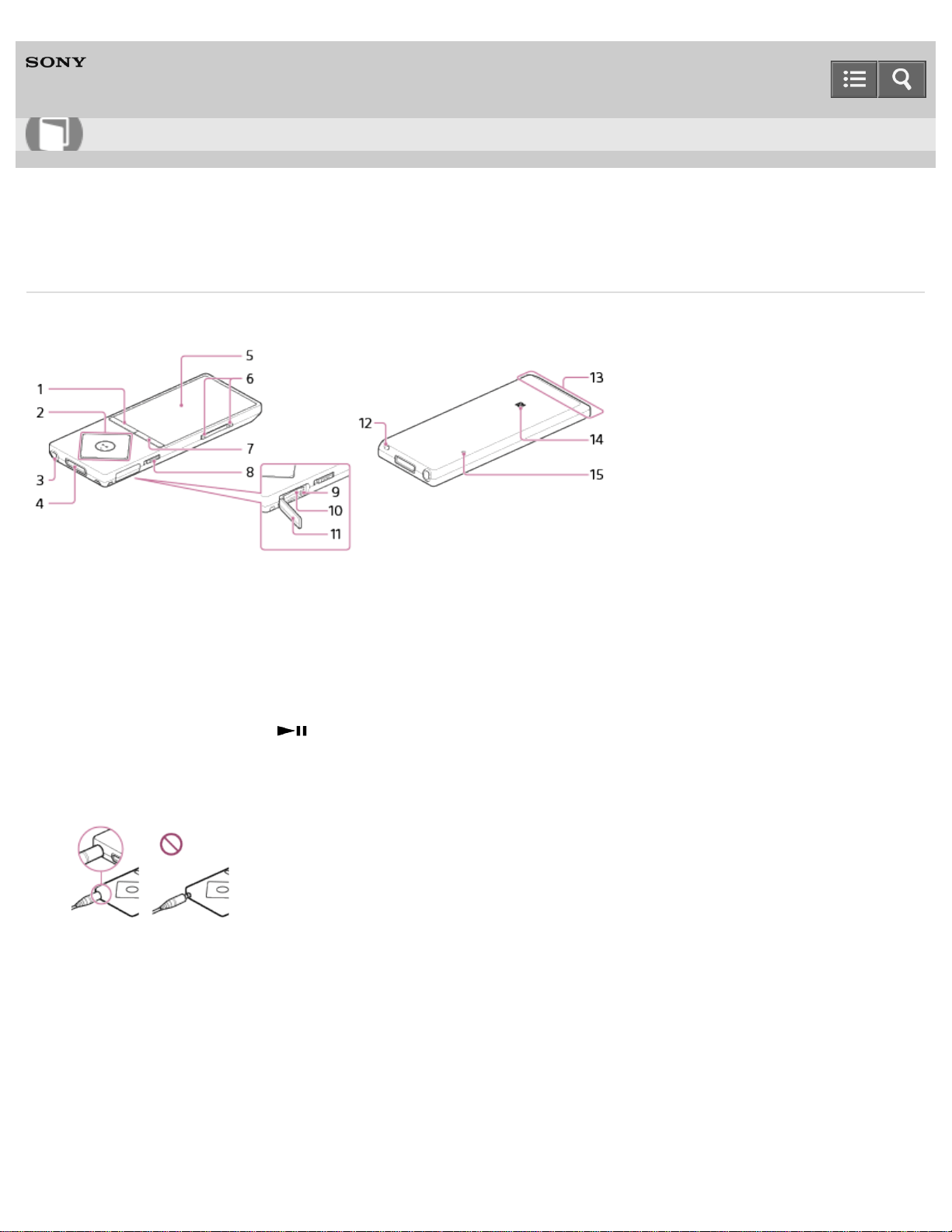
Digital Media Player
NW-A25/A25HN/A26HN/A27HN
Parts and controls
This section explains the functions of buttons, jacks, and other parts of your Walkman.
1. BACK/HOME button
Press to go up one list screen level or to return to the previous menu.
Press and hold to display the Home menu.
2. 5-way button
Press to start playback or navigate through the on-screen menus of your Walkman.
There is a tactile dot on the button to help you operate the buttons without looking.
3. Headphone jack (*1)
Insert the headphone plug until it clicks into place.
Sound will be impaired if the headphones are not connected properly.
4. WM-PORT jack
Connect the USB cable (supplied) or other accessories that support WM-PORT (not supplied).
5. Display
6. VOL (Volume) +/– button
Press to adjust the volume.
There is a tactile dot on the + button to help you operate the buttons without looking.
7. OPTION/PWR OFF (Option/Power off) button
Press to display the option menu.
Press and hold to turn the screen off and enter standby mode.
8. HOLD switch
Help Guide
How to Use
108
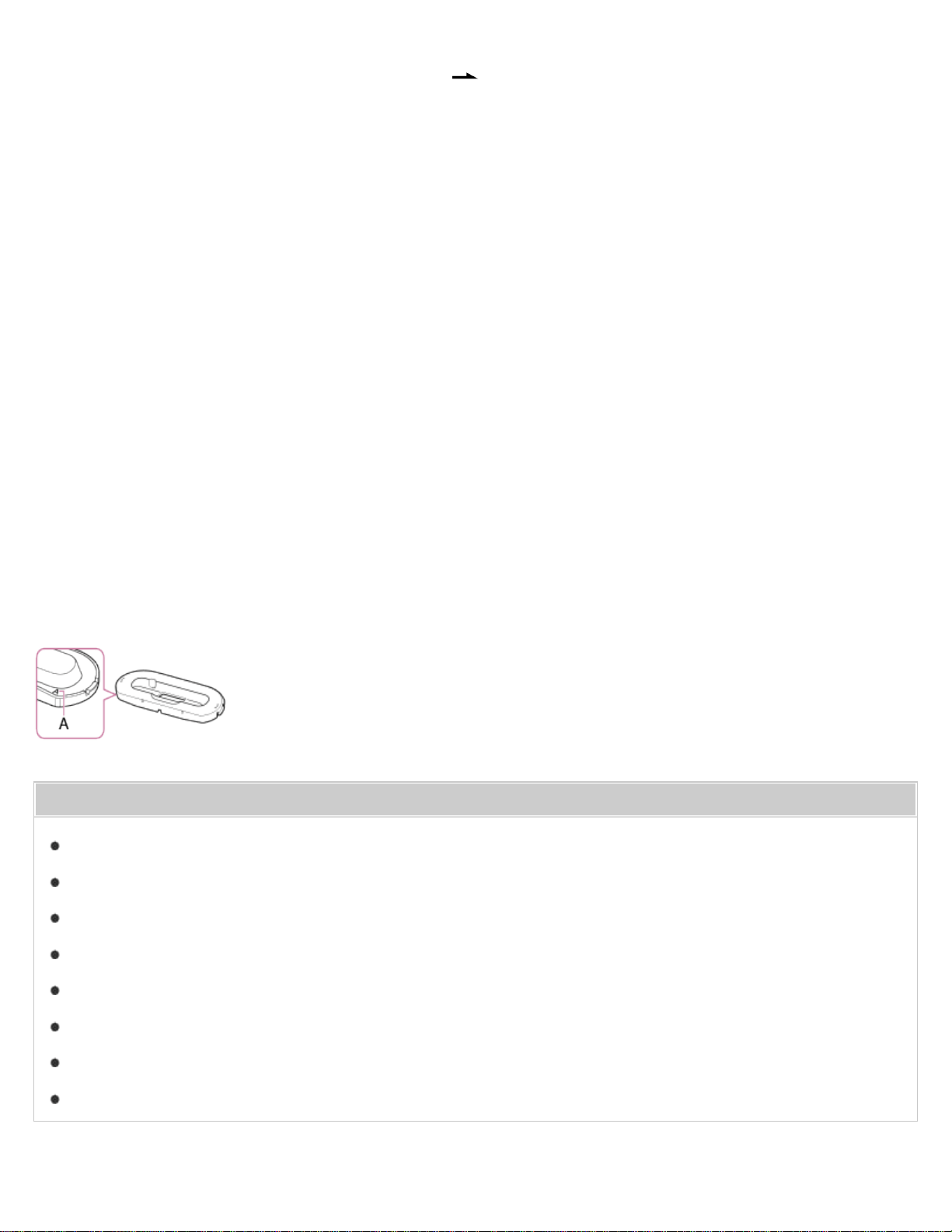
Set the HOLD switch to protect your Walkman against accidental operation during transportation.
Slide the HOLD switch in the direction of the arrow ( ) to disable all operation buttons. Slide the HOLD switch to
the opposite position to release the HOLD function.
9. Access lamp
10. microSD card slot
Open the cover before inserting a microSD card. Insert a microSD card until it clicks into place to increase the
available memory of your Walkman.
11. microSD card slot cover
12. Strap hole
Use to attach a strap (not supplied).
13. Built-in Bluetooth antenna
Do not cover the antenna part with your hands or other object when a Bluetooth connection is active. Doing so may
interrupt the connection.
14. N-mark
Touch a Bluetooth audio device equipped with the NFC function to this mark to connect it to your Walkman.
15. RESTART button
Press the RESTART button with a small pin, etc. to restart your Walkman.
(*1)
Sound is not emitted from the wired headphones while your Walkman is connected to a device via a Bluetooth connection.
Disconnect the Bluetooth connection to use wired headphones.
Installing your Walkman in a peripheral device such as a cradle
You may need to use an adaptor to install your Walkman in a peripheral device such as a cradle. In this case, use the
adaptor (Type A) supplied with the device.
Related Topic
Turning the power on
Turning the power off
Home menu
How to use the Home menu
How to use the option menu
Using the HOLD switch
Inserting a microSD card
Restarting your Walkman
109
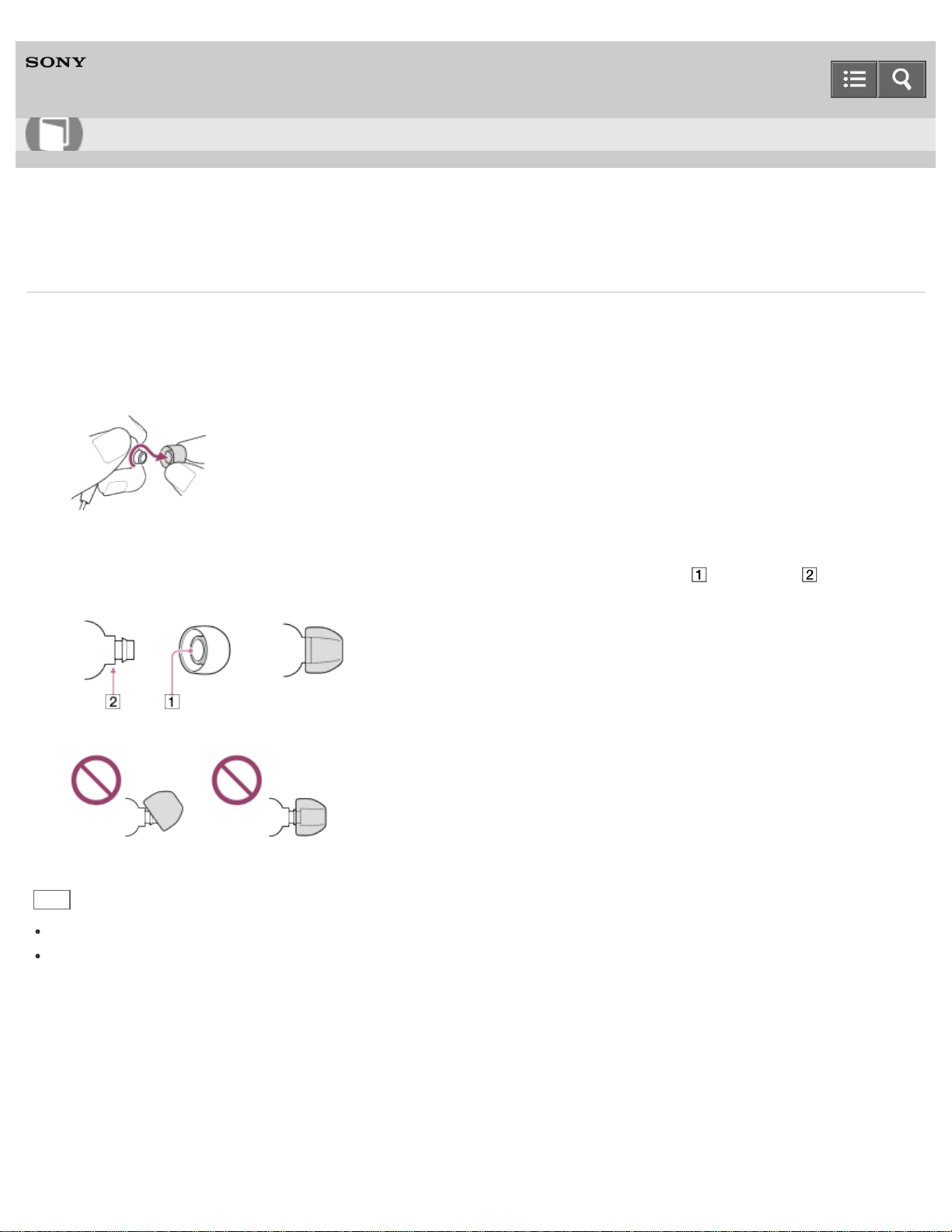
Digital Media Player
NW-A25/A25HN/A26HN/A27HN
Changing the earbuds
To enjoy better sound quality, change the earbuds (supplied) to another size to fit your ears comfortably and snugly.
1. While holding the headphone, twist and pull the earbud off.
If the earbud slips and cannot be detached, wrap it in a soft dry cloth.
2. Attach the earbuds to the headphone.
Push the earbud onto the headphone to where the end of the earbud’s colored part ( ) aligns with . Attach the
earbud firmly to the headphones to prevent it from detaching and remaining in your ear.
Hint
If the earbuds become worn, purchase new earbuds.
If the earbuds get dirty, remove the earbuds from the headphones and hand-wash them with neutral detergent. After
washing, drain off the water and reattach them.
4-573-951-11(1)
Copyright 2015 Sony Corporation
Help Guide
How to Use
110
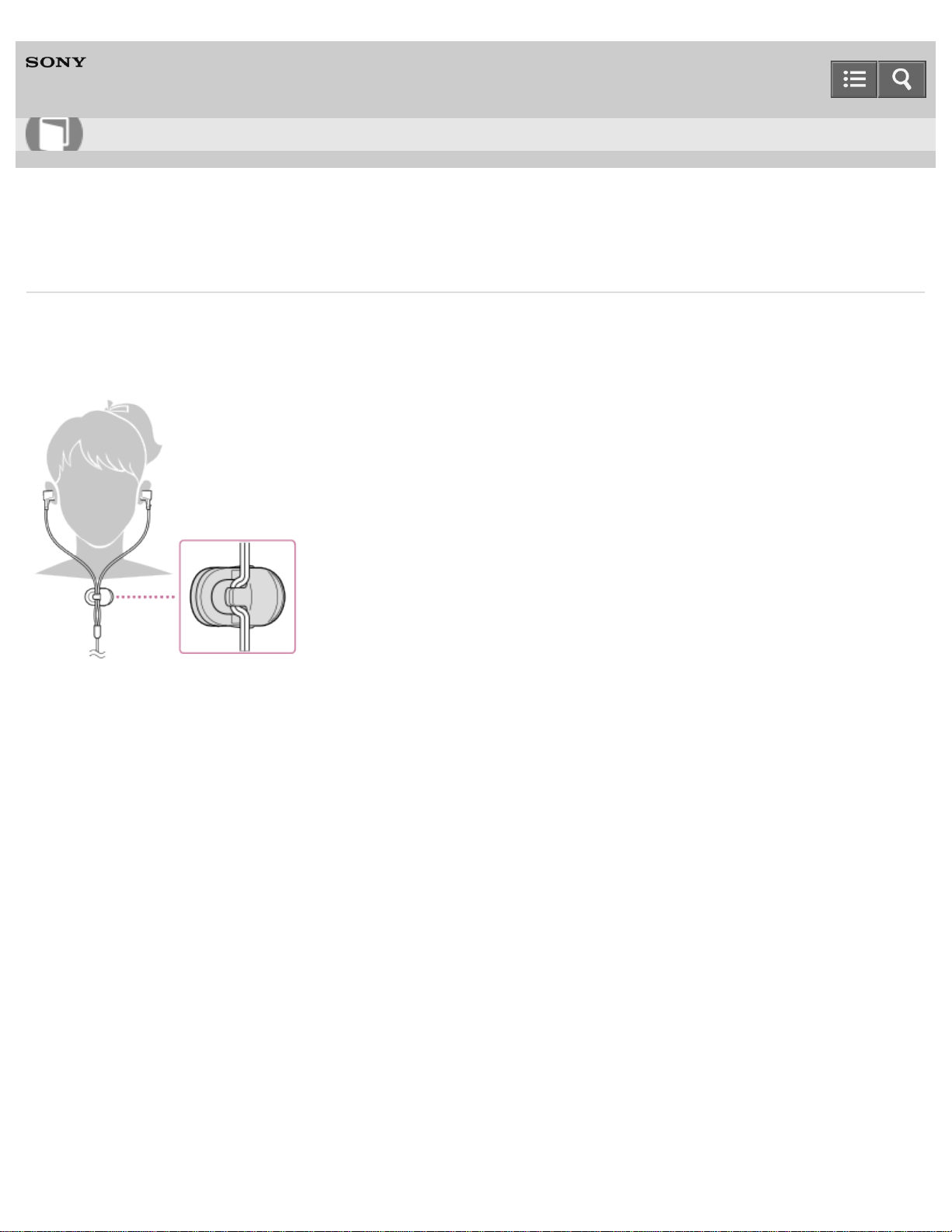
Digital Media Player
NW-A25/A25HN/A26HN/A27HN
Attaching the clip
(Only for models supplied with clip)
Attach the clip to the headphones as illustrated below to affix it to your clothes, etc. Using the clip may reduce noise from
the cord rubbing against your clothes.
4-573-951-11(1)
Copyright 2015 Sony Corporation
Help Guide
How to Use
111
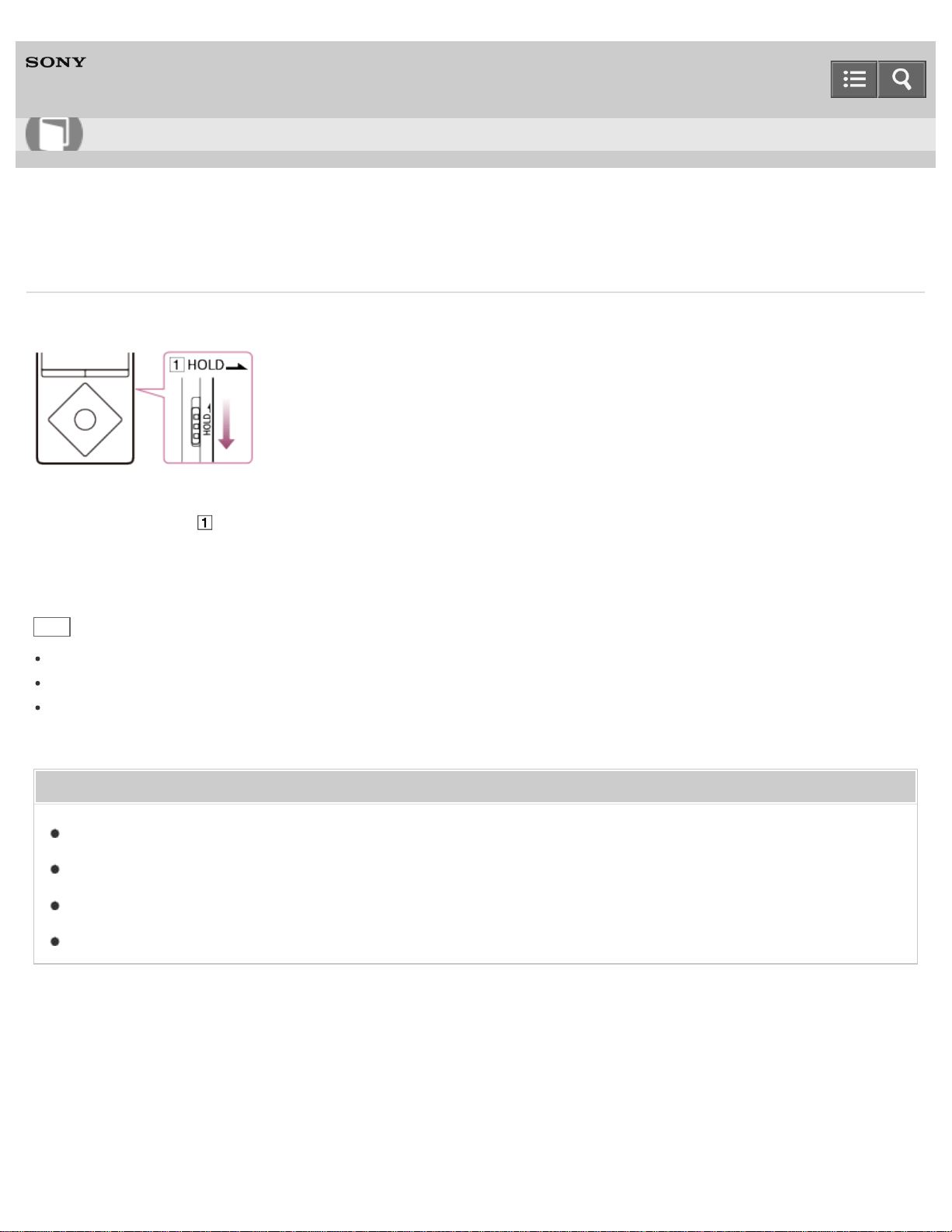
Digital Media Player
NW-A25/A25HN/A26HN/A27HN
Turning the power on
Turn on the power to start your Walkman.
1. Slide the switch ( ) to unlock your Walkman.
2. Press any button.
Hint
If there is no operation, the screen will be turned off. To turn on the screen, press any button.
Set the date and time before you start to use your Walkman.
If there is no operation for an extended period, your Walkman will be turned off automatically. When you turn on the
Walkman again, it will take a while before the power comes on.
Related Topic
Turning the power off
Using the HOLD switch
Setting the date and time
Setting the screen off timer
4-573-951-11(1)
Copyright 2015 Sony Corporation
Help Guide
How to Use
112
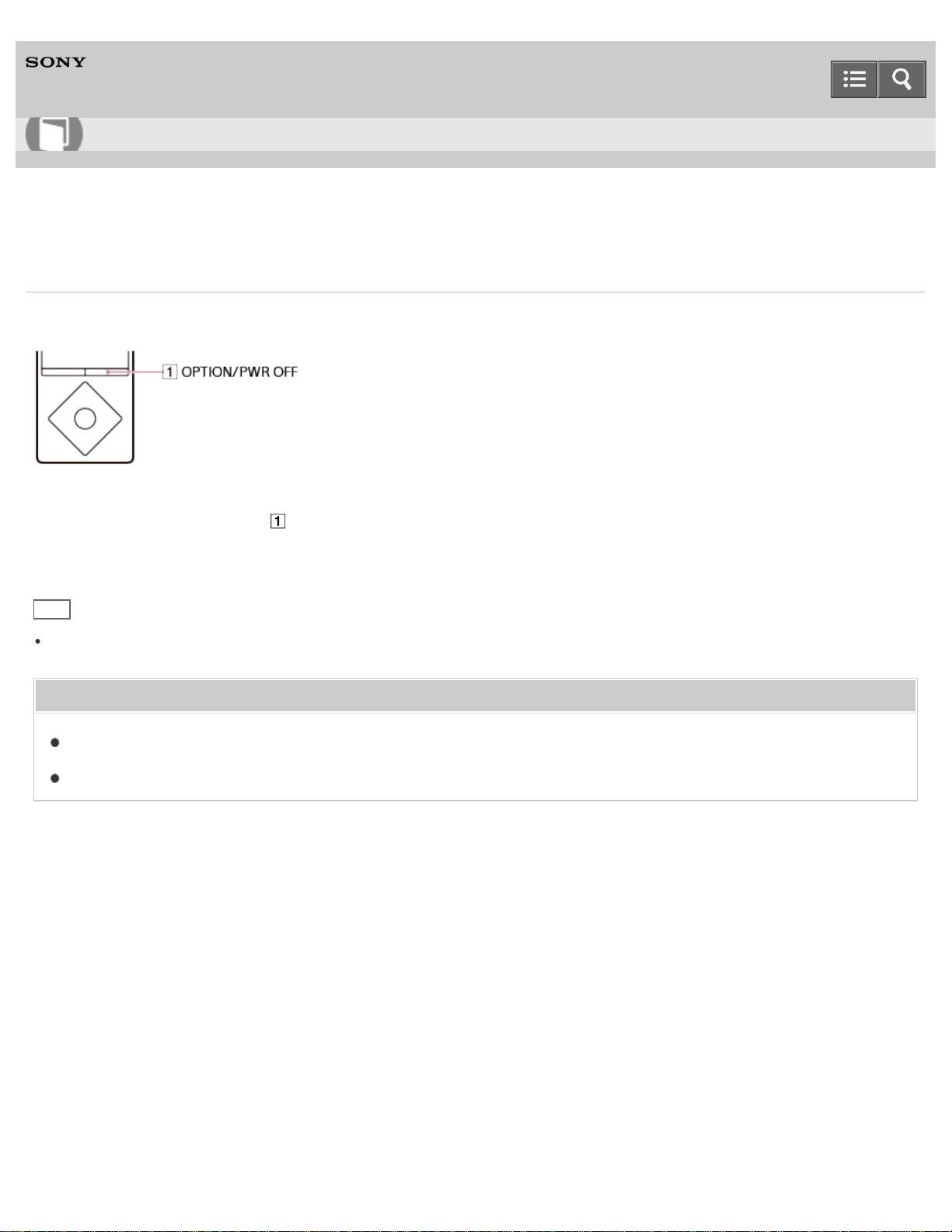
Digital Media Player
NW-A25/A25HN/A26HN/A27HN
Turning the power off
Turn off the power when not using your Walkman.
1. Press and hold the button ( ).
[POWER OFF] appears.
Hint
If there is no operation for an extended period, your Walkman will be turned off automatically.
Related Topic
Turning the power on
Setting the screen off timer
4-573-951-11(1)
Copyright 2015 Sony Corporation
Help Guide
How to Use
113
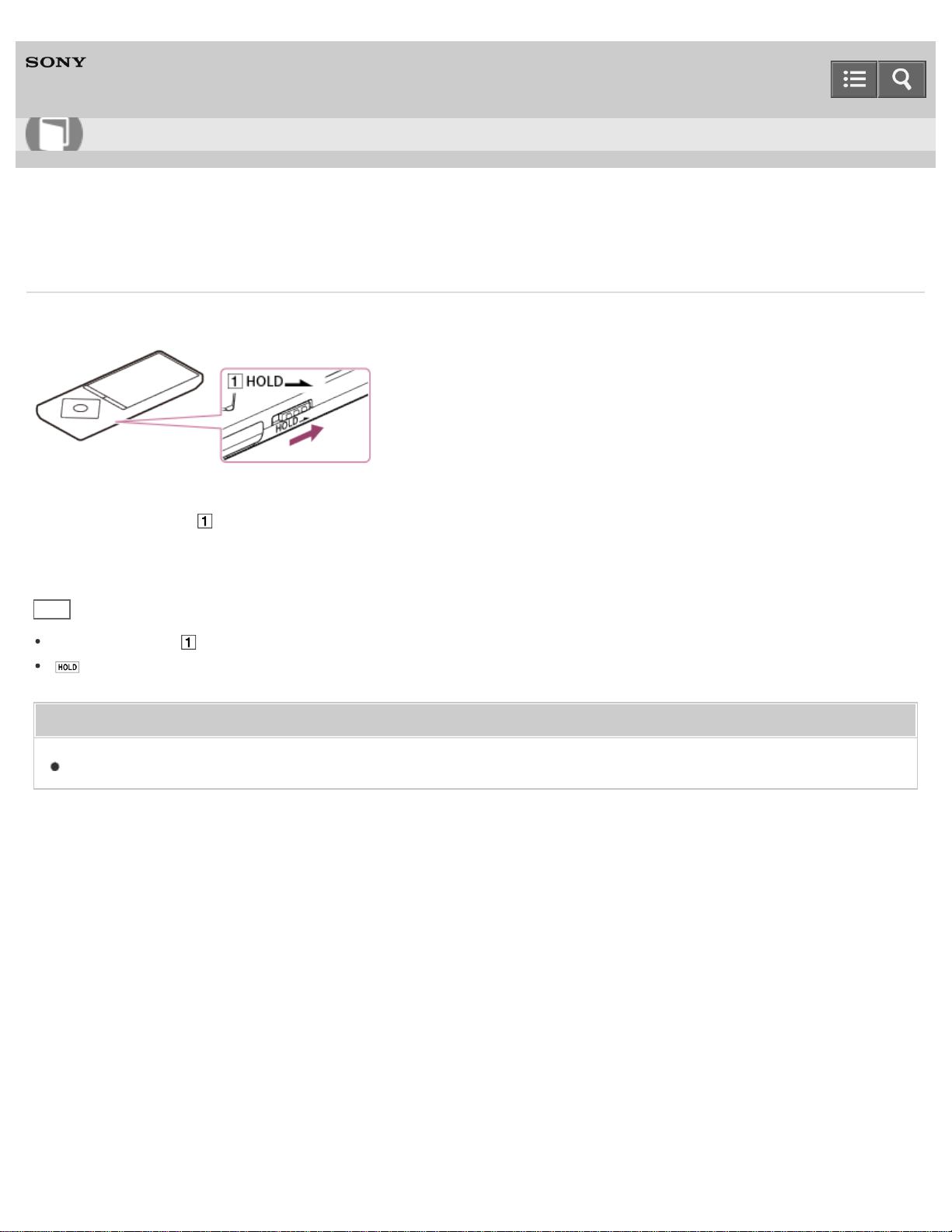
Digital Media Player
NW-A25/A25HN/A26HN/A27HN
Using the HOLD switch
You can use the HOLD switch to prevent the buttons from being pressed and operated accidentally.
1. Slide the switch ( ) in the direction of the arrow.
The HOLD function is enabled and all operation buttons are disabled.
Hint
Slide the switch ( ) in the opposite position to release the HOLD function.
flashes at the top of the screen if buttons are pressed while the HOLD function is enabled.
Related Topic
Parts and controls
4-573-951-11(1)
Copyright 2015 Sony Corporation
Help Guide
How to Use
114
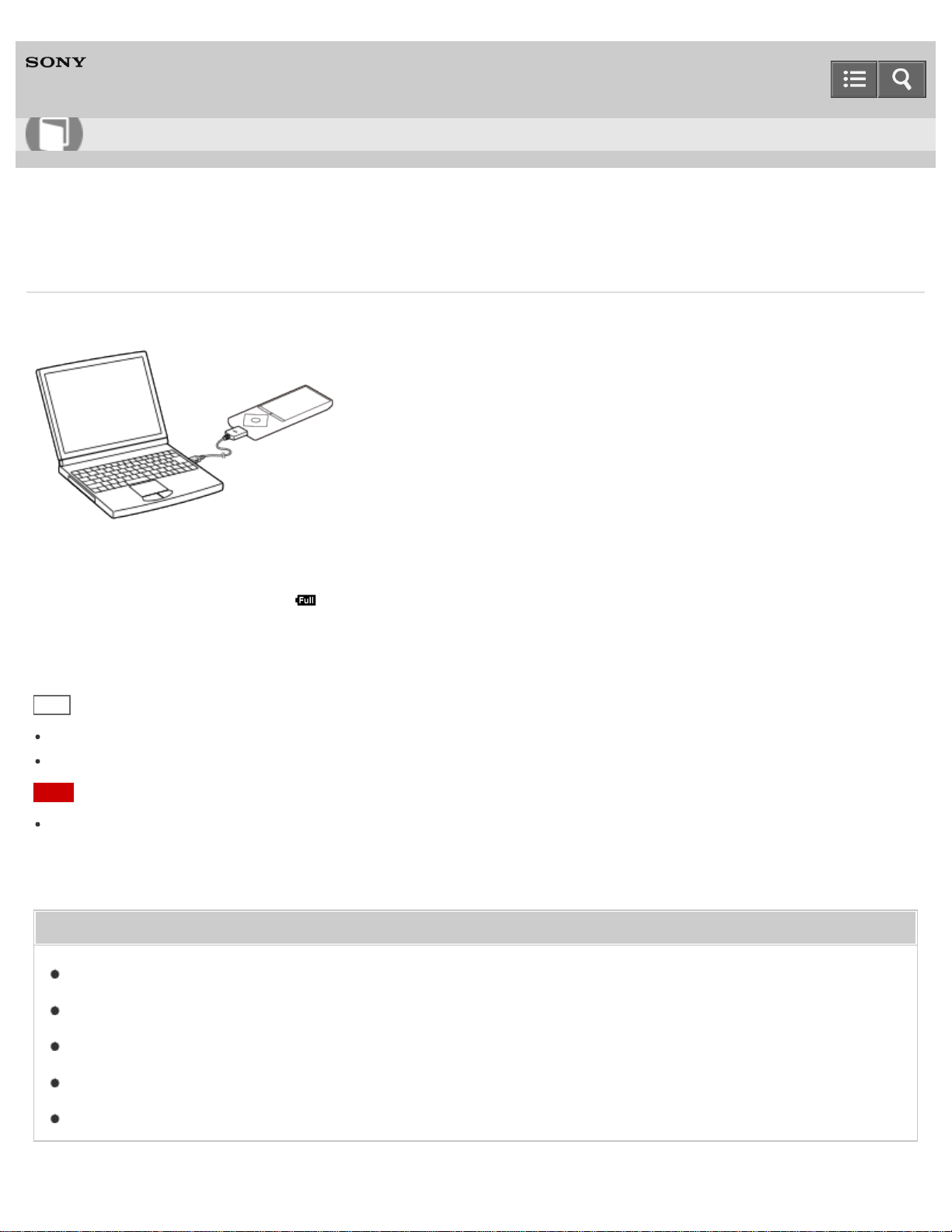
Digital Media Player
NW-A25/A25HN/A26HN/A27HN
Charging the battery
Charge your Walkman by connecting it to a computer.
1. Connect your Walkman to a running computer via USB.
The battery status icon shows when charging is complete.
2. Disconnect your Walkman from the computer when charging is complete.
Hint
Using the [Battery Care] mode shortens the usage time for that charge but reduces deterioration of the battery.
For information about the time to fully charge the battery, see “Specifications.”
Note
When you charge your Walkman when it has not been used for a long period of time or when you use it for the first
time, your computer may not recognize it. The Walkman should start operating normally again after charging for about
10 minutes.
Related Topic
Connecting to a computer
Charging in the battery care mode
Extending the battery life
Notes on charging the battery
Specifications
Help Guide
How to Use
115
Digital Media Player
NW-A25/A25HN/A26HN/A27HN
Charging in the battery care mode
You can reduce deterioration of the battery by using the [Battery Care] mode. The battery duration is approximately 10 %
shorter in the [Battery Care] mode, as your Walkman stops charging at about 90 % of the full charge.
1. From the Home menu, select [Settings].
2. Select [Common Settings] - [Battery Care] - [On].
Note
In the [Battery Care] mode, the first bar of the battery indicator will disappear somewhat more quickly than normal.
This is because your Walkman stops charging at about 90 % of the full charge, and is not a malfunction.
Related Topic
Charging the battery
Extending the battery life
Notes on charging the battery
4-573-951-11(1)
Copyright 2015 Sony Corporation
Help Guide
How to Use
116
Digital Media Player
NW-A25/A25HN/A26HN/A27HN
Extending the battery life
You can reduce battery consumption by using your Walkman as follows.
For a comparison of battery life based on set effects, default settings and functions, see “Battery life.”
Turn off the power manually.
Set a shorter time for [Screen Off Timer].
Set [Display Lyrics] to a setting other than [On (Screen Always On)].
Adjust the screen brightness.
Set all sound quality settings to off.
Disconnect the Bluetooth audio device when not in use.
Turn off the NFC function when not in use.
Turn off the noise canceling function.
Related Topic
Turning the power off
Setting the screen off timer
Displaying lyrics
Adjusting the screen brightness
Customizing sound quality settings
Making a Bluetooth connection using the NFC function
Using noise canceling
Battery life
4-573-951-11(1)
Copyright 2015 Sony Corporation
Help Guide
How to Use
117

Digital Media Player
NW-A25/A25HN/A26HN/A27HN
Notes on charging the battery
The charging time differs depending on the battery usage conditions.
If the battery life is reduced to about half of its normal life even if sufficiently charged, it has probably worn out. Please
contact your nearest Sony dealer.
If you charge your Walkman when it has not been used for a long period of time, your computer may not recognize it,
or the Walkman may not respond. Charge the Walkman for about 10 minutes, after which it should start operating
normally again.
When the ambient temperature exceeds the recommended range, is displayed on the screen and charging is
forcibly stopped. Charge the battery in an ambient temperature between 5 °C to 35 °C (41 ºF to 95 ºF).
The number of times the battery can be recharged from complete discharge is approximately 500 times. This number
may vary depending on the conditions under which you use your Walkman.
To prevent battery deterioration, charge the battery at least once every six months to one year.
Charging is not guaranteed with homebuilt or modified computers.
Operation with a USB port extended with a USB hub is only guaranteed when a self-powered USB hub that carries an
authorized logo is used.
Do not leave your Walkman connected for an extended period of time to a laptop computer that is not connected to
an AC power supply. Doing so may discharge the computer’s battery.
Do not turn on, restart, wake up from sleep mode, or shut down the computer with your Walkman connected to the
computer via USB. Doing so may cause the Walkman to malfunction. Disconnect the Walkman from the computer
before conducting these operations.
Your Walkman may become hot while charging. This is not a malfunction.
The battery indicator scales are not equal. Refer the battery indicator as a guide.
[Do not disconnect.] is displayed when transferring data between your Walkman and the computer. Do not remove the
USB cable when [Do not disconnect.] is displayed. Doing so may result in a loss of the data being transferred and
data on the Walkman.
4-573-951-11(1)
Copyright 2015 Sony Corporation
Help Guide
How to Use
118

Digital Media Player
NW-A25/A25HN/A26HN/A27HN
Selecting the display language
You can select the language for menus and messages.
1. From the Home menu, select [Settings].
2. Select [Language Settings] - desired language setting.
Hint
Select the display language before transferring content.
Related Topic
How to use the Home menu
4-573-951-11(1)
Copyright 2015 Sony Corporation
Help Guide
How to Use
119

Digital Media Player
NW-A25/A25HN/A26HN/A27HN
Setting the date and time
You can set the current date and time.
1. From the Home menu, select [Settings].
2. Select [Common Settings] - [Clock Settings] - [Set Date-Time].
3. Press the button ( ) to select “Year,” “Month,” “Day,” “Hour” or “Minute.”
4. Press the button ( ) to select numbers, and press the button ( ).
Hint
You can select [12-hour] or [24-hour] for the time display format.
Note
If you leave your Walkman for a long time without using it and the battery is completely discharged, the date and time
you have set will be reset and [--:--] will be displayed.
The clock may gain or lose up to 60 seconds per month.
Related Topic
Setting the date display format
Setting the time display format
4-573-951-11(1)
Copyright 2015 Sony Corporation
Help Guide
How to Use
120
Digital Media Player
NW-A25/A25HN/A26HN/A27HN
Setting the date display format
You can set the date format for displaying the current date as [YYYY/MM/DD] (year/month/day), [MM/DD/YYYY]
(month/day/year), or [DD/MM/YYYY] (day/month/year).
1. From the Home menu, select [Settings].
2. Select [Common Settings] - [Clock Settings] - [Date Display Format] - desired format.
Related Topic
Setting the date and time
Setting the time display format
4-573-951-11(1)
Copyright 2015 Sony Corporation
Help Guide
How to Use
121
Digital Media Player
NW-A25/A25HN/A26HN/A27HN
Setting the time display format
You can select [12-hour] or [24-hour] for the time display style.
1. From the Home menu, select [Settings].
2. Select [Common Settings] - [Clock Settings] - [Time Display Format] - desired format.
Related Topic
Setting the date and time
Setting the date display format
4-573-951-11(1)
Copyright 2015 Sony Corporation
Help Guide
How to Use
122
Digital Media Player
NW-A25/A25HN/A26HN/A27HN
Formatting a microSD card
Before using a microSD card (not supplied) in your Walkman for the first time, be sure to format the microSD card using
the Walkman by following the steps below. Formatting a microSD card will delete all data stored on the microSD card, so
be careful not to delete important data.
1. From the Home menu, select [SD Card Settings].
2. Select [Format SD Card] - [Yes].
All data stored on the microSD card is deleted.
Note
Be sure to format the microSD card using your Walkman when you use it on the Walkman for the first time.
4-573-951-11(1)
Copyright 2015 Sony Corporation
Help Guide
How to Use
123
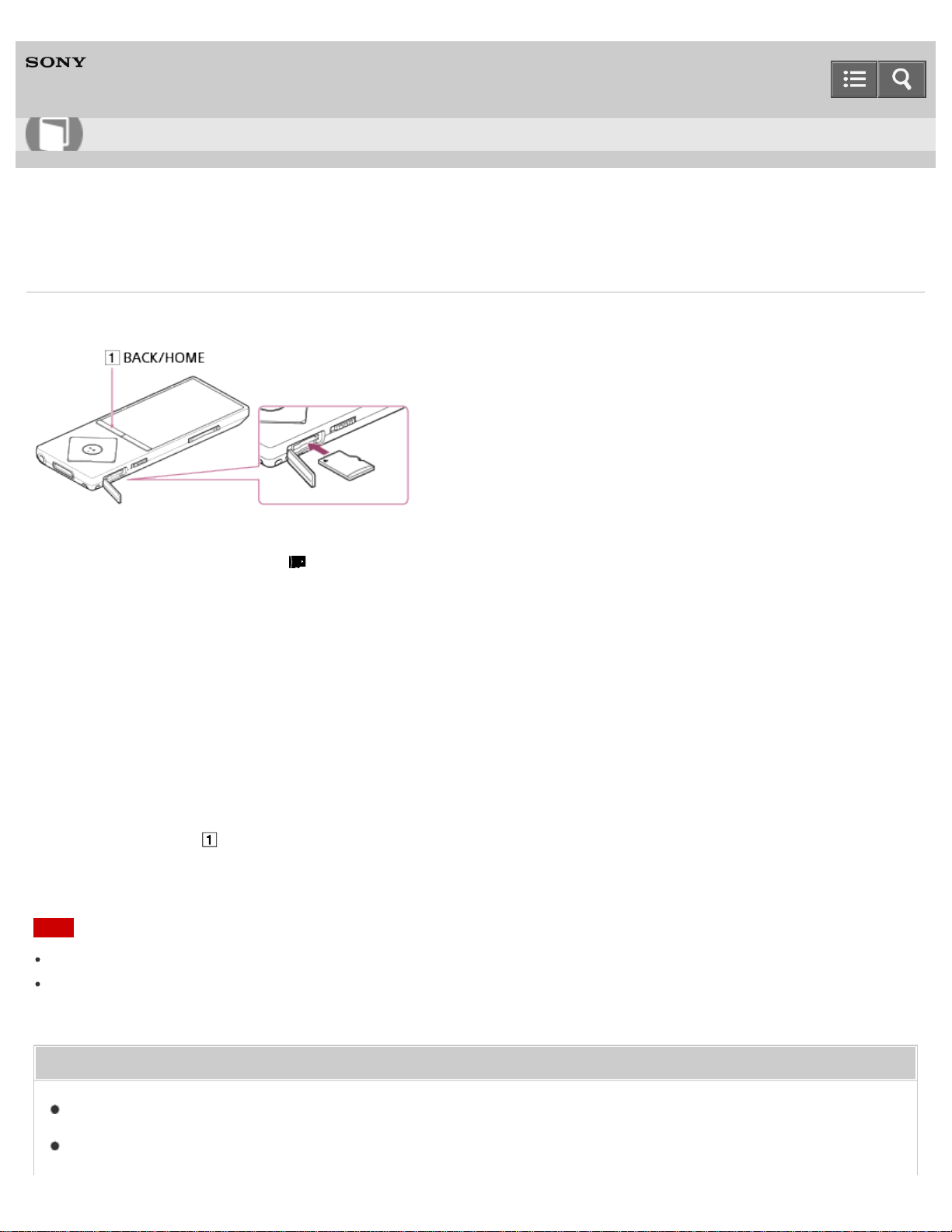
Digital Media Player
NW-A25/A25HN/A26HN/A27HN
Inserting a microSD card
You can store content such as music on microSD cards in addition to [System Storage].
1. From the Home menu, select [SD Card Settings].
2. Select [Insert/Remove SD Card] - [Yes].
An image of a microSD card is displayed on the screen and your Walkman enters the [Insert/Remove SD Card]
status. Playback of content stops.
3. Open the microSD card slot cover.
4. While in the [Insert/Remove SD Card] status, insert a microSD card into the microSD card slot with the gold contact
pins side facing down, until it clicks into place.
5. Close the microSD card slot cover.
6. Press the button ( ) to exit the [Insert/Remove SD Card] status.
The library is updated and you can access the content stored on the microSD card.
Note
If the microSD card is not recognized, remove it and then insert it into your Walkman again.
Do not insert any liquids, metal, flammable substances or any object other than a microSD card into the microSD card
slot.
Related Topic
Removing a microSD card
Selecting the memory to use
Help Guide
How to Use
124

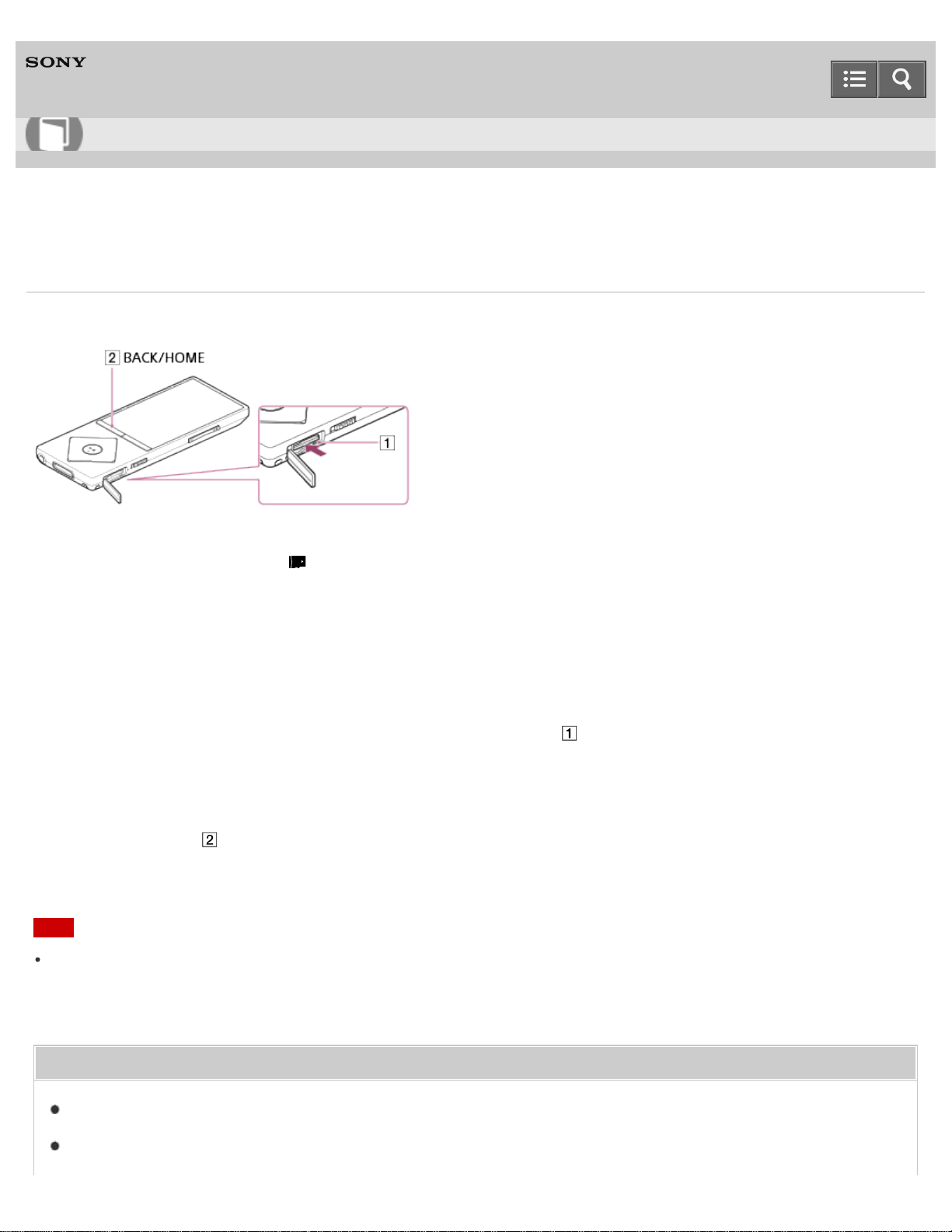
Digital Media Player
NW-A25/A25HN/A26HN/A27HN
Removing a microSD card
You can remove a microSD card from your Walkman.
1. From the Home menu, select [SD Card Settings].
2. Select [Insert/Remove SD Card] - [Yes].
An image of a microSD card is displayed on the screen and your Walkman enters the [Insert/Remove SD Card]
status. Playback of content stops.
3. Open the microSD card slot cover.
4. While in the [Insert/Remove SD Card] status, check that the lamp ( ) is off and push the microSD card into the
microSD card slot. When the microSD card pops out, remove it from the slot.
5. Close the microSD card slot cover.
6. Press the button ( ) to exit the [Insert/Remove SD Card] status.
Your Walkman starts updating the library.
Note
Data relating to content stored on a microSD card, such as analysis results by [SensMe™ Channels] and bookmarks,
is deleted once the microSD card is removed from your Walkman and is not recovered even when the microSD card
is reinserted correctly. The data needs to be set every time you insert the microSD card.
Related Topic
Inserting a microSD card
Notes on microSD cards
Help Guide
How to Use
126

Digital Media Player
NW-A25/A25HN/A26HN/A27HN
Selecting the memory to use
You can select the memory to store content and other data on from [System Storage] or [SD Card].
1. From the Home menu, select [SD Card Settings].
2. Select the menu items using either of the procedures below.
To transfer content from a computer: Select [Location for USB Transfer] - [System Storage] or [SD Card].
To receive content via a Bluetooth connection: Select [Location for Received File] - [System Storage] or [SD
Card].
Hint
[System Storage] is selected at the time of purchase.
The memory to use can be switched while your Walkman is connected to a computer to transfer content such as
music from the computer. Follow the instructions shown on the display of the Walkman to switch the memory.
Note
Music content with copyright protection cannot be transferred to a microSD card.
You cannot exchange data between the memory of your Walkman and a microSD card.
Related Topic
Transferring content using Media Go
Transferring content using Content Transfer
Transferring content using Explorer
Transferring content using the Finder
Receiving content via a Bluetooth connection
4-573-951-11(1)
Copyright 2015 Sony Corporation
Help Guide
How to Use
128
Digital Media Player
NW-A25/A25HN/A26HN/A27HN
Notes on microSD cards
Use a microSD card (not supplied) that has been formatted using your Walkman. Operations of microSD cards
formatted with computers or other devices are not guaranteed.
If you format a microSD card containing data, the data will be deleted. Be careful not to delete important data.
Do not leave a microSD card within the reach of small children. They might accidentally swallow it.
Do not insert or remove a microSD card when your Walkman is not in the [Insert/Remove SD Card] status. Doing so
may cause a malfunction in your Walkman.
We do not guarantee the operation of all types of compatible microSD cards with your Walkman.
Data may be corrupted in the following cases:
When a microSD card is removed or your Walkman is turned off during a read or write operation.
When a microSD card is used in locations subject to static electricity or electrical noise.
We assume no responsibility for any loss or damage of stored data.
We recommend that you save a backup copy of important data.
Do not touch the terminal of a microSD card with your hand or a metal object.
Do not strike, bend or drop a microSD card.
Do not disassemble or modify a microSD card.
Do not expose a microSD card to water.
Do not use a microSD card under the following conditions:
Locations beyond the required operating conditions, including locations such as the hot interior of a car parked in the sun
and/or in the summer, outdoor areas exposed to direct sunlight, or near a heater.
Humid locations or locations with corrosive substances present.
When using a microSD card, make sure to check the correct insertion direction into the microSD card slot.
Do not insert foreign objects into the microSD card slot.
Related Topic
Formatting a microSD card
Inserting a microSD card
Removing a microSD card
4-573-951-11(1)
Copyright 2015 Sony Corporation
Help Guide
How to Use
129
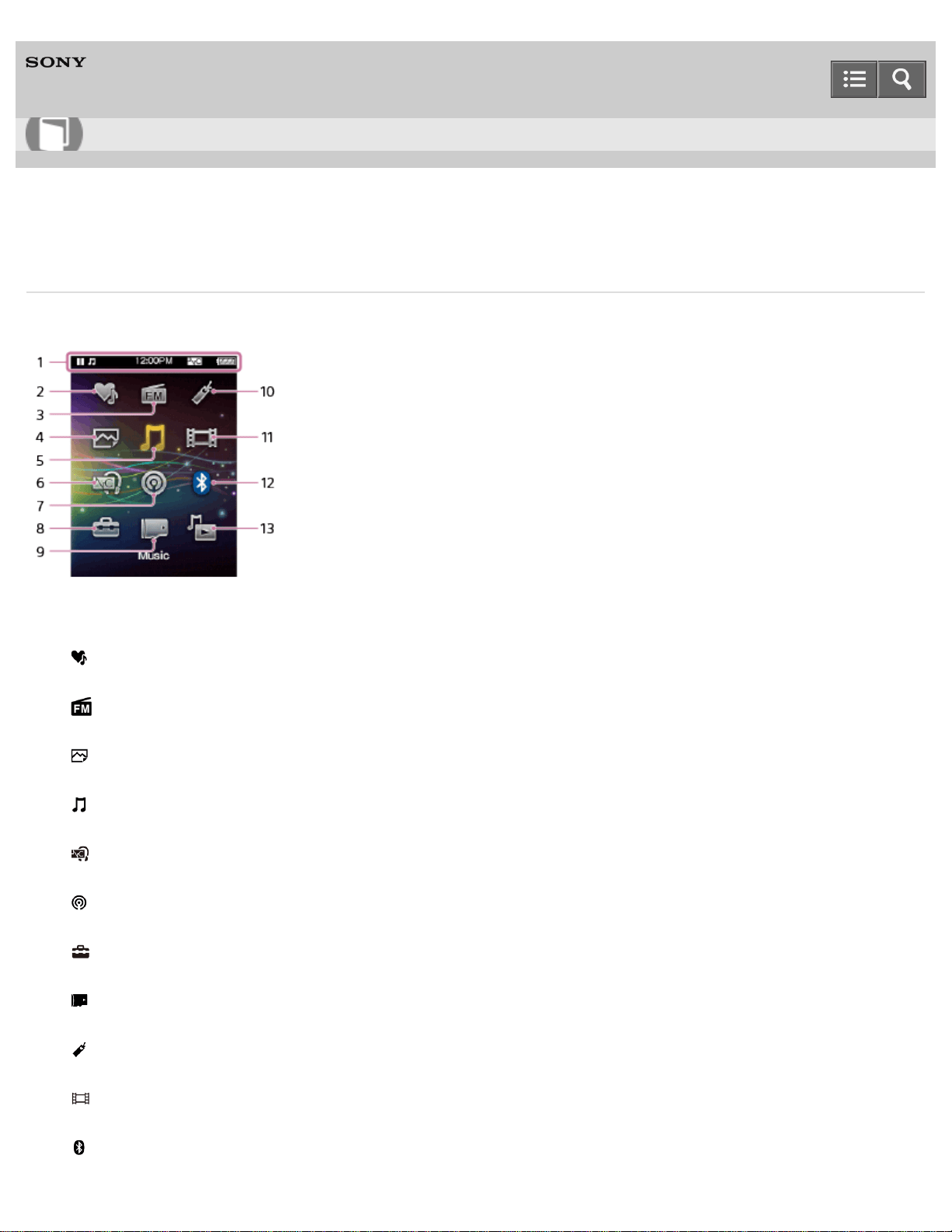
Digital Media Player
NW-A25/A25HN/A26HN/A27HN
Home menu
The following list shows the items in the Home menu.
1. Information area
2. [SensMe™ Channels]
Play songs using SensMe™ Channels.
3. [FM Radio]
Listen to FM radio broadcasts.
4. [Photos]
View photos transferred to your Walkman.
5. [Music]
Listen to songs transferred to your Walkman.
6. [Noise Canceling]
Reduce unwanted ambient noise using active noise control technology.
7. [Podcasts]
Play podcast episodes transferred to your Walkman.
8. [Settings]
Set up your Walkman and its functions.
9. [SD Card Settings]
Set up functions regarding the microSD card.
10. [Bookmark]
Classify songs transferred to your Walkman according to personal taste.
11. [Videos]
Watch videos transferred to your Walkman.
12. [Bluetooth]
Help Guide
How to Use
130
Connect with a Bluetooth device to listen to music or send/receive content.
13. [Go to song playback screen]
Display the music playback screen.
Related Topic
How to use the Home menu
Playing songs using SensMe™ Channels
Listening to FM radio
Viewing photos
Playing music
Adding a song to a bookmark list
Using noise canceling
Playing podcasts
Watching videos
4-573-951-11(1)
Copyright 2015 Sony Corporation
131
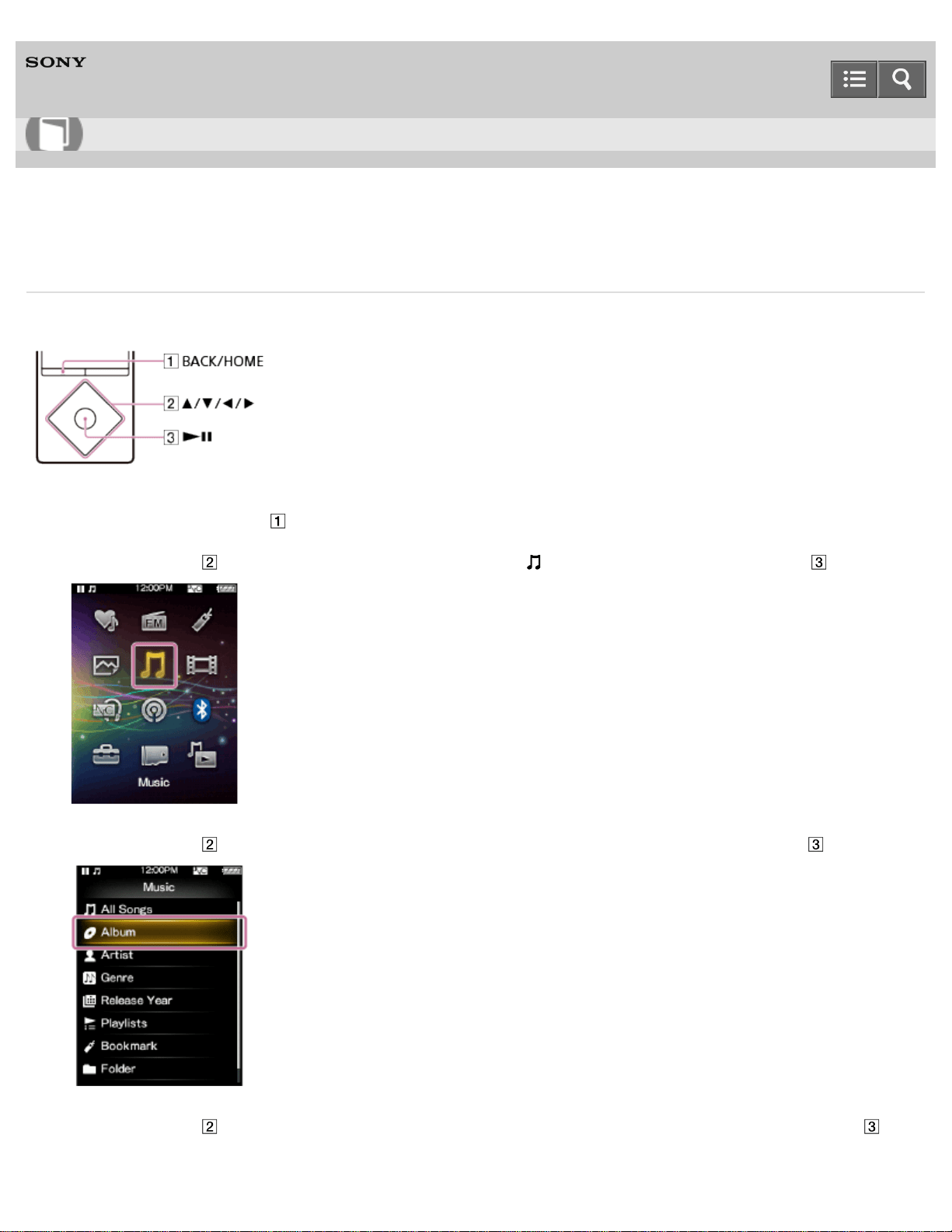
Digital Media Player
NW-A25/A25HN/A26HN/A27HN
How to use the Home menu
The Home menu is the starting point for all applications such as those for searching for songs and changing settings.
1. Press and hold the button ( ) until the Home menu appears.
2. Press the button ( ) to select the desired menu (for example [Music]) and then press the button ( ) to confirm.
3. Press the button ( ) to select the desired function (for example [Album]) and then press the button ( ) to confirm.
4. Press the button ( ) to select the desired content (for example a desired album) and then press the button ( ) to
confirm.
Help Guide
How to Use
132
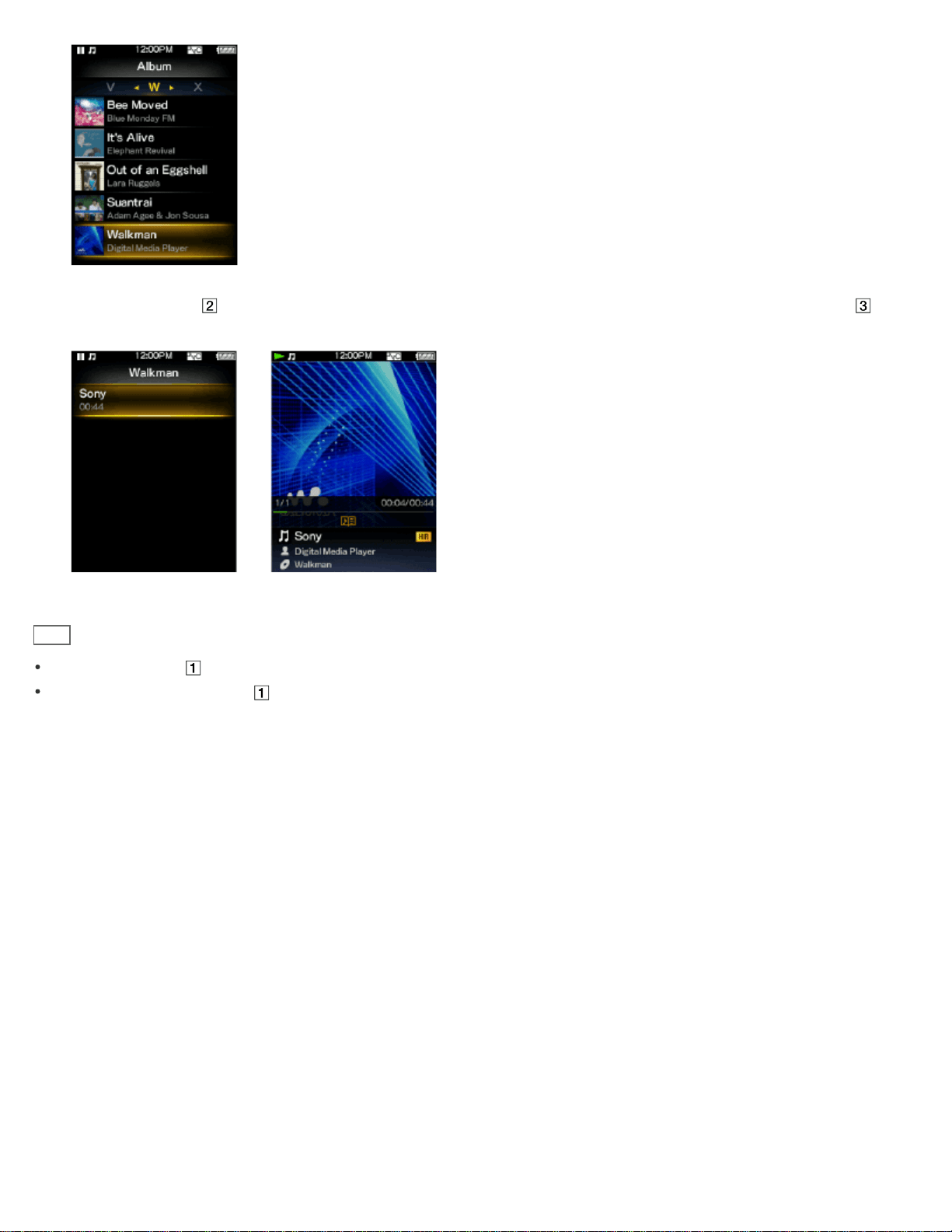
5. Press the button ( ) to select the desired content (for example a desired song) and then press the button ( ) to
confirm.
Hint
Press the button ( ) to return to the previous screen during an operation.
Press and hold the button ( ) to return to the Home menu during an operation.
4-573-951-11(1)
Copyright 2015 Sony Corporation
133
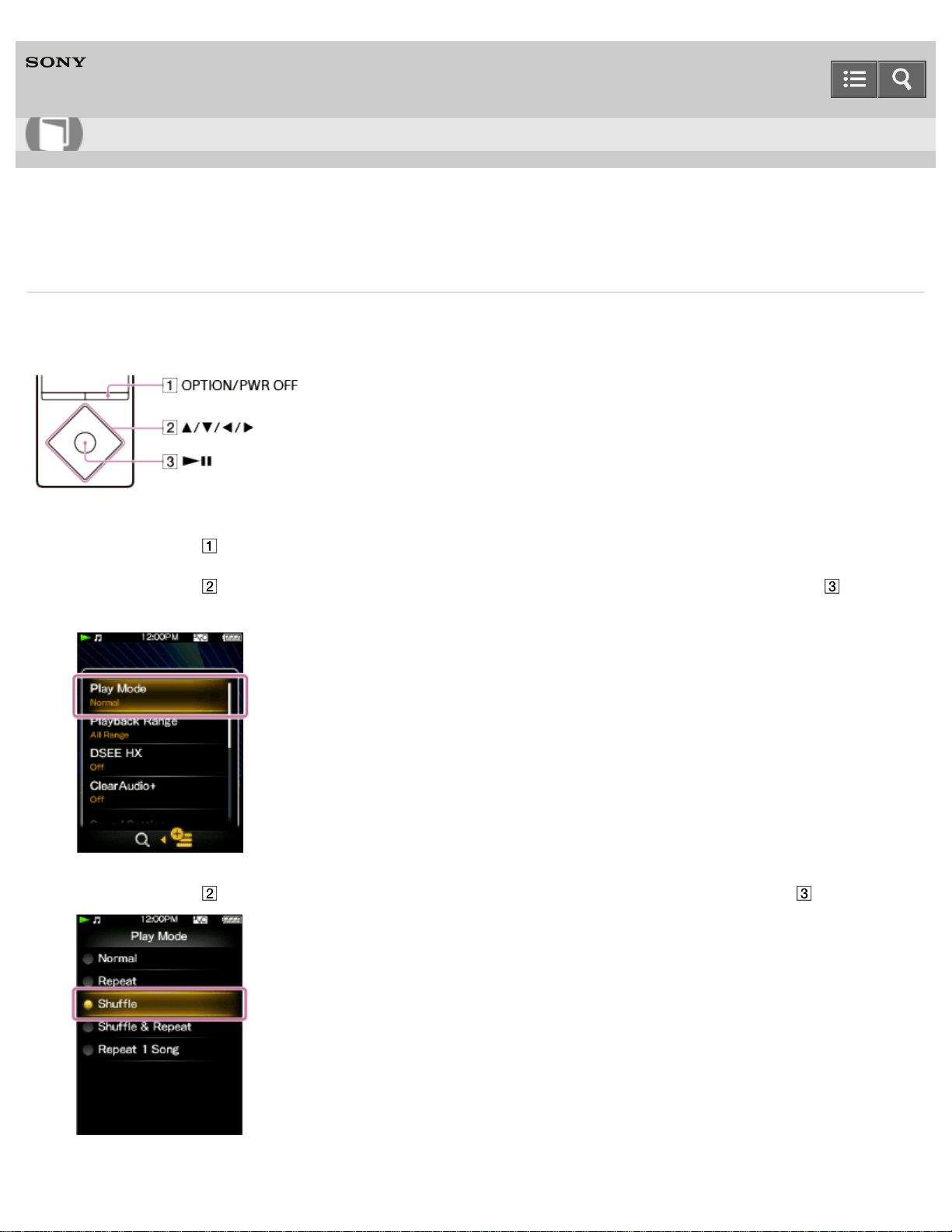
Digital Media Player
NW-A25/A25HN/A26HN/A27HN
How to use the option menu
Display the option menu by pressing the OPTION/PWR OFF button. The option menu items vary depending on the
function and allow you to change the settings.
1. Press the button ( ) while your Walkman is playing, for example while in the music playback screen.
2. Press the button ( ) to select the desired menu (for example [Play Mode]) and then press the button ( ) to
confirm.
3. Press the button ( ) to select the desired menu (for example [Shuffle]) and then press the button ( ) to confirm.
Help Guide
How to Use
134


Digital Media Player
NW-A25/A25HN/A26HN/A27HN
List of icons displayed in the information area
The icons vary according to the playback status, setting and screen.
1. Information area
Icons in the information area
Playback status
(play), (pause), (fast forward), (fast rewind), (find the beginning of the next song), (find the
beginning of the previous (or current) song), etc.
HOLD indication
Status of the noise canceling function (The icon lights up when noise canceling headphones are connected with the
noise canceling function enabled.)
,
Remaining battery power
Alarm timer
Sleep timer
Help Guide
How to Use
136
Music functions available
Bluetooth status (When a Bluetooth connection is established, this icon turns blue.)
,
Related Topic
Music playback operations
Using the HOLD switch
Using noise canceling
Setting the alarm to on/off
Setting the sleep timer
Playing music
Pairing and connecting with a Bluetooth audio device
4-573-951-11(1)
Copyright 2015 Sony Corporation
137
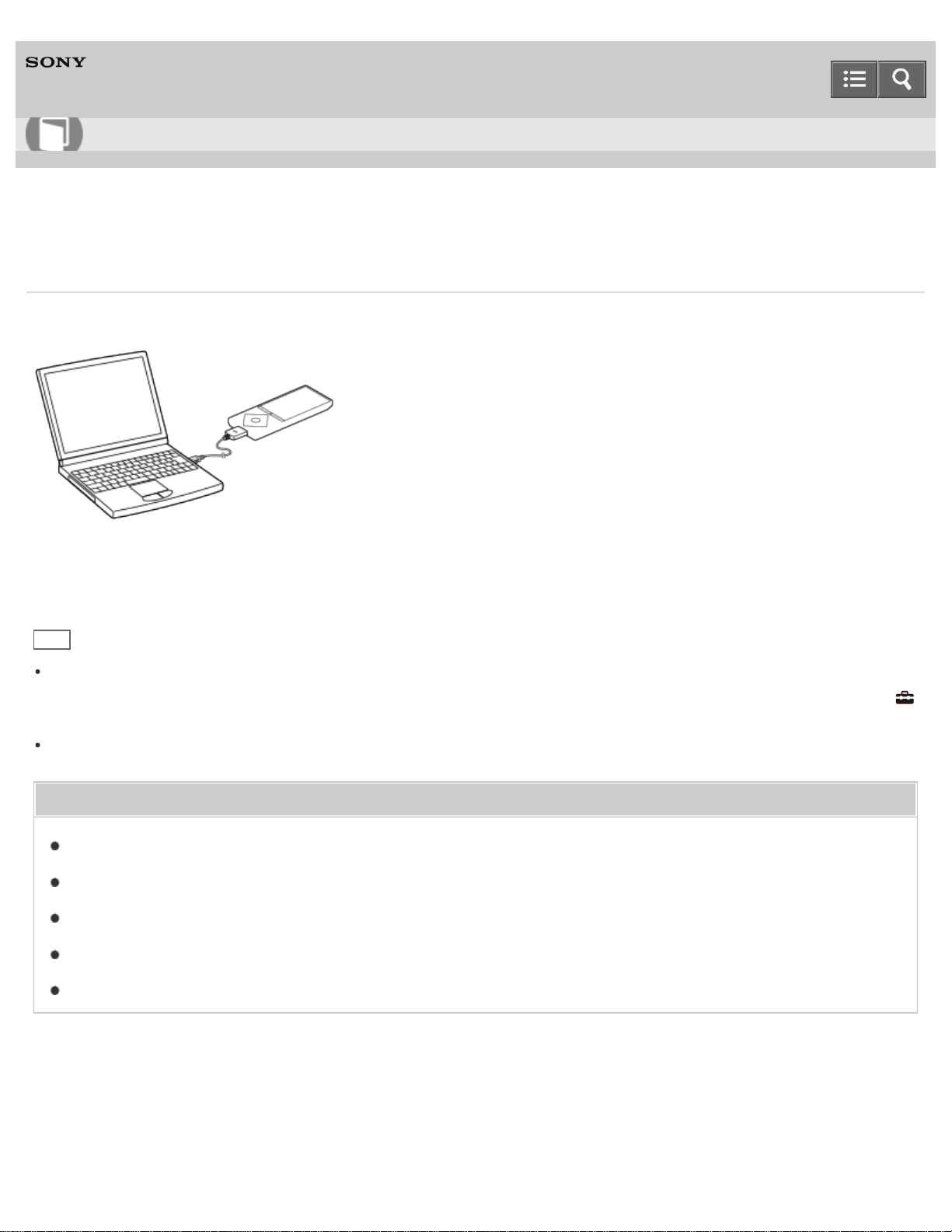
Digital Media Player
NW-A25/A25HN/A26HN/A27HN
Connecting to a computer
Connect your Walkman to a computer via USB to charge the Walkman or transfer data.
1. Connect your Walkman to a running computer via USB.
Hint
If your computer fails to establish a USB connection with your Walkman and neither [Connected USB (Storage in use:
system storage)] or [Connected USB (Storage in use: SD card)] is not displayed, go to the Home menu and select
[Settings] - [Common Settings] - [USB Connection Mode] - [Yes].
If you are prompted to make a Windows operation, click “Cancel” or “×.”
Related Topic
Notes on connecting your Walkman to a computer
Transferring content using Media Go
Transferring content using Content Transfer
Charging the battery
Selecting the memory to use
4-573-951-11(1)
Copyright 2015 Sony Corporation
Help Guide
How to Use
138
Digital Media Player
NW-A25/A25HN/A26HN/A27HN
Notes on connecting your Walkman to a computer
Do not disconnect your Walkman from your computer when transferring data between the Walkman and the computer
via USB. Doing so may result in loss of the data being transferred and data on the Walkman.
Do not turn on, restart, wake up from sleep mode, or shut down the computer with your Walkman connected to the
computer via USB. Doing so may cause the Walkman to malfunction. Disconnect the Walkman from the computer
before conducting those operations.
4-573-951-11(1)
Copyright 2015 Sony Corporation
Help Guide
How to Use
139
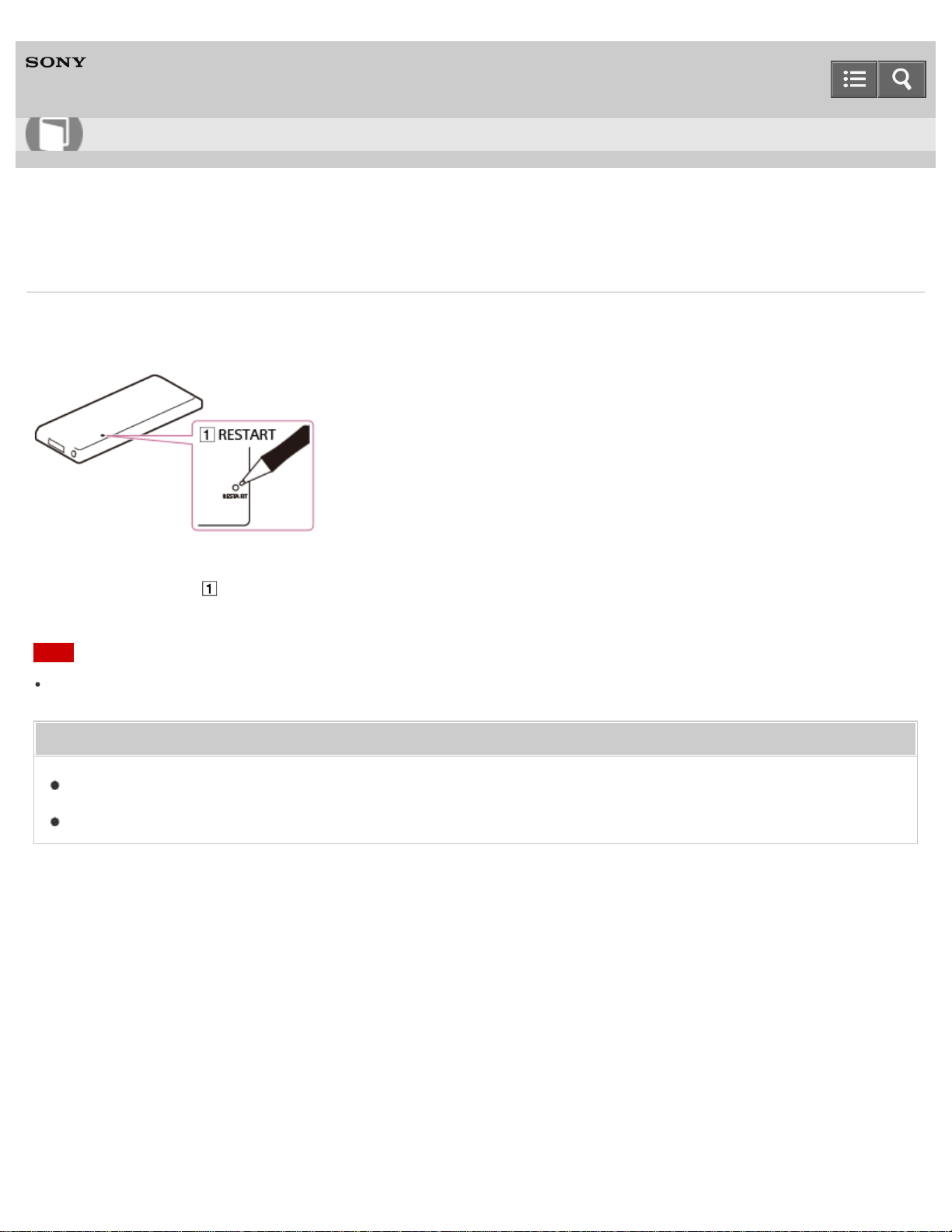
Digital Media Player
NW-A25/A25HN/A26HN/A27HN
Restarting your Walkman
Try restarting your Walkman if operations become unstable. Before restarting the Walkman, disconnect the Walkman
from your computer and check that no content such as music is being played. Otherwise, the data may be damaged.
1. Press the button ( ) with a pen or a paper clip, etc. to restart your Walkman.
Note
Restarting your Walkman will not delete any data or reset any settings.
Related Topic
Resetting to the factory settings
Formatting memory
4-573-951-11(1)
Copyright 2015 Sony Corporation
Help Guide
How to Use
140
Digital Media Player
NW-A25/A25HN/A26HN/A27HN
Resetting to the factory settings
Your Walkman can be reset to the default settings. Resetting the Walkman will not delete content such as music.
1. From the Home menu, select [Settings].
2. Select [Common Settings] - [Reset/Format] - [Reset All Settings] - [Yes].
Note
If you reset your Walkman to the factory settings, the pairing information of the connected Bluetooth devices will be
deleted.
Related Topic
Restarting your Walkman
Formatting memory
4-573-951-11(1)
Copyright 2015 Sony Corporation
Help Guide
How to Use
141
Digital Media Player
NW-A25/A25HN/A26HN/A27HN
Formatting memory
You can initialize your Walkman by formatting the memory.
1. From the Home menu, select [Settings].
2. Select [Common Settings] - [Reset/Format] - [Format System Storage] or [Format SD Card] - [Yes].
3. Follow the on-screen instructions to format the memory.
Note
Be sure not to initialize (format) the memory of your Walkman using a computer. If you have formatted it with a
computer, format it again using the Walkman.
Formatting the memory erases all content data (songs, etc., including the sample data installed at the factory, and the
supplied software installer). Be sure to check the data stored in the memory and export any important data to your
computer before formatting.
Related Topic
Restarting your Walkman
Resetting to the factory settings
4-573-951-11(1)
Copyright 2015 Sony Corporation
Help Guide
How to Use
142
Digital Media Player
NW-A25/A25HN/A26HN/A27HN
Updating the system software of your Walkman
You can add new features to your Walkman by installing the latest system software. For details on the latest system
software information and how to install it, visit the customer support website for your area.
1. Download the update program to your computer from the website.
2. Connect your Walkman to your computer and start the update program.
3. Follow the on-screen instructions to update the system software of your Walkman.
Hint
To confirm the version information of your Walkman, select [Settings] - [Common Settings] - [Unit Information].
Related Topic
Customer support website
Connecting to a computer
Displaying your Walkman information
4-573-951-11(1)
Copyright 2015 Sony Corporation
Help Guide
How to Use
143
Digital Media Player
NW-A25/A25HN/A26HN/A27HN
Displaying your Walkman information
Display information such as model name and system software version.
1. From the Home menu, select [Settings].
2. Select [Common Settings] - [Unit Information].
Related Topic
Updating the system software of your Walkman
4-573-951-11(1)
Copyright 2015 Sony Corporation
Help Guide
How to Use
144
Digital Media Player
NW-A25/A25HN/A26HN/A27HN
Preparing content using a Windows computer
Installing the latest version of Media Go, available on the Internet, enables you to import CDs, download and manage
content from online music services, and transfer them to the Walkman.
1. Install the latest version of Media Go, available on the Internet, on your Windows computer.
2. Import content to Media Go.
You can import content on media or your Windows computer to Media Go.
3. Transfer the content to your Walkman.
Transfer the imported content from Media Go to your Walkman.
Hint
You can also transfer content directly from Windows Explorer to your Walkman by drag-and-drop.
Related Topic
About Media Go
Installing Media Go
Importing and transferring content from media using Media Go
Importing content on your Windows computer into Media Go
Importing podcasts into Media Go
Transferring content using Media Go
Transferring iTunes content using Media Go
Transferring content using Explorer
Notes for transferring content such as music from your computer
Deleting content from your Walkman using Media Go
Deleting content from your Walkman using Explorer
Help Guide
How to Use
145
Digital Media Player
NW-A25/A25HN/A26HN/A27HN
Preparing content using a Mac computer
Installing the latest version of Content Transfer, available on the Internet, enables you to transfer content to the
Walkman.
1. Install the latest version of Content Transfer, available on the Internet, on your Mac computer.
2. Drag-and-drop the content on your Mac computer to Content Transfer.
The content is transferred to your Walkman.
Hint
You can also transfer content directly from iTunes or the Finder to your Walkman by drag-and-drop.
Related Topic
About Content Transfer
Installing Content Transfer
Transferring content using Content Transfer
Transferring content using the Finder
Notes for transferring content such as music from your computer
Deleting content from your Walkman using the Finder
4-573-951-11(1)
Copyright 2015 Sony Corporation
Help Guide
How to Use
146
Digital Media Player
NW-A25/A25HN/A26HN/A27HN
About Media Go
Media Go is software for your Windows computer that allows you to import various content such as music, photos or
videos to your Windows computer and manage stored content on your Windows computer. You can transfer content that
you have imported from CDs or downloaded from online music services to your Walkman. If you have already managed
content such as music with iTunes, etc., you can use Media Go to transfer the content to the Walkman.
Related Topic
Installing Media Go
Importing and transferring content from media using Media Go
Transferring content using Media Go
Transferring iTunes content using Media Go
4-573-951-11(1)
Copyright 2015 Sony Corporation
Help Guide
How to Use
147
Digital Media Player
NW-A25/A25HN/A26HN/A27HN
Installing Media Go
Install Media Go to your Windows computer.
1. Access the Media Go download website.
http://mediago.sony.com/
2. Install Media Go.
Confirm the supported operating systems, and then click . Click “Run” to install the software without
downloading the installer.
3. Follow the on-screen instructions to install Media Go.
When you click “Finish” after installation, Media Go automatically starts.
Hint
The installer is automatically downloaded to the Downloads folder with some web browsers.
When your Windows computer is connected to the Internet, the latest version of Media Go is automatically searched
and downloaded. If a message to install the latest version of Media Go appears, click the message and follow the on-
screen instructions to install the software.
Note
Depending on the environment, restarting your computer may be required. Follow the on-screen instructions.
Related Topic
About Media Go
Importing and transferring content from media using Media Go
Transferring content using Media Go
4-573-951-11(1)
Copyright 2015 Sony Corporation
Help Guide
How to Use
148
Digital Media Player
NW-A25/A25HN/A26HN/A27HN
About Content Transfer
Content Transfer is software for your Mac computer that allows you to transfer content such as music managed with
iTunes or the Finder to your Walkman easily. You can transfer files, folders, and playlists to the appropriate folder of the
Walkman simply by drag-and-drop.
Related Topic
Installing Content Transfer
Transferring content using Content Transfer
4-573-951-11(1)
Copyright 2015 Sony Corporation
Help Guide
How to Use
149
Digital Media Player
NW-A25/A25HN/A26HN/A27HN
Installing Content Transfer
Install Content Transfer to your Mac computer.
1. Access the installer for Content Transfer for Mac.
http://www.sony.net/ct-mac/
Confirm “System requirements.”
2. Open the downloaded file.
The “ContentTransfer.dmg” file saved automatically to the Downloads folder opens.
3. Start installation.
Run "ContentTransfer.pkg" and follow the on-screen instructions to install Content Transfer for Mac. is displayed
in the Dock when the installation is completed. Click to start Content Transfer.
Related Topic
System requirements
About Content Transfer
Transferring content using Content Transfer
4-573-951-11(1)
Copyright 2015 Sony Corporation
Help Guide
How to Use
150
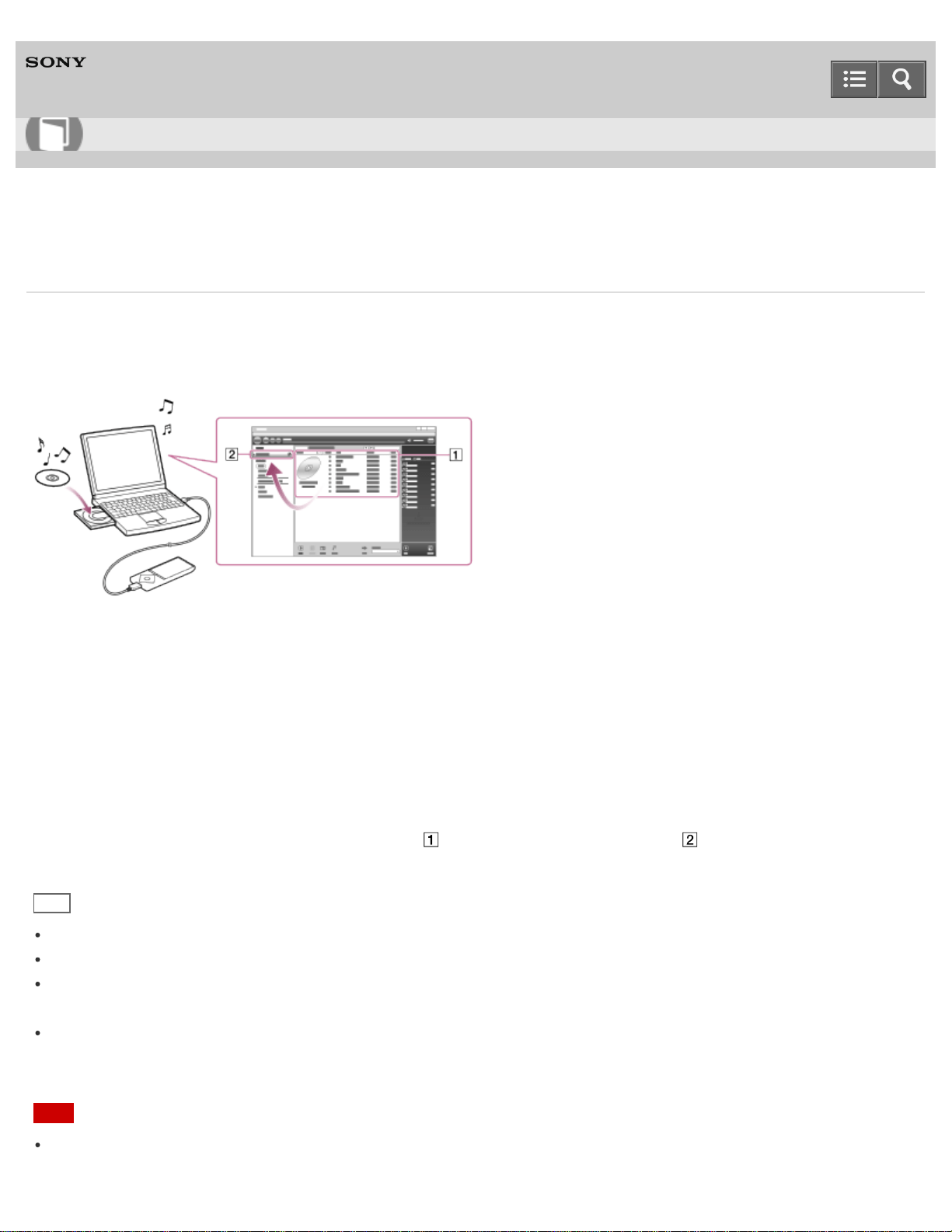
Digital Media Player
NW-A25/A25HN/A26HN/A27HN
Importing and transferring content from media using Media Go
Use Media Go to import and transfer content such as music on your Windows computer. This section explains how to
import and transfer music from CDs. Your computer must be connected to the Internet to obtain CD information such as
song names and artist names automatically.
1. Connect your Walkman to your Windows computer via USB.
2. Start Media Go.
3. Insert an audio CD into the CD drive of your Windows computer.
4. Confirm the music content on the audio CD.
5. Transfer the music content on the audio CD to your Walkman.
Drag-and-drop the cover art of the desired CD ( ) to “WALKMAN (model name)” ( ).
Hint
For details about how to use Media Go, refer to the help of Media Go.
Songs transferred to your Walkman are imported to your computer at the same time.
Recommended file formats for ripping CDs are FLAC for higher sound quality and AAC (.mp4) and MP3 (.mp3) for
normal sound quality.
Media Go obtains the CD information from a database on the Internet. Information on some CDs may not be available
in the database. If information on your CD is missing, you can add it manually after importing the CD. For information
about adding and editing CD information, refer to the help of Media Go.
Note
Imported content is limited to private use only. Use of content for other purposes requires the permission of the
Help Guide
How to Use
151

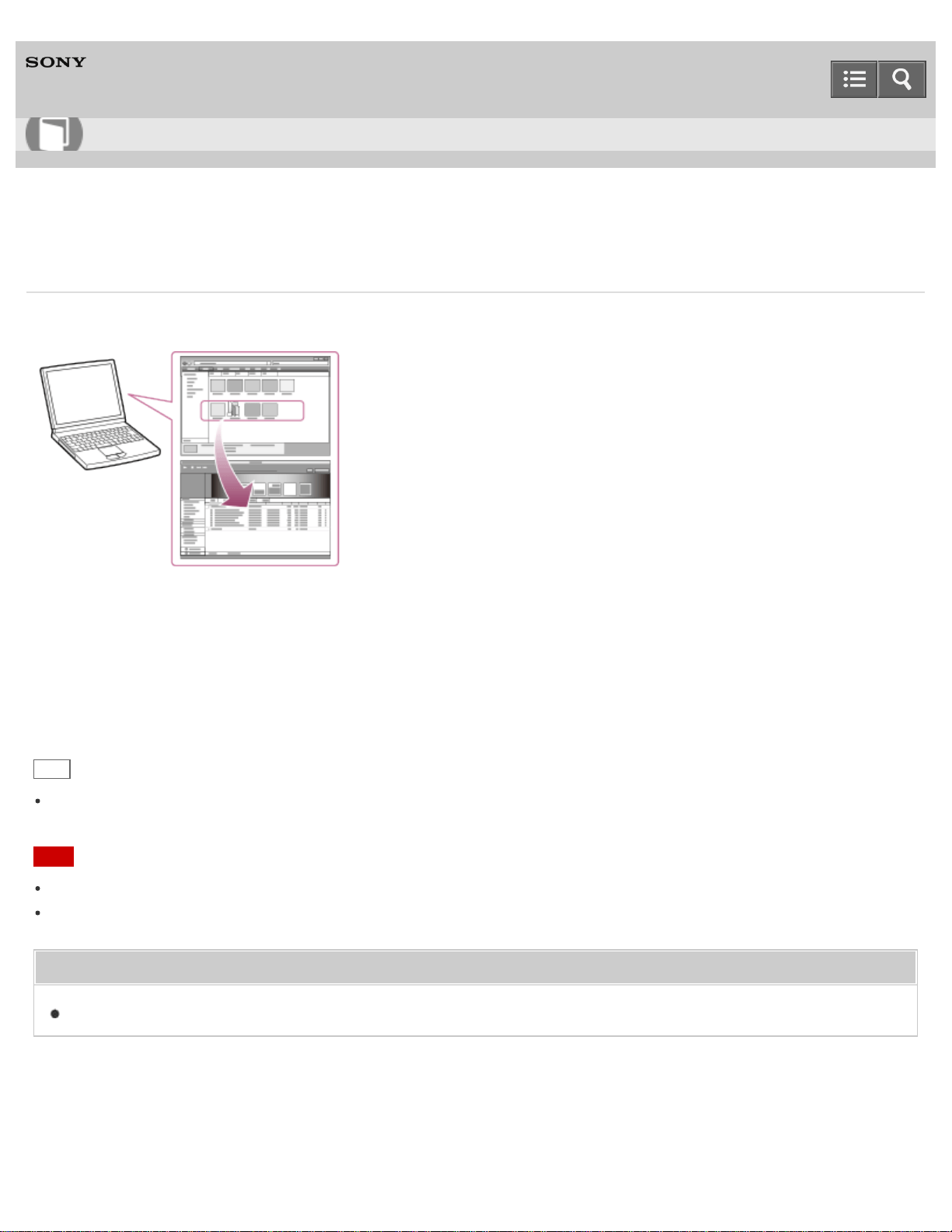
Digital Media Player
NW-A25/A25HN/A26HN/A27HN
Importing content on your Windows computer into Media Go
Import content such as music imported to your Windows computer into Media Go.
1. Start Media Go.
2. Select the type of content you want to import from “Library.”
3. Drag-and-drop the content into the Content List area.
Hint
You can also import data organized by programs such as iTunes by selecting “File” - “Add/Remove Media from
Library” in Media Go. For details, refer to the help of Media Go.
Note
Copy-protected videos cannot be imported into Media Go.
Some video formats cannot be imported or played.
Related Topic
Transferring content using Media Go
4-573-951-11(1)
Copyright 2015 Sony Corporation
Help Guide
How to Use
153
Digital Media Player
NW-A25/A25HN/A26HN/A27HN
Importing podcasts into Media Go
Media Go has a wide range of podcast functions on Windows, and you can use Media Go to manage your podcast
subscriptions. The podcast directory is also convenient for finding the latest content or content you are interested in.
For details on importing podcasts, refer to the help of Media Go.
4-573-951-11(1)
Copyright 2015 Sony Corporation
Help Guide
How to Use
154
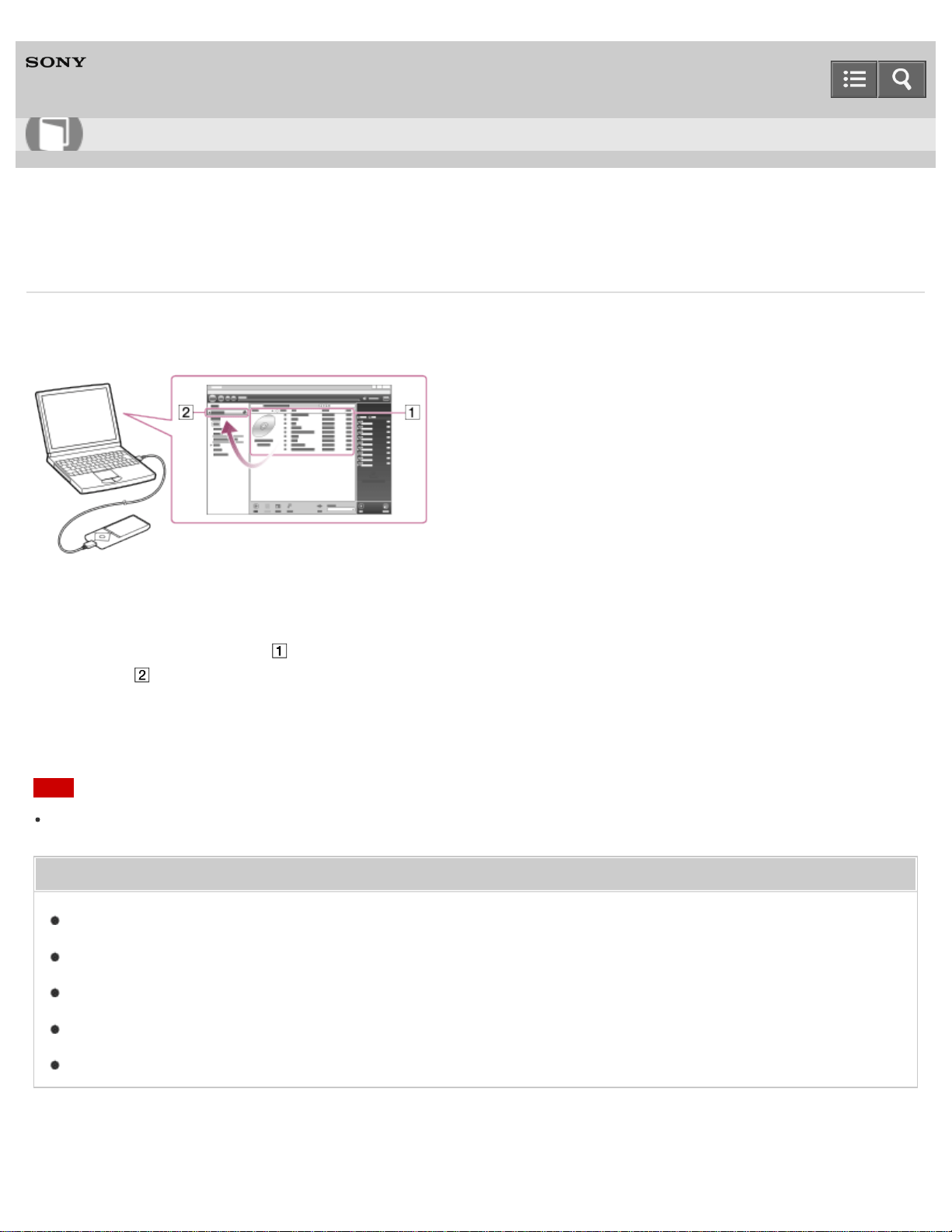
Digital Media Player
NW-A25/A25HN/A26HN/A27HN
Transferring content using Media Go
Transfer content such as music or playlists managed with Media Go on your computer to your Walkman. Content with
copyright protection cannot be transferred.
1. Connect your Walkman to a running computer via USB, and then start Media Go.
2. Select the desired content ( ) on Music Library of Media Go, and drag-and-drop it to your “WALKMAN (model
name)” ( ).
Media Go recognizes the type of data by the filename extension and sends it to the appropriate folder of your
Walkman.
Note
Media Go does not support content that uses Windows Media digital rights management technology (“WM-DRM”).
Related Topic
Selecting the memory to use
Connecting to a computer
Importing and transferring content from media using Media Go
Importing content on your Windows computer into Media Go
Importing podcasts into Media Go
4-573-951-11(1)
Help Guide
How to Use
155
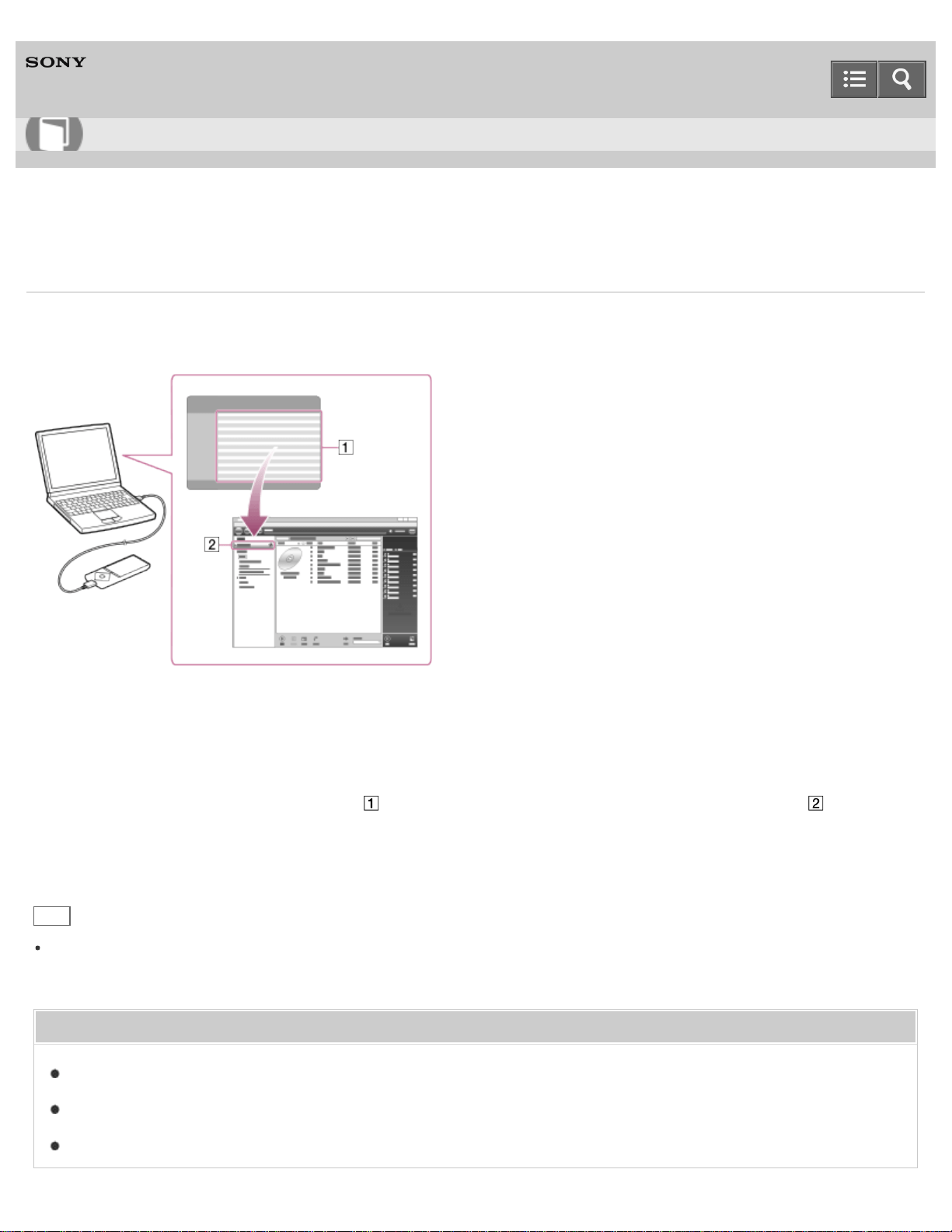
Digital Media Player
NW-A25/A25HN/A26HN/A27HN
Transferring iTunes content using Media Go
Media Go supports transfer of data from iTunes to your Walkman. Transfer content such as music managed with iTunes
on your computer to the Walkman. Content with copyright protection cannot be transferred.
1. Connect your Walkman to a running computer via USB, and then start Media Go.
2. Start iTunes.
3. Select the desired content from iTunes ( ), and drag-and-drop it to your “Walkman (model name)” ( ).
Media Go recognizes the type of data by the filename extension and sends it to the appropriate folder of your
Walkman.
Hint
You can also transfer playlists created with iTunes to your Walkman. Use iTunes to export playlists in m3u file format.
Then use Media Go to import the m3u files and transfer the playlists to the Walkman.
Related Topic
Selecting the memory to use
Connecting to a computer
Transferring content using Media Go
Help Guide
How to Use
156
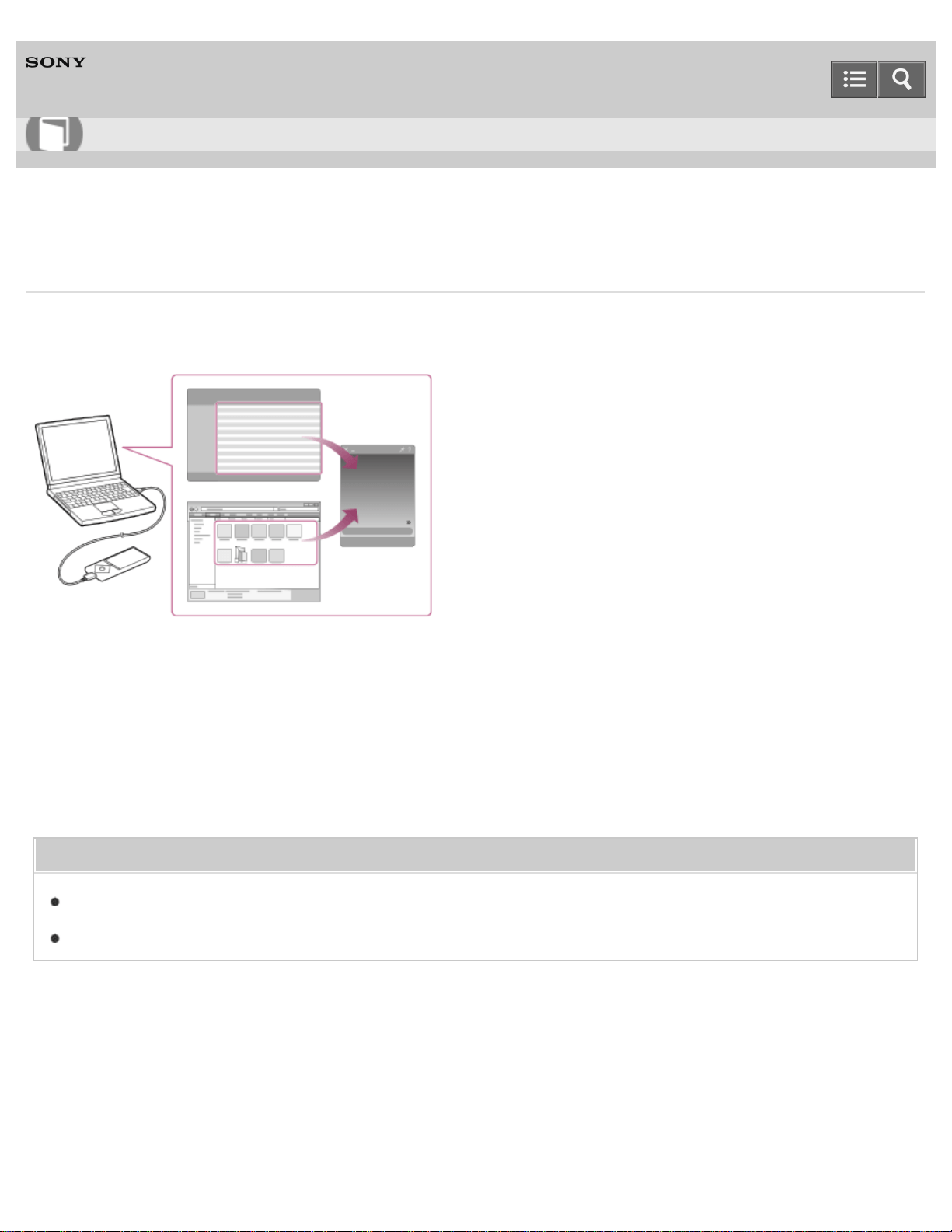
Digital Media Player
NW-A25/A25HN/A26HN/A27HN
Transferring content using Content Transfer
Transfer content such as music or playlists on your Mac computer or managed with iTunes to your Walkman. Content
with copyright protection cannot be transferred.
1. Connect your Walkman to a running computer via USB, and then start Content Transfer.
2. Display the desired content on the Finder or the desired content or playlists on iTunes.
3. Drag-and-drop the content or playlists you want to transfer to Content Transfer.
Content is transferred to your Walkman.
Related Topic
Selecting the memory to use
Connecting to a computer
4-573-951-11(1)
Copyright 2015 Sony Corporation
Help Guide
How to Use
157

Digital Media Player
NW-A25/A25HN/A26HN/A27HN
Transferring content using Explorer
Content such as music can be directly transferred by drag-and-drop using Windows Explorer.
1. Connect your Walkman to a running computer via USB.
2. Open “WALKMAN” using the procedure below that corresponds to your computer.
To store content on a microSD card, select the folder that has the same name as the microSD card instead of
“WALKMAN.”
Windows 7 or earlier:
Select “Start” – “Computer,” and then open “WALKMAN.”
Windows 8:
Select “Desktop” from the “Start screen” to open “File Explorer.” In the “Computer” list, open “WALKMAN.”
Windows 8.1:
Select “Desktop” to open “File Explorer.” In the “This PC” list, open “WALKMAN.”
Windows 10:
Select “File Explorer” in the “Start” menu, and then select “WALKMAN” from the left screen.
3. Open the folder to which you want to transfer content.
To transfer music files or folders: “MUSIC” folder
To transfer photo files or folders: “PICTURE” or “DCIM” folder
To transfer video files or folders: “VIDEO” folder
To transfer podcast folders and episode files: “PODCASTS” folder
4. Drag-and-drop the desired files or folders ( ) to the applicable folder ( ) in “WALKMAN.”
Note
Help Guide
How to Use
158
Do not change folder name placed in root memory such as “MUSIC.”
Some songs may not be played back on your Walkman due to copyright protection.
Depending on the language setting of your Walkman, the information of the transferred content may not be displayed
correctly.
Related Topic
Selecting the memory to use
Connecting to a computer
Selecting the display language
Notes for transferring content such as music from your computer
4-573-951-11(1)
Copyright 2015 Sony Corporation
159
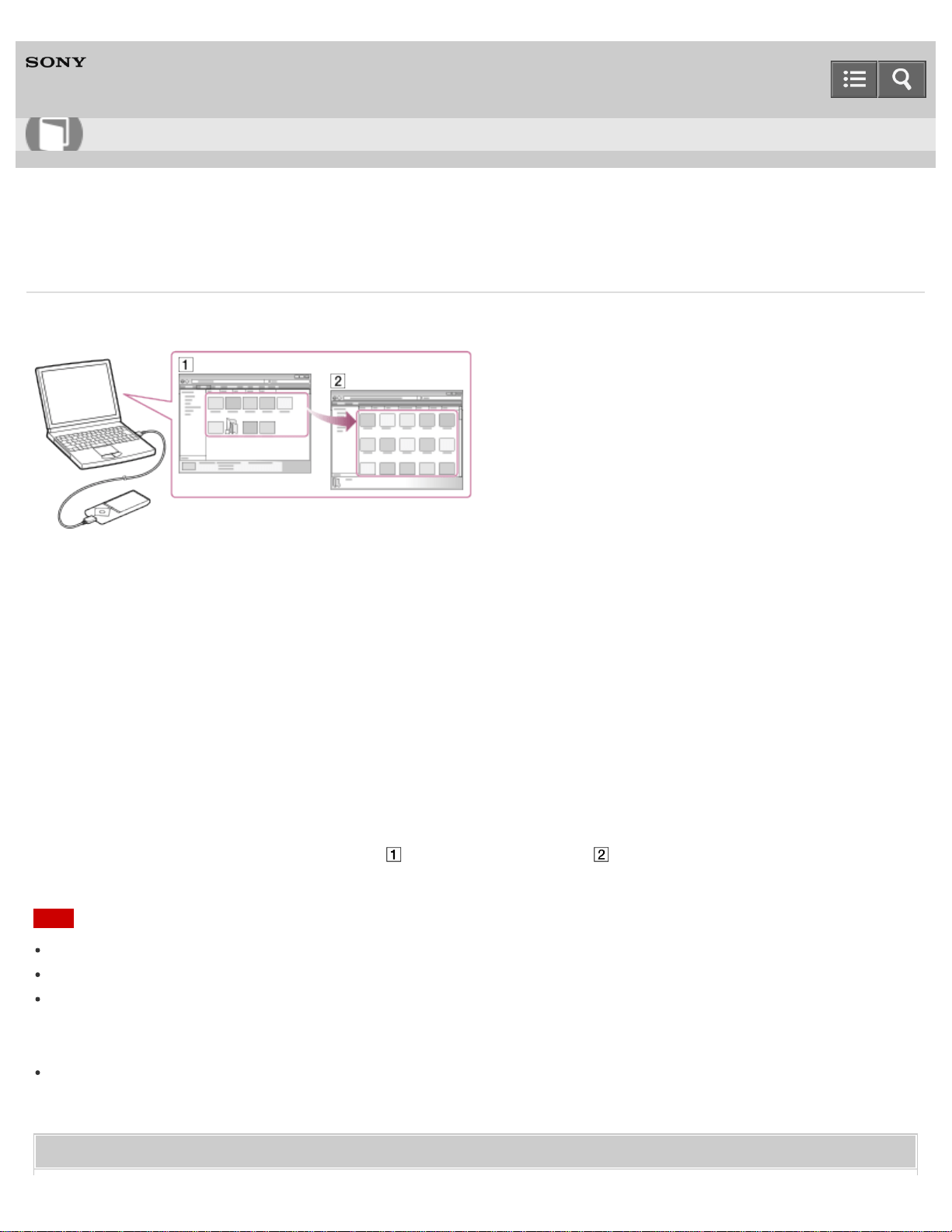
Digital Media Player
NW-A25/A25HN/A26HN/A27HN
Transferring content using the Finder
Content such as music can be directly transferred by drag-and-drop using the Finder.
1. Connect your Walkman to a running computer via USB.
2. Select “WALKMAN” in the sidebar of the Finder.
To store content on a microSD card, select the folder that has the same name as the microSD card instead of
“WALKMAN.”
3. Open the folder to which you want to transfer content.
To transfer music files or folders: “MUSIC” folder
To transfer photo files or folders: “PICTURE” or “DCIM” folder
To transfer video files or folders: “VIDEO” folder
To transfer podcast folders and episode files: “PODCASTS” folder
4. Drag-and-drop the desired files or folders ( ) to the applicable folder ( ) in “WALKMAN.”
Note
Do not change folder name placed in root memory such as “MUSIC.”
Some songs may not be played back on your Walkman due to copyright protection.
Do not disconnect your Walkman while the data is transferred. Otherwise, data being transferred or stored on the
Walkman may be damaged. If the Walkman is disconnected while files are being transferred, unnecessary files may
be left in the Walkman. In this case, transfer usable files back to the computer and format the Walkman.
Depending on the language setting of your Walkman, the information of the transferred content may not be displayed
correctly.
Related Topic
Help Guide
How to Use
160

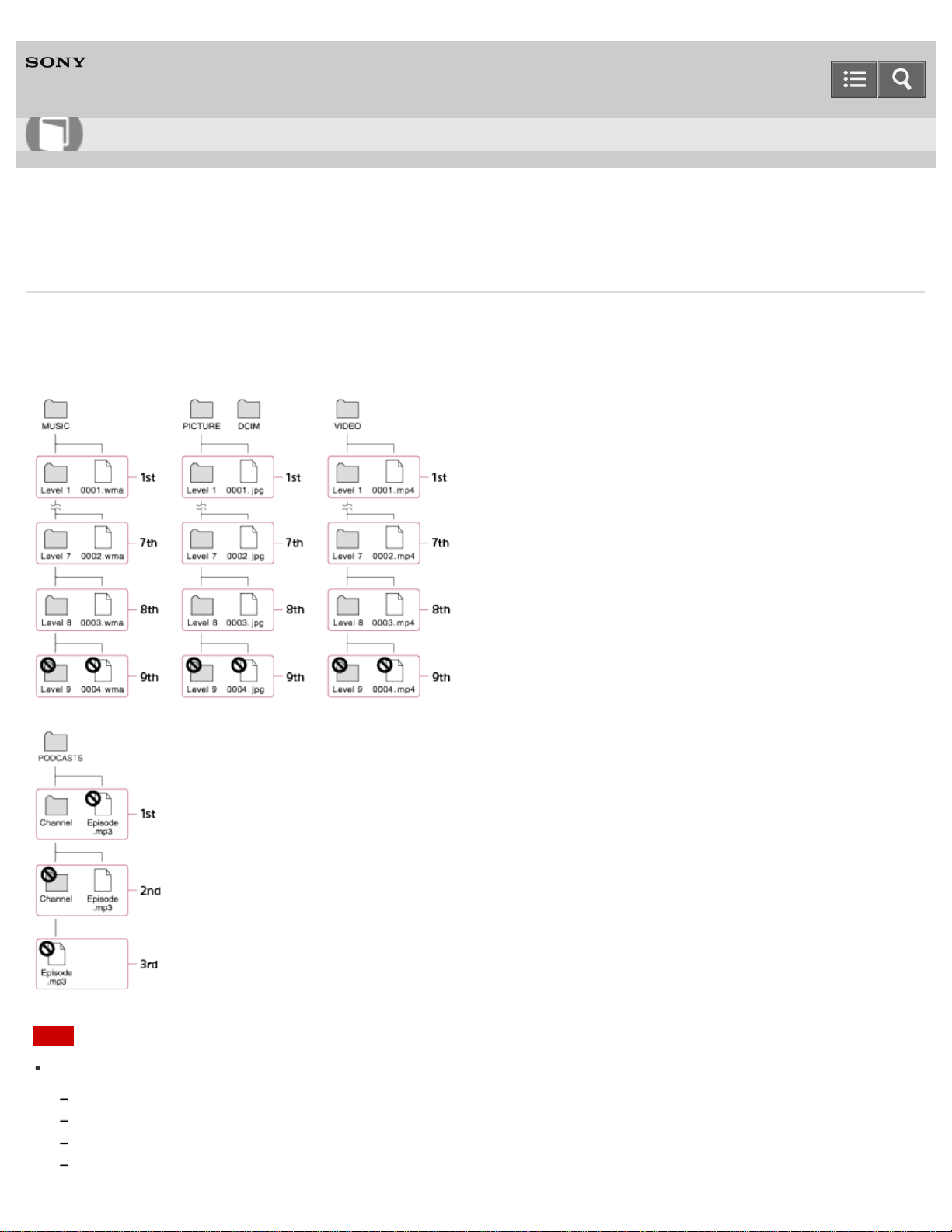
Digital Media Player
NW-A25/A25HN/A26HN/A27HN
Notes for transferring content such as music from your computer
Drag-and-drop content such as music or folders into the correct folder as shown in the following illustrations. Your
Walkman can play back content stored in the 1st to 8th level of each folder. The Walkman can play back podcast
episodes in the 2nd level of the “PODCASTS” folder.
Note
Do not rename the following default folders.
MUSIC
PICTURE and DCIM
VIDEO
PODCASTS
Help Guide
How to Use
162

Otherwise, they will not be recognized by your Walkman anymore.
Some songs may not be played back on your Walkman due to copyright protection.
4-573-951-11(1)
Copyright 2015 Sony Corporation
163
Digital Media Player
NW-A25/A25HN/A26HN/A27HN
Deleting content from your Walkman using Media Go
You can use Media Go to delete content stored on your Walkman.
1. Connect your Walkman to a running computer via USB.
2. Start Media Go.
3. Double-click “WALKMAN (model name)” and select the type of content you want to delete.
The content list is displayed.
4. Select the content you want to delete.
5. Click “Edit” - “Delete.”
A window to confirm the deletion of the item is displayed.
6. Click “Yes.”
Related Topic
Connecting to a computer
Transferring content using Media Go
4-573-951-11(1)
Copyright 2015 Sony Corporation
Help Guide
How to Use
164
Digital Media Player
NW-A25/A25HN/A26HN/A27HN
Deleting content from your Walkman using Content Transfer
You can use Content Transfer to delete content stored on your Walkman.
1. Connect your Walkman to a running computer via USB.
2. Start Content Transfer.
3. Click at the right bottom of the screen.
4. Click the icon of the folder (such as “Music”) that contains the content you want to delete.
The content list is displayed.
5. Select the content you want to delete.
6. Click “Delete.”
The selected content is deleted.
Related Topic
Connecting to a computer
Transferring content using Content Transfer
4-573-951-11(1)
Copyright 2015 Sony Corporation
Help Guide
How to Use
165
Digital Media Player
NW-A25/A25HN/A26HN/A27HN
Deleting content received from a Bluetooth connection
You can delete content received from a Bluetooth connection using your Walkman.
1. From the Home menu, select [Music].
2. Select [Received Songs] - [System Storage] or [SD Card] - desired song.
3. On the music playback screen of the received song, display the option menu and select [Delete This Song] - [Yes].
Related Topic
How to use the option menu
Receiving content via a Bluetooth connection
Playing music
4-573-951-11(1)
Copyright 2015 Sony Corporation
Help Guide
How to Use
166

Digital Media Player
NW-A25/A25HN/A26HN/A27HN
Deleting content from your Walkman using Explorer
Delete content stored on your Walkman using Windows Explorer.
1. Connect your Walkman to a running computer via USB.
2. Open “WALKMAN” using the procedure below that corresponds to your computer.
To delete content stored on a microSD card, select the folder that has the same name as the microSD card instead
of “WALKMAN.”
Windows 7 or earlier:
Select “Start” - “Computer,” and open “WALKMAN.”
Windows 8:
Select “Desktop” from the “Start screen” to open “File Explorer.” In the “Computer” list, open “WALKMAN.”
Windows 8.1:
Select “Desktop” to open “File Explorer.” In the “This PC” list, open “WALKMAN.”
Windows 10:
Select “File Explorer” in the “Start” menu, and then select “WALKMAN” from the left screen.
3. Open the folder containing the file(s) you want to delete.
To delete a music file or a folder that contains music: “MUSIC” folder
To delete a photo file or a folder that contains photos: “PICTURE” or “DCIM” folder
To delete a video file or a folder that contains videos: “VIDEO” folder
To delete a podcast episode file or a podcast folder: “PODCASTS” folder
4. Select the content you want to delete.
5. Delete the content.
Note
Do not change folder name placed in root memory such as “MUSIC.”
Related Topic
Selecting the memory to use
Connecting to a computer
Transferring content using Explorer
Help Guide
How to Use
167
Digital Media Player
NW-A25/A25HN/A26HN/A27HN
Deleting content from your Walkman using the Finder
Delete content stored on your Walkman using the Mac Finder.
1. Connect your Walkman to a running computer via USB.
2. Open a folder under “WALKMAN” from the sidebar of the Finder.
To delete content stored on a microSD card, select the folder that has the same name as the microSD card instead
of “WALKMAN.”
3. Open the folder containing the file(s) you want to delete.
To delete a music file or a folder that contains music: “MUSIC” folder
To delete a photo file or a folder that contains photos: “PICTURE” or “DCIM” folder
To delete a video file or a folder that contains videos: “VIDEO” folder
To delete a podcast episode file or a podcast folder: “PODCASTS” folder
4. Select the content you want to delete.
5. Delete the content.
Note
Do not change folder name placed in root memory such as “MUSIC.”
Related Topic
Selecting the memory to use
Connecting to a computer
Transferring content using the Finder
4-573-951-11(1)
Copyright 2015 Sony Corporation
Help Guide
How to Use
168
Digital Media Player
NW-A25/A25HN/A26HN/A27HN
Playing live albums with no gaps in between songs
Songs that are recorded continuously on a live or concert album can be played with no gaps in between the songs on
your Walkman. For gapless playback, import (rip) all songs on the album in the FLAC, AAC, or MP3 format at once into
the latest version of Media Go, and then transfer them to the Walkman.
4-573-951-11(1)
Copyright 2015 Sony Corporation
Help Guide
How to Use
169

Digital Media Player
NW-A25/A25HN/A26HN/A27HN
Deleting content imported to Media Go
You can delete content imported to Media Go.
1. Start Media Go.
2. Select the type of content you want to delete from “Library.”
The content list is displayed.
3. Select the content you want to delete.
4. Click “Edit” - “Delete.”
A “Confirm Delete” window is displayed.
5. Select a method to delete the content.
6. Click “OK.”
Related Topic
Deleting content from your Walkman using Media Go
4-573-951-11(1)
Copyright 2015 Sony Corporation
Help Guide
How to Use
170
Digital Media Player
NW-A25/A25HN/A26HN/A27HN
Inputting the lyrics information using Media Go
Use the latest version of Media Go to input lyrics information to display lyrics when playing songs on your Walkman.
1. Start Media Go.
2. Select the song you want to add the lyrics information to and right-click on the song to select “Properties.”
3. Input the lyrics information.
For details about how to input the lyrics, refer to the help of Media Go.
Hint
For details about how to use Media Go, refer to the help of Media Go.
Note
If lyrics information input using Media Go is not displayed on your Walkman, delete the song from the Walkman and
transfer it again.
Related Topic
What is the Display Lyrics function?
Displaying lyrics
Deleting content from your Walkman using Media Go
Transferring content using Media Go
4-573-951-11(1)
Copyright 2015 Sony Corporation
Help Guide
How to Use
171
Digital Media Player
NW-A25/A25HN/A26HN/A27HN
Preparing music
You need to transfer music from your computer to your Walkman in order to listen to music on the Walkman. Use Media
Go to transfer songs from a CD or your computer to the Walkman. You can also transfer them by drag-and-drop from
Windows Explorer. For a Mac computer, you can use Content Transfer to transfer the songs from iTunes, etc. You can
also transfer them by drag-and-drop from the Mac Finder.
Related Topic
Connecting to a computer
Importing and transferring content from media using Media Go
Importing content on your Windows computer into Media Go
Transferring content using Media Go
Transferring content using Content Transfer
Transferring content using Explorer
Transferring content using the Finder
Notes for transferring content such as music from your computer
4-573-951-11(1)
Copyright 2015 Sony Corporation
Help Guide
How to Use
172
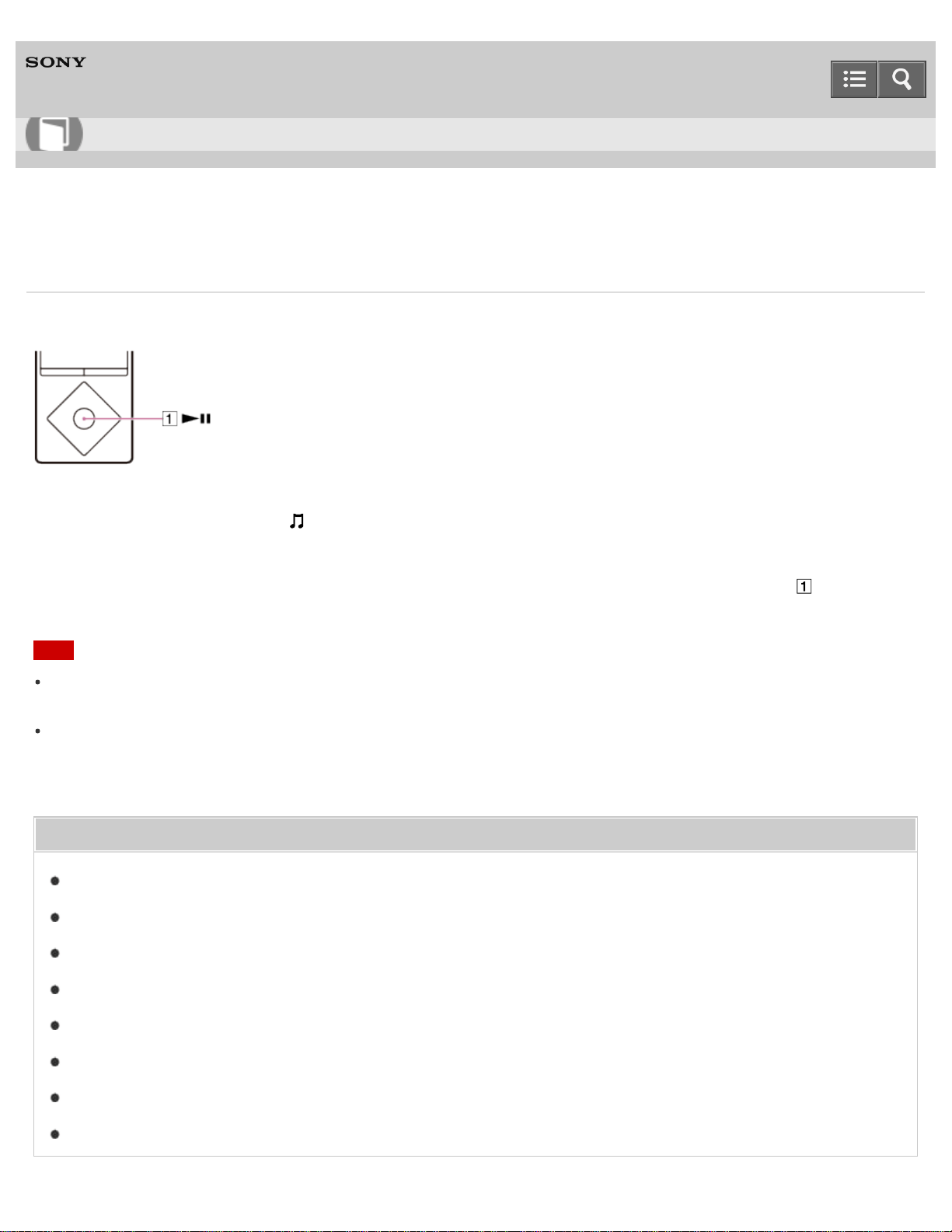
Digital Media Player
NW-A25/A25HN/A26HN/A27HN
Playing music
Play music transferred to your Walkman.
1. From the Home menu, select [Music].
2. Select the desired search method and items until a song list appears, and then select the desired song.
Playback starts and the music playback screen is displayed. To pause playback, press the button ( ).
Note
If there is no operation for an extended period while paused, your Walkman will be turned off automatically. In this
case, turn on the power before performing step 1 above.
Depending on the way of transferring songs to your Walkman, songs might be played in different order from the song
order on your computer. When you specify a song order other than that on your Walkman, edit the playlists with a
function of Media Go or iTunes, and then transfer them to your Walkman.
Related Topic
Preparing music
Music playback operations
Setting the screen off timer
Turning the power on
Searching for songs
Browsing the music list screen
Browsing the music playback screen
Transferring content using Media Go
Help Guide
How to Use
173
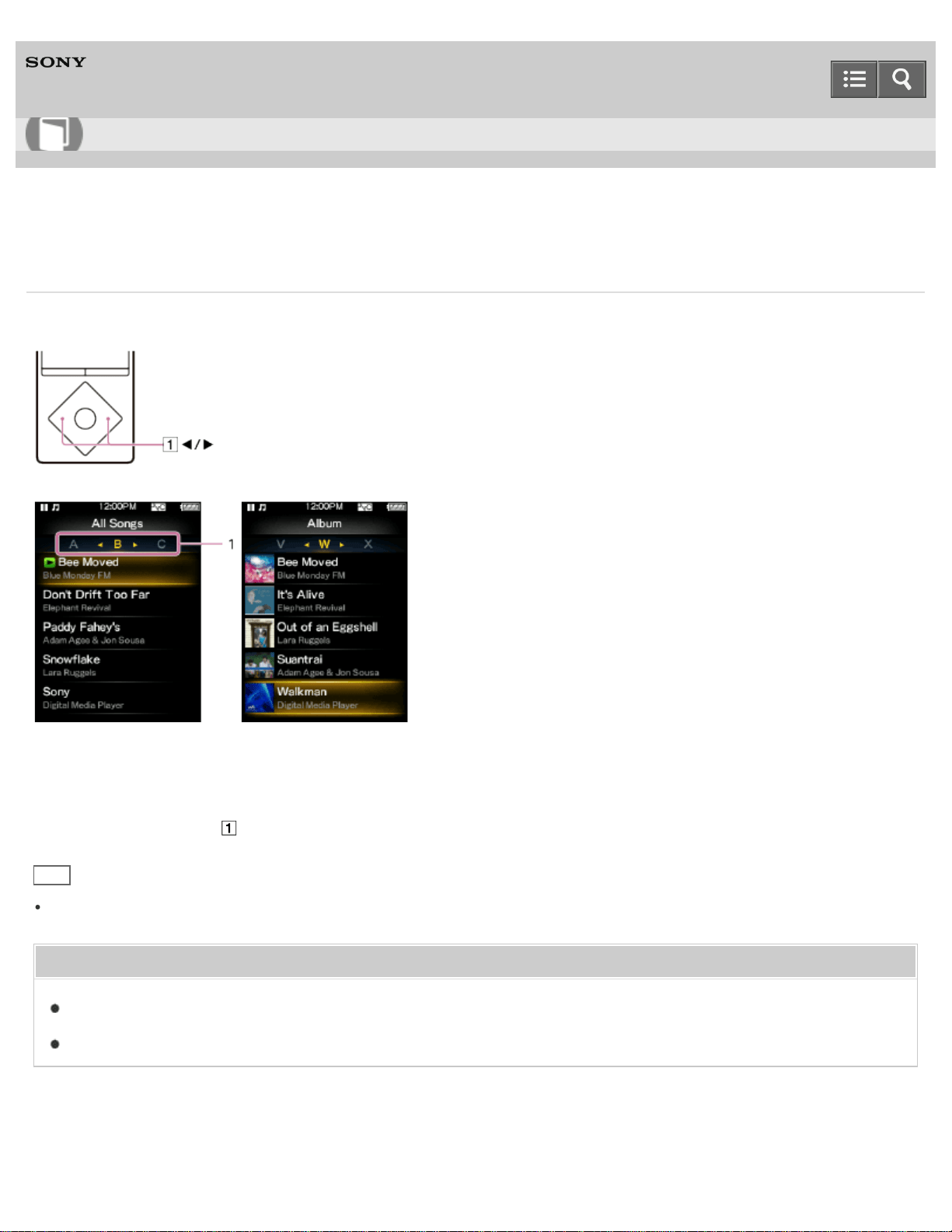
Digital Media Player
NW-A25/A25HN/A26HN/A27HN
Browsing the music list screen
The music list screen displays lists such as the song list and album list.
1. Index
The index displays a list of song or album names, along with each letter of the alphabet. Navigate the index by
pressing the button ( ) to move to the next or previous letters.
Hint
The display format of the album list can be changed so that only the cover art is displayed.
Related Topic
Playing music
Selecting the album display format
4-573-951-11(1)
Copyright 2015 Sony Corporation
Help Guide
How to Use
174
Digital Media Player
NW-A25/A25HN/A26HN/A27HN
Volume operation (Only for countries/areas complying with European and Korean Directives)
(Only for models supplied with headphones)
An alarm (beep) and a warning [Check the volume level] are meant to protect your ears when you turn the volume up to
a level that is harmful for your ears for the first time. You can cancel the alarm and warning by pressing any button.
Note
You can turn up the volume after canceling the alarm and warning.
After the initial warning, the alarm and warning repeat every 20 cumulative hours that the volume is set to a level that
is harmful for your ears. When this happens, the volume is turned down automatically.
If the volume is set to a level that is harmful for your ears and you turn off your Walkman, the volume is turned down
to a level that is safe for your ears automatically.
The alarm (beep) does not sound when connected to a Bluetooth audio device.
4-573-951-11(1)
Copyright 2015 Sony Corporation
Help Guide
How to Use
175
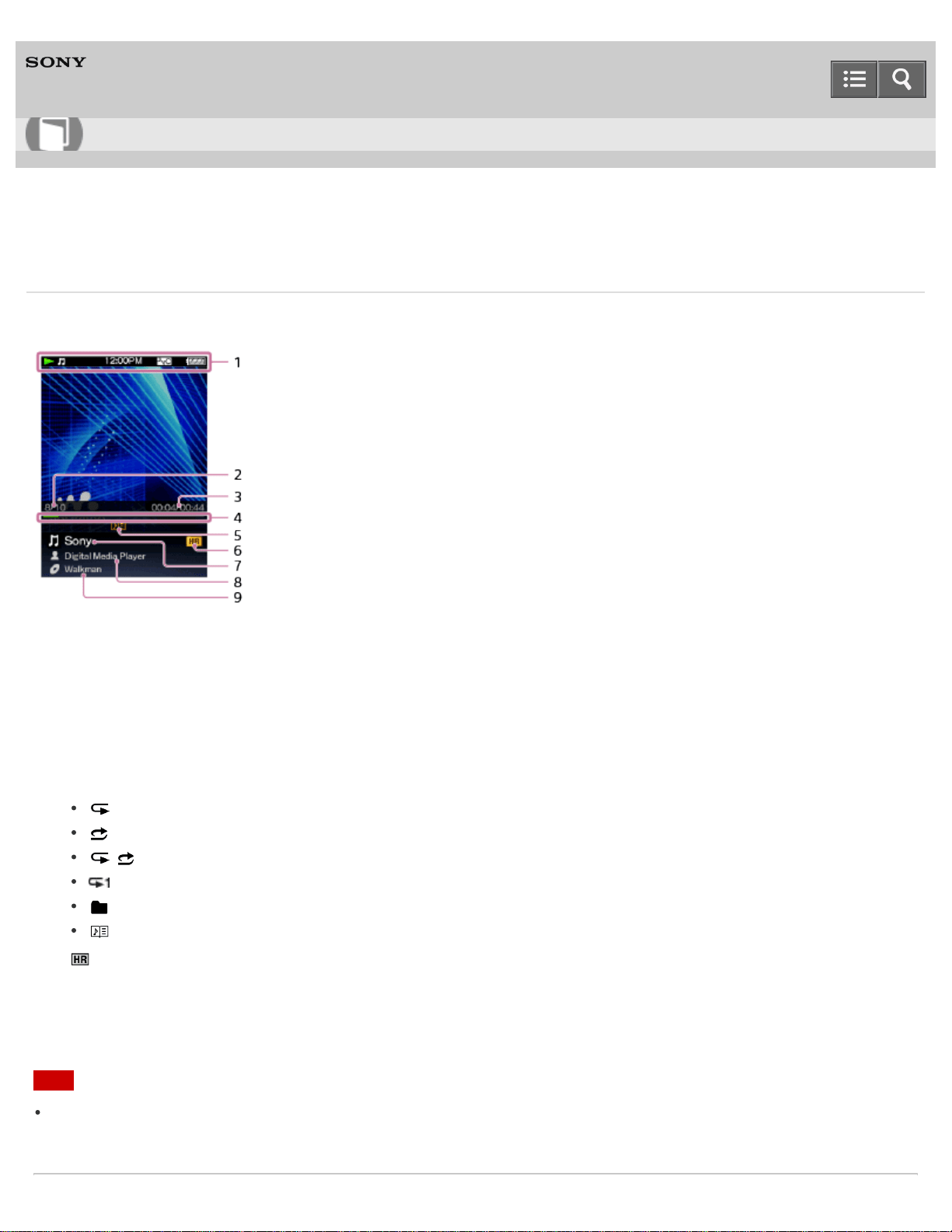
Digital Media Player
NW-A25/A25HN/A26HN/A27HN
Browsing the music playback screen
The following items are displayed on the music playback screen.
1. Information area
The playback status, remaining battery power, etc. are displayed.
2. Current song number/Total number of songs to be played
3. Elapsed current song time/Total current song time
4. Time line bar
5. Music setting icons
[Repeat] from the [Play Mode] settings
[Shuffle] from the [Play Mode] settings
[Shuffle & Repeat] from the [Play Mode] settings
[Repeat 1 Song] from the [Play Mode] settings
[Selected Range] from the [Playback Range] settings
Lyrics
6.
High-Resolution Audio icon
7. Song title
8. Artist name
9. Album title
Note
The elapsed time and the time line bar indications may be unstable and inaccurate when playing variable bit rate
(VBR) songs.
Help Guide
How to Use
176
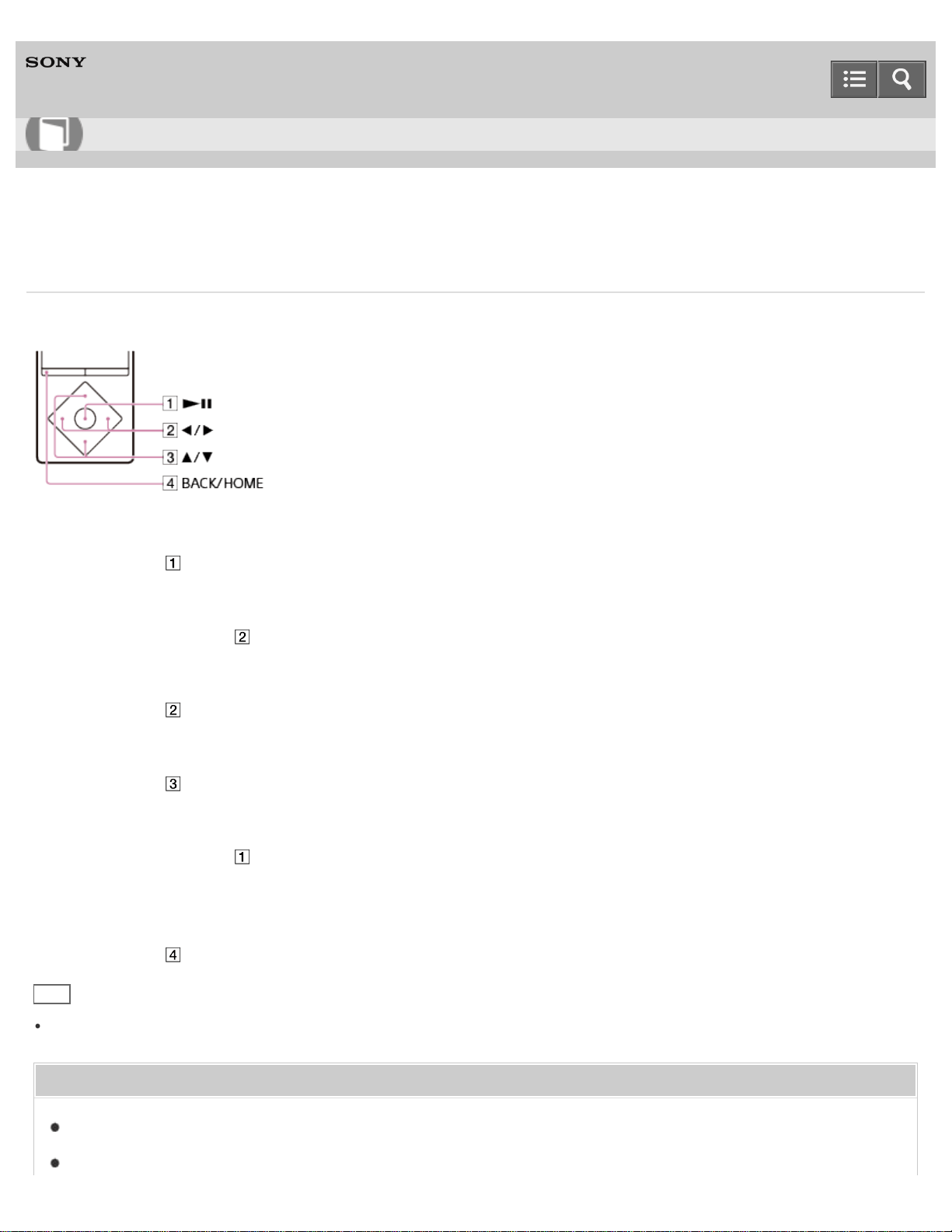
Digital Media Player
NW-A25/A25HN/A26HN/A27HN
Music playback operations
The following operations are available on the music playback screen.
To play/pause
Press the button ( ).
To fast forward or rewind
Press and hold the button ( ).
To go to the beginning of the next song or go to the beginning of the previous (or current) song
Press the button ( ).
To browse cover art to select an album
Press the button ( ).
To add a song to the bookmark list
Press and hold the button ( ).
Songs can be added to the bookmark list individually. Albums cannot be added.
To return to the list screen
Press the button ( ).
Hint
If there is no operation for an extended period while paused, your Walkman will be turned off automatically.
Related Topic
Playing music
Browsing the music playback screen
Help Guide
How to Use
178


Digital Media Player
NW-A25/A25HN/A26HN/A27HN
Searching for songs
You can quickly search a song by artist, genre, etc.
1. On the music playback screen or the list screen, display the option menu and select (Search) - desired search
method - desired song.
Hint
“The” at the beginning of artist names is ignored when arranging the [Artist] list.
The [All Songs], [Album], [Artist] and [Genre] lists are arranged in alphanumeric order. The [Release Year] list is
arranged in reverse chronological order. In the [Folder] list, folders are displayed in name order first, then files are
displayed in name order. Upper and lower case letters are not distinguished.
You can search for songs from [All Songs], [Album], [Artist], [Genre], [Release Year], [Playlists], [Bookmark], [Folder]
or [Received Songs].
[Playlists] are created by using software like Media Go. For information on how to create a playlist, refer to the Help of
your software.
[Folder] does not include the songs received using the Bluetooth function.
The [Received Songs] list contains songs received using the Bluetooth function and the pre-installed sample data.
To search for a song stored on [System Storage] or [SD Card], select the memory to search in [Folder] or [Received
Songs].
Related Topic
Playing music
How to use the option menu
Music playback operations
Playing playlist songs
Adding a song to a bookmark list
Receiving content via a Bluetooth connection
4-573-951-11(1)
Copyright 2015 Sony Corporation
Help Guide
How to Use
180
Digital Media Player
NW-A25/A25HN/A26HN/A27HN
Playing playlist songs
You can transfer and play playlists created by using software like Media Go. For information on how to create a playlist,
refer to the Help of your software.
1. From the Home menu, select [Music].
2. Select [Playlists] - desired playlist - desired song.
Note
Cover art images registered to a playlist are not displayed on your Walkman.
Related Topic
Playing music
Transferring content using Media Go
Transferring content using Content Transfer
4-573-951-11(1)
Copyright 2015 Sony Corporation
Help Guide
How to Use
181
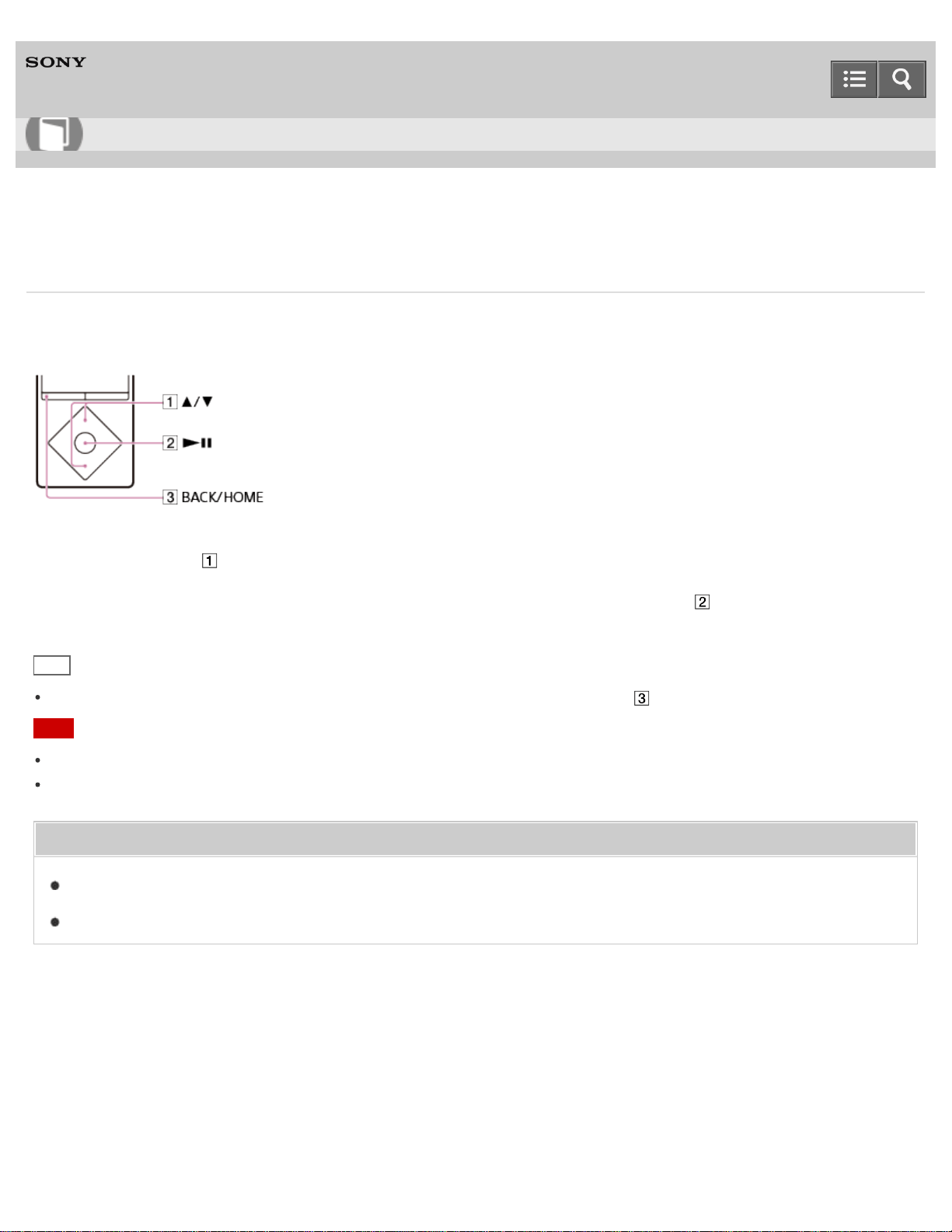
Digital Media Player
NW-A25/A25HN/A26HN/A27HN
Choosing an album from the cover art images
If you register cover art images to albums using Media Go beforehand, you can choose an album by selecting a cover
art image (Album scroll). For details on how to register cover art images to albums, refer to the Help of Media Go.
1. Press the button ( ) in the music playback screen to browse cover art images.
2. Choose the cover art image registered to your desired album, then press the button ( ).
Hint
To return to the music playback screen during this operation, press the button ( ).
Note
Cover art appears only when a cover art image is registered to the album or song.
Cover art in some formats may not be displayed on your Walkman.
Related Topic
Playing music
Browsing the music playback screen
4-573-951-11(1)
Copyright 2015 Sony Corporation
Help Guide
How to Use
182
Digital Media Player
NW-A25/A25HN/A26HN/A27HN
Deleting songs
To delete songs from your Walkman, use the software on your computer that you used to transfer the songs. If you used
Windows Explorer to transfer the songs, use Windows Explorer to delete them. If you used the Finder on a Mac to
transfer the songs, use the Finder on a Mac to delete the songs. You can delete songs that are received via a Bluetooth
connection using your Walkman.
Hint
Sample music is pre-installed on your Walkman. If you want to delete it, use the software.
Note
Do not delete or rename the “MUSIC” folder. Otherwise, songs may not be recognized by your Walkman.
Related Topic
Deleting content from your Walkman using Media Go
Deleting content from your Walkman using Content Transfer
Deleting content from your Walkman using Explorer
Deleting content from your Walkman using the Finder
Deleting content received from a Bluetooth connection
4-573-951-11(1)
Copyright 2015 Sony Corporation
Help Guide
How to Use
183

Digital Media Player
NW-A25/A25HN/A26HN/A27HN
What is the bookmark function?
With the bookmark function, you can classify songs according to personal taste, and listen to your favorite songs as a
collective group.
Related Topic
Adding a song to a bookmark list
4-573-951-11(1)
Copyright 2015 Sony Corporation
Help Guide
How to Use
184
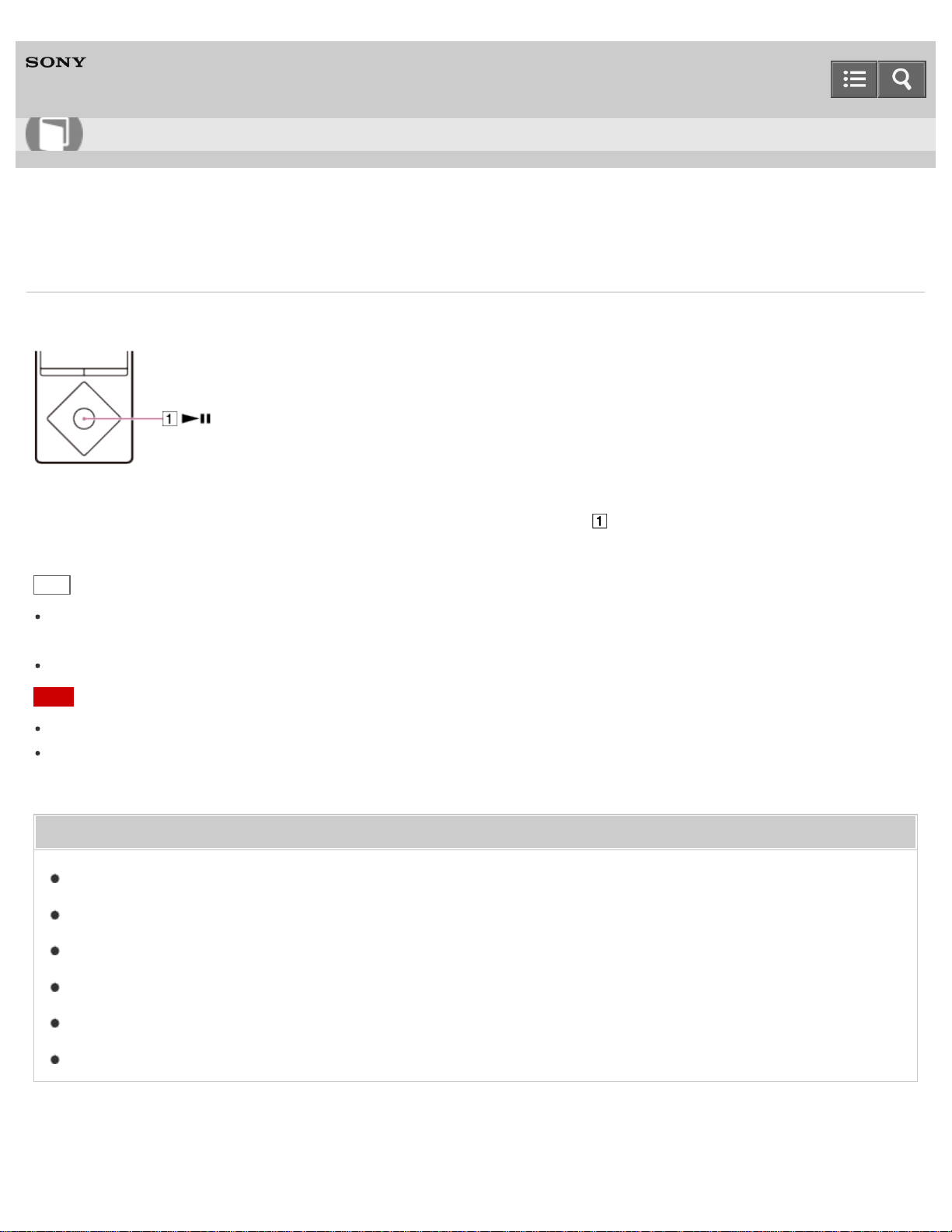
Digital Media Player
NW-A25/A25HN/A26HN/A27HN
Adding a song to a bookmark list
You can add songs to bookmark lists.
1. In the music playback screen or list screen, press and hold the button ( ).
Hint
You can add songs to bookmark lists other than the default bookmark list by using the option menu on the music
playback screen or list screen. Display the option menu and select [Add to Bookmark] - desired bookmark list.
Up to 100 songs can be added to a bookmark list.
Note
Bookmark list information cannot be imported to Media Go.
If you add songs stored on a microSD card to bookmark lists, the bookmark lists are cleared when you remove the
microSD card from your Walkman.
Related Topic
Browsing the music playback screen
Browsing the music list screen
How to use the option menu
Changing the default bookmark list
Changing the order of bookmarked songs
Removing songs from a bookmark list
4-573-951-11(1)
Help Guide
How to Use
185
Digital Media Player
NW-A25/A25HN/A26HN/A27HN
Changing the default bookmark list
You can change the bookmark list that is set as the default bookmark list.
1. From the Home menu, select [Settings].
2. Select [Music Settings] - [Default Bookmark List] - desired default bookmark list.
Related Topic
Adding a song to a bookmark list
4-573-951-11(1)
Copyright 2015 Sony Corporation
Help Guide
How to Use
186
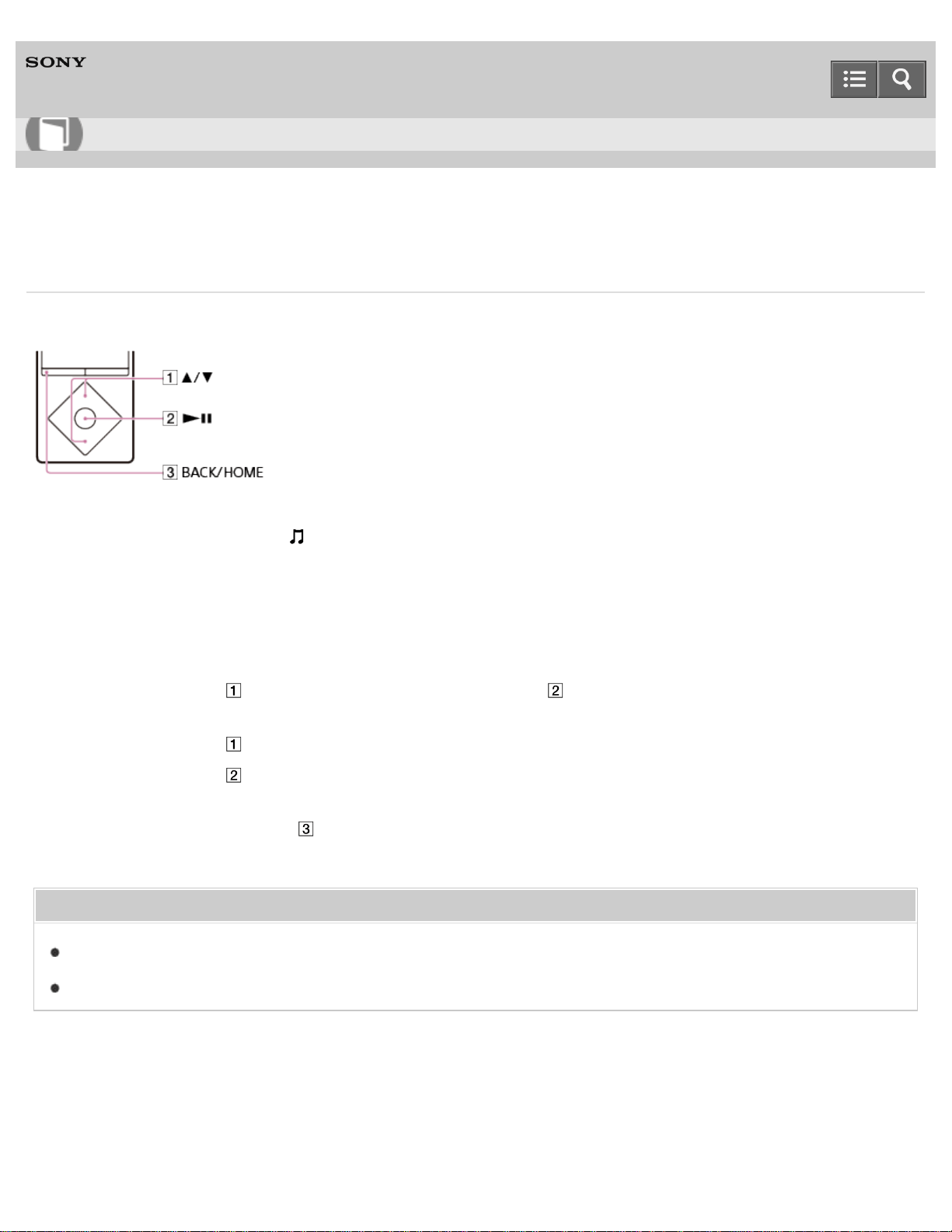
Digital Media Player
NW-A25/A25HN/A26HN/A27HN
Changing the order of bookmarked songs
The order of songs in a bookmark list can be changed.
1. From the Home menu, select [Music].
2. Select [Bookmark] - desired bookmark list.
3. On the bookmark list screen, display the option menu and select [Edit Song Order].
4. Repeat the procedure below to sort songs.
i. Press the button (
) to select a song, then press the button ( ).
A double-headed arrow appears to the left of the selected song.
ii. Press the button (
) to move the song to the desired location.
iii. Press the button (
) to fix the location of the song.
5. After sorting, press the button (
) to return to the bookmark list screen.
Related Topic
How to use the option menu
Adding a song to a bookmark list
4-573-951-11(1)
Copyright 2015 Sony Corporation
Help Guide
How to Use
187

Digital Media Player
NW-A25/A25HN/A26HN/A27HN
Removing songs from a bookmark list
You can remove one or all of the songs from a bookmark list.
1. From the Home menu, select [Music].
2. Select [Bookmark] - desired bookmark list - desired song.
3. On the music playback screen, display the option menu and select [Remove from Bookmark].
Hint
To remove all songs from a bookmark list, display the option menu after selecting [Bookmark], and select [Clear
Bookmark List].
Related Topic
Adding a song to a bookmark list
How to use the option menu
4-573-951-11(1)
Copyright 2015 Sony Corporation
Help Guide
How to Use
188
Digital Media Player
NW-A25/A25HN/A26HN/A27HN
What is the Display Lyrics function?
The Display Lyrics function enables you to display the lyrics of a song, for example by transferring lyrics information for
that song to your Walkman.
Related Topic
Adding lyrics to songs
Displaying lyrics
4-573-951-11(1)
Copyright 2015 Sony Corporation
Help Guide
How to Use
189
Digital Media Player
NW-A25/A25HN/A26HN/A27HN
Adding lyrics to songs
Your Walkman has a Display Lyrics function that enables you to display the lyrics of a song corresponding to the
progression of the song. To display the lyrics, you need to prepare the lyrics information and transfer it to the Walkman.
Prepare the lyrics information in the following ways:
Use the latest version of Media Go to input the lyrics information.
Create a text file (an LRC file) that contains the lyrics information.
Related Topic
Inputting the lyrics information using Media Go
Displaying lyrics
Making lyrics information in a text file
4-573-951-11(1)
Copyright 2015 Sony Corporation
Help Guide
How to Use
190
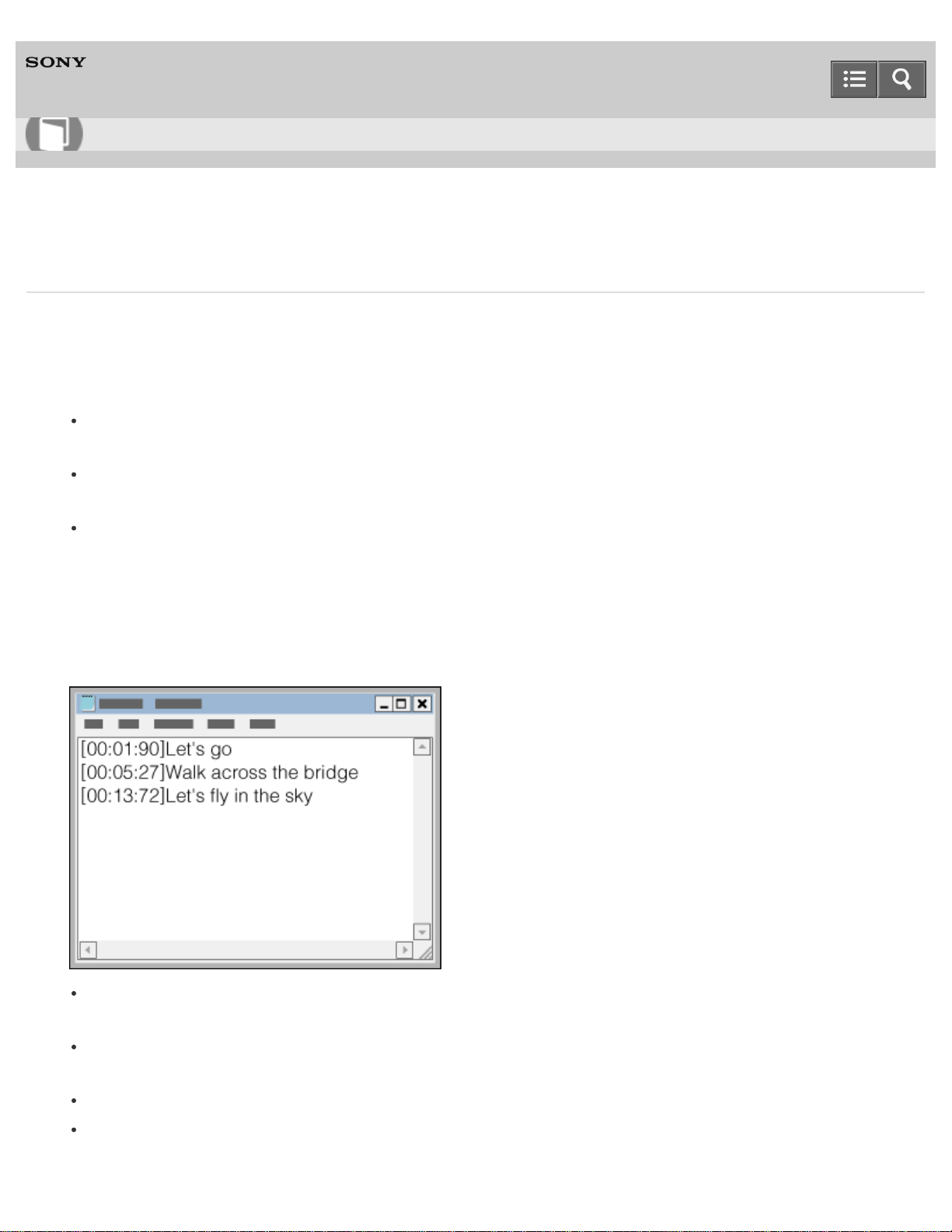
Digital Media Player
NW-A25/A25HN/A26HN/A27HN
Making lyrics information in a text file
You can also make lyrics information in a text file.
1. Open the “Notepad” by following one of the procedures below depending on the operating system of your
computer.
Windows 7 or earlier:
Click “Start” - “All programs” - “Accessories” - “Notepad.”
Windows 8.1 or Windows 8:
Right-click on “Start screen” - “Accessories” - “Notepad.”
Windows 10:
Select “All apps” - “Windows Accessories” in the “Start” menu, and then open “Notepad.”
2. Type the lyrics text into “Notepad.”
3. Play the audio file to check the time (minutes, seconds and hundredths of a second) for displaying each text line,
then enter the time information.
You can enter the time information to the left of the text line in the following format.
minutes:seconds:hundredths of a second
About 40 alphabetical characters (single-byte characters) are recommended for displaying on the screen of your
Walkman.
Time information must be entered in chronological order.
You can separate seconds and hundredths of a second by a period instead of a colon.
Help Guide
How to Use
191

You can omit hundredths of a second.
4. After finishing lyrics text input, save it as a file.
i. Select “File.”
ii. Select “Save As...” to open the “Save As” screen.
iii. Select “All Files” in the “Save as type:” list at the bottom of the screen.
iv. Select “UTF-8” in the “Encode:” list.
v. Enter the file name into the “File name:” text box.
vi. Click “Save” to save the LRC file.
The file name must be the same as the audio file, with the extension “.lrc.”
The maximum size for an LRC file is 512 KB.
If a text line cannot fit in the screen, it will be wrapped (up to 3 lines).
Characters beyond 3 lines will not be displayed.
CR, CRLF and LF line breaks are all recognized properly.
Blank text lines are skipped.
5. Connect your Walkman to your computer via USB.
6. Open “WALKMAN” using the procedure below that corresponds to your computer.
To store the file on a microSD card, select the folder that has the same name as the microSD card instead of
“WALKMAN.”
Windows 7 or earlier:
Select “Start” – “Computer,” and open “WALKMAN.”
Windows 8:
Select “Desktop” from the “Start screen” to open “File Explorer.” In the “Computer” list, open “WALKMAN.”
Windows 8.1:
Select “Desktop” to open “File Explorer.” In the “This PC” list, open “WALKMAN.”
Windows 10:
Select “File Explorer” in the “Start” menu, and then select “WALKMAN” from the left screen.
7. Create a new folder in the “MUSIC” folder under “WALKMAN,” then drag-and-drop both the audio file and the LRC
file into the new folder to transfer them.
Hint
With a Mac computer, you can create lyrics information using “TextEdit,” etc. Enter the lyrics or time information in the
“Plain text” setting by following the same procedure as above. To save it, the file name must be the same as the
audio file, with the extension “.lrc.” When you transfer the text file to your Walkman, create a new folder in the
“MUSIC” folder under “WALKMAN,” then transfer the two files into the new folder.
192
Copyright notice
When creating LRC files using copyrighted materials authored by others, created LRC files are limited to private use
only. Use of LRC files beyond this limitation requires the permission of the copyright holders.
Related Topic
Selecting the memory to use
Connecting to a computer
Transferring content using Explorer
Transferring content using the Finder
4-573-951-11(1)
Copyright 2015 Sony Corporation
193
Digital Media Player
NW-A25/A25HN/A26HN/A27HN
Displaying lyrics
When you play songs to which lyrics have been previously added, the lyrics are displayed on your Walkman as the song
progresses.
1. From the Home menu, select [Settings].
2. Select [Music Settings] - [Display Lyrics] - desired setting.
Hint
If [On (Screen Always On)] is set, the music playback screen does not turn off regardless of the Screen Off Timer
settings.
Note
The timing at which the lyrics are displayed may not exactly match the progress of the song.
You cannot display lyrics on the podcast playback screen.
You cannot display lyrics information from still images.
Related Topic
Adding lyrics to songs
Playing music
Setting the screen off timer
Playing podcasts
4-573-951-11(1)
Copyright 2015 Sony Corporation
Help Guide
How to Use
194
Digital Media Player
NW-A25/A25HN/A26HN/A27HN
What is SensMe™ Channels?
SensMe™ Channels is a function that automatically groups songs by theme. You can play songs according to your
mood, current activity, the time of day, etc. by selecting a channel.
To use SensMe™ Channels, songs must first be analyzed either on your computer before transferring them to your
Walkman or on the Walkman.
Hint
SensMe™ Channels is achieved by the following technologies.
12 TONE ANALYSIS on your Walkman by Low-Complexity Music Information Retrieval technology developed by Sony
Music file transfer from software and devices that support the 12 TONE ANALYSIS technology developed by Sony
Related Topic
Playing songs using SensMe™ Channels
Analyzing songs on your Walkman
4-573-951-11(1)
Copyright 2015 Sony Corporation
Help Guide
How to Use
195
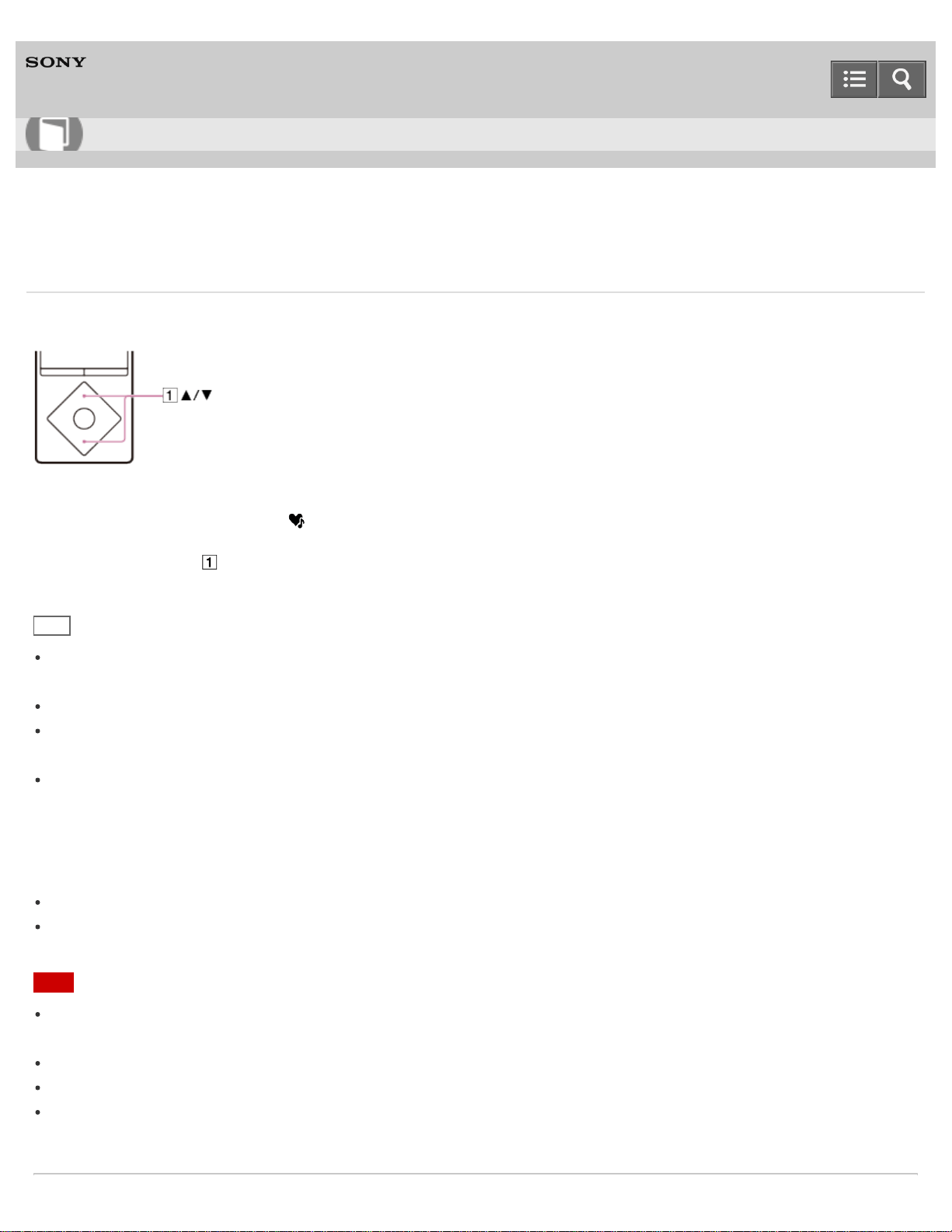
Digital Media Player
NW-A25/A25HN/A26HN/A27HN
Playing songs using SensMe™ Channels
Play songs to fit your mood, current activity, the time of day, etc., by selecting a particular channel.
1. From the Home menu, select [SensMe™ Channels].
2. Press the button ( ) to select the desired channel.
Hint
Depending on the analysis, a song may be selected by several channels or not selected at all. However, all songs
can be played using the [Shuffle All] channel.
The result of the analysis may vary every time you perform [Updating Channels].
To listen to [Morning], [Daytime], [Evening], [Night] or [Midnight] according to the timetable, [Set Date-Time] needs to
be set. If [Set Date-Time] is not set, [Morning] will be selected.
If you use the [SensMe™ Channels] function or change channels, the songs are played from the most melodic and
rhythmical section.
If you analyze songs on your Walkman, the songs are played back from approximately 45 seconds into the songs, as
the songs do not have information about the most melodic and rhythmical section. Also, if a song is shorter than 90
seconds, playback starts roughly from the middle of the song.
Songs are played in random order. Each time you select a channel, the order of playback will vary.
If there are no songs for [Morning], [Daytime], [Evening], [Night] or [Midnight], all songs will be played in random order
in those channels.
Note
Depending on the file format, certain songs cannot be analyzed by 12 TONE ANALYSIS of Media Go. For these files,
perform [Updating Channels] from the option menu.
You cannot play podcast episodes using [SensMe™ Channels].
Channels that do not contain any songs are not displayed in the list.
When playing a time-based channel, the channel will not shift to the next time-based channel even if the set time has
passed. To listen to the next time-based channel, change to another channel and go back.
Help Guide
How to Use
196

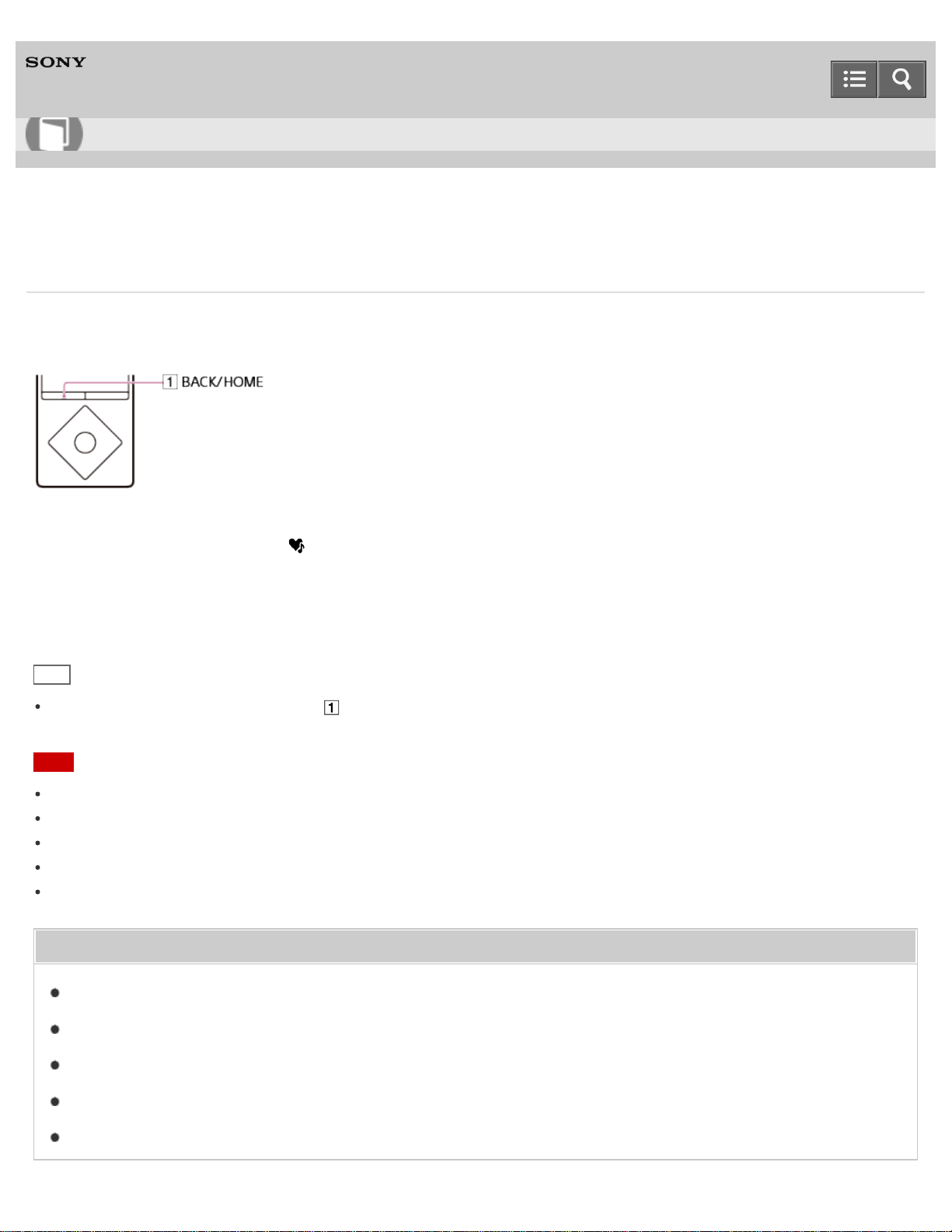
Digital Media Player
NW-A25/A25HN/A26HN/A27HN
Analyzing songs on your Walkman
If you have transferred songs that have not been analyzed yet and want to listen to them using SensMe™ Channels,
analyze them on your Walkman.
1. From the Home menu, select [SensMe™ Channels].
2. Display the option menu and select [Updating Channels].
Your Walkman starts analyzing songs. When analyzing is finished, the [SensMe™ Channels] screen is displayed.
Hint
To stop analyzing, press the button ( ). All songs analyzed up to the point where you stopped analyzing will be
playable by [SensMe™ Channels].
Note
If the alarm goes off during the analysis, the analysis will be stopped.
Your Walkman cannot analyze songs during a Bluetooth connection.
Your Walkman analyzes all songs that have not been analyzed yet at once. You cannot analyze songs individually.
The results of the analysis may vary between your Walkman, Media Go, and other devices.
When there are many songs to be analyzed, it may take time to complete analysis.
Related Topic
Playing songs using SensMe™ Channels
How to use the option menu
Setting the alarm to on/off
Pairing and connecting with a Bluetooth audio device
Connecting with a paired Bluetooth audio device
Help Guide
How to Use
198

Digital Media Player
NW-A25/A25HN/A26HN/A27HN
Shuffle playback
Play songs in random order. The playback range of songs can be changed.
1. On the music playback screen, display the option menu and select [Play Mode] - [Shuffle] or [Shuffle &
Repeat].
Note
When [Play Mode] is selected and [Shuffle] or [Shuffle & Repeat] with [Playback Range] is set to [All
Range], your Walkman will not shuffle all of the songs at once. Instead, the Walkman will select an artist, album, etc.
and play all corresponding songs in random order before moving on to another artist or album. To shuffle all songs at
once, start from [All Songs]. If you start from a bookmark list, only the songs on the selected bookmark list will be
played.
Related Topic
Playing music
How to use the option menu
Browsing the music playback screen
Music playback operations
Repeat playback
Setting the playback range
Adding a song to a bookmark list
List of icons displayed in the information area
4-573-951-11(1)
Copyright 2015 Sony Corporation
Help Guide
How to Use
199
Digital Media Player
NW-A25/A25HN/A26HN/A27HN
Repeat playback
Play songs repeatedly. The playback range of songs can be changed.
1. On the music playback screen, display the option menu and select [Play Mode] - desired setting.
Note
When [Play Mode] is selected and [Shuffle] or [Shuffle & Repeat] with [Playback Range] is set to [All
Range], your Walkman will not shuffle all of the songs at once. Instead, the Walkman will select an artist, album, etc.
and play all corresponding songs in random order before moving on to another artist or album. To shuffle all songs at
once, start from [All Songs]. If you start from a bookmark list, only the songs on the selected bookmark list will be
played.
Related Topic
Playing music
How to use the option menu
Browsing the music playback screen
Music playback operations
Shuffle playback
Setting the playback range
Adding a song to a bookmark list
List of icons displayed in the information area
4-573-951-11(1)
Copyright 2015 Sony Corporation
Help Guide
How to Use
200
Digital Media Player
NW-A25/A25HN/A26HN/A27HN
Setting the playback range
Set the playback range.
1. On the music playback screen, display the option menu and select [Playback Range] - desired setting.
[All Range]
Plays back all songs in the built-in memory and microSD card by the selected search method ([All Songs], [Album],
[Artist], etc.).
Select this to play all albums in the music menu in order.
[Selected Range]
Plays songs in the folder (artist, album, etc.) containing the currently playing song.
Note
If you start playback from a bookmark list, only the songs in the bookmark list are played. Songs in other bookmark
lists are not played even if [Playback Range] is set to [All Range].
Related Topic
Playing music
How to use the option menu
Browsing the music playback screen
Music playback operations
Adding a song to a bookmark list
4-573-951-11(1)
Copyright 2015 Sony Corporation
Help Guide
How to Use
201
Digital Media Player
NW-A25/A25HN/A26HN/A27HN
Upscaling compressed audio to quality almost that of High-Resolution Audio
The [DSEE HX] function upscales the audio file to quality almost that of High-Resolution Audio quality and reproduces
the clear high-range sound that is often lost.
To enjoy High-Resolution Audio quality, use the headphones that are compatible with High-Resolution Audio. MDR-
NW750N/MDR-NW750NE are compatible with High-Resolution Audio. You also need to select the High-Resolution
Audio headphones that you use in [Select Headphones].
1. From the Home menu, select [Settings].
2. Select [Music Settings] - [DSEE HX] - [On].
Note
The [DSEE HX] function cannot be enabled while listening to sound on the other Bluetooth audio device.
Related Topic
Setting the sound quality easily with a single operation
Moderating the differences in volume level between songs
Customizing sound quality settings
Optimizing the sound characteristics
4-573-951-11(1)
Copyright 2015 Sony Corporation
Help Guide
How to Use
202
Digital Media Player
NW-A25/A25HN/A26HN/A27HN
Enjoying various sound quality
Enjoy music by either setting the optimum sound quality with a single operation or setting the sound quality to your own
tastes.
To set the sound quality easily with a single operation
Turn on the [ClearAudio+] function.
To set the sound quality yourself
Change the settings of various functions.
Hint
The following settings are not applied if [ClearAudio+] is turned on.
[Equalizer]
[VPT (Surround)]
[Clear Stereo]
Related Topic
Setting the sound quality easily with a single operation
Customizing sound quality settings
4-573-951-11(1)
Copyright 2015 Sony Corporation
Help Guide
How to Use
203
Digital Media Player
NW-A25/A25HN/A26HN/A27HN
Setting the sound quality easily with a single operation
Turn on the ClearAudio+™ function to enjoy audio with digital signal processing technology effects.
1. From the Home menu, select [Settings].
2. Select [Music Settings] - [ClearAudio+] - [On].
Note
[Sound Settings] is not applied if [ClearAudio+] is turned on. [Sound Settings] is resumed when [ClearAudio+] is
turned off.
The [Clear Phase™ ] setting cannot be changed in [Select Headphones] when the [ClearAudio+] function is set to
[On]. Set [ClearAudio+] to [Off] before changing the setting.
Related Topic
Customizing sound quality settings
Selecting headphones
Optimizing the sound characteristics
4-573-951-11(1)
Copyright 2015 Sony Corporation
Help Guide
How to Use
204
Digital Media Player
NW-A25/A25HN/A26HN/A27HN
Customizing sound quality settings
You can use various functions to set the desired sound quality.
1. From the Home menu, select [Settings].
2. Select [Music Settings] - [Sound Settings] - desired function - desired setting.
Equalizer function
You can set the sound quality according to the music genre. You can also preset your equalizer settings as a custom
setting.
VPT (Surround) function
You can set sound effects and enrich the sound reproduction quality of the audio playback. VPT, which stands for
Virtualphones Technology, is a proprietary sound processing technology developed by Sony.
[Clear Stereo] function
This function uses digital processing to clearly distinguish between sound from the left and right of the headphones,
emphasizing the stereo effect during playback.
Hint
You can also set some sound quality items from the option menu in the music playback screen.
Note
The following settings cannot be changed while the [ClearAudio+] function is set to on.
[Equalizer]
[VPT (Surround)]
[Clear Stereo]
The [Clear Stereo] function is optimized for use with the compatible headphones. The compatible headphones are
MDR-NW750N/MDR-NW750NE. The effect of the [Clear Stereo] function may not work well with headphones other
than the compatible ones. Set [Clear Stereo] to [Off] when using headphones that are not compatible.
The [Clear Stereo] function does not work while listening to music using headphones connected via the Bluetooth
function.
Related Topic
Setting the sound quality easily with a single operation
Setting sound effects during a Bluetooth connection
Help Guide
How to Use
205

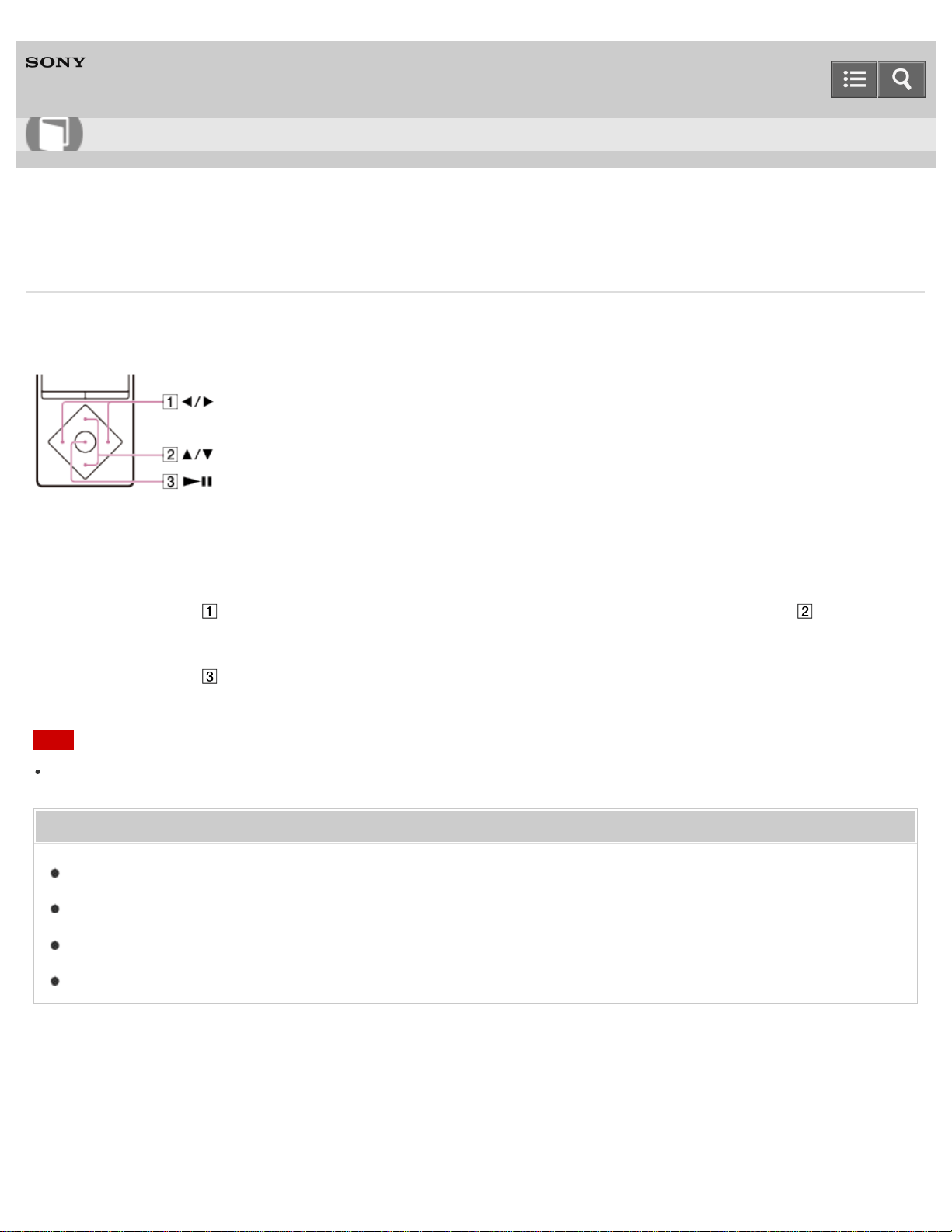
Digital Media Player
NW-A25/A25HN/A26HN/A27HN
Presetting your equalizer settings
You can preset the values of CLEAR BASS and the 5 band equalizer as custom settings. Increasing the CLEAR BASS
setting value allows your Walkman to reproduce dynamic deep bass without distortion, even at a high volume.
1. In the music playback screen, display the option menu and select [Sound Settings] - [Equalizer] - [Custom 1] or
[Custom 2].
2. Press the button ( ) to select CLEAR BASS or the frequency range setting, and press the button ( ) to adjust the
setting level.
3. Press the button ( ) to confirm.
Note
To change the equalizer setting, set the [ClearAudio+] function to off.
Related Topic
How to use the option menu
Setting sound effects during a Bluetooth connection
Setting the sound quality easily with a single operation
Customizing sound quality settings
4-573-951-11(1)
Copyright 2015 Sony Corporation
Help Guide
How to Use
207
Digital Media Player
NW-A25/A25HN/A26HN/A27HN
Moderating the differences in volume level between songs
You can moderate the volume between songs to minimize the differences in volume level (Dynamic Normalizer). You
can use this setting to prevent the volume of certain songs from being too high or too low when shuffling songs from
multiple albums with different recording levels.
1. From the Home menu, select [Settings].
2. Select [Music Settings] - [Dynamic Normalizer] - desired setting.
Related Topic
Shuffle playback
4-573-951-11(1)
Copyright 2015 Sony Corporation
Help Guide
How to Use
208
Digital Media Player
NW-A25/A25HN/A26HN/A27HN
Optimizing the sound characteristics
The [Clear Phase™ ] function optimizes the sound characteristics for the headphones you use. The compatible
headphones for this product are MDR-NW750N/MDR-NW750NE.
1. From the Home menu, select [Settings].
2. Select [Select Headphones] - [MDR-NW750N/NE] - [On].
Note
The [Clear Phase™ ] function does not work with headphone connected via the Bluetooth function.
[Select Headphones] - [Clear Phase™ ] cannot be set when the [ClearAudio+] function is turned on. Turn the
[ClearAudio+] function off before setting the [Clear Phase™ ] function.
The [Clear Phase™ ] function does not have any effect on the sound of videos, video podcasts or FM radio.
Related Topic
Selecting headphones
Setting the sound quality easily with a single operation
4-573-951-11(1)
Copyright 2015 Sony Corporation
Help Guide
How to Use
209
Digital Media Player
NW-A25/A25HN/A26HN/A27HN
Selecting the album display format
Select the album list display format. The cover art registered in Media Go is displayed in the album list. For details on
registering cover art, refer to the help of Media Go.
1. From the Home menu, select [Settings].
2. Select [Music Settings] - [Album Display Format] - desired display format.
4-573-951-11(1)
Copyright 2015 Sony Corporation
Help Guide
How to Use
210

Digital Media Player
NW-A25/A25HN/A26HN/A27HN
Preparing photos
You need to transfer photo content onto your Walkman from your computer in order to view photos on the Walkman.
After importing the photo content you want to display onto your computer, use Media Go to transfer the photos to the
Walkman. For a Mac computer, you can use Content Transfer to transfer them. You can also transfer them by drag-and-
drop from Windows Explorer or the Mac Finder.
Related Topic
Connecting to a computer
Importing and transferring content from media using Media Go
Importing content on your Windows computer into Media Go
Transferring content using Media Go
Transferring content using Content Transfer
Transferring content using Explorer
Transferring content using the Finder
Notes for transferring content such as music from your computer
4-573-951-11(1)
Copyright 2015 Sony Corporation
Help Guide
How to Use
211
Digital Media Player
NW-A25/A25HN/A26HN/A27HN
Viewing photos
You can view photos that you have transferred onto your Walkman. The Walkman uses landscape display when viewing
photos.
1. From the Home menu, select [Photos].
2. Select the desired search method, then browse the list until the photo you want to select appears.
3. Select the desired photo.
Hint
Playback of songs continues while searching for photos in the photo screen, photo folder or photo list screen.
Note
If a photo is too large or the data is corrupted, is displayed and the photo cannot be displayed.
Related Topic
Preparing photos
Browsing the photo screen
Operations on the photo screen
4-573-951-11(1)
Copyright 2015 Sony Corporation
Help Guide
How to Use
212
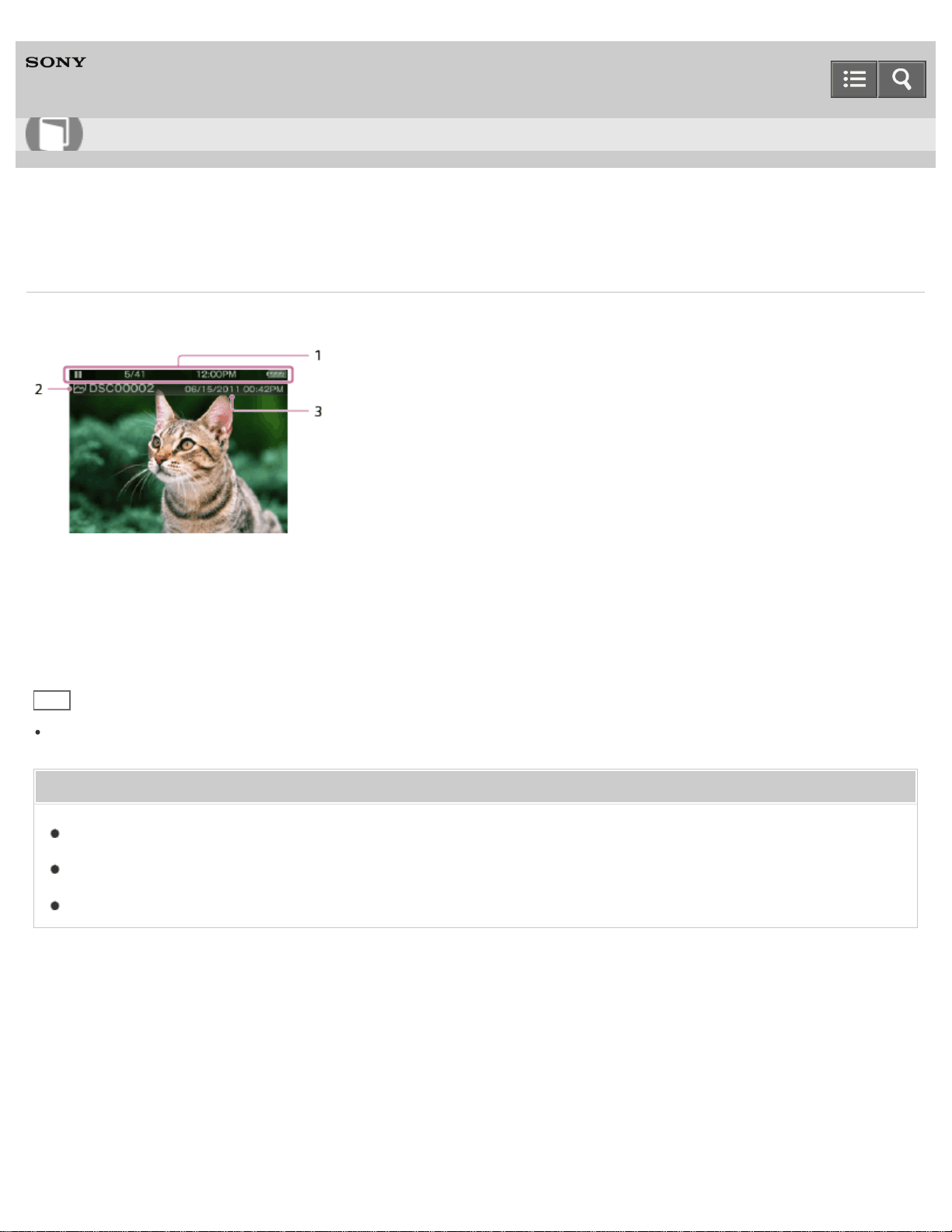
Digital Media Player
NW-A25/A25HN/A26HN/A27HN
Browsing the photo screen
The following information is shown on the photo screen.
1. Information area
The current photo number, total number of photos, current time, remaining battery power, etc. are displayed.
2. Photo file name
3. Shooting date and time
Hint
These indications disappear after a while. They will appear again with button operations.
Related Topic
Viewing photos
List of icons displayed in the information area
Operations on the photo screen
4-573-951-11(1)
Copyright 2015 Sony Corporation
Help Guide
How to Use
213
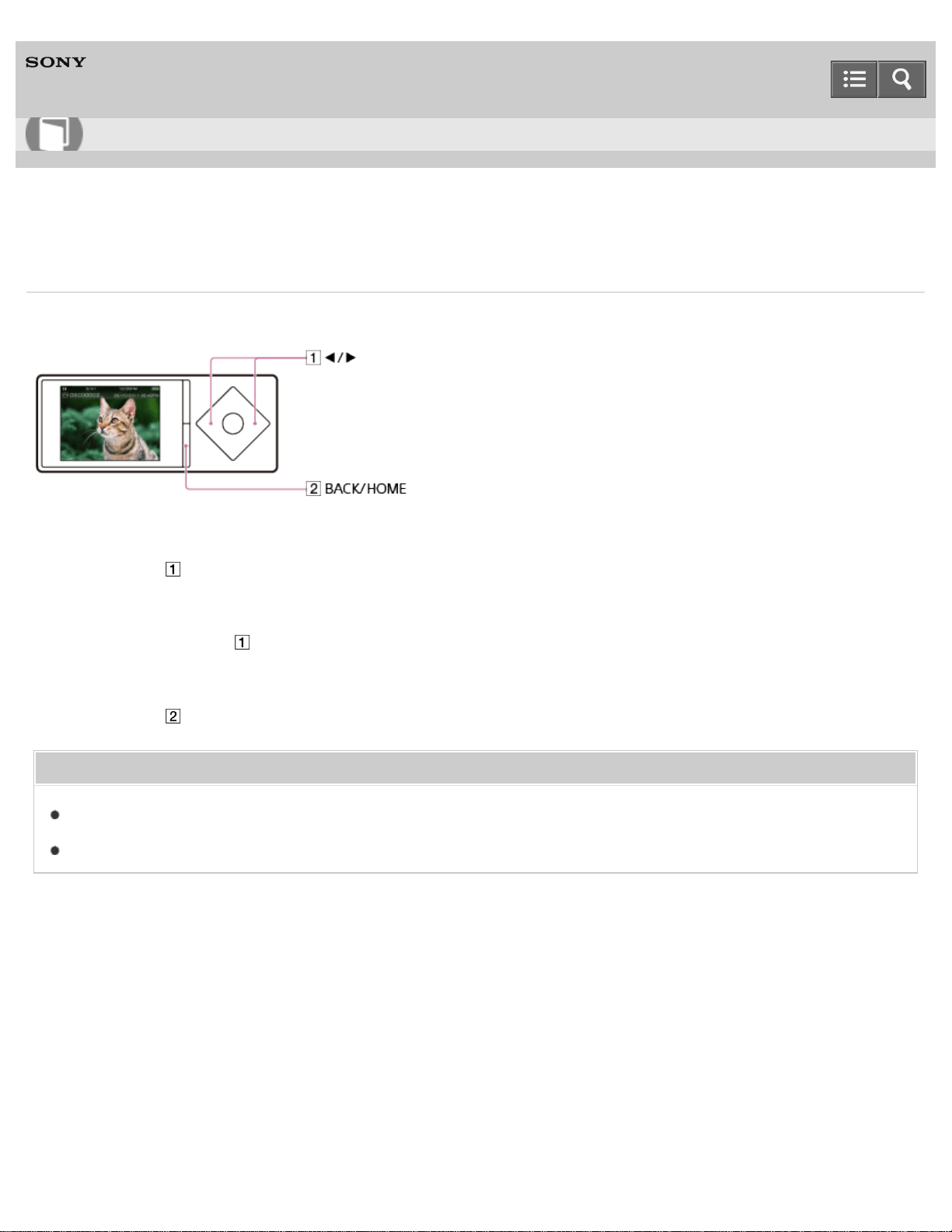
Digital Media Player
NW-A25/A25HN/A26HN/A27HN
Operations on the photo screen
You can use the following operations in the photo screen. Your Walkman uses landscape display when viewing photos.
Display the previous or next photo
Press the button ( ).
Scroll through the previous or next photos
Press and hold the button ( ).
Return to the list screen
Press the button ( ).
Related Topic
Viewing photos
Browsing the photo screen
4-573-951-11(1)
Copyright 2015 Sony Corporation
Help Guide
How to Use
214
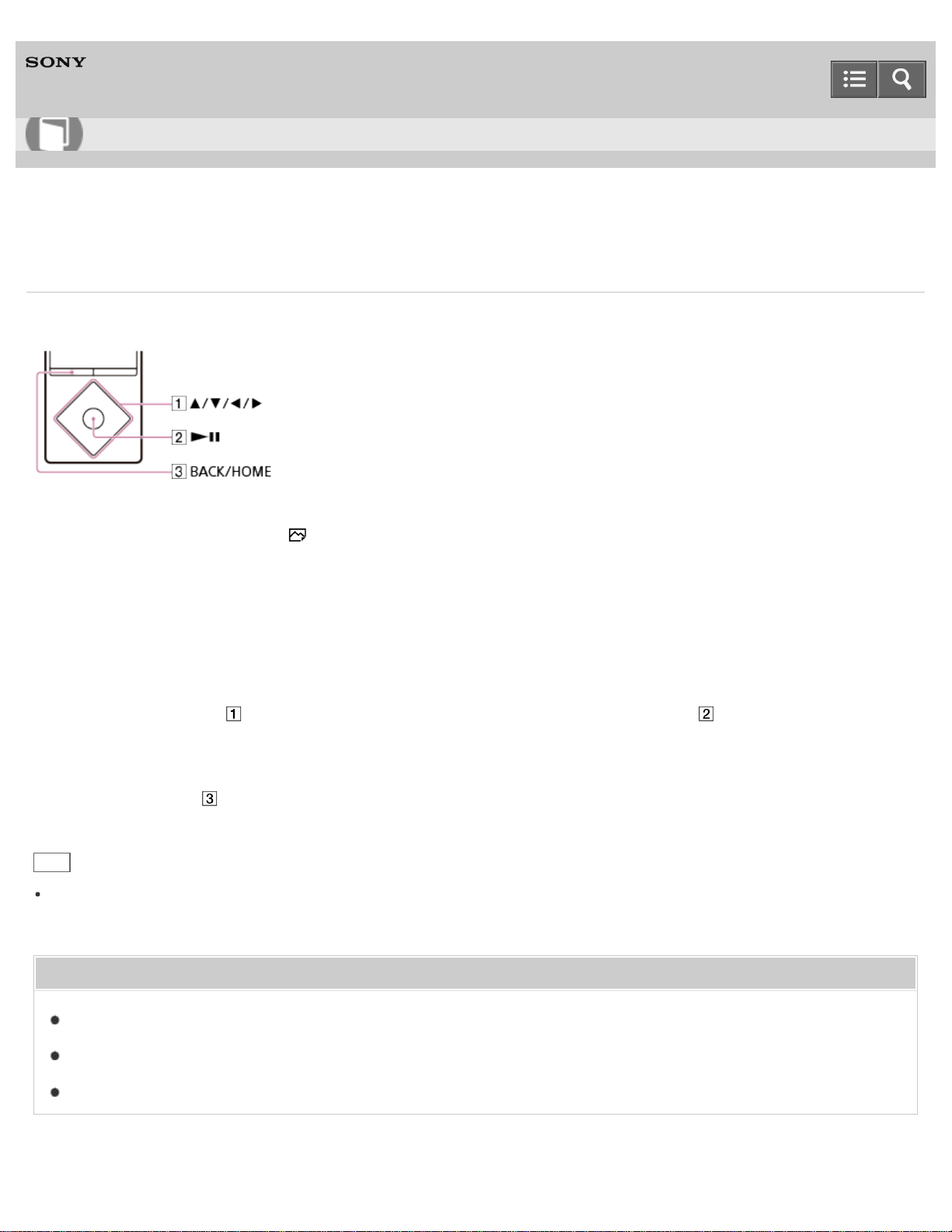
Digital Media Player
NW-A25/A25HN/A26HN/A27HN
Deleting photos
You can delete photos that have been transferred onto your Walkman.
1. From the Home menu, select [Photos].
2. Select the folder that contains the photo you want to delete.
3. In the photo list screen, display the option menu and select [Select a Photo to Delete].
The delete photo screen is displayed.
4. Repeat the following steps to delete photos.
i. Press the button (
) to select the photo you want to delete and press the button ( ) to confirm.
ii. Select [Yes].
5. Press the button (
) when you have finished deleting.
Hint
You can also delete photos while viewing them. While the photo you want to delete is displayed, display the option
menu and select [Delete Photo] - [Yes].
Related Topic
Viewing photos
Browsing the photo screen
How to use the option menu
Help Guide
How to Use
215
Digital Media Player
NW-A25/A25HN/A26HN/A27HN
Preparing videos
You need to transfer video content onto your Walkman from your computer in order to watch videos on the Walkman.
After importing the video content you want to play onto your computer, use Media Go to transfer the videos to the
Walkman. For a Mac computer, you can use Content Transfer to transfer them. You can also transfer them by drag-and-
drop from Windows Explorer or the Mac Finder.
You can add thumbnails on your computer for video content to be imported by drag-and-drop. Create them according
to the following rules.
Files must be JPEG format
The file size must be 160 (horizontal) x 120 (vertical) dots
The file name must be “(same name as the video file).jpg”
Place in the same folder as the video file
You can change the order in which videos are displayed in the list according to criteria such as the date the videos
were imported or the titles of the videos.
Related Topic
Connecting to a computer
Importing and transferring content from media using Media Go
Importing content on your Windows computer into Media Go
Transferring content using Media Go
Transferring content using Content Transfer
Transferring content using Explorer
Transferring content using the Finder
Notes for transferring content such as music from your computer
4-573-951-11(1)
Copyright 2015 Sony Corporation
Help Guide
How to Use
216
Digital Media Player
NW-A25/A25HN/A26HN/A27HN
Watching videos
You can watch videos that you have transferred onto your Walkman. The maximum resolution of video content playable
on the Walkman is 720×480 dots.
1. From the Home menu, select [Videos].
2. Select the desired search method, then browse the list until the video you want to select appears.
3. Select the video.
Hint
If you want to play only the sound of video, set the [On-Hold Display] option to [No] and then enable the HOLD mode.
The screen turns off and you can listen only to the sound.
Note
The sound quality settings are not applied while playing a video.
Related Topic
Preparing videos
Browsing the video playback screen
Operations on the video playback screen
Searching for videos
Browsing scenes from thumbnails
Playing only the sound of a video
4-573-951-11(1)
Copyright 2015 Sony Corporation
Help Guide
How to Use
217
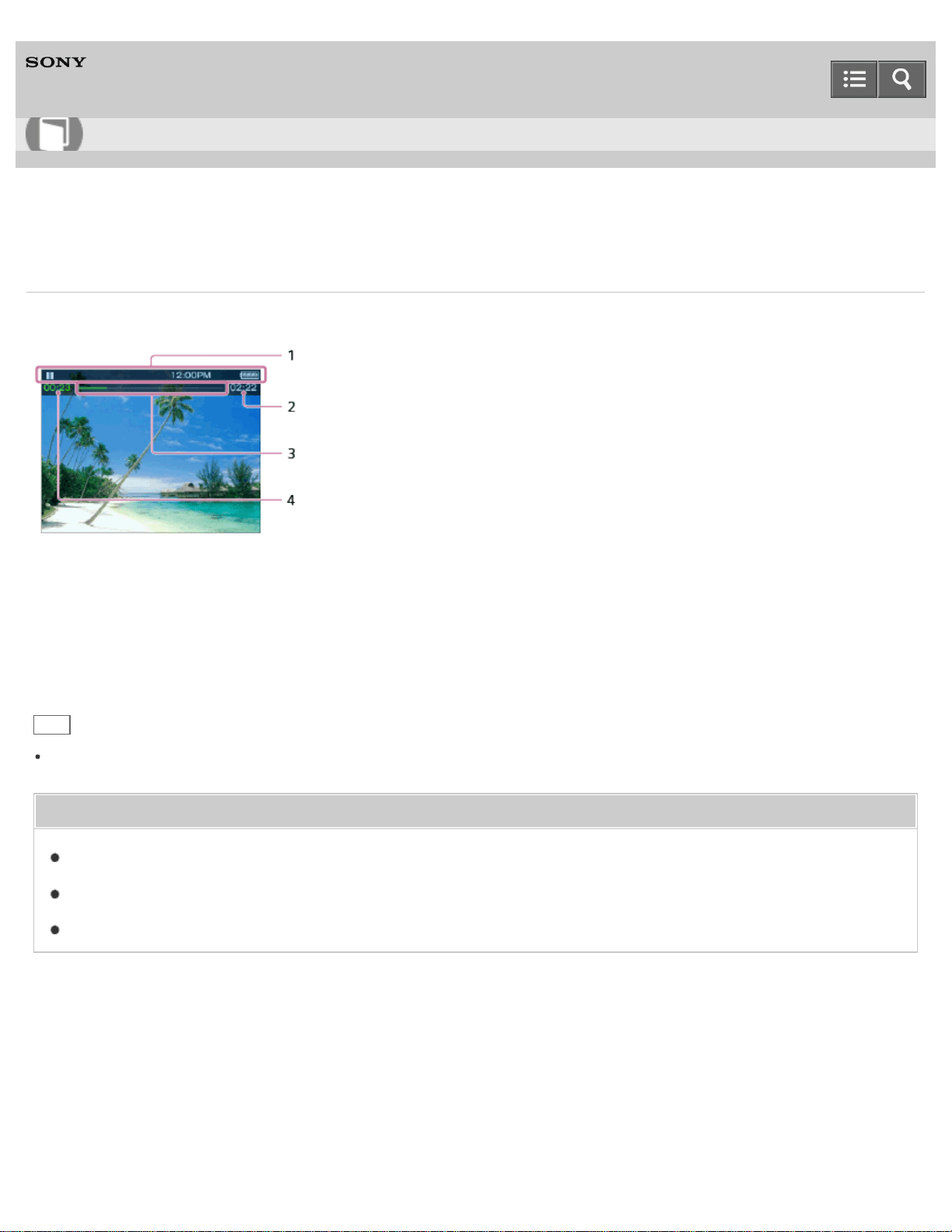
Digital Media Player
NW-A25/A25HN/A26HN/A27HN
Browsing the video playback screen
The following items are displayed on the video playback screen.
1. Information area
The playback status, current time, remaining battery power, etc. are displayed.
2. Total time
3. Progress bar
4. Elapsed time
Hint
These indications disappear after a while. They will appear again with button operations.
Related Topic
Watching videos
List of icons displayed in the information area
Operations on the video playback screen
4-573-951-11(1)
Copyright 2015 Sony Corporation
Help Guide
How to Use
218
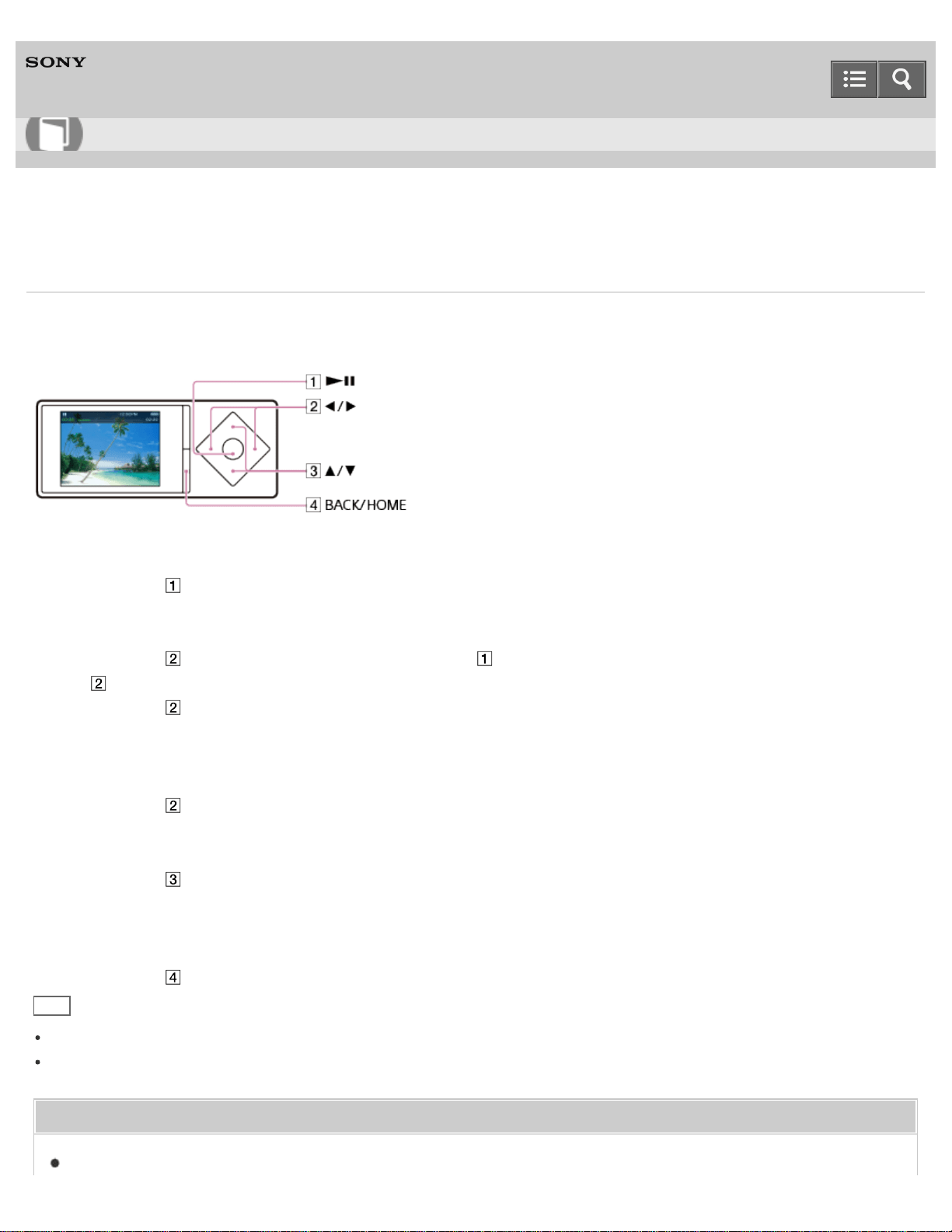
Digital Media Player
NW-A25/A25HN/A26HN/A27HN
Operations on the video playback screen
You can use the following operations in the video playback screen. Your Walkman uses landscape display when playing
videos.
Play/pause
Press the button ( ).
Fast forward/fast rewind
Press the button ( ) during playback and press the button ( ) at the desired point. You can also press and hold the
button ( ) during playback or while paused and release it at the desired point.
Press the button ( ) during fast forward or fast rewind to change between three fast forward and fast rewind speeds
(10x, 30x and 100x).
Go back or forward slightly
Press the button ( ) while paused.
Go to the previous or next scene or chapter
Press the button ( ).
If no chapters are set for the video, the scene jumps back or forward in five minute increments.
Return to the list screen
Press the button ( ).
Hint
Your Walkman automatically enters playback standby if there is no operation for a fixed period of time while paused.
The speed of fast forward/fast rewind while paused varies according to the length of the video.
Related Topic
Watching videos
Help Guide
How to Use
219

Digital Media Player
NW-A25/A25HN/A26HN/A27HN
Searching for videos
You can search for a desired video quickly to play back.
1. On the video playback screen or the list screen, display the option menu and select (Search) - desired search
method - desired video.
Hint
The [Received Videos] list has only videos received using the Bluetooth function.
Related Topic
Watching videos
How to use the option menu
4-573-951-11(1)
Copyright 2015 Sony Corporation
Help Guide
How to Use
221
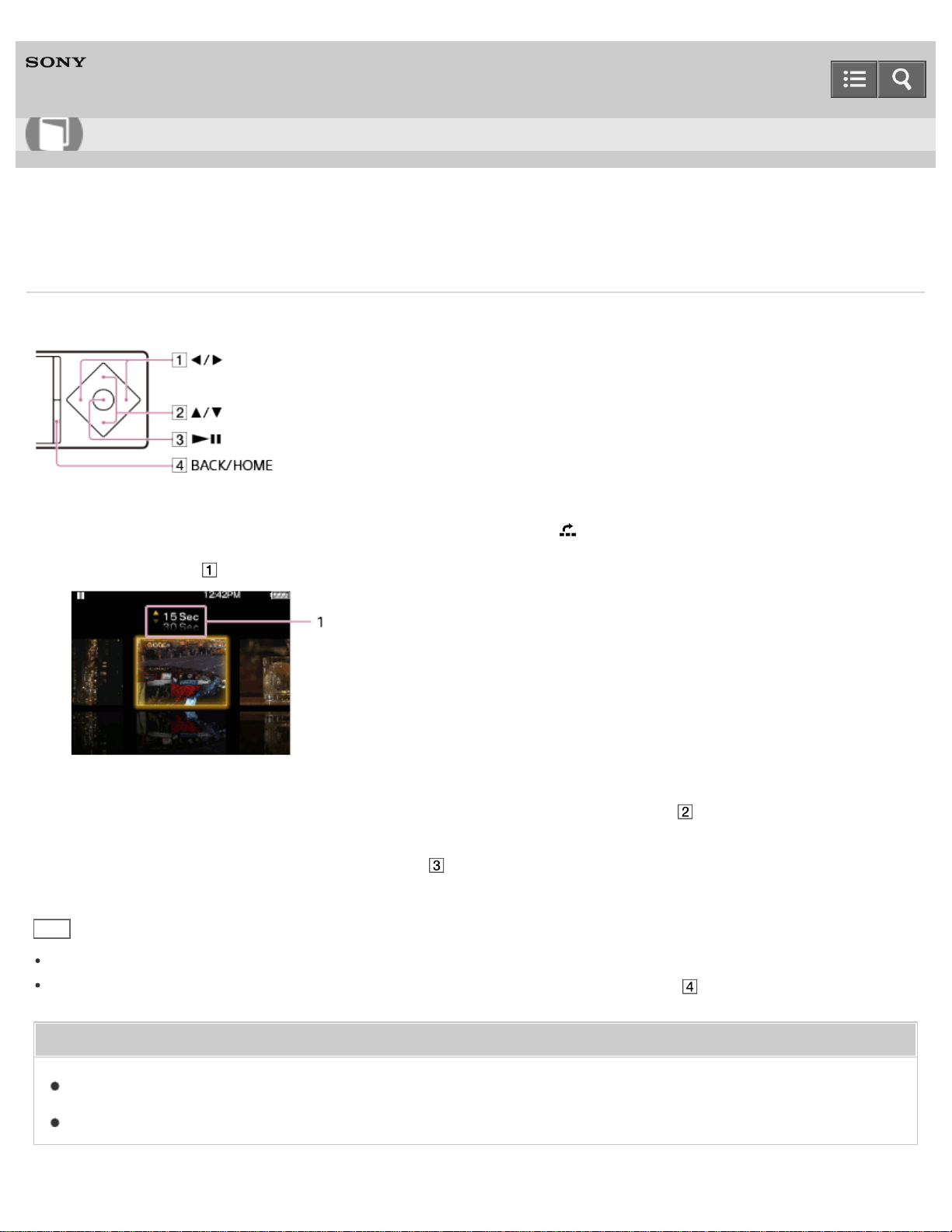
Digital Media Player
NW-A25/A25HN/A26HN/A27HN
Browsing scenes from thumbnails
You can display thumbnails as a guide for selecting a scene or chapter to play.
1. On the video playback screen, display the option menu and select [Scene Scroll].
2. Press the button ( ) to scroll through images.
1. Scene interval setting
You can set the interval of scenes displayed as thumbnails. Press the button ( ) to select the desired interval.
3. Select the desired image, then press the button (
) to play.
Hint
For videos with chapters, you can set your Walkman so that a thumbnail of each chapter is displayed.
To go back to the original video playback screen during operations, press the button ( ).
Related Topic
Watching videos
How to use the option menu
Help Guide
How to Use
222
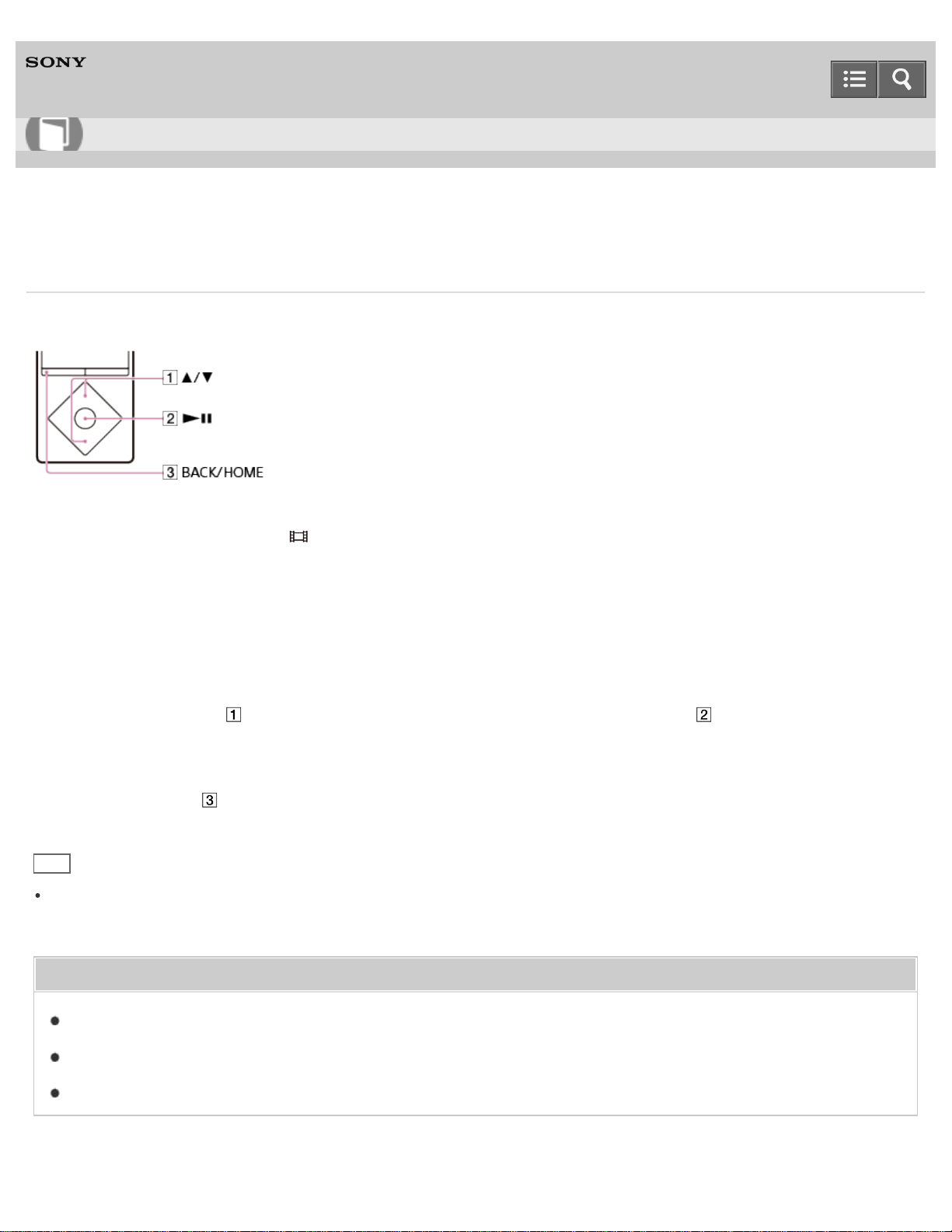
Digital Media Player
NW-A25/A25HN/A26HN/A27HN
Deleting videos
You can delete videos that have been transferred onto your Walkman.
1. From the Home menu, select [Videos].
2. Select the folder that contains the video you want to delete.
3. In the video list screen, display the option menu and select [Select a Video to Delete].
The delete video screen is displayed.
4. Repeat the following steps to delete videos.
i. Press the button (
) to select the video you want to delete and press the button ( ) to confirm.
ii. Select [Yes].
5. Press the button (
) when you have finished deleting.
Hint
You can also delete videos while viewing them. While the video you want to delete is displayed, display the option
menu and select [Delete Video] - [Yes].
Related Topic
Watching videos
Browsing the video playback screen
How to use the option menu
Help Guide
How to Use
223
Digital Media Player
NW-A25/A25HN/A26HN/A27HN
What is a podcast?
A podcast is a group of audio or video files that is published on the Internet. The files, called episodes, can be
downloaded to a computer for playback automatically by using RSS. Many news sites, corporations, and individuals
publish podcasts by using RSS. You can subscribe to a podcast by using your computer. When the latest episodes are
added to the podcast, you can download them to your computer and transfer them to your Walkman using Media Go.
For a Mac computer, you can use Content Transfer to transfer them. You can also transfer them by drag-and-drop from
Windows Explorer or the Mac Finder.
Related Topic
Transferring content using Media Go
Transferring content using Content Transfer
Transferring content using Explorer
Transferring content using the Finder
4-573-951-11(1)
Copyright 2015 Sony Corporation
Help Guide
How to Use
224
Digital Media Player
NW-A25/A25HN/A26HN/A27HN
Preparing podcasts
You need to transfer podcast episodes onto your Walkman from your computer in order to enjoy them on the Walkman.
After importing the podcast episodes you want to play onto your computer, use Media Go to transfer them to the
Walkman. For a Mac computer, you can use Content Transfer to transfer them. You can also transfer them by drag-and-
drop from Windows Explorer or the Mac Finder.
Related Topic
Connecting to a computer
Transferring content using Media Go
Transferring content using Content Transfer
Transferring content using Explorer
Transferring content using the Finder
Notes for transferring content such as music from your computer
4-573-951-11(1)
Copyright 2015 Sony Corporation
Help Guide
How to Use
225
Digital Media Player
NW-A25/A25HN/A26HN/A27HN
Playing podcasts
You can play an episode transferred to your Walkman.
1. From the Home menu, select [Podcasts].
2. Select the memory ([System Storage] or [SD Card]) that contains the episode you want to play.
3. Browse the list until the episode you want to select appears.
4. Select the desired episode.
Note
You cannot play podcast episodes continuously.
The sound quality settings are not applied while playing a video podcast.
Related Topic
Preparing podcasts
Browsing the podcast playback screen
Operations for audio podcast playback
Operations for video podcast playback
4-573-951-11(1)
Copyright 2015 Sony Corporation
Help Guide
How to Use
226

Digital Media Player
NW-A25/A25HN/A26HN/A27HN
Browsing the podcast playback screen
There are 2 podcast playback screens: an audio podcast playback screen and a video podcast playback screen.
Audio podcast playback screen
1. Information area
The playback status, current time, remaining battery power, etc. are displayed.
2. Elapsed time
3. Total time
4. Progress bar
Video podcast playback screen
1. Information area
The playback status, current time, remaining battery power, etc. are displayed.
2. Total time
3. Progress bar
Help Guide
How to Use
227
4. Elapsed time
Hint
These indications disappear after a while. They will appear again with button operations.
Related Topic
Playing podcasts
List of icons displayed in the information area
Operations for audio podcast playback
Operations for video podcast playback
4-573-951-11(1)
Copyright 2015 Sony Corporation
228
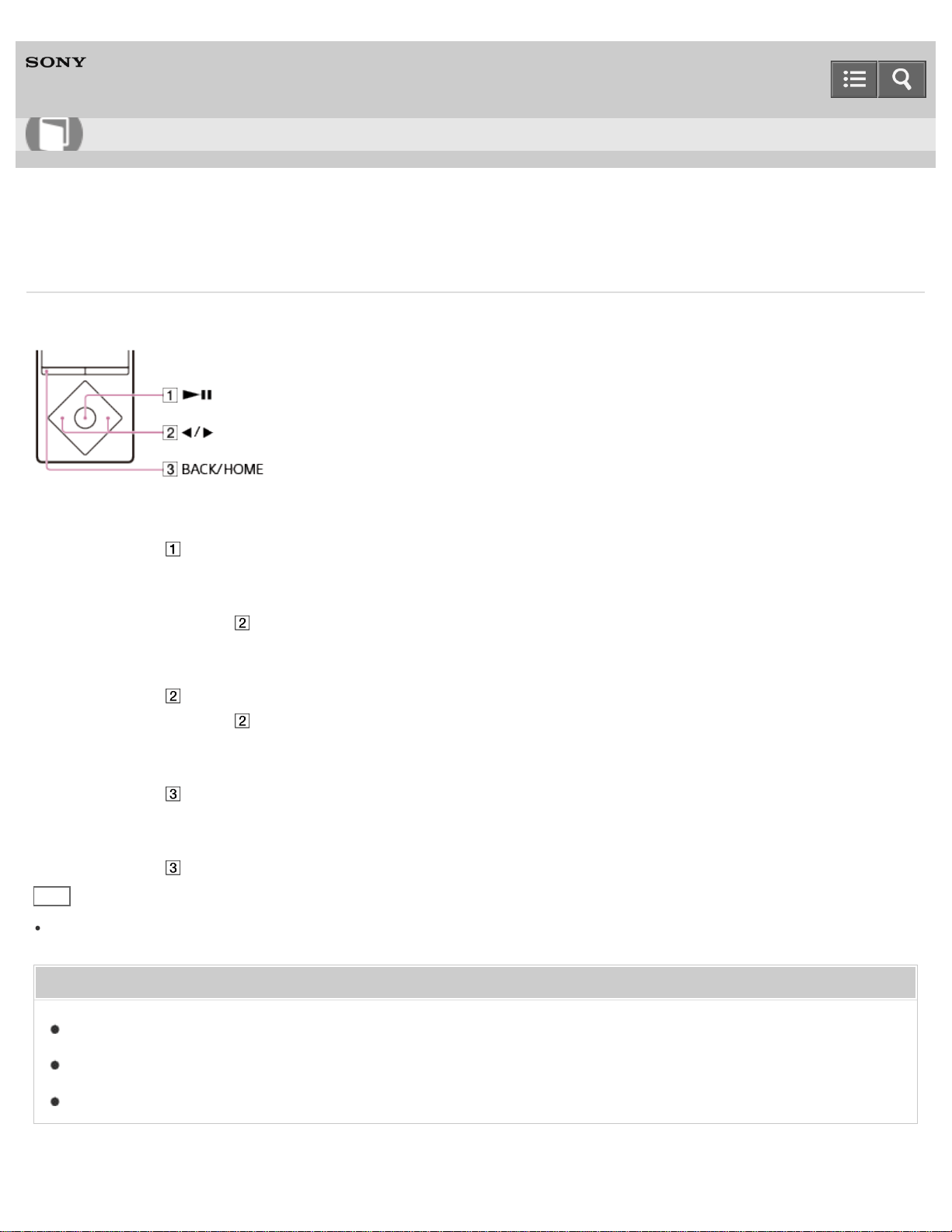
Digital Media Player
NW-A25/A25HN/A26HN/A27HN
Operations for audio podcast playback
You can use the following operations in the audio podcast screen.
Play/pause
Press the button ( ).
Fast forward/fast rewind
Press and hold the button ( ).
Go to the start of the episode being played
Press the button ( ).
Pressing either the button ( ) returns to the start of the episode being played.
Go to the next episode
Press the button ( ) to display the episode list and select the episode you want to play.
Return to the list screen
Press the button ( ).
Hint
Your Walkman automatically enters playback standby if there is no operation for a fixed period of time while paused.
Related Topic
Playing podcasts
Browsing the podcast playback screen
Operations for video podcast playback
Help Guide
How to Use
229
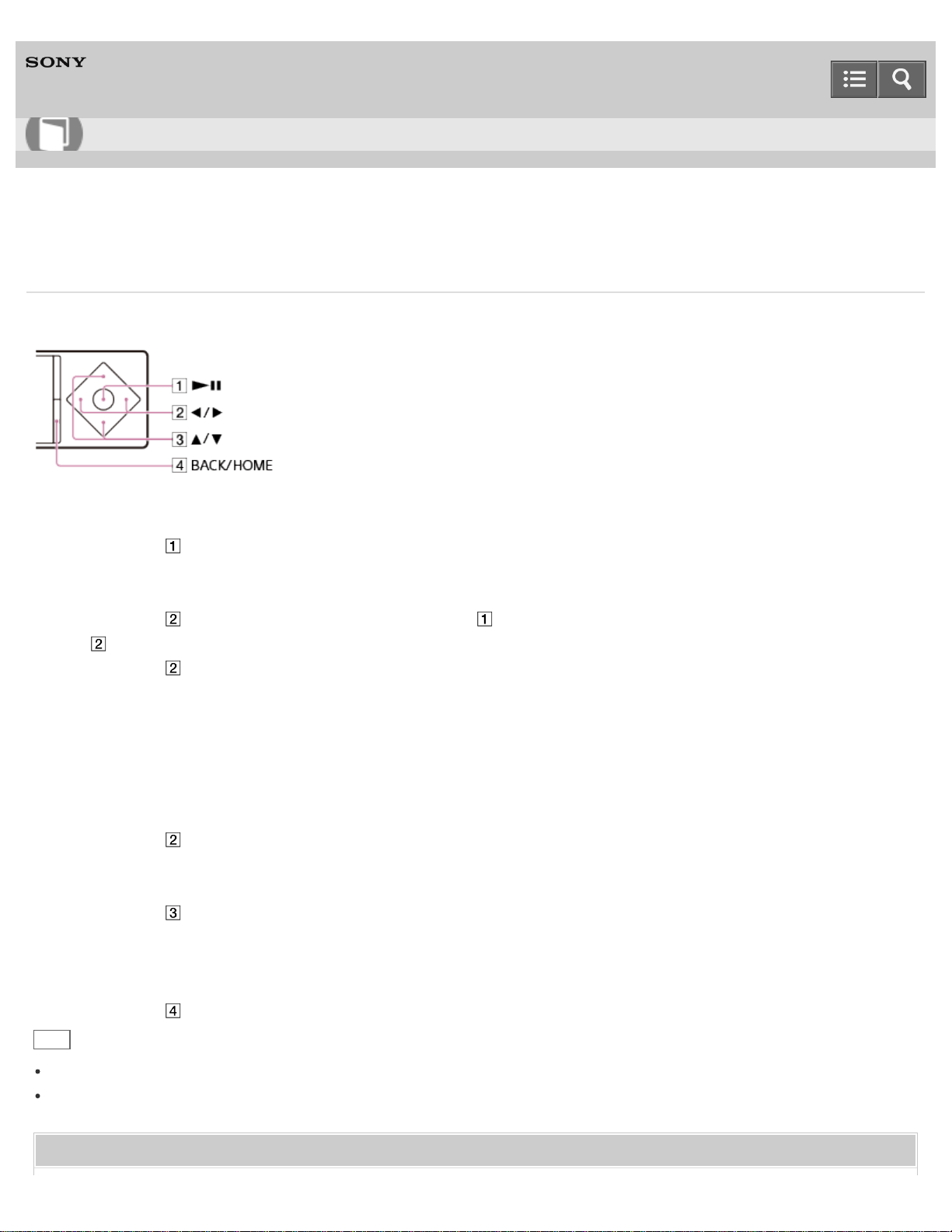
Digital Media Player
NW-A25/A25HN/A26HN/A27HN
Operations for video podcast playback
You can use the following operations in the video podcast screen. Your Walkman uses landscape display.
Play/pause
Press the button ( ).
Fast forward/fast rewind
Press the button ( ) during playback and press the button ( ) at the desired point. You can also press and hold the
button ( ) during playback or while paused and release it at the desired point.
Press the button ( ) during fast forward or fast rewind to change between three fast forward and fast rewind speeds
(10x, 30x and 100x).
If you fast-forward to the end of the episode, playback pauses. If you fast-rewind to the beginning of the episode during
playback, playback restarts automatically. If you fast-rewind to the beginning of the episode while paused, playback
remains paused. These buttons may not work as described above depending on the episode.
Go back/forward slightly
Press the button ( ) while paused.
Go to the previous or next scene or chapter
Press the button ( ).
If no chapters are set for the video, the scene jumps in five minute increments.
Return to the list screen
Press the button ( ).
Hint
Your Walkman automatically enters playback standby if there is no operation for a fixed period of time while paused.
The speed of fast forward/fast rewind while paused varies according to the length of the episode.
Related Topic
Help Guide
How to Use
230

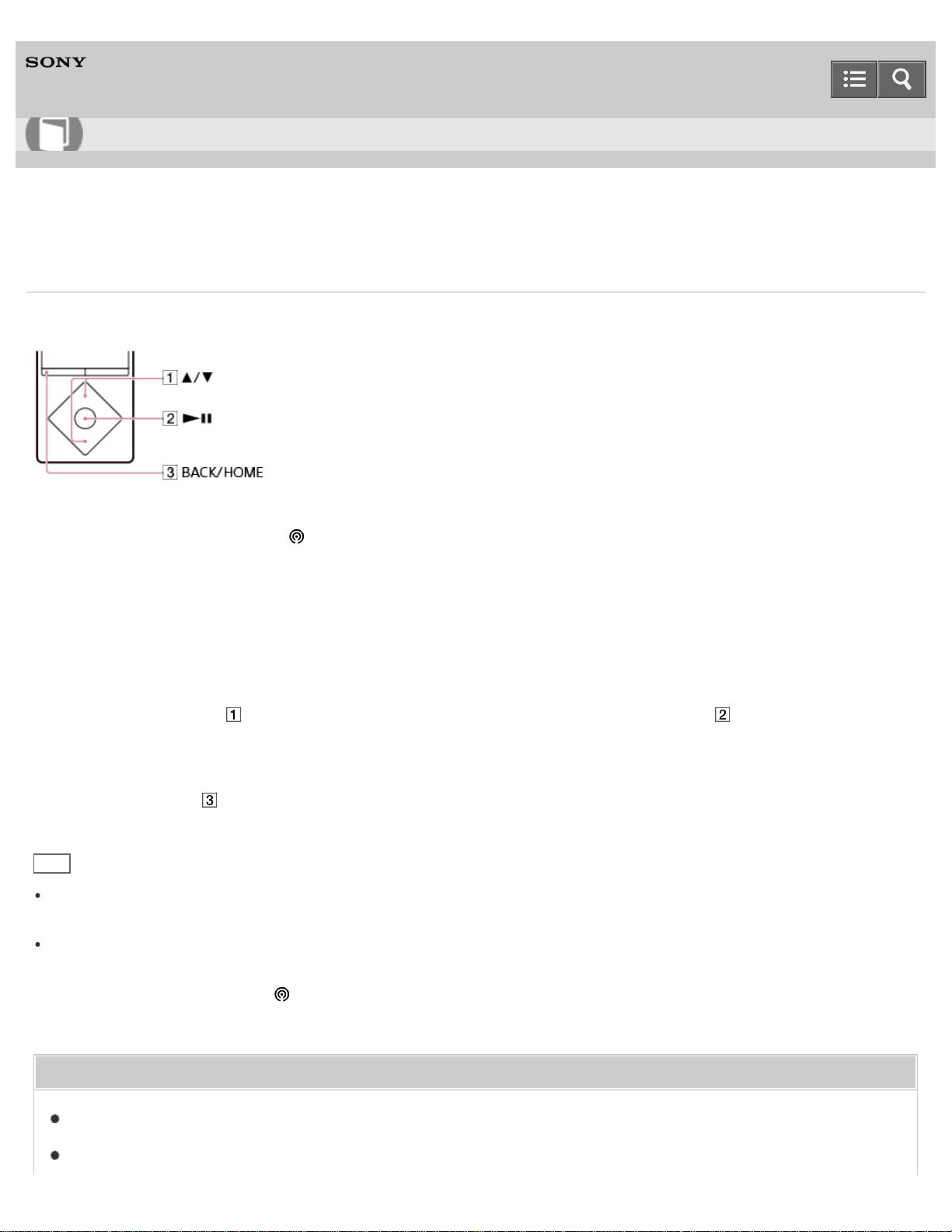
Digital Media Player
NW-A25/A25HN/A26HN/A27HN
Deleting podcast episodes
You can delete podcast episodes that have been transferred onto your Walkman.
1. From the Home menu, select [Podcasts].
2. Select the memory ([System Storage] or [SD Card]) and the folder that contains the episode you want to delete.
3. On the episode list screen, display the option menu and select [Delete Episode].
The [Delete Episode] screen is displayed.
4. Repeat the following steps to delete episodes.
i. Press the button (
) to select the episode you want to delete and press the button ( ) to confirm.
ii. Select [Yes].
5. Press the button (
) to return to the original list screen.
Hint
You can also delete podcast episodes while playing them. While the episode you want to delete is playing, display
the option menu and select [Delete This Episode] - [Yes].
To delete podcasts, display the option menu in the podcast list screen and select [Delete Podcast] - podcast you want
to delete - [Yes].
To delete all podcasts, select [Podcasts] from the Home menu, display the option menu in the podcast screen and
select [Delete All Podcasts].
Related Topic
Playing podcasts
Browsing the podcast playback screen
Help Guide
How to Use
232

Digital Media Player
NW-A25/A25HN/A26HN/A27HN
Selecting how the photo list is displayed
You can select a photo list display format.
1. On the photo list screen, display the option menu and select [Photo List Format] - desired photo list format.
Note
Thumbnails may not be displayed depending on the file format.
Related Topic
Viewing photos
How to use the option menu
4-573-951-11(1)
Copyright 2015 Sony Corporation
Help Guide
How to Use
234

Digital Media Player
NW-A25/A25HN/A26HN/A27HN
Displaying a video to match the screen size
You can change the size of a video being played to match the screen size.
1. On the video playback screen, display the option menu and select [Zoom Settings] - desired setting.
[Auto]
The video image is resized to fit the display area, maintaining the original aspect ratio. When a 4:3 ( ) video image is
displayed, it is resized to fit the screen size. When a 16:9 ( ) video image is displayed, black bands appear on the top
and bottom of the screen.
[Full]
The video image is resized to fill the available display area, maintaining the aspect ratio. When a 4:3 ( ) video image is
displayed, it is resized as it is. When a 16:9 ( ) video image is displayed, the right/left sides of the image (dotted line
frame) are trimmed to fit.
[Off]
Videos are displayed in the resolution in which they were saved. If video resolution is too high, the left, right, top and
bottom of the screen will be cut. If video resolution is too low, black bars will appear on the right, left, top and bottom of
the screen.
Related Topic
Watching videos
Help Guide
How to Use
235

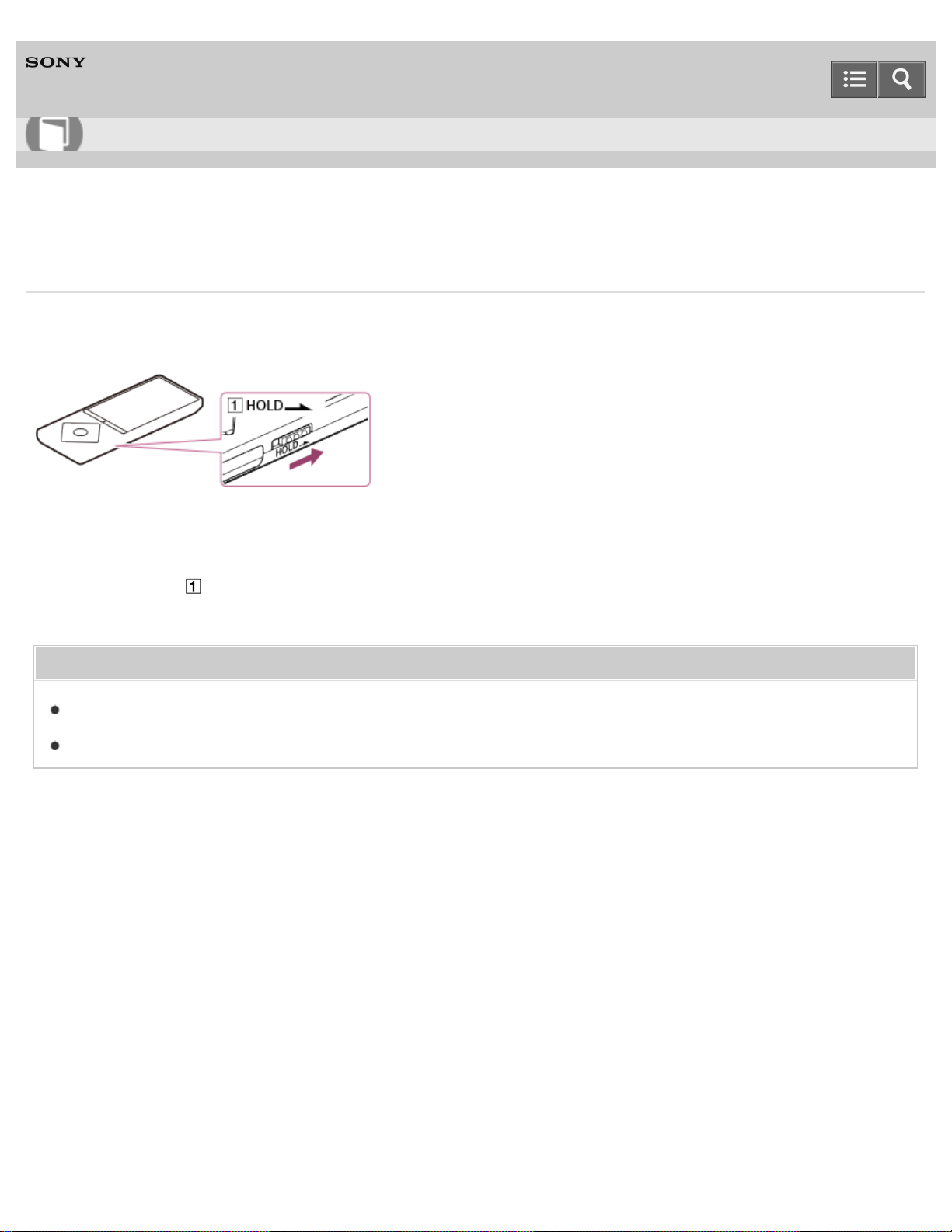
Digital Media Player
NW-A25/A25HN/A26HN/A27HN
Playing only the sound of a video
You can turn off the video screen and enjoy only the sound of a video. Turning off the video screen saves battery power
for longer battery life.
1. In the video playback screen, display the option menu and select [On-Hold Display] - [No].
2. Set the switch ( ) to the HOLD position.
Related Topic
Watching videos
How to use the option menu
4-573-951-11(1)
Copyright 2015 Sony Corporation
Help Guide
How to Use
237
Digital Media Player
NW-A25/A25HN/A26HN/A27HN
Playing videos continually
You can play videos in the order of the video list.
1. From the Home menu, select [Settings].
2. Select [Video Settings] - [Continuous Playback] - [On].
Related Topic
Watching videos
4-573-951-11(1)
Copyright 2015 Sony Corporation
Help Guide
How to Use
238
Digital Media Player
NW-A25/A25HN/A26HN/A27HN
Changing the order of videos
You can arrange the video list by date or by title.
1. In the video list screen, display the option menu and select [Order of Video List] - desired video list order.
Note
The [Order of Video List] function may not work depending on the screen.
Related Topic
Watching videos
How to use the option menu
4-573-951-11(1)
Copyright 2015 Sony Corporation
Help Guide
How to Use
239
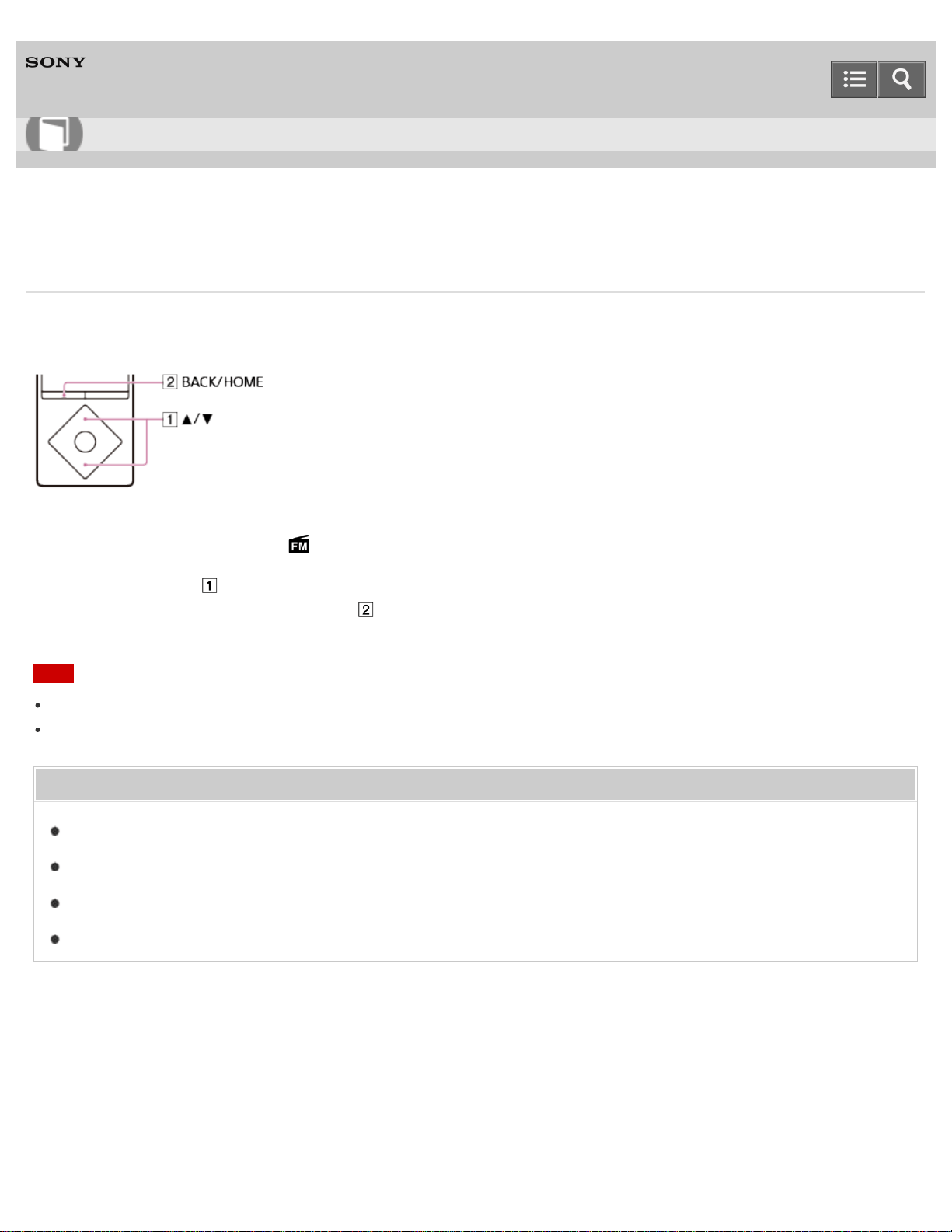
Digital Media Player
NW-A25/A25HN/A26HN/A27HN
Listening to FM radio
Listen to FM radio on your Walkman. You cannot listen to FM radio without connecting headphones as the cord of the
headphones works as the antenna. Extend the cord as long as possible.
1. From the Home menu, select [FM Radio].
2. Press the button ( ) to select the desired frequency.
To turn off FM radio, press the button ( ).
Note
The sound quality settings are not applied while listening to FM radio.
You cannot listen to FM radio while your Walkman connects via Bluetooth.
Related Topic
Browsing the FM radio screen
FM radio operations
Presetting broadcast stations automatically
Presetting broadcast stations manually
4-573-951-11(1)
Copyright 2015 Sony Corporation
Help Guide
How to Use
240
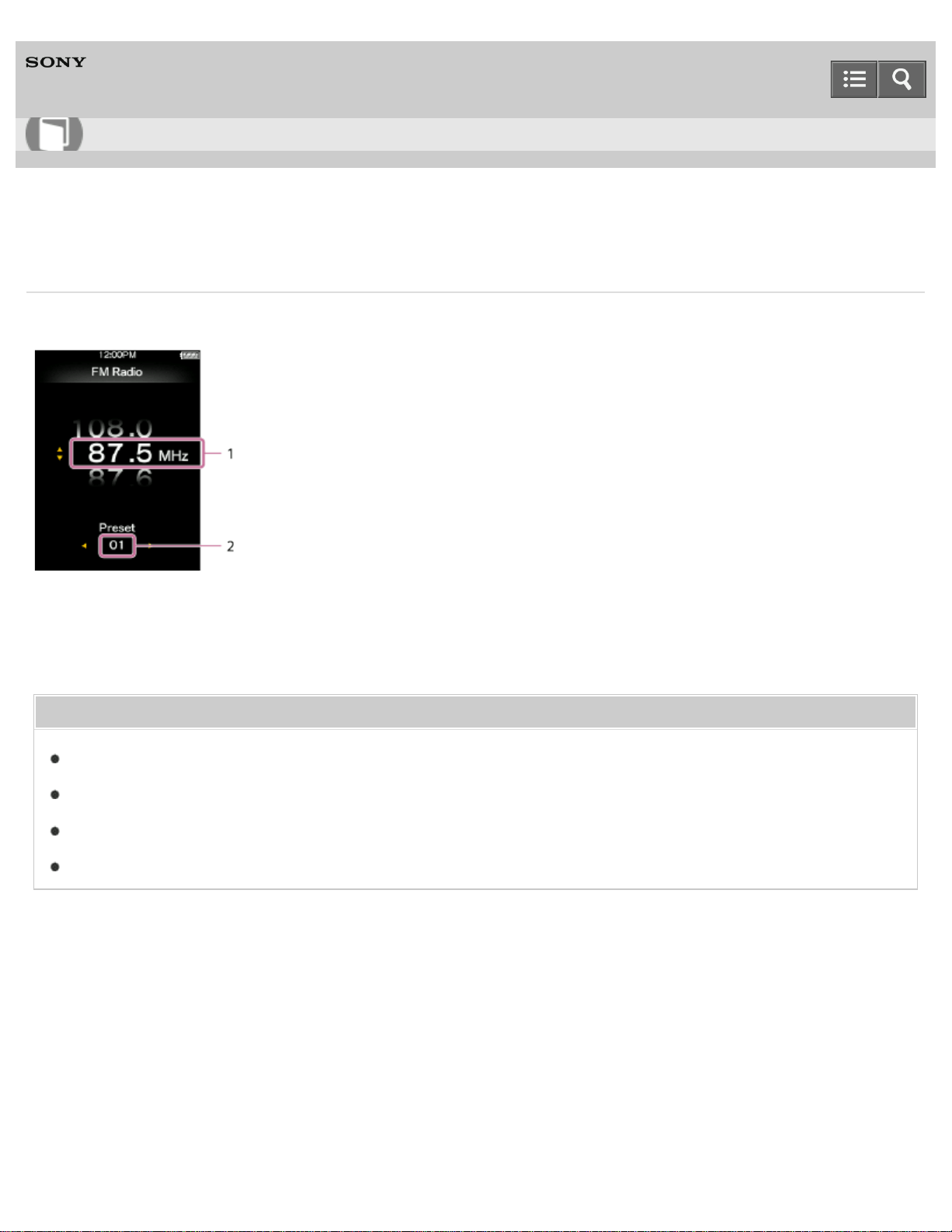
Digital Media Player
NW-A25/A25HN/A26HN/A27HN
Browsing the FM radio screen
The following items are displayed on the FM radio screen.
1. Frequency
2. Preset number
Related Topic
Listening to FM radio
FM radio operations
Presetting broadcast stations automatically
Presetting broadcast stations manually
4-573-951-11(1)
Copyright 2015 Sony Corporation
Help Guide
How to Use
241
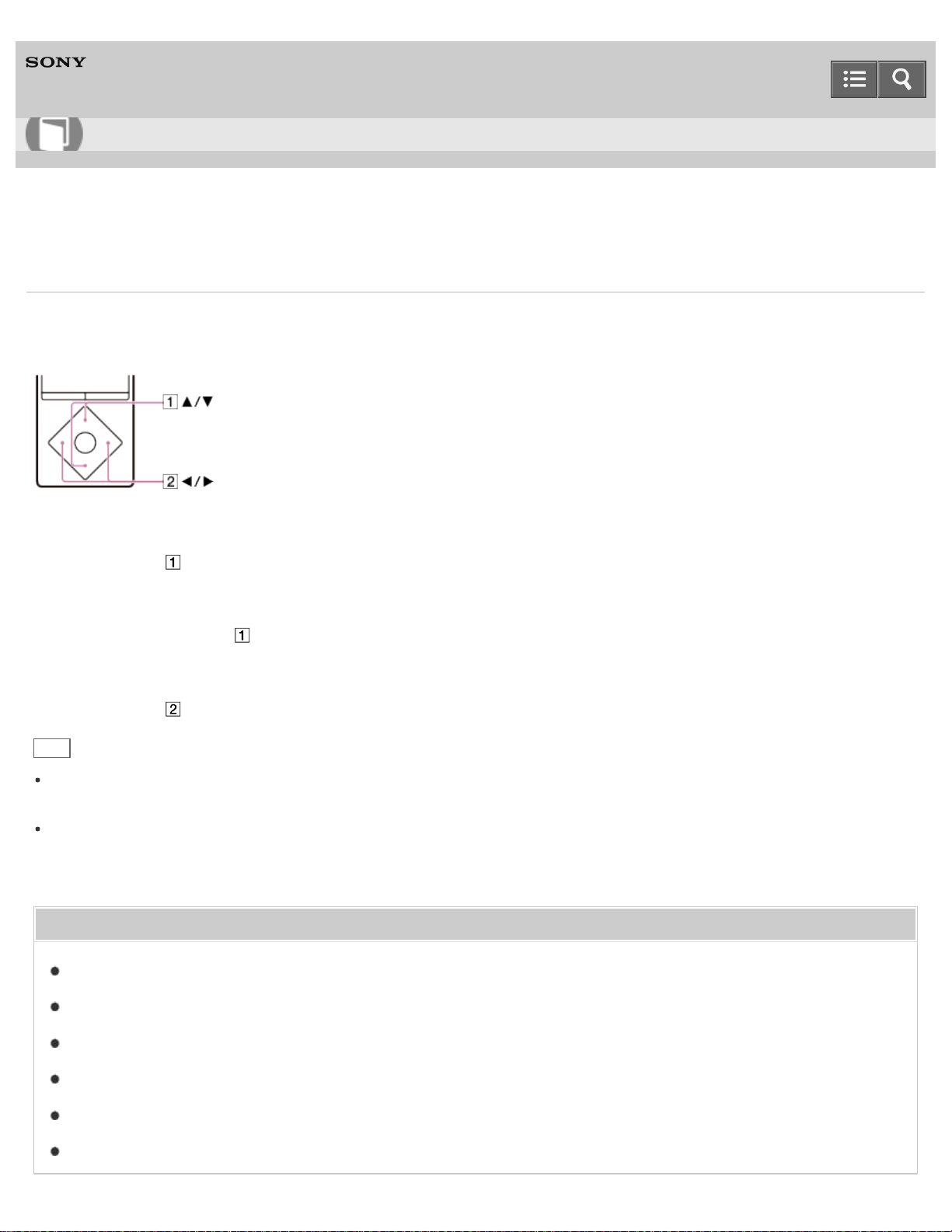
Digital Media Player
NW-A25/A25HN/A26HN/A27HN
FM radio operations
The following operations are available on the FM radio screen. You cannot listen to FM radio without connecting
headphones as the cord of the headphones works as the antenna. Extend the cord as long as possible.
To select the previous or next frequency
Press the button ( ).
To select the previous or next receivable station
Press and hold the button ( ). Searching starts and stops at a receivable broadcast station.
To select the previous or next preset number
Press the button ( ).
Hint
Preset numbers can only be used to select a broadcast station if one or more broadcast stations are saved as preset.
Preset the receivable broadcast stations in advance.
If the reception sensitivity is too strong and causes many unwanted broadcast stations to be received while searching,
change the scan sensitivity setting.
Related Topic
Browsing the FM radio screen
Listening to FM radio
Presetting broadcast stations automatically
Presetting broadcast stations manually
Changing the FM radio scan sensitivity
Setting monaural/auto for FM radio
Help Guide
How to Use
242
Digital Media Player
NW-A25/A25HN/A26HN/A27HN
Presetting broadcast stations automatically
You can use [Auto Preset] to automatically search for and preset broadcast stations that can be received in your area.
1. In the FM radio screen, display the option menu and select [Auto Preset] - [Yes].
Receivable broadcast stations will be preset in order of frequency (low to high).
Hint
If the reception sensitivity is too strong and causes many unwanted broadcast stations to be received while searching,
set the scan sensitivity to [Low].
You can preset up to 30 stations.
Note
Using [Auto Preset] clears all saved presets.
Related Topic
Listening to FM radio
How to use the option menu
Presetting broadcast stations manually
Deleting preset broadcast stations
Changing the FM radio scan sensitivity
4-573-951-11(1)
Copyright 2015 Sony Corporation
Help Guide
How to Use
243
Digital Media Player
NW-A25/A25HN/A26HN/A27HN
Presetting broadcast stations manually
You can manually preset receivable broadcast stations.
1. In the FM radio screen, select the frequency you want to save to preset.
The preset numbers are rearranged in order of frequency (low to high).
2. Display the option menu and select [Save to Preset].
Hint
You can preset up to 30 stations.
Related Topic
Listening to FM radio
How to use the option menu
Presetting broadcast stations automatically
Deleting preset broadcast stations
4-573-951-11(1)
Copyright 2015 Sony Corporation
Help Guide
How to Use
244

Digital Media Player
NW-A25/A25HN/A26HN/A27HN
Deleting preset broadcast stations
You can delete preset broadcast stations.
1. On the FM radio screen, select the preset number of the frequency you want to delete from preset.
2. Display the option menu and select [Delete from Preset].
Related Topic
Listening to FM radio
How to use the option menu
Presetting broadcast stations automatically
Presetting broadcast stations manually
FM radio operations
4-573-951-11(1)
Copyright 2015 Sony Corporation
Help Guide
How to Use
245
Digital Media Player
NW-A25/A25HN/A26HN/A27HN
Changing the FM radio scan sensitivity
Sometimes the reception sensitivity may be too strong when receiving an FM radio broadcast station, causing many
unwanted broadcast stations to be received. In such cases, set the scan sensitivity to low.
1. On the FM radio screen, display the option menu and select [Scan Sensitivity] - desired setting.
Related Topic
Listening to FM radio
Presetting broadcast stations automatically
How to use the option menu
4-573-951-11(1)
Copyright 2015 Sony Corporation
Help Guide
How to Use
246
Digital Media Player
NW-A25/A25HN/A26HN/A27HN
Setting monaural/auto for FM radio
If noise occurs during FM reception, set [Mono/Auto] to [Mono]. If you set it to [Auto], stereo or monaural is selected
automatically, depending on reception conditions.
1. In the FM radio screen, display the option menu and select [Mono/Auto] - desired setting.
Related Topic
Listening to FM radio
FM radio operations
How to use the option menu
4-573-951-11(1)
Copyright 2015 Sony Corporation
Help Guide
How to Use
247
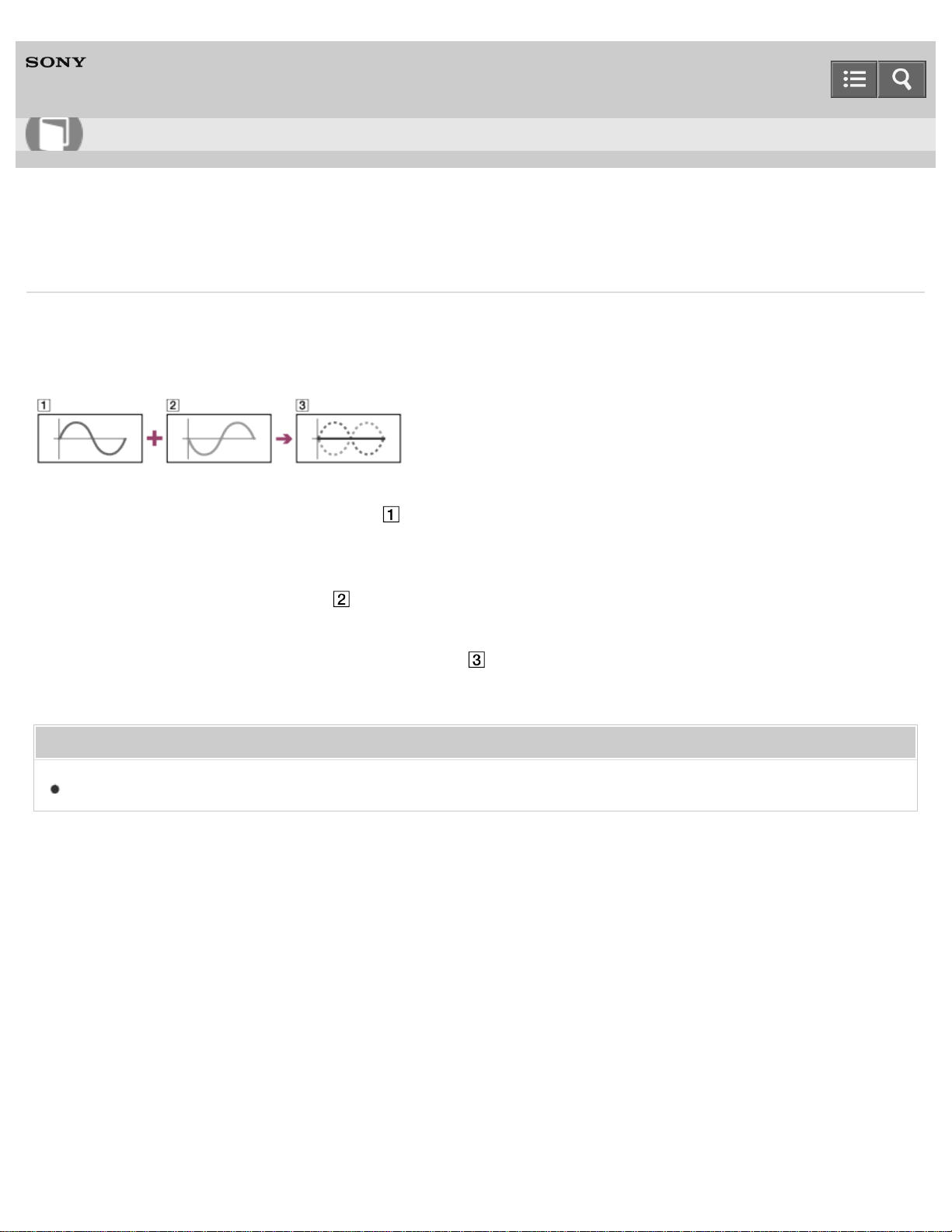
Digital Media Player
NW-A25/A25HN/A26HN/A27HN
What is noise canceling?
The headphones equipped with the noise canceling function detect ambient noise using the built-in microphone and
output antiphase sound to reduce the noise. This reduces unwanted ambient noise, especially in a vehicle such as an
airplane, train or bus, allowing you to enjoy music even at a low volume.
Waveform of noise (original sound) ( )
The microphone built into the headphones picks up ambient noise, then the noise canceling circuit analyzes the signal of
the noise.
Waveform of antiphase sound ( )
Antiphase sound that cancels out the analyzed noise is generated.
Waveform of composed and canceled noise ( )
The original and antiphase sound combine to cancel out the original sound, reducing noise at the eardrums.
Related Topic
Using noise canceling
4-573-951-11(1)
Copyright 2015 Sony Corporation
Help Guide
How to Use
248
Digital Media Player
NW-A25/A25HN/A26HN/A27HN
Noise canceling compatible headphones
The noise canceling function is available only with noise canceling headphones.
The noise canceling headphones that are compatible with this product are MDR-NW750N/MDR-NW750NE.
Related Topic
Selecting headphones
4-573-951-11(1)
Copyright 2015 Sony Corporation
Help Guide
How to Use
249
Digital Media Player
NW-A25/A25HN/A26HN/A27HN
Selecting headphones
The effect of the noise canceling function or the [Clear Phase™ ] function is optimized by selecting the compatible
headphones.
1. From the Home menu, select [Settings].
2. Select [Select Headphones] - headphones that you use.
Select [Clear Phase™ ] - [On] if you use the “Clear Phase” function.
Hint
Select [Other Headphones] to use headphones that do not support the noise canceling function. You cannot change
the [Clear Phase™ ] setting nor activate the noise canceling function while [Other Headphones] is selected.
Related Topic
Using noise canceling
Optimizing the sound characteristics
4-573-951-11(1)
Copyright 2015 Sony Corporation
Help Guide
How to Use
250
Digital Media Player
NW-A25/A25HN/A26HN/A27HN
Using noise canceling
The noise canceling function is available only with noise canceling headphones. The noise canceling headphones that
are compatible with this product are MDR-NW750N/MDR-NW750NE. Select the noise canceling headphones that you
use in [Select Headphones], and then perform the following operation.
1. Connect the compatible headphones to your Walkman.
2. From the Home menu, select [Noise Canceling].
3. Select [Noise Canceling: On/Off] - [On].
is displayed in the information area.
Hint
The noise canceling effect is adjustable.
Related Topic
Noise canceling compatible headphones
Selecting a noise canceling environment
Adjusting noise canceling
Selecting headphones
Notes for using the noise canceling function
4-573-951-11(1)
Copyright 2015 Sony Corporation
Help Guide
How to Use
251
Digital Media Player
NW-A25/A25HN/A26HN/A27HN
Reducing noise to create a quiet environment
You can use the noise canceling function to reduce ambient sound even when not playing back content such as music.
The noise canceling function is available only with noise canceling headphones. The noise canceling headphones that
are compatible with this product are MDR-NW750N/MDR-NW750NE. You also need to select the noise canceling
headphones that you use in [Select Headphones].
1. Connect the noise canceling headphones to your Walkman.
2. From the Home menu, select [Noise Canceling].
3. Select [Quiet Mode].
Related Topic
Noise canceling compatible headphones
Selecting headphones
Using noise canceling
4-573-951-11(1)
Copyright 2015 Sony Corporation
Help Guide
How to Use
252
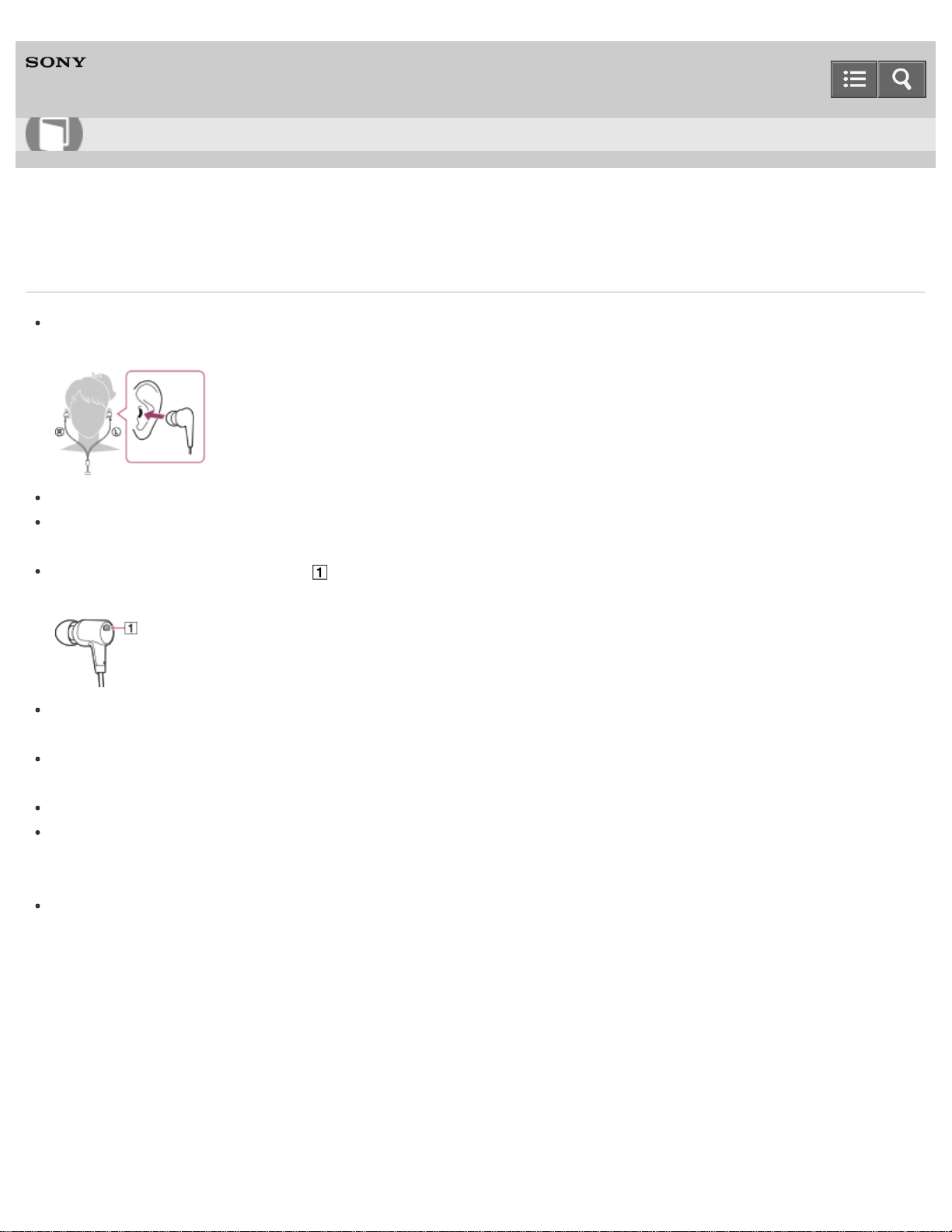
Digital Media Player
NW-A25/A25HN/A26HN/A27HN
Notes for using the noise canceling function
If the earbuds do not fit your ears, the effect of the noise canceling function may be compromised. Adjust the earbuds
to a position where they fit well, and place them snugly in your ears.
Rubbing noises may occur while wearing headphones. This is not a malfunction.
The noise canceling function mainly reduces noise in low frequency bands and has no effect on noise in higher
frequency bands. Note that it does not cancel all sounds.
Do not cover the microphone part ( ) of the headphones with your hands or other objects. Doing so may
compromise the noise canceling effect.
You may hear a slight hissing noise when the noise canceling function is active. This is operational noise of the noise
canceling function and not a malfunction.
You may feel that the noise canceling function is not working or noise is louder in quiet places or with certain types of
noises. In this case, deactivate the noise canceling function.
Mobile phones or smartphones may cause noise. If this occurs, keep your Walkman away from these devices.
Make sure to remove the headphones from your ears before you connect or disconnect the headphones from your
Walkman. If the headphones are connected or disconnected from the Walkman during playback or while the noise
canceling function is active, noise may be generated. This is not a malfunction.
When changing the [Noise Canceling: On/Off] setting, a switching sound will be generated. This sound is generated
by switching of the noise canceling circuit, and is not a malfunction.
4-573-951-11(1)
Copyright 2015 Sony Corporation
Help Guide
How to Use
253
Digital Media Player
NW-A25/A25HN/A26HN/A27HN
Selecting a noise canceling environment
You can set the noise canceling function most effective for the environment you are in by using noise canceling
headphones and selecting the type of ambient noise.
The noise canceling function is available only with noise canceling headphones. The noise canceling headphones that
are compatible with this product are MDR-NW750N/MDR-NW750NE.
1. From the Home menu, select [Noise Canceling].
2. Select [Select NC Environment] - desired setting.
Hint
When you select [Full-auto AINC], your Walkman analyzes the ambient sound immediately and sets the most
effective noise canceling mode automatically.
Related Topic
Using noise canceling
4-573-951-11(1)
Copyright 2015 Sony Corporation
Help Guide
How to Use
254
Digital Media Player
NW-A25/A25HN/A26HN/A27HN
Adjusting noise canceling
The noise canceling function is available only with noise canceling headphones. The noise canceling headphones that
are compatible with this product are MDR-NW750N/MDR-NW750NE.
Your Walkman has been set to obtain the maximum effect of the noise canceling function. However, you may be able to
enhance the effect depending on your ear shape or usage environment by increasing (or decreasing) the sensitivity of
the microphone that the compatible headphones are equipped with.
1. From the Home menu, select [Noise Canceling].
2. Select [Set Noise Cancel Level] - desired setting.
The setting can be adjusted in 31 steps. The center position of the slider is the setting where the maximum effect is
obtained in a standard environment. Adjust as desired.
Note
Maximizing microphone sensitivity does not necessarily enhance the noise canceling effect.
Related Topic
Using noise canceling
4-573-951-11(1)
Copyright 2015 Sony Corporation
Help Guide
How to Use
255
Digital Media Player
NW-A25/A25HN/A26HN/A27HN
What is the Bluetooth function?
The Bluetooth function enables wireless data transfer between devices that support Bluetooth wireless technology. You
can transfer data between these devices at a range of up to 10 meters in an open area.
You do not need to use a cable for connection, since the Bluetooth function uses wireless technology, nor is it necessary
for the devices to face one another, as is the case with infrared technology. For example, you can use Bluetooth devices
in a bag or pocket.
4-573-951-11(1)
Copyright 2015 Sony Corporation
Help Guide
How to Use
256
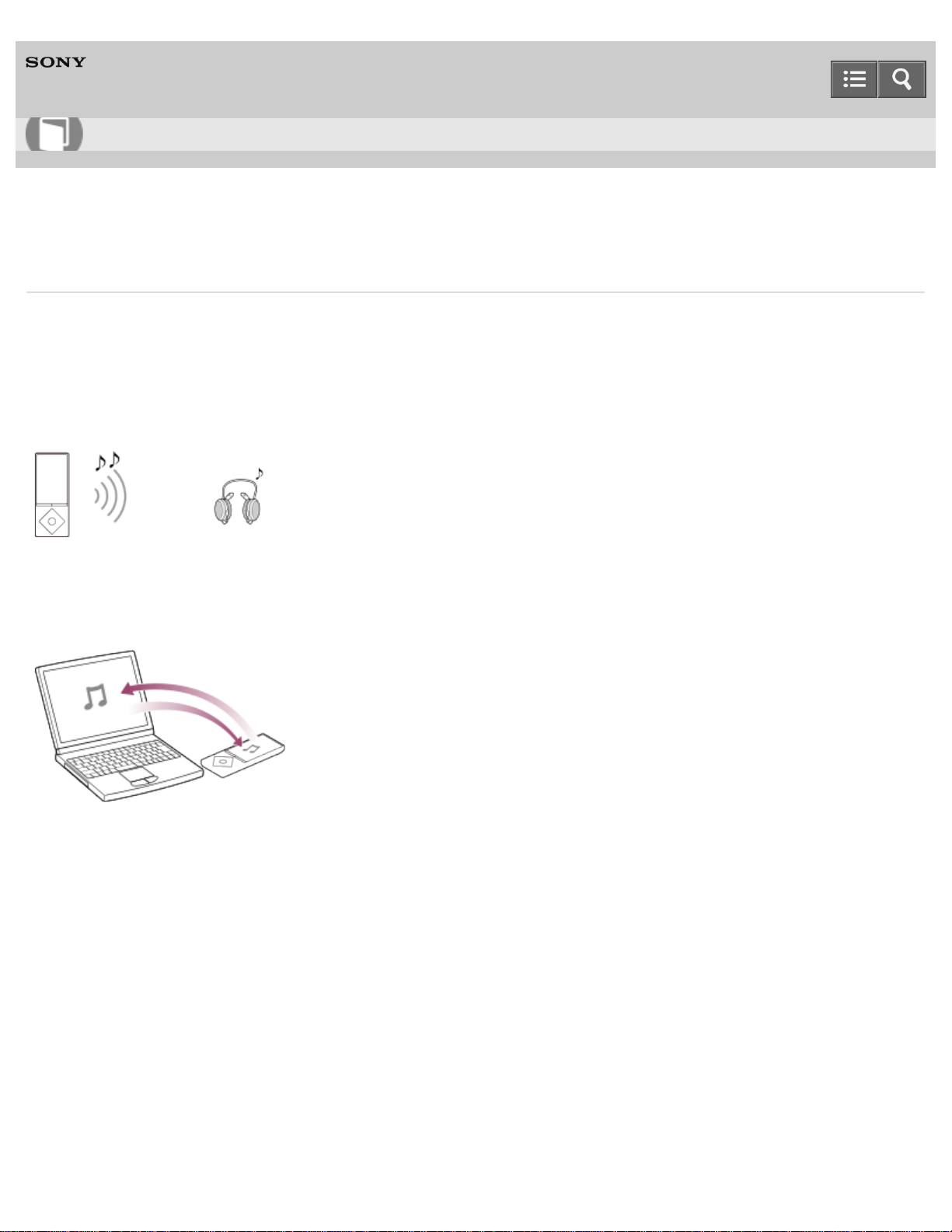
Digital Media Player
NW-A25/A25HN/A26HN/A27HN
What can your Walkman do with the Bluetooth function?
You can listen to sound on Bluetooth audio devices by sending data from your Walkman. You can also use the Walkman
to send and receive content.
Listening to music
You can use a Bluetooth audio device to listen to music wirelessly.
Sending/receiving content
You can transfer content to/from another Bluetooth device.
4-573-951-11(1)
Copyright 2015 Sony Corporation
Help Guide
How to Use
257
Digital Media Player
NW-A25/A25HN/A26HN/A27HN
What is pairing?
The registration between Bluetooth devices is called “pairing.” Once the devices are paired, you can easily connect your
Walkman to the Bluetooth device from the next time onwards using a simple operation.
Connecting your Walkman to Bluetooth audio devices
Bluetooth audio devices need to be paired with each other beforehand. Once Bluetooth audio devices are paired, there
is no need for pairing again, except in the following cases.
When the pairing information of your Walkman on the Bluetooth audio device is deleted.
When your Walkman is formatted and all pairing information is deleted.
When the pairing information is deleted by any operations other than above.
Transferring content to/from another Bluetooth device
Pairing in advance is not necessary because this is executed when your Walkman sends or receives content via a
Bluetooth connection. The pairing information is stored on the Walkman but is deleted in the following cases.
When the pairing information of your Walkman on the Bluetooth device is deleted.
When your Walkman is reset to the factory settings.
When the pairing information is deleted by any operations other than above.
Note
Your Walkman cannot be paired if the number of paired devices exceeds 20. If you want to pair another device,
delete an unnecessary paired device beforehand.
Related Topic
Pairing and connecting with a Bluetooth audio device
Deleting the pairing information of Bluetooth audio devices
Resetting to the factory settings
Sending content via a Bluetooth connection
Receiving content via a Bluetooth connection
4-573-951-11(1)
Copyright 2015 Sony Corporation
Help Guide
How to Use
258
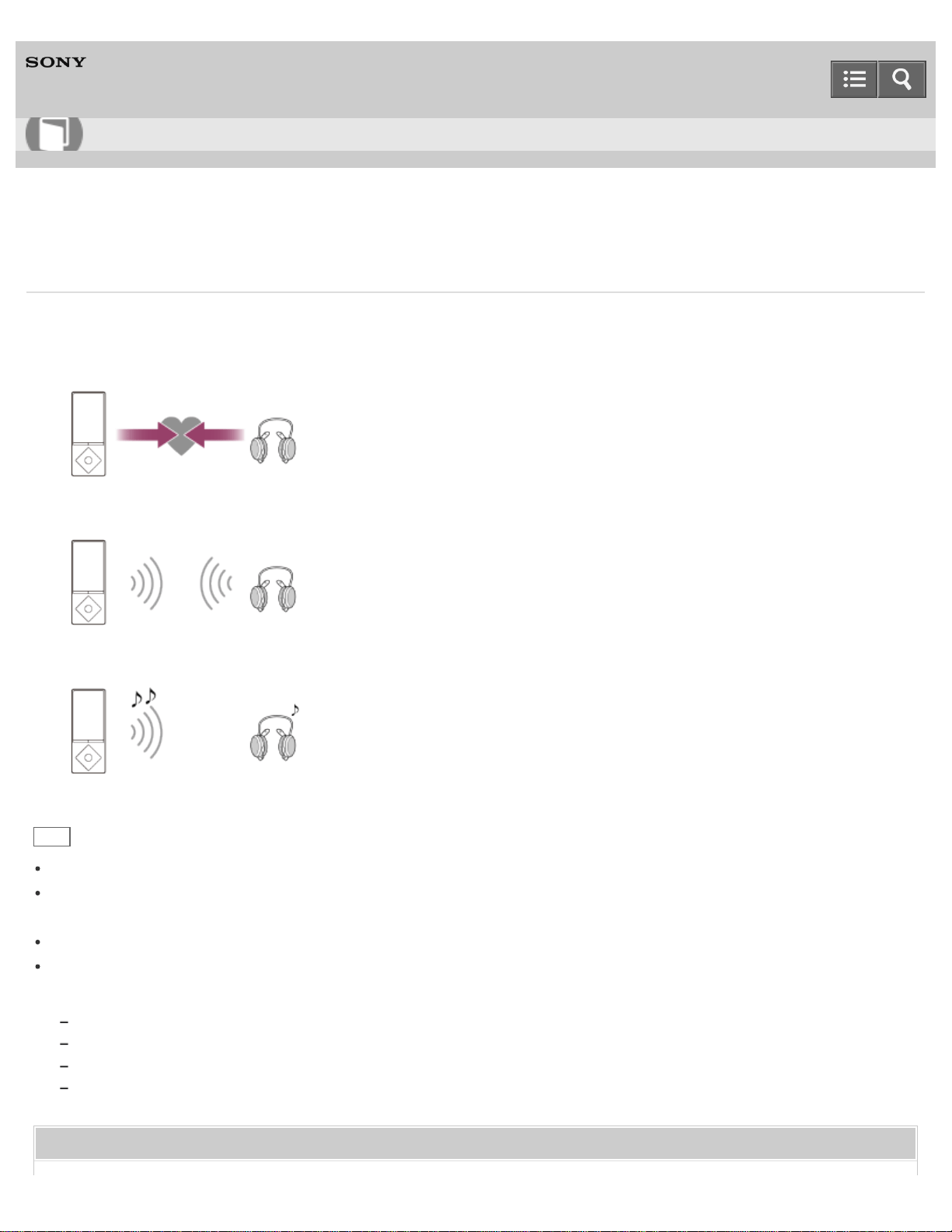
Digital Media Player
NW-A25/A25HN/A26HN/A27HN
Steps to use Bluetooth connection
To listen to sound from Bluetooth audio devices on your Walkman, the following steps are required.
1. Pair your Walkman and a Bluetooth audio device.
2. Establish a Bluetooth connection between your Walkman and the Bluetooth audio device.
3. Play sound on your Walkman.
Hint
Your Walkman may not be connected depending on the profile of the Bluetooth audio device.
Your Walkman can send information such as the song titles, the settings of the Walkman or the battery status to
certain Bluetooth audio devices.
You can wirelessly control the volume of certain Bluetooth audio devices using the VOL button of your Walkman.
You can select whether or not to apply the following sound effects when you send content from your Walkman to a
Bluetooth audio device.
[ClearAudio+]
[Equalizer]
[VPT (Surround)]
[Dynamic Normalizer]
Related Topic
Help Guide
How to Use
259

Pairing and connecting with a Bluetooth audio device
Connecting with a paired Bluetooth audio device
Listening to sound using a Bluetooth audio device
Disconnecting a Bluetooth audio device
Setting sound effects during a Bluetooth connection
Customizing sound quality settings
4-573-951-11(1)
Copyright 2015 Sony Corporation
260
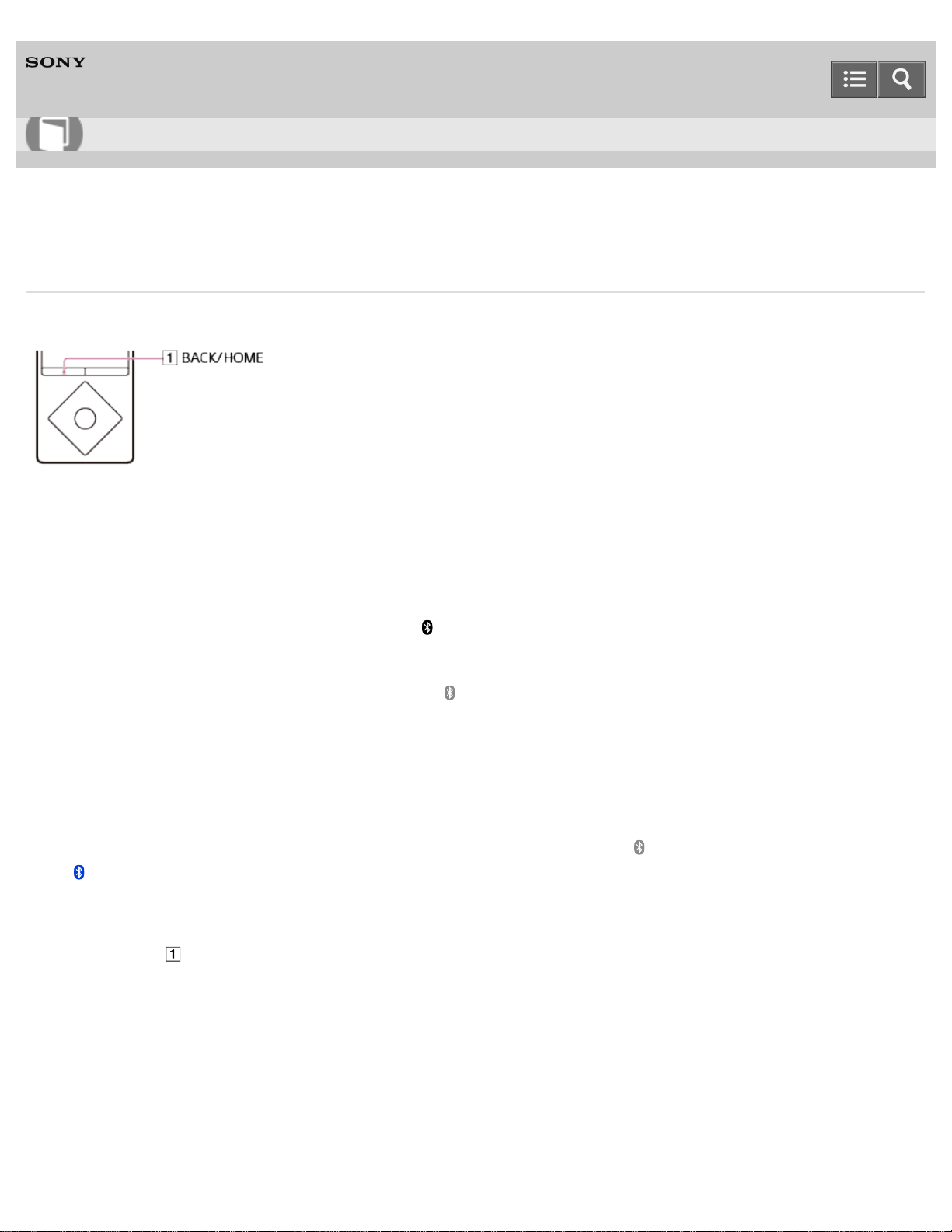
Digital Media Player
NW-A25/A25HN/A26HN/A27HN
Pairing and connecting with a Bluetooth audio device
To connect with a Bluetooth audio device for the first time, your Walkman needs to be paired with it.
1. Place your Walkman and the Bluetooth audio device within 1 meter of each other.
2. Put the Bluetooth audio device you want to connect with in pairing mode.
Refer to the operating instructions supplied with the Bluetooth audio device for details.
3. From the Home menu of your Walkman, select [Bluetooth].
4. Select [Add Device (Pairing)].
The [Scan Peripheral Device] screen appears and is displayed in the information area.
5. Select the Bluetooth audio device you want to connect with.
It may take time until the Bluetooth audio device is detected and displayed on your Walkman.
6. Confirm that the pairing is completed and the Bluetooth connection is made automatically.
After the pairing is completed, the Bluetooth connection between your Walkman and the Bluetooth audio device is
made. A message that the connection has been completed is displayed and in the information area changes to
. Start playback on the Walkman and you will hear the sound through the Bluetooth audio device.
To cancel pairing
Press the button ( ) while pairing.
If the Bluetooth audio device is not detected
[No devices found; ensure a device is available to connect with, and search again via the Option menu.] is displayed if
the Bluetooth audio device is not detected by your Walkman. Search for the Bluetooth audio device again by displaying
the option menu and selecting [Search Again].
If the pairing is not completed
The screen for aborting the connection appears if the pairing fails to be completed, and the screen returns to where you
are asked to select [Add Device (Pairing)]. Operate again from the [Scan Peripheral Device] screen.
Help Guide
How to Use
261
Hint
If more than one name for the Bluetooth audio device is displayed, check the BD address of the device you want to
pair with. Refer to the operating instructions supplied with the Bluetooth audio device for details on the BD address.
If the Bluetooth audio device you want to connect with has an NFC function, pairing and connection can be made with
one touch.
You can pair your Walkman with one Bluetooth audio device at a time. To pair more than one device, repeat the
procedures above for each device.
Note
When pairing starts, playback of content such as music stops automatically and the operations on your Walkman
become unavailable.
If the pairing is timed out, for example if you could not finish entering the pass key in time, perform the operation
again by selecting [Bluetooth] from the Home menu.
Related Topic
Entering a passkey to make a Bluetooth connection
Connecting with a paired Bluetooth audio device
How to use the option menu
Making a Bluetooth connection using the NFC function
Listening to sound using a Bluetooth audio device
Disconnecting a Bluetooth audio device
4-573-951-11(1)
Copyright 2015 Sony Corporation
262
Digital Media Player
NW-A25/A25HN/A26HN/A27HN
Connecting with a paired Bluetooth audio device
Connect your Walkman to a Bluetooth audio device if they are paired but not connected with each other. You will need
to do this when the connection is lost, for example, by turning off either the Walkman or the Bluetooth audio device.
1. Turn on the Bluetooth audio device you want your Walkman to connect with and put the device in connection
standby status.
Refer to the operating instructions supplied with the Bluetooth audio device for details.
2. From the Home menu of your Walkman, select [Bluetooth].
3. Select [Connect to Audio Device].
If the Bluetooth audio device is not paired with your Walkman, pair it first.
4. Select the Bluetooth audio device to connect with.
The [Processing Connection] screen is displayed.
5. Confirm that the Bluetooth audio device is connected to your Walkman.
When the connection is made successfully, is displayed in the information area of your Walkman and next to the
icon of the connected Bluetooth audio device.
About the Bluetooth status icons
: The Bluetooth function is on but no devices are connected.
: The Bluetooth function is on and your Walkman is connected to Bluetooth audio device(s).
No icon: The Bluetooth function is off.
Hint
The behavior of your Walkman while connected with a Bluetooth audio device is as follows.
If you connect a USB charger (not supplied), your Walkman is charged while holding the Bluetooth connection.
If you make a USB connection, the USB connection is prioritized.
If multiple names for a Bluetooth audio device are displayed, check the BD address of the Bluetooth audio device you
want to connect with. Refer to the operating instructions supplied with the Bluetooth audio device for details on the BD
address.
If the Bluetooth audio device you want to connect with has an NFC function, pairing and connection can be made with
one touch.
Related Topic
Help Guide
How to Use
263

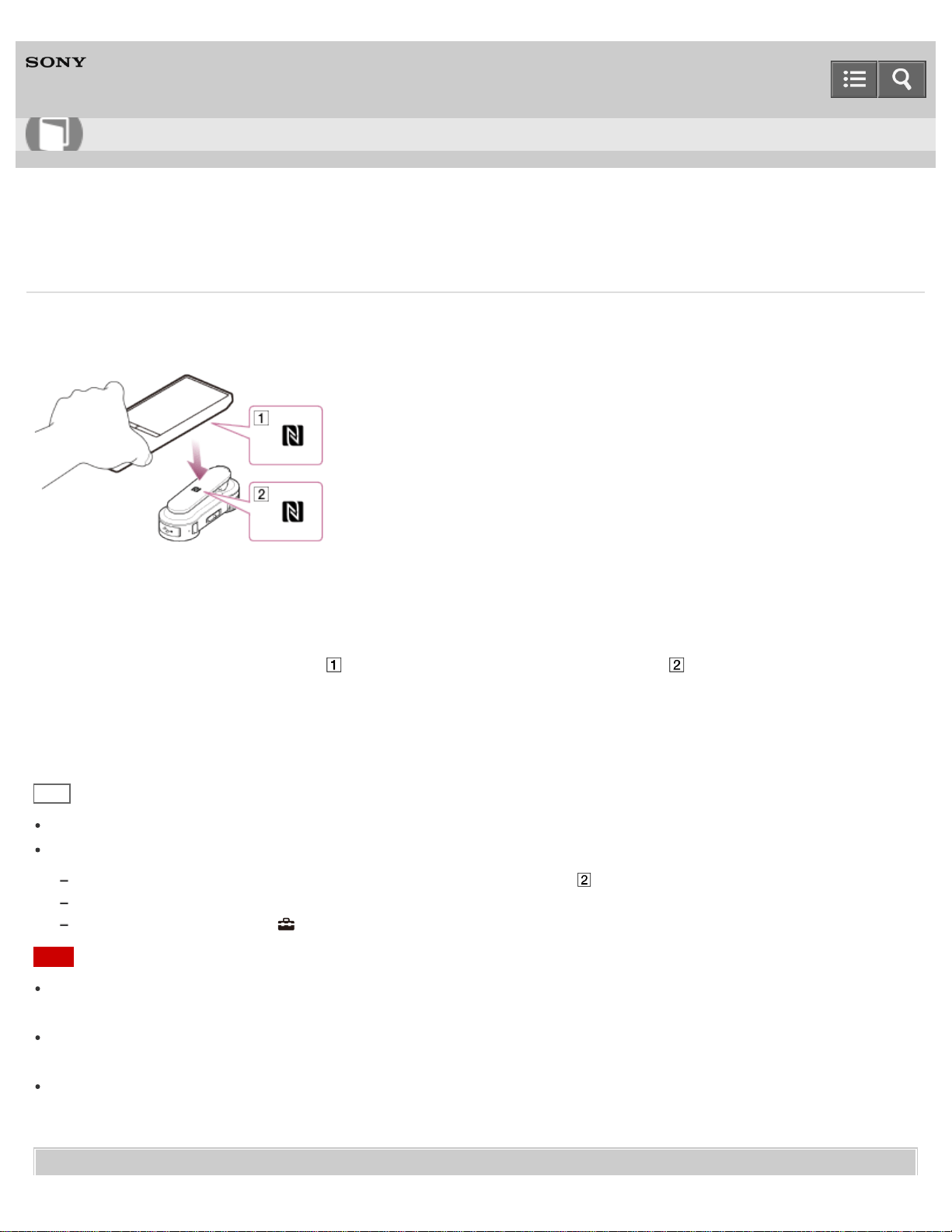
Digital Media Player
NW-A25/A25HN/A26HN/A27HN
Making a Bluetooth connection using the NFC function
Simply touch your Walkman to a Bluetooth audio device that has the NFC function to automatically turn on the power of
the Bluetooth audio device, pair the Walkman and the Bluetooth audio device, and make a Bluetooth connection.
1. If the Bluetooth audio device has an NFC switch, set the NFC switch to on.
2. Touch your Walkman to the Bluetooth audio device.
Touch the mark of your Walkman ( ) to the mark of the Bluetooth audio device ( ). Hold together until
instructions appear on the screen of the Walkman.
3. Follow the on-screen instructions to complete the connection.
Hint
Touch the devices together again to disconnect.
Take the following measures if the connection is poor.
Slowly move your Walkman over the mark of the Bluetooth audio device ( ).
If your Walkman is in a case, remove the case.
From the Home menu, select
[Settings] - [Common Settings] - [NFC Settings] - [On].
Note
One-touch connections (NFC) cannot be made while the HOLD function of your Walkman is enabled. Release the
HOLD function before touching the devices together to make a one-touch connection.
One-touch connections (NFC) cannot be made while your Walkman is in standby mode and the screen is off. Turn
the screen on before touching the devices together to make a one-touch connection.
One-touch connections (NFC) cannot be made while listening to FM radio. Stop FM radio before touching the devices
together to make a one-touch connection.
Related Topic
Help Guide
How to Use
265

Digital Media Player
NW-A25/A25HN/A26HN/A27HN
Disconnecting a Bluetooth audio device
Disconnect the connection between your Walkman and a Bluetooth audio device.
1. From the Home menu, select [Bluetooth].
2. Select [Disconnect Audio Device].
Hint
If the Bluetooth audio device you want to connect with has an NFC function, disconnection can be done with one
touch.
Note
The Bluetooth connection is disconnected automatically in the following cases:
The remaining battery power of your Walkman is low.
The battery of your Walkman has run out.
Your Walkman is connected to a computer via USB.
When you end the Bluetooth connection using the Bluetooth audio device, your Walkman enters the connection
standby mode. If you do not make another Bluetooth connection within 5 minutes after this, the Bluetooth function of
the Walkman turns off automatically.
A Bluetooth connection is held for 24 hours even if no content is played during that time. However, the length of the
time may be shorter depending on the Bluetooth audio device.
Related Topic
Steps to use Bluetooth connection
Making a Bluetooth connection using the NFC function
4-573-951-11(1)
Copyright 2015 Sony Corporation
Help Guide
How to Use
267
Digital Media Player
NW-A25/A25HN/A26HN/A27HN
Listening to sound using a Bluetooth audio device
Once paired and connected, you can listen to sound from your Walkman wirelessly through the Bluetooth audio device.
1. Confirm that the Bluetooth connection between the Bluetooth audio device and your Walkman is active.
is displayed in the information area of your Walkman.
2. Play music on your Walkman.
Hint
You can change the setting so that the Bluetooth audio device is automatically connected when you turn on your
Walkman.
The following operations are available with some Bluetooth audio devices. The available operations vary depending
on the Bluetooth audio device you use.
Play/Pause
Fast forward/rewind
Go to the beginning of the next song
Go to the beginning of the current song
Skip to the previous/next folder
Adjust the volume
Your Walkman may not operate depending on the connection status.
Note
Sound is not emitted from the following devices while connecting via a Bluetooth connection.
Headphones connected to the headphone jack
Operation sounds set to on
Speakers or USB digital output devices connected to the WM-PORT jack
You cannot listen to FM radio while connecting via a Bluetooth connection. Use the headphones to listen to FM radio.
Sound may skip depending on the usage environment or the settings. Take the following measures to reduce sound
skipping.
Place your Walkman and the Bluetooth audio device close together.
Set [Wireless Playback Quality] to [Standard] or [Prioritize Connection].
Related Topic
Steps to use Bluetooth connection
Help Guide
How to Use
268

Pairing and connecting with a Bluetooth audio device
Connecting with a paired Bluetooth audio device
Setting automatic Bluetooth connection at startup
Setting wireless playback quality
Making a Bluetooth connection using the NFC function
Disconnecting a Bluetooth audio device
4-573-951-11(1)
Copyright 2015 Sony Corporation
269
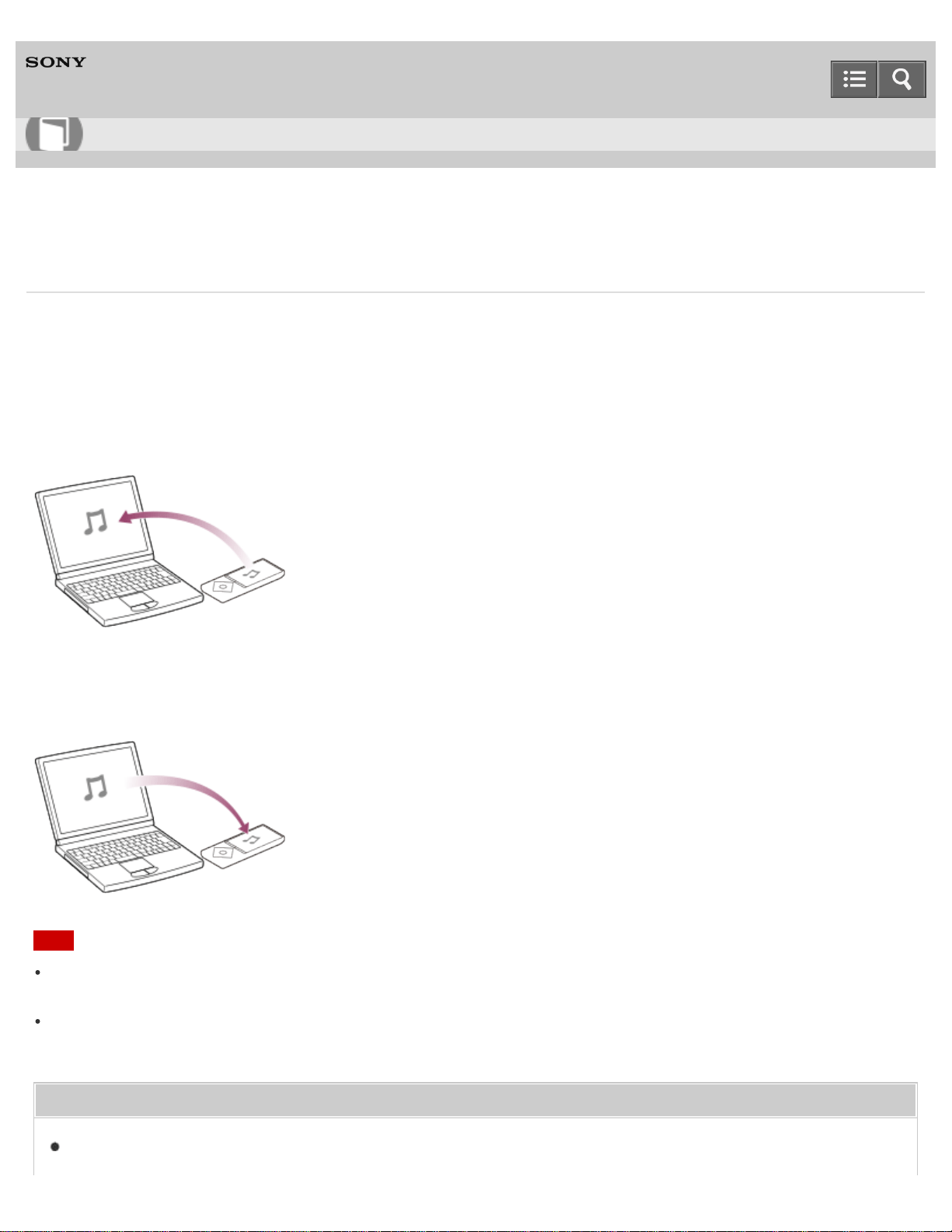
Digital Media Player
NW-A25/A25HN/A26HN/A27HN
Steps to transfer content via a Bluetooth connection
You can transfer content to/from another Bluetooth device via a Bluetooth connection. Pairing in advance is not
necessary because this is executed when your Walkman sends or receives content via a Bluetooth connection.
The pairing information is stored on the Walkman.
Sending content
Your Walkman can send content to the other Bluetooth device.
Receiving content
Your Walkman can receive content from the other Bluetooth device.
Note
Copyright laws may prohibit content transfer without the copyright holder's permission for purposes other than your
personal/private enjoyment.
Some Bluetooth devices may not be able to receive files sent from your Walkman. For details on how to use the
Bluetooth function of your device, refer to the manual of that device.
Related Topic
Sending content via a Bluetooth connection
Help Guide
How to Use
270

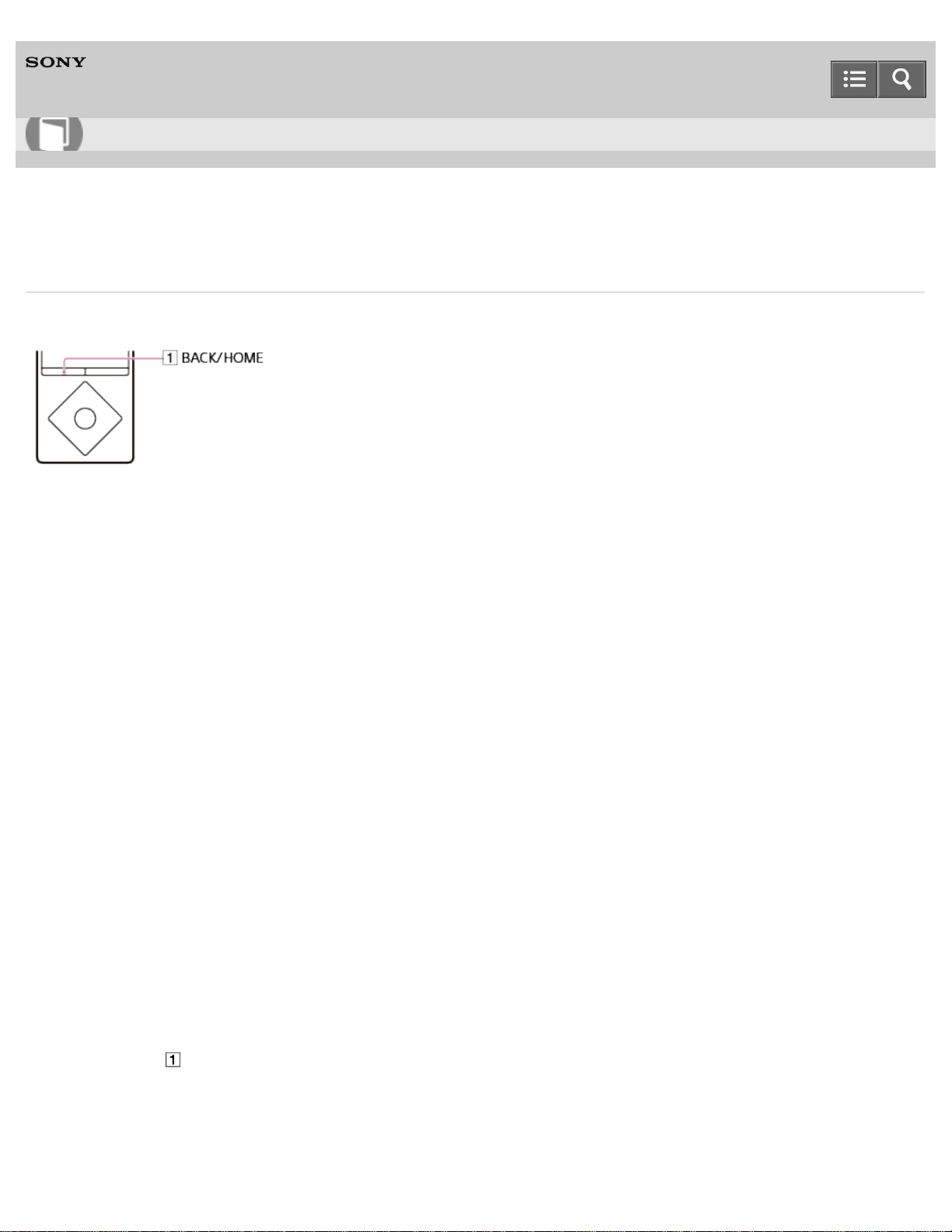
Digital Media Player
NW-A25/A25HN/A26HN/A27HN
Sending content via a Bluetooth connection
You can send content stored on your Walkman to another device via a Bluetooth connection.
1. Set the Bluetooth device to standby status to receive content.
Refer to the operating instructions supplied with the Bluetooth device for details.
2. In the music playback screen, display the option menu and select [Send File].
The copyright warning message appears when you send a file. Follow the on-screen instructions.
3. Display the option menu and select [Search for a Device].
The [Scan Peripheral Device] screen is displayed.
Skip this step if you have sent content to the same device before.
4. Select the desired device.
Check the BD address (alphanumeric code) displayed under the model name to make sure that the BD address on
the screen matches that of the Bluetooth device. To locate the BD address of the Bluetooth device, refer to the
operating instructions supplied with the device.
A pairing process is performed when the device establishes a Bluetooth connection with your Walkman for the first
time. When authentication codes (alphanumeric codes) appear on the Walkman and on the Bluetooth device, check
that they are the same.
A message confirming the connection appears and file transfer begins.
5. Check that the content transfer is completed.
Exit the content reception standby status on the Bluetooth device.
To cancel pairing
Press the button ( ) while pairing.
If the Bluetooth device is not detected
[No devices found; ensure a device is available to connect with, and search again via the Option menu.] is displayed if
the Bluetooth device is not detected by your Walkman. Search for the Bluetooth device again by displaying the option
Help Guide
How to Use
272
menu and selecting [Search Again].
If the pairing is not completed
The screen for aborting the connection appears if the pairing fails to be completed and the screen returns to where you
are asked to select [Add Device (Pairing)]. Perform this operation again from the [Scan Peripheral Device] screen.
Note
Files protected by DRM (Digital Rights Management) cannot be sent.
Content transfer may fail if the Bluetooth device is too far from your Walkman, or there is interference from other
devices. In these cases, reduce the distance between the Walkman and the Bluetooth device, and keep a good
distance from other devices or turn them off if possible.
Playback is stopped when your Walkman sends content.
LRC files for songs and thumbnails for videos cannot be sent.
Cover art for songs may not be sent.
Related Topic
How to use the option menu
Entering a passkey to make a Bluetooth connection
Receiving content via a Bluetooth connection
4-573-951-11(1)
Copyright 2015 Sony Corporation
273
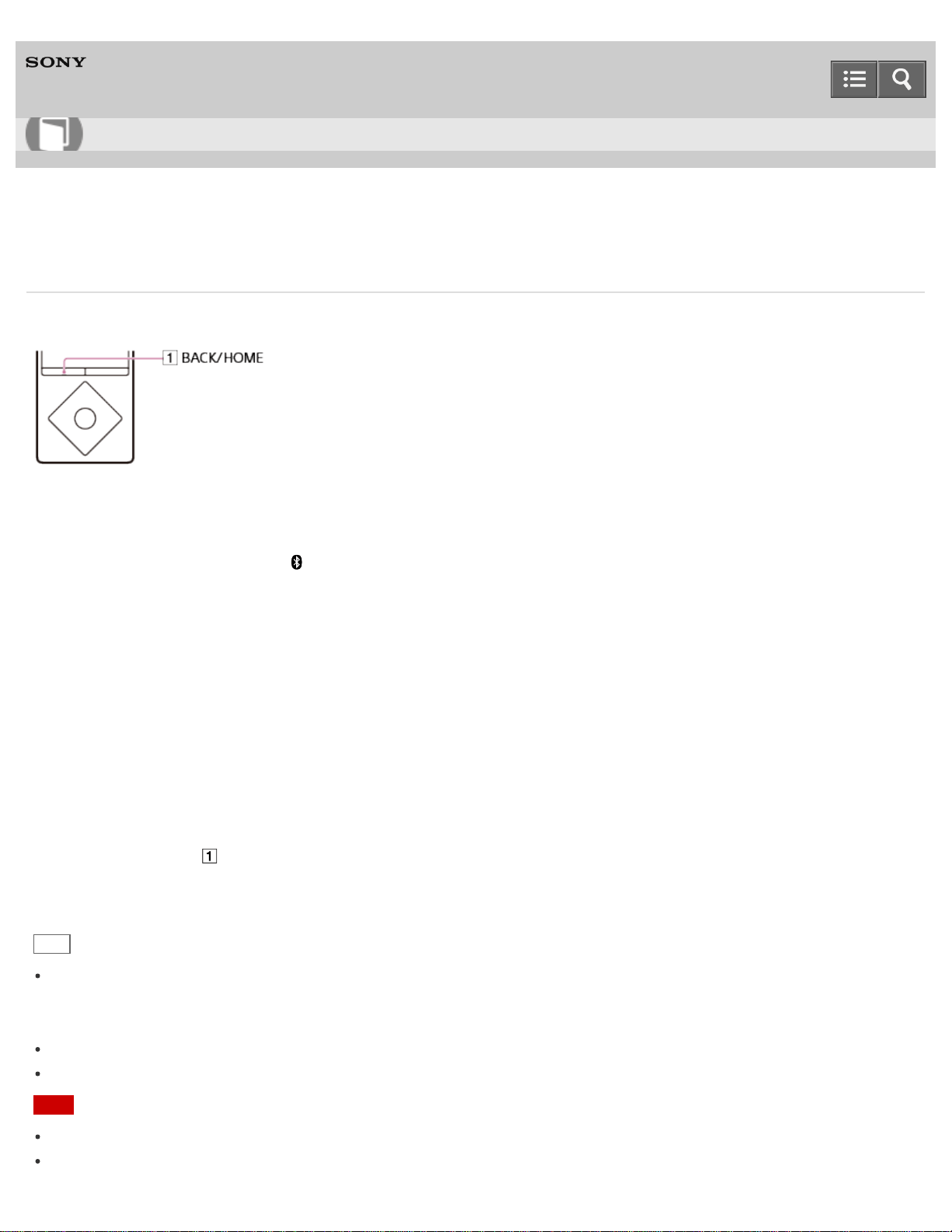
Digital Media Player
NW-A25/A25HN/A26HN/A27HN
Receiving content via a Bluetooth connection
Your Walkman can receive content from a Bluetooth device via a Bluetooth connection.
1. On your Walkman, select the memory ([System Storage] or [SD Card]) as the destination for receiving content.
2. From the Home menu, select [Bluetooth].
3. Select [Receive File].
Your Walkman enters standby state to receive a file.
4. Send content from the other Bluetooth device to your Walkman.
The BD address (alphanumeric code) of your Walkman is displayed under the model name on the Walkman. When
the Bluetooth device displays the receiver’s BD address, make sure that the BD addresses displayed on the device
and on the Walkman are the same. (Some Bluetooth devices may not display the receiver’s BD address.)
A pairing process is performed when the device establishes a Bluetooth connection with your Walkman for the first
time. When authentication codes (alphanumeric codes) appear on the Walkman and on the Bluetooth device, check
that they are the same.
5. Press the button ( ) after receiving content.
Your Walkman is released from standby status.
Hint
The received content is stored in the “RECEIVED” folder of the device selected in step 3 above. Although your
Walkman can receive files in unsupported formats, these files cannot be displayed or played. You need to use
Windows Explorer or the Mac Finder to search for them in the “RECEIVED” folder.
If files of the same name are received, a file number is added between the filename and extension.
If your Walkman receives files in unsupported formats, these files cannot be displayed or played.
Note
If the pairing or transfer times out and stops, send the content from the Bluetooth device again.
Content transfer may fail if the Bluetooth device is too far from your Walkman, or there is interference from other
Help Guide
How to Use
274
devices. In these cases, reduce the distance between the Walkman and the Bluetooth device, and keep a good
distance from other devices or turn them off if possible.
Playback stops when your Walkman receives content.
The maximum receivable file size is 4 GB.
Related Topic
Selecting the memory to use
Entering a passkey to make a Bluetooth connection
Sending content via a Bluetooth connection
4-573-951-11(1)
Copyright 2015 Sony Corporation
275
Digital Media Player
NW-A25/A25HN/A26HN/A27HN
Playing content received via a Bluetooth connection
You can play content transferred via a Bluetooth connection on your Walkman.
1. Select the desired content.
For music content, from the Home menu, select [Music] - [Received Songs] - [System Storage] or [SD Card] -
desired content.
For photo content, from the Home menu, select [Photos] - [Received Photos] - [System Storage] or [SD Card]
- desired content.
For video content, from the Home menu, select [Videos] - [Received Videos] - [System Storage] or [SD Card]
- desired content.
Hint
To play received podcasts, select [System Storage] or [SD Card] under [Received Songs] for an audio podcast or
select [System Storage] or [SD Card] under [Received Videos] for a video podcast.
The latest content is shown on the top in the content list screens.
Related Topic
Sending content via a Bluetooth connection
Deleting content received via a Bluetooth connection
4-573-951-11(1)
Copyright 2015 Sony Corporation
Help Guide
How to Use
276
Digital Media Player
NW-A25/A25HN/A26HN/A27HN
Deleting content received via a Bluetooth connection
You can delete content received by your Walkman via a Bluetooth connection.
1. Select the content you want to delete.
To delete music, from the Home menu, select [Music] - [Received Songs] - [System Storage] or [SD Card] -
the content you want to delete.
To delete photos, from the Home menu, select [Photos] - [Received Photos] - [System Storage] or [SD Card]
- the content you want to delete.
To delete videos, from the Home menu, select [Videos] - [Received Videos] - [System Storage] or [SD Card] -
the content you want to delete.
2. In the playback screen, display the option menu and select [Delete This Song], [Delete Photo] or [Delete Video] -
[Yes].
Hint
To delete all content received via a Bluetooth connection, from the Home menu, select [Settings] - [Bluetooth
Settings] - [Delete All Received Files] - [Yes].
To delete all content in “RECEIVED” folder under [System Storage] or [SD Card], select [Delete All Received Files].
Related Topic
Playing content received via a Bluetooth connection
How to use the option menu
4-573-951-11(1)
Copyright 2015 Sony Corporation
Help Guide
How to Use
277
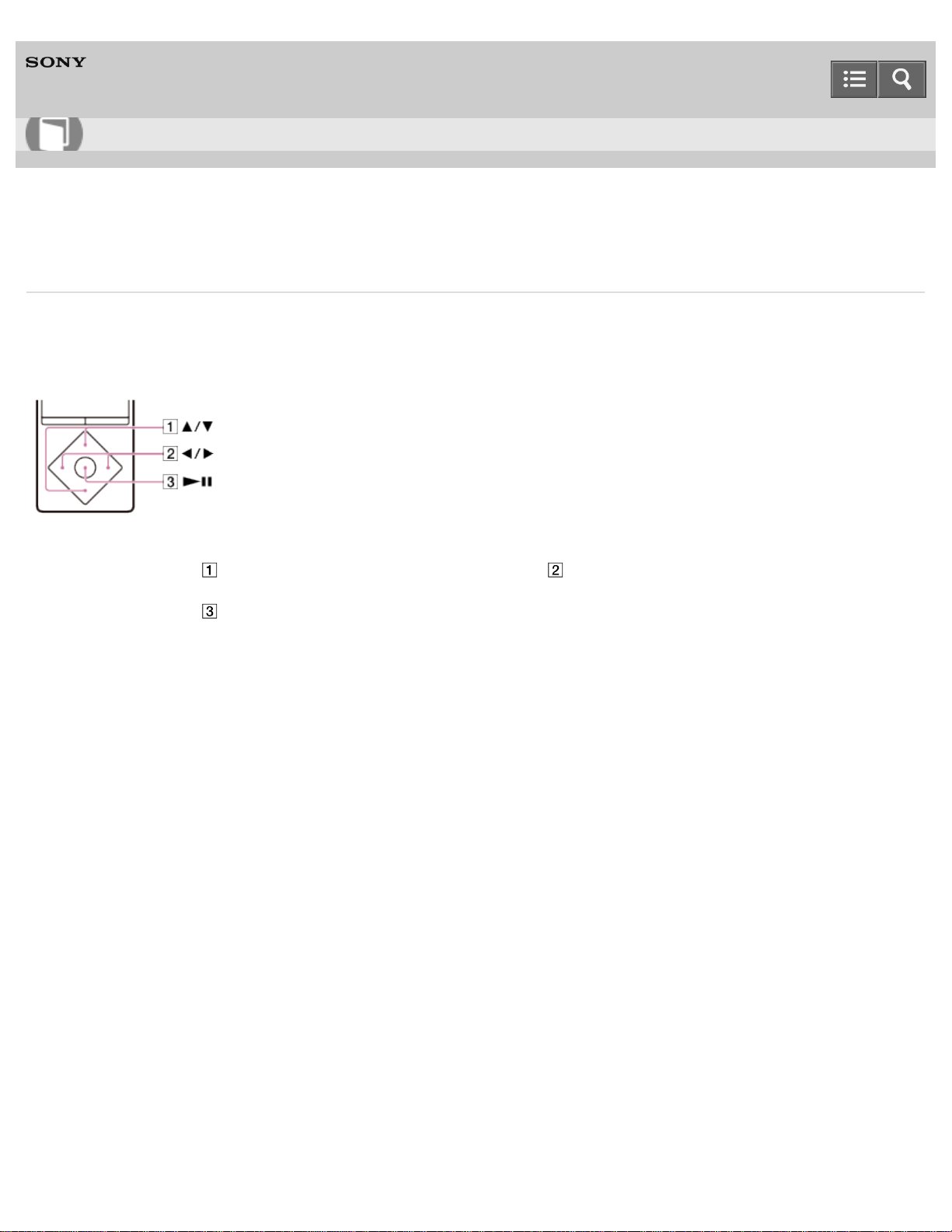
Digital Media Player
NW-A25/A25HN/A26HN/A27HN
Entering a passkey to make a Bluetooth connection
When the screen to enter the passkey is displayed while pairing, check and enter the passkey of the other Bluetooth
device. “Passkey” may also be called “Pass code,” “PIN code,” “PIN number,” or “Password.” The passkey of your
Walkman is “0000.” For the passkey of the Bluetooth device, refer to the operating instructions of the Bluetooth device.
1. Press the button ( ) to select the number and press the button ( ) to move the cursor.
2. Press the button ( ) to enter.
4-573-951-11(1)
Copyright 2015 Sony Corporation
Help Guide
How to Use
278
Digital Media Player
NW-A25/A25HN/A26HN/A27HN
Displaying the pairing information of Bluetooth audio devices
Once paired, you can display the pairing information of the connected Bluetooth audio device such as the model name,
BD address, and the profile when connected.
1. From the Home menu, select [Bluetooth].
2. Select [Manage Added Devices] - desired device.
The pairing information of the Bluetooth audio device is displayed. The information differs depending on the
Bluetooth audio device.
Related Topic
Pairing and connecting with a Bluetooth audio device
4-573-951-11(1)
Copyright 2015 Sony Corporation
Help Guide
How to Use
279

Digital Media Player
NW-A25/A25HN/A26HN/A27HN
Deleting the pairing information of Bluetooth audio devices
Your Walkman cannot be paired if the number of paired devices exceeds the maximum number. If you want to pair
another device, delete an unnecessary paired device beforehand.
1. From the Home menu, select [Bluetooth].
2. Select [Manage Added Devices].
3. Display the option menu and select [Delete Device] - device you want to delete - [Yes].
Note
To connect with a deleted Bluetooth audio device, you need to pair with it again.
Related Topic
Pairing and connecting with a Bluetooth audio device
How to use the option menu
4-573-951-11(1)
Copyright 2015 Sony Corporation
Help Guide
How to Use
280
Digital Media Player
NW-A25/A25HN/A26HN/A27HN
Setting automatic Bluetooth connection at startup
You can set your Walkman to connect to a Bluetooth audio device automatically at startup.
1. From the Home menu, select [Settings].
2. Select [Bluetooth Settings] - [Autoconnect at Startup] - desired setting.
Hint
You can select a device from the paired Bluetooth audio devices displayed on the [Autoconnect at Startup] screen to
connect to your Walkman automatically at startup.
Note
Your Walkman may not be connected automatically while the alarm goes off.
Related Topic
Connecting with a paired Bluetooth audio device
Setting the alarm time
4-573-951-11(1)
Copyright 2015 Sony Corporation
Help Guide
How to Use
281
Digital Media Player
NW-A25/A25HN/A26HN/A27HN
Setting wireless playback quality
You can set whether to prioritize the stability of the connection or the sound quality for a Bluetooth connection as you
like.
1. From the Home menu, select [Settings].
2. Select [Bluetooth Settings] - [Wireless Playback Quality] - desired setting.
[Prioritize Sound Quality]
Sound is transmitted in high quality, but the connection may become unstable depending on the usage environment.
[Standard]
Both sound quality and connection are stable.
[Prioritize Connection]
The sound quality may not be as good as the other mode, but the connection status will most likely be stable. This
setting is recommended if the connection is unstable.
[Select]
You can set the wireless playback quality setting of your choice. However, the setting may be changed depending on the
status of the connected Bluetooth audio device.
Hint
Change the setting to [Prioritize Connection] if the connection is unstable due to the usage environment.
The wireless playback quality setting is automatically selected depending on the status of the connected Bluetooth
audio device when [Prioritize Sound Quality], [Standard] or [Prioritize Connection] is selected. The selected mode is
displayed when the connection is established.
Note
The [Wireless Playback Quality] setting cannot be changed while your Walkman is connected to a Bluetooth audio
device. To change the setting, disconnect the connection.
Changing the [Wireless Playback Quality] setting may not have any effect depending on the settings of the connected
Bluetooth audio device.
Related Topic
Disconnecting a Bluetooth audio device
Help Guide
How to Use
282

Digital Media Player
NW-A25/A25HN/A26HN/A27HN
Setting sound effects during a Bluetooth connection
You can select whether or not to apply the sound effects when you send content from your Walkman to a Bluetooth
audio device.
1. From the Home menu, select [Settings].
2. Select [Bluetooth Settings] - [Sound Effect Preset] - desired device - desired setting.
When you select [On], the following sound effects are applied.
[Equalizer]
[VPT (Surround)]
[Dynamic Normalizer]
[ClearAudio+]
Note
For details about the sound effect settings on the other Bluetooth audio device, refer to the operating instructions
supplied with the device.
The [Clear Stereo] function does not work while listening to music on the other Bluetooth audio device.
Related Topic
Listening to sound using a Bluetooth audio device
Customizing sound quality settings
Setting the sound quality easily with a single operation
4-573-951-11(1)
Copyright 2015 Sony Corporation
Help Guide
How to Use
284

Digital Media Player
NW-A25/A25HN/A26HN/A27HN
Displaying Bluetooth information on your Walkman
Display Bluetooth information such as Bluetooth version and profile.
1. From the Home menu, select [Settings].
2. Select [Bluetooth Settings] - [Bluetooth Information].
4-573-951-11(1)
Copyright 2015 Sony Corporation
Help Guide
How to Use
285
Digital Media Player
NW-A25/A25HN/A26HN/A27HN
Notes on the Bluetooth function
Bluetooth wireless technology allows connection at a distance of up to about 10 meters. However, the effective range
may vary depending on obstructions (people, metals, walls, etc.) or signal status.
The Bluetooth antenna (aerial) is built into your Walkman. You can improve the sensitivity of Bluetooth
communications by turning the built-in Bluetooth antenna (aerial) in the direction of the connected Bluetooth device.
The communication distance shortens if there are obstructions between the connected device and the Walkman.
The following conditions may cause noise, breakup of sound, or changes in playback speed.
When using inside a metal bag.
When using inside a backpack or shoulder bag.
When using in an area with a wireless LAN, in an area where devices such as microwave ovens, mobile phones and
mobile gaming devices with a communication function are in use nearby, or in other areas where electromagnetic waves
are being emitted.
When the antenna (aerial) built into your Walkman is covered by your hand or blocked by people in situations such as
riding in a crowded train.
Because Bluetooth and wireless LAN (IEEE802.11b/g) devices use the same frequency (2.4 GHz), signal interference
may occur, resulting in communication speed decrease, noise, or inability to connect, if Bluetooth communications are
used near a wireless LAN device. In such cases, take the following measures.
Perform Bluetooth communications at least 10 meters away from the wireless LAN device when connecting your Walkman
and a Bluetooth device.
Place your Walkman and the Bluetooth device as close together as possible.
Turn off the wireless LAN device when performing Bluetooth communications within about 10 meters of a wireless LAN
device.
Due to a characteristic of Bluetooth wireless technology, the sound played on the receiving Bluetooth device lags
slightly behind the sound of the sending device.
Radio waves emitted from a Bluetooth device may affect the operation of equipment such as electronic medical
devices. Turn off your Walkman and other Bluetooth devices in the following locations as failure to do so may cause
an accident.
In hospitals, near priority seats on trains, in airplanes, in places such as gasoline stations where flammable gases are
present, near automatic doors or fire alarms
Your Walkman supports security functions that comply with the Bluetooth standard to provide a secure connection
when Bluetooth technology is used, but security may not be sufficient depending on the settings. Be careful when
connecting using Bluetooth technology.
Sony bears no responsibility whatsoever for information leaks that occur as a result of using Bluetooth technology.
Your Walkman is not guaranteed to connect with all Bluetooth devices.
Bluetooth devices you connect to must conform to the Bluetooth standard specified by Bluetooth SIG and be certified.
Even if the connected device conforms to the above-mentioned Bluetooth standard, some devices may not be connected or
work correctly depending on the features or specifications of the device.
Help Guide
How to Use
286

Digital Media Player
NW-A25/A25HN/A26HN/A27HN
What is the NFC function?
This function is for close-range wireless communication between various devices. Simply touch the N-marks of your
Walkman and your NFC-compatible Bluetooth audio device to automatically turn on the power of the Bluetooth audio
device, pair the Walkman and the device, and make/end a Bluetooth connection.
Related Topic
Making a Bluetooth connection using the NFC function
4-573-951-11(1)
Copyright 2015 Sony Corporation
Help Guide
How to Use
288
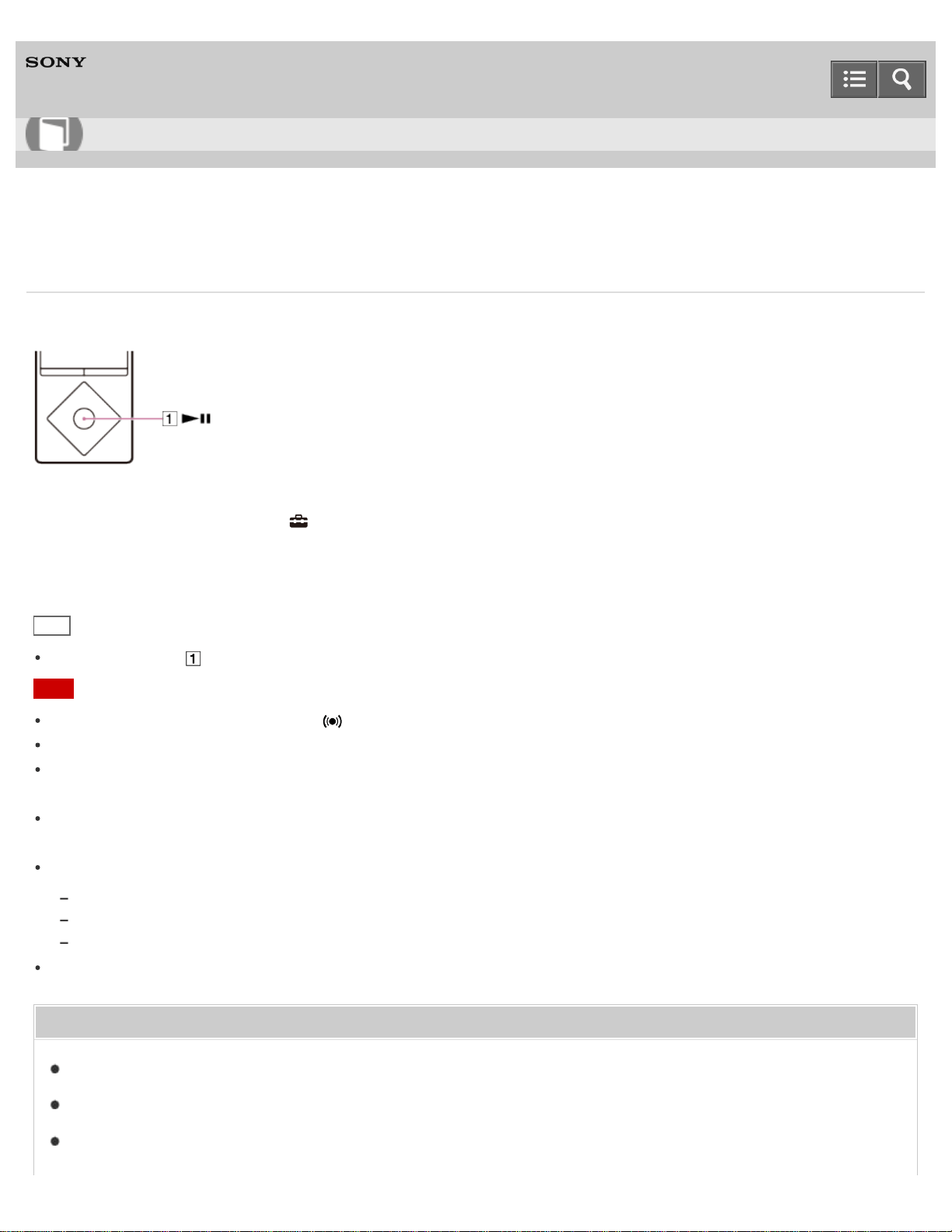
Digital Media Player
NW-A25/A25HN/A26HN/A27HN
Setting the alarm to on/off
You can set the alarm timer to on/off.
1. From the Home menu, select [Settings].
2. Select [Alarm/Sleep Timer] - [Alarm Settings] - [Alarm On/Off] - desired setting.
Hint
Press the button ( ) to stop the alarm.
Note
When the alarm timer is set to [On], is displayed in the information area.
The alarm will automatically stop after 60 minutes.
When using headphones, the alarm volume is limited by the AVLS function, regardless of the [AVLS (Volume Limit)]
settings.
Do not fall asleep while wearing headphones. If you sleep wearing headphones, the headphone cord may wind
around your neck, which may cause suffocation.
The alarm will not sound in the following situations.
While connected to a computer
While in USB connection mode
While processing a Bluetooth connection (though the alarm icon flashes in the information area)
Set the alarm timer to [Off] if you intend not to use your Walkman for a long time.
Related Topic
List of icons displayed in the information area
Limiting the volume
Connecting to a computer
Help Guide
How to Use
289

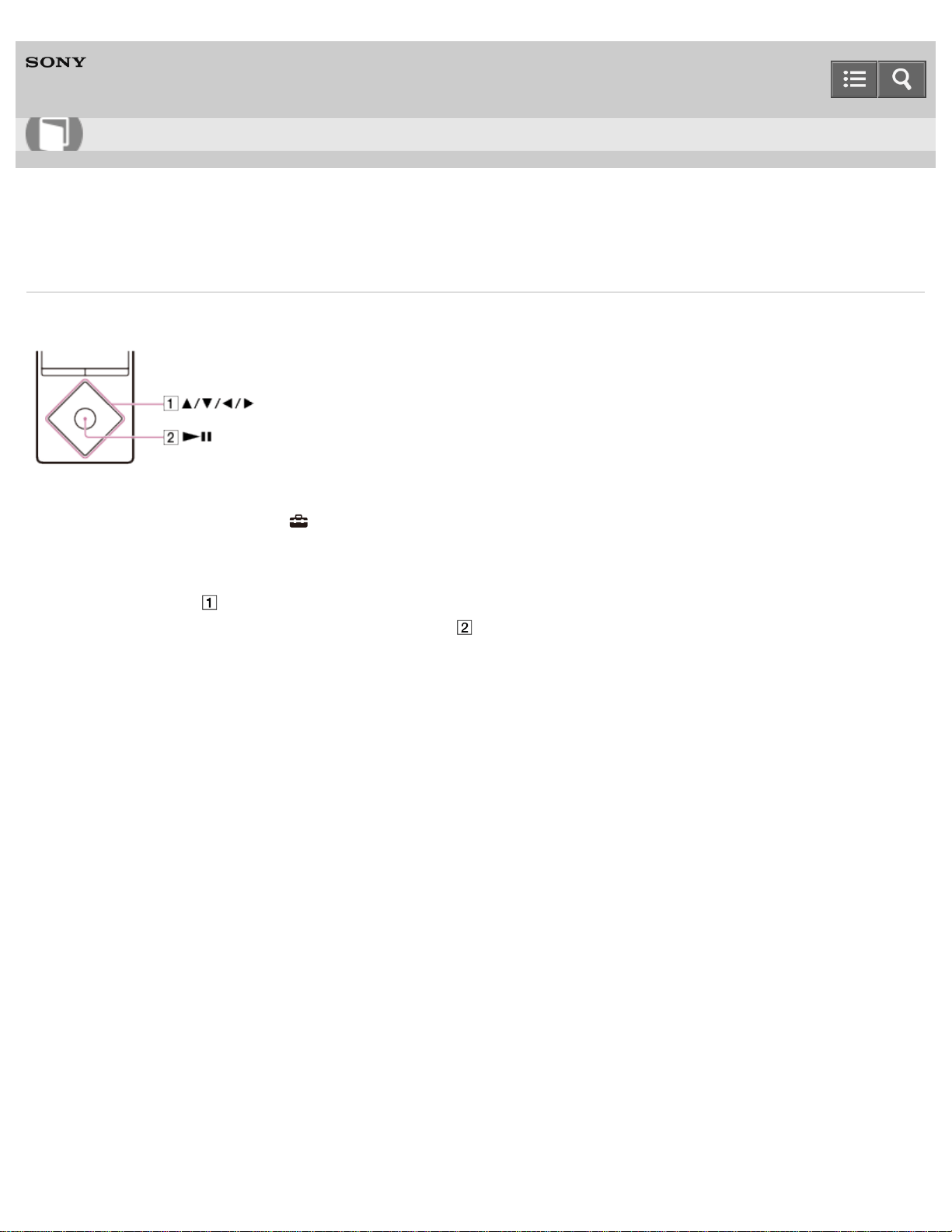
Digital Media Player
NW-A25/A25HN/A26HN/A27HN
Setting the alarm time
You can set the alarm time, repeat setting and alarm sound.
1. From the Home menu, select [Settings].
2. Select [Alarm/Sleep Timer] - [Alarm Settings] - desired item.
3. Press the button ( ) to select the item you want to set.
If you have selected [Alarm Time], press the button ( ) to confirm.
4-573-951-11(1)
Copyright 2015 Sony Corporation
Help Guide
How to Use
291
Digital Media Player
NW-A25/A25HN/A26HN/A27HN
Setting a song as the alarm sound
You can select a song as the alarm sound.
1. In the music playback screen, display the option menu and select [Set As Alarm Song].
Related Topic
Playing music
How to use the option menu
4-573-951-11(1)
Copyright 2015 Sony Corporation
Help Guide
How to Use
292
Digital Media Player
NW-A25/A25HN/A26HN/A27HN
Setting the sleep timer
You can change the set time for the sleep timer.
1. From the Home menu, select [Settings].
2. Select [Alarm/Sleep Timer] - [Sleep Timer Settings] - desired setting.
After setting the sleep timer, appears in the information area.
Note
The sleep timer will not be activated in the following situations.
While using [Auto Preset] for the FM radio
While the alarm is going off
If the power of your Walkman is turned off before the sleep timer is activated
When your Walkman is connected to a computer via USB
While processing a Bluetooth connection
While deleting content on your Walkman
Related Topic
Presetting broadcast stations automatically
Setting the alarm time
Turning the power off
Connecting to a computer
Listening to sound using a Bluetooth audio device
4-573-951-11(1)
Copyright 2015 Sony Corporation
Help Guide
How to Use
293
Digital Media Player
NW-A25/A25HN/A26HN/A27HN
Limiting the volume
You can use AVLS (Automatic Volume Limiter System) to limit the maximum volume. This prevents the volume from
getting too high and disturbing others, causing discomfort to your ears, or preventing you from hearing sounds around
you, and it allows you to listen at a more comfortable volume.
1. From the Home menu, select [Settings].
2. Select [Common Settings] - [AVLS (Volume Limit)] - desired setting.
Note
When using headphones, regardless of the [AVLS (Volume Limit)] settings, the alarm volume is limited by [AVLS
(Volume Limit)].
[AVLS (Volume Limit)] does not work during Bluetooth connections.
Related Topic
Volume operation (Only for countries/areas complying with European and Korean Directives)
4-573-951-11(1)
Copyright 2015 Sony Corporation
Help Guide
How to Use
294
Digital Media Player
NW-A25/A25HN/A26HN/A27HN
Setting the operation sound
You can turn the operation sounds of your Walkman on or off.
1. From the Home menu, select [Settings].
2. Select [Common Settings] - [Beep Settings] - desired setting.
Note
There is no beep during a Bluetooth connection.
4-573-951-11(1)
Copyright 2015 Sony Corporation
Help Guide
How to Use
295
Digital Media Player
NW-A25/A25HN/A26HN/A27HN
Setting the screen off timer
You can set the time after which the screen is turned off when there are no operations.
1. From the Home menu, select [Settings].
2. Select [Common Settings] - [Screen Off Timer] - desired setting.
Note
The screen does not turn off in the following situations:
While playing or deleting videos or video podcasts
While playing songs in the playback screen with [Display Lyrics] set to [On (Screen Always On)] for music
While accessing, creating or restoring databases
While the alarm is going off
While processing Bluetooth connections
While scanning FM radio broadcast stations
While presetting FM radio broadcast stations automatically
The screen brightness is lowered while your Walkman is connected to a computer.
4-573-951-11(1)
Copyright 2015 Sony Corporation
Help Guide
How to Use
296
Digital Media Player
NW-A25/A25HN/A26HN/A27HN
Adjusting the screen brightness
You can set the display brightness to one of five levels.
1. From the Home menu, select [Settings].
2. Select [Common Settings] - [Brightness] - desired setting.
Hint
Regardless of the brightness setting, the brightness of the screen may be low while connecting to a computer and
charging.
4-573-951-11(1)
Copyright 2015 Sony Corporation
Help Guide
How to Use
297
Digital Media Player
NW-A25/A25HN/A26HN/A27HN
Setting a photo as wallpaper
You can set your desired photo as the wallpaper by designating a photo stored on your Walkman.
1. On the photo screen, display the option menu and select [Set as Wallpaper].
Related Topic
Viewing photos
How to use the option menu
4-573-951-11(1)
Copyright 2015 Sony Corporation
Help Guide
How to Use
298
Digital Media Player
NW-A25/A25HN/A26HN/A27HN
Rebuilding the library manually
Rebuild the library of your Walkman to add content stored in [System Storage] or [SD Card] to the library again.
1. From the Home menu, select [Settings].
2. Select [Common Settings] - [Reset/Format] - [Rebuild Library] - [Yes].
Hint
If rebuilding of the library fails to be completed, format [System Storage].
Note
Rebuilding the library erases the following data.
Bookmarks
Alarm settings
The results of analysis by [SensMe™ Channels]
The current song and the elapsed time
The elapsed time of each video
Wallpaper settings
Set them again after rebuilding is completed.
Related Topic
Formatting memory
Adding a song to a bookmark list
Setting a song as the alarm sound
Analyzing songs on your Walkman
Setting a photo as wallpaper
4-573-951-11(1)
Copyright 2015 Sony Corporation
Help Guide
How to Use
299
Digital Media Player
NW-A25/A25HN/A26HN/A27HN
Using USB connection mode
When connecting to a computer via USB, some computers may fail to establish a USB connection to your Walkman,
causing it not to display [Connected USB (Storage in use: system storage)] or [Connected USB (Storage in use: SD
card)].
In such a case, before connecting, display the USB connection standby screen to allow your Walkman to focus on
establishing a USB connection with more reliability.
1. From the Home menu, select [Settings].
2. Select [Common Settings] - [USB Connection Mode] - [Yes].
Your Walkman enters USB connection standby mode, displaying the USB connection standby screen. After
connecting to a computer via USB, [Connected USB (Storage in use: system storage)] or [Connected USB (Storage
in use: SD card)] appears.
Related Topic
Connecting to a computer
4-573-951-11(1)
Copyright 2015 Sony Corporation
Help Guide
How to Use
300
Digital Media Player
NW-A25/A25HN/A26HN/A27HN
Notes on handling your Walkman
Warning
Be sure not to short-circuit the terminals of your Walkman with metallic objects.
Do not spill water on your Walkman or allow any foreign object to enter it. This may cause fire or electric shock. If this
occurs, turn off the Walkman immediately, disconnect the Walkman from your computer, and consult your nearest
Sony dealer or Sony Service Center.
Do not place your Walkman in fire.
Do not take apart or modify your Walkman. Doing so can result in electric shock. Consult your nearest Sony dealer or
Sony Service Center for exchange of rechargeable batteries, internal checks, or repair.
Do not put any heavy object on top of your Walkman or apply a strong shock to it.
This may cause malfunction or damage.
The following descriptions are important for using your Walkman. Be sure to follow the instructions below.
Charging time differs depending on battery usage conditions.
If the battery life is reduced to about half of its normal life even if sufficiently charged, it has probably worn out. Please
contact your nearest Sony dealer.
Do not touch the rechargeable battery with bare hands if it is leaking. Consult your nearest Sony dealer if the battery
has leaked as battery liquid may remain in your Walkman. If the liquid gets into your eyes, do not rub your eyes as
this may lead to blindness. Wash out your eyes with clean water and consult a doctor.
If the liquid gets onto your body or clothes, wash it off immediately. Failure to do so may cause burns or injury.
Consult a doctor if you are burned or injured by the liquid from the battery.
Heat may build up in your Walkman while charging if it is used for an extended period of time.
Note that condensation may form temporarily in cases such as when your Walkman is moved quickly from a low-
temperature environment to a high-temperature environment, or used in a room where a heater has just been turned
on. Condensation is a phenomenon where moisture in the air adheres to surfaces such as metal panels and then
changes to liquid. If condensation forms in the Walkman, leave it turned off until the condensation disappears. If you
use the Walkman with condensation present, a malfunction may result.
If you use your Walkman in a cold location, images may appear with black bands around them. This is not a
malfunction of the Walkman.
If your Walkman causes interference to radio or television reception, turn the Walkman off and move it away from the
radio or television.
Mild tingling may be felt on your ears in particularly dry air conditions. This is a result of static electricity accumulated
in the body, and it is not a malfunction of your Walkman.
This effect can be minimized by wearing clothes made from natural materials.
When using a strap (not supplied), be careful to avoid catching it on objects you pass by.
Also, be careful not to swing your Walkman by the strap to avoid bumping people.
Help Guide
How to Use
301
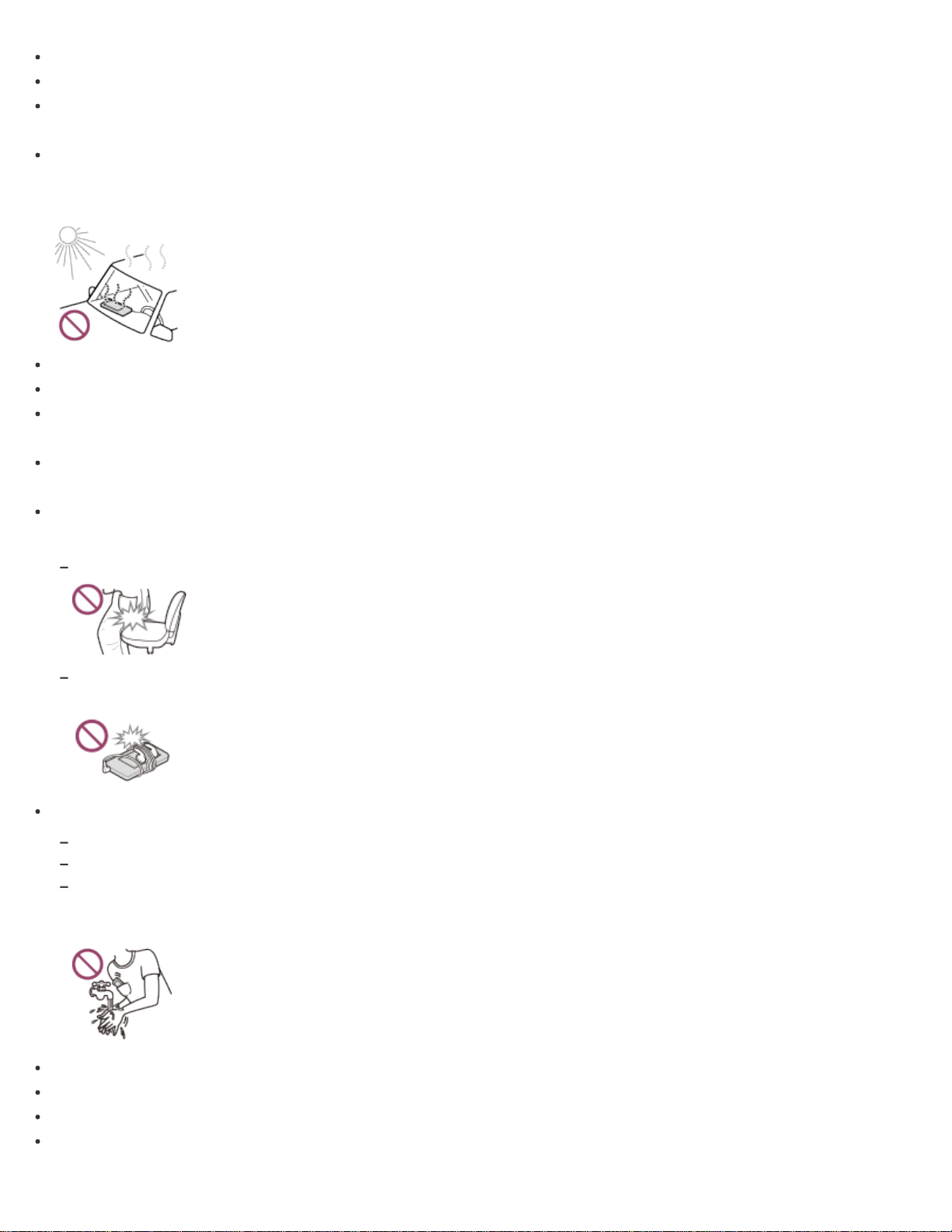
Refrain from using your Walkman as is requested by in-flight announcements during takeoff or landing in an aircraft.
If you see lightning or hear thunder, take off the headphones immediately and refrain from using your Walkman.
If you experience an allergic reaction while using headphones of a Walkman model supplied with headphones, stop
using it immediately and contact a doctor.
Never use your Walkman where it will be subjected to extreme light, temperatures, humidity or vibration. For example,
never leave the Walkman in a car parked in the sun or in direct sunlight. It may become discolored, distorted or
damaged.
Do not leave your Walkman in a place subject to excessive dust.
Do not leave your Walkman on an unstable surface or in an inclined position.
When unplugging the headphones from your Walkman, make sure to hold the headphone plug. Pulling by the
headphone cord itself may damage it.
Do not apply strong force to the surface of the display. This may cause a distortion in colors or brightness, or it may
cause a malfunction of the display.
Be sure to follow the precautions below when using your Walkman. Failure to do so may warp the casing or cause
the Walkman to malfunction.
Do not sit down with your Walkman in your back pocket.
Do not put your Walkman in a bag with the headphones/earphones cord wrapped around it and subject the bag to strong
impact.
Do not expose your Walkman to water. The Walkman is not waterproof. Be sure to follow the precautions below.
Be careful not to drop your Walkman into a sink or other container filled with water.
Do not use your Walkman in humid locations or wet weather such as rain or snow.
Do not get your Walkman wet.
If you touch your Walkman with wet hands or put the Walkman in a damp article of clothing, the Walkman may get wet,
which may cause a malfunction.
Sample data is pre-installed on your Walkman.
Sample data is not installed in some countries/regions.
If you delete the sample data, you cannot restore it, and we will not supply any replacement data.
Sony is not responsible for incomplete recording/downloading or damaged data due to problems with your Walkman
or computer.
302
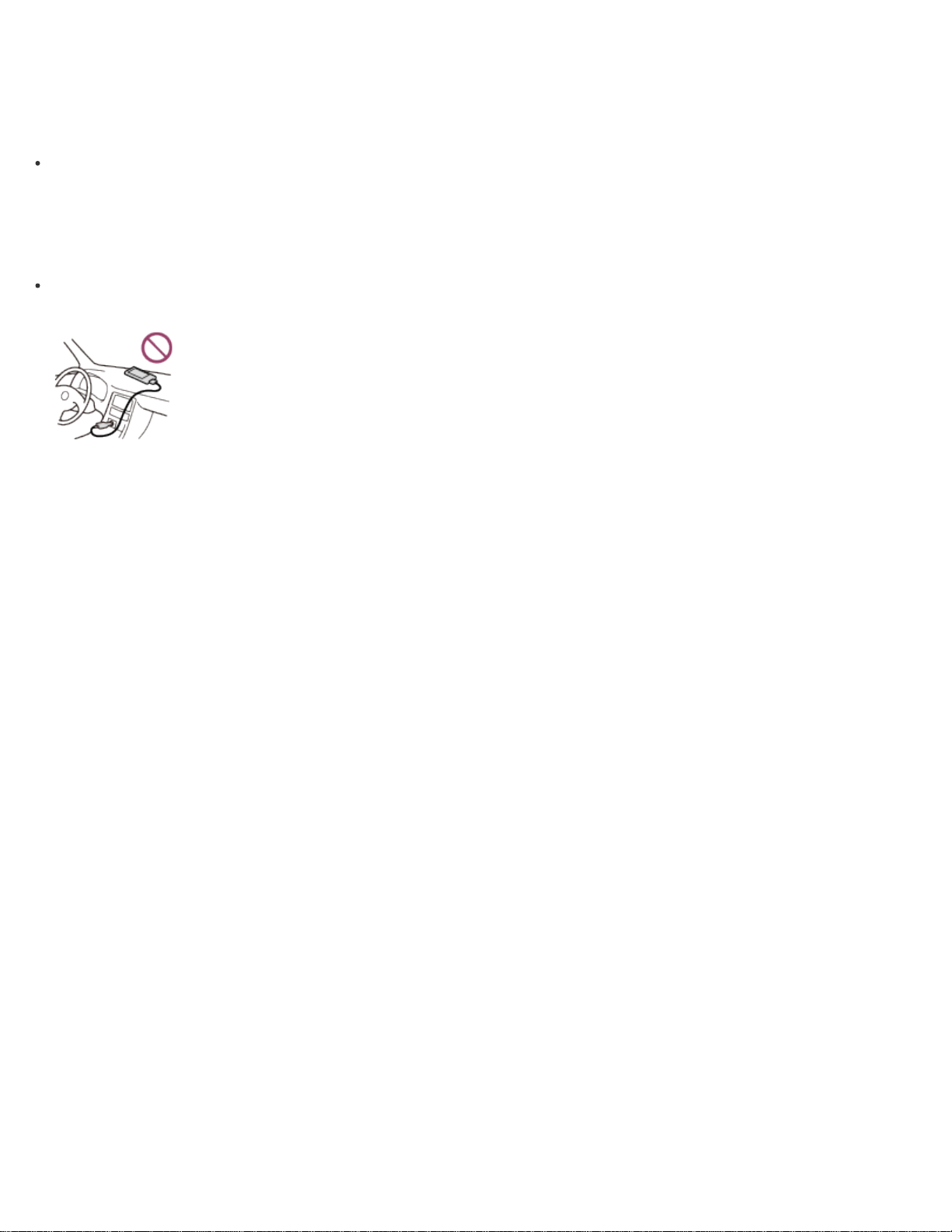
Notes on storing lithium-ion rechargeable batteries
A lithium-ion rechargeable battery is built into your Walkman. When you store it for a long period of time, be sure to
follow the storage instructions below.
Leaving a charged battery unused for a long period of time causes deterioration of the battery and results in a
decrease of battery capacity. The deterioration is more severe when the battery is stored with a full charge, and is
accelerated by prolonged exposure to heat such as when leaving your Walkman in a car while connected to the
power port. Store the Walkman at temperatures below 35 °C (95 ºF). Charging or discharging the battery to
approximately 50 % of capacity before storing is also recommended.
The battery deteriorates when left in a depleted condition. Charge the battery to approximately 50 % of capacity at
least once every six to twelve months to prevent deterioration.
4-573-951-11(1)
Copyright 2015 Sony Corporation
303
Digital Media Player
NW-A25/A25HN/A26HN/A27HN
Notes on headphones
Road safety
Avoid listening with your headphones in situations where hearing must not be impaired.
Preventing hearing damage
Avoid using the headphones at a high volume. Hearing experts advise against continuous, loud, and extended play. If
you experience a ringing in your ears, reduce the volume or discontinue use.
Do not turn the volume up high all at once, especially when using headphones. Turn up the volume gradually to avoid
excessive levels hurting your ears.
Consideration for others
Keep the volume at a moderate level. This will allow you to hear outside sounds and to be considerate to the people
around you.
About the in-ear headphones
The earbuds seal your ears. Therefore, be aware that there is a risk of damage to your ears or eardrums if strong
pressure is applied to the earbuds or the earbuds are suddenly removed from your ears. After use, be sure to take the
earbuds off your ears gently.
4-573-951-11(1)
Copyright 2015 Sony Corporation
Help Guide
How to Use
304
Digital Media Player
NW-A25/A25HN/A26HN/A27HN
Notes on the software
Copyright laws prohibit reproducing the software or the manual accompanying it, in whole or in part, or renting the
software without the permission of the copyright holder.
In no event will Sony be liable for any financial damage or loss of profits, including claims made by third parties,
arising out of the use of the supplied software.
The supplied software cannot be used with equipment other than that to which it is designated.
Please note that, due to continued efforts to improve quality, the software specifications may be changed without
notice.
Operation of your Walkman with software other than that supplied is not covered by the warranty.
The explanations in this manual assume that you are familiar with the basic operations of your computer.
For details on the use of your computer and operating system, please refer to the respective manuals.
4-573-951-11(1)
Copyright 2015 Sony Corporation
Help Guide
How to Use
305
Digital Media Player
NW-A25/A25HN/A26HN/A27HN
Maintenance of your Walkman
Clean your Walkman with a soft cloth, such as a cleaning cloth for eyeglasses.
If the headphone plug is dirty, it may cause noise or sound skipping. To enjoy listening with good sound, wipe the
headphone plug occasionally with a soft dry cloth.
Should your Walkman become excessively dirty, clean it with a soft cloth slightly moistened with water or mild
detergent solution, being careful not to allow water to get inside the Walkman and headphones.
Do not use any type of abrasive pad, scouring powder, or solvent such as alcohol or benzene as doing so may
damage the surface of your Walkman.
4-573-951-11(1)
Copyright 2015 Sony Corporation
Help Guide
How to Use
306
Digital Media Player
NW-A25/A25HN/A26HN/A27HN
Customer support website
If you have any questions or issues with your Walkman, or would like information on compatible items with the Walkman,
visit one of the following websites.
For customers in the USA:
http://www.sony.com/walkmansupport
For customers in Canada:
English
http://www.sony.ca/ElectronicsSupport/
French
http://www.sony.ca/ElectronicsSupport/
For customers in Latin America:
http://www.sony-latin.com/index.crp
For customers in Europe:
http://www.sony.eu/dna/wm/
For customers in Asia/Oceania/Middle East/Africa:
English
http://www.sony-asia.com/support
Korean
https://scs.sony.co.kr/scs/handler/ProductSupport
Simplified Chinese
http://service.sony.com.cn/KB/
Traditional Chinese
http://service.sony.com.tw/
For customers who purchased the overseas models:
http://www.sony.co.jp/overseas/support/
Help Guide
How to Use
307
Digital Media Player
NW-A25/A25HN/A26HN/A27HN
Specifications
Display
Size/resolution
2.2-inch (5.6 cm), QVGA (320 × 240 Pixels), 262,144 colors
Panel type
TFT color display with white LED-backlight
Interface
USB
Hi-Speed USB (USB 2.0 compliant)
Headphone
Stereo mini-jack
WM-PORT
WM-PORT (multiple connecting terminal): 22 pins
External memory
microSD
microSDHC
microSDXC
FM radio
FM Frequency range
87.5 MHz to 108.0 MHz
Antenna
Headphone cord antenna
Bluetooth
Bluetooth Specifications
Communication system: Bluetooth specification version 3.0
Frequency band: 2.4 GHz band (2.4000 GHz - 2.4835 GHz)
Modulation method: FHSS
Compatible Bluetooth profiles (*1)
Help Guide
How to Use
308

A2DP (Advanced Audio Distribution Profile)
AVRCP (Audio Video Remote Control Profile)
OPP (Object Push Profile)
Supported Codec (*2): SBC (*3), aptX, LDAC
Output (headphones)
Frequency response
20 Hz to 40,000 Hz (when playing data file, single signal measurement)
Noise canceling system
Digital Noise canceling
Select NC Environment: Full-auto AINC, Bus/Train, Airplane, Office
Power Source
Built-in Rechargeable lithium-ion Battery
USB power (from a computer via a USB connector of the player)
Charging Time
USB-based charging
Approx. 4 hours
Operating temperature
5 °C to 35 °C (41 ºF to 95 ºF)
Dimensions
w/h/d, projecting parts not included
43.6 mm × 109 mm × 8.7 mm (1 3/4 inches x 4 3/8 inches x 11/32 inches)
w/h/d
44.4 mm × 109.1 mm × 9.1 mm (1 3/4 inches x 4 3/8 inches x 3/8 inches)
Mass
66 g (2.4 oz)
Capacity
Capacity
NW-A25: 16 GB
NW-A25HN: 16 GB
NW-A26HN: 32 GB
NW-A27HN: 64 GB
(*1)
Bluetooth profiles are standardized according to the purpose of the Bluetooth device.
(*2)
Codec indicates the audio signal compression and conversion format.
(*3)
SBC stands for Subband Codec.
309
Digital Media Player
NW-A25/A25HN/A26HN/A27HN
Battery life
The values shown below are the approximate battery life when content is played continuously at the default settings.
Music
MP3 128 kbps
Noise Cancel ON: Approx. 43 Hrs
Noise Cancel OFF: Approx. 50 Hrs
AAC 256 kbps
Noise Cancel ON: Approx. 41 Hrs
Noise Cancel OFF: Approx. 48 Hrs
FLAC 96 kHz/24 bit
Noise Cancel ON: Approx. 35 Hrs
Noise Cancel OFF: Approx. 40 Hrs
FLAC 192 kHz/24 bit
Noise Cancel ON: Approx. 27 Hrs
Noise Cancel OFF: Approx. 30 Hrs
Video
MPEG-4 384 kbps
Noise Cancel ON: Approx. 13 Hrs
Noise Cancel OFF: Approx. 14 Hrs
FM Radio
Noise Cancel ON: Approx. 20 Hrs
Noise Cancel OFF: Approx. 22 Hrs
Bluetooth
MP3 128 kbps
SBC (Connection): Approx. 23 Hrs
FLAC 96 kHz/24 bit
LDAC (Standard): Approx. 16 Hrs
Help Guide
How to Use
310

Note
Even if the player is turned off for an extended period, a small amount of battery power is still consumed.
Battery life may vary depending on volume setting, conditions of use and ambient temperature.
Hint
When [Brightness] is set to [5], the battery life is about 45 % shorter than when it is set to [3].
When more than one of the sound quality settings is enabled, the battery life is about 50 % shorter than when all
sound quality settings are disabled.
The battery life for continuous playback via a Bluetooth connection may become 40 % to 70 % shorter depending on
the content format or the settings of the connected device.
4-573-951-11(1)
Copyright 2015 Sony Corporation
311

Digital Media Player
NW-A25/A25HN/A26HN/A27HN
Maximum recordable number of songs and time (Approx.)
The approximate times are based on the case in which you transfer or record only 4 minute songs.
Number
NW-A25 (16 GB)
MP3 128 kbps: Approx. 3,600 songs
AAC 256 kbps: Approx. 1,800 songs
FLAC 44.1 kHz/16 bit: Approx. 330 songs
FLAC 192 kHz/24 bit: Approx. 50 songs
NW-A25HN (16 GB)
MP3 128 kbps: Approx. 3,600 songs
AAC 256 kbps: Approx. 1,800 songs
FLAC 44.1 kHz/16 bit: Approx. 330 songs
FLAC 192 kHz/24 bit: Approx. 50 songs
NW-A26HN (32 GB)
MP3 128 kbps: Approx. 7,600 songs
AAC 256 kbps: Approx. 3,800 songs
FLAC 44.1 kHz/16 bit: Approx. 690 songs
FLAC 192 kHz/24 bit: Approx. 100 songs
NW-A27HN (64 GB)
MP3 128 kbps: Approx. 15,000 songs
AAC 256 kbps: Approx. 7,700 songs
FLAC 44.1 kHz/16 bit: Approx. 1,400 songs
FLAC 192 kHz/24 bit: Approx. 200 songs
Time
NW-A25 (16 GB)
MP3 128 kbps: Approx. 213 hr. 20 min.
AAC 256 kbps: Approx. 106 hr. 40 min.
FLAC 44.1 kHz/16 bit: Approx. 19 hr. 20 min.
FLAC 192 kHz/24 bit: Approx. 2 hr. 40 min.
Help Guide
How to Use
312

NW-A25HN (16 GB)
MP3 128 kbps: Approx. 213 hr. 20 min.
AAC 256 kbps: Approx. 106 hr. 40 min.
FLAC 44.1 kHz/16 bit: Approx. 19 hr. 20 min.
FLAC 192 kHz/24 bit: Approx. 2 hr. 40 min.
NW-A26HN (32 GB)
MP3 128 kbps: Approx. 480 hr. 00 min.
AAC 256 kbps: Approx. 240 hr. 00 min.
FLAC 44.1 kHz/16 bit: Approx. 43 hr. 20 min.
FLAC 192 kHz/24 bit: Approx. 6 hr. 40 min.
NW-A27HN (64 GB)
MP3 128 kbps: Approx. 1,000 hr. 00 min.
AAC 256 kbps: Approx. 506 hr. 40 min.
FLAC 44.1 kHz/16 bit: Approx. 86 hr. 40 min.
FLAC 192 kHz/24 bit: Approx. 13 hr. 20 min.
4-573-951-11(1)
Copyright 2015 Sony Corporation
313
Digital Media Player
NW-A25/A25HN/A26HN/A27HN
Maximum recordable time of videos (Approx.)
The approximate times are estimated in the case where only videos are transferred. The time may differ, depending on
the conditions under which the player is used.
NW-A25 (16 GB)
Video: 384 kbps/Music: 128 kbps
Approx. 49 hr. 00 min.
NW-A25HN (16 GB)
Video: 384 kbps/Music: 128 kbps
Approx. 49 hr. 00 min.
NW-A26HN (32 GB)
Video: 384 kbps/Music: 128 kbps
Approx. 108 hr. 40 min.
NW-A27HN (64 GB)
Video: 384 kbps/Music: 128 kbps
Approx. 228 hr. 00 min.
4-573-951-11(1)
Copyright 2015 Sony Corporation
Help Guide
How to Use
314
Digital Media Player
NW-A25/A25HN/A26HN/A27HN
Supported formats
Music (Music player)
Audio Formats
MP3
Media File format: MP3 (MPEG-1 Layer3) file format
File extension: .mp3
Bit rate: 32 kbps to 320 kbps (Supports variable bit rate (VBR))
Sampling frequency (*1): 32, 44.1, 48 kHz
WMA (*2)
Media File format: ASF file format
File extension: .wma
Bit rate: 32 kbps to 192 kbps (Supports variable bit rate (VBR))
Sampling frequency (*1): 44.1 kHz
FLAC
Media File format: FLAC file format
File extension: .flac
Bit depth: 16, 24 bit
Sampling frequency (*1): 8, 11.025, 12, 16, 22.05, 24, 32, 44.1, 48, 88.2, 96, 176.4, 192 kHz
Linear PCM
Media File format: Wave-Riff file format
File extension: .wav
Bit depth: 16, 24 bit
Sampling frequency (*1): 8, 11.025, 12, 16, 22.05, 24, 32, 44.1, 48, 88.2, 96, 176.4, 192 kHz
AAC (*3)
Media File format: MP4 file format
File extension: .mp4, .m4a, .3gp
Bit rate: 16 kbps to 320 kbps (Supports variable bit rate (VBR)) (*4)
Sampling frequency (*1): 8, 11.025, 12, 16, 22.05, 24, 32, 44.1, 48 kHz
HE-AAC
Media File format: MP4 file format
File extension: .mp4, .m4a, .3gp
Help Guide
How to Use
315

Bit rate: 32 kbps to 144 kbps
Sampling frequency (*1): 8, 11.025, 12, 16, 22.05, 24, 32, 44.1, 48 kHz
Apple Lossless
Media File format: MP4 file format
File extension: .m4a, .mp4
Bit depth: 16, 24 bit
Sampling frequency (*1): 8, 11.025, 12, 16, 22.05, 24, 32, 44.1, 48, 88.2, 96, 176.4, 192 kHz
AIFF
Media File format: AIFF file format
File extension: .aif, .aiff, .afc, .aifc
Bit depth: 16, 24 bit
Sampling frequency (*1): 8, 11.025, 12, 16, 22.05, 24, 32, 44.1, 48, 88.2, 96, 176.4, 192 kHz
Video
Video Formats
AVC (H.264/AVC)
Media File format: MP4 file format, “Memory Stick” video format
File extension: .mp4, .m4v
Profile: Baseline Profile
Level: 1.2, 1.3, 2, 2.1, 2.2, 3
Bitrate: Max 10 Mbps
Frame rate: Max 30 fps
Resolution: Max 720 x 480 (*5)
MPEG-4
Media File format: MP4 file format, “Memory Stick” video format
File extension: .mp4, .m4v
Profile: Simple Profile
Bitrate: Max 6 Mbps
Frame rate: Max 30 fps
Resolution: Max 720 x 480 (*5)
Windows Media Video 9
Media File format: ASF file format
File extension: .wmv
Profile: VC1 simple profile, main profile
Bitrate: Max 6 Mbps
Frame rate: Max 30 fps
Resolution: Max 720 x 480 (*5)
Audio Formats
AAC-LC (for AVC, MPEG-4)
Channel number: Max 2 channels
Sampling frequency (*1): 24, 32, 44.1, 48 kHz
316

Bit rate: Max 288 kbps/channel
WMA (for Windows Media Video 9) (*6)
Bit rate: 32 kbps to 192 kbps (Supports variable bit rate (VBR))
Sampling frequency (*1): 44.1 kHz
Photo (*7) (Photo Viewer)
Photo Formats
JPEG
Media File format: Compatible with DCF 2.0/Exif 2.21 file format
File extension: .jpg
Profile: Baseline Profile
Number of pixels: Max. 4,096 x 4,096 pixels (16,000,000 pixels)
Note
Files that are 4 GB or larger cannot be played back.
High-Resolution Audio files that can be handled by this product are those at sampling frequencies higher than 44.1
kHz/16 bit or 48 kHz/16 bit.
(*1)
Sampling frequency may not correspond to all encoders.
(*2)
Copyright protected WMA files cannot be played back.
(*3)
Copyright protected AAC-LC files cannot be played back.
(*4)
Non-standard bit rates or non-guaranteed bit rates are included depending on the Sampling frequency.
(*5)
These numbers indicate the maximum resolution of playable video, and do not indicate the player’s display resolution. The
display resolution is 320 x 240.
(*6)
Some WMV files can be played back only by transferring using Windows Media Player.
(*7)
Some photo files cannot be played back, depending on their file formats.
4-573-951-11(1)
Copyright 2015 Sony Corporation
317
Digital Media Player
NW-A25/A25HN/A26HN/A27HN
System requirements
Computer
Windows Vista® (Service Pack 2 or later)
Windows® 7 (Service Pack 1 or later)
Windows® 8
Windows® 8.1
Windows® 10
Mac OS® X v10.6 or later
Pre-installed OS only supported.
[Compatibility mode] is not supported.
PC application for Windows
Media Go application for Windows (recommendation)
Internet connection
Hard Disk Drive/Solid State Drive: 400 MB or more of available space
PC application for Mac
Content Transfer for Mac application for Mac (recommendation)
Internet connection
Hard Disk Drive/Solid State Drive: 30 MB or more of available space
Web browser: Internet Explorer 7 or later
Internet: Internet connection (for Gracenote® MusicID® service, podcast features, Store access, or online help)
Not supported by the following environments:
Personally constructed computers or operating systems
An environment that is an upgrade of the original manufacturer-installed operating system
Multi-boot environment
We do not guarantee operation for all computers even if they meet the above System Requirements.
4-573-951-11(1)
Copyright 2015 Sony Corporation
Help Guide
How to Use
318
Digital Media Player
NW-A25/A25HN/A26HN/A27HN
Contents
List of accessories and manuals supplied with your Walkman.
Walkman (1)
USB cable (1)
Startup Guide (1)
Instruction Manual (1)
NW-A25HN/A26HN/A27HN
Headphones (1)
MDR-NW750N or MDR-NW750NE (only for Europe and Korea)
Earbuds (1 set)
Clip (for Headphones) (1)
Note
microSD card is not supplied with your Walkman.
4-573-951-11(1)
Copyright 2015 Sony Corporation
Help Guide
How to Use
319
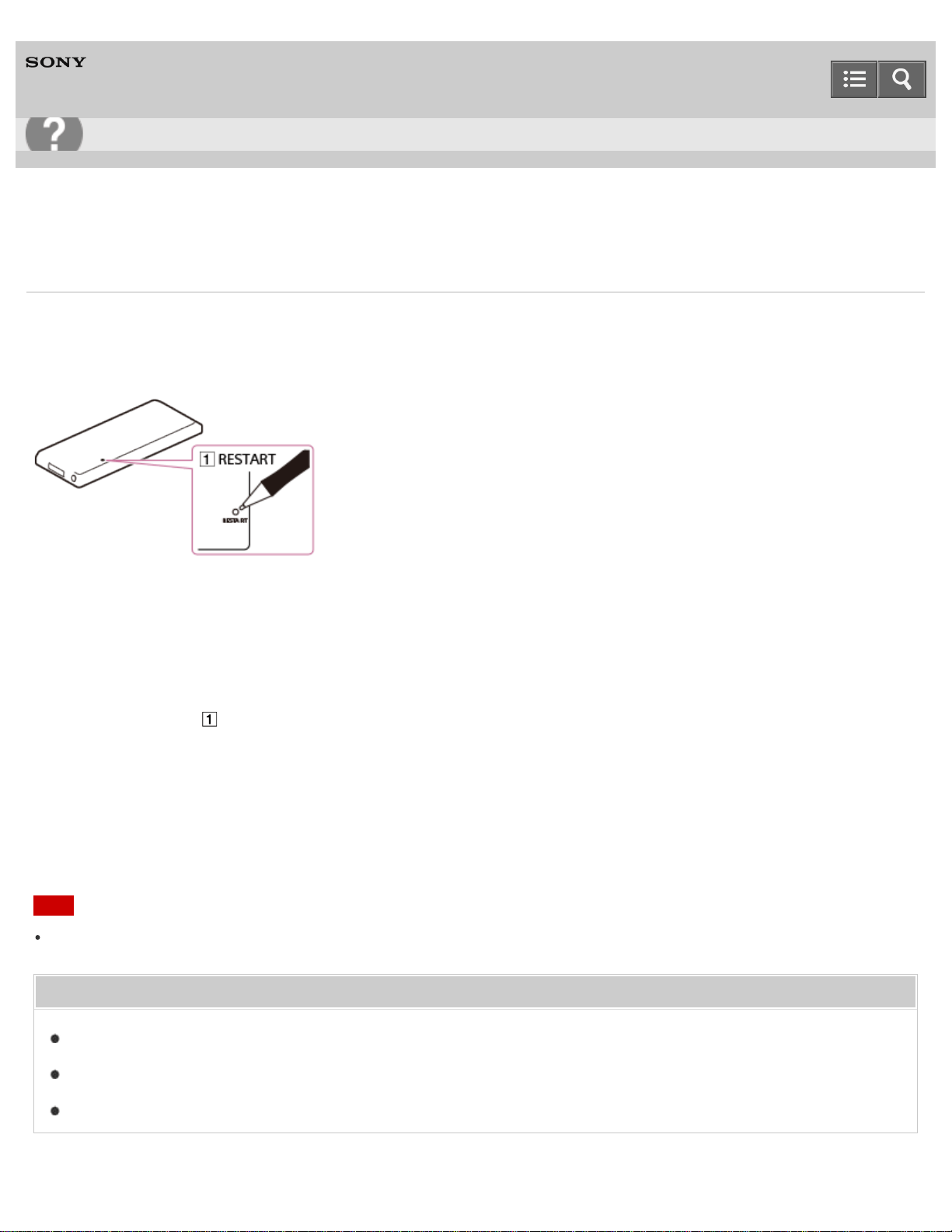
Digital Media Player
NW-A25/A25HN/A26HN/A27HN
What can I do to solve a problem?
If your Walkman does not function as expected, try the following steps to resolve the issue.
Before restarting your Walkman, disconnect the Walkman from your computer and check that no content such as music
is being played back. Otherwise, the data may be damaged. You can then restart the Walkman safely.
1. Check the topic on the issue in “Q&A.”
2. Connect your Walkman to your computer to charge the battery.
You may be able to resolve some issues by charging the battery.
3. Press the button ( ) with a pen or paper clip, etc. to restart your Walkman.
4. Check information on the issue in the help of the software having problems.
5. Look up information on the issue on one of the customer support websites.
6. If the approaches listed above fail to resolve the issue, consult your nearest Sony dealer.
Note
Data will not be deleted, nor will any settings be changed by restarting.
Related Topic
Charging the battery
Restarting your Walkman
Customer support website
Help Guide
Troubleshooting
320
Digital Media Player
NW-A25/A25HN/A26HN/A27HN
Your Walkman does not operate or the power does not turn on.
If you transfer a lot of content such as music to your Walkman at once, it will take time to build the database on the
Walkman. Therefore, it will take more than 1 minute until the Walkman becomes operable again after you disconnect
the Walkman from your computer.
If the HOLD switch is set to the HOLD position, slide the switch to the opposite position.
If your Walkman contains moisture condensation, wait a few hours to let the Walkman dry out.
If the remaining battery power is low or insufficient, charge the battery.
If your Walkman still does not operate after charging the battery, press the RESTART button with a pen or a paper
clip, etc., to restart the Walkman.
Related Topic
Parts and controls
Charging the battery
Restarting your Walkman
4-573-951-11(1)
Copyright 2015 Sony Corporation
Help Guide
Troubleshooting
321
Digital Media Player
NW-A25/A25HN/A26HN/A27HN
Your Walkman does not work properly.
Your Walkman may not work properly if the USB device (e.g. computer) to which it is connected is turned on or off
without disconnecting the Walkman.
Restart your Walkman by pressing the RESTART button with a pen or a paper clip, etc.
Related Topic
Restarting your Walkman
4-573-951-11(1)
Copyright 2015 Sony Corporation
Help Guide
Troubleshooting
322
Digital Media Player
NW-A25/A25HN/A26HN/A27HN
You want your Walkman screen to stay on longer before it turns off automatically.
You can set the screen off timer settings in [Screen Off Timer].
Related Topic
Setting the screen off timer
4-573-951-11(1)
Copyright 2015 Sony Corporation
Help Guide
Troubleshooting
324
Digital Media Player
NW-A25/A25HN/A26HN/A27HN
The date and time have been reset.
If you leave your Walkman for a while with the battery used up, the date and time may be reset. This is not a
malfunction. Charge the battery, and then set the date and time again.
Related Topic
Setting the date and time
4-573-951-11(1)
Copyright 2015 Sony Corporation
Help Guide
Troubleshooting
325
Digital Media Player
NW-A25/A25HN/A26HN/A27HN
A drink (water, coffee, etc.) was spilled on your Walkman, or the Walkman was washed in the washing machine.
If you spill a drink on your Walkman or wash it in a washing machine, liquid may get inside the Walkman. Stop using
the Walkman immediately and consult your nearest Sony dealer.
Related Topic
Customer support website
4-573-951-11(1)
Copyright 2015 Sony Corporation
Help Guide
Troubleshooting
326
Digital Media Player
NW-A25/A25HN/A26HN/A27HN
The earbuds supplied with the headphones are missing.
If you lose or break the earbuds supplied with your headphones, please contact your nearest Sony dealer.
Related Topic
Changing the earbuds
4-573-951-11(1)
Copyright 2015 Sony Corporation
Help Guide
Troubleshooting
327
Digital Media Player
NW-A25/A25HN/A26HN/A27HN
You want to back up the content such as music stored on your Walkman.
Connect to a computer and copy the files onto the computer.
If you have already deleted content transferred to your Walkman from Media Go, transfer the content from the
Walkman to Media Go again.
Related Topic
Connecting to a computer
Transferring content using Media Go
Transferring content using Explorer
Transferring content using the Finder
4-573-951-11(1)
Copyright 2015 Sony Corporation
Help Guide
Troubleshooting
328
Digital Media Player
NW-A25/A25HN/A26HN/A27HN
You want to find the product name (model name) of your Walkman.
The model name is the alphabetical name starting with NW that is printed on the back of your Walkman. If the
Walkman is inside a case, you need to remove it from the case to find the name.
4-573-951-11(1)
Copyright 2015 Sony Corporation
Help Guide
Troubleshooting
329
Digital Media Player
NW-A25/A25HN/A26HN/A27HN
An alarm (beep) is heard and the message [Check the volume level] is displayed.
An alarm (beep) and a warning [Check the volume level] are meant to protect your ears when you turn the volume up
to a level that is harmful for your ears for the first time. You can cancel the alarm and warning by pressing any button.
You can turn up the volume after canceling the alarm and warning.
After the initial warning, the alarm and warning repeat every 20 cumulative hours that the volume is set to a level that
is harmful for your ears. When this happens, the volume is turned down automatically.
Related Topic
Volume operation (Only for countries/areas complying with European and Korean Directives)
4-573-951-11(1)
Copyright 2015 Sony Corporation
Help Guide
Troubleshooting
330
Digital Media Player
NW-A25/A25HN/A26HN/A27HN
There is no sound.
Check that the volume level is not set to zero.
Check whether the plug is inserted firmly in the headphone jack. Sound will be impaired if the headphones are not
connected properly. Insert the plug until it clicks into place.
If the plug is dirty, wipe it clean with a soft dry cloth.
Sound is not emitted from the headphones connected to the headphone jack when a Bluetooth audio device is
connected via a Bluetooth connection.
If there is no sound from a Bluetooth audio device, pairing or connection may not have been completed. Check the
Bluetooth connection.
If the problem persists after performing the remedies above, use a pen or paper clip, etc., to press the RESTART
button and restart your Walkman.
Related Topic
Parts and controls
Playing music
Disconnecting a Bluetooth audio device
Restarting your Walkman
4-573-951-11(1)
Copyright 2015 Sony Corporation
Help Guide
Troubleshooting
331
Digital Media Player
NW-A25/A25HN/A26HN/A27HN
Content such as music suddenly stops during playback.
The remaining battery power is low or the battery has run out.
The content may not be supported on your Walkman. Select and play other content.
If a Bluetooth audio device is connected, check the connection status.
Related Topic
Supported formats
Connecting with a paired Bluetooth audio device
4-573-951-11(1)
Copyright 2015 Sony Corporation
Help Guide
Troubleshooting
332
Digital Media Player
NW-A25/A25HN/A26HN/A27HN
Noise is generated.
When the noise canceling function is on, you may hear more noise if you are listening in a quiet place or because of
the type of noise in that location. If this occurs, turn the noise canceling function off.
The sound pressure sensitivity of the noise canceling headphones that are compatible with your Walkman is set to
the highest level to obtain the maximum noise canceling effects when the headphones are used in places where there
is a lot of noise, such as outside or on trains and you may therefore hear more noise when using the headphones in a
quiet location or because of the type of noise in that location. In this case we recommend turning the noise canceling
function off, although there are cases in which noise can be heard irrespective of whether this function is turned on or
off.
If using your Walkman near a device that emits radio waves such as a mobile phone, move the Walkman away from
the device.
The content such as music on your Walkman may be corrupted. Connect the Walkman to a Windows computer and
use Media Go or Windows Explorer to delete the content in which the noise occurred from the Walkman. If you use a
Mac computer, use the Finder to delete the corrupted content. After you have deleted the corrupted content, transfer
the content from the computer to the Walkman again. Do not perform any other tasks on the computer while
transferring content to the Walkman. Doing so may cause the content to be corrupted.
If the plug is dirty, wipe it clean with a soft, dry cloth.
If your Walkman is connected to a Bluetooth audio device, check the connection status.
Related Topic
Using noise canceling
Deleting content from your Walkman using Media Go
Deleting content from your Walkman using the Finder
Deleting content from your Walkman using Explorer
Transferring content using Media Go
Transferring content using Explorer
Transferring content using Content Transfer
Transferring content using the Finder
Connecting with a paired Bluetooth audio device
Help Guide
Troubleshooting
333
Digital Media Player
NW-A25/A25HN/A26HN/A27HN
Volume cannot be turned up, or the volume remains low when the playback volume is turned up.
If the HOLD switch is in the HOLD position, slide it to the opposite position.
If the AVLS (Volume Limit) setting is activated, deactivate it.
When listening on a Bluetooth audio device, turn up the volume control of the Bluetooth audio device.
If the volume level cannot be adjusted directly on the Bluetooth audio device, increase the volume on your Walkman.
Related Topic
Parts and controls
Limiting the volume
4-573-951-11(1)
Copyright 2015 Sony Corporation
Help Guide
Troubleshooting
334
Digital Media Player
NW-A25/A25HN/A26HN/A27HN
Sound can only be heard from one side of the headphones.
Sound will not be output properly if the plug is not inserted correctly into the jack. Insert the headphone plug until it
clicks into place.
Wires inside the headphone cable may be broken due to unnecessary force, etc. being applied to the cable. If this
occurs while using the supplied headphones with a Walkman model supplied with headphones, contact your nearest
Sony dealer for repairs.
4-573-951-11(1)
Copyright 2015 Sony Corporation
Help Guide
Troubleshooting
335
Digital Media Player
NW-A25/A25HN/A26HN/A27HN
Sound is interrupted or skips.
The sound may be interrupted or skip depending on the environment where your Walkman is used or the settings of
the Walkman.
Following the procedures below may reduce the amount of skipping or interruptions.
Set all sound quality settings to off.
If you are listening to music using the Bluetooth function, see “Notes on the Bluetooth function.”
When listening to songs with the noise canceling function on inside transportation such as a bus or train, large
vibrations other than the driving noise (such as when the vehicle drives over a large bump) may be transmitted to the
headphone unit's built-in microphone due to your seating position, which may cause the sound to cut out. This
phenomenon can be improved by reducing the [Set Noise Cancel Level] value. Set the [Set Noise Cancel Level] value
to a smaller value for use.
Related Topic
Customizing sound quality settings
Using noise canceling
Adjusting noise canceling
Notes on the Bluetooth function
4-573-951-11(1)
Copyright 2015 Sony Corporation
Help Guide
Troubleshooting
336
Digital Media Player
NW-A25/A25HN/A26HN/A27HN
Sound is interrupted between songs.
To play songs without interruption (gapless playback), import (rip) content from media in AAC, MP3, or FLAC format to
the latest version of Media Go, and then transfer them to your Walkman.
4-573-951-11(1)
Copyright 2015 Sony Corporation
Help Guide
Troubleshooting
337
Digital Media Player
NW-A25/A25HN/A26HN/A27HN
The sound effect settings do not seem to have any effect.
Sound effect settings are not applied in the following cases.
During video playback
During podcast playback
While listening to FM radio
Related Topic
Watching videos
Playing podcasts
Listening to FM radio
4-573-951-11(1)
Copyright 2015 Sony Corporation
Help Guide
Troubleshooting
338
Digital Media Player
NW-A25/A25HN/A26HN/A27HN
You cannot charge your Walkman.
The battery cannot be charged while is displayed because the protection function is engaged. Charge the battery
within the ambient temperature range of 5 °C to 35 °C (41 ºF to 95 ºF).
You need to turn the computer power on in order to charge your Walkman. Check whether the computer is in standby
(sleep) or hibernation status.
Check that the USB connection to the computer is made properly.
There may be bad electrical contact in the connector. Disconnect your Walkman, and then reconnect it.
Use the supplied USB cable.
Your Walkman may not be able to connect properly to your computer when using a USB hub. Connect the Walkman
directly to a USB connector on your computer.
Check whether the operating system and operating system version installed on the computer are compatible with your
Walkman.
The battery may have deteriorated if you have not used your Walkman for more than a year. Contact your nearest
Sony dealer.
If the remedies above do not solve the problem, use a pen or paper clip, etc. to press the RESTART button and
restart your Walkman, and then connect again using USB.
Related Topic
Charging the battery
System requirements
Restarting your Walkman
Customer support website
4-573-951-11(1)
Copyright 2015 Sony Corporation
Help Guide
Troubleshooting
339
Digital Media Player
NW-A25/A25HN/A26HN/A27HN
How long is the life of the built-in rechargeable battery?
This will differ depending on the environment where your Walkman is used, but on average the built-in rechargeable
battery can be charged approximately 500 times. The battery life becomes shorter and capacity is reduced as a result
of the number of times it is recharged or used, and the environment in which it is used. When the usable battery life is
half the usual time even when the battery is fully charged, the battery should be replaced.
Consult your nearest Sony dealer for more details on the life of the built-in battery.
Related Topic
Customer support website
4-573-951-11(1)
Copyright 2015 Sony Corporation
Help Guide
Troubleshooting
340
Digital Media Player
NW-A25/A25HN/A26HN/A27HN
The rechargeable battery needs to be replaced.
To replace rechargeable batteries, your Walkman needs to be taken apart professionally. Do not take apart the
Walkman by yourself.
Consult your nearest Sony dealer or Sony Service Center for replacement of rechargeable batteries.
Related Topic
Customer support website
4-573-951-11(1)
Copyright 2015 Sony Corporation
Help Guide
Troubleshooting
341
Digital Media Player
NW-A25/A25HN/A26HN/A27HN
The battery life is short.
If your Walkman is used in an environment where the temperature is below 5 °C (41 ºF), the battery life becomes
shorter due to characteristics of the battery. This is not a malfunction.
Charge the battery until it is full.
The battery life can be extended by using wired headphones instead of Bluetooth audio devices.
More battery power is consumed when the Bluetooth function is used.
More battery power is consumed when the noise canceling function is used.
When [Battery Care] is set to [On], the maximum recharge capacity is limited to about 90 %, resulting in the first bar
of the battery indication disappearing quickly.
You can preserve the battery life and get more use from each charge by changing your Walkman settings and
managing the power appropriately.
Depending on the environment in which your Walkman is used, the battery may deteriorate if it is not used for over a
year. Contact your nearest Sony dealer.
If the usable battery life is half that when new even after sufficiently charging the battery, your battery may have
deteriorated. Contact your nearest Sony dealer.
Related Topic
Charging the battery
Using noise canceling
Extending the battery life
Customer support website
4-573-951-11(1)
Copyright 2015 Sony Corporation
Help Guide
Troubleshooting
342

Digital Media Player
NW-A25/A25HN/A26HN/A27HN
The battery runs out fast when you turn on the battery care mode.
When charging the battery in battery care mode, the battery status icon is full when charging is complete. However,
the time it takes for the first bar of the battery indication to disappear is quicker than when the battery is charged to
100 %.
Related Topic
Charging in the battery care mode
4-573-951-11(1)
Copyright 2015 Sony Corporation
Help Guide
Troubleshooting
345
Digital Media Player
NW-A25/A25HN/A26HN/A27HN
The computer does not recognize your Walkman.
If the remaining battery power is low, charge the battery.
When you use your Walkman for the first time, or if you have not used the Walkman for a long time, it may take a few
minutes to be recognized by the computer. Check that the computer recognizes the Walkman after you have
connected it to the computer for about 10 minutes.
Make sure that the USB connection to the computer is made properly and securely.
Use the supplied USB cable.
Your Walkman may not be recognized if connected via a USB hub. Connect the Walkman directly to the USB
connector on your computer.
Change the setting to [USB Connection Mode].
If the approaches listed above fail to resolve the issue, press the RESTART button with a pen or a paper clip, etc., to
restart your Walkman, and then try the USB connection again.
Related Topic
Charging the battery
Connecting to a computer
Using USB connection mode
Restarting your Walkman
4-573-951-11(1)
Copyright 2015 Sony Corporation
Help Guide
Troubleshooting
346
Digital Media Player
NW-A25/A25HN/A26HN/A27HN
The computer does not recognize a microSD card inserted in your Walkman.
[System Storage] is selected as the memory to use. Change the memory to use to [SD Card] by following the
instructions shown on the display of your Walkman.
Make sure that no data is being transferred by checking your Walkman screen. Disconnect the USB cable from your
computer, and then connect it again.
Back up all of the data on the microSD card (not supplied) to your computer, and then initialize (format) the microSD
card with your Walkman.
Related Topic
Selecting the memory to use
Connecting to a computer
Formatting a microSD card
4-573-951-11(1)
Copyright 2015 Sony Corporation
Help Guide
Troubleshooting
347
Digital Media Player
NW-A25/A25HN/A26HN/A27HN
Even if you use “Safely Remove Hardware” on the computer, [Connected USB (Storage in use: system storage)] or
[Connected USB (Storage in use: SD card)] remains displayed on your Walkman screen.
When using Windows Vista, Windows 7, Windows 8, Windows 8.1 or Windows 10, the Walkman screen remains as
[Connected USB (Storage in use: system storage)] or [Connected USB (Storage in use: SD card)]. This is not a
problem provided that the "Safely Remove Hardware" operation is complete. Disconnect your Walkman from the
computer.
4-573-951-11(1)
Copyright 2015 Sony Corporation
Help Guide
Troubleshooting
348
Digital Media Player
NW-A25/A25HN/A26HN/A27HN
You cannot install software to your computer.
If other software is running, it may interfere with the installation. Be sure to quit all other software before installing this
software. Particularly, be sure to disconnect from the Internet and quit security software as it can put a heavy load on
the computer.
There may not be enough free space on the hard drive. Check the amount of free hard drive space required to install
the software, and then delete any unnecessary files.
With a Windows computer, you may not be able to install the software if your account does not have administrator
privileges or if you have not logged in as a computer administrator. Log in using an account with administrator
privileges or as the computer's administrator. Furthermore, if two-byte characters are used in the user name, create a
new account using only one-byte characters in the user name.
With a Windows computer, a message dialog may be hidden by the install screen, making the install process seem
stopped. Press and hold the “Alt” key while pressing the “Tab” key several times. When the dialog is displayed, follow
the instructions in the dialog box.
Related Topic
System requirements
Installing Media Go
Installing Content Transfer
4-573-951-11(1)
Copyright 2015 Sony Corporation
Help Guide
Troubleshooting
349
Digital Media Player
NW-A25/A25HN/A26HN/A27HN
The progress bar on the install screen does not proceed while installing the software.
Wait until the installation is completed, because it is progressing properly. Installation may take 30 minutes or more
depending on the computer used.
4-573-951-11(1)
Copyright 2015 Sony Corporation
Help Guide
Troubleshooting
350
Digital Media Player
NW-A25/A25HN/A26HN/A27HN
Your Walkman is not recognized by Media Go.
Your Walkman may not be recognized by the computer. Disconnect the Walkman from the computer, and then
reconnect it.
The software may have failed to install correctly. Use the installer to re-install the software. The imported data will
remain untouched.
If the remedies above do not solve the problem, use a pen or paper clip, etc. to press the RESTART button and
restart your Walkman, and then connect again via USB.
Related Topic
Connecting to a computer
Installing Media Go
Inserting a microSD card
Restarting your Walkman
4-573-951-11(1)
Copyright 2015 Sony Corporation
Help Guide
Troubleshooting
351
Digital Media Player
NW-A25/A25HN/A26HN/A27HN
Content such as music cannot be transferred from the computer to your Walkman.
Check that the USB connection to the computer is made properly.
Use the supplied USB cable.
You may not be able to transfer content when using a USB hub. Connect directly to the USB connector on your
computer.
The version of the installed Media Go may not be the latest. Install the latest version via the Internet.
To transfer content to a microSD card inserted in your Walkman, set the destination for transferring content to the
microSD card by following the instructions shown on the display of your Walkman.
There is not enough free space in your Walkman, or the number of files has exceeded the maximum number of
transferable files. Delete any unnecessary content to increase free space. For details on the number of files
recordable, see the following.
“Maximum recordable number of songs and time (Approx.)”
“Maximum recordable time of videos (Approx.)”
Songs with a limited playing period or playing count may not be transferred due to restrictions set by copyright
holders. For details on the settings of each audio file, contact the distributor.
Some of the content on your Walkman may be damaged. Copy the content that you need onto the computer and
initialize (format) the Walkman.
If the software is not compatible with your Walkman, install compatible software and use the compatible software to
transfer content.
You may be attempting to transfer corrupted content. Delete the content that cannot be transferred from the computer,
and import this content to the computer again. Do not perform any other tasks on the computer when transferring
content to your computer. Doing so may cause the content to be corrupted.
You may be attempting to transfer a file that is not in playable format. See “Supported formats.”
Transferring may be stopped due to noise such as static electricity accumulated in the computer. This happens to
protect data. Disconnect your Walkman, and then reconnect it.
Related Topic
Connecting to a computer
Installing Media Go
Selecting the memory to use
Maximum recordable number of songs and time (Approx.)
Maximum recordable time of videos (Approx.)
Help Guide
Troubleshooting
352

Digital Media Player
NW-A25/A25HN/A26HN/A27HN
You cannot play content such as music transferred to your Walkman.
If the remaining battery power is low or insufficient, charge the battery. If your Walkman still does not operate after
charging the battery, press the RESTART button with a pen or a paper clip, etc. to restart the Walkman.
The data hierarchy levels of the content such as music transferred by drag-and-drop may not be correct. Place them
in the appropriate folder and hierarchy.
Transferred files are not in a playable format. See “Supported formats” for details on playable formats.
When you transfer audio MP4 files by drag-and-drop, place them in the “MUSIC” folder of your Walkman.
The transferred content may be damaged. When you transfer content, make sure that no other tasks are running on
your computer until transferring is completed. Otherwise, the content may be damaged. Delete the unplayable content
from your Walkman and transfer it again. If the Walkman is still unable to play the content, format the built-in flash
memory of the Walkman using the function of the Walkman and then transfer the content again.
If you change the file names or location of the content such as music that was transferred from your computer to your
Walkman, the content may not be recognized by the Walkman. Return it to the correct name and location.
If you have initialized (formatted) the built-in flash memory of your Walkman using Windows Explorer, initialize (format)
it again using the Walkman. If you have initialized (formatted) the Walkman using the Mac Finder, initialize (format) it
again using the Walkman.
Related Topic
Charging the battery
Restarting your Walkman
Transferring content using Explorer
Transferring content using the Finder
Supported formats
Deleting content from your Walkman using Media Go
Deleting content from your Walkman using Explorer
Deleting content from your Walkman using the Finder
Formatting memory
4-573-951-11(1)
Copyright 2015 Sony Corporation
Help Guide
Troubleshooting
354

Digital Media Player
NW-A25/A25HN/A26HN/A27HN
Songs are not played back in the expected order.
If songs are being played back using shuffle, cancel shuffle to return to normal playback.
When tracks are transferred from the computer using drag-and-drop, the track order may be different from the album
track order. Create a playlist using software on your computer and transfer the playlist to your Walkman. For details
on playlists, refer to the help of the software you are using.
If you want to repeat a song in an album, select [Settings] - [Music Settings] - [Playback Range] -[Selected
Range], and then play the song by selecting [Music] - [Album] from the Home menu.
Related Topic
Shuffle playback
Transferring content using Media Go
Transferring content using Content Transfer
Setting the playback range
4-573-951-11(1)
Copyright 2015 Sony Corporation
Help Guide
Troubleshooting
355
Digital Media Player
NW-A25/A25HN/A26HN/A27HN
Playback progresses to the next album when repeat playback is set.
If [Playback Range] is set to [All Range], change the playback range settings to [Selected Range].
Related Topic
Setting the playback range
4-573-951-11(1)
Copyright 2015 Sony Corporation
Help Guide
Troubleshooting
356
Digital Media Player
NW-A25/A25HN/A26HN/A27HN
Songs are only played within a limited range such as within one album.
If [Playback Range] is set to [Selected Range], change the playback range settings to [All Range].
Related Topic
Setting the playback range
4-573-951-11(1)
Copyright 2015 Sony Corporation
Help Guide
Troubleshooting
357
Digital Media Player
NW-A25/A25HN/A26HN/A27HN
You cannot stop playback.
When you press and hold the button, songs can be added to the bookmark list individually and playback of the
songs continues. When you press the button, playback of the song stops.
Related Topic
Playing music
Adding a song to a bookmark list
4-573-951-11(1)
Copyright 2015 Sony Corporation
Help Guide
Troubleshooting
358
Digital Media Player
NW-A25/A25HN/A26HN/A27HN
Songs are not displayed in the order they were transferred in.
Songs are not displayed in the order they were transferred in. To transfer songs in a specific order, create a playlist
using software on your computer and transfer the playlist to your Walkman. For details on playlists, refer to the help of
the software you are using.
Related Topic
Transferring content using Media Go
Transferring content using Content Transfer
4-573-951-11(1)
Copyright 2015 Sony Corporation
Help Guide
Troubleshooting
359
Digital Media Player
NW-A25/A25HN/A26HN/A27HN
The content such as music is displayed repeatedly.
Content is displayed repeatedly when you transfer content using 2 or more software programs, for example when you
transferred content using Media Go and then transferred the same content using software other than Media Go.
When you import a compilation album using Media Go, it may be imported as multiple albums. If this happens, edit
the data using Media Go so that they are put together as an album, and then transfer it to your Walkman again. For
details on how to edit, refer to the help of Media Go.
Related Topic
Transferring content using Media Go
Transferring content using Content Transfer
4-573-951-11(1)
Copyright 2015 Sony Corporation
Help Guide
Troubleshooting
360

Digital Media Player
NW-A25/A25HN/A26HN/A27HN
The same song is displayed repeatedly in an album.
The album or songs have been transferred both to the system storage and to a microSD card (not supplied).
Delete the duplicated album or songs from either the system storage or the microSD card.
Related Topic
Deleting songs
4-573-951-11(1)
Copyright 2015 Sony Corporation
Help Guide
Troubleshooting
361
Digital Media Player
NW-A25/A25HN/A26HN/A27HN
Thumbnails such as cover art are not displayed.
Register the cover art in Media Go or iTunes. Cover art may not be displayed for songs transferred from Windows
Explorer or the Mac Finder.
When you transfer video content to your Walkman using Windows Explorer or the Mac Finder, transfer a JPEG file
with the same name as the video content in the “VIDEO” folder as well.
If photos do not have thumbnails that comply with Exif file format, the thumbnails cannot be displayed.
To attach cover art to a song that has already been transferred to your Walkman, delete the music content from the
Walkman, add the cover art to the content on your computer, and then transfer the content to the Walkman again.
Your Walkman is unable to display a thumbnail for video content that has been transferred to the Walkman via a
Bluetooth connection. Connect the Walkman to a computer via USB and transfer the video content to the Walkman
again using software.
Depending on the software used to register the cover art to the song, the cover art may not be sent if the song is sent
via a Bluetooth connection. Connect your Walkman to a computer via USB and transfer the song to the Walkman
again using software.
Related Topic
Transferring content using Media Go
Transferring content using Content Transfer
Transferring content using Explorer
Transferring content using the Finder
Receiving content via a Bluetooth connection
Playing content received via a Bluetooth connection
4-573-951-11(1)
Copyright 2015 Sony Corporation
Help Guide
Troubleshooting
362
Digital Media Player
NW-A25/A25HN/A26HN/A27HN
Lyrics are not displayed.
There is no lyrics data for the songs. See “Adding lyrics to songs.”
Create an LRC file for the song to display lyrics.
The file name or file format is incorrect.
See “Making lyrics information in a text file” for information on the file naming rule and file format.
Your Walkman is unable to display lyrics information for songs that have been transferred to the Walkman using a
Bluetooth connection, even if the songs have lyrics information, due to system restrictions. Connect the Walkman to a
computer via USB and transfer the song to the Walkman again using software.
Related Topic
Adding lyrics to songs
Making lyrics information in a text file
Displaying lyrics
Transferring content using Media Go
Transferring content using Content Transfer
4-573-951-11(1)
Copyright 2015 Sony Corporation
Help Guide
Troubleshooting
363
Digital Media Player
NW-A25/A25HN/A26HN/A27HN
[ □ ] is displayed in the screen.
Some types of characters and symbols may not be displayed correctly on your Walkman in the following cases:
A language that is not supported by your Walkman is used in the text.
User-defined characters or special symbols are used in the text.
Replace the characters of the content that has been transferred to your Walkman using software with displayable
characters in the software and transfer the content to the Walkman again.
Related Topic
Inputting the lyrics information using Media Go
Transferring content using Media Go
Transferring content using Content Transfer
4-573-951-11(1)
Copyright 2015 Sony Corporation
Help Guide
Troubleshooting
364
Digital Media Player
NW-A25/A25HN/A26HN/A27HN
[Unknown] is displayed for the album name or artist name.
Information such as the album or artist name is not contained in the data. You can add an album or artist name to
content such as music transferred using software and transfer the content to your Walkman again.
Information such as the song title, album or artist name cannot be added to WAV files due to the file specifications. To
attach such information, convert the file to a format that supports data attachment such as FLAC, and then add the
information to the file before transferring it to your Walkman again.
Related Topic
Transferring content using Media Go
Transferring content using Content Transfer
Supported formats
4-573-951-11(1)
Copyright 2015 Sony Corporation
Help Guide
Troubleshooting
365
Digital Media Player
NW-A25/A25HN/A26HN/A27HN
You cannot delete content such as music using the Walkman functions.
You cannot delete content transferred using software such as Media Go or iTunes by using the function on your
Walkman. Delete them using the software that you used to transfer them.
You cannot delete content transferred using Windows Explorer by using the function on your Walkman. Delete the
content using Windows Explorer.
You cannot delete content transferred using the Finder by using the function on the Walkman. Delete the content
using the Finder.
Related Topic
Deleting content from your Walkman using Media Go
Deleting content from your Walkman using Content Transfer
Deleting content from your Walkman using Explorer
Deleting content from your Walkman using the Finder
4-573-951-11(1)
Copyright 2015 Sony Corporation
Help Guide
Troubleshooting
366
Digital Media Player
NW-A25/A25HN/A26HN/A27HN
You cannot play a podcast episode.
Your Walkman may not support the file format of the episode. Check the file formats playable on the Walkman.
Related Topic
Playing podcasts
Supported formats
4-573-951-11(1)
Copyright 2015 Sony Corporation
Help Guide
Troubleshooting
367
Digital Media Player
NW-A25/A25HN/A26HN/A27HN
You cannot find your desired channel.
If there are no songs to match the theme of a channel, the channel is not displayed on the SensMe™ Channels
screen.
Related Topic
Playing songs using SensMe™ Channels
Analyzing songs on your Walkman
4-573-951-11(1)
Copyright 2015 Sony Corporation
Help Guide
Troubleshooting
370
Digital Media Player
NW-A25/A25HN/A26HN/A27HN
[Morning] is always displayed for the time-based channel.
If you have not set the clock of your Walkman, [Morning] always appears for the time-based channel. Set the clock of
the Walkman.
Related Topic
Playing songs using SensMe™ Channels
Setting the date and time
4-573-951-11(1)
Copyright 2015 Sony Corporation
Help Guide
Troubleshooting
371
Digital Media Player
NW-A25/A25HN/A26HN/A27HN
Unsuitable songs for selected time-based channels are played.
If there are no songs to match the theme of the time-based channel, all of the songs in your Walkman are played in
random order.
Related Topic
Playing songs using SensMe™ Channels
Analyzing songs on your Walkman
4-573-951-11(1)
Copyright 2015 Sony Corporation
Help Guide
Troubleshooting
372
Digital Media Player
NW-A25/A25HN/A26HN/A27HN
Audio podcasts are not played by SensMe™ Channels.
Audio podcasts are not analyzed by 12 TONE ANALYSIS and you therefore cannot play them using SensMe™
Channels.
Related Topic
Playing podcasts
Playing songs using SensMe™ Channels
4-573-951-11(1)
Copyright 2015 Sony Corporation
Help Guide
Troubleshooting
373
Digital Media Player
NW-A25/A25HN/A26HN/A27HN
You cannot hear FM radio broadcasts.
The headphone cord functions as an antenna. FM broadcasts cannot be received when the headphones are not
connected.
The received station may not be fully tuned in. Fully tune in to a station for the best reception.
FM radio is not available during a Bluetooth connection.
Related Topic
Listening to FM radio
FM radio operations
Disconnecting a Bluetooth audio device
4-573-951-11(1)
Copyright 2015 Sony Corporation
Help Guide
Troubleshooting
374
Digital Media Player
NW-A25/A25HN/A26HN/A27HN
There is a lot of noise in an FM radio broadcast and the sound quality is poor.
The FM signal may be weak inside a building or vehicle. Listen to the FM broadcast near a window if the signal is
weak inside a building or vehicle.
The headphone cord functions as an antenna. Extend the headphone cord as far as possible.
When [Mono/Auto] is set to [Auto], the reception sensitivity is set automatically according to the reception status. Set
[Mono/Auto] to [Mono].
When using a device that emits radio signals, such as a mobile phone, keep it away from your Walkman.
Related Topic
Setting monaural/auto for FM radio
4-573-951-11(1)
Copyright 2015 Sony Corporation
Help Guide
Troubleshooting
375
Digital Media Player
NW-A25/A25HN/A26HN/A27HN
Pairing cannot be done.
Pair the devices within the Bluetooth communications range.
If the supported profiles are different, your Walkman and Bluetooth device cannot be paired. See "Specifications."
Your Walkman cannot be paired if the number of paired devices exceeds the maximum number. If you want to pair
another device, delete unnecessary paired devices in advance.
Related Topic
Specifications
Pairing and connecting with a Bluetooth audio device
Disconnecting a Bluetooth audio device
4-573-951-11(1)
Copyright 2015 Sony Corporation
Help Guide
Troubleshooting
376
Digital Media Player
NW-A25/A25HN/A26HN/A27HN
You cannot connect via the Bluetooth function.
Turn on the Bluetooth device and set it up for a Bluetooth connection.
Your Walkman cannot connect with devices that are not paired. Check that the Walkman has been paired with the
Bluetooth device.
The pairing information might have been deleted. Make the pairing operation again.
Make sure the Bluetooth audio device supports the A2DP profile.
If your Walkman and the Bluetooth device are too far from each other, a Bluetooth connection may not be established
or may be interrupted. Place the Walkman and Bluetooth device closer.
Related Topic
Displaying the pairing information of Bluetooth audio devices
Pairing and connecting with a Bluetooth audio device
Connecting with a paired Bluetooth audio device
4-573-951-11(1)
Copyright 2015 Sony Corporation
Help Guide
Troubleshooting
377
Digital Media Player
NW-A25/A25HN/A26HN/A27HN
The screen to enter the passkey appears when pairing with a Bluetooth device.
A passkey may need to be entered when establishing a connection with certain Bluetooth devices. Enter the same
passkey on your Walkman and the Bluetooth device. The passkey on the Walkman is “0000.” Refer to the manual for
your Bluetooth device for instructions on how to enter the passkey on the Bluetooth device.
Related Topic
Entering a passkey to make a Bluetooth connection
4-573-951-11(1)
Copyright 2015 Sony Corporation
Help Guide
Troubleshooting
378
Digital Media Player
NW-A25/A25HN/A26HN/A27HN
You cannot hear sound from the Bluetooth audio device.
Check the volume on the connected Bluetooth audio device.
It may not be possible to adjust the volume of certain Bluetooth audio devices. Turn up the volume of your Walkman.
Make sure your Walkman starts playback.
Turn on the connected Bluetooth audio device and make sure the Bluetooth function is activated.
Make sure the Bluetooth connection is not disconnected.
If your Walkman does not recognize playback operations on the Bluetooth audio device, the profile of the connected
Bluetooth audio device may not support AVRCP. Perform the operations on the Walkman.
Related Topic
Playing music
Pairing and connecting with a Bluetooth audio device
Connecting with a paired Bluetooth audio device
4-573-951-11(1)
Copyright 2015 Sony Corporation
Help Guide
Troubleshooting
379
Digital Media Player
NW-A25/A25HN/A26HN/A27HN
You cannot operate your Walkman from a Bluetooth audio device.
Depending on the Bluetooth audio device, you might not be able to operate your Walkman from the Bluetooth audio
device. In this case, operate the Walkman itself.
Related Topic
Connecting with a paired Bluetooth audio device
4-573-951-11(1)
Copyright 2015 Sony Corporation
Help Guide
Troubleshooting
380
Digital Media Player
NW-A25/A25HN/A26HN/A27HN
Sound skips or noise is generated during a Bluetooth connection.
Devices using the 2.4 GHz frequency, such as a wireless LAN device, cordless telephone, or microwave oven, may
disturb the Bluetooth connection. Use your Walkman and the connected Bluetooth audio device away from these
electronic devices.
The Bluetooth connection is impeded by obstructions such as metal, walls or people. Remove any obstructions or
change the location to enable proper communication.
The Bluetooth connection may become unstable depending on the combination of the usage environment and the
method of connecting with the Bluetooth audio device.
The Bluetooth connection may be stabilized by performing the following measures.
Set [Wireless Playback Quality] to [Standard] or [Prioritize Connection].
Related Topic
Connecting with a paired Bluetooth audio device
Setting wireless playback quality
4-573-951-11(1)
Copyright 2015 Sony Corporation
Help Guide
Troubleshooting
381
Digital Media Player
NW-A25/A25HN/A26HN/A27HN
Sound effects do not seem to have any effect when listening to sound via a Bluetooth audio device.
Sound effects may not be enabled. Set [Sound Effect Preset] to [On].
The [Clear Stereo] function or the [Clear Phase™ ] function does not work with Bluetooth audio devices even when
[Sound Effect Preset] is set to [On].
The [DSEE HX] function is disabled while listening to sound on the other Bluetooth audio device.
Related Topic
Setting sound effects during a Bluetooth connection
Optimizing the sound characteristics
Upscaling compressed audio to quality almost that of High-Resolution Audio
4-573-951-11(1)
Copyright 2015 Sony Corporation
Help Guide
Troubleshooting
382
Digital Media Player
NW-A25/A25HN/A26HN/A27HN
You cannot display or delete content such as music received using the Bluetooth function.
Make sure the transferred content is supported by your Walkman. Unsupported content will not be displayed on the
screen. To delete unsupported content, use Windows Explorer or the Mac Finder, or delete all transferred content.
Related Topic
Deleting content from your Walkman using Explorer
Deleting content from your Walkman using the Finder
Deleting content received from a Bluetooth connection
Supported formats
4-573-951-11(1)
Copyright 2015 Sony Corporation
Help Guide
Troubleshooting
384
Digital Media Player
NW-A25/A25HN/A26HN/A27HN
The cover art of a song received using the Bluetooth function is not displayed.
Depending on the software used to register the cover art to the song, the cover art may not be sent if the song is sent
via a Bluetooth connection. Connect your Walkman to a computer via USB and transfer the content to the Walkman
again using software.
Related Topic
Transferring content using Media Go
Transferring content using Content Transfer
4-573-951-11(1)
Copyright 2015 Sony Corporation
Help Guide
Troubleshooting
385
Digital Media Player
NW-A25/A25HN/A26HN/A27HN
You cannot connect with one touch (NFC).
When a dialog is displayed on the screen, follow the on-screen instructions to complete the connection. When you
connect your Walkman and the Bluetooth audio device for the first time, you need not only to touch the marks
together but also to pair the devices.
If your Walkman does not recognize the Bluetooth audio device, slowly move the Walkman in all directions with the
N-mark touching over the N-mark of the Bluetooth audio device.
If a clip or case is attached to the device to connect with or to your Walkman, remove the clip or case.
The NFC reception sensitivity of the device you use may be insufficient to make a one-touch connection (NFC). In this
case, make the Bluetooth connection with pairing.
One-touch connection (NFC) cannot be made while your Walkman is connected to a computer. Disconnect the
Walkman from the computer and try again.
Depending on the Bluetooth audio device, the NFC function or the power may need to be turned on. Refer to the
operating instructions of the Bluetooth audio device for details.
One-touch connections (NFC) cannot be made while the HOLD function of your Walkman is enabled. Release the
HOLD function before touching the devices together to make a one-touch connection.
One-touch connections (NFC) cannot be made while your Walkman is in standby mode and the screen is off. Turn
the screen on before touching the devices together to make a one-touch connection.
Related Topic
Making a Bluetooth connection using the NFC function
Pairing and connecting with a Bluetooth audio device
Connecting with a paired Bluetooth audio device
Using the HOLD switch
Turning the power on
4-573-951-11(1)
Copyright 2015 Sony Corporation
Help Guide
Troubleshooting
386
Digital Media Player
NW-A25/A25HN/A26HN/A27HN
The noise canceling function is not effective.
Make sure the noise canceling function is enabled.
The noise canceling function is available only with noise canceling headphones. The noise canceling headphones
that are compatible with this product are MDR-NW750N/MDR-NW750NE.
Make sure the headphones you use are selected in the [Select Headphones] setting.
Make sure the headphones fit your ears snugly by means such as changing the size of the earbuds or adjusting the
earbud position. If you change the size of earbuds, attach them firmly on the headphones to prevent them from
detaching and remaining in your ears.
The noise canceling function is not adjusted appropriately. Your Walkman is preset to maximize the effect of noise
canceling. However, you may attain more effectiveness by raising or lowering the sensitivity of the microphone built in
to the supplied headphones. See "Adjusting noise canceling."
The noise canceling effect may not be noticeable in a quiet place or with some types of ambient noise.
The type of environment set in [Select NC Environment] may not be suitable for the surrounding environment. Set
[Select NC Environment] according to the surrounding environment.
Related Topic
Selecting headphones
Using noise canceling
Noise canceling compatible headphones
Changing the earbuds
Adjusting noise canceling
Selecting a noise canceling environment
4-573-951-11(1)
Copyright 2015 Sony Corporation
Help Guide
Troubleshooting
387
Digital Media Player
NW-A25/A25HN/A26HN/A27HN
You want to use the noise canceling function with headphones other than noise canceling headphones compatible
with your Walkman.
The noise canceling function is available only with noise canceling headphones. The noise canceling headphones
that are compatible with this product are MDR-NW750N/MDR-NW750NE. Select the noise canceling headphones in
[Select Headphones] to use the noise canceling function.
If you use headphones other than noise canceling headphones, the noise canceling function does not work even
when the noise canceling function is enabled.
Related Topic
Noise canceling compatible headphones
4-573-951-11(1)
Copyright 2015 Sony Corporation
Help Guide
Troubleshooting
388
Digital Media Player
NW-A25/A25HN/A26HN/A27HN
Your Walkman does not recognize a microSD card that is inserted.
The microSD card (not supplied) is not inserted correctly. Remove the microSD card and reinsert it.
The contact pins of the microSD card are not clean. Clean the contact pins of the microSD card using a dry cloth or
cotton bud and reinsert the microSD card.
The microSD card has been formatted in an unsupported format. Copy all data on the microSD card onto your
computer and format the microSD card again using your Walkman.
Related Topic
Removing a microSD card
Inserting a microSD card
Formatting a microSD card
4-573-951-11(1)
Copyright 2015 Sony Corporation
Help Guide
Troubleshooting
389
Digital Media Player
NW-A25/A25HN/A26HN/A27HN
Your Walkman gets warm.
Depending on the way you use your Walkman, the Walkman may become warm while the battery is being charged or
the Walkman is performing intensive data processing. This is not a malfunction.
4-573-951-11(1)
Copyright 2015 Sony Corporation
Help Guide
Troubleshooting
390
Digital Media Player
NW-A25/A25HN/A26HN/A27HN
Message list
[Unable to set photo as wallpaper.] is displayed.
You are trying to set a photo that is too large as wallpaper.
Reduce the file size of the selected photo.
[System software update failed.] is displayed.
The update of the system software failed to be completed.
Follow the instructions displayed on your computer to retry updating the system software.
[Check the volume level] is displayed.
An alarm (beep) and a warning [Check the volume level] are used to protect your ears when you turn the volume up
to a level that is harmful to your ears for the first time. You can cancel the alarm and warning by pressing any button.
You can turn up the volume after canceling the alarm and warning.
After the initial warning, the alarm and warning repeat for every 20 cumulative hours that the volume is set to a level
that is harmful for your ears. When this happens, the volume is turned down automatically.
Related Topic
Setting a photo as wallpaper
Updating the system software of your Walkman
Volume operation (Only for countries/areas complying with European and Korean Directives)
4-573-951-11(1)
Copyright 2015 Sony Corporation
Help Guide
Troubleshooting
391