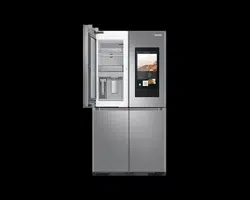
For more information about other menus and apps available on the Refrigerator app, see the Online manual of your refrigerator.
The content of apps and widgets, or their design is subject to change or support may be discontinued without notice, depending on the content provider’s policy.
Children's use of the refrigerator's functions, apps, and services must be supervised by adults.
Underage transactions with the services must be supervised by adults.
01 Home screen
02 Soft buttons
01 Home screen
Tap a desired app or widget to launch it.
On the home screen, you can add or remove items such as apps, widgets, pictures, videos, drawings, and texts.
Tap and hold an item to enter Edit mode. In Edit mode, you can drag and drop an item to a new location on the home screen. When you move the item to a new location, the item turns red if the location is not available.
02 Soft buttons
01 Bixby
Tap to use Bixby.
02 Task Manager
Tap to open the Task Manager.
03 Home
Tap to open the Home screen.
04 Return
Tap to return to the previous screen.
05 Notification
Tap to display the Quick Panel.
06 Hide/Show
Tap to hide or show Soft buttons.
The Hide/Show button only appears when an app is active.
Fridge Manager
On the Home screen, tap the Fridge Manager app.
You can set the desired temperature or modes for each compartment.
For more detailed information on the Fridge Manager app, check the online manual.
To access the online manual from your Family Hub refrigerator, tap Setting > Help & Contact Us > Online Manual.
Display reset (applicable models only)
If you encounter an abnormal symptom on the display, try resetting the display. This may solve the symptom.
1. Open the right-side fridge door and locate the switch cover on the top right corner of the door.
2. Push up the cover to reveal the power switch.
3. Turn the switch off and turn it on again.
4. Reinsert the switch cover to the end until you hear a clicking sound.
SmartThings
Installation
Visit the Google Play Store, Galaxy Apps, or Apple App Store and search for “SmartThings”.
Download and install the SmartThings app provided by Samsung Electronics to your smart device.
NOTE
The SmartThings app is designed for Android 8.0 or later, iOS 12.0 or later, iPhone 6 or later, and is optimized for Samsung smartphones (Galaxy S and Galaxy Note series).
For improved performance, the SmartThings app is subject to change without notice, or discontinued support according to the manufacturer’s policy.
Recommended encryption systems include WPA/TKIP and WPA2/AES. Any newer or unstandardized Wi-Fi authentication protocols are not supported.
Wireless networks may be affected by the surrounding wireless communication environment.
If your Internet service provider has registered the MAC address of your PC or modem for identification, your Samsung Smart Refrigerator may fail to connect to the Internet. If this happens, contact your Internet service provider for technical assistance.
The firewall settings of your network system may prevent your Samsung Smart Refrigerator from accessing the Internet. Contact your Internet service provider for technical assistance. If this symptom continues, contact a local Samsung service center or retailer.
To configure the wireless access point (AP) settings, see the user manual of the AP.
Samsung Smart Refrigerators support both Wi-Fi 2.4 GHz with IEEE 802.11 b/g/n and Soft-AP protocols (IEEE 802.11 n is recommended).
Unauthorized Wi-Fi wireless routers may fail to connect to applicable Samsung Smart Refrigerators.
Samsung account
You are required to register your Samsung account to use the app. If you don’t have a
Samsung account, follow the app’s onscreen instructions to create a free Samsung account.
Getting started
Turn on the device you want to connect, open the SmartThings app on your phone, then follow the instructions below.
If a pop-up appears saying that a new device has been found, tap ADD NOW.
If a pop-up doesn't appear, tap the + button, then select the device you want to connect from the list of available devices.
If your device isn't in the list of available devices, tap Supported Devices, select the device type (Refrigerator), and then select the specific device model.
Follow the instructions in the app to set up your device. Once setup is complete, your refrigerator will appear as a "card" on your Devices screen.
Refrigerator app
Integrated control
You can monitor and control your refrigerator at home and on the go.
Tap the refrigerator icon on the SmartThings Dashboard or tap the Devices icon at the bottom of the Dashboard, and then tap the refrigerator "card" to open the Refrigerator page.
Check the operation status or notifications related to your refrigerator, and change options or settings if necessary.
NOTE
Some options or settings of the refrigerator may not be available for remote control.
Recommendations for voice recognition
For the voice recognition function, there is a built-in microphone at the top of the refrigerator’s display. To use the voice recognition function:
Stand no more than 1 meter from the refrigerator and speak loudly and clearly towards the built-in microphone.
Speak at a regular pace. Reduce ambient noises, such as noises from a living-room TV.
NOTE
The voice recognition function may not work if you stand more than 1 meter away or if you speak too softly.
Special features
The refrigerator has features convenient for you.
Water pitcher (AutoFill Pitcher) (applicable models only)
Cold, purified water is always ready in the AutoFill Pitcher. You can put tea or fruits in the infuser to enjoy the various infused water you like.
01 Lid 02 Infuser holder 03 Infuser 04 Body
To fill the Water pitcher
Grasp a handle groove of the lid, and then pull up to open the lid.
Put tea leaves or fruit to your taste into the infuser.
NOTE
If you want to keep the infused water in its initial concentration, turn the AutoFill Pitcher function off.
3. Enable the AutoFill Pitcher function on the control panel. Open the Beverage Center door and then mount the water pitcher onto the holder. Push it straight in as shown in the figure.
CAUTION Make sure the water pitcher fits in the water pitcher holder
4. Close the door. The water pitcher will start to fill with chilled water a short time later.
5. To drink tea, open the Beverage Center door and then detach the water pitcher. Pull it straight out.
CAUTION
We recommend consuming fruit infused water within 24 hours. After that, the infused water can spoil over time.
You must clean the water pitcher after you have consumed the infused water. Also clean the water pitcher if you haven't used it for a long time.
To prevent the water pitcher from tipping over or leaking, make sure the water pitcher fits in the water pitcher holder.
To prevent the water pitcher from spilling over or leaking, make sure the infuser holder is properly inserted.
NOTE
If the front side (specifically marked area) of the water pitcher has too much moisture, the water pitcher may not fully fill. Remove the moisture, and then try again.
AutoFill Pitcher function will stop supplying water to the water pitcher if the water pitcher does not fill after a certain amount of time. If this happens, check if the water line is properly connected. Remove and reinsert the water pitcher, and then try again.
NOTE
Wipe around the water pitcher holder if the water pitcher overflows or leaks.
Water drops off if the rubber cap is opened.
An alert message appears on the control panel if there is a leak. In case of a leak, open the rubber cap so that the leaked water drains. If the alert message does not disappear after draining, there might be a system failure. Contact your local Samsung service center.
Water dispenser (applicable models only)
To dispense chilled water, open the Beverage Center and press the dispenser lever.
NOTE
The dispenser will stop dispensing if you keep pushing the dispenser lever for about minute. To dispense more water, release and push the lever again.
Make sure the glass is in line with the dispenser to prevent the dispensed water from spilling out.
If you do not use the water dispenser for 2-3 days, the dispensed water may have an abnormal smell or taste. This is not a system failure. Discard the first 1-2 glasses of water.
Water clouding
Water supplied to the refrigerator flows through a core alkaline filter. During this filtering process, the water pressure of the water increases and the water becomes saturated with oxygen and nitrogen. This causes the water to look misty or cloudy temporarily when dispensed. This is normal and the water will look clear after a few seconds.
Ice maker
The refrigerator has a built-in ice maker that automatically dispenses ice.
The overall design and/or accessories may differ with the model.
This product has two types of ice makers.
Ice making
After you have installed your refrigerator and plugged it in, follow these instructions to ensure proper ice making and to keep the ice bucket full of ice.
For first-time use
Let the ice maker make ice for 1-2 days.
Discard the first 1-2 buckets of ice to remove impurities in the water supply system.
Diagnosis
The overall design and/or accessories may differ with the model.
If ice does not dispense, first check the status of ice maker using the Test button on the bottom of the ice maker.
Press the Test button on the bottom of the ice maker. You will hear a chime ding-dong) when you press the button. You will hear another chime if the ice maker is operating properly.
Ice accumulating on one side of the tray is normal. Arrange the ice evenly in the tray to store more ice.
CAUTION
Leaving the water line disconnected may cause the water valve to produce a buzzing sound over time. If this is the case, make sure to turn the ice making function (Cubed Ice / Ice Bites ) off.
If the ice making chime rings repeatedly, contact the waterline installer or a local Samsung service center.
Do not put food in the ice bucket. The frozen food may damage the ice maker, especially when you open or close the door.
When the refrigerator recovers power after a power failure, the ice bucket may contain a mix of melted and jammed ice cubes, which can prevent the ice maker from working properly. To prevent this, make sure to empty the ice bucket before using the refrigerator.
Do not put fingers or any objects into the ice maker. This can cause physical injury or property damage.
Due to sublimation, ice stored in the freezer for a long time gets smaller and then forms large ice chunks. Therefore, if it will be a long time before you use ice, turn the ice maker off as follows.
Use the new hose-sets supplied with the appliance only. Do not re-use an old hose set.
MAINTENANCE
Handling and care
Ice bucket (applicable models only)
If you do not dispense ice for an extended period, ice may form clumps inside the bucket.
If this happens, remove and empty the ice bucket.
CAUTION
To prevent injury, make sure to clean up any ice or water that has fallen on the floor.
To prevent accidents or injury, do not let children play with the water dispenser or the ice maker.
Use only the provided ice bucket. Third-party ice buckets may cause a system failure.
NOTE
The water pressure required for ice making is between 206-861 kPa.
Noise from the ice maker as it produces ice during the ice making process is normal.
Autofill pitcher (applicable models only)
1. Grasp a handle groove of the lid, and then pull up to remove.
2. Grasp both sides of the infuser holder, and then lift to remove.
3. While slightly twisting the infuser, pull it out of the sealed mouth.
4. Clean the infuser with neutral agents and running water. Rinse and dry well.
5. Reassemble the Autofill pitcher in the reverse order of disassembly.
CAUTION The water pitcher and lid are not microwave safe and can melt or deform if exposed to heat (including hot water). Please hand wash in cool or warm water as needed.
Fridge shelves
The appearance of the shelves differs by model
To remove a shelf, fully open the corresponding door. Hold the front of the shelf, and then gently lift up and pull out.
NOTE
Do not lift up the shelf fully when removing or reinserting the shelf. The rear wall of the fridge room can be dented.
To reinsert, hold the shelf at an angle so the front is higher than the back, and then insert the top hook into the top shelf notch. Then, lower the shelf and insert the bottom shelf hook into the bottom shelf notch.
CAUTION
The tempered glass shelves are heavy.
Use caution when removing them.
The shelf must be inserted correctly. Do not insert upside down.
Glass containers may scratch the surface of glass shelves.
Door bins
To remove the door bin, hold the front sides of the bin, and then gently lift up to remove.
To reinsert, insert the door bin slightly above its final location making sure that the back of the bin is against the door.
Hold the rear of the door bin with both hands, and then press down so that it fits snugly.
CAUTION
Do not remove a bin that is filled with food. Empty the bin beforehand.
Use caution when opening the door if the bottom bin contains larger bottles, which may fall over.
Do not allow children to play with the bins. Sharp corners of the bin may cause injury.
Fridge drawers
Crisper / Flex Crisper Drawers
Gently lift up the front of the drawer and slide out.
We recommend that you remove the door bins before removing the drawer.
This is to prevent damage to the door bins.
To reinsert, insert the drawer into the frame rails and then slide inward.
Cleaning
Interior and exterior
WARNING
Do not use benzene, thinner, or home/car detergent such as Clorox™ for cleaning purposes. They may damage the surface of the refrigerator and cause a fire.
Do not spray water onto the refrigerator. This may cause electric shock.
Do not put fingers or other objects into the dispenser hole.
CAUTION
Do not spray water directly on the LCD display or speaker. This may cause fire, electric shock, or damage.
Do not scratch the LCD display or speaker. This may cause permanent damage.
Regularly use a dry cloth to remove all foreign substances such as dust or water from the power plug terminals and contact points.
Unplug the power cord.
Use a moistened, soft, lint-free cloth or paper towel to clean the refrigerator’s interior and exterior.
When done, use a dry cloth or paper towel to dry well.
Plug in the power cord.
Inner-view camera
NOTE Use a cotton swab or microfiber cloth to clean the camera on the left-side door of the fridge
Dispenser nozzle (applicable models only)
1. Hold the end of the dispenser nozzle (A).
2. While turning the dispenser nozzle (A) left, pull it down to remove it from the dispenser.
3. Clean the dispenser nozzle thoroughly, and then assemble it back.
CAUTION
Fully insert the dispenser nozzle, so it is back to its original position.
Do not use a sponge with rough textures for cleaning the dispenser nozzle.
Rubber seals
If the rubber seals of a door become dirty, the door may not close properly and reducing refrigerator performance and efficiency. Use a mild detergent and damp cloth to clean the rubber seals. Then, dry well with a cloth.
Rear panel
To keep cords and exposed parts of the rear panel free of dirt, vacuum the panel once or twice a year.
CAUTION Do not remove the rear panel cover. Electric shock may occur.
Replacement
Water filter (applicable models only)
WARNING
Do not use third-party water filters. Use only Samsung-provided or -approved filters.
Unapproved filters may leak and damage the refrigerator, causing electric shock.
Samsung is not responsible for any damage that may occur from use of third-party water filters.
The “Replace water filter” message appears on the control panel to let you know it is time to replace the water filter. Before replacing the filter, make sure the water supply line is shut off.
1. Shut off the water supply line.
2. Open the filter cartridge cover.
3. Turn the knob of the filter cartridge counter clockwise 90 degrees (1/4 turn). The filter cartridge unlocks.
4. Pull out to remove the cartridge.
- If the water filter is severely contaminated, the cartridge may not be easy to remove. If that is the case, use force to remove the cartridge.
- To prevent water leaks from the filter opening, pull the cartridge straight out while removing it.
5. Insert a new filter cartridge. Use only Samsung-provided or approved filters.
6. Turn the cartridge knob clockwise to lock into place.
7. Close the filter cartridge cover.
8. On the Home screen, tap Fridge Manager > Fridge Settings > Water Filter, and then select Reset.
NOTE
A newly installed filter may cause the water dispenser to spurt water briefly. This is because of air entering the waterline.
This replacement process cause the refrigerator to drip water onto the floor. Simply wipe up with dry cloths.
Reverse osmosis water filtration system
The water pressure of the water supply system to a reverse osmosis water filtration system must be between 206-861 kPa (30-125 psi).
The water pressure of the reverse osmosis water filtration system to the refrigerator’s cold water line must be at least 206 kPa (30 psi). If the water pressure is below the specified:
Check if the sediment filter in the reverse osmosis system is blocked. Replace the filter if necessary.
Refill the water tank in the reverse osmosis system with water.
If your refrigerator has a water filter, it may further reduce the water pressure when used in conjunction with a reverse osmosis system. Remove the water filter.
For more information or servicing, contact a licensed plumbing professional.
Ordering a new filter
To purchase a new water filter, contact a local Samsung service center.
LED Lamps
To replace the lamps of the refrigerator, contact a local Samsung service centre.
WARNING
The lamps are not user-serviceable. Do not attempt to replace a lamp yourself. This can cause electric shock.
Lamp (Light Source)
This product contains a light source of energy efficiency class <G>.
The lamp(s) and/or control gear(s) are not user-serviceable. To replace the lamp(s) and/or control gear(s) in the product, contact a local Samsung service centre.
For detailed instructions on replacing lamp(s) or control gear(s) in your product, visit the
Samsung website (http://www.samsung.com), go to Support > Support home, and then enter the model name.
For detailed instructions on dismantling lamp(s) and/or control gear(s), simply follow the replacement instruction reached as described above.
TROUBLESHOOTING
General
Temperature
Symptom
Possible causes
Solution
Fridge/freezer does not operate.
Fridge/freezer temperature is warm.
• Power cord is not plugged in properly.
• Properly plug in the power cord.
• Temperature control is not set correctly.
• Set the temperature lower.
• Refrigerator is located near a heat source or direct sunlight.
• Keep the refrigerator away from direct sunlight or a heat source.
• Not enough clearance between refrigerator and nearby walls or cabinets.
• We recommend that the gap between the refrigerator and nearby walls (or cabinets) is more than 50 mm.
• The refrigerator is overloaded. Food is blocking the refrigerator vents.
• Do not overload the refrigerator. Do not allow food to block ventilation.
Fridge/freezer is over-cooling.
• Temperature control is not set correctly.
• Set the temperature higher.
Interior wall is hot.
• Refrigerator has heat-proof piping in the interior wall.
• To prevent condensation from forming, the refrigerator has heat-proof piping in the front corners. If the ambient temperature rises, this equipment may not work effectively. This is not a system failure.
Odors
Symptom
Possible causes
Solution
Refrigerator has odors.
• Spoiled food.
• Clean the refrigerator and remove any spoiled food.
• Food with strong odors.
• Make sure strong smelling food is wrapped airtight.
Frost
Symptom
Possible causes
Solution
Frost around the vents.
• Food is blocking the vents.
• Make sure no food blocks the refrigerator vents.
Frost on interior walls.
• Door is not closed properly.
• Make sure food does not block the door. Clean the door gasket.
Fruits or vegetables are frozen.
• Fruits or vegetables are stored in the Cool Select+ and the temperature was set too low.
• Set the temperature of the Cool Select+ to a temperature appropriate for fruits or vegetables.
Condensation
Symptom
Possible causes
Solution
Condensation forms on the interior walls.
• If door is left open, moisture enters the refrigerator.
• Remove the moisture and do not leave a door open for extended periods of time.
• Food with high moisture content.
• Make sure food is wrapped airtight.
Water/ice (dispensers only)
Symptom
Possible causes
Solution
Water flow is weaker than normal.
• Water pressure is too low.
• Make sure the water pressure is between 138 and 827 kPa.
Ice maker makes a buzzing sound.
• The ice maker function is activated, but the water supply to the refrigerator has not been connected.
• Turn off the ice maker.
Ice maker does not make ice.
• Ice maker has just been installed.
• You must wait 12 hours for the refrigerator to make ice.
• Freezer temperature is too low.
• Set the freezer temperature below -18 °C or -20 °C in warm, ambient air.
• Ice maker is off.
• Turn on the ice maker.
Ice does not dispense.
• Ice may jam if the ice dispenser is not used for a long time (approx. 3 weeks).
• If you won't be using the refrigerator for a long time, empty the ice bucket and turn off the ice maker.
• Ice bucket is not properly inserted.
• Make sure the ice bucket is properly inserted.
• Water line is not connected properly or water supply is not on.
• Check if the water line is installed correctly. Check if the water line stop valve is closed.
Water does not dispense.
• Water line is not connected properly or water supply is not on.
• Check the water installation conditions.
• A third-party water filter was installed.
• Use only Samsung-provided or approved filters.
• Unapproved filters may leak and damage the refrigerator.
• Water filter indicator turns on or blinks.
• Replace the water filter. After replacing, reset the filter in Fridge Manager > Fridge Settings > Water Filter.
Do you hear abnormal sounds from the refrigerator?
Before calling for service, review the checkpoints below. Any service calls related to normal sounds will be charged to the user.
These sounds are normal.
When starting or ending an operation, the refrigerator may make sounds similar to a car engine igniting. As the operation stabilizes, the sounds will decrease.
While the fan is operating, these sounds may occur. When the refrigerator reaches the set temperature, no fan sound will occur.
During a defrost cycle, water may drip on the defrost heater, causing sizzling sounds.
As the refrigerator cools or freezes, refrigerant gas moves through sealed pipes, causing bubbling sounds.
As the refrigerator temperature increases or decreases, plastic parts contract and expand, creating knocking noises. These noises occur during the defrosting cycle or when electronic parts are working.
For ice maker models: When the water valve opens to fill the ice maker, buzzing sounds may occur.
Due to pressure equalizing when opening and closing the refrigerator door, whooshing sounds may occur.
SmartThings
Symptom
Action
Could not find “SmartThings” in the app market.
• The SmartThings app is designed for Android 8.0 or later, iOS 12.0 or later, iPhone 6 or later, and is optimized for Samsung smartphones (Galaxy S and Galaxy Note series).
The SmartThings app fails to operate.
• The SmartThings app is available for applicable models only.
• The old Samsung Smart Refrigerator app cannot connect with Samsung Smart Home models.
The SmartThings app is installed but is
not connected to my refrigerator.
• You must log into your Samsung account to use the app.
• Make sure that your router is operating normally.
• If you have not connected your refrigerator to the SmartThings App after the app was installed, you must make the connection using the device registration function of the app.
Could not log into the app.
• You must log into your Samsung account to use the app.
• If you don’t have a Samsung account, follow the app’s onscreen instructions to create one.
An error message appears when I try to register my refrigerator.
• Easy Connection may fail due to the distance from your access point (AP) or electrical interference from the surrounding environment. Wait a moment and try again.
The SmartThings app is successfully connected to my
refrigerator but does not run.
• Exit and restart the SmartThings app or disconnect and reconnect the router.
• Unplug the power cord of the refrigerator, and then plug it in again after 1 minute.
LCD
Symptom
Action
Cannot connect to my TV.
• This refrigerator can connect only with Samsung Smart TV 6400 series or higher models released since 2015. Please check the model name of your TV first.
• Network connections may suffer temporary interruptions. Turn your TV off, and then try again.
The inner view picture looks bulged out or incomplete.
• The edges of the inner view may look bulged out. The bulging is caused by the convex lens of the camera.
• The inner view may be incomplete due to the blind spots on the left and right corners or screened depending on the layout of food items. Make sure to place food items in the front center.
The displayed measurement on the Fridge Manager is not correct.
• The displayed conditions may differ from the actual temperature and humidity.