Support
Thank you for purchasing this NETGEAR
product. You can visit
www.netgear.com/support to register
your product, get help, access the latest
downloads and user manuals, and join
our community. We recommend that
you use only ofcial NETGEAR support
resources.
Si ce produit est vendu au Canada,
vous pouvez accéder à ce document en
français canadien à
http://downloadcenter.netgear.com/
other/.
(If this product is sold in Canada, you
can access this document in Canadian
French at
http://downloadcenter.netgear.com/
other/.)
For the current EU Declaration of
Conformity, visit
http://kb.netgear.com/11621.
For regulatory compliance information,
visit http://www.netgear.com/about/
regulatory/.
See the regulatory compliance
document before connecting the power
supply.
© NETGEAR, Inc., NETGEAR and the NETGEAR
Logo are trademarks of NETGEAR, Inc. Any
non‑NETGEAR trademarks are used for reference
purposes only.
NETGEAR INTL LTD
Building 3, University Technology Centre
Curraheen Road, Cork, Ireland
NETGEAR, Inc.
350 East Plumeria Drive
San Jose, CA 95134, USA
May 2018
Quick Start
Model RBS20
You can use the NETGEAR Orbi app to
sync your satellite with your router.
To download the app, visit
Orbi-app.com.
Note: If you don’t own a mobile device,
follow the instructions in Manually Sync
Your Satellite With Your Router.
1. Launch the NETGEAR Orbi app.
2. Tap the menu icon
>
ADD SATELLITE.
3. Follow the prompts to sync your
satellite.
For more information about the
satellite’s ring LED sync colors, see
Satellite Sync LED Colors.
Sync Your Satellite With the
NETGEAR Orbi App
The satellite’s ring LED lights white while
the satellite attempts to sync with the
router. Then the ring LED lights one
of the following colors for about three
minutes and then turns off:
Satellite Sync LED Colors
Blue. The router and satellite
successfully synced, and the
connection between the router and
satellite is good.
Amber. The router and satellite
successfully synced, and the
connection between the router and
satellite is fair. Consider moving the
satellite closer to the router.
Magenta. The router and satellite
failed to sync. Move the satellite
closer to the router and try again.
Manually Sync Your Satellite
With Your Router
If you don’t want to use the app to sync
your satellite with your router, follow
these steps:
1. Place and power on your satellite.
The satellite’s ring LED pulses white.
For more information about where
to place your satellite, see the user
manual.
2. Wait for the satellite’s ring LED to
light solid white.
3. Press the Sync button on the back
of your satellite, and within two
minutes, press the Sync button on
the back of your router.
For more information, see Satellite
Sync LED Colors.
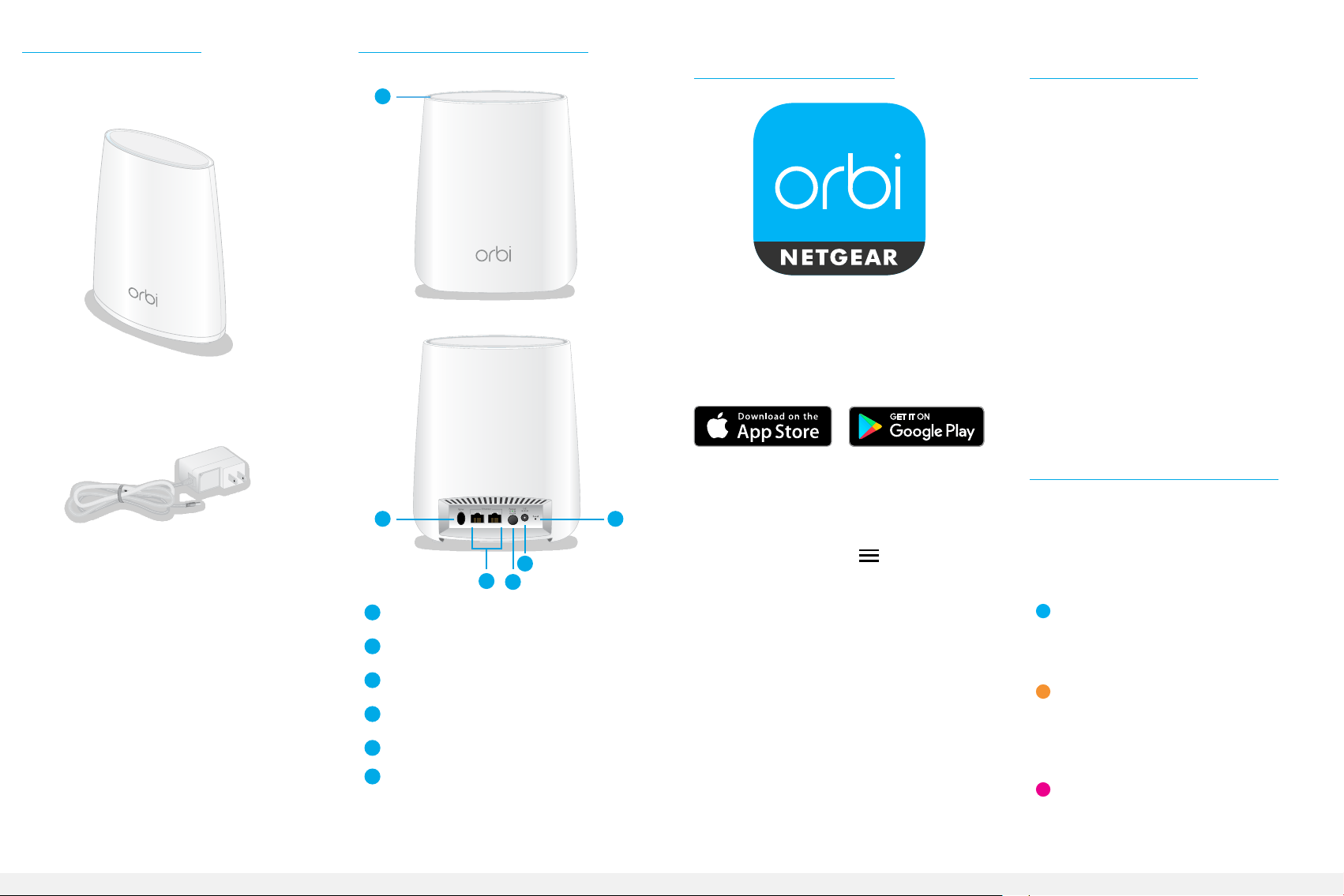
Package Contents
Orbi Satellite Overview
1
Ring LED (not shown in image)
2
Sync button (also used for WPS
connection)
3
Ethernet ports
4
Power On/Off button and
Power LED
5
Power connector
6
Reset button
Orbi satellite
Power adapter
(varies by region)
1
2
3
4
5
6