User Manual
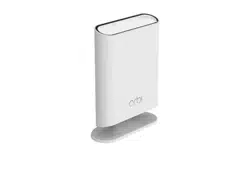
Orbi Outdoor Satellite
Model RBS50Y
NETGEAR, Inc.
350 E. Plumeria DriveJuly 2020
San Jose, CA 95134, USA202-11831-02

Support and Community
Visit netgear.com/support to get your questions answered and access the latest
downloads.
You can also check out our NETGEAR Community for helpful advice at
community.netgear.com.
Regulatory and Legal
Si ce produit est vendu au Canada, vous pouvez accéder à ce document en français
canadien à https://www.netgear.com/support/download/.
(If this product is sold in Canada, you can access this document in Canadian French at
https://www.netgear.com/support/download/.)
For regulatory compliance information including the EU Declaration of Conformity, visit
https://www.netgear.com/about/regulatory/.
See the regulatory compliance document before connecting the power supply.
For NETGEAR’s Privacy Policy, visit https://www.netgear.com/about/privacy-policy.
By using this device, you are agreeing to NETGEAR’s Terms and Conditions at
https://www.netgear.com/about/terms-and-conditions. If you do not agree, return the
device to your place of purchase within your return period.
Trademarks
©NETGEAR, Inc. NETGEAR and the NETGEAR Logo are trademarks of NETGEAR, Inc.
Any non-NETGEAR trademarks are used for reference purposes only.
2
Orbi Outdoor Satellite

Contents
Chapter 1 Overview
Supported Orbi Routers......................................................................6
Package Contents.................................................................................6
Hardware Overview..............................................................................7
Power LED..............................................................................................8
Bottom Light LED..................................................................................8
Wall-Mount or Attach to Stand............................................................9
Wall-Mount Your Satellite...............................................................9
Attach the Satellite to the Stand...................................................11
Lock the Satellite.................................................................................12
Lock the Satellite to the Wall-Mount Bracket.............................12
Lock the Satellite to the Stand......................................................13
Label.....................................................................................................14
Place Your Satellite.............................................................................14
Sync Your Orbi Outdoor Satellite.....................................................15
Sync Your Satellite Using the Sync Button..................................15
Sync Your Satellite Using the Router Web Interface.................16
Download the NETGEAR Orbi App.................................................17
Chapter 2 Manage Your Orbi Outdoor Satellite
Update the Router and Satellite Firmware......................................20
Check for firmware updates.........................................................20
Manually update firmware............................................................21
Manually update satellite firmware..............................................21
Manually update router firmware................................................22
Enable the Sync button......................................................................23
Turn the satellite LED lighting on or off...........................................23
Set LED lighting brightness...............................................................24
Schedule when to turn on LED lighting...........................................25
View Satellite Information..................................................................26
View satellite status............................................................................27
Chapter 3 Troubleshooting
The Router and Satellite Do Not Sync..............................................30
Cannot Log In to the Router..............................................................31
3

1
Overview
This manual covers how to set up your Orbi Outdoor Satellite and configure its settings
from the Orbi router web interface. For information about how to configure your Orbi
router’s settings, see the user manual for your Orbi router. You can view your router’s
manual at https://www.netgear.com/support/download/default.aspx.
This chapter contains the following sections:
• Supported Orbi Routers
• Package Contents
• Hardware Overview
• Power LED
• Bottom Light LED
• Wall-Mount or Attach to Stand
• Lock the Satellite
• Label
• Place Your Satellite
• Sync Your Orbi Outdoor Satellite
• Download the NETGEAR Orbi App
For more information about the topics covered in this manual, visit the support website
at support.netgear.com.
5
Supported Orbi Routers
To add the Orbi Outdoor Satellite to your WiFi network, you must own an Orbi router.
The Orbi Outdoor Satellite is compatible with residential and business Orbi AC routers.
Note: The Orbi Outdoor Satellite is not compatible with Orbi WiFi 6 models. Visit
netgear.com/support for more information about which Orbi models your Orbi Outdoor
Satellite is compatible with.
Package Contents
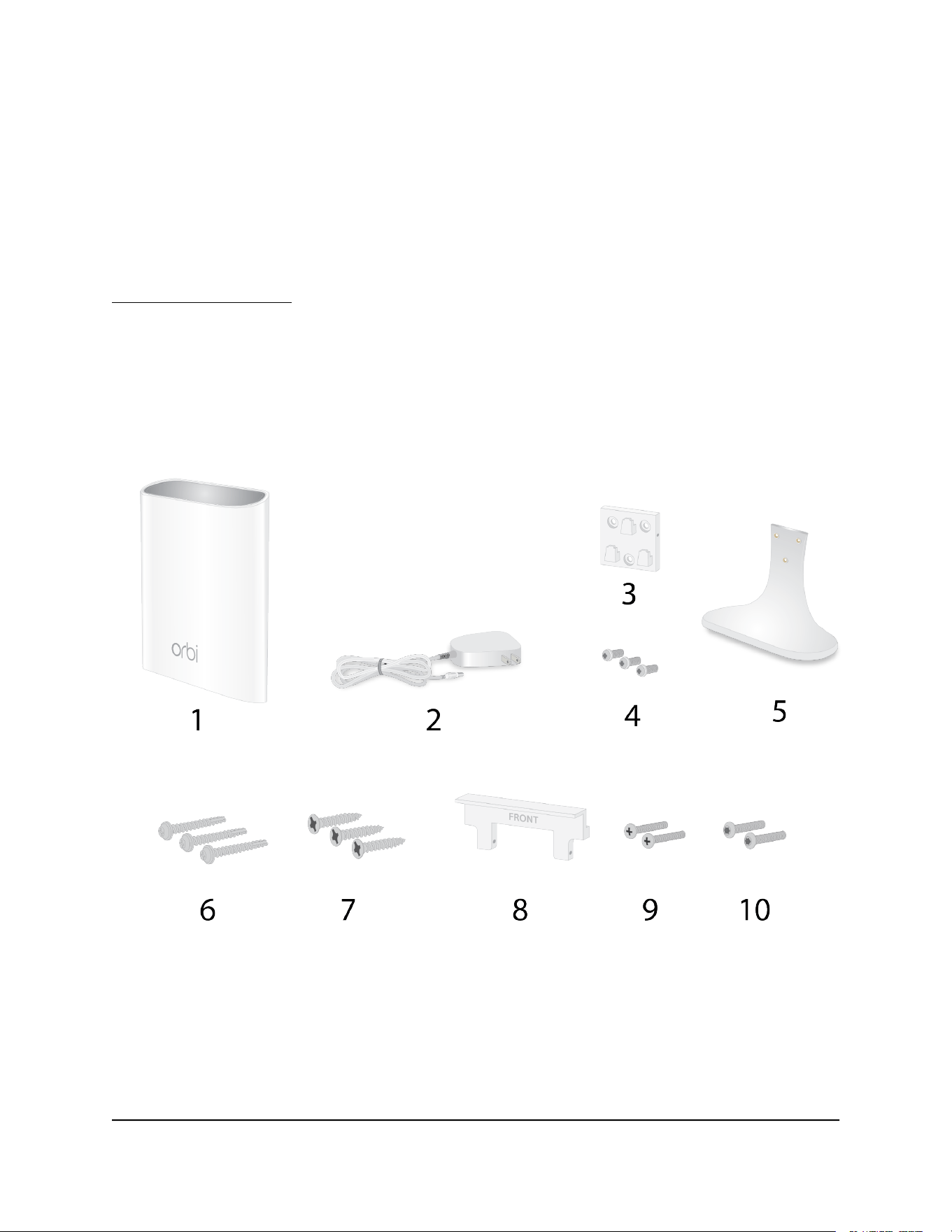
Your package contains the following items.
Figure 1. Package contents
1. Orbi Outdoor Satellite (Model RBS50Y)
2. Power adapter (varies by region)
3. Wall-mount bracket
4. Machine screws
User Manual6Overview
Orbi Outdoor Satellite
5. Stand
6. Stucco or concrete screws
7. Wood screws
8. Wall-mount bracket lock
9. Phillips screws
10. Torx screw
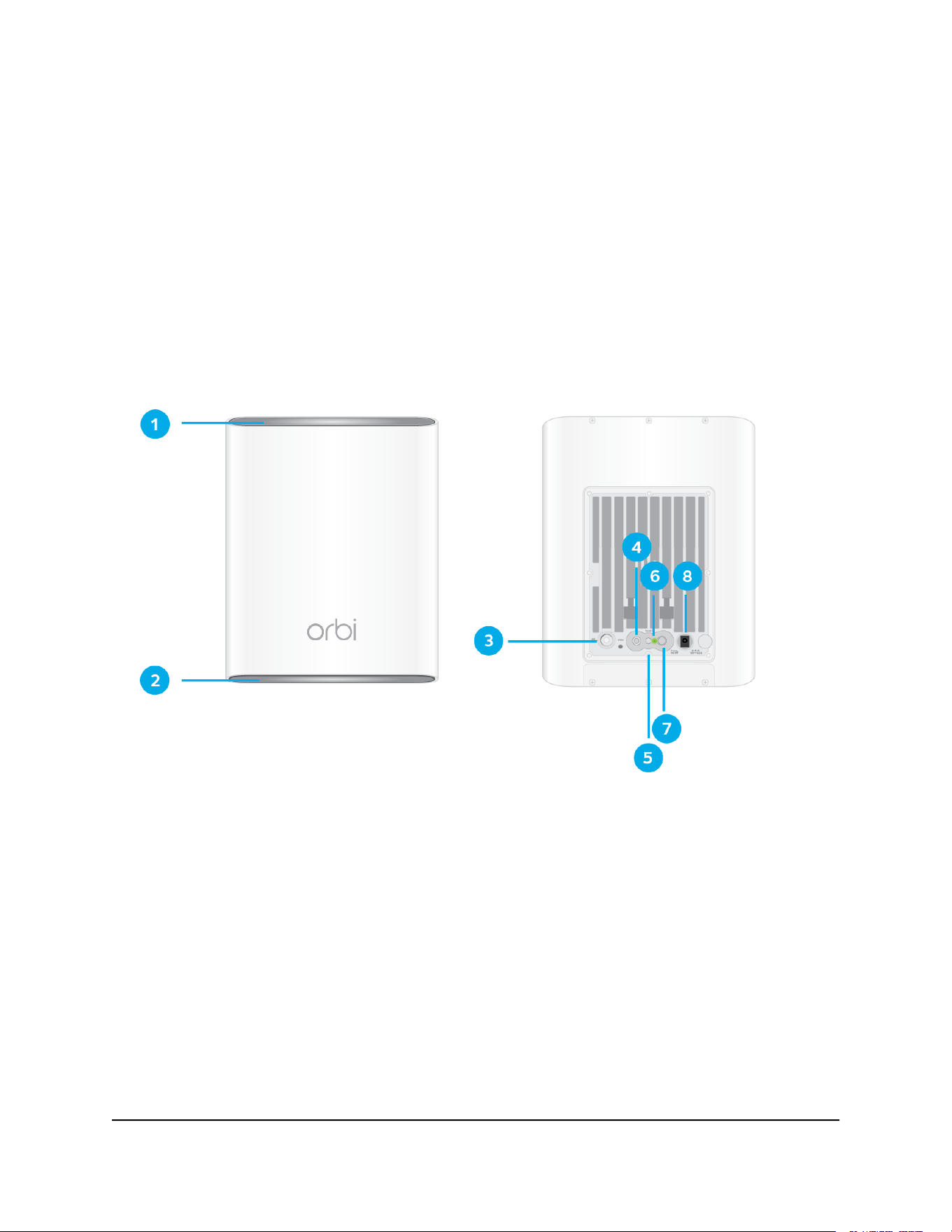
Hardware Overview
Figure 2. Front and back views
1. Top Light LED
2. Bottom Light LED
3. LED On/Off button
4. Sync button (also used for WPS connection)
5. Reset button
6. Power LED
7. Power On/Off button
8. Power connector
User Manual7Overview
Orbi Outdoor Satellite
Power LED
The Power LED is located above the Power On/Off button on the rear panel.
The following is the LED behavior for the Power LED:
•
Solid green. Power is on.
•
Solid amber. The satellite is booting.
•
Blinking amber. The satellite is resetting to factory default settings.
•
Blinking red. The firmware is corrupted.
•
Off. Power is not supplied.
Bottom Light LED
You can use the top and bottom Light LEDs to provide light to your outdoor area. You
can also use the bottom Light LED behavior to help you determine the status of your
satellite. The top Light LED only provides light.
The following table describes the bottom Light LED behavior.
Table 1. Bottom Light LED behavior
Bottom Light LED behaviorColor
The satellite is booting.Pulsing white
The satellite is ready to sync with the Orbi router.Solid white
The satellite is trying to sync with the Orbi router. The
LED might pulse white for about six minutes.
After the LED pluses white, it lights blue, amber, or
magenta. See the next table for more information.
Pulsing white
(Note that the bottom Light LED pulses white again after
the Sync button is pressed.)
The satellite is warming up because its temperature
is less than 41°F (5°C). This might take about 15
minutes if the surrounding temperature is less than
4°F (–20°C).
Pulsing amber
After the Sync button is pressed, the bottom Light LED pulses white. Then the bottom
Light LED lights one of the following colors for about 3 minutes and then turns off:
User Manual8Overview
Orbi Outdoor Satellite
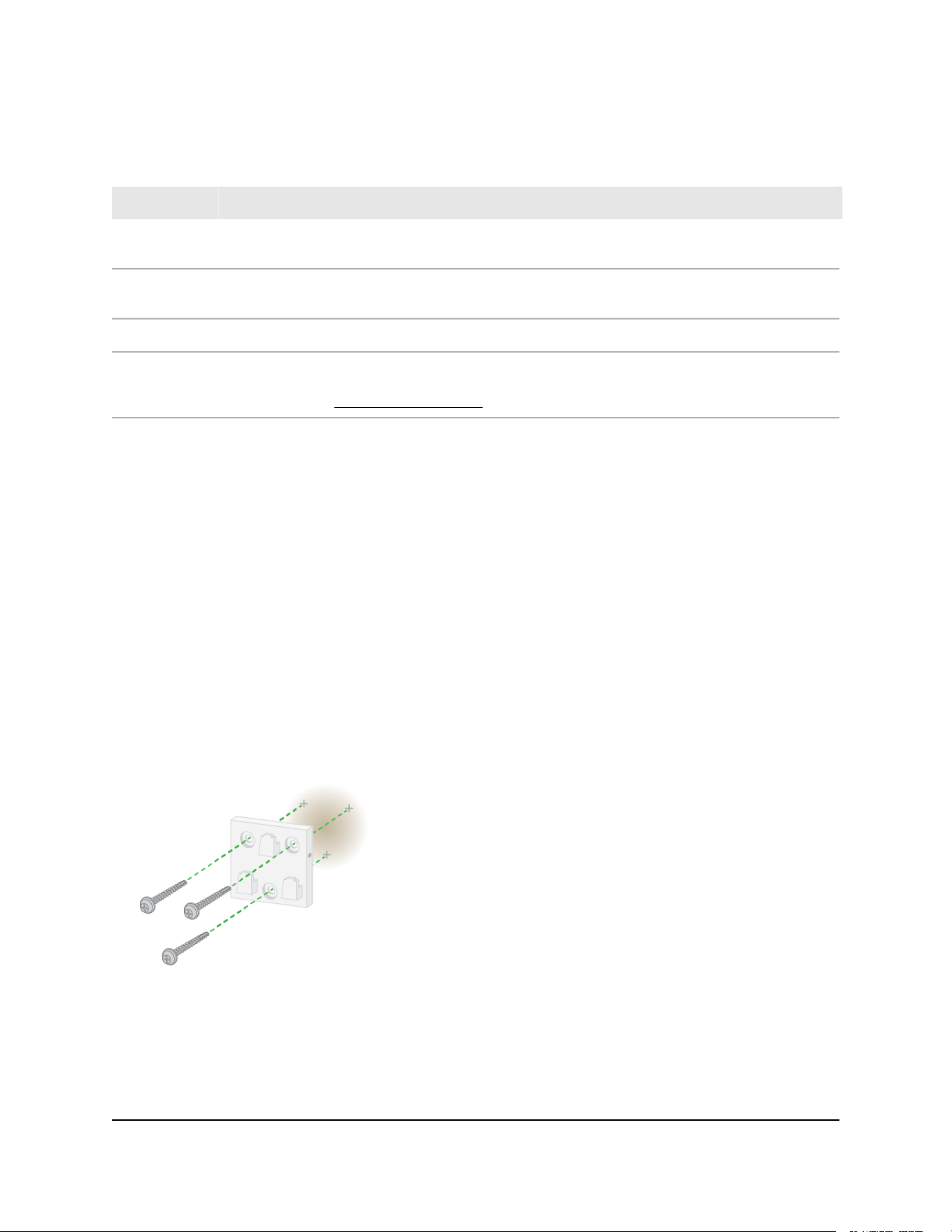
Table 2. Sync colors
LED BehaviorColor
The Orbi router and satellite successfully synced, and the connection between the router and
satellite is good.
Blue
The Orbi router and satellite successfully synced, and the connection between the router and
satellite is fair. Consider moving the satellite closer to the router.
Amber
The Orbi router and satellite failed to sync. Move the satellite closer to the router and try again.Magenta
If the bottom Light LED pulses magenta for about 30 seconds, the satellite’s Sync button is
disabled. Log in to the router, enable the Sync button, and repeat the sync process. For more
information, see Enable the Sync button on page 23.
Pulsing
magenta
Wall-Mount or Attach to Stand
You can wall-mount your satellite or attach it to the stand that came with your package.
Wall-Mount Your Satellite
To wall-mount your satellite:
1. Use the wall-mount bracket as a template to mark three holes on the wall.
2. Drill holes where you marked on the wall using a 5/32-inch drill bit
3. Place the wall-mount bracket where you drilled the holes and secure the bracket to
the wall using the stucco or concrete screws or the wood screws.
User Manual9Overview
Orbi Outdoor Satellite
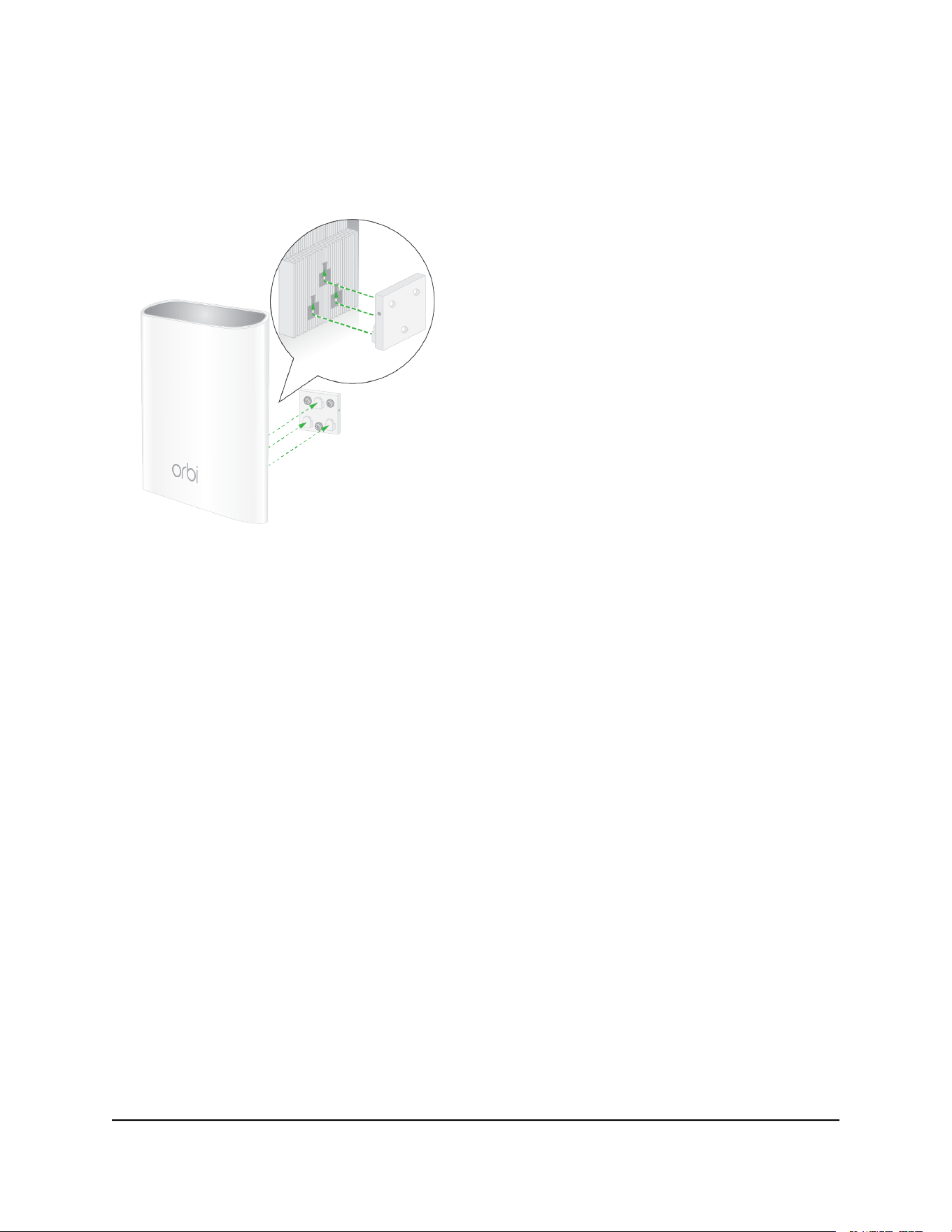
4. Slide the satellite onto the wall-mount bracket.
User Manual10Overview
Orbi Outdoor Satellite
Attach the Satellite to the Stand
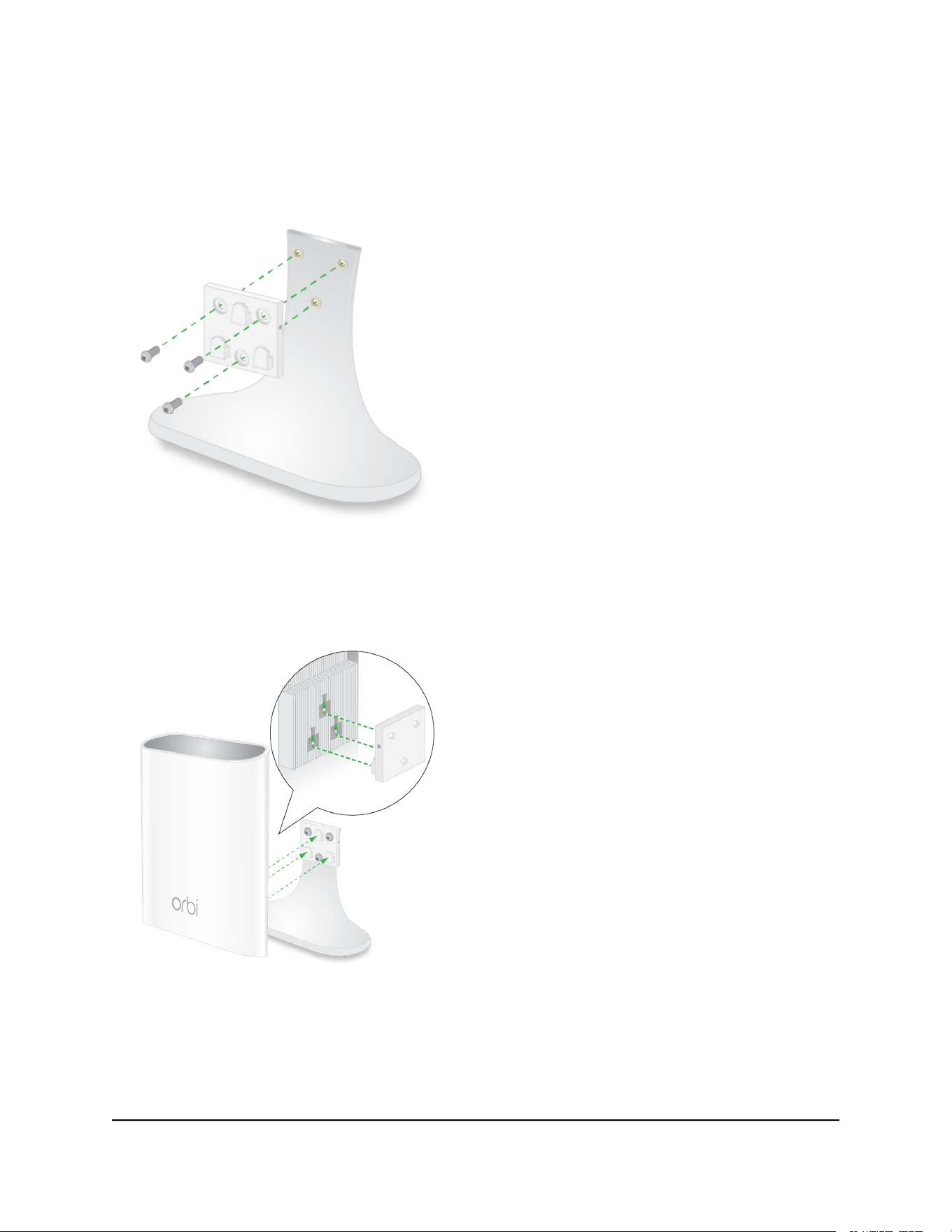
To attach the satellite to the stand:
1. Attach the wall-mount bracket to the stand using the machine screws.
2. Slide the Orbi satellite onto the wall-mount bracket.
User Manual11Overview
Orbi Outdoor Satellite
Lock the Satellite
After you wall-mount your satellite or attach it to the stand, you can lock your satellite
to the wall-mount bracket or stand.
Lock the Satellite to the Wall-Mount Bracket
After you wall-mount your satellite, you can lock your satellite to the wall-mount bracket.
For more information about how to wall-mount your satellite, see Wall-Mount Your
Satellite on page 9.
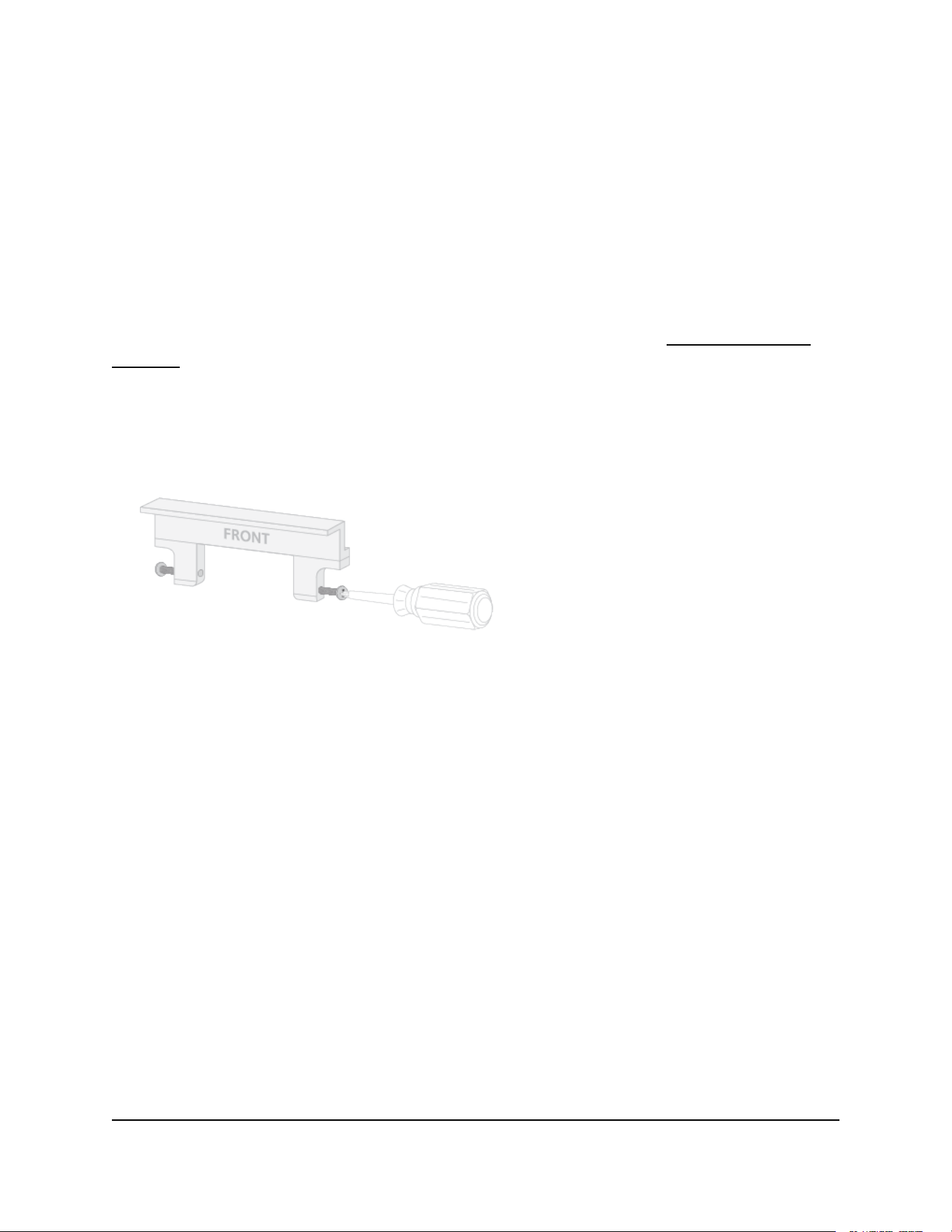
To lock your satellite to the wall-mount bracket:
1. Insert the Phillips screws or torx screws that came with your package into the
wall-mount bracket lock.
The screws must be flush with the lock.
2.
Place the lock on top of the wall-mount bracket.
User Manual12Overview
Orbi Outdoor Satellite
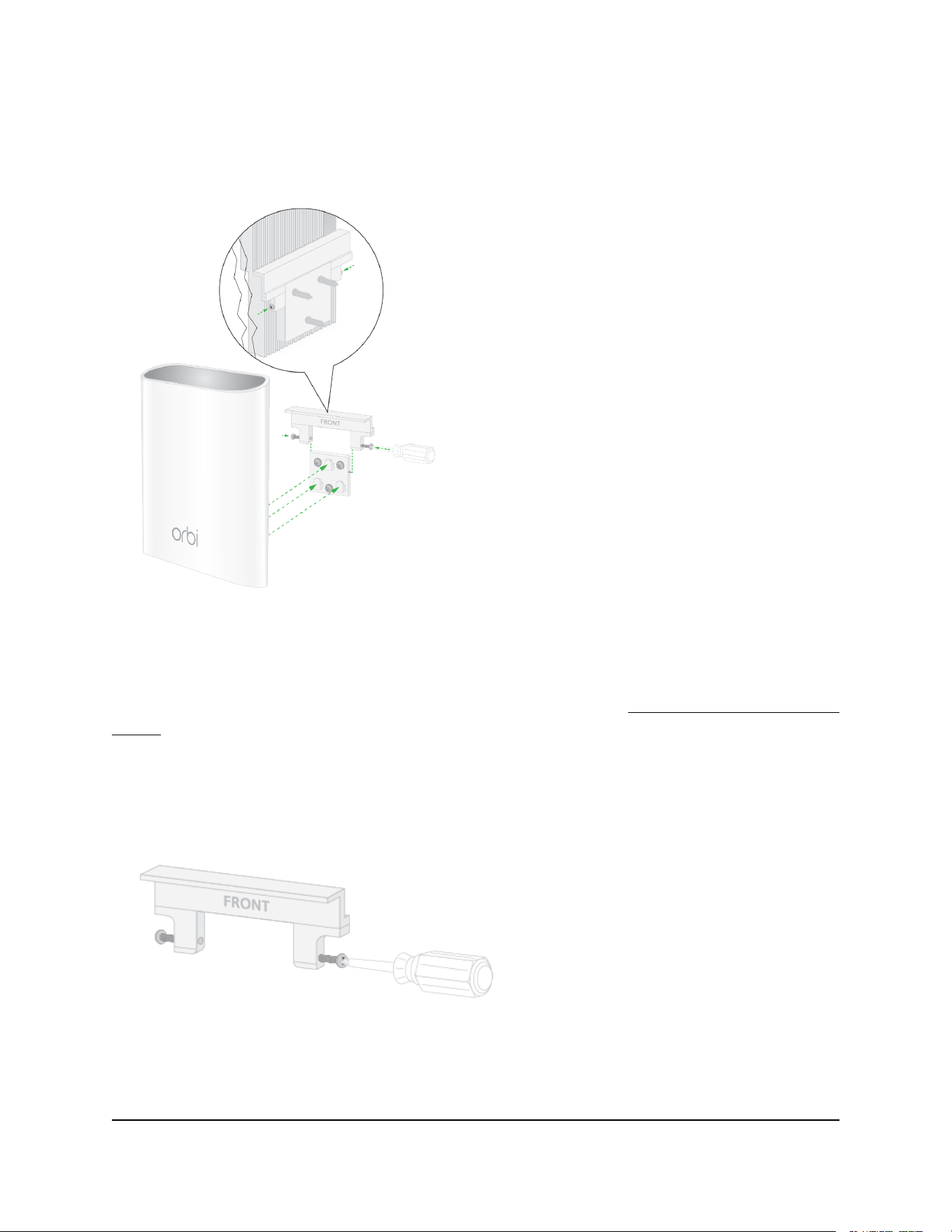
3. Tighten the screws to secure the lock to the bracket.
Lock the Satellite to the Stand
After you attach the satellite to the stand, you can lock your satellite to the stand. For
more information about how to wall-mount your satellite, see Attach the Satellite to the
Stand on page 11.
To lock your satellite to the stand:
1. Insert the Phillips screws or torx screws that came with your package into the
wall-mount bracket lock.
The screws must be flush with the lock.
2.
Place the lock on top of the wall-mount bracket.
User Manual13Overview
Orbi Outdoor Satellite
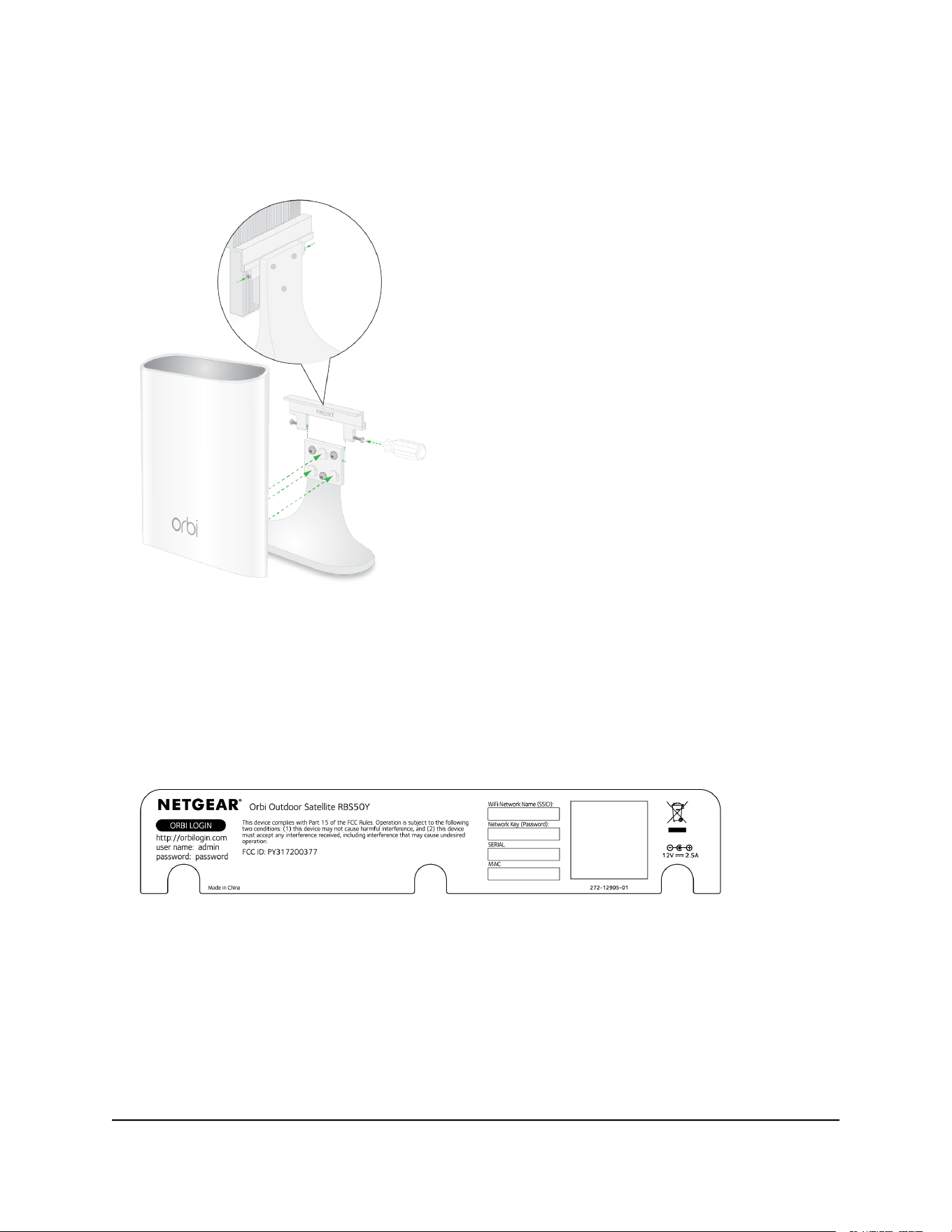
3. Tighten the screws to secure the lock to the bracket.
Label
The satellite label shows the WiFi network name (SSID), network key (password), the
satellite’s serial number, and the satellite’s MAC address. The label can be found on the
satellite. The following is an example of what the label looks like:
Figure 3. Satellite label
Place Your Satellite
The first time you set up your satellite, we recommend that you set it up indoors near
your Orbi router. After your router and satellite are synced, you can place your satellite
outdoors.
User Manual14Overview
Orbi Outdoor Satellite

Note: Your satellite’s Ingress Protection (IP) rating is IP66. When placing your satellite
outdoors, do not place your satellite in an area that could expose your satellite to harsh
weather and environmental conditions. The recommend temperature range for your
satellite is 4°F to 122°F (-20°C to +50°C).
Sync Your Orbi Outdoor Satellite
Use the Sync button on your Orbi Outdoor Satellite to sync your satellite with your
router. You can also log in to your Orbi router and use the router web interface to sync
your satellite.
Sync Your Satellite Using the Sync Button
After your satellite syncs with your router, the satellite’s Sync button is disabled for
security reasons. If you press the Sync button and the satellite’s bottom Light LED pulses
magenta, this LED behavior indicates that the Sync button is disabled. To enable the
Sync button, log in to the router and go to the Attached Devices page. For more
information, see Enable the Sync button on page 23.
To sync your satellite using the Sync button:
1. Place your satellite in an area near your Orbi router.
For more information, see Place Your Satellite on page 14.
2. Connect your satellite to a power source.
The Power LED on the back of the Orbi lights. If the Power LED does not light, press
the Power On/Off button.
3.
Wait for the bottom Light LED to light white.
The following is the LED behavior during booting:
•
Pulsing white. The satellite is booting.
•
Solid white. The satellite finished booting and is ready to sync with your router.
4.
Press the Sync button on the back of your satellite, and within two minutes, press
the Sync button on the back of your Orbi router.
5.
Wait for the satellite to sync with the router.
The bottom Light LED on the satellite lights white while it attempts to sync with your
Orbi router. It might take about six minutes for your satellite to sync.
User Manual15Overview
Orbi Outdoor Satellite

After the bottom Light LED lights white, it lights one of the following colors for about
three minutes and then turns off:
•
Blue. The Orbi router and satellite successfully synced, and the connection
between the router and satellite is good.
•
Amber. The Orbi router and satellite successfully synced, and the connection
between the router and satellite is fair. Consider moving the Orbi satellite closer
to the Orbi router.
•
Magenta. The Orbi router and satellite failed to sync. Move the satellite closer
to the router and try again.
6. Move your satellite outdoors and connect it to a power source.
Note: The recommend temperature range for your satellite is 4°F to 122°F (–20°C
to +50°C).
7. Make sure that the bottom Light LED lights blue to indicate a good connection to
the router.
Sync Your Satellite Using the Router Web Interface
You can use the router web interface to add a satellite to your Orbi network.
To add a satellite to your Orbi network using the router web interface:
1.
Launch a web browser from a computer or mobile device that is connected to your
Orbi network.
2. Enter orbilogin.com.
A login window opens.
3. Enter the router admin user name and password.
The user name is admin. The default password is password. The user name and
password are case-sensitive.
The BASIC Home page displays.
4. Select Add Orbi Satellite.
The Place Your Satellite page displays.
5.
Follow the instructions for where to place your satellite in your house.
6. Connect the satellite to a power source.
7.
If the Power LED on the back of the satellite does not light, press the Power On/Off
button.
User Manual16Overview
Orbi Outdoor Satellite

8. Click the NEXT button.
9.
Wait about two minutes for the satellite’s bottom Light LED to light solid white.
10. Press the Sync button on the satellite.
11.
Wait for the bottom Light LED to light white.
The following is the LED behavior during booting:
•
Pulsing white. The satellite is booting.
•
Solid white. The satellite finished booting and is ready to sync with your Orbi
router.
12.
Click the SYNC button in the router web interface.
13.
Wait for the satellite to sync with the router.
The bottom Light LED on the satellite lights white while it attempts to sync with your
Orbi router. It might take about six minutes for your satellite to sync.
After the bottom Light LED lights white, it lights one of the following colors for about
three minutes and then turns off:
•
Blue. The Orbi router and satellite successfully synced, and the connection
between the router and satellite is good.
•
Amber. The Orbi router and satellite successfully synced, and the connection
between the router and satellite is fair. Consider moving the Orbi satellite closer
to the Orbi router.
•
Magenta. The Orbi router and satellite failed to sync. Move the satellite closer
to the router and try again.
Download the NETGEAR Orbi App
You can use the NETGEAR Orbi app to set up your Orbi network.
To find the app, scan a QR code or search for NETGEAR Orbi in the Apple App Store
or Google Play Store. Launch the NETGEAR Orbi app on your mobile device and follow
the prompts.
User Manual17Overview
Orbi Outdoor Satellite
Figure 4. NETGEAR Orbi app icon
Figure 5. NETGEAR Orbi app download QR codes
User Manual18Overview
Orbi Outdoor Satellite

2
Manage Your Orbi Outdoor
Satellite
This chapter describes how to manage your satellite’s settings from your Orbi router
web interface.
The chapter contains the following sections:
• Update the Router and Satellite Firmware
• Enable the Sync button
• Turn the satellite LED lighting on or off
• Set LED lighting brightness
• Schedule when to turn on LED lighting
• View Satellite Information
• View satellite status
19

Update the Router and Satellite Firmware
To manage your satellite using the router web interface, make sure that your router and
satellite are updated with the latest firmware. You can use the router web interface to
check if new firmware is available and update the firmware for your router and satellite,
or you can manually update the firmware for your router and satellite.
Check for firmware updates
To check for new firmware and update your router and satellite:
1.
Launch a web browser from a computer or mobile device that is connected to your
Orbi network.
2. Enter orbilogin.com.
A login window opens.
3. Enter the router admin user name and password.
The user name is admin. The password is the one that you specified the first time
that you logged in. The user name and password are case-sensitive.
The BASIC Home page displays.
4. Select ADVANCED > Administration > Firmware Update > Online Update.
The Firmware Update page displays.
5. Click the Check button.
The router checks to see if new firmware is available for the router and satellite.
6.
If new firmware is available, click the Update All button.
The router locates and downloads the firmware for the router and satellite and begins
the update.
Note: To avoid the risk of corrupting the firmware, do not interrupt the upgrade.
For example, do not close the browser, click a link, or load a new page. Do not turn
off the router or satellite.
When the upload is complete, your router and satellite restart. The update process
typically takes about one minute. Read the new firmware release notes to find out if
you must reconfigure the router after updating.
User Manual20Manage Your Orbi Outdoor
Satellite
Orbi Outdoor Satellite

Manually update firmware
If a satellite is connected to your router, you can log in to the router to manually upload
the firmware on your satellite.
WARNING: We recommend that you always update the firmware on your satellite first,
and then update your router. Also, do not update the firmware on your router and
satellite at the same time, and do not update more than one Orbi device (router or
satellite) at a time. If you need to update more than one Orbi device, wait for the first
Orbi device to finish updating before updating your next Orbi device.
To manually update the firmware on your Orbi router and satellite, follow these
high level steps:
1.
Visit netgear.com/support and download the firmware for both your Orbi router and
satellite.
2.
Update the firmware on your Orbi satellite.
For more information, see Manually update satellite firmware on page 21.
3.
Update the firmware on your Orbi router.
For more information, see Manually update router firmware on page 22.
Manually update satellite firmware We recommend that you update your
satellite’s firmware before you update the router’s firmware.
To manually update your satellite’s firmware:
1.
Launch a web browser from a computer or mobile device that is connected to your
Orbi network.
2. Enter orbilogin.com.
A login window opens.
3. Enter the router admin user name and password.
The user name is admin. The password is the one that you specified the first time
that you logged in. The user name and password are case-sensitive.
The BASIC Home page displays.
4. Select ADVANCED > Administration > Firmware Update > Manual Update.
The Firmware Update page displays.
5. Select the check box next to your satellite’s model name.
If you have more than one satellite, only update one satellite at a time. You must wait
for the first satellite to finish updating before updating the next satellite.
6. Click the Update button.
User Manual21Manage Your Orbi Outdoor
Satellite
Orbi Outdoor Satellite

The Orbi satellite Firmware Update window opens.
7.
If the browser asks you for the admin password, enter the same password that you
entered for the router.
8. Click the BROWSE button.
9.
Locate and select the satellite firmware file that you downloaded.
The firmware file name ends in .img or .chk.
10. Click the UPLOAD button.
It takes a few minutes to complete the process.
11.
After Orbi satellite finishes updating, select Status and double-check the firmware
version on the Status page.
The firmware on your Orbi satellite is updated.
Manually update router firmware We recommend that you update your router’s
firmware after you update the satellite’s firmware.
WARNING: Make sure that your satellite completes its firmware update before you
update your router’s firmware.
To manually update your router’s firmware:
1.
Launch a web browser from a computer or mobile device that is connected to your
Orbi network.
2. Enter orbilogin.com.
A login window opens.
3. Enter the admin user name and password.
The user name is admin. The password is the one that you specified the first time
that you logged in. The user name and password are case-sensitive.
The BASIC Home page displays.
4. Select ADVANCED > Administration > Firmware Update > Manual Update.
The Firmware Update page displays.
5. Click the Browse button.
6.
Locate and select the router firmware file you downloaded.
The firmware file name ends in .img.
7. Click the Upload button.
The firmware is updated.
User Manual22Manage Your Orbi Outdoor
Satellite
Orbi Outdoor Satellite

Enable the Sync button
After your satellite syncs with your router, the satellite’s Sync button is disabled for
security reasons. If you press the Sync button and the satellite’s bottom Light LED pulses
magenta, this LED behavior indicates that the Sync button is disabled. To enable the
Sync button, log in to the router and go to the Attached Devices page.
After syncing your satellite and placing your satellite outdoors, we recommend that you
disable the Sync button to prevent an unauthorized user from connecting to your
satellite.
To enable your satellite’s Sync button using the router web interface:
1.
Launch a web browser from a computer or mobile device that is connected to your
Orbi network.
2. Enter orbilogin.com.
A login window opens.
3. Enter the router admin user name and password.
The user name is admin. The default password is password. The user name and
password are case-sensitive.
The BASIC Home page displays.
4. Select Attached Devices.
The Attached Devices page displays.
5. Select your satellite.
The Edit Device page displays.
6. In the Sync Button section, click the Disabled button.
The Sync button is enabled. You can now use the Sync button to sync your satellite
to your router.
Turn the satellite LED lighting on or off
You can use the satellite's top and bottom Light LEDs to provide light to your outdoor
area.
User Manual23Manage Your Orbi Outdoor
Satellite
Orbi Outdoor Satellite

To turn the top and bottom LED lighting on or off:
1.
Launch a web browser from a computer or mobile device that is connected to your
Orbi network.
2. Enter orbilogin.com.
A login window opens.
3. Enter the router admin user name and password.
The user name is admin. The default password is password. The user name and
password are case-sensitive.
The BASIC Home page displays.
4. Select Attached Devices.
The Attached Devices page displays.
5. Select your satellite.
The Edit Device page displays.
6.
To turn the LED lighting on, in the LED On/Off section, click the Off button.
The top and bottom Light LEDs turn on.
7.
To turn the LED lighting off, in the LED On/Off section, click the On button.
The top and bottom Light LEDs turn off.
8. Click the APPLY button.
Your settings are saved.
Set LED lighting brightness
After you turn on the satellite’s LED lighting, you can set its brightness percentage.
To set the satellite’s LED lighting brightness:
1.
Launch a web browser from a computer or mobile device that is connected to your
Orbi network.
2. Enter orbilogin.com.
A login window opens.
3. Enter the router admin user name and password.
The user name is admin. The password is the one that you specified the first time
that you logged in. The user name and password are case-sensitive.
The BASIC Home page displays.
User Manual24Manage Your Orbi Outdoor
Satellite
Orbi Outdoor Satellite

4. Select Attached Devices.
The Attached Devices page displays.
5. Select your satellite.
The Edit Device page displays.
6.
Make sure that the LED On/Off slider is set to ON.
7.
If the LED lighting is turned off, click the LED On/Off slider to turn the LED on.
The top and bottom Light LEDs turn on.
8.
Select an LED lighting brightness percentage from the LED Lighting Brightness
menu.
9. Click the APPLY button.
Your settings are saved.
Schedule when to turn on LED lighting
You can schedule when to turn on the satellite’s LED lighting:
To schedule the LED lighting:
1.
Launch a web browser from a computer or mobile device that is connected to your
Orbi network.
2. Enter orbilogin.com.
A login window opens.
3. Enter the router admin user name and password.
The user name is admin. The password is the one that you specified the first time
that you logged in. The user name and password are case-sensitive.
The BASIC Home page displays.
4. Select Attached Devices.
The Attached Devices page displays.
5. Select your satellite.
The Edit Device page displays.
6.
Make sure that the LED On/Off slider is set to ON.
7.
If the LED lighting is turned off, click the LED On/Off slider to turn the LED on.
The top and bottom Light LEDs turn on.
User Manual25Manage Your Orbi Outdoor
Satellite
Orbi Outdoor Satellite

8. Select the Schedule LED Lighting check box.
9. Click the ADD A NEW PERIOD button.
The LED Lighting Schedule page displays.
10.
Specify the lighting schedule settings:
•
Start. Select a start time from the menu.
•
End. Select an end time from the menu.
•
Recurrence Pattern. Select if you want the Light LEDs to turn on daily of select
specific days.
11. Click the APPLY button.
The Edit Device page displays. The schedule is added.
12. Click the APPLY button.
Your settings are saved.
View Satellite Information
You can view information about your satellite from the Attached Devices page in the
router web interface.
To view information about your satellite:
1.
Launch a web browser from a computer or mobile device that is connected to your
Orbi network.
2. Enter orbilogin.com.
A login window opens.
3. Enter the router admin user name and password.
The user name is admin. The password is the one that you specified the first time
that you logged in. The user name and password are case-sensitive.
The BASIC Home page displays.
4. Select Attached Devices.
User Manual26Manage Your Orbi Outdoor
Satellite
Orbi Outdoor Satellite

The Attached Devices page displays the following information in the Connected
Satellites section:
•
Device Name. This section displays the satellite model, name, LED status, Sync
button status, and IP address.
•
IP Address. This section displays the satellite IP address. The satellite’s IP address
can change because the router assigns an IP address to each satellite when it
joins the network.
•
MAC Address. This section displays the satellite MAC address. The unique MAC
address for each satellite does not change.
•
Connection Type. This section displays how the satellite is connected to the Orbi
network through a wired Ethernet connection or 2G or 5G WiFi connection.
•
Connected Orbi. This section displays the Orbi router or satellite that the satellite
is connected to. The Orbi router’s or satellite’s MAC address also displays.
•
Backhaul Status. This section displays the backhaul connection status between
the satellite and router or another satellite.
5.
To update this page, click the Refresh button.
View satellite status
To view your satellite’s status, it must be connected to your Orbi network.
To view your satellite’s status:
1.
Launch a web browser from a computer or mobile device that is connected to your
Orbi network.
2. Enter orbilogin.com.
A login window opens.
3. Enter the router admin user name and password.
The user name is admin. The password is the one that you specified the first time
that you logged in. The user name and password are case-sensitive.
The BASIC Home page displays.
4. Select Attached Devices.
The Attached Devices page displays.
5.
In the Connected Satellites section, find your satellite’s IP address.
6. Enter your satellite’s IP address in your web browser’s address bar.
A login window opens.
User Manual27Manage Your Orbi Outdoor
Satellite
Orbi Outdoor Satellite

7.
Enter the same admin user name and password that you entered for the router.
The satellite’s status displays.
User Manual28Manage Your Orbi Outdoor
Satellite
Orbi Outdoor Satellite

3
Troubleshooting
This chapter provides information to help you diagnose and solve problems you might
experience with your Orbi Outdoor satellite. If you do not find the solution here, check
the NETGEAR support site at support.netgear.com for product and contact information.
If you need help with your Orbi router, see your Orbi router's user manual. You can view
your router’s manual at https://www.netgear.com/support/download/default.aspx.
This chapter contains the following sections:
• The Router and Satellite Do Not Sync
• Cannot Log In to the Router
29

The Router and Satellite Do Not Sync
If you are experiencing difficulty syncing the router and the satellite, we recommend
that you move the satellite into the same room as the router during the sync. Then move
the satellite to a different location.
To sync the router and the satellite:
1. Place the satellite in the same room as the Orbi router.
Use this satellite location only during the sync process.
2. Connect the satellite to a power source.
3.
If the Power LED on the back of the satellite does not light, press the Power On/Off
button.
4.
Wait for the satellite’s bottom Light LED to light solid white.
5. Press the Sync button on the router and then within two minutes, press the Sync
button on the satellite.
The satellite’s bottom Light LED pulses white, then lights one of the following colors
for about three minutes, and then turns off:
•
Blue. The Orbi router and satellite successfully synced, and the connection
between the router and satellite is good.
•
Amber. The Orbi router and satellite successfully synced, and the connection
between the router and satellite is fair. Consider moving the Orbi satellite closer
to the Orbi router.
6. Move the satellite outdoors.
7. Connect the satellite to a power source.
8.
If the Power LED on the back of the satellite does not light, press the Power On/Off
button.
The satellite’s ring LED pulses white, then lights one of the following colors for about
three minutes and then turns off:
•
Blue. The Orbi router and satellite successfully synced, and the connection
between the router and satellite is good.
•
Amber. The Orbi router and satellite successfully synced, and the connection
between the router and satellite is fair. Consider moving the Orbi satellite closer
to the Orbi router.
•
Magenta. The Orbi router and satellite failed to sync. Move the satellite closer
to the router and try again.
User Manual30Troubleshooting
Orbi Outdoor Satellite

Cannot Log In to the Router
Make sure that your computer or mobile device is connected to the Orbi WiFi network.
If you do not want to use a WiFi connection, you can connect your computer to the Orbi
router with an Ethernet cable.
If you changed the admin password and you forgot what it is, see your Orbi router's
user manual for more information.
User Manual31Troubleshooting
Orbi Outdoor Satellite

Factory Settings
The following table shows the factory default settings for the Orbi Outdoor Satellite.
Table 3. Factory default settings for the satellite
Default SettingFeature
orbilogin.comUser login URLRouter login
adminUser name (case-sensitive)
passwordDefault login password
(case-sensitive)
Use default hardware addressWAN MAC addressInternet connection
1500WAN MTU size
AutoSensingPort speed
192.168.1.250LAN IPLocal network (LAN)
255.255.255.0Subnet mask
DisabledDHCP server
GMT for WW except NA and GR,
GMT+1 for GR, GMT-8 for NA
Time zone
DisabledTime zone adjusted for daylight
saving time
DisabledSNMP
Disabled (except traffic on port 80,
the HTTP port)
Inbound (communications coming
in from the Internet)
Firewall
Enabled (all)Outbound (communications going
out to the Internet)
DisabledSource MAC filtering
User Manual33Supplemental Information
Orbi Outdoor Satellite
Table 3. Factory default settings for the satellite (Continued)
Default SettingFeature
EnabledWiFi communicationWiFi
See satellite labelSSID name
WPA2-PSK (AES)Security
EnabledBroadcast SSID
Auto
1
Transmission speed
United States in the USCountry/region
2.4 GHz front and back haul: Auto
5 GHz front haul: Channel 48
5 GHz back haul: Channel 157
RF channel
1
Maximum wireless signal rate derived from IEEE Standard 802.11 specifications. Actual throughput can vary. Network
conditions and environmental factors, including volume of network traffic, building materials and construction, and
network overhead, lower actual data throughput rate.
Technical Specifications
The following table shows the technical specifications for the Orbi Outdoor Satellite.
Table 4. Orbi Outdoor Satellite specifications
DescriptionFeature
TCP/IP, RIP-1, RIP-2, DHCP, PPPoE, PPTP, Bigpond,
Dynamic DNS, UPnP, and SMB
Data and routing protocols
120V, 60 Hz, input
12V, 2.5A DC, output
Power adapter
8.3 x 2.7 x 10.6 in. (210.82 x 68.58 x 269.24 mm)Dimensions
3.06 lb (1.387 kg)Weight
4°F to 122°F (–20°C to +50°C)Operating temperature
90% maximum relative humidity, noncondensingOperating humidity
IP66IP rating
User Manual34Supplemental Information
Orbi Outdoor Satellite
Table 4. Orbi Outdoor Satellite specifications (Continued)
DescriptionFeature
FCC Part 15 Class B
VCCI Class B
EN 55 022 (CISPR 22), Class B C-Tick N10947
Electromagnetic emissions
Maximum wireless signal rate complies with the IEEE
802.11 standard.
2
WiFi
2.4 GHz: Max. 400 Mbps
5 GHz Front haul: Max. 866 Mbps
5 GHz Back haul: Max. 1733 Mbps
Radio data rates
IEEE 802.11b/g/n 2.4 GHz-256 QAM support
IEEE 802.11a/n/ac 5 GHz-256 QAM support
Data encoding standards
Limited by the amount of WiFi network traffic generated
by each node (typically 50–70 nodes)
2.4 GHz: 127
5 GHz (front haul): 127
Maximum number of computers
per wireless network
2.4 GHz: 2.412–2.462 GHz
5 GHz:
•
5.18 GHz–5.24 GHz
•
5.745 GHz–5.825 GHz
Operating frequency range
WPA-PSK [TKIP], WPA2-PSK [AES]802.11 security
2
Maximum wireless signal rate derived from IEEE Standard 802.11 specifications. Actual throughput can vary. Network
conditions and environmental factors, including volume of network traffic, building materials and construction, and
network overhead, lower actual data throughput rate.
User Manual35Supplemental Information
Orbi Outdoor Satellite
