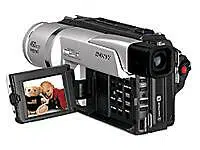
Model No. DCR-PC5 Model No. AC-
Serial No. Serial No.
Operating Instructions
Before operating the unit, please read this manual thoroughly,
and retain it for future reference.
Owner’s Record
The model and serial numbers are located on the bottom. Record the
serial number in the space provided below. Refer to these numbers
whenever you call upon your Sony dealer regarding this product.
3-062-114-11 (1)
©2000 Sony Corporation
DCR-PC5
Digital
Video Camera
Recorder
2
Welcome!
Congratulations on your purchase of this Sony Digital Handycam camcorder. With your
Digital Handycam, you can capture life’s precious moments with superior picture and sound
quality. Your Digital Handycam is loaded with advanced features, but at the same time it is
very easy to use. You will soon be producing home video that you can enjoy for years to
come.
WARNING
To prevent fire or shock hazard, do
not expose the unit to rain or
moisture.
For customers in the United
States and Canada
DISPOSAL OF LITHIUM ION BATTERY.
LITHIUM ION BATTERY.
DISPOSE OF PROPERLY.
You can return your unwanted lithium ion batteries
to your nearest Sony Service Center or Factory
Service Center.
Note: In some areas the disposal of lithium ion
batteries in household or business trash may
be prohibited.
For the Sony Service Center nearest you call
1-800-222-SONY (United States only)
For the Sony Factory Service Center nearest you call
416-499-SONY (Canada only)
Caution: Do not handle damaged or leaking lithium
ion battery.
For customers in the U.S.A.
If you have any questions about this product, you
may call:
Sony Customer Information Center 1-800-222-SONY
(7669) or
white to: Sony Customer Information Center 1 Sony
Drive, Mail Drop #T1-11, Park Ridge, NJ 07656
CAUTION
You are cautioned that any changes or modifications
not expressly approved in this manual could void
your authority to operate this equipment.
Declaration of Conformity
Trade Name: SONY
Model No.: DCR-PC5
Responsible Party: Sony Electronics lnc.
Address: 1 Sony Drive, Park Ridge,
NJ, 07656 USA
Telephone No.: 201-930-6972
This device complies with Part15 of the FCC
Rules. Operation is subject to the following two
conditions.: (1) This device may not cause
harmful interference, and (2) this device must
accept any interference received, including
interference that may cause undesired operation.
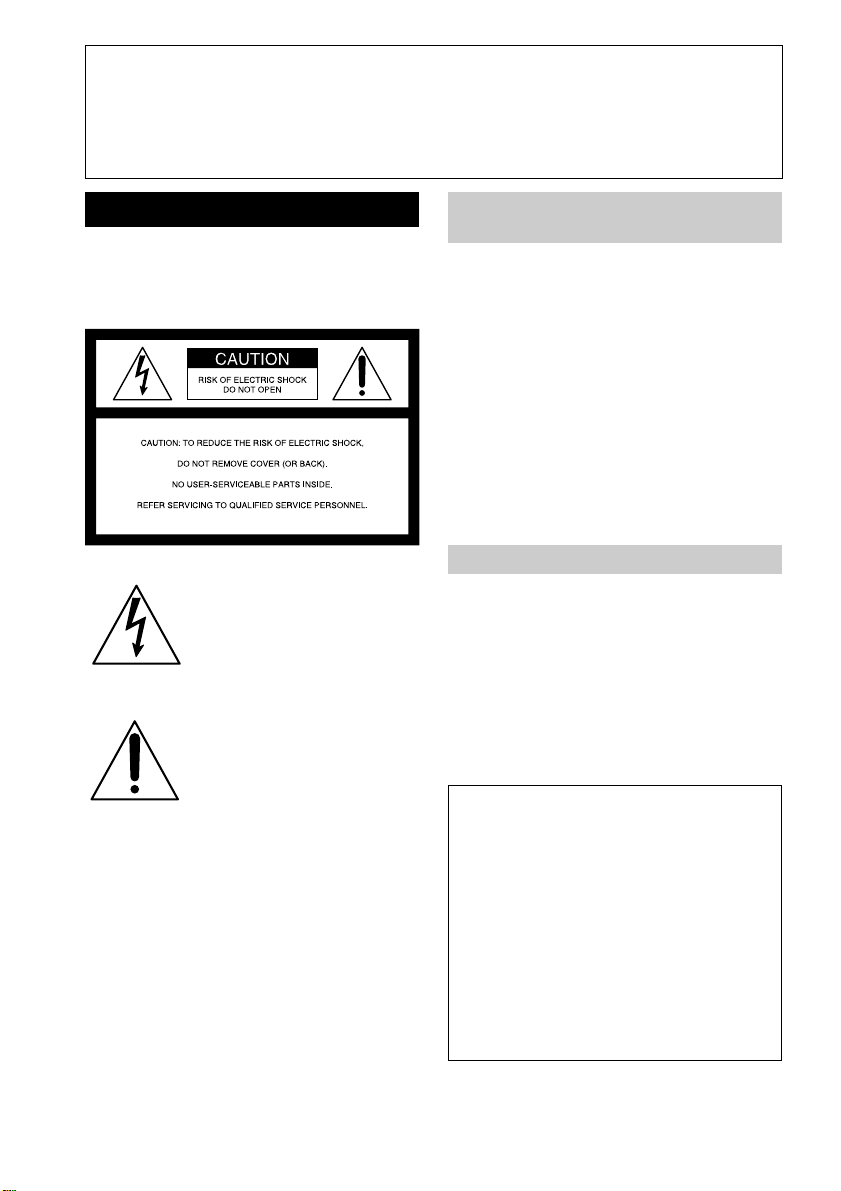
This symbol is intended to alert
the user to the presence of
uninsulated “dangerous voltage”
within the product’s enclosure
that may be of sufficient
magnitude to constitute a risk of
electric shock to persons.
This symbol is intended to alert
the user to the presence of
important operating and
maintenance (servicing)
instructions in the literature
accompanying the appliance.
Never expose the battery pack to temperatures
above 140°F (60°C ) such as in a car parked in
the sun or under direct sunlight.

3
Note:
This equipment has been tested and found to comply
with the limits for a Class B digital device, pursuant
to Part 15 of the FCC Rules. These limits are designed
to provide reasonable protection against harmful
interference in a residential installation. This
equipment generates, uses, and can radiate radio
frequency energy and, if not installed and used in
accordance with the instructions, may cause harmful
interference to radio communications. However,
there is no guarantee that interference will not occur
in a particular installation. If this equipment does
cause harmful interference to radio or television
reception, which can be determined by turning the
equipment off and on, the user is encouraged to try to
correct the interference by one or more of the
following measures:
— Reorient or relocate the receiving antenna.
— Increase the separation between the equipment
and receiver.
— Connect the equipment into an outlet on a circuit
different from that to which the receiver is
connected.
— Consult the dealer or an experienced radio/TV
technician for help.
“Memory Stick”
This device complies with Part15 of the FCC Rules.
Operation is subject to the following two conditions.:
(1) This device may not cause harmful interference,
and (2) this device must accept any interference
received, including interference that may cause
undesired operation.
For customers in CANADA
CAUTION
TO PREVENT ELECTRIC SHOCK, MATCH
WIDE BLADE OF PLUG TO WIDE SLOT,
FULLY INSERT.
“Memory Stick”
This Class B digital apparatus complies with
Canadian ICES-003.

4
Table of contents
Checking supplied accessories....................... 5
Quick Start Guide................................. 6
Getting started
Using this manual ............................................ 8
Step 1 Preparing the power supply ............ 10
Charging the battery pack ..................... 10
Installing the battery pack ..................... 12
Connecting to a wall outlet ................... 14
Step 2 Inserting a cassette ............................ 15
Step 3 Using a touch panel .......................... 16
Recording – Basics
Recording a picture........................................ 18
Shooting backlit subjects
(BACK LIGHT) ................................ 23
Shooting in the dark
(NightShot/Super Nightshot)....... 24
Self-timer recording ............................... 25
END SEARCH ........................................ 26
Playback – Basics
Playing back a tape ........................................ 27
Viewing the recording on TV ....................... 31
Advanced Recording Operations
Recording a still image on a tape
– Tape Photo recording ......................... 32
Adjusting the white balance manually ....... 35
Using the wide mode .................................... 36
Using the fader function ............................... 37
Using special effects – Picture effect ........... 40
Using special effects – Digital effect ............ 41
Using the PROGRAM AE function ............. 44
Adjusting the exposure manually ............... 46
Using the spot light-metering mode
– Flexible Spot Meter.............................. 47
Focusing manually......................................... 48
Advanced Playback Operations
Playing back a tape with picture effects ..... 49
Playing back a tape with digital effects ...... 50
Enlarging recorded images – PB ZOOM .... 51
Quickly locating a scene using the zero set
memory function .................................... 52
Searching the boundaries of recorded
tape by title – Title search...................... 53
Searching a recording by date
– Date search ........................................... 54
Searching for a photo
– Photo search/Photo scan.................... 56
Editing
Dubbing a tape ............................................... 58
Dubbing only desired scenes
– Digital program editing ...................... 60
Using with analog video unit and personal
computer – Signal convert function..... 71
Recording video or TV programs ................ 72
Inserting a scene from a VCR ....................... 76
Audio dubbing ............................................... 78
Superimposing a title .................................... 81
Making your own titles ................................. 85
Labeling a cassette ......................................... 87
Customizing Your Camcorder
Changing the menu settings......................... 89
Resetting the date and time .......................... 95
“Memory Stick” operations
Using a “Memory Stick”–introduction ....... 96
Recording still images on “Memory Stick”
– Memory Photo recording ................. 103
Superimposing a still picture in the “Memory
Stick” on a moving picture
– MEMORY MIX................................... 107
Recording an image from a mini DV tape
as a still image ....................................... 110
Copying still images from a mini DV tape
– Photo save........................................... 112
Viewing a still picture
– Memory photo playback .................. 114
Enlarging still images recorded on “Memory
Stick”s – Memory PB ZOOM .............. 117
Playing back images continuously
– SLIDE SHOW ..................................... 118
Preventing accidental erasure
– Image protection ................................ 119
Deleting images ............................................ 120
Writing a print mark – PRINT MARK ...... 123
Additional Information
Using the viewfinder ................................... 124
Usable cassettes ............................................ 125
About i.LINK ................................................ 127
Troubleshooting ........................................... 129
Self-diagnosis display.................................. 135
Warning indicators and messages ............. 136
Using your camcorder abroad ................... 138
Maintenance information and
precautions ............................................ 139
Specifications ................................................ 144
Quick Reference
Identifying the parts and controls ............. 145
Quick Function Guide ................................. 153
Index .............................................................. 154
Getting started
5
Checking supplied accessories
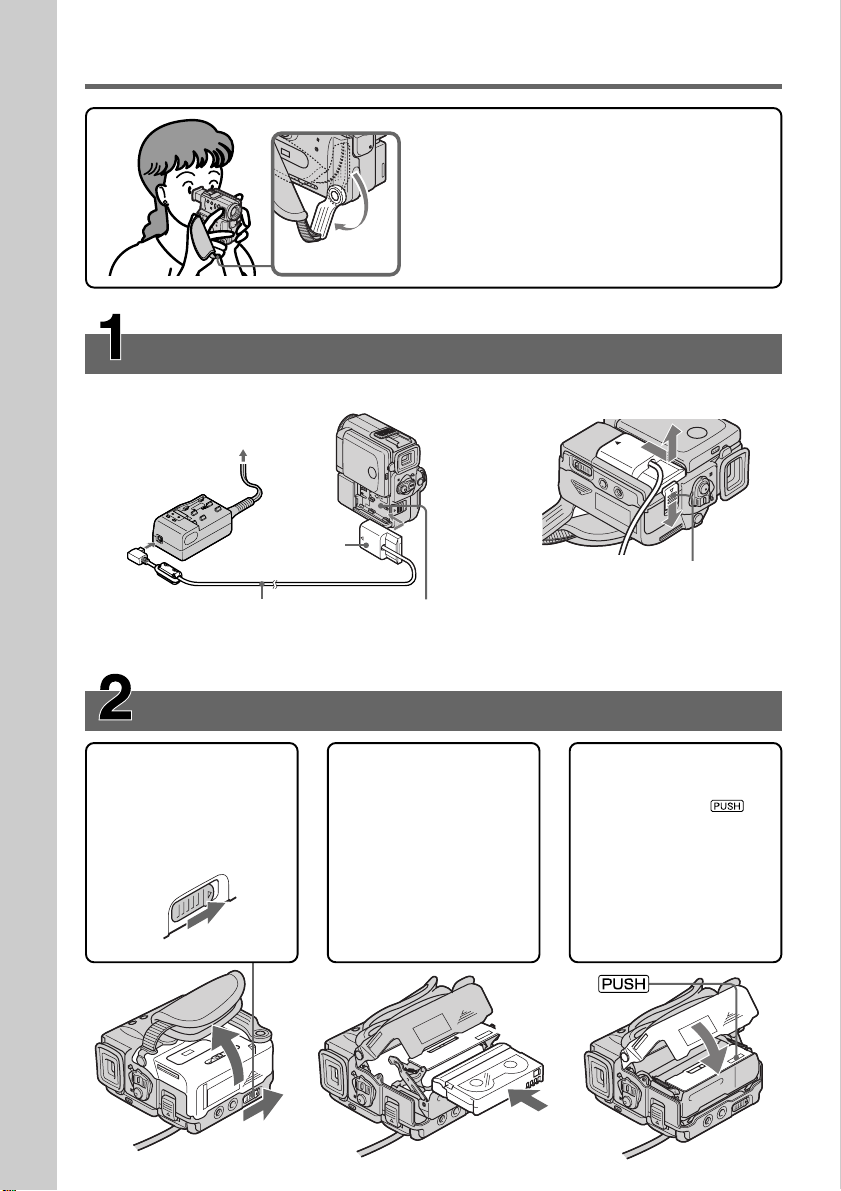
Make sure that the following accessories are supplied with your camcorder.
12 4
56 7 8
90 qa qs
3
1 RMT-811 Wireless Remote
Commander (1) (p. 150)
2 AC-VF10 power adaptor (1), Power
cord (1) (p. 10)
3 DK-115 Connecting cord (1) (p. 14)
4 NP-FS11 battery pack (1) (p. 10, 12)
5 Size AA (R6) battery for Remote
Commander (2) (p. 151)
6 PC serial cable (1) (p. 116)
7 “Memory Stick” (1) (p. 96)
8 A/V connecting cable (1) (p. 31)
9 Lens cap (1) (p. 18)
0 Application software: PictureGear 4.1
Lite (CD-ROM) (1) (p. 116)
qa Battery terminal cover (1) (p. 12)
qs Cleaning cloth (1) (p. 140)
Quick Start Guide
6
Quick Start Guide
This chapter introduces you to the basic features
of your camcorder. See the page in parentheses
“( )” for more information.
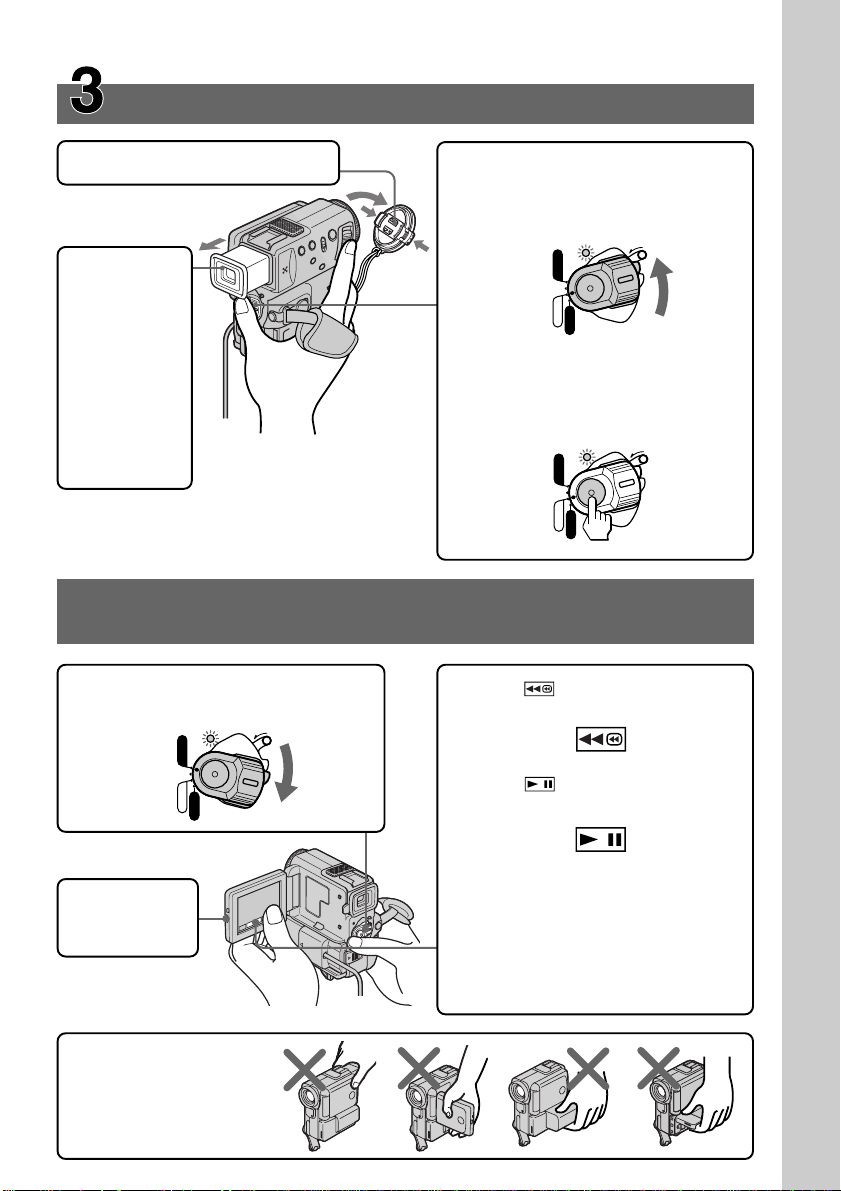
Pull down the Holding Grip to hold your
camcorder as illustrated.
Slide the BATT RELEASE
lever to remove the
connecting plate from your
camcorder.
Connecting the power cord (p. 14)
Use the battery pack when using your camcorder outdoors (p. 12).
Inserting a cassette (p. 15)
1Slide OPEN/Z
EJECT in the
direction of the
arrow and open the
lid.
2Push the middle
portion of the back
of the cassette to
insert. Insert the
cassette in a straight
line deeply into the
cassette
compartment with
the window facing
out.
3Close the cassette
compartment by
pressing the
mark on the cassette
compartment.
4After the cassette
compartment goes
down completely,
close the lid until it
clicks.
Holding Grip
Connecting
plate
AC adaptor
(supplied)
DK connecting cord
(supplied)
Remove the battery
terminal cover. And then
attach the connecting
plate to your camcorder.
2
3
Quick Start Guide
7
Recording a picture (p. 18)
1Remove the lens cap.
3Set the POWER switch to CAMERA
while pressing the small green
button. The power lamp lights up.
POWER
LOCK
VCR
MEMORY
CAMERA
OFF
POWER
LOCK
VCR
MEMORY
CAMERA
OFF
4Press START/STOP. Your camcorder
starts recording. To stop recording,
press START/STOP again.
2When the
LCD panel
is closed,
pull out the
viewfinder
until it
clicks. Use
the
viewfinder
placing
your eye
against its
eyecup.
Monitoring the playback picture on the LCD
screen (p. 27)
NOTE
Do not pick up your
camcorder by holding the
viewfinder, the LCD panel,
the battery pack or the jack
cover.
1Set the POWER switch to VCR while
pressing the small green button.
3Press of the touch panel to
rewind the tape.
4Press of the touch panel to
start playback.
NOTE
When using the touch panel, press
operation buttons lightly with your
thumb supporting the LCD screen from
the backside of it. Do not press the LCD
screen with sharp-pointed objects such
as pens.
2Press OPEN
to open the
LCD panel.
POWER
LOCK
VCR
MEMORY
CAMERA
OFF
8
— Getting started —
Using this manual
As you read through this manual, buttons and settings on your camcorder are shown in
capital letters.
e.g. Set the POWER switch to CAMERA.
When you carry out an operation, you can hear a beep sound to indicate that the
operation is being carried out.
Note on Cassette Memory
Your camcorder is based on the DV format. You can only use mini DV cassettes with
your camcorder. We recommend that you use a tape with cassette memory .
The functions which require different operations depending on whether the tape has
the cassette memory or not are:
•End search (p. 26, 30)
•Searching a recording by date – Date search (p. 54)
•Photo search (p. 56).
The functions you can operate only with the cassette memory are:
•Searching the boundaries of recorded tape by title – Title search (p. 53)
•Superimposing a title (p. 81)
•Making your own titles (p. 85)
•Labeling a cassette (p. 87).
For details, see page 125.
You see this mark in the introduction of the features that operate only with
cassette memory.
Tapes with cassette memory are marked by (Cassette Memory).
Note on TV color systems
TV color systems differ from country to country. To view your recordings on a TV, you
need an NTSC system-based TV.
Copyright precautions
Television programs, films, video tapes, and other materials may be copyrighted.
Unauthorized recording of such materials may be contrary to the provision of the
copyright laws.
Getting started
9
Using this manual
Precautions on camcorder care
•The LCD screen and the viewfinder are manufactured using high-precision
technology. However, there may be some tiny black points and/or bright points
(red, blue, green, or white) that constantly appear on the LCD screen and in the
viewfinder. These points occur normally in the manufacturing process and do not
affect the recorded picture in any way. Effective ratio of pixels and/or screen are
99.99% or more.
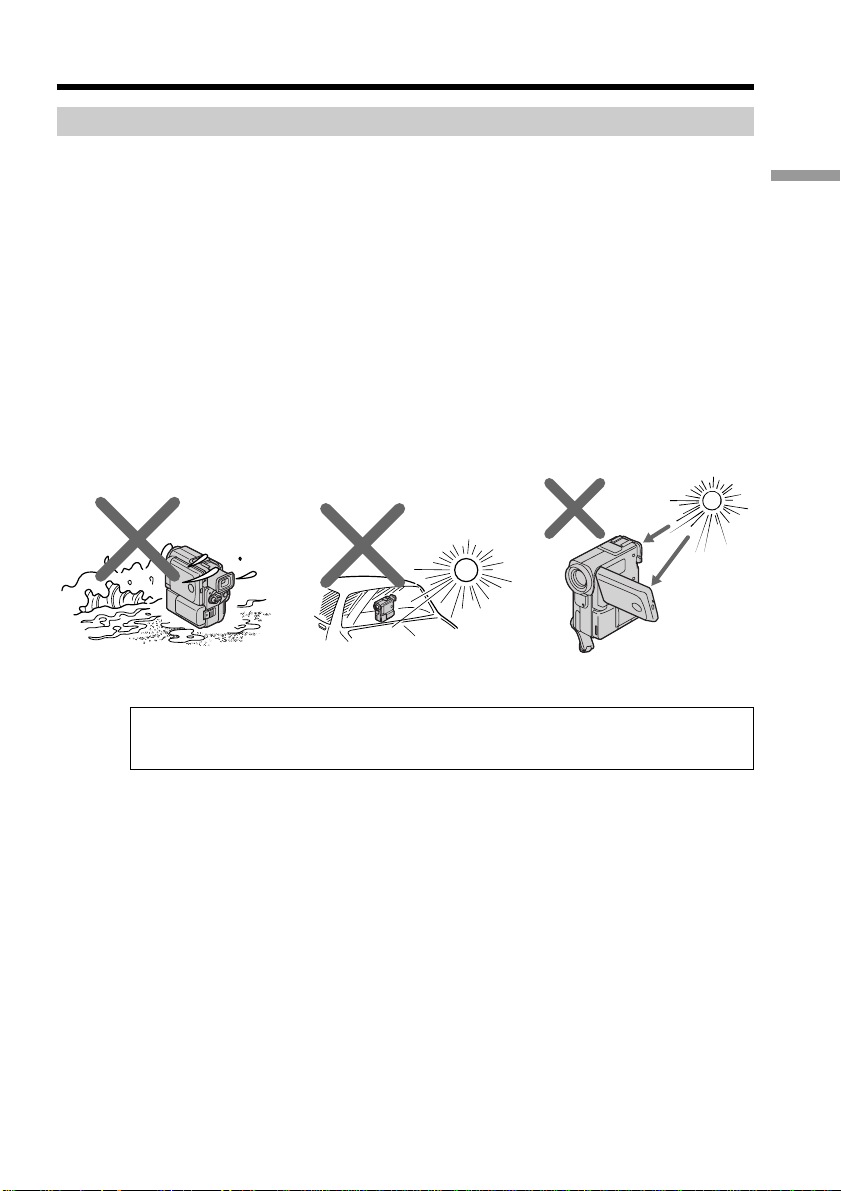
•Do not let your camcorder get wet. Keep your camcorder away from rain and sea
water. Letting your camcorder get wet may cause your camcorder to malfunction.
Sometimes this malfunction cannot be repaired [a].
•Never leave your camcorder exposed to temperatures above 140°F (60°C), such as in a
car parked in the sun or under direct sunlight [b].
•Do not place your camcorder so as to point the viewfinder or the LCD screen toward
the sun. The inside of the viewfinder or LCD screen may be damaged [c].
[a] [b] [c]
Contents of the recording cannot be compensated if recording or playback is not
made due to a malfunction of the camcorder, video tape, etc.
10
Step 1 Preparing the power supply
Charging the battery pack
Use the battery pack after charging it for your camcorder.
Your camcorder operates only with the “InfoLITHIUM” battery pack (S series).
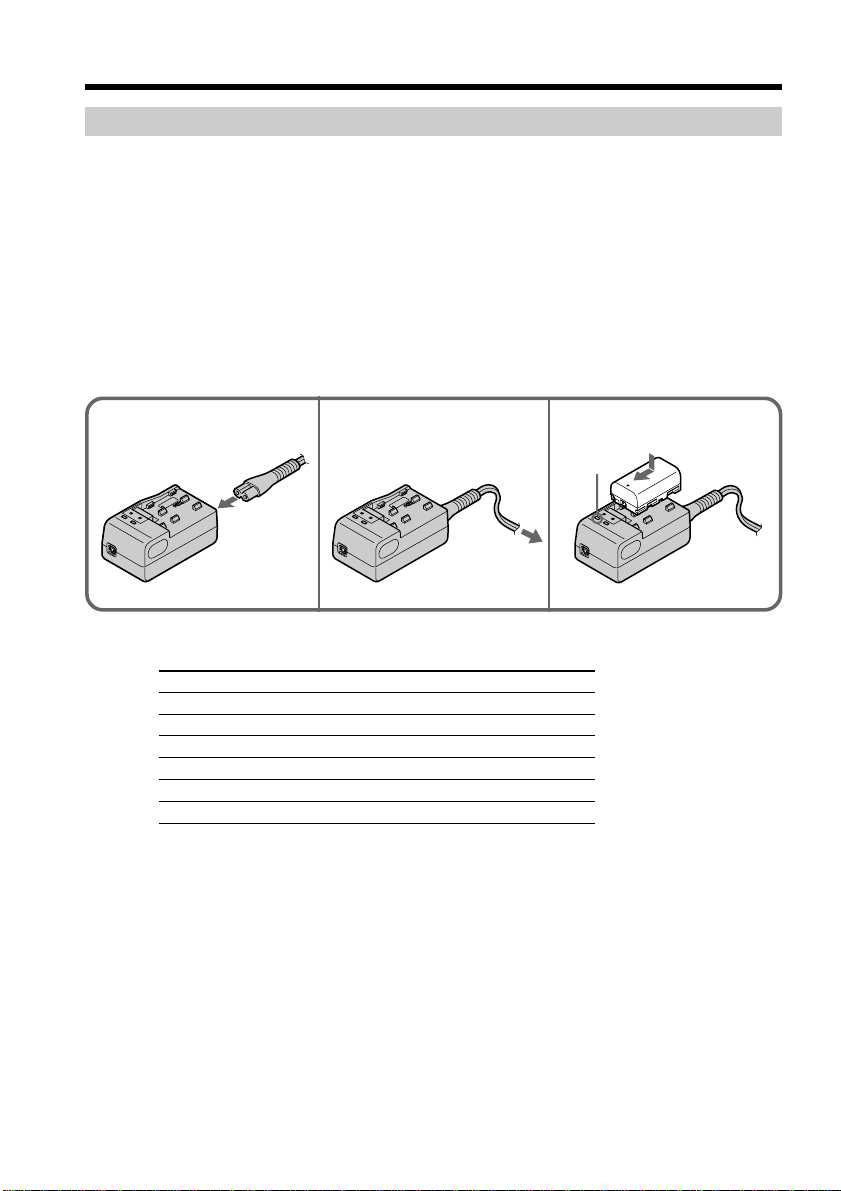
(1) Connect the power cord to the AC adaptor.
(2) Connect the power cord to a wall outlet.
(3) Align the hooks of the battery pack with the AC adaptor. Then fit the battery
pack in the direction of the arrow. The CHARGE lamp (orange) lights up.
Charging begins.
When the CHARGE lamp goes out, normal charge is completed. For full charge,
which allows you to use the battery longer than usual, leave the battery pack in place
for approximately one hour after the CHARGE lamp goes out.
1 2
3
CHARGE
Charging time
Battery pack Full charge (Normal charge)
NP-FS11 (supplied) 170 (110)
NP-FS21 265 (205)
NP-FS31 360 (300)
NP-F10 145 (85)
NP-F20 220 (160)
NP-F30 295 (235)
Approximate number of minutes to charge an empty battery pack

11
Getting started
Step 1 Preparing the power supply
Recording time
Recording with Recording with
Battery pack the viewfinder the LCD screen
Continuous* Typical** Continuous* Typical**
NP-FS11
80 (70) 40 (35) 60 (50) 30 (25)
(supplied)
NP-FS21 170 (155) 85 (75) 130 (115) 65 (55)
NP-FS31 260 (235) 130 (115) 200 (180) 100 (90)
NP-F10 60 (55) 30 (25) 50 (45) 25 (20)
NP-F20 135 (120) 65 (60) 100 (90) 50 (45)
NP-F30 195 (175) 95 (85) 150 (135) 75 (65)
Approximate number of minutes when you use a fully charged battery
Numbers in parentheses “( )” indicate the time when using a normally charged
battery.
* Approximate continuous recording time at 77°F (25°C). The battery life will be
shorter if you use your camcorder in a cold environment.
** Approximate number of minutes when recording while you repeat recording start/
stop, zooming and turning the power on/off. The actual battery life may be shorter.
Playing time
Playing time Playing time
Battery pack
on LCD screen with LCD closed
NP-FS11 (supplied) 60 (55) 85 (75)
NP-FS21 135 (125) 185 (165)
NP-FS31 210 (190) 280 (250)
NP-F10 50 (45) 65 (60)
NP-F20 110 (95) 145 (130)
NP-F30 160 (145) 215 (190)
Approximate number of minutes when you use a fully charged battery
Numbers in parentheses “( )” indicate the time when using a normally charged
battery.
The battery life will be shorter if you use your camcorder in a cold environment.
Notes on the AC adaptor
•Attach the battery pack firmly.
•Charge the battery pack on a flat surface without vibration.
•Remove the supplied connecting cord (DK-115) from this unit. If not removed,
charging is not possible.
•The charging time may differ depending on the condition of the battery pack or the
temperature of the environment.
•When a fully charged battery pack is installed, the CHARGE lamp will once light,
then go out.
•If the CHARGE lamp does not light or flash, check that the battery pack is correctly
attached to the AC adaptor. If it is not attached, it will not be charged.
•Prevent metallic objects from coming into contact with the metal parts of the
connecting cord of the AC adaptor. This may cause a short-circuit, damaging the AC
adaptor.
•Keep the battery pack dry.
•When the battery pack is not to be used for a long time, charge the battery pack once
fully, and then use it until it fully discharges again. Keep the battery pack in a cool
place.
12
Step 1 Preparing the power supply
What is ”InfoLITHIUM”?
The “InfoLITHIUM” is a lithium ion battery pack which can exchange data such as
battery consumption with compatible electronic equipment. This unit is compatible
with the “InfoLITHIUM” battery pack (S series). Your camcorder operates only with the
“InfoLITHIUM” battery.
“InfoLITHIUM” S series battery packs have the mark.
“InfoLITHIUM” is a trademark of Sony Corporation.
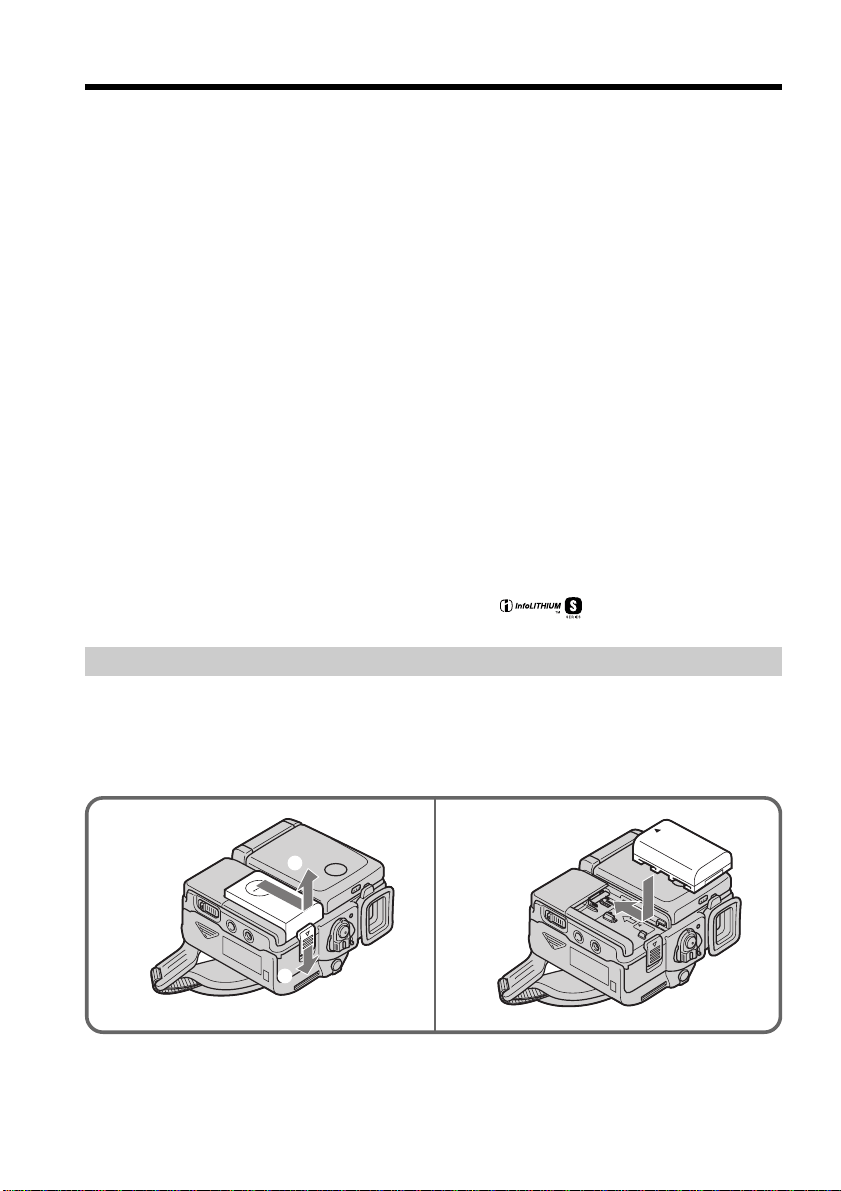
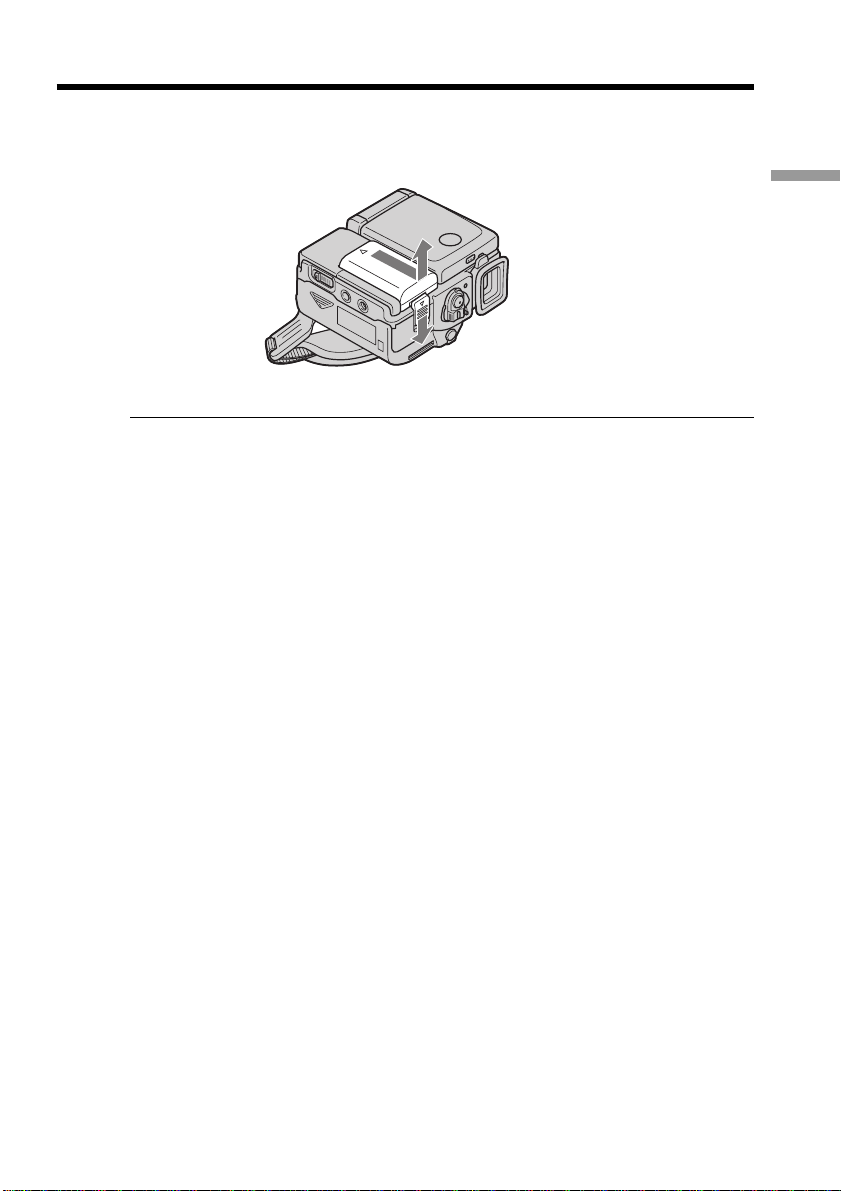
Installing the battery pack
Install the battery pack to use your camcorder outdoors.
(1) While sliding BATT RELEASE in the direction of the arrow 1, slide the
battery terminal cover in the direction of the arrow 2.
(2) Insert the battery pack in the direction of the arrow until it clicks.
1 2
1
2
Charging temperature
The temperature range for charging is 32 ˚F to 104 ˚F (0 ˚C to 40 ˚C).
However, to provide maximum battery efficiency, the recommended temperature range
when charging is 50 ˚F to 86 ˚F (10 ˚C to 30 ˚C).
If the power may go off although the battery remaining indicator indicates that
the battery pack has enough power to operate
Charge the battery pack fully again so that the indication on the battery remaining
indicator is correct.
After charging the battery pack
Remove the battery pack from the AC adaptor.
Note on NP-F10/FS11
The battery life will be shorter when you carry out recording in a cold place or with the
LCD panel opened. We recommend that you use the NP-FS21/FS31 large capacity
battery pack (not supplied).
Plug the power cord deeply
Be sure to plug the power cord deeply into the terminal of AC power adaptor so that it
is firmly locked. If there is a gap between the plug of power cord and the terminal of
AC power adaptor, it does not affect the efficiency of the AC power adaptor.
13
Getting started
Step 1 Preparing the power supply
To remove the battery pack
The battery pack is removed in the same way as the battery terminal cover.
After installing the battery pack
Do not carry your comcorder by holding the battery pack. If you do so, the battery pack
may slide off your camcorder unintentionally, damaging your camcorder.
Note on the remaining battery time indicator
The remaining battery time indicator on the LCD screen or in the viewfinder roughly
indicates the recording time. The indicator may not be correct, depending on the
conditions in which you are recording. When you close the LCD panel and open it
again, it takes about 1 minute for the correct remaining battery time to be displayed.
Note on the battery terminal cover
To protect the battery terminals, install the battery terminal cover after the battery pack
is removed.
14
Step 1 Preparing the power supply
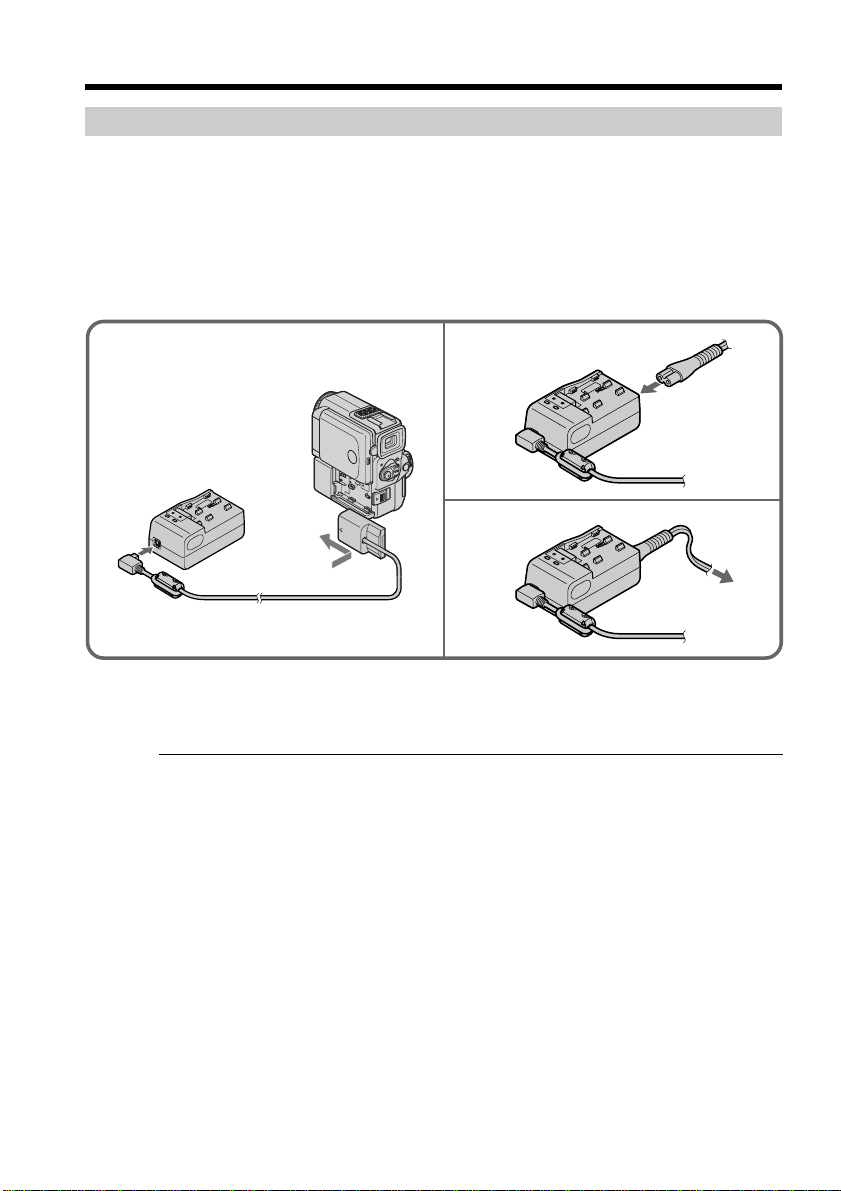
31, 2
4
To remove the connecting plate
The connecting plate is removed in the same way as the battery pack.
WARNING
The power cord must only be changed at a qualified service shop.
PRECAUTION
The set is not disconnected from the AC power source (house current) as long as it is
connected to the wall outlet, even if the set itself has been turned off.
Using a car battery
Use Sony DC Adaptor/Charger (not supplied).
Connecting to a wall outlet
When you use your camcorder for a long time, we recommend that you power it from a
wall outlet using the AC adaptor.
(1) Connect the supplied connecting cord to the DC OUT jack on the AC adaptor.
(2) Slide the connecting plate in the direction of the arrow.
(3) Connect the power cord to the AC adaptor.
(4) Connect the power cord to a wall outlet.
15
Getting started
Step 2 Inserting a cassette
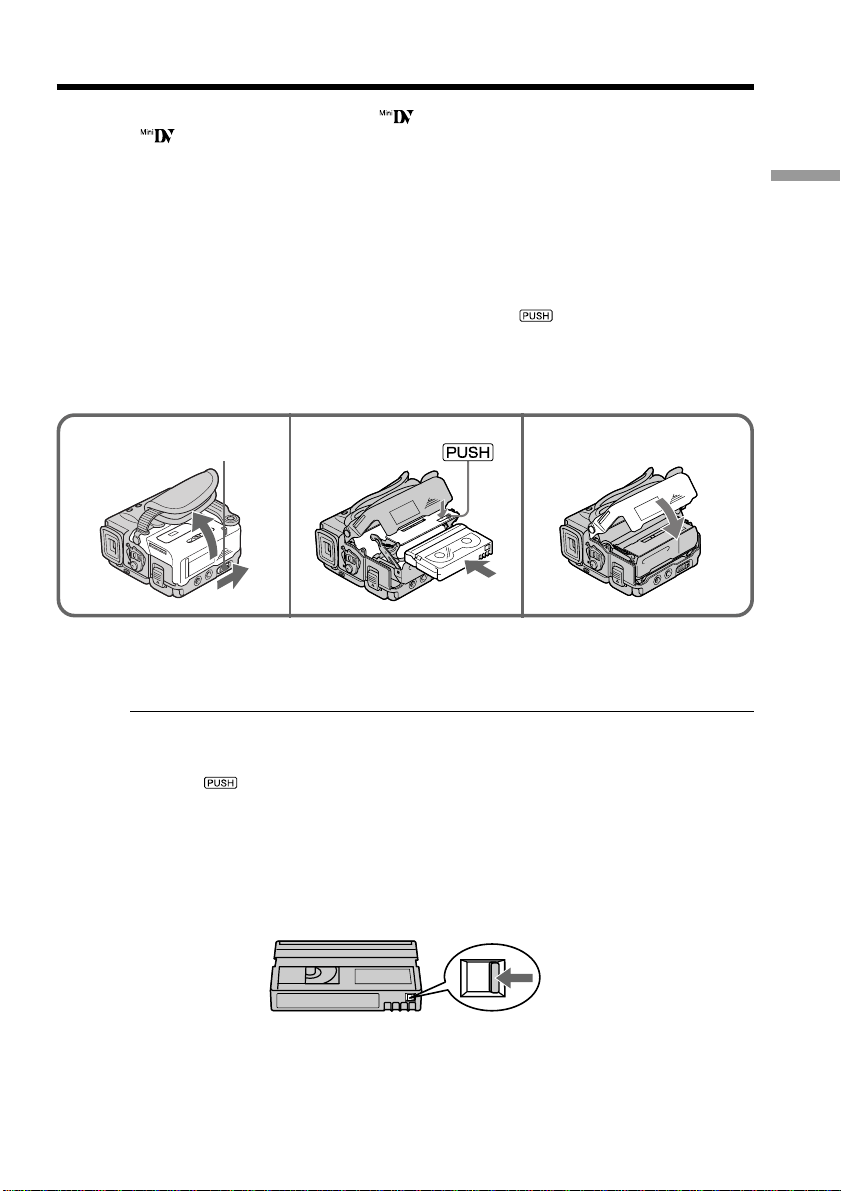
You can use mini DV cassette with logo* only.
* is a trade mark.
(1) Install the battery pack, or connect the AC adaptor for the power supply
(p. 10 to 14).
(2) Slide OPEN/Z EJECT in the direction of the arrow and open the lid. The
cassette compartment automatically lifts up and opens.
(3) Push the middle portion of the back of the cassette to insert.
Insert the cassette in a straight line deeply into the cassette compartment with
the window facing out.
(4) Close the cassette compartment by pressing the
mark on the cassette
compartment. The cassette compartment automatically goes down.
(5) After the cassette compartment goes down completely, close the lid until it
clicks.
To eject a cassette
Follow the procedure above, and take out the cassette in step 3.
Notes
•Do not press the cassette compartment down. Doing so may cause malfunction.
•The cassette compartment may not be closed when you press any part of the lid other
than the mark.
When you use mini DV cassette with cassette memory
Read the instruction about cassette memory to use this function properly (p. 125).
To prevent accidental erasure
Slide the write-protect tab on the cassette to expose the red mark.
2 3, 4
OPEN/Z EJECT
5
16
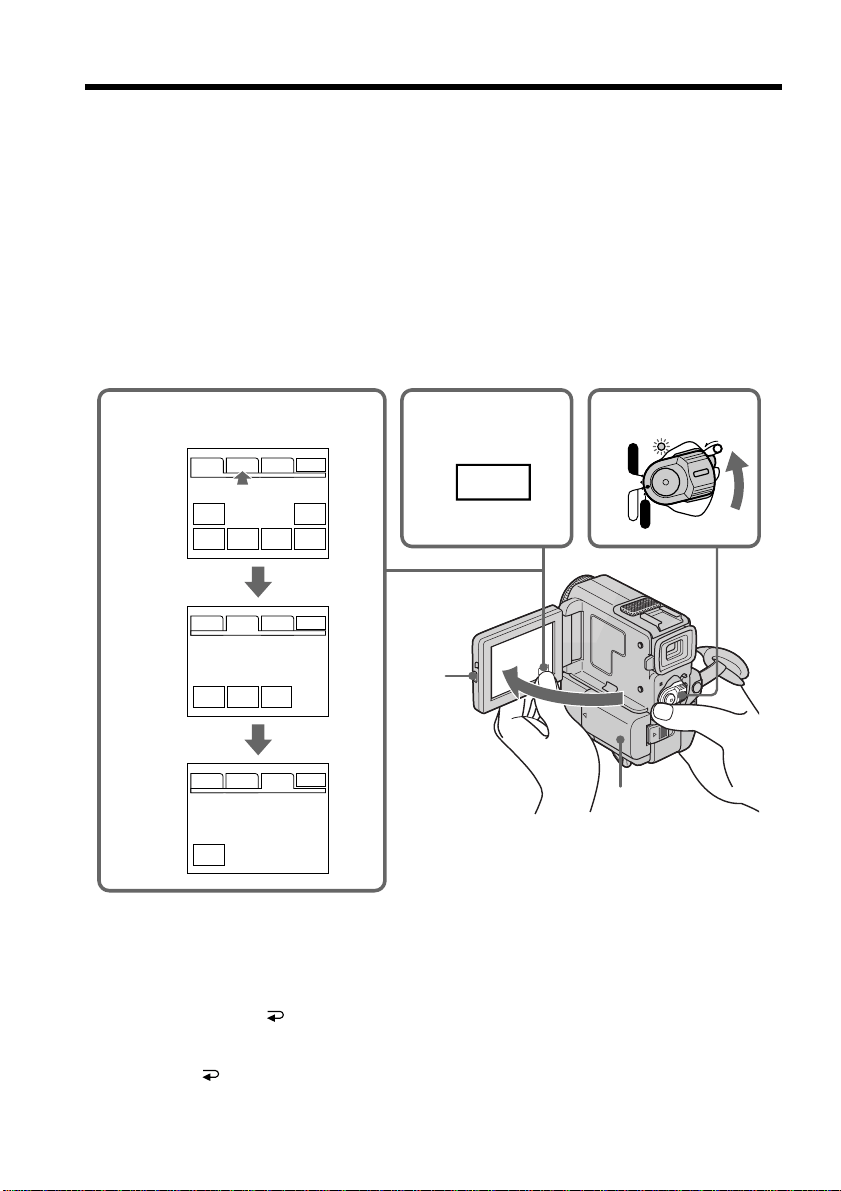
Your camcorder has operation buttons on the LCD screen. Touch the LCD panel
directly to operate each function.
In CAMERA/VCR mode
(1) Install the battery pack, or connect the AC adaptor for the power supply
(p. 10 to 14).
(2) Set the POWER switch to CAMERA (in the standby/recording mode)/VCR (in
the playback mode) while pressing the small green button.
(3) Press OPEN to open the LCD panel.
(4) Press FN. Operation buttons appear on the LCD screen.
(5) Press PAGE2 to go to PAGE2. Operation buttons appear on the LCD screen.
(6) Press PAGE3 to go to PAGE3. Operation buttons appear on the LCD screen.
(7) Press a desired operation item. Refer to relevant pages for each function.
To return to FN
Press EXIT.
To execute settings
Press EXEC or OK. The display returns to PAGE1/PAGE2/PAGE3.
To cancel settings
Press OFF to return to PAGE1/PAGE2/PAGE3.
Step 3 Using a touch panel
245,6
1
3
FN
PAGE1 PAGE2 PAGE3
EXIT
MENU END
SCH
FADER DIG
EFFT
MEM
MIX
EXPO–
SURE
TITLE LCD
BRT
VOL
SELF
TIMER
POWER
LOCK
VCR
MEMORY
CAMERA
OFF
PAGE1 PAGE2 PAGE3
EXIT
PAGE1 PAGE2 PAGE3
EXIT
In CAMERA mode

17
Getting started
Notes
•When using the touch panel, press operation buttons with your thumb supporting the
LCD screen from the back side of it or press those buttons lightly with your index
finger. Do not press them with sharp-pointed objects such as pens.
•Do not press the LCD screen too hard.
•Do not touch the LCD screen with wet hands.
•If FN is not on the LCD screen, touch the LCD screen lightly to make it appear. You
can control the display with DISPLAY/TOUCH PANEL on your camcorder.
•When operation buttons do not work even if you press them, an adjustment is
required (CALIBRATION) (p. 141).
•When the LCD screen gets dirty, use the supplied cleanig cloth.
When executing each item
The green bar appears above the item.
If the items are not available
The color of the items changes to gray.
Touch panel
You can operate with the touch panel using the viewfinder (p. 124).
Press FN to display the following buttons:
In CAMERA mode
PAGE1 MENU, END SEARCH, FADER, DIGITAL EFFECT, MEMORY MIX,
EXPOSURE
PAGE2 TITLE, LCD BRIGHT, VOLUME
PAGE3 SELFTIMER
In VCR mode
PAGE1 MENU, LCD BRIGHT, VOLUME, END SEARCH
PAGE2 TITLE, DIGITAL EFFECT, PB ZOOM
PAGE3 DATA CODE, REC CONTROL
See p. 99 for MEMORY mode.
Step 3 Using a touch panel
18
— Recording – Basics —
Recording a picture
Your camcorder automatically focuses for you.
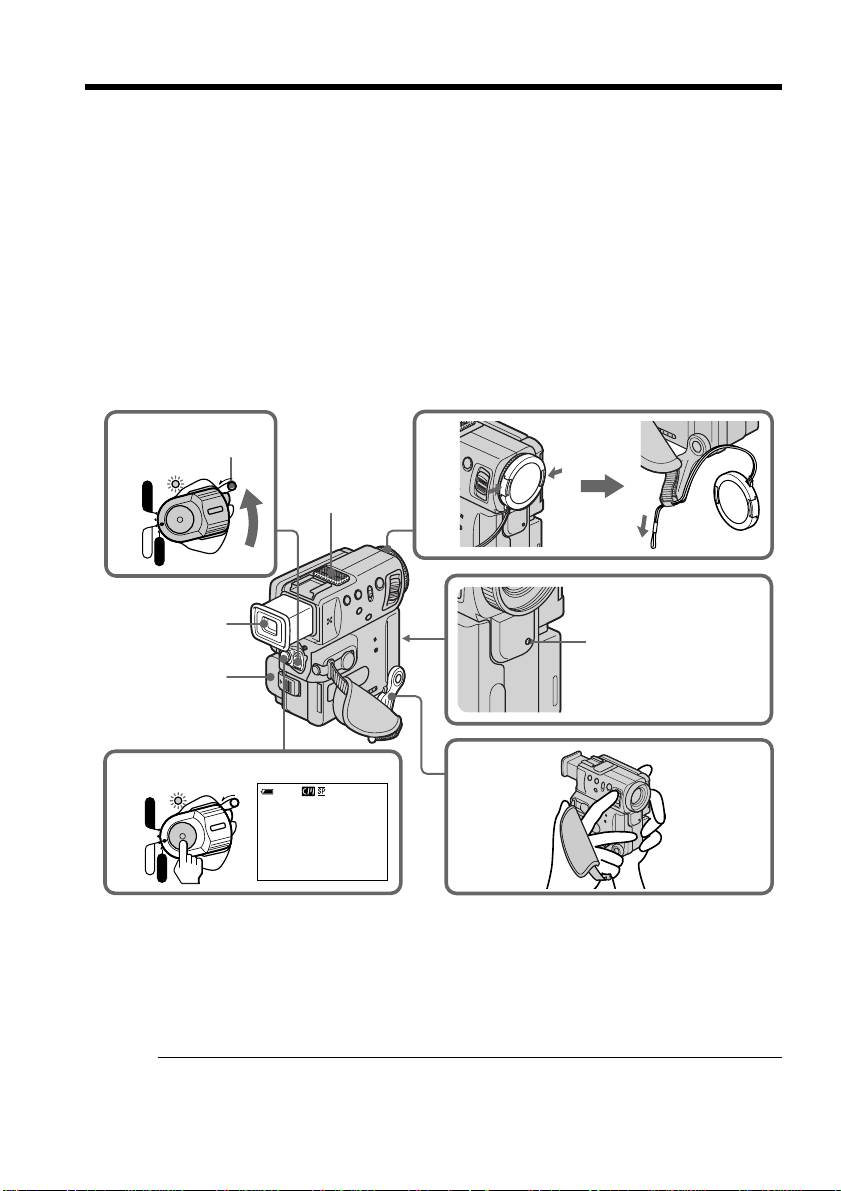
(1) Remove the lens cap and pull the lens cap string to fix it.
(2) Install the power source and insert a cassette. See “Step 1” and “Step 2” for
more information (p. 10 to 15).
(3) Pull out the viewfinder until it clicks.
(4) Pull down the Holding Grip.
Hold your camcorder firmly as illustrated.
(5) Set the POWER switch to CAMERA while pressing the small green button.
Your camcorder is set to the standby mode.
(6) Press START/STOP. Your camcorder starts recording. The “REC” indicator
appears. The camera recording lamp located on the front of your camcorder
lights up. To stop recording, press START/STOP again.
6
5
3
2
1
4
40min
REC
0:00:01
POWER
LOCK
VCR
MEMORY
CAMERA
OFF
POWER
LOCK
VCR
MEMORY
CAMERA
OFF
LOCK
Microphone
Camera recording
lamp
After recording
(1) Set the POWER switch to OFF.
(2) Set the Holding Grip and the viewfinder back to the previous position.
(3) Eject the cassette.
(4) Remove the battery pack.
Notes
•Fasten the grip strap firmly. Do not touch the built-in microphone during recording.
•When the viewfinder is not pulled out until it clicks, the picture does not appear in the
viewfinder even if the LCD panel is closed.
19
Recording – Basics
Recording a picture
Note on Recording mode
Your camcorder records and plays back in the SP (standard play) mode and in the LP
(long play) mode. Select SP or LP in the menu settings (p. 89). In the LP mode, you can
record 1.5 times as long as in the SP mode.
When you record a tape in the LP mode on your camcorder, we recommend playing the
tape on your camcorder.
Note on the LOCK
When you slide the LOCK to the left, the POWER switch can no longer be set to
MEMORY accidentally. The LOCK is set to the right as a default setting.
To enable smooth transition
Transition between the last scene you recorded and the next scene is smooth as long as
you do not eject the cassette even if you turn off your camcorder.
However, check the following:
•Do not mix recordings in the SP mode and ones in the LP mode on one tape.
•When you change the battery pack, set the POWER switch to OFF.
•When you use a tape with cassette memory, however, you can make the transition
smooth even after ejecting the cassette if you use the end search function (p. 26).
If you leave your camcorder in the standby mode for 5 minutes while the cassette
is inserted
Your camcorder automatically turns off. This is to save battery power and to prevent
battery and tape wear. To resume the standby mode, set the POWER switch to OFF, and
to CAMERA again.
However, your camcorder does not turn off automatically while the cassette is not
inserted.
When you record in the SP and LP modes on one tape or you record in the LP
mode
•The transition between scenes is not smooth.
•The playback picture may be distorted or the time code may not be written properly
between scenes.
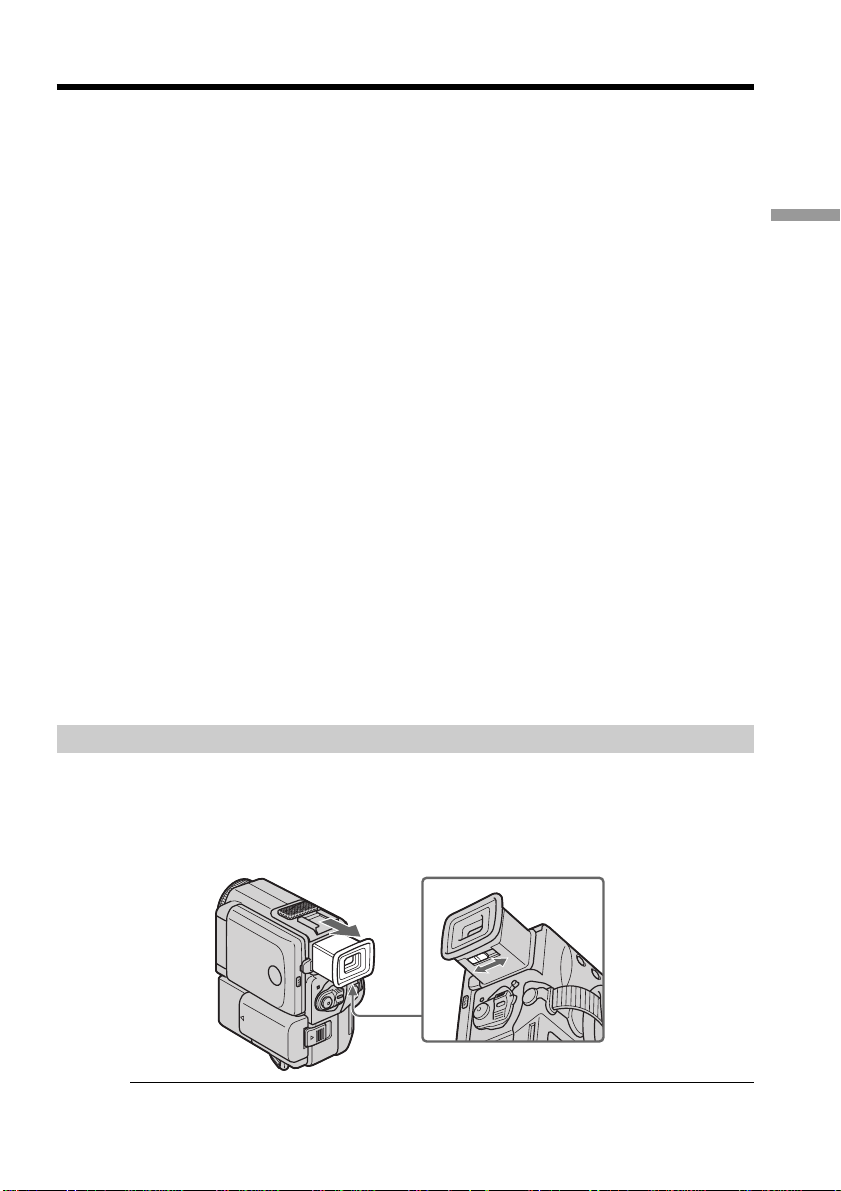
Adjusting the viewfinder
If you record pictures with the LCD panel closed, check the picture with the viewfinder.
Adjust the viewfinder lens to your eyesight so that the indicators in the viewfinder
come into sharp focus.
Pull out the viewfinder and move the viewfinder lens adjustment lever.
Note
When the viewfinder is not pulled out until it clicks, the picture does not appear in the
viewfinder.

20
Recording a picture
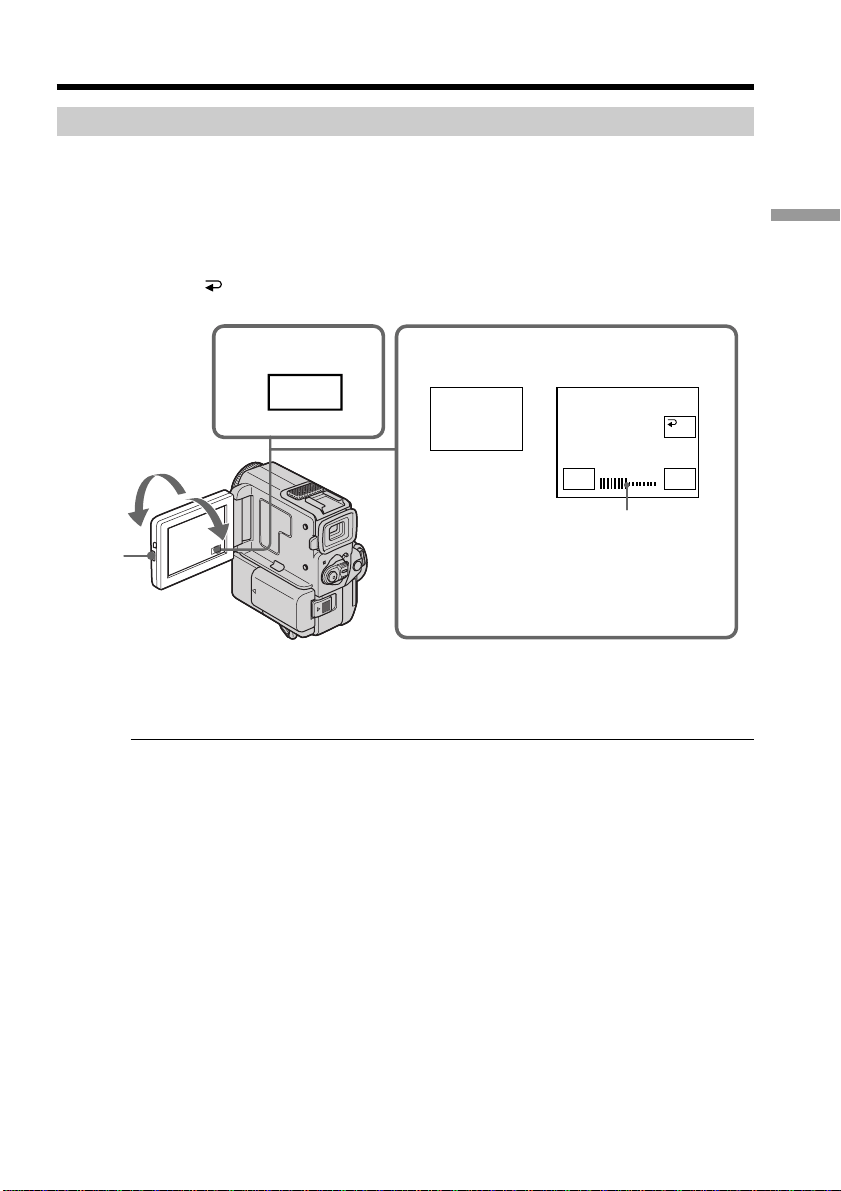
Shooting with the LCD screen
Press OPEN to open the LCD panel.
The LCD panel moves about 90 degrees to the viewfinder side and about 180 degrees to
the lens side.
If you turn the LCD panel over so that it faces the other way, the indicator appears
in the viewfinder and on the LCD screen (Mirror mode).
When closing the LCD panel, set it vertically until it clicks, and swing it into the
camcorder body.
Notes
•Shooting with the LCD screen makes battery life shorter than using the viewfinder.
•When using the LCD screen except in the mirror mode, the viewfinder automatically
turns off.
When you use the LCD screen outdoors in direct sunlight
The LCD screen may be difficult to see. If this happens, we recommend that you use the
viewfinder.
When you adjust angles of the LCD panel
Make sure if the LCD panel is opened up to 90 degrees.
Picture in the mirror mode
The picture on the LCD is a mirror-image. However, the picture will be normal when
recorded.
During recording in the mirror mode
ZERO SET MEMORY on the Remote Commander does not work.
Indicators in the mirror mode
The STBY indicator appears as Xz and REC as z. Some of the other indicators appear
mirror-reversed and others are not displayed.
When you press FN
The does not appear on the LCD screen or in the viewfinder.
FN in the mirror mode
FN appears mirror-reversed in the viewfinder.
21
Recording – Basics
Recording a picture
Adjusting the brightness of the LCD screen
(1) In CAMERA/MEMORY mode, press FN and select PAGE2 (p. 16).
In VCR mode, press FN to display PAGE1.
(2) Press LCD BRT. The screen to adjust the brightness of the LCD screen appears.
(3) Adjust the brightness of the LCD screen using –/+.
–: to dim
+: to brighten
(4) Press
OK to return to PAGE1/PAGE2.
To return to FN
Press EXIT.
LCD screen backlight
You can change the brightness of the backlight. Select LCD B.L. in the menu settings
(p. 89).
Even if you adjust the LCD screen backlight or brightness of the LCD screen
The recorded picture will not be affected.
OPEN
1
2,3
FN
180°
90°
LCD
BRT
LCD BRT
–+
OK
the bar indicator
22
Recording a picture
T
W
The right side of the bar shows the
digital zooming zone.
The digital zooming zone appears when
you set D ZOOM to 20× or 120×.
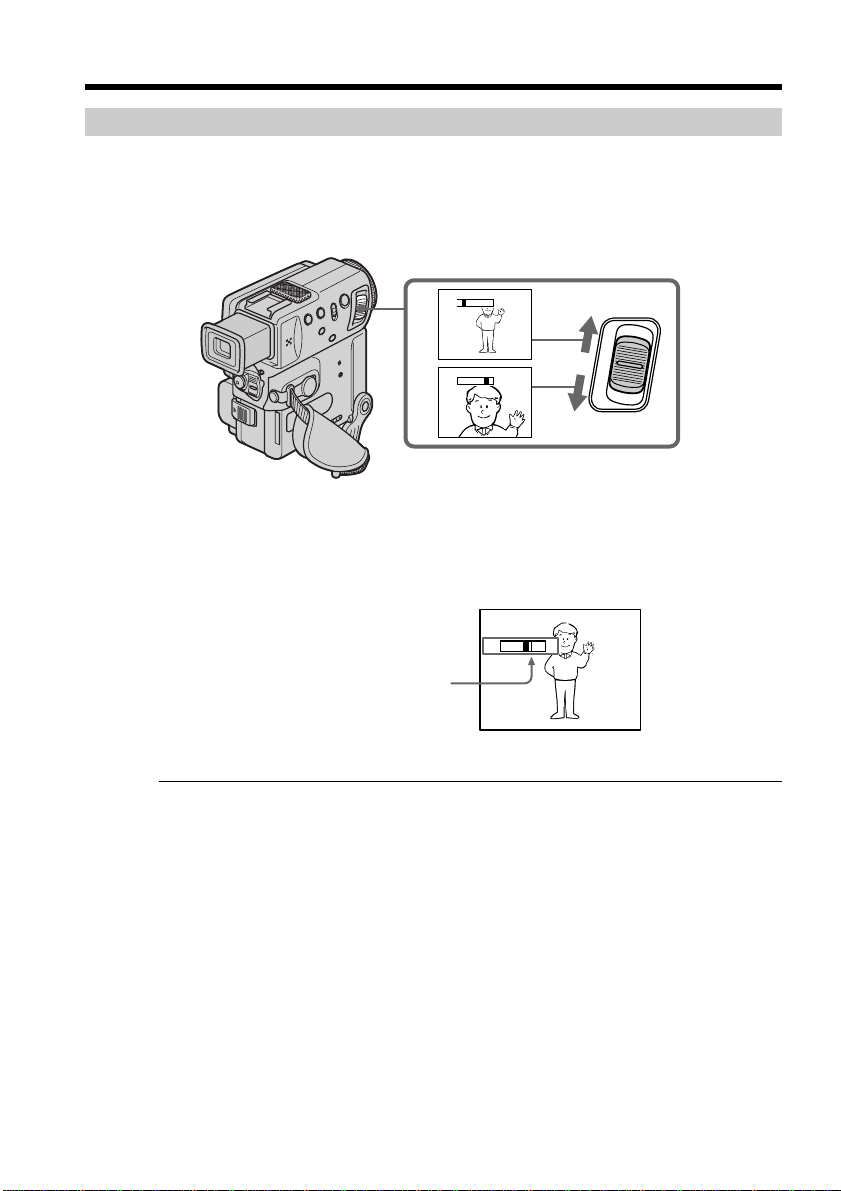
Using the zoom feature
Move the power zoom lever a little for a slower zoom. Move it further for a faster zoom.
Using the zoom function sparingly results in better-looking recordings.
“T” side: for telephoto (subject appears closer)
“W” side: for wide-angle (subject appears farther away)
To use zoom greater than 10×
Zoom greater than 10× is performed digitally, if you set D ZOOM to 20× or 120× in the
menu settings. The digital zoom function is set to OFF as a default setting (p. 89).
W
T
T
W
T
W
When you shoot close to a subject
If you cannot get a sharp focus, move the power zoom lever to the “W” side until the
focus is sharp. You can shoot a subject that is at least about 2 feet 5/8 inch (about 80 cm)
away from the lens surface in the telephoto position, or about 1/2 inch (about 1 cm)
away in the wide-angle position.
Notes on digital zoom
•Digital zoom starts to function when zoom exceeds 10×.
•The picture quality deteriorates as you move the power zoom lever toward the “T”
side.
•You cannot use the digital zoom when the POWER switch is set to MEMORY.
23
Recording – Basics
Recording a picture
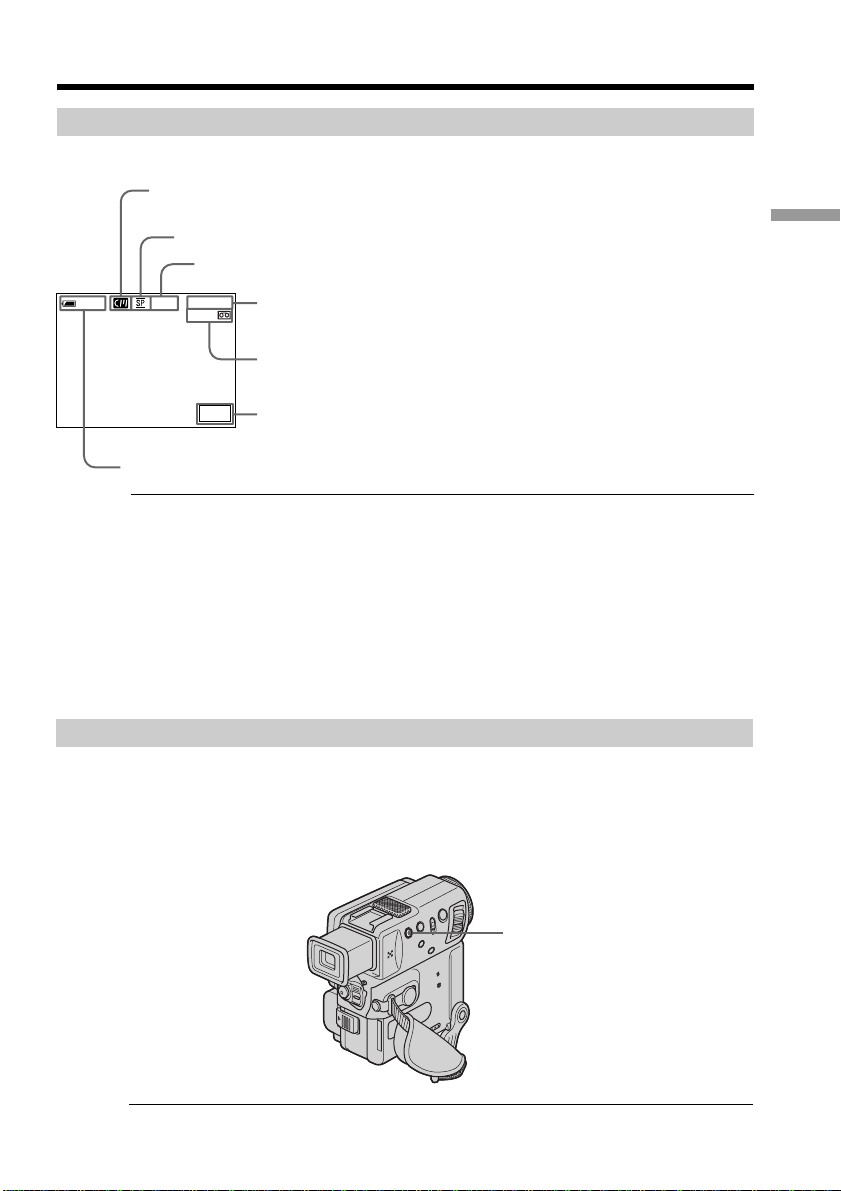
Indicators displayed in the recording mode
The indicators are not recorded on tape.
0:00:01
45min
40
min
REC
FN
STBY/REC indicator
Remaining tape indicator
Remaining battery time indicator
Time code/Tape counter
Cassette memory indicator
This appears when using a tape with cassette memory.
Recording mode indicator
FN button
Press this button to display operation buttons on the LCD screen.
Time code
The time code indicates the recording or playback time, “0:00:00” (hours : minutes :
seconds) in CAMERA mode and “0:00:00:00” (hours : minutes : seconds : frames) in
VCR mode. You cannot rewrite only the time code.
Remaining tape indicator
The indicator may not be displayed accurately depending on the tape.
Recording date and time
Recording date and time will not be displayed on the LCD screen during recording. It
is recorded on the tape automatically and displayed when you press the DATA CODE
button during playing back (p.28).
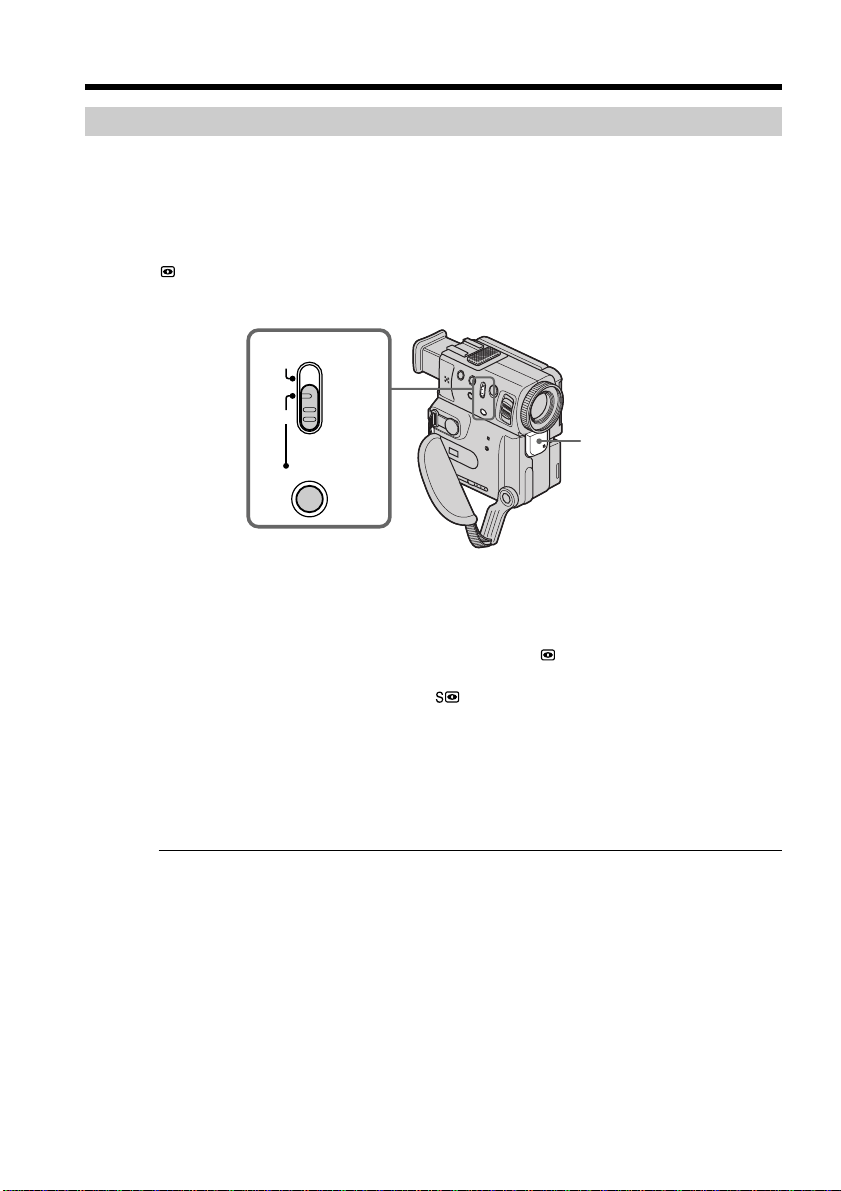
Shooting backlit subjects (BACK LIGHT)
When you shoot a subject with the light source behind the subject or a subject with a
light background, use the backlight function.
Press BACK LIGHT in the CAMERA/memory camera mode.
The . indicator appears in the viewfinder or on the LCD screen.
To cancel, press BACK LIGHT again.
If you press EXPOSURE, MANUAL or SPOT METER when shooting backlit subjects
The backlight function will be canceled.
BACK LIGHT
24
Recording a picture
Shooting in the dark (NightShot/Super Nightshot)
The NightShot function enables you to shoot a subject in a dark place. For example, you
can satisfactorily record the environment of nocturnal animals for observation when
you use this function.
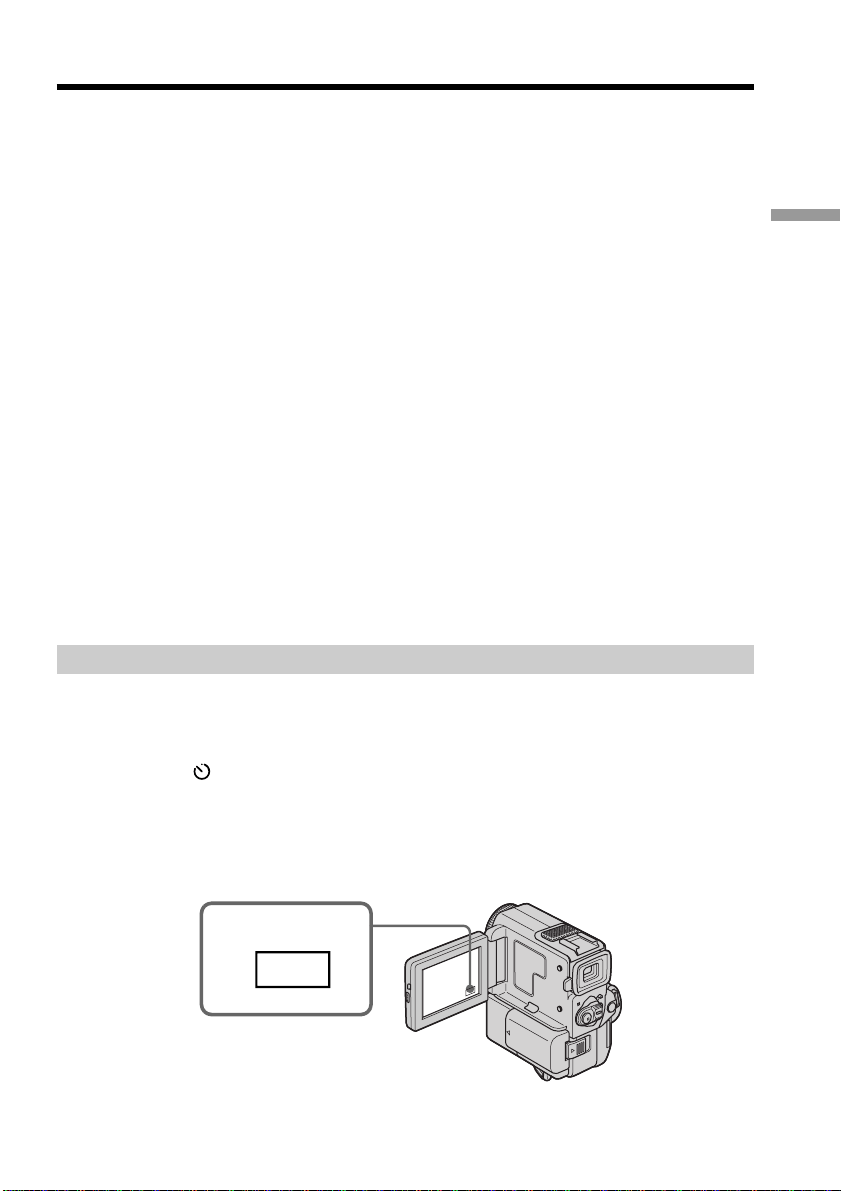
While your camcorder is in the CAMERA/memory camera mode, slide NIGHTSHOT
to ON.
and “NIGHTSHOT” indicators flash on the LCD screen or in the viewfinder. To
cancel the NightShot function, slide NIGHTSHOT to OFF.
Using Super NightShot
The Super NightShot mode makes subjects more than 16 times brighter than those
recorded in the NightShot mode.
(1) Slide NIGHTSHOT to ON in CAMERA mode. indicator appears in the
viewfinder or on the LCD screen.
(2) Press SUPER NIGHTSHOT. The
indicator and “SUPER NIGHTSHOT“
appear.
To cancel the Super NightShot mode, press SUPER NIGHTSHOT.
Using the NightShot Light
The picture will be clearer with the NightShot Light on. To activate NightShot Light, set
N.S.LIGHT to ON in the menu settings (p. 89).
Notes
•Do not use the NightShot function in bright places (ex. outdoors in the daytime). This
may cause your camcorder to malfunction.
•When you keep NIGHTSHOT set to ON in normal recording, the picture may be
recorded in incorrect or unnatural colors.
•If focusing is difficult with the autofocus mode when using the NightShot function,
focus manually.
•Do not cover the NightShot Light emitter when using the NightShot function.
NightShot Light emitter
OFF
ON
NIGHTSHOT
SUPER
NIGHTSHOT
25
Recording – Basics
Recording a picture
While using the NightShot function, you cannot use the following functions:
– Exposure
– PROGRAM AE
– White balance
Shutter speed in the Super NighShot mode
The shutter speed will be automatically changed depending on the brightness of the
background. The motion of the picture will be slow.
While using the Super NightShot function, you cannot use the following
functions:
– Exposure
– PROGRAM AE
– Fader
– Digital effect
– White balance
In MEMORY mode
Super NightShot does not work.
NightShot Light
NightShot Light rays are infrared and so are invisible. The maximum shooting distance
using the NightShot Light is about 10 feet (3 m).
When recording in the mirror mode using NP-F10/FS11 battery
NightShot Light does not work.
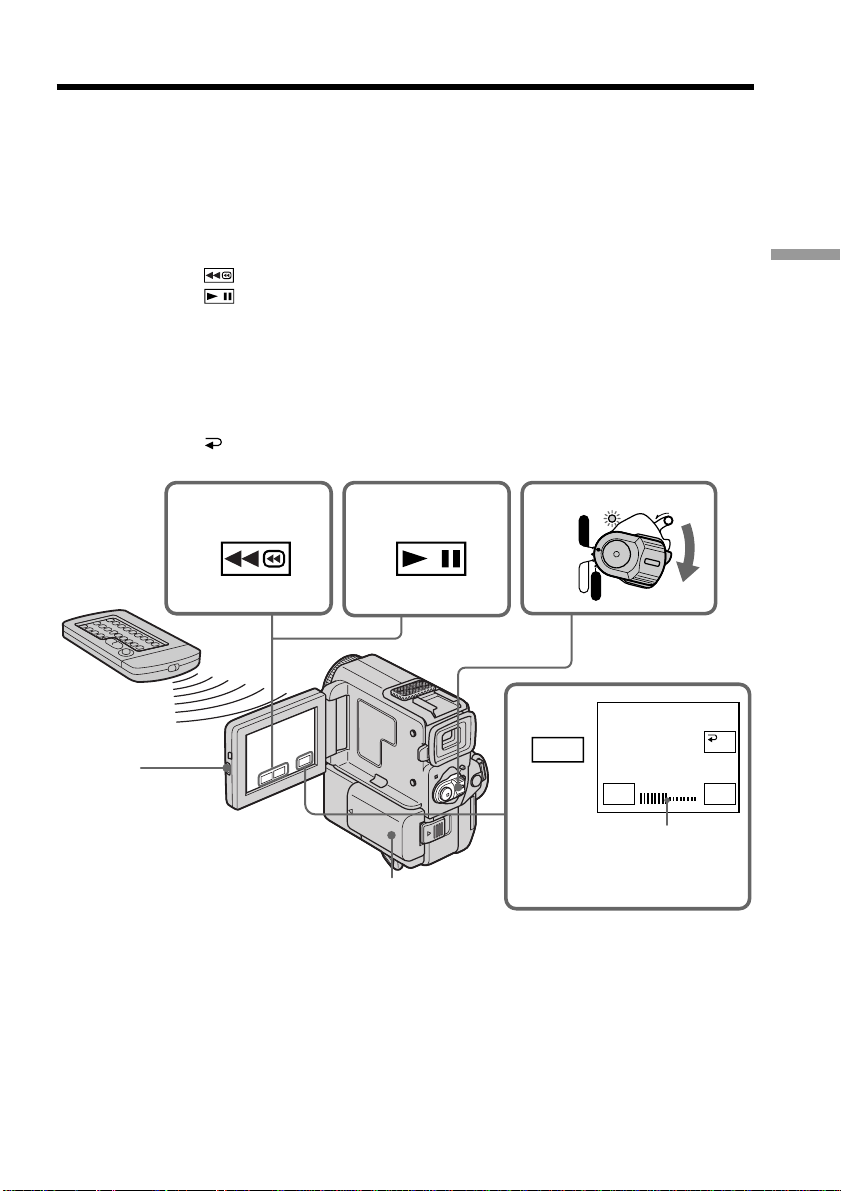
Self-timer recording
You can make a recording with the self-timer. This mode is useful when you want to
record yourself.
(1) In the standby mode, press FN and select PAGE3 (p. 16).
(2) Press SELFTIMER.
The
(self-timer) indicator appears on the LCD screen or in the viewfinder.
(3) Press START/STOP.
Self-timer starts counting down from 10 with a beep sound. In the last two
seconds of the countdown, the beep sound gets faster, then recording starts
automatically.
1
FN

26
To stop the self-timer during recording
Press START/STOP.
Use the Remote Commander for convenience.
To cancel the self-timer recording
Press SELFTIMER so that the indicator disappears from the LCD screen or the
viewfinder while your camcorder is in the standby mode.
To record still pictures on a tape using the self-timer
Press PHOTO in step 3 (p. 33).
Note
The self-timer recording mode is automatically cancelled when:
– The self-timer recording is finished.
– The POWER switch is set to OFF or VCR.
END SEARCH
You can go to the end of the recorded section after you record.
(1) In the standby mode, press FN to display PAGE1 (p. 16).
(2) Press END SCH.
The last 5 seconds of the recorded section are played back and the playback
stops. You can monitor the sound from the speaker or headphones.
To return to FN
Press EXIT.
To stop searching
Press END SCH again.
Note
If there is a blank portion in the recorded portion, the end search function may not
work correctly (p. 125).
End search function
When you use a tape without cassette memory, the end search function does not work
once you eject the cassette after you have recorded on the tape. If you use a tape with
cassette memory, the end search function works even once you eject the cassette.
Recording a picture
27
Playback – Basics
— Playback – Basics —
Playing back a tape
You can monitor the playback picture on the LCD screen. If you close the LCD panel,
you can monitor the playback picture in the viewfinder. You can also control playback
using the Remote Commander supplied with your camcorder.
(1) Install the power source and insert the recorded tape.
(2) Set the POWER switch to VCR while pressing the small green button. The
power lamp lights up.
(3) Press OPEN to open the LCD panel.
(4) Press
to rewind the tape.
(5) Press
to start playback.
(6) Adjust the volume following the steps below.
1 Press FN to make PAGE1 appear (p. 16).
2 Press VOL. The screen to adjust volume appears.
3 Press –/+ to adjust the volume.
– : to make the volume down
+: to make the volume up
(7) Press
OK to return to PAGE1.
5
4
2
6
1
3
VOL
–+
OK
FN
POWER
LOCK
VCR
MEMORY
CAMERA
OFF
the bar indicator
To return to FN
Press EXIT.
To stop playback
Press x.
28
Playing back a tape
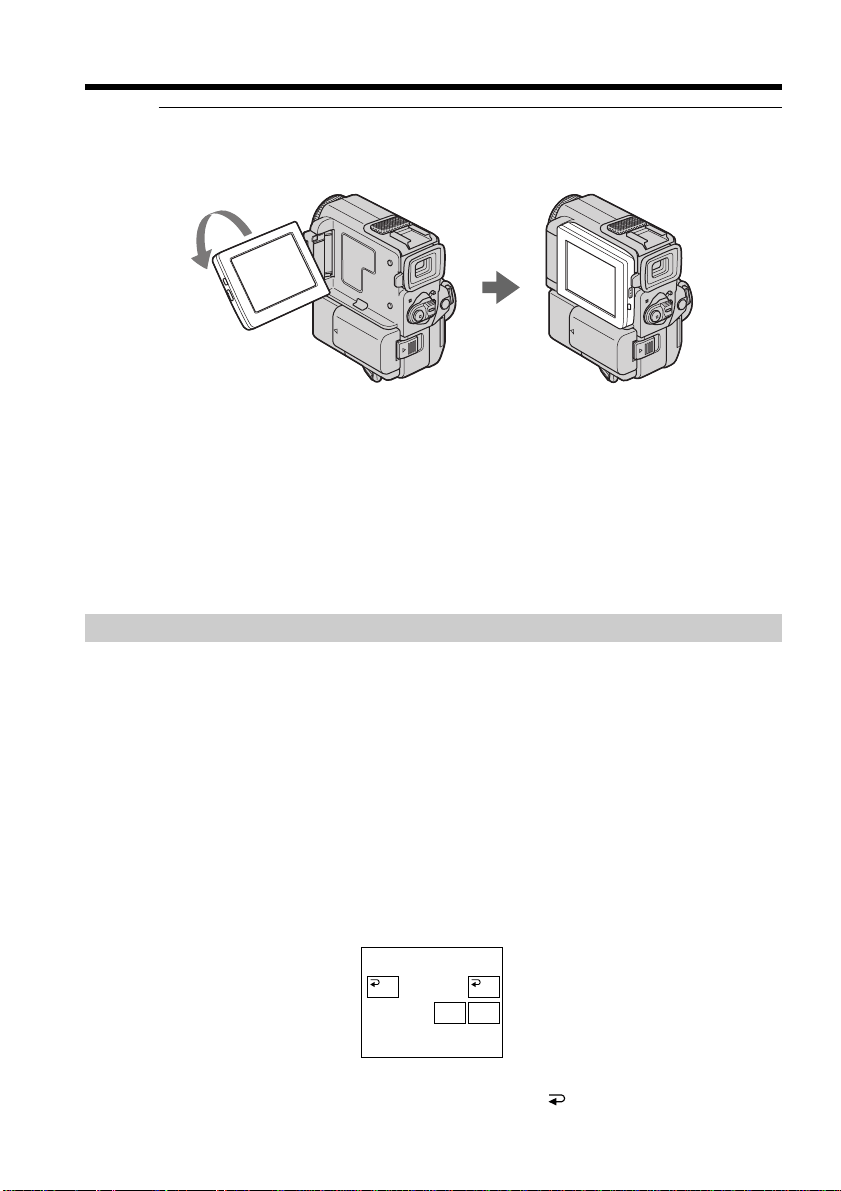
When monitoring on the LCD screen
You can turn the LCD panel over and move it back to the camcorder body with the LCD
screen facing out.
If you leave the power on for a long time
Your camcorder gets warm. This is not a malfunction.
When you open/close the LCD panel
Open/close the LCD panel vertically.
When monitoring in the viewfinder
Turn the LCD panel over and move it back to the camcorder body with the LCD screen
facing out, and pull out the viewfinder until it clicks. In this case, the picture is not
displayed on the LCD screen.
To control the display of the screen indicators
Press DISPLAY/TOUCH PANEL on your camcorder or DISPLAY on the Remote
Commander supplied with your camcorder.
The indicators disappear on the LCD screen.
To make the indicators appear, press DISPLAY/TOUCH PANEL again.
Using the data code function
Your camcorder automatically records not only images on the tape but also the
recording data (date/time or various settings when recorded) (Data code).
Follow the steps below to display the data code using the touch panel or the Remote
Commander.
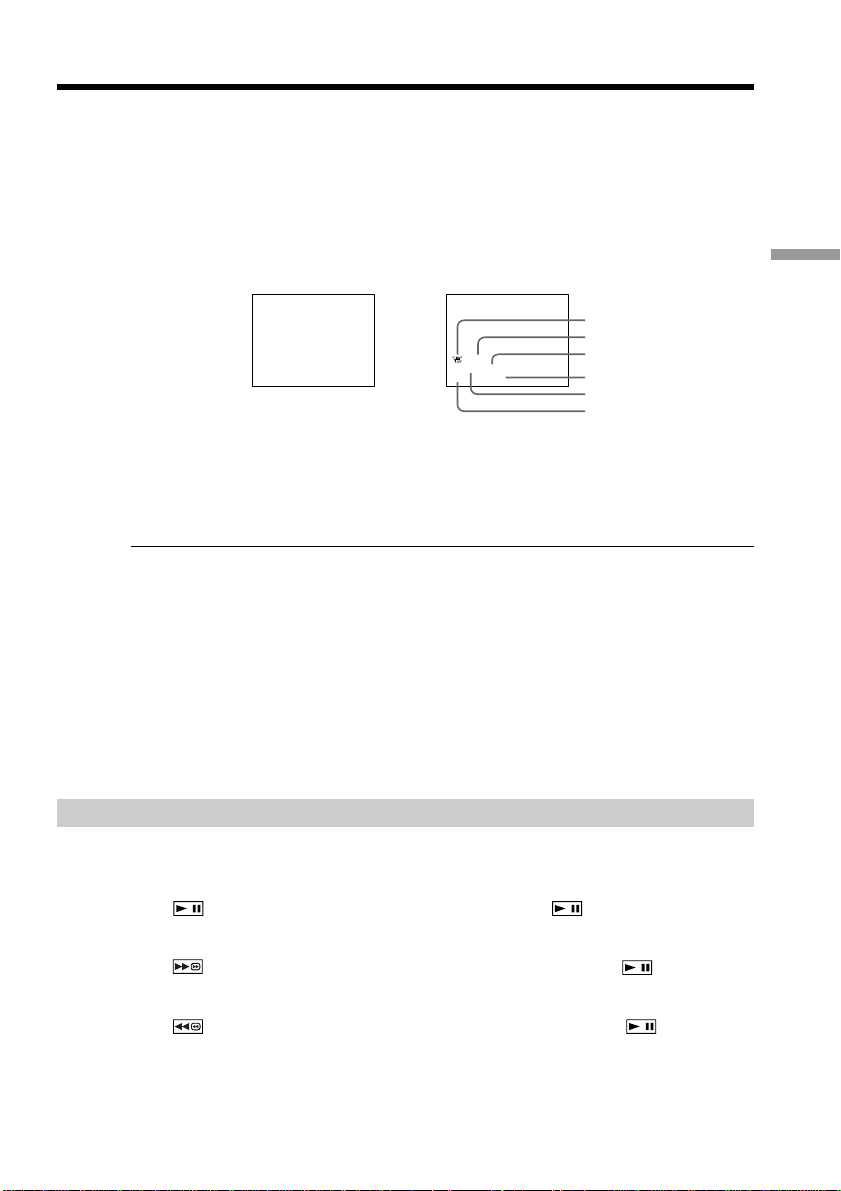
Using the touch panel
(1) In the playback mode, press FN and select PAGE3.
(2) Press DATA CODE.
(3) Select CAM DATA or DATE DATA, then press
OK.
(4) Press EXIT.
DATACODE
CAM
DATA
DATE
DATA
OFF OK
29
Playback – Basics
Playing back a tape
Using the Remote Commander
Press DATA CODE button on the Remote Commander in the playback mode.
The display changes as follows:
date/time t various settings (SteadyShot, exposure, white balance, gain, shutter
speed, aperture value) t no indicator
Not to display various settings
Set DATA CODE to DATE in the menu settings using the Remote Commander (p. 89).
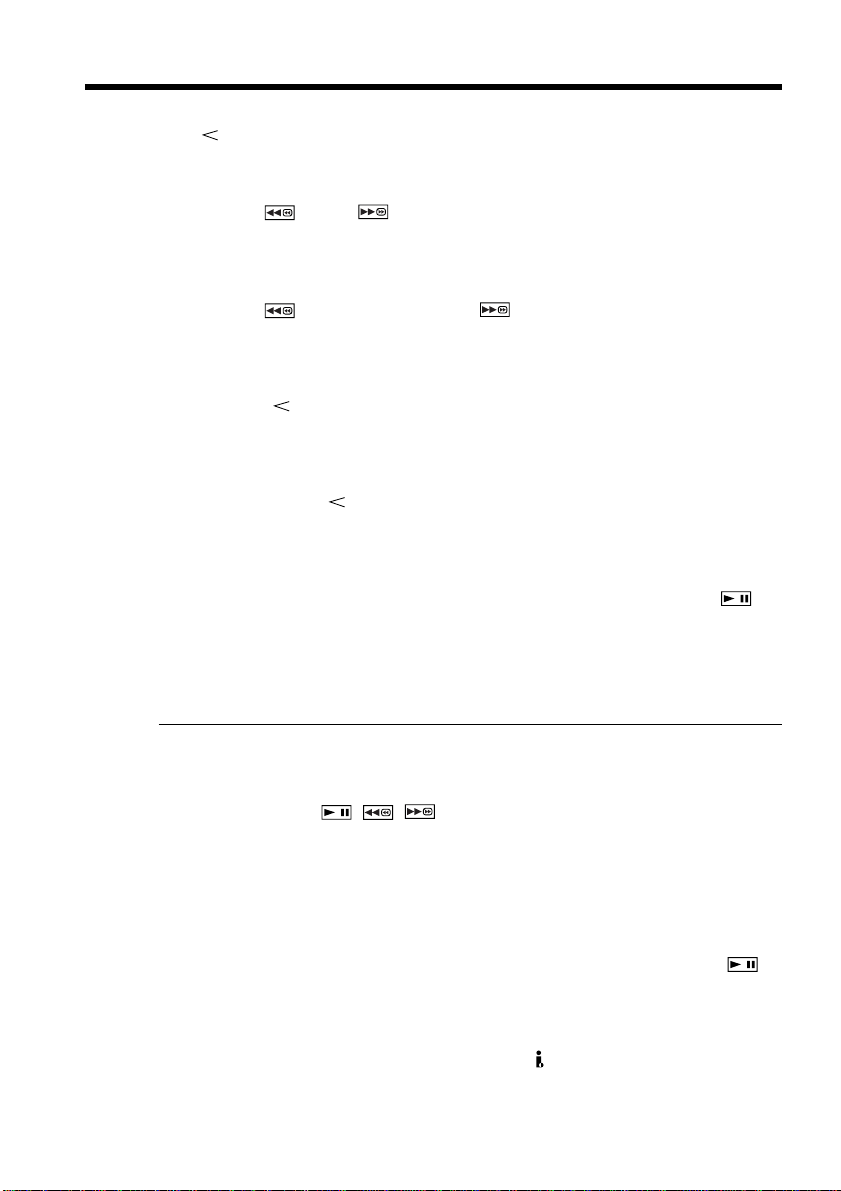
[a] SteadyShot OFF indicator
[b] Exposure mode indicator
[c] White balance indicator
[d] Gain indicator
[e] Shutter speed indicator
[f] Aperture value indicator
Recording data
Recording data is your camcorder’s information when you have recorded. In the
recording mode, the recording data will not be displayed.
When you use the data code function, bars (-- -- --) appear if:
•A blank section of the tape is being played back.
•The tape is unreadable due to tape damage or noise.
•The tape was recorded by a camcorder without the date and time set.
Data code
When you connect your camcorder to the TV, the data code also appears on the TV
screen (p. 31).
Various playback modes
To operate video control buttons, set the POWER switch to VCR.
To view a still picture (playback pause)
Press /X during playback. To resume playback, press /X again.
To advance the tape
Press /M in the stop mode. To resume normal playback, press /N.
To rewind the tape
Press /m in the stop mode. To resume normal playback, press /N.
JUL 4 2000
12:05:56 AM
60 AWB
F1.7 9dB
AUTO
[a]
[b]
[c]
[d]
[e]
[f]
Date/time Various settings
30
Playing back a tape
To change the playback direction
Press on the Remote Commander during playback to reverse the playback direction.
To resume normal playback, press N.
To locate a scene monitoring the picture (picture search)
Keep pressing /m or /M during playback. To resume normal playback,
release the button.
To monitor the high-speed picture while advancing or
rewinding the tape (skip scan)
Keep pressing /m while rewinding or /M while advancing the tape. To
resume rewinding or advancing, release the button.
To view the picture at slow speed (slow playback)
Press y on the Remote Commander during playback. For slow playback in the reverse
direction, press , then press y on the Remote Commander. To resume normal
playback, press N.
To view the picture at double speed
Press ×2 on the Remote Commander during playback. For double speed playback in the
reverse direction, press , then press ×2 on the Remote Commander. To resume
normal playback, press N.
To view the picture frame-by-frame
Press C on the Remote Commander in the playback pause mode. For frame-by-frame
playback in the reverse direction, press c. To resume normal playback, press /
N.
To search the last scene recorded (END SEARCH)
Press END SEARCH in the stop mode. The last 5 seconds of the recorded section plays
back and stops.
Video control buttons
Marks on your camcorder are different from those on the Remote Commander supplied
with your camcorder.
Your camcorder : , ,
Remote Commander : N, X, m, M
In the various playback modes
•Sound is muted.
•The previous picture may remain as a mosaic image during playback.
When the playback pause mode lasts for 5 minutes
Your camcorder automatically enters the stop mode. To resume playback, press /
N.
Slow playback
The slow playback can be performed smoothly on your camcorder; however, this
function does not work for an output signal from the DV IN/OUT jack.
When you play back a tape in reverse
Horizontal noise appears at the center or top and bottom of the screen. This is not a
malfunction.
31
Playback – Basics
Viewing the recording on TV
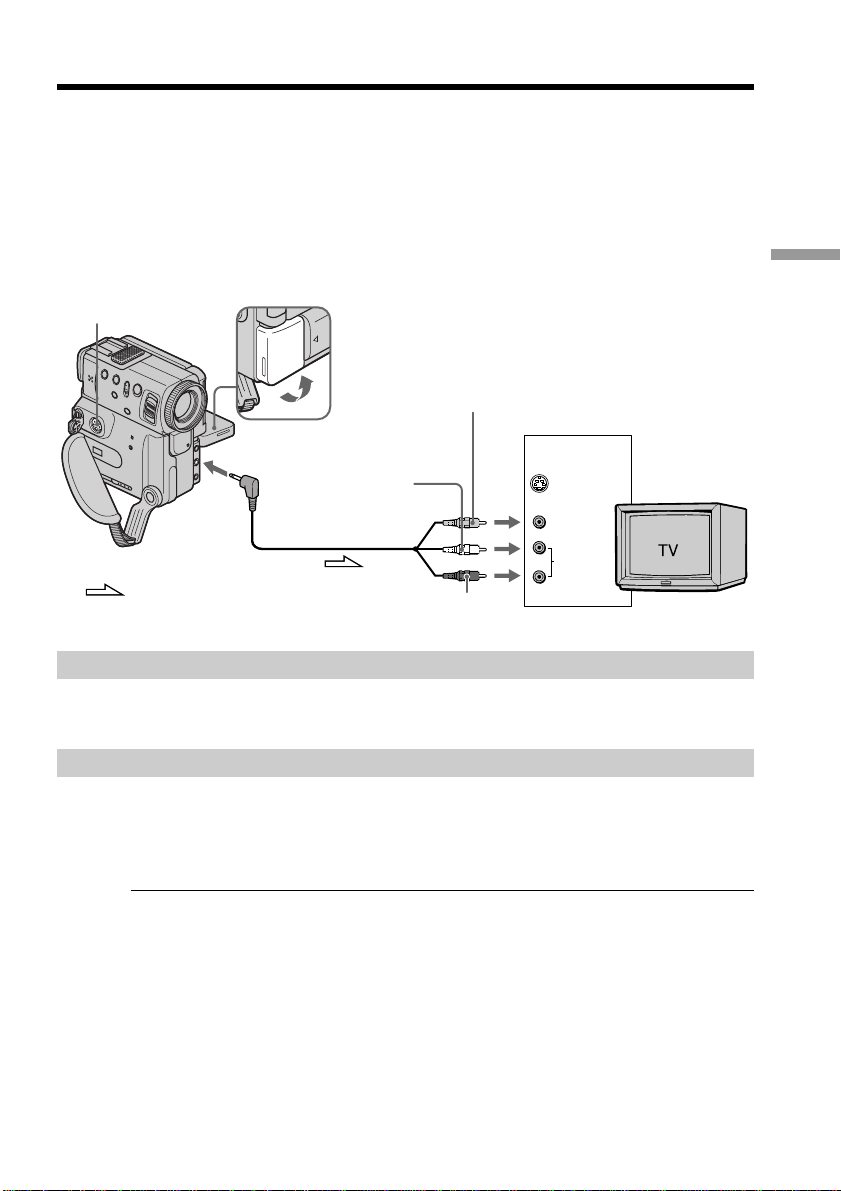
Connect your camcorder to your TV or VCR with the A/V connecting cable supplied
with your camcorder to watch the playback picture on the TV screen. You can operate
the playback control buttons in the same way as when you monitor playback pictures
on the LCD screen. When monitoring the playback picture on the TV screen, we
recommend that you power your camcorder from a wall outlet using the AC adaptor
(p. 14). Refer to the operating instructions of your TV or VCR.
Open the jack cover. Connect your camcorder to the TV using the A/V connecting
cable. Then, set the TV/VCR selector on the TV to VCR.
If your TV is already connected to a VCR
Connect your camcorder to the LINE IN input on the VCR by using the A/V connecting
cable supplied with your camcorder. Set the input selector on the VCR to LINE.
If your TV or VCR is a monaural type
Connect the yellow plug of the A/V connecting cable to the video input jack and the
white or the red plug to the audio input jack on the VCR or the TV. If you connect the
white plug, the sound is L (left) signal. If you connect the red plug, the sound is R
(right) signal.
If your TV or VCR has an S video jack
Connect using an S video cable (not supplied) to obtain high-quality pictures. With this
connection, you do not need to connect the yellow (video) plug of the A/V connecting
cable.
Connect the S video cable (not supplied) to the S VIDEO jacks on both your camcorder
and the TV or the VCR.
This connection produces higher quality DV format pictures.
To display the screen indicators on TV
Set DISPLAY to V-OUT/LCD in the menu settings (p. 89).
Then press DISPLAY/TOUCH PANEL on your camcorder. To turn off the screen
indicators, press DISPLAY/TOUCH PANEL on your camcorder again.
: Signal flow
S VIDEO
S VIDEO
VIDEO
AUDIO
IN
AUDIO/VIDEO
Yellow
Red
White
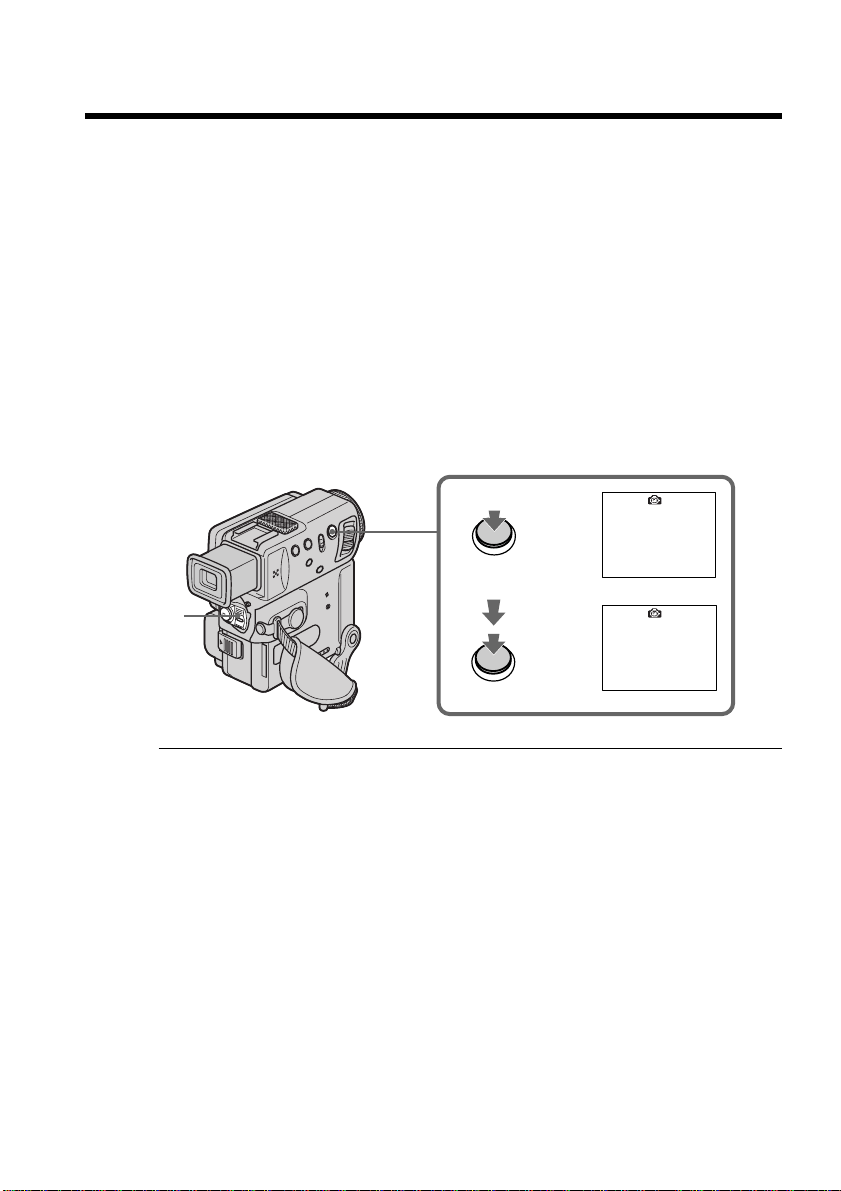
32
— Advanced Recording Operations —
Recording a still image on a tape
– Tape Photo recording
You can record a still picture. This mode is useful when you want to print a picture
using a video printer (not supplied).
You can record about 510 pictures in the SP mode and about 765 pictures in the LP
mode on a 60-minute tape.
Besides the operation described here, your camcorder can record still pictures on
“Memory Stick”s (p. 96).
(1) Set the POWER switch to CAMERA.
(2) In the standby mode, keep pressing PHOTO lightly until a still picture
appears. The CAPTURE indicator appears. Recording does not start yet.
To change the still picture, release PHOTO, select a still picture again, and then
press and hold PHOTO lightly.
(3) Press PHOTO deeper.
The still picture in the viewfinder or on the LCD screen is recorded for about
seven seconds. The sound during those seven seconds is also recorded.
The still image is displayed in the viewfinder or on the LCD screen until the
recording is completed.
2
•••••••
3
CAPTURE
1
PHOTO
PHOTO
Notes
•During tape photo recording, you cannot change the mode or setting.
•When recording a still picture, do not shake your camcorder. The picture may
fluctuate.
•The tape photo recording function does not work:
– while the fader function is set or in use
– while the digital effect function is set or in use
If you record a moving subject with the tape photo recording function
When you play back the still picture on other equipment, the picture may fluctuate.
To use the tape photo recording function using the Remote Commander
Press PHOTO on the Remote Commander. Your camcorder records a picture on the
LCD screen or in the viewfinder immediately.
To use the tape photo recording function during normal CAMERA recording
Press PHOTO deeper. The still picture is then recorded for about seven seconds and
your camcorder returns to the standby mode. You cannot select another still picture.
To record clear and less fluctuated still pictures
We recommend that you record on “Memory Stick”s.
33
Advanced Recording Operations
Recording a still image on a tape – Tape Photo recording
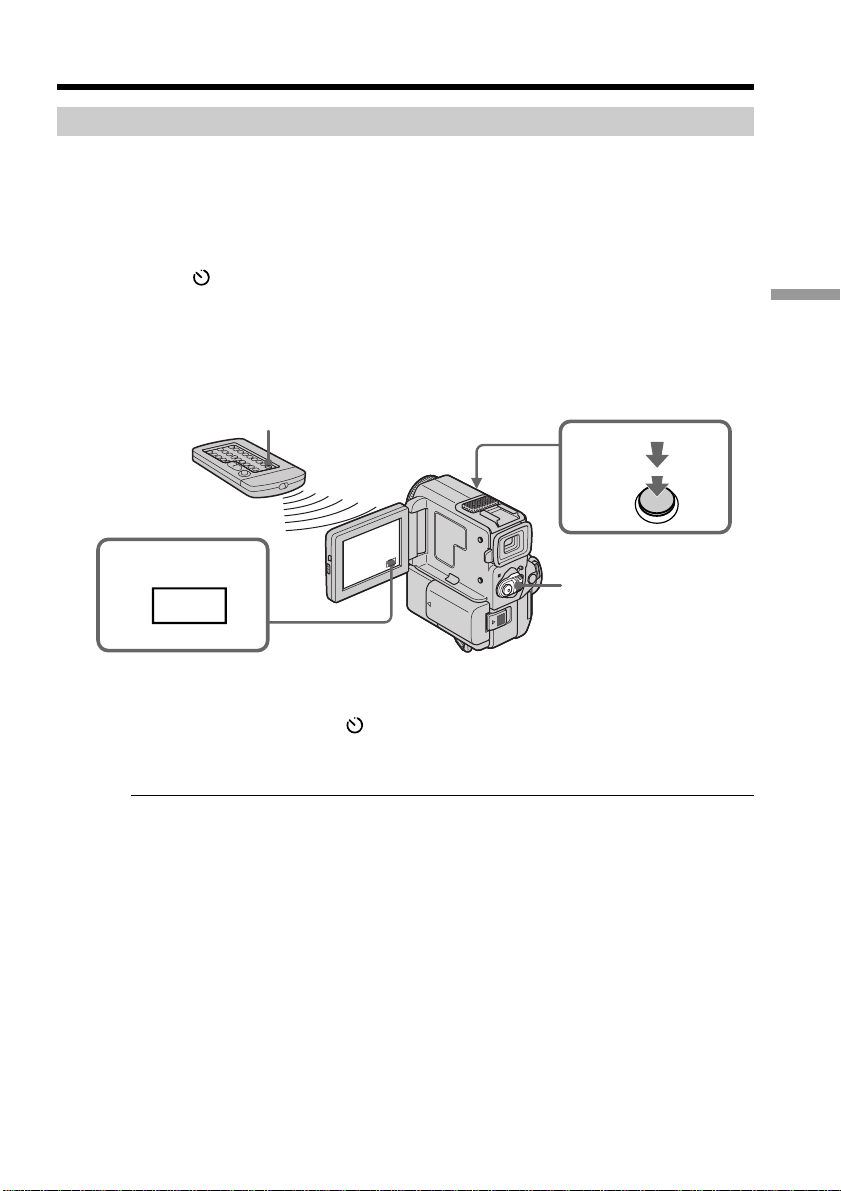
Self-timer tape photo recording
You can make a tape photo recording with the self-timer. You can also operate using
the Remote Commander.
(1) Set the POWER switch to CAMERA.
(2) Press FN and select PAGE3 (p. 16).
(3) Press SELFTIMER.
The
(self-timer) indicator appears on the LCD screen or in the viewfinder.
(4) Press PHOTO deeper.
Self-timer starts counting down from 10 with a beep sound. In the last two
seconds of the countdown, the beep sound gets faster, then the recording starts
automatically.
To cancel the self-timer tape photo recording
Press SELFTIMER so that the indicator disappears from the LCD screen or the
viewfinder while your camcorder is in the standby mode. You cannot cancel the self-
timer tape photo recording using the Remote Commander.
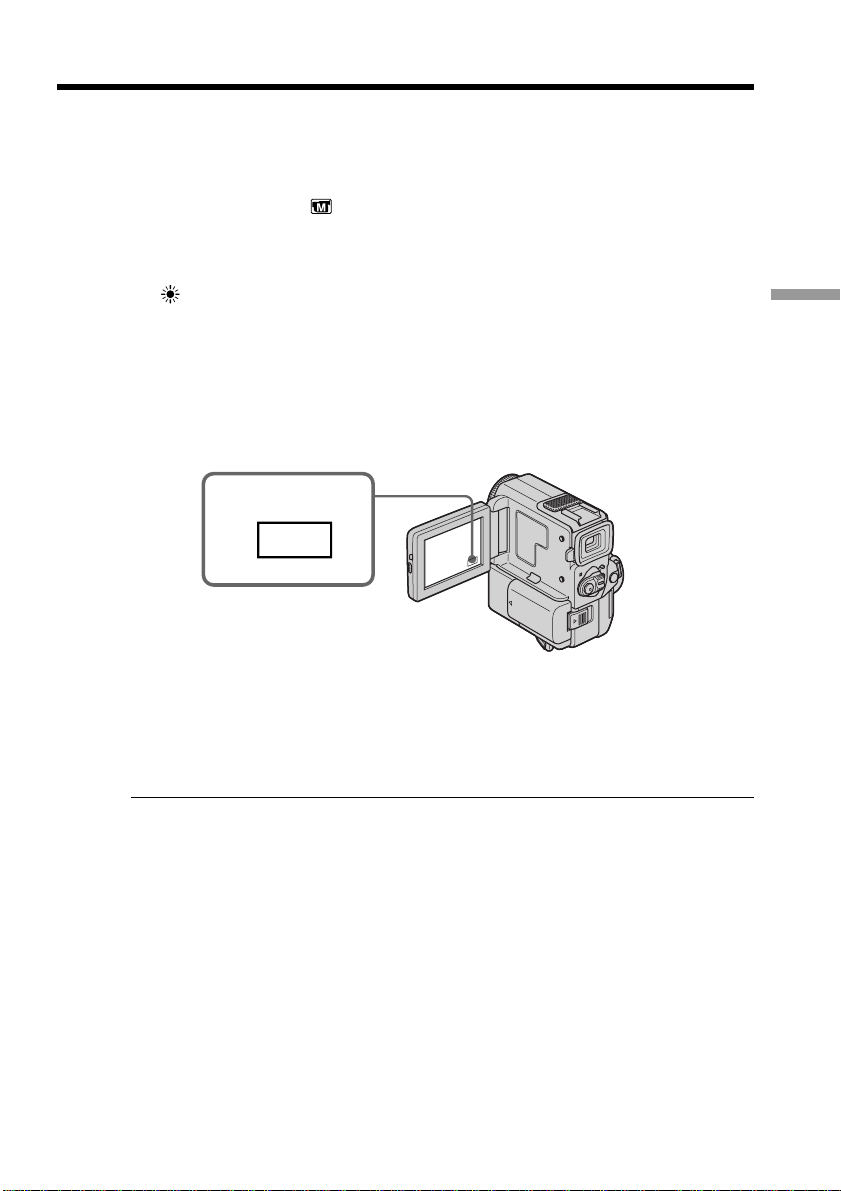
Note
The self-timer tape photo recording mode is automatically cancelled when:
•The self-timer tape photo recording is finished.
•The POWER switch is set to OFF or VCR.
4
4
2
FN
1
PHOTO
34
Recording a still image on a tape – Tape Photo recording
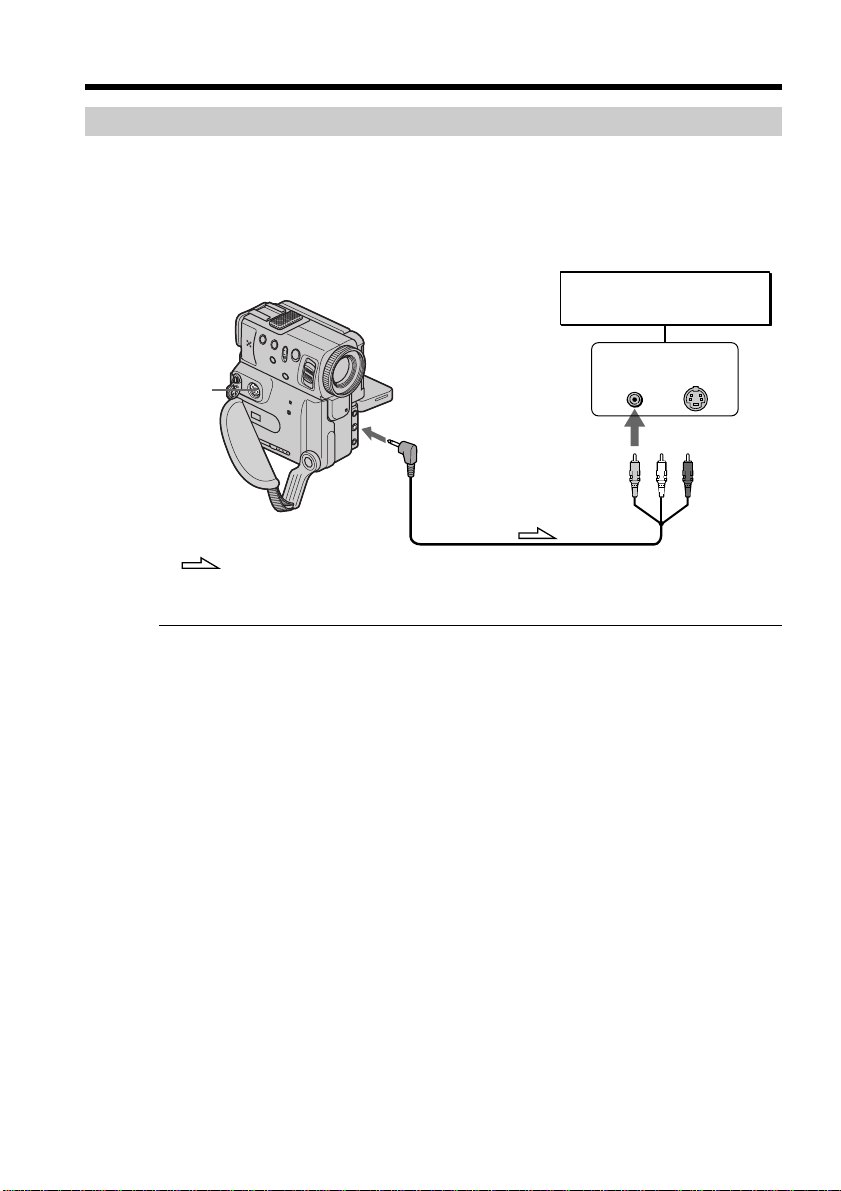
Printing the still picture
You can print a still picture by using the video printer (not supplied). Connect the video
printer using the A/V connecting cable supplied with your camcorder.
Connect it to the AUDIO/VIDEO jack and connect the yellow plug of the cable to the
video input of the video printer. Refer to the operating instructions of the video printer
as well.
If the video printer is equipped with S video input
Use the S video connecting cable (not supplied). Connect it to the S VIDEO jack and the
S video input of the video printer.
AUDIO/VIDEO
S VIDEO
LINE IN
VIDEO S VIDEO
: Signal flow
Video printer
35
Advanced Recording Operations
Adjusting the white balance manually
You can manually adjust and set the white balance. This adjustment makes white
subjects look white and allows more natural color balance. Normally white balance is
automatically adjusted.
(1) In the CAMERA/memory camera mode, press FN to display PAGE1 (p. 16).
(2) Select WHT BAL in
in the menu settings to select a desired white balance
mode (p. 89).
HOLD: Recording a single-colored subject or background
(OUTDOOR):
•Recording a sunset/sunrise, just after sunset, just before sunrise, neon signs, or
fireworks
•Under a color matching fluorescent lamp
n (INDOOR):
•When lighting condition changes quickly
•In too bright places such as photography studios
•Under sodium lamps or mercury lamps
To return to FN
Press EXIT.
To return to the automatic white balance mode
Set WHT BAL to AUTO in the menu settings (p. 89).
If the picture is being taken in a studio lit by TV lighting
We recommend that you record in the n indoor mode.
When you record under fluorescent lighting
Use the automatic white balance or hold mode.
Your camcorder may not adjust the white balance correctly in the n indoor mode.
In the automatic white balance mode
Point your camcorder at the white subject for about 10 seconds after setting the POWER
switch to CAMERA to get better adjustment when:
•You detach the battery for replacement.
•You bring your camcorder from indoors to outdoors and vice versa.
In the hold white balance mode
Set the white balance to AUTO and reset to HOLD after few seconds when:
•You change the PROGRAM AE mode.
•You bring your camcorder from indoors to outdoors and vice versa.
1
FN
36
Using the wide mode
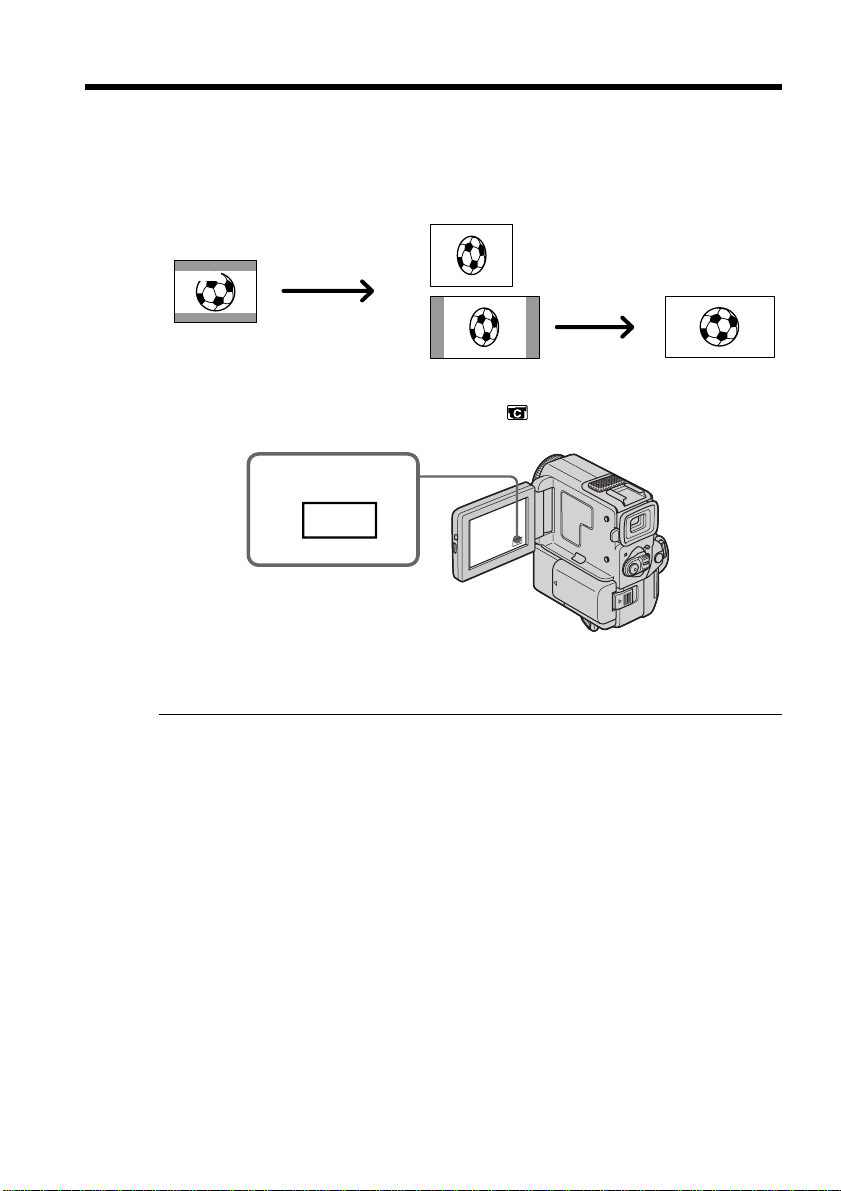
You can record a 16:9 wide picture to watch on the 16:9 wide-screen TV (16:9WIDE).
Black bands appear on the screen during recording in 16:9WIDE mode [a]. The picture
during playing back on a normal TV [b] or a wide -screen TV [c] are compressed in the
widthwise direction. If you set the screen mode of the wide-screen TV to the full mode,
you can watch pictures of normal images [d].
(1) In the standby mode, press FN to display PAGE1 (p. 16).
(2) Press MENU, then set 16:9WIDE to ON in
in the menu settings (p. 89).
To return to FN
Press EXIT.
To cancel the wide mode
Set 16:9WIDE to OFF in the menu settings.
In the wide mode, you cannot select the following functions:
– Old movie
– Bounce
During recording
You cannot select or cancel the wide mode. When you cancel the wide mode, set your
camcorder to the standby mode and then set 16:9WIDE to OFF in the menu settings.
Connection for a TV
Pictures recorded in the 16:9WIDE mode automatically appear on the TV screen at full
size when you connect your camcorder to a TV that is compatible with the video ID
(ID-1/ID-2) system.
ID-1 system
The ID-1 system communicates the aspect ratio (16:9, 4:3 or letterbox) information of the
screen by adding signals to the gaps between video signals. If a TV supporting this
system is connected to your camcorder, the TV's wide mode is switched to
automatically.
ID-2 system
The ID-2 system sends a copyright protection signal with ID-1 signals inserted between
video signals when you connect your camcorder to other equipment by an A/V
connecting cable.
[a]
[c]
[b]
[d]
16:9
WIDE
1
FN
37
Advanced Recording Operations
Using the fader function
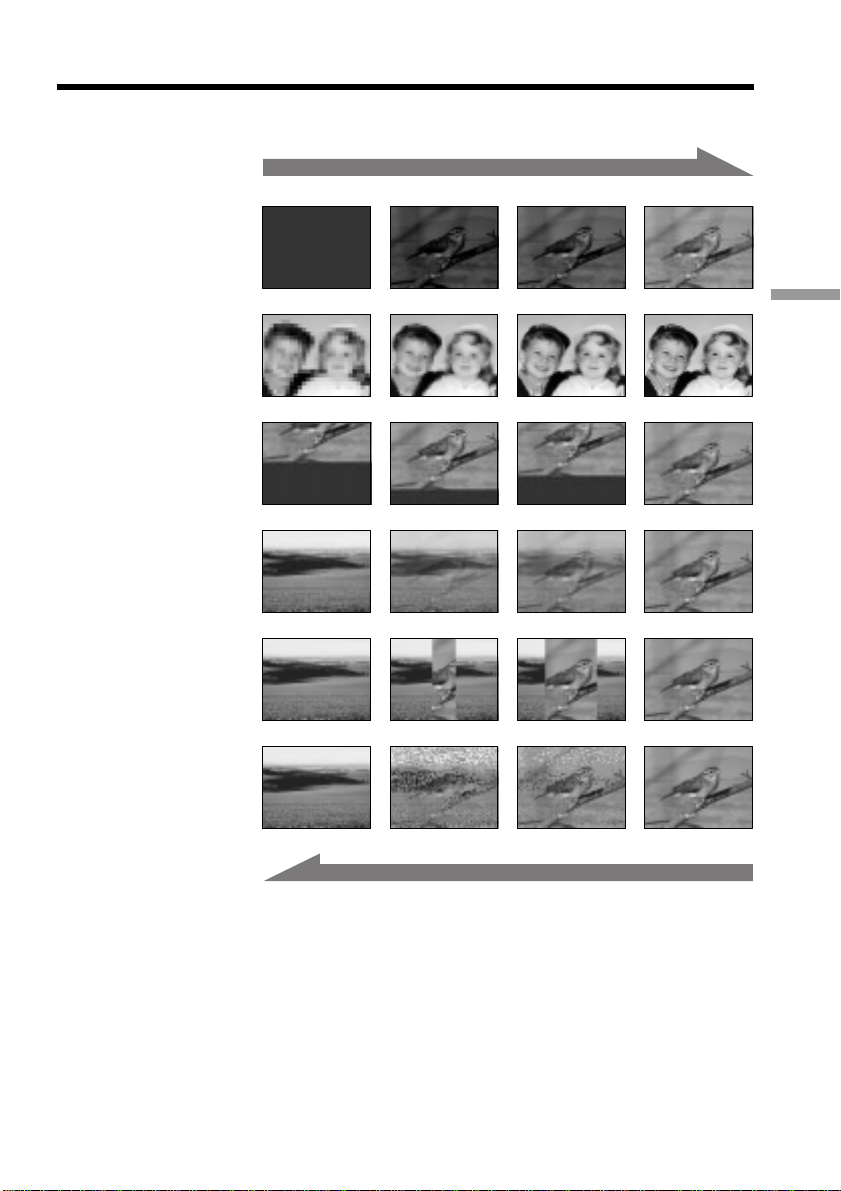
You can fade in or out to give your recording a professional appearance.
NORM. FADER
(fader)
MOSC.FADER
(mosaic)
BOUNCE*
(Fade in only)
OVERLAP
(Fade in only)
MONOTONE
When fading in, the picture gradually changes from black-and-white to color.
When fading out the picture gradually changes from color to black-and-white.
* You can use this function only when D ZOOM is set to OFF in the menu settings.
** The sound is not wiped away.
WIPE**
(Fade in only)
DOT
(Fade in only)
[a]
RECSTBY
RECSTBY
[b]
38
Using the fader function
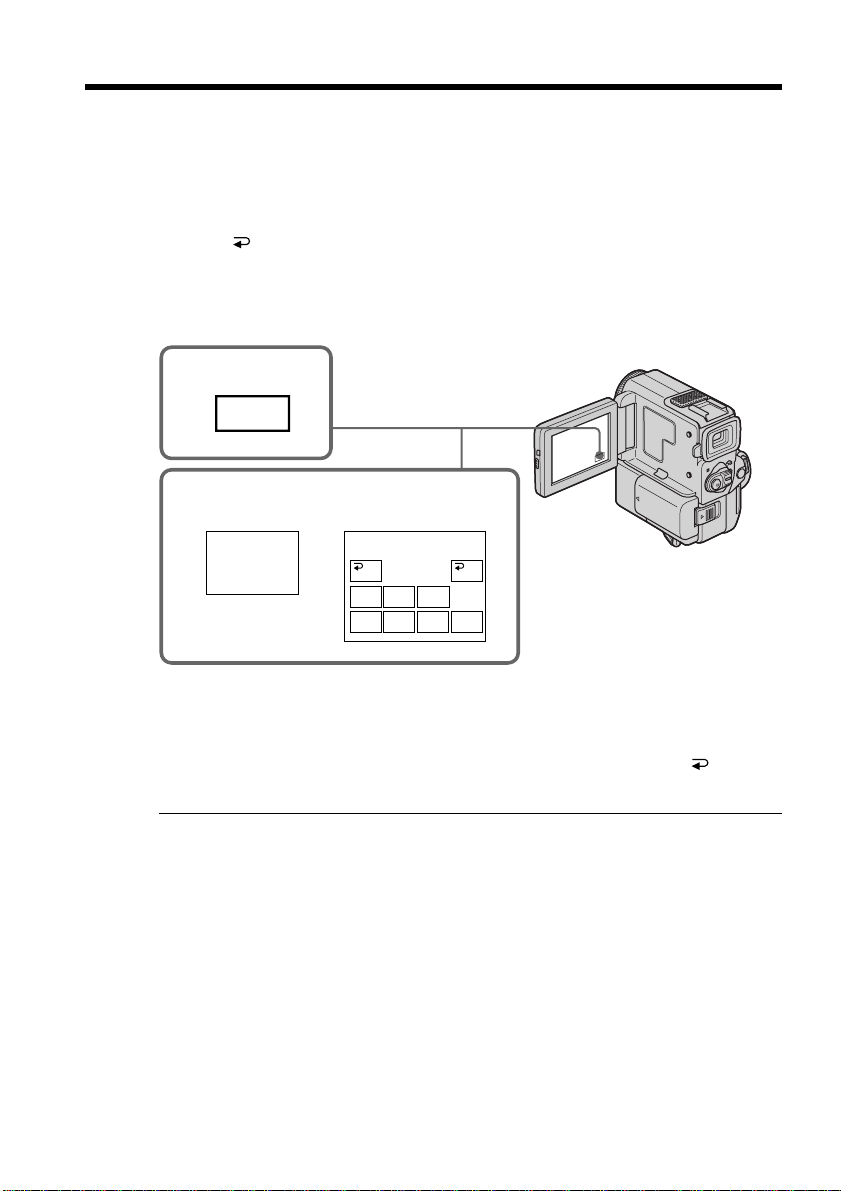
(1) When fading in [a]
In the standby mode, press FN to display PAGE1 (p. 16).
When fading out [b]
In the recording mode, press FN to display PAGE1 (p. 16).
(2) Press FADER. The screen to select the fader mode appears.
(3) Select a desired fader mode.
(4) Press
OK to return to PAGE1, and press EXIT to return to FN.
The fader indicator you selected flashes.
(5) Press START/STOP. After the fade in/out is carried out, your camcorder
automatically returns to the normal mode.
To cancel the fader function
After the fade in/out is carried out : Your camcorder automatically returns to the
normal mode.
Before the fade in/out is carried out : Before pressing START/STOP, press OFF to
return to PAGE1, and press EXIT to return to FN.
Note
You cannot use the following functions while using the fader function. Also, you cannot
use the fader function while using the following functions.
– Digital effect
– Low lux mode of PROGRAM AE (Overlap, Wipe or Dot function only)
– Super NightShot
– Tape Photo recording
1
FN
FADER
MOSC.
FADER
NORM.
FADER
OFF OK
MONO–
TONE
BOUN–
CE
DOTW
I
PE
OVER–
LAP
2~4
FADER

39
Advanced Recording Operations
Using the fader function
When the OVERLAP, WIPE or DOT indicator appears
Your camcorder automatically stores the image recorded on a tape. At this stage, the
picture may not be recorded clearly, depending on the tape condition.
While using the bounce function, you cannot use the following functions:
– Exposure
– Focus
– Zoom
– Picture effect
Note on the bounce function
The BOUNCE indicator does not appear in the following mode or functions:
– D ZOOM is set to 20× or 120× in the menu settings
– 16:9 wide
– Picture effect
– PROGRAM AE
While in MEMORY mode
You cannnot use the fader function.
40
Using special effects – Picture effect
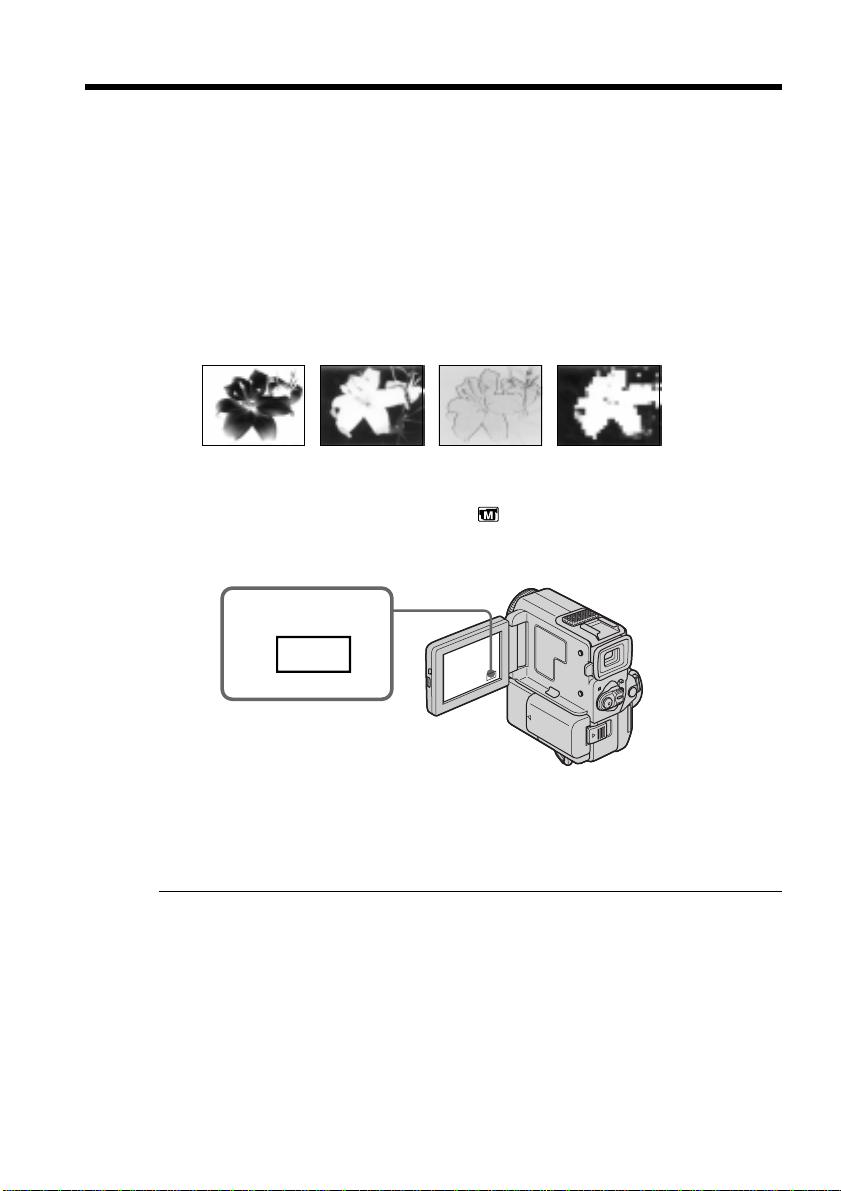
You can digitally process images to obtain special effects like those in films or on the
TV.
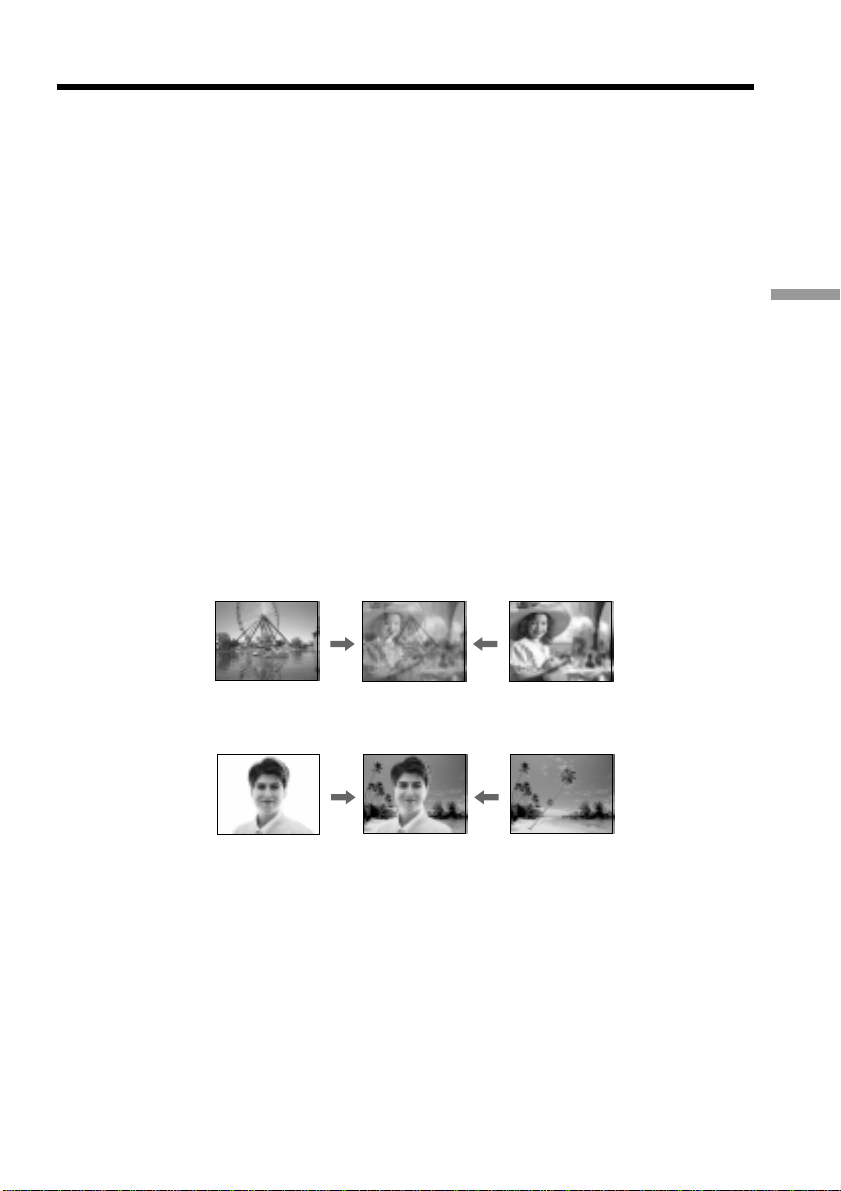
NEG. ART [a] : The color and brightness of the picture is reversed.
SEPIA : The picture is sepia.
B&W : The picture is monochrome (black-and-white).
SOLARIZE [b] : The light intensity is clearer, and the picture looks like an illustration.
PASTEL [c] : The contrast of the picture is emphasized, and the picture looks like an
animated cartoon.
MOSAIC [d] : The picture is mosaic.
(1) In CAMERA mode, press FN to display PAGE1 (p. 16).
(2) Press MENU, then select P EFFECT in
in the menu settings to select a
desired picture effect mode (p. 89).
[a] [b] [c] [d]
1
FN
To return to FN
Press EXIT.
To turn the picture effect function off
Select OFF in P EFFECT in the menu settings.
While using the picture effect function
You cannot select the old movie mode with DIG EFFT.
When you turn the power off
Your camcorder automatically returns to the normal mode.
41
Advanced Recording Operations
Using special effects – Digital effect
You can add special effects to recorded pictures using the various digital functions. The
sound is recorded normally.
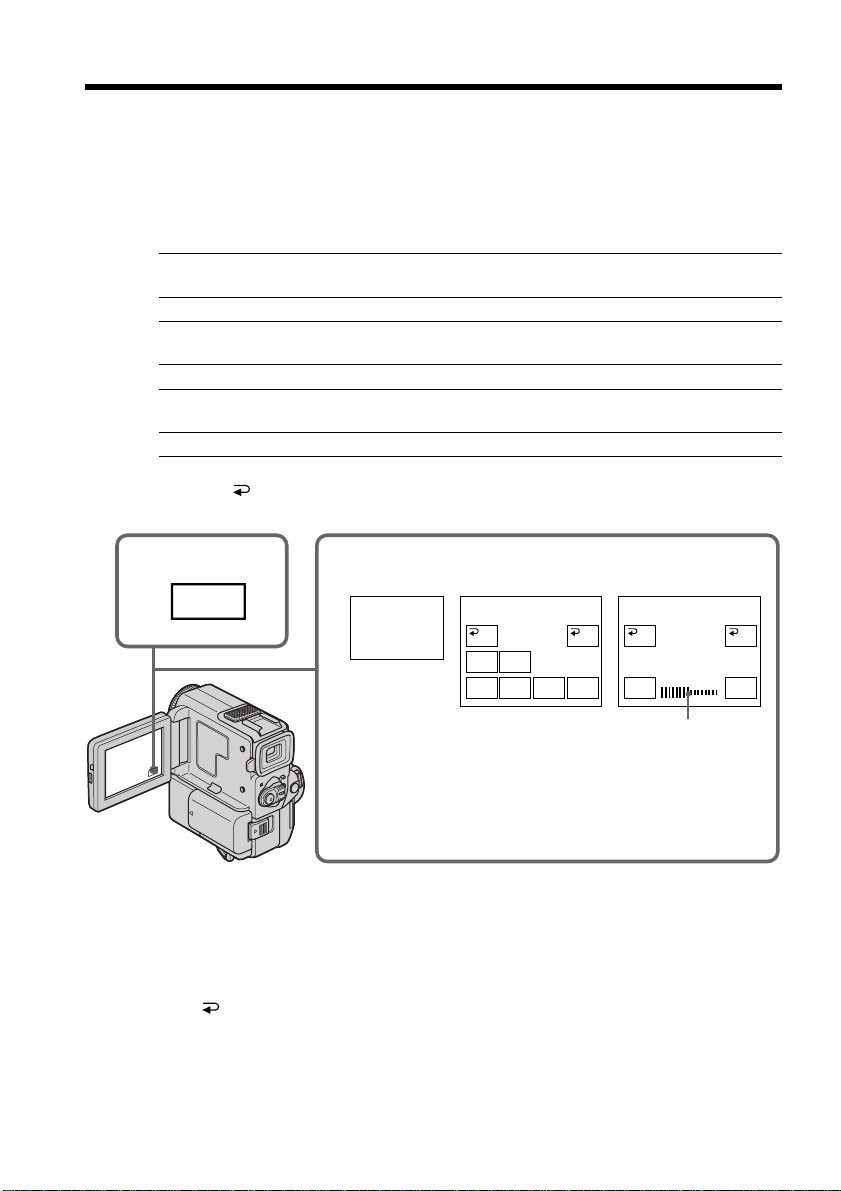
STILL
You can record a still picture so that it is superimposed on a moving picture.
FLASH (FLASH MOTION)
You can record still pictures successively at constant intervals.
LUMI. (LUMINANCEKEY)
You can swap a brighter area in a still picture with a moving picture.
TRAIL
You can record a picture so that an incidental image like a trail is left.
SLOW SHTR (SLOW SHUTTER)
You can slow down the shutter speed. The slow shutter mode is good for recording
dark pictures more brightly. However, the picture may be less clear.
OLD MOVIE
You can add an old movie type atmosphere to pictures. Your camcorder automatically
sets the wide mode to ON, picture effect to SEPIA, and the appropriate shutter speed.
STILL
LUMI.
Still picture Moving picture
Still picture Moving picture
42
Using special effects – Digital effect
(1) In CAMERA mode, press FN to display PAGE1 (p. 16).
(2) Press DIG EFFT. The screen to select a desired digital effect mode appears.
(3) Select a desired digital effect mode. In the STILL and LUMI. modes, the still
picture is stored in memory.
(4) Press –/+ to adjust the effect.
Items to adjust
STILL The rate of the still picture you want to superimpose on the moving
picture
FLASH The interval of flash motion
LUMI. The color scheme of the area in the still picture which is to be swapped
with a moving picture
TRAIL The vanishing time of the incidental image
SLOW SHTR Shutter speed. The larger the shutter speed number, the slower the
shutter speed.
OLD MOVIE No adjustment necessary
(5) Press OK to return to PAGE1.
To return to FN
Press EXIT.
To cancel the digital effect
Press OFF to return to PAGE1.
LUMI.
–+
OK
OFF
1
2~4
FN
DIG
EFFT
DIG EFFT
STILL
SLOW
SHTR
OLD
MOVIE
OFF OK
LUMI.FLASH TRAIL
The bar appears when setting following
digital effect modes : STILL, FLASH,
LUMI., TRAIL.

43
Advanced Recording Operations
Using special effects – Digital Effect
Notes
•The following functions do not work during digital effect:
– Fader
– Low lux mode of PROGRAM AE
– Tape Photo recording
– Super NightShot
•The following function does not work in the slow shutter mode:
– PROGRAM AE
•The following functions do not work in the old movie mode:
– 16:9 wide
– Picture effect
– PROGRAM AE
When you turn the power off
The digital effect will be automatically canceled.
When recording in the slow shutter mode
Auto focus may not be effective. Focus manually using a tripod.
Shutter speed
Shutter speed number Shutter speed
SLOW SHTR 1 1/30
SLOW SHTR 2 1/15
SLOW SHTR 3 1/8
SLOW SHTR 4 1/4
44
Using the PROGRAM AE function
You can select PROGRAM AE (Auto Exposure) mode to suit your specific shooting
requirements.
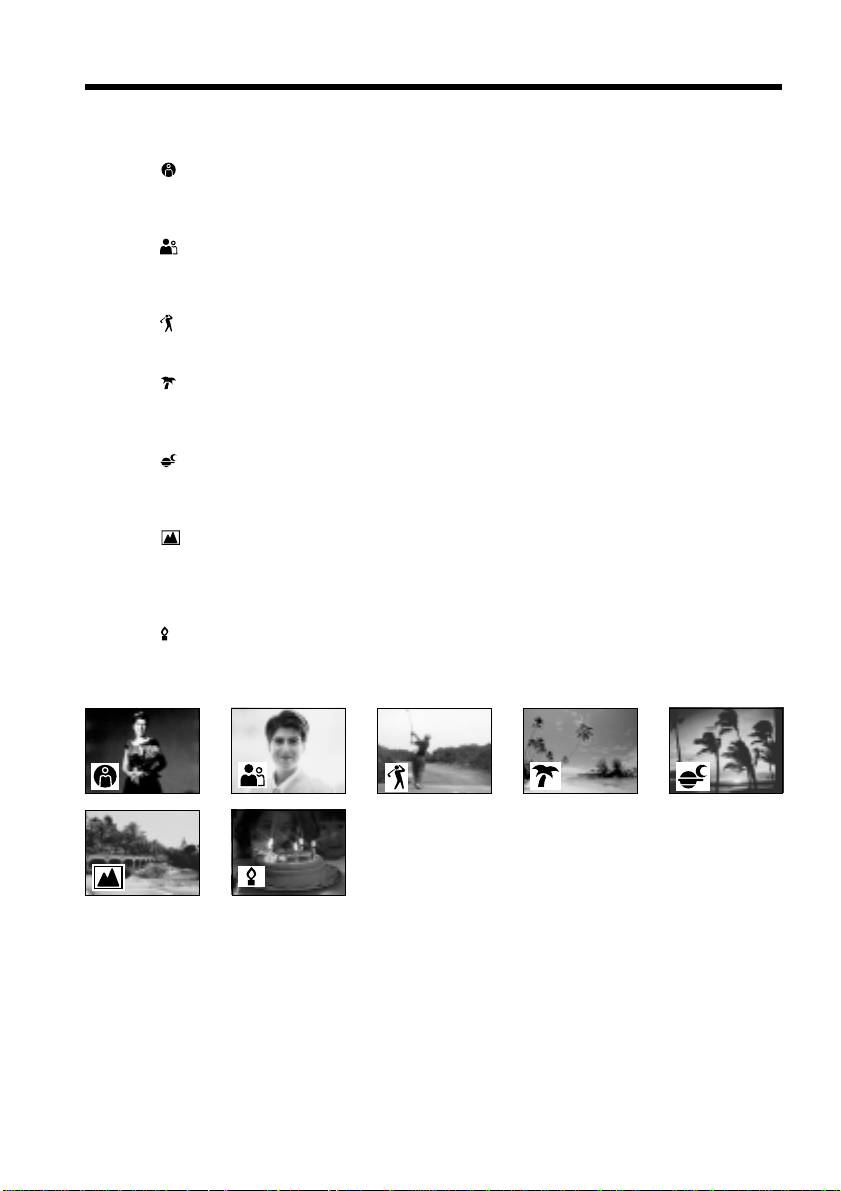
Spotlight mode
This mode prevents people’s faces, for example, from appearing excessively white
when shooting subjects lit by strong light in the theater.
Soft portrait mode
This mode brings out the subject while creating a soft background for subjects such as
people or flowers.
Sports lesson mode
This mode minimizes shake on fast-moving subjects such as in tennis or golf.
Beach & ski mode
This mode prevents people’s faces from appearing dark in strong light or reflected light,
such as at a beach in midsummer or on a ski slope.
Sunset & moon mode
This mode allows you to maintain atmosphere when you are recording sunsets, general
night views, fireworks displays and neon signs.
Landscape mode
This mode is for when you are recording distant subjects such as mountains and
prevents your camcorder from focusing on glass or metal mesh in windows when you
are recording a subject behind glass or a screen.
Low lux mode
This mode makes subjects brighter in insufficient light.
45
Advanced Recording Operations
Using the PROGRAM AE function
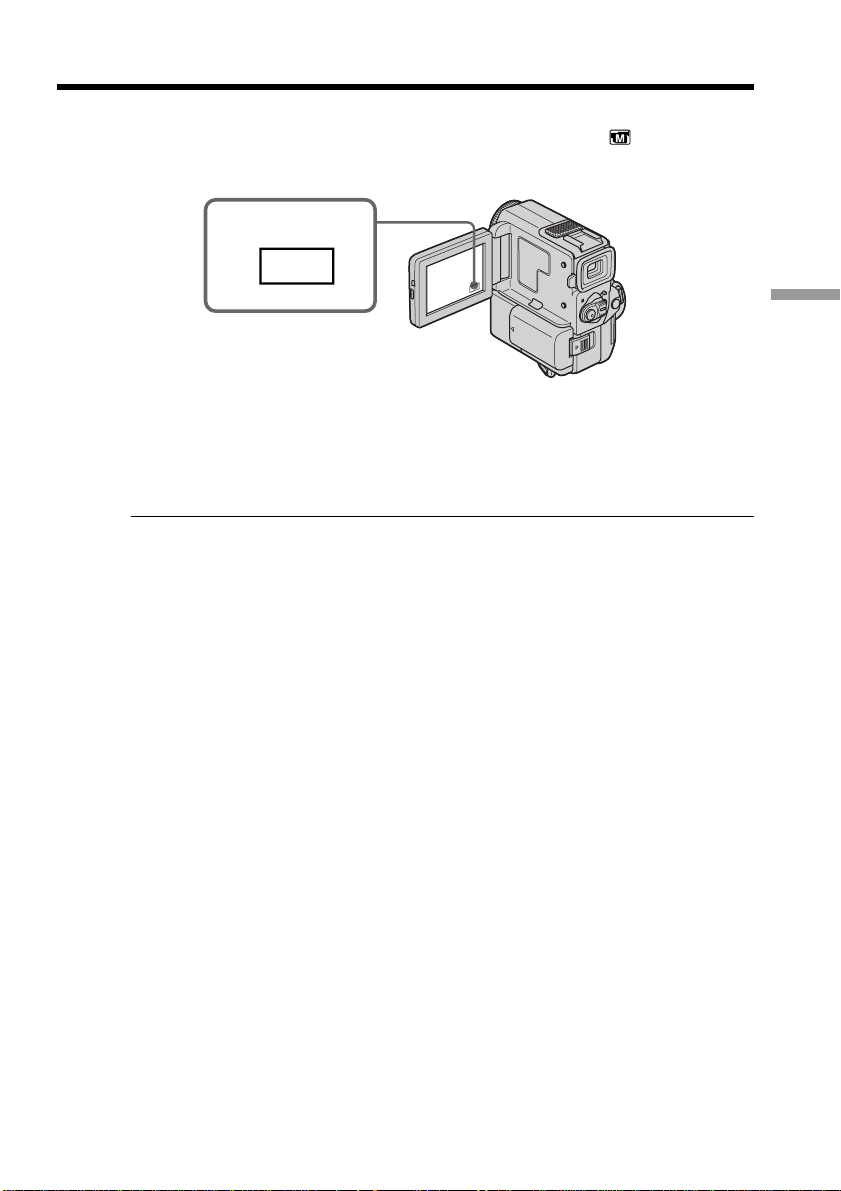
(1) In the standby/memory camera mode, press FN to display PAGE1 (p. 16).
(2) Press MENU, then select a desired PROGRAM AE mode in
in the menu
settings (p. 89).
To return to FN
Press EXIT.
To turn the PROGRAM AE function off
Select AUTO in PROGRAM AE in the menu settings.
Notes
•In the spotlight, sports lesson and beach & ski modes, you cannot take close-ups. This
is because your camcorder is set to focus only on subjects in the middle to far distance.
•In the sunset & moon and landscape modes, your camcorder is set to focus only on
distant subjects.
•The following functions do not work in the PROGRAM AE mode:
– Slow shutter
– Old movie
– Bounce
•The following functions do not work in the low lux mode:
– Digital effect
– Memory overlap
– Overlap
– Wipe
– Dot
•While setting the NIGHTSHOT to ON, the PROGRAM AE function does not work.
(The indicator flashes.)
•While shooting in the memory camera mode, the low lux and sports lesson modes do
not work. (The indicator flashes.)
While WHT BAL is set to AUTO in the menu settings
The white balance is adjusted even if the PROGRAM AE function is selected.
Even if the PROGRAM AE function is selected
You can adjust the exposure.
If you are recording under a discharge tube such as a fluorescent lamp, sodium
lamp or mercury lamp
Flickering or changes in color may occur in the following modes. If this happens, turn
the PROGRAM AE function off.
– Soft portrait mode
– Sports lesson mode
1
FN
46
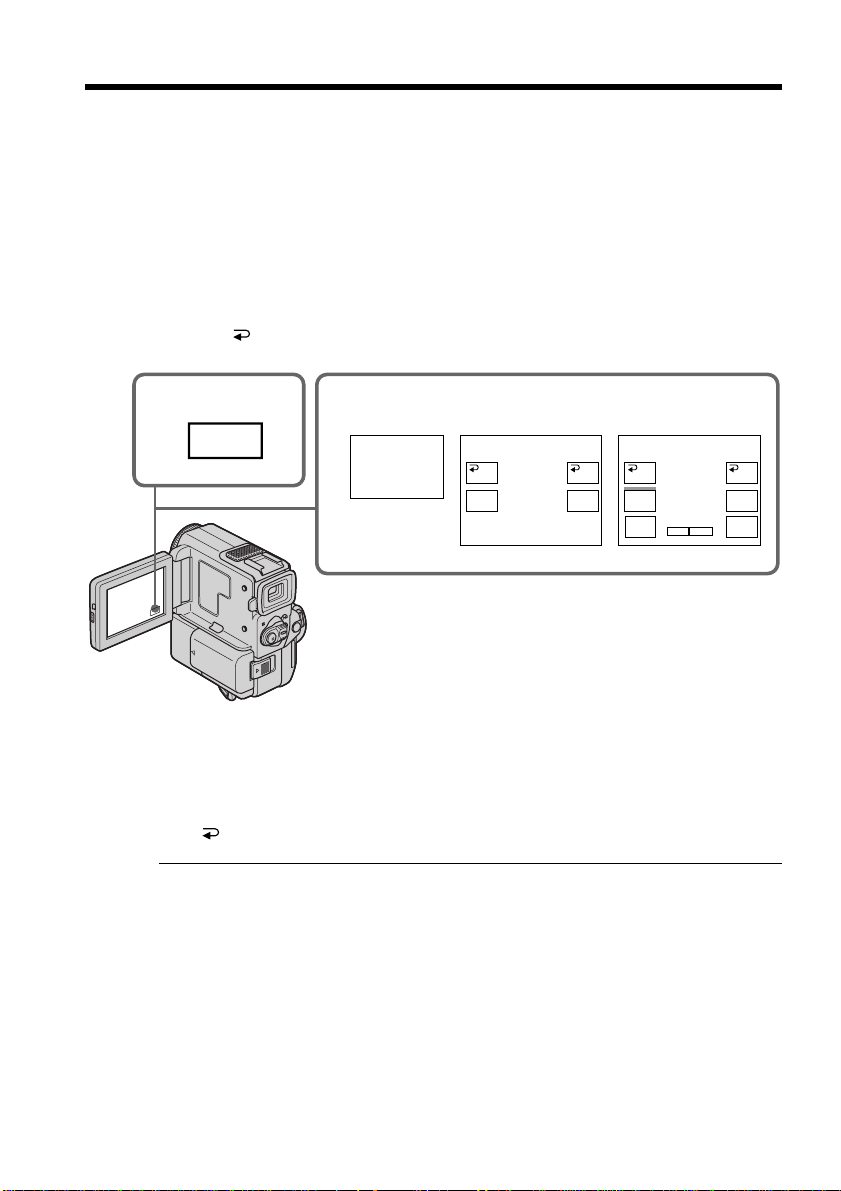
Adjusting the exposure manually
You can manually adjust and set the exposure. Adjust the exposure manually in the
following cases:
•The subject is backlit
•To shoot the bright subject and dark background
•To record dark pictures (e.g. night scenes) faithfully
(1) In the CAMERA/memory camera mode, press FN to display PAGE1 (p. 16).
(2) Press EXPOSURE. The screen to adjust the exposure appears.
(3) Press MANUAL, then adjust the exposure using –/+.
– : to dim
+ : to brighten
(4) Press
OK to return to PAGE1.
To return to FN
Press EXIT.
To return to the automatic exposure mode
Press OFF to return to PAGE1.
Note
When you adjust the exposure manually, the backlight function does not work.
If you change the PROGRAM AE mode or slide NIGHTSHOT to ON
Your camcorder automatically returns to the automatic exposure mode.
1
2,3
FN
EXPO–
SURE
MANU–
AL
SPOT
METER
SPOT
METER
EXPOSURE
OKOFF
–+
MANU–
AL
EXPOSURE
–+
OKOFF
47
Advanced Recording Operations
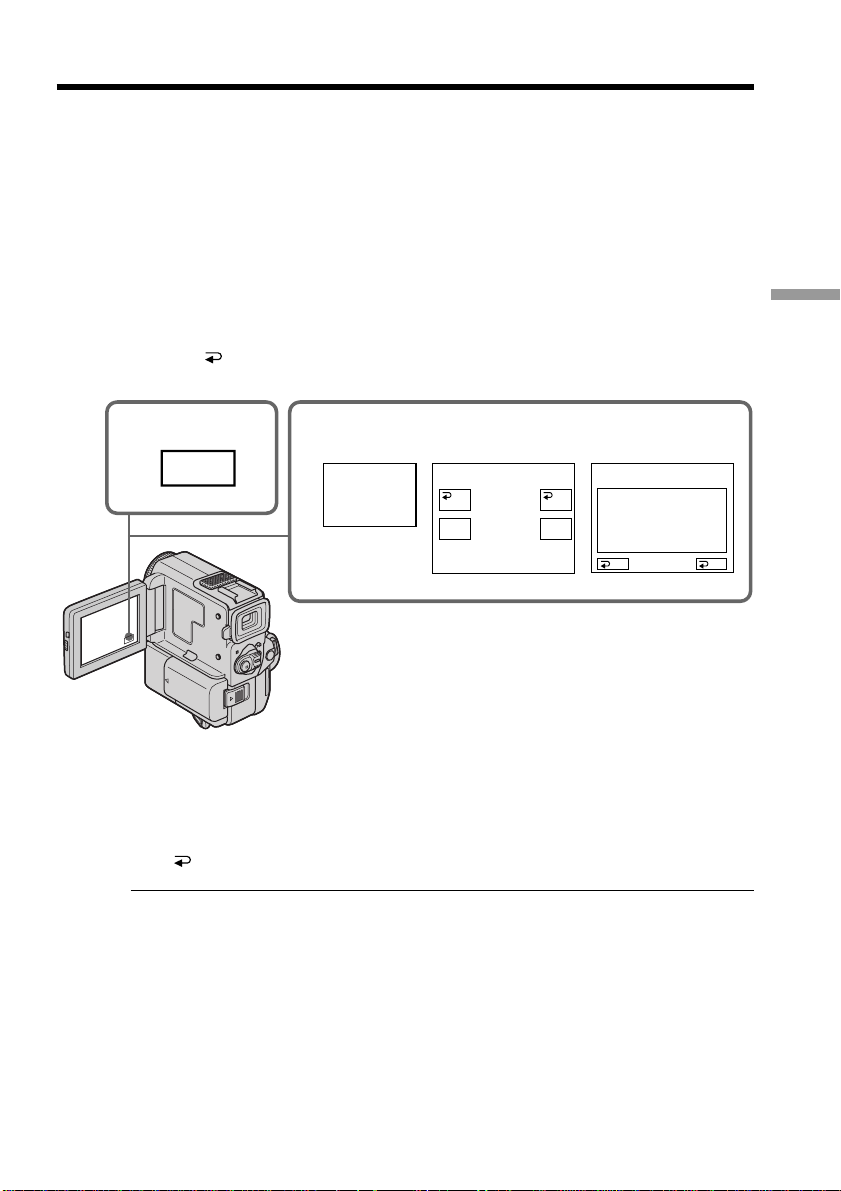
You can take a picture with the appropriate exposure automatically for just the point
you want to focus on. Use the Flexible Spot Meter mode in the following cases:
•The subject is backlit
•When there is strong contrast between the subject and background such as with a
subject that is on stage and lighted by a spotlight.
(1) In the CAMERA/memory camera mode, press FN to display PAGE1 (p. 16).
(2) Press EXPOSURE. The screen to adjust the exposure appears.
(3) Press SPOT METER. The SPOT METER screen appears.
(4) Press the desired area in the frame on the LCD screen.
The SPOT METER indicator flashes on the LCD screen. When the indicator
turns to light, the exposure of the point you selected is adjusted.
(5) Press
OK to return to PAGE1.
Using the spot light-metering mode
– Flexible Spot Meter
1
2~4
FN
EXPO–
SURE
MANU–
AL
SPOT
METER
EXPOSURE
OKOFF
OK
OFF
SPOT METER
To return to FN
Press EXIT.
To return to the automatic exposure mode
Press OFF to return to PAGE1.
Notes
•When the Flexible Spot Meter mode is in use, the backlight function does not work.
•Once you adjust the exposure, the exposure is fixed.
If you change the PROGRAM AE mode or slide NIGHTSHOT to ON
Your camcorder automatically returns to the automatic exposure mode.
48
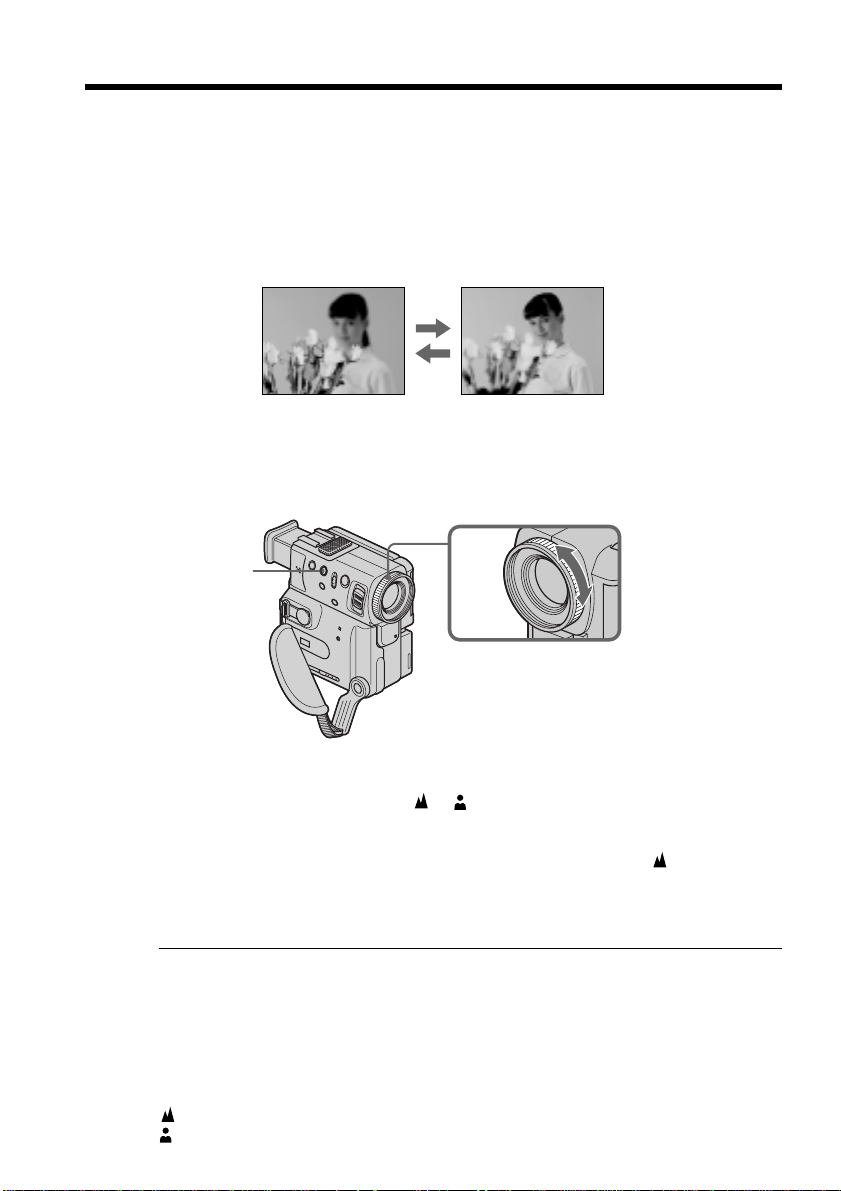
Focusing manually
You can gain better results by manually adjusting the focus in the following cases:
•The autofocus mode is not effective when shooting
– subjects through glass coated with water droplets
– horizontal stripes
– subjects with little contrast with backgrounds such as walls and sky
•When you want to change the focus from a subject in the foreground to a subject in the
background
•Shooting a stationary subject when using a tripod
(1) Press FOCUS lightly in the CAMERA/memory camera mode. The 9
indicator appears.
(2) Turn the focus ring to sharpen focus.
To return to the autofocus mode
Press FOCUS lightly to turn off 9, or indicator.
To record distant subjects
When you press FOCUS down to INFINITY. The lens focuses on and indicator
appears. When you release FOCUS, your camcorder returns to the manual focus mode.
Use this mode when your camcorder focuses on near objects even though you are
trying to shoot a distant object.
To focus precisely
It is easier to focus on the subject if you adjust the zoom to shoot at the “W” (wide-
angle) after focusing at the “T” (telephoto) position.
When you shoot close to the subject
Focus at the end of the “W” (wide-angle) position.
9 changes as follows:
when recording a distant subject.
when the subject is too close to focus on.
1
2
FOCUS
49
Advanced Playback Operations
— Advanced Playback Operations —
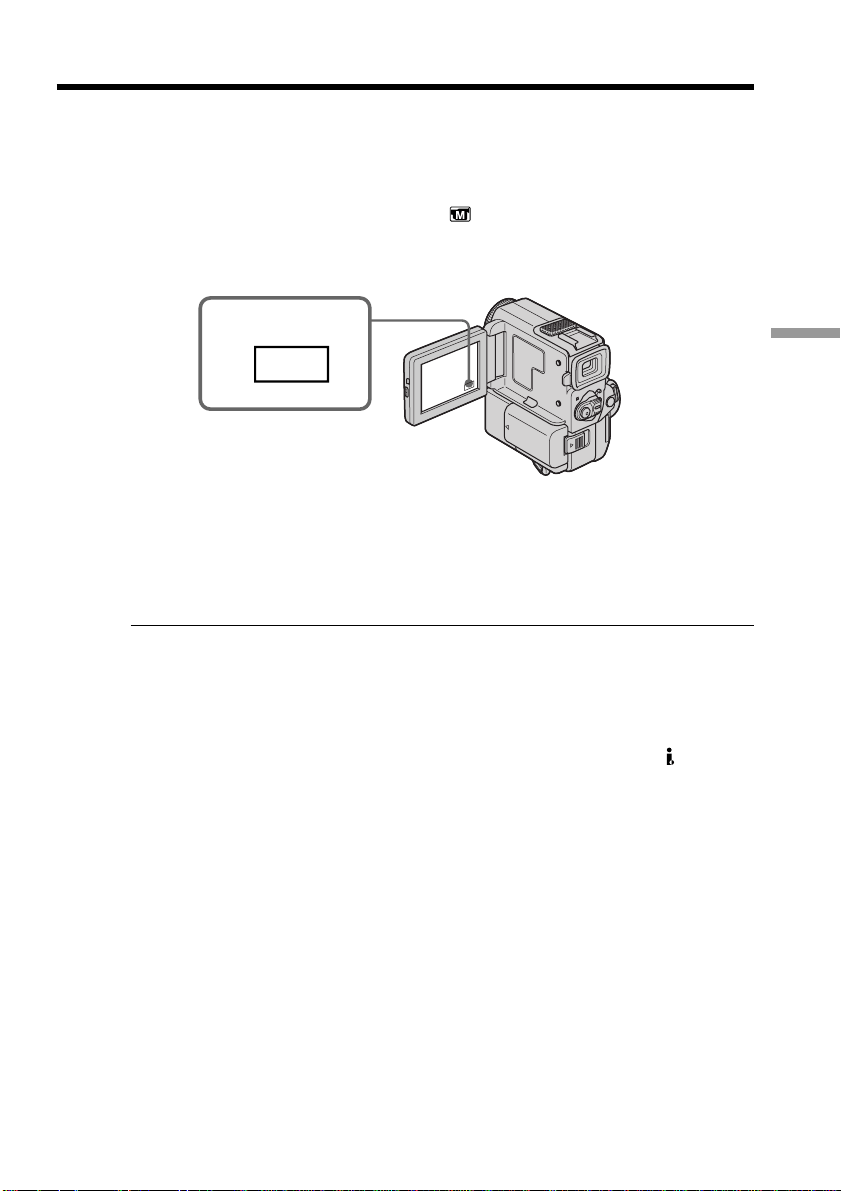
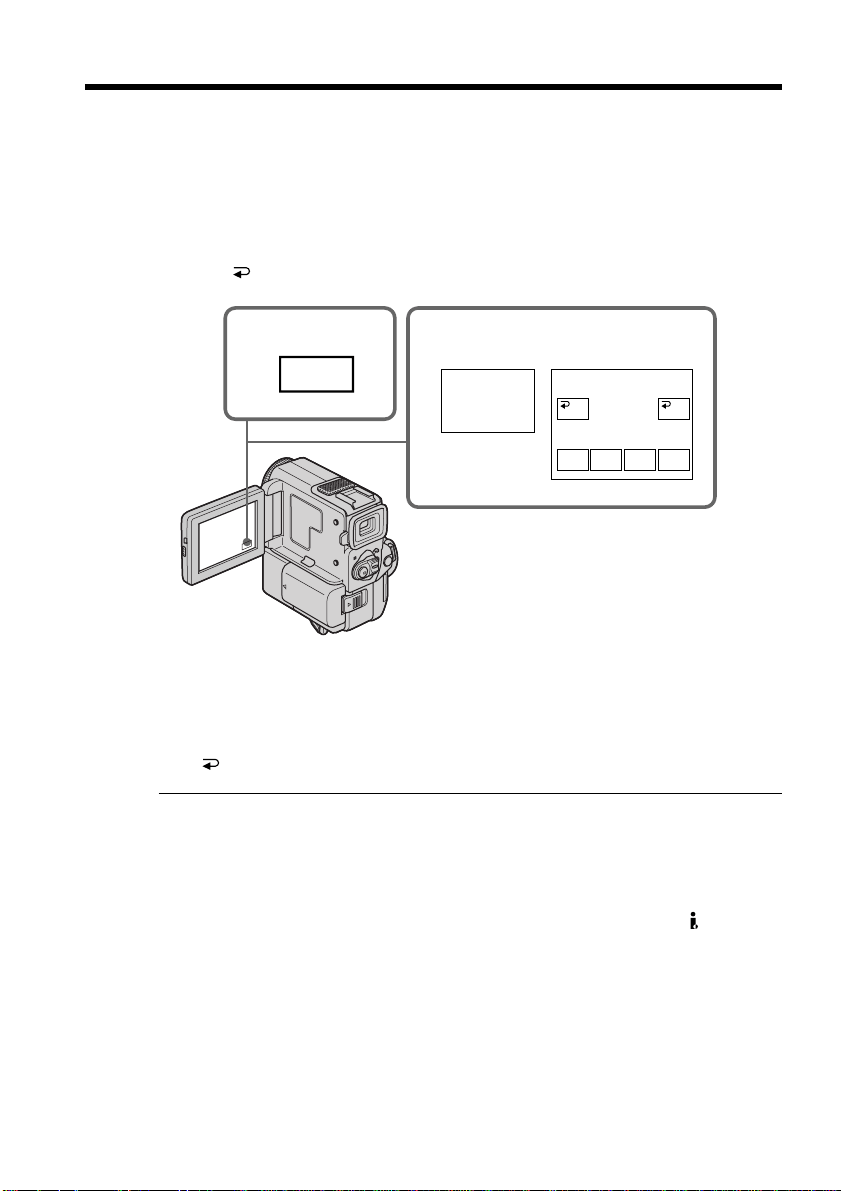
Playing back a tape with picture effects
During playback, you can process a scene using the picture effect functions: NEG.ART,
SEPIA, B&W and SOLARIZE.
(1) In the playback mode or the playback pause mode, press FN to display PAGE1
(p. 16).
(2) Press MENU, then select P EFFECT in
in the menu settings to select a
desired picture effect mode (p. 89).
Refer to page 40 for details of each picture effect function.
To return to FN
Press EXIT.
To cancel the picture effect function
Set P EFFECT to OFF in the menu settings.
Notes
•You cannot process externally input scenes using the picture effect function.
•To record pictures that you have processed using the picture effect function, record
the pictures on the VCR using your camcorder as a player.
Pictures processed by the picture effect function
Pictures processed by the picture effect function are not output through the DV IN/
OUT jack.
When you set the POWER switch to OFF or stop playing back
The picture effect function is automatically canceled.
1
FN
50
Playing back a tape with digital effects
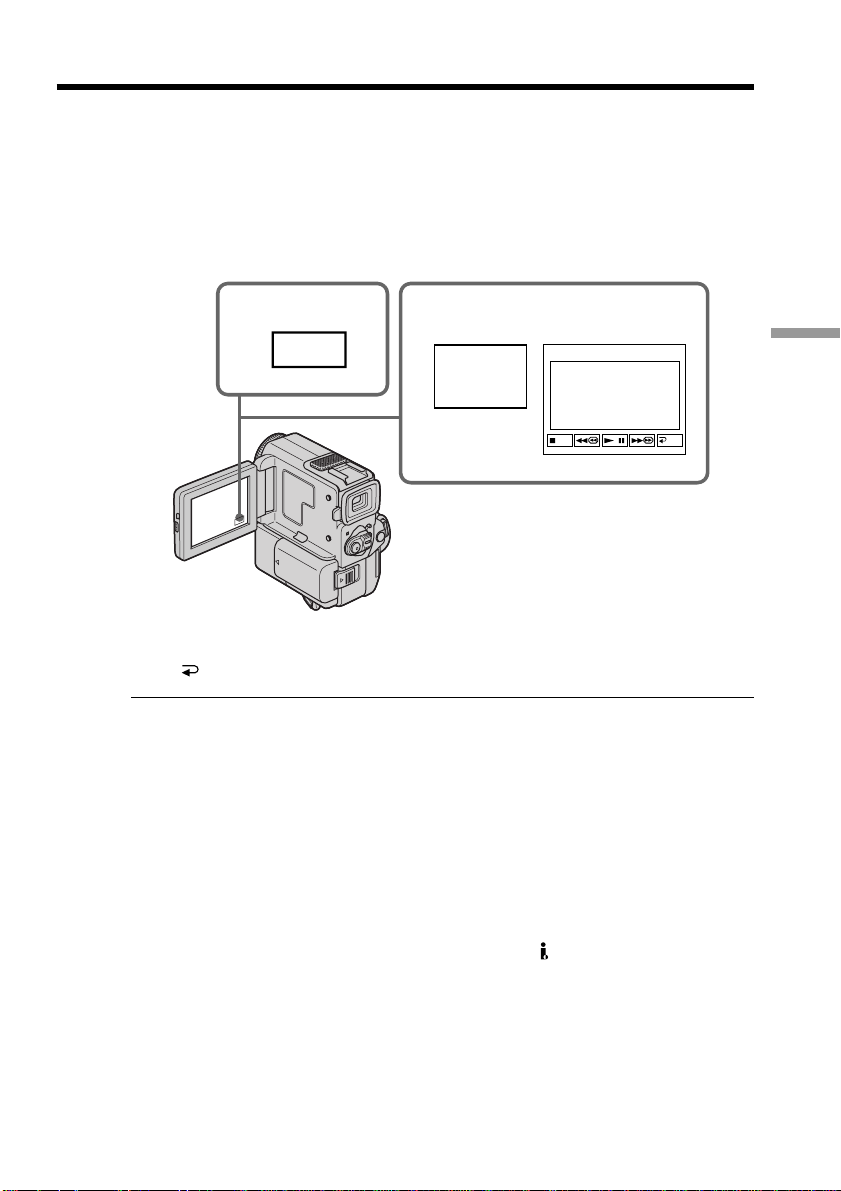
During playback, you can process a scene using the digital effect functions: STILL,
FLASH, LUMI. and TRAIL.
(1) In the playback/playback pause mode, press FN and select PAGE2 (p. 16).
(2) Press DIG EFFT. The screen to select a desired digital effect mode appears.
(3) Select a desired digital effect mode. In the STILL or LUMI. mode, the picture
where you select the mode is stored in memory as a still picture.
(4) Press –/+ to adjust the effect. Refer to page 41 for details.
(5) Press
OK to return to PAGE2.
To return to FN
Press EXIT.
To cancel the digital effect function
Press OFF to return to PAGE2.
Notes
•You cannot process externally input scenes using the digital effect function.
•To record pictures that you have processed using the digital effect, record the pictures
on the VCR using your camcorder as a player.
Pictures processed by the digital effect function
Pictures processed by the digital effect function are not output through the DV IN/
OUT jack.
When you set the POWER switch to OFF or stop playing back
The digital effect function is automatically canceled.
1
2,3
FN
DIG
EFFT
OKOFF
STILL FLASH
LUMI. TRAIL
DIG EFFT
51
Advanced Playback Operations
Enlarging recorded images – PB ZOOM
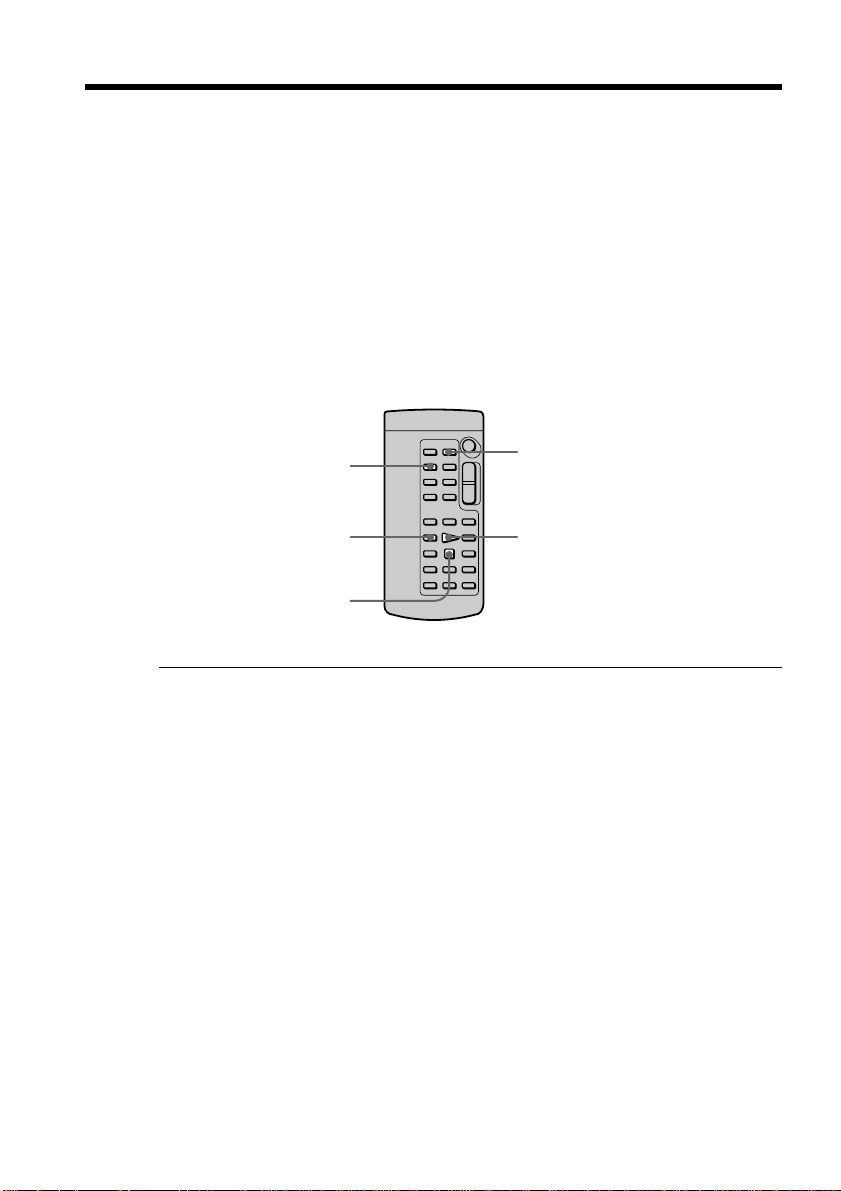
You can enlarge images recorded on a tape.
(1) In the playback/playback pause mode, press FN and select PAGE2.
(2) Press PB ZOOM. The PB ZOOM screen appears.
(3) Press the area you want to enlarge in the frame on the PB ZOOM screen.
The area you pressed moves to the center of the screen, and the playback
image is enlarged at twice the size. If you press the other area again, the area
moves to the center of the screen.
To cancel the PB zoom function
Press END.
Note
You cannot process externally input scenes using the PB zoom function with your
camcorder.
While displaying the menu settings or title
The PB zoom function does not work .
The PB zoom function is automatically canceled when you operate the following
functions:
– Set the POWER switch to OFF
– Stop playing back
Pictures in the PB zoom
Pictures in the PB zoom mode are not output through the DV IN/OUT jack.
In the PB zoom mode
If you press DISPLAY/ TOUCH PANEL button, the frame on the PB ZOOM screen
disappears. If the frame is not displayed, the PB zoom function does not work.
Edge of the enlarged image
The edge of the enlarged image cannot be displayed at the center of the screen.
1
2,3
FN
PB
ZOOM
PB ZOOM
END
52
Quickly locating a scene using the zero
set memory function
Your camcorder goes forward or backward to automatically stop at a desired scene
having a tape counter value of “0:00:00”. You can do this with the Remote Commander.
(1) In the playback mode, press DISPLAY on the Remote Commander if the
counter is not on the LCD screen or in the viewfinder.
(2) Press ZERO SET MEMORY on the Remote Commander at the point you want
to locate later. The tape counter shows “0:00:00” and the ZERO SET MEMORY
indicator flashes.
(3) Press x when you want to stop playback.
(4) Press m to rewind the tape to the tape counter’s zero point. The tape stops
automatically when the tape counter reaches approximately zero. The ZERO
SET MEMORY indicator disappears and the time code appears.
(5) Press N. Playback starts.
ZERO SET MEMORY
DISPLAY
N
m
x
Notes
•When you press ZERO SET MEMORY before rewinding the tape, the zero set memory
function will be canceled.
•There may be a discrepancy of several seconds between the time code and the tape
counter.
•The zero set memory function may not work when there is a blank portion between
pictures on a tape.
•The ZERO SET MEMORY indicator disappear when you press FN.
Zero set memory functions also in the recording standby mode
When you insert a scene in the middle of a recorded tape, press ZERO SET MEMORY at
the point you want to end the insertion. Rewind the tape to the insert start point, and
start recording. Recording stops automatically at the tape counter zero point. Your
camcorder returns to the standby mode.
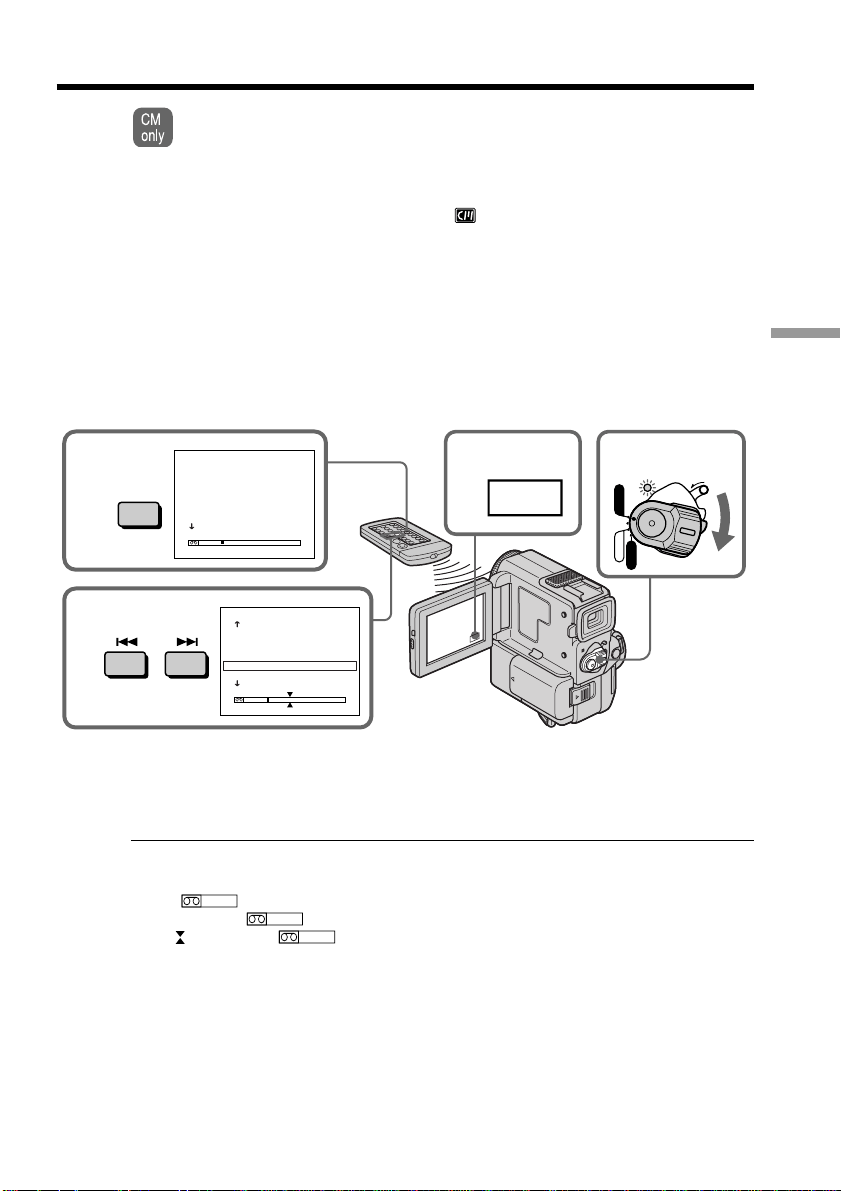
53
Advanced Playback Operations
Searching the boundaries of recorded tape by
title – Title search
If you use a tape with cassette memory, you can search for the boundaries of
recorded tape by title. You need the Remote Commander for this operation.
(1) Set the POWER switch to VCR.
(2) Press FN to display PAGE1 (p. 16).
(3) Press MENU, then set CM SEARCH in
to ON in the menu settings (p. 89).
Default setting is ON.
(4) Press SEARCH MODE on the Remote Commander repeatedly, until the title
search indicator appears.
The indicator changes as follows:
TITLE SEARCH t DATE SEARCH t PHOTO SEARCH t PHOTO SCAN
(5) Press . or > on the Remote Commander to select the title for playback.
Your camcorder automatically starts playback of the scene having the title that
you selected.
2
FN
1
POWER
LOCK
VCR
MEMORY
CAMERA
OFF
5
4
SEARCH
MODE
TITLE SEARCH
1 HELLO!
2 CONGRATULATIONS!
3 HAPPY NEW YEAR!
4 PRESENT
5 GOOD MORNING
6 WEDDING
TITLE SEARCH
3 HAPPY NEW YEAR!
4 PRESENT
5 GOOD MORNING
6 WEDDING
7 NIGHT
8 BASEBALL
To stop searching
Press x on the Remote Commander.
If you use a tape without cassette memory
You cannot superimpose or search a title.
In the mark
•The bar in the mark indicates the present point on the tape.
•The mark in the indicates the actual point you are trying to search.
If a tape has a blank portion between recorded portions
The title search function may not work correctly.
To superimpose a title
See page 81.
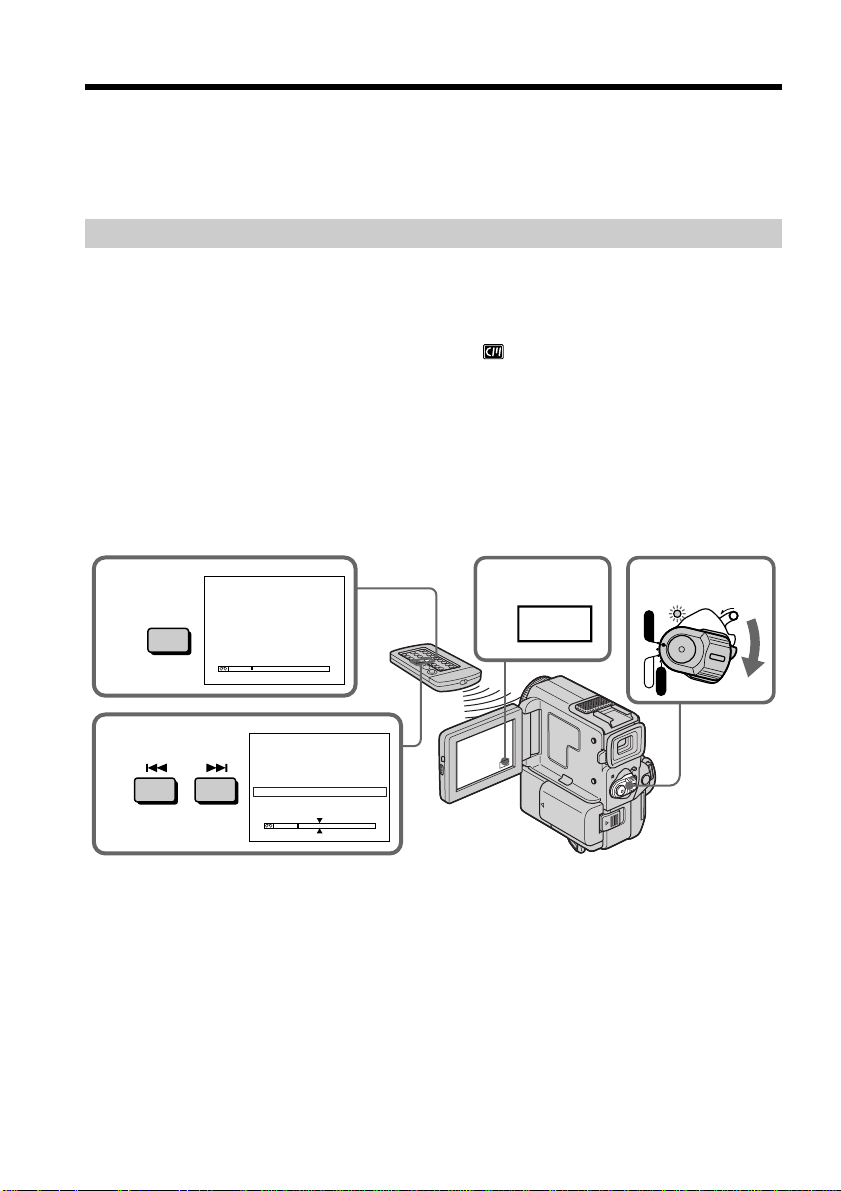
54
Searching a recording by date
– Date search
You can automatically search for the point where the recording date changes and start
playback from that point. Use a tape with cassette memory for convenience. You need
the Remote Commander for this operation.
Use this function to check where recording dates change or to edit the tape at each
recording date.
Searching for the date by using cassette memory
You can use this function only when playing back a tape with cassette memory (p. 125).
(1) Set the POWER switch to VCR.
(2) Press FN to display PAGE1 (p. 16).
(3) Press MENU, then set CM SEARCH in
to ON in the menu settings (p. 89).
Default setting is ON.
(4) Press SEARCH MODE on the Remote Commander repeatedly, until the date
search indicator appears.
The indicator changes as follows:
TITLE SEARCH t DATE SEARCH t PHOTO SEARCH t PHOTO SCAN
(5) Press . or > on the Remote Commander to select the date for playback.
Your camcorder automatically starts playback at the beginning of the selected
date.
To stop searching
Press x on the Remote Commander.
2
FN
1
POWER
LOCK
VCR
MEMORY
CAMERA
OFF
5
4
SEARCH
MODE
DATE SEARCH
DATE SEARCH
1 S E P / 5 / 0 0
2 S E P / 6 / 0 0
3 D E C / 2 4 / 0 0
4 J A N / 1 / 0 1
5 F E B / 1 1 / 0 1
6 A P R / 2 9 / 0 1
1 S E P / 5 / 0 0
2 S E P / 6 / 0 0
3 D E C / 2 4 / 0 0
4 J A N / 1 / 0 1
5 F E B / 1 1 / 0 1
6 A P R / 2 9 / 0 1
55
Advanced Playback Operations
Searching a recording by date – Date search
Searching for the date without using cassette memory
(1) Set the POWER switch to VCR.
(2) Press FN to display PAGE1 (p. 16).
(3) Press MENU, then set CM SEARCH in
to OFF in the menu settings (p. 89).
(4) Press SEARCH MODE on the Remote Commander repeatedly, until the date
search indicator appears.
The indicator changes as follows:
TITLE SEARCH t DATE SEARCH t PHOTO SEARCH t PHOTO SCAN
(5) Press . on the Remote Commander to search for the previous date or press
> on the Remote Commander to search for the next date. Your camcorder
automatically starts playback at the point where the date changes. Each time
you press . or >, your camcorder searches for the previous or next date.
To stop searching
Press x on the Remote Commander or on your camcorder.
Note
If one day’s recording is less than two minutes, your camcorder may not accurately find
the point where the recording date changes.
In the mark
•The bar in the mark indicates the present point on the tape.
•The mark in the indicates the actual point you are trying to search.
If a tape has a blank portion between recorded portions
The date search function may not work correctly.
Cassette memory
The tape cassette memory can hold six recording date data. If you search the date
among seven or more data, see “Searching for the date without using cassette memory”.
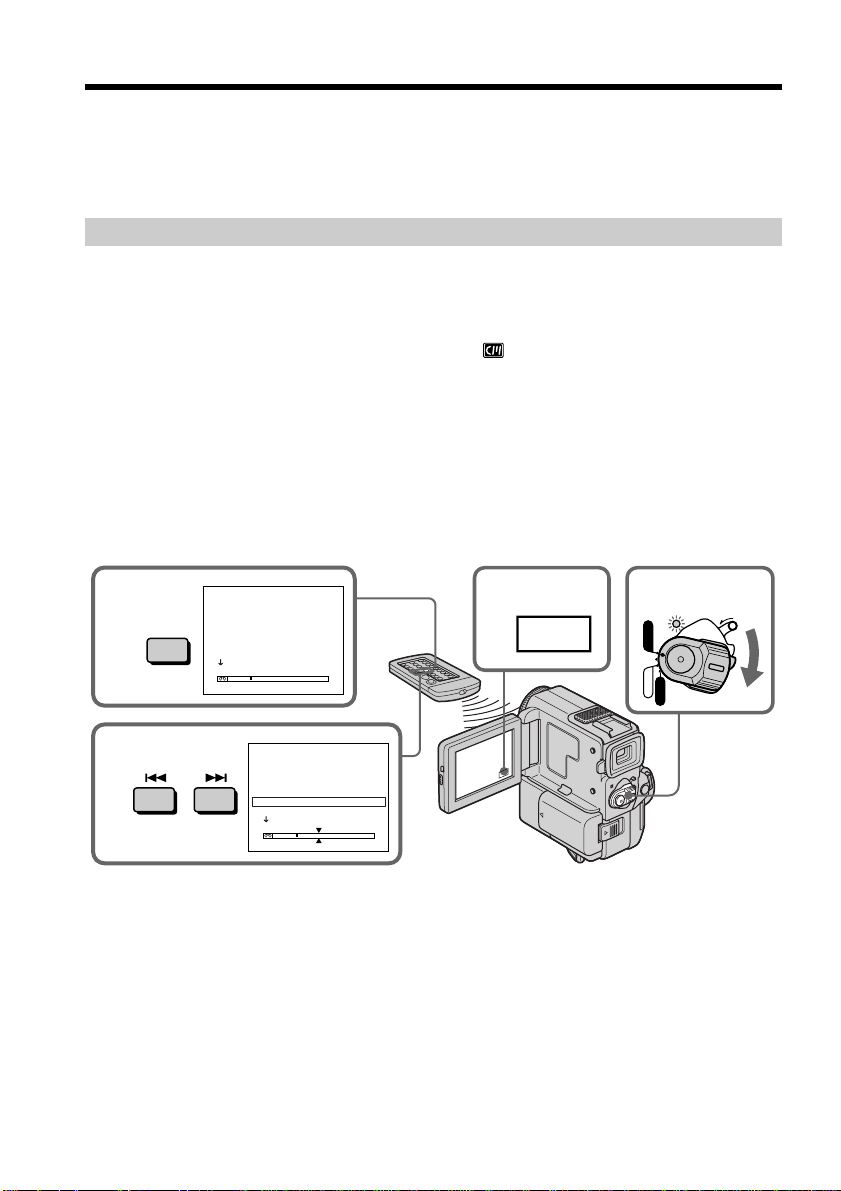
56
Searching for a photo
– Photo search/Photo scan
You can search for a still picture you have recorded on a mini DV tape (photo search).
You can also search for still pictures one after another and display each picture for five
seconds automatically regardless of cassette memory (photo scan). Use the Remote
Commander for these operations.
Use this function to check or edit still pictures.
Searching for a photo by using cassette memory
You can use this function only when playing back a tape with cassette memory (p. 125).
(1) Set the POWER switch to VCR.
(2) Press FN to display PAGE1 (p. 16).
(3) Press MENU, then set CM SEARCH in
to ON in the menu settings (p. 89).
Default setting is ON.
(4) Press SEARCH MODE on the Remote Commander repeatedly, until the photo
search indicator appears.
The indicator changes as follows:
TITLE SEARCH t DATE SEARCH t PHOTO SEARCH t PHOTO SCAN
(5) Press . or > on the Remote Commander to select the date for playback.
Your camcorder automatically starts playback of the photo having the date
that you selected.
2
FN
1
POWER
LOCK
VCR
MEMORY
CAMERA
OFF
5
4
SEARCH
MODE
PHOTO SEARCH
PHOTO SEARCH
1 S E P / 5 / 0 0 1 7 : 3 0
2 S E P / 6 / 0 0 8 : 5 0
3 D E C / 2 4 / 0 0 1 0 : 3 0
4 J A N / 1 / 0 1 2 3 : 2 5
5 F E B / 1 1 / 0 1 1 6 : 1 1
6 A P R / 2 9 / 0 1 1 3 : 4 5
1 S E P / 5 / 0 0 1 7 : 3 0
2 S E P / 6 / 0 0 8 : 5 0
3 D E C / 2 4 / 0 0 1 0 : 3 0
4 J A N / 1 / 0 1 2 3 : 2 5
5 F E B / 1 1 / 0 1 1 6 : 1 1
6 A P R / 2 9 / 0 1 1 3 : 4 5
To stop searching
Press x on the Remote Commander.
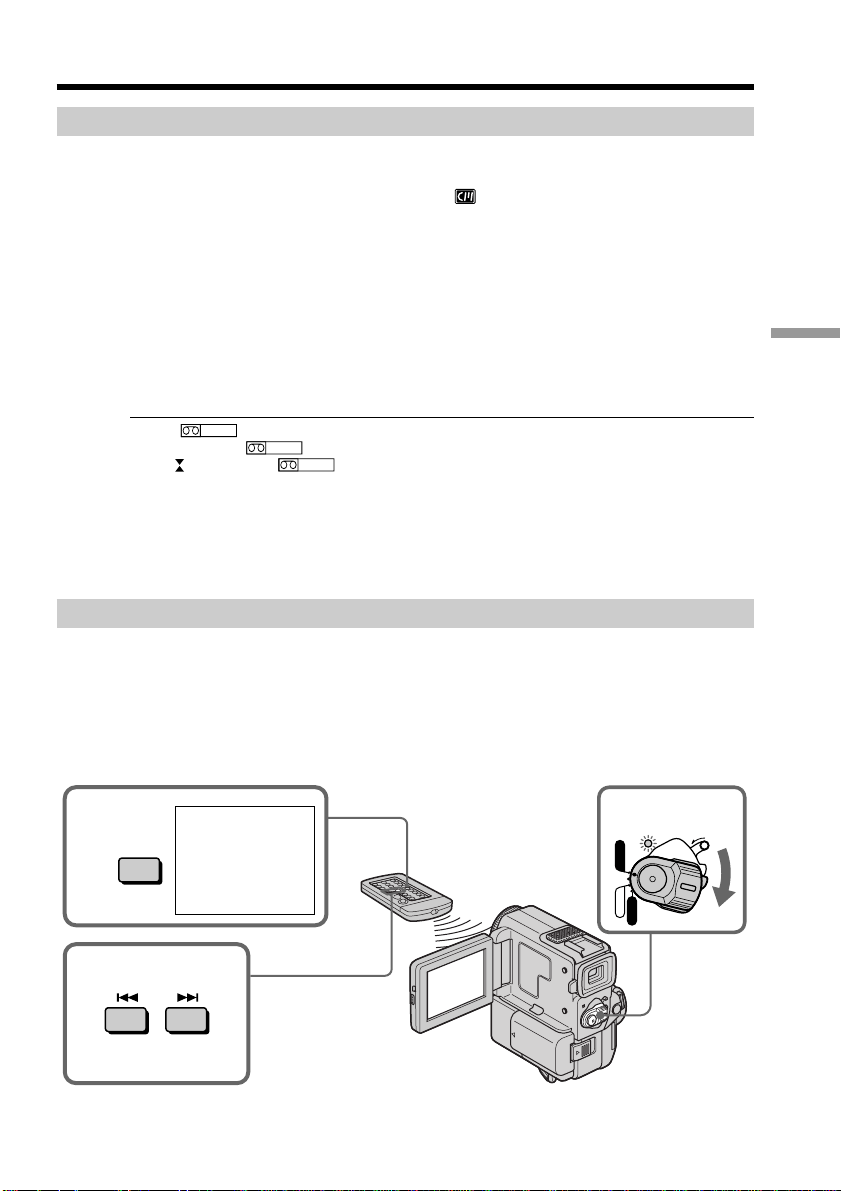
57
Advanced Playback Operations
Searching for a photo – Photo search/Photo scan
Searching for a photo without using cassette memory
(1) Set the POWER switch to VCR.
(2) Press FN to display PAGE1 (p. 16).
(3) Press MENU, then set CM SEARCH in
to OFF in the menu settings (p. 89).
(4) Press SEARCH MODE on the Remote Commander repeatedly, until the photo
search indicator appears.
The indicator changes as follows:
TITLE SEARCH t DATE SEARCH t PHOTO SEARCH t PHOTO SCAN
(5) Press . or > on the Remote Commander to select the photo for playback.
Each time you press . or >, your camcorder searches for the previous or
next photo.
Your camcorder automatically starts playback of the photo.
To stop searching
Press x on the Remote Commander or on your camcorder.
In the mark
•The bar in the mark indicates the present point on the tape.
•The mark in the indicates the actual point you are trying to search.
If a tape has a blank portion between recorded portions
The photo search function may not work correctly.
The available number of photos that can be searched using the cassette memory
The available number is up to 12 photos. However, you can search 13 photos or more
using the scanning photo function.
Scanning photo
(1) Set the POWER switch to VCR.
(2) Press SEARCH MODE on the Remote Commander repeatedly, until the photo
scan indicator appears.
The indicator changes as follows:
TITLE SEARCH t DATE SEARCH t PHOTO SEARCH t PHOTO SCAN
(3) Press . or > on the Remote Commander.
Each photo is played back for about 5 seconds automatically.
To stop scanning
Press x on the Remote Commander or on your camcorder.
1
POWER
LOCK
VCR
MEMORY
CAMERA
OFF
3
2
SEARCH
MODE
PHOTO 00
SCAN
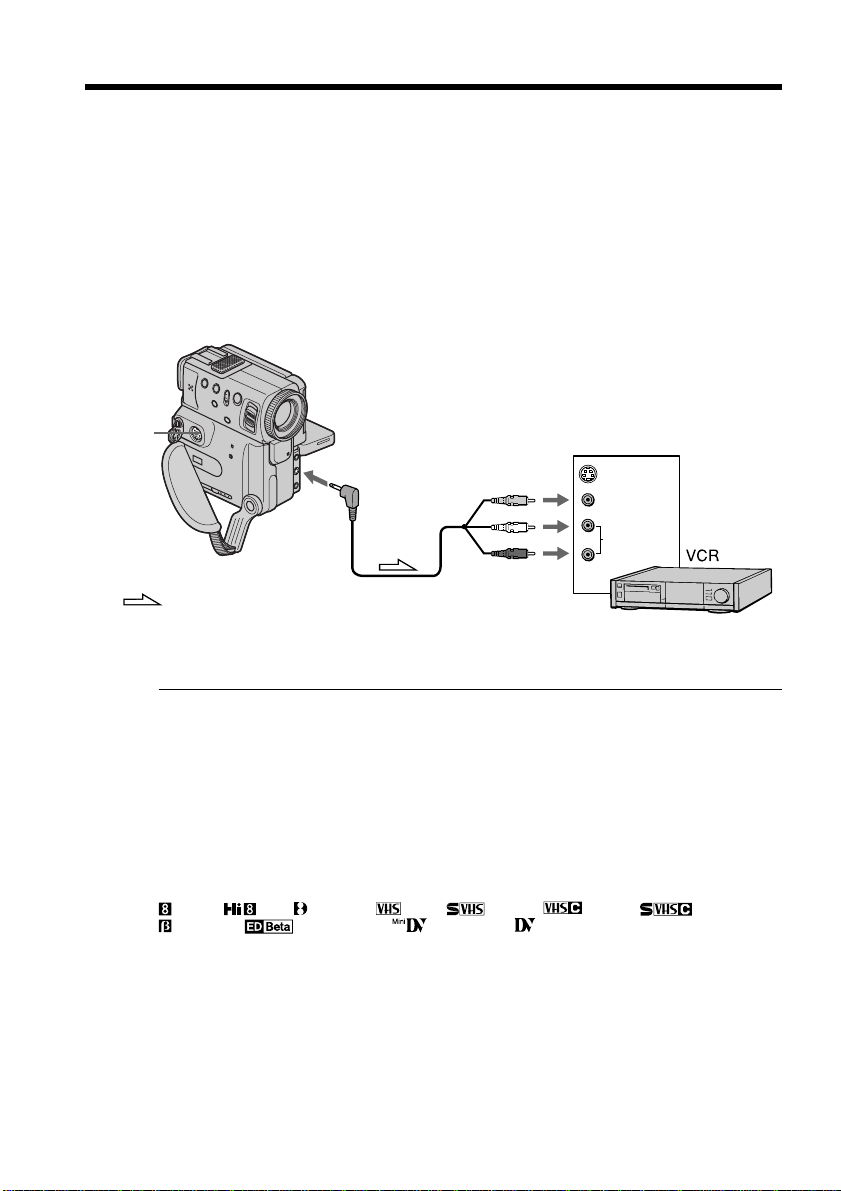
58
— Editing —
Dubbing a tape
Using the A/V connecting cable
Connect your camcorder to the VCR using the A/V connecting cable supplied with
your camcorder.
Set the input selector on the VCR to LINE, if available. Refer to the operating
instructions of your VCR.
(1) Insert a blank tape (or a tape you want to record over) into the VCR, and insert
the recorded tape into your camcorder.
(2) Set the POWER switch to VCR.
(3) Play back the recorded tape on your camcorder.
(4) Start recording on the VCR.
Refer to the operating instructions of your VCR.
When you have finished dubbing a tape
Press x on both your camcorder and the VCR.
Before a dubbing
Set DISPLAY to LCD in the menu settings. (Default setting is LCD.)
When you dub a tape
Turn off indicators displayed on the LCD screen by pressing following buttons.
Otherwise, those indicators will be also recorded.
On your camcorder:
DISPLAY/TOUCH PANEL, DATA CODE
On the remote commander:
DISPLAY, DATA CODE, SEARCH
You can edit on VCRs that support the following systems
8 mm, Hi8, Digital8, VHS, S-VHS, VHSC, S-VHSC,
Betamax, ED Betamax, mini DV or DV
If your VCR is a monaural type
Connect the yellow plug of the A/V connecting cable to the video input jack and the
white or the red plug to the audio input jack on the VCR or the TV. When the white
plug is connected, the left channel audio is output, and when the red plug is connected,
the right channel audio is output.
Connect using an S video cable (not supplied) to obtain high-quality pictures
With this connection, you do not need to connect the yellow (video) plug of the A/V
connecting cable.
Connect an S video cable (not supplied) to the S VIDEO jacks of both your camcorder
and the VCR.
This connection produces higher quality DV format pictures.
: Signal flow
VIDEO
AUDIO
IN
S VIDEO
AUDIO/VIDEO
S VIDEO
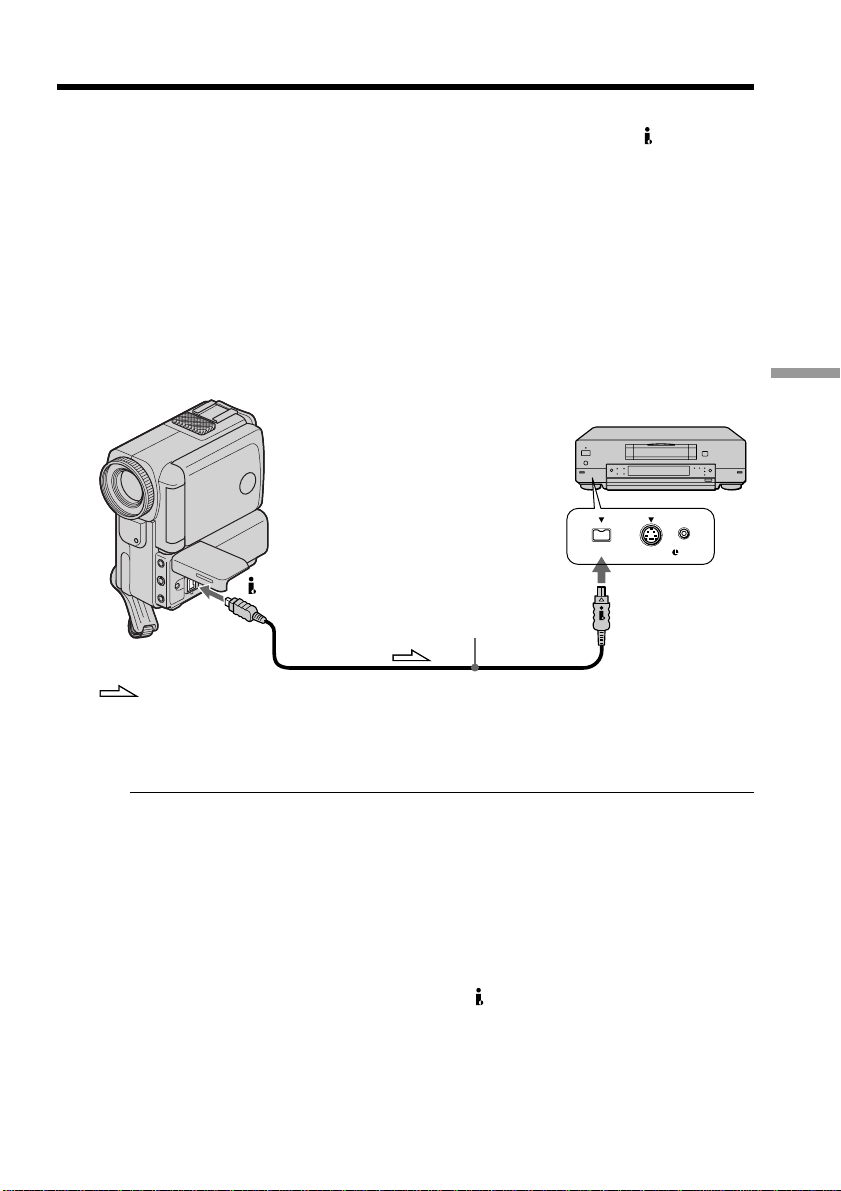
59
Editing
Dubbing a tape
Using the i.LINK cable (DV connecting cable)
Simply connect the i.LINK cable (DV connecting cable) (not supplied) to DV IN/OUT
and to DV IN/OUT of the DV products. With digital-to-digital connection, video and
audio signals are transmitted in digital form for high-quality editing. You cannot dub
the titles, display indicators or the contents of cassette memory.
(1) Insert a blank tape (or a tape you want to record over) into the VCR, and insert
the recorded tape into your camcorder.
(2) Prepare the VCR for recording.
Set the input selector to LINE. Refer to the operating instructions of the VCR.
(3) Set the POWER switch to VCR.
(4) Play back the recorded tape on your camcorder.
(5) Start recording on the VCR.
S VIDEO LANC
DV
DV IN/OUT
: Signal flow
(not supplied)
DV IN/OUT
When you have finished dubbing a tape
Press x on both your camcorder and the VCR.
You can connect one VCR only using the i.LINK cable (DV connecting cable).
The following functions do not work during digital editing:
– Digital effect
– PB zoom
– Picture effect
You can also use your camcorder as a recorder
You can use your camcorder as a player or recorder without changing the connection.
If you record playback pause picture with the DV IN/OUT jack
The recorded picture becomes rough. And when you play back the picture using the
other video equipment, the picture may jitter.
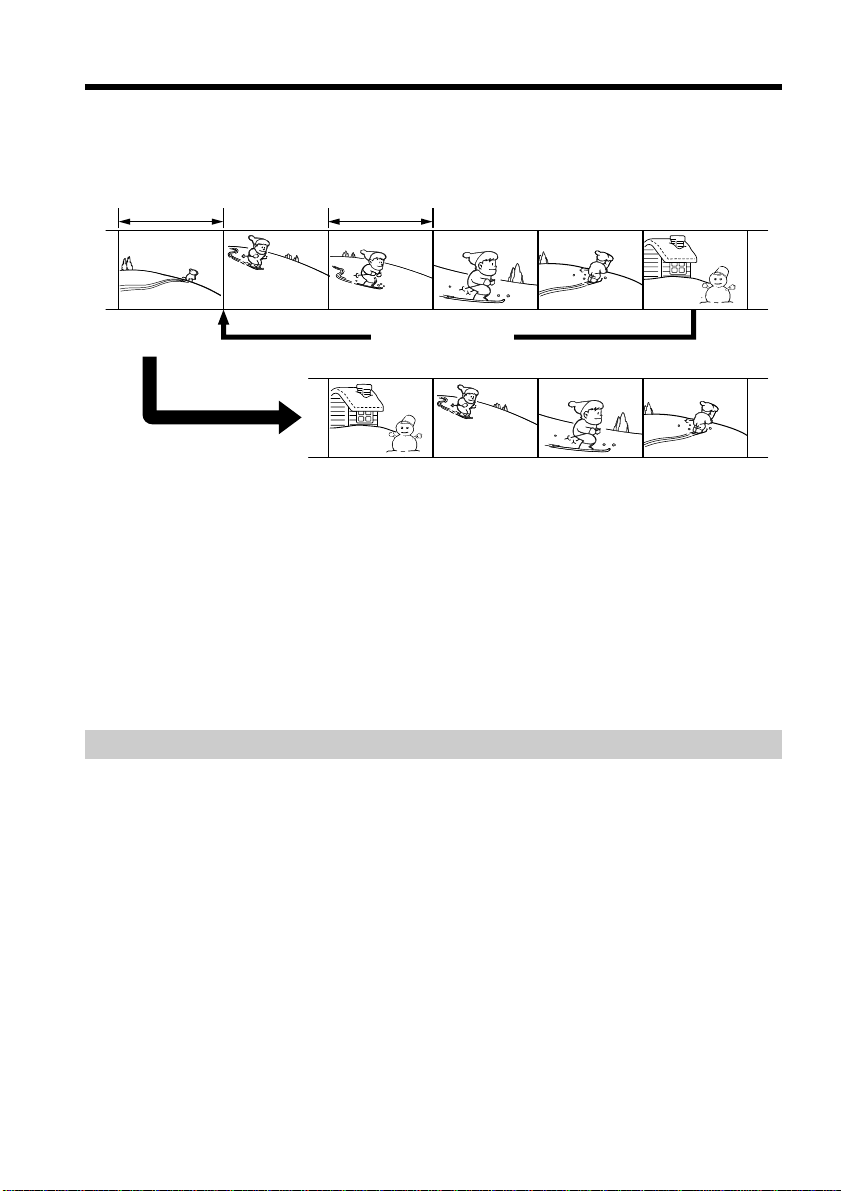
60
You can duplicate selected scenes (programs) for editing onto a tape without operating
the VCR.
Scenes can be selected by frame.
Before operating the Digital program editing
Step 1 Connect your camcorder to the VCR (p. 60).
Step 2 Set the VCR for operation (p. 61, 65).
Step 3 Adjust the synchronicity of your camcorder and the VCR (p. 66).
When you dub using the same VCR again, you can skip steps 2 and 3.
Using the Digital program editing function
Operation 1 Make the program (p. 68).
Operation 2 Perform Digital program editing (dubbing) (p. 70).
Step 1: Connecting the VCR
You can connect either the A/V connecting cable or the i.LINK cable (DV connecting
cable).
When you use the A/V connecting cable, connect the devices as illustrated in page 58.
When you use an i.LINK cable (DV connecting cable), connect the devices as illustrated
in page 59.
Dubbing only desired scenes
– Digital program editing
Unwanted scene
Unwanted scene
Switch the order
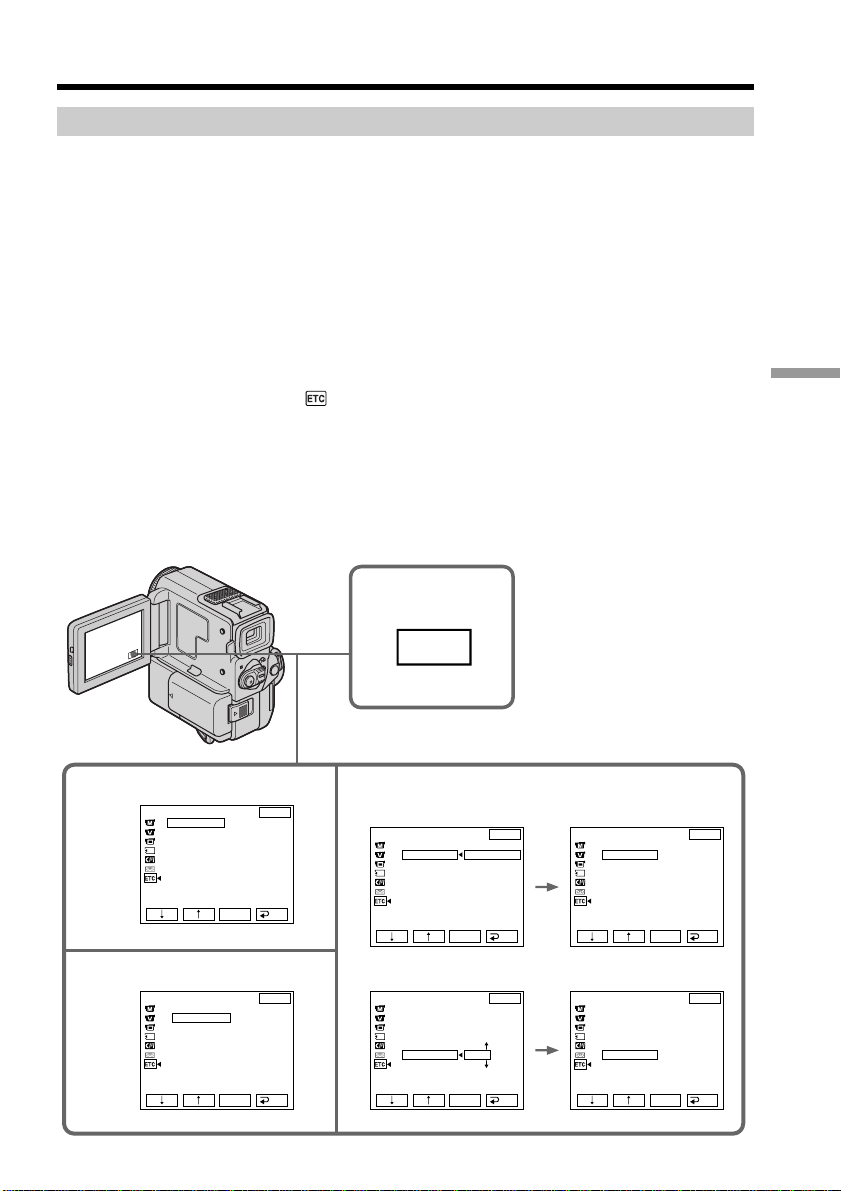
61
Editing
Step 2: Setting the VCR to operate with the A/V connecting cable
To edit using the VCR, send the control signal by infrared ray to the remote sensor on
the VCR.
When you connect using the A/V connecting cable, follow the procedures below, (1) ~
(4), to send the control signal correctly.
(1) Setting the IR SETUP code
1 Set the POWER switch to VCR on your camcorder.
2 Turn the power of the connected VCR on, then set the input selector to LINE.
When you connect a video camera recorder, set its POWER switch to VCR/
VTR.
3 Press FN to display PAGE1 (p. 16).
4 Select EDIT SET in
in the menu settings (p. 89).
Then press EXEC.
5 Select CONTROL, then press EXEC.
6 Select IR, then press EXEC.
7 Select IR SETUP, then press EXEC.
8 Select the IR SETUP code of your VCR, then press EXEC. See the following
page about the IR SETUP code.
Dubbing only desired scenes – Digital program editing
4 6~8
5
1
FN
OTHERS
BEEP
COMMANDER
D
I
SPLAY
V
I
DEO ED
I
T
ED
I
T SET
EXIT
RET.
EXEC
MELODY
OTHERS
ED I T SET
CONTROL
ADJ TEST
”CUT
-
I
N”
”CUT
-OUT”
I
R SETUP
PAUSEMODE
I
R TEST
EXIT
RET.
EXEC
I
R
OTHERS
ED I T SET
CONTROL
ADJ TEST
”CUT
-
I
N”
”CUT
-OUT”
I
R SETUP
PAUSEMODE
I
R TEST
EXIT
RET.
EXEC
I
R
i. L
I
NK
OTHERS
ED I T SET
CONTROL
ADJ TEST
”CUT
-
I
N”
”CUT
-OUT”
I
R SETUP
PAUSEMODE
I
R TEST
EXIT
RET.
EXEC
3
OTHERS
ED I T SET
CONTROL
ADJ TEST
”CUT
-
I
N”
”CUT
-OUT”
I
R SETUP
PAUSEMODE
I
R TEST
EXIT
RET.
EXEC
I
R
OTHERS
ED I T SET
CONTROL
ADJ TEST
”CUT
-
I
N”
”CUT
-OUT”
I
R SETUP
PAUSEMODE
I
R TEST
EXIT
RET.
EXEC
1

62
Brand
Sony
Admiral (M. Wards)
Aiwa
Audio Dynamic
Bell & Howell (M. Wards)
Brocsonic
Canon
Citizen
Craig
Curtis Mathis
Daewoo
DBX
Dimensia
Emerson
Fisher
Funai
General Erectric
Goldstar
Hitachi
Instant Repley
JC Penny
JVC
Kenwood
LXI (Sears)
Magnavox
Marantz
Marta
Memorex
Minolta
IR SETUP code
1, 2, 3, 4, 5, 6
89
80
21, 35
36
70, 82
77, 78, 97
47
73, 47
08, 80, 77
26, 40, 77
21, 33, 35
08
26, 82, 59, 48, 70, 81
36, 45, 37, 44
80
87, 08, 77, 32*, 94*
47
78, 08, 42
77, 78
77, 42, 08, 36, 21, 33, 35
12, 13, 14, 33, 35
21, 33, 47, 35
80, 47, 42, 44, 45, 36, 37
83, 78, 77
21, 33, 35
47
77, 37
42, 08
Brand
Mitsubishi/MGA
Multitech
NEC
Olympic
Panasonic
Pentax
Philco
Philips
Pioneer
Quasar
RCA/PROSCAN
Realistic
Sansui
Singer
Samsung
Sanyo
Scott
Sharp
Shintom
Signature 2000 (M. Wards)
Sylvania
Symphonic
Tashiro
Tatung
Teac
Technics
Toshiba
Wards
Yamaha
Zenith
IR SETUP code
21, 28, 22, 23, 24
23, 80, 32
21, 33, 35
77, 78
16, 17, 78, 77, 96
42, 08
78, 77
83, 78, 77
78
78, 77, 16, 17
08, 42, 16, 77, 83, 07, 40, 41, 78*
77, 36
21
73
94, 41, 32, 32*, 94*, 24*
36, 37
40, 41, 32, 37, 28, 22, 23, 24
89, 88
73
80, 89
83, 78, 77, 80
80
47
21, 33, 35
21, 33, 80, 35
77, 78
40, 07
89, 88, 37, 95, 47
36, 21, 33, 35
95
Dubbing only desired scenes – Digital program editing
* TV/VCR component
Note on the IR SETUP code
The Digital program editing does not work if the VCR is not corresponed to IR SETUP
codes.
About the IR SETUP code
The IR SETUP code is stored in the memory of your camcorder. Be sure to set the
correct code, depending on your VCR. Default setting is code number 1.
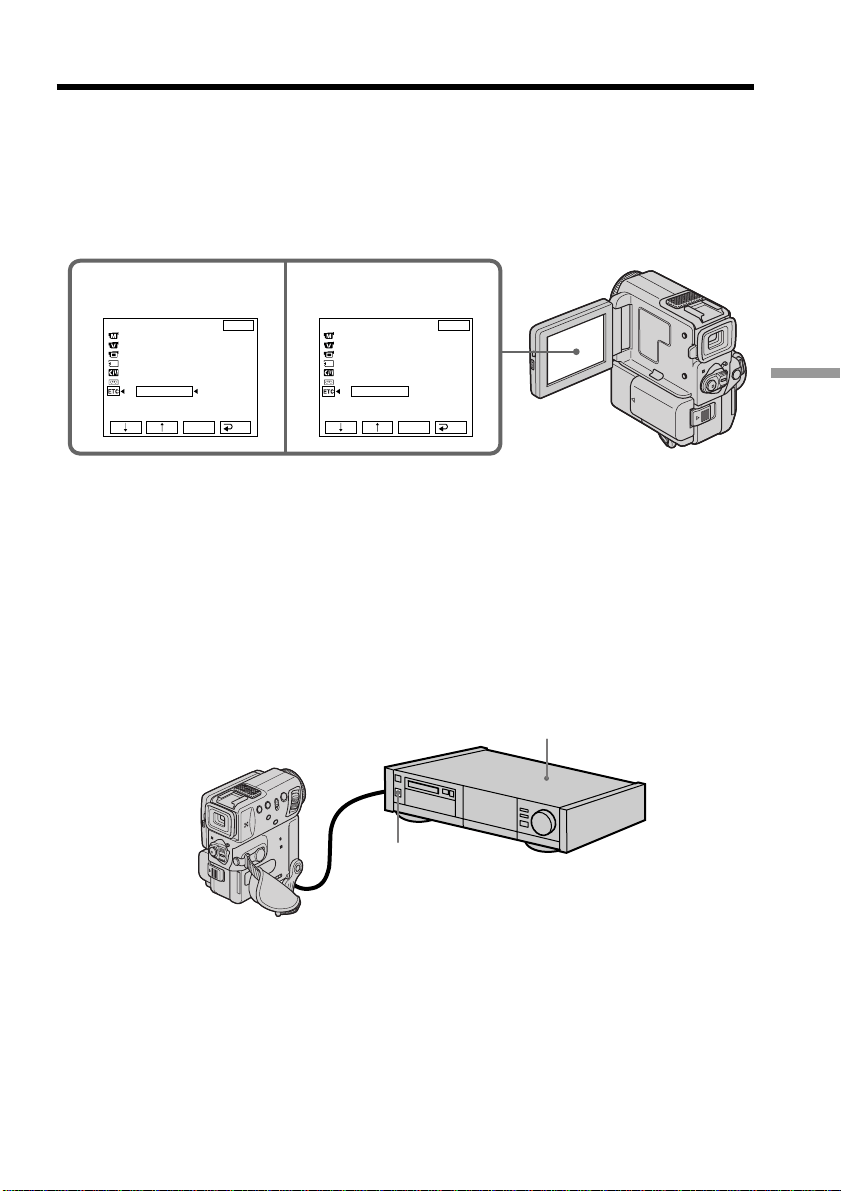
63
Editing
Dubbing only desired scenes – Digital program editing
(2) Setting the modes to cancel the recording pause on the
VCR
1 Select PAUSEMODE, then press EXEC.
2 Select the mode to cancel recording pause on the VCR, then press EXEC.
The correct button depends on your VCR.
Refer to the operating instructions of your VCR.
The buttons to cancel recording pause on the VCR
The buttons vary depending on your VCR. To cancel recording pause of your VCR:
• Select “PAUSE” if the button to cancel recording pause is X.
• Select “REC” if the button to cancel recording pause is z.
• Select “PB” if the button to cancel recording pause is N.
(3) Setting your camcorder and the VCR to face each other
Locate the infrared ray emitter of your camcorder and face it towards the remote sensor
of the VCR.
Set the devices about 11 7/8 in. (30 cm) apart, and remove any obstacles between the
devices.
VCR
Remote sensor
12
OTHERS
ED I T SET
CONTROL
ADJ TEST
”CUT
-
I
N”
”CUT
-OUT”
I
R SETUP
PAUSEMODE
I
R TEST
EXIT
RET.
EXEC
PAUSE
REC
PB
OTHERS
ED I T SET
CONTROL
ADJ TEST
”CUT
-
I
N”
”CUT
-OUT”
I
R SETUP
PAUSEMODE
I
R TEST
EXIT
RET.
EXEC
PAUSE
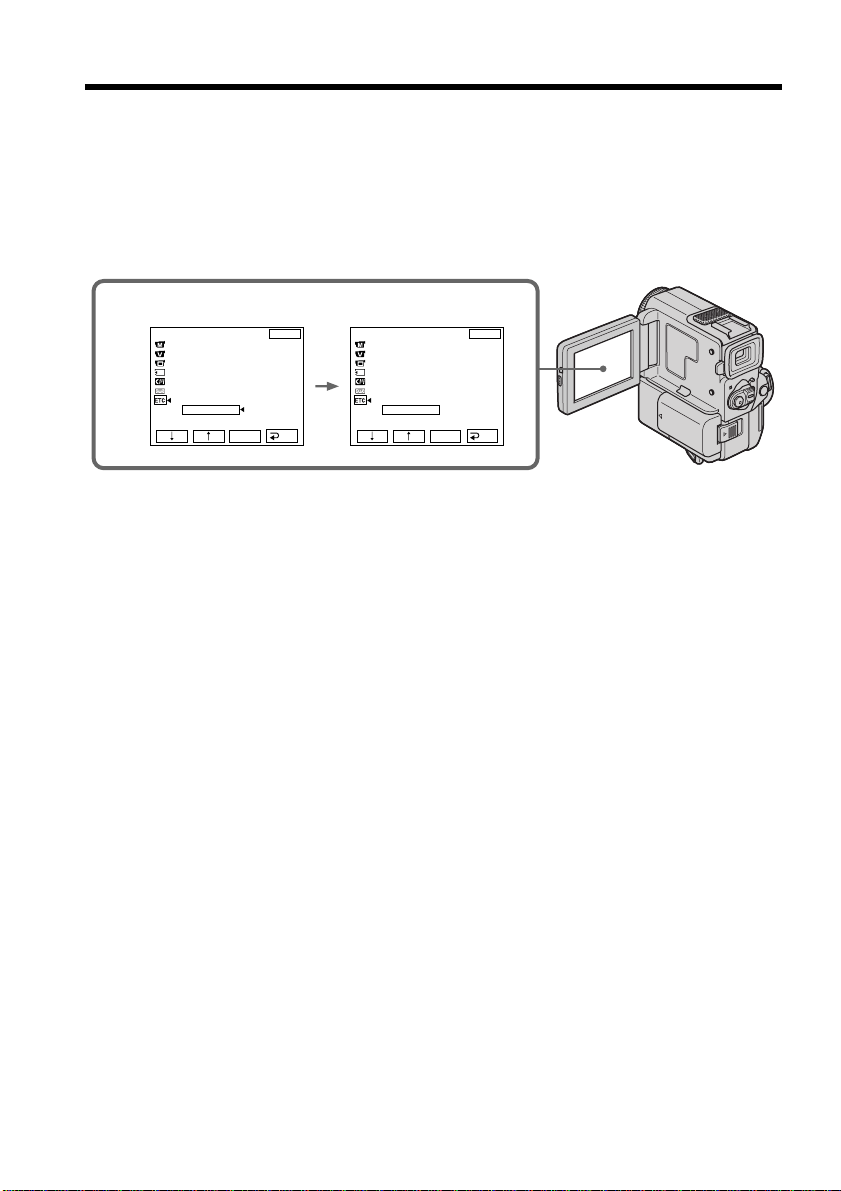
64
Dubbing only desired scenes – Digital program editing
(4) Confirming the VCR operation
1 Insert a recordable tape into the VCR, then set the VCR to recording pause.
2 Select IR TEST, then press EXEC.
3 Select EXECUTE, then press EXEC.
If the VCR starts recording, the setting is correct.
The indicator you selected to cancel recording pause on the VCR flashes on the
LCD screen. When finished, the indicator changes to “COMPLETE”.
When the VCR does not operate correctly
•Set the IR SETUP code, or select the button to cancel the recording pause on the VCR.
•Set your camcorder and the VCR about 11 7/8 in. (30cm) apart.
•Refer to the operating instructions of your VCR.
3
OTHERS
ED I T SET
CONTROL
ADJ TEST
”CUT
-
I
N”
”CUT
-OUT”
I
R SETUP
PAUSEMODE
I
R TEST
EXIT
RET.
EXEC
ENGAGE
REC PAUSE
RETURN
EXECUTE
OTHERS
ED I T SET
CONTROL
ADJ TEST
”CUT
-
I
N”
”CUT
-OUT”
I
R SETUP
PAUSEMODE
I
R TEST
EXIT
RET.
EXEC
COMPLETE
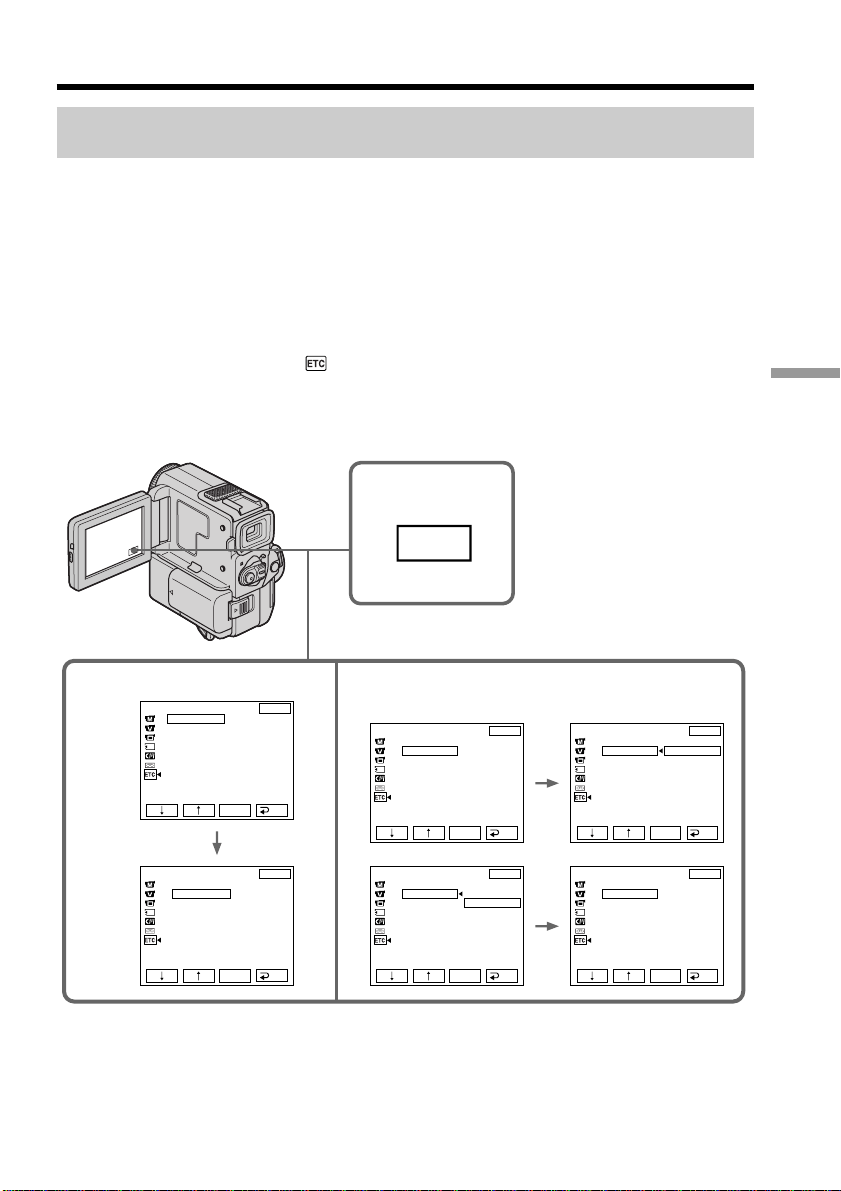
65
Editing
4 5,6
3
FN
OTHERS
BEEP
COMMANDER
D
I
SPL AY
V
I
DEO ED
I
T
ED
I
T SET
EXIT
RET.
EXEC
MELODY
OTHERS
ED I T SET
CONTROL
ADJ TEST
”CUT
-
I
N”
”CUT
-OUT”
I
R SETUP
PAUSEMODE
I
R TEST
EXIT
RET.
EXEC
I
R
OTHERS
ED I T SET
CONTROL
ADJ TEST
”CUT
-
I
N”
”CUT
-OUT”
I
R SETUP
PAUSEMODE
I
R TEST
EXIT
RET.
EXEC
I
R
i. L
I
NK
OTHERS
ED I T SET
CONTROL
ADJ TEST
”CUT
-
I
N”
”CUT
-OUT”
I
R SETUP
PAUSEMODE
I
R TEST
EXIT
RET.
EXEC
I
R
i. L
I
NK
OTHERS
ED I T SET
CONTROL
ADJ TEST
”CUT
-
I
N”
”CUT
-OUT”
I
R SETUP
PAUSEMODE
I
R TEST
EXIT
RET.
EXEC
I
R
OTHERS
ED I T SET
CONTROL
ADJ TEST
”CUT
-
I
N”
”CUT
-OUT”
I
R SETUP
PAUSEMODE
I
R TEST
EXIT
RET.
EXEC
i. L
I
NK
Step 2: Setting the VCR to operate with the i.LINK cable (DV
connecting cable)
When you connect using the i.LINK cable (DV connecting cable) (not supplied), follow
the procedures below.
(1) Set the POWER switch to VCR on your camcorder .
(2) Turn the power of the connected VCR on, then set the input selector to DV
input.
When you connect a digital video camera recorder, set its POWER switch to
VCR/VTR.
(3) Press FN to display PAGE1 (p. 16).
(4) Select EDIT SET in
, then press EXEC (p. 89).
(5) Select CONTROL, then press EXEC.
(6) Select i.LINK, then press EXEC.
Dubbing only desired scenes – Digital program editing

66
Dubbing only desired scenes – Digital program editing
Step 3: Adjusting the synchronicity of the VCR
You can adjust the synchronicity of your camcorder and the VCR.
Prepare a pen and paper for notes.
Before operation, eject a cassette from your camcorder.
(1) Set the POWER swtich to VCR on your camcorder.
(2) Insert a recordable tape into the VCR, then set the VCR to recording pause.
When you select i.LINK in CONTROL, the above procedure is not necessary.
(3) Select ADJ TEST, then press EXEC.
(4) Select EXECUTE, then press EXEC.
IN and OUT are recorded on an image for five times each to calculate the
numerical values for adjusting the synchronicity.
The “EXECUTING” indicator flashes on the LCD screen. When finished, the
indicator changes to “COMPLETE”.
(5) Rewind the tape in the VCR, then start slow playback.
Take a note of the opening numerical value of each IN and the closing
numerical value of each OUT.
(6) Calculate the average of all the opening numerical values of each IN, and the
average of all the closing numerical values of each OUT.
(7) Select “CUT-IN”, then press EXEC.
(8) Select the average numerical value of IN, then press EXEC.
The calculated start position for recording is set.
(9) Select “CUT-OUT”, then press EXEC.
(10) Select the average numerical value of OUT, then press EXEC.
The calculated stop position for recording is set.
(11) Select
RET. to execute.
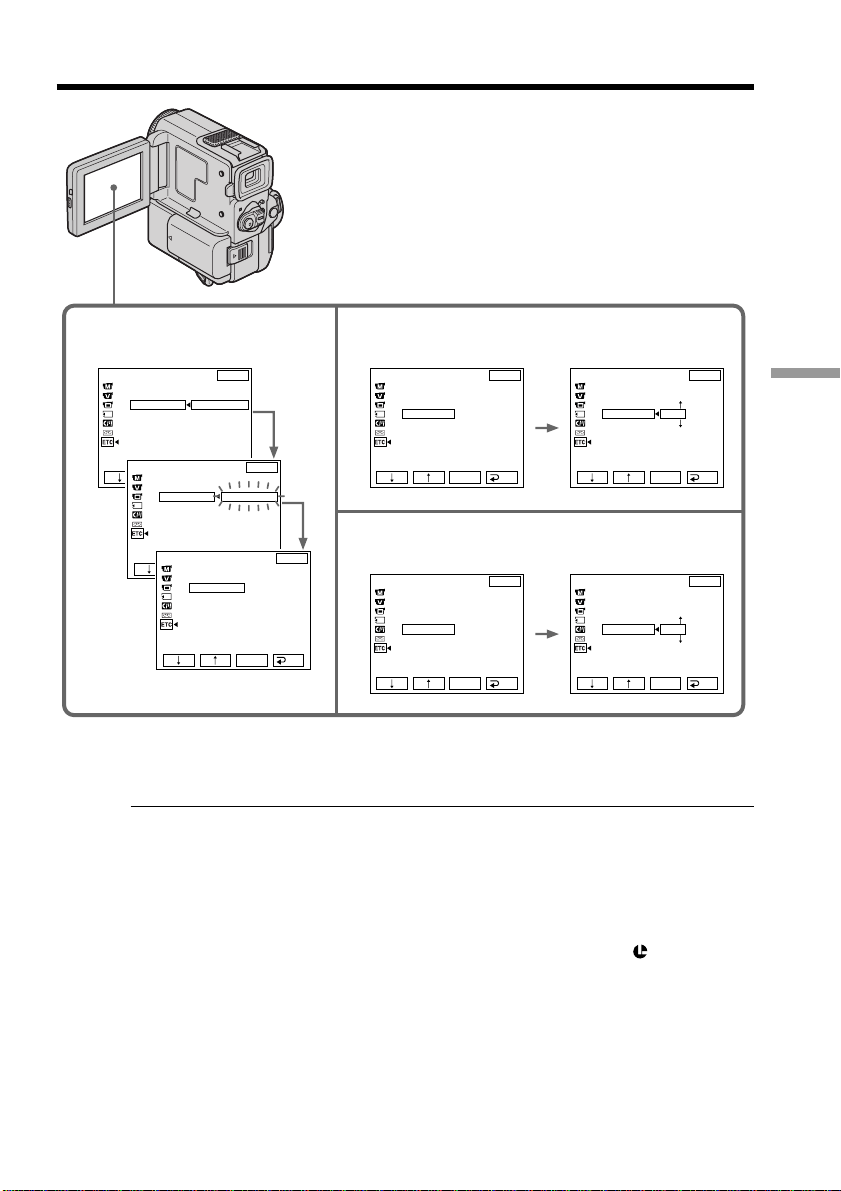
67
Editing
Dubbing only desired scenes – Digital program editing
To return to FN
Press EXIT.
Notes
•If you start recording from the very beginning of the tape, the first few seconds of the
tape may not be recorded properly. Be sure to allow about 10 seconds’ lead before
starting the recording.
•When you complete step 3, the image to adjust the syncronicity is recorded for about
50 seconds.
•You cannot dub the titles, display indicators, or the contents of cassette memory.
•When editing digital video, the operation signals cannot be sent with LANC. Use
the i.LINK cable (DV connecting cable).
If the VCR does not operate correctly
Make sure that the IR SETUP code is correct. Change the code if necessary.
3,4 7,8
9,10
OTHERS
ED I T SET
CONTROL
ADJ TEST
”CUT
-
I
N”
”CUT
-OUT”
I
R SETUP
PAUSEMODE
I
R TEST
EXIT
RET.
EXEC
RETURN
EXECUTE
OTHERS
ED I T SET
CONTROL
ADJ TEST
”CUT
-
I
N”
”CUT
-OUT”
I
R SETUP
PAUSEMODE
I
R TEST
EXIT
RET.
EXEC
OTHERS
ED I T SET
CONTROL
ADJ TEST
”CUT
-
I
N”
”CUT
-OUT”
I
R SETUP
PAUSEMODE
I
R TEST
EXIT
RET.
EXEC
OTHERS
ED I T SET
CONTROL
ADJ TEST
”CUT
-
I
N”
”CUT
-OUT”
I
R SETUP
PAUSEMODE
I
R TEST
EXIT
RET.
EXEC
0
OTHERS
ED I T SET
CONTROL
ADJ TEST
”CUT
-
I
N”
”CUT
-OUT”
I
R SETUP
PAUSEMODE
I
R TEST
EXIT
RET.
EXEC
OTHERS
ED I T SET
CONTROL
ADJ TEST
”CUT
-
I
N”
”CUT
-OUT”
I
R SETUP
PAUSEMODE
I
R TEST
EXIT
RET.
EXEC
EXECUT
I
NG
No. 2
I
N
+215
0
0
0
OTHERS
ED I T SET
CONTROL
ADJ TEST
”CUT
-
I
N”
”CUT
-OUT”
I
R SETUP
PAUSEMODE
I
R TEST
EXIT
RET.
EXEC
COMPLETE
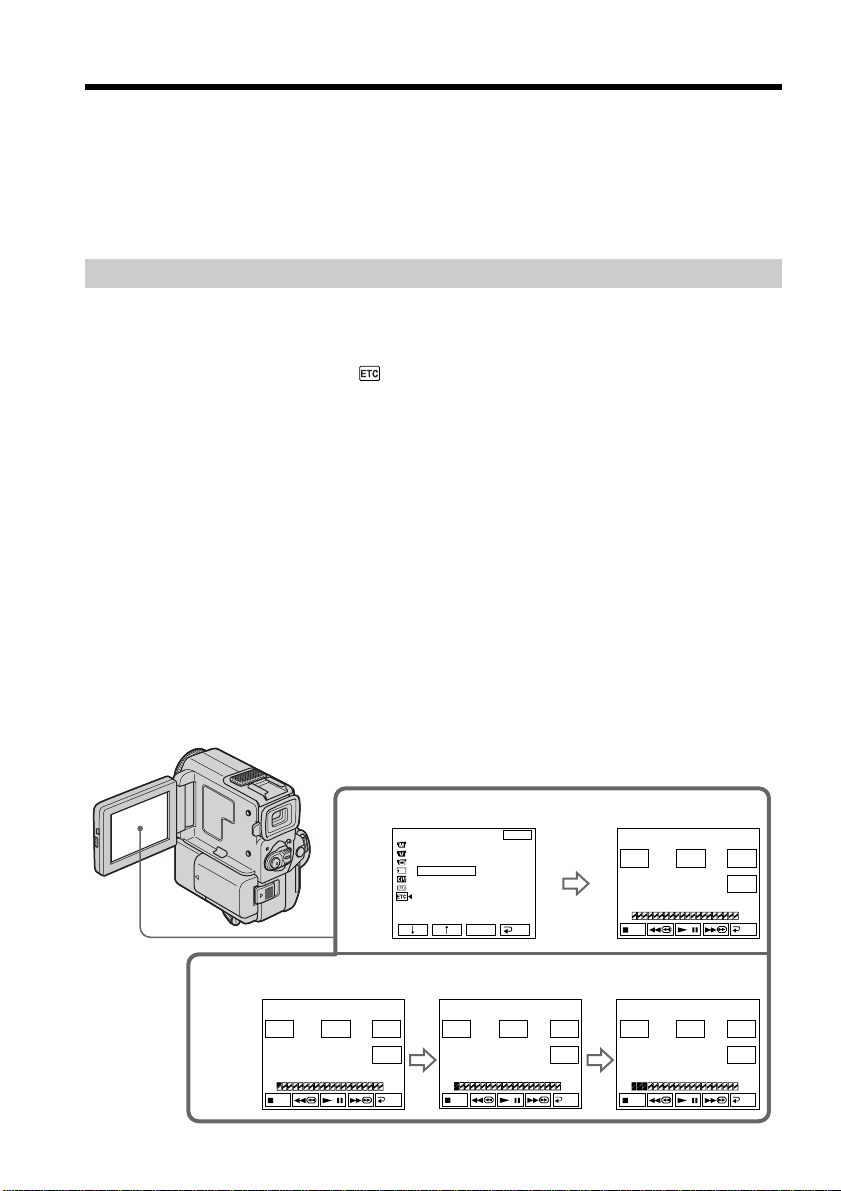
68
Dubbing only desired scenes – Digital program editing
If you connect using the i.LINK cable (DV connecting cable)
With digital-to-digital connection, video and audio signals are transmitted in digital
form for high-quality editing.
When you connect with the i.LINK cable (DV connecting cable)
You may not be able to operate the dubbing function correctly, depending on the VCR.
Keep the i.LINK connection, and follow the procedure from step 2 on page 61.
Operation 1: Making Programs
(1) Insert the tape for playback into your camcorder, and insert a tape for
recording into the VCR.
(2) Press FN to display PAGE1 (p. 16).
(3) Select VIDEO EDIT in
in the menu settings (p. 89).
Then press EXEC.
(4) Search for the beginning of the first scene you want to insert using the video
operation buttons, then pause playback (p. 29).
(5) Press MARK IN on the LCD screen or MARK button on the Remote
Commander.
The IN point of the first program is set, and the top part of the program mark
changes to light blue.
(6) Search for the end of the first scene you want to insert using the video
operation buttons, then pause playback (p. 29).
(7) Press MARK OUT on the LCD screen or MARK button on the Remote
Commander.
The OUT point of the first program is set, then the bottom part of the program
mark changes to light blue.
(8) Repeat steps 4 to 7.
When one program is set, the program mark changes to light blue.
You can set 20 programs in maximum.
5~8
3
OTHERS
BEEP
COMMANDER
D
I
SPLAY
V
I
DEO ED
I
T
ED
I
T SET
EXIT
RET.
EXEC
READY
0:32:30:14
TOTAL
SCENE
0:00:00:00
0
V I DEO ED I T
DV I N
MARK
I
N
START
ERASE
ALL
UNDO
END
0:08:55:06
TOTAL
SCENE
0:00:00:00
0
V I DEO ED I T
DV I N
MARK
OUT
START
ERASE
ALL
UNDO
END
0:09:07:06
TOTAL
SCENE
0:00:12:13
1
V I DEO ED I T
DV I N
MARK
I N
START
ERASE
ALL
UNDO
END
0:10:01:23
TOTAL
SCENE
0:00:47:12
3
V I DEO ED I T
DV I N
MARK
I N
START
ERASE
ALL
UNDO
END

69
Editing
Dubbing only desired scenes – Digital program editing
Erasing the program you have set
Erase OUT mark first, and then IN mark of the last program.
(1) Press UNDO. The last program mark flashes on the LCD screen.
(2) Press EXEC. The setting is cancelled.
To cancel erasing
Press CANCEL in step 2.
Erasing all programs
(1) Select VIDEO EDIT in in the menu settings.
(2) Press ERASE ALL. All the program marks flash on the LCD screen.
(3) Press EXEC. The settings are cancelled.
To cancel erasing all programs
Press CANCEL in step 3.
To finish making programs
Press END.
The program is stored in memory until the tape is ejected.
On a blank portion of the tape
You cannot set IN or OUT on a blank portion of the tape.
If there is a blank portion between the IN point and the OUT point on the tape
The time code may not be displayed correctly.

70
Dubbing only desired scenes – Digital program editing
Operation 2: Performing a Digital program edit (Dubbing a tape)
Make sure your camcorder and the VCR are connected, and that the VCR is set to
recording pause. (When you use the i.LINK cable (DV connecting cable), you don’t
need to set the VCR to recording pause mode.)
When you use a video camera recorder, set its POWER switch to VCR.
(1) Select VIDEO EDIT. Then press START .
(2) Press EXEC.
Search for the beginning of the first program, then start dubbing.
The “SEARCH” indicator appears during search, and the “EDITING” indicator
appears during edit on the LCD screen.
The program mark changes to light blue after the dubbing is complete.
When the dubbing ends, your camcorder and the VCR automatically stop.
To stop dubbing during editing
Press CANCEL.
To finish the Digital program editing function
Your camcorder stops when the dubbing is complete. Then the display returns to
VIDEO EDIT in the menu settings.
Press END to end the video edit function.
You cannot record on the VCR when:
•The cassette is not inserted.
•The tape has run out.
•The write-protect tab is set to expose the red mark.
•The IR SETUP code is not correct. (When IR is selected.)
•The button to cancel recording pause is not correct when IR is selected (p. 61).
•The program to operate the Digital program editing has not been made.
•i.LINK is selected but the i.LINK cable (DV connecting cable) is not connected.
•The power of the connected VCR is not turned on.
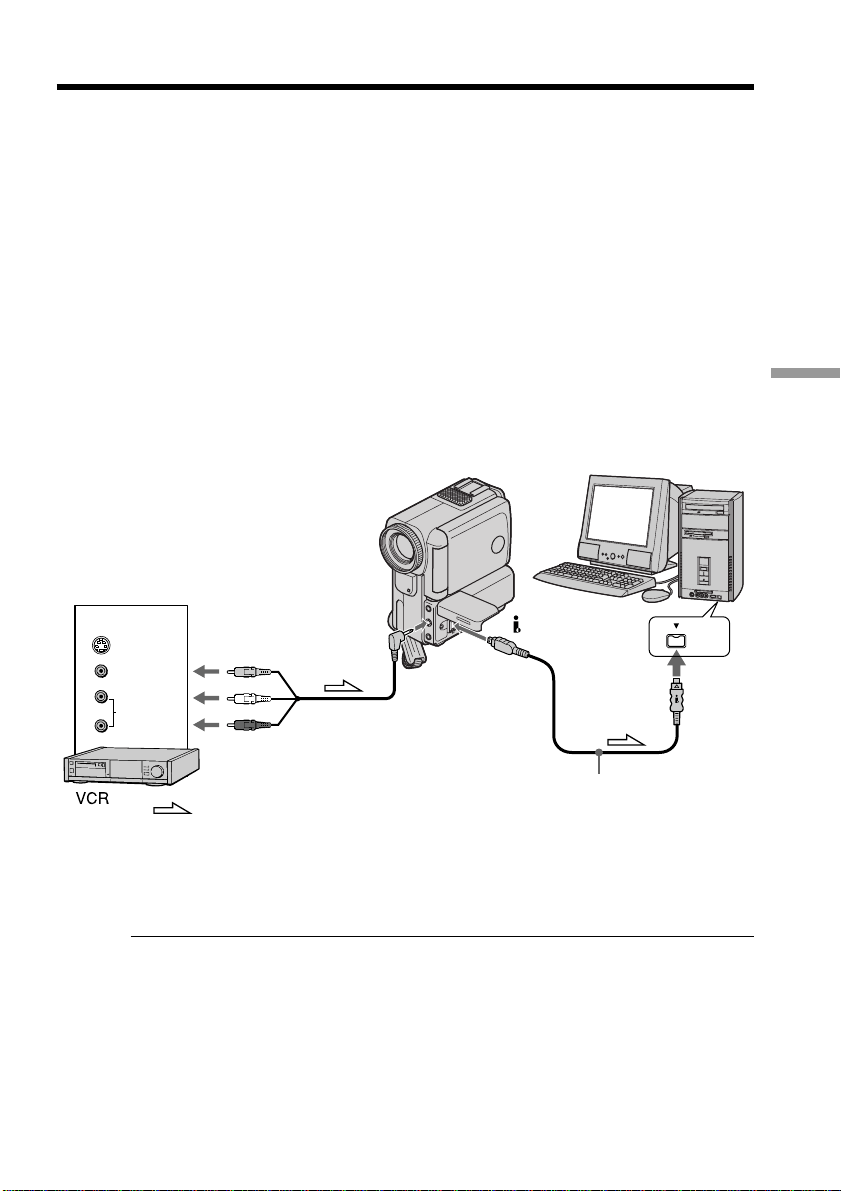
71
Editing
Using with analog video unit and personal
computer – Signal convert function
You can convert analog video signals into digital video signals via your camcorder
connected to a personal computer and analog video unit.
Analog video signals t Digital video signals
You can capture images and sound from an analog video unit connected to a personal
computer which has the i. LINK jack (DV jack) to your camcorder.
(1) Set the POWER switch to VCR.
(2) Press FN to display PAGE1 (p.16).
(3) Set A/V t DV OUT to ON in the menu settings (p. 89).
(4) Start playback on the analog video unit slightly ahead of the point from which
you want to start capturing images.
(5) Start capturing procedures on your personal computer.
The operation procedures depend on your personal computer and the software
which you use.
For details on how to capture images, refer to the instruction manual of your
personal computer and the software.
After capturing images and sound
Stop capturing procedures on your personal computer, and stop the playback on the
analog video unit.
Notes
•You need to install software which can exchange video signals.
•Depending on the condition of the analog video signals, the personal computer may
not be able to output the images correctly when you convert analog video signals into
digital video signals via your camcorder. Depending on the analog video unit, the
image may contain noise or incorrect colors.
•You cannot record or capture the video output via your camcorder when the video
includes copyright protection signals such as ID-2 system.
DV
VIDEO
AUDIO
S VIDEO
OUT
DV IN/OUT
: Signal flow
(not supplied)
AUDIO/VIDEO
VIDEO
AUDIO
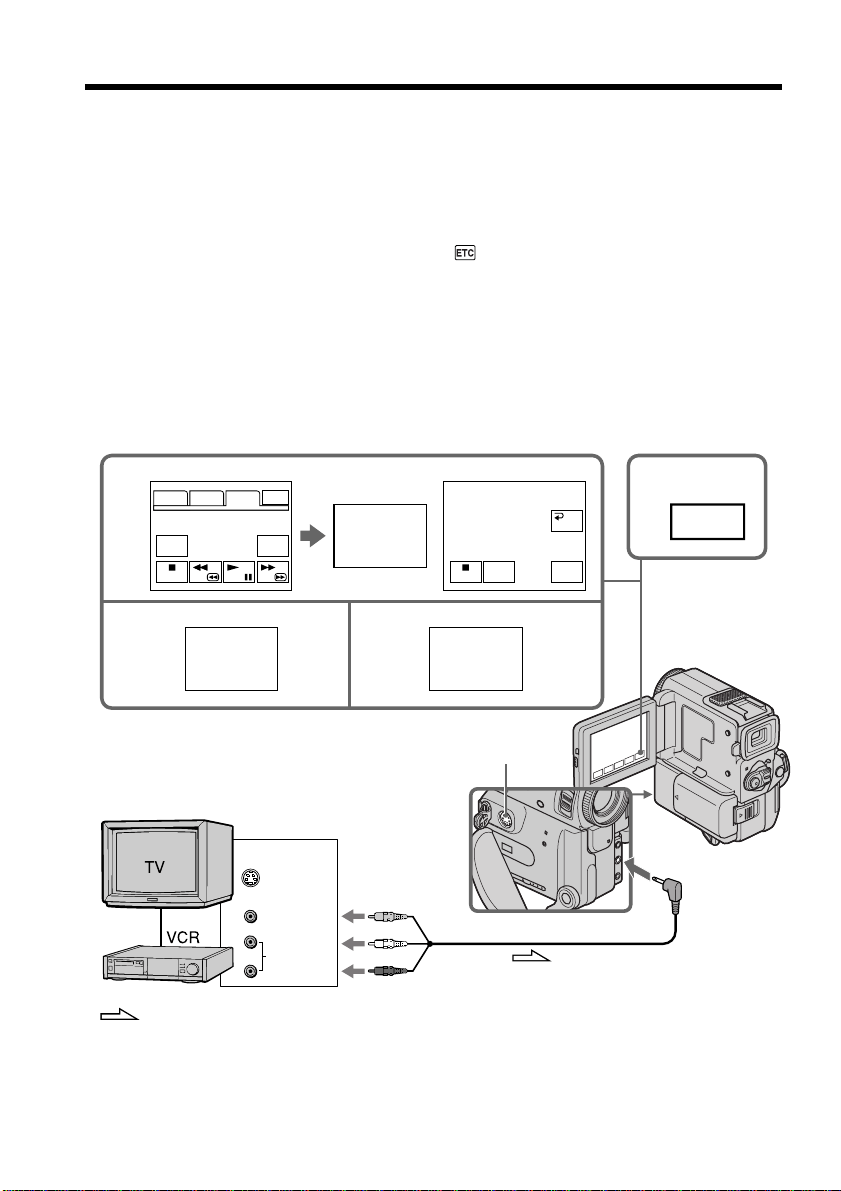
72
Recording video or TV programs
Using the A/V connecting cable
You can record a tape from another VCR or a TV program from a TV that has video/
audio outputs. Use your camcorder as a recorder.
(1) Insert a blank tape (or a tape you want to record over) into your camcorder. If
you are recording a tape from the VCR, insert a recorded tape into the VCR.
(2) Set the POWER switch to VCR.
(3) Press MENU, then set DISPLAY in
to LCD in the menu settings (p. 89).
And press EXIT to return to FN.
(4) Press FN, then select PAGE3 (p. 16).
(5) Press REC CTRL.
(6) Press REC PAUSE.
(7) Press N on the VCR to start playback if you are recording a tape from VCR.
Select a TV program if you are recording from TV. The picture from TV or
VCR appears in the viewfinder or on the LCD screen.
(8) Press REC START at the scene where you want to start recording from.
5
REC
PAUSE
REC
START
4
FN
68
REC
CTRL
PAGE1 PAGE2 PAGE3 EXIT
DATA
CODE
REC
CTRL
REC
PAUSE
REC CTRL
RET.
AUDIO/VIDEO
S VIDEO
VIDEO
AUDIO
OUT
S VIDEO
REC
START
: Signal flow

73
Editing
Recording video or TV programs
When you have finished dubbing a tape
Press x on both your camcorder and the VCR.
Using the Remote Commander
In the step 6 above, press z REC and the button on its right simultaneously, then
immediately press X. And in the step 8, press X at the scene where you want to start
recording from.
Note
If the picture from the VCR or the TV does not appear on the LCD screen or in the
viewfinder, make sure that the A/V connecting cable is connected to the output jack on
the VCR or on the TV.
If your VCR is a monaural type
Connect the yellow plug of the A/V connecting cable to the video output jack and the
white or the red plug to the audio output jack on the VCR or the TV. When the white
plug is connected, the left channel audio is output, and when the red plug is connected,
the right channel audio is output.
Connect using an S video cable (not supplied) to obtain high-quality pictures
With this connection, you do not need to connect the yellow (video) plug of the A/V
connecting cable.
Connect an S video cable (not supplied) to the S VIDEO jacks of both your camcorder
and the VCR.
This connection produces higher quality DV format pictures.
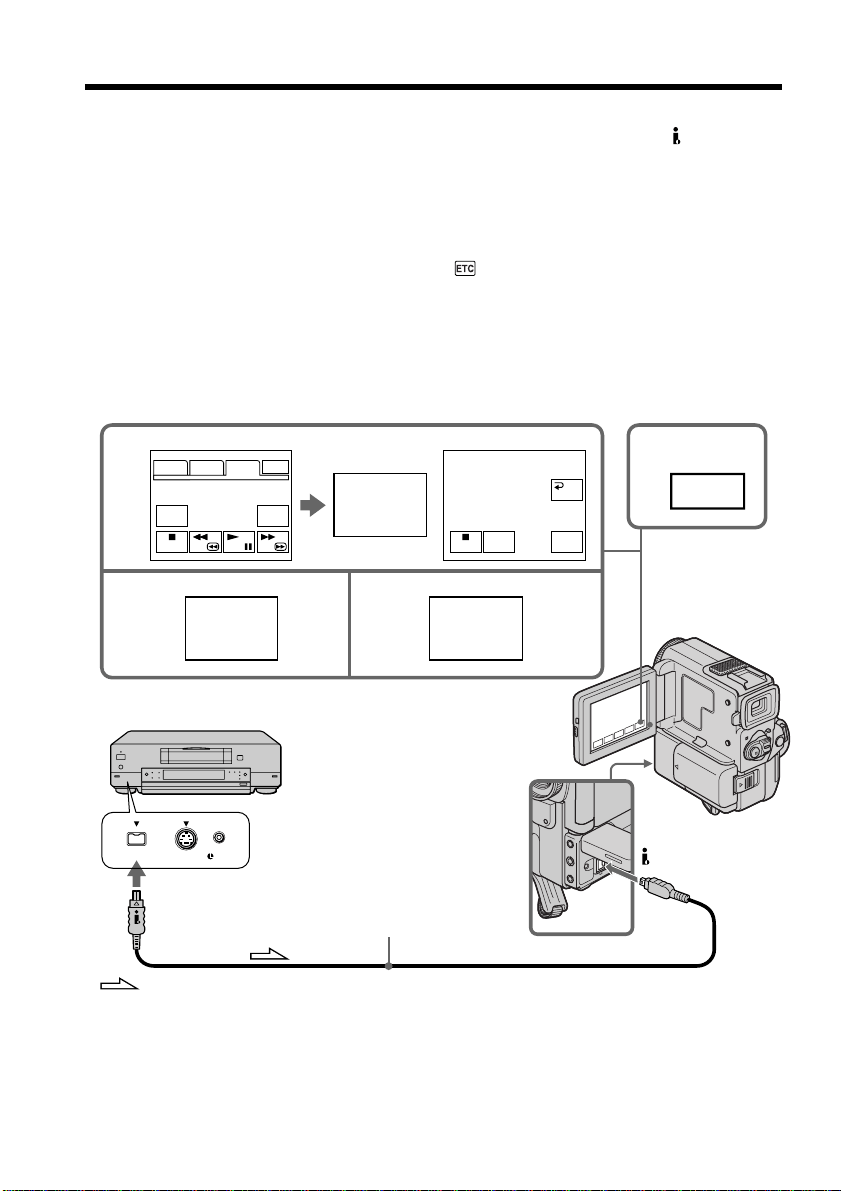
74
Recording video or TV programs
Using the i.LINK cable (DV connecting cable)
Simply connect the i.LINK cable (DV connecting cable) (not supplied) to DV IN/OUT
and to DV IN/OUT of the DV products. With digital-to-digital connection, video and
audio signals are transmitted in digital form for high-quality editing.
(1) Insert a blank tape (or a tape you want to record over) into your camcorder,
and insert the recorded tape into VCR.
(2) Set the POWER switch to VCR.
(3) Press MENU, then set DISPLAY in
to LCD in the menu settings (p. 89).
And press EXIT to return to FN.
(4) Press FN, then select PAGE3 (p. 16).
(5) Press REC CTRL.
(6) Press REC PAUSE.
(7) Press N on the VCR to start playback.
(8) Press REC START at the scene where you want to start recording.
5 4
FN
REC
CTRL
REC
PAUSE
REC CTRL
RET.
REC
PAUSE
REC
START
68
REC
START
PAGE1 PAGE2 PAGE3 EXIT
DATA
CODE
REC
CTRL
S VIDEO LANC
DV
DV IN/OUT
: Signal flow
(not supplied)
When you have finished dubbing a tape
Press x on both your camcorder and the VCR.
Using the Remote Commander
In the step 6, press z REC and the button on its right simultaneously, then immediately
press X. And in the step 8, press X at the scene where you want to start recording from.

75
Editing
Recording video or TV programs
You can connect one VCR only using the i.LINK cable (DV connecting cable).
When you dub a picture in digital form
The color of the display may be uneven. However, this does not affect the dubbed
picture.
You can also use your camcorder as a player
You can use your camcorder as a player or recorder without changing the connection.
If you record playback pause picture with the DV IN/OUT jack
The recorded picture becomes rough. And when you play back the picture using your
camcorder, the picture may jitter.
Before recording
Make sure if the DV IN indicator appears in the viewfinder or on the LCD screen. The
DV IN indicator may appear on both equipment.
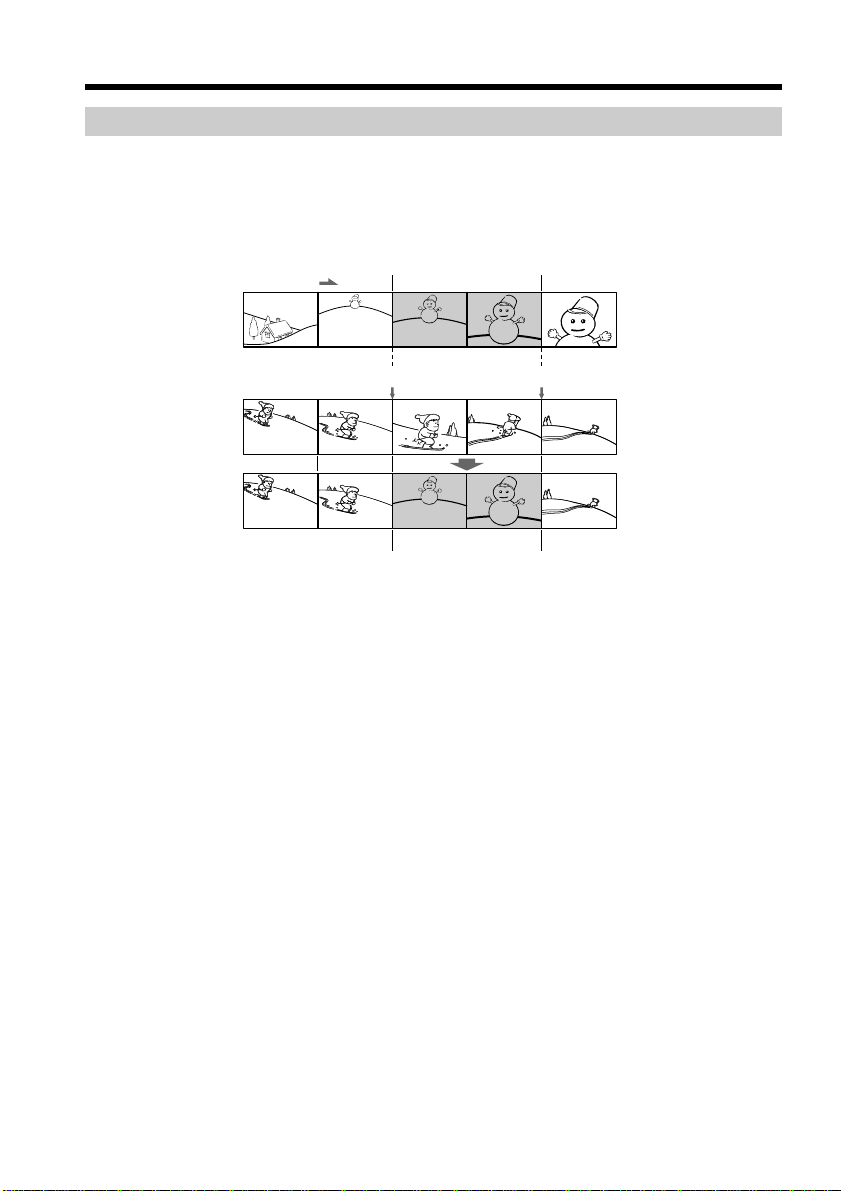
76
Inserting a scene from a VCR
Replacing recording on a tape – Insert Editing
You can insert a new scene from a VCR onto your originally recorded tape by
specifying the insert start and end points. Use the Remote Commander for this
operation. Connections are the same as on page 58 or 59.
Insert a cassette containing the desired scene to insert into the VCR.
[a]
[b]
[c]
(1) Set the POWER switch to VCR.
(2) On the VCR, locate just before the insert start point [a], then press X to set the
VCR to the playback pause mode.
(3) On your camcorder, locate the insert end point [c] by pressing m or M.
Then press X to set it to the playback pause mode.
(4) Press ZERO SET MEMORY on the Remote Commander. The ZERO SET
MEMORY indicator flashes and the end point of the insert is stored in
memory.
(5) On your camcorder, locate the insert start point [b] by pressing m. Press FN
and select REC CTRL in PAGE3.
(6) Press REC PAUSE.
(7) First press X on the VCR, and after a few seconds press REC START on your
camcorder to start inserting the new scene.
Inserting automatically stops near the zero point on the tape counter. Your
camcorder automatically returns to the recording stop mode.
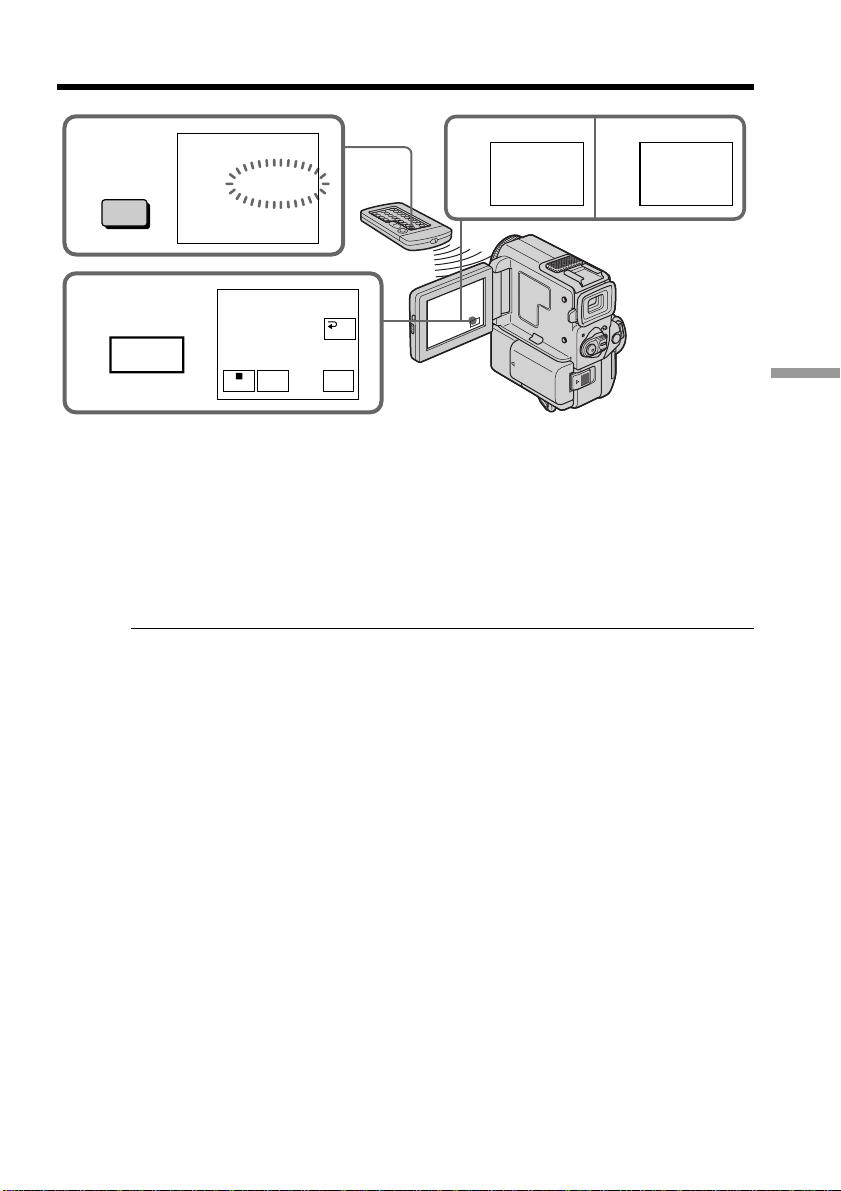
77
Editing
Inserting a scene from a VCR
To change the insert end point
Press ZERO SET MEMORY again after step 5 to erase the ZERO SET MEMORY
indicator and begin from step 3.
Using the Remote Commander
Press REC and the button on its right simultaneously, then immediately press X in the
step 5 and 6. And in the step 7, press X at the scene where you want to start recording
from.
Note
The picture and sound recorded on the section between the insert start and end points
will be erased when you insert the new scene.
If you insert scenes on the tape recorded with other camcorder
(including other DCR-PC5)
The picture and sound may be distorted. We recommend that you insert scenes on a
tape recorded with your camcorder.
When the inserted picture is played back
The picture and sound may be distorted at the end of the inserted section. This is not a
malfunction.
The sound at the start point and the end point may be distorted in the LP mode.
To insert a scene without setting the insert end point
Skip step 3 and 4. Press x when you want to stop inserting.
If you press FN
The ZERO SET MEMORY indicator is not displayed.
67
FN
REC
PAUSE
REC
START
5
4
ZERO SET
MEMORY
0:00:00
ZERO SET
MEMORY
REC
PAUSE
REC
START
REC CTRL
RET.
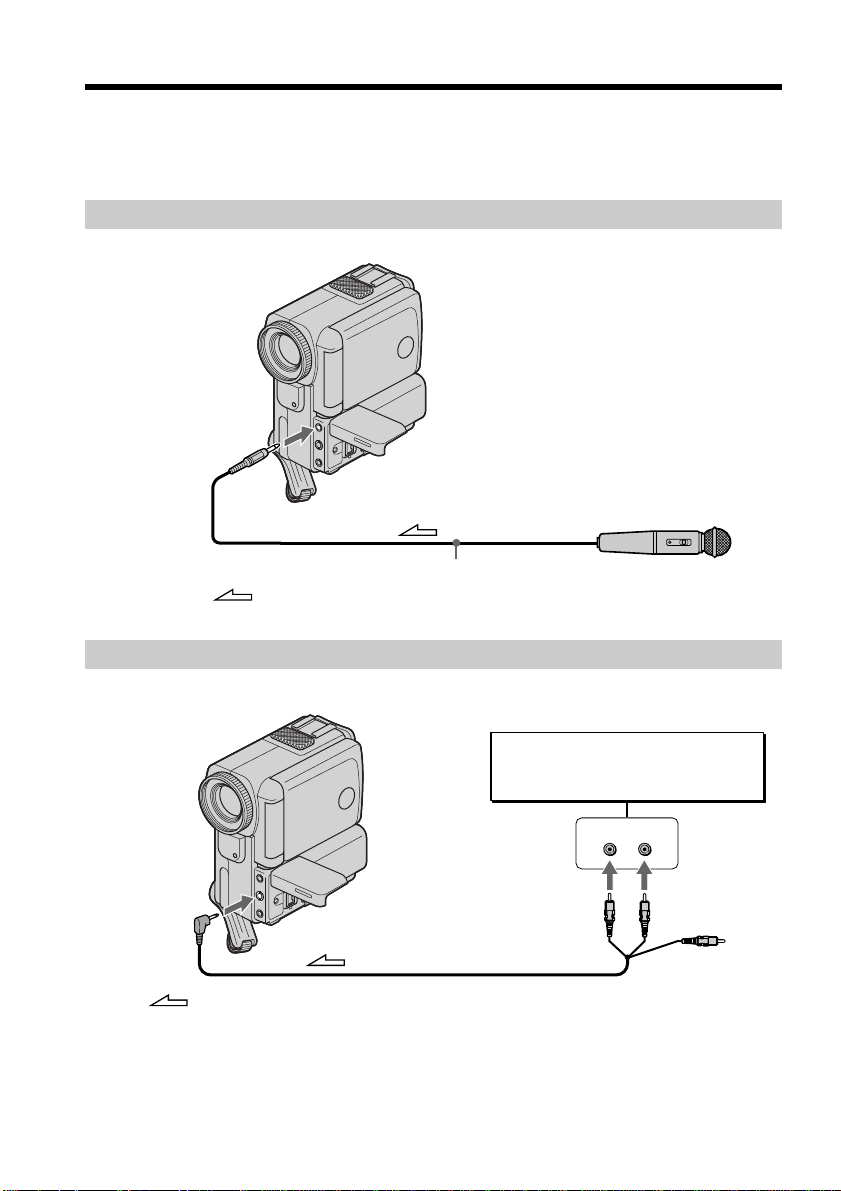
78
You can record an audio sound to add to the original sound on a tape by connecting
audio equipment or a microphone. If you connect the audio equipment, you can add
sound to your recorded tape by specifying starting and ending points. The original
sound will not be erased. Use the Remote Commander for this operation.
Connecting the microphone with the MIC jack
Audio dubbing
MIC
(PLUG IN
POWER)
: Signal flow
Microphone (not supplied)
LINE OUT
LR
AUDIO L AUDIO R
AUDIO/VIDEO
Audio equipment
Do not connect the
video (yellow) plug.
: Signal flow
Dubbing with the AUDIO/VIDEO jack
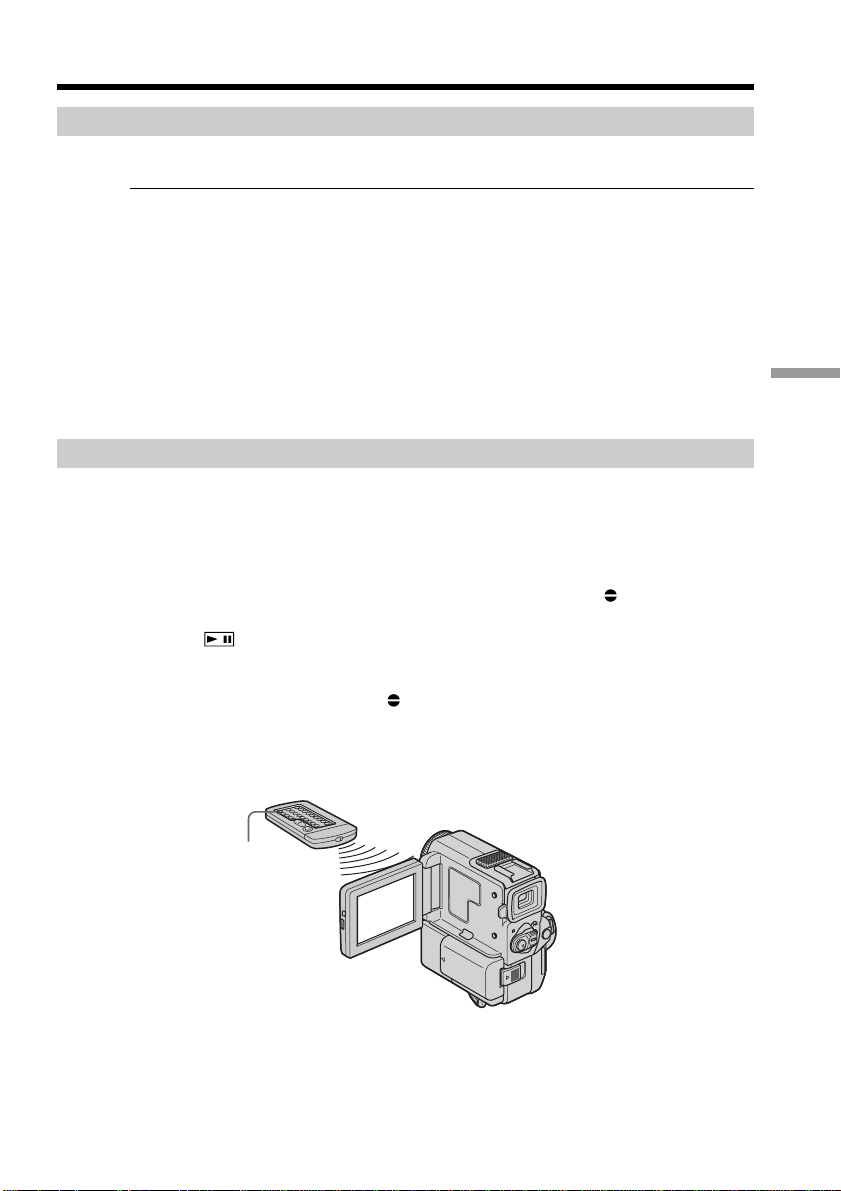
79
Editing
Dubbing with the built-in microphones
No connection is necessary.
Notes
•When you dub an audio sound with the external microphone, check the recorded
picture and sound by connecting the AUDIO/VIDEO jack to a TV. The recorded
sound is not output from the speaker. Check the sound by using the TV or
headphones.
•When you dub an audio sound with the AUDIO/VIDEO jack, check the recorded
picture on the LCD screen or in the viewfinder, as well as check the recorded sound
by using the speaker or headphones.
•When you dub an audio sound with the built-in microphone, check the recorded
picture on the LCD screen or in the viewfinder. The recorded picture is not output
from the AUDIO/VIDEO jack or the S VIDEO jack. Check the sound by using the
headphones.
Adding an audio sound on a recorded tape
(1) Insert your recorded tape into your camcorder.
(2) Set the POWER switch to VCR.
(3) Locate the recording start point by pressing N on the Remote Commander.
Then press X at the point where you want to start recording to set your
camcorder to playback pause mode.
(4) Press AUDIO DUB on the Remote Commander. The green
X appears on the
LCD screen or in the viewfinder.
(5) Press
on your camcorder or X on the Remote Commander and at the
same time start playing back the audio you want to record.
The new sound is recorded in stereo 2 (ST2) during playback. During
recording new sound, the red
appears on the LCD screen or in the
viewfinder.
(6) Press x on your camcorder or on the Remote Commander at the point where
you want to stop recording.
Audio dubbing
AUDIO DUB
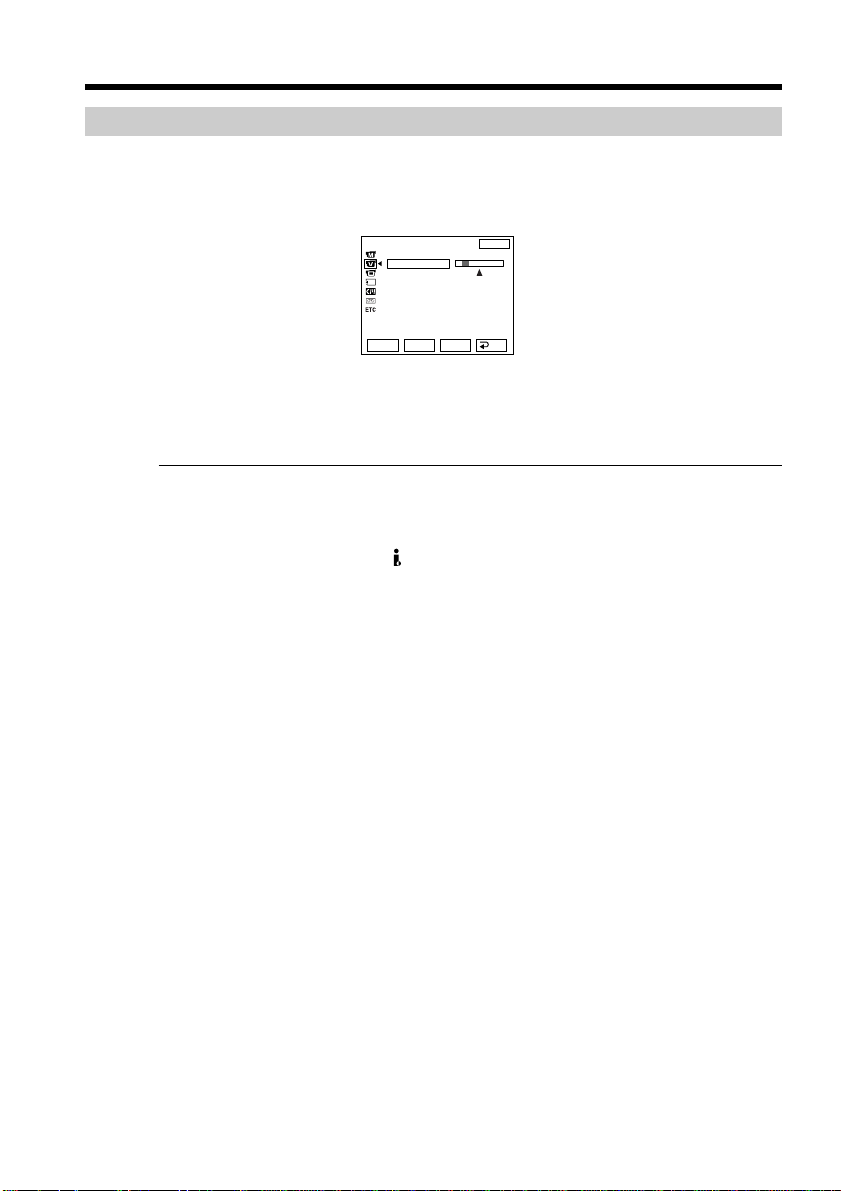
80
Monitoring the new recorded sound
To play back the sound
Adjust the balance between the original sound (ST1) and the new sound (ST2) by
selecting AUDIO MIX in the menu settings (p. 89).
About five minutes after when you disconnect the power source or remove the battery
pack, the setting of AUDIO MIX returns to the original sound (ST1) only. The default
setting is original sound only.
Notes
•New sound cannot be recorded on a tape already recorded in the 16-bit mode (32 kHz,
44.1 kHz or 48 kHz) (p. 89).
•New sound cannot be recorded on a tape already recorded in the LP mode.
•You cannot add audio with the DV IN/OUT jack.
•New sound cannot be recorded on blank portions of the tape.
If you make all the connections
The audio input to be recorded will take precedence over others in the following order.
•MIC (PLUG IN POWER) jack
•AUDIO/VIDEO jack
•Built-in microphone
If an i.LINK cable (DV connecting cable) is connected to your camcorder
You cannot add a sound to a recorded tape.
We recommend that you add new sound on a tape recorded with your camcorder
If you add new sound on a tape recorded with another camcorder (including other
DCR-PC5), the sound quality may become worse.
If you set the write-protect tab of the tape to lock
You cannot record on a tape. Slide the write-protect tab to release the write protection.
To add new sound more precisely
Press ZERO SET MEMORY at the point where you want to stop recording later in the
playback mode.
Carry out steps 3 to 5. Recording automatically stops at the point where ZERO SET
MEMORY was pressed.
Audio dubbing
VCR SET
H i F i SOUND
AUD
I
O M
I
X
A/VtDV OUT
ST1 ST2
EXIT
RET.
EXEC
Rr
81
Editing
Superimposing a title
If you use a tape with cassette memory, you can superimpose the title while
recording or after recording. When you play back the tape, the title is displayed
for about 5 seconds from the point where you superimposed it.
You can select one of eight preset titles and two custom titles (p. 85). You can also select
the color, size and position of titles.
(1) In the CAMERA/playback/playback pause mode, press FN and select PAGE2
(p. 16).
(2) Press TITLE. The screen to select a title appears on the LCD screen.
(3) Select
with r/R, and then press EXEC.
(4) Press r/R to select a desired title, and then press EXEC. The title appears on the
LCD screen.
(5) If necessary, change the color, size, or position by pressing COLOR, SIZE,
POS r or POS R.
(6) Press TITLE OK.
(7) Press SAVE TITLE.
In the playback, playback pause or recording mode:
The “TITLE SAVE” indicator appears on the screen for about 5 seconds and
the title is set.
In the standby mode:
The “TITLE” indicator appears. And when you press START/STOP to start
recording,
“TITLE SAVE” appears on the screen for about 5 seconds and the title is set.
VACATION
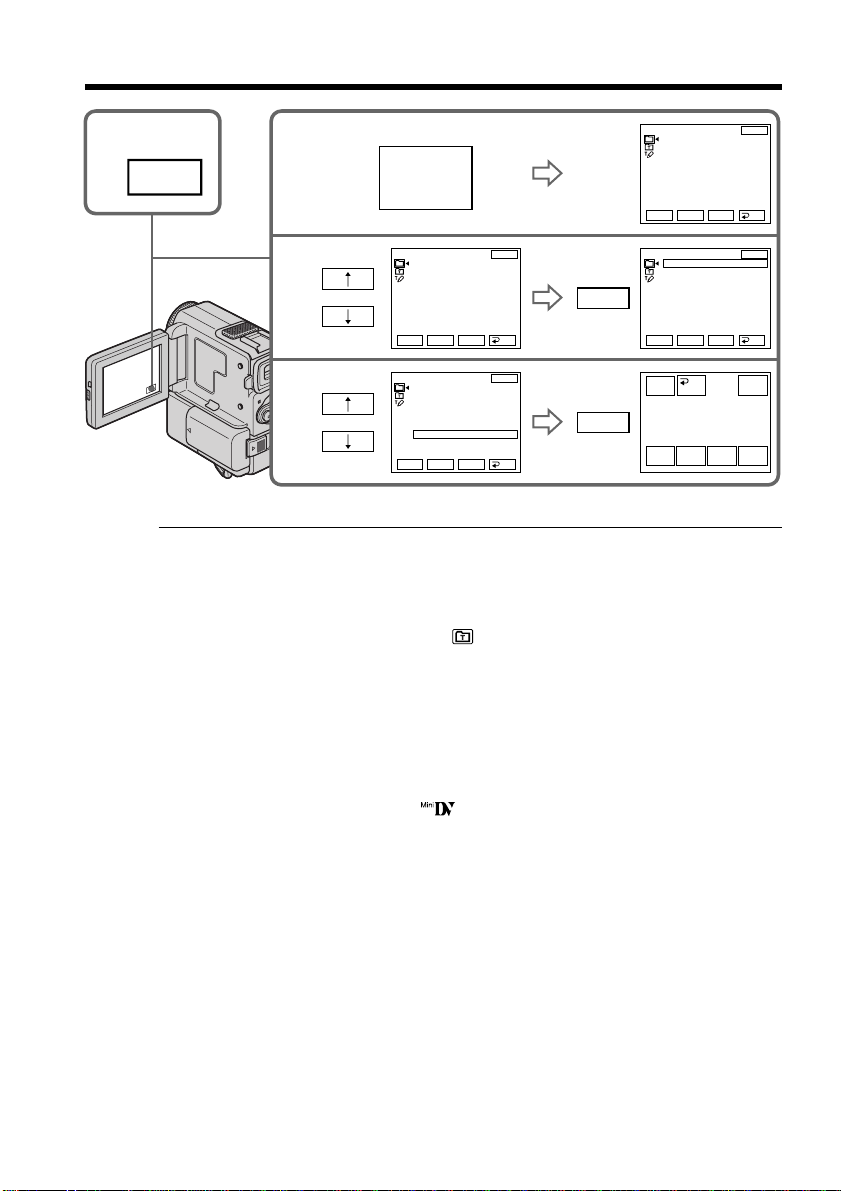
82
If you set the write-protect tab to lock
You cannot superimpose or erase the title. Slide the write-protect tab to release the write
protection.
To use the custom title
If you want to use the custom title, select in step 3.
If the tape has a blank portion
You cannot superimpose a title on the tape.
If the tape has a blank portion in the middle of the recorded parts
The title may not be displayed correctly.
The titles superimposed with your camcorder
•They are displayed by only the DV format video equipment with index titler
function.
•The point you superimposed the title may be detected as an index signal when
searching a recording with other video equipment.
If the tape has too many index signals
You may not be able to superimpose a title because the memory is full. In this case,
delete data you do not need.
Superimposing a title
2
3
4
TITLE
PRESET TITLE
HELLO!
HAPPY BIRTHDAY
HAPPY HOLIDAYS
CONGRATULATIONS!
OUR SWEET BABY
WEDDING
VACATION
THE END
EXIT
RET.
EXEC
Rr
VACATION
COLOR
RET
POS rSIZE
TITLE
OK
EXIT
POS R
EXEC
PRESET TITLE
HELLO!
HAPPY BIRTHDAY
HAPPY HOLIDAYS
CONGRATULATIONS!
OUR SWEET BABY
WEDDING
VACATION
THE END
EXIT
RET.
EXEC
Rr
EXEC
PRESET TITLE
HELLO!
HAPPY BIRTHDAY
HAPPY HOLIDAYS
CONGRATULATIONS!
OUR SWEET BABY
WEDDING
VACATION
THE END
EXIT
RET.
EXEC
Rr
PRESET TITLE
HELLO!
HAPPY BIRTHDAY
HAPPY HOLIDAYS
CONGRATULATIONS!
OUR SWEET BABY
WEDDING
VACATION
THE END
EXIT
RET.
EXEC
Rr
1
FN

83
Editing
Not to display title
Set TITLE DSPL to OFF in the menu settings (p. 89).
Title setting
•The title color changes as follows:
WHITE t YELLOW t VIOLET t RED t CYAN t GREEN t BLUE
•The title size changes as follows:
SMALL y LARGE
You cannot input 13 characters or more in LARGE size.
•If you select the title size “SMALL”, you have nine choices for the title position.
If you select the title size “LARGE”, you have eight choices for the title position.
One cassette can have up to about 20 titles, if one title consists of 5 characters
However, if the cassette memory is full with date, photo and cassette label data, one
cassette can have only up to about 11 titles with 5 characters each.
Cassette memory capacity is as follows:
•6 date data (maximum)
•12 photo data (maximum)
•1 cassette label (maximum)
If the “ FULL” mark appears
The cassette memory is full. Erase the title you do not need.
Superimposing a title
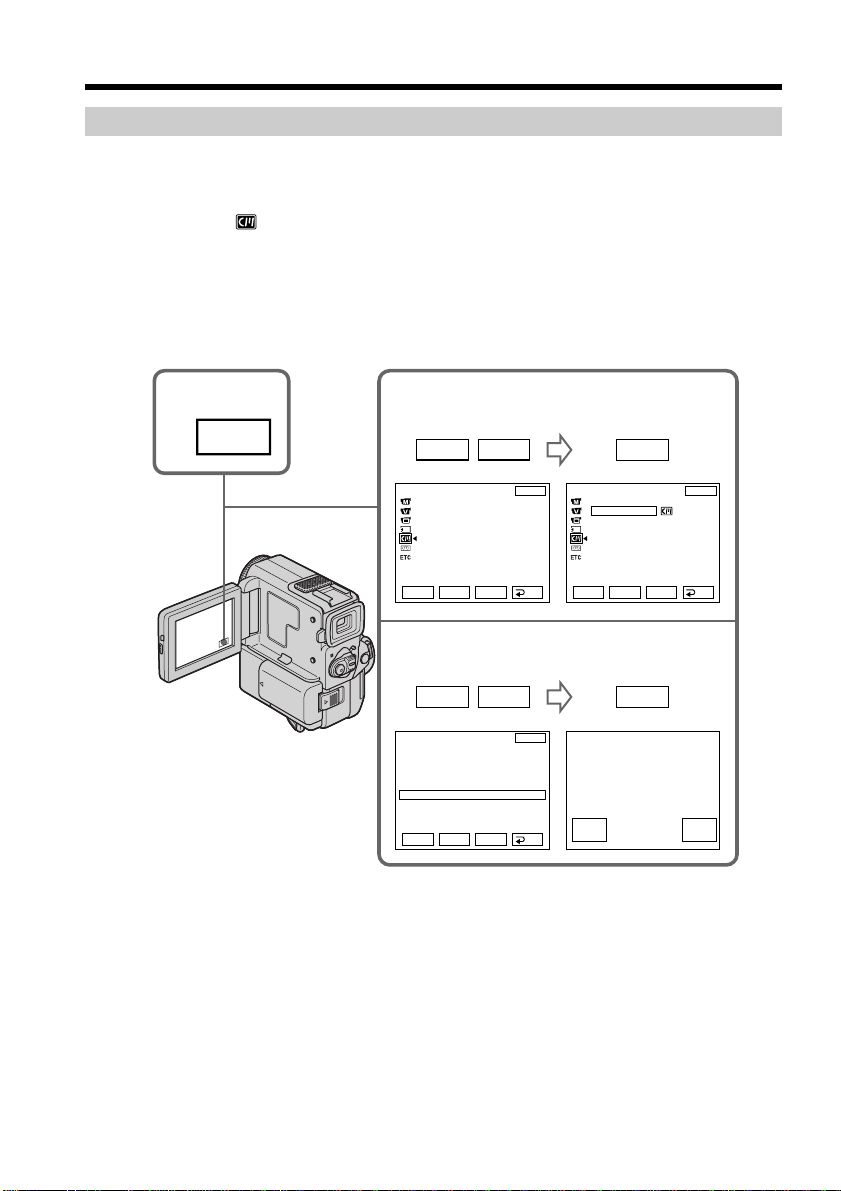
84
To return to FN
Press EXIT.
To cancel erasing
Press CANCEL in step 7.
Erasing a title
(1) Set the POWER switch to CAMERA or VCR.
(2) Press FN to display PAGE1 (p. 16).
(3) Press MENU to display the menu.
(4) Select
with r/R, and then EXEC.
(5) Select TITLEERASE with r/R, and then EXEC. The screen to erase a title
appears.
(6) Select the title you want to erase with r/R, and then press EXEC.
“ERASE OK?” indicator appears.
(7) Make sure the title is the one you want to erase, and press OK.
Superimposing a title
4,5
6
2
FN
r R
EXEC
r R
EXEC
CM SET
CM
SEARCH
T
I
TLEERASE
T
I
TLE DSPL
TAPE T
I
TLE
ERASE ALL
CM SET
CM
SEARCH
T
I
TLEERASE
T
I
TLE DSPL
TAPE T
I
TLE
ERASE ALL
T
I
TLE ERASE
1 HELLO
!
2 CONGRATULAT
I
ONS
!
3 HAPPY NEW YEAR
!
4 PRESENT
5 GOOD MORN
I
NG
6 WEDD
I
NG
T
I
TLE ERASE
4
PRESENT
EXIT
RET.
EXEC
Rr
EXIT
RET.
EXEC
Rr
EXIT
END
EXEC
Rr
ERASE OK?
OK
CAN–
CEL
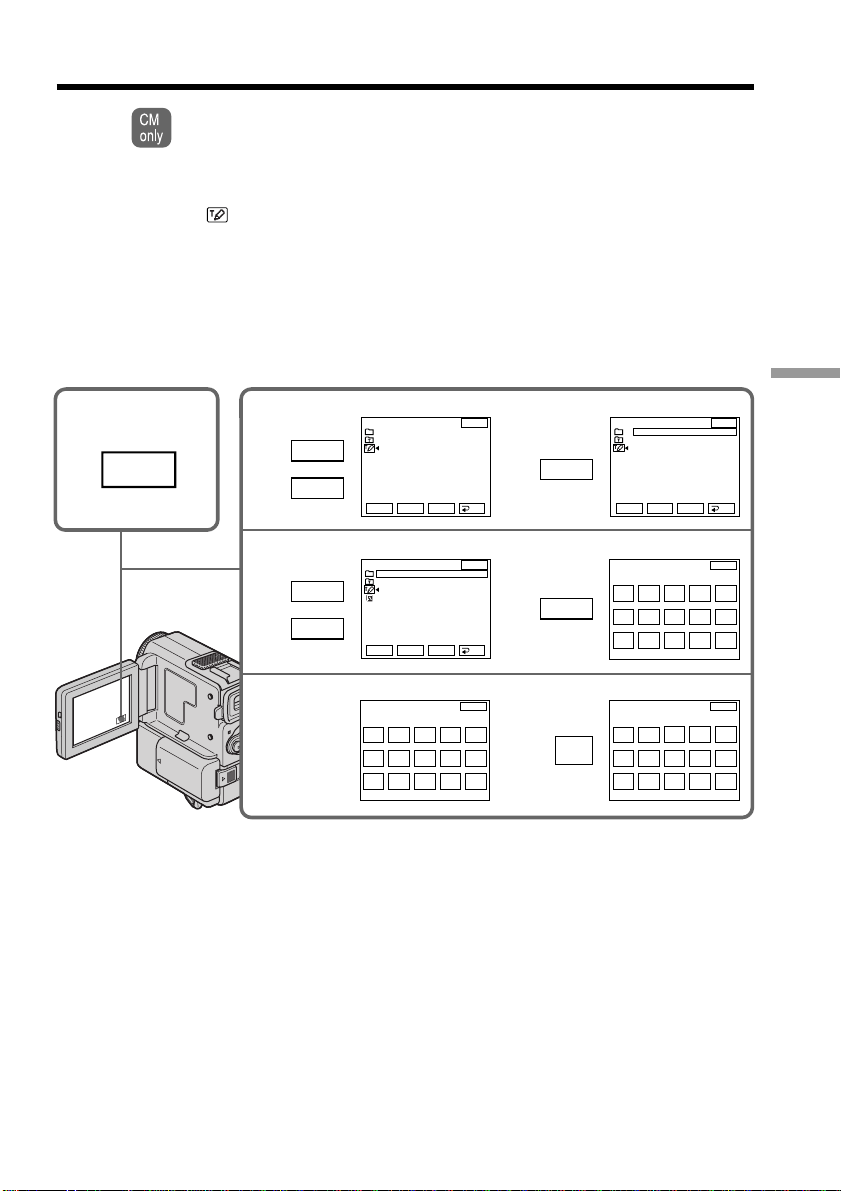
85
Editing
Making your own titles
You can make up to two titles and store them in cassette memory. Each title can
have up to 20 characters.
(1) In CAMERA/VCR mode, press FN, and select PAGE2 (p. 16).
(2) Press TITLE.
(3) Select
with r/R, and press EXEC.
(4) Select CUSTOM1 SET or CUSTOM2 SET with r/R, and press EXEC.
(5) Select the desired character. Repeat pressing a key to select the desired
character on the key.
(6) Press c to move the cursor for the next character. Repeat the same procedure
as step 5 and 6 to complete your title.
(7) Press SET. The title is stored in memory.
1
4
3
5,6
TITLE SET
CUSTOM1 SET
CUSTOM2 SET
TITLE SET
CUSTOM1 SET
CUSTOM2 SET
TITLE SET
CUSTOM1 SET
CUSTOM2 SET
FN
EXIT
RET.
EXEC
Rr
EXIT
RET.
EXEC
Rr
EXIT
RET.
EXEC
Rr
r
R
r
R
EXEC
EXEC
&?
!
ABC DEF
T t
678
90
123
45
MNO
J
KLGH
I
SET
’ . ,
/
–
WXY
Z
TUVPQR
S
[
____________________
]
EXIT
TITLE SET
&?
!
ABC DEF
T t
678
90
123
45
MNO
J
KLGH
I
SET
’ . ,
/
–
WXY
Z
TUVPQR
S
[
PARTY
_______________
]
EXIT
TITLE SET
&?
!
ABC DEF
T t
678
90
123
45
MNO
J
KLGH
I
SET
’ . ,
/
–
WXY
Z
TUVPQR
S
[
PAR
_________________
]
EXIT
TITLE SET
SET

86
To return to FN
Press EXIT.
To change a title you have stored
In step 4, select CUSTOM1 SET or CUSTOM2 SET, depending on which title you want
to change, then press EXEC and then enter the new title as desired.
If you take 5 minutes or longer to enter characters in the standby mode while a
cassette is in your camcorder
The power automatically goes off. The characters you have entered remain stored in
memory. Set the POWER switch to OFF once and then to CAMERA again, then
complete your title.
We recommend setting the POWER switch to VCR or removing the cassette so that
your camcorder does not automatically turn off while you are entering title characters.
To erase the title
Press C. The last character is erased.
To enter a space
Press c.
To enter the same character on the same button in succession
Press c to move the cursor to the next position, and enter the character.
Making your own titles
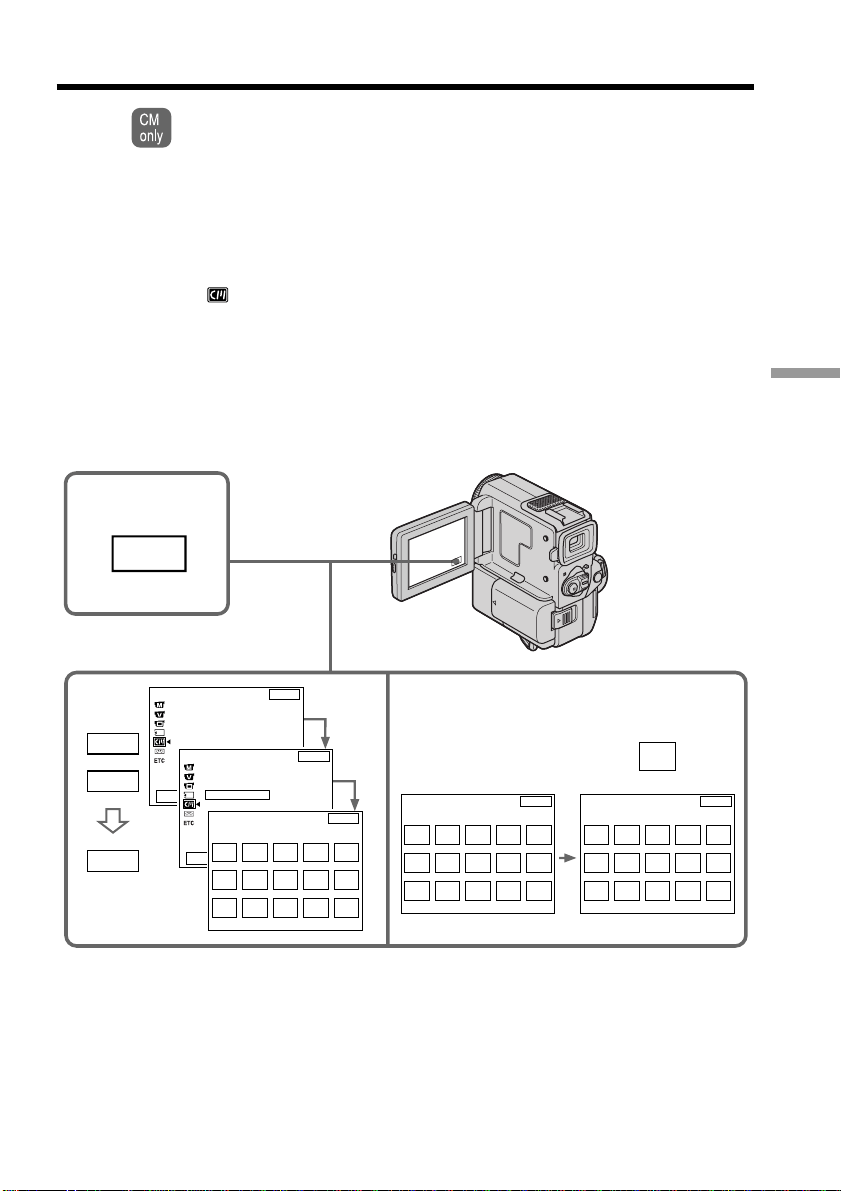
87
Editing
Labeling a cassette
If you use a tape with cassette memory, you can label a cassette. The label can
consist of up to 10 characters and is stored in cassette memory. When you insert
the labeled cassette and set the POWER switch to CAMERA or VCR, the label is
displayed for about 5 seconds.
(1) Insert the cassette you want to label.
(2) Set the POWER switch to CAMERA or VCR.
(3) Press FN to display PAGE1 (p. 16).
(4) Press MENU to display the menu.
(5) Select
with r/R, and then EXEC.
(6) Select TAPE TITLE, then press EXEC. The screen to enter the label appears.
(7) Select a desired character. Repeat pressing a key to select the desired character
on the key.
(8) Press c to move the cursor for the next character. Repeat the same procedure
as step 7 and 8 to complete the label.
(9) Press SET. The label is stored in memory.
5,6
3
FN
r
R
EXEC
CM SET
CM
SEARCH
T
I
TLEERASE
T
I
TLE DSPL
TAPE T
I
TLE
ERASE ALL
7,8
EXIT
RET.
EXEC
Rr
&?
!
ABC DEF
T t
678
90
123
45
MNO
J
KLGH
I
SET
’ . ,
/
–
WXY
Z
TUVPQR
S
[
GRADU
_____
]
EXIT
TAPE TITLE
&?
!
ABC DEF
T t
678
90
123
45
MNO
J
KLGH
I
SET
’ . ,
/
–
WXY
Z
TUVPQR
S
[
GRADUATION
]
EXIT
TAPE TITLE
SET
CM SET
EXIT
RET.
EXEC
Rr
CM
SEARCH
T
I
TLEERASE
T
I
TLE DSPL
TAPE T
I
TLE
ERASE ALL
–––––––––
&?
!
ABC DEF
T t
678
90
123
45
MNO
J
KLGH
I
SET
’ . ,
/
–
WXY
Z
TUVPQR
S
[
__________
]
EXIT
TAPE TITLE

88
To return to FN
Press EXIT.
To erase a character
Select C in step 6. The last character is erased.
To change the label you have made
Insert the cassette to change the label, and operate in the same way to make a new label.
Deleting all the data in cassette memory
You can delete all the data in cassette memory at once.
(1) In CAMERA/VCR mode, press FN to display PAGE1 (p. 16).
(2) Press MENU. Select ERASE ALL in
in the menu settings, then press EXEC.
(3) Select OK and then press EXEC.
(4) Select EXECUTE and then press EXEC. “ERASING” appears on the LCD
screen. Once deleting is completed, “COMPLETE” is displayed.
To return to FN
Press EXIT.
To cancel deleting
Select RETURN. in step 3 or step 4, then press EXEC.
If you set the write-protect tab of the tape to lock
You cannot label the tape. Slide the write-protect tab to release the write protection.
If the tape has too many index signals
You may not be able to label a cassette because the memory is full. In this case, delete
data you do not need.
If you have superimposed titles in the cassette
When the label is displayed, up to 4 titles also appear.
When the “-----” indicator has fewer than 10 spaces
The cassette memory is full.
The “-----” indicates the number of characters you can select for the label.
To erase the title
Press C. The last character is erased.
To enter a space
Press c.
To enter the same character on the same button in succession
Press c to move the cursor to the next position, and enter the character.
Labeling a cassette
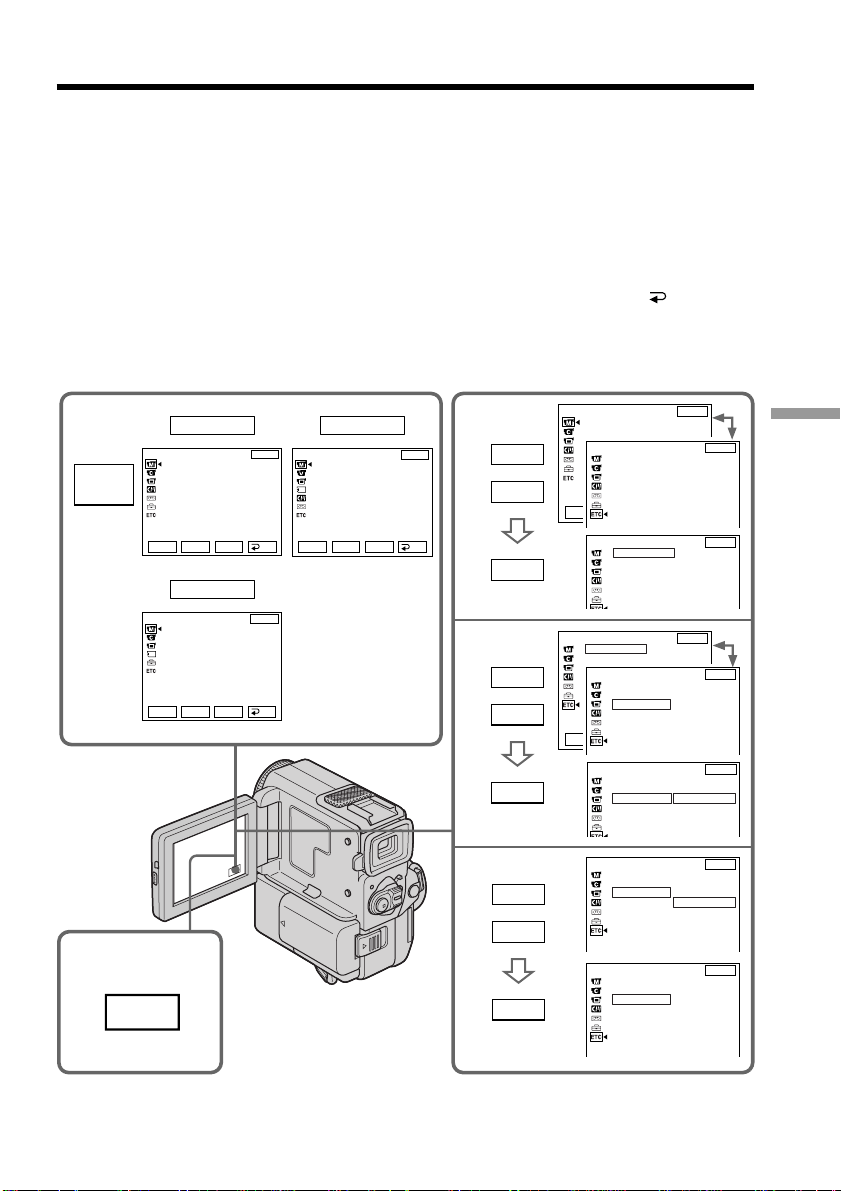
89
Customizing Your Camcorder
— Customizing Your Camcorder —
Changing the menu settings
To change the mode settings in the menu settings, select the menu items with r/R dial.
The default settings can be partially changed. First, select the icon, then the menu item
and then the mode.
(1) In CAMERA/VCR /MEMORY mode, press FN to display PAGE1 (p. 16).
(2) Press MENU to display the menu.
(3) Press r/R to select a desired icon, and press EXEC.
(4) Press r/R to select a desired item, and press EXEC.
(5) Press r/R to select a desired setting.
(6) Repeat steps from 3 to 5 if you want to change other items. Press
RET. to
return to step 3.
For details, see “Selecting the mode setting of each item” (p. 90).
To return to FN
Press EXIT.
2
CAMERA
3
4
5
MANUAL SET
PROGRAM AE
P EFFECT
WHT BAL
AUTO SHTR
VCR
MANUAL SET
P EFFECT
MEMORY
MANUAL SET
PROGRAM AE
WHT BAL
MANUAL SET
PROGRAM AE
P EFFECT
OTHERS
WORLD TIME
BEEP
0 HR
OTHERS
WORLD TIME
BEEP
COMMANDER
DISPLAY
REC LAMP
ON
OFF
1
FN
EXIT
RET.
EXEC
Rr
EXIT
RET.
EXEC
Rr
EXIT
RET.
EXEC
Rr
EXIT
RET.
EXEC
Rr
EXIT
RET.
EXEC
Rr
EXIT
r
R
EXEC
r
R
EXEC
r
R
EXEC
MENU
OTHERS
WORLD TIME
BEEP
COMMANDER
DISPLAY
REC LAMP
OTHERS
WORLD TIME
BEEP
COMMANDER
DISPLAY
REC LAMP
ON
OTHERS
WORLD TIME
BEEP
COMMANDER
DISPLAY
REC LAMP
OFF
EXIT
EXIT
EXIT
OTHERS
WORLD TIME
BEEP
COMMANDER
DISPLAY
REC LAMP
0 HR
EXIT
OTHERS
WORLD TIME
BEEP
COMMANDER
DISPLAY
REC LAMP
ON
OFF
EXIT
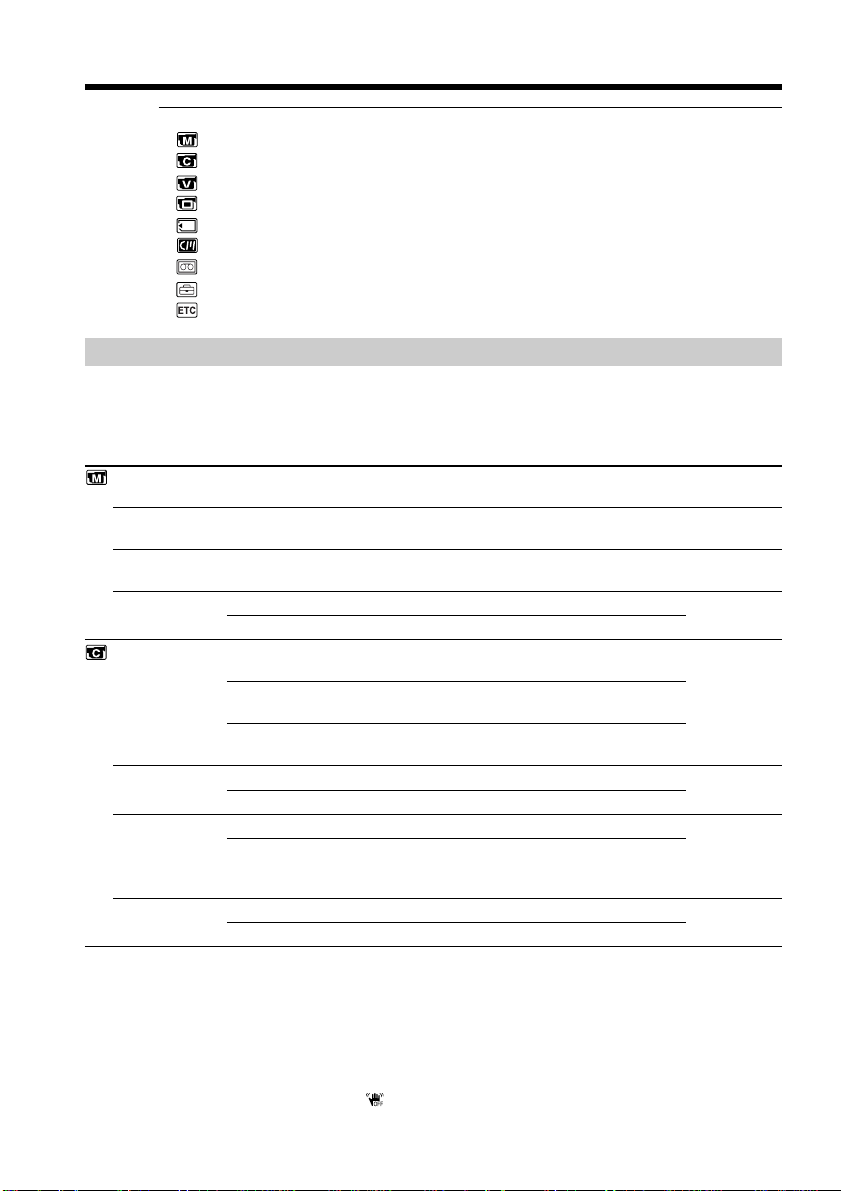
90
Changing the menu settings
Menu items are displayed as the following icons:
MANUAL SET
CAMERA SET
VCR SET
LCD SET
MEMORY SET
CM SET
TAPE SET
SETUP MENU
OTHERS
Selecting the mode setting of each item z is the default setting.
Menu items differ depending on the position of the POWER switch.
The LCD screen shows only the items you can operate at the moment.
Icon/item
PROGRAM AE
P EFFECT
WHT BAL
AUTO SHTR
D ZOOM
16:9WIDE
STEADYSHOT
N.S. LIGHT
Mode
z ON
OFF
z OFF
20×
120×
z OFF
ON
z ON
OFF
z ON
OFF
Meaning
To suit your specific shooting requirement (p. 44)
To add special effects like those in films or on the TV
to images (p. 40)
To adjust the white balance (p. 35)
To adjust the shutter speed automatically
To fix the shutter speed
To deactivate the digital zoom. Up to 10× zoom is
carried out.
To activate the digital zoom. More than 10× to 20×
zoom is performed digitally (p. 22).
To activate the digital zoom. More than 10× to 120×
zoom is performed digitally (p. 22).
—
To record a 16:9 wide picture (p. 36)
To compensate for camera-shake
To cancel the SteadyShot function. Natural pictures
are produced when shooting a stationary object with
a tripod.
To use the NightShot Light function (p. 24)
To cancel the NightShot Light function
POWER
switch
CAMERA
MEMORY
VCR
CAMERA
CAMERA
MEMORY
CAMERA
CAMERA
CAMERA
CAMERA
CAMERA
MEMORY
Notes on the SteadyShot function
•The SteadyShot function will not correct excessive camera-shake.
•Attachment of a conversion lens (not supplied) may influence the SteadyShot
function.
If you cancel the SteadyShot function
The SteadyShot off indicator appears. Your camcorder prevents excessive
compensation for camera-shake.
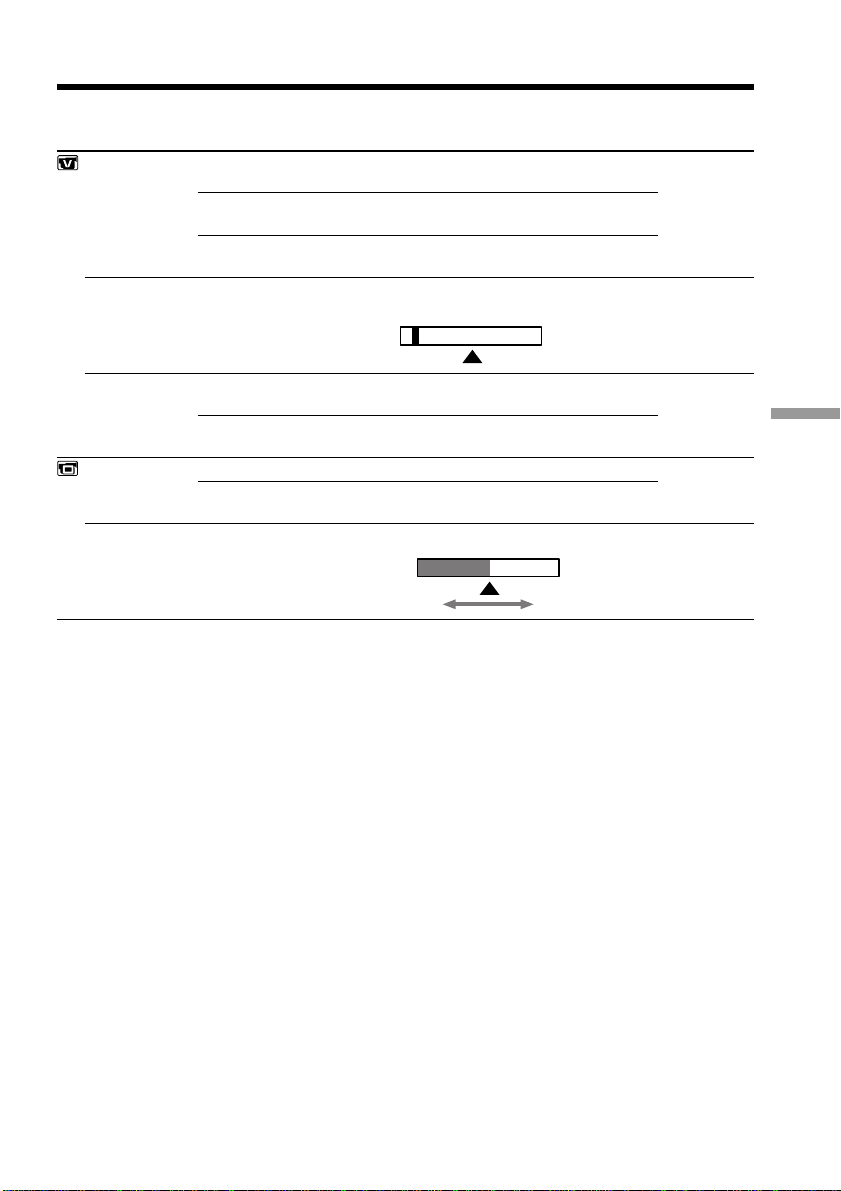
91
Customizing Your Camcorder
Changing the menu settings
Icon/item
HiFi SOUND
AUDIO MIX
A/V t DV OUT
LCD B. L.
LCD COLOR
Mode
z STEREO
1
2
z OFF
ON
z BRT NORMAL
BRIGHT
Meaning
To play back a stereo tape or dual sound track
tape with main and sub sound
To play back a stereo tape with the left sound or
a dual sound tape with main sound
To play back a stereo tape with the right sound
or a dual sound track tape with sub sound
To adjust the balance between the stereo 1 and
stereo 2 (p. 80)
To output digital images in analog format using
your camcorder.
To output analog images in digital format using
your camcorder (p. 71).
To set the brightness on the LCD screen normal
To brighten the LCD screen
To adjust the color on the LCD screen with –/+
POWER
switch
VCR
VCR
VCR
VCR
CAMERA
MEMORY
Notes on LCD B.L.
•When you use power sources other than the battery pack, “BRIGHT” is automatically
selected.
•You cannot select “BRIGHT” when you use NP-F10/FS11 battery pack.
Low intensity
High intensity
ST1 ST2
VCR
CAMERA
MEMORY
92
Changing the menu settings
Icon/item
CONTINUOUS
QUALITY
SLIDE SHOW
DELETE ALL
FORMAT
PHOTO SAVE
CM SEARCH
TITLEERASE
TITLE DSPL
TAPE TITLE
ERASE ALL
Mode
z OFF
MULTI SCRN
z FINE
STANDARD
z ON
OFF
z ON
OFF
Meaning
Not to record continuously
To record 9 pictures continuously (p. 104)
To record still pictures in the fine image quality
mode, using the “Memory Stick”
To record still pictures in the standard image
quality mode, using the “Memory Stick”
To play back images in a continuous loop
(p. 118)
To delete all the images (p. 122)
To format “Memory Stick”s:
1. Select “FORMAT” and press EXEC. 2. Select
OK and press EXEC. 3. Select EXECUTE and
press EXEC. “FORMATTING” flashes on the
LCD screen or in the viewfinder. Once
formatting is completed, “COMPLETE” appears.
To duplicate still pictures (p. 112)
To search using cassette memory (p. 53)
To search without using cassette memory
To erase the title you have superimposed
(p. 84)
To display the title you have superimposed
Not to display the title
To label a cassette (p. 87)
To erase all the data in cassette memory (p. 88)
POWER
switch
MEMORY
VCR
MEMORY
MEMORY
MEMORY
MEMORY
VCR
VCR
VCR
CAMERA
VCR
VCR
CAMERA
VCR
CAMERA
Notes on formatting
•“Memory Stick” supplied with your camcorder has been formatted at factory.
Formatting with your camcorder is not required.
•Do not turn the POWER switch or press any button while “FORMATTING” is
displayed.
•You cannot format the “Memory Stick” if the write-protect tab on the “Memory Stick”
is set to LOCK.
•Format again if the message “ ” appears.
•Format the “Memory Stick” when “ FORMAT ERROR” is displayed.
Formatting erases all information on the “Memory Stick”
Check the contents of the “Memory Stick” before formatting.
• Formatting erases sample images on the “Memory Stick”.
• Formatting erases the protected image data on the “Memory Stick”.

93
Customizing Your Camcorder
Icon/item
REC MODE
AUDIO MODE
qREMAIN
DATA CODE*
Mode
z SP
LP
z 12BIT
16BIT
z AUTO
ON
z DATE/CAM
DATE
Meaning
To record in the SP (Standard Play) mode
To increase the recording time to 1.5 times the
SP mode
To record in the 12-bit mode (two stereo sounds)
To record in the 16-bit mode (the one stereo
sound with high quality)
To display the remaining tape bar:
•for about 8 seconds after your camcorder is
turned on and calculates the remaining
amount of tape
•for about 8 seconds after a cassette is inserted
and your camcorder calculates the remaining
amount of tape
•for about 8 seconds after the playback button
N is pressed in VCR mode
•for about 8 seconds after DISPLAY/TOUCH
PANEL is pressed to display the screen
indicators
•for the period of tape rewinding, forwarding
or picture search in the VCR mode
To always display the remaining tape indicator
To display date, time and various settings
during playback
To display date and time during playback
POWER
switch
VCR
CAMERA
VCR
CAMERA
VCR
CAMERA
VCR
* Using the Remote Commander only
Notes on the LP mode
•When you record a tape in the LP mode on your camcorder, we recommend playing
the tape on your camcorder. When you play back the tape on other camcorders or
VCRs, noise may occur in pictures or sound.
•When you record in the LP mode, we recommend using a Sony Excellence/Master
mini DV cassette so that you can get the most out of your camcorder.
•You cannot make audio dubbing on a tape recorded in the LP mode. Use the SP mode
for the tape to be audio dubbed.
•When you record in the SP and LP modes on one tape or you record some scenes in
the LP mode, the playback picture may be distorted or the time code may not be
written properly between scenes.
Notes on AUDIO MODE
•You cannot dub audio sound on a tape recorded in the 16-bit mode.
•When playing back a tape recorded in the 16-bit mode, you cannot adjust the balance
in AUDIO MIX.
Changing the menu settings

94
Changing the menu settings
Icon/item
CLOCK SET
DEMO MODE
WORLD TIME
BEEP
COMMANDER
DISPLAY
REC LAMP
VIDEO EDIT
EDIT SET
Meaning
To reset the date or time (p. 95)
To make the demonstration appear
To cancel the demonstration mode
To set the clock to the local time. Press r/R to set
a time difference. The clock changes by the time
difference you set here. If you set the time
difference to 0, the clock returns to the originally
set time.
To output the melody when you start/stop
recording or when an unusual condition occurs
on your camcorder
To output the beep instead of the melody
To cancel the melody and beep sound
To activate the Remote Commander supplied
with your camcorder
To deactivate the Remote Commander to avoid
remote control misoperation caused by other
VCR’s remote control
To show the display on the LCD screen and
viewfinder
To show the display on the TV screen, LCD
screen and viewfinder
To light up the camera recording lamp at the
front of your camcorder
To turn the camera recording lamp off so that
the subject is not aware of the recording
To make programs and perform Digital
program editing (p. 60).
To adjust and set the synchronicity of your
camcorder and a VCR for dubbing in Digital
program editing.
POWER
switch
CAMERA
MEMORY
CAMERA
CAMERA
MEMORY
VCR
CAMERA
MEMORY
VCR
CAMERA
MEMORY
VCR
CAMERA
MEMORY
CAMERA
MEMORY
VCR
VCR
Notes on DEMO MODE
•You cannot select DEMO MODE when a cassette is inserted in your camcorder.
•DEMO MODE is set to STBY (Standby) at the factory and the demonstration starts
about 10 minutes after you have set the POWER switch to CAMERA without a
cassette inserted.
To cancel the demonstration, insert a cassette, set the POWER switch to other than
CAMERA, or set DEMO MODE to OFF.
•If you press the touch panel during the demonstration, the demonstration stops for a
while, then it starts again after about 10 minutes.
•When NIGHTSHOT is set to ON, the “NIGHTSHOT” indicator appears in the
viewfinder or on the LCD screen and you cannot select DEMO MODE in the menu
settings.
Note
If you press DISPLAY/TOUCH PANEL with “DISPLAY” set to “V-OUT/LCD” in the
menu settings, the picture from a TV or VCR will not appear on the LCD screen even
when your camcorder is connected to outputs on the TV or VCR.
In more than 5 minutes after removing the power source
The “AUDIO MIX”, “COMMANDER”, “HiFi SOUND” and “WHT BAL” items are
returned to their default settings.
The other menu items are held in memory even when the battery is removed.
Mode
z ON
OFF
z MELODY
NORMAL
OFF
z ON
OFF
z LCD
V-OUT/LCD
z ON
OFF
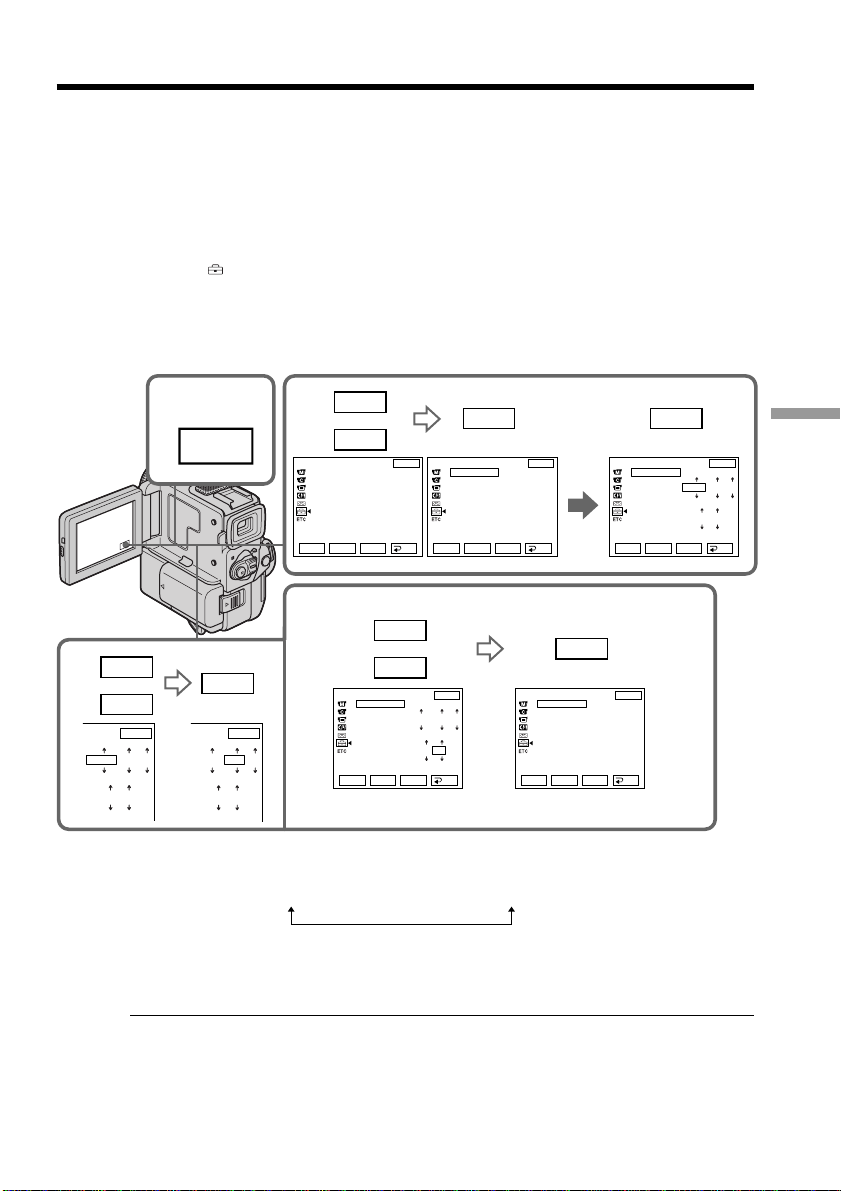
95
Customizing Your Camcorder
Resetting the date and time
The default clock setting is set to Tokyo time for the models sold in Japan, and New
York time for other models.
If you do not use your camcorder for about three months, the date and time settings
may be released (bars may appear) because the manganese-lithium battery installed in
your camcorder will have been discharged.
First, set the year, then the month, the day, the hour and then the minute.
(1) In the standby mode, press FN to display PAGE1 (p. 16).
(2) Press MENU to display the menu.
(3) Select
with r/R, and press EXEC.
(4) Select CLOCK SET with r/R, and press EXEC.
(5) Adjust the desired year, then press EXEC.
(6) Set the month, day and hour with the same procedure as step 5.
(7) Set the minute with r/R, and press EXEC by the time signal.
The year changes as follows:
To return to FN
Press EXIT.
If you do not set the date and time
“– –:– –:– –” is recorded on the data code of the tape and the “Memory Stick”.
Note on the time indicator
The internal clock of your camcorder operates on a 12-hour cycle.
•12:00 AM stands for midnight.
•12:00 PM stands for noon.
SETUP MENU
CLOCK SET
DEMO MODE
3
5
SETUP MENU
CLOCK SET
DEMO MODE
1
4
SETUP MENU
CLOCK SET
DEMO MODE
7
SETUP MENU
CLOCK SET
DEMO MODE
SETUP MENU
CLOCK SET
DEMO MODE
FN
EXIT
RET.
EXEC
Rr
EXIT
RET.
EXEC
Rr
EXIT
RET.
EXEC
Rr
EXIT
RET.
EXEC
Rr
EXIT
RET.
EXEC
Rr
EXIT
r
R
EXEC EXEC
r
R
EXEC
r
R
EXEC
2001
JAN
1
12 00 AM
2001
JUL
4
5 30 PM
JUL 4
2001
5:30:00PM
2000 JAN
1
12 00 AM
––:––:––
2001
JAN
1
12 00 AM
EXIT
1995 y 2000 T · · · · t 2079
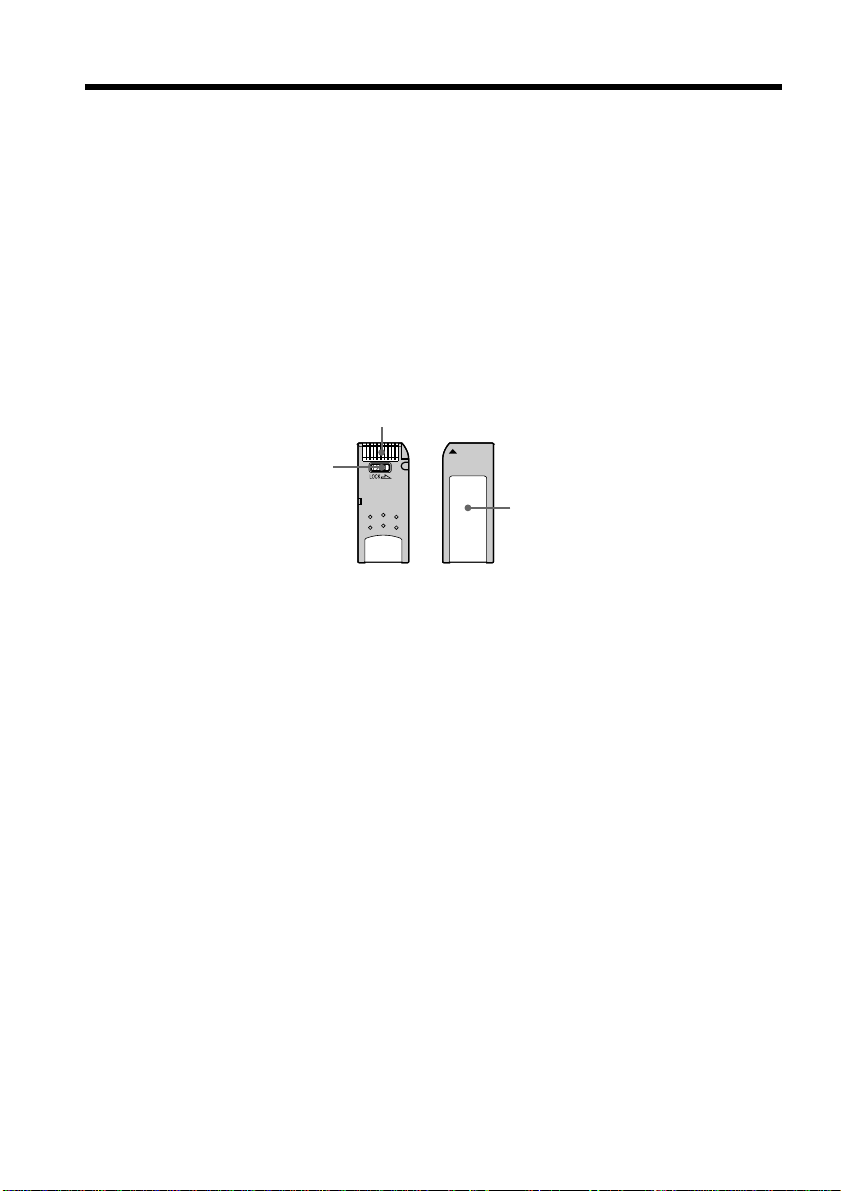
96
— “Memory Stick” operations —
Using a “Memory Stick”–introduction
You can record and play back still images on a “Memory Stick” supplied with your
camcorder. You can easily play back, re-record or delete still images. You can exchange
image data with other equipment such as a personal computer etc., using the PC serial
cable for “Memory Stick” supplied with your camcorder.
On file format (JPEG)
Your camcorder compresses image data in JPEG format (extension .jpg).
Typical image data file name
100-0001: This file name appears on the LCD screen or in the viewfinder of your
camcorder.
DSC00001.jpg: This file name appears on the display of your personal computer.
Using a “Memory Stick”
•You cannot record or erase still images when the write-protect tab on the “Memory
Stick” is set to LOCK.
•We recommend backing up important data.
•Image data may be damaged in the following cases:
– If you remove the “Memory Stick”, turn the power off or detach the battery for
replacement when the access lamp is flashing.
– If you use “Memory Stick”s near magnets or magnetic fields such as those of
speakers and televisions.
•Prevent metallic objects or your finger from coming into contact with the metal parts
of the connecting section.
•Stick its label on the labeling position.
•Do not bend, drop or apply strong shock to “Memory Stick”s.
•Do not disassemble or modify “Memory Stick”s.
•Do not let “Memory Stick”s get wet.
•Do not use or keep “Memory Stick”s in locations that are:
– Extremely hot such as in a car parked in the sun or under the scorching sun.
– Under direct sunlight.
– Very humid or subject to corrosive gases.
•When you carry or store a “Memory Stick”, put it in its case.
Terminal
Write-protect tab
Labeling position

97
“Memory Stick” operations
Using a “Memory Stick”–introduction
Formatting the supplied “Memory Stick”
Formatting with this camcorder is not required. The “Memory Stick” has been
formatted in the FAT-format at factory.
“Memory Stick” supplied with your camcorder
•Sample images are recorded in the “Memory Stick” (p. 109). Note that these images
will be deleted if you format the “Memory Stick”.
•Stick the supplied label on the labeling position to prevent the accidental erasure. As
for the labeling position, see the illustration on the previous page.
“Memory Stick”s formatted by a computer
“Memory Stick”s formatted by Windows OS or Macintosh computers do not have a
guaranteed compatibility with this camcorder.
Notes on image data compatibility
•Image data files recorded on “Memory Stick”s by your camcorder conform with the
Design Rules for Camera File Systems universal standard established by the JEIDA
(Japan Electronic Industry Development Association).
On your camcorder, you cannot play back still images recorded on other equipment
(DCR-TRV890E/TRV900/TRV900E or DSC-D700/D770) that does not conform to this
universal standard. (These models are not sold in some areas.)
•If you cannot use the “Memory Stick” that is used with other equipment, format it
with this camcorder (p. 92). However, formatting erases all information on the
“Memory Stick”.
“Memory Stick” and are trademarks of Sony Corporation.
•Windows is a registered trademark of Microsoft Corporation in the United States
and/or other countries.
•Macintosh is a trademark of Apple Computer, Inc.
•All other product names mentioned herein may be the trademarks or registered
trademarks of their respective companies.
Furthermore, “” and “” are not mentioned in each case in this manual.
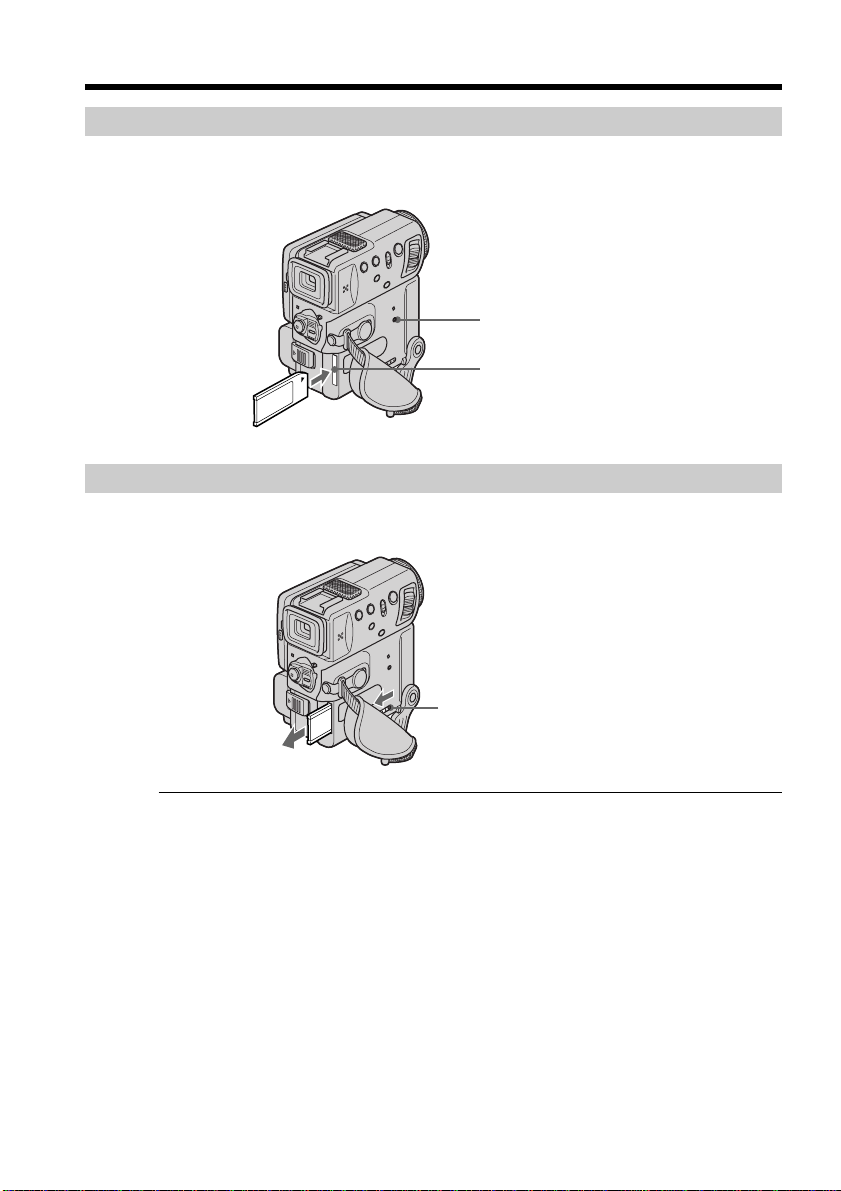
98
Using a “Memory Stick”–introduction
Inserting a “Memory Stick”
Insert a “Memory Stick” in the “Memory Stick” compartment as far as it can go with the
v mark facing up.
Ejecting a “Memory Stick”
Slide MEMORY RELEASE in the direction of the arrow.
While the access lamp is lit or flashing
Never shake or strike your camcorder because your camcorder is reading the data from
the “Memory Stick” or recording the data on the “Memory Stick”. Do not turn the
power off , eject a “Memory Stick” or remove the battery pack. Otherwise, the image
data breakdown may occur.
If “MEMORYSTICK ERROR” is displayed
The “Memory Stick” is corrupted or the file in the “Memory Stick” is unreadable. If this
occurs, use another “Memory Stick”.
“Memory Stick” compartment
MEMORY RELEASE
Access lamp
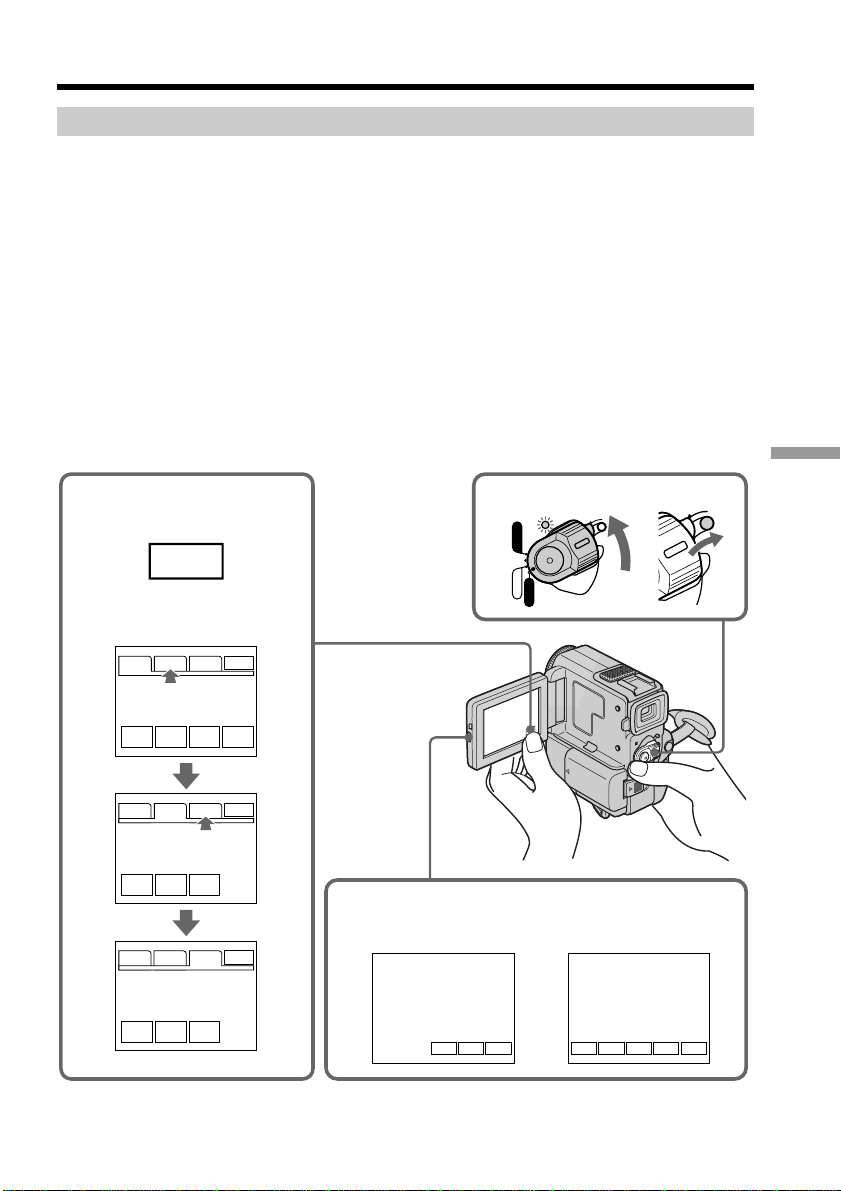
99
“Memory Stick” operations
Using a “Memory Stick”–introduction
Using a touch panel
Your camcorder has operation buttons on the LCD screen. Press the LCD panel directly
to operate each function.
(1) Set the POWER switch to MEMORY. Make sure that the LOCK is set to the
right (unlock) position.
(2) Press OPEN to open the LCD panel. Operation buttons appear on the LCD
screen. You can switch the memory playback/the memory camera mode by
pressing PLAY/CAM. You can also use the Remote Commander for this
operation.
(3) Press FN. Operation buttons appear on the LCD screen.
(4) Press PAGE2 to go to PAGE2. Operation buttons appear on the LCD screen.
(5) Press PAGE3 to go to PAGE3. Operation buttons appear on the LCD screen.
(6) Press a desired operation item.
Refer to relevant pages for each function.
FN
1
3~6
2
FNINDEXPLAY
MENU PLAY
INDEX EXPO–
SURE
LCD
BRT
PLAY
INDEX
PLAY
INDEX
FNINDEXCAM
+–
PAGE1 PAGE2 PAGE3
PAGE1 PAGE2 PAGE3
SELF
TIMER
PAGE1 PAGE2 PAGE3
EXIT
EXIT
EXIT
POWER
LOCK
VCR
MEMORY
CAMERA
OFF
LOCK
In the memory camera
mode
In the memory
camera mode
In the memory
playback mode
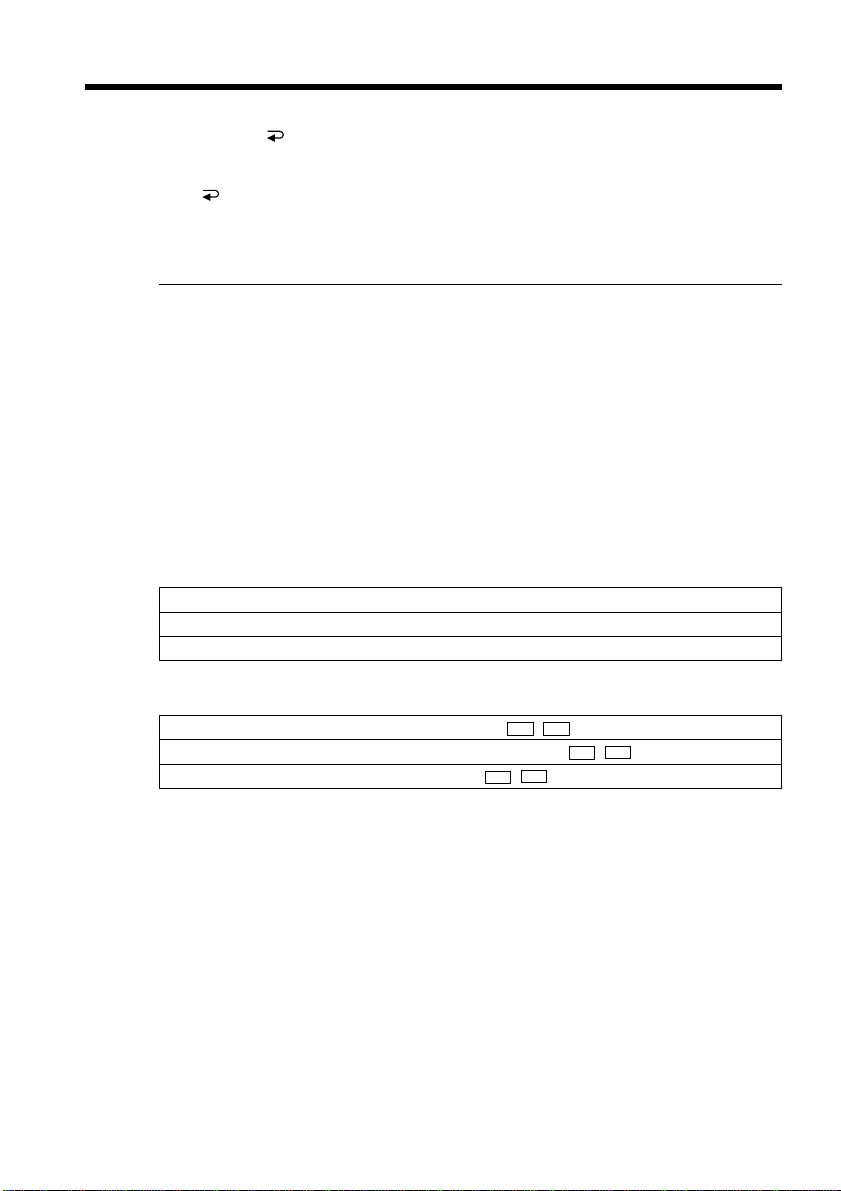
100
Using a “Memory Stick”–introduction
To execute settings
Press EXEC or OK.
To cancel settings
Press OFF to return to PAGE1/PAGE2/PAGE3.
To return to FN
Press EXIT.
Notes
•When using the touch panel, press operation buttons with your thumb supporting the
LCD screen from the back side of it or press those buttons lightly with your index
finger. Do not press them with sharp objects such as pens.
•Do not touch the LCD screen with wet hands.
•If FN is not on the LCD screen, touch the LCD screen lightly to make it appear. You
can control the display with DISPLAY/TOUCH PANEL on your camcorder.
•When operation buttons do not work even if you press them, an adjustment
(CALIBRATION) is required (p. 141).
•When executing each item, the green bar appears above the item.
•The color of the items changes to gray if they are not available.
•You can operate with the touch panel using the viewfinder (p. 124).
Press FN to display the following buttons:
In the memory camera mode
PAGE1 MENU, PLAY, INDEX, EXPOSURE
PAGE2 LCD BRIGHT, PLAY, INDEX
PAGE3 SELFTIMER, PLAY, INDEX
In the memory playback mode
PAGE1 MENU, CAM, INDEX, DELETE,
+
,
–
PAGE2 LCD BRIGHT, CAM, INDEX, PB ZOOM,
+
,
–
PAGE3 DATA CODE, CAM, INDEX,
+
,
–
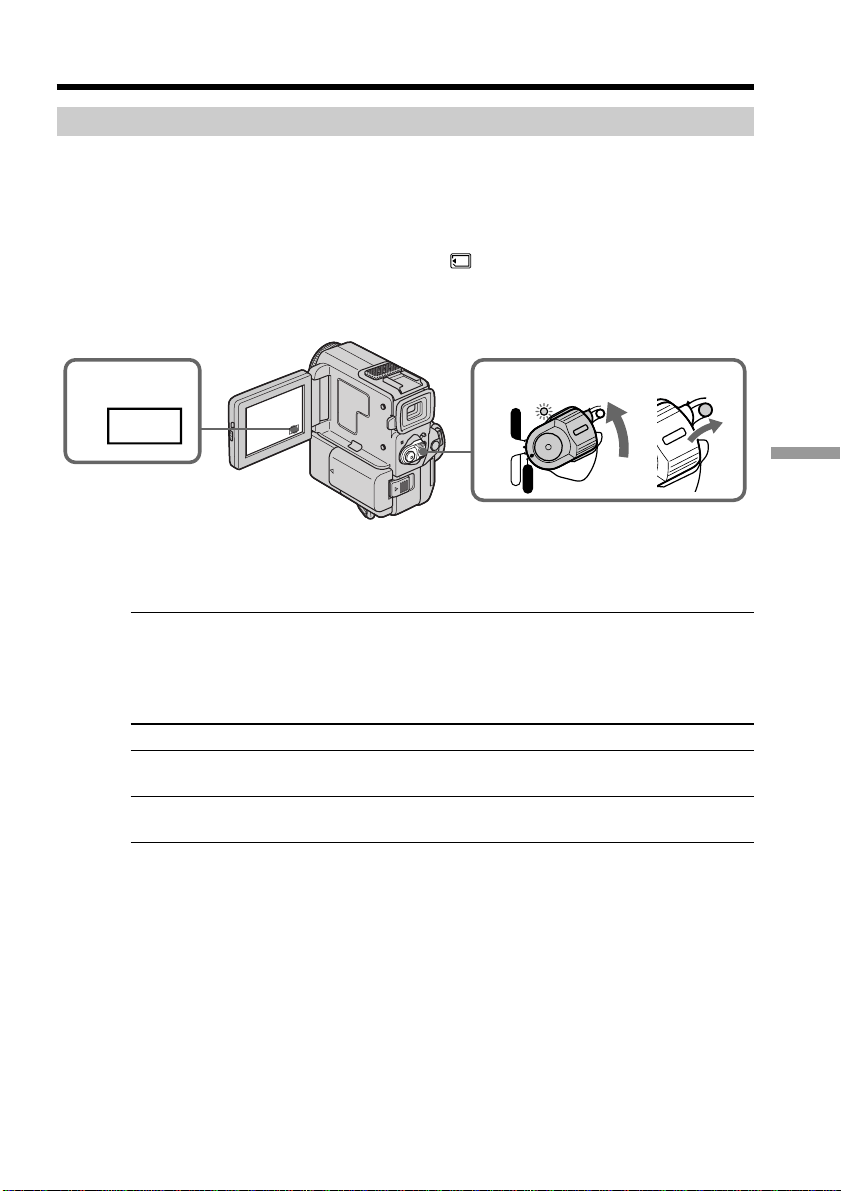
101
“Memory Stick” operations
Using a “Memory Stick”–introduction
Selecting image quality mode
You can select image quality mode in still picture recording. The default setting is FINE.
(1) Set the POWER switch to VCR or MEMORY. Make sure that the LOCK is set to
the right (unlock) position.
(2) Press FN to display PAGE1 (p. 99).
(3) Press MENU, then select QUALITY in
in the menu settings to select a
desired image quality.
1
2
FN
POWER
LOCK
VCR
MEMORY
CAMERA
OFF
LOCK
To return to FN
Press EXIT.
Note
In some cases, changing the image quality mode may not affect the image quality,
depending on the types of images you are shooting.
Image quality settings
Setting Meaning
FINE Use this mode when you want to record high quality images.
(Indicator: FINE) The image is compressed to about 1/6.
STANDARD This is the standard image quality. The image is compressed to
(Indicator: STD) about 1/10.
Differences in image quality mode
Recorded images are compressed in JPEG format before being stored into memory. The
memory capacity allotted to each image varies depending on the selected image quality
mode. Details are shown in the table below. (The number of pixels is 640 × 480,
regardless of image quality mode. The data size before compression is about 600 KB.)

102
Using a “Memory Stick”–introduction
Image quality modeMemory capacity
FINE (FINE) About 100 KB
STANDARD (STD) About 60 KB
Approximate number of images you can record on a “Memory Stick”
The number of images you can record varies depending on which image quality mode
you select and the complexity of the subject.
4MB type (supplied):
FINE (FINE) 40 images (maximum)
STANDARD (STD) 60 images (maximum)
8MB type (not supplied):
FINE (FINE) 81 images (maximum)
STANDARD (STD) 122 images (maximum)
16MB type (not supplied):
FINE (FINE) 164 images (maximum)
STANDARD (STD) 246 images (maximum)
32MB type (not supplied):
FINE (FINE) 329 images (maximum)
STANDARD (STD) 494 images (maximum)
64MB type (not supplied):
FINE (FINE) 659 images (maximum)
STANDARD (STD) 988 images (maximum)
Image quality mode indicator
The image quality mode indicator is not displayed during playback.
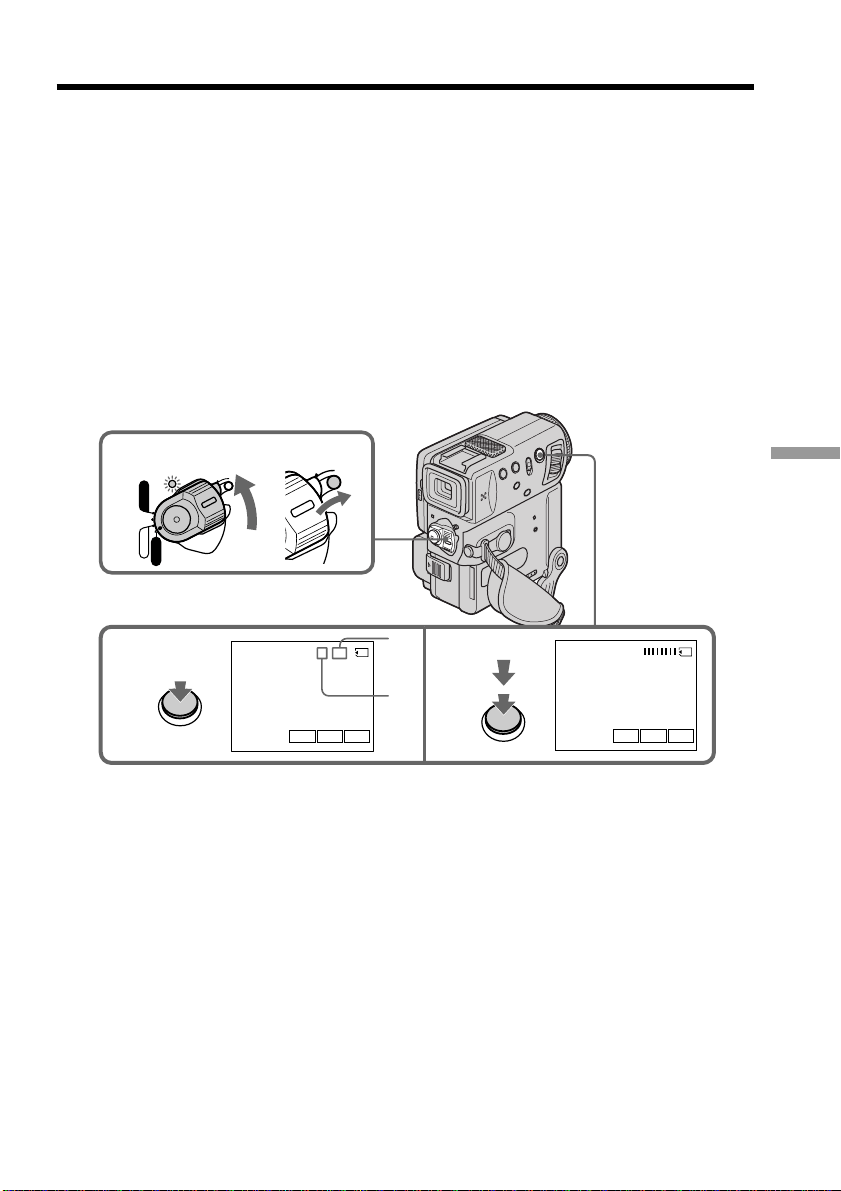
103
“Memory Stick” operations
Recording still images on “Memory
Stick” – Memory Photo recording
You can record still pictures on the “Memory Stick”. You can also record nine still
pictures continuously. (MULTI SCRN)
Before operation
Insert a “Memory Stick” into your camcorder.
(1) Set the POWER switch to MEMORY. Make sure that the LOCK is set to the
right (unlock) position.
(2) Keep pressing PHOTO lightly. The green z mark stops flashing, then lights
up. The brightness of the picture and focus are adjusted, being targeted for the
middle of the picture and are fixed. Recording does not start yet.
(3) Press PHOTO deeper. The image displayed on the screen will be recorded on a
“Memory Stick”. Recording is complete when the bar scroll indicator
disappears.
[a] Number of images which can be recorded on the “Memory Stick”
[b] Number of recorded images
3
2
PHOTO
PHOTO
FNINDEXPLAY
CAPTURE
FINE
1 / 40 FINE
z
FNINDEXPLAY
[a]
[b]
1
POWER
LOCK
VCR
MEMORY
CAMERA
OFF
LOCK
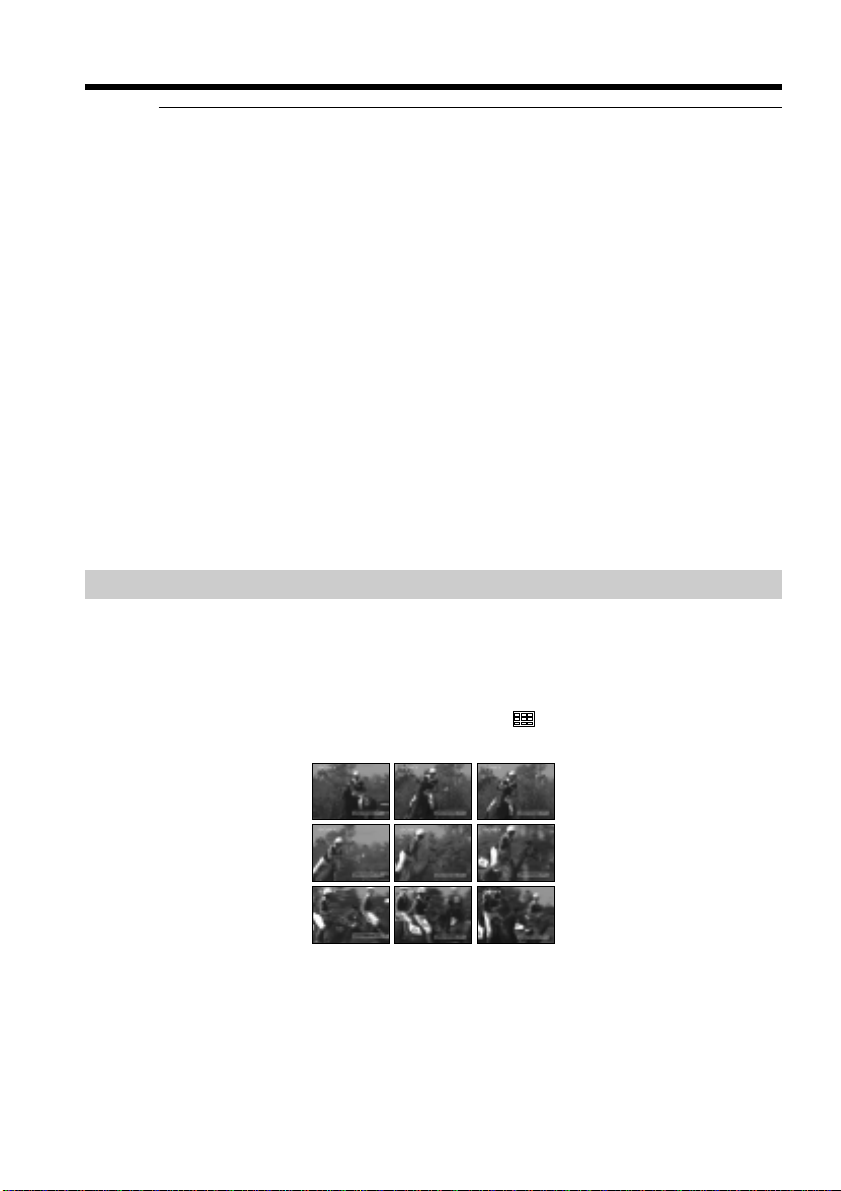
104
Recording still images on “Memory Stick”
– Memory Photo recording
When the POWER switch is set to MEMORY
The following functions do not work:
– 16:9 wide
– Digital zoom
– SteadyShot function
– SUPER NIGHTSHOT
– Fader
– Picture effect
– Digital effect
– Title
– Low lux mode (The indicator flashes.)
– Sports lesson mode (The indicator flashes.)
When you are recording a still image
You can neither turn off the power nor press PHOTO.
When you press the PHOTO button on the Remote Commander
Your camcorder immediately records the image that is on the screen when you press
the button.
Note
When recording still images at step 2 with the PHOTO button pressed lightly, the image
momentarily flickers. This is not a malfunction.
Recording images continuously
You can record still pictures continuously. Select the multi screen mode described
below before recording.
Multi screen mode
Your camcorder shoots 9 still images at about 0.5 sec intervals and displays the images
on a single page divided into 9 boxes. ( Indicator: )
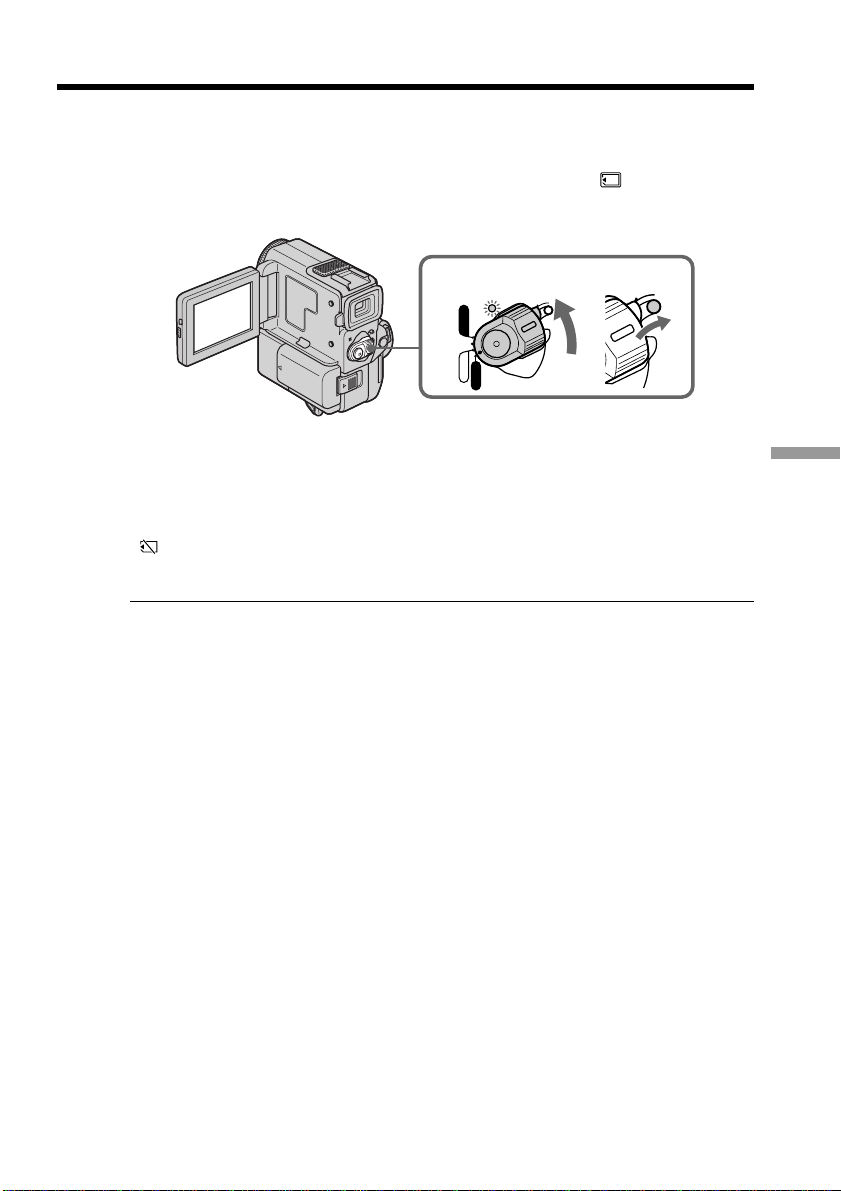
105
“Memory Stick” operations
Recording still images on “Memory Stick”
– Memory Photo recording
(1) Set the POWER switch to MEMORY. Make sure that the LOCK is set to the
right (unlock) position.
(2) Press FN to display PAGE1 (p. 99).
(3) Press MENU, then set CONTINUOUS to MULTI SCRN in
in the menu
settings.
To return to FN
Press EXIT.
If the capacity of the “Memory Stick” becomes full
“ FULL” appears on the LCD screen or in the viewfinder, and you cannot record still
pictures on this “Memory Stick”.
Note on using the video flash light (not supplied)
The video flash light does not work in the multi screen mode.
1
POWER
LOCK
VCR
MEMORY
CAMERA
OFF
LOCK
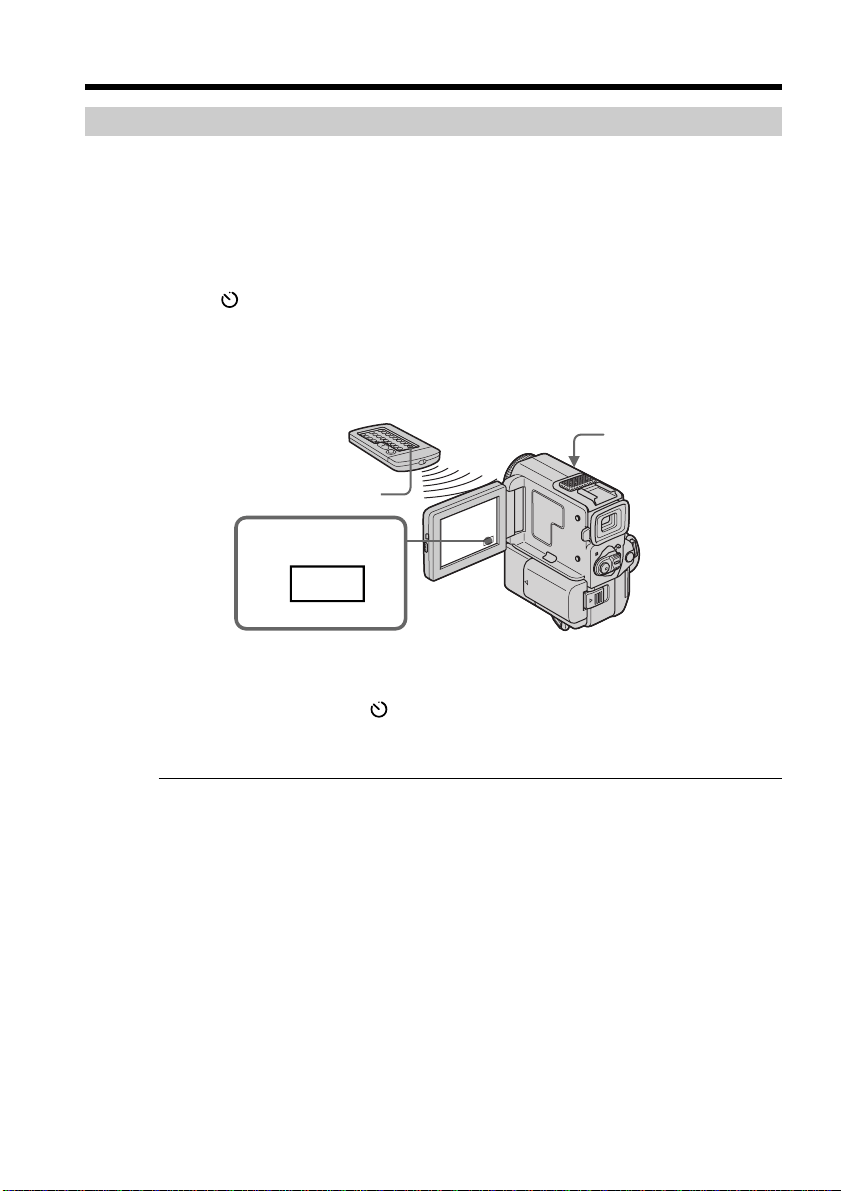
106
Recording still images on “Memory Stick”
– Memory Photo recording
Self-timer memory photo recording
You can make a memory photo recording with the self-timer. This mode is useful when
you want to record yourself.
(1) Set the POWER switch to MEMORY. Make sure that the LOCK switch is set to
the right (unlock) position.
(2) Press FN, then select PAGE3. PAGE3 screen appears.
(3) Press SELFTIMER in the standby mode.
The
(self-timer) indicator appears on the LCD screen or in the viewfinder.
(4) Press PHOTO deeper.
Self-timer starts counting down from 10 with a beep sound. In the last two
seconds of the countdown, the beep sound gets faster, then recording starts
automatically.
To cancel the self-timer recording
Press SELFTIMER so that the (self-timer) indicator disappears from the LCD screen
or the viewfinder. You cannot cancel the self-timer recording using the Remote
Commander.
Note
The self-timer recording mode is automatically canceled when:
– The self-timer recording is finished.
– The POWER switch is set to OFF or VCR.
When you press PHOTO lightly
You can check the image. Press PHOTO deeper to start the self-timer recording.
1
FN
PHOTO
PHOTO
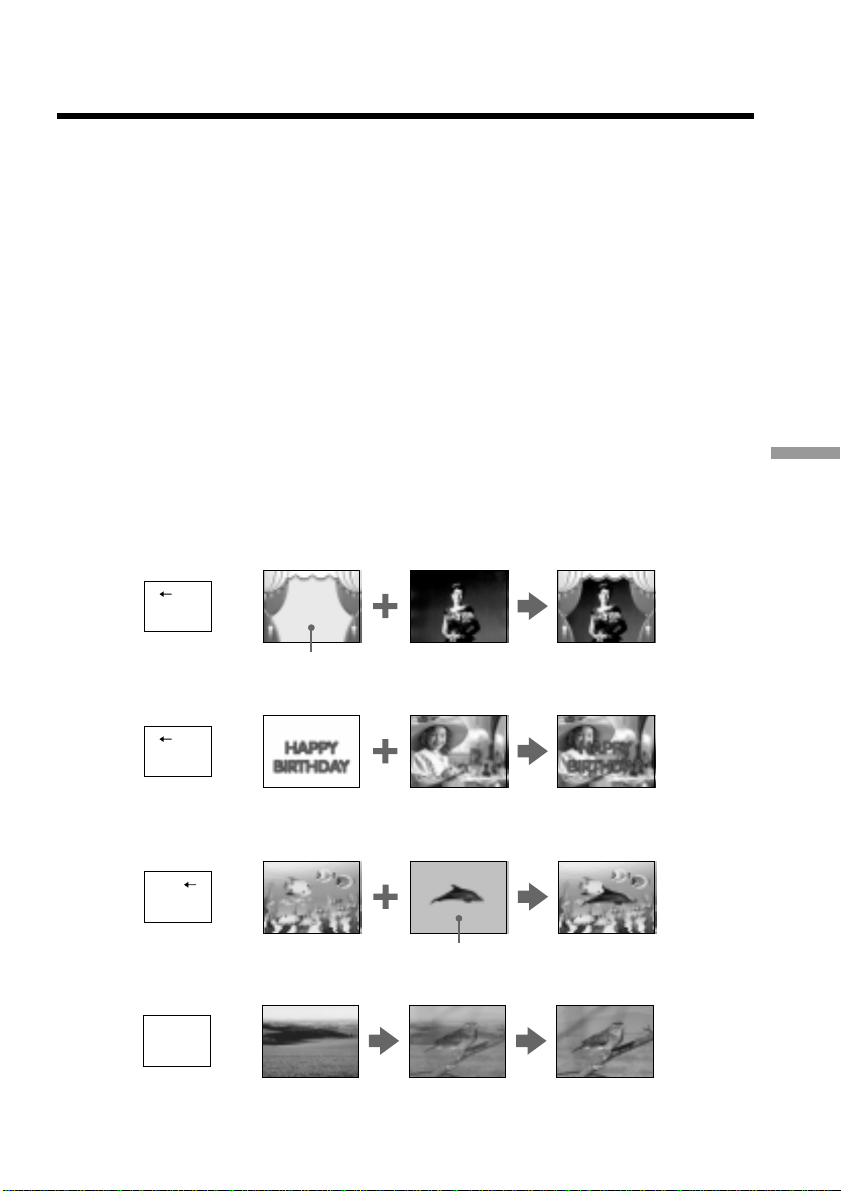
107
“Memory Stick” operations
Superimposing a still picture in the
“Memory Stick” on a moving picture
– MEMORY MIX
You can superimpose a still picture you have recorded on a “Memory Stick” on top of
the moving picture you are recording.
M. CHROM (Memory chromakey)
You can swap a blue area of a still picture such as an illustration or a frame with a
moving picture.
M. LUMI (Memory luminancekey)
You can swap a brighter area of a still picture such as a handwritten illustlation or title
with a moving picture. Record a title on a “Memory Stick” before a trip or event for
convenience.
C. CHROM (Camera chromakey)
You can superimpose a moving picture on top of a still picture such as a picture which
can be used as background. Shoot the subject against a blue background. The blue area
of the moving picture will be swapped with the still picture.
M.OVERLAP (Memory overlap)
You can make a moving image fade in on top of a still image.
M. CHROM
M C A M
C H R O M
Still picture Moving picture
Blue
M. LUMI
M C A M
L U M I
Still picture Moving picture
C. CHROM
C A M M
C H R O M
Still picture Moving picture
Blue
M. OVERLAP
Still picture Moving picture
O V E R –
L A P
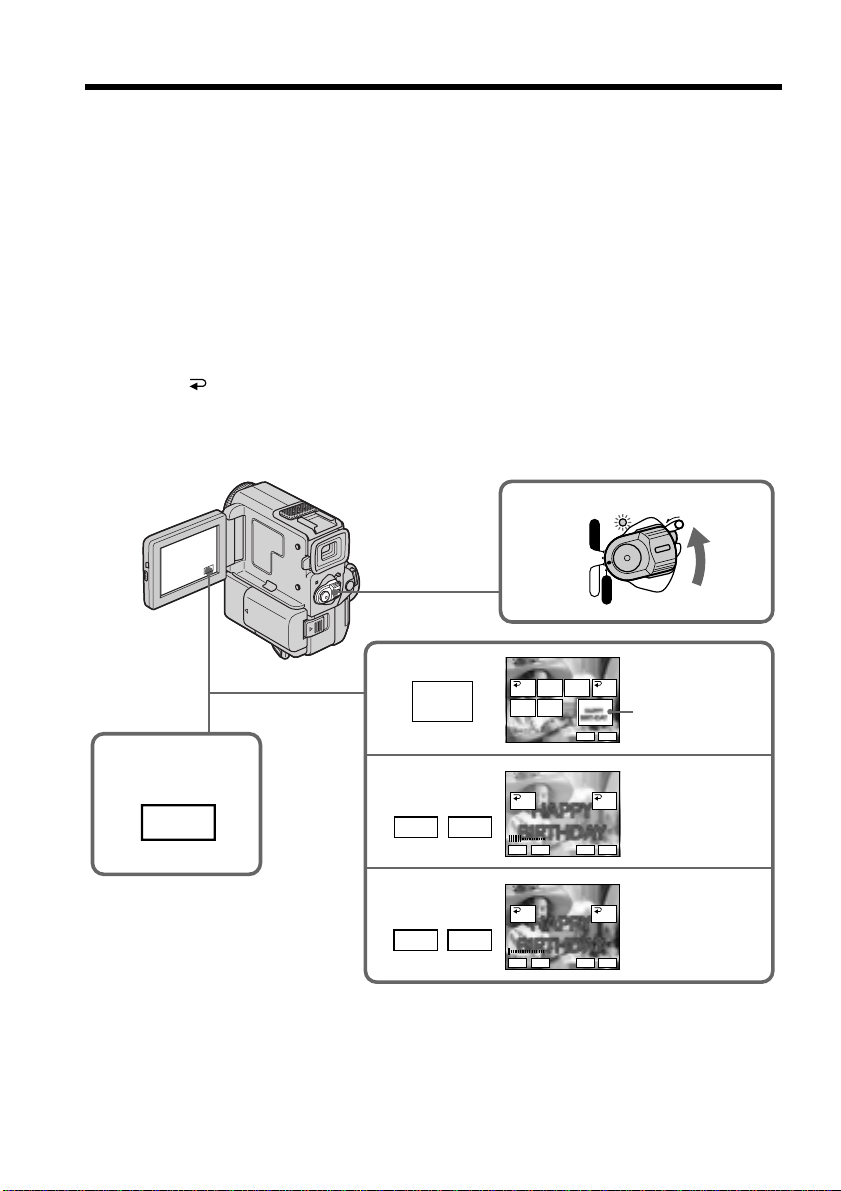
108
Superimposing a still picture in the “Memory Stick” on a moving picture
– MEMORY MIX
Before operation
Insert a mini DV tape and a recorded “Memory Stick” into your camcorder.
(1) Set the POWER switch to CAMERA.
(2) In the standby mode, press FN to display PAGE1 (p. 16).
(3) Press MEM MIX. The last recorded or last composed image appears on the
lower part of the screen as a thumbnail image.
(4) Press –/+ on the right lower corner of the screen or the Remote Commander to
select the still picture which you want to superimpose.
–: to see the previous image
+: to see the next image
(5) Press a desired mode. The still picture is superimposed on the moving picture.
(6) Press –/+ on the left lower corner of the screen to adjust the effect, then press
OK to return to PAGE1.
(7) Press EXIT to return to FN.
(8) Press START/STOP to start recording.
1
2
3
4,5
6
FN
MEM
M
I
X
POWER
LOCK
VCR
MEMORY
CAMERA
OFF
+–
+–
100–0001
+–
MEM MIX
MCCAM
LUM
I
OVER–
LAP
OFF OK
MCCAM
CHROM
M. LUMI
100–0001
+–
MEM MIX
OFF OK
+–
M. LUMI
100–0001
+–
MEM MIX
OFF OK
+–
CAMCM
CHROM
Still picture

109
“Memory Stick” operations
Superimposing a still picture in the “Memory Stick” on a moving picture
– MEMORY MIX
Items to adjust
M. CHROM The color (blue) scheme of the area in the still picture which is to be
swapped with a moving picture
M. LUMI The color (bright) scheme of the area in the still picture which is to be
swapped with a moving picture
C. CHROM The color (blue) scheme of the area in the moving picture which is to
be swapped with a still picture
M.OVERLAP No adjustment necessary
The fewer bars there are on the screen, the stronger the effect.
To change the still picture to superimpose
Press –/+ on the right lower corner before step 6.
To change the mode setting
Press OFF before step 5, and repeat the procedure from step 2.
To cancel M. CHROM/M. LUMI/C. CHROM/M.OVERLAP
Press OFF to return to PAGE1.
During recording
You cannot change the mode setting.
The “Memory Stick” supplied with your camcorder stores 20 images
– For M. CHROM: 18 images (such as a frame) 100-0001~100-0018
– For C. CHROM: 2 images (such as a background) 100-0019~100-0020
Sample images
Sample images stored in the “Memory Stick” supplied with your camcorder are
protected (p. 119).
If you format the “Memory Stick”
Sample images will be deleted.
If a still picture to be superimposed has lots of white areas
The thumbnail image may not be displayed clearly.
Image data modified with personal computers or shot with other equipment
You may not be able to play them back with your camcorder.
To record a still picture without any effect on a mini DV tape
Press –/+ on the left corner to increase the bars to maximum in the M. LUMI mode in
step 6.
Note on M.OVERLAP
You cannot change the still picture to superimpose in the memory overlap mode. Once
cancel the memory overlap mode to change the still picture.
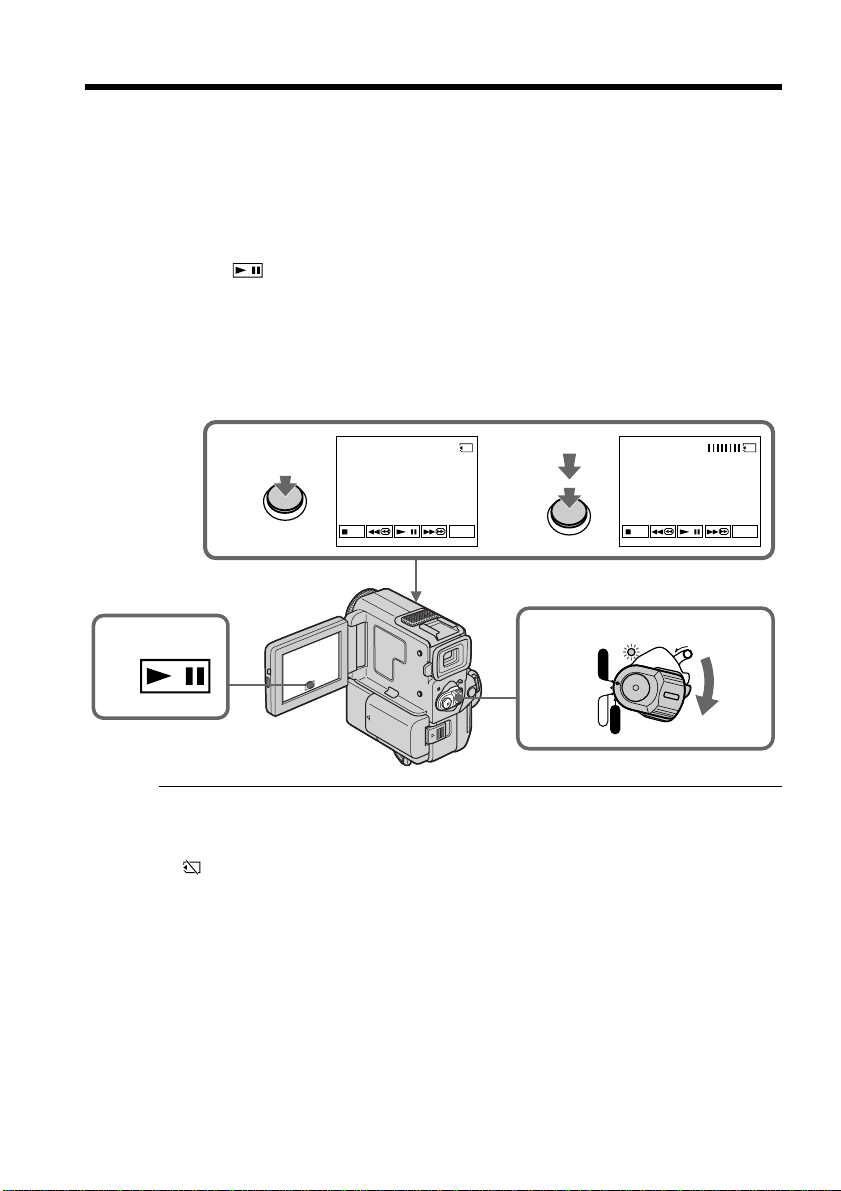
110
Recording an image from a mini DV tape
as a still image
Your camcorder can read moving picture data recorded on a mini DV tape and record it
as a still image on a “Memory Stick”.
Your camcorder can also take in moving picture data through the input connector and
record it as a still image on a “Memory Stick”.
Before operation
Insert a recorded mini DV tape and a “Memory Stick” into your camcorder.
(1) Set the POWER switch to VCR.
(2) Press
. The picture recorded on the mini DV tape is played back.
(3) Keep pressing PHOTO lightly until the picture from the mini DV tape freezes.
“CAPTURE” appears on the LCD screen or in the viewfinder. Recording does
not start yet.
(4) Press PHOTO deeper. The image displayed on the screen will be recorded on a
“Memory Stick”. Recording is complete when the bar scroll indicator
disappears.
1
2
34
1 / 40
CAPTURE
FN FN
POWER
LOCK
VCR
MEMORY
CAMERA
OFF
PHOTO
PHOTO
When the access lamp is lit or flashing
Never shake or strike the unit. As well do not turn the power off , eject a “Memory
Stick” or remove the battery pack. Otherwise, the image data breakdown may occur.
If “ ” appears on the LCD screen or in the viewfinder
The inserted “Memory Stick” is incompatible with your camcorder because its format
does not comform with your camcorder. Check the format of the “Memory Stick”.
If you press PHOTO lightly in the playback mode
Your camcorder stops momentarily.
Sound recorded on a mini DV tape
You cannot record the audio from a mini DV tape.
Titles which have already been recorded on mini DV tapes
You cannot record the titles on “Memory Stick”s. The title does not appear while you
are recording a still picture with PHOTO.
When you press the PHOTO button on the Remote Commander
Your camcorder immediately records the image that is on the screen when you press
the button.
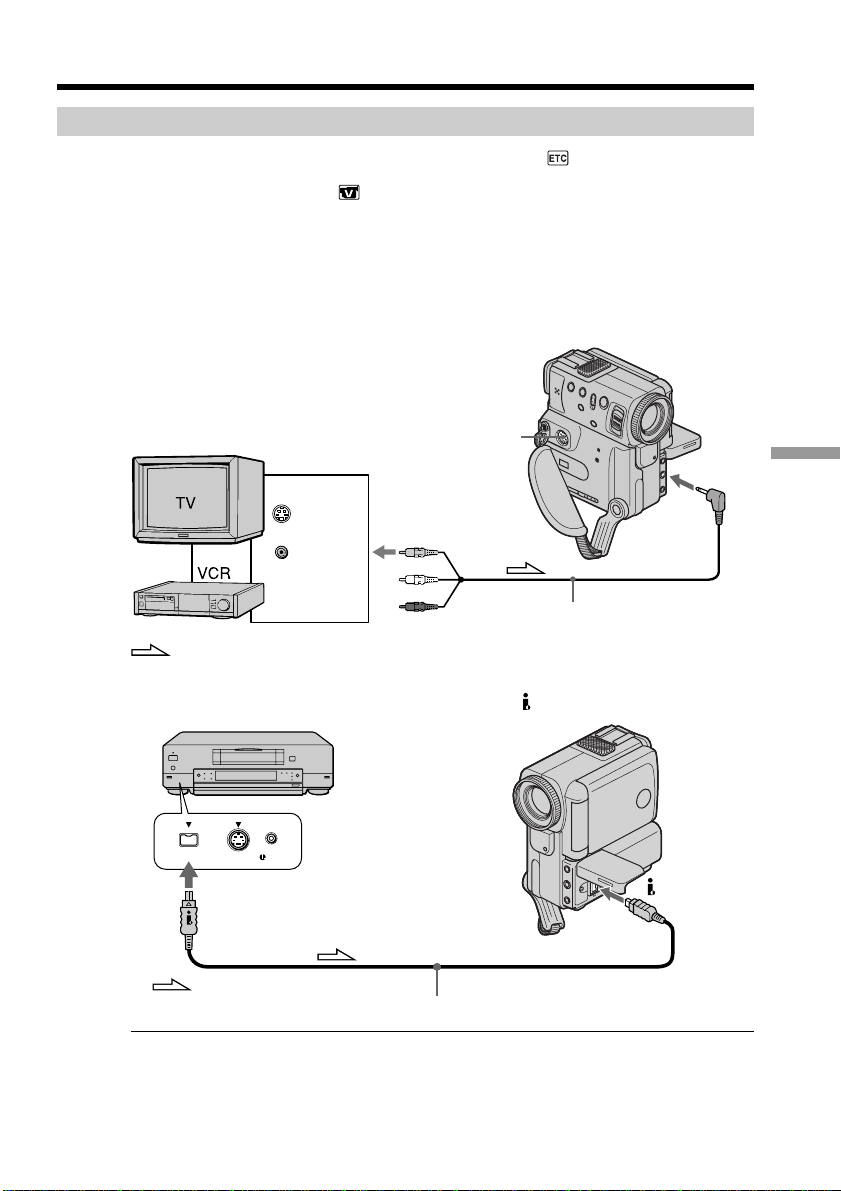
111
“Memory Stick” operations
Recording an image from a mini DV tape as a still image
Recording a still image from other equipment
(1) Set the POWER switch to VCR and set DISPLAY in to LCD in the menu
settings.
(2) Set A/V t DV OUT in
to OFF in the menu settings.
(3) Play back the recorded tape, or turn the TV on to see the desired program.
The image of the other equipment is displayed on the LCD screen or in the
viewfinder.
(4) Follow the steps 3 and 4 on page 110.
When recording the image through the AUDIO/VIDEO jack
Connect the yellow plug of the A/V connecting cable to the video jack on the VCR or
the TV.
When recording the image through the DV IN/OUT jack
Connect using an S video cable (not supplied) to obtain high-quality pictures
With this connection, you do not need to connect the yellow (video) plug of the A/V
connecting cable.
Connect an S video cable (not supplied) to the S VIDEO jacks of both your camcorder
and the VCR/TV.
This connection produces higher quality DV format pictures.
S VIDEO LANC
DV
S VIDEO
VIDEO
OUT
S VIDEO
: Signal flow
A/V connecting cable
AUDIO/
VIDEO
: Signal flow
i.LINK cable (DV connecting cable) (not supplied)
DV OUT
DV IN/OUT
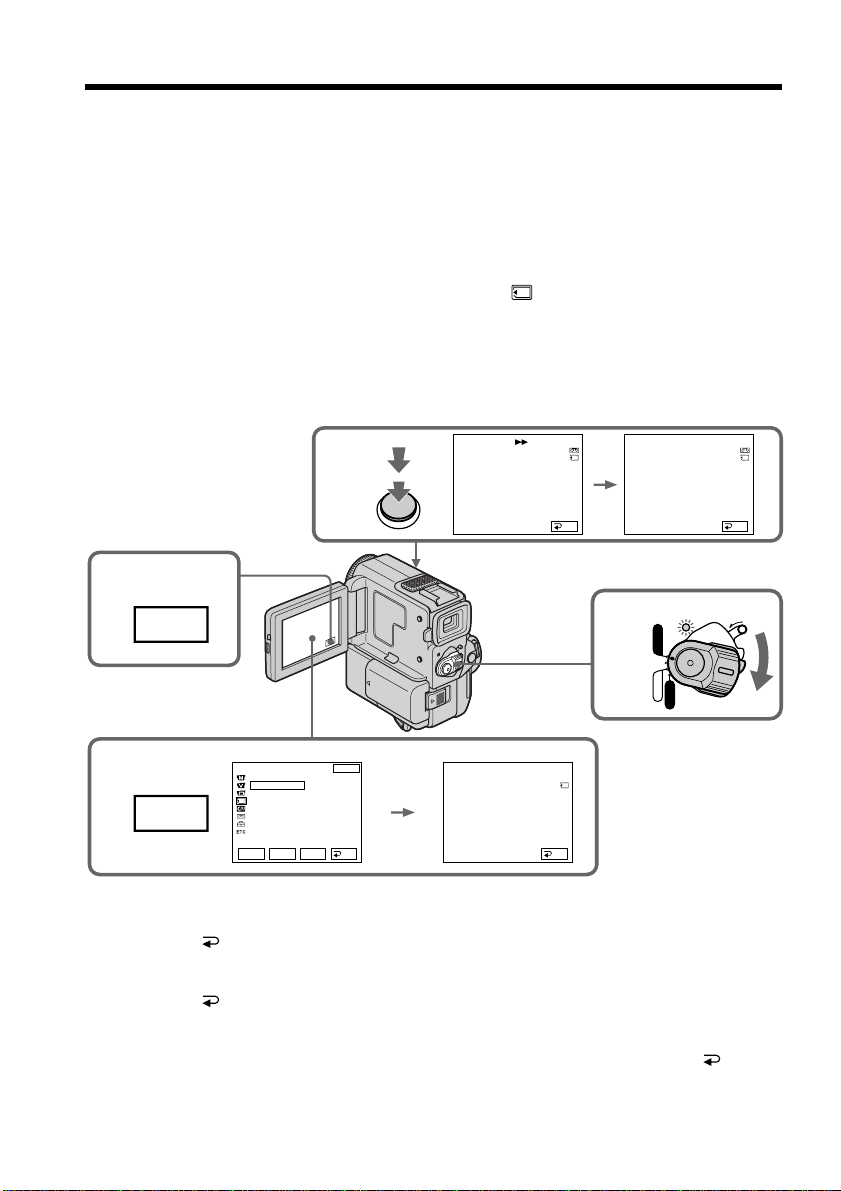
112
Copying still images from a mini DV tape
– Photo save
Using the search function, you can automatically take in only still images from mini DV
tapes and record them on a “Memory Stick” in sequence.
Before operation
•Insert a recorded mini DV tape and rewind the tape.
•Insert a “Memory Stick” into your camcorder.
(1) Set the POWER switch to VCR.
(2) Press FN to display PAGE1 (p. 16).
(3) Press MENU, then select PHOTO SAVE in
in the menu settings. “PHOTO
BUTTON” appears on the LCD screen.
(4) Press PHOTO deeper. The still image from the mini DV tape is recorded on a
“Memory Stick”. The number of still images copied is displayed. “END” is
displayed when copying is completed.
To stop or end copying
Press END.
To return to FN
Press END to return to PAGE1, then press EXIT.
When the memory of the “Memory Stick” is full
“MEMORY FULL” appears on the LCD screen, and the copying stops. Press END,
insert another “Memory Stick” and repeat the procedure from step 2.
2
3
4
1
FN
MENU
POWER
LOCK
VCR
MEMORY
CAMERA
OFF
PHOTO SAVE 0 : 00 : 00 : 00
1 / 40
58min
F
I
NE
SAV
I
NG
0
PHOTO SAVE 0 : 30 : 00 : 00
4 / 40
F
I
NE
END
4
PHOTO SAVE 0 : 00 : 00 : 00
4 / 15
F
I
NE
PHOTO BUTTON
END
MEMORY SET
QUAL
I
TY
PHOTO SAVE
READY
END
RET.
EXEC
Rr
END END
58min
PHOTO

113
“Memory Stick” operations
Copying still images from a mini DV tape – Photo save
When the access lamp is lit or flashing
Never shake or strike your camcorder. As well do not turn the power off, eject a
“Memory Stick” or remove the battery pack. Otherwise, the image data breakdown
may occur.
To record all the images recorded on the mini DV tape
Rewind the tape all the way back and start copying.
If the write-protect tab on the “Memory Stick” is set to LOCK
“NOT READY” appears when you select the item in the menu settings.
When you change “Memory Stick”s in the middle of copying
Your camcorder resumes copying from the last image recorded on the previous
“Memory Stick”.
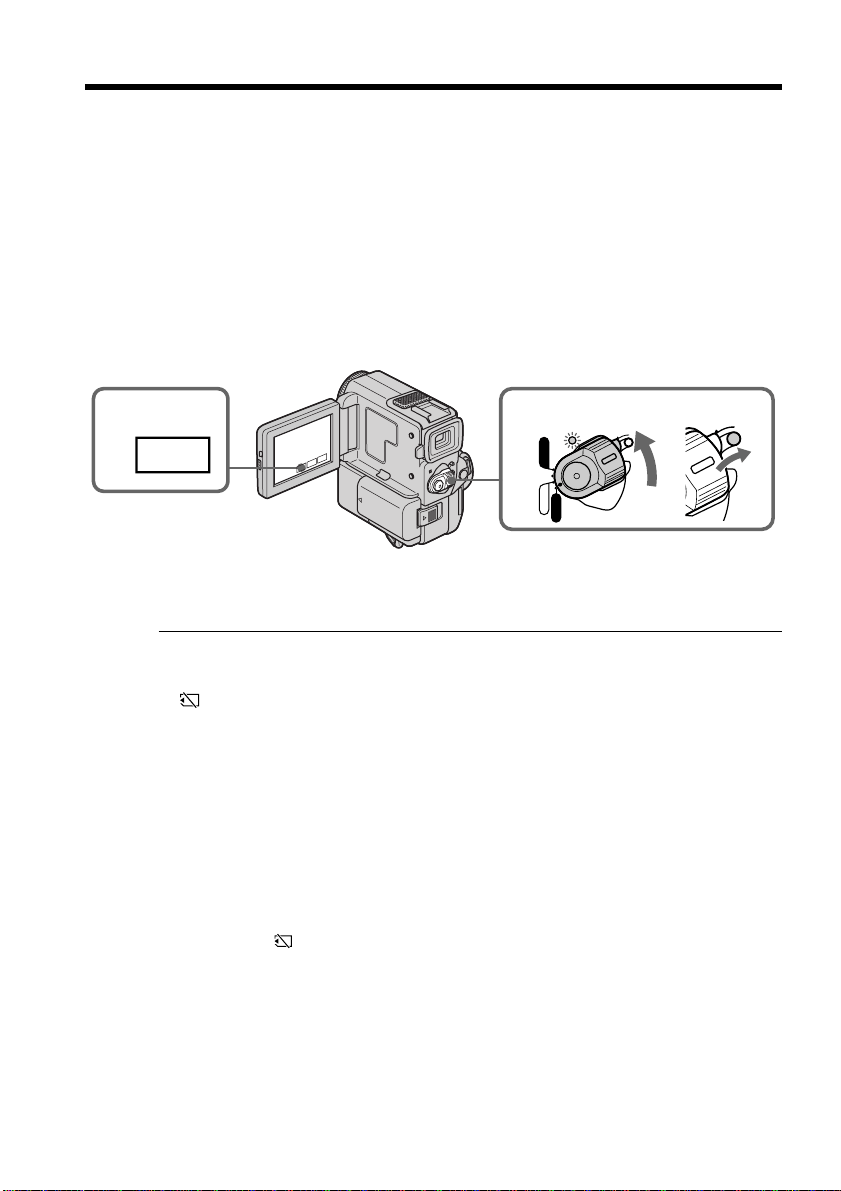
114
Viewing a still picture
– Memory photo playback
You can play back still images recorded on a “Memory Stick”. You can also play back 6
images at a time by selecting the index screen.
Before operation
Insert a “Memory Stick” into your camcorder.
(1)Set the POWER switch to MEMORY. Make sure that the LOCK is set to the
right (unlock) position.
(2)Press PLAY (p. 99). The last recorded image is displayed.
(3)Press –/+ on your camcorder or the Remote Commander to select the desired
still image.
–:to see the previous image
+:to see the next image
1
2
PLAY
POWER
LOCK
VCR
MEMORY
CAMERA
OFF
LOCK
To stop memory photo playback
Press CAM.
Notes on the file name
•The directory is not displayed if the structure of the directory does not conform to the
DCF98 standard.
•“ - DIRECTORY ERROR” may appear on the LCD screen if the file does not
conform to the DCF98 standard. While this message appears, you can play back
images but cannot record them on the “Memory Stick”.
•The file name flashes on the LCD screen if the file is corrupted or the file is unreadable.
To play back recorded images on a TV screen
•Connect your camcorder to the TV with the A/V connecting cable supplied with your
camcorder before the operation.
•When operating memory photo playback on a TV or on the LCD screen, the image
quality may appear to have deteriorated. This is not a malfunction. The image data is
as good as ever.
•Turn the audio volume of the TV down before operation, or noise (howling) may be
output from the TV speakers.
•The message “ NO FILE” appears when no image is recorded on the “Memory
Stick”.
Recording date
When you operate DATA CODE on the LCD screen or on the Remote Commander, you
can see the recording date. However, you cannot see the various settings.
Image data modified with personal computers or shot with other equipment
You may not be able to play them back with your camcorder.
Still image
You can select still images also with –/+ on PAGE1/PAGE2/PAGE3.
115
“Memory Stick” operations
1 / 40
123
456
EXITDEL
MARK
-
MARK
T t
To return to FN
Press EXIT.
To return to the normal playback screen (single screen)
Press the image you want to display.
Playing back 6 recorded images at a time (index screen)
You can play back 6 recorded images at a time. This function is especially useful when
searching for a particular image.
(1) Set the POWER switch to MEMORY. Make sure that the LOCK is set to the
right (unlock) position.
(2) Press INDEX on your camcorder or on the Remote Commander to display the
index screen.
A red B mark appears above the image that is displayed before changing to the index
screen mode.
T : to display the previous 6 images
t : to display the following 6 images
B mark
Screen indicators during still image playback
Viewing a still picture – Memory photo playback
Data file name
Protect indicator
Print mark
6 / 40
MEMORY PLAY
100–0006
FNINDEXCAM
+–
Image number/Total number of recorded images
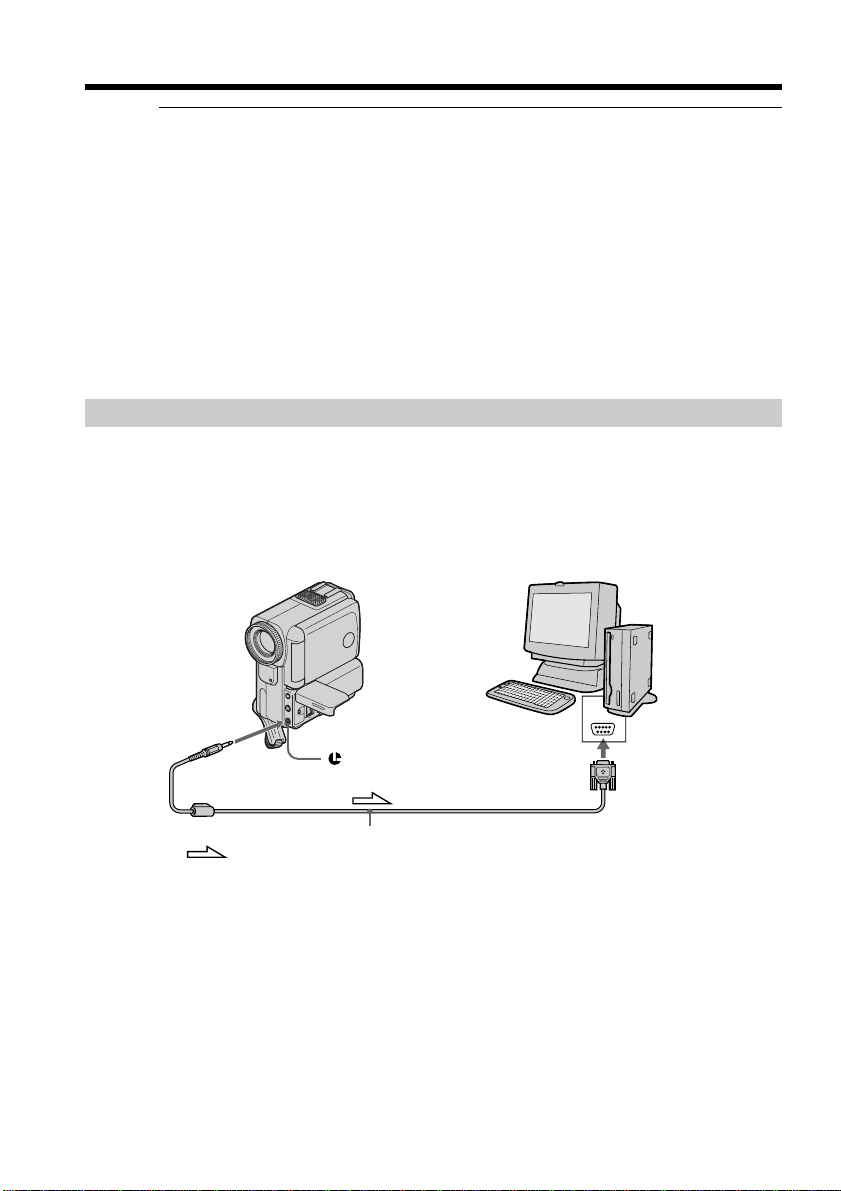
116
Note
When displaying the index screen, the number appears above each image. This
indicates the order in which images are recorded on the “Memory Stick”. These
numbers are different from the data file names.
Index screen
Index screen is available in both the memory camera/memory playback mode.
Files modified with personal computers
These files may not be displayed on the index screen. Image files shot with other
equipment may not be displayed on the index screen either.
To make screen indicators disappear
Press DISPLAY/TOUCH PANEL.
Viewing the recorded images using a personal computer
The image data recorded with your camcorder is compressed in the JPEG format. If you
use the application software, “PictureGear 4.1 Lite” supplied with your camcorder, you
can see images recorded on a “Memory Stick” on a computer screen. Use the PC serial
cable supplied with your camcorder for this operation.
This operation is available only when the POWER switch on your camcorder is set to
MEMORY.
Viewing a still picture – Memory photo playback
: Signal flow
(LANC)/DIGITAL I/O
PC serial cable (supplied)
Sirial Port
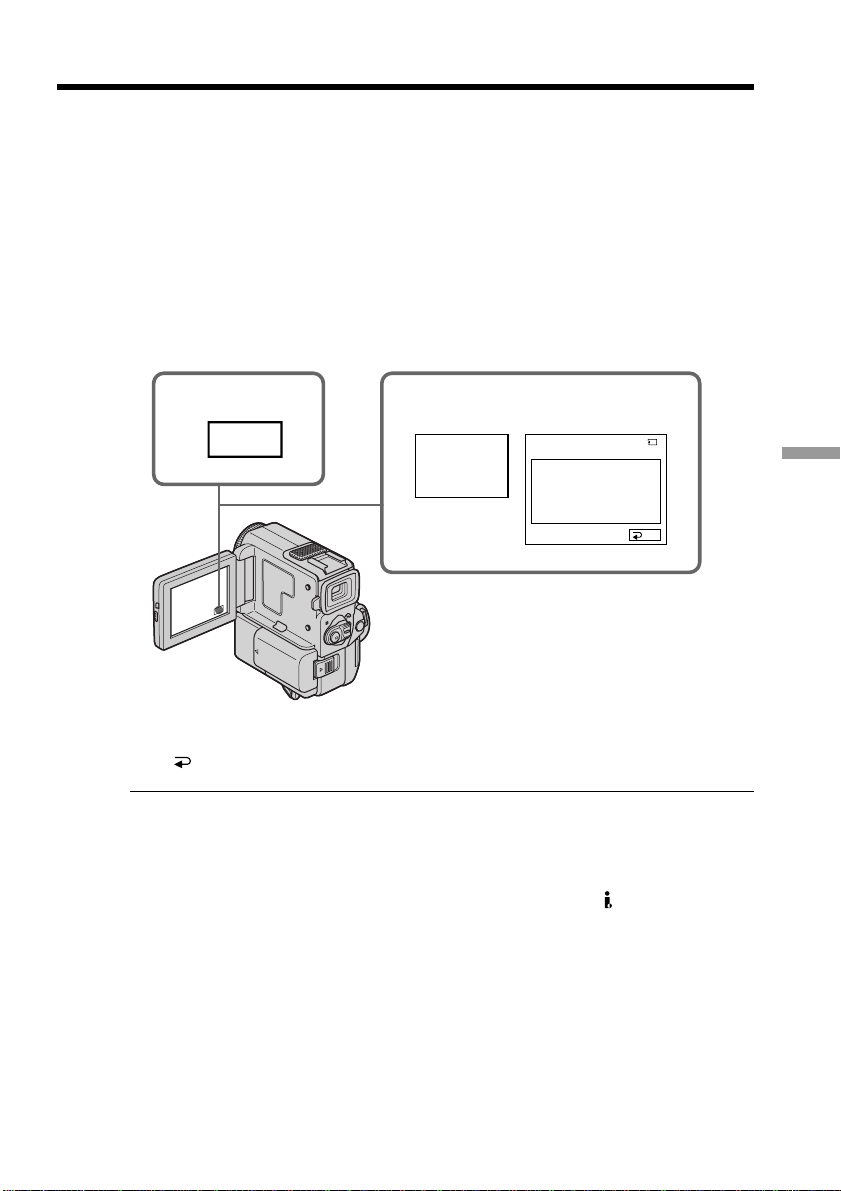
117
“Memory Stick” operations
Enlarging still images recorded on
“Memory Stick”s – Memory PB ZOOM
You can enlarge still images recorded on a “Memory Stick”.
Before operation
Insert a “Memory Stick” into your camcorder.
(1) In the memory playback mode, press FN, then select PAGE2 (p. 99).
The PAGE2 screen appears.
(2) Press PB ZOOM. PB ZOOM screen appears.
(3) Press the area that you want to enlarge in the frame on the PB ZOOM screen.
The area you pressed moves to the center of the screen, and the playback
image is enlarged at twice the size. If you press the other area, the area moves
to the center of the screen.
To cancel the Memory PB zoom function
Press END.
Note
You cannot record the images in the “Memory Stick” enlarged by the Memory PB zoom
mode on “Memory Stick”s.
Pictures in the Memory PB zoom mode
Pictures in the Memory PB zoom mode are not output through the DV IN/OUT jack.
In the Memory PB zoom mode
If you press DISPLAY/ TOUCH PANEL button, the frame on the Memory PB ZOOM
screen disappears. While the frame disappears, the Memory PB zoom function does not
work.
Edge of enlarged image
The edge of the enlarged image cannot be displayed at the center of the screen.
1
2,3
FN
PB
ZOOM
14/14
END
PB ZOOM
100–0003
MEMORY PLAY
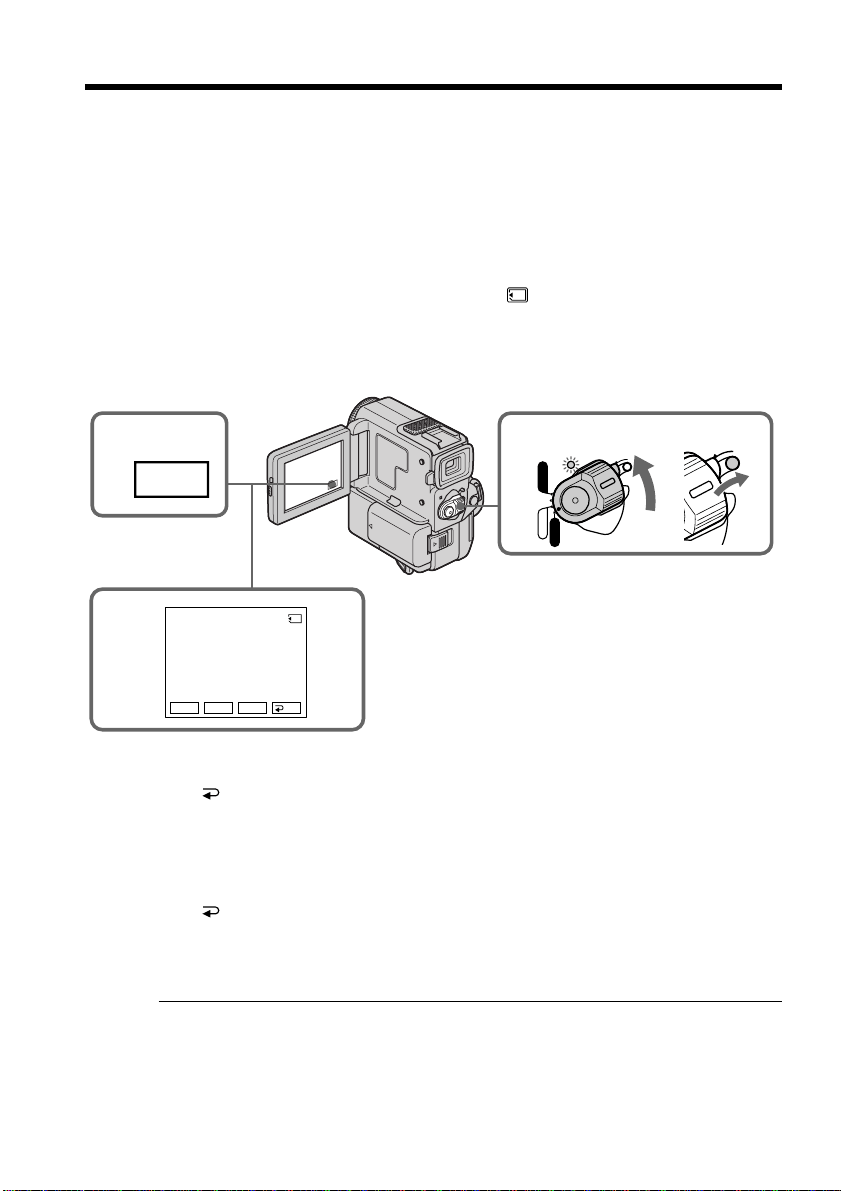
118
To stop or end the slide show
Press END.
To pause during a slide show
Press PAUSE.
To return to FN
Press END to return to PAGE1, then press EXIT.
To start the slide show from a particular image
Select the desired image using –/+ buttons before step 4.
To view the recorded images on TV
Connect your camcorder to a TV with the A/V connecting cable supplied with your
camcorder before operation.
If you change the “Memory Stick” during operation
The slide show does not operate. If you change the “Memory Stick”, be sure to follow
the steps again from the beginning.
You can automatically play back images in sequence. This function is useful especially
when checking recorded images or during a presentation.
Before operation
Insert a “Memory Stick” into your camcorder.
(1) Set the POWER switch to MEMORY. Make sure that the LOCK is set to the
right (unlock) position.
(2) Press FN to display PAGE1 (p. 99).
(3) Press MENU, then select SLIDE SHOW in
in the menu settings (p. 89). And
press EXEC. READY apppears on the LCD screen.
(4) Press START. Your camcorder plays back the images recorded on a “Memory
Stick” in sequence.
Playing back images continuously
– SLIDE SHOW
1
2
FN
1 / 6
4
SL
I
DE SHOW
100–00001
+–
START
END
POWER
LOCK
VCR
MEMORY
CAMERA
OFF
LOCK
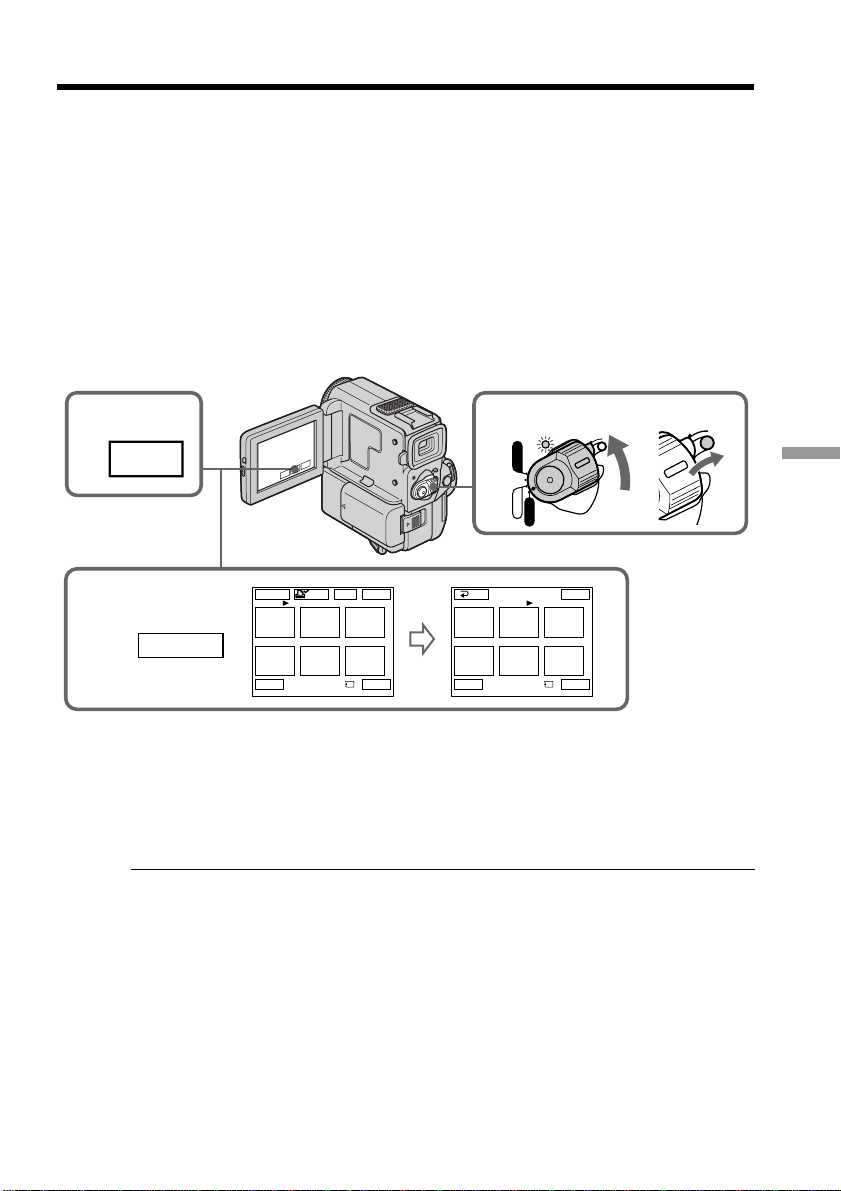
119
“Memory Stick” operations
Preventing accidental erasure
– Image protection
To prevent accidental erasure of important images, you can protect selected images.
Before operation
Insert a “Memory Stick” into your camcorder.
(1) Set the POWER switch to MEMORY. Make sure that the LOCK is set to the
right (unlock) position.
(2) Press INDEX on your camcorder or the Remote Commander to display the
index.
(3) Press “- MARK.” The screen to protect the image appears.
(4) Press the image you want to protect. The “-” appears on the protected
image.
To return to FN
Press EXIT.
To cancel image protection
Press the image you want to cancel image protection in step 4. The “-” disappears.
Note
Formatting erases all information on the “Memory Stick”, including the protected
image data. Check the contents of the “Memory Stick” before formatting.
If the write-protect tab on the “Memory Stick” is set to LOCK
You cannot carry out image protection.
2
INDEX
3,4
123
456
EXIT
RET
-
MARK
1 / 40
123
456
EXITDEL
MARK
-
MARK
T t
-
2 / 40
Tt
-
MARK
1
POWER
LOCK
VCR
MEMORY
CAMERA
OFF
LOCK
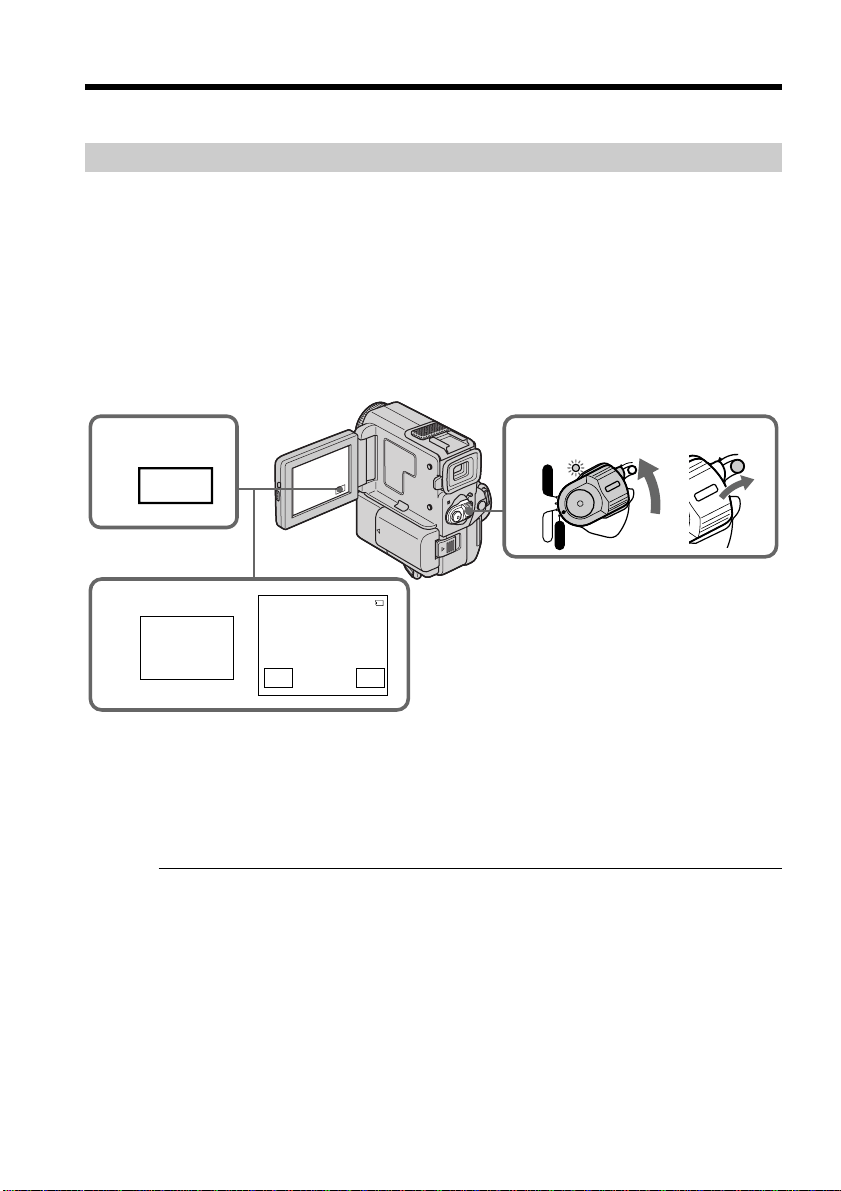
120
You can delete images stored in a “Memory Stick”.
Deleting selected images on the single screen
Before operation
Insert a “Memory Stick” into your camcorder.
(1) Set the POWER switch to MEMORY. Make sure that the LOCK is set to the
right (unlock) position.
(2) Play back the image you want to delete (p. 114).
(3) Press FN to display PAGE1 (p. 99).
(4) Press DELETE. “DELETE?” appears on the LCD screen.
(5) Press OK. The selected image is deleted.
To return to FN
Press EXIT.
To cancel deleting an image
Press CANCEL in step 5.
Notes
•To delete a protected image, first cancel image protection.
•Once you delete an image, you cannot restore it. Check the images to delete carefully
before deleting them.
•You cannot delete images if the write-protect tab is set to LOCK.
Deleting images
4
DELE–
TE
DELETE
100–00010
3 / 40
DELETE?
OK
CAN–
CEL
3
FN
1
POWER
LOCK
VCR
MEMORY
CAMERA
OFF
LOCK
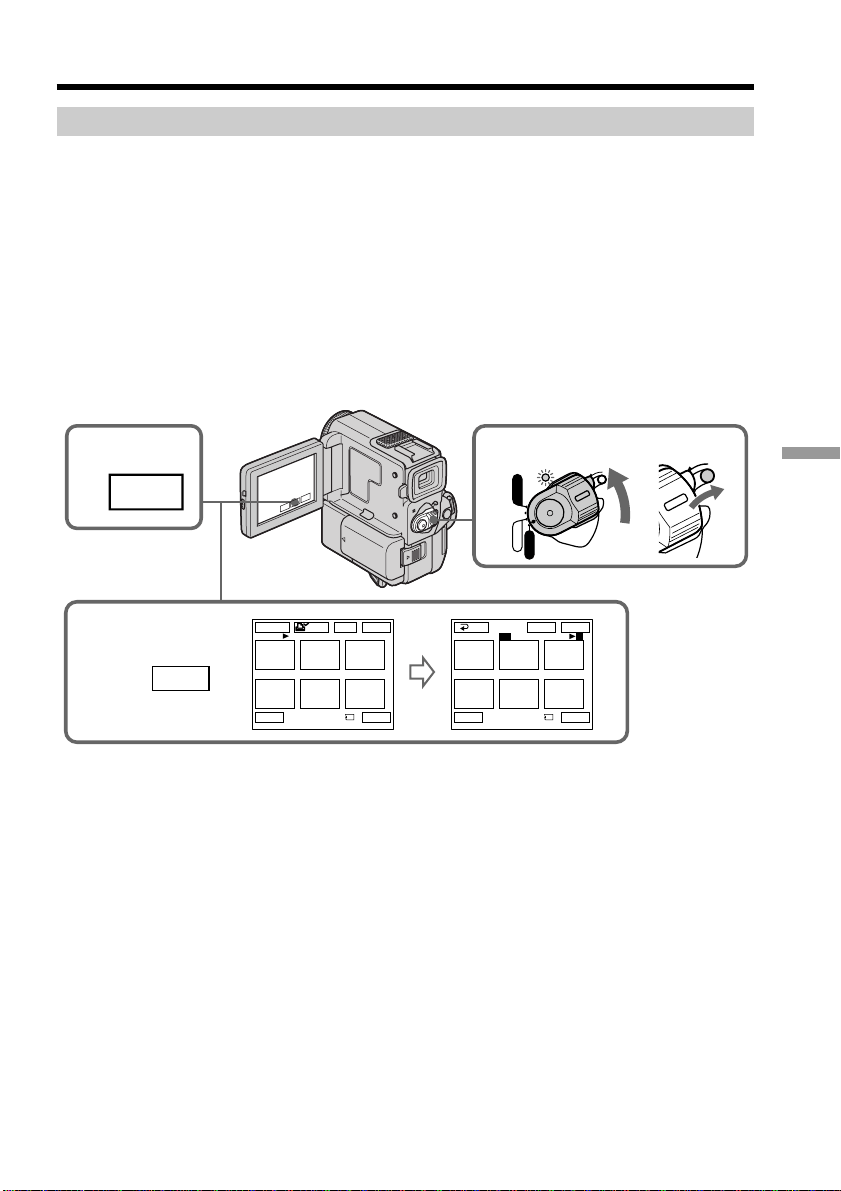
121
“Memory Stick” operations
Deleting selected images on the index screen
Before operation
Insert a “Memory Stick” into your camcorder.
(1) Set the POWER switch to MEMORY. Make sure that the LOCK is set to the
right (unlock) position.
(2) Press INDEX on your camcorder or the Remote Commander to display the
index.
(3) Press DEL. Then press the image you want to delete. The number of the
selected image is highlighted.
(4) Prees EXEC. “DELETE?” appears on the LCD screen.
(5) Press OK. The selected images are deleted.
To return to FN
Press EXIT.
To cancel deleting an image
Press CANCEL in step 5.
Deleting images
2
INDEX
1
3,4
1
3
2
456
EXITDEL
123
456
EXITDEL
MARK
-
MARK
-
EXEC
DEL
1 / 40
Tt
3 / 40
Tt
RET
POWER
LOCK
VCR
MEMORY
CAMERA
OFF
LOCK
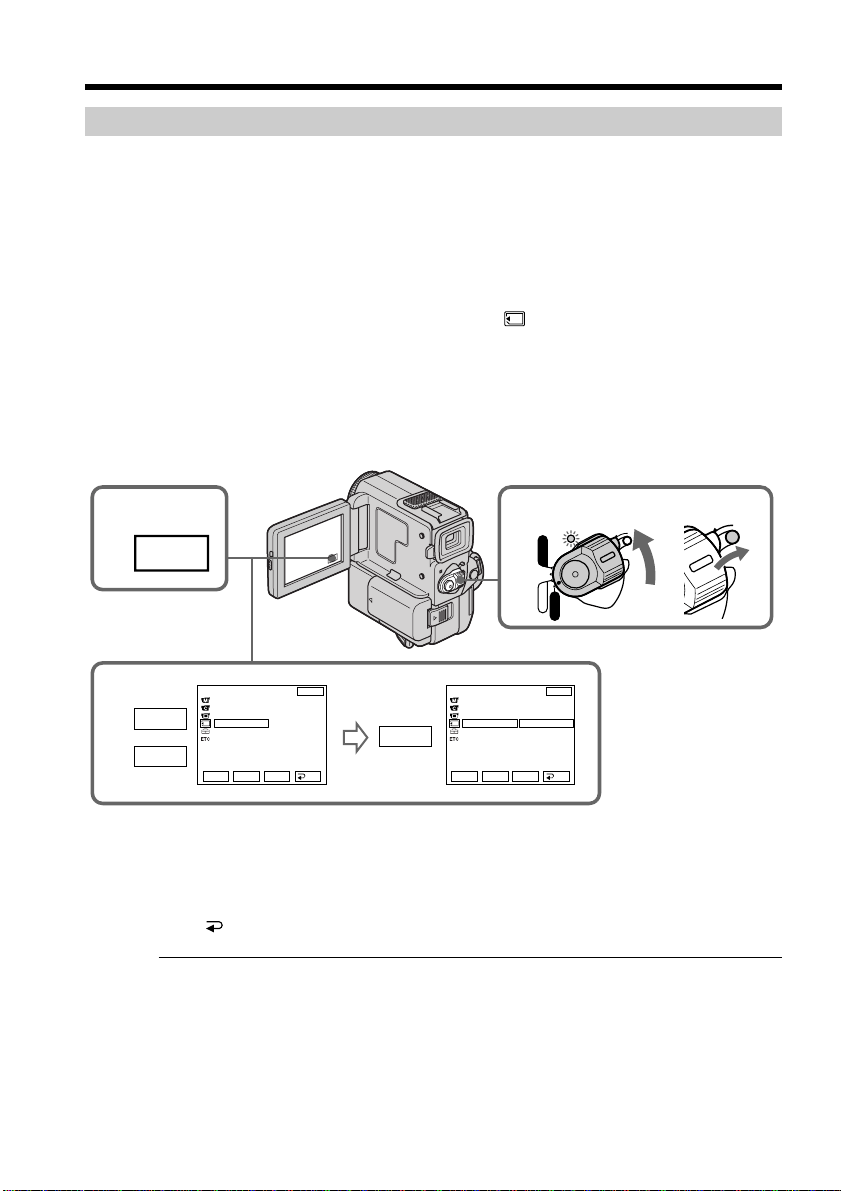
122
Deleting all the images
You can delete all the unprotected images in a “Memory Stick”.
Before operation
Insert a “Memory Stick” into your camcorder.
(1) Set the POWER switch to MEMORY. Make sure that the LOCK is set to the
right (unlock) position.
(2) Press FN to display PAGE1 (p. 99).
(3) Press MENU, then select DELETE ALL in
in the menu settings (p. 89).
(4) Select DELETE, then press EXEC.
“OK” changes to “EXECUTE”.
(5) Select EXECUTE. Then press EXEC.
“DELETING” appears on the LCD screen. When all the unprotected images
are deleted, “COMPLETE” is displayed.
Deleting images
To return to FN
Press EXIT.
To cancel deleting all the images in the “Memory Stick”
Select RET. in step 3, then press EXEC.
While “DELETING” appears
Do not turn the POWER switch or press any buttons.
1
2
FN
4
CONT
I
NUOUS
QUAL
I
TY
SL
I
DE SHOW
DELETE ALL
FORMAT
READY
MEMORY SET
EXIT
RET.
EXEC
Rr
CONT
I
NUOUS
QUAL
I
TY
SL
I
DE SHOW
DELETE ALL
FORMAT
COMPLETE
MEMORY SET
EXIT
RET.
EXEC
Rr
r
R
EXEC
POWER
LOCK
VCR
MEMORY
CAMERA
OFF
LOCK
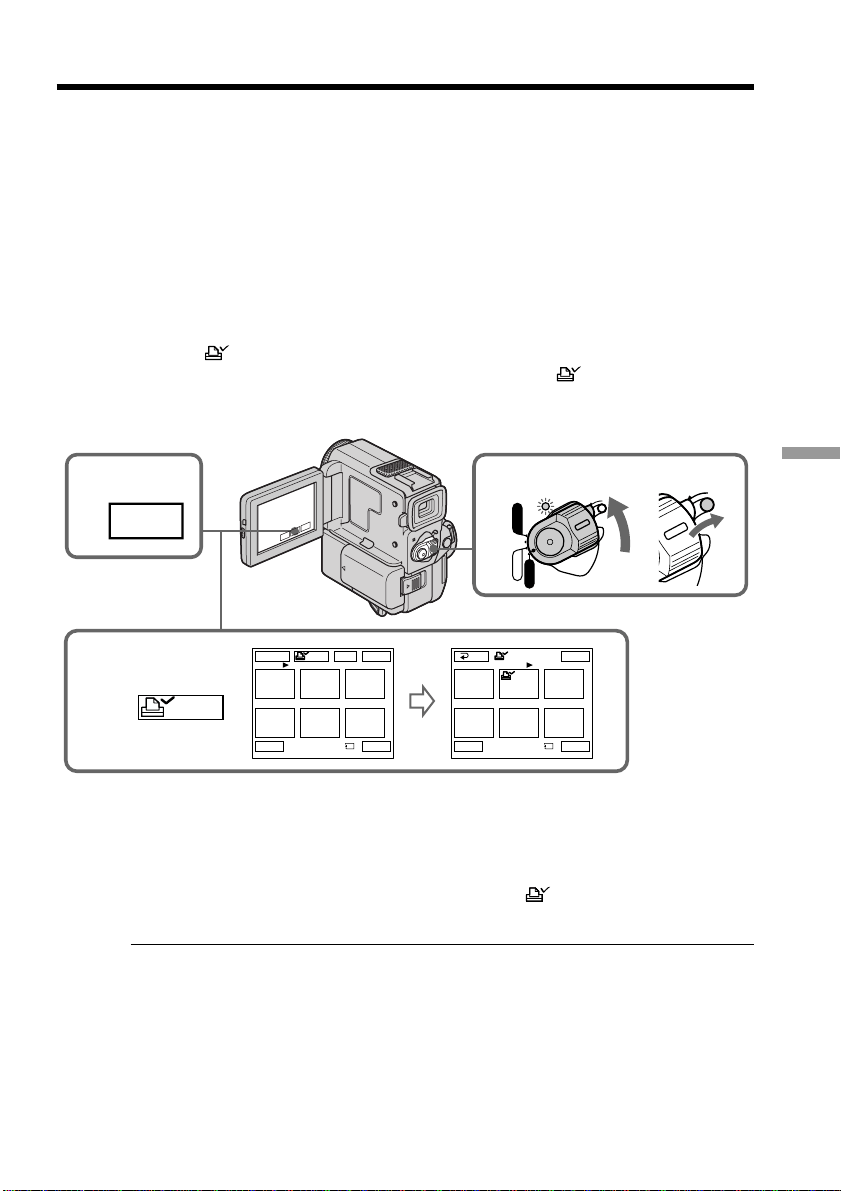
123
“Memory Stick” operations
Writing a print mark – PRINT MARK
You can specify the recorded still image to print out. This function is useful for printing
out still images later.
Your camcorder conforms with the DPOF (Digital Print Order Format) standard for
specifying the still images to print out.
Before operation
Insert a “Memory Stick” into your camcorder.
(1) Set the POWER switch to MEMORY. Make sure that the LOCK is set to the
right (unlock) position.
(2) Press INDEX on your camcorder or the Remote Commander to display the
index.
(3) Press
MARK. The screen to write a print mark appears.
(4) Press the image you want to write a print mark. The
appears on the
selected image.
To return to FN
Press EXIT.
To cancel writing print marks
Press the image you want to cancel the print mark. The on the selected image
disappears.
If the write-protect tab on the “Memory Stick” is set to LOCK
You cannot write print marks on still images.
2
INDEX
1
3,4
123
456
EXIT
MARK
123
456
EXITDEL
MARK
-
MARK
MARK
1 / 40
Tt
2 / 40
Tt
RET
POWER
LOCK
VCR
MEMORY
CAMERA
OFF
LOCK
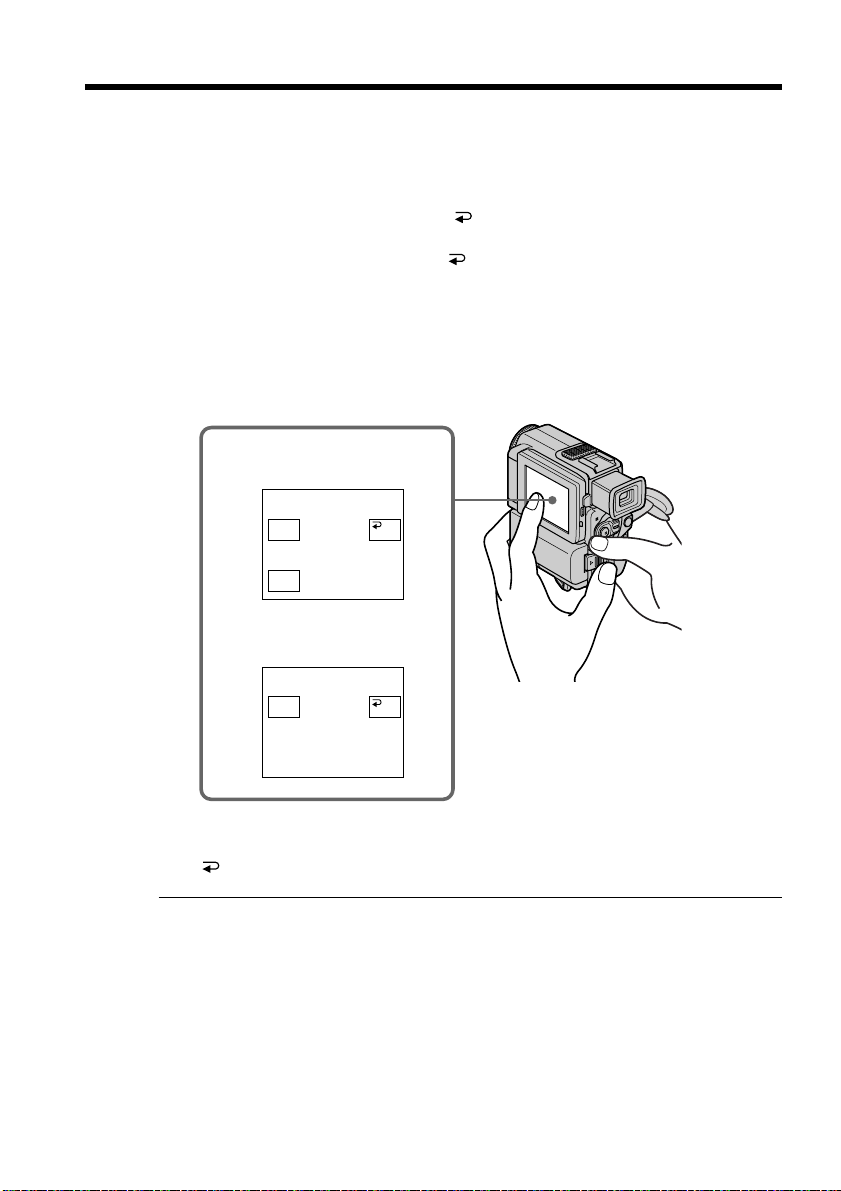
124
— Additional Information —
Using the viewfinder
You can operate with the touch panel using the viewfinder.
(1) In the CAMERA/memory camera mode, pull out the viewfinder until it clicks,
and then turn the LCD panel over and move it back to your camcorder body
with the LCD screen facing out (p. 28). The LCD screen is turned off.
(2) Press the LCD screen. EXPOSURE,
OK and FADER (only in CAMERA
mode) appear.
(3) Select the desired item, then press
OK.
EXPOSURE: adjust the exposure by pressing –/+.
FADER: press FADER until the desired fader mode is displayed (p. 37).
The indicator changes as follows:
FADER t M. FADER t BOUNCE t MONOTONE t OVERLAP t
WIPE t DOT t no indicator
To make the buttons on the LCD screen disappear
Press OK.
Notes
•Do not touch the LCD screen with wet hands.
•Do not press the LCD screen with sharp objects such as pens.
•In the VCR/memory playback mode, you cannot operate with the touch panel using
the viewfinder.
To operate the items that are not displayed
Set the LCD screen and the viewfinder back to the previous position. Operate the items
using the LCD screen.
2
FADER
EXPO–
SURE
OK
EXPO–
SURE
OK
In CAMERA mode
In the memory camera
mode
125
Additional Information
Usable cassettes
Selecting cassette types
You can use the mini DV cassette only*. You cannot use any other 8 mm,
Hi8, Digital8, VHS, VHSC, S-VHS, S-VHSC, Betamax,
ED Betamax or DV cassette.
* There are two types of mini DV cassettes: with cassette memory and without cassette
memory.
Tapes with cassette memory have (Cassette Memory) mark.
We recommend that you use the tape with cassette memory.
The IC memory is built in the cassette with cassette memory. Using this IC memory,
your camcorder can read, write, and search data such as the date of recording or titles.
The functions using the cassette memory require successive signals recorded on the
tape. If the tape has a blank portion in the beginning or between the recorded
portions, a title may not be displayed properly or the search functions may not work
correctly.
Not to make any blank portion on the tape, press END SEARCH to return to the end
of the recorded portion before you begin the next recording when:
– you have ejected the cassette while recording.
– you have played back the tape in VCR mode.
If there is a blank portion or discontinuous signal on your tape, re-record from the
beginning to the end of the tape concerning above.
When you record, using a digital video camera recorder without a cassette memory
function, on a tape recorded by one with the cassette memory function, the same
result may occur.
mark on the cassette
The memory capacity of tapes marked with is 4KB. Your camcorder can
accommodate up to 16KB. 16KB tape is marked with .
This is the Mini DV mark.
This is the Cassette Memory mark.
These are trademarks.
When you play back
Copyright signal
When playing back
Using any other video camera recorder, you cannot record on a tape that has recorded a
copyright control signals for copyright protection of software which is played back on
your camcorder.
When you record
You cannot record software on your camcorder that contains copyright control
signals for copyright protection of software
“COPY INHIBIT” appears on the LCD screen, in the viewfinder or on the TV screen if
you try to record such software .
Your camcorder does not record copyright control signals on the tape when it records.
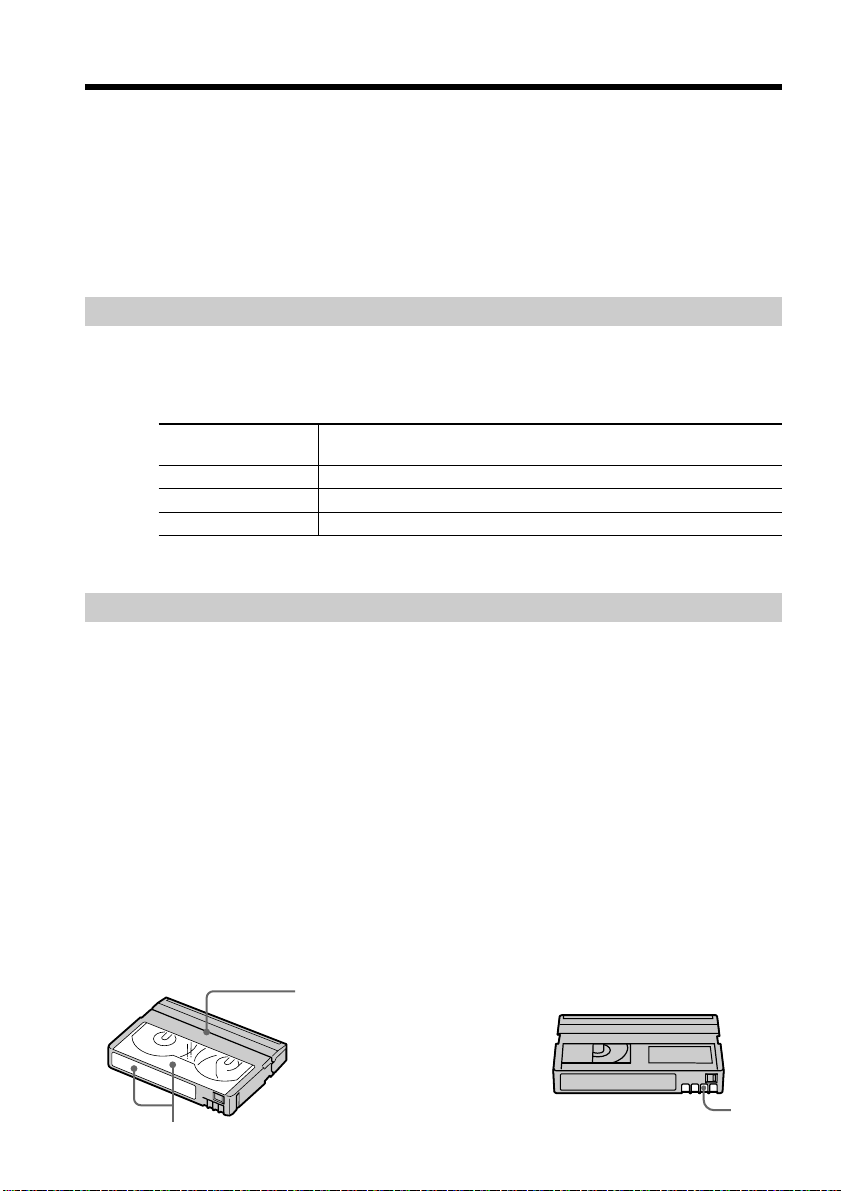
126
[a]
Notes on the mini DV cassette
When affixing a label on the mini DV cassette
Be sure to affix a label only on the locations as illustrated below [a] so as not to cause
malfunction of your camcorder.
After using the mini DV cassette
Rewind the tape to the beginning, put the cassette in its case, and store it in an upright
position.
If the cassette memory function does not work
Reinsert a cassette. The gold-plated connector of mini DV cassettes may be dirty or
dusty.
Cleaning gold-plated connector
If the gold-plated connector of mini DV cassettes is dirty or dusty, you may not operate
the function using cassette memory. Clean up the gold-plated connector with cotton-
wool swab, about every 10 times ejection of a cassette. [b]
Do not affix a label around
this border.
[b]
Usable cassettes
Audio mode
12-bit mode: The original sound can be recorded in stereo 1, and the new sound in
stereo 2 in 32 kHz. The balance between stereo 1 and stereo 2 can be adjusted by
selecting AUDIO MIX in the menu settings during playback. Both sounds can be played
back.
16-bit mode: A new sound cannot be recorded but the original sound can be recorded in
high quality. Moreover, it can also play back sound recorded in 32 kHz, 44.1 kHz or 48
kHz. When playing back a tape recorded in the 16-bit mode, 16BIT indicator appears on
the LCD screen or in the viewfinder.
When you play back a dual sound track tape
When you play back a dual sound track tape recorded in a stereo system, set “HiFi
SOUND” to the desired mode in the menu settings (p. 89).
Sound from speaker
HiFi Sound Mode Playing back a stereo tape
Playing back a dual sound
track tape
STEREO Stereo Main sound and sub sound
1 Left sound Main sound
2 Right sound Sub sound
You cannot record dual sound program on your camcorder.

127
Additional Information
The DV jack on this unit is an i.LINK-compliant DV IN/OUT jack. This section
describes the i.LINK standard and its features.
What is i.LINK?
i.LINK is a digital serial interface for handling digital video, digital audio and other
data in two directions between equipment having the i.LINK jack, and for controlling
other equipment.
i.LINK-compatible equipment can be connected by a single i.LINK cable. Possible
applications are operations and data transactions with various digital AV equipment.
When two or more i.LINK-compatible equipment are connected to this unit in a daisy
chain, operations and data transactions are possible with not only the equipment that
this unit is connected to but also with other devices via the directly connected
equipment.
Note, however, that the method of operation sometimes varies according to the
characteristics and specifications of the equipment to be connected, and that operations
and data transactions are sometimes not possible on some connected equipment.
Note
Normally, only one piece of equipment can be connected to this unit by the i.LINK
cable (DV connecting cable). When connecting this unit to i.LINK-compatible
equipment having two or more i.LINK jacks (DV jacks), refer to the instruction manual
of the equipment to be connected.
About the Name “i.LINK”
i.LINK is a more familiar term for IEEE 1394 data transport bus proposed by SONY,
and is a trademark approved by many corporations.
IEEE 1394 is an international standard standardized by the Institute of Electrical and
Electronics Engineers.
i.LINK Baud rate
i.LINK’s maximum baud rate varies according to the equipment. Three maximum baud
rates are defined:
S100 (approx. 100Mbps*)
S200 (approx. 200Mbps)
S400 (approx. 400Mbps)
The baud rate is listed under “Specifications” in the instruction manual of each
equipment. It is also indicated near the i.LINK jack on some equipment.
The maximum baud rate of equipment on which it is not indicated such as this unit is
“S100”.
When units are connected to equipment having a different maximum baud rate, the
baud rate sometimes differs from the indicated baud rate.
*What is Mbps?
Mbps stands for megabits per second, or the amount of data that can be sent or received
in one second. For example, a baud rate of 100Mbps means that 100 megabits of data
can be sent in one second.
About i.LINK

128
About i.LINK
i.LINK functions on this unit
For details on how to dub when this unit is connected to other video equipment having
DV jacks, see page 59.
This unit can also be connected to other i.LINK (DV) compatible equipment made by
SONY (e.g. VAIO series personal computer) other than video equipment.
Before connecting this unit to a personal computer, make sure that application software
supported by this unit is already installed on the personal computer.
For details on precautions when connecting this unit, also refer to the instruction
manuals for the equipment to be connected.
Required i.LINK Cable
Use the Sony i.LINK 4-pin-to-4-pin cable (during DV dubbing).
i.LINK and are trademarks.

129
Additional Information
Troubleshooting
If you run into any problem using your camcorder, use the following table to
troubleshoot the problem. If the problem persists, disconnect the power source and
contact your Sony dealer. If “C:ss:ss” appears on the LCD screen or in the
viewfinder, the self-diagnosis display function has worked. See page 135.
In the recording mode
Symptom Cause and/or Corrective Actions
• The POWER switch is set to OFF or VCR.
c Set it to CAMERA (p. 18).
• The tape has run out.
c Rewind the tape or insert a new one (p. 15, 29).
• The write-protect tab is set to expose the red mark.
c Use a new cassette or slide the tab (p. 15).
• The tape is stuck to the drum (moisture condensation).
c Remove the cassette and leave your camcorder for at
least 1 hour to acclimatize (p. 139).
• While being operated in CAMERA mode, your camcorder
has been in the standby mode for more than 5 minutes.
c Set the POWER switch to OFF and then to CAMERA
again (p. 18).
c Remove the cassette from your camcorder if it is not in
use (p. 15).
• The battery is dead.
c Use a charged battery pack.
• The viewfinder lens is not adjusted.
c Adjust the viewfinder lens (p. 19).
• STEADYSHOT is set to OFF in the menu settings.
c Set it to ON (p. 89).
• FOCUS is set to MANUAL.
c Set it to AUTO (p. 48).
• Shooting conditions are not suitable for autofocus.
c Set FOCUS to MANUAL to focus manually (p. 48).
• The digital effect function is working.
c Cancel it (p. 41).
• The contrast between the subject and background is too
high. This is not a malfunction.
• This is not a malfunction.
• Slow shutter, low lux or Super NightShot mode is
activated. This is not a malfunction.
• If 10 minutes elapse after you set the POWER switch to
CAMERA or DEMO MODE is set to ON in the menu
settings without a cassette inserted, your camcorder
automatically starts the demonstration.
c Insert a cassette or press the LCD screen. The
demonstration stops.
You can also cancel DEMO MODE (p. 94).
(continued on the folowing page)
START/STOP does not operate.
The power goes off.
The image on the viewfinder screen
is not clear.
The fader function does not work.
The autofocusing function does not
work.
The SteadyShot function does not
work.
A vertical band appears when you
shoot a very bright subject.
Some tiny white spots appear in the
viewfinder or on the LCD screen.
A vertical band appears when you
shoot a subject such as lights or a
candle flame against a dark
background.
An unknown picture is displayed in
the viewfinder or on the LCD screen.

130
Troubleshooting
Symptom Cause and/or Corrective Actions
• NIGHTSHOT is set to ON.
c Set it to OFF (p. 24).
• NIGHTSHOT is set to ON in a bright place.
c Set it to OFF, or use the NightShot function in a dark
place (p. 24).
• BEEP is set to OFF in the menu settings.
c Set it to MELODY or NORMAL (p. 89).
• Set STEADYSHOT to OFF in the menu settings (p. 89).
• The picture disappears when you insert or eject a cassette,
or turn the POWER switch. (The power lamp flashes.) This
is not a malfunction.
In the playback mode
Symptom Cause and/or Corrective Actions
• The tape has run out.
c Rewind the tape (p. 29).
• The television’s video channel is not adjusted correctly.
c Adjust it (p. 31).
• The video head may be dirty.
c Clean the heads using the Sony DVM12CLD cleaning
cassette (not supplied) (p. 139).
• The volume is turned to minimum.
c Turn up the volume (p. 27).
• AUDIO MIX is set to ST2 in the menu settings.
c Adjust AUDIO MIX (p. 89).
• The tape has no cassette memory.
c Use a tape with cassette memory (p. 54, 125).
• CM SEARCH is set to OFF in the menu settings.
c Set it to ON (p. 89).
• The tape has a blank portion in the recorded portion
(p. 125).
• The tape has no cassette memory.
c Use a tape with cassette memory (p. 125).
• CM SEARCH is set to OFF in the menu settings.
c Set it to ON (p. 89).
• There is no title in the tape.
c Superimpose the titles (p. 81).
• The tape has a blank portion in the recorded portion
(p. 125).
• AUDIO MIX is set to ST1 side in the menu settings.
c Adjust AUDIO MIX in the menu settings (p. 89).
• TITLE DSPL is set to OFF in the menu settings.
c Set it to ON in the menu settings (p. 89).
• Screen indicators are displayed on the screen.
c Make the screen indicators disappear (p. 28).
Picture appears too bright, and the
subject does not appear in the
viewfinder or on the LCD screen.
The picture is recorded in incorrect or
unnatural colors.
The tape does not move when a
video control button is pressed.
The playback picture is not clear or
does not appear.
No sound or only a low sound is
heard when playing back a tape.
There are horizontal lines on the
picture or the playback picture is
not clear or does not appear.
The click of the shutter does not
sound.
Displaying the recorded date, date
search function does not work.
A horizontal band appears when
shooting a TV screen or computer
screen.
In the mirror mode, the picture
disappears from the LCD screen or
the viewfinder.
The title is not displayed.
The new sound added to the
recorded tape is not heard.
The title search function does not
work.
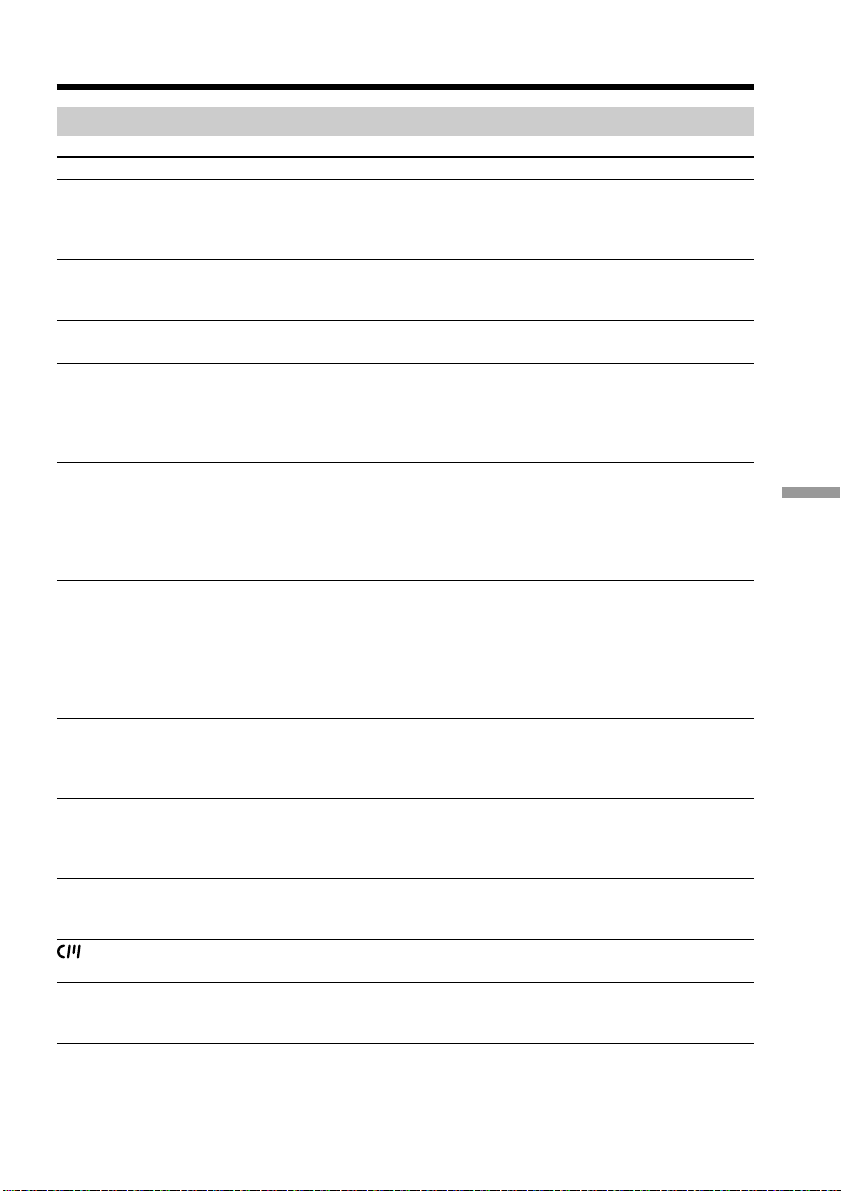
131
Additional Information
In the recording and playback modes
Symptom Cause and/or Corrective Actions
• The battery pack is not installed, or is dead or nearly dead.
c Install a charged battery pack (p. 10, 12).
• The AC adaptor is not connected to a wall outlet.
c Connect the AC adaptor to a wall outlet (p. 14).
• The tape was ejected after recording when using a tape
without cassette memory (p. 26, 30).
• You have not recorded on the new cassette yet (p. 26, 30).
• The tape has a blank portion in the beginning or middle
(p. 125).
• The LCD panel is open.
c Close the LCD panel (p. 20).
• When the viewfinder is not pulled out until it clicks, the
picture does not appear in the viewfinder.
c Pull out the viewfinder until it clicks (p. 18).
• The temperature of the environment is too low.
• The battery pack is not fully charged.
c Charge the battery pack fully again (p. 10).
• The battery pack is completely dead, and cannot be
recharged.
c Replace with a new battery pack (p. 12).
• You have used the battery pack in an extremely hot or
cold environment for a long time.
• The battery pack is completely dead, and cannot be
recharged.
c Replace with a new battery pack (p. 10).
• The battery is dead.
c Use a charged battery pack (p. 10, 12).
c Charge the battery pack fully again so that the indication
on the battery remeining indicator is correct (p. 10).
• The power source is disconnected.
c Connect it firmly (p. 12, 14).
• The battery is dead.
c Use a charged battery pack (p. 10, 12).
• Moisture condensation has occurred.
c Remove the cassette and leave your camcorder for at
least 1 hour to acclimatize (p. 139).
• The gold-plated connector of the tape is dirty or dusty.
c Clean the gold-plated connector (p. 126).
• The q REMAIN is set to AUTO in the menu settings.
c Set it to ON to always display the remaining tape
indicator (p. 89).
(continued on the folowing page)
Troubleshooting
The battery pack is quickly
discharged.
The power does not turn on.
The end search function does not
work.
The % and Z indicators flash and no
functions except for cassette ejection
work.
The cassette cannot be removed from
the holder.
The end search function does not
work correctly.
indicator does not appear when
using a tape with cassette memory.
Remaining tape indicator is not
displayed.
The picture does not appear in the
viewfinder.
The power goes off although the
battery remaining indicator indicates
that the battery pack has enough
power to operate.
The battery remaining indicator does
not indicate the correct time.

132
Troubleshooting
When operating using the “Memory Stick”
Symptom Cause and/or Corrective Actions
• The “Memory Stick” has already been recorded to its full
capacity.
c Erase unnecessary images and record again (p. 120).
• The “Memory Stick” is not inserted.
c Insert a “Memory Stick” (p. 98).
• The “Memory Stick” formatted incorrectly is inserted.
c Format the “Memory Stick” or use another “Memory
Stick” (p. 92).
• The write-protect tab on the “Memory Stick” is set to
LOCK.
c Set the tab to write (p. 96).
• The image is protected.
c Cancel image protection (p. 119).
• The write-protect tab on the “Memory Stick” is set to
LOCK.
c Set the tab to write (p. 96).
• The write-protect tab on the “Memory Stick” is set to
LOCK.
c Set the tab to write (p. 96).
• The write-protect tab on the “Memory Stick” is set to
LOCK.
c Set the tab to write (p. 96).
• The write-protect tab on the “Memory Stick” is set to
LOCK.
c Set the tab to write (p. 96).
• The image to protect is not played back.
c Press INDEX to play back the image (p. 115).
• The write-protect tab on the “Memory Stick” is set to
LOCK.
c Set the tab to write (p. 96).
• The image to write a print mark is not played back.
c Press or INDEX to play back the image (p. 115).
• The write-protect tab on the “Memory Stick” is set to
LOCK.
c Set the tab to write (p. 96).
• The battery pack is dead.
c Install a charged battery pack or use the AC adaptor
instead of the battery pack (p. 10, 12, 14).
Recording does not function.
The image cannot be deleted.
You cannot format the “Memory
Stick”.
You cannot write a print mark on the
still image.
The photo save function does not
work.
You cannot protect the image.
Deleting all the images cannot be
carried out.

133
Additional Information
Others
Symptom Cause and/or Corrective Actions
• The tape has no cassette memory.
c Use a tape with cassette memory (p. 81, 125).
• The cassette memory is full.
c Erase another title (p. 84).
• The tape is set to prevent accidental erasure.
c Slide the write-protect tab so that red portion is not
visible (p. 15).
• Nothing is recorded in that position on the tape.
c Superimpose the title to the recorded position (p. 81).
• The tape has no cassette memory.
c Use a tape with cassette memory (p. 87, 125).
• The cassette memory is full.
c Erase some titles (p. 84).
• The tape is set to prevent accidental erasure.
c Slide the write-protect tab so that red portion is not
visible (p. 15).
• Remove the i.LINK cable (DV connecting cable), and
connect it again (p. 59).
• The input selector on the VCR is not set correctly.
c Set the selector correctly, and check the connection
between the VCR and your camcorder (p. 58, 59).
• The camcorder is connected to DV equipment of other
than Sony using the i.LINK cable (DV connecting cable).
c Keep the connection, and follow the procedure on page
61 to 64.
• Setting program on a blank portion of the tape is
attempted.
c Set the program again on a recorded portion (p. 68).
• The syncronicity of your camcorder and the VCR is not
adjusted.
c Adjust the syncronicity of the VCR (p. 66).
• COMMANDER is set to OFF in the menu settings.
c Set it to ON (p. 89).
• Something is blocking the infrared rays.
c Remove the obstacle.
• The batteries are inserted in the battery holder with the + –
polarities incorrectly matching the + – marks.
c Insert the batteries with the correct polarity (p. 151).
• The batteries are dead.
c Insert new ones (p. 151).
• DISPLAY is set to V-OUT/LCD in the menu settings.
c Set it to LCD (p. 89).
(continued on the folowing page)
The Remote Commander supplied
with your camcorder does not work.
Troubleshooting
The cassette label is not recorded.
While editing using the i.LINK cable
(DV connecting cable), recording
picture cannot be monitored.
Digital program editing does not
function.
The picture from a TV or VCR does
not appear even when your
camcorder is connected to outputs on
the TV or VCR.
The title is not recorded.

134
Troubleshooting
Symptom Cause and/or Corrective Actions
• Moisture condensation has occurred.
c Remove the cassette and leave your camcorder for at
least 1 hour to acclimatize (p. 139).
• Some troubles have occurred in your camcorder.
c Remove the cassette and insert it again, then operate
your camcorder.
• Disconnect the Connecting plate of the AC adaptor or
remove the battery, then reconnect it in about 1 minute.
Turn the power on (p. 12, 14). If the functions still do not
work, press the RESET button using a sharp-pointed
object. (If you press the RESET button, all the settings
including the date and time return to the default.) (p. 148)
• The DISPLAY/TOUCH PANEL button is pressed.
c Press the LCD screen lightly.
c Press the DISPLAY button on your camcorder or the
Remote Commander (p. 28).
c Adjust the screen (CALIBRATION) (p. 141).
• The mirror mode is activated.
This is not a malfunction.
• Remove the battery pack and install it again.
• Something is wrong with the battery pack.
c Please cannot your Sony dealer or local authorzed Sony
service facility.
No function works though the power
is on.
The buttons do not appear on the
touch panel.
The buttons on the LCD screen do
not work.
The indicators appear mirror-
reversed in the viewfinder or on the
TV screen.
The melody or beep sounds for 5
seconds.
While charging the battery pack, the
CHARGE lamp flashes.
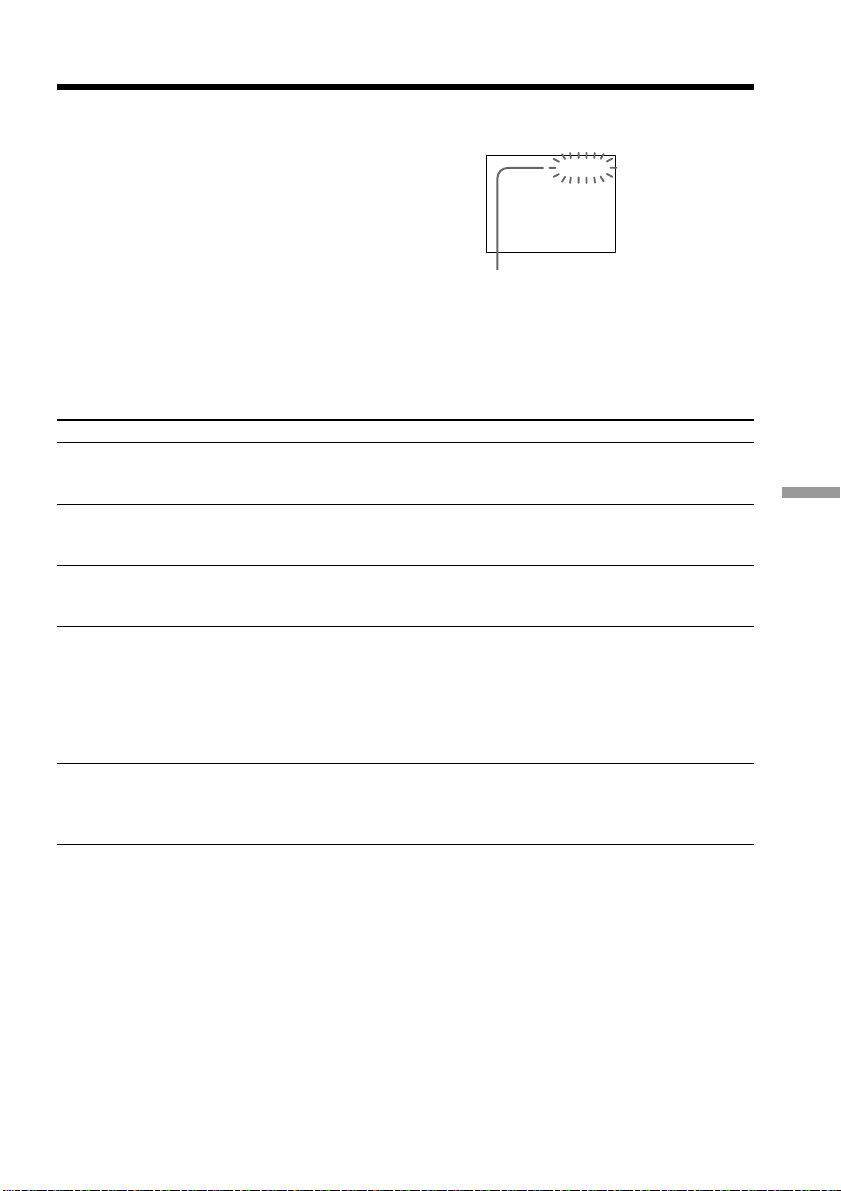
135
Additional Information
C:21:00
Self-diagnosis display
Five-digit display Cause and/or Corrective Actions
• You are using a battery pack that is not an
“InfoLITHIUM” battery pack.
c Use an “InfoLITHIUM” battery pack (p. 12).
• Moisture condensation has occurred.
c Remove the cassette and leave your camcorder for at
least 1 hour to acclimatize (p. 139).
• The video heads are dirty.
c Clean the heads using the Sony DVM12CLD cleaning
cassette (not supplied) (p. 139).
• A malfunction other than the above that you can service
has occurred.
c Remove the cassette and insert it again, then operate
your camcorder.
c Disconnect the power cord of the AC adaptor or remove
the battery pack. After reconnecting the power source,
operate your camcorder.
• A malfunction that you cannot service has occurred.
c Contact your Sony dealer or local authorized Sony
service facility and inform them of the 5-digit code.
(example: E:61:10)
If you are unable to rectify the problem even if you try corrective actions a few times,
contact your Sony dealer or local authorized Sony service facility.
Your camcorder has a self-diagnosis display
function.
This function displays the current condition of
your camcorder as a 5-digit code (a combination of
a letter and figures) in the viewfinder or on the
LCD screen. If a 5-digit code is displayed, check
the following code chart. The last two digits
(indicated by ss) will differ depending on the
state of your camcorder.
C:21:ss
Viewfinder or LCD screen
Self-diagnosis display
•C:ss:ss
You can service your camcorder
yourself.
•E:ss:ss
Contact your Sony dealer.
E:61:ss
E:62:ss
C:31:ss
C:32:ss
C:04:ss
C:22:ss
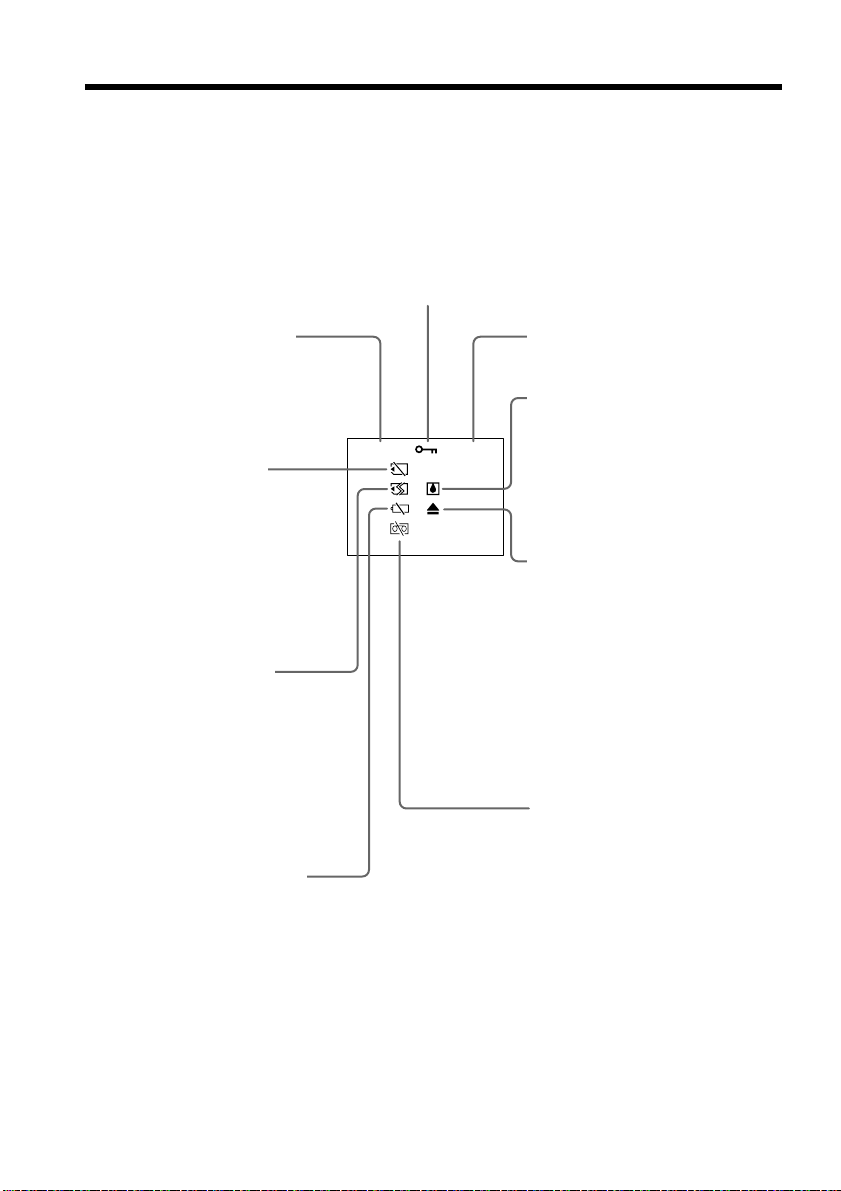
136
C:21:00
100–0021
Warning indicators and messages
If indicators and messages appear in the viewfinder or on the LCD screen, check the
following:
See the page in parentheses “( )” for more information.
The indicators and messages are displayed in yellow.
Warning indicators
The battery is dead or nearly
dead
Slow flashing:
•The battery is nearly dead.
•The battery is dead (p. 10).
Depending on conditions, the E
indicator may flash, even if there
are 5 to 10 minutes remaining.
Self-diagnosis display (p. 135)
Moisture condensation has
occurred*
Fast flashing:
•Eject the cassette, turn off your
camcorder, and leave it for about
1 hour with the cassette
compartment open (p. 139).
You need to eject the cassette
Slow flashing:
•The write-protect tab on the
cassette is out (red) (p. 15).*
Fast flashing:
•Moisture condensation has
occurred (p. 139).
•The tape has run out (p. 15, 29).*
•The self-diagnosis display
function is activated (p. 135).*
The still image is protected
Slow flashing:
•The still image is protected (p. 119).*
Warning indicator as to
“Memory Stick”
Slow flashing:
•No “Memory Stick” is inserted
(p. 98).*
Fast flashing:
•The “Memory Stick” is not
readable with your camcorder
(p. 92).*
Warning indicator as to file
Slow flashing:
•The file is corrupted.
•The file is unreadable.
Warning indicators as to
“Memory Stick”
Fast flashing:
•The “Memory Stick” is corrupted
(p. 96).*
•The “Memory Stick” is not
formatted correctly (p.92).*
•“Memory Stick” that is not
acceptable size is inserted.
Warning indicator as to tape
Slow flashing:
•The tape is near the end.
•No tape is inserted (p. 15).*
•The write-protect tab on the
cassette is out (red) (p. 15).*
Fast flashing:
•The tape has run out (p. 15, 29).*
* You hear the melody or beep sound.

137
Additional Information
Warning messages
•CLOCK SET Reset the date and time (p. 95).
•FOR “InfoLITHIUM” Use an “InfoLIHIUM” battery pack (p. 12).
BATTERY ONLY
• CLEANING CASSETTE The video heads are dirty (p. 139).
•COPY INHIBIT You tried to record a picture that has a copyright
control signal (p. 125).*
• FULL The tape cassette memory is full (p. 83).*
• The tape has no cassette memory (p. 125).*
• 16BIT AUDIO MODE is set to 16BIT.* You cannot dub new
sound (p. 93).
• REC MODE REC MODE is set to LP.* You cannot dub new sound
(p. 93).
• TAPE There is no recorded portion on the tape.* You cannot
dub new sound (p. 78).
• “i.LINK” CABLE i.LINK cable is connected (p. 78).* You cannot dub
new sound.
• FULL The “Memory Stick” is full (p. 105)*.
• - The write-protect tab on the “Memory Stick” is set to
LOCK (p. 96).*
• NO FILE No still image is recorded on the “Memory Stick”
(p. 114).*
• NO MEMORY STICK No “Memory Stick” is inserted (p. 98).*
• MEMORY STICK ERROR The “Memroy Stick” data is corrupted (p. 98).*
• FORMAT ERROR The “Memory Stick” is not recognized (p. 92).*
Check the format.
• - DIRECTORY ERROR There is more than two same directories (p. 114).*
•Q TAPE END The tape has reached the end of the tape (p, 15, 29).*
•Q NO TAPE Insert a cassette tape (p. 15).*
* You hear the melody or beep sound.
Warning indicators and messages
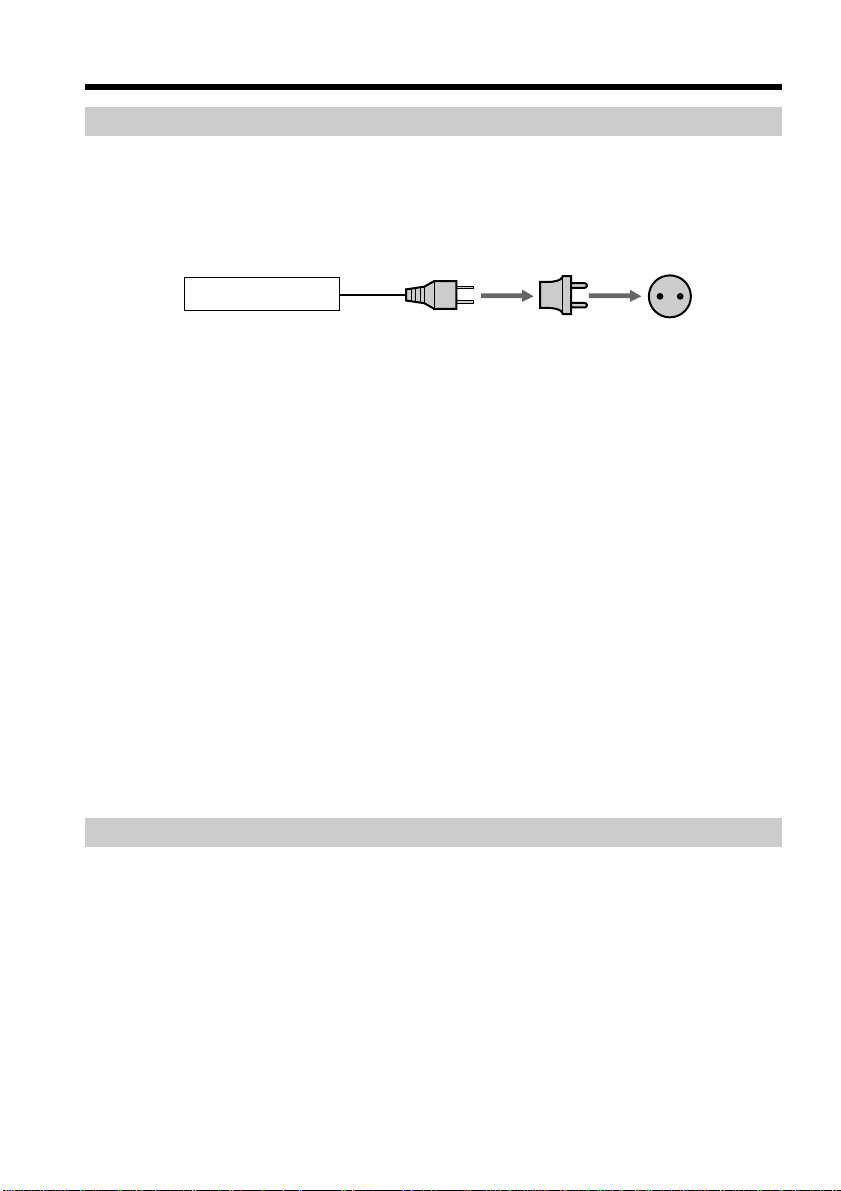
138
Using your camcorder abroad
You can use your camcorder in any country or area with the AC adaptor supplied with
your camcorder within 100 V to 240 V AC, 50/60 Hz.
When charging the battery pack, use a commercially available AC plug adaptor [a], if
necessary, depending on the design of the wall outlet [b].
Your camcorder is an NTSC system based camcorder. If you want to view the playback
picture on a TV, it must be an NTSC system based TV with VIDEO/AUDIO input jack.
The following shows TV color systems used overseas.
NTSC system
Bahama Islands, Bolivia, Canada, Central America, Chile, Colombia, Ecuador, Jamaica,
Japan, Korea, Mexico, Peru, Surinam, Taiwan, the Philippines, the U.S.A., Venezuela,
etc.
PAL system
Australia, Austria, Belgium, China, Czech Republic, Denmark, Finland, Germany, Great
Britain, Holland, Hong Kong, Italy, Kuwait, Malaysia, New Zealand, Norway, Portugal,
Singapore, Slovak Republic, Spain, Sweden, Switzerland, Thailand, etc.
PAL-M system
Brazil
PAL-N system
Argentina, Paraguay, Uruguay
SECAM system
Bulgaria, France, Guyana, Hungary, Iran, Iraq, Monaco, Poland, Russia, Ukraine, etc.
Simple setting of clock by time difference
You can easily set the clock to the local time by setting a time difference. Select WORLD
TIME in the menu settings. See page 89 for more information.
Using your camcorder abroad
AC-VF10
[b][a]
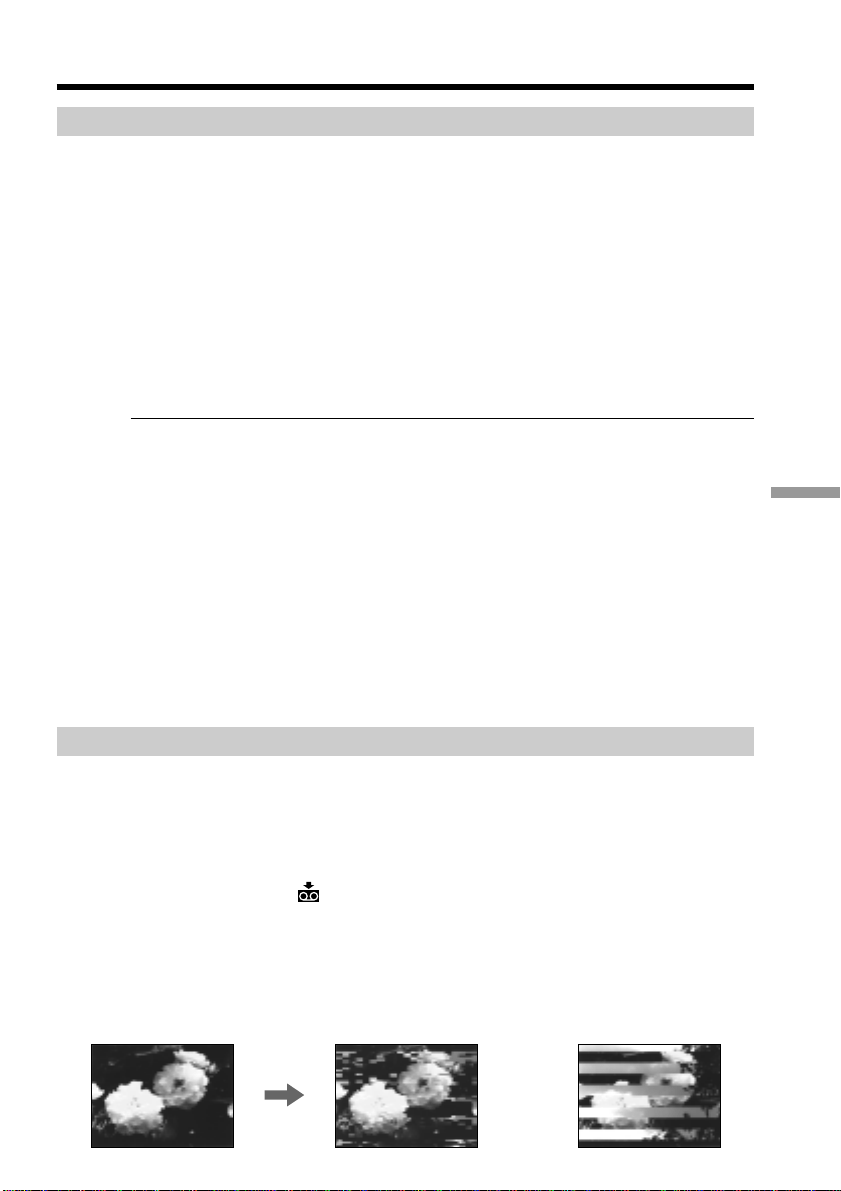
139
Additional Information
Maintenance information and
precautions
Moisture condensation
If your camcorder is brought directly from a cold place to a warm place, moisture may
condense inside your camcorder, on the surface of the tape, or on the lens. In this
condition, the tape may stick to the head drum and be damaged or your camcorder may
not operate correctly. If there is moisture inside your camcorder, the beep sounds and
the % indicator flashes. When the Z indicator flashes at the same time, the cassette is
inserted in your camcorder. If moisture condenses on the lens, the indicator will not
appear.
If moisture condensation occurred
None of the functions except cassette ejection will work. (Z indicator appears only
when a cassette is inserted.) Eject the cassette, turn off your camcorder, and leave it for
about 1 hour with the cassette compartment open. Your camcorder can be used again if
the % indicator does not appear when the power is turned on again.
Note on moisture condensation
Moisture may condense when you bring your camcorder from a cold place into a warm
place (or vice versa) or when you use your camcorder in a hot place as follows:
•You bring your camcorder from a ski slope into a place warmed up by a heating
device
•You bring your camcorder from an air-conditioned car or room into a hot place
outside
•You use your camcorder after a squall or a shower
•You use your camcorder in a high temperature and humidity place
How to prevent moisture condensation
When you bring your camcorder from a cold place into a warm place, put your
camcorder in a plastic bag and tightly seal it. Remove the bag when the air temperature
inside the plastic bag has reached the surrounding temperature (after about 1 hour).
Maintenance information
Cleaning the video head
To ensure normal recording and clear pictures, clean the video heads. The video head
may be dirty when:
•mosaic-pattern noise appears on the playback picture.
•playback pictures do not move.
•playback pictures do not appear.
•the x indicator and “ CLEANING CASSETTE” message appear one after another
on the LCD screen or in the viewfinder.
If the above problem, [a] or [b] occurs, clean the video heads for 10 seconds with the
Sony DVM12CLD cleaning cassette (not supplied). Check the picture and if the above
problem persists, repeat cleaning.
[a] [b]
or
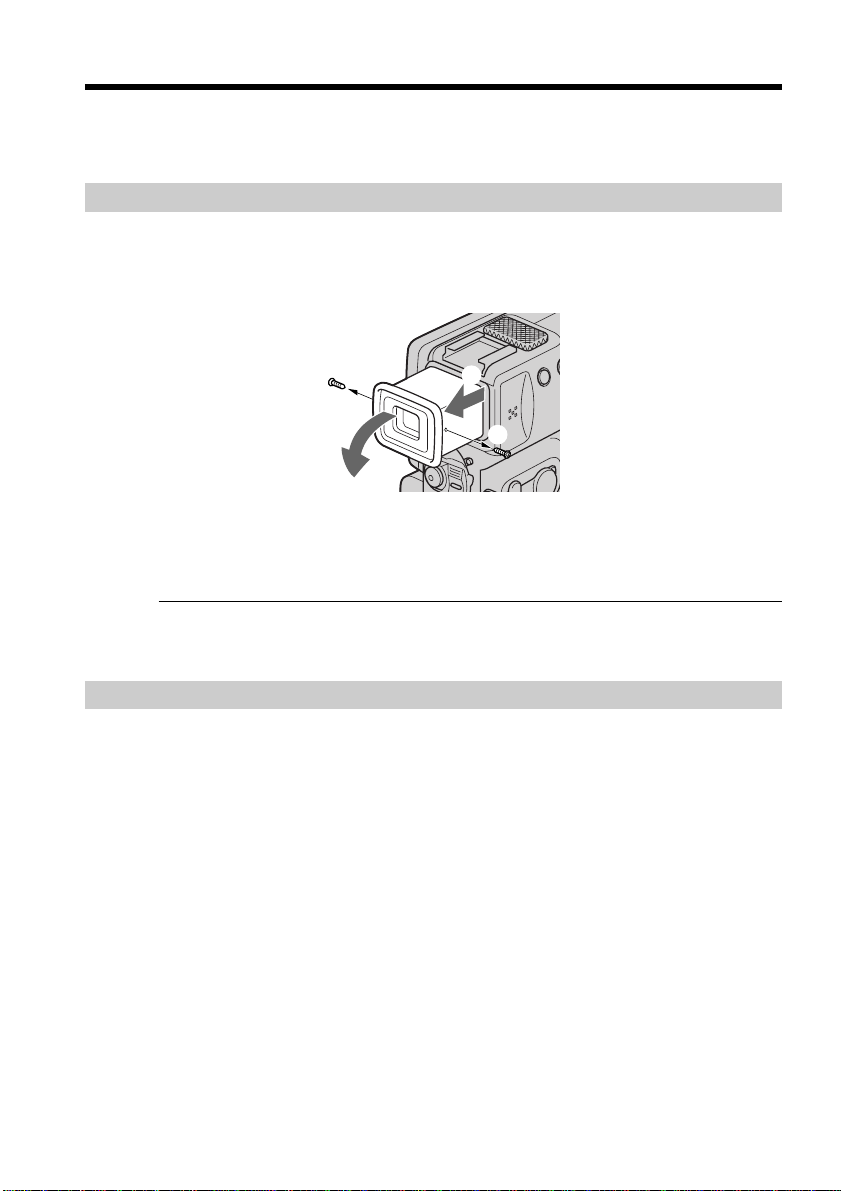
140
Cleaning the LCD screen
If fingerprints or dust make the LCD screen dirty, we recommend using a LCD
Cleaning cloth (supplied) to clean the LCD screen.
Removing dust from inside the viewfinder
(1) Pull out the viewfinder 1.
Remove the two screws 2 with a screwdriver (not supplied).
Remove the eyecup 3.
(2) Remove dust from inside the eyecup and viewfinder with a commercially
available blower.
(3) In the reverse way of (1), attach the eyecup. Then replace the screws 2.
Notes
•Do not drop or bend the eyecup shaft.
•Be careful when handling the eyecup.
Charging the manganese-lithium battery in your camcorder
Your camcorder is supplied with a manganese-lithium battery installed so as to retain
the date and time, etc., regardless of the setting of the POWER switch. The manganese-
lithium battery is always charged as long as you are using your camcorder. The battery,
however, will get discharged gradually if you do not use your camcorder. It will be
completely discharged in about three months if you do not use your camcorder at all.
Even if the manganese-lithium battery is not charged, it will not affect the camcorder
operation. To retain the date and time, etc., charge the battery if the battery is
discharged.
Charging the manganese-lithium battery:
•Connect your camcorder to house current using the AC adaptor supplied with your
camcorder, and leave your camcorder with the POWER switch turned off for more
than 24 hours.
•Or install the fully charged battery pack in your camcorder, and leave your camcorder
with the POWER switch turned off for more than 24 hours.
Maintenance information and precautions
2
2
1
3
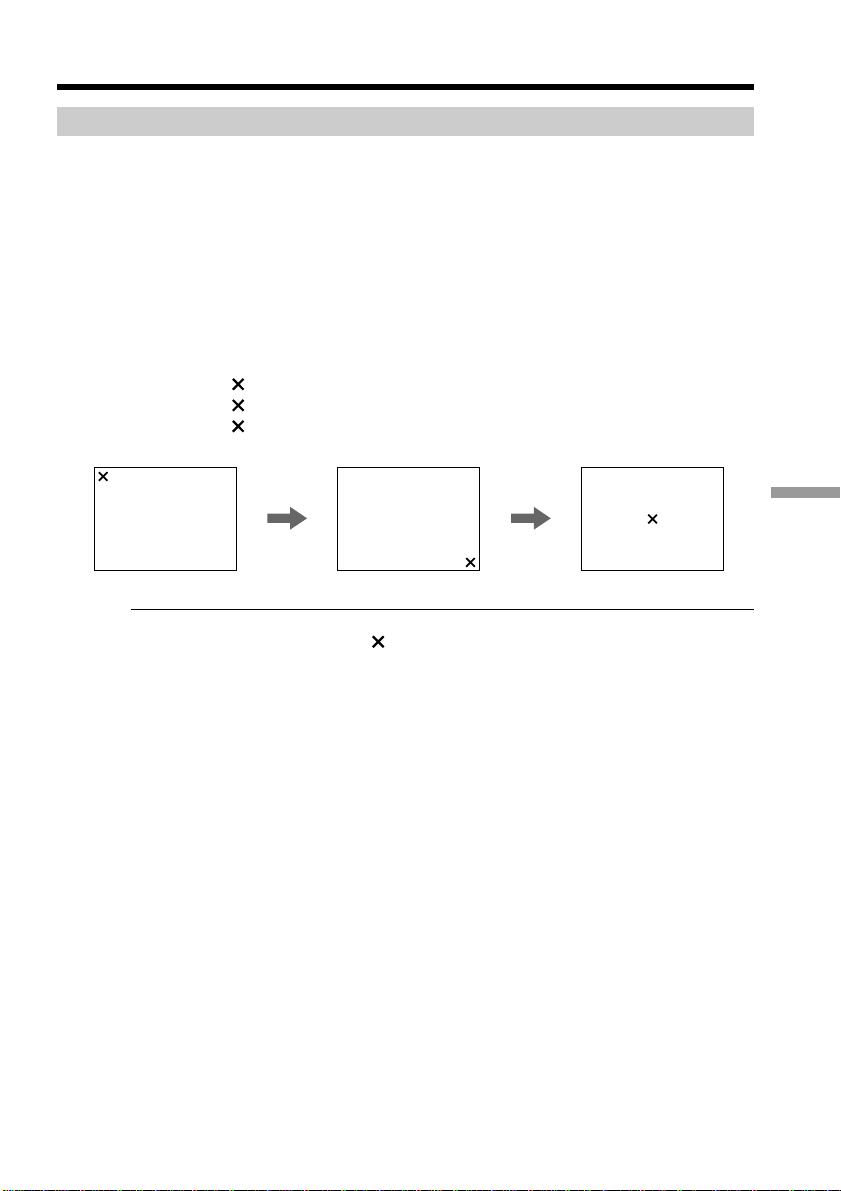
141
Additional Information
Ajusting the LCD screen (CALIBRATION)
The buttons on the touch panel may not work correctly. If this happens, follow the
procedure below.
(1) Set the POWER switch to OFF.
(2) Eject the tape from your camcorder, then disconnect any connecting cable from
your camcorder.
(3) Set the POWER switch to VCR while pressing DISPLAY/TOUCH PANEL on
your camcorder, then keep pressing DISPLAY/TOUCH PANEL for about five
seconds.
(4) Follow the procedure below using an object such as the corner of the “Memory
Stick” supplied with your camcorder.
1Touch
at the upper left corner.
2Touch
at the lower right corner.
3Touch
in the middle of the screen.
Note
If you do not press the right spot, always returns to the position at the upper left
corner. In this case, start from step 4 again.
Maintenance information and precautions
CALIBRATE
CALIBRATE
CALIBRATE

142
Maintenance information and precautions
Precautions
Camcorder operation
•Operate your camcorder on 3.6 V (battery pack) or 4.2 V (AC adaptor).
•For DC or AC operation, use the accessories recommended in this operating
instructions.
•If any solid object or liquid get inside the casing, unplug your camcorder and have it
checked by a Sony dealer before operating it any further.
•Avoid rough handling or mechanical shock. Be particularly careful of the lens.
•Keep the POWER switch set to OFF when you are not using your camcorder.
•Do not wrap your camcorder with a towel, for example, and operate it. Doing so
might cause heat to build up inside.
•Keep your camcorder away from strong magnetic fields or mechanical vibration.
•Do not touch the LCD screen with a sharp-pointed object.
•If your camcorder is used in a cold place, a residual image may appear on the LCD
screen. This is not a malfunction.
•While using your camcorder, the back of the LCD screen may heat up. This is not a
malfunction.
On handling tapes
•Do not insert anything into the small holes on the rear of the cassette. These holes are
used to sense the type and thickness of the tape and if the recording tab is in or out.
•Do not open the tape protect cover or touch the tape.
•Avoid touching or damaging the terminals. To remove dust, clean the terminals with
a soft cloth.
Camcorder care
•Remove the tape, and periodically turn on the power, operate the CAMERA and VCR
sections and play back a tape for about 3 minutes when your camcorder is not to be
used for a long time.
•Clean the lens with a soft brush to remove dust. If there are fingerprints on the lens,
remove them with a soft cloth.
•Clean the camcorder body with a dry soft cloth, or a soft cloth lightly moistened with
a mild detergent solution. Do not use any type of solvent which may damage the
finish.
•Do not let sand get into your camcorder. When you use your camcorder on a sandy
beach or in a dusty place, protect it from the sand or dust. Sand or dust may cause
your camcorder to malfunction, and sometimes this malfunction cannot be repaired.
AC adaptor
•Unplug the unit from the wall outlet when you are not using the unit for a long time.
To disconnect the power cord, pull it out by the plug. Never pull the power cord itself.
•Do not operate the unit with a damaged cord or if the unit has been dropped or
damaged.
•Do not bend the power cord forcibly, or place a heavy object on it. This will damage
the cord and may cause fire or electrical shock.
•Prevent metallic objects from coming into contact with the metal parts of the
connecting section. If this happens, a short may occur and the unit may be damaged.
•Always keep metal contacts clean.
•Do not disassemble the unit.
•Do not apply mechanical shock or drop the unit.
•While the unit is in use, particularly during charging, keep it away from AM receivers
and video equipment. AM receivers and video equipment disturb AM reception and
video operation.

143
Additional Information
•The unit becomes warm during use. This is not a malfunction.
•Do not place the unit in locations that are:
– Extremely hot or cold
– Dusty or dirty
– Very humid
– Vibrating
Battery pack
•Use only the specified charger or video equipment with the charging function.
•To prevent accident from a short circuit, do not allow metal objects to come into
contact with the battery terminals.
•Keep the battery pack away from fire.
•Never expose the battery pack to temperatures above 140°F (60°C), such as in a car
parked in the sun or under direct sunlight.
•Store the battery pack in a cool, dry place.
•Do not expose the battery pack to any mechanical shock.
•Do not disassemble nor modify the battery pack.
•Attach the battery pack to the video equipment securely.
•Charging while some capacity remains does not affect the original battery capacity.
•When the battery pack is not to be used for a long time, charge the battery pack once
fully, and then use it until it fully discharges again. Keep the battery pack in a cool
place.
Notes on dry batteries
To avoid possible damage from battery leakage or corrosion, observe the following:
•Be sure to insert the batteries with the + – polarities matched to the + – marks.
•Dry batteries are not rechargeable.
•Do not use a combination of new and old batteries.
•Do not use different types of batteries.
•Current flows from batteries when you are not using them for a long time.
•Do not use leaking batteries.
If batteries are leaking
•Wipe off the liquid in the battery compartment carefully before replacing the batteries.
•If you touch the liquid, wash it off with water.
•If the liquid get into your eyes, wash your eyes with a lot of water and then consult a
doctor.
If any problem occurs, unplug your camcorder and contact your nearest Sony dealer.
Maintenance information and precautions

144
Chrominance signal: 0.3 Vp-p,
75 ohms, unbalanced
Audio/Video input/output
AV MINI JACK, Input/output
auto switch
Video signal: 1 Vp-p, 75 ohms,
unbalanced, sync negative
Audio signal: 327 mV, (at output
impedance more than 47 kilohms)
Input impedance more than 47
kilohms
Output impedance with less than
2.2 kilohms
DV input/output
4-pin connector
Headphone jack
Stereo minijack (ø 3.5 mm)
(LANC)/DIGITAL I/O jack
Special mini-minijack (ø 2.5 mm)
Transfer rate:
Max 115.2Kbps
RS232C based
MIC jack
Minijack, 0.388 mV low impedance
with 2.5 to 3.0 V DC, output
impedance 6.8 kilohms
(ø 3.5 mm)
Stereo type
LCD screen
Picture
2.5 type measured diagonally
2 × 1 1/2 in. (50 × 37 mm)
Total dot number
200,640 (880 × 228)
General
Power requirements
3.6 V (battery pack)
4.2 V (AC power adaptor)
Average power consumption
(when using the battery pack)
During camera recording using
LCD 3.6 W
Viewfinder 2.8 W
Operating temperature
32 °F to 104 °F (0 °C to 40 °C)
Storage temperature
–4 °F to +140 °F (–20 °C to +60 °C)
Dimensions (approx.)
2 1/8 × 4 × 3 7/8 in.
(54 × 101 × 97 mm) (w/h/d)
Mass (approx.)
15 oz (450 g)
excluding the battery pack and
cassette
1 lb 2 oz (520 g)
including the battery pack,
NP-FS11, cassette DVM60 and lens
cap
Supplied accessories
See page 5.
Video camera
recorder
System
Video recording system
2 rotary heads
Helical scanning system
Audio recording system
Rotary heads, PCM system
Quantization: 12 bits (Fs 32 kHz,
stereo 1, stereo 2), 16 bits
(Fs 48 kHz, stereo)
Video signal
NTSC color, EIA standards
Usable cassette
Mini DV cassette with the
mark printed
Tape speed
SP: Approx. 18.81 mm/s
LP: Approx. 12.56 mm/s
Recording/playback time (using
cassette DVM60)
SP: 1 hour
LP: 1.5 hours
Fastforward/rewind time (using
cassette DVM60)
Approx. 3 min. and 30 seconds
Viewfinder
Electric viewfinder (color)
Image device
1/4 type CCD (Charge Coupled
Device)
Approx. 800,000 pixels
(Effective: Approx. 400,000 pixels)
Lens
Carl Zeiss
Combined power zoom lens
Filter diameter 1 3/16 in. (30 mm)
10× (Optical), 120× (Digital)
Focal length
5/32 - 1 5/16 in. (3.3 - 33 mm)
When converted to a 35 mm still
camera
1 11/16 - 16 5/8 in. (42 - 420 mm)
Colour temperature
Auto, HOLD (Hold), nIndoor
(3200K),
Outdoor (5800K)
Minimum illumination
5 lux (F 1.7)
0 lux (in the NightShot mode)**
** Objects unable to be seen due to
the dark can be shot with
infrared lighting.
Input/Output connectors
S video input/output
Input/output auto switch
4-pin mini DIN
Luminance signal: 1 Vp-p,
75 ohms, unbalanced, sync
negative
Specifications
AC adaptor
Power requirements
100 - 240 V AC, 50/60 Hz
Power consumption
13 W
Output voltage
DC OUT: 4.2 V, 1.8 A in the
operating mode
Battery charge terminal:
4.2 V, 1.5 A in charge mode
Operating temperature
32 °F to 104 °F (0 °C to 40 °C)
Storage temperature
–4 °F to +140 °F (–20 °C to +60 °C)
Dimensions (approx.)
1 15/16 × 1 9/16 × 3 3/8 in. (49 ×
39 × 85 mm) (w/h/d) excluding
projecting parts
Mass (approx.)
4.2 oz (120 g)
excluding power cord
Battery pack
Output voltage
DC 3.6 V
Capacity
4.1 Wh
Dimensions (approx.)
1 1/4 × 21/32 × 2 in.
(30.3 × 16.3 × 50.2 mm) (w/h/d)
Mass (approx.)
1.4 oz (40 g)
Type
Lithium ion
“Memory Stick”
Memory
Flash memory
4MB: MSA-4A
Operating voltage
2.7-3.6V
Power consumption
Approx. 45mA in the operating
mode
Approx. 130µA in the standby
mode
Dimensions (approx.)
2 × 1/8 × 7/8 in.
(50 × 2.8 × 21.5 mm) (w/h/d)
Mass (approx.)
0.14 oz (4 g)
Design and specifications are
subject to change without notice.
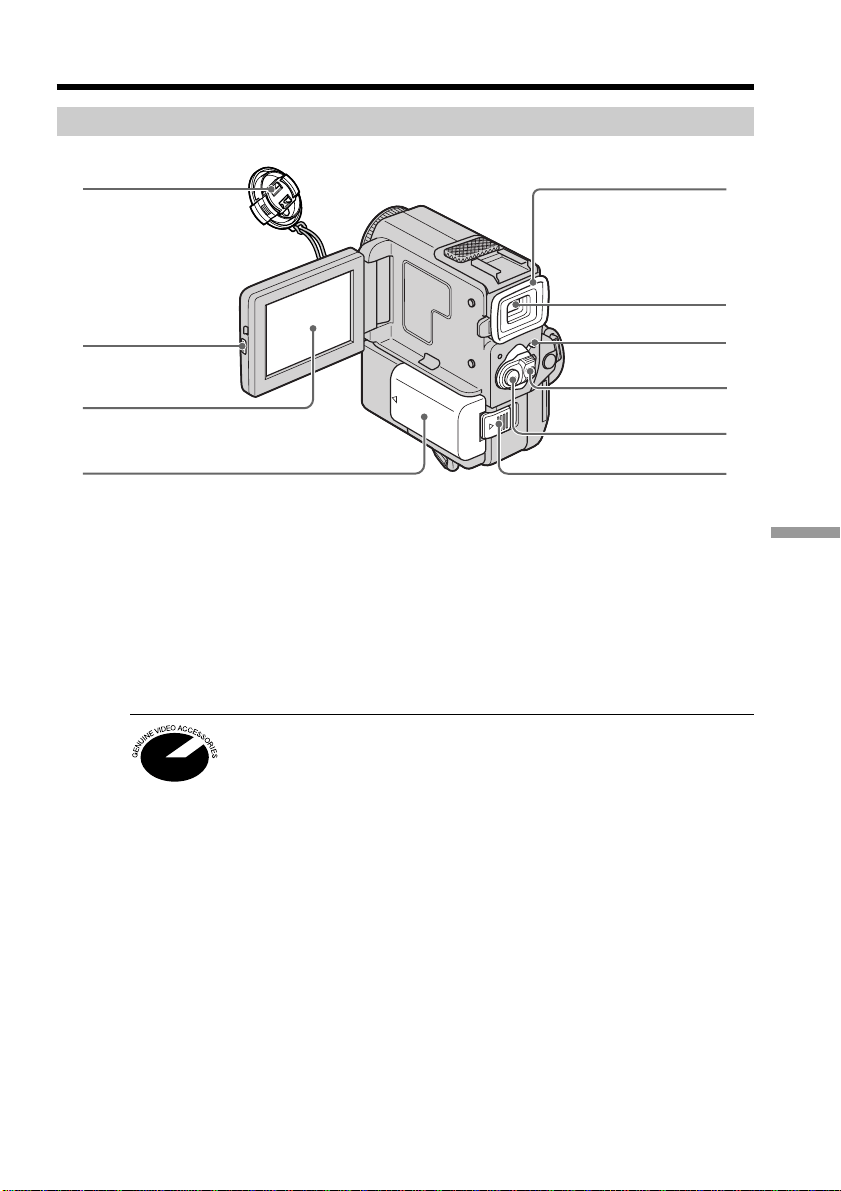
145
Quick Reference
— Quick Reference —
Identifying the parts and controls
1 Lens cap (p. 18)
2 OPEN button (p. 21, 27)
3 LCD screen/Touch panel (p. 16, 99)
4 Battery/Battery terminal cover (p. 12)
5 Eyecup
6 Viewfinder (p. 18)
7 LOCK (p. 18)
8 POWER switch (p. 18)
9 START/STOP button (p. 18)
0 BATTERY RELEASE lever (p. 12)
This mark indicates that this product is a genuine accessory for Sony
video products.
When purchasing Sony video products, Sony recommends that you
purchase accessories with this “GENUINE VIDEO ACCESSORIES”
mark.
Camcorder
6
7
8
5
1
2
3
4
9
0
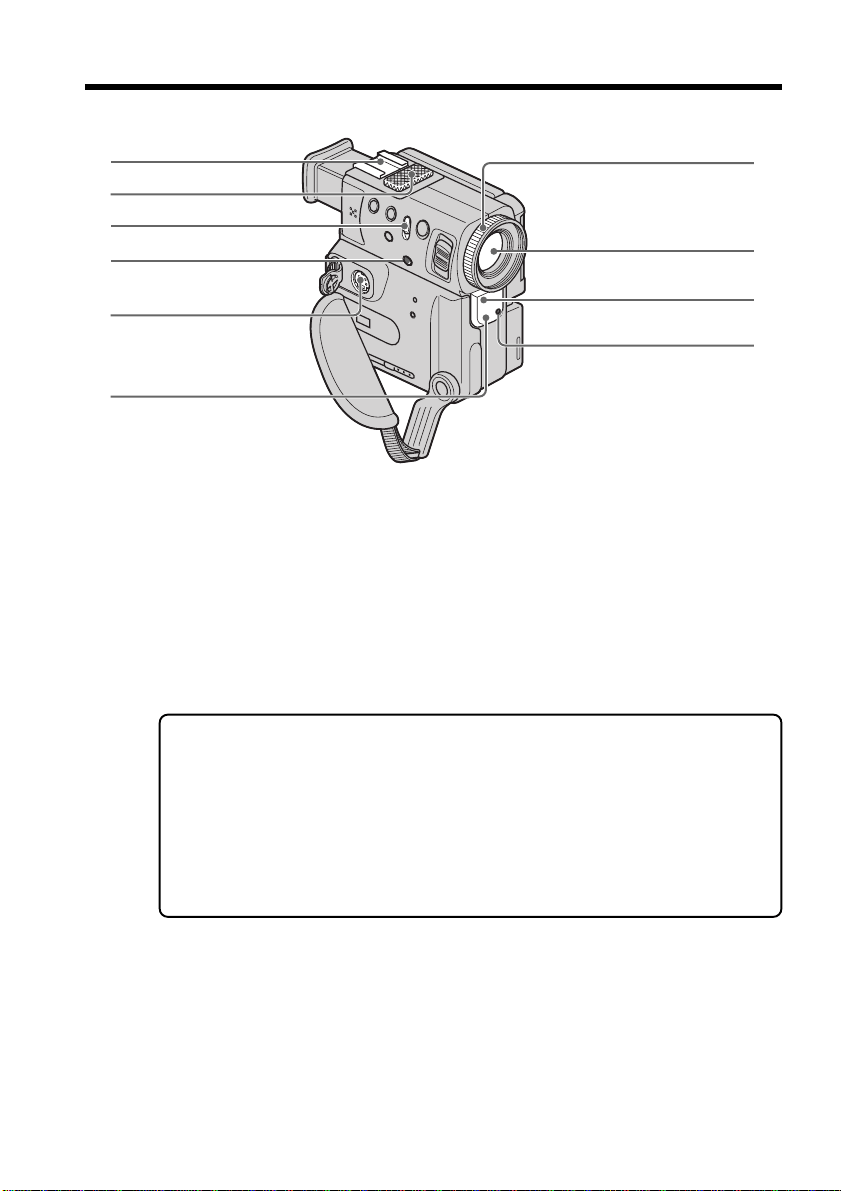
146
qa Accessory shoe
qs Microphone (p. 78)
qd NIGHTSHOT switch (p. 24)
qf SUPER NIGHTSHOT button (p. 24)
qg S VIDEO jack (p. 31, 34, 58)
Identifying the parts and controls
qk
ql
w;
qa
qs
qd
qf
qg
qh
qj
Note on the Carl Zeiss lens
Your camcorder is equipped with a Carl Zeiss lens which can reproduce a fine
image.
The lens for your camcorder was developed jointly by Carl Zeiss, in Germany, and
Sony Corporation. It adopts the MTF* measurement system for video camera and
offers a quality as the Carl Zeiss lens.
* MTF is an abbreviation of Modulation Transfer Function/Factor.
The value number indicates the amount of light of a subject penetrating into the
lens.
qh Infrared rays emitter (p. 24)
qj Focus ring (p. 48)
qk Lens
ql Remote sensor
w; Camera recording lamp (p. 18)
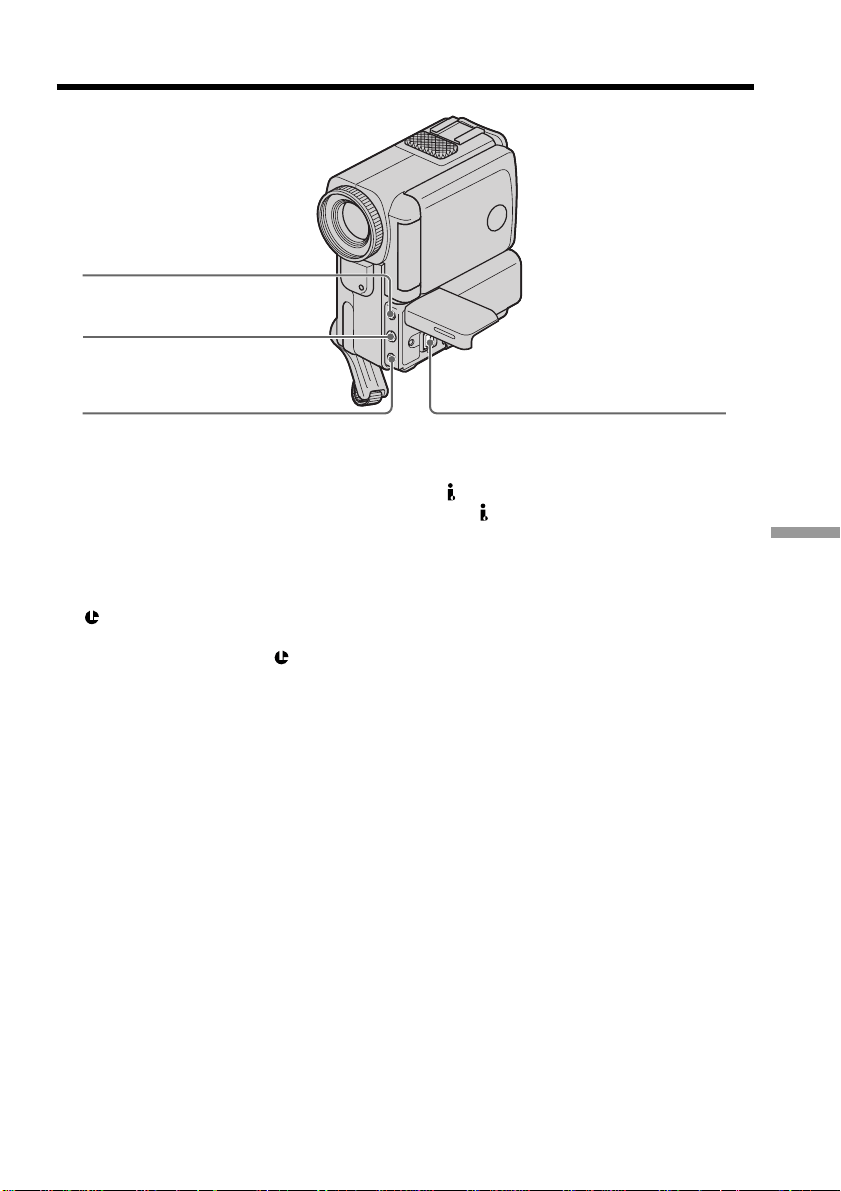
147
Quick Reference
Identifying the parts and controls
wa MIC jack (PLUG IN POWER) (p. 78)
Connect an external microphone
(not supplied). This jack also accepts
a “plug-in-power” microphone.
ws AUDIO/VIDEO jack (p. 31, 34, 58)
wd
(LANC)/DIGITAL I/O jack (p.116)
LANC stands for Local Application
Control Bus System. The
control jack
is used for controlling the tape transport
of video equipment and other
peripherals connected to the video
equipment. This jack has the same
function as the jack indicated as
CONTROL L or REMOTE.
wa
wd
ws
wf
wf DV IN/OUT jack (p. 59)
The
DV IN/OUT jack is i.LINK
compatible.
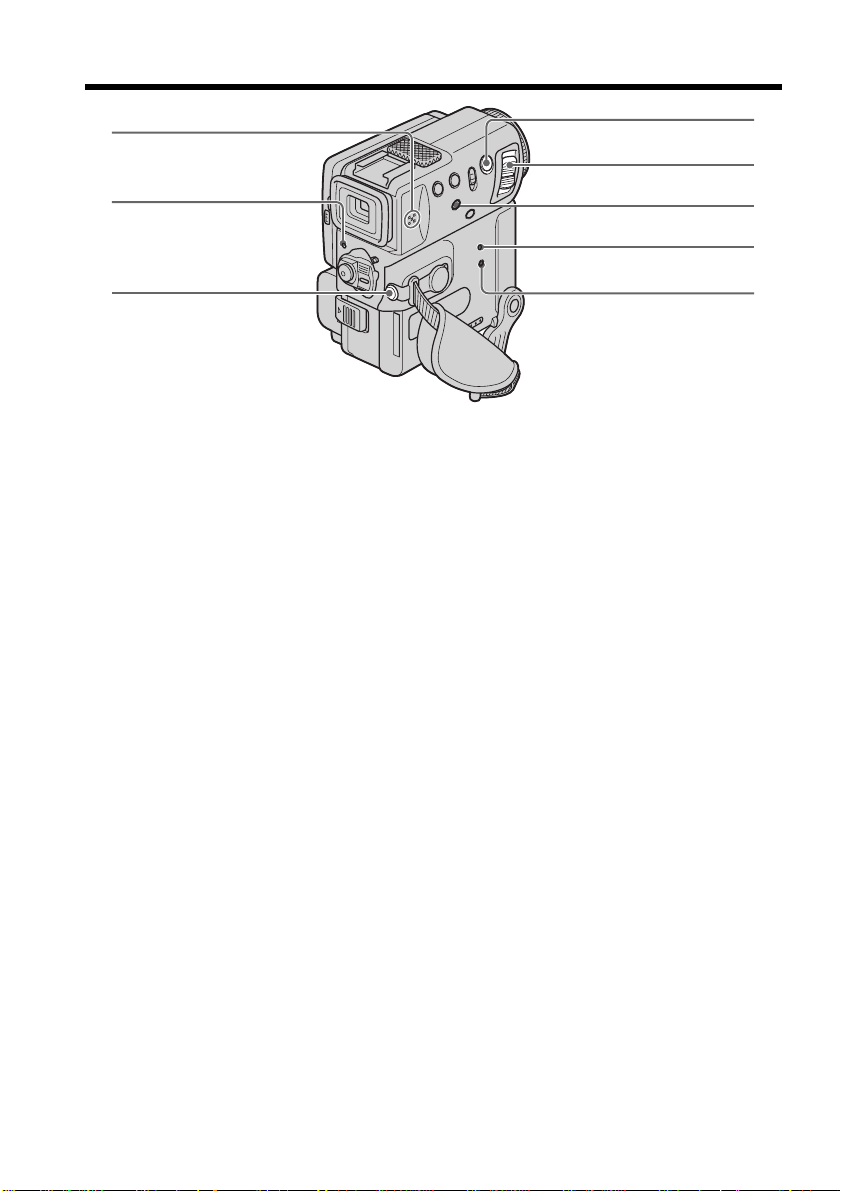
148
Identifying the parts and controls
wg Speaker
wh Power lamp (p. 7, 18)
wj i (headphones) jack
When you use headphones, the speaker
on your camcorder is silent.
wk PHOTO button (p. 32, 103)
wl Power zoom lever (p. 22)
e; DISPLAY/TOUCH PANEL button (p. 28)
ea RESET button (p. 134)
es Access lamp (p. 98)
wj
wh
wg
es
ea
wk
e;
wl
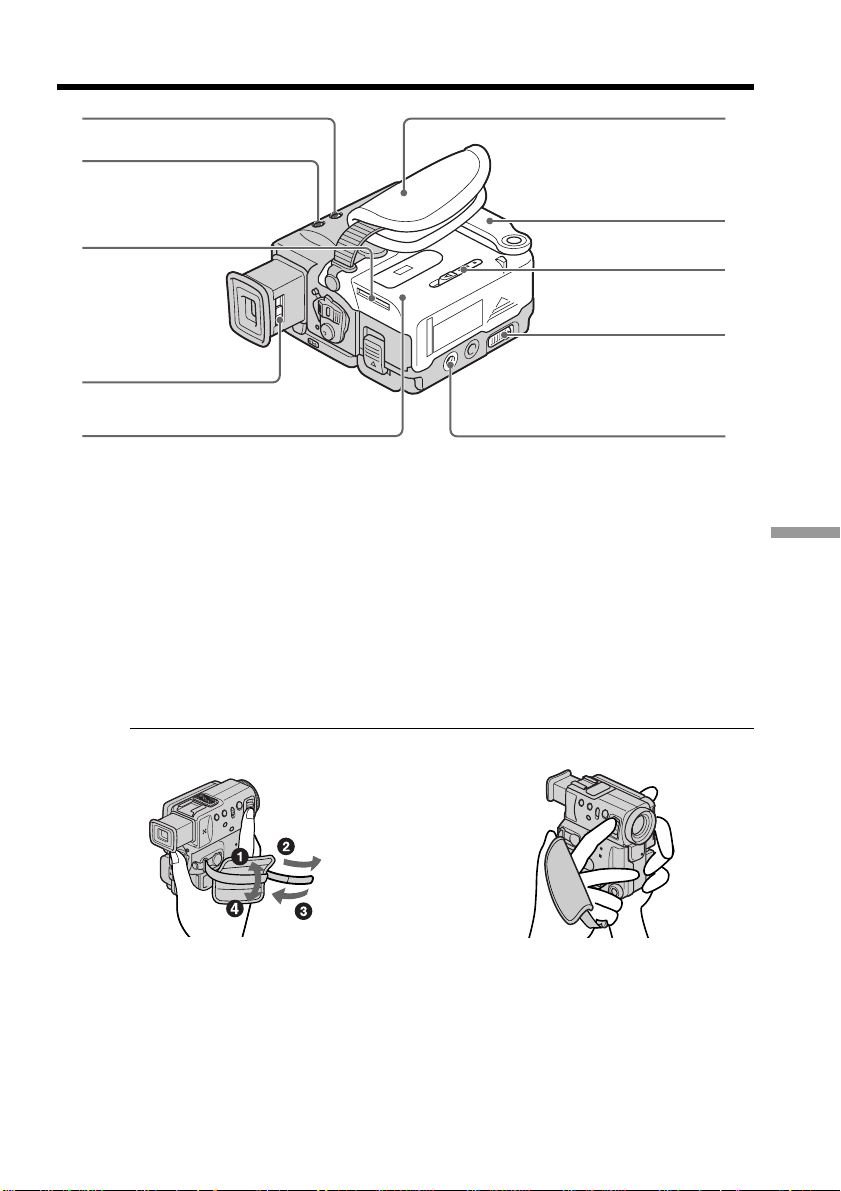
149
Quick Reference
Fastening the grip strap About the Holding Grip
Fasten the grip strap firmly. Hold the Holding Grip firmly as illustrated.
Identifying the parts and controls
ed FOCUS switch (p. 48)
ef BACK LIGHT button (p. 23)
eg “Memory Stick” slot (p. 98)
eh Viewfinder lens adjustment lever
(p. 19)
ej Cassette lid (p. 15)
ek Grip strap
ed
ef
eh
ej
ek
el
r;
ra
rs
eg
el Holding Grip
r; MEMORY RELEASE lever (p. 98)
ra OPEN/Z EJECT lever (p. 15)
rs Tripod receptacle
Make sure that the length of the tripod
screw is less than 9/32 inch (6.5 mm).
Otherwise, you cannot attach the tripod
securely and the screw may damage
your camcorder.
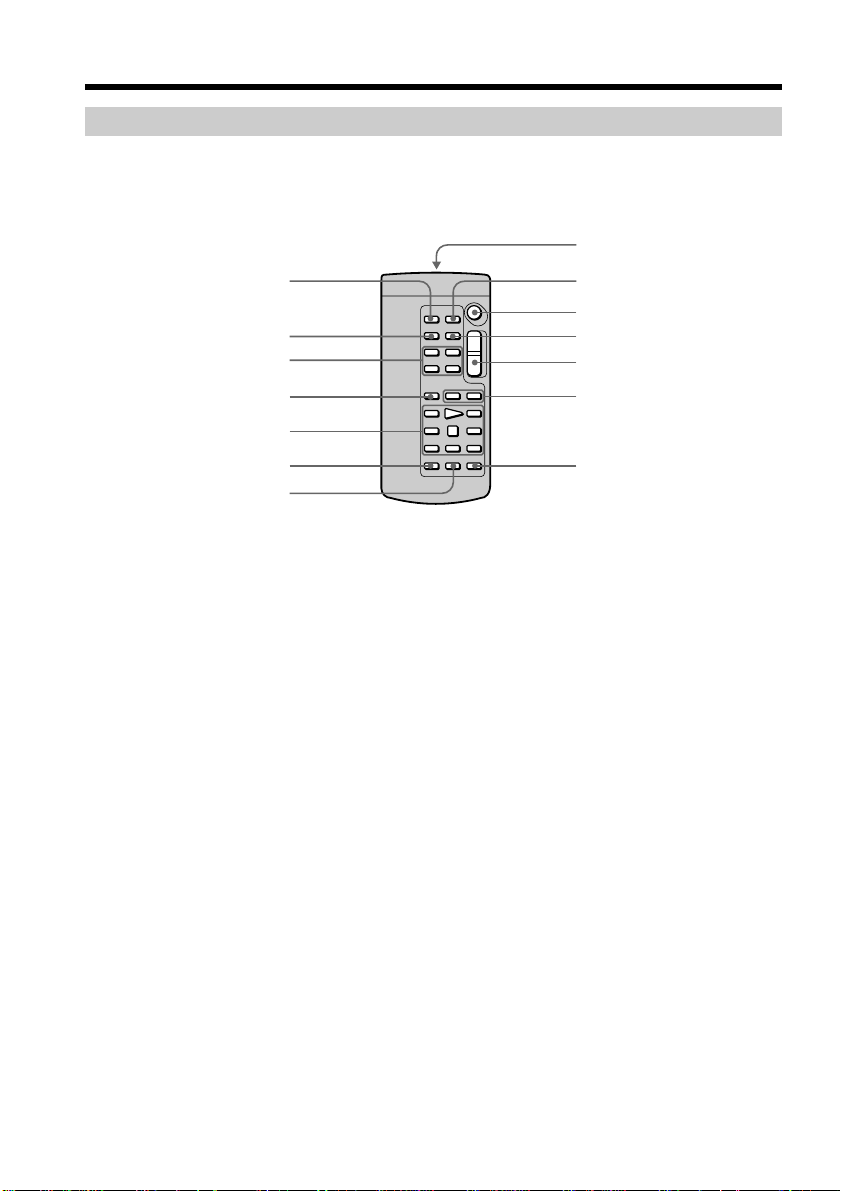
150
Remote Commander
The buttons that have the same name on the Remote Commander as on your camcorder
function identically to the buttons on your camcorder.
Identifying the parts and controls
1 PHOTO button (p. 32, 103)
2 DISPLAY button (p. 28)
3 Memory control buttons (p. 114)
4 SEARCH MODE button (p. 53, 54, 55, 56,
57)
5 Video control buttons (p. 27)
6 REC button (p. 18)
7 MARK button (p. 68)
8 Transmitter
Point toward the remote sensor to
control your camcorder after turning on
your camcorder.
9 ZERO SET MEMORY button (p. 52)
q; START/STOP button (p. 18)
qa DATA CODE button (p. 28)
qs Power zoom button (p. 22)
qd ./> buttons (p. 53, 54, 55, 56, 57)
qf AUDIO DUB button (p. 79)
RMT-811
7
qf
5
4
3
2
1
qs
qd
0
qa
9
8
6
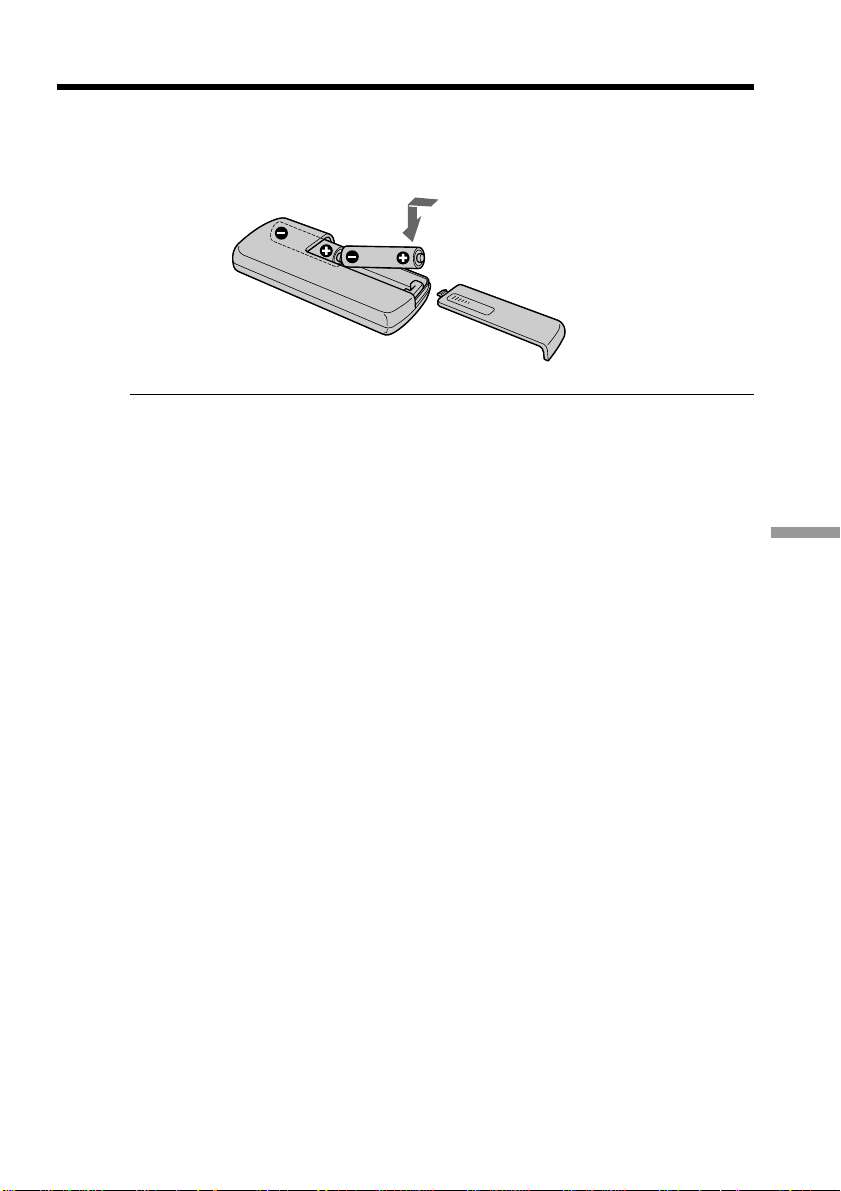
151
Quick Reference
To prepare the Remote Commander
Insert 2 size AA (R6) batteries by matching the + and – polarities on the batteries to
the + – marks inside the battery compartment.
Notes on the Remote Commander
•Point the remote sensor away from strong light sources such as direct sunlight or
overhead lighting. Otherwise, the Remote Commander may not function properly.
•Your camcorder works in the commander mode VCR 2. Commander modes 1, 2 and 3
are used to distinguish your camcorder from other Sony VCRs to avoid remote control
misoperation. If you use another Sony VCR in the Commander mode VCR 2, we
recommend changing the commander mode or covering the sensor of the VCR with
black paper.
Identifying the parts and controls
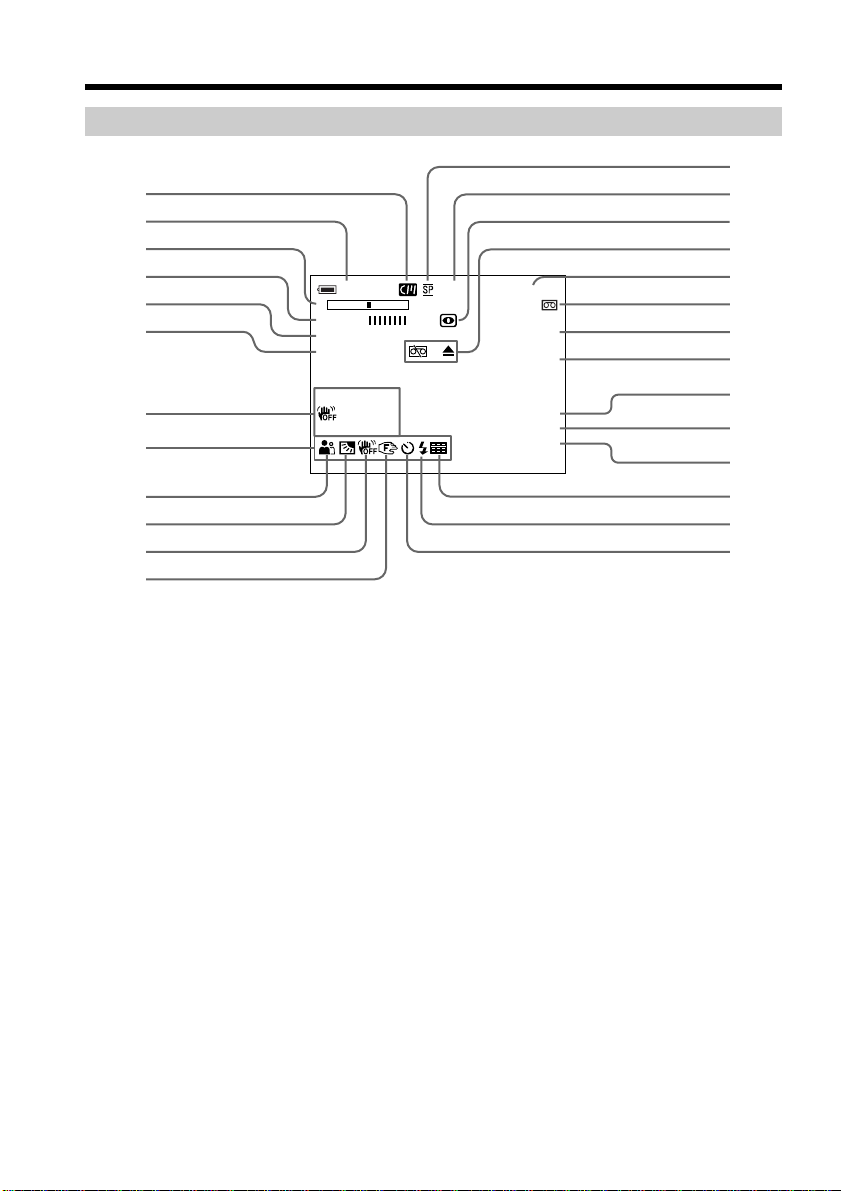
152
Operation indicators
Identifying the parts and controls
1 Cassette memory indicator (p. 125)
2 Remaining battery time indicator
(p. 23)
3 Zoom indicator (p. 22)/Exposure
indicator (p. 46, 47)/Data file name
indicator (p. 96)
4 Digital effect indicator (p. 42)/
MEMORY MIX indicator (p. 107)/
FADER indicator (p. 38)
5 16:9WIDE indicator (p. 36)
6 Picture effect indicator (p. 40)
7 Data code indicator (p. 28)
8 LCD bright indicator (p. 21)/Volume
indicator (p. 27)/Date indicator
9 PROGRAM AE indicator (p. 44)
0 Backlight indicator (p. 23)
qa SteadyShot off indicator (p. 90)
qs Manual focus/Infinity indicator (p. 48)
qd Recording mode indicator (p. 93)
qf STBY/REC indicator (p. 18)/Video
control mode indicator (p. 29)/Image
quality mode indicator (p. 101)
120min STBY 0:12:34
–+
12min
STI LL ZERO SET
16 : 9WI DE MEMORY
NEG. ART END
SEARCH
AUTO
6 0 AWB D V I N
F11 16BIT
100–0001
6
5
4
3
2
1
9
0
qa
qs
w;
ql
qk
qj
qh
qf
qg
qd
ws
wf
wg
wd
wa
7
8
wh
qg NIGHTSHOT indicator (p. 24)
qh Warning indicators (p. 136)
qj Tape counter indicator (p. 52)/Time code
indicator (p. 22)/Self-diagnosis indicator
(p. 135)/Photo mode indicator (p. 32, 103)/
Image number indicator (p. 115)
qk Remaining tape indicator (p. 23)/
Memory playback indicator (p. 115)
ql ZERO SET MEMORY indicator (p. 52)
w; END SEARCH indicator (p. 26)
wa DV IN indicator (p. 75)
ws Audio mode indicator (p. 93)/
A/V t DV indicator (p. 71)
wd Data file name indicator (p. 108)
This indicator appears when the
MEMORY MIX functions work. /
Time indicator
wf Multi screen mode indicator (p. 104)
wg Video flash ready indicator
This indicator appears when you use the
video flash light (not supplied).
wh Self-timer indicator (p. 25, 106)

153
Quick Reference
Quick Function Guide
Functions to adjust exposure (in the recording mode)
•In a dark place
•In insufficient light
•In dark environments such as sunset,
fireworks, or general night views
•Shooting backlit subjects
•In spotlight, such as at the theater or a formal
event
•In strong light or reflected light, such as at a
beach in midsummer or on a ski slope
Functions to give images more impact (in the recording mode)
•Smooth transition between scenes
•Taking a still picture
•Digital processing of images
•Creating a soft background for subjects
•Superimposing a title
Functions to give a natural appearance to your recordings
(in the recording mode)
•Preventing deterioration of picture quality in
digital zoom
•Focusing manually
•Adjust the exposure for the point you are
shooting
•Shooting distant subjects
•Recording fast-moving subjects
Functions to use in editing (in the recording mode)
•Watching the picture on a wide-screen TV
•Viewing images using a personal computer
Functions to use after recording (in the playback mode)
•Digital processing of recorded images
•Displaying the date/time or various settings
when you recorded
•Quickly locating a desired scene
•Searching for scenes having a title
•Searching for scenes recorded in the photo
mode
•Scanning scenes recorded in the photo mode
•Playing back on monaural sound or sub
sound
•Enlarging still images
NIGHTSHOT (p. 24)
Low lux mode (p. 44)
Sunset & moon mode (p. 44)
BACK LIGHT (p. 23)
Spotlight mode (p. 44)
Beach & ski mode (p. 44)
FADER (p. 37)
Tape photo recording (p. 32)/
Memory photo recording (p. 103)
PICTURE EFFECT (p. 40)/
DIGITAL EFFECT (p. 41)
Soft portrait mode (p. 44)
TITLE (p. 81)
D ZOOM [MENU] (p. 90)
Manual focus (p. 48)
Flexible Spot Meter (p. 47)
Landscape mode (p. 44)
Sports lesson mode (p. 44)
Wide mode (p. 36)
“Memory Stick” (p. 96)
PICTURE EFFECT (p. 49)/
DIGITAL EFFECT (p. 50)
Data code (p. 28)
Zero set memory (p. 52)
Title search (p. 53)
Photo search (p. 56)
Photo scan (p. 57)
HiFi SOUND [MENU] (p. 91)
PB ZOOM (p. 51)/Memory PB
ZOOM (p. 117)

154
Index
A, B
AC adaptor .............................. 10
Adjusting viewfinder ............. 19
Audio dubbing........................ 78
AUDIO MIX ............................ 91
Audio mode............................. 93
AUTO SHTR............................ 90
A/V connecting cable ...... 31, 58
BACK LIGHT .......................... 23
Battery pack ............................. 10
Beep .......................................... 94
BOUNCE.................................. 37
C, D
Camera chromakey .............. 107
Carl Zeiss lens ....................... 146
Cassette memory .............. 8, 125
Charging battery ..................... 10
Charging manganese-lithium
battery ................................. 140
Clock set ................................... 95
Connection
(viewing on TV) ................... 31
(dubbing a tape) .................. 58
Continuous ............................ 104
Data code ................................. 28
Date search .............................. 54
DEMO....................................... 94
DIGITAL EFFECT ............ 41, 50
DIGITAL I/O ........................ 116
Digital program editing ......... 60
DISPLAY .................................. 28
DOT .......................................... 37
Dual sound track tape .......... 126
Dubbing a tape........................ 58
DV connecting cable............... 59
E
END SEARCH................... 26, 30
Exposure .................................. 46
External microphone
(not supplied) ..................... 147
F, G, H
Fade in/out.............................. 37
FLASH MOTION.................... 41
Flexible Spot Meter................. 47
FOCUS...................................... 48
Format ...................................... 92
Full charge ............................... 10
Grip strap ............................... 149
Heads...................................... 139
Headphone jack .................... 148
HiFi SOUND ........................... 91
Holding Grip ................... 18, 149
I, J, K, L
i.LINK ..................................... 127
Image protection ................... 119
Image quality mode ............. 101
INDEX (Multiple) display ... 115
“InfoLITHIUM” battery ........ 12
Infrared rays emitter .............. 24
JPEG .......................................... 96
Labeling a cassette .................. 87
(LANC)............................... 147
LCD screen .............................. 20
LUMINANCEKEY ................. 41
M, N
Main sound............................ 126
Manual focus ........................... 48
Memory chromakey ............. 107
Memory luminancekey ........ 107
Memory mix .......................... 107
Memory overlap ................... 107
Memory PB zoom ................. 117
“Memory Stick” ...................... 96
Menu settings .......................... 89
Mirror mode ............................ 20
Moisture condensation ........ 139
MONOTONE .......................... 37
Mosaic fader ............................ 37
NIGHTSHOT .......................... 24
Normal charge ........................ 10
NORM. FADER ...................... 37
NTSC system ......................... 138
O, P, Q
OLD MOVIE............................ 41
Operation indicators ............ 152
OVERLAP ................................ 37
PB ZOOM ........................ 51, 117
Photo scan ................................ 57
Photo search ............................ 56
PICTURE EFFECT ............ 40, 49
Picture search .......................... 30
Playback pause........................ 29
Power sources
(house current) ..................... 14
(car battery) .......................... 14
(battery pack) ....................... 12
Power zoom............................. 22
Print mark .............................. 123
PROGRAM AE....................... 44
R
Recording time ........................ 11
Remaining battery time
indicator ................................ 23
Remaining tape indicator ...... 23
Remote commander ............. 150
Remote control jack (LANC)
.............................................. 147
Remote sensor ....................... 146
RESET ..................................... 148
S
S VIDEO jack ..................... 34, 58
Self-diagnosis display .......... 135
Self-timer recording ....... 25, 106
Skip scan .................................. 30
Slide show.............................. 118
Slow playback ......................... 30
SLOW SHUTTER .................... 41
STEADYSHOT ........................ 90
Stereo tape ............................. 126
STILL ........................................ 41
Sub sound .............................. 126
SUPER NIGHTSHOT ............. 24
T, U, V
Tape counter ............................ 52
Tape Photo recording............. 32
Telephoto ................................. 22
Time code................................. 23
Title ..................................... 81, 85
Title search ............................... 53
Touch panel ....................... 16, 99
TRAIL ....................................... 41
Transition ................................. 19
TV color systems ................... 138
W, X, Y, Z
Warning indicators ............... 136
White balance .......................... 35
Wide-angle .............................. 22
Wide mode .............................. 36
WIPE ......................................... 37
WORLD TIME......................... 94
Write-protect tab ..................... 15
Zero set memory ..................... 52
Zoom ........................................ 22


Sony Corporation Printed in Japan