1
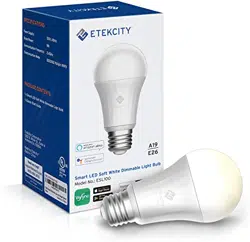
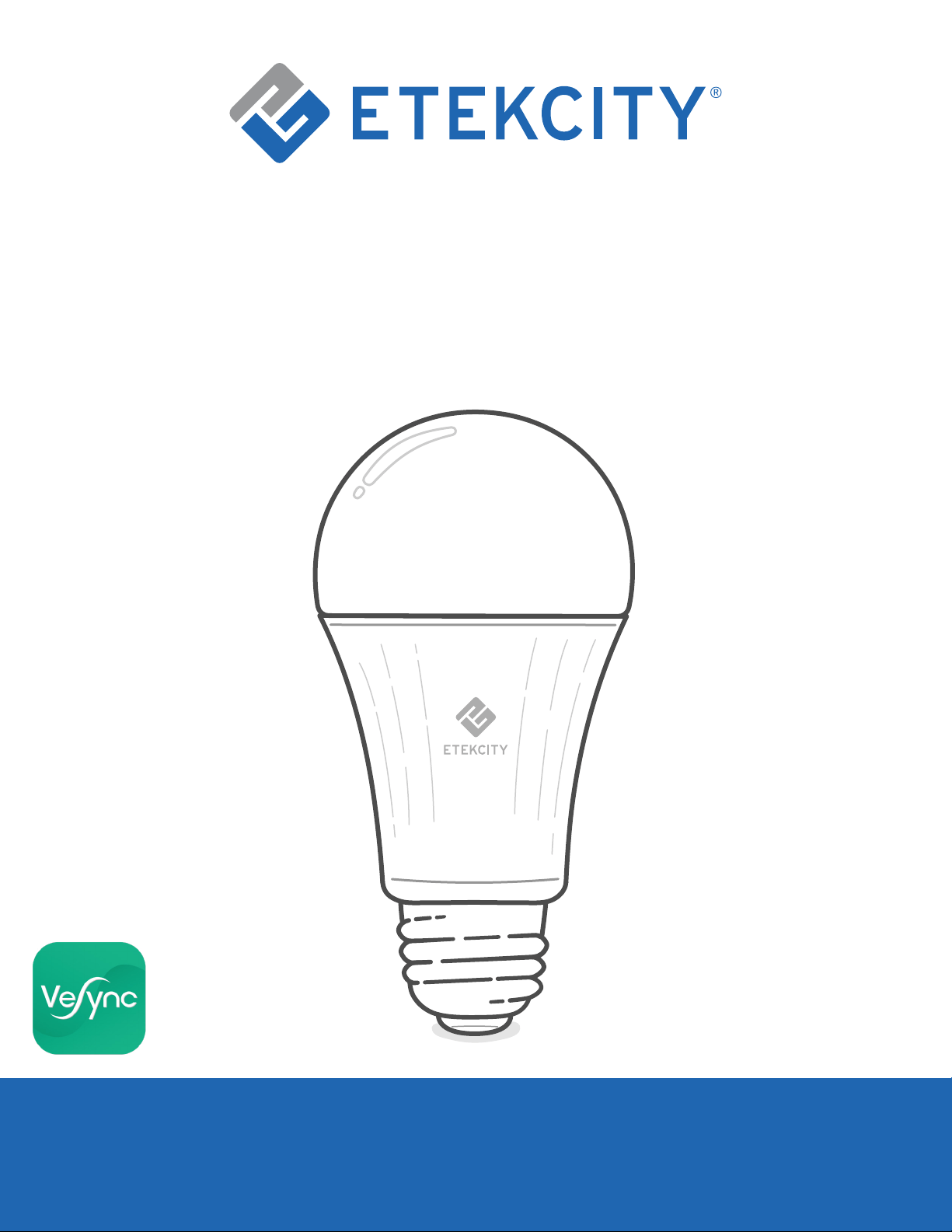
Smart LED Soft White Dimmable
Light Bulb
Model No.: ESL100
Questions or Concerns?
Mon–Fri, 9:00 am–5:00 pm PST/PDT
support@etekcity.com • (855) 686-3835
SOFT WHITE

2
Your smart bulb has a dimming range from 1% to
100%. Set the right brightness for any mood or
activity. Use the free VeSync app to control your smart
bulb from anywhere with your smartphone (iOS
™
or
Android
™
). You can adjust brightness, set schedules
and timers, and even use the smart bulb to wake you
up naturally by simulating the sunrise.
If you have any questions or concerns, please
reach out to our helpful Customer Support Team at
support@etekcity.com. We hope you enjoy your new
smart bulb!
Exclusive deals, giveaways, and product registration.
Better products for better living.
Find us here: etekcity.com
Thank you for purchasing the Smart
LED Soft White Dimmable Light Bulb
by Etekcity.
Become an Etekcitizen

3
Table of Contents
Package Contents
1 x Smart LED Soft White Dimmable Light Bulb
1 x Quick Start Guide
Package Contents 3 37
29
42
Functions
VeSync App Setup 7
21
19
41
• Away Mode
Safety Information 5
38
39
40
17
35
49
• Schedules
• Favorite Brightness Settings
Maintaining Your Smart Bulb
Troubleshooting
Warranty Information
Customer Support
• Share Your Smart Bulb
Specifications 4 37
34
47
• Dimming the Smart Bulb
Configuration 9
26
41
• Smart Bulb Settings
Product Requirements 6
18
41
36
• Timer
• Delete the Smart Bulb
More Features
• Connecting with Amazon Alexa
• Connecting with Google
Assistant
• Log Out
• Contact Customer Support
• Firmware Updates
• Resetting
• Turning the Smart Bulb
On/Off
17
Smart Bulb Modes 6

4
Specifications
Communication Mode IEEE802.11b/g/n (WiFi)
Communication Frequency 2.4GHz
Wireless Distance
(Bulb to Router)
98–164 ft / 30–50 m
(max visible range)
Power Consumption 9W
Power Supply 100–130V, 50–60Hz
Standby Power 0.5–0.8W
Power Factor > 0.6
Working Life 15,000 hr
Luminous Flux 806 lm
Color Temperature 2700 K
Ra Value 80 (at max brightness)
Light Exit Angle 200°–220°
Dimming High-frequency PWM, constant current
Operating Environment 14°F–104°F / -10°C–40°C
Storage & Transportation
Environment
-4°F–158°F / -20°C–70°C
Compatible Systems
iOS
™
8.0 or higher /
Android
™
4.3 or higher
Dimensions 2.36 x 4.65 in / 60 x 118 mm

5
To reduce the risk of injury and/or damage to this smart bulb,
please read and follow all instructions and safety guidelines in
this manual.
• WARNING: RISK OF ELECTRIC SHOCK OR BURNS. Switch
OFF the light switch controlling the smart bulb and WAIT for
the smart bulb to cool down before touching.
• Keep out of reach of children.
• Only use indoors in dry areas. Keep away from water or other
liquids.
• Do not install the smart bulb with wet hands or when standing
on wet or damp surfaces.
• Only dim the smart bulb using the app. Do not use the smart
bulb with dimmer switches, knobs, or other controls.
• Not for emergency lighting.
• Household use only.
Safety Information
Back to Table of Contents
SAVE THESE INSTRUCTIONS
6
• A smartphone running on iOS 8.0/Android 4.3 or higher
that can connect to the internet.
• A secure 2.4GHz WiFi connection (supports 802.11b/g/n
standard).
• AC input voltage that is between 100–130V.
Product Details
Requirements
Smart Bulb Modes
Mode Action
Configuration Mode
(see page 9)
Turn the smart bulb off and on 3 times.
Note:
• If the smart bulb is not set up in the
VeSync app, it will be in Configuration
Mode automatically.
• Configuration Mode will turn off after
the smart bulb is on for 10 minutes.
Reset the smart bulb
(see page 41)
Turn the smart bulb off and on 5 times.
Note: Be careful not to turn the bulb off/on too slowly or too
quickly. Wait for the bulb to light up each time you turn it on.
No more than 3 seconds should pass between each time you
turn the bulb on or off.

7
VeSync App Setup
1. To download the VeSync app, scan the QR code, or search
“VeSync” in the Apple App Store
®
or Google Play
™
Store.
Note: For Android users, you must select Allow to use
VeSync.
Note: Due to continuing updates and improvements, the VeSync
app may appear slightly different. In case of any differences,
follow the in-app instructions.
Back to Table of Contents

8
2. Open the VeSync app. If you already have an account, tap
Log In. To create a new account, tap Sign Up.
Note: You must create your own VeSync account to use
third-party products and services, such as Amazon
®
Alexa
™
and Google Assistant
™
. These will not work with the guest
account. With a VeSync account, you can also allow your
family or friends to control your smart bulb.
Back to Table of Contents
9
Configuration
1. Connect your smartphone to a secure 2.4GHz WiFi
network.
Note: The smart bulb can only be set up on a secure
2.4GHz network.
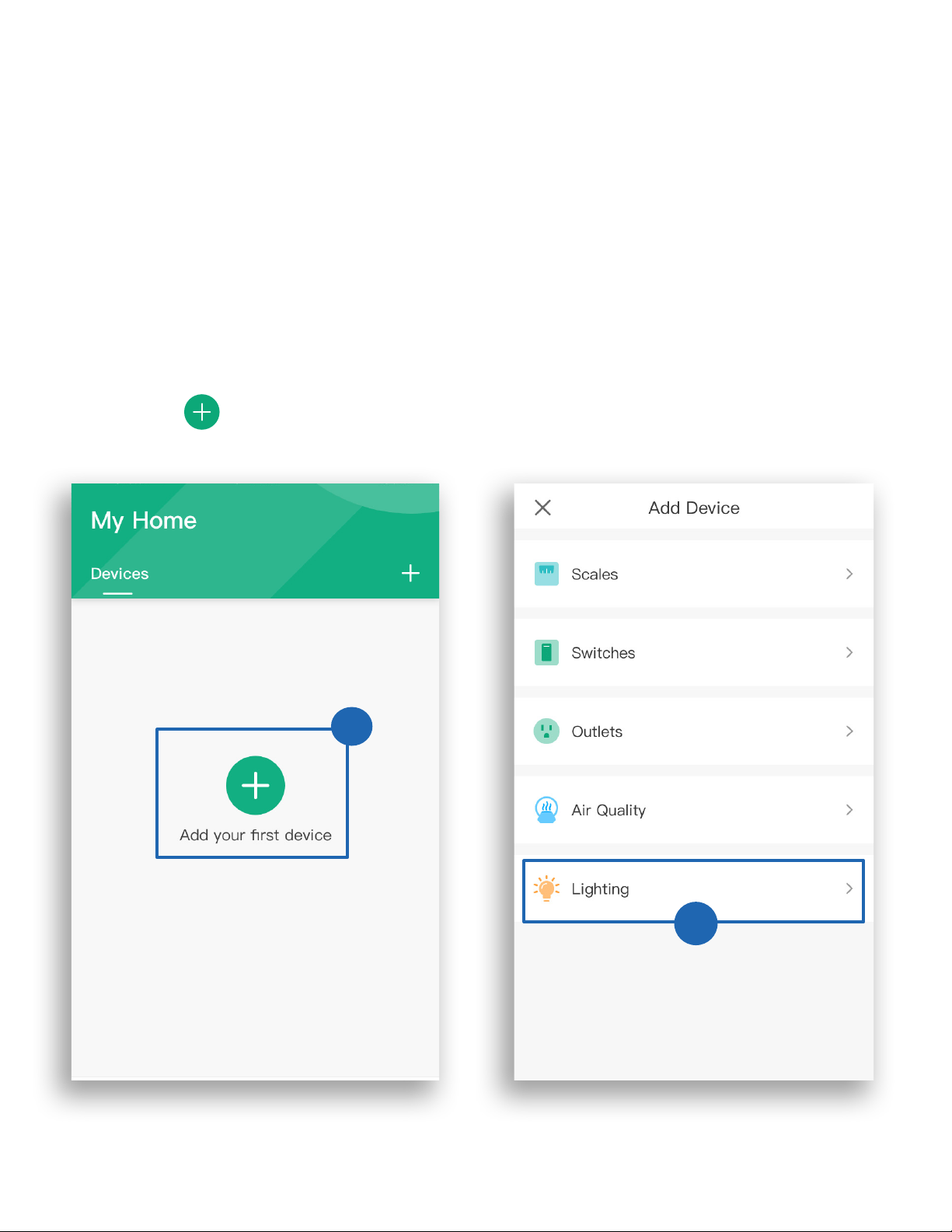
2. Tap to add your smart bulb, then tap Lighting.
2
Set up your smart bulb with the VeSync app.
2
10
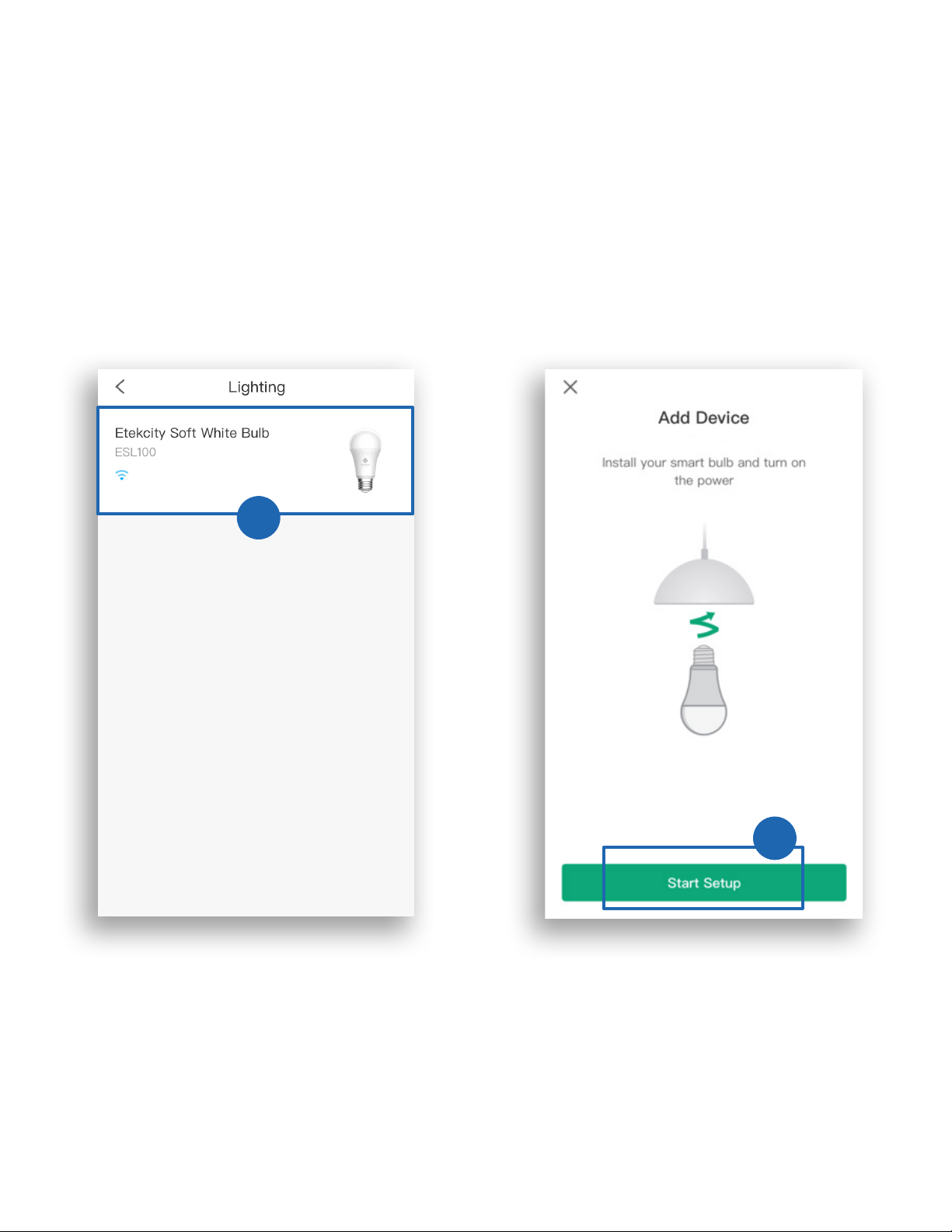
3. Tap Etekcity Soft White Bulb, then tap Start Setup.
3
3

11
4. Install your smart bulb and turn on the light switch.
The smart bulb should blink 5 times (1 blink per
second), indicating that it is in Configuration Mode.
a. If the smart bulb blinks, tap Next.
b. If the smart bulb does not blink, tap My
smart bulb is not blinking. Follow the in-app
instructions and turn the smart bulb on and off
quickly 3 times. When the smart bulb is blinking,
tap It Started Blinking.
Note:
• Be careful not to turn the bulb off/on too slowly or too
quickly. Wait for the bulb to light up each time you turn it on.
No more than 3 seconds should pass between each time you
turn the bulb on or off.
• Configuration Mode will turn off after 10 minutes.

12
b
a
b
13
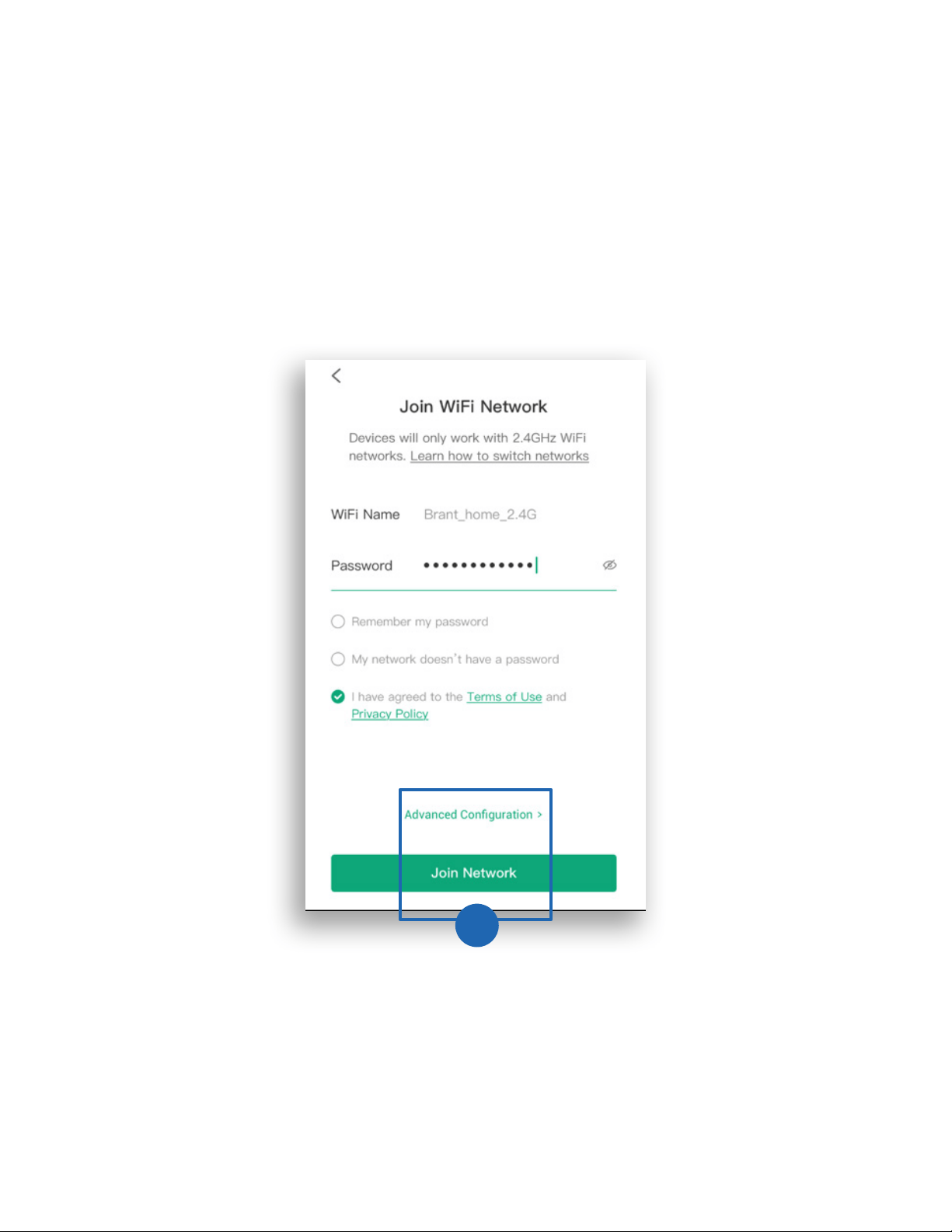
5. Enter the information for your home WiFi network.
Optionally, tap Advanced Configuration to see
advanced security options. Tap Join Network.
5
14
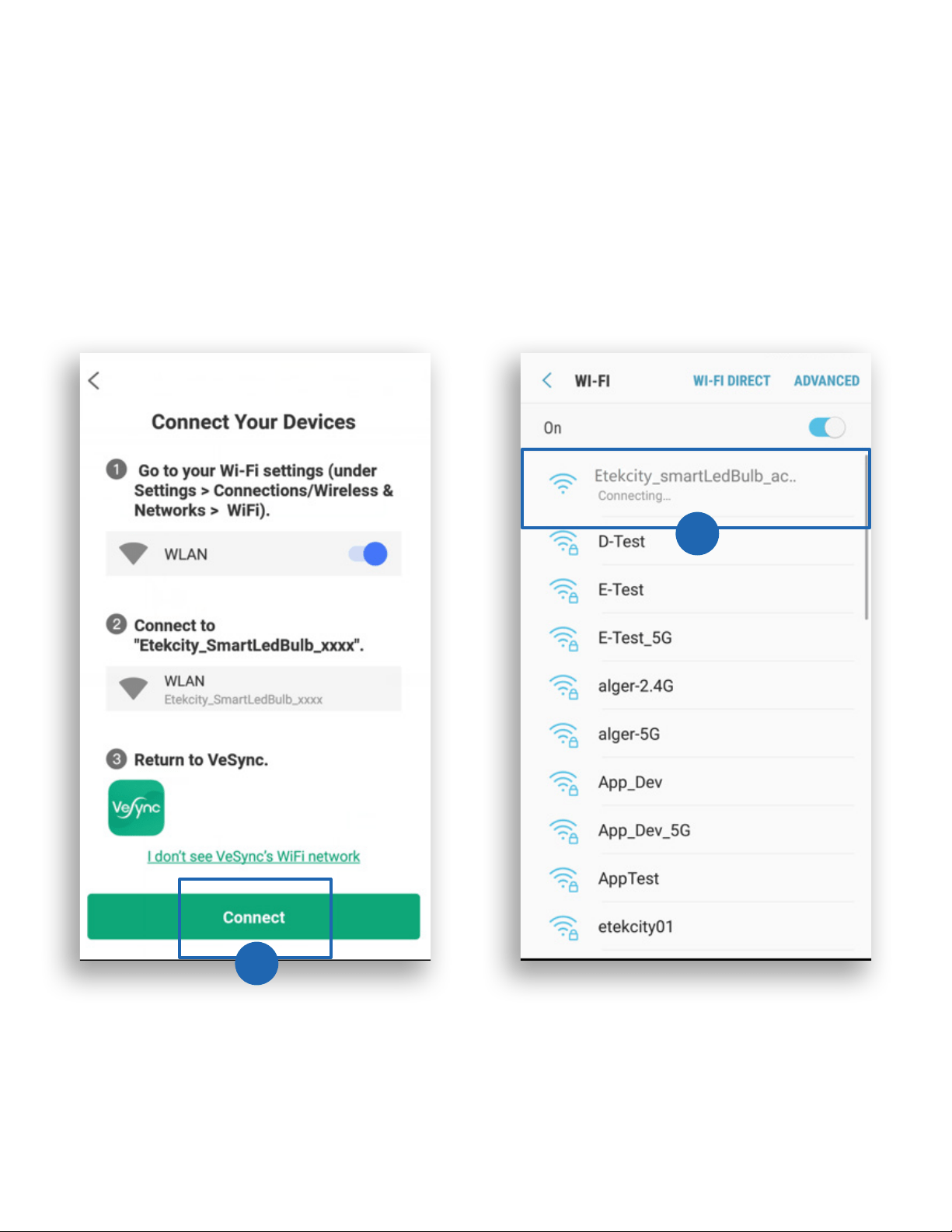
6. Tap Connect and select the WiFi network that starts
with “Etekcity”.
6
6
Note: Your phone will not be able to access the internet when
connected to the “Etekcity” WiFi network. This is normal and
temporary.
15
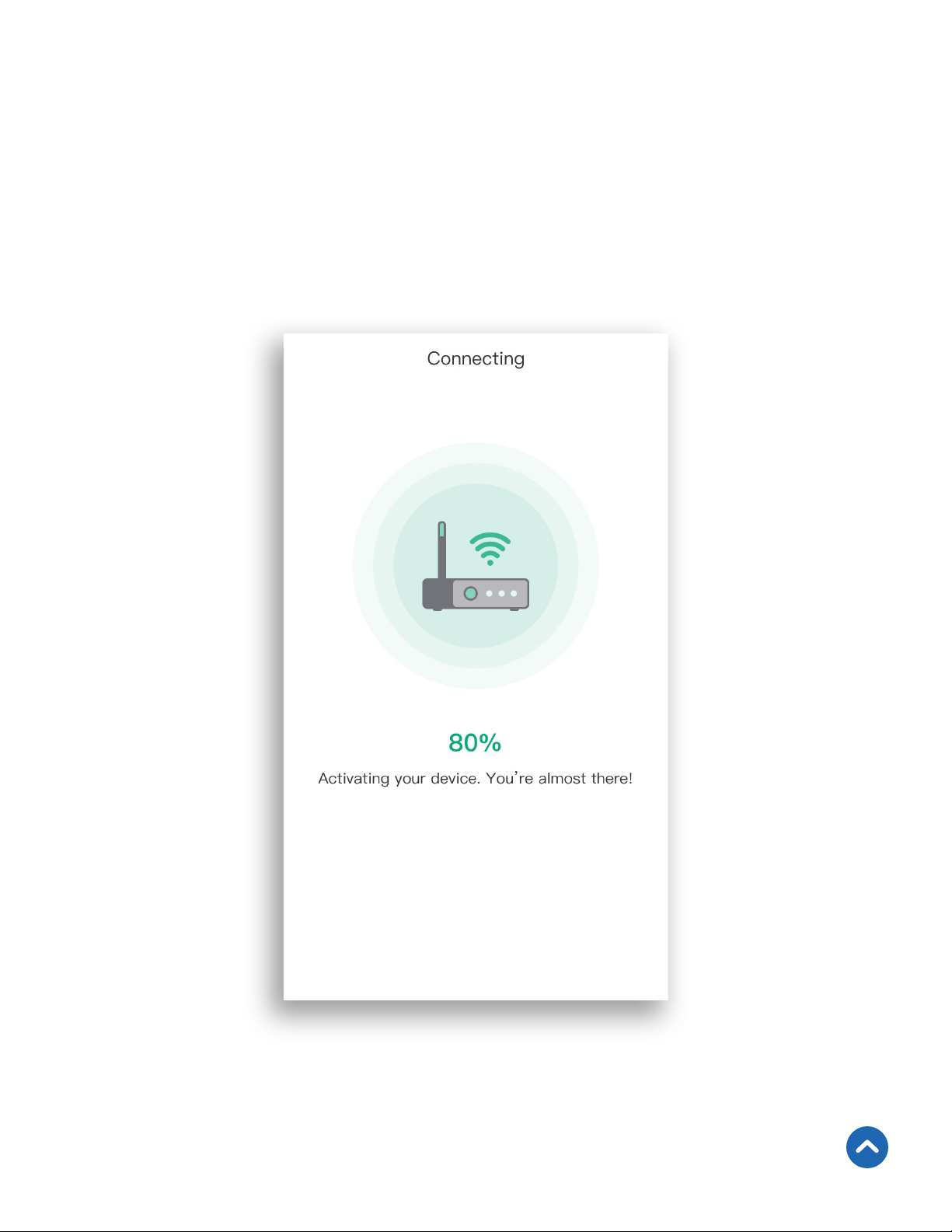
7. Wait for the app to connect.
Note: The smart bulb may dim or brighten while
connecting. This is normal.
Back to Table of Contents
16
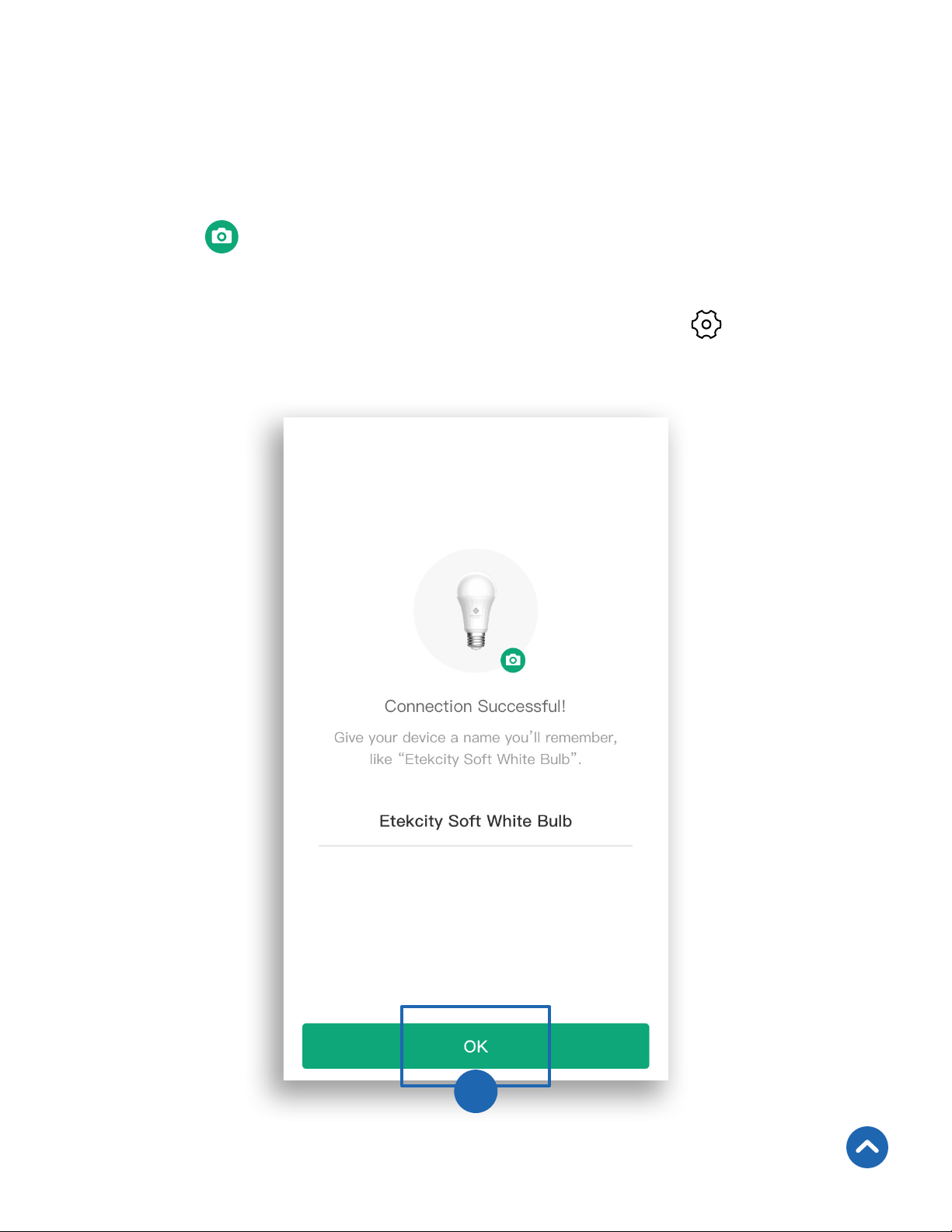
8. Give your smart bulb a unique name, or use the default
name, and tap OK.
Note:
• Tap to change the smart bulb icon.
• You can change the device name and icon at any time by
going to the smart bulb screen and tapping .
Back to Table of Contents
8

17
Functions
Turning the Smart Bulb On/Off
Bulb is off
Bulb is on
Note:
• The smart bulb will remain connected to WiFi even when it is
turned off in the app, as long as the lamp or other light fixture
still has power.
• If you turn off the power to the lamp or light fixture (for
instance, by turning off the light switch), then the smart bulb
will go offline in the VeSync app and cannot be controlled. To
bring the smart bulb back online, turn the power back on and
refresh the VeSync menu by swiping down on the screen.
On the My Home screen or the smart bulb screen, tap
to turn the smart bulb on or off.
Back to Table of Contents

18
Dimming the Smart Bulb
On the smart bulb screen, use the slider to dim or brighten
the bulb from 1% to 100%.
Back to Table of Contents

19
On the smart bulb screen, tap Favorites and follow the
in-app instructions to save a specific brightness
percentage as a Favorite.
Favorite Brightness Settings

20
When you have saved one or more Favorites, you can tap
Favorites to view a list of all Favorites. Tap Apply to use
that Favorite setting. To remove a Favorite, swipe left and
tap . Tap to collapse the list.
Note:
• You can save up to 30 Favorites.
• You must use a Favorite if you want to set the brightness with a
schedule or Away Mode.

21
Create a schedule to set a scheduled time for the smart
bulb to turn on/off.
Note: Before creating a schedule, decide whether you want to
choose a brightness setting for your schedule. If so, first create a
Favorite with the desired brightness setting (see page 19).
1. On the smart bulb screen, tap Schedule, then tap
Create Schedule.
1
1
Schedules

22
2
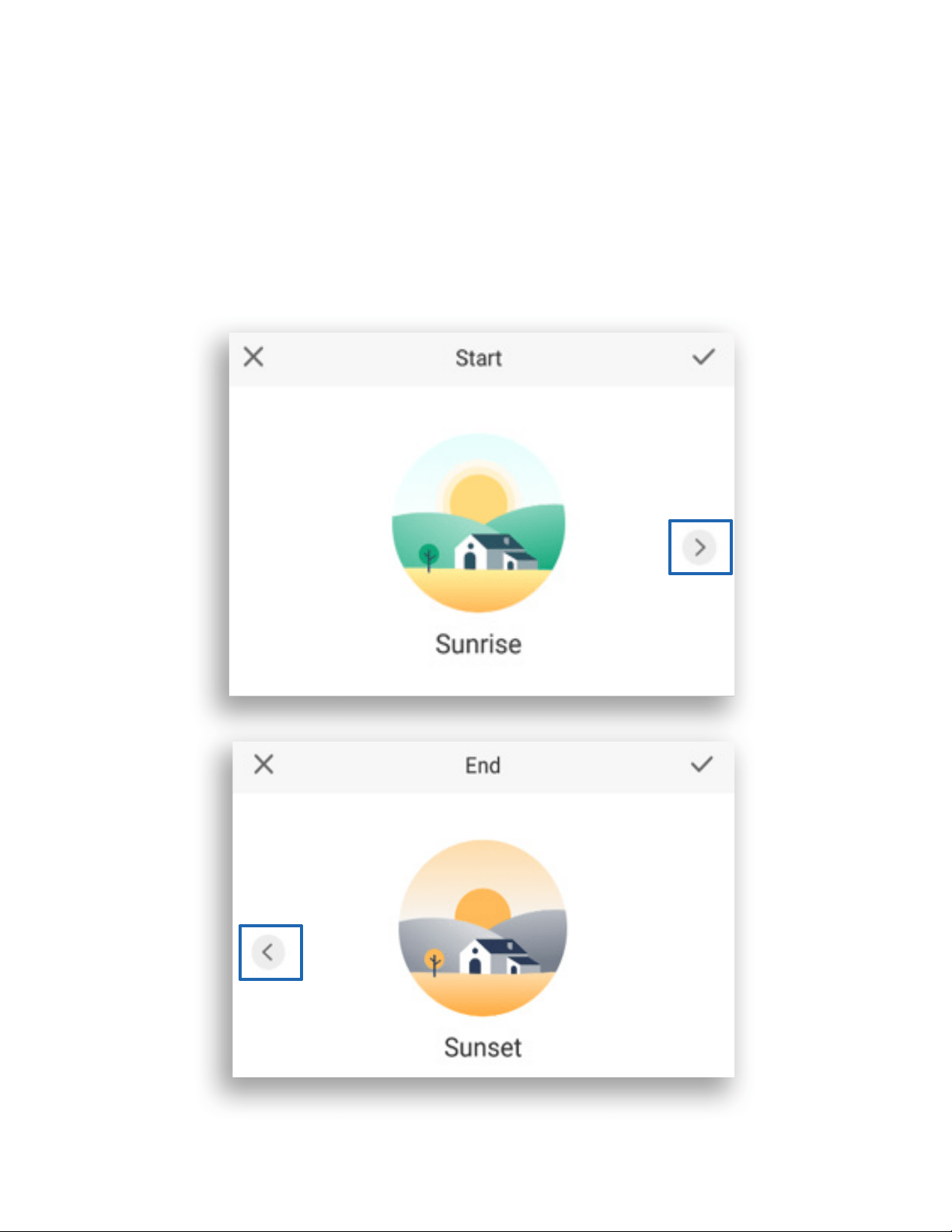
2. Tap Start and End to set the start and end times.
Tap
to confirm the times.
Note: The light bulb will turn off when the End time is
reached.
2
23
Note: When selecting a time, tap < for “Sunrise” and > for
“Sunset”. Allow the VeSync app to access your location to
determine when sunrise and sunset are for your area.

24
3. To repeat the schedule, tap Weekly, then tap the
desired days.
4. Optionally, to set a specific brightness level for the
schedule, tap the desired Favorite.
3
5
Note: If no Favorite is selected, the brightness level will
be set to 100%.
5. Tap to save the schedule.
4
Back to Table of Contents

25
Tap Schedule to view a list of all schedules. To remove a
schedule, swipe left and tap . Tap to collapse the list of
schedules.
Back to Table of Contents

26
Timer
You can create a timer to turn your smart bulb on and off.
1. On the smart bulb screen, tap Timer, then tap
Create Timer.
1
1

27
2. Scroll up and down to set the time and tap On or
Off.
3. Tap to confirm and start the timer. When the
timer finishes, the smart bulb will turn on or off
based on your selection.
3
2
28
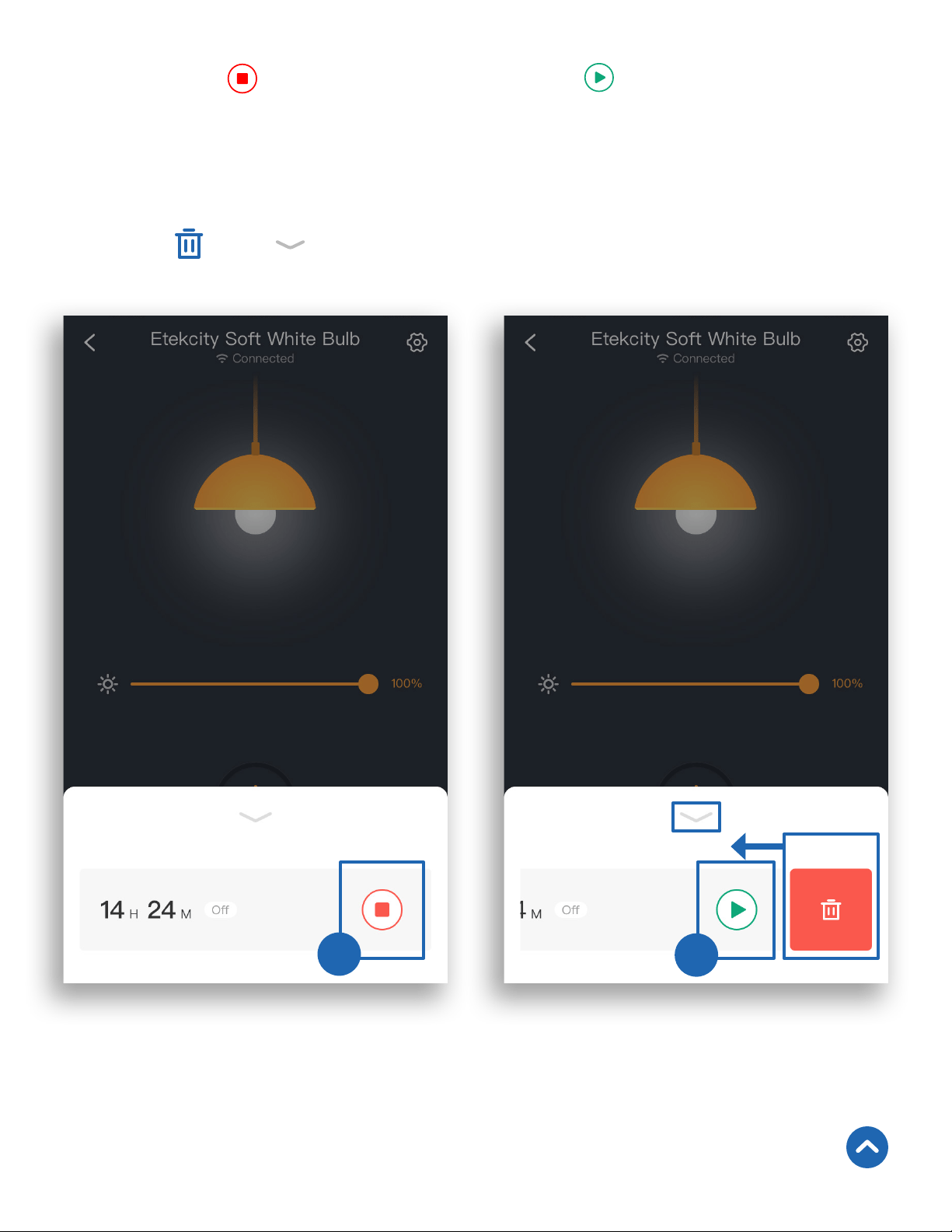
4. Tap to stop the timer. Tap to restart the
timer.
Tap Timer to view the timer. To remove the timer, swipe left
and tap
. Tap to collapse the timer.
4
4
Back to Table of Contents

29
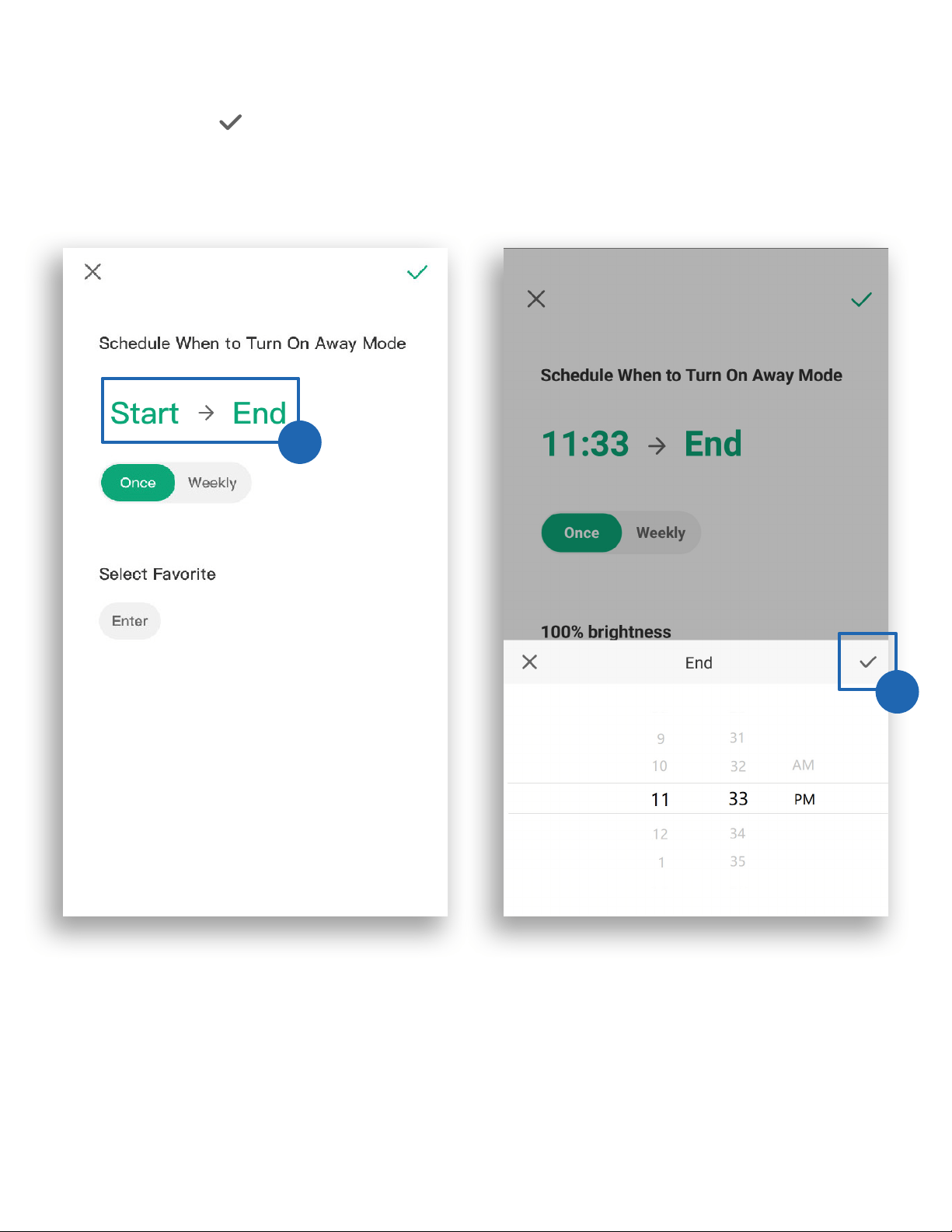
Away Mode
Use Away Mode to have your smart bulb turn on and off
periodically to give the appearance that someone is home
while you’re away.
1. On the smart bulb screen, tap Away, then tap Set
Away Mode.
Note: Before setting the Away Mode, decide whether you want to
choose a specific brightness setting. If so, first create a Favorite
with the desired brightness setting (see page 19).
1
1
30
2. Tap Start and End to set the start and end times.
Tap to confirm the times.
2
2

31
3
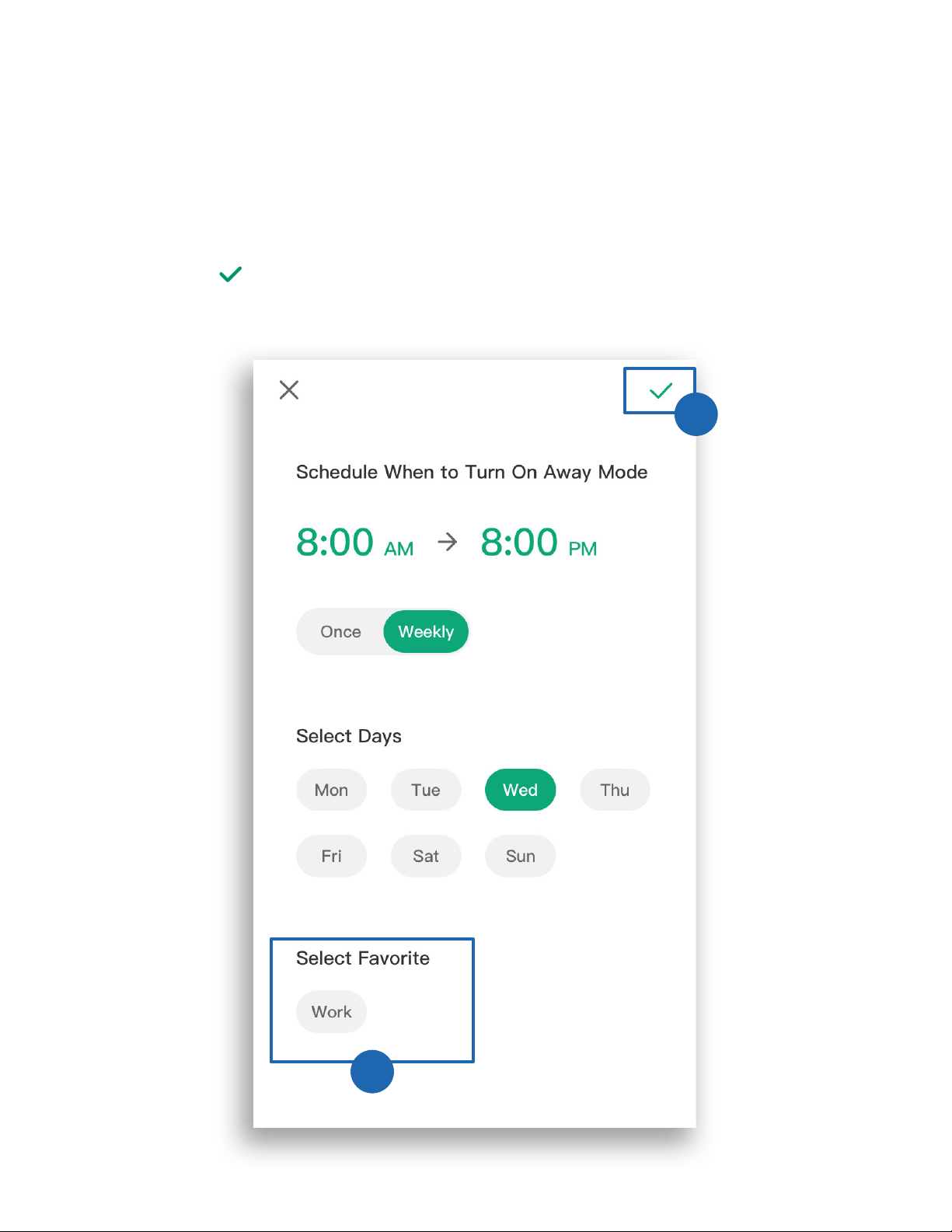
3. To repeat the Away Mode, tap Weekly and tap to
select desired days.
3
32
4. Optionally, to set a specific brightness level for the
Away Mode, tap the desired Favorite.
Note: If no Favorite is selected, the brightness level will
be set to 100%.
5. Tap to save the Away Mode.
5
4

33
Tap Away Mode to view the Away Mode. Tap on the Away
Mode to change it. To remove the Away Mode, swipe left and
tap . Tap to collapse the Away Mode.
Back to Table of Contents

34
Smart Bulb Settings
Tap to see Device Settings.
Back to Table of Contents

35
Share Your Smart Bulb
Use Share Device to allow someone else to control your
smart bulb (such as family, friends, roommates, or anyone
you choose).
Note: People who you share your smart bulb with cannot edit or
delete any of your device settings.
1. Tap + on the Share Device screen.
2. Type in the email of the person you want to share your
smart bulb with. Tap Invite.
3. Tap
to remove people you have shared your smart bulb
with. They will no longer be able to control your smart
bulb.
1
3
2

36
Delete the Smart Bulb
You can delete your smart bulb from the VeSync app from
the Device Settings screen. Tap Delete Device.
You can also delete your smart bulb from the My Home
screen in the VeSync app.
iOS
™
: Swipe left on the smart bulb’s name to delete.
Android
™
: Press and hold for 2 seconds on the smart bulb’s
name to delete.

37
More Features
Connecting with Amazon
®
Alexa
™
To view instructions on the VeSync app, tap More at the
bottom of the screen, then tap Link to Alexa.
Note: You must create your own VeSync account to connect with
Alexa.

38
Connecting with Google Assistant
™
To view instructions on the VeSync app, tap More at the
bottom of the screen, then tap Link to Google Assistant.
Note: You must create your own VeSync account to connect with
Google Assistant.
Back to Table of Contents
39
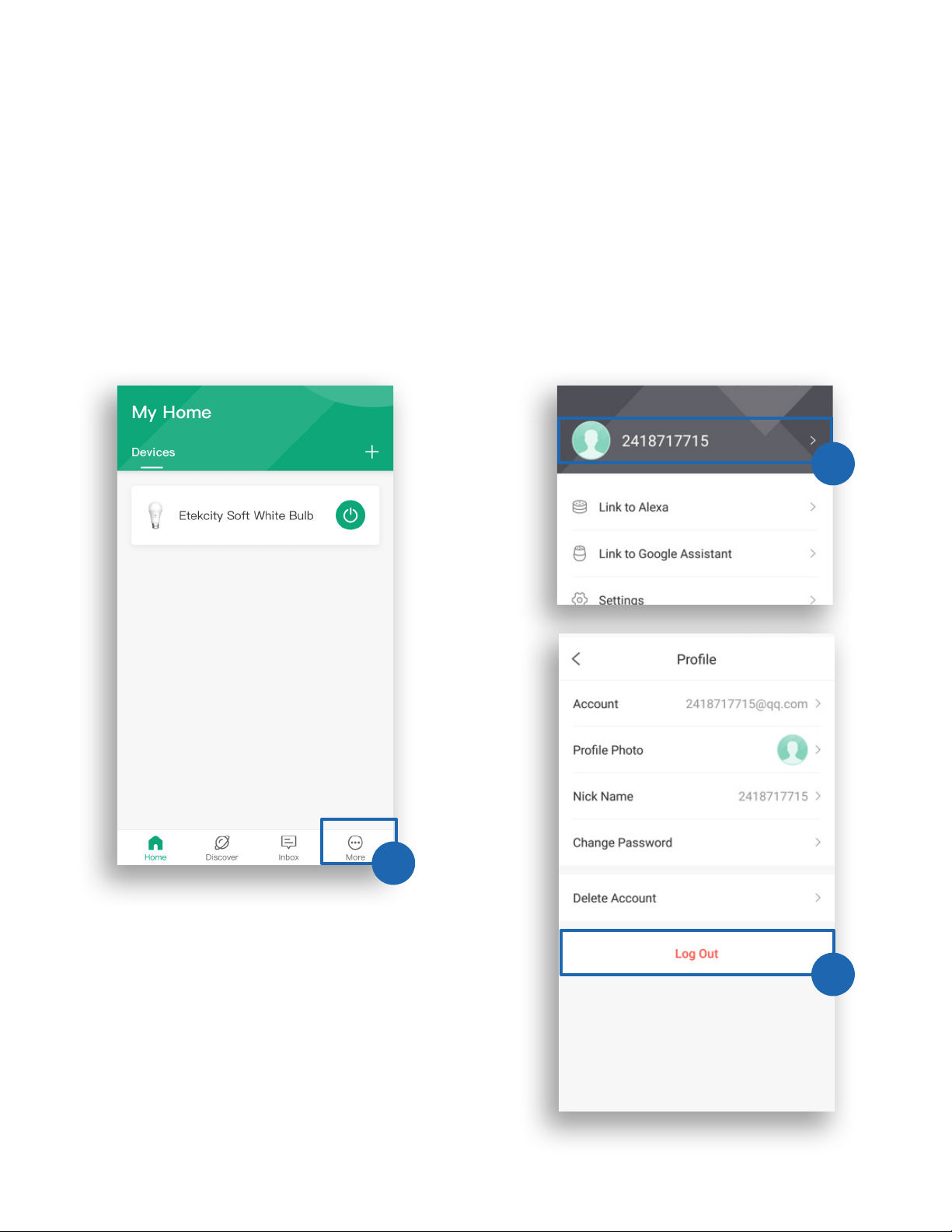
Log Out
Note: You do not need to log out if you are not using a VeSync
account.
1. On the My Home screen, tap More.
2. Tap your profile, then tap Log Out.
2
2
1

40
Contact Customer Support
You can contact our friendly Customer Support Team
through the VeSync app, in addition to the help line.
• To chat directly with our US office Customer Support
Team, tap Inbox at the bottom of the screen. Then, tap
Online support to send a chat message.
Note:
Chat hours are Mon–Fri, 9:00 am–5:00 pm PST/PDT.
Messages sent outside chat hours will receive an email
response.
• To send feedback directly to our VeSync app team, tap
More at the bottom of the screen, then tap Contact
Us. Please note that our VeSync app team may have a
longer response time.
• You can also contact Customer Support by email or
phone (see page 49).
Back to Table of Contents

41
Maintaining Your Smart Bulb
Firmware Updates
Resetting
To keep the smart bulb up to date with the latest
improvements and fixes, always update the firmware when
available.
On the Device Settings screen, tap Upgrade Firmware.
Resetting the smart bulb can help you troubleshoot many
issues you may have. Please keep in mind that resetting
the smart bulb will erase all of your custom settings and
restore the default settings.
1. Delete the offline smart bulb from the VeSync app.
Swipe left (iOS) or tap and hold (Android), and tap
Delete.
2. Turn the bulb on and off quickly 5 times to reset it.
3. Reconfigure your smart bulb with the VeSync app
(see page 9).
Note:
Be careful not to turn the bulb off/on too slowly or too quickly.
Wait for the bulb to light up each time you turn it on. No more than 3
seconds should pass between each time you turn the bulb on or off.

42
Troubleshooting
Why isn’t my smart bulb connecting to the VeSync app?
• During the setup process, you must be connected to a secure
2.4GHz WiFi network.
• Make sure the WiFi password you entered is correct.
• Try moving your smart bulb (within a 98–164 ft / 30–50 m range of
your router is best).
• Make sure you don’t have too many devices connected to your
router. Your router may have a limit of connected devices which can
be turned off in your router settings.
• Close and reopen the VeSync app.
• Clear your VeSync app cache.
• Reset your smart bulb (see Resetting, page 41).
I can’t get my smart bulb to reset or go into Configuration Mode.
• Be careful not to turn the bulb off/on too slowly or too quickly. Wait
for the bulb to light up each time you turn it on. No more than 3
seconds should pass between each time you turn the bulb on or off.
• When turning the bulb off/on, count 1 “on” and 1 “off” as 1 step. For
example, to turn the bulb off and on 3 times, turn it off 3 times and
on 3 times.

43
How do I change my WiFi network to a 2.4GHz WiFi network?
• Most dual-band routers support both 2.4G and 5G networks. Select
the WiFi name that does not end in “_5G”.
• If your phone is attempting to connect to the 5G network, try
“forgetting” or temporarily disabling the 5G network.
• If you are unsure, or if the 2.4G and 5G networks do not have
separate names, please contact your internet service provider.
I can’t find the “Etekcity” access point during configuration.
• Turn the smart bulb on and off quickly 3 times to trigger
Configuration Mode (see page 9). The “Etekcity” access point will
appear in your list of available WiFi connections.
My smart bulb is offline.
1. Make sure the smart bulb is on, then refresh the VeSync menu by
swiping down on the screen.
2. Make sure your router is connected to the internet, and your
phone’s network connection is working properly.
3. Reset the smart bulb (see Resetting, page 41). When the smart bulb
is reconfigured and online again, go to Device Settings, and tap
Upgrade Firmware.
Note:
Power outages, internet outages, or changing WiFi routers may cause
your smart bulb to go offline.
44
After adding my smart bulb to VeSync, why won’t the smart bulb icon
appear on the My Home screen of the VeSync app?
• Refresh the VeSync menu by swiping down on the screen.
• Close and reopen the app.
Amazon Alexa or Google Assistant can’t find my app or can’t discover
my smart bulb.
• Make sure your smart bulb is within 98–164 ft / 30–50 m of your
wireless network router.
• Check that your Amazon Alexa or Google Assistant is working
properly.
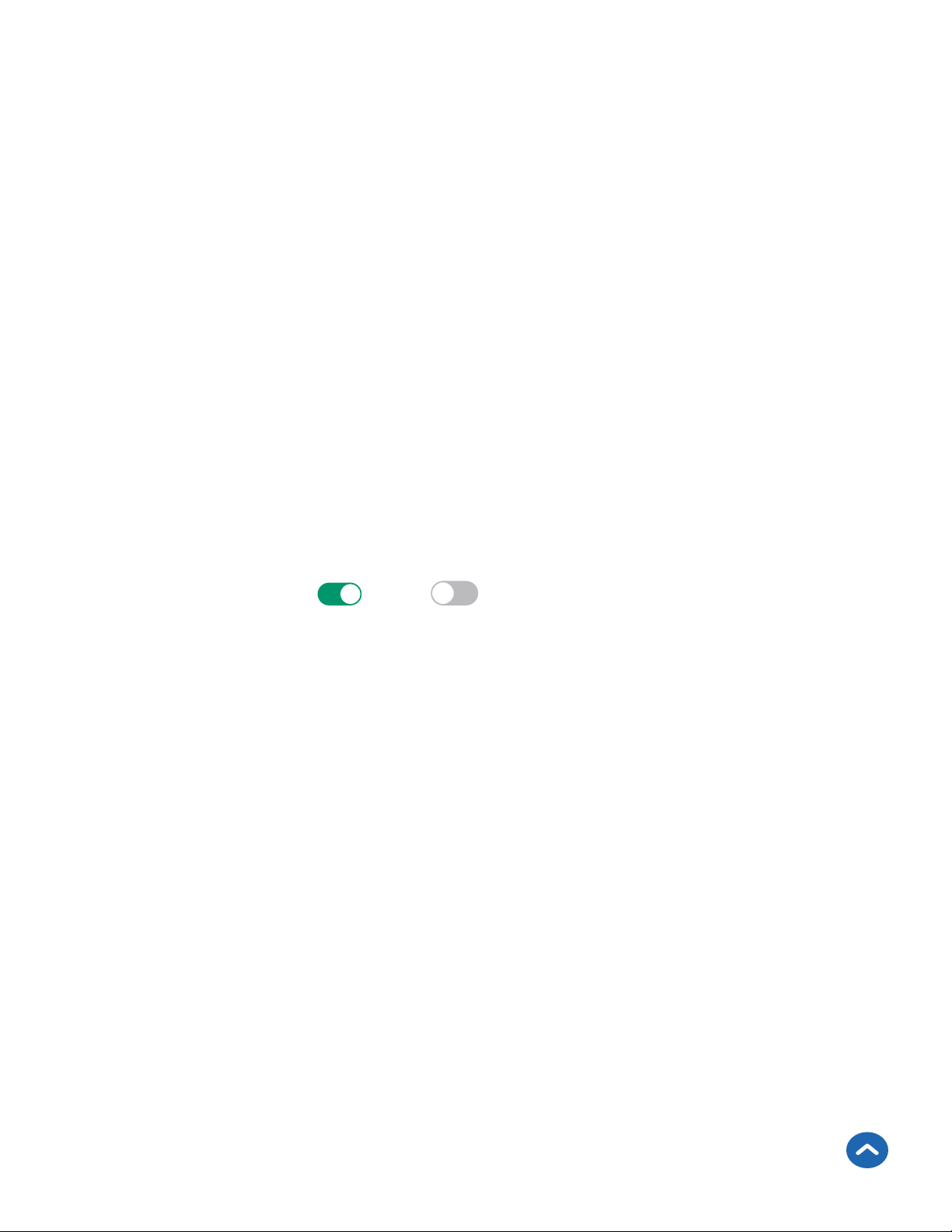
Why isn’t my smart bulb turning on/off as scheduled?
• Make sure that the schedule is still turned on. The toggle switch
should look like
, not .
• Make sure that your phone’s Location Services are turned on.
• Make sure the smart bulb is connected to a working network and is
not offline.
If your problem is not listed, please contact Customer Support (see
page 49).
Back to Table of Contents

45
This device complies with Part 15 of the FCC Rules. Operation is subject to the
following 2 conditions:
(1) This device may not cause harmful interference, and
(2) This device must accept any interference received, including interference
that may cause undesired operation.
FCC Statement to the User
Any changes or modifications not expressly approved by the party responsible
for compliance could void the user’s authority to operate this equipment.
This equipment has been tested and found to comply with the limits for a Class
B digital device, pursuant to Part 15 of the FCC Rules. These limits are designed
to provide reasonable protection against harmful interference in a residential
installation. This equipment generates, uses and can radiate radio frequency
energy and, if not installed and used in accordance with the instructions,
may cause harmful interference to radio communications. However, there
is no guarantee that interference will not occur in a particular installation.
If this equipment does cause harmful interference to radio or television
reception, which can be determined by turning the equipment off and on, the
user is encouraged to try to correct the interference by one of the following
measures:
• Reorient or relocate the receiving antenna.
• Connect the equipment into an outlet on a circuit different from that to
which the receiver is connected.
• Increase the separation between the equipment and receiver.
• Consult the dealer or an experienced radio/TV technician for help.

46
This equipment complies with FCC radiation exposure limits set forth for
an uncontrolled environment. End users must follow the specific operating
instructions for satisfying RF exposure compliance. To maintain compliance
with FCC RF exposure compliance requirements, please follow operation
instructions as documented in this manual. This transmitter must not be
co-located or operating in conjunction with any other antenna or transmitter.
This equipment should be installed and operated with a minimum distance of
20 cm between the radiator and your body. The availability of some specific
channels and/or operational frequency bands are country dependent and are
firmware programmed at the factory to match the intended destination. The
firmware setting is not accessible by the end user.
FCC Radiation Exposure Statement
Back to Table of Contents

47
Warranty Information
Terms & Policy
Etekcity warrants all products to be of the highest quality in material,
craftsmanship, and service, effective from the date of purchase to the end
of the warranty period.
Etekcity will replace any product found to be defective due to
manufacturer flaws based on eligibility. Refunds are available within
the first 30 days of purchase. Refunds are only available to the original
purchaser of the product. This warranty extends only to personal use
and does not extend to any product that has been used for commercial,
rental, or any other use in which the product is not intended for. There
are no warranties other than the warranties expressly set forth with each
product.
This warranty is non-transferrable. Etekcity is not responsible in any way
for any damages, losses, or inconveniences caused by equipment failure
by user negligence, abuse, or use noncompliant with the user manual or
any additional safety, use, or warnings included in the product packaging
and manual.
This warranty does not apply to the following:
• Damage due to abuse, accident, alteration, misuse, tampering, or
vandalism.
• Improper or inadequate maintenance.
• Damage in return transit.
• Unsupervised use by children under 18 years of age.
Etekcity and its subsidiaries assume no liability for damage caused by
the use of the product other than for its intended use or as instructed in
the user manual. Some states do not allow this exclusion or limitation of
incidental or consequential losses so the foregoing disclaimer may not
apply to you. This warranty gives you specific legal rights and you may
also have other rights which may vary from state to state.

48
ALL EXPRESSED AND IMPLIED WARRANTIES, INCLUDING THE
WARRANTY OF MERCHANTABILITY, ARE LIMITED TO THE PERIOD
OF THE LIMITED WARRANTY.
Additional 1-Year Warranty
You can extend your 1-year warranty by an additional year. Log onto
www.etekcity.com/warranty and enter your order number (for example,
from Amazon or Houzz) to register your new product for the extended
warranty.
If you are unable to provide the order number for your product, please
type a short note in the order number field along with the date you
received your product.
Defective Products & Returns
If your product proves defective within the specified warranty period,
please contact Customer Support via support@etekcity.com with your
order number. DO NOT dispose of your product before contacting us.
Once Customer Support has approved your request, please return the
unit with a copy of the invoice or your order number.
Back to Table of Contents

49
Customer Support
If you encounter any issues or have any questions
regarding your new product, please contact our helpful
Customer Support Team. Your satisfaction is our goal!
Etekcity Corporation
1202 N. Miller St., Suite A
Anaheim, CA 92806
Email: support@etekcity.com
Toll-Free: (855) 686-3835
Support Hours
Monday–Friday
9:00 am–5:00 pm PST/PDT
*Please have your order confirmation number ready before
contacting Customer Support.
v01.03
Back to Table of Contents