User Manual
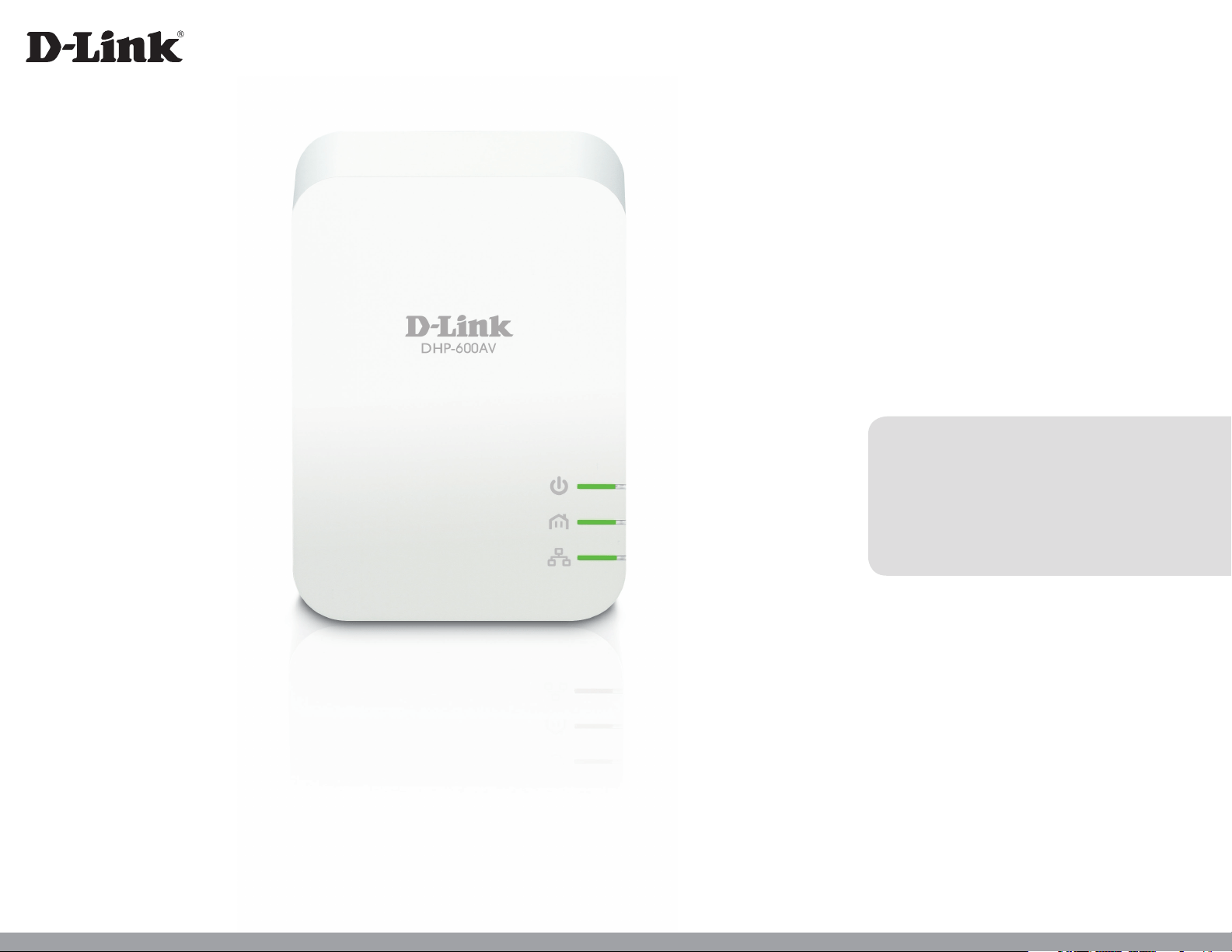
DHP-600AV
Version 2.0 | 12/11/2014
PowerLine AV2 1000 Gigabit Adapter/
PowerLine AV2 1000 Gigabit Adapter starter kit
2D-Link DHP-600AV/DHP-601AV User Manual
D-Link reserves the right to revise this publication and to make changes to the content herein without obligation to notify any
person or organization of such revisions or changes.
Manual Revisions
Trademarks
D-Link and the D-Link logo are trademarks or registered trademarks of D-Link Corporation or its subsidiaries in the United
States or other countries. All other company or product names mentioned herein are trademarks or registered trademarks of
their respective companies.
Copyright © 2014 by D-Link Corporation, Inc.
All rights reserved. This publication may not be reproduced, in whole or in part, without prior expressed written permission
from D-Link Corporation, Inc.
Revision Date Description
1.0 May 27, 2013 • Initial release for hardware revision A1
2.0 November 25, 2014 • Hardware revision B1
Preface

3D-Link DHP-600AV/DHP-601AV User Manual
Table of Contents
Table of Contents
Product Overview .............................................................. 4
Package Contents ...............................................................4
System Requirements ........................................................4
Introduction ......................................................................... 5
Features ................................................................................5
Hardware Overview ...........................................................6
LEDs ........................................................................................... 6
Connection ............................................................................. 7
Hardware Installation ....................................................... 8
Push Button Security .........................................................9
PowerLine Installation Considerations ........................ 12
Important Safety Instructions ....................................... 13
Troubleshooting ..............................................................14
Technical Specications ..................................................15

4D-Link DHP-600AV/DHP-601AV User Manual
Section 1 - Product Overview
DHP-600AV
• D-Link DHP-600AV PowerLine AV2 1000 Gigabit Adapter
• Ethernet Cable
• Quick Install Guide
DHP-601AV
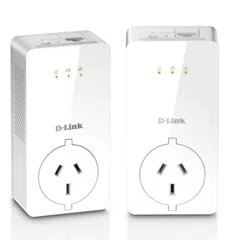
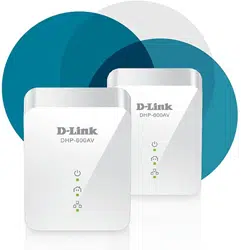
• Two D-Link DHP-600AV PowerLine AV2 1000 Gigabit Adapters
• Two Ethernet Cables
• Quick Install Guide
System Requirements
• Windows
®
7, Vista
®
, or XP
®
(with Service Pack 3)
• Ethernet network interface (10/100/1000 Mbps)
• PC with 1.5 GHz Processor
• 1 GB memory
Product Overview
Package Contents

5D-Link DHP-600AV/DHP-601AV User Manual
Section 1 - Product Overview
Introduction
The DHP-600AV is a fast, 1000 Mbps
1
PowerLine AV2 1000 Gigabit Adapter which allows you to connect your home computers,
networking devices, and gaming devices through the most pervasive medium in your house - the electric powerlines - and
share Internet connections and printers, transfer les, play games, and more.
2
Features
• Provides Ethernet to PowerLine Connection
• Fast Data Transfer Rate of Up to 1000 Mbps
1
• One Gigabit Ethernet Port
• Plug & Play, Easy Installation
• Push Button Security
6D-Link DHP-600AV/DHP-601AV User Manual
Section 1 - Product Overview
Hardware Overview
LEDs
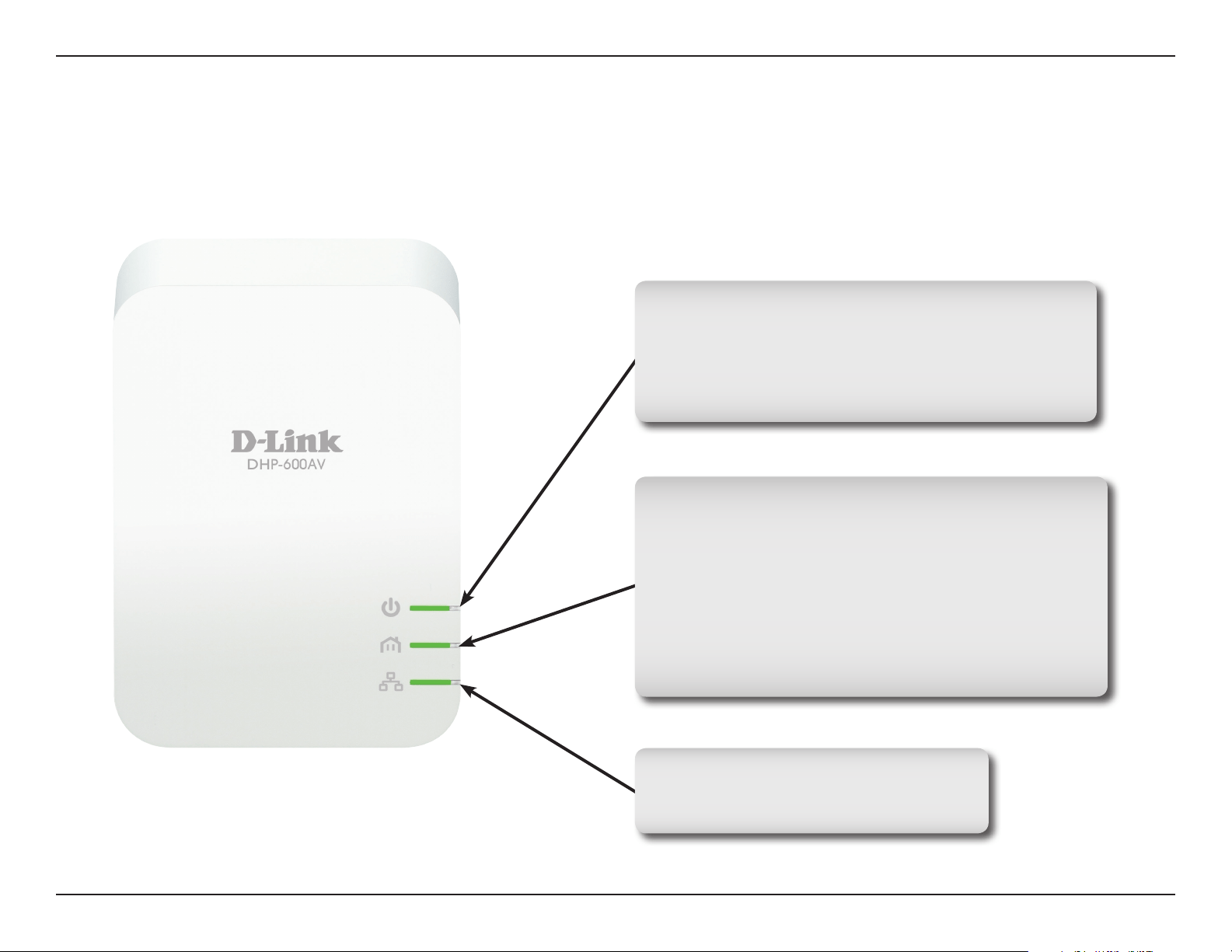
Ethernet LED
• Solid. The Ethernet port is linked.
• O. There is no Ethernet connection.
Powerline LED
• Solid. The device is connected to a PowerLine network.
• Off. The device has not found any other compatible
PowerLine devices using the same encryption key.
The color indicates the PowerLine link rate:
• Green. The PowerLine link rate is excellent.
• Amber. The PowerLine link rate is good.
• Red. The PowerLine link rate is fair.
Power LED
• Solid. The device is receiving electrical power.
• Blinking. The device is setting itself up after reset or
simple connect button was pressed.
• O. The device is not receiving electrical power.
7D-Link DHP-600AV/DHP-601AV User Manual
Section 1 - Product Overview
Hardware Overview
Connection
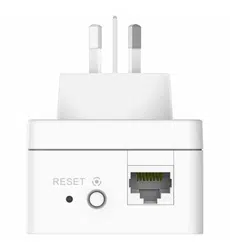
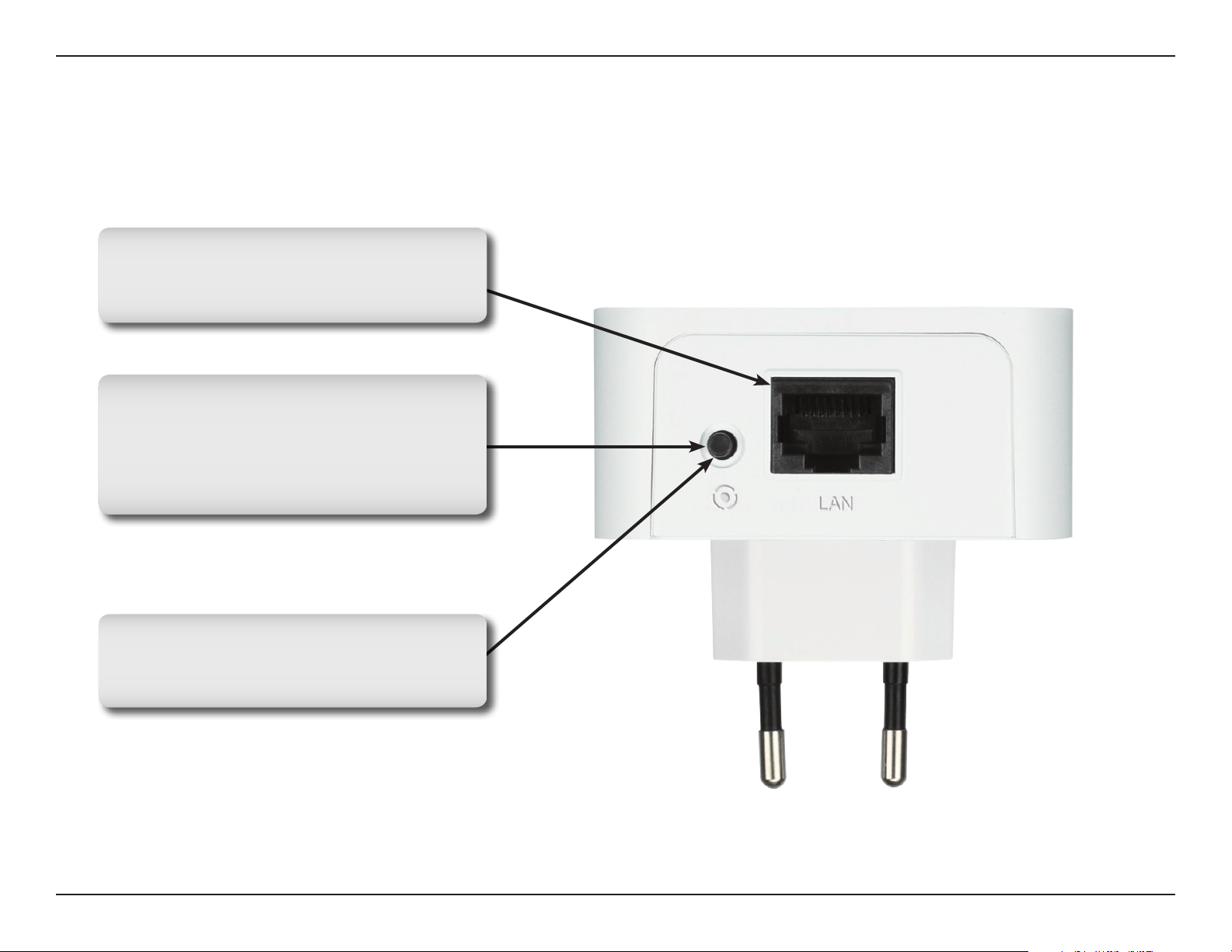
Simple Connect Button
Press to secure your network or reset
your device back to the factory default
settings. Refer to “Push Button Security”
on page 9 for more information.
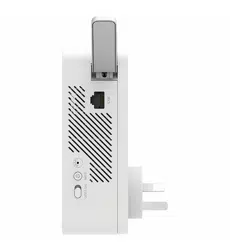
Reset Button
Press and hold the button for 10 seconds
to reset to the factory default settings.
Gigabit Ethernet Port
Connect a CAT5 Ethernet cable to your
PC or Ethernet device.
8D-Link DHP-600AV/DHP-601AV User Manual
Section 2 - Installation
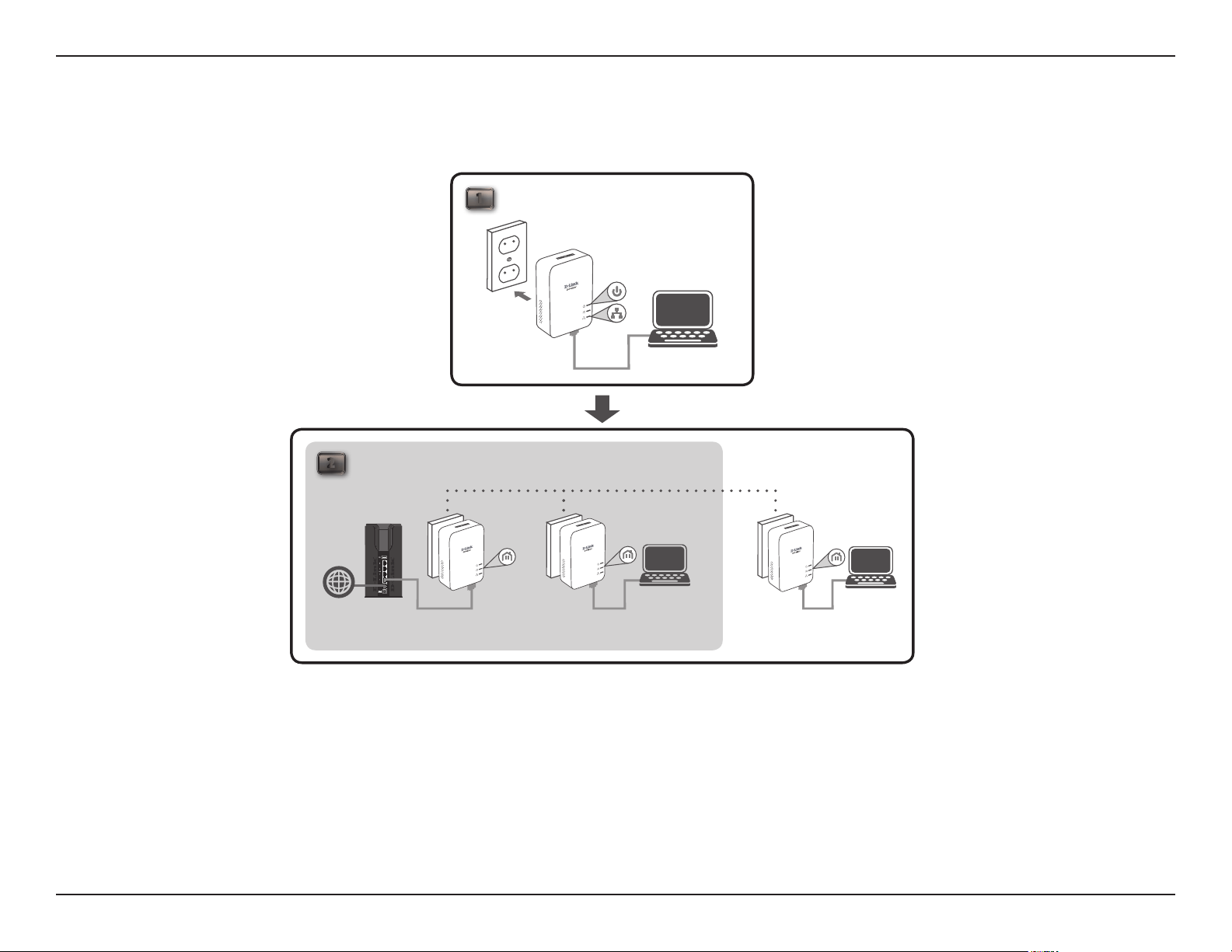
Hardware Installation
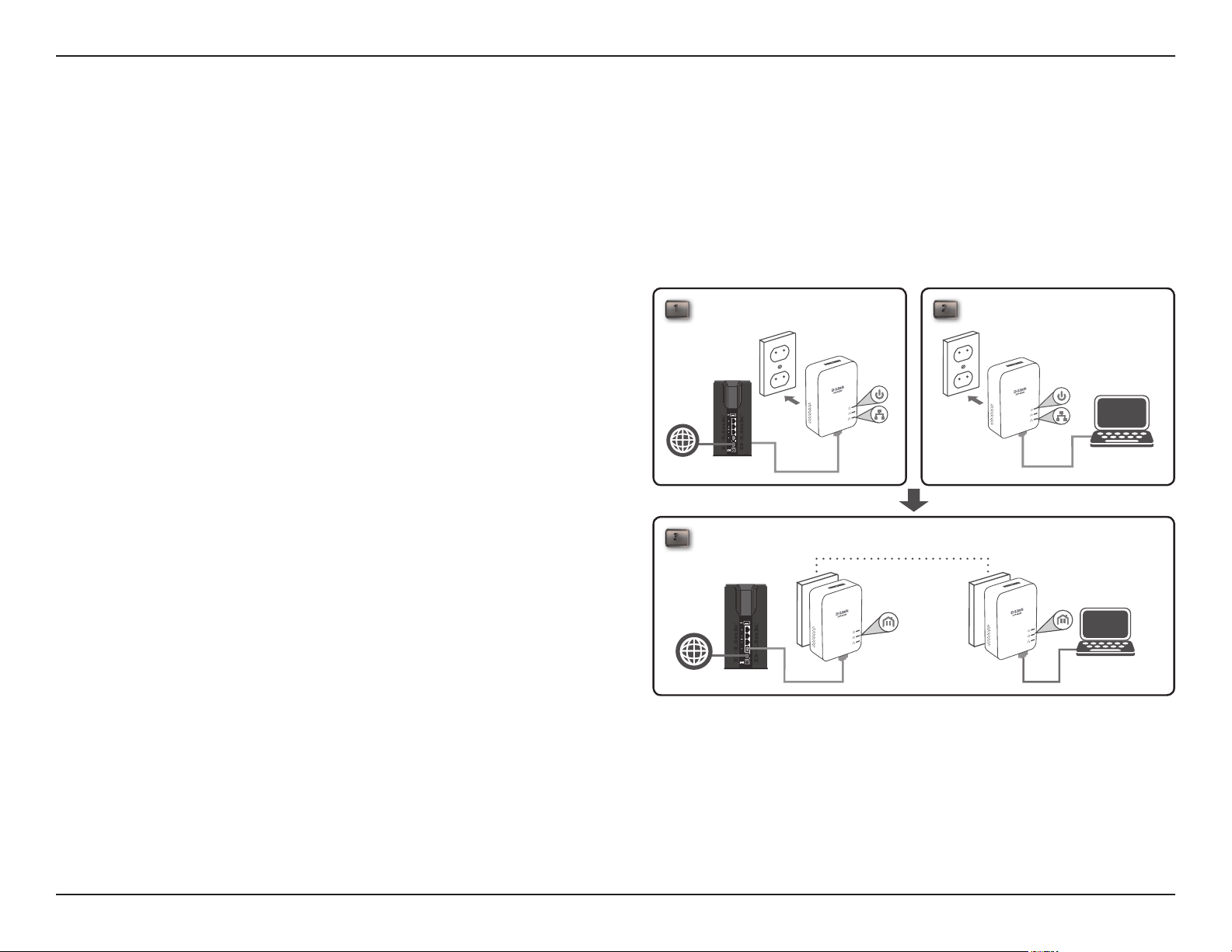
Power
Plug the DHP-600AV into an AC wall outlet or power strip.
Note: Power supply is conrmed when the Power LED on the DHP-600AV is illuminated.
Connect the Ethernet Cable
Connect the included Ethernet cable to the network cable
connector located on the DHP-600AV and attach the other
end of the Ethernet cable to the network or PC. Network
connectivity is conrmed when the Ethernet LED on the
DHP-600AV is illuminated.
DHP-600AV
3
ROOM A ROOM B
DHP-600AVDHP-600AV
1 2
ROOM A ROOM B
RouterInternet
DHP-600AV
NB
NB
RouterInternet

9D-Link DHP-600AV/DHP-601AV User Manual
Section 2 - Installation
Understanding PowerLine AV2 1000 Gigabit Adapter Security
The PowerLine AV2 1000 Gigabit Adapters on the same network must use an identical encryption key. The default encryption
key of each PowerLine AV2 1000 Gigabit Adapter is HomePlugAV. All PowerLine AV2 1000 Gigabit Adapters with the default
encryption key can communicate with each other.
It’s recommended to create a private encryption key for network security purpose. The private encryption key allows you to
protect your network from unauthorized access via the PowerLine network. To create a private encryption key instead of the
default encryption key, please follow the steps below:
1. All Adapters
Plug in all the adapters to be congured and make sure each device’s encryption key is set to HomePlugAV (default value). If
the encryption key is not set to the default value, press the reset button for 10 seconds to reset it to the default value.
2. First Adapter
Press Simple Connect Button of the rst adapter for no more than three seconds.
The Power LED will start blinking after you release the button. The adapter will create a private, randomly generated encryption
key that each PowerLine AV2 1000 Gigabit Adapter will use.
Push Button Security

10D-Link DHP-600AV/DHP-601AV User Manual
Section 2 - Installation
3. Second Adapter
Within two minutes of pushing the Simple Connect Button on the rst adapter, press the Simple Connect Button on second
adapter in your PowerLine network for no more than three seconds. The Power LED will start blinking after you release the
button.
Note: Both Simple Connect Buttons must be pressed within two minutes.
After the above network security setup steps, your PowerLine network will be securely congured with the same network
encryption key. The adapters will memorize the security settings even if they are unplugged.
Note: To change the private encryption key, please reset the adapter back to its default value by pressing the reset button for
10 seconds and then follow the security setup procedure above.
4. Adding More Adapters
If you would like to add more than two adapters, press the Simple Connect Button of the additional adapter for no more than
three seconds. The Power LED will start blinking after you release the button.
Then press the Simple Connect Button of any adapter in your existing PowerLine network for no more than three seconds. The
Power LED will start blinking after you release the button.
Note: Both Simple Connect Buttons must be pressed within two minutes.
After the above network security setup steps, your PowerLine network will be securely congured with the same network
encryption key.
11D-Link DHP-600AV/DHP-601AV User Manual
Section 2 - Installation
1
ROOM C
DHP-600AV
PC
2
ROOM A ROOM B ROOM C
DHP-600AVDHP-600AV
RouterInternet
PC
DHP-600AV
PC
EXISTING PLC NETWORK

12D-Link DHP-600AV/DHP-601AV User Manual
Section 2 - Installation
PowerLine Installation Considerations
Plan the location of your PowerLine devices:
1. Connect PowerLine devices to electrical outlets that are not controlled by a wall
switch to avoid accidentally turning o power to the device.
2. Do not connect the PowerLine devices to an extension cord, surge protector, or
power strip as this might prevent it from working correctly, or reduce the network
performance.
3. Avoid using the PowerLine devices in an electrical outlet that is located near an
appliance that uses a lot of power, such as a washer or dryer, or a refrigerator. This
may prevent the adapter from working correctly, or negatively impact network performance.
4. Verify that your PowerLine devices are electrically rated to operate with the power available in your location.
5. To help prevent electrical shock, be sure to plug the power cables into properly grounded electrical outlets.
6. The PowerLine device is designed to help ensure proper grounding. Do not use adapter plugs or remove the grounding
prong from the cable.

13D-Link DHP-600AV/DHP-601AV User Manual
Section 3 - Installation Considerations
Important Safety Instructions
Please read all of the safety and operating instructions before using your device:
1. Do not open the device or attempt to repair or service the device.
2. Only use the included power adapter to power your device.
3. Ensure that the device is plugged into the wall in a vertical position, with the ports facing down.
4. Use the device in a dry location, and avoid placing it in humid environments.
5. Do not submerge the device in liquid or attempt to clean it with liquids or solvents. To clean the device, disconnect it
from the power outlet and use a damp towel.
6. Keep the device out of direct sunlight.
7. Do not cover or block the vents on the device.
8. Make sure that the device has adequate room for ventilation.
9. Avoid placing the device near a heater or radiator.
10. The device should be located only where sucient ventilation can be ensured.
11. The purpose of this product is to create a constant network connection for your devices. If you wish to power down
this product, please simply unplug it from the power outlet.

14D-Link DHP-600AV/DHP-601AV User Manual
Section 4 - Troubleshooting
Troubleshooting
• I can’t congure any parameters of the PowerLine AV2 1000 Gigabit Adapter, an error is shown when I try to congure it:
Please make sure you have not unplugged the PowerLine AV2 1000 Gigabit Adapter while conguring it.
• I changed the connection cable to another network adapter and now the setup utility does not work correctly:
Please restart the utility each time you disconnect the connection cable.
• I’m having a lot of problems conguring my network:
If you are having trouble conguring the network with two or more PowerLine AV2 1000 Gigabit Adapters, please reset all
of the network adapters and try conguring the adapters again.
15D-Link DHP-600AV/DHP-601AV User Manual
Appendix A - Technical Specications
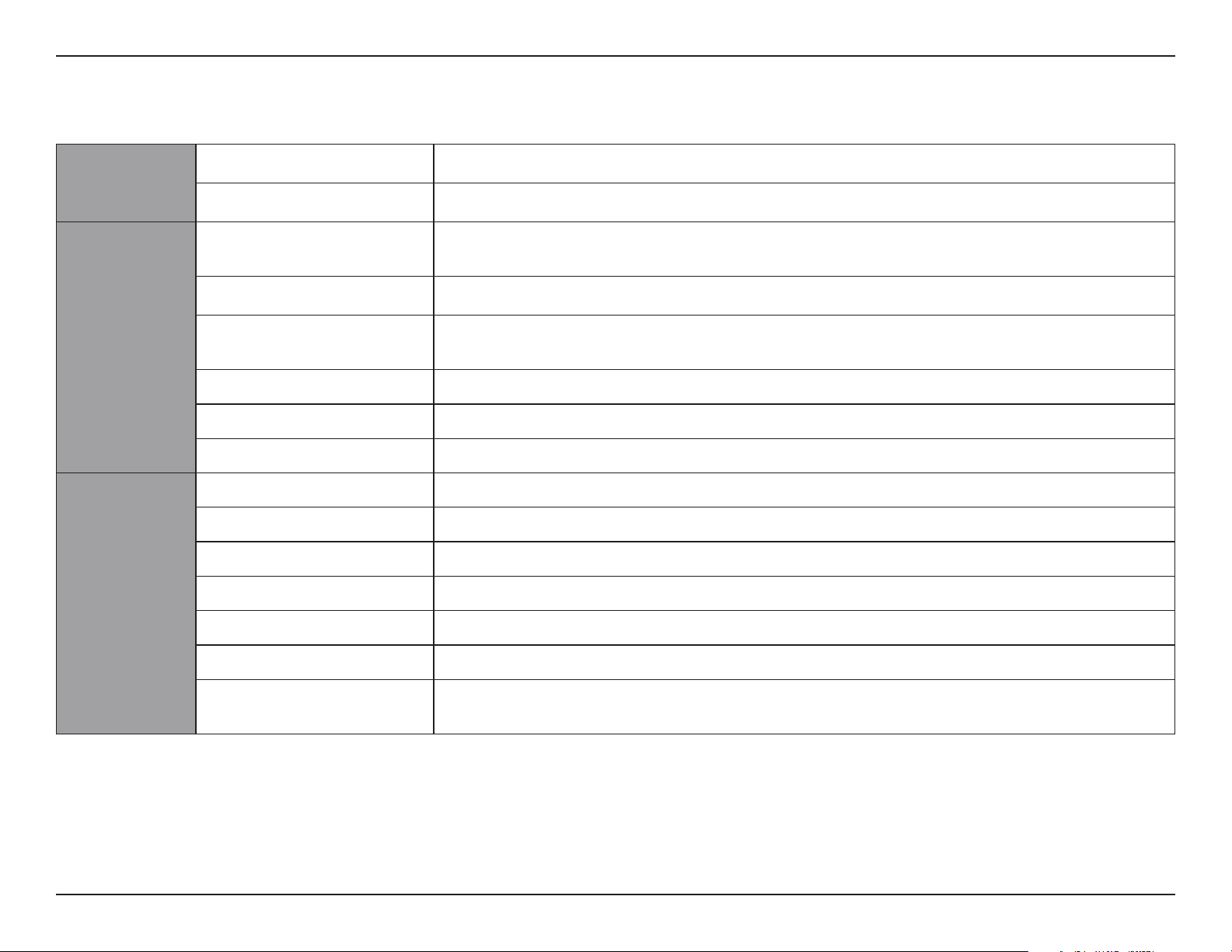
Technical Specications
1 Maximum throughput is based on theoretical transmission PHY rate. Actual data throughput will vary. Network conditions and environmental factors, including volume of trac and network overhead, may lower actual data throughput rate. Interference from devices that emit electrical
noise, such as vacuum cleaners and hair dryers, may adversely aect the performance of this product. This product may interfere with devices such as lighting systems that have a dimmer switch or a touch-sensitive on/o feature, short wave radios, or other PowerLine devices that do not
follow the HomePlug AV standard.
2 Power outlets and electrical wiring must all be part of the same electrical system. Certain electrical conditions in your home, such as wiring condition and conguration, may aect the performance of this product. Additional D-Link PowerLine AV series products are required to add new
devices to the network. A minimum of two D-Link PowerLine AV series products are required to create a network. Connecting this product to a power strip with a surge protector may adversely aect the performance of this product. For best results, plug the adapter directly into a wall outlet.
General
PowerLine Interface • Power plug (country-dependent)
Ethernet Interface • Gigabit Ethernet LAN port • RJ-45 connector
Functionality
Standards • IEEE 802.3
• IEEE 802.3u
• IEEE 1901
• HomePlug AV2
Security • 128-bit AES data encryption
LEDs • Power
• Ethernet
• PowerLine
PowerLine Modulation Scheme • OFDM symbol modulation
PowerLine Frequency Band • 2 MHz to 86 MHz
Data Rate • Ethernet: 10/100/1000 Mbps (autonegotiation) • PowerLine: Up to 1000 Mbps (PHY rate)
1
Physical
Dimensions • 87.47 x 62.2 x 30 mm (3.44 x 2.44 x 1.18 inches)
Weight • 90 grams (0.20 lbs)
Power • Input: 100 to 240 V AC, 50/60 Hz
Power Consumption • < 3.7 W
Temperature • Operating: 0 to 40 °C (32 to 104 °F) • Storage: -20 to 65 °C (-4 to 149 °F)
Humidity • Operating: 10% to 90% non-condensing • Storage: 5% to 95% non-condensing
Certifications • CE
• FCC
• UL
• CE/LVD