Powerline
Quick Installation Guide
TL-PA9020P
TL-PA9020P
Applicable to TL-PA9020P and its multiple-pack kits
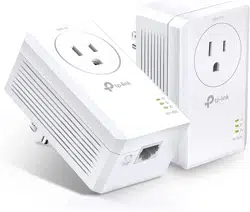
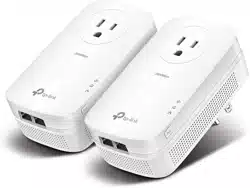
AV2000 2-port Gigabit Passthrough Powerline Adapter
7106505830 REV1.0.1
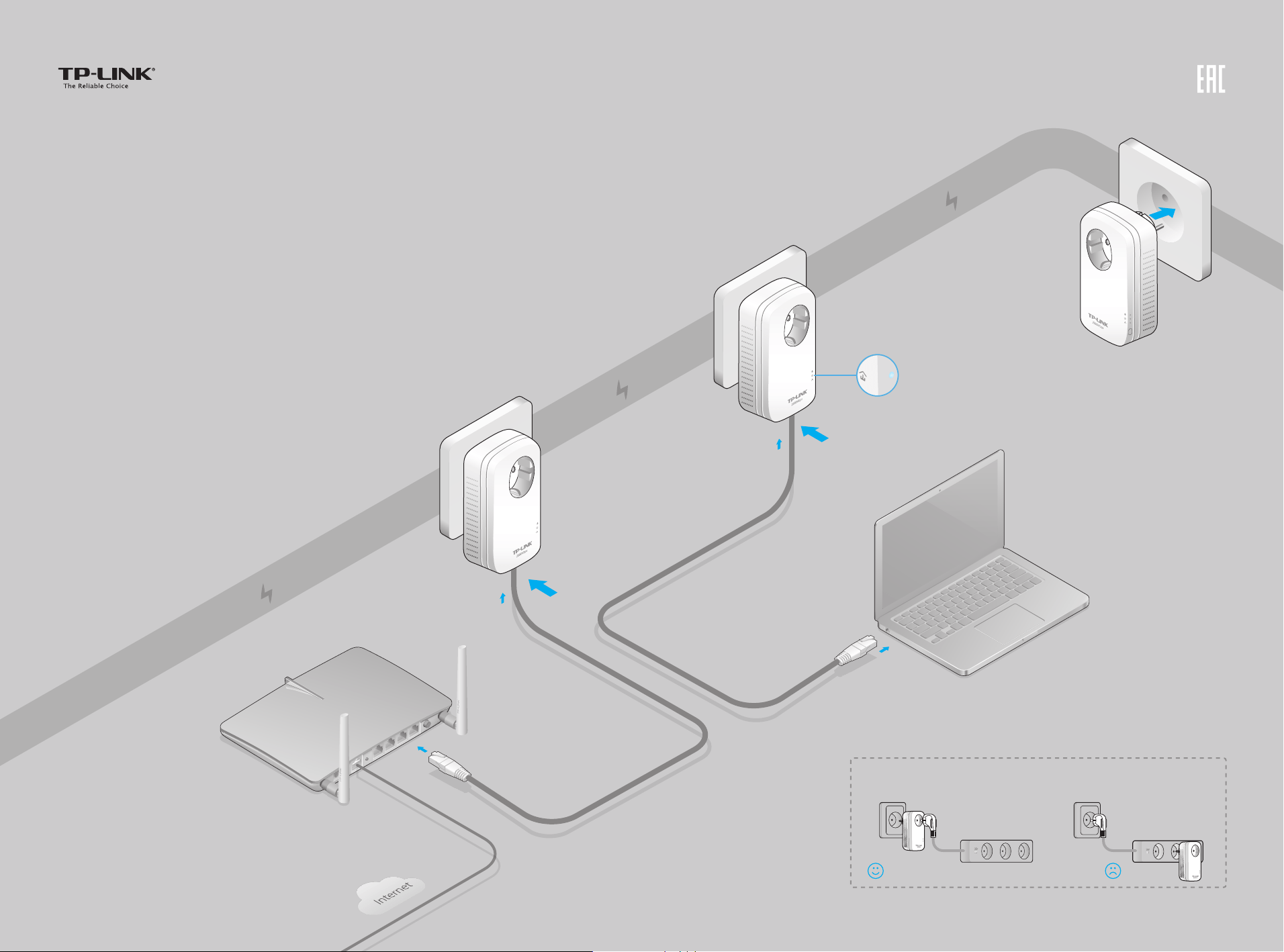
Plug and Play
Router
WAN LAN
1
2
3
4
Enjoy!
Attention
Wait until the powerline
LED turns on.
Pair
*TL-PA9020P (European version) is used for demonstration in this QIG.
More: To add additional Powerline adapters
and extenders with the default settings,
simply plug them into the wall sockets on the
same electrical circuit.
Power Strip
Wall Outlet

Existing Powerline Network
To create a secure powerline network: To join an existing secure powerline network:
3 Done.
You can create or join a secure powerline network using the Pair button on two devices at a time.
Tips: We recommend that you plug in the powerline devices near each other when pairing.
Set Up a Secure Powerline Network by Pairing (Recommended)
3 Done.1 Press the Pair button
for 1 second.
2 Within 2 minutes, press the
Pair button for 1 second.
1 Press the Pair button for 1 second on any powerline
device in the existing powerline network.
2 Within 2 minutes, press the
Pair button for 1 second.
A
Pair
Pair
Pair
A B
Blinking
On
Blinking
B
Pair
Blinking
C
Pair
On
Blinking
Q1. How do I reset my powerline adapter?
A. With the powerline adapter plugged into to the electrical outlet, press and hold the Pair button for more than 15 seconds until the Power LED goes o
momentarily and comes back on.
Q2. How to troubleshoot if there is no Internet connection in my powerline network?
A1. Make sure all powerline devices are on the same electrical circuit.
A2. Make sure the Powerline LEDs light up on all of your powerline devices. If they do not, reset or pair all your powerline devices.
A3. Make sure all hardware connections are correctly and securely connected.
A4. Check if you have an Internet connection by connecting the computer directly to the modem or router.
A5. Make sure your computer’s IP address is in the same segment as your router’s.
Q3. What can I do if a successfully-paired powerline device does not reconnect after it has been
moved to a new location?
A1. Try another socket and make sure it is on the same electrical circuit.
A2. Try to pair it again, and make sure the Powerline LED is on.
A3. Check for possible interference, such as a washer, air conditioner or other household appliance that may be too close to one of the powerline adapters or
extenders. Plug it into the integrated electrical socket to remove some electrical noise.
LED and Item Legend FAQ (Frequently Asked Questions)
DESCRIPTIONITEM
Press and hold for 1 second to set up or join a secure powerline network.
Press and hold for 8 seconds to leave an existing powerline network.
Press and hold for more than 15 seconds to reset the powerline adapter.
Used as a pass-through AC outlet to power other devices. It also reduces some
electrical noise that may interfere with powerline performance.
Pair Button
Integrated
Electrical Socket
For more information, please visit our website:
http://www.tp-link.com
More advanced congurations, such as rmware upgrade and QoS conguration, can be accessed through the Powerline Utility. You can
download and install the Powerline Utility from the TP-LINK ocial website (for Windows only).
©2015 TP-LINK
Ethernet
Powerline
Power
DESCRIPTIONLED STATUS
On/O
Blinking
Yellow-green
Red
O
On/O
The powerline adapter is on or o.
Once every second: Pairing is in process.
Once every 3 seconds: Power-Saving Mode is on.*
Powerline network is in good condition.
Powerline network is in poor condition. We recommend trying
another wall socket.
The powerline adapter is not connected to any powerline network or
is in Power-Saving Mode.
At least one Ethernet port is connected or no Ethernet port is
connected.
* Five minutes after the device connected to the powerline adapter is turned o, the powerline adapter
will automatically switch to Power-Saving Mode.