
User Guide
GH68-40414A Printed in USA
Guía del Usuario
User Guide
MOBILE PHONE
User Manual
Please read this manual before operating your
phone and keep it for future reference.

Warning!
This product contains chemicals known to the State of California to cause cancer and reproductive toxicity.
Intellectual Property
All Intellectual Property, as defined below, owned by or which is otherwise the property of Samsung or its respective suppliers
relating to the SAMSUNG Phone, including but not limited to, accessories, parts, or software relating there to (the “Phone
System”), is proprietary to Samsung and protected under federal laws, state laws, and international treaty provisions. Intellectual
Property includes, but is not limited to, inventions (patentable or unpatentable), patents, trade secrets, copyrights, software,
computer programs, and related documentation and other works of authorship. You may not infringe or otherwise violate the
rights secured by the Intellectual Property. Moreover, you agree that you will not (and will not attempt to) modify, prepare
derivative works of, reverse engineer, decompile, disassemble, or otherwise attempt to create source code from the software. No
title to or ownership in the Intellectual Property is transferred to you. All applicable rights of the Intellectual Property shall remain
with SAMSUNG and its suppliers.
Open Source Software
Some software components of this product, including but not limited to 'PowerTOP' and 'e2fsprogs', incorporate source code
covered under GNU General Public License (GPL), GNU Lesser General Public License (LGPL), OpenSSL License, BSD License and
other open source licenses. To obtain the source code covered under the open source licenses, please visit:
http://opensource.samsung.com
.
Disclaimer of Warranties; Exclusion of Liability
EXCEPT AS SET FORTH IN THE EXPRESS WARRANTY CONTAINED ON THE WARRANTY PAGE ENCLOSED WITH THE PRODUCT, THE
PURCHASER TAKES THE PRODUCT "AS IS", AND SAMSUNG MAKES NO EXPRESS OR IMPLIED WARRANTY OF ANY KIND WHATSOEVER
WITH RESPECT TO THE PRODUCT, INCLUDING BUT NOT LIMITED TO THE MERCHANTABILITY OF THE PRODUCT OR ITS FITNESS FOR ANY
VZN-W750V_UM_ENG_NK4_TN_010915_R4

PARTICULAR PURPOSE OR USE; THE DESIGN, CONDITION OR QUALITY OF THE PRODUCT; THE PERFORMANCE OF THE PRODUCT; THE
WORKMANSHIP OF THE PRODUCT OR THE COMPONENTS CONTAINED THEREIN; OR COMPLIANCE OF THE PRODUCT WITH THE
REQUIREMENTS OF ANY LAW, RULE, SPECIFICATION OR CONTRACT PERTAINING THERETO. NOTHING CONTAINED IN THE INSTRUCTION
MANUAL SHALL BE CONSTRUED TO CREATE AN EXPRESS OR IMPLIED WARRANTY OF ANY KIND WHATSOEVER WITH RESPECT TO THE
PRODUCT. IN ADDITION, SAMSUNG SHALL NOT BE LIABLE FOR ANY DAMAGES OF ANY KIND RESULTING FROM THE PURCHASE OR USE OF
THE PRODUCT OR ARISING FROM THE BREACH OF THE EXPRESS WARRANTY, INCLUDING INCIDENTAL, SPECIAL OR CONSEQUENTIAL
DAMAGES, OR LOSS OF ANTICIPATED PROFITS OR BENEFITS.
Modification of Software
SAMSUNG IS NOT LIABLE FOR PERFORMANCE ISSUES OR INCOMPATIBILITIES CAUSED BY YOUR EDITING OF REGISTRY SETTINGS, OR
YOUR MODIFICATION OF OPERATING SYSTEM SOFTWARE.
USING CUSTOM OPERATING SYSTEM SOFTWARE MAY CAUSE YOUR DEVICE AND APPLICATIONS TO WORK IMPROPERLY. YOUR CARRIER
MAY NOT PERMIT USERS TO DOWNLOAD CERTAIN SOFTWARE, SUCH AS CUSTOM OS.
IF YOUR CARRIER PROHIBITS THIS, IF YOU ATTEMPT TO DOWNLOAD SOFTWARE ONTO THE DEVICE WITHOUT AUTHORIZATION, YOU WILL
BE NOTIFIED ON THE SCREEN THAT THE PHONE WILL NO LONGER OPERATE AND BE INSTRUCTED TO POWER DOWN THE DEVICE. YOU
MUST THEN CONTACT YOUR CARRIER TO RESTORE THE DEVICE TO THE CARRIER AUTHORIZED SETTINGS.[091714]
Samsung Telecommunications America (STA), LLC
Headquarters:
1301 E. Lookout Drive
Richardson, TX 75082

Customer Care Center:
1000 Klein Rd.
Plano, TX 75074
Toll Free Tel: 1.888.987.HELP (4357)
Internet Address:
http://www.samsung.com
©
2014 Samsung Telecommunications America, LLC. Samsung is a registered trademark of Samsung Electronics Co., Ltd.
Do you have questions about your Samsung Mobile Phone?
For 24 hour information and assistance, we offer a new FAQ/ARS System (Automated Response System) at:
www.samsung.com/us/support
The actual available capacity of the internal memory is less than the specified capacity because the operating system and default
applications occupy part of the memory. The available capacity may change when you upgrade the device.
Nuance
®
, VSuite™, T9® Text Input, and the Nuance logo are trademarks or registered trademarks of Nuance Communications,
Inc., or its affiliates in the United States and/or other countries.
The B
luetooth
®
word mark, figure mark (stylized “B Design”), and combination mark (Bluetooth word mark and “B Design”) are
registered trademarks and are wholly owned by the Bluetooth SIG.
Wi-Fi is a registered trademark of the Wireless Fidelity Alliance, Inc.
©Samsung Telecommunications Amer
ica, LLC (“Sam
sung”). Samsung, AMOLED, and Samsung Link are all trademarks of
Samsung Electronics Co., Ltd. and/or its related entities. Other company names, product names and marks mentioned herein are
the property of their respective owners and may be trademarks or registered trademarks. Appearance of device may vary.

©Verizon Wireless. Verizon Wireless and the Verizon Wireless logos are trademarks of Verizon Trademark Services LLC. All
company names, trademarks, logos and copyrights not property of Verizon Wireless are the property of their respective owners.
Online Legal Information
The online version of the Health/Safety and Warranty guide for your device can be found at:
English:
www.samsung.com/us/Legal/Phone-HSGuide
Spanish:
www.samsung.com/us/Legal/Phone-HSGuide-SP
The online version of the End User Licensing Agreement for your device can be found:
Online at:
www.samsung.com/us/Legal/SamsungLegal-EULA3
.

Table of Contents
Section 1: Getting Started ...........................4
Setting Up Your Phone . . . . . . . . . . . . . . . . . . . . 4
Memory Card . . . . . . . . . . . . . . . . . . . . . . . . . .8
Turning your Phone On or Off . . . . . . . . . . . . . . 9
Locking and Unlocking your Phone . . . . . . . . . .9
Using the Start-Up Wizard . . . . . . . . . . . . . . . . 10
Setting Up Your Voice Mail . . . . . . . . . . . . . . . .10
Phone Updates . . . . . . . . . . . . . . . . . . . . . . . .11
Section 2: Understanding Your Phone .....12
Front View . . . . . . . . . . . . . . . . . . . . . . . . . . . 12
Side Views . . . . . . . . . . . . . . . . . . . . . . . . . . .14
Back, Top, and Bottom View . . . . . . . . . . . . . . 15
Display Layout . . . . . . . . . . . . . . . . . . . . . . . . . 16
Speech Engine . . . . . . . . . . . . . . . . . . . . . . . .20
Notifications and Quick Actions . . . . . . . . . . . . 20
Custom Volume Levels . . . . . . . . . . . . . . . . . . 21
Menu Navigation . . . . . . . . . . . . . . . . . . . . . . .21
Customizing Your Home Screen . . . . . . . . . . . . 23
Screen Projection . . . . . . . . . . . . . . . . . . . . . .25
Sense Apps . . . . . . . . . . . . . . . . . . . . . . . . . . .26
Entering Text . . . . . . . . . . . . . . . . . . . . . . . . . .26
Section 3: Call Functions ..........................34
Making a Call . . . . . . . . . . . . . . . . . . . . . . . . .34
Making a Call from People . . . . . . . . . . . . . . . .35
Answering a Call . . . . . . . . . . . . . . . . . . . . . . .35
History . . . . . . . . . . . . . . . . . . . . . . . . . . . . . . .35
Options During a Call . . . . . . . . . . . . . . . . . . . .37
Section 4: Your People Hub ......................41
Importing SIM Contacts to Your Phone . . . . . . .41
Adding a New Contact . . . . . . . . . . . . . . . . . . .41
Editing an Existing Contact . . . . . . . . . . . . . . .42
Deleting Contacts . . . . . . . . . . . . . . . . . . . . . .42
Creating a New Room . . . . . . . . . . . . . . . . . . .43
Room Options . . . . . . . . . . . . . . . . . . . . . . . . .44
Rooms Chat, Calendar, Photos, and Notes . . . .45
Creating a New Group . . . . . . . . . . . . . . . . . . .45
Group Options . . . . . . . . . . . . . . . . . . . . . . . . .46
Using Your People List . . . . . . . . . . . . . . . . . . .47
1

Linking People . . . . . . . . . . . . . . . . . . . . . . . . 48
Synchronizing Accounts . . . . . . . . . . . . . . . . . 49
What’s New . . . . . . . . . . . . . . . . . . . . . . . . . . 50
People Options . . . . . . . . . . . . . . . . . . . . . . . . 50
Additional People Options . . . . . . . . . . . . . . . . 51
Section 5: Messaging ............................... 52
Types of Messages . . . . . . . . . . . . . . . . . . . . 52
Creating and Sending Text Messages . . . . . . . 53
Voice to Text Messages . . . . . . . . . . . . . . . . . 54
Creating and Sending Multimedia Messages . 54
Messaging Threads . . . . . . . . . . . . . . . . . . . . 55
Online Messaging . . . . . . . . . . . . . . . . . . . . . 58
Using Email . . . . . . . . . . . . . . . . . . . . . . . . . . 59
Section 6: Multimedia .............................. 64
Xbox Music Pass . . . . . . . . . . . . . . . . . . . . . . 64
Music . . . . . . . . . . . . . . . . . . . . . . . . . . . . . . . 64
Store . . . . . . . . . . . . . . . . . . . . . . . . . . . . . . . 66
Photos . . . . . . . . . . . . . . . . . . . . . . . . . . . . . . 67
Camera . . . . . . . . . . . . . . . . . . . . . . . . . . . . . 71
Photo Editor . . . . . . . . . . . . . . . . . . . . . . . . . . 76
Video . . . . . . . . . . . . . . . . . . . . . . . . . . . . . . . 77
Section 7: Applications ............................ 79
GPS Applications . . . . . . . . . . . . . . . . . . . . . .
. . . . . . . . . . . . . . . . . . . . . . . . . . . . . .
. . . . . . . . . . . . . . . . . . . . . . . . . . .
. . . . . . . . . . . . . . . . . . . . . . . . . . .
. . . . . . . . . . . . . . . . . . . . . . . . .
. . . . . . . . . . . . . . . . . . . . . . . . .
. . . . . . . . . . . . . . . . . . . . . . . . . . . .
. . . . . . . . . . . . . . . . . . . . . . . . . . . .
. . . . . . . . . . . . . . . . . . . . . . . . . . . . .
. . . . . . . . . . . . . . . . . . . . . . . . . . . . .
. . . . . . . . . . . . . . . . . . . . . . . . . . .
. . . . . . . . . . . . . . . . . . . . . . . . . . . . .
. . . . . . . . . . . . . . . . . . . . . . . . .
. . . . . . . . . . . . . . . . . . . . . . . . . . . . . .
. . . . . . . . . . . . . . . . . . . . .
. . . . . . . . . . . . . . . . . . . . . . . . . . .
. . . . . . . . . . . . . . . . . . . . . . .
. . . . . . . . . . . . . . . . . . . . . . . .
. . . . . . . . . . . . . . . . . . . . . . . .
. . . . . . . . . . . . . . . . . . . . . . . . . . . . . . .
. . . . . . . . . . . . . . . . . . . . . . . . . . .
. . . . . . . . . . . . . . . . . . . . . . . . . . . .
79
Alarms 80
App Folder 81
ATIV Beam 81
ATIV Camera 82
Battery Saver 82
Calculator 83
Calendar 84
Camera 85
Cortana 85
Data Sense 86
Finance 86
Food & Drink 86
Games 87
Health and Fitness 89
Help+Tips 89
Internet Explorer 89
Live Wallpaper 90
MangaCamera 90
Maps 90
Messaging 91
Mini Diary
91
2

Music . . . . . . . . . . . . . . . . . . . . . . . . . . . . . . .92
My Verizon Mobile . . . . . . . . . . . . . . . . . . . . . . 92
News . . . . . . . . . . . . . . . . . . . . . . . . . . . . . . . .92
NFL Mobile . . . . . . . . . . . . . . . . . . . . . . . . . . .92
Office . . . . . . . . . . . . . . . . . . . . . . . . . . . . . . .93
OneDrive . . . . . . . . . . . . . . . . . . . . . . . . . . . . .94
OneNote . . . . . . . . . . . . . . . . . . . . . . . . . . . . .95
Paper Artist . . . . . . . . . . . . . . . . . . . . . . . . . . .95
People . . . . . . . . . . . . . . . . . . . . . . . . . . . . . . .95
Phone . . . . . . . . . . . . . . . . . . . . . . . . . . . . . . .95
Photo Editor . . . . . . . . . . . . . . . . . . . . . . . . . . 96
Photos . . . . . . . . . . . . . . . . . . . . . . . . . . . . . . . 96
Samsung Link . . . . . . . . . . . . . . . . . . . . . . . . .96
Settings . . . . . . . . . . . . . . . . . . . . . . . . . . . . . .96
Share Box . . . . . . . . . . . . . . . . . . . . . . . . . . . . 97
Skype . . . . . . . . . . . . . . . . . . . . . . . . . . . . . . .97
Sports . . . . . . . . . . . . . . . . . . . . . . . . . . . . . . .97
Storage Sense . . . . . . . . . . . . . . . . . . . . . . . . . 97
Store . . . . . . . . . . . . . . . . . . . . . . . . . . . . . . . . 98
Travel . . . . . . . . . . . . . . . . . . . . . . . . . . . . . . . 98
Verizon Tones . . . . . . . . . . . . . . . . . . . . . . . . .99
Video . . . . . . . . . . . . . . . . . . . . . . . . . . . . . . . .99
Video Trimmer . . . . . . . . . . . . . . . . . . . . . . . .100
Voicemail . . . . . . . . . . . . . . . . . . . . . . . . . . . .100
VZ Navigator . . . . . . . . . . . . . . . . . . . . . . . . .101
Wallet . . . . . . . . . . . . . . . . . . . . . . . . . . . . . .101
WatchON . . . . . . . . . . . . . . . . . . . . . . . . . . . .102
Weather . . . . . . . . . . . . . . . . . . . . . . . . . . . . .102
Section 8: Connections ...........................103
Wi-Fi . . . . . . . . . . . . . . . . . . . . . . . . . . . . . . .103
Bluetooth . . . . . . . . . . . . . . . . . . . . . . . . . . . .106
PC Connections . . . . . . . . . . . . . . . . . . . . . . .108
Section 9: Changing Your Settings ........109
System Settings . . . . . . . . . . . . . . . . . . . . . .109
Application Settings . . . . . . . . . . . . . . . . . . . .137
3
Section 1: Getting Started
This section reviews how to get started by configuring
your hardware, activating your service, and setting up your
voice mail.
Setting Up Your Phone
Prior to use, it is necessary to install both the battery and
SIM into their corresponding internal compartments.
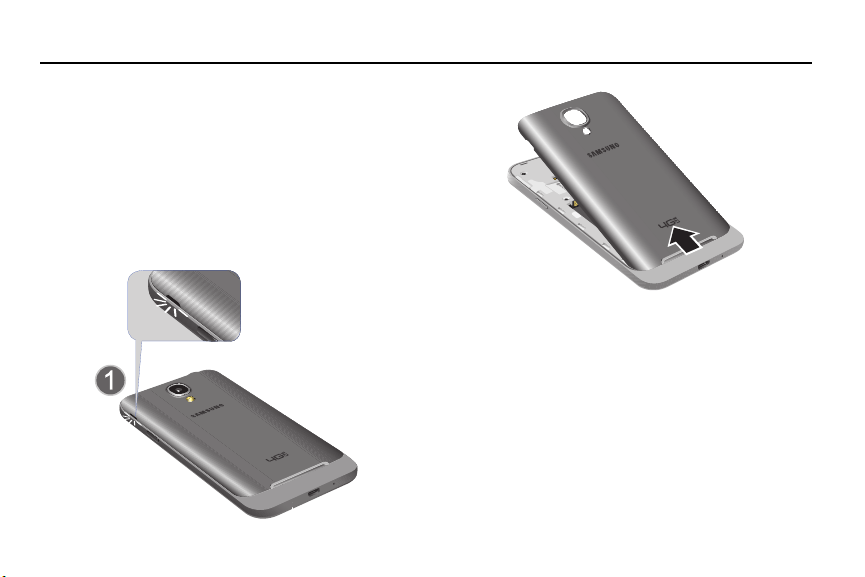
Locate the slot on the side of the cover, use this slot to
pull the cover up, and then lift it away from the phone.
Getting Started
4
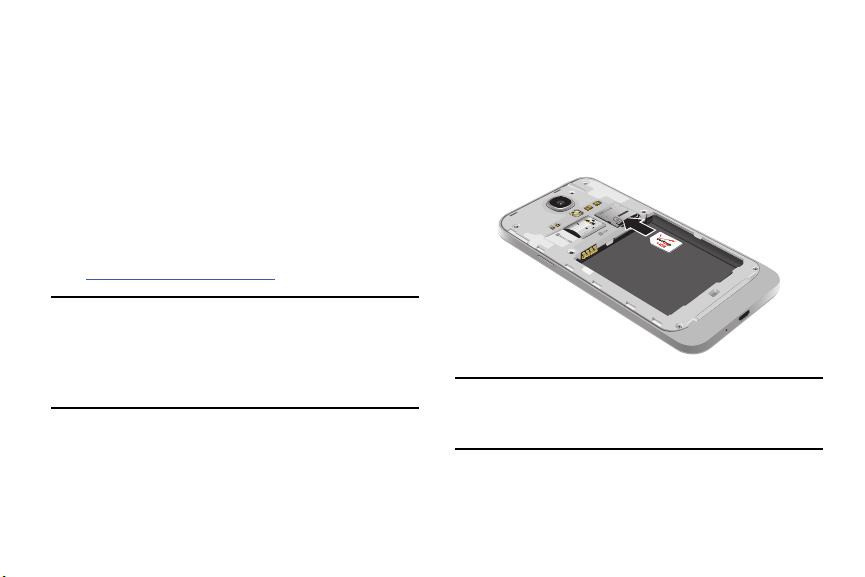
Installing the SIM Card
A Subscriber Identity Module (SIM Card) is a “smartcard”
that houses personal information, such as your mobile phone
number, calling plan, account information, and content, such
as contacts, text messages, and call history.
The Verizon Wireless 4G LTE SIM Card is compatible with any
Verizon Wireless 4G LTE certified device. You can move the
4G LTE SIM Card from one device to another and your
wireless service will work seamlessly as long as you have a
compatible device and service plan. To see which devices
are compatible with the Verizon Wireless 4G LTE SIM Card,
visit
verizonwireless.com/certifieddevice
.
Important! The plug-in SIM card information and its contacts
can be easily damaged by scratching or bending,
so be careful when handling, inserting, or
removing the card. Keep all SIM cards out of
reach of small children.
With the battery removed, carefully slide the SIM card
into the SIM card socket (as shown) until the card locks
into place.
Make sure that the card’s gold contacts face into the
phone and that the upper-left angled corner of the card
is positioned as shown.
Note: If the card is not inserted correctly, the phone will not
detect the SIM card. Re-orient the card back into the
slot if the SIM is not detected.
5
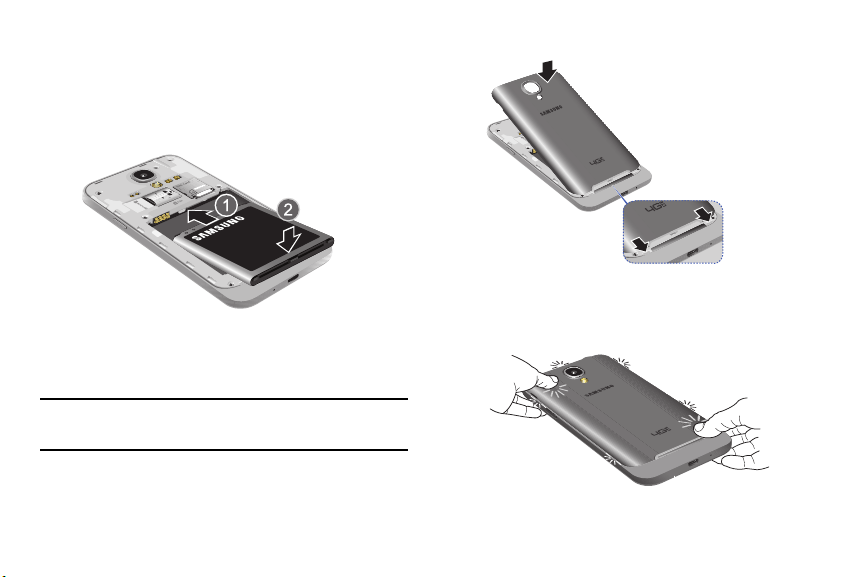
Installing the Battery
4. Press the cover down into place.
1. Insert the battery into the opening on the back of
the phone, making sure the three metal connectors
align (1).
2. Gently press down to secure the battery (2).
3. Replace the back cover (the back of the phone) by
aligning the bottom of the back cover with the phone
as shown.
5. Press down firmly along the edges of the cover to
ensu
re that the cover is flush with the phone. You
should hear a light click as the cover locks in place.
Note: Make sure the battery is properly installed before
switching on the phone.
Getting Started 6
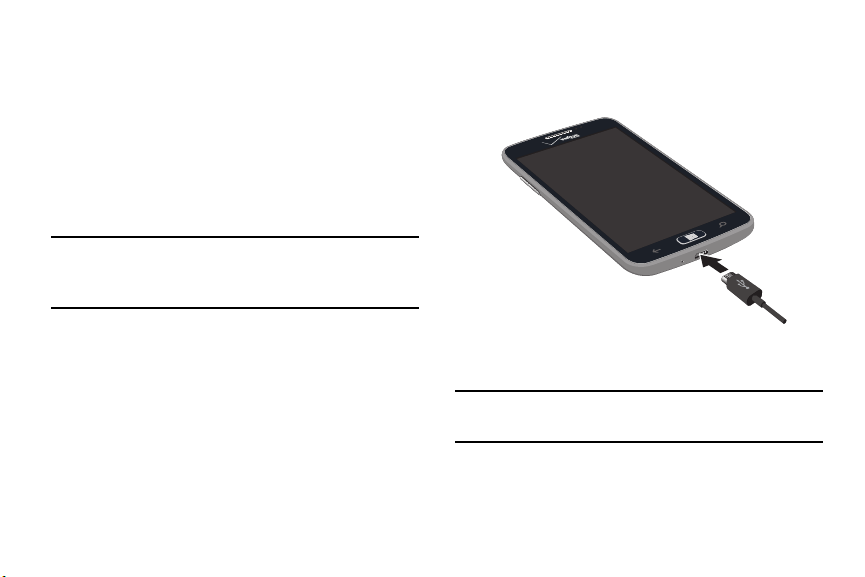
Charging a Battery
When you connect the charger, your phone powers on
automatically. Your Windows phone stays powered on
whenever it is charging.
Your phone is powered by a rechargeable Li-ion battery. The
Wa
ll/USB Charger, which is used to charge the battery, is
included with your phone. Use only approved batteries and
chargers. Long backlight settings, searching for service,
vibrate mode, browser use, and other variables may reduce
the battery’s talk and standby times.
Although you can use the phone while the bat
tery is
charging, doing so requires additional charging time.
Note: You must fully charge the battery before using your
phone for the first time. A discharged battery recharges
fully in approximately 4 hours.
Using the Wall/USB Charger
4. When charging is finished, remove the flat end from
the interface connector jack on the phone.
1. Connect the USB cable to the power adapter.
2. Plug the power adapter into a standard electrical
outlet.
Caution! Failure to unplug the wall charger before you
remove the battery can cause damage to the phone.
3. Connect the
small end of the USB cable into the
phone’s Micro USB Char
ging Port.
7
Low Battery Indicator
When the battery is weak and only a few minutes of talk time
remain, the “Battery critically low” warning appears and the
device sounds a warning tone at regular intervals.
For a quick check of your battery level, glance at the battery
charge indicator located in the upper-right corner of your
device’s disp
lay. A solid battery icon indicates a
full charge.
( )
When the batter
y level becomes too low, the phone
automatically turns off.
Note: If the phone automatically turns off because the battery
level is too low, you must charge the battery until the
phone turns on automatically.
Memory Card
Your device supports optional, removable, microSD or
microSDHC memory cards (not included) for storage of
music, pictures, and other files.
For more information about using memor
y cards,
see
“Storage Sense” on page 121
.
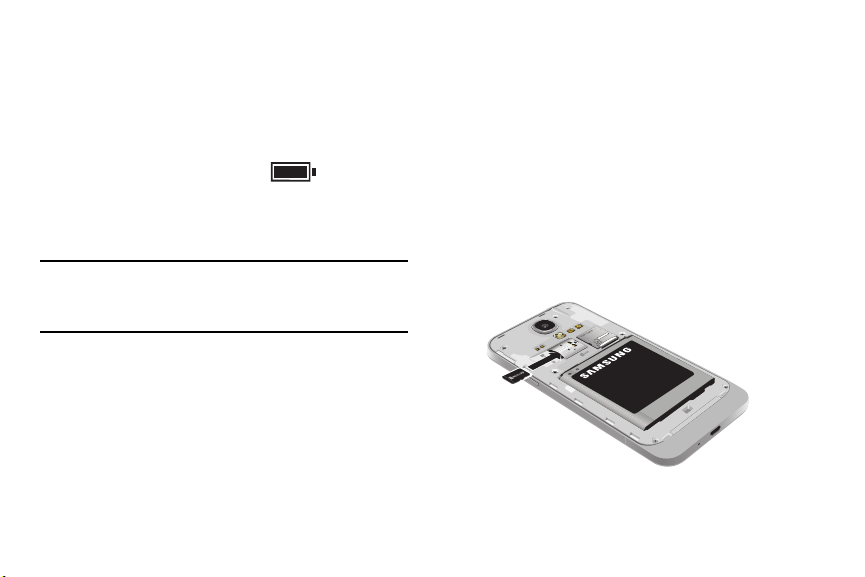
Installing a Memory Card
1. Locate the microSD card slot on the side of the phone.
2. Place the card with the gold strips facing down.
3. Carefully slide the optional microSD card into the card
slot (as shown) until it “clicks” into place.
Getting Started
8

Removing a Memory Card
Warning! To prevent damage to data stored on the memory
card, unmount the card before removing it from the
device.
1. From the Home screen, tap
Settings. Under the
system menu, tap phone stora
ge SD card
remove SD card.
2. At the prompt, read the warning and select OK to
continue. Wait for the SD card safe to remo
ve icon to
appear in the Status bar and Notification panel.
3. Locate the microSD card slot on the side of the phone.
4. Push the memory card inward to release the lock, and
then carefully pull the card out.
Turning your Phone On or Off
To turn ON, press and hold the Power/Lock button.
To power OFF, press and hold the Power/Lock button
and follow the prompts.
Note: The display language is preset to English at the factory.
To change the language
, use the Language menu.
For
more information, refer to “Language” on page 129
.
Locking and Unlocking your Phone
Prevent accidental key presses by locking your phone.
To lock, press the Power/Lock button.
To unlock, press the Power/Lock button. Then swipe
your finger up the screen.
Note: Your phone is able to make emergency calls without
being set up or having a SIM card installed, if your
mobile operator allows. To place an emergency call, tap
emergency call and dial 911 or the appropriate
emergency phone number.
9

Using the Start-Up Wizard
The very first time you turn on your phone, the Start-up
Wizard screen will guide you through the basics of setting up
your device.
Follow the prompts to choose a default language, country/
region and time zone, date and time, Wi-Fi network.
• To get apps, play games, automatically sync Windows Live
information to the web, and more, you need a Microsoft
account. If you already have an Xbox LIVE, Hotmail, or
Windows ID, you already have a Microsoft account.
The Start-up Wizard will prompt you to sign in with your
existing Microsoft account, or to create a new one.
Note: If you choose Sign in later, you can postpone setting up
your Microsoft account. A Microsoft account required
screen displays when you try to use a feature that
requires that you be signed in.
• You can also set up Backup Assistant Plus, a free service
from Verizon Wireless that automatically backs up your
contacts. Visit
verizonwireless.com/baplus
to learn more.
Setting Up Your Voice Mail
1. From the Home screen, tap .
2. Dial *86 and tap Call, or tap voicemail.
3. If you hear a greeting, press # to interrupt, and follow
the setup tutorial.
Note: These steps may be different depending on your
cellular network.
Accessing Your Voice Mail
1. From the Home screen, tap .
2. Dial *86 and tap Call or tap voicemail.
3. When you hear the greeting, press # to interrupt, and
follow the prompts.
Getting Started 10

Accessing Your Voice Mail from Another Phone
1. Dial your wireless phone number.
2. When you hear the greeting, press the # to interrupt,
and follow the prompts.
Important! Voice mailboxes not set up within 45 days will be
canceled. Your voice mailbox is not password
protected until you create a password by
following the setup tutorial.
Visual Voice Mail
View a list of messages without dialing into a mailbox. Listen
or erase with the tap of a button.
1. From the Home screen, swipe left to display the
Applications menu and tap
voicemail.
2. Follow the prompts to set up visua
l voice mail.
Note: Data charges apply when using Visual Voice Mail.
Phone Updates
Updating your phone can make it work better and add new
features. Updates can also make your phone more secure.
For more information, refer to “Phone Update” on page 132.
11
Section 2: Understanding Your Phone
This section outlines some key features of your phone and
describes the screen and the icons that appear when the
phone is in use. It also shows how to navigate through
the phone.
Front View
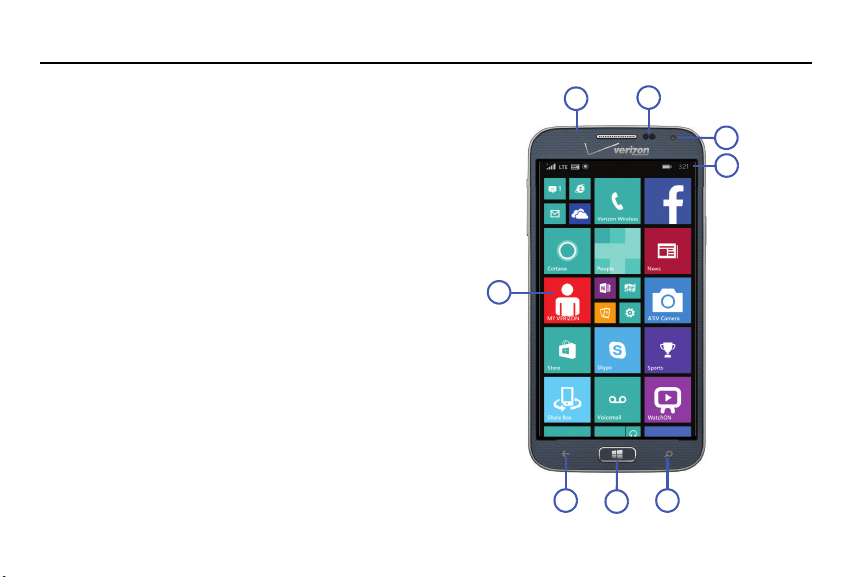
The following items can be found on the front of your phone.
1. Earpiece: Use to hear the caller.
2. Proximity and light sensors: The Proximity sensor
detects how close an object is to the surface of the
screen (such as when your face is against the phone
during a call or the phone is in your pocket), locks the
keys to prevent accidental key presses, and turns off
the screen. Light sensors use the ambient light level to
adjust screen brightness and contrast.
3. Front-facing camera: Use to photograph yourself, or
view yourself while video chatting.
1
2
3
4
5
6
7
8
Understanding Your Phone 12

4. Indicator icons: Shows the information needed to
operate your phone, such as the received signal
strength, phone battery level, and time. If the icons are
not showing, tap the top of the display to show them.
5. Display: Shows the information needed to operate
your phone, such as the Application Tiles, icons, and so
on.
6. Back: Use to step backwards when navigating a menu
or web page. Touch and hold the Back key to view the
current screen and up to six screens most recently
displayed.
7. Home: Access the Home screen from any screen.
Touch and hold to activate the voice search engine.
8. Bing search: Access the Bing search engine, which
allows you to search for items on the internet, scout,
music, vision, and voice. For more information, refer to
“Bing Search” on page 19
.
Note: Some applications, such as People and Store
, display a
search button
that allows you to search within that
applicat
ion.
13
Side Views
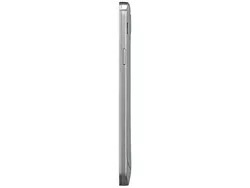
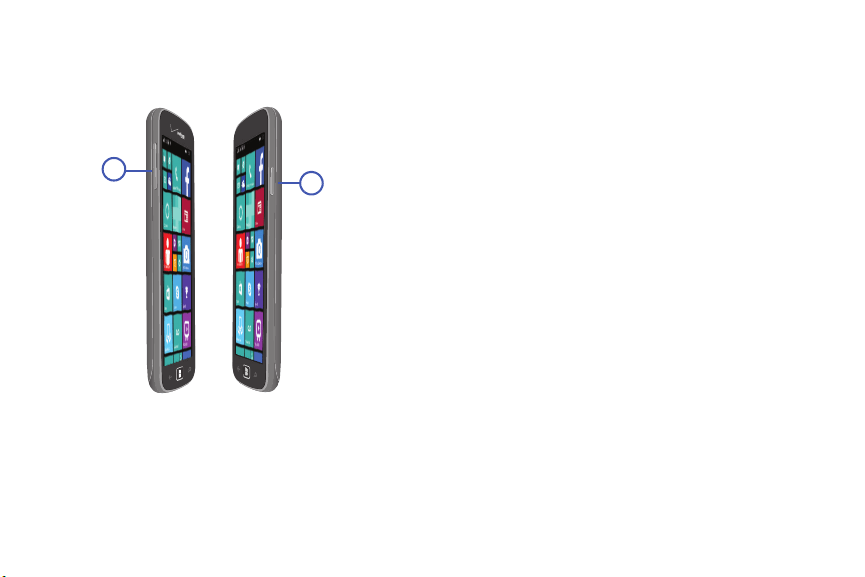
1. Volume: Adjust the ringer volume while in standby
mode or adjust the voice volume during a call. When
receiving an incoming call, briefly press down either
volume key to mute the ring tone. Also use to adjust
the volume while playing music or videos, press the
volume key to display additional controls.
The following items can be found on the sides of your phone.
2. Power/Lock: Press and hold the Power/Lock button
until the phone switches on. Also, use it to lock or
unlock the touch screen. For more information on
locking your phone, see “Locking and Unlocking your
Phone” on page 2
1
.
1
2
Understanding Your Phone 14
Back, Top, and Bottom View
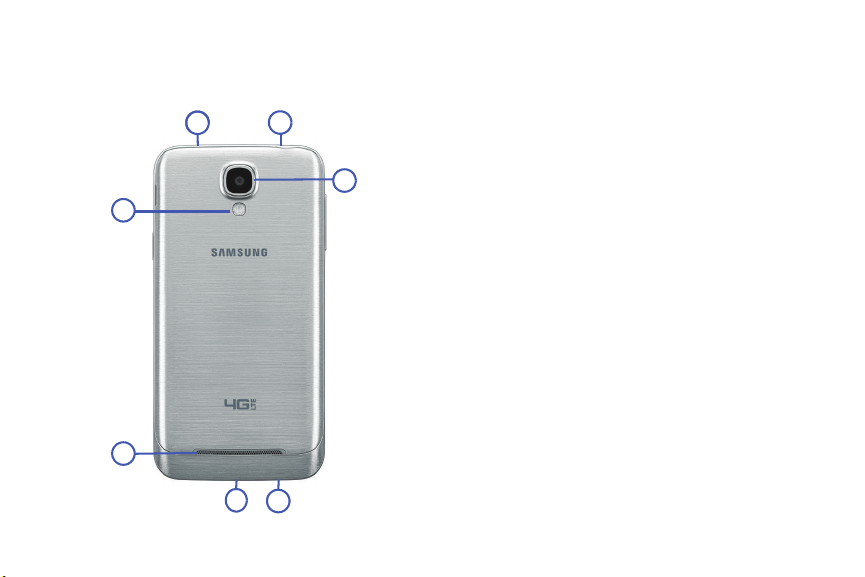
1. IR transmitter: Used to emit infrared signals used for
controlling external devices.
The following items can be found on the back, the top, and
the bottom of your phone.
2. 3.5mm headset jack: Plug in for accessories.
3. Rear-facing camera: Use to take pictures and record
videos.
4. Flash: Use when taking photos or recording videos.
5. External speaker: Allows you to hear when the
Speakerphone is turned on.
6. USB/charging port: Use to connect a charger or other
optional accessories such as a USB/data cable.
7. Microphone: Allows callers to hear you when you are
speaking to them. Also allows you to use the voice
search engine.
2
4
3
5
6
7
1 1
15
Display Layout
Your display screen provides a wealth of information about
the phone’s status and options, as well as providing access
to application icons. For more information, refer to “Front
View” on page 12.
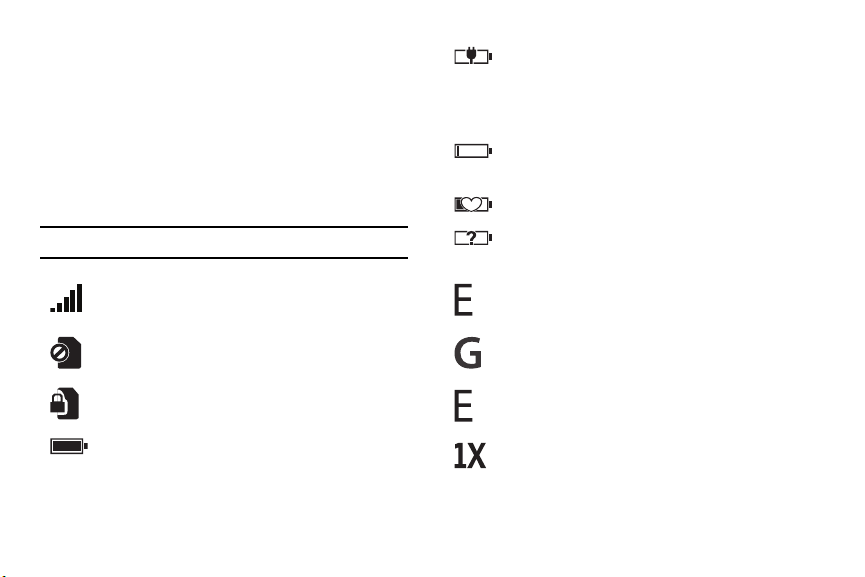
Indicator Icons
This list identifies the symbols that appear on your phone’s
display and Indicator area:
Note: Tap the top of the screen to display hidden icons.
Displays your current signal strength. The greater the
number of bars, the stronger the signal.
Displays when there is no SIM card in the phone.
Displays when the SIM card is locked.
Displays your battery charge level. Icon shown is fully
charged.
Displays when your battery is
charging and displays
battery charge level. Displays when the phone is
connected to
a computer
via a supported USB cable
connection.
Battery critically low, which means your battery
needs to be charged soon or your phone will turn off.
Displays when battery saver is on.
Displays when battery power or the state of the
battery is not currently known.
Displays when your connection to an EDGE network
is active.
Displays when your connection to an GPRS network
is active.
Displays when your connection to a HSDPA/HSUPA
network is active.
Displays
when your connection to a RTT network is
active.
Understanding Your Phone 16
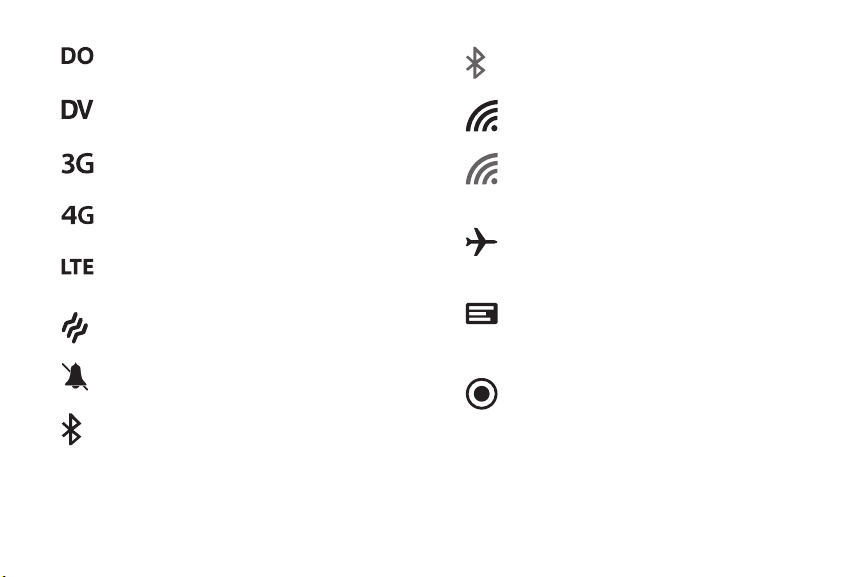
Displays when your connection to an EVDO network
is active.
Displays when your connection to an EVDV network
is active.
Displays when your connection to a UMTS network is
active.
Displays when your connection to a 4G network is
active.
Displays when your connection to a 4G LTE network
is active.
Displays when the ringtone is set to vibrate only.
Displays when the ringtone is set silent.
Displays when Bluetooth is activated and your phone
has been connected with a Bluetooth device.
Displays when Bluetooth is activated, but your phone
has not connected with a Bluetooth device.
Displays when Wi-Fi is connected, active, and
communicating with a Wireless Access Point (WAP).
Displays when Wi-Fi is active, but there is a
communication issue with the target Wireless
Access Point (WAP).
Indicates that Airplane Mode is active. You cannot
send or receive any calls or access online
information.
New notifications are available. For more
information, refer to “Notifications and Quick
Actions” on page 20
.
An app is accessing your phone's current loca
tion
information.
For more details on configuring your phone’s settings, see
“Changing Your Settings” on page 109
.
17
Application Menu
The Application menu provides quick access to the items you
use most frequently.
For information on navigating through the Applications icons,
see “Navigating to the Application Menu” on page 22
.
1. From the
Home
screen, use your finger to swipe the
display to the left
– or –
Scroll to the bottom of the
Home
screen and touch
Apps
, then touch one of the application icons.
2. Follow the onscreen instructions.
3. To
return to the
Home
screen, press
Home
.
For more information, refer to “Applications” on page 79.
In that section, each application that is available on the
Applications menu is listed and described. If the application
is also described in another section of this user
manual, then
a cross reference to that particular section is provided.
To open applications quickly, pin the
icons of frequently-used
applications to the
Home
screen. For details, see
“Customizing Your Home Screen” on page 23
.
Personal Assistance with Cortana
You may be asked to activate Cortana, for example, when
you request Bing Search for the first time. Cortana is a
personal assistant on your phone, ready to help with
reminders, suggestions, tasks, and lots more.
When the Cortana
Ready to get started?
screen displays:
Touch
sure
to activate Cortana or touch
no thanks
.
To activate Cortana at any time:
1. From the
Home
screen, swipe the screen left to display
the Applications menu.
2. Tap
Cortana
.
3. Tap
allow
.
If you have not signed in to your Microsoft account, the
Microsoft account required
screen displays. For more
information, refer to “Using Email” on page 59
.
4. Follow the onscreen instructions to set up and use
Cortana.
Understanding Your Phone 18
To deactivate Cortana:
1. From the
Home
screen, swipe the screen left to display
the App List.
2. Touch
Settings
applications
Cortana
.
3. Touch and drag the
On/Off
slider to the left to turn
Cortana Off.
For more information, refer to “Cortana” on page 137.
Bing Search
Bing Search provides an onscreen Internet search engine. It
also lets you link to Local Scout, listens to music and
searches for it, scans text that can be used as a search term,
and lets you say a search term.
Tip: Some applications, such as People and Store, display a
search button
that allows you to search within that
a
pplica
t
ion.
1. From any screen, tap
.
2. Tap the Bing Search bar.
3. Use the onscreen keyboard to enter the item you want
to search for.
4. Tap to see search results and then tap a link.
5. Touch
scout
to open the Local Scout app.
6. Tap music to launch a Bing audio search, causing
the phone to start l
istening for nearby music. If the
recorded sample can be found in the Windows Phone
Store, the artist and song appears in a pop-up window
with a direct link to the Windows Phone Store, which
lets you purchase and download the song.
7. Tap
vision to
scan barcodes, QR Codes, Microsoft
T
ags, book covers, CDs, DVDs, or text.
8. Tap voice (in the search bar) to use Voice Search.
Speak the word yo
u want to search for, and then follow
the onscreen instructions.
9. Tap Options to access the following options:
•scout: Open the Local Scout app.
• music searches: After tapping
music and
searching for music, your matc
hes are saved here for
future reference.
•settings: Opens the Search settings screen
. For more
information, refer to “Search” on page 144
.
19

Speech Engine
There is an intuitive speech engine integrated into the Start
key on your phone.
1. From any screen, press and hold Home to activate
the intuitive speech engine.
2. Speak the words that you would like to search on or
the action that you would like to perform.
The following examples show the flexibility of the
speech engine:
• “Call Chris mobile”
• “Find coffee in Seattle”
• “Open calendar”
• “Text Brandy”
• “Note send birthday card”
3.
To change speech settings, see “Speech” on
page 130
.
Note: The first time you use the Speech engine, you ar
e asked
to allow Microsoft to use your voice data to provide and
improve the service, which makes additional features
available to you. Tap accept or decline. Tap Privacy
Statement for more information.
Notifications and Quick Actions
Windows Phone 8.1 gives you quick and easy access to your
most important notifications and settings.
1. Swipe down from the top of your screen to reveal
action center.
Quick actions, like Wi-Fi settings, B
luetooth activate,
screen brightness setting, and rotation lock, display
along with notifications about your latest text
messages, emails, updates, and more.
2. Touch
ALL SETTINGS
to access the Settings menu. For
more information, refer to “Changing Your Settings” on
page 109
.
3. Touch
CLEAR ALL
to remove the current notifications.
4. Touch the bottom of the screen and swipe up to close
the action center screen.
Understanding Your Phone 20
To customize the action center:
1. From the
Home
screen, swipe the screen left to display
the App List.
2. Touch
Settings
system
notifications +
actions
.
For more informati
on, refer to “Notifications and
Actions” on page 112
.
Custom Volume Levels
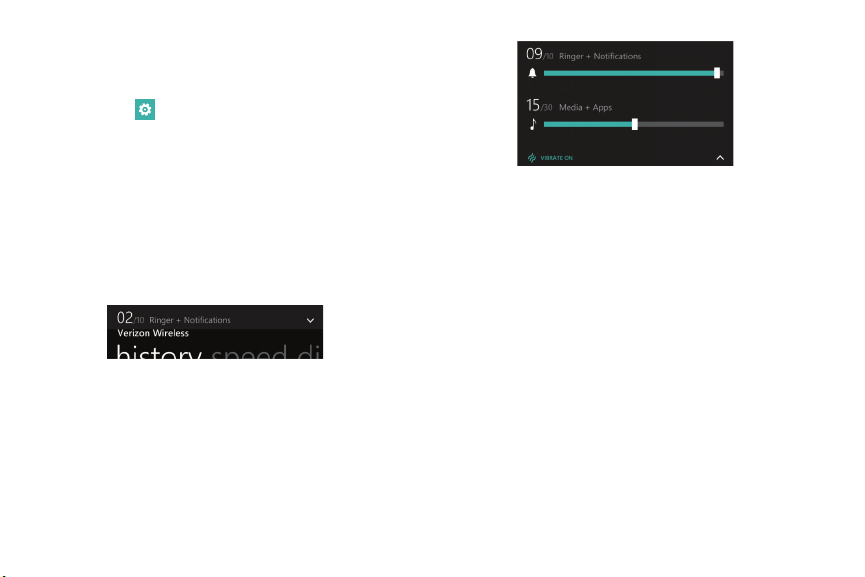
When you press the Volume key, either Ringer + Notifications
volume or Media + Apps displays at the top of the screen,
depending on what is being displayed.
To adjust the volume:
1. Tap the carat in the upper, right corner.
The control panel displays.
2. Touch and slide a slider to decrease or increase the
volume. Ringer + Notifications can be adjusted from 0
to 10 and Media + Apps can be adjusted from 0 to 30.
3. Tap VIBRATION ON / OFF to turn vibration on or off.
Menu Navigation
You can tailor the phone’s range of functions to fit your needs
using menus. Menus, sub-menus, and features can be
accessed by scrolling through onscreen menus.
Locking and Unlocking your Phone
To unlock your phone:
1. Press the Power/Lock button located on the upper
right side of your phone. The lock screen displays.
2. Swipe the lock screen in an upward direction.
3. The Home screen displays as shown.
21

Home Screen Overview
The Home screen is the starting point for many applications
and functions, and you can pin items like application icons,
shortcuts, contacts, and web pages to your Home screen to
give you instant access to information and applications. The
Home screen is accessible from any menu or application by
pressing
.
Navigating to the Application Menu
1. At the Home screen, swipe the screen to the left.
2. The Application Menu displays.
3. Tap one of the application icons to launch the app.
4. Swipe the screen up or down to access all of the
available application icons.
5. To return to the Home screen, swipe the display to the
right.
Navigating Using Sub-Menus
Sub-menus are available when you are at any screen such
as Phone, People, Messaging, or Internet and Options
displays at the bottom of the screen.
1. Tap
Options on the bottom right corner of your
display
. A sub-menu appears at the bottom of the
screen.
2. Tap an option. The followin
g example shows the call
history screen before and after tapping Options.
Understanding Your Phone 22

Customizing Your Home Screen
You can customize your Home screen by doing the following:
• Adding and removing application tiles on the Home screen
• Repositioning application tiles
• Changing the background
Adding a Tile from the Applications Menu
1. At the Home screen, swipe the screen to the left. The
Application menu displays.
2. Touch and hold an application.
3. Tap pin to start after it displays under the icon.
The application now appears as the bottom Tile on the
Home screen. You can then move it if you would like.
For more information, refer to “Moving Tiles On the
Home Screen” on page 23
.
Removing a Tile from the Home Screen
To delete an Application Tile from your Home screen, follow
these steps:
1. From the Home screen, touch and hold the Application
Tile that you want to remove.
2. Tap unpin to delete the Tile.
Tip: After deleting any Application Tile, you can add it back
later by pinning it to the home screen from the
Applications Menu. For more information, ref
er to “Adding
a Tile from the Applications Menu” on page 23
.
Moving Tiles On the Home Screen
To move an Application Tile on your Home screen, follow
these steps:
1. From the Home screen, touch and hold the Application
Tile that you want to move.
2. Drag the Tile to the new location and release.
3. Tap the center of the icon to place it in the new
location.
• Be careful not to tap
unpin. If you do, the Tile will
be deleted.
23
Resizing Tiles On the Home Screen
Tiles may be displayed as small, medium, or large tiles. To
resize an Application Tile on your Home screen, follow these
steps:
1. From the Home screen, touch and hold the Application
Tile that you want to resize.
2. Tap
, , or to toggle between small,
medium, and large.
Note: Not all tiles may be resized as small, medium, or large.
Changing the Lock Screen Background
You can change the background of your Lock screen by
following these steps:
1.
From the Home screen, swipe the screen to the left to
display the Application Menu, and then tap
Settings.
2. Under the systemmenu, tap lock screen.
3. Tap the Background field to choose an image location:
•photo: Sets a photo as the Lock screen background.
Tap the change photo field to select a photo from your
photo albums. Slide the photo within the window to
crop it, and then tap to save.
•Bing: Randomly sets professional Bing images as the
Lock screen background.
• Live Wallpaper: Sets Live Wallpapers as the Lock
screen background. Tap the open app field to launch
Live Wallpaper.
• Photo Editor: Edit the background image with Photo
Editor. Tap the open app field to launch Photo Editor.
• Facebook: Automatically display photos from your
Facebook account.
4. Tap the Power/Lock button twice to view the new
Lock screen background.
Understanding Your Phone 24

Changing the Color Theme
You can change the color theme of your phone by following
these steps:
1. From the Home screen, swipe the screen to the left to
display the Application Menu, and then tap
Settings.
2. Under the systemmenu, tap start+theme.
3. Ta
p the Background field.
4. Tap on dark or light to set your background color.
5. Tap the Accent color field.
6. Tap on a color that you like.
7. Press
to return to the Home screen.
Note: Battery power is consumed at a faster rate when the
background is set as light.
Screen Projection
Screen projection uses Wi-Fi direct without the use of routers
or access points to:
• Wirelessly stream HD video and audio to screen
projection-enabled devices
• Stream up to 1080p HD video and 5.1 surround sound.
To set up screen projection, see “Project My Screen” on
page 122.
25

Sense Apps
Windows Phone 8.1 includes "Sense" apps that help you to
better manage your smart phone.
• Wi-Fi Sense: Lets you connect to high-quality, free Wi-Fi
hotspots, automatically accept terms of use, and provide
required credentials. For more information, refer to “Wi-Fi
Sense” on page 105.
• Data Sense: Warns you when you get close to your data
limit and reduces the frequency of non-critical tasks to
save on data. It also compresses website images and text
by up to 60%. For more information, refer to “Data Sense”
on page 86.
• Battery Saver: Keeps track of which apps use the most
battery and enables auto-manage mode to add 20%
battery life. For more information, see “Battery Saver” on
page 82 and see “Battery Saver” on page 120.
• Storage Sense: Offers an easy-to-read breakdown of how
phone storage is being used. Easily transfer items between
phone hard drive and SD card, including apps. For more
information, re
fer to “Storage Sense” on page 121
.
Entering Text
This section describes how to select the desired text input
method when entering characters into your phone.
This section also describes the predictive text entry system
that reduces the amount of key strokes associated with
entering text.
Note: Your phone comes equipped with an orientation
detector that can tell if the phone is being held in a
portrait (upright) or landscape (sideways) orientation.
The landscape orientation makes entering text easier. If
the phone is sideways or upright, an onscreen, QWERTY
keyboard displays.
Word Flow
Word Flow is available on your phone to make your typing
easier. Word Flow suggests words and corrects misspellings,
which can be turned off if you would rather not use it.
Understanding Your Phone 26
Word Flow and Shape Writing
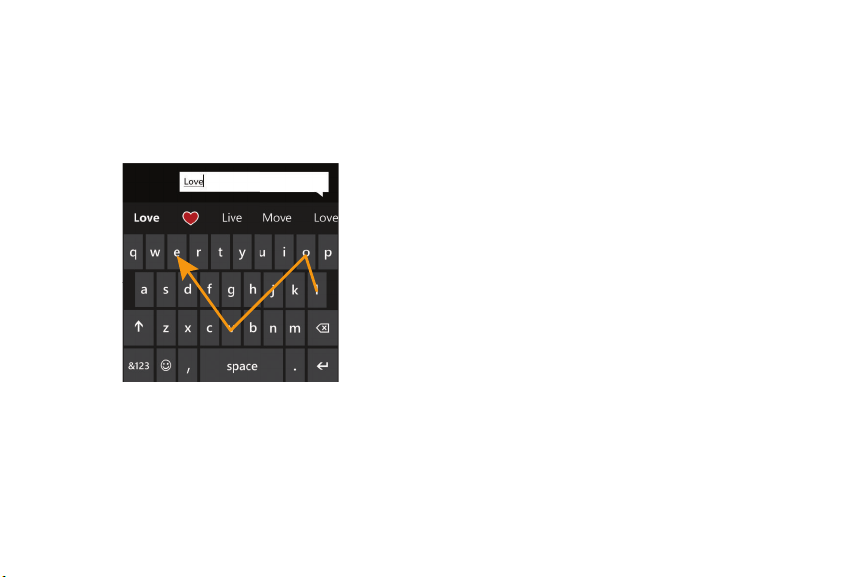
Shape writing is a fast and accurate alternative to typical
typing on your phone. Words take shape as you glide your
finger around the Word Flow keyboard, which allows you to
create text with one finger.
When you create a text message or email, glide your finger
over the letters on the keyboard to shape words. A streak of
color follows your finger to show the letters you are
selecting. When you are done, lift your finger and the word
appears. A space is added between words when you start
shaping a new word. Tap Space twice to add a period and a
space, and then capitalize the first letter of the next
sentence.
If you prefer standard typing, just type as you normally
would.
Word Flow Text Suggestions
As you type, Word Flow suggests words based on the letters
you type. You can tap the suggestion to add it to your
message or keep typing until you see the word you want.
To add a period and a space, and capitalize the first letter of
the next sentence, tap Space twice.
Word Flow Automatic Corrections
As you type, Word Flow automatically corrects:
• Common contractions: When you type cant, for example,
it will be replaced with can't.
• Capitalize the first letter of a new sentence: When you
type a period or tap Space twice, which adds a period and
a space for you, your phone automatically capitalizes the
next letter.
27
• Add accents to words: When you type a word like
fiancee, it is changed to fiancée.
• Capitalize proper nouns: Many words that should be
capitalized, such as names and places, are automatically
capitalized.
Turn Off Text Suggestions and Automatic Corrections
If you don't want to use some (or any) of the shortcuts in this
topic, you can turn them off in Settings.
1. From the
Home
screen, swipe the screen left to display
the App List.
2. Tap Settings keyboard.
3. Tap the keyboard language you want to ch
ange.
4. Tap to clear any settings that you do not want to use.
Keys
You can enter characters into your phone by using an
onscreen, QWERTY, portrait or landscape keyboard. In both
formats, the keys are associated with alphabetic letters,
special characters, or numbers, as shown in the following
layouts.
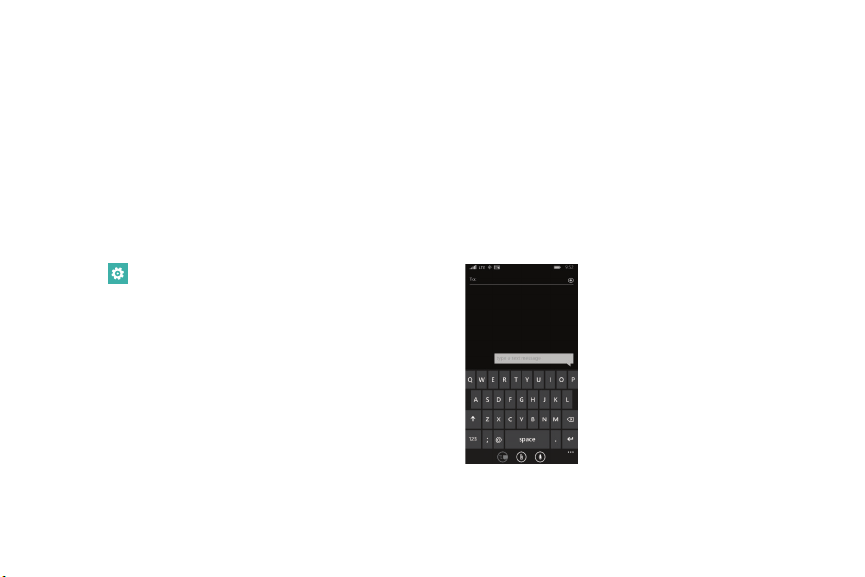
• From a screen where you can enter text, such as the New
Message screen, hold your phone in an upright position to
display the portrait version of the onscreen QWERTY
keyboard.
Understanding Your Phone 28
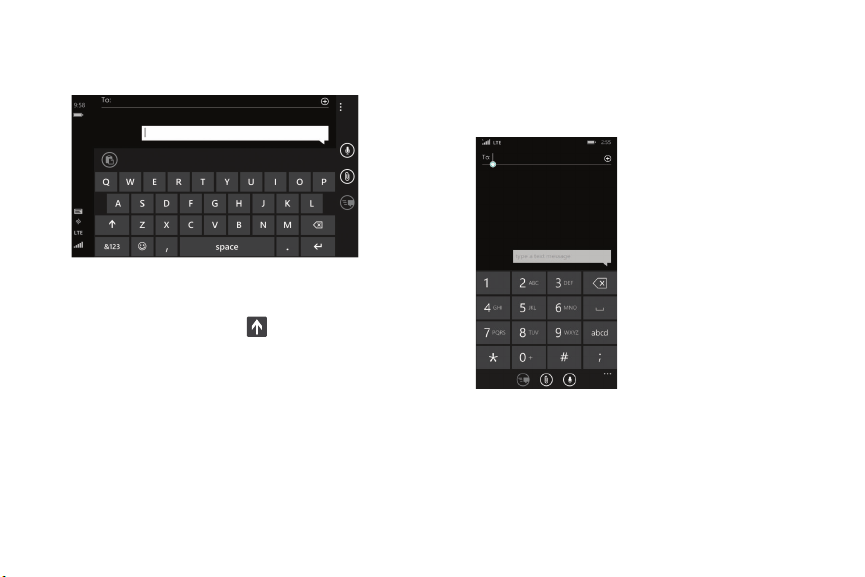
• Rotate your phone counterclockwise to display the
landscape version of the onscreen QWERTY keyboard.
• Based on your keyboard settings, the first letter of an entry
is capitalized and all consecutive letters are kept in
lowercase unless you tap the Shift key or enter a
period. After entering a charac
ter, the cursor automatically
advances to the next space.
For more information, refe
r to
“Keyboard” on page 128.
• For certain fields, such as the New Message To field, a
dialer keyboard displays when you tap the 123 key to enter
a recipient’s phone number. For more information, refer to
“Messaging” on page 52.
29
Using the QWERTY Keyboard
Your phone offers the convenience of an onscreen QWERTY
keyboard. Using the QWERTY keyboard to type letters,
numbers, punctuation, and other special characters into text
entry fields or other applications should be simple and fast.
Changing the Text Input Mode
There are three main keyboard layout keys that change the
onscreen keys within the QWERTY keyboard.
The available Text Input modes are:
&123
abcd
Symbol and Number Mode: Activates the symbol
and number keys.
Alphabetic Mode: Activates the default alphabet
keys. Switch between uppercase and lowercase by
tapping the Shift key
.
Emoticons: Activates the Emoticon keys.
Note: When in abcd mode, the &123 key appears. When in
&123 mode, the abcd key appears.
Using Alphabetic Mode
1. Whenever you enter text (while creating a message, an
email, and so on), if desired, rotate your phone
counterclockwise to a landscape orientation.
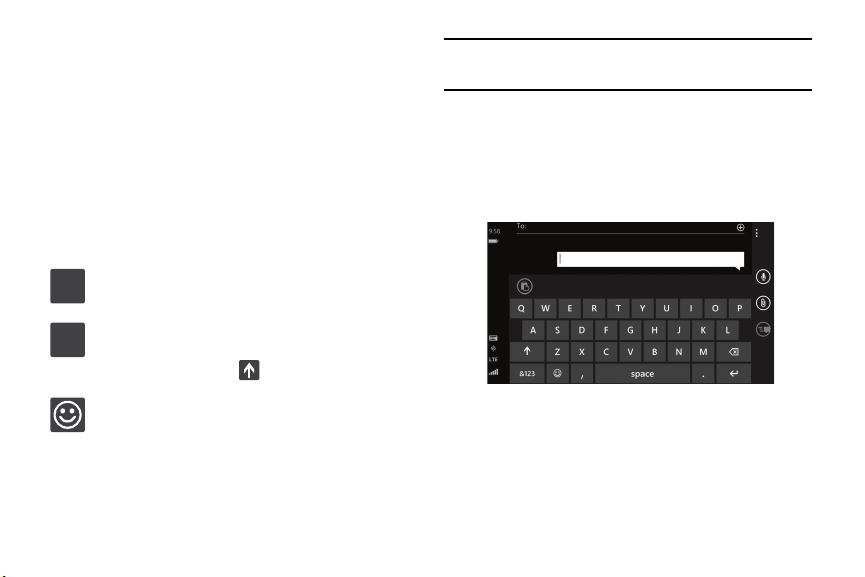
2. A screen similar to the following displays:
The Text Input mode is initially set to abcd mode.
3. Tap the desired alphabetic characters. After typing the
first letter, the following letters are lowercase.
Understanding Your Phone 30
4. Tap to input another uppercase letter. Tap
Using Emoticon Mode
twice to switch to caps lock mode and the shift key
changes to
Use Emoticon mode to add combinations of characters to
your text input.
. All following letters are uppercase
until you tap the shift key again.
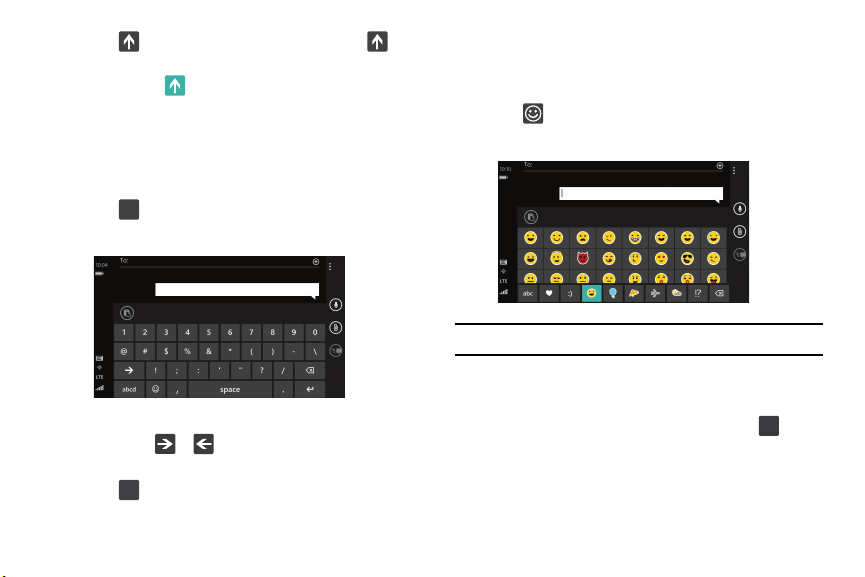
1. Tap
at the bottom of the screen. The following
screen displays:
Using Symbol and Numeric Mode
Use Symbol and Numeric mode to add numbers and
symbols.
&123
1. Tap at the bottom of the screen. The following
screen displays:
Note: Emoticons are not available for some input fields.
2. Tap a category at the bottom of the screen, and then
swipe up or down to display more Emoticons.
2. Tap the desired number and symbol characters.
3. After all characters have been selected, tap
abc
3. Tap either or to cycle through additional symbol
pages.
to
return to Alphabeti
c mode.
abcd
4. Tap to return to Alphabetic mode.
31
Using Text Suggestions
Based on your keyboard settings, your phone suggests
alternatives to what you are typing including correct spelling
of words similar to what you are entering. For more
information, refer to “Keyboard” on page 128.
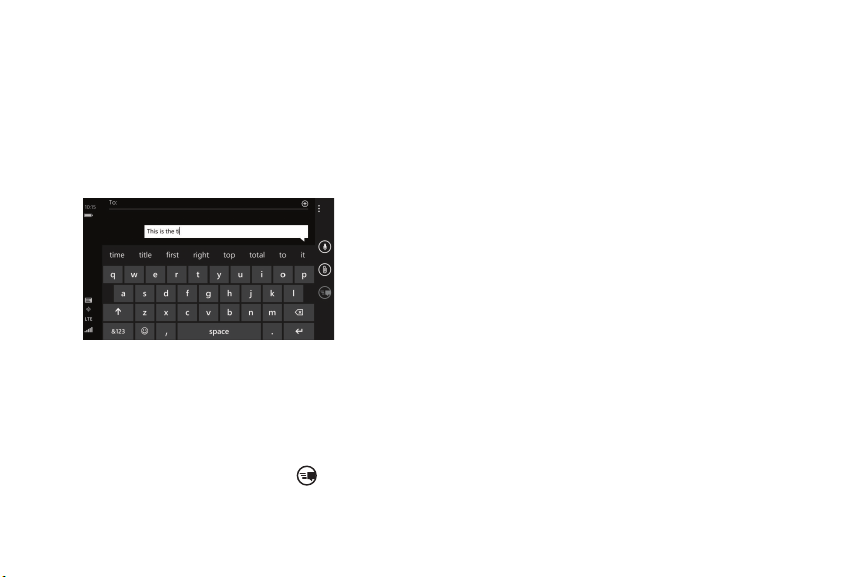
1. Tap a text input field.
2. Begin t
yping a word. A list of word options displays.
3. Tap one of the words to replace the word that has
already been typed or swipe across the list of words for
more word suggestions. If you replace the word, a
space is entered after the word and the cursor
automatically advances to the next space.
4. Continue typing. When finished, tap send. For
more information, refer to “Messaging” on page 52
.
Keyboard Settings
You can customize the way your phone handles certain
functions while you enter text. You can also remove all the
words you have added to your suggestion list.
For more information, refer to “Keyboard” on page 128
.
Copy and Paste
Windows Phone 8 supports copy and paste. You can copy
text from most locations on the phone and paste it in most
places you can type.
Copy
There are two copy and paste methods: Highlight option
and Menu Option.
Highlight Option
Some locations enable you to copy a specific text string by
highlighting it.
Understanding Your Phone 32

To copy text that supports the Highlight option:
1. Touch and briefly hold the text you want to copy to
highlight it.
2. Drag the arrows at each end of the highlighted text
until only the text you want to copy is highlighted.
3. Tap
copy that displays near the highlighted text.
The following locations support the Highlight option:
• Web pages in the browser.
• Bodies of email messages.
• Office documents.
• Editable fields in native applications.
Menu Option
Some locations enable you to copy an entire section of text
by using a menu option.
To copy text that supports the menu option:
1. Touch and hold the text or link you want to copy until a
menu appears.
2. Tap copy or copy link.
The following locations support this option:
• Headings of email messages.
• Directions in maps.
• Links in the browser.
• Information in contact cards and social networking profiles
in the People hub.
• Messages you have sent or received.
• Details pages for local search results.
Paste
To paste text that you have copied:
1. Tap where you want to paste the text.
2. Tap paste in the text suggestion bar above the
keyboard.
After you paste the text, the paste icon disa
ppears.
However, you can paste the copied text again by
panning from left to right in the text suggestion bar to
bring back the paste icon.
You can paste text in editable fields in native
applications, including password fields.
33
Section 3: Call Functions
This section describes how to make or answer a call. It also
includes the features and functionality associated with
making or answering a call. For more information on call
settings, see “Phone” on page 142.
Making a Call
1. From the Home screen, tap and use the
onscreen keypad to enter the number you want to dial.
2. Tap call to make the call.
Making an International Call
1. From the Home screen, tap , and then touch
and hold
. The + character appears.
2. Use the onscreen keypad to enter the country code,
area code, and phone number.
If you make a mistake, tap
until the desired
numbers have been deleted.
3. Tap call to make the call.
Correcting an Entered Number
After entering a number using the keypad, use the following
steps to correct a mis-typed entry when dialing.
1. If you make a mistake, tap
to erase a single
character.
2. Touch and hold
to erase the entire string of
numbers.
Ending a Call
Tap end call.
Dialing a Recent Number
All incoming, outgoing, and missed calls are recorded in the
history. If the number or caller is listed in your People, the
associated name is also displayed.
1. From the Home screen, tap
.
The history screen displays.
2. Tap an entry to enter the con
tact’s detail page, and
then tap call number or text.
Call Functions 34
Making a Call from People
You can store phone numbers that you use regularly in the
phone’s memory. These entries are collectively called
People.
For further details about the People feature, see “Dialing or
Messaging from People” on page 47
.
Answering a Call
When a call is received, the phone rings and displays the
caller’s phone number and name if stored in People.
At the incoming call screen:
Tap answer to answer the call and tap end call to end
the call.
– or –
Tap ignore to send the call to your voicemail.
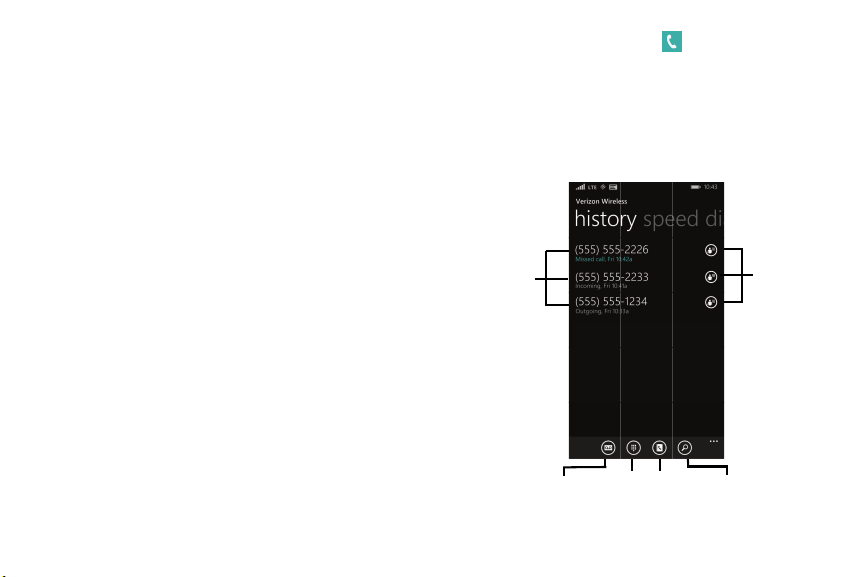
History
The phone stores the numbers of the calls you have dialed,
received, or missed in the history. The history displays the
details of the call.
From the
Home
screen, tap
The history screen displays. If the number or caller is
listed in your People, the associated name displ
ays.
All calls made, received, and missed are listed. Types
of calls are identified on the history screen as
Incoming, Outgoing, or Missed.
details
voicemail keypad people search
35
.
call

Calling Back a Missed Call
To call back a missed call number:
1. From the Home screen, tap
.
The history screen displays a list of recent calls. If the
number or caller is listed in your People, the associated
name displays.
2. Tap
a recent call to call the displayed number.
Saving a Recent Call to People
1. From the Home screen, tap .
The history screen displays a list of recent calls.
The profile screen displays.
2. Tap details
next to the call you want to save to
your People.
3. Tap save
.
The CHOOSE A CONTACT screen displays.
4. Tap
new to add the caller as a new contact or tap
an existing contact to edit manually.
The NEW MICROSOFT ACCOUNT CONTACT screen
display
s. The Phone number and Phone number type
fields are automatically filled in with the information of
the recent call.
5. Tap the Phone number or the Phone number type
field and use the keypad to edit, if necessary.
6. When finished, tap save.
7. Tap
edit and then tap the other fields to add name,
other phone numb
ers, email, ringtone, and other
information.
8. Tap save
.
For further details about the People feature, see “Adding a
New Contact” on page 41
.
Call Functions 36

Sending a Message to a Recent Call
1. From the Home screen, tap .
The history screen displays a list of recent calls.
2. Tap details
next to the call entry to which you
want to send a message.
The profile screen displays.
3. Tap text.
4. Use the keyboard to type in a message.
5. When you are done wit
h your message, tap
send.
For more information, r
efer to “Creating and Sending Text
Messages” on page 53
.
Deleting a Call from History
1. From the Home screen, tap .
The history screen displays a list of recent calls.
2. Touch and hold the call you want to delete from the
call log.
3. Tap delete.
The call is deleted from the call history.
Options During a Call
Your phone provides a number of control options that you
can use during a call.
Adjusting the Call Volume
During a call, to adjust the earpiece volume, use the Volume
buttons on the left side of the phone.
Press the Up volume button to increase the volume
level and press the Down volume button to decrease
the volume level.
From the Home screen, you can also adjust the ringer
volume using these same buttons.
37

In-Call Options Making a New Call During a Call in Progress
During an active call, there are several options available by
tapping a corresponding onscreen button.
1. Tap add call.
The history screen displays.
• speaker: Routes the phone’s audio through either the
speaker or through the earpiece. Tap speaker to turn on
the speakerphone. Tap again to turn it off.
2. Select a number from your recent calls, or tap
keypad
to dial a number.
You can also tap people to enter a number from
your People. Enter the numb
er to add and t
ap call
.
• mute: Turn the onboard microphone either on or off. Tap to
mute your phone during a call. Tap again to unmute.
Once connected, the active call appears on the call
screen and the
call on hold appears in a
box at the top
of the display.
•
Bluetooth
: This option appears if a Bluetooth device is active. Tap
to activate the Bluetooth device.
•
Skype
: Switch to Skype, if available.
• add call: Allows you to add another call to your present
conversation. For more information, refer to “3-Way
(Multi-Party) Calling” on page 40
.
• end call: Terminates the call.
• dialer : Displays the onscreen keypad, where you can
enter a number using DTMF (Dual Tone Multi-Frequency).
Call Functions 38

Switching Between Calls
When you have an active call and a call on hold, you may
switch between the two calls, changing the one on hold to
active and placing the other on hold.
1. Tap the bar at the top of your display to swap between
the two calls.
The current call (caller #2) is placed on hold and the
previous call on hold (caller #1) is then reactivated so
that you can continue conversing with that person.
The active call appears on the call screen.
2. Tap the bar at the top of your display again to
swap back.
3. Tap end call to end the currently active call. The call
on hold is then reconnected.
Answering a Call During a Call in Progress
1. There are several options available when a call is
received when you have a call in progress. Tap one of
the following:
•answer: Allows you to answer the incoming call and
put the first call on hold.
•ignore: Sends the new call to your voicemail. The first
call stays connected.
•
text reply
: To send a predefined text message to the caller,
touch one of the following messages:
–
I’ll call you back
–
Please text me
– or –
Touch
type a message
to compose a new message.
2. If you selected answer, tap the bar at the top of your
display to swap between the two calls.
39

3-Way (Multi-Party) Calling
The 3-Way or Multi-Party feature allows you to make or
answer a series of incoming calls and place them on hold. If
this service is supported by the network, all calls can be
joined together.
1. While connected to two different callers (one is on
hold), tap merge calls.
The three calls are conferenced together
and are
displayed on the Conference screen.
2. Tap end call to end the conference call.
Call Func
tions 40
Section 4: Your People Hub
This section allows you to manage your daily contacts by
storing their name, number, email, and other information in
your phone using the People feature.
Importing SIM Contacts to Your Phone
You can import all contacts from your SIM card to your
phone.
1. From the Home screen, tap People
.
2. Tap Options settings.
3. Tap import from SIM.
The phone then copies all contacts
from your SIM card
to your phone.
Note: The import from SIM option is only available if there
are contacts stored on the SIM card.
Adding a New Contact
Use the following procedure to store a new contact to your
People.
1. From the Home screen, tap People.
2. From the CONTACTS screen, tap new.
3. The NEW MICROSOFT ACCOUNT CONTACT screen
displays.
4. Select an account to store the contact.
5. Tap
the add photo icon and assign a picture to the new
entry. Select a picture from your photos or tap
camera to take a new picture with your camera.
Tap
when you have made a selection.
6. Enter contact information. Tap Name and use the
onscreen keyboard to enter the contact’s name. You
can also scroll down to enter additional information.
For more information, refer to “Entering Text” on
page 26.
7. Tap save to save the contact informa
tion.
41

Editing an Existing Contact
When editing an existing contact, you can tap a field and
change or delete the information, or you can add additional
fields to the contact’s list of information.
1. From the Home screen, tap
People.
2. Swipe to the CONTACTS scr
een, and then tap the
contact that you want to edit.
3. At the contact profile screen, tap
edit.
4. Tap the fields tha
t you want to edit and then use the
keyboard to make any changes.
5. Tap save to save the edited information.
Deleting Contacts
You can delete contacts from your phone's memory. To
delete any People entry:
1. From the Home screen, tap People.
2. Swipe to the CONT
ACTS screen, and then touch and
hold a contact that you want to delete
.
3. Tap delete on the displayed list.
4. If there are linked profiles for the contact, the CHOOSE
A PROFILE TO DELETE screen displays. Tap the profile
that you want to delete.
5. At the Delete contact? prompt, tap delete.
Your People Hub 42
Creating a New Room
Rooms allow you to share private calendars, group chats,
photos and videos, and notes only with people you invite,
such as family members, friends, or other groups.
The room displays four screens:
MEMBERS
,
CHAT
,
CALENDAR
,
PHOTOS
, and
NOTES
.
Note: A Family Room comes preloaded to get you started, and
you can create new ones.
Use the following procedure to create a new room.
Note: Before using this function, you must set up a Microsoft
account. For more information, refer to “Setting Up a
Microsoft Account” on page 63.
1. From the Home screen, tap
People
.
2. Swipe to the
ROOMS and GROUPS
screen
3. Tap
new
.
The
ADD NEW
screen displays.
4. Tap
Room
.
The
NAME YOUR ROOM
screen displays.
5. Use the onscreen keyboard to enter a room name.
6. Tap
save
to save the room name.
The EDIT ROOM screen displays.
7. To invite members to the room, tap
invite
.
The TEXT AN INVITE screen displays.
8. Scroll through your contacts and tap a contact to send
a text invitation to the room.
9. Repeat Steps 7 and 8 until you have invited all your
members.
10. Tap
done
.
11. To change a room member’s preferred phone number
or email address or to remove a member from the
room, tap an entry in the list of group members.
12. Tap
save
to save your changes.
43

Room Options
5. Tap Options to display these options:
•
pin to start
: Pin the room to the Home screen.
Once you have created a room, there are several options
available for editing, deleting, and so on.
•
choose background
: Change the background of the room.
1. From the
Home
screen, tap
People
. •
rename
: Rename the room.
2. Swipe the screen to the left or right to display the
ROOMS and GROUPS
screen, then tap the room that you
want to display.
The room screen displays.
•
delete room
: Delete the room.
•
learn about rooms
: Display more information about rooms.
Note: If you delete a room, the contacts within the room are
not deleted.
3.
Tap
email
to send an email message to all
members of the room.
4. To display the EDIT ROOM screen, tap
members
.
•
To add more members to the room, tap
invite
.
•
Tap an entry in the list of room members to change that
person’s preferred phone number or email address or to
remove the entry from the group. For more information, refer to
“Creating a New Room” on page
43
.
Your People Hub 44

Rooms Chat, Calendar, Photos,
and Notes
Rooms allow you to share private group chats, calendars,
photos and videos, and notes only with people you invite to
the room.
1. From the
Home
screen, tap
People
.
2. Swipe the screen to the left or right to display the
ROOMS and GROUPS
screen, then tap the room that you
want to display.
3. Swipe to the
CHAT
screen to chat with members of the
room who are currently online using Messenger.
4. Swipe to the
CALENDAR
screen to view a shared
calendar which all room members can view
and update.
5. Swipe to the
PHOTOS
screen to view photos and videos
that anyone in the room can add.
6. Swipe to the
NOTES
screen to share notes with all
room members.
7. Tap Options
learn about rooms
to display more
information about rooms.
Creating a New Group
The Group function makes it possible to make individually
named groups of people you care about, such as family,
friends, coworkers, or social media friends. Once you create
a group, you can pin it to your home screen and it becomes a
live tile. Notifications appear as new posts, comments, or
pictures are added to this group.
Use the following procedure to create a new group of your
contacts.
1. From the Home screen, tap
People.
2. Swipe to the ROOMS and GROUPS screen, and then
tap new.
3. Tap Group.
4. Enter a group name. Ta
p save to save.
5. Tap add to add members to the group.
45

6. The CHOOSE A CONTACT screen displays. Scroll
through your contacts and tap a contact to add it to the
group.
7. Repeat Steps 5 and 6 until you have added all group
members.
8. Tap an entry in the list of group members to change
that person’s preferred phone number or email address
or to remove the entry from the group.
9. Tap
done to save the edit
ed information.
Group Options
Once you have created a group, there are several options
available for editing, deleting, and so on.
1. From the Home screen, tap People.
2. Swipe to the
ROOMS and GROUPS
screen, and then
scroll down and tap the group that you want to display.
The group screen displays.
3. Tap text to send a text message to all members of the
group.
4. Tap send email to send an email message to all
members of the group.
5. Tap
pin to pin the group to the home screen.
Tap members to display the EDIT GROUP screen.
Ta
p add to add more members to the group. Tap
an entry in the list of group members to change that
person’s preferred phone number or email address or
to remove the entry from the group.
6.
For more
information, refer to “Deleting Contacts” on page 42
.
7. Tap
Options rename to rename the group.
8. Tap Options delete to delete the gr
oup.
Note: Deleting a group does not delete the contacts.
Yo
ur People Hub 46
Using Your People List
Dialing or Messaging from People
Once you have stored phone numbers in your People, you
can dial or message them quickly and easily.
1. From the Home screen, tap People.
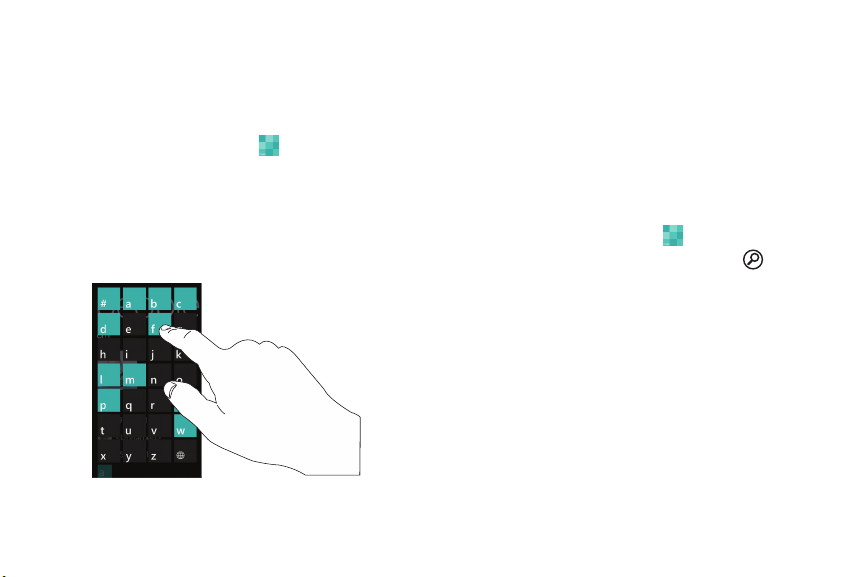
2. Swipe to the CONTACTS screen, and then tap any
letter (on the le
ft side of the display) to highlight all of
the letters for which you have contacts.
3. Tap a letter to quickly jump to the contacts beginning
with that letter.
4. Tap the contact you want to call or message.
5. Tap call mobile to make a phone ca
ll or text to send a
message.
For more information, refer to “Creating and Sending
Text Messages” on page 53
.
Searching for People
You can also find a contact in your People list by using the
Search option.
1. From the Home screen, tap People.
2. Swipe to the CONTACTS screen, and tap search.
The sear
ch screen displays with a listing of al
l your
contacts’ names.
3. Use the onscreen keyboard to type the beginning
letters of the contact’s name that you are trying to find.
The list displays names that begin with the letters you
have typed.
4. Tap a name in the list to disp
lay the contact’s profile.
47

Linking People
Linking People Information
Many people now maintain multiple email accounts, social
networking logins, and other similar account information. For
example, a Facebook account login name might differ from a
corporate email account login because they are maintained
separately and for different groups of people.
This device can synchronize with multiple accounts such as
Windows Live, Outlook, Google, Facebook, Twitter, and
LinkedIn. When you synchronize your phone with these
accounts, each account creates a separate contact entry in
the People list.
If one of your contacts (Amy Smith, for example) has a
regular email account that you maintain in Hotmail, but also
has a Facebook account under her maiden and married
name, as well as a Google account, when you merge these
accounts into your Contacts list you can link all of her entries
and view the information in one record.
The next time you synchronize your phone with your
accounts, any updates that contacts make to email account
names, email addresses, and so on, automatically update in
your People list.
For more information about synchronizing accounts, see
“Synchronizing Accounts” on page 49
.
1. From the Home screen, tap
Pe
ople.
2. Tap a contact name (the name you
want to link to
another entry). Typically, this is the same contact with
a different name or account information.
3. Tap
link.
4. Tap choose a cont
act.
5. Tap the second contact entry (the entry in which to
link). The second contact is now linked with the first
and the account information is merged into one screen.
Note: The information is maintained in the first entry that you
selected.
6. Tap the linked contacts to view the contact information
you linked. The contacts and information displays with
a label next to the contact name to indicate what type
of account information is contained in the entry.
Your People Hub 48

Unlinking People
1. From the Home screen, tap People.
2. Tap a contact name (the accou
nt name from which you
want to unlink an entry).
3. Tap link. A number displays over the link symbol
show
ing how many contacts are linked to this contact.
The names of all the contacts that are linked are
displayed.
2
4. Tap the contact you want to unlink.
5. At the prompt
, tap unlink. The contact is now
“unlinked” and no longer displays in the merged record
screen.
Synchronizing Accounts
From the Accounts menu you decide if you want applications
to synchronize, send, and receive data at any given time, or
if you want the applications to synchronize automatically.
After determining how you
want
the accou
nts to synchronize,
indicate which account to synchronize with your People list.
To set up an account, follow these ste
ps:
1. From the Home screen, tap
People.
2. Swipe to the WHAT’S NEW screen, and then t
ap
set up account.
The
ADD CONTACTS
screen displays.
3. Tap
add an account
.
4. Tap an account type to add. Select Outlook, Microsoft
Account (Hotmail, Xbox, Messenger, Windows),
Exchange, Backup Assistant Plus, Google, iCloud,
Facebook, Twitter, LinkedIn, or advanced setup
(used for accounts that use Exchange ActiveSync).
5. Follow the onscreen instructions.
The selected account type synchronizes with your
Contacts list.
49
What’s New
Synchronized accounts display information on the WHAT’S
NEW screen. For example, if you add your Facebook account,
you can see what your contacts are posting.
Importing Facebook Contacts
When you add your Facebook account, your profile picture
displays at the top of your People list. Tap the picture to go to
your Facebook profile. Your phone also imports all of your
Facebook contacts and creates a profile for each contact or
adds information to existing profiles.
You can limit imported Facebook contact information to the
existing contacts already on your phone. For more
information, refer to “P
eople” on page 141
.
People Options
You can access several options while viewing the details
page for a specific entry.
1. From the Home screen, tap
People.
2. Tap a specific contact entry.
3. Tap one
of the following options:
pin: Tap the pin icon to pin this contact to your
Home screen.
link: Tap the link icon to link several contacts
together. For more information, refer to
“Linking People” on page 48
.
edit: Tap the edit icon to make change
s to the
contact’s information.
share contact: Tap the options icon, and then
tap share contact. Tap share to send a
contact’s in formation via Tap + Send,
Messaging, or an email account.
delete: Tap the options icon and then tap
delete to delete the contact from your People
list.
Your People Hub 50

Additional People Options
Depending on your settings, additional information from
accounts such as Facebook, Twitter, or LinkedIn displays on
the profile pages of your contacts.
1. From your People list, tap a contact entry. Depending
on the information available on your accounts, phone
numbers, home addresses, company names, email
addresses, birthdays, and so on, are displayed. There
is also a write on wall option and a send email option.
2. Swipe the screen to the left on any contact profile to
the WHAT'S NEW screen for that contact. Posts for the
contact are displayed. Scroll down the posts to display
additional posts.
3. Swipe the screen to the left on any contact profile to
the history screen for that contact. Recent activity
from that contact is displayed. Scroll down the posts to
display additional posts.
Use the filter my contact list option to limit additional
information from accounts such as Facebook, Twitter, or
LinkedIn from displaying on the profile pages of your existing
contacts. For more information, refer to “People” on
page 141
.
51

Section 5: Messaging
This section describes how to send and receive different
types of messages. It also includes the features and
functionality associated with messaging.
Types of Messages
Your phone provides the following message types:
• Text Messages
• Multimedia (Picture) Messages
• Email Messages
• Online Messages
The Short Message Service (SMS) lets you send and receive
text messages to and from other mobile phones or email
addresses. To use this feature, you may need to subscribe to
your service provider’s message service.
Important! When creating a message, adding an image to a
text message changes the message from a text
message to a multimedia message.
When messages are received, the number of messages
displays in the Messaging icon on the Home screen.
Messaging 52

Creating and Sending Text Messages
To create a new message and send it to another mobile
phone or an email address:
1. From the Home screen, tap Messaging
.
2. Tap new.
3. Tap the To field to manually enter a recipient. Tap the
123 key on the onscreen keyboard to enter a phone
number.
– or –
Tap
to the right of the To field to select a recipient
from your People list. Valid entries must have a
wireless phone number. Contacts with only an email
address are not listed.
4. Tap
to add additional recipients from your People
list. Each contact is placed in the To field separated by
a semicolon (;).
– or –
Add more recipients by tapping the recipient field.
Note: Each additional recipient entry must be separated by a
semicolon (;).
5. To remove recipients, tap the entry in the To field then
tap remove. You can also open the contact’s profile or
copy the contact.
6. Tap the type a text message box and enter your
message. For more information, refer to “Entering
Text” on page 26
.
7. Review your message and tap send.
Note: If you exit a message before you send it, the me
ssage is
saved as a draft.
53

Voice to Text Messages
To create a new message using your voice:
1. Create a new message and add recipients in the To
field. For more information, refer to “Creating and
Sending Text Messages” on page
53
.
2. Tap speak and say your message when go is
displayed. When you stop speaking, your words are
di
splayed.
3. To repeat the message, tap speak. The original
message is deleted and the new message is displayed.
4. Once your spoken message is correct, tap send.
Creating and Sending Multimedia
Messages
A multimedia message is a message that contains a picture
attachment. To create a multimedia message and send it to
another mobile phone or an email address:
1. From the Home screen, tap
Messaging
.
2. Tap new.
3. Tap the To field or tap to the right of the To field to
enter a recipient.
For more information, refer to “Creating and Sending
Text Messages” on page 53
.
4. Tap the type a text message box and use the
onscreen keyboard to type your message. For more
information, refer to “Enter
ing Text” on page 26
.
5. Tap attach to add a picture, video, your current
location, a voice note, or a contact to the message.
6. To remove an attachment, touch and hold t
he
attachment, then tap remove from the pop-up menu.
7. Review your message and tap send.
Messaging 54

Messaging Threads
Any messages you have sent or received can be viewed in
the Messaging threads list.
Sent and received text, picture, and online messages are
grouped into message threads. Threaded messages allow
you to see all the messages exchanged (similar to a chat
program) and displays a contact on the screen. Message
threads are listed in the order in which they were received,
with the latest message displayed at the bottom.
Displaying a Messaging Thread
To view a conversation in the Messaging threads list:
1. From the Home screen, tap Messaging
threads
.
The Messaging threads list displays any messages you
have sent or received.
All messages to or from another phone or email
address are grouped in one conversation.
Entries in the Messaging threads list contain the
recipient’s phone number, contact name, or email
address, the time that the last message was received
or sent, and the first words of the last message.
An entry for Messaging threads with multiple recipients
starts by indicating the number of recipients (such as
3 recipients) and then the recipients are listed.
2. Tap an entry in the list. The Messaging thread displays.
E
ach message to or from the recipient, and the time
that the message was sent or received, is shown in a
message box. Messages sent to you are shown in a
From message box
Messages that you sent are
shown in a To message box
.
.
3. Tap the type a text message and use the onscreen
keyboard to type a reply message to the recipient.
55

Viewing a Picture Attachment
To view a picture attached to a message:
1. Tap an entry in the Messaging threads list.
2. Locate the message box that contains the
picture attachment.
3. Tap the picture to open the picture viewer and display
the picture. Tap the picture with two fingers and drag
outward to zoom in or drag toward the center of the
picture to zoom out.
4. Tap
Back to return to Messaging threads.
Viewing a Video Attachment
To view a video attached to a message:
1. Tap an entry in the Messaging threads list.
2. Locate the message box that contains the video
attachment. The file name is underlined.
3. Tap the video file name in the message box.
The video player opens and plays the video.
4. To pause playback of the video attachment, tap .
• To continue playback of the video attachment, tap
.
• To stop playback of the multimedia message,
tap Back.
Listening To an Audio Attachment
To listen to an audio attached to a message:
1. Tap an entry in the Messaging threads list.
2. Locate the message box that contains the audio
attachment.
3. Tap the file name to open the audio player and play the
audio file.
Messaging 56

Deleting a Messaging Thread
To delete a Messaging thread:
1. From the Home screen, tap Messaging
.
The Messaging threads list displays any messages you
have sent or received.
2. Touch and hold a message in the list, then tap delete.
– or –
Tap a message in the list, then tap Options
delete thread.
3. Tap delete to delete all messages in the selected
conversation or tap cancel to return to the Messaging
threads list.
Deleting a Message
To delete a message in a Messaging thread:
1. Touch and hold the message box that contains the
message you want to delete.
The delete, forward, and copy options display.
2. Tap delete.
The Delete message? screen displays.
3. Tap delete to delete the message or tap cancel to
return to the Messaging threads list.
Forwarding a Message
To forward a message in a Messaging thread:
1. Touch and hold the message box that contains the
message you want to forward. The delete, forward,
and copy options display.
2. Tap forward. The New Message screen displays with
the contents of the selected message included.
3. Tap the To field or tap
to the right of the To field to
enter recipients. For more information, refer to
“Creating and Sending Text Messages” on page 53
.
4. Tap
send to forward the message.
57

Messaging Settings
To view and change messaging settings:
1. From the Home screen, tap Messaging
.
2. Tap Options settings.
The messaging settings screen displays. For more
information, refer to “Messaging” on page 140
.
Message Drafts
When you exit a message without sending, the message is
automatically saved as a draft.
1. From the Home screen, tap Messaging
.
2. Tap Options drafts.
3. Tap any message to
resume editing. Once the message
is sent, it will be removed from drafts.
– or –
Touch and hold a message until the delete pop-up
displays. Tap delete in the pop-up to permanently
delete the message.
Online Messaging
You can chat with friends online via social networks, such as
Facebook. Friends who are currently online are displayed on
the online screen.
To set your status:
1. From the Home screen, tap Messaging.
2. Swipe to the online screen and tap status.
The SET CHAT STATUS displays.
3. Tap one of the following options to set your chat status:
• available: You are online and available to send and
receive chat messages.
•busy: You are online, but temporarily unavailable.
•away: You are online, but unavailable for a period of
time, such as at lunch.
• invisible: You are online, but you appear as offline to
others.
• offline: You are offline.
Messaging 58

Using Email
Email enables you to review and create email using your
Microsoft account, Google, and several other email services.
You can also receive text message alerts when you receive
an important email. You can set up multiple email accounts
on your device.
Note: The options on screens and in menus may vary
depending on the email account you have enabled.
Setting Up an Email Account
To set up an email account:
1. From the Home screen, tap Email.
– or –
From the Home screen, tap Email
Options add e
mail account.
– or –
From the Home screen, tap Settings. Under the
system menu, tap email+accounts
add an account
.
The ADD AN ACCOUNT screen displays with the
possible email services choices.
2. Tap an email service, such as Microsoft account,
Exchange
,
Yahoo! Mail
,
Google
, and so on.
Tap
other account
to add other types of email accounts.
For some email accounts, tap
advanced setup
. For
more information, refer to “Advanced Email Setup” on
page 59
.
3. Enter your email address in the Email address field.
4. En
ter your password in the Password field.
5. Tap sign in.
If your email information is found, your account
information is save
d.
If
Attention required displays, tap the account, correct
your user name and Password, and tap save.
Advanced Email Setup
For some email accounts, such as a corporate account,
entering your email address and password may not be
enough information. You may need to enter additional
information.
59
Note: If you are not sure which option to choose, check with
your service provider.
Email Account Settings
Once your email account is set up, you may want to adjust
some of your settings.
Note: Available options may differ depending upon your email
service provider.
1. From the Home screen, tap
Settings. Under the
system menu, ta
p email + accounts.
2. Tap your email account. The Settings for your email
account display.
3. Tap the field that contains the information you want to
change.
The following fields display (depending on the email
account):
•Account name: Use this field to change the name that
appears on your phone for this account.
• Email address: Displays the email address for this
account.
• Download new content: Allows you to set how often
you want your phone to download new email for this
account. Possible values are: as items arrive, every
15 minutes, every 30 minutes, hourly, and manually. If
you choose manually, see “Syncing Your Email
Account” on page 61
.
• Download email from: Allows you to limit the email
downloaded to your phone for this account. Possible
values are
: the last 3 days, the last 7 days, the last 2
weeks, the last month, and any time.
• Content to sync: Indicates which content to
synchronize between your phone and the account, such
as, Email, Contacts, Calendar, and so on.
•Your name: This is the name that appears on your
messages.
• Incoming email server: Displays the email server
name.
•User name: Displays your user name.
• Password: Displays your password.
Messaging 60
•Server: Displays the email server name.
• Outgoing server requires authentication: Access to
server requires authentication.
• Use the same user name and password for
sending email: Use same login information for both
outgoing and incoming email.
• Require SSL for incoming email: Use SSL security
for incoming email.
• Require SSL for outgoing email: Use SSL security
for outgoing email.
Note: Additional fields may display, depending on the account
type. Some fields should not be changed without
consulting your service provider.
Deleting an Email Account
To delete email accounts other than Windows Live:
1. From the Home screen, tap Settings. Under the
system menu, tap email + accounts.
2. Touch and hold the email accou
nt that you want to
delete until the option list pop-up displays.
3. Tap delete in the pop-up to delete the account.
Note: Microsoft accounts cannot be deleted.
Syncing Your Email Account
In order to view email messages on your phone for any email
account, content has to be downloaded to your phone.
Syncing is simply downloading content from your email
provider and storing it on your phone.
Use the following method if you choose to download new
content manually:
1. From the Home screen, tap
Settings. Under the
system menu, tap email + accounts.
2. Touch and hold the email account that you want to
sync. An option list displays.
3. Tap sync.
Syncing displays while new content is downloaded.
61

Linked inboxLinked inbox
Linked Inboxes
Each time you add a new email account, a tile is added to the
Home screen with the email name and to the Apps list.
When you add more than one email account, it is possible to
link two or more email accounts so you can see all messages
from those accounts in one inbox. When email accounts are
grouped in this way, one tile is displayed on the Home screen
for each linked group instead of the individual email tiles.
Linked inboxes can be renamed.
Creating Linked Inboxes
To create linked inboxes:
1. From the Home screen, tap Email for one of the
email accounts that you want to link and then tap
Options
link inboxes. This
inbox and other
inboxes to which it can be linked are displayed.
2. Tap one or more of the other inboxes that you want to
link to this inbox.
3. Tap rename linked inbox to give the linked inboxes a
new name.
4. Tap Back to exit linked inboxes set up.
Unlinking Inboxes
To unlink inboxes:
1. From the Home screen, tap a linked inbox
Linked inboxes and then tap Options
li
nked inboxes.
2. Tap the email account listed under this inbox that
you
want to unlink.
3. Tap unlink to unlink the inboxes. The unlinked email
account displays under other inboxes.
Messaging 62

Setting Up a Microsoft Account
When you set up a Microsoft account, you are doing more
than just setting up an email account. You can get apps, play
Xbox LIVE games, and more.
1. From the Home screen, tap
Settings. Under the
system menu, tap email+accounts
add an account.
2. Tap Microsoft account.
The
Keep your life in sync
screen displays.
3. Read the information and tap
sign in
, if you have a
Microsoft Account, or tap
create one
to create a new
account.
4. Follow the instructions to set up your Microsoft account
to use OneDrive, sync your text messages, and back up
your phone settings.
63

Section 6: Multimedia
This section explains how to use the multimedia features of
your phone, including Music Player, Video Player, Gallery,
Camera, and Camcorder.
Xbox Music Pass
Xbox Music Pass is a monthly music subscription service
giving you unlimited access to millions of songs. Download
or stream as many songs as you like and listen to them for
as long as your subscription is up to date. On your Windows
Phone, the streaming feature requires wireless network
access. Carrier fees may apply. For more information, visit
xbox.com/music
.
Note: Before
using Xbox Music to
buy music, you must set
up
a free Micros
oft Account. For more information, refer
to
“Setting Up a Microsoft Account” on page 63
.
Music
This section explains how to access music, videos, podcasts,
and radio on your phone. Navigate the Music app as follows:
1. From the Home screen, tap Music
.
2. Swipe left across the screen to view the following
menus:
• COLLECTION: Display
s media categories such as
music, video, and podcasts, as well as a link to the
Store app.
•
GET MUSIC
: Gives you access to the music area of the online
Store. Also, displays featured artists from the Xbox Music Store.
Touch a thumbnail to play the song and see more details about
the artist from the Xbox Music Store.
•
NOW PLAYING
: Displays the song that is currently playing.
Touch
song list
next to the thumbnail to display the
songs on the album.
• RECENT PLAYS
: Displays songs you have recently played.
Multimedia 64

Adding New Music
To add new music and videos with your Xbox Music Pass:
1. From the Home screen, tap Music
.
2. Swipe left across the screen to view the GET MUSIC
menu.
3. Touch
Top music
or
Browse by genre
.
4. Sign in with your account information, and follow the
online prompts to download new music and videos.
To add new music and videos from your computer:
1. From the Home screen, tap
Music
.
2. Swipe left across the screen to view the GET MUSIC
menu.
3. Touch
How to add music
.
4. There are several ways available to transfer music and
videos between your phone and computer, such as
using the cloud (Internet storage such as OneDrive),
using a USB cable, using a Windows phone app, and so
on. Select the appropriate set up for your phone, and
follow the online instructions to install and use the file
transfer software of your choice.
Playing Music
To play music files from Music:
1. From the
Home
screen, swipe the screen left to display
the App List.
2. Tap Music
.
3. Swipe left across the screen to view the COLLECTION
menu.
Songs are organized by artists, albums, songs, genres,
and playlists.
4. Touch and hold an artist, album, song, genre, or
playlist to display some or all of the following options:
•
add to ...
: Add the selected song to the list of songs currently
playing or add the song to a new playlist.
•
create radio station
: Create a customized, streaming playlist
of songs based on an artist's name.
•
share
: Allows you to share the song with Tap to share (NFC) or
by using an account or connection. (Note that sharing may be
restricted for some content due to copyright protection.)
•share: Allows you to share the song with Tap+Send or
via an account or connection.
65
Note: Sharing may be restricted for some content due to
copyright protection.
• pin to start (albums only): Allows you to add a tile on
the Home screen for this album. For more information,
refer to “Moving Tiles On the Home Screen” on
page 23.
•
delete
: Delete the song or playlist.
5. Tap the song that you want to play. Song details such
as artist and time information (time played and time
remaining) are displayed.
6. The following music controls are available:
Pause the music.
Start the music after being paused.
Touch and hold to rewind the music. Tap twice
to play the previous song.
Touch and hold to fast-forward the music. Tap
to play the next song.
Store
To visit the music area of the Store app from Music +
Videos:
1. From the Home screen, tap videos
.
2. Swipe left or right to view the collection menu, then
tap store.
3. Tap music. The artist of the week displays.
4. Swipe left or right to view more music categories.
Multimedia 66

Photos
The Photos application is where you view photos and play
back videos. You can set photos as your lock screen
background or share them as a picture message. And you
can use your camera to scan barcodes, QR Codes, Microsoft
Tags, books, CD’s, and other DVD’s and get more information
on these products with your Internet browser.
Uploading To SkyDrive(OneDrive)
Windows Live SkyDrive(OneDrive) provides free storage so
you can store photos online, share them with the people you
choose, and access them from any web browser. Various
options include share on SkyDrive(OneDrive) if you have
set up a Microsoft account.
For more information about SkyDrive(OneDrive), visit
onedrive.com
and click on SkyDrive(OneDrive).
Accessing Pictures and Videos
When you take a photo or shoot a video, the file is saved so
you can view your photos and videos at any time. To access
photos and videos:
1. From the Home screen, tap
Photos.
2. Photos and videos are displayed depending on which
option you choose
:
• camera roll: Thumbnails are displayed for taken
photos and videos.
•albums: Thumbnails are displayed for groups of
pictures such as Camera Roll, Screenshots, and so on.
Other albums are displayed depending on the
accounts you have set up such as Microsoft, Facebook,
and so on.
•date: Thumbnails of all photos and videos are
displayed in order of month and year created.
•people: Thumbnails are displayed of all People photos
that you have viewed from your accounts, such as
Facebook, Twitter, and LinkedIn. You can also tap
choose contact and tap a contact to load that
contact’s posted pictures.
67

3. Swipe left across the screen to vi
ew the following
menus:
•favorites: Photos added to favorites can set to display
on the animated Photos Tile on the Home screen, or
may be pinned there for one-tap access.
• what’s new: Displays photos posted by your contacts
on your synchronized accounts, such as Facebook,
Twitter, and LinkedIn.
•apps: Get direct access to photo apps such as ATIV
Beam, Live Wallpaper, Photo Editor, and Share Box.
Thumbnail Options
1. When viewing groups of thumbnails, additional options
may be available. Tap one or more thumbnails. A check
mark indicates selection (tap again to deselect).
2. Tap Additional options to display th
e following
options:
•
add to favorites: Adds the photo(s) to your
favorites.
•
delete: Deletes the photo.
• share: Share the photo(s) via Tap + Send,
Messaging, an email account, social network, or add
the photo to O
neNote as a Quick Note.
3. Tap Options and select an option.
Multimedia 68
Viewing Pictures
Once you locate the photo you want to view:
1. Tap the thumbnail to view the picture.
2. While viewing a photo, tap each side of the photo and
pinch inward or stretch outward to zoom in or out.
– or –
Tap the screen twice to zoom in or out.
You can magnify the photo up to 400 percent.
Touch and slide a magnified photo to move the focus to
the area you tap.
3. Swipe across the screen to
the right or left to view
more ph
otos and videos.
4. Touch and hold a photo or tap
Options to display
the following options:
•
share...
: Share the photo with others. Tap an option, such as,
Tap+Send, Messaging, an email account, and so on, and
follow the on-screen instructions.
•edit: Make adjustments to the photo such a cropping,
rotating, and auto fix, or using applications such as
Paper Artist and Photo Editor.
•delete: Delete the photo or video.
• add to favorites/remove from favorites: Add or
remove the photo as a favorite.
• set as lock screen: Sets the photo as the lock screen
background.
• save to SkyDrive(OneDrive): Upload the photo to
SkyDrive(OneDrive) (
see “Uploading To SkyDrive(OneDrive)”
on page 67
).
• apps...: Edit the photo with your installed photo editing
apps.
Tip: If your device displays that the memory is full when you
access Pictures, delete some of the files.
5. Tap
to return to the thumbnails screen.
69
Viewing Videos
3. Touch and hold a video or tap Options to display
the following options:
To view a video:
•share...: Share the video with others. Options are:
1.
Tap the thumbnail to view the video. The first frame of
the video displays indicating the length of the video in
minutes and seconds (for example, 01:25). The play
button
– Tap + Send: Shares the video via Bluetooth.
– Messaging: Opens a New Message screen with
the video in-line.
is also displayed.
For more information, refer to
“Creating and Sending Multimedia Messages” on
page 54 .
2. To play the video, tap .
To pause the video playback, tap
.
– Email: Opens a New Email screen with the video in-
line. This option varies depending on how you have
your email set up.
T
o fast forward through the video, touch and hold .
To rewind
the video, touch and hold .
• delete: Delete the video.
Note: If no cont
rol icons are displayed on the screen in
addition to the video, tap anywhere on the screen to
dis
play them.
• save to SkyDrive(OneDrive): Upload the video to
SkyDrive(OneDriv
e) (see
see “Uploading To SkyDrive(OneDrive)”
on page 67
).
4. Tap to return to the thumbnails screen.
You can also play videos from Videos.
For more
information, refer to “Video” on page 77
.
Multimedia 70
Camera
This section explains how to use the camera and the
camcorder on your phone. You can take photographs and
shoot videos by using the built-in camera functionality. Your
5 megapixel camera produces photos in JPEG format.
To activate the camera:
From the Home screen, tap Camera.
Adding a Location Tag To Your Pictures
The first time you open the Camera application, you are
asked if a tag location (known as Geotagging) can be added
to your pictures. This allows you to see where your pictures
were taken.
Caution! Be aware that your location may be present on a
photo when posting your photos on the internet.
If you are interested in this service:
1. Tap Privacy Statement to view the Windows Phone 8
Privacy Statement Highlights document.
2. Tap allow or cancel to accept or reject location
tagging.
Camera and Camcorder Mode
To toggle between Camera and Camcorder mode:
Tap the Camera or Camcorder Mode icon . ( )
Once you change the mode, the corresponding settings
appear. For more information, refer to “Camera and
Camcorder Settings” on page 74
.
Taking Photos
Taking photos with your device’s built-in camera is as simple
as choosing a subject, pointing the camera, and pressing the
camera key.
Important! Do not take photos of people without their
permission.Do
not take photos in places where
cameras ar
e not
allowed.Do not take photos in
places where you may
interfere with another
person’s privacy.
71
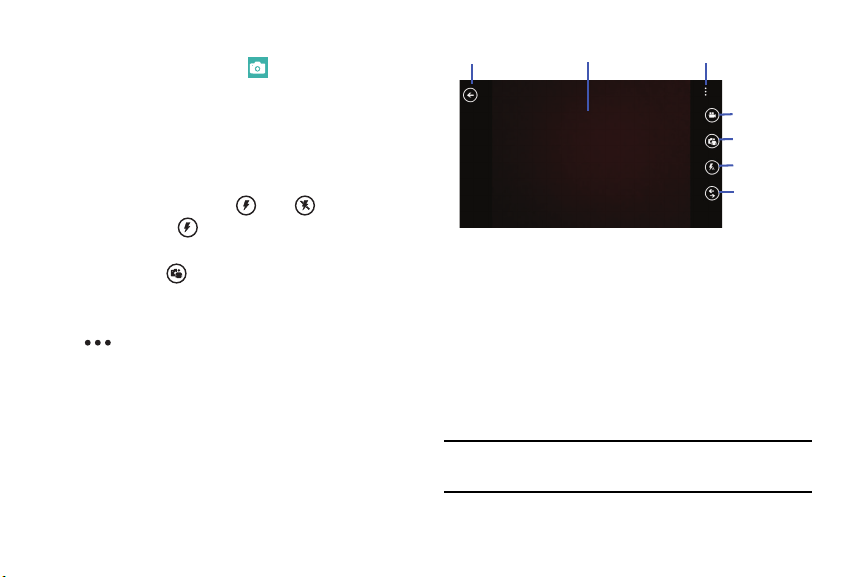
To activate the camera mode:
1. From the Home screen, tap Camera.
2. Using the phone’s main display scr
een as a viewfinder,
adjust the image by aiming the camera at the subject.
3. Before you take a photo, pinch the screen to zoom out
or stretch the screen to zoom out. You can magnify the
picture up to 400 percent.
4. Tap flash to turn flash on or off , or to use th
e
automatic flash .
A
5. To take a picture of yourself, tap the Front Facing
Camera icon to enable or disable the Front Facing
Camera.
(
)
6. If desired, before taking the photo, you can tap
Options to access various photo and video
settings.
For more informat
ion, refer to “Camera and
Camcorder Settings” on page 74
.
7. Tap the screen to take a photo.
Photos/Videos
Preview
Options
Mode
Front facing
Camera
Flash
Lenses
Photos are automatically stored within your designated
storage location.
Lenses
Your camera can scan barcodes, QR Codes, Microsoft Tags,
books, CD’s, and other DVD’s and instantly retrieve
information about these products using specialty apps called
Lenses. Text may also be scanned and translated or
searched.
Note: Tap more lenses to download additional scanning
software and features.
Multimedia 72
Bing Vision
1. From the Home screen, tap Camera.
2. Tap Lenses Bing Vision.
3. Focus on the code or tag unt
il the camera recognizes it
and displays a thumbnail of it. If the item is correctly
identified, tap the thumbnail to launch a Bing search
for the product. (If the item is not identified or incorrect,
try scanning the code or tag again).
4. Tap history to see recently scanned items.
5. Tap scan text to search text. Once scanned, each word
is highlighted.
• Tap translate and select a target language. Each
highlighted word is then translated.
• To search on a word or words, tap each word to add to
the search bar at the top. Tap the search bar and use
the keyboard to edit any word if necessary. Tap search
to perform a Bing search on the selected word or
words.
Shooting Videos
Tip: When shooting video in direct sunlight or in bright
conditions, it is recommended that you provide your
subject with sufficient light by having the light source
behind you.
1. From the Home screen, tap
Camera.
2. Tap the Camera or Camcorder Mode icon to
switch to Camcorder mode .
(
)
( )
3. To shoot a video of yourself, tap the Front Facing
Camera icon to enable or disable the Front Facing
Camera.
(
)
4. Tap
to turn on the camcorder’s light while
recording. Tap
to turn the light off.
5. Using the phone’s main display screen as a viewfinder,
adjust the image by aiming the camcorder at the
subject.
6. Tap the screen to begin shooting video.
7. Tap the screen again to stop the recording and save
the video file to your Pictures folder.
73

Multimedia
Camera and Camcorder Settings
1. For photo options, tap Options photo
settings... The following options are available:
•Focus Mode: Se
t focus to Normal or Macro.
• White Balance: Set this option to Auto (default),
Cloudy, Daylight, Fluorescent, or Tungsten.
• Exposure Metering: Set the exposure metering to
Average, Center Weighted (default), or Center Spot.
•ISO: Determines how sensitive the image sensor is to
light. Valid values are: Auto (default), 100, 200, 400,
or 800.
• Effects: Change the color tone or apply special effects
to the photo. Options are: Off (default), Mono, Negative,
Sepia, Solarize, Posterize, Vintage Cold, Vintage Warm,
Point Blue, Point Green, and Point Red-Yellow.
•Contrast: Adjust the contrast of the photo.
Options are: 2 (maximum), 1 (high), 0 (default),
-1 (low), or -2 (minimum).
• Saturation: Adjust the color saturation of the
photo. Options are: 2 (maximum), 1 (high),
0 (default), -1 (low), or -2 (minimum).
•Sharpness: Adjust the sharpness of the photo.
Options are: 2 (maximum), 1 (high), 0 (default),
-1 (low), or -2 (minimum).
•EV: Helps you avoid underexposed (too dark) or
overexposed (too light or white) photos.
Options are: 2 (maximum), 1 (high), 0 (default),
-1 (low), or -2 (minimum).
• Anti-Shaking: Automatically adjust the image to
account for movement.
• Photo Resolution: Set the image size.
Options include: 4128 x 3096 (4:3) (default),
3264 x 2448 (4:3), 2592 x 1944 (4:3),
2048 x 1536 (4:3), 1920 x 1080 (16:9),
1600 x 1200 (4:3), 1280 x 960 (4:3),
1280 x 720 (16:9), or 640 x 480 (4:3).
2. For video options, tap
Options
video settings...
The follo
wing options are available:
• White Balance: Set this option to one of the fo
llowing
choices: Auto (default), Cloudy, Daylight, Fluorescent,
or Tungsten.
74

• Effects: Change the color tone or apply special effects
to the video. Options are: Off (default), Mono, Negative,
Sepia, Solarize, Posterize, Vintage Cold, Vintage Warm,
Point Blue, Point Green, and Point Red-Yellow.
•Contrast: Adjust the contrast of the video.
Options are: 2 (maximum), 1 (high), 0 (default),
-1 (low), or -2 (minimum).
• Saturation: Adjust the color saturation of the
video. Options are: 2 (maximum), 1 (high),
0 (default), -1 (low), or -2 (minimum).
• Sharpness: Adjust the sharpness of the video.
Options are: 2 (maximum), 1 (high), 0 (default),
-1 (low), or -2 (minimum).
• Photo Resolution: Set the video size.
Options include: 1920 x 1080 (16:9) (default),
1280 x 720 (16:9), or 640 x 480 (4:3).
Accessing Photos and Videos
When you take a photo or shoot a video, the file is saved in
the Photos folder. You can view your photos and videos
immediately or view them anytime in the Camera folder.
From the Home screen, tap Photos. For more
information, refer to “Photos” on page 67
.
Assigning an Image to a Contact
The Camera can be used to create an image which can be
assigned to the contact’s profile or to your Me profile.
1. From the Home screen, tap People.
2. From the People menu, tap the
contact that you want
to edit.
at the bottom of
the screen.
3. At the contact profile screen, tap
4. Tap add photo camera.
5. Take a photo and tap accept or reta
ke.
6. Tap each side of the photo an
d swipe inward or
outward to zoom in or out within the crop area. Touch
and slide the photo to move it within the crop area.
7. Tap
to assign the cropped photo to the contact.
For more information, refer to “Your People Hub” on page 41
.
75
Setting a Photo as Your Lock Screen
Background
You can set a photo as your Lock screen background
immediately.
For more information, refer to “Changing the
Lock Screen Background” on page 24
.
Photo Editor
Photo Editor is the ultimate photo editor for your Windows
Phone, combining an easy interface and professional grade
tools and effects.
1. From the Home screen tap
Photo Editor.
2. There are three ways to select a photo for ed
iting:
• Tap a thumbnail of a recently taken photo.
• Tap
album to select a photo from a photo album.
• Tap camera to take a new photo.
The PHOTO EDITOR screen is display
ed.
3. Ta
p Edit to resize, rotate, or cr
op the photo.
•Resize: Change the photo’s s
ize. Options are 25%,
50%, 75% or 100%.
•Rotate: Change the photo’s orientation. Options are
90° clockwise, 90° anticlockwise, Flip vertically, or Flip
horizontally.
•Crop: Crop the photo. Options are Free ratio, 1:1, 3:4,
9:16, or Lasso.
4. Tap Color to change the photo’s overall color.
• Tap the color tool icons to apply the effec
t. Some
color tools will display adjustment controls.
• Tap
original to remove the color change.
5. Tap Effect to add a special effect to the photo.
• Tap the effect tool icons to apply the ef
fect. Some
effects tools will display adjustment controls.
• Tap
original to remove the effect.
6. Tap Decoration to add a decoration to your photo.
•Frame: Add a frame to your photo. C
hoose from
several styles and colors.
• Sticker: Add clip art to your photos. Choose from
Brushes, Comics, Papers, and Graphical images.
Multimedia 76
•Multi-grid: Take multiple separate photos and mix
them together. Options are Split in 2, Split in 3,
or Split in 4.
7. Tap Undo to remove the last edit. Tap Redo to
reapply the last edit.
8. Tap Share to share the photo via Tap+Send,
Messaging, an email account, or ATIV Beam. Y
ou can
also add the photo to today’s MiniDairy entry, add the
photo to OneNote as a Quick Note, or open the photo in
Paper Artist.
9. Tap Cancel to close the photo without saving
changes.
10. Tap Options to select a picture, take a picture, or
use this picture as the Lock screen background.
11. Tap save to save the changes to the photo.
Video
To play videos from the Video application:
1. From the
Home
screen, swipe the screen left to display
the App List.
2. Touch
Video
.
3. Swipe across the screen to the right or left to view the
COLLECTION
menu.
4. If there are videos stored on your phone or SD card, the
category
personal videos
appears. Touch
view all
to see
all videos.
To view your personal videos, see “Viewing Videos” on
page 70
.
5. Touch and hold a video thumbnail to display the
following option:
•
pin to start
: Allows you to add a tile on the Home screen for
this video. For more information, refer to “Moving Tiles On the
Home Screen” on page 23
.
•
delete
: Delete the video.
77
6. Touch the video that you want to play.
The video begins to play in
landscape mode. The video
file name displays above the video. At the bottom of the
screen the video controls and the time information
(time played and total time) are displayed.
Note: If no control icons are displayed on the screen in
addition to the video, touch anywhere on the screen to
display them.
8. Touch
Back
to return to the thumbnails screen.
7. The following video controls are available:
Pause the video.
Start the video after being paused.
Display the video in full screen.
Display the video in a reduced format.
Display more options:
•
Subtitles
: Turn subtitles On or Off.
•
Repeat
: Turn repeat On or Off.
•
Caption Settings
: Configure the captions for
this video.
Multimedia 78

Section 7: Applications
This section contains a description of each application that is
available in the Applications Menu, its function, and how to
navigate through that particular application. If the application
is already described in another section of this user manual,
then a cross reference to that particular section is provided.
Tip: To open applications quickly, add the icons of frequently-
used applications to one of the Home screens. For details,
see “Customizing Your Home Screen” on page 23
.
GPS Applications
GPS applications allow you to achieve real-time, GPS-
enabled, turn-by-turn navigation and to access local
searches based on a variety of category parameters.
To receive better GPS signals, avoid using your device in the
following conditions:
• inside a building or between buildings
• in a tunnel or underground passage
• in poor weather
• around high-voltage or electromagnetic fields
• in a vehicle with tinted windows
Global GPS turn-by-turn navigation, mapping, and Point of
Inte
rest content is available for three continents, including
North America (U.S., Canada, and Mexico), Western Europe,
and China, where wireless coverage is available.
Important! If you touch or cover the interna
l GPS antenna
while using GPS services, it may impede the GPS
signal resulting in the GPS services not working in
an optimal manner. Refer to the following diagram
to locate the approximate location of the internal
GPS antenna.
79
Alarms
The Alarms application allows you to access and set alarms.
Setting a New Alarm
1. From the Home screen, swipe left to display the
Applications menu and tap
Alarms add.
2. Tap the Time field then use your finger to swipe the
hour an
d minute fields to set the time you want for
the alarm.
3. Tap the Repeats field if you want the alarm to sound
on multiple days instead of only once. Tap the days
that you want the alarm to sound.
4. Tap the Sound field and tap the sound title you want.
You can hear a sample by tapping the
symbol next
to the sound name.
5. Tap the Name field and use the keyboard to enter a
name for this alarm.
6. Tap
save to save the alarm.
Turning Off an Alarm
To turn off an alarm when it sounds:
Tap dismiss on your display to stop the alarm.
– or –
Tap snooze to temporarily stop the alarm.
Changing an Alarm
To make changes to an existing alarm:
1. From the Home screen, swipe left to display the
Applications menu and tap Alarms.
2. Tap the alarm you want to change.
3. Tap and change fields. F
or more information, refer to
“Setting a New Alarm” on page 80
.
4. Tap
save to save the updated alarm.
Deleting an Alarm
To delete an alarm:
1. From the Home screen, swipe left to display the
Applications menu and tap Alarms.
2. Tap the alarm you want to delete.
3. Tap delete to delete the alarm.
Applications 80
App Folder
Group shortcuts and apps into one group and pin it to the
Home screen.
Adding an App Folder
1. From the Home screen, swipe left to display the
Applications menu and tap App Folder
add.
2. Enter a name for this folder in the Enter folder name
field and tap ok.
3. Select applications to add to the folder and tap ok.
4. Select a folder style and tap ok
Removing an App Folder
1. From the Home screen, swipe left to display the
Applications menu and tap App Folder.
2. Touch and hold a folder in the list, then tap delete in
the pop-up.
– or –
Tap select, tap the folders to remove, tap
delete, and tap
ok to confirm your deletion.
ATIV Beam
Use ATIV Beam to share files by beaming them to another
NFC capable device.
1. From the Home screen, tap Settings. Under the
system menu, tap Bluetooth.
2. Touch and slide the Status slider to the right to turn
Bluetooth On.
3. From the Home screen, swipe left to display the
Applications menu and tap
ATIV
Beam.
4. From the Status field, touch and slide the slider to th
e
right to turn the status On.
5. Turn on NFC on the device receiving the files.
6. Select the file to share from one of the folders
(Pictures, Documents, Music, or Videos) and tap
Share.
7. Tap your phone on the other NFC-capable device to
share the files.
81

MODE MODE
ATIV Camera
The new ATIV Camera replaces the Shooting Mode app,
bringing you a full-featured camera experience with
improved interface and expanded shooting modes.
Note: When ATIV Camera requests your location, Microsoft
collects information about your location to provide and
improve its location services. This information is not
used to identify or contact you.
1. From the Home screen, swipe left to display the
Applications menu and tap
ATIV Camera
.
The Allow “Ativ Modes” to use your location? screen
displays.
2. Tap Ok to allow your location to be used.
3. Tap Mode to display
the shooting modes.
4. Tap
Auto
,
Best photo
,
Best face
,
Eraser
,
Panorama
, or
HDR (Rich tone)
and then tap the Camera button.
5. Tap the flash icon at the top of the screen to toggle the
flash settings: On , Off , or Auto .
Battery Saver
Battery Saver can be used to manage how your apps use
battery power. You can view the battery power your apps are
consuming and change whether they can run in the
background. You can also turn off all nonessential features
and conserve your battery or limit background usage to save
power.
The Battery Saver app has a usage screen and a settings
screen.
To access Batter
y Saver usage scree
n:
1. From the Home screen, swipe left to display the
Applications menu and tap
Battery Saver
.
2. If necessary, swipe over to
usage
.
The
usage
screen displays a list of your apps and their
relative battery consumption.
3. Tap
show all apps
to list all your apps. The apps with
recent battery usage are listed first.
– or –
Tap
show apps with usage
to list only the apps with
recent battery usage.
To allow apps to run in the background:
Applications 82
1. From the Home screen, swipe left to display the
Applications menu and tap
Battery Saver
.
2. If necessary, swipe over to
usage
.
3. Tap an app.
4. Touch and slide the
Allow app to run in the background
slider to the right to turn the option On.
Note: This option does appear for some apps.
To allow apps to run in the background even when Battery
Saver is on:
Tap the
Allow this app to run in the background even
when Battery Saver is on
check box.
For an explanation of the Battery Saver
settings
screen, see
“Battery Saver” on page 120
.
Calculator
The Calculator application provides basic arithmetic
functions: addition, subtraction, multiplication, and division.
You can also store numbers in memory.
From the Home screen, swipe left to display the
Applications menu and tap Calculator.
Note: In Portrait Mode, the Cal
culator application provides
basic functions. To perform more complicated
calculations, rotate the phone to Landscape Mode. A
scientific calculator displays.
83
Calendar
With the Calendar feature, you can consult the calendar by
day or month. You can also create appointments and have
them displayed on your agenda.
To access the Calendar:
1. F om the Home screen, swipe left to display the
A plications menu and tap Calendar.
The day screen displays.
r
p
2. Swipe your screen to the left to display the agenda
view, which displays all of your appointments.
3. Swipe your screen to the left again to display the to-do
view.
4. Tap one of the following options
on the day or
agenda
views:
today: Displays the cur
rent
month and day.
new: Tap the new icon to create a new
appointment for your calendar.
month: Tap the month icon to display the
month view.
To-Dos
The to-do screen displays all to-do entries that you have
added for all dates in the order that they appear.
1. From the Home screen, swipe left to display the
Applications menu and tap
Calendar
to-do.
2. Tap one of the following:
new: Creates a new to-do.
edit: Tap the new icon to create a new
appointment for your calendar.
delete: Removes a to-do from the calendar.
sort by priority: Sorts to-dos based on
priority.
show completed: Show only completed
to-dos.
Applications 84

Calendar Settings
To set calendar settings:
1. From the Home screen, swipe left to display the
Applications menu and tap
Calen
dar
Options settings.
2. Touch and slide any account slider to the On posit
ion to
display their calendar.
3. Tap theme color to select the calendar color.
4. Tap Show to-dos on the calendar to turn this option
On.
Camera
You can take photographs and shoot videos by using the
built-in camera functionality. Your 5 megapixel camera
produces photos in JPEG format.
For more information, refer to “Camera” on page 71
.
To activate the ca
mera:
From the Home screen, tap
Camera.
Cortana
Like a personal assistant on your phone, Cortana is there to
help make things easier in your day and on your phone.
To access Cortana:
1. From the Home screen, swipe left to display the
Applications menu and tap
Cortana
.
The
Ready to get started?
screen displays.
2. Tap
sure
to activate Cortana.
Note: You have to be signed in to your Microsoft account to
use Cortana.
3. Follow the onscreen instructions to get started with
Cortana.
85
Data Sense
This app finds more efficient ways to use cellular data (such
as only downloading certain data while connected to Wi-Fi)
and displays your usage.
1. From the Home screen, swipe left to display the
Applications menu and tap
Data Sens
e.
2. View the overview menu to see your
data plan’s
allowance remaining, and the days left on your data
plan before it resets.
Note: This usages is measured by your phone. Your carrier’s
data usage measurement may differ.
3. View the usage menu to see total data usage (both
cellular and Wi-Fi), and the amount of data usage each
app has used.
4. Tap set limit to set a mobile data limit, and Data Sense
will keep you no track.
5. Tap
Options
map nearby Wi-Fi to discover
nearby Wi-Fi hots
pots.
6. Tap
to configure Data Sense settings. For more
information, refer to “Data Sense” on page 120
.
Finance
View the latest market conditions for items in your portfolio.
You can view information using charts, or track items in your
portfolio.
From the Home screen, swipe left to display the
Applications menu and tap
Finance.
Food & Drink
The Bing Food & Drink app makes it easy to explore recipes,
choose wine and cocktails, and learn how to make your next
meal a success.
1. From the Home screen, swipe left to display the
Applications menu and tap
Food & Drink
.
2. Swipe the screen left or r
ight to display various screens
of information.
3. Tap Options for additional options and settings.
Applications 86

Games
You can shop for new games, install games you buy on your
phone, and play them with the Games feature.
Accessing Games
To access the Games feature:
From the Home screen, tap Games.
Getting More Games
To buy more games and install them on your phone:
1. From the Home screen, tap
Games
collection
get more games to go to the Games Store.
2. Tap the game to see an expanded descrip
tion,
screenshots, and reviews.
3. Tap try for a free trial, buy to purchase the game,
install, if the game is free, or share to send som
eone a
message or email containing a link to the game.
The Confirm purchase screen displays. The purchase is
charged to your mobile phone account or you can tap
Change payment method.
4. Tap buy or install to continue.
5. Tap
to exit.
The new game is added to your collection screen.
Joining and Accessing Xbox LIVE
When your Xbox LIVE membership is associated with the
Microsoft account used on your phone, your avatar,
gamertag, achievements, and profile display in the Games
hub.
87
To Access XBox LIVE
1. From the Home screen, tap Games Xbox.
2. From the Home screen, tap Settings. Under the
applications menu, tap games.
3. Touch and slide the Connect with Xbox s
lider to the
right to turn this option On.
4. Sign In or create one now.
Your player ID displays on the Xbox LIVE screen.
To change the Microsoft account associated with your
gamertag:
1. Sign in to your Xbox 360 console with your gamertag.
2. From the Xbox, navigate to Settings Account
Your Information and select Microsoft account.
3. Select Change Microsoft account and follow the
instructions.
Note: This change may take up to 8 hours to display on the
phone.
To set your profile:
Tap your profile (or Player ID) and follow the
instructions. Some options require Xbox Extras, a free
software download. Follow the onscreen prompts to
install it.
After joining Xbox LIVE, the requests screen displays with
game information such as game invitations and turn
notifications. It also allows you to play a game and invite
others to play it with you.
To check invitations or play a game:
Tap the desired activity on the requests screen.
Applications 88

Health and Fitness
The Bing Health & Fitness app lets you manage your calories,
offers workout videos and great articles from trusted
sources, and lots more to help you stay healthy and fit.
1. From the Home screen, swipe left to display the
Applications menu and tap
Health & Fitness
.
The
overview
screen displays.
2. Swipe the screen left or right to display
various screens
of information.
3. Tap Options for additional options and settings.
Help+Tips
Get help any time. Information for getting around on your phone
and making it yours is just a tap away.
1. From the Home screen, swipe left to display the
Applications menu and tap Help+Tips.
2. Swipe up or down t
hrough the topics and tap a topic to
display subtopics.
3. Tap a subtopic to display the indicated information.
Internet Explorer
Your phone is equipped with Internet Explorer—your access
to the mobile web.
To access the Internet Explorer browser:
At the Home screen, tap Internet Explorer.
89
Live Wallpaper
Live Wallpaper can change your lock screen background
periodically to 12 photos of your choice.
1. From the Home screen, swipe left to display the
Applications menu and tap Live Wallpaper
.
2. Tap album to select a wallpaper image from the
Camera Roll or Screenshots.
3. Tap an image and then tap done to save. You can
also take new photos by tapping camera.
4. Tap each thumbnail to crop the photo, if desired. Tap
to save the cropped photo.
5. When the Set as lock screen? screen displays, tap yes
to set this image as the lock screen image.
To remove photos from Live Wallpaper:
1. Tap remove.
2. Select (by tapping) each thumbnail to remove or tap
Options ➔ select all.
3. Tap done to remove the selected photos.
MangaCamera
MangaCamera transforms a photo image of a person,
scenery, or anything into a cool cartoon-like image.
1. From the Home screen, swipe left to display the
Applications menu and tap
MangaCamera
.
2. Select a frame, and then capture and save the image.
Maps
Use Google Maps to find your current location, get directions,
and other location-based information.
From the Home screen, swipe left to display the
Applications menu and tap Maps.
You must enable Us
e my location to use Maps.
For more
information, refer to “Maps” on page 139
.
Important! Before using
Maps, you must have an active data
(3G) connection.
Applications 90
Messaging
The Messaging feature allows you to send online messages,
text messages, and multimedia messages to other phones
and email addresses.
For more information, refer to “Creating and Sending Text
Messages” on page 53
.
From the Home screen, tap Messaging.
Mini Diary
The Mini Diary app enables you to create a diary containing
your daily activities, attach pictures and share diary entries
on Facebook, Photobucket, and Picasa.
1. From the Home screen, swipe left to display the
Applications menu and tap
Mini Diary
.
2. Tap OK to allow Mini Diary to use your location.
3. Swipe your screen to the right or left to view more
menus. Recent displays recently added entries, search
for entries, and add new entries. Favorites lists diary
entries marked as Favorites. Date lists entries by date.
Location lists entries by location (if available). Options
let you add photos, voice memos, drawings, tags, and
adjust settings.
Adding a New Diary Entry
1. Tap New to create a diary entry.
2. Tap Tap to add photo or tap photo to
add a photo
from your photo albums, or take a new photo with the
camera.
3. Tap Location to tap th
e Map to add your location.
4. Tap Tap to add text to type
an entry.
5. Tap voice to add a voice memo.
6. Tap drawing to add a quick drawing.
7. Tap save to save this entry.
8. Ta
p Options ➔ add tag to add a tag to this entry.
91
Music
Listen to music, podcasts, and radio, as well as watch videos
on your phone.
For more information, refer to “Music” on page 64.
From the Home screen, swipe left to display the
Applications menu and tap Music
.
My Verizon Mobile
View details and manage your Verizon Wireless account.
Note: No airtime or minute charges apply when accessing
My Verizon Mobile.
From the Home screen, swipe left to display the
Applications menu and tap
My Verizon Mobile.
News
Stay up to date on news information. Select which sources
you want to use to gather your news, then view each
category of news such as top stories, world news,
technology and science, politics, opinions, entertainment and
much more.
From the Home screen, swipe left to display the
Applications menu and tap News.
NFL Mobile
NFL Mobile is your source for live NFL video and audio, as
well as the latest NFL videos, news, statistics and more.
Enjoy live NBC Sunday Night Football, ESPN Monday Night
Football and NFL Network Thursday Night Football games, as
well as NFL RedZone and 24/7 NFL Network.
1. From the Home screen, swipe left to display the
Applications menu and tap
NFL Mobile.
2. Follow the online prompts to download and instal
l NFL
Mobile from the Store.
Note: A subscription is required to view videos. Data charges
apply while using NFL Mobile.
Applications 92

Office
With Office, you can view, edit, and create Excel
spreadsheets and Word documents, view and edit
PowerPoint presentations, create notes, or search for and
share document files with others.
To access Office, follow these steps:
1. From the Home screen, swipe left to display the
Applications menu and tap
Office.
2. Swipe your screen to the left to display th
e recent
screen.
• Tap older to view documents stored in the browsing
history.
• Tap Sample document to view general information
about Word, which lets you view, edit, and create
Microsoft Word documents on your phone.
• Tap Sample presentation to view general information
about PowerPoint, which lets you view and edit
Microsoft PowerPoint presentations on your phone.
• Tap Sample spreadsheet to view general information
about Excel, which lets you view, edit, and create
Microsoft Excel spreadsheets on your phone.
3. Swipe your screen to the left to display the places
screen.
•Phone: Displays the office documents saved on your
phone. Tap search to search for a term in the list
of documents.
•email: Displays documents opened from your email
accounts. Tap search to search for a term in the
list of documents.
• SkyDrive(OneDrive): Windows Live
SkyDrive(OneDrive) provides free storage so you can
store your docume
nts online. SkyDrive(OneDrive) is
available if you have set up a Windows Live email
account. For more information about
SkyDrive(OneDrive), go to
http://explore.live.com/
and
click on SkyDrive(OneDrive).
• Office 365: Tap set up to set up your Office 365
account on your phone to access your Office
documents, email, calendar, and contacts. For more
information, go to
http://www.microsoft.com/office365
.
93

•
Tap
new
to add a SharePoint site. Access Microsoft
SharePoint documents and lists from your phone. Download
documents, make updates on your phone, and save them back
to SharePoint. Enter a SharePoint address to access document
on the site.
4. Tap
search
to search for a term in the all,
SkyDrive(OneDrive), phone, email documents, or
SharePoint documents.
Adding a Document or Note
To add a note or an office document:
1. Tap new
.
2. Follow the onscreen instructions to add an office
document.
OneDrive
OneDrive (formerly SkyDrive) is a place to easily store and
share photos, videos, documents, and more, which you can
then access from your personal computer, tablet, or phone.
1. From the Home screen, swipe left to display the
Applications menu and tap
OneDrive
.
Note: You have to be signe
d in to your Microsoft account to
use OneDrive.
2. Tap Options
settings
about
Help Center
for OneDrive help information.
Applications 94

OneNote
You can stay organized using text, pictures, or audio notes.
Create Quick Notes, or review and edit shared OneNote
notebooks using SkyDrive(OneDrive).
To access OneNote notebooks:
1. From the Home screen, swipe left to display the
Applications menu and tap OneNote.
2. OneNote notebooks you currently have shared on
SkyDrive(OneDr
ive) are listed.
3. Tap a notebook to open it.
To create Quick Notes:
1. Tap
new to create a new Quick Note.
2. Tap search to search for notes
.
3. Tap
Options to sync notes, view sync status, or
select
pages of notes.
Paper Artist
Create your own artwork, or import a picture from Gallery to
add special tapes.
From the Home screen, swipe left to display the
Applications menu and tap Paper Artist.
People
You can manage your daily contacts by storing their name,
number, email, and other information in your phone using the
People feature.
For more information, refer to “Your People Hub” on page 41.
From the Home screen, tap People.
Phone
The Phone application allows you to make or answer a call. It
also includes the features and functionality associated with
making or answering a call.
For more information, refer to “Call Functions” on page 34
.
From the Home screen, tap Phone.
95

Photo Editor
Photo Editor is the ultimate photo editor for Windows Phone,
combining an easy interface and professional grade tools
and effects.
For more information, refer to “Photo Editor” on page 76
.
From the Home screen, swipe left to display the
Applications menu and tap
Photo Editor.
Photos
The Photos application is where you view photos and play
back videos. You can set photos as your lock screen
background or share them as a picture message. And you
can use your camera to scan barcodes, QR Codes, Microsoft
Tags, books, CD’s, and other DVD’s and get more information
on these products with your Internet browser.
For more information, refer to “Photos” on page 67
.
From the Home screen, tap Photos.
Samsung Link
Use this application to share and play content across smart
devices anywhere, anytime.
From the Home screen, swipe left to display the
Applications menu and tap Samsung Link.
Settings
This application navigates to the system and applications
settings for your phone. It includes such settings as: sound,
Wi-Fi, Bluetooth, accounts, display, security, memory, and
any extra settings associated with your phone.
For more information, refer to “Changing Your Settings” on
page 109.
From the Home screen, Settings.
Applications 96

Share Box
Use the Share Box application to share multimedia content
with DLNA-compatible devices (such as your tv).
1. From the Home screen, swipe left to display the
Applications menu and tap Share Box.
Your screen displays nearby DLNA devices.
2. Select a nearby device from the list, then tap select
content to share from my photos, my music, or my
videos.
Skype
Use free Skype to Skype video and voice calls and send
instant messages to anyone around the world. Just open the
app and start using it
1. From the Home screen, swipe left to display the
Applications menu and tap
Skype
.
The
Welcome to Skype
screen displays.
2. Tap
Learn more about Skype
for more information.
3. Tap
get it now!
4. Follow the onscreen instructions.
Sports
Bing Sport provides dates and times for the games as well as
scores for the NBA, NHL, and NCAA basketball.
From the Home screen, swipe left to display the
Applications menu and tap Sports.
Storage Sense
Use this option to see how your phone’s storage space is
being used.
1. From the Home screen, swipe left to display the
Applications menu.
2. Tap
Storage Sense
.
– or –
Tap
Settings
storage sense
.
For more information, refer to “Storage Sense” on page 121.
97

Store
Store provides access to downloadable applications, music,
and games to install on your phone. Store also allows you to
provide feedback and comments about an application or flag
an application that might be incompatible with your phone.
Setting Up a Microsoft Account
Before using Store, you must set up a Microsoft account. For
more information, refer to “Setting Up a Microsoft Account”
on page 63
.
Downloading Applications, Games, and Music
The type of content determines where it appears on your
phone. Music, videos, and podcasts appear in Music +
videos, games appear in Games, and applications appear in
the Applications list.
To access Store and download applications, games, and
music:
1. From the Home screen, tap
Store
. The main Store
screen displays.
2. Tap Verizon, Samsung Zone, apps, games, music, or
podcasts.
– or –
Swipe your screen to the right or left to view featured
applications, games, and music. Tap an item to display
more information.
Travel
The Bing Travel app provides destination guides, user travel
photos, expert reviews, daily trip ideas, hotel listings, and
much more.
1. From the App List, touch
Travel
.
2. Swipe the screen left or r
ight to display various screens
of information.
3. Tap Options for additional options and settings.
Applications 98

Verizon Tones
Browse the Verizon catalog for the latest songs from your
favorite Artists and convert them to a Ringback Tone or use it
as Ringtone content. You can assign these Ringback tones to
contact in your address book.
Note: Charges apply and display during purchase.
From the Home screen, swipe left to display the
Applications menu and tap Verizon Tones.
Video
The Videos feature lets you access videos on your phone.
From the Home screen, swipe left to display the
Applications menu and tap
Video
.
For more information, refer to “Video” on page 77.
99
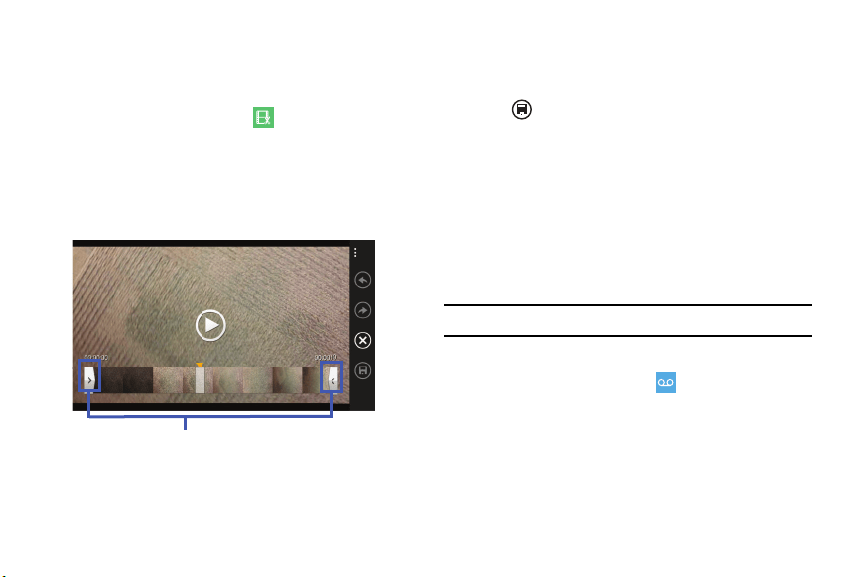
Video Trimmer
Use Video Trimmer to easily trim and crop videos.
1. From the Home screen, swipe left to display the
Applications menu and tap
Video Trimmer
.
2. Swipe the screen left or right, then tap one of the
recent videos.
The orange arrow begins sliding from left to right
across the video frames.
Touch and slide the white arrow sliders where
you want the video to start and stop.
3. Touch and slide the left or right arrow sliders to define
the frames of the video you want to keep. The rest is
trimmed from the video.
4. Tap save to save this cropped video.
5. Select trim original video or trim as new video.
If you select trim as new video, enter a name or
number for this new video.
Voicemail
View a list of messages without dialing into a mailbox. Listen
or erase with the tap of a button. For more information, refer
to “Setting Up Your Voice Mail” on page 10
.
Note: Data charges apply while usi
ng Visual Voice Mail.
From the Home screen, swipe left to display the
Applications menu and tap
Voicemail
.
Applications 100
VZ Navigator
Use VZ Navigator to find, share and navigate to millions of
locations, avoid traffic, and drive or walk with ease.
Note: VZ Navigator requires service activation. Contact
Verizon Wireless for more information.
To access the VZ Navigator feature:
From the Home screen, swipe left to display the
Applications menu and tap VZ Navigator
.
Wallet
The Wallet app stores credit or debit cards, Microsoft gift
cards, PayPal account information, and other payment
options, giving you quick and easy access when purchasing
online or in stores.
To access the Wallet feature:
1. From the Home screen, swipe left to display the
Applications menu and tap
Wallet
.
2. Tap
learn more
for more information about
using Wallet.
3. Tap
get started
to launch the Wallet app and follow the
on-screen instructions.
4.
Tap add to enter card information.
5. Tap search to search for card information.
6. Tap Options to refresh data, view settings + pin,
and to learn more about using Wallet.
7. Swipe the screen left to view deals and other money
saving opportunities.
101

WatchON
Use the Samsung WatchON application to use your phone as
a remote control for your TV, set top box, DVR, Blu-Ray/DVD,
stereo or other device.
1. From the Home screen, swipe left to display the
Applications menu and tap
WatchON
.
2. Follow the prompts to configure WatchON options,
such country/region, TV service provider, channel list
setup, and so on.
Configure Your Device as a Remote
1. From the toolbar, tap
Remote Control
.
2. Tap
Set up now
at the prompt.
3. Follow the instructions to find your TV or other devices
and configure your phone to control their operation.
Weather
Use Bing Weather to prepare for the latest weather
conditions with hourly, daily, and 10-day forecasts.
From the Home screen, swipe left to display the
Applications menu and tap Weather.
Applications 102

Section 8: Connections
This section describes the various connections your phone
can make including accessing Wi-Fi, Bluetooth, and
Connecting your PC.
Wi-Fi
About Wi-Fi
Wi-Fi (short for wireless fidelity) is a term used for certain
types of Wireless Local Area Networks (WLAN). These device
types use an 802.11 wireless specification to transmit and
receive wireless data. Wi-Fi communication requires access
to an existing and accessible Wireless Access Point (WAP).
These WAPs can either be Open (unsecured), as within most
Hot Spots, or Secured (requiring knowledge of the Router
name and password).
Turning Wi-Fi On
By default, your device’s Wi-Fi feature is turned on. Turning
Wi-Fi on makes your device able to discover and connect to
compatible in-range WAPs.
1. From the Home screen, tap
Settings. Under the
system menu, tap Wi-Fi.
2. Touch and slide the Wi-Fi networ
king slider to the
right to turn Wi-Fi On.
3. The device scans for available, in-range wireless
networks and displays them under Available Wi-Fi
networks on the same screen.
4. Press
Home to return to the Home screen.
103
Connect To a Wi-Fi Network
1. From the Home screen, tap Settings. Under the
system menu, tap Wi-Fi.
2. Make sure Wi-Fi has been turned on.
The net
work names and security settings (open or
secure) of detected Wi-Fi networks are displayed in the
Available Wi-Fi networks section.
3. Tap the network to which you want to connect.
Note: When you select an open network, you are
automatically connected to the network.
4. Enter a password if necessary. If the connection is
successful, the Wi-Fi network name appears in the
Connected to
section.
5. Tap
map nearby Wi-Fi
to view, on a map, the Wi-FI
connections available near you.
Turning Wi-Fi Off
1. From the Home screen, tap Settings. Under the
system menu, tap Wi-Fi.
2. Touch and slide the Wi-Fi networking sli
der to the left
to turn Wi-Fi Off.
Note: Use of Wi-Fi consumes more battery power.
Wi-Fi Status Indicators
The following icons show your Wi-Fi connection status at a
glance:
Displays when Wi-Fi is connected, active, and
communicating with a Wireless Access Point (WAP).
Displays when Wi-Fi is active but there is a
communication issue with the target Wireless
Access Point (WAP) or it is not connected to a WAP.
Connections 104

Adding and Deleting Wi-Fi Networks
1. From the Home screen, tap Settings. Under the
system menu, tap Wi-Fi.
2. Tap
manage
.
To add a Wi-Fi network:
1. Tap
add
.
2. Use the onscreen keyboard to enter the
Network name
.
3. Tap
add
.
To delete a Wi-Fi network:
1. Tap
select
.
2. Tap to check networks you want to delete.
3. Ta
p
delete
.
Wi-Fi Sense
Use Wi-Fi Sense to save cellular data by automatically
connecting to nearby Wi-Fi networks.
1. From the Home screen, tap
Settings.
Under
the
sys
tem
menu
, tap
Wi-
F
i.
2. Tap
Wi-Fi Sense
.
3. Tap
Learn more
to display more information about
using Wi-Fi Sense.
4. Touch and slide the
Connect to Wi-Fi hotspots
to the
right to turn it On, if necessary.
5. Read and check (or uncheck) the options:
Accept terms of use for me when required
and
Provide a
name, email, or phone number when required
.
Tap
edit info
to update your name, email, or phone
number.
6. Touch and slide the
Share Wi-Fi networks I select
to the
right to turn it On, if necessary.
When the option is On, contact options for sharing
display for you to check or uncheck.
105

Bluetooth
About Bluetooth
Bluetooth is a short-range communications technology that
allows you to connect wirelessly to a number of Bluetooth
devices, such as headsets and hands-free car kits, and
Bluetooth-enabled handhelds, computers, printers, and
wireless devices. The Bluetooth communication range is
usually up to approximately 30 feet.
Turning Bluetooth On and Off
To turn Bluetooth on:
1. From the Home screen, tap Settings. Under the
system menu, tap Bluetooth.
2. Touch and slide the Status slider to the right to turn
Bluetooth On. When you turn Bluetooth on, your device
is discoverable and it immediately scans for Bluetooth
devices.
3. Touch and slide the Status slider to the left to turn
Bluetooth Off.
4. Press
to return to the Home screen.
Bluetooth Status Indicator
The icon displays at the top of your screen when
Bluetooth is active and your phone is connected with a
Bluetooth device.
Connecting Bluetooth Devices
The Bluetooth connecting process allows you to establish
trusted connections between your device and another
Bluetooth device. When you connect devices, they share a
passkey, allowing for fast, secure connections while
bypassing the discovery and authentication process.
To connect your device with another Bluetooth device:
1. From the Home screen, tap
Settings. Under the
system menu, tap Bluetooth.
2. Touch and slide the Status slider to the righ
t to turn
Bluetooth On. When you turn Bluetooth on, your device
is discoverable and it immediately scans for Bluetooth
devices.
3. Your device displays a list of discovered, in-range
Bluetooth devices. Tap a device from the list to initiate
connecting.
4. Enter the passkey or PIN code, if needed, and tap ok.
Connections 106
5. The external device then has to also accept the
connection and enter your device’s PIN code.
Once successfully connected to an external device,
appears at the top of your screen and connected
appears under the device name.
Note: Due to different specifications and fea
tures of other
Bluetooth-compatible devices, display and operations
may be different.
Note: Connecting between two Bluetooth devices is a one-
time process. Once a connection has been created, the
devices continue to recognize their partnership and
exchange information without having to re-enter a
passcode.
Disconnecting Bluetooth Devices
Disconnecting a connected device breaks the connection
between the device and your phone, but retains the
knowledge of the connection. At a later point when you want
to reconnect the device, there is no need to set up the
connection information again.
1. Verify your Bluetooth is active.
2. From the Bluetooth settings page, tap the
previously connected device. The status changes
to not connected.
3. Tap the device name again to reconnect.
4. To delete the device name from your list of Bluetooth
devices, touch and hold the device name until delete
displays. Tap delete to remove the device from
your list.
Note: Disconnections are manually done but often occur
automatically if the connected device goes out of range
of your phone or it is powered off.
107

PC Connections
There are several ways available to transfer music, videos,
photos, and other files between your phone and PC, such as
using the cloud (Internet storage such as
SkyDrive(OneDrive)), using a USB cable, using a Windows
phone app, and so on.
1. From the Home screen, tap
Music + videos
.
2. Swipe left across the screen to view the new menu.
3. Tap Connect to your computer to add stuff.
4. There are several ways available to transfer music and
videos between your phone and computer, such as
using the cloud, using a USB cable, using a Windows
phone app, and so on. Select the appropriate set up for
your phone, and follow the online instructions to install
and use the file transfer software of your choice.
Connections 108
Section 9: Changing Your Settings
This section explains the sound and phone settings for your
phone. It includes such settings as: display, security,
memory, and any extra settings associated with your phone.
Settings are divided into system settings and applications
settings.
1. From the Home screen, tap
Settings
.
The
Settings
screen displays.
2. Swipe your screen to the left or right to display
system
settings or
applications
settings.
Some fields can either be On or Off. To turn an option On:
Touch and slide the slider to the right .
System Settings
Start + Theme
Using the theme setting, you can change the background
and accent color for the screen.
1. From the Home screen, tap Settings. Under the
system menu, tap start+theme.
2. Tap the Background field and select dar
k or light.
Note: Battery power is consumed at a faster rate when the
background is set to light.
3.
Tap the Accent color f
ield and select a color.
To change the Start screen background:
Tap
choose photo
to select a Start screen background
photo.
After choosing a photo, tap
remove
to undo your
choice.
109
Ringtones + Sounds
1. From the Home screen, tap Settings. Under the
system menu, tap ringtones + sounds.
2. From the Vibra
te field, touch and slide the slider to the
right to turn the vibrate feature On.
3. Tap the
Ringtone
field or the
Reminders
field and tap an
alert type.
4. Tap
learn how to add more
to add additional ringtones.
5. Tap one of the check boxes to play a sound for:
• Key press: Plays a sound when you tap a key.
• Lock and unlock: Plays a sound when you lock or
unlock a function.
• Camera shutter: Makes a shutter sound when you
take a photo.
•
System alerts
: Plays a sound for system alerts.
6. Tap
manage app sounds
to customize app alert sounds.
For more information, refer to “Notifications and
Actions” on page 112
.
Email + Accounts
1. From the Home screen, tap Settings. Under the
system menu, tap email + accounts.
2. Tap add an account to set up a new account.
3. Tap an existing account to modify its s
ettings.
4. Touch and hold an existing account to sync or delete it.
For more information about email account
s,
see “Setting Up
an Email Account” on page 59
.
Lock Screen
From this menu you can change the background, set a time-
out screen that locks the phone after a specific amount of
time, and set up the phone to require a 4-digit password to
unlock the phone.
1. From the Home screen, tap
Settings. Under the
system menu, tap lock screen.
Changing Your Settings 110

2. Tap the Background field to choose a photo source.
•photo: Tap the change photo field to select a
background from your photos.
•Bing
: Professional photos from Bing will automatically be
displayed as the lock screen background.
• Live Wallpaper
: Tap
open app
to launch Photo Editor
and select a new background photo.
• Photo Editor: Tap open app to launch Photo Editor
and select a new background photo.
•
Facebook
: Automatically display photos from your Facebook
account.
3. Touch and slide the slider to the right to turn Show
artist when playing music On.
4. Tap the Choose an app to show detailed status field
to select which app displays detailed activity when the
lock screen is active. Options are none, Calendar,
Facebook, Messaging, or Phone.
5. Tap up to five + fields to select apps to display limited
activity when the lock screen is active. Options are
none, Calendar, Facebook, Messaging, Phone, and
Voicemail.
6. Tap the Screen times out after field and select a
screen time-out time. Options are 30 seconds,
1 minute, 3 minutes, or 5 minutes.
7. Touch and slide the Password slider to the right to turn
the password requirement mode On.
• Tap the New password field and enter a 4-digit
password. Tap Show password to display the password
as you type.
• Tap the Confirm password field and re-enter the
4-digit password. Tap Show password to display the
password as you type. Tap done to confirm.
• After you create a password, tap change password to
create a new password.
• After you create a password, tap the Require a
password after field to set how often the password is
required. Options are each time, 30 seconds, or 1, 3,
5, 15, or 30 minutes.
Note: To remove the password requirement, touch and slide
the Password slider to the left to turn the password
requirement mode Off and enter the password.
111

Notifications and Actions
Configure action center for quick and easy access to your
most important notifications and settings.
For more information, refer to “Notifications and Quick
Actions” on page 20
.
1. From the Home screen, tap Sett
ings. Under the
system menu, tap
notifications + actions
.
2. Tap one of the
four
Choose your quick actions
icons and
then tap a setting.
3. Tap the
Show notifications in action center when my
phone is locked
check box to be able to view the action
center screen from the Lock screen.
To access and configure the types of notifications that
display in action center:
1. Tap
Messaging
,
Phone
, or Store to indicate which
notifications to display in action center.
2. To show notifications for the selected type in action
center, touch and slide the
Show in action center
slider
to the right.
3. Tap the
Notification sound
field and tap a sound type.
4. Tap the
Vibrate
check box and the phone will vibrate for
this type of notification, if the ringtones + sounds
settings allow it.
Wi-Fi
1. From the Home screen, tap Settings. Under the
system menu, tap Wi-Fi.
2. Touch and slide the Wi-Fi networking
slider to the
right to turn Wi-Fi On.
For more information, refer to “Wi-Fi” on page 103
.
Changing Your Settings 112
Airplane Mode
Airplane mode allows you to use many of your phone’s
features, such as Camera, Games, and more, when you are
in an airplane or in any other area where making or receiving
calls or data is prohibited.
Important! When your phone is in airplane mode, it cannot
send or receive any calls or access online
information or applications.
1. From the Home screen, tap
Settings. Under the
system menu, tap airplane mode.
2. Touch and slide the Status slider to th
e right to turn
airplane mode On.
Bluetooth
1. From the Home screen, tap Settings. Under the
system menu, tap Bluetooth.
2. Touch and slide the
Status
slider to the right to turn
Bluetooth On.
For more information, refer to “Bluetooth” on page 106
.
Cellular + SIM
You can select whether your phone supports roaming outside
your home area in your Wireless Provider’s network.
1. From the Home screen, tap Settings. Under the
system menu, tap cellular + SIM.
2. To turn Data connection mode on, touch an
d slide the
Data connection
slider to the right.
Note: Mobile data may be used in the background and may
incur charges.
3. Tap the Data roaming options field and select roam to
activate this feature.
Note: When entering a roaming area, your data connection
will turn off.
4. Tap the
For limited Wi-Fi connectivity
field and select
use cellular data
or
don’t use cellular data
.
113

Note: Your phone will not use cellular data when Wi-Fi
connectivity is limited. You may not be able to send or
receive data.
5. Tap
SIM settings
for these options:
•
SIM name
: Tap this field and use the onscreen keyboard to
enter a name for your SIM card.
• Mode selection
: Tap this field and select a network or
Global mode. The modes are: Global Mode, LTE and CDMA,
LTE, GSM, or UMTS.
6. Tap
Learn more
for more information about cellular and
SIM settings.
NFC
Near Field Communication (NFC) allows data exchange when
you tap your device with another compatible device. This can
be used to share photos, websites, contacts, and more, or
pair your phone by tapping another NFC-capable device.
To turn this feature on:
1. From the Home screen, tap
Settings. Under the
system menu, tap
NFC
.
2. To share photos, websites, and more, or pair your
ph
one by tapping to another NFC-capable device,
touch and slide the
Tap to share
slider to the right.
3. To pay for things by tapping your phone to a
participating store’s NFC reader, touch and slide the
Tap to pay
slider to the right.
Note: You must have a payment SIM card to use tap to pay.
4. To select when you can use NFC payments, tap the
Active cards work
field and select
while phone is
unlocked
,
while screen is on
, or
anytime
.
Changing Your Settings 114
Internet Sharing
Internet sharing enables your phone as a mobile hotspot and
lets you share your phone’s internet connection with other
compatible devices. For more information about Internet
sharing, go to
verizonwireless.com
or dial *611.
Note: Internet sharing reduces battery power.
1. From the Home screen, tap
Settings. Under the
system menu, tap internet sharing.
2. Tap Share over and select Wi-Fi or Bluetooth to
indicate how you want to share your data connection.
3. Touch and slide the Sharing slider to the right to turn
the option On.
To change the Wi-Fi broadcasted network name or
password:
Tap Setup, update the following options, and then
tap Done:
•Broadcast
name: Type a network name to use to
connect to your shared connection over Wi-Fi on
another device.
• Password: Type a password, which must be at least 8
characters. This password is required to connect to
your shared connection.
115

VPN
The VPN settings menu can be used to set up and manage
Virtual Private Networks (VPNs).
Important! Before you can use a VPN you must establish and
configure one.
To add a VPN profile:
1. From the Home screen, tap
Settings. Under the
system menu, tap
VPN
.
2. Tap
add
.
The
ADD PROFILE
screen displays.
3. Enter the
Server name or IP address
and any other
required fields.
4. Tap
Download an SSL VPN app from the Store
to visit the
Store and download an SSL VPN app.
5. Tap advanced to display additional VPN options.
6. Tap save to save your VPN settings.
To activate the VP
N:
1. From the
system
screen, tap
VPN
.
2. Touch and slide the
Status
slider right to turn the
option On.
3. Tap
options
to display additional VPN options
Allow VPN
over cellular data
and
Allow VPN when roaming over
cellular data
. Tap the check box to activate the option.
Changing Your Settings 116

Apps Corner
Apps Corner lets you give people access to selected apps on
your phone, so they get a customized Start screen when they
use your phone.
1. From the Home screen, tap
Settings. Under the
system menu, tap
apps corner
.
2. Tap Apps, select the apps that
you want people to use,
and then tap done.
3. Turn Action center and Se
ttings on or off, depending
on whether you want people to be able to use these
features when using the phone.
4. Tap advanced, and then turn these features on or off,
depending on whether you want people to be able to
use them: Camera button, Search button, Start button,
Back button, and Modify Tiles.
To set a lock screen password, if you have not set one, set
one now to ensure that people cannot get to your Start
screen from Apps Corner.
1. Tap Protect my phone with a password.
2. Type a password in the New password field and type
it again in the Confirm password field.
3. tap
done.
For more informati
on, tap
Learn more
.
117
Workplace
Workplace accounts are used by companies, organizations,
universities, and employers to provide apps and info that can
be used to make your job easier. Workplace accounts can
also make changes designed to help keep work-related
information more secure.
1. From the Home screen, tap
Settings. Under the
system menu, tap
workplace
.
2. Tap
What’s a workplace account?
to learn more about
workplace accounts.
3. Tap add account, enter your work email address, and
tap
sign in
. Enter your password, if prompted. Follow
the instructions on the screen, which may vary
depending on your workplace.
4. Once you have set up a workplace account, tap the
account you want to delete and then tap
delete
.
Note: Not all wor
kplace accounts can be deleted.
Kid’s Corner
Kid’s Corner is a place on your phone where you can share
apps, videos, games, and music with your children. They will
have a Start screen of their own and easy access to the
items you add there. But not too easy because you can set a
lock screen password to keep them from accessing your
Start screen so your phone is protected.
To set up Kid’s Corner:
1. From the Home screen, tap
Settings. Under the
system menu, tap kid’s corner
2. Tap
Learn more
for additional information.
3. Tap
next
and choose Games, Music, Videos, and Apps.
4. Tap
next
and tap set password to set a password. For
more information, refer to “Lock Screen” on page 110
.
5. Tap
finish
.
To return to default
phone mode:
Press the Power / Lock key to power off and press it
again to power back on, and then enter the password
that you set up in Step 3, above.
Changing Your Settings 118

To add a Kid’s Corner tile to your Home screen:
1. From the Home screen, tap
Settings. Under the
system menu, tap kid’s corner
2. Tap pin.
Once kid’s corner has been set up, you
can turn this feature
off and on.
1. From the Home screen, tap
Settings. Under the
system menu, tap kid’s corn
er.
2. Touch and slide the Kid’s Corn
er slider to turn this
feature Off or On.
To launch and customize Kid’s Corner:
1. From the Home screen, tap Settings. Under the
system menu, tap kid’s corner
2. Tap launch kid’s corner to start the Kid’s Corner app.
3. Flick the Kid’s Corner screen upward and tap
Customize.
4. Enter a name for your Kid’s Corner in the Name your
Kid’s Corner field.
5. Tap choose picture to choose a picture to represent
kids corner.
6. Tap Background to set the background as light or
dark.
7. Tap Accent color and select a color.
8. Tap
to save your preferences.
119

Battery Saver
Battery Saver can be used to manage how your apps use
battery power. You can view the battery power your apps are
consuming and change whether they can run in the
background. You can also turn off all nonessential features
and conserve your battery or limit background usage to save
power.
The Battery Saver app has a usage screen and a settings
screen. To access the Battery Saver settings screen:
1. From the Home screen, tap
Settings. Under the
system menu, tap battery saver.
2. In settings, select one of th
e following:
•Off: Turn off Battery Saver.
• When battery is under 20%: Battery Saver conserves
power when the battery level gets low.
• Always (limits functionality): Battery Saver to
conserve power all the time. This option prevents most
background functions.
3. Touch and slide the Now until next charge slider to
the right to turn it On, if you want Battery Saver to
conserve power immediately and then return to normal
battery usage the next time you charge your phone.
For an explanation of the Battery Saver
usage
screen, see
“Battery Saver” on page 82.
Data Sense
The Data Sense app finds more efficient ways to use cellular
data and displays your usage. For more information, refer to
“Data Sense” on page 86
.
1. From the Home screen, tap Se
ttings. Under the
system menu, tap
data sense
.
2. Tap
set limit
and then tap the
Limit type
field. Tap
none
specified
,
one time
,
monthly
, or
unlimited
.
3. To restrict background data, touch and slide the
Restrict background data
slider to the right.
4. To restrict background data when roaming, touch and
slide the
Restrict background data when roaming
slider
to the right.
5. To set
Browser data savings
and tap
off
,
standard
,
high
,
or
automatic
.
6. Tap
Learn more
to display additional information.
Changing Your Settings 120

Storage Sense
Use this option to see how your phone’s storage space is
being used.
1. From the Home screen, tap
Settings.
Under
th
e
syst
em menu
, tap
storage sense
.
2. Tap
phone
to view more information about how the
phone storage is being used.
3. Tap
SD card
to view more information about how the
SD card storage is being used.
•
Tap
remove SD card
to safely remove the card from
your phone.
•
Tap
format SD card
to erase everything on the SD card.
4. To change the storage settings for music, videos,
photos, apps, and new downloads, tap a field
(
Store new music, videos, and podcasts on my
,
Store new photos on my
,
Store new apps on my
,
Store new downloads on my
) and then tap
phone
or
SD
card
.
Brightness
1. From the Home screen, tap Settings. Under the
system menu, tap brightness.
2. Touch and slide the Automatically adjust slider to the
r
ight to turn it On.
The phone automatically adjusts brightness on the
display.
To manually adjust the brightness level:
1. Touch and slide the Automatically adjust slider to the
left to turn it Off. The Level field activates.
2. Tap the Level field and select a level. Selections are:
low, medium, or high.
121
Screen Rotation
Unless Rotation lock is set, screen orientation automatically
adjusts when you rotate your phone.
Note: Turning this option on causes your screen t
o stay in the
current orien
tation when you rotate your phone.
1. From the Home screen, tap
Settings. Under the
system menu, tap
screen rotation
.
2. From the
Rotation lock
field, touch and slide the slider
right to turn the option On.
Project My Screen
Connect your phone with USB to display the phone screen on
a TV, monitor, or projector.
1. From the Home screen, tap
Settings.
Under the
system me
nu, ta
p pr
o
j
ec
t m
y
scr
een.
2. Tap advanced to set additional options:
•
Show touch
: Show a dot when you touch the screen. Slide the
slider right to turn the option On. Tap the
Dot color
field and tap
a color for the dot.
•
External screen orientation
: Tap the field and tap an
orientation option.
3. Tap Learn more for additional information.
Changing Your Settings 122
Find My Phone
To use this feature:
1. Set up a Microsoft account and then sign in at
www.windowsphone.com/en-us
.
2. Point to the phone in the upper
-right corner, and click
Find My Phone
. Sign in with the same Microsoft
account you used to sign in on your phone, if required.
Note: If you have an Xbox, LIVE, Hotmail, or Messenger ID,
you have a Microsoft account.
3. On the Find My Phone web page, follow the onscreen
instructions to set the desired options.
On your phone, the following options are available.
1. From the Home screen, tap
Settings. Under the
system menu, tap find my ph
one.
2. Tap one or both of the follow
ing settings:
•
Always use push notifications (not SMS) to send
commands and apps to my phone
•
Save my phone’s location periodically and before the
battery runs out to make it easier to find
3. Tap
Privacy Statement
to view the statement.
Backup
Certain information on your phone can be automatically
backed up to the cloud (data storage available on the Internet
such as OneDrive), guarding you against possible data loss.
1. From the Home screen, tap
Settings. Under the
system menu, tap backup.
2. Tap
What gets backed up?
for more information.
3. Tap
apps + settings
,
text messages
, and
photos + videos
, and follow the onscreen instructions.
Note: You will need to sign in with a Microsoft account to
perform some backup options.
Note: You will need a Wi-Fi connection to automatically
upload videos and best-quality photos.
123

Sync My Settings
Synchronize your settings so they are used across your
Microsoft devices.
1. From the Home screen, tap
Settings.
Under the
s
ystem me
nu, ta
p
sync my settings
.
2. Tap
How does syncing work?
for more information.
3. Touch and slide the
Theme
,
App settings
,
Internet Explorer
, and
Passwords
sliders right to turn
the options On.
Driving Mode
Use driving mode to set how you want calls and text
messages handled when you are driving.
1. From the Home screen, tap
Settings. Under the
system menu, tap driving mode.
The
Welcome to Driving Mode!
screen displays.
2. Tap
next
.
3. Touch and slide the
Ignore calls
slider to the right to
turn the option On.
4. Touch and slide the
Ignore texts
slider to the right to
turn the option On.
5. Tap
next
.
The DRIVING MODE SETUP Bluetooth screen displays.
6. Tap
add a device
to add Bluetooth devices that can
automatically start driving mode for you when they
are connected.
Touch and slide the
Status
slider to the right to enable
Bluetooth. Follow the onscreen instructions to pair with
other devices.
Tap
advanced
and then tap
Use an alternate Bluetooth
audio connection for Speech
, if your Bluetooth device
has problems with speech recognition.
Tap
Back
to display the DRIVING MODE SETUP
Bluetooth screen.
7. Tap a listed device to change whether it starts
driving
mode for you.
Driving Mode enabled
displays when the device
is enabled.
Changing Your Settings 124

8. Tap
next
and then tap
finish
.
Important! Driving mode turns off all notifications except
texts and phone calls when you are driving. You
can also turn calls and text messages off
completely or set Driving Mode to text an
automatic reply.
Quiet Hours
Use quiet hours to stop notifications or other forms of
incoming communication. However, your inner circle of
contacts are allowed to get through with the help of Cortana,
which helps to power quiet hours. During quiet hours,
Cortana handles your calls and text and turns off other
notifications.
1. From the Home screen, tap
Settings. Under the
system menu, tap
quiet hours
.
If you have not enabled Cortana, the
Ready to get
started?
screen displays.
2. Tap
sure
to enable Cortana and to use quiet hours.
3. Touch and slide the
Right now
slider to the right to turn
the option On.
4. Touch and slide the
Automatic rules
slider to the right to
turn the option On.
Tap
Turn on during these times
to set which days to
repeat, a start time, and an end time.
5. Tap
Turn on when I have a calendar event marked Busy
and select a calendar.
To set your quiet hours breakthrough rules:
1. Tap
edit inner circle
to add or delete contacts from your
inner circle.
2. For calls, tap
Anyone breaks through if they call 2 times
in 3 minutes
or
Inner circle breaks through
to allow
these options.
3. For texts, tap
Inner circle breaks through
,
Ask inner
circle: Break through?
, or
No one can break through
to
set one of these options.
4. Tap
Reply that I’m busy right now to contacts who aren’t
allowed through
to automatically reply to texts from
anyone that cannot break through.
125
Location
Activate location services so applications (such as Maps) can
access your location information.
To turn the location services on:
1. From the Home screen, tap
Settings. Under the
system menu, tap
advertising id
.
2. Touch and slide the
Location services
slider to the right
to turn the option On.
3. Tap
Privacy Statement
to view the statement.
4. Tap
Show icon
to enable or disable the Location
request indicator.
Note: When Location services are on, your current location is
available to any apps you have allowed to access it.
Advertising ID
To provide more relevant advertising, Windows Phone allows
apps to access a unique identifier for each owner of a device.
You can reset or turn off access to this identifier at any time.
1. From the Home screen, tap Settings. Under the
system menu, tap
location
.
2. Touch and slide the
Advertising ID
slider to the right to
turn the option On or to the left to turn the option Off.
3. Tap
reset your advertising ID
to reset your
Advertising ID.
4. Tap
Privacy Statement
to view the statement.
Changing Your Settings 126

USB
By default, when you connect your phone to a host computer
with a USB cable, the USB data connection is automatically
enabled. This means that certain media files on the phone,
including pictures and music, are accessible through
Windows Explorer on the host computer.
You can set the phone to display a dialog that asks for
permission to enable the data connection when you connect
the phone to a host computer with a USB cable.
1. From the Home screen, tap
Settings. Under the
system menu, tap
USB
.
2. Tap Ask me before using USB data connection to
enable this function.
When this function is enabled, connecting your phone to a
host computer with a USB cable causes the Use USB da
ta
connection? screen to display.
Tap yes to connect or no to cancel the connection.
Date + Time
This menu allows you to decide if you want the date and time
automatically set or if you want to enter the date and time
manually. You can also configure the phone to use a 12-hour
or 24-hour format.
To configure the way the date and time display on the device:
1. From the Home screen, tap
Settings. Under the
system menu, tap date + time.
2. To turn 24-hour clock mode on, touch and slide the
24-hour clock
slider to the right.
When turned Off, the 12-hour clock displays.
3. To set the date and time automatically, touch and slide
the
Set date and time automatically
slider to the right.
4. To set the time zone automatically, touch and slide the
Set time zone automatically
slider to the right.
127

To manually set the time, date, and time zone:
1. Touch and slide the
Set date and time automatically
slider to the left to turn the feature off and display
additional fields.
2. Tap the
Time zone
field and select a time zone from the
list.
3. Tap the
Date
field and swipe the month, day, and year
fields until the desired values display then tap
done
.
4. Tap the
Time
field and swipe the hour, minute, and AM/
PM fields until the desired time displays, then tap
done
.
Keyboard
Use this menu to configure the onscreen keyboard.
From the Home screen, tap Settings. Under the
system menu, tap keyboard.
To add a keyboard for another language:
1. Tap add keyboards, select one or mor
e languages,
and tap
done.
2. Tap a language to conf
igure its keyboard settings (not
all languages support all options):
• Suggest text
• Highlight misspelled words
• Correct misspelled words
• Suggest emoticons
• Insert a space after I select a suggestion
• Insert a period after double-tap the Spacebar
• Capitalize the first letter of a sentence
• Type as I swipe through letters
Changing Your Settings 128

3. Tap advanced for additional options:
• Tap the reset suggestions field to remove all the
words you have added to your suggestion list.
•
If you have more than one keyboard defined, tap
Show a
comma key when available
to enable that function.
• Tap Switch back to letters after I type an
emoticon to automatically switch back to letters after
inserting an emoticon.
• Tap Improve suggestions by sending information
about my keyboard usage to Microsoft to
participate in sending keyboard tap information, which
helps Microsoft improve the keyboard on Windows
Phone and to enhance or create new user experiences.
• Tap Learn more for additional information about this
feature and other features of your Windows phone.
Language
Use these settings to configure the language in which the
menus and certain keyboard options are displayed.
Note: Some of the settings require you to restart your phone.
1. From the Home screen, tap
Settings. Under the
system menu, tap
language
.
2. To add another language, tap
add languages
and tap
one or more languages. Tap
done
to save your
selections.
3. Touch and hold a language to display the following
options:
•
remove
: Remove additional languages.
•
move up
: Move the language up in the list of languages.
•
keyboard options
: Display the keyboard options for the
language entry. For more information, refer to “Keyboard” on
page 128
.
•
region options
: Display the region options for the language
entry. For more information, refer to “Region” on page 130
.
•
speech options
: Display the speech options for the language
entry. For more information, refer to “Speech” on page 130
.
129
Region
Use these settings to set your country or region and regional
format.
1. From the Home screen, tap
Settings.
Under the
s
ystem me
nu, ta
p
region
.
2. Tap the
Country/Region
and
Regional format
fields
and
select a setting for each.
Regional format example: displays an example date, time,
and currency for the chosen regional format.
Feedback
This setting sends feedback to help improve function for this
device.
1. From the Home screen, tap Settings. Under the
system menu, tap feedback.
2. Touch and slide the Send feedback slider
to the right
turn this option On.
Note: Feedback is only sent over a Wi-Fi connection.
3. Tap Privacy Statement to view the statement.
Speech
These settings enable speech recognition over the network,
using speech when the phone is locked, and playing audio as
a confirmation.
1. From the Home screen, tap
Settings. Under the
system menu, tap speech.
2. Tap the
Read aloud incoming text messages
field and
select an option.
3. Tap
Text to Speech voice
and choose female or male.
4. Tap
Speech language
and choose a language.
5. To use Speech while the phone is locked, tap
Allow speech above lock
to check and enable it.
6. Tap
Improve recognition for non-native speakers
to
check and enable it.
7. Tap
Enable Speech Recognition Service
to check and
enable it.
When selected, all voice commands are sent to
Microsoft to provide and improve the service.
8. Tap Privacy Statement to view the statement.
For more information, refer to “Speech Engine” on page 20
.
Changing Your Settings 130

Ease of Access
This setting controls text size and other visibility options,
speech controls, and TTY/TDD mode.
1. From the Home screen, tap Settings. Under the
system menu, tap ease of access.
2. Touch and slide the
Text size
slider left or right to
change the text size in phone, People, email,
messaging, and lock screen.
3. Touch and slide the
High contrast
slider to the right to
turn the option On.
4. Touch and slide the
Narrator
slider to the right to turn
the option On. Tap the
Voice
field to select female or
male.
5. Touch and slide the
Narrator quick launch
slider to the
right to turn the option On.
6. Tap
Learn more about Narrator
to display additional
information.
7. Touch and slide the
Screen magnifier
slider to the right
to turn the option On.
8. Touch and slide the
Allow zooming on all web content
slider to the right to turn the option On.
9. Touch and slide the
Speech for phone accessibility
slider to the right to turn the option On.
10. Tap the
TTY/TDD
field and select an option.
11. Touch and slide the
Telecoil
slider to the right to enable
the option.
12. To customize the appearance of captions for videos in
Internet Explorer and apps that use the browser to
display content, tap
browser captions
.
Touch and slide the
Custom fonts and colors
slider to
the right to turn the option On.
Tap each field to configure browser captions.
131
Accessory Apps
You can turn on notification data for a compatible accessory
app so your phone will send notification data to it, or you can
turn off notification data and stop providing notification data
to the app.
1. From the Home screen, tap
Settings. Under the
system menu, tap accessory apps.
2. Tap the app that you would like to enable or disable
notifications for.
3. Turn on or turn off notification data for the app.
4. Tap Learn more to display additional information.
Phone Update
1. From the Home screen, tap Settings. Under the
system menu, tap phone update. Updates are
automatically located and installed.
Note: Your phone c
ontinues to regularly check for updates,
which you can install when you are connected to a PC.
2. Tap check for updates to manually check for phone
updates.
3. Tap Automatically download updates if my data
settings allow it to turn this option On.
Important! This setting also checks for updates over Wi-Fi
networks and when your phone is connected to
your computer.
4. Tap Preferred install time to set a time to install
updates.
Changing Your Settings 132
About
This feature displays information about your device such as
the Name, Model, Software, and Screen resolution.
1. From the Home screen, tap Settings. Under the
system menu, tap about.
2. Tap more info to view additional phone information,
such as OS ve
rsion.
3. Tap Terms of Use or tap Privacy Statement to view
those documents.
4. Tap reset your phone if you want to reset your phone
to the factory default settings.
Note: Once you perform reset your phone, all settings and
data are initialized.
Caution! After resetting your phone, you must not remove the
battery until rebooting is complete.
Backup Assistant Plus
Backup Assistant Plus is a free service from Verizon Wireless
that safeguards your contacts by automatically backing
them up.
1. From the Home screen, tap
Settings. Under the
system menu, tap Backup Assistant Plus.
2. Tap View Terms and Conditions and tap next if you
accept the terms and conditions.
Call and Message Settings
You can configure Call Blocking and enable or disable Voice
Privacy settings from this menu.
From the Home screen, tap Settings. Under the
system menu, tap call/message settings.
133

Call Blocking
Your phone can automatically reject unknown calls or calls
from certain contacts.
1. From the Home screen, tap
Settings. Under the
system menu, tap call/message settings blocker.
2. Tap call blocker (blocks unwanted phone calls).
3. Tap
Options sett
ings.
4. Touch and slide the ca
ll blocker slider to the right turn
this option On.
This activates other settings.
5. Touch and slide the Notification slider to the right to
turn this option On.
6. Touch and slide the block private calls slider to the
right to turn this option On.
7. Tap
add blocked number
to add phone numbers from
which calls should be blocked.
8. Once you have added numbers to block, tap
view
blocked numbers
to view your blocked numbers list.
SMS Blocking
Your phone can automatically reject unknown text messages
from certain contacts.
1. From the Home screen, tap
Settings. Under the
system menu, tap call/message settings blocker.
2. Tap SMS blocker (blocks unwanted text messages).
3. Tap
Options sett
ings.
4. Touch and slide the SMS blocker slider to the righ
t
turn this option On. This activates other settings.
5. Touch and slide the Notification slider to the right turn
this option On.
6. Tap
add blocked number
to add phone numbers from
which sms messages should be blocked.
7. Once you have added numbers to block, tap
view
blocked numbers
to view your blocked numbers list.
Changing Your Settings 134
Voice Privacy
Use the Voice Privacy setting to improve the security of
phone calls.
1. From the Home screen, tap
Settings. Under the
system menu, tap call/message settings
voice p
rivacy.
2. Touch and slide the voice privacy slider to t
he right to
turn this option On or to the left to turn it Off.
Contacts Import
You can use Bluetooth to import contacts from your
previous phone.
1. From the Home screen, tap
Settings.
Under
th
e
syst
em menu
, tap contacts import.
2. Enable Bluetooth
on each phone and set each phone to
be discoverable.
3. Tap Search device and pair the two phones.
4. Select the desired phone from the paired list and tap
Start to import all contacts.
5. Tap next and select each contact to import or tap
Select all
to import all contacts that were found.
6. Tap
Save
to import the selected contacts and then
tap
done
.
Extra Settings
This setting contains additional device settings.
1. From the Home screen, tap Settings. Under the
system menu, tap extra setting
s.
2. Touch and slide the Auto Display Intensity slider to
the right t
o automatically adjust background color to
increase battery life when background color is set to
white.
3. Touch and slide the Echo cancellation slider to the
right to improve voice quality on a phone call.
4. Touch and slide the Audio output mode slider to the
right to use external speakers when the phone is
docked.
5. Touch and slide the Haptic feedback slider to the right
to have the phone vibrate when screen keys are taped.
135
SoundAlive
To set up SoundAlive for the Music and Video players:
1. From the Home screen, tap Settings. Under the
system menu, tap SoundAlive.
Note: SoundAlive settings do
not apply when using Bluetooth
headsets.
2. Tap Basic or Advanced and select a style for the
speaker equalizer.
3. Tap the Speaker effect field and select a speaker
effect.
APNs
1. From the Home screen, tap Settings. Under the
system menu, tap APNs.
2. Tap an APN, and use the keyboard to modify its n
ame.
3. Tap save.
Adding a New Access Point
1. From the Home screen, tap Settings. Under the
system menu, tap APNs.
2. Tap Options add new access point.
3. Enter the required informatio
n such as User name,
Password, Proxy server, Port, and IP type.
4. Tap save.
Changing Your Settings 136

Application Settings
For Applications settings:
1. From the Home screen, tap
Settings
.
2. Swipe the screen to the left or right, if necessa
ry, to
display the
applications
screen.
Cortana
Like a personal assistant on your phone, Cortana is there to
help make things easier in your day and on your phone.
1. From the Home screen, tap
Settings. Under
th
e
applications
me
n
u
,
tap
Cortana
.
2. Touch and slide the
On/Off
slider to the left to turn
Cortana Off.
•
Tap
manage cloud data
to go to Bing.com and configure
your personal information.
•
Tap
delete phone data
to delete information Cortana has
saved on your phone.
3. Touch and slide the
On/Off
slider to the right to turn
Cortana On.
The
Ready to get started?
screen displays.
4. Tap
sure
.
5. Tap
Detect tracking info, such as flights, in messages on
my phone
to set the option.
6. Tap
set my name
and follow the onscreen instructions
to provide Cortana with your name.
Once you have set your name, tap
change my name
to
edit it.
7. Tap
Have Cortana call me by my name
to enable the
option.
8. Tap
sign in to Facebook
to enable the option, which
enables Cortana and Bing to give you more
personalized recommendations.
9. Tap
battery saver
to allow Cortana to run in the
background even if Battery Saver is On, which may
cause Battery Saver to be less effective.
10.
Tap
speech settings
to display the speech settings. For
more information, refer to “Speech” on page 130
.
11. Tap
search settings
to display the search settings. For
more information, refer to “Search” on page 144
.
12. Tap
Privacy Statement
to view the statement.
137

Internet Explorer
From this menu you can configure your Internet settings and
delete all browsing history.
Cookies are typically placed on your device when you browse
the Internet. They contain both site information and personal
information, such as a username and password, which can
pose a security risk if not properly managed.
If activated, the Bing search engine automatically suggests
we
b addresses when you perform an Internet search.
1. From the Home screen, tap
Settings. Under the
applications menu, tap
Internet Explorer
.
2. Tap the
Website preference
field and choose either
mobile version
or
desktop version
.
3. Tap the
Use address bar button for
field and choose
either
favorites
or
tabs
.
4. Tap the Data Sense savings field and choose either
off
,
standard
,
high
, or
automatic
.
5. Tap
delete history
and then tap
delete
to delete all
temporary files, browsing history, cookies, and saved
passwords from the phone.
6. Tap
Privacy Statement
to view the statement.
7. Tap
Learn about these settings
for more information.
8. Tap
advanced settings
for additional options.
•
Touch and slide the
Allow access to my location
slider to the
right to turn the option On.
•
Tap any of the following options that you want to turn on:
–
Get suggestions from Bing as I type
–
Send browsing history to improve and (where available)
personalize services
–
Use SmartScreen Filter to help protect against unsafe websites
–
Send a Do Not Track request to websites you visit
A check mark indicates sele
ction.
•
Touch and slide the
Reading view font size
slider to adjust
the font size.
•
Tap the
Reading view style
field and tap an option.
Changing Your Settings 138

•
Tap the
Cookies from websites
field and select
accept all
,
block some
, or
block all
.
•
Tap the
Website passwords
field and select
remember
,
don’t
remember
, or
ask each time
.
•
Tap
Allow sites to store files on my phone
to turn this option
On.
•
Tap
manage store
to display websites that store files on your
phone. To free up storage space, tap a site to delete its files.
•
Tap
Learn about these settings
for more information.
Maps
This setting allows your phone applications to use your
location to provide better local search results.
1. From the Home screen, tap
Settings. Under the
applications menu, tap maps.
2. Touch and slide the Use my location slider to the right
to turn this option On.
3. Touch and slide the
Sync my places
slider right to turn
the option On.
4. Tap download maps to add additional maps to your
phone. Tap
and select a continent/country, then tap
download.
5. Tap check for updates to download any updates to
your maps. Select a map to update, then tap install to
begin downloading the update, or tap not now to
postpone the download.
6. Tap delete history delete to remove all previous
map searches and temporary files from your phone.
7. Tap
Set default voice navigation app
and select an
option.
8. Tap Privacy Statement to view the statement.
139

Messaging
From this setting you can configure your messaging
confirmations and whether or not to backup your messages.
1. From the Home screen, tap Settings. Under the
applications menu, tap messaging.
2. Touch and slide the Text message backup s
lider to
the right to turn this option On.
Tap
Download messages from
and select an option.
3. Touch and slide the SMS delivery confirmation slider
to the right to turn this option On.
4. Touch and slide the MMS delivery confirmation slider
to the right to turn this option On.
5. Touch and slide the Send MMS acknowledgement
slider to the right to turn this option On.
6. Touch and slide the Group text slider to the right to
turn this option On.
7. Touch and slide the Automatically download MMS
slider to the right to turn this option On.
8. Tap emergency alerts to configure:
•
Touch and slide the
Extreme Alerts
,
Severe Alerts
, or the
AMBER Alerts
slider to the right to turn the option On.
Office
The Office menu allow you to configure SharePoint, enter a
user name to identify yourself in comments and for
collaboration and document tracking efforts. The Office
software version numbers are also displayed.
1. From the Home screen, tap
Settings. Under the
applications menu, tap Office.
2. Tap the User name field and enter a user name that
identifies you in comments and document tracking
efforts.
3. Tap Open SharePoint links in the Office hub to turn
this option On.
4. Tap reset Office reset to erase all saved Office
settings, local and offline files, and to restore Office to
its default factory settings.
Changing Your Settings 140

People
The People menu allows you to configure how your contacts
display in the phone book. This option also allows you to
import SIM contacts.
1. From the Home screen, tap
Settings. Under the
applications menu, tap pe
ople.
2. Tap
add contacts
to set up email, contacts, Facebook,
and configure other email accounts. For more
information, refer t
o “Email + Accounts” on page 110
.
3. Tap filter contact list to display the FILT
ER
CONTACTS screen.
•
Touch and slide the
Hide contacts without phone numbers
slider right to turn the option On.
•
Under
show contacts from my
, tap each account that can be
used as a source for contact information to display in your
contact list. For more information, refer to “Email + Accounts”
on page 110.
4. Tap import from SIM to import the contacts from your
SIM card.
Important! Imported SIM contacts are synchronized with your
online Windows Live contact list.
5. Under
Sort list by
, determine how you want to sort
contacts. Tap
First name
or
Last name
.
6. Under
Display names by
, determine how to display
names in the contacts list. Tap
First Last
or
Last, First
.
7. To activate
Use my location
, touch and slide the slider
to the right.
When activated, this feature uses your location to find
nearby places and check in.
8. Tap
Save check-in searches and locations with my
Microsoft account to improve search results
to enable
that function.
9. Tap
Privacy Statement
to view the statement.
141
Phone
The phone menu allows you to configure phone settings
such as your voicemail number, international assistance, and
SIM security. Your cellular provider and network may offer
additional features.
1. From the Home screen, tap
Settings. Under the
applications menu, tap phone. The phone settings
s
creen displays.
2. The My phone number field displays
the phone
number associated with the SIM card installed in your
phone.
3. Touch and slide the Use default voicemail number
slider to the right to use the #86 (default) to retrieve
voice mails. To set a custom number, touch and slide
the Use default voicemail number slider to the left,
then tap the new voicemail number field. Use the
onscreen keypad to enter a new voicemail number, and
tap anywhere outside the field to save the custom
number.
Important! This Voicemail number is configured to dial your
carrier’s voicemail box. Please check with your
carrier before changing the number.
4. Touch and slide the Text reply sl
ider to the right to
reply to a call with a text message when you can’t talk.
Tap edit replies to enter up to four text replies. Tap
to save.
5. Touch and slide the International assist slider to the
right to turn this feature On.
6. Touch and slide the SIM security slider to the right to
activate SIM security. Enter your SIM PIN.
7. Touch and slide the Long tones slider to the right to
activate long tones. When activated, keyboard tones
will continue to sound as long as the key is press
(instead of the default short tone).
8. Tap the
Switch to video calls with
field and select a
video calls app.
9. Tap
get an app
to download an app, such as Skype, to
use for video calls.
Changing Your Settings 142

Photos + Camera
This menu allows you to configure how the camera is
activated, what information is saved to a photo, and whether
photos are automatically uploaded to OneDrive.
1. From the Home screen, tap
Settings. Under the
applications menu, tap photos
+camera.
2. Tap the
Start Tile shows
field and select one of the
following:
•
all photos
: See some of the photos saved on your phone.
•
favorite photos
: See some of the photos you have marked as
favorites.
•
single photo
: Display the photo of your choice. Tap
choose
photo
to select the photo.
Tap
Shuffle now
to change the order of photos shown
on your Start Tile.
3. Tap Use location info to activate the option.
4. Tap the
Default camera app
field to choose an app to
open when the Camera key is pressed.
5. Tap
Group my photos by time and location
to set the
option.
6. Tap the
Auto upload
field to set options for
automatically uploading photos and videos to
OneDrive. When you activate this feature, pictures you
take and videos you record are automatically uploaded
to OneDrive. This uses your data plan and may incur
charges.
Tip: The
Auto upload
feature cannot be turned on until you
have signed on to your Microsoft account.
7. Tap the
apps
field and then tap
get apps
to find and
install apps that can automatically upload your content.
8. Tap
reset camera
to restore Camera default settings.
9. Tap
Privacy Statement
to view the statement.
143

Search
The Search menu allow you to perform a better search, get
suggestions from Bing, or delete search history.
1. From the Home screen, tap Settings. Under the
applications menu, tap search.
2. Touch and slide the Use my location slider to the right
to turn t
his option On. When activated, this feature
uses your location to provide better local search
results.
3. Tap the
SafeSearch
field and select
off
,
moderate
,
or
strict
.
4. Tap
Get suggestions from Bing as I type
, if desired.
5. Tap
Allow Microsoft to store and use images from vision
searches
to help Microsoft provide better
search results.
6. Tap delete history delete to delete all
previously-typed search terms from your phone.
7. Tap
View my Bing Rewards info
to view your Bing
rewards status. A Microsoft account is required.
8. Tap Privacy Statement to view the statement.
Store
Store provides access to downloadable applications, music,
and games to install on your phone. Store also allows you to
provide feedback and comments about an application or flag
an application that might be incompatible with your phone.
1. From the Home screen, tap
Settings. Under the
applications menu, tap store.
2. Tap PIN to configure your Personal Identification
Number:
• Touch and slide the Wallet PIN slider to the right to
turn this option On.
• Tap Use Wallet PIN to protect music, app, and in-
app purchases to turn this option On.
• Tap Learn more about Wallet for more information.
• Tap change PIN to enter a new PIN number.
3. Tap
suggestions
to get ideas for apps, games, things to
do, and more.
4. Touch and slide the
Update apps automatically
slider
right to turn the option On.
5. Touch and slide the
Only get updates over Wi-Fi
slider
right to turn the option On.
Changing Your Settings 144

6. To check for updates for apps you have downloaded,
tap
check for updates
.
7. Touch and slide the
Show today’s apps
slider right to
turn the option On.
8. Touch and slide the
Only update Tile over Wi-Fi
slider
right to turn the option On.
9. Tap
Store Terms of Use
to read the statement.
10. Tap
Privacy Statement
to read the statement.
Wallet
The Wallet app stores credit or debit cards, Microsoft gift
cards, PayPal account information, and other payment
options, giving you quick and easy access when purchasing
online or in stores.
1. From the Home screen, tap
Settings. Under the
applications menu, tap W
allet.
The
WELCOME TO YOUR WALLET
screen displays.
2. Tap learn more for more wallet information.
– or –
Tap
get started
.
The
Allow wallet to access and use your location?
screen displays.
3. Tap
Privacy Statement
to view the statement and then
tap
allow
.
145

4. Touch and slide the
Wallet PIN
slider to the right to turn
this option On.
The
ENTER PIN
screen displays. A PIN will be required
to use Wallet. Use the keypad to enter a PIN in the
New PIN
field and then re-enter it in the
Confirm PIN
field.
5. Tap
Use Wallet PIN to protect music, app, and in-app
purchases
to turn this option On.
6. Touch and slide the
Alerts
slider to the right to turn the
option On.
7. Tap the
Sort Wallet by
field and select a sort method:
name, category, or last used.
8. Tap
Learn more about Wallet
for more information.
Changing Your Settings 146