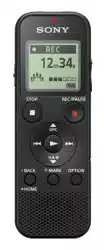
IC Recorder
Quick Start Guide
4-441-194-51(1)
© 2013 Sony Corporation Printed in China
ICD-PX333/PX333F
ˎ IC Recorder (1)
ˎ Stereo headphones (1)*
ˎ USB connecting cable (1)
ˎ Stereo Microphone with
Shirt‑Clip (1)*
ˎ Carrying pouch (1)*
ˎ LR03 (size AAA) alkaline
batteries (2)
ˎ Application Software, Dragon
NaturallySpeaking (DVD‑ROM)
(1)*
ˎ Quick Start Guide (1)
ˎ Application Software, Sound
Organizer (Installer file stored in
the built‑in memory so that you
can install it to your computer.)
ˎ Help Guide (HTML file stored
in the built‑in memory so it
can easily be copied to your
computer.)
* supplied with some models in
some regions.
Check the supplied items.
ˎ Electret condenser microphone
ECM‑CS10, ECM‑CZ10,
ECM‑DS70P, ECM‑DS30P,
ECM‑CS3, ECM‑TL3
ˎ Rechargeable battery
NH‑AAA‑B2EN, NH‑AAA‑B2KN
ˎ USB AC adaptor AC‑UD20,
AC‑U501AD, AC‑U50AG
ˎ Compact charger &
2‑pcAAAMulti‑Use Premium
batteries BCG‑34HS2KAN,
BCG‑34HW2KAN
Optional accessories
Welcome to your new Sony IC recorder!
This is the Quick Start Guide, which provides you with instructions on the basic operations of the IC recorder.
Please read it carefully. We hope you enjoy using your new Sony IC recorder.
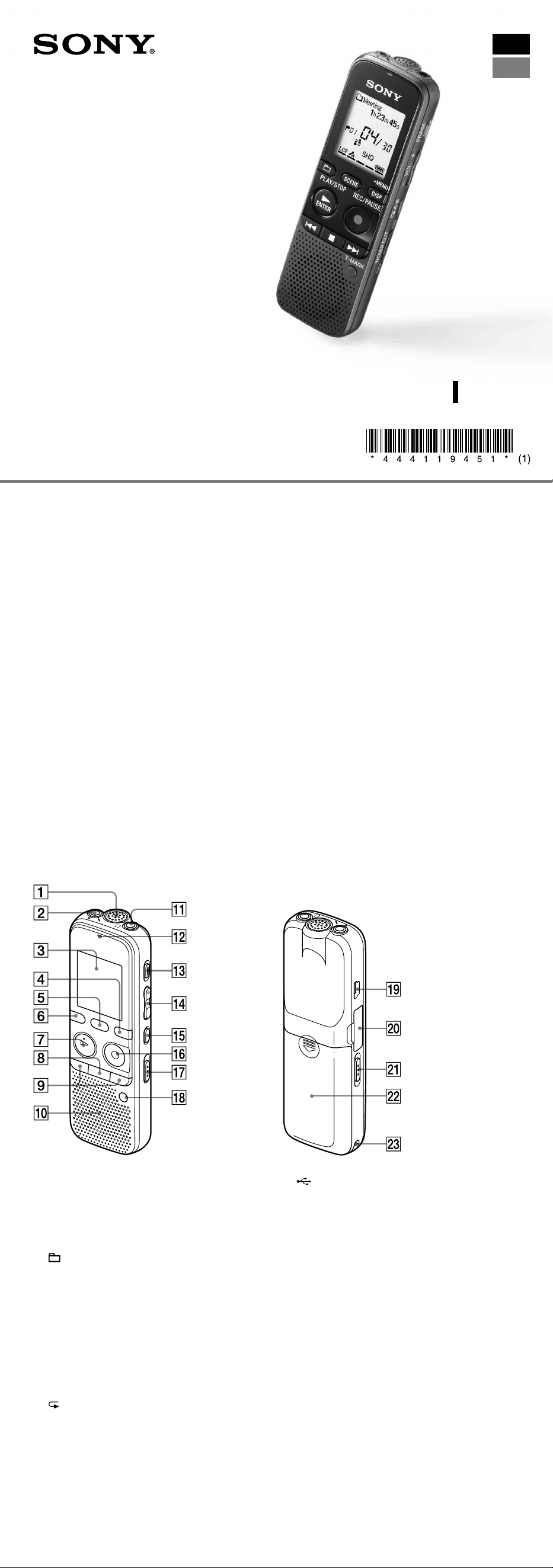
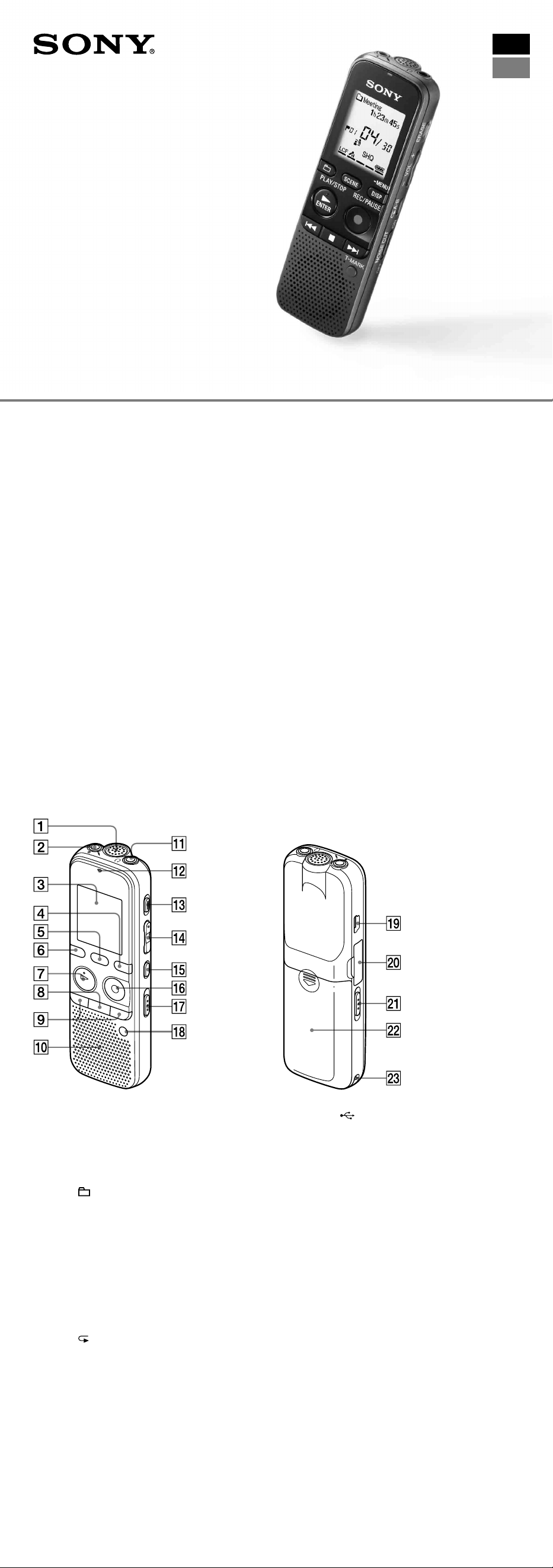
Parts and controls
Built‑in microphone
(microphone) jack*
Display window
DISP/MENU button
SCENE button
(folder) button
PLAY/STOP•ENTER* button
(stop) button
– (review/fast backward), + (cue/fast
forward) buttons
Speaker
(headphones) jack
Operation indicator
ERASE button
VOL –/+ (volume –/+) button*
A‑B (repeat A‑B) button
REC/PAUSE (record/pause) button
NOISE CUT switch
T‑MARK (track mark) button
(USB) connector
M2™/microSD memory card slot
HOLD•POWER ON/OFF switch
Battery compartment
Strap hole (A strap is not supplied.)
* These buttons and the jack have a tactile dot. Use it as a reference point for operations, or to identify each terminal.
Let’s try out your new IC recorder Utilizing Your Computer
Installing the help guide on your computer
By installing the help guide on your computer from the built‑in memory of the IC recorder, you can
search for detailed operations and possible solutions when a problem occurs.
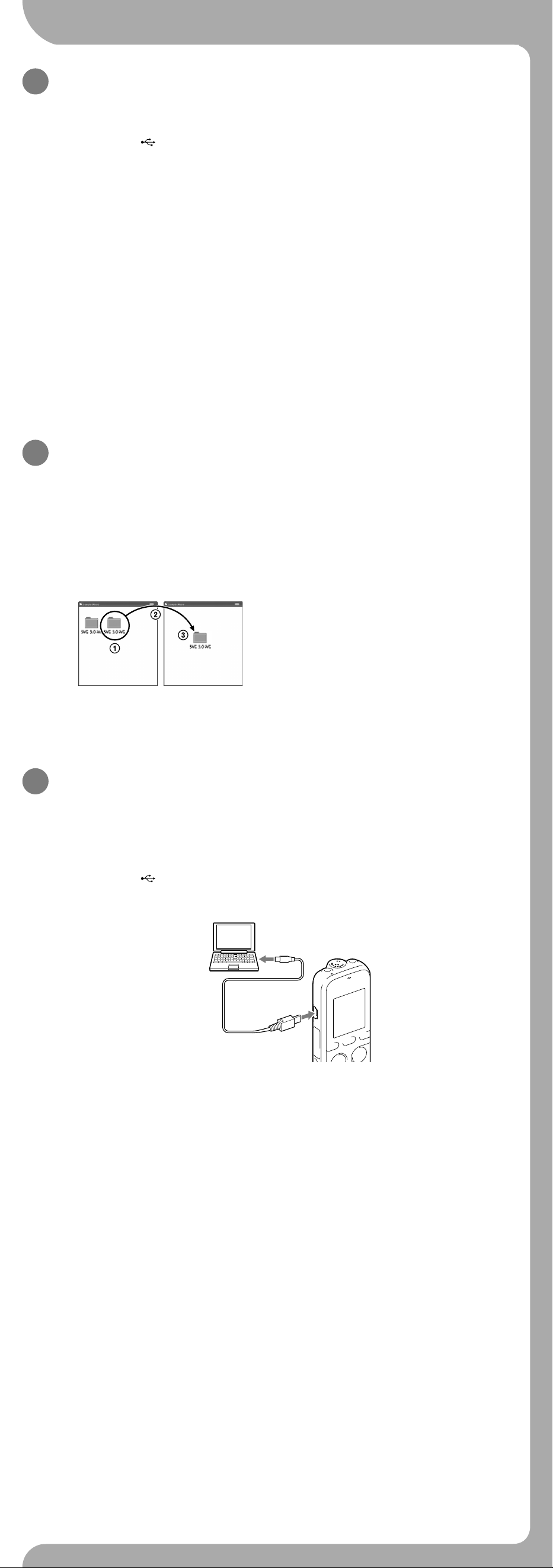
Connect the (USB) connector of the IC recorder with the USB port of your running
computer with the supplied USB connecting cable inserted into the connectors securely
until each plug stops to the end.
In Windows: Click [Computer] (or [My Computer]), then double-click [IC RECORDER]
[FOR WINDOWS].
In Mac: Double-click [IC RECORDER] on the desktop.
Install the help guide.
In Windows: Double‑click [Help_Guide_Installer] (or [Help_Guide_Installer.exe]).
In Mac: Double‑click [Help_Guide_Installer_for_mac.app]. (v10.5.8 or higher)
Follow the instructions that appear on the screen to proceed with installation.
After the installation completes, double-click the [Help_Guide_icdp33_uc.htm] (for
the customers in the U.S.A. and the Latin American countries] or [Help_Guide_icdp33_
zz.htm] (for customers in other countries) icon in the desktop for Windows (or in Finder
for Mac).
The help guide is displayed.
You can also view the help guide on the following Sony IC Recorder customer support home
page:
For customers in the U.S.A. and the Latin American countries: http://rd1.sony.net/help/icd/p33/
uc/
For customers in other countries: http://rd1.sony.net/help/icd/p33/zz/
Copying files from the IC recorder to your
computer
You can copy the files and folders from the IC recorder to your computer to store them.
Connect the IC recorder to your computer.
Copy files or folders you want to transfer to your computer.
Drag and drop the files or folders you want to copy from “IC RECORDER” or “MEMORY CARD” to
the local disk on your computer.
To copy a file or folder (Drag and drop)
IC RECORDER or
MEMORY CARD
Your computer
Click and hold,
drag,
and then drop.
Disconnect the IC recorder from your computer.
Installing Sound Organizer
Install Sound Organizer on your computer.
Note
Sound Organizer is compatible with the Windows PC only. It is not compatible with Mac.
¼ When installing Sound Organizer, log in to an account with administrator privileges.
Connect the (USB) connector of the IC recorder with the USB port of your running
computer with the supplied USB connecting cable inserted into the connectors securely
until each plug stops to the end.
Make sure the IC recorder has been recognized properly.
While the IC recorder is connected to the computer, “Connecting” is displayed in the display
window of the IC recorder.
Go to the [Start] menu, click [Computer] (or [My Computer]), and then double-click [IC
RECORDER] [FOR WINDOWS].
Double-click [SoundOrganizerInstaller_V140] (or [SoundOrganizerInstaller_V140.exe]).
Follow the instructions that appear on the screen.
Make sure that you accept the terms of the license agreement, select [I accept the terms
in the license agreement], and then click [Next].
When the [Setup Type] window appears, select [Standard] or [Custom], and then click
[Next].
Follow the instructions on the screen and set the installation settings when you select [Custom].
When the [Ready to Install the Program] window appears, click [Install].
The installation starts.
When the [Sound Organizer has been installed successfully.] window appears, check
[Launch Sound Organizer Now], and then click [Finish].
Note
You may need to restart your computer after installing Sound Organizer.
Note
If you format the built‑in memory, all data stored there will be erased. (The Help Guide and the Sound Organizer
software will also be erased.)
On power
Operate the IC recorder on 3.0V or 2.4V.
Use two LR03 (size AAA) alkaline batteries or NH‑AAA
rechargeable batteries.
On safety
Do not operate the IC recorder while driving, cycling
or operating any motorized vehicle.
On handling
ˎ Do not leave the IC recorder in a location near heat
sources, or in a place subject to direct sunlight,
excessive dust or mechanical shock.
ˎ Should any solid object or liquid fall into the IC
recorder, remove the battery and have the IC
recorder checked by qualified personnel before
operating it any further.
If you have any questions or problems concerning
your IC recorder, please consult your nearest Sony
dealer.
Precautions
Owner’s Record
The model number is located at the rear panel and the serial number is located inside the battery compartment.
Record these numbers in the space provided below. Refer to these numbers whenever you call upon your Sony dealer
regarding this product.
Model No. ________________________________
Serial No. _________________________________
WARNING
Do not expose the batteries (battery pack or batteries installed) to excessive heat such as sunshine, fire or the like for a
long time.
CAUTION
Risk of explosion if battery is replaced by an incorrect type.
Dispose of used batteries according to the instructions.
Capacity (User available capacity*
1
*
2
)
4 GB (approx. 3.60 GB = 3,865,470,566 Byte)
*
1
A small amount of the built‑in memory is used for file management and therefore not available for user storage.
*
2
When the built‑in memory is formatted with the IC recorder.
Dimensions (w/h/d) (not incl. projecting parts and controls) (JEITA)*
3
Approx. 37.5 mm × 114.0 mm × 20.9 mm
Mass (JEITA)*
3
Approx. 74g including two LR03 alkaline batteries
*
3
Measured value by the standard of JEITA (Japan Electronics and Information Technology Industries Association)
The following FCC statement applies only to the version of this model manufactured for sale in the USA. Other versions
may not comply with FCC technical regulations.
INFORMATION
This equipment has been tested and found to comply with the limits for a Class B digital device, pursuant to Part 15 of
the FCC Rules. These limits are designed to provide reasonable protection against harmful interference in a residential
installation. This equipment generates, uses and can radiate radio frequency energy and, if not installed and used in
accordance with the instructions, may cause harmful interference to radio communications.
However, there is no guarantee that interference will not occur in a particular installation. If this equipment does cause
harmful interference to radio or television reception, which can be determined by turning the equipment off and on, the
user is encouraged to try to correct the interference by one or more of the following measures:
Reorient or relocate the receiving antenna.
Increase the separation between the equipment and receiver.
Connect the equipment into an outlet on a circuit different from that to which the receiver is connected.
Consult the dealer or an experienced radio/TV technician for help.
You are cautioned that any changes or modifications not expressly approved in this manual could void your authority to
operate this equipment.
If you have any questions about this product, you may call: Sony Customer Information Service Center 1‑800‑222‑7669
or http://www.sony.com/
Declaration of Conformity
Trade Name : SONY
Model : ICD‑PX333
Responsible Party : Sony Electronics Inc.
Address : 16530 Via Esprillo, San Diego, CA 92127 USA
Telephone Number : 858‑942‑2230
This device complies with part 15 of the FCC Rules. Operation is subject to the following two conditions: (1) This
device may not cause harmful interference, and (2) this device must accept any interference received, including
interference that may cause undesired operation.
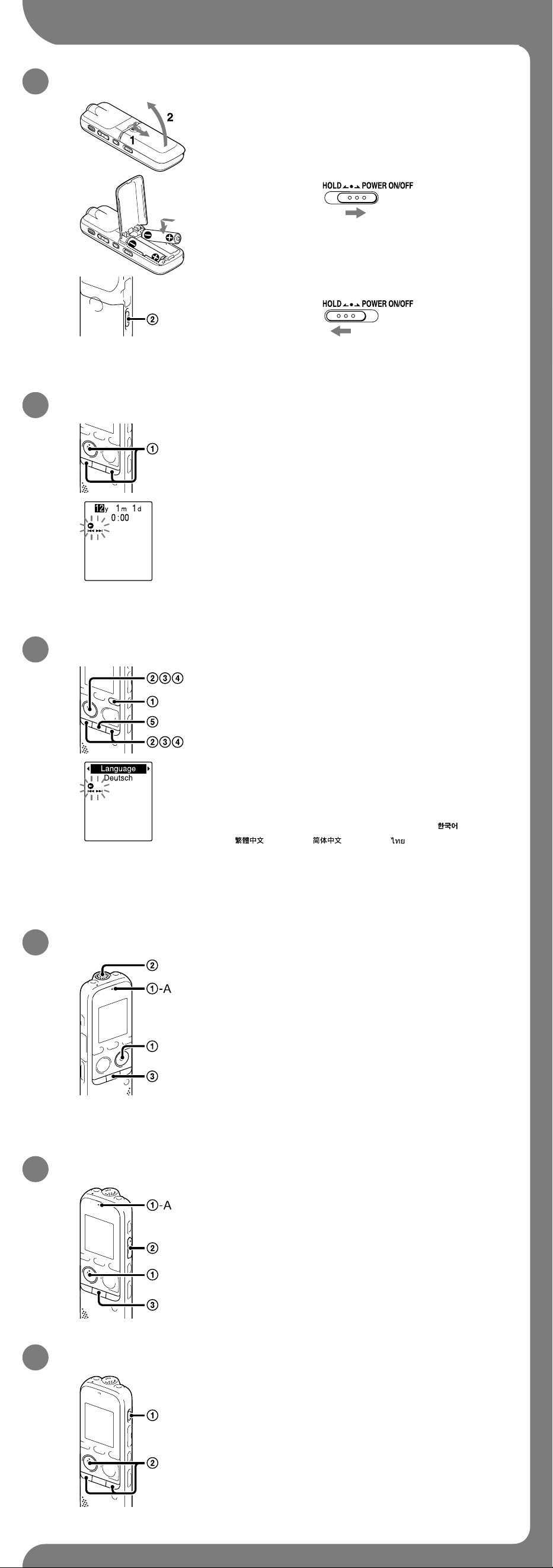
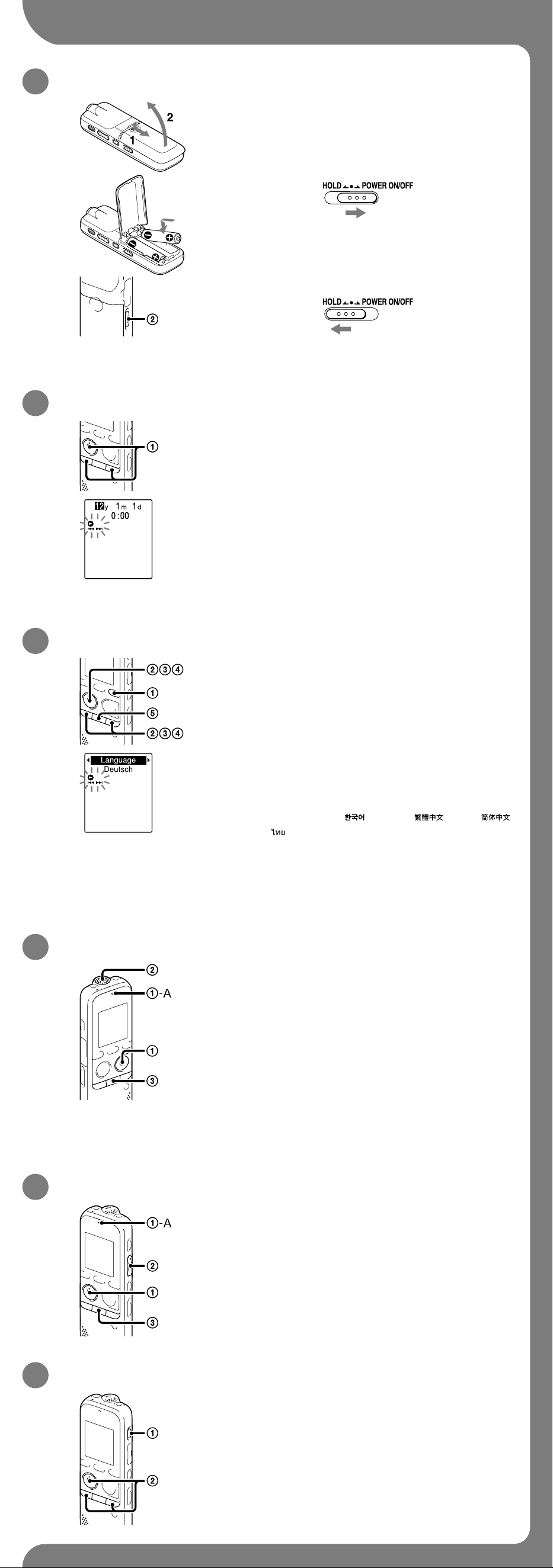
1. Power on.
Slide and lift the battery compartment lid, then insert
batteries with the correct polarity.
Turn the power on.
Slide and hold the HOLD•POWER ON/OFF switch in the
direction of “POWER ON/OFF” for more than 1 second.
To turn the power off, slide and hold the HOLD•POWER ON/OFF
switch in the direction of “POWER ON/OFF” until “Power Off” is
displayed.
To prevent unintentional operations (HOLD)
¼ To release the IC recorder from the HOLD status, slide the
HOLD•POWER ON/OFF switch towards the center.
2. Set the date and time.
When you insert a battery for the first time, or after the IC
recorder has been without a battery for more than 1 minute, “Set
Date&Time” appears, and then the clock setting window appears.
Press – or + to set the year (the last two digits of
the year), and then press PLAY/STOP•ENTER. Repeat
this procedure to set month, day, hour, and minute in
sequence.
When you set the minute and press PLAY/STOP•ENTER,
the clock reflects the setting.
Note
The time is displayed either in 12‑Hour with “AM”or “PM,”or in
24‑Hour,depending on the “Time Display”setting in the menu. The
default setting differs depending on the country or region you
purchased the IC recorder.
3. Select the menu language.
Press DISP/MENU.
Press – or + to select “Detail Menu”, and then
press PLAY/STOP•ENTER.
Press – or + to select “Language,” and then press
PLAY/STOP•ENTER.
Press – or + to select the language that you want
to use in the display window, and then press PLAY/
STOP•ENTER.
You can select the following languages:
Deutsch (German), English, Español (Spanish), Français
(French), Italiano (Italian), Русский (Russian),
(Korean),
(Chinese), (Chinese), (Thai)
¼ Number of language options you can select and the default setting
differ depending on the country or region you purchased your IC
recorder.
Press (stop) to return to the stop mode display.
4. Record.
¼ Before you start using the IC recorder, make sure that you slide the
HOLD•POWER ON/OFF switch towards the center to release the
HOLD status.
Press REC/PAUSE.
Recording starts and the operation indicator (‑A) flashes in
orange, and then lights in red.
¼ You can pause recording by pressing REC/PAUSE. Press REC/
PAUSE again to restart recording.
Place the IC recorder so that the built-in microphone face
the direction of the source to be recorded.
Press (stop) to stop recording.
The “Accessing...” animation appears and the recording stops.
5. Listen.
Press PLAY/STOP•ENTER.
Playback starts and the operation indicator (‑A) lights in
green.
Adjust the volume by pressing VOL –/+.
Press (stop) to stop playback.
6. Erase.
Once a file is erased, you cannot restore it.
Press ERASE.
“Erase?” is displayed and the file to be erased is played back
for confirmation.
Select “YES” using – or +, and then press
PLAY/STOP•ENTER.
The “Erasing...” animation appears and the selected file is
erased.
Additional features
Details of these additional features for recording, playback, and editing are included in the help guide.
ˎ Scene Selection
ˎ Noise Cut
ˎ T‑MARK (Track mark)
ˎ DPC (Digital Pitch Control)
ˎ A‑B Repeat
ˎ VOR (Voice Operated Recording)
ˎ Alarm
ˎ Easy Search
ˎ Divide
ˎ Sound Organizer editing software
Note
Depending on the country or region, some of the models or optional accessories are not available.
GB
ES
IC Recorder
Quick Start Guide
4-441-194-51(1)
© 2013 Sony Corporation Printed in China
ICD-PX333/PX333F
ˎ IC Recorder (1)
ˎ Stereo headphones (1)*
ˎ USB connecting cable (1)
ˎ Stereo Microphone with
Shirt‑Clip (1)*
ˎ Carrying pouch (1)*
ˎ LR03 (size AAA) alkaline
batteries (2)
ˎ Application Software, Dragon
NaturallySpeaking (DVD‑ROM)
(1)*
ˎ Quick Start Guide (1)
ˎ Application Software, Sound
Organizer (Installer file stored in
the built‑in memory so that you
can install it to your computer.)
ˎ Help Guide (HTML file stored
in the built‑in memory so it
can easily be copied to your
computer.)
* supplied with some models in
some regions.
Check the supplied items.
ˎ Electret condenser microphone
ECM‑CS10, ECM‑CZ10,
ECM‑DS70P, ECM‑DS30P,
ECM‑CS3, ECM‑TL3
ˎ Rechargeable battery
NH‑AAA‑B2EN, NH‑AAA‑B2KN
ˎ USB AC adaptor AC‑UD20,
AC‑U501AD, AC‑U50AG
ˎ Compact charger &
2‑pcAAAMulti‑Use Premium
batteries BCG‑34HS2KAN,
BCG‑34HW2KAN
Optional accessories
Welcome to your new Sony IC recorder!
This is the Quick Start Guide, which provides you with instructions on the basic operations of the IC recorder.
Please read it carefully. We hope you enjoy using your new Sony IC recorder.
Parts and controls
Built‑in microphone
(microphone) jack*
Display window
DISP/MENU button
SCENE button
(folder) button
PLAY/STOP•ENTER* button
(stop) button
– (review/fast backward), + (cue/fast
forward) buttons
Speaker
(headphones) jack
Operation indicator
ERASE button
VOL –/+ (volume –/+) button*
A‑B (repeat A‑B) button
REC/PAUSE (record/pause) button
NOISE CUT switch
T‑MARK (track mark) button
(USB) connector
M2™/microSD memory card slot
HOLD•POWER ON/OFF switch
Battery compartment
Strap hole (A strap is not supplied.)
* These buttons and the jack have a tactile dot. Use it as a reference point for operations, or to identify each terminal.
Let’s try out your new IC recorder Utilizing Your Computer
Installing the help guide on your computer
By installing the help guide on your computer from the built‑in memory of the IC recorder, you can
search for detailed operations and possible solutions when a problem occurs.
Connect the (USB) connector of the IC recorder with the USB port of your running
computer with the supplied USB connecting cable inserted into the connectors securely
until each plug stops to the end.
In Windows: Click [Computer] (or [My Computer]), then double-click [IC RECORDER]
[FOR WINDOWS].
In Mac: Double-click [IC RECORDER] on the desktop.
Install the help guide.
In Windows: Double‑click [Help_Guide_Installer] (or [Help_Guide_Installer.exe]).
In Mac: Double‑click [Help_Guide_Installer_for_mac.app]. (v10.5.8 or higher)
Follow the instructions that appear on the screen to proceed with installation.
After the installation completes, double-click the [Help_Guide_icdp33_uc.htm] (for
the customers in the U.S.A. and the Latin American countries] or [Help_Guide_icdp33_
zz.htm] (for customers in other countries) icon in the desktop for Windows (or in Finder
for Mac).
The help guide is displayed.
You can also view the help guide on the following Sony IC Recorder customer support home
page:
For customers in the U.S.A. and the Latin American countries: http://rd1.sony.net/help/icd/p33/
uc/
For customers in other countries: http://rd1.sony.net/help/icd/p33/zz/
Copying files from the IC recorder to your
computer
You can copy the files and folders from the IC recorder to your computer to store them.
Connect the IC recorder to your computer.
Copy files or folders you want to transfer to your computer.
Drag and drop the files or folders you want to copy from “IC RECORDER” or “MEMORY CARD” to
the local disk on your computer.
To copy a file or folder (Drag and drop)
IC RECORDER or
MEMORY CARD
Your computer
Click and hold,
drag,
and then drop.
Disconnect the IC recorder from your computer.
Installing Sound Organizer
Install Sound Organizer on your computer.
Note
Sound Organizer is compatible with the Windows PC only. It is not compatible with Mac.
¼ When installing Sound Organizer, log in to an account with administrator privileges.
Connect the (USB) connector of the IC recorder with the USB port of your running
computer with the supplied USB connecting cable inserted into the connectors securely
until each plug stops to the end.
Make sure the IC recorder has been recognized properly.
While the IC recorder is connected to the computer, “Connecting” is displayed in the display
window of the IC recorder.
Go to the [Start] menu, click [Computer] (or [My Computer]), and then double-click [IC
RECORDER] [FOR WINDOWS].
Double-click [SoundOrganizerInstaller_V140] (or [SoundOrganizerInstaller_V140.exe]).
Follow the instructions that appear on the screen.
Make sure that you accept the terms of the license agreement, select [I accept the terms
in the license agreement], and then click [Next].
When the [Setup Type] window appears, select [Standard] or [Custom], and then click
[Next].
Follow the instructions on the screen and set the installation settings when you select [Custom].
When the [Ready to Install the Program] window appears, click [Install].
The installation starts.
When the [Sound Organizer has been installed successfully.] window appears, check
[Launch Sound Organizer Now], and then click [Finish].
Note
You may need to restart your computer after installing Sound Organizer.
Note
If you format the built‑in memory, all data stored there will be erased. (The Help Guide and the Sound Organizer
software will also be erased.)
On power
Operate the IC recorder on 3.0V or 2.4V.
Use two LR03 (size AAA) alkaline batteries or NH‑AAA
rechargeable batteries.
On safety
Do not operate the IC recorder while driving, cycling
or operating any motorized vehicle.
On handling
ˎ Do not leave the IC recorder in a location near heat
sources, or in a place subject to direct sunlight,
excessive dust or mechanical shock.
ˎ Should any solid object or liquid fall into the IC
recorder, remove the battery and have the IC
recorder checked by qualified personnel before
operating it any further.
If you have any questions or problems concerning
your IC recorder, please consult your nearest Sony
dealer.
Precautions
Owner’s Record
The model number is located at the rear panel and the serial number is located inside the battery compartment.
Record these numbers in the space provided below. Refer to these numbers whenever you call upon your Sony dealer
regarding this product.
Model No. ________________________________
Serial No. _________________________________
WARNING
Do not expose the batteries (battery pack or batteries installed) to excessive heat such as sunshine, fire or the like for a
long time.
CAUTION
Risk of explosion if battery is replaced by an incorrect type.
Dispose of used batteries according to the instructions.
Capacity (User available capacity*
1
*
2
)
4 GB (approx. 3.60 GB = 3,865,470,566 Byte)
*
1
A small amount of the built‑in memory is used for file management and therefore not available for user storage.
*
2
When the built‑in memory is formatted with the IC recorder.
Dimensions (w/h/d) (not incl. projecting parts and controls) (JEITA)*
3
Approx. 37.5 mm × 114.0 mm × 20.9 mm
Mass (JEITA)*
3
Approx. 74g including two LR03 alkaline batteries
*
3
Measured value by the standard of JEITA (Japan Electronics and Information Technology Industries Association)
The following FCC statement applies only to the version of this model manufactured for sale in the USA. Other versions
may not comply with FCC technical regulations.
INFORMATION
This equipment has been tested and found to comply with the limits for a Class B digital device, pursuant to Part 15 of
the FCC Rules. These limits are designed to provide reasonable protection against harmful interference in a residential
installation. This equipment generates, uses and can radiate radio frequency energy and, if not installed and used in
accordance with the instructions, may cause harmful interference to radio communications.
However, there is no guarantee that interference will not occur in a particular installation. If this equipment does cause
harmful interference to radio or television reception, which can be determined by turning the equipment off and on, the
user is encouraged to try to correct the interference by one or more of the following measures:
Reorient or relocate the receiving antenna.
Increase the separation between the equipment and receiver.
Connect the equipment into an outlet on a circuit different from that to which the receiver is connected.
Consult the dealer or an experienced radio/TV technician for help.
You are cautioned that any changes or modifications not expressly approved in this manual could void your authority to
operate this equipment.
If you have any questions about this product, you may call: Sony Customer Information Service Center 1‑800‑222‑7669
or http://www.sony.com/
Declaration of Conformity
Trade Name : SONY
Model : ICD‑PX333
Responsible Party : Sony Electronics Inc.
Address : 16530 Via Esprillo, San Diego, CA 92127 USA
Telephone Number : 858‑942‑2230
This device complies with part 15 of the FCC Rules. Operation is subject to the following two conditions: (1) This
device may not cause harmful interference, and (2) this device must accept any interference received, including
interference that may cause undesired operation.
1. Power on.
Slide and lift the battery compartment lid, then insert
batteries with the correct polarity.
Turn the power on.
Slide and hold the HOLD•POWER ON/OFF switch in the
direction of “POWER ON/OFF” for more than 1 second.
To turn the power off, slide and hold the HOLD•POWER ON/OFF
switch in the direction of “POWER ON/OFF” until “Power Off” is
displayed.
To prevent unintentional operations (HOLD)
¼ To release the IC recorder from the HOLD status, slide the
HOLD•POWER ON/OFF switch towards the center.
2. Set the date and time.
When you insert a battery for the first time, or after the IC
recorder has been without a battery for more than 1 minute, “Set
Date&Time” appears, and then the clock setting window appears.
Press – or + to set the year (the last two digits of
the year), and then press PLAY/STOP•ENTER. Repeat
this procedure to set month, day, hour, and minute in
sequence.
When you set the minute and press PLAY/STOP•ENTER,
the clock reflects the setting.
Note
The time is displayed either in 12‑Hour with “AM”or “PM,”or in
24‑Hour,depending on the “Time Display”setting in the menu. The
default setting differs depending on the country or region you
purchased the IC recorder.
3. Select the menu language.
Press DISP/MENU.
Press – or + to select “Detail Menu”, and then
press PLAY/STOP•ENTER.
Press – or + to select “Language,” and then press
PLAY/STOP•ENTER.
Press – or + to select the language that you want
to use in the display window, and then press PLAY/
STOP•ENTER.
You can select the following languages:
Deutsch (German), English, Español (Spanish), Français
(French), Italiano (Italian), Русский (Russian),
(Korean),
(Chinese), (Chinese), (Thai)
¼ Number of language options you can select and the default setting
differ depending on the country or region you purchased your IC
recorder.
Press (stop) to return to the stop mode display.
4. Record.
¼ Before you start using the IC recorder, make sure that you slide the
HOLD•POWER ON/OFF switch towards the center to release the
HOLD status.
Press REC/PAUSE.
Recording starts and the operation indicator (‑A) flashes in
orange, and then lights in red.
¼ You can pause recording by pressing REC/PAUSE. Press REC/
PAUSE again to restart recording.
Place the IC recorder so that the built-in microphone face
the direction of the source to be recorded.
Press (stop) to stop recording.
The “Accessing...” animation appears and the recording stops.
5. Listen.
Press PLAY/STOP•ENTER.
Playback starts and the operation indicator (‑A) lights in
green.
Adjust the volume by pressing VOL –/+.
Press (stop) to stop playback.
6. Erase.
Once a file is erased, you cannot restore it.
Press ERASE.
“Erase?” is displayed and the file to be erased is played back
for confirmation.
Select “YES” using – or +, and then press
PLAY/STOP•ENTER.
The “Erasing...” animation appears and the selected file is
erased.
Additional features
Details of these additional features for recording, playback, and editing are included in the help guide.
ˎ Scene Selection
ˎ Noise Cut
ˎ T‑MARK (Track mark)
ˎ DPC (Digital Pitch Control)
ˎ A‑B Repeat
ˎ VOR (Voice Operated Recording)
ˎ Alarm
ˎ Easy Search
ˎ Divide
ˎ Sound Organizer editing software
Note
Depending on the country or region, some of the models or optional accessories are not available.
GB
ES
IC Recorder
Quick Start Guide
4-441-194-51(1)
© 2013 Sony Corporation Printed in China
ICD-PX333/PX333F
ˎ IC Recorder (1)
ˎ Stereo headphones (1)*
ˎ USB connecting cable (1)
ˎ Stereo Microphone with
Shirt‑Clip (1)*
ˎ Carrying pouch (1)*
ˎ LR03 (size AAA) alkaline
batteries (2)
ˎ Application Software, Dragon
NaturallySpeaking (DVD‑ROM)
(1)*
ˎ Quick Start Guide (1)
ˎ Application Software, Sound
Organizer (Installer file stored in
the built‑in memory so that you
can install it to your computer.)
ˎ Help Guide (HTML file stored
in the built‑in memory so it
can easily be copied to your
computer.)
* supplied with some models in
some regions.
Check the supplied items.
ˎ Electret condenser microphone
ECM‑CS10, ECM‑CZ10,
ECM‑DS70P, ECM‑DS30P,
ECM‑CS3, ECM‑TL3
ˎ Rechargeable battery
NH‑AAA‑B2EN, NH‑AAA‑B2KN
ˎ USB AC adaptor AC‑UD20,
AC‑U501AD, AC‑U50AG
ˎ Compact charger &
2‑pcAAAMulti‑Use Premium
batteries BCG‑34HS2KAN,
BCG‑34HW2KAN
Optional accessories
Welcome to your new Sony IC recorder!
This is the Quick Start Guide, which provides you with instructions on the basic operations of the IC recorder.
Please read it carefully. We hope you enjoy using your new Sony IC recorder.
Parts and controls
Built‑in microphone
(microphone) jack*
Display window
DISP/MENU button
SCENE button
(folder) button
PLAY/STOP•ENTER* button
(stop) button
– (review/fast backward), + (cue/fast
forward) buttons
Speaker
(headphones) jack
Operation indicator
ERASE button
VOL –/+ (volume –/+) button*
A‑B (repeat A‑B) button
REC/PAUSE (record/pause) button
NOISE CUT switch
T‑MARK (track mark) button
(USB) connector
M2™/microSD memory card slot
HOLD•POWER ON/OFF switch
Battery compartment
Strap hole (A strap is not supplied.)
* These buttons and the jack have a tactile dot. Use it as a reference point for operations, or to identify each terminal.
Let’s try out your new IC recorder Utilizing Your Computer
Installing the help guide on your computer
By installing the help guide on your computer from the built‑in memory of the IC recorder, you can
search for detailed operations and possible solutions when a problem occurs.
Connect the (USB) connector of the IC recorder with the USB port of your running
computer with the supplied USB connecting cable inserted into the connectors securely
until each plug stops to the end.
In Windows: Click [Computer] (or [My Computer]), then double-click [IC RECORDER]
[FOR WINDOWS].
In Mac: Double-click [IC RECORDER] on the desktop.
Install the help guide.
In Windows: Double‑click [Help_Guide_Installer] (or [Help_Guide_Installer.exe]).
In Mac: Double‑click [Help_Guide_Installer_for_mac.app]. (v10.5.8 or higher)
Follow the instructions that appear on the screen to proceed with installation.
After the installation completes, double-click the [Help_Guide_icdp33_uc.htm] (for
the customers in the U.S.A. and the Latin American countries] or [Help_Guide_icdp33_
zz.htm] (for customers in other countries) icon in the desktop for Windows (or in Finder
for Mac).
The help guide is displayed.
You can also view the help guide on the following Sony IC Recorder customer support home
page:
For customers in the U.S.A. and the Latin American countries: http://rd1.sony.net/help/icd/p33/
uc/
For customers in other countries: http://rd1.sony.net/help/icd/p33/zz/
Copying files from the IC recorder to your
computer
You can copy the files and folders from the IC recorder to your computer to store them.
Connect the IC recorder to your computer.
Copy files or folders you want to transfer to your computer.
Drag and drop the files or folders you want to copy from “IC RECORDER” or “MEMORY CARD” to
the local disk on your computer.
To copy a file or folder (Drag and drop)
IC RECORDER or
MEMORY CARD
Your computer
Click and hold,
drag,
and then drop.
Disconnect the IC recorder from your computer.
Installing Sound Organizer
Install Sound Organizer on your computer.
Note
Sound Organizer is compatible with the Windows PC only. It is not compatible with Mac.
¼ When installing Sound Organizer, log in to an account with administrator privileges.
Connect the (USB) connector of the IC recorder with the USB port of your running
computer with the supplied USB connecting cable inserted into the connectors securely
until each plug stops to the end.
Make sure the IC recorder has been recognized properly.
While the IC recorder is connected to the computer, “Connecting” is displayed in the display
window of the IC recorder.
Go to the [Start] menu, click [Computer] (or [My Computer]), and then double-click [IC
RECORDER] [FOR WINDOWS].
Double-click [SoundOrganizerInstaller_V140] (or [SoundOrganizerInstaller_V140.exe]).
Follow the instructions that appear on the screen.
Make sure that you accept the terms of the license agreement, select [I accept the terms
in the license agreement], and then click [Next].
When the [Setup Type] window appears, select [Standard] or [Custom], and then click
[Next].
Follow the instructions on the screen and set the installation settings when you select [Custom].
When the [Ready to Install the Program] window appears, click [Install].
The installation starts.
When the [Sound Organizer has been installed successfully.] window appears, check
[Launch Sound Organizer Now], and then click [Finish].
Note
You may need to restart your computer after installing Sound Organizer.
Note
If you format the built‑in memory, all data stored there will be erased. (The Help Guide and the Sound Organizer
software will also be erased.)
On power
Operate the IC recorder on 3.0V or 2.4V.
Use two LR03 (size AAA) alkaline batteries or NH‑AAA
rechargeable batteries.
On safety
Do not operate the IC recorder while driving, cycling
or operating any motorized vehicle.
On handling
ˎ Do not leave the IC recorder in a location near heat
sources, or in a place subject to direct sunlight,
excessive dust or mechanical shock.
ˎ Should any solid object or liquid fall into the IC
recorder, remove the battery and have the IC
recorder checked by qualified personnel before
operating it any further.
If you have any questions or problems concerning
your IC recorder, please consult your nearest Sony
dealer.
Precautions
Owner’s Record
The model number is located at the rear panel and the serial number is located inside the battery compartment.
Record these numbers in the space provided below. Refer to these numbers whenever you call upon your Sony dealer
regarding this product.
Model No. ________________________________
Serial No. _________________________________
WARNING
Do not expose the batteries (battery pack or batteries installed) to excessive heat such as sunshine, fire or the like for a
long time.
CAUTION
Risk of explosion if battery is replaced by an incorrect type.
Dispose of used batteries according to the instructions.
Capacity (User available capacity*
1
*
2
)
4 GB (approx. 3.60 GB = 3,865,470,566 Byte)
*
1
A small amount of the built‑in memory is used for file management and therefore not available for user storage.
*
2
When the built‑in memory is formatted with the IC recorder.
Dimensions (w/h/d) (not incl. projecting parts and controls) (JEITA)*
3
Approx. 37.5 mm × 114.0 mm × 20.9 mm
Mass (JEITA)*
3
Approx. 74g including two LR03 alkaline batteries
*
3
Measured value by the standard of JEITA (Japan Electronics and Information Technology Industries Association)
The following FCC statement applies only to the version of this model manufactured for sale in the USA. Other versions
may not comply with FCC technical regulations.
INFORMATION
This equipment has been tested and found to comply with the limits for a Class B digital device, pursuant to Part 15 of
the FCC Rules. These limits are designed to provide reasonable protection against harmful interference in a residential
installation. This equipment generates, uses and can radiate radio frequency energy and, if not installed and used in
accordance with the instructions, may cause harmful interference to radio communications.
However, there is no guarantee that interference will not occur in a particular installation. If this equipment does cause
harmful interference to radio or television reception, which can be determined by turning the equipment off and on, the
user is encouraged to try to correct the interference by one or more of the following measures:
Reorient or relocate the receiving antenna.
Increase the separation between the equipment and receiver.
Connect the equipment into an outlet on a circuit different from that to which the receiver is connected.
Consult the dealer or an experienced radio/TV technician for help.
You are cautioned that any changes or modifications not expressly approved in this manual could void your authority to
operate this equipment.
If you have any questions about this product, you may call: Sony Customer Information Service Center 1‑800‑222‑7669
or http://www.sony.com/
Declaration of Conformity
Trade Name : SONY
Model : ICD‑PX333
Responsible Party : Sony Electronics Inc.
Address : 16530 Via Esprillo, San Diego, CA 92127 USA
Telephone Number : 858‑942‑2230
This device complies with part 15 of the FCC Rules. Operation is subject to the following two conditions: (1) This
device may not cause harmful interference, and (2) this device must accept any interference received, including
interference that may cause undesired operation.
1. Power on.
Slide and lift the battery compartment lid, then insert
batteries with the correct polarity.
Turn the power on.
Slide and hold the HOLD•POWER ON/OFF switch in the
direction of “POWER ON/OFF” for more than 1 second.
To turn the power off, slide and hold the HOLD•POWER ON/OFF
switch in the direction of “POWER ON/OFF” until “Power Off” is
displayed.
To prevent unintentional operations (HOLD)
¼ To release the IC recorder from the HOLD status, slide the
HOLD•POWER ON/OFF switch towards the center.
2. Set the date and time.
When you insert a battery for the first time, or after the IC
recorder has been without a battery for more than 1 minute, “Set
Date&Time” appears, and then the clock setting window appears.
Press – or + to set the year (the last two digits of
the year), and then press PLAY/STOP•ENTER. Repeat
this procedure to set month, day, hour, and minute in
sequence.
When you set the minute and press PLAY/STOP•ENTER,
the clock reflects the setting.
Note
The time is displayed either in 12‑Hour with “AM”or “PM,”or in
24‑Hour,depending on the “Time Display”setting in the menu. The
default setting differs depending on the country or region you
purchased the IC recorder.
3. Select the menu language.
Press DISP/MENU.
Press – or + to select “Detail Menu”, and then
press PLAY/STOP•ENTER.
Press – or + to select “Language,” and then press
PLAY/STOP•ENTER.
Press – or + to select the language that you want
to use in the display window, and then press PLAY/
STOP•ENTER.
You can select the following languages:
Deutsch (German), English, Español (Spanish), Français
(French), Italiano (Italian), Русский (Russian),
(Korean),
(Chinese), (Chinese), (Thai)
¼ Number of language options you can select and the default setting
differ depending on the country or region you purchased your IC
recorder.
Press (stop) to return to the stop mode display.
4. Record.
¼ Before you start using the IC recorder, make sure that you slide the
HOLD•POWER ON/OFF switch towards the center to release the
HOLD status.
Press REC/PAUSE.
Recording starts and the operation indicator (‑A) flashes in
orange, and then lights in red.
¼ You can pause recording by pressing REC/PAUSE. Press REC/
PAUSE again to restart recording.
Place the IC recorder so that the built-in microphone face
the direction of the source to be recorded.
Press (stop) to stop recording.
The “Accessing...” animation appears and the recording stops.
5. Listen.
Press PLAY/STOP•ENTER.
Playback starts and the operation indicator (‑A) lights in
green.
Adjust the volume by pressing VOL –/+.
Press (stop) to stop playback.
6. Erase.
Once a file is erased, you cannot restore it.
Press ERASE.
“Erase?” is displayed and the file to be erased is played back
for confirmation.
Select “YES” using – or +, and then press
PLAY/STOP•ENTER.
The “Erasing...” animation appears and the selected file is
erased.
Additional features
Details of these additional features for recording, playback, and editing are included in the help guide.
ˎ Scene Selection
ˎ Noise Cut
ˎ T‑MARK (Track mark)
ˎ DPC (Digital Pitch Control)
ˎ A‑B Repeat
ˎ VOR (Voice Operated Recording)
ˎ Alarm
ˎ Easy Search
ˎ Divide
ˎ Sound Organizer editing software
Note
Depending on the country or region, some of the models or optional accessories are not available.
GB
ES

IC Recorder
Quick Start Guide
4-441-194-51(1)
© 2013 Sony Corporation Printed in China
ICD-PX333/PX333F
ˎ IC Recorder (1)
ˎ Stereo headphones (1)*
ˎ USB connecting cable (1)
ˎ Stereo Microphone with
Shirt‑Clip (1)*
ˎ Carrying pouch (1)*
ˎ LR03 (size AAA) alkaline
batteries (2)
ˎ Application Software, Dragon
NaturallySpeaking (DVD‑ROM)
(1)*
ˎ Quick Start Guide (1)
ˎ Application Software, Sound
Organizer (Installer file stored in
the built‑in memory so that you
can install it to your computer.)
ˎ Help Guide (HTML file stored
in the built‑in memory so it
can easily be copied to your
computer.)
* supplied with some models in
some regions.
Check the supplied items.
ˎ Electret condenser microphone
ECM‑CS10, ECM‑CZ10,
ECM‑DS70P, ECM‑DS30P,
ECM‑CS3, ECM‑TL3
ˎ Rechargeable battery
NH‑AAA‑B2EN, NH‑AAA‑B2KN
ˎ USB AC adaptor AC‑UD20,
AC‑U501AD, AC‑U50AG
ˎ Compact charger &
2‑pcAAAMulti‑Use Premium
batteries BCG‑34HS2KAN,
BCG‑34HW2KAN
Optional accessories
Welcome to your new Sony IC recorder!
This is the Quick Start Guide, which provides you with instructions on the basic operations of the IC recorder.
Please read it carefully. We hope you enjoy using your new Sony IC recorder.
Parts and controls
Built‑in microphone
(microphone) jack*
Display window
DISP/MENU button
SCENE button
(folder) button
PLAY/STOP•ENTER* button
(stop) button
– (review/fast backward), + (cue/fast
forward) buttons
Speaker
(headphones) jack
Operation indicator
ERASE button
VOL –/+ (volume –/+) button*
A‑B (repeat A‑B) button
REC/PAUSE (record/pause) button
NOISE CUT switch
T‑MARK (track mark) button
(USB) connector
M2™/microSD memory card slot
HOLD•POWER ON/OFF switch
Battery compartment
Strap hole (A strap is not supplied.)
* These buttons and the jack have a tactile dot. Use it as a reference point for operations, or to identify each terminal.
Let’s try out your new IC recorder Utilizing Your Computer
Installing the help guide on your computer
By installing the help guide on your computer from the built‑in memory of the IC recorder, you can
search for detailed operations and possible solutions when a problem occurs.
Connect the (USB) connector of the IC recorder with the USB port of your running
computer with the supplied USB connecting cable inserted into the connectors securely
until each plug stops to the end.
In Windows: Click [Computer] (or [My Computer]), then double-click [IC RECORDER]
[FOR WINDOWS].
In Mac: Double-click [IC RECORDER] on the desktop.
Install the help guide.
In Windows: Double‑click [Help_Guide_Installer] (or [Help_Guide_Installer.exe]).
In Mac: Double‑click [Help_Guide_Installer_for_mac.app]. (v10.5.8 or higher)
Follow the instructions that appear on the screen to proceed with installation.
After the installation completes, double-click the [Help_Guide_icdp33_uc.htm] (for
the customers in the U.S.A. and the Latin American countries] or [Help_Guide_icdp33_
zz.htm] (for customers in other countries) icon in the desktop for Windows (or in Finder
for Mac).
The help guide is displayed.
You can also view the help guide on the following Sony IC Recorder customer support home
page:
For customers in the U.S.A. and the Latin American countries: http://rd1.sony.net/help/icd/p33/
uc/
For customers in other countries: http://rd1.sony.net/help/icd/p33/zz/
Copying files from the IC recorder to your
computer
You can copy the files and folders from the IC recorder to your computer to store them.
Connect the IC recorder to your computer.
Copy files or folders you want to transfer to your computer.
Drag and drop the files or folders you want to copy from “IC RECORDER” or “MEMORY CARD” to
the local disk on your computer.
To copy a file or folder (Drag and drop)
IC RECORDER or
MEMORY CARD
Your computer
Click and hold,
drag,
and then drop.
Disconnect the IC recorder from your computer.
Installing Sound Organizer
Install Sound Organizer on your computer.
Note
Sound Organizer is compatible with the Windows PC only. It is not compatible with Mac.
¼ When installing Sound Organizer, log in to an account with administrator privileges.
Connect the (USB) connector of the IC recorder with the USB port of your running
computer with the supplied USB connecting cable inserted into the connectors securely
until each plug stops to the end.
Make sure the IC recorder has been recognized properly.
While the IC recorder is connected to the computer, “Connecting” is displayed in the display
window of the IC recorder.
Go to the [Start] menu, click [Computer] (or [My Computer]), and then double-click [IC
RECORDER] [FOR WINDOWS].
Double-click [SoundOrganizerInstaller_V140] (or [SoundOrganizerInstaller_V140.exe]).
Follow the instructions that appear on the screen.
Make sure that you accept the terms of the license agreement, select [I accept the terms
in the license agreement], and then click [Next].
When the [Setup Type] window appears, select [Standard] or [Custom], and then click
[Next].
Follow the instructions on the screen and set the installation settings when you select [Custom].
When the [Ready to Install the Program] window appears, click [Install].
The installation starts.
When the [Sound Organizer has been installed successfully.] window appears, check
[Launch Sound Organizer Now], and then click [Finish].
Note
You may need to restart your computer after installing Sound Organizer.
Note
If you format the built‑in memory, all data stored there will be erased. (The Help Guide and the Sound Organizer
software will also be erased.)
On power
Operate the IC recorder on 3.0V or 2.4V.
Use two LR03 (size AAA) alkaline batteries or NH‑AAA
rechargeable batteries.
On safety
Do not operate the IC recorder while driving, cycling
or operating any motorized vehicle.
On handling
ˎ Do not leave the IC recorder in a location near heat
sources, or in a place subject to direct sunlight,
excessive dust or mechanical shock.
ˎ Should any solid object or liquid fall into the IC
recorder, remove the battery and have the IC
recorder checked by qualified personnel before
operating it any further.
If you have any questions or problems concerning
your IC recorder, please consult your nearest Sony
dealer.
Precautions
Owner’s Record
The model number is located at the rear panel and the serial number is located inside the battery compartment.
Record these numbers in the space provided below. Refer to these numbers whenever you call upon your Sony dealer
regarding this product.
Model No. ________________________________
Serial No. _________________________________
WARNING
Do not expose the batteries (battery pack or batteries installed) to excessive heat such as sunshine, fire or the like for a
long time.
CAUTION
Risk of explosion if battery is replaced by an incorrect type.
Dispose of used batteries according to the instructions.
Capacity (User available capacity*
1
*
2
)
4 GB (approx. 3.60 GB = 3,865,470,566 Byte)
*
1
A small amount of the built‑in memory is used for file management and therefore not available for user storage.
*
2
When the built‑in memory is formatted with the IC recorder.
Dimensions (w/h/d) (not incl. projecting parts and controls) (JEITA)*
3
Approx. 37.5 mm × 114.0 mm × 20.9 mm
Mass (JEITA)*
3
Approx. 74g including two LR03 alkaline batteries
*
3
Measured value by the standard of JEITA (Japan Electronics and Information Technology Industries Association)
The following FCC statement applies only to the version of this model manufactured for sale in the USA. Other versions
may not comply with FCC technical regulations.
INFORMATION
This equipment has been tested and found to comply with the limits for a Class B digital device, pursuant to Part 15 of
the FCC Rules. These limits are designed to provide reasonable protection against harmful interference in a residential
installation. This equipment generates, uses and can radiate radio frequency energy and, if not installed and used in
accordance with the instructions, may cause harmful interference to radio communications.
However, there is no guarantee that interference will not occur in a particular installation. If this equipment does cause
harmful interference to radio or television reception, which can be determined by turning the equipment off and on, the
user is encouraged to try to correct the interference by one or more of the following measures:
Reorient or relocate the receiving antenna.
Increase the separation between the equipment and receiver.
Connect the equipment into an outlet on a circuit different from that to which the receiver is connected.
Consult the dealer or an experienced radio/TV technician for help.
You are cautioned that any changes or modifications not expressly approved in this manual could void your authority to
operate this equipment.
If you have any questions about this product, you may call: Sony Customer Information Service Center 1‑800‑222‑7669
or http://www.sony.com/
Declaration of Conformity
Trade Name : SONY
Model : ICD‑PX333
Responsible Party : Sony Electronics Inc.
Address : 16530 Via Esprillo, San Diego, CA 92127 USA
Telephone Number : 858‑942‑2230
This device complies with part 15 of the FCC Rules. Operation is subject to the following two conditions: (1) This
device may not cause harmful interference, and (2) this device must accept any interference received, including
interference that may cause undesired operation.
1. Power on.
Slide and lift the battery compartment lid, then insert
batteries with the correct polarity.
Turn the power on.
Slide and hold the HOLD•POWER ON/OFF switch in the
direction of “POWER ON/OFF” for more than 1 second.
To turn the power off, slide and hold the HOLD•POWER ON/OFF
switch in the direction of “POWER ON/OFF” until “Power Off” is
displayed.
To prevent unintentional operations (HOLD)
¼ To release the IC recorder from the HOLD status, slide the
HOLD•POWER ON/OFF switch towards the center.
2. Set the date and time.
When you insert a battery for the first time, or after the IC
recorder has been without a battery for more than 1 minute, “Set
Date&Time” appears, and then the clock setting window appears.
Press – or + to set the year (the last two digits of
the year), and then press PLAY/STOP•ENTER. Repeat
this procedure to set month, day, hour, and minute in
sequence.
When you set the minute and press PLAY/STOP•ENTER,
the clock reflects the setting.
Note
The time is displayed either in 12‑Hour with “AM”or “PM,”or in
24‑Hour,depending on the “Time Display”setting in the menu. The
default setting differs depending on the country or region you
purchased the IC recorder.
3. Select the menu language.
Press DISP/MENU.
Press – or + to select “Detail Menu”, and then
press PLAY/STOP•ENTER.
Press – or + to select “Language,” and then press
PLAY/STOP•ENTER.
Press – or + to select the language that you want
to use in the display window, and then press PLAY/
STOP•ENTER.
You can select the following languages:
Deutsch (German), English, Español (Spanish), Français
(French), Italiano (Italian), Русский (Russian),
(Korean),
(Chinese), (Chinese), (Thai)
¼ Number of language options you can select and the default setting
differ depending on the country or region you purchased your IC
recorder.
Press (stop) to return to the stop mode display.
4. Record.
¼ Before you start using the IC recorder, make sure that you slide the
HOLD•POWER ON/OFF switch towards the center to release the
HOLD status.
Press REC/PAUSE.
Recording starts and the operation indicator (‑A) flashes in
orange, and then lights in red.
¼ You can pause recording by pressing REC/PAUSE. Press REC/
PAUSE again to restart recording.
Place the IC recorder so that the built-in microphone face
the direction of the source to be recorded.
Press (stop) to stop recording.
The “Accessing...” animation appears and the recording stops.
5. Listen.
Press PLAY/STOP•ENTER.
Playback starts and the operation indicator (‑A) lights in
green.
Adjust the volume by pressing VOL –/+.
Press (stop) to stop playback.
6. Erase.
Once a file is erased, you cannot restore it.
Press ERASE.
“Erase?” is displayed and the file to be erased is played back
for confirmation.
Select “YES” using – or +, and then press
PLAY/STOP•ENTER.
The “Erasing...” animation appears and the selected file is
erased.
Additional features
Details of these additional features for recording, playback, and editing are included in the help guide.
ˎ Scene Selection
ˎ Noise Cut
ˎ T‑MARK (Track mark)
ˎ DPC (Digital Pitch Control)
ˎ A‑B Repeat
ˎ VOR (Voice Operated Recording)
ˎ Alarm
ˎ Easy Search
ˎ Divide
ˎ Sound Organizer editing software
Note
Depending on the country or region, some of the models or optional accessories are not available.
GB
ES
IC Recorder
Guía de inicio rápido
ICD-PX333/PX333F
ˎ Grabadora IC (1)
ˎ Auriculares estéreo (1)*
ˎ Cable de conexión USB (1)
ˎ Micrófono estéreo con clip de
camisa (1)*
ˎ Bolsa de transporte (1)*
ˎ Pilas alcalinas LR03 (tamaño
AAA) (2)
ˎ Software de la aplicación,
Dragon NaturallySpeaking
(DVD-ROM) (1)*
ˎ Guía de inicio rápido (1)
ˎ Software de la aplicación,
Sound Organizer (Archivo del
instalador almacenado en la
memoria interna para poder
instalarlo en el ordenador.)
ˎ Guía de Ayuda (archivo HTML
almacenado en la memoria
interna, por lo que es muy
sencillo copiar al ordenador.)
* suministrado con algunos
modelos en algunas regiones.
Compruebe los componentes suministrados.
ˎ Micrófono de condensador
de electreto ECM-CS10,
ECM-CZ10, ECM-DS70P,
ECM-DS30P, ECM-CS3, ECM-TL3
ˎ Pila recargable NH-AAA-B2EN,
NH-AAA-B2KN
ˎ Adaptador de ca USB AC-UD20,
AC-U501AD, AC-U50AG
ˎ Cargador compacto y
2 pilas AAA Premium
multiuso BCG-34HS2KAN,
BCG-34HW2KAN
Accesorios opcionales
¡Le damos la bienvenida a su nueva Grabadora IC de Sony!
Esta es la Guía de inicio rápido en la cual se ofrecen instrucciones sobre las operaciones básicas de la grabadora IC.
Léala detenidamente. Esperamos que disfrute utilizando su nueva grabadora IC de Sony.
Componentes y controles
Micrófono incorporado
Toma (micrófono)*
Visor
Botón DISP/MENU
Botón SCENE
Botón
(carpeta)
Botón PLAY/STOP•ENTER*
Botón (parada)
Botones – (revisión/retroceso rápido),
+ (búsqueda/avance rápido)
Altavoz
Toma (auriculares)
Indicador de funcionamiento
Botón ERASE
Botón VOL –/+ (volumen –/+)*
Botón
A-B (repetición A-B)
Botón REC/PAUSE (grabación/pausa)
Interruptor NOISE CUT
Botón T-MARK (marca de pista)
Conector
(USB)
Ranura para tarjeta de memoria M2™/microSD
Interruptor HOLD•POWER ON/OFF
Compartimiento de las pilas
Orificio para la correa de mano (correa de mano no
suministrada.)
* Estos botones y la toma tienen un punto táctil. Úselo como punto de referencia para las operaciones o para
identificar cada terminal.
Vamos a probar la nueva grabadora IC Utilización con el ordenador
Instalación de la guía de ayuda en el ordenador
La instalación de la guía de ayuda en el ordenador desde la memoria interna de la grabadora IC le
permitirá buscar detalles de las operaciones y encontrar soluciones para los problemas que puedan surgir.
Conecte el conector (USB) de la grabadora IC al puerto USB de un ordenador que esté
encendido con el cable de conexión USB suministrado insertado en los conectores con
firmeza hasta que cada una de las clavijas quede insertada hasta el fondo.
En Windows: Haga clic en [Equipo] (o [Mi PC]) y, a continuación, haga doble clic en
[IC RECORDER] [FOR WINDOWS].
En Mac: Haga doble clic en [IC RECORDER] en el escritorio.
Instale la guía de ayuda.
En Windows: Haga doble clic en [Help_Guide_Installer] (o [Help_Guide_Installer.exe]).
En Mac: Haga doble clic en [Help_Guide_Installer_for_mac.app]. (v10,5,8 o superior)
Para continuar con la instalación, siga las instrucciones que aparecen en pantalla.
Cuando la instalación se haya completado, haga doble clic en el icono
[Help_Guide_icdp33_uc.htm] (para clientes en los Estados Unidos y los países de
América Latina) o [Help_Guide_icdp33_zz.htm] (para clientes en otros países) del
escritorio para Windows (o en el Finder para Mac).
La guía de ayuda se visualiza.
La guía de ayuda también se puede consultar en la siguiente página de soporte técnico para
clientes de la Grabadora IC de Sony:
Para clientes en los Estados Unidos y los países de América Latina: http://rd1.sony.net/help/icd/p33/uc/
Para clientes en otros países: http://rd1.sony.net/help/icd/p33/zz/
Copia de archivos desde la grabadora IC al
ordenador
Puede copiar los archivos y las carpetas desde la grabadora IC al ordenador para su almacenamiento.
Conecte la grabadora IC al ordenador.
Copie los archivos o carpetas que desee transferir al ordenador.
Arrastre y coloque los archivos o carpetas que desee copiar desde “IC RECORDER” o “MEMORY
CARD” al disco local del ordenador.
Para copiar un archivo o una carpeta (arrastrar y colocar)
IC RECORDER o
MEMORY CARD
Ordenador
Haga clic y, sin soltar el ratón,
arrastre,
y luego coloque.
Desconecte la grabadora IC del ordenador.
Instalación de Sound Organizer
Instale Sound Organizer en su ordenador.
Nota
Sound Organizer solo es compatible con PC de Windows. No es compatible con Mac.
¼ Al instalar Sound Organizer, inicie una sesión con una cuenta con privilegios de administrador.
Conecte el conector (USB) de la grabadora IC al puerto USB de un ordenador que esté
encendido con el cable de conexión USB suministrado insertado en los conectores con
firmeza hasta que cada una de las clavijas quede insertada hasta el fondo.
Asegúrese de que la grabadora IC se reconoce correctamente.
Mientras la grabadora IC esté conectada al ordenador, aparecerá “Connecting” en el visor de la
grabadora IC.
Vaya al menú [Inicio], haga clic en [Equipo] (o [Mi PC]) y, a continuación, haga doble clic
en [IC RECORDER] [FOR WINDOWS].
Haga doble clic en [SoundOrganizerInstaller_V140] (o [SoundOrganizerInstaller_V140.
exe]).
Siga las instrucciones que aparecen en pantalla.
Asegúrese de aceptar los términos del acuerdo de licencia, seleccione [I accept the terms
in the license agreement] y, a continuación, pulse [Next].
Cuando aparezca la ventana [Setup Type], seleccione [Standard] o [Custom] y, a
continuación, pulse [Next].
Siga las instrucciones que aparecen en la pantalla o, si ha seleccionado [Custom], configure los
ajustes de la instalación.
Cuando aparezca la ventana [Ready to Install the Program], haga clic en [Install].
Comienza la instalación.
Cuando aparezca la ventana [Sound Organizer has been installed successfully.], marque
la casilla de verificación [Launch Sound Organizer Now] y haga clic en [Finish].
Nota
Después de instalar Sound Organizer, puede que tenga que reiniciar el ordenador.
Nota
Si formatea la memoria interna, se borrarán todos los datos almacenados en ella. (También se borrarán la guía de
ayuda y el software Sound Organizer.)
Alimentación
Utilice la grabadora IC con cc de 3,0V o 2,4V
Utilice dos pilas alcalinas LR03 (tamaño AAA) o pilas
recargables NH-AAA.
Seguridad
No utilice la grabadora IC mientras conduce, va en
bicicleta o utiliza cualquier vehículo motorizado.
Manejo
ˎ No deje la grabadora IC cerca de fuentes de calor,
ni en lugares expuestos a la luz solar directa, polvo
excesivo o golpes mecánicos.
ˎ Si se introduce algún objeto sólido o líquido en
la grabadora IC, extraiga la pila y haga revisar la
grabadora IC por personal cualificado antes de
seguir utilizándola.
Si tiene problemas o preguntas acerca de la
grabadora IC, consulte al distribuidor Sony más
cercano.
Precauciones
ADVERTENCIA
No exponga las pilas (el cartucho de pilas o las pilas instaladas) a un calor excesivo tal como la luz del sol, fuego o algo
similar durante un periodo largo de tiempo.
PRECAUCIÓN
Riesgo de explosión si la pila se sustituye por un tipo incorrecto.
Deseche las pilas usadas de acuerdo con las instrucciones.
Capacidad (capacidad disponible para el usuario*
1
*
2
)
4 GB (aprox. 3,60 GB = 3 865 470 566 byte)
*
1
Una pequeña parte de la memoria interna se utiliza para la gestión de archivos, por lo que no está disponible para el
almacenamiento.
*
2
Cuando la memoria interna se formatea con la grabadora IC.
1. Encender.
Deslice y levante la tapa del compartimiento de las pilas
e inserte pilas con la polaridad correcta.
Encienda la grabadora.
Deslice y no suelte el interruptor HOLD•POWER ON/OFF en el
sentido de “POWER ON/OFF” durante más de 1 segundo.
Para apagar la grabadora, deslice y no suelte el interruptor
HOLD•POWER ON/OFF en el sentido de “POWER ON/OFF” hasta
que se muestre “Power Off”.
Para evitar el funcionamiento no intencionado (HOLD)
¼ Para desactivar el estado HOLD de la grabadora IC, deslice el
interruptor HOLD•POWER ON/OFF hacia el centro.
2. Ajustar la fecha y la hora.
La primera vez que se insertan las pilas o después de que la grabadora
IC haya estado sin pilas durante más de 1 minuto, aparece “Set
Date&Time” y, a continuación, aparece la ventana de ajuste del reloj.
Pulse – o + para ajustar el año (los dos últimos
dígitos del año) y, a continuación, pulse
PLAY/STOP•ENTER. Repita este proceso para ajustar
el mes, el día, la hora y los minutos en este orden.
Cuando haya ajustado los minutos y pulsado
PLAY/STOP•ENTER, el reloj reflejará el ajuste.
Nota
La hora se muestra en el formato 12-Hour con “AM” o “PM”, o en el
formato 24-Hour, en función del ajuste “Time Display” del menú. El
ajuste predeterminado diferirá en función del país o de la región
donde haya adquirido la grabadora IC.
3. Seleccionar el idioma del menú.
Pulse DISP/MENU.
Pulse – o + para seleccionar “Detail Menu” y, a
continuación, pulse PLAY/STOP•ENTER.
Pulse – o + para seleccionar “Language” y, a
continuación, pulse PLAY/STOP•ENTER.
Pulse – o + para seleccionar el idioma que desea
utilizar en el visor y, a continuación, pulse PLAY/
STOP•ENTER.
Puede seleccionar los siguientes idiomas:
Deutsch (alemán), English (inglés), Español, Français (francés),
Italiano, Русский (ruso),
(coreano), (chino),
(chino),
(tailandés)
¼ El número de opciones de idioma que puede seleccionar y el ajuste
predeterminado diferirá en función del país o de la región donde
haya adquirido la grabadora IC.
Pulse (detener) para volver a visualizar el modo de
parada.
4. Grabar.
¼ Antes de empezar a usar la grabadora IC, asegúrese de deslizar el
interruptor HOLD•POWER ON/OFF hacia el centro para desactivar el
estado HOLD.
Pulse REC/PAUSE.
Comienza la grabación y el indicador de funcionamiento
(
-A) parpadea en naranja y después se ilumina en rojo.
¼ Si desea poner en pausa la grabación, pulse REC/PAUSE. Pulse
REC/PAUSE de nuevo para volver a iniciar la grabación.
Coloque la grabadora IC de forma que el micrófono
incorporado apunte en la dirección de la fuente que se
va a grabar.
Pulse (detener) para detener la grabación.
Aparece la animación “Accessing...” y se detiene la grabación.
5. Escuchar.
Pulse PLAY/STOP•ENTER.
La reproducción comienza y el indicador de funcionamiento
(
-A) se ilumina en verde.
Ajuste el volumen pulsando VOL –/+.
Pulse (detener) para detener la reproducción.
6. Borrar.
Una vez borrado un archivo, no es posible recuperarlo.
Pulse ERASE.
Aparece “Erase?” y el archivo que se va a borrar se reproduce
para su confirmación.
Seleccione “YES” con – o + y, a continuación,
pulse PLAY/STOP•ENTER.
Aparece la animación “Erasing...” y se borra el archivo
seleccionado.
Características adicionales
La guía de ayuda contiene información sobre las características adicionales de grabación, reproducción y edición.
ˎ Selección de escenas
ˎ Noise Cut
ˎ T-MARK (marca de pista)
ˎ DPC (Digital Pitch Control)
ˎ Repetición A-B
ˎ VOR (Voice Operated Recording)
ˎ Alarma
ˎ Easy Search
ˎ División
ˎ Software de edición Sound Organizer
Nota
Dependiendo del país o la región, algunos de los modelos o accesorios opcionales podrían no estar disponibles.
ES
GB
IC Recorder
Guía de inicio rápido
ICD-PX333/PX333F
ˎ Grabadora IC (1)
ˎ Auriculares estéreo (1)*
ˎ Cable de conexión USB (1)
ˎ Micrófono estéreo con clip de
camisa (1)*
ˎ Bolsa de transporte (1)*
ˎ Pilas alcalinas LR03 (tamaño
AAA) (2)
ˎ Software de la aplicación,
Dragon NaturallySpeaking
(DVD-ROM) (1)*
ˎ Guía de inicio rápido (1)
ˎ Software de la aplicación,
Sound Organizer (Archivo del
instalador almacenado en la
memoria interna para poder
instalarlo en el ordenador.)
ˎ Guía de Ayuda (archivo HTML
almacenado en la memoria
interna, por lo que es muy
sencillo copiar al ordenador.)
* suministrado con algunos
modelos en algunas regiones.
Compruebe los componentes suministrados.
ˎ Micrófono de condensador
de electreto ECM-CS10,
ECM-CZ10, ECM-DS70P,
ECM-DS30P, ECM-CS3, ECM-TL3
ˎ Pila recargable NH-AAA-B2EN,
NH-AAA-B2KN
ˎ Adaptador de ca USB AC-UD20,
AC-U501AD, AC-U50AG
ˎ Cargador compacto y
2 pilas AAA Premium
multiuso BCG-34HS2KAN,
BCG-34HW2KAN
Accesorios opcionales
¡Le damos la bienvenida a su nueva Grabadora IC de Sony!
Esta es la Guía de inicio rápido en la cual se ofrecen instrucciones sobre las operaciones básicas de la grabadora IC.
Léala detenidamente. Esperamos que disfrute utilizando su nueva grabadora IC de Sony.
Componentes y controles
Micrófono incorporado
Toma (micrófono)*
Visor
Botón DISP/MENU
Botón SCENE
Botón
(carpeta)
Botón PLAY/STOP•ENTER*
Botón (parada)
Botones – (revisión/retroceso rápido),
+ (búsqueda/avance rápido)
Altavoz
Toma (auriculares)
Indicador de funcionamiento
Botón ERASE
Botón VOL –/+ (volumen –/+)*
Botón
A-B (repetición A-B)
Botón REC/PAUSE (grabación/pausa)
Interruptor NOISE CUT
Botón T-MARK (marca de pista)
Conector
(USB)
Ranura para tarjeta de memoria M2™/microSD
Interruptor HOLD•POWER ON/OFF
Compartimiento de las pilas
Orificio para la correa de mano (correa de mano no
suministrada.)
* Estos botones y la toma tienen un punto táctil. Úselo como punto de referencia para las operaciones o para
identificar cada terminal.
Vamos a probar la nueva grabadora IC Utilización con el ordenador
Instalación de la guía de ayuda en el ordenador
La instalación de la guía de ayuda en el ordenador desde la memoria interna de la grabadora IC le
permitirá buscar detalles de las operaciones y encontrar soluciones para los problemas que puedan surgir.
Conecte el conector (USB) de la grabadora IC al puerto USB de un ordenador que esté
encendido con el cable de conexión USB suministrado insertado en los conectores con
firmeza hasta que cada una de las clavijas quede insertada hasta el fondo.
En Windows: Haga clic en [Equipo] (o [Mi PC]) y, a continuación, haga doble clic en
[IC RECORDER] [FOR WINDOWS].
En Mac: Haga doble clic en [IC RECORDER] en el escritorio.
Instale la guía de ayuda.
En Windows: Haga doble clic en [Help_Guide_Installer] (o [Help_Guide_Installer.exe]).
En Mac: Haga doble clic en [Help_Guide_Installer_for_mac.app]. (v10,5,8 o superior)
Para continuar con la instalación, siga las instrucciones que aparecen en pantalla.
Cuando la instalación se haya completado, haga doble clic en el icono
[Help_Guide_icdp33_uc.htm] (para clientes en los Estados Unidos y los países de
América Latina) o [Help_Guide_icdp33_zz.htm] (para clientes en otros países) del
escritorio para Windows (o en el Finder para Mac).
La guía de ayuda se visualiza.
La guía de ayuda también se puede consultar en la siguiente página de soporte técnico para
clientes de la Grabadora IC de Sony:
Para clientes en los Estados Unidos y los países de América Latina: http://rd1.sony.net/help/icd/p33/uc/
Para clientes en otros países: http://rd1.sony.net/help/icd/p33/zz/
Copia de archivos desde la grabadora IC al
ordenador
Puede copiar los archivos y las carpetas desde la grabadora IC al ordenador para su almacenamiento.
Conecte la grabadora IC al ordenador.
Copie los archivos o carpetas que desee transferir al ordenador.
Arrastre y coloque los archivos o carpetas que desee copiar desde “IC RECORDER” o “MEMORY
CARD” al disco local del ordenador.
Para copiar un archivo o una carpeta (arrastrar y colocar)
IC RECORDER o
MEMORY CARD
Ordenador
Haga clic y, sin soltar el ratón,
arrastre,
y luego coloque.
Desconecte la grabadora IC del ordenador.
Instalación de Sound Organizer
Instale Sound Organizer en su ordenador.
Nota
Sound Organizer solo es compatible con PC de Windows. No es compatible con Mac.
¼ Al instalar Sound Organizer, inicie una sesión con una cuenta con privilegios de administrador.
Conecte el conector (USB) de la grabadora IC al puerto USB de un ordenador que esté
encendido con el cable de conexión USB suministrado insertado en los conectores con
firmeza hasta que cada una de las clavijas quede insertada hasta el fondo.
Asegúrese de que la grabadora IC se reconoce correctamente.
Mientras la grabadora IC esté conectada al ordenador, aparecerá “Connecting” en el visor de la
grabadora IC.
Vaya al menú [Inicio], haga clic en [Equipo] (o [Mi PC]) y, a continuación, haga doble clic
en [IC RECORDER] [FOR WINDOWS].
Haga doble clic en [SoundOrganizerInstaller_V140] (o [SoundOrganizerInstaller_V140.
exe]).
Siga las instrucciones que aparecen en pantalla.
Asegúrese de aceptar los términos del acuerdo de licencia, seleccione [I accept the terms
in the license agreement] y, a continuación, pulse [Next].
Cuando aparezca la ventana [Setup Type], seleccione [Standard] o [Custom] y, a
continuación, pulse [Next].
Siga las instrucciones que aparecen en la pantalla o, si ha seleccionado [Custom], configure los
ajustes de la instalación.
Cuando aparezca la ventana [Ready to Install the Program], haga clic en [Install].
Comienza la instalación.
Cuando aparezca la ventana [Sound Organizer has been installed successfully.], marque
la casilla de verificación [Launch Sound Organizer Now] y haga clic en [Finish].
Nota
Después de instalar Sound Organizer, puede que tenga que reiniciar el ordenador.
Nota
Si formatea la memoria interna, se borrarán todos los datos almacenados en ella. (También se borrarán la guía de
ayuda y el software Sound Organizer.)
Alimentación
Utilice la grabadora IC con cc de 3,0V o 2,4V
Utilice dos pilas alcalinas LR03 (tamaño AAA) o pilas
recargables NH-AAA.
Seguridad
No utilice la grabadora IC mientras conduce, va en
bicicleta o utiliza cualquier vehículo motorizado.
Manejo
ˎ No deje la grabadora IC cerca de fuentes de calor,
ni en lugares expuestos a la luz solar directa, polvo
excesivo o golpes mecánicos.
ˎ Si se introduce algún objeto sólido o líquido en
la grabadora IC, extraiga la pila y haga revisar la
grabadora IC por personal cualificado antes de
seguir utilizándola.
Si tiene problemas o preguntas acerca de la
grabadora IC, consulte al distribuidor Sony más
cercano.
Precauciones
ADVERTENCIA
No exponga las pilas (el cartucho de pilas o las pilas instaladas) a un calor excesivo tal como la luz del sol, fuego o algo
similar durante un periodo largo de tiempo.
PRECAUCIÓN
Riesgo de explosión si la pila se sustituye por un tipo incorrecto.
Deseche las pilas usadas de acuerdo con las instrucciones.
Capacidad (capacidad disponible para el usuario*
1
*
2
)
4 GB (aprox. 3,60 GB = 3 865 470 566 byte)
*
1
Una pequeña parte de la memoria interna se utiliza para la gestión de archivos, por lo que no está disponible para el
almacenamiento.
*
2
Cuando la memoria interna se formatea con la grabadora IC.
1. Encender.
Deslice y levante la tapa del compartimiento de las pilas
e inserte pilas con la polaridad correcta.
Encienda la grabadora.
Deslice y no suelte el interruptor HOLD•POWER ON/OFF en el
sentido de “POWER ON/OFF” durante más de 1 segundo.
Para apagar la grabadora, deslice y no suelte el interruptor
HOLD•POWER ON/OFF en el sentido de “POWER ON/OFF” hasta
que se muestre “Power Off”.
Para evitar el funcionamiento no intencionado (HOLD)
¼ Para desactivar el estado HOLD de la grabadora IC, deslice el
interruptor HOLD•POWER ON/OFF hacia el centro.
2. Ajustar la fecha y la hora.
La primera vez que se insertan las pilas o después de que la grabadora
IC haya estado sin pilas durante más de 1 minuto, aparece “Set
Date&Time” y, a continuación, aparece la ventana de ajuste del reloj.
Pulse – o + para ajustar el año (los dos últimos
dígitos del año) y, a continuación, pulse
PLAY/STOP•ENTER. Repita este proceso para ajustar
el mes, el día, la hora y los minutos en este orden.
Cuando haya ajustado los minutos y pulsado
PLAY/STOP•ENTER, el reloj reflejará el ajuste.
Nota
La hora se muestra en el formato 12-Hour con “AM” o “PM”, o en el
formato 24-Hour, en función del ajuste “Time Display” del menú. El
ajuste predeterminado diferirá en función del país o de la región
donde haya adquirido la grabadora IC.
3. Seleccionar el idioma del menú.
Pulse DISP/MENU.
Pulse – o + para seleccionar “Detail Menu” y, a
continuación, pulse PLAY/STOP•ENTER.
Pulse – o + para seleccionar “Language” y, a
continuación, pulse PLAY/STOP•ENTER.
Pulse – o + para seleccionar el idioma que desea
utilizar en el visor y, a continuación, pulse PLAY/
STOP•ENTER.
Puede seleccionar los siguientes idiomas:
Deutsch (alemán), English (inglés), Español, Français (francés),
Italiano, Русский (ruso),
(coreano), (chino),
(chino),
(tailandés)
¼ El número de opciones de idioma que puede seleccionar y el ajuste
predeterminado diferirá en función del país o de la región donde
haya adquirido la grabadora IC.
Pulse (detener) para volver a visualizar el modo de
parada.
4. Grabar.
¼ Antes de empezar a usar la grabadora IC, asegúrese de deslizar el
interruptor HOLD•POWER ON/OFF hacia el centro para desactivar el
estado HOLD.
Pulse REC/PAUSE.
Comienza la grabación y el indicador de funcionamiento
(
-A) parpadea en naranja y después se ilumina en rojo.
¼ Si desea poner en pausa la grabación, pulse REC/PAUSE. Pulse
REC/PAUSE de nuevo para volver a iniciar la grabación.
Coloque la grabadora IC de forma que el micrófono
incorporado apunte en la dirección de la fuente que se
va a grabar.
Pulse (detener) para detener la grabación.
Aparece la animación “Accessing...” y se detiene la grabación.
5. Escuchar.
Pulse PLAY/STOP•ENTER.
La reproducción comienza y el indicador de funcionamiento
(
-A) se ilumina en verde.
Ajuste el volumen pulsando VOL –/+.
Pulse (detener) para detener la reproducción.
6. Borrar.
Una vez borrado un archivo, no es posible recuperarlo.
Pulse ERASE.
Aparece “Erase?” y el archivo que se va a borrar se reproduce
para su confirmación.
Seleccione “YES” con – o + y, a continuación,
pulse PLAY/STOP•ENTER.
Aparece la animación “Erasing...” y se borra el archivo
seleccionado.
Características adicionales
La guía de ayuda contiene información sobre las características adicionales de grabación, reproducción y edición.
ˎ Selección de escenas
ˎ Noise Cut
ˎ T-MARK (marca de pista)
ˎ DPC (Digital Pitch Control)
ˎ Repetición A-B
ˎ VOR (Voice Operated Recording)
ˎ Alarma
ˎ Easy Search
ˎ División
ˎ Software de edición Sound Organizer
Nota
Dependiendo del país o la región, algunos de los modelos o accesorios opcionales podrían no estar disponibles.
ES
GB
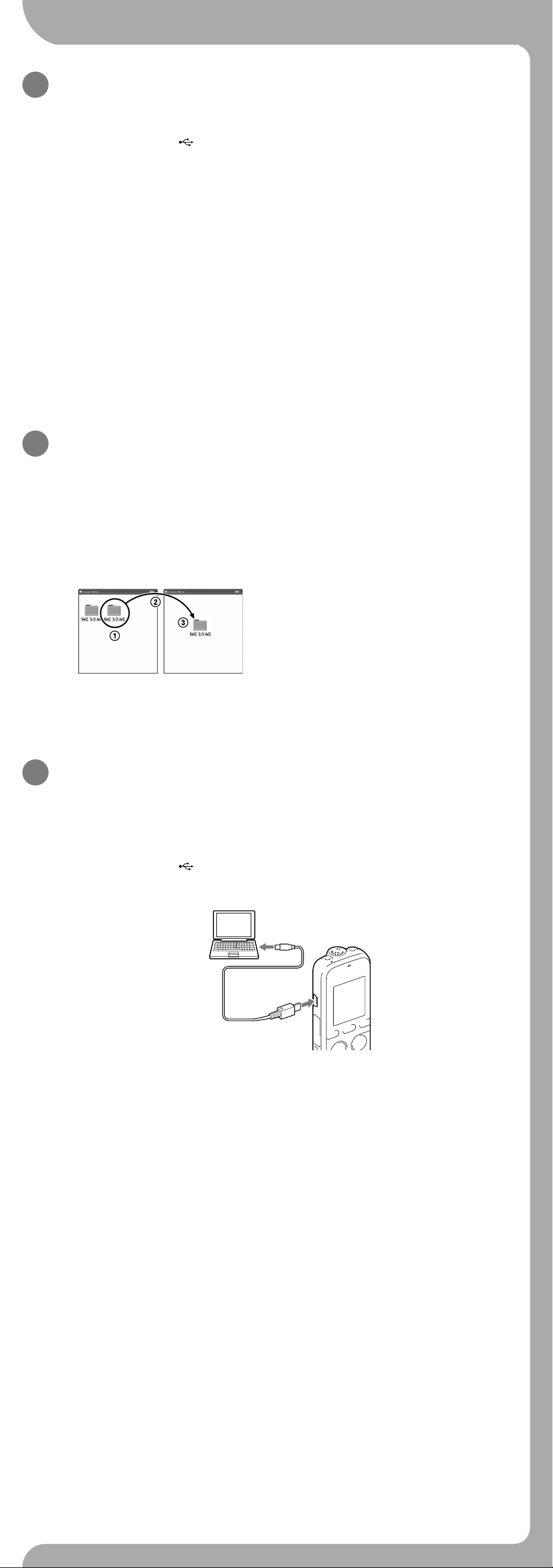
IC Recorder
Guía de inicio rápido
ICD-PX333/PX333F
ˎ Grabadora IC (1)
ˎ Auriculares estéreo (1)*
ˎ Cable de conexión USB (1)
ˎ Micrófono estéreo con clip de
camisa (1)*
ˎ Bolsa de transporte (1)*
ˎ Pilas alcalinas LR03 (tamaño
AAA) (2)
ˎ Software de la aplicación,
Dragon NaturallySpeaking
(DVD-ROM) (1)*
ˎ Guía de inicio rápido (1)
ˎ Software de la aplicación,
Sound Organizer (Archivo del
instalador almacenado en la
memoria interna para poder
instalarlo en el ordenador.)
ˎ Guía de Ayuda (archivo HTML
almacenado en la memoria
interna, por lo que es muy
sencillo copiar al ordenador.)
* suministrado con algunos
modelos en algunas regiones.
Compruebe los componentes suministrados.
ˎ Micrófono de condensador
de electreto ECM-CS10,
ECM-CZ10, ECM-DS70P,
ECM-DS30P, ECM-CS3, ECM-TL3
ˎ Pila recargable NH-AAA-B2EN,
NH-AAA-B2KN
ˎ Adaptador de ca USB AC-UD20,
AC-U501AD, AC-U50AG
ˎ Cargador compacto y
2 pilas AAA Premium
multiuso BCG-34HS2KAN,
BCG-34HW2KAN
Accesorios opcionales
¡Le damos la bienvenida a su nueva Grabadora IC de Sony!
Esta es la Guía de inicio rápido en la cual se ofrecen instrucciones sobre las operaciones básicas de la grabadora IC.
Léala detenidamente. Esperamos que disfrute utilizando su nueva grabadora IC de Sony.
Componentes y controles
Micrófono incorporado
Toma (micrófono)*
Visor
Botón DISP/MENU
Botón SCENE
Botón
(carpeta)
Botón PLAY/STOP•ENTER*
Botón (parada)
Botones – (revisión/retroceso rápido),
+ (búsqueda/avance rápido)
Altavoz
Toma (auriculares)
Indicador de funcionamiento
Botón ERASE
Botón VOL –/+ (volumen –/+)*
Botón
A-B (repetición A-B)
Botón REC/PAUSE (grabación/pausa)
Interruptor NOISE CUT
Botón T-MARK (marca de pista)
Conector
(USB)
Ranura para tarjeta de memoria M2™/microSD
Interruptor HOLD•POWER ON/OFF
Compartimiento de las pilas
Orificio para la correa de mano (correa de mano no
suministrada.)
* Estos botones y la toma tienen un punto táctil. Úselo como punto de referencia para las operaciones o para
identificar cada terminal.
Vamos a probar la nueva grabadora IC Utilización con el ordenador
Instalación de la guía de ayuda en el ordenador
La instalación de la guía de ayuda en el ordenador desde la memoria interna de la grabadora IC le
permitirá buscar detalles de las operaciones y encontrar soluciones para los problemas que puedan surgir.
Conecte el conector (USB) de la grabadora IC al puerto USB de un ordenador que esté
encendido con el cable de conexión USB suministrado insertado en los conectores con
firmeza hasta que cada una de las clavijas quede insertada hasta el fondo.
En Windows: Haga clic en [Equipo] (o [Mi PC]) y, a continuación, haga doble clic en
[IC RECORDER] [FOR WINDOWS].
En Mac: Haga doble clic en [IC RECORDER] en el escritorio.
Instale la guía de ayuda.
En Windows: Haga doble clic en [Help_Guide_Installer] (o [Help_Guide_Installer.exe]).
En Mac: Haga doble clic en [Help_Guide_Installer_for_mac.app]. (v10,5,8 o superior)
Para continuar con la instalación, siga las instrucciones que aparecen en pantalla.
Cuando la instalación se haya completado, haga doble clic en el icono
[Help_Guide_icdp33_uc.htm] (para clientes en los Estados Unidos y los países de
América Latina) o [Help_Guide_icdp33_zz.htm] (para clientes en otros países) del
escritorio para Windows (o en el Finder para Mac).
La guía de ayuda se visualiza.
La guía de ayuda también se puede consultar en la siguiente página de soporte técnico para
clientes de la Grabadora IC de Sony:
Para clientes en los Estados Unidos y los países de América Latina: http://rd1.sony.net/help/icd/p33/uc/
Para clientes en otros países: http://rd1.sony.net/help/icd/p33/zz/
Copia de archivos desde la grabadora IC al
ordenador
Puede copiar los archivos y las carpetas desde la grabadora IC al ordenador para su almacenamiento.
Conecte la grabadora IC al ordenador.
Copie los archivos o carpetas que desee transferir al ordenador.
Arrastre y coloque los archivos o carpetas que desee copiar desde “IC RECORDER” o “MEMORY
CARD” al disco local del ordenador.
Para copiar un archivo o una carpeta (arrastrar y colocar)
IC RECORDER o
MEMORY CARD
Ordenador
Haga clic y, sin soltar el ratón,
arrastre,
y luego coloque.
Desconecte la grabadora IC del ordenador.
Instalación de Sound Organizer
Instale Sound Organizer en su ordenador.
Nota
Sound Organizer solo es compatible con PC de Windows. No es compatible con Mac.
¼ Al instalar Sound Organizer, inicie una sesión con una cuenta con privilegios de administrador.
Conecte el conector (USB) de la grabadora IC al puerto USB de un ordenador que esté
encendido con el cable de conexión USB suministrado insertado en los conectores con
firmeza hasta que cada una de las clavijas quede insertada hasta el fondo.
Asegúrese de que la grabadora IC se reconoce correctamente.
Mientras la grabadora IC esté conectada al ordenador, aparecerá “Connecting” en el visor de la
grabadora IC.
Vaya al menú [Inicio], haga clic en [Equipo] (o [Mi PC]) y, a continuación, haga doble clic
en [IC RECORDER] [FOR WINDOWS].
Haga doble clic en [SoundOrganizerInstaller_V140] (o [SoundOrganizerInstaller_V140.
exe]).
Siga las instrucciones que aparecen en pantalla.
Asegúrese de aceptar los términos del acuerdo de licencia, seleccione [I accept the terms
in the license agreement] y, a continuación, pulse [Next].
Cuando aparezca la ventana [Setup Type], seleccione [Standard] o [Custom] y, a
continuación, pulse [Next].
Siga las instrucciones que aparecen en la pantalla o, si ha seleccionado [Custom], configure los
ajustes de la instalación.
Cuando aparezca la ventana [Ready to Install the Program], haga clic en [Install].
Comienza la instalación.
Cuando aparezca la ventana [Sound Organizer has been installed successfully.], marque
la casilla de verificación [Launch Sound Organizer Now] y haga clic en [Finish].
Nota
Después de instalar Sound Organizer, puede que tenga que reiniciar el ordenador.
Nota
Si formatea la memoria interna, se borrarán todos los datos almacenados en ella. (También se borrarán la guía de
ayuda y el software Sound Organizer.)
Alimentación
Utilice la grabadora IC con cc de 3,0V o 2,4V
Utilice dos pilas alcalinas LR03 (tamaño AAA) o pilas
recargables NH-AAA.
Seguridad
No utilice la grabadora IC mientras conduce, va en
bicicleta o utiliza cualquier vehículo motorizado.
Manejo
ˎ No deje la grabadora IC cerca de fuentes de calor,
ni en lugares expuestos a la luz solar directa, polvo
excesivo o golpes mecánicos.
ˎ Si se introduce algún objeto sólido o líquido en
la grabadora IC, extraiga la pila y haga revisar la
grabadora IC por personal cualificado antes de
seguir utilizándola.
Si tiene problemas o preguntas acerca de la
grabadora IC, consulte al distribuidor Sony más
cercano.
Precauciones
ADVERTENCIA
No exponga las pilas (el cartucho de pilas o las pilas instaladas) a un calor excesivo tal como la luz del sol, fuego o algo
similar durante un periodo largo de tiempo.
PRECAUCIÓN
Riesgo de explosión si la pila se sustituye por un tipo incorrecto.
Deseche las pilas usadas de acuerdo con las instrucciones.
Capacidad (capacidad disponible para el usuario*
1
*
2
)
4 GB (aprox. 3,60 GB = 3 865 470 566 byte)
*
1
Una pequeña parte de la memoria interna se utiliza para la gestión de archivos, por lo que no está disponible para el
almacenamiento.
*
2
Cuando la memoria interna se formatea con la grabadora IC.
1. Encender.
Deslice y levante la tapa del compartimiento de las pilas
e inserte pilas con la polaridad correcta.
Encienda la grabadora.
Deslice y no suelte el interruptor HOLD•POWER ON/OFF en el
sentido de “POWER ON/OFF” durante más de 1 segundo.
Para apagar la grabadora, deslice y no suelte el interruptor
HOLD•POWER ON/OFF en el sentido de “POWER ON/OFF” hasta
que se muestre “Power Off”.
Para evitar el funcionamiento no intencionado (HOLD)
¼ Para desactivar el estado HOLD de la grabadora IC, deslice el
interruptor HOLD•POWER ON/OFF hacia el centro.
2. Ajustar la fecha y la hora.
La primera vez que se insertan las pilas o después de que la grabadora
IC haya estado sin pilas durante más de 1 minuto, aparece “Set
Date&Time” y, a continuación, aparece la ventana de ajuste del reloj.
Pulse – o + para ajustar el año (los dos últimos
dígitos del año) y, a continuación, pulse
PLAY/STOP•ENTER. Repita este proceso para ajustar
el mes, el día, la hora y los minutos en este orden.
Cuando haya ajustado los minutos y pulsado
PLAY/STOP•ENTER, el reloj reflejará el ajuste.
Nota
La hora se muestra en el formato 12-Hour con “AM” o “PM”, o en el
formato 24-Hour, en función del ajuste “Time Display” del menú. El
ajuste predeterminado diferirá en función del país o de la región
donde haya adquirido la grabadora IC.
3. Seleccionar el idioma del menú.
Pulse DISP/MENU.
Pulse – o + para seleccionar “Detail Menu” y, a
continuación, pulse PLAY/STOP•ENTER.
Pulse – o + para seleccionar “Language” y, a
continuación, pulse PLAY/STOP•ENTER.
Pulse – o + para seleccionar el idioma que desea
utilizar en el visor y, a continuación, pulse PLAY/
STOP•ENTER.
Puede seleccionar los siguientes idiomas:
Deutsch (alemán), English (inglés), Español, Français (francés),
Italiano, Русский (ruso),
(coreano), (chino),
(chino),
(tailandés)
¼ El número de opciones de idioma que puede seleccionar y el ajuste
predeterminado diferirá en función del país o de la región donde
haya adquirido la grabadora IC.
Pulse (detener) para volver a visualizar el modo de
parada.
4. Grabar.
¼ Antes de empezar a usar la grabadora IC, asegúrese de deslizar el
interruptor HOLD•POWER ON/OFF hacia el centro para desactivar el
estado HOLD.
Pulse REC/PAUSE.
Comienza la grabación y el indicador de funcionamiento
(
-A) parpadea en naranja y después se ilumina en rojo.
¼ Si desea poner en pausa la grabación, pulse REC/PAUSE. Pulse
REC/PAUSE de nuevo para volver a iniciar la grabación.
Coloque la grabadora IC de forma que el micrófono
incorporado apunte en la dirección de la fuente que se
va a grabar.
Pulse (detener) para detener la grabación.
Aparece la animación “Accessing...” y se detiene la grabación.
5. Escuchar.
Pulse PLAY/STOP•ENTER.
La reproducción comienza y el indicador de funcionamiento
(
-A) se ilumina en verde.
Ajuste el volumen pulsando VOL –/+.
Pulse (detener) para detener la reproducción.
6. Borrar.
Una vez borrado un archivo, no es posible recuperarlo.
Pulse ERASE.
Aparece “Erase?” y el archivo que se va a borrar se reproduce
para su confirmación.
Seleccione “YES” con – o + y, a continuación,
pulse PLAY/STOP•ENTER.
Aparece la animación “Erasing...” y se borra el archivo
seleccionado.
Características adicionales
La guía de ayuda contiene información sobre las características adicionales de grabación, reproducción y edición.
ˎ Selección de escenas
ˎ Noise Cut
ˎ T-MARK (marca de pista)
ˎ DPC (Digital Pitch Control)
ˎ Repetición A-B
ˎ VOR (Voice Operated Recording)
ˎ Alarma
ˎ Easy Search
ˎ División
ˎ Software de edición Sound Organizer
Nota
Dependiendo del país o la región, algunos de los modelos o accesorios opcionales podrían no estar disponibles.
ES
GB

IC Recorder
Guía de inicio rápido
ICD-PX333/PX333F
ˎ Grabadora IC (1)
ˎ Auriculares estéreo (1)*
ˎ Cable de conexión USB (1)
ˎ Micrófono estéreo con clip de
camisa (1)*
ˎ Bolsa de transporte (1)*
ˎ Pilas alcalinas LR03 (tamaño
AAA) (2)
ˎ Software de la aplicación,
Dragon NaturallySpeaking
(DVD-ROM) (1)*
ˎ Guía de inicio rápido (1)
ˎ Software de la aplicación,
Sound Organizer (Archivo del
instalador almacenado en la
memoria interna para poder
instalarlo en el ordenador.)
ˎ Guía de Ayuda (archivo HTML
almacenado en la memoria
interna, por lo que es muy
sencillo copiar al ordenador.)
* suministrado con algunos
modelos en algunas regiones.
Compruebe los componentes suministrados.
ˎ Micrófono de condensador
de electreto ECM-CS10,
ECM-CZ10, ECM-DS70P,
ECM-DS30P, ECM-CS3, ECM-TL3
ˎ Pila recargable NH-AAA-B2EN,
NH-AAA-B2KN
ˎ Adaptador de ca USB AC-UD20,
AC-U501AD, AC-U50AG
ˎ Cargador compacto y
2 pilas AAA Premium
multiuso BCG-34HS2KAN,
BCG-34HW2KAN
Accesorios opcionales
¡Le damos la bienvenida a su nueva Grabadora IC de Sony!
Esta es la Guía de inicio rápido en la cual se ofrecen instrucciones sobre las operaciones básicas de la grabadora IC.
Léala detenidamente. Esperamos que disfrute utilizando su nueva grabadora IC de Sony.
Componentes y controles
Micrófono incorporado
Toma (micrófono)*
Visor
Botón DISP/MENU
Botón SCENE
Botón
(carpeta)
Botón PLAY/STOP•ENTER*
Botón (parada)
Botones – (revisión/retroceso rápido),
+ (búsqueda/avance rápido)
Altavoz
Toma (auriculares)
Indicador de funcionamiento
Botón ERASE
Botón VOL –/+ (volumen –/+)*
Botón
A-B (repetición A-B)
Botón REC/PAUSE (grabación/pausa)
Interruptor NOISE CUT
Botón T-MARK (marca de pista)
Conector
(USB)
Ranura para tarjeta de memoria M2™/microSD
Interruptor HOLD•POWER ON/OFF
Compartimiento de las pilas
Orificio para la correa de mano (correa de mano no
suministrada.)
* Estos botones y la toma tienen un punto táctil. Úselo como punto de referencia para las operaciones o para
identificar cada terminal.
Vamos a probar la nueva grabadora IC Utilización con el ordenador
Instalación de la guía de ayuda en el ordenador
La instalación de la guía de ayuda en el ordenador desde la memoria interna de la grabadora IC le
permitirá buscar detalles de las operaciones y encontrar soluciones para los problemas que puedan surgir.
Conecte el conector (USB) de la grabadora IC al puerto USB de un ordenador que esté
encendido con el cable de conexión USB suministrado insertado en los conectores con
firmeza hasta que cada una de las clavijas quede insertada hasta el fondo.
En Windows: Haga clic en [Equipo] (o [Mi PC]) y, a continuación, haga doble clic en
[IC RECORDER] [FOR WINDOWS].
En Mac: Haga doble clic en [IC RECORDER] en el escritorio.
Instale la guía de ayuda.
En Windows: Haga doble clic en [Help_Guide_Installer] (o [Help_Guide_Installer.exe]).
En Mac: Haga doble clic en [Help_Guide_Installer_for_mac.app]. (v10,5,8 o superior)
Para continuar con la instalación, siga las instrucciones que aparecen en pantalla.
Cuando la instalación se haya completado, haga doble clic en el icono
[Help_Guide_icdp33_uc.htm] (para clientes en los Estados Unidos y los países de
América Latina) o [Help_Guide_icdp33_zz.htm] (para clientes en otros países) del
escritorio para Windows (o en el Finder para Mac).
La guía de ayuda se visualiza.
La guía de ayuda también se puede consultar en la siguiente página de soporte técnico para
clientes de la Grabadora IC de Sony:
Para clientes en los Estados Unidos y los países de América Latina: http://rd1.sony.net/help/icd/p33/uc/
Para clientes en otros países: http://rd1.sony.net/help/icd/p33/zz/
Copia de archivos desde la grabadora IC al
ordenador
Puede copiar los archivos y las carpetas desde la grabadora IC al ordenador para su almacenamiento.
Conecte la grabadora IC al ordenador.
Copie los archivos o carpetas que desee transferir al ordenador.
Arrastre y coloque los archivos o carpetas que desee copiar desde “IC RECORDER” o “MEMORY
CARD” al disco local del ordenador.
Para copiar un archivo o una carpeta (arrastrar y colocar)
IC RECORDER o
MEMORY CARD
Ordenador
Haga clic y, sin soltar el ratón,
arrastre,
y luego coloque.
Desconecte la grabadora IC del ordenador.
Instalación de Sound Organizer
Instale Sound Organizer en su ordenador.
Nota
Sound Organizer solo es compatible con PC de Windows. No es compatible con Mac.
¼ Al instalar Sound Organizer, inicie una sesión con una cuenta con privilegios de administrador.
Conecte el conector (USB) de la grabadora IC al puerto USB de un ordenador que esté
encendido con el cable de conexión USB suministrado insertado en los conectores con
firmeza hasta que cada una de las clavijas quede insertada hasta el fondo.
Asegúrese de que la grabadora IC se reconoce correctamente.
Mientras la grabadora IC esté conectada al ordenador, aparecerá “Connecting” en el visor de la
grabadora IC.
Vaya al menú [Inicio], haga clic en [Equipo] (o [Mi PC]) y, a continuación, haga doble clic
en [IC RECORDER] [FOR WINDOWS].
Haga doble clic en [SoundOrganizerInstaller_V140] (o [SoundOrganizerInstaller_V140.
exe]).
Siga las instrucciones que aparecen en pantalla.
Asegúrese de aceptar los términos del acuerdo de licencia, seleccione [I accept the terms
in the license agreement] y, a continuación, pulse [Next].
Cuando aparezca la ventana [Setup Type], seleccione [Standard] o [Custom] y, a
continuación, pulse [Next].
Siga las instrucciones que aparecen en la pantalla o, si ha seleccionado [Custom], configure los
ajustes de la instalación.
Cuando aparezca la ventana [Ready to Install the Program], haga clic en [Install].
Comienza la instalación.
Cuando aparezca la ventana [Sound Organizer has been installed successfully.], marque
la casilla de verificación [Launch Sound Organizer Now] y haga clic en [Finish].
Nota
Después de instalar Sound Organizer, puede que tenga que reiniciar el ordenador.
Nota
Si formatea la memoria interna, se borrarán todos los datos almacenados en ella. (También se borrarán la guía de
ayuda y el software Sound Organizer.)
Alimentación
Utilice la grabadora IC con cc de 3,0V o 2,4V
Utilice dos pilas alcalinas LR03 (tamaño AAA) o pilas
recargables NH-AAA.
Seguridad
No utilice la grabadora IC mientras conduce, va en
bicicleta o utiliza cualquier vehículo motorizado.
Manejo
ˎ No deje la grabadora IC cerca de fuentes de calor,
ni en lugares expuestos a la luz solar directa, polvo
excesivo o golpes mecánicos.
ˎ Si se introduce algún objeto sólido o líquido en
la grabadora IC, extraiga la pila y haga revisar la
grabadora IC por personal cualificado antes de
seguir utilizándola.
Si tiene problemas o preguntas acerca de la
grabadora IC, consulte al distribuidor Sony más
cercano.
Precauciones
ADVERTENCIA
No exponga las pilas (el cartucho de pilas o las pilas instaladas) a un calor excesivo tal como la luz del sol, fuego o algo
similar durante un periodo largo de tiempo.
PRECAUCIÓN
Riesgo de explosión si la pila se sustituye por un tipo incorrecto.
Deseche las pilas usadas de acuerdo con las instrucciones.
Capacidad (capacidad disponible para el usuario*
1
*
2
)
4 GB (aprox. 3,60 GB = 3 865 470 566 byte)
*
1
Una pequeña parte de la memoria interna se utiliza para la gestión de archivos, por lo que no está disponible para el
almacenamiento.
*
2
Cuando la memoria interna se formatea con la grabadora IC.
1. Encender.
Deslice y levante la tapa del compartimiento de las pilas
e inserte pilas con la polaridad correcta.
Encienda la grabadora.
Deslice y no suelte el interruptor HOLD•POWER ON/OFF en el
sentido de “POWER ON/OFF” durante más de 1 segundo.
Para apagar la grabadora, deslice y no suelte el interruptor
HOLD•POWER ON/OFF en el sentido de “POWER ON/OFF” hasta
que se muestre “Power Off”.
Para evitar el funcionamiento no intencionado (HOLD)
¼ Para desactivar el estado HOLD de la grabadora IC, deslice el
interruptor HOLD•POWER ON/OFF hacia el centro.
2. Ajustar la fecha y la hora.
La primera vez que se insertan las pilas o después de que la grabadora
IC haya estado sin pilas durante más de 1 minuto, aparece “Set
Date&Time” y, a continuación, aparece la ventana de ajuste del reloj.
Pulse – o + para ajustar el año (los dos últimos
dígitos del año) y, a continuación, pulse
PLAY/STOP•ENTER. Repita este proceso para ajustar
el mes, el día, la hora y los minutos en este orden.
Cuando haya ajustado los minutos y pulsado
PLAY/STOP•ENTER, el reloj reflejará el ajuste.
Nota
La hora se muestra en el formato 12-Hour con “AM” o “PM”, o en el
formato 24-Hour, en función del ajuste “Time Display” del menú. El
ajuste predeterminado diferirá en función del país o de la región
donde haya adquirido la grabadora IC.
3. Seleccionar el idioma del menú.
Pulse DISP/MENU.
Pulse – o + para seleccionar “Detail Menu” y, a
continuación, pulse PLAY/STOP•ENTER.
Pulse – o + para seleccionar “Language” y, a
continuación, pulse PLAY/STOP•ENTER.
Pulse – o + para seleccionar el idioma que desea
utilizar en el visor y, a continuación, pulse PLAY/
STOP•ENTER.
Puede seleccionar los siguientes idiomas:
Deutsch (alemán), English (inglés), Español, Français (francés),
Italiano, Русский (ruso),
(coreano), (chino),
(chino),
(tailandés)
¼ El número de opciones de idioma que puede seleccionar y el ajuste
predeterminado diferirá en función del país o de la región donde
haya adquirido la grabadora IC.
Pulse (detener) para volver a visualizar el modo de
parada.
4. Grabar.
¼ Antes de empezar a usar la grabadora IC, asegúrese de deslizar el
interruptor HOLD•POWER ON/OFF hacia el centro para desactivar el
estado HOLD.
Pulse REC/PAUSE.
Comienza la grabación y el indicador de funcionamiento
(
-A) parpadea en naranja y después se ilumina en rojo.
¼ Si desea poner en pausa la grabación, pulse REC/PAUSE. Pulse
REC/PAUSE de nuevo para volver a iniciar la grabación.
Coloque la grabadora IC de forma que el micrófono
incorporado apunte en la dirección de la fuente que se
va a grabar.
Pulse (detener) para detener la grabación.
Aparece la animación “Accessing...” y se detiene la grabación.
5. Escuchar.
Pulse PLAY/STOP•ENTER.
La reproducción comienza y el indicador de funcionamiento
(
-A) se ilumina en verde.
Ajuste el volumen pulsando VOL –/+.
Pulse (detener) para detener la reproducción.
6. Borrar.
Una vez borrado un archivo, no es posible recuperarlo.
Pulse ERASE.
Aparece “Erase?” y el archivo que se va a borrar se reproduce
para su confirmación.
Seleccione “YES” con – o + y, a continuación,
pulse PLAY/STOP•ENTER.
Aparece la animación “Erasing...” y se borra el archivo
seleccionado.
Características adicionales
La guía de ayuda contiene información sobre las características adicionales de grabación, reproducción y edición.
ˎ Selección de escenas
ˎ Noise Cut
ˎ T-MARK (marca de pista)
ˎ DPC (Digital Pitch Control)
ˎ Repetición A-B
ˎ VOR (Voice Operated Recording)
ˎ Alarma
ˎ Easy Search
ˎ División
ˎ Software de edición Sound Organizer
Nota
Dependiendo del país o la región, algunos de los modelos o accesorios opcionales podrían no estar disponibles.
ES
GB