
2
GB
The following FCC statement applies only to the
version of this model manufactured for sale in the
USA. Other versions may not comply with FCC
technical regulations.
INFORMATION
This equipment has been tested and found to comply
with the limits for a Class B digital device, pursuant to
Part 15 of the FCC Rules. These limits are designed to
provide reasonable protection against harmful
interference in a residential installation. This
equipment generates, uses and can radiate radio
frequency energy and, if not installed and used in
accordance with the instructions, may cause harmful
interference to radio communications.
However, there is no guarantee that interference will
not occur in a particular installation. If this equipment
does cause harmful interference to radio or television
reception, which can be determined by turning the
equipment off and on, the user is encouraged to try to
correct the interference by one or more of the
following measures:
Reorient or relocate the receiving antenna.
Increase the separation between the equipment and
receiver.
Connect the equipment into an outlet on a circuit
different from that to which the receiver is connected.
Consult the dealer or an experienced radio/TV
technician for help.
You are cautioned that any changes or modifications
not expressly approved in this manual could void
your authority to operate this equipment.
• The recorded music is limited to private use only.
Use of the music beyond this limit requires
permission of the copyright holders.
• Sony is not responsible for incomplete recording/
downloading or damaged data due to problems of
the memory card recorder or computer.
• Depending on the types of the text and characters,
the text shown on the memory card recorder may
not be displayed properly on device. This is due
to:
– The capacity of the connected memory card
recorder.
– The memory card recorder is not functioning
normally.
– Content information is written in the language
or the character that is not supported by the
memory card recorder.
3
GB
Notice for users
All rights reserved. This manual or the software
described herein, in whole or in part, may not be
reproduced, translated or reduced to any machine
readable form without prior written approval from
Sony Corporation.
IN NO EVENT SHALL SONY CORPORATION BE
LIABLE FOR ANY INCIDENTAL,
CONSEQUENTIAL OR SPECIAL DAMAGES,
WHETHER BASED ON TORT, CONTRACT, OR
OTHERWISE, ARISING OUT OF OR IN
CONNECTION WITH THIS MANUAL, THE
SOFTWARE OR OTHER INFORMATION
CONTAINED HEREIN OR THE USE THEREOF.
Sony Corporation reserves the right to make any
modification to this manual or the information
contained herein at any time without notice.
The software described herein may also be governed
by the terms of a separate user license agreement.
Trademarks
• MPEG Layer-3 audio coding technology and
patents licensed from Fraunhofer IIS and Thomson.
• SD, SDHC microSD and microSDHC logos are
trademarks of SD-3C, LLC.
All other trademarks and registered trademarks are
trademarks or registered trademarks of their
respective holders. Furthermore, “ ™ ” and “
®
” are
not mentioned in each case in this manual.
What you record is for personal
enjoyment and use only. Copyright
laws prohibit other forms of use
without the permission of the copyright
holders.

4
GB
Table of Contents
Getting Started
Step 1: Checking the Contents of the
Package .....................................................6
Index to parts and controls ...................7
Preventing unintentional operations
(HOLD) ..............................................10
Step 2: Preparing a Power Source ..........11
When to replace/charge the
batteries ...............................................12
Connecting the memory card
recorder to a wall outlet ......................12
Step 3: Inserting a Memory Card ............14
To remove a memory card ..................15
Step 4: Turning the Memory Card
Recorder On ............................................17
Turning the power on .........................17
Turning the power off .........................17
Step 5: Setting the Clock ........................18
Setting the clock using the menu ........19
Step 6: Setting the Language to Be
Used in the Display Window ..................20
Recording
Starting to Record ...................................22
To stop recording ................................23
Note while accessing ..........................23
Recording via Other Devices ..................25
Recording with an external
microphone .........................................25
Recording from other equipment ........26
Listening
Starting Playback ....................................28
Stopping the playback .........................29
Reviewing the current recording
instantly ...............................................29
Other operations ..................................29
Recording with other equipment ........32
Erasing
Erasing the File .......................................33
Erasing the current recording
instantly ...............................................35
Erasing all files in a recorded date
box ......................................................35
About the Menu Function
Making Settings for the Menu ................36
Menu Settings .........................................38

5
GB
Additional Information
Precautions ..............................................42
Specifications ..........................................45
Memory card recorder section ............45
Battery life ..........................................47
Troubleshooting
Troubleshooting ......................................48
Message List ...........................................52
Display Window Guide ..........................55
Index .......................................................57
6
GB
Getting Started
Step 1: Checking the Contents of the
Package
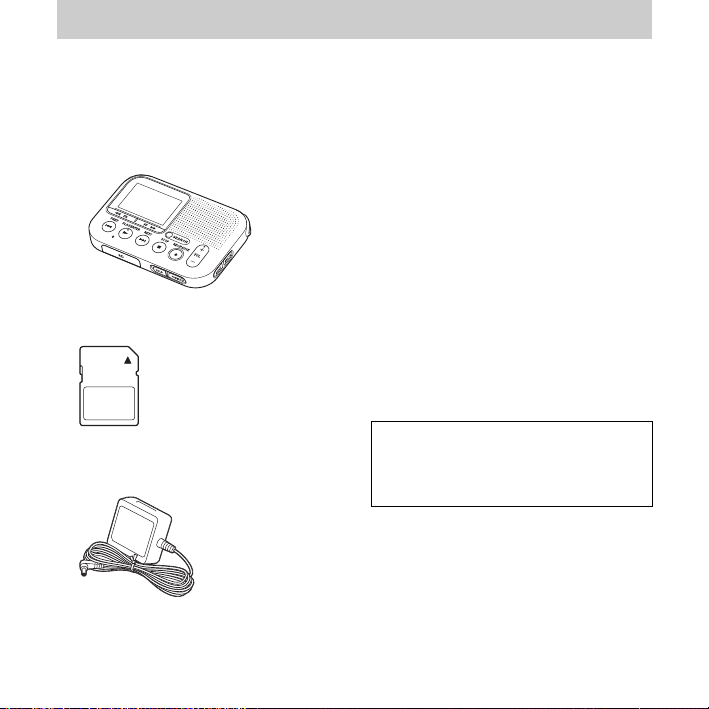
Memory card recorder (1)
SD memory card (2GB) (1)
AC adaptor (1)
AC-ES3010K2
LR03 (size AAA) alkaline batteries
(2)
Carrying pouch (1)
Hand strap (1)
The strap is attached via the strap hole of
the memory card recorder.
Quick Start Guide
Operating Instructions
The operating instructions are stored as
PDF files in the supplied SD memory
card with the memory card recorder.
You are cautioned that any changes or
modifications not expressly approved in
this manual could void your authority to
operate this equipment.
7
GB
Getting Started
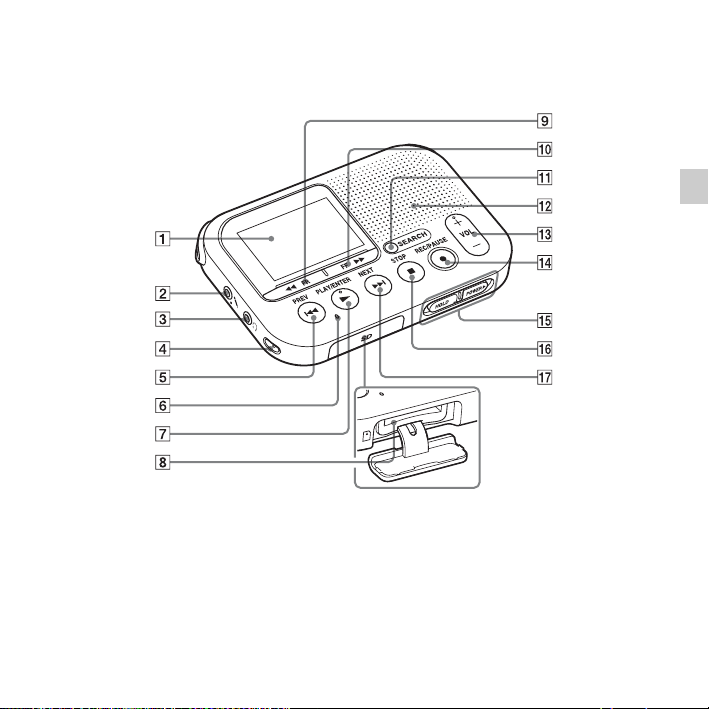
Index to parts and controls
Front
A Display window
B m (microphone) jack*
1
C i (headphone) jack*
2
D Strap hole*
3
E . PREV button
F Memory card access indicator
G
N PLAY/ENTER*
1
button
H Memory card slot
I
m FR button
J
M FF button
8
GB
K SEARCH button
L Speaker
M VOL (volume) +*
1
/– button
N
z REC/PAUSE button
(recording indicator)
O HOLD•POWER switch
P
x STOP button
Q
> NEXT buttons
*
1
These buttons and the jack have a tactile
dot. Use it as a reference point for
operations, or to identify each terminal.
*
2
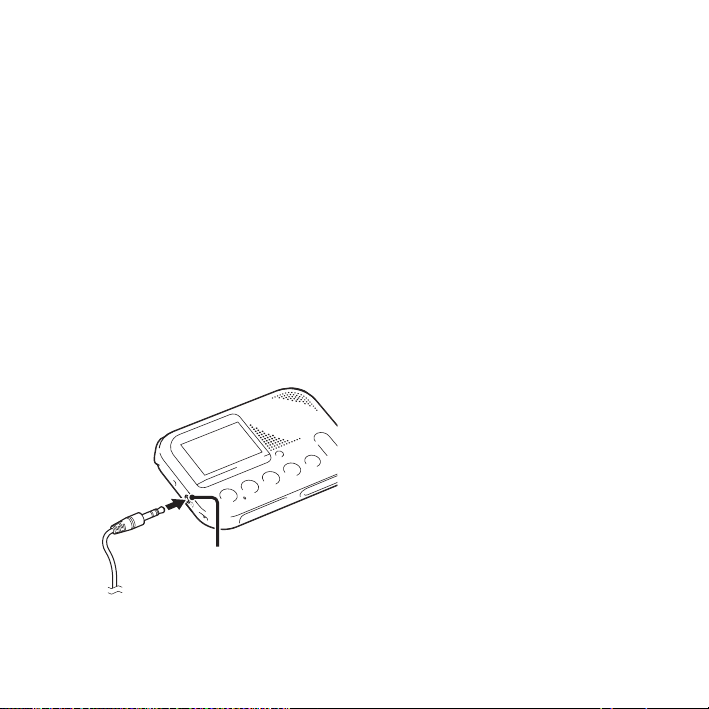
Connect a stereo headphones (not
supplied) to the i (headphone) jack.
When noise is heard, clean the plug of
the headphones.
*
3
The strap is attached via the strap hole
when you purchase the memory card
recorder.
i (headphone) jack
Headphone
(not supplied)
9
GB
Getting Started
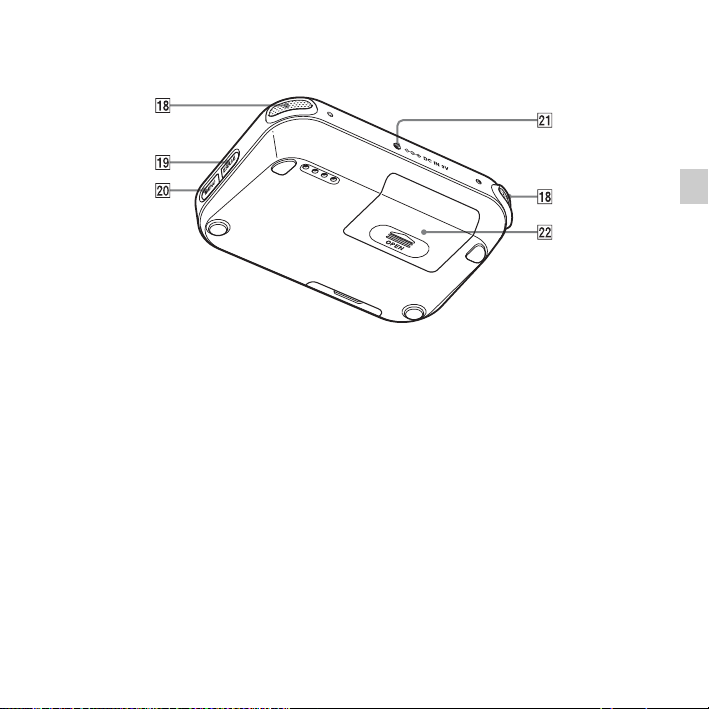
Rear
R Built-in microphones
S ERASE button
T MENU button
U DC IN 3V jack
V Battery compartment
10
GB
Preventing unintentional
operations (HOLD)
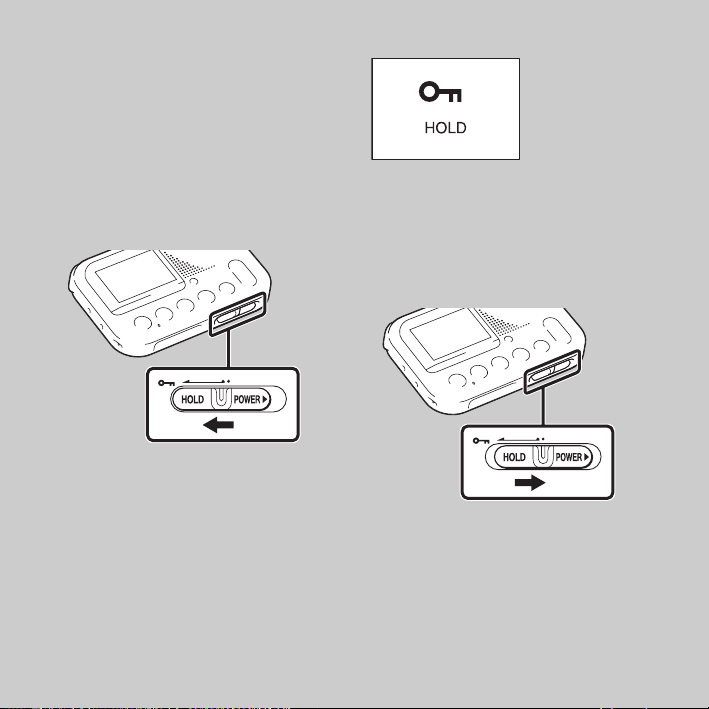
You can disable all the buttons (HOLD)
in order to prevent unintentional
operations when you carry the memory
card recorder while the power is on.
To put the memory card recorder
in the HOLD status
Slide the HOLD•POWER switch in the
direction of “HOLD.”
“HOLD” will appear for approximately 3
seconds, indicating that all the button
operations are disabled.
“HOLD. Slide HOLD Switch to
Activate.” appears if you press any
button when the HOLD function is
activated.
To release the memory card
recorder from the HOLD status
Slide the HOLD•POWER switch
towards the center.
P Note
When the HOLD function is activated
during recording, all the button operations
are disabled. To stop recording, cancel the
HOLD function first.
11
GB
Getting Started
Step 2: Preparing a Power Source
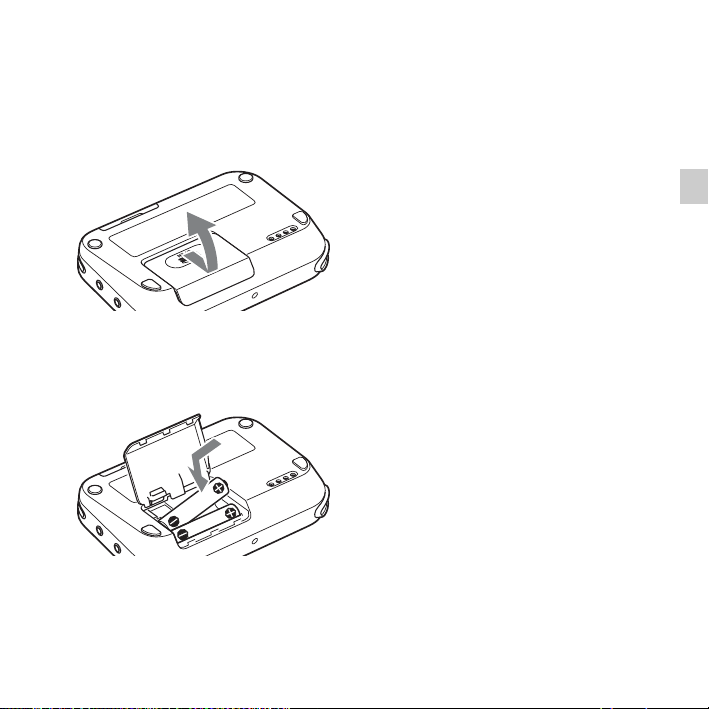
1 Slide and lift the battery compartment
lid.
2 Insert LR03 (size AAA) alkaline
batteries with correct polarity, and
close the lid.
Be sure to insert the batteries with the
e and E ends in the right position.
The clock setting window appears when
you insert batteries for the first time, or
when you insert batteries after the
memory card recorder has been without
batteries for a certain period of time. See
“Step 5: Setting the Clock” on page 18 to
set the date and time.
z Tips
• When replacing the batteries, files
recorded are not erased even when you
remove the batteries.
• When replacing the batteries, the clock
continues moving for about 20 days after
you remove the batteries.
The batteries you can use
• LR03 (size AAA) alkaline batteries
• NH-AAA-B2KN rechargeable
batteries (not supplied)
(You cannot charge the battery using
the memory card recorder.)
The batteries you cannot use
Manganese batteries
P Notes
• When replacing the batteries, be sure to
replace both batteries with new ones.
• When you are not going to use the
memory card recorder for a long time,
12
GB
remove the batteries to prevent damage
from battery leakage and corrosion.
• The remaining battery indicator is not
displayed when you use an AC adaptor.
When to replace/charge the
batteries
The battery indicator in the display
window shows the battery condition.
Battery remain indicator
Connecting the memory
card recorder to a wall
outlet
You can use the memory card recorder
connected to a wall outlet via an AC
adaptor.
This is useful for long time use without
worrying about battery consumption.
The batteries are not depleted, even if
you use the memory card recorder with
the batteries inserted, because the power
is supplied via the AC adaptor.
P Note
Do not remove the memory card or
batteries, or disconnect the AC adaptor
while recording (the recording lamp lights
up in red) or accessing the memory card
: Replace the old batteries with
new ones. Or charge rechargeable
batteries.
m
: “Low Battery” appears and the
memory card recorder will stop
operation.
DC IN 3V jack
AC adaptor

13
GB
Getting Started
(the memory card access indicator is
flashing in orange). Doing so may damage
the data.
The “Please Wait” animation appears when
there are a lot of files on the memory card.
This is not a malfunction. Please wait until
the animation disappears.
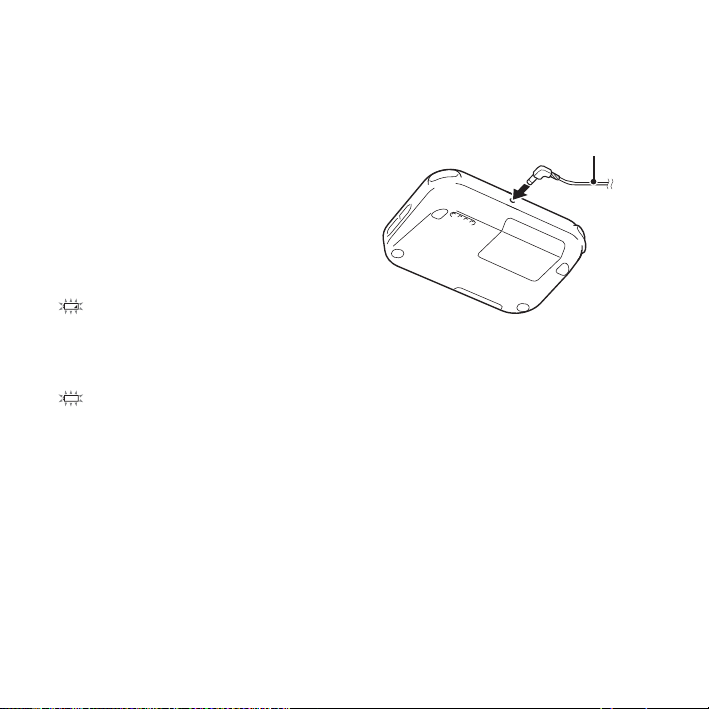
1 Insert the supplied AC adaptor securely
into the DC IN 3V jack until it stops to
the end.
2 Connect the supplied AC adaptor to a
wall outlet.
14
GB
Step 3: Inserting a Memory Card
P Note
The memory card recorder does not have an
internal memory. Be sure to insert the
memory card before recording.
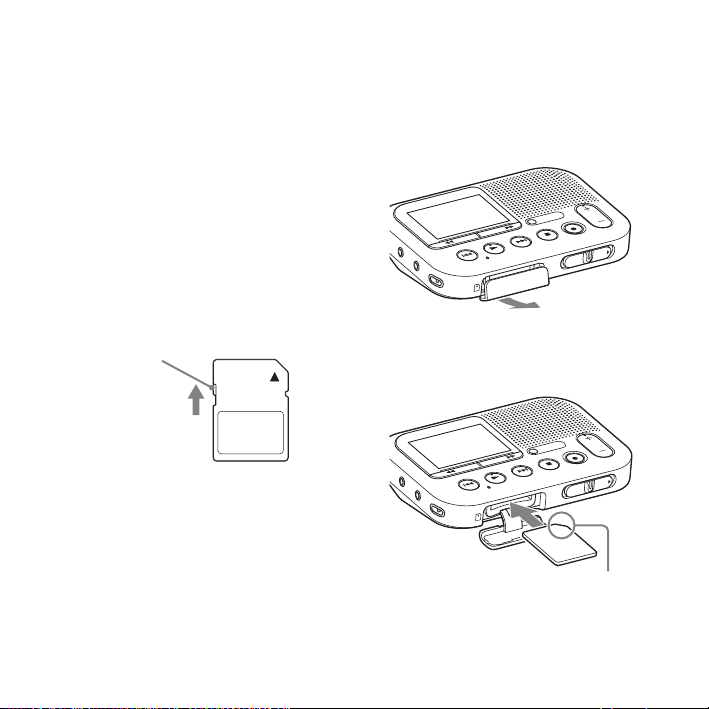
You cannot record if the write-protect
switch on the memory card is set to
write-protect.
Slide the write-protect switch in the
direction of the arrow if the lock has not
released.
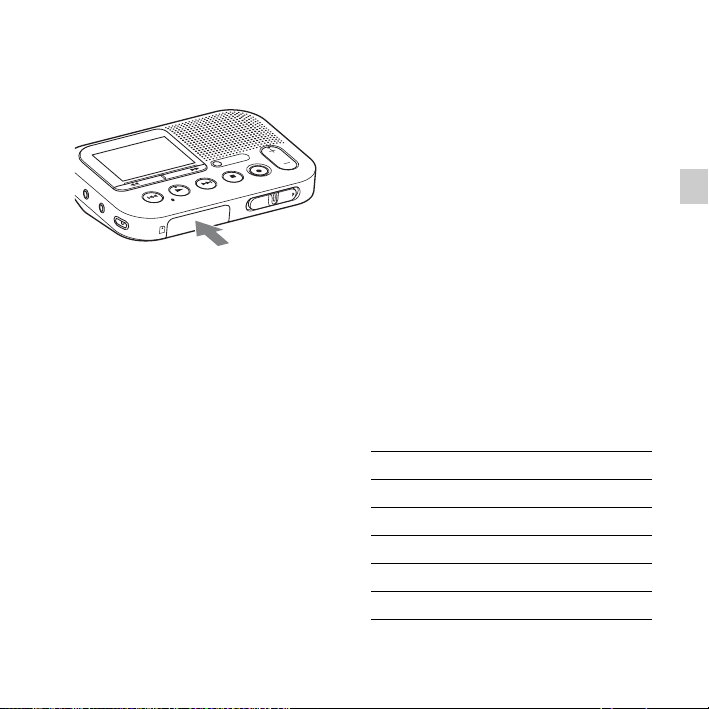
1 Open the cover of the memory card
slot in the stop mode.
2 Insert a memory card securely to the
end of the slot until it clicks into place.
Check on the direction of the
notched corner.
Write-protect
switch
15
GB
Getting Started
3 Close the cover of the memory card
slot.
P Note
The data may be damaged if the cover is
closed when the memory card is not
inserted correctly.
To remove a memory card
Make sure the memory card access
indicator is off, then push the memory
card into the slot. When it pops out,
remove it from the memory card slot.
P Notes
• Do not insert or remove a memory card
during recording/playback/formatting.
Doing so may cause a malfunction of the
memory card recorder.
• Do not remove a memory card while the
“Please Wait” animation appears in the
display window. Doing so may damage
the data.
• If a memory card is not recognized,
remove it and then insert it into the
memory card recorder again.
• Close the cover of the memory card slot
firmly. Also, do not insert any liquid,
metal, flammable or any object other than
a memory card into the slot. Doing so
may cause fire, electric shock, or
malfunctions.
About compatible memory cards
You can use a commercially available
SD/SDHC/microSD/microSDHC
memory card with the memory card
recorder.
Although, operations of all types of
compatible memory cards are not
guaranteed.
Memory card compatible
SD memory card a
SDHC memory card a
SDXC memory card ×
microSD memory card a
microSDHC memory card a

16
GB
In this manual, SD memory card and
microSD memory cards are generally
referred to as a “memory card.”
The SD memory card slot is referred to
as the “memory card slot.”
Due to the file system specifications of
the memory card recorder, you can
record and play back a file smaller than
1 GB (You can record for approximately
11 hours and 10 minutes of audio when
you record with the memory card
recorder.) using a memory card.
You can record up to 4,074 files on an
memory card media.
P Note
• An adaptor is needed to use a microSD or
microSDHC memory card.
• Memory cards of 64 MB or less or more
than 32 GB are not supported.
17
GB
Getting Started
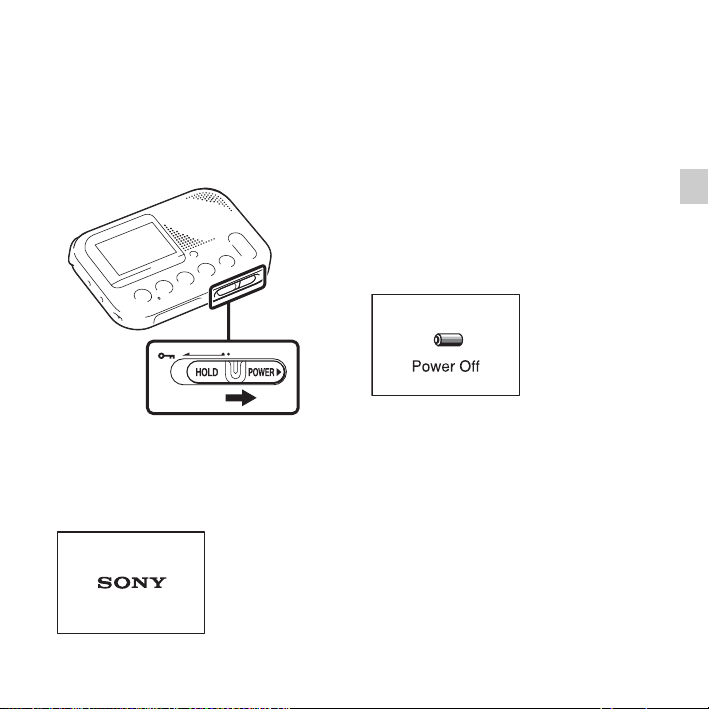
Step 4: Turning the Memory Card Recorder
On
Turning the power on
Slide the HOLD•POWER switch in the
direction of “POWER” and keep it there
until the opening animation appears.
Turning the power off
Slide the HOLD•POWER switch in the
direction of “POWER” and keep it there
until “Power Off” animation appears.
The memory card recorder will turn off
in a few seconds.
z Tips
• When you are not going to use the
memory card recorder for a long time, we
recommend to turn off the memory card
recorder.
• When the memory card recorder is in the
stop mode, and you leave the memory
card recorder without attempting an
operation for approx. 30 minutes, the auto
power off function will take effect (auto
power off).
18
GB
Step 5: Setting the Clock
You can record the recording date after
setting the clock. This allows you to use
the date search function, then easily find
the recorded files using the date they
were recorded after recording.
If you do not set the clock, recorded file
is labeled “No Date Info.” This may it
make difficult to find the desired file.
When you insert batteries for the first
time, or when you insert batteries after
the memory card recorder has been
without batteries for more than 20 days,
the “Set Date & Time ? Set to Search by
Date” message appears. Select “YES” by
pressing
. PREV or > NEXT, then
press
N PLAY/ENTER. The year
section is selected with the cursor in the
clock setting window.
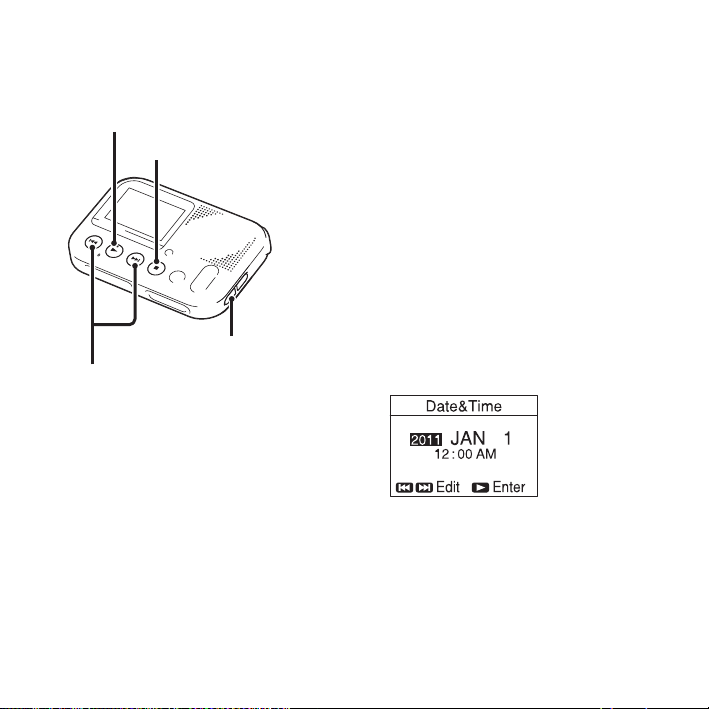
Set the clock as follows:
1 Set the year.
Press
. PREV or > NEXT to set
the year, and then press
N PLAY/
ENTER.
When you press
N PLAY/ENTER,
the cursor moves to the month section.
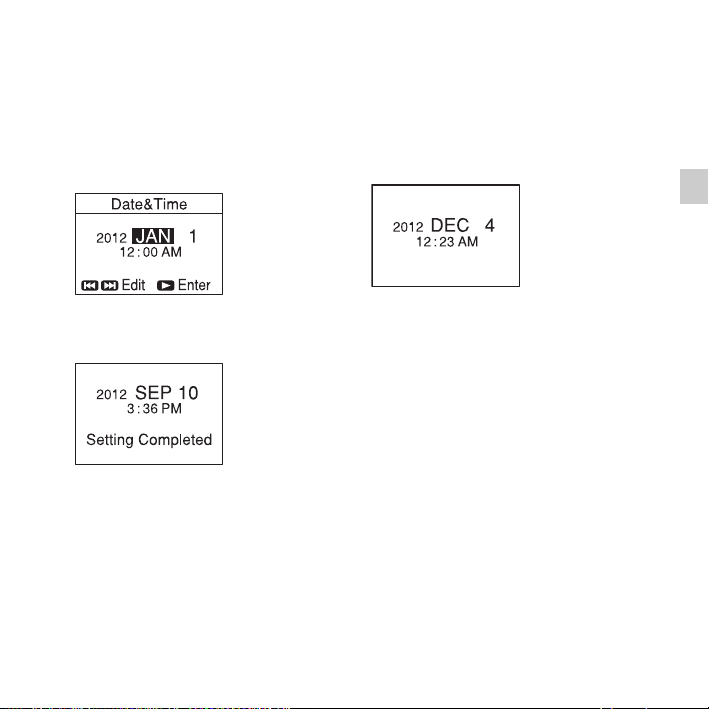
2 Set the month, day, hour, and minute
in sequence in the same way.
x STOP
N PLAY/ENTER
. PREV, > NEXT
MENU
19
GB
Getting Started
Press . PREV or > NEXT to
select the desired figures, and then
press N PLAY/ENTER.
You can return to the previous
window by pressing MENU if you
make a mistake in the clock settings.
When you set the minute, the “Setting
Completed” message appears.
P Note
If you do not press N PLAY/ENTER
within 1 minute of entering the clock
setting data, the clock setting mode is
canceled and the stop mode window will be
displayed.
To display the current date and
time
While the memory card recorder is in the
stop mode, press
x STOP to display the
current date and time for about 3
seconds.
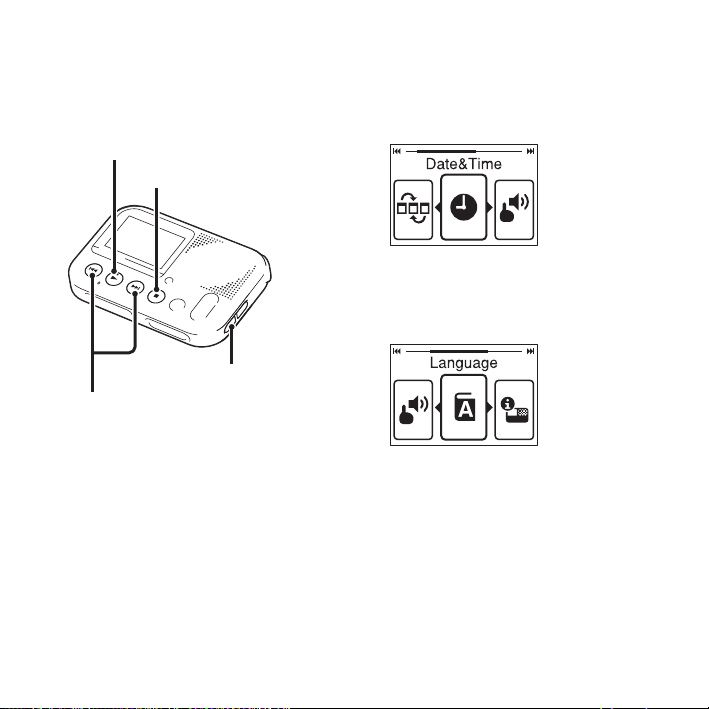
Setting the clock using the
menu
While the memory card recorder is in the
stop mode, you can set the clock using
the menu.
Press MENU to enter the menu mode.
Then select “Date&Time” to set the
clock (page 39).
20
GB
Step 6: Setting the Language to Be Used in
the Display Window
You can select the language to be used
for messages, menus, etc. from some
languages.
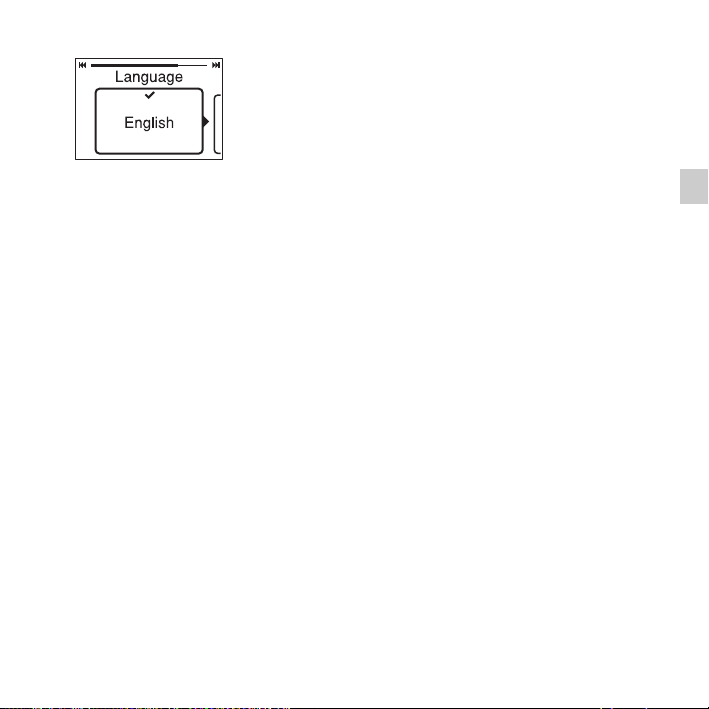
1 Press MENU to enter the menu mode.
The menu mode window will be
displayed.
2 Press . PREV or > NEXT to
select “Language,” and then press
N PLAY/ENTER.
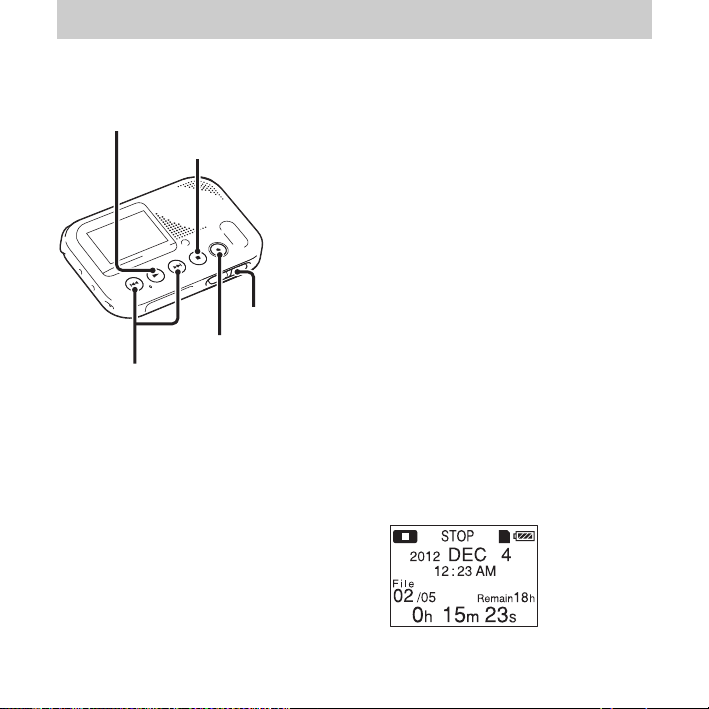
3 Press . PREV or > NEXT to
select the language that you want to
use, and then press N PLAY/
ENTER.
x STOP
N PLAY/ENTER
. PREV, > NEXT
MENU
22
GB
Recording
Starting to Record
You can record a new file by pressing the
z REC/PAUSE button. Recorded files
are not erased. The recording level is set
automatically. You can also review the
latest recording file by just pressing the
N PLAY/ENTER button without the
rewind operation.
P Notes
• Before making a recording, be sure to
check the battery indicator (page 12).
• Noise may be recorded if an object, such
as your finger, etc., accidentally rubs or
scratches the memory card recorder
during recording.
• Do not remove the memory card while
recording.
• The “Start Recording” message appears
when you insert a blank memory card.
z Tips
• Before you start recording, we
recommend you make a trial recording
first, or monitor the recording.
• Try to record closer to the sound source if
the playback volume is low.
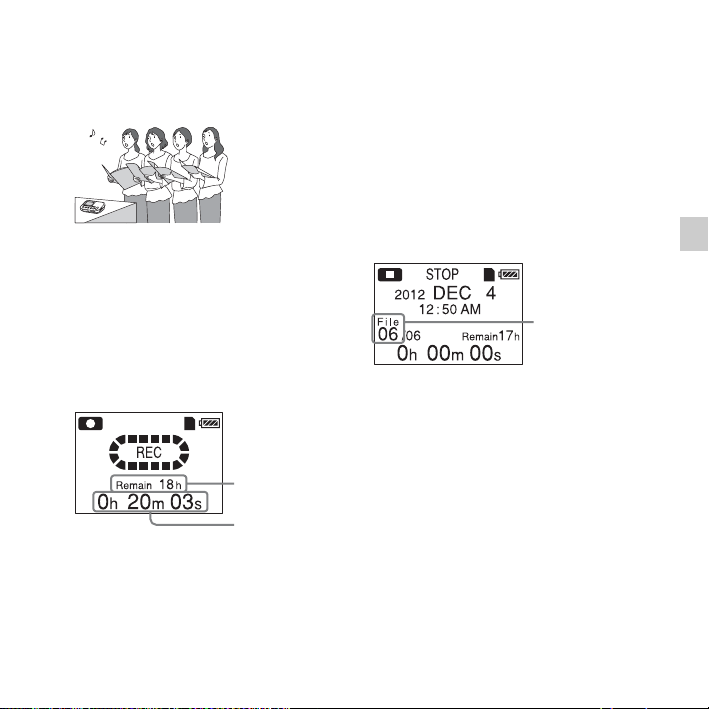
1 Slide the HOLD•POWER switch
towards the center to release the
memory card recorder from the
HOLD status (page 10).
The stop mode window appears.
x STOP
N PLAY/ENTER
. PREV, > NEXT
z REC/PAUSE
HOLD•POWER
23
GB
Recording
2 Place the memory card recorder so
that the built-in microphones face the
direction of the source to be recorded.
3 Press z REC/PAUSE in the stop
mode.
The recording indicator lights in red.
You do not need to press and hold
z REC/PAUSE while recording.
The new file will be automatically
recorded after the last recorded file.
To stop recording
Press x STOP.
The “Please Wait” animation appears
and the memory card recorder stops at
the beginning of the current recording
file.
You can find the recorded file using the
date search function (page 28) for
playback later.
Note while accessing
The memory card recorder is recording
data and storing it on the memory card
when the “Please Wait” animation
appears in the display window or the
memory card access indicator flashes in
orange. While the memory card recorder
is accessing data, do not remove the
memory card, or turn off the memory
card recorder. Doing so may damage the
data.
Remaining
recording time
Elapsed
recording time
The number of the
recorded file (in
the sequence of
files that were
recorded on the
same day)

24
GB
To pause recording
Press z REC/PAUSE. During recording
pause, the recording indicator flashes in
red and the display of the elapsed time of
the current recording and the icon of the
recording pause flashes in the display.
Press
z REC/PAUSE again to release
pause and resume recording. One hour
after you pause recording, recording
pause is automatically released and the
memory card recorder enters the stop
mode.
z Tip
Files recorded using this memory card
recorder will be recorded as MP3 files.
25
GB
Recording
Recording via Other Devices
Recording with an external
microphone
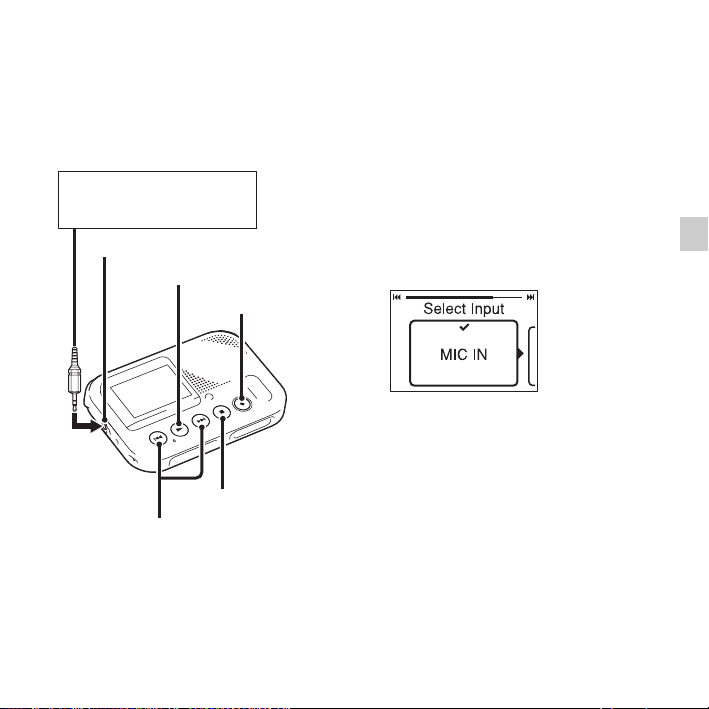
1 Connect an external microphone (not
supplied) to the m (microphone) jack
when the memory card recorder is in
the stop mode.
“Select Input” appears in the display
window.
If “Select Input” is not displayed, set it
in the menu (page 40).
2 Press . PREV or > NEXT to
select “MIC IN,” and then press
N PLAY/ENTER.
“Select Input” is set to “MIC IN”
when you purchase the memory card
recorder.
3 Press x STOP to exit the menu mode.
4 Press z REC/PAUSE to start
recording.
The built-in microphones are
automatically cut off, and the memory
card recorder starts recording sounds
from the external microphone.
m (microphone) jack
z REC/PAUSE
External microphone
(not supplied)
x STOP
N PLAY/ENTER
. PREV, > NEXT
26
GB
When a plug in power type
microphone is connected, power is
automatically supplied to the
microphone from the memory card
recorder.
5 Press x STOP to stop recording.
Recording from other
equipment
You can make MP3 files without using
the computer by recording sound from
other equipment connected to the
memory card recorder.
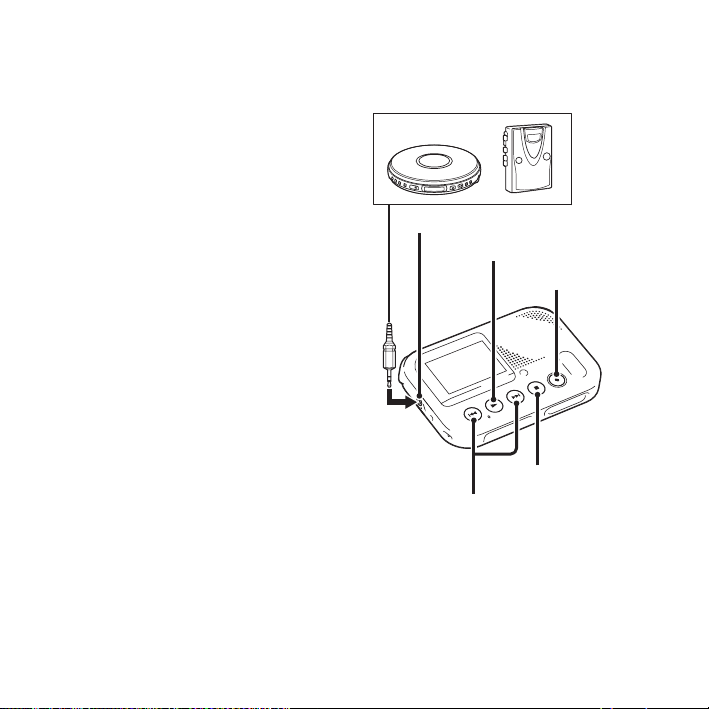
m (microphone) jack
z REC/PAUSE
CD player. etc.
x STOP
. PREV, > NEXT
N PLAY/ENTER
27
GB
Recording
z Tips
• Before you start recording, we
recommend you make a trial recording
first.
• If the input level is not strong enough,
connect the headphone jack (minijack,
stereo) of other equipment to the
m (microphone) jack of the memory card
recorder and adjust the volume level on
the piece of equipment connected to the
memory card recorder.
1 Connect other equipment to the
memory card recorder when the
memory card recorder is in the stop
mode.
Connect the audio output connector
(stereo mini-plug) of other equipment
to the m (microphone) jack of the
memory card recorder using an audio
connecting cable (not supplied).
“Select Input” appears in the display
window. If “Select Input” is not
displayed, set it in the menu (page 40).
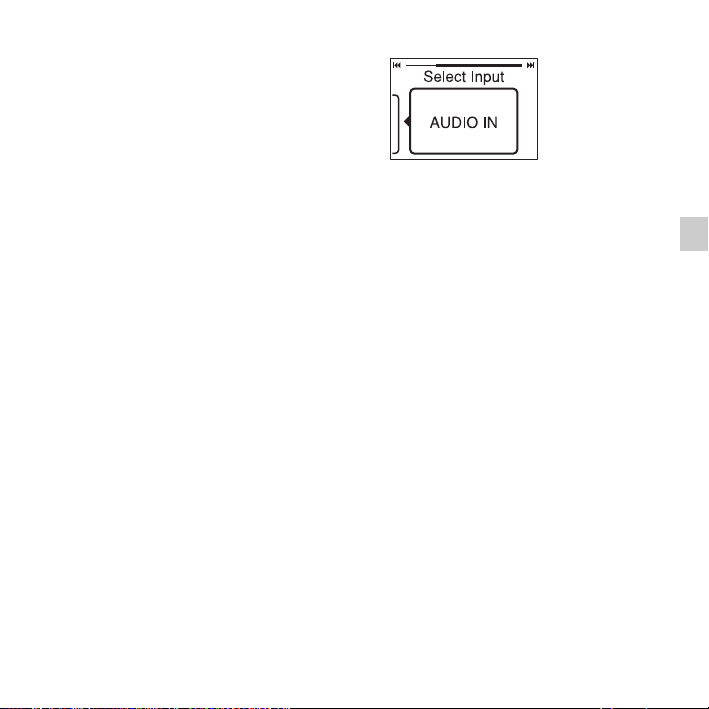
2 Press . PREV or > NEXT to
select “AUDIO IN,” and then press
N PLAY/ENTER.
“Select Input” is set to “MIC IN”
when you purchase the memory card
recorder.
3 Press x STOP to exit the menu mode.
4 Press z REC/PAUSE to start
recording.
The built-in microphones are
automatically cut off and the memory
card recorder starts recording sounds
from the connected equipment.
5 Start playback on the piece of
equipment connected to the memory
card recorder.
6 Press x STOP to stop recording.
28
GB
Listening
Starting Playback
1 Slide the HOLD•POWER switch
towards the center to release the
memory card recorder from the
HOLD status (page 10).
The stop mode window appears.
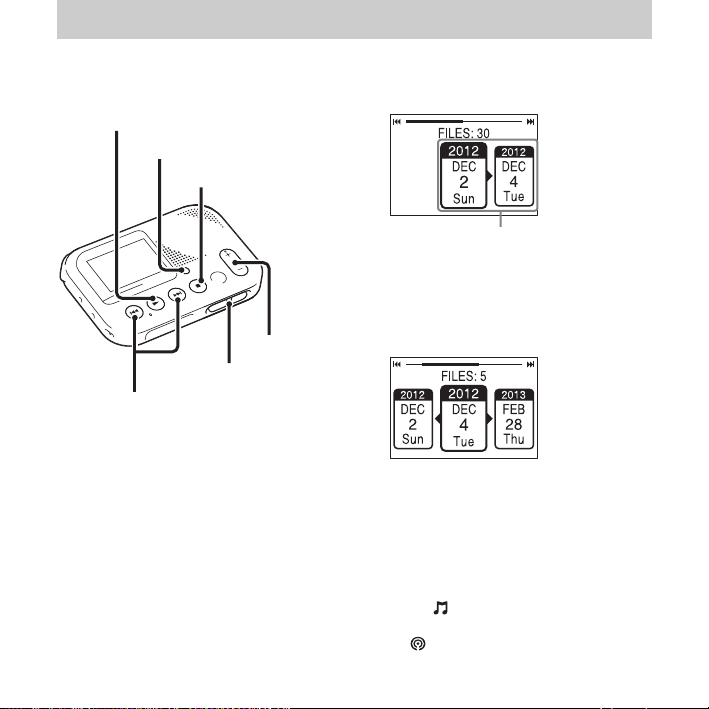
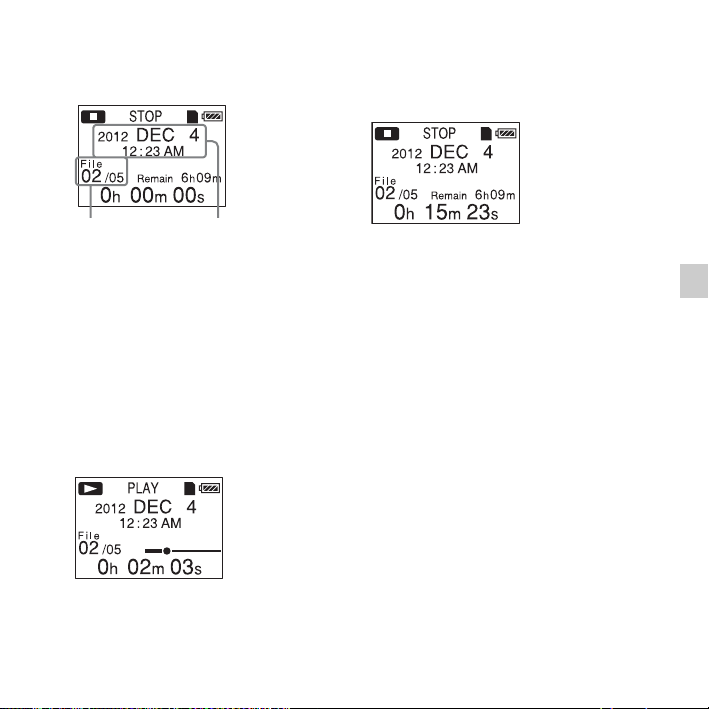
2 Press SEARCH to display the date
selection screen.
The recorded date box
3 Press . PREV or > NEXT to
select the date when you recorded the
desired file, then press N PLAY/
ENTER.
z Tips
• Go to step 5 if only one file is shown in
the selected recorded date box.
• A file, labeled without a date, is stored
in the “No Date Info” box. MP3 files
recorded on other devices are stored in
the “ ” box. And podcast files
recorded on other devices are stored in
“.”
x STOP
N PLAY/ENTER
HOLD•POWER
VOL +/–
SEARCH
. PREV, > NEXT
29
GB
Listening
4 Press . PREV or > NEXT to
select a file.
Press
> NEXT to select a more
recent file.
Press
. PREV to select an earlier
file.
5 Press N PLAY/ENTER.
Playback will start soon.
6 Press VOL +/– to adjust the volume.
Stopping the playback
Press x STOP.
Reviewing the current
recording instantly
Press N PLAY/ENTER after you stop
the recording.
Playback starts from the beginning of the
file just recorded.
Other operations
To stop at the current position
Press x STOP.
To resume playback from that point,
press N PLAY/ENTER.
To go back to the beginning of
the current file
Press . PREV once.
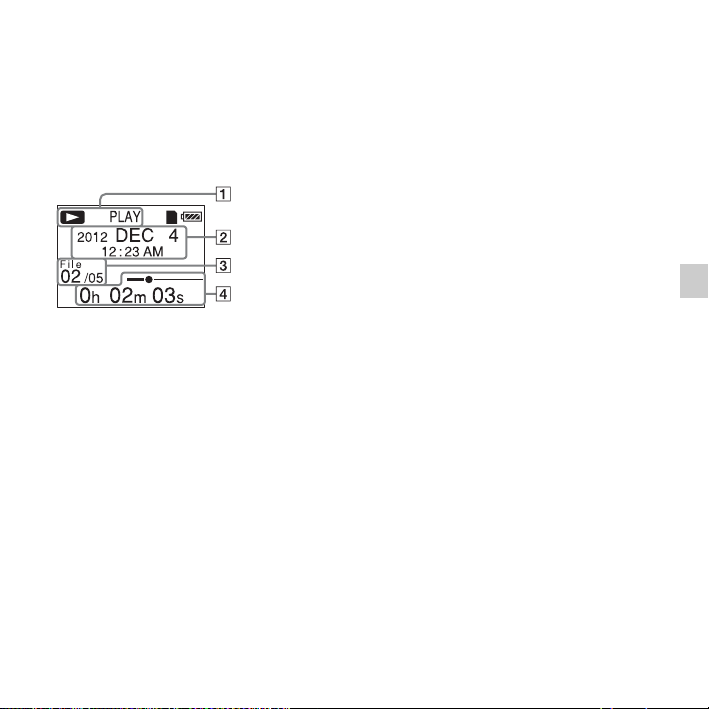
The number of the
recorded file/the total
number of files that
were recorded on the
same date as the file
currently selected.
Recording start date

30
GB
To go back to previous files, press
. PREV repeatedly. (During the stop
mode, keep the button pressed to go back
through the files continuously.) A beep
sounds 3 times when the memory card
recorder reaches the beginning of the
first file if you have been pressing and
holding . PREV. You cannot go back
any further.
To skip to the next file
Press > NEXT once.
To skip to succeeding files, press
> NEXT repeatedly. (During the stop
mode, keep the button pressed to skip
through the files continuously.) A beep
sounds 3 times when the memory card
recorder reaches the beginning of the last
file by pressing and holding
> NEXT.
You cannot skip though the files any
further.
z Tip
The beep does not sound if you select
“OFF” for “Beep” in the menu.
Listening with better sound
quality
• To listen with headphones:
Connect the stereo headphones (not
supplied) to the i (headphone) jack.
The built-in speaker will be
automatically disconnected.
• To listen from an external speaker:
Connect an active or passive speaker
(not supplied) to the i (headphone)
jack.
Searching forward/backward
during playback (cue/review)
• To search forward (cue):
Press and hold
M FF during playback
and release it at the point you wish to
resume playback.
• To search backward (review):
Press and hold m FR during playback
and release it at the point you wish to
resume playback.
The memory card recorder searches at
slow speed with playback sound. This is
useful to check one word forward or
back. Then, if you press and hold the
button, the memory card recorder starts
to search at higher speed.
31
GB
Listening
z When files are played back to
the end of the last file
When you play back or fast play back to the
end of the last file, “END” lights up for
approx. 5 seconds.
About the display
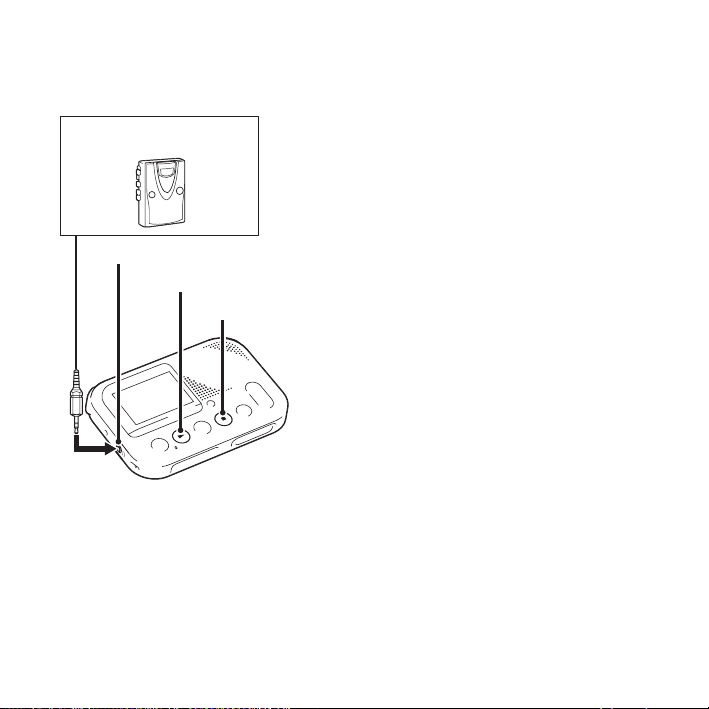
A The status of the memory card
recorder
Displays the status of the memory
card recorder with icon and
characters.
B The recording start date
Displays the recording start date.
z Tip
When a file that was recorded on another
device is selected, the folder name is
displayed on the 1st line and the file
name is displayed on the 2nd line.
C File information
The number of the recorded file (in
the sequence of files that were
recorded on the same day)/Displays
the total number of files that were
recorded on the same date as the file
currently selected.
D The elapsed playback time/bar for
the current file
Displays the elapsed playback time
and bar for the current file.
32
GB
Recording with other
equipment
You can record the sound of the memory
card recorder with other equipment.
Before you start recording, we
recommend you make a trial recording
first.
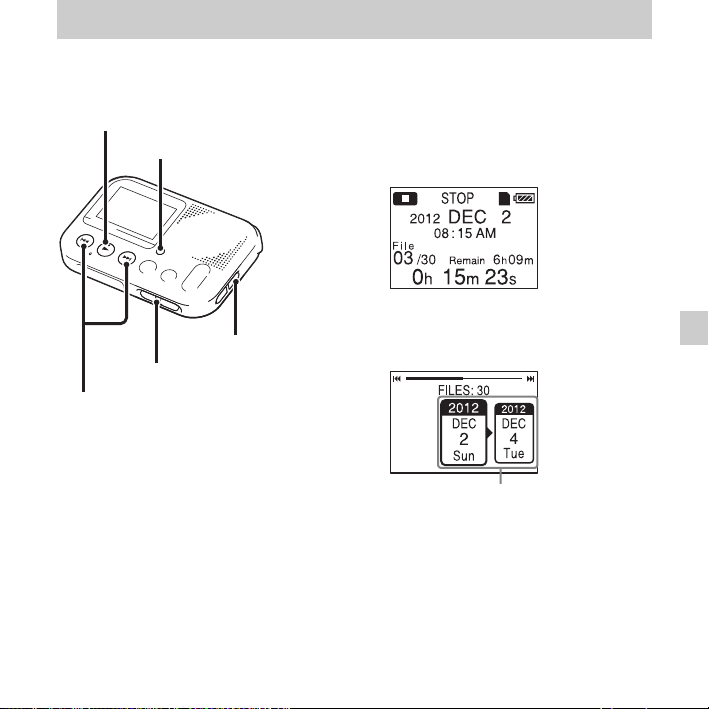
1 Connect the i (headphone) jack of
the memory card recorder to the
external input terminal of other
equipment using an audio connecting
cable (not supplied).
2 Press N PLAY/ENTER to start
playback and at the same time set the
connected equipment to the recording
mode.
A file from the memory card recorder
will be recorded on the equipment
connected.
3 Press the stop button on the connected
equipment, then press
x STOP on the
memory card recorder to stop
recording.
z Tip
If the recorded sound has dropouts, or the
volume of the recorded sound is too small,
adjust the playback sound of the memory
card recorder (page 29).
Tape recorder, etc.
x STOP
N PLAY/ENTER
i (headphone) jack
33
GB
Erasing
Erasing
Erasing the File
P Notes
• Once a recording has been erased, you
cannot retrieve it.
• Do not remove the memory card, or turn
off the memory card recorder while
erasing a file.
1 Slide the HOLD•POWER switch
towards the center to release the
memory card recorder from the
HOLD status (page 10).
The stop mode window appears.
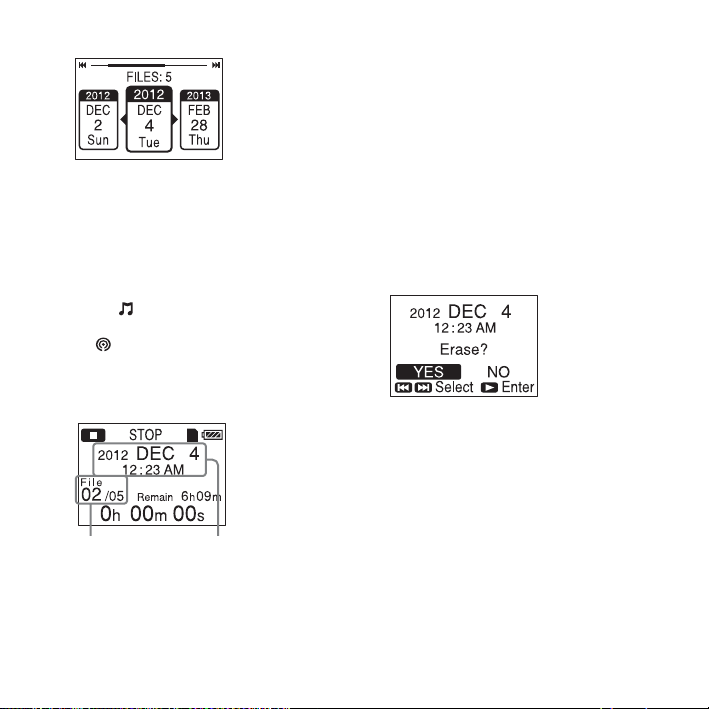
2 Press SEARCH to display the date
selection screen.
The recorded date box
3 Press . PREV or > NEXT to
select the date when you recorded the
desired file, then press N PLAY/
ENTER.
SEARCH
N PLAY/ENTER
ERASE
HOLD•POWER
. PREV, > NEXT
34
GB
z Tips
• Go to step 5 if only one file is shown in
the selected recorded date box.
• A file, labeled without a date, is stored
in the “No Date Info” box. MP3 files
recorded on other devices are stored in
the “ ” box. And podcast files
recorded on other devices are stored in
“.”
4 Press . PREV or > NEXT to
select a file.
Press
> NEXT to select a more
recent file.
Press
. PREV to select an earlier
file.
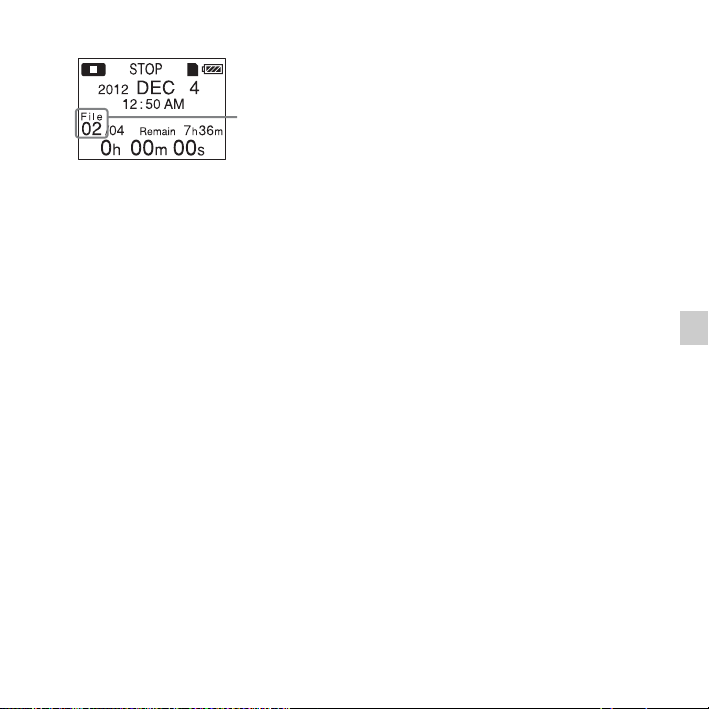
5 Press ERASE.
“Erase?” appears and the specified file
is played back for confirmation.
6 Press . PREV or > NEXT to
select “YES.”
7 Press N PLAY/ENTER.
The “Erasing...” animation appears in
the display window and the selected
file will be erased.
When a file is erased, the remaining
files will advance so that there will be
no space between files.
The number of the
recorded file/the total
number of files that
were recorded on the
same date as the file
currently selected.
Recording start date
35
GB
Erasing
To cancel erasing
Select “NO” in step 6 of “Erasing the
File,” and then press
N PLAY/ENTER.
To erase another file
Proceed with steps 2 through 7 in
“Erasing the File.”
Erasing the current
recording instantly
1 Press ERASE after you stop the
recording.
“Erase?” appears and the specified file
is played back for confirmation.
2 Press . PREV or > NEXT to
select “YES.”
3 Press N PLAY/ENTER.
The “Erasing...” animation appears in
the display window and the selected
file will be erased.
Erasing all files in a
recorded date box
1 Press . PREV or > NEXT in
step 2 of “Erasing the File” to select
the date that you want, then press
ERASE.
2 Press . PREV or > NEXT to
select “YES.”
3 Press N PLAY/ENTER.
The “Erasing...” animation appears in
the display window and all files in the
selected box will be erased.
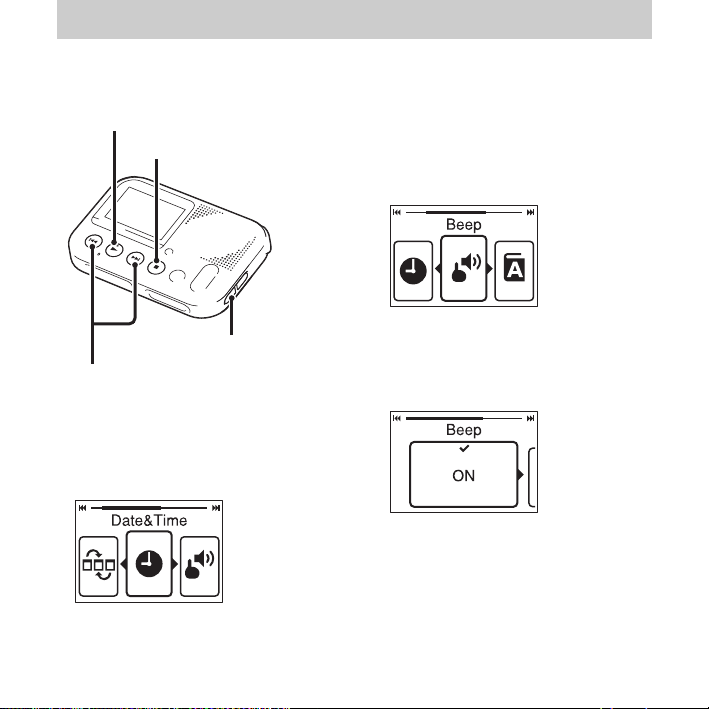
The 2nd file has
been erased
and the
following files
have had their
numbers
reduced by 1.
The total
number of files
in the recorded
date box is
reduced from 5
to 4.
36
GB
About the Menu Function
Making Settings for the Menu
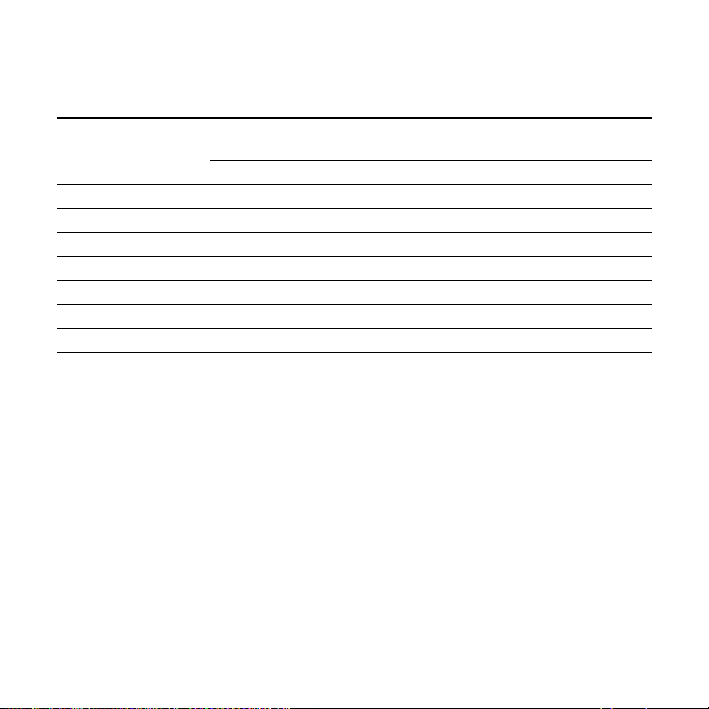
1 Press MENU to enter the menu mode.
The menu mode window will be
displayed.
2 Press . PREV or > NEXT to
select the menu item for which you
want to make setting, and then press
N PLAY/ENTER.
3 Press . PREV or > NEXT to
make the setting, and then press
N PLAY/ENTER.
4 Press x STOP to exit the menu mode.
P Note
If you do not press any button for 60
seconds, the menu mode is automatically
N PLAY/ENTER
x STOP
MENU
. PREV, > NEXT

37
GB
About the Menu Function
canceled and the window will return to the
normal display.
To return to the previous window
During menu operations, press MENU.
To exit the menu mode
Press x STOP.
38
GB
Menu Settings
Menu items Operation mode
(a: the setting can be made / —: the setting cannot be made)
Stop mode Playback mode Recording mode
Re-Sort by Date
a ——
Date&Time
a ——
Beep
a ——
Language
a ——
System Information
a ——
Select Input
a ——
Format
a ——
39
GB
About the Menu Function
Menu items Settings (*: Initial setting) See page
Re-Sort by Date
Cleans up the memory card to use the data area more
efficiently, and sorts files in order by date.
Perform this operation after repeated recording or erasing
files stored on the memory card in the memory card
recorder.
1 Press MENU to enter the menu mode, then select
“Re-Sort by Date” using
. PREV or > NEXT and
N PLAY/ENTER.
A confirmation screen appears.
2 Press
. PREV or > NEXT to select “YES,” then
press
N PLAY/ENTER.
“Re-Sorting...” appears. “Re-Sorting Completed”
appears when the re-sorting has completed.
PNotes
• It may take a few minutes to finish re-sorting the data.
• Do not remove the memory card, or turn off the memory
card recorder while re-sorting.
• “Could Not Erase Some Files” is displayed after step 2 if
there was data that could not be re-sorted.
–
Date&Time
Set the clock to record the recording date and use the date
search function.
1 Press MENU to enter the menu mode. Select
“Date&Time” using
. PREV or > NEXT and
N PLAY/ENTER.
2 Set the clock using
. PREV or > NEXT and
N PLAY/ENTER.
When you set the minute, the “Setting Completed”
message appears, then the screen display returns to the
menu screen.
18
40
GB
Beep
Sets whether a beep will be heard or not.
ON*:
A beep will sound to indicate that an operation has been
accepted or an error has occurred.
OFF:
No beep sound will be heard.
–
Language
Sets the language to be used for messages, menus, recorded
date box, etc.
English, Español (Spanish), Français (French)
z Tip
Number of selectable language options and the default
setting differ depending on the area you purchased your
memory card recorder.
20
System Information
The following system information is displayed.
Model name, software version of the memory card recorder.
–
Select Input
Selects the external input to be recorded that is connected to
the
m (microphone) jack.
MIC IN*:
Select when you record files using an external
microphone.
Audio IN:
Select when you record using other equipment.
25, 26
Menu items Settings (*: Initial setting) See page

41
GB
About the Menu Function
Format
Formats the memory card currently inserted to the memory
card recorder, erasing all the data in the memory card. If you
are using a memory card with the memory card recorder for
the first time, we recommend that you format the memory
card first. Format the memory card if the “Format Error”
message or the “Process Error” message appears.
YES:
The “Formatting...” animation appears and the memory
media will be formatted.
NO*:
The memory media will not be formatted.
PNotes
• Use the memory card recorder formatting function to
format the memory card.
• When you format the memory card, all the data which you
have stored on the memory card recorder will be erased.
Once the memory card has been erased, you cannot
retrieve the data that was erased.
• When you format the supplied SD memory card, the
operating instructions stored in the supplied SD memory
card will also be erased. To get another copy of the
operating instructions, please visit the Sony support home
page depending on your area:
For customers in the U.S.A.:
http://www.sony.com/recordersupport
For customers in Canada:
http://www.sony.ca/ElectronicsSupport
http://fr.sony.ca/ElectronicsSupport
–
Menu items Settings (*: Initial setting) See page

42
GB
Additional Information
Precautions
On power
Operate the unit only on 3.0 V or 2.4 V
DC. Use two LR03 (size AAA) alkaline
batteries or two NH-AAA rechargeable
batteries, or connect DC IN 3V jack to a
wall outlet using an AC adaptor.
On safety
Do not operate the unit while driving,
cycling or operating any motorized
vehicle.
On handling
• Do not leave the unit in a location near
heat sources, or in a place subject to
direct sunlight, excessive dust or
mechanical shock.
• Should any solid object or liquid fall
into the unit, remove the batteries and
have the unit checked by qualified
personnel before operating it any
further.
• Be careful not to allow water to splash
on the unit. The unit is not water-proof.
In particular, be careful in the
following situations.
– When you have the unit in your
pocket and go to the bathroom, etc.
When you bend down, the unit may
drop into the water and may get wet.
– When you use the unit in an
environment where the unit is
exposed to rain, snow, or humidity.
– In circumstances where you get
sweaty. If you touch the unit with wet
hands or if you put the unit in the
pocket of sweaty clothes, the unit
may get wet.
• You may feel pain in your ears if you
use the headphones when the ambient
air is very dry. This is not because of a
malfunction of the headphones, but
because of static electricity
accumulated in your body. You can
reduce static electricity by wearing
non-synthetic clothes that prevent the
emergence of static electricity.
On noise
• Noise may be heard when the unit is
placed near, a fluorescent lamp or a
43
GB
Additional Information
mobile phone during recording or
playback.
• Noise may be recorded when an object,
such as your finger, etc., rubs or
scratches the unit during recording.
On maintenance
To clean the exterior, use a soft cloth
slightly moistened in water. Then use a
soft dry cloth to wipe the exterior. Do not
use alcohol, benzine or thinner.
If you have any questions or problems
concerning your unit, please consult your
nearest Sony dealer.
On the AC adaptor
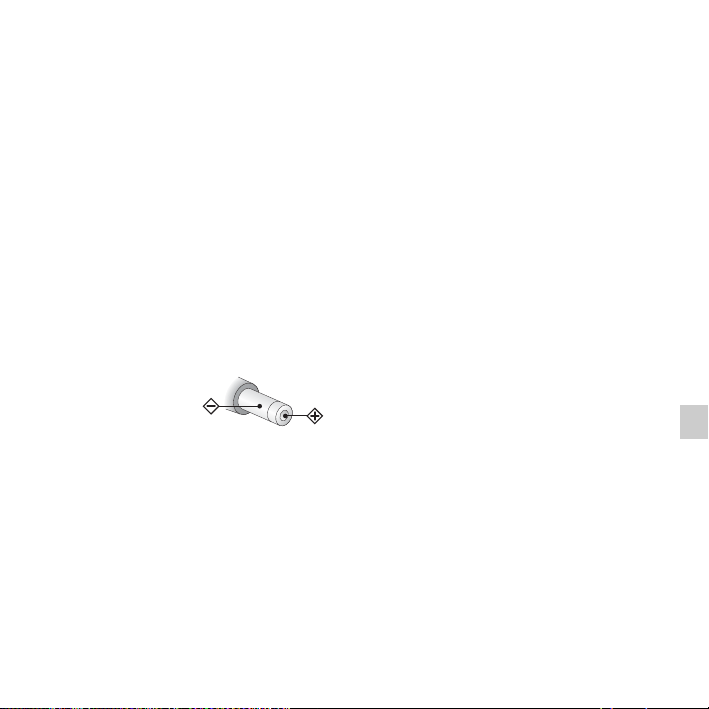
• Connect the AC
adaptor to an
easily
accessible wall
outlet close by.
If trouble
occurs while using the adaptor,
immediately shut off the power by
disconnecting the plug from the wall
outlet.
• Do not use the AC adaptor placed in a
narrow space, such as between a wall
and furniture.
• To reduce the risk of electrical shock,
avoid placing the AC adaptor in a
location subject to humidity.
On using a memory card
P Notes
• Format the memory card if the “Format
Error” message or the “Process Error”
message appears.
• When formatting (initializing) a memory
card, make sure to use the memory card
recorder to format it. Operations of the
memory cards formatted with Windows
or other devices are not guaranteed.
• Format the memory card if you are using
it with the memory card recorder for the
first time.
• If you format a memory card containing
recorded data, the recorded data will be
deleted. Be careful not to delete important
data.
• Do not leave a memory card within the
reach of small children. They might
accidentally swallow it.
• Do not insert or remove a memory card
during recording/playback/formatting.
Doing so may cause a malfunction of the
memory card recorder.
• Do not remove a memory card while the
“Please Wait” animation appears in the
display window or the memory card
Polarity of the plug
44
GB
access indicator is flashing in orange.
Doing so may damage the data.
• We do not guarantee the operations of all
types of compatible memory cards with
the memory card recorder.
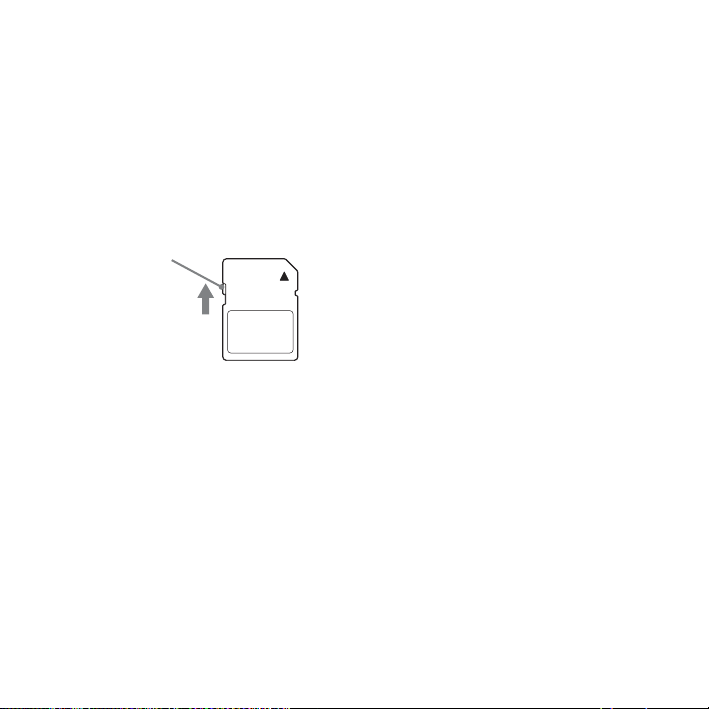
• You cannot use a ROM (read-only-
memory) type or write-protected memory
card. Slide the write-protect switch in the
direction of the arrow when you want to
release the lock on the memory card.
• Data may be corrupted in the following
cases:
– When a memory card is removed or the
memory card recorder is turned off
during a read or write operation.
– When a memory card is used in
locations subject to static electricity or
electrical noise.
• We assume no responsibility for any loss
or damage of recorded data.
• We recommend that you save a backup
copy of the important data.
• Do not touch the terminal of a memory
card with your hand or a metal object.
• Do not strike, bend or drop a memory
card.
• Do not disassemble or modify a memory
card.
• Do not expose a memory card to water.
• Do not use a memory card under the
following conditions:
– Locations beyond the required
operating conditions, including
locations, such as the hot interior of a
car parked in the sun and/or in the
summer, the outdoors exposed to direct
sunlight, or a place near a heater.
– Humid locations or locations with
corrosive substances present.
• When using a memory card, make sure to
check the correct insertion direction into
the memory card slot.
Write-protect
switch

45
GB
Additional Information
Specifications
Memory card recorder
section
P Note
This memory card recorder does not have
an internal memory. You must insert a
memory card to record a file.
Frequency range
75 Hz - 20,000 Hz
Recording format
Audio compression format (codec):
MP3
Bit rate: 192 kbps
Sampling frequency: 44.1 kHz
File extension: .mp3
Formats that can be played back
Audio compression format (codec):
MP3
*1
Bit rate: 32 kbps - 320 kbps, VBR
Sampling frequencies: 16 kHz/
22.05 kHz/24 kHz/32 kHz/44.1 kHz/
48 kHz
File extension: .mp3
*1
Speaker
Approx. 36 mm (1 7/16 in.) dia.
Input/Output
• Microphone jack (minijack, stereo)
– input for plug in power, minimum input
level 1.0 mV
• DC IN 3V jack
• SD memory card slot
• Headphone jack (minijack, stereo)
– output for 16 ohms - 300 ohms impedance
headphones
Rated power consumption
780 mW
Power output
330 mW
Power requirements
Two LR03 (size AAA) alkaline batteries
(supplied): 3.0 V DC
DC 3.0 V: When using the AC adaptor
Two NH-AAA-B2KN rechargeable
batteries (not supplied): 2.4 V DC
Operating temperature
5°C - 35°C (41°F - 95°F)
Dimensions (w/h/d) (not incl. projecting
parts and controls) (JEITA)
*3
Approx. 116 mm × 28.5 mm × 78 mm
(4 5/8 in. × 1 1/8 in × 3 1/8 in.)

46
GB
Mass (JEITA)
*2
Approx. 145 g (5 1/8 oz) including two
LR03 alkaline batteries
*
1
Not all encoders are supported.
*
2
Measured value by the standard of JEITA
(Japan Electronics and Information
Technology Industries Association)
Capacity of the supplied SD memory
card with the memory card recorder
(User available capacity)
2GB
(approx. 1.80 GB = 1,932,734,976 Byte)
A part of the memory capacity is used as a
management area.
Supplied accessories
See page 6.
Optional accessories
Audio connecting cable
RK-G136, RK-G139
Headphone
MDR-EX Series such as MDR-EX60LP
Rechargeable battery
NH-AAA-B2KN
Compact charger & 2-pc AAA Multi-Use
Premium batteries
BCG-34HS2KAN
Design and specifications are subject to
change without notice.
47
GB
Additional Information
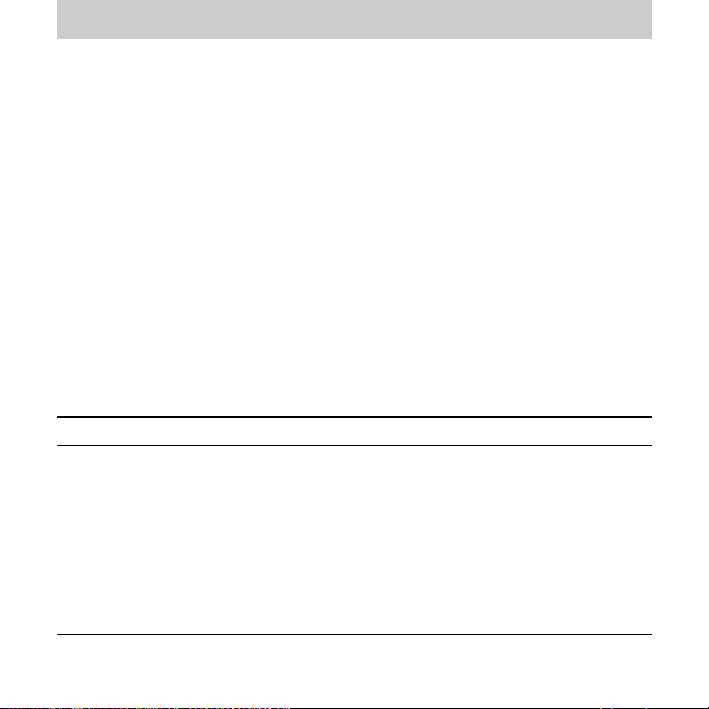
Maximum recording time*
1
*
2
The maximum recording time of all the folders is as follows.
*
1
When you are going to record continuously for a long time, you may have to replace the batteries
with new ones in the midst of recording. For details on the battery life, see the next table.
*
2
The maximum recording time in the above table is for your reference only, and may differ
depending on the card specifications.
Battery life
When using Sony LR03 (SG) (size AAA) alkaline batteries*
1
When using Sony NH-AAA-B2KN rechargeable batteries*
1
*
1
The battery life is measured in testing using methods proprietary to Sony. The battery life may
shorten depending on how you operate the memory card recorder.
*
2
When playing back music through the internal speaker with the volume level set to 14
SD memory card
2 GB 4 GB 8 GB 16 GB
32 GB
22 hr. 20 min. 44 hr. 40 min. 89 hr. 25 min. 178 hr. 357 hr.
(hr.: hours/min.: minutes)
Recording Playback through
speaker*
2
Playback using the
headphones
32 hr. 13 hr. 31 hr.
(hr.: hours)
Recording Playback through
speaker*
2
Playback using the
headphones
22 hr. 10 hr. 20 hr.
(hr.: hours)
48
GB
Troubleshooting
Troubleshooting
Before taking the memory card recorder for repair, check the following sections.
Should any problem persist after you have made these checks, consult your nearest
Sony dealer.
Please access the following support home page to get the support Information about
your memory card recorder:
For customers in the U.S.A.:
http://www.sony.com/recordersupport
For customers in Canada:
http://www.sony.ca/ElectronicsSupport
http://fr.sony.ca/ElectronicsSupport
Please note that recorded files may be deleted during service or repair work.
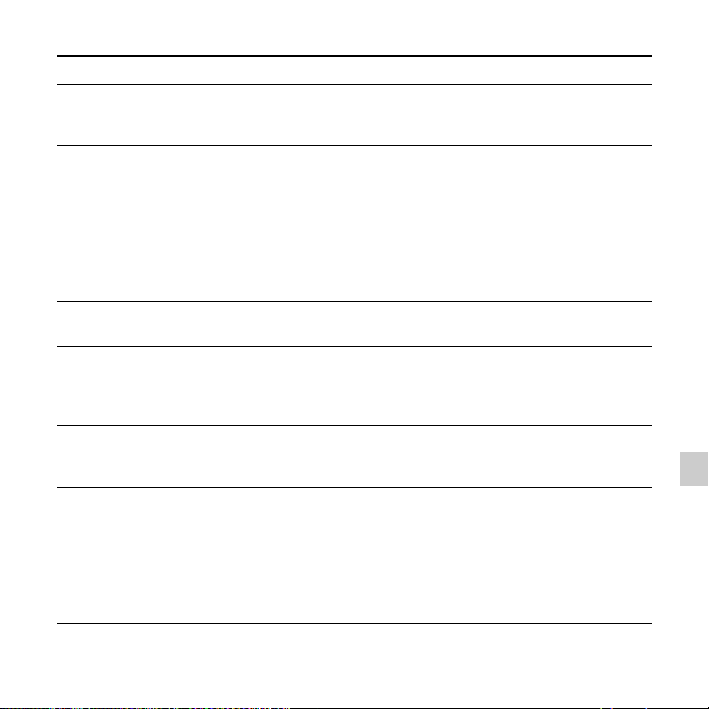
Symptom Remedy
Noise is heard. • An object, such as your finger, etc., accidentally rubbed or
scratched the memory card recorder during recording so that
noise was recorded.
• The memory card recorder was placed near a fluorescent lamp
or a mobile phone during recording or playback.
• The plug of the connected microphone is dirty. Clean the
plug.
• The plug of the connected headphones is dirty. Clean the
plug.
• Noise may be heard during recording pause of a file.
49
GB
Troubleshooting
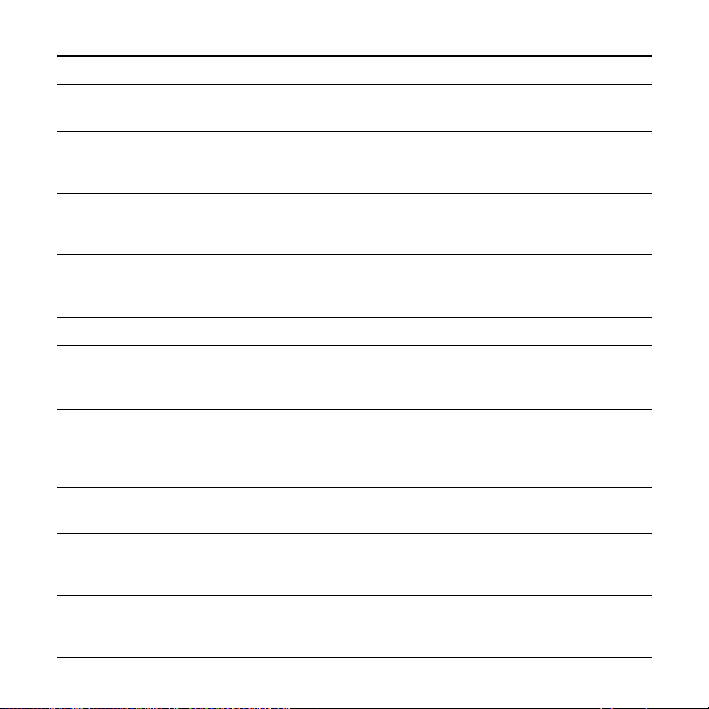
The memory card recorder
cannot be turned off.
•Slide the HOLD•POWER switch in the direction of
“POWER” and keep it there until “Power Off” animation
appears (page 17).
The memory card recorder
cannot be turned on.
• The power to the memory card recorder is off.
Slide the
HOLD•POWER switch in the direction of
“POWER” and keep it there until the opening animation
appears (page 17).
• The batteries have been inserted with incorrect polarity
(page 11).
• Insert the new batteries (page 11).
• Take out the batteries and insert them again.
The memory card recorder
does not operate correctly.
• Take out the batteries and insert them again.
It takes a long time for the
memory card recorder to
start.
• If the memory card recorder is required to process a large
amount of data, it may take longer for the memory card
recorder to start. This is not a malfunction of the memory card
recorder. Wait until the start-up display disappears.
The memory card recorder
does not operate.
• You may have formatted memory card using the computer.
Use the memory card recorder formatting function to format
the memory card (page 41).
The memory card recorder
does not operate, even if
you press any button.
• The batteries are weak (page 12).
• The power to the memory card recorder is off.
Slide the
HOLD•POWER switch in the direction of
“POWER” and keep it there until the opening animation
appears (page 17).
• The HOLD function is activated. Slide the
HOLD•POWER
switch in the center direction (page 10).
Symptom Remedy
50
GB
No sound comes from the
speaker.
• The volume is turned down completely (page 29).
• Headphones are plugged in (page 30).
Sound comes from the
speaker even when the
headphones are plugged in.
• If you plug in the headphones not securely during playback,
the sound may come from the speaker. Unplug the
headphones, and then insert them securely.
“Memory Full” is
displayed and you cannot
start recording.
• The memory card is full. Erase unnecessary files (page 33),
and then perform “Re-Sort by Date,” or insert a new memory
card.
“File Full” is displayed and
you cannot operate the
memory card recorder.
• Erase unnecessary files (page 33), and then perform “Re-Sort
by Date,” or insert a new memory card.
You cannot record a file. • The remaining memory capacity is insufficient.
The playback volume is
low.
• The volume is turned down completely. Press VOL + or – to
adjust the volume (page 29).
• Record closer to the sound source if possible.
When recording from other
equipment, the input level
is too strong or not strong
enough.
• Connect the headphone jack of other equipment to the
m (microphone) jack of the memory card recorder and adjust
the volume level on the piece of equipment connected to the
memory card recorder.
The memory card is not
recognized.
• Remove a memory card. Then insert it with correct side and
direction.
“---- --- --” “--:--” is
displayed on the recording
start date display.
• The date of recording will not be displayed if you recorded
the file when the clock was not set.
The battery life is short. • The battery life on page 47 is based on playback with the
volume level set to 14. The battery life may shorten
depending on the operation of the memory card recorder.
Symptom Remedy
51
GB
Troubleshooting
There is no battery power
remaining after you have
left the batteries inserted
for long time without using
the memory card recorder.
• Even if you do not use the memory card recorder, the batteries
are consumed slightly. If you do not intend to use the memory
card recorder for an extended period of time, it is
recommended that you turn the power off (page 17) or
remove the batteries.
A character in a folder or
file name is displayed in
unreadable characters.
• The memory card recorder cannot support or display some
special characters and symbols that are entered on a computer
using Windows Explorer or the Macintosh desktop.
The “Please Wait”
animation display does not
disappear.
• If the memory card recorder is required to process excessive
amount of data, the animation may be displayed for an
extended period of time. This is not a malfunction of the
memory card recorder. Wait until the message disappears.
Symptom Remedy
52
GB
Message List
Message Cause/Remedy
HOLD.
Slide HOLD Switch to
Activate.
• All the button operations are disabled because the memory
card recorder is in the HOLD status to prevent unintentional
operations. Slide the HOLD•POWER switch towards the
center to release the memory card recorder from the HOLD
status (page 10).
Low Battery • The batteries are exhausted. Replace the old LR03 (size
AAA) alkaline batteries with new ones (page 11).
Memory Card Error • An error occurred while a memory card was being inserted
into the memory card slot. Remove and try inserting it again.
If this message persists, use a new memory card.
Memory Card Not
Supported
• A memory card that the memory card recorder does not
support is inserted. See “About compatible memory cards” on
page 15.
Memory Card Locked • The memory card is write-protected. A write-protected
memory card cannot be used with the memory card recorder.
Read Only Memory Card • A read-only memory card is inserted. A read-only memory
card cannot be used with the memory card recorder.
Memory Full • The remaining memory capacity of the memory card recorder
is insufficient. Erase unnecessary files (page 33), and then
perform “Re-Sort by Date,” or insert a new memory card.
53
GB
Troubleshooting
File Full • When there are already the maximum number of files in the
selected folder or the total number of files stored on the
memory card recorder has exceeded the maximum, you
cannot record a new file. Erase unnecessary files (page 33),
and then perform “Re-Sort by Date,” or insert a new memory
card.
File Damaged • You cannot play back or edit files, because the data of the
selected file is damaged.
Format Error • Format the memory card using the formatting function in the
menu (page 41). Do not use your computer to format the
memory card.
Process Error • Remove and then re-insert the batteries.
• Save a backup copy of your data and format the memory card
using the menu (page 41).
No File • No file is recorded on the memory card.
Low Battery-Cannot
Execute
• You cannot use the “Format” function, the “Re-Sort by Date”
function or using the ERASE button because the batteries are
exhausted. Replace the old LR03 (size AAA) alkaline
batteries with new ones (page 11).
Unknown Data • This data is not in a file format that is supported by the
memory card recorder. The memory card recorder supports
MP3(.mp3) files only. For details, see “Memory card recorder
section” on page 45.
• You cannot play back copyright protected files.
Invalid Operation • When a memory card has a bad block on it, the card cannot be
written to. Prepare a new memory card to replace the current
one.
Message Cause/Remedy
54
GB
New File • The file being recorded has reached the maximum size limit
(1 GB). The file will be divided automatically and recording
will continue as a new file.
No Memory Card • There is no memory card inserted into the memory card slot.
Insert a memory card.
System Error • A system error other than the above has occurred. Remove the
batteries and re-inert them.
No Files Found • This memory card recorder cannot perform the “Re-Sort by
Date” function because there are no target files.
Could Not Re-sort Some
Files
• Results of the “Re-Sort by Date” function: some files had not
arranged chronologically.
Could Not Erase Some
Files
• Results of the “Re-Sort by Date” function, some files have not
been erased.
Cannot Erase This File • The file cannot be erased because the selected file is a
protected file or a read-only file.
Start Recording • No file is recorded on the memory card.
Message Cause/Remedy
55
GB
Troubleshooting
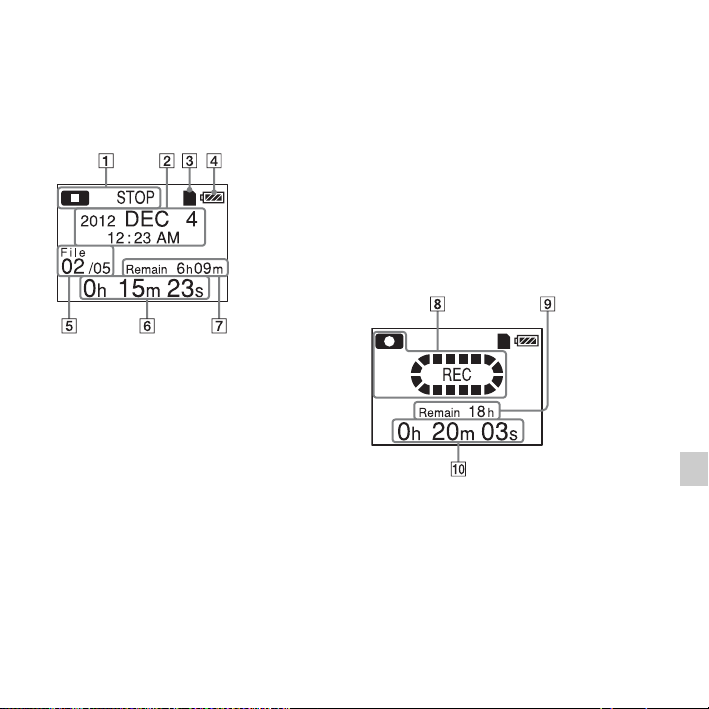
Display Window Guide
Display when stopped
A The status of the memory card
recorder
B The recording start date
z Tip
When a file that was recorded on another
device is selected, the folder name is
displayed on the 1st line and the file
name is displayed on the 2nd line.
C Memory card indicator
D Battery indicator
E File information
The number of the recorded file (in
the sequence of files that were
recorded on the same day)/Displays
the total number of files that were
recorded on the same date as the file
currently selected.
F The elapsed playback time
G Remaining recording time
Display when recording
H The status of the memory card
recorder
I Remaining recording time
J Elapsed recording time
56
GB
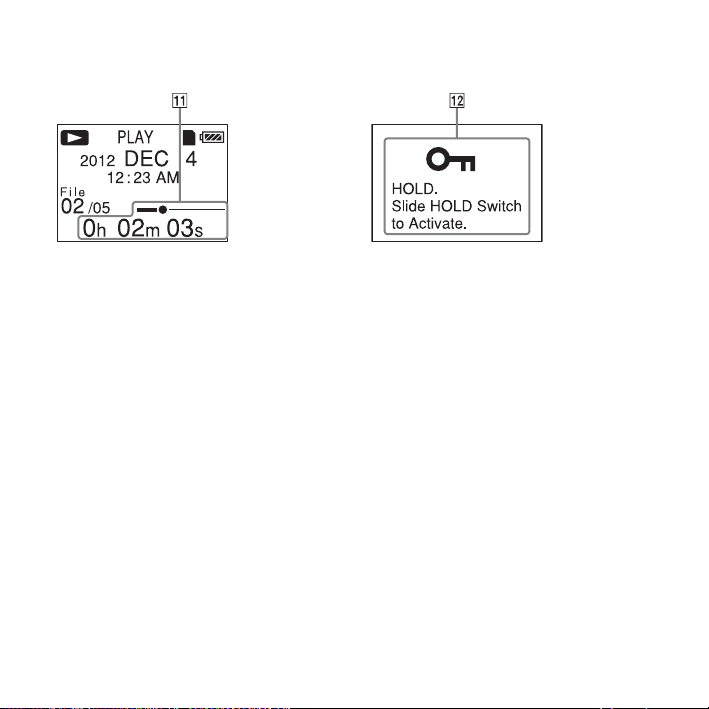
Display during playback
K The elapsed playback time/position
bar for the current file
Display in the HOLD status
L HOLD indicator
Appears when the memory card
recorder is in the HOLD status to
prevent unintentional operations.
To release the HOLD status, slide the
HOLD•POWER switch towards the
center (page 10).

57
GB
Index
Index
A
Adjusting the volume ..............................29
Alkaline batteries ..............................11, 47
B
Battery life ..............................................47
Battery remain indicator .........................12
C
Cue ..........................................................30
D
Display the current date and time ...........19
E
Erasing ....................................................33
External microphone ............................... 25
H
HOLD .....................................................10
HOLD•POWER switch ....................10, 17
I
Index to parts and controls
Display window ..................................55
Front .....................................................7
Rear .......................................................9
Input selection .......................25, 26, 38, 40
Inserting batteries ....................................11
L
Listening ..................................................28
M
Maintenance ............................................43
Memory card .....................................14, 43
Menu
Beep ..............................................38, 40
Date&Time ...................................38, 39
Format ...........................................38, 41
Language .......................................38, 40
Making settings ...................................36
Menu settings ......................................38
Re-Sort by Date ............................38, 39
Select Input ...................................38, 40
System Information ......................38, 40
Message list .............................................52
MP3 files .................................................45
N
Noise .......................................................42

58
GB
P
Precautions ..............................................42
R
Rechargeable batteries ............................47
Recording ................................................22
Recording from other equipment ............26
Recording pause ......................................24
Recording time ........................................47
Recording with other equipment ............32
Re-Sort by Date ................................38, 39
Review ....................................................30
S
SD/SDHC memory card .........................14
Setting the clock .........................18, 38, 39
Setting the language ....................20, 38, 40
Specifications ..........................................45
T
Troubleshooting ......................................48