

SMART TV
E-Manual

i
Contents
Quick Guides
Using Smart Hub
1 Connecting to the Internet
1 Setting up Smart Hub
1 Using Smart Hub
Using the Samsung Smart Remote
2 Operating the TV with the POINTER button
3 Setting up the Samsung Smart Remote
3 Pairing the TV to the Samsung Smart Remote
Connections
Connecting an Antenna
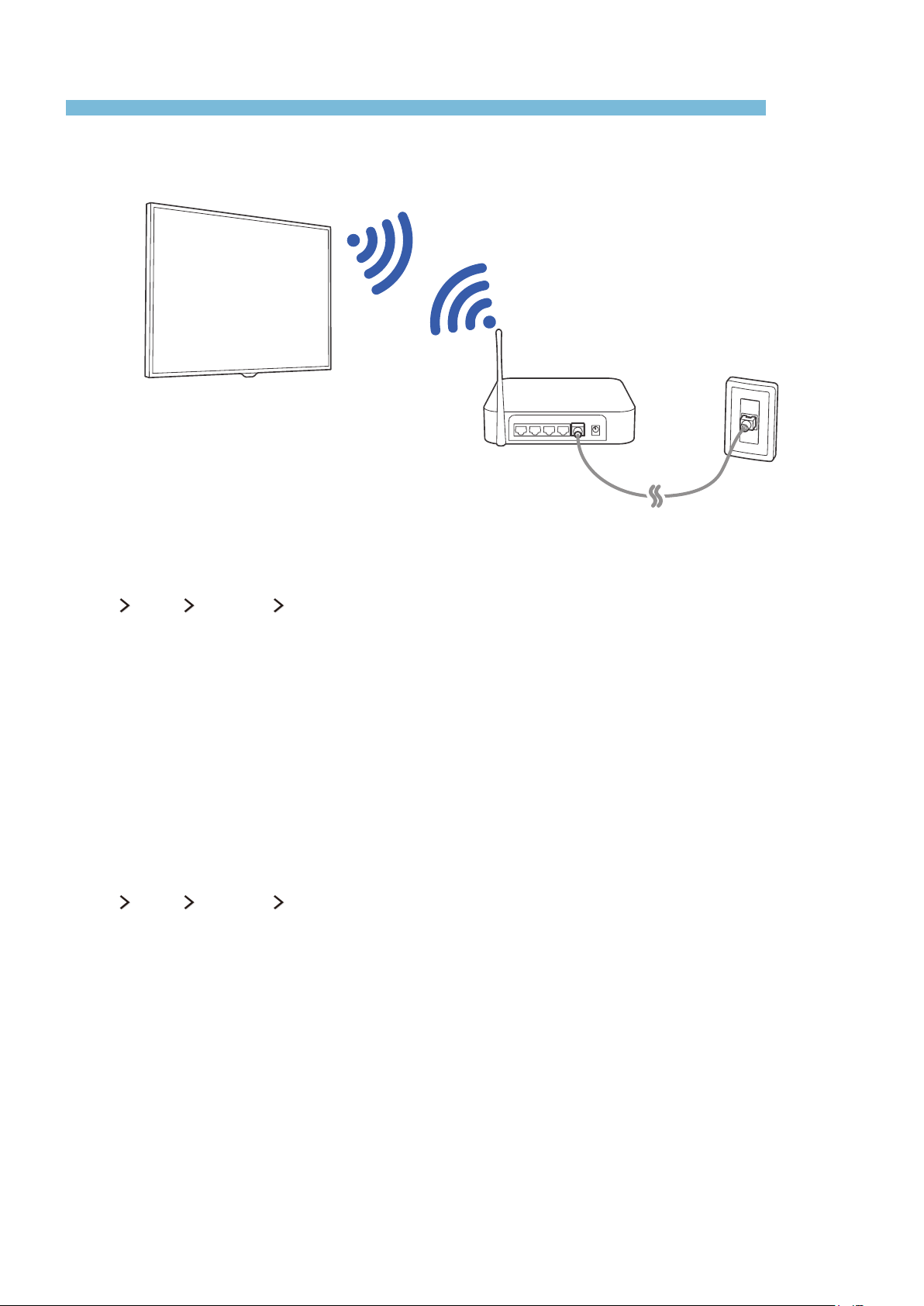
Connecting to the Internet
5 Establishing a wireless Internet connection
6 Checking the internet connection status
6 Changing the name of the TV on a network
Troubleshooting Internet Connectivity Issues
7 Troubleshooting wireless Internet connectivity issues
Connecting Video Devices
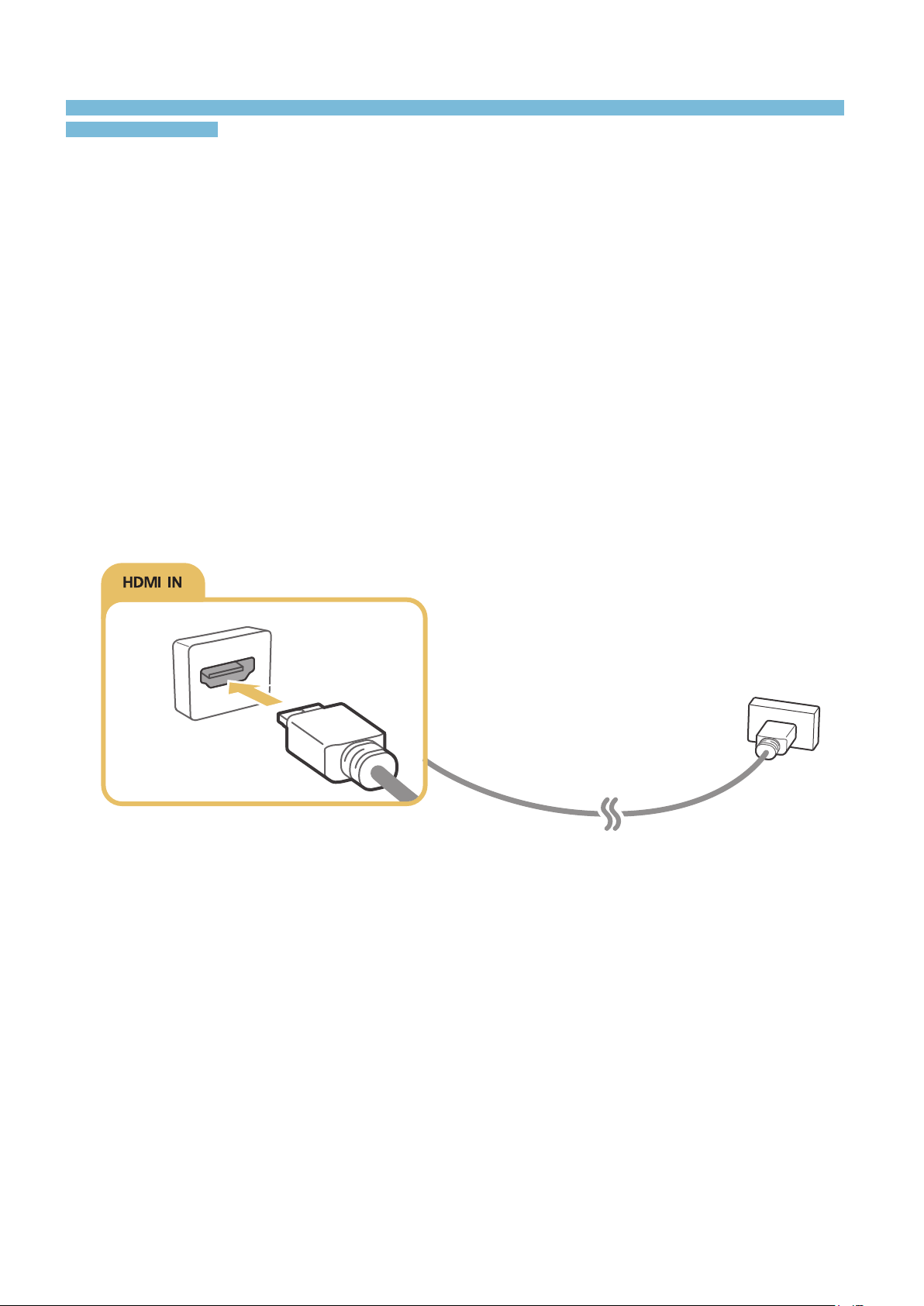
8 Connecting with an HDMI cable
Audio Input and Output Connections
9 Connecting with an HDMI (ARC) cable
10 Connecting with a digital audio (optical) cable
10 Connecting with headphones
Connecting a Computer
11 Connecting with an HDMI cable
12 Connecting to a computer with a DVI interface
12 Connecting through your home network
Connecting a Mobile Device
13 Using Screen Mirroring
14 Connecting mobile devices without a wireless router
(Wi-Fi Direct)
14 Connecting via Samsung Smart View
Changing the input signal between external devices
Connection Notes
16 Connection notes for HDMI
17 Connection notes for audio devices
17 Connection notes for computers
17 Connection notes for mobile devices
Remote Control and Peripherals
About the Samsung Smart Remote
Using the Samsung Smart Remote
20 Operating the TV with the POINTER button
20 Operating the TV with the directional buttons and the
Enter button
21 Displaying and using the On-Screen Remote
22 Pairing the TV to the Samsung Smart Remote
Controlling External Devices with the TV Remote -
Using the Universal Remote
22 Setting up the universal remote control
Controlling the TV with a Keyboard
23 Connecting a keyboard
24 Using the keyboard
Controlling the TV with a Mouse
25 Connecting a mouse
25 Using a mouse
Entering Text using the On-Screen QWERTY Keypad
26 Using additional functions

ii
Smart Features
Smart Hub
27 Displaying Curtain Mode
28 Configuring additional functions of curtain mode
28 Launching Smart Hub automatically
28 Testing Smart Hub connections
28 Resetting Smart Hub
Using Smart Hub with a Samsung Account
29 Creating a Samsung account
30 Signing in to a Samsung account
30 Linking your Samsung account to external service
accounts
31 Changing and adding information to a Samsung
account
31 Deleting Samsung accounts from the TV
Using the Apps Panel
32 Managing Games with the pop-up menus
33 Installing an app
33 Enabling automatic game updates
34 Removing an app from the TV
34 Moving apps
34 Locking and unlocking apps
34 Updating apps
34 Rearranging apps
34 Rating purchased content
34 Using other app features and functions
Using the e-Manual
35 Launching the e-Manual
35 Using the buttons of the e-Manual
Using the Web Browser
36 Browsing preferences
Using the Speaker Panel
Using the Photos Panel
Using the Time Panel
Playing Photos, Videos, and Music
39 Playing Media Content
39 Functions on the media content list screen
40 Buttons and functions available while viewing photos
41 Buttons and functions available while viewing videos
43 Buttons and functions available while playing music
TV Viewing
Viewing Digital Broadcast Information at a Glance
44 Using the guide
45 Changing the broadcast signal
45 Checking digital channel signal info and strength
Setting Up a Schedule Viewing
46 Setting Up a Schedule Viewing
46 Editing a schedule viewing
Using the Channel List
Registering, Removing, and Editing Channels
48 Registering and removing channels
49 Editing registered channels
50 Using Program Rating Lock
Creating a Personal Favorites List
53 Registering channels as favorites
53 Viewing and selecting channels on Favorites lists only
54 Editing a Favorites List
TV-Viewing Support Functions
56 Showing captions
58 Enabling the audio guide for the visually impaired
58 Scanning for available channels
58 Selecting the broadcast audio language
59 Fine-tuning analog broadcasts
59 Removing pay channels

ii iii
Picture and Sound
Adjusting the Picture Quality
60 Choosing a picture mode
61 Adjusting the picture quality
62 Adjusting advanced settings
63 Adjusting picture options
Picture Support Functions
65 Viewing a picture-in-picture (PIP)
66 Changing the picture size and position
67 Listening to audio only (Picture Off)
67 Resetting the picture mode settings
Adjusting the Sound Quality
68 Choosing a sound mode
69 Applying sound effects
Using the Sound Support Functions
70 Selecting speakers
70 Listening to TV sound through a Samsung Bluetooth
audio device
71 Listening to the TV through Bluetooth devices
71 Configuring additional functions
72 Specifying the TV's installation type
72 Resetting all sound settings
System and Support
Setting the Time and Using the Timer
73 Setting the current time
74 Using the timers
Using the Screen Burn Protection and Energy Saving
Functions
76 Preventing screen burn
76 Reducing the energy consumption of the TV
Using Anynet+ (HDMI-CEC)
77 Setting up Anynet+ (HDMI-CEC)
77 Using Anynet+ (HDMI-CEC)
78 Read before connecting an Anynet+ (HDMI-CEC)
Updating the TV’s Software
79 Updating the TV’s software to the latest version
79 Updating the TV automatically
Protecting the TV from Hacking and Malicious Code
80 Checking the TV and connected storage for malicious
code
80 Configuring additional functions
Using Other Functions
81 Running the accessibility functions quickly
81 Enabling voice guides for the visually impaired
82 White text on black background (high contrast)
82 Adjusting the menu transparency
82 Enlarging font (for the visually impaired)
82 Learning about the remote control (for the visually
impaired)
82 Listening to the TV through Bluetooth devices (for the
hearing impaired)
83 Changing the menu language
83 Setting up a password
83 Checking Notifications
83 Enabling game mode
84 Richer colors and superior picture quality (BD Wise)
84 Enabling/Disabling sound feedback
84 Locking/Unlocking the Control Stick
84 Showing/Hiding the Samsung logo while booting
84 Enabling the TV to boot faster
85 Registering the TV as a DivX-certified device
(watching for-pay DivX movies)
85 Restoring the TV to the factory settings
85 Using the TV as a display model (for retail stores)

iv
Troubleshooting
Getting support through Remote Management
86 Finding the contact information for service
86 Requesting service
There Is a Problem with the Picture
87 Testing the picture
I Can't Hear the Sound Clearly
89 Testing the sound
There Is a Problem with the Broadcast
My Computer Won't Connect
I Can't Connect to the Internet
Anynet+ (HDMI-CEC) Isn't Working
I Have Trouble Launching/Using Apps
My File Won't Play
I Want to Reset the TV
Other Issues
Precautions and Notes
Supported Resolutions for each of UHD Input Signals
95 If HDMI UHD Color is set to Off
95 If HDMI UHD Color is set to On
Read Before Using Apps
Read Before Using the Web Browser
Read Before Playing Photos, Videos, or Music
98 Limitations on use of photos, videos, and music
99 Supported external subtitles
99 Supported internal subtitles
100 Supported image formats and resolutions
100 Supported music formats and codecs
101 Supported video codecs
Read After Installing the TV
103 Picture sizes and input signals
104 Read before setting up a wireless Internet connection
Read Before Connecting a Computer (Supported
Resolutions)
105 IBM
105 MAC
106 VESA DMT
Supported Resolutions for Video Signals
Read Before Using Bluetooth Devices
108 Restrictions on using Bluetooth
License
Glossary
1
Using Smart Hub
Learn how to set up Smart Hub and run the functions provided by Smart Hub.
Connecting to the Internet
MENU More
Network Network Settings
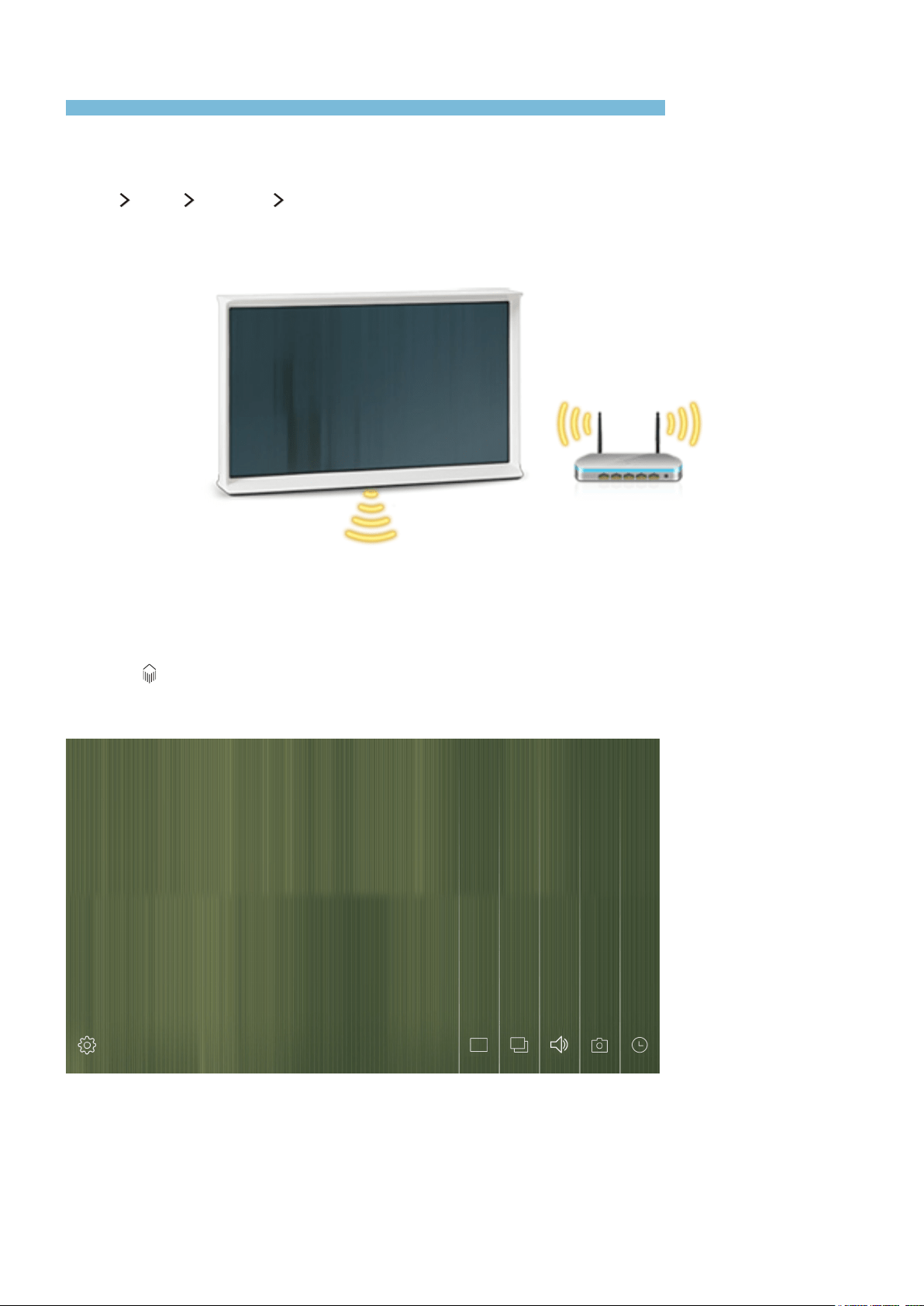
Connect the TV to the Internet. You can use a wireless connection.
Setting up Smart Hub
Press the on the remote control. When you turn on the TV for the first time, you must configure
the Smart Hub settings. Follow the instructions on the screen to configure the required settings and
complete the setup.
TV Apps Speaker Photos Time
Using Smart Hub
Run multiple functions provided by Smart Hub simultaneously.
"
For more information, refer to 'Smart Hub'.
Quick Guides
Learn how to use Smart Hub and Samsung Smart Remote to enjoy the TV quickly.
2
Using the Samsung Smart Remote
Learn how to use the Samsung Smart Remote to operate the TV.
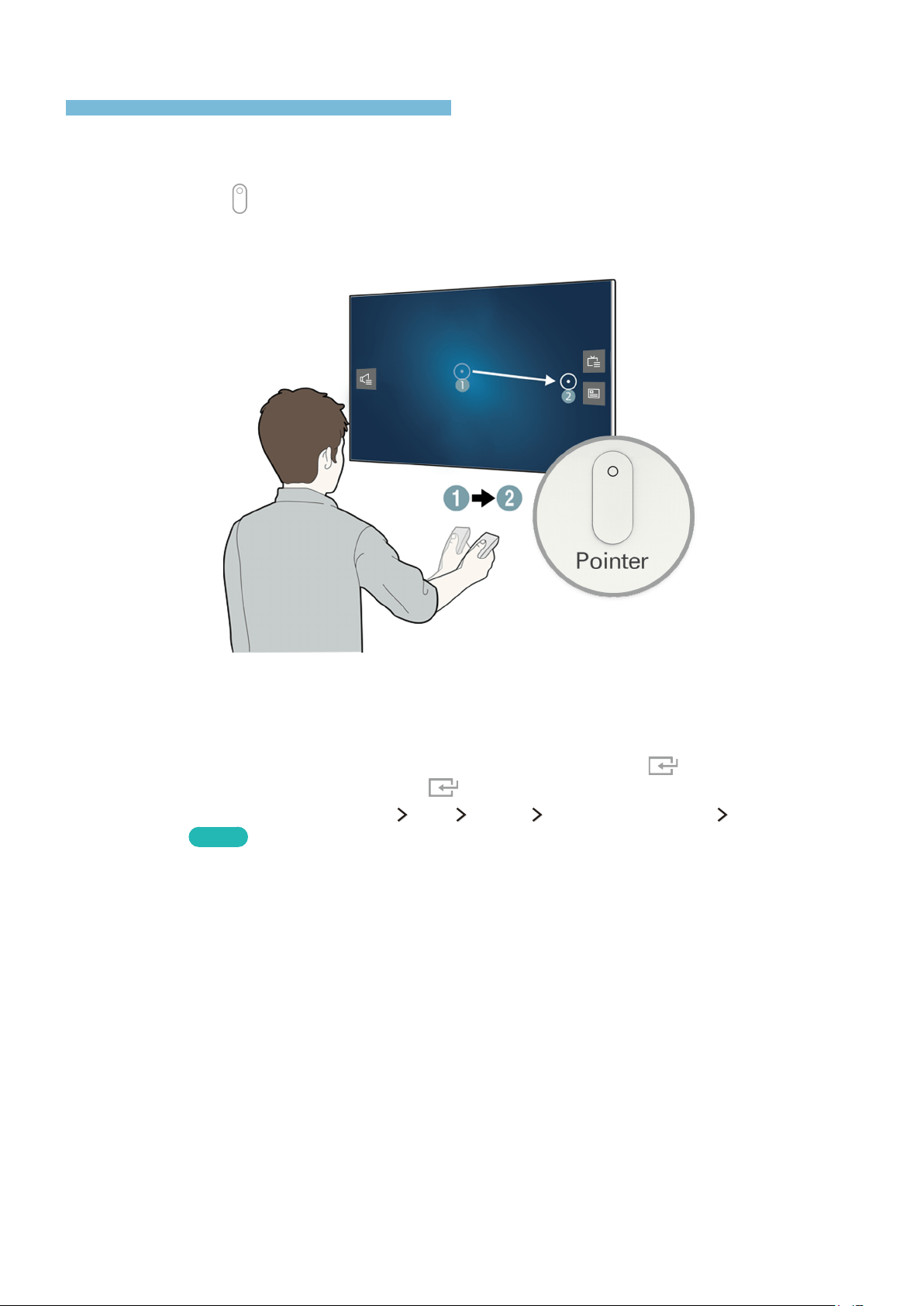
Operating the TV with the POINTER button
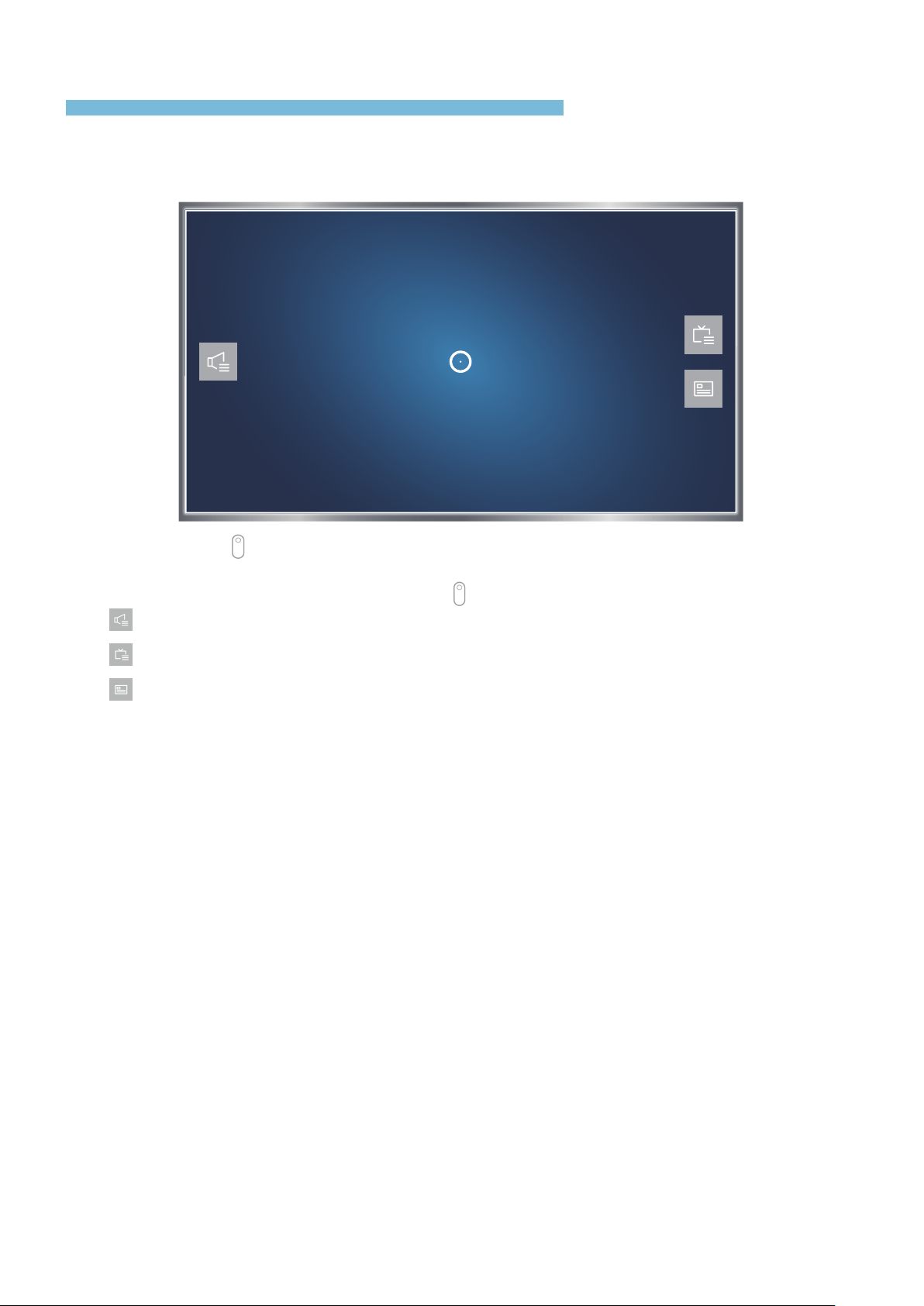
Place a finger on the button, and then move the Samsung Smart Remote. The pointer on the
screen moves in the direction you moved the Samsung Smart Remote. Move the pointer to one of the
following icons on the screen, and then press the
button.
●
: Allows you to adjust the volume or select speakers.
●
: Displays the channel list.
●
: Displays the Electronic Program Guide (EPG).
2 3
Setting up the Samsung Smart Remote
MENU More System Smart Control Settings
Configure the Samsung Smart Remote's basic settings.
System
Smart Security
Universal Remote Setup
Time
Notifications
Device Manager
Smart Control Settings
Eco Solution
"
Your TV's menu may differ from the image above, depending on the model.
Pairing the TV to the Samsung Smart Remote
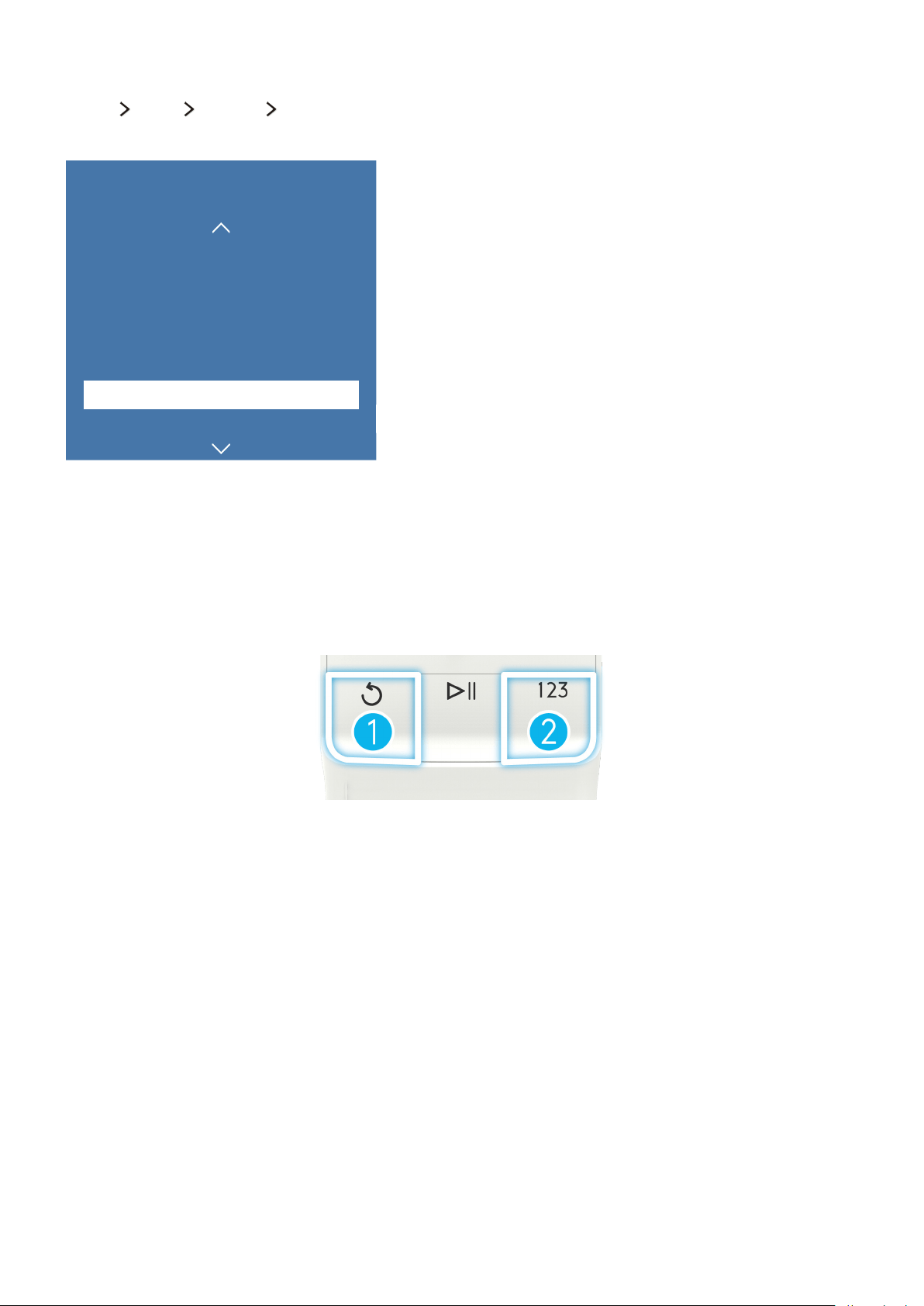
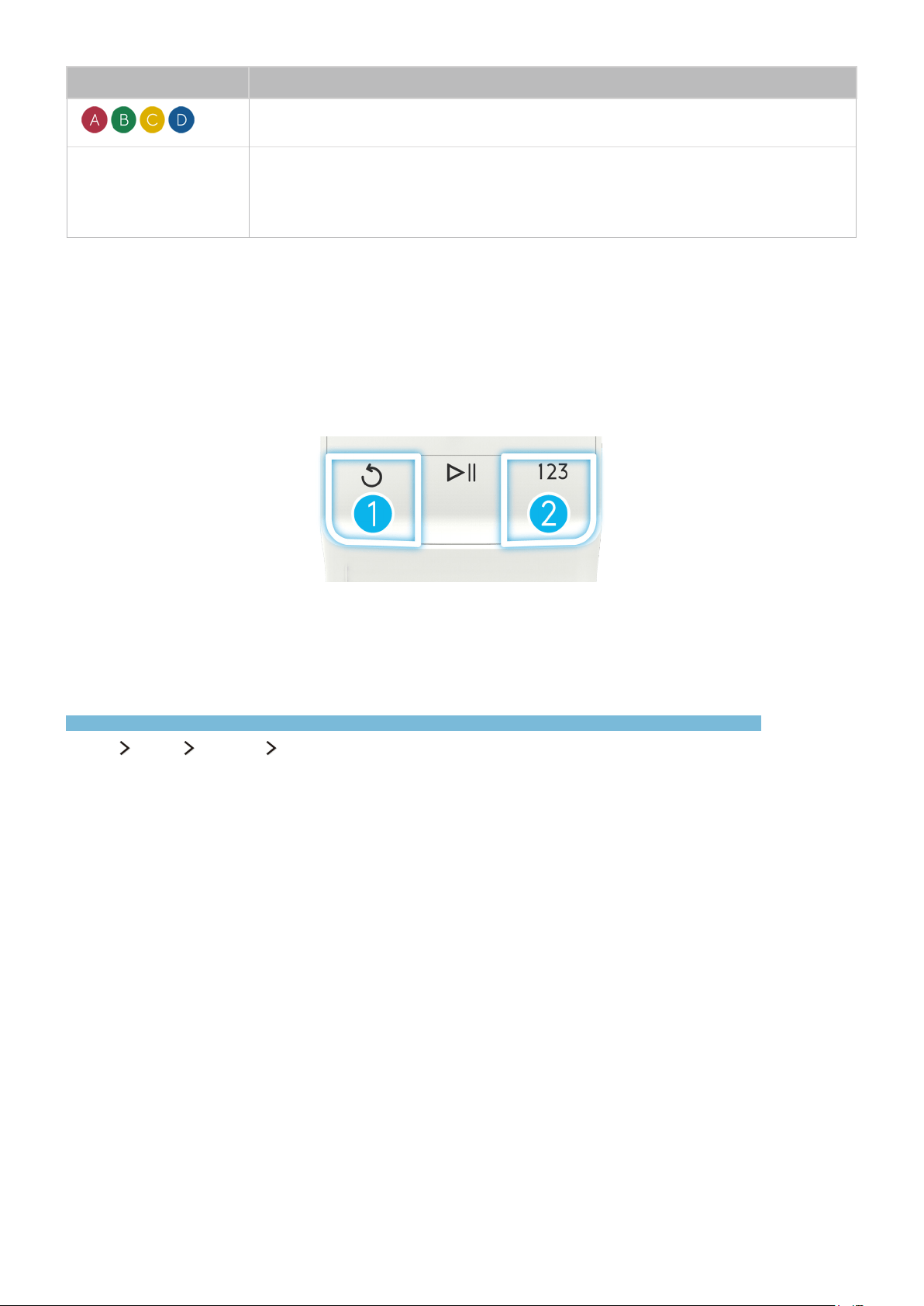
When you turn on the TV for the first time, the Samsung Smart Remote pairs to the TV automatically.
To re-pair it to the TV, press the buttons labeled ① and ② below on the Samsung Smart Remote
simultaneously for 3 seconds or more.
4
Connecting an Antenna
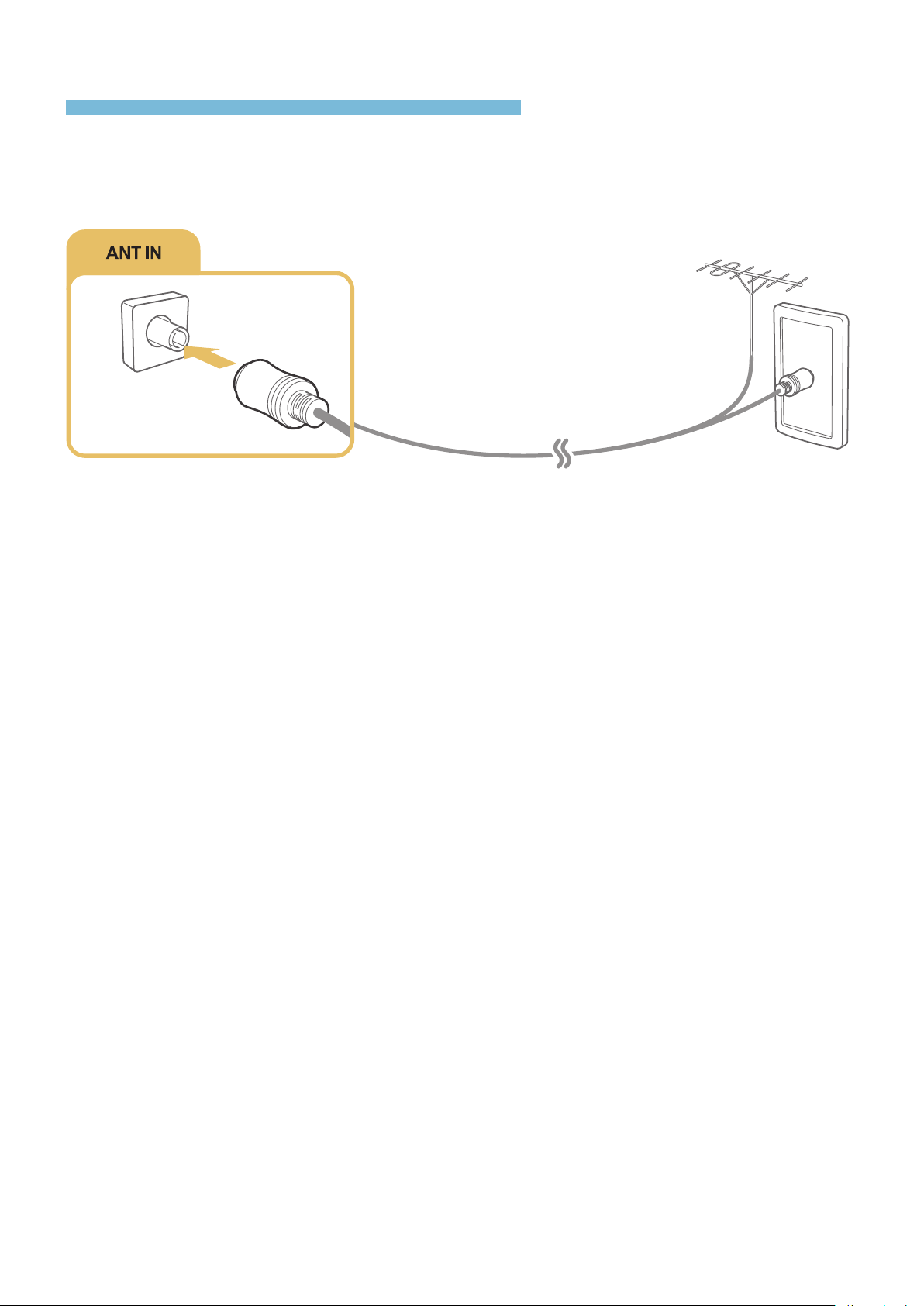
View broadcasts by connecting an antenna cable to the TV.
Connect a cable from an antenna or cable wall outlet to the ANT IN connector, as shown in the image
below.
"
An antenna connection is not necessary if you connect a cable or satellite box.
Connections
You can enjoy broadcasts, Internet and external device's screen on the TV by connecting an antenna and external device. Connect an antenna, video device,
external audio device, computer, or mobile device to the TV.
4 5
Connecting to the Internet
Connecting the TV to the Internet gives you access to online services and SMART features.
Establishing a wireless Internet connection
Connecting to a wireless internet network automatically
MENU More Network Network Settings
Make sure that you have the wireless router's SSID (name) and password settings before attempting to
connect.
1.
The TV automatically displays a list of available wireless networks.
2.
Select a network. If the network you want doesn't appear in the list, select Add Network, and
then enter the network's SSID (name) manually.
3.
If your network is security enabled, enter the password. If your network is not security-enabled,
the TV will bypass the on-screen keyboard and attempt to connect right away.
Connecting to a wireless internet network with WPS
MENU More Network Network Settings
If the router has a WPS (Wi-Fi protected setup) push button, you can use it to connect the TV to the
router automatically.
1.
Select Stop and then select WPS(PBC).
2.
Press the WPS or PBC button on your wireless router within the next two minutes.
3.
The TV connects to the network automatically.

6
Checking the internet connection status
MENU More Network Network Status
Try Now
Network
Network Status
Network Settings
Wi-Fi Direct
Multimedia Device Manager
Screen Mirroring
Device Name [TV] Samsung
"
Your TV's menu may differ from the image above, depending on the model.
View the current network and Internet status.
Changing the name of the TV on a network
MENU More Network Device Name
Try Now
You can change the name for the TV that will appear on mobile devices and laptop computers.
1.
Select Device Name from the Network menu.
2.
Select a name from the list that appears. Alternatively, select User Input to enter a name manually.

6 7
Troubleshooting Internet Connectivity Issues
If you are not able to connect the TV to the Internet, read the information below.
Troubleshooting wireless Internet connectivity issues
Wireless network connection failed
If a selected wireless router is not found, go to Network Settings and select the correct router.
Unable to connect to a wireless router
Please check the following:
1.
Check if the router is turned on. If it is, turn it off and on again.
2.
Enter the correct password if required.
IP auto setting failed
Do the following or configure the IP Settings manually.
1.
Make sure that the DHCP server is enabled on the router. Then, unplug the router and plug it back
in.
2.
Enter the correct password if required.
3.
If the problem persists, contact your Internet Service Provider.
Unable to connect to the network
Please check the following:
1.
Check all IP Settings.
2.
Enter the correct password if required.
3.
If the problem persists, contact your Internet Service Provider.
Connected to a local network, but not to the Internet
1.
Make sure that the Internet LAN cable is connected to the router's external LAN port.
2.
Check the DNS values in IP Settings.
3.
If the problem persists, contact your Internet Service Provider.
Network setup is complete, but unable to connect to the Internet
If the problem persists, contact your Internet Service Provider.
8
Connecting Video Devices
View video with the best picture quality by connecting external devices using HDMI cables.
Your TV has HDMI connectors for video input from external devices.
Connecting with an HDMI cable
The following types of HDMI cables are recommended:
●
High-Speed HDMI Cable
●
High-Speed HDMI Cable with Ethernet
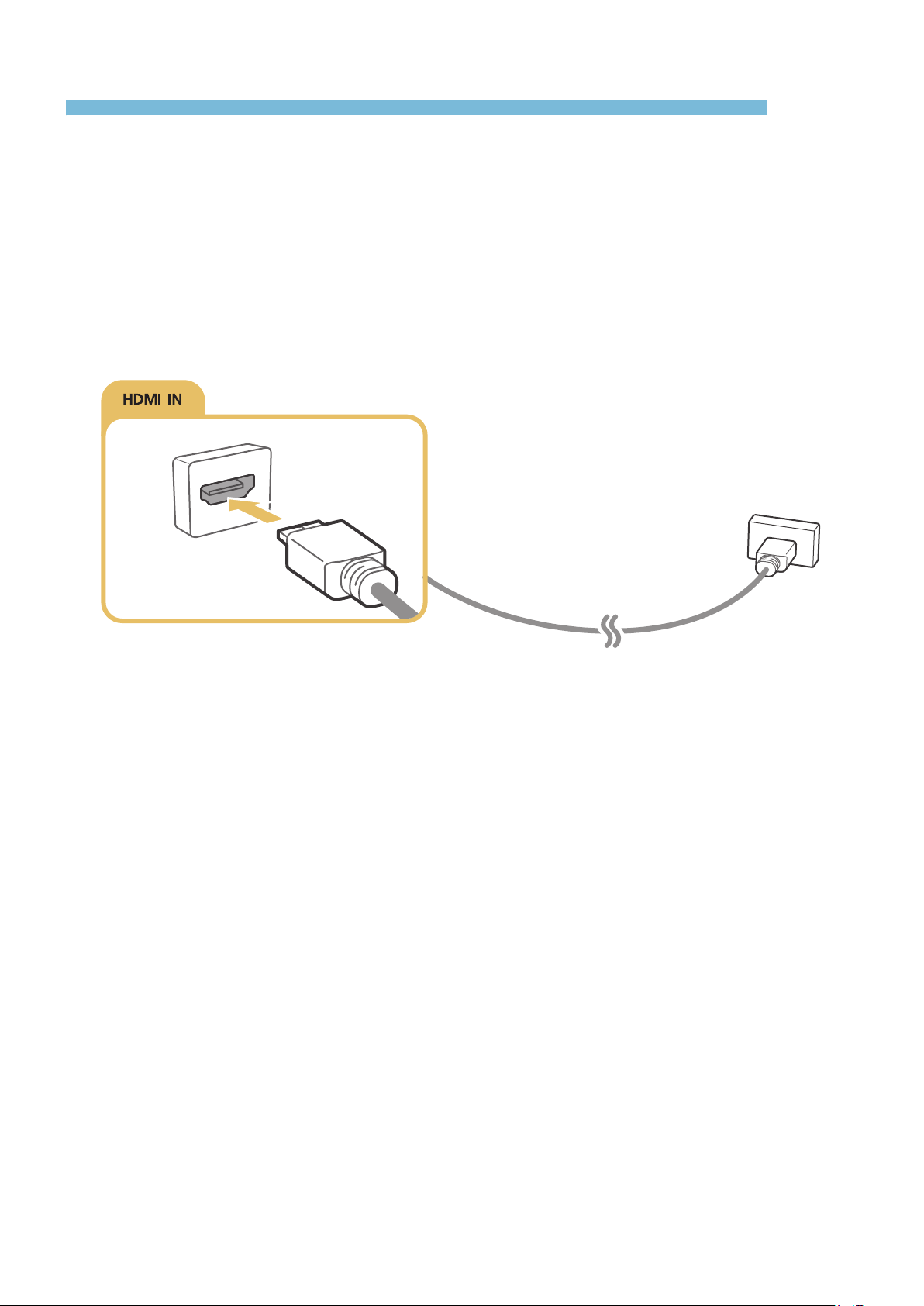
Connect the HDMI cable to the HDMI output connector of the video device and an HDMI input
connector of the TV as shown in the image below.
8 9
Audio Input and Output Connections
Hear the best sound quality from connected external devices.
Your TV has a variety of connections for audio input from external devices. The connections are listed
below.
●
HDMI/ARC (Audio Return Channel)
●
Digital Audio (Optical)
●
Headphones
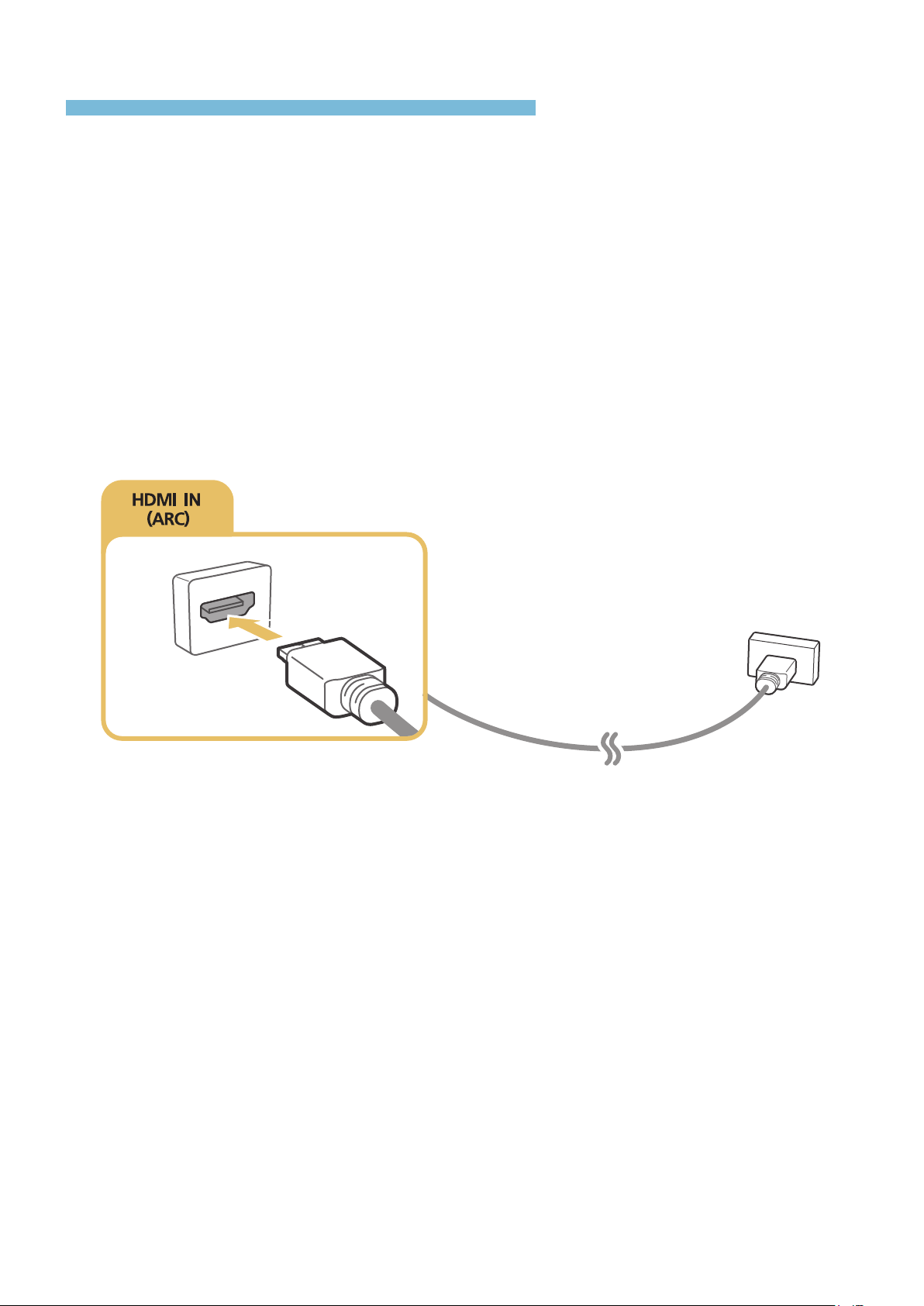
Connecting with an HDMI (ARC) cable
ARC (Audio Return Channel) lets the TV output digital sound to an audio device and input digital
sound from the same audio device through one HDMI cable. ARC is only available through the HDMI
(ARC) port and only when the TV is connected to an ARC-enabled AV receiver.
Connect an HDMI cable to the HDMI (ARC) input connector of the TV and the HDMI output connector
of the device as shown in the image below.
10
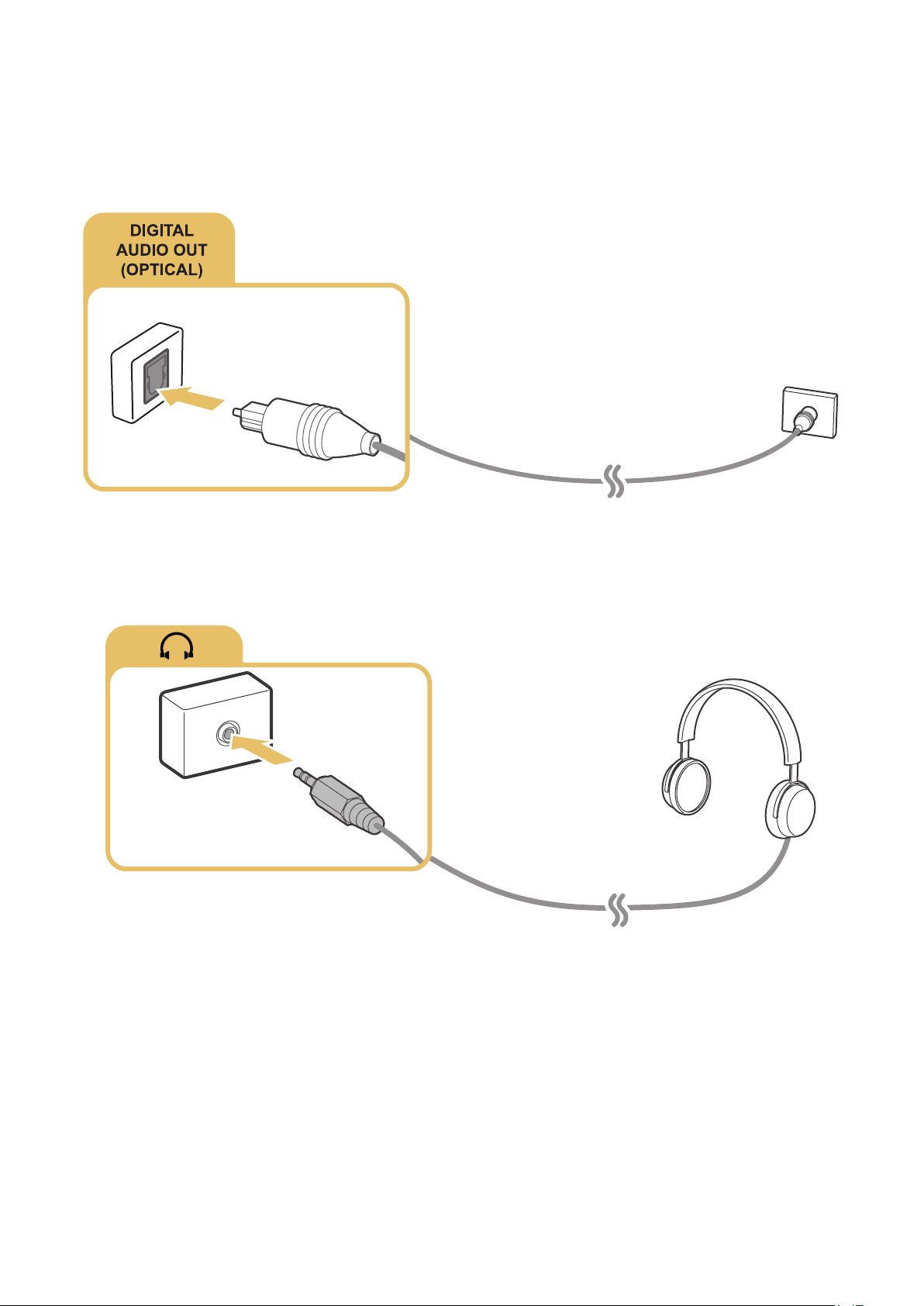
Connecting with a digital audio (optical) cable
You can listen to digital audio by connecting an AV receiver to the TV using a digital audio (optical)
cable.
Connect the optical cable to the digital audio output connector of the TV and the digital audio input
connector of the receiver as shown in the image below.
Connecting with headphones
Connect the headphones to the headphone output connector of the TV as shown in the image below.
10 11
Connecting a Computer
Use the TV as a computer monitor or connect the TV to a computer via your network and access the
computer's content.
The kinds of connections you can make are listed below.
To use the TV as a computer monitor:
●
Connect through the HDMI port with an HDMI cable.
●
Connect though the HDMI (DVI) port with an HDMI-to-DVI cable.
To view or play the content saved in a computer on the TV:
●
Connect through your home network.
Connecting with an HDMI cable
The following types of HDMI cables are recommended:
●
High-Speed HDMI Cable
●
High-Speed HDMI Cable with Ethernet
Connect the HDMI cable to the HDMI output connector of the computer and the HDMI input connector
of the TV as shown in the image below.
12
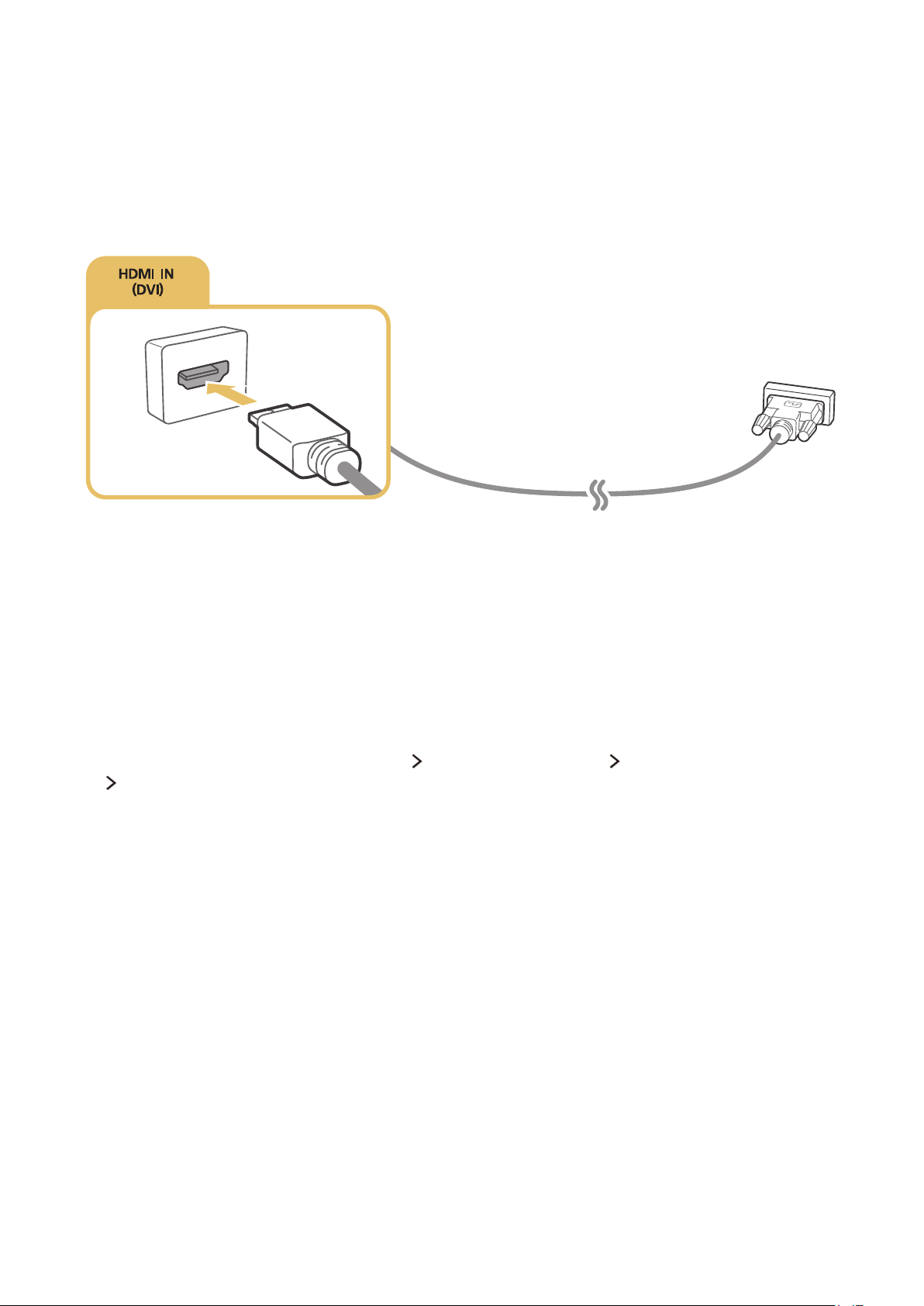
Connecting to a computer with a DVI interface
If the graphics adapter of your computer has a DVI connector and does not have an HDMI connector,
connect the computer to the TV with a DVI (Digital Visual Interactive)-to-HDMI cable. Note that the
HDMI-to-DVI connection is only supported by the HDMI (DVI) port and does not transmit audio. To
listen to the computer sound, connect external speakers to the audio output connector of the computer.
Connect the HDMI-to-DVI cable to the HDMI (DVI) port of TV and the DVI output port of the computer
as shown in the image below.
"
Set Edit Device Type to DVI PC for a computer connected with a HDMI-to-DVI cable, and PC for a
computer connected with an HDMI cable. Also, set Edit Device Type to DVI Devices for an A/V device with
a HDMI-to-DVI cable.
Connecting through your home network
You can quickly access and play photo, video, and music files stored on a computer on the TV.
1.
Connect the TV and the computer to the same router or AP. Once you connect them to the same
router or AP, a home network is configured.
2.
On the computer, select [Control Panel] [Network and Internet] [Network and Sharing Center]
[Change advanced sharing settings], and select [Choose media streaming options...] to activate
media streaming.
3.
From the list, set the TV to [Allowed].

12 13
Connecting a Mobile Device
You can view the screen of a mobile device after connecting it to the TV or network.
You can connect your smartphone or tablet to the TV or network to watch the screen or content of the
mobile device through the TV.
You can connect in three ways:
●
Screen Mirroring. Lets you watch the screen of the mobile device through the TV using the
screen mirroring function.
●
Wi-Fi Direct. Lets you connect the mobile device directly to the TV without a wireless router.
●
Samsung Smart View. Lets you connect the mobile device through the Samsung Smart View
app.
Using Screen Mirroring
MENU More Network Screen Mirroring
Try Now
You can wirelessly connect a mirroring-enabled mobile device to the TV and play the video and audio
files stored on the device on the TV. Mirroring refers to the function that plays the video and audio
files located on a mobile device on a TV and on the mobile device simultaneously.
Connecting via screen mirroring
1.
Launch the Screen Mirroring function on your mobile device. The mobile device searches for
available devices to connect to.
2.
Select the TV from the list, and then enter the password. The TV automatically allows the
connection and the device connects.
3.
Select Allow to connect the mobile device.
"
All previously allowed mobile devices will automatically connect without needing approval.
"
If you select Deny, the device cannot connect. To change the connection status of a denied device,
Select MENU
More Network Multimedia Device Manager, select the device, and then select
Allow.
Connecting via screen mirroring by automatically allowing the connection
1.
Select Network Screen Mirroring, You can also start screen mirroring by pressing the SOURCE
button on your remote and selecting Screen Mirroring from the list at the top of the screen.
2.
Launch the Screen Mirroring function on your mobile device. The mobile device searches for
available devices to connect to.
3.
Select the TV from the list. The TV automatically allows the connection and the device connects.
"
If the mobile device cannot connect, turn the TV and mobile device off and then on.

14
Connecting mobile devices without a wireless router (Wi-Fi Direct)
MENU More Network Wi-Fi Direct
Try Now
You can connect a mobile device with the Wi-Fi Direct feature directly to the TV without using a
wireless router or AP. By connecting a mobile device to the TV through Wi-Fi Direct, you can play
photo, video, and music files saved on the mobile device on the TV.
1.
Enable Wi-Fi Direct on the mobile device, and then run Wi-Fi Direct on the TV. The TV
automatically scans for and displays a list of available devices. The TV's name also appears on
the mobile device.
2.
Select the device from the list to initiate a connection. If a connection request is made by the TV,
a permission message appears on the mobile device and vice versa.
3.
Allow the connection. The TV and mobile device connect.
"
To view a list of the mobile devices that allow or deny a connection, select MENU More Network
Multimedia Device Manager.
"
When you place a mobile device closer to the TV with Wi-Fi Direct activated, the connection permission
confirmation window appears on the bottom left of the screen so that you can easily connect it.
Managing the connection status of previously connected mobile devices
1.
Select MENU More Network Multimedia Device Manager. The TV displays a list of
devices that have previously connected to the TV or have tried to connect to the TV and been
denied. The status of the connection (Allow/Deny) is also displayed.
2.
Select connection type or delete the device from the list.
"
This function is only available if the devices have previously connected to the TV or have previously
attempted to connect and been denied.
Connecting via Samsung Smart View
When you install and then launch Samsung Smart View on a mobile device connected to the TV, you
can play the mobile device's multimedia content, such as videos, photos, and music, on the TV. You
can also send text messages or control the TV using the mobile device.
"
This function is only available on certain models.

14 15
Changing the input signal between external devices
Switch between external devices connected to the TV.
Press the SOURCE button to switch between external devices connected to the TV.
●
Options
Select a connected external device port, and then press the down directional button. The
functions that appear in the Options menu can include any of the following:
"
The connector names may vary depending on the product.
–
Edit Device Type: Changes the type of the external devices. Select an external device to
change.
–
Edit Name: You can rename devices connected to the TV to facilitate identifying external
sources.
–
Information: Displays information about the connected devices.
–
Anynet+ (HDMI-CEC): Displays a list of Anynet+ (HDMI-CEC)-compliant devices that are
connected to the TV.
"
This option is only available when Anynet+ (HDMI-CEC) is set to On.
–
Remove USB Device: Lets you remove a USB device connected to the TV safely.
–
Delete Universal Remote: Deletes the external device connected to the TV via the Universal
Remote function.
"
This function is only available on certain models.
●
Universal Remote Setup
You can use your TV remote control to control external devices.
"
This function is only available on certain models.

16
Connection Notes
Read this section before connecting an external device to the TV.
"
The number of connectors and their names and locations may vary depending on the model.
"
Refer to the external device's operating manual when connecting it to the TV. The number of external device
connectors and their names and locations may vary depending on the manufacturer.
Connection notes for HDMI
●
Use an HDMI cable with a thickness of 0.55 inches (14 mm) or less.
●
Using a non-certified HDMI cable may result in a blank screen or a connection error.
●
Some HDMI cables and devices may not be compatible with the TV due to different HDMI
specifications.
●
This TV does not support HDMI Ethernet Channel. Ethernet is a Local Area Network (LAN) built
with coaxial cables standardized by the IEEE.
●
Use a cable shorter than 10 ft (3 m) to get the best UHD viewing quality.
●
Many computer graphics adaptors do not have HDMI ports, but have DVI ports instead. If your
computer graphics adaptor has a DVI port, use an HDMI-to-DVI cable to connect the computer
to the TV.
"
For more information, refer to 'Connecting to a computer with a DVI interface.'

16 17
Connection notes for audio devices
●
An unusual noise coming from the audio device while you are using it may indicate a
problem with the audio device itself. If this occurs, ask for assistance from the audio device's
manufacturer.
●
Digital audio is only available with 5.1-channel broadcasts.
●
The Sound function may be restricted when you connect headphones to the product.
●
Headphone volume and product volume are adjusted separately.
●
The earphone jack supports only the 3 conductor tip-ring-sleeve (TRS) type plug.
Connection notes for computers
●
For the resolutions supported by the TV, refer to 'Read Before Connecting a Computer (Supported
Resolutions).'
●
As long as file sharing is activated, unauthorized access may occur. When you do not need to
access data, disable file sharing.
●
Your PC and Smart TV must be connected to each other on the same network.
Connection notes for mobile devices
●
To use the Screen Mirroring function, the mobile device must support a mirroring function
such as AllShare Cast or Screen Mirroring. To check whether your mobile device supports the
mirroring function, please visit the mobile device manufacturer's website.
●
To use Wi-Fi Direct, the mobile device must support the Wi-Fi Direct function. Please check if
your mobile device supports Wi-Fi Direct.
●
To use Samsung Smart View, the mobile device and your Smart TV must be connected to each
other through the same network.
●
Video or audio may stop intermittently, depending on network conditions.
18
About the Samsung Smart Remote
Use the Samsung Smart Remote to control the TV more conveniently.
Remote Control and Peripherals
You can control the functions of the TV with a remote control. Pair and use the remote controls to operate the TV and external devices connected to the TV.
18 19
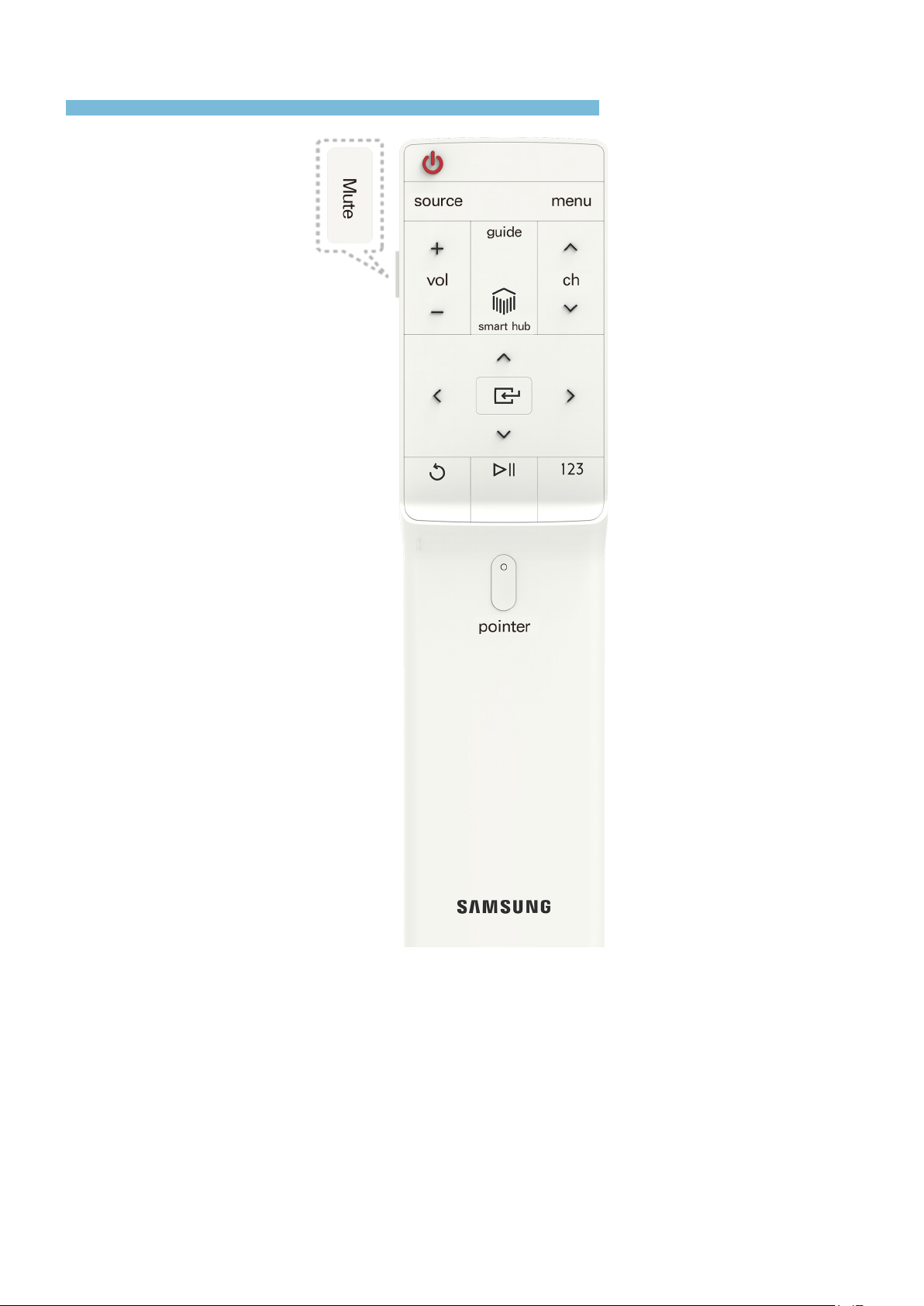
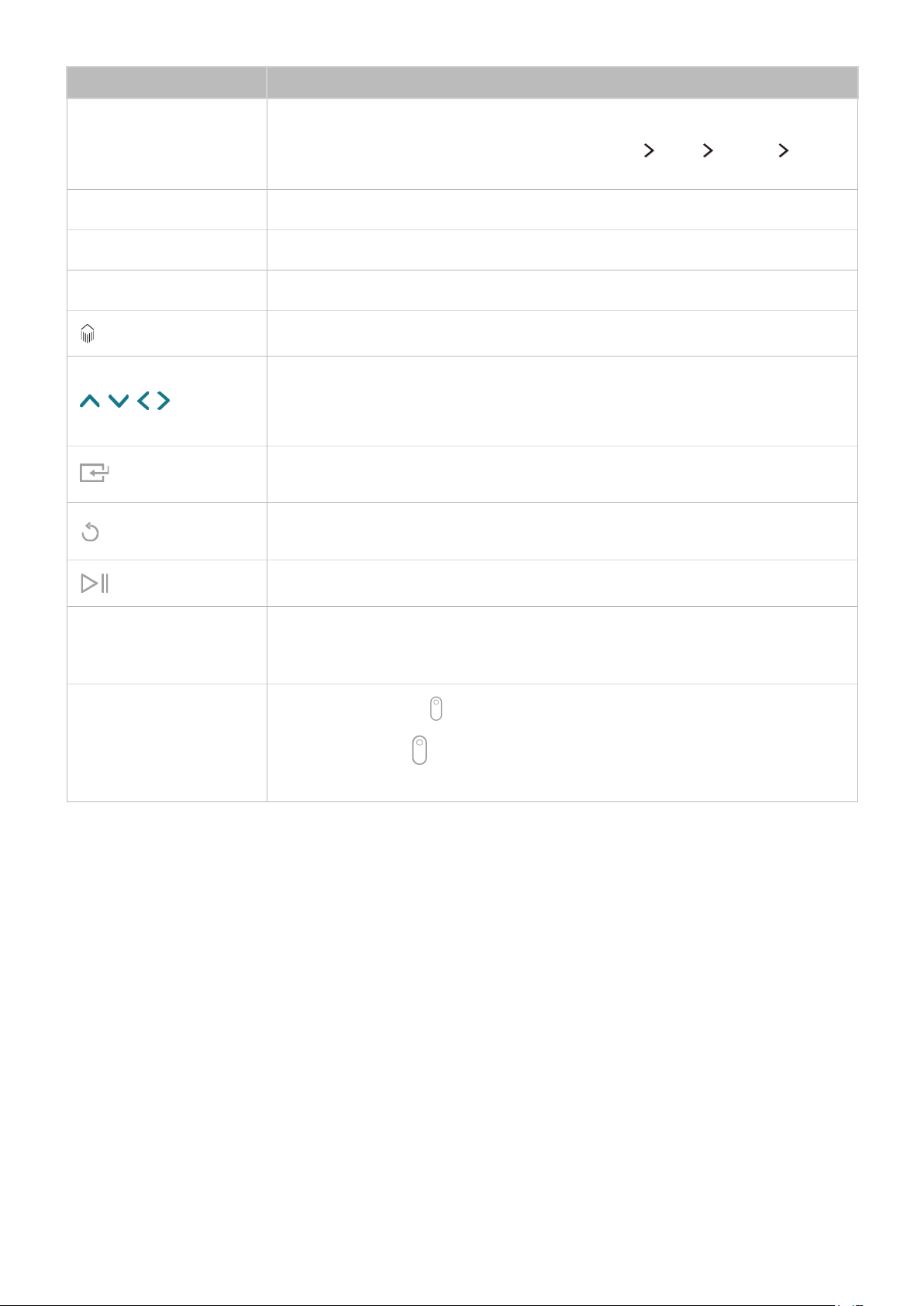
Button Description
Mute
Press this button to mute the sound temporarily.
Press and hold this button to bring up Accessibility Shortcuts that enable
or disable the Accessibility menu functions. (MENU
More System
Accessibility).
SOURCE Displays and selects the available video sources.
MENU Displays the menu on the screen.
GUIDE Launches the Guide (EPG).
Launches Smart Hub applications.
, ,
, Moves the focus and changes the values seen on the TV's menu.
Selects or runs a focused item.
Press and hold this button to launch the Guide while you are watching the TV.
Returns to the previous menu or channel.
Press and hold to exit the function currently running on the TV's screen.
Controls the content when you are playing movies or music or viewing pictures.
123
Displays numeric buttons, content control button, and other function buttons on
the screen so that you can run a function conveniently.
"
For more information, refer to "Displaying and using the On-Screen Remote."
POINTER
Place a finger on the
button and move the Samsung Smart Remote. The
pointer on the screen moves in the direction you moved the Samsung Smart
Remote. Press the
button to select or run a focused item.
"
For more information, refer to "Using the Samsung Smart Remote."
"
Use the Samsung Smart Remote at a distance of less than 20 ft (6 m) from the screen. The usable distance
may differ with the wireless environmental conditions.
"
The images above may differ depending on the model.
"
The buttons and functions of the Samsung Smart Remote may differ by model.
20
Using the Samsung Smart Remote
Control the TV using the Samsung Smart Remote.
Operating the TV with the POINTER button
Place a finger on the button and move the Samsung Smart Remote. The pointer on the screen
moves in the direction you moved the Samsung Smart Remote. Move the pointer to select an item on
the screen.
Operating the TV with the directional buttons and the Enter button
Press the directional buttons (up, down, left, and right) to move the pointer, focus, or cursor in the
direction you want or change a setting shown on a focused item. Press the button to select an
item or run a focused item. Press and hold the button to view the Guide while watching the TV.
"
To adjust the pointer speed, select MENU More System Smart Control Settings Motion
Sensitivity. Try Now
20 21
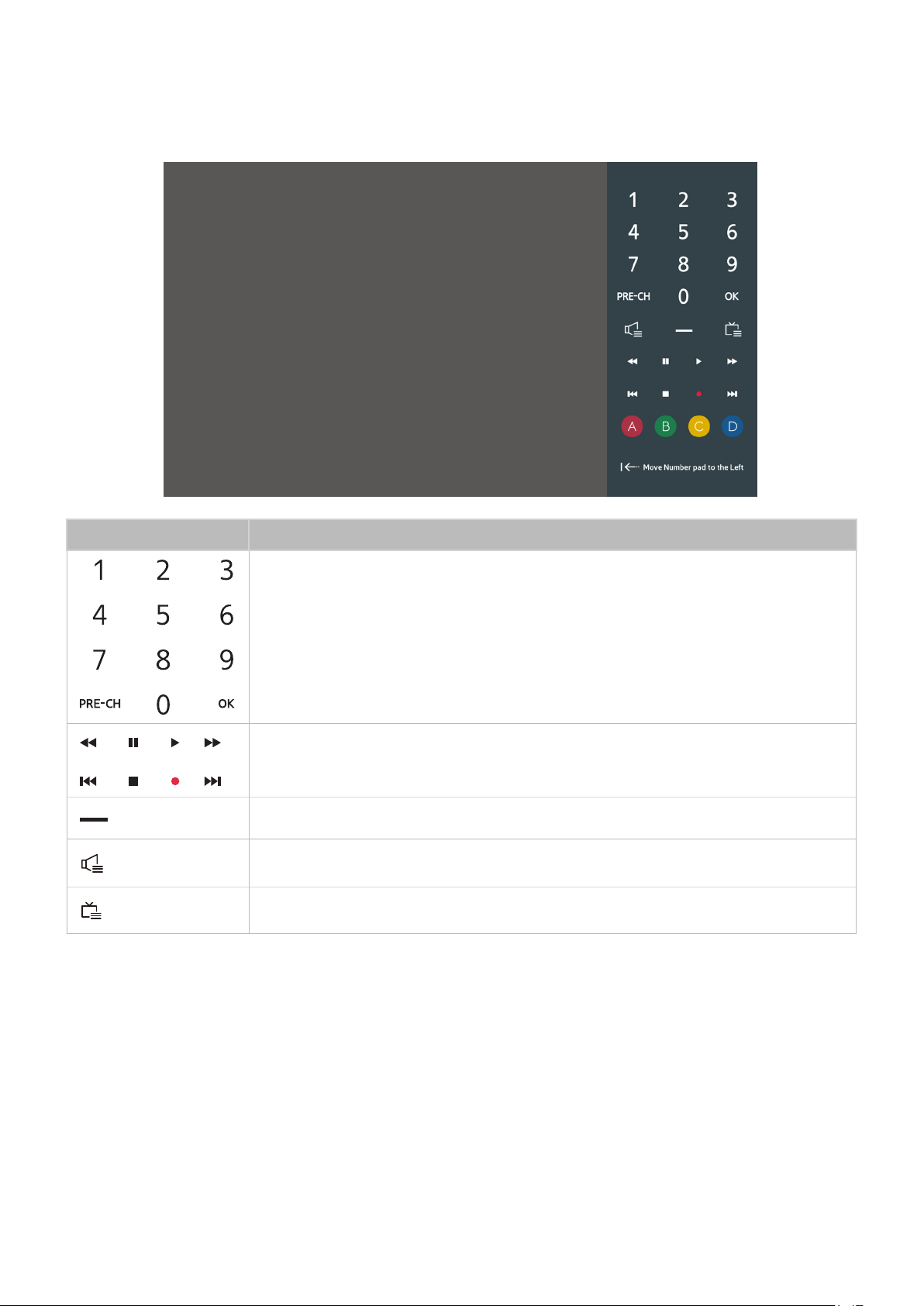
Displaying and using the On-Screen Remote
You can display and use the On-Screen Remote on the TV's screen by pressing the 123 button on the
Samsung Smart Remote.
Button Description
●
You can directly enter the channel number to switch to that channel.
●
PRE-CH: Returns to the previous channel.
●
OK : Selects or runs a focused item.
Lets you control playback when you are playing a video, photo, or music file or
watching a recorded program. You can also use the buttons to control the content
on an external device.
You can use this button to enter digital channels such as 7-1. 11-1.
Allows you to select the speakers that will play the TV's audio.
Launches the Channel List.
22
Button Description
Use these color buttons to access additional options specific to the feature in use.
Move Number Pad
to the Right / Move
Number Pad to the
Left
Moves the number pad to the left or right.
"
The On-Screen Remote buttons may vary, depending on the TV model and the TV functions you are using.
Pairing the TV to the Samsung Smart Remote
When you turn on the TV for the first time, the Samsung Smart Remote pairs to the TV automatically.
To re-pair it to the TV, press the buttons labelled ① and ② below on the Samsung Smart Remote
simultaneously for 3 seconds or more.
Controlling External Devices with the TV Remote -
Using the Universal Remote
The universal remote control feature lets you control external devices connected to the TV.
MENU
More System Universal Remote Setup
You can control external devices connected to the TV using the TV's remote control.
"
You can also use the Anynet+ (HDMI-CEC) function to operate external Samsung devices with your TV's
remote control without any additional setup. For more information, refer to 'Using Anynet+ (HDMI-CEC).'
"
Certain external devices connected to the TV may not support the universal remote feature.
Setting up the universal remote control
1.
Connect the device you want to control to the TV using an HDMI cable, and then turn on the
external device.
2.
Press the SOURCE button on your remote control to bring up the source list screen, follow the
directions on the screen to complete the set up and register the device.
"
If the external device does not respond after being registered, register it again using its model number.

22 23
Controlling the TV with a Keyboard
Connecting a keyboard makes it easier to control the TV.
MENU
More System Device Manager Keyboard Settings
Try Now
"
Certain models are not compatible with USB HID class keyboards.
Connecting a keyboard
Connecting a USB keyboard
Plug the keyboard cable into the TV's USB port.
Connecting a Bluetooth keyboard
1.
Place the Bluetooth keyboard into standby status.
2.
Select MENU More System Device Manager Keyboard Settings Add Bluetooth
Keyboard. The TV automatically scans for available keyboards.
"
If your keyboard is not detected, position the keyboard close to the TV, and then select Refresh. The TV
scans for available keyboards again.
3.
Select the Bluetooth keyboard from the scan list, and then select Pair and connect. A number
appears on the screen.
4.
Enter the number using the Bluetooth keyboard. This pairs the Bluetooth keyboard to the TV.

24
Using the keyboard
You can use the following remote features with the USB or Bluetooth keyboard connected to the TV.
●
Arrow Keys (move the focus), Windows Key (displays the TV menu), Enter Key (selects/runs an
item), ESC (returns to the previous menu or channel), Number keys (enter numeric values)
●
F1 ( ), F2 ( ), F3 ( ), F4 ( ), F5 ( ), F6 (displays the source list), F7 (displays the channel list),
F8 (mute), F9 / F10 (adjust the volume), F11 / F12 (change the channel)
●
Page Up / Page Down: On the Web Browser app screen, scroll web pages up/down.
●
Press and hold the Enter key: On the Smart Hub screen, navigate to an item, and then press and
hold the Enter key to display the context-sensitive menu.
"
The context-sensitive menu may vary depending on the item you selected.
Changing keyboard settings
MENU More System Device Manager Keyboard Settings Keyboard Options
Try Now
●
Keyboard Language
Displays the languages you can use on your keyboard and lets you select a language.
●
Keyboard Type
Displays a list of keyboard types and lets you select a type that matches the Keyboard language
you selected.
"
The list of keyboard types differs depending on the language you selected under Keyboard Language.
●
Switch Input Language
Displays a list of keys you can use to toggle between languages and lets you select a key.

24 25
Controlling the TV with a Mouse
Connecting a mouse makes it easier to control the TV.
MENU
System Device Manager Mouse Settings
Try Now
"
Certain models are not compatible with USB HID class mice.
Connecting a mouse
Connecting a USB mouse
Plug the mouse cable into the TV's USB port.
Connecting a Bluetooth mouse
1.
Place the Bluetooth mouse in standby status.
2.
MENU More System Device Manager Mouse Settings Add Bluetooth Mouse.
3.
Select the Bluetooth mouse from the scanned list, and then select Pair and connect. This pairs
the Bluetooth mouse to the TV.
Using a mouse
You can use a pointer to control the TV in the same way you use a pointer on a computer.
●
Selecting and running an item
Left-click the mouse.
●
Scrolling the TV menu or screen
Scroll the mouse wheel up or down.
Changing mouse buttons and pointer speed
MENU System Device Manager Mouse Settings Mouse Options
Try Now
●
Primary Button
Select which button (left or right) to use when selecting and running items.
●
Pointer Speed
Adjust the movement speed of the pointer.

26
Entering Text using the On-Screen QWERTY Keypad
Enter text by using the QWERTY keyboard.
Using additional functions
Select on the QWERTY keyboard screen. The following options are available:
●
Recommended text
Enables or disables the recommended text feature. The keyboard displays recommended words
so that you can enter the text more easily.
●
Reset recommended text data
Deletes both the recommended words and the memorized words to clear the list.
●
Predict Next Character (when using direction buttons)
Enables or disables the Text Prediction feature.

27
Smart Hub
Learn about Smart Hub and how to use its basic functions.
or MENU More Smart Hub Open Smart Hub
Try Now
TV Apps Speaker Photos Time
"
Your TV's screen may differ from the image above, depending on the model.
You can surf the web and download apps using Smart Hub. In addition, you can enjoy photo files
stored on external storage devices.
Displaying Curtain Mode
Press the button, and then curtian mode screen appears. You can use these panels as follows:
"
When the video signal is not perceived, a curtain mode is displayed in monochrome.
●
TV
You can exit curtain mode, and then view broadcasts.
●
Apps
You can download and play apps.
●
Speaker
You can stream songs or play songs saved on your mobile device using Bluetooth.
●
Photos
You can play a slideshow using the photos saved on a USB device.
●
Time
When you set the TV's clock, you can view the current time on the TV's screen.
Smart Features
You can surf the web, download apps with Smart Hub. Also, you can enjoy photos, music, and videos stored on external storage devices.

28
●
You can set the colour and grid of the curtain mode, and whether or not Smart Hub starts
automatically.
Configuring additional functions of curtain mode
Select the on the curtian mode screen. The following options are available:
●
Color
Allows you to change the color of the curtain mode.
●
Grid
Allows you to change the curtain mode's structure which is made up of a series of intersecting
vertical, horizontal, and angled straight lines.
●
Auto Start
Allows you to set whether or not Smart Hub starts automatically when you turn on the TV.
Launching Smart Hub automatically
MENU More Smart Hub Auto-Start Settings Smart Hub
You can have Smart Hub start automatically when you turn on the TV.
Testing Smart Hub connections
MENU More Support Self Diagnosis Smart Hub Connection Test
If Smart Hub is not working, select Smart Hub Connection Test. The Connection Test diagnoses the
problem by checking the Internet connection, your ISP, the Samsung server, and the Apps service.
Resetting Smart Hub
MENU More Smart Hub Reset Smart Hub
Try Now
You can remove the Samsung accounts saved in the TV and everything linked to them, including apps.
"
Some of the Smart Hub services are for pay services. To use a for pay service, you must have an account
with the service provider or a Samsung account. For more information, refer to 'Using Smart Hub with a
Samsung Account.'
"
Some Smart Hub features may not be available depending on the service provider, language, or region.
"
Smart Hub service outages can be caused by disruptions in your Internet service.
"
To use Smart Hub, you must agree to the end user agreement and privacy policy. Otherwise, you will not be
able to access the features and services associated with them. You can view the entire text of the Terms &
Policy by navigating to Smart Hub
Terms & Policy. If you want to stop using Smart Hub, you can cancel
the agreement. Try Now

28 29
Using Smart Hub with a Samsung Account
To use Smart Hub, you must have a Samsung account
Creating a Samsung account
MENU More Smart Hub Samsung Account
Some of the Smart Hub services are for pay services. To use a for pay service, you must have an
account with the service provider or a Samsung account.
You can create a Samsung account using your email address as your ID.
"
To create a Samsung account, you must be over 13 years old.
"
To create a Samsung account, you must agree to the Samsung account end user agreement and privacy
policy.
"
You can also create a Samsung account at http://content.samsung.com. Once you have an account, you can
use the same ID on both the TV and the Samsung website.
Signing up for a Samsung account
MENU More Smart Hub Samsung Account Create Account Create Samsung Account
You can create a Samsung account by following the on-screen instructions. Once a Samsung account
is created, you are automatically signed in to your Samsung account.
"
If you want to review the Terms and Conditions, select View Details.
"
If you want your account to be protected, select Profile image selection and password entry (High security)
in the field below the password field.
"
If you want the TV to log you in to your account automatically when you turn the TV on, click Sign me in
automatically.
Creating a Samsung account using a Facebook account
MENU More Smart Hub Samsung Account Create Account Create Samsung Account with
Facebook
Enter your Facebook ID and password, and then follow the on-screen instructions to complete account
setup. Once a Samsung account is created, you are automatically signed in to your Samsung account.
"
Your Samsung account and Facebook account are automatically linked when you create a Samsung account
with your Facebook account.

30
Signing in to a Samsung account
MENU More Smart Hub Samsung Account Log In
You can automatically sign in to your Samsung account and use the Smart Hub feature.
Registering an existing Samsung account to the TV
If you already have a Samsung account, you can register that account to the TV. Select + Log In on
the Samsung account screen, and then follow the on-screen instructions.
Signing in to a registered Samsung account saved on the TV
If you register a Samsung account, it is saved on the TV. To sign in to a registered Samsung account,
just select it on the TV.
"
To change the sign in method, refer to 'Changing and adding information to a Samsung account.'
Linking your Samsung account to external service accounts
You can automatically log in to external service accounts when you log into your Samsung account by
linking your Samsung account to the external service accounts.
"
To use Link Service Accounts, you must first log into your Samsung account.
Linking or disconnecting a service account
MENU More Smart Hub Samsung Account Link Service Accounts
●
Linking a service account
Select an account from the list and log in to the account by following the on-screen instructions.
The service account is linked to the Samsung account.
●
Disconnecting a linked account
Select an account from the list, and then unlink the account by following the on-screen
instructions.

30 31
Changing and adding information to a Samsung account
MENU More Smart Hub Samsung Account Edit Profile
You can manage your Samsung account. Follow the on-screen instructions to enter your password,
and then select Done. The Edit Profile screen will appear automatically.
"
To change the account information, you must be logged in to your Samsung account.
You can perform the following functions on the screen.
●
Change Your Profile Image
●
Select a Samsung Account sign-in method
●
Turn auto login on or off
●
Enter Basic User Information
●
Subscribe to the Samsung e-Newsletter
Deleting Samsung accounts from the TV
MENU More Smart Hub Samsung Account Remove Accounts from TV
You can remove all Samsung account and password information from your TV. The account
information for any external accounts linked to the account is also removed from the TV.
"
To remove the account information, you must be logged in to your Samsung account.
32
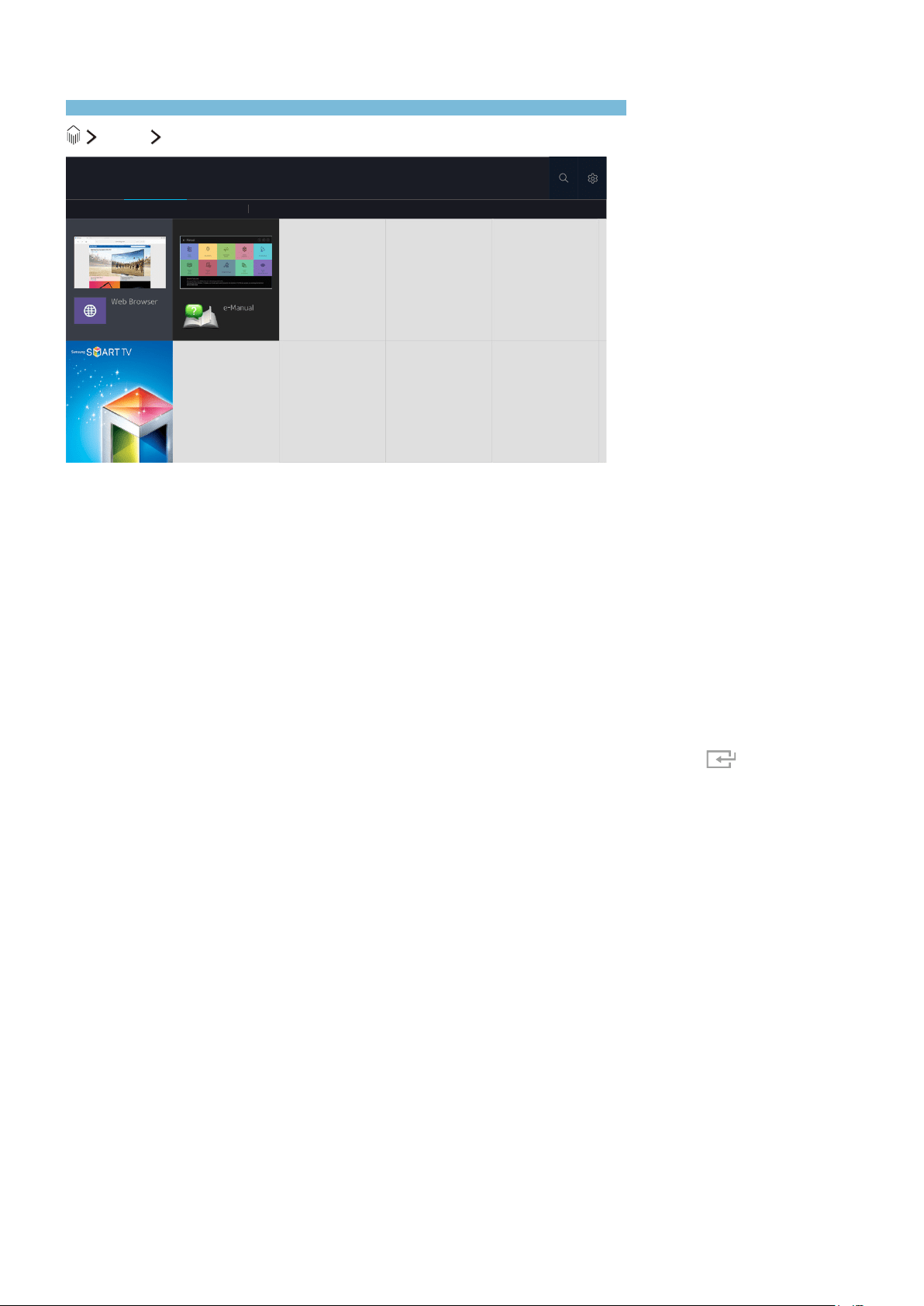
Using the Apps Panel
Install and enjoy free news, sports, weather, and gaming apps on the TV.
Apps Apps
APPS
My Apps
What's New
Most Popular Videos Games Sports Lifestyle Information Education Kids
You can enjoy a wide range of content including free news, sports, weather, and games by installing
the corresponding apps on your TV. You can download the apps from Smart Hub. On the Apps panel,
select +. Select an app displayed on the screen or select a genre category such as Most Popular or
What's New on the top of the screen, and then select an app in the genre you selected.
"
The TV must be connected to the Internet for you to use the Apps service.
"
When Smart Hub is launched for the first time, the default apps are automatically installed. The default apps
may differ by region.
"
Your TV's screen may differ from the image above, depending on the model.
Managing Games with the pop-up menus
Move the focus to an app in the second row or below, and then press and hold the button. The
option menu appears displaying the following functions.
●
Delete
●
Reinstall
●
Move
●
View Details
"
The pop-up menu may differ with the app you selected.

32 33
Installing an app
Quickly installing apps
1.
Select a category on the Apps screen.
2.
Move the focus to an app, and then press and hold the button. The context-sensitive menu
appears.
3.
Select Download.
4.
The selected app is installed on the TV.
"
You can view installed apps on the My Apps screen.
"
You can also, install the app from detailed information screen.
"
When the TV's internal memory is insufficient, you can install an app on a USB device.
"
You can play an app installed on a USB device only when the USB device is connected to the TV. If the USB
device is disconnected during app playing, the app is terminated.
"
You cannot play an app installed on the USB device on a PC or another TV.
Launching an app
You can launch an app by selecting an app on the Apps screen.
The icons below appear in the selected apps and indicate the following:
●
: The app is installed on a USB device.
●
: The app has a password.
●
: The app is installed.
●
: The app has a required update available.
Enabling automatic game updates
MENU More Smart Hub App Auto Update
To update apps automatically, set App Auto Update to On. Apps will be updated automatically when
an update becomes available.

34
Removing an app from the TV
Select an app to remove on the Apps screen, and then press and hold the button to confirm it. If
you want to remove multiple apps, select all the apps to delete, select
from the top of the screen,
and then select Delete My Apps.
"
Ensure that the related app data is also removed when you remove an app.
Moving apps
Select Move My Apps on the Apps screen. Select an app to move. The 4 directional arrows
appear around the app. Move the app to the desired location with the on-screen directional arrows,
and then press the button.
Locking and unlocking apps
Select the Lock/Unlock My Apps on the Apps screen. The password input screen appears. Enter
your password, and then select apps to lock or unlock. When done selecting, select Save. All selected
apps are locked or unlocked.
Updating apps
Select Update Apps from the top of the screen on the Apps screen. You can update some apps
or all apps.
"
This function is only available when My Apps contains an app that needs updating.
Rearranging apps
Select on the Apps screen, and then select Sort by to sort the apps by Release Date, Popularity,
Title A-Z, or Title Z-A.
"
This function is available for all categories except for My Apps, What's New, and Most Popular.
Rating purchased content
You can set the star score by using the left or right directional buttons on the detailed information
screen.
Using other app features and functions
MENU More Smart Hub Auto-Start Settings Channel-Bound Apps & Ticker
You can receive information on TV programs and other relevant services while viewing TV by using an
app installed on the TV and linked to a specific channel.
"
This function is only available when an app supporting Channel-Bound Apps & Ticker is installed on the
TV.

34 35
Using the e-Manual
Learn how to use and manage this e-Manual and the Web Browser built into the TV.
Launching the e-Manual
MENU More Support e-Manual
You can use the embedded e-manual containing information about your TV's key features.
1.
Select a category from the screen. The content of the selected category appear on the screen.
2.
Select an item from the list. The corresponding e-Manual topic appears.
"
Alternatively, you can download a copy of the e-manual from Samsung's website.
"
Words in blue (e.g., Picture Mode) indicate a menu item.
Using the buttons of the e-Manual
(Search): Brings up the search screen. Enter a search term, and then select Done. Select an item
from the search results to load the corresponding page.
(Index): Brings up the index screen. Select a topic from the list to navigate to the relevant page.
(Recently Viewed Topics): Displays a list of previously read pages. Select a page. The e-Manual
jumps to the selected page.
(Try Now): Allows you to access the corresponding menu item and try out the feature right away.
(Link): Allows you to access the corresponding reference page.
"
The e-Manual cannot be accessed from some menu screens.
Updating the e-Manual to the latest version
Select Update Apps from the top of the screen to update the e-Manual.

36
Using the Web Browser
Surf the Internet on the TV in the same manner as on a PC.
Apps Web Browser
You can surf the Internet on the TV in the same manner as you would using a PC - even while
watching a TV program using PIP. While browsing, select Help to view information about the Internet
Web Browser.
"
For a more convenient web browsing experience, use a keyboard and mouse.
"
You can scroll the Web Browser page with the 4 directional buttons.
"
The Web Browser page may differ from that on a PC.
Browsing preferences
Configure the browsing settings for your convenience or to meet you needs. Select Settings.
●
General
Hides hot spots or menu bars automatically after a period of inactivity or resets all user settings.
"
Bookmarks or browsing histories will not be reset.
●
Home Page
Sets the homepage that appears when you launch the Web Browser.
●
Search Engine
Searches for information using the key words that you entered and displays the resulting web
pages.
●
Private & Security
Prevents access to inappropriate web pages. Lets you select not to save the browsing history.
●
Blocked pages
Blocks or unblocks pages. You can manage a list of pages to block.
●
Approved pages
Limits the browser to the web pages you have approved. To use this option, set a password. You
can add or remove approved pages.
●
Encoding
Lets you set the Encoding to Auto or to an encoding method from a list.
●
About
Displays the current version of Web Browser.

36 37
Using the Speaker Panel
Speaker
You can play songs saved on your mobile device by using the Bluetooth function.
"
If you re-pair the Samsung Smart Remote to the TV while music is playing, the music currently playing
pauses for a moment and then resumes.
Using the Photos Panel
Photos
You can run a slide show on your TV using photos stored on a USB device.
"
On your TV, photos in the JPG and JPEG formats that have been automatically searched can be played
using the Photos Panel. Photos in other formats cannot be played using the Photos Panel. To play photos in
other formats, use MY CONTENT.
Using the Time Panel
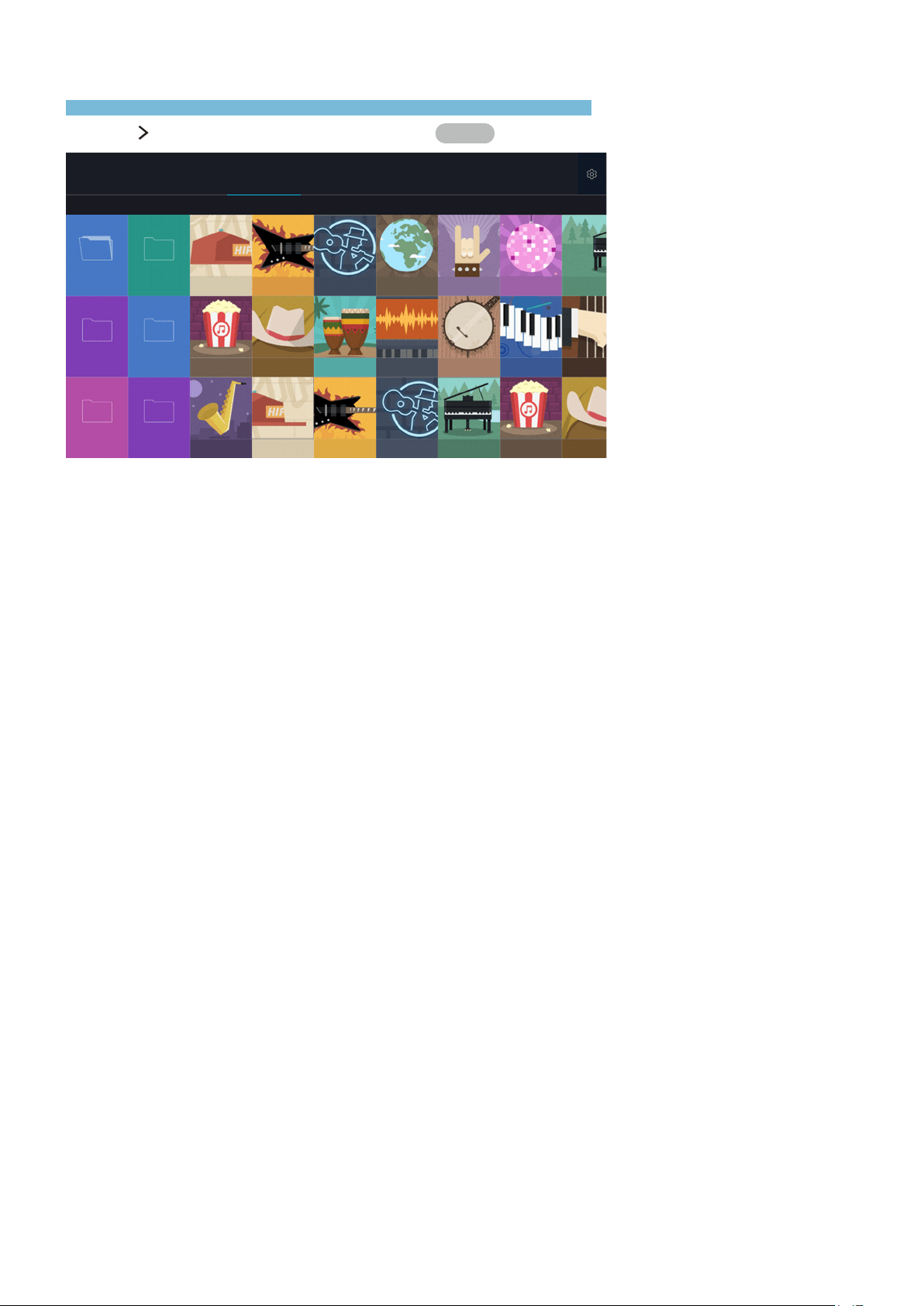
Time
You can display the current time on the screen. Before displaying the current time on the Time panel,
select MENU
More System Time Clock Clock Set to set the clock manually.
38
Playing Photos, Videos, and Music
Play content saved on external storage devices supported by the TV.
SOURCE
selecting an external storage device
Try Now
MY CONTENT
Mobile Device
USB 2 PC Connection Guides
"
Your TV's screen may differ from the image above, depending on the model.
You can play the media content saved on storage devices, such as USB devices, mobile devices, and
cameras, on the TV.
"
You can view a slideshow with JPG or JPEG format photos automatically in the Photos panel.
"
You can play music files directly in the Speaker panel by using Bluetooth.
"
You cannot play media content if the content or the storage device is not supported by the TV. For more
information, refer to 'Read Before Playing Photos, Videos, or Music.'
"
Backup important files before connecting a USB device. Samsung is not responsible for damaged or lost
files.
"
To connect the TV to a computer, refer to 'Connecting a Computer.'
"
To connect the TV to a mobile device, refer to 'Connecting a Mobile Device.'

38 39
Playing Media Content
Playing media content on your computer or mobile device
1.
Press the SOURCE button on the Samsung Smart Remote, and then select a device to play. The
media content list of the device appears.
2.
Select a media content item from the list. The content is played.
"
The content may not be played depending on the encoding type or file format. In addition, several functions
may be restricted.
"
The content may not play smoothly due to network communication issues. If this occurs, put the content on
a USB device, and then connect the device to one of the TV's USB ports.
Playing media content on a USB device
When a device is connected to a USB port, a pop-up message appears. If you select Yes, the media
content list of the device appears. Select the name of the connected device in MY CONTENT, and then
select a media content item from the list. The content is played.
Functions on the media content list screen
You can use the following functions on the media content list screen of a storage device.
●
Filter By
Filters the media content to display the type of media you want.
●
Sort By
Sorts the content list. The sorting methods change depending on the type of content you have
selected.
"
This function is not available when Filter By is set to All.
●
Delete
Deletes the recorded media content from the media content list
"
This function is only available when the storage device has recorded media content.
●
Play Selected
Plays the selected media content from the media content list.
"
This function is not available when Filter By is set to All.

40
Buttons and functions available while viewing photos
You can press the button while viewing photos to display available options. You can also view the
thumbnails of photos saved on the TV while viewing photos.
●
Pause / Play
Starts or stops a slideshow. Using slideshow, you can play all the photos in a folder one by one.
●
Previous / Next
Views the previous or next photo.
●
Screen Fit
Resizes the photo to full screen.
●
Options
Function Description
Slideshow Speed Sets the slideshow speed.
Slideshow Effects Applies transition effects to the slide show.
Zoom & Rotate Zooms in by up to a factor of 4. Rotates the photo.
Background Music
Plays background music while displaying photos.
"
The music files must be saved in the same USB device as the photo files.
"
When background music plays, the music icon appears on the screen. Using the
music icon, you can pause the current music file or play another music file.
Sound Mode
Displays a list of Sound Modes and lets you change the mode.
"
This function is available only when background music is playing.
Speaker List Gives you a choice of which speakers to play the background music through.
Picture Mode Changes the picture mode.
Information Displays detailed information about the current photo.

40 41
Buttons and functions available while viewing videos
You can press the button while viewing videos to display available options. Preview images of the
frames at a regular time interval (every minute of running time, for example) are displayed so that you
can move to a specific frame easily.
●
Pause / Play
The following functions are available while the current program is paused. However, while the
current program is paused, there is no audio output.
–
Step: Allows you to step through the paused video one frame at a time by pressing the
button.
–
Slow Motion: Allows you to play the video at a slow playback speed (1/8, 1/4, 1/2) by
pressing the button.
●
Rewind / Fast Forward
Rewinds or fast forwards the video. To increase the rewind or fast forward speed up, select the
button repeatedly. To restore normal playback speed, press the
button.
●
Previous / Next
Plays the previous or next video. Press the
button twice to play the previous video. Press the
button once to start the current video from the beginning.
Press the
button to play the next video.
●
Repeat
Plays the current video file repeatedly or all video files in the same folder repeatedly.

42
●
Options
Function Description
Picture Size Changes the size of the screen. The supported picture sizes differ with the video.
Subtitles
Controls video subtitles.
●
Subtitles: Turns the subtitles on or off.
●
Language: Sets the caption language.
●
Sync: Adjusts the synchronization when the video and the subtitles are not
synchronized.
●
Reset Sync: Resets the subtitle synchronization adjustment to 0.
●
Size: Changes the font size of the subtitles.
●
Encoding: Displays a list of encoding languages. Allows you to change the
encoding language when subtitles are displayed incorrectly.
Rotate Rotates the video.
Picture Mode Changes the picture mode.
Sound Mode Displays a list of Sound Modes and lets you change the mode.
Speaker List Gives you a choice of speakers to play the video sound through.
Information Displays detailed information about the video.

42 43
Buttons and functions available while playing music
You can use the following functions when you select a music file.
●
Pause / Play
●
Previous / Next
Plays the previous or next music file. Press the
button twice to play the previous music file.
Press the button once to start the current music file from the beginning.
Press the
button to play the next music file.
●
Repeat
Plays the current music file repeatedly or all music files in the same folder repeatedly.
●
Shuffle
Plays the music files in random order.
●
Speaker List
Gives you a choice of speakers to play the music through.
●
Picture Off
Plays the music files with the screen off.

44
Viewing Digital Broadcast Information at a Glance
The Guide provides an overview of each digital channel's program lineup.
Using the guide
MENU More Broadcasting Guide
Try Now
Try Now
You can check the program schedules and set up a Schedule Viewing from the Guide.
"
To select the buttons that appear at the bottom of the screen with the Samsung Smart Remote, place a
finger on the
button. A pointer appears on the screen. Move the pointer to a button, and then press the
button.
"
The information in the Guide is for digital channels only. Analog channels are not supported.
"
To view the Guide, you must first set the TV's clock (MENU More System Time Clock).
To access the Guide functions after launching the Guide, press and hold the button on the remote
control. A popup window listing the following functions appears:
●
Changing the Channel List
Filters the channels displayed in the Channel Filter by the following categories: All, and Favorites
1 - Favorites 5.
●
Moving to Schecdule Manager screen
Displays the Schedule Manager.
●
Adding to Favorites list
Allows you to set a channel that you select in Edit Favorite Channels as a favorite.
●
Viewing detailed program information
Displays detailed information about a selected program. The program information may differ
with the broadcast signal and may not be available at all for certain programs.
–
Select a current program on another channel, and then select View Details to Watch the
program.
–
Select an upcoming program, and then select View Details to set up a Schedule Viewing.
"
For more information about Watch or Schedule Viewing, refer to 'Setting Up a Schedule Viewing.'
"
You can only view programs scheduled after the current time.
TV Viewing
You can enhance your viewing experience by using the specific functions. Get information on TV programs, record programs and manage recorded programs,
create and edit schedule viewing, and use other support functions.

44 45
Changing the broadcast signal
MENU More Broadcasting Antenna
Try Now
You can choose the appropriate DTV mode for your viewing environment. Select Air or Cable. Air is
suitable for homes equipped with a separate, over-the-air antenna. Cable is suitable for homes that
have subscribed to a local cable-service or satellite-service provider.
"
You do not need to use this function if your TV is connected to a cable or satellite box.
Checking digital channel signal info and strength
MENU More Support Self Diagnosis Signal Information
Try Now
You can check a digital channel's signal information and strength.
"
If your TV is attached to a separate, over-the-air antenna, you can use the signal strength information to
adjust the antenna for increased signal strength and improved HD channel reception.
"
This function is only available for digital channels.

46
Setting Up a Schedule Viewing
Configure the TV to show a specific channel or program at a specific time and date.
The
appears next to programs that have been configured for a Schedule Viewing.
"
To set up a Schedule Viewing, you must first set the TV's clock (MENU More System Time
Clock).
Setting Up a Schedule Viewing
Setting up a schedule viewing for a digital channel
●
The Guide Screen
On the Guide screen, use your remote control to highlight, and then select a program you would
like to view.
●
The Program Info Screen
Press the
button while you are watching the TV. The Program Info window appears.
Press the left or right directional button to move to a program you would like to view, and then
press the
button. Select that appears on the Program Info window. The program is
scheduled for viewing.
Setting up a schedule viewing for analog channel
MENU More Broadcasting Schedule Manager
Try Now
You can set up a scheduled viewing for an analog channel. You need to know the channel, day or days
of the week the program is airing, and the time the program is airing.
Editing a schedule viewing
MENU More Broadcasting Schedule Manager
You can edit the time, days, or channel of a schedule viewing.
"
You can set up a maximum total of 30 Schedule Viewing entries.
46 47
Using the Channel List
Change the channel or check programs on other digital channels.
MENU
More Broadcasting Channel List
Try Now
To display the Channel List, place a finger on the button on the Samsung Smart Remote, and then
select the
icon that appears at the right side of the screen. Using the Channel List, you can change
the channel or check programs on other digital channels while watching TV.
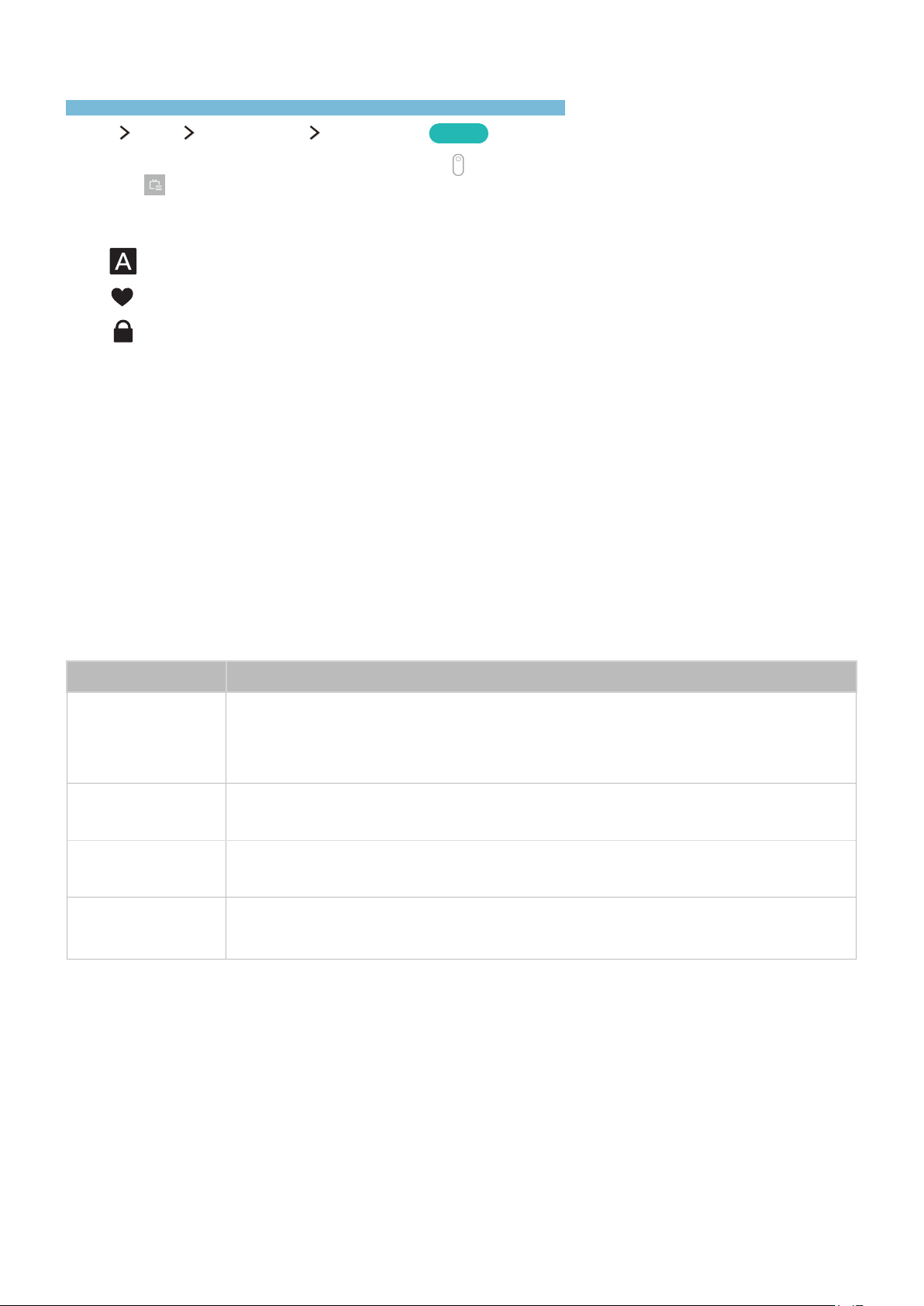
The Channel List screen contains the following icons:
–
: An analog channel
–
: A favorite channel
–
: A locked channel
Press the left directional button. The following functions are available:
●
History
Displays a list of channels that you viewed recently.
●
Add a New List
Allows you to create a new channel list by adding channels from a favorites list.
"
This option is available only if you have registered one or more channels to at least one favorites list.
●
Added Ch.
Displays the selected channel list.
●
Options
Function Description
Antenna
Allows you to select Air or Cable as the DTV mode. Air is suitable for homes equipped
with separate, over-the-air antennas. Cable is suitable for homes that subscribe to a
local cable-service or satellite-service provider. You do not need to use this function if
your TV is connected to a cable or satellite box.
Edit Channel Lists
Allows you to rearrange the order of channels in the channel list or remove channels
from the channel list.
Edit Channel
Allows you to remove channels from the channel index, restore removed channels, and
rename analog channels.
Edit Favorites
Sets favorite channels.
"
For more information, refer to 'Creating a Personal Favorites List.'

48
Registering, Removing, and Editing Channels
Remove channels, restore removed channels, and rename analog channels.
MENU
More Broadcasting Edit Channel
Try Now
The Edit Channel screen icons indicate the following:
●
: An analog channel
●
: A favorite channel
●
: A locked channel
Registering and removing channels
Removing Registered Channels
You can remove a registered channel from the channel index. Move the highlight to a channel, and
then select it to remove it. Repeat to select additional channels. To select all channels, select Options,
and then select Select All from the list. You can also select Deselect All. After you have made your
selections, select Delete.
Adding back removed channels
You can restore channels to the index of channels by adding them back. Select Options to display
a list of options. Select Category from the list, and then select All. To unselect a channel, move the
highlight to the channel, and then select it. To select all channels, select Options, and then select
Select All from the list. You can also select Deselect All. After you have made your selections, select
Add.

48 49
Editing registered channels
You can access the following options by selecting Options at the bottom left of the screen. The
available options may differ with the broadcast signal.
●
Select All / Deselect All
Selects or deselects all channels displayed on the Edit Channel screen.
●
Antenna
Allows you to select Air or Cable as the DTV mode.
●
Category
Displays the channels of a selected category in the list. The channels stored in the TV are
grouped into the following categories: All and Added Ch..
●
Edit Favorites
Sets favorite channels.
"
For more information, refer to 'Creating a Personal Favorites List.'
●
Rename Channel
Renames analog channels. The new name can be up to 5 characters long.
"
This function is only available for analog broadcasts.
●
Information
Displays detailed information about the current program.

50
Using Program Rating Lock
MENU More Broadcasting Program Rating Lock
Try Now
You can block programs based on their ratings by using Program Rating Lock. This function is useful
for controlling what children watch on TV. Program Rating Lock does not block programs originating
from external sources, such as Blu-ray players, DVD players, or USB files.
Every time you access Program Rating Lock, you must enter the security PIN. You must also enter this
PIN to watch a blocked program. The default PIN is 0000. To change the PIN, go to System
Change
PIN.
"
Program Rating Lock may not be supported depending on your input signal.
Blocking programs based on their TV Rating
You can block TV programs based on their rating. To block content, select a rating category to lock.
All programs at that level and higher are blocked and require the PIN to watch. To unblock a category,
select the lock icon. To unblock all the categories in a row, select the lock under ALL.
Categories on the left:
●
TV-Y: Young children
●
TV-Y7: Children 7 and over
●
TV-G: General audience
●
TV-PG: Parental guidance
●
TV-14: Viewers 14 and over
●
TV-MA: Mature audience
Categories on the top:
●
ALL: Lock all TV ratings.
●
FV: Fantasy violence
●
V: Violence
●
S: Sexual situations
●
L: Adult Language
●
D: Sexually Suggestive Dialog

50 51
Blocking movies base on their Movie Rating (MPAA)
You can block movies based on their MPAA rating. This rating system applies to all material with
supplied ratings in the U.S.A.
From the MPAA:
“The Motion Picture Association of America (MPAA) has implemented a rating system that provides
parents or guardians with advanced information on which films are appropriate for children.”
Select a lock beside one of the rating categories to block that category and all higher categories. To
unblock a category, select the lock icon.
●
G: General audience (no restrictions).
●
PG: Parental guidance suggested.
●
PG-13: Parents strongly cautioned.
●
R: Restricted. Children under 17 should be accompanied by an adult.
●
NC-17: No children under age 17.
●
X: Adults only.
●
NR: Not rated.
Blocking programs based on their Canadian English Rating
You can block programs based on their Canadian English Rating. This rating system applies to all rated
material viewed on English-Canadian TV channels.
Select a lock beside one of the rating categories to block that category and all higher categories. To
unblock a category, select the lock icon.
●
C: Programming intended for children under age 8
●
C8+: Programming generally considered acceptable for children 8 years and over to watch on
their own
●
G: General programming, suitable for all audiences.
●
PG: Parental Guidance
●
14+: Programming containing themes or content which may not be suitable for viewers under the
age of 14
●
18+: Adult programming

52
Blocking programs based on their Canadian French Rating
You can block programs based on their Canadian French Rating. This rating system applies to all rated
material viewed on French-Canadian TV channels.
Select a lock beside one of the rating categories to block that category and all higher categories. To
unblock a category, select the lock icon.
●
G: General
●
8 ans+: Programming acceptable for children 8 years and over to watch on their own
●
13 ans+: Programming that may not be suitable for children under the age of 13
●
16 ans+: Programming not suitable for children under the age of 16
●
18 ans+: Programming restricted to adults
Blocking Programs Based on their Downloadable U.S. Rating
You can block programs based on their Downloadable U.S. Rating. This rating system only applies to
material originating from US DTV channels.
Parental restriction information is automatically downloaded while you watch DTV channels. This
download may take several seconds. If the information is unavailable from the broadcasting station,
the Downloadable U.S. Rating menu is deactivated.
Parental restriction levels differ with the broadcasting station. The default menu name and the
Downloadable U.S. Rating name changes depending on the downloaded information.
Even when the on-screen display is set to another language, the Downloadable U.S. Rating menu
appears only in English.
Select a lock beside one of the rating categories to block that category and all higher categories. To
unblock a category, select the lock icon.
Watching blocked / restricted programs
To watch a blocked program, enter the PIN when requested.
When initially showing a restricted program or movie, the screen is blank because the Program Rating
Lock blocks it. Enter the PIN to unblock the program when a message appears requesting the code.

52 53
Creating a Personal Favorites List
Designate frequently watched channels as favorite channels.
Favorite channels are highlighted in the Edit Channel and Channel List screens with the
symbol.
You can create up to 5 favorite channel lists.
Registering channels as favorites
MENU More Broadcasting Edit Favorites
You can register multiple channels as favorites at the same time
1.
Select the channels that you want to add to your Favorites list(s) from the list in the screen.
2.
Select Change Fav. on the screen.
3.
Select Add on the screen. The TV adds the channels you selected to the Favorites list you chose.
Viewing and selecting channels on Favorites lists only
MENU More Broadcasting Channel List
You can flip through only the Favorite list channels and select a channel using the channel up/down
buttons.
1.
Press the left directional button, and then select a favorites list from Favorites 1 to Favorites 5.
2.
Highlight a channel from the selected Favorites list using the channel up/down buttons, and then
select it. The channel changes.
"
A Favorites list can be selected only if it contains at least one favorite channel.

54
Editing a Favorites List
MENU More Broadcasting Edit Favorites
Rename and edit Favorites lists.
Using the Edit Favorites screen menu items
You can access the following options by selecting Options on the Edit Favorites screen.
●
Select All / Deselect All
Selects or deselects all channels saved on the TV.
●
Copy to Favorites
Copies channels from one favorite channels list to another.
"
This option is available only if you have registered one or more channels to at least one Favorites list.
"
For more information, refer to 'Copying channels from one favorites list to another.'
●
Rename Favorites
Renames an existing favorite channels list.
"
This option is available only if you have registered one or more channels to at least one Favorites list.
"
For more information, refer to 'Renaming a favorites list.'
●
Antenna
Allows you to select Air or Cable.
●
Edit Channel
Allows you to manage the channels saved on the TV.
"
For more information, refer to 'Registering, Removing, and Editing Channels.'

54 55
Removing channels from a favorites list
Select Edit Favorites. Select Change Fav. to move to the favorites list that has the channels you want
to remove. Select the channels, and then select Delete.
Rearranging a favorites list
Select Edit Favorites. Select Change Fav. to move to the favorites list that has the channels you want
to rearrange. Select the channels, and then select Change Order. The Change Order highlight appears.
Press the up/down arrow buttons to indicate the new location for the channels. Press the Enter button
to set the channels into their new location.
Renaming a favorites list
Select Options Rename Favorites. Select the favorites list you want to rename. Enter a new name
using the on-screen keyboard that appears, and then select Done. Select OK.
Copying channels from one favorites list to another
Select Edit Favorites. Select Change Fav. to move to the source favorites list, and then select the
channels to copy. Select Options Copy to Favorites. Select the destination favorites list, and then
select OK. Select OK again.
"
Copy to Favorites is only available if there are channels in at least one favorites list.

56
TV-Viewing Support Functions
View the broadcasts more comfortably.
Showing captions
MENU More System Accessibility Caption
Try Now
You can watch TV broadcasts with captions. Press and hold the button on the Samsung Smart
Remote to turn the Caption function on or off.
"
Captions are not displayed by programs that do not support captions.
Enabling captions
Set Caption to On in the Caption menu (MENU More System Accessibility Caption).
"
The TV cannot control or modify DVD or Blu-ray subtitles. To control DVD or Blu-ray subtitles, use the sub-
title feature of the DVD or Blu-ray player and the player's remote control.
Selecting the caption language
MENU More System Accessibility Caption Caption Mode
Select the caption mode in the list. The Caption Mode lists may differ by the broadcasts.
●
Default / CC1 ~ CC4 / Text1 ~ Text4
(Analog channels only) Operates in either analog TV channel mode or when a signal is supplied
from an external device to the TV. (Depending on the broadcast signal, the analog caption
function may or may not work with digital channels.)
●
Default / Service1 ~ Service6 / CC1 ~ CC4 / Text1 ~ Text4
(Digital channels only) Works with digital channels. Service1 – Service6 may not be available in
digital caption mode depending on the broadcast.

56 57
Changing the font color, caption size, and font opacity
You can change the font color, background color, and size settings.
Select MENU
More System Accessibility Caption Digital Caption Options to change a
value in the following caption settings:
●
Size
Changes the font size. Size is not supported by analog channels.
●
Font Style
Changes the font style for the subtitles.
●
Font Color
Changes the font color.
●
Background Color
Changes the caption's background color.
●
Window Color
Selects the color of the digital caption window.
●
Font Opacity
Changes the caption's opacity.
●
Background Opacity
Changes the background's opacity.
●
Window Opacity
Adjusts the transparency level of the digital caption window.
●
Edge Type
Selects the outline type for the digital captions.
●
Edge Color
Selects the color outline for the digital captions.
●
Return to Default
Restores all caption display options to the Default setting. The Default setting applies the TV
station's transmitted settings to the captions.
"
The foreground and background color and opacity settings cannot be the same.

58
Enabling the audio guide for the visually impaired
MENU More System Accessibility Video Description
You can activate the audio guide for the visually impaired. This function is only available with
broadcasts that provide this service. Press and hold the
button on the Samsung Smart Remote to
turn Video Description function on or off.
Scanning for available channels
MENU More Broadcasting Auto Program
Try Now
Automatically scans and indexes all channels received through the TV's antenna input connector.
"
You do not need to use this function if your TV is connected to a cable or satellite box.
"
If the TV has saved channels, Auto Program deletes the existing list, and then saves the newly scanned
channels.
Selecting the broadcast audio language
MENU More Broadcasting Audio Options
Try Now
You can select the TV's audio language. This is the language you will hear while watching TV, if the
language is included in the broadcast signal. Audio Options functions differently for analog and digital
channels.
Selecting the Broadcast Audio Language for Digital Broadcasts
●
Selecting a Language
Try Now
Select Audio Options Preferred Language, and then select a language. Digital programs are
automatically played in the language you selected if the language is included in the broadcast
signal. If the language you selected is not included in the broadcast signal, the TV will use the
default audio language broadcast by the TV station.

58 59
Selecting the Broadcast Audio Language and Other Options for Analog Broadcasts
●
Listening to Multi-Track Sound
Try Now
Select Audio Options Multi-Track Sound. Configure the audio for the current broadcast. Multi-
Track Sound can be set to mono or stereo, depending on the broadcast signal or program. This
option is automatically set to mono if the broadcast signal or program does not support stereo.
Fine-tuning analog broadcasts
MENU More Broadcasting Channel Settings Fine Tune
Try Now
When analog pictures become shaky and full of noise, fine-tune the signal to clear up the picture.
"
This function is only available for analog broadcasts.
Removing pay channels
MENU More Broadcasting Channel Settings Clear Scrambled Channel
Auto Program scans and indexes all channels, both free and pay respectively. You can remove all
scrambled pay channels from the channel list with Clear Scrambled Channel.

60
Adjusting the Picture Quality
Improve your viewing experience by adjusting the picture quality.
Choosing a picture mode
MENU More Picture Picture Mode
Try Now
You can select the picture mode that provides the best viewing experience.
●
Dynamic
Makes the picture clearer when the ambient lighting is so bright that it makes the picture difficult
to see.
●
Standard
Is the default mode suitable for most environments.
●
Natural
Reduces eye strain.
●
Movie
Darkens the screen, reduces glare, and relieves eye fatigue. Use this mode while viewing the TV
in a darkened room or watching a movie.
●
Entertain
Sharpens images for a more dynamic viewing experience.
"
You can select this option only when the Input source is set to PC.
"
When a PC is connected to the TV, but the Entertain mode is not available, set Edit Device Type to DVI
PC or PC.
"
You can also quickly access this function by pressing the MENU button.
Picture and Sound
You can change the picture and sound settings for a better viewing experience. Change the picture and sound settings and use other picture and sound
support functions.

60 61
Adjusting the picture quality
MENU More Picture Backlight, Contrast, Brightness, Sharpness, Color or Tint (G/R)
You can adjust the following picture quality settings manually for each combination of input source
and picture mode.
First select Picture Mode to adjust picture quality, then set the following options:
●
Backlight
Try Now
Adjusts the brightness of individual pixels. Decrease the brightness of the backlight to reduce
power consumption.
●
Contrast
Try Now
Adjusts the screen contrast.
●
Brightness
Try Now
Adjusts the overall brightness.
●
Sharpness
Try Now
Sharpens or dulls the edges of objects.
●
Color
Try Now
Adjusts the overall color saturation.
●
Tint (G/R)
Try Now
Adjusts the ratio of green to red. Increase the green value to saturate the greens and the red
value to saturate the reds.
"
The TV saves the adjusted values for the current input source and picture mode. These values remain in
effect each time you select the same input source and picture mode.
"
The Color and Tint (G/R) settings cannot be adjusted when the TV is connected to a computer via an HDMI-
to-DVI cable.
Applying the current picture settings to other input sources
MENU More Picture Apply Picture Mode
Try Now
You can apply the picture quality settings to the current source and other input sources.
●
All Sources
Applies the settings to all external devices connected to the TV.
●
Current Source
Applies the settings to the current source only.

62
Adjusting advanced settings
MENU More Picture Advanced Settings
Try Now
You can fine-tune how images are displayed on the TV screen for the Standard and Movie picture
modes.
"
Advanced Settings is only available when Picture Mode is set to Standard or Movie.
"
When the TV is connected to a computer via an HDMI-to-DIV cable, only White Balance and Gamma are
available.
●
Dynamic Contrast
Try Now
Automatically adjusts the screen contrast for an optimal contrast setting.
●
Black Tone
Try Now
Adjusts the black color depth.
●
Flesh Tone
Try Now
Darkens or lightens skin tones.
●
RGB Only Mode
Try Now
Adjusts the red, green, and blue levels individually.
●
Color Space
Try Now
Adjusts the range of colors that can be displayed on the screen.
–
Auto: automatically adjusts the color space to match the input signal.
–
Native: applies a range of colors that is wider than the input signal.
–
Custom: Allows you to adjust the color space manually. Select Color, and then change its
Red, Green, and Blue saturations. Reset allows you to restore the default values for Color
Space.
"
You can configure the Color function only when Color Space is set to Custom.
●
White Balance
Try Now
Adjusts the color temperature of the picture to make white objects look white and the overall
picture appear natural.
2 Point: Allows you to adjust red, green, and blue luminosity with the offset menu and
brightness with the gain menu. Reset allows you to restore the default values.
10 Point: Divides red, green, and blue into 10 sections each, and allows you to modify the white
balance by adjusting the brightness of each section. Level allows you to select the section to
adjust.
"
You can use the 10 Point function only when Picture Mode is set to Movie. This function may not be
supported by some external devices.
●
Gamma
Try Now
Adjusts the primary color intensity.

62 63
Adjusting picture options
MENU More Picture Picture Options
Try Now
You can adjust the picture options to optimize your viewing experience.
Select a picture mode, and then adjust the picture options.
●
Color Tone
Try Now
Adjusts the color tone. The color tone you select is stored in the TV's memory. When you change
the current picture mode, the stored color tone is applied to the new picture mode automatically.
"
Cool and Standard are only available when Picture Mode is set to Dynamic.
"
Color Tone is only available when the TV is connected to a computer via an HDMI-to-DVI cable.
●
Digital Clean View
Try Now
Reduces static and ghosting caused by a weak signal. When you select Auto Visualization, the
TV displays the signal strength on the bottom of the screen. Green indicates the best possible
signal.
"
This function is available for analog channels only.
●
MPEG Noise Filter
Try Now
Reduces MPEG noise and improves video quality.
●
HDMI Black Level
Try Now
Compensates for effects caused by a low black level, such as low contrasts and dull colors.
"
This function is only available when the input signal, connected to the TV via an HDMI connector, is set
to RGB444.

64
●
Film Mode
Try Now
Optimizes the picture quality for movies.
"
This function is only available when the input signal is TV or HDMI (1080i).
●
HDMI UHD Color
If an external UHD player is connected to the TV, follow these steps to convert the TV's HDMI
connector to a mode optimized for UHD 50P/60P signals.
"
For the UN40LS001 series models, each HDMI connection can be individually optimized for HDMI UHD
Color. When you connect the TV to the external device that supports only UHD 24 or 30 Hz frequency
or any FHD frequency, the HDMI UHD Color function may not be available. In this case, set HDMI UHD
Color to Off.
"
If you set the HDMI connection to On, the TV turns off and then on automatically.
"
The HDMI connection with HDMI UHD Color set to Off supports up to UHD 50P/60P 4:2:0 input signals,
while the HDMI connection with HDMI UHD Color set to On supports up to UHD 50P/60P 4:4:4 and
4:2:2 input signals. For more information, refer to 'Supported Resolutions for Video Signals.'
●
Auto Motion Plus
Removes blurring and judder from scenes with rapid movement. If you select Custom, you can
configure Blur Reduction and Judder Reduction manually and set LED Clear Motion to On for a
sharper LED image. To return to the default settings, select Reset.
"
This function is only available on certain models.
"
When LED Clear Motion is set to On, the screen appears darker than when it is Off.

64 65
Picture Support Functions
Check the picture support functions.
Viewing a picture-in-picture (PIP)
MENU More Picture PIP
Try Now
While viewing video from an external device such as a Blu-ray player on the main screen, you can
watch a TV broadcast in a picture-in-picture (PIP) window.
●
PIP
Activates/deactivates PIP. Selects the input source for the PIP window.
●
Antenna
Selects Air or Cable as the digital channel mode.
●
Channel
Selects the PIP channel.
●
Size
Sets the PIP window size.
●
Position
Sets the PIP window position.
●
Select Sound
Selects the audio source. To adjust the connected audio device’s volume, you must use the
Sound Share function or connect the audio source to the TV’s HDMI (ARC) port.
"
PIP cannot be used while Smart Hub is running.
"
Playing a game or using the karaoke function on the main screen can result in lower PIP picture quality.
"
The PIP function is only available under the following conditions: 1) The main screen's source is an HDMI
connection. 2) The input resolution is less than FHD (Full HD). The PIP window supports digital channels
only and does not support UHD channels.

66
Changing the picture size and position
Changing the picture size
MENU More Picture Picture Size Picture Size
Try Now
You can change the size of the picture displayed on the TV screen.
●
16:9
Sets the picture size to the 16:9 wide screen format.
●
Zoom
Magnifies 16:9 pictures vertically. A magnified picture can be moved up and down.
●
Custom
Magnifies or shrinks 16:9 pictures vertically and/or horizontally. A magnified or shrunk picture
can be moved left, right, up, and down.
●
4:3
Sets the picture size to the basic 4:3 mode.
[
Do not watch your TV in 4:3 mode for extended periods of time. This action can cause the
black bars, which appear at the top, bottom, left, and right sides of the screen in 4:3 mode to
"burn-in" and appear as temporary or permanent after images on the screen. This damage to
the screen is not covered by your warranty.
"
You can also quickly access this function by pressing the MENU button.
"
Supported picture sizes differ with the input signal. For more information about supported picture sizes,
refer to 'Picture sizes and input signals.'

66 67
Fitting the picture to the screen
MENU More Picture Picture Size Fit to Screen
You can configure the TV so that the full picture fits the screen in the size you have chosen without
any cutoff.
"
This function is not available depending on the Picture Size.
Adjusting the picture position
MENU More Picture Picture Size Zoom/Position
Try Now
You can adjust the picture position.
"
This function is only available when Picture Size is set to Zoom or Custom. However, you cannot change the
picture position when the TV is tuned to a digital channel and Picture Size is set to Custom.
Listening to audio only (Picture Off)
MENU More Picture Picture Off
Try Now
You can turn off the screen and play only audio through the speakers. To turn the screen back on,
press any button other than the Power and Volume buttons.
Resetting the picture mode settings
MENU More Picture Reset Picture
Try Now
You can reset the current picture mode to its factory defaults. This action does not affect the settings
of other picture modes.

68
Adjusting the Sound Quality
Change the Sound Mode and adjust Sound Effects.
Choosing a sound mode
MENU More Sound Sound Mode
Try Now
You can select a sound mode to optimize your listening experience.
●
Standard
Is the default mode suitable for most environments.
●
Music
Emphasizes music instead of voices.
●
Movie
Provides the best sound for movies.
●
Clear Voice
Emphasizes voices.
●
Amplify
Increases the overall intensity of high-frequency sound to help hearing-impaired listeners.
"
You can also quickly access this function by pressing the MENU button.

68 69
Applying sound effects
MENU More Sound Sound Effect
Try Now
You can apply sound effects to alter how the TV emits sound.
●
Virtual Surround
Try Now
Produces sound that makes you feel like you are sitting in a movie theater or concert hall.
●
Dialog Clarity
Try Now
Increases voice intensity to make dialog clearer.
●
Headphone Surround
Experience home theater-like surround sound through your headphones.
"
This function is only available on certain models.
●
Balance
Try Now
Allows you to adjust the sound settings of the left and right speakers for a better sound balance.
To restore the defaults, select Reset.
●
Equalizer
Try Now
Allows you to adjust the loudness of specific frequency ranges to control the richness of the
sound. To restore the defaults, select Reset.
"
This function is only available when Sound Mode is set to Standard.
"
This function is not available when you are listening to audio through external speakers.

70
Using the Sound Support Functions
Select various sound features.
Selecting speakers
123 or MENU More Sound Speaker List
Try Now
You can select which speakers the TV uses for audio output. When you connect multiple Samsung
Multiroom speakers to the TV, you can select some or all of the Samsung Multiroom speakers by
number or location. You can can also use Bluetooth devices for audio output.
"
When Speaker List is set so that sound comes from external speakers only, the Volume buttons and mute
mode and some Sound functions are disabled.
"
The sound quality may be affected by the condition of your wireless network.
"
The Multiroom speaker option is only available when at least one Samsung Multiroom compatible speaker is
connected to the TV.
"
Multiroom speakers are disconnected when you activate Screen Mirroring.
"
The audio from the secondary device(s) may lag behind the audio and video of the main device which is
playing the source content.
"
For more information about the Multiroom function, refer to the Samsung web site. (www.samsung.com
SUPPORT
Firmware Manuals & Downloads)
Listening to TV sound through a Samsung Bluetooth audio device
MENU More Sound Additional Settings TV SoundConnect
You can connect Samsung Bluetooth audio devices to the TV. They must be paired using the TV's
Bluetooth function. For more information on pairing, refer to the Samsung Bluetooth audio device's
operating manual.
●
Add New Device
Adds a new device to the list of paired devices. If Add New Device is set to Off, the connection
signals from new devices are ignored.
●
Samsung Audio Device List
Displays a list of paired Samsung audio devices. Select a device to display its menu options. You
can activate/deactivate the audio device or remove it from the list.
"
This function is only available on certain models.
"
Bluetooth is a short-distance wireless communication protocol allowing information exchange between
connected mobile phones, laptops, earphones and headphones with Bluetooth compatible devices. Before
using a Bluetooth device, refer to 'Read Before Using Bluetooth Devices.'
"
You can't use Bluetooth devices, TV SoundConnect, and the Surround feature simultaneously.

70 71
Listening to the TV through Bluetooth devices
MENU More Sound Additional Settings Bluetooth Audio
You can connect Bluetooth devices to the TV. They must be paired using the TV's Bluetooth function.
For more information on pairing, refer to the Bluetooth device's operating manual.
●
Bluetooth Audio Devices
Displays a list of Bluetooth devices that can be paired with the TV. Select a Bluetooth device
to display its menu options. From this menu, you can activate/deactivate (i.e., pair/unpair) the
Bluetooth device or remove it from the list.
●
Multi-output Audio
Allows you to listen to audio through the TV's speakers and the connected bluetooth devices
simultaneously.
"
This function is only available on certain models.
"
When Multi-Link Screen is terminated, any Bluetooth device connection is disconnected.
"
If the TV fails to find a Bluetooth device, place the device closer to the TV, and then select Refresh.
"
When you turn on a paired Bluetooth device, the TV detects it automatically, and then displays a pop-up
window. Use this pop-up window to activate/deactivate the Bluetooth device.
"
Before using a Bluetooth device, refer to 'Read Before Using Bluetooth Devices.'
Configuring additional functions
MENU More Sound Additional Settings
Try Now
You can personalize the sound quality by adjusting the following settings:
●
HDMI Audio Input Format
Sets the format of the audio input signal so that it is suitable for the external device connected
to the TV's HDMI port.
●
Audio Format
Try Now
Selects the digital audio output (S/PDIF) format. The available formats are dependent on the
input source.
●
Audio Delay
Try Now
Helps correct timing mismatches between the audio and video tracks when you are watching TV
and listening to audio through a digital audio device. You can adjust the delay by up to 250 ms.
●
Dolby Digital Comp
Try Now
Sets the Dolby Digital compression mode.

72
●
HD Audio
Provides the TV sound resampled at HD audio quality.
"
Standard audio signals are sampled at 48 kHz while HD audio signals are sampled at 96 kHz.
"
Some S/PDIF receivers may not be compatible. For incompatible receivers, deactivate HD Audio mode
and use normal audio mode instead.
"
Some external audio players connected via HDMI, Bluetooth, or Wi-Fi networks are not able to play HD
audio signals.
●
Auto Volume
Try Now
Automatically adjusts the TV's volume level when you change channels, video sources, or
content so that the volume level remains the same for all sources. Auto Volume can modify the
volume up to 12 db to equalize the sound. Normal applies a normal level of volume adjustment
and Night applies a slightly lower volume level. This option is ideal for late-night TV viewing.
"
If you want to use the volume control of a connected source device to control the sound, deactivate
Auto Volume. When you use Auto Volume with a source device, the device's volume control may not
function properly.
Specifying the TV's installation type
MENU More Sound Additional Settings TV Installation Type
You can specify the TV's installation type, either No Stand or Stand, to optimize the TV's sound
automatically.
Resetting all sound settings
MENU More Sound Reset Sound
Try Now
Resets all sound settings to the factory defaults.

73
Setting the Time and Using the Timer
Set the TV's clock, sleep timer, and on/off timer.
Setting the current time
MENU More System Time Clock
Try Now
You can set the clock manually or automatically. Once the clock is set, you can view the current time
on the TV anytime. Press the button on the Samsung Smart Remote.
"
The clock must be reset every time the power is disconnected.
Setting the clock using digital broadcast info
MENU More System Time Clock Clock Mode
Try Now
You can have the TV automatically download time information from a digital channel and set the
current time. To activate this function, set Clock Mode to Auto.
"
This function works only when the TV's antenna jack is connected to either an antenna or a cable output
and is receiving digital broadcasts.
"
The accuracy of the time information received may differ with the channel and signal.
"
If the TV is connected to a cable or satellite box through HDMI connectors. you must set the current time
manually.
If the clock is wrong in auto mode...
MENU More System Time Clock Time Offset
Try Now
You can offset the clock in 1-hour increments by as much as -/+ 12 hours if the TV fails to display the
correct automatically set time.
"
Time Offset adjusts the time through a network connection. This function is only available if Clock Mode is
set to Auto and the TV is connected to the Internet though a local area network.
"
Time Offset adjusts the time if the TV fails to receive time information through normal digital broadcast
signals.
Setting the clock manually
MENU More System Time Clock Clock Set
Try Now
You can set the clock manually. Set Clock Mode to Manual, and then input the present date and time.
Time Zone: Select your time zone.
"
This function is only available when the Clock Mode is set to Auto.
DST: Switches the DST (Daylight Saving Time) function on or off.
"
This function is only available when the Clock Mode is set to Auto.
System and Support
You can use the functions for optimizing, protecting, and updating your TV and for various minor useful or required options. Customize various system and
support settings for optimal use.

74
Using the timers
Using the sleep timer
MENU More System Time Sleep Timer
Try Now
You can use this function to automatically shut off the TV after a pre-set period of time.
You can set the timer in 30 minute increments for up to 3 hours.
"
You can also quickly access this function by pressing the MENU button.
Turning on the TV using the on timer
MENU More System Time On Timer
Try Now
You can set On Timer to have the TV turn on automatically at a specific time. You can set up to three
separate configurations: On Timer 1, 2, and 3. On Timer is only available when Clock has already been
set.
●
Setup
Select Off, Everyday, Mon~Fri, Sat~Sun, or Manual. If you select Manual, you can highlight and
select the specific days that you want On Timer to turn on the TV.
●
Time
Sets the time that the TV turns on automatically. See 'Setting the clock manually' under Setting
the Time for time setting instructions.
●
Volume
Specify the volume the TV will set itself to when it turns on.
●
Source
From the list, select a signal source for the TV to use when it turns on. If you want to play
content saved on a USB device or content from an HDMI or Component source, such as a DVD
player, Blue-ray player, or set-top box, connect the device to the TV before you start On Timer
setup. For On Timer to function, you must keep the device connected to the TV.

74 75
●
Antenna
Allows you to select a broadcast signal source, Air or Cable, when Source is set to TV.
●
Channel
Allows you to select a channel when Source is set to TV.
●
Music / Photo
Allows you to specify a USB device folder containing music files in the music field and/or a
folder containing photos in the photo field when Source is set to USB. If you select both a folder
that contains music files and a folder that contains photo files, the TV plays the music files and
displays the photos at the same time.
"
If the folder that you choose has sub-folders, you can select a sub-folder in the same fashion.
"
The slideshow will not start if there is only one image file on the USB device.
"
Folders with long names cannot be selected.
"
Make sure to use different folder names for multiple USB devices.
"
Use a USB memory stick or multi-card reader. On Timer may not work with certain battery-powered
USB devices, MP3 players, or PMPs because the TV may take too long to recognize the device.
Turning off the TV using the off timer
MENU More System Time Off Timer
Try Now
You can set Off Timer to turn off the TV automatically at a specified time.
You can set up three separate configurations: Off Timer 1, 2 and 3. Off Timer is only available when
Clock has already been set.
●
Settings
Select Off, Everyday, Mon~Fri, Sat~Sun, or Manual. If you select Manual, you can select each
specific day.
●
Time
Sets the time that the TV turns off automatically.

76
Using the Screen Burn Protection and Energy Saving
Functions
Protect the screen from screen burn-in and reduce the TV's energy consumption.
Preventing screen burn
MENU More System Auto Protection Time
Try Now
Still images can leave burned-in after-images if left on the screen for a long period of time. You can
use the Screen Burn Protection function to protect the screen from burn-in.
Select a time setting from the list. If a still image is shown on the screen for longer than the time that
you selected, the TV automatically activates the Screen Burn Protection function.
Reducing the energy consumption of the TV
MENU More System Eco Solution
Try Now
You can adjust the brightness level of the TV and prevent overheating to reduce overall power
consumption.
●
Energy Saving
Try Now
Allows you to select a brightness setting from the list to reduce the TV's power consumption.
●
Eco Sensor
Try Now
Automatically adjusts the brightness level of the TV, according to the ambient light level, to
reduce power consumption. If Eco Sensor has adjusted the screen's brightness level, you can
select the Min. Backlight to manually adjust the minimum screen brightness. If the Backlight
value in the Picture menu is changed while the Eco Sensor is running, Eco Sensor will be turned
off.
●
No Signal Power Off
Try Now
Select a length of time from the list. If no signal has been received for the duration you specified,
the TV automatically cuts off the power to reduce power consumption.
●
Auto Power Off
Try Now
Automatically turns off the TV to prevent overheating when the TV remains on for the specified
period of time without any user input.
●
Motion Lighting
Adjusts the brightness in response to on-screen movements to reduce power consumption.
"
This feature is only available when the Picture Mode is set to Standard.
"
This function is deactivated when you adjust a picture quality setting, such as Contrast and Brightness.

76 77
Using Anynet+ (HDMI-CEC)
Connect external devices to the TV and then control them with the TV's remote control.
Anynet+ (HDMI-CEC) lets you use the TV's remote control to control all connected external devices
that support HDMI-CEC. Note that Anynet+ (HDMI-CEC) only works with the TV's remote control.
Setting up Anynet+ (HDMI-CEC)
MENU More System Anynet+ (HDMI-CEC)
Try Now
●
Anynet+ (HDMI-CEC)
Try Now
You can enable or disable Anynet+ (HDMI-CEC). Set to Off to disable all Anynet+ related
features. Set to On to enable all Anynet+ related features.
●
Auto Turn Off
Try Now
When set to Yes, Anynet+ compatible external devices turn off when the TV is turned off.
"
This function is not supported by some Anynet+ compatible devices.
●
Device search
Try Now
Automatically searches for and identifies Anynet+ (HDMI-CEC) compatible external devices that
are connected to the TV.
Using Anynet+ (HDMI-CEC)
Viewing Anynet+ (HDMI-CEC)-compliant devices
After connecting external devices to the TV, select Device search (MENU More System
Anynet+ (HDMI-CEC) Device search). The TV displays a list of Anynet+ (HDMI-CEC)-compliant
devices that you can set up as Anynet+ (HDMI-CEC)-enabled devices (i.e., devices that can be
controlled with the TV's remote control).
To set up an Anynet+ (HDMI-CEC)-compliant device as an Anynet+ (HDMI-CEC)-enabled device, you
must select it on the Source screen. Follow the instructions in the next section.
"
If an external device is set up as both an Anynet+ enabled device (i.e., a device that can be controlled with
the TV's remote control) and a Universal Remote-enabled device (i.e., a device that can be controlled with
the Universal Remote), it can be only controlled with the Universal Remote.

78
Setting up as an Anynet+ (HDMI-CEC)-enabled device
You can access the device's menu with the TV's remote control once control of the device has
switched over to the TV and the TV's remote control.
1.
Press the SOURCE button. The Source screen appears. Select a connected device, and then press
the down directional button.
2.
Select Anynet+ (HDMI-CEC). The selected device is set up as an Anynet+ (HDMI-CEC)-enabled
device. The following menu options are available.
"
The menu options displayed on the menu may differ by external device.
●
Anynet+ (HDMI-CEC)
Sets up the selected device as an Anynet+ (HDMI-CEC)-enabled device, and then displays a list
of all external devices connected to the TV. If you select an external device in the list, it is used
as the input source. If you select View TV, the TV exits Anynet+ (HDMI-CEC) so that you can
watch regular TV without interference from any external device.
Read before connecting an Anynet+ (HDMI-CEC)
"
You can configure the TV's universal remote control to control third-party cable boxes, Blu-ray players, and
home theaters that do not support HDMI-CEC. For more information, refer to 'Controlling External Devices
with the TV Remote - Using the Universal Remote.'
"
Anynet+ cannot be used to control external devices that do not support HDMI-CEC.
"
Anynet+ devices must be connected to the TV with an HDMI cable. Note that some HDMI cables may not
support Anynet+ (HDMI-CEC).
"
The TV remote control may not work under certain circumstances. If this occurs, select the Anynet+ device
again.
"
Anynet+ (HDMI-CEC) works only with external devices that support HDMI-CEC and only when those
devices are either in standby mode or turned on.
"
Anynet+ (HDMI-CEC) can control up to 12 compatible external devices (up to 3 of the same type) except for
home theaters. Anynet+ (HDMI-CEC) can control only one home theater system.
"
To listen to 5.1-channel audio from an external device, connect the device to the TV via an HDMI cable and
connect the home theater system directly to the TV's digital audio output connector.

78 79
Updating the TV’s Software
View your TV’s software version and update it if necessary.
MENU
More Support Software Update
Try Now
You can view your TV’s software version and update it if necessary.
Updating the TV’s software to the latest version
MENU More Support Software Update Update now
Try Now
You can update your TV’s software by downloading the update from the Internet directly to your TV or
copying the update from a USB device that contains it to your TV.
"
This function requires an Internet connection.
"
Save the update package in the USB device's top-level folder. Otherwise, the TV will not be able to locate
the update package.
[
DO NOT turn off the TV’s power until the update is complete. The TV will turn off and on
automatically after completing the software update. All video and audio settings return to the
default settings after a software update.
Updating the TV automatically
MENU More Support Software Update Auto Update
Try Now
If the TV is connected to the Internet, you can have the TV's software update itself automatically while
you are watching the TV. When the background update is completed, it is applied the next time the TV
is used.
"
This function may take a longer time if a different networking function is running concurrently.
"
This function requires an Internet connection.
"
If you agree to the Smart Hub terms and conditions, Auto Update is set to On automatically. If you do not
want the TV's software to update itself automatically, set Auto Update to Off.

80
Protecting the TV from Hacking and Malicious Code
Protect the TV from hacking and malicious code.
MENU
More System Smart Security
You can use Smart Security to protect the TV from hacking and malicious code when it is connected
to the Internet.
Checking the TV and connected storage for malicious code
MENU More System Smart Security Scan
You can scan the TV and connected media to detect the presence of malicious code. If there is no
malicious code detected, a notification window appears on the screen.
If malicious code is detected...
If malicious code is found, the results of the scan will appear on the screen. This result window
displays all malicious code found. You can quarantine (isolate) the code to prevent it from executing.
1.
Select all the malicious code to quarantine.
2.
Select Isolate. These options relocate the selected malicious code to the Isolated List.
"
The Isolated List displays all quarantined malicious code.
Configuring additional functions
MENU More System Smart Security Settings
You can scan your TV for viruses or activate additional security functions, for example, the network
security function.
●
Antivirus
Monitors the TV in real-time to prevent viruses from infecting the TV.
●
Network Security
Protects the TV from hacking to minimize leaks of private information.
●
Camera
Permits the cameras connected to the TV to be used.
●
Microphone
Permits the microphones connected to the TV to be used.
●
Auto Scan
Makes the TV automatically scan itself and any connected storage media when it is turned on.
●
Auto Isolate
Adds malicious codes found during the scanning process to the Isolated List automatically.

80 81
Using Other Functions
Use various minor functions, such as setting a password, enabling game mode, and restoring to
factory settings.
Running the accessibility functions quickly
You can use the Accessibility Shortcuts menu to quickly run the accessibility functions for the
impaired. Press and hold the button on the Samsung Smart Remote. The Accessibility Shortcuts
menu displays the Voice Guide, Video Description, Caption, Menu Transparency, High Contrast,
Enlarge, Learn Remote Control, and Multi-output Audio menu options.
"
Some functions listed in the Accessibility Shortcuts menu are not available in specific countries.
"
Even if Voice Guide is set to Off or the Mute mode is activated, you can run the Voice Guide function from
the Accessibility Shortcuts menu.
Enabling voice guides for the visually impaired
MENU/123 More System Accessibility Voice Guide
You can activate voice guides that describe the menu options aloud to aid the visually impaired. To
activate this function, set Voice Guide to On. With Voice Guide on, the TV provides voice guides for
channel change, volume change, information on current and upcoming programs, schedule viewing,
other TV functions, and various content on Web Browser, in Search, or in MY CONTENT.
"
The Voice Guide is provided in the language that is specified on the Menu Language screen. However, some
languages are not supported by Voice Guide even though they are listed in the Menu Language screen.
English is always supported.
"
If Voice Guide is set to On, the Samsung Smart Remote's motion sensor does not work. To use the motion
sensitivity sensor, set Voice Guide to Off.
Changing the volume, speed, and pitch of the voice guide
You can configure the volume, speed, pitch, and level of the Voice Guide.
●
Volume
Changes the Voice Guide's volume level.
●
Speed
Changes the Voice Guide's tempo.
●
Pitch
Tunes the pitch of the Voice Guide.

82
White text on black background (high contrast)
MENU More System Accessibility High Contrast
You can change major service screens to white text on a black background or change the transparent
TV menus to opaque so that text can be more easily read. To activate this function, set High Contrast
to On.
Adjusting the menu transparency
MENU More System Accessibility Menu Transparency
Try Now
You can adjust the menu's transparency.
"
Setting High Contrast (MENU More System Accessibility High Contrast) to On automatically
switches the menu display mode to opaque. You cannot manually change the Menu Transparency settings.
Enlarging font (for the visually impaired)
MENU More System Accessibility Enlarge
Try Now
You can make the font on the screen larger. To activate this function, set Enlarge to On.
Learning about the remote control (for the visually impaired)
MENU More System Accessibility Learn Remote Control
This function helps individuals with a visual impairment to learn the positions of the buttons on the
remote control. When this function is activated, you can press a button on the remote control and the
TV will tell you its name. To return to the previous screen, press the RETURN button twice. To exit,
press the EXIT button twice.
"
This function is only available in the U.S.A. and Canada.
Listening to the TV through Bluetooth devices (for the hearing
impaired)
MENU More System Accessibility Multi-output Audio
With this function active, you can listen to the TV's audio through the TV's speaker and through a
Bluetooth device at the same time. When you adjust the TV's volume, you can set the volume of the
Bluetooth device separately so that it is louder than the volume of the TV's speakers.
"
This function is only available on certain models.
"
You can also access this function by selecting MENU More Sound Additional Settings Bluetooth
Audio
Multi-output Audio.
"
When you connect the Bluetooth devices to the TV, the Multi-output Audio menu is activated. For more
information about connecting Bluetooth devices to the TV, refer to 'Listening to the TV through Bluetooth
devices.'

82 83
Changing the menu language
MENU More System Menu Language
Try Now
You can use this function to change the menu language. Choose a language from the list.
Setting up a password
MENU More System Change PIN
Try Now
You can set a Personal Identification Number (PIN) to lock channels, reset the TV, and change TV
settings.
The PIN input window appears. Enter a PIN. Enter it again to confirm it. The default PIN is 0000.
"
If you forget your PIN, you can reset it with your remote control. With the TV turned on, press the following
buttons on the remote control in the order shown to reset the PIN to 0000:
Checking Notifications
MENU More System Notifications
Try Now
You can view the list of event messages generated by the TV. Notifications appear on the screen when
events such as an update release for an app or Samsung Account login/logout occurs.
"
To delete all notifications, select Delete All.
"
To check the SMART TV's service notifications in a Web Browser, select Service Notice.
Enabling game mode
MENU More System General Game Mode
Try Now
You can enable the game mode to optimize the TV's settings for playing video games with a gaming
console, such as a PlayStation™ or Xbox™.
"
Game mode is not available for normal TV viewing.
"
The screen may shake somewhat.
"
Picture Mode and Sound Mode are switched to Game automatically.
"
To use a different external device, first disconnect the game console and disable Game Mode.

84
Richer colors and superior picture quality (BD Wise)
MENU More System General BD Wise
Try Now
You can enhance colors and picture quality when you connect a Samsung DVD player, Blu-ray player,
or home theater system that supports BD Wise using an HDMI cable. When BD Wise is enabled, it
automatically optimizes the TV's resolution.
"
This function is only available when the external device is connected via an HDMI cable.
Enabling/Disabling sound feedback
MENU More System General Sound Feedback
Try Now
You can use Sound Feedback to get audio cues as you navigate through menus and select menu
options.
Locking/Unlocking the Control Stick
MENU More System General Panel Lock
Try Now
You can lock and unlock the front panel buttons (menu, channel, and volume) of the TV and the
control stick on the back of the TV.
Showing/Hiding the Samsung logo while booting
MENU More System General Boot Logo
Try Now
You can enable or disable the Samsung logo display that appears when the TV starts up.
"
This function is not available when Samsung Instant On is set to On.
Enabling the TV to boot faster
MENU More System General Samsung Instant On
You can set Samsung Instant On to On so that the TV boots up faster.
"
To save the history of the apps that you have used in the TV, set Samsung Instant On to On.
"
When turned on, the Samsung Instant On function will continue to work as long as the TV has power. If you
disconnect and then reconnect the power cord, or there is a power failure, and you then turn on the TV, this
function does not work and must be reset.
"
Even if the Samsung Instant On function is On, power consumption while the TV is turned off meets the
standby power consumption specification presented on the product label.

84 85
Registering the TV as a DivX-certified device (watching for-pay
DivX movies)
MENU More System DivX® Video On Demand
You can watch DivX DRM protected movies on the TV only if it is registered as a DivX-certified device.
1.
Select System DivX® Video On Demand. A window with a registration code appears on the
screen.
2.
Visit the DivX website on a computer and click [Register Your Device] under [Support] from the
top menu.
3.
Enter the registration code shown on the TV's screen in the [Enter your registration code] field.
4.
Enter the TV's name in the [Name your device] field, and then click [NEXT].
5.
Click [DOWNLOAD], and save the [device_name.divx] file.
6.
Transfer the [device_name.divx] file from the computer onto a USB device, and then plug the USB
device into the TV.
7.
Play the [device_name.divx] file on the TV to register the TV as a DivX-certified device.
"
Digital Rights Management (DRM) functions as a technical security mechanism to protect the content
provider's copyright.
"
You can watch recorded movies or free DivX movies without registration.
"
Visit the DivX website (http://www.divx.com) and log in to your user account before registering the TV as a
DivX-certified device. If you do not have an account, create one.
Restoring the TV to the factory settings
MENU More Support Self Diagnosis Reset
Try Now
You can restore all TV settings (excluding the Internet and network settings) to the factory defaults.
1.
Select Reset. The security PIN entry window appears.
2.
Enter the security PIN, and then select Yes. All settings are then reset. The TV turns off and on
again automatically and displays the initial setup screen.
"
For more information about initial setup, refer to the user manual included with the TV.
Using the TV as a display model (for retail stores)
MENU More Support Use Mode
Try Now
You can turn the TV into a display model for retail environments by setting Use Mode to Store Demo.
"
For all other uses, select Home Use.
"
With Store Demo, some functions are disabled, and the TV automatically resets itself after a preset amount
of time.

86
Getting support through Remote Management
Get support directly from Samsung when you need help diagnosing your TV.
MENU
More Support Remote Management
Try Now
You can use this feature to let Samsung Electronics diagnose your TV remotely when you need
assistance with your TV.
You will need to read and agree to the service agreement before using this feature.
"
This feature is only available when your TV is connected to the Internet.
What is Remote Support?
Samsung Remote Support service offers you one-on-one support with a Samsung Technician who can
remotely:
●
Diagnose your TV
●
Adjust the TV settings for you
●
Perform a factory reset on your TV
●
Install recommended firmware updates
How does Remote Support Work?
You can easily have a Samsung Tech service your TV remotely:
1.
Call the Samsung Contact Center, and then ask for remote support.
2.
Open the menu on your TV, and then go to the Support section.
3.
Select Remote Management, then read and agree to the service agreements. When the PIN
screen appears, provide the PIN number to the agent.
4.
The agent will then access your TV.
Finding the contact information for service
MENU More Support Contact Samsung
You can view the address of the Samsung website, the call center phone number, your TV's model
number, your TV's software version, the Smart Hub info, and other information you may need to get
service support from a Samsung call agent or the Samsung website.
"
To view the Open Source License, press the 123 button on the Samsung Smart Remote, and then select the
button.
Requesting service
MENU More Support Request Support
You can request service when you encounter a problem with the TV. Select the item matching the
problem that you encountered, and then select Send.
"
This function is only available when you agree to the service agreement.
Troubleshooting
You can get remote or offline support for a problem with your TV, or try to troubleshoot known problems. Get remote support or find contact information for
offline service.
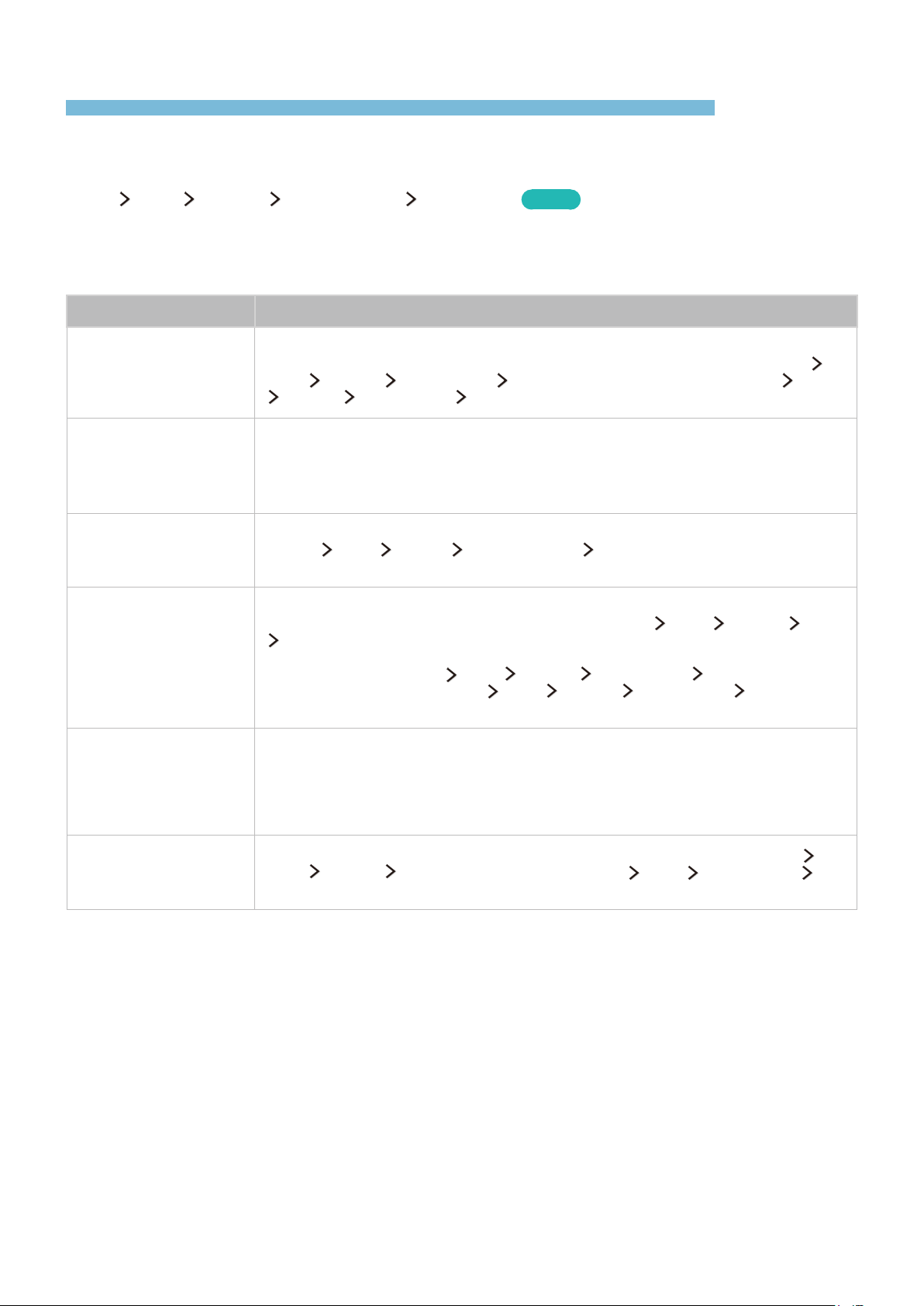
86 87
There Is a Problem with the Picture
When the TV has trouble with the picture, these steps may help resolve the problem.
Testing the picture
MENU More Support Self Diagnosis Picture Test
Try Now
Before you review the list of problems and solutions below, use Picture Test to determine if the
problem is caused by the TV. The Picture Test displays a high definition test picture you can examine
for flaws or faults.
The problem Try this!
Flickering and Dimming
If your Samsung Television is flickering or dimming sporadically, you may need to
disable some of the energy efficiency features. Disable Energy Saving (MENU
More System Eco Solution Energy Saving) or Eco Sensor (MENU More
System Eco Solution Eco Sensor).
Screen Brightness
If the colors on your Samsung TV are correct but just a little too dark or bright, try
adjusting the following settings first.
●
Go to the Picture menu and adjust the Backlight, Contrast, Brightness,
Sharpness, Color, and Tint (G/R) settings.
Auto Motion Plus/Blur
If you notice ghosting or blurring on the screen, use the Auto Motion Plus function
(MENU
More Picture Picture Options Auto Motion Plus) to resolve the
issue.
Unwanted Powering
Off
If your Samsung TV appears to turn off by itself, try disabling some of the TV's
energy efficiency functions. See if Sleep Timer (MENU
More System Time
Sleep Timer) has been enabled. The Sleep Timer automatically turns the TV off
after a specified period of time. If the Sleep Timer has not been enabled, see if No
Signal Power Off (MENU More System Eco Solution No Signal Power
Off) or Auto Power Off (MENU More System Eco Solution Auto Power
Off) has been enabled and disable them.
Problems Powering On
If you are having problems powering on your Samsung television, there are a
number of things to check before calling service. Confirm that the TV's power
cord is connected correctly at both ends and that the remote control is operating
normally. Make sure that the antenna cable or cable TV cable is firmly connected.
If you have a cable/satellite box, confirm that it is plugged in and turned on.
Unable to find a
Channel
If your TV is not connected to a cable box or satellite box, run Setup (MENU
More System Setup) or Auto Program (MENU More Broadcasting
Auto Program).

88
The problem Try this!
The TV image does not
look as good as it did
in the store.
Store displays are all tuned to digital, HD (high definition) channels.
If you have an analog cable or satellite box, upgrade to a digital cable or satellite
box. Use HDMI cable to deliver HD (high definition) picture quality.
Many HD channels are upscaled from SD (Standard Definition) content. Look for a
channel that is broadcasting true HD content.
●
Cable or satellite subscribers: Try HD channels from the channel lineup.
●
Air or cable antenna connection: Try HD channels after running the Auto
Program function.
Adjust the cable or satellite box's video output resolution to 1080i or 720p.
The picture is distorted.
The compression of video content may cause picture distortions, especially in fast
moving pictures from sports programs and action movies.
A weak or bad quality signal can cause picture distortions. This is not an issue
with the TV.
Mobile phones used close to the TV (within 3 ft/1 m) may cause noise in analog
and digital channels.
The color is poor or
the picture is not bright
enough.
Go to the Picture menu and then adjust the Picture Mode, Brightness, Sharpness,
and Color settings.
See if Energy Saving (MENU
More System Eco Solution Energy Saving)
has been enabled.
Try resetting the picture. (MENU
More Picture Picture Reset)
There is a dotted line
on the edge of the
screen.
Change Picture Size to 16:9.
Change the cable or satellite box resolution.
"
If the test picture does not appear or there is noise or distortion, the TV may have a problem. Contact
Samsung’s Call Center for assistance.
"
If the test picture is displayed properly, there may be a problem with an external device. Please check the
connections. If the problem persists, check the signal strength or refer to the external device’s user manual.
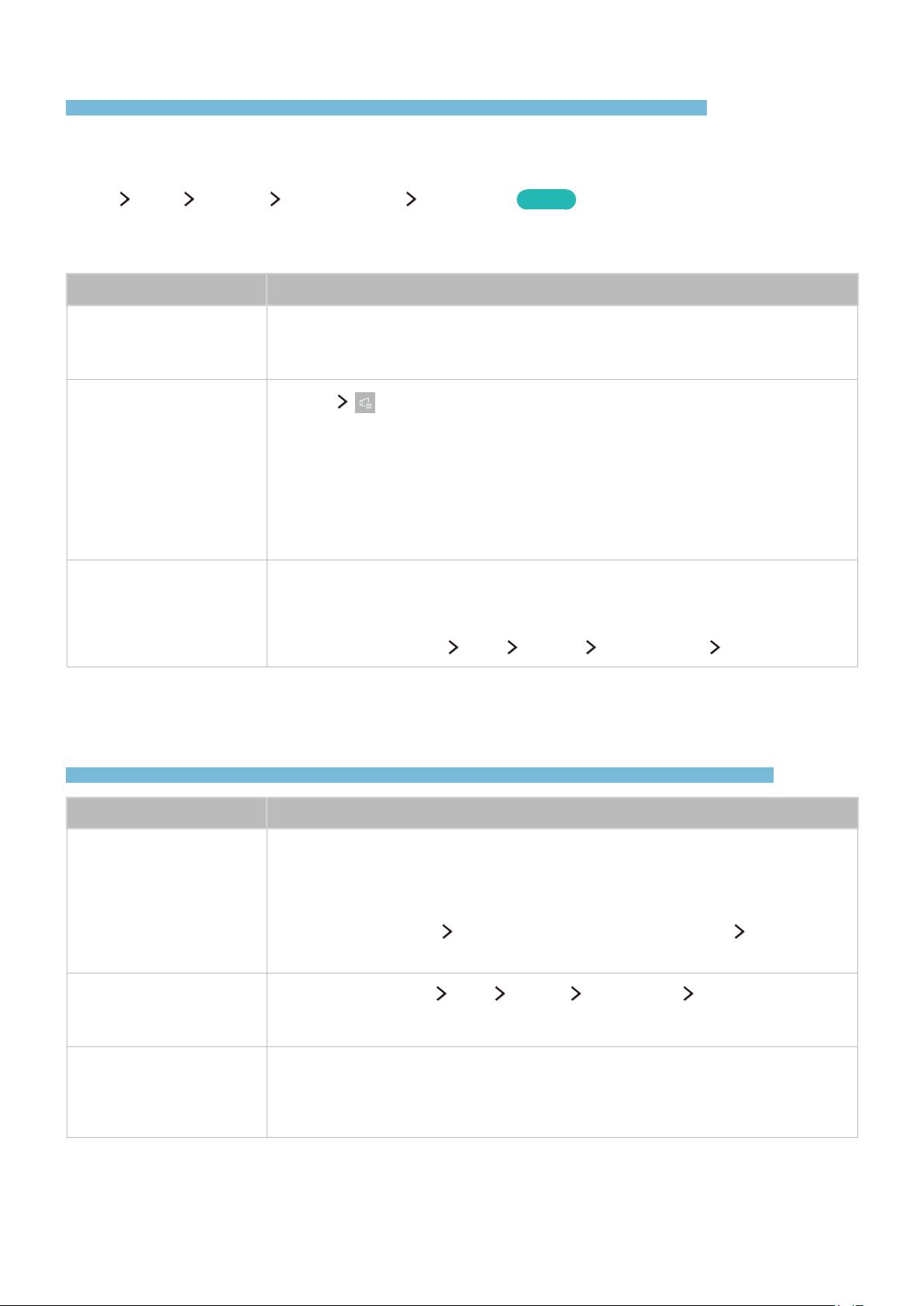
88 89
I Can't Hear the Sound Clearly
When the TV has difficulties with sound, these steps may help resolve the problem.
Testing the sound
MENU More Support Self Diagnosis Sound Test
Try Now
If the TV plays the Sound Test melody without distortion, there may be a problem with an external
device or the broadcast signal's strength.
The problem Try this!
There is no sound or
the sound is too low at
maximum volume.
Check the volume control of the device (cable/satellite box, DVD, Blu-ray, etc.)
connected to your TV.
The picture is good but
there is no sound.
Set 123
to TV Speaker.
If you are using an external device, check the device’s audio output option. (For
example, you may need to change your cable or satellite box’s audio option to
HDMI if the box connected to your TV is using an HDMI cable.)
To listen to computer sound, connect an external speaker to the computer’s
audio output connector.
If your TV has a headphone jack, make sure there is nothing plugged into it.
Reboot the connected device by disconnecting and then reconnecting the
device’s power cable.
The speakers are making
an odd sound.
Make sure that the audio cable is connected to the correct audio output
connector on the external device.
For antenna or cable connections, check the signal information. A low signal
level may cause sound distortions.
Run Sound Test (MENU
More Support Self Diagnosis Sound Test).
There Is a Problem with the Broadcast
When the TV has difficulties receving broadcasts, these steps may help resolve the problem.
The problem Try this!
The TV is not receiving
all channels.
If your TV is not connected to a cable box or satellite box:
●
Confirm that the coaxial cable is securely connected to the TV.
●
If you are using an antenna, verify it is positioned correctly and all the
connections are secure.
●
Run Setup (System
Setup) or Auto Program (Broadcasting Auto
Program).
There are no captions
with digital channels.
Go to Caption (MENU
More System Accessibility Caption) and change
the Caption Mode.
Some channels may not have caption data.
The picture is distorted.
The compression of the video content may cause picture distortions. This is
especially true with fast moving pictures from sports programs and action
movies.
A weak signal can cause picture distortions. This is not a problem with the TV.

90
My Computer Won't Connect
When the TV has difficulties connecting to a PC, these steps may help resolve the problem.
The problem Try this!
The "Mode Not
Supported" message
appears.
Set your PC’s output resolution so it matches a resolution supported by the TV.
The video is OK but
there is no audio.
If you are using an HDMI connection, check the audio output setting on your PC.
If you are using an HDMI-to-DVI cable, a separate audio cable is required.
I Can't Connect to the Internet
When the TV has difficulties connecting to the Internet, these steps may help resolve the problem.
The problem Try this!
The wireless network
connection failed.
Confirm your wireless modem/router is on and connected to the Internet.
The software update
over the Internet has
failed.
Check the network connection status.
If the TV is not connected to a network, connect to a network.
The upgrade stops if you already have the latest software version.

90 91
Anynet+ (HDMI-CEC) Isn't Working
When Anynet+ (HDMI-CEC) isn't working, these steps may help resolve the problem.
The problem Try this!
Anynet+ does not
work.
Confirm that the device is an Anynet+ device. The Anynet+ system supports
Anynet+ devices only.
Check if the power cord of the Anynet+ device is properly connected.
Check the cable connections of the Anynet+ device.
Go to Anynet+ (HDMI-CEC) (MENU
More System Anynet+ (HDMI-CEC))
and see if Anynet+ (HDMI-CEC) has been set to On.
Check whether the TV remote control is in TV mode.
Check whether the remote control is Anynet+ compatible.
Anynet+ may not function when some other functions are active, including Channel
Search, Smart Hub, Plug & Play, etc.
If you have disconnected and then reconnected the HDMI cable, scan for devices
again or turn your TV off and on.
I want to start
Anynet+.
Check if the Anynet+ device is properly connected to the TV, and then select the
Anynet+ (HDMI-CEC) (MENU
More System Anynet+ (HDMI-CEC)) menu to
see if Anynet+ (HDMI-CEC) is set to On.
I want to exit Anynet+.
Select View TV from the Anynet+ menu.
Select a non-Anynet+ device from the Source list.
The message
"Connecting to
Anynet+ device..."
or "Disconnecting
from Anynet+ device"
appears on the screen.
You cannot use the remote control when the TV is configuring Anynet+ or
switching to a viewing mode. Use the remote control after the TV has completed
the Anynet+ configuration or has switched to a viewing mode.
The Anynet+ device
won't play.
You cannot use the play function when Setup is in progress.
The connected device
is not displayed.
Check whether the device supports Anynet+.
Check whether the HDMI cable is properly connected.
Go to Anynet+ (HDMI-CEC) (MENU
More System Anynet+ (HDMI-CEC))
and see if Anynet+ (HDMI-CEC) has been set to On.
Scan for Anynet+ devices again.
Anynet+ devices must be connected to the TV using an HDMI cable. Make sure the
device is connected to your TV with an HDMI cable. Some HDMI cables may not
support Anynet+.
If the connection is terminated because there has been a power failure or the HDMI
cable has been disconnected, please scan for the device again.
The TV audio is not
being played through
the receiver.
Connect an optical cable to the TV and the receiver.
ARC enables the TV to output digital sound via the HDMI (ARC) port.
However, ARC is only available when the TV is connected to an audio receiver that
supports ARC.
92
I Have Trouble Launching/Using Apps
When apps aren't working, these steps may help resolve the problem.
The problem Try this!
I launched an app,
but it's in English.
How can I change the
language?
Languages supported by the app may be different from the user interface language.
The ability to change the language depends on the service provider.
My application is not
working.
Check with the service provider.
Refer to the Help section on the application service provider's website.
My File Won't Play
When files aren't playing, this step may help resolve the problem.
The problem Try this!
Some files can't be
played.
This problem may occur with high-bitrate files. Most files can be played back, but
you might experience problems with high-bitrate files.
I Want to Reset the TV
Use these steps to reset the TV.
Reset Path Description
Reset Settings
MENU
More Support
Self Diagnosis Reset
Resets Picture, Sound, Channel, Smart Hub, and all other
settings, except for the network settings, to the default
settings.
Reset Smart
Hub
MENU
More Smart
Hub Reset Smart Hub
Resets all Smart Hub settings to their factory defaults
and deletes all information related to Samsung accounts,
linked service accounts, Smart Hub service agreements,
and Smart Hub applications.

92 93
Other Issues
Use these procedures to resolve other issues which may occur.
The problem Try this!
The TV is hot.
Watching TV for an extended period of time causes the panel to generate heat.
The heat from the panel is dissipated through internal vents running along the
top of the TV. The bottom, however, may feel hot to the touch after extended
use. Children watching TV need constant adult supervision to prevent them from
touching the TV. This heat, however, is not a defect and does not affect the TV's
functionality.
The picture won’t
display in full screen.
HD channels will have black bars on either side of the screen when displaying
upscaled SD (4:3) content.
Black bars will appear at the top and bottom of the screen when you watch
movies that have aspect ratios different from your TV.
Adjust the picture size options on your external device or set the TV to full
screen.
The "Mode Not
Supported" message
appears.
The output resolution of the attached device is not supported by the TV. Check
the TV's supported resolutions and adjust the external device’s output resolution
accordingly.
The Captions item in the
TV menu is grayed out.
You cannot select the Caption menu if you have selected a source connected to
the TV via HDMI cable. To view captions, turn on the external device's caption
function.
The TV smells of plastic. This smell is normal and will dissipate over time.
The Signal Information
option under Self
Diagnosis isn't activated.
Verify that the current channel is a digital channel.
Signal Information is only available for digital channels.
The TV is tilted to the
side.
Remove the base stand from the TV and reassemble it.

94
The problem Try this!
The Broadcasting option
has been deactivated.
Broadcasting is only available when the Source is set to TV.
The Broadcasting menu cannot be accessed while you watch TV using a cable
box or satellite receiver.
The settings are lost
after 5 minutes or every
time the TV is turned off.
If the Use Mode is set to Store Demo, the TV's audio and video settings are
automatically reset every 5 minutes.
Change the Use Mode (MENU
More Support Use Mode) to Home Use.
There is an intermittent
loss of audio or video.
Check the cable connections and reconnect them.
Loss of audio or video can be caused by using overly rigid or thick cables.
Make sure the cables are flexible enough for long term use. If you are mounting
the TV on a wall, we recommend using cables with 90-degree connectors.
There are small particles
on the TV's bezel.
This is part of the product’s design and is not a defect.
The PIP menu is not
available.
PIP functionality is only available when you are viewing video from an HDMI
source on the main screen.
A POP (TV’s internal
banner ad) appears on
the screen.
Change the Use Mode (MENU
More Support Use Mode) to Home Use.
The TV is making a
popping noise.
The expansion and contraction of the TV's outer casing may cause a popping
noise. This does not indicate a product malfunction. The TV is safe to use.
The TV is making a
humming noise.
Your TV utilizes high-speed switching circuits and high levels of electrical
current. Depending on the TV's brightness level, the TV may seem slightly
noisier than a conventional TV.
Your TV has undergone strict quality control procedures that meet our
demanding performance and reliability requirements.
Some noise coming from the TV is considered normal and is not an acceptable
cause for an exchange or refund.

95
Supported Resolutions for each of UHD Input Signals
Check the resolution of the input signal UHD.
●
Resolution: 3840x2160p, 4096x2160p
"
The HDMI connection with HDMI UHD Color set to Off supports up to UHD 50P/60P 4:2:0 input signals,
while the HDMI connector with HDMI UHD Color set to On supports up to UHD 50P/60P 4:4:4 and 4:2:2
input signals.
If HDMI UHD Color is set to Off
Frame rate (fps)
Color Depth
/ Chroma
Sampling
RGB 4:4:4 YCbCr 4:4:4 YCbCr 4:2:2 YCbCr 4:2:0
50 / 60 8 bit - - - O
If HDMI UHD Color is set to On
Frame rate (fps)
Color Depth
/ Chroma
Sampling
RGB 4:4:4 YCbCr 4:4:4 YCbCr 4:2:2 YCbCr 4:2:0
8 bit O O O O
50 / 60 10 bit - - O O
12 bit - - O O
Precautions and Notes
You can get instructions and information that you should read before using various functions. Read instructions and information that you need to know, and
view license information and look for the definitions of terms.

96
Read Before Using Apps
Read this information before using Apps.
●
Due to the product characteristics featured on Samsung Smart Hub, as well as limitations in
available content, certain features, applications, and services may not be available on all devices
or in all territories. Some Smart Hub features may also require additional peripheral devices
or membership fees. Visit http://www.samsung.com for more information on specific device
information and content availability. Services and content availability are subject to change
without prior notice.
●
Samsung Electronics takes no legal responsibility whatsoever for any interruption of app services
caused by the service provider for any reason.
●
Application services may be provided in English only and available content may differ with the
geographical area.
●
For more information about applications, visit the applicable service provider's website.
●
An unstable Internet connection may cause delays or interruptions. In addition, applications
may terminate automatically depending on the network environment. If this occurs, check your
Internet connection and try again.
●
Application services and updates may become unavailable.
●
Application content is subject to change by the service provider without prior notice.
●
Specific services may differ with the version of the application installed on the TV.
●
An application's functionality may change in future versions of the application. If this occurs, run
the application's tutorial or visit the service provider's website.
●
Depending on the service provider's policies, certain applications may not support multitasking.

96 97
Read Before Using the Web Browser
Read this information before using the Web Browser.
●
Select Web Browser. The browsing screen may differ from the one on your computer.
●
The Web Browser is not compatible with Java applications.
●
You can download the supported types of files, such as videos, mp3 files, and images, but
you cannot download files that are not supported by the TV. If you attempt to download an
unsupported file, you will receive an error message instead.
●
The Web Browser may not be able to access certain websites.
●
Flash player is not supported.
●
E-commerce for online purchases is not supported.
●
With websites that have scrollable windows, scrolling a window can result in corrupted
characters.
●
ActiveX is not supported.
●
Only a limited number of fonts are supported. Certain symbols and characters may not be
displayed properly.
●
The response to remote commands and the resulting on-screen display may be delayed while a
webpage is loading.
●
Loading a webpage may be delayed or suspended completely with certain operating systems.
●
The copy and paste operations are not supported.
●
When composing an email or a simple message, certain functions such as the font size and color
selection may not be available.
●
There is a limit to the number of bookmarks and the size of the log file that can be saved.
●
The number of windows that can be opened concurrently differs with the search conditions and
the TV model.
●
The web browsing speed will differ with the network environment.
●
The Web Browser supports .mp3 audio files only.
●
If the Clock (MENU More System Time Clock) has not been set, the browsing history
will not be saved.
●
The browsing history is saved from latest to oldest, with the oldest entries being overwritten
first.
●
Depending on the types of video/audio codecs supported, it might not be possible to play
certain video and audio files while playing Flash content.
●
Video sources from PC-optimized streaming service providers may not play properly on our
proprietary Web Browser.
●
Using the on- screen QWERTY keypad automatically disables PIP (except when you are entering
a URL).

98
Read Before Playing Photos, Videos, or Music
Read this information before playing content saved on external devices.
Limitations on use of photos, videos, and music
●
The TV supports MSC (Mass Storage Class) USB devices only. MSC is a class designation for
mass storage devices. Types of MSC devices include external hard drives, flash card readers,
and digital cameras. (USB hubs are not supported.) These kinds of devices must be connected
directly to the TV's USB port. The TV may not be able to recognize the USB device or read the
files on the device if it is connected to the TV via a USB extension cable. Do not disconnect the
USB device while transferring files.
●
When connecting an external hard drive, use the USB (HDD) port. We recommend that you use
an external hard drive with its own power adapter.
●
Certain digital cameras and audio devices may not be compatible with the TV.
●
If there are multiple USB devices connected to the TV, the TV might not be able to recognize
some or all the devices. USB devices that use high-power input should be connect to the USB [5V,
1A] port.
●
The TV supports the FAT, exFAT, and NTFS file systems.
●
After sorting files in the Folder view mode, the TV can display up to 1,000 files per folder. If the
USB device contains more than 8,000 files and folders, however, some files and folders might
not be accessible.
●
The PTP (pier to pier) connection mode is available only for digital cameras. If you connect a
smartphone or tablet to the TV using PTP mode, the TV will not recognize it.
●
The USB 3.0 type is not supported.
●
Certain files, depending on how they are encoded, may not play on the TV.
●
Certain files are not supported on all models.

98 99
Supported external subtitles
Name Format
MPEG-4 Timed text .ttxt
SAMI .smi
SubRip .srt
SubViewer .sub
Micro DVD .sub or .txt
SubStation Alpha .ssa
Advanced SubStation Alpha .ass
Powerdivx .psb
SMPTE-TT Text .xml
Supported internal subtitles
Name Container
Xsub AVI
SubStation Alpha MKV
Advanced SubStation Alpha MKV
SubRip MKV
VobSub MKV
MPEG-4 Timed text MP4
TTML in smooth streaming MP4
SMPTE-TT Text MP4
SMPTE-TT PNG MP4

100
Supported image formats and resolutions
File extension Format Resolution
*.jpg
*.jpeg
JPEG 15360x8640
*.png PNG 4096x4096
*.bmp BMP 4096x4096
*.mpo MPO 15360x8640
Supported music formats and codecs
File
extension
Format Codec Note
*.mp3 MPEG MPEG1 Audio Layer 3
*.m4a
*.mpa
*.aac
MPEG4 AAC
*.flac FLAC FLAC
Supports up to 2 channels
*.ogg OGG Vorbis
Supports up to 2 channels
*.wma WMA WMA
Supports up to 10 Pro 5.1 channels.
WMA lossless audio is not supported.
Supports up to the M2 profile.
*.wav wav wav
*.mid
*.midi
midi midi
Supports type 0 and type 1.
Seek is not supported.
Supports USB device only.
*.ape ape ape
*.aif
*.aiff
AIFF AIFF
*.m4a ALAC ALAC

100 101
Supported video codecs
File
format
Container Video codecs Resolution
Frame rate
(fps)
Bitrate
(Mbps)
Audio codecs
H.264 BP/MP/HP
4096x2160
4096X2160: 24
3840X2160: 30
40
HEVC (H.265 - Main, Main10,
Main4:2:2 10 )
60 80
*.avi
*.mkv
Motion JPEG 3840x2160 30 80
*.asf
*.wmv
MVC
*.mp4
*.mov
AVI
MKV
DivX 3.11 / 4 / 5 / 6
*.3gp
*.vro
ASF
MP4
MPEG4 SP/ASP 60
Dolby Digital
LPCM
*.mpg
*.mpeg
*.ts
3GP
MOV
FLV
Window Media Video
v9(VC1)
ADPCM(IMA, MS)
AAC
HE-AAC
*.tp
*.trp
VRO
VOB
MPEG2 1920x1080
WMA
Dolby Digital Plus
*.mov
*.flv
PS
TS
MPEG1 20
MPEG(MP3)
DTS(Core, LBR)
*.vob
*.svi
SVAF
Microsoft MPEG-4 v1, v2, v3
G.711(A-Law,
μ-Law)
*.m2ts
*.mts
Window Media Video
v7(WMV1) ,v8(WMV2)
30
*.divx
H.263 Sorrenson
VP6
*.webm WebM
VP8 1920x1080 60
Vorbis
VP9 4096x2160
4096X2160: 24
3840X2160: 30

102
Other restrictions
●
Codecs may not function properly if there is a problem with the content.
●
Video content does not play or does not play correctly if there is an error in the content or
container.
●
Sound or video may not work if they have standard bit rates/frame rates above the TV’s
compatibility ratings.
●
If the Index Table is has an error, the Seek (Jump) function will not work.
●
When playing video over a network connection, the video may not play smoothly because of
data transmission speeds.
●
Some USB/digital camera devices may not be compatible with the TV.
●
The HEVC codec is only available in MKV/MP4/TS containers.
Video decoders
●
H.264 FHD is supported up to Level 4.1. FMO/ASO/RS are not supported.
●
H.264 UHD is supported up to Level 5.1.
●
HEVC FHD is supported up to Level 4.1, and HEVC UHD is supported up to Level 5.1.
●
VC1 AP L4 is not supported.
●
For all video codecs excluding WMV v7, v8, MSMPEG4 v3, MVC, and VP6:
Below 1280x720: 60 frame max
Above 1280x720: 30 frame max
●
GMC 2 or above is not supported.
●
Supports SVAF Top/Bottom. Side by Side, and Left/Right view sequence type (2ES) only.
●
Supports BD MVC specs only.
Audio decoders
●
WMA 10 Pro supports up to 5.1 channels. Supports up to the M2 profile. WMA lossless audio is
not supported.
●
QCELP and AMR NB/WB are not supported.
●
Vorbis is supported for up to 5.1 channels.
●
Dolby Digital Plus is supported for up to 5.1 channels.
●
The DTS LBR codec is only available for MKV / MP4 /TS containers.
●
The supported sample rates are:
–
8, 11.025, 12, 16, 22.05, 24, 32, 44.1, and 48 KHz, and differ by the codec.

102 103
Read After Installing the TV
Read this information after installing the TV.
Picture sizes and input signals
The Picture Size setting is applied to the current source. The applied Picture Size will remain in effect
whenever you select that source unless you change it.
"
Because of the design of the TV, part of the screen may be hidden by the frame.
Input signal Picture size
Digital channel (720p, 1080i, 1080p) 16:9, Zoom, Custom, 4:3
Digital channel (3840x2160p) 16:9, Zoom, Custom
Digital channel (4096x2160p) 16:9, Zoom, Custom
HDMI (720p) 16:9, Zoom, Custom, 4:3
HDMI (1080i, 1080p) 16:9, Zoom, Custom, 4:3
HDMI (3840x2160p) 16:9, Zoom, Custom
HDMI (4096x2160p) 16:9, Zoom, Custom

104
Read before setting up a wireless Internet connection
Precautions for wireless Internet
●
This TV supports the IEEE 802.11a/b/g/n/ac communication protocols. Samsung recommends
using IEEE 802.11n. Video files stored on a device connected to the TV via a home network may
not play back smoothly.
"
The IEEE 802.11 ac communication protocol is not available on certain models.
●
To use wireless Internet, the TV must be connected to a wireless router or modem. If the wireless
router supports DHCP, the TV can use a DHCP or a static IP address to connect to the wireless
network.
●
Select a channel that is not currently in use for the wireless router. If the channel set for the
wireless router is currently being used by another device, the result is usually interference and/or
a communications failure.
●
Most wireless networks have an optional security system. To enable a wireless network's security
system, you need to create a password using characters and numbers. This password is then
needed to connect to a security-enabled AP.
Wireless security protocols
The TV only supports the following wireless network security protocols. The TV cannot connect to
non-certified wireless routers.
●
Authentication Modes: WEP, WPAPSK, WPA2PSK
●
Encryption Types: WEP, TKIP, AES
In compliance with the newest Wi-Fi certification specifications, Samsung TVs do not support WEP or
TKIP security encryption in networks running in the 802.11n mode.
If the wireless router supports WPS (Wi-Fi Protected Setup), you can connect the TV to your network
using PBC (Push Button Configuration) or a PIN (Personal Identification Number). WPS automatically
configures the SSID and WPA key settings.

104 105
Read Before Connecting a Computer (Supported
Resolutions)
Check these Supported Resolutions before connecting a computer to the TV.
"
Because of the design of the TV, part of the screen may be hidden by the frame.
When you connect your TV to a computer, set the computer's video card to one of the standard
resolutions listed in the tables below or on the next page. The TV will automatically adjust to the
resolution you choose. Note that the optimal and recommended resolution is 3840 x 2160 at 60 Hz.
Choosing a resolution not included in the tables can result in a blank screen or just the power indicator
turning on. Refer to the user manual of your graphics card for compatible resolutions.
IBM
Resolution
(Dots x lines)
Display format
Horizontal
frequency
(KHz)
Vertical
frequency
(Hz)
Clock frequency
(MHz)
Polarity
(horizontal /
vertical)
720x400 70 Hz 31.469 70.087 28.322 - / +
MAC
Resolution
(Dots x lines)
Display format
Horizontal
frequency
(KHz)
Vertical
frequency
(Hz)
Clock frequency
(MHz)
Polarity
(horizontal /
vertical)
640x480 67 Hz 35.000 66.667 30.240 - / -
832x624 75 Hz 49.726 74.551 57.284 - / -
1152x870 75 Hz 68.681 75.062 100.000 - / -

106
VESA DMT
Resolution
(Dots x lines)
Display format
Horizontal
frequency
(KHz)
Vertical
frequency
(Hz)
Clock frequency
(MHz)
Polarity
(horizontal /
vertical)
640x480 60 Hz 31.469 59.940 25.175 - / -
640x480 72 Hz 37.861 72.809 31.500 - / -
640x480 75 Hz 37.500 75.000 31.500 - / -
800x600 60 Hz 37.879 60.317 40.000 + / +
800x600 72 Hz 48.077 72.188 50.000 + / +
800x600 75 Hz 46.875 75.000 49.500 + / +
1024x768 60 Hz 48.363 60.004 65.000 - / -
1024x768 70 Hz 56.476 70.069 75.000 - / -
1024x768 75 Hz 60.023 75.029 78.750 + / +
1152x864 75 Hz 67.500 75.000 108.000 + / +
1280x720 60 Hz 45.000 60.000 74.250 + / +
1280x800 60 Hz 49.702 59.810 83.500 - / +
1280x1024 60 Hz 63.981 60.020 108.000 + / +
1280x1024 75 Hz 79.976 75.025 135.000 + / +
1366x768 60 Hz 47.712 59.790 85.500 + / +
1440x900 60 Hz 55.935 59.887 106.500 - / +
1600x900RB 60 Hz 60.000 60.000 108.000 + / +
1680x1050 60 Hz 65.290 59.954 146.250 - / +
1920x1080 60 Hz 67.500 60.000 148.500 + / +

106 107
Supported Resolutions for Video Signals
Read this information before using a Bluetooth device.
Because of the design of the TV, part of the screen may be hidden by the frame.
CEA-861
Resolution
(Dots x lines)
Display format
Horizontal
frequency
(KHz)
Vertical
frequency
(Hz)
Clock frequency
(MHz)
Polarity
(horizontal /
vertical)
720(1440)x576i 50Hz 15.625 50.000 27.000 - / -
720(1440)x480i 60 Hz 15.734 59.940 27.000 - / -
720x576 50Hz 31.250 50.000 27.000 - / -
720x480 60 Hz 31.469 59.940 27.000 - / -
1280x720 50Hz 37.500 50.000 74.250 + / +
1280x720 60 Hz 45.000 60.000 74.250 + / +
1920x1080i 50Hz 28.125 50.000 74.250 + / +
1920x1080i 60 Hz 33.750 60.000 74.250 + / +
1920x1080 24Hz 27.000 24.000 74.250 + / +
1920x1080 25Hz 28.125 25.000 74.250 + / +
1920x1080 30Hz 33.750 30.000 74.250 + / +
1920x1080 50Hz 56.250 50.000 148.500 + / +
1920x1080 60 Hz 67.500 60.000 148.500 + / +
3840x2160 24Hz 54.000 24.000 297.000 + / +
3840x2160 25Hz 56.250 25.000 297.000 + / +
3840x2160 30Hz 67.500 30.000 297.000 + / +
*3840x2160 50Hz 112.500 50.000 594.000 + / +
*3840x2160 60 Hz 135.000 60.000 594.000 + / +
4096x2160 24Hz 54.000 24.000 297.000 + / +
4096x2160 25Hz 56.250 25.000 297.000 + / +
4096x2160 30Hz 67.500 30.000 297.000 + / +
*4096x2160 50Hz 112.500 50.000 594.000 + / +
*4096x2160 60 Hz 135.000 60.000 594.000 + / +

108
Read Before Using Bluetooth Devices
Read this information before using a Bluetooth device.
Restrictions on using Bluetooth
●
The Samsung Bluetooth Speaker function is only available for devices supporting TV
SoundConnect.
●
You can't use Bluetooth devices, TV SoundConnect, and the Surround feature simultaneously.
●
Compatibility issues may occur, depending on the Bluetooth device. (A Mobile exclusive
headphone may not be available, depending on the environment.)
●
Lip-sync errors may occur.
●
The TV and Bluetooth device may disconnect, depending on the distance between them.
●
A Bluetooth device may hum or malfunction:
–
When a part of your body is in contact with the receiving/transmitting system of the
Bluetooth device or the TV.
–
When the device is subject to electrical variation from obstructions caused by a wall, corner,
or office partitioning.
–
When the device is exposed to electrical interference from same frequency-band devices
including medical equipment, microwave ovens, and wireless LANs.
●
If the problem persists, try connecting the device using the digital optical port or the HDMI (ARC)
port.

108 109
License
Read license information on trademarks and intellectual properties used in the TV.
This DivX Certified® device has passed rigorous testing to ensure it plays DivX® video.
To play purchased DivX movies, first register your device at vod.divx.com. Find your registration code in the DivX
VOD section of your device setup menu.
DivX Certified® to play DivX® video up to HD 1080p, including premium content.
DivX®, DivX Certified® and associated logos are trademarks of DivX, LLC and are used under license.
Covered by one or more of the following U.S. patents: 7,295,673; 7,460,668; 7,515,710; 7,519,274.
This device supports DivX Plus Streaming® for enjoying HD movies and TV shows with advanced features
(multi-language subtitles, multiple audio tracks, chapters, smooth FF/RW, etc.) streamed to your device.
For DTS patents, see http://patents.dts.com. Manufactured under license from DTS, Inc. DTS, the Symbol, DTS in
combination with the Symbol, DTS Premium Sound|5.1, DTS Digital Surround, DTS Express, and DTS Neo2:5 are
registered trademarks or trademarks of DTS, Inc. in the United States and/or other countries.
ⓒ DTS, Inc. All Rights Reserved.
For DTS patents, see http://patents.dts.com. Manufactured under license from DTS Licensing Limited. DTS,
the Symbol, & DTS and the Symbol together are registered trademarks, and HEADPHONE:X and the DTS
HEADPHONE:X logo are trademarks of DTS, Inc. ⓒ DTS, Inc. All Rights Reserved.
Manufactured under license from Dolby Laboratories.
Dolby and the double-D symbol are trademarks of Dolby Laboratories.
The terms HDMI and HDMI High-Definition Multimedia Interface, and the HDMI Logo are trademarks or registered
trademarks of HDMI Licensing LLC in the United States and other countries.
Open Source License Notice
Open Source used in this product can be found on the following webpage. (http://
opensource.samsung.com) Open Source License Notice is written only English.

110
Glossary
Explaining Terminology
●
480i / 480p / 720p / 1080i / 1080p
Generally refers to the number of effective scanning lines that determines the screen's resolution.
There are two scanning methods: interlaced and progressive.
–
Scanning
Sequential projection of pixels to form images. The higher the number of pixels, the clearer
and more vivid the images.
–
Progressive
A sequential scanning method that scans every line, one after another.
–
Interlaced
A staggered scanning method that scans every other line until the end of the screen and then
fills in the remaining lines.
Example) If the number of horizontal scan lines is 480i
Scans 240 lines from start to finish and then scans the remaining 240 lines for a total of 480
lines.
* General differences between 480i and 480p are as follows:
480i 480p
Horizontal frequency 15.75Khz 31.5Khz
FPS 30 60
Lines on Screen 480 480
●
ARC (Audio Return Channel)
ARC lets the TV output digital sound to an audio device and input digital sound from the same
audio device through one HDMI cable. However, ARC is only available through the HDMI (ARC)
port and only when the TV is connected to an ARC-enabled AV receiver.
●
DVI (Digital Visual Interface)
Connecting the TV's DVI connector to a computer's DVI connector via an HDMI-to-DVI cable
lets you use the TV as a computer monitor. However, HDMI-to-DVI cables deliver video signals
only. You must connect a set of speakers to the computer using a separate cable to hear the
computer's audio.

110 111
●
HDMI (High Definition Multimedia Interface)
HDMI is a method of transmitting both video and audio signals via a single cable.
●
Dynamic versus Static IP Addresses
If the network requires a dynamic IP address, use an ADSL modem or router that supports
the Dynamic Host Configuration Protocol (DHCP). Modems and routers that support DHCP
automatically provide the IP address, subnet mask, gateway and DNS values the TV needs to
access the Internet, so they do not have to be entered manually. Most home networks use a
dynamic IP address.
If the network requires a static IP address, enter the IP address, subnet mask, gateway, and DNS
values manually when setting up the network connection. To get the IP address, subnet mask,
gateway and DNS values, contact your Internet Service Provider (ISP).
If the network requires a static IP address, use an ADSL modem that supports DHCP. ADSL
modems that support DHCP also allow static IP addresses.
●
Bluetooth
Bluetooth is a short-distance wireless communication protocol allowing information exchange
between connected mobile phones, laptops, earphones and headphones with Bluetooth-
compatible devices. It is mostly used for low-power wireless connections within a distance of
32.8 ft.