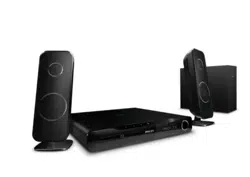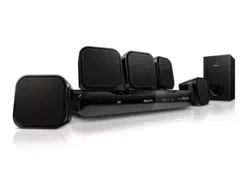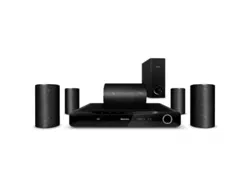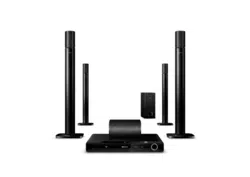
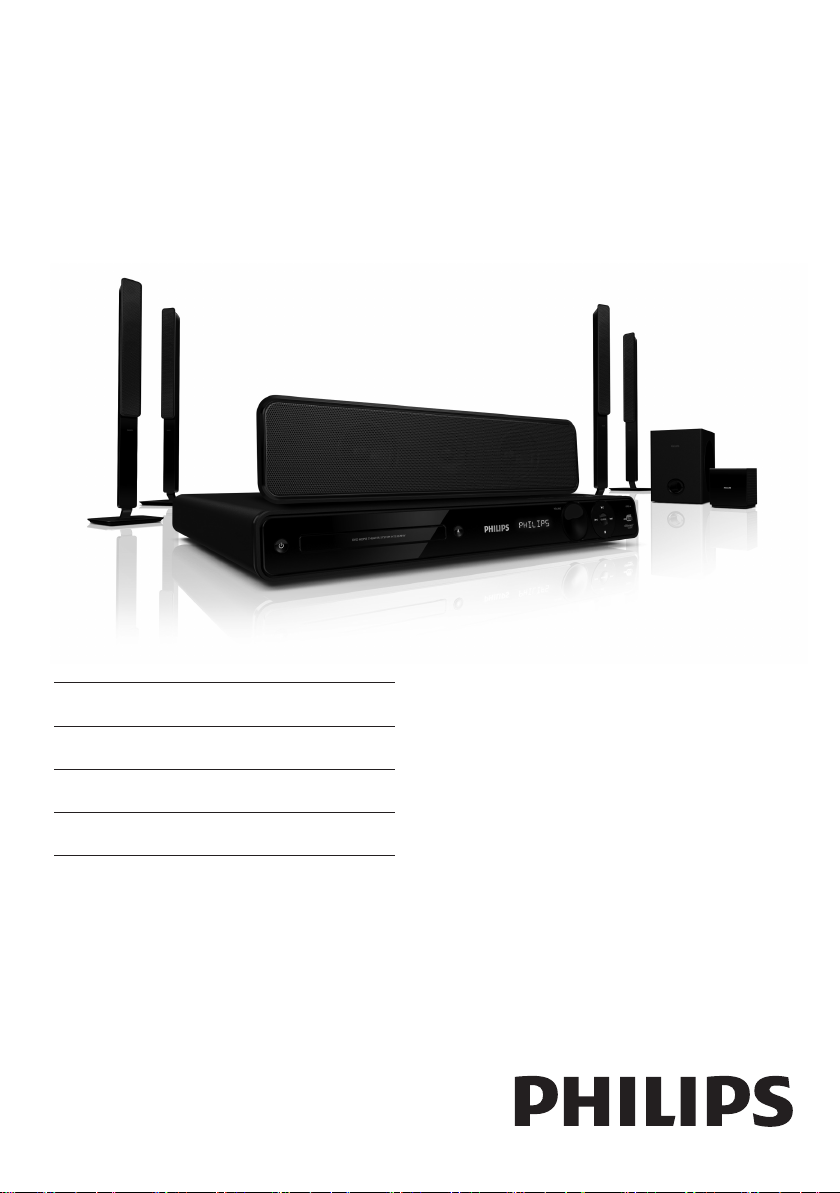
HTS3571
HTS3578W
EN User manual
ZH-CN
用户手册
ZH-TW
使用手冊
MS-MY
Manual pengguna
Register your product and get support at
www.philips.com/welcome
1_hts3571-78W_98_en.indd 11_hts3571-78W_98_en.indd 1 2/4/2009 4:04:45 PM2/4/2009 4:04:45 PM

1_hts3571-78W_98_en.indd 21_hts3571-78W_98_en.indd 2 2/4/2009 4:04:46 PM2/4/2009 4:04:46 PM

3
6 Advanced features 35
Create MP3 audio fi les 35
7 Adjust sound 36
Control the volume 36
Select surround sound 36
Select a preset sound 36
Adjusting microphone volume level 37
Karaoke settings 37
Turning vocals off (voice cancel) 37
8 Adjust settings 38
General setup 38
Audio setup 40
Video setup 42
Preferences 44
9 Additional Information 46
Update software 46
Care 46
10 Specifi cations 47
11 Troubleshooting 49
12 Glossary 51
Contents
1 Important 4
Safety and important notice 4
Trademark notice 5
2 Your Home Theater System 6
Feature highlights 6
Product overview 7
3 Connect 10
Place the Home Theater System 10
Connect video cables 11
Connect speaker cables to speakers 13
Connect speaker to speaker stand 13
Connect speakers and subwoofer 14
Connect rear speakers to wireless
receiver 15
Connect radio antenna 15
Connect audio cables/other devices 16
Connect power cord 18
4 Get started 19
Insert the remote control batteries 19
Find the correct viewing channel 20
Select menu display language 20
Turn on Progressive Scan 21
Change speaker settings 22
Use Philips EasyLink 23
Select a play source 25
5 Play 26
Play a disc 26
Play video 26
Play music 30
Play photo 31
Play from USB device 32
Play from portable media player 33
Play from radio 33
Contents
English
EN
1_hts3571-78W_98_en.indd 31_hts3571-78W_98_en.indd 3 2/4/2009 4:04:46 PM2/4/2009 4:04:46 PM
4
Copyright notice
This product incorporates copyright protection
technology that is protected by method claims
of certain U.S. patents and other intellectual
property rights owned by Macrovision
Corporation and other rights owners. Use of
this copyright protected technology must be
authorised by Macrovision Corporation, and is
intended for home and other limited viewing
uses only unless otherwise authorised by
Macrovision Corporation. Reverse engineering
or disassembly is prohibited.
About Progressive Scan
Consumers should note that not all high
defi nition television sets are fully compatible
with this product and may cause artefacts to
be displayed on the picture. In case of 525
or 625 progressive scan picture problems,
it is recommended that the user switch the
connection to the ‘standard defi nition’ output.
If there are questions regarding our TV set
compatibility with this model 525p and 625p
DVD player, please contact our customer
service centre.
1 Important
Safety and important notice
Warning
Risk of overheating! Never install the Home Theater •
System in a confi ned space. Always leave a space of at
least 4 inches around the Home Theater System for
ventilation. Ensure curtains or other objects never cover
the ventilation slots on the Home Theater System.
Never place the Home Theater System, remote control
•
or batteries near naked fl ames or other heat sources,
including direct sunlight.
Only use this Home Theater System indoors. Keep this
•
Home Theater System away from water, moisture and
liquid-fi lled objects.
Never place this Home Theater System on other
•
electrical equipment.
Keep away from this Home Theater System during
•
lightning storms.
Where the mains plug or an appliance coupler is used
•
as the disconnect device, the disconnect device shall
remain readily operable.
Visible and invisible laser radiation when open. Avoid
•
exposure to beam.
Recycling notice
This electronic equipment contains a large
number of materials that can be recycled or
reused if disassembled by a specialised company.
If you are disposing of an old machine, please
take it to a recycling centre. Please observe
the local regulations regarding disposal of
packaging materials, exhausted batteries and old
equipment.
EN
1_hts3571-78W_98_en.indd 41_hts3571-78W_98_en.indd 4 2/4/2009 4:04:46 PM2/4/2009 4:04:46 PM
5
Windows Media and the Windows logo
are trademarks, or registered trademarks of
Microsoft Corporation in the United States
and/or other countries.
HDMI, and HDMI logo and High-Defi nition
Multimedia Interface are trademarks or
registered trademarks of HDMI licensing LLC.
The USB-IF Logos are trademarks of Universal
Serial Bus Implementers Forum, inc.
LASER RADIATION
DO NOT VIEW DIRECTLY
WITH OPTICAL INSTRUMENTS
CLASS 1M LASER PRODUCT
Trademark notice
Manufactured under license from Dolby
Laboratories. Dolby, Pro Logic and the
double-D symbol are trademarks of Dolby
Laboratories.
DivX, DivX Ultra Certifi ed, and associated
logos are trademarks of DivX, Inc. and are used
under license.
Offi cial DivX® Ultra Certifi ed product.
Plays all versions of DivX ® video (including
DivX ® 6) with enhanced playback of DivX®
media fi les and the DivX® Media Format.
Plays DivX® video with menus, subtitles and
audio tracks.
Manufactured under license under U.S. Patent
#’s: 5,451,942; 5,956,674; 5,974,380; 5,978,762;
6,487,535 & other U.S. and worldwide patents
issued & pending. DTS and DTS Digital
Surround are registered trademarks and the
DTS logos and Symbol are trademarks of DTS,
Inc. © 1996-2007 DTS, Inc. All Rights Reserved.
ENERGY STAR and the ENERGY STAR mark
are registered U.S. trademarks.
Important
English
EN
1_hts3571-78W_98_en.indd 51_hts3571-78W_98_en.indd 5 2/4/2009 4:04:46 PM2/4/2009 4:04:46 PM
6
High speed USB 2.0 Link and MP3 link
Simply plug your USB device into the USB jack
to play your MP3/WMA/JPEG/DivX fi les; or
plug your portable media player to the MP3
LINK jack to enjoy the music play in superb
sound quality.
Sync the audio output with the video play
Synchronise audio and video by delaying the
audio output if the video signal sent to the TV is
slower than the audio streams.
Create MP3 fi les
Convert your favourite audio tracks from an
audio CD into MP3 format. The created MP3
fi les are saved in your USB device.
Screen Fit
View the movie in full screen display on any TV.
Karaoke scoring function
Karaoke scoring gives a score and a comment
for each performance. Have your singing
performance scored for even more karaoke fun
at home!
Region codes
You can play discs with the following region
codes.
DVD region code Countries
Asia Pacifi c, Taiwan, Korea
Australia, New Zealand
2 Your Home
Theater System
Congratulations on your purchase, and
welcome to Philips! To fully benefi t from the
support that Philips offers, register your product
at www.philips.com/welcome.
Feature highlights
Video upscaling to 1080p
Enjoy watching discs in the highest picture
quality available for your HDTV. This Home
Theater System offers full high-defi nition video
playback up to 1080p resolution that provides a
highly detailled picture and increased sharpness
that delivers a more true-to-life picture for an
amazing viewing experience.
Philips EasyLink
Your Home Theater System supports
Philips EasyLink, which uses the HDMI CEC
(Consumer Electronics Control) protocol.
EasyLink-compliant devices that are connected
through HDMI connectors can be controlled by
a single remote control.
Note
Philips does not guarantee 100% interoperability with •
all HDMI CEC devices.
Listen to rich uncompressed multi-channel
surround sound
This Home Theater System supports 5.1
channels of uncompressed audio that delivers
a real-to-life sound experience as if you are
listening to it live.
EN
1_hts3571-78W_98_en.indd 61_hts3571-78W_98_en.indd 6 2/4/2009 4:04:46 PM2/4/2009 4:04:46 PM
7
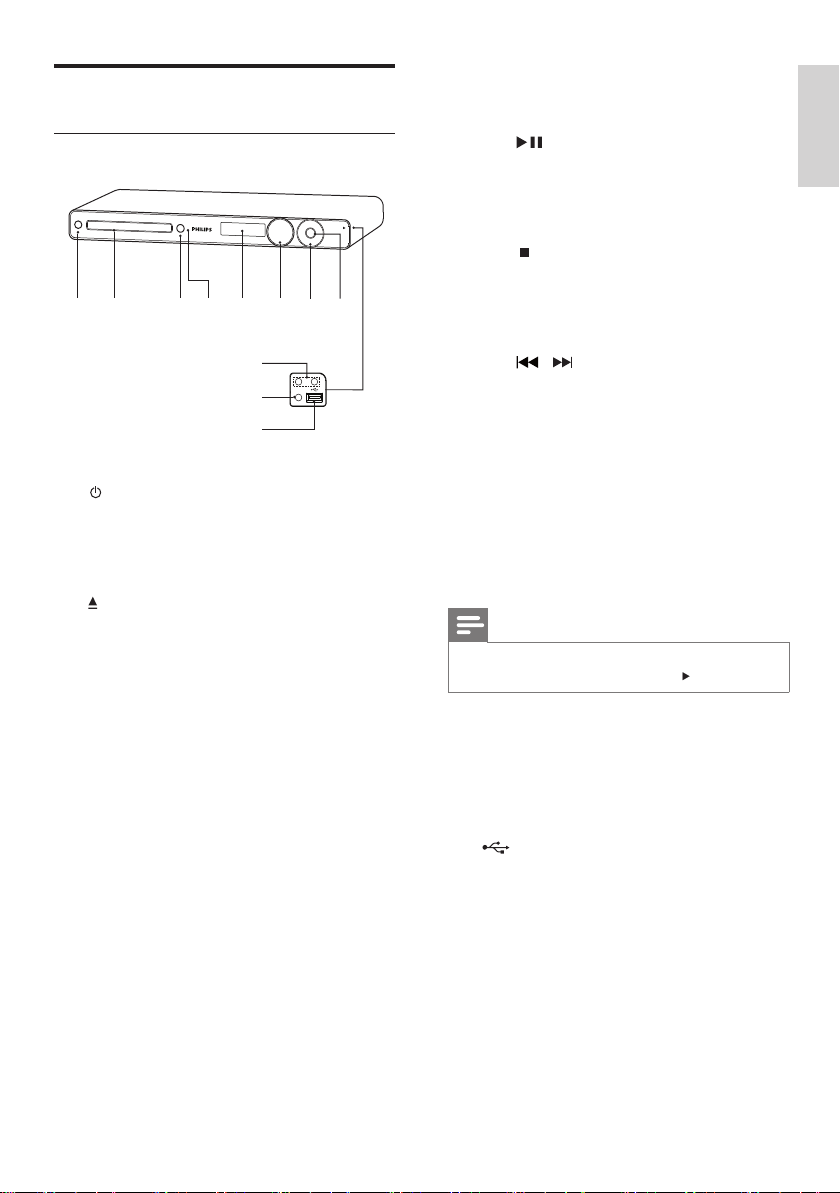
g Play/Pause , Stop , Fast Reverse / Fast
Forward
•
( Play/Pause )
Starts, pauses or resumes disc play.•
In radio mode, automatically tunes •
radio stations during fi rst-time setup.
•
( Stop )
Stops disc play.•
In radio mode, erases the current •
preset radio station.
•
/ ( Fast Reverse / Fast Forward )
Skips to the previous or next title, •
chapter or track.
Press and hold for fast reverse or •
forward search.
In radio mode, selects a preset radio •
channel.
h SOURCE
Selects a media to play or listen to •
audio from the connected device.
Note
The following sockets are under the fl ap, in the right- •
hand corner of the main unit ( OPEN ).
i MIC 1 / MIC 2
Connects a microphone.•
j MP3 LINK
Connects a portable audio player•
k
( USB )
Connects a USB supported device.•
Product overview
Main unit
a ( Standby-On )
Turns on the Home Theater System •
or switches to standby mode.
b Disc compartment
c
( Open/Close )
Opens or closes the disc •
compartment.
d IR sensor
Detects signals from the remote •
control. Point the remote control at
the IR sensor.
e Display panel
Displays the current status or disc •
information.
f VOLUME
Increases or decreases volume.•
ab c
j
k
i
e
ghfd
Your Home Theater System
English
EN
1_hts3571-78W_98_en.indd 71_hts3571-78W_98_en.indd 7 2/4/2009 4:04:46 PM2/4/2009 4:04:46 PM
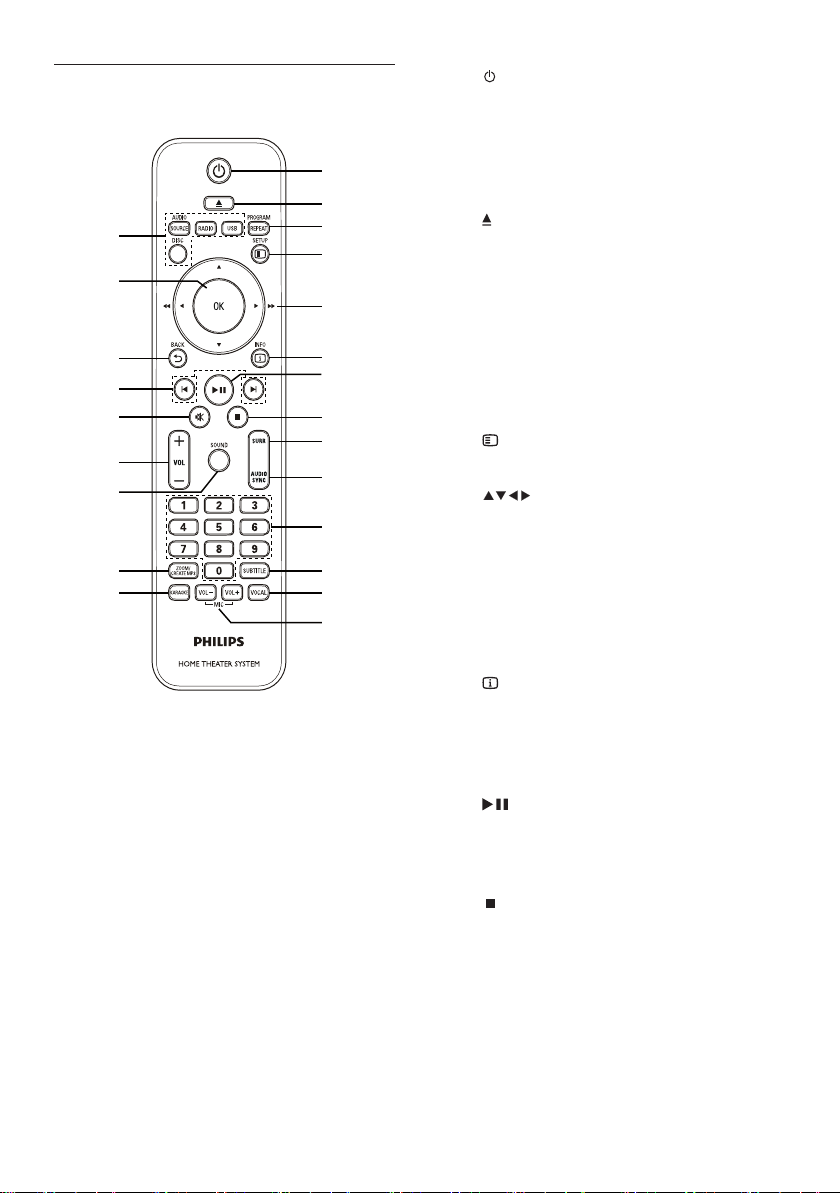
8
a ( Standby-On )
Turns on the Home Theater System •
or switches to standby mode.
Press and hold to turn off the Home •
Theater System and all HDMI CEC
compliant devices.
b
( Open/Close )
Opens or closes the disc •
compartment.
c PROGRAM / REPEAT
In radio mode, resets the list of preset •
stations: press to manually reset; press
and hold to automatically reset.
Selects or turns off repeat or shuffl e •
mode.
d
SETUP
Accesses or exits the setup menu.•
e
( Navigation buttons )
Navigates through the menus.•
Press left and right for fast backward •
or forward search.
In radio mode, press up and down to •
tune the radio frequency.
In radio mode, press left or right to •
start auto search.
f
INFO
For discs, displays information about •
the current status or the disc.
For slideshows, displays a thumbnail •
view of photo fi les.
g
( Play/Pause )
Starts, pauses or resumes disc play.•
In radio mode, automatically tunes •
radio stations during fi rst-time setup.
h
( Stop )
Stops disc play.•
In radio mode, erases the current •
preset radio station.
Remote Control
n
q
p
o
r
s
t
u
v
w
m
a
b
c
d
e
f
g
h
i
j
k
l
EN
1_hts3571-78W_98_en.indd 81_hts3571-78W_98_en.indd 8 2/4/2009 4:04:47 PM2/4/2009 4:04:47 PM

9
s ( Mute )
Mutes or restores audio output.•
t VOL +/-
Increases or decreases volume.•
u SOUND
Selects a predefi ned sound effect.•
v ZOOM / CREATE MP3
Zooms in or out of the picture.•
Accesses the menu to create MP3.•
w KARAOKE
Accesses or exits the karaoke menu.•
i SURR ( Surround Sound )
Switches to supported surround •
sound or stereo sound.
j AUDIO SYNC
Selects an audio language or channel.•
Press and hold to access the setting •
for audio sync, then press VOL +/- to
set the audio delay time.
k Numeric buttons
Selects an item to play.•
l SUBTITLE
Select DVD or DivX subtitle •
languages.
m VOCAL
Changes the audio channel of a •
karaoke disc.
n MIC ( VOL +/- )
Increases or decreases microphone •
volume.
o Source buttons
• AUDIO SOURCE : Selects an audio
input source.
• RADIO : Switches to FM band.
• USB : Switches to the USB source.
• DISC : Switches to the disc source.
p OK
Confi rms an entry or selection.•
q
BACK
Returns to a previous screen.•
For DVD, goes to the title menu.•
For VCD version 2.0 or SVCD with •
PBC turned on, returns to the menu
during playback.
r
/ ( Previous/Next )
Skips to the previous or next title, •
chapter or track.
EN
Your Home Theater System
English
1_hts3571-78W_98_en.indd 91_hts3571-78W_98_en.indd 9 2/4/2009 4:04:47 PM2/4/2009 4:04:47 PM
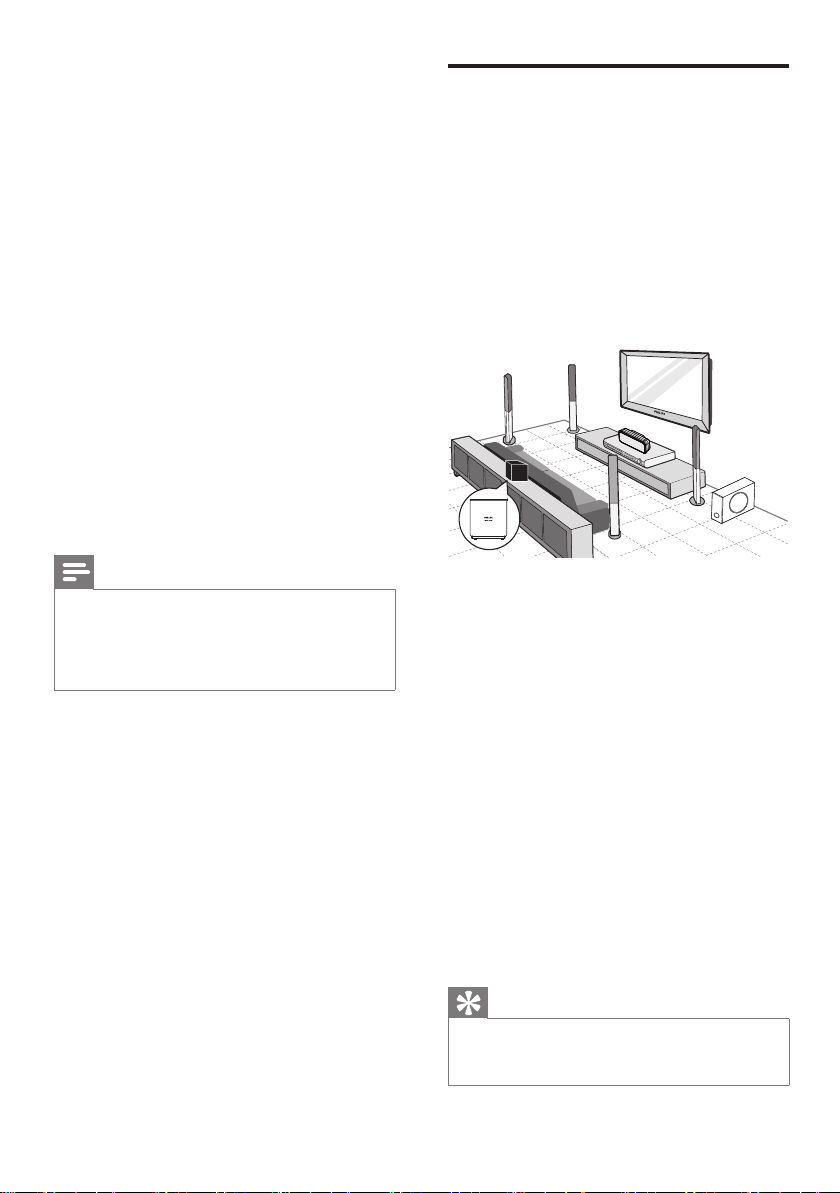
10
Place the Home Theater
System
Place the Home Theater System where it •
cannot be pushed, pulled over or knocked
down. Do not place it in an enclosed
cabinet.
Make sure that you have full access to the •
power cord for easy disconnection of the
Home Theater System from the power
supply.
Wireless receiver is for HTS3578W only.
Different set of speakers for HTS3571.
(see ‘Specifi cations’ > ‘Speakers’).
1 Place this Home Theater System near the
TV.
2 Place the speakers system at normal
listening ear-level and directly parallel to
the listening area.
3 Place the subwoofer at the corner of the
room or at least three feet away from the
TV.
4 Place the wireless receiver (for
HTS3578W only) near the AC outlet and
in between the rear speakers. Position the
wireless receiver (with Philips logo) directly
parallel to the Home Theater System.
Tip
To avoid magnetic interference or unwanted noise, •
never place this Home Theater System too close to any
radiation devices.
FRONT
RIGHT
FRONT
LEFT
CENTER
REAR
RIGHT
REAR
LEFT
SUBWOOFER
3 Connect
Make the following connections to use your
Home Theater System.
Basic connections:
Video•
Speakers and subwoofer•
Wireless receiver (for HTS3578W only)•
Power•
Optional connections:
Radio antenna•
Audio•
Audio from TV•
Audio from digibox/recorder/game •
console
Other devices•
Portable media player•
USB device•
Note
Refer to the type plate at the back or bottom of the •
product for identifi cation and supply ratings.
Before you make or change any connections, ensure
•
that all the devices are disconnected from the power
outlet.
EN
1_hts3571-78W_98_en.indd 101_hts3571-78W_98_en.indd 10 2/4/2009 4:04:47 PM2/4/2009 4:04:47 PM
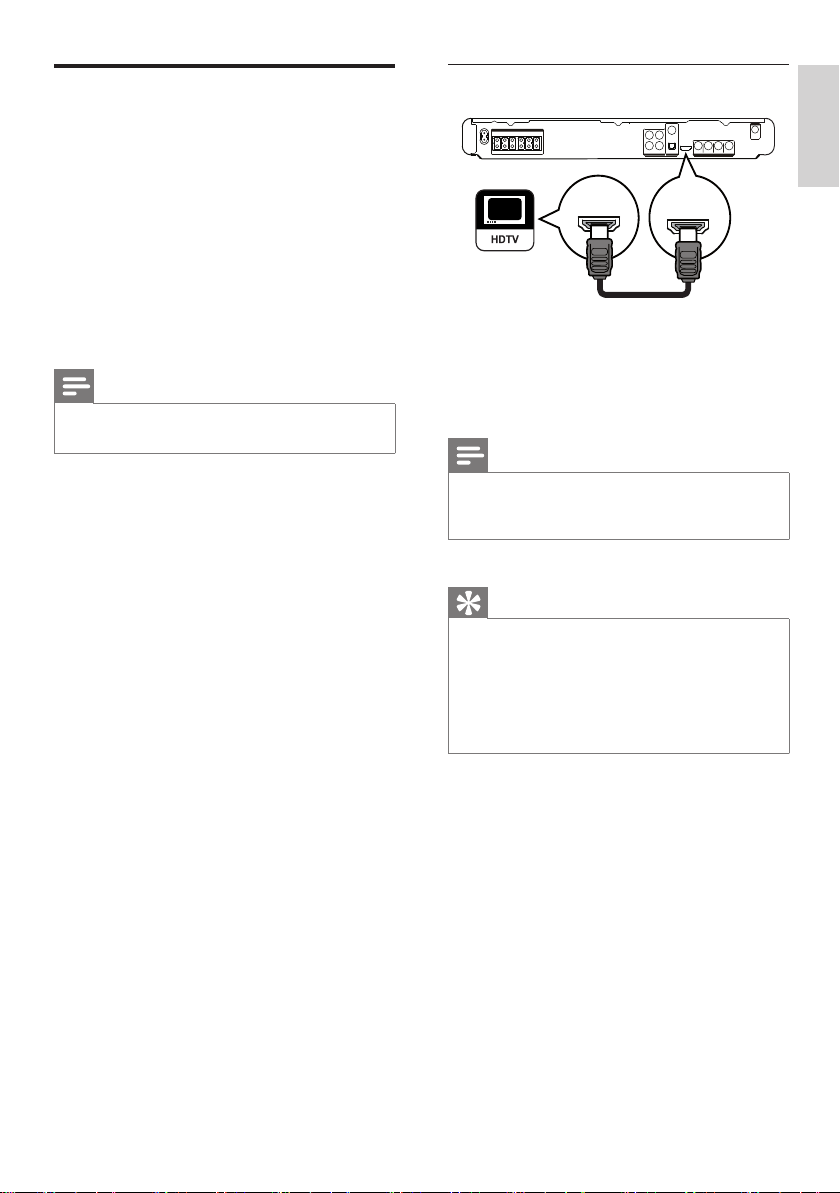
11
Option 1: Connect to the HDMI jack
1 Connect an HDMI cable (not supplied)
to the HDMI OUT jack on this Home
Theater System and the HDMI input jack
on the TV.
Note
If your device supports HDMI CEC, you can control •
compliant devices with a single remote control. (see
‘Get started’ > ‘Use Philips EasyLink’).
Tip
If the TV has a DVI connection only, connect via a •
HDMI/DVI adaptor. Connect an audio cable for sound
output.
You can optimise the video output. (see ‘Adjust settings’
•
> ‘Video setup’ > [HDMI Setup] ).
This type of connection provides the best picture
•
quality.
HDMI OUT
HDMI IN
Connect video cables
Connect this Home Theater System to TV to
view disc play. Select the best video connection
that the TV can support.
Option 1: Connect to the HDMI jack (for a •
HDMI, DVI or HDCP-compliant TV).
Option 2: Connect to the component •
video jacks (for a standard TV or
progressive scan TV).
Option 3: Connect to the video (CVBS) •
jack (for a standard TV).
Note
You must connect this Home Theater System directly •
to a TV.
Connect
English
EN
1_hts3571-78W_98_en.indd 111_hts3571-78W_98_en.indd 11 2/4/2009 4:04:47 PM2/4/2009 4:04:47 PM
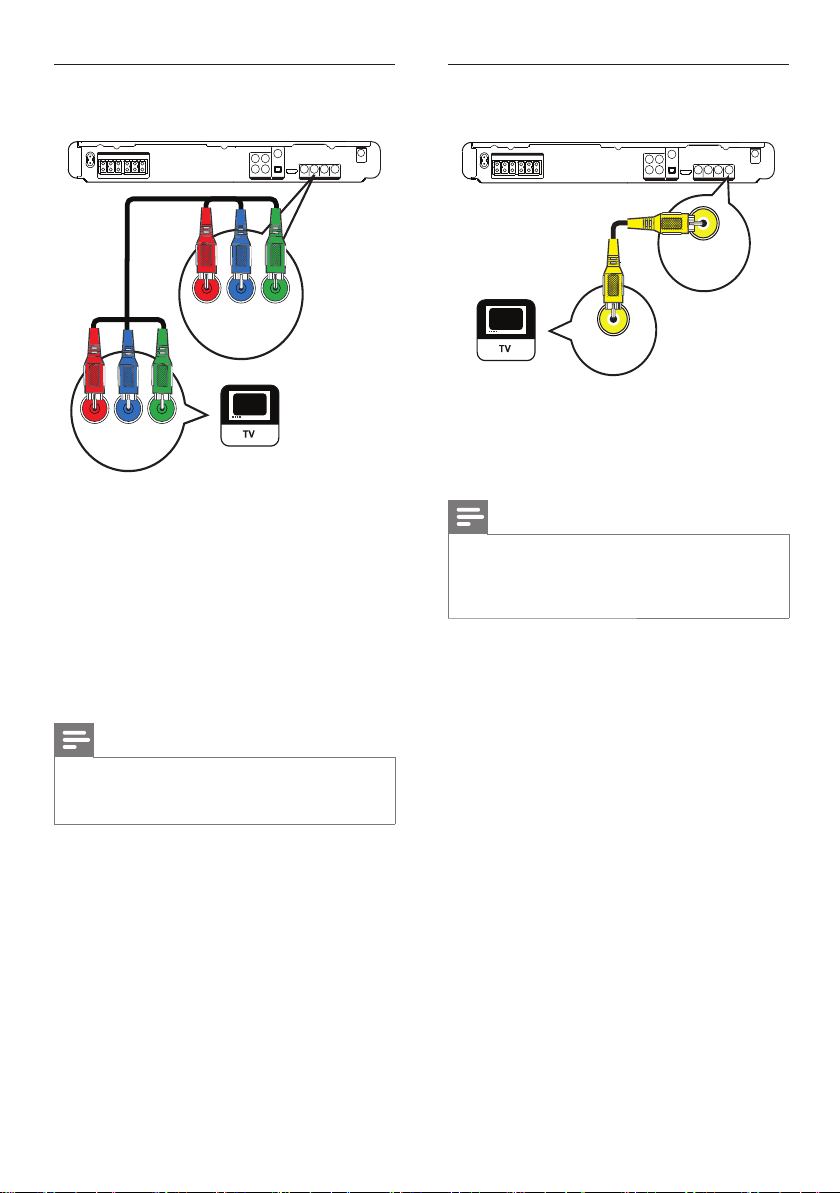
12
Option 3: Connect to the Video
(CVBS) jack
1 Connect a composite video cable to the
VIDEO jack on this Home Theater System
and the VIDEO input jack on the TV.
Note
The video input jack on the TV might be labelled as A/V •
IN, VIDEO IN, COMPOSITE or BASEBAND.
This type of connection provides standard picture
•
quality.
VIDEO
VIDEO OUT
VIDEO IN
Option 2: Connect to the component
video jack
1 Connect the component video cable
(not supplied) to the Y Pb Pr jacks on
this Home Theater System and the
COMPONENT VIDEO input jacks on the
TV.
If a progressive scan TV is used, you •
may turn on the progressive scan
mode. (see ‘Get started’ > ‘Turn on
progressive scan’).
Note
The component video input jack on the TV might be •
labelled as Y Pb/Cb Pr/Cr or YUV.
This type of connection provides good picture quality.
•
VIDEO OUT
PbPr Y
PbPr Y
EN
1_hts3571-78W_98_en.indd 121_hts3571-78W_98_en.indd 12 2/4/2009 4:04:47 PM2/4/2009 4:04:47 PM
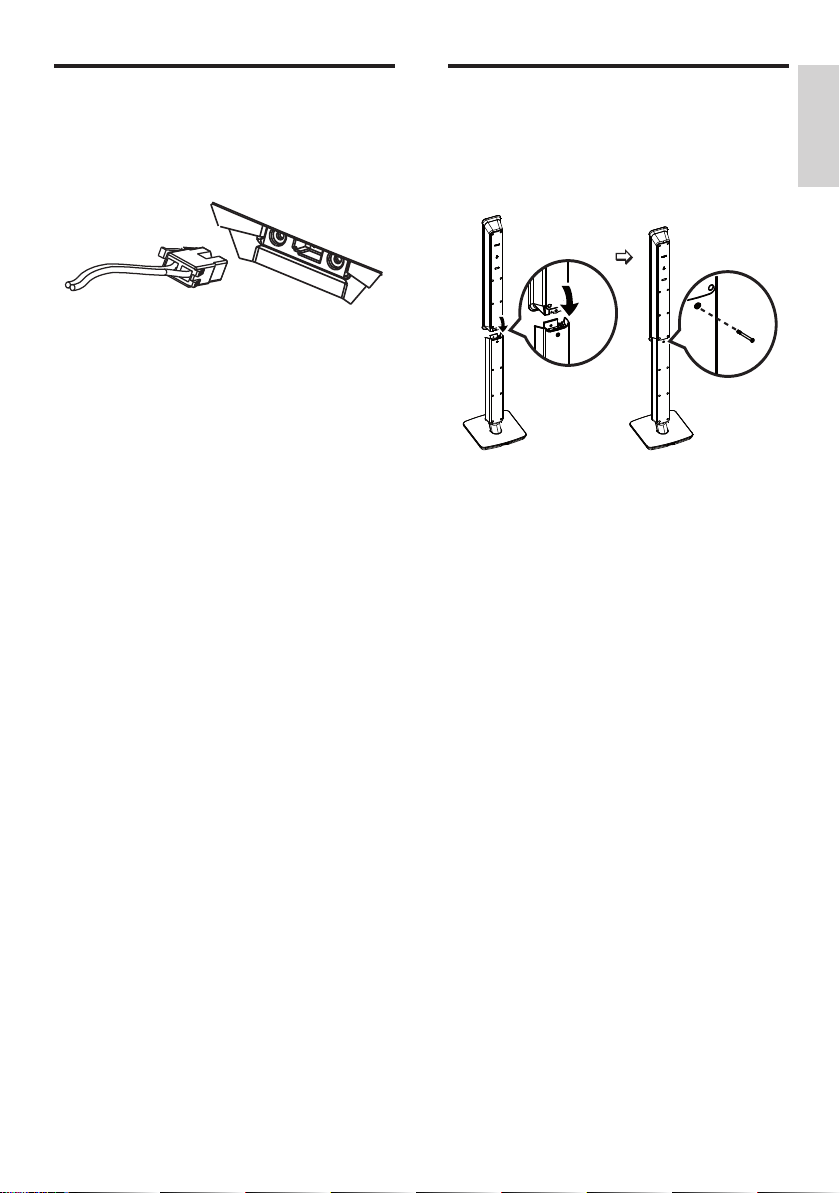
13
Connect speaker to speaker
stand
For models with tallboy speakers (HTS3578W).
1 Attach the speakers to the speaker stands
and secure the position with screws.
Connect speaker cables to
speakers
For models with tallboy speakers (HTS3578W).
1 Connect the speaker cables to the
matching colour jacks on the speakers
(or speaker stands).
EN
Connect
English
1_hts3571-78W_98_en.indd 131_hts3571-78W_98_en.indd 13 2/4/2009 4:04:47 PM2/4/2009 4:04:47 PM
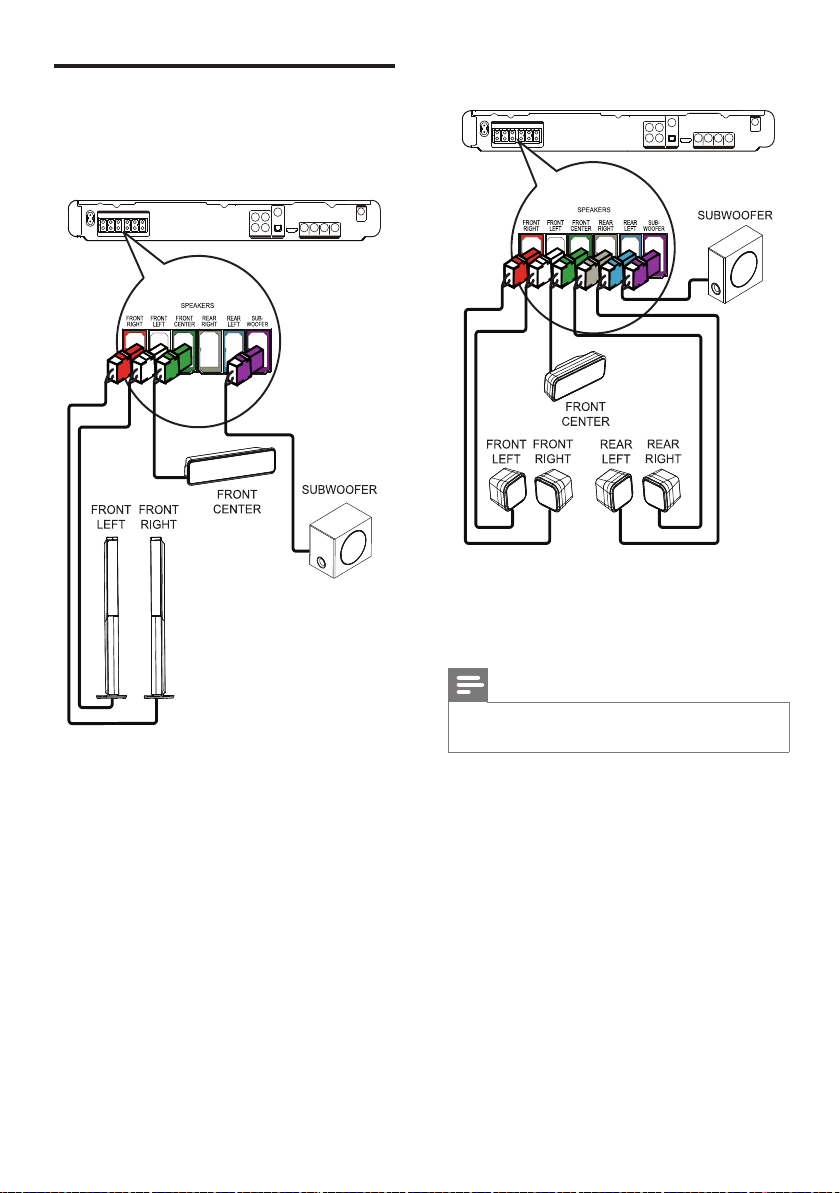
14
For HTS3571
1 Connect the speakers and subwoofer to
the matching jacks on the Home Theater
System.
Note
Ensure that the colours of the plugs and jacks are •
matched.
Connect speakers and
subwoofer
For HTS3578W only
EN
1_hts3571-78W_98_en.indd 141_hts3571-78W_98_en.indd 14 2/4/2009 4:04:48 PM2/4/2009 4:04:48 PM
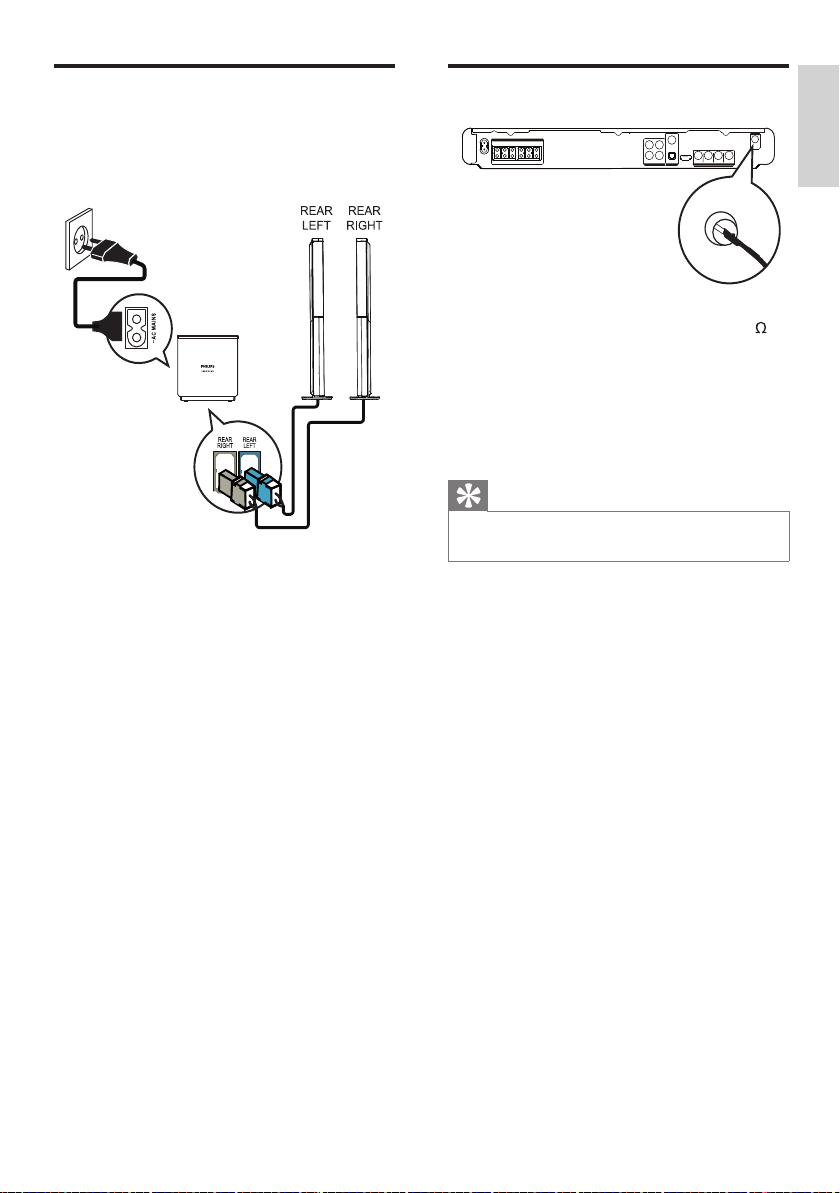
15
Connect radio antenna
1 Connect the FM antenna to the FM75
jack on this Home Theater System
(for some models, this cable is already
connected).
2 Extend the FM antenna and fi x its ends to
the wall.
Tip
For better FM stereo reception, connect to an external •
FM antenna.
FM (75 Ω)
ANTENNA
Connect rear speakers to
wireless receiver
For the rear speakers of HTS3578W only
1 Connect the rear left and right speakers
to the matching jacks at the bottom of the
wireless receiver.
EN
Connect
English
1_hts3571-78W_98_en.indd 151_hts3571-78W_98_en.indd 15 2/4/2009 4:04:48 PM2/4/2009 4:04:48 PM
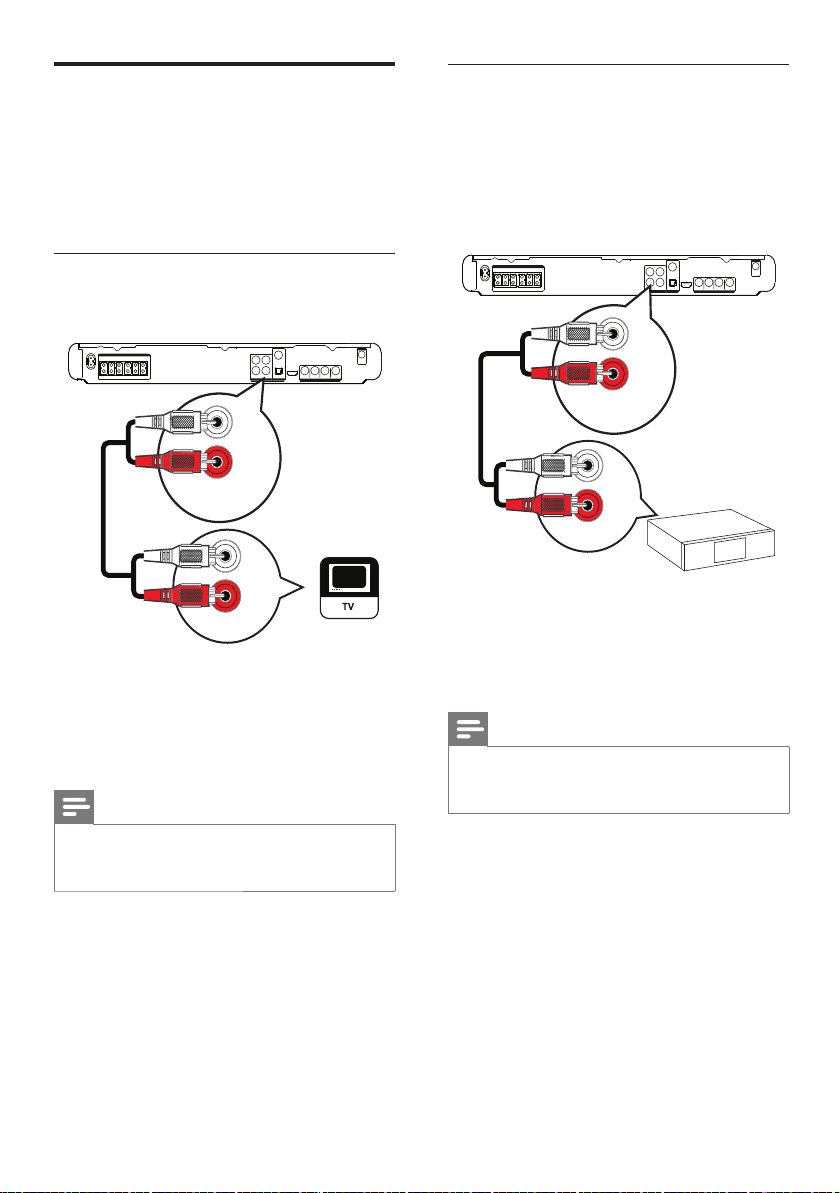
16
Connect audio from cable box/
recorder/game console
You can choose to connect to analogue or
digital jacks depending on the device capabilities.
Connect to analogue jacks
1 Connect the audio cables (not supplied) to
the AUDIO IN-AUX2 jacks on the Home
Theater System and the AUDIO output
jacks on the device.
Note
To listen to the audio output from this connection, •
press AUDIO SOURCE repeatedly until ‘AUX2’ is
displayed on the display panel.
AUX 2
AUDIO OUT
AUDIO IN
Connect audio cables/other
devices
Route the audio from other devices to this
Home Theater System to enjoy audio play with
multi-channel surround capabilities.
Connect audio to TV
(also used for EasyLink control)
1 Connect the audio cables (not supplied) to
the AUDIO IN-AUX1 jacks on the Home
Theater System and the AUDIO output
jacks on the TV.
Note
To listen to the audio output from this connection, •
press AUDIO SOURCE repeatedly until ‘AUX1’ is
displayed on the display panel.
AUDIO OUT
AUX 1
AUDIO IN
EN
1_hts3571-78W_98_en.indd 161_hts3571-78W_98_en.indd 16 2/4/2009 4:04:48 PM2/4/2009 4:04:48 PM
17
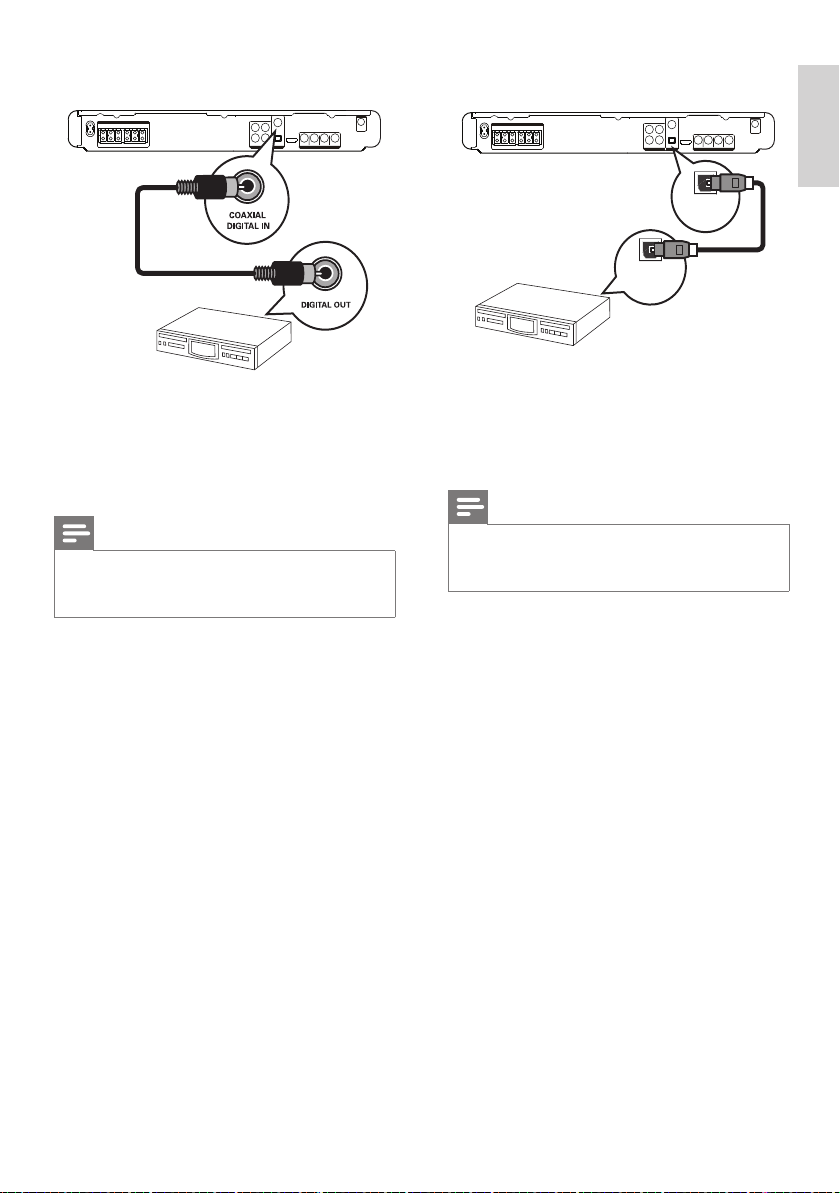
Connect to optical jack
1 Connect an optical cable (not supplied)
to the OPTICAL DIGITAL-IN jack on the
Home Theater System and the OPTICAL/
SPDIF output jack on the device.
Note
To listen to the audio output from this connection, •
press AUDIO SOURCE repeatedly until ‘OPTI IN’ is
displayed on the display panel.
DIGITAL IN
OPTICAL
DIGITAL OUT
OPTICAL
Connect to coaxial jack
1 Connect a coaxial cable (not supplied) to
the COAXIAL DIGITAL-IN jack on the
Home Theater System and the COAXIAL/
DIGITAL output jack on the device.
Note
To listen to the audio output from this connection, •
press AUDIO SOURCE repeatedly until ‘COAX IN’ is
displayed on the display panel.
EN
Connect
English
1_hts3571-78W_98_en.indd 171_hts3571-78W_98_en.indd 17 2/4/2009 4:04:48 PM2/4/2009 4:04:48 PM
18
Connect power cord
Warning
Risk of product damage! Ensure that the power supply •
voltage corresponds to the voltage printed on the back
or the underside of the Home Theater System.
Before connecting to a socket, set the voltage selector
•
(at the rear or bottom of this Home Theater System)
to the local power line voltage.
1 Connect the power cords from the Home
Theater System, wireless receiver and
other devices to the power outlets when
all the required connections are done.
The wireless indicator on the wireless »
receiver light up. (Only applicable for
HTS3578W)
The Home Theater System is ready to »
be set up for use.
Note
For optimum wireless reception, ensure that the •
wireless receiver is not obstructed by any objects.
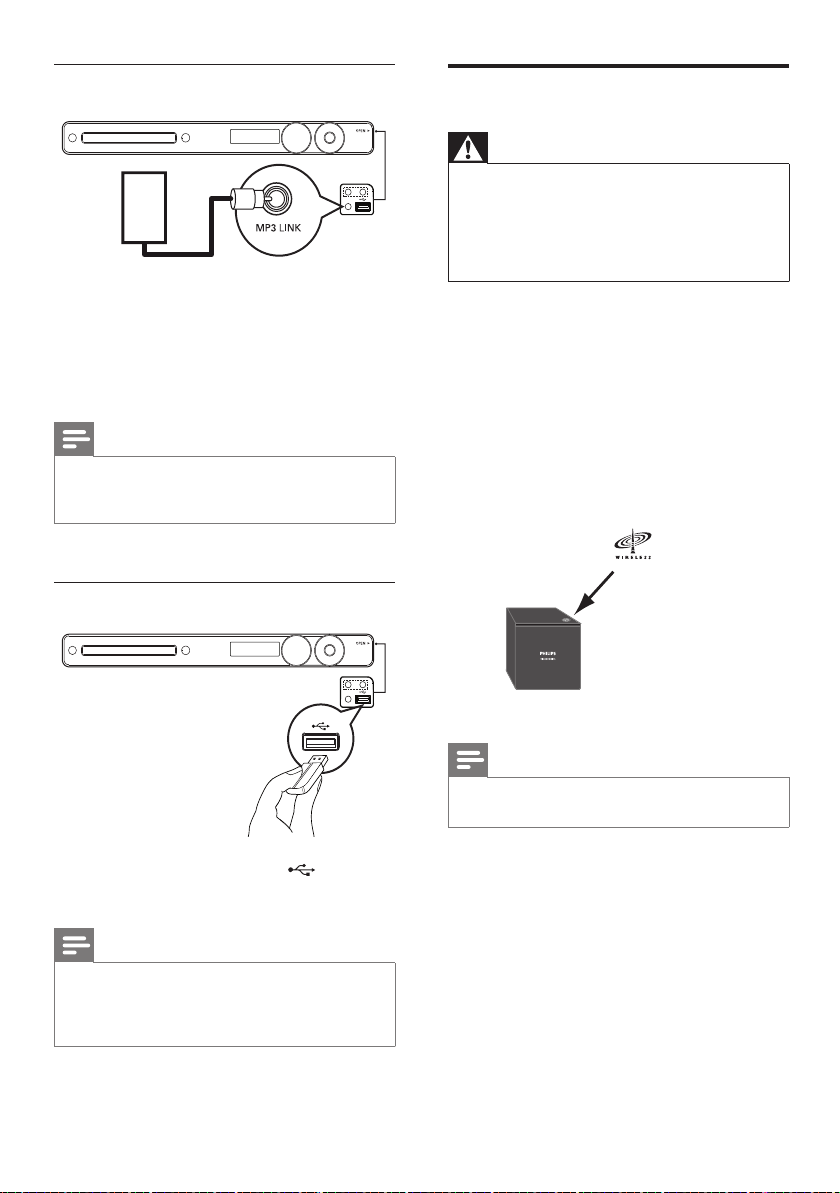
Connect portable media player
1 Connect a 3.5mm stereo audio cable (not
supplied) to the MP3 LINK jack on this
Home Theater System and the phone jack
on the portable media player (such as MP3
player).
Note
To listen to the audio output from this connection, •
press AUDIO SOURCE repeatedly until ‘MP3 LINK’ is
displayed on the display panel.
Connect USB device
1 Connect the USB device to USB jack
on this Home Theater System.
Note
This Home Theater System can only play/view MP3, •
WMA, DivX (Ultra) or JPEG fi les that are stored on
such devices.
Press
• USB to access the content and play the fi les.
MP3
EN
1_hts3571-78W_98_en.indd 181_hts3571-78W_98_en.indd 18 2/4/2009 4:04:48 PM2/4/2009 4:04:48 PM
19
Control a play source
1 Press RADIO , USB or DISC button to
select the source you wish to control.
2 Select the desired function (for example ,
).
Navigate through the menu
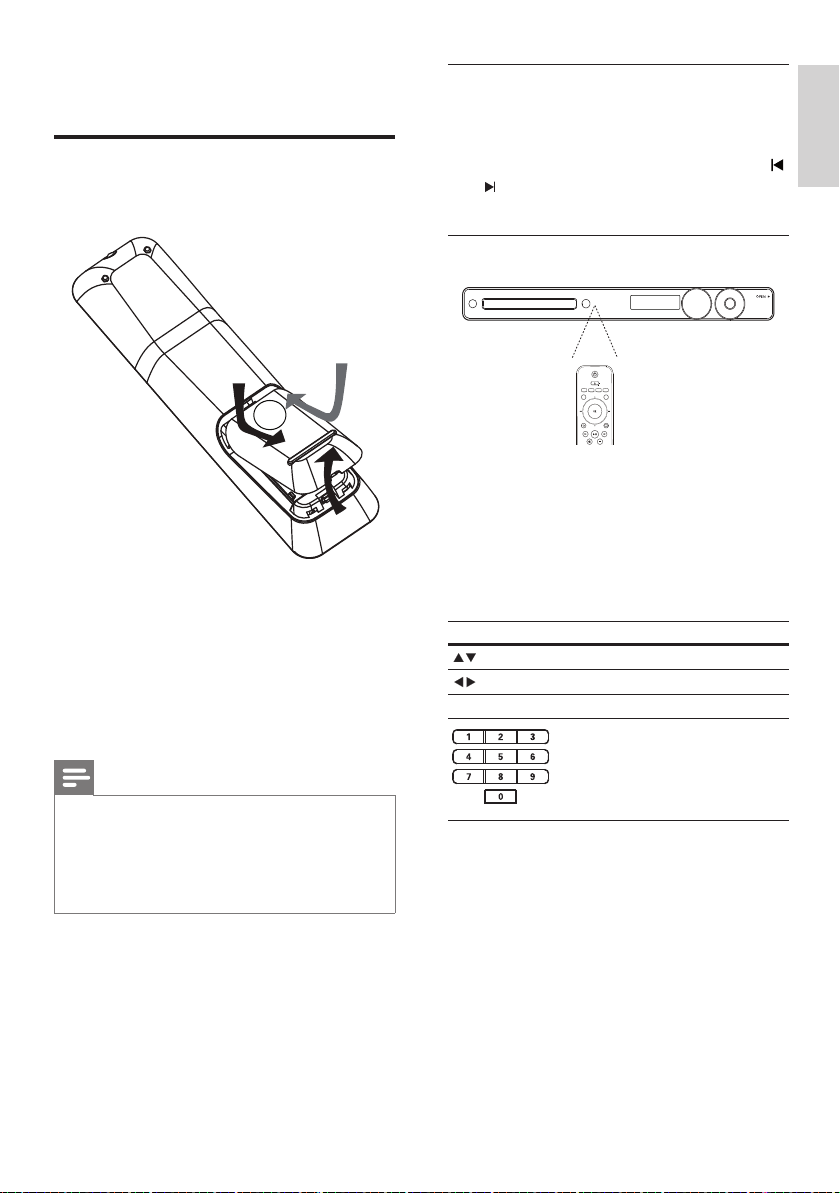
1 Point the remote control directly at the
remote sensor on the Home Theater
System and select the desired function.
2 Press the following buttons on the remote
control to navigate through the on-screen
menus.
Button Action
Move up or down
Move left or right
OK Confi rm a selection
Enter numbers
4 Get started
Insert the remote control
batteries
1 On the back of the remote control, slide
the battery cover to remove it.
2 Insert the 2 supplied batteries (AAA). Be
sure the + and - ends of the batteries line
up with the markings inside the case.
3 Slide the cover back into position.
Note
Do not mix batteries (old and new or carbon and •
alkaline, etc.).
Remove batteries if they are exhausted or if the •
remote control is not to be used for a long time.
Batteries contain chemical substances, they should be
•
disposed of properly.
Get started
English
EN
1_hts3571-78W_98_en.indd 191_hts3571-78W_98_en.indd 19 2/4/2009 4:04:48 PM2/4/2009 4:04:48 PM
20
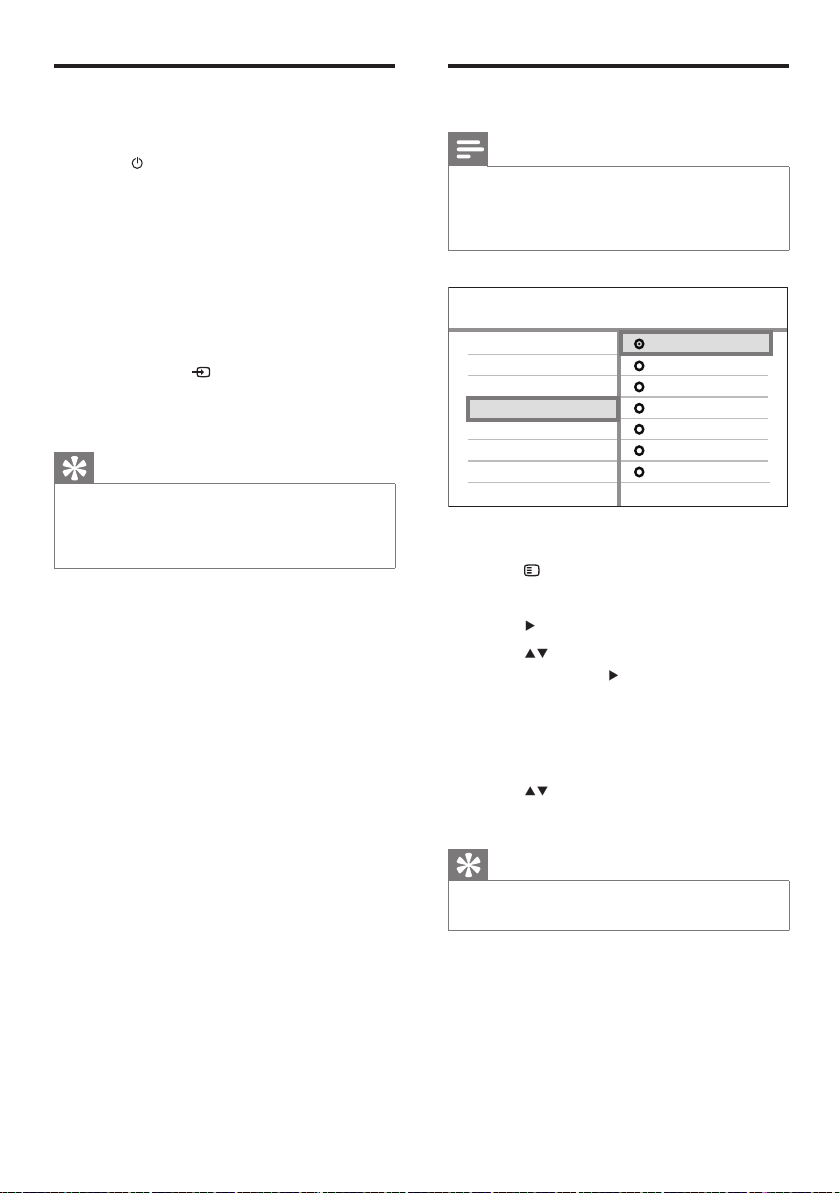
Select menu display language
Note
Skip this setting if this Home Theater System is •
connected to a HDMI CEC compliant TV. It switches
automatically to the same OSD menu language as per
your TV setting.
1 Press DISC .
2 Press SETUP .
» [General Setup] menu is displayed.
3 Press .
4 Press to select [OSD Language] in the
menu, then press
.
The language options are different •
depending on your country or
region. It may not correspond to the
illustration shown here.
5 Press to select a language, then press
OK .
Tip
You can set the default language for DVD disc menu •
(see ‘Adjust settings’ > ‘Preferences’ > [Disc Menu] ).
General Setup
Screen Saver
Disc Lock
EasyLink Setup
Display Dim
DivX(R) VOD Code
Sleep Timer
ᇓ໗ࡩ
ɻʼᐥ
English
Melayu
Русский
ไทย
OSD Language
Auto
Find the correct viewing
channel
1 Press to turn on the Home Theater
System.
2 Press DISC to switch to disc mode.
3 Turn on the TV and switch to the correct
video-in channel in one of the following
ways:
Go to the lowest channel on your TV, •
then press the Channel Down button
until you see the Philips screen.
Press the •
SOURCE button
repeatedly on the remote control of
your TV.
Tip
The video-in channel is between the lowest and highest •
channels and may be called FRONT, A/V IN, VIDEO,
HDMI etc. See the TV user manual on how to select
the correct input on the TV.
EN
1_hts3571-78W_98_en.indd 201_hts3571-78W_98_en.indd 20 2/4/2009 4:04:48 PM2/4/2009 4:04:48 PM
21
8 Press SETUP to exit the menu.
9 You can now turn on the progressive scan
mode on the TV.
Note
During play, when progressive scan mode is on for both •
this Home Theater System and the TV, distorted picture
may be displayed. Turn off the progressive scan feature
on both this Home Theater System and the TV.
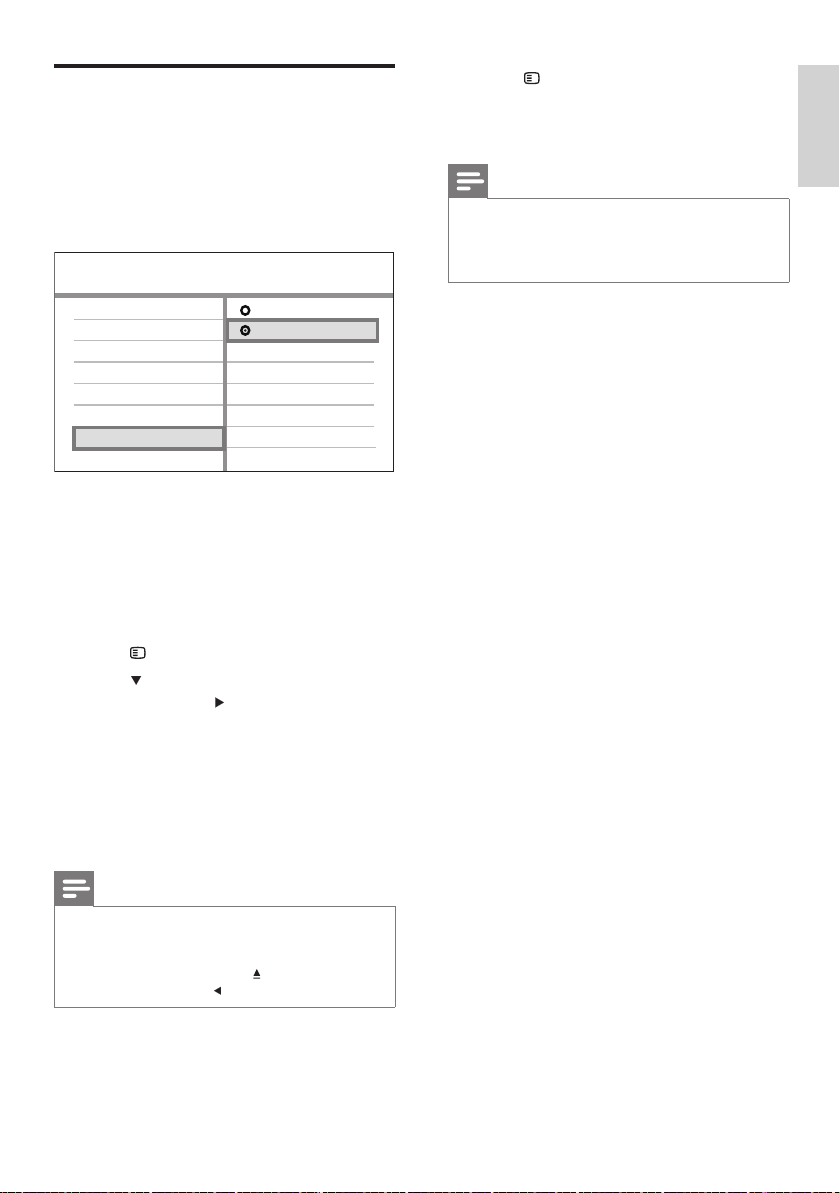
Turn on Progressive Scan
If the TV supports progressive scan output, you
can connect this Home Theater System and the
TV using component video connection. (see
‘Connect video cables’ > ‘Option 2: Connect to
the component video jack’).
1 Turn on the TV and ensure that the TV
progressive scan mode is deactivated (see
the TV user manual).
2 Switch the TV to the correct viewing
channel for this Home Theater System.
3 Press DISC .
4 Press SETUP .
5 Press to select [Video Setup] in the
menu, then press
.
6 Select [Progressive] > [On] , then press
OK .
A warning message is displayed. »
7 To proceed, select [Ok] and press OK .
The progressive setup is complete. »
Note
If a blank/distorted screen is displayed, wait for 15 •
seconds for the auto recover.
If no picture is displayed, turn off the progressive
•
scan mode as follows: 1) Press to open the disc
compartment. 2) Press . 3) Press AUDIO SYNC .
Video Setup
Picture Setting
Closed Caption
HDMI Setup
TV Display
TV System
Screen Fit
Progressive
On
Off
EN
Get started
English
1_hts3571-78W_98_en.indd 211_hts3571-78W_98_en.indd 21 2/4/2009 4:04:48 PM2/4/2009 4:04:48 PM

22
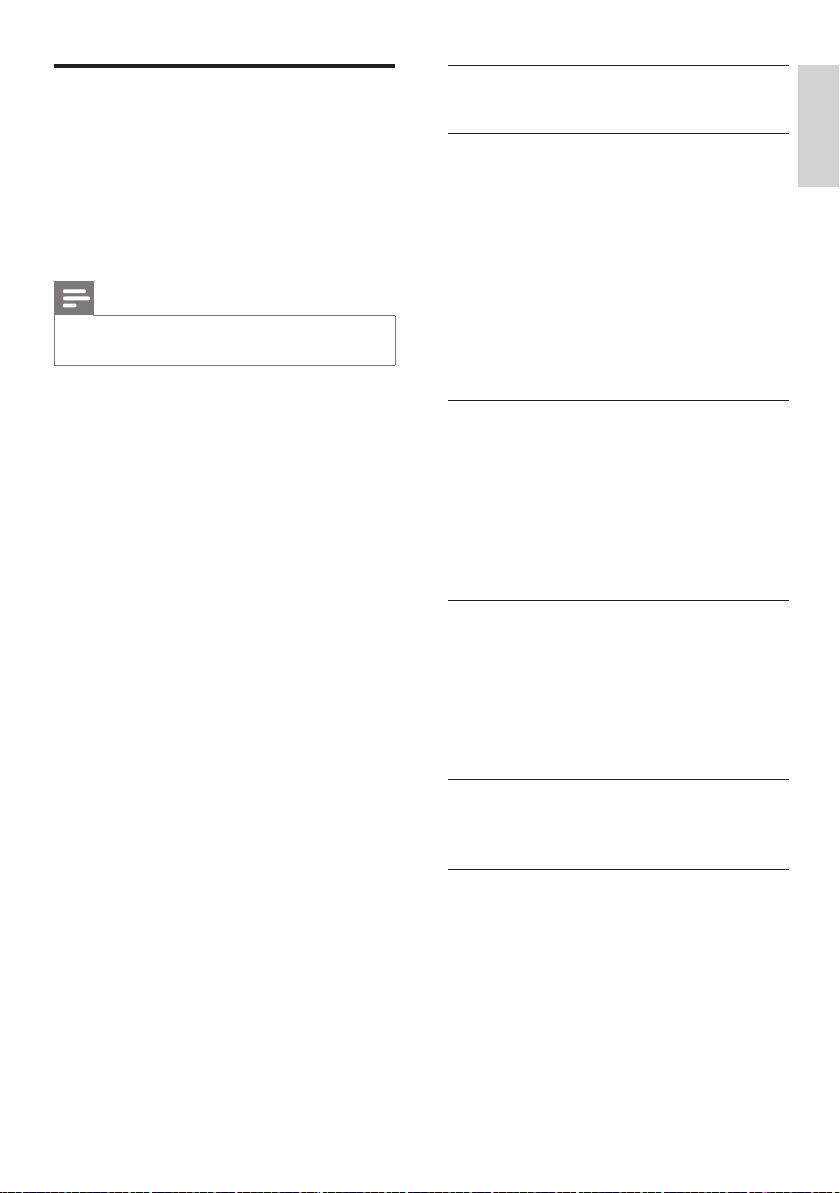
2 Press to change the volume level, then
press OK .
The test tone is emitted from the »
speaker.
Repeat the above setting for other •
speakers until all the speakers’ output
level sounds equally balance.
To exit the menu, press •
SETUP .
To set the output delay time (centre and rear
speakers only)
1 Select [Speakers Delay] in the menu, then
press
.
2 Press to set the delay time, then press
OK .
Repeat the above setting for other •
speakers until the sound output from
different speakers reach the listening
position at the same time.
To exit the menu, press •
SETUP .
Tip
Set a longer delay time if the centre speaker or rear •
speaker is closer to the listening position than the front
speaker.
Allow 1ms setting for every 1 foot distance between
•
the speaker and the listening position.
Speakers Distance Setup
Center
Rear Left
Rear Right
0MS
0MS
0MS
Change speaker settings
Ideally, the distance between listening position
and all the speakers should be the same. If not,
change the speaker settings based on their
distance from the listening position to obtain
the best possible surround sound.
1 Press DISC .
2 Press SETUP .
3 Press to select [Audio Setup] in the
menu, then press
.
If the speaker setup option is not •
accessible, press
twice before you
try the above steps again.
To set the speakers level
1 Select [Speakers Volume] in the menu,
then press
.
CD Upsampling
Speakers Delay
Speakers Volume
HDMI Audio
Audio Setup
Audio Sync
Speakers Volume Setup
Front Left
Front Right
Center
Subwoofer
Rear Left
Rear Right
0dB
0dB
0dB
0dB
0dB
0dB
EN
1_hts3571-78W_98_en.indd 221_hts3571-78W_98_en.indd 22 2/4/2009 4:04:49 PM2/4/2009 4:04:49 PM
23EN
Use Philips EasyLink
Your Home Theater System supports
Philips EasyLink, which uses the HDMI CEC
(Consumer Electronics Control) protocol.
EasyLink-compliant devices that are connected
through HDMI connectors can be controlled by
a single remote control.
Note
Philips does not guarantee 100% interoperability with •
all HDMI CEC devices.
1 Turn on the HDMI CEC operations on the
TV and other connected devices. See TVs/
devices manual for details.
2 You can now enjoy the following Philips
EasyLink controls.
EasyLink
You can turn off or turn on all EasyLink
features.
One-touch play
When you connect your Home Theater
System to devices that support one-touch play,
you can control your Home Theater System
and the devices with one remote control. For
example, when you press Play on your Home
Theater System remote control, your TV
automatically switches to the correct channel
to show the DVD content.
To enable One-touch play, a video disc must
be placed in the disc compartment before
operation.
One-touch standby
When you connect your Home Theater
System to devices that support standby, you
can use your Home Theater System remote
control to put your Home Theater System and
all connected HDMI devices in standby mode.
You can perform one-touch standby using the
remote control from any of the connected
HDMI devices.
System Audio Control
When you connect your Home Theater
System to HDMI CEC compliant devices, your
Home Theater System can switch automatically
to play audio from the connected device.
To use one-touch audio, you must map the
audio input from the connected device to your
Home Theater System.
Audio Input Mapping
When you map the audio input correctly, this
Home Theater System switches to the audio
from the played device automatically.
Get started
English
1_hts3571-78W_98_en.indd 231_hts3571-78W_98_en.indd 23 2/4/2009 4:04:49 PM2/4/2009 4:04:49 PM

24
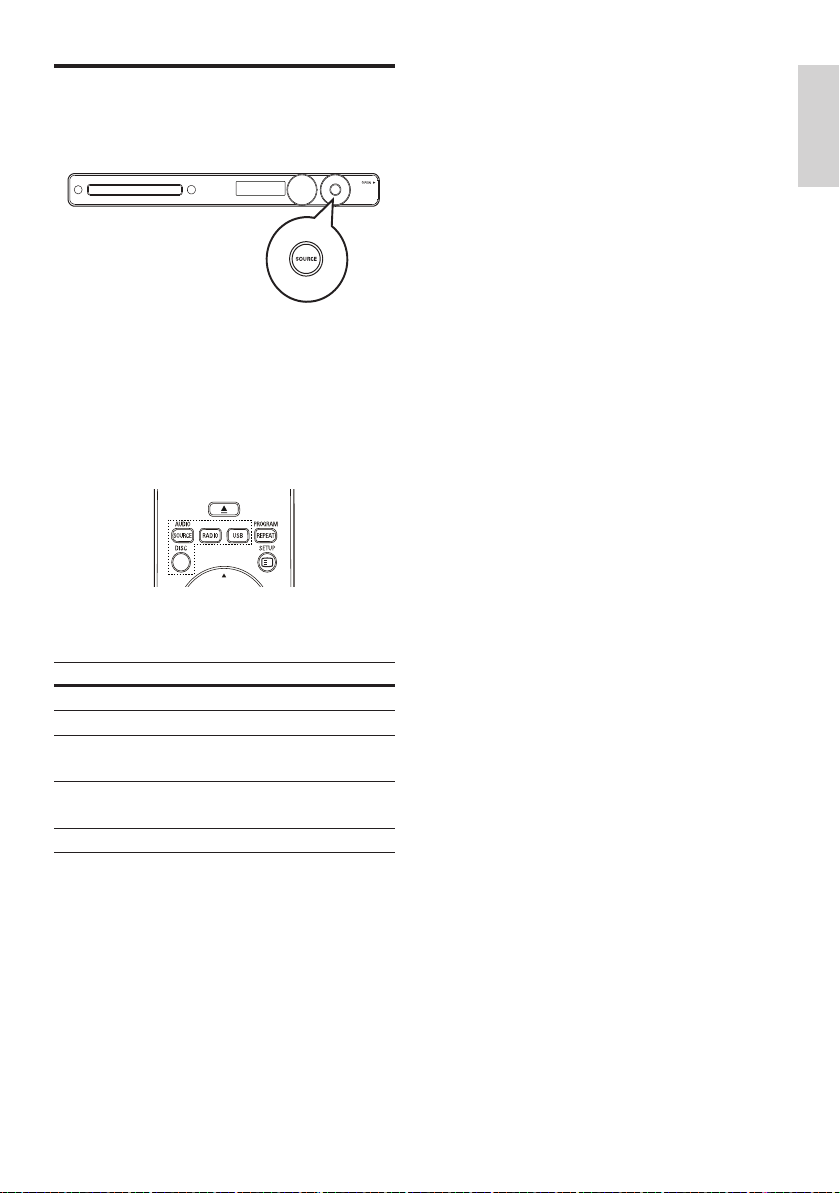
5 Select [System Audio Control] > [On] ,
then press OK to start scanning devices.
Once complete, audio input mapping »
menu is displayed.
For example, if the TV audio is
connected to the AUX1 jack on this
Home Theater System, select [Aux1]
and map with the TV (brand name) at
the right panel.
6 Select the audio input of this Home
Theater System that is used to connect to
other HDMI devices (e.g. AUX1, AUX2),
then press
.
7 Select the correct connected device, then
press OK .
Repeat steps 5–7 to map other »
connected devices.
8 Press SETUP to exit the menu.
Aux 2
Audio Input Mapping
Aux 1
[TV]
other (Non-HDMI)
[DVD 3400]
Coaxial In
Optical In
Map the audio inputs to the
connected devices
Note
Before you start, ensure that the audio output of •
the HDMI TV and other HDMI devices have been
connected to the audio input jacks on this Home
Theater System.
1 Press DISC .
2 Press SETUP .
» [General Setup] menu is displayed.
3 Press .
4 Select [EasyLink Setup] , then press .
• [One Touch Play] and [One Touch
Standby] functions are turned on by
default in the factory.
OSD Language
Sleep Timer
Screen Saver
Disc Lock
Display Dim
General Setup
DivX(R) VOD Code
EasyLink
One Touch Standby
System Audio Control
Audio Input Mapping
One Touch Play
EasyLink Setup
EN
1_hts3571-78W_98_en.indd 241_hts3571-78W_98_en.indd 24 2/4/2009 4:04:49 PM2/4/2009 4:04:49 PM
25
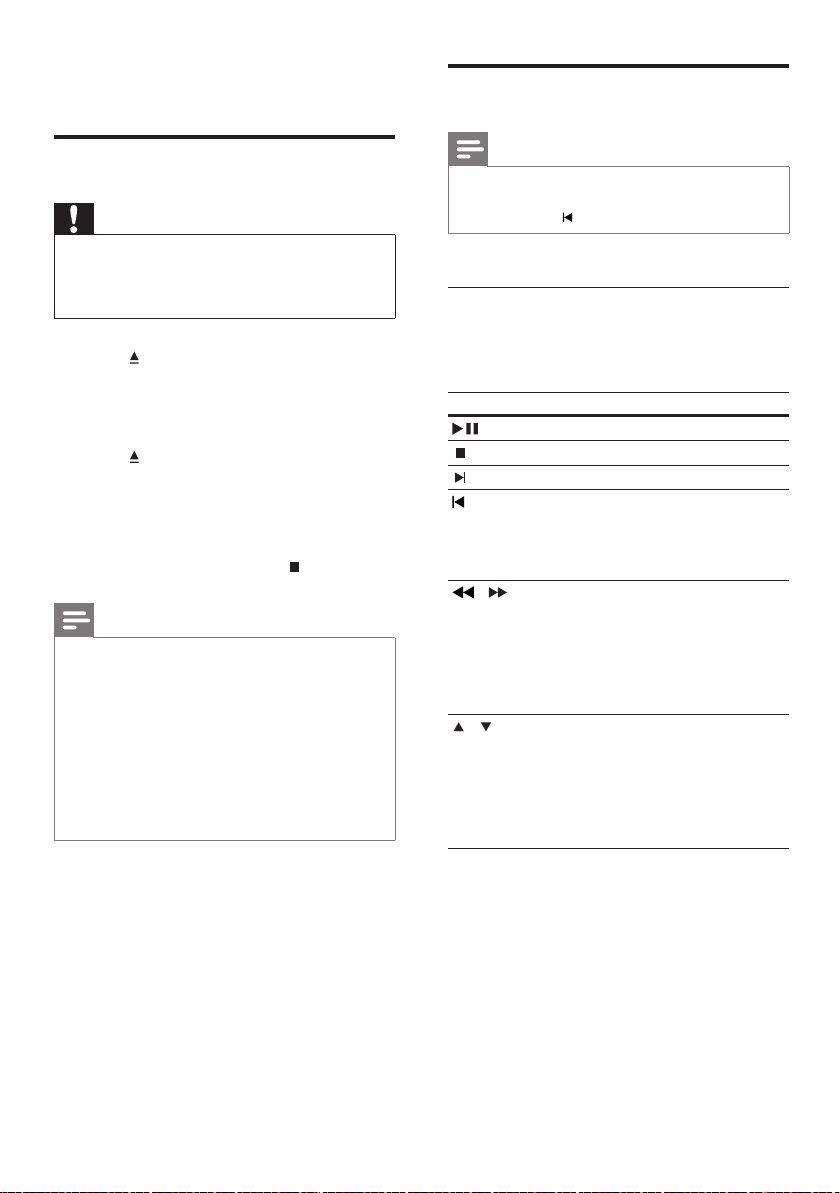
Select a play source
On the main unit
Press • SOURCE button repeatedly to
select: DISC > USB > FM > AUX 1 >
AUX 2 > COAX IN > OPTI IN >
MP3 LINK > DISC ...
On the remote control
Press • AUDIO SOURCE repeatedly to
switch to the connected audio source:
Display Device connected to
AUX 1 AUDIO IN-AUX1 jacks
AUX 2 AUDIO IN-AUX2 jacks
COAX IN COAXIAL DIGITAL IN
socket
OPTI IN OPTICAL DIGITAL IN
socket
MP3 LINK MP3 LINK socket
Press • RADIO to switch to FM band.
Press • USB to switch to USB mode.
Press • DISC to switch to disc mode.
EN
Get started
English
1_hts3571-78W_98_en.indd 251_hts3571-78W_98_en.indd 25 2/4/2009 4:04:49 PM2/4/2009 4:04:49 PM
26
Play video
Note
For video disc, playback always resumes from the •
point where it was last stopped. To start play from the
beginning, press
while the message is displayed.
Control video play
1 Play a title.
2 Use the remote control to control the title.
Button Action
Starts, pauses or resumes disc play.
Stops disc play.
Skips to the next title or chapter.
Skips to the beginning of the
current title or chapter. Press twice
to jump to the previous title or
chapter.
/ Searches fast-forward (right)
or fast-backward (left). Press
repeatedly to change the search
speed.
In pause mode, slow motion
backward or forward play.
/ Searches slow-forward (down)
or slow-backward (up). Press
repeatedly to change the search
speed.
For VCD, only slow-forward play is
possible.
5 Play
Play a disc
Caution
Never place any objects other than discs into the disc •
compartment.
Never touch the disc optical lens inside the disc
•
compartment.
1 Press to open the disc compartment.
2 Insert a disc with its label facing up.
For double-sided discs, load the side •
to play face up.
3 Press to close the disc compartment and
start disc play.
To view disc play, turn on the TV to •
the correct viewing channel for this
Home Theater System.
To stop disc play, press •
.
Note
Check the types of discs supported. (see ‘Specifi cations’ •
> ‘Playback media’).
If the password entry menu is displayed, enter the
•
password before you can play the locked or restricted
disc.
If you pause or stop a disc for about 5 minutes, the
•
screen saver activates. To deactivate the screen saver,
press DISC .
After you pause or stop a disc and no buttons are
•
pressed within 15 minutes, this Home Theater System
automatically switches to standby mode.
EN
1_hts3571-78W_98_en.indd 261_hts3571-78W_98_en.indd 26 2/4/2009 4:04:49 PM2/4/2009 4:04:49 PM
27
Access DVD menu
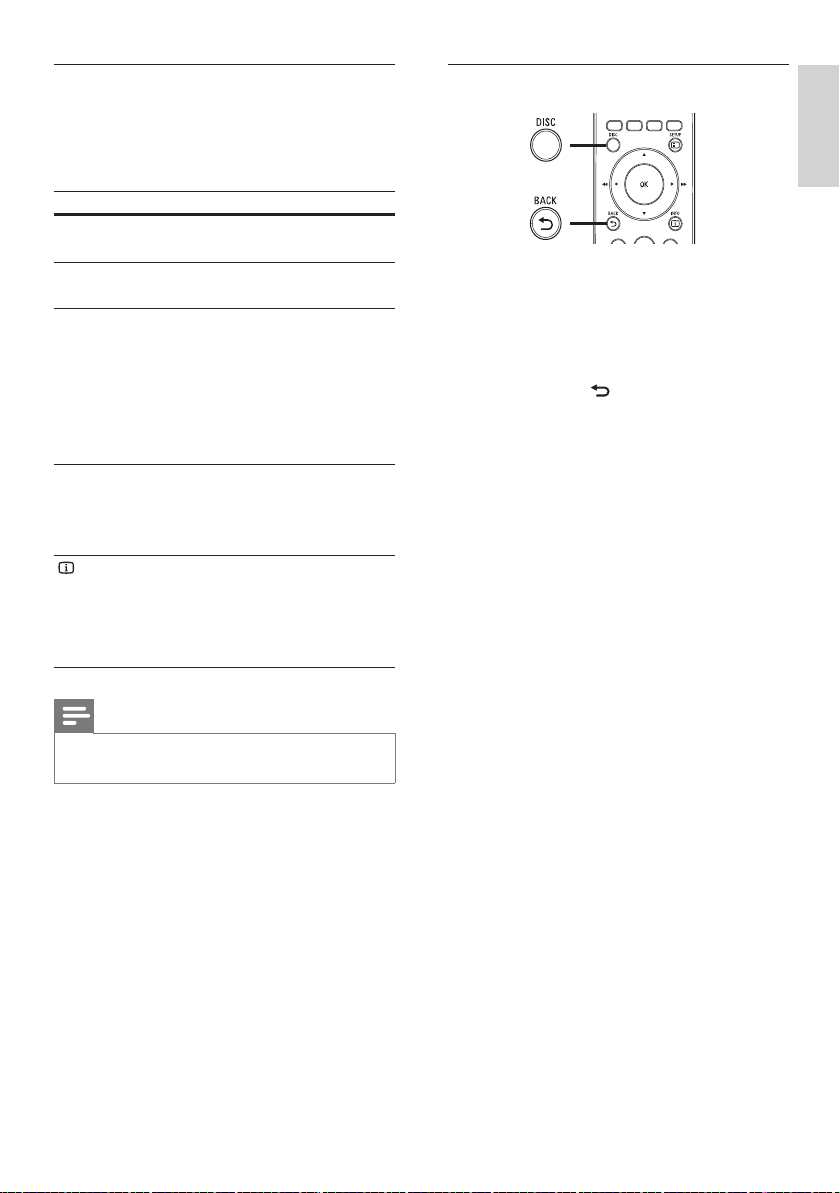
1 Press DISC to access disc main menu.
2 Select a play option, then press OK .
In some menus, press the • Numeric
buttons to input your selection.
To return to the title menu during •
play, press
BACK .
Change video play
1 Play a title.
2 Use the remote control to change the
video play.
Button Action
AUDIO
SYNC
Selects an audio language or
channel on a disc.
SUBTITLE Selects the subtitle language on
a disc.
REPEAT Selects or turns off repeat or
shuffl e mode.
Repeat options vary depending
on the disc type.
For VCDs, repeat play is only
possible if the PBC mode is
turned off.
ZOOM Zooms in or out of the picture.
To pan through the zoomed
image, press the Navigation
buttons .
INFO Displays the current status or
disc information.
You can change the video
play options here without
interrupting disc play.
Note
Some operations may not work with some discs. See •
the information accompanying the disc for details.
Play
English
EN
1_hts3571-78W_98_en.indd 271_hts3571-78W_98_en.indd 27 2/4/2009 4:04:50 PM2/4/2009 4:04:50 PM

28
Sync audio output with video play
If the video play is slower than the audio output
(sound does not match with the pictures), you
can delay the audio output to match the video.
1 Press and hold AUDIO SYNC until
‘AUDIO SYNC’ is displayed.
2 Within fi ve seconds, press VOL +/- to set
the delay time for audio output.
Note
If the volume control is not used within fi ve seconds, it •
resumes normal volume control function.
Quick skip play to a specifi c time
1 During play, press INFO .
The disc status menu is displayed. »
2 Press to view information, then press
OK .
• [TT Time] (title time)
• [Ch Time] (chapter time)
• [Disc Time] (disc time)
• [Track Time] (track time)
3 Press the Numeric buttons to enter the
time where you want to skip to, then press
OK .
Note
The options are different depending on the disc type. •
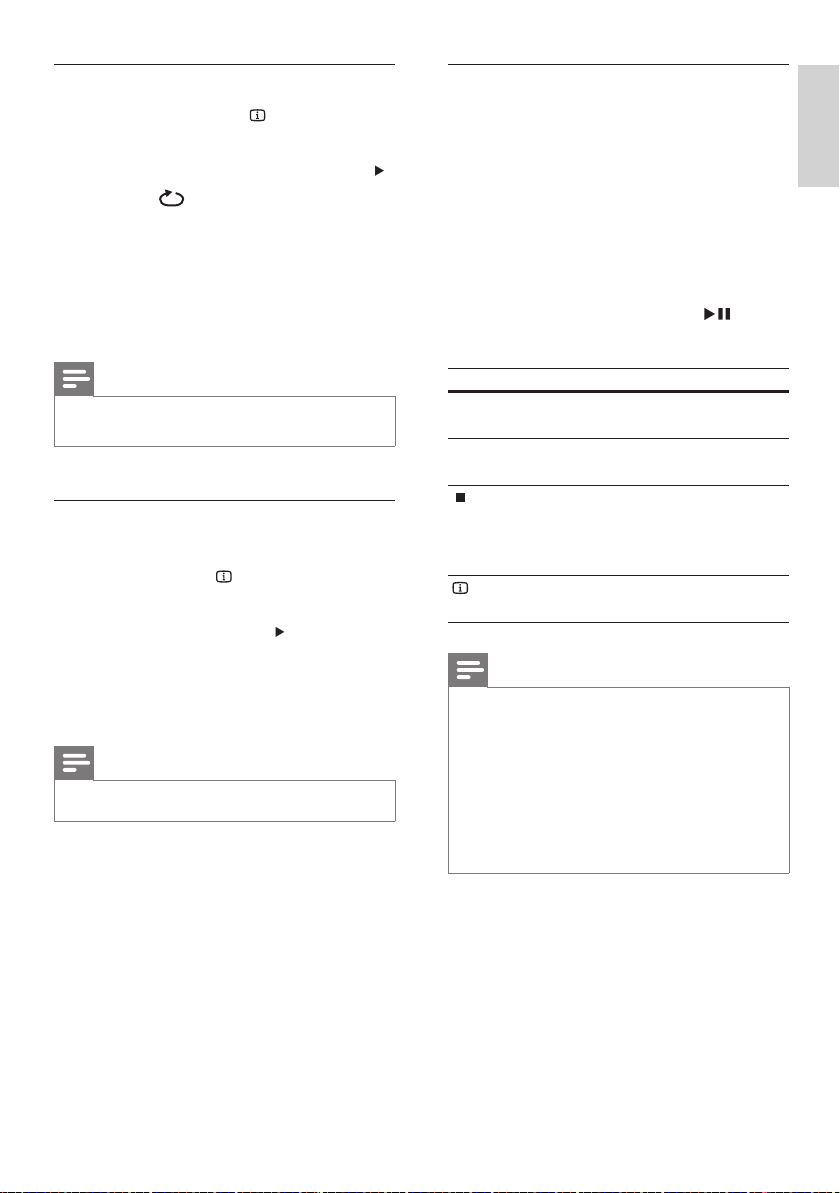
Access VCD menu or preview menu
The PBC (Playback Control) for VCD is
activated by default in the factory. When you
load a VCD, the contents menu is displayed.
1 Press to select a play option, then
press OK to start play.
If PBC is off, it skips the menu and •
starts play from the fi rst title.
To return to the menu during play, •
press
BACK (only possible if the
PBC mode is on).
2 Press DISC to preview the contents of the
disc.
To exit the menu, press • DISC .
3 Select a preview play option, then press
OK
[Track Digest]
Plays the fi rst few seconds of each track in a
disc.
[Disc Interval]
Divides the total disc time by six and play the
fi rst few seconds of these intervals.
[Track Interval]
Divides the current track by six and play the
fi rst few seconds of these intervals.
This option is not available in stop mode.
Tip
You can change the PBC setting (see ‘Adjust settings’ > •
‘Preferences’ > [PBC] ).
Select Digest Type:
Track Digest
Disc Interval
Track Interval
EN
1_hts3571-78W_98_en.indd 281_hts3571-78W_98_en.indd 28 2/4/2009 4:04:50 PM2/4/2009 4:04:50 PM
29
Play DivX® video
DivX video is a digital media format that retains
high quality despite a high rate of compression.
You can enjoy DivX video on this DivX®
Certifi ed Home Theater System.
1 Insert a disc or USB device that contains
the DivX videos.
2 Press DISC or USB .
A contents menu is displayed. »
3 Select a title to play, then press .
4 Use the remote control to control the title.
Button Action
AUDIO
SYNC
Selects an audio language or
channel.
SUBTITLE Select DVD or DivX subtitle
languages.
Stops play.
For DivX Ultra video, press
this button again to display the
contents menu.
INFO Displays DivX Ultra video
information.
Note
You can only play DivX videos that were rented or •
purchased with the DivX registration code of this
Home Theater System (see ‘Adjust settings’ > ‘General
setup’ > [DivX(R) VOD Code] ) .
You can play DivX video fi les of up to 4GB.
•
If the subtitle does not appear correctly, change the •
character set (see ‘Adjust settings’ > ‘Preferences’ >
[DivX Subtitle] ).
This Home Theater System can display up to 45
•
characters in the subtitle.
Repeat play a specifi c section
1 During playback, press INFO .
The disc status menu is displayed. »
2 Select [Repeat] in the menu, then press .
3 Move to [ A-B] in the menu, then press
OK to set the starting point.
4 Press OK again to set the ending point.
Repeat play starts. »
5 To cancel repeat play, select [Off] and
press OK .
Note
The marked section for repeat play is only possible •
within a track/title.
View video play from different camera
angles
1 During play, press INFO .
The disc status menu is displayed. »
2 Select [Angle] , then press .
3 Press the Numeric buttons to select an
angle, then press OK .
Play changes to the selected angle. »
Note
Applicable only to discs containing multi-angle scenes. •
EN
Play
English
1_hts3571-78W_98_en.indd 291_hts3571-78W_98_en.indd 29 2/4/2009 4:04:50 PM2/4/2009 4:04:50 PM
30
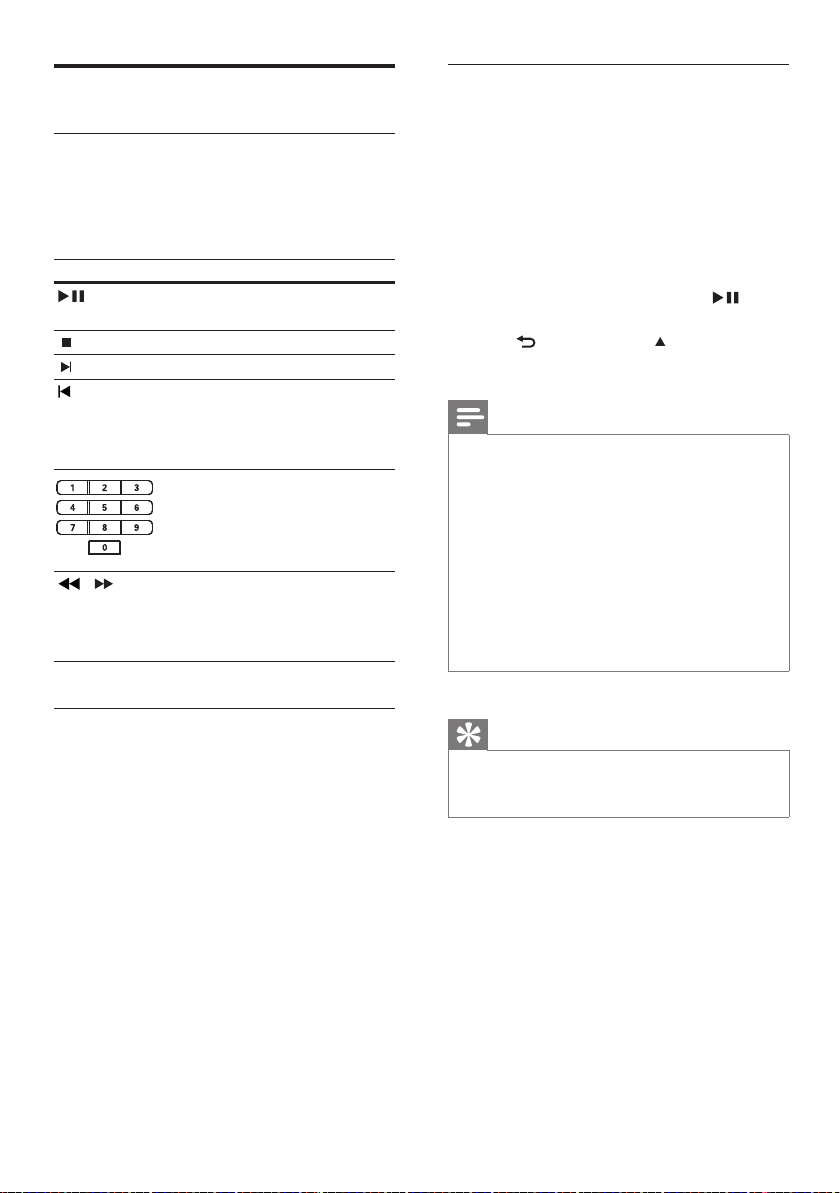
Play MP3/WMA music
MP3/WMA is a type of highly compressed
audio fi le (fi les with .mp3 or .wma extensions).
1 Insert a disc or USB that contains the MP3/
WMA music.
2 Press DISC or USB .
A contents menu is displayed. »
3 Select a folder, then press OK .
4 Select a track to play, then press .
To return to the main menu, press•
BACK or press until ‘Previous’
folder is selected, then press OK .
Note
For disc recorded in multiple sessions, only the fi rst •
session is played.
This Home Theater System does not support MP3PRO
•
audio format.
If any special characters are present in the MP3 track
•
name (ID3) or album name, it might not be displayed
correctly on the screen because these characters are
not supported.
Some WMA fi les are protected by Digital Rights
•
Management and cannot be played on this Home
Theater System.
Folders/fi les that exceed the supported limit of this
•
Home Theater System will not be displayed or played.
Tip
You can select the display of data contents, view folders •
or fi les (see ‘Adjust settings’ > ‘Preferences’ > [MP3/
JPEG Display] ).
Play music
Control audio track play
1 Play a track.
2 Use the remote control to control the
track.
Button Action
Starts, pauses or resumes
disc play.
Stops disc play.
Skips to the next track.
Skips to the beginning of
the current track. Press
twice to jump to the
previous track.
Selects an item to play.
/ Searches fast-forward
(right) or fast-backward
(left). Press repeatedly to
change the search speed.
REPEAT Selects or turns off repeat
or shuffl e mode.
EN
1_hts3571-78W_98_en.indd 301_hts3571-78W_98_en.indd 30 2/4/2009 4:04:50 PM2/4/2009 4:04:50 PM
31
Note
You may require longer time to display the disc content •
on the TV due to the large number of songs/photos
compiled onto one disc.
If the JPEG photo is not recorded with an ‘exif’ type fi le,
•
the actual thumbnail picture is not shown on the display.
It is replaced by a ‘blue mountain’ thumbnail picture.
This Home Theater System can only display digital •
camera pictures according to the JPEG-EXIF format,
typically used by almost all digital cameras. It cannot
display Motion JPEG and pictures in formats other than
JPEG, or sound clips associated with pictures.
Folders/fi les that exceed the supported limit of this
•
Home Theater System are not displayed or played.
Control photo play
1 Play photo slideshow.
2 Use the remote control to control the
photo.
Button Action
Skips to the previous photo.
Skips to the next photo.
Rotates the photo clockwise.
Rotates the photo anti-
clockwise.
ZOOM Zooms in or out of the
picture.
Play pause in zoom mode.
Stops play.
Play photo
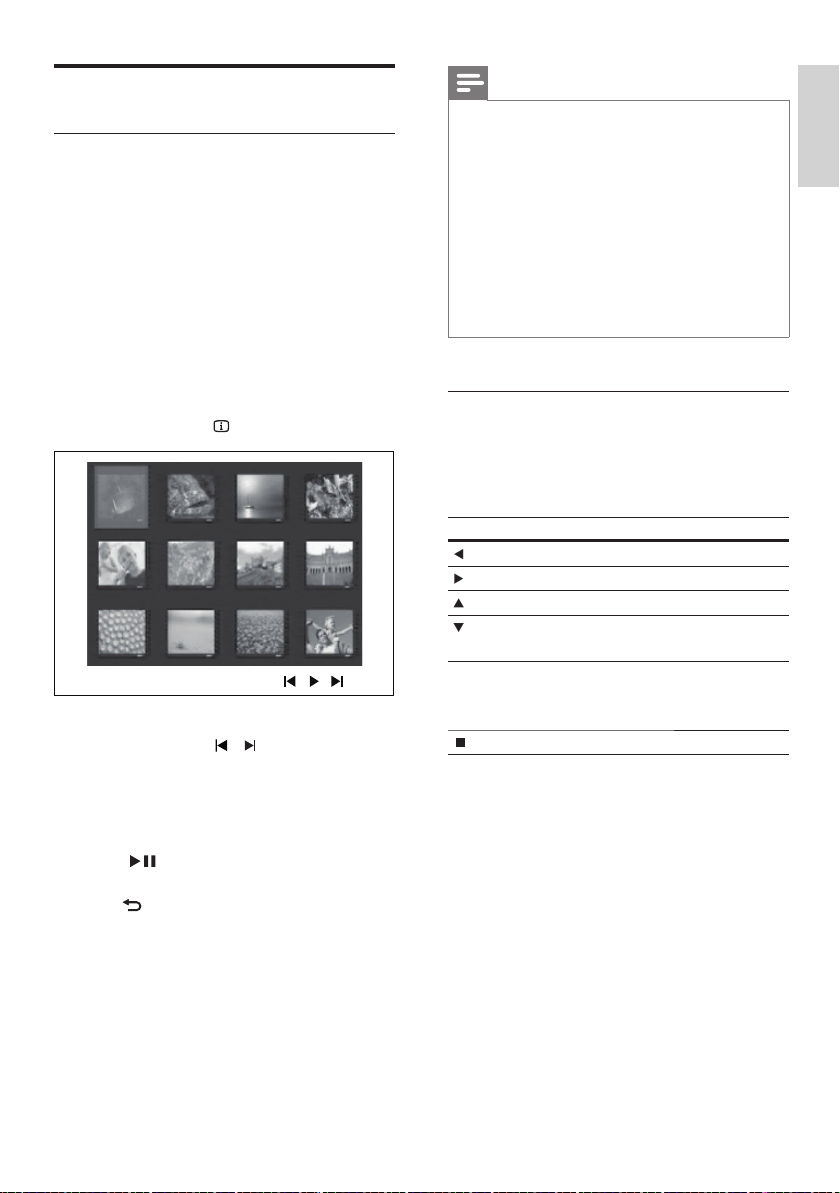
Play photo as slideshow
This Home Theater System can play JPEG
photos (fi les with .jpeg or .jpg extensions).
1 Insert a disc or USB that contains the JPEG
photos.
2 Press DISC or USB .
Slideshow begins (for Kodak disc) or »
a contents menu (for JPEG disc) is
displayed.
3 Select the folder/album you want to play.
To preview the photos in the folder/•
album, press
INFO .
To go to previous or next screen •
display, press
/ .
To select a photo, press the •
Navigation buttons .
To display the selected photo only, •
press OK .
4 Press to start slideshow play.
To return to the menu, press •
BACK .
EN
Play
English
1_hts3571-78W_98_en.indd 311_hts3571-78W_98_en.indd 31 2/4/2009 4:04:51 PM2/4/2009 4:04:51 PM
32
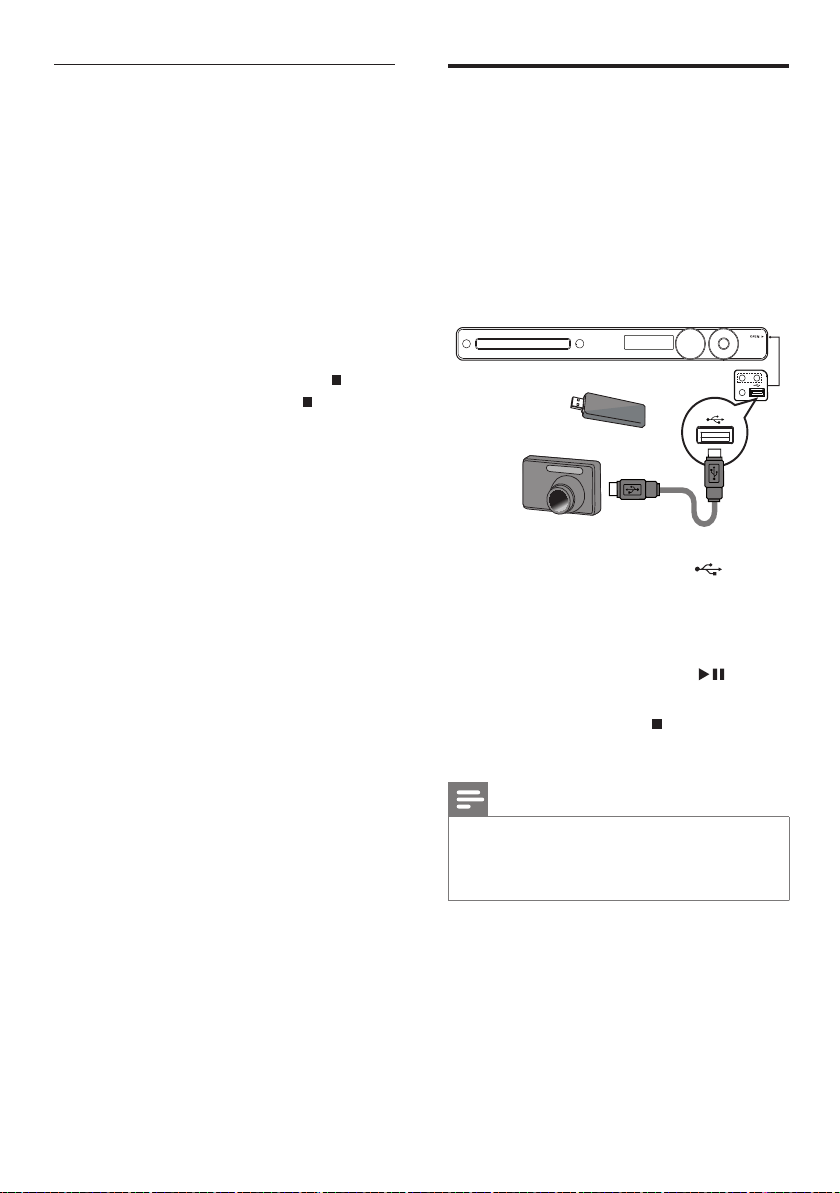
Play from USB device
This Home Theater System plays/views MP3,
WMA, DivX (Ultra) or JPEG fi les on the
following USB devices:
digital camera that complies with the PTP •
standard
fl ash drive•
memory card reader•
HDD (external power source needed)•
1 Connect a USB device to the (USB)
jack.
2 Press USB .
A contents menu is displayed. »
3 Select a fi le to play, then press .
Play starts. »
To stop play, press •
or remove the
USB device.
Note
If the device does not fi t into the USB jack, connect it •
through a USB extension cable.
If you connect a multiple USB card/device reader, only
•
one card/device can be accessed.
/
Play musical slideshow
Play MP3/WMA music fi les and JPEG photo
fi les simultaneously to create musical slideshow.
The MP3/WMA and JPEG fi les must be stored
on the same disc or USB device.
1 Play MP3/WMA music.
2 Navigate to the photo folder/album and
press OK to start slideshow play.
Slideshow begins and continues till the »
end of the photo folder or album.
Audio continues to play till the end of »
the disc.
To stop slideshow play, press •
.
To stop music play, press •
again.
EN
1_hts3571-78W_98_en.indd 321_hts3571-78W_98_en.indd 32 2/4/2009 4:04:51 PM2/4/2009 4:04:51 PM
33
Play from radio
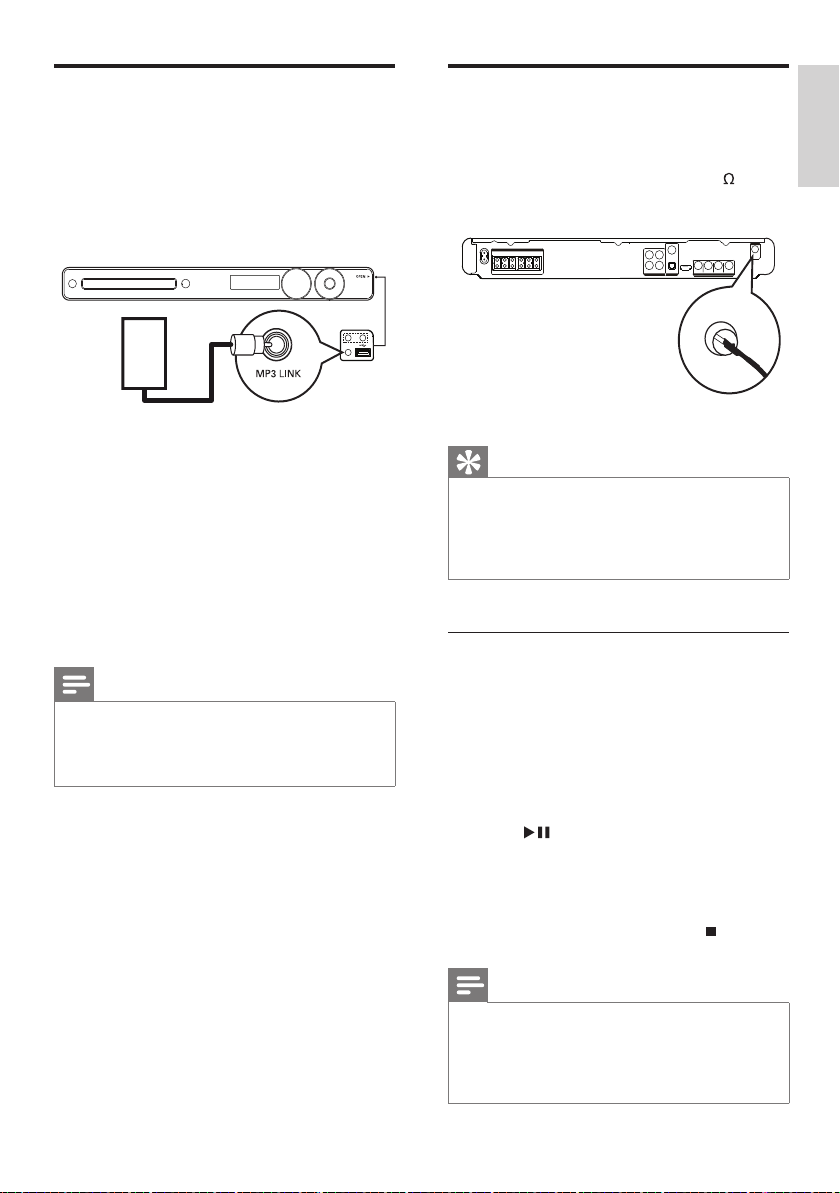
Check if the FM antenna has been connected
to this Home Theater System. If not, connect
the supplied FM antenna to the FM75
jack
and fi x its ends to the wall.
Tip
For better FM stereo reception, connect an external •
FM antenna (not supplied).
Position the antenna as far away as possible from •
your TV, VCR or other radiation source to prevent
interference.
First time tuning
When you access radio mode for the fi rst
time, follow the instructions to install the radio
stations.
1 Press RADIO .
‘AUTO INSTALL ... PRESS PLAY’ is »
displayed.
2 Press .
All detected radio stations are stored. »
Once complete, it tunes to the fi rst »
preset radio station.
To stop auto tuning, press •
.
Note
This Home Theater System can store up to a maximum •
of 40 radio stations.
If auto installation is not activated or less than 5 radio
•
stations are stored, you will be prompted to install the
radio stations again.
FM (75 Ω)
ANTENNA
Play from portable media
player
Simply connect your portable media player
(e.g. MP3 player) to this Home Theater System
to enjoy superb sound quality from your music
collections.
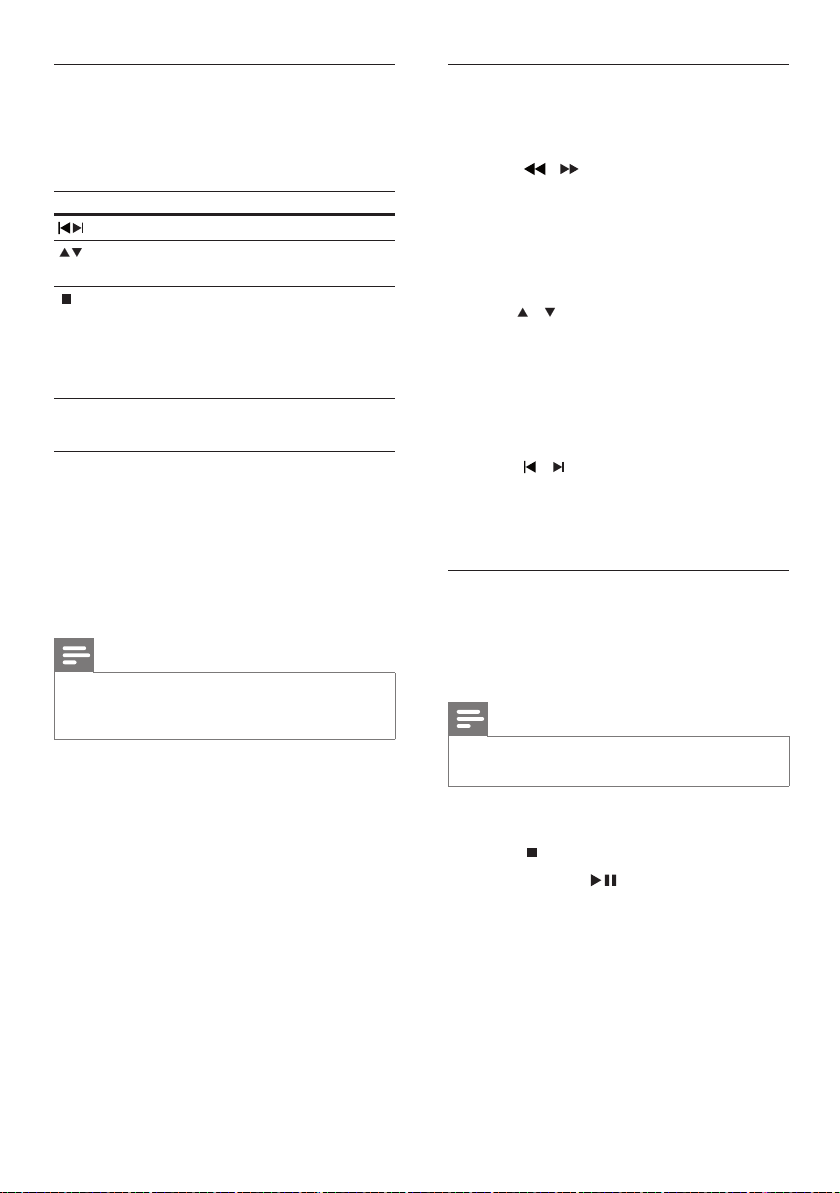
1 Connect a 3.5 mm stereo audio cable (not
supplied) from the MP3 LINK jack on this
Home Theater System to the ‘headphone’
jack on the portable media player.
2 Press AUDIO SOURCE repeatedly until
‘MP3 LINK’ is displayed.
3 Start play on your portable media player.
To stop play, press • STOP on the
portable media player.
Note
Control playback is only possible on the portable media •
player.
Stop play on the portable media player before you
•
switch to other play media/source.
MP3
EN
Play
English
1_hts3571-78W_98_en.indd 331_hts3571-78W_98_en.indd 33 2/4/2009 4:04:51 PM2/4/2009 4:04:51 PM
34
Search and store radio stations
individually
1 Press RADIO .
2 Press / .
It starts searching until a radio station »
is detected.
3 Repeat step 2 until you tune to the radio
station you wish to store.
To fi netune the radio frequency, press •
/ .
4 Press PROGRAM .
The preset station number blinks. »
If no action is carried out within 20 »
seconds after the above step, it exits
the preset mode.
5 Press / (or the Numeric buttons ) to
select a preset number to store.
6 Press PROGRAM to confi rm.
Change the tuning grid
In some countries, the frequency step between
adjacent channels in FM band is 50 kHz or 100
kHz.
Note
This feature is only applicable for certain regions. •
Changing the tuning grid erases all preset radio stations. •
1 Press RADIO .
2 Press .
3 Press and hold until ‘GRID 9’ or ‘GRID
10’ is displayed.
‘GRID 9’ for 50 kHz and ‘GRID 10’ for »
100 kHz.
Listen to radio
1 Press RADIO .
2 Use the remote control to control the
radio.
Button Action
Selects a preset radio station.
Tunes the radio frequency up or
down.
Press and hold this button to erase
the current radio station from the
preset list.
The preset number for other radio
stations remain unchanged.
Reinstall all the radio stations
1 Press RADIO .
2 Press and hold PROGRAM for more than
5 seconds.
All previously stored radio stations are »
replaced.
Note
Check the radio antenna connection if no stereo signal •
is detected or less than 5 stations are detected during
radio installation.
EN
1_hts3571-78W_98_en.indd 341_hts3571-78W_98_en.indd 34 2/4/2009 4:04:51 PM2/4/2009 4:04:51 PM
35
6 Select the audio track, then press OK .
To select another track, repeat step 6.•
To select all tracks, select • [Select All]
in the menu and press OK .
To deselect all tracks, select • [Deselect
all] in the menu and press OK .
7 Select [Start] in the menu to convert, then
press OK .
Once complete, a new folder is »
created automatically in the USB
device to store all the new MP3 fi les.
To exit the menu, select • [Exit] and
press OK .
Note
While you convert, do not press any buttons. •
DTS CDs and copy-protected CDs cannot be •
converted.
Write-protected or password-protected USB devices
•
cannot be used to store MP3 fi les.
6 Advanced
features
Create MP3 audio fi les
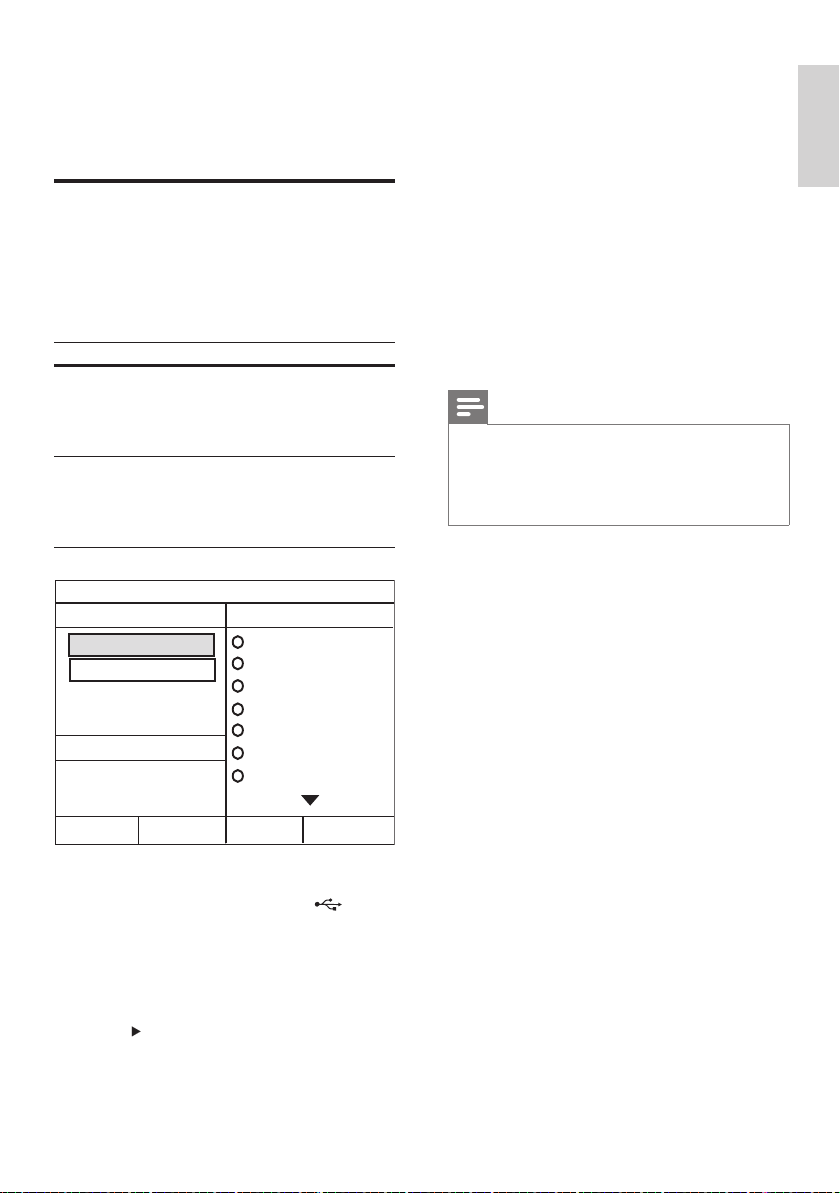
You can convert audio CDs into MP3 audio
fi les with this Home Theater System. The
created MP3 audio fi les are saved in your USB
device.
Option Description
[Speed] Selects the write-to-fi le speed.
If [Normal] speed is selected,
music play can be heard while
creating the MP3 fi le.
[Bitrate] Selects the quality level. Higher
bitrate for better sound quality
and bigger fi le size.
Default setting is [128kbps] .
1 Insert an audio CD. (CDDA/HDCD)
2 Connect the USB fl ash drive to (USB)
jack on this Home Theater System.
3 During disc play, press CREATE MP3 .
4 Select the conversion options in the
[OPTIONS] panel, then press OK .
5 Press to access the [TRACK] panel.
CREATE MP3
OPTIONS
TRACK
Bitrate 128kbps
SUMMARY
Select Track 0
Start Exit
Select All
Deselect All
Time 00:00
Track01 04:14
Track02 04:17
Track03 03:58
Track04 04:51
Track05 03:53
Track06 04:09
Track07 04:38
Speed Normal
EN
Advanced features
English
1_hts3571-78W_98_en.indd 351_hts3571-78W_98_en.indd 35 2/4/2009 4:04:52 PM2/4/2009 4:04:52 PM
36
Select a preset sound
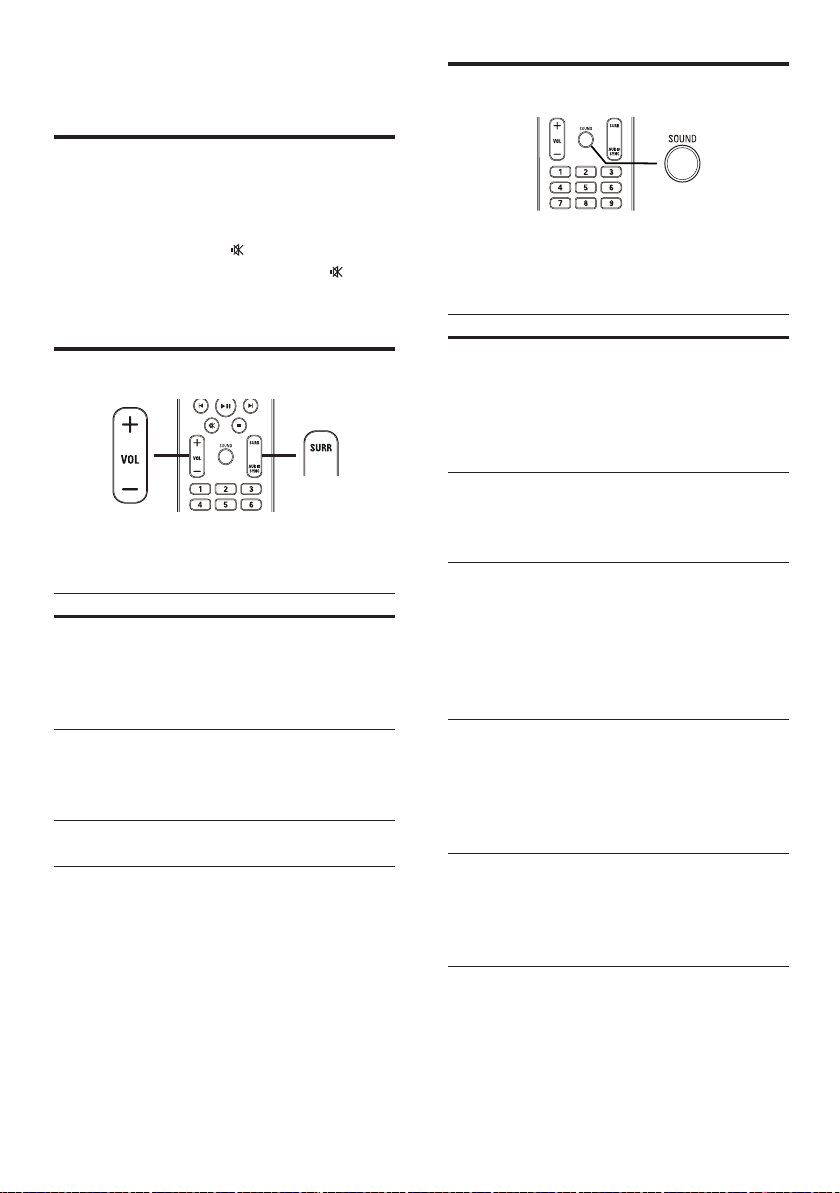
1 Press SOUND repeatedly to select the
sound effect that most suitable for the
video or music you play.
Video/Music Description
ACTION /
ROCK
Enhance low and high
range for great sounding
movie effects and
atmosphere. Great for
action movies and rock/
pop music.
CONCERT /
CLASSIC
Flat and pure sound
mode. Ideal for listening
to classical music and
watching live concert disc.
DRAMA /
JAZZ
Clear mid and high
range. Recreates the
atmosphere of a live
club with the artist just
in front of you. Good for
jazz music and watching
dramas.
SPORTS Moderate mid range
and surround effects
for clear vocals and the
atmosphere of a live
sports venue. It is also
ideal for video gaming.
NIGHT Dynamically controlled
sound mode suitable
for watching movies at
night or for nonintrusive
background music.
7 Adjust sound
Control the volume
1 Press VOL +/- to increase or decrease the
volume.
To mute, press •
.
To restore the volume, press •
again
or press VOL + .
Select surround sound
1 Press SURR repeatedly to select the best
surround output that’s available on the disc.
Option Description
5 CH
STEREO
Enhances the stereo channel
output by duplicating the
sound output to the centre
and rear speakers. Ideal for
party music.
MULTI-
CHANNEL/
DPLII
Multi-channel surround output:
DTS (Digital Theatre Systems),
Dolby Digital, and Dolby Pro
Logic II.
STEREO Stereo sound from two front
speakers.
EN
1_hts3571-78W_98_en.indd 361_hts3571-78W_98_en.indd 36 2/4/2009 4:04:52 PM2/4/2009 4:04:52 PM
37
[Mic]
Turns microphone output on and off.
• [On] – Turns microphone on.
• [Off] – Turns microphone off.
[Echo Level]
Press
to set the echo level.
[Key]
Press
to set the pitch level that matches
your voice.
[Score]
Selects a karaoke rating score level.
• [Off] – No score rating display.
• [Basic] – Basic rating.
• [Intermediate] – Intermediate rating.
• [Advance] – Advance rating.
Turning vocals off (voice
cancel)
1 Press VOCAL repeatedly until ‘VOICE
CANCEL’ is displayed.
Note
You cannot cancel the voice output from MP3 or WMA •
audio.
Adjusting microphone volume
level
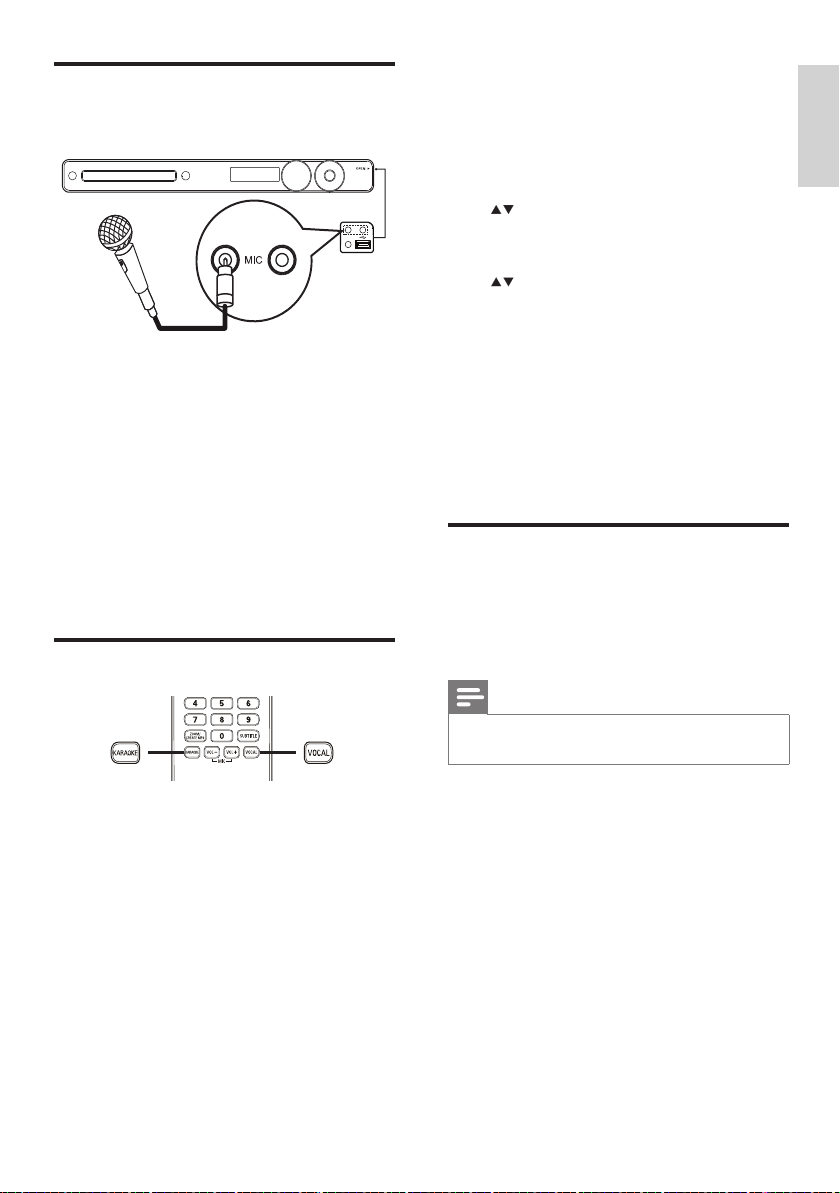
1 Connect a microphone (not supplied) to
the MIC socket on this Home Theater
System.
2 Turn on the microphone output. (see
‘Karaoke settings’.)
3 Press MIC ( VOL +/- ) to adjust the
microphone volume.
‘MIC XX’ is displayed. »
Sing or speak into the microphone to •
fi nd the desired volume level.
Karaoke settings
1 Turn on the TV to the correct viewing
channel for this Home Theater System.
2 Press KARAOKE .
» [Karaoke Setup Page] menu is
displayed.
3 Select an option and change the setting,
then press OK .
To exit the menu, press • KARAOKE .
1
2
Adjust sound
English
EN
1_hts3571-78W_98_en.indd 371_hts3571-78W_98_en.indd 37 2/4/2009 4:04:52 PM2/4/2009 4:04:52 PM
38
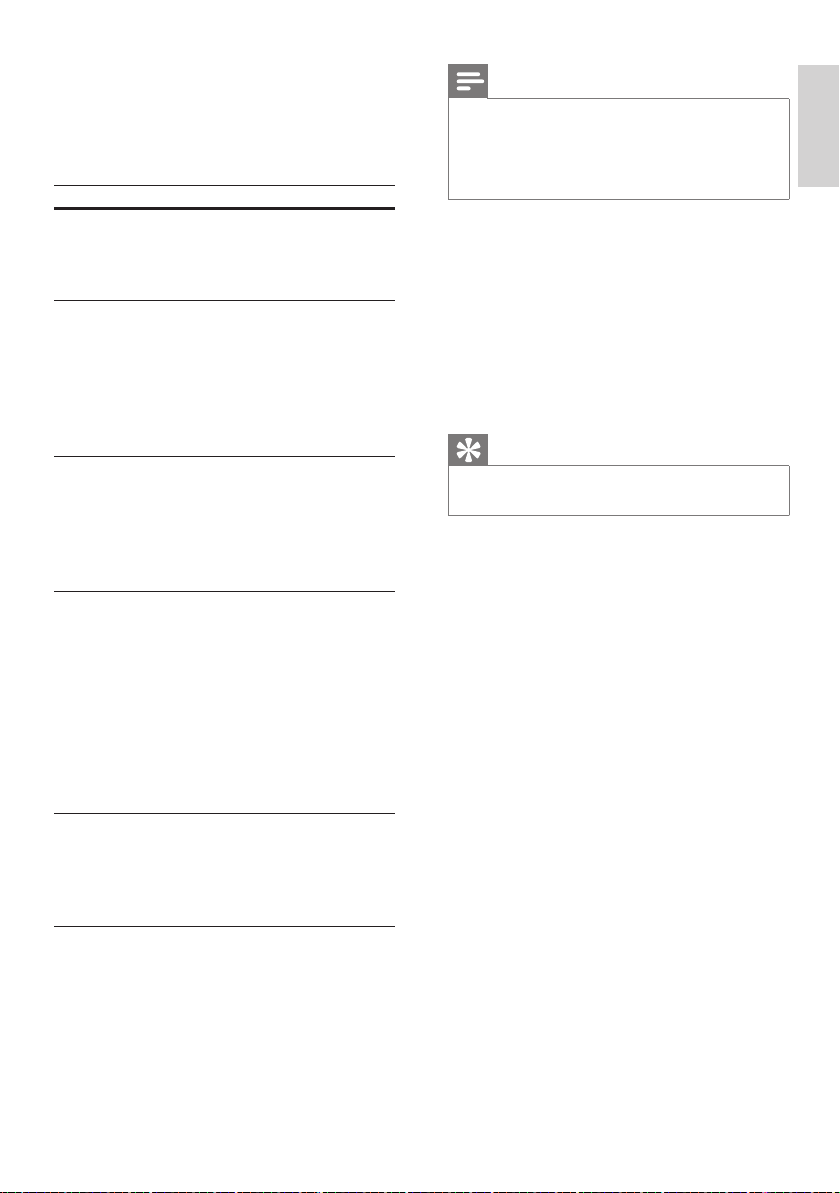
General setup
1 Press SETUP .
» [General Setup] menu is displayed.
2 Press .
3 Select an option, then press OK .
4 Select a setting, then press OK .
To return to the previous menu, press •
BACK .
To exit the menu, press •
SETUP .
Note
See the explanations of the above options in the •
following pages.
OSD Language
Sleep Timer
Screen Saver
Disc Lock
EasyLink Setup
Display Dim
General Setup
DivX(R) VOD Code
8 Adjust settings
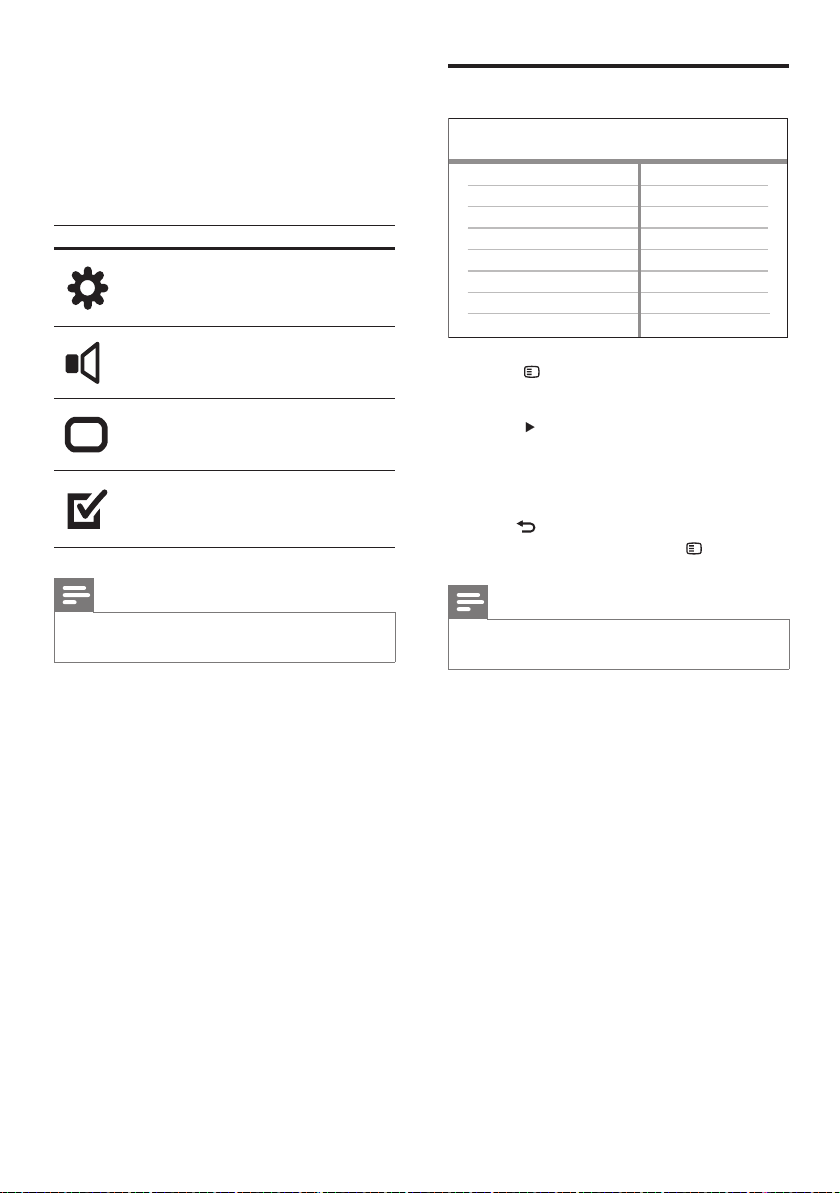
You can customise various kinds of settings as
you prefer. Refer to the following instructions to
navigate through the setup menus.
Symbol Options
[General Setup]
[Audio Setup]
[Video Setup]
[Preferences]
Note
If the setup option is greyed out, it means the setting •
cannot be changed in the current state.
EN
1_hts3571-78W_98_en.indd 381_hts3571-78W_98_en.indd 38 2/4/2009 4:04:52 PM2/4/2009 4:04:52 PM
39
Note
You must turn on the HDMI CEC operations on the •
TV/devices before you can enjoy the EasyLink controls.
See the TV/devices manual for details.
Philips does not guarantee 100% interoperability with
•
all HDMI CEC compliant devices.
[Disc Lock]
Sets play restriction for specifi c discs. Before you
start, place the disc in the disc compartment
(maximum 40 discs can be locked).
• [Lock] – Restricts access to the current
disc. Once activated, a password is needed
to unlock and play the disc.
• [Unlock] – Plays all discs.
Tip
You can set or change the password (see ‘Adjust •
settings’ > ‘Preferences’ > [Password] ).
[Display Dim]
Changes the brightness level of the display
panel on this Home Theater System.
• [100%] – Normal brightness.
• [70%] – Medium brightness.
• [40%] – Dimmest display.
[OSD Language]
Selects the default on-screen menu language.
[Screen Saver]
Turns off or on the screen saver mode. Helps to
protect the TV screen from being damaged due
to over exposure to a static image for too long.
• [On] – Sets the screen saver to appear
after 5 minutes of inactivity (for example, in
pause or stop mode).
• [Off] – Disable screen saver mode.
[EasyLink Setup]
If this Home Theater System is connected
to HDMI CEC compliant TV/devices, all
connected devices can respond to the following
commands simultaneously:
Option Description
[EasyLink] Turns off or on all EasyLink
features.
To disable this feature, select
[Off] .
[One Touch
Play]
When you press PLAY , the
TV and Home Theater System
are turned on. Disc play starts
if there is a disc in the Home
Theater System.
To disable this feature, select
[Off] .
[One Touch
Standby]
When you press and hold
STANDBY , connected HDMI
CEC devices simultaneously
switch to standby.
To disable this feature, select
[Off] .
[System
Audio
Control]
When you play audio that is
routed from the connected
devices, this Home Theater
System switches to the
corresponding audio source
automatically.
To enable this feature, select
[On] . Then proceed to [Audio
Input Mapping] to scan and
map all the connected devices.
[Audio Input
Mapping]
When you map the audio
input correctly, this Home
Theater System switches to the
audio from the played device
automatically.
Adjust settings
English
EN
1_hts3571-78W_98_en.indd 391_hts3571-78W_98_en.indd 39 2/4/2009 4:04:53 PM2/4/2009 4:04:53 PM
40
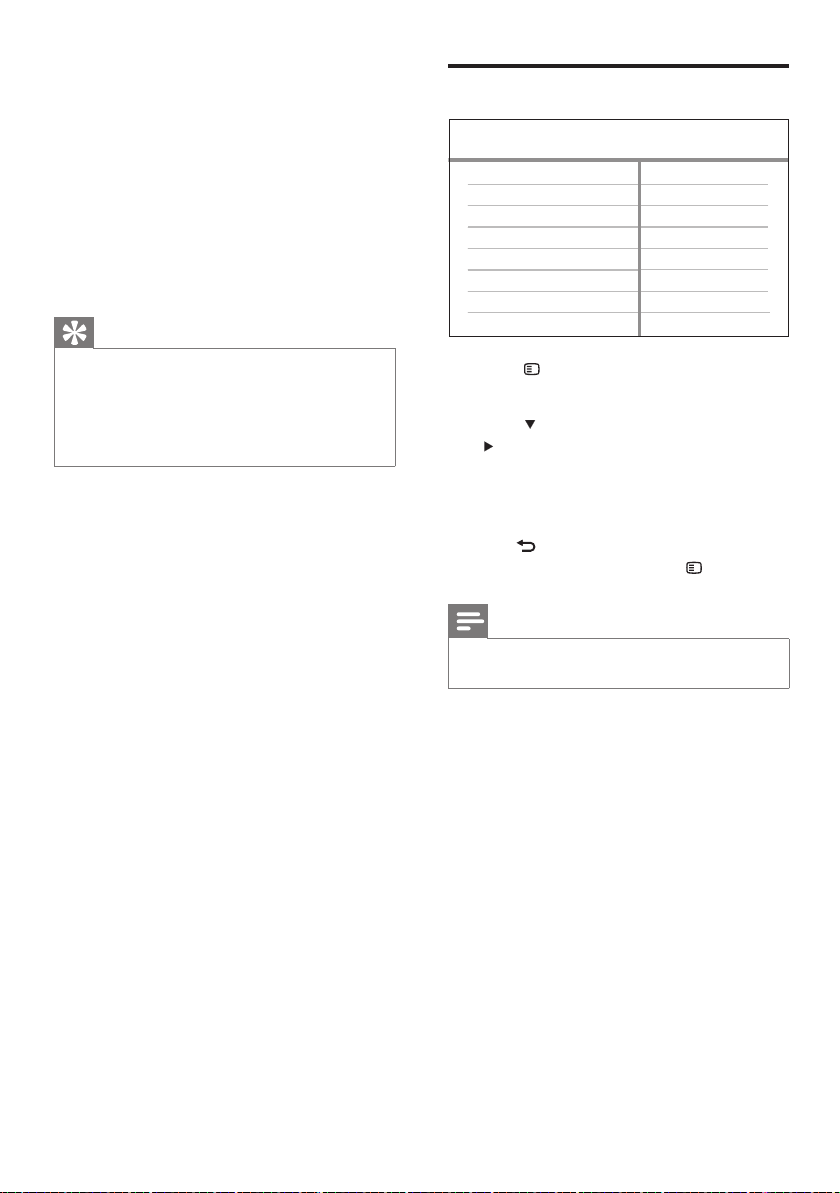
Audio setup
1 Press SETUP .
» [General Setup] menu is displayed.
2 Press to select [Audio Setup] , then press
.
3 Select an option, then press OK .
4 Select a setting, then press OK .
To return to the previous menu, press •
BACK .
To exit the menu, press •
SETUP .
Note
See the explanations of the above options in the •
following pages.
CD Upsampling
Speakers Delay
Speakers Volume
HDMI Audio
Audio Setup
Audio Sync
[Sleep Timer]
Switches to standby automatically after the
preset time.
• [15 mins] , [30 mins] , [45 mins] , [60 mins]
– Selects the count down time before the
Home Theater System switches to standby.
• [Off] – Disables sleep timer mode.
[DivX(R) VOD Code]
Displays the DivX® registration code.
Tip
Enter this Home Theater System DivX registration •
code when you rent or purchase a video from www.
divx.com/vod. The DivX videos rented or purchased
through the DivX® VOD (Video On Demand)
service can be played only on the device to which it is
registered.
EN
1_hts3571-78W_98_en.indd 401_hts3571-78W_98_en.indd 40 2/4/2009 4:04:53 PM2/4/2009 4:04:53 PM
41
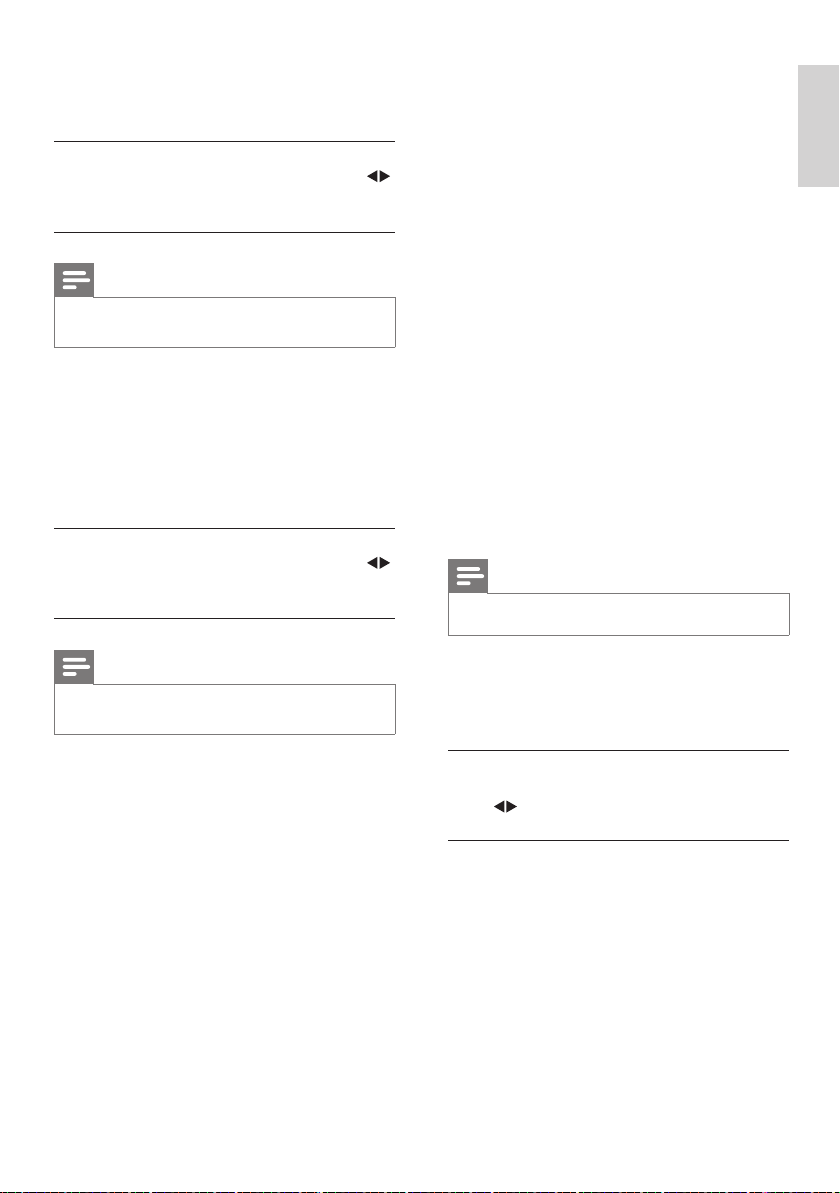
[HDMI Audio]
Selects the HDMI audio setting when you
connect this Home Theater System and the TV
with a HDMI cable.
• [On] – Allows audio output through the
TV and the speaker system. If the audio
format on the disc is not supported, it
will be downmixed to two-channel sound
(linear-PCM).
• [Off] – Disables audio output from the
TV. The sound is only output through the
speaker system.
[CD Upsampling]
Converts the music CD to a higher sampling
rate using sophisticated digital signal processing
for better sound quality.
• [Off] – Disables CD-upsampling.
• [88.2kHz (X2)] – Converts the sampling
rate of the CDs twice as high as the
original rate.
Note
CD upsampling is only available in stereo mode. •
[Audio Sync]
Sets the default delay time for audio output
when you play a video disc.
1) To start, press OK .
2) Select a speaker delay in the menu, then
press
to set the delay time.
3) Press OK to confi rm and exit.
[Speakers Volume]
Sets the volume level of each speaker to get
the ideal audio balance.
1) To start, press OK .
2) Select a speaker in the menu, then press
to adjust the volume level.
3) Press OK to confi rm and exit.
Note
The test tone is emitted from the speaker which you •
adjust.
[Speakers Delay]
Sets the delay time for the centre and rear
speakers if they are placed closer to the
listening position, so that the sound output from
all speakers reaches the listening position at the
same time.
1) To start, press OK .
2) Select a speaker in the menu, then press
to set the delay time.
3) Press OK to confi rm and exit.
Note
Allow 1ms setting for every 1 foot distance between •
the speaker and the listening position.
English
EN
Adjust settings
1_hts3571-78W_98_en.indd 411_hts3571-78W_98_en.indd 41 2/4/2009 4:04:53 PM2/4/2009 4:04:53 PM
42
[TV System]
Change this setting if the video does not appear
correctly. By default, this setting matches the
most common setting for TVs in your country.
• [PAL] – For PAL-system TV.
• [NTSC] – For NTSC-system TV.
• [Multi] – For TV that is compatible with
both PAL and NTSC.
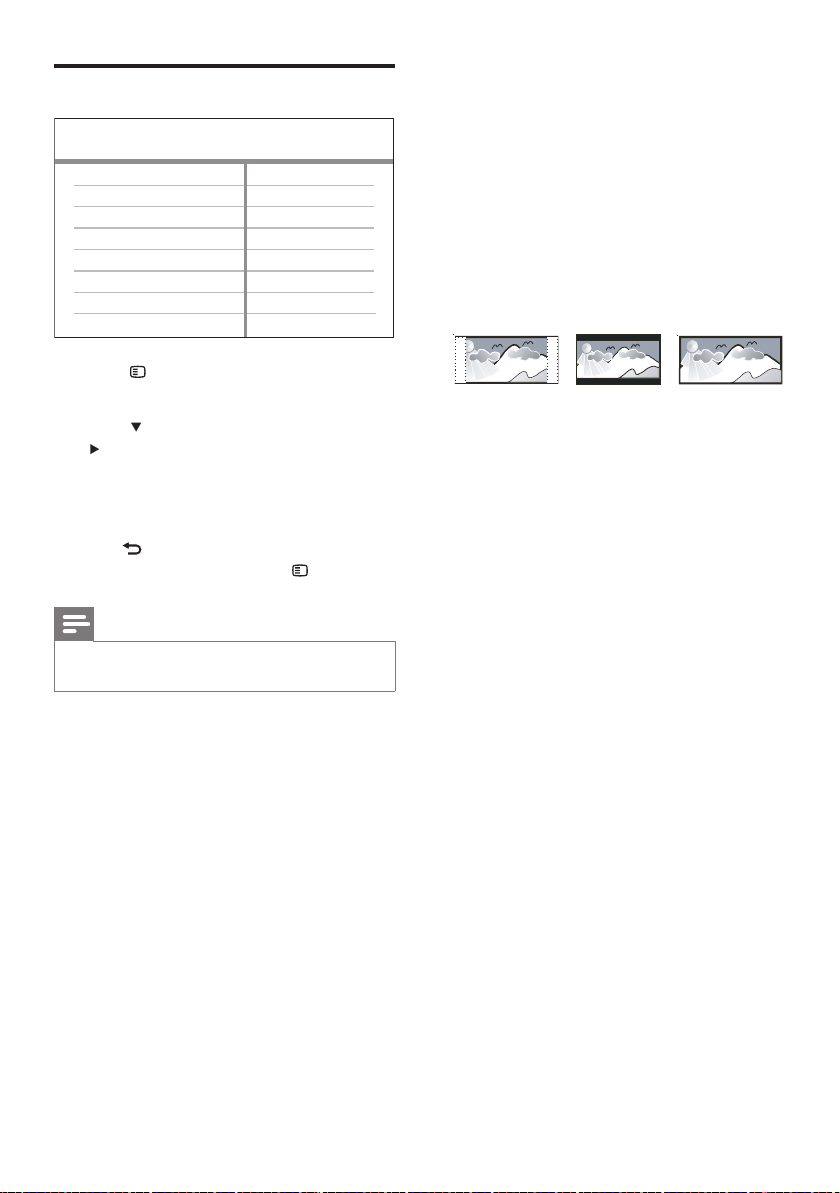
[TV Display]
Selects one of the following display formats:
• [4:3 Pan Scan] – For 4:3 screen TV: full-
height display with the trimmed sides.
• [4:3 Letter Box] – For 4:3 screen TV:
wide-screen display with black bars on the
top and bottom of the screen.
• [16:9 Wide Screen] – For wide-screen TV:
display ratio 16:9.
[Screen Fit]
Fits the picture format to the TV screen to
enjoy watching disc play in full screen mode.
• [Select] – Displays various types of full
screen format, press OK to select a
suitable picture format that best fi ts to the
TV screen.
• [Off] – Returns to normal screen display.
4:3 Letter Box (LB)
4:3 Pan Scan (PS)
16:9 (Wide Screen)
Video setup
1 Press SETUP .
» [General Setup] menu is displayed.
2 Press to select [Video Setup] , then press
.
3 Select an option, then press OK
4 Select a setting, then press OK .
To return to the previous menu, press •
BACK .
To exit the menu, press •
SETUP .
Note
See the explanations of the above options in the •
following pages.
Video Setup
Picture Setting
Closed Caption
Progressive
HDMI Setup
TV Display
TV System
Screen Fit
EN
1_hts3571-78W_98_en.indd 421_hts3571-78W_98_en.indd 42 2/4/2009 4:04:53 PM2/4/2009 4:04:53 PM
43
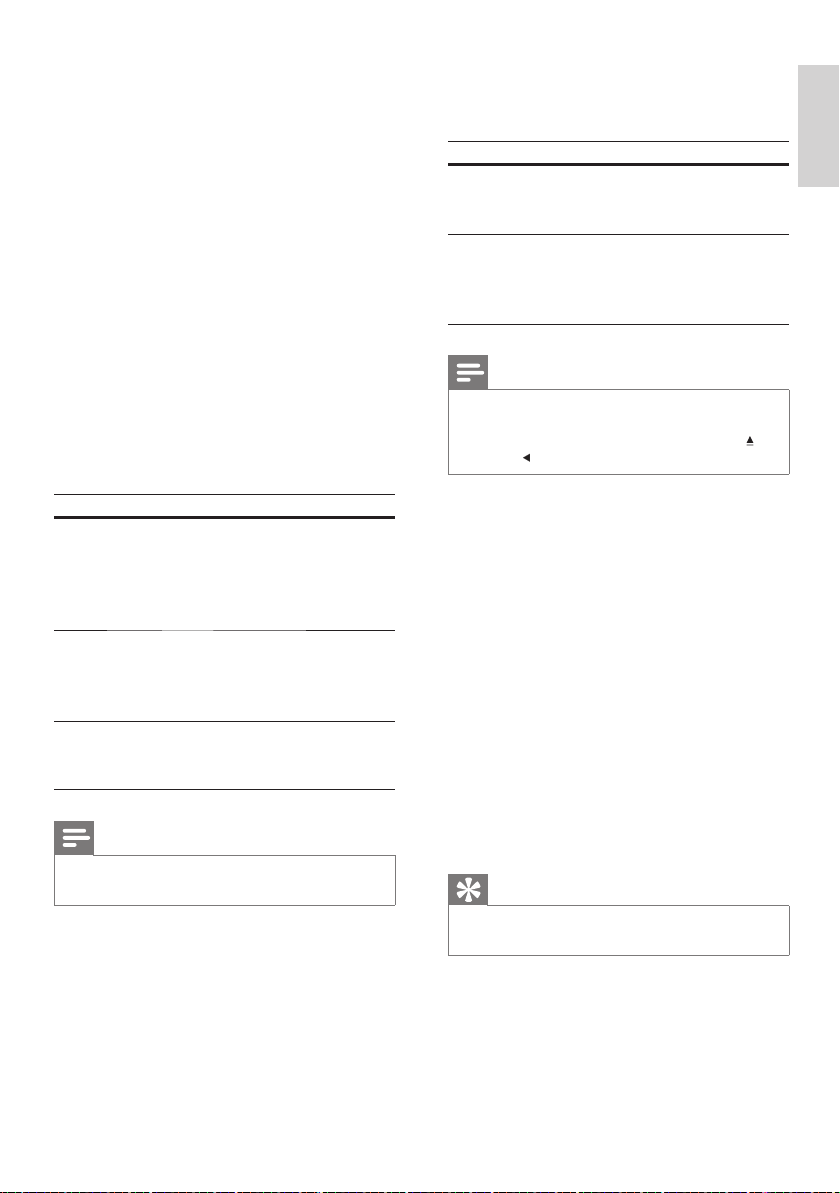
• [HDMI Video] – Selects the HDMI video
output resolution that is compatible with
your TV display capability.
Option Description
[Auto] Detects and selects the
best supported video
resolution automatically.
[480i] , [576i] ,
[480p] , [576p] ,
[720p] , [1080i]
[1080p]
Selects a video resolution
that is best supported
by the TV. See the TV
manual for details.
Note
If the setting is not compatible with your TV, a blank •
screen appears. Wait for 15 seconds for auto recover
or switch to its default mode as follows: 1) Press
.
2) Press
. 3) Press ZOOM .
[Closed Caption]
Turns off or on display captions.
• [On] – Shows the sound effects in
subtitles. Applicable only to discs with
Closed Caption information included and
the TV supports this feature.
• [Off] – Disables closed caption.
[Progressive]
If the TV supports progressive scan output,
you can turn on the progressive scan mode to
enhance the picture quality. Video connection
through component video is required.
• [On] – Turns on progressive scan mode.
• [Off] – Disables progressive scan mode.
Tip
There is a more detailed description available (see ‘Get •
started’ > ‘Turn on Progressive Scan’).
[Picture Setting]
Selects a predefi ned set of picture colour
settings or customises the personal setting.
• [Standard] – Original colour setting.
• [Bright] – Vibrant colour setting.
• [Soft] – Warm colour setting.
• [Personal] – Customises the colour
setting. Set the level of brightness, contrast,
sharpness/tint and colour saturation, then
press OK .
[HDMI Setup]
Selects the HDMI video setting when you
connect this Home Theater System and the TV
with a HDMI cable.
• [Wide Screen Format] – Defi nes the wide
screen format for disc play.
Option Description
[Superwide] Centre position of the
screen is stretched less
than the side. Applicable
only to 720p and above
video resolution setting.
[4:3 Pillar
Box]
No stretching of the
picture. Black bars are
displayed on both sides
of the screen.
[Off] Picture is displayed
according to the format
of the disc.
Note
This setting is only available if you have set the • [TV
Display] setting to [16:9 Wide Screen] .
English
EN
Adjust settings
1_hts3571-78W_98_en.indd 431_hts3571-78W_98_en.indd 43 2/4/2009 4:04:53 PM2/4/2009 4:04:53 PM
44
[Audio]
Selects the default audio language for disc play.
[Subtitle]
Selects the default subtitle language for disc play.
[Disc Menu]
Selects the language for disc menu.
Note
If the language you have set is not available on the disc, •
the disc uses its own default language.
For some discs, the subtitle/audio language can only be
•
changed from the disc menu.
To select the languages that are not listed in the menu,
•
select [Others] . Then check the Language Code list at
the back of this user manual and enter the respective
4-digit language code.
[Parental]
Restricts access to discs that are unsuitable for
children. These types of discs must be recorded
with ratings.
1) Press OK .
2) Select a rating level, then press OK .
3) Press the Numeric buttons to enter the
password.
Note
Rated discs above the level you set in • [Parental]
require a password to be played.
The ratings are country-dependent. To allow all discs to
•
play, select ‘ 8 ’.
Some discs have ratings printed on them but are not
•
recorded with ratings. This function has no effect on
such discs.
Tip
You can set or change the password (see ‘Preferences’ •
> [Password] ).
Preferences
Note
Stop disc play before you can access • [Preferences] .
1 Press SETUP .
» [General Setup] menu is displayed.
2 Press to select [Preferences] , then press
.
3 Select an option, then press OK .
4 Select a setting, then press OK .
To return to the previous menu, press •
BACK .
To exit the menu, press •
SETUP .
Note
See the explanations of the above options in the •
following pages.
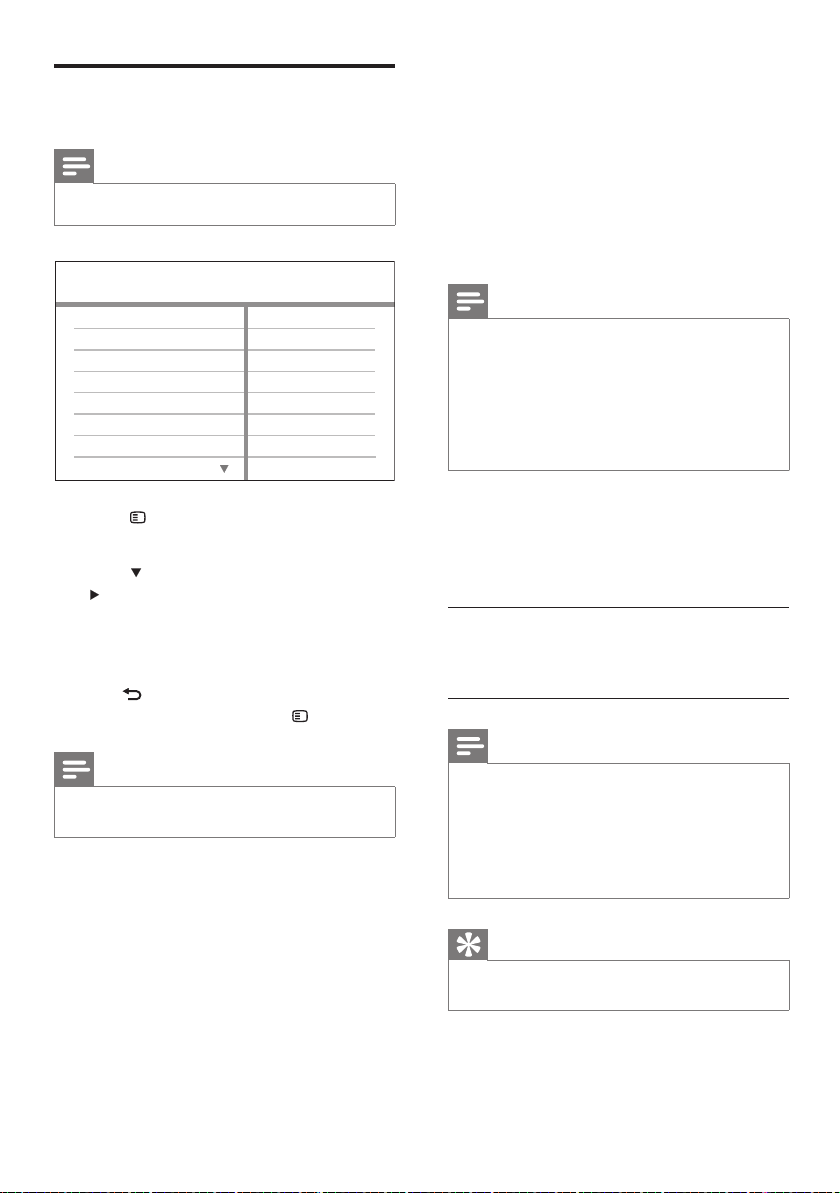
Parental
MP3/JPEG Display
PBC
Subtitle
Audio
Preferences
Disc Menu
DivX Subtitle
Password
EN
1_hts3571-78W_98_en.indd 441_hts3571-78W_98_en.indd 44 2/4/2009 4:04:53 PM2/4/2009 4:04:53 PM
45
[DivX Subtitle]
Selects a character set that supports the DivX
subtitle.
[Standard] English, Irish, Danish,
Estonian, Finnish, French,
German, Italian, Portuguese,
Luxembourgish, Norwegian
(Bokmål and Nynorsk),
Spanish, Swedish, Turkish
[Central
Europe]
Polish, Czech, Slovak,
Albanian, Hungarian, Slovene,
Croatian, Serbian (Latin
script), Romanian
[Cyrillic] Belarusian, Bulgarian,
Ukrainian, Macedonian,
Russian, Serbian
[Greek] Greek
[Hebrew] Hebrew
[Chinese(Simp)] Simplifi ed Chinese
[Korean] Korean
Note
Ensure that the subtitle fi le has the exact same fi le •
name as the movie fi le. If for example the fi le name of
the movie is ‘Movie.avi’, then you will need to name the
text fi le ‘Movie.sub’ or ‘Movie.srt’.
[Version Info.]
Displays the software version of this Home
Theater System.
Tip
This information is required when you want to fi nd out •
if a newer software version is available at the Philips
website that you may download and install on this
Home Theater System.
[Default]
Resets all the settings of this Home Theater
System to factory default, except for [Disc
Lock] , [Password] and [Parental] settings.
[PBC]
Turns off or on the content menu of VCDs/
SVCDs with PBC (playback control) feature.
• [On] - Displays index menu when you
load a disc for play.
• [Off] - Skips the menu and starts play from
the fi rst title.
[MP3/JPEG Display]
Selects to display the folders or display all the
fi les.
• [View Folders] – Displays the folders of
MP3/WMA fi les.
• [View Files] – Displays all the fi les.
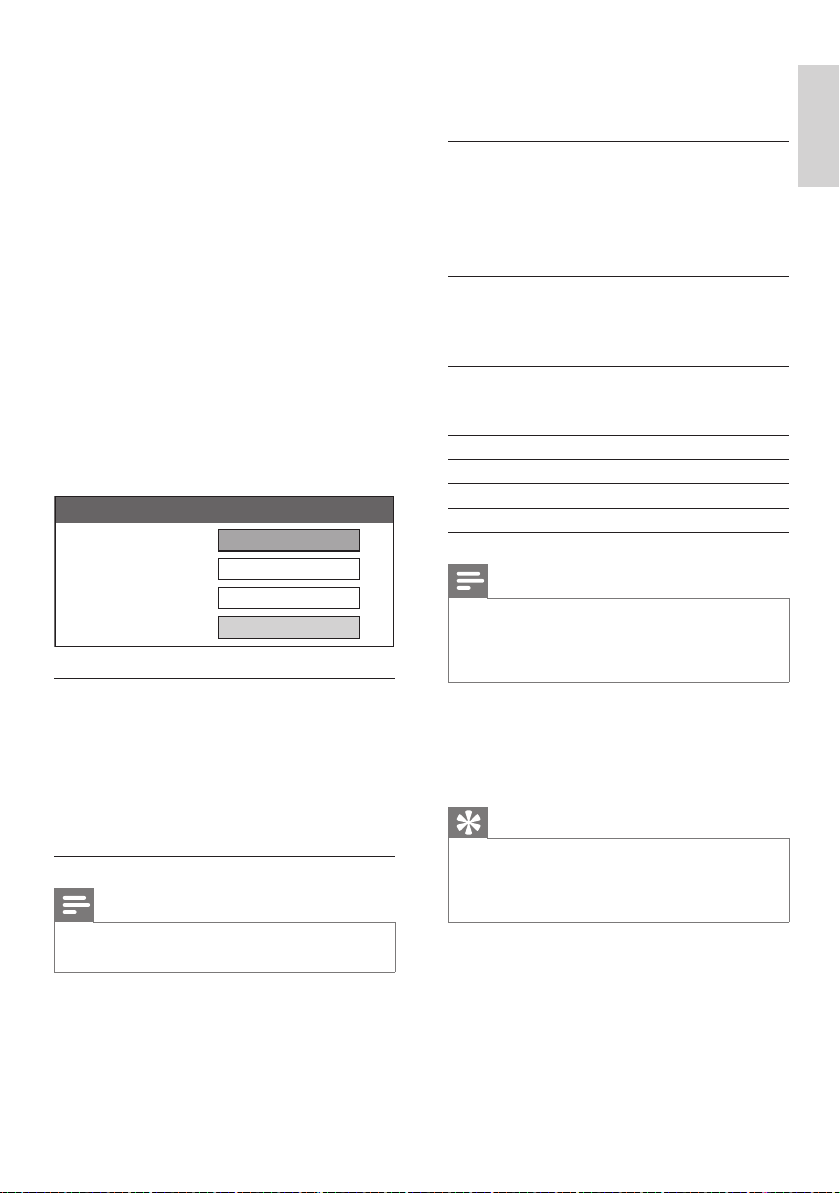
[Password]
Sets or changes the password for locked discs
and play restricted DVDs.
1) Press the Numeric buttons to enter
‘136900’ or the last set password at [Old
Password] fi eld.
2) Enter the new password at [New
Password] fi eld.
3) Enter the new password again at [Confi rm
Password] fi eld.
4) Press OK to exit the menu.
Note
If you forget the password, enter ‘136900’ before you •
set a new password.
Old Password
New Password
Confirm Password
OK
Change Password
English
EN
Adjust settings
1_hts3571-78W_98_en.indd 451_hts3571-78W_98_en.indd 45 2/4/2009 4:04:54 PM2/4/2009 4:04:54 PM
46
Note
Do not remove the CD-R or USB when software •
updating is in progress.
8 Disconnect the power cord for a few
seconds and connect again to reboot the
system.
Care
Caution
Never use solvents such as benzene, thinner, cleaners •
available commercially or anti-static sprays intended
for discs.
Clean discs
Wipe the disc with a micro fi bre cleaning cloth
from the centre to the edge in a straight line
movement.
Clean main unit screen
Wipe the screen surface with a micro fi bre
cleaning cloth.
9 Additional
Information
Update software
To check for new updates, compare the current
software version of your Home Theater System
with the latest software version (if available) at
the Philips website.
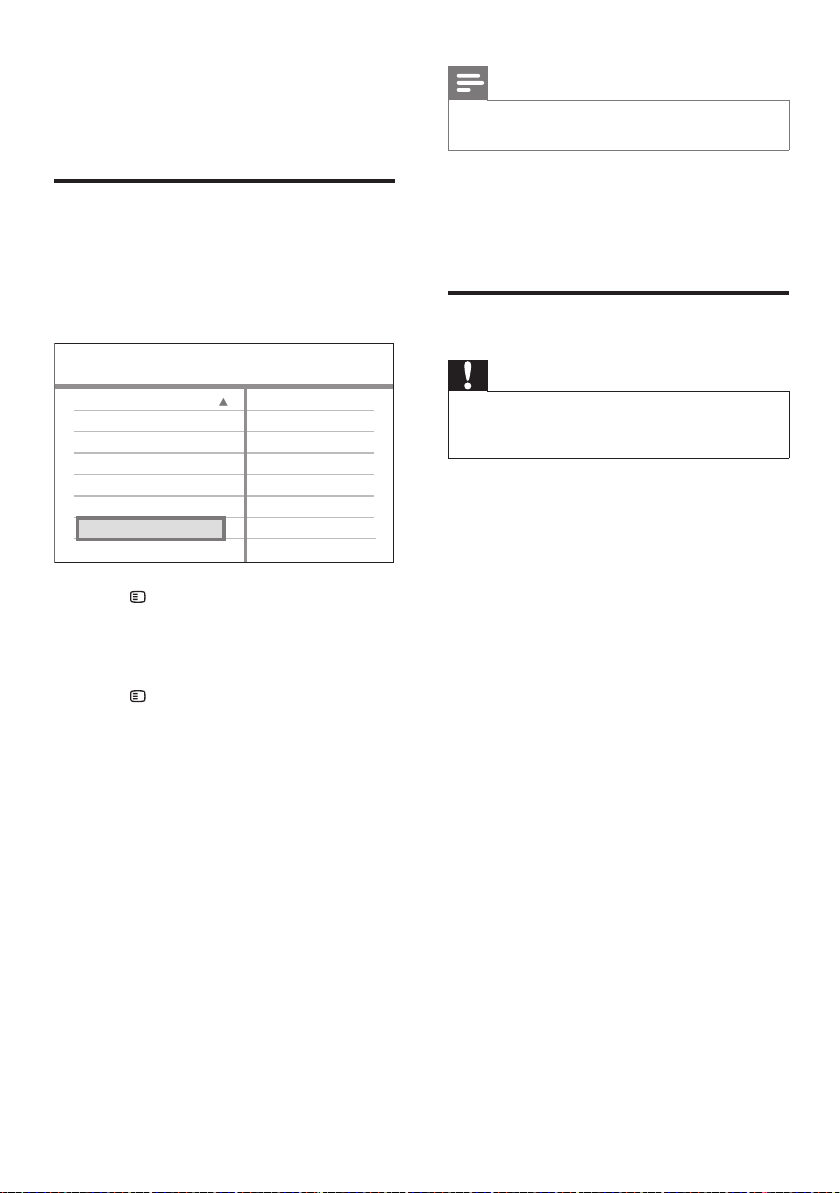
1 Press SETUP .
2 Select [Preferences] > [Version Info.] ,
then press OK .
3 Write down the version number, then
press
SETUP to exit the menu.
4 Go to www.philips.com/support to check
the latest software version available for this
Home Theater System.
5 If the latest software version is higher than
the software version of this Home Theater
System, download it and store onto a
CD-R or USB fl ash drive.
6 Insert the CD-R or USB fl ash drive to this
Home Theater System.
7 Press DISC or USB , then follow the
instruction on the TV to confi rm update
operation.
Once software update is complete, »
this Home Theater System turns off to
standby automatically.
MP3/JPEG Display
DivX Subtitle
Password
Parental
Disc Menu
Preferences
PBC
Default
Version Info.
EN
1_hts3571-78W_98_en.indd 461_hts3571-78W_98_en.indd 46 2/4/2009 4:04:54 PM2/4/2009 4:04:54 PM

47
Radio
Tuning range: •
FM 87.5-108 MHz (50/100 kHz)
26 dB quieting sensitivity: FM 22 dBf•
IF rejection ratio: FM 60 dB•
Signal-to-noise ratio: FM 50 dB•
Harmonic distortion: FM 3%•
Frequency response: •
FM 180 Hz~10 kHz / ±6dB
Stereo separation: FM 26 dB (1 kHz)•
Stereo Threshold: FM 29 dB•
USB
Compatibility: High Speed USB (2.0)•
Class support: •
UMS (USB Mass Storage Class)
File system: FAT12, FAT16, FAT32•
Main Unit
Power supply: 110-127 V/220-240 V; ~50-•
60 Hz switchable
Power consumption: 200 W•
Standby power consumption: < 1 W •
Dimensions (WxHxD): •
For HTS3571: •
435 x 57 x 365 (mm)
For HTS3578W: •
435 x 57 x 375 (mm)
Weight: •
For HTS3571: 3.63 kg•
For HTS3578W: 3.69 kg•
10 Specifications
Note
Specifi cation and design are subject to change without •
notice
Playback media
DVD-Video, DVD+R/+RW, DVD-R/-RW, •
DVD+R DL, CD-R/CD-RW,
Audio CD, Video CD/SVCD, Picture CD,
MP3-CD, WMA-CD, DivX-CD,
USB fl ash drive
Amplifi er
Total output power:•
Home Theatre mode: •
1200 W RMS (2 X 260 + 4 X 170)
Frequency response: 40 Hz ~ 20 kHz•
Signal-to-noise ratio: •
> 60 dB (A-weighted)
Input sensitivity:•
AUX1: 400 mV•
AUX2: 400 mV•
MP3 LINK: 250 mV•
Disc
Laser Type: Semiconductor•
Disc diameter: 12 cm / 8 cm•
Video decording: •
MPEG1/ MPEG2 / DivX / DivX Ultra
Video DAC: 12 bits, 108 MHz•
Signal system: PAL / NTSC•
Video S/N: 56 dB •
Audio DAC: 24 bits / 96 kHz•
Frequency response: •
4 Hz–20 kHz (44.1 kHz)•
4 Hz–22 kHz (48 kHz)•
4 Hz–44 kHz (96 kHz)•
PCM: IEC 60958•
Dolby Digital: IEC 60958, IEC 61937•
DTS: IEC 60958, IEC 61937•
Specifi cations
English
EN
1_hts3571-78W_98_en.indd 471_hts3571-78W_98_en.indd 47 2/4/2009 4:04:54 PM2/4/2009 4:04:54 PM

48
Wireless receiver (for HTS3578W only)
Power Consumption: 50 W•
Frequency Response: 6000 Hz•
S/N Ratio: 60 dB (A-Weighted)•
Input Sensitivity: 400-600 mV•
Distortion: 1%•
Dimensions (WxHxD): •
126 x 130.5 x 126 (mm)
Weight: 1.19 kg•
Laser specifi cation
Type: Semiconductor laser GaAIAs (CD)•
Wave length: 645–665 nm (DVD), •
770–800 nm (CD)
Output power: 6 mW (DVD),•
7 mW (VCD/CD)
Beam divergence: 60 degrees.•
Speakers
System: full range satellite•
Speaker impedance: •
Front/Rear: 4 Ohm•
Centre: 3 Ohm•
Speaker drivers:•
Centre: •
2 X 2.5” woofer + 1 X 2” tweeter
Front/Rear: 3” full range •
Frequency response: 150 Hz ~ 20 kHz•
Dimensions (WxHxD):•
For HTS3571•
- Centre: 267 x 100 x 78 (mm)
- Front: 100 x 100 x 75 (mm)
- Rear: 100 x 100 x 75 (mm)
For HTS3578W:•
- Centre: 440 x 105 x 75 (mm)
- Front: 262 x 1199 x 264 (mm)
- Rear: 262 x 1199 x 264 (mm)
Weight: •
For HTS3571:•
- Centre: 1.25 kg
- Front: 0.48 kg
- Rear: 0.45 kg
For HTS3578W:•
- Centre: 1.43 kg
- Front: 3.6 kg
- Rear: 3.55 kg
Subwoofer
Impedance: 3 ohm•
Speaker drivers: 203 mm (8”) woofer•
Frequency response: 40 Hz ~ 150 Hz•
Dimensions (WxHxD): •
242 x 352 x 360 (mm)
Weight: 5.76 kg•
EN
1_hts3571-78W_98_en.indd 481_hts3571-78W_98_en.indd 48 2/4/2009 4:04:54 PM2/4/2009 4:04:54 PM

49
Picture
No picture.
See TV manual for correct video input •
channel selection. Change the TV channel
until you see the DVD screen.
Press • DISC .
If you have changed the • [TV Display]
setting, switch back to default mode:
1) Press
to open the disc compartment.
2) Press
.
3) Press SUBTITLE .
If this happens when you turn on the •
progressive scan setting, you have to switch
to its default mode:
1) Press
.
2) Press
.
3) Press AUDIO SYNC.
No picture on HDMI connection.
Check if the HDMI cable is faulty. Replace a •
new HDMI cable.
If this happens when you change the HDMI •
video resolution, you have to switch to its
default mode:
1) Press
.
2) Press
.
3) Press ZOOM .
Sound
No sound.
Ensure that the audio cables are connected •
and press the correct input source (for
example, AUDIO SOURCE , USB ) to
select the device you want to play.
No sound on HDMI connection.
Sound cannot transmit through HDMI •
connection if the connected device is non-
HDCP compliant or only DVI-compatible.
Make an analogue or digital audio
connection.
Ensure that the • [HDMI Audio] setting is
turned on.
11 Troubleshooting
Warning
Risk of electric shock. Never remove the casing of the •
Home Theater System.
To keep the warranty valid, never try to repair
the system yourself.
If you encounter problems when using the
Home Theater System, check the following
points before requesting service. If the problem
remains unsolved, register your Home Theater
System and get support at www.philips.com/
welcome.
If you contact Philips, you will be asked for the
model and serial number of your Home Theater
System. The model number and serial number
are on the back or underside of your Home
Theater System. Write the numbers here:
Model No. __________________________
Serial No. ___________________________
Main unit
The buttons on this Home Theater System do
not work.
Disconnect this Home Theater System •
from the power outlet for a few minutes,
then connect again.
Troubleshooting
English
EN
1_hts3571-78W_98_en.indd 491_hts3571-78W_98_en.indd 49 2/4/2009 4:04:54 PM2/4/2009 4:04:54 PM

50
The contents of the USB fl ash drive cannot
be read.
The USB fl ash drive format is not •
compatible with this Home Theater
System.
Drive is formatted with different fi le •
system which is not supported by this unit
(e.g. NTFS).
Maximum size of memory supported is •
160 GB.
No sound from the rear speakers and the
indicator on the wireless receiver blinks
continuously for more than one minute.
(For HTS3578W only)
Ensure that all required connections are •
connected and carry out the following
steps:
1) Press
.
2) Press INFO . A screen is displayed.
3) Press 1 , then press the SURR button
within 5 seconds. ‘PAIRING SUCCESS’ is
displayed.
4) If ‘PAIRING FAIL’ is displayed, repeat
steps 1 to 3.
No sound from TV programme.
Connect an audio cable from the AUDIO •
input on this Home Theater System to the
AUDIO output on your TV. Then press
AUDIO SOURCE repeatedly to select the
corresponding audio input source.
No surround sound effect from the speakers.
Press • SURR to select a correct surround
sound setting.
If the Home Theater System does not •
support DTS playback, press AUDIO
SYNC to select other audio track.
Ensure that the source you are playing •
is recorded or broadcast in surround
sound (Dolby Digital, etc).Sound cannot
transmit through HDMI connection if the
connected device is non-HDCP compliant
or only DVI-compatible. Make an analogue
or digital audio connection.
Play
DivX video fi les cannot be played.
Ensure that the DivX fi le is encoded •
according to the ‘Home Theatre Profi le’
with the DivX encoder.
Ensure that the DivX video fi le is complete. •
The aspect ratio of the screen is not aligned
with the TV display setting.
The aspect ratio is fi xed on the disc.•
DivX subtitle does not display correctly.
Ensure that the subtitle fi le name is the •
same as the movie fi le name.
Select the correct character set: •
1) Press
SETUP .
2) Select [Preferences] , then press
.
3) Select [DivX Subtitle] , then press OK .
4) Select the character set that supports
the subtitle.
EN
1_hts3571-78W_98_en.indd 501_hts3571-78W_98_en.indd 50 2/4/2009 4:04:54 PM2/4/2009 4:04:54 PM

51
H
HDCP
High-bandwidth Digital Content Protection.
This is a specifi cation that provides a secure
transmission of digital contents between
different devices (to prevent unauthorised
copyright.)
HDMI
High-Defi nition Multimedia Interface (HDMI) is
a high-speed digital interface that can transmit
uncompressed high defi nition video and digital
multichannel audio. It delivers high quality
picture and sound quality, completely free from
noise. HDMI is fully backward-compatible with
DVI.
As required by the HDMI standard, connecting
to HDMI or DVI products without HDCP
(High-bandwidth Digital Content Protection)
will result in no Video or Audio output.
J
JPEG
A very common digital still picture format. A
still-picture data compression system proposed
by the Joint Photographic Expert Group, which
causes only a small decrease in image quality
in spite of its high compression ratio. Files are
recognised by their fi le extension ‘.jpg’ or ‘.jpeg’.
12 Glossary
A
Aspect ratio
Aspect ratio refers to the length to height ratio
of TV screens. The ratio of a standard TV is 4:3,
while the ratio of a high-defi nition or wide TV
is 16:9. The letter box allows you to enjoy a
picture with a wider perspective on a standard
4:3 screen.
D
DivX®
The DivX® codec is a patent-pending, MPEG-4
based video compression technology developed
by DivX®, Inc. It can shrink the fi le size of digital
video and still maintain high visual quality.
Dolby Digital
A surround sound system developed by Dolby
Laboratories that contains up to six channels of
digital audio (front left and right, surround left
and right, centre and subwoofer.)
Glossary
English
EN
1_hts3571-78W_98_en.indd 511_hts3571-78W_98_en.indd 51 2/4/2009 4:04:54 PM2/4/2009 4:04:54 PM

52
W
WMA
Windows Media™ Audio. Refers to an
audio compression technology developed by
Microsoft Corporation. WMA data can be
encoded with Windows Media player version 9
or Windows Media player for Windows XP. Files
are recognised by their fi le extension ‘.wma.’
WMV
Windows Media Video. Refers to a video
compression technology developed by
Microsoft Corporation. WMV content can be
encoded by using Windows Media® Encoder
9 series. Files are recognised by their fi le
extension ‘.wmv’.
M
MP3
A fi le format with a sound data compression
system. MP3 is the abbreviation of Motion
Picture Experts Group 1 (or MPEG-1) Audio
Layer 3. With the MP3 format, one CD-R or
CD-RW can contain about 10 times more data
than a regular CD.
MPEG
Motion Picture Experts Group. A collection of
compression systems for digital audio and video.
P
PBC
Playback Control. A system where you navigate
through a Video CD/Super VCD with on-screen
menus that are recorded onto the disc. You can
enjoy interactive playback and search.
PCM
Pulse Code Modulation. A digital audio
encoding system.
Progressive scan
The progressive scan displays twice as many
frames per second as an ordinary TV system. It
offers higher picture resolution and quality.
EN
1_hts3571-78W_98_en.indd 521_hts3571-78W_98_en.indd 52 2/4/2009 4:04:54 PM2/4/2009 4:04:54 PM
53
4_hts3571-78W_98_ms-my.indd 534_hts3571-78W_98_ms-my.indd 53 2/4/2009 6:03:18 PM2/4/2009 6:03:18 PM

54
Version 1.2: 1
st
October 2007
PHILIPS CONSUMER ELECTRONICS
WARRANTY POLICY FOR AUSTRALIA
Effecve 1st October 2007
Philips provides the following Consumer Electronics products with a 1 Year Manufacturers Warranty:-
Colour Televisions, Projecon TV, Plasma & LCD TV, DVD Players, DVD Recorders, DVD Recorders with
Hard Disk, Personal Video Recorders, Audio Systems, Wireless Audio Systems, Home Theatre systems,
Digital Set Top Box, Digital Photo Display, MP3 players & Portable Audio products.
Addionally, all Philips LCD televisions with a built-in digital tuner sold aer 1
st
October 2007, are
supported by a 3 Year Manufacturers Warranty.
The benefits given to the purchaser by this warranty are in addion to all other rights and remedies,
which the purchaser has in respect of the product under the Trade Pracces Act or other
Commonwealth or State Law.
The condions contained in this warranty replace and override the provision of the Philips World-Wide
Guarantee for products purchased in Australia and used in Australia.
Please record the following informaon for your records and keep in a safe place.
It is essenal that you retain your original purchase receipt to make a warranty claim.
Model number : ………………………………………………………..
Serial number : ………………………………………………………..
Date of purchase : ………………………………………………………..
Retailer : ………………………………………………………..
If you require assistance with the operaon of the product, its features or specificaons, you may call
the Philips Technology Care Centre on 1300 363 391 where support is provided by our trained call
centre staff.
If the product fails within the warranty period then the following will apply.
Free Repair Service – at an Authorised Service Centre
For the products listed below, please contact one of our Authorised Service Centres on 1300 361 392.
Colour Television, Plasma or LCD Television, LCD Television, Projecon Television, DVDR/VCR Combo,
DVD Recorder with Hard Drive, Personal Video Recorder, LCD Projector, Wireless Audio System, Audio
System, Home Theatre System, Digital Set-Top-Box or a Portable DVD player with an LCD screen for
which you paid more than $250.
4_hts3571-78W_98_ms-my.indd 544_hts3571-78W_98_ms-my.indd 54 2/4/2009 6:03:19 PM2/4/2009 6:03:19 PM

55
Version 1.2: 1
st
October 2007
Free Replacement – at your Retailer
For Digital Photo Frames or any product with a purchase price of less than $250, please return the
faulty product to the place of purchase. The retailer will arrange a replacement product for you.
If your Philips product develops a fault outside of the warranty period, please contact a Philips
Authorised Service Centre on 1300 361 392 to discuss your repair opons.
Condions of Repair Warranty
a. All claims for warranty service should be made to your nearest Philips Authorised Service Centre or
the Philips Technology Care Centre. Proof of the original date of purchase must be provided.
b. This warranty extends only to defects in material or workmanship occurring under normal use of
the product when operated in accordance with the instrucons.
c. Philips may, at its discreon choose to replace rather than repair any product covered by this
Warranty.
d. If a replacement product is supplied under the repair policy, it is warranted for the remainder of
the warranty period, from the original date of purchase.
e. Home service is provided only within the normal service area of the nearest Philips Authorised
Service Centre. Home Service will be provided for television only with a screen size of 29 inch or
above (product includes CRT, LCD TV, Projecon TV, and Plasma TV). For televisions with screen
sizes of less than 29 inch and all other products with a repair warranty, please take these products
to the nearest Authorised Service Centre.
f. This Manufacturers Warranty is limited to 3 months for products used in commercial applicaons.
g. Product accessories are covered by the same warranty period. If an accessory is faulty, please
contact the Philips Technology Care Centre for a replacement.
h. This Manufacturers Warranty is neither transferable nor valid in countries other than Australia.
i. The warranty period is valid from the original date of purchase of the product.
This Warranty does not cover:-
a. Mileage or travel is not covered outside the Philips Authorised Service Centres’ normal service
area.
b. Service costs arising from failure to correctly adjust the controls of the product or to observe the
instrucons, or inspecons that reveal that the product is in normal working order.
c. Product failures caused by misuse, neglect, accidental breakage, transit damage, amateur repairs
or modificaon by un-authorised persons, external fires, lightning strikes, floods, vermin
infestaon or liquid spillage.
d. Cleaning of video or audio heads.
e. Recepon problems.
f. Replacement of worn or used baeries or other consumables.
g. Second hand products.
h. Refurbished products which are covered by a 6 month manufacturers warranty.
4_hts3571-78W_98_ms-my.indd 554_hts3571-78W_98_ms-my.indd 55 2/4/2009 6:03:19 PM2/4/2009 6:03:19 PM

56
Abkhazian 6566
Afar 6565
Afrikaans 6570
Amharic 6577
Arabic 6582
Armenian 7289
Assamese 6583
Avestan 6569
Aymara 6589
Azerhaijani 6590
Bahasa Melayu 7783
Bashkir 6665
Belarusian 6669
Bengali 6678
Bihari 6672
Bislama 6673
Bokmål, Norwegian 7866
Bosanski 6683
Brezhoneg 6682
Bulgarian 6671
Burmese 7789
Castellano, Español 6983
Catalán 6765
Chamorro 6772
Chechen 6769
Chewa; Chichewa; Nyanja 7889
9072
Chuang; Zhuang 9065
Church Slavic; Slavonic 6785
Chuvash 6786
Corsican 6779
Česky 6783
Dansk 6865
Deutsch 6869
Dzongkha 6890
English 6978
Esperanto 6979
Estonian 6984
Euskara 6985
6976
Faroese 7079
Français 7082
Frysk 7089
Fijian 7074
Gaelic; Scottish Gaelic 7168
Gallegan 7176
Georgian 7565
Gikuyu; Kikuyu 7573
Guarani 7178
Gujarati 7185
Hausa 7265
Herero 7290
Hindi 7273
Hiri Motu 7279
Hrwatski 6779
Ido 7379
Interlingua (International)7365
Interlingue 7365
Inuktitut 7385
Inupiaq 7375
Irish 7165
Íslenska 7383
Italiano 7384
Ivrit 7269
Japanese 7465
Javanese 7486
Kalaallisut 7576
Kannada 7578
Kashmiri 7583
Kazakh 7575
Kernewek 7587
Khmer 7577
Kinyarwanda 8287
Kirghiz 7589
Komi 7586
Korean 7579
Kuanyama; Kwanyama 7574
Kurdish 7585
Lao 7679
Latina 7665
Latvian 7686
Letzeburgesch; 7666
Limburgan; Limburger 7673
Lingala 7678
Lithuanian 7684
Luxembourgish; 7666
Macedonian 7775
Malagasy 7771
Magyar 7285
Malayalam 7776
Maltese 7784
Manx 7186
Maori 7773
Marathi 7782
Marshallese 7772
Moldavian 7779
Mongolian 7778
Nauru 7865
Navaho; Navajo 7886
Ndebele, North 7868
Ndebele, South 7882
Ndonga 7871
Nederlands 7876
Nepali 7869
Norsk 7879
Northern Sami 8369
North Ndebele 7868
Norwegian Nynorsk; 7878
Occitan; Provencal 7967
Old Bulgarian; Old Slavonic 6785
Oriya 7982
Oromo 7977
Ossetian; Ossetic 7983
Pali 8073
Panjabi 8065
Persian 7065
Polski 8076
Português 8084
Pushto 8083
Russian 8285
Quechua 8185
Raeto-Romance 8277
Romanian 8279
Rundi 8278
Samoan 8377
Sango 8371
Sanskrit 8365
Sardinian 8367
Serbian 8382
Shona 8378
Shqip 8381
Sindhi 8368
Sinhalese 8373
Slovensky 8373
Slovenian 8376
Somali 8379
Sotho; Southern 8384
South Ndebele 7882
Sundanese 8385
Suomi 7073
Swahili 8387
Swati 8383
Svenska 8386
Tagalog 8476
Tahitian 8489
Tajik 8471
Tamil 8465
Tatar 8484
Telugu 8469
Thai 8472
Tibetan 6679
Tigrinya 8473
Tonga (Tonga Islands) 8479
Tsonga 8483
Tswana 8478
Türkçe 8482
Turkmen 8475
Twi 8487
Uighur 8571
Ukrainian 8575
Urdu 8582
Uzbek 8590
Vietnamese 8673
Volapuk 8679
Walloon 8765
Welsh 6789
Wolof 8779
Xhosa 8872
Yiddish 8973
Yoruba 8979
Zulu 9085
中文
Language Code
4_hts3571-78W_98_ms-my.indd 564_hts3571-78W_98_ms-my.indd 56 2/4/2009 6:03:19 PM2/4/2009 6:03:19 PM

© 2009 Koninklijke Philips Electronics N.V.
All rights reserved.
sgpjy_0906/98_4
4_hts3571-78W_98_ms-my.indd 584_hts3571-78W_98_ms-my.indd 58 2/4/2009 6:03:19 PM2/4/2009 6:03:19 PM