
www.lg.com
OWNER’S MANUAL
MONITOR TV
MONITOR TV MODELS
Please read this manual carefully before operating
your set and retain it for future reference.
ENGLISH
M2262D
M2362D
M2762D
M2262DP
M2362DP
M2762DP
1
PREPARATION
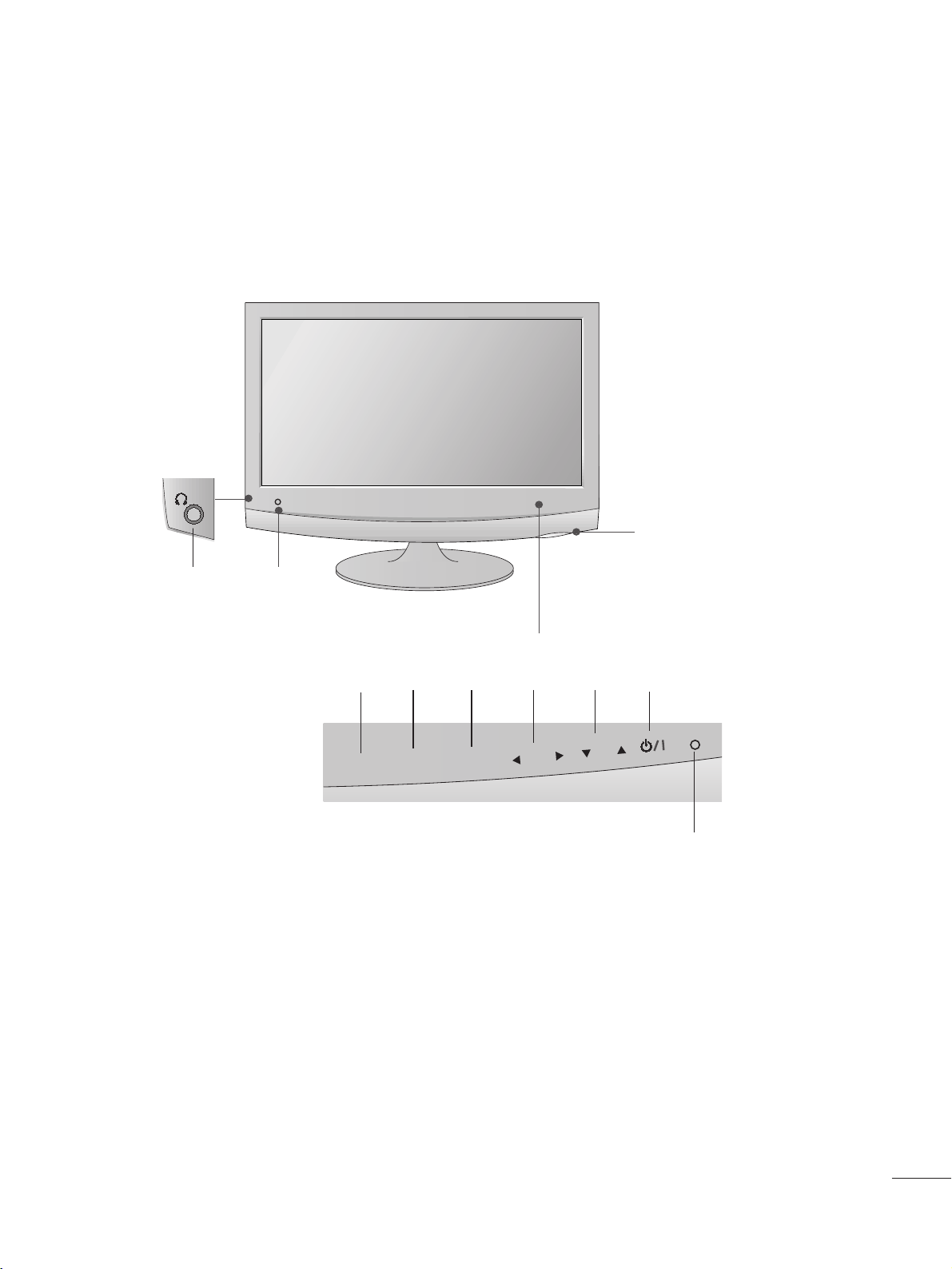
FRONT PANEL CONTROLS
■
This is a simplified representation of the front panel. The image shown may be somewhat different from your
set.
INPUT
Button
INPUT
MENU
CH
VOL
ENTER
MENU
Button
ENTER
Button
VOLUME
Buttons
CHANNEL
Buttons
Power
Button
Headphone
Jack
IR receiver
(Remote controller
receiver)
LLiigghhtt SSeennssoorr
This is lens for light sensor
select outside luminance,
when setting AUTO
BRIGHT ON.
PPoowweerr IInnddiiccaattoorr
illuminates blue when the
set is switched on.
Note:You can adjust
Power indicator in the
OPTION menu.
2
PREPARATION
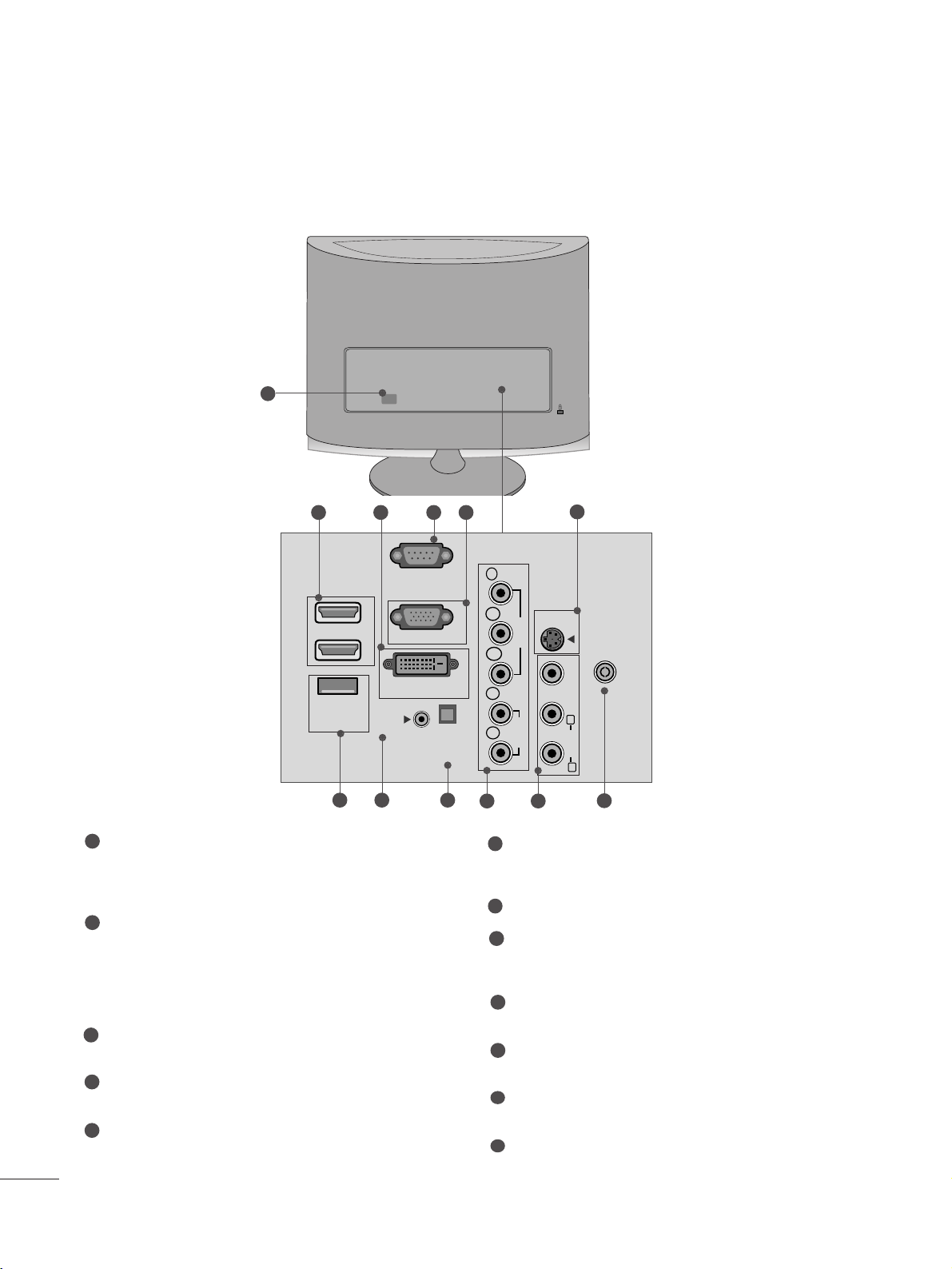
BACK PANEL INFORMATION
■
This is a simplified representation of the back panel. The image shown may be somewhat different from your
set.
AV 1 AV 2
AC IN
VIDEO
COMPONENT
IN
AV-IN
VIDEO
S-VIDEO
AUDIO
Y
P
B
P
R
L
R
RS-232C IN
(CONTROL & SERVICE)
SERVICE
ONLY
RGB IN (PC)
DVI-D IN (PC)
HDMI IN
1
2
OPTICAL
DIGITAL
AUDIO OUT
AC IN
AUDIO IN
(RGB/DVI)
ANTENNA/
CABLE IN
AUDIO
(MONO)
L
R
2
9
10 11
1
87
12
5
6
3 4
Power Cord Socket
This set operates on AC power. The voltage is indicated
on the Specifications page. Never attempt to operate
the set on DC power.
HDMI Input
High definition inputs. These two inputs accept TV
Video, not PC Video. They also accept TV Video from a
DVI connection when using an adapter. The HDMI
inputs support video and audio. When using an adapter
for DVI, they only accept video.
DVI-D Input
Digital PC input.
RS-232C IN (CONTROL & SERVICE) PORT
Serial port used for external control or service.
RGB INPUT (PC)
Analog PC input. Also known as VGA.
S-Video Input
Standard definition (480i), but better quality than
standard A/V input.
SERVICE ONLY PORT
RGB/DVI Audio Input
This is the audio input for the RGB and DVI-D video
inputs.
Optical Digital Audio Out
Use this to export audio to an external amplifer.
Component Input
High definition analog input.
Audio/Video Input
Standard definition input.
Antenna Input
Connect over-the-air or cable signals to this jack.
1
2
3
4
5
7
6
8
9
10
11
12
3
PREPARATION
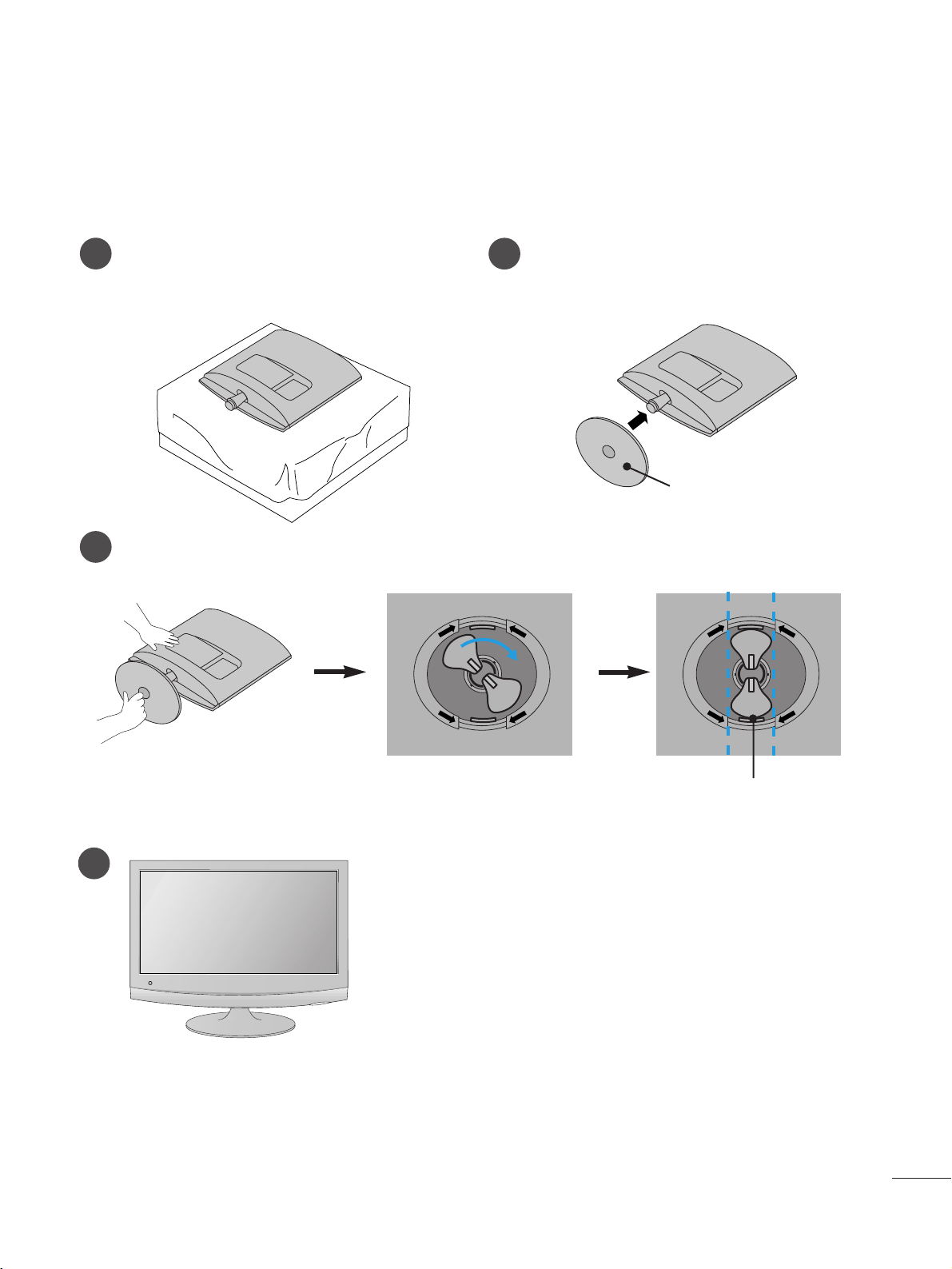
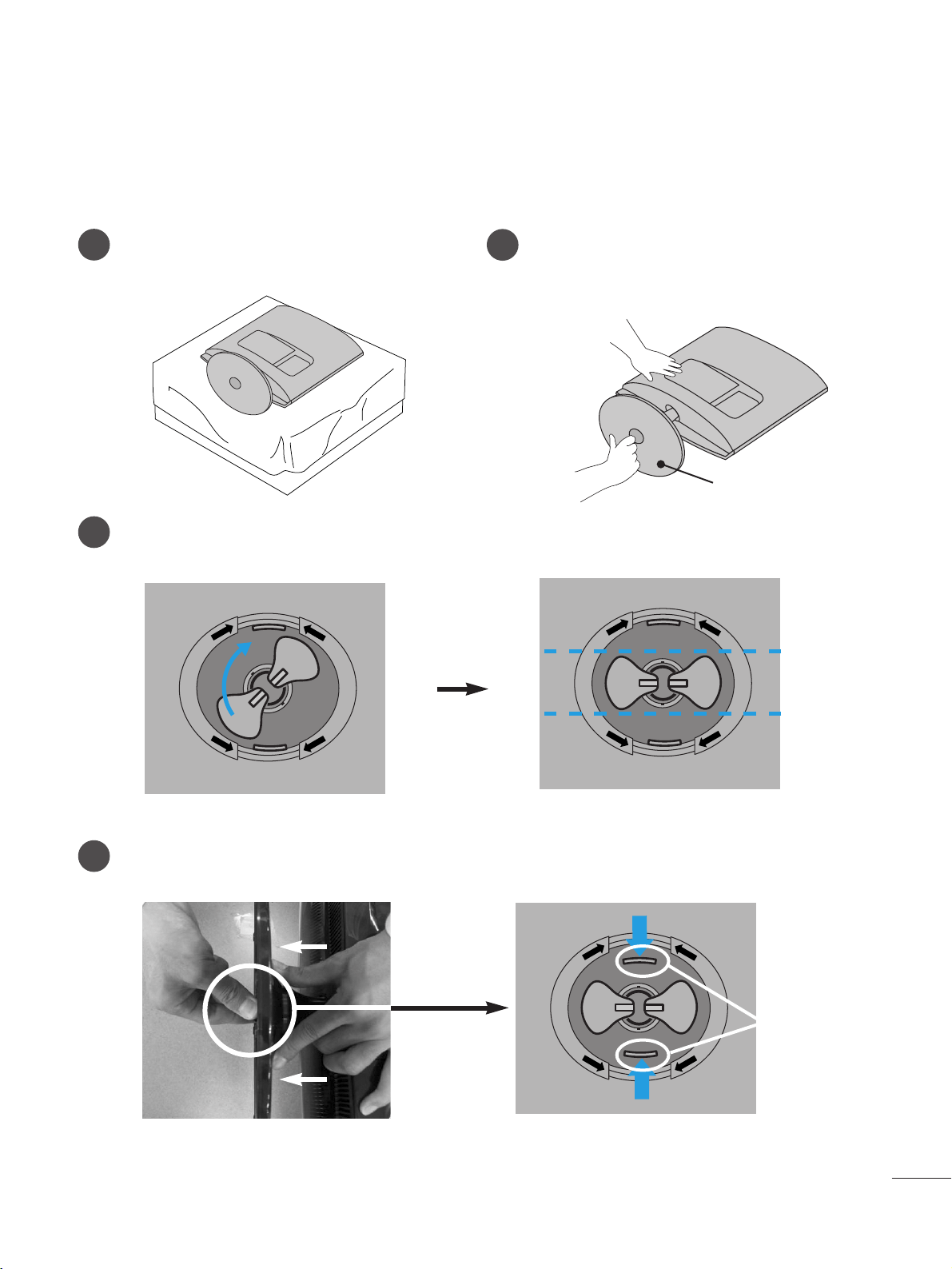
STAND INSTALLATION
■
The image shown may be somewhat different from your set.
1
2
3
Carefully place the product screen side down on a
cushioned surface that will protect product and
screen from damage.
Insert the
SSttaanndd BBaassee
into the product.
Turn the
SSttaanndd BBaassee LLoocckk
through 90° to fix the stand base to the stand body.
SSttaanndd BBaassee LLoocckk
4
O
P
E
N
O
P
E
N
<<MM22226622DD//MM22336622DD//MM22226622DDPP//MM22336622DDPP>>
SSttaanndd BBaassee
O
P
E
N
O
P
E
N
4
PREPARATION
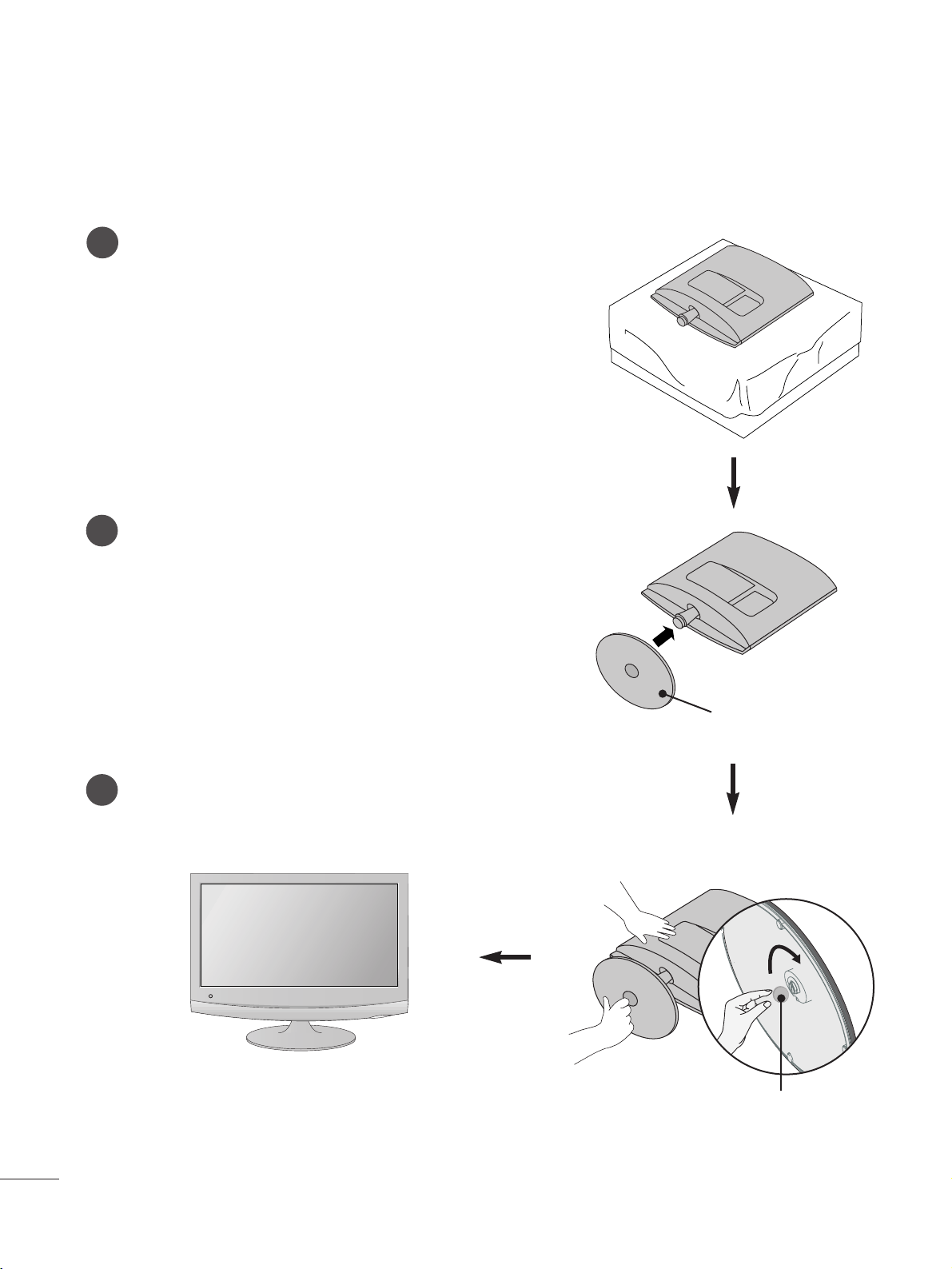
STAND INSTALLATION
■
The image shown may be somewhat different from your set.
1
2
3
Carefully place the product screen side down on a cushioned sur-
face that will protect product and screen from damage.
Insert the
SSttaanndd BBaassee
into the product.
Use a
CCooiinn
on the bottom of the stand base and turn the
screw clockwise to tighten.
<<MM22776622DD//MM22776622DDPP>>
SSttaanndd BBaassee
CCooiinn
5
PREPARATION
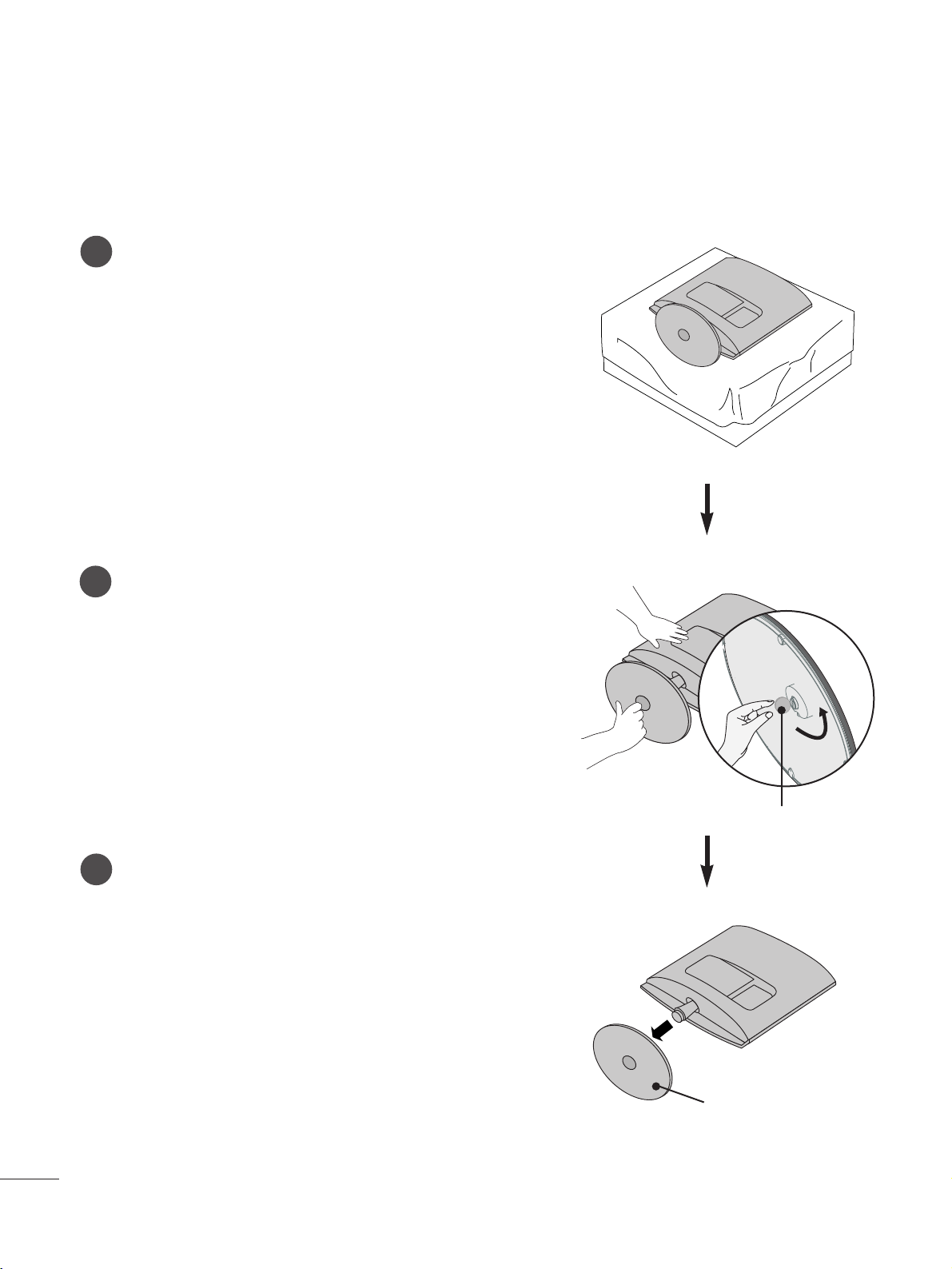
DETACHING STAND
■
The image shown may be somewhat different from your set.
1
2
3
4
Place the set screen side down on a cushion or
soft cloth.
Detach the monitor to the
SSttaanndd BBaassee
by
turning the screw to the left.
Turn the
SSttaanndd BBaassee LLoocckk
through 90
° to separate the stand base from the stand body.
Pushing
LLaattcchh
inside, Take the stand base from stand body.
O
P
E
N
O
P
E
N
O
P
E
N
O
P
E
N
O
P
E
N
O
P
E
N
LLaattcchh
<<MM22226622DD//MM22336622DD//MM22226622DDPP//MM22336622DDPP>>
SSttaanndd BBaassee
6
PREPARATION
DETACHING STAND
■
The image shown may be somewhat different from your set.
1
2
3
Place the set screen side down on a cushion or soft cloth.
Detach the stand base from the set by turning the screw to the
left with a coin.
Pull the stand base.
<<MM22776622DD//MM22776622DDPP>>
SSttaanndd BBaassee
CCooiinn
7
PREPARATION
<<MM22776622DD//MM22776622DDPP>>
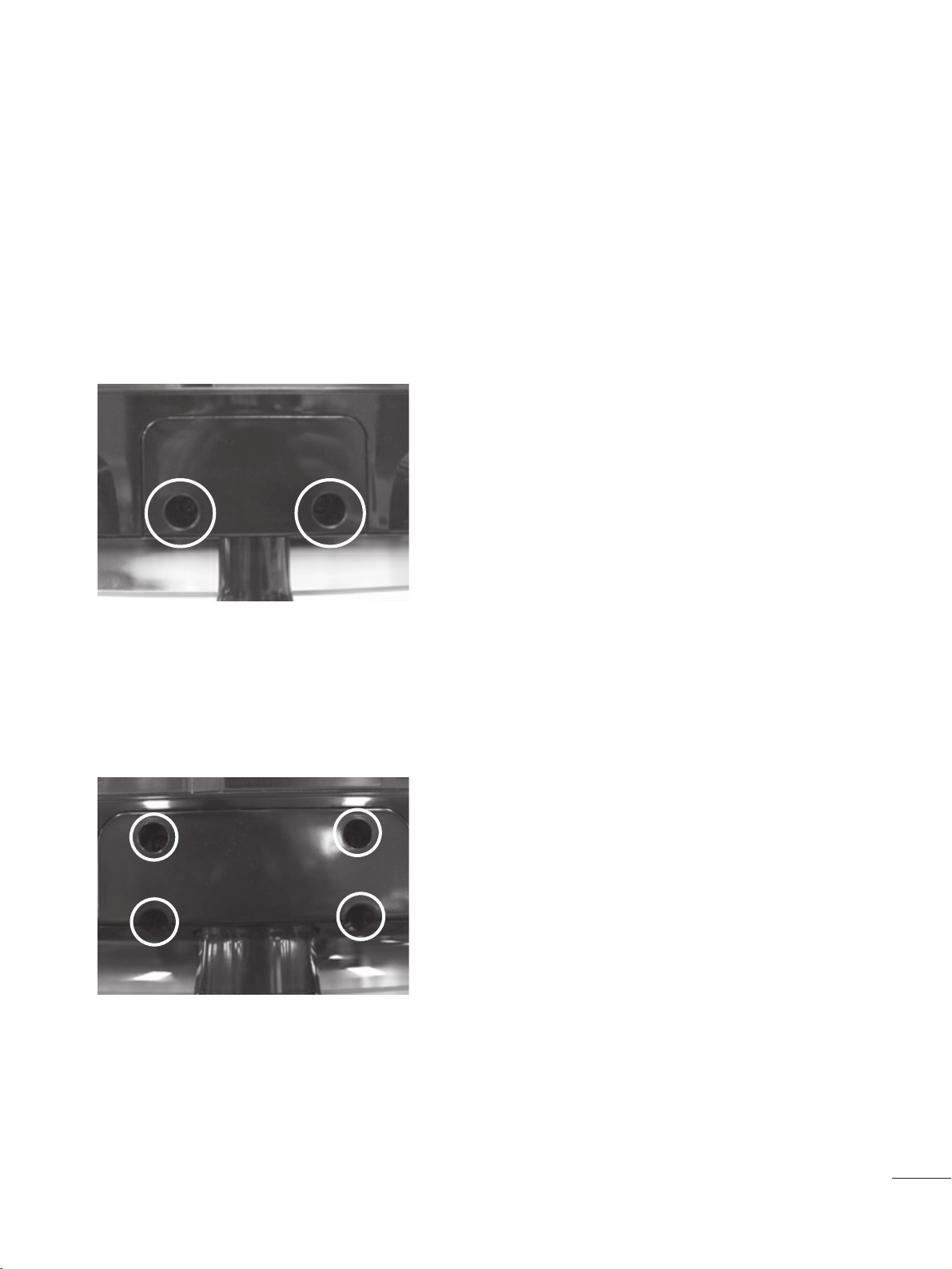
DETACHING STAND BODY
1. Remove the screw 4 point.
2. Pull the stand body.
1. Remove the screw 2 point.
2. Pull the stand body.
■
The image shown may be somewhat different from your set.
■
Remove the Stand Body in the same way as the following when using it as a Wall Hook.
<<MM22226622DD//MM22336622DD//MM22226622DDPP//MM22336622DDPP>>

8
PREPARATION
DESKTOP PEDESTAL INSTALLATION
For proper ventilation, allow a clearance of 10 cm on each side and from the wall.
WALL MOUNT: HORIZONTAL INSTALLATION
For proper ventilation, allow a clearance of 10 cm on each side and from the wall. Follow the instructions includ-
ed with the wall mount.
11 00 cc mm
11 00 cc mm
11 00 cc mm
11 00 cc mm
11 00 cc mm
11 00 cc mm
11 00 cc mm 11 00 cc mm
11 00 cc mm
9
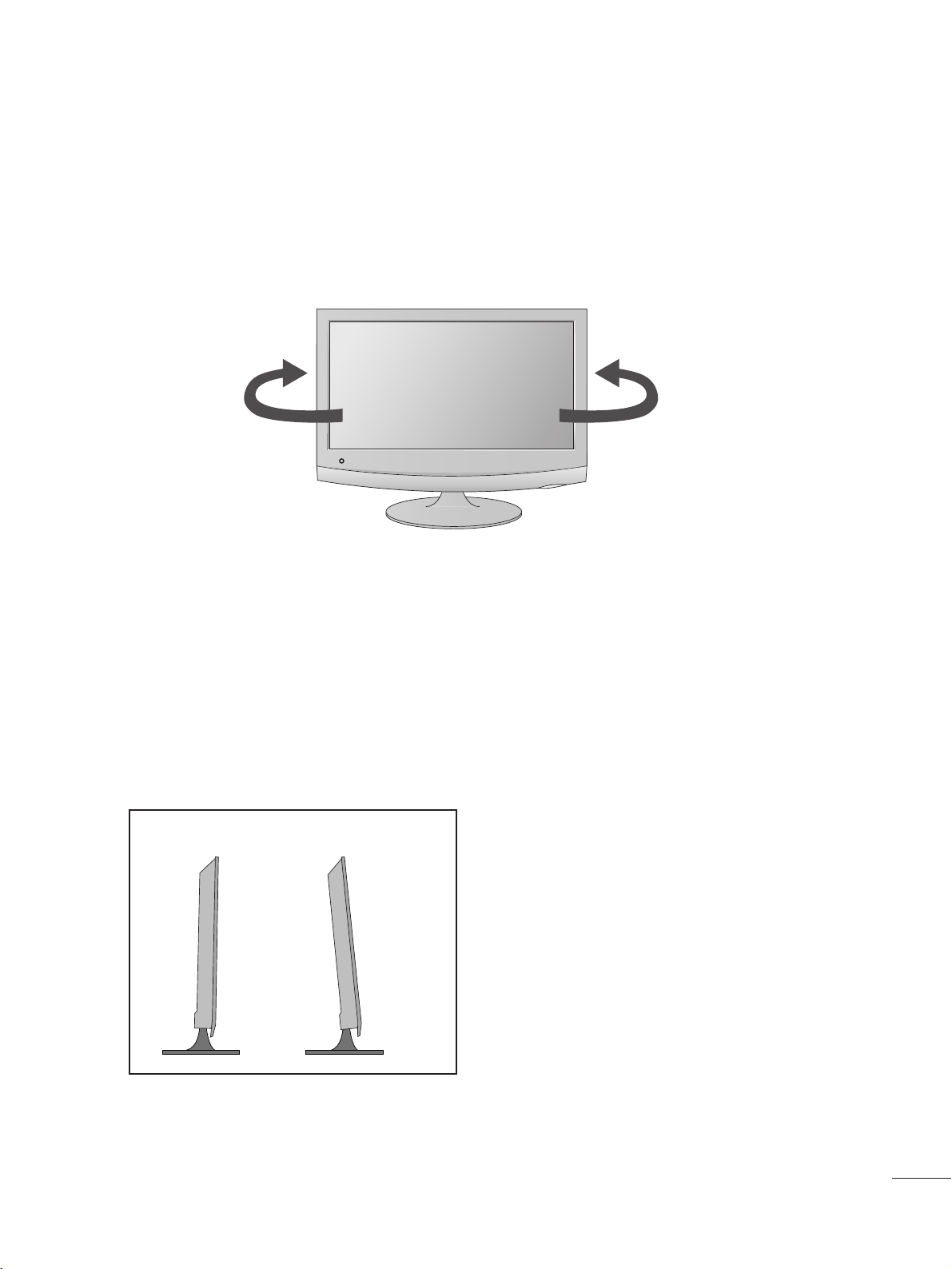
SWIVEL STAND(Only M2762D/M2762DP)
PREPARATION
■
The image shown may be somewhat different from your set.
After installing the set, you can adjust the set manually to the left or right direction by 179 degrees to suit your
viewing position.
179
°
179
°
POSITIONING YOUR DISPLAY
■
The image shown may be somewhat different from your set.
Adjust the position of the panel in various ways for maximum comfort.
•• TTiilltt rraannggee
-5
°
15
°
10
PREPARATION
LOCATION
Position your set so that no bright light or sunlight falls directly onto the screen. Care should be taken not to expose
the set to any unnecessary vibration, moisture, dust or heat. Also, ensure that the set is placed in a position to allow a
free flow of air. Do not cover the ventilation openings on the back cover.
If you intend to mount the set to a wall, attach the wall mounting interface (optional parts) to the back of the set.
When you install the set using the wall mounting interface (optional parts), attach it carefully so it will not drop.
- Be sure to use screws and a wall mount that meet VESA standards.
- Using screws longer than those recommended might damage the product.
- Using screws that do not meet VESA standards might either damage the product or result in it coming away from the
wall. We will not be held responsible for any damage resulting from failure to follow these instructions.
< Screw Mounting Interface Dimension >
MM22226622DD//MM22336622DD//MM22226622DDPP//MM22336622DDPP
: 100 mm x 100 mm hole spacing
MM22776622DD//MM22776622DDPP
: 200 mm x 100 mm hole spacing
* Wall mount interface(LG) : RW120 <M2262D/M2362D/M2262DP/M2362DP>
RW240 <M2762D/M2762DP>
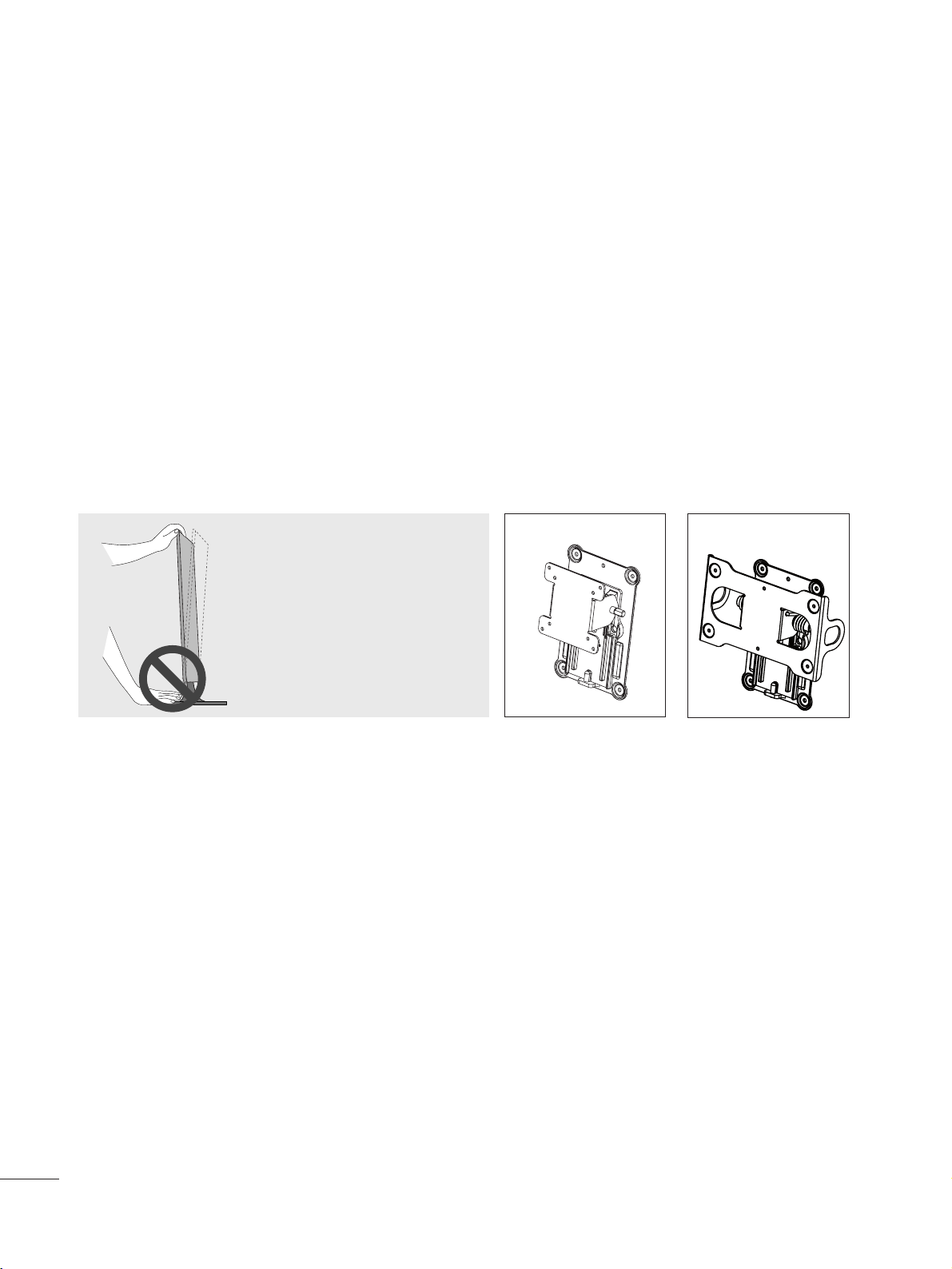
WWaarrnniinngg::
When adjusting the angle of the
screen, do not put your finger(s)in
between the head of the monitor and
the stand body. You can hurt your
finger(s).
RW120
RW240
11
PREPARATION
SECURING THE SET TO THE WALL TO PREVENT FALLING
WHEN THE SET IS USED ON A STAND(Only M2762D/M2762DP)
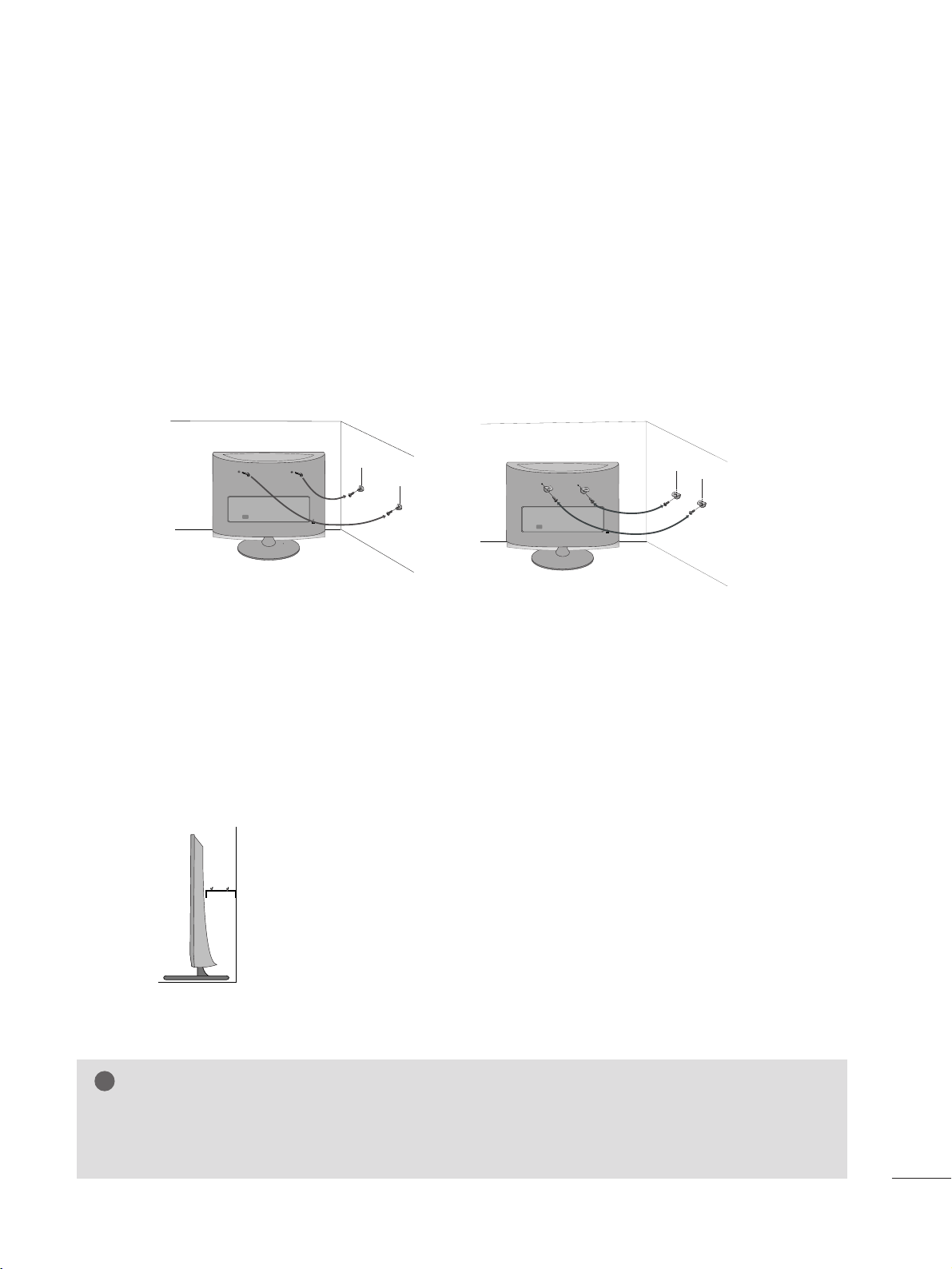
We recommend that you set up the set close to a wall so it cannot fall over if pushed backwards.
Additionally, we recommend that the set be attached to a wall so it cannot be pulled in a forward direction,
potentially causing injury or damaging the product.
Caution: Please make sure that children don’t climb on or hang from the set.
■
Insert the eye-bolts (or set brackets and bolts) to tighten the product to the wall as shown in the picture.
*If your product has the bolts in the eye-bolts position before inserting the eye-bolts, loosen the bolts.
* Insert the eye-bolts or set brackets/bolts and tighten them securely in the upper holes.
Secure the wall brackets with the bolts (sold separately) to the wall. Match the height of the bracket that is
mounted on the wall to the holes in the product.
Ensure the eye-bolts or brackets are tightened securely.
■
Use a sturdy rope or cord (sold separately) to tie the product. It is safer to
tie the rope so it becomes horizontal between the wall and the product.
■
Image shown may differ from your set.
G
When moving the set, undo the cords first.
G
Use a platform or cabinet strong enough and large enough to support the size and weight of the set.
G
To use the set safely make sure that the height of the bracket on the wall and the one on the set are the same.
NOTE
!
12
PREPARATION
ATTACHING THE TV TO A DESK (Only M2762D/M2762DP)
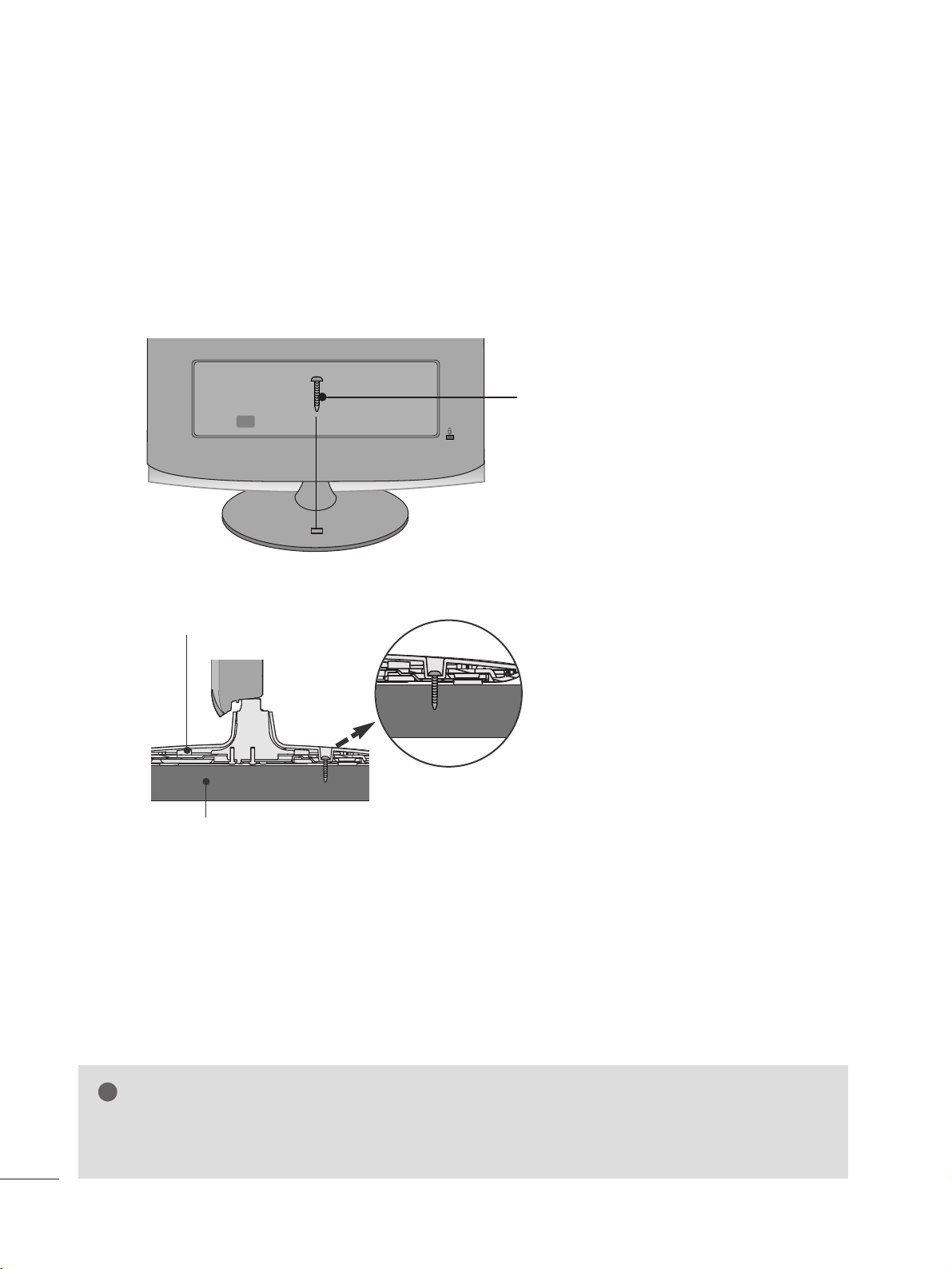
The TV must be attached to desk so it cannot be pulled in a forward/backward direction,potentially causing
injury or damaging the product.Use only an attached screw.
■
The image shown may be somewhat different from your set.
Desk
Stand
WARNING
!
G To prevent TV from falling over,the TV should be securely attached to the floor/wall per installation
instructions. Tipping,shaking, or rocking the machine may cause injury.
1-Screw
(provided as parts of the product)
13
PREPARATION
KENSINGTON SECURITY SYSTEM
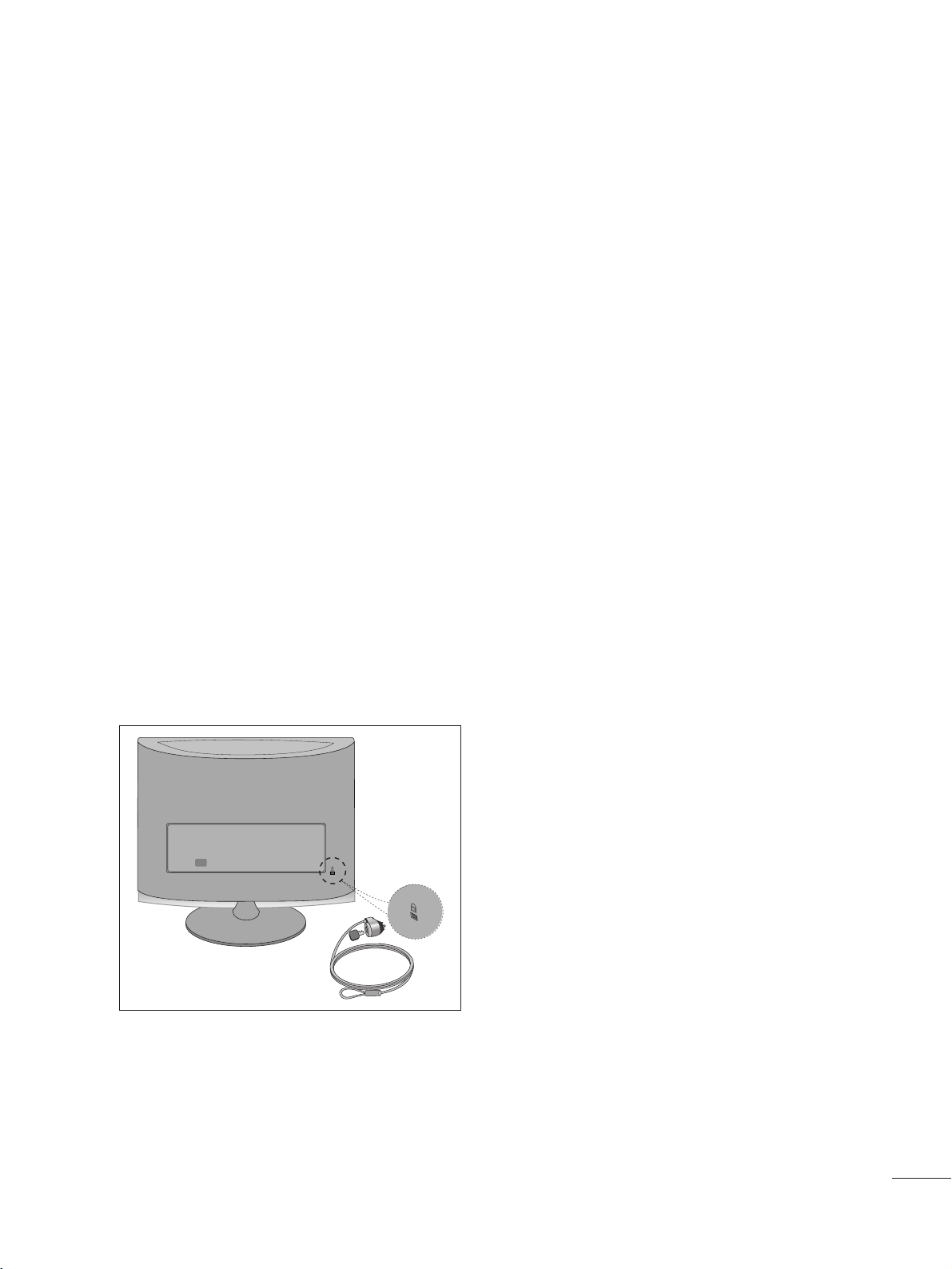
- The product is equipped with a Kensington Security System connector on the back panel. Connect the
Kensington Security System cable as shown below.
- For detailed installation and use of the Kensington Security System, refer to the user’s guide provided with the
Kensington Security System.
For further information, contact
hhttttpp::////wwwwww..kkeennssiinnggttoonn..ccoomm
, the internet homepage of the Kensington
company. Kensington sells security systems for expensive electronic equipment such as notebook PCs and
LCD projectors.
NOTE
- The Kensington Security System is an optional accessory available at most electronics stores.
NOTES
a. If the product feels cold to the touch, there may be a small “flicker” when it is turned on.
This is normal, there is nothing wrong with product.
b. Some minute dot defects may be visible on the screen, appearing as tiny red, green, or blue spots. However,
they have no adverse effect on the monitor's performance.
c. Avoid touching the LCD screen or holding your finger(s) against it for long periods of time.
AV 1 AV 2
AC IN
14
AV 1 AV 2
AC IN
ANTENNA/
CABLE IN
AV 1 AV 2
AC IN
ANTENNA/
CABLE IN
EXTERNAL EQUIPMENT SETUP
■
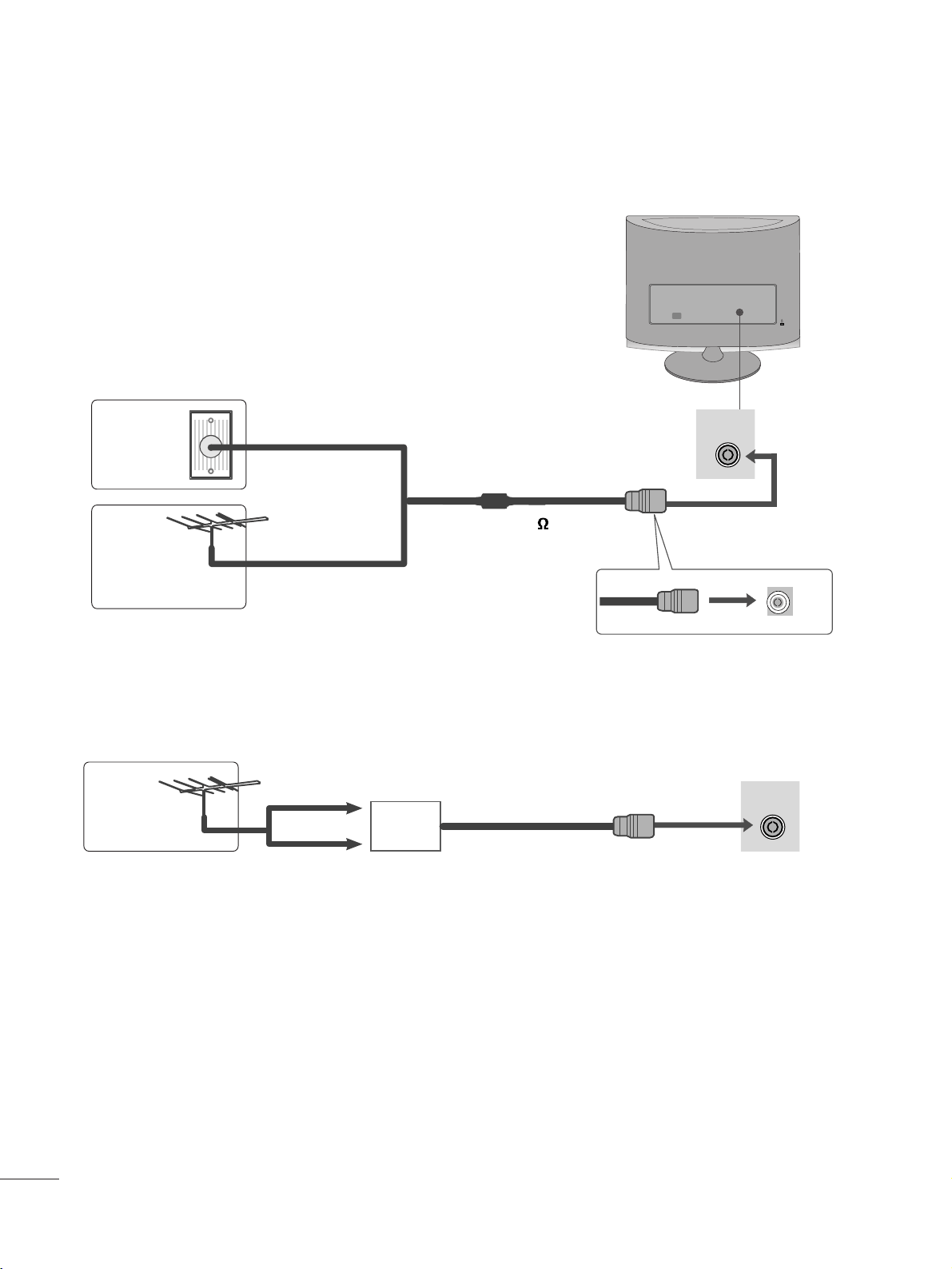
For optimum picture quality, adjust antenna direction.
■
An antenna cable and converter are not supplied.
■
To prevent equipment damage, never plug in any power cords until you have finished connecting all equipment.
Multi-family Dwellings/Apartments
(Connect to wall antenna socket)
Single-family Dwellings /Houses
(Connect to wall jack for outdoor antenna)
Outdoor
Antenna
(VHF, UHF)
Wall
Antenna
Socket
RF Coaxial Wire (75 )
ANTENNA CONNECTION
Antenna
UHF
VHF
■
In poor signal areas, to get better picture quality, install a signal amplifier to the antenna as shown above.
■
If signal needs to be split for two TVs, use an antenna signal splitter for connection.
Signal
Amplifier
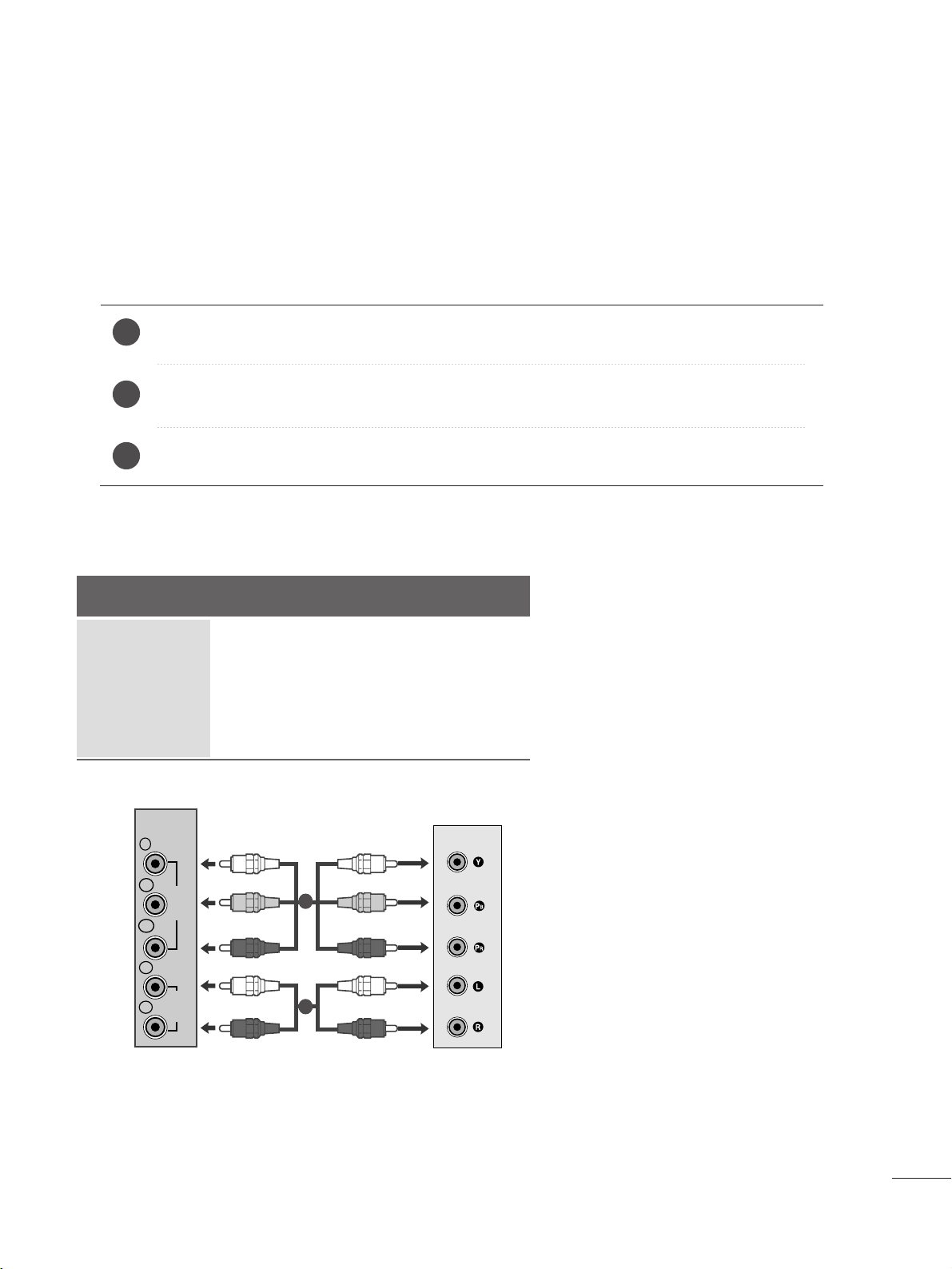
Connect the SET-TOP outputs to the
CCOOMMPPOONNEENNTT IINN VVIIDDEEOO
sockets (Y P
B PR) on the set.
Connect the audio cable from the SET-TOP to
CCOOMMPPOONNEENNTT IINN AAUUDDIIOO
sockets of the set.
Press the
IINNPPUUTT
button to select
CCoommppoonneenntt..
15
EXTERNAL EQUIPMENT SETUP
2
3
1
HD RECEIVER SETUP
■
To prevent the equipment damage, never plug in any power cords until you have finished connecting all equipment.
■
The image shown may be somewhat different from your set.
When connecting with a component cable
Signal
480i
480p
576p
720p/1080i
1080p
Component
Yes
Yes
No
Yes
Yes
HDMI
No
Yes
Yes
Yes
Yes
VIDEO
COMPONENT
IN
AUDIO
Y
P
B
P
R
L
R
1
2
16
EXTERNAL EQUIPMENT SETUP
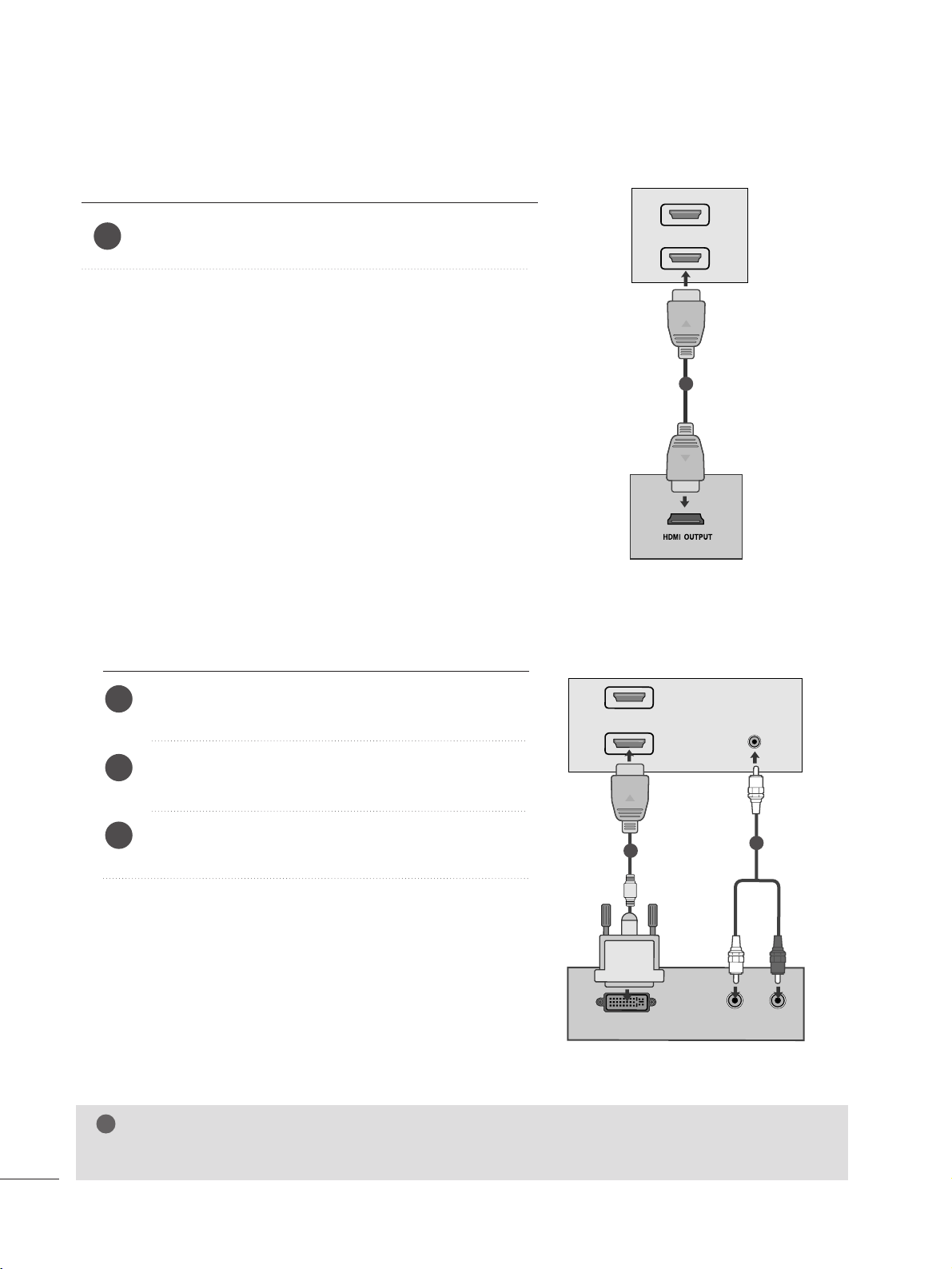
When connecting with a HDMI
Connect the HDMI output of the digital set-top box to the
HHDDMMII IINN
jack on the set.
1
Connect the digital set-top box to
HHDDMMII IINN
jack on
the set.
Connect the audio output of the digital set-top box to
the
AAUUDDIIOO IINN ((RRGGBB//DDVVII))
jack on the set.
Turn on the digital set-top box.
(
Refer to the owner’s
manual for the digital set-top box.
)
2
3
1
When connecting with a HDMI to DVI cable
HDMI IN
1
2
1
DVI OUTPUT
AUDIO
R
L
A
U
D
IO
IN
(R
G
B
/D
V
I)
HDMI IN
1
2
1
2
NOTE
!
G HDMI Input does not support PC mode. If it is connected PC, the screen may not display properly.
17
EXTERNAL EQUIPMENT SETUP
DVD SETUP
When connecting with a component cable
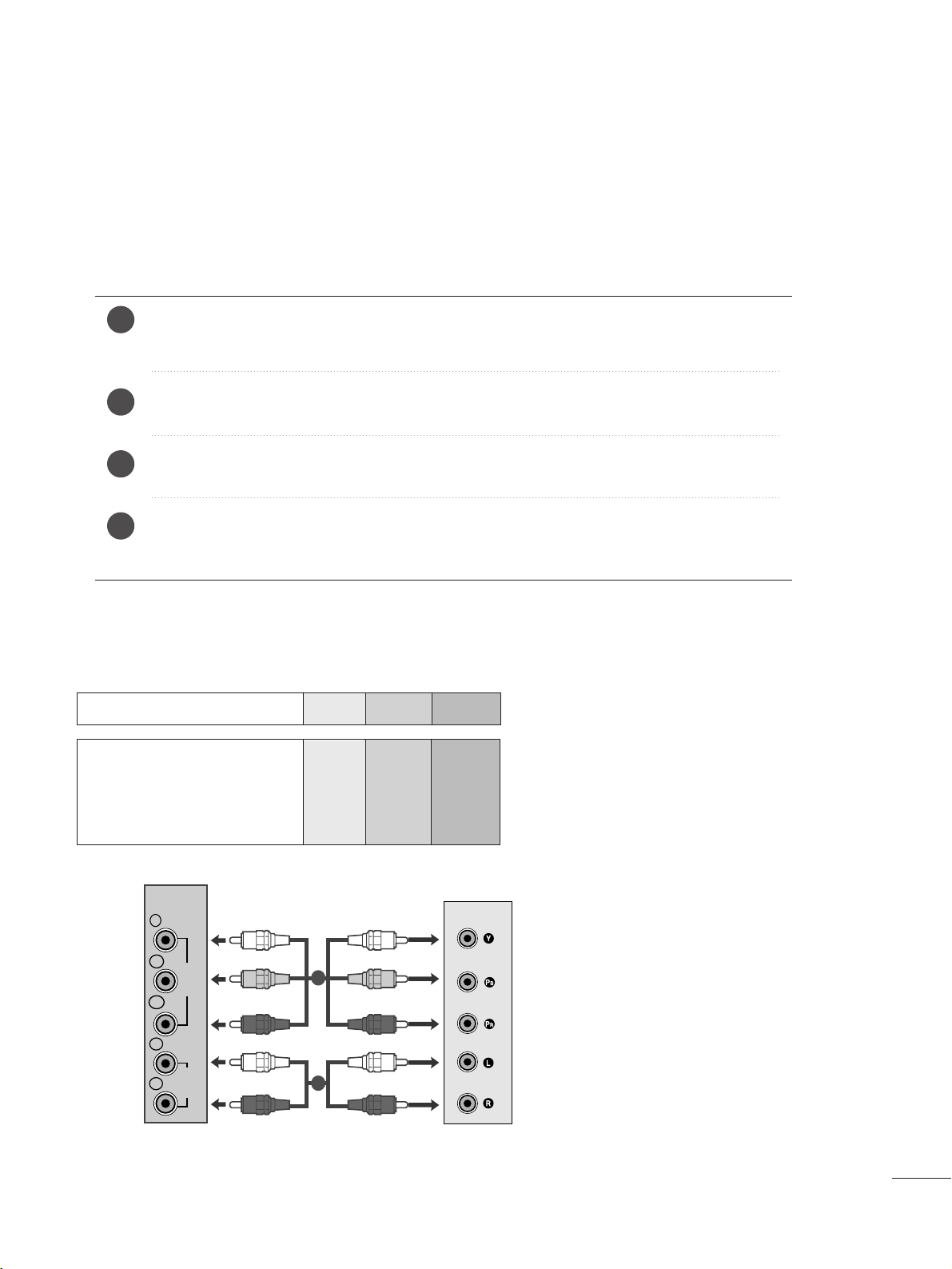
Component Input ports
To get better picture quality, connect a DVD player to the component input ports as shown below.
Component ports on the set
YP
B
P
R
Video output ports
on DVD player
Y
Y
Y
Y
P
B
B-Y
Cb
Pb
P
R
R-Y
Cr
Pr
Connect the video output sockets (Y P
B PR) of the DVD to the
CCOOMMPPOONNEENNTT IINN VVIIDDEEOO
sockets (Y P
B PR) of the set.
Connect the audio cable from the DVD to
CCOOMMPPOONNEENNTT IINN AAUUDDIIOO
sockets of the set.
Press the
IINNPPUUTT
button to select
CCoommppoonneenntt
.
Press the
PPLLAAYY
button on the DVD.
The DVD playback picture appears on the screen.
2
3
4
1
VIDEO
COMPONENT
IN
AUDIO
Y
P
B
P
R
L
R
1
2
18
EXTERNAL EQUIPMENT SETUP
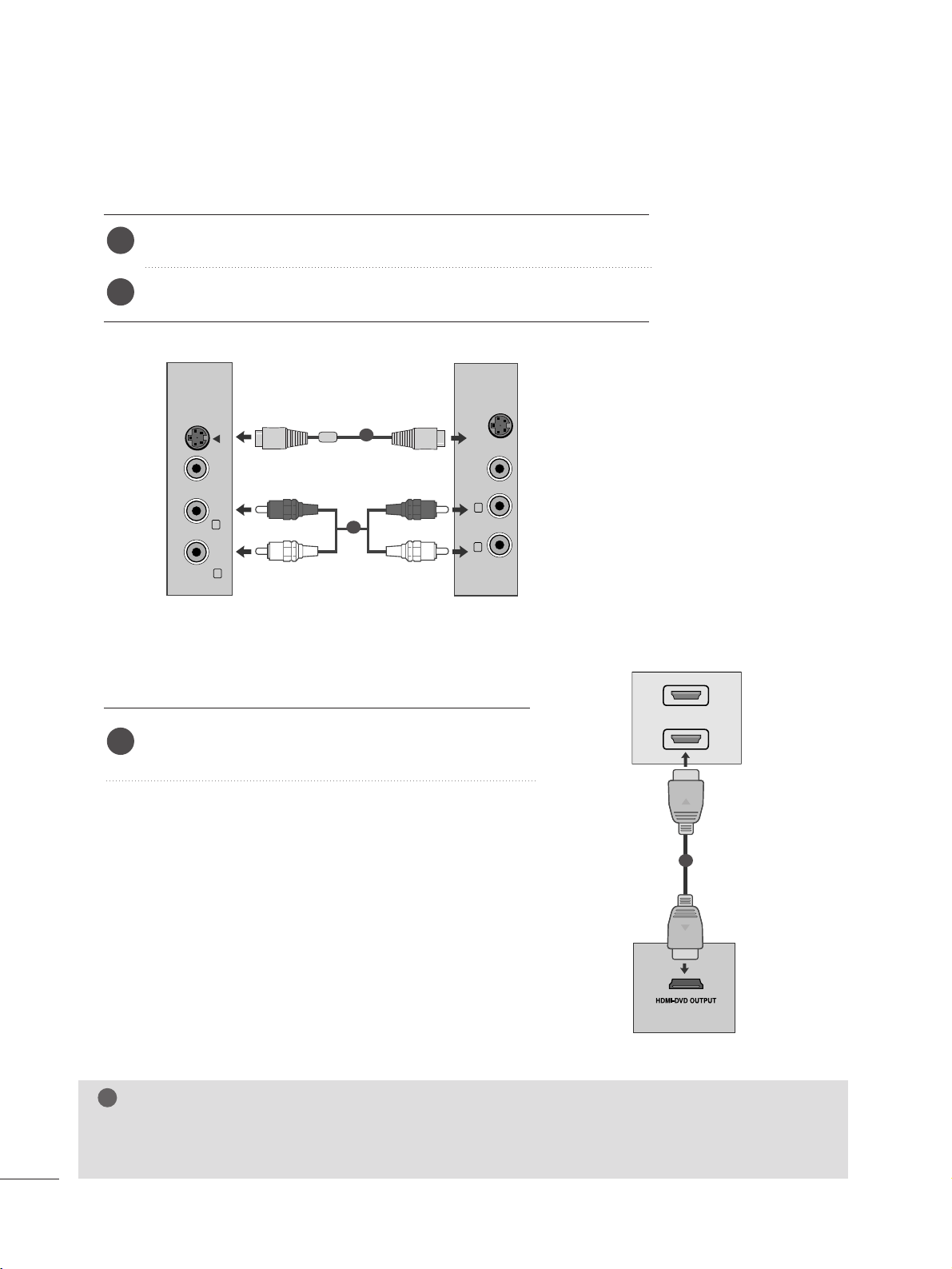
When connecting HDMI cable
Connect the HDMI output of the DVD to the
HHDDMMII IINN
jack on the set.
1
G
HDMI supports video and audio. You do not need to connect a sperate audio cable.
G
If the DVD player does not support Auto HDMI, you need to set the DVD output resolution appropriately.
NOTE
!
HDMI IN
1
2
1
When connecting S-Video
Connect the S-Video output of the DVD to the S-Video in put on the set.
Connect the audio output of the DVD to the AUDIO in put on the set.
1
2
VIDEO AUDIO
(MONO)
S-VIDEO
L
R
AV-IN
VIDEO
S-VIDEO
L
R
1
2
19
EXTERNAL EQUIPMENT SETUP
VCR SETUP
■
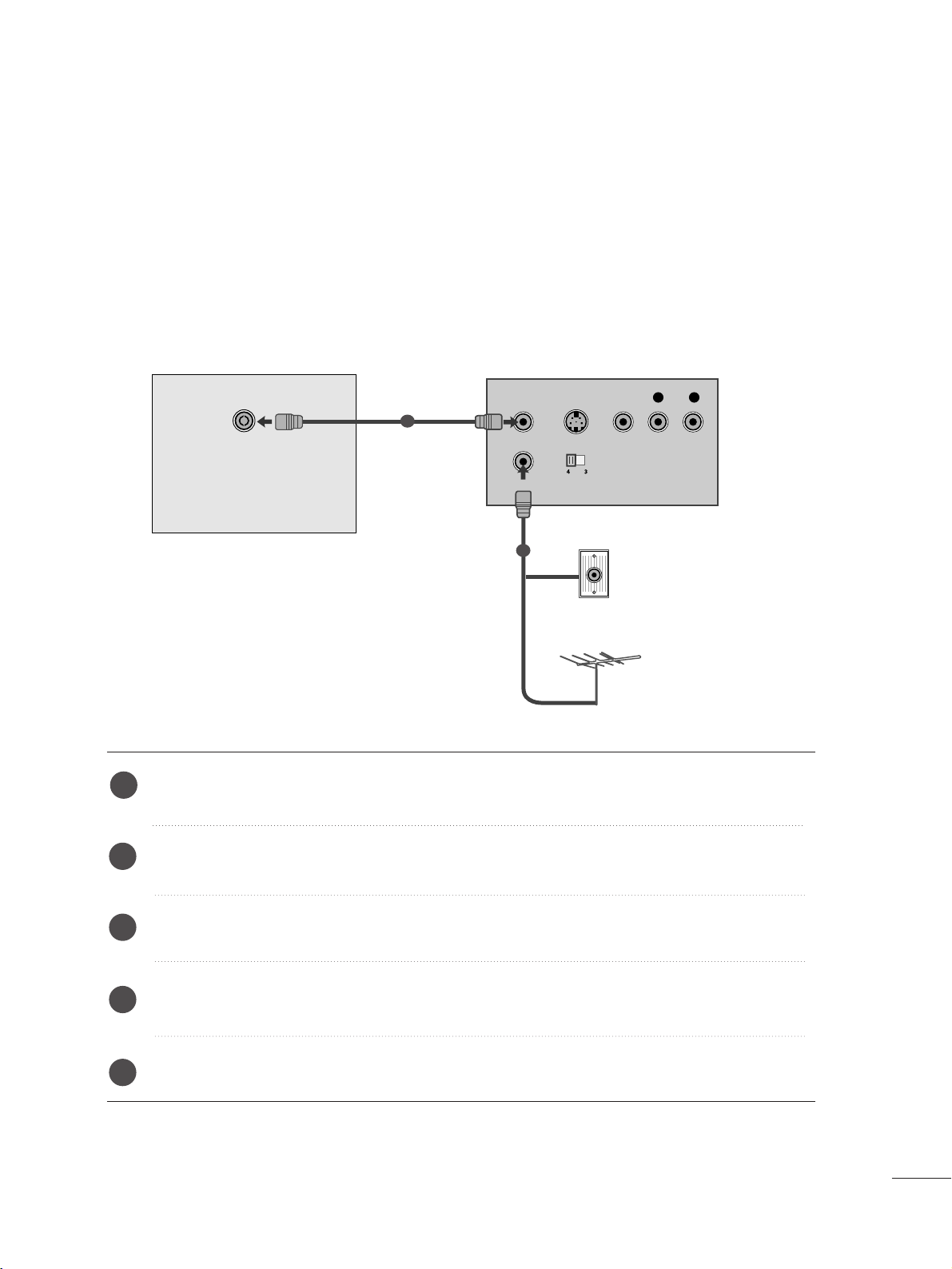
To avoid picture noise (interference), leave an adequate distance between the VCR and the set.
■
If a user uses 4:3 picture format for a long time, an afterimage may remain on the sides of the screen for a
short time.
OUTPUT
SWITCH
ANT IN
R
S-VIDEO VIDEO
ANT OUT
L
ANTENNA/
CABLE IN
AV 1 AV 2
Wall Jack
Antenna
1
2
When connecting with an antenna
Connect the RF out socket of the VCR to the antenna socket of the set.
Connect the antenna cable to the RF aerial in socket of the VCR.
Store the VCR channel on a desired channel number using the ‘Manual channel tuning’ section.
Select the Channel number where the VCR channel is stored.
Press the
PPLLAAYY
button on the VCR.
1
2
3
4
5
20
EXTERNAL EQUIPMENT SETUP
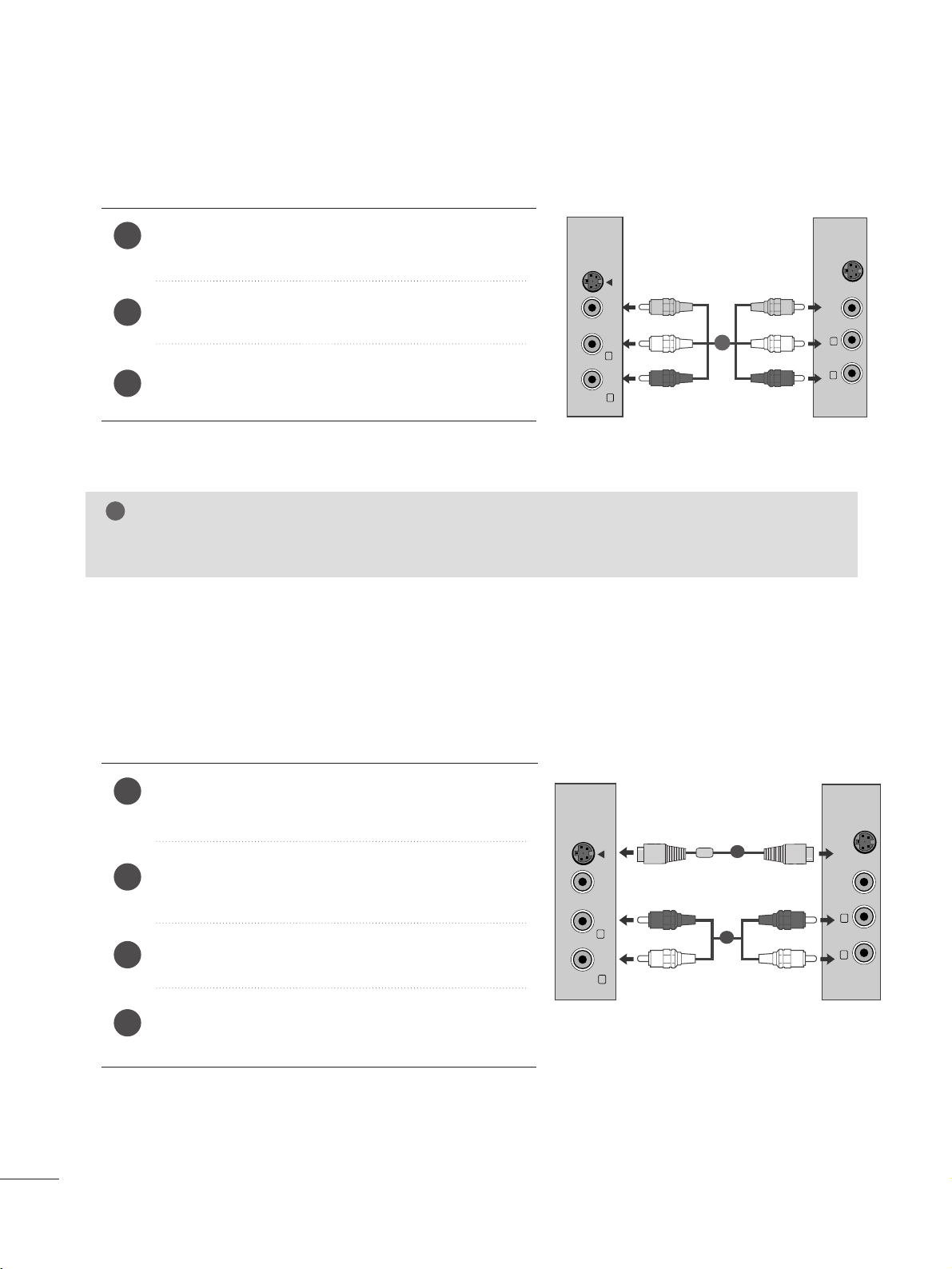
When connecting with a RCA cable
Connect the audio/video out sockets of the VCR to
AUDIO/VIDEO in sockets of the set.
Press the INPUT button to select AV.
Press the PLAY button on the VCR.
The VCR playback picture appears on the screen.
2
3
1
When connecting with an S-Video cable
Connect the S-Video socket of the VCR to the S-
VIDEO socket of the set.
Connect the audio cable from the S-VIDEO of the VCR
to the AUDIO sockets of the set.
Press the INPUT button to select AV.
Press the PLAY button on the VCR.
The VCR playback picture appears on the screen.
2
3
4
1
NOTE
!
G
If you have a mono VCR, connect the audio cable from the VCR to the AUDIO L/MONO jack of the set.
VIDEO AUDIO
(MONO)
S-VIDEO
L
R
AV-IN
VIDEO
S-VIDEO
L
R
VIDEO AUDIO
(MONO)
S-VIDEO
L
R
AV-IN
VIDEO
S-VIDEO
L
R
1
2
1
21
EXTERNAL EQUIPMENT SETUP
PC SETUP
This product provides Plug and Play capability, meaning that the PC adjusts automatically to the set's settings.
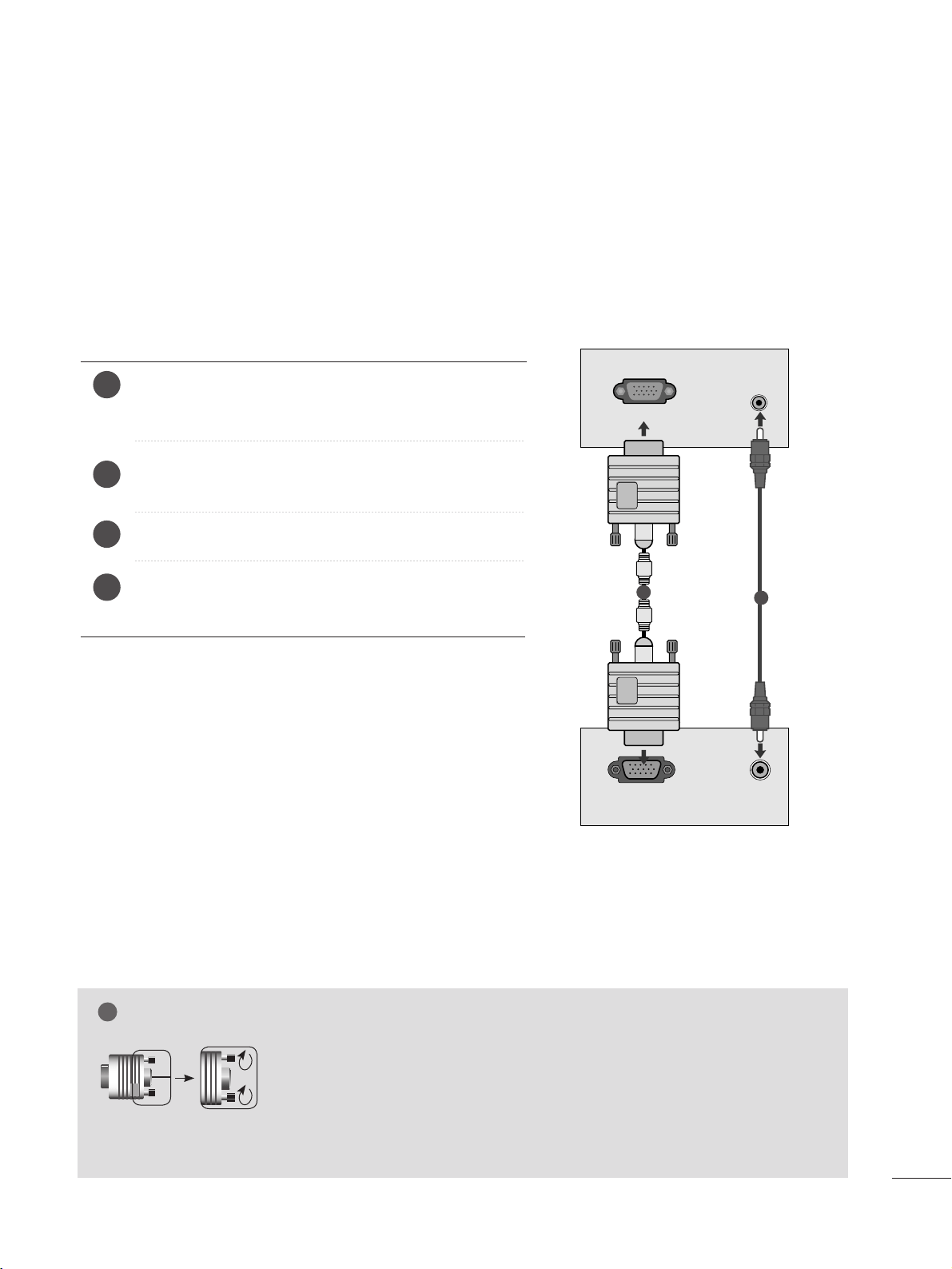
When connecting with a D-sub 15 pin cable
4
Connect the signal cable from the monitor output socket
of the PERSONAL COMPUTER to the PC input socket of
the set.
Connect the audio cable from the PC to the
AAUUDDIIOO IINN
((RRGGBB//DDVVII))
sockets of the set.
Press the INPUT button to select
RRGGBB
.
Switch on the PC, and the PC screen appears on the set.
The set can be operated as a PC monitor.
2
3
1
RGB OUTPUT
AUDIO
AUDIO IN
(RGB/DVI)
RGB IN (PC)
1
2
NOTE
!
G
User must use shielded signal interface cables (D sub 15 pin cable, DVI cable) with ferrite cores to main-
tain standard compliance for the product.
G
Connect the signal input cabel and tighten the screws by turning them clockwise.
22
EXTERNAL EQUIPMENT SETUP
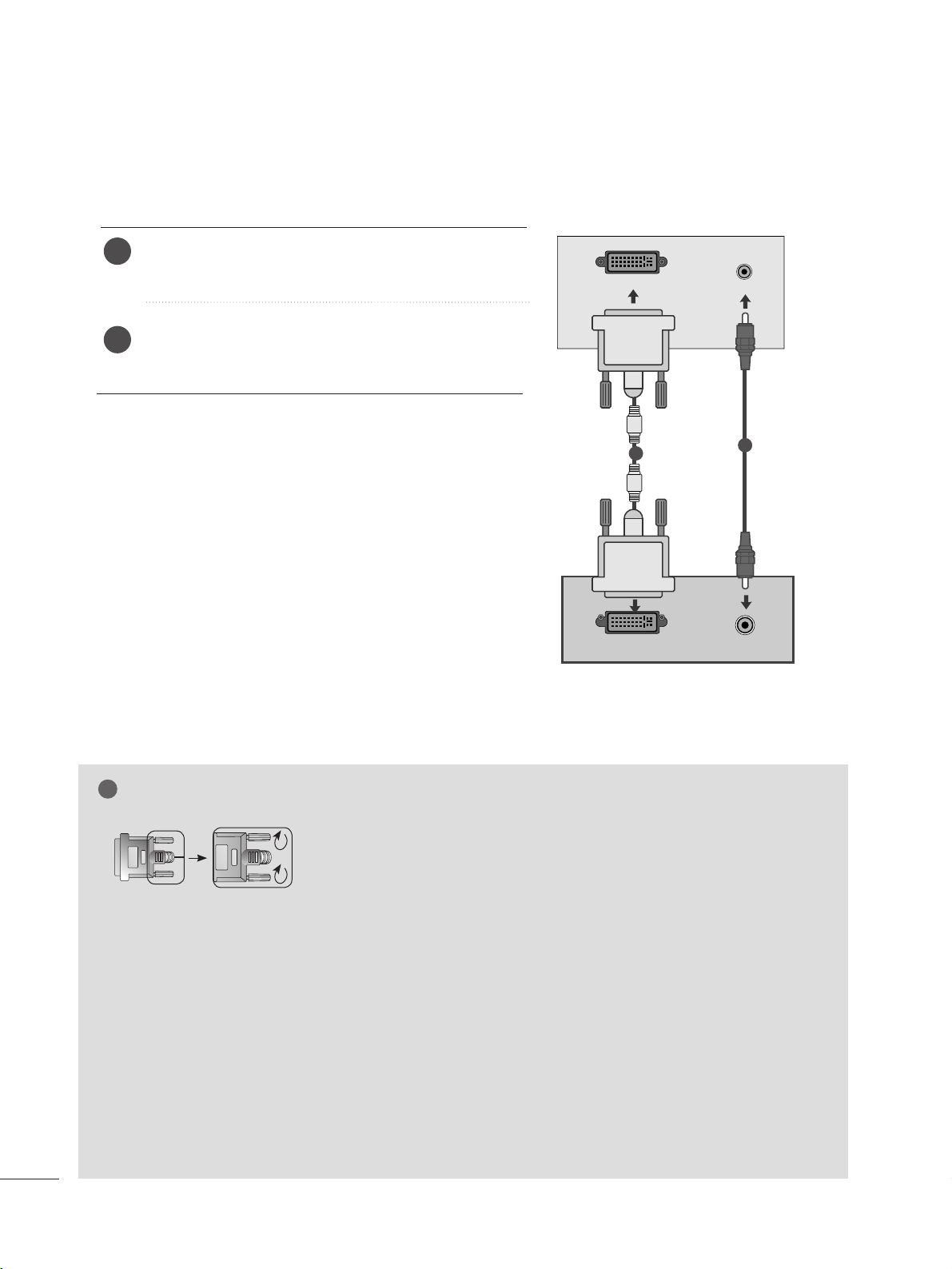
When connecting with a DVI cable
Connect the DVI output of the PC to the
DDVVII--DD IINN
jack on the set.
Connect the audio cable from the PC to the
AAUUDDIIOO
IINN ((RRGGBB//DDVVII))
sockets of the set.
2
1
NOTE
!
G
If the set is cold, there may be a small “flicker” when the
set is switched on. This is normal, there is nothing
wrong with the set.
G
If possible, use the 1920 x 1080 @ 60 Hz video mode
to obtain the best image quality for your LCD monitor.
If used with other resolutions, some scaled or
processed pictures may appear on the screen. The set
has been preadjusted to the mode 1920 x 1080 @ 60
Hz.
G
Some dot defects may appear on the screen, like Red,
Green or Blue spots. However, this will have no impact
or effect on the monitor performance.
G
Do not press the LCD screen with your finger for a long
time as this may produce some temporary distortion
effects on the screen.
G
Avoid keeping a fixed image on the set’s screen for pro-
longed periods of time. The fixed image may become
permanently imprinted on the screen; use a screen
saver when possible.
AUDIO
DVI OUTPUT
AUDIO IN
(RGB/DVI)
DVI-D IN (PC)
1
2
G
Connect the signal input cabel and tighten the screws by turning them
clockwise.
23
EXTERNAL EQUIPMENT SETUP
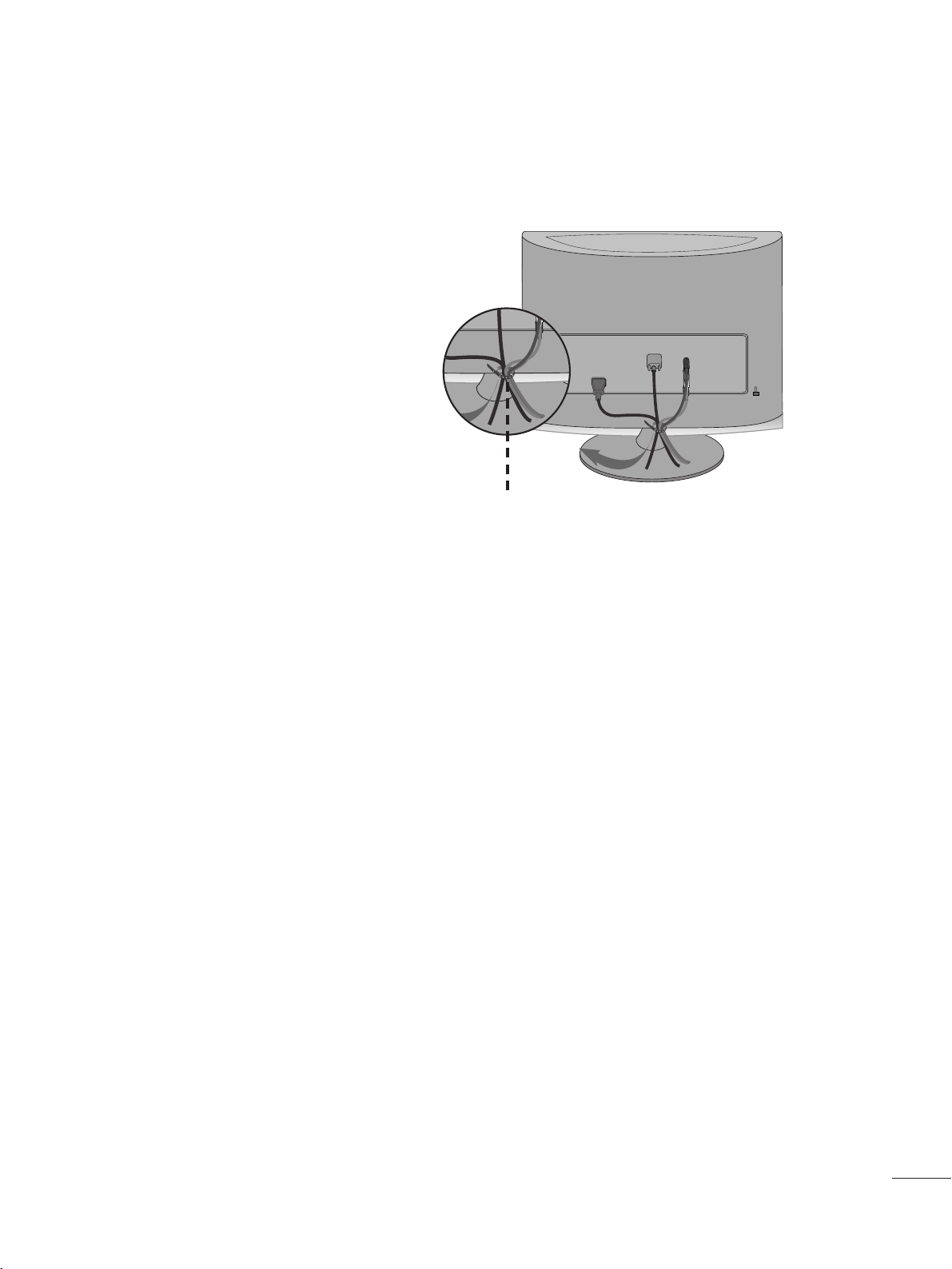
Tie cables together with a cable tie as shown in the
illustration.
Cable tie
R
R
BACK COVER FOR WIRE ARRANGEMENT
24
EXTERNAL EQUIPMENT SETUP
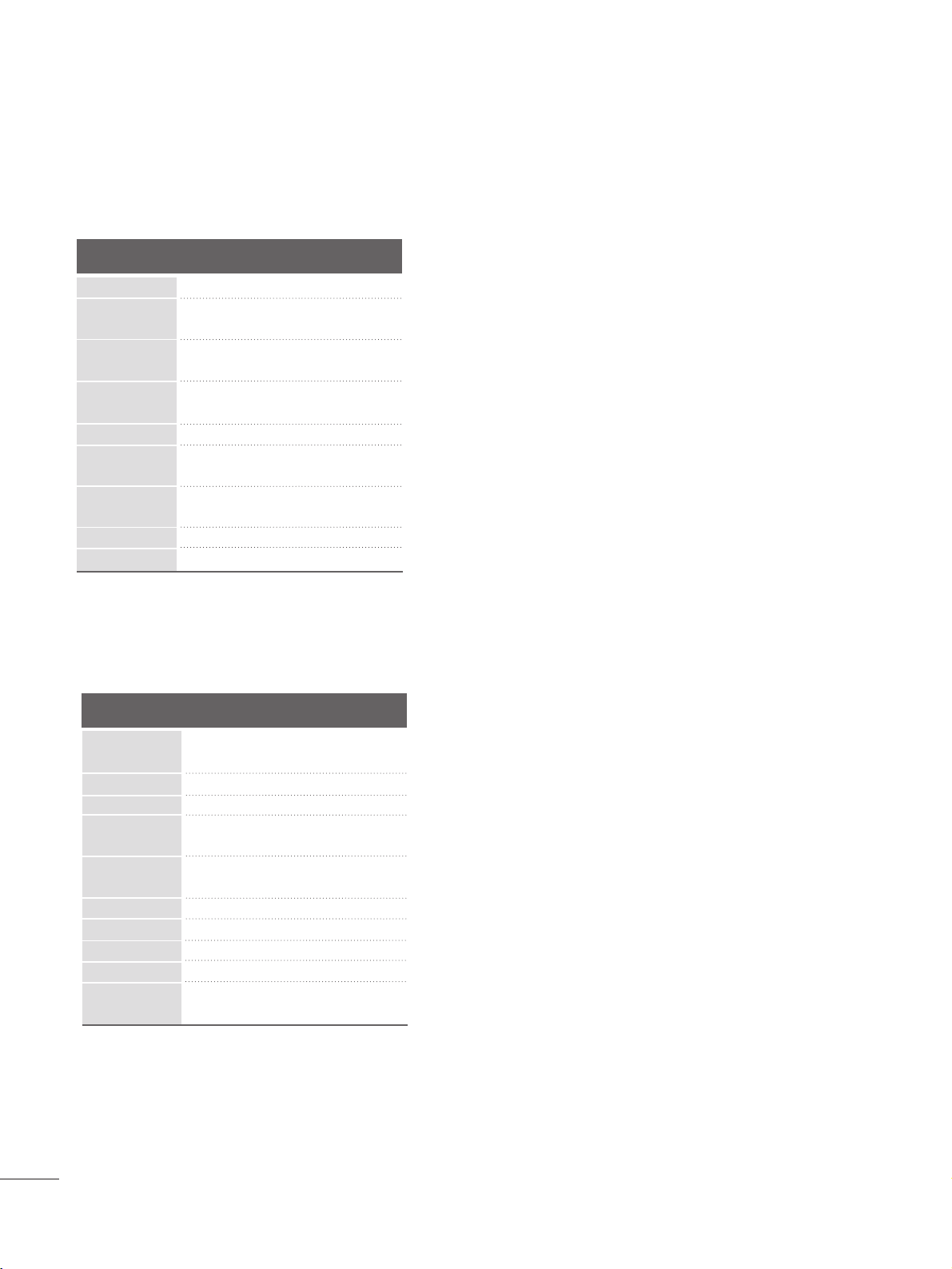
RGB/DVI[PC]
HDMI[DTV] supported mode
Resolution
640x480
800x600
720x400
1024x768
Horizontal
Frequency(kHz)
Vertical
Frequency(Hz)
31.468 70
31.469 60
37.500 75
37.879 60
46.875 75
48.363 60
60.123 75
67.500 75
63.981 60
79.976 75
64.674 60
65.290 60
75.000 60
66.587 60
1280x1024
1152x864
1680x1050
1920x1080
1600x1200
60
60
50
50
60
60
60
60
50
24
30
50
60
60
31.469
31.5
31.25
37.5
44.96
45
33.72
33.75
28.125
27
33.75
56.25
67.43
67.5
Resolution
720x480/60p
720x576/50p
1280x720/60p
1280x720/50p
Horizontal
Frequency(kHz)
Vertical
Frequency(Hz)
1920x1080/60i
1920x1080/50i
1920x1080/24p
1920x1080/30p
1920x1080/50p
1920x1080/60p
SUPPORTED DISPLAY RESOLUTION
25
EXTERNAL EQUIPMENT SETUP
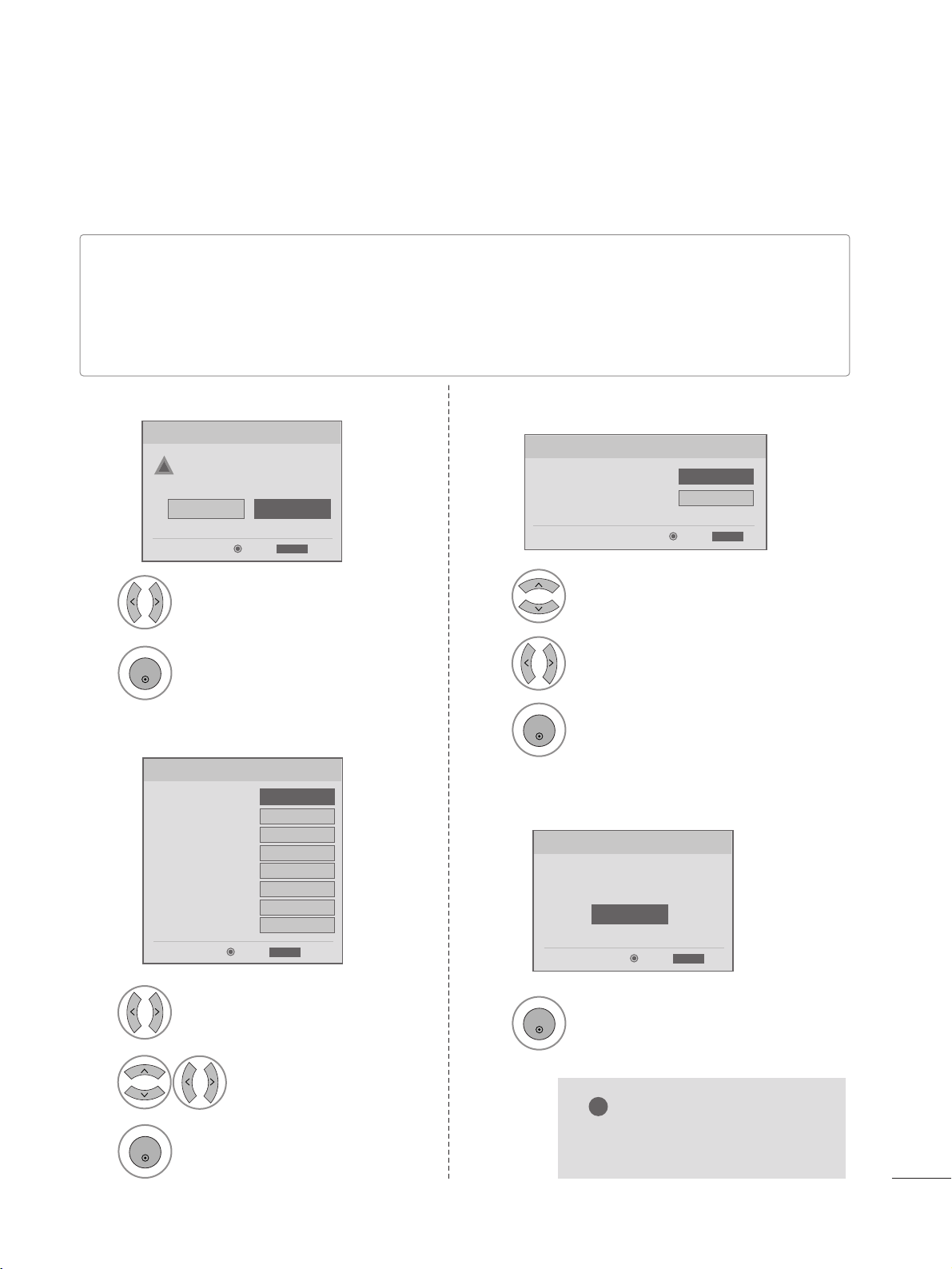
INITIAL SETTING
This Function guides the user to easily set the essential items for viewing the TV for the first time when purchas-
ing the TV. If will be displayed on the screen when turning the TV on for the first time. It can also be activated from
the user menus.
■
Default selection is “
HHoommee
”. We recommend setting the TV to “
HHoommee
” mode for the best picture in your
home environment.
■
“
IInn--ssttoorree
” Mode is only intended for use in retail environments. Customers can adjust the “
PPiiccttuurree
menu -
PPiiccttuurree mmooddee
” manually while inspecting the TV, but the TV will automatically return to preset in-store
mode after 5 minutes.
Selecting the environment.
Choose the setting mode you want.
In Store
Home
ExitEnter
RETURN
Step1. Mode Setting
Step1. Mode setting
!!
1
2
ENTER
Select
HHoommee
Mode.
1
2
3
ENTER
3
3
ENTER
3
Select
OOSSDD LLaanngguuaaggee SSeettttiinngg
or
AAuuddiioo LLaanngguuaaggee SSeettttiinngg
.
Select your desired language.
Start
AAuuttoo TTuunniinngg
.
1
2
3
ENTER
Select
AAuuttoo
or
MMaannuuaall
.
Select desired time option.
Year
Current Time Setting
----
Month
--
Date
--
Hour
--
Minute
--
Time Zone
Eastern
Daylight Saving
Auto
F Auto G
ExitEnter
RETURN
Step2. Time Setting
Step2. Time setting
ExitEnter
RETURN
Step3. Option Setting
1. OSD Language Setting
F English G
2. Audio Language Setting
English
Step3. Option setting
Auto Tuning can change channel map.
Do you want to start Auto Tuning?
Enter
Exit
Enter
RETURN
Step4. Auto Tuning
Step4. Auto Tuning
NOTE
!
G
You can also adjust
IInniittiiaall SSeettttiinngg
in the
OOPPTTIIOONN
menu.
26
WATCHING TV / CHANNEL CONTROL
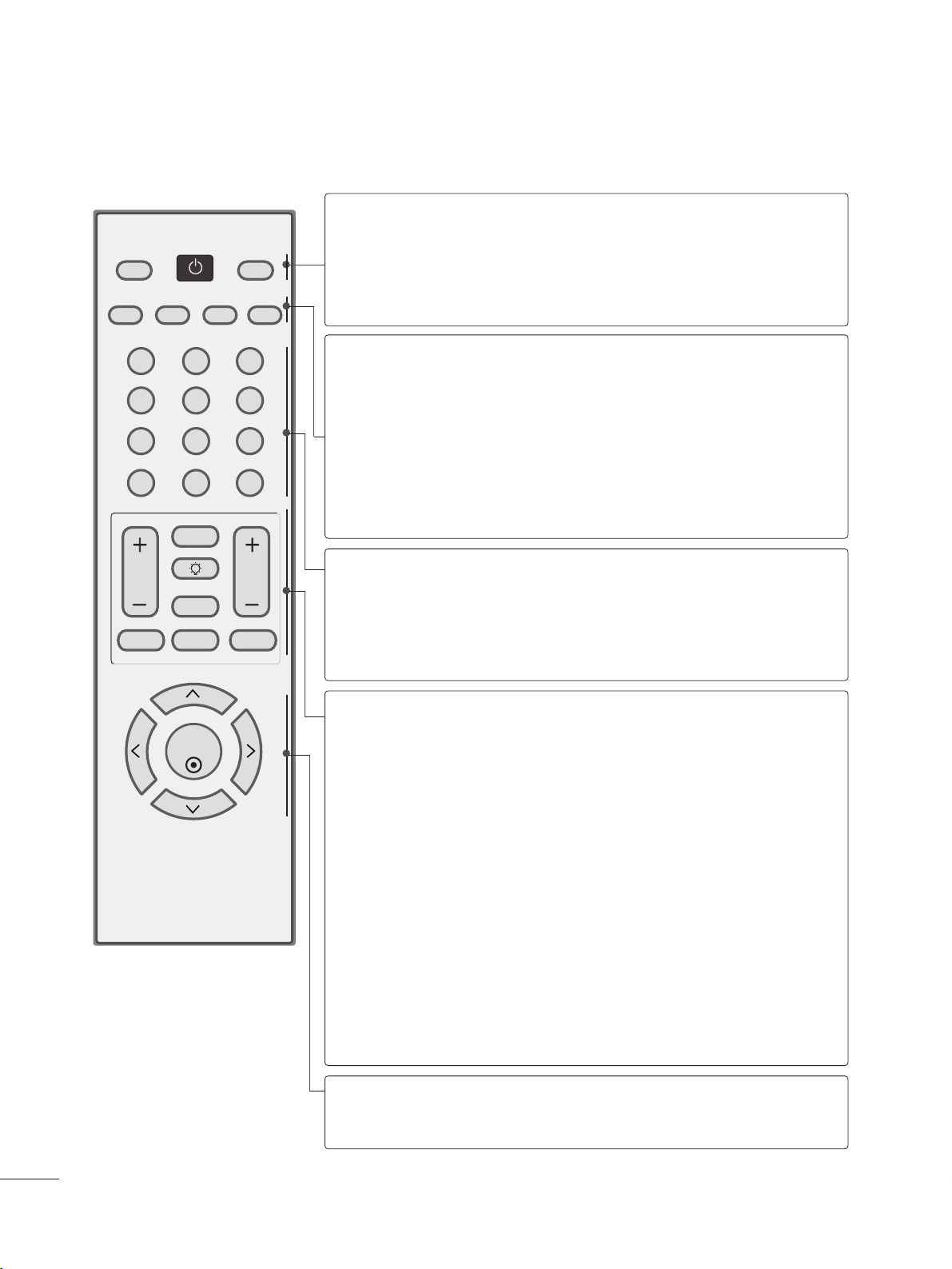
REMOTE CONTROL KEY FUNCTIONS
When using the remote control, aim it at the remote control sensor on the set.
123
456
78
0-
9
VOL CH
ENTER
POWER
MUTE
Q.MENU
MENU
FLASHBK
RETURN
FAV
PICTURE SOUND SAP
RATIO
TV/PC
INPUT
LIGHTING
POWER
TV/PC
INPUT
Turns your set on or off.
Selects TV or PC mode.
Switches the set on.
External input modes rotate in regular sequence
PICTURE
SOUND
SAP
RATIO
Toggles through the factory preset picture settings
depending on the viewing environment.
Toggles through preset sound settings.
* Toggles through Mono, Stereo, or SAP when using ana-
log audio.
* DTV mode: Changes the audio language.
Change the spect ratio.
NUMBER button
_(DASH)
FLASHBK
Used to enter a program number for multiple program
channels such s 2-1,2-2,etc.
Tunes to the last channel viewed.
VOLUME UP
/DOWN
FAV
LIGHTING
MUTE
CHANNEL
UP/DOWN
Q.MENU
MENU
RETURN
Increase/decrease the sound level.
Scroll through the programmed Favorite channels.
Press the Lighting button to turn the decoration light-
ing on/off.
Switch the sound on or off.
Select available channels.
Select the desired quick menu source.
Displays the main menu.
Allows the user to move return one step in an interac-
tive application or other user interaction function.
THUMBSTICK
(Up/Down/Left
Right/ENTER)
Navigate the on-screen menus and adjust the system set-
tings to your preference.
27
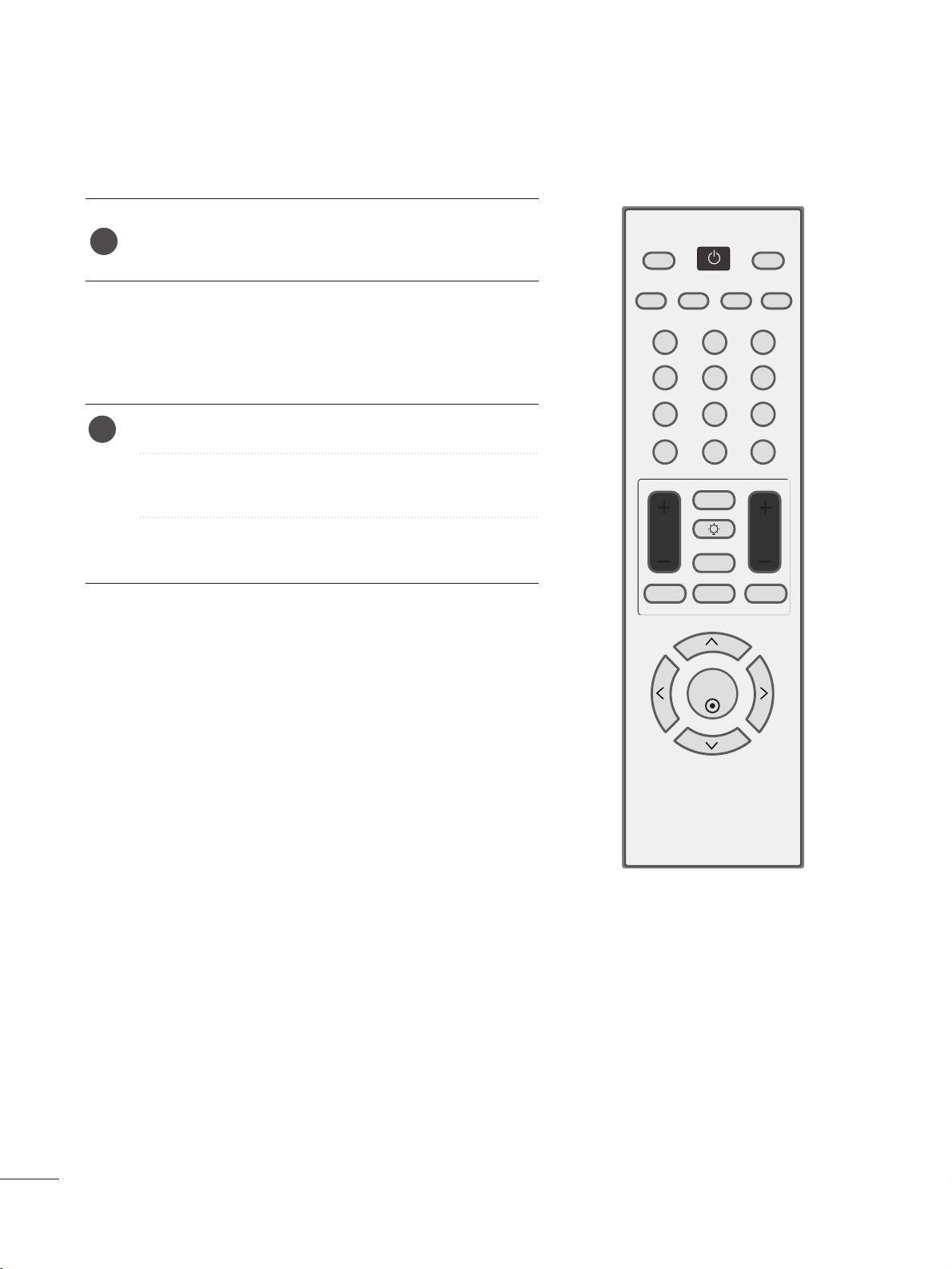
TURNING ON THE TV
WATCHING TV / CHANNEL CONTROL
First, connect the power cord correctly.
Turn on the power by pressing the power button on the product.
Press the TV/PC button on the remote control.
Set the channel by using the CH + / - buttons or number but-
tons on the remote control.
2
1
123
456
78
0-
9
VOL CH
ENTER
POWER
MUTE
Q.MENU
MENU
FLASHBK
RETURN
FAV
PICTURE SOUND SAP
RATIO
TV/PC
INPUT
LIGHTING
Se
tup Menu
Note:
a. It will automatically disappear after approx. 40 seconds
unless a button is pressed.
b. Press the
RREETTUURRNN
button to change current OSD into
regular OSD.
If the OSD (On Screen Display) is displayed on the screen
as figure after turning on the set, you can adjust the
Language, Country, Time Zone, Auto channel tuning.
4
3
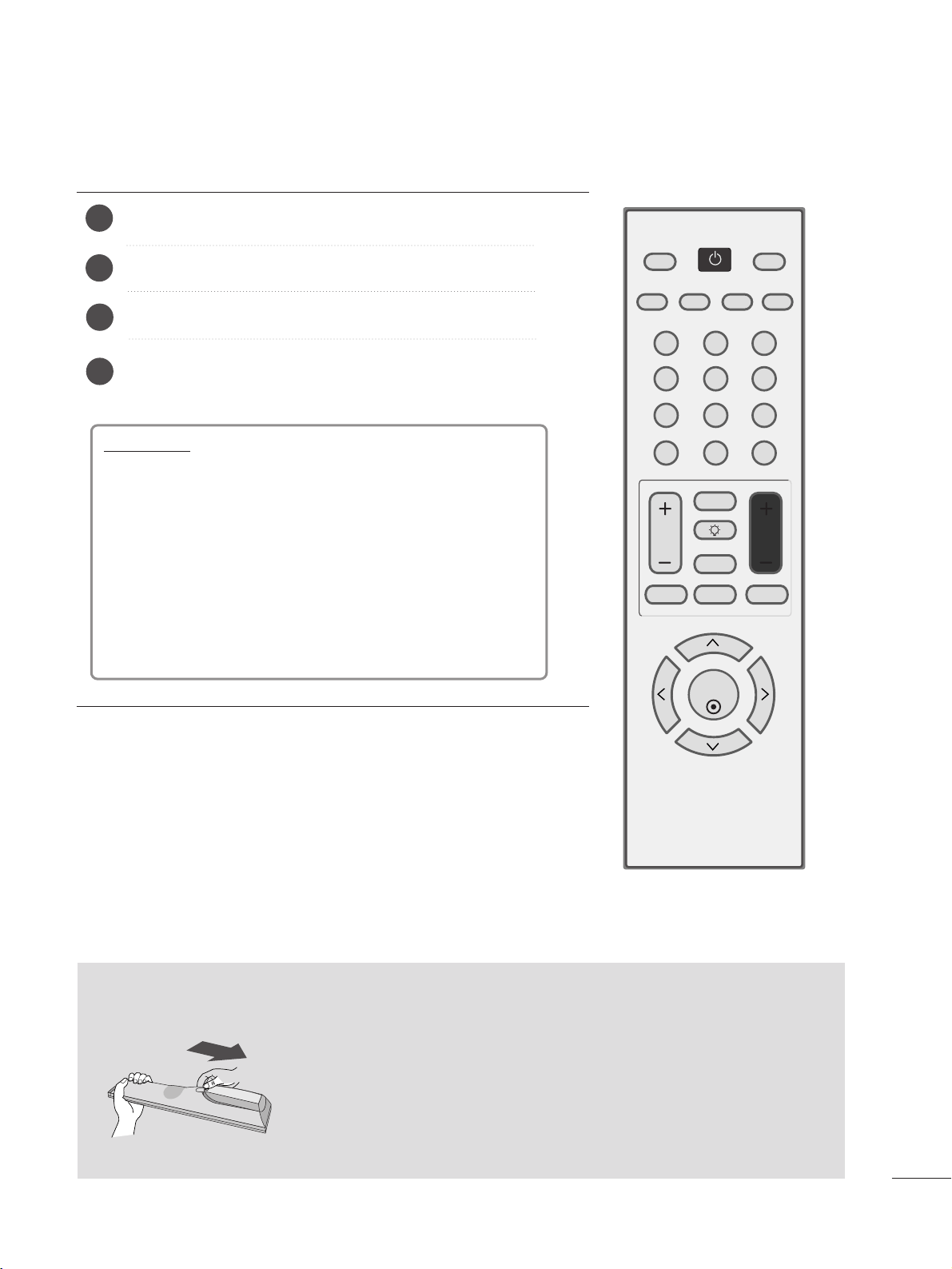
Installing Batteries
■
Open the battery compartment cover on the back and install the batteries
matching correct polarity
(
+ with +, - with -
)
.
■
Install two 1.5 V AAA batteries. Don’t mix old or used batteries with new ones.
■
Close cover.
■
To remove the batteries, perform the installation actions in reverse.
28
WATCHING TV / CHANNEL CONTROL
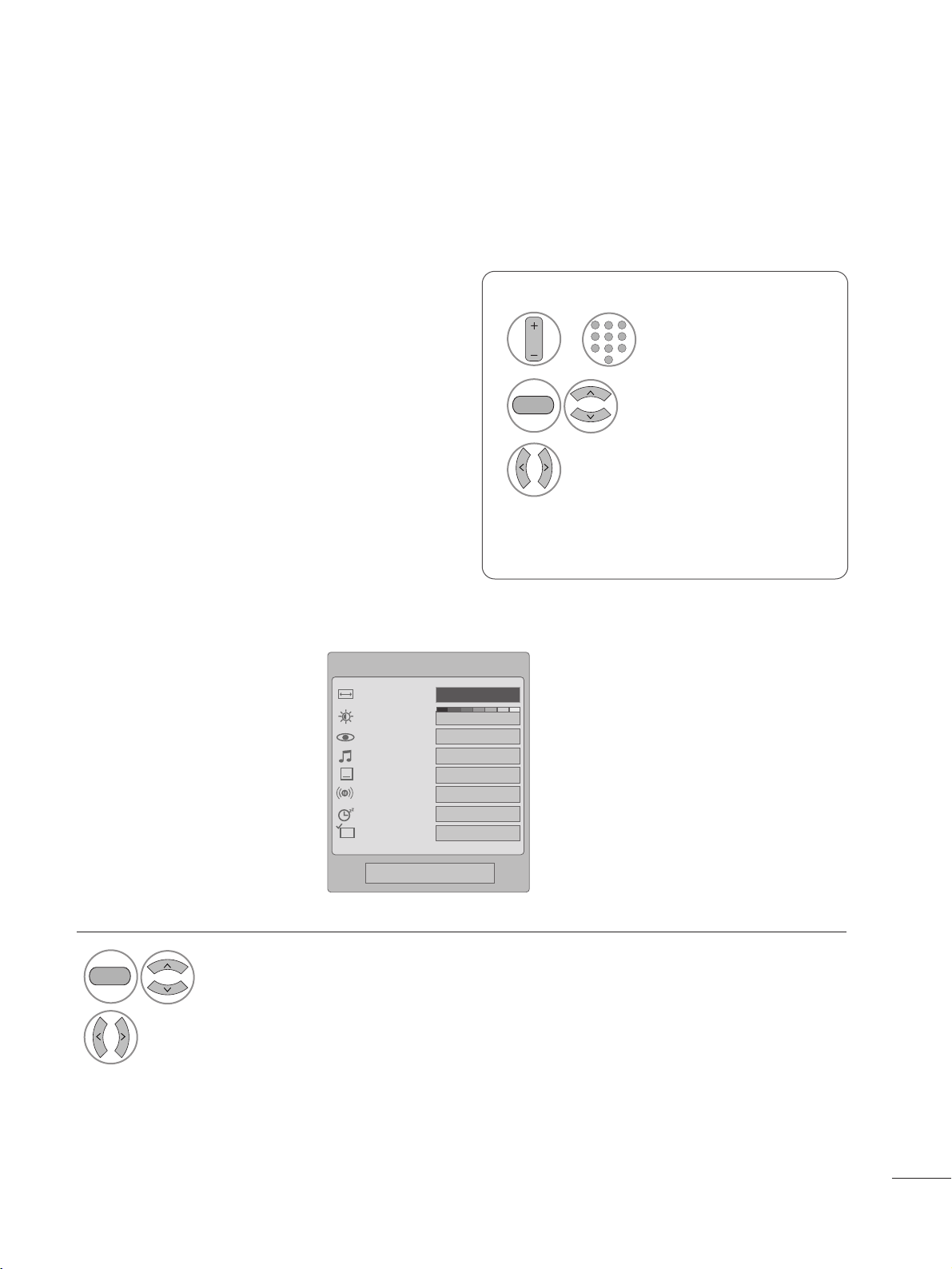
CHANNEL SELECTION
Press the
CCHH ++
or
--
or NUMBER buttons to select a
programme number.
1
VOLUME ADJUSTMENT
Press the VOL
++
or
--
button to adjust the volume.
If you want to switch the sound off, press the MUTE
button.
You can cancel this function by pressing the MUTE,
VOL
++
or
--
.
123
456
78
0-
9
VOL CH
ENTER
POWER
MUTE
Q.MENU
MENU
FLASHBK
RETURN
FAV
PICTURE SOUND SAP
RATIO
TV/PC
INPUT
LIGHTING
1
29
WATCHING TV / CHANNEL CONTROL
QUICK MENU / FAVORITE CHANNEL SETUP
Display each menu.
Make appropriate adjustments.
■
AAssppeecctt RRaattiioo
: Selects your desired picture format.
■
BBaacckklliigghhtt
: Adjust the brightness of the LCD panel to
control the brightness of the screen and lower power
consumption.
■
PPiiccttuurree MMooddee
: Toggles through picture settings.
■
SSoouunndd MMooddee
: Toggles through sound settings.
■
CCaappttiioonn
: Select on or off.
■
MMuullttii AAuuddiioo
: Changes the audio language (Digital sig-
nal).
SSAAPP
: Selects MTS sound (Analog signal).
■
SSlleeeepp TTiimmeerr
: Select the amount of time before your
TV turns off automatically.
■
DDeell//AAdddd//FFaavv
: Select channel you want to add/delete or
add the channel to the Favorite List.
Your set’s OSD (On Screen Display) may differ slightly from what is shown in this manual.
Q.Menu (Quick Menu) is a menu of features which users might use frequently.
1
Q.MENU
2
Q.Menu
3
F 16:9 G
Standard
Vivid
Off
English
Off
Add
Aspect Ratio
Backlight
Picture Mode
Sound Mode
Caption
Multi Audio
Sleep Timer
Del/Add/Fav
CH
Close
Favorite Channle Setup
Select
DDeell//AAdddd//FFaavv
.
■
To tune to a favorite channel, press the
FFAAVV
(Favorite) button repeatedly.
2
Q.MENU
1
CH
1
456
78
0
9
23
Select your desired channel.or
3
Select
FFaavvoorriittee
.
•
Press the RETURN button to move to the previous menu screen.
30
WATCHING TV / CHANNEL CONTROL
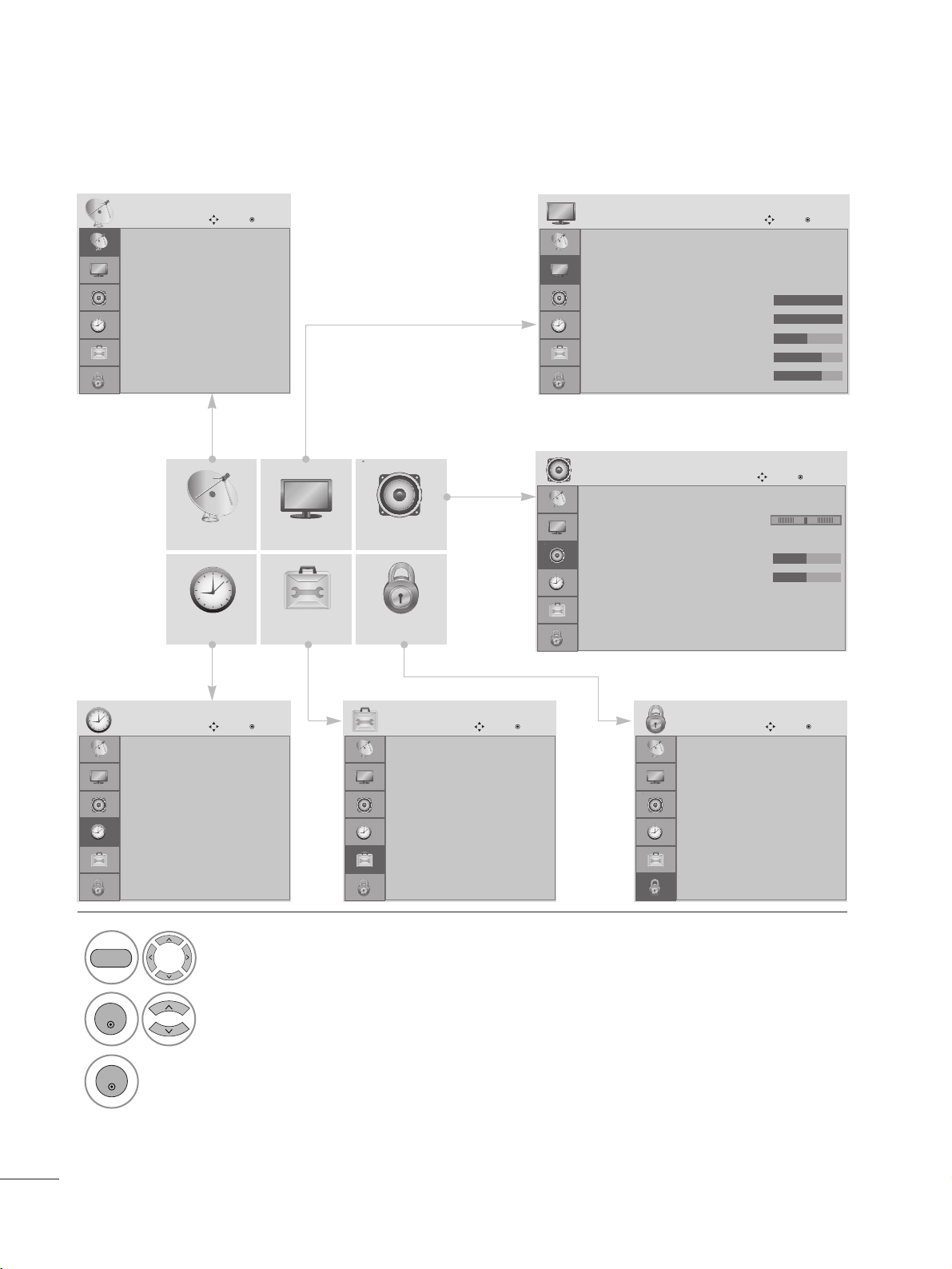
ON SCREEN MENUS SELECTION AND ADJUSTMENT
Your set's OSD
(
On Screen Display
)
may differ slightly from what is shown in this manual.
CHANNEL AUDIO
TIME OPTION LOCK
PICTURE
Auto tuning
Manual tuning
Channel Edit
CHANNEL
Move
Enter
Auto Volume : Off
Balance 0
Sound Mode : Standard
• Treble 50
• Bass 50
• Reset
TV Speaker : On
AUDIO
Move
Enter
Clock
Off Time : Off
On Time : Off
Sleep Timer : Off
Auto Sleep : Off
TIME
Move
Enter
Lock System : Off
Set Password
Block Channel
Movie Rating
TV Rating-Children
TV Rating-General
Downloadable Rating
Input Block
LOCK
Move
Enter
Language : English
Input Label
Key Lock : Off
Caption : Off
Set ID : 1
Power Indicator : On
DDC-CI : On
OPTION
Move
Enter
1
MENU
Display each menu.
2
ENTER
Select a menu item.
3
Move to the pop up menu.
LR
ENTER
• Press the MENU button to close the menu window.
• Press the RETURN button to move to the previous menu screen.
Aspect Ratio : 16:9
Auto Bright : Off
Picture Mode : Vivid
• Backlight 100
• Contrast 100
• Brightness 50
• Sharpness 70
• Color 70
PICTURE
Move
Enter
E
E
31
WATCHING TV / CHANNEL CONTROL
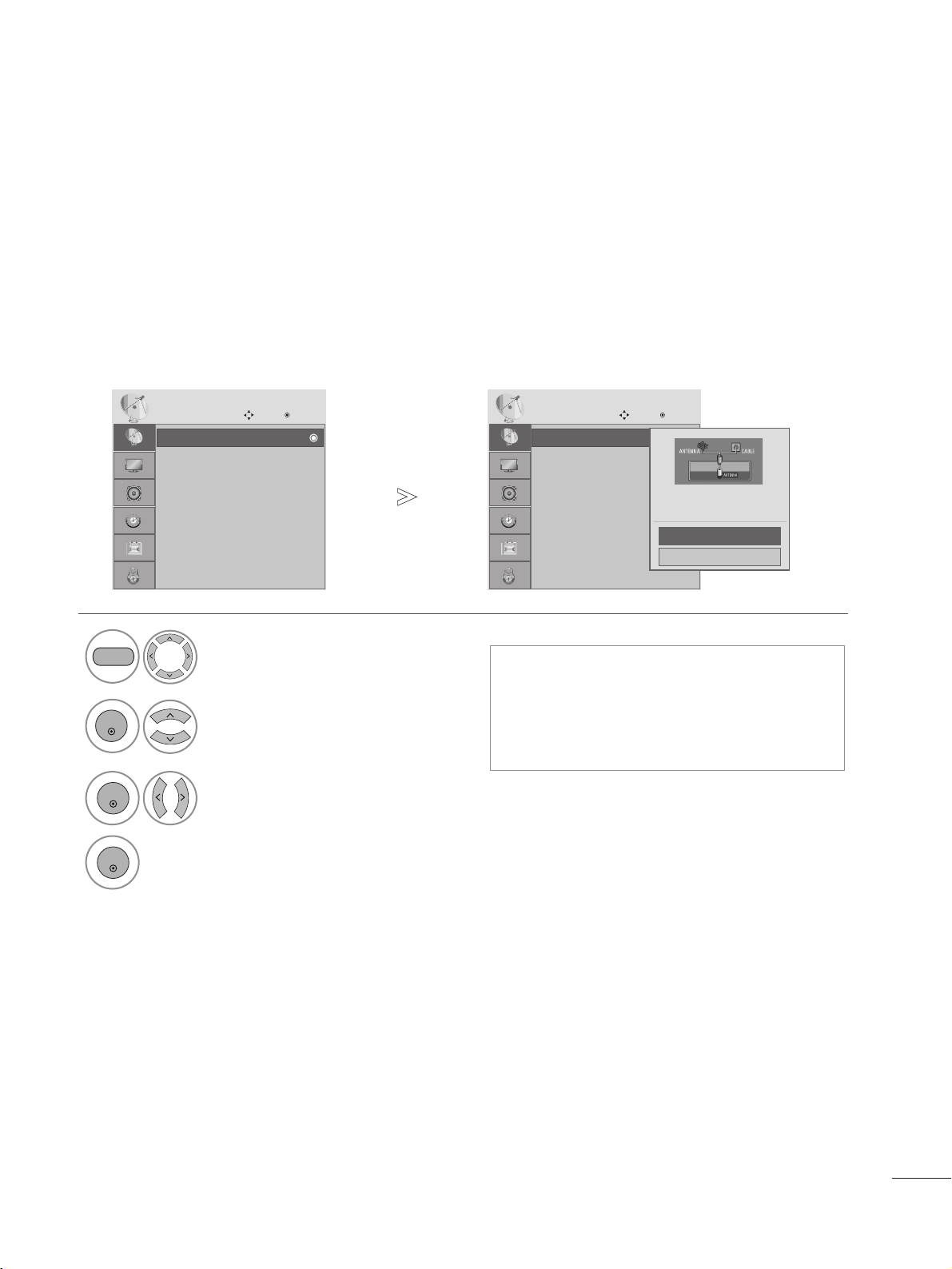
Use this to automatically find and store all available channels.
When you start auto programming in digital mode, all previously stored service information will be deleted.
AUTO CHANNEL TUNING
• Use the NUMBER buttons to input a 4-digit
password in Lock System ‘On’.
•
If you wish to keep on auto tuning, select
YES using the
F G
button. Then, press the
ENTER button. Otherwise, select NO.
Select CHANNEL.
2
ENTER
Select Auto Tuning.
3
Select Yes.
4
Run Auto tuning.
1
MENU
ENTER
ENTER
•
Press the MENU button to close the menu window.
• Press the RETURN button to move to the previous menu screen.
Auto tuning
Manual tuning
Channel Edit
CHANNEL
Move
Enter
Auto tuning
Auto tuning
Manual tuning
Channel Edit
CHANNEL
Move
Enter
Auto tuning
Press ‘Yes’ button to begin
auto tuning.
Yes
No
32
WATCHING TV / CHANNEL CONTROL
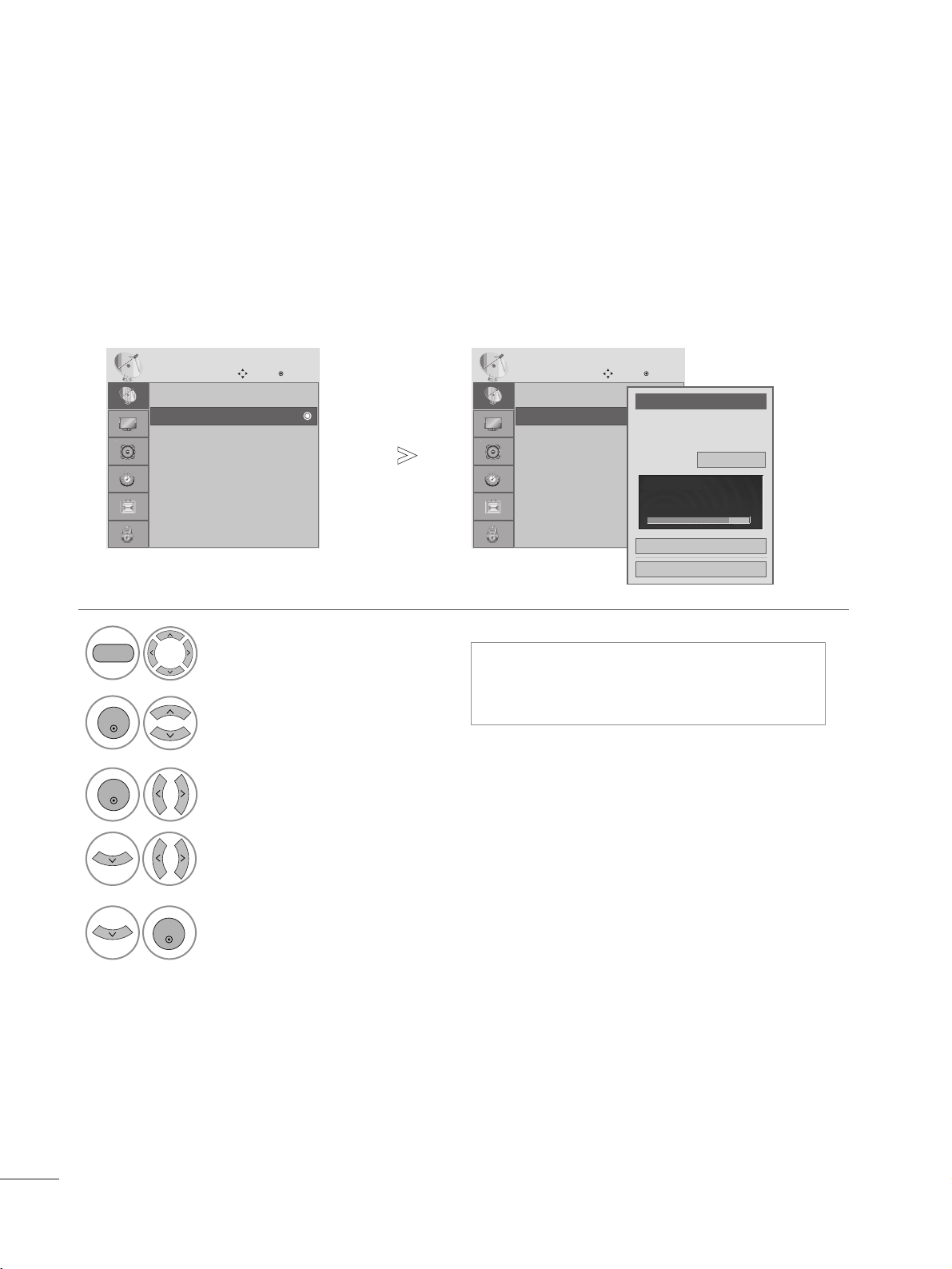
When selecting DTV or TV or CADTV or CATV input signal, you can view the on-screen signal
strength monitor to see the quality of the signal being received.
MANUAL TUNING
■
A password is required to gain access to the
Manual Tuning menu if the Lock System is
turned on.
Select CHANNEL.
2
Select Manual Tuning.
3
Select
DDTTVV
,
TT VV
,
CCAADDTTVV
, or
CCAATTVV
.
4
Select the channel you want to add or delete.
1
MENU
ENTER
ENTER
4
Select
AAdddd
or
DDeelleettee
.
ENTER
• Press the MENU button to close the menu window.
• Press the RETURN button to move to the previous menu screen.
Auto tuning
Manual tuning
Channel Edit
CHANNEL
Move
Enter
Manual tuning
Auto tuning
Manual tuning
Channel Edit
CHANNEL
Move
Enter
Manual tuning
Channel
Select channel type and
RF-channel number.
F
DTV
G
2
Close
Add
DTV 2-1
Bad Normal Good
33
WATCHING TV / CHANNEL CONTROL
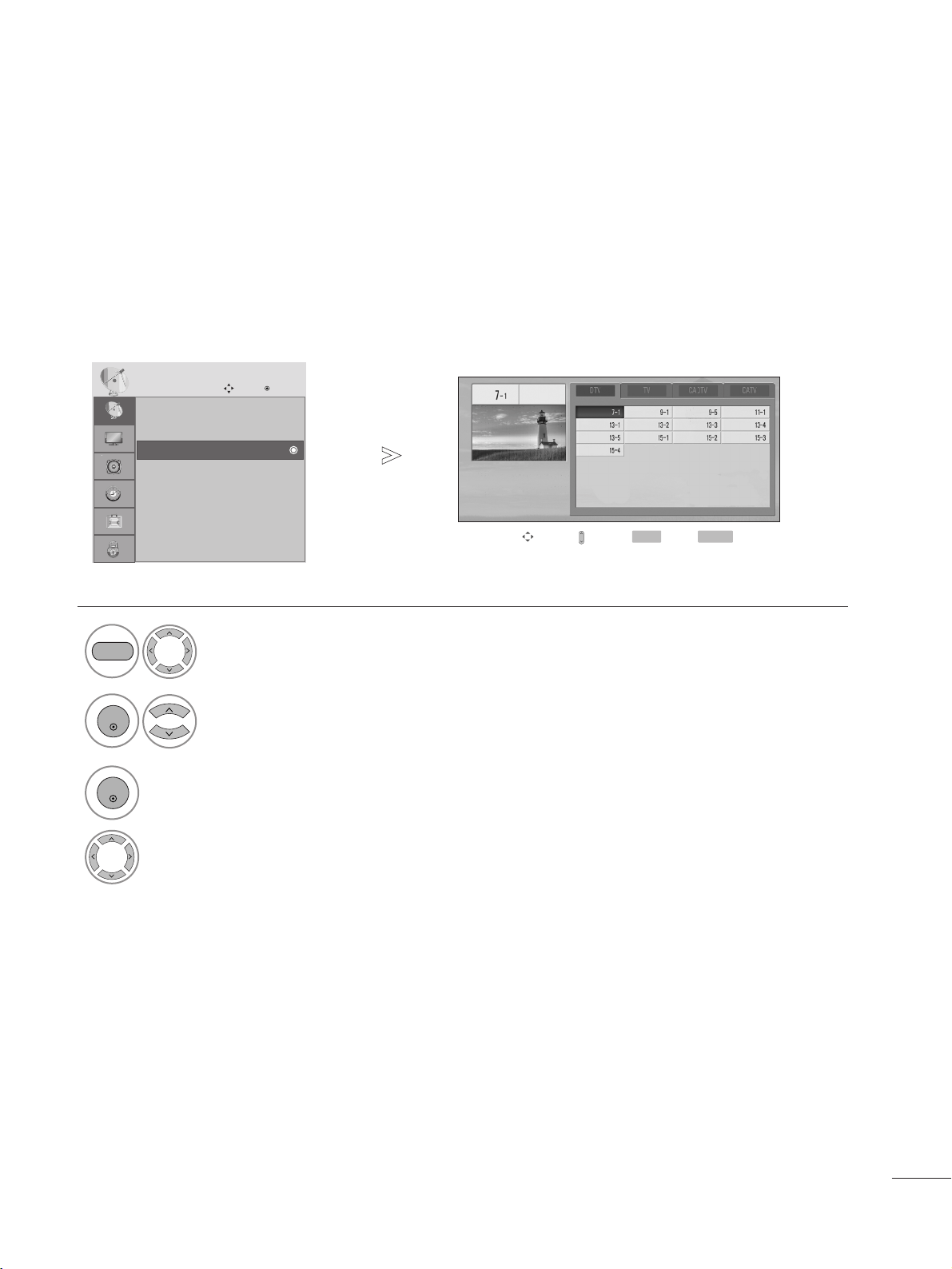
A custom list can be created by toggling each channel on or off with the ENTER button.
The channels in the Custom List are displayed in black and the channels deleted from the Custom List are displayed
in gray.
Once a channel is highlighted you can add or delete the channel by pressing the enter button.
CHANNEL EDIT
Select CHANNEL.
2
Select Channel Edit.
3
Select a
CChhaannnneell
.
4
Select channel you want to add or delete.
1
MENU
ENTER
ENTER
•
Press the MENU button to close the menu window.
• Press the RETURN button to move to the previous menu screen.
Auto tuning
Manual tuning
Channel Edit
CHANNEL
Move
Enter
Channel Edit
Move Page
CH
Move
Previous
RETURN
Add/Delete
Q.MENU
34
PICTURE CONTROL
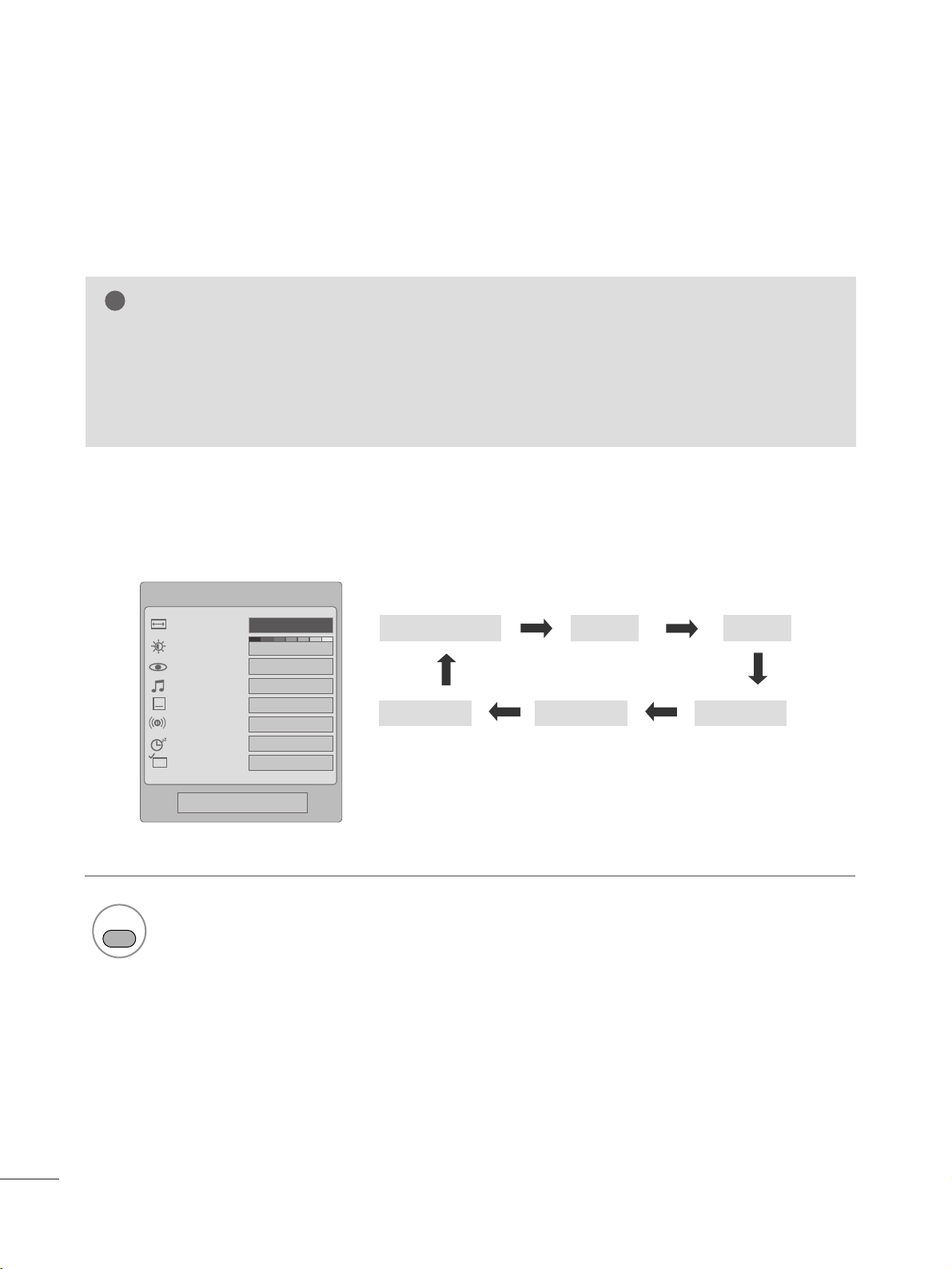
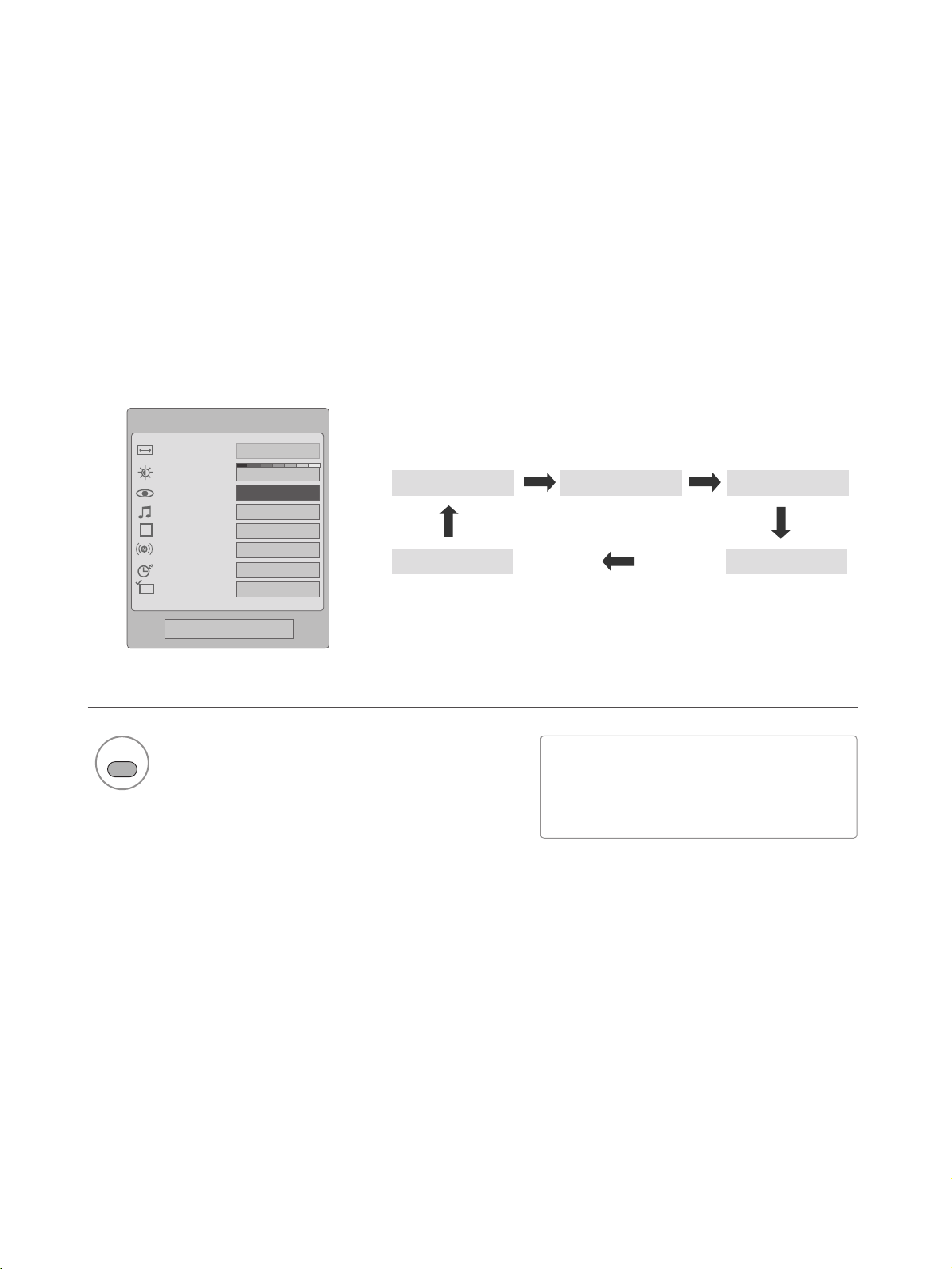
This feature lets you choose the way an analog picture with a 4:3 aspect ratio is displayed on your set.
■
RGB-PC input source use 4:3 or 16:9 aspect ratio.
PICTURE SIZE (ASPECT RATIO) CONTROL
Q.Menu
3
F 16:9 G
Standard
Vivid
Off
English
Off
Add
Aspect Ratio
Backlight
Picture Mode
Sound Mode
Caption
Multi Audio
Sleep Timer
Del/Add/Fav
CH
Close
Just ScanZoom1Zoom2
Set By Program
4:3 16:9
NOTE
!
G
If a fixed image is displayed on the screen for a long time, the image could become imprinted on the
screen and remain visible.
This phenomenon is common to all manufacturers and is not covered by warranty. Although, after watch-
ing video that did not fill the screen, any after-image from the black bars will normally dissipate after a few
minutes.
•
Press the RETURN button to move to the previous menu screen.
1
RATIO
Select the desired picture format.
35
PICTURE CONTROL
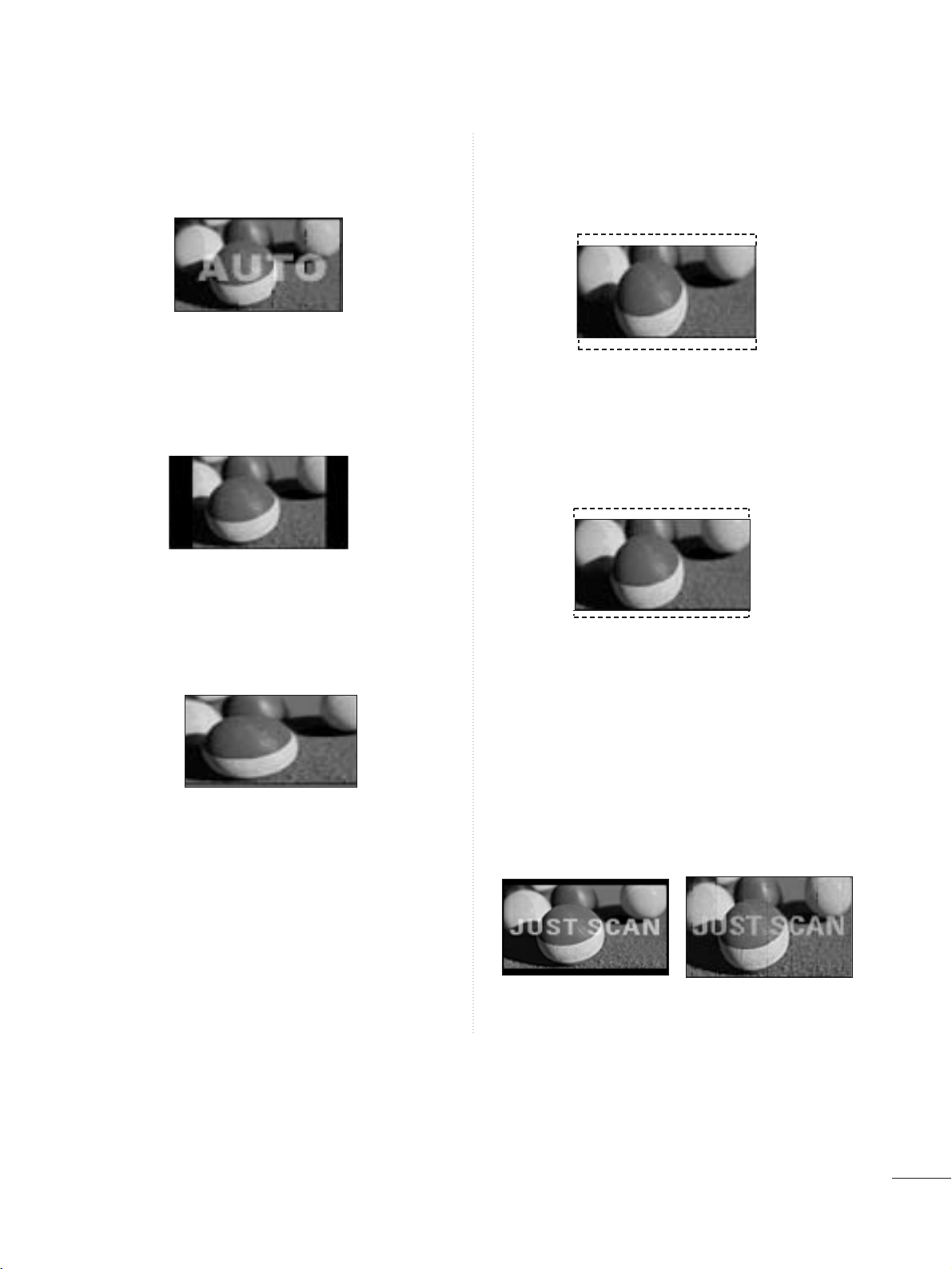
Set by program
Selects the proper picture proportion to match
the source’s image.
4:3
Choose 4:3 when you want to view a picture
with an original 4:3 aspect ratio.
16:9
Adjust the picture horizontally, in a linear pro-
portion to fill the entire screen.
Zoom 1
Choose Zoom 1 when you want to view the pic-
ture without any alteration. However, the top and
bottom portions of the picture will be cropped.
Zoom 2
Choose Zoom 2 when you want the picture to
be altered, both vertically extended and
cropped. The picture taking a halfway trade off
between alteration and screen coverage.
Just Scan
Following selection will lead to you view the pic-
ture of best quality without loss of original pic-
ture in high resolution image.
Notes: If there are noise in original picture, you
can see the noise at the edge.
JJuusstt SSccaann
operates only in
DTV/CADTV/Component/HDMI-DTV/DVI-DTV
(720p/1080i/1080p) input source.
36
PICTURE CONTROL
• Press the RETURN button to move to the previous menu screen.
PRESET PICTURE SETTINGS
Picture Mode-Preset
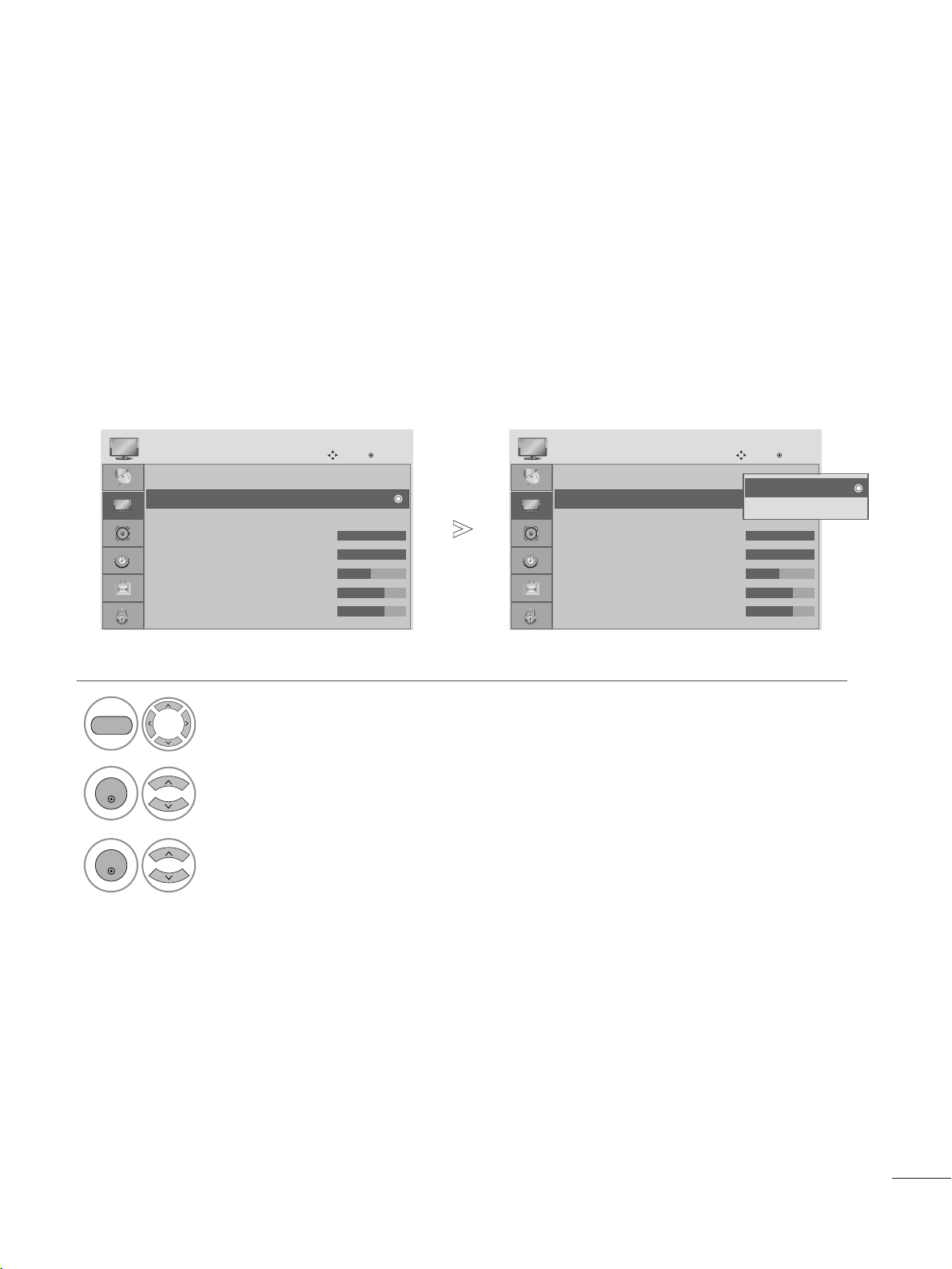
There are factory presets for picture settings available in the user menus. You can use a preset, change each set-
ting manually.
1
PICTURE
Vivid Standard
Game Sport
Cinema
Select
VViivviidd
,
SSttaannddaarrdd
,
CCiinneemmaa
,
SSppoorrtt
, or
GGaammee
.
■
VViivviidd
,
SSttaannddaarrdd
,
CCiinneemmaa
,
SSppoorrtt
, or
GGaammee
Settings are preset for the opti-
mum picture quality at the factory and are
not adjustable.
Q.Menu
3
16:9
Standard
F Vivid G
Off
English
Off
Add
Aspect Ratio
Backlight
Picture Mode
Sound Mode
Caption
Multi Audio
Sleep Timer
Del/Add/Fav
CH
Close
37
PICTURE CONTROL
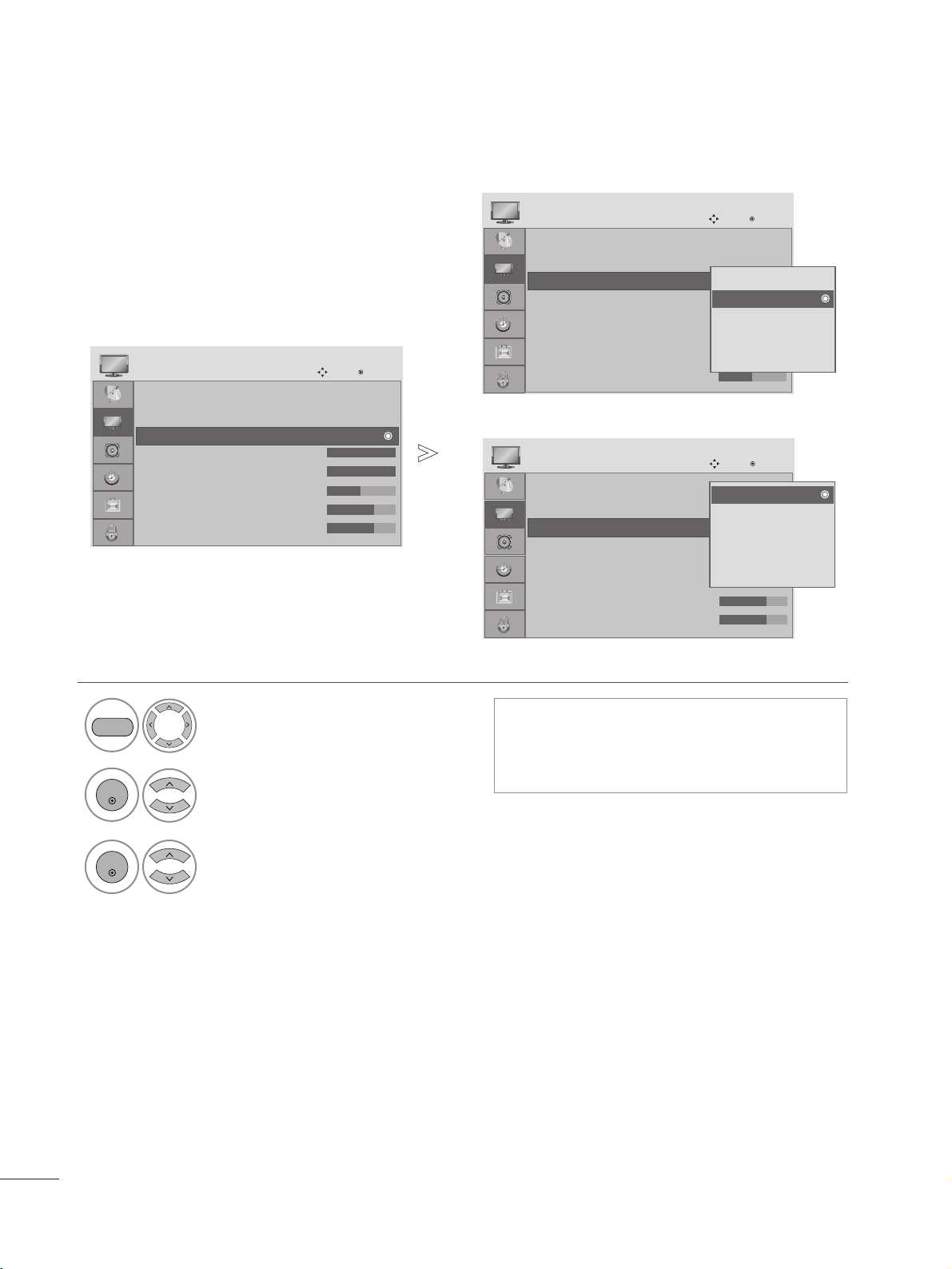
Select PICTURE.
2
Select
AAuuttoo BBrriigghhtt..
3
Select On or Off.
1
MENU
ENTER
ENTER
When ON is selected, this function adjusts the screen brightness automatically, depending on the surrounding
environment, to provide optimal viewing conditions.
When OFF is selected, this function is turned off.
AUTO BRIGHT
Aspect Ratio : 16:9
Auto Bright : Off
Picture Mode : Vivid
• Backlight 100
• Contrast 100
• Brightness 50
• Sharpness 70
• Color 70
PICTURE
Move
Enter
E
Auto Bright : Off
Aspect Ratio : 16:9
Auto Bright : Off
Picture Mode : Vivid
• Backlight 100
• Contrast 100
• Brightness 50
• Sharpness 70
• Color 70
PICTURE
Move
Enter
E
Auto Bright : Off
Off
On
Off
• Press the MENU button to close the menu window.
• Press the RETURN button to move to the previous menu screen.
38
PICTURE CONTROL
PRESET PICTURE SETTINGS
Picture Mode-Preset
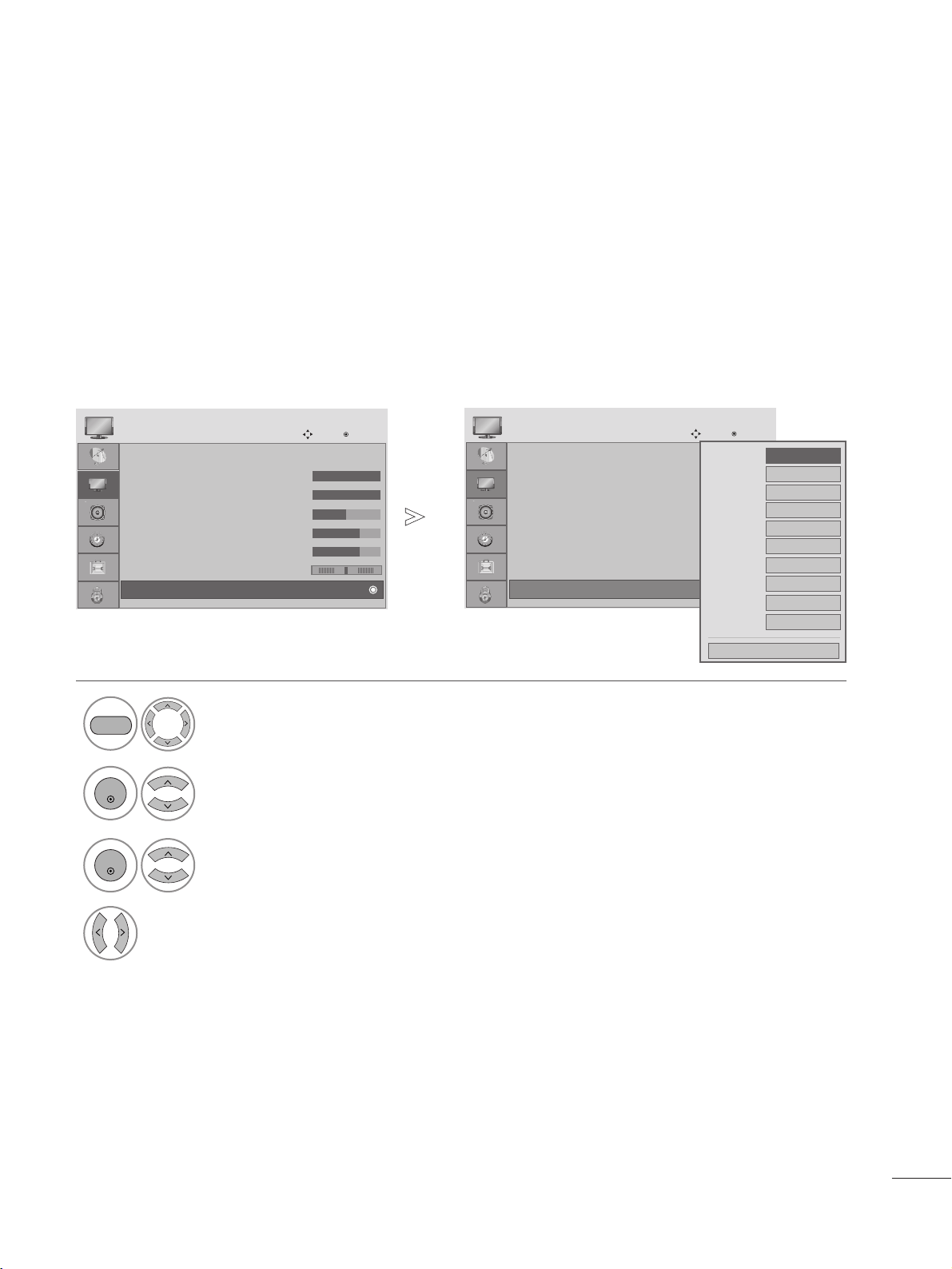
Select PICTURE.
2
Select Picture Mode.
3
Select desired picture value.
1
• Picture Mode adjusts the set for the best pic-
ture appearance. Select the preset value in the
Picture Mode menu based on the channel cat-
egory.
MENU
ENTER
ENTER
• Press the MENU button to close the menu window.
• Press the RETURN button to move to the previous menu screen.
Aspect Ratio : 16:9
Auto Bright : Off
Picture Mode : Vivid
• Backlight 100
• Contrast 100
• Brightness 50
• Sharpness 70
• Color 70
PICTURE
Move
Enter
E
Picture Mode : Vivid
Aspect Ratio : 16:9
Auto Bright : Off
Picture Mode : Vivid
• Backlight 100
• Contrast 100
• Brightness 50
• Sharpness 70
• Color 70
PICTURE
Move
Enter
E
Picture Mode : Vivid
Aspect Ratio : 16:9
Auto Bright : Off
Picture Mode : Vivid
• Backlight 80
• Contrast 100
• Brightness 50
• Sharpness 70
• Color 50
PICTURE
Move
Enter
E
Picture Mode : Standrad
Vivid
Standard
Cinema
Sport
Game
Standrad
Vivid
Standard
Cinema
Sport
Game
Vivid
<RGB,DVI Mode>
<Other mode>
39
PICTURE CONTROL
Picture Mode : Vivid
• Backlight 100
• Contrast 100
• Brightness 50
• Sharpness 70
• Color 70
• Tint 0
• Advanced Control
PICTURE
Move
Enter
E
D
•
Advanced Control
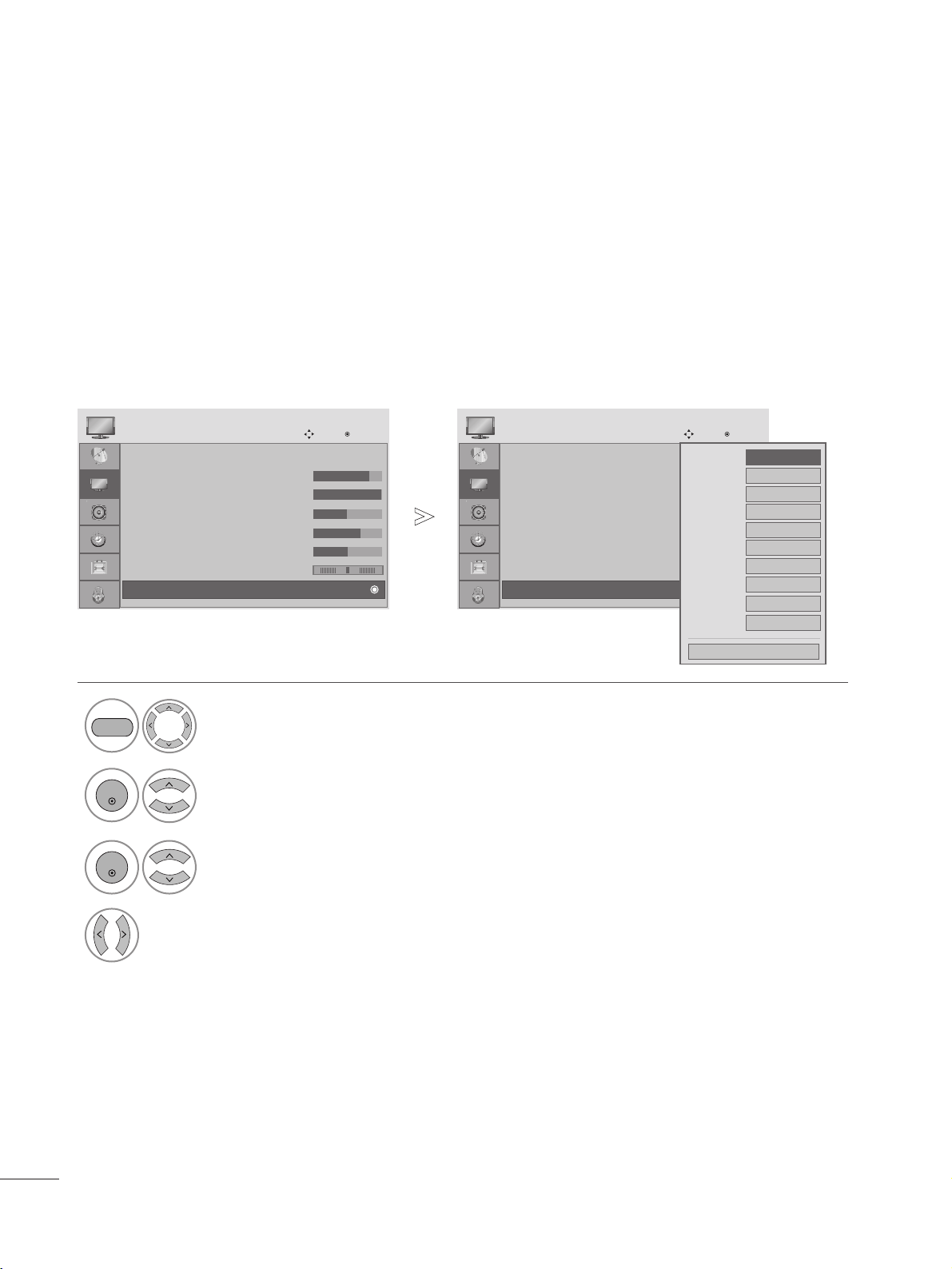
Choose one of three automatic color adjustments. Set to warm to enhance warm colors such as red, or set to
cool to see less intense colors with more blue.
Auto Color Tone Control (Warm/Medium/Cool)
Select PICTURE.
2
Select Advanced Control.
3
Select Color Temperature.
4
Select either Cool, Medium or Warm.
1
Picture Mode : Vivid
• Backlight 100
• Contrast 100
• Brightness 50
• Sharpness 70
• Color 70
• Tint 0
• Advanced Control
PICTURE
Move
Enter
E
D
•
Advanced Control
Color Temperature
F
Cool
G
Fresh Contrast
High
Fresh Color
High
Noise Reduction
Medium
Gamma
Medium
Film Mode
Off
Red Contrast
0
Green Contrast
0
Blue Contrast
0
Black Level
Low
Close
MENU
ENTER
ENTER
• Press the MENU button to close the menu window.
• Press the RETURN button to move to the previous menu screen.
RG
40
PICTURE CONTROL
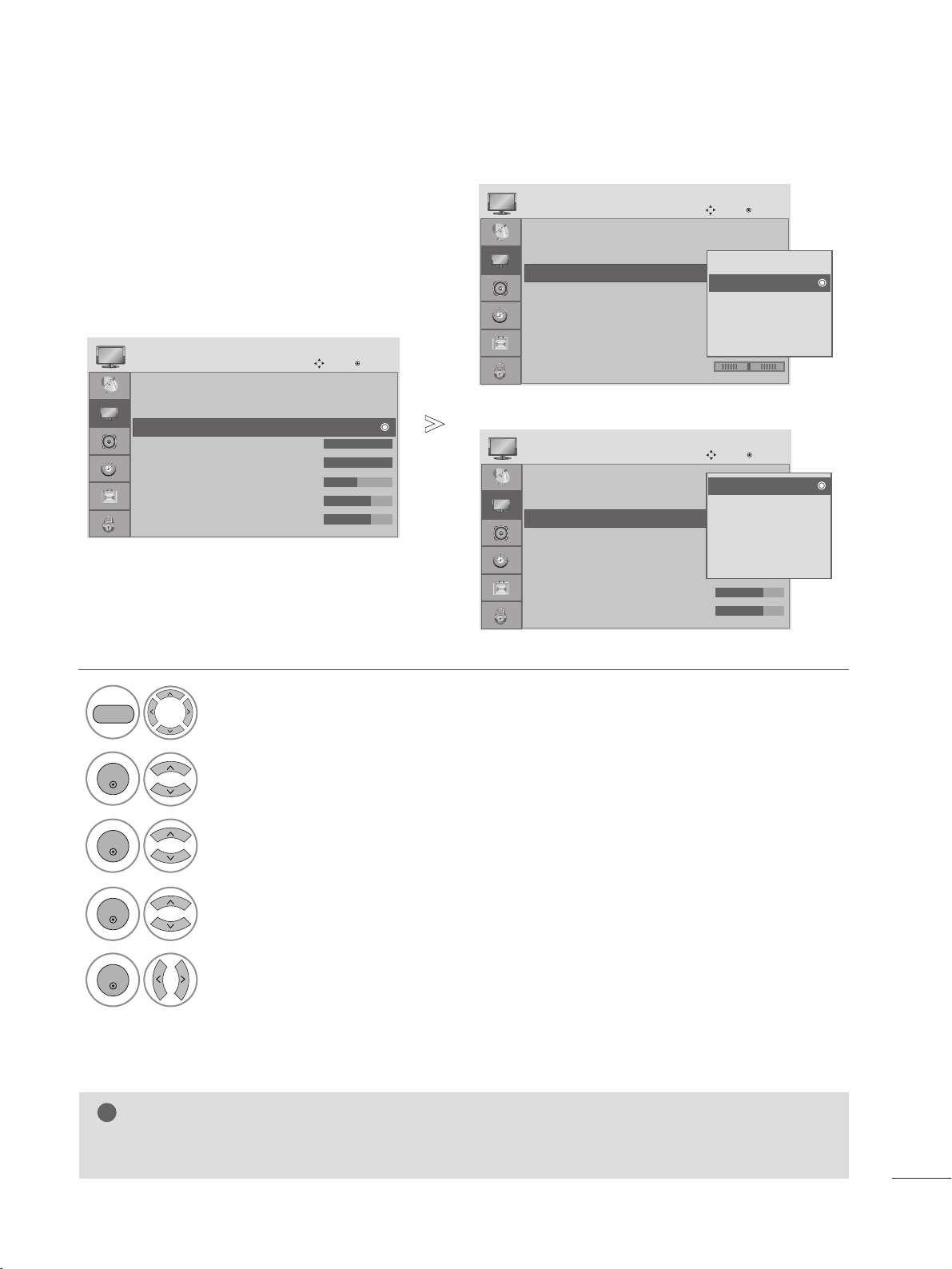
Choose one of two automatic color adjustments.
Auto Color Tone Control (6500K/9300K/sRGB)(RGB,DVI mode only)
Select PICTURE.
2
Select Advanced Control.
3
Select Color Temperature.
4
Select either 6500K, 9300K, sRGB.
1
Picture Mode : Standard
• Backlight 80
• Contrast 100
• Brightness 50
• Sharpness 70
• Color 50
• Tint 0
• Advanced Control
PICTURE
Move
Enter
E
D
•
Advanced Control
MENU
ENTER
ENTER
• Press the MENU button to close the menu window.
• Press the RETURN button to move to the previous menu screen.
RG
Picture Mode : Standard
• Backlight 80
• Contrast 100
• Brightness 50
• Sharpness 70
• Color 50
• Tint 0
• Advanced Control
PICTURE
Move
Enter
E
D
•
Advanced Control
RG
Color Temperature
F
6500K
G
Fresh Contrast
Off
Fresh Color
Off
Noise Reduction
Off
Gamma
Medium
Film Mode
Off
Red Contrast
0
Green Contrast
0
Blue Contrast
0
Black Level
Auto
Close
41
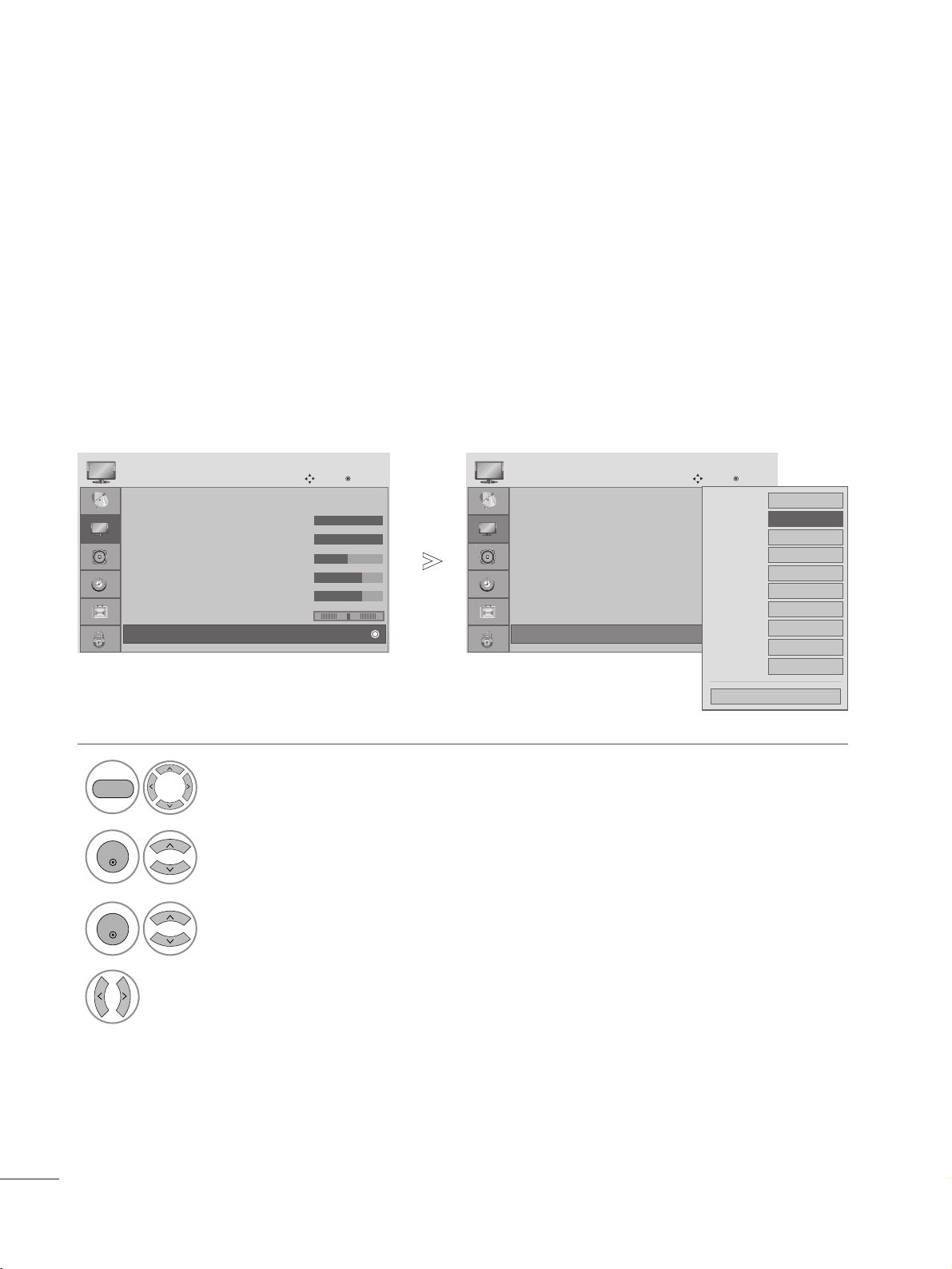
MANUAL PICTURE ADJUSTMENT
Picture Mode-User option
NOTE
!
G
You cannot adjust color, sharpness and tint in the RGB, DVI mode.
Select PICTURE.
2
Select Picture Mode.
4
Select Backlight, Contrast, Brightness, Sharpness, Color or Tint.
5
Make appropriate adjustments.
1
3
Select desired picture value.
MENU
ENTER
ENTER
ENTER
ENTER
• Press the MENU button to close the menu window.
• Press the RETURN button to move to the previous menu screen.
PICTURE CONTROL
Aspect Ratio : 16:9
Auto Bright : Off
Picture Mode : Vivid
• Backlight 100
• Contrast 100
• Brightness 50
• Sharpness 70
• Color 70
PICTURE
Move
Enter
E
Picture Mode : Vivid(User)
Aspect Ratio : 16:9
Auto Bright : Off
Picture Mode : Vivid
• Backlight 100
• Contrast 100
• Brightness 50
• Sharpness 70
• Color 70
PICTURE
Move
Enter
E
Picture Mode : Vivid(User)
Aspect Ratio : 16:9
Auto Bright : Off
Picture Mode : Vivid
• Backlight 80
• Contrast 100
• Brightness 50
• Sharpness 70
• Color 50
PICTURE
Move
Enter
E
RG
Picture Mode : Standard (User)
Vivid
Standard
Cinema
Sport
Game
Standard(User)
Vivid
Standard
Cinema
Sport
Game
Vivid(User)
<RGB,DVI Mode>
<Other mode>
42
PICTURE CONTROL
Picture Mode : Vivid
• Backlight 100
• Contrast 100
• Brightness 50
• Sharpness 70
• Color 70
• Tint 0
• Advanced Control
PICTURE
Move
Enter
E
D
•
Advanced Control
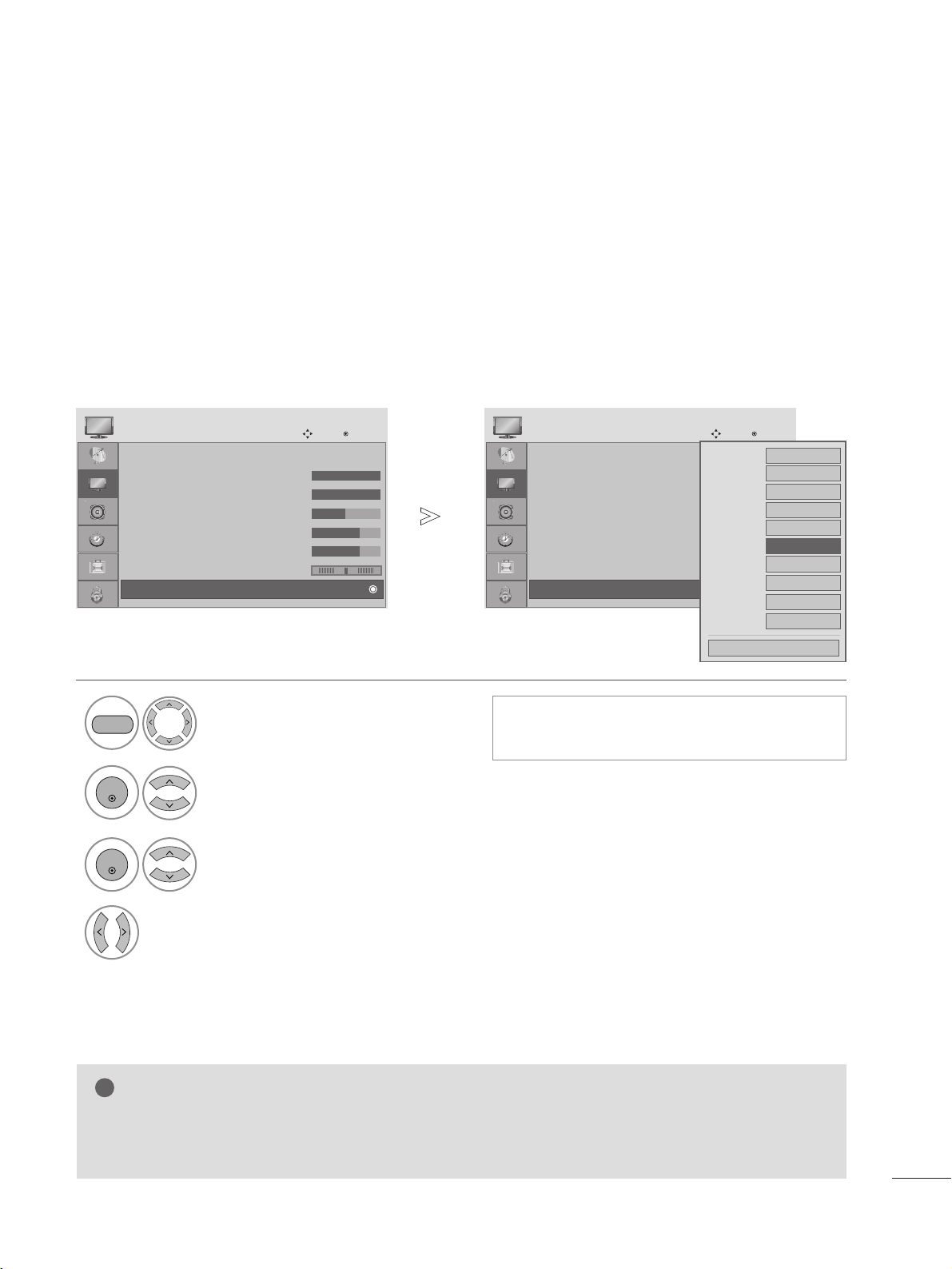
Fresh Contrast
Optimizes the contrast automatically according to the brightness of the reflection.
Fresh Color
Adjusts the color of the reflection automatically to reproduce natural colors as close as possible.
Noise Reduction
Removes interference up to the point where it does not damage the original picture.
Gamma
High gamma values display whitish images and low gamma values display high contrast images.
PICTURE IMPROVEMENT TECHNOLOGY
Select PICTURE.
2
Select Advanced Control.
3
Select Fresh Contrast, Fresh Color, Noise Reduction or Gamma.
4
Select your desired Source.
1
Picture Mode : Vivid
• Backlight 100
• Contrast 100
• Brightness 50
• Sharpness 70
• Color 70
• Tint 0
• Advanced Control
PICTURE
Move
Enter
E
D
•
Advanced Control
MENU
ENTER
ENTER
Color Temperature
Cool
Fresh Contrast
F
High
G
Fresh Color
High
Noise Reduction
Medium
Gamma
Medium
Film Mode
Off
Black Level
Auto
Close
• Press the MENU button to close the menu window.
• Press the RETURN button to move to the previous menu screen.
RG
Red Contrast
0
Green Contrast
0
Blue Contrast
0
43
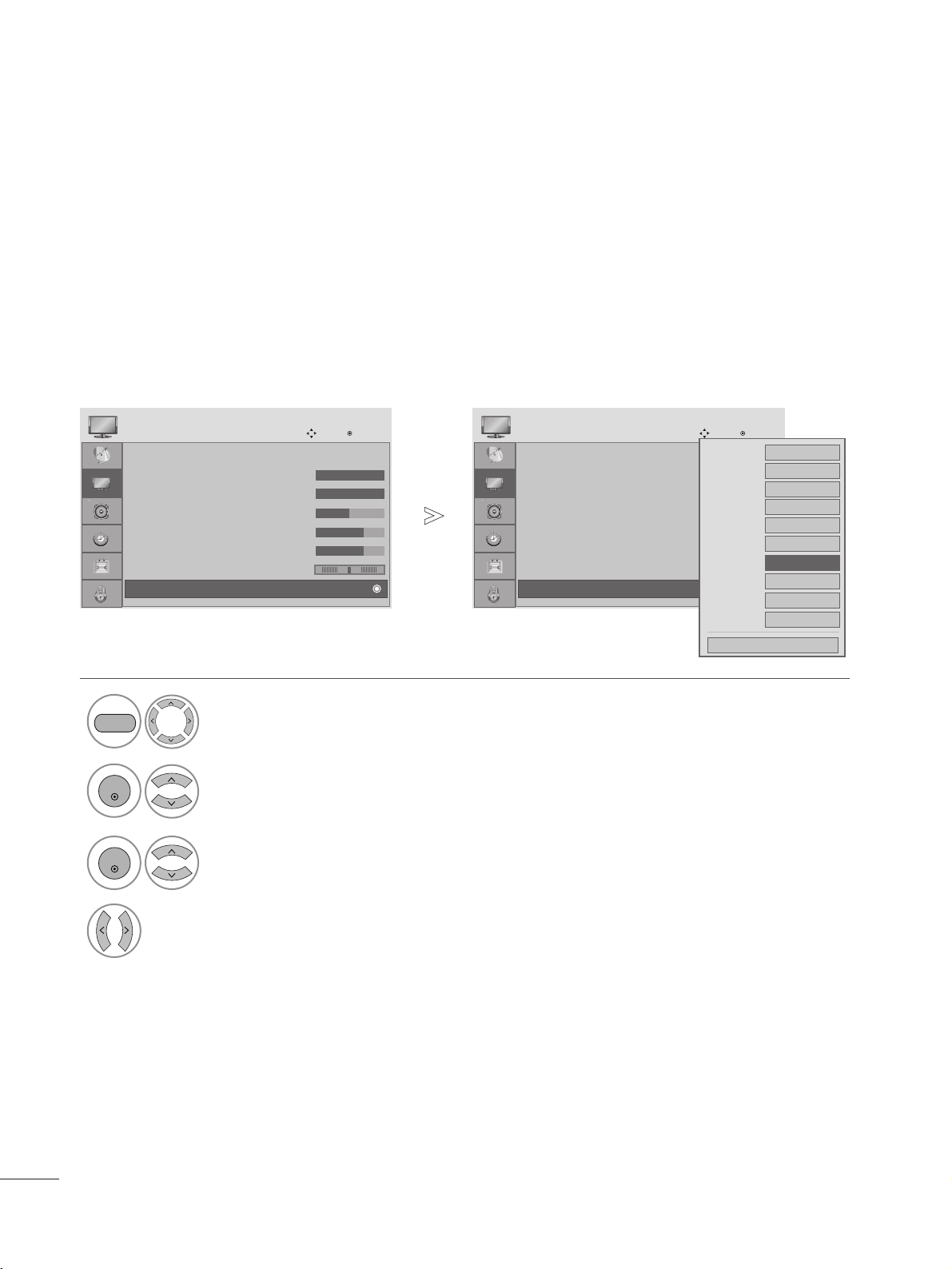
ADVANCED - BLACK (DARKNESS) LEVEL
When you view a film, this function adjusts the set to the best picture quality.
This function works in the following mode: ATV, AV(NTSC-M), Component, HDMI
Select PICTURE.
2
Select Advanced Control.
3
Select Black Level.
4
Select Low or High.
1
Picture Mode : Vivid
• Backlight 100
• Contrast 100
• Brightness 50
• Sharpness 70
• Color 70
• Tint 0
• Advanced Control
PICTURE
Move
Enter
E
D
•
Advanced Control
•
LLooww::
The reflection of the screen gets darker.
•
HHiigghh::
The reflection of the screen gets brighter.
MENU
ENTER
ENTER
•
Press the MENU button to close the menu window.
• Press the RETURN button to move to the previous menu screen.
RG
Picture Mode : Vivid
• Backlight 100
• Contrast 100
• Brightness 50
• Sharpness 70
• Color 70
• Tint 0
• Advanced Control
PICTURE
Move
Enter
E
D
•
Advanced Control
RG
NOTE
!
G
If input is not ATV, AV(NTSC-M), HDMI or component, this function set to auto.
G
In case of auto, user can’t adjust it directly.
G
Auto: Realizing the black level of the screen and set it to High or Low automatically.
Color Temperature
Cool
Fresh Contrast
High
Fresh Color
High
Noise Reduction
Medium
Gamma
Medium
Film Mode
Off
Black Level
F
High
G
Close
Red Contrast
0
Green Contrast
0
Blue Contrast
0
PICTURE CONTROL
44
PICTURE CONTROL
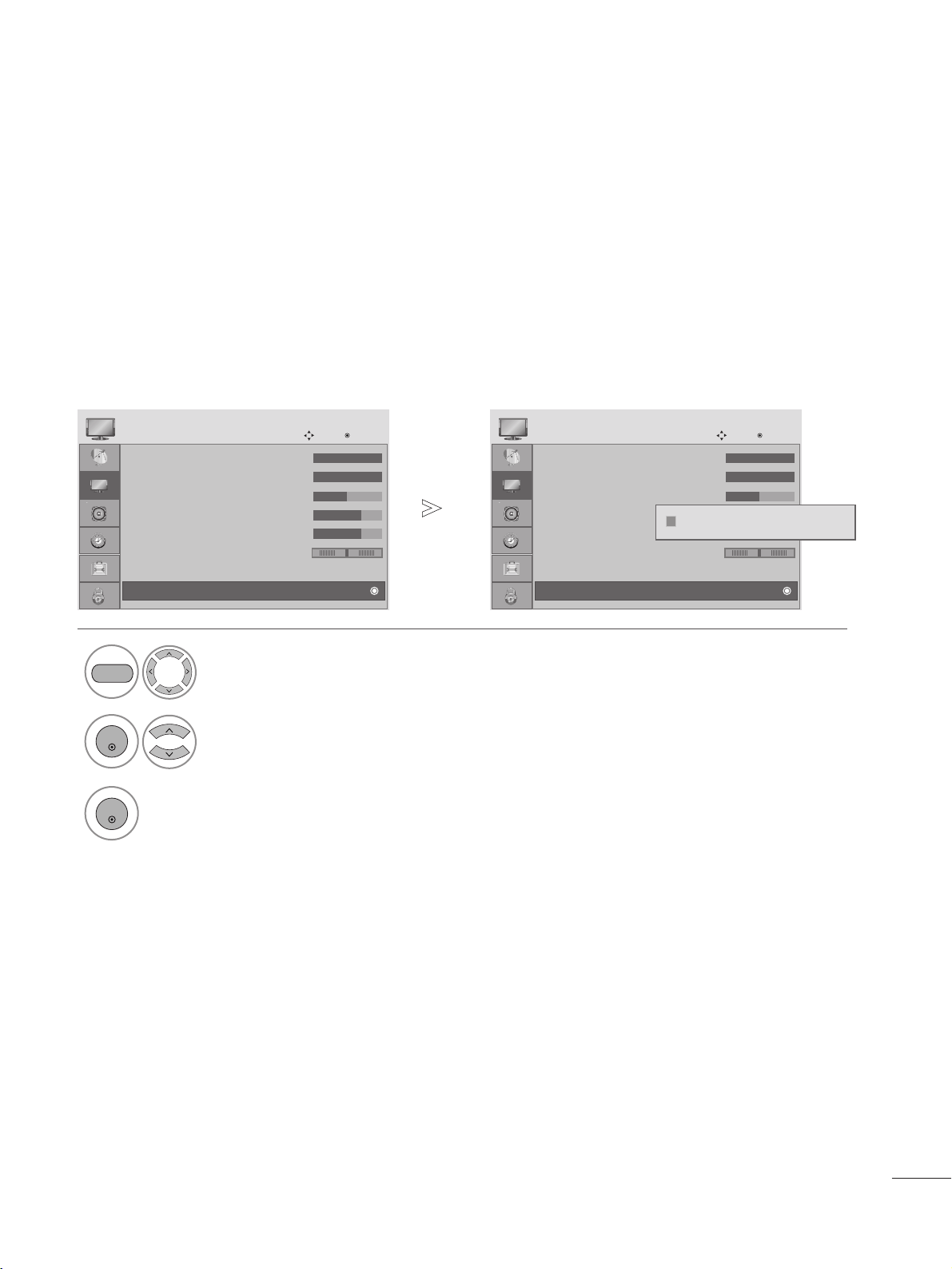
Select PICTURE.
2
Select Advanced Control.
3
Select Film Mode.
4
Select On or Off.
1
Picture Mode : Vivid
• Backlight 100
• Contrast 100
• Brightness 50
• Sharpness 70
• Color 70
• Tint 0
• Advanced Control
PICTURE
Move
Enter
E
D
•
Advanced Control
ADVANCED - FILM MODE
To set the product up for the best picture quality for viewing films.
This feature operates only in TV, AV and Component 480i/1080i , HDMI 1080i mode.
MENU
ENTER
ENTER
•
Press the MENU button to close the menu window.
• Press the RETURN button to move to the previous menu screen.
RG
Picture Mode : Vivid
• Backlight 100
• Contrast 100
• Brightness 50
• Sharpness 70
• Color 70
• Tint 0
• Advanced Control
PICTURE
Move
Enter
E
D
•
Advanced Control
RG
Color Temperature
Cool
Fresh Contrast
High
Fresh Colour
High
Noise Reduction
Medium
Gamma
Medium
Film Mode
F
Off
G
Black Level
Auto
Close
Red Contrast
0
Green Contrast
0
Blue Contrast
0
45
PICTURE CONTROL
PICTURE RESET
Settings of the selected picture modes return to the default factory settings.
Select PICTURE.
2
Select Picture Reset.
3
Initialize the adjusted value.
1
• Backlight 100
• Contrast 100
• Brightness 50
• Sharpness 70
• Color 70
• Tint 0
• Advanced Control
PICTURE
Move
Enter
D
•
Reset
MENU
ENTER
ENTER
RG
• Backlight 100
• Contrast 100
• Brightness 50
• Sharpness 70
• Color 70
• Tint 0
• Advanced Control
PICTURE
Move
Enter
D
•
Reset
RG
Resetting video configuration...
ii
• Press the MENU button to close the menu window.
• Press the RETURN button to move to the previous menu screen.
46
PICTURE CONTROL
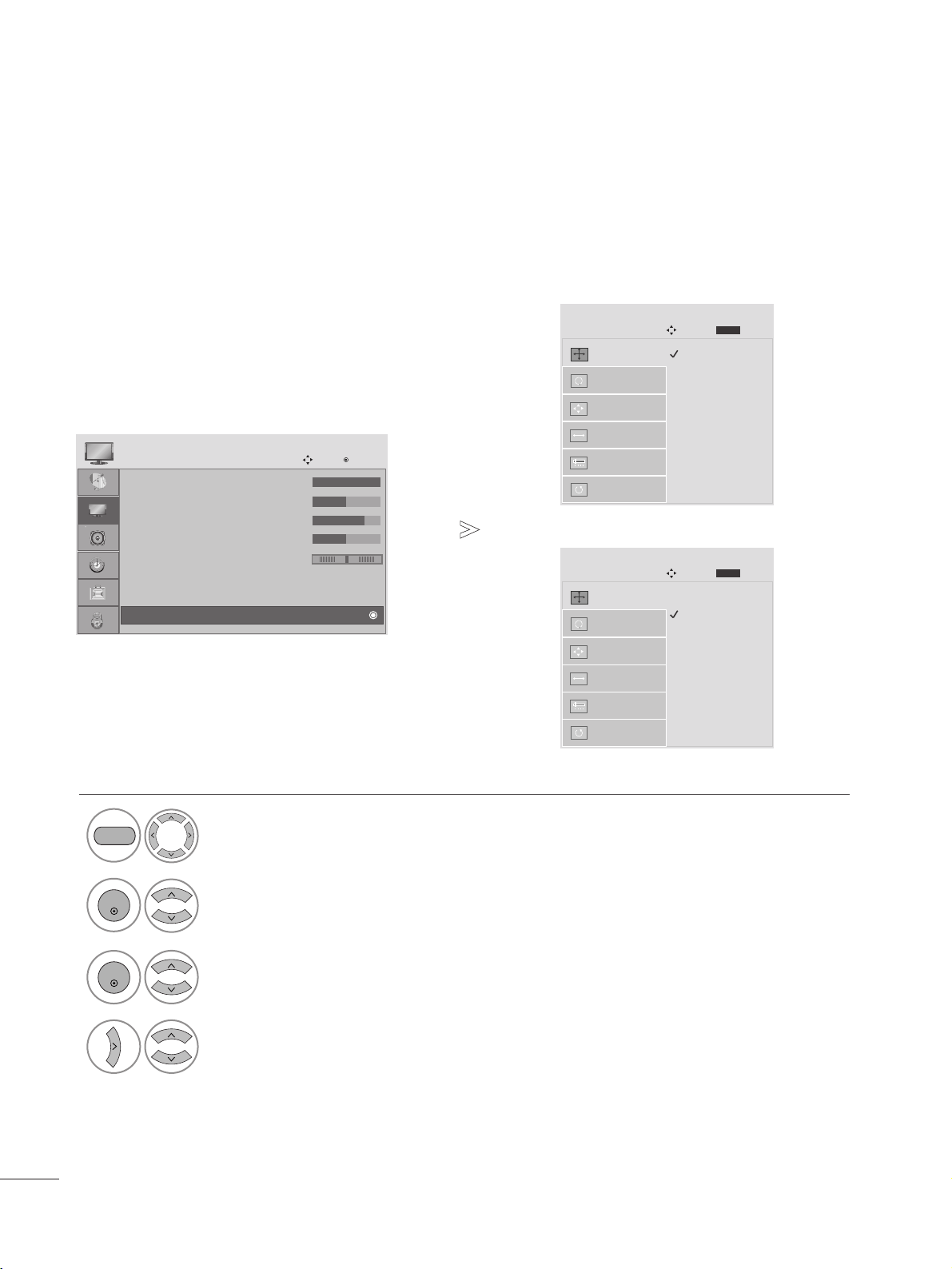
To view a normal picture, set the resolution to match what the PC is using.
This function works in the following resolution in RGB[PC] mode.
Selecting Resolution
1
Select PICTURE.
<Vertical resolution : 768>
<Vertical resolution : 1050>
2
Select SCREEN(RGB-PC).
3
Select Resolution.
4
Select the desired resolution.
MENU
ENTER
ENTER
• Press the MENU button to close the menu window.
• Press the RETURN button to move to the previous menu screen.
1024 x 768
1280 x 768
1360 x 768
1366 x 768
Auto Config.
SCREEN
Move
Resolution
G
Position
Size
Phase
Reset
Prev.
MENU
1400 x 1050
1680 x 1050
Auto Config.
SCREEN
Move
Resolution
G
Position
Size
Phase
Reset
Prev.
MENU
• Contrast : 100
• Brightness : 50
• Sharpness : 70
• Colour : 50
• Tint : 0
• Advanced Control
• Reset
PICTURE
Move
Enter
D
Screen(RGB-PC)
RG
SCREEN SETUP FOR PC MODE
47
PICTURE CONTROL
1
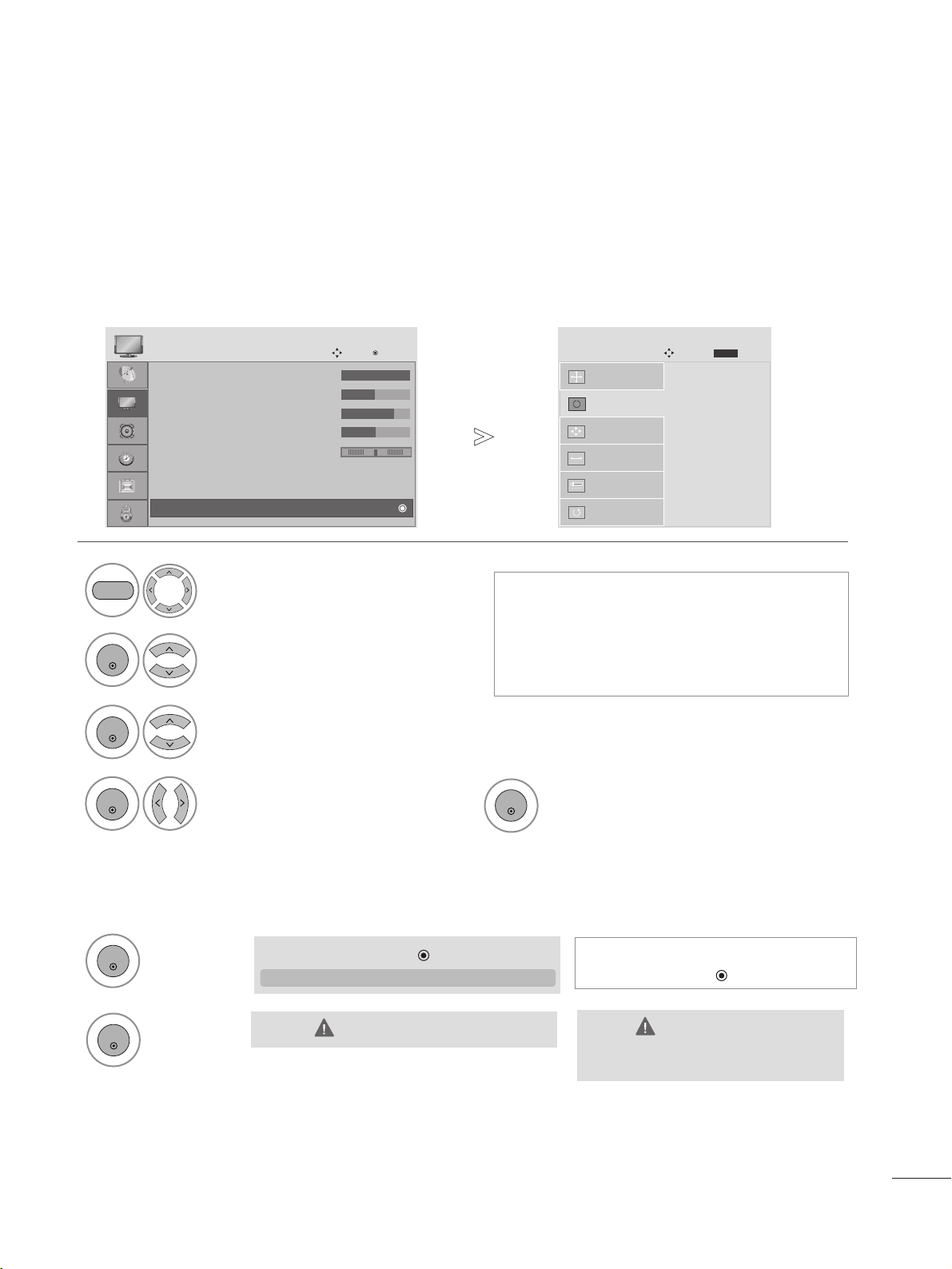
Automatically adjusts picture position and minimizes image instability. After adjustment, if the image is still not
correct, your set is functioning properly but needs further adjustment.
AAuuttoo ccoonnffiigguurree
This function is for automatic adjustment of the screen position, clock, and phase The displayed image will be
unstable for a few seconds while the auto configuration is in progress.
Auto Configure (RGB [PC] mode only)
• If the position of the image is still not correct,
try Auto adjustment again.
•
If picture needs to be adjusted again after Auto
adjustment in RGB (PC), you can adjust the
PPoossiittiioonn
,
SSiizzee
or
PPhhaassee
.
Select PICTURE.
11.. UUssiinngg OOSSDD
2
Select SCREEN(RGB-PC).
3
Select Auto Config.
To S e t
Auto Config.
G
SCREEN
Move
Resolution
Position
Size
Phase
Reset
MENU
ENTER
ENTER
Prev.
MENU
Run Auto Config.
ENTER
4
5
Select Yes.
ENTER
• Press the MENU button to close the menu window.
• Press the RETURN button to move to the previous menu screen.
•
If you don’t want Auto Configure, do
not press ENTER .
22.. UUssiinngg EENNTTEERR((RReemmooccoonn oorr ccoonnttrrooll kkeeyy))
1
Press ENTER.
ENTER
TThhiiss ffuunnccttiioonn iiss aavvaaiillaabbllee ffoorr RRGGBB ssiiggnnaallss oonnllyy..
AAuuttoo iinn PPrrooggrreessss
<<11992200 xx 11008800 RReessoolluuttiioonn>>
<<OOtthheerrss RReessoolluuttiioonn>>
2
Press ENTER.
ENTER
Auto in Progress
For optimal display
change resolution to 1920 x 1080
Auto Config.
G
ENTER( )
• Contrast : 100
• Brightness : 50
• Sharpness : 70
• Colour : 50
• Tint : 0
• Advanced Control
• Reset
PICTURE
Move
Enter
D
Screen(RGB-PC)
RG

48
PICTURE CONTROL
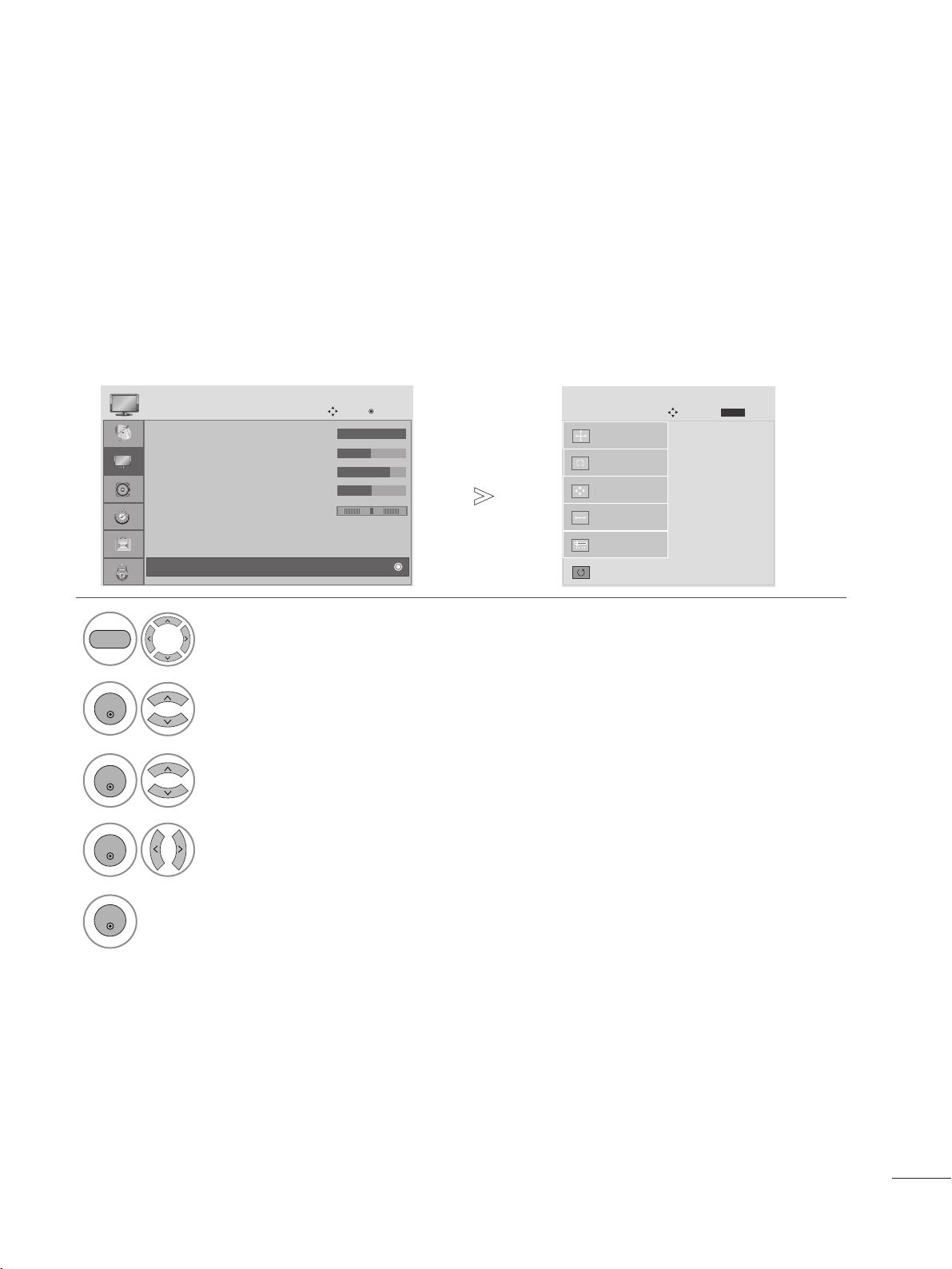
If the picture is not clear after auto adjustment and especially if characters are still shaky, adjust the picture
phase manually.
This function works in the following mode: RGB[PC].
Adjustment for screen Position, Size, Phase
1
Select PICTURE.
2
Select SCREEN(RGB-PC).
3
Select Position, Size or Phase.
4
Make appropriate adjustments.
Auto Config.
SCREEN
Move
Resolution
Position
G
Size
Phase
Reset
GF
D
E
MENU
ENTER
ENTER
• Press the MENU button to close the menu window.
• Press the RETURN button to move to the previous menu screen.
Prev.
MENU
• Contrast : 100
• Brightness : 50
• Sharpness : 70
• Colour : 50
• Tint : 0
• Advanced Control
• Reset
PICTURE
Move
Enter
D
Screen(RGB-PC)
RG
49
PICTURE CONTROL
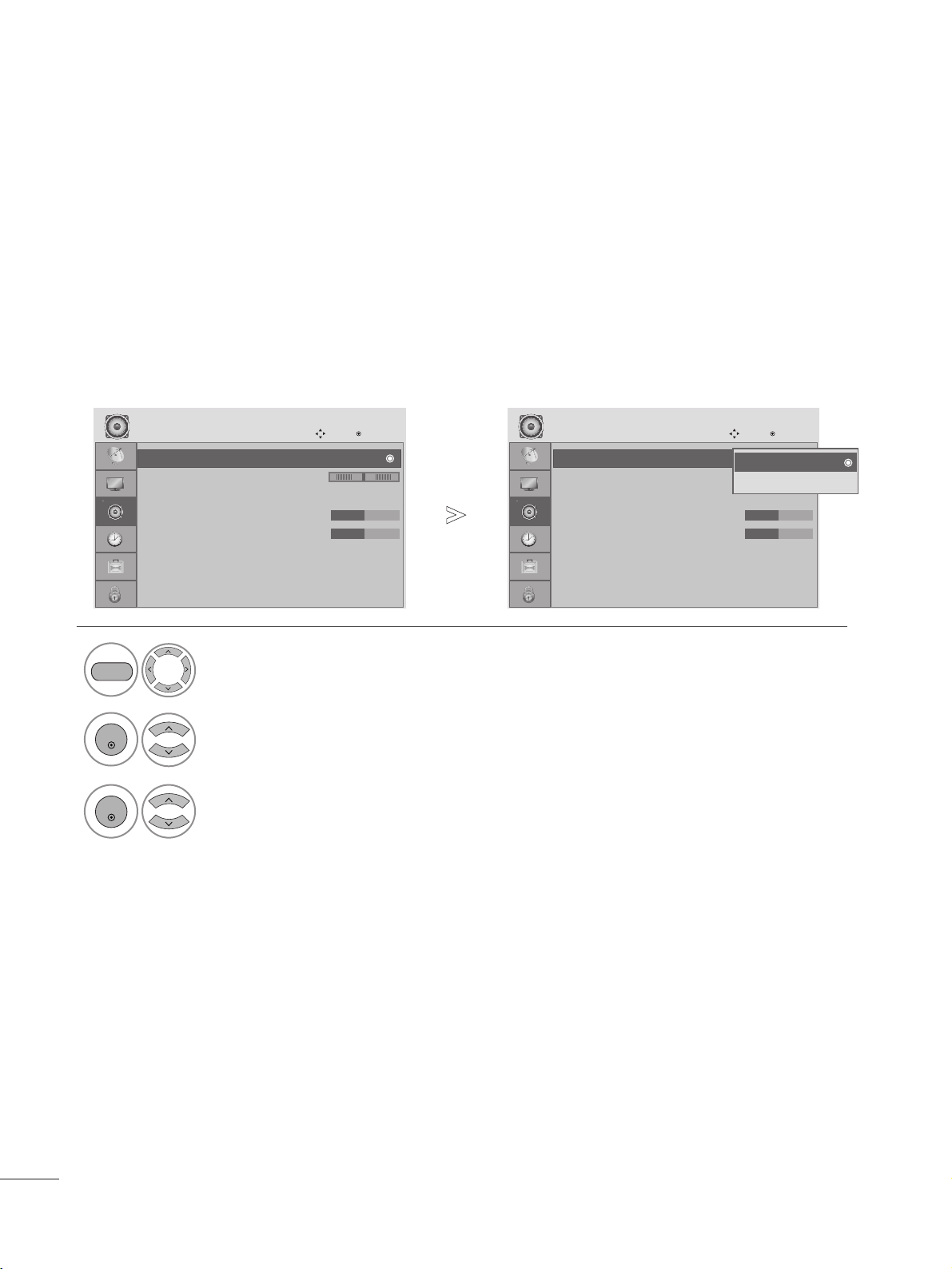
Returns Position, Size and Phase to the default factory settings.
This function works in the following mode: RGB[PC].
Screen Reset
1
MENU
Select PICTURE.
2
Select SCREEN(RGB-PC).
3
ENTER
Select Reset.
5
ENTER
Run Reset.
Initialize Settings.
Auto Config.
SCREEN
Move
Prev.
MENU
Resolution
Position
Size
Phase
Reset
G
ENTER
4
ENTER
Select Yes.
• Press the MENU button to close the menu window.
• Press the RETURN button to move to the previous menu screen.
• Contrast : 100
• Brightness : 50
• Sharpness : 70
• Colour : 50
• Tint : 0
• Advanced Control
• Reset
PICTURE
Move
Enter
D
Screen(RGB-PC)
RG
50
SOUND CONTROL
AVL automatically remains on the same volume level if you change programmes.
AUTO VOLUME LEVELER
Select AUDIO.
2
Select Auto Volume.
3
Select On or Off.
1
MENU
ENTER
ENTER
• Press the MENU button to close the menu window.
• Press the RETURN button to move to the previous menu screen.
Auto Volume : Off
Balance 0
Sound Mode : Standard
• Treble 50
• Bass 50
• Reset
TV Speaker : On
AUDIO
Move
Enter
LR
Auto Volume : Off
Balance 0
Sound Mode : Standard
• Treble 50
• Bass 50
• Reset
TV Speaker : On
AUDIO
Move
Enter
LR
Auto Volume : Off Auto Volume : Off
Off
On
Off
51
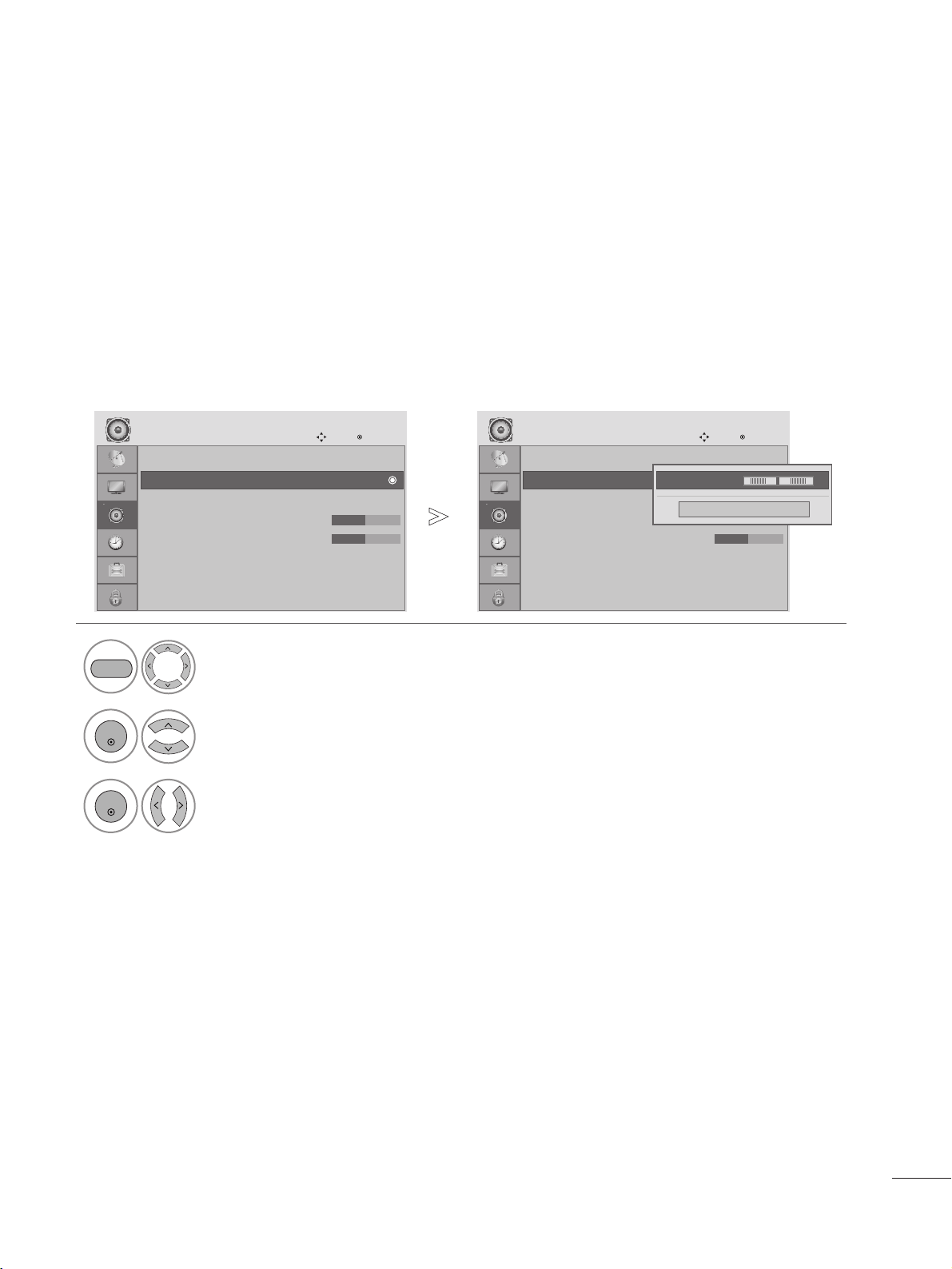
You can adjust the sound balance of the speakers to preferred levels.
BALANCE
Select AUDIO.
2
Select Balance.
1
3
Make desired adjustment.
MENU
ENTER
ENTER
Auto Volume : Off
Balance 0
Sound Mode : Standard
• Treble 50
• Bass 50
• Reset
TV Speaker : On
AUDIO
Move
Enter
LR
Balance 0
Auto Volume : Off
Balance 0
Sound Mode : Standard
• Treble 50
• Bass 50
• Reset
TV Speaker : On
AUDIO
Move
Enter
LR
Balance 0
Close
•
Balance 0
LR
FG
SOUND CONTROL
• Press the MENU button to close the menu window.
• Press the RETURN button to move to the previous menu screen.
52
SOUND CONTROL
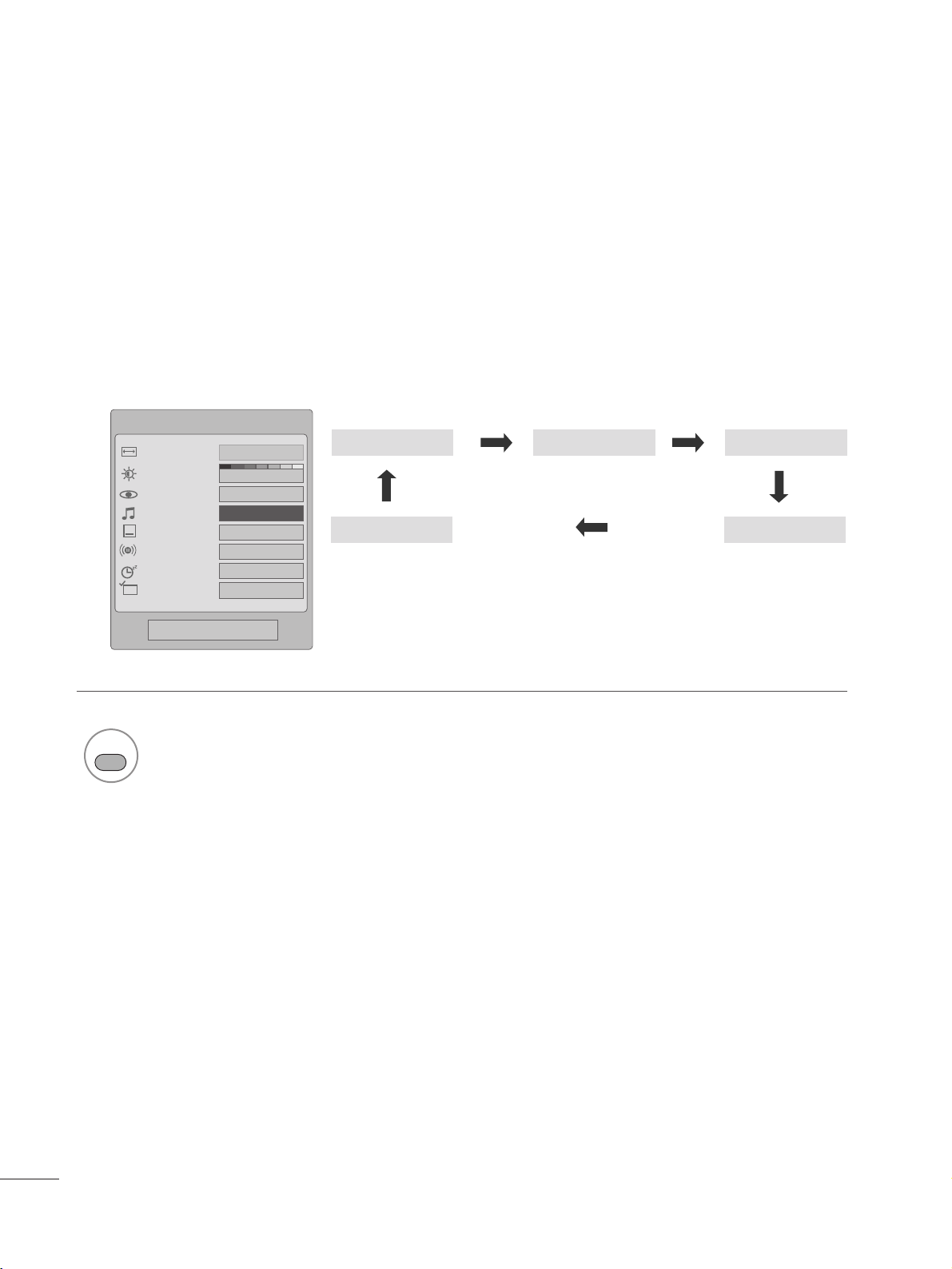
PRESET SOUND SETTINGS - SOUND MODE
Sound Mode lets you enjoy the best sound without any special adjustment as the TV sets the appropriate sound
options based on the program content.
SSttaannddaarrdd
,
MMuussiicc
,
CCiinneemmaa
,
SSppoorrtt
, and
GGaammee
are preset for optimum sound quality at the factory and are not
adjustable.
1
SOUND
Standard Music
Game Sport
Cinema
Select
SSttaannddaarrdd
,
MMuussiicc
,
CCiinneemmaa
,
SSppoorrtt
, or
GGaammee
.
Q.Menu
3
16:9
F Standard G
Vivid
Off
English
Off
Add
Aspect Ratio
Backlight
Picture Mode
Sound Mode
Caption
Multi Audio
Sleep Timer
Del/Add/Fav
CH
Close
• Press the RETURN button to move to the previous menu screen.
53
SOUND CONTROL
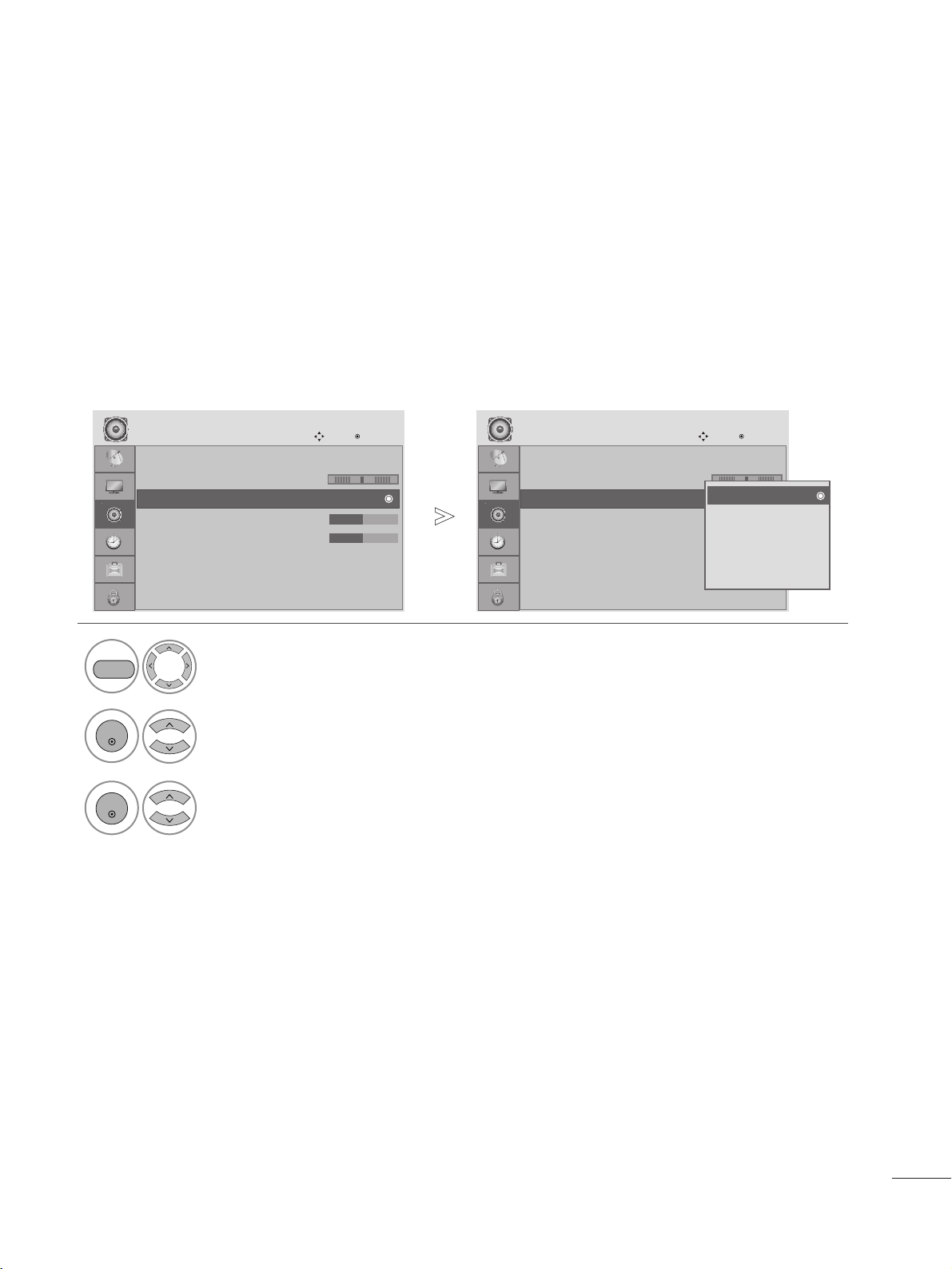
PRESET SOUND SETTINGS - SOUND MODE
You can select your preferred sound setting; Standard, Music, Cinema, Sport and Game and you can also adjust
the frequencies of the equalizer.
Standard, Music, Cinema, Sport and Game are preset for optimum sound quality at the factory.
Select AUDIO.
2
Select Sound Mode.
3
Select Standard, Music, Cinema, Sport or Game.
1
ENTER
ENTER
•
Press the MENU button to close the menu window.
• Press the RETURN button to move to the previous menu screen.
Auto Volume : Off
Balance 0
Sound Mode : Standard
• Treble 50
• Bass 50
• Reset
TV Speaker : On
AUDIO
Move
Enter
LR
Sound Mode : Standard
Auto Volume : Off
Balance 0
Sound Mode : Standard
• Treble 50
• Bass 50
• Reset
TV Speaker : On
AUDIO
Move
Enter
LR
Sound Mode : Standard
Standard
Music
Cinema
Sport
Game
Standard
MENU
Auto Volume : Off
Balance 0
Sound Mode : Standard
• Treble 50
• Bass 50
• Reset
TV Speaker : On
AUDIO
Move
Enter
LR
• Treble 50
54
SOUND CONTROL
• Press the MENU button to close the menu window.
• Press the RETURN button to move to the previous menu screen.
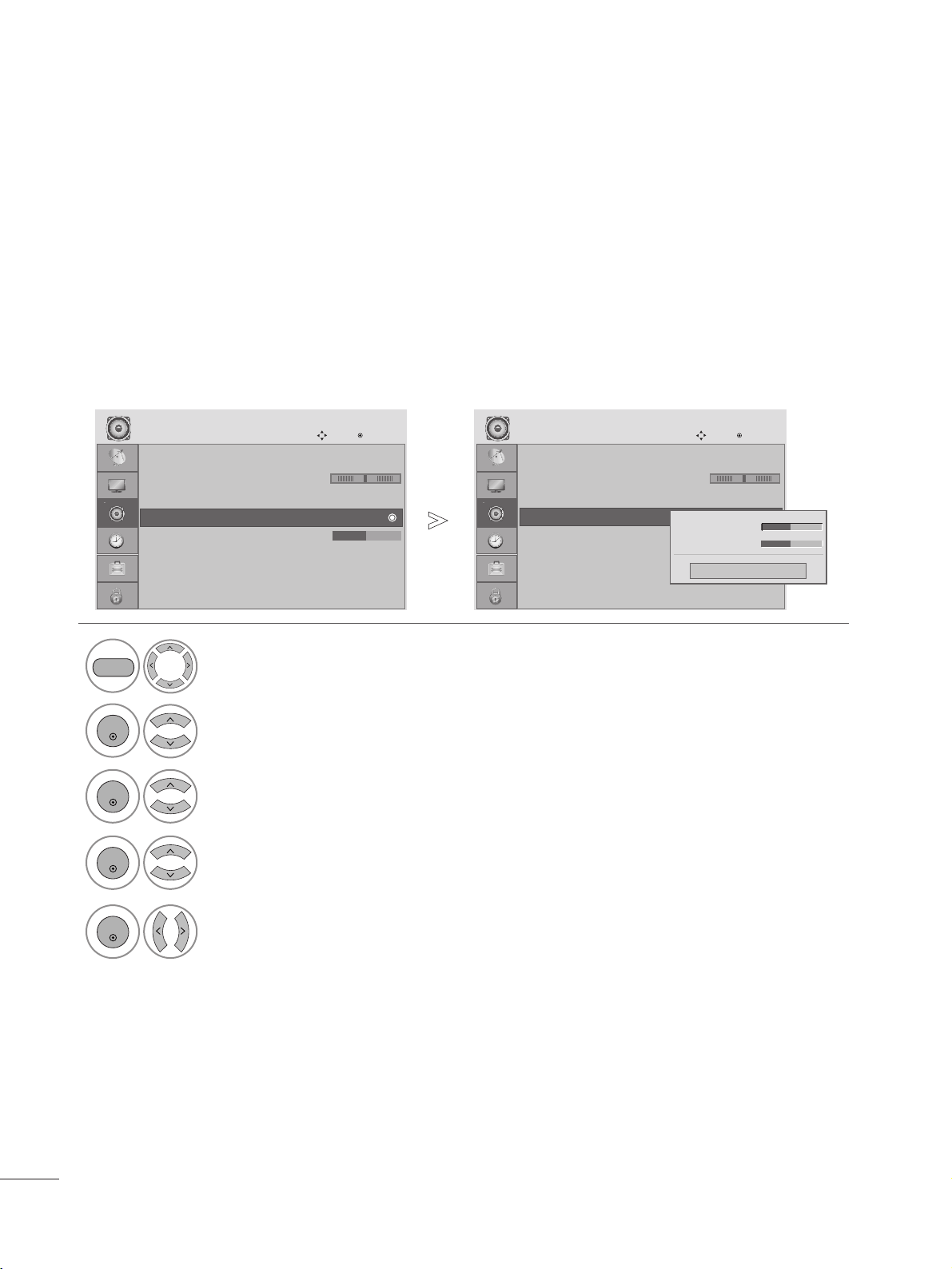
SOUND SETTING ADJUSTMENT - USER MODE
Adjusting the audio equalizer.
Select AUDIO.
2
Select Sound Mode.
3
Select Standard, Music, Cinema, Sport or Game.
1
4
Select Treble or Bass.
MENU
ENTER
ENTER
ENTER
Set the desired sound level.
5
ENTER
Auto Volume : Off
Balance 0
Sound Mode : Standard
• Treble 50
• Bass 50
• Reset
TV Speaker : On
AUDIO
Move
Enter
LR
Close
Treble 50
Bass 50
• Treble 50
55
SOUND CONTROL
AUDIO RESET
Settings of the selected Sound Mode return to the default factory settings.
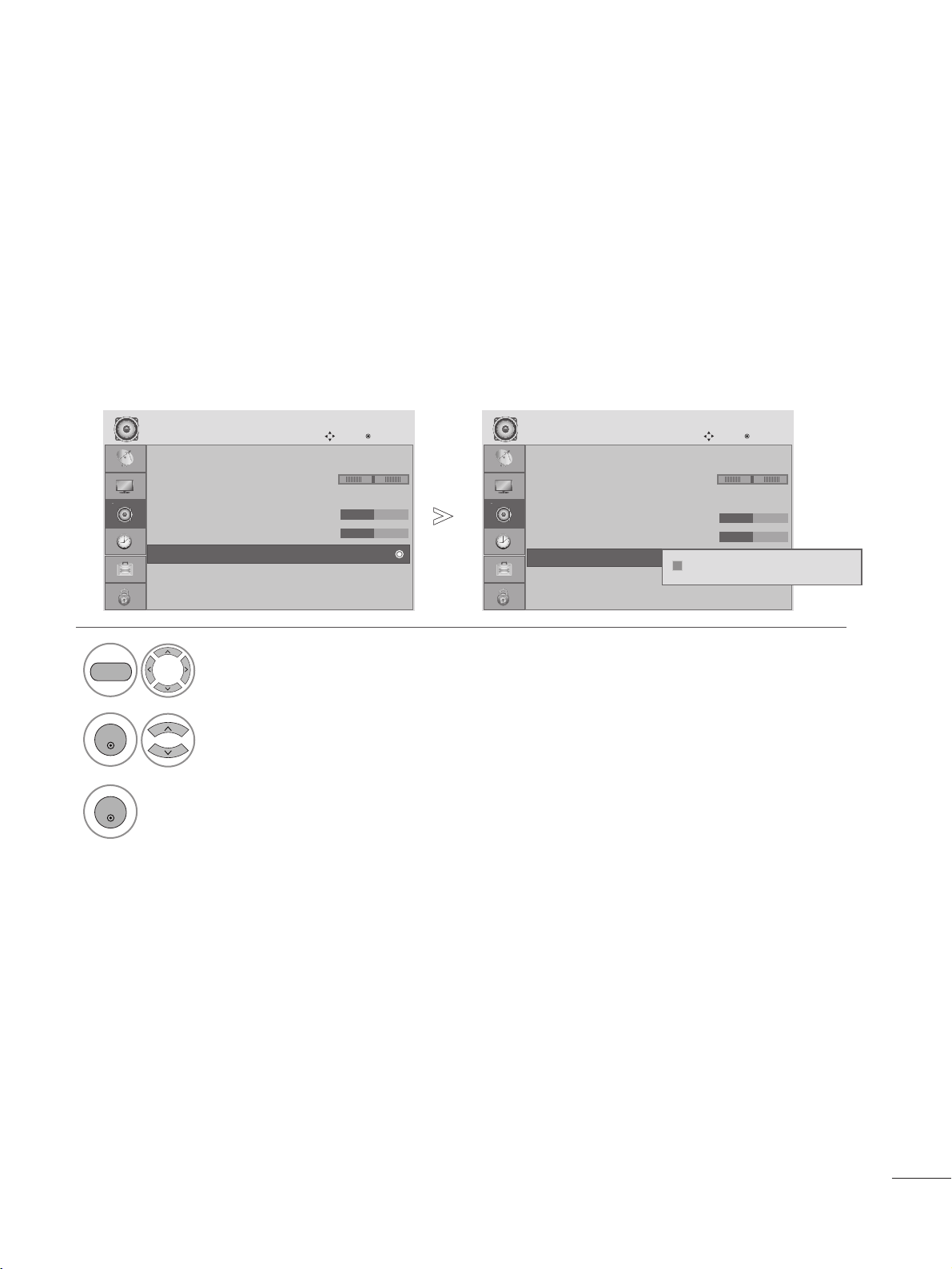
Select AUDIO.
2
Select Reset.
3
Initialize the adjusted value.
1
MENU
ENTER
ENTER
•
Press the MENU button to close the menu window.
• Press the RETURN button to move to the previous menu screen.
Auto Volume : Off
Balance 0
Sound Mode : Standard
• Treble 50
• Bass 50
• Reset
TV Speaker : On
AUDIO
Move
Enter
LR
Auto Volume : Off
Balance 0
Sound Mode : Standard
• Treble 50
• Bass 50
• Reset
TV Speaker : On
AUDIO
Move
Enter
LR
• Reset
• Reset
Resetting audio configuration...
ii
56
SOUND CONTROL
TV SPEAKERS ON/ OFF SETUP
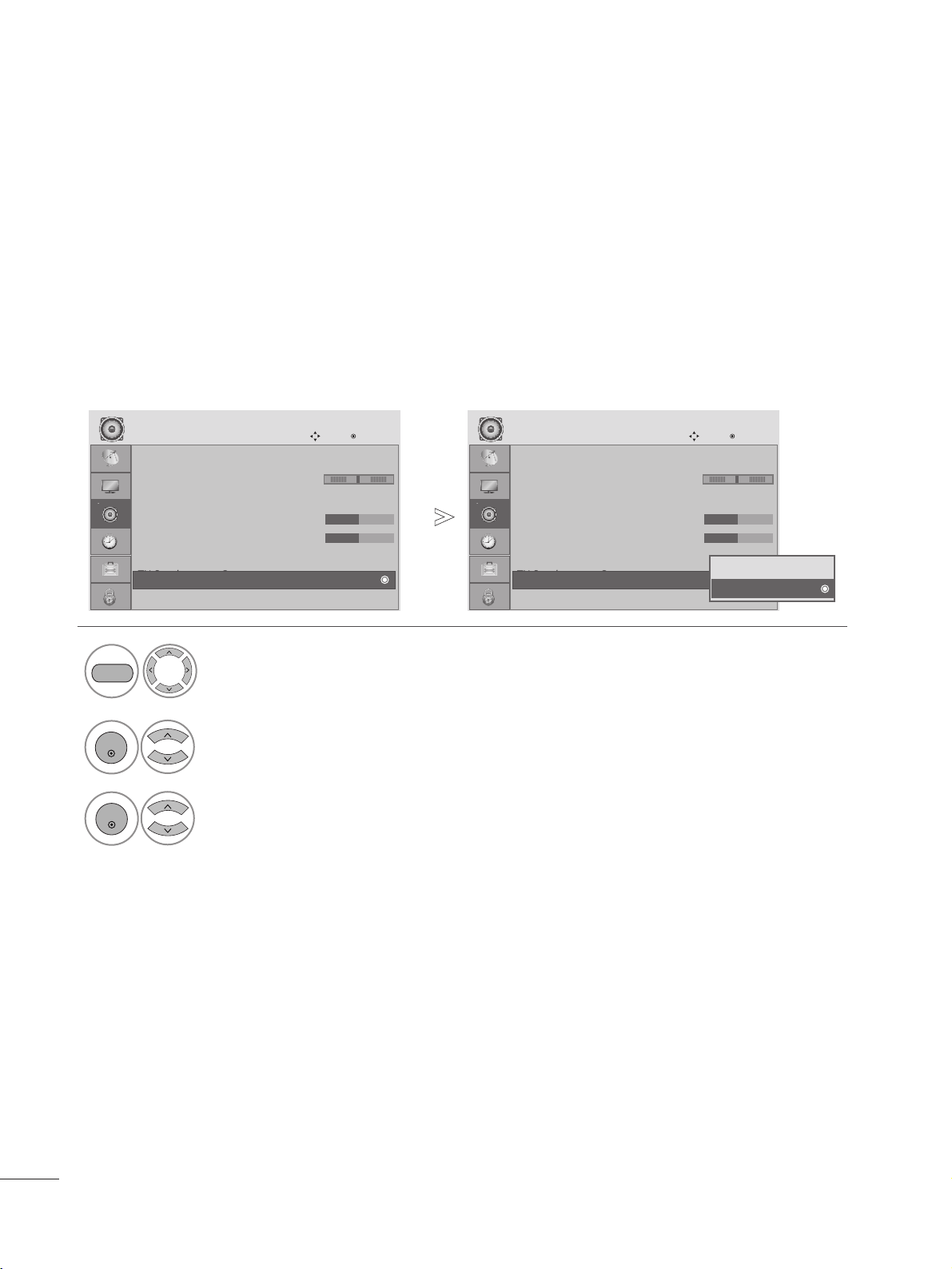
You can tun of the speakers when using external audio system.
Select AUDIO.
Select TV Speaker.
3
Select On or Off.
1
2
MENU
ENTER
ENTER
• Press the MENU button to close the menu window.
• Press the RETURN button to move to the previous menu screen.
Auto Volume : Off
Balance 0
Sound Mode : Standard
• Treble 50
• Bass 50
• Reset
TV Speaker : On
AUDIO
Move
Enter
LR
Auto Volume : Off
Balance 0
Sound Mode : Standard
• Treble 50
• Bass 50
• Reset
TV Speaker : On
AUDIO
Move
Enter
LR
TV Speaker : On TV Speaker : On
Off
On
On
57
SOUND CONTROL
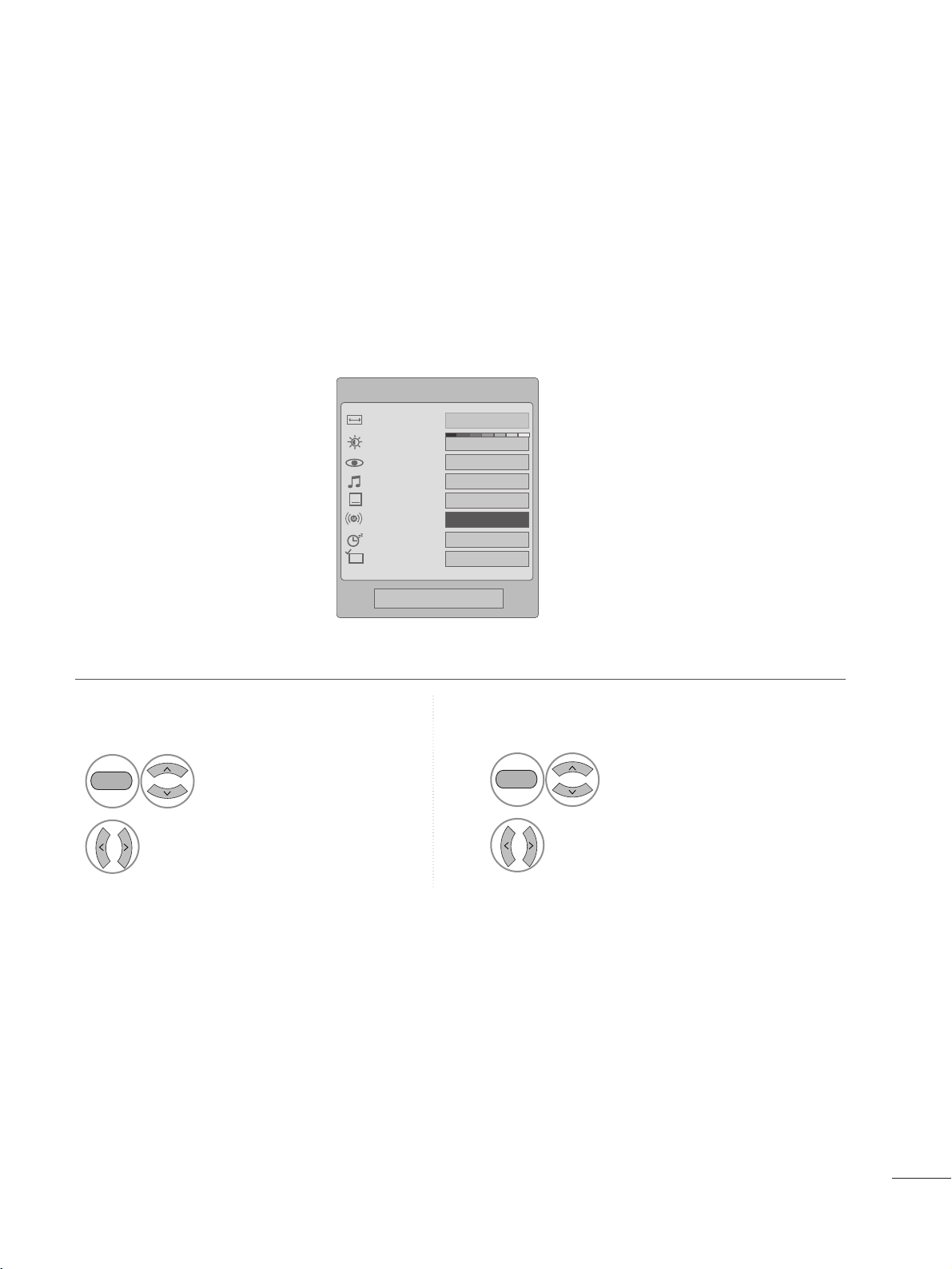
STEREO/SAP BROADCAST SETUP
For Analog only: This TV can receive MTS stereo programs and any SAP (Secondary Audio Program) that accompa-
nies the stereo program if the station transmits an additional sound signal. Mono sound is automatically used if the
broadcast is only in Mono.
Q.Menu
3
16:9
Standard
Vivid
Off
F English G
Off
Add
Aspect Ratio
Backlight
Picture Mode
Sound Mode
Caption
Multi Audio
Sleep Timer
Del/Add/Fav
CH
Close
•
Press the RETURN button to move to the previous menu screen.
Select
SSAAPP
.
Select
MMoonnoo
,
SStteerreeoo
, or
SSAAPP
.
1
Q.MENU
2
Select
MMuullttii AAuuddiioo
.
Select other languages.
1
Q.MENU
2
Analog Mode
Digital Mode
58
TIME SETTING
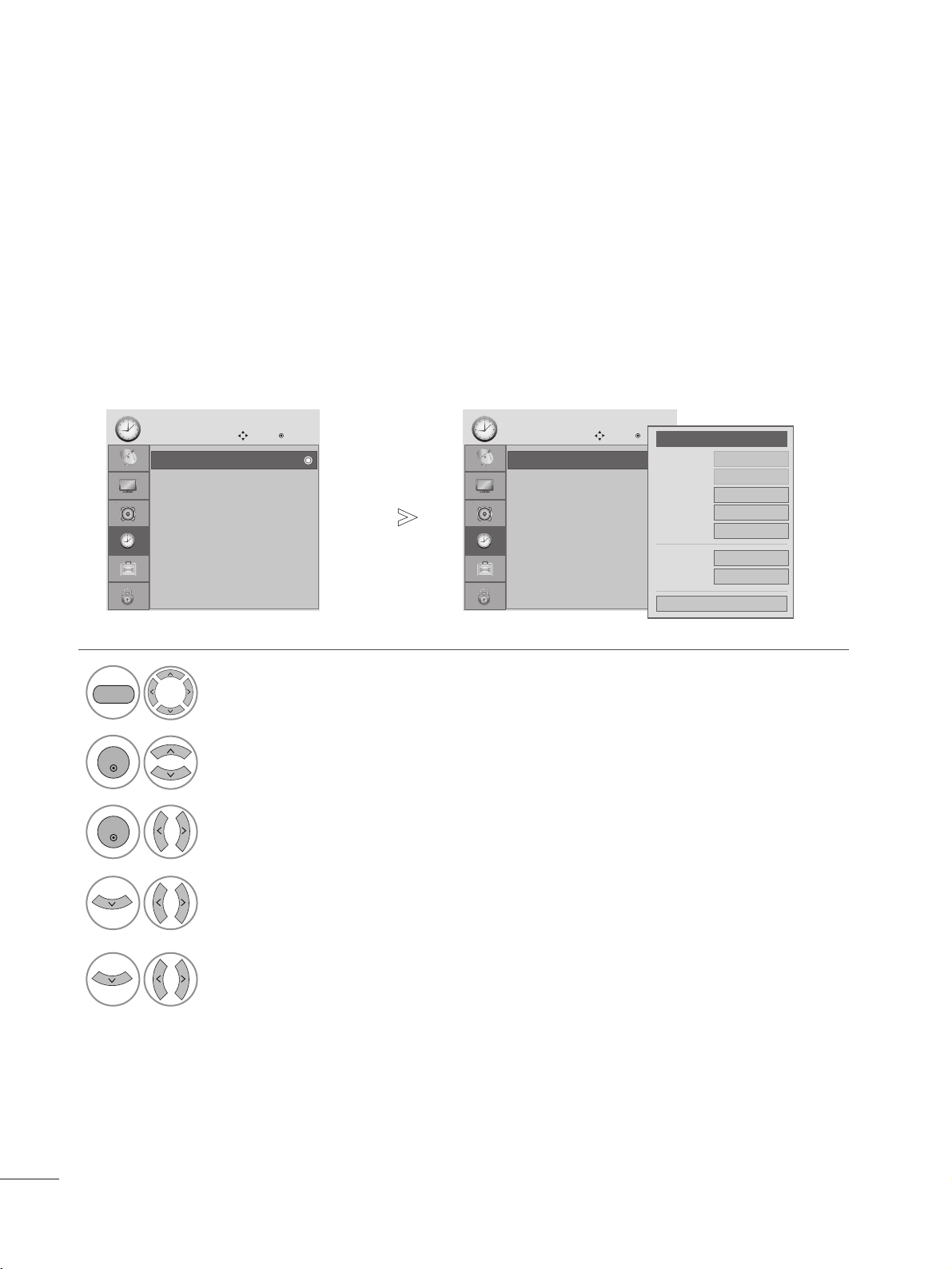
The time is set automatically from a digital channel signal.
The digital channel signal includes information for the current time provided by the broadcasting station.
Set the clock manually if the current time is set incorrectly by the auto clock function.
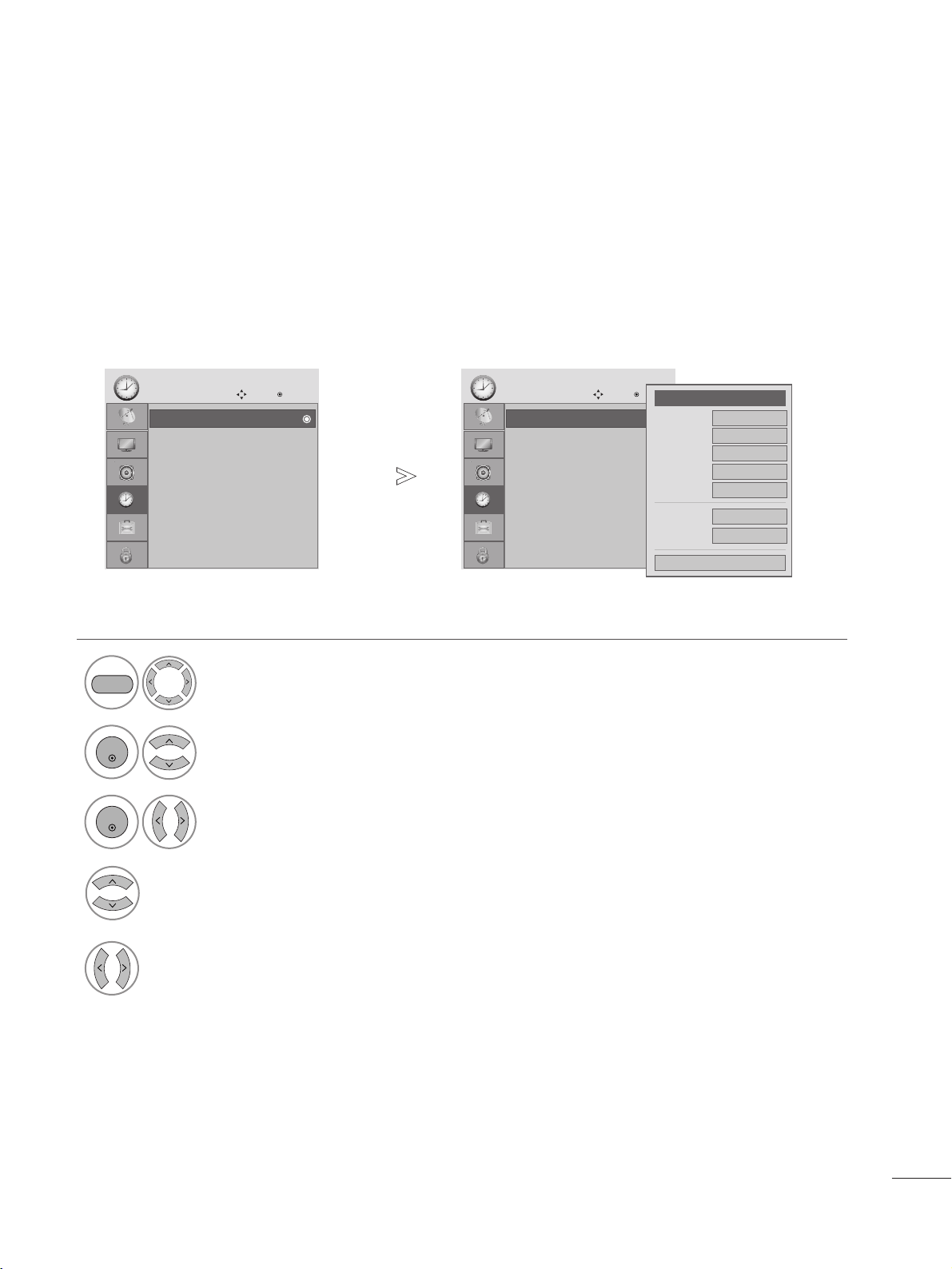
CLOCK SETTING
Auto Clock Setup
Select TIME.
2
Select Clock.
Select
AAuuttoo
.
1
3
Select your viewing area time zone.
• U.S.A:
EEaasstteerrnn
,
CCeennttrraall
,
MMoouunnttaaiinn
,
PPaacciiffiicc
,
AAllaasskkaa
, or
HHaawwaaiiii
.
• Canada:
EEaasstteerrnn
,
CCeennttrraall
,
MMoouunnttaaiinn
,
PPaacciiffiicc
,
NNeeww FF..llaanndd
, or
AAttllaannttiicc
.
Select
AAuuttoo
,
OO ffff
, or
OO nn
(depending on whether or not your viewing area observes
Daylight Saving time).
MENU
ENTER
ENTER
4
5
• Press the MENU button to close the menu window.
•
Press the RETURN button to move to the previous menu screen.
Clock
Off Time : Off
On Time : Off
Sleep Timer : Off
Auto Sleep : On
TIME
Move
Enter
Clock
Clock
Off Time : Off
On Time : Off
Sleep Timer : Off
Auto Sleep : On
TIME
Move
Enter
Clock
Year
Month
2
Date
21
Hour
2 AM
2008
Minute
10
Time Zone
Eastern
Daylight
Saving
Auto
Close
F
Auto
G
59
TIME SETTING
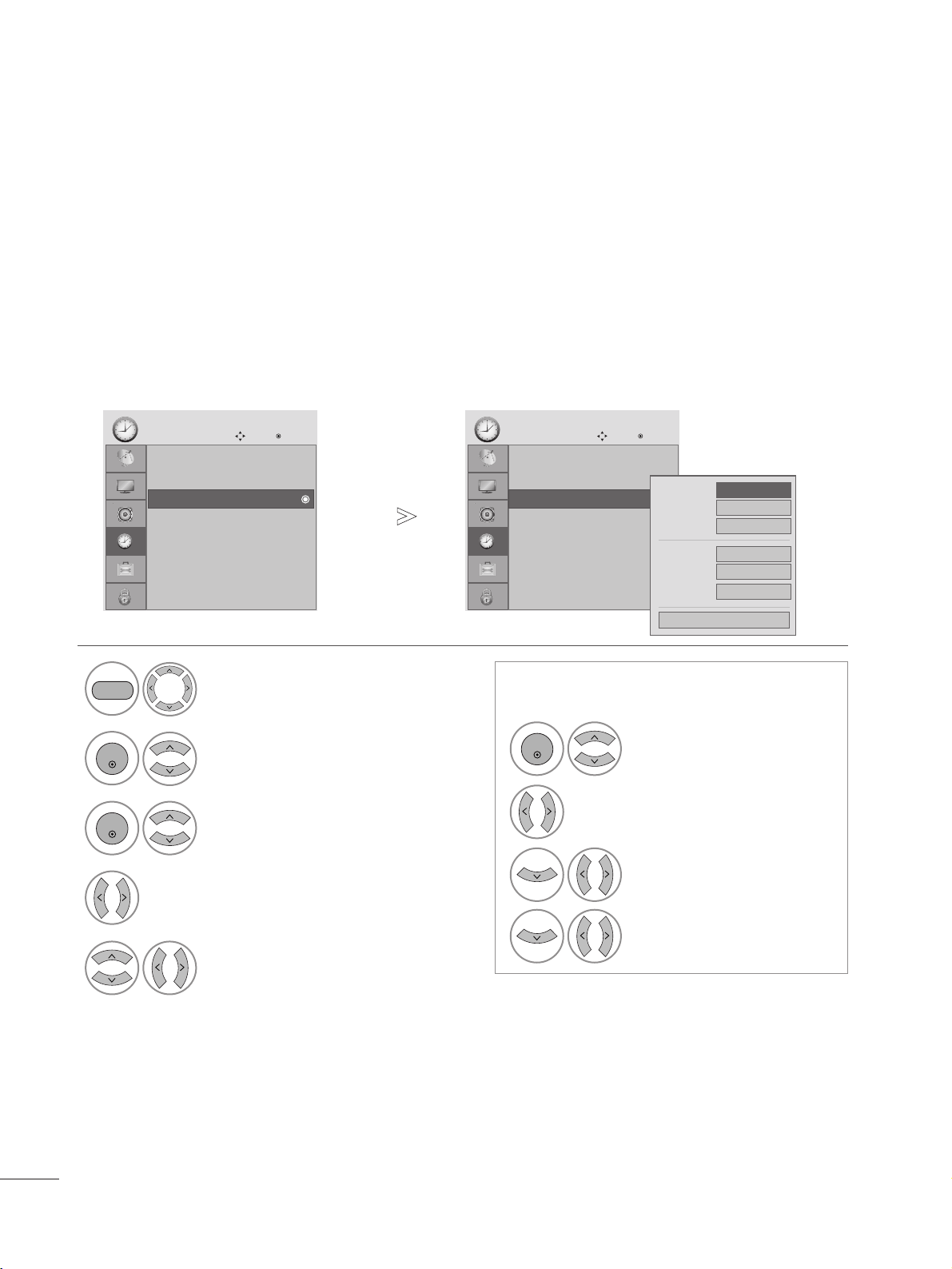
If the current time setting is wrong, reset the clock manually.
Manual Clock Setup
Select TIME.
2
Select Clock.
Select
AAuuttoo
.
1
3
Select the Year, Month, Date, Hour, or Minutes option.
Set the Year, Month, Date, Hour, or Minutes option.
MENU
ENTER
ENTER
4
5
• Press the MENU button to close the menu window.
• Press the RETURN button to move to the previous menu screen.
Clock
Off Time : Off
On Time : Off
Sleep Timer : Off
Auto Sleep : On
TIME
Move
Enter
Clock
Clock
Off Time : Off
On Time : Off
Sleep Timer : Off
Auto Sleep : On
TIME
Move
Enter
Clock
Year
Month
2
Date
21
Hour
2 AM
2008
Minute
10
Time Zone
Eastern
Daylight
Saving
Auto
Close
F
MMaannuuaall
G
60
The Off time function automatically switches the set to standby at a preset time.
Two hours after the set is switched on by the on time function it will automatically switch back to standby mode
unless a button has been pressed.
The Off time function overrides the On timer function if both are set to the same time.
The set must be in standby mode for the On timer to work.
AUTO ON/OFF TIMER SETTING
Select TIME.
2
Select Off time or On time.
1
3
Select Repeat.
5
Set the hour or minutes.
4
Select Off, Once, Everyday, Mon to Fri,
Mon to Sat, Weekend or Sunday.
• To cancel On/Off Time function, select Off.
• For On Time function only
1
Select Input.
2
Select
DDVVII,, TTVV
,
AAVV
,
CCoommppoonneenntt
,
RRGGBB--PPCC
, or
HHDDMMII11--22
.
3
Set the programme.
4
Adjust volume level at
switch-on.
MENU
ENTER
ENTER
ENTER
• Press the MENU button to close the menu window.
• Press the RETURN button to move to the previous menu screen.
TIME SETTING
Clock
Off Time : Off
On Time : Off
Sleep Timer : Off
Auto Sleep : On
TIME
Move
Enter
On Time : Off
Clock
Off Time : Off
On Time : Off
Sleep Timer : Off
Auto Sleep : On
TIME
Move
Enter
On Time : Off
Repeat
F
Off
G
Hour
6 AM
Minute
30
Input
TV
Channel
TV2-0
Volume
30
Close

61
TIME SETTING
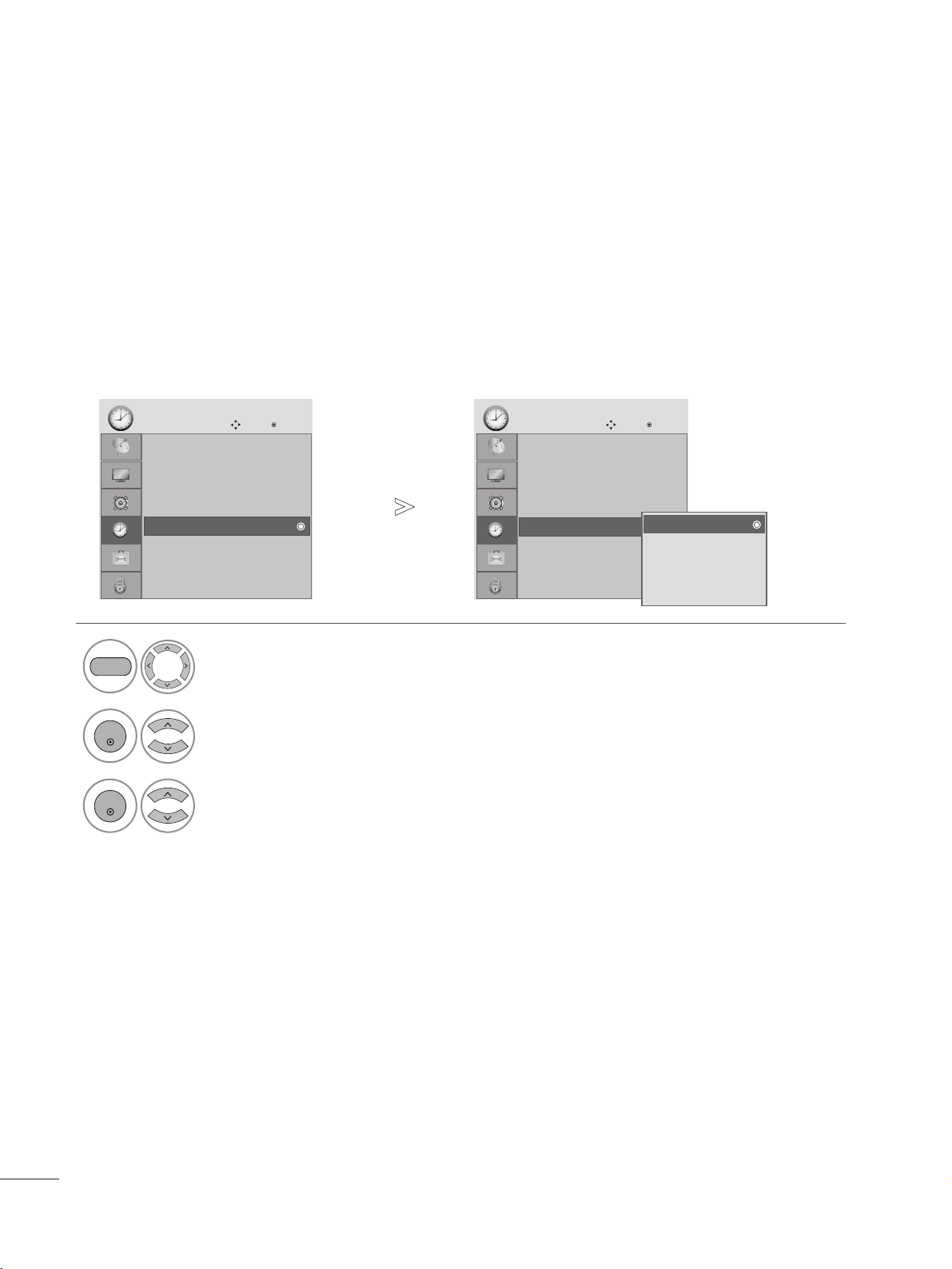
The sleep timer automatically switches the set off after the preset time has elapsed.
SLEEP TIMER SETTING
•
When you switch the set off, the preset sleep time is cancelled.
•
You can also adjust Sleep Timer in the Q.Menu.
Select TIME.
2
1
3
4
Confirm it.
MENU
ENTER
ENTER
ENTER
Select
SSlleeeepp TTiimmeerr
.
Select
OO ffff
,
1100
,
2200
,
3300
,
6600
,
9900
,
1122 00
,
1188 00
or
224400 MMiinn..
Clock
Off Time : Off
On Time : Off
Sleep Timer : Off
Auto Sleep : On
TIME
Move
Enter
Sleep Timer : Off
Clock
Off Time : Off
On Time : Off
Sleep Timer : Off
Auto Sleep : On
TIME
Move
Enter
Sleep Timer : Off
Close
F
Off
G
• Press the MENU button to close the menu window.
• Press the RETURN button to move to the previous menu screen.
62
TIME SETTING
If the set is switched on and there is no input signal, it will switch off automatically after 10 minutes.
AUTO SHUT-OFF SETTING
Select TIME.
2
Select Auto Sleep.
1
3
Select Off or On.
MENU
ENTER
ENTER
Clock
Off Time : Off
On Time : Off
Sleep Timer : Off
Auto Sleep : Off
TIME
Move
Enter
Auto Sleep : On
Clock
Off Time : Off
On Time : Off
Sleep Timer : Off
Auto Sleep : Off
TIME
Move
Enter
Auto Sleep : On
Off
Off
On
TV will be automatically
turned off, in case of No
Signal for 10 minutes.
• Press the MENU button to close the menu window.
• Press the RETURN button to move to the previous menu screen.

63
OPTION SETTING
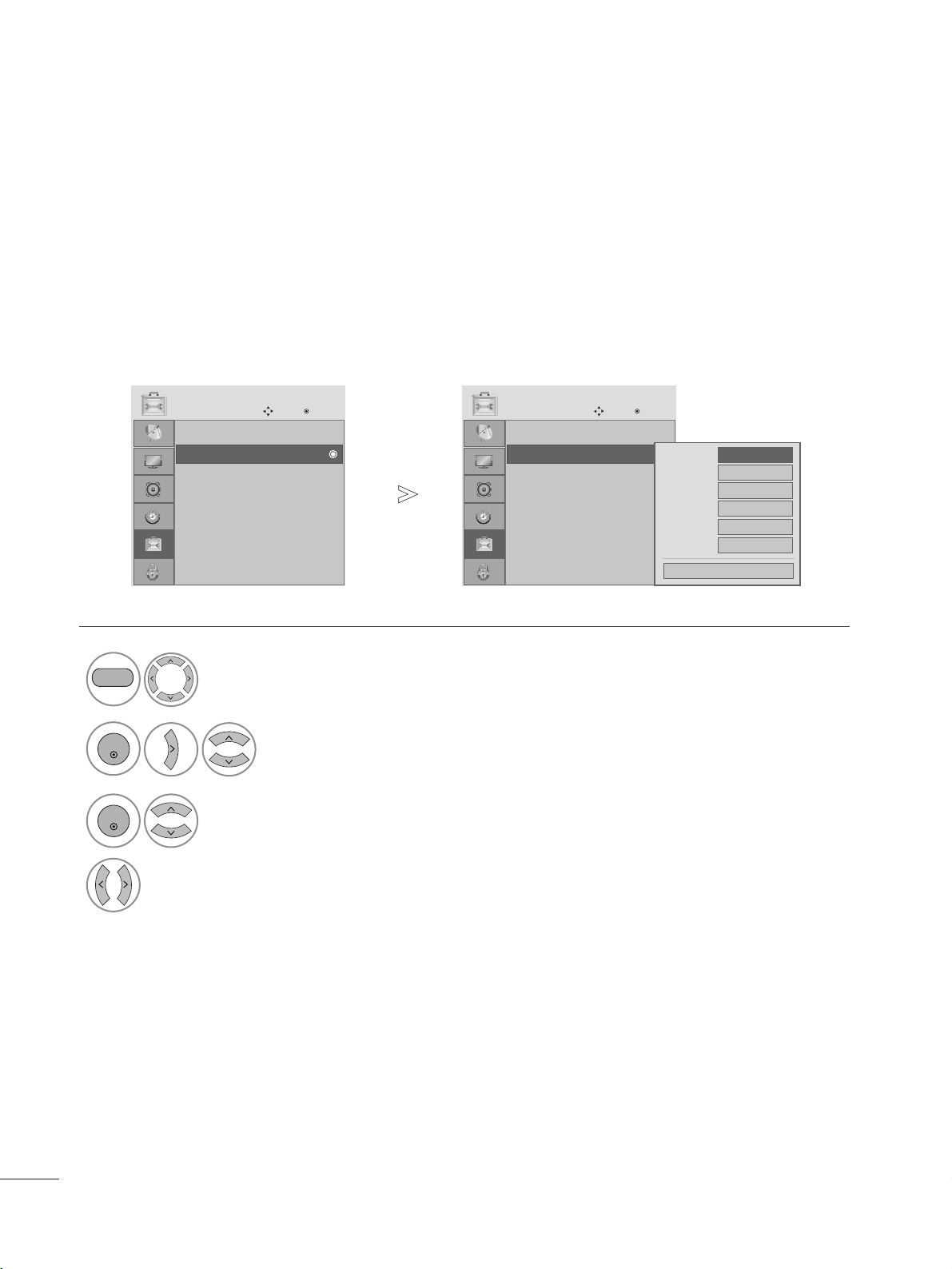
The menus can be shown on the screen in the selected language.
ON-SCREEN MENUS LANGUAGE SELECTION
Select OPTION.
2
Select Language.
3
Select Menu.
4
Select your desired language.
From this point on, the on-screen menus will be shown in the selected language.
1
MENU
ENTER
ENTER
• Press the MENU button to close the menu window.
• Press the RETURN button to move to the previous menu screen.
Language : English
Input Label
Key Lock : Off
Caption : Off
Set ID : 1
Power Indicator : On
DDC-CI : On
OPTION
Move
Enter
E
Language : English
Language : English
Input Label
Key Lock : Off
Caption : Off
Set ID : 1
Power Indicator : On
DDC-CI : On
OPTION
Move
Enter
E
Language : English
Menu
F English G
Audio
English
Close
64
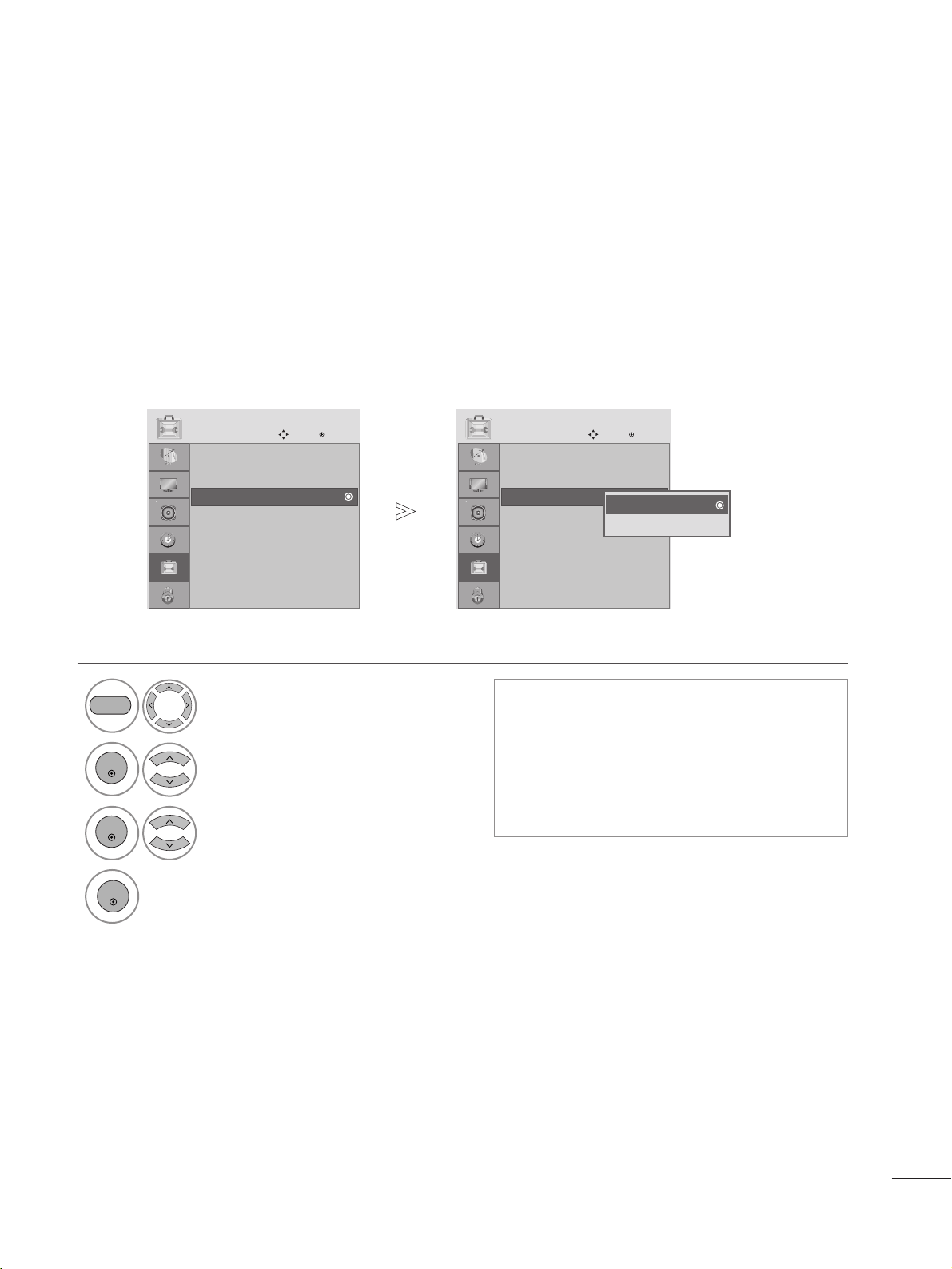
OPTION SETTING
Selects a label for each input source.
INPUT LABEL
Select OPTION.
2
Select Input Label.
3
Select the source.
4
Select the label.
1
MENU
ENTER
ENTER
• Press the MENU button to close the menu window.
• Press the RETURN button to move to the previous menu screen.
Language : English
Input Label
Key Lock : Off
Caption : Off
Set ID : 1
Power Indicator : On
DDC-CI : On
OPTION
Move
Enter
E
Input Label
Language : English
Input Label
Key Lock : Off
Caption : Off
Set ID : 1
Power Indicator : On
DDC-CI : On
OPTION
Move
Enter
E
Input Label
RGB-PC
HDMI 1
HDMI 2
DVI
AV
Component
Close
65
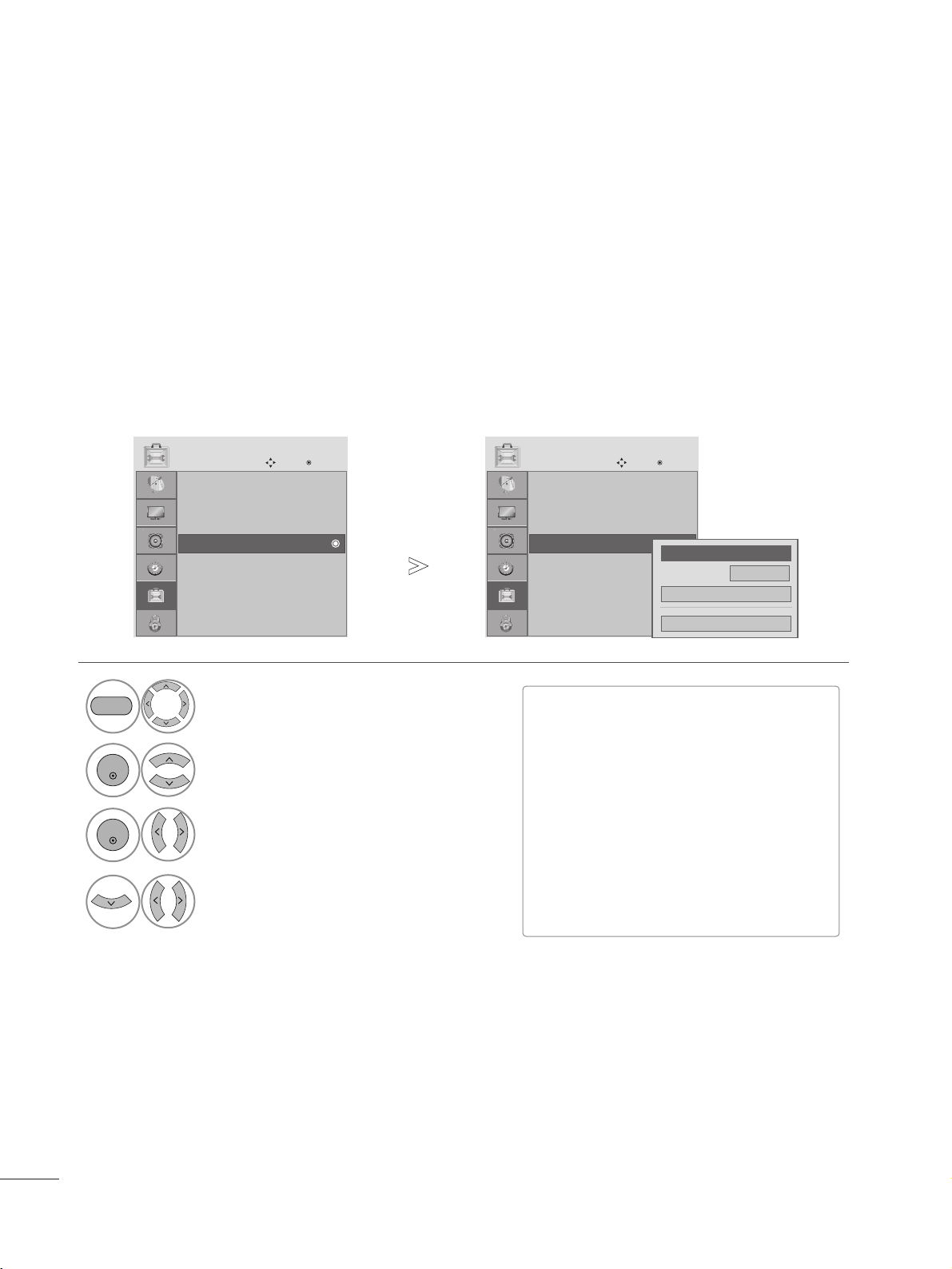
OPTION SETTING
The set can be configured so that the remote control is required to control it. This feature can be used to
prevent unauthorized viewing.
KEY LOCK
Select OPTION.
2
Select Key Lock.
3
Select On or Off.
4
Save.
1
• In Key Lock ’On’, if the set is turned off, press
the r / I, INPUT, CH
D E
button on the TV or
POWER, INPUT, CH + - or NUMBER buttons on
the remote control.
• With the Key Lock On, the display ‘ Key Lock’
appears on the screen if any button on the front
panel is pressed while viewing the TV.
ENTER
ENTER
• Press the MENU button to close the menu window.
• Press the RETURN button to move to the previous menu screen.
ENTER
MENU
Language : English
Input Label
Key Lock : Off
Caption : Off
Set ID : 1
Power Indicator : On
DDC-CI : On
OPTION
Move
Enter
E
Key Lock : Off
Language : English
Input Label
Key Lock : Off
Caption : Off
Set ID : 1
Power Indicator : On
DDC-CI : On
OPTION
Move
Enter
E
Key Lock : Off
Off
On
Off
66
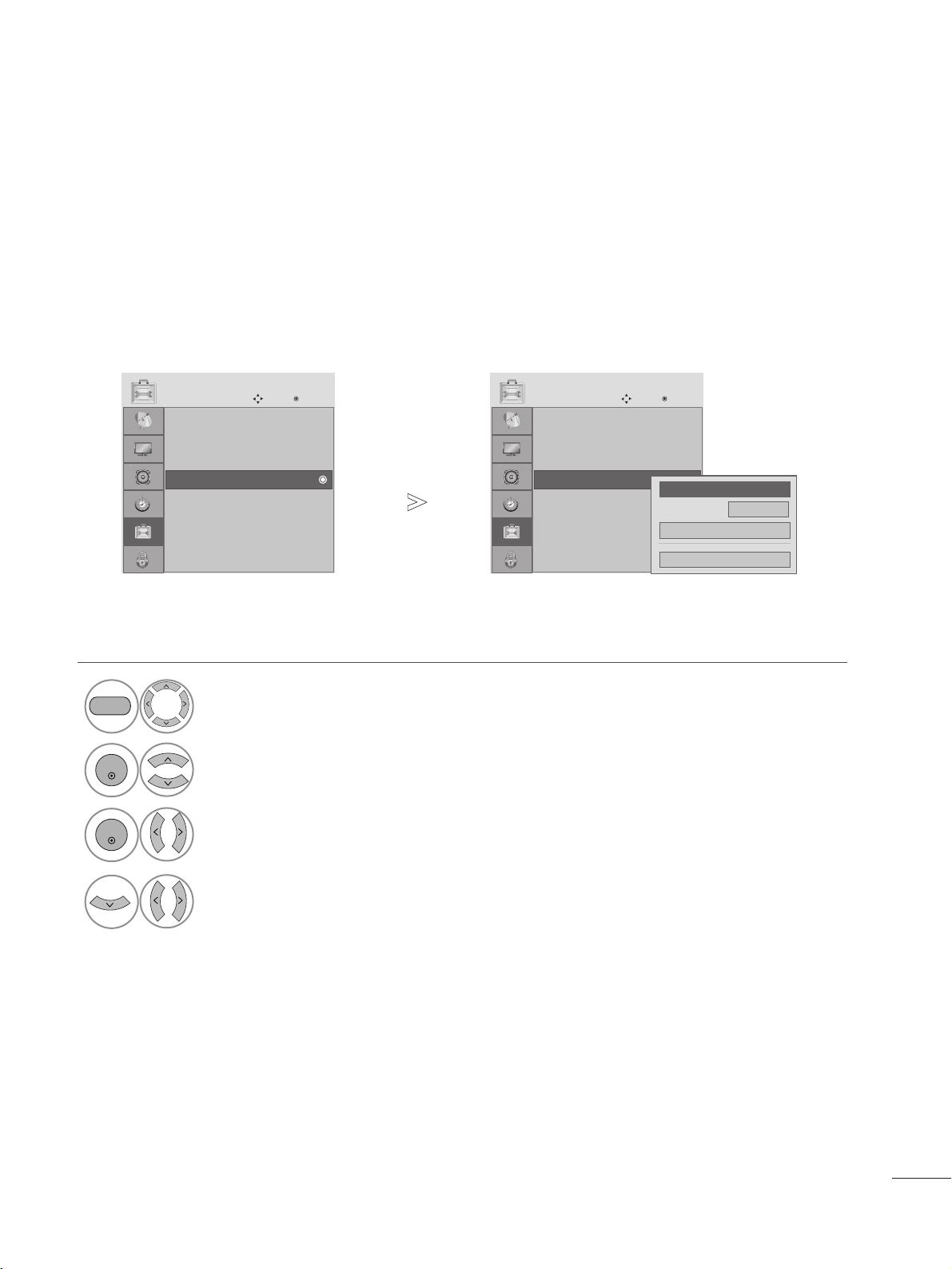
OPTION SETTING
Caption must be provided to help people with hearing loss watch TV. Select a caption mode for displaying cap-
tioning information if provided on a program. Analog caption displays information at any position on the screen and
is usually the program's dialog. Caption/Text, if provided by the broadcaster, would be available for both digital and
analog channels on the Antenna/Cable. This TV is programmed to memorize the caption/text mode which was last
set when you turned the power off. This function is only available when
CCaappttiioonn
Mode is set
OO nn
.
Select
OOPPTTIIOONN
.
Select
CCaappttiioonn
Select
OO nn
.
1
MENU
3
2
ENTER
ENTER
Select
CCCC11
-
44
or
TTeexxtt11
-
44
.
4
Analog Broadcasting System Captions
■
CCAAPPTTIIOONN
The term for the words that scroll
across the bottom of the TV screen;
usually the audio portion of the pro-
gram provided for the hearing impaired.
■
TTEEXXTT
The term for the words that appear in a
large black frame and almost cover the
entire screen; usually messages provid-
ed by the broadcaster.
•
Press the MENU button to close the menu window.
• Press the RETURN button to move to the previous menu screen.
Language : English
Input Label
Key Lock : Off
Caption : Off
Set ID : 1
Power Indicator : On
DDC-CI : On
OPTION
Move
Enter
E
Caption : Off
Language : English
Input Label
Key Lock : Off
Caption : Off
Set ID : 1
Power Indicator : On
DDC-CI : On
OPTION
Move
Enter
E
Caption : Off
Mode
CC1
Close
Digital Option
F
Off
G
67
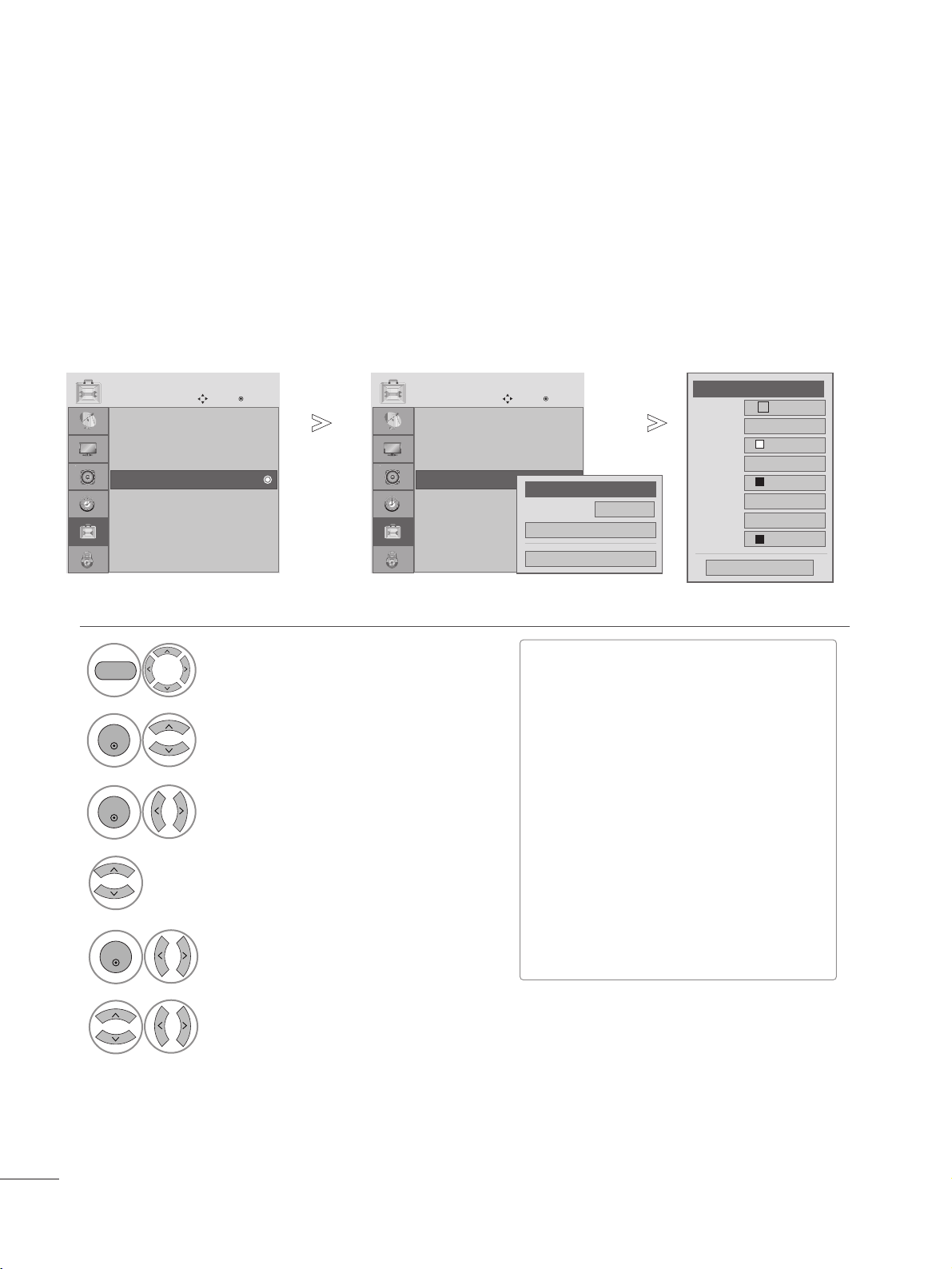
OPTION SETTING
Choose the language you want the DTV/CADTV Captions to appear in.
Other Languages can be chosen for digital sources only if they are included on the program.
This function in only available when Caption Mode is set On.
Select
OOPPTTIIOONN
.
Select
CCaappttiioonn
Select
OO nn
.
1
MENU
3
2
ENTER
ENTER
Select
CCCC11
-
44
or
TTeexxtt11
-
44
or
SSeerrvviiccee11--66
.
4
Digital Broadcasting System Captions
• Press the MENU button to close the menu window.
• Press the RETURN button to move to the previous menu screen.
Language : English
Input Label
Key Lock : Off
Caption : Off
Set ID : 1
Power Indicator : On
DDC-CI : On
OPTION
Move
Enter
E
Caption : CC1
Language : English
Input Label
Key Lock : Off
Caption : Off
Set ID : 1
Power Indicator : On
DDC-CI : On
OPTION
Move
Enter
E
Caption : CC1
Mode
CC1
Close
Digital Option
F
On
G
68
OPTION SETTING
Customize the DTV/CADTV captions that appear on your screen.
This function in only available when Caption Mode is set On.
Select
OOPPTTIIOONN
.
Select
CCaappttiioonn
Select
OO nn
.
1
MENU
3
2
ENTER
ENTER
Caption Option
Size
A Standard
Font
Font 1
Text Color
White
Text Opacity
Solid
Edge Type
None
Edge Color
Black
Bg Color
Black
Bg Opacity
Solid
Close
F Custom G
Select
CCuussttoomm
.
5
ENTER
Customize the
SSttyyllee
,
FFoonntt
, etc., to your preference. A preview icon is provided
at the bottom of the screen, use it to see the caption language.
6
Select
DDiiggiittaall OOppttiioonn
.
4
■
SSiizzee
: Set the word size.
■
FFoonntt
: Select a typeface for the text.
■
TTeexxtt CCoolloorr
: Choose a color for the
text.
■
TTeexxtt OOppaacciittyy
: Specify the opacity
for the text color.
■
BBgg ((BBaacckkggrroouunndd)) CCoolloorr
: Select a
background color.
■
BBgg ((BBaacckkggrroouunndd)) OOppaacciittyy
: Select
the opacity for the background color.
■
EEddggee TTyyppee
: Select an edge type.
■
EEddggee CCoolloorr
: Select a color for the
edges.
•
Press the MENU button to close the menu window.
• Press the RETURN button to move to the previous menu screen.
Language : English
Input Label
Key Lock : Off
Caption : Off
Set ID : 1
Power Indicator : On
DDC-CI : On
OPTION
Move
Enter
E
Caption : CC1
Language : English
Input Label
Key Lock : Off
Caption : Off
Set ID : 1
Power Indicator : On
DDC-CI : On
OPTION
Move
Enter
E
Caption : CC1
Mode
CC1
Close
Digital Option
F
On
G
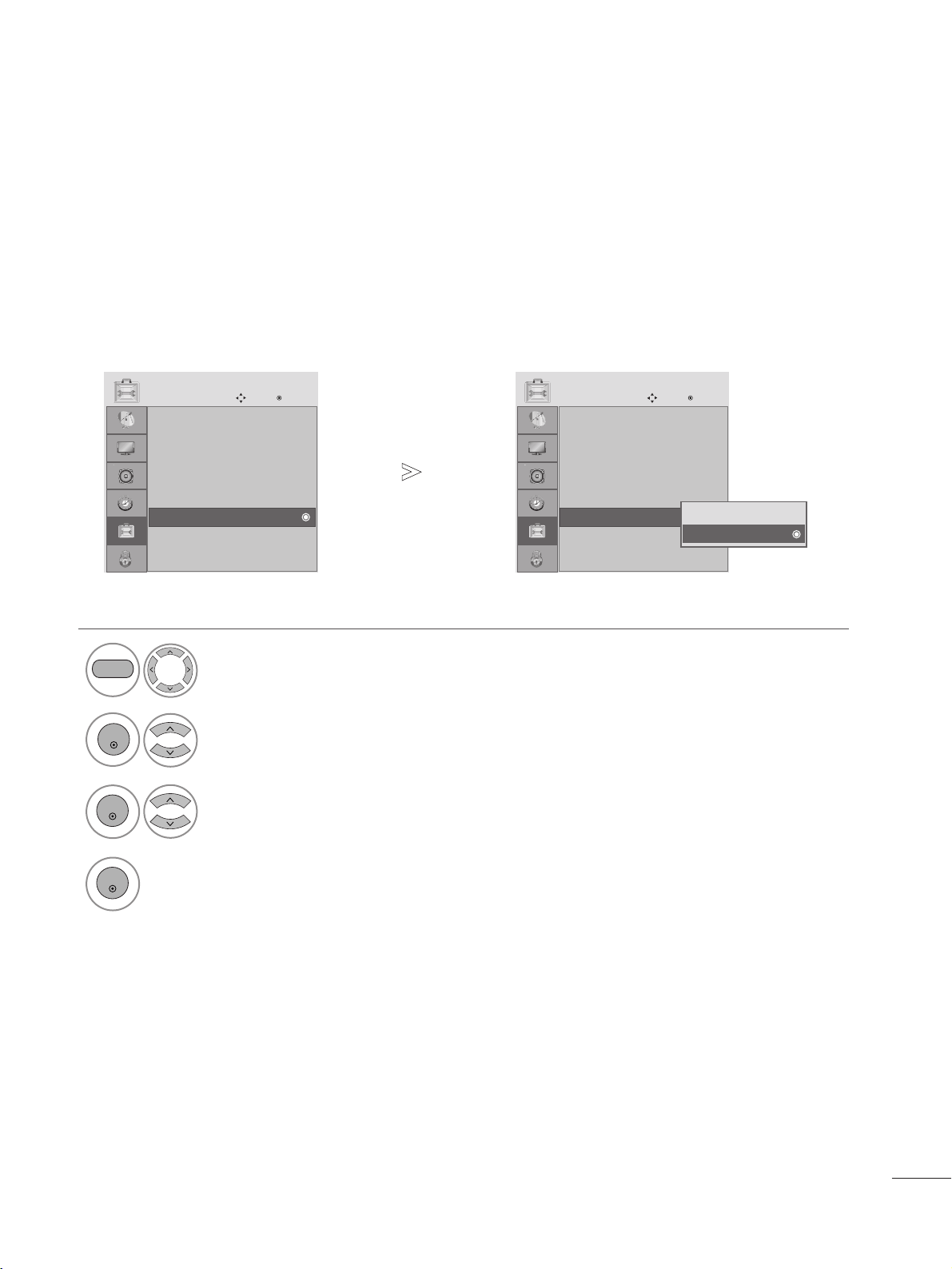
69
OPTION SETTING
It helps you control LED when power is turned on.
POWER INDICTOR
1
Select OPTION.
2
Select Power Indicator.
Select On or Off.
3
MENU
ENTER
ENTER
4
ENTER
• Press the MENU button to close the menu window.
• Press the RETURN button to move to the previous menu screen.
Language : English
Input Label
Key Lock : Off
Caption : Off
Set ID : 1
Power Indicator : On
DDC-CI : On
OPTION
Move
Enter
E
Power Indicator : On
Language : English
Input Label
Key Lock : Off
Caption : Off
Set ID : 1
Power Indicator : On
DDC-CI : On
OPTION
Move
Enter
E
Power Indicator : On
Off
On
On
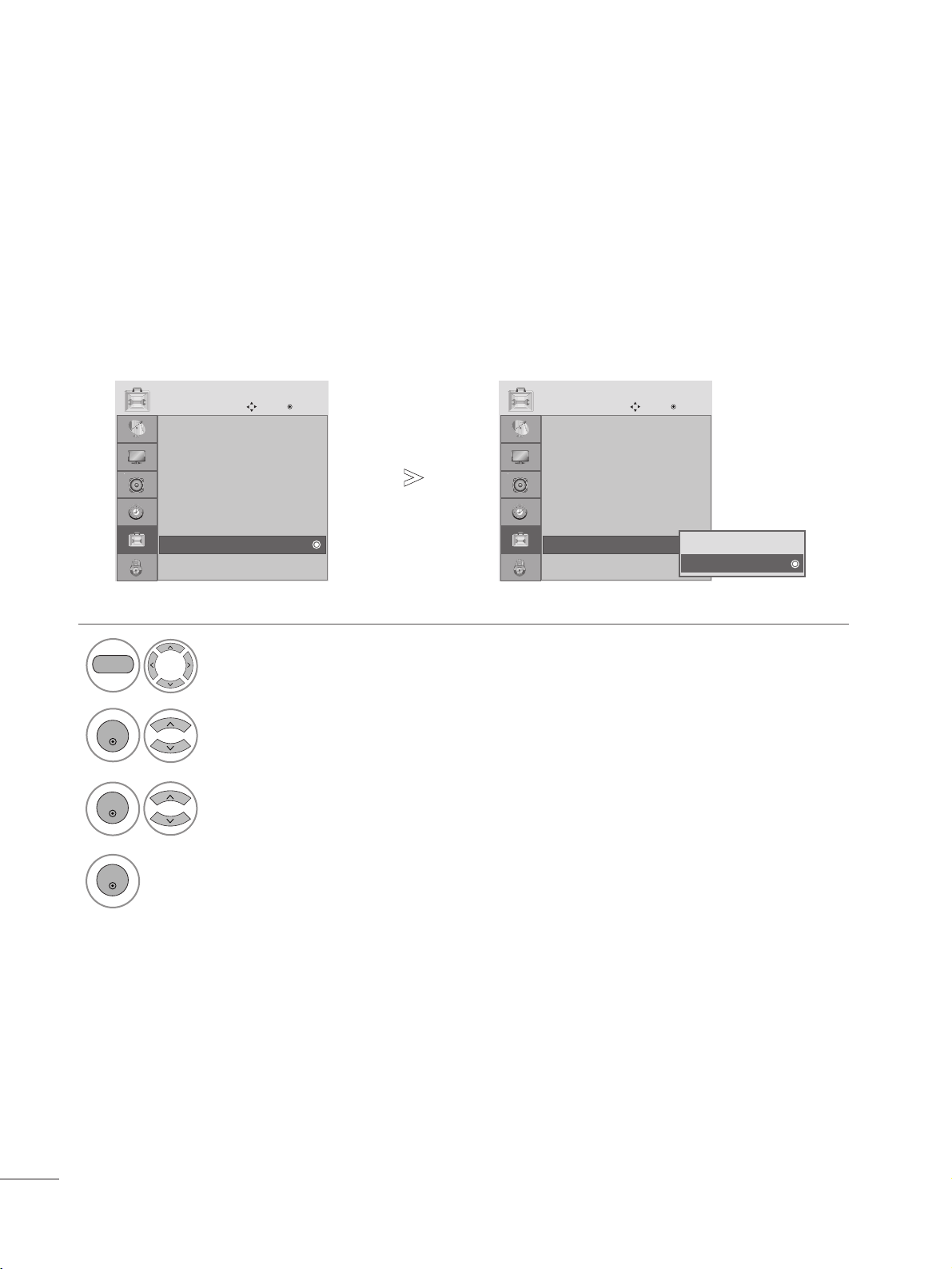
70
OPTION SETTING
• Press the MENU button to close the menu window.
• Press the RETURN button to move to the previous menu screen.
DDC/CI (Display Data Channel Command Interface) is a communication protocol for communications between a
PC and Monitor.
DDC/CI makes it possible to adjust and setup detailed functions on the PC instead of the Monitor.
On allows adjustments on the PC. Off ignores the communications of DDC/CI data.
DDC CI(Only RGB, DVI mode)
1
Select OPTION.
2
Select DDC CI.
MENU
ENTER
Select On or Off.
3
ENTER
4
ENTER
Language : English
Input Label
Key Lock : Off
Caption : Off
Set ID : 1
Power Indicator : On
DDC-CI : On
OPTION
Move
Enter
E
DDC-CI : On
Language : English
Input Label
Key Lock : Off
Caption : Off
Set ID : 1
Power Indicator : On
DDC-CI : On
OPTION
Move
Enter
E
DDC-CI : On
Off
On
On

71
PARENTAL CONTROL / RATINGS
LOCK SYSTEM
Enter the password, press ‘0’, ‘0’, ‘0’, ‘0’ on the remote control handset.
Select LOCK.
2
Select Lock System.
3
Select On or Off.
1
•
When you select On, the Lock System is enable.
MENU
ENTER
ENTER
• Press the MENU button to close the menu window.
• Press the RETURN button to move to the previous menu screen.
Lock System : Off
Set Password
Block Channel
Movie Rating
TV Rating-Children
TV Rating-General
Downloadable Rating
Input Block
LOCK
Move
Enter
Lock System : Off
Lock System : Off
Set Password
Block Channel
Movie Rating
TV Rating-Children
TV Rating-General
Downloadable Rating
Input Block
LOCK
Move
Enter
Lock System : Off
Off
On
Off
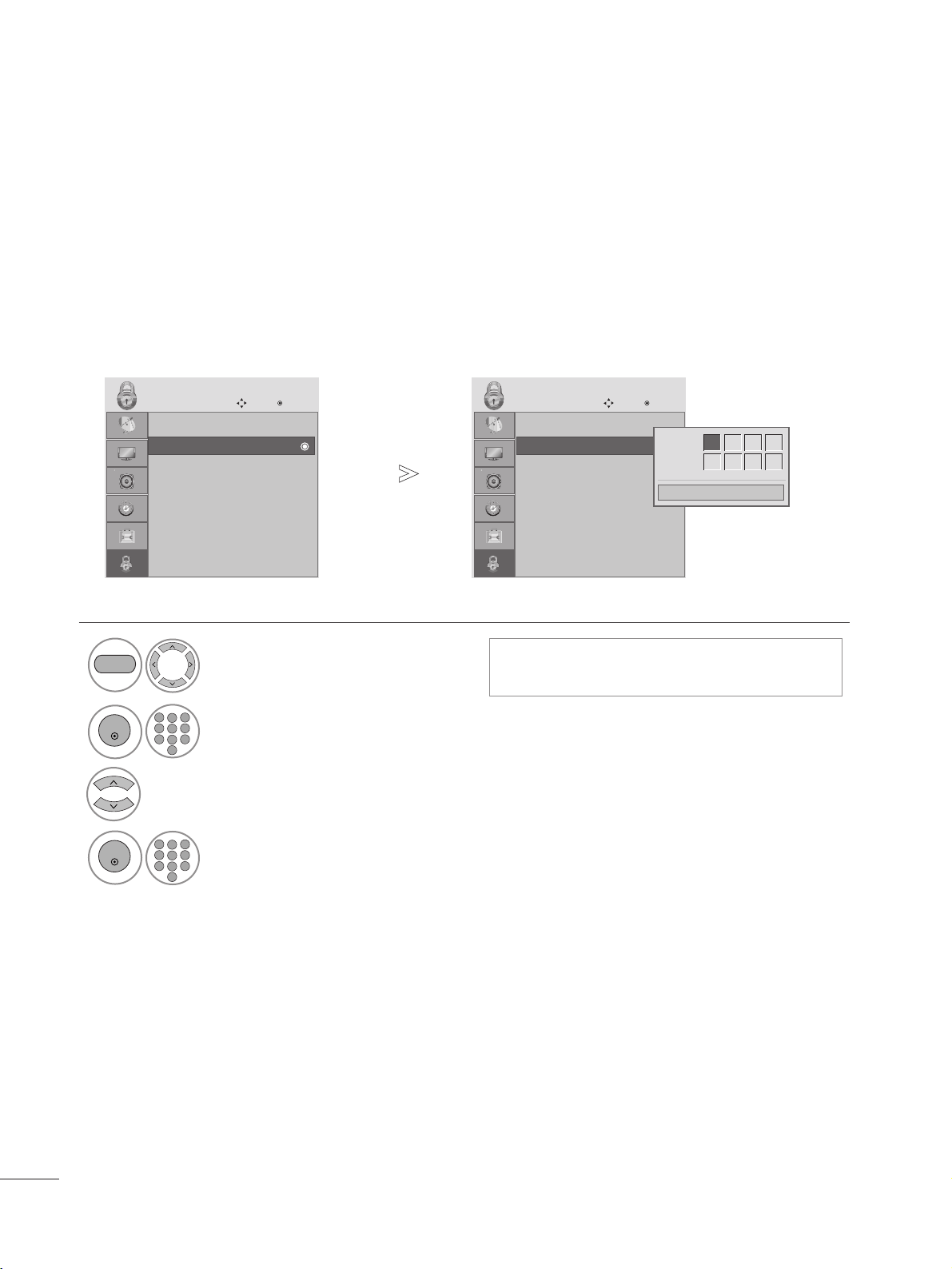
72
PARENTAL CONTROL / RATINGS
SET PASSWORD
Select LOCK.
2
Select
SSeett ppaasssswwoorrdd
.
Input the password.
3
Choose any 4 digits for your new password.
As soon as the 4 digits are entered, re-enter the same 4 digits on the
CCoonnffiirrmm
.
1
• If you forget your password, press ‘7’, ‘7’, ‘7’, ‘7’
on the remote control handset.
MENU
ENTER
ENTER
2
123
456
78
0
9
123
456
78
0
9
• Press the MENU button to close the menu window.
• Press the RETURN button to move to the previous menu screen.
Lock System : Off
Set Password
Block Channel
Movie Rating
TV Rating-Children
TV Rating-General
Downloadable Rating
Input Block
LOCK
Move
Enter
Set Password
Lock System : Off
Set Password
Block Channel
Movie Rating
TV Rating-Children
TV Rating-General
Downloadable Rating
Input Block
LOCK
Move
Enter
Set Password
Close
New
* * * *
Confirm
* * * *
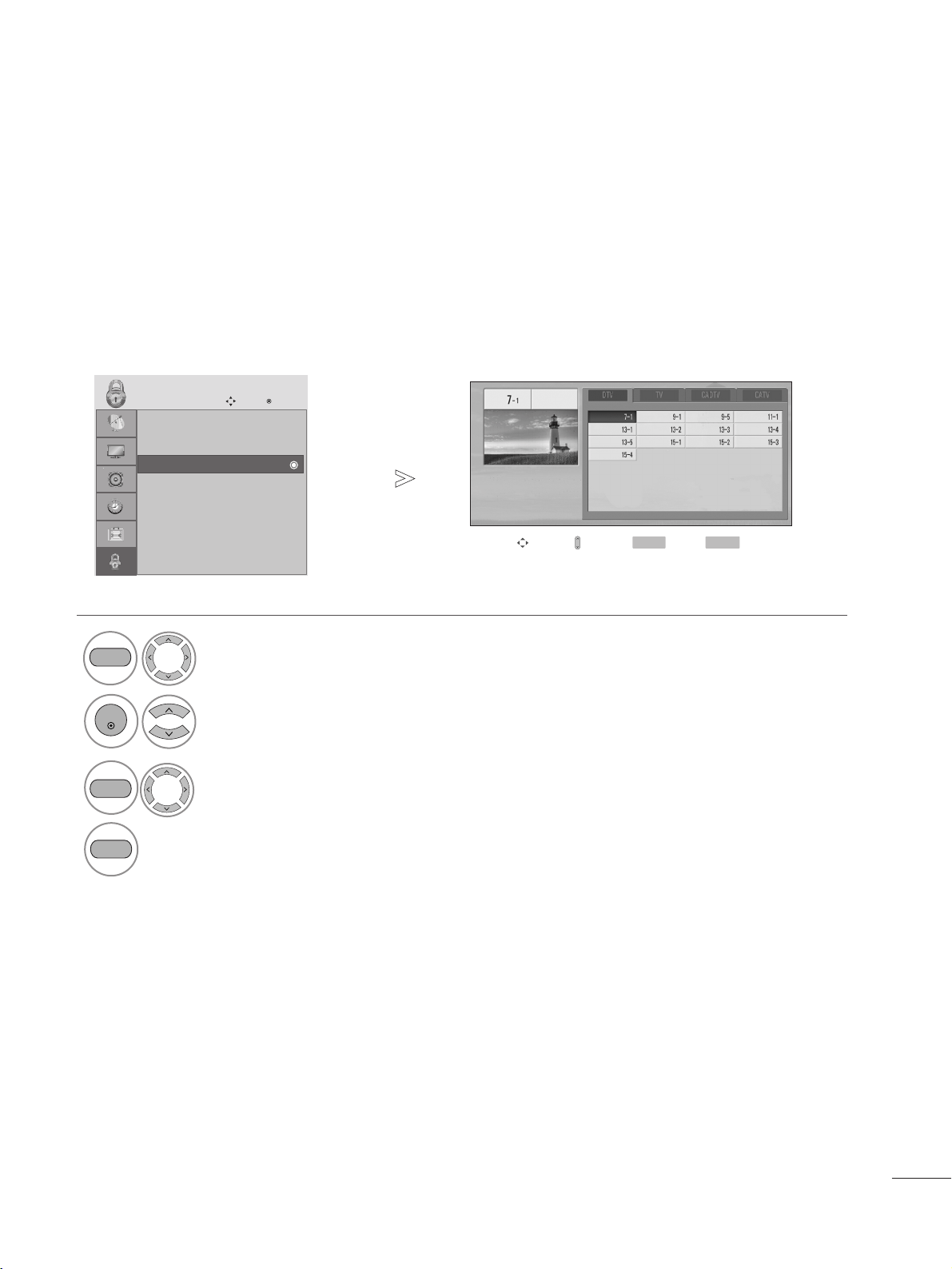
73
PARENTAL CONTROL / RATINGS
BLOCK CHANNEL
Blocks any programs that you do not want to watch or that you do not want your children to watch.
This function is available in Lock System “On”.
Select LOCK.
2
Select Block Channel.
1
3
Q.MENU
Select a channel to block or unblock it.
4
Block or unblock a channel.
ENTER
Q.MENU
• Press the MENU button to close the menu window.
• Press the RETURN button to move to the previous menu screen.
Lock System : Off
Set Password
Block Channel
Movie Rating
TV Rating-Children
TV Rating-General
Downloadable Rating
Input Block
LOCK
Move
Enter
Block Channel
Move Page
CH
Move
Previous
RETURN
Block/Unblock
Q.MENU
MENU
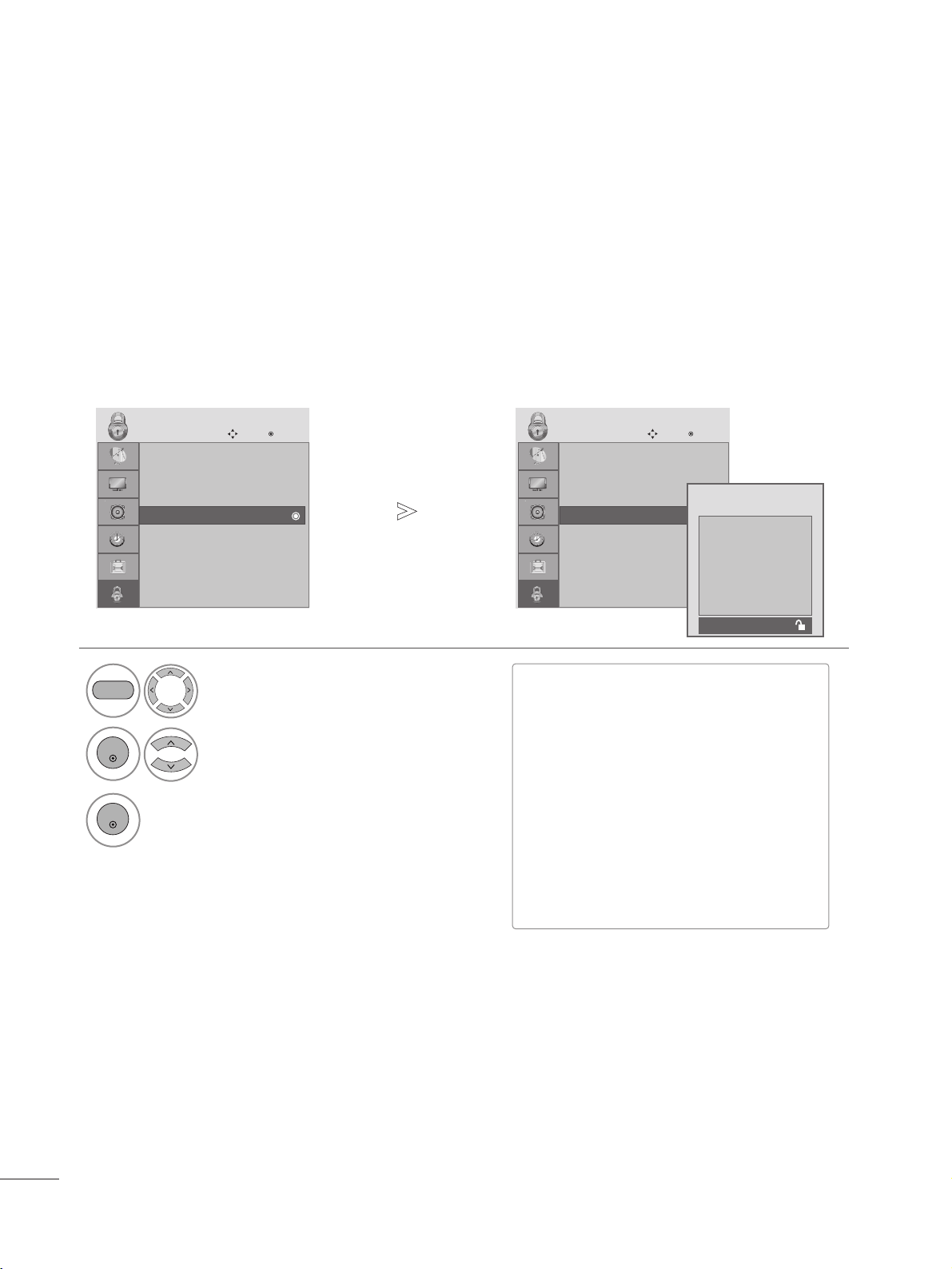
74
PARENTAL CONTROL / RATINGS
MOVIE RATING
Blocks movies according to the movie ratings limits specified, so children cannot view certain movies. You can set
the ratings limit by blocking out all the movies with the ratings above a specified level. Keep in mind that the movie
ratings limit only applies to movies shown on TV, not TV programs, such as soap operas.
Select LOCK.
2
Select
MMoovviiee RRaattiinngg
.
1
3
Select
GG
,
PP GG
,
PPGG--1133
,
RR
,
NNCC--1177
or
XX
.
MENU
ENTER
ENTER
• Press the MENU button to close the menu window.
• Press the RETURN button to move to the previous menu screen.
Lock System : Off
Set Password
Block Channel
Movie Rating
TV Rating-Children
TV Rating-General
Downloadable Rating
Input Block
LOCK
Move
Enter
Movie Rating
Lock System : Off
Set Password
Block Channel
Movie Rating
TV Rating-Children
TV Rating-General
Downloadable Rating
Input Block
LOCK
Move
Enter
Movie Rating
■
G (General audience)
■
PG (Parental guidance suggested)
■
PG-13 (Parents strongly cautioned)
■
R (Restricted)
■
NC-17 (No one 17 and under admitted)
■
X (Adult only)
■
Blocking Off (Permits all programs)
G If you set PG-13: G and PG movies will
be available, PG-13, R, NC-17 and X will
be blocked.
Blocking off : Permits all
programs
G
PG
PG-13
R
NC-17
X
Blocking Off
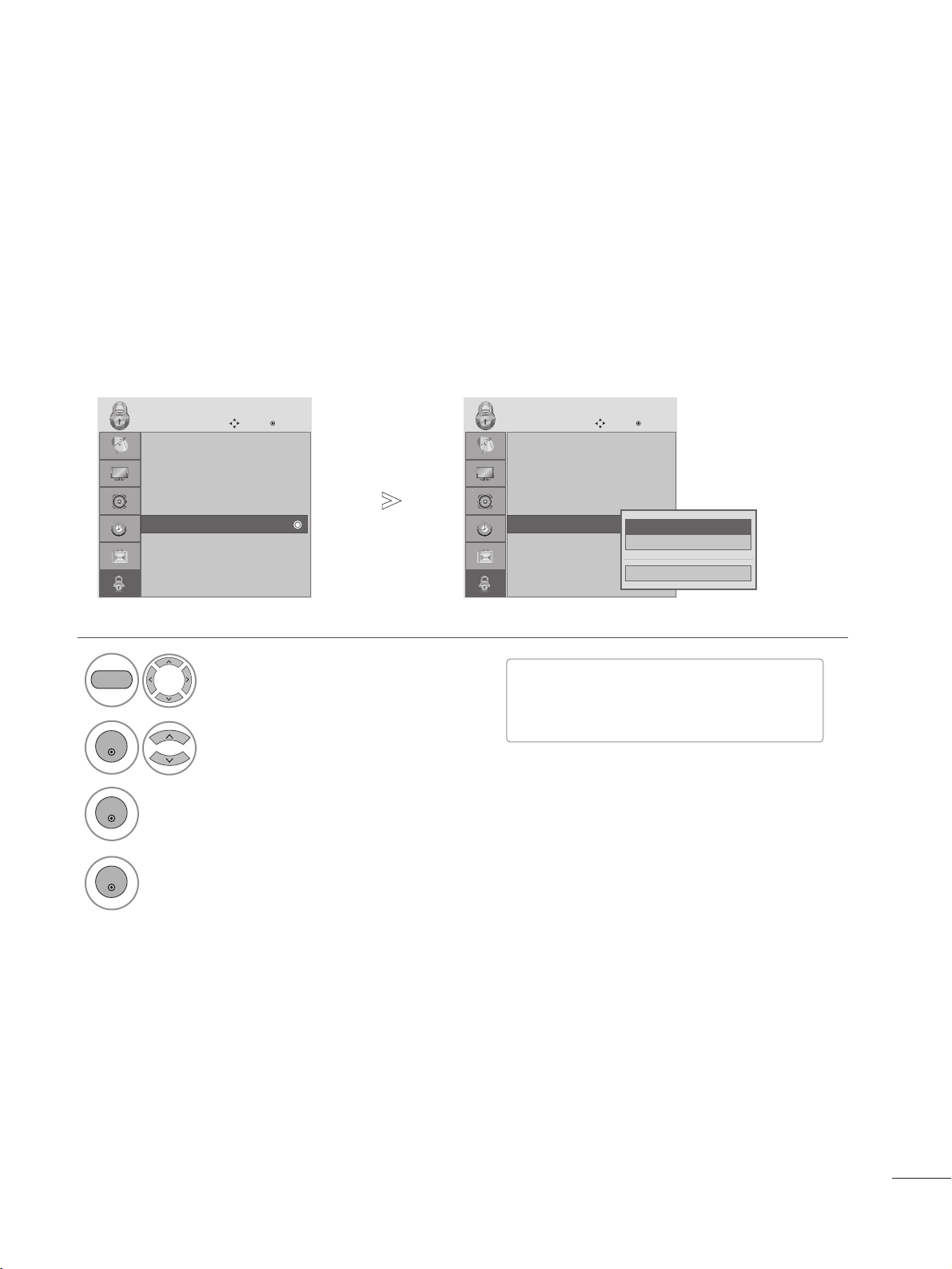
75
PARENTAL CONTROL / RATINGS
TV RATING-CHILDREN
Prevents children from watching certain children's TV programs, according to the ratings limit set. The children rat-
ing does not apply to other TV programs. Unless you block certain TV programs intended for mature audiences in
the TV Rating - sub menu, your children can view those programs.
Select LOCK.
2
Select
TTVV RRaattiinngg--CChhiillddrreenn
.
1
3
Select
AAggee
or
FFaannttaassyy VViioolleennccee
.
MENU
ENTER
ENTER
4
Select block options.
ENTER
Lock System : Off
Set Password
Block Channel
Movie Rating
TV Rating-Children
TV Rating-General
Downloadable Rating
Input Block
LOCK
Move
Enter
TV Rating-Children
Lock System : Off
Set Password
Block Channel
Movie Rating
TV Rating-Children
TV Rating-General
Downloadable Rating
Input Block
LOCK
Move
Enter
TV Rating-Children
Close
Age
Fantasy Violence
■
Age (applies to TV-Y, TV-Y7)
■
Fantasy Violence (applies to TV-Y7)
•
Press the MENU button to close the menu window.
• Press the RETURN button to move to the previous menu screen.
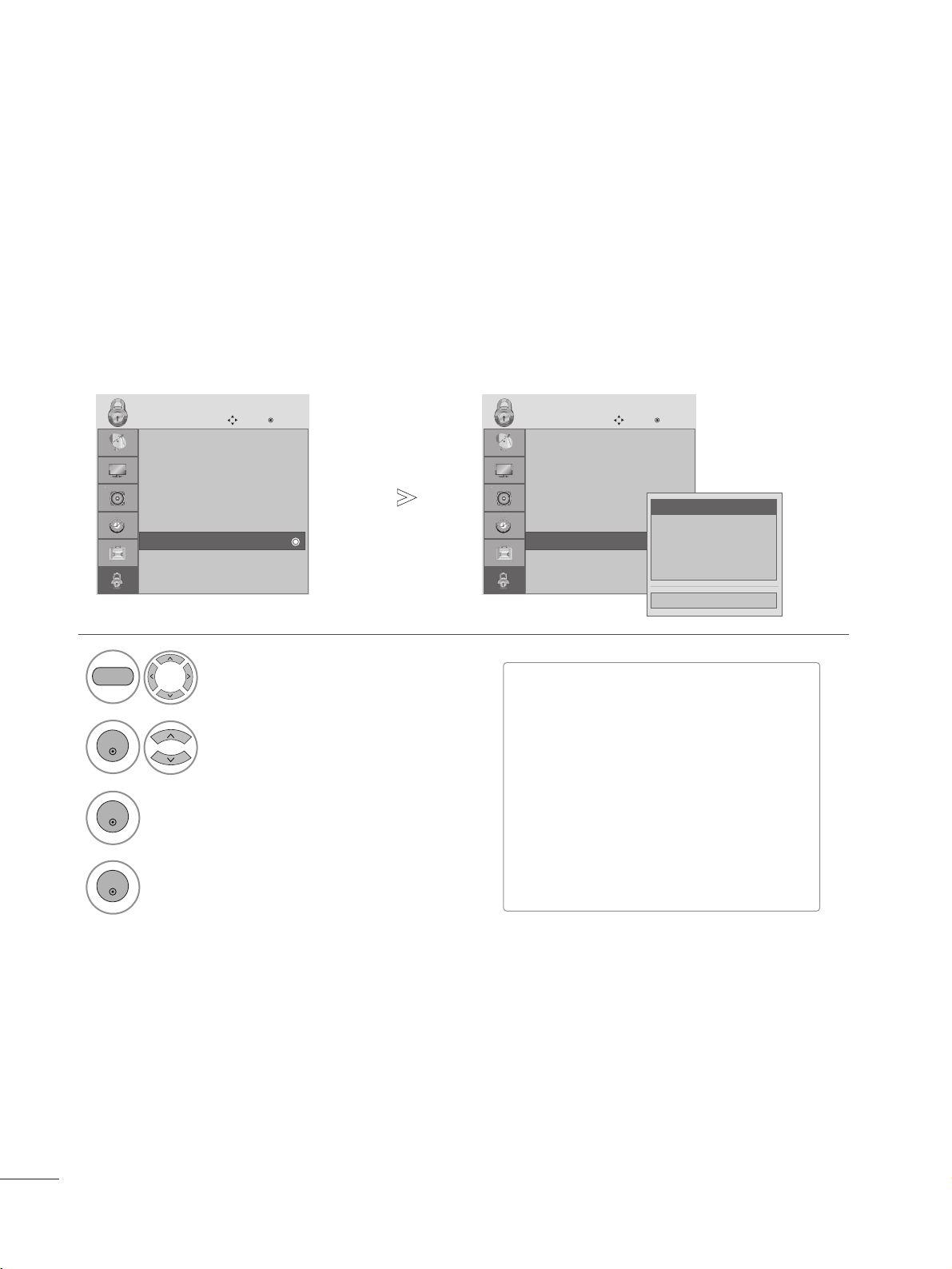
76
PARENTAL CONTROL / RATINGS
TV RATING-GENERAL
Based on the ratings, blocks certain TV programs that you and your family do not want to view.
Select LOCK.
2
Select
TTVV RRaattiinngg--GGeenneerraall..
1
3
Select
AAggee
,
DDiiaalloogguuee
,
LLaanngguuaaggee
,
SSeexx
or
VViioolleennccee
.
MENU
ENTER
ENTER
4
Select block options.
ENTER
Lock System : Off
Set Password
Block Channel
Movie Rating
TV Rating-Children
TV Rating-General
Downloadable Rating
Input Block
LOCK
Move
Enter
TV Rating-General
Lock System : Off
Set Password
Block Channel
Movie Rating
TV Rating-Children
TV Rating-General
Downloadable Rating
Input Block
LOCK
Move
Enter
TV Rating-General
Close
Age
Dialogue
Language
Sex
Violence
■
Age (applies to TV-G,TV-PG,TV-14,TV-
MA).
■
Dialogue-sexual dialogue (applies to TV-
PG,TV-14).
■
Language-adult language (applies to TV-
PG, TV-14, TV-MA).
■
Sex-sexual situations (applies to TV-PG,
TV-14, TV-MA).
■
Violence (applies to TV-PG, TV-14, TV-
MA).
•
Press the MENU button to close the menu window.
• Press the RETURN button to move to the previous menu screen.
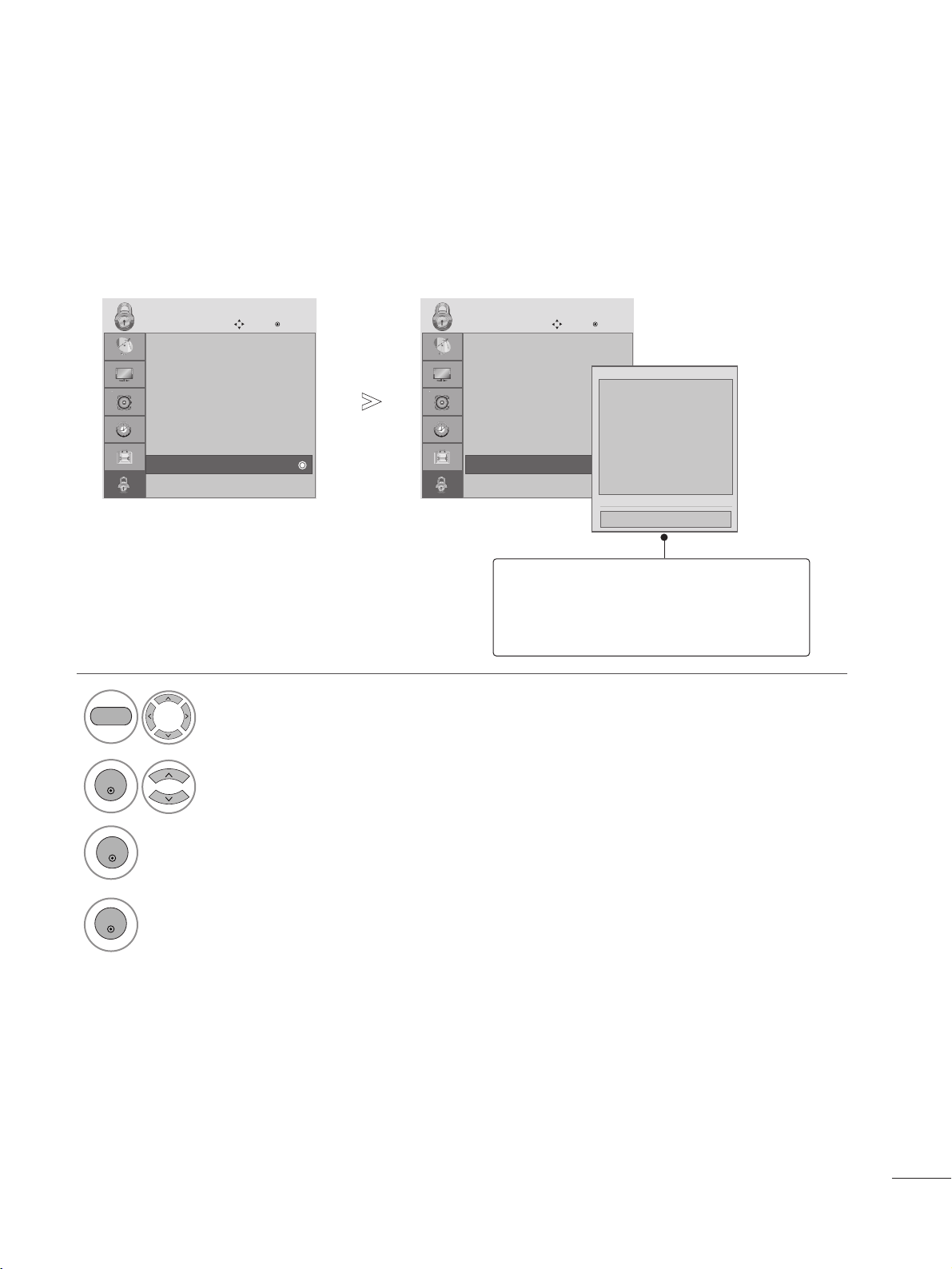
77
PARENTAL CONTROL / RATINGS
DOWNLOADABLE RATING
This function may become available in the future and will be available only for digital channel signal.
This function operates only when TV has received Region5 Rating data.
Select LOCK.
2
Select
DDoowwnnllooaaddaabbllee RRaattiinngg
.
1
3
Select desired
DDoowwnnllooaaddaabbllee RRaattiinngg
option.
MENU
ENTER
4
Select desired option and block it.
ENTER
Lock System : Off
Set Password
Block Channel
Movie Rating
TV Rating-Children
TV Rating-General
Downloadable Rating
Input Block
LOCK
Move
Enter
Downloadable Rating
Lock System : Off
Set Password
Block Channel
Movie Rating
TV Rating-Children
TV Rating-General
Downloadable Rating
Input Block
LOCK
Move
Enter
Downloadable Rating
Humor
Sports
Cruelty
Language
Sadness
Genre
Age
Close
E
E
■
Based on rating table, your TV's OSD
(On Screen Display) may differ slightly
from what is shown in this manual.
•
Press the MENU button to close the menu window.
• Press the RETURN button to move to the previous menu screen.
ENTER
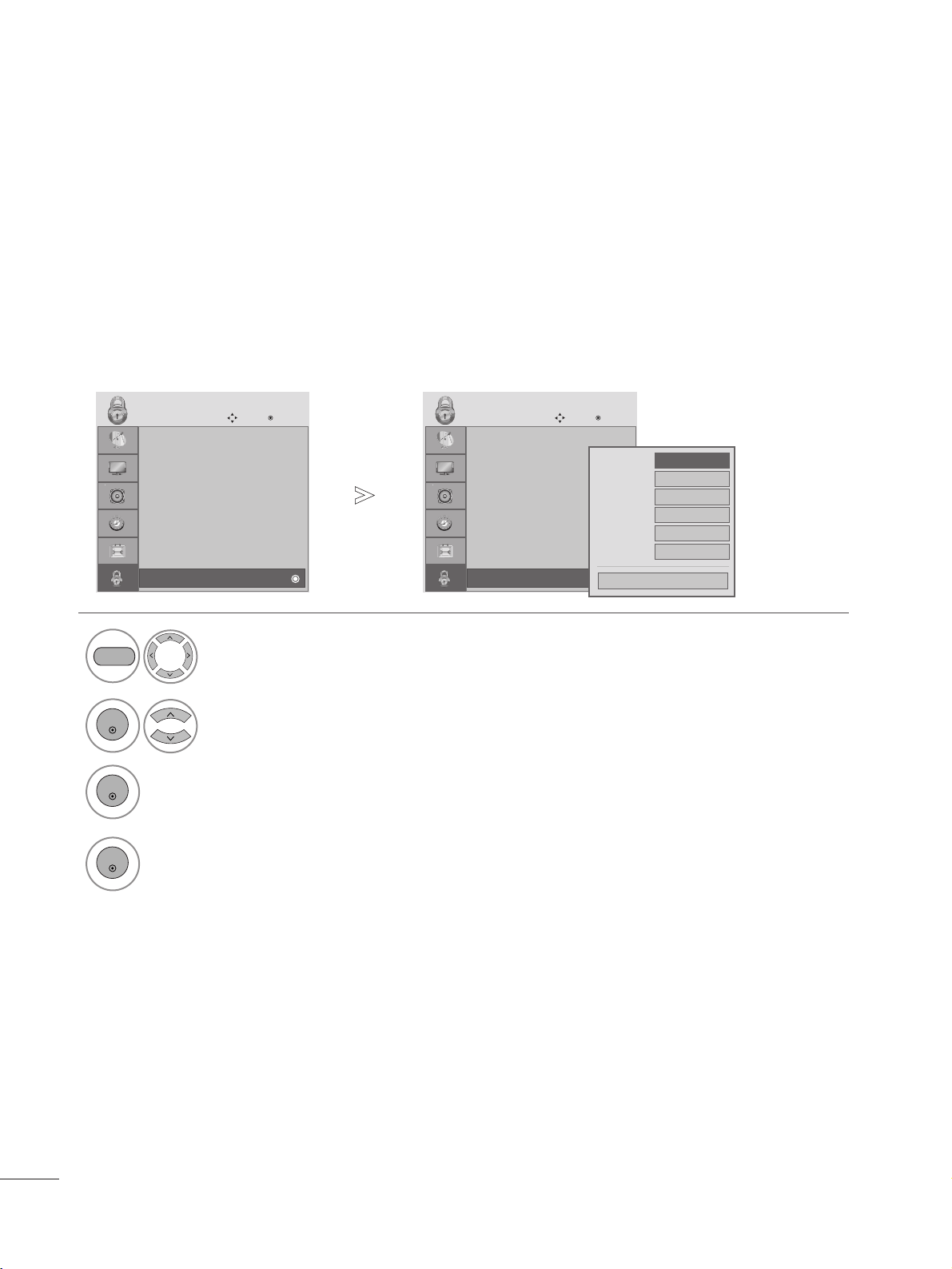
78
PARENTAL CONTROL / RATINGS
INPUT BLOCK
Enables you to block an input.
Select LOCK.
2
Select
IInnppuutt BBlloocckk
.
1
3
Select input source.
ENTER
ENTER
4
Select
OO nn
or
OO ffff
.
ENTER
Lock System : Off
Set Password
Block Channel
Movie Rating
TV Rating-Children
TV Rating-General
Downloadable Rating
Input Block
LOCK
Move
Enter
Input Block
Lock System : Off
Set Password
Block Channel
Movie Rating
TV Rating-Children
TV Rating-General
Downloadable Rating
Input Block
LOCK
Move
Enter
Input Block
AV
F
Off
G
Off
Component
Off
HDMI1
Off
RGB-PC
Off
Off
HDMI2
DVI
Close
• Press the MENU button to close the menu window.
• Press the RETURN button to move to the previous menu screen.
MENU

79
No picture & No sound
No color, poor color,
or poor picture
Poor reception on
some channels
Lines or streaks
in pictures
Horizontal/vertical bars
or picture shaking
Picture appears slowly
after switching on
A
Check whether the product is turned on.
A
Try another channel. The problem may be with the broadcast.
A
Is the power cord inserted into wall power outlet?
A
Check your antenna direction and/or location.
A
Test the wall power outlet, plug another product’s power cord into the outlet
where the product’s power cord was plugged in.
A
This is normal, the image is muted during the product startup process. If the
picture does not appear after a minute, unplug the TV for 30 seconds and try it
again. If the picture still doesn’t appear, contact an authorized service center in
your area.
A
Adjust Color in the menu.
A
Keep a sufficient distance between this product and other electronics.
A
Try another channel. The problem may be with the broadcast.
A
Are the video cables installed properly?
A
Check for local interference such as an electrical appliance or power tool.
A
Station or cable product experiencing problems, tune to another station.
A
Station signal is weak, reorient antenna.
A
Check for sources of possible interference.
A
Check antenna (Change the direction of the antenna).
TROUBLESHOOTING
TThhee ooppeerraattiioonn ddooeess nnoott wwoorrkk nnoorrmmaallllyy..
The remote control
doesn’t work
TV turns off suddenly
A
Check to see if there is any object between the product and the remote control caus-
ing obstruction. Ensure you are pointing the remote control directly at the set.
A
Ensure that the batteries are installed with correct polarity (+ to +, - to -).
A
Ensure that the correct remote operating mode is set: TV, VCR, etc.
A
Install new batteries.
A
Is the sleep timer set?
A
Check the power control settings. Power interrupted.
A
No broadcast on station tuned with
AAuuttoo sslleeeepp
activated.
TThhee vviiddeeoo ffuunnccttiioonn ddooeess nnoott wwoorrkk..
APPENDIX
80
APPENDIX
NNoo AAuuddiioo..
A
Press the VOL
++
or
--
button.
A
Sound muted? Press MUTE button.
A
Try another channel. The problem may be with the broadcast.
A
Are the audio cables installed properly?
A
Adjust
BBaallaannccee
in menu option.
A
A change in ambient humidity or temperature may result in an unusual noise
when the product is turned on or off and does not indicate a problem with
the product.
Picture OK but no sound
Unusual sound from
inside
the product
No output from one
of the speakers
NNoo VViiddeeoo..
A
Adjust brightness and contrast again.
A
If the product is in power saving mode, move the mouse or press any key.
A
The signal from the PC (Video card) is out of the vertical or horizontal
frequency range of the product.
Adjust the video settings on the PC to match one of accepted resolution/fre-
quency settings listed in this manual.
A
The signal cable between PC and product is not connected. Check the signal
cable.
A
Press the ‘INPUT’ button in the remote control to check the input source set-
ting.
Power is on, power indic-
tor is blue but the screen
appears extremely dark.
Does the ‘Out of range’
message appear?
Does the power indica-
tor look amber?
WWhheenn uussiinngg PPCC iinnppuutt ((RRGGBB oorr DDVVII))
Does the ‘Check signal
cable’ message appear?
81
APPENDIX
TThhee ssccrreeeenn iimmaaggee llooookkss aabbnnoorrmmaall..
A
Adjust the Position menu in OSD.
A
See if the video card resolution and frequency are supported by the product.
If the frequency is out of range, set to the recommended resolution using
the display settings on the PC.
A
Adjust the Clock menu in OSD.
A
Adjust the Phase menu in OSD.
Is the picture offset?
Horizontal noise appears
or the characters look
blurred.
Do thin lines appear on
the background screen?
SSccrreeeenn ccoolloorr iiss aabbnnoorrmmaall..
A
Set screen color resolution to 24 bits (true Color) or more using the display
settings on the PC.
A
Check the connection status of the signal cable.
A
Several pixels (red, green, white or black color) may appear on the screen,
which can be attributable to the unique characteristics of the LCD panel.
It is not a malfunction of the LCD.
Screen has poor color res-
olution (16_colors).
Do back spots appear on
the screen?
Screen color is unstable
or mono color.
AAfftteerr--iimmaaggee aappppeeaarrss oonn tthhee ssccrreeeenn..
A
The pixels may have been damaged if there was fixed image on the display for
a long time. Use a screen saver.
After-image appears when
the product is turned off.
‘‘UUnnkknnoowwnn PPrroodduucctt’’ mmeessssaaggee aappppeeaarrss wwhheenn tthhee pprroodduucctt iiss ccoonnnneecctteedd..
A
Install the product driver, which is provided with the product, or download it
from the web site.
(http://www.lg.com)
A
The Video card in the PC is not properly communicating with the monitor. Try
installing the latest drivers for the video card.
Did you install the driver?
RRGGBB PPCC MMooddee
82
MAINTENANCE
Careful and regular cleaning can extend the amount of time you can enjoy your new set.
Caution: Be sure to turn the power off and unplug the power cord before you begin any cleaning.
Cleaning the Screen
To keep the dust off your screen for a while, wet a soft cloth in a mixture of lukewarm water and a little fab-
ric softener or dishwashing detergent. Wring the cloth until it’s almost dry, and then use it to wipe the
screen.
Make sure the excess water is off the screen, and then let it air-dry before you turn on your set.
Cleaning the Cabinet
A
To remove dirt or dust, wipe the cabinet with a soft, dry, lint-free cloth.
A
Please be sure not to use a wet cloth.
Extended Absence
G
If you expect to leave your set dormant for a long time (such as a vacation), it’s a good idea to unplug
the power cord to protect against possible damage from lightning or power surges.
CAUTION
2
1
APPENDIX
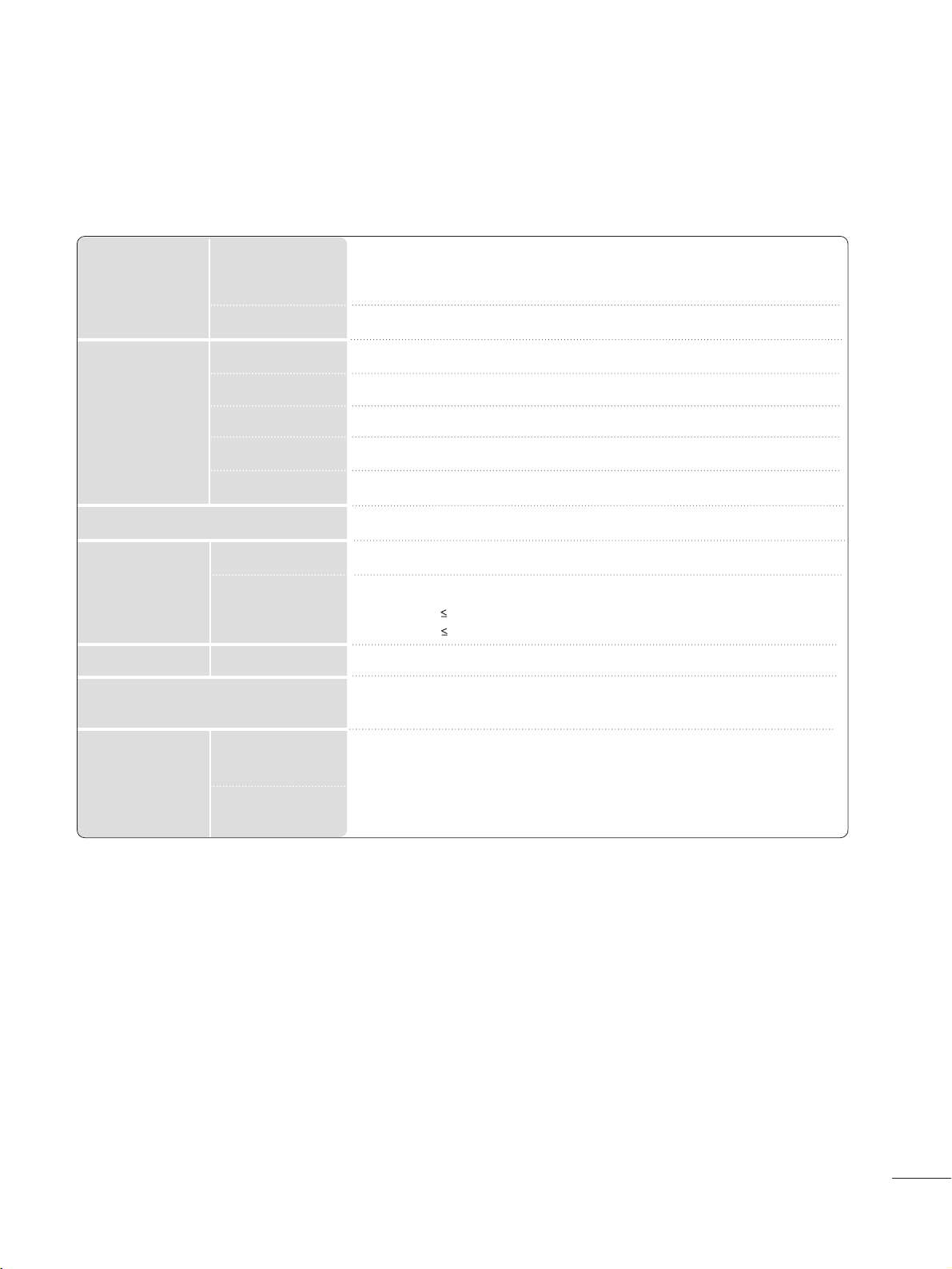
83
APPENDIX
PRODUCT SPECIFICATIONS
■
The specifications shown above may be changed without prior notice for quality improvement.
Power
AC 100-240 V~ 50 / 60 Hz 0.9A
On Mode : 50 W (typ.)
Sleep Mode 1 W(RGB)
Off Mode 1 W
LCD Panel
Screen Type
Pixel Pitch
546.86 mm Wide (21.53 inch) TFT (Thin Film Transistor)
LCD (Liquid Crystal Display) Panel
Visible diagonal size : 546.86 mm
0.248 mm (H) x 0.248 mm (V)
Max. Resolution
Recommended Resolution
Horizontal Frequency
Vertical Frequency
Synchronization Type
Video Signal
1920 x 1080 @ 60 Hz
1920 x 1080 @ 60 Hz
30 kHz to 83 kHz
56 Hz to 75 Hz
Separate Sync, Digital
Input Connector
TV, D-Sub Analog, PC Audio In, component, DVI-D, HDMI*2, CVBS, S-VIDEO
Rated Voltage
Power Consumption
Tilt
Tilt Range
-5° to 15 °
Dimensions (Width x Height x Depth)
Weight
517.2 mm x 399.8 mm x 221.6 mm (20.36 inch x 15.74 inch x 8.72 inch)
4.7 kg (10.4 lb)
10 °C to 35 °C
20 %
to 80 %
-10 °C
to 60 °C
5 %
to 90 %
Operating Temperature
Operating Humidity
Storage Temperature
Storage Humidity
Environmental
conditions
<<MM22226622DD//MM22226622DDPP>>

84
APPENDIX
PRODUCT SPECIFICATIONS
■
The specifications shown above may be changed without prior notice for quality improvement.
Power
AC 100-240 V~ 50 / 60 Hz 1.0 A
On Mode : 55 W (typ.)
Sleep Mode 1 W(RGB)
Off Mode 1 W
LCD Panel
Screen Type
Pixel Pitch
584.2 mm Wide (23 inch) TFT (Thin Film Transistor)
LCD (Liquid Crystal Display) Panel
Visible diagonal size : 584.2 mm
0.265 mm (H) x 0.265 mm (V)
Max. Resolution
Recommended Resolution
Horizontal Frequency
Vertical Frequency
Synchronization Type
Video Signal
1920 x 1080 @ 60 Hz
1920 x 1080 @ 60 Hz
30 kHz to 83 kHz
56 Hz to 75 Hz
Separate Sync, Digital
Input Connector
TV, D-Sub Analog, PC Audio In, component, DVI-D, HDMI*2, CVBS, S-VIDEO
Rated Voltage
Power Consumption
Tilt
Tilt Range
-5
° to 15°
Dimensions (Width x Height x Depth)
Weight
551.8 mm x 419.5 mm x 221.6 mm (21.72 inch x 16.52 inch x 8.72 inch)
5.2 kg (11.46 lb)
10 °C to 35 °C
20 %
to 80 %
-10 °C
to 60 °C
5 %
to 90 %
Operating Temperature
Operating Humidity
Storage Temperature
Storage Humidity
Environmental
conditions
<<MM22336622DD//MM22336622DDPP>>
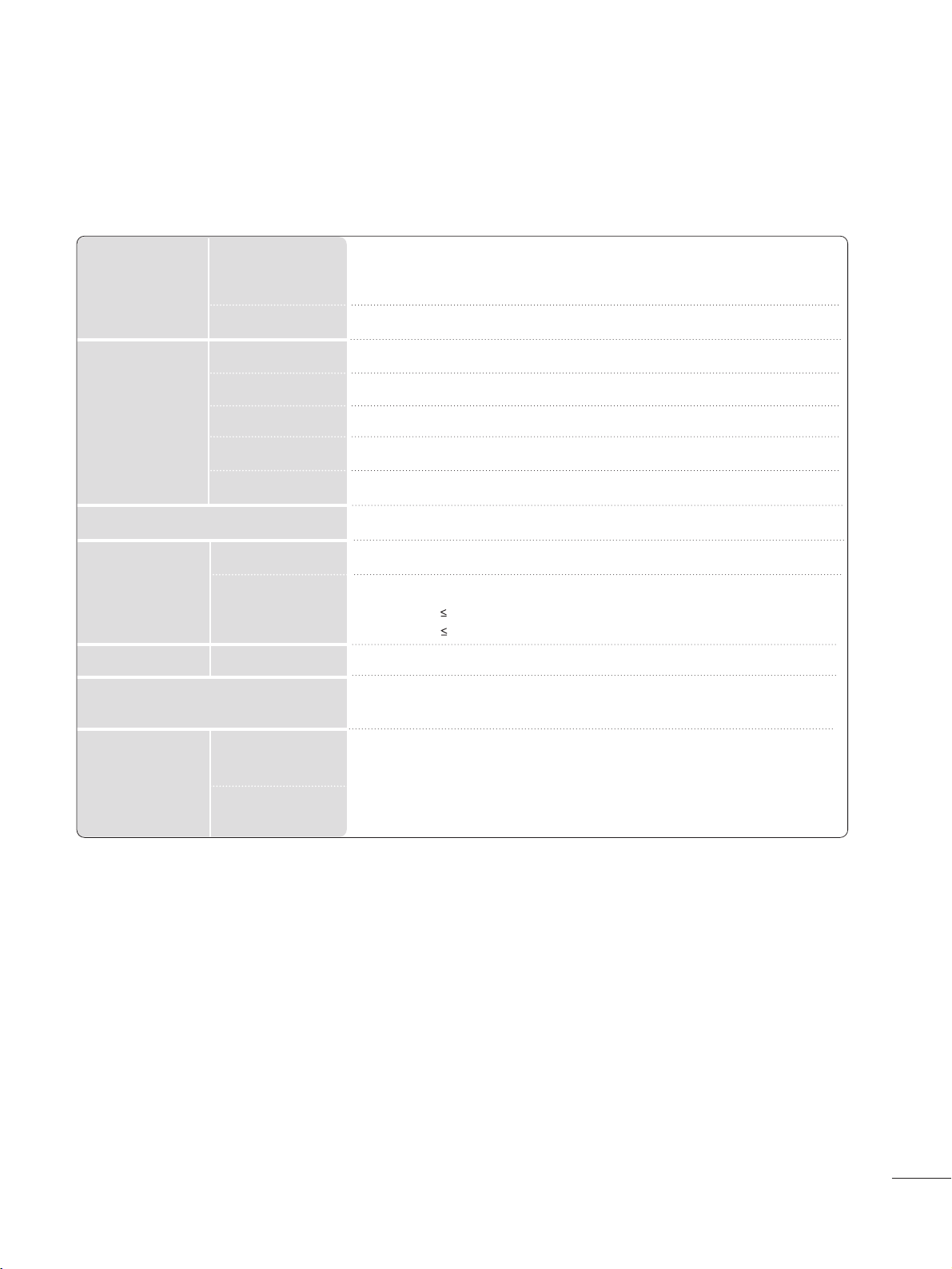
85
APPENDIX
PRODUCT SPECIFICATIONS
■
The specifications shown above may be changed without prior notice for quality improvement.
Power
AC 100-240 V~ 50 / 60 Hz 1.2 A
On Mode : 65 W (typ.)
Sleep Mode 1 W(RGB)
Off Mode 1 W
LCD Panel
Screen Type
Pixel Pitch
686 mm Wide (27 inch) TFT (Thin Film Transistor)
LCD (Liquid Crystal Display) Panel
Visible diagonal size : 686 mm
0.3114 mm (H) x 0.3114 mm (V)
Max. Resolution
Recommended Resolution
Horizontal Frequency
Vertical Frequency
Synchronization Type
Video Signal
1920 x 1080 @ 60 Hz
1920 x 1080 @ 60 Hz
30 kHz to 83 kHz
56 Hz to 75 Hz
Separate Sync, Digital
Input Connector
TV, D-Sub Analog, PC Audio In, component, DVI-D, HDMI*2, CVBS, S-VIDEO
Rated Voltage
Power Consumption
Tilt
Tilt Range
-5
° to 15 °
Dimensions (Width x Height x Depth)
Weight
649.1 mm x 485 mm x 210 mm (25.56 inch x 19.09 inch x 8.27 inch)
7.2 kg (15.87 lb)
10 °C to 35 °C
20 % to 80 %
-10 °C to 60 °C
5 % to 90 %
Operating Temperature
Operating Humidity
Storage Temperature
Storage Humidity
Environmental
conditions
<<MM22776622DD//MM22776622DDPP>>
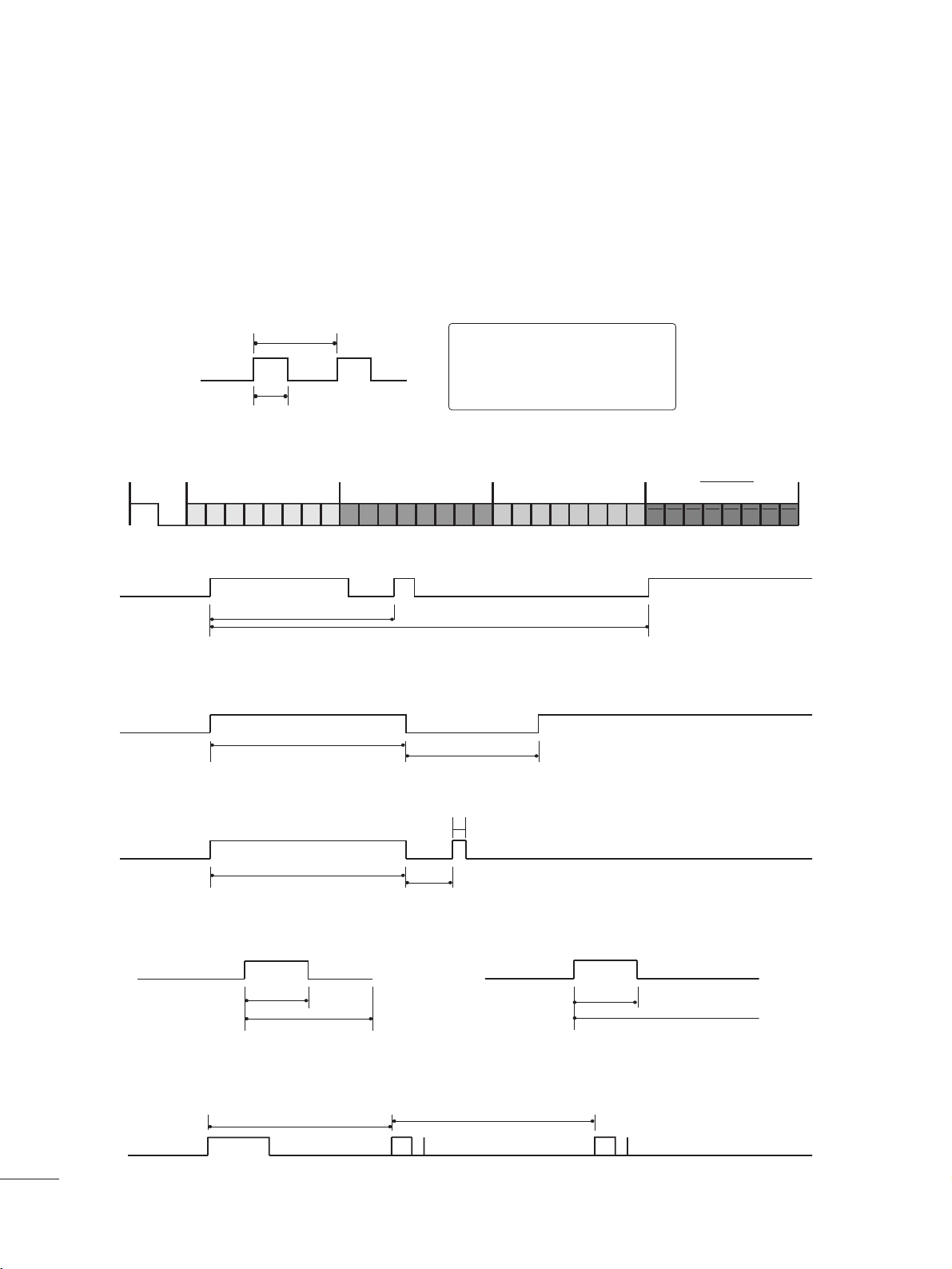
86
APPENDIX
IR CODES
A
Configuration of frame
1st frame
Repeat frame
A
Lead code
A
Repeat code
A
BBiitt ddeessccrriippttiioonn
A
FFrraammee iinntteerrvvaall:: TTff
The waveform is transmitted as long as a key is depressed.
C0 C1 C2 C3 C4 C5 C6 C7 C0 C1 C2 C3 C4 C5 C6 C7 D0 D1 D2 D3 D4 D5 D6 D7 D0 D1 D2 D3 D4 D5 D6 D7
Lead code Low custom code High custom code Data code Data code
Repeat code
Tf
4.5 ms
9 ms
2.25 ms
9 ms
0.55 ms
0.56 ms
1.12 ms
0.56 ms
2.24 ms
Tf Tf
Tf=108ms @455 kHz
Bit ”0” Bit ”1”
1. How to Connect
A
Connect your wired remote control to the Remote Control port on the set.
2. Remote Control IR Codes
A
Output waveform
Single pulse, modulated with 37.917 kHz signal at 455 kHz
T1
Tc
Carrier frequency
FCAR = 1/TC = fOSC/12
Duty ratio = T1/TC = 1/3
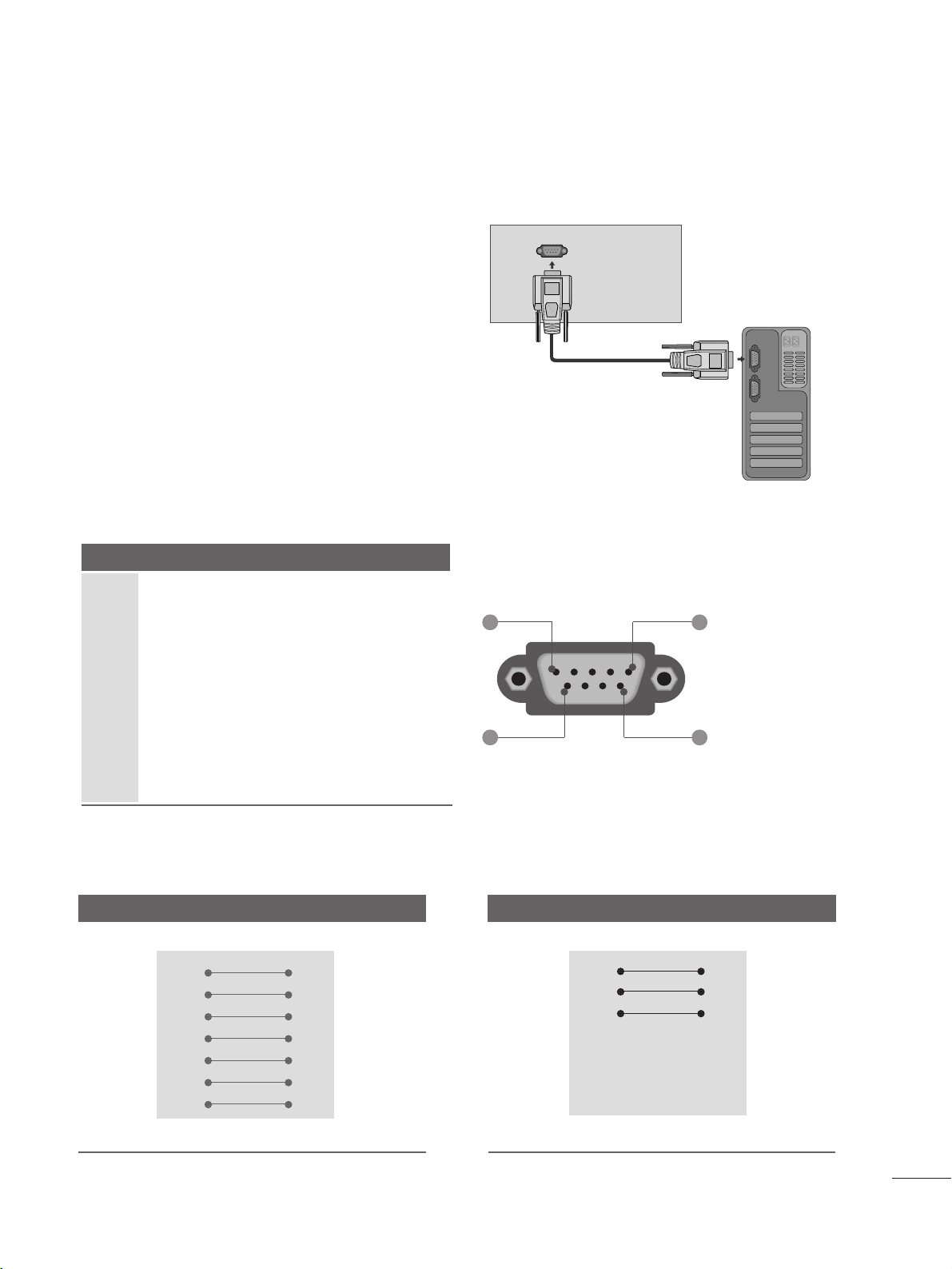
87
APPENDIX
EXTERNAL CONTROL DEVICE SETUP
RS-232C Setup
Connect the RS-232C (serial port) input jack to an
external control device (such as a computer or an A/V
control system) to control the product’s functions exter-
nally.
Connect the serial port of the control device to the RS-
232C jack on the product back panel.
Note: RS-232C on this unit is intended to be used with
third party RS-232C control hardware and software. The
instructions below are provided to help with program-
ming software or to test functionality using telenet soft-
ware. RS-232C connection cables are not supplied with
the product.
Type of Connector; D-Sub 9-Pin Male
No. Pin Name
1 No connection
2 RXD
(
Receive data
)
3 TXD
(
Transmit data
)
4 DTR
(
DTE side ready
)
5 GND
6 DSR
(
DCE side ready
)
7 RTS
(
Ready to send
)
8 CTS
(
Clear to send
)
9 No Connection
RS-232C IN
(CONTROL & SERVICE)
1 5
6 9
RS-232C Configurations
7-Wire Configuration (Serial female-female NULL modem cable)
PC TV
RXD 2 3 TXD
TXD 3 2 RXD
GND 5 5 GND
DTR 4 6 DSR
DSR 6 4 DTR
RTS 7 8 CTS
CTS 8 7 RTS
D-Sub 9 D-Sub 9
3-Wire Configurations
(
Not standard
)
PC TV
RXD 2 3 TXD
TXD 3 2 RXD
GND 5 5 GND
DTR 4 6 DTR
DSR 6 4 DSR
RTS 7 7 RTS
CTS 8 8 CTS
D-Sub 9 D-Sub 9

88
APPENDIX
Use this function to specify a set ID number.
Refer to ‘Real Data Mapping’.
pp.. 9911
Set ID
Select OPTION.
2
Select Set ID.
3
adjust
SSeett IIDD
to choose the desired set ID number.
The adjustment range of SET ID is 1 to 99.
1
ENTER
ENTER
•
Press the MENU button to close the menu window.
• Press the RETURN button to move to the previous menu screen.
Language : English
Input Label
Key Lock : Off
Caption : Off
Set ID : 1
Power Indicator : On
DDC-CI : On
OPTION
Move
Enter
Set ID : 1
MENU
E
Language : English
Input Label
Key Lock : Off
Caption : Off
Set ID : 1
Power Indicator : On
DDC-CI : On
OPTION
Move
Enter
Set ID : 1
E
F 1 G
Close
89
APPENDIX
Command Reference List
CCOOMMMMAANNDD11 CCOOMMMMAANNDD22
19. Channel Tuning
DATA
(Hexadecimal)
CCOOMMMMAANNDD11 CCOOMMMMAANNDD22
DATA
(Hexadecimal)
CCOOMMMMAANNDD11 CCOOMMMMAANNDD22
DATA00
(Hexadecimal)
DATA01
(Hexadecimal)
DATA02
(Hexadecimal)
DATA03
(Hexadecimal)
DATA04
(Hexadecimal)
DATA05
(Hexadecimal)
physical major major low minor high minor low attribute
program high program low
ma
01. Power k a 00 to 01
02. Input Select x b (
G
p.90)
03. Aspect Ratio k c (
G
p.90)
04. Screen Mute k d 00
to 01
05. Volume Mute k e 00
to 01
06. Volume Control k f 00
to 64
07. Contrast k g 00
to 64
08. Brightness k h 00
to 64
09. Color k i 00
to 64
10. Tint k j 00
to 64
11. Sharpness k k 00
to 64
12. OSD Select k l 00
to 01
13. Remote Control
Lock Mode
Transmission / Receiving Protocol
TTrraannssmmiissssiioonn
[Command 1] : First command to control the set.
(j, k, m or x)
[Command 2] : Second command to control the set.
[Set ID] : You can adjust the set ID to choose desired set ID
number in Option menu. Adjustment range is 1
to 99.
When selecting Set ID ‘0’, every connected the set is
controlled. Set ID is indicated as decimal
(
1
to 99
)
on menu and as Hexa decimal
(
0x0
to 0x63
)
on trans-
mission /receiving protocol.
[DATA] : To transmit the command data.
Transmit the ‘FF’ data to read status of command.
[Cr] : Carriage Return
ASCII code ‘0x0D’
[ ] : ASCII code ‘space (0x20)’
* In this model, set will not send the status during the standby mode.
OOKK AAcckknnoowwlleeddggeemmeenntt
The set transmits ACK (acknowledgement) based on this for-
mat when receiving normal data. At this time, if the data is
data read mode, it indicates present status data. If the data is
data write mode, it returns the data of the PC computer.
* In this model, set will not send the status during the standby mode.
* Data Format
[Command 2] : Use as command.
[Set ID] : Use the small character, if set ID is 10, it will send the ‘0’, ‘a’.
[DATA] : Use the small character, if data is 0 x ab, it will send the ‘a’, ‘b’.
[OK] : Use the large character.
EErrrroorr AAcckknnoowwlleeddggeemmeenntt
The set transmits ACK (acknowledgement) based on this for-
mat when receiving abnormal data from non-viable functions
or communication errors.
Data1: Illegal Code
Data2: Not supported function
Data3: Wait more time
* In this model, set will not send the status during the standby mode.
* Data Format
[Command 2] : Use as command.
[Set ID] : Use the small character, if set ID is 10, it will send the ‘0’, ‘a’.
[DATA] : Use the small character, if data is 0 x ab, it will send the ‘a’, ‘b’.
[NG] : Use the large character
[[CCoommmmaanndd11]][[CCoommmmaanndd22]][[ ]][[SSeett IIDD]][[ ]][[DDaattaa]][[CCrr]]
[[CCoommmmaanndd22]][[ ]][[SSeett IIDD]][[ ]][[OOKK]][[DDaattaa]][[xx]]
[[CCoommmmaanndd22]][[ ]][[SSeett IIDD]][[ ]][[NNGG]][[DDaattaa]][[xx]]
14. Treble k r 00 to 64
15. Bass k s 00
to 64
16. Balance k t 00
to 64
17.
Color Temperature
k u 00
to 02
18. Auto Configuration j u (
G
p.91)
20. Channel Add/Del m b 00
to 01
21 . K e y m c (
G
p.92)
22. Backlight m g 00
to 64
00
to 01
k m

90
APPENDIX
00 11.. PPoowweerr ((CCoommmmaanndd:: kk aa))
To control Power On/Off of the set.
Transmission [k][a][ ][Set ID][ ][Data][Cr]
Data 00: Power Off Data 01: Power On
Acknowledgement [a][ ][Set ID][ ][OK/NG][Data][x]
* In a like manner, if other functions transmit ‘FF’ data
based on this format, Acknowledgement data feedback
presents status about each function.
* Note: In this model, set will send the Acknowledge
after power on processing completion.
There might be a time delay between command and
acknowledge.
0022.. IInnppuutt SSeelleecctt ((CCoommmmaanndd:: xx bb))
To select input source for set.
Transmission [x][b][ ][Set ID][ ][Data][Cr]
Data 00: DTV (Antenna) Data 01: DTV (Cable)
Data 10: Analog (Antenna) Data 11: Analog (Cable)
Data 20: AV Data 40: Component
Data 60: RGB-PC Data 70: DVI
Data 90: HDMI1 Data 91: HDMI2
Acknowledgement [b][ ][Set ID][ ][OK/NG][Data][x]
0033.. AAssppeecctt RRaattiioo ((CCoommmmaanndd:: kk cc))
To adjust the screen format.
Transmission [k][c][ ][Set ID][ ][Data][Cr]
Data 01: 4:3 06: Set by program
02: 16:9 04: Zoom 1
09: Just scan 05: Zoom 2
Reserved
Acknowledgement [c][ ][Set ID][ ][OK/NG][Data][x]
00 44.. SSccrreeeenn MMuuttee ((CCoommmmaanndd:: kk dd))
To select screen mute on/off.
Transmission [k][d][ ][Set ID][ ][Data][Cr]
Data 00: Screen mute off (Picture on)
Data 01: Screen mute on (Picture off)
Acknowledgement [d][ ][Set ID][ ][OK/NG][Data][x]
0055.. VVoolluummee MMuuttee ((CCoommmmaanndd:: kk ee))
To control volume mute on/off.
You can also adjust mute using the MUTE button on
remote control.
Transmission [k][e][ ][Set ID][ ][Data][Cr]
Data 00: Volume mute on (Volume off)
Data 01: Volume mute off (Volume on)
Acknowledgement [e][ ][Set ID][ ][OK/NG][Data][x]
0066.. VVoolluummee CCoonnttrrooll ((CCoommmmaanndd:: kk ff))
To adjust volume.
You can also adjust volume with the volume buttons on
remote control.
Transmission [k][f][ ][Set ID][ ][Data][Cr]
Data Min: 00
to Max: 64 (*transmit by Hexadecimal code)
*Refer to ‘Real data mapping’. See page 91.
Acknowledgement [f][ ][Set ID][ ][OK/NG][Data][x]
0077.. CCoonnttrraasstt ((CCoommmmaanndd:: kk gg))
To adjust screen contrast.
You can also adjust contrast in the PICTURE menu.
Transmission [k][g][ ][Set ID][ ][Data][Cr]
Data Min: 00
to Max: 64 (*transmit by Hexadecimal code)
*Refer to ‘Real data mapping’. See page 91.
Acknowledgement [g][ ][Set ID][ ][OK/NG][Data][x]
0088.. BBrriigghhttnneessss ((CCoommmmaanndd:: kk hh))
To adjust screen brightness.
You can also adjust brightness in the PICTURE menu.
Transmission [k][h][ ][Set ID][ ][Data][Cr]
Data Min: 00
to Max: 64 (*transmit by Hexadecimal code)
*Refer to ‘Real data mapping’. See page 91.
Acknowledgement [h][ ][Set ID][ ][OK/NG][Data][x]
0099.. CCoolloorr ((CCoommmmaanndd:: kk ii))
To adjust screen color.
You can also adjust color in the PICTURE menu.
Transmission [k][i][ ][Set ID][ ][Data][Cr]
Data Min: 00
to Max: 64 (*transmit by Hexadecimal code)
*Refer to ‘Real data mapping’. See page 91.
Acknowledgement [i][ ][Set ID][ ][OK/NG][Data][x]
1100.. TTiinntt ((CCoommmmaanndd:: kk jj))
To adjust screen tint.
You can also adjust tint in the PICTURE menu.
Transmission [k][j][ ][Set ID][ ][Data][Cr]
Data Red: 00
to Green: 64 (*transmit by Hexadecimal code)
*Refer to ‘Real data mapping’. See page 91.
Acknowledgement [ j ][ ][Set ID][ ][OK/NG][Data][x]
1111.. SShhaarrppnneessss ((CCoommmmaanndd:: kk kk))
To adjust screen sharpness.
You can also adjust sharpness in the PICTURE menu.
Transmission [k][k][ ][Set ID][ ][Data][Cr]
Data Min: 00
to Max: 64 (*transmit by Hexadecimal code)
*Refer to ‘Real data mapping’. See page 91.
Acknowledgement [k][ ][Set ID][ ][OK/NG][Data][x]
91
APPENDIX
1122.. OOSSDD SSeelleecctt ((CCoommmmaanndd:: kk ll))
To select OSD (On Screen Display) on/off.
Transmission [k][l][ ][Set ID][ ][Data][Cr]
Data 00: OSD off Data 01: OSD on
Acknowledgement [l][ ][Set ID][ ][OK/NG][Data][x]
1133.. RReemmoottee CCoonnttrrooll LLoocckk MMooddee ((CCoommmmaanndd:: kk mm))
To lock the remote control and the front panel controls
on the set.
Transmission [k][m][ ][Set ID][ ][Data][Cr]
Data 00: Lock off Data 01: Lock on
Acknowledgement [m][ ][Set ID][ ][OK/NG][Data][x]
If you’re not using the remote control and front panel
controls on the TV, use this mode. When main power is
on/off, remote control lock is released.
1144.. TTrreebbllee ((CCoommmmaanndd:: kk rr))
To adjust treble.
You can also adjust treble in the AUDIO menu.
Transmission [k][r][ ][Set ID][ ][Data][Cr]
Data Min: 00
to Max: 64 (*transmit by Hexadecimal code)
*Refer to ‘Real data mapping’ as shown.
Acknowledgement [r][ ][Set ID][ ][OK/NG][Data][x]
11 55.. BBaassss ((CCoommmmaanndd:: kk ss))
To adjust bass.
You can also adjust bass in the AUDIO menu.
Transmission [k][s][ ][Set ID][ ][Data][Cr]
Data Min: 00 to Max: 64 (*transmit by Hexadecimal code)
*Refer to ‘Real data mapping’ as shown.
Acknowledgement [s][ ][Set ID][ ][OK/NG][Data][x]
1166.. BBaallaannccee ((CCoommmmaanndd:: kk tt))
To adjust balance.
You can also adjust balance in the AUDIO menu.
Transmission [k][t][ ][Set ID][ ][Data][Cr]
Data Min: 00 to Max: 64 (*transmit by Hexadecimal code)
*Refer to ‘Real data mapping’ as shown.
Acknowledgement [t][ ][Set ID][ ][OK/NG][Data][x]
1177.. CCoolloorr TTeemmppeerraattuurree ((CCoommmmaanndd:: kk uu))
To adjust color temperature.
You can also adjust color temperature in the PICTURE menu.
Transmission [k][u][ ][Set ID][ ][Data][Cr]
Data 00: Medium 01: Cool 02: Warm
Acknowledgement [u][ ][Set ID][ ][OK/NG][Data][x]
1188.. AAuuttoo CCoonnffiigguurraattiioonn ((CCoommmmaanndd:: jj uu))
To adjust picture position and minimize image shaking
automatically. Auto configuration only works in RGB-PC
mode.
Transmission [ j ][u][ ][Set ID][ ][Data][Cr]
Data 01: To set
Acknowledgement [u][ ][Set ID][ ][OK/NG][Data][x]
1199.. CChhaannnneell TTuunniinngg ((CCoommmmaanndd:: mm aa))
To tune channel to following physical/major/minor number.
Transmission [m][a][ ][Set ID][ ][Data00][ ][Data01]
[ ][Data02][ ][Data03][ ][Data04][ ][Data05][Cr]
Digital channels have a Physical, Major, and Minor channel
number. The Physical number is the actual digital channel
number, the Major is the number that the channel should
be mapped to, and the Minor is the sub-channel. Since
the ATSC tuner automatically maps the channel to the
Major number, the Physical number is not required when
sending a command.
Data 00: Physical Channel Number NTSC air: 02
■
Open the battery compartment cover on the back
and install the batteries matching correct polarity
(
+
with +, - with -
)
.
■
Install two 1.5 V AAA batteries. Don’t mix old or
used batteries with new ones.
■
Close cover.
■
To remove the batteries, perform the installation
actions in reverse.
45,
NTSC air
: 02
to
45,
cable: 01, 0E to 7D
ATSC air : 01 to 45, ATSC cable: 01 to 87
Data 01 & 02: Major Channel Number
Data 01: High byte Data 02: Low byte
Two bytes are available for the Major and Minor, nor-
mally only the second byte is used.
Data 03 & 04: Minor Channel Number
Not needed for NTSC.
*Real data mapping
0 : Step 0
A : Step 10 (SET ID 10)
F : Step 15 (SET ID 15)
10 : Step 16 (SET ID 16)
63 : Step 99 (SET ID 99)
64 : Step 100
92
APPENDIX
Step
NTSC Air
NTSC Cable
ATSC Air
ATSC Cable_std
ATSC Cable_hrc
ATSC Cable_irc
ATSC cable_auto
Reserved
...
Reserved
1
0
0
1
1
0
0
1
1
x
1
2
0
0
0
0
1
1
1
1
x
1
3
0
0
0
0
0
0
0
0
x
1
4
x
x
x
x
x
x
x
x
x
x
Reserved
5
0
1
Use
No Use
Using Physical
Channel
6
0
1
Two
One
Two/One
Part Channel
7
0
1
Main
Sub
Main/Sub
Picture
0
0
1
0
1
0
1
0
1
x
1
Code
(Hexa)
Remote control
Code
(Hexa)
Remote control
0F TV/PC
0B INPUT
08 POWER
79 RATIO
10-19 Number Key 0-9
4C - (Dash)
09 MUTE
02 VOL +
03 VOL -
00 CH +
01 CH -
1E FAV
73 LIGHTING
40
41
07
06
44 ENTER
43 MENU
45 Q.MENU
52 SOUND
4D PICTURE
5B RETURN
0A SAP
1A FLASHBK
Data5:
The table above lists the binary code which must be
converted to Hexadecimal before sending. For example:
The binary code to tune the sub source to an NTSC
cable channel is “1000 0001”, which translates to “81”
in Hex.
* 7th bit : For which source do you want to change the
channel.
* 6th bit: Use a two part or one part channel. Most cases
just use 0 since it’s ignored when using NTSC.
* 5th bit: Use 0 with NTSC since it can only use the phys-
ical channel number. Normally use 1 for ATSC since most
times it doesn’t matter what the physical number is.
* 4th bit: Set to 0.
* 3-0 bits: Choose signal type.
* Tune Command Examples:
1. Tune to the analog (NTSC) cable channel 35.
Data 00 = Physical of 35 = 23
Data 01 & 02 = No Major = 00 00
Data 03 & 04 = No Minor = 00 00
Data 05 = 0000 0001 in binary = 01
Total = ma 00 23 00 00 00 00 01
2. Tune to the digital (ATSC) local channel 30-3.
Data 00 = Don’t know Physical = 00
Data 01 & 02 = Major is 30 = 00 1E
Data 03 & 04 = Minor is 3 = 00 03
Data 05 = 0010 0010 in binary = 22
Total = ma 00 00 00 1E 00 03 22
Acknowledgement[a][ ][Set ID][
][OK][Data00][Data01]
[Data02][Data03][Data04][x][a][ ][Set ID]
[ ][NG][Data00][x]
2200.. CChhaannnneell AAdddd//DDeell ((CCoommmmaanndd:: mm bb))
To add and delete the channels.
Transmission [m][b][ ][Set ID][ ][Data][Cr]
Data 00: Channel Delete Data 01: Channel Add
Acknowledgement [b][ ][Set ID][ ][OK/NG][Data][x]
2211.. KKeeyy ((CCoommmmaanndd:: mm cc))
To send IR remote key code.
Transmission [m][c][ ][Set ID][ ][Data][Cr]
Acknowledgement [c][ ][Set ID][ ][OK/NG][Data][x]
2222.. BBaacckklliigghhtt ((CCoommmmaanndd:: mm gg))
To adjust screen backlight.
Transmission [m][g][ ][Set ID][ ][Data][Cr]
Data Min:00 to Max:64 (*transmit by Hexadecimal code)
*Refer to ‘Real data mapping’. See page 91.
Acknowledgement [g][ ][Set ID][ ][OK/NG][Data][x]

P/NO : 3840TRL098E (0801-REV00)
www.lge.com

Make sure to read the Safety Precautions before
using the product.
Keep the Owner’s Manual(CD) in an accessible
place for future reference.
The model and serial number of the SET is
located on the back and one side of the SET.
Record it below should you ever need service.
MODEL
SERIAL






