S9000 series
S9000 i

3
1
2
4
5
6
7
8 9
11 12
13 14 15
17 18 19 20
10
16

empty page before TOC


English
6
English
Contents
Introduction_______________________________________________________ 6
General description_______________________________________________ 6
Important safety information_____________________________________ 7
What do the icons on the display mean?________________________ 10
What is my shaver telling me?____________________________________ 12
How do I charge my appliance?__________________________________ 15
How do I use my appliance and the attachments?______________ 17
How do I clean my appliance and the attachments?____________ 22
How do I connect my shaver and smartphone?_________________ 30
How do I replace the shaving heads?____________________________ 32
Ordering accessories_____________________________________________ 33
Troubleshooting__________________________________________________ 35
Further guidance _________________________________________________ 38
Recycling__________________________________________________________ 38
Trademarks_______________________________________________________ 39
Introduction
Congratulations on your purchase and welcome to
Philips! To fully benefit from the support that Philips
offers, register your product at
www.philips.com/welcome or via the app.
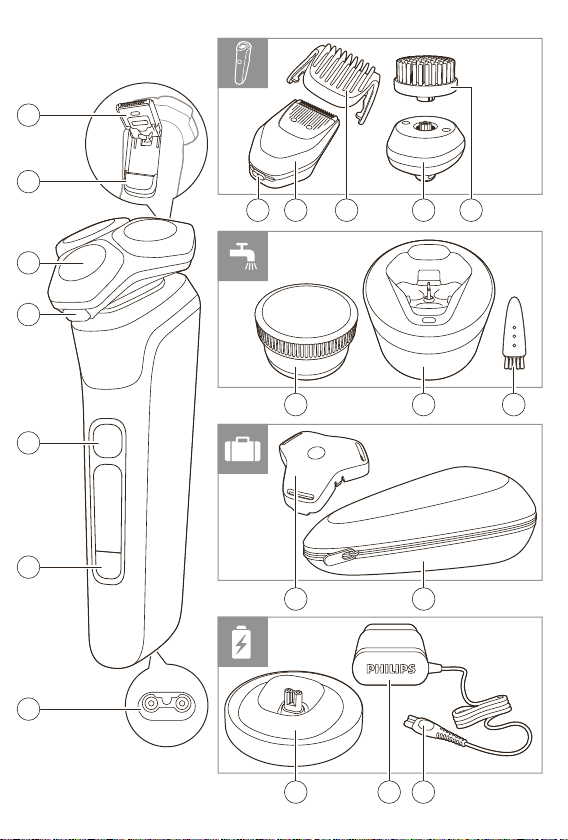
General description
1 Pop-up trimmer
2 Trimmer release slide
3 Shaving unit
4 Shaving unit release button
5 On/off button
6 Menu button
7 Socket for small plug
8 Charging stand
9 Supply unit
10 Small plug
11 Protection cap
12 Pouch
13 Philips Quick Clean Pod Cartridge

7
English
14 Quick Clean Pod
15 Cleaning brush
16 Length settings
17 Click-on beard styler attachment
18 Comb for beard styler attachment
19 Attachment holder
20 Click-on cleansing brush attachment
Note: The accessories supplied may vary for different
products. The box shows the accessories that have
been supplied with your appliance.
Important safety information
Only use the product for its intended purpose. Read
this important information carefully before you use
the product and its batteries and accessories, and
save it for future reference. Misuse can lead to
hazards or serious injuries. Accessories supplied may
vary for different products.
Warning
- Keep the supply unit and the charging stand dry.
- This shaver is waterproof. It is suitable for use in
the bath or shower and for cleaning under the tap.
For safety reasons, the shaver can therefore only
be used without cord.
- Do not modify the supply unit.
- This appliance can be used by children aged from
8 years and above and persons with reduced
physical, sensory or mental capabilities or lack of
experience and knowledge if they have been given
supervision or instruction concerning use of the
appliance in a safe way and understand the
hazards involved. Children shall not play with the
appliance. Cleaning and user maintenance shall
not be made by children without supervision.

8
English
- Unplug the appliance before cleaning it with water.
- Do not use a damaged appliance. Replace
damaged parts with new Philips parts.
- Only use cold or lukewarm water to clean the
appliance.
- Because of hygiene, only one person should use
the appliance.
- Never use compressed air, scouring pads, abrasive
cleaning agents or aggressive liquids to clean the
appliance.
- Always place the cleaning system on a stable, level
and horizontal surface to prevent leakage.
- Always make sure the cartridge compartment is
closed before you use the cleaning system.
- When the cleaning system is ready for use, do not
move it to prevent leakage of cleaning fluid.
- Water may drip from the socket at the bottom of
the shaver when you rinse it. This is normal and not
dangerous because all electronics are enclosed in
a sealed power unit inside the shaver.
- Do not use the supply unit in or near wall sockets
that contain an electric air freshener to prevent
irreparable damage to the supply unit.
- Do not use the cleansing brush on damaged skin
or skin affected by disease or severe skin irritation.
- Do not use the cleansing brush if you take steroid-
based medication.
- Remove piercings, jewelry, glasses etc. before
using the appliance.
- Be careful when handling your smartphone near
water and in moist environments.
- Radio waves may impair the operation of
pacemakers and other medical devices. Consult
your phycisian for advice and keep the appliance
at least 20cm away.
- Only use original Philips accessories or
consumables. Only use detachable supply unit
HQ8505.
- Charge, use and store the product at a
temperature between 5°C and 35°C.

9
English
- Keep product and batteries away from fire and do
not expose them to direct sunlight or high
temperatures.
- If the product becomes abnormally hot or smelly,
changes color or if charging takes longer than
usual, stop using and charging the product and
contact Philips.
- Do not place products and their batteries in
microwave ovens or on induction cookers.
- Do not open, modify, pierce, damage or dismantle
the product or battery to prevent batteries from
heating up or releasing toxic or hazardous
substances. Do not short-circuit, overcharge or
reverse charge batteries.
- If batteries are damaged or leaking, avoid contact
with the skin or eyes. If this occurs, immediately
rinse well with water and seek medical care.
Philips Quick Clean Pod Cartridge fluid
- Keep out of reach of children.
- Do not swallow.
Electromagnetic fields (EMF)
This Philips appliance complies with all applicable
standards and regulations regarding exposure to
electromagnetic fields.
Radio Equipment Directive
- S9000 series appliances are equipped with
Bluetooth class 2.
- The frequency band in which the Bluetooth on
S9000 series appliances operates is 2.4GHz.
- The maximum radio frequency power radiated in
the frequency band in which the S9000 series
appliances operate is less than 20 dBm.
- This equipment has been so constructed that the
product complies with the requirement of Article
10(2) as it can be operated in at least one EU
Member State as examined and the product is
compliant with Article 10(10) as it has no
restrictions on putting into service in all EU
member states.
10
English
- Hereby Philips declares that S9000 series
appliances are in compliance with the essential
requirements and other relevant provisions of
Directive 2014/53/EU. The declaration of
conformity may be consulted at
www.philips.com/support.
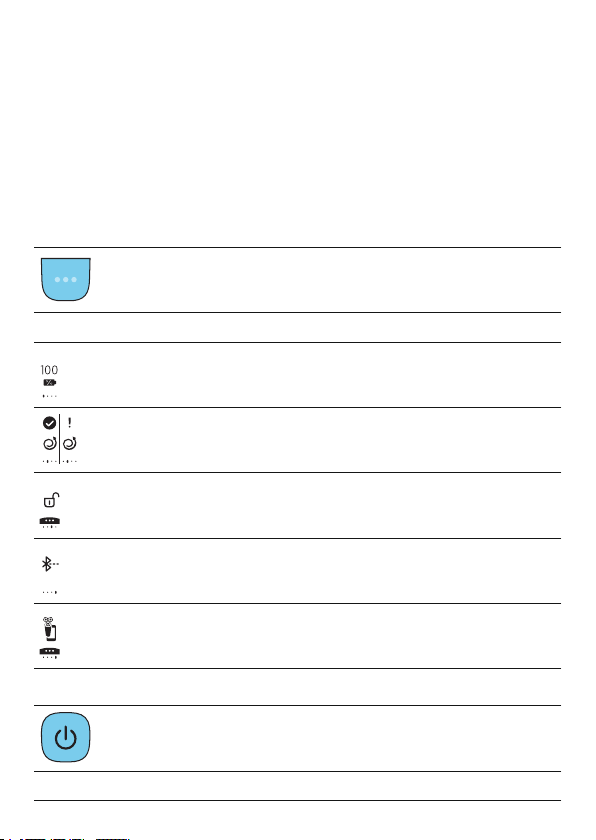
What do the icons on the display mean?
- Main Menu (when your shaver is switched off)
You can toggle through the menu items by pressing the
menu button.
Icon Meaning
The main menu shows the status of the battery in
percentages.
The Motion Control sensor menu icons tell you if the motion
during your last shave was good or can be improved (see
'When your shaver is switched off').
You can activate the travel lock in this menu (see 'Main
menu').
Here the display shows that your shaver is not paired to your
smartphone (see 'Pair the shaver and smartphone').
The display shows that your shaver is paired to your
smartphone (see 'Pair the shaver and smartphone').
- Switching the shaver on
Press the on/off button to switch on the shaver.
Icon Meaning
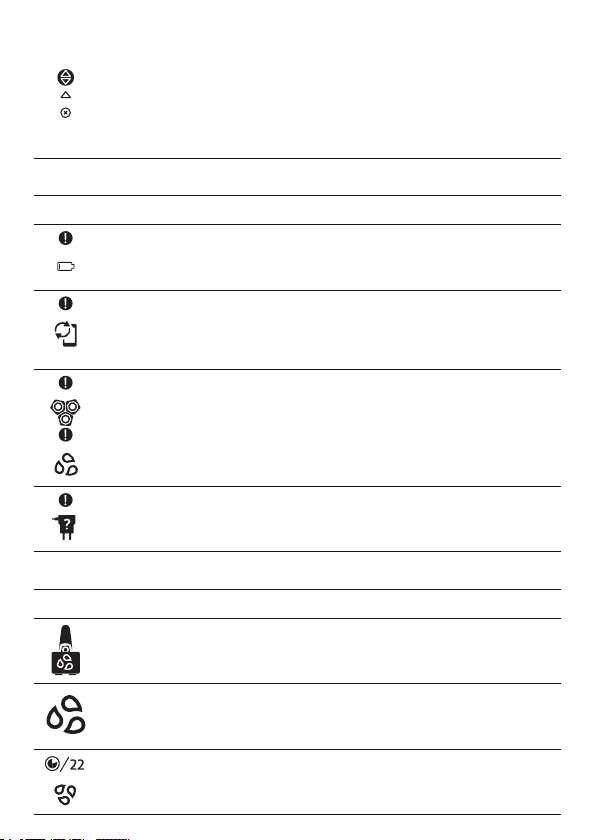
11
English
When you switch on the shaver, a short animation with these
icons shows which pressure feedback setting you activated
(see 'When your shaver is switched on'). You can toggle
through the pressure feedback settings by pressing the menu
button.
- Warnings and notifications
Icon Meaning
The battery is almost empty and you need to charge your
shaver (see 'How do I charge my appliance?').
When the data storage is almost full, you receive a notification
reminding you to synchronize your shaves. To prevent data
loss, synchronize the shaver with the app (see 'How do I
connect my shaver and smartphone?').
The shaving unit is soiled or damaged to such an extent that
the motor cannot run. Clean the shaving heads thoroughly
(see 'Thorough cleaning').
You are using the wrong supply unit (see 'How do I charge my
appliance?'). Only use the supply unit (HQ8505) that is
supplied with the shaver.
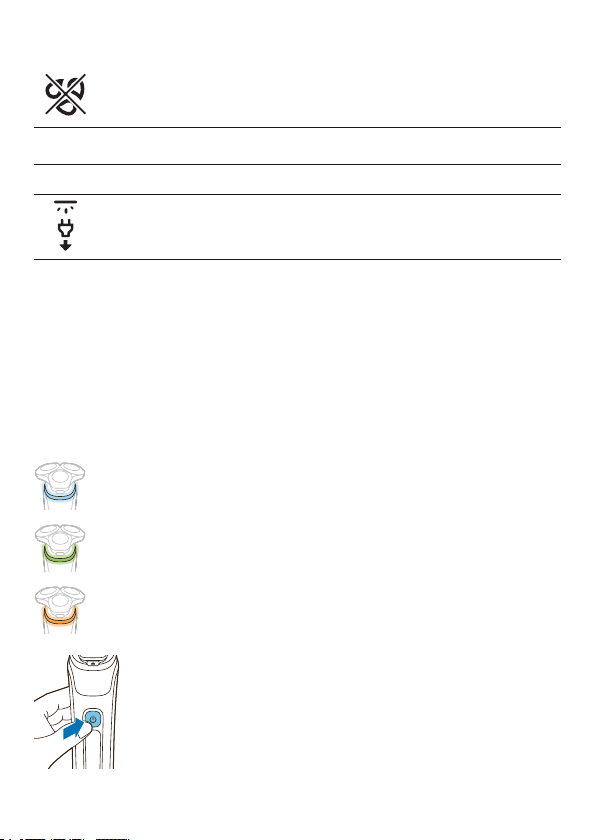
- Cleaning the shaver
Icon Meaning
A reminder: clean your shaver in the quick cleaning pod (see
'How do I use the Quick Clean Pod?').
A reminder: clean your shaver (see 'How do I clean my
appliance and the attachments?').
The cleaning process is in progress and the display shows the
remaining cleaning time as a clock, or in seconds, if you press
the menu button.
12
English
The cleaning process has been interrupted (see
'Troubleshooting').
- Unplug for use
Icon Meaning
Unplug the shaver before you use it (see 'Unplug for use
symbol ').
What is my shaver telling me?
When your shaver is switched on
During your shave, you receive feedback on how
much pressure you are applying via the light ring at
the top of your shaver handle.
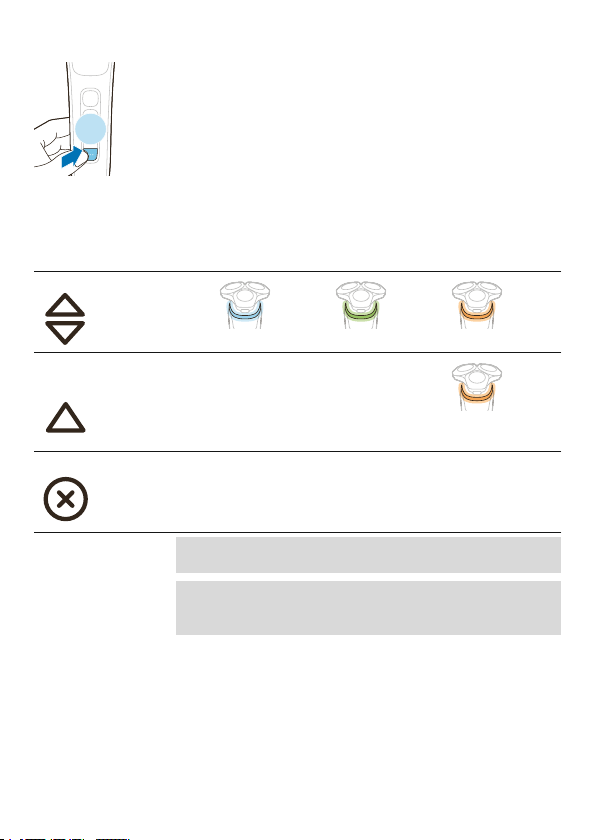
The light ring on the handle lights up in various colors
during your shave to give you feedback on how much
pressure you are exerting. These are the default
settings:
- When you don't apply enough pressure, the
light ring lights up blue.
- When you apply the correct amount of
pressure, the light ring lights up green.
- When you apply too much pressure, the light
ring lights up orange.
When your shaver is switched on, you can customize
the type of pressure feedback you receive.
1
Switch on the shaver.
13
English
2
Press the menu button to toggle through the
pressure feedback options. The table below shows
what pressure feedback you receive with each
option.
Too little
pressure is
being applied
The right
amount of
pressure is
being applied
Too much
pressure is
being applied
Full pressure feedback
blue green orange
Partial pressure
feedback
No feedback No feedback
orange
No pressure feedback No feedback No feedback No feedback
Note: Pressure feedback is only available when the
shaving head is attached to the handle.
When the beard styler or cleansing brush is
attached to the handle, the motion and pressure
feedback is switched off automatically.
When your shaver is switched off
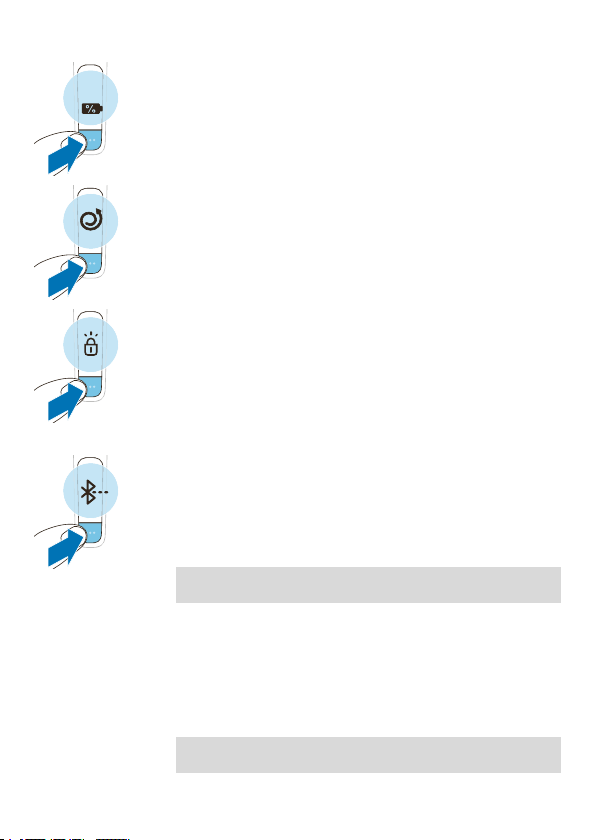
Main menu
While your shaver is switched off, you can toggle
through the four menu functions by pressing the
menu button.
14
English
10
- Remaining battery charge
This menu item shows the remaining battery
charge.
- Motion Control sensor
This menu item shows the motion feedback from
your last shave.
- Travel lock
From this menu item, you can lock and unlock your
shaver by pressing and holding the menu button
for 3 seconds. When you are going to travel, you
can lock the shaver to prevent it from accidentally
switching on. When the travel lock is activated,
Bluetooth will be switched off automatically and
your shaver will be in energy saving mode.
- Bluetooth
From this menu item, you can unpair your shaver
and smartphone.
For information about the benefits of pairing your
shaver and smartphone, see 'Benefits of
connecting your shaver to the app'.
Note: Make sure your smartphone is equipped with
Bluetooth® 4.2 or higher.
This shaver is equipped with Bluetooth® 4.2 and
higher to connect to the app. When you have
paired your shaver and smartphone, Bluetooth on
your shaver is switched on automatically, even
when the shaver is switched off. This allows your
shave data to be synced later so you don't need to
take your smartphone with you when you shave.
Note: You can switch off Bluetooth on your shaver
by activating the travel lock.

15
English
Post-shave feedback (this feature can be
activated via the app)
Once this feature is activated via the app, you can see
the post-shave feedback on pressure and motion
from your shave on the handle directly after you finish
shaving and switch off your shaver.
Pressure Guard sensor feedback
When your shaving pressure can be improved, the
Pressure Guard sensor icon displays with an
exclamation mark.
- The pressure you applied during the shave was
too high.
- The pressure you applied during the shave was
too low.
Motion Control sensor feedback
- When your shaving motion can be improved,
the Motion Control sensor icon displays with an
exclamation mark.
Perfect Routine feedback
- When both the pressure and the motion
applied during the shave is perfect, the Perfect
Routine icon displays with a check mark.
How do I charge my appliance?
Note: This appliance is waterproof. It is suitable for use
in the bath or shower and for cleaning under the tap.
16
English
For safety reasons, the appliance can therefore only
be used without cord.
- Charge the appliance before you use it for the first
time and when the remaining battery charge (see
'Main menu') indicates that the battery is almost
empty.
- Charging takes approx. 1 hour.
- Quick Charge: After approx. 5 minutes of charging,
the battery contains enough energy for one full
shave. When the battery is charged to 10%, you
can complete one full shave.
- When the appliance is fully charged it has a
cordless operating time of up to 60 minutes.
Note: You cannot use the appliance while it is
charging.
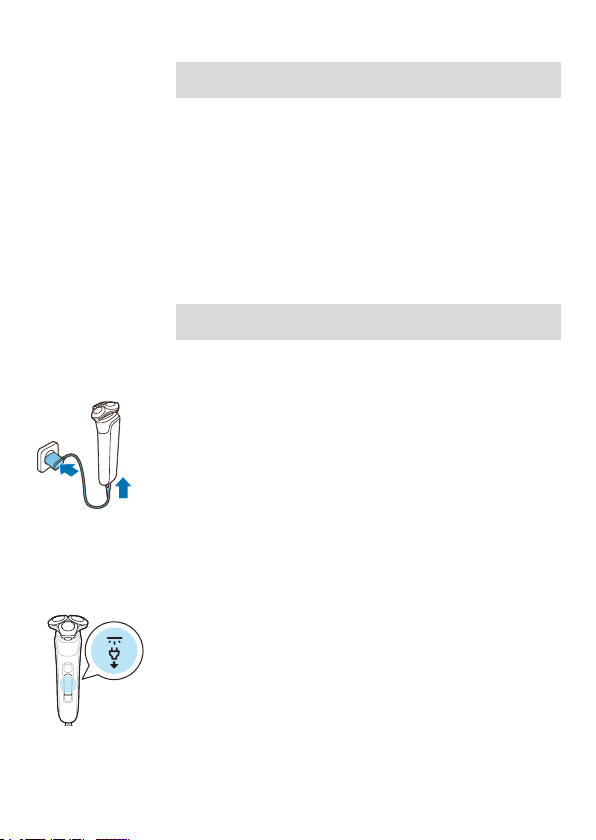
Charging with the supply unit
1
Make sure that the appliance is switched off.
2
Insert the small plug into the appliance and put the
supply unit in the wall socket.
- While the appliance is charging, an animation
appears on the display showing the progress.
- When the appliance is fully charged, the battery
percentage shows 100% and the battery icon
shows the battery being full.
3
After charging, remove the supply unit from the
wall socket and pull the small plug out of the
appliance.
Unplug for use symbol
The 'unplug for use' symbol displays to remind you to
disconnect the appliance from the wall socket and
remove the small plug from the appliance before you
switch it on.
Charging in the charging stand (specific models only)
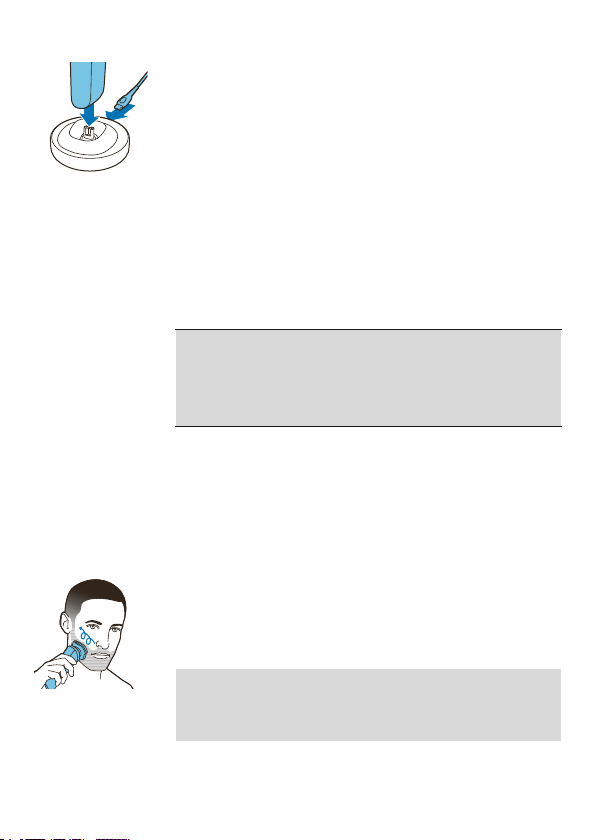
1
Make sure the appliance is switched off.
17
English
2
Put the small plug in the charging stand and put
the supply unit in the wall socket.
3
Place the appliance in the charging stand.
Specific models only: The light ring on the bottom
of the charging stand lights up and rotates quickly.
- After approximately 5 minutes, the light ring
rotates slower. The battery now contains
enough energy for one full shave.
- As the appliance continues to charge, the light
ring becomes brighter and rotates slower.
- When the appliance is fully charged, the light
ring lights up fully and stops rotating.
How do I use my appliance and the attachments?
Warning: Always check the appliance and all
accessories before use. Do not use the appliance
or any accessory if it is damaged, as this may
cause injury. Always replace a damaged part with
one of the original type.
Shaving
You can use this appliance either wet or dry, or even
under the shower. For a wet shave, apply some water
and shaving foam or gel to your skin and rinse the
shaving heads under the tap with warm water before
following the steps below.
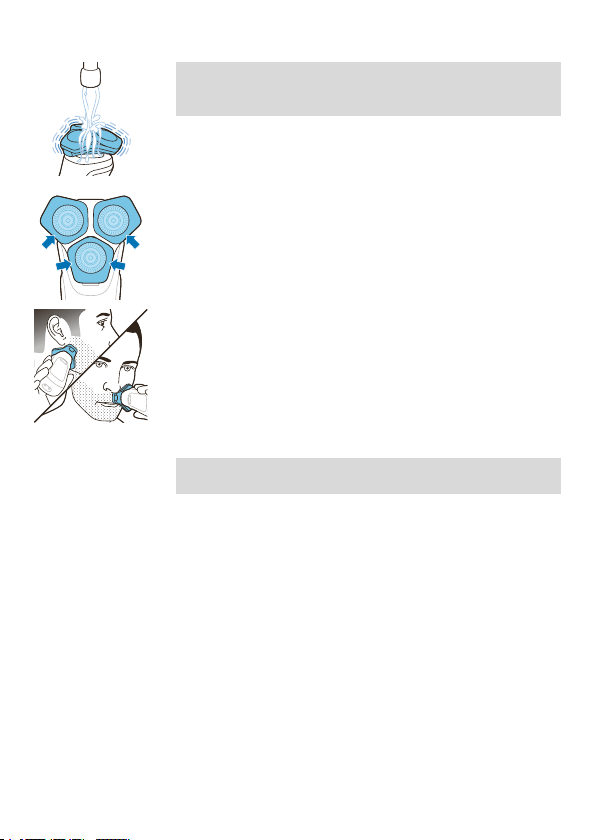
1
Switch on the appliance.
2
Move the shaving heads over your skin in circular
movements to catch all hairs growing in different
directions (see 'Main menu'). Make sure each
shaving head is fully in contact with the skin. Exert
gentle pressure for a close, comfortable shave.
Note: Do not press too hard, as this can cause skin
irritation. When you apply too much pressure, the
orange light ring lights up (see 'What is my shaver
telling me?').
18
English
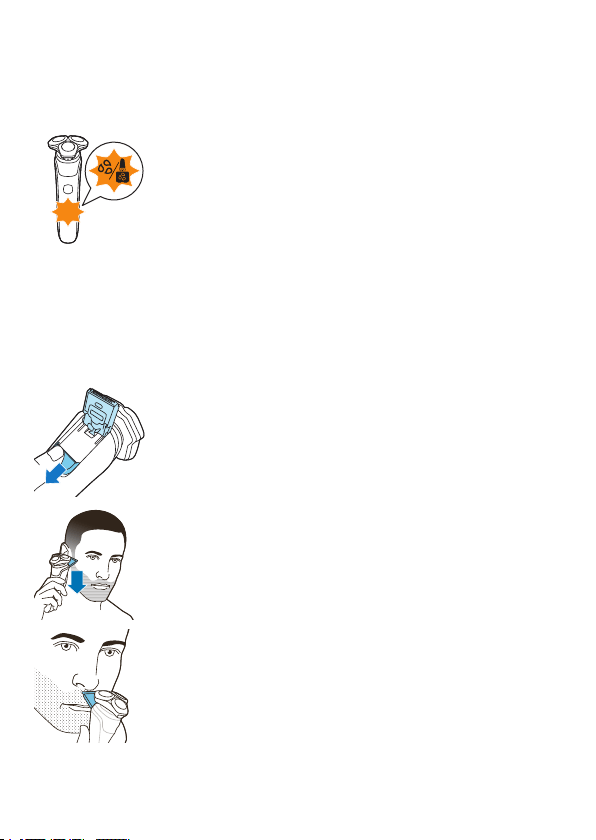
Note: If you are shaving with gel or foam, rinse the
shaving unit regularly during your shave to ensure
that it continues to glide smoothly over your skin.
3
Use the narrow sides of the shaving unit to shave
in hard-to-reach areas such as along your jawline
and under your nose.
4
Switch off and clean the appliance after each use.
Note: Make sure you rinse all foam or shaving gel
off the appliance.
When you are finished shaving and switch off your
shaver you can also receive feedback about your
overall shave on the handle. You can activate this
feature via the app (see 'When your shaver is switched
off').
In the menu on your shaver, you can view the motion
feedback from your last shave (see 'Main menu'). You
can personalize your feedback settings, see more
detailed feedback and get personalized advice via the
app.
Skin adaptation period
Your first shaves may not bring you the result you
expect and your skin may even become slightly
irritated. This is normal. Your skin needs time to adapt
to any new shaving system.
Follow the advice provided by the app and shave
regularly (at least 3 times a week) with this shaver for a
19
English
period of 3-4 weeks to allow your skin to adapt to the
new shaver.
Cleaning reminder
When you switch off the appliance, the cleaning
reminder is displayed to remind you to clean the
appliance (see 'How do I clean my appliance and the
attachments?').
- Clean the appliance and attachments after each
use to prevent clogging and damage (see 'How do I
clean my appliance and the attachments?').
- Clean the shaving heads thoroughly once a month
or when the appliance does not shave as well as it
used to (see 'Thorough cleaning').
Trimming
You can use the trimmer to groom your sideburns and
moustache.
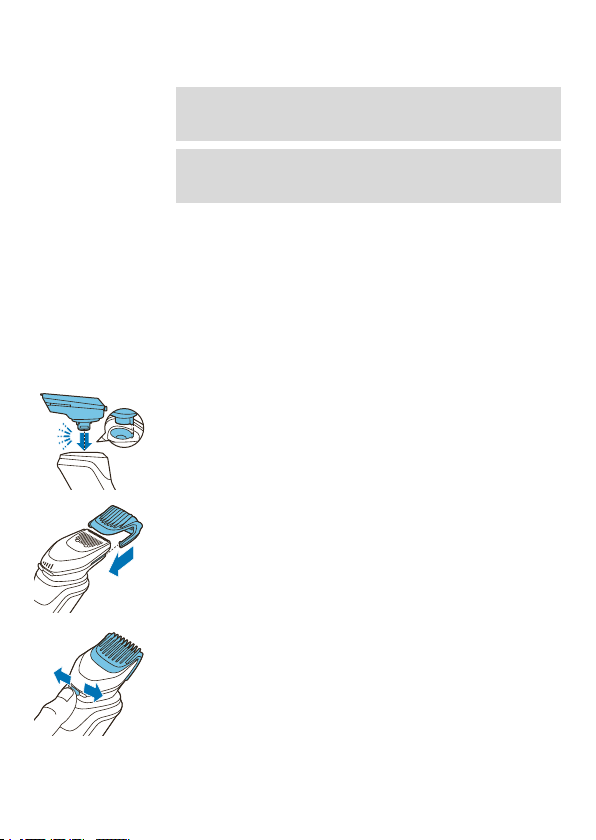
1
Push the trimmer release slide downwards to open
the trimmer.
2
Switch on the appliance.
3
Hold the trimmer perpendicular to the skin and
move the appliance downwards while you exert
gentle pressure.
4
You can also use the trimmer under your nose.
5
Switch off the appliance and clean the trimmer
after each use to prevent clogging and damage
(see 'How do I clean my appliance and the
attachments?').
6
Close the trimmer.
20
English
Using the click-on attachments
Note: The accessories supplied may vary for different
products. The box shows the accessories that have
been supplied with your product.
Note: When the beard styler or cleansing brush is
attached to the handle, the motion and pressure
feedback is switched off automatically.
Using the beard styler attachment with comb
You can use the beard styler attachment with the
comb attached to style your beard at one fixed setting
or at different length settings. You can also use it to
pre-trim any long hairs before shaving for a more
comfortable shave.
The hair length settings on the beard styler
attachment correspond to the remaining hair length
after cutting and range from 1 to 5mm.
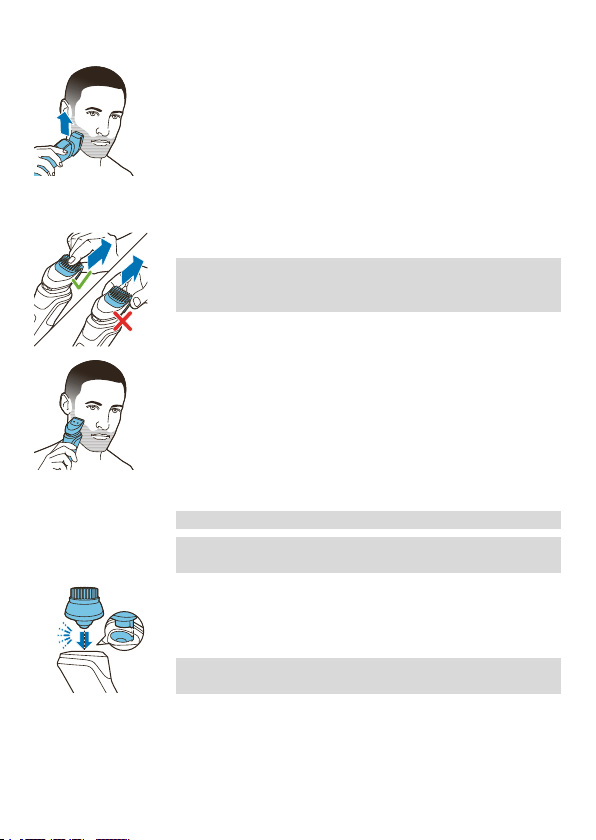
1
Twist the shaving head or other attachment to
remove it from the handle and press the beard
styler attachment onto the handle.
2
Slide the comb straight into the guiding grooves on
both sides of the beard styler attachment.
3
Press the length selector and then push it to the
left or right to select the desired hair length setting.
4
Switch on the appliance.
21
English
5
Move the appliance upwards while you exert
gentle pressure. Make sure the front of the comb is
in full contact with the skin.
6
Switch off the appliance and clean the attachment
after use.
Using the beard styler attachment without comb
You can use the beard styler attachment without the
comb to contour your beard, moustache, sideburns or
neckline to a length of 0.5mm.
1
Pull the comb off the beard styler attachment.
Note: Grab the comb in the center to pull it off the
beard styler attachment. Do not pull at the sides of
the comb.
2
Switch on the appliance.
3
Hold the beard styler attachment perpendicular to
the skin and move the appliance downwards while
you exert gentle pressure.
4
Switch off the appliance and clean the attachment
after use.
Using the cleansing brush attachment
Use the cleansing brush with your daily cleansing
cream to remove oil and dirt.
We advise you to use it no more than once a week.
Caution: Do not use the appliance on damaged or
irritated skin or on wounds.
1
Twist the shaving head or other attachment to
remove it from the handle and press the cleansing
brush attachment onto the handle.
2
Moisten the cleansing brush with water.
Do not use the cleansing brush dry as this can
irritate the skin.
3
Moisten your face with water and apply a cleanser
to your face.
4
Place the cleansing brush on your cheek.
5
Switch on the appliance.
22
English
20 sec.
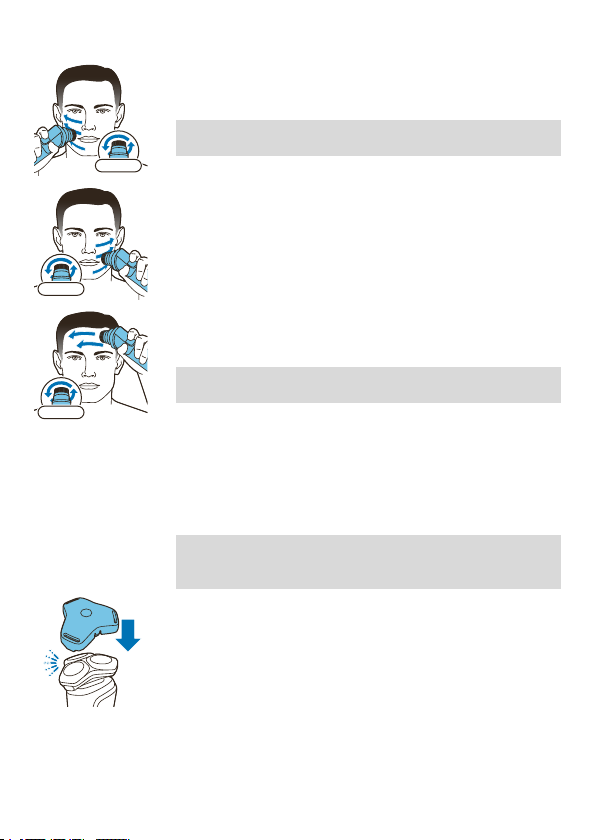
6
Gently move the brush across your skin from the
nose towards the ear. Do not press too hard. Make
sure that the treatment remains comfortable.
Do not cleanse the sensitive area around your
eyes.
20 sec.
7
After approx. 20 seconds, move the appliance to
your other cheek and start cleansing this part of
your face.
20 sec.
8
After approx. 20 seconds, move the appliance to
your forehead and start cleansing this part of your
face. Gently move the brush head from left to right.
We advise you to not overdo the cleansing and to
not cleanse any zone longer than 20 seconds.
9
Switch off the appliance and clean the attachment
after use.
10
After the treatment, rinse and dry your face. Your
face is now ready for the next step of your daily
skincare routine.
Storage
Note: We advise you to let the appliance and its
attachments dry before you store them for the next
use.
- Store the appliance in the pouch (if supplied).
- Put the protection cap (if supplied) on the shaver
to protect it from dirt accumulation.
- Alternatively, store the appliance on the charging
stand (if supplied) or in the Philips Quick Clean Pod
(if supplied).
How do I clean my appliance and the attachments?
How do I use the Quick Clean Pod?
What does the icon on my Quick Clean Pod mean?
23
English
Icon Behavior Meaning
Becomes visible on the
Quick Clean Pod
The Quick Clean Pod Cartridge
needs to be replaced (see 'How
do I use the Quick Clean Pod?').
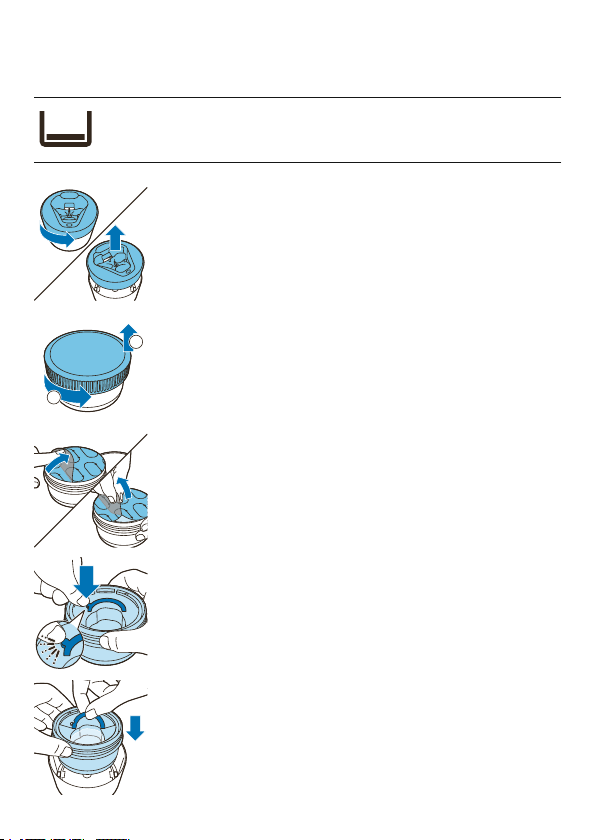
Preparing the Quick Clean Pod for use
1
Twist and remove the top of the Quick Clean Pod.
2
1
2
Twist the lid off of the Quick Clean Pod Cartridge.
3
Lift the tab on the seal and pull it by the corner to
remove the seal from the Quick Clean Pod
Cartridge.
4
Press the small circular piece on the handle of the
Quick Clean Pod Cartridge to break the snap hook
on the handle.
5
Place the Quick Clean Pod Cartridge into the Quick
Clean Pod.
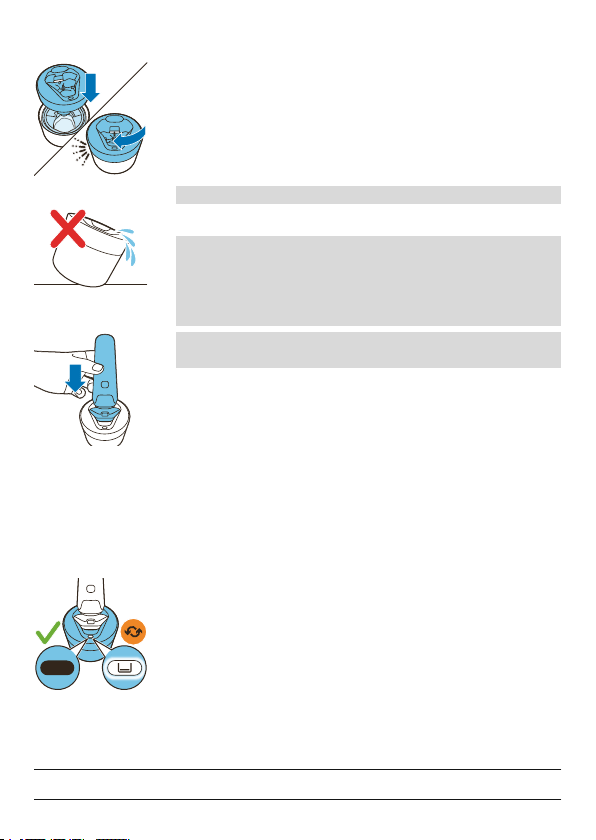
24
English
6
Put the top of the Quick Clean Pod back onto the
base and turn it clockwise until you hear a click.
Do not tilt the Quick Clean Pod to prevent leakage.
Using the Quick Clean Pod
Note: If you use the shaver with shaving foam, shaving
gel or pre-shave products, thoroughly rinse the
shaving heads before you use the Quick Clean Pod
(see 'How do I clean my appliance and the
attachments?').
Always shake excess water off the shaver before you
place it in the Quick Clean Pod.
1
Place the shaver upside down into the Quick Clean
Pod. While switched on, the shaver automatically
detects that it is in the Quick Clean Pod.
2
Switch on the shaver to start the cleaning program.
Each cleaning program takes approximately one
minute. During the cleaning program the remaining
time is displayed as a countdown clock on the
handle.
3
Let the shaver air-dry completely in the Quick
Clean Pod before storing it.
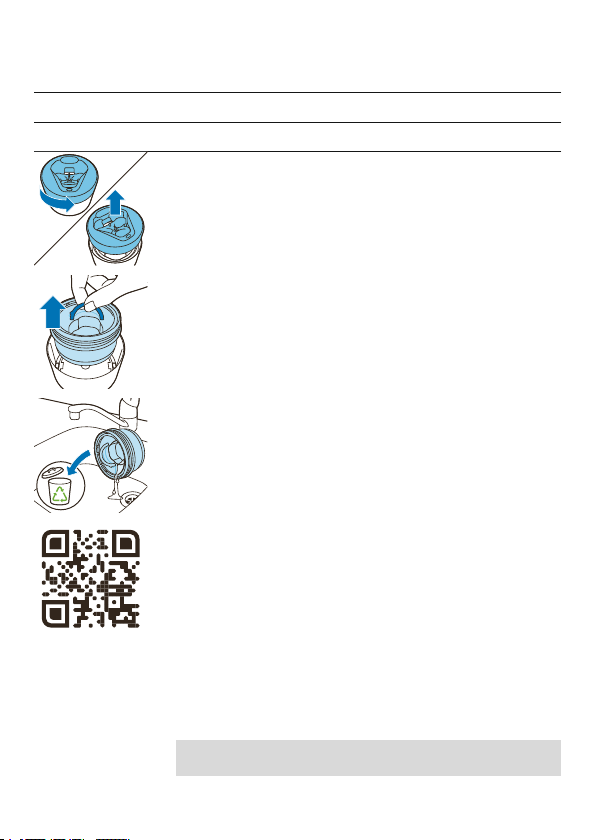
Replacing the Quick Clean Pod Cartridge
Replace the Quick Clean Pod Cartridge immediately
when the cartridge replacement icon on the Quick
Clean Pod becomes visible or follow the table below.
Frequency of use Cycles When to replace the
Quick Clean Pod
Cartridge
Every day About 30 Every month
25
English
A few times per week About 20 Every 2 months
Every week About 13 Every 3 months
Every month About 3 Every 3 months
1
Twist and remove the top of the Quick Clean Pod.
2
Lift the Quick Clean Pod Cartridge out of the Quick
Clean Pod by the handle.
3
Pour any remaining fluid down a drain and recycle
the empty cartridge in accordance with local waste
regulations.
4
Place a new Quick Clean Pod Cartridge into the
Quick Clean Pod (see 'Preparing the Quick Clean
Pod for use').
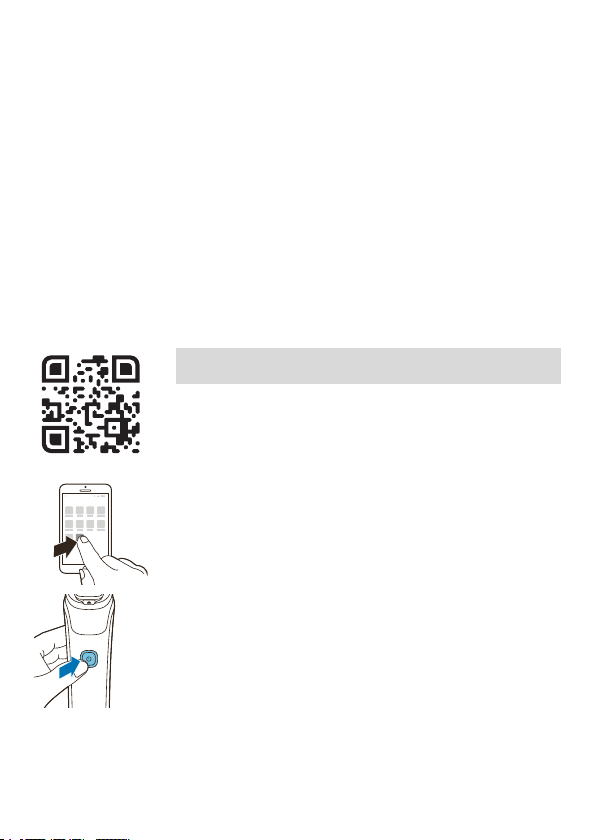
Scan the QR code to the left or visit
www.philips.com/cleaning-cartridge to order
replacement Quick Clean Pod Cartridges.
Clean the appliance and the attachments after each
use for optimal performance.
Cleaning the shaver under the tap
Clean the shaver after each use to prevent clogging
and damage.
Never dry the shaving unit with a towel or tissue, as
this may damage the shaving heads.
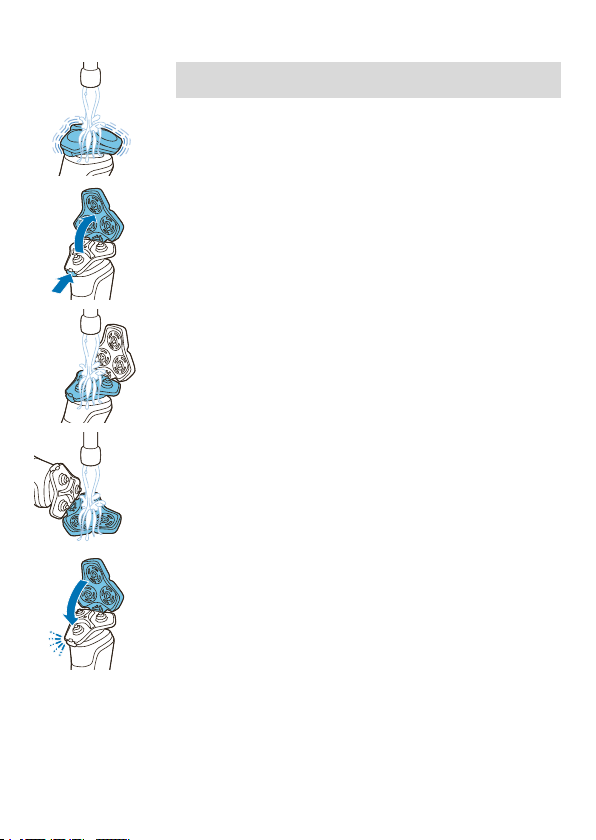
26
English
While rinsing the shaving unit, water may drip out of
the base of the shaver. This is a normal occurrence.
1
Switch on the shaver.
2
Rinse the shaving unit under a warm tap.
3
Switch off the shaver. Press the release button to
open the shaving unit.
4
Rinse the hair chamber under a warm tap.
5
Rinse the shaving head holder under a warm tap.
6
Carefully shake off excess water and let the
shaving head holder air-dry completely.
7
Close the shaving unit.
Thorough cleaning
We advise you to clean the shaving heads thoroughly
once a month or when the shaver does not shave as
well as it used to.
1
Make sure that the appliance is switched off and
disconnected from the wall socket.
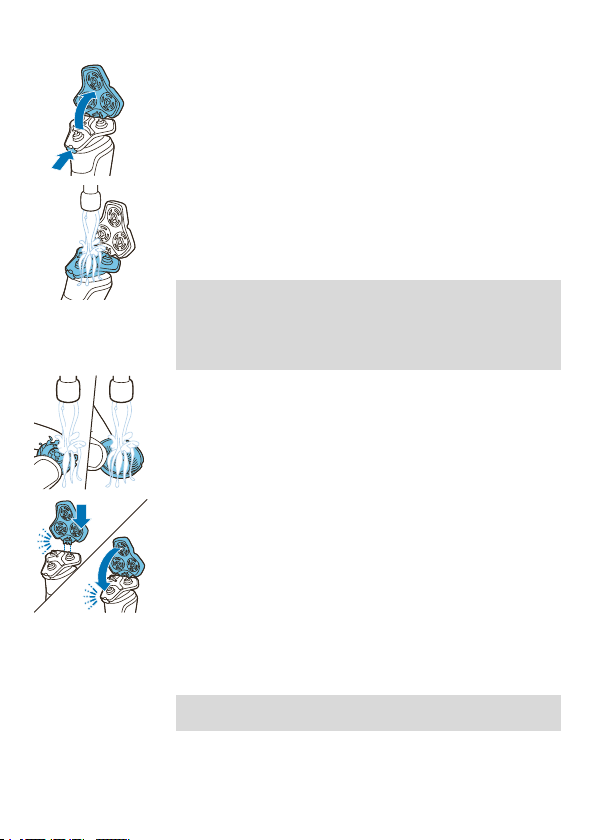
27
English
2
Press the release button on the shaving unit and
pull the shaving head holder off the shaving unit.
3
Rinse the hair chamber and shaving head holder
under the tap.
4
Remove the shaving heads. For detailed
instructions, see 'How do I replace the shaving
heads?'.
Note: Do not clean more than one cutter and guard
at a time, since they are all matching sets. If you
accidentally put a cutter in the wrong shaving
guard, it may take several weeks before optimal
shaving performance is restored.
5
Clean the cutter and guard under the tap.
6
Shake off excess water.
7
Put the shaving heads back into the shaving unit.
For detailed instructions, see 'How do I replace the
shaving heads?'.
8
Insert the hinge of the shaving head holder into the
slot in the top of the shaving unit and close the
shaving unit.
Cleaning the pop-up trimmer
Clean the trimmer after each use to prevent clogging
and damage.
Never dry the trimmer teeth with a towel or tissue, as
this may damage the trimmer teeth.
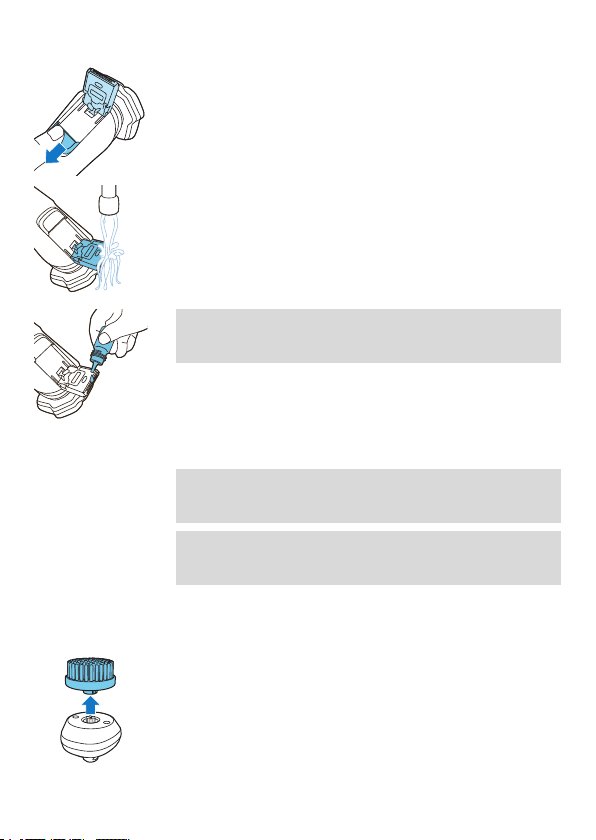
28
English
1
Make sure that the appliance is switched off and
disconnected from the wall socket.
2
Push the trimmer release slide down to open the
pop-up trimmer.
3
Switch on the appliance and rinse the pop-up
trimmer with warm water.
4
After cleaning, switch off the appliance.
5
Carefully shake off excess water and let the pop-
up trimmer air dry.
6
Close the trimmer.
Tip: For optimal performance, lubricate the teeth of
the pop-up trimmer with a drop of mineral oil every
six months (oil not included).
Cleaning the click-on attachments
Never dry the trimmer or beard styler attachments
with a towel or tissue, as this may damage the
trimming teeth.
The accessories supplied may vary for different
products. The box shows the accessories that have
been supplied with your product.
Cleaning the cleansing brush attachment
Clean the cleansing brush attachment after each use.
1
Switch off the appliance.
2
Remove the attachment from the attachment
holder.
3
Clean the parts thoroughly with warm water and
soap.
4
Dry the attachment with a towel.
Cleaning the beard styler attachment
Clean the beard styler attachment after each use.
29
English
1
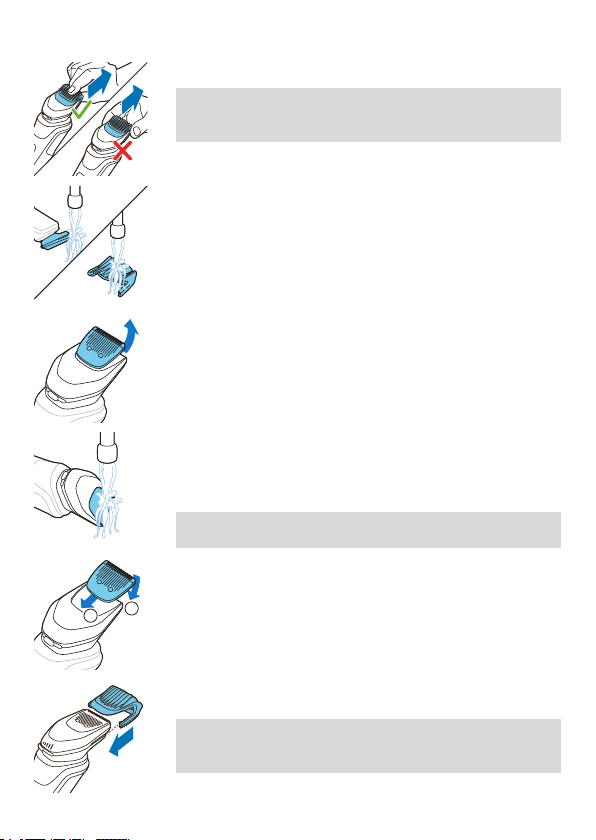
Pull the comb off the beard styler attachment.
Note: Grab the comb in the center to pull it off the
beard styler attachment. Do not pull at the sides of
the comb.
2
Rinse the cut hairs off the cutting unit with
lukewarm water.
3
Rinse the cut hairs off the comb.
4
Remove the cutting unit from the beard styler
attachment. By pushing the cutting unit from the
beard styler attachment you can remove any hairs
that have accumulated inside the beard styler. You
can also rinse the back of the cutting unit.
5
Rinse cut hairs out of the beard styler attachment.
6
Carefully shake off excess water and leave the
comb, cutting unit and beard styler attachment to
air-dry before next use.
Never dry the cutting unit with a towel or tissue,
as this may damage the trimming teeth.
2
1
7
When the cutting unit is dry attach it to the beard
styler attachment.
8
When the comb is dry, re-attach it to the beard
styler.
Tip: For optimal performance, lubricate the teeth of
the beard styler attachment with a drop of sewing
machine oil regularly.
30
English
How do I connect my shaver and smartphone?
Benefits of connecting your shaver to the app
You can use the app for a variety of personalization
and coaching options such as:
- Real-time motion and pressure feedback and
guidance
- Synchronizing your shave data and tracking your
shave history
- Improving your shave routine and reducing
shaving-related skin issue
- Recommendations on style
- Customization of post-shave feedback
- Personalized advice
Pair the shaver and smartphone
The app is compatible with a wide range of iPhone
and Android™ smartphones.
More information is available at
www.philips.com/MyShaver9000-app
1
Download the app.
S7920
2
Make sure Bluetooth on your smartphone is
switched on.
3
Switch on the shaver to activate Bluetooth.
4
Open the app and follow the instructions to start
the pairing process.

31
English
5
Once paired, the shaver and app connect
automatically when the app is open and Bluetooth
on your phone is switched on.
Synchronize your shaves
This shaver stores your shave data so you don't need
to take your smartphone with you when you shave or
want to check your shave data at a later stage.
When the data storage is almost full, you receive a
notification reminding you to synchronize your shaves.
To prevent data loss, synchronize the shaver with the
app (see 'How do I connect my shaver and
smartphone?').
1
Make sure your phone is close to the shaver and
open the app.
2
The app connects automatically and synchronizes
your last shaves.
Unpair the shaver and smartphone
You can pair your shaver with only one smartphone at
a time. To unpair your shaver from your smartphone
(e.g. when you get a new smartphone), follow these
steps:
Unpair the shaver
1
Toggle through the menu items by pressing the
menu button until you reach the Bluetooth menu
(the fourth menu).
2
Press and hold the menu button until you are
presented with a cross and check mark selection.
32
English
3
Select the check mark by pressing the menu
button again to unpair your shaver.
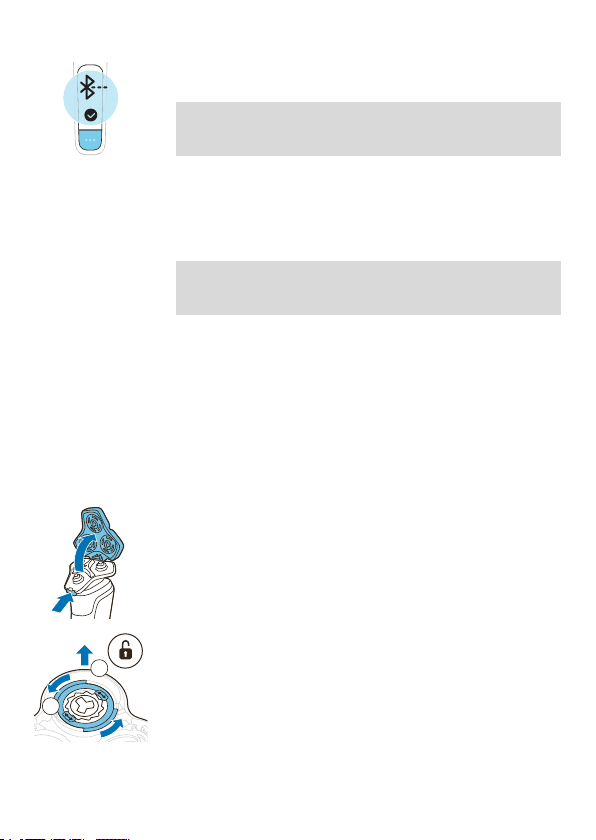
Note: When your shaver is successfully unpaired,
you see the Bluetooth icon on your shaver handle
shown to the left.
Unpair your smartphone
1
Go to the settings on your smartphone and select
Bluetooth.
2
Tap on the name of the shaver.
3
Tap 'forget' or 'unpair'.
Note: The unpairing procedure may vary by
smartphone. Please check your smartphone
manual for more information.
How do I replace the shaving heads?
For maximum shaving performance, we advise you to
replace the shaving heads every two years.
Replace damaged shaving heads immediately. Always
replace the shaving heads with original Philips shaving
heads (see 'Ordering accessories').
Replacing the shaving heads
1
Switch off the shaver.
2
Press the release button on the shaving unit and
pull the shaving head holder off the shaving unit.
2
1
3
Turn the retaining rings anticlockwise and remove
them. Place them aside in a safe place.
33
English
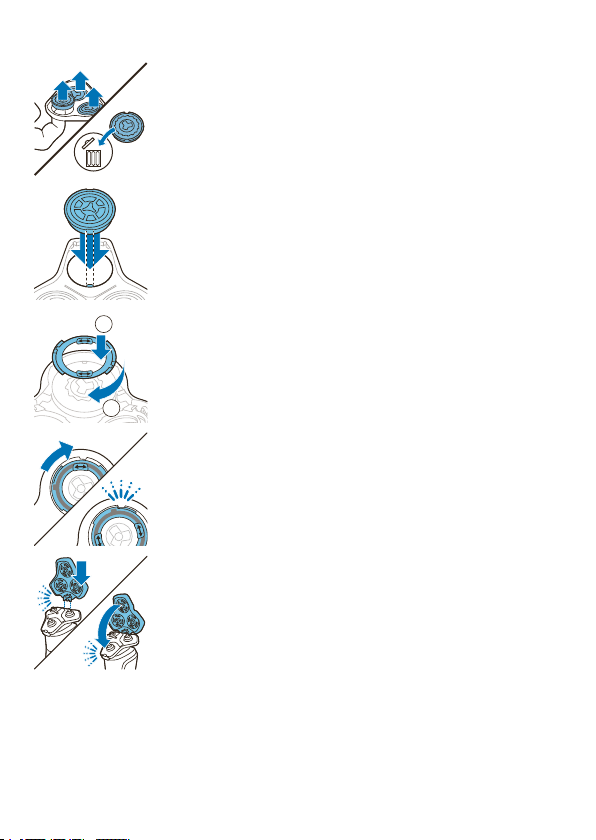
4
Remove the shaving heads from the shaving head
holder.
Discard the used shaving heads immediately to
avoid mixing them with the new shaving heads.
5
Place new shaving heads in the holder.
2
1
6
Place the retaining rings back onto the shaving
heads and turn them clockwise to reattach the
retaining rings.
- Each retaining ring has two recesses that fit exactly
into the projections of the shaving head holder.
Turn the ring clockwise until your hear a click to
indicate that the ring is fixed.
7
Insert the hinge of the shaving head holder into the
slot in the top of the shaving unit and close the
shaving unit.
Ordering accessories
To buy accessories or spare parts, visit
www.philips.com/parts-and-accessories or go to
your Philips dealer. You can also contact the Philips
Consumer Care Center in your country (see the
international warranty leaflet for contact details).

34
English
The following accessories and spare parts are
available:
- SH91 Philips shaving heads
- CC12 Cleaning cartridge 2-pack
- CC13 Cleaning cartridge 3-pack
- CC16 Cleaning cartridge 6-pack
Note: The availability of the accessories may differ by
country.

35
English
Troubleshooting
This chapter summarizes the most common problems
you could encounter with the appliance. If you are
unable to solve the problem with the information
below, visit www.philips.com/support for a list of
frequently asked questions or contact the Consumer
Care Center in your country.
Shaver
Problem Possible cause Solution
I cannot connect
the shaver.
You have not
downloaded the
app.
Download the app.
Your shaver and
smartphone are
not paired yet.
Pair your shaver and
smartphone following the
instructions in the app.
The first pairing
attempt failed.
Unpair your shaver and
smartphone (see 'Unpair the
shaver and smartphone') and
try pairing them again (see 'Pair
the shaver and smartphone').
Your smartphone
cannot find your
shaver.
Make sure your smartphone is
equipped with Bluetooth 4.2 or
higher.
Make sure Bluetooth is
activated on your smartphone
and that the travel lock is
switched off on your shaver
(see 'Main menu').
Make sure that your
smartphone is within onemeter
of your shaver to enable a
Bluetooth connection.
Make sure your shaver is
charged.

36
English
Problem Possible cause Solution
I want to use the
shaver without the
app.
You do not have to connect
your shaver to your smartphone
before each shave. The shaver
works fine without the app,
although you will not
experience the same benefits.
To get personalized shaving
tips, just make sure that you
connect it at least once every
20 shaves to synchronize your
shave data (see 'Synchronize
your shaves').
The appliance
does not work
when I press the
on/off button.
The appliance is
still attached to
the wall socket.
For safety
reasons, the
appliance can
only be used
without cord.
Unplug the appliance and press
the on/off button to switch on
the appliance.
The rechargeable
battery is empty.
Recharge the battery.
The travel lock is
activated.
Press the menu button for 3
seconds to deactivate the travel
lock.
The shaving unit is
soiled or damaged
to such an extent
that the motor
cannot run.
Clean the shaving heads
thoroughly or replace them.
Theappliance
doesnot shave as
well as it used to.
The shaving heads
are damaged or
worn.
Replace the shaving heads (see
'Replacing the shaving heads').
Hairs or dirt
obstruct the
shaving heads.
Clean the shaving heads
thoroughly (see 'Thorough
cleaning').

37
English
Problem Possible cause Solution
Water is leaking
from the bottom
of the appliance.
During cleaning,
water may collect
between the inner
body and the
outer shell of the
appliance.
This is normal and not
dangerous because all
electronics are enclosed in a
sealed power unit inside the
appliance.
Philips Quick Clean Pod
Problem Possible cause Solution
My shaver isn't clean
after using the Philips
Quick Clean Pod.
You removed the
shaver before the
cleaning program was
finished.
Leave the shaver in the
Philips Quick Clean
Pod for the full
cleaning program.
Each cleaning program
takes approximately 1
minute. The cleaning
icon goes out when
the cleaning program
is finished.
The Philips Quick
Clean Pod Cartridge
needs to be replaced.
Replace the Philips
Quick Clean Pod
Cartridge.
The Philips Quick
Clean Pod is tilted.
Place the Philips Quick
Clean Pod on a flat
surface.
My Philips Quick Clean
Pod does not switch
on.
The Philips Quick
Clean Pod is powered
by the motor of the
shaver.
Place the shaver into
the Philips Quick Clean
Pod. Switch on the
shaver.
The shaver is
connected to the wall
socket.
Disconnect the shaver
from the supply unit.
The shaver battery is
empty.
Charge the shaver
before using the
Philips Quick Clean
Pod.
38
English
My Philips Quick Clean
Pod is overflowing.
You regularly use the
Philips Quick Clean
Pod after rinsing the
shaver but not shaking
off excess water.
Shake off excess water
after rinsing the
shaving heads each
time before putting the
shaver into the Philips
Quick Clean Pod.
You shaved with
shaving gel or foam
and did not rinse the
shaver before using
the Philips Quick Clean
Pod.
Rinse the shaving
heads thoroughly
before using the
Philips Quick Clean
Pod.
Further guidance
For more guidance and videos on your S9000 shaver,
scan the QR code below or visit
www.philips.com/myS9000shaver
Recycling
- This symbol means that electrical products and
batteries shall not be disposed of with normal
household waste.
- Follow your country’s rules for the separate
collection of electrical products and batteries.
Removal of built-in rechargeable battery
The built-in rechargeable battery must only be
removed by a qualified professional when the
appliance is discarded. Before removing the battery,
make sure that the appliance is disconnected from
the wall socket and that the battery is completely
empty.

39
English
Take any necessary safety precautions when you
handle tools to open the appliance and when you
dispose of the rechargeable battery.
When you handle batteries, make sure that your
hands, the product and the batteries are dry.
To avoid accidental short-circuiting of batteries
after removal, do not let battery terminals come
into contact with metal objects (e.g. coins,
hairpins, rings). Do not wrap batteries in
aluminum foil. Tape battery terminals or put
batteries in a plastic bag before you discard
them.
1
If possible, pull the shaving or cutting unit off the
appliance.
2
If there are screws in the housing of the appliance,
remove them with a screwdriver.
3
Remove the outer panels by inserting a flathead
screwdriver between the edges and twisting it. Also
remove additional screws and/or parts and break
any snap connections.
4
If there is a power unit inside the appliance,
remove it from the appliance, cut the wires and
open the power unit with a screwdriver.
5
Bend battery tags aside with a screwdriver and
remove the rechargeable battery.
Trademarks
Apple, the Apple logo, iPad, and iPhone are
trademarks of Apple Inc., registered in the U.S. and
other countries. App Store is a service mark of Apple
Inc.
Android is a trademark of Google Inc. Google Play and
the Google Play logo are trademarks of Google Inc.
The Bluetooth® word mark and logos are registered
trademarks owned by the Bluetooth SIG, Inc. and any
use of such marks by Philips Personal Care is under
license.




Empty page before back cover

© 2021 Koninklijke Philips N.V.
All rights reserved
3000.057.1984.1 (1/7/2021)
>75 % recycled paper
>75 % papier recyclé